
MULTIFUNCTIONAL DIGITAL SYSTEMS. User s Guide
|
|
|
- Stephany Douglas
- 9 years ago
- Views:
Transcription
1 MULTIFUNCTIONAL DIGITAL SYSTEMS User s Guide

2 03 TOSHIBA TEC CORPORATION All rights reserved Under the copyright laws, this manual cannot be reproduced in any form without prior written permission of TTEC.

3 Preface How to read this manual Thank you for purchasing the TOSHIBA multifunctional digital systems. This manual describes how to use, perform maintenance, and fix problems for this equipment. Be sure to read this manual before using this equipment. Keep this manual handy and retain it for future reference. Symbols in this manual To ensure correct and safe use of this equipment, this manual describes safety precautions according to the three levels shown below. You should fully understand the meaning and importance of these items before reading this manual. Indicates a potentially hazardous situation which, if not avoided, could result in death, serious injury, or serious damage, or fire in the equipment or surrounding assets. Indicates a potentially hazardous situation which, if not avoided, may result in minor or moderate injury, partial damage of the equipment or surrounding assets, or loss of data. Indicates information to which you should pay attention when operating the equipment. Other than the above, this manual also describes information that may be useful for the operation of this equipment with the following signage: Describes handy information that is useful to know when operating the equipment. Pages describing items related to what you are currently doing. See these pages as required. Description of original/paper direction Paper or originals of A4 or B5/LT size can be loaded either in a portrait direction or in a landscape direction. In this manual, -R is added to this paper size when this size of paper or original is loaded in a landscape direction. e.g.) A4/LT size paper on the bypass tray Loaded in a portrait direction: A4/LT Loaded in a landscape direction: A4-R/LT-R Paper or originals of A3 or B4/LD or LG size can only be loaded in a landscape direction, therefore -R is not added to these sizes. Preface

4 Screens In this manual, the screens and the operation procedures in Windows are described for Windows 7. The details on the screens may differ depending on how the equipment is used, such as the status of the installed options, the OS version and the applications. The illustration screens used in this manual are for paper in the A/B format. If you use paper in the LT format, the display or the order of buttons in the illustrations may differ from that of your equipment. Trademarks The official name of Windows XP is Microsoft Windows XP Operating System. The official name of Windows Vista is Microsoft Windows Vista Operating System. The official name of Windows 7 is Microsoft Windows 7 Operating System. The official name of Windows 8 is Microsoft Windows 8 Operating System. The official name of Windows Server 003 is Microsoft Windows Server 003 Operating System. The official name of Windows Server 003 R is Microsoft Windows Server 003 R Operating System. The official name of Windows Server 008 is Microsoft Windows Server 008 Operating System. The official name of Windows Server 008 R is Microsoft Windows Server 008 R Operating System. The official name of Windows Server 0 is Microsoft Windows Server 0 Operating System. Microsoft, Windows, Windows NT, and the brand names and product names of other Microsoft products are trademarks of Microsoft Corporation in the US and other countries. Adobe, Acrobat, and Reader are either registered trademarks or trademarks of Adobe Systems Incorporated in the United States and/or other countries. Other company and product names given in this manual or displayed in this software may be the trademarks of their respective companies. Lineup of our manuals These manuals are provided for the operation of the e-studio505. Select and read the manual best suited to your needs. This manual is the User s Guide. Safety Information (Printouts) This manual describes the necessary precautions for use. For your added security, be sure to read this manual first. Quick Guide (Printouts) This manual describes the components, preparations, basic operations, and troubleshooting for the equipment. User s Guide (PDF file, this manual) This manual describes preparations for using the e-studio505, and how to use functions such as copying and printing. It also describes maintenance and troubleshooting for the problems that could occur while you are using the equipment. Software Installation Guide (PDF file) This manual describes how to install and uninstall printer and scanner drivers. Help menu for client software To run the following client software, refer to the Help menu of each: Printer driver Scanner driver To read manuals in the PDF file format This manual in the PDF (Portable Document Format) can be displayed/printed using Adobe Reader or Adobe Acrobat Reader. If neither is installed in your computer, download one of them. This can be done via the website of Adobe Systems Incorporated. Preface

5 Recommended toner cartridges To assure optimal printing performance, we recommend that you use only genuine TOSHIBA toner cartridges. If you use a TOSHIBA-recommended toner cartridge, you can utilize the following three functions of this equipment: Cartridge detecting function: This function checks if the toner cartridge is correctly installed and notifies you if it is not. Toner remaining check function: This function notifies you when there is little toner remaining in the cartridge. Image quality optimization function: This function controls image quality according to the characteristics of the toner to be used and enables you to print images of an optimal quality. If you are using a toner cartridge other than the one we recommend, the equipment may not be able to detect whether it is installed or not. Therefore, even if the toner cartridge is correctly installed, the error message ERROR: TONER appears on the LCD screen and printing may not be performed. You may also not be able to utilize the image quality optimization function and the toner remaining check function. If you are using a toner cartridge other than the one we recommend, toner is not recognized. If this is a problem for you, please contact your service representative. Remember you will not be able to utilize the Toner remaining check function and Image quality optimization function as we mentioned. Preface 3

6

7 CONTENTS Preface... Chapter PREPARATION Components... 0 Front/Right/Inner side...0 Left side... Configuration of options... Control panel... 3 Main screen (Copy)... 5 Preparation - Turning Power ON... 6 Turning on... 6 Saving energy when not in use - Energy saving mode Preparation - Loading Paper... 8 Acceptable paper types... 8 Recommended paper... 9 Loading paper in the drawer... 0 Loading paper on the bypass tray... Loading an envelope on the bypass tray... 4 Preparation 3 - Registering Paper Size and Type... 7 Chapter COPY FUNCTIONS Basic Copy Procedure Acceptable originals Copying originals... 3 Copy Settings Adjusting the exposure Selecting the original mode Selecting the paper...38 Enlarging or reducing the copy size Sorting pages Copying two or four pages on each sheet Copying both sides of a card on a sheet Erasing the shadow on edges Shifting the pages to the right or left Adding a page number on the copied paper Removing blank pages... 5 Confirming the current function settings... 5 Using Templates Registering the templates Recalling a template Chapter 3 PRINT FUNCTIONS Before Using the Printer Driver Configuring the options Printing From Application... 6 Considerations and limitations... 6 How to print... 6 Status Monitor CONTENTS 5

8 Monitoring the print status and reporting print errors Setting Up Print Options How to set up Print options Printing With Best Functions for Your Needs Layout and finishing options in [Basic] tab menu Layout and finishing options in [Finishing] tab menu Finishing options in [Effect] tab menu... 8 Chapter 4 SCAN FUNCTIONS Scanning From Application How to scan Setting Up Scan Options Scan options Using the Easy Set feature Chapter 5 VARIOUS FUNCTIONS Copy Menu List... 9 Copy menu items...9 User Functions Menu List User functions menu items Chapter 6 TROUBLESHOOTING When This Message Appears Paper Misfeed Find the position of paper misfeeds When paper misfeeds occur frequently When removing misfed paper Paper misfeeds on the Automatic Document Feeder (ADF) Paper misfeeds on the bypass tray... 0 Paper misfeeds inside of the side cover... 0 Replacing Toner Cartridge When a message for replacement appears Before Calling Service Technician General operation Toner-related items Original/Paper-related items Image trouble Chapter 7 MAINTENANCE AND INSPECTION Regular Cleaning... 0 Chapter 8 SPECIFICATIONS e-studio505 Specifications... Continuous copying speed CONTENTS

9 Specifications of Options... 4 Packing List... 5 Copying Function Combination Matrix... 6 Combination matrix... 6 INDEX... 7 CONTENTS 7

10 8 CONTENTS

11 .PREPARATION Components... 0 Front/Right/Inner side...0 Left side... Configuration of options... Control panel...3 Main screen (Copy)...5 Preparation - Turning Power ON... 6 Turning on...6 Saving energy when not in use - Energy saving mode Preparation - Loading Paper... 8 Acceptable paper types...8 Recommended paper...9 Loading paper in the drawer...0 Loading paper on the bypass tray... Loading an envelope on the bypass tray...4 Preparation 3 - Registering Paper Size and Type... 7

12 PREPARATION Components Front/Right/Inner side Automatic Document Feeder (ADF) (optional) Load up to 50 originals (80 g/m or 0 lb. Bond) to scan one sheet after another. (The maximum number you can load may vary depending on the type of original.) P.99 Paper Misfeed The Automatic Document Feeder is only available for Europe.. Platen cover Close this before start copying or scanning. 3. Side cover 4. Bypass tray Place special paper such as thick paper, overhead transparencies, or tracing paper. P. Loading paper on the bypass tray P.4 Loading an envelope on the bypass tray 5. Drawer Place up to 50 sheets of plain paper (80 g/m or 0 lb. Bond). P.0 Loading paper in the drawer 6. Front cover Open this when you replace the toner cartridge. P.04 Replacing Toner Cartridge 7. Toner cartridge For the recommended toner cartridges, refer to the Safety Information. P.04 Replacing Toner Cartridge 0 Components

13 PREPARATION.PREPARATION Left side For Europe For regions other than Europe Original glass Place the book-type originals and special paper such as overhead transparencies or tracing paper, as well as plain paper.. Control panel Make settings to use the various functions on this equipment. P.3 Control panel 3. Power switch Turns the power ON or OFF. P.6 Preparation - Turning Power ON 4. Paper exit stopper Stops large paper from sliding out of the receiving tray. When you use the stopper, pull out it until you hear a click sound. Components

14 PREPARATION 5. AC-IN terminal (rear) Connect the power cable supplied with the equipment. 6. USB terminal (4-pin) Connect to your PC using a commercially available USB cable. Use a USB.0 Hi-Speed certified cable: USB cable supporting the USB.0 Hi-Speed mode (480 Mbps of transfer speed) certified by the USB Implementers Forum. Connect the equipment with a PC directly by the USB cable. When it is connected with a PC via a USB hub, the equipment may not be recognized. 7. Receiving tray 8. Scanning area The data of originals transported from ADF are scanned here. P.0 Regular Cleaning The scanning area is only available for Europe. 9. Original scale Confirm the size of an original placed on the original glass. 0. Platen sheet P.0 Regular Cleaning Configuration of options The available options are listed below. Contact your service technician or service representative for details. Automatic Document Feeder (MR-0) * Only for Europe Main body Components

15 PREPARATION.PREPARATION Control panel The functions and indications of the button vary depending on the region. The illustrations show the control panel for Europe and the Americas unless they are specified. For Europe and the Americas For regions other than Europe and the Americas LCD screen Confirms each menu and error messages. P.5 Main screen (Copy). [USER FUNCTIONS] button Changes the equipment s default settings. P.93 User Functions Menu List 3. button Press this button on menu screens to move to the item above. If you press this button when the top menu item is highlighted, the bottom menu item is displayed. 4. [SETTINGS] button Displays the current settings. 5. [TEMPLATE] button Creates and recalls template settings. P.53 Using Templates 6. [ENERGY SAVER] button Enters into the energy saving mode. 7. [FUNCTION CLEAR] button Clears the copy function settings and returns to the main screen (Copy). Components 3

16 PREPARATION 8. [CLEAR/STOP] button Stops copying or returns the number of copies to. 9. [START] button Starts copying. 0. Digital keys Enters numbers such as the number of copies.. button Press this button once on the main screen (Copy) to show the EXPOSURE screen for Europe and the Americas, or the ID CARD screen for regions other than Europe and the Americas. Press it on menu screens to move to an item on the right or increase the setting. P.34 Using the EXPOSURE or ID CARD function quickly. [OK] button Determines the items or operations selected in each menu. 3. button Press this button on the main screen (Copy) to enter the copy menu. Press it on menu screens to move to the item below. If you press this button when the bottom menu item is highlighted, the top menu item is displayed. 4. [CANCEL] button Cancels the current settings and returns to the previous item. 5. button Press this button once on the main screen (Copy) to show the ORIGINAL MODE screen. Press it on menu screens to move to an item on the left or decrease the setting. P.35 Selecting ORIGINAL MODE quickly 6. Alert lamp Blinks or lights in case of an error. 4 Components

17 PREPARATION.PREPARATION Main screen (Copy) Appears after the power of the equipment is turned ON and the warm-up is finished. This screen is called main screen (Copy). This screen also appears when the AUTO CLEAR function has worked READY 00% A4 AUTO EXPOSURE TEXT/PHOTO 4. Message Displays the current status or error messages.. Paper size Displays the paper size specified for the drawer or the bypass tray. 3. Copy quantity Displays the number of copies. 4. Scroll icon Displays or that you can press on the current screen or menu. 5. Original mode Displays the mode to copy the original. 6. Exposure Displays the copy density. 7. Reproduction ratio Displays the reproduction or zoom ratio to copy. This function returns all settings to default without the need to press [FUNCTION CLEAR] on the control panel. It works when a specified period of time has passed since the last paper exit or the last entry of any button. P.94 GENERAL Components 5

18 PREPARATION Preparation - Turning Power ON Turning on Press the power switch to (on). Starts warming up, which takes approx. 0 seconds. When the warm-up has finished, the equipment is ready. READY 00% A4 AUTO EXPOSURE TEXT/PHOTO If the access code function is enabled, press the [FUNCTION CLEAR] button after any operation has been finished to prevent unauthorized use of the equipment. For the details of the access code setting, ask your service technician. If you press [START] during the warm-up, copying automatically starts after it has finished. When the job is reserved, COPYING appears on the LCD screen to show you the current status. This function cannot be accessed while PLEASE WAIT is being displayed (approx. 5 seconds). Turning off Press the power switch to (off). Saving energy when not in use - Energy saving mode - To reduce power consumption, the equipment automatically enters into the energy saving mode when a specified period of time has passed since its last use. Types of energy saving mode Low power mode: Sleep mode: SAVING ENERGY appears on the LCD screen. The equipment automatically enters into low power mode when a specified period of time elapses. The LCD screen is turned off and only [ENERGY SAVER] is lit. The equipment enters into sleep mode when a specified period of time elapses or the [ENERGY SAVER] button is pressed. When Status Monitor is running, the equipment does not enter into the sleep mode. If you want to enable the sleep mode, exit it out. P.63 Status Monitor The timers for AUTO POWER SAVE and SLEEP MODE have been set respectively as the factory default settings. You can change them in the USER FUNCTIONS menu. P.93 User Functions Menu List 6 Preparation - Turning Power ON
![For the details of the access code setting, ask your service technician. If you press [START] during the warm-up, copying automatically starts after it has finished.](/docs-images/46/21820334/images/page_18.jpg "When the job is reserved, COPYING appears on the LCD screen to show you the current status. This function cannot be accessed while PLEASE WAIT is being displayed (approx. 5 seconds).")
19 PREPARATION.PREPARATION To turn the equipment into the energy saving mode (Sleep mode) manually Press [ENERGY SAVER]. Canceling conditions for energy saving mode The energy saving mode is canceled under the following conditions. When [ENERGY SAVER] or [START] on the control panel is pressed - For the low power mode: Press [ENERGY SAVER] or [START] - For the sleep mode: Press [ENERGY SAVER] When printing or scanning is performed from a PC connected with this equipment Preparation - Turning Power ON 7
![When [ENERGY SAVER] or [START] on the control panel is pressed - For the low power mode: Press [ENERGY SAVER] or [START] -](/docs-images/46/21820334/images/page_19.jpg "For the sleep mode: Press [ENERGY SAVER] When printing or scanning is performed from a PC connected with this equipment")
20 PREPARATION Preparation - Loading Paper Load an appropriate type of paper. Acceptable paper types Acceptable paper types differ depending on its paper source. See the table below for more details. Paper source Paper type Paper size Maximum sheet capacity * Drawer Bypass tray Plain paper (64-80 g/m, 7-0 lb. Bond) Plain paper (64-80 g/m, 7-0 lb. Bond) Thin (5-63 g/m, 4-7 lb. Bond) Thick paper (8-05 g/m, - 8 lb. Bond) Thick paper (06-63 g/m, 8-43 lb. Bond) Tracing paper (75 g/m, 0 lb. Bond) Sticker labels A/B format: A4 LT format: LT K format: 6K A/B format: A3, A4, A4-R, A5-R, B4, B5, B5-R, FOLIO LT format: LD, LG, LT, LT-R, ST-R, COMP, 3"LG, 8.5"SQ K format: 8K, 6K, 6K-R sheet Transparencies * A4/LT only sheet Envelope *3 DL (0 mm x 0 mm), COM0 (4 /8" x 9 /"), Monarch (3 7/8" x 7 /"), CHO-3 (0 mm x 35 mm), YOU-4 (05 mm x 35 mm) sheet 50 sheets (80 g/m, 0 lb. Bond) 50 sheets (80 g/m, 0 lb. Bond) sheet (5-63 g/m, 4-7 lb. Bond) sheet (8-05 g/m, - 8 lb. Bond) sheet (06-63 g/m, 8-43 lb. Bond) sheet * Maximum sheet capacity refers to the maximum number of sheets when recommended paper is used. See the following page for the recommended paper: P.9 Recommended paper * Be sure to use the recommended overhead transparencies. Using other transparencies could cause an equipment malfunction. *3 Envelope can be used when printing from your PC. Do not mix various paper sizes in one drawer. LT format is the standard size for only use in North America. K format is a Chinese standard size. Abbreviations for LT format sizes: LT: Letter, LD: Ledger, LG: Legal, ST: Statement, COMP: Computer 8 Preparation - Loading Paper

21 PREPARATION.PREPARATION Recommended paper To ensure the best copy performance, the paper types listed below are recommended. If you want to use paper other than that we recommend, contact your service technician. Plain paper Thick paper Thick paper Paper type A/B format: TGIS Paper/Mondi LT format: TIDAL/Hammermill Product name K format: Classic Jetset COPY PAPER/UPM 70 g/m A/B format: Color Copy/Mondi LT format: Laser/Hammermill A/B format: Color Copy/Mondi 00 g/m A/B format: Color Copy/Mondi LT format: Laser/Hammermill A/B format: Color Copy/Mondi LT format: Exact Index/WAUSAU 80 g/m, 0 lb. Bond 90 g/m, 4 lb. Bond 0 g/m, 3 lb. Bond 60 g/m, 43 lb. Index Tracing paper Tracing paper/ostrich International 75 g/m only, 0 lb. Bond only Sticker labels Transparencies * Envelope A/B format: 3478/ZWECH-AVERY LT format: 565/AVERY A/B format: PP500/3M LT format: X0.0/FOLEX COM0/ColumbianCO38/Westvaco, No.553/Monarch/mailwell * Be sure to use the recommended overhead transparencies. Using other transparencies could cause an equipment malfunction. Paper types not acceptable Do not use the types of paper listed below since they may cause paper misfeeds. Damp paper Creased paper Wrinkled paper or paper prone to be curled Extremely smooth or rough surface paper Do not use the types of paper listed below since they may cause an equipment malfunction. Paper whose surface is specially treated Paper once printed with other copiers or printers Storing paper Note the following points when storing paper. Wrap the paper in its packaging to prevent it from gathering dust. Do not expose the paper to direct sunlight. Do not store the paper in a humid location. Store the paper on a flat surface to prevent it from becoming curled or creased. Preparation - Loading Paper 9
22 PREPARATION Loading paper in the drawer For the acceptable paper, see the following page: P.8 Acceptable paper types Turn the power of the equipment ON. Pull out the drawer carefully, and then press down the paper plate. 3 Press it down until you hear a click sound and it is no longer lifted up. Remove the side guides. 4 Attach the side guides according to the paper size. 0 Preparation - Loading Paper
23 PREPARATION.PREPARATION 5 Load paper face up in the drawer. 6 Up to 50 sheets (80 g/m or 0 lb. Bond) can be loaded. Be sure that the height of the stacked paper does not exceed the line indicated inside of the trailing guides. P.8 Acceptable paper types Fan the paper well before loading it in the drawer, otherwise multiple feeding could occur. Be careful not to cut your fingers. The printable side may be noted on its packaging. Move the end guide to the trailing edge of the paper while pushing its lower part in the direction of the arrows. 7 Widen the gap with both hands. Push the drawer straight into the equipment slowly until it stops. Do not catch your fingers in the drawer when closing it. This could cause injury. Register the paper size into the equipment. When you load paper in the drawer for the first time, register the paper size. Be sure to register it correctly, otherwise it could cause a paper misfeed. For the registration, see the following page: P.7 Preparation 3 - Registering Paper Size and Type Be sure to register the paper size each time you have changed it. Preparation - Loading Paper
24 PREPARATION Loading paper on the bypass tray The contents of the original(s) are rotated when copied on paper of the following sizes fed from the bypass tray. A/B format: A3, A4-R, A5-R, B4, B5-R, FOLIO LT format: LD, LG, LT-R, ST-R, COMP, 3"LG, 8.5"SQ K format: 8K, 6K-R For example, to copy an A5-size original, place the original on the original glass in A5 portrait orientation and paper on the bypass tray in A5 landscape orientation (A5-R). To enlarge an A4-size original to A3, place the original on the original glass in A4 portrait orientation and A3 paper on the bypass tray. The illustrations below are example of loading A4/LT size paper. For the acceptable paper, see the following page: P.8 Acceptable paper types Open the bypass tray. Release the lever on the left, and then load paper face down and straight on the bypass tray. The printable side may be noted on its packaging. Preparation - Loading Paper
25 PREPARATION.PREPARATION 3 Align the side guides with the edges of the paper, and then push back the lever. Up to 50 sheets of plain paper (80 g/m or 0 lb. Bond) can be loaded. Be sure that the height of the stacked paper does not exceed the indicators of the side guides. If paper other than plain is used, set it one sheet at a time. Fan the paper well before loading it on the bypass tray, otherwise multiple feeding could occur. Be careful not to cut your fingers. Do not push the paper forcibly into the entrance of the bypass feeder, otherwise it could cause a paper misfeed. When you use paper longer than the bypass tray size, pull out the paper holder from the tray, and then open it. Preparation - Loading Paper 3
26 PREPARATION Loading an envelope on the bypass tray For the acceptable envelope sizes, see the following page: P.8 Acceptable paper types Notes for using envelopes Do not use the following envelopes, otherwise they may cause a paper misfeed or damage to the equipment.. Badly curled, wrinkled or folded envelopes. Extremely thick or thin envelopes 3. Wet or damp envelopes 4. Torn envelopes 5. Envelopes which include the contents 6. Non-standard size envelopes (ones with a special shape) 7. Envelopes with eyelets or windows 8. Envelopes sealed with adhesive paste or tape 9. Partly-opened or perforated envelopes 0. Envelopes with special coating on the surface. Envelopes with glue or double-sided adhesive tape Store envelopes at room temperature and away from heat and moisture. 4 Preparation - Loading Paper
27 PREPARATION.PREPARATION Place an envelope on a flat clean surface and press it with your hands in the arrow directions as shown below to expel air from the inside. Press it well to prevent the flap from rolling upward. Correct bent corners of the envelope. Open the bypass tray. 3 Release the lever on the left, and then load the envelope face down on the bypass tray. Place the envelope with its flap side at the front as shown below. Do not copy or print on the back of envelopes, otherwise it may cause a paper misfeed or soil them or the inside of the equipment. Preparation - Loading Paper 5
28 PREPARATION 4 Align the side guides to the edges of the envelope, and then push back the lever. 6 Preparation - Loading Paper
29 PREPARATION Preparation 3 - Registering Paper Size and Type When you load or change paper, a pop-up window appears. Follow the instructions to register the items below in the equipment. For the drawer: the paper size For the bypass tray: the paper size and type You can also register the paper size for the drawer in the USER FUNCTIONS menu. P.93 User Functions Menu List Preparation 3 - Registering Paper Size and Type 7
30
31 .COPY FUNCTIONS Basic Copy Procedure Acceptable originals...30 Copying originals...3 Copy Settings Adjusting the exposure...36 Selecting the original mode...37 Selecting the paper...38 Enlarging or reducing the copy size...40 Sorting pages...44 Copying two or four pages on each sheet...45 Copying both sides of a card on a sheet...47 Erasing the shadow on edges...48 Shifting the pages to the right or left...49 Adding a page number on the copied paper...50 Removing blank pages...5 Confirming the current function settings...5 Using Templates Registering the templates...53 Recalling a template...54
32 COPY FUNCTIONS Basic Copy Procedure Learn the basic copy procedure in this section. For the other various functions, see the following page: P.36 Copy Settings Make sure that the equipment is ready to copy. P.6 Preparation - Turning Power ON P.8 Preparation - Loading Paper P.7 Preparation 3 - Registering Paper Size and Type Acceptable originals Acceptable originals differ depending on the setting position. See the table below for more details. If you are using the Automatic Document Feeder, you can automatically scan a stack of plain paper originals at one time. Setting position Type Maximum size Original glass Automatic Document Feeder Plain paper Special paper Booklets Plain paper (50-04 g/m, 3-7 lb. Bond) Acceptable sizes for automatic size detection * A4 or LT - - A3 or LD Other than North America and China: A3, A4, A4-R, A5-R, B4, B5, B5-R North America: LD, LG, LT, LT-R, ST-R, COMP China: A3, A4, A4-R, A5-R, 8K, 6K, 6K-R * The automatic size detection function is only available when the Automatic Document Feeder is installed. * The maximum number of sheets acceptable varies depending on the type of original. Maximum number of sheets 50 sheets (80 g/m, 0 lb. Bond) (or stack height 9.5 mm) * Maximum number of originals scanned at one time You can scan up to 50 original sheets at one time. When the number of sheets to be scanned exceeds 50 or the built-in memory in the equipment is full, scanning stops and an error message is displayed on the LCD screen. To copy the data scanned so far, select PRINT. To delete them, select CANCEL JOB. Precautions for Automatic Document Feeder Do not use the following types of original as they may cause a paper misfeed or damage to the equipment: Originals that are folded or curled Originals with carbon copies Originals that have been taped, pasted, or cut-out Originals that have been clipped or stapled Originals with holes or tears Originals that are damp Overhead transparencies or tracing paper Coated paper (e.g. coated with wax) Originals with multiple holes punched (e.g. loose leaf paper) The following types of originals can be used but need extra care: Originals that you cannot slide with your fingers or whose surface is specially treated (they may not be able to be separated from each other at feeding) Originals that are folded or curled (should be smoothed out before being used) When black streaks appear If the scanning area or the guide area is dirty, image problems such as black streaks may occur. Weekly cleaning of these areas is recommended. P.0 Regular Cleaning 30 Basic Copy Procedure
33 COPY FUNCTIONS.COPY FUNCTIONS Copying originals Follow the common basic instructions below to make a copy. Place the original(s). Placing originals on the original glass ) Raise the platen cover or the Automatic Document Feeder. ) Place the original face down on the original glass. 3) Align the original with the top-left corner of the original glass. 4) Lower the platen cover or the Automatic Document Feeder carefully. Do not place heavy objects (4 kg/8.8 lb. or over) on the original glass and do not force it down. It may breaks the glass and could cause injury. When you copy originals with folds or wrinkles, smooth out the folds and wrinkles first. Then, place the original on the original glass and close the platen cover or the Automatic Document Feeder to start copying. If a shadow of the folds or wrinkles appears on copies although you smooth out them, adjust the exposure or use the BACKGROUND ERASE function. When you use the transparent original such as overhead transparencies and tracing paper, place a blank plain sheet of paper - the same size or a larger sheet - over the original, otherwise the copied image could be stained. Basic Copy Procedure 3
34 COPY FUNCTIONS Placing originals on the Automatic Document Feeder ) Align all the originals. ) Place them face up and align the side guides to the original length. The top sheet of the originals will be scanned first. Do not load more than 50 originals (80 g/m, 0 lb. Bond ) at once, and make sure the thickness of the stack of originals does not exceed 9.5 mm regardless of their size. When placing long originals (A3, B4, A4-R, LD, LG, COMP, or 8K), open the original holder so that the size of the original can be detected correctly. To prevent long originals (A3, B4, A4-R, LD, LG, COMP, or 8K) from sliding out when, extend the paper exit stopper and raise the sub-stopper. When you have finished using the stopper, lift it slightly and slide it back in. To prevent misfeeding, do not leave originals or turn OFF/ON the equipment with originals on the Automatic Document Feeder. 3 Basic Copy Procedure
35 COPY FUNCTIONS.COPY FUNCTIONS Enter the number of copies with the digital keys. 3 Make the copy settings as required. P.36 Copy Settings 4 You may not be able to use some combinations of functions. P.6 Copying Function Combination Matrix Press [START] to start copying. To stop or resume copying, press [CLEAR/STOP] during copying. Press [OK] or [CANCEL] according to the message displayed on the LCD screen. When the copying has finished, press [FUNCTION CLEAR] to clear the set copy functions and return to the main screen (Copy). If the paper source runs out of paper, an error message is displayed on the LCD screen and copying stops. Load paper. The equipment automatically resumes copying after approx. 3 seconds have passed. The receiving tray can hold up to 00 sheets. If the excessive paper error occurs, the lamp blinks and an error message is displayed on the LCD screen. Remove the paper from the tray and press [START] to resume copying. When you use overhead transparencies, remove them one by one every time they are ejected. Otherwise, they could be curled and not be good for projection. Basic Copy Procedure 33
36 COPY FUNCTIONS Shortcut keys You can access some functions by simply pressing a button. P.34 Using the EXPOSURE or ID CARD function quickly P.35 Selecting ORIGINAL MODE quickly Using the EXPOSURE or ID CARD function quickly On the first screen of Copy mode, the button function varies depending on the region. It can work as the [EXPOSURE] button for Europe and the Americas, or the [ID CARD] button for regions other than Europe and the Americas. Just press the button to access the EXPOSURE or ID CARD function so that you can change the copy density, or you can copy the front and back of a card on a sheet of paper. P.36 Adjusting the exposure P.47 Copying both sides of a card on a sheet For Europe and the Americas READY 00% A4 AUTO EXPOSURE TEXT/PHOTO EXPOSURE AUTO For regions other than Europe and the Americas READY 00% A4 AUTO EXPOSURE TEXT/PHOTO ID CARD OFF ON 34 Basic Copy Procedure
37 COPY FUNCTIONS.COPY FUNCTIONS Selecting ORIGINAL MODE quickly On the first screen of Copy mode, the button can work as the [ORIGINAL MODE] button. Just press the button to access the ORIGINAL MODE function so that you can change the original mode. P.37 Selecting the original mode For Europe and the Americas READY 00% A4 AUTO EXPOSURE TEXT/PHOTO ORIGINAL MODE TEXT/PHOTO TEXT PHOTO For regions other than Europe and the Americas READY 00% A4 AUTO EXPOSURE TEXT/PHOTO ORIGINAL MODE TEXT/PHOTO TEXT PHOTO Basic Copy Procedure 35
38 COPY FUNCTIONS Copy Settings You can make the copy settings on the copy functions menu. Press [CANCEL] to exit from the setting without making any changes. You can also exit by pressing if it is active. Adjusting the exposure You can adjust the density to make copies lighter or darker in nine levels from -4 to +4. The auto density setting can represent the copy image in the middle density status. You can directly access this function by pressing. The button operation varies depending on the region. For Europe and the Americas: P.34 Using the EXPOSURE or ID CARD function quickly READY 00% A4 AUTO EXPOSURE TEXT/PHOTO 3 Menu Functions Settings Description EXPOSURE AUTO Adjusts the density automatically. Manual Adjusts the density manually. Press or to select the item displayed on the LCD screen, and then press. Press or to select the setting item. Adjust the density as follows. For AUTO : Press [OK]. For manual: ) Press or to increase or decrease the density level. ) Press [OK]. 36 Copy Settings
39 COPY FUNCTIONS.COPY FUNCTIONS Selecting the original mode You can select suitable original image to copy. You can directly access this function by pressing. P.35 Selecting ORIGINAL MODE quickly READY 00% A4 AUTO EXPOSURE TEXT/PHOTO Menu Functions Settings Description ORIGINAL MODE TEXT/PHOTO Text and photographs mixed. TEXT Text only, text and thin line, or stamp mark. PHOTO Photographs only. BACKGROUND ERASE Dark background is placed. Press or to select the item displayed on the LCD screen, and then press. Press or to select the setting item, and then press [OK]. Copy Settings 37
40 COPY FUNCTIONS Selecting the paper You can select the paper source in which the paper of the desired size and type is loaded. P.8 Acceptable paper types Selecting the paper source READY 00% A4 TEXT/PHOTO A4 Menu Functions Settings Description DRAWER Drawer XX Uses the drawer as the paper source. The variable XX indicates the paper size. Bypass XX Uses the bypass tray as the paper source. Available only when the paper is loaded on the bypass tray. The variable XX indicates the paper size. APS Automatic Paper Selection. Detects the size of the original and selects paper of the same size automatically. Available only when the original is placed on the Automatic Document Feeder. This function may not work properly for totally dark originals or originals with dark borders. When placing long originals (A3, B4, A4-R, LD, LG, COMP, or 8K), open the original holder so that the size of the original can be detected correctly. For the detectable original sizes, see the following page: P.30 Acceptable originals Press or to select the item displayed on the LCD screen, and then press. Press or to select the setting item. To select the paper size: ) Press. ) Press or to select the paper size, and then press [OK]. To accept the setting: Press [OK]. 38 Copy Settings
41 COPY FUNCTIONS.COPY FUNCTIONS Selecting the bypass tray automatically When you load paper into the bypass tray, the paper source automatically changes from the drawer to the bypass tray. The LCD screen automatically changes so that you can easily set the paper size and type for the bypass tray. Press or to select the paper size, and then press [OK]. BYPASS A3 A4 A4-R Press or to select the paper type, and then press [OK]. BYPASS PAPER TYPE PLAIN THICK THICK Remove the paper from the bypass tray after copying is finished. The paper source automatically changes back to the drawer. Copy Settings 39
42 COPY FUNCTIONS Enlarging or reducing the copy size You can enlarge or reduce the size of copies in the following three ways. Specify the ratio manually ( P.40) Select a fixed zoom ratio ( P.4) Automatic Magnification Selection (AMS) ( P.4) Specifying the ratio manually READY 00% A4 00% A4 3 Menu Functions Settings Description ZOOM Manual zoom ( %) Adjusts the ratio manually. FIXED ZOOM A/B format: P.4 Selecting a fixed zoom ratio 7% (A4 -> A5), 4% (A4 -> A3 / A5 -> A4), 00% (A5 -> A3), 300%, 400% LT format: 65% (LT -> ST), 00% (LT -> LG), 9% (LT -> LD / ST-> LT), 54% (ST -> LG), 00% (ST -> LD), 300%, 400% K format: 7% (A4 -> A5), 76% (6K -> A5), 9% (A4 -> 6K), 08% (6K -> A4), 9% (A4 -> 8K / A5 -> 6K), 38% (6K -> 8K), 4% (A4 -> A3 / A5 -> A4), 5% (6K -> A3), 8% (A5 -> 8K), 00% (A5 -> A3), 300%, 400% AMS P.4 Automatic magnification selection (AMS) Press or to select the item displayed on the LCD screen, and then press. Press or to select the setting item for manual zoom. When manual zoom is already selected, this step is not necessary. Press or to increase or decrease the zoom ratio, and then press [OK]. You can keep pressing the button to adjust the ratio quickly. ZOOM - 00% + FIXED ZOOM AMS AMS To make an enlarged or reduced copy of an original in portrait direction placed on the original glass onto a paper in landscape direction, set a fixed zoom ratio. P.4 Selecting a fixed zoom ratio To make an enlarged or reduced copy of an original in portrait direction placed on the Automatic Document Feeder onto a paper in landscape direction, select AMS for zoom ratio. P.4 Automatic magnification selection (AMS) 40 Copy Settings
43 COPY FUNCTIONS.COPY FUNCTIONS Selecting a fixed zoom ratio READY 00% A4 00% A4 3 Menu Functions Settings Description ZOOM Manual zoom ( %) P.40 Specifying the ratio manually FIXED ZOOM A/B format: Selects a fixed zoom ratio. 7% (A4 -> A5), 4% (A4 -> A3 / A5 -> A4), 00% (A5 -> A3), 300%, 400% LT format: 65% (LT -> ST), 00% (LT -> LG), 9% (LT -> LD / ST-> LT), 54% (ST -> LG), 00% (ST -> LD), 300%, 400% K format: 7% (A4 -> A5), 76% (6K -> A5), 9% (A4 -> 6K), 08% (6K -> A4), 9% (A4 -> 8K / A5 -> 6K), 38% (6K -> 8K), 4% (A4 -> A3 / A5 -> A4), 5% (6K -> A3), 8% (A5 -> 8K), 00% (A5 -> A3), 300%, 400% AMS P.4 Automatic magnification selection (AMS) Press or to select the item displayed on the LCD screen, and then press. Press or to select FIXED ZOOM, and then press. ZOOM - 00% + FIXED ZOOM AMS AMS Press or to select a zoom ratio, and then press [OK]. To make an enlarged or reduced copy of an original in portrait direction placed on the original glass onto a paper in landscape direction, set a fixed zoom ratio. P.4 Selecting a fixed zoom ratio To make an enlarged or reduced copy of an original in portrait direction placed on the Automatic Document Feeder onto a paper in landscape direction, select AMS for zoom ratio. P.4 Automatic magnification selection (AMS) Copy Settings 4
44 COPY FUNCTIONS Automatic magnification selection (AMS) READY 00% A4 00% A4 Menu Functions Settings Description ZOOM Manual zoom ( %) P.40 Specifying the ratio manually FIXED ZOOM AMS A/B format: 7% (A4 -> A5), 4% (A4 -> A3 / A5 -> A4), 00% (A5 -> A3), 300%, 400% LT format: 65% (LT -> ST), 00% (LT -> LG), 9% (LT -> LD / ST-> LT), 54% (ST -> LG), 00% (ST -> LD), 300%, 400% K format: 7% (A4 -> A5), 76% (6K -> A5), 9% (A4 -> 6K), 08% (6K -> A4), 9% (A4 -> 8K / A5 -> 6K), 38% (6K -> 8K), 4% (A4 -> A3 / A5 -> A4), 5% (6K -> A3), 8% (A5 -> 8K), 00% (A5 -> A3), 300%, 400% P.4 Selecting a fixed zoom ratio Detects the size of the original and automatically sets the optimum zoom ratio for the paper size. Available only when the original is placed on the Automatic Document Feeder. This function may not work properly for totally dark originals or originals with dark borders. When placing long originals (A3, B4, A4-R, LD, LG, COMP, or 8K), open the original holder so that the size of the original can be detected correctly. For the detectable original sizes, see the following page: P.30 Acceptable originals Press or to select the item displayed on the LCD screen, and then press. Press or to select AMS, and then press [OK]. ZOOM - 00% + FIXED ZOOM AMS AMS 4 Copy Settings
45 COPY FUNCTIONS.COPY FUNCTIONS To make an enlarged or reduced copy of an original in portrait direction placed on the original glass onto a paper in landscape direction, set a fixed zoom ratio. P.4 Selecting a fixed zoom ratio To make an enlarged or reduced copy of an original in portrait direction placed on the Automatic Document Feeder onto a paper in landscape direction, select AMS for zoom ratio. P.4 Automatic magnification selection (AMS) Copy Settings 43
46 COPY FUNCTIONS Sorting pages You can sort a number of copied pages in the same order as the original. NON SORT: Not to sort the copied pages. All copies of the first page are ejected first and then all copies of subsequent pages are ejected in sequence. SORT: Sorts the copied pages in the same order as the original and eject all sets of copies in the same orientation. When an original is placed on the Automatic Document Feeder, SORT is automatically set. READY 00% 00% NON SORT A4 3 Menu Functions FINISHING NON SORT SORT Settings Press or to select the item displayed on the LCD screen, and then press. Press or to select the setting item, and then press [OK]. Specify the number of copies to or more. P.3 Copying originals When placing the original on the original glass After the first original is scanned, the LCD screen shows NEXT ORIGINAL?. Make sure that SCAN NEXT PAGE is selected, place the next original on the original glass, and then press [OK] or [START]. When all the originals have been scanned, select FINISHED, and then press [OK] or [START] to start copying the scanned originals. CANCEL JOB? is displayed if there is no operation for a certain period. 44 Copy Settings
47 COPY FUNCTIONS.COPY FUNCTIONS Copying two or four pages on each sheet You can copy two or four original pages on each sheet of paper. OFF: Disables this function. IN: Copies two pages on a sheet of paper. 4IN: Copies four pages on a sheet of paper. Be sure to set the paper size and density, etc. before selecting [IN/4IN]. You need to make settings to use the IN/4IN function from USER FUNCTIONS - COPY - IN/4IN. P.94 User functions menu items This function is not available for some paper sizes. If you have set the unavailable sizes, the LCD screen shows the error message and you cannot use this function. P.8 Preparation - Loading Paper P.7 Preparation 3 - Registering Paper Size and Type Copying without specifying paper size and direction of the original pages may result in unexpected page allocation order or image position. When an original is placed on the Automatic Document Feeder, APS or AMS is automatically set. P.38 Selecting the paper P.40 Enlarging or reducing the copy size READY 00% A4 NON SORT IN/4IN:OFF Menu Functions Settings IN/4IN OFF IN 4IN Press or to select the item displayed on the LCD screen, and then press. Press or to select the setting item, and then press [OK] or. Copy Settings 45
48 COPY FUNCTIONS 3 Follow the instructions on the LCD screen to use the IN/4IN function. You are instructed to make the following settings. ORIGINAL SIZE Press or to select the size of the original. ORIG. ORIENTATION Press or to select the portrait or landscape orientation of the original. SET ORIGINAL Place the originals as shown on the LCD screen. Make sure that you place the original in the same orientation as the one selected in ORIG. ORIENTATION. NEXT ORIGINAL? When you place the original on the original glass, this message appears. Press or to select SCAN NEXT PAGE. Select FINISHED when you have finished scanning your originals. CANCEL JOB? is displayed if there is no operation for a certain period. 46 Copy Settings
49 COPY FUNCTIONS.COPY FUNCTIONS Copying both sides of a card on a sheet You can copy the front and back of a card on a sheet of paper. Front side Back side You can directly access this function by pressing. The button operation varies depending on the region. For regions other than Europe and the Americas: P.34 Using the EXPOSURE or ID CARD function quickly Be sure to set the paper size and density, etc. before selecting [ID CARD]. READY 00% A4 IN/4IN:OFF ID CARD:OFF 3 Menu Functions ID CARD OFF ON Settings Press or to select the item displayed on the LCD screen, and then press. Press or to select the setting item, and then press [OK]. Follow the instructions on the LCD screen to use the ON function. You are instructed to make the following settings. SET FRONT OF ID CARD Place the front of a card face down on the original glass, and then press [START]. Make sure that you place the card in a landscape orientation within the frame of the original scale. SET BACK OF ID CARD Turn over the card and place the back surface face down on the original glass, and then press [START]. CANCEL JOB? is displayed if there is no operation for a certain period. Copy Settings 47
50 COPY FUNCTIONS Erasing the shadow on edges You can erase the shadow on the edges of copies. When you copy thick books, you can erase the surrounding shadow with this function. The area to erase can be changed from 4 mm to 5 mm (0." to 0.6") in increments of mm (0.04"). READY 00% A4 ID CARD:OFF EDGE ERASE:OFF 3 Menu Functions EDGE ERASE OFF ON Press or to select the item displayed on the LCD screen, and then press. Press or to select the setting item. Settings Set the setting as follows. For OFF : Press [OK]. For ON : ) Press or to increase or decrease the value for the area to erase. ) Press [OK]. If you just press [OK] for ON, the default value of this function is used. 48 Copy Settings
51 COPY FUNCTIONS.COPY FUNCTIONS Shifting the pages to the right or left You can shift pages to the right or left. The shifted area can be used as a margin for punching holes or stapling. The margin can be changed from 4 mm to 5 mm (0." to 0.6") in increments of mm (0.04"). READY 00% A4 EDGE ERASE:OFF IMAGE SHIFT:OFF 3 Menu Functions IMAGE SHIFT OFF LEFT MARGIN RIGHT MARGIN Press or to select the item displayed on the LCD screen, and then press. Press or to select the setting item. Settings Set the setting as follows. For OFF : Press [OK]. For LEFT MARGIN or RIGHT MARGIN : ) Press or to increase or decrease the value for the margin. ) Press [OK]. Copy Settings 49
52 COPY FUNCTIONS Adding a page number on the copied paper You can add a page number on the copied paper. Page number and time are always printed at the top right. READY 00% A4 IMAGE SHIFT:OFF ANNOTATION:OFF Menu Functions Settings ANNOTATION OFF PAGE NO. Press or to select the item displayed on the LCD screen, and then press. Press or to select the setting item, and then press [OK]. 50 Copy Settings
53 COPY FUNCTIONS.COPY FUNCTIONS Removing blank pages You can skip blank pages in the original when copying READY 00% A4 ANNOTATION:OFF OMIT BLANK:OFF Menu Functions Settings OMIT BLANK PAGE OFF ON Press or to select the item displayed on the LCD screen, and then press. Press or to select the setting item, and then press [OK]. Copy Settings 5
54 COPY FUNCTIONS Confirming the current function settings Press [SETTINGS]. 3 Press or to scroll through the menu. For details on the displayed functions and settings, see the pages below. P.9 Copy menu items When you are finished with confirmation, press [SETTINGS] again. 5 Copy Settings
55 COPY FUNCTIONS Using Templates Once you have set the several functions and settings, you can register up to three of them as templates and recall one of them for frequent use. Registering the templates Make settings for the functions to register as a template. Press [TEMPLATE]. 3 4 Press or to select REGISTRATION, and then press. TEMPLATE RECALL REGISTRATION Press or to select a template, and then press [OK]. You can register three templates for copying. The settings are overwritten if you select an existing template. You can specify the following items in copy templates. No. Item Name Settings Copy Quantity -999 Exposure AUTO, MANUAL(±4) 3 Original Mode TEXT/PHOTO, TEXT, PHOTO, BACKGROUND ERASE 4 Paper Source Drawer, Bypass, APS 5 Zoom 5~400%, AMS 6 Finishing NON SORT, SORT 7 Nin OFF, IN, 4IN 8 Nin-Original size 9 Nin-Original orientation PORT., LAND. 0 ID Card OFF, ON Edge Erase OFF, ON Edge Erase Adjustment 4~5 3 Image Shift OFF, LEFT, RIGHT 4 Image Shift Adjustment 4~5 5 Annotation OFF, PAGE NO., PAGENO.+DATE/TIME 6 Omit Blank Page OFF, ON Using Templates 53
56 COPY FUNCTIONS Recalling a template Press [TEMPLATE]. Press or to select RECALL, and then press. TEMPLATE RECALL REGISTRATION 3 Press or to select a template, and then press [OK]. 54 Using Templates
57 3.PRINT FUNCTIONS Before Using the Printer Driver Configuring the options...56 Printing From Application... 6 Considerations and limitations...6 How to print...6 Status Monitor Monitoring the print status and reporting print errors...63 Setting Up Print Options...64 How to set up...64 Print options...67 Printing With Best Functions for Your Needs Layout and finishing options in [Basic] tab menu...78 Layout and finishing options in [Finishing] tab menu...79 Finishing options in [Effect] tab menu...8
58 3 PRINT FUNCTIONS Before Using the Printer Driver Before printing, you have to configure the following options: Configuration Settings To use devices installed in this equipment, you must first configure their options on the [Configuration] tab of the printer driver. P.56 Configuring the options Configuring the options To use this equipment properly, you need to save the configuration of the device options on the [Configuration] tab after you installed the printer drivers. Configuring options manually Setting the [Configuration] tab manually You need to log in to Windows with the Administrator privilege. Click [Start] and select [Devices and Printers]. The Printers folder appears. For Windows Vista or Windows Server 008 Click [Start], [Control Panel], [Hardware and Sound] and select [Printers]. For Windows XP or Windows Server 003 Click [Start] and select [Printers and Faxes]. For Windows 8 or Windows Server 0, see the procedures in the following section. P.59 Accessing the printers folder on Windows 8 / Windows Server 0 56 Before Using the Printer Driver
59 3 PRINT FUNCTIONS 3.PRINT FUNCTIONS Select your printer, and then click [Printer properties] in the [File] menu. The printer driver properties dialog box appears. 3 For Windows XP / Windows Vista / Windows Server 003 / Windows Server 008, click [Properties] in the [File] menu and select your printer. If the [File] menu is not displayed, press [Alt]. If the dialog box displayed does not allow the printer driver properties to be changed, follow the procedure below. - For Windows Vista, click [Run as administrator] and [Properties] in the [File] menu. If the password entry screen appears, enter the administrator password. The [User Account Control] dialog box appears. Click [Continue]. - For Windows 7, some tab menus have a button in the printer driver properties. To change the properties, click on it. If the properties cannot be changed, ask your system administrator. Display the [Configuration] tab menu, and click [Drawer Settings]. The [Drawer Settings] dialog box appears. Before Using the Printer Driver 57
60 3 PRINT FUNCTIONS 4 Set the following options and click [OK]. Drawer Select the size of paper that is loaded in the Drawer. The paper type for the drawer is fixed to Plain. Bypass Tray Select the size and type of paper that is loaded in the Bypass Tray. 5 Setup items differ depending on the model and the option configuration. For more information about each item, see the descriptions about the Drawer Settings. P.77 Drawer Settings Click [Apply] or [OK] to save settings. 58 Before Using the Printer Driver
61 3 PRINT FUNCTIONS 3.PRINT FUNCTIONS Accessing the printers folder on Windows 8 / Windows Server 0 Follow the steps below to access the printers folder on Windows 8 / Windows Server 0. Move the cursor to the upper right corner or lower right corner of the computer screen, and then select [Start] in the menu that appears. The [Start] screen appears. Right-click in the blank area in the [Start] screen, and then click [All apps] that appears. The [Apps] screen appears. Before Using the Printer Driver 59
62 3 PRINT FUNCTIONS 3 Click [Control Panel]. 4 The [All Control Panel Items] screen appears. Click [Devices and Printers]. The [Devices and Printers] folder appears. 60 Before Using the Printer Driver
63 3 PRINT FUNCTIONS Printing From Application This section describes how to print a document from application. P.6 Considerations and limitations P.6 How to print Considerations and limitations Some print options can be set from both the application and the printer driver, such as collation. If the collation is set from the application, documents may not be properly printed. If that happens, use the printer driver to set the collation. Depending on the application, some print options such as the orientation need to be set from the application. For print options that can be set from both the application and the driver, refer to the manual of the application. When you print from your PC while another user uses the equipment for copying, the printing starts after approx. 30 seconds have passed since another user finishes the operation for copying. How to print Once you have installed the printer driver and configured it properly, you can print directly from most Windows applications. Simply choose the Print command from your application. You can print using the various functions by setting print options on the printer driver. Printing from Windows applications The following describes an example for printing from Notepad on Windows 7. Open a file and select [Print] from the application s [File] menu. The [Print] dialog box appears. Select your printer, and then click [Preferences]. The printing preferences dialog box appears. The procedures for displaying the properties dialog for the printer driver may be different depending on the application that you are using. See your application s manual about displaying the printer properties dialog box. Printing From Application 6
64 3 PRINT FUNCTIONS 3 Setting the print options on each tab according to how you want to print. 4 5 Setting the print options varies depending on how you want to print a document. P.67 Print options Click [OK] to save the settings. Click [Print] to print a document. 6 Printing From Application
65 3 PRINT FUNCTIONS Status Monitor The status monitor is utility software that is installed with the printer driver. It can monitor the current print job and the current status of the equipment. Monitoring the print status and reporting print errors When you print a document for the first time, the Status Notify icon of the status monitor appears in the notification area on the Windows taskbar. The icon changes according to the status of the equipment. is a Ready icon that indicates the equipment is ready to print. is a Warning icon that prompts you to take action as soon as possible. is an Error icon that prompts you to take a troubleshooting action soon. If any error occurs, the LCD screen also shows the error message. You can double-click the icon, or right-click it and select Start to open the status monitor dialog and see the detailed information. If you right-click the Status Notify icon and select Exit, the status monitor terminates the operation. Status Monitor 63
66 3 PRINT FUNCTIONS Setting Up Print Options Print Options are the attributes you set to define the way a print job is processed. To find the printing instructions for your specific needs, see the procedures in the following section. P.78 Printing With Best Functions for Your Needs How to set up There are several ways to set print options. How the settings affect printing varies depending on the way you set the options. The tabs displayed also vary depending on how you display the printer properties. Setting initial values of print options Setting the print options by displaying the printer properties from the Printers folder within the Windows Start menu will establish the initial values of the options. For example, the paper size setting you most commonly use, user information settings, etc., are settings you will not want to change every time you print. It is convenient to set these options as initial values. How to display: Click [Start] and select [Devices and Printers]. For Windows Vista or Windows Server 008 Click [Start], [Control Panel], [Hardware and Sound] and select [Printers]. For Windows XP or Windows Server 003 Click [Start] and select [Printers and Faxes]. For Windows 8 or Windows Server 0, see the procedures in the following section. P.59 Accessing the printers folder on Windows 8 / Windows Server 0 Select your printer, and then click [Printing preferences] in the [File] menu. Setting print options for each print job The print options that are set in properties dialog box, which can be accessed from the [Print] dialog box of the application, are only applied to the current print job, so once you close the application, the options will be invalid. How to display: Click the [File] menu and select [Print] on application. Select your printer, and then click [Preferences]. 64 Setting Up Print Options
67 3 PRINT FUNCTIONS 3.PRINT FUNCTIONS Setting print options using profiles Using profiles, you can save the print settings or apply the saved settings to a print job. In order to print a document using profiles, you must first create the saved profile. P.65 Saving profile Once you save a profile, you can apply its settings to a print job. P.66 Loading profile You can also delete unnecessary profiles. P.66 Deleting profile Saving profile You can register up to 0 profiles for each printer driver. Configure the print options on each tab. Setting the print options varies depending on how you want to print a document. P.67 Print options Click [Save Profile] in the Profile group. 3 The [Profile Name] dialog box appears. Enter the profile name and click [OK]. The file name must be up to 63 characters long. 4 If you enter an existing profile name, you are prompted to confirm whether you want to overwrite it. If you want, click [OK]. If you try to save more than 0 profiles, a dialog box notifying you that no more can be saved appears, then the st profile is saved as a temporary profile. If you want to register this temporary profile, delete unnecessary profiles first, and then select [Temporary Profile] to recall this profile and click [Save Profile] to save it. You cannot specify [None] for the profile name. The profile is saved. Setting Up Print Options 65
68 3 PRINT FUNCTIONS Loading profile Select a profile in the [Profile] box. The setting options in the profile are reflected on each tab. To restore the default settings after you select the profile, click [Restore Defaults] on each tab. Selecting [None] on the [Profile] box will not restore them. Deleting profile Select the profile that you want to delete in the [Profile] box, and click [Delete]. The [Confirm Delete] dialog box appears. Click [Yes] to delete the selected profile. 66 Setting Up Print Options
69 3 PRINT FUNCTIONS 3.PRINT FUNCTIONS Print options This section describes print options in each tab of the printer driver. This section will help you to find the description of specific print options, or understand their individual functions. The following tabs are the setting items which depend on the OS. For their setting procedures and details, refer to the Operator's Manual or the Help of the OS to be used. - [General] tab - [Sharing] tab - [Ports] tab - [Advanced] tab - [Color Management] tab - [Security] tab How to display: Click [Start] and select [Devices and Printers]. The Printers folder appears. For Windows Vista or Windows Server 008 Click [Start], [Control Panel], [Hardware and Sound] and select [Printers]. For Windows XP or Windows Server 003 Click [Start] and select [Printers and Faxes]. Select your printer, and then click [Printing preferences] in the [File] menu. If the [File] menu is not displayed, press [Alt]. The printing preferences dialog box appears ) Printer Name Displays the name given to the printer driver when it was installed, or the name it displays on the icon in the Printer folder. Setting Up Print Options 67
70 3 PRINT FUNCTIONS ) Menu Tabs The menu items of the printer driver are displayed as tabs. Clicking on a tab will display the contents of the selected tab. The tabs displayed vary depending on the way the print properties are displayed. - [Basic] tab Contains basic print operation settings, such as original paper size, print paper size, paper source, paper type, orientation, and so on. P.69 [Basic] tab - [Finishing] tab Allows you to enable sort printing and N-up printing. P.7 [Finishing] tab - [Image Quality] tab Allows you to select how images are printed. You can easily select appropriate image quality depending on the type of job being printed. P.73 [Image Quality] tab - [Effect] tab Contains print options that add the effects to your print jobs such as Watermarks, and so on. P.74 [Effect] tab - [Others] tab Contains special features such as toner save, and so on. P.76 [Others] tab - [Configuration] tab Allows you to configure the device options of the equipment. This tab is only displayed when the printer properties are accessed from the Printers folder. P.77 [Configuration] tab 3) Preview window In the Preview window, you can preview how a document will be printed under the current settings of the printer driver. The image of a page to which the set print options are applied is displayed. 4) Profile Print option settings can be saved on your memory. You can save print option settings by clicking [Save Profile] and easily load a setting file by selecting a profile name in the box. P.65 Setting print options using profiles 5) [OK] Enters the input settings and complete the print option settings. 6) [Cancel] Cancels the input settings and exit the print option settings. 7) [Apply] Enters the input settings without closing the print option settings. This button is only displayed when the printer properties are accessed from the Printers folder. This button remains grayed out until a setting is changed. 8) [Help] Opens the Help for the printer driver. 68 Setting Up Print Options
71 3 PRINT FUNCTIONS 3.PRINT FUNCTIONS [Basic] tab The [Basic] tab contains basic print operation settings, such as the original paper size, print paper size, paper source, paper type, orientation, and so on ) Original Paper Size Selects the size of a document to be printed. Available original paper sizes are listed below: A4 (0 x 97 mm) A5 (48 x 0 mm) A3 (97 x 40 mm) B4 (57 x 364 mm) B5 (8 x 57 mm) Folio (0 x 330 mm) Letter (8 / x ") Legal (8 / x 4") Ledger ( x 7") Statement (5 / x 8 /") Computer (0 /8 x 4") 3"LG (8 / x 3") 8.5"SQ (8 / x 8 /") 6K (95 x 70 mm) 8K (70 x 390 mm) Env-Com0 (4 /8 x 9 /") Env-Monarch (3 7/8 x 7 /") Envelope DL (0 x 0 mm) Envelope Cho-3 (0 x 35 mm) Envelope You-4 (05 x 35 mm) Env-C4 (9.0 x.76") Env-C5 (6.38 x 9.0") The default paper size will be [Letter] or [A4] according to the regional setting in the Windows. Setup items differ depending on the model. ) Print Paper Size Enlarges or reduces a page image to fit exactly in the selected paper size. If you do not wish to enable enlarge or reduce printing, select [Same as Original Size]. 3) Manual Scale Enter the scale manually to enlarge or reduce an image. The ratio can be set at between 5 and 400%. If originals which include thin lines are printed when the zoom ratio is set, the line width may vary. For detailed instructions on how to print with the [Manual Scale] setting, see the following page: P.78 Fitting images within paper size Setting Up Print Options 69
72 3 PRINT FUNCTIONS 4) Paper Source Selects a paper source to print a job in the most suitable paper size. The figure on the right indicates the paper size set for each paper source. When you select a paper source, the chosen one is indicated with a green square in the figure. - Auto Automatically selects the paper set in this equipment according to the printed document size. - Drawer Paper is fed from the Drawer. - Bypass Tray Paper is fed from the Bypass Tray. The selectable values vary depending on the devices installed in this equipment and their configuration on the [Configuration] tab. 5) Paper Type Sets the media type of the paper. - Plain Printing on plain paper. - Thick Printing on thick paper. - Thick Printing on thick paper. - Transparency Printing on transparent sheets. - Thin Printing on the back side of thin paper. The applicable paper weight for each paper type differs depending on the model. For details of the paper weight, refer to the corresponding document. When [Drawer ] is selected in the [Paper Source] box, only [Plain] can be chosen in the [Paper Type] box. When [Envelope] is selected in the [Print Paper Size] box, [Envelope] will be displayed and you cannot change the paper type. Setup items differ depending on the model. 6) Number of Copies Sets the number of printed copies. This can be set at between and ) Orientation Sets the paper printing direction. - Portrait The document is printed in the portrait direction. - Landscape The document is printed in the landscape direction. 70 Setting Up Print Options
73 3 PRINT FUNCTIONS 3.PRINT FUNCTIONS [Finishing] tab The [Finishing] tab allows you to enable sort printing and N-up printing. 3 4 ) Copy Handling Sets how to sort the printed sheets when numerous copies are made for printing. - Sort Copies Select this for sort-printing (,, 3...,, 3...). - Group Copies Select this for group-printing (,,...,,... 3, 3, 3...). [Group Copies] can be selected only when more than copy is entered at the Number of Copies option. For the detailed instructions on how to print with the [Copy Handling] setting, see the following page: P.79 Sort printing Setting Up Print Options 7
74 3 PRINT FUNCTIONS ) Manual -Side Printing This option enables you to select the binding position and print on both sides of paper manually. After all reverse sides of paper are printed, load the paper on the bypass tray printed face down, and press [START] to print the front sides. - None Clear the check box if you do not want to print on both sides of paper. - Long Edge Select this to print on both sides of the paper with a margin on the long edge. Portrait Landscape - Short Edge Select this to print on both sides of the paper with a margin on the short edge. Portrait Landscape Be sure to select the following settings on the Basic tab to use this print option: Any paper size other than envelopes from the Print Paper Size list. You cannot use envelopes. Bypass Tray from the Paper Source list. You need to load paper manually from the bypass tray. Plain from the Paper Type list. You cannot use other paper sizes. 3) Number of pages per Sheet Sets the printing of multiple pages on one sheet. The pages are reduced to fit the selected paper size automatically and printed. - pages Prints images from pages arranged on one sheet. - 4 pages Prints images from 4 pages arranged on one sheet. - 6 pages Prints images from 6 pages arranged on one sheet. - 8 pages Prints images from 8 pages arranged on one sheet. - 9 pages Prints images from 9 pages arranged on one sheet. - 6 pages Prints images from 6 pages arranged on one sheet. Direction of Print Sets how the pages are arranged on one sheet. - Left to Right Arranges pages horizontally from the left and printed top to bottom on one sheet. - Right to Left Arranges pages horizontally from the right and printed top to bottom on one sheet. - Left to Right by column Arranges pages vertically from the top and printed left to right on one sheet. - Right to Left by column Arranges pages vertically from the top and printed right to left on one sheet. Draw Borders Around Pages Prints borders around each page. For the detailed instructions on how to print with the [Number of pages per Sheet] setting, see the following page: P.8 Printing several pages on one sheet 7 Setting Up Print Options
75 3 PRINT FUNCTIONS 3.PRINT FUNCTIONS 4) Use Custom Margin This option enables you to set the custom margins. You usually set margins in your application. If you cannot set them in the application, use this option. Select the check box and click Details to open the dialog box. Select Units, set the right, left, top, and bottom margins, and then click [OK] to enable them. - Margin Enter the value from 4. mm to 00 mm/ 0.7 inches to 3.94 inches. - Units Select the unit, inch or mm, for values. - Restore Defaults Click this button to restore the margins to the default settings. If the application has the function to set margins, be sure to set them in the application. [Image Quality] tab The [Image Quality] tab allows you to select how images are printed. You can easily select the appropriate image quality depending on the type of document. 3 ) Smoothing Prints texts and graphics smoothly. ) Distinguish Thin Lines Select this check box to print thin lines clearly. 3) Use Black for All Text Prints all texts in 00% black except white texts. Setting Up Print Options 73
76 3 PRINT FUNCTIONS [Effect] tab The [Effect] tab contains print options that add effects to your print jobs such as Watermarks and Rotate printing. ) Watermark Selects the watermark to be used or edited. The following values except [None] are the default watermarks that have been registered in the printer driver. Up to 0 new watermarks can be added in this box. - None Select this if no watermark is desired. The following default watermarks are also displayed in the box: - TOP SECRET - CONFIDENTIAL - DRAFT - ORIGINAL - COPY For the detailed instructions on how to print with the [Watermark] setting, see the following page: P.8 Printing with watermarks [Add] Creates a new watermark. The [Watermark] dialog box appears when you click on this. P.75 Add/Edit Watermark [Edit] Select a watermark from the [Watermark] box and click it to edit the watermark. The [Watermark] dialog box appears when you click on this. P.75 Add/Edit Watermark [Delete] Select a watermark from the [Watermark] box and click it to delete a watermark. P.84 Deleting a watermark The default watermarks can be deleted but, once deleted, they cannot be restored. [None] cannot be deleted. Print on First Page Only Prints a watermark on the first page only. This setting will become available when any watermark is selected from the [Watermark] box. ) Rotate 80 Degrees Performs rotation printing of an image. 74 Setting Up Print Options
77 3 PRINT FUNCTIONS 3.PRINT FUNCTIONS Add/Edit Watermark When you click [Add] or [Edit], the [Watermark] dialog box appears and you can create new watermark or edit selected watermarks ) X Position The horizontal position of the watermark is displayed. You can change the position using the horizontal scroll bar. ) Y Position The vertical position of the watermark is displayed. You can change the position using the vertical scroll bar. 3) Units Select the unit for the X Position and Y Position field. 4) [Center Watermark] Click this to automatically move the watermark position to the center. 5) Caption Enter the text of a watermark. You can enter up to 63 characters. When you are editing a watermark, the selected watermark text is displayed in the box. The entered text is displayed as the sample image on the left. 6) Font Name Select the font to be used for the watermark text. 7) Style Select the font style for the watermark text. - Regular Sets the regular style to the text. - Bold Sets the bold style to the text. - Italic Sets the italic style to the text. - Bold Italic Sets the bold and italic style to the text. 8) Font Size Enter the font size for the watermark text. The font size can be set from 6 to 300 pt in units of pt. 9) Angle Enter the degree of angle for rotating the watermark text. The angle can be set from -90 to 90 degrees in units of degree. You can also set the degree of the angle by moving the scroll bar. 0) Solid Prints a solid type of watermark. ) Draw as Outline Prints a outline type of watermark. ) Transparency Prints a transparent watermark. When you select this, set the brightness from 0 (darker) to 00% (lighter) in units of %. You can also set the brightness using the scroll bar. 3) [Restore Defaults] Restores the settings displayed in the [Watermark] dialog box to the original factory defaults. Setting Up Print Options 75
78 3 PRINT FUNCTIONS [Others] tab The [Others] tab contains print options such as toner saving, and so on ) Default Menu Setting Select the default tab that is displayed when you open the printing preferences of the printer driver. Set frequently used functions as a default menu setting for your convenience. If you made settings on the [Others] tab menu from the print setting page of the application, they are restored to the defaults when you close the printer driver. If you want to resume the settings, set the printer driver from the [Devices and Printers] folder. P.64 Setting initial values of print options ) Toner Save Prints in the toner save mode. When the toner save mode is enabled, printing may become lighter. 3) Do not Print Blank Pages Select this check box to ignore blank pages for printing. If the watermark option is enabled, all pages are printed even when the content is blank. If the blank pages have a header or footer, they are printed. 4) Version Information Click this button to show the version of the printer driver. 5) Restore All Defaults Click this button to restore all print options to the default settings. Click [OK] on the confirmation dialog box to start restoring or [Cancel] to stop it. 76 Setting Up Print Options
79 3 PRINT FUNCTIONS 3.PRINT FUNCTIONS [Configuration] tab The [Configuration] tab allows you to configure options. When any optional unit is installed in this equipment, set the configuration of the machine on this tab. The [Configuration] tab can be displayed only from the Printers folder (and not when displaying the properties from the application s print dialog box). In order to set the [Configuration] tab, you must access the printer driver properties from the [Devices and Printers] folder (Windows Vista / Windows Server 008: [Printer], Windows XP / Windows Server 003: [Printers and Faxes]). For detailed instructions on how to set the [Configuration] tab, see the following page: P.56 Configuring options manually ) [Drawer Settings] Sets the paper size and paper type of each drawer. The [Drawer Settings] dialog box appears by clicking this. P.77 Drawer Settings ) [Version Information] Displays the [Version Information] dialog box. Drawer Settings 3 ) Paper Size Select the paper size set in each drawer. ) Paper Type Select the paper type set in each drawer. 3) [Restore Defaults] Restores the configuration of this equipment displayed in the [Configuration] tab menu to the original factory defaults. Setting Up Print Options 77
80 3 PRINT FUNCTIONS Printing With Best Functions for Your Needs In this section, procedures are given to print various types of print jobs, using the layout and finishing options. Read this section before starting printing and select the procedure best suited for your needs. P.78 Layout and finishing options in [Basic] tab menu P.79 Layout and finishing options in [Finishing] tab menu P.8 Finishing options in [Effect] tab menu Layout and finishing options in [Basic] tab menu Using the printer driver, you can set various layout options to suit your preferences. In this section various printing functions enabled with the [Basic] tab menu are explained. P.78 Fitting images within paper size Fitting images within paper size Automatically enlarges or reduces an image to fit into a specified paper size, or manually set the scale to enlarge or reduce it. Printing enlarged or reduced image to fit the specified paper size Display the [Basic] tab menu. Select the document size on the [Original Paper Size] box. Then select the paper size that you want to print at the [Print Paper Size] box. 3 4 The document image is automatically enlarged or reduced depending on the original paper size and print paper size. Set any other print options and click [OK]. Click [OK] or [Print] to send the print job. Printing an enlarged or reduced image by specifying the scale manually Display the [Basic] tab menu. Check the [Manual Scale] box. Then enter the scale. 3 4 The scale can be set from 5% to 400% in units of %. Set any other print options and click [OK]. Click [OK] or [Print] to send the print job. 78 Printing With Best Functions for Your Needs
81 3 PRINT FUNCTIONS 3.PRINT FUNCTIONS Layout and finishing options in [Finishing] tab menu Using the printer driver, you can set various layout options to suit your preferences. In this section various printing functions enabled with the [Finishing] tab menu are explained. P.79 Sort printing P.8 Printing several pages on one sheet Sort printing Selects how multiple copies of a document to be output, such as separately for each copy and grouping each page. Sorting printed documents according to the copies Display the [Basic] tab menu. Enter the number of copies to be printed at the [Number of Copies] box. 3 4 Display the [Finishing] tab menu. Select [Sort Copies] icon at [Copy Handling]. 5 6 Set any other print options and click [OK]. Click [OK] or [Print] to send the print job. Sorting printed documents according to the pages For example, assume that you have a three-page job (A, B, C) and you want three copies of each page in this order (AAA, BBB, CCC). Display the [Basic] tab menu. Enter the number of copies to be printed at the [Number of Copies] box. 3 4 Display the [Finishing] tab menu. Select [Group Copies] icon at [Copy Handling]. 5 6 Set any other print options and click [OK]. Click [OK] or [Print] to send the print job. Printing With Best Functions for Your Needs 79
82 3 PRINT FUNCTIONS Printing on both sides of paper You can print on both sides of paper. Be sure to load the paper, which you specify at step, on the bypass tray in advance. Open the [Basic] tab to select the following settings. Any paper size other than envelopes from the Print Paper Size list. You cannot use envelopes. Bypass Tray from the Paper Source list. You need to load paper manually from the bypass tray. Plain from the Paper Type list. You cannot use other paper sizes. Open the [Finishing] tab, select the [Manual -Side Printing] check box, and select the binding position icon. 3 4 Long Edge Select this to print on both sides of the paper with a margin on the long edge. Short Edge Select this to print on both sides of the paper with a margin on the short edge. Set other necessary print options and click [OK]. Click [OK] or [Print] to start the print job. After all reverse sides of paper are printed, load the paper on the bypass tray printed face down, and press [START] to print the front sides. 80 Printing With Best Functions for Your Needs
83 3 PRINT FUNCTIONS 3.PRINT FUNCTIONS Printing several pages on one sheet Prints several pages of a document on one sheet of paper (N-up feature). This feature is very useful for browsing a large number of pages for appearance or page order. For example, to check the navigation path of a number of web pages or review the narrative of a slide presentation, using N-up is not only convenient but conserves paper as well. Printing multiple pages per sheet Display the [Finishing] tab menu. Select how many pages you want to print on a single sheet at the [Number of pages per Sheet] box. 3 pages Prints images from pages arranged on one sheet. 4 pages Prints images from 4 pages arranged on one sheet. 6 pages Prints images from 6 pages arranged on one sheet. 8 pages Prints images from 8 pages arranged on one sheet. 9 pages Prints images from 9 pages arranged on one sheet. 6 pages Prints images from 6 pages arranged on one sheet. Select how the pages are arranged on one sheet in the [Direction of Print] option. Left to Right Arranges pages horizontally from the left and printed top to bottom on one sheet. Right to Left Arranges pages horizontally from the right and printed top to bottom on one sheet. Left to Right by column Arranges pages vertically from the top and printed left to right on one sheet. Right to Left by column Arranges pages vertically from the top and printed right to left on one sheet Items that can be selected in [Direction of Print] may vary depending on the number of pages selected at the [Number of pages per Sheet] box. If you want to draw a line around each page, select the [Draw Borders Around Pages] check box. Set any other print options and click [OK]. Click [OK] or [Print] to send the print job. Printing With Best Functions for Your Needs 8
84 3 PRINT FUNCTIONS Finishing options in [Effect] tab menu Using the printer driver, you can set various layout options to suit your preferences. In this section various printing functions enabled with the [Effect] tab menu are explained. P.8 Printing with watermarks Printing with watermarks Watermarks overprint your document with useful information, such as [TOP SECRET], [CONFIDENTIAL], [DRAFT], [ORIGINAL], or [COPY]. You can choose from several predefined watermarks or you can create and save your own custom watermarks. Watermarks are text only. Printing a watermark Display the [Effect] tab menu. Select the watermark to be printed at the [Watermark] box. 3 You can create a new watermark if there is none you want to apply on the box. P.83 Creating or editing a watermark If you want to print the watermark on only the first page, select the [Print on First Page Only] check box. 4 5 Set any other print options and click [OK]. Click [OK] or [Print] to send the print job. 8 Printing With Best Functions for Your Needs
85 3 PRINT FUNCTIONS 3.PRINT FUNCTIONS Creating or editing a watermark Click [Add] to create a new watermark, or select one that you want to edit and click [Edit] to edit a watermark. The [Watermark] dialog box appears Enter the watermark text in the [Caption] box. You can enter up to 63 characters for the [Caption] box. However, if too many characters are entered, the watermark may not be printed correctly. Select a font for the watermark at the [Font Name] box. Select a font style for the watermark at the [Style] box. Enter the font size in the [Font Size] box. You can enter any integer between 6 and 300pt in units of pt. To rotate the watermark, enter the number of degrees in the [Angle] box. You can enter from -90 degrees to 90 degrees in units of degree in the [Angle] box. You can also set the angle using the scroll bar. Select how the watermark text is printed from [Solid], [Draw as Outline], and [Transparency]. Solid Prints a solid type of watermark. Draw as Outline Prints an outline type of watermark. Transparency Prints a transparent watermark. Set the transparent ratio from 0 to 00% in units of %. You can also set the transparent ratio using the scroll bar. Enter the X and Y values or move the scroll bar to adjust the watermark position. You can adjust the position horizontally with X and vertically with Y. You can select the unit, [inches] or [mm]. Click [Center Watermark] to locate the watermark text to the middle horizontally and vertically. Click [OK] to save the watermark settings. Printing With Best Functions for Your Needs 83
86 3 PRINT FUNCTIONS Deleting a watermark You can delete the default watermarks. However, they cannot be restored by clicking [Restore Defaults]. Select the watermark that you want to delete at the [Watermark] box. 3 Click [Delete]. The [Confirm Delete] dialog box appears. Click [Yes]. 84 Printing With Best Functions for Your Needs
87 4.SCAN FUNCTIONS Scanning From Application How to scan...86 Setting Up Scan Options Scan options...87 Using the Easy Set feature...89

88 4 SCAN FUNCTIONS Scanning From Application This equipment supports scanning from TWAIN-compatible applications. TWAIN is the standard that links applications and scanners that acquire images. For TWAIN support, see your application s manual. Before you start scanning with this equipment, make sure that you have installed the scanner driver. For details, refer to the Software Installation Guide. Scanning cannot be performed from a computer immediately after the power is turned ON, the buttons are pressed or the covers are opened/closed in the equipment. Do it 30 seconds after READY has appeared on the LCD screen on the control panel. The default original size depends on the measurement system on Windows: A4 for Metric or LT for U.S.. You can change the default only before the first execution after installation. For the measurement system, see the Windows Help. How to scan Follow the steps below to scan the original. 3 Place the original(s). P.3 Placing originals on the original glass P.3 Placing originals on the Automatic Document Feeder Run your TWAIN-compatible application and execute the image acquisition command. You can usually execute the scan or image acquisition command on the [File] menu to select this equipment. The location of the command and the method to select the scanner vary depending on the application. See your application s manual. Set the scan settings. You can make various options to scan the original image. P.87 Scan options You can also make the scan settings using the Easy Set feature. P.89 Using the Easy Set feature Click [Pre-Scan] to preview the original. If you are not satisfied with the preview image, change the scan settings and preview the image again. Click [Scan] to scan the original. While scanning, you can stop scanning by clicking [CANCEL]. Save the scanned image in your application. The saving command varies depending on the application. You usually execute the Save or Save as command on the File menu. If necessary, modify the scanned image, using the various graphic commands in your application. 86 Scanning From Application
89 4 SCAN FUNCTIONS Setting Up Scan Options You can make various options to affect the scanning status. You can save different sets of options in files and recall one of them for frequent use. Scan options The basic and advanced dialogs are available for the scan operation. Basic scan dialog When you execute the image acquisition command, the following basic scan dialog appears ) Easy Set The scan options can be saved. P.89 Using the Easy Set feature ) Clears the preview image. 3) Preview screen The pre-scanned image appears. The dotted boundary shows the scanning area or the original size. The image information appears under the preview screen. 4) Shows the version information of the scanner driver. 5) Shows the Help information about this scanner driver. 6) [Close] Quits the scanning operation. 7) [Pre-Scan] Pre-scans the original. 8) [Scan] Scans the original. 9) Measurement unit Select [Inch], [mm], or [Pixel] to change the measurement unit. 0) Opens the advanced scan dialog. P.88 Advanced scan dialog Setting Up Scan Options 87
90 4 SCAN FUNCTIONS Advanced scan dialog You can click the triangle that faces right on the right-hand side of the basic scan dialog box to make scanning settings. The default settings are underlined ) Resolution Sets the horizontal and vertical resolution as dots per inch: 50 x 50 dpi, 300 x 300 dpi, or 600 x 600 dpi. ) Original Mode Sets the original mode to fit the original image such as text only or the mixture of text and photos: Text, Text/Photo, Gray, or Color. 3) Original Size Sets the original document size or the scanning area. Select the original size from the pull-down list. The displayed items differ depending on the installed options and destinations. 4) ADF/Platen Selects the equipment on which the originals are placed: Platen Scan, ADF Scan, or Duplex Scan. The displayed items differ depending on the installed options and destinations. 5) Rotation Rotates the imaged clockwise by 90 degrees, counterclockwise by 90 degrees, or by 80 degrees. This option takes effect on the image to scan but not on the preview image: OFF, Right 90, Left 90, or 80. 6) Closes the advanced scan dialog and return to the basic scan dialog. P.87 Basic scan dialog 7) [Enhanced Settings] tab - Exposure/Contrast Adjusts the exposure and contrast of the image using the scroll bar or editing the field: -00 (lighter) to 00% (darker). [Contrast] is only available when [Gray] or [Color] is selected in [Original Mode]. - Sharp Adjusts the sharpness of the image using the scroll bar or editing the field: - (softer) to 3% (sharper). [Sharp] is only available when [Gray] or [Color] is selected in [Original Mode]. - RGB Adjustment Adjusts the RGB values of the image using the scroll bar or editing the field: -00 to 00%. [RGB Adjustment] is only available when [Color] is selected in [Original Mode]. - Saturation Adjusts the saturation of the image using the scroll bar or editing the field: -00 to 00%. [Saturation] is only available when [Color] is selected in [Original Mode]. 88 Setting Up Scan Options
91 4 SCAN FUNCTIONS 4.SCAN FUNCTIONS 8) Default Resets all the settings back to the defaults. Using the Easy Set feature When you have made scan settings, you can save them as an Easy Set file. This allows you to load a specific batch of settings without changing the scan settings each time. Saving the Easy Set file You can save multiple Easy Set files. 3 4 Open the advanced scan dialog from within your application. P.86 How to scan Set the scan options as you like. P.87 Scan options Click next to the Easy Set menu. Enter a file name, select a folder where you save the file, and then click [Save]. Using the Easy Set file Select the pre-defined Easy Set file, or click next to the Easy Set menu to select your Easy Set file. The following two pre-defined files are available. Pre-defined File Resolution Original Mode Other Scan Options Picture 50 x 50dpi Text/Photo Default settings Text 600 x 600 dpi Text When the Open dialog box appears, select the folder, select the target Easy Set file, and then click [Open]. Click [Pre-Scan]. Deleting the Easy Set files You can delete the Easy Set files in the same way as for normal files. Locate the folder where you have saved the Easy Set file, right-click the file, and then click [Delete] from the menu. Click [Yes] to delete the file. When you are working in the preview window, click the folder icon next to the Easy Set menu so that you can delete the file in the same way. After deleting the file, click [CANCEL] to close the dialog box. Setting Up Scan Options 89
92
93 5.VARIOUS FUNCTIONS Copy Menu List... 9 Copy menu items...9 User Functions Menu List User functions menu items...94
94 5 VARIOUS FUNCTIONS Copy Menu List See the following page for information on using the copy menu. P.9 COPY FUNCTIONS Copy menu items When you press or on the main screen (Copy), you enter the copy menu which allows you to use copy functions. The table below shows the functions and reference pages available in the copy menu. Menu Functions Settings Description and Reference Pages EXPOSURE AUTO, Manual (9 steps) Sets the density level for the copied image. P.36 Adjusting the exposure ORIGINAL MODE TEXT/PHOTO, TEXT, PHOTO, BACKGROUND ERASE Sets an original mode suitable for the image being copied. P.37 Selecting the original mode DRAWER Drawer XX, Bypass XX, APS Sets the paper source. P.38 Selecting the paper ZOOM Manual zoom ( %), FIXED ZOOM, AMS Sets the zoom ratio for copied images. P.40 Enlarging or reducing the copy size FINISHING NON SORT, SORT Sets the finishing mode for ejecting copies. P.44 Sorting pages IN/4IN OFF, IN, 4IN Copies two or four originals onto one sheet of paper. P.45 Copying two or four pages on each sheet ID CARD OFF, ON Sets the ID card function. P.47 Copying both sides of a card on a sheet EDGE ERASE OFF, ON (4-5mm) Sets the edge erase function. P.48 Erasing the shadow on edges IMAGE SHIFT OFF, LEFT MARGIN, RIGHT MARGIN Sets the image shift function. P.49 Shifting the pages to the right or left ANNOTATION OFF, PAGE NO. Sets the annotation function. P.50 Adding a page number on the copied paper OMIT BLANK PAGE OFF, ON Sets the omit blank page function. P.5 Removing blank pages 9 Copy Menu List
95 5 VARIOUS FUNCTIONS User Functions Menu List Before you start operating the USER FUNCTIONS menu, learn the general procedure below. Press [CANCEL] to exit from the setting without making any changes. You can also exit with the button if it is active. Press [CLEAR/STOP] to delete a character. Keep pressing [CLEAR/STOP] for a second to clear all characters. Press [USER FUNCTIONS]. Press or to scroll the menu, and then press to enter the function menu. P.94 User functions menu items USER FUNCTIONS GENERAL COPY DRAWER Press or to scroll the menu, and then press to select the function. Press or to scroll the menu, and then press to select the settings for each function. Press,,, or to select a setting, and then press [OK]. Repeat this step if the selected setting has more options or values. Exits from the menu if the selected setting has no more options or values. At this point, the operation is complete. The options or values vary depending on the function. P.94 GENERAL P.95 COPY P.95 DRAWER P.96 INFORMATION User Functions Menu List 93
96 5 VARIOUS FUNCTIONS User functions menu items When you press [USER FUNCTIONS] on the main screen (Copy), you enter the USER FUNCTIONS menu which enables you to change each setting and execute the device functions. The table below shows the functions and reference pages available in the USER FUNCTIONS menu. Menu Functions Reference Pages GENERAL CHANGE LANGUAGE P.94 GENERAL TIMERS AUTO POWER SAVE SLEEP MODE AUTO CLEAR POP UP DRAWER SET PAPER JAM RECOVERY LCD CONTRAST COPY EXPOSURE P.95 COPY ORIGINAL MODE MAXIMUM COPIES SORT MODE PRIORITY IMAGE ROTATION IN/4IN ORIGINAL SIZE ORIG. ORIENTATION PAGE LAYOUT BACKGROUND SHARPNESS OMIT BLANK PAGE DRAWER DRAWER PAPER SIZE P.95 DRAWER INFORMATION COUNTER TOTAL COUNTER P.96 INFORMATION TONER REMAIN GENERAL The following functions and settings are available on the GENERAL menu. Menu Functions Settings Description CHANGE LANGUAGE S-CHINESE (SIMPLIFIED CHINESE), T-CHINESE (TRADITIONAL CHINESE), ENGLISH, FRENCH, ITALIAN, GERMAN, POLISH, RUSSIAN, SPANISH, SWEDISH, NORWEGIAN, FINNISH, DANISH, DUTCH, PORTUGUESE, CZECH, HUNGARIAN, ROMANIAN, SLOVAKIAN, LITHUANIAN, IRISH, SLOVENIAN, BULGARIAN, LATVIAN, SERBIAN, TURKISH Sets the default language. The default language and the appearance order vary depending on the region. TIMERS AUTO POWER SAVE, 3, 4, 5, 7, 0, 5, 0, 30, 45, 60 Sets the period of time (in minutes) that this equipment should wait before low power mode is activated. SLEEP MODE, 3, 5, 0, 5, 0, 5, 30, 40, 50, 60 Sets the period of time (in minutes) that this equipment should wait before sleep mode is activated. AUTO CLEAR 5, 30, 45, 60, 75, 90, 05, 0, 35, 50 Sets the time (in seconds) to clear the previous settings and return to the main screen (Copy). POP UP DRAWER SET ENABLE, DISABLE Sets whether to display a pop-up message on PAPER JAM RECOVERY ENABLE, DISABLE the LCD screen in the following cases. When the size of paper loaded in the drawer differs from setting. When a paper misfeed occurs. LCD CONTRAST -3 (Light) to +3 (Dark) Sets the brightness of LCD panel. 94 User Functions Menu List
97 A4 5 VARIOUS FUNCTIONS 5.VARIOUS FUNCTIONS COPY The following functions and settings are available on the COPY menu. Menu Functions Settings Description EXPOSURE AUTO, Manual Sets the default setting for the density. ORIGINAL MODE TEXT/PHOTO, TEXT, PHOTO, BACKGROUND ERASE Sets the default setting for the original mode. MAXIMUM COPIES 9, 99, 999 Sets the maximum number of copies to be allowed. SORT MODE PRIORITY NON SORT, SORT Sets the default sort mode for copy jobs. IMAGE ROTATION ENABLE, DISABLE Sets the image rotation setting. When this setting is enabled, the original image is automatically rotated when making copies. As shown in the following figure, when you copy A4 size originals to the one side of the A3 size paper loaded on the bypass tray, disable this function. Original: A4 Paper: A3 ENABLE A4 A3 DISABLE A4 IN/4IN ORIGINAL SIZE A4, A5, 6K, B5, LT, ST, 8.5SQ Sets the default setting for the original size when using the IN/4IN function. ORIG. ORIENTATION - Sets the default setting for the original orientation when using the IN/4IN function. PAGE LAYOUT IN: Sets the order of the pages when using the IN/4IN function. 4IN: BACKGROUND Adjusts the density of the original s background. It avoids the back side of a - sided original becoming visible on its front side. You can change the background from lighter to darker in nine steps from -4 to +4. SHARPNESS Emphasizes or blurs the outline of the image. You can change the sharpness from softer to sharper in nine steps from -4 to +4. OMIT BLANK PAGE -3 to +3 Sets the sensitivity level to detect blank pages. The higher the level is, the more likely the equipment can detect blank pages. You can specify the sensitivity level in the range from -3 to +3. DRAWER The following functions and settings are available on the DRAWER menu. Menu Functions Settings Description DRAWER PAPER SIZE A4, LT, 6K Sets the paper size for the drawer. User Functions Menu List 95
98 5 VARIOUS FUNCTIONS INFORMATION The following functions and settings are available on the INFORMATION menu. Menu Functions Settings Description COUNTER TOTAL COUNTER - Displays the total counter. TONER REMAIN - Displays the toner remaining information. 96 User Functions Menu List
99 6.TROUBLESHOOTING When This Message Appears Paper Misfeed Find the position of paper misfeeds...99 When paper misfeeds occur frequently...99 When removing misfed paper...99 Paper misfeeds on the Automatic Document Feeder (ADF)...00 Paper misfeeds on the bypass tray...0 Paper misfeeds inside of the side cover...0 Replacing Toner Cartridge When a message for replacement appears...04 Before Calling Service Technician General operation...07 Toner-related items...07 Original/Paper-related items...07 Image trouble...08
100 6 TROUBLESHOOTING When This Message Appears A message appears when a problem occurs on the equipment. Find the message on the list below and follow the instructions in the Countermeasure. Message Meaning Countermeasure MISFEED xxx An original or a sheet of copy paper is misfed. An error code xxx and a message for solving the problem are displayed. CLOSE *** Any cover of the equipment indicated by *** is not securely closed. DRAWER * EMPTY The paper in a drawer indicated by * has run out. COUNT OVER The number of pages scanned has exceeded the maximum value. CALL FOR SERVICE The repair or adjustment by your service technician is needed. Remove any misfed paper. P.99 Paper Misfeed Close the cover securely. Load paper in the drawer. P.0 Loading paper in the drawer Select PRINT on the LCD screen to copy the data scanned so far. Select CANCEL JOB to delete all the data scanned so far. Contact your service representative. Give the service technician the error code (consisting of letters and numbers) that appears in the upper right area of the LCD screen. Never attempt to repair, disassemble or modify the equipment by yourself. This could cause an electric shock, a fire or serious injury. Contact your service representative when the equipment is in an abnormal condition or any malfunction is found. TIME FOR MAINTENANCE BYPASS EMPTY TONER IS LOW The maintenance by your service technician is needed. Paper set on the bypass tray has run out. There is only a little toner remaining in the toner cartridge. Contact your service representative. Load paper on the bypass tray. P. Loading paper on the bypass tray There is still a little toner remaining in the toner cartridge. Do not replace the toner cartridge until TONER EMPTY appears on the LCD screen. ERROR : TONER TONER EMPTY MEMORY IS FULL CLEAR PAPER OUTPUT TRAY: PRESS START KEY The toner cartridge is not installed correctly. The recommended toner cartridge is not being used. The toner in the toner cartridge has run out. The built-in memory of the equipment has become full. Approx. maximum sheets of paper have continuously exited and the equipment stops copying to prevent the copied paper from overflowing from the tray. The message may not appear because the toner remaining in the cartridge does not lie evenly. When the message appears, it is advisable to purchase a new recommended cartridge to prepare for its replacement. Install the toner cartridge correctly. If you are using a toner cartridge other than the one we recommend, the equipment may not be able to detect whether it is installed or not. For details of the recommended toner cartridge, refer to the Safety Information. Replace the toner cartridge with a new one. P.04 Replacing Toner Cartridge Select PRINT on the LCD screen to copy the data scanned so far. Select CANCEL JOB to delete all the data scanned so far. Remove the paper from the receiving tray, and then press [START] to resume copying. Press [CLEAR/STOP] to end the copy. When MEMORY CLEAR? appears on the LCD screen, select YES, and then press [START]. 98 When This Message Appears
101 6 TROUBLESHOOTING Paper Misfeed Find the position of paper misfeeds When a paper misfeed occurs in the equipment, the operation stops, the alert lamp blinks on the control panel, and a message appears on the LCD screen to indicate the positions where the paper is misfed. Press and [OK] to select [Help]. Check the message, remove any misfed paper, and then press [START] to resume copying. P.93 User Functions Menu List When a paper misfeed occurs in the equipment, the instruction to remove the misfed paper appears on the LCD screen. Press and to scroll up and down to read the instruction. When paper misfeeds occur frequently When paper misfeeds occur frequently, they may be due to one of the causes listed below: Unacceptable paper is used. P.9 Paper types not acceptable The sizes of paper loaded in the drawer or on the bypass tray are not registered into the equipment properly. P.7 Preparation 3 - Registering Paper Size and Type More misfed paper is still remaining after the release of a paper misfeed. The side guides are aligned too tight or too loose to the paper. The height of the stacked paper is exceeding the indicators in the drawer. When removing misfed paper Observe the following precautions when you remove misfed paper: Do not tear misfed paper. Remove misfed paper carefully with both hands. Do not pull the paper forcefully, otherwise the paper could tear and cause a paper misfeed. Make sure there are no torn pieces of paper left in the printer. Do not touch the fuser unit or the metal part around the unit. When you remove misfed paper within the fuser unit, do not touch the fuser unit or the metal part around the unit. If you touch the inside of the equipment, this could cause burns or any injury to your hands. Do not touch the photoconductive drum. When you remove the misfed paper within the transfer unit or the fuser unit, be careful not to touch the photoconductive drum. This could stain the copy images. Paper Misfeed 99
102 6 TROUBLESHOOTING Paper misfeeds on the Automatic Document Feeder (ADF) Open the upper cover. Open the transport guide and remove the original. 3 Open the ADF. 4 Turn the dial to remove the misfed original. 00 Paper Misfeed
103 6 TROUBLESHOOTING 6.TROUBLESHOOTING 5 Close the ADF. 6 Raise the feeder tray. 7 Turn the dial to remove the misfed original. 8 9 Lower the feeder tray. Close the upper cover. Paper misfeeds on the bypass tray Release the lever on the left, and then pull out the misfed paper on the bypass tray. Check beneath the transport guide in the paper feeding area. Check if any paper is misfed under the transport guide behind the transfer unit. P.0 Paper misfeeds inside of the side cover Paper Misfeed 0
104 6 TROUBLESHOOTING Paper misfeeds inside of the side cover Be careful not to catch your fingers between the equipment and the side cover. This could injure you. Do not touch the fuser unit or the metal part around the unit. If you touch the inside of the equipment, this could cause burns or any injury to your hands. Open the side cover. Remove the misfed paper behind transfer unit. Be sure not to touch the photoconductive drum when removing the misfed paper. 3 If you cannot see the misfed paper or it is difficult to remove, open the drawer and remove it. 4 Be sure that the height of the stacked paper does not exceed the line indicated inside of the side guides. Close the drawer. 0 Paper Misfeed
105 6 TROUBLESHOOTING 6.TROUBLESHOOTING 5 Lay down the transfer unit, and then press down the two fuser pressure release levers (green) until they come to a stop. Press down the levers fully until they stop. 6 Raise the transport guide. 7 Release the misfed paper within the fuser unit. Pull the misfed paper up or down as shown below depending on its position. Be sure not to touch the photoconductive drum when releasing the misfed paper. Pulling it up Pulling it down 8 Return the transport guide and transfer unit to their original positions, and then close the side cover. Paper Misfeed 03
106 6 TROUBLESHOOTING Replacing Toner Cartridge When a message for replacement appears When the toner cartridge runs out of toner, the message appears on the LCD screen and the alert lamp blinks on the control panel. When is pressed, the procedure to replace the toner cartridge appears on the LCD screen. Press and to scroll up and down to read the procedure. Never attempt to incinerate toner cartridges. Dispose of used toner cartridges in accordance with local regulations. Do not touch the terminal of the toner cartridge. This may cause the equipment not to recognize the toner cartridge or may damage the terminal. Before inserting a new toner cartridge, check that the product name is T-505. Do not touch the parts on the circuit board mounted on the toner cartridge because they may be damaged. Open the front cover. 04 Replacing Toner Cartridge
107 6 TROUBLESHOOTING 6.TROUBLESHOOTING While holding down the green lever, pull out the toner cartridge. Never attempt to incinerate toner cartridges. Dispose of used toner cartridges in accordance with local regulations. 3 Shake the new toner cartridge strongly with the label surface down to loosen the toner inside. 0 4 Pull out the seal in the direction of the arrow. Replacing Toner Cartridge 05
108 6 TROUBLESHOOTING 5 Insert the toner cartridge along the rail. 6 Insert the toner cartridge until you hear a click sound. Clean the charger. Hold the cleaning knob of the charger and pull it out toward you carefully until it stops. Then reinsert it in its original position carefully. Repeat this procedure two to three times. 7 Check if the cleaning knob is fully inserted after cleaning. Close the front cover. Push the center of the front cover to close. 06 Replacing Toner Cartridge
109 6 TROUBLESHOOTING Before Calling Service Technician When you encounter troubles, find the symptom listed below and follow the instructions in the Countermeasure. General operation Phenomenon Usual cause Countermeasure The equipment does not work at The power is not turned ON. Turn ON the power of the equipment. all. The power cable is not plugged in Plug in the power cable securely. securely. The button does not respond to It has been a short time since the Wait for the completion of warm-up and then try again. my operation. power was turned ON. The LCD screen is too light/dark. The contrast of the LCD screen is not adjusted properly. Adjust the contrast. P.93 User Functions Menu List A message is displayed on the LCD screen. The equipment has detected an error status. See the meaning of the message referring to the listing below. P.98 When This Message Appears SAVING ENERGY appears on the LCD screen. The equipment is in the low power mode. Press any button on the control panel to cancel this mode. Copying is enabled in the low power mode. P.6 Saving energy when not in use - Energy saving mode - The LCD screen is dim. Copy functions cannot be set. The equipment is not recognized when it is connected to a PC using a USB cable. The equipment is in the sleep mode. Some copy functions that cannot be set simultaneously with others have been set. The cable is not support the USB.0 Hi-Speed. The equipment is connected via a USB hub. Press any button on the control panel to cancel this mode. P.6 Saving energy when not in use - Energy saving mode - Some copy functions cannot be set together with others. P.6 Copying Function Combination Matrix Use a USB.0 Hi-Speed certified cable. Connect the equipment with a PC directly by a USB cable. Toner-related items Phenomenon Usual cause Countermeasure Toner is running out. TONER IS LOW appears on the LCD screen. TONER EMPTY appears on the LCD screen. ERROR : TONER appears on the LCD screen. TONER IS LOW does not appear on the LCD screen, although toner is nearly empty. The equipment does not become ready after the toner cartridge is inserted. Toner has run out. The toner cartridge is not installed, or it is installed incorrectly. The recommended toner cartridge is not being used. The recommended toner cartridge is not being used. The toner cartridge inserted is not usable for this equipment. There is still a little toner remaining in the toner cartridge. Do not replace the toner cartridge until TONER EMPTY appears on the LCD screen. Replace the toner cartridge with a new one. Install the toner cartridge correctly. If you are using a toner cartridge other than the one we recommend, the equipment may not be able to detect whether it is installed or not. For details of the recommended toner cartridge, refer to the Safety Information. For details of the recommended toner cartridge, refer to the Safety Information. Check that the product name is T-505. Original/Paper-related items Phenomenon Usual cause Countermeasure Paper misfeeds. The paper is unsuited for the equipment. Check if the paper is acceptable. P.9 Paper types not acceptable The paper size is not registered properly in the equipment. Register the paper size properly. P.7 Preparation 3 - Registering Paper Size and Type Misfed paper is located in a place you cannot see easily. See the message on the LCD screen to recheck the position where the paper misfeed has occurred. P.99 Paper Misfeed Multiple feeding occurs. There is no gap between the side guides and paper in the drawer, or the gap is too wide. Sheets of paper clinging to each other. Adjust the gap between the side guides and the paper properly. P.0 Loading paper in the drawer Fan the paper well and place it again. Before Calling Service Technician 07
110 6 TROUBLESHOOTING Image trouble Phenomenon Usual cause Countermeasure The copy image is light. Toner has run out. Replace the toner cartridge if the TONER EMPTY message appears on the LCD screen. P.04 Replacing Toner Cartridge The copy density is set lighter. Make the density darker if you use the manual copy density mode. The copy image is dark. The copy density is set darker. Make the density lighter if you use the manual copy density mode. The copied image is stained. The platen cover or the Automatic Lower it fully to block outside light. Document Feeder is not lowered fully. The original glass or platen sheet is dirty. Clean them. P.0 Regular Cleaning The copy density is set darker. Make the density lighter if you use the manual copy density mode. The copy image is fogged. Highly transparent originals such as overhead transparencies or tracing paper are used. There is a slight gap between the original glass and the original. The paper is damp. Place a blank plain sheet of paper, the same size as the original or larger, over the original. Lower the platen cover or the Automatic Document Feeder fully so that the original will contact with the original glass. Replace with dry paper. The copy image is partially missing. The copy image has black streaks in a horizontal direction. The size or direction of the paper and the original, or the reproduction ratio is not set properly. The charger is dirty. Use paper of the same size as the original or set the reproduction ratio suitable to the paper size. Clean the charger. 08 Before Calling Service Technician
111 7.MAINTENANCE AND INSPECTION Regular Cleaning... 0
112 7 MAINTENANCE AND INSPECTION Regular Cleaning We recommend you to clean the following items weekly, so that the originals can be scanned in unsoiled conditions. Be careful not to scratch the parts that you are cleaning. Be careful not to scratch the portions in cleaning. When cleaning the surface of the equipment, do not use such organic solvents as thinner or benzine. - This could warp the shape of the surface or leave it discolored. When using a chemical cleaning pad to clean it, follow the instructions. For Europe 3 4 For regions other than Europe 3. Scanning area (surface of the long rectangular glass) /. Original glass Wipe it with a soft dry cloth. If there are still stains remaining, wipe it clean with a piece of soft cloth which has been moistened with water and then squeezed well. Do not use liquids other than water (such as alcohol, organic solvents or neutral detergent). 3. Platen sheet / 4. Guide Clean the surface as follows depending on the staining. Clean it with a soft cloth. Clean it with a soft cloth lightly moistened with water. Clean it with a soft cloth lightly moistened with alcohol, and then wipe it with a dry cloth. Clean it with a soft cloth lightly moistened with watered-down neutral detergent, and then wipe it with a dry cloth. You need to clean (scanning area) and 4 (guide) only when using Automatic Document Feeder. 0 Regular Cleaning
113 8.SPECIFICATIONS e-studio505 Specifications... Continuous copying speed...3 Specifications of Options... 4 Packing List... 5 Copying Function Combination Matrix... 6 Combination matrix...6
114 8 SPECIFICATIONS e-studio505 Specifications Model name Type Original glass Printing (copying) system Developing system Fusing method Photosensor type DP-505 Desktop type Fixed Indirect electrophotographic method -component magnetic brush developing One halogen lamp OPC Original scanning system Flat surface scanning system (When the Automatic Document Feeder is installed: Fixed scanning system by feeding the original) Original scanning sensor Linear CMOS sensor Scanning light source LED Resolution Writing 400 dpi x 600 dpi (Smoothing process) Scanning 600 dpi x 600 dpi Acceptable originals Sheets and books Acceptable original size Original glass: Max. A4 or LT ADF: Max. A3 or LD Acceptable paper size Drawer A4, 6K, LT Bypass A3, A4, A4-R, A5-R, B4, B5, B5-R, FOLIO, LD, LG, LT, LT-R, ST-R, COMP, 3"LG, 8.5"SQ, 8K, 6K, 6K-R Acceptable paper weight Drawer g/m (7-0 lb. Bond) Bypass g/m (7-0 lb. Bond): for continuous feed 5-63 g/m (4 lb. Bond - 7 lb. Bond), 8-63 g/m ( lb. Bond - 43 lb. Bond): for single feed Warm-up time Approx. 0 seconds First copy time (A4 or LT portrait) LT: Approx. 7. seconds A4: Approx. 7.0 seconds Continuous copy speed See P.3 Continuous copying speed Multiple copying Up to 999 copies Excluded image width Copy Leading edge: 3.0±.0 mm (0."±0.08") Trailing edge:.0±.0 mm (0.08"±0.08") Both edges:.0±.0 mm (0.08"±0.08") Printer Leading edge: 3.0±.0 mm (0."±0.08") Trailing edge:.0±.0 mm (0.08"±0.08") Both edges:.0±.0 mm (0.08"±0.08") Reproduction ratio Actual size 00±0.5% Zoom 5-400% (in % increments) Storage capacity Max. 50 sheets or until the memory is full (TOSHIBA s own chart) Paper supply Drawer 50 sheets (80 g/m, 0 lb. Bond) Bypass 50 sheets (80 g/m, 0 lb. Bond) Loading capacity for the receiving tray Approx. 00 sheets (80 g/m, 0 lb. Bond) Toner density adjustment Magnetic auto-toner system Exposure control Automatic plus manual selection from 9 exposure steps Memory 8 MB USB interface USB.0 (Hi-Speed) Environment (for normal use) Temperature: 0 º - 30 ºC, Humidity: 0-85% (No condensation) Power requirements and power consumption (including optional equipments) Dimensions (including equipment and platen cover) Weight (including equipment and drum) Space occupied (equipment only) AC 0-40 V±0%, 8 A (50-60 Hz):.0 kw or less AC 0 V±0%, A (60 Hz):.0 kw or less 390 mm (5.4") (W) x 540 mm (.3") (D) x 435 mm (7.") (H) Approx. kg (46.3 lb.) (Approx..5 kg (47.4 lb.) for some destinations) 850 mm (33.5") (W) x 540 mm (.3") (D) These specifications vary depending on the copying conditions and the environment. Specifications and appearance are subject to change without notice in the interest of product improvement. e-studio505 Specifications
115 8 SPECIFICATIONS 8.SPECIFICATIONS Continuous copying speed sheets/min. Paper size Paper source Copying speed A4, A5-R, B5, LT, ST-R Drawer 5* Bypass tray 5 A4-R, B5-R, LT-R Drawer -* Bypass tray 9 B4, FOLIO, LG, COMP Drawer -* Bypass tray 6 A3, LD Drawer -* Bypass tray 4 * A3 and LD can be loaded only on the bypass tray. The values above are measured when originals are set on the original glass, 00% and nonsort multiple copies are made. TOSHIBA-recommended paper is used for the values of the specifications above. The bypass copying speed is as listed above when specifying the paper size. This specification varies depending on the copying conditions and the environment. e-studio505 Specifications 3
116 8 SPECIFICATIONS Specifications of Options Automatic Document Feeder (Only for Europe) Model name Copy sides Number of originals (A4) Feeding speed Acceptable originals Paper weight Power source Dimensions Weight Power consumption MR-0 -side 50 originals (80 g/m, 0 lb. Bond) or 9.5 mm or less in height (more than 80 g/m, 0 lb. Bond) 0 sheets/min. (A4, LT) A3, A4, A4-R, A5-R, B4, B5, B5-R, LD, LG, LT, LT-R, ST-R, COMP, 8K, 6K, 6K-R g/m, 3-7 lb. Bond Power supplied from the equipment 385 mm (5.6") (W) x 445 mm (7.5") (D) x 88 mm (3.46") (H) Approx. 3.6 kg (7.9 lb) 40 W max. 4 Specifications of Options
117 8 SPECIFICATIONS Packing List Packing list Safety Information Quick Guide Power cable DVD Packing List 5
118 8 SPECIFICATIONS Copying Function Combination Matrix Combination matrix Already setting ADF (Original Set on ADF) Next setting ADF (Original Set on ADF) APS Drawer Drawer Quantity Bypass AMS Zoom Manual Fixed Zoom Text/ Photo Original Mode Exposure IN/4IN Yes Yes Yes Yes Yes Yes Yes Yes Yes Yes Yes Yes Yes * Yes Yes Yes Yes Yes Yes Yes Yes Image Shift Edge Erase ID Card Text Photo Auto Manual IN 4IN Sort Non Sort Finishing Annotati on Omit Blank Page APS Yes No No Yes No * No * No * Yes Yes Yes Yes Yes No * No * No * Yes Yes Yes Yes Yes Yes Drawer Drawer Yes No No Yes Yes Yes Yes Yes Yes Yes Yes Yes Yes Yes Yes Yes Yes Yes Yes Yes Yes Bypass Yes No No Yes Yes Yes Yes Yes Yes Yes Yes Yes Yes *6 Yes *6 Yes *6 Yes Yes Yes Yes Yes Yes Quantity Yes Yes Yes Yes Yes Yes Yes Yes Yes Yes Yes Yes Yes Yes Yes Yes Yes Yes Yes Yes Yes AMS Yes No *3 Yes Yes Yes No No Yes Yes Yes Yes Yes No *3 No *4 No *4 Yes Yes Yes Yes Yes Yes Zoom Manual Yes No *3 Yes Yes Yes No No Yes Yes Yes Yes Yes No *3 No *4 No *4 Yes Yes Yes Yes Yes Yes Fixed Zoom Yes No *3 Yes Yes Yes No No Yes Yes Yes Yes Yes No *3 No *4 No *4 Yes Yes Yes Yes Yes Yes Text/Photo Yes Yes Yes Yes Yes Yes Yes Yes No No Yes Yes Yes Yes Yes Yes Yes Yes Yes Yes Yes Original Mode Text Yes Yes Yes Yes Yes Yes Yes Yes No No Yes Yes Yes Yes Yes Yes Yes Yes Yes Yes Yes Photo Yes Yes Yes Yes Yes Yes Yes Yes No No Yes Yes Yes Yes Yes Yes Yes Yes Yes Yes Yes Exposure Auto Yes Yes Yes Yes Yes Yes Yes Yes Yes Yes Yes No Yes Yes Yes Yes Yes Yes Yes Yes Yes Manual Yes Yes Yes Yes Yes Yes Yes Yes Yes Yes Yes No Yes Yes Yes Yes Yes Yes Yes Yes Yes ID Card Yes * Yes Yes *6 Yes Yes Yes Yes Yes Yes Yes Yes Yes Yes IN/4IN IN Yes Yes Yes *6 Yes Yes Yes Yes Yes Yes No Yes Yes Yes 4IN Yes Yes Yes *6 Yes Yes Yes Yes Yes Yes No Yes Yes Yes Image Shift Yes Yes Yes Yes Yes Yes Yes Yes Yes Yes Yes Yes Yes Yes Yes Yes Yes Yes Yes Edge Erase Yes Yes Yes Yes Yes Yes Yes Yes Yes Yes Yes Yes Yes Yes Yes Yes Yes Yes Yes Yes Yes Finishing Annotation Omit Blank Page Non Sort No *5 Yes Yes Yes Yes Yes Yes Yes Yes Yes Yes Yes Yes Yes Yes Yes Yes Yes No Yes Yes Sort Yes Yes Yes Yes Yes Yes Yes Yes Yes Yes Yes Yes Yes Yes Yes Yes Yes Yes No Yes Yes Yes Yes Yes Yes Yes Yes Yes Yes Yes Yes Yes Yes Yes Yes Yes Yes Yes Yes Yes Yes Yes Yes Yes Yes Yes Yes Yes Yes Yes Yes Yes Yes Yes Yes Notes Yes: The functions can be combined. No: Current setting is cancelled, next setting will be selected. : Next setting can't be selected. *: Can't start job. *: Drawer will be selected. *3: 00% will be selected. *4: The appropriate zoom ratio will be selected. *5: Sort will be selected. *6: When paper type is envelope or paper size is cards, can't start job. 6 Copying Function Combination Matrix
119 INDEX Numerics IN/4IN...9, 94, 95 A AC-IN terminal... ADF Platen...88 Alert lamp...4 AMS (Automatic Magnification Selection)...40 Angle... 75, 83 ANNOTATION...9 APS (Automatic Paper Selection)...38 AUTO CLEAR...94 AUTO POWER SAVE...94 Automatic Document Feeder (ADF)...0 Automatic Magnification Selection (AMS)...40 Automatic Paper Selection (APS)...38 B BACKGROUND... 94, 95 [Basic] tab...68, 69, 78 Bypass tray... 0, 8 C [CANCEL] button...4 Caption... 75, 83 Center Watermark...75 CHANGE LANGUAGE...94 [CLEAR/STOP] button...4 Configuration of options... Configuration Settings...56 [Configuration] tab... 68, 77 Considerations...6 Continuous copying speed...3 Control panel..., 3 COPY... 94, 95 Copy Handling... 7, 79 Copy quantity...5 COUNTER... 94, 96 D Default Menu Setting...76 Digital keys...4 Direction of Print... 7, 8 Distinguish Thin Lines...73 Do not Print Blank Pages...76 Draw as Outline... 75, 83 Draw Borders Around Pages... 7, 8 DRAWER...9, 94, 95 Drawer... 0, 8 DRAWER... 94, 95 DRAWER SET...94 Drawer Settings...77 E Easy Set...89 EDGE ERASE...9 [Effect] tab...68, 74, 8 [ENERGY SAVER] button Enlarging copy...40 Envelope... 8, 4 EXPOSURE... 34, 9, 94, 95 Exposure...5 [EXPOSURE] button...34 Exposure/Contrast...88 F FINISHING... 9 [Finishing] tab...68, 7, 79 Font Name... 75, 83 Font Size...75, 83 Front cover... 0 [FUNCTION CLEAR] button... 3 G GENERAL H Help How to print... 6 I ID CARD... 34, 9 [ID CARD] button [Image Quality] tab...68, 73 IMAGE ROTATION...94, 95 IMAGE SHIFT... 9 INFORMATION... 94, 96 Initial values L LCD CONTRAST LCD screen... 3 Limitations... 6 Low power mode... 6 M Main screen (Copy)... 5 Manual -Side Printing... 7 Manual Scale... 69, 78 MAXIMUM COPIES... 94, 95 Maximum number of originals Menu Tabs Message... 5, 98 N Number of Copies Number of pages per Sheet...7, 8 O [OK] button... 4 OMIT BLANK PAGE...9, 94, 95 Orientation ORIG. ORIENTATION... 94, 95 Original glass... ORIGINAL MODE... 35, 9, 94, 95 Original Mode Original mode... 5, 37 [ORIGINAL MODE] button Original Paper Size...69, 78 Original scale... ORIGINAL SIZE... 94, 95 Original Size [Others] tab...68, 76 P Packing list... 5 PAGE LAYOUT... 94, 95 Paper exit stopper... PAPER JAM RECOVERY Paper misfeed (ADF) Paper misfeed (bypass tray)... 0 INDEX 7
120 Paper misfeed (transfer unit)...0 PAPER SIZE... 94, 95 Paper size... 5, 8 Paper Source...70 Paper source...38 Paper Type...70 Paper types not acceptable...9 Plain paper...8 Platen cover...0 Platen sheet... POP UP...94 Power switch..., 6 Precautions for Automatic Document Feeder...30 Pre-Scan...86 Preview window...68 Print on First Page Only... 74, 8 Print Options...64 Print Paper Size... 69, 78 Printer Name...67 Profile... 65, 68 R Receiving tray... Recommended paper...9 Reducing copy...40 Reproduction ratio...5 Resolution...88 Restore Defaults... 75, 77 Resuming...33 RGB Adjustment...88 Rotate 80 Degrees...74 Rotation...88 Toner Save TOTAL COUNTER...94, 96 Tracing paper... 8 Transparencies... 8 Transparency... 75, 83 TWAIN U Units USB terminal... Use Black for All Text Use Custom Margin [USER FUNCTIONS] button...3, 94 V Version Information W Watermark...74, 75, 8 X X Position Y Y Position Z ZOOM... 9 S Saturation...88 Scan...86 Scan options...87 Scanning area... Scroll icon...5 [SETTINGS] button...3 Sharp...88 SHARPNESS... 94, 95 Side cover...0 SLEEP MODE...94 Sleep mode...6 Smoothing...73 Solid... 75, 83 SORT MODE PRIORITY... 94, 95 Specifications..., 4 Specifications of options...4 [START] button...4 Status Monitor...63 Sticker labels...8 Stopping...33 Storing paper...9 Style...75 T tab...88 [TEMPLATE] button...3 Thick paper...8 Thin...8 TIMERS...94 Toner cartridge... 0, 04 TONER EMPTY...04 TONER REMAIN... 94, 96 8 INDEX
121 DP-505 OME007C0
122 MULTIFUNCTIONAL DIGITAL SYSTEMS User s Guide --, OSAKI, SHINAGAWA-KU, TOKYO, 4-856, JAPAN 03 TOSHIBA TEC CORPORATION All rights reserved R060L7703-TTEC Ver03 F 03-
DIGITAL MULTIFUNCTIONAL SYSTEM
 MODEL: MX-M283N MX-M363N MX-M453N MX-M503N DIGITAL MULTIFUNCTIONAL SYSTEM Quick Start Guide Before using the machine Functions of the machine and procedures for placing originals and loading paper. Copying
MULTIFUNCTIONAL DIGITAL SYSTEMS. Troubleshooting Guide
 MULTIFUNCTIONAL DIGITAL SYSTEMS Troubleshooting Guide 0-03 TOSHIBA TEC CORPORATION All rights reserved Under the copyright laws, this manual cannot be reproduced in any form without prior written permission
MULTIFUNCTIONAL DIGITAL COLOR SYSTEMS. Troubleshooting Guide
 MULTIFUNCTIONAL DIGITAL COLOR SYSTEMS Troubleshooting Guide 2009 KYOCERA MITA All rights reserved Preface Thank you for purchasing Multifunctional Digital Color System. This guide describes how to troubleshoot
Lexmark T64x Troubleshooting Guide
 Lexmark T64x Troubleshooting Guide Online technical support Technical support is available on our Lexmark Web site at www.lexmark.com. Checking an unresponsive printer If the printer is not responding,
Quick Reference. Store this guide next to the machine for future reference. ENG
 Quick Reference Store this guide next to the machine for future reference. ENG Contents * Screen shots used in this manual may differ from the ones you actually see. Things You Can Do with This Device...........................................................................................................
MULTIFUNCTIONAL DIGITAL COLOR SYSTEMS / MULTIFUNCTIONAL DIGITAL SYSTEMS. Scanning Guide
 MULTIFUNCTIONAL DIGITAL COLOR SYSTEMS / MULTIFUNCTIONAL DIGITAL SYSTEMS Scanning Guide 2012-2015 TOSHIBA TEC CORPORATION All rights reserved Under the copyright laws, this manual cannot be reproduced in
www.ricoh-usa.com Ricoh Product Line Segment 2 thru 6 MP/5000/5001, MP C5000/C6000/C6501, MP7000/8000, MP6001/7001, MP8001/9001, MP907EX
 www.ricoh-usa.com Ricoh Product Line Segment 2 thru 6 MP/5000/5001, MP C5000/C6000/C6501, MP7000/8000, MP6001/7001, MP8001/9001, MP907EX Understanding Your Ricoh Control Panel To access system administrator
MULTIFUNCTIONAL DIGITAL COLOR SYSTEMS / MULTIFUNCTIONAL DIGITAL SYSTEMS. e-filing Guide
 MULTIFUNCTIONAL DIGITAL COLOR SYSTEMS / MULTIFUNCTIONAL DIGITAL SYSTEMS e-filing Guide 2012-2014 TOSHIBA TEC CORPORATION All rights reserved Under the copyright laws, this manual cannot be reproduced in
Printer / Scanner Reference
 Operating Instructions Printer / Scanner Reference 1 2 3 4 5 6 Getting Started Installing the Software Using the Printer Function Using the TWAIN Scanner Function Troubleshooting Appendix Read this manual
AR-5620 AR-5623 AR-5618D AR-5620D AR-5623D DIGITAL MULTIFUNCTIONAL SYSTEM OPERATION GUIDE
 MODEL: AR-568 AR-560 AR-56 AR-568D AR-560D AR-56D DIGITAL MULTIFUNCTIONAL SYSTEM OPERATION GUIDE CONTENTS INTRODUCTION... USING THE MANUAL... DIFFERENCES BETWEEN MODELS... 5 SETUP BEFORE SOFTWARE SETUP...
MULTIFUNCTIONAL DIGITAL SYSTEMS. Scanning Guide
 MULTIFUNCTIONAL DIGITAL SYSTEMS Scanning Guide 2011 TOSHIBA TEC CORPORATION All rights reserved Under the copyright laws, this manual cannot be reproduced in any form without prior written permission of
DX 3243 / DX 3443. Operating Instructions. Before Using the Machine Basics Printing Functions Troubleshooting User Tools Remarks Specifications
 DX 3243 / DX 3443 Operating Instructions 1 2 3 4 5 6 7 Before Using the Machine Basics Printing Functions Troubleshooting User Tools Remarks Specifications Read this manual carefully before you use this
DDST Unit Type A / Type B. Printer / Scanner Reference. Operating Instructions
 DDST Unit Type A / Type B Operating Instructions Printer / Scanner Reference 1 2 3 4 5 6 Getting Started Installing the Software Using the Printer Function Using the TWAIN Scanner Function Troubleshooting
MULTIFUNCTIONAL DIGITAL SYSTEMS. Operator's Manual for Remote Scan Driver
 MULTIFUNCTIONAL DIGITAL SYSTEMS Operator's Manual for Remote Scan Driver 2008, 2009 TOSHIBA TEC CORPORATION All rights reserved Under the copyright laws, this manual cannot be reproduced in any form without
HP Color LaserJet CM1312 MFP Series Paper and Print Media Guide
 HP Color LaserJet CM1312 MFP Series Paper and Print Media Guide HP Color LaserJet CM1312 MFP Series Paper and Print Media Guide Copyright and License 2008 Copyright Hewlett-Packard Development Company,
MULTIFUNCTIONAL DIGITAL SYSTEMS. Scanning Guide
 MULTIFUNCTIONAL DIGITAL SYSTEMS Scanning Guide 2009 KYOCERA MITA Corporation All rights reserved Preface Thank you for purchasing Multifunctional Digital Color Systems. This manual provides instructions
Legal Notes. Regarding Trademarks. Model supported by the KX printer driver. 2010 KYOCERA MITA Corporation
 Legal Notes Unauthorized reproduction of all or part of this guide is prohibited. The information in this guide is subject to change for improvement without notice. We cannot be held liable for any problems
Artisan 1430 User's Guide
 Artisan 1430 User's Guide Contents Artisan 1430 User's Guide... 9 Product Basics... 10 Printer Parts Locations... 10 Printer Parts - Top... 10 Printer Parts - Back... 11 Printer Parts - Inside... 12 Printer
Troubleshooting. Operating Instructions
 Operating Instructions Troubleshooting 1 2 3 4 5 6 7 8 When the Machine Does Not Operate As Wanted Troubleshooting When Using the Copy Function Troubleshooting When Using the Facsimile Function Troubleshooting
This guide describes the action to take when a paper jam or other problem occurs.
 This guide describes the action to take when a paper jam or other problem occurs. Applicable Printer models 9050/9050R 7050/7050R/7010/7010R 3050/3050R/3010/3010R CAUTION After reading this guide, keep
MG2400 series. Online Manual. Troubleshooting. English
 MG2400 series Online Manual Troubleshooting English Contents Troubleshooting................................................... 5 Problems with Printing.....................................................
Understanding the home screen
 Quick Reference Learning about the printer Using the printer control panel 1 2 3 4 5 6 Understanding the home screen When the printer is turned on, the display shows a basic screen, referred to as the
Xerox WorkCentre 6655 Color Multifunction Printer Control Panel
 Control Panel Available services can vary on your printer setup. For details about services and settings, see the User Guide. 3 4 5 Touch screen Menus 6 6 Alphanumeric keypad 7 Job controls 7 Services
MULTIFUNCTIONAL DIGITAL SYSTEMS. Scanning Guide
 MULTIFUNCTIONAL DIGITAL SYSTEMS Scanning Guide 2008, 2009 TOSHIBA TEC CORPORATION All rights reserved Under the copyright laws, this manual cannot be reproduced in any form without prior written permission
Understanding the home screen
 Quick Reference Learning about the printer Using the printer control panel 1 2 3 4 5 6 Understanding the home screen When the printer is turned on, the display shows a basic screen, referred to as the
Operation Guide <Functions Edition> Click on the button to jump to the desired section.
 Operation Guide Click on the button to jump to the desired section. Using the Scanner Function Sending Scanned Image Data to Your Computer Sending Scanned Image Data by Email Using
Xerox ColorQube 9201/9202/9203 Quick Use Guide
 Xerox ColorQube 9201/9202/9203 2009 Xerox Corporation. All Rights Reserved. Unpublished rights reserved under the copyright laws of the United States. Contents of this publication may not be reproduced
HP Color LaserJet CM2320 MFP Series Paper and Print Media Guide
 HP Color LaserJet CM2320 MFP Series Paper and Print Media Guide Copyright and License 2008 Copyright Hewlett-Packard Development Company, L.P. Reproduction, adaptation, or translation without prior written
HP Scanjet N6350. User Guide
 HP Scanjet N6350 User Guide Contents 1 Use the scanner HP scanning software overview...4 Scanner overview...5 Scanner control panel...6 Automatic document feeder (ADF)...7 Transparent materials adapter
MULTIFUNCTIONAL DIGITAL SYSTEMS. TopAccess Guide
 MULTIFUNCTIONAL DIGITAL SYSTEMS TopAccess Guide 0 TOSHIBA TEC CORPORATION All rights reserved Under the copyright laws, this manual cannot be reproduced in any form without prior written permission of
Lenovo Miix 2 8. User Guide. Read the safety notices and important tips in the included manuals before using your computer.
 Lenovo Miix 2 8 User Guide Read the safety notices and important tips in the included manuals before using your computer. Notes Before using the product, be sure to read Lenovo Safety and General Information
How To Use A Brother Ql700
 User's Guide QL-700 Be sure to read and understand this guide before using the machine. We recommend that you keep this guide nearby for future reference. www.brother.com US ENG ver.0 Thank you for purchasing
Printer Reference. Operating Instructions
 Operating Instructions Printer Reference 1 2 3 4 5 Preparing the Machine Setting Up the Printer Driver Other Print Operations Direct Printing from a Digital Camera (PictBridge) Appendix Read this manual
S PT-E550W ELECTRONIC E C LABELING L SYSTEM
 ELECTRONIC E C LABELING L SYSTEM S PT-E0W In order to use your P-touch labeling system safely, read the included Quick Setup Guide first. Read this guide before you start using your P-touch labeling system.
HP LaserJet P2050 Series Printer Print tasks
 Cancel a print job Stop the current print job from the control panel Press the Cancel button on the control panel. OK Stop the current print job from the software program When you send the print job, a
MODEL: MX-C250 MX-C300W DIGITAL FULL COLOR MULTIFUNCTIONAL SYSTEM OPERATION GUIDE
 MODEL: MX-C250 MX-C300W DIGITAL FULL COLOR MULTIFUNCTIONAL SYSTEM OPERATION GUIDE INTRODUCTION This manual describes MX-C250/MX-C300W Digital full color multifunctional system. Where "MX-XXXX" appears
MULTIFUNCTIONAL DIGITAL COLOR SYSTEMS. Printing Guide
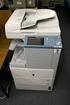 MULTIFUNCTIONAL DIGITAL COLOR SYSTEMS Printing Guide 009 KYOCERA MITA Corporation All rights reserved. Preface Thank you for purchasing Multifunctional Digital Color Systems. Also this guide describes
MULTIFUNCTIONAL DIGITAL COLOR SYSTEMS / MULTIFUNCTIONAL DIGITAL SYSTEMS. Remote Scan driver Help
 MULTIFUNCTIONAL DIGITAL COLOR SYSTEMS / MULTIFUNCTIONAL DIGITAL SYSTEMS Remote Scan driver Help 2012, 2013 TOSHIBA TEC CORPORATION All rights reserved Under the copyright laws, this manual cannot be reproduced
Chapter 2 Printing... 2-1 Printing Procedure...2-1
 imageprograf HDI Driver Guide Contents Before You Begin...ii Compatible Printers...ii Applicable AutoCAD Versions...ii How to Use This Guide...ii Conventions...ii Button Notations...ii Trademarks...ii
Network ScanGear Guide
 Network ScanGear Guide Please read this guide before operating this product. After you finish reading this guide, store it in a safe place for future reference. ENG Network ScanGear Guide Contents Before
Quick Reference Guide. copy. locked print. fax. scan-to-email
 Quick Reference Guide copy locked print fax scan-to-email Copy Basic Copy Procedure 3 Place original(s) face up in the Auto Document Feeder, or face down on the Platen Glass.. Select the [Copy] function
Trademarks...3 How to Read This Manual...4
 Maintenance Guide Read This First Trademarks...3 How to Read This Manual...4 Paper and Other Media Paper and Other Media Supported by This Printer...5 Paper Recommendations...9 Loading Paper...9 Storing
V1.0 April 2010. Xerox WorkCentre 3550 User Guide
 V1.0 April 2010 Xerox WorkCentre 3550 2010 Xerox Corporation. All Rights Reserved. Unpublished rights reserved under the copyright laws of the United States. Contents of this publication may not be reproduced
PostScript User Guide 604P17454_EN
 CopyCentre C118 WorkCentre M118/M118i PostScript User Guide 604P17454_EN Prepared by: The Document Company Xerox GKLS European Operations Bessemer Road Welwyn Garden City Hertfordshire AL7 1HE ENGLAND
2500 Series All-In-One
 2500 Series All-In-One User's Guide December 2006 www.lexmark.com Lexmark and Lexmark with diamond design are trademarks of Lexmark International, Inc., registered in the United States and/or other countries.
Basic Guide. Advanced Guide. Troubleshooting. How to Use This Manual Printing This Manual. Describes the summary of this product.
 Canon ip4800 series On-screen Manual Page 1 of 468 pages How to Use This Manual Printing This Manual MC-5240-V1.00 Basic Guide Describes the summary of this product. Advanced Guide Describes the detailed
Printing Solutions for Word 2013. Printing Solutions for Word 2010. Printing Solutions for Word 2007. Printing Solutions for Word 2003
 Printing Solutions for Word 2013 Printing Solutions for Word 2010 Printing Solutions for Word 2007 Printing Solutions for Word 2003 Printing solutions for Printers Word 2013 sure you have selected the
Xerox DocuPrint P12 Print Driver User Guide
 Xerox DocuPrint P12 Print Driver User Guide Xerox Corporation 800 Phillips Road Webster, New York 14580 1998 Xerox Corporation. Xerox, The Document Company, the stylized X, and the identifying product
W850. Maintenance Guide
 W850 Maintenance Guide August 2011 www.lexmark.com Contents...3 Cleaning the exterior of the printer...3 Storing supplies...3 Conserving supplies...3 Checking the status of supplies...4 Checking the status
Contents XP-860 User's Guide... 15 Product Basics... 16 Wi-Fi or Wired Networking... 37
 XP-860 User's Guide Contents XP-860 User's Guide... 15 Product Basics... 16 Using the Control Panel... 16 Control Panel Buttons and Lights... 16 Using the LCD Screen... 17 Adjusting Control Panel Position...
HP Color LaserJet CM6030 and CM6040 MFP Series Use output finishers
 Print to the optional -bin stapler/stacker. If you have the optional stapler/stacker the following options are available: Job offset: Each copy of a job is shifted to one side in the output bin in order
 - - - - - - 601/751 Print To access the print driver in most programs: 1. File Print 2. From the dropdown box next to Name, select the Bizhub 601/751 Printer 3. Click the Properties or Preferences button
For visually-impaired users. You can read this manual with Screen Reader text-to-speech software.
 User s Guide Brother Laser Printer HL-1110 HL-1111 For visually-impaired users You can read this manual with Screen Reader text-to-speech software. You must set up the hardware and install the driver before
RICOH. Quick User Guide For Copying, Printing E-mailing and Faxing
 RICOH Quick User Guide For Copying, Printing E-mailing and Faxing 1 Index Chapter 1: Chapter 2: Navigating the Ricoh Operation Panel Chapter 3: Making a Copy Chapter 4: Sending a Fax Enter a Fax Number
LBP-1210 Laser Printer
 LBP-1210 Laser Printer Getting Started Guide IMPORTANT: Read this manual carefully before using your printer. Save this manual for future reference. Copyright Copyright 2002 Canon Inc. All information
XP-420/XP-424 User's Guide
 XP-420/XP-424 User's Guide Contents XP-420/XP-424 User's Guide... 13 Product Basics... 14 Using the Control Panel... 14 Control Panel Buttons and Lights... 14 Adjusting Control Panel Position... 15 Changing
Adobe Acrobat 6.0 Professional
 Adobe Acrobat 6.0 Professional Manual Adobe Acrobat 6.0 Professional Manual Purpose The will teach you to create, edit, save, and print PDF files. You will also learn some of Adobe s collaborative functions,
Learning about your All-In-One on page 9. Information about the printer parts and software. How to use your All-In-One in a network environment.
 X6100 Series User s Guide for Windows Learning about your All-In-One on page 9 Information about the printer parts and software. Networking on page 75 How to use your All-In-One in a network environment.
Contents XP-410 User's Guide... 11 Product Basics... 12 Wi-Fi Networking... 25
 XP-410 User's Guide Contents XP-410 User's Guide... 11 Product Basics... 12 Setting Up the Control Panel... 12 Control Panel Buttons and Lights... 12 Adjusting Control Panel Position... 13 Changing LCD
WF-2650 User's Guide
 WF-2650 User's Guide Contents WF-2650 User's Guide... 13 Product Basics... 14 Using the Control Panel... 14 Control Panel Buttons and Lights... 14 Status Icons... 15 Entering Characters on the LCD Screen...
Print-Quality and Copy-Quality Problems
 Print-Quality and Copy-Quality Problems Topics Covered: Print-quality checklist...................... Page 1 Image defect examples: Light print (partial page)................... Page 2 Light print (entire
MULTIFUNCTIONAL DIGITAL SYSTEMS. MFP Management Guide
 MULTIFUNCTIONAL DIGITAL SYSTEMS MFP Management Guide 009 KYOCERA MITA Corporation All rights reserved Preface Thank you for purchasing Multifunctional Digital Color Systems. This manual explains the instructions
DocuPrint P115 w User s Guide
 DocuPrint P115 w User s Guide Types of Manuals Which manual? Safety Guide Quick Setup Guide User s Guide Network User s Guide Mobile Printing Fuji Xerox Print & Scan Utility What's in it? Read this Guide
PAPER REUSABLE DEVICE. TopAccess Guide
 PAPER REUSABLE DEVICE TopAccess Guide 03, 04 TOSHIBA TEC CORPORATION All rights reserved Under copyright laws, this manual cannot be reproduced in any form without prior written permission of TTEC. Preface
In addition to information on preventing jams and what causes a paper jam, this section includes instructions for clearing the following jams:
 Phaser 4400 Laser Printer Paper Jams In addition to information on preventing jams and what causes a paper jam, this section includes instructions for clearing the following jams: Paper size jam see page
DocuPrint M225 dw DocuPrint M225 z Basic User s Guide
 DocuPrint M5 dw DocuPrint M5 z Basic User s Guide Contacting Fuji Xerox IMPORTANT For technical help, you must call Fuji Xerox customer service or your local Fuji Xerox dealer. Technical Support Fuji Xerox
Basic User's Guide DCP-L2560DW MFC-L2720DW MFC-L2740DW
 Basic User's Guide DCP-L560DW MFC-L70DW MFC-L740DW Online User's Guide This Basic User's Guide does not contain all the information about the machine. To learn detailed information, read the Online User's
Solving printing problems 1
 Solving printing problems 1 Some printer problems are very easy to solve. If your printer is not responding, first make sure: The printer cable is securely attached to the printer and the host computer.
500/600/1000. User Manual June 2011 Rev. 061311. 1 v061311
 500/600/1000 User Manual June 2011 Rev. 061311 1 v061311 http://shopping.netsuite.com/digitalcheck TABLE OF CONTENTS Contents Radio Frequency Interference... 3 About the SB Scanner... 3 SB Scanner Equipment...
USER S GUIDE DCP-350C DCP-353C DCP-357C DCP-560CN
 USER S GUIDE DCP-350C DCP-353C DCP-357C DCP-560CN If you need to call Customer Service Please complete the following information for future reference: Model Number: DCP-350C, DCP-353C, DCP-357C and DCP-560CN
Océ 31x5E. Print jobs and job management
 Océ 31x5E Print jobs and job management Océ-Technologies B.V. Trademarks All trademarks mentioned in this manual are the exclusive property of the respective parties and are hereby acknowledged by Océ-Technologies
Lenovo IdeaPad Miix 10
 Lenovo IdeaPad Miix 10 User Guide Read the safety notices and important tips in the included manuals before using your computer. Notes Before using the product, be sure to read Lenovo Safety and General
LASERJET PRO 400. User Guide M401
 LASERJET PRO 400 User Guide M401 HP LaserJet Pro 400 M401 Printer Series User Guide Copyright and License 2012 Copyright Hewlett-Packard Development Company, L.P. Reproduction, adaptation, or translation
im5530 / im6030 / im7230 / im8530 For Océ and Imagistics Models
 Océ Operator s Manual for Basic Functions im5530 / im6030 / im730 / im8530 For Océ and Imagistics Models EPA ENERGY STAR (MFD) The United States Environmental Protection Agency (EPA) has introduced a
WF-2630 User's Guide
 WF-2630 User's Guide Contents WF-2630 User's Guide... 13 Product Basics... 14 Using the Control Panel... 14 Control Panel Buttons and Lights... 14 Status Icons... 15 Entering Characters on the LCD Screen...
FAQ: How to copy? Step-by-Step-Instructions for advanced Functions. 1. Preview: Checking the preview image before copying.
 FAQ: How to copy? Step-by-Step-Instructions: Advanced Functions 1 FAQ: How to copy? Step-by-Step-Instructions for advanced Functions. 1. Preview: Checking the preview image before copying... 3 2. Copy
SMART Board Software for Macintosh FAQ
 SMART Board Software for Macintosh FAQ NOTE: The following FAQs relate to the latest SMART Board Software for Macintosh release and apply only to Macintosh computers. SMART Board Software for Macintosh
Scan System (F) Operation Guide Set-up Edition
 Scan System (F) Operation Guide Set-up Edition This Operation Guide mentions that 1650 is a 16 ppm (prints per minute) machine, 2050 is a 20 ppm (prints per minute) machine and 2550 is a 25 ppm (prints
Contents XP-310 User's Guide... 11 Product Basics... 12 Wi-Fi Networking... 25
 XP-310 User's Guide Contents XP-310 User's Guide... 11 Product Basics... 12 Using the Control Panel... 12 Control Panel Buttons and Lights... 12 Adjusting Control Panel Position... 13 Changing LCD Screen
ADMINISTRATOR SETTINGS GUIDE PURPOSE OF THE ADMINISTRATOR SETTINGS ADMINISTRATOR SETTINGS LIST USING THE ADMINISTRATOR SETTINGS
 ADMINISTRATOR SETTINGS GUIDE DIGITAL MULTIFUNCTIONAL SYSTEM This manual explains settings for use by the administrator of the machine. PURPOSE OF THE ADMINISTRATOR SETTINGS ADMINISTRATOR SETTINGS LIST
EPSON Stylus. Start Here
 EPSON Stylus C84 EPSON Stylus Start Here C84 CPD-16675R1 4043482-00 XXX 1 Unpack 1 Remove everything from the box. Paper support Printer Manual Power cord Ink cartridges CD-ROM 2 Remove all the blue tape
WorkForce Pro WP-4530 User's Guide
 WorkForce Pro WP-4530 User's Guide Contents WorkForce Pro WP-4530 User's Guide... 13 Product Basics... 14 Setting Up the Control Panel... 14 Printer Parts - Control Panel Buttons and Lights... 14 Changing
CANON USER GUIDE. 1. How to register and print with your LSE ID Card 2. Changing print settings 3. Scan to email 4. How to copy
 CANON USER GUIDE 1. How to register and print with your LSE ID Card 2. Changing print settings 3. Scan to email 4. How to copy 1 How to register and print with your LSE ID Card 1 Getting Started: 2 To
Version 3.2 January 2008. Xerox 4590 Enterprise Printing Systems. Xerox 4110 Enterprise Printing Systems. User. Guide
 Version 3.2 January 2008 Xerox 4590 Enterprise Printing Systems Xerox 4110 Enterprise Printing Systems User Guide Xerox Corporation Global Knowledge & Language Services 800 Phillips Road Building 218 Webster,
Detailed Specifications
 Detailed Specifications Better Buys for Business EDITOR S CHOICE 2003 CopyCentre TM C35/C45 CopyCentre C35 shown with Platen Cover, Stand and Offsetting Catch Tray options. CopyCentre C45 shown with Duplex
MULTIFUNCTIONAL DIGITAL SYSTEMS. Network Fax Guide
 MULTIFUNCTIONAL DIGITAL SYSTEMS Network Fax Guide 2009 KYOCERA MITA Corporation All rights reserved Preface Thank you for purchasing Multifunctional Digital Color Systems. This manual explains the instructions
1 HP Deskjet 3840 series printer
 1 HP Deskjet 3840 series printer To find an answer to a question, select one of the following topics: Notices Special features Getting started Connecting to the printer Printing photos Printing other documents
HP Scanjet G4000 series. User Guide
 HP Scanjet G4000 series User Guide Contents 1 How to use the scanner...2 Where to get additional information...2 Accessibility...2 How to use the HP Photosmart software...3 Front panel and accessories
PN-L702B LCD MONITOR TOUCH PANEL DRIVER OPERATION MANUAL. Version 2.1
 PN-L702B LCD MONITOR TOUCH PANEL DRIVER OPERATION MANUAL Version 2.1 Contents Setting up the PC...3 Installing the touch panel driver...3 Touch Panel Settings...4 How to configure settings...4 Calibration...5
You can read this manual with Screen Reader text-to-speech software.
 User s Guide Brother Laser Printer HL-5440D HL-5450DN HL-5450DNT For visually-impaired users You can read this manual with Screen Reader text-to-speech software. You must set up the hardware and install
EPSON SCANNING TIPS AND TROUBLESHOOTING GUIDE Epson Perfection 3170 Scanner
 EPSON SCANNING TIPS AND TROUBLESHOOTING GUIDE Epson Perfection 3170 Scanner SELECT A SUITABLE RESOLUTION The best scanning resolution depends on the purpose of the scan. When you specify a high resolution,
SOFTWARE USER S GUIDE
 SOFTWARE USER S GUIDE MFC-8220 Table of contents 1 Using the MFC as a printer...1-1 Using the Brother MFC printer driver...1-1 How to print your original document...1-2 Manual Duplex Printing... 1-2 Face-down
Lexmark E260, E260d, and E260dn Series. Maintenance Guide
 Lexmark E260, E260d, and E260dn Series Maintenance Guide May 2008 www.lexmark.com Contents...3 Cleaning the exterior of the printer...3 Storing supplies...3 Conserving supplies...3 Checking the status
MULTIFUNCTIONAL DIGITAL SYSTEMS. Operator s Manual for AddressBook Viewer
 MULTIFUNCTIONAL DIGITAL SYSTEMS Operator s Manual for AddressBook Viewer 2008, 2009 TOSHIBA TEC CORPORATION All rights reserved Under the copyright laws, this manual cannot be reproduced in any form without
QUICK REFERENCE. Connecting the Cables The power supply automatically switches between 115V and 230V.
 QUICK REFERENCE This Quick Reference contains supply loading and general care and maintenance procedures for the Monarch 9906 printer. For more detailed information, refer to the Operator s Handbook available
For visually-impaired users. You can read this manual with Screen Reader text-to-speech software.
 User s Guide Brother Color Printer HL-3140CW HL-3150CDN HL-3170CDW For visually-impaired users You can read this manual with Screen Reader text-to-speech software. You must set up the hardware and install