
Creating a Web Page Using HTML, XHTML, and CSS: The Basics
|
|
|
- Byron Lynch
- 9 years ago
- Views:
Transcription
1 Creating a Web Page Using HTML, XHTML, and CSS: The Basics Mary L. Lanigan, Ph.D. Copyright 2010 Third House Inc. 1

2 Preface In this module, you will create a web page. The web page will look like a mini-resume. After completing all the exercises within this module, your page will look something like the example on the next page. Please Note: This document is best viewed either on a computer screen or printed out by a color printer. It is also recommended that you print out the codes for the example web page. The codes are found on Module 6-3. Click the link immediately following the link for this job aid. Copyright 2010 Third House Inc. 2

3 Copyright 2010 Third House Inc. 3

4 Exercise 1: Using a Browser In order to create a web page, you need to be familiar with a browser. There are a number of browsers available-- the two most common are Microsoft Internet Explorer and Mozilla Firefox. It is recommended that you use Explorer to complete this module in order to reduce confusion. Some browsers do not contain all the necessary options to complete the exercises within this module. Thus, it is critical you use Explorer. Step 1: Open your browser by clicking the appropriate icon on your computer. Step 2: After the browser opens, notice a few things. A. The Address box. This box is where you type in the URL of any web page you are searching for. The box also lists the address of the page you are presently on. B. Under File, click Open; click Browse. Browse brings up this box so you can find the file you wish to open. Copyright 2010 Third House Inc. 4

5 When you create web pages, sometimes you may elect to open the file by clicking the browse button. By doing so, you don t have to be connected to the Internet to view these files. For now, close your browser and proceed to the next exercise. Exercise 2: Creating a Data Sheet Prior to building a web page, you are asked to create a data sheet. The data sheet information will be used to create your Internet homepage. This step is not required to create web pages; however, it is needed to complete this module's exercises. Step 1: Open Word. Step 2: Create a data sheet that includes your: name; an overview of work accomplishments; work address; professional experiences; educational background; and, additional information you wish people to know about you. Please Note: This information will be posted on the Internet for all to see. Only use information you are willing to make public and that is professional. Copyright 2010 Third House Inc. 5

6 Data Sheet Example Mary L. Lanigan Dr. Lanigan is a four-time ISPI Award of Excellence winner for her evaluation research (1999), book (2001) and CD training workshops (evaluation CD in 2005 and performance technology CD in 2007). As an Associate Professor at Governors State University, she teaches various performance improvement classes and is the recipient of three Faculty Excellence awards. Dr. Lanigan has presented papers at national and regional conferences sponsored by the International Society of Performance Improvement and the American Society of Training and Development. She has written articles for Performance Improvement, Performance Improvement Quarterly, The Journal of Insurance Trainers and Educators, and the International Journal of Intercultural Relations. Her doctorate is from Indiana University, specifically, the Instructional Systems Technology program and her Masters degrees are in Educational Psychology, Communication, and Instructional Systems Technology. Address: Department of Communication & Training College of Arts and Sciences Governors State University University Park, Illinois Professional Experiences: Professor/Governors State University Trainer/Publishers Circulation Fulfillment Trainer/First Midwest Bank Educational Background: Ph.D., Instructional Systems Technology, Indiana University M.S., Instructional Systems Technology, Indiana University M.S., Educational Psychology, Indiana University M.S., Communication, Illinois State University B.A., Speech Communication, University of Illinois, Champaign-Urbana Important Links Regarding Performance Improvement To learn more information about earning a degree in instructional design and training (also known as performance improvement or performance technology), click on the links below. To obtain specific information such as class syllabi, plan of study examples and more, then go to: Human Performance and Training To obtain specific information about admissions and fees, then go to: Governors State University Perhaps a video on instructional design can be inserted. Top five things you should know about performance technology: The goal of the field is to raise employees' performances to optimal levels. To determine if the goal has been met, performance technologist must compare the benchmarks of optimal performance to what is actually happening on the job. After comparing the benchmarks to actual performance, performance technologists determine gaps, causes, and solutions. The solutions implemented will be training and/or non-training interventions. All interventions are evaluated and matched back to the benchmarks to see if the solutions enhanced employees' performances back to optimal levels. If you have questions about the field or the graduate program at Governors State University, contact Dr. Lanigan. Copyright 2010 Third House Inc. 6

7 Step 3: Save the data sheet you created. Step 4: Minimize the window. Exercise 3: Constructing a Web Page What are HTML, XHTML, and CSS Coding? Hypertext Markup Language (HTML) is the coding that aids browsers in reading online documents. Extensible Hypertext Markup Language (XHTML) is a stricter variation of HTML, which mandates certain rules for all web designers. For example, in the past when web designers only used HTML, they were able to write code both in upper and lower case letters. Now with XHTML that is no longer the case. Web designers must write code all in lower case. CSS are style sheets that describe the web page colors, fonts, and more. For this module, we will be predominantly using XHTML and CSS coding. To see what web source code looks like, go to any web page on the Internet. In the Internet Explorer browser: click View; click Source. For the debrief below, use the codes from my web page example that I asked you to print out on page 2 of this document. The top code on a source page typically indicates the XHTML version. Notice that the top code also indicates that this web page is in compliant with which is a consortium whose goal is to create consistency for all web designers. Next, the head section includes the title and styles. The CSS styles listed include the margin size, body fonts, background color, and more. Scroll down the source code page until you see these codes: </style> </head> <body> Copyright 2010 Third House Inc. 7

8 The closed style and head tags </style> and </head> are telling the browser that the style section and heading section are now closed. The open body tag <body> tells the browser that the body, which contains the written content of the web site, is now starting. The words written in black text are the actual words that appear on the web page. The words written in blue and red are the XHTML and HTML codes. Things You Need Prior to Creating Your Web Page You are going to create a web page using HTML, XHTML, and CSS codes. Before beginning this exercise you need to complete the following steps. 1. You are going to create your web page using Notepad ++, which is NOT the Notepad that is under the Accessory folder on your computer. Instead it is advanced software that indicates the code in the red and blue colors. In regular Notepad, all contents and coding are in black; this makes coding more difficult. To download Notepad++, go to: For more information about the company that produces Notepad++, go to: 2. You will also need a picture of yourself that has been saved as a.jpg image. 3. Create a folder on your hard drive and call it htmlexercise and put your picture in this folder. You will also be saving your code and anything else you put on your web site in this folder. Once you have completed the above three steps you are ready to begin coding. Copyright 2010 Third House Inc. 8

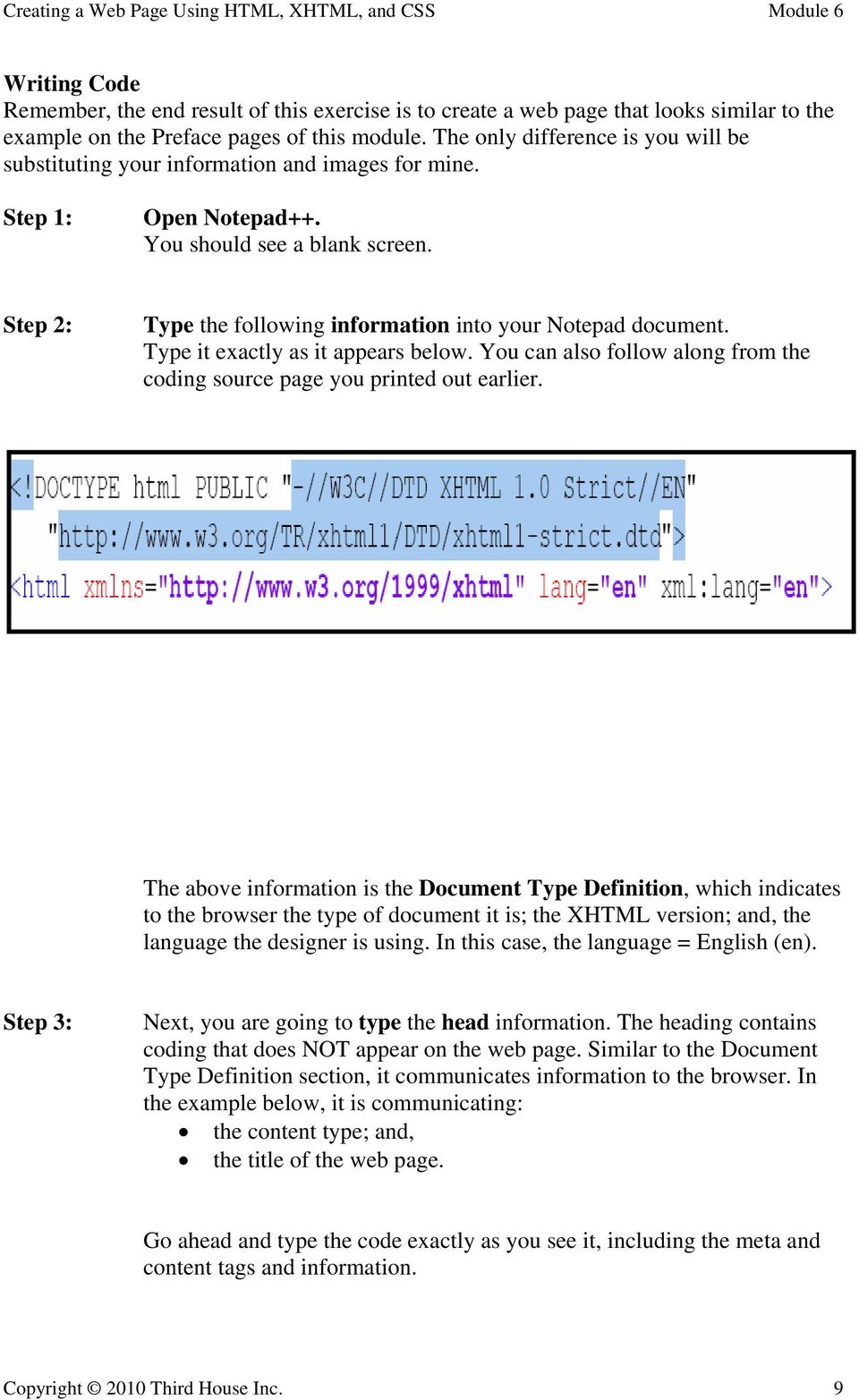
9 Writing Code Remember, the end result of this exercise is to create a web page that looks similar to the example on the Preface pages of this module. The only difference is you will be substituting your information and images for mine. Step 1: Open Notepad++. You should see a blank screen. Step 2: Type the following information into your Notepad document. Type it exactly as it appears below. You can also follow along from the coding source page you printed out earlier. The above information is the Document Type Definition, which indicates to the browser the type of document it is; the XHTML version; and, the language the designer is using. In this case, the language = English (en). Step 3: Next, you are going to type the head information. The heading contains coding that does NOT appear on the web page. Similar to the Document Type Definition section, it communicates information to the browser. In the example below, it is communicating: the content type; and, the title of the web page. Go ahead and type the code exactly as you see it, including the meta and content tags and information. Copyright 2010 Third House Inc. 9
10 The title is very important because the browser uses this information when users search for web sites. For example, if someone did a Google search on Mary s Homepage, then this page would be on the top of the search results. As such, you may want to title your page with your first and last name. Note: Notice how the title has an open title tag and a closed title tag. Open tag Closed tag Almost all XHTML coding has open and closed tags such as this. If you forget to open or close a tag, then errors will occur in your web page. Notice: We have an open head tag but we have not closed it yet because we are still working in the heading section. Copyright 2010 Third House Inc. 10

11 Here are some examples of open and closed tags. Tags Purpose <head> </head> To create and end a heading. <title> </title> To indicate a page title beginning and ending. <body> </body > To indicate the body of the document has begun and then to indicate it is ending. <h1> </h1> This indicates that you want a group of text to be written in the first heading level. This is the largest heading possible. <h2> </h2> This indicates that you want a group of text to be written in the second heading level. <p> </p> To begin and end a paragraph. <a href= filename > </a> This code indicates a link to another file. <ol> <li> </ li > </ol > Creates an ordered list. <ul> < li > </ li > </ul> Creates an unordered list. Copyright 2010 Third House Inc. 11

12 Step 4: Following the title you want to complete the heading section by putting in all these CSS codes. Type the codes in as illustrated and then I ll explain each. Copyright 2010 Third House Inc. 12

13 Copyright 2010 Third House Inc. 13

14 NOTE: You have just embedded your styles into your web document. Style sheets can be internal such as the one you just created or external. External style sheets reside in their own files (that end with.css). If you were using an external style sheet, you would not put in all those style codes into your web page. Instead you would create a link to the external style sheet. For example: <link rel="stylesheet" href="../generallayout.css" type="text/css" /> Copyright 2010 Third House Inc. 14

15 Let s review the internal style codes that you entered into your web page. Notice that we started the section with: <style type= text/css >. This code tells the browser that from the open style tag to the closed style tag, we are communicating style codes. Whenever you see /* and */ between text that is a statement or note to the web designer. In other words, if you want to write a reminder to yourself, but you don t want the browser to read it, then you can type in words as long as you bookend the wording with /* and */. For example: /* Global Styles Defined */ This is just a note to the web editor that the styles are being defined below. Whenever you indicate a style, you begin the code with a { and end it with a }. For example: *{ padding:0; margin: 2; } This style is communicating to the browser that there is no padding property around the four sides of the web page; hence, padding:0. But we are giving margin space or white space around the border at a 2. Note: A web page consists of a larger box called a margin. Inside that box is an inner box called a border. Inside the border is a smaller box called the padding. Copyright 2010 Third House Inc. 15

16 Our next style code is defining the body of the web page. For example: body { font-family: Arial, Helvetica, sans-serif; /*Note: this line tells the browser the order to search for fonts*/ font-size: 1em; line-height: 1.25em; color: black; background-color: #ccccff; height: 100%; } Here we are telling the browser to look for the Arial font first to display the body text. If the browser can t find Arial, then it will look for Helvetica next and any sans-serif font after that. Next we are indicating the default font-size; line-height, and text color. Subsequently, we are indicating the background color using a hex code such as #ccccff, which is a type of bluish-gray color. NOTE about COLOR: Most colors use a number sequence in order to communicate to the browser what the colors are. There are only 16 predefined colors were you can write out the color name. Those colors are: Aqua Black Blue Fuchsia Gray Green Lime Maroon Navy Olive Purple Red Silver Teal White Yellow If you are not using these colors, then you can go to the web site below to locate the hex color codes for all other possible colors. Copyright 2010 Third House Inc. 16

17 In the next group of style codes, we are defining our links. The a:link indicates an active link. As you can see, we are telling the browser we want all active links in maroon color and we want them bolded. The a:visited indicates a visited link. After a user clicks on the link, the color will change from maroon to purple. The a:hover indicates the color when a user hovers over a link but doesn t click the link. In this case the link turns yellow and the background color around the link turns a tan color. Here is what the links look like on the web page. The first link shows what a hover link looks like. The second link shows a visited link. The third link shows a link that has not been clicked. Copyright 2010 Third House Inc. 17

18 Notice on all the styles we discussed so far that none of them begin with periods. In other words, body and a:link are not preceded by periods. These styles are elements common to all browsers. There are times when you may wish to create your own made-up elements. To do so, you want to place a period in front of your made-up element. For example:.style1;.style2;.style3; and,.style4 are all made-up elements. What this means is when I place a style1 in my body code (which you will see when we get to the body), it tells the browser to override the default and make my font 48 and make it bold. Technically, since the font-family indicated in style1 is the same as the default, you don t really have to list that in the code. However, if you wanted style1 to use Times New Roman, then you could have written the font-family as Times New Roman..style1 { font-size: 48px; font-weight: bold; font-family: Arial, Helvetica, sans-serif; }.style2 { font-size: 16px; font-family: Arial, Helvetica, sans-serif; }.style3 { font-size: 14px; font-family: Arial, Helvetica, sans-serif; }.style4{ font-size: 14px; font-family: Arial, Helvetica, sans-serif; text-align: center; } As you can see, style 2 has a reduced font size and style 3 s font is further reduced. Notice in style4, not only do we want the font-size 14, but we are also commanding the browser to center the text. Copyright 2010 Third House Inc. 18

19 To see how these styles work, let s review the top portion of my web page. Notice in line 135, I use a style3 code. Thus, I want the text copy to appear at a font size of 14 pixels. But in line 142, I tell the browser to display that information as a style4. Here I not only want the text at 14 pixels but I want the text centered. Copyright 2010 Third House Inc. 19

20 The next grouping of style codes are telling the browser how images should appear in relation to the text. * Set the generic styles for display of images through the use of dependent classes */ img.leftalign { background-color: white; border: solid 15px #006699; float: left; /* Textual content will float to the right of the image. */ padding: 10px; margin: 10px 25px 10px 5px; } img.centeralign { background-color: white; border: solid 1px #b09c9d; text-align: center; /* Image will be centered. Text above and below image. */ padding: 10px; margin: 10px 5px 10px 25px; } Let s look at the first example: img.leftalign { background-color: white; border: solid 15px #006699; float: left; /* Textual content will float to the right of the image. */ padding: 10px; margin: 10px 25px 10px 5px; } Here we are telling the browser to align the image left of the text. Thus, the text will appear to the right of the image. We are also indicating that we want a border around the image. We are indicating that the border be solid, 15 pixels, and that the color is #006699, which is a bluish color. The image will float to the left of the text and have a padding of 10 pixels and a margin of 10, 25, 10, and 5 around, which is, top-right-bottom-left. The second example is similar to the first, but the image is centered. Notice the border and border color are also different. If you return to the previous page, you ll see the image is to the left of the text. Here is how the body code incorporates the style. Line 134 shows the image code with the leftalign code built-in to tell the browser to align the Mary image to the left. Copyright 2010 Third House Inc. 20

21 The last style codes we created are illustrated below. h1 { color: navy; text-align: center; } h2 { color: navy; text-align: center; } </style> </head> The h1 and h2 are pre-defined elements. There are six heading elements. Similar to the other codes, here I have created specific features for each heading. For example, in heading one I tell the browser to list h1 text in navy and to align the text to the center. By default, the h1 heading will appear as 24 point font and h2 will be 18 point. The h2 heading is also coded to appear as navy and centered. Notice after I get done coding all the styles, I close the style section with a closed style tag, that is, </style>. This tells the browser I am done listing my styles. Next, I close the head section with a closed head tag. This tells the browser I am done with the head section. Step 5: Begin Creating the Body. You are now ready to create the body for your homepage. First, you need to create an open body tag. Type the open body tag as indicated below. <body> Next we will throw in some break elements. A break element is the equivalent of pressing the Enter key on your computer. It creates a hard return. The break element is an empty element. It has no contents and it contains both the open and closed tags all in one. Thus, the break element is written like this: <br /> (that is <br space />). Copyright 2010 Third House Inc. 21
22 <body> <p><br /><br /><br /></p> <h1>mary L. Lanigan, Ph.D.</h1> <p><br /><br /><br /></p> Notice I added an open and closed p element, which is a block-level element. The six heading elements mentioned earlier are also block-level elements. Most in-line elements such as breaks, images, links, etc. need to be sandwiched between block-level elements, which you will see as we continue adding code to the body of our web page. After adding three break elements sandwiched between open and closed p elements, next you will create your first header. Type the h1 code just as it appears above. After the h1 code, type in your name and then close the h1 tag as illustrated above. Afterwards, add three more break commands along with the p elements as illustrated above. Note: The browser doesn t recognize hard returns after codes. As such, you could place the break elements immediately following the h1 closed tag and still get the same result. However, it is recommended to create space to help you visually see what you created. Otherwise, you can get lost in the codes. Before viewing our work, let s add an image and some text. To make this process a little less time consuming, you are going to enter the appropriate codes and then copy and paste the text from your Data Sheet completed in Exercise 2. You are also going to use the image of yourself that you saved in the htmlexercise folder. Next type the image source code as illustrated on line 134. However, instead of typing me.jpg use the name of your image. So if you saved your picture as: mypic.jpg, then type that name between the quotes. Notice in the image source code line, you have to indicate an alt. The alt is the text name of your image. This text appears when the user hovers over Copyright 2010 Third House Inc. 22
23 the image and it is used for the disabled. For my image, I indicated the alt to equal Mary. Following the alt are the width and height of the image. I m indicating my picture size to be 200 by 100 pixels. You can adjust these sizes to see how the picture varies when you change the height and width. After playing with the image height and width, next you will begin your first line of text. Type the following code: <p class= style3 > Notice: When indicating the style within the body of the web page code, you do NOT put the period in front of the style number. Simply type the style number as illustrated above. Do you remember from our coding style sheets what we are telling the browser to do when we indicate style3? The <p part of the code acknowledges the beginning of a new paragraph and the class= style3 indicates that we are using the style3, which is font size 14. After the greater sign, copy and paste the information you typed on your data sheet regarding your career accomplishments. After pasting in your career accomplishments, on the next line type a closed paragraph tag, that is, </p>. On the next line, add three break elements sandwiched between an open and closed p element. Step 6: Saving and Viewing Your Work. At this point, you are probably wondering what your web page looks like. Before viewing the document in the browser, you need to save your work. In Notepad++, click File; click Save As. Make sure you save the page in your htmlexercise folder. Copyright 2010 Third House Inc. 23
24 When the Save As box appears, give your page a file name. Notepad++ automatically saves your document as.html. As such, you can either click save, or if you want your document to be saved as an.htm file, then you need to add the file extension in the file name. For example: template.htm. Note: Both.html and.htm are web document file extensions. Some web designers prefer to use the.htm file extension because it is one less letter to type in the URL. It is up to you which extension you want to use. After you have saved the document, you are ready to view your work. In Notepad++, go to the top menu and click Run. Afterwards, click Launch in IE. Next, Internet Explorer opens and your web page appears in the browser window. Copyright 2010 Third House Inc. 24
25 Step 7: Adding Section Titles. Let s create four distinct sections with the titles: Address; Professional Experience; Educational Background; and, Important Links Regarding Performance Improvement. We will bold these titles by using the strong open and closed tags. You will see in the h2 line tags that I added <strong> and </strong> before and after each title to bold the titles. Side Note: The code to italicize text is: <em> The text goes here and you close the tag. </em> Let s end each section with three break elements sandwiched between the open and closed p elements. We are also going to copy and paste in the data from the data sheets we created in Exercise 1. Follow the headings and styles codes used in the illustration on the next page. Look at the following illustration. Type in the code exactly as you see it in red and blue; but insert your information into the content area (that is, the text written in black). REMEMBER: Make sure you put in all quotation marks, greater than and less than signs, etc. Otherwise, your code will get messed up. Copyright 2010 Third House Inc. 25
26 Copyright 2010 Third House Inc. 26
27 Step 8: Save and View Your Work. After entering the appropriate codes above and copying and pasting your data into the content text, next view your work. In Notepad++, click the disk icon at the top of the page to save. Next, click Run; click Launch in IE. If you did your code correctly, then the middle of your web page should look something like this image. Copyright 2010 Third House Inc. 27
28 If your image doesn t look like this, recheck your coding to make sure you wrote all the text correctly. If you did, then the problem might be that you launched the web page in a different browser than Microsoft Internet Explorer. All browsers have unique features that interpret code differently; and as a result, web pages don t always appear the same in different browsers even though the code is exactly the same. Re-run your work and make sure you clicked to launch in IE. Step 9: Adding Links. After viewing your web page, let s return to the Important Links Regarding Performance Improvement section. We are now going to add links to connect to external web pages: One link will go to: The second link will go to: The code to create a link is: <a href=" text to describe the link</a> Thus, you have the open <a href= " " > and the closed </a>. Let s see how this code looks in Notepad++. Copyright 2010 Third House Inc. 28
29 Notice how the links are written above. We first begin the paragraph with our paragraph tag and style codes. Next, we write some text that will go before the link. We then create the link, followed by the text which will be activated, and then we close the link tag with </a>. Thus, in the above examples, the words, Human Performance and Training and Governors State University are the linked text. The image below shows how the code appears on the web site. Copyright 2010 Third House Inc. 29
30 Step 10: Embedding a YouTube video. The links we created above moved the user from your web page to another external web page. This time we want the user to remain on our site as well as bring a YouTube video into our web page. To complete this task, go to: and find yourself a video on instructional design. After you locate a video, then follow the instructions below. Click the Embed button. You will see the code that you will copy and paste into your Notepad++. You will also see the options to pick your border colors and screen size. Make sure you select your border colors and screen size before copying the embedded code because the code will be different depending on the options you select. Once you copy the code, paste it into Notepad++. Copyright 2010 Third House Inc. 30
31 Your Notepad++ code will look something like the bolded text below. Before the text, add some wording such as: To view a YouTube video on instructional design and training, click on the video presentation below. Notice how the wording is placed into a paragraph tag and closed off with a closed paragraph tag. Next, I added two break elements. After the embedded YouTube coding, I placed four break elements. <p class="style3">to view a YouTube video on instructional design and training, click on the video presentation below.</p> <p><br /><br /></p> <object width="500" height="405"><param name="movie" value=" ;color2=0x54abd6&border=1"></param><param name="allowfullscreen" value="true"></param><param name="allowscriptaccess" value="always"></param><embed src=" olor2=0x54abd6&border=1" type="application/x-shockwave-flash" allowscriptaccess="always" allowfullscreen="true" width="500" height="405"></embed></object> <p><br /><br /></p> <p><br /><br /></p> Let s save the code in Notepad++ and launch it to see how it looks. NOTE: After launching the page in Internet Explorer, make sure you click the active content bar. Click the yellow box. Next, click Allow Blocked Content. If you don t allow blocked content, your video will not show up. Copyright 2010 Third House Inc. 31
32 Your web page should look something like the image below. Copyright 2010 Third House Inc. 32
33 Step 11: Creating Lists. Another coding feature you may wish to implement into your web page is ordered and unordered lists. An ordered list uses numbers while an unordered list uses bullet points. In my web page example, I created an ordered list as illustrated below. You will do the same. To do so, we will use the <ol> open command, followed by <li> open and closed </li> commands for each listed item, and then we will close the list with a </ol>. Thus, first type your first paragraph codes introducing the list. Then on the next line, type your <ol>. On the next line type <li class= style3 >. This command tells the browser we are entering a listed item but want the font to appear as 14 (as indicated by style3). Then close the first listed item with a </li> tag. Follow the same process for the remaining listed items. After listing each, close the ordered list with a closed tag. Save and view your web page. Copyright 2010 Third House Inc. 33
34 Step 12: Creating Anchors. Anchor elements allow users to move from one part of the web page to another. An anchor is a type of internal link. On my web page, I created two anchors. <p id="anchor1"> <p class="style3">if you have questions about the field or the graduate program at Governors State University, contact <a href="mailto:[email protected]">dr. Lanigan</a>. </p> <br /><br /> <p><a href="#top">back to Top</a></p> </body> </html> Let s begin with the second anchor, that is, the Back to Top link. Most (not all) browsers recognize the code #top as an indication to send the user back to the top of the page. As such, you can simply type the code as illustrated. <p><a href="#top">back to Top</a></p> Thus, when the users click the words, Back to Top, the link will send them to the top of the page. Unlike the Back to Top anchor, most anchors need an id to link to. For example, on the top of my page, I created an anchor link between the words performance improvement classes as illustrated below. <p class="style3">dr. Lanigan is a four-time ISPI Award of Excellence winner for her evaluation research (1999), book (2001) and CD training workshops (evaluation CD in 2005 and performance technology CD in 2007). As an Associate Professor at Governors State University, she teaches various <a href ="#anchor1">performance improvement classes </a>and is the recipient of three Faculty Excellence awards. Dr. Lanigan has presented papers at national and regional conferences sponsored by the <em>international Society of Performance Improvement </em>and the <em>american Society of Training and Development</em>. She has written articles for Performance Improvement, Performance Improvement Quarterly, The Journal of Insurance Trainers and Educators, and the International Journal of Intercultural Relations. Her doctorate is from Indiana University, specifically, the <a href=" structional Systems Technology </a>program and her Masters degrees are in <strong>educational Psychology</strong>, <strong>communication</strong>, and <strong>instructional Systems Technology</strong>. </p> Copyright 2010 Third House Inc. 34
35 Next, I created an id to tell this anchor were to go when the user activates the link. In this example, I placed the id at the bottom of my web page. <p id="anchor1"> <p class="style3">if you have questions about the field or the graduate program at Governors State University, contact <a href="mailto:[email protected]">dr. Lanigan</a>. </p> <br /><br /> <p><a href="#top">back to Top</a></p> </body> </html> Thus, when the user activates the above link, the browser will send them down to the bottom of the web page. To practice the anchor link, insert the anchor into the top portion of you text similar to the way I did it. Then add an anchor id to the bottom of your page. Follow the coding just as I illustrated in the above two examples. Afterwards, save and view your web page. Click on the links to make sure they work. Step 13: Mailto Link. You may have noticed at the end of my web page, I write the following. The Dr. Lanigan words are linked with a mailto code. The mail to code is: <a href="mailto:[email protected]">dr. Lanigan</a>. Thus, you use the <a href = code and in between the quotation marks, you type in mailto: and an address. Between the greater and less than signs, you type text that describes whose address it is. Close the tag with </a>. (Please Note: This tag does not work in all browsers. It does work in Microsoft Internet Explorer, typically opening up Outlook.) At this point, my web page is complete. Assess your own web page to make sure all the codes are in order. Copyright 2010 Third House Inc. 35
36 ADDENDUM Adding Audio You may wish to add sound to your web page. For example, you may want music, or your voice, etc. After you have saved an audio file, then decide where you wish to place the audio link on your web page. To link a sound file, type the following code into your web page. <p><a href="name of audio file.extension"></a></p> For example: Let s say I have an audio file called, introduction.wav. The link would be: <p><a href="introduction.wav"></a></p> And if I wanted to link the audio to the words, Click here to listen to the audio, then the link would be as follows. <p class="style3"> <a href="introduction.wav">click here</a> to listen to the audio.</p> Notice I placed a style code within my p element in order to communicate to the browser how to read my text, that is, Click here to listen to the audio. The text will appear as a style3 or a 14 point font. If you wish to have a picture act as an icon to activate your sound, then your code would look something like this. <p><a href ="name of audio file.extension"><img src="picture.jpg"></a></p> Copyright 2010 Third House Inc. 36
Web Design Basics. Cindy Royal, Ph.D. Associate Professor Texas State University
 Web Design Basics Cindy Royal, Ph.D. Associate Professor Texas State University HTML and CSS HTML stands for Hypertext Markup Language. It is the main language of the Web. While there are other languages
ICE: HTML, CSS, and Validation
 ICE: HTML, CSS, and Validation Formatting a Recipe NAME: Overview Today you will be given an existing HTML page that already has significant content, in this case, a recipe. Your tasks are to: mark it
Dreamweaver CS4 Day 2 Creating a Website using Div Tags, CSS, and Templates
 Dreamweaver CS4 Day 2 Creating a Website using Div Tags, CSS, and Templates What is a DIV tag? First, let s recall that HTML is a markup language. Markup provides structure and order to a page. For example,
{color:blue; font-size: 12px;}
 CSS stands for cascading style sheets. Styles define how to display a web page. Styles remove the formatting of a document from the content of the document. There are 3 ways that styles can be applied:
Using Style Sheets for Consistency
 Cascading Style Sheets enable you to easily maintain a consistent look across all the pages of a web site. In addition, they extend the power of HTML. For example, style sheets permit specifying point
HTML, CSS, XML, and XSL
 APPENDIX C HTML, CSS, XML, and XSL T his appendix is a very brief introduction to two markup languages and their style counterparts. The appendix is intended to give a high-level introduction to these
Create Webpages using HTML and CSS
 KS2 Create Webpages using HTML and CSS 1 Contents Learning Objectives... 3 What is HTML and CSS?... 4 The heading can improve Search Engine results... 4 E-safety Webpage... 5 Creating a Webpage... 6 Creating
ITNP43: HTML Lecture 4
 ITNP43: HTML Lecture 4 1 Style versus Content HTML purists insist that style should be separate from content and structure HTML was only designed to specify the structure and content of a document Style
Cascading Style Sheet (CSS) Tutorial Using Notepad. Step by step instructions with full color screen shots
 Updated version September 2015 All Creative Designs Cascading Style Sheet (CSS) Tutorial Using Notepad Step by step instructions with full color screen shots What is (CSS) Cascading Style Sheets and why
Creating a Resume Webpage with
 Creating a Resume Webpage with 6 Cascading Style Sheet Code In this chapter, we will learn the following to World Class CAD standards: Using a Storyboard to Create a Resume Webpage Starting a HTML Resume
Outline of CSS: Cascading Style Sheets
 Outline of CSS: Cascading Style Sheets nigelbuckner 2014 This is an introduction to CSS showing how styles are written, types of style sheets, CSS selectors, the cascade, grouping styles and how styles
Basics of HTML (some repetition) Cascading Style Sheets (some repetition) Web Design
 Basics of HTML (some repetition) Cascading Style Sheets (some repetition) Web Design Contents HTML Quiz Design CSS basics CSS examples CV update What, why, who? Before you start to create a site, it s
Web Building Blocks. Joseph Gilbert User Experience Web Developer University of Virginia Library joe.gilbert@virginia.
 Web Building Blocks Core Concepts for HTML & CSS Joseph Gilbert User Experience Web Developer University of Virginia Library [email protected] @joegilbert Why Learn the Building Blocks? The idea
Web Design Revision. AQA AS-Level Computing COMP2. 39 minutes. 39 marks. Page 1 of 17
 Web Design Revision AQA AS-Level Computing COMP2 204 39 minutes 39 marks Page of 7 Q. (a) (i) What does HTML stand for?... () (ii) What does CSS stand for?... () (b) Figure shows a web page that has been
CREATING HORIZONTAL NAVIGATION BAR USING ADOBE DREAMWEAVER CS5
 CREATING HORIZONTAL NAVIGATION BAR USING ADOBE DREAMWEAVER CS5 Step 1 - Creating list of links - (5 points) Traditionally, CSS navigation is based on unordered list - . Any navigational bar can be
Basic tutorial for Dreamweaver CS5
 Basic tutorial for Dreamweaver CS5 Creating a New Website: When you first open up Dreamweaver, a welcome screen introduces the user to some basic options to start creating websites. If you re going to
Contents. Downloading the Data Files... 2. Centering Page Elements... 6
 Creating a Web Page Using HTML Part 1: Creating the Basic Structure of the Web Site INFORMATION TECHNOLOGY SERVICES California State University, Los Angeles Version 2.0 Winter 2010 Contents Introduction...
Last week we talked about creating your own tags: div tags and span tags. A div tag goes around other tags, e.g.,:
 CSS Tutorial Part 2: Last week we talked about creating your own tags: div tags and span tags. A div tag goes around other tags, e.g.,: animals A paragraph about animals goes here
Microsoft Expression Web Quickstart Guide
 Microsoft Expression Web Quickstart Guide Expression Web Quickstart Guide (20-Minute Training) Welcome to Expression Web. When you first launch the program, you ll find a number of task panes, toolbars,
Web Design with CSS and CSS3. Dr. Jan Stelovsky
 Web Design with CSS and CSS3 Dr. Jan Stelovsky CSS Cascading Style Sheets Separate the formatting from the structure Best practice external CSS in a separate file link to a styles from numerous pages Style
How To Create A Web Page On A Windows 7.1.1 (For Free) With A Notepad) On A Macintosh (For A Freebie) Or Macintosh Web Browser (For Cheap) On Your Computer Or Macbook (
 CREATING WEB PAGE WITH NOTEPAD USING HTML AND CSS The following exercises illustrate the process of creating and publishing Web pages with Notepad, which is the plain text editor that ships as part of
Using an external style sheet with Dreamweaver (CS6)
 Using an external style sheet with Dreamweaver (CS6) nigelbuckner.com 2012 This handout explains how to create an external style sheet, the purpose of selector types and how to create styles. It does not
Web Design with Dreamweaver Lesson 4 Handout
 Web Design with Dreamweaver Lesson 4 Handout What we learned Create hyperlinks to external websites Links can be made to open in a new browser window Email links can be inserted onto webpages. When the
Designing HTML Emails for Use in the Advanced Editor
 Designing HTML Emails for Use in the Advanced Editor For years, we at Swiftpage have heard a recurring request from our customers: wouldn t it be great if you could create an HTML document, import it into
CREATING A NEWSLETTER IN ADOBE DREAMWEAVER CS5 (step-by-step directions)
 CREATING A NEWSLETTER IN ADOBE DREAMWEAVER CS5 (step-by-step directions) Step 1 - DEFINE A NEW WEB SITE - 5 POINTS 1. From the welcome window that opens select the Dreamweaver Site... or from the main
Web Design and Databases WD: Class 7: HTML and CSS Part 3
 Web Design and Databases WD: Class 7: HTML and CSS Part 3 Dr Helen Hastie Dept of Computer Science Heriot-Watt University Some contributions from Head First HTML with CSS and XHTML, O Reilly Recap! HTML
HTML5 and CSS3 Part 1: Using HTML and CSS to Create a Website Layout
 CALIFORNIA STATE UNIVERSITY, LOS ANGELES INFORMATION TECHNOLOGY SERVICES HTML5 and CSS3 Part 1: Using HTML and CSS to Create a Website Layout Fall 2011, Version 1.0 Table of Contents Introduction...3 Downloading
Creating HTML authored webpages using a text editor
 GRC 175 Assignment 1 Creating HTML authored webpages using a text editor Tasks: 1. Acquire web host space with ad free provider 2. Create an index webpage (index.html) 3. Create a class management webpage
Advanced Drupal Features and Techniques
 Advanced Drupal Features and Techniques Mount Holyoke College Office of Communications and Marketing 04/2/15 This MHC Drupal Manual contains proprietary information. It is the express property of Mount
Essential HTML & CSS for WordPress. Mark Raymond Luminys, Inc. 949-654-3890 [email protected] www.luminys.com
 Essential HTML & CSS for WordPress Mark Raymond Luminys, Inc. 949-654-3890 [email protected] www.luminys.com HTML: Hypertext Markup Language HTML is a specification that defines how pages are created
Creating Web Pages with Dreamweaver CS 6 and CSS
 Table of Contents Overview... 3 Getting Started... 3 Web Page Creation Tips... 3 Creating a Basic Web Page Exercise... 4 Create a New Page... 4 Using a Table for the Layout... 5 Adding Text... 6 Adding
Introduction to Web Design Curriculum Sample
 Introduction to Web Design Curriculum Sample Thank you for evaluating our curriculum pack for your school! We have assembled what we believe to be the finest collection of materials anywhere to teach basic
How to code, test, and validate a web page
 Chapter 2 How to code, test, and validate a web page Slide 1 Objectives Applied 1. Use a text editor like Aptana Studio 3 to create and edit HTML and CSS files. 2. Test an HTML document that s stored on
EUROPEAN COMPUTER DRIVING LICENCE / INTERNATIONAL COMPUTER DRIVING LICENCE WEB EDITING
 EUROPEAN COMPUTER DRIVING LICENCE / INTERNATIONAL COMPUTER DRIVING LICENCE WEB EDITING The European Computer Driving Licence Foundation Ltd. Portview House Thorncastle Street Dublin 4 Ireland Tel: + 353
Selectors in Action LESSON 3
 LESSON 3 Selectors in Action In this lesson, you will learn about the different types of selectors and how to use them. Setting Up the HTML Code Selectors are one of the most important aspects of CSS because
What is CSS? Official W3C standard for controlling presentation Style sheets rely on underlying markup structure
 CSS Peter Cho 161A Notes from Jennifer Niederst: Web Design in a Nutshell and Thomas A. Powell: HTML & XHTML, Fourth Edition Based on a tutorials by Prof. Daniel Sauter / Prof. Casey Reas What is CSS?
Cascading Style Sheets (CSS)
 Cascading Style Sheets (CSS) W3C standard for defining presentation of web documents (way documents are displayed or delivered to users typography, colours, layout etc) Presentation separated from content
Website Development. 2 Text. 2.1 Fonts. Terry Marris September 2007. We see how to format text and separate structure from content.
 Terry Marris September 2007 Website Development 2 Text We see how to format text and separate structure from content. 2.1 Fonts Professionally written websites, such as those by Google and Microsoft, use
BASICS OF WEB DESIGN CHAPTER 2 HTML BASICS KEY CONCEPTS COPYRIGHT 2013 TERRY ANN MORRIS, ED.D
 BASICS OF WEB DESIGN CHAPTER 2 HTML BASICS KEY CONCEPTS COPYRIGHT 2013 TERRY ANN MORRIS, ED.D 1 LEARNING OUTCOMES Describe the anatomy of a web page Format the body of a web page with block-level elements
Web Development 1 A4 Project Description Web Architecture
 Web Development 1 Introduction to A4, Architecture, Core Technologies A4 Project Description 2 Web Architecture 3 Web Service Web Service Web Service Browser Javascript Database Javascript Other Stuff:
Web Authoring CSS. www.fetac.ie. Module Descriptor
 The Further Education and Training Awards Council (FETAC) was set up as a statutory body on 11 June 2001 by the Minister for Education and Science. Under the Qualifications (Education & Training) Act,
Website Planning Checklist
 Website Planning Checklist The following checklist will help clarify your needs and goals when creating a website you ll be surprised at how many decisions must be made before any production begins! Even
MCH Strategic Data Best Practices Review
 MCH Strategic Data Best Practices Review Presenters Alex Bardoff Manager, Creative Services [email protected] Lindsey McFadden Manager, Campaign Production Services [email protected] 2 Creative
An Attribute is a special word used inside tag to specify additional information to tag such as color, alignment etc.
 CHAPTER 10 HTML-I BASIC HTML ELEMENTS HTML (Hyper Text Markup Language) is a document-layout and hyperlink-specification language i.e., a language used to design the layout of a document and to specify
CST 150 Web Design I CSS Review - In-Class Lab
 CST 150 Web Design I CSS Review - In-Class Lab The purpose of this lab assignment is to review utilizing Cascading Style Sheets (CSS) to enhance the layout and formatting of web pages. For Parts 1 and
Caldes CM12: Content Management Software Introduction v1.9
 Caldes CM12: Content Management Software Introduction v1.9 Enterprise Version: If you are using Express, please contact us. Background Information This manual assumes that you have some basic knowledge
Web Development CSE2WD Final Examination June 2012. (a) Which organisation is primarily responsible for HTML, CSS and DOM standards?
 Question 1. (a) Which organisation is primarily responsible for HTML, CSS and DOM standards? (b) Briefly identify the primary purpose of the flowing inside the body section of an HTML document: (i) HTML
Creating an HTML Document Using Macromedia Dreamweaver
 INFORMATION SYSTEMS SERVICES Creating an HTML Document Using Macromedia Dreamweaver This tutorial workbook contains a series of exercises that give an introduction to creating HTML documents for the World
Formatting Text in Blackboard
 Formatting Text in Blackboard If you want to spice up your blackboard announcements with different color of the text, bolded text, italicized text, lists, tables and images you can do so by typing HTML
CIS 467/602-01: Data Visualization
 CIS 467/602-01: Data Visualization HTML, CSS, SVG, (& JavaScript) Dr. David Koop Assignment 1 Posted on the course web site Due Friday, Feb. 13 Get started soon! Submission information will be posted Useful
CSS 101. CSS CODE The code in a style sheet is made up of rules of the following types
 CSS 101 WHY CSS? A consistent system was needed to apply stylistic values to HTML elements. What CSS does is provide a way to attach styling like color:red to HTML elements like . It does this by defining
How to Manage Your Eservice Center Knowledge Base
 Populating and Maintaining your eservice Center Knowledge Base Table of Contents Populating and Maintaining the eservice Center Knowledge Base...2 Key Terms...2 Setting up the Knowledge Base...3 Consider
Introduction to XHTML. 2010, Robert K. Moniot 1
 Chapter 4 Introduction to XHTML 2010, Robert K. Moniot 1 OBJECTIVES In this chapter, you will learn: Characteristics of XHTML vs. older HTML. How to write XHTML to create web pages: Controlling document
CSS - Cascading Style Sheets
 CSS - Cascading Style Sheets From http://www.csstutorial.net/ http://www.w3schools.com/css/default.asp What is CSS? CSS stands for Cascading Style Sheets Styles define how to display HTML elements External
CSE 3. Marking Up with HTML. Tags for Bold, Italic, and underline. Structuring Documents. An HTML Web Page File
 CSE 3 Comics Updates Shortcut(s)/Tip(s) of the Day Google Earth/Google Maps ssh Anti-Spyware Chapter 4: Marking Up With HTML: A Hypertext Markup Language Primer Fluency with Information Technology Third
Joomla! 2.5.x Training Manual
 Joomla! 2.5.x Training Manual Joomla is an online content management system that keeps track of all content on your website including text, images, links, and documents. This manual includes several tutorials
HTML and CSS. Elliot Davies. April 10th, 2013. [email protected]
 HTML and CSS Elliot Davies [email protected] April 10th, 2013 In this talk An introduction to HTML, the language of web development Using HTML to create simple web pages Styling web pages using CSS
So we're set? Have your text-editor ready. Be sure you use NotePad, NOT Word or even WordPad. Great, let's get going.
 Web Design 1A First Website Intro to Basic HTML So we're set? Have your text-editor ready. Be sure you use NotePad, NOT Word or even WordPad. Great, let's get going. Ok, let's just go through the steps
JJY s Joomla 1.5 Template Design Tutorial:
 JJY s Joomla 1.5 Template Design Tutorial: Joomla 1.5 templates are relatively simple to construct, once you know a few details on how Joomla manages them. This tutorial assumes that you have a good understanding
Using Adobe Dreamweaver CS4 (10.0)
 Getting Started Before you begin create a folder on your desktop called DreamweaverTraining This is where you will save your pages. Inside of the DreamweaverTraining folder, create another folder called
Email Campaign Guidelines and Best Practices
 epromo Guidelines HTML Maximum width 700px (length = N/A) Maximum total file size, including all images = 200KB Only use inline CSS, no stylesheets Use tables, rather than layout Use more TEXT instead
HTML TIPS FOR DESIGNING
 This is the first column. Look at me, I m the second column.
Creating Personal Web Sites Using SharePoint Designer 2007
 Creating Personal Web Sites Using SharePoint Designer 2007 Faculty Workshop May 12 th & 13 th, 2009 Overview Create Pictures Home Page: INDEX.htm Other Pages Links from Home Page to Other Pages Prepare
Contents. Introduction... 2. Downloading the Data Files... 2
 Creating a Web Page Using HTML Part 3: Multi-page Management and Uploading INFORMATION TECHNOLOGY SERVICES California State University, Los Angeles Version 1.1 Summer 2009 Contents Introduction... 2 Downloading
HTML CSS Basic Structure. HTML Structure [Source Code] CSS Structure [Cascading Styles] DIV or ID Tags and Classes. The BOX MODEL
![HTML CSS Basic Structure. HTML Structure [Source Code] CSS Structure [Cascading Styles] DIV or ID Tags and Classes. The BOX MODEL](/thumbs/40/20611446.jpg "HTML CSS Basic Structure. HTML Structure [Source Code] CSS Structure [Cascading Styles] DIV or ID Tags and Classes. The BOX MODEL") HTML CSS Basic Structure HTML [Hypertext Markup Language] is the code read by a browser and defines the overall page structure. The HTML file or web page [.html] is made up of a head and a body. The head
HTML CSS Basic Structure HTML [Hypertext Markup Language] is the code read by a browser and defines the overall page structure. The HTML file or web page [.html] is made up of a head and a body. The head
WEB DESIGN LAB PART- A HTML LABORATORY MANUAL FOR 3 RD SEM IS AND CS (2011-2012)
 WEB DESIGN LAB PART- A HTML LABORATORY MANUAL FOR 3 RD SEM IS AND CS (2011-2012) BY MISS. SAVITHA R LECTURER INFORMATION SCIENCE DEPTATMENT GOVERNMENT POLYTECHNIC GULBARGA FOR ANY FEEDBACK CONTACT TO EMAIL:
TLMC WORKSHOP: THESIS FORMATTING IN WORD 2010
 Table of Contents Introduction... 2 Getting Help... 2 Tips... 2 Working with Styles... 3 Applying a Style... 3 Choosing Which Styles to Use... 3 Modifying a Style... 4 Creating A New Style... 4 Setting
Website Development Komodo Editor and HTML Intro
 Website Development Komodo Editor and HTML Intro Introduction In this Assignment we will cover: o Use of the editor that will be used for the Website Development and Javascript Programming sections of
Creating Web Pages With Dreamweaver MX 2004
 Creating Web Pages With Dreamweaver MX 2004 1 Introduction Learning Goal: By the end of the session, participants will have an understanding of: What Dreamweaver is, and How it can be used to create basic
Web layout guidelines for daughter sites of Scotland s Environment
 Web layout guidelines for daughter sites of Scotland s Environment Current homepage layout of Scotland s Aquaculture and Scotland s Soils (September 2014) Design styles A daughter site of Scotland s Environment
The McGill Knowledge Base. Last Updated: August 19, 2014
 The McGill Knowledge Base Last Updated: August 19, 2014 Table of Contents Table of Contents... 1... 2 Overview... 2 Support... 2 Exploring the KB Admin Control Panel Home page... 3 Personalizing the Home
How to Properly Compose E-Mail HTML Code : 1
 How to Properly Compose E-Mail HTML Code : 1 For any successful business, creating and sending great looking e-mail is essential to project a professional image. With the proliferation of numerous e-mail
ebooks: Exporting EPUB files from Adobe InDesign
 White Paper ebooks: Exporting EPUB files from Adobe InDesign Table of contents 1 Preparing a publication for export 4 Exporting an EPUB file The electronic publication (EPUB) format is an ebook file format
Google Sites: Site Creation and Home Page Design
 Google Sites: Site Creation and Home Page Design This is the second tutorial in the Google Sites series. You should already have your site set up. You should know its URL and your Google Sites Login and
8 STEPS TO CODE KILLER RESPONSIVE EMAILS
 8 STEPS TO CODE KILLER RESPONSIVE EMAILS THAT WILL MAKE YOUR EMAILS BEAUTIFUL 3 BUILD RESPONSIVE EMAIL STEP BY STEP Steps to create a simple responsive email template. (fluid image, main content, two
Introduction to Adobe Dreamweaver CC
 Introduction to Adobe Dreamweaver CC What is Dreamweaver? Dreamweaver is the program that we will be programming our websites into all semester. We will be slicing our designs out of Fireworks and assembling
USD WEB SERVICES ADOBE DREAMWEAVER CSS DEVELOPMENT
 WEB SERVICES ADOBE DREAMWEAVER CSS DEVELOPMENT INFORMATION TECHNOLOGY SERVICES UNIVERSITY OF SAN DIEGO DEVELOPED BY JOY BRUNETTI [email protected] X8772 APRIL 2006 TABLE OF CONTENTS DREAMWEAVER CSS
We automatically generate the HTML for this as seen below. Provide the above components for the teaser.txt file.
 Creative Specs Gmail Sponsored Promotions Overview The GSP creative asset will be a ZIP folder, containing four components: 1. Teaser text file 2. Teaser logo image 3. HTML file with the fully expanded
Requirements for Developing WebWorks Help
 WebWorks Help 5.0 Originally introduced in 1998, WebWorks Help is an output format that allows online Help to be delivered on multiple platforms and browsers, which makes it easy to publish information
Web Development. Owen Sacco. ICS2205/ICS2230 Web Intelligence
 Web Development Owen Sacco ICS2205/ICS2230 Web Intelligence Introduction Client-Side scripting involves using programming technologies to build web pages and applications that are run on the client (i.e.
Personal Portfolios on Blackboard
 Personal Portfolios on Blackboard This handout has four parts: 1. Creating Personal Portfolios p. 2-11 2. Creating Personal Artifacts p. 12-17 3. Sharing Personal Portfolios p. 18-22 4. Downloading Personal
Advanced Web Design. Zac Van Note. www.design-link.org
 Advanced Web Design Zac Van Note www.design-link.org COURSE ID: CP 341F90033T COURSE TITLE: Advanced Web Design COURSE DESCRIPTION: 2/21/04 Sat 9:00:00 AM - 4:00:00 PM 1 day Recommended Text: HTML for
Chapter 7 Page Layout Basics Key Concepts. Copyright 2013 Terry Ann Morris, Ed.D
 Chapter 7 Page Layout Basics Key Concepts Copyright 2013 Terry Ann Morris, Ed.D 1 Learning Outcomes float fixed positioning relative positioning absolute positioning two-column page layouts vertical navigation
ART 379 Web Design. HTML, XHTML & CSS: Introduction, 1-2
 HTML, XHTML & CSS: Introduction, 1-2 History: 90s browsers (netscape & internet explorer) only read their own specific set of html. made designing web pages difficult! (this is why you would see disclaimers
A send-a-friend application with ASP Smart Mailer
 A send-a-friend application with ASP Smart Mailer Every site likes more visitors. One of the ways that big sites do this is using a simple form that allows people to send their friends a quick email about
Style & Layout in the web: CSS and Bootstrap
 Style & Layout in the web: CSS and Bootstrap Ambient intelligence: technology and design Fulvio Corno Politecnico di Torino, 2014/2015 Goal Styling web content Advanced layout in web pages Responsive layouts
Recreate your Newsletter Content and Layout within Informz (Workshop) Monica Capogna and Dan Reade. Exercise: Creating two types of Story Layouts
 Recreate your Newsletter Content and Layout within Informz (Workshop) Monica Capogna and Dan Reade Exercise: Creating two types of Story Layouts 1. Creating a basic story layout (with title and content)
CSS for Page Layout. Key Concepts
 CSS for Page Layout Key Concepts CSS Page Layout Advantages Greater typography control Style is separate from structure Potentially smaller documents Easier site maintenance Increased page layout control
CHAPTER 10. When you complete this chapter, you will be able to:
 Data Tables CHAPTER 10 When you complete this chapter, you will be able to: Use table elements Use table headers and footers Group columns Style table borders Apply padding, margins, and fl oats to tables
Drupal Training Guide
 Drupal Training Guide Getting Started Drupal Information page on the IT site: http://it.santarosa.edu/drupal On this page is information about Drupal sign up, what Drupal is, which is a content management
JOOMLA 2.5 MANUAL WEBSITEDESIGN.CO.ZA
 JOOMLA 2.5 MANUAL WEBSITEDESIGN.CO.ZA All information presented in the document has been acquired from http://docs.joomla.org to assist you with your website 1 JOOMLA 2.5 MANUAL WEBSITEDESIGN.CO.ZA BACK