
Effective Windows PowerShell. Grok Windows PowerShell and Get More From It.
|
|
|
- Brandon Norman
- 9 years ago
- Views:
Transcription
1 Effective Windows PowerShell Grok Windows PowerShell and Get More From It. Keith Hill Copyright /8/2009

2 Table of Contents Introduction... 1 Item 1: Four Cmdlets that are the Keys to Discovery within PowerShell... 1 Key #1: Get-Command... 1 Key #2: Get-Help... 2 Key #3: Get-Member... 5 Key #4: Get-PSDrive... 6 PowerShell 2.0 Update... 7 Item 2: Understanding Output... 8 Output is Always a.net Object... 8 Function Output Consists of Everything That Isn't Captured... 9 Other Types of Output That Can't Be Captured Item 3: Know What Objects Are Flowing Down the Pipeline Item 4: Output Cardinality - Scalars, Collections and Empty Sets - Oh My! Working with Scalars Working with Collections Working with Empty Sets Item 5: Use the Objects, Luke. Use the Objects! Item 6: Know Your Output Formatters Item 7: Understanding PowerShell Parsing Modes Item 8: Understanding ByPropertyName Pipeline Bound Parameters Item 9: Understanding ByValue Pipeline Bound Parameters Item 10: Error Handling Terminating Errors Non-terminating Errors Error Variables Working with Non-Terminating Errors Handling Terminating Errors Trap Statement Try / Catch / Finally Item 11: Regular Expressions - One of the Power Tools in PowerShell PowerShell 2.0 Update... 51

3 Item 12: Comparing Arrays Item 13: Use Set-PSDebug -Strict In Your Scripts - Religiously PowerShell 2.0 Update Item 14: Commenting Out Lines in a Script File PowerShell 2.0 Update Item 15: Using the Output Field Separator Variable $OFS... 57

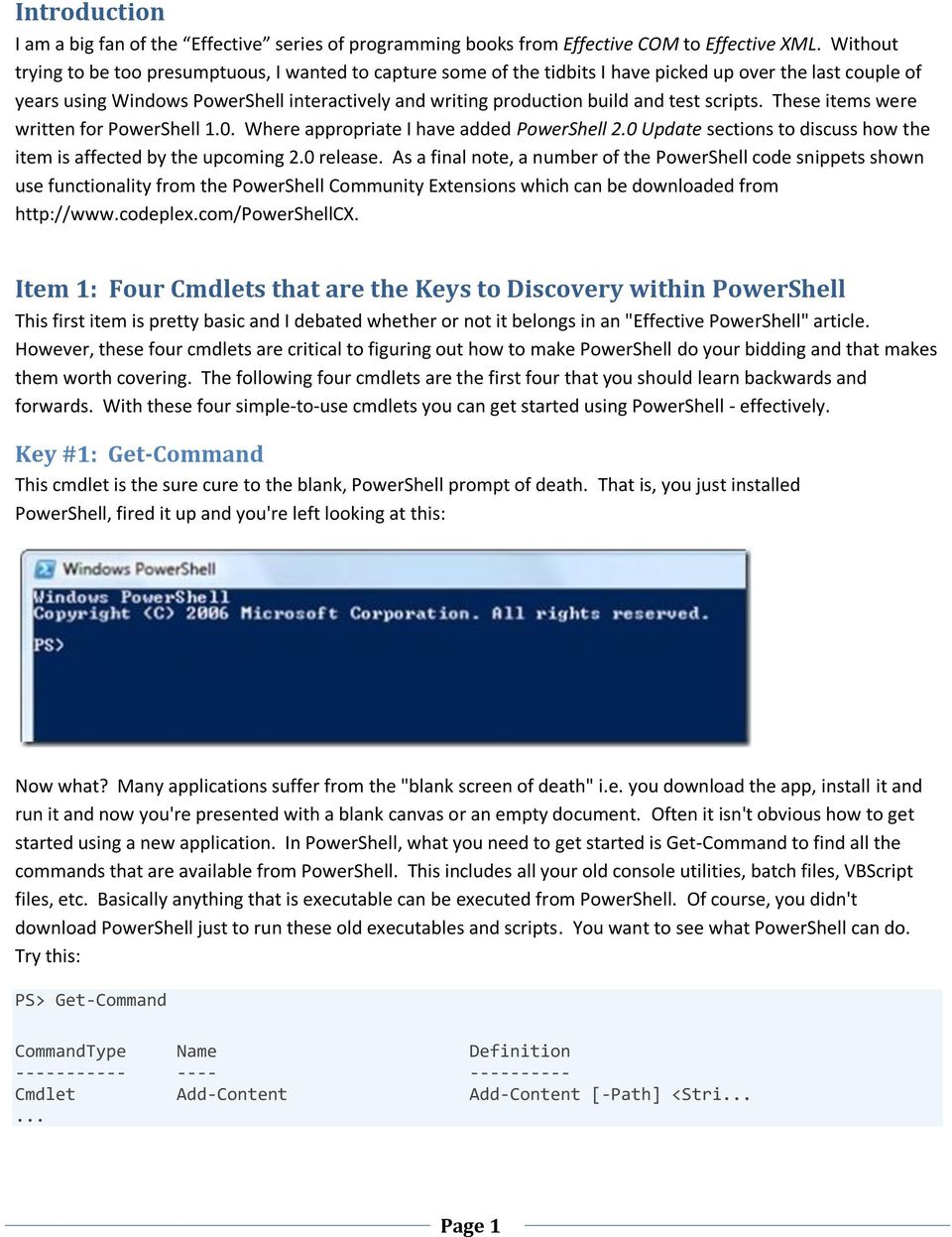
4 Introduction I am a big fan of the Effective series of programming books from Effective COM to Effective XML. Without trying to be too presumptuous, I wanted to capture some of the tidbits I have picked up over the last couple of years using Windows PowerShell interactively and writing production build and test scripts. These items were written for PowerShell 1.0. Where appropriate I have added PowerShell 2.0 Update sections to discuss how the item is affected by the upcoming 2.0 release. As a final note, a number of the PowerShell code snippets shown use functionality from the PowerShell Community Extensions which can be downloaded from Item 1: Four Cmdlets that are the Keys to Discovery within PowerShell This first item is pretty basic and I debated whether or not it belongs in an "Effective PowerShell" article. However, these four cmdlets are critical to figuring out how to make PowerShell do your bidding and that makes them worth covering. The following four cmdlets are the first four that you should learn backwards and forwards. With these four simple-to-use cmdlets you can get started using PowerShell - effectively. Key #1: Get-Command This cmdlet is the sure cure to the blank, PowerShell prompt of death. That is, you just installed PowerShell, fired it up and you're left looking at this: Now what? Many applications suffer from the "blank screen of death" i.e. you download the app, install it and run it and now you're presented with a blank canvas or an empty document. Often it isn't obvious how to get started using a new application. In PowerShell, what you need to get started is Get-Command to find all the commands that are available from PowerShell. This includes all your old console utilities, batch files, VBScript files, etc. Basically anything that is executable can be executed from PowerShell. Of course, you didn't download PowerShell just to run these old executables and scripts. You want to see what PowerShell can do. Try this: PS> Get-Command CommandType Name Definition Cmdlet Add-Content Add-Content [-Path] <Stri Page 1
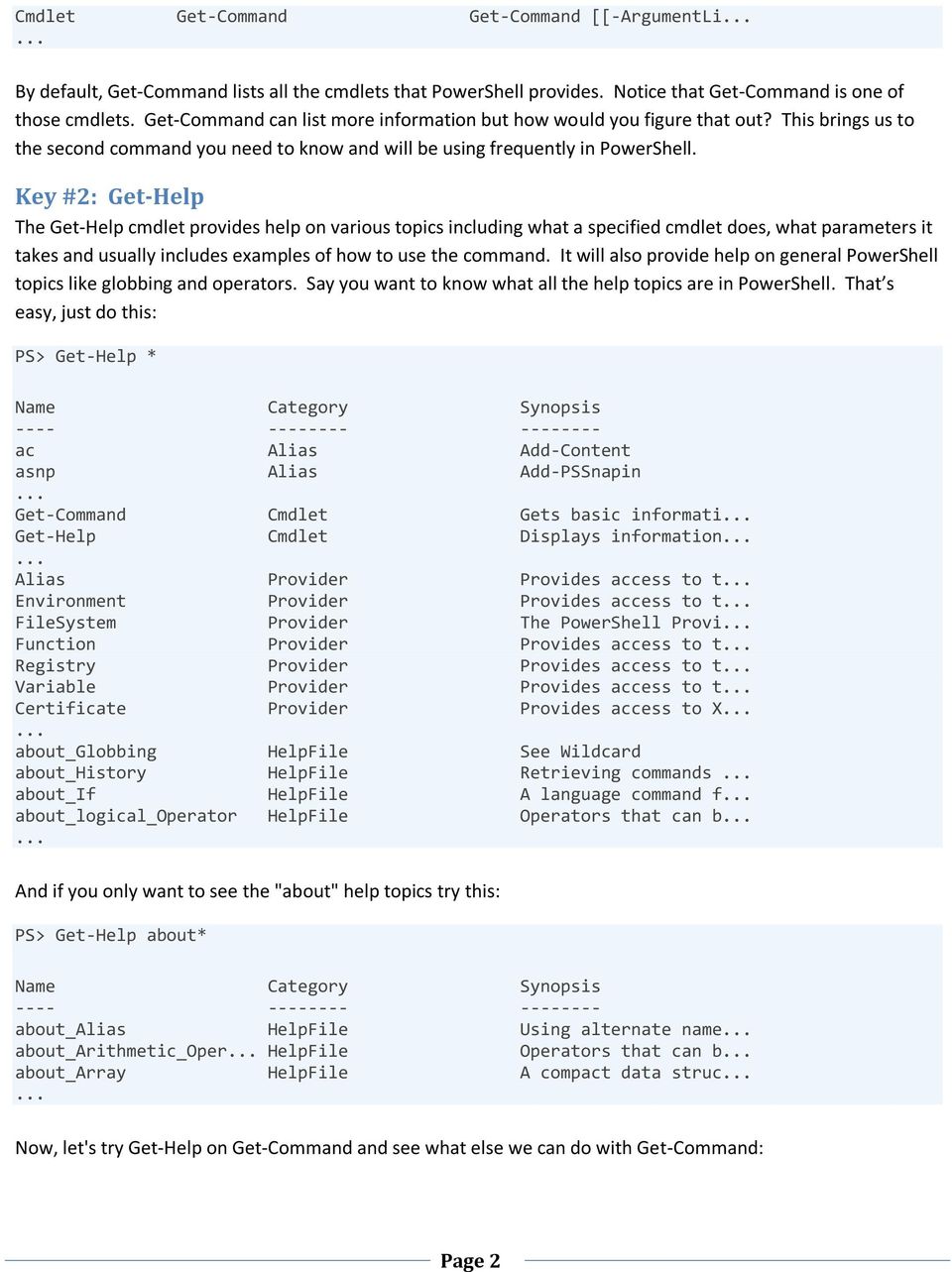
5 Cmdlet Get-Command Get-Command [[-ArgumentLi By default, Get-Command lists all the cmdlets that PowerShell provides. Notice that Get-Command is one of those cmdlets. Get-Command can list more information but how would you figure that out? This brings us to the second command you need to know and will be using frequently in PowerShell. Key #2: Get-Help The Get-Help cmdlet provides help on various topics including what a specified cmdlet does, what parameters it takes and usually includes examples of how to use the command. It will also provide help on general PowerShell topics like globbing and operators. Say you want to know what all the help topics are in PowerShell. That s easy, just do this: PS> Get-Help * Name Category Synopsis ac Alias Add-Content asnp Alias Add-PSSnapin... Get-Command Cmdlet Gets basic informati... Get-Help Cmdlet Displays information Alias Provider Provides access to t... Environment Provider Provides access to t... FileSystem Provider The PowerShell Provi... Function Provider Provides access to t... Registry Provider Provides access to t... Variable Provider Provides access to t... Certificate Provider Provides access to X about_globbing HelpFile See Wildcard about_history HelpFile Retrieving commands... about_if HelpFile A language command f... about_logical_operator HelpFile Operators that can b And if you only want to see the "about" help topics try this: PS> Get-Help about* Name Category Synopsis about_alias HelpFile Using alternate name... about_arithmetic_oper... HelpFile Operators that can b... about_array HelpFile A compact data struc Now, let's try Get-Help on Get-Command and see what else we can do with Get-Command: Page 2
6 PS> Get-Help get-command -detailed NAME Get-Command SYNOPSIS Gets basic information about cmdlets and about other elements of Wind ows PowerShell commands.... PARAMETERS -name <string[]> Gets information only about the cmdlets or command elements with the specified name. <String> represents all or part of the name o f the cmdlet or command element. Wildcards are permitted. -verb <string[]> Gets information about cmdlets with names that include the specif ied verb. <String> represents one or more verbs or verb patterns, such as "remove" or *et". Wildcards are permitted. -noun <string[]> Gets cmdlets with names that include the specified noun. <String> represents one or more nouns or noun patterns, such as "process" or "*item*". Wildcards are permitted. -commandtype <CommandTypes> Gets only the specified types of command objects. Valid values fo r <CommandTypes> are: Alias ExternalScript All Filter Application Function Cmdlet (default) Script TIP: You will want to use the -Detailed parameter with Get-Help otherwise you get very minimal parameter information. Hopefully in PowerShell V3 they will fix the "default view" of cmdlet help topics to be a bit more informative. There are a couple of things to learn from the help topic. First, you can pass Get-Command a -CommandType parameter to list other types of commands. Let's try this to see what PowerShell functions are available by default: PS> Get-Command -commandtype function CommandType Name Definition Function A: Set-Location A: Function B: Set-Location B: Function C: Set-Location C: Function Clear-Host $spacetype = [System.Mana Function help param([string]$name,[stri... Page 3
![Wildcards are permitted. -verb <string[]> Gets information about cmdlets with names that include the specif ied verb. <String> represents one or more verbs or verb patterns, such as "remove" or *et".](/docs-images/43/20839205/images/page_6.jpg "Wildcards are permitted. -noun <string[]> Gets cmdlets with names that include the specified noun. <String> represents one or more nouns or noun patterns, such as \"process\" or \"*item*\".")
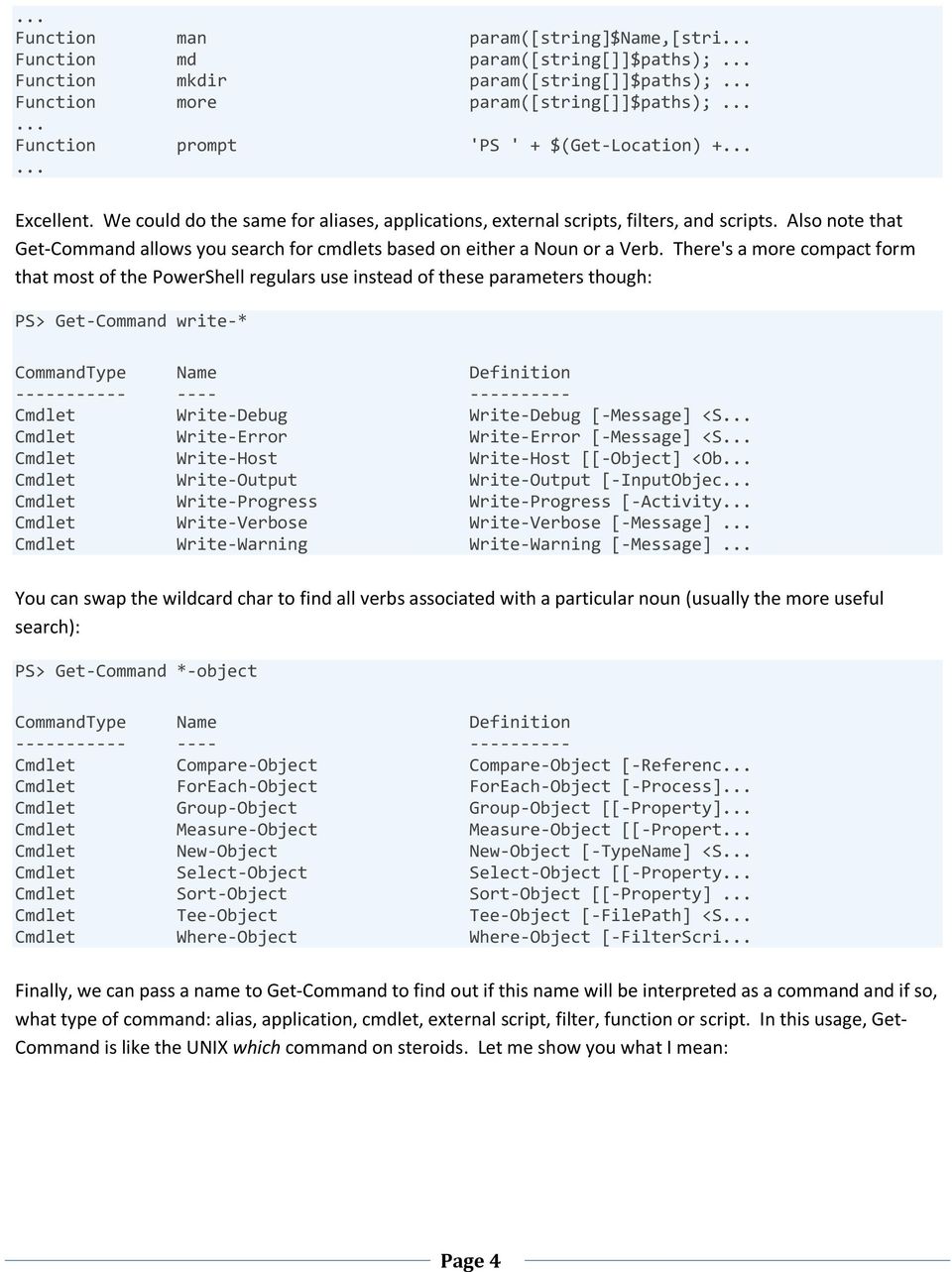
7 ... Function man param([string]$name,[stri... Function md param([string[]]$paths);... Function mkdir param([string[]]$paths);... Function more param([string[]]$paths); Function prompt 'PS ' + $(Get-Location) Excellent. We could do the same for aliases, applications, external scripts, filters, and scripts. Also note that Get-Command allows you search for cmdlets based on either a Noun or a Verb. There's a more compact form that most of the PowerShell regulars use instead of these parameters though: PS> Get-Command write-* CommandType Name Definition Cmdlet Write-Debug Write-Debug [-Message] <S... Cmdlet Write-Error Write-Error [-Message] <S... Cmdlet Write-Host Write-Host [[-Object] <Ob... Cmdlet Write-Output Write-Output [-InputObjec... Cmdlet Write-Progress Write-Progress [-Activity... Cmdlet Write-Verbose Write-Verbose [-Message]... Cmdlet Write-Warning Write-Warning [-Message]... You can swap the wildcard char to find all verbs associated with a particular noun (usually the more useful search): PS> Get-Command *-object CommandType Name Definition Cmdlet Compare-Object Compare-Object [-Referenc... Cmdlet ForEach-Object ForEach-Object [-Process]... Cmdlet Group-Object Group-Object [[-Property]... Cmdlet Measure-Object Measure-Object [[-Propert... Cmdlet New-Object New-Object [-TypeName] <S... Cmdlet Select-Object Select-Object [[-Property... Cmdlet Sort-Object Sort-Object [[-Property]... Cmdlet Tee-Object Tee-Object [-FilePath] <S... Cmdlet Where-Object Where-Object [-FilterScri... Finally, we can pass a name to Get-Command to find out if this name will be interpreted as a command and if so, what type of command: alias, application, cmdlet, external script, filter, function or script. In this usage, Get- Command is like the UNIX which command on steroids. Let me show you what I mean: Page 4
8 PS> Get-Command more CommandType Name Definition Function more param([string[]]$paths);... Application more.com C:\Windows\system32\more.com Note that PowerShell tells me not only the location of applications like more.com, it also tells me what type of command each is (function vs. application) as well as the function s definition. Note: The output order in version 1 does not indicate which command PowerShell will execute when there are commands with the same name. This has been fixed in version 2. If you wanted to use the Windows more.com executable, you would need to use the command more.com. However, there is even more information to be found here than meets the eye. This brings us to our third key cmdlet Get-Member. Key #3: Get-Member The single biggest concept that takes a while to sink in with most people using PowerShell for the first time is that just about everything is (or can be) a.net object. That means when you pipe information from one cmdlet to another it quite often isn't text and if it is, it is still an object i.e. a System.String object. However, quite often it is some other type of object and being new to PowerShell, you may not know what type of object it is or what you can do with that object. Let's take a further look at what information (i.e. objects) Get-Command outputs. In order to do this, we will use Get-Member like so: PS> Get-Command more.com Get-Member TypeName: System.Management.Automation.ApplicationInfo Name MemberType Definition Equals Method System.Boolean Equals(Object obj) GetHashCode Method System.Int32 GetHashCode() GetType Method System.Type GetType() ToString Method System.String ToString() CommandType Property System.Management.Automation.CommandTyp... Definition Property System.String Definition {get;} Extension Property System.String Extension {get;} Name Property System.String Name {get;} Path Property System.String Path {get;} FileVersionInfo ScriptProperty System.Object FileVersionInfo {get=[sys... Isn't this interesting. Unlike the UNIX which command that only gives us the path to the application, PowerShell gives a bit more information. Let's examine the FileVersionInfo property associated with this ApplicationInfo object: Page 5

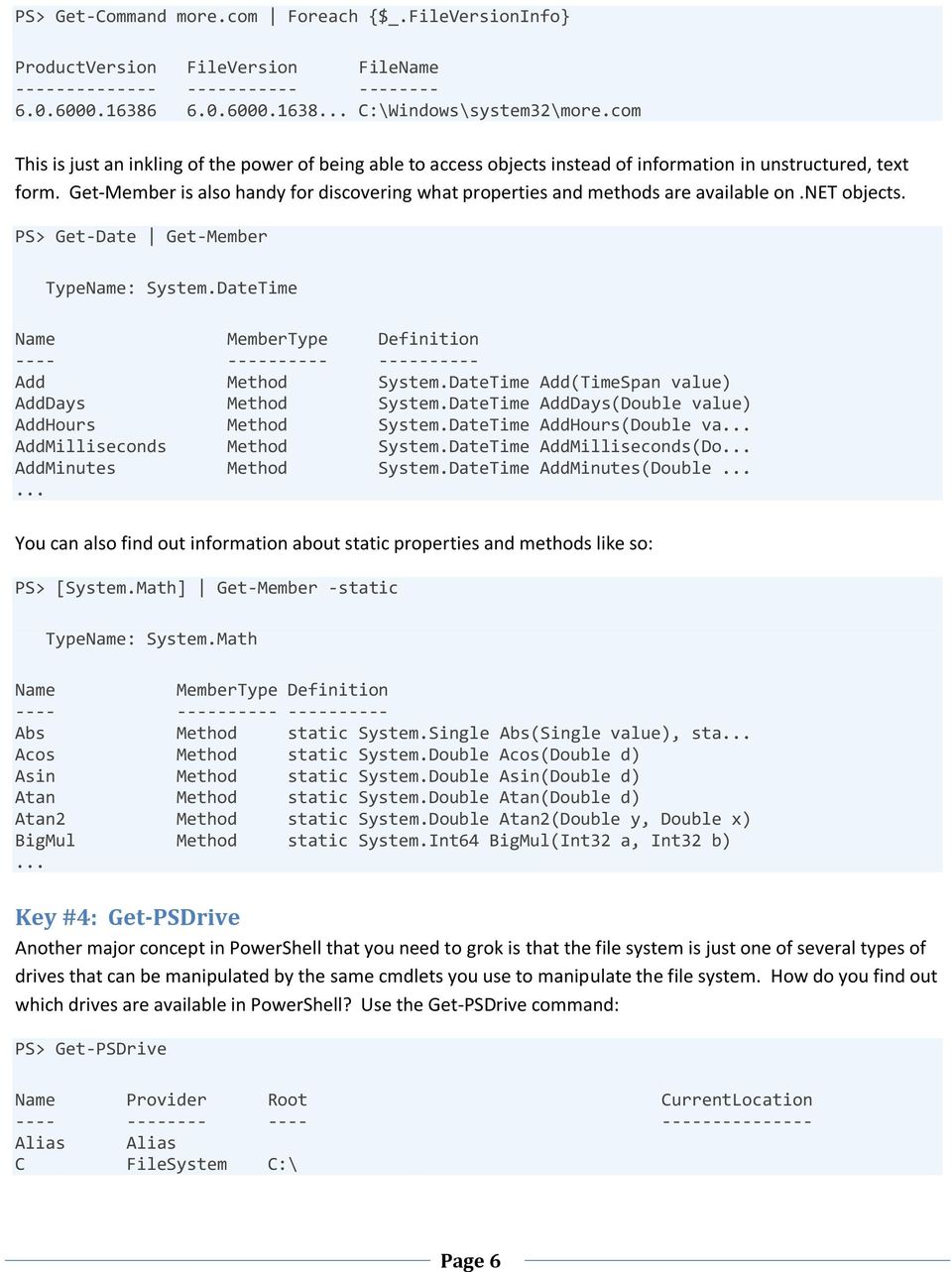
9 PS> Get-Command more.com Foreach {$_.FileVersionInfo} ProductVersion FileVersion FileName C:\Windows\system32\more.com This is just an inkling of the power of being able to access objects instead of information in unstructured, text form. Get-Member is also handy for discovering what properties and methods are available on.net objects. PS> Get-Date Get-Member TypeName: System.DateTime Name MemberType Definition Add Method System.DateTime Add(TimeSpan value) AddDays Method System.DateTime AddDays(Double value) AddHours Method System.DateTime AddHours(Double va... AddMilliseconds Method System.DateTime AddMilliseconds(Do... AddMinutes Method System.DateTime AddMinutes(Double You can also find out information about static properties and methods like so: PS> [System.Math] Get-Member -static TypeName: System.Math Name MemberType Definition Abs Method static System.Single Abs(Single value), sta... Acos Method static System.Double Acos(Double d) Asin Method static System.Double Asin(Double d) Atan Method static System.Double Atan(Double d) Atan2 Method static System.Double Atan2(Double y, Double x) BigMul Method static System.Int64 BigMul(Int32 a, Int32 b)... Key #4: Get-PSDrive Another major concept in PowerShell that you need to grok is that the file system is just one of several types of drives that can be manipulated by the same cmdlets you use to manipulate the file system. How do you find out which drives are available in PowerShell? Use the Get-PSDrive command: PS> Get-PSDrive Name Provider Root CurrentLocation Alias Alias C FileSystem C:\ Page 6
10 cert Certificate \ D FileSystem D:\ E FileSystem E:\ Env Environment Function Function G FileSystem G:\ H FileSystem H:\ HKCU Registry HKEY_CURRENT_USER HKLM Registry HKEY_LOCAL_MACHINE M FileSystem M:\ Variable Variable All these drives can be manipulating using same cmdlets you use to manipulate the file system. What are those? Use Get-Command *-Item* to find out: PS> Get-Command *-Item* CommandType Name Definition Cmdlet Clear-Item Clear-Item [-Path] <String[]... Cmdlet Clear-ItemProperty Clear-ItemProperty [-Path] <... Cmdlet Copy-Item Copy-Item [-Path] <String[]>... Cmdlet Copy-ItemProperty Copy-ItemProperty [-Path] <S... Cmdlet Get-Item Get-Item [-Path] <String[]>... Cmdlet Get-ItemProperty Get-ItemProperty [-Path] <St... Cmdlet Invoke-Item Invoke-Item [-Path] <String[... Cmdlet Move-Item Move-Item [-Path] <String[]>... Cmdlet Move-ItemProperty Move-ItemProperty [-Path] <S... Cmdlet New-Item New-Item [-Path] <String[]>... Cmdlet New-ItemProperty New-ItemProperty [-Path] <St... Cmdlet Remove-Item Remove-Item [-Path] <String[... Cmdlet Remove-ItemProperty Remove-ItemProperty [-Path]... Cmdlet Rename-Item Rename-Item [-Path] <String>... Cmdlet Rename-ItemProperty Rename-ItemProperty [-Path]... Cmdlet Set-Item Set-Item [-Path] <String[]>... Cmdlet Set-ItemProperty Set-ItemProperty [-Path] <St... There you have it. The four cmdlets that you need to know to effectively find your way around Windows PowerShell. Use Get-Command to find out what commands are available. Use Get-Help to find out how to use those commands and the PowerShell language. Use Get-Member to figure out what properties, methods and events are available on those.net objects you'll be dealing with in PowerShell. Finally, use Get-PSDrive to find out which type of drives you can operate on besides the file system. PowerShell 2.0 Update Get-Command has been updated to display commands with the same name in the order in which PowerShell will execute them. If Get-Help can t find a topic title with the Name you specified, it will now search the help contents and list those topics where the specified name is found in the body of the help topic. Get-Member no longer displays compiler generated methods like get_name/set_name by default. If you really want to see the compiler generated methods you can use the Force parameter. Page 7
![Use Get-Command *-Item* to find out: PS> Get-Command *-Item* CommandType Name Definition ----------- ---- ---------- Cmdlet Clear-Item Clear-Item [-Path] <String[].](/docs-images/43/20839205/images/page_10.jpg ".. Cmdlet Clear-ItemProperty Clear-ItemProperty [-Path] <... Cmdlet Copy-Item Copy-Item [-Path] <String[]>... Cmdlet Copy-ItemProperty Copy-ItemProperty [-Path] <S.")
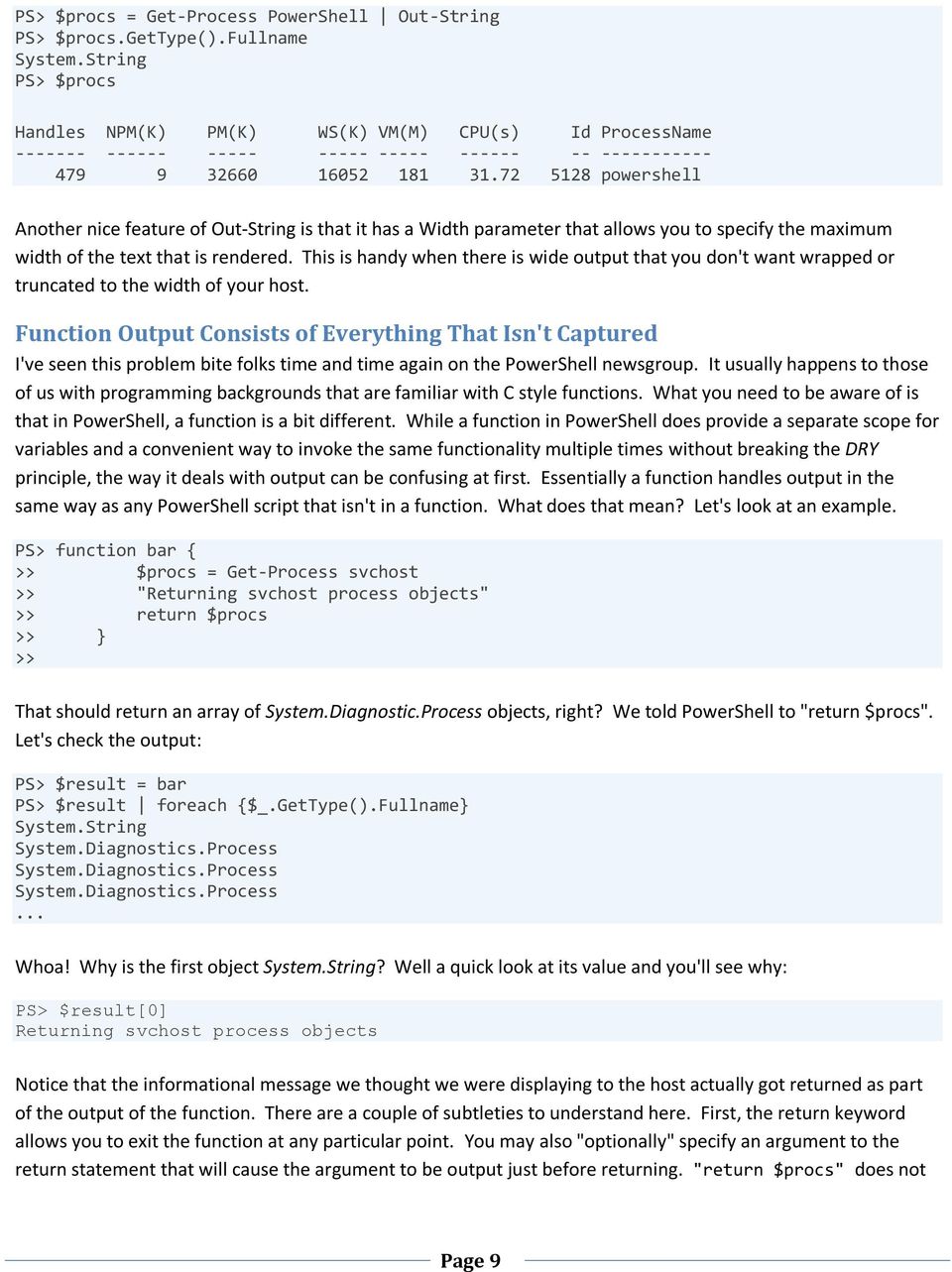
11 Item 2: Understanding Output In shells that you may have used in the past, everything that appears on the stdout and stderr streams is considered "the output". In these other shells you can typically redirect stdout to a file using the redirect operator >. And in some shells like Korn shell, you can capture stdout output to a variable like so: DIRS=$(find. sed.exe -e 's/\//\\/g') If you wanted to capture stderr in addition to stdout then you can use the stream redirect operator like so: DIRS=$(find. sed.exe -e 's/\//\\/g' 2>&1) You can do the same in PowerShell: PS> $dirs = Get-ChildItem -recurse PS> $dirs = Get-ChildItem -recurse 2>&1 Looks about the same in PowerShell so what's the big deal? Well there are a number of differences and subtleties in PowerShell that you need to be aware of. Output is Always a.net Object First, remember that PowerShell output is always a.net object. That output could be a System.IO.FileInfo object or a System.Diagnostics.Process object or a System.String object. Basically it could be any.net object whose assembly is loaded into PowerShell including your own.net objects. Be sure not to confuse PowerShell output with the text you see rendered to the screen. Later on in Item 6: Know Your Output Formatters I cover the notion that when a.net object is about to "hit" the host (console) PowerShell uses some fancy formatting technology to try to determine the best "textual" representation for the object. However, when you capture output to a variable, you are not capturing the text that was rendered to the host. You are capturing the.net object(s). Let's look at an example: PS> Get-Process PowerShell Handles NPM(K) PM(K) WS(K) VM(M) CPU(s) Id ProcessName powershell Now let's capture that output and examine its type: PS> $procs = Get-Process PowerShell PS> $procs.gettype().fullname System.Diagnostics.Process As you can see, a System.Diagnostics.Process object has been stored in $procs and not the text that was rendered to the screen. But what if we really wanted to capture the rendered text? In this case, we could use the Out-String cmdlet to render the output as a string which we could then capture in a variable e.g.: Page 8

12 PS> $procs = Get-Process PowerShell Out-String PS> $procs.gettype().fullname System.String PS> $procs Handles NPM(K) PM(K) WS(K) VM(M) CPU(s) Id ProcessName powershell Another nice feature of Out-String is that it has a Width parameter that allows you to specify the maximum width of the text that is rendered. This is handy when there is wide output that you don't want wrapped or truncated to the width of your host. Function Output Consists of Everything That Isn't Captured I've seen this problem bite folks time and time again on the PowerShell newsgroup. It usually happens to those of us with programming backgrounds that are familiar with C style functions. What you need to be aware of is that in PowerShell, a function is a bit different. While a function in PowerShell does provide a separate scope for variables and a convenient way to invoke the same functionality multiple times without breaking the DRY principle, the way it deals with output can be confusing at first. Essentially a function handles output in the same way as any PowerShell script that isn't in a function. What does that mean? Let's look at an example. PS> function bar { >> $procs = Get-Process svchost >> "Returning svchost process objects" >> return $procs >> } >> That should return an array of System.Diagnostic.Process objects, right? We told PowerShell to "return $procs". Let's check the output: PS> $result = bar PS> $result foreach {$_.GetType().Fullname} System.String System.Diagnostics.Process System.Diagnostics.Process System.Diagnostics.Process... Whoa! Why is the first object System.String? Well a quick look at its value and you'll see why: PS> $result[0] Returning svchost process objects Notice that the informational message we thought we were displaying to the host actually got returned as part of the output of the function. There are a couple of subtleties to understand here. First, the return keyword allows you to exit the function at any particular point. You may also "optionally" specify an argument to the return statement that will cause the argument to be output just before returning. "return $procs" does not Page 9
13 mean that the function s only output is the contents of the $procs variable. In fact this construct is semantically equivalent to "$procs; return". The second subtlety to understand is this. The line: "Returning svchost process objects" is equivalent to this: Write-Output "Returning svchost process objects" That makes it clear that the string is considered part of the function s output. Now what if we wanted to make that information available to the end user but not the script consuming the output of the function? Then we could have used Write-Host like so: PS> function bar { >> $Proc = Get-Process svchost >> Write-Host "Returning svchost process objects" >> return $Proc >> } >> Write-Host does not contribute to the output of the function. It writes directly and immediately to the host. This might all seem obvious now but you have to be diligent when you write a PowerShell function to ensure you get only the output you want. This usually means redirecting unwanted output to $null (or optionally type casting the expression with the unwanted output to [void]). Here's an example: PS> function LongNumericString { >> $strbld = new-object System.Text.StringBuilder >> for ($i=0; $i -lt 20; $i++) { >> $strbld.append($i) >> } >> $strbld.tostring() >> } >> Note that we don't need to use the return keyword like we do in C style function. Whatever expressions and statements that have output will contribute to the output of our function. This is part of a PowerShell function behaving like ordinary PowerShell script. In the function above, we obviously want the output of $strbld.tostring() to be the function's only output but we get the following output instead: PS> LongNumericString Capacity MaxCapacity Length Page 10

14 Yikes! That is probably more than what you were expecting. The problem is that the StringBuilder.Append() method returns the StringBuilder object which allows you to cascade calls to Append. Unfortunately, now our function outputs 20 StringBuilder objects and one System.String object. It is simple to fix though, just throw away the unwanted output like so: PS> function LongNumericString { >> $strbld = new-object System.Text.StringBuilder >> for ($i=0; $i -lt 20; $i++) { >> [void]$strbld.append($i) >> } >> $strbld.tostring() >> } >> PS> LongNumericString Other Types of Output That Can't Be Captured In the previous section we saw one instance of a particular output type - Write-Host - that doesn't contribute to the stdout output stream. In fact, this type of output can't be captured except by the host. The argument to Write-Host's -object parameter is sent directly to the host s console bypassing the stdout output stream. So unlike stderr output that can be captured as shown below, Write-Host output doesn't use streams and therefore can't be redirected. PS> $result = remove-item ThisFilenameDoesntExist 2>&1 PS> $result foreach {$_.GetType().Fullname} System.Management.Automation.ErrorRecord Write-Host output can only be captured using the Start-Transcript cmdlet. Start-Transcript logs everything that happens during a PowerShell session except, unfortunately, legacy application output. Keep in mind that Start- Transcript is meant more for session logging than individual script logging. For instance, if you normally invoke Page 11

15 Start-Transcript in your profile to log your PowerShell session, a script that calls Start-Transcript will generate an error because you can't start a nested transcript. You have to stop the previous one first. Here is the run down on the forms of output that can't be captured except via Start-Transcript: 1. Direct to Host output via Write-Host & Out-Host 2. Debug output via Write-Debug or -Debug on a cmdlet 3. Warning output via Write-Warning 4. Verbose output via many cmdlets that output extra information to the host when -Verbose is specified 5. Stdout or stderr from an executable. That's it. Just remember to keep an eye on what statements and expressions are contributing to the output of your PowerShell functions. Testing is always a good way to verify that you are getting the output you expect. Item 3: Know What Objects Are Flowing Down the Pipeline To use Windows PowerShell pipelines effectively, it helps to know what objects are flowing down the pipeline. Sometimes objects get transformed from one type to another. Without the ability to inspect what type is being used at each stage of the pipeline the results you see at the end can be mystifying. For example, the following question came up on the microsoft.public.windows.powershell newsgroup: Given a set of sub directories in a known directory, I need to CD into each directory and execute a command. One approach to solving this is: PS> Get-Item * Where {$_.PSIsContainer} Push-Location -passthru >> Foreach {du.; Pop-Location} That worked fine for the du utility when specifying the current directory using '.'. However, in the spirit of experimentation I thought I would try specifying the full path. I was a bit surprised when it didn't work: PS> Get-Item * Where {$_.PSIsContainer} Push-Location -passthru >> Foreach {du $_.Fullname; Pop-Location} Du v report directory disk usage Copyright (C) Mark Russinovich Sysinternals - No matching files were found.... To see what is going on here let's use Get-Member: PS> Get-Item * Where {$_.PSIsContainer} Get-Member TypeName: System.IO.DirectoryInfo Page 12

16 Name MemberType Definition Create Method System.Void Create(), System.Void C Get-Member shows DirectoryInfo objects flowing out of the where stage of the pipeline which is what I expected. Let's look further down the pipeline: PS> Get-Item * Where {$_.PSIsContainer} Set-Location -PassThru Get-Member TypeName: System.Management.Automation.PathInfo Name MemberType Definition Equals Method System.Boolean Equals(Object obj) GetHashCode Method System.Int32 GetHashCode() GetType Method System.Type GetType() ToString Method System.String ToString() Drive Property System.Management.Automation.PSDriveInfo Drive {... Path Property System.String Path {get;} Provider Property System.Management.Automation.ProviderInfo Provid... ProviderPath Property System.String ProviderPath {get;} Now Get-Member is showing PathInfo objects flowing out of the Set-Location stage of the pipeline? I did not expect that. What s going on here? Apparently Set-Location took our DirectoryInfo objects and turned them into PathInfo objects and passed those down the pipeline honoring the -PassThru parameter. However in this case, Set-Location didn't pass thru the original object. It gave us an entirely new object! You will notice that the PathInfo object doesn't have a Fullname parameter but it does have several path related parameters. Now which one of those should we use? Let's use the Format-List cmdlet to see all values of the PathInfo object output by Set-Location. PS> Get-Item * Where {$_.PSIsContainer} Set-Location -PassThru >> Select -First 1 Format-List * Drive : Provider : Microsoft.PowerShell.Core\FileSystem ProviderPath : C:\Bin Path : Microsoft.PowerShell.Core\FileSystem::C:\Bin Now that we can see the property values it is pretty obvious that the ProviderPath property is the one to use when passing the path to a legacy executable. It is very doubtful that such an executable would understand how to interpret the Path property. Note that in this example I also used Select -First 1 to pick off the first directory. This is handy if the command outputs a lot of objects. There's no point in waiting for potentially thousands of objects to be processed when all you need is to see the property values for one of them. One thing to note about Get-Member for this scenario is that it outputs a lot of type member information that is just noise when all you want to know is the type names of the objects. Get-Member also only shows you the type information once for each unique type of object. This gives you no sense of how many objects of the Page 13

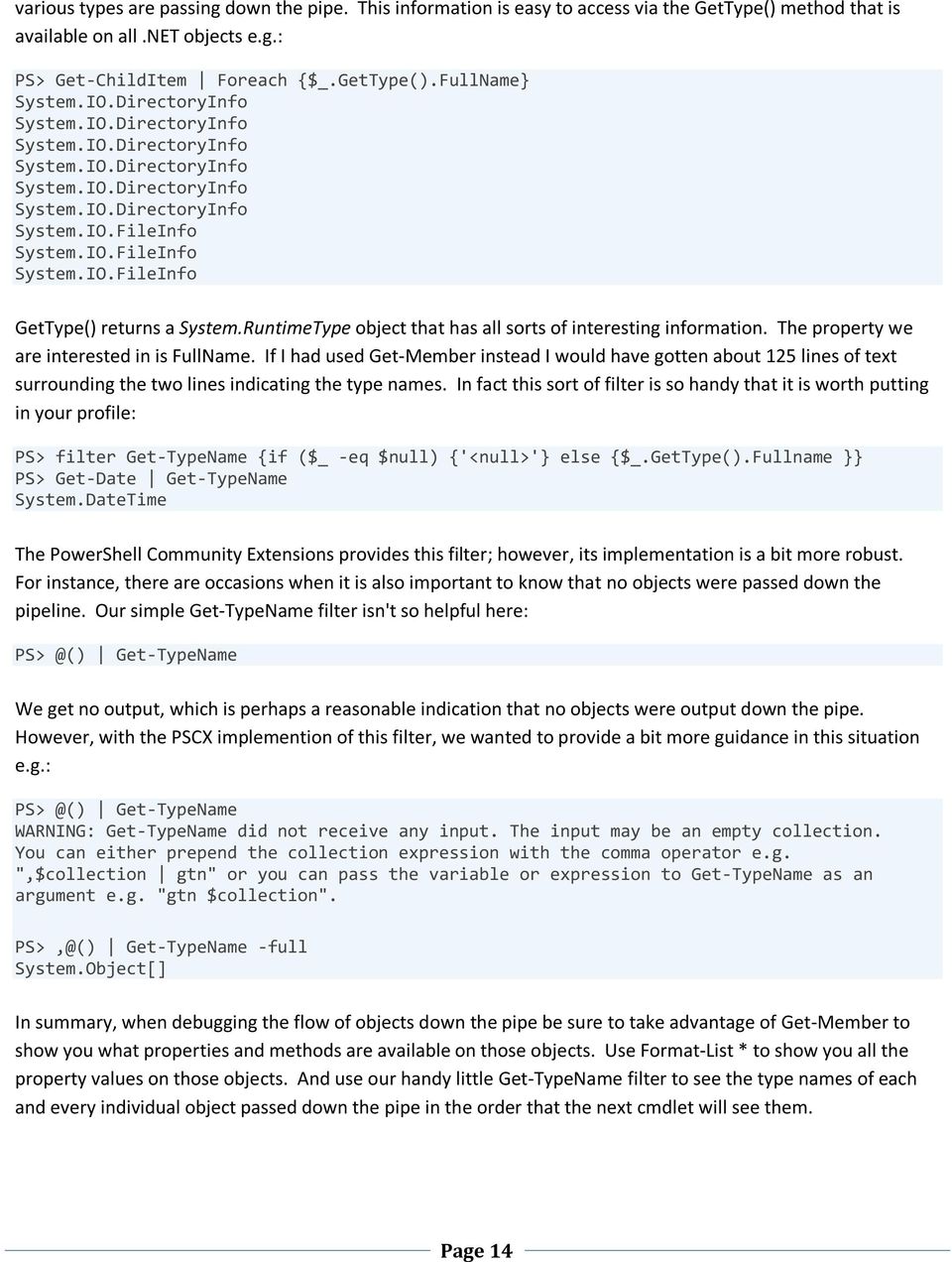
17 various types are passing down the pipe. This information is easy to access via the GetType() method that is available on all.net objects e.g.: PS> Get-ChildItem Foreach {$_.GetType().FullName} System.IO.DirectoryInfo System.IO.DirectoryInfo System.IO.DirectoryInfo System.IO.DirectoryInfo System.IO.DirectoryInfo System.IO.DirectoryInfo System.IO.FileInfo System.IO.FileInfo System.IO.FileInfo GetType() returns a System.RuntimeType object that has all sorts of interesting information. The property we are interested in is FullName. If I had used Get-Member instead I would have gotten about 125 lines of text surrounding the two lines indicating the type names. In fact this sort of filter is so handy that it is worth putting in your profile: PS> filter Get-TypeName {if ($_ -eq $null) {'<null>'} else {$_.GetType().Fullname }} PS> Get-Date Get-TypeName System.DateTime The PowerShell Community Extensions provides this filter; however, its implementation is a bit more robust. For instance, there are occasions when it is also important to know that no objects were passed down the pipeline. Our simple Get-TypeName filter isn't so helpful here: Get-TypeName We get no output, which is perhaps a reasonable indication that no objects were output down the pipe. However, with the PSCX implemention of this filter, we wanted to provide a bit more guidance in this situation e.g.: Get-TypeName WARNING: Get-TypeName did not receive any input. The input may be an empty collection. You can either prepend the collection expression with the comma operator e.g. ",$collection gtn" or you can pass the variable or expression to Get-TypeName as an argument e.g. "gtn $collection". PS>,@() Get-TypeName -full System.Object[] In summary, when debugging the flow of objects down the pipe be sure to take advantage of Get-Member to show you what properties and methods are available on those objects. Use Format-List * to show you all the property values on those objects. And use our handy little Get-TypeName filter to see the type names of each and every individual object passed down the pipe in the order that the next cmdlet will see them. Page 14
18 Item 4: Output Cardinality - Scalars, Collections and Empty Sets - Oh My! In Item 2: Understanding Output, we covered a lot of ground with respect to PowerShell output. However, there is a bit more you need to understand to use PowerShell effectively. This item concerns the cardinality of PowerShell output. That is, when does PowerShell output a scalar (single value) versus a collection (multiple values)? And in some cases, there is no output at all which I refer to as an empty set. I use the term collection in a broad manner for various types of collections including arrays. Working with Scalars Working with scalars in PowerShell is straight forward. All the examples below generate scalar values: PS> $num = 1 PS> $str = "Hi" PS> $flt = [Math]::Pi PS> $proc = (get-process)[0] PS> $date = Get-Date However you may be dealing with scalars when you think you are working with collections. For instance, when you send a collection down the pipe, PowerShell will automatically "flatten" the collection, meaning that each individual element of the collection is sent down the pipe, one after the other. For example: PS> filter Get-TypeName {$_.GetType().Fullname} PS> $array = "hi",1,[math]::pi,$false PS> $array Get-TypeName System.String System.Int32 System.Double System.Boolean In fact, the downstream pipeline stages do not operate on the original collection as a whole. The vast majority of the time this collection flattening behavior within the pipeline is what you want. Otherwise, you would have to write script like this to manually flatten the collection: PS> foreach ($item in $array) {$item} Get-TypeName Note that this would require us to manually flatten every collection with the insertion of an extra foreach statement in the pipe. Since pipelines are typically used to operate on the elements of a sequence and not the sequence as a whole, it is very sensible that PowerShell does this flattening automatically. However, there may be times when you need to defeat the flattening. There's good news and bad news on this topic. First, let s dispense the bad news. Technically you can't defeat this behavior. PowerShell always flattens collections. The good news is that we can work around PowerShell s flattening behavior by creating a new collection that contains just one element - our original collection. PowerShell provides us with a nice shortcut to do just that. For example, this is how I would modify the previous example to send an array intact down the pipe and not each element: PS>,$array Get-TypeName System.Object[] Page 15
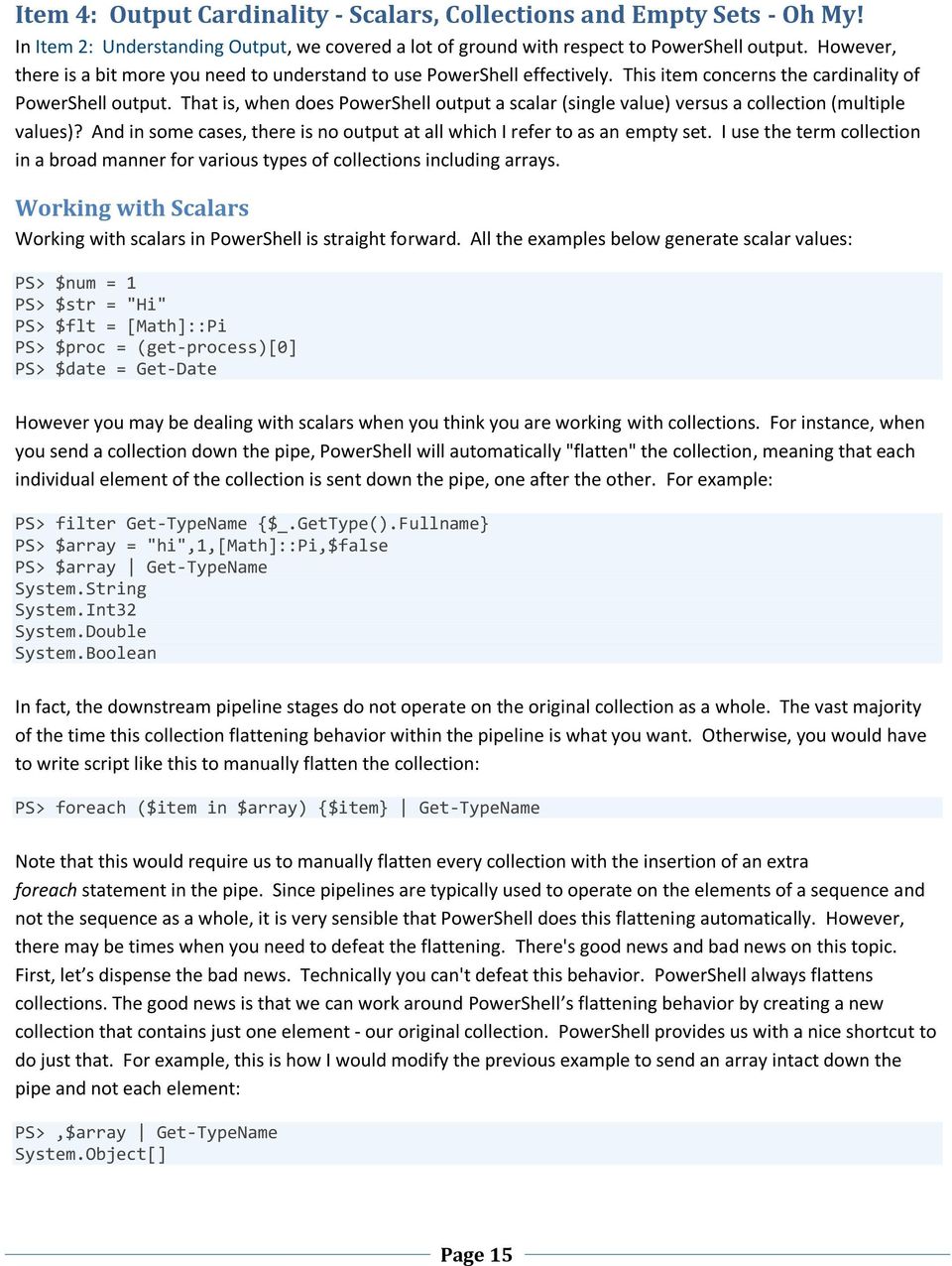
19 The change is subtle. Notice the comma just before $array? That is the unary comma operator and it instructs PowerShell to wrap the object following it, whatever that object is, in a new array that contains a single element - the original object. PowerShell is still doing its flattening work, we just introduced another collection to get the result that we wanted. Another feature of PowerShell that is somewhat unique with respect to scalar handling is how the foreach statement handles scalars. For example, the following script might surprise some C# developers: PS> $vars = 1 PS> foreach ($var in $vars) { "`$var is $var" } $var is 1 This is because in languages like C#, the variable $vars would have to represent a collection (IEnumerable) or you would get a compiler error. This isn't a problem in PowerShell because if $vars is a scalar, PowerShell will treat $vars as if it were a collection containing just that one scalar value. Again, this is a good thing in PowerShell; otherwise, if we wrote code like this: PS> $files = Get-ChildItem *.sys PS> foreach ($file in $files) { "File is: $file" } File is: C:\config.sys We would need to modify it to do special handling for the case where Get-ChildItem finds only one.sys file. Our script code does not have to suffer the "line noise" necessary to do the check between scalar versus collection data shapes. Now the astute reader may ask What if Get-ChildItem doesn't find any.sys files?. Hold that thought for a bit. Working with Collections Working with collections in PowerShell is also straight forward. All the examples below generate collections: PS> $nums = 1,2, PS> $strs = "Hi", "Mom" PS> $flts = [Math]::Pi, [Math]::E PS> $procs = Get-Process Sometimes you may want to treat the result of a command as a collection, even though it may return a single (scalar) value. PowerShell provides a convenient operator to ensure this - the array subexpression operator. Let's look at our Get-ChildItem command again. This time we will force the result to be a collection: PS> $files *.sys) PS> $files.gettype().fullname System.Object[] PS> $files.length 1 In this case, only one file was found. It is important for you to know when you are dealing with a scalar versus a collection because both collections and FileInfo's have a Length property. I have seen this trip up more than a Page 16

20 few people. Given that the unary comma operator always wraps the original object in a new array, what does the array subexpression operator do when it operates on an array? Let's see: PS> $array PS> $array.rank 1 PS> $array.length 4 As we can see, in this case the array subexpression operator has no effect. Again, the astute reader should be asking about the case where Get-ChildItem returns nothing? Working with Empty Sets Let s address the issue of a command that doesn t return any output. This is a somewhat tricky area of PowerShell that you should understand in order to avoid script errors. First, let s document a few rules: 1. Valid output can consist of no output i.e. what I ve been calling an empty set 2. When assigning output to a variable in PowerShell, $null is used to represent an empty set. 3. The foreach statement iterates over a scalar once, even if that scalar happens to be $null. Seems simple, right? Well, these rules combine in somewhat surprising ways that can cause problems in your scripts. Here is an example: PS> function GetSysFiles { } PS> foreach ($file in GetSysFiles) { "File: $file" } PS> GetSysFiles has no output so the foreach statement had nothing to iterate over since the invocation of GetSysFiles returned no output. So far, so good but let's try a variation. Assume that our function invocation takes a long argument list which leads us to want to put the function invocation on its own line like so: PS> $files = GetSysFiles SomeReallyLongSetOfArguments PS> foreach ($file in $files) { "File: $file" } File: Hmm, now we got output and all we did was introduce an intermediate variable to contain the output of the function. Honestly this violates the Principle of Least Surprise in my opinion. Let me explain what is happening. By using the temp variable we have invoked rule #2 - assigning to a variable results in our empty set getting converted to $null when it is assigned to $files. This seems reasonable so far. Unfortunately our foreach statement abides by rule #3 even when the scalar value is $null. In general, PowerShell handles references to $null quite nicely. Notice that our string substitution above in the foreach statement didn't error when it encountered the $null. It just didn't print anything for $null. However,.NET framework methods aren't nearly as forgiving: PS> foreach ($file in $files) { "Basename: $($file.substring(0,$file.length-4))" } You cannot call a method on a null-valued expression. Page 17

21 At line:1 char:16 + $file.substring( <<<< 0,$file.Length-4) Basename: Houston, we ve got a problem. That means that you really need to be careful when using foreach to iterate over the results of a command where you aren't sure what the cardinality of the results will be and if your script won't tolerate iterating over $null. Note that using the array subexpression operator can help here but it is crucial to use it in the correct place. Again, an issue with the language that should be fixed. For example, the following placement does not work: PS> foreach ($file { "Basename: $($file.substring(0,$file.length-4))" } You cannot call a method on a null-valued expression. At line:1 char:16 + $file.substring( <<<< 0,$file.Length-4) Basename: Since $files was already set to $null, the array subexpression operator just creates an array with a single element, $null, which foreach happily iterates over. What I recommend is to put the function call entirely within the foreach statement if the function call is terse. The foreach statement obviously knows what to do when the function has no output. If the function call is lengthy, then I recommend that you do it this way: PS> $files SomeReallyLongSetOfArguments) PS> foreach ($file in $files) { "Basename: $($file.substring(2))" } PS> When you apply the array subexpression operator directly to a function that has no output, you will get an empty array and not an array with a $null in it. If you would like your functions to be able to return empty arrays, use the comma operator as shown below to ensure that the results you return are in array form. function ReturnArrayAlways { $result # Do something here that may add 0, 1 or more elements to array $result # $result = 1 # or # $result = 1,2,$result } Page 18
22 Item 5: Use the Objects, Luke. Use the Objects! Using Windows PowerShell requires a shift in your mental model with respect to how a shell deals with information. In most shells like cmd.exe, Korn shell, C shell, Bash, etc you deal primarily with information in text form. For instance the output of ls or ps is text which is then cut, prodded and parsed to coax out the required pieces of information. As it turns out, PowerShell provides very handy text manipulation functions like: -like -notlike -match -notmatch -replace -eq -ne -ceq (case-sensitive) -cne (case-sensitive) Note that by default, PowerShell treats all text (actually System.String objects) in a case-insensitive manner when performing comparisons or regular expression search and replace operations. Because of these handy string manipulation features, it is very easy to "fall back" into the old way of string cutting, parsing and string comparisons. Sometimes this is unavoidable even in PowerShell but many times you can use the object provided to you. The benefits are often: Easier to understand code Easier to avoid mistakes (changing output formats, bad regexes, incorrect comparison technique) Better performance Let's look at an example. The following issue came up in the public.microsoft.windows.powershell newsgroup. How do you test the output of dir a.k.a. Get-ChildItem to filter out directories leaving only the files to be operated on further down the pipeline? Here's an approach to this problem that I think of as "falling back" into the old ways: PS> Get-ChildItem Where {$_.mode -ne "d"} First let me point out that this command doesn't work but more importantly it relies on string comparisons to determine whether or not an item passing down the pipeline is a folder. If you are bent on doing the filtering the "old way" then the following will work however it is easy to get the string comparison wrong if you aren t careful: PS> Get-ChildItem Where {$_.mode -notlike "d*"} There is a better approach for this type of problem - the PowerShell way. PowerShell decorates every item that is output by the Get-ChildItem and the other *-Item cmdlets with additional properties. This is even Page 19
23 independent of which provider is being used: file system, registry, function, etc. We can see those extra properties, all of which are prefixed with PS, by using our old friend Get-Member like so: PS Function:\> New-Item -type function "foo" -value {} Get-Member TypeName: System.Management.Automation.FunctionInfo Name MemberType Definition Equals Method System.Boolean Equals(Object obj) GetHashCode Method System.Int32 GetHashCode() GetType Method System.Type GetType() ToString Method System.String ToString() PSDrive NoteProperty System.Management.Automation.PSDriveInfo... PSIsContainer NoteProperty System.Boolean PSIsContainer=False PSPath NoteProperty System.String PSPath=Microsoft.PowerShell... PSProvider NoteProperty System.Management.Automation.ProviderInfo... CommandType Property System.Management.Automation.CommandTypes... Definition Property System.String Definition {get;} Name Property System.String Name {get;} Options Property System.Management.Automation.ScopedItemOp... ScriptBlock Property System.Management.Automation.ScriptBlock... One of those extra properties is PSIsContainer and this property tells us that the object is a container object. For the registry, this means RegistryKey and for the file system it means directory (DirectoryInfo object). So this problem can be solved more directly like so: PS> Get-ChildItem Where {!$_.PSIsContainer} That is a bit less to type and is much less error prone. However what about this performance claim? OK let's try both of these approaches (I'll also throw in the regex-based -notmatch) and measure their performance: PS> $oldway1 = Measure-Command {Get-ChildItem Where {$_.mode -notlike "d*"}} PS> $oldway2 = Measure-Command {Get-ChildItem Where {$_.mode -notmatch "d"}} PS> $poshway = Measure-Command {Get-ChildItem Where {!$_.PSIsContainer}} Here are the results: PS> $oldway1 Measure-Object TotalSeconds -ave Count : 1 Average : Sum : Maximum : Minimum : Property : TotalSeconds PS> $oldway2 Measure-Object TotalSeconds -ave Page 20
24 Count : 1 Average : Sum : Maximum : Minimum : Property : TotalSeconds PS> $poshway Measure-Object TotalSeconds -ave Count : 1 Average : Sum : Maximum : Minimum : Property : TotalSeconds So doing a little math, in PowerShell of course, we get: PS> "{0:P0}" -f (( ) / 61.53) 175 % Yikes! The string comparison approach using the Mode property is over 175% slower than using the PSIsContainer property. With SoftwareFX s PowerGadgets we can see this: PS> $data >> 'Mode-Notlike' = $oldway1.totalseconds >> 'Mode-Notmatch' = $oldway2.totalseconds >> PSIsContainer = $poshway.totalseconds >> } >> PS> $data.keys >> Out-Chart -Title "PSIsContainer vs Mode" >> Page 21
25 PowerGadgets is pretty sweet. I use it when presenting version control usage reports to project managers. This is off topic but I have one chart that displays the check-in activity per day. It is interesting to see the spike in source code check-ins just prior to the conclusion of each milestone. :-) The PowerShell console output gives you the illusion that you are only dealing with text but there are.net objects behind all that text output! You are often dealing with objects richer in information than System.String and many times those objects have just the information you are looking for in the form of a property. You can then extract that information without resorting to text parsing. For an additional example of operating on object properties instead of textual output, check out my post on Sorting IPAddresses the PowerShell Way ( Item 6: Know Your Output Formatters I have mentioned previously that Windows PowerShell serves up.net objects for most everything. Get- ChildItem outputs a sequence of System.IO.FileInfo and System.IO.DirectoryInfo objects output. Get-Date outputs a System.DateTime object. Get-Process outputs System.Diagnostics.Process objects and Get-Content outputs System.String objects (or arrays of them based on how -ReadCount is set). You get the idea. PowerShell's currency is.net objects. This isn't always obvious because of the way that PowerShell renders these.net objects to text for display on the host s console. Let's imagine for a moment that we had to figure out how to solve this problem ourselves. Our first approach might be to rely on the ToString() method that is available on every.net object. That would work fine for some.net objects e.g.: Page 22
26 PS> (Get-Date).ToString() 9/3/ :21:23 PM But not so well for others: PS> (Get-Process)[0].ToString() System.Diagnostics.Process (audiodg) Hmm, that is certainly less than satisfying. Let's look at how the PowerShell team solved this problem. They invented the notion of "views" for the common.net types which could be tabular, list, wide or custom. For.NET types PowerShell knows about it will declare a default view so you get decent text output without having to specify a formatting cmdlet. For.NET types that PowerShell doesn t know about it will choose a formatterif you don't specify a formatting cmdlet then PowerShell will choose a formatter based on the default view for a.net type which could be tabular, list, wide or custom. Quick definition break: types versus objects. The System.DateTime class is a.net type, there is only one of these. The Get-Date cmdlet outputs an object which is an instance of the System.DateTime type. There can be many DateTime objects based off the one definition of System.DateTime. PowerShell defines a view for the type that gets applied to all instances (objects) of that type. What if PowerShell doesn't define a view for a.net type? This is a certainty because the possible set of.net types is infinite. I could create one right now called Plan9FromOuterSpace, compile it into a.net assembly and load it into PowerShell. How's PowerShell going to deal with the type it isn't familiar with? Let's public class Plan9FromOuterSpace { public string Director = "Ed Wood"; public string Genre = "Science Fiction B Movie"; public int NumStars = 0; } '@ > C:\temp\Plan9.cs PS> csc /t:library Plan9.cs PS> [System.Reflection.Assembly]::LoadFrom('c:\temp\Plan9.dll') PS> New-Object Plan9FromOuterSpace Director Genre NumStars Ed Wood Science Fiction B Movie 0 Through experimentation it seems that for up to four public properties, PowerShell will use a tabular view. If the object has five or more public properties then PowerShell falls back to a list view. There can be multiple views defined for a single.net type. These views are defined in XML format files in the PowerShell install directory: Page 23
27 PS> Get-ChildItem $PSHOME\*format* Directory: Microsoft.PowerShell.Core\FileSystem::C:\Windows\System32\ WindowsPowerShell\v1.0 Mode LastWriteTime Length Name a--- 1/24/ :23 PM Certificate.format.ps1xml -a--- 1/24/ :23 PM DotNetTypes.format.ps1xml -a--- 1/24/ :23 PM FileSystem.format.ps1xml -a--- 1/24/ :23 PM Help.format.ps1xml -a--- 1/24/ :23 PM PowerShellCore.format.ps1xml -a--- 1/24/ :23 PM PowerShellTrace.format.ps1xml -a--- 1/24/ :23 PM Registry.format.ps1xml The contents of these files look something like this: <View> <Name>process</Name> <ViewSelectedBy> <TypeName>System.Diagnostics.Process</TypeName> <TypeName>Deserialized.System.Diagnostics.Process</TypeName> </ViewSelectedBy> <TableControl> <TableHeaders> <TableColumnHeader> <Label>Handles</Label> <Width>7</Width><Alignment>right</Alignment> </TableColumnHeader> <TableColumnHeader> <Label>NPM(K)</Label> <Width>7</Width><Alignment>right</Alignment> </TableColumnHeader> <TableColumnHeader> <Label>PM(K)</Label> <Width>8</Width><Alignment>right</Alignment> </TableColumnHeader> <TableColumnHeader> <Label>WS(K)</Label> <Width>10</Width><Alignment>right</Alignment> </TableColumnHeader> <TableColumnHeader> <Label>VM(M)</Label> <Width>5</Width><Alignment>right</Alignment> </TableColumnHeader> <TableColumnHeader> <Label>CPU(s)</Label> <Width>8</Width><Alignment>right</Alignment> </TableColumnHeader> <TableColumnHeader> <Width>6</Width><Alignment>right</Alignment> </TableColumnHeader> <TableColumnHeader /> </TableHeaders> <TableRowEntries> Page 24
28 <TableRowEntry> <TableColumnItems> <TableColumnItem> <PropertyName>HandleCount</PropertyName> </TableColumnItem> <TableColumnItem> <ScriptBlock>[int]($_.NPM / 1024)</ScriptBlock> </TableColumnItem> <TableColumnItem> <ScriptBlock>[int]($_.PM / 1024)</ScriptBlock> </TableColumnItem> <TableColumnItem> <ScriptBlock>[int]($_.WS / 1024)</ScriptBlock> </TableColumnItem> <TableColumnItem> <ScriptBlock>[int]($_.VM / )</ScriptBlock> </TableColumnItem> <TableColumnItem> <ScriptBlock> if ($_.CPU -ne $()) { $_.CPU.ToString("N") } </ScriptBlock> </TableColumnItem> <TableColumnItem> <PropertyName>Id</PropertyName> </TableColumnItem> <TableColumnItem> <PropertyName>ProcessName</PropertyName> </TableColumnItem> </TableColumnItems> </TableRowEntry> </TableRowEntries> </TableControl> </View> The XML definition above is of the "table view" for the Process type. It defines the column attributes of the view as well as the data that goes into each column, in some cases massaging the data into a more easily consumable value (KB vs. bytes or MB vs. bytes). Here is the "wide view" definition for the Process type: <View> <Name>process</Name> <ViewSelectedBy> <TypeName>System.Diagnostics.Process</TypeName> </ViewSelectedBy> <WideControl> <WideEntries> <WideEntry> <WideItem> <PropertyName>ProcessName</PropertyName> </WideItem> </WideEntry> </WideEntries> </WideControl> </View> Page 25
29 In this "wide view" the only property that PowerShell will display is the ProcessName. In searching the DotNetTypes.format.ps1xml, we can find more definitions. The following StartTime "named view" isn't invoked by default. You have to specify it by name to the Format-Table cmdlet: <View> <Name>StartTime</Name> <ViewSelectedBy> <TypeName>System.Diagnostics.Process</TypeName> </ViewSelectedBy> <GroupBy> <ScriptBlock>$_.StartTime.ToShortDateString()</ScriptBlock> <Label>StartTime.ToShortDateString()</Label> </GroupBy> <TableControl> <TableHeaders> <TableColumnHeader> <Width>20</Width> </TableColumnHeader> <TableColumnHeader> <Width>10</Width> <Alignment>right</Alignment> </TableColumnHeader> <TableColumnHeader> <Width>13</Width> <Alignment>right</Alignment> </TableColumnHeader> <TableColumnHeader> <Width>12</Width> <Alignment>right</Alignment> </TableColumnHeader> </TableHeaders> <TableRowEntries> <TableRowEntry> <TableColumnItems> <TableColumnItem> <PropertyName>ProcessName</PropertyName> </TableColumnItem> <TableColumnItem> <PropertyName>Id</PropertyName> </TableColumnItem> <TableColumnItem> <PropertyName>HandleCount</PropertyName> </TableColumnItem> <TableColumnItem> <PropertyName>WorkingSet</PropertyName> </TableColumnItem> </TableColumnItems> </TableRowEntry> </TableRowEntries> </TableControl> </View> Why I am showing you all this? I think it is important to understand the magic behind how a.net object, a binary entity, gets rendered into text on your host s console. With this knowledge, you should never forget that you are dealing with.net objects first and foremost. Page 26
30 You may also be wondering if there is an easier way to figure out what views are available for any particular.net type. There is if you have the PowerShell Community Extensions installed. PSCX provides a handy script written by Joris van Lier called Get-ViewDefinition and you can use it like so: PS> Get-Viewdefinition System.Diagnostics.Process Name : process Path : C:\Windows\System32\WindowsPowerShell\v1.0\DotNetTypes.format.ps1xml TypeName : System.Diagnostics.Process SelectedBy : {System.Diagnostics.Process, Deserialized.System.Diagnostics.Process} GroupBy : Style : Table Name : Priority Path : C:\Windows\System32\WindowsPowerShell\v1.0\DotNetTypes.format.ps1xml TypeName : System.Diagnostics.Process SelectedBy : System.Diagnostics.Process GroupBy : PriorityClass Style : Table Name : StartTime Path : C:\Windows\System32\WindowsPowerShell\v1.0\DotNetTypes.format.ps1xml TypeName : System.Diagnostics.Process SelectedBy : System.Diagnostics.Process GroupBy : Style : Table Name : process Path : C:\Windows\System32\WindowsPowerShell\v1.0\DotNetTypes.format.ps1xml TypeName : System.Diagnostics.Process SelectedBy : System.Diagnostics.Process GroupBy : Style : Wide From this output you can see that there are quite a few views that you might not have been aware of related to the System.Diagnostics.Process.NET type that Get-Process outputs. Let's check out these alternate views: PS> Get-Process Format-Wide audiodg csrss dexplore DpHost EDICT ehtray FlashUtil9d ieuser iexplore... csrss devenv DPAgnt dwm ehmsas explorer Idle iexplore iexplore Page 27
31 PS> Get-Process Format-Table -View Priority ProcessName Id HandleCount WorkingSet audiodg csrss csrss devenv PriorityClass: Normal ProcessName Id HandleCount WorkingSet dexplore DPAgnt DpHost PriorityClass: High ProcessName Id HandleCount WorkingSet dwm PS> Get-Process Format-Table -View StartTime ProcessName Id HandleCount WorkingSet audiodg csrss csrss devenv StartTime.ToShortDateString(): 8/31/2007 ProcessName Id HandleCount WorkingSet dexplore StartTime.ToShortDateString(): 8/29/ What if you have forgotten what formatters are available to you in PowerShell? Don't forget that you can use Get-Command like so: Page 28
32 PS> Get-Command Format-* CommandType Name Definition Cmdlet Format-Custom Format-Custom [[-Property... Cmdlet Format-List Format-List [[-Property]... Cmdlet Format-Table Format-Table [[-Property]... Cmdlet Format-Wide Format-Wide [[-Property]... You are probably already pretty familiar with Format-Table. It presents data in tabular format. This is the default format for many views including the default view for System.Diagnostics.Process. Format-Wide is also pretty straight-forward. PowerShell displays a single property defined by PowerShell (i.e. the most interesting) in multiple columns. Format-Custom is interesting but probably not a formatter that you will use that often - it will be implicitly invoked for those.net types that have custom views like System.DateTime: <View> <Name>DateTime</Name> <ViewSelectedBy> <TypeName>System.DateTime</TypeName> </ViewSelectedBy> <CustomControl> <CustomEntries> <CustomEntry> <CustomItem> <ExpressionBinding> <PropertyName>DateTime</PropertyName> </ExpressionBinding> </CustomItem> </CustomEntry> </CustomEntries> </CustomControl> </View> DateTime is a ScriptProperty that PowerShell has defined like so: PS> Get-Date Get-Member -Name DateTime TypeName: System.DateTime Name MemberType Definition DateTime ScriptProperty System.Object DateTime {get=if ($this.displayhint -i... This brings me to my favorite formatter that I use when I'm spelunking PowerShell output. Notice that the Definition column above is truncated. Often when I want to see everything I will use the Format-List cmdlet. This formatter outputs the various property values on individuals lines so that data is rarely truncated e.g.: Page 29
33 PS> Get-Date Get-Member -Name DateTime Format-List TypeName : System.DateTime Name : DateTime MemberType : ScriptProperty Definition : System.Object DateTime {get=if ($this.displayhint -ieq "Date") { "{0}" -f $this.tolongdatestring() } elseif ($this.displayhint -ieq "Time") { "{0}" -f $this.tolongtimestring() } else { "{0} {1}" -f $this.tolongdatestring(), $this.tolongtimestring() };} Now we can see the entire definition of the DateTime ScriptProperty. Note: PowerShell often defines an abbreviated set of these property values to display by default with the Format-List cmdlet. It doesn't want you to be overwhelmed with information. However, when you're spelunking you typically want to see all the gory details. All you have to do to get all the property values listed is execute "format-list *". Check out the default list format for a Process object: PS> (Get-Process)[0] Format-List Id : 1284 Handles : 103 CPU : Name : audiodg versus what you get when you ask Format-List to give you everything: PS> (Get-Process)[0] Format-List * NounName : Process Name : audiodg Handles : 99 VM : WS : PM : NPM : 3360 Path : Company : CPU : FileVersion : ProductVersion : Description : Product : Id : 1284 Page 30
34 PriorityClass : HandleCount : 99 WorkingSet : PagedMemorySize : PrivateMemorySize : VirtualMemorySize : See what I mean? Look at how much information you would have missed if you forgot to specify that you want to see all properties via the asterisk. Item 7: Understanding PowerShell Parsing Modes The way PowerShell parses commands can be surprising especially to those that are used to shells with more simplistic parsing like CMD.EXE. Parsing in PowerShell is a bit different because PowerShell needs to work well as both an interactive command line shell and a scripting language. This need is driven by use cases such as: 1. Allow execution of commands and programs with arguments at the command line. Consequence: arguments (filenames, paths) should not require quotes unless there is a space in the argument s value. 2. Allow scripts to contain expressions as found in most other programming/script languages. Consequence: PowerShell script should be able to evaluate expressions like and $date.second as well as specify a string using quotes e.g. "del -r * is being executed". 3. Take code written interactively at the command line and paste it into a script for execution again at some point in the future. Consequence: These two worlds - interactive and script - need to coexist peacefully. Part and parcel with providing a powerful scripting language is to support more types than just the string type. In fact, PowerShell supports most.net types including String, Int8, Int16, Int32, Decimal, Single, Double, Boolean, Array, ArrayList, StringBuilder among many other.net types. That's very nice you say but what's this got to do with parsing modes? Think about this. How would you expect a language to represent a string literal? Well most folks would probably expect this representation: "Hello World" And in fact, that is recognized by PowerShell as a string e.g.: PS> "Hello World".GetType().Name String PS> "Hello World" Hello World And if you type a string at the prompt and hit the Enter key, PowerShell, being a very nice REPL (Read-eval-printloop) environment, echoes the string back to the console as shown above. However what if I had to specify command arguments using quotes as shown below? PS> del "foo.txt", "bar.txt", "baz.txt" Page 31
35 That would immediately "feel" different than any other command line shell out there. Even worse, typing all those quotes would get annoying really fast. My guess is that the PowerShell team, pretty early on, decided that they were going to need two different parse modes. First they would need to parse like a traditional shell where strings (filenames, directory names, process names, etc) do not need to be quoted. Second they would need to be able to parse like a traditional language where strings are quoted and expressions feel like those you would find in a programming language. In PowerShell, the former is called Command parsing mode and the latter is called Expression parsing mode. It is important to understand which mode you are in and more importantly, how to switch between them. Let's look at an example. Obviously we would prefer to type the following to delete files: PS> del foo.txt, bar.txt, baz.txt That's better. No quotes required on the filenames. PowerShell treats these filenames as strings even without the quotes in command parsing mode. But what happens if my path has a space in it? You would naturally try: PS> del 'C:\Documents and Settings\Keith\_lesshst' And that works as you would expect. Now what if I want to execute a program with a space in its path: PS> 'C:\Program Files\Windows NT\Accessories\wordpad.exe' C:\Program Files\Windows NT\Accessories\wordpad.exe That didn't work because as far as PowerShell is concerned we gave it a string, so it just echoes it back to the screen. It did this because it parsed this line in expression mode. We need to tell PowerShell to parse the line in command mode. To do that we use the call operator '&' like so: PS> & 'C:\Program Files\Windows NT\Accessories\wordpad.exe' Tip: Help prevent repetitive stress injuries to your wrists and use tab (and shift+tab) completion for autocompleting the parts of a path. If the resulting path contains a space PowerShell will insert the call operator for you as well as surround the path with quotes. What's going on with this example is that PowerShell looks at the first non-whitespace character of a line to determine which mode to start parsing in. If it sees one of the characters below then PowerShell parses in Command mode: [_aa-zz] &. \ One exception to this rule happens when the line starts with a name that corresponds to a PowerShell language keyword like if, do, while, foreach, etc. In this case, PowerShell uses expression parsing mode and expects you to provide the rest of the syntax associated with that keyword. The benefits of Command mode are: Page 32
36 Strings do not need to be quoted unless there are spaces in the string. Numbers are parsed as numbers and all other arguments are treated as strings except those that start with the $, (, ' or ". Numbers are interpreted as either Int32, Int64, Double or Decimal depending on how the number is decorated and the range required to hold the number e.g. 12, 30GB, 1E-3, d. So why do we need expression parsing mode? Well as I mentioned before it sure would be nice to be able to evaluate expressions like this: PS> It isn't a stretch to see how some shells might interpret this example as trying to invoke a command named '64-2'. So how does PowerShell determine if the line should be parsed in expression mode? If the line starts with a number [0-9] or one of these $, (, ' or " the line is evaluated in expression mode. The benefits of expression mode are: It is possible to disambiguate commands from strings e.g. del -recurse * is a command whereas "del -recurse *" is just a string. Arithmetic and comparison expressions are straight forward to specify e.g (62) and $array.count -gt 100. In command mode, -gt would be interpreted as a parameter if in fact the previous token corresponded to a valid command. One consequence of the rules for expression parsing mode is that if you want to execute an EXE or script whose name starts with a number you have to quote the name and use the call operator e.g.: PS> & '64E1' If you were to attempt to execute 64E1 without using the call operator, PowerShell can't tell if you want to interpret that as the number 64E1 (640) or execute an exe named 64E1.exe or a script named 64E1.ps1. It is up to you to make sure you have placed PowerShell in the correct parsing mode to get the behavior you want which in this case means putting PowerShell into command parsing mode by using the call operator. Note: I have observed that if you specify the full command name e.g. 64E1.ps1 or 64E1.exe, it isn't necessary to quote the command. What if you want to mix and match parsing modes on the same line? Easy. Just use either a grouping expression (), a subexpression $() or an array This will cause the parser to re-evaluate the parsing mode based on the first non-whitespace character inside the parenthesis. What's the difference between grouping expressions (), subexpressions $() and array A grouping expression can contain just a simple expression or single pipeline. A subexpression can contain multiple semicolon separated statements. The output of each statement contributes to the output of the subexpression which can be nothing, a scalar or a collection. An array subexpression behaves just like a subexpression except that it guarantees that the output will be an array. The two cases where this makes a Page 33
37 difference are 1) when there is no output at all an array subexpression will produce an empty array and 2) when the result is a scalar value it will produce a single element array containing the scalar value. If the output is already an array then the use of an array subexpession will have no effect on the output i.e. it will not wrap the array inside of another array. In the following example I have embedded a command "Get-ChildItem C:\Windows" into a line that started out parsing in expression mode. When it encounters the grouping expression (Get-ChildItem C:\Windows), it begins parsing mode re-evaluation, finds the character 'g' and kicks into command mode parsing for the remainder of the text inside the grouping expression. Note that ".Length" is parsed using expression mode because it is outside the grouping expression, so PowerShell reverts back to the previous parsing mode. ".Length" instructs PowerShell to get the Length property of the object output by the grouping expression. In this case, it is an array of FileInfo and DirectoryInfo objects. The Length property tells us how many items are in that array. PS> 10 + (Get-ChildItem C:\Windows).Length 115 We can do the opposite. That is, put expressions in lines that started out parsing in command mode. In the example below we use an expression to calculate the number of objects to select from the sequence of objects. PS> Get-Process Select -first (1.5 * 2) Handles NPM(K) PM(K) WS(K) VM(M) CPU(s) Id ProcessName audiodg csrss csrss Using the ability to start new parsing modes, we can nest commands within commands. This is a powerful feature and one I recommend mastering. In the example below PowerShell is happily parsing the command line in command mode when it encounters '@(' i.e. the start of an array subexpression. This causes PowerShell to re-evaluate the parsing mode but in this case it finds a nested command. The nested command grabs the new filename from the first line of the file to be renamed. I used the array subexpression syntax in this case because it guarantees that we will get an array of lines even if there is just one line. If you use a grouping expression instead and the file happens to contain only a single line then PowerShell will interpret the [0] to be "get me the first character in the string" which is "f" in the example below. PS> Get-ChildItem [a-z].txt Foreach{Rename-Item $_ $_)[0] -WhatIf} What if: Performing operation "Rename File" on Target "Item: C:\a.txt Destination: C:\file_a.txt". What if: Performing operation "Rename File" on Target "Item: C:\b.txt Destination: C:\file_b.txt". There is one final subtlety that I would like to point out and that is the difference between using the call operator & to invoke commands and "dotting" commands. Consider invoking a simple script that sets the variable $foo = 'PowerShell Rocks!'. Let's execute this script using the call operator and observe the impact on the global session: Page 34
38 PS> $foo PS> &.\script.ps1 PS> $foo Note that using the call operator invokes the command in a child scope that gets thrown away when the command (script, function, etc) exits. That is, the script didn't impact the value of $foo in the global scope. Now let's try this again by dotting the script: PS> $foo PS>. C:\Users\Keith\script.ps1 PS> $foo PowerShell Rocks! When dotting a script, the script executes in the current scope. As a result, the variable $foo in script.ps1 effectively becomes a reference to the global $foo when the script is dotted from the command line resulting in changing the global $foo variable's value. This shouldn't be too surprising since "dot sourcing", as it's also known, is common in other shells. Note that these rules also apply to function invocation. However for external EXEs it doesn't matter whether you dot source or use the call operator since EXEs execute in a separate process and can't impact the current scope. Here's a handy reference to help you remember the rules for how PowerShell determines the parsing mode. First non-whitepace character [_aa-zz], &,. or \ [0-9], ', ", $, and any other character that doesn't start command parsing mode Parsing mode Command Expression Once you learn the subtleties of these two parsing modes you will be able to quickly get past those initial surprises like figuring out how to execute EXEs with paths that contain spaces. Item 8: Understanding ByPropertyName Pipeline Bound Parameters We all generally like to solve a problem in an efficient way. In PowerShell that usually culminates in a one-liner. For pedagogical purposes I find it much better to expand these terse, almost Obfuscated C style, commands into multiple lines. However there is no denying that when you want to bang out something quick at the console, given PowerShell's current line editing features, a one-liner helps stave off repetitive stress injuries. It's not PowerShell's fault. They're just using the antiquated console subsystem in Windows that hasn't changed much since NT shipped in One trick to less typing is to take advantage of pipeline bound parameters. Quite often I see folks write a command like: PS> Get-ChildItem. *.cs -r Foreach { Get-Content $_.fullname }... That works but the use of the Foreach-Object cmdlet is technically unnecessary. Many PowerShell cmdlets bind their "primary" parameter to the pipeline. This is indicated in the help file for Get-Content as shown below: Page 35
39 -path <string[]> Specifies the path to an item. Get-Content retrieves the content of the item. Wildcards are permitted. The parameter name ("-Path" or "-FilePath") is optional. <snip> Required? true Position? 1 Default value N/A - The path must be specified Accept pipeline input? true (ByPropertyName) Accept wildcard characters? true -literalpath <string[]> Specifies the path to an item. Unlike Path, the value of LiteralPath is used exactly as it is typed. No characters are interpreted as wildcards. If the path includes escape characters, enclose it in single quotation marks. Single quotation marks tell Windows PowerShell not to interpret any characters as escape sequences. Required? true Position? 1 Default value Accept pipeline input? true (ByPropertyName) Accept wildcard characters? false Note: you have to specify the Full parameter to Get-Help to get this level of detail on a cmdlet paremeters. There are actually four parameters on Get-Content that accept pipeline input ByPropertyName only two of which are shown above. The other two are ReadCount and TotalCount. The qualifier ByProperyName simply means that if the incoming object has a property of that name it is available to be "bound" as input to that parameter. That is, if a type match can be found or coerced. For instance, we could simplify the command above by eliminating the Foreach-Object cmdlet altogether: PS> Get-ChildItem. *.cs -r Get-Content... While it is intuitive that Get-Content should be able to handle the System.IO.FileInfo objects that Get-ChildItem outputs, it isn't obvious based on the ByPropertyName rule I just mentioned. The reason it isn t obvious is the FileInfo objects output by Get-ChildItem do not have either a Path property or a LiteralPath property even accounting for the extended properties like PSPath. So how does Get-Content determine the path of a file in this pipeline scenario? There are at least two ways to find this out. The first is the easier approach. It uses a PowerShell cmdlet called Trace-Command that shows you how PowerShell binds parameters. The second approach involves spelunking in the PowerShell assemblies using Red Gate s.net Reflector. Let's tackle this problem initially using Trace-Command. Trace-Command is a built-in tracing facility that shows a lot of the inner workings of PowerShell. I will warn you that it tends to be prolific with its output. One particularly useful area you can trace is parameter binding. Here's how we would do this for the command above: Page 36
40 PS> Trace-Command -Name ParameterBinding -PSHost -Expression { Get-ChildItem log.txt Get-Content } This outputs a lot of text and unfortunately it is "Debug" stream text that isn't easily searchable or redirectable to a file. Oh well. The interesting output from this command is: BIND PIPELINE object to parameters: [Get-Content] PIPELINE object TYPE = [System.IO.FileInfo] RESTORING pipeline parameter's original values Parameter [ReadCount] PIPELINE INPUT ValueFromPipelineByPropertyName NO COERCION Parameter [TotalCount] PIPELINE INPUT ValueFromPipelineByPropertyName NO COERCION Parameter [Path] PIPELINE INPUT ValueFromPipelineByPropertyName NO COERCION Parameter [Credential] PIPELINE INPUT ValueFromPipelineByPropertyName NO COERCION Parameter [ReadCount] PIPELINE INPUT ValueFromPipelineByPropertyName NO COERCION Parameter [TotalCount] PIPELINE INPUT ValueFromPipelineByPropertyName NO COERCION Parameter [LiteralPath] PIPELINE INPUT ValueFromPipelineByPropertyName NO COERCION BIND arg [Microsoft.PowerShell.Core\FileSystem::C:\Users\Keith\log.txt] to parameter [LiteralPath] This output has been simplified a bit by eliminating extraneous output. I also changed the initial command to output just a single FileInfo object to further reduce the amount of output. The information we get from Trace- Command shows us that PowerShell tries to bind the FileInfo object to the Get-Content parameters and fails (NO COERCION) on all except for the LiteralPath parameter. That tells us definitively how Get-Content is getting the path but it doesn't make sense. There is no LiteralPath property on a FileInfo object and there is no extended property called LiteralPath either. This is where the second technique of using.net Reflector can be used to see a decompiled version of the PowerShell source. After starting.net Reflector and loading the Microsoft.PowerShell.Commands.Management.dll assembly, we search for and find the GetContentCommand and inspect the LiteralPath parameter shown below: [Alias(new string[] { "PSPath" })] [Parameter(Position = 0, ParameterSetName = "LiteralPath", Mandatory = true, ValueFromPipeline = false, ValueFromPipelineByPropertyName = true)] public string[] LiteralPath { } Note the Alias attribute on this parameter. It creates another valid name for the LiteralPath parameter, PSPath, which corresponds to the extended property PSPath that PowerShell adds to all FileInfo objects. That is what allows the ByPropertyName pipeline input binding to succeed. The FileInfo property PSPath matches the LiteralPath parameter albeit via an alias. Where does that leave us? There are a number of cases where we can pipe an object directly to a cmdlet in the next stage of the pipeline because of pipeline input binding where PowerShell searches for the most appropriate parameter to bind that object to. Here is another example of piping directly to another cmdlet without resorting to the use of the Foreach-Object cmdlet: PS> Get-ChildItem *.txt Rename-Item -NewName {$_.name + '.bak'} Page 37
41 You also now have a way to determine how PowerShell binds pipeline input to a parameter of a cmdlet. And thanks to Reflector we know that some parameters have aliases like PSPath to assist in this binding process. That's it for ByPropertyName pipeline input binding. There is another type of pipeline input binding called ByValue that we will cover next. Item 9: Understanding ByValue Pipeline Bound Parameters ByValue pipeline parameter binding takes the input object itself, not one of its properties, and attempts to bind it by type using type coercion if necessary to parameters decorated as ByValue. For example, most of the *- Object utility cmdlets parameter bind ByValue to whatever object is presented to them via the pipeline. The help on Where-Object shows this: -inputobject <psobject> Specifies the objects to be filtered. If you save the output of a command in a variable, you can use InputObject to pass the variable to Where-Object. However, typically, the InputObject parameter is not typed in the command. Instead, when you pass an object through the pipeline, Windows PowerShell associates the passed object with the InputObject parameter. Required? false Position? named Default value Accept pipeline input? true (ByValue) Accept wildcard characters? false It turns out that ByValue isn't nearly as popular as ByPropertyValue. How can I make such a statement you ask? Well this is one of the things that I love about PowerShell. It provides so much metadata about itself. It is very self describing. You can easily walk every parameter on every cmdlet that is currently loaded into PowerShell. First let's see what information is available for a parameter: PS> Get-Command -CommandType cmdlet Select -Expand ParameterSets >> Select -Expand Parameters -First 1 Get-Member >> TypeName: System.Management.Automation.CommandParameterInfo Name MemberType Definition Aliases Property System.Collections.ObjectModel.ReadOnlyCollection`1[[... Attributes Property System.Collections.ObjectModel.ReadOnlyCollection`1[[... HelpMessage Property System.String HelpMessage {get;} IsDynamic Property System.Boolean IsDynamic {get;} IsMandatory Property System.Boolean IsMandatory {get;} Name Property System.String Name {get;} ParameterType Property System.Type ParameterType {get;} Position Property System.Int32 Position {get;} ValueFromPipeline Property System.Boolean ValueFromPipeline {get;} ValueFromPipelineByPropertyName Property System.Boolean ValueFromPipelineByPropertyName {get;} ValueFromRemainingArguments Property System.Boolean ValueFromRemainingArguments {get;} Page 38
42 The interesting properties for us here are the Name and ValueFromPipeline* properties. Given this information it is easy to figure out how many of each type there are: PS> (Get-Command -CommandType cmdlet Select -Expand ParameterSets >> Select -Expand Parameters >> Where {$_.ValueFromPipeline -and!$_.valuefrompipelinebypropertyname} >> Measure-Object).Count >> 55 PS> (Get-Command -CommandType cmdlet Select -Expand ParameterSets >> Select -Expand Parameters >> Where {!$_.ValueFromPipeline -and $_.ValueFromPipelineByPropertyName} >> Measure-Object).Count >> 196 PS> (Get-Command -CommandType cmdlet Select -Expand ParameterSets >> Select -Expand Parameters >> Where {$_.ValueFromPipeline -and $_.ValueFromPipelineByPropertyName} >> Measure-Object).Count >> 66 So from here we can see the following: Type of Pipeline Binding Count ValueFromPipeline (ie ByValue) 55 ValueFromPipelineByPropertyName 196 Both 66 So indeed binding by property name is much more common. Binding by value from the pipeline is primarily for cmdlets that manipulate objects in a generic manner like filtering and sorting. In the query below we can see that the InputObject parameter is by far the most common ByValue pipeline bound parameter: PS> Get-Command -CommandType cmdlet Select -Expand ParameterSets >> Select -Expand Parameters >> Where {$_.ValueFromPipeline -and!$_.valuefrompipelinebypropertyname} >> Group Name -NoElement Sort Count -Desc >> Count Name InputObject 4 Message 3 String 2 SecureString 1 ExecutionPolicy 1 Object 1 AclObject 1 DifferenceObject 1 Id 1 Command Page 39
43 A little further digging reveals the cmdlets that use the ByValue bound InputObject parameters as shown below. Note that a single parameter can appear in more than one parameter set on a cmdlet, which explains why there are only 36 cmdlets that account for the 40 instances of InputObject. PS> $CmdletName PS> Get-Command -CommandType cmdlet Select $CmdletName -Expand ParameterSets >> Select CmdletName -Expand Parameters >> Where {$_.ValueFromPipeline -and!$_.valuefrompipelinebypropertyname} >> Group Name Sort Count -Desc Select -First 1 Foreach {$_.Group} >> Sort CmdletName -Unique Format-Wide CmdletName -AutoSize >> Add-History Add-Member ConvertTo-Html Export-Clixml Export-Csv ForEach-Object Format-Custom Format-List Format-Table Format-Wide Get-Member Get-Process Get-Service Get-Unique Group-Object Measure-Command Measure-Object Out-Default Out-File Out-Host Out-Null Out-Printer Out-String Restart-Service Resume-Service Select-Object Select-String Sort-Object Start-Service Stop-Process Stop-Service Suspend-Service Tee-Object Trace-Command Where-Object Write-Output As you can see most of these cmdlets are designed to deal with objects in general. Note to cmdlet developers - pipeline bound parameters is how your cmdlet receives pipeline objects. When writing a cmdlet in C# there isn t quite an equivalent of the $_ variable. If your cmdlet wants to "participate" in the pipeline it must set the ParameterAttribute property ValueFromPipeline and/or ValueFromPipelineByPropertyName to true on at least one of its parameters. As mentioned above most ByValue parameters are of the InputObject (type psobject or psobject[]) variety so they pretty much accept anything. However not all cmdlets work that way. The -Id parameter (type [long[]]) on Get-History is pipeline bound ByValue. The follow Trace-Command output shows how PowerShell works hard when necessary to convert the input object's type to the expected type. In this case a scalar string value of '1' to an array of Int64: PS> Trace-Command -Name ParameterBinding -PSHost -Expression {'1' Get-History} BIND NAMED cmd line args [Get-History] BIND POSITIONAL cmd line args [Get-History] MANDATORY PARAMETER CHECK on cmdlet [Get-History] CALLING BeginProcessing BIND PIPELINE object to parameters: [Get-History] PIPELINE object TYPE = [System.String] RESTORING pipeline parameter's original values Parameter [Id] PIPELINE INPUT ValueFromPipeline NO COERCION BIND arg [1] to parameter [Id] Binding collection parameter Id: argument type [String], parameter type [System.Int64[]], collection type Array, element type [System.Int64], no coerceelementtype Creating array with element type [System.Int64] and 1 elements Argument type String is not IList, treating this as scalar BIND arg [1] to param [Id] SKIPPED Parameter [Id] PIPELINE INPUT ValueFromPipeline WITH COERCION BIND arg [1] to parameter [Id] Page 40
44 COERCE arg type [System.Management.Automation.PSObject] to [System.Int64[]] ENCODING arg into collection Binding collection parameter Id: argument type [PSObject], parameter type [System.Int64[]], collection type Array, element type [System.Int64], coerceelementtype Creating array with element type [System.Int64] and 1 elements Argument type PSObject is not IList, treating this as scalar COERCE arg type [System.Management.Automation.PSObject] to [System.Int64] CONVERT arg type to param type using LanguagePrimitives.ConvertTo CONVERT SUCCESSFUL using LanguagePrimitives.ConvertTo: [1] Adding scalar element of type Int64 to array position 0 Executing VALIDATION metadata: [System.Management.Automation.ValidateRangeAttribute] BIND arg [System.Int64[]] to param [Id] SUCCESSFUL MANDATORY PARAMETER CHECK on cmdlet [Get-History] CALLING ProcessRecord CALLING EndProcessing Note that on the first attempt, PowerShell tries to convert the string to an array of Int64 and fails. Then it tries again by treating the input as psobject. It hands that psobject to an internal helper class LanguagePrimitives.ConvertTo() that successfully converts the string '1' to an Int64[] containing the value 1. When a parameter is both ByValue and ByPropertyName bound, PowerShell attempts to bind in this order: 1. Bind ByValue with no type conversion 2. Bind ByPropertyName with no type conversion 3. Bind ByValue with type conversion 4. Bind ByPropertyName with type conversion There is more to the parameter binding algorithm like finding the best match amongst different parameter sets. One last tidbit related to parameters. The PowerShell help topics aren't completely automatically generated and as a result they aren't always correct. For instance, look up the parameters on Get-Content and see if you find a -Wait parameter. You won't. However the metadata is always complete and correct e.g.: PS> Get-Command Get-Content -Syntax Get-Content [-Path] <String[]> [-ReadCount <Int64>] [-TotalCount <Int64>] [-Filter <String>] [-Include <String[]>] [-Exclude <String[]>] [-Force] [-Credential <PSCredential>] [-Verbose] [-Debug] [-ErrorAction <ActionPreference>] [-ErrorVariable <String>] [-OutVariable <String>] [-OutBuffer <Int32>] [-Delimiter <String>] [-Wait] [-Encoding <FileSystemCmdletProviderEncoding>] Get-Content [-LiteralPath] <String[]> [-ReadCount <Int64>] [-TotalCount <Int64>] [-Filter <String>] [-Include <String[]>] [-Exclude <String[]>] [-Force] [-Credential <PSCredential>] [-Verbose] [-Debug] [-ErrorAction <ActionPreference>] [-ErrorVariable <String>] [-OutVariable <String>] [-OutBuffer <Int32>] [-Delimiter <String>] [-Wait] [-Encoding <FileSystemCmdletProviderEncoding>] Hopefully this item has given you more knowledge about ByValue parameters and how to explore and get more information on cmdlet parameters in general. In summary, there actually isn't much you need to know about ByValue pipeline bound parameters because in most cases they just work intuitively. Just be sure to keep your eye out for those parameters that bind ByPropertyName. They are the ones whose pipeline bound usage isn't always as obvious. Page 41
45 Item 10: Error Handling There are several facets to the subject of errors in PowerShell that you should understand to get the most out of PowerShell. Some of these facets are error handling, error related global variables and error related preference variables. But the most fundamental facet is the distinction between terminating and non-terminating errors. Terminating Errors Terminating errors will be immediately familiar to software developers who deal with exceptions. Unhandled exceptions will cause the program to crash. Similarly, if a terminating error is not handled it will cause the current operation (cmdlet or script) to abort with an error. Terminating errors and are generated by: Cmdlet calling the ThrowTerminatingError API. Exceptions escaping unhandled from a cmdlet Script using the throw keyword to issue a terminating error Script syntax errors The gist of a terminating error is that the code throwing the terminating error is indicating that it cannot reasonably continue and is aborting the requested operation. As we will see later, you as the client of that code, have the ability to declare that you can handle the error and continue executing subsequent commands. Terminating errors that are not handled propagate up through the calling code, prematurely terminating each calling function or script until either the error is handled or the original invoking operation is terminated. Here is an example of how a terminating error alters control flow: PS> "Before"; throw "Oops!"; "After" Before Oops! At line:1 char:16 + "Before"; throw <<<< "Oops!"; "After" + CategoryInfo : OperationStopped: (Oops!:String) [], RuntimeException + FullyQualifiedErrorId : Oops! Note that After is not output to the console because throw issues a terminating error. Non-terminating Errors Have you ever experienced the following in older versions of Windows Explorer? You open a directory with a large number of files, say your temp dir and you want to empty it. You select the entire contents of the directory, press Delete and wait. Unfortunately some processes invariably have files open in the temp directory. So after deleting a few files, you get an error from Windows Explorer indicating that it can t delete some file. You press OK and at this point Windows Explorer aborts the operation. It treats the error effectively as a terminating error. This can be very frustrating. You select everything again, press Delete, Explorer deletes a few more files then errors and aborts again. You rinse and repeat these steps until finally all the files that can be deleted are deleted. This behavior is very annoying and wastes your time. In an automation scenario, premature aborts like this are often unacceptable. Page 42
46 Having a special category of error that does not terminate the current operation is very useful in scenarios like the one outlined above. In PowerShell, that category is the non-terminating error. Even though a nonterminating error does not terminate the current operation, the error is still logged to the $Error collection (discussed later) as well as displayed on the host s console as is the case with terminating errors. Nonterminating errors are generated by: Cmdlet calling the WriteError API. Script using the Write-Error cmdlet to log a non-terminating error Exceptions thrown from calls to a member of a.net object or type. Here is an example of how a non-terminating error does not alter control flow: PS> "Before"; Write-Error "Oops!"; "After" Before "Before"; Write-Error "Oops!"; "After" : Oops! + CategoryInfo : NotSpecified: (:) [Write-Error], WriteErrorException + FullyQualifiedErrorId : Microsoft.PowerShell.Commands.WriteErrorException After Note the Write-Error command issues a non-terminating error that gets displayed on the host s console then the script continues execution. Error Variables There are several global variables and global preference variables related to errors. Here is a brief primer on them: $? - contains the execution status of the last operation. True indicates the operation succeeded without any errors. False indicates either complete failure or partial success. Note: for Windows executables the exit code is examined. An exit code of 0 will be interpreted as success and non-zero as failure. Some Windows console apps don t honor this convention so it is usually better to inspect $LASTEXITCODE such that you can determine for yourself success or failure based your interpretation of the exit code. $LASTEXITCODE exit code of the last Windows executable invoked from this session. $Error collection (ArrayList to be specific) of errors that have occurred in the current session. Errors are always inserted at the beginning of the collection. As a result, the most recent error is always located at index 0. $MaximumErrorCount determines the size of the $Error collection. Defaults to 256 which is the minimum value allowed. Max value is $ErrorActionPreference influences the dispatching of non-terminating errors. The default is Continue which adds an entry to the $Error collection and displays the error on the host s console. $ErrorView specifies one of two views for error records when they re displayed on the host. The default is NormalView which displays several lines of information. For production environments, you Page 43
47 can set this to CategoryView to get a succinct one line error message. Remember that all the details are still available in the $Error collection. The $Error global variable can be used to inspect the details of up to the last $MaximumErrorCount number of errors that have occurred during the session e.g.: PS> $error[0] fl * -force PSMessageDetails : Exception : System.IO.IOException: The process cannot access the file '\Temp\FX SAPIDebugLogFile.txt' because it is being used by another process. at System.IO. Error.WinIOError(Int32 errorcode, String maybefullpath) at System.IO.FileInfo.Delete() at Microsoft.PowerShell.Commands.FileSystemProvider.RemoveFileSystemItem(FileSystemInfo file SystemInfo, Boolean force) TargetObject : \Temp\FXSAPIDebugLogFile.txt CategoryInfo : WriteError: (\Temp\FXSAPIDebugLogFile.txt:FileInfo) [Remove-Item], IOException FullyQualifiedErrorId : RemoveFileSystemItemIOError,Microsoft.PowerShell.Commands.RemoveItemCommand ErrorDetails : Cannot remove item \Temp\FXSAPIDebugLogFile.txt: The process cannot access the file '\Temp\FXSAPIDebugLogFile.txt' because it is being used by another process. InvocationInfo : System.Management.Automation.InvocationInfo PipelineIterationInfo : {0, 1} As the output above shows, errors in PowerShell are not just strings but rich objects. The object may be a.net exception with an embedded error record or just an error record. The error record contains a lot of useful information about the error and the context in which it occurred. The default output formatting of errors can be a bit hard to digest. The PowerShell Community Extensions come with a handy Resolve-Error function that digs through the error information and surfaces the important stuff e.g.: PS> Resolve-Error # displays $error[0] by default PS> Resolve-Error $error[1] The $? global variable is handy for determining if the last operation encountered any errors e.g.: PS> Remove-Item $env:temp\*.txt -Recurse -Verbose VERBOSE: Performing operation "Remove File" on Target "...\Temp\foo.txt". VERBOSE: Performing operation "Remove File" on Target "...\Temp\FXSAPIDebugLogFile.txt". WriteError: (...\Temp\DebugLogFile.txt:FileInfo) [Remove-Item], IOException PS> $? False Page 44
48 In this case, the Remove-Item cmdlet only partially succeeded. It deleted two files but then encountered a nonterminating error. This failure to achieve complete success i.e. no errors, is indicated by $? returning False. Working with Non-Terminating Errors Sometimes you want to completely ignore non-terminating errors. Who wants all that red text spilled all over their console especially when you don t care about the errors you know you're going to get. You can suppress the display of non-terminating errors either locally or globally. To do this locally, just set the cmdlet s ErrorAction parameter to SilentlyContinue e.g. Remove-Item $env:temp\*.txt -Recurse -Verbose -ErrorAction SilentlyContinue For interactive scenarios it is handy to use 0 instead of SilentlyContinue. This works because SilentlyContinue is part of an enum and its integer value is 0. So to save your wrists you can rewrite the above as: ri $env:temp\*.txt -r -v ea 0 Note that for a script I would use the first approach for readability. To accomplish the above globally, set the $ErrorActionPreference global preference variable to 'SilentlyContinue' (or 0). This will cause all non-terminating errors in the session to be suppressed so they do not show up on the host s console. However, errors will still be logged to the $Error collection. Setting the $ErrorActionPreference to Stop can be useful in the following scenario. If you misspell a command, PowerShell will generate a non-terminating error as shown below: PS> Copy-Itme.\_lesshst.\_lesshst.bak; $?; "After" The term 'Copy-Itme' is not recognized as the name of a cmdlet, function, scrip t file, or operable program. Check the spelling of the name, or if a path was i ncluded, verify that the path is correct and try again. At line:1 char:10 + Copy-Itme <<<<.\_lesshst.\_lesshst.bak; $?; "After" + CategoryInfo : ObjectNotFound: (Copy-Itme:String) [], CommandNo tfoundexception + FullyQualifiedErrorId : CommandNotFoundException False After In this case, the misspelled Copy-Item command failed ($? returned False) but since the error was nonterminating, the script continues execution as shown by the output After. If you are hard-core about correctness you can get PowerShell to convert non-terminating errors into terminating errors by setting $ErrorActionPreference to Stop which has global impact. You can also do this one a cmdlet by cmdlet basis by setting the cmdlet s ErrorAction parameter to Stop. The last issue to be aware of regarding non-terminating errors is that a Windows executable that returns a nonzero exit code does not generate any sort of error. The only action PowerShell takes is to set the $? variable to Page 45
49 False if the exit code is non-zero. There is no error record created and stuffed into $Error. In many cases, the failure of an external executable means your script cannot continue. In this case, it is desirable to convert a failure exit code into a terminating error. This can be done easily using the function below: function CheckLastExitCode { param ([int[]]$successcodes [scriptblock]$cleanupscript=$null) if ($SuccessCodes -notcontains $LastExitCode) { if ($CleanupScript) { "Executing cleanup script: $CleanupScript" &$CleanupScript } $msg EXE RETURNED EXIT CODE $LastExitCode CALLSTACK:$(Get-PSCallStack Out-String) "@ throw $msg } } Note that Get-PSCallStack is specific to PowerShell v2.0. Invoke CheckLastExitCode right after invoking an executable, well at least for those cases where you care if an executable returns an error. This function provides a couple of handy features. First, you can specify an array of acceptable success codes which is useful for exes that return 0 for failure and 1 for success and is also useful for exes that return multiple success codes. Second, you specify a cleanup scriptblock that will get executed on failure. Handling Terminating Errors Handling terminating errors in PowerShell comes in two flavors. Using the trap keyword which is supported in both version 1 and 2 of PowerShell. Using try { } catch { } finally { } which is new to version 2. Trap Statement Trap is a mechanism available in other shell languages like Korn shell. It effectively declares that either any error type or a specific error type is handled by the scriptblock following the trap keyword. Trap has the interesting property that where ever it is declared in a scope, it is valid for that entire scope e.g.: Given the following script (trap.ps1): "Before" throw "Oops!" "After" trap { "Error trapped: $_" } Invoking it results in the following output: PS>.\trap.ps1 Before Error trapped: Oops! Oops! At C:\Users\Keith\trap.ps1:2 char:6 Page 46
50 + throw <<<< "Oops!" + CategoryInfo : OperationStopped: (Oops!:String) [], RuntimeException + FullyQualifiedErrorId : Oops! After Note that it doesn t matter that the trap statement is after the line that throws the error. Also note that since the default value for $ErrorActionPreference is 'Continue', the error is displayed, logged to $Error but execution resumes at the next statement. Note: within the context of a trap statement, $_ represents the error that was caught. Another thing to consider is whether to use Write-Host or Write-Output to display text in the trap statement. The example above implicitly invokes the Write-Output cmdlet. This has the benefit that the text can be redirected to a log file. The downside is that if the exception is handled and execution continues that text will become part of the output for that scope which, in the case of functions and scripts, may not be desirable. If you want to execute cleanup code on failure but still terminate execution, we can change the trap statement to use the break keyword. Consider the following script: function Cleanup() {"cleaning up"} trap { "Error trapped: $_"; continue } "Outer Before" & { trap { Cleanup; break } "Inner Before" throw "Oops!" "Inner After" Cleanup } "Outer After" Note that the inner trap calls the Cleanup function but then propagates the error. As a result, the Inner After statement never executes because control flow is transferred outside the scope of the trap statement. The outer trap then catches the error, displays it and continues execution. As a result, the Outer After statement is executed. The interaction between the control flow altering keywords valid in a trap statement (break, continue and return), the $ErrorActionPreference variable if no control flow altering keyword is used and the final behavior is somewhat complex as is demonstrated by the table below: Trap Termination Style Displays error Propagates error Keyword Used No Keyword Used depends on value of $ErrorActionPreference Break Stop True True Continue SilentlyContinue False False Return Continue True False Return <object> 1 N/A True False N/A Inquire Depends on response Depends on response 1. <object> is appended to the end of the trap scope s output. Page 47
51 All of the examples of trap shown above trap all errors. You may want to trap only specific errors. You can do this by specifying the type name of an exception to trap as shown below: trap [System.DivideByZeroException] { "Please don't divide by 0!"} $divisor = 0 1/$divisor Note: Parse errors do not cause the trap block to execute. This is why I do not execute 1/0 in the example above. This is what would happen: trap [System.DivideByZeroException] { "Please don't divide by 0!"} 1/0 Attempted to divide by zero. At line:1 char:3 + 1/ <<<< 0 + CategoryInfo : NotSpecified: (:) [], ParentContainsErrorRecordException + FullyQualifiedErrorId : RuntimeException The reason our trap is not executed is that the PowerShell parser performs an operation known as constant folding when it parses the text "1/0". The divide by zero exception is generated at parse and as a result will not invoke your trap handler. If you want to execute different code for different errors, you can define multiple trap statements in your script: trap [System.DivideByZeroException] { "Please don't divide by 0!"} trap [System.Management.Automation.CommandNotFoundException] { "Did you fat finger the command name?" } trap { "Anything not caught by the first two traps gets here" } If you define multiple trap statements for the same error type the first one wins and the others within the same scope are ignored. Try / Catch / Finally Version 2 of Windows PowerShell introduces try/catch/finally statements - a new error handling mechanism that most developers will be immediately familiar with. There are two main differences between trap and try/catch/finally. First, a trap anywhere in a lexical scope covers the entire lexical scope. With a try statement, only the script within the try statement is checked for errors. The second difference is that trap doesn t support finally behavior i.e., always execute the finally statement whether the code in the try statement throws a terminating error or not. In fact, any associated catch statements could also throw a terminating error and the finally statement would still execute. You can fake finally behavior with trap by calling the same finally code from the end of the lexical scope *and* from the trap statement. Consider the Cleanup function from the earlier example. We want to always execute Cleanup whether the script errors or not. The example shown in the previous section using the Cleanup function works OK unless the Cleanup function throws a terminating error. Then you run into the issue where Page 48
52 Cleanup gets called again due to the trap statement. This sort of cleanup is much easier to represent in your script using try/finally e.g.: function Cleanup($err) {"cleaning up"} trap { "Error trapped: $_"; continue } "Outer Before" try { "Inner Before" throw "Oops!" "Inner After" } finally { Cleanup } "Outer After" This example results in Cleanup always getting called whether or not the script in the try statement generates a terminating error. It also shows that you can mix and match trap statements with try/catch/finally. One last example shows how you can use catch to handle different error types uniquely: function Cleanup($err) {"cleaning up"} trap { "Error trapped: $_"; continue } "Outer Before" try { "Inner Before" throw "Oops!" "Inner After" } catch [System.DivideByZeroException] { "Please don't divide by 0!" } catch [System.Management.Automation.CommandNotFoundException] { "Did you fat finger the command name?" } catch { "Anything not caught by the first two catch statements gets here" } finally { Cleanup } "Outer After" The use of the finally statement is optional as is the catch statement. The valid combinations are try/catch, try/finally and try/catch/finally. In summary, PowerShell s error handling capabilities are quite powerful especially the ability to distinguish between non-terminating and terminating errors. With the addition of the new try/catch/finally support in version 2.0 the important scenario of resource cleanup is easy to handle. Page 49
53 Item 11: Regular Expressions - One of the Power Tools in PowerShell Windows PowerShell is based on the.net Framework. That is, it is built using the.net Framework and it exposes the.net Framework to the user. One very nice feature of the.net Framework is the Regex class in the System.Text.RegularExpressions namespace. It is a very capable regular expression engine. PowerShell uses this regular expression engine in a number of scenarios: -match operator -notmatch operator Select-String -Pattern parameter Obviously to get the most out of these operators and the Select-String cmdlet it helps to have a good grasp of regular expressions. PowerShell provides a help topic named "about_regular_expression" that you can view like so: PS> help about_reg* This topic provides a nice quick reference on the various meta-characters in a regular expression but you are not going to learn a great deal about creating powerful regular expressions. To learn how to get the most out of regular expressions and hence PowerShell, I highly recommend Jeffrey Friedl's book Mastering Regular Expressions. There is a shortcoming in PowerShell's support for regular expressions that you need to know about. Most other script languages support regular expression syntaxes where you can find all matches in a string. For example in Perl I could do this: $_ = "paul xjohny xgeorgey xringoy stu pete brian"; # PERL script ($first, $second, $third) = /x(.+?)y/g; Unfortunately the Select-String cmdlet doesn't have this feature in version 1.0. For now you can work around this limitation by using the System.Text.RegularExpressions.Regex class directly. Fortunately you don't have to type that long class name because PowerShell has a type alias: [regex]. For example: PS> $str = "paul xjohny xgeorgey xringoy stu pete brian" PS> $first,$second,$third = ([regex]'x(.+?)y').matches($str) Foreach {$_.Groups[1].Value} PS> $first john PS> $second george PS> $third ringo One thing to watch out for is when your regular expression is written to search across line boundaries. For instance, if you use Get-Content to grab the contents of a file to apply the regular expression against, keep in mind that Get-Content streams the file one line at a time. For regular expressions that operate across lines you will need to apply the regex to the file contents represented as a single string. In that case, I would do this in PowerShell 1.0: Page 50
54 PS> $regex = [regex]'(?<cmultilinecomment>/\*[^*]*\*+(?:[^/*][^*]*\*+)*/)' PS> Get-Content foo.c Join-String -Newline Foreach {$regex.matches($_)} >> Foreach {$_.Groups["CMultilineComment"].Value} >> Note the use of the PowerShell Community Extensions cmdlet Join-String which takes the individual strings output by Get-Content and creates a single string. Also note that this example shows the usage of a named capture: CMultilineComment. This example demonstrates that when PowerShell is missing a feature, the access that it provides to the.net Framework is a great escape hatch. PowerShell 2.0 Update Fortunately PowerShell 2.0 introduces a number of new features that help with the search above. First, there is a new join operator that joins multiple strings into a single string. Second, Select-String has been updated with a number of new parameters such as -Context, -NotMatch and -AllMatches. The AllMatches parameter is what we needed above and is why we resorted to using the regex directly. This is how you would perform the same comment search in PowerShell 2.0: $pattern = '(?<CMultilineComment>/\*[^*]*\*+(?:[^/*][^*]*\*+)*/)' PS> (get-content.\foo.c) -join "`n" Select-String $pattern -all Foreach {$_.Matches} Foreach {$_.Value} Regular expressions are an extremely powerful aspect of PowerShell. Learn them and they will open up many opportunities to find and manipulate text. Item 12: Comparing Arrays PowerShell has a lot of useful operators such as -contains which tests if an array contains a particular element. But as far as I can tell PowerShell doesn't seem to provide an easy way to test if two array's contents are equal. This is often quite handy and I was a bit surprised by this apparent omission. I came upon this need to compare arrays while answering a question on the microsoft.public.windows.powershell newsgroup. The poster wanted to find utf-8 encoded files by inspecting their BOM or byte order mark. One relatively straight forward approach to this is: PS> $preamble = [System.Text.Encoding]::UTF8.GetPreamble() PS> $preamble foreach {"0x{0:X2}" -f $_} 0xEF 0xBB 0xBF PS> $fileheader = Get-Content Utf8File.txt -Enc byte -Total 3 PS> $fileheader foreach {"0x{0:X2}" -f $_} 0xEF 0xBB 0xBF While it is easy enough to visually inspect this and see we have a match, visual inspection doesn't work in a Page 51
55 script. You could also test each individual element which isn't bad for a three element array but when you hit say 10 elements that approach starts to look tedious. You might think that we could just compare these two arrays directly like so: PS> $preamble -eq $fileheader Get-TypeName WARNING: Get-TypeName did not receive any input. The input may be an empty collection. You can either prepend the collection expression with the comma operator e.g. ",$collection gtn" or you can pass the variable or expression to Get-TypeName as an argument e.g. "gtn $collection". PS> $preamble -eq 0xbb 187 Note: Get-TypeName is a filter function provided by the PowerShell Community Extensions. Comparing arrays via the -eq operator doesn't actually compare the contents of two arrays. As you can see above, this results in no output. When the left hand side of the -eq operator is an array, PowerShell return the elements of the array that match the value specified on the right hand side (shown above where I test for -eq to 0xbb). It looks like we need to roll our own mechanism to compare arrays. Here is one way: function AreArraysEqual($a1, $a2) { if ($a1 -isnot [array] -or $a2 -isnot [array]) { throw "Both inputs must be an array" } if ($a1.rank -ne $a2.rank) { return $false } if ([System.Object]::ReferenceEquals($a1, $a2)) { return $true } for ($r = 0; $r -lt $a1.rank; $r++) { if ($a1.getlength($r) -ne $a2.getlength($r)) { return $false } } } $enum1 = $a1.getenumerator() $enum2 = $a2.getenumerator() while ($enum1.movenext() -and $enum2.movenext()) { if ($enum1.current -ne $enum2.current) { return $false } } return $true And it works as expected: PS> AreArraysEqual $preamble $fileheader True Page 52
56 However there turns out to be a way to do this within PowerShell but it isn't exactly obvious. At least it wasn't to me. $preamble $fileheader -sync 0).Length -eq 0 True Compare-Object will compare the arrays and if there are no differences it won't output anything. If we wrap the output of Compare-Object in an array then we will get an array with either 0 or more elements. A simple compare of the length to 0 will confirm that there was no output, hence the arrays are equal. Compare-Object compares two objects to see if they have the same set of elements. Normally it does not care if the elements are in the same sequence in each object (each array in this case). For example: PS> $a1 = 1,1,2 PS> $a2 = 1,2,1 $a1 $a2).length -eq 0 True Obviously that isn't what we want when comparing arrays for equality. Fortunately, we can use the SyncWindow parameter with a value 0 to get Compare-Object to force sequence equality. Let s compare the performance of these two approaches: PS> $a1 = PS> $a2 = PS> (Measure-Command { AreArraysEqual $a1 $a2 }).TotalSeconds PS> (Measure-Command $a1 $a2 -sync 0).Length -eq 0 }).TotalSeconds Compare-Object beats out my PowerShell function by a good margin which isn't too surprising 1. After all, one is compiled code and the other is interpreted script. So there you have it. If you need a quick way to compare to arrays, just remember that arrays are objects too and that is what Compare-Object does best - compare two objects. Item 13: Use Set-PSDebug -Strict In Your Scripts - Religiously Windows PowerShell is like most dynamic languages in that it allows you to use a variable without declaring its type and without having assigned to it. This is handy for interactive use, you can do stuff like this: PS> Get-ChildItem Foreach -Process {$sum += $_.Name.Length} -End {$sum} 1 Except for comparing against the same array where my function is two orders of magnitude faster. It seems that the Compare-Object cmdlet could benefit from a quick System.Object.ReferenceEquals check. Admittedly this is a corner case scenario. Page 53
57 Here $sum isn't a defined variable and yet we are adding a value to it and assigning to it. PowerShell just assumes a value of $null and coerces that 0 in the case above. Try this at the prompt: PS> $xyzzy -eq $null True It is not likely that this variable is already defined somewhere. Of course we could verify that as shown below to see that indeed it isn't defined. PS> Test-Path Variable:\xyzzy False What has this got to do with using Set-PSDebug -Strict in scripts - religiously? Well, once you get burned by an unfortunate typo that takes time to notice and time to track down, you will want a way to avoid repeating that mistake. Take this script for example: $suceeded = test-path C:\ProjectX\Src\BuiltComponents\Release\app.exe if ($succeeded) {... <archive bits, label build, etc> } else {... < team that build failed, etc> } This script has a problem with it that PowerShell won't tell you about. It will happily indicate that every build fails even though that may not be true. This is all because of a minor typo where I misspelled $succeeded when testing the path. In this snippet, the typo may be obvious to you but when you have several hundred lines of script, typos aren't always so obvious. You can prevent this particular problem by placing Set-PSDebug -Strict at the top of your script file just after the param() statement (if any). For example, given this script as Foo.ps1: Set-PSDebug -Strict $suceeded = test-path C:\ProjectX\Src\BuiltComponents\Release\app.exe if ($succeeded) { "yeah" } else { "doh" } PS C:\Temp>.\foo.ps1 The variable $succeeded cannot be retrieved because it has not been set yet. At C:\Temp\foo.ps1:6 char:14 + if ($Succeded) <<<< { Page 54
58 What would have happened if we had omitted the Set-PSDebug -Strict invocation? This script would have output "doh". Note: In some cases we may need to initialize a variable in order to avoid the error above. This is a small price to pay to avoid this sort of problem. The title of this item was perhaps a bit "over the top". There may very well be times not to use Set-PSDebug -Strict in your scripts. As always, use your judgment. PowerShell 2.0 Update In PowerShell 2.0, you should use the new cmdlet Set-StrictMode like so: param(...) Set-StrictMode version Latest <rest of your script> Set-StrictMode checks for more than just the use of uninitialized variables. It will also check for references to non-existent properties, calling functions using.net method calling syntax and unnamed variables e.g. ${}. Item 14: Commenting Out Lines in a Script File Windows PowerShell 1.0 doesn't provide multiline comments although that oversight has been rectified in 2.0 as I ll show you at the end of this section. If you are using PowerShell 2.0 exclusively you still might want to read this section as it covers some gotchas when using here strings. Multiline comments come in handy when you need to comment out multiple lines in a script file. However there is a reasonable workaround. Use a here string. A here string allows you to enter multiple lines of text and prevent PowerShell from interpreting commands. However the extent of PowerShell's interpretation depends on which type of here string you use. For instance, in double quoted here strings, PowerShell expands variables and also executes subexpressions. This is an example of a double quoted here string that results in script being evaluated e.g.: >> $(get-process) >> "@ >> System.Diagnostics.Process (audiodg) System.Diagnostics.Process (csrss)... However a single quoted here string doesn't do this: >> $(get-process) >> '@ >> $(get-process) Use the single quoted here string to comment out lines of script since it will not evaluate anything in the here string. Just note, the here string is an expression so if you do nothing more, the whole string will be emitted to the console. You don't usually want that when you are commenting out code. To prevent this, all you need to do is cast the string to [void] (or redirect the string to $null) as shown below: Page 55
59 "Getting process info" get-process select Name, Id "Killing all vd processes" stop-process -name vd* This will effectively comment out those lines of script. Note: There are a couple of gotchas to be aware of with here strings. There can be no whitespace after the character sequence. If there is one single space after this sequence you will get the following cryptic error: Unrecognized token in source text. At C:\Temp\foo.ps1:1 char:1 <<<< ' The other gotcha is that the closing '@ character sequence has to start in column zero otherwise you get this equally cryptic error message: Encountered end of line while processing a string token. At C:\Temp\foo.ps1:1 char:3 <<<< The final gotcha to watch out for is that you can't nest here strings in PowerShell 1.0 within another here string of the same ilk (single quoted or double quoted). What this means for our commenting out script scenario is that you won't be able to surround a chunk of script that uses a single quoted here strings with another single quoted here string to comment out that code. PowerShell 2.0 Update PowerShell 2.0 introduces a proper support for multiline comments as shown below. <# This is a multiline comment in PowerShell 2.0 #> Finally, here strings in PowerShell 2.0 can be nested as shown in the example <Processes> $(Get-Process Foreach <Process name="$($_.name)" id="$($_.id)" workingset="$($_.ws)">`r`n "@ }) </Processes> "@ Page 56
60 Item 15: Using the Output Field Separator Variable $OFS $OFS is the output field separator variable. Whatever value it contains will be used as the string separator between elements of an array that is rendered to a string. For example, consider the following array definition and subsequent rendering to string: PS> $array = 1,2,3 PS> "$array" What would you expect the resulting string to be? Here s the output: How does PowerShell go about rendering elements of an array into a single string? It is pretty simple as you would expect. Each element is converted to its string representation. The only other detail left is to determine what characters to use to separate each element in the final string. The $OFS variable is not initially created by PowerShell and if it doesn t exist, PowerShell uses a single space character to separate elements as you can see in the example above. What is neat is that PowerShell gives you the ability change the separator string by setting the $OFS variable like this: PS> $OFS = ', ' PS> "$array" 1, 2, 3 Note that the separator doesn t have to be single character. It doesn t even have to be a string, but in the end whatever value that is assigned to $OFS is converted to a string e.g.: PS> $OFS = $true PS> "$array" 1True2True3 This is an admittedly weird example. In the common case, you will just assign a string to $OFS like ", " or "`t" or "`n", etc. $OFS also works for multi-dimensional arrays e.g.: PS> $array = new-object 'int[,]' 2, 3 PS> $array[0,0] = 1 PS> $array[0,1] = 2 PS> $array[0,2] = 3 PS> $array[1,0] = 4 PS> $array[1,1] = 5 PS> $array[1,2] = 6 PS> $OFS = ', ' PS> "$array" 1, 2, 3, 4, 5, 6 Unfortunately, $OFS doesn t work so well for jagged arrays: Page 57
61 PS> $array PS> $OFS = ', ' PS> "$array" System.Object[], System.Object[] # Let s try a different approach not so satisfying PS> "$($array[0]), $($array[1])" 1, 2, 3, 4 When I see folks use [string]::join() or join in version 2 of PowerShell, I wonder if it would be better to use $OFS and string rendering. Here is an example I came across recently: $typedecls %{"[string]`$of" + $_.Name}) join ', ' $paramdecls % { "[$($_.ParameterType)]`$$($_.Name)" }) join ', ' $decls = $typedecls $decls += $(if ($decls and $paramdecls) { ', ' }) $decls += $(if ($paramdecls) { $paramdecls }) function New-$fname($decls) { } Using $OFS the script changes to: $OFS = ', ' $typedecls %{"[string]`$of" + $_.Name}) $paramdecls % { "[$($_.ParameterType)]`$$($_.Name)" }) $decls = $typedecls + $paramdecls function New-$fname("$decls") { } In this example, the use of $OFS shines because you benefit by delaying the string rendering of the arrays until the last moment. In this case, I wanted to keep both $typedecls and $paramdecls as arrays so that they could be concatenated together and then rendered as a string containing a comma separated list. If these two variables had been converted to strings earlier, as in the before script above, then you need special case logic in the event $typedecls and/or $paramdecls are empty. Page 58
Acknowledgments Finding Your Way Around Windows PowerShell p. 1 Getting Started with Windows PowerShell p. 3 Installing Windows PowerShell p.
 Introduction p. xv Acknowledgments p. xx Finding Your Way Around Windows PowerShell p. 1 Getting Started with Windows PowerShell p. 3 Installing Windows PowerShell p. 3 Installing.NET Framework 2.0 p.
Exploring PowerShell. Using Windows PowerShell
 733 Exploring PowerShell Before using PowerShell, you might want to become more familiar with its cmdlets and features. To assist administrators with exploring PowerShell, the PowerShell team decided to
SUNGARD SUMMIT 2007 sungardsummit.com 1. Microsoft PowerShell. Presented by: Jeff Modzel. March 22, 2007 Course ID 453. A Community of Learning
 SUNGARD SUMMIT 2007 sungardsummit.com 1 Microsoft PowerShell Presented by: Jeff Modzel March 22, 2007 A Community of Learning Agenda Introduction to PowerShell PowerShell Power Developer Angle Long Term
Microsoft. Jump Start. M3: Managing Windows Server 2012 by Using Windows PowerShell 3.0
 Microsoft Jump Start M3: Managing Windows Server 2012 by Using Windows PowerShell 3.0 Rick Claus Technical Evangelist Microsoft Ed Liberman Technical Trainer Train Signal Jump Start Target Agenda Day One
WolfTech Active Directory: PowerShell
 WolfTech Active Directory: PowerShell March 7th, 2012 2-4pm Daniels 201 http://activedirectory.ncsu.edu What we are going to cover... Powershell Basics Listing Properties and Methods of Commandlets.Net
PowerShell for Exchange Admins
 PowerShell for Exchange Admins Get-Speaker FL Name : Kamal Abburi Title : Premier Field Engineer Expertise : Exchange Email : [email protected] Blog : mrproactive.com Note: Inspired by my fellow
Things I wish I d known when I started using PowerShell
 PowerShell Day 1 Things I wish I d known when I started using PowerShell John D. Cook http://www.johndcook.com First released 9 April 2009, last updated 1 February 2010 Introduction This booklet captures
POWERSHELL (& SHAREPOINT) This ain t your momma s command line!
 POWERSHELL (& SHAREPOINT) This ain t your momma s command line! JAMYE FEW SENIOR CONSULTANT 12+ years as IT Professional ( IT PRO duck DEV ) A little IT PRO, little more DEV and a lot of ducking. Certifiable
Windows PowerShell Essentials
 Windows PowerShell Essentials Windows PowerShell Essentials Edition 1.0. This ebook is provided for personal use only. Unauthorized use, reproduction and/or distribution strictly prohibited. All rights
Jeffrey Snover Distinguished Engineer & Lead Architect Jason Helmick Senior Technologist, Concentrated Technology
 Jeffrey Snover Distinguished Engineer & Lead Architect Jason Helmick Senior Technologist, Concentrated Technology Meet Jeffrey Snover @jsnover Distinguished Engineer & Lead Architect for Windows Server
DOAG 2011 DP Tricks-1
 DOAG 2011 DP Tricks-1 DOAG 2011 DP Tricks - 2 DOAG 2011 DP Tricks-3 DOAG 2011 DP Tricks-4 Aufrufsyntax: PowerShell[.exe] [-PSConsoleFile -Version ] [-NoLogo] [-NoExit] [-Sta] [-NoProfile]
POWERSHELL FOR NEWBIES Getting started with PowerShell 4.0. Jeffery Hicks
 POWERSHELL FOR NEWBIES Getting started with PowerShell 4.0 Jeffery Hicks Abstract This ebook is intended as a quick start guide for IT Professionals who want to learn about Windows PowerShell. The ebook
The Windows PowerShell Owner s Manual: Version 2.0. Jean Ross and Greg Stemp Microsoft Communications Server UA
 The Windows PowerShell Owner s Manual: Version 2.0 Jean Ross and Greg Stemp Microsoft Communications Server UA This document is provided as-is. Information and views expressed in this document, including
Forefront Management Shell PowerShell Management of Forefront Server Products
 Forefront Management Shell PowerShell Management of Forefront Server Products Published: October, 2009 Software version: Forefront Protection 2010 for Exchange Server Mitchell Hall Contents Introduction...
# Demo: jak to działa?
 # Demo: jak to działa? #region Obiekt w rurce ps & { $_.GetType(.FullName #region Begin -> Process -> End $Przed = $false $Po = $false 1,2,3 & { Begin { Write-Warning "Begin 1" Write-Warning "Tu nic nie
Windows PowerShell Cookbook
 Windows PowerShell Cookbook Lee Holmes O'REILLY' Beijing Cambridge Farnham Koln Paris Sebastopol Taipei Tokyo Table of Contents Foreword Preface xvii xxi Part I. Tour A Guided Tour of Windows PowerShell
Unix Shell Scripts. Contents. 1 Introduction. Norman Matloff. July 30, 2008. 1 Introduction 1. 2 Invoking Shell Scripts 2
 Unix Shell Scripts Norman Matloff July 30, 2008 Contents 1 Introduction 1 2 Invoking Shell Scripts 2 2.1 Direct Interpretation....................................... 2 2.2 Indirect Interpretation......................................
Windows PowerShell. 3.0 Step by Step. Ed Wilson
 Windows PowerShell 3.0 Step by Step Ed Wilson Foreword Introduction xix xxi Chapter 1 Overview of Windows PowerShell 3.0 1 Understanding Windows PowerShell 1 Using cmdlets 3 Installing Windows PowerShell
Windows PowerShell Fundamentals
 Windows PowerShell Fundamentals Steven Murawski Senior Windows Systems Engineer Microsoft MVP This work is licensed under the Creative Commons Attribution-ShareAlike 3.0 Unported License. To view a copy
Windows Server 2008 R2: Server Management and PowerShell V2
 Windows Server 2008 R2: Server Management and PowerShell V2 Table of Contents Windows Server 2008 R2: Server Management and PowerShell V2... 1 Exercise 1 Remote Management Using Server Manager... 2 Exercise
Hands-On UNIX Exercise:
 Hands-On UNIX Exercise: This exercise takes you around some of the features of the shell. Even if you don't need to use them all straight away, it's very useful to be aware of them and to know how to deal
Lab Sample Solutions. Chapter 3
 Lab Sample Solutions Chapter 3 1 First, run Update-Help and ensure it completes without errors. That will get a copy of the help on your local computer. You ll need an internet connection, and the shell
Using Windows PowerShell to Manage SharePoint 2010
 The release of SharePoint 2010 (both SharePoint Foundation and SharePoint Server) offers welcome support for Windows PowerShell. Of course it has always been technically possible to use PowerShell to manage
Note: The scripts in this article should work for XenApp 6 and XenApp 5 for Windows Server 2008 and XenApp 5 for Windows Server 2003.
 Recently I was asked how to use PowerShell to get a list of offline Citrix XenApp servers. Being new to PowerShell, this gave me an opportunity to use some of my new knowledge. At the time this article
Introduction to PowerShell by Guy Thomas
 Introduction to PowerShell by Guy Thomas Chapter Headings: Windows PowerShell Our Mission... 3 Windows PowerShell Introduction... 4 GS 1: Download your copy of PowerShell... 9 GS 2: Three Ways to Execute
Hands-On Lab. Lab 01: Getting Started with SharePoint 2010. Lab version: 1.0.0 Last updated: 2/23/2011
 Hands-On Lab Lab 01: Getting Started with SharePoint 2010 Lab version: 1.0.0 Last updated: 2/23/2011 CONTENTS OVERVIEW... 3 EXERCISE 1: CREATING A SITE COLLECTION IN SHAREPOINT CENTRAL ADMINISTRATION...
HP-UX Essentials and Shell Programming Course Summary
 Contact Us: (616) 875-4060 HP-UX Essentials and Shell Programming Course Summary Length: 5 Days Prerequisite: Basic computer skills Recommendation Statement: Student should be able to use a computer monitor,
Introduction to Operating Systems
 Introduction to Operating Systems It is important that you familiarize yourself with Windows and Linux in preparation for this course. The exercises in this book assume a basic knowledge of both of these
Troubleshoot Using Event Log Mining
 Troubleshoot Using Event Log Mining Jeff Hicks 1. 8 0 0. 8 1 3. 6 4 1 5 w w w. s c r i p t l o g i c. c o m / s m b I T 2011 ScriptLogic Corporation ALL RIGHTS RESERVED. ScriptLogic, the ScriptLogic logo
Demonstrating a DATA Step with and without a RETAIN Statement
 1 The RETAIN Statement Introduction 1 Demonstrating a DATA Step with and without a RETAIN Statement 1 Generating Sequential SUBJECT Numbers Using a Retained Variable 7 Using a SUM Statement to Create SUBJECT
Using Process Monitor
 Using Process Monitor Process Monitor Tutorial This information was adapted from the help file for the program. Process Monitor is an advanced monitoring tool for Windows that shows real time file system,
You Should Be Using PowerShell Aaron Kaiser Senior Technology Support Specialist Parkway School District
 You Should Be Using PowerShell Aaron Kaiser Senior Technology Support Specialist Parkway School District Why PowerShell? Most modern Microsoft GUI s are built upon PowerShell A number of third party applications
How To Use Powerpoint In Windows Powerpoint 2.2.2 (Windows Powerpoint)
 To learn more about this book, visit Microsoft Learning at http://www.microsoft.com/mspress/books/9541.aspx Table of Contents Acknowledgments............................................................
File by OCR Manual. Updated December 9, 2008
 File by OCR Manual Updated December 9, 2008 edocfile, Inc. 2709 Willow Oaks Drive Valrico, FL 33594 Phone 813-413-5599 Email [email protected] www.edocfile.com File by OCR Please note: This program is
Microsoft Windows PowerShell v2 For Administrators
 Course 50414B: Microsoft Windows PowerShell v2 For Administrators Course Details Course Outline Module 1: Introduction to PowerShell the Basics This module explains how to install and configure PowerShell.
Computer Programming In QBasic
 Computer Programming In QBasic Name: Class ID. Computer# Introduction You've probably used computers to play games, and to write reports for school. It's a lot more fun to create your own games to play
The Windows Command Prompt: Simpler and More Useful Than You Think
 The Windows Command Prompt: Simpler and More Useful Than You Think By Ryan Dube When most people think of the old DOS command prompt window that archaic, lingering vestige of computer days gone by they
Unix the Bare Minimum
 Unix the Bare Minimum Norman Matloff September 27, 2005 c 2001-2005, N.S. Matloff Contents 1 Purpose 2 2 Shells 2 3 Files and Directories 4 3.1 Creating Directories.......................................
University of Hull Department of Computer Science. Wrestling with Python Week 01 Playing with Python
 Introduction Welcome to our Python sessions. University of Hull Department of Computer Science Wrestling with Python Week 01 Playing with Python Vsn. 1.0 Rob Miles 2013 Please follow the instructions carefully.
A Crash Course on UNIX
 A Crash Course on UNIX UNIX is an "operating system". Interface between user and data stored on computer. A Windows-style interface is not required. Many flavors of UNIX (and windows interfaces). Solaris,
Lab 2 : Basic File Server. Introduction
 Lab 2 : Basic File Server Introduction In this lab, you will start your file system implementation by getting the following FUSE operations to work: CREATE/MKNOD, LOOKUP, and READDIR SETATTR, WRITE and
NØGSG DMR Contact Manager
 NØGSG DMR Contact Manager Radio Configuration Management Software for Connect Systems CS700 and CS701 DMR Transceivers End-User Documentation Version 1.24 2015-2016 Tom A. Wheeler [email protected] Terms
PHP Debugging. Draft: March 19, 2013 2013 Christopher Vickery
 PHP Debugging Draft: March 19, 2013 2013 Christopher Vickery Introduction Debugging is the art of locating errors in your code. There are three types of errors to deal with: 1. Syntax errors: When code
Creating and Using Master Documents
 Creating and Using Master Documents Title: Creating and Using Master Documents Version: 0.3 First edition: 09/04 Contents Overview...2 Acknowledgments...2 Modifications and updates... 2 Why use a master
CS10110 Introduction to personal computer equipment
 CS10110 Introduction to personal computer equipment PRACTICAL 4 : Process, Task and Application Management In this practical you will: Use Unix shell commands to find out about the processes the operating
Running your first Linux Program
 Running your first Linux Program This document describes how edit, compile, link, and run your first linux program using: - Gnome a nice graphical user interface desktop that runs on top of X- Windows
Wireshark Developer and User Conference
 Wireshark Developer and User Conference PowerShell and TShark 26 June 2012 Graham Bloice So,ware Developer Trihedral UK Limited SHARKFEST 12 UC Berkeley June 24-27, 2012 IntroducJon R&D So,ware Developer
Android Programming Family Fun Day using AppInventor
 Android Programming Family Fun Day using AppInventor Table of Contents A step-by-step guide to making a simple app...2 Getting your app running on the emulator...9 Getting your app onto your phone or tablet...10
Unix Scripts and Job Scheduling
 Unix Scripts and Job Scheduling Michael B. Spring Department of Information Science and Telecommunications University of Pittsburgh [email protected] http://www.sis.pitt.edu/~spring Overview Shell Scripts
Unidesk 3.0 Script to Increase UEP Size for Persistent Desktops
 Unidesk 3.0 Script to Increase UEP Size for Persistent Desktops Summary When creating a desktop the size of the Personalization Layer (UEP) is defined in GB for the desktop. There are two vhdx files that
Lab 1: Introduction to C, ASCII ART and the Linux Command Line Environment
 .i.-' `-. i..' `/ \' _`.,-../ o o \.' ` ( / \ ) \\\ (_.'.'"`.`._) /// \\`._(..: :..)_.'// \`. \.:-:. /.'/ `-i-->..
Command Line - Part 1
 Command Line - Part 1 STAT 133 Gaston Sanchez Department of Statistics, UC Berkeley gastonsanchez.com github.com/gastonstat Course web: gastonsanchez.com/teaching/stat133 GUIs 2 Graphical User Interfaces
Learn Perl by Example - Perl Handbook for Beginners - Basics of Perl Scripting Language
 Learn Perl by Example - Perl Handbook for Beginners - Basics of Perl Scripting Language www.freebsdonline.com Copyright 2006-2008 www.freebsdonline.com 2008/01/29 This course is about Perl Programming
Command-Line Operations : The Shell. Don't fear the command line...
 Command-Line Operations : The Shell Don't fear the command line... Shell Graphical User Interface (GUI) Graphical User Interface : displays to interact with the computer - Open and manipulate files and
Track User Password Expiration using Active Directory
 Track User Password Expiration using Active Directory Jeff Hicks 1. 8 0 0. 8 1 3. 6 4 1 5 w w w. s c r i p t l o g i c. c o m / s m b I T 2011 ScriptLogic Corporation ALL RIGHTS RESERVED. ScriptLogic,
Hypercosm. Studio. www.hypercosm.com
 Hypercosm Studio www.hypercosm.com Hypercosm Studio Guide 3 Revision: November 2005 Copyright 2005 Hypercosm LLC All rights reserved. Hypercosm, OMAR, Hypercosm 3D Player, and Hypercosm Studio are trademarks
Module 6.3 Client Catcher The Sequence (Already Buying Leads)
 Module 6.3 Client Catcher The Sequence (Already Buying Leads) Welcome to Module 6.3 of the Client Catcher entitled The Sequence. I recently pulled over 300 of the local lead generation explosion members
NUMBER SYSTEMS APPENDIX D. You will learn about the following in this appendix:
 APPENDIX D NUMBER SYSTEMS You will learn about the following in this appendix: The four important number systems in computing binary, octal, decimal, and hexadecimal. A number system converter program
CS 1133, LAB 2: FUNCTIONS AND TESTING http://www.cs.cornell.edu/courses/cs1133/2015fa/labs/lab02.pdf
 CS 1133, LAB 2: FUNCTIONS AND TESTING http://www.cs.cornell.edu/courses/cs1133/2015fa/labs/lab02.pdf First Name: Last Name: NetID: The purpose of this lab is to help you to better understand functions:
Shell Scripts (1) For example: #!/bin/sh If they do not, the user's current shell will be used. Any Unix command can go in a shell script
 Shell Programming Shell Scripts (1) Basically, a shell script is a text file with Unix commands in it. Shell scripts usually begin with a #! and a shell name For example: #!/bin/sh If they do not, the
C++ INTERVIEW QUESTIONS
 C++ INTERVIEW QUESTIONS http://www.tutorialspoint.com/cplusplus/cpp_interview_questions.htm Copyright tutorialspoint.com Dear readers, these C++ Interview Questions have been designed specially to get
Java Interview Questions and Answers
 1. What is the most important feature of Java? Java is a platform independent language. 2. What do you mean by platform independence? Platform independence means that we can write and compile the java
How to test and debug an ASP.NET application
 Chapter 4 How to test and debug an ASP.NET application 113 4 How to test and debug an ASP.NET application If you ve done much programming, you know that testing and debugging are often the most difficult
Programming Languages
 Programming Languages Programming languages bridge the gap between people and machines; for that matter, they also bridge the gap among people who would like to share algorithms in a way that immediately
Repetition Using the End of File Condition
 Repetition Using the End of File Condition Quick Start Compile step once always g++ -o Scan4 Scan4.cpp mkdir labs cd labs Execute step mkdir 4 Scan4 cd 4 cp /samples/csc/155/labs/4/*. Submit step emacs
Thirty Useful Unix Commands
 Leaflet U5 Thirty Useful Unix Commands Last revised April 1997 This leaflet contains basic information on thirty of the most frequently used Unix Commands. It is intended for Unix beginners who need a
Like any function, the UDF can be as simple or as complex as you want. Let's start with an easy one...
 Building Custom Functions About User Defined Functions Excel provides the user with a large collection of ready-made functions, more than enough to satisfy the average user. Many more can be added by installing
Unix Sampler. PEOPLE whoami id who
 Unix Sampler PEOPLE whoami id who finger username hostname grep pattern /etc/passwd Learn about yourself. See who is logged on Find out about the person who has an account called username on this host
Create user mailboxes
 Create user mailboxes 5 out of 21 rated this helpful Applies to: Exchange Server 2013, Exchange Online Topic Last Modified: 2013-04-12 Mailboxes are the most common recipient type used by information workers
How to create PDF maps, pdf layer maps and pdf maps with attributes using ArcGIS. Lynne W Fielding, GISP Town of Westwood
 How to create PDF maps, pdf layer maps and pdf maps with attributes using ArcGIS Lynne W Fielding, GISP Town of Westwood PDF maps are a very handy way to share your information with the public as well
Lecture 4: Writing shell scripts
 Handout 5 06/03/03 1 Your rst shell script Lecture 4: Writing shell scripts Shell scripts are nothing other than les that contain shell commands that are run when you type the le at the command line. That
AN INTRODUCTION TO UNIX
 AN INTRODUCTION TO UNIX Paul Johnson School of Mathematics September 24, 2010 OUTLINE 1 SHELL SCRIPTS Shells 2 COMMAND LINE Command Line Input/Output 3 JOBS Processes Job Control 4 NETWORKING Working From
Import itunes Library to Surface
 Import itunes Library to Surface Original Post: June 25, 2013 Windows 8.0 If you ve been wondering how to import your itunes library and playlists to your Surface, this post is for you. I ll cover how
Opening a Command Shell
 Opening a Command Shell Win Cmd Line 1 In WinXP, go to the Programs Menu, select Accessories and then Command Prompt. In Win7, go to the All Programs, select Accessories and then Command Prompt. Note you
An Introduction to Using the Command Line Interface (CLI) to Work with Files and Directories
 An Introduction to Using the Command Line Interface (CLI) to Work with Files and Directories Windows by bertram lyons senior consultant avpreserve AVPreserve Media Archiving & Data Management Consultants
Basics of I/O Streams and File I/O
 Basics of This is like a cheat sheet for file I/O in C++. It summarizes the steps you must take to do basic I/O to and from files, with only a tiny bit of explanation. It is not a replacement for reading
Perl in a nutshell. First CGI Script and Perl. Creating a Link to a Script. print Function. Parsing Data 4/27/2009. First CGI Script and Perl
 First CGI Script and Perl Perl in a nutshell Prof. Rasley shebang line tells the operating system where the Perl interpreter is located necessary on UNIX comment line ignored by the Perl interpreter End
Filtered Views for Microsoft Dynamics CRM
 Filtered Views for Microsoft Dynamics CRM Version 4.2.13, March 5, 2010 Copyright 2009-2010 Stunnware GmbH - 1 of 32 - Contents Overview... 3 How it works... 4 Setup... 5 Contents of the download package...
Lab Answer Key for Module 1: Installing and Configuring Windows Server 2008. Table of Contents Lab 1: Configuring Windows Server 2008 1
 Lab Answer Key for Module 1: Installing and Configuring Windows Server 2008 Table of Contents Lab 1: Configuring Windows Server 2008 1 Information in this document, including URL and other Internet Web
Creating and Managing Shared Folders
 Creating and Managing Shared Folders Microsoft threw all sorts of new services, features, and functions into Windows 2000 Server, but at the heart of it all was still the requirement to be a good file
Upgrading from Windows XP to Windows 7
 Upgrading your PC from Windows XP to Windows 7 requires a custom installation which doesn't preserve your programs, files, or settings. It s sometimes called a clean installation for that reason. A custom
User Experience Reference Design
 Use McAfee* Real Time Command and Intel SCS 9 to Manage Intel SSD Professional 1500 Series Drives Revision 1.1 July 2014 Document number: 330798-001 Revision History Revision Revision History Date 1.0
Independent samples t-test. Dr. Tom Pierce Radford University
 Independent samples t-test Dr. Tom Pierce Radford University The logic behind drawing causal conclusions from experiments The sampling distribution of the difference between means The standard error of
AN INTRODUCTION TO MACRO VARIABLES AND MACRO PROGRAMS Mike S. Zdeb, New York State Department of Health
 AN INTRODUCTION TO MACRO VARIABLES AND MACRO PROGRAMS Mike S. Zdeb, New York State Department of Health INTRODUCTION There are a number of SAS tools that you may never have to use. Why? The main reason
Make a folder named Lab3. We will be using Unix redirection commands to create several output files in that folder.
 CMSC 355 Lab 3 : Penetration Testing Tools Due: September 31, 2010 In the previous lab, we used some basic system administration tools to figure out which programs where running on a system and which files
Powershell Management for Defender
 Powershell Management for Defender 2012 Quest Software, Inc. ALL RIGHTS RESERVED. This guide contains proprietary information protected by copyright. The software described in this guide is furnished under
NASA Workflow Tool. User Guide. September 29, 2010
 NASA Workflow Tool User Guide September 29, 2010 NASA Workflow Tool User Guide 1. Overview 2. Getting Started Preparing the Environment 3. Using the NED Client Common Terminology Workflow Configuration
Christopher Seder Affiliate Marketer
 This Report Has Been Brought To You By: Christopher Seder Affiliate Marketer TABLE OF CONTENTS INTRODUCTION... 3 NOT BUILDING A LIST... 3 POOR CHOICE OF AFFILIATE PROGRAMS... 5 PUTTING TOO MANY OR TOO
Intermediate PowerPoint
 Intermediate PowerPoint Charts and Templates By: Jim Waddell Last modified: January 2002 Topics to be covered: Creating Charts 2 Creating the chart. 2 Line Charts and Scatter Plots 4 Making a Line Chart.
Upgrading from Windows XP to Windows 7
 We highly recommend that you print this tutorial. Your PC will restart during the Windows 7 installation process, so having a printed copy will help you follow the steps if you're unable to return to this
Introduction to Data Structures
 Introduction to Data Structures Albert Gural October 28, 2011 1 Introduction When trying to convert from an algorithm to the actual code, one important aspect to consider is how to store and manipulate
This is great when speed is important and relatively few words are necessary, but Max would be a terrible language for writing a text editor.
 Dealing With ASCII ASCII, of course, is the numeric representation of letters used in most computers. In ASCII, there is a number for each character in a message. Max does not use ACSII very much. In the
FirstClass Export Tool User and Administration Guide
 FirstClass Export Tool User and Administration Guide Werner de Jong Senior Business Product Manager Email: [email protected] Mobile: +44 7789 691288 Twitter: @wernerdejong July 2011 (last update March
TECHNICAL REFERENCE GUIDE
 TECHNICAL REFERENCE GUIDE SOURCE TARGET Kerio Microsoft Exchange/Outlook (PST) (versions 2010, 2007) Copyright 2014 by Transend Corporation EXECUTIVE SUMMARY This White Paper provides detailed information
Create a free CRM with Google Apps
 Create a free CRM with Google Apps By Richard Ribuffo Contents Introduction, pg. 2 Part One: Getting Started, pg. 3 Creating Folders, pg. 3 Clients, pg. 4 Part Two: Google Forms, pg. 6 Creating The Form,
MATLAB Functions. function [Out_1,Out_2,,Out_N] = function_name(in_1,in_2,,in_m)
![MATLAB Functions. function [Out_1,Out_2,,Out_N] = function_name(in_1,in_2,,in_m)](/thumbs/40/21304746.jpg "MATLAB Functions. function [Out_1,Out_2,,Out_N] = function_name(in_1,in_2,,in_m)") MATLAB Functions What is a MATLAB function? A MATLAB function is a MATLAB program that performs a sequence of operations specified in a text file (called an m-file because it must be saved with a file
MATLAB Functions What is a MATLAB function? A MATLAB function is a MATLAB program that performs a sequence of operations specified in a text file (called an m-file because it must be saved with a file