
GFI MailEssentials 12. Manual. By GFI Software
|
|
|
- Cynthia Warren
- 9 years ago
- Views:
Transcription
1 GFI MailEssentials 12 Manual By GFI Software

2 Information in this document is subject to change without notice. Companies, names, and data used in examples herein are fictitious unless otherwise noted. No part of this document may be reproduced or transmitted in any form or by any means, electronic or mechanical, for any purpose, without the express written permission of GFI Software. GFI MailEssentials was developed by GFI Software Ltd. GFI MailEssentials is copyright of GFI Software Ltd GFI Software Ltd. All rights reserved. GFI MailEssentials is a registered trademark and GFI Software Ltd. and the GFI logo are trademarks of GFI Software Ltd. in the Europe, the United States and other countries. Version 12 - Last updated: March 27, 2008

3 Contents About GFI MailEssentials 1 Introduction to GFI MailEssentials...1 Key features of GFI MailEssentials...1 GFI MailEssentials components...2 Installing GFI MailEssentials 5 Introduction to installing GFI MailEssentials...5 Upgrading from GFI MailEssentials 9, 10 and Installing GFI MailEssentials on the Microsoft Exchange Server 2000/2003/2007 machine...7 Installing GFI MailEssentials on a separate machine...11 GFI MailEssentials Post-Installation Wizard...23 Entering your license key after installation...27 Installing the rule manager (sorts spam to junk folder)...28 The Bayesian anti-spam filter 33 Introduction...33 How the Bayesian spam filter works...33 Creating a tailor-made Bayesian word database...33 Creating the ham database (tailored to your company)...34 Creating the spam database...35 How the actual filtering is done...35 Why Bayesian filtering is better...35 What is the catch?...36 Training the Bayesian filter...36 Configuring the Bayesian filter...37 Updates...38 Actions...38 Configuring anti-spam 39 Introduction to anti-spam...39 Defining your Perimeter (Gateway) SMTP Server...41 Phishing URI Realtime Blocklist (PURBL)...42 Sender Policy Framework (SPF)...45 How SPF works...46 Configuring the SPF feature...47 Whitelist...50 Auto whitelist...51 Whitelisted keywords...53 IP Whitelist...54 Directory harvesting...55 Custom Blacklist...57 DNS blacklists (DNSBL)...59 Spam URI Realtime Blocklists (SURBL)...63 Header checking...65 Keyword checking...69 New Senders check...72 Actions what to do with spam GFI MailEssentials 12 Manual Contents i

4 Anti-spam global actions...77 Sorting anti-spam filters by priority...79 Spam management from the user s point of view 81 Introduction...81 Reviewing spam Adding senders to the whitelist...82 Adding senders to the blacklist...82 Adding discussion lists to the whitelist...82 Adding spam to the spam database...83 Adding ham to the ham database...83 Securing access to the public folders...83 Configuring Public folder scanning...83 Creating a dedicated account to login via IMAP...86 Configuring the GFI anti-spam folders so that posts are hidden...87 Configuring Disclaimers 89 Introduction to disclaimers...89 Configuring disclaimers...89 Configuring Auto replies 93 Introduction to auto replies...93 Configuring Auto replies...93 Configuring Mail Monitoring 97 Introduction to Mail monitoring...97 Configuring Mail monitoring...97 Enabling/Disabling monitoring...99 Configuring the list server 101 Introduction to list servers Requirements of the list server feature Creating a list Newsletter properties Creating a custom footer for the list Setting permissions to the list Adding subscribers to the list Operating the newsletter list Sending a newsletter Subscribing to the list Subscription process Unsubscribing from the list Adding a link to your website Creating a discussion list Discussion list properties Creating a custom footer for the list Adding subscribers to the list Importing subscribers to the list / Database structure Installing the Message Queuing services (MSMQ) on Windows Installing the Message Queuing services (MSMQ) on Windows Configuring Mail Archiving 117 Introduction to archiving Configuring Mail archiving Configuring the IIS to access the Archive Web Interface (AWI) ii Contents GFI MailEssentials 12 Manual

5 Restrict access to the AWI by using NTFS permissions Accessing the AWI Configuring the Search Mail Archive node Generating Mail Reports 127 Introduction Configuring GFI MailEssentials reporter Daily spam report Anti-Spam rules report User usage statistics Domain usage statistics Mail server daily usage statistics User communications Miscellaneous options Printing reports Saving reports Configuring POP3 downloading 139 Should you use POP3 or SMTP to receive ? Configuring the POP3 downloader Dial up Connection options Synchronizing Configuration Data 145 Introduction Anti-Spam Synchronization Agent Configuring the master server Installing BITS Server Extension on the master server Configuring a slave server GFI MailEssentials Configuration Export/Import Tool Exporting GFI MailEssentials configuration settings Exporting settings via the command line Importing GFI MailEssentials configuration settings Importing settings via the command line Miscellaneous options 157 General node The GFI MailEssentials monitor Configuring a fake Non Delivery Report (NDR) Adding additional inbound domains Selecting the server from where to download updates Select with which SMTP Virtual Server you want to bind GFI MailEssentials Remote commands Using remote commands Examples Remote command logging Troubleshooting 167 Introduction Knowledge Base Request technical support via Request technical support via phone Web Forum Build notifications GFI MailEssentials 12 Manual Contents iii

6

7 About GFI MailEssentials Introduction to GFI MailEssentials GFI MailEssentials offers server-based anti-spam and other key corporate features for your mail server. Installed as an add-on to your mail server, GFI MailEssentials is totally transparent to your users - no additional user training or administration is needed. Key features of GFI MailEssentials Server-based anti-spam With fraudulent, inappropriate and offensive s being delivered in vast quantities to adults, children and businesses every day, spam protection is an essential component of your network s security strategy. Spam wastes network users time and network resources, and can be dangerous too. GFI MailEssentials includes an advanced anti-spam module that includes blacklist/whitelists, a Bayesian filter, keyword checking, and header analysis. Company-wide disclaimer/footer text Because companies are effectively responsible for the content of their employees' messages, it is wise to add a disclaimer to each outgoing . This disclaimer/footer text can also be used to add a standard corporate message to each , such as an address or company slogan. Although most employees have their own personal signature, the disclaimer/footer text ensures that the corporate message is always communicated. Disclaimers can be added to the top or the bottom of an . In addition, you can include fields/variables in the disclaimer, for example, a recipient name or . This way you can personalize the disclaimer towards the recipient. archiving to a database With GFI MailEssentials, you can archive all inbound and outbound . This allows you to keep a back up of all communications and easily search for a required message, such as a particular customer's s. This also enables you to check the content of messages and quality of responses. Reporting GFI MailEssentials includes a reporting module that allows you to create reports on Internet use, including, daily statistics report, detailed log of s sent, reports per user or by date range. You can use these reports for costing purposes. GFI MailEssentials 12 Manual 0BAbout GFI MailEssentials 1

8 Personalized server-based auto replies with tracking number Auto replies can be more than just an 'out of office' reply. With automatic replies, you can let your customers know that their has been received and that their request is being handled. GFI MailEssentials assigns a unique tracking number to each reply to give your customers and employees an easy point of reference. POP3 downloader Some mail servers, such as Microsoft Exchange Server and Lotus Notes are unable to download from POP3 mailboxes. GFI MailEssentials includes a utility that can forward and distribute from POP3 mailboxes to mailboxes on your mail server. monitoring The -monitoring feature allows you to send a copy of s sent to or from a particular local address or domain, enabling you to keep a central store of communications of a particular person or department. Since you can configure the to be copied to an address, all can be stored in a Microsoft Exchange Server or Microsoft Outlook store, so that you can easily search for . List server (Optional) GFI MailEssentials includes a full-blown list server, which allows you to setup newsletter distribution lists or discussion lists easily. GFI MailEssentials components GFI MailEssentials consists of the following parts: GFI MailEssentials services The GFI MailEssentials services take care of analyzing and processing all the s, handle any newsletters and discussion lists you have configured, and perform maintenance tasks that are required by GFI MailEssentials at regular intervals. GFI MailEssentials configuration The GFI MailEssentials configuration is hosted in a Microsoft Management Console (MMC) from which you can set up and configure GFI MailEssentials. 2 0BAbout GFI MailEssentials GFI MailEssentials 12 Manual
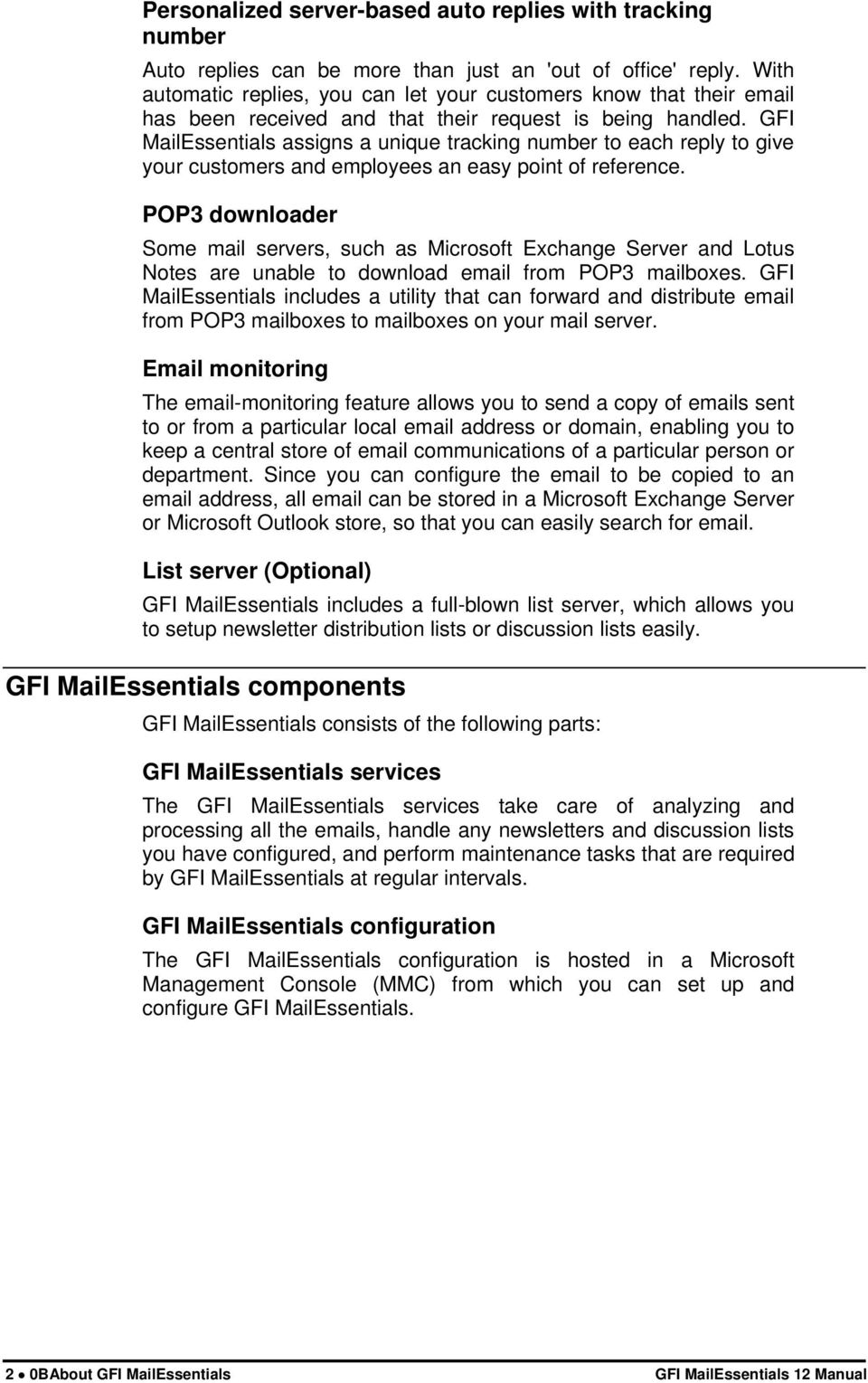
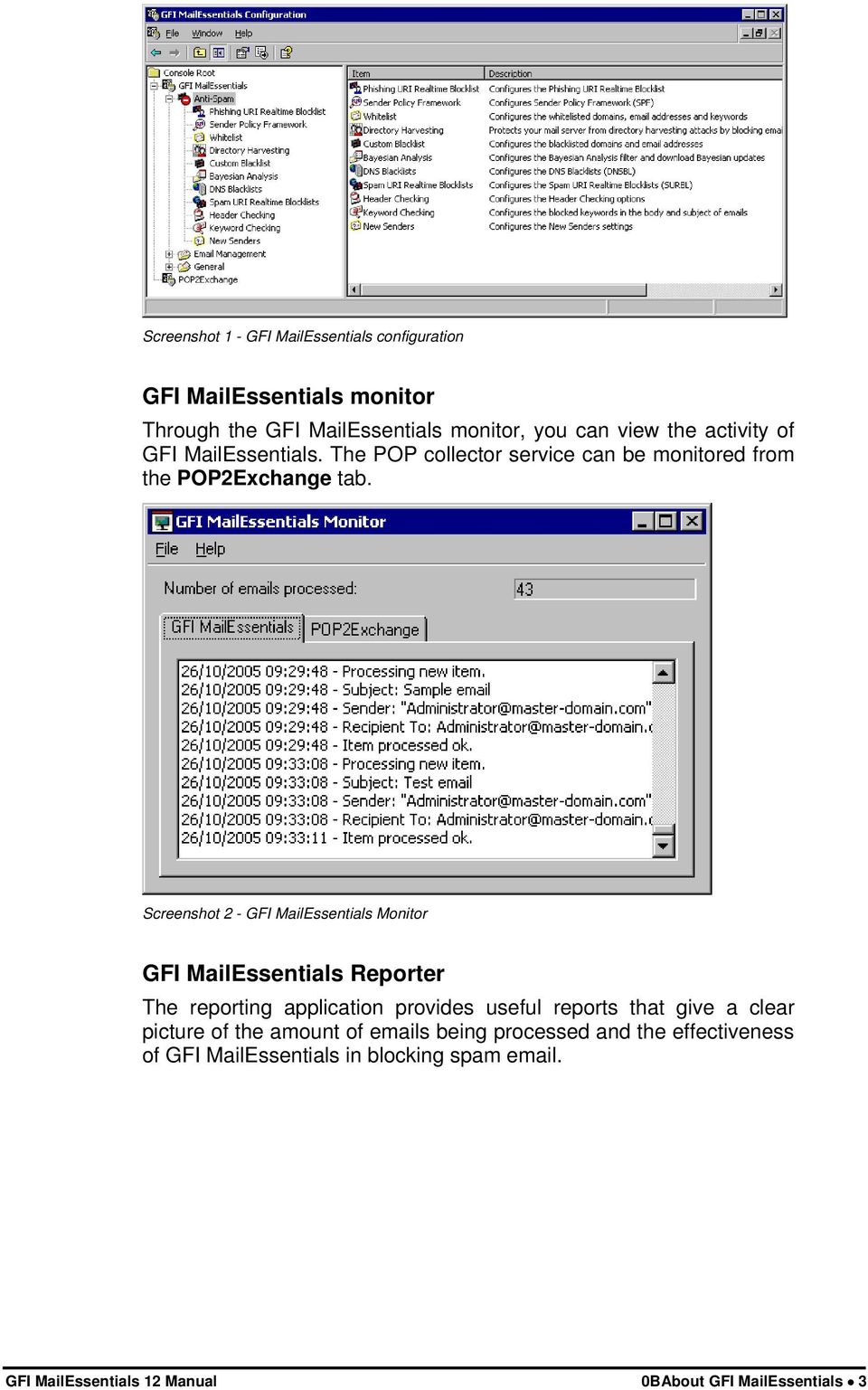
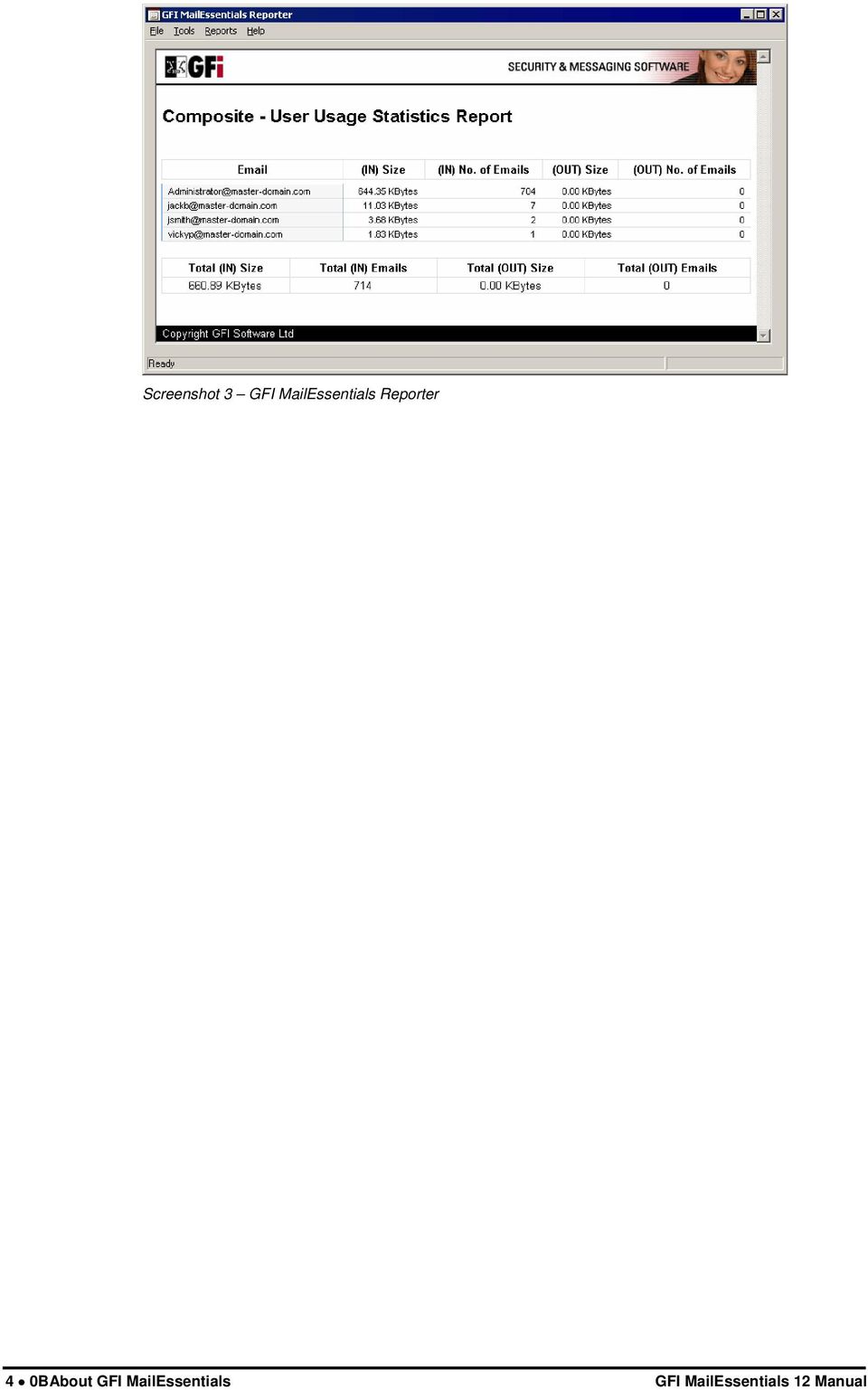
9 Screenshot 1 - GFI MailEssentials configuration GFI MailEssentials monitor Through the GFI MailEssentials monitor, you can view the activity of GFI MailEssentials. The POP collector service can be monitored from the POP2Exchange tab. Screenshot 2 - GFI MailEssentials Monitor GFI MailEssentials Reporter The reporting application provides useful reports that give a clear picture of the amount of s being processed and the effectiveness of GFI MailEssentials in blocking spam . GFI MailEssentials 12 Manual 0BAbout GFI MailEssentials 3
10 Screenshot 3 GFI MailEssentials Reporter 4 0BAbout GFI MailEssentials GFI MailEssentials 12 Manual
11 Installing GFI MailEssentials Introduction to installing GFI MailEssentials This chapter shows you how to install and configure GFI MailEssentials. GFI MailEssentials can be installed in two ways: Installation option 1: Installing GFI MailEssentials on the Microsoft Exchange Server 2000/2003/2007 machine This is a very straightforward and easy deployment mode. Simply install GFI MailEssentials on the Microsoft Exchange Server 2000/2003/2007 machine. If you are installing on Microsoft Exchange Server 2007, you need to have either Mailbox Server Role and Hub Transport Server Role installed or Hub Transport Server Role installed. GFI MailEssentials cannot be installed on a Microsoft Exchange Server 2007 machine with only Mailbox Server Role installed. Go to the paragraph 'Installing GFI MailEssentials on the Microsoft Exchange Server 2000/2003/2007 machine for instructions on how to install this deployment option. NOTE: If you are installing GFI MailEssentials on Microsoft Exchange Server 2000/2003 or Microsoft Exchange Server 2007 with both Mailbox Server Role and Hub Transport Role installed, you can configure GFI MailEssentials to direct marked as spam directly to the user s junk folder. This makes it easy for users to periodically review spam for false positives. If you install GFI MailEssentials in the DMZ, or in front of Microsoft Exchange Server 2000/2003, or on a Microsoft Exchange Server 2007 machine that does not have the Mailbox Server Role installed, this feature will not be available. Installation option 2: Installing GFI MailEssentials on a separate machine If you are not running Microsoft Exchange Server 2000/2003/2007 or simply wish to separate the GFI MailEssentials installation from the Microsoft Exchange Server 2000/2003/2007 machine, you can install GFI MailEssentials on a separate machine. NOTE: In a Microsoft Exchange Server 2007 environment, the mail relay server in the DMZ can be a machine running Microsoft Exchange Server 2007 with the Edge Transport Server Role installed. This also allows you to keep your corporate mail server behind the firewall. GFI MailEssentials will act as a smart host/mail relay server in the perimeter network (also known as DMZ, demilitarized zone, and screened subnet). Additional advantages are: GFI MailEssentials 12 Manual 1BInstalling GFI MailEssentials 5

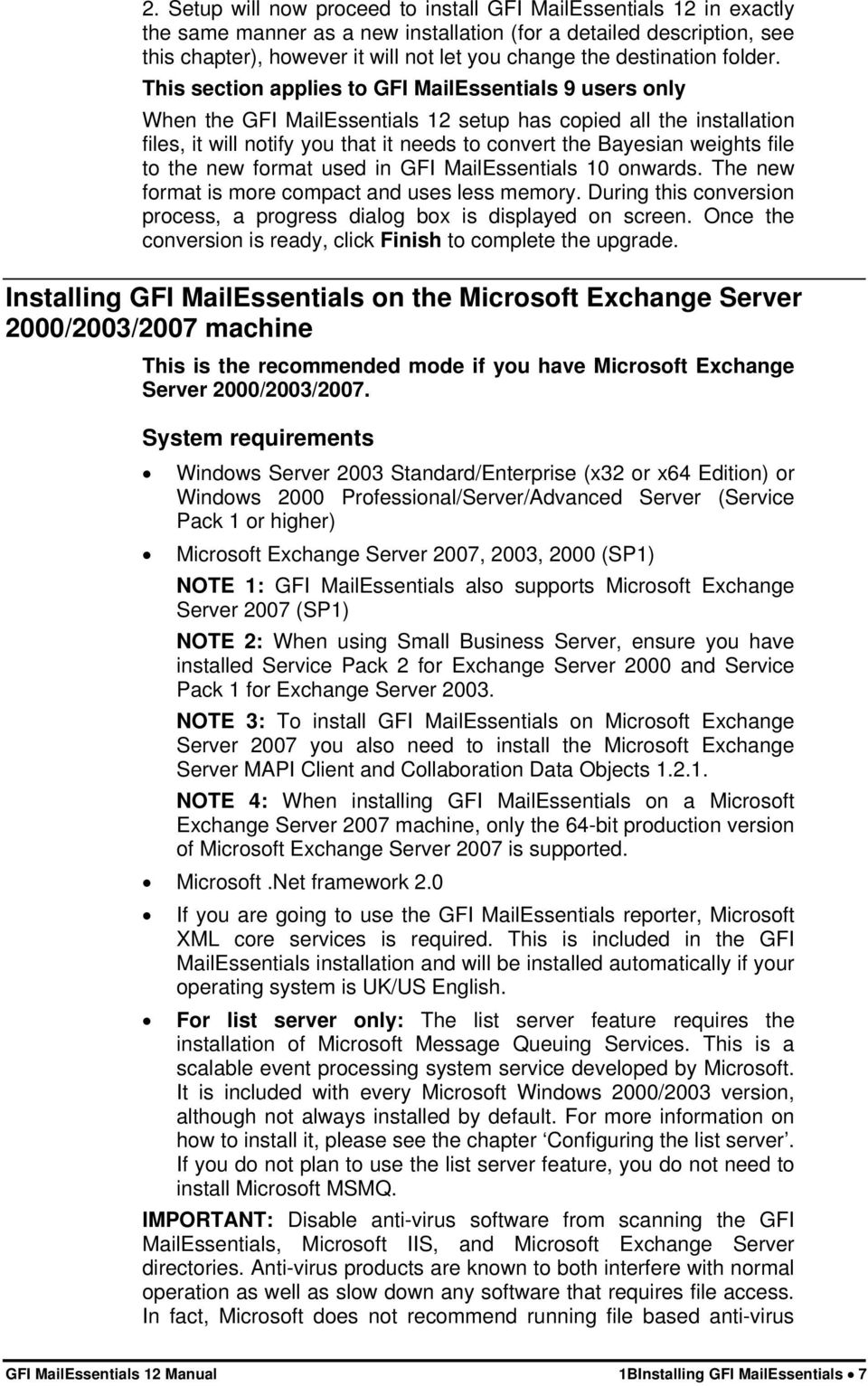
12 You can perform maintenance on your mail server machine, whilst still receiving from the Internet. You use less resources on your mail server machine The GFI MailEssentials machine can have a lower specification then the mail server machine and can process faster Additional fault tolerance if anything happens with your mail server you can still receive , which is queued on the GFI MailEssentials machine. NOTE: This separate machine does not need to be dedicated to GFI MailEssentials; it can run other applications, such as GFI MailSecurity. If you choose this option, you have to configure IIS before installing GFI MailEssentials. NOTE: If installing on a Microsoft Exchange Server 2007 machine with the Edge Transport Server Role, you do not need to install or configure the IIS SMTP service, since Microsoft Exchange Server 2007 has its own built in SMTP server. Go to the paragraph 'Installing GFI MailEssentials on a separate machine' for instructions on how to do this. IMPORTANT: Do not judge the spam detection rate of GFI MailEssentials until you have allowed the Bayesian filter to run for at least one week. GFI MailEssentials can achieve the highest detection rate compared to other anti-spam solutions because it adapts specifically to your s. Be patient and wait at least a week before you evaluate it. Upgrading from GFI MailEssentials 9, 10 and 11 If you are currently using GFI MailEssentials 9, 10, or 11, you can upgrade your current installation. All version 9, 10 and 11 configuration settings will be kept. You will need to enter the fully purchased license key within 10 days of installing the upgrade. For information on how to obtain the new license key, visit NOTE 1: Only GFI MailEssentials version 9, 10 and 11 can be upgraded to GFI MailEssentials 12. NOTE 2: You cannot undo an upgrade: i.e. you cannot revert to version 9, 10 or 11 once you have installed the version 12 upgrade. To upgrade: 1. Launch the GFI MailEssentials 12 setup file on the machine on which you have installed GFI MailEssentials. Setup will prompt you whether you wish to remove the current version of GFI MailEssentials and install GFI MailEssentials 12. Click Yes to proceed. Screenshot 4 - Confirm the upgrade 6 1BInstalling GFI MailEssentials GFI MailEssentials 12 Manual

13 2. Setup will now proceed to install GFI MailEssentials 12 in exactly the same manner as a new installation (for a detailed description, see this chapter), however it will not let you change the destination folder. This section applies to GFI MailEssentials 9 users only When the GFI MailEssentials 12 setup has copied all the installation files, it will notify you that it needs to convert the Bayesian weights file to the new format used in GFI MailEssentials 10 onwards. The new format is more compact and uses less memory. During this conversion process, a progress dialog box is displayed on screen. Once the conversion is ready, click Finish to complete the upgrade. Installing GFI MailEssentials on the Microsoft Exchange Server 2000/2003/2007 machine This is the recommended mode if you have Microsoft Exchange Server 2000/2003/2007. System requirements Windows Server 2003 Standard/Enterprise (x32 or x64 Edition) or Windows 2000 Professional/Server/Advanced Server (Service Pack 1 or higher) Microsoft Exchange Server 2007, 2003, 2000 (SP1) NOTE 1: GFI MailEssentials also supports Microsoft Exchange Server 2007 (SP1) NOTE 2: When using Small Business Server, ensure you have installed Service Pack 2 for Exchange Server 2000 and Service Pack 1 for Exchange Server NOTE 3: To install GFI MailEssentials on Microsoft Exchange Server 2007 you also need to install the Microsoft Exchange Server MAPI Client and Collaboration Data Objects NOTE 4: When installing GFI MailEssentials on a Microsoft Exchange Server 2007 machine, only the 64-bit production version of Microsoft Exchange Server 2007 is supported. Microsoft.Net framework 2.0 If you are going to use the GFI MailEssentials reporter, Microsoft XML core services is required. This is included in the GFI MailEssentials installation and will be installed automatically if your operating system is UK/US English. For list server only: The list server feature requires the installation of Microsoft Message Queuing Services. This is a scalable event processing system service developed by Microsoft. It is included with every Microsoft Windows 2000/2003 version, although not always installed by default. For more information on how to install it, please see the chapter Configuring the list server. If you do not plan to use the list server feature, you do not need to install Microsoft MSMQ. IMPORTANT: Disable anti-virus software from scanning the GFI MailEssentials, Microsoft IIS, and Microsoft Exchange Server directories. Anti-virus products are known to both interfere with normal operation as well as slow down any software that requires file access. In fact, Microsoft does not recommend running file based anti-virus GFI MailEssentials 12 Manual 1BInstalling GFI MailEssentials 7
14 software on the Microsoft Exchange Server. For more information read the following article: IMPORTANT: Make sure that backup software is not backing up any of the GFI MailEssentials directories at any point. NOTE: If you have a cluster please read the following Knowledge Base article prior to installing GFI MailEssentials: GFI MailEssentials will need to start and stop the Microsoft Exchange Server services during installation. Running GFI MailEssentials setup 1. On the Microsoft Exchange Server machine, log-on as administrator and run the GFI MailEssentials setup file. NOTE 1: If installing on Microsoft IIS SMTP (x86), Microsoft Exchange Server 2000, or Microsoft Exchange Server 2003, then you need to run the x86 version of GFI MailEssentials 12: mailessentials12.exe NOTE 2: If installing on Microsoft Exchange Server 2007, then you need to run the x64 version of GFI MailEssentials 12: mailessentials12_x64.exe 2. A welcome dialog will appear. Close all the other running Windows programs and click Next to continue. 3. GFI MailEssentials will prompt you to check for a later GFI MailEssentials version. Always use the latest version. 4. Read and confirm the License agreement and then click Next. 5. Setup will now ask you where you want GFI MailEssentials to be installed. GFI MailEssentials will need approximately 70 MB of free hard disk space. In addition to this, you must reserve approximately 200 MB for temporary files. 6. Now enter your name, company, and license key. If you are evaluating the product, leave the default Evaluation. Click Next. 7. Setup will ask you for the administrator . GFI MailEssentials will use the administrator to send critical notifications. 8. If you are installing GFI MailEssentials on a Microsoft Exchange Server 2000/2003 configured as a front-end server, or on a Microsoft Exchange 2007 Edge Transport Server Role machine (i.e. in a DMZ in front of another Microsoft Exchange Server), you can choose whether you want to install GFI MailEssentials in Active Directory mode or in SMTP mode. Active Directory mode allows you to select users present in Active Directory for user-based configuration/rules, such as a disclaimer. However, on a front-end server not all users are available. In this case, it is better to select SMTP mode, which allows you to input the SMTP address for user based configuration/rules. 8 1BInstalling GFI MailEssentials GFI MailEssentials 12 Manual

15 Screenshot 5 - Selecting SMTP mode or Active Directory mode 9. If you do not have Microsoft Message Queuing Services (MSMQ) installed, setup will ask you whether you wish to install it. The list server feature requires this service. Microsoft Message Queuing Service is a scalable event processing system service developed by Microsoft. It is included with every Microsoft Windows 2000/2003 and XP version, although not always installed by default. If you do not plan to use the list server feature, or if you wish to install it later, you can click No to continue set-up. If you click Yes, you will be prompted for the Microsoft Windows CD and setup will launch the MSMQ set-up. Screenshot 6 - Installing Microsoft Message Queuing Service GFI MailEssentials 12 Manual 1BInstalling GFI MailEssentials 9

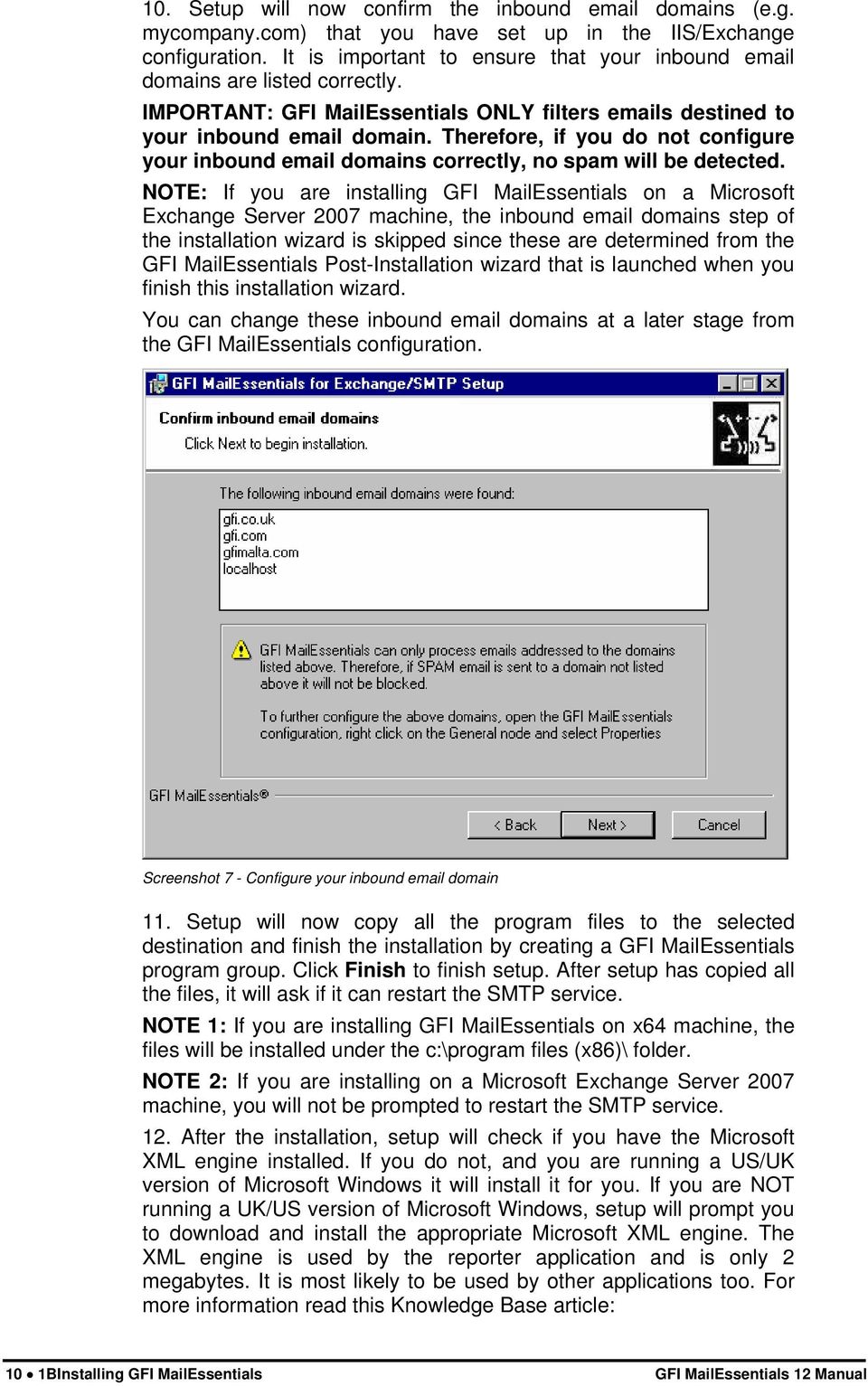
16 10. Setup will now confirm the inbound domains (e.g. mycompany.com) that you have set up in the IIS/Exchange configuration. It is important to ensure that your inbound domains are listed correctly. IMPORTANT: GFI MailEssentials ONLY filters s destined to your inbound domain. Therefore, if you do not configure your inbound domains correctly, no spam will be detected. NOTE: If you are installing GFI MailEssentials on a Microsoft Exchange Server 2007 machine, the inbound domains step of the installation wizard is skipped since these are determined from the GFI MailEssentials Post-Installation wizard that is launched when you finish this installation wizard. You can change these inbound domains at a later stage from the GFI MailEssentials configuration. Screenshot 7 - Configure your inbound domain 11. Setup will now copy all the program files to the selected destination and finish the installation by creating a GFI MailEssentials program group. Click Finish to finish setup. After setup has copied all the files, it will ask if it can restart the SMTP service. NOTE 1: If you are installing GFI MailEssentials on x64 machine, the files will be installed under the c:\program files (x86)\ folder. NOTE 2: If you are installing on a Microsoft Exchange Server 2007 machine, you will not be prompted to restart the SMTP service. 12. After the installation, setup will check if you have the Microsoft XML engine installed. If you do not, and you are running a US/UK version of Microsoft Windows it will install it for you. If you are NOT running a UK/US version of Microsoft Windows, setup will prompt you to download and install the appropriate Microsoft XML engine. The XML engine is used by the reporter application and is only 2 megabytes. It is most likely to be used by other applications too. For more information read this Knowledge Base article: 10 1BInstalling GFI MailEssentials GFI MailEssentials 12 Manual
17 NOTE: If you are installing on a Microsoft Exchange Server 2007 machine, the installation will launch the GFI MailEssentials Post- Installation Wizard. Refer to the GFI MailEssentials Post-Installation Wizard section further on in this chapter for information on how to use this wizard. Installing GFI MailEssentials on a separate machine If you install GFI MailEssentials on a separate machine that is not your gateway SMTP server, you must ensure that you configure the Perimeter SMTP Servers option in the GFI MailEssentials configuration after you finish the installation. The perimeter SMTP server is the gateway SMTP server which receives your s directly from the internet and you will have to specify the IP address of your perimeter SMTP server in GFI MailEssentials, especially if you are going to use the SPF filter feature. For more information on how to setup your gateway SMTP server, please refer to the Defining your Perimeter (Gateway) SMTP Server section of the Configuring Antispam chapter in this manual. Effectively GFI MailEssentials will act as a mail relay server between the perimeter (gateway) SMTP server and the recipients inboxes. System requirements Windows Server 2003 Standard/Enterprise (x32 Edition only) or Windows 2000 Professional/Server/Advanced Server (Service Pack 1 or higher) or Windows XP NOTE 1: GFI MailEssentials currently cannot be installed on a Windows Server 2003 x64 Edition machine, if Microsoft Exchange Server 2007 is not installed on that machine. NOTE 2: Since the version of Internet Information Services (IIS) included in Windows XP is limited to serving only 10 simultaneous client connections, installing GFI MailEssentials on a machine running Windows XP could affect its performance. Microsoft.Net framework 2.0 Microsoft IIS SMTP service installed and running as an SMTP relay to your mail server. This means that the MX record of your domain must be pointing to the machine on which you will install GFI MailEssentials. For more information on how to configure IIS5: NOTE: If you are going to install GFI MailEssentials on the Microsoft Exchange 2007 Edge Transport Server Role, you do not need to install the IIS SMTP service since Microsoft Exchange Server 2007 has its own built in SMTP server. If you are going to use the GFI MailEssentials reporter, Microsoft XML core services is required. This is included in the GFI MailEssentials installation and will be installed automatically if your operating system is UK/US English. For list server only: The list server feature requires the installation of Microsoft Message Queuing Services. This is a scalable event processing system service developed by Microsoft. It is included with every Microsoft Windows 2000/2003 version, GFI MailEssentials 12 Manual 1BInstalling GFI MailEssentials 11
18 although not always installed by default. For more information on how to install it, please see the chapter Configuring the list server. If you do not plan to use the list server feature, you do not need to install Microsoft MSMQ. Access to a mail server machine such as Microsoft Exchange Server 2007, 2003, 2000 (SP1), 5.5, 5, 4, or Lotus Notes 4.5 and up, or any SMTP/POP3 mail server. IMPORTANT: Disable anti-virus software from scanning the GFI MailEssentials, Microsoft IIS, and Microsoft Exchange Server directories. Anti-virus products are known to both interfere with normal operation as well as slow down any software that requires file access. In fact, Microsoft does not recommend running file based anti-virus software on the Microsoft Exchange Server. For more information read the following article: IMPORTANT: Make sure that backup software is not backing up any of the GFI MailEssentials directories at any point. Installing & configuring IIS SMTP service GFI MailEssentials uses the Microsoft IIS SMTP service as its SMTP Server and thus the SMTP server must be configured as a mail relay server first. NOTE: If you have a Microsoft Exchange Server 2007 environment and are going to install GFI MailEssentials on the Microsoft Exchange 2007 Edge Transport Server Role machine, you do not need to install or configure the IIS SMTP service since Microsoft Exchange Server 2007 has its own built in SMTP server. About the Microsoft IIS SMTP service The SMTP service is part of Microsoft IIS, which is part of Microsoft Windows 2000/2003. It is used as the message transfer agent of Microsoft Exchange Server, except Microsoft Exchange Server 2007 which has its own built in SMTP server, and has been designed to handle large amounts of traffic. The Microsoft IIS SMTP service is included in every Microsoft Windows distribution. NOTE: If you have a cluster please check this Knowledge Base article prior to installing GFI MailEssentials: To install and configure the Microsoft IIS SMTP service as a mail relay server, follow these steps: Step 1: Verify the Installation of the SMTP Service 1. From the Start menu access the Control Panel. 2. Open the Add or Remove Programs and click on the Add or Remove Windows Components. 3. Click the Internet Information Services (IIS) component and click the Details button. 4. Verify that the SMTP Service checkbox is selected. If it is not selected, click it to select it. 12 1BInstalling GFI MailEssentials GFI MailEssentials 12 Manual

19 5. Click the OK button, and then follow the installation instructions that are displayed. Step 2: Specify mail relay server name and assign an IP 1. From the Start menu, access the Administrative Tools. 2. Click on the Internet Information Services (IIS) Manager icon. 3. Expand the tree under the server name. Right click on the Default SMTP Virtual Server and select Properties. 4. Assign an IP address to the server and click the OK button. Screenshot 8 - Specify mail relay server name and assign IP Step 3: Configure the SMTP Service to relay to your mail server In this step, you configure the SMTP service to relay inbound messages to your mail server. NOTE: During installation, GFI MailEssentials will perform this step for you automatically. GFI MailEssentials will ask for your local domain name, and create it as a remote domain. You will see the domain listed in the right pane. However, if you do this step manually, you can confirm that your relay server is working properly before running the GFI MailEssentials installation. Creating a local domain in IIS to route Click the Start menu, point to Programs, click Administrative Tools, and then click Internet Services Manager. GFI MailEssentials 12 Manual 1BInstalling GFI MailEssentials 13
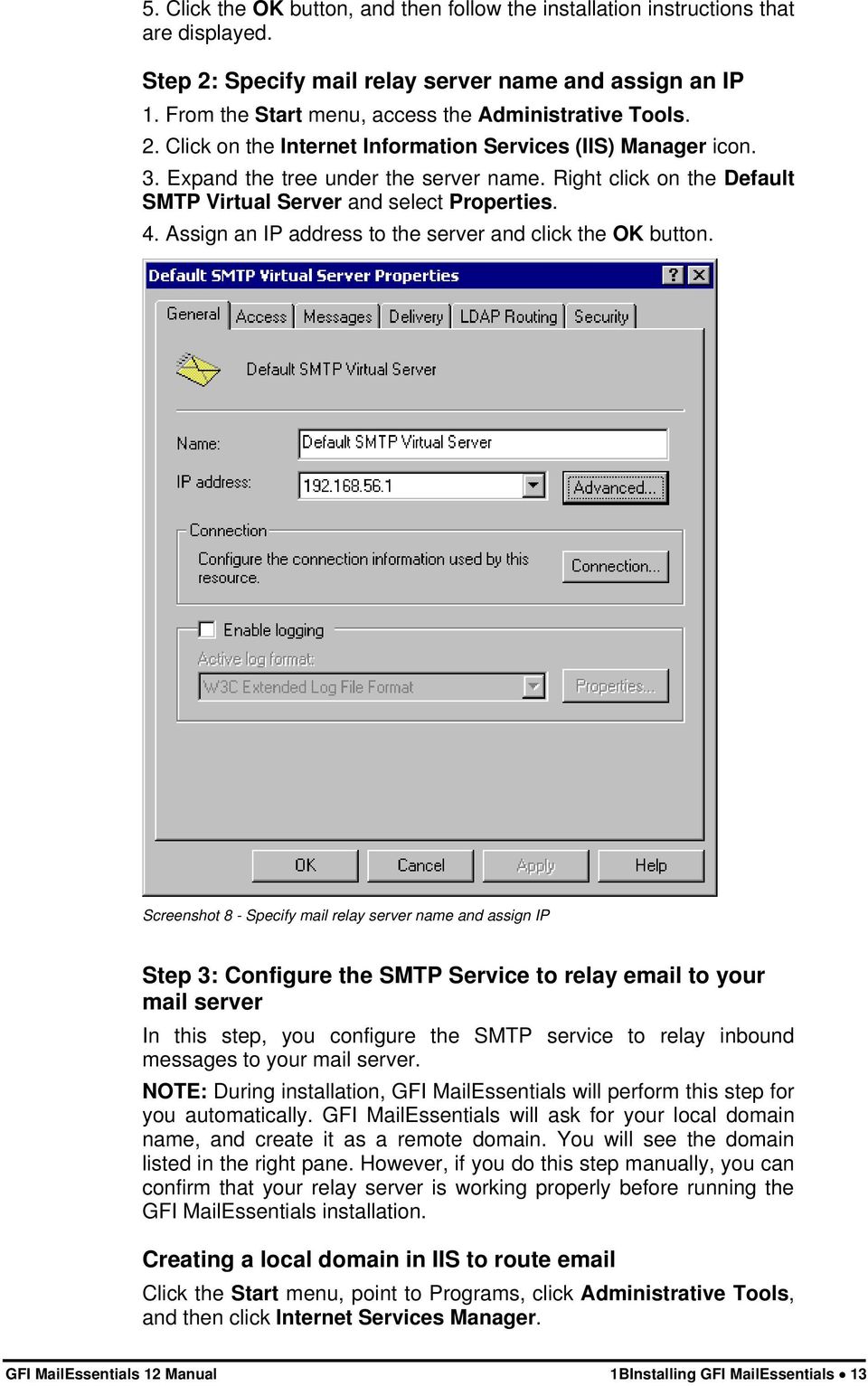
20 Expand the tree under the server name, and then expand the Default SMTP Virtual Server. By default, you should have a Local (Default) domain with the fully qualified domain name of the server. Configure the domain for inbound: 1. Right click the Domains icon, click New, and then click Domain. 2. Click Remote, click Next, and then type the domain name in the Name box. Click Finish. Screenshot 9 - Configure the domain IMPORTANT: Ensure that you add all your inbound domains, for example mycompany.com, otherwise inbound will not be filtered for spam. NOTE: Upon installation, GFI MailEssentials will import inbound domains from the IIS SMTP service. If you want to add additional inbound domains, you have to add these domains in the GFI MailEssentials configuration. For more information, see Adding additional inbound domains in the Miscellaneous options chapter. If you add additional inbound domains in IIS SMTP service, they will not be automatically recognized until you enter them in the GFI MailEssentials configuration. This allows you to setup remote smart hosts for particular domains that are not local. 14 1BInstalling GFI MailEssentials GFI MailEssentials 12 Manual
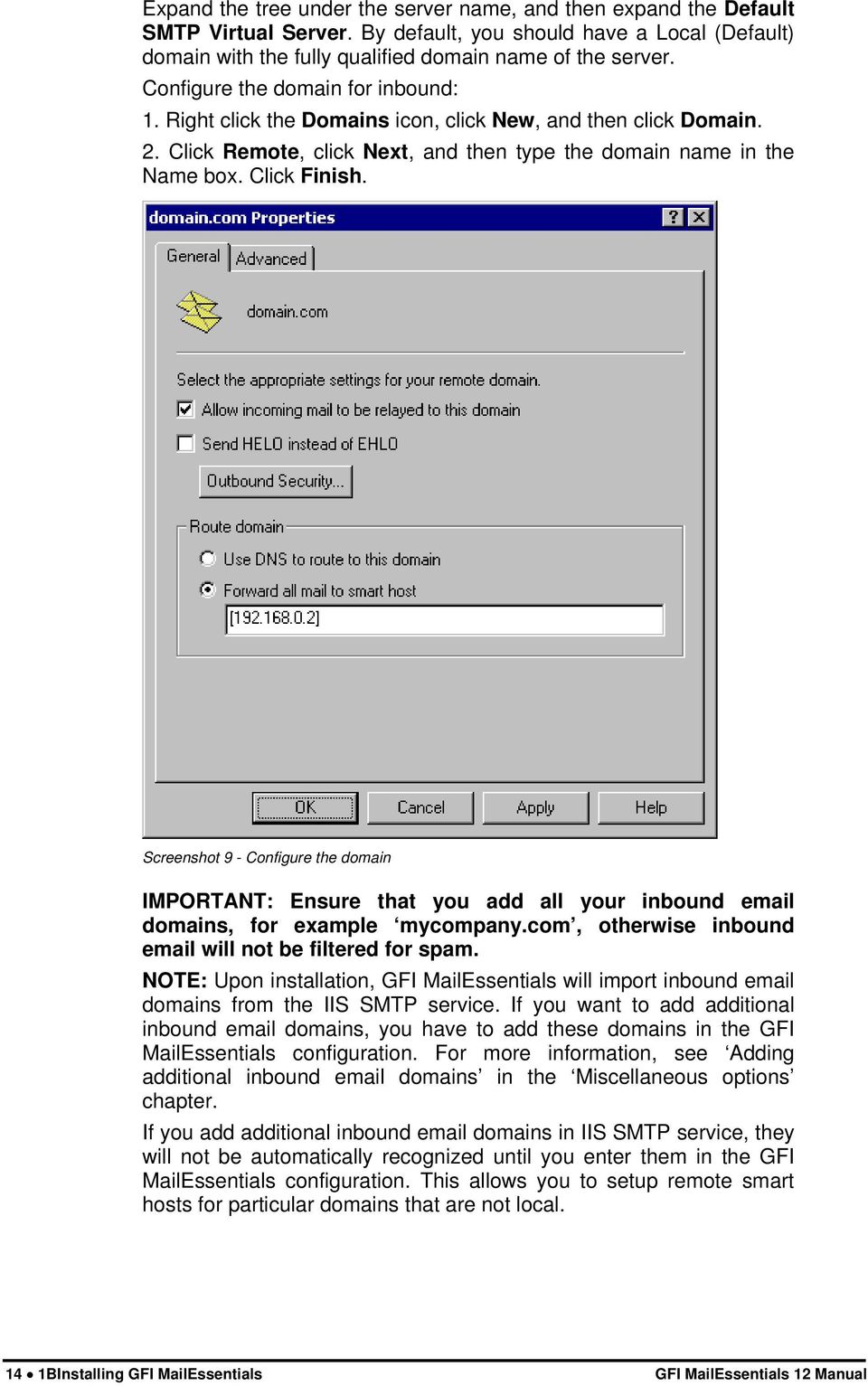
21 Configure the domain to relay to your mail server: 1. Access the Properties dialog for the domain that you just created and check the Allow the Incoming Mail to be Relayed to this Domain checkbox. 2. If this is being set up for an internal domain, you should specify the server that receives for the domain name by the IP address in the Route domain dialog box. 3. Click the Forward all mail to smart host option, and then type the IP address of the server that is responsible for for that domain in square brackets. For example: [ ] NOTE: Typing the IP address of the server in brackets is necessary so that the server recognizes that this is an IP address, and thus avoids any attempts at performing a DNS lookup. 4. Click the OK button. Step 4: Secure your mail relay server In this step, you will specify your mail server name, and any other mail servers that will send via this mail relay server. Effectively you will limit the servers that can send to the internet through this server. If you do not create restrictions, anyone can use your mail relay server as an open relay for spamming. To prevent this follow these steps: 1. Open the Properties of the Default SMTP Virtual Server. 2. On the Access tab, click Relay. Screenshot 10 - Relay options 3. Click Only the list below. GFI MailEssentials 12 Manual 1BInstalling GFI MailEssentials 15
22 4. Click the Add button, and then add the IP of your mail server that will be forwarding the to this server. You can specify a single computer, group of computers or a domain: Single computer - Specify one particular host that you want to relay off from this server. If you click the DNS Lookup button, you can lookup an IP address of a specific host. Group of computers - Specify a base IP address for the computers that you want to relay. Domain - Select all of the computers in a domain by domain name that will openly relay. This option adds processing overhead, and might reduce the SMTP service performance because it includes reverse DNS lookups on all IP addresses that try to relay, to verify their domain name. Step 5: Configure your server to relay via the mail relay server After you have configured the IIS SMTP service to send and receive , you must configure your mail server to relay all to the mail relay server. To do this: If you have Microsoft Exchange Server 4/5/5.5: 1. Start up Microsoft Exchange Administrator. 2. Go to the Internet Mail Service and double-click on it to configure its properties. 3. Go to the Connections tab. 4. In the Message Delivery section, select Forward all messages to host. Enter the computer name or IP of the machine running GFI MailEssentials. 5. Click the OK button and restart the Microsoft Exchange Server. This can be done from the services applet. If you have Microsoft Exchange Server 2000/2003: You will need to setup an SMTP connector that forwards all to GFI MailEssentials: 1. Start up Exchange System Manager. Screenshot 11 - Forwarding to GFI MailEssentials machine 2. Right click on the Connectors Node, select New > SMTP Connector, and then create a new SMTP connector. You will be prompted for a name. 16 1BInstalling GFI MailEssentials GFI MailEssentials 12 Manual
23 3. Select the option Forward all mail through this connector to the following smart host, and type in the IP of the GFI MailEssentials server (the mail relay server) enclosed within square brackets, for example: [ ]. Screenshot 12 - Specifying IP of GFI MailEssentials machine 4. Click Add in the Local bridgeheads section, and select the appropriate virtual SMTP Server instances that you want to forward for. GFI MailEssentials 12 Manual 1BInstalling GFI MailEssentials 17
24 Screenshot 13 - Adding a bridgehead 5. Go to the Address Space tab, and click the Add button. Select SMTP and click the OK button. Screenshot 14 - Adding SMTP as address space 6. Click the OK button to exit. All s will now be forwarded to the GFI MailEssentials machine. 18 1BInstalling GFI MailEssentials GFI MailEssentials 12 Manual
25 If you have Lotus Notes or an SMTP/POP3 server: Check the mail server documentation on how to forward to the GFI MailEssentials machine. Step 6: Point the MX record of your domain to the mail relay server. Since the new mail relay server must receive all inbound first, you must update the MX record of your domain to point to the IP of the new mail relay server. Otherwise, will continue to go to your mail server and by-pass GFI MailEssentials. If you run your own DNS server, you need to update this in your DNS server. If your ISP manages it for you, you need to ask your ISP to update the MX record for you. After you have done this, check if the MX record is correct using the following procedure. Checking if the MX record for your domain is set correctly 1. Open command prompt. Type nslookup 2. Now type 'set type=mx' 3. Enter your mail domain. 4. The MX record should return a single IP. This IP must be the mail relay server. Screenshot 15 - Checking the MX record of your domain NOTE: If you wish to send out using a smart host (used when using dial-up) or receive using ETRN, you will need to perform additional steps to configure IIS 5 as a mail relay server. For more information, refer to the IIS 5 documentation. Step 7: Test your new mail relay server Before you proceed to install GFI MailEssentials, verify that your new mail relay server is working correctly. 1. Test IIS 5 SMTP inbound connection of your mail relay server by sending an from an external account to an internal user (you can use hotmail, if you do not have an external account available). Verify that the mail client received the Test IIS 5 SMTP outbound connection of your mail relay server by sending an to an external account from an internet client. Verify that the external user received the . NOTE: Instead of using an client, you can use Telnet and manually send an . This will give you more troubleshooting information. Here is the link to the Microsoft KB article on how to do it: GFI MailEssentials 12 Manual 1BInstalling GFI MailEssentials 19
26 Step 8: Running GFI MailEssentials setup 1. On the newly configured mail relay machine, log-on as administrator and run the GFI MailEssentials setup file. NOTE 1: If installing on Microsoft IIS SMTP (x86), Microsoft Exchange Server 2000, or Microsoft Exchange Server 2003, then you need to run the x86 version of GFI MailEssentials 12: mailessentials12.exe NOTE 2: If installing on Microsoft Exchange Server 2007, then you need to run the x64 version of GFI MailEssentials 12: mailessentials12_x64.exe 2. A welcome dialog will appear. Close all the other running Windows programs and click Next to continue. 3. GFI MailEssentials will prompt you to check for a later GFI MailEssentials version. Always use the latest version. 4. Read and confirm the License agreement and then click Next. 5. Setup will now ask you where you want GFI MailEssentials to be installed. GFI MailEssentials will need approximately 70 MB of free hard disk space. In addition to this, you must reserve approximately 200 MB for temporary files. 6. Enter your name, company, and license key. If you are evaluating the product, leave the default Evaluation. Click Next 7. If you are installing GFI MailEssentials on Microsoft Exchange Server, Setup will now ask you to specify your mail server IP, port and your local domain: Specify the IP of your mail server (e.g. Microsoft Exchange Server name) and the port of the mail server. Specify your local domain. The local domain is the last part of your internal address, for example gfi.com. 20 1BInstalling GFI MailEssentials GFI MailEssentials 12 Manual
27 Screenshot 16 - Specify mail server IP and domain 8. Setup will ask you for the administrator . GFI MailEssentials will use the administrator to send critical notifications. 9. If you are installing GFI MailEssentials on a machine that is part of a domain and has Active Directory, setup will ask you whether you want to install in Active Directory mode or in SMTP mode. Active Directory mode allows you to select users present in Active Directory for user-based configuration/rules, such as a disclaimer. However, if your machine is in the DMZ, then it is better to select SMTP mode. In this mode, all user-based configuration/rules will require you to input the SMTP address. Screenshot 17 - Selecting SMTP mode or Active Directory mode GFI MailEssentials 12 Manual 1BInstalling GFI MailEssentials 21
28 10. If you do not have Microsoft Message Queuing Services (MSMQ) installed, setup will ask you whether you wish to install it. The list server feature requires this service. Microsoft Message Queuing Service is a scalable event processing system service developed by Microsoft. It is included with every Microsoft Windows 2000/2003 and XP version, although not always installed by default. If you do not plan to use the list server feature, or if you wish to install it later, you can click No to continue set-up. If you click Yes, you will be prompted for the Microsoft Windows CD and setup will launch the MSMQ setup. Screenshot 18 - Screenshot 15- Installing Microsoft Message Queuing Service 11. Setup will now confirm the inbound domains that you have configured. It is important to ensure that your inbound domains are listed correctly. IMPORTANT: Ensure that you add all your inbound domains, for example mycompany.com, otherwise inbound will not be filtered for spam. NOTE: If you are installing GFI MailEssentials on a Microsoft Exchange 2007 Edge Transport Server Role machine, the inbound domains step of the installation wizard is skipped since these are determined from the GFI MailEssentials Post-Installation wizard that is launched when you finish this installation wizard. You can change these inbound domains at a later stage from the GFI MailEssentials configuration. 22 1BInstalling GFI MailEssentials GFI MailEssentials 12 Manual
29 Screenshot 19 - Confirm your inbound domain 12. Setup will now copy all program files to the selected destination, and finish the installation by creating a GFI MailEssentials program group. Click Finish to end setup. After setup has copied all the files, it will ask if it can restart the SMTP service. NOTE 1: If you are installing GFI MailEssentials on a x64 machine with Microsoft Exchange Server 2007, the files will be installed under the c:\program files (x86)\ folder. NOTE 2: If you are installing on a Microsoft Exchange 2007 Edge Transport Server Role machine, you will not be prompted to restart the SMTP service. 13. After installation, setup will check if you have the Microsoft XML engine installed. If you do not, and you are running a US/UK version of Microsoft Windows it will install it for you. If you are NOT running a UK/US version of Microsoft Windows, setup will prompt you to download and install the appropriate Microsoft XML engine. The XML engine is used by the reporter application and is only 2 megabytes. It is most likely to be used by other applications too. For more information read the following Knowledge Base article: If you have IIS services running, GFI MailEssentials will need to stop these services during installation to install certain files. After it has done that, it will offer to restart these services. NOTE: If you are installing on a Microsoft Exchange 2007 Edge Transport Server Role machine, the installation will launch the GFI MailEssentials Post-Installation Wizard. Refer to the following section for information on how to use this wizard. GFI MailEssentials Post-Installation Wizard NOTE: This section applies only when installing GFI MailEssentials on a Microsoft Exchange Server 2007 machine. GFI MailEssentials 12 Manual 1BInstalling GFI MailEssentials 23
30 IMPORTANT: You need to complete this wizard for GFI MailEssentials to work with Microsoft Exchange Server The GFI MailEssentials installation wizard launches the GFI MailEssentials Post-Installation Wizard when you click Finish. The GFI MailEssentials Post-Installation Wizard registers GFI MailEssentials with the local installation of Microsoft Exchange Server 2007 so that it can process the s passing through the server. To complete the GFI MailEssentials Post-Installation Wizard, follow these steps: 1. Click Next in the welcome page. Screenshot 20 - GFI MailEssentials Post-Installation Wizard welcome page 2. The wizard will collect information from the Microsoft Exchange Server 2007 installation, such as the list of inbound domains and the server roles installed, for example Hub Transport Server Role. 24 1BInstalling GFI MailEssentials GFI MailEssentials 12 Manual
31 Screenshot 21 - Collecting information from Microsoft Exchange Server The wizard will display the accepted domain list collected from Microsoft Exchange Server If you need to specify another local domain, type it in the Inbound domains box and click Add. If you want to remove a domain that you added from this page, click on it from the list, and then click Remove. NOTE 1: The inbound domains you add from this page affect the GFI MailEssentials installation only. The Microsoft Exchange Server 2007 accepted domains list is not modified. NOTE 2: GFI MailEssentials does not support the use of wildcards when specifying inbound domains. Thus, for example, specifying *.gfimalta.com as an inbound domain is not supported. NOTE 3: An asterisk (*) next to an inbound domain is used to differentiate between domains detected by Microsoft Exchange, and those added manually. Inbound domains shown with an asterisk next to them are domains detected by Microsoft Exchange. GFI MailEssentials 12 Manual 1BInstalling GFI MailEssentials 25
32 Screenshot 22 Inbound domains list 4. Click Next to continue. 5. The wizard displays a list of the Microsoft Exchange Server 2007 server roles detected on this machine, and a list of the GFI MailEssentials components it needs to register for it to be able to process and scan s passing through the server. Screenshot 23 - Server roles detected and list of components to install. 6. Click Next to install the required GFI MailEssentials components. 26 1BInstalling GFI MailEssentials GFI MailEssentials 12 Manual
33 Screenshot 24 - Installing the required GFI MailEssentials components 7. In the finish page, the GFI MailEssentials Post-Installation wizard will list the GFI MailEssentials components that it successfully installed. Click Finish to close the wizard and complete the installation of GFI MailEssentials on a Microsoft Exchange Server 2007 machine. Screenshot 25 - GFI MailEssentials Post-Installation Wizard finish page Entering your license key after installation The unregistered, evaluation version of GFI MailEssentials expires after 10 days. GFI MailEssentials 12 Manual 1BInstalling GFI MailEssentials 27
34 Screenshot 26 General licensing node You must license GFI MailEssentials for the amount of mailboxes that you have on your mail server. For more information on GFI MailEssentials licensing visit: When you obtain the 30-day evaluation key or the purchased licensed key, you can enter your license key in the General > Licensing node, without having to re-install the product. NOTE: Entering the license key should not be confused with the process of registering your company details on our website. This is important since it allows us to give you support and notify you of important product news. Register on Installing the rule manager (sorts spam to junk folder) NOTE: The rule manager will only run on Windows 2000 and up. It will not run on Windows NT. The rule manager does not support Microsoft Exchange Server If you have a Microsoft Exchange Server 2007 environment, and GFI MailEssentials is not installed on the Microsoft Exchange 2007 Mailbox Server Role machine, you can configure Transport rules from the Microsoft Exchange Server 2007 configuration. To do this, configure GFI MailEssentials to tag spam in the subject with a keyword, for example, [SPAM]. Then configure a transport rule to set the SPAM confidence level to 9 on s with the [SPAM] keyword in the subject. The transport rule will then move the spam detected by GFI MailEssentials to the users junk mail folder. The mailbox rule manager The mailbox rule manager is a utility that allows you to setup rules for users' mailboxes, so that s marked as spam can be automatically moved to the user's junk mail folder for easy review by the user. 28 1BInstalling GFI MailEssentials GFI MailEssentials 12 Manual
35 How it works You need to install the rule manager on the Microsoft Exchange Server and specify the mailboxes which you wish to install the rule on. Then you specify in the GFI MailEssentials configuration that all spam must be tagged. NOTE: If you want to use the rule manager, you must select the TAG action only. If you select any other type of action, the s detected as spam will not reach the mailbox of the user, and therefore the rule will never be activated. Screenshot 27 - Tag to work in conjunction with Rules Manager This way all spam will be tagged as [SPAM], and subsequently the rules installed on the mailbox will then move the tagged as [SPAM] to another folder of choice, for example, the user s junk mail folder. The mailbox rule manager is applicable to: Companies who have not installed GFI MailEssentials on the Microsoft Exchange Server 2000/2003, but rather installed it as a mail relay, for example in the DMZ Companies using Microsoft Exchange 5.5 If you have installed GFI MailEssentials on the Microsoft Exchange Server 2000/2003 machine itself, you do not need to run the mailbox rule manager, because GFI MailEssentials will be able to route the itself to the user s junk mail folder. GFI MailEssentials 12 Manual 1BInstalling GFI MailEssentials 29
36 Installing the rule manager and the Bayesian wizard To install the rule manager and the Bayesian wizard: 1. Copy the file bayesianwiz.exe, located in the MailEssentials\bsw folder, to the machine on which you wish to install these utilities. 2. Run bayesianwiz.exe, click Next and specify the path were the Bayesian wizard and rule manager files will be extracted. 3. Click Yes to start installing the Bayesian Wizard. NOTE: The Bayesian Wizard can only be installed on a separate machine as a stand-alone tool. The server version of GFI MailEssentials includes the Bayesian wizard by default, and thus can be used without further configurations. NOTE: The Bayesian wizard (bayesianwiz.exe) installation does not create any icon or additional components in the GFI MailEssentials program group. In order to launch the rule manager, you must run rulemgmt.exe. Configuring the rules on user s mailboxes To configure the rules on users mailboxes: 1. Run the rule manager application (rulemgmt.exe) from the GFI MailEssentials program folder (by default C:\Program Files\GFI\MailEssentials). Screenshot 28 - The rules manager 2. The main screen will show all the mailboxes it found on your server. Now select the mailboxes which you want to install a rule on. You can create two types of rules: A rule which moves marked as spam to the user s junk mail folder 30 1BInstalling GFI MailEssentials GFI MailEssentials 12 Manual
37 A rule which deletes marked as spam (This rule can be used for users who wish to delete their spam automatically). NOTE: You can select multiple mailboxes and configure rules for all of them in one go (as long as the same rule applies to all). 3. Click Configure. By default, the rule will check for [SPAM] in the subject. You should enter the exact phrase you configured in the GFI MailEssentials configuration tag action box. NOTE: If you change this, you will have to change the tag appended by GFI MailEssentials at server level too. 4. Select whether you want to delete the spam s or move the spam s to a separate folder. If you select to move spam , you will need to specify the folder name. If you specify for example inbox\junk, then that folder will be created under the inbox folder. If you specify just junk, then the folder will be created at the top level, i.e. next to the inbox, for example. 5. Click Apply. Screenshot 29 - Create a rule 6. All the mailboxes for which you have configured a rule will be marked as blue. GFI MailEssentials 12 Manual 1BInstalling GFI MailEssentials 31
38
39 The Bayesian anti-spam filter Introduction The Bayesian filter is the main Spam fighting technology of GFI MailEssentials. Whilst the other anti-spam features are important and complementary to the Bayesian filter, it is the Bayesian filter that makes it possible to eliminate spam from your network. Bayesian filtering technology is an adaptive, artificial intelligence technique that is much harder to circumvent by spammers. However, it pays administrators to take a moment to understand the Bayesian filtering technology, in order to be able to gain the most from it. This chapter explains how the Bayesian filter works, how it can be configured and how it can be trained. IMPORTANT: Do not judge the spam detection rate of GFI MailEssentials until you have allowed the Bayesian filter to run for at least one week. GFI MailEssentials can achieve the highest detection rate compared to other anti-spam solutions because it adapts specifically to your . Be patient and wait at least a week before you evaluate it. How the Bayesian spam filter works Bayesian filtering is based on the principle that most events are dependent and that the probability of an event occurring in the future can be inferred from the previous occurrences of that event. (More information about the mathematical basis of Bayesian filtering is available at Bayesian Parameter Estimation and An Introduction to Bayesian Networks and their Contemporary Applications) This same technique can be used to classify spam. If some piece of text occurs often in spam but not in legitimate , then it would be reasonable to assume that this is probably spam. Creating a tailor-made Bayesian word database Before can be filtered using this method, the user needs to generate a database with words and tokens (such as the $ sign, IP addresses and domains, and so on), collected from a sample of spam and valid (referred to as ham ). GFI MailEssentials 12 Manual 2BThe Bayesian anti-spam filter 33
40 Figure 1 - Creating a word database for the filter A probability value is then assigned to each word or token; the probability is based on calculations that take into account how often that word occurs in spam as opposed to legitimate (ham). This is done by analyzing the users' outbound and by analyzing known spam: All the words and tokens in both pools of are analyzed to generate the probability that a particular word points to the being spam. This word probability is calculated as follows: If the word mortgage occurs in 400 of 3,000 spam s and in 5 out of 300 legitimate s, for example, then its spam probability would be (that is, [400/3000] divided by [5/ /3000]). Creating the ham database (tailored to your company) It is important to note that the analysis of ham is performed on the company's , and is therefore tailored to that particular company. For example, a financial institution might use the word mortgage many times over and would get many false positives if using a general anti-spam rule set. On the other hand, the Bayesian filter, if tailored to your company through an initial training period, takes note of the company's valid outbound (and recognizes mortgage as being frequently used in legitimate messages), it will have a much better spam detection rate and a far lower false positive rate. NOTE: Some anti-spam software with very basic Bayesian capabilities, such as the Microsoft Outlook spam filter or the Internet Message Filter in Microsoft Exchange Server, do not create a tailored ham data file for your company, but ships a standard ham data file with the installation. Although this method does not require an initial learning period, it has two major flaws: 1. The ham data file is publicly available and can thus be hacked by professional spammers and therefore bypassed. If the ham data file is unique to your company, then hacking the ham data file is useless. For example, there are hacks available to bypass the Microsoft Outlook 2003 or Microsoft Exchange Server spam filter. For more 34 2BThe Bayesian anti-spam filter GFI MailEssentials 12 Manual
41 information about this, see Microsoft Outlook 2003 Spam Filter: Under the hood. 2. The ham data file is a general one, and thus not tailored to your company, it cannot be as effective and you will suffer from noticeably higher false positives. Creating the spam database Besides ham , the Bayesian filter also relies on a spam data file. This spam data file must include a large sample of known spam. Additionally, it must be constantly updated with the latest spam by the anti-spam software. This will ensure that the Bayesian filter is aware of the latest spam tricks, resulting in a high spam detection rate. NOTE: A high spam detection rate is achieved once the required initial two-week learning period is over. How the actual filtering is done Once the ham and spam databases have been created, the word probabilities can be calculated and the filter is ready for use. When a new arrives, it is broken down into words and the most relevant words - i.e., those that are most significant in identifying whether the is spam or not - are singled out. From these words, the Bayesian filter calculates the probability of the new message being spam or not. If the probability is greater than a threshold, say 0.9, the message is classified as spam. This Bayesian approach to spam is highly effective - a May 2003 BBC article reported that spam detection rates of over 99.7% can be achieved with a very low number of false positives. Why Bayesian filtering is better 1. The Bayesian method considers the whole message - It recognizes keywords that identify spam, but it also recognizes words that denote valid . For example, not every that contains the word free and cash is spam. The advantage of the Bayesian method is that it considers the most interesting words (as defined by their deviation from the mean) and comes up with a probability that a message is spam. The Bayesian method would find the words cash and free interesting but it would also recognize the name of the business contact that sent the message and thus classify the message as legitimate, for instance; it allows words to balance each other out. In other words, Bayesian filtering is a much more intelligent approach because it examines all aspects of a message, as opposed to keyword checking that classifies a mail as spam based on a single word. 2. A Bayesian filter is constantly self-adapting - By learning from new spam and new valid outbound s, the Bayesian filter evolves and adapts to new spam techniques. For example, when spammers started using f-r-e-e instead of free they succeeded in evading keyword checking until f-r-e-e was also included in the keyword database. On the other hand, the Bayesian filter automatically notices such tactics; in fact, if the word f-r-e-e is found, it is an even better spam indicator, since it is unlikely to occur in a ham . Another example would be using the word 5ex instead of Sex. You would GFI MailEssentials 12 Manual 2BThe Bayesian anti-spam filter 35
42 probably not have a word 5ex in a ham , and therefore the likelihood that it is spam increases. 3. The Bayesian technique is sensitive to the user It learns the habits of the company and understands that, for example, the word mortgage might indicate spam if the company running the filter is, say, a car dealership, whereas it would not indicate it as spam if the company is a financial institution dealing with mortgages. 4. The Bayesian method is multi-lingual and international - A Bayesian anti-spam filter, being adaptive, can be used for any language required. Most keyword lists are available in English only and are therefore nearly useless in non English-speaking regions. The Bayesian filter also takes into account certain language deviations or the diverse usage of certain words in different areas, even if the same language is spoken. This intelligence enables such a filter to catch more spam. 5. A Bayesian filter is difficult to fool, as opposed to a keyword filter - An advanced spammer who wants to trick a Bayesian filter can either use fewer words that usually indicate spam (such as free, Viagra, etc), or more words that generally indicate valid (such as a valid contact name, etc). Doing the latter is impossible because the spammer would have to know the profile of each recipient - and a spammer can never hope to gather this kind of information from every intended recipient. Using neutral words, for example the word public, would not work since these are disregarded in the final analysis. Breaking up words associated with spam, such as using mo-r-t-g-a-g-e instead of mortgage, will only increase the chance of the message being spam, since a legitimate user will rarely write the word mortgage as m-o-r-t-g-a-g-e. What is the catch? Bayesian filtering, if implemented the right way and tailored to your company is by far the most effective technology to combat spam. Is there a downside? Well, in a way, there is one downside, but this can easily be overcome: Before you can use and judge the Bayesian filter, you have to wait for it to learn for at least two weeks - that or create the ham or spam databases yourself. This task can be quite complex, so it is best to wait until the filter has had time to learn. Over time, the Bayesian filter becomes more and more effective as it learns more about your organization s habits. To quote the old saying, Good things come to he who waits. Training the Bayesian filter When you first install GFI MailEssentials, the Bayesian filter will be disabled. GFI MailEssentials ships with a default HAM (2000 ham s) and SPAM database, however its better if you train the Bayesian filter with your specific profile before switching it on. This training can be done in two ways: 1. Automatically by collecting outbound s. GFI MailEssentials will collect legitimate (ham) by scanning outbound . You can enable the Bayesian filter after it has collected at least 500 outbound s (If you send out mainly English ) or 1000 outbound mails 36 2BThe Bayesian anti-spam filter GFI MailEssentials 12 Manual
43 (If you send out non-english ). Normally this amount of is collected in a matter of days. Screenshot 30 - Supplying ham to the Bayesian filter 2. By supplying ham to the Bayesian filter by copying between mails from your sent items to the This is legitimate sub folder in the GFI AntiSpam Folders public folders. For more information, see the paragraph Adding ham to the ham database in the chapter Spam management from the user s point of view. Configuring the Bayesian filter After the Bayesian filter has been trained, you can enable the Bayesian filter by following these steps: Screenshot 31 - Bayesian analysis properties GFI MailEssentials 12 Manual 2BThe Bayesian anti-spam filter 37
44 1. In the GFI MailEssentials configuration, select the Anti-Spam > Bayesian Analysis node, right-click and select Properties. This brings up the Bayesian Analysis Properties dialog. From the General tab, select the Enable Bayesian Analysis checkbox. 2. Ensure that the Automatically learn from outbound s option is checked. This option will continuously update the legitimate database with outbound s. Updates Screenshot 32 - Bayesian updates 3. From the Updates tab, you can specify how frequently GFI MailEssentials should check for updates to the spam database. To do this, select the Automatically check for updates checkbox and specify an interval in hours in the Download/check every field. If you want to trigger an instant download, click the Download updates now button. The updates will be downloaded from the preferred server selected. For more information on how to select the preferred server, refer to the Selecting the server from where to download updates section of the Miscellaneous Options chapter. Actions After you have configured the Bayesian filter, you can configure what you wish to do with marked as Spam. For more information refer to the Actions what to do with spam section of the Configuring anti-spam chapter. 38 2BThe Bayesian anti-spam filter GFI MailEssentials 12 Manual
45 Configuring anti-spam Introduction to anti-spam GFI MailEssentials tackles spam protection at server level and eliminates the need to install and update anti-spam software on each desktop. GFI MailEssentials uses various methods to identify spam: Phishing URI Realtime Blocklists (PURBL) This feature will extract links from the message body and check if they point to known phishing sites or contain typical phishing keywords. Sender Policy Framework (SPF) SPF works by publishing a text record in the DNS of domains that indicates which machines send from that domain. GFI MailEssentials supports SPF and fights spam by checking the SPF record in the received messages. This feature allows you to define the SPF test sensitivity that will be used when processing s with forged senders (e.g. Block only messages that are determined to have a forged sender). Whitelists Whitelists are lists of addresses, IP addresses and phrases/words from which you always wish to receive . GFI MailEssentials will automatically build a whitelist for you from outbound . Directory Harvesting This feature blocks s addressed to users that do not exist on the organization s mail server. Such attacks occur when spammers try to send messages, using details from known addresses together with the most common usernames or possible alphanumeric combinations (brute force approach) that could be used for the username part of an . This is done in order to try to discover other accounts present on the same server. Custom blacklist This feature allows you to specify domains and addresses from which you do not wish to receive . Bayesian analysis This feature analyses the content of the inbound and based on mathematical rules decides if the is spam or not. The Bayesian filter is discussed in the chapter The Bayesian anti-spam filter. GFI MailEssentials 12 Manual 3BConfiguring anti-spam 39
46 DNS blacklists This feature allows you to configure GFI MailEssentials to query whether the sender is on a public DNS blacklist of known spammers. You can also choose to block s sent from botnet/zombie machines that have their IP listed on SORBS.net. NOTE: This feature is enabled by default upon installation. Spam URI Realtime Blocklists (SURBL) This feature will extract links or domains from the message body and query whether these are listed on public Spam URI Blocklists such as sc.surbl.org Header checking This feature analyses the header of the to detect whether an is spam or not. Keyword checking This feature allows you to configure keywords that indicate if an is spam. New Senders This feature automatically identifies s that have been sent from senders to whom you have never sent s. These s could be from legitimate senders as well as spam which where not detected by the GFI MailEssentials spam filter. Screenshot 33 - Anti-spam configuration When GFI MailEssentials finds a spam message, it can delete the message, move it to a central folder, forward it to an address, tag the or move it to a user s junk mail folder. NOTE: To stop spammers from relaying their through your mail server, you need to configure your mail server to deny mail relaying. For more information on this, consult the mail server documentation. 40 3BConfiguring anti-spam GFI MailEssentials 12 Manual
47 Defining your Perimeter (Gateway) SMTP Server The perimeter SMTP server is the Mail server gateway that processes s received directly from the Internet. Figure 2 A typical Perimeter SMTP Relay Server setup Such gateway SMTP servers are generally specified and configured in the DNS MX records of a domain and are often setup on a De- Militarized Zone (DMZ). The DMZ (see figure above) is a public internal network typically used exclusively for servers that are accessed by external clients on the Internet, such as Web, FTP and Mail servers. If the inbound s arriving to the server on which GFI MailEssentials is installed are being relayed from another gateway server, then you must specify your gateway SMTP server details using the Perimeter SMTP Servers tab in the Anti-spam properties in order for the SPF filter and Botnet/Zombie Check features to work correctly. For example, let us take into account a company in England, which receives all its s on an SMTP server located in the USA. Since the SMTP server in the USA will relay all s received to the SMTP server in England, the SMTP server in the USA is the perimeter gateway server for the company in England. That is, when the company in England installs GFI MailEssentials on its local SMTP server, they must enable the option in the perimeter SMTP servers page and specify the details of the SMTP server in the USA for the SPF filter and Botnet/Zombie Check features to work correctly. GFI MailEssentials 12 Manual 3BConfiguring anti-spam 41
48 Screenshot 34 Perimeter SMTP Server Setup When GFI MailEssentials is not installed on the perimeter SMTP server, you must: 1. Right click on the Anti-Spam node and select Properties. 2. Click on the Perimeter SMTP Servers tab and enable the This machine is not a perimeter SMTP server option. 3. Click on the Add button and specify the IP address of your perimeter (gateway) SMTP server. Repeat the same process if you want to specify alternative perimeter SMTP servers which you might have available. Please make sure to specify your perimeter SMTP servers in their order of preference, with the actual perimeter server being the one at the top of your list, followed by its alternatives. NOTE: You can click Automatic discovery to perform a DNS MX lookup to automatically search and retrieve the IP s of perimeter SMTP servers configured on your inbound domains. Phishing URI Realtime Blocklist (PURBL) Phishing is a technique used to perform social engineering through s. A phishing will be crafted to look like an official coming from a reputable business, for example a bank. Phishing s will contain instructions, for example that a bank requires you to reconfirm your online banking username and password or credit card information. The phishing will include a phishing Uniform Resource Identifier (URI) that the user is supposed to follow to enter 42 3BConfiguring anti-spam GFI MailEssentials 12 Manual
49 some sensitive information on a site, such as the username and password in the example used before. The site pointed to by the phishing URI will look like the official site, but in reality it is controlled by whoever sent the phishing s. When the user enters the sensitive information on the phishing site, the data will be collected and is then used for example to withdraw money from your bank account. The Phishing URI Realtime Blocklist (PURBL) feature of GFI MailEssentials detects phishing s by comparing URIs present in the to a database of URIs that are known to be used in phishing attacks, and also by looking for typical phishing keywords in the URIs. To enable the PURBL check: 1. Right click on the Anti-Spam > Phishing URI Realtime Blocklist node and select Properties. Screenshot 35 Phishing URI Realtime Blocklist Properties 2. In Phishing URI Realtime Blocklist tab, select the Check mail messages for URI s to known phishing sites option. This option will instruct GFI MailEssentials to look at the URIs present in an , perform a lookup of those URIs in a database of URIs that are known to be used to point to phishing sites, and if a match is found, the containing those URIs will be marked as SPAM If you also want to check for phishing keywords in the URIs present in the , which would be a good indicator that the is a phishing , access the Keywords tab and select the Check URI s in mail messages for typical phishing keywords option. GFI MailEssentials 12 Manual 3BConfiguring anti-spam 43
50 Screenshot 36 - Phishing keywords 4. To add phishing keywords, click the Keyword button. In the Enter a keyword dialog specify the phishing keyword and click the OK button. The phishing keyword is added to the Keywords list. NOTE: To edit/remove a phishing keyword, select it from the list and click the Edit or Remove button respectively. 5. When ready, click on the Apply button to save the new settings. Updates tab In the Updates tab, you can configure GFI MailEssentials to automatically check for and download any anti-phishing updates available. Since new phishing URIs are discovered daily, it is recommended to leave the automatic checking and downloading option enabled so that the PURBL feature will be more effective in detecting the latest phishing attempts. If you want to be informed via whenever a new anti-phishing update is downloaded and installed, select the Send a notification when an update succeeds checkbox. If you want to be informed via whenever a failure occurs, select the Send a notification when an update fails checkbox. The anti-phishing updates will be downloaded from the preferred server selected. For more information on how to select the preferred server, refer to the Selecting the server from where to download updates section of the Miscellaneous Options chapter. 44 3BConfiguring anti-spam GFI MailEssentials 12 Manual
51 Screenshot 37 - Automatic anti-phishing updates Actions tab After you have specified which PURBL checks to perform, click on the Actions tab to specify what you want to do with s marked as spam by this filter. For more information on possible actions, please refer to the Actions what to do with spam section in this chapter. Other tab Please refer to the Other options section in this chapter. Sender Policy Framework (SPF) GFI MailEssentials supports the Sender Policy Framework (SPF). The Sender Policy Framework allows you to check whether a particular sender is forged or not. Most of today s spammers use forged addresses. SPF is a community effort that is rapidly gaining ground. SPF requires that the company of the sender has published its mail server in an SPF record. For example if an is sent from [email protected] then companyabc.com must publish an SPF record in order for SPF to be able to determine if the was really sent from the companyabc.com network or whether it was forged. If an SPF record is not published by CompanyABC.com, the SPF result will be unknown. GFI MailEssentials 12 Manual 3BConfiguring anti-spam 45
52 How SPF works Domains use public records (DNS) to direct requests to the machines that perform services (web, , etc.). All domains already publish (MX) records to publish the machines that receive for the domain. For SPF to work, domains need to publish a text record in the DNS of those domains to publish the machines that send from the domain. When receiving a message from a domain, GFI MailEssentials can check those records to make sure is coming from where it should be. GFI MailEssentials does not require you to publish any SPF records yourself. If you would like to do this then you can use the SPF wizard at An example Suppose a spammer forges CompanyABC.com and tries to spam you. He connects from somewhere other than CompanyABC. When his message is sent, you see MAIL FROM: <[email protected]>, but you do not have to take his word for it. You can ask CompanyABC if the IP address comes from their network. In this example, CompanyABC publishes an SPF record. That record tells GFI MailEssentials how to find out if the sending machine is allowed to send from CompanyABC. If CompanyABC says they recognize the sending machine, it passes, and you can assume the sender is who they say they are. If the message fails the SPF tests, it is a forgery. That is how you can tell it is probably a spammer. For more information on SPF, and how it works, visit the Sender Policy Framework website at SPF on a perimeter (Gateway) SMTP server The perimeter SMTP server is the machine that receives s directly from the Internet. If you have installed GFI MailEssentials on a perimeter SMTP server, you do not need configure any settings on GFI MailEssentials (i.e. you do not need to configure the perimeter [gateway] SMTP server options in the Perimeter SMTP Servers tab of the Anti-spam properties). SPF on a non-perimeter (Gateway) SMTP server If GFI MailEssentials is NOT installed on a perimeter SMTP server, you must configure the Perimeter SMTP Servers option in the Antispam node properties. To setup this option, right click on the Antispam node > select Properties and click on the Perimeter SMTP Servers tab. If you are not sure if you have installed GFI MailEssentials on your perimeter SMTP server, you can make use of the Auto Discovery button in the Perimeter SMTP setup option to perform a DNS MX lookup and automatically define the IP address of your perimeter SMTP server. 46 3BConfiguring anti-spam GFI MailEssentials 12 Manual
53 For further details on how to configure your perimeter SMTP server option, please refer to the Defining your Perimeter (Gateway) SMTP Server settings section in this chapter. Configuring the SPF feature The configuration of SPF is done from the Anti-Spam > Sender Policy Framework node. Right click on this node to open the SPF properties. SPF block level Screenshot 38 - Configuring the SPF block level The rejection level allows you to set the sensitivity of the SPF test. You can choose between four levels: Never: Never block any messages. When this option is selected, SPF tests are not done on incoming s. Low: Only block messages that are determined to have a forged sender. This option will treat any message with a forged sender as spam. Medium: Block messages which appear to have a forged sender. This option will treat any messages that appear to have a forged sender as spam. This is the default and recommended setting. High: Block any message that is not proven to be from the sender. This option will treat all as spam unless it could be proven that the sender is not forged. Since the majority of mail servers do not yet have an SPF record, this option is not yet recommended. GFI MailEssentials 12 Manual 3BConfiguring anti-spam 47
54 After you define the sensitivity required for your SPF test, click on the Apply button to save this configuration. If you have already specified in GFI MailEssentials that this computer is not your perimeter SMTP server (refer to Defining your perimeter (gateway) SMTP server section in this chapter), a dialog box similar to the one shown below will pop up. This dialog box shows the perimeter SMTP server settings that you have configured in GFI MailEssentials (i.e. the IPs specified for your perimeter SMTP server). Screenshot 39 Current Perimeter SMTP Server setup If GFI MailEssentials is installed on your perimeter SMTP server or if you have not yet specified that the mail server on which GFI MailEssentials is installed is not a perimeter SMTP server (refer to Defining your perimeter (gateway) SMTP server section in this chapter), the dialog box shown below will pop up. Screenshot 40 - Reminder: SPF must be installed on the perimeter SMTP server. This dialog box will remind you that if this computer is not a perimeter server, you must configure the Perimeter SMTP Servers option in the Anti-spam node properties (right click on the Anti-Spam node and select Properties. Click on the Perimeter SMTP Servers tab). For further information on how to configure your perimeter SMTP server, please refer to the Defining your perimeter (gateway) SMTP Server section in this chapter. Click on the OK button. If you wish to test your DNS settings/services, click on the Test button located on top of the Apply button. Configuring Exceptions This page allows you to configure the IP addresses and recipients that should be excluded from SPF checks. 48 3BConfiguring anti-spam GFI MailEssentials 12 Manual
55 Screenshot 41 - Configuring the SPF exceptions IP exception list: IP addresses in this list will automatically pass SPF checks. Click on the Add button to add a new IP address. To remove an IP address, select it from the list and click on the Remove button. To disable the IP exception list uncheck the IP exception list checkbox. Recipient exception list: With this option you can ensure that certain recipients always receive their , even if the messages should be rejected. A recipient exception can be entered in one of three ways: localpart abuse (matches [email protected], [email protected], etc...) (matches [email protected], [email protected], etc...) complete [email protected] (only matches [email protected] ) To disable the recipient exception list uncheck the Recipient exception list checkbox. Trusted Forwarder Global Whitelist: The Trusted Forwarder Global Whitelist ( provides a global whitelist for SPF users. It provides a way of allowing legitimate that is sent through known, trusted forwarders from being blocked by SPF checks because the forwarders do not use some sort of envelopefrom rewriting system. By default, this setting is enabled. It is recommended to leave this option enabled always. GFI MailEssentials 12 Manual 3BConfiguring anti-spam 49
56 Actions tab After you have configured the SPF feature, click on the Actions tab to specify what you want to do with s marked as Spam by the SPF filter. For more information on possible actions, please refer to the Actions what to do with spam section in this chapter. Other tab Please refer to the Other options section in this chapter. Whitelist The Whitelist is a list of addresses and domains from which you always wish to receive s. i.e., s sent from these addresses or domains will never be marked as spam. You can also configure keywords, which if found in the body or subject will automatically whitelist the . To configure the Whitelist, right click on the Anti-Spam > Whitelist node and select Properties from the context menu. The first tab is the Whitelist configuration. Screenshot 42 - Whitelisted domains To add a whitelisted domain or address: 1. Click the Add button. The Enter Address/Domain dialog is displayed. 2. In the Address/Domain edit box you can specify a full address, s from an entire domain, for example 50 3BConfiguring anti-spam GFI MailEssentials 12 Manual
57 or else whitelist an entire domain suffix, for example or The latter will for example ensure that sent from military or educational domains will never be marked as spam. 3. To specify in which header field this entry should be matched, so as to whitelist the , select one of the Check options. For example, to whitelist all inbound sent by a specific user, select the Check MIME FROM: option. NOTE 1: Some newsletters use mailers that do not address the sender in the MIME TO field causing the GFI MailEssentials header checking feature to mark it as spam. These should be whitelisted with the Check MIME TO: option. NOTE 2: To exclude a local user from spam filtering, simply enter the address of the user, and select the Check MIME TO: option. Screenshot 43 - Adding a whitelisted entry Auto whitelist This feature, when enabled, automatically whitelists addresses to which you send . Clearly, you will want to receive a reply from anyone you send an to; automatic whitelisting therefore makes a lot of sense. The process is completely automatic - you will have a reliable and constantly updated whitelist in no time and without any administration. You can specify the total amount of addresses to be stored in the whitelist up to a maximum of 30,000 addresses. After the maximum amount is reached, the oldest records are replaced. GFI MailEssentials 12 Manual 3BConfiguring anti-spam 51
58 Screenshot 44 - Auto Whitelist options The Auto Whitelist is made up of two components. One component scans incoming s and matches their senders against the auto whitelist. If the sender is present in the list, the will be passed on directly to the recipient s inbox without applying further spam checking. This feature is by default enabled, but you can still disable it by unmarking the Check s against Auto Whitelist option in the whitelist properties page. The second component extracts the destination addresses from outbound s and automatically adds them to the autowhitelist.mdb for use by the first component. This feature is also enabled by default, but you can still disable it by unmarking the Populate Auto Whitelist automatically option in the whitelist properties page. You can view auto whitelist entries by selecting the Show automatically entered option from the Filter dropdown located at the top (right) of the page, near the Address/Domain display list. We highly recommend using these features, since they allow GFI MailEssentials to achieve a very low rate of false positives. 52 3BConfiguring anti-spam GFI MailEssentials 12 Manual
59 Whitelisted keywords Screenshot 45 - Whitelisting keywords GFI MailEssentials allows you to specify keywords, which cause the to be flagged as ham (valid ). If a keyword configured in the keyword whitelist is found in an , then GFI MailEssentials will automatically allow the to skip all anti-spam filters and deliver the directly in the user s inbox. Use this option carefully, since entering too many keywords will allow too much spam to skip the spam filters. You can configure whitelisted keywords for body and subject: 1. To specify whitelisted keywords in the message body, click on the Keyword Whitelist (Body) tab and select Add. 2. To specify whitelisted keywords in the subject, click on the Keyword Whitelist (Subject) tab and select Add. GFI MailEssentials 12 Manual 3BConfiguring anti-spam 53
60 IP Whitelist Screenshot 46 Whitelisting IPs GFI MailEssentials allows you to bypass anti-spam checks on s sent from servers whose IP address is specified in the IP Whitelist. Mails sent from listed servers are automatically classified as valid and are directly delivered in the user s inbox. To enable this feature, click on the IP Whitelist tab in the Whitelist Properties dialog and check the Enter IP s from which mails are classified as HAM option. In this page, you can also specify IPs to be added to the whitelist, as well as delete or make changes to the IP details already available. 54 3BConfiguring anti-spam GFI MailEssentials 12 Manual
61 Screenshot 47 - IP entry dialogue Directory harvesting To add IP s to the whitelist, click on the Add button. In the IP entry dialog box on display, you can specify the IP of a single computer as well as a range of IP s for a group of computers, by marking the Group of computers option and entering the relative subnet address and subnet mask. Directory harvesting attacks occur when a spammer uses known addresses to generate other valid addresses from corporate or ISP servers. This technique allows the spammer to send s to randomly generated addresses. Some of these addresses are real users in the organization however many of them are bogus addresses that flood the victim s server. The Directory Harvesting Attacks feature in GFI MailEssentials stops these types of attacks by blocking s addressed to users that do not exist on the organizations Active Directory or server. This feature makes use of the Active Directory or LDAP server to search for known users within the organization. Configuration is done from the Anti-Spam > Directory Harvesting node. Right click on this node to bring up the Directory Harvesting Properties dialog. Mark the Enable directory harvesting protection option to enable this feature. NOTE: To avoid false positives, specify a reasonable number in the Block if non-existent recipients equal or exceed edit box. One should keep in mind that sometimes users send legitimate s with mistyped addresses or to users no longer employed with the company. By default, this is set to one, thus configuring Directory Harvesting to behave like in GFI MailEssentials 11. If the amount of non-existent recipients is equal to or above the number specified, the action configured is triggered. If the total amount of recipients is less than the number specified, the action configured is triggered only if ALL the recipients do not exist, otherwise the is not marked as SPAM. GFI MailEssentials 12 Manual 3BConfiguring anti-spam 55
62 Screenshot 48 - The directory harvesting feature If GFI MailEssentials is installed in SMTP mode, fill in your LDAP server detail (i.e. server name, the rest can be left as default). If your LDAP server requires authentication, unmark the Anonymous bind option and enter the authentication details that will be used by this feature. You can test your LDAP configuration settings by clicking on the Test button or click on the Apply button to save the current settings. If GFI MailEssentials is installed in Active Directory user mode, define the type of user lookup which best suits your company s setup i.e., enable the Use native Active Directory lookups option to search for user information in the Active Directory or enable the Use LDAP lookups option and specify your LDAP setting to search for user information on your LDAP server. NOTE 1: If GFI MailEssentials is installed in Active Directory user mode on a DMZ, the Active Directory of a DMZ, normally, does not include all the network users (i.e. recipients) and as a result, you will be getting many false positives. In such cases, it is recommended that you perform Directory Harvesting checks using LDAP lookups (i.e. enable the Use LDAP lookups option and specify your LDAP server details). NOTE 2: When GFI MailEssentials is setup behind a firewall, the Directory Harvesting feature will not be able to connect directly to the internal Active Directory because of the Firewall. In this case, although both options will be available, you must make use of LDAP lookups in order to enable the Directory Harvesting feature to connect to the 56 3BConfiguring anti-spam GFI MailEssentials 12 Manual
63 Custom Blacklist internal Active Directory of your network (i.e., pass through your Firewall). Make sure to enable default port 389 on your Firewall NOTE 3: When connecting to an Active Directory using LDAP (i.e. when GFI MailEssentials in installed on a DMZ or behind a Firewall), you have to specify the authentication credentials in this form: Domain\User (e.g. master-domain\administrator). NOTE 4: In an Active Directory, normally the LDAP server is the Domain Controller. Actions tab After you have configured Directory Harvesting, click on Actions to specify what you want to do with s marked as spam by this filter. For more information on possible actions, please refer to the Actions what to do with spam section in this chapter. Other tab Please refer to the Other options section in this chapter. The Blacklist is a custom database of addresses and domains from which you never wish to receive s. i.e., s sent from these addresses or domains will always be marked as spam. The configuration of the blacklist is done from the Anti-Spam > Custom Blacklist node. Right click on this node to bring up the Custom Blacklist properties. GFI MailEssentials 12 Manual 3BConfiguring anti-spam 57
64 Screenshot 49 - The custom blacklist To add a blacklisted domain or address, click the Add button. In the Enter Address/Domain dialog box, specify the full address or an entire domain, for example *@spammer.com. The * is a wildcard to include all addresses from that domain. Screenshot 50 - Adding a blacklisted entry You can also blacklist entire domain suffixes, for example *@*.jp. This will for example ensure that sent from Japan is automatically marked as spam. Clearly, you have to use these entries with care. Then specify whether you want the blacklist entry to apply to the MIME TO: field or the MIME FROM: field. The MIME TO option allows you to blacklist sent to a non-existing address. This could be handy if you want to avoid an NDR being sent and just want the 58 3BConfiguring anti-spam GFI MailEssentials 12 Manual
65 to be automatically deleted (for example sent to ex employees). Actions tab After having specified your custom blacklist, click on the Actions tab to specify what you want to do with s marked as spam by this filter. For more information on possible actions, please refer to the Actions what to do with spam section in this chapter. Other tab Please refer to the Other options section in this chapter. DNS blacklists (DNSBL) GFI MailEssentials supports a number of DNS blacklists, which can be configured from the DNS Blacklists node. DNS blacklists are databases of SMTP servers that have been used for spamming. There are quite few third party DNS blacklists available, ranging from reliable lists that have clearly outlined procedures for getting on or off the DNS blacklist to less reliable lists. When an is sent, it is passed through a number of SMTP servers until it reaches the final destination. The IP address of each of these SMTP servers is recorded in the header. GFI MailEssentials will check all the public IPs found in the message header with the DNSBL database configured. NOTE: This feature is enabled by default upon installation. For this feature to work, the DNS server needs to be properly configured. If the DNS server is not properly configured, a time out will occur and will be processed slowly. For more information, see the GFI Knowledge Base article KBID How it works GFI MailEssentials will check all the public IPs found in the message header with the DNSBL database configured. GFI MailEssentials will record all the IPs checked in an internal database and will not perform further checks with the DNSBL for the same IPs. The IP addresses are kept in the database for 4 days, or until the Simple Mail Transport Protocol (SMTP) service is restarted. GFI MailEssentials 12 Manual 3BConfiguring anti-spam 59
66 Screenshot 51 - The DNS Blacklist properties To enable the DNS blacklist: 1. Right click on the Anti-Spam > DNS Blacklists node and select Properties. 2. Check the Check whether the sending mail server is on one of the following DNS Blacklists: checkbox. 3. Select the appropriate DNS blacklists that you wish to check incoming against. NOTE 1: You can click on the Test button to check if the selected blacklists are available. NOTE 2: Querying a DNS blacklist can be slow (depending on your connection), so can be slowed down a little bit, especially if you query against multiple DNS blacklists. You can also add more DNS Blacklists to the ones already listed by clicking on the Add button. 60 3BConfiguring anti-spam GFI MailEssentials 12 Manual
67 Screenshot 52 - Adding more DNS blacklists Specify the domain containing the DNSBL (e.g. sbl.spahaus.org) in the dialog box on display and click on the OK button. To change the order of reference for an enabled DNS blacklist, click on the relative blacklist and then click on the Up or Down buttons to move it up or down in the list according to the required priority. The DNSBL feature will reference enabled blacklist starting from the top. To edit or delete a blacklist from GFI MailEssentials, click on the required blacklist and subsequently click on the Edit or Delete button accordingly. Botnet / Zombie Check Increasingly, spammers are distributing spyware and bots to infect home-user machines. The home-user machines then end up being used by the spammer as botnets or zombies, to send millions of spam s. Most home-user machines are assigned a dynamic IP from their Internet Service Provider (ISP). When a home-user sends a legitimate , the home-user machine (dynamic IP) connects to the ISP s mail server (fixed IP) which in turn then forwards the to the destination. On the other hand, when a zombie home-user machine (dynamic IP) wants to send a SPAM , it connects directly to the victim SMTP server to send the SPAM . Thus, GFI MailEssentials can use these facts to detect spam sent from a botnet/zombie machine by looking up the connection IP in the SORBS.net list of dynamically allocated IP address space. To block s sent from a dynamic IP address, which is a good indication that the is spam being sent from a botnet/zombie machine, select the Block s sent from dynamic IP addresses as listed on SORBS.net check box. Botnet / Zombie Check on a perimeter (Gateway) SMTP server The perimeter SMTP server is the machine that receives s directly from the Internet. If you have installed GFI MailEssentials on a perimeter SMTP server, you do not need to configure the perimeter [gateway] SMTP server options in the Perimeter SMTP Servers tab of the Anti-spam properties. GFI MailEssentials 12 Manual 3BConfiguring anti-spam 61
68 Botnet / Zombie Check on a non-perimeter (Gateway) SMTP server If GFI MailEssentials is NOT installed on a perimeter SMTP server, you must configure the Perimeter SMTP Servers option in the Antispam node properties. To setup this option, right click on the Antispam node, select Properties and click on the Perimeter SMTP Servers tab. If you are not sure if you have installed GFI MailEssentials on your perimeter SMTP server, you can make use of the Auto Discovery button in the Perimeter SMTP setup option to perform a DNS MX lookup and automatically define the IP address of your perimeter SMTP server. For further details on how to configure your perimeter SMTP server option, please refer to the Defining your Perimeter (Gateway) SMTP Server settings section earlier in this chapter. Click Apply to save the configuration. If you have already specified in GFI MailEssentials that this computer is not your perimeter SMTP server (refer to Defining your perimeter (gateway) SMTP server section earlier in this chapter), a dialog box similar to the one shown below will pop up. This dialog box shows the perimeter SMTP server settings that you have configured in GFI MailEssentials (i.e. the IPs specified for your perimeter SMTP server). Screenshot 53 Current Perimeter SMTP Server setup If GFI MailEssentials is installed on your perimeter SMTP server or if you have not yet specified that the mail server on which GFI MailEssentials is installed is not a perimeter SMTP server (refer to Defining your perimeter (gateway) SMTP server section in this chapter), the dialog box shown below will pop up. Screenshot 54 - Reminder: SPF must be installed on the perimeter SMTP server. This dialog box will remind you that if this computer is not a perimeter server, you must configure the Perimeter SMTP Servers option in the Anti-spam node properties (right click on the Anti-Spam node and select Properties. Click on the Perimeter SMTP Servers tab). For further information on how to configure your perimeter SMTP server, please refer to the Defining your perimeter (gateway) SMTP Server section earlier in this chapter. Click OK. 62 3BConfiguring anti-spam GFI MailEssentials 12 Manual
69 Actions tab After you have specified which DNS blacklists will be referenced click on the Actions tab to specify what you want to do with s marked as spam by this filter. For more information on possible actions, please refer to the Actions what to do with spam section in this chapter. Other tab Please refer to the Other options section in this chapter. Spam URI Realtime Blocklists (SURBL) A Universal Resource Identifier (URI) is a standard means of addressing resources on the Web. Common URIs such as Uniform Resource Locators (URLs) and Uniform Resource Names (URNs) are used to identify the destination of hypertext links as well as the sources of images, information and other objects in a Web Page. URLs are most generally used in websites but can also be included as part of an message body e.g. to attract new visitors to a website. SURBLs differ from most other RBLs in that they are used to detect spam based on message body URIs. Unlike most other RBLs, SURBLs are not used to block spam senders. Instead, they allow you to block messages that have spam hosts (e.g. web servers, domains, websites) which are mentioned in message bodies. Screenshot 55 Spam URI Realtime Blacklist properties To enable the SURBL check: GFI MailEssentials 12 Manual 3BConfiguring anti-spam 63
70 1. Right click on the Anti-Spam > Spam URI Realtime Blocklists node and select Properties. 2. In the default opening page, check the Check if mail message contains URIs with domains that are in these blacklists: checkbox to enable the SURBL check on inbound messages. 3. Mark on the available list, the blacklists that will be used as reference when checking messages using the SURBL function. (e.g., if you mark sc.surbl.org, the domains (URLs) in the message body will be compared to the blacklist present (sc.surbl.org). If the message contains URLs with domains that are on the selected blacklist, it will be marked as spam). 4. When ready, click on the Apply button. NOTE 1: You can test the connection to the selected SURBL providers by clicking on the Test button. NOTE 2: To add more SURBLs, click on the Add button, specify the full name of the domain (e.g. URIBL.com) containing the blacklist and click on the OK button to accept the new entry. TIP: Multi.surbl.org combines the following lists in a unique list: sc.surbl.org ws.surbl.org phishing data source from mailsecurity.net.au phishing data source from fraud.rhs.mailpolice.com ob.surbl.org ab.surbl.org jp data source This means that Multi.surbl.org includes all other SURBL Lists already listed in GFI MailEssentials, as well as two other sources. Hence, you can enable multi.surbl.org only for SURBL checks since this leads to the following advantages: You need to click only one blacklist. You would have two extra sources against which the URLs/domains are being checked. Multi.surbl.org has a unique list with no re-occurrence (i.e. a domain will appear only once in multi.surbl.org even if it is found in more than one list) thus it is faster than using the other four lists simultaneously (due to re-occurrence). NOTE 1: When enabling multi.surbl.org it is recommended to disable all other SURBL lists from the configuration, otherwise the same scan will be performed more than once (in deferent lists) leading to lengthy processing. NOTE 2: The disadvantages of using multi.surbl.org only are: You might have a higher rate of false positives since more blacklists are present. The entries present in multi.surbl.org list have a higher (6 hours) TTL (Time to live) than those present in other lists (sc.surbl.org entries TTL is 10 minutes). This means that you might encounter some false positives. 64 3BConfiguring anti-spam GFI MailEssentials 12 Manual
71 Header checking If for some reason the multi.surbl.org list is not reachable, no checks will be performed. TIP: If SURBL is giving many false positives, it is suggested that you try to disable multi.surbl.org and enable the other four SURBL lists. You can attempt reducing the amount of lists enabled in SURBL filter every time a high rate of false positives is present. For more information on SURBL lists, please refer to Actions tab After you have specified which SURBLs will be referenced, click on the Actions tab to specify what you want to do with s marked as spam by this filter. For more information on possible actions, please refer to the Actions what to do with spam section in this chapter. Other tab Please refer to the Other options section in this chapter. The header checking module analyses the individual fields in a header. This module makes reference to SMTP and MIME fields. SMTP fields are specified by the mail server, whereas the MIME fields are specified by the client (which encodes the to MIME). The configuration of anti-spam identification based on headers is done from the Anti-Spam > Header Checking node. Right click on this node to bring up the Header Checking Properties dialog box. GFI MailEssentials 12 Manual 3BConfiguring anti-spam 65
72 Screenshot 56 - Header checking general tab General anti-spam header checking options The General tab in the Header Checking Properties dialog contains the following options: 1. Checks if the header contains an empty MIME FROM field: This feature checks if the sender has identified himself in the From: field. If this field is empty, it is an almost sure sign that the is sent by a spammer. 2. Checks if the header contains a malformed MIME FROM: field: This feature checks if the MIME from field is a correct notation, i.e. it matches the RFC. Spammers often include a wrong or wrongly specified From address. 3. Maximum number of recipients allowed in This feature marks s with large recipient lists as spam. s with large recipient lists tend to be joke lists, chain s or simply 'junior' or inadvertent spammers. 4. Marks with different SMTP TO: and MIME TO: fields in the addresses as spam: Checks whether the SMTP to: and MIME to: fields are the same. The spammers server always has to include an SMTP to: address. However, the MIME to: address is often not included or is different. This feature captures a lot of spam, however some list servers do not include the MIME to: either. Therefore, to use this feature, you must whitelist the newsletter sender address if it gets marked as spam by this feature. This can be done 66 3BConfiguring anti-spam GFI MailEssentials 12 Manual
73 from the Whitelist node or by dragging the newsletter in the GFI Antispam public folders I want this Discussion list node. 5. Check if contains remote images only: To circumvent keyword filters, spammers are now sending out image only s. GFI MailEssentials can flag s, which only have remote images and a minimal amount of text as spam. Screenshot 57 - Header checking continued general tab 6. Verify if sender domain is valid: This feature will perform a DNS lookup on the domain specified in the MIME from field and verify if the domain is valid. If the domain is not valid, it is a sure sign of spam. NOTE: This feature requires a properly configured DNS server, otherwise, a time out will occur and s will be processed slowly. In addition, a lot of valid will be tagged as spam. After enabling this feature, you can test your DNS server/services by clicking on the adjacent Test button. A dialog box will subsequently inform you if the DNS test has been successful or not. 7. Maximum numbers allowed in MIME FROM: Frequently, more than 3 numbers in the MIME from means that the sender is a spammer. The reason for this is that spammers often use tools to automatically create reply-to: addresses on hotmail and other free services. Frequently they use 3 or more numbers in the name to make sure the reply-to: is unique. 8. Checks if the subject contains the first part of the recipient address: To personalize a spam , spammers frequently include the first part of the recipient address in the GFI MailEssentials 12 Manual 3BConfiguring anti-spam 67
74 subject. Be careful using this feature with generic addresses such as A customer that replies to an autoreply with a subject Your to sales, would be marked as spam. To avoid this, you can specify addresses for which this check should not be done, by clicking on the Except button. Screenshot 58 - Excluding an address 9. Check if contains encoded IP addresses: Checks the message header and body for URLs which have a hex/octal encoded IP ( or which have a username/password combination in it (e.g. These practices are often used by spammers as well as hackers. The following are examples which will be flagged as spam: Check if contains embedded GIF images: Checks if the contains one or more embedded GIF images. Spammers are increasingly using embedded GIF images to circumvent spam filters. Since some legitimate s do contain embedded GIF images, for example, a company or product logo in the signature, this option is prone to false positives. 11. Check if contains attachment spam: Checks the attachments for properties that are common to attachments sent in spam . Spammers are choosing to send attachment spam since all the other methods used, such as embedded images, are these days very well known and can be blocked easily. This new check will help you keep up with the latest techniques used by spammers and thus further protect your network from spam . Language detection The languages tab in the Header Checking Properties dialog contains the language detection options. Many spam s are not even in your language, meaning that you can greatly reduce spam simply be blocking written in say Chinese or Vietnamese. Using the Languages tab you can block using certain character sets. NOTE: GFI MailEssentials cannot distinguish between Italian and French for example because they use the same character set. GFI 68 3BConfiguring anti-spam GFI MailEssentials 12 Manual
75 MailEssentials can only detect languages written in different character sets. Screenshot 59 - Language detection Keyword checking Actions tab After you have configured the header checking filter, click on the Actions tab to specify what you want to do with s marked as Spam by this filter. For more information on possible actions, please refer to the Actions what to do with spam section in this chapter. Other tab Please refer to the Other options section in this chapter. The configuration of anti-spam identification based on keywords is done from the Anti-Spam > Keyword Checking node. Right click on this node to bring up the Keyword Checking Properties dialog box. 1. Check the Scan body for the following keywords or combinations of keywords: checkbox. To enter keywords combined with logical operators click the Condition button. To enter single words or phrases without logical operators, click the Keyword button. GFI MailEssentials 12 Manual 3BConfiguring anti-spam 69
76 Screenshot 60 Anti-spam keyword checking properties Match whole words only: Enabling this option allows you to ensure that GFI MailEssentials will only block s where the word you specify is a whole word. For example, if you specify the word sport, an with the word sport will be blocked, but not an with the word Allsports. Adding conditions Conditions are combinations of keywords using the operands IF, AND, AND NOT, OR, OR NOT. Using conditions, you can specify combinations of words that must appear in the . For example a condition If Word1 AND Word2 will check for Word1 and Word2. Both words would have to be present in the to activate the rule. To add a condition, click the Condition button. 70 3BConfiguring anti-spam GFI MailEssentials 12 Manual
77 Screenshot 61 - Adding a condition Adding keywords If you only wish to check for single words or phrases, you do not need to create a condition. In this case you can just add a keyword. Click the Keyword button to do this. If you enter multiple words, then GFI MailEssentials will search for that phrase. For example, if you enter Basketball sports, then GFI MailEssentials will check for the phrase 'Basketball sports'. Only this phrase would activate the rule, not the word basketball OR sports separated by some other words. Screenshot 62 - Adding a keyword or phrase Subject 2. To scan for words in the subject, access the Subject tab and check the Scan subject for the following keywords or combinations of keywords checkbox. Now you can specify the words that you wish to check for in the subject of the message. To enter keywords combined with logical operators click the Condition button. To enter single words or phrases without logical operators, click the Keyword button. GFI MailEssentials 12 Manual 3BConfiguring anti-spam 71
78 Screenshot 63 - Looking for keywords in the subject tab Actions tab New Senders check After you have configured the keyword checking filter, click on the Actions tab to specify what you want to do with s marked as Spam by this filter. For more information on possible actions, please refer to the Actions what to do with spam section in this chapter. Other tab Please refer to the Other options section in this chapter. GFI MailEssentials can automatically identify s which have been sent from senders to whom you have never sent s before. Such senders are identified by referencing the data collected in the Whitelists. NOTE: ONLY s in which no spam was detected and whose senders are not present in any Whitelist are delivered in the New Senders folder. Since such s could be sent from legitimate users as well as undetected spam, GFI MailEssentials collects them into a dedicated folder. This feature conveniently separates such s from the rest of the filtered messages in your inbox, in order to make them easily 72 3BConfiguring anti-spam GFI MailEssentials 12 Manual
79 identifiable. Subsequently, you can review such s and add any undetected spam present in this folder to the custom blacklist. NOTE: You must enable at least one of the available Whitelists in order to be able to use the New Senders function. In the absence of the Whitelist functions (should no spam be detected by the other filters) received messages will be delivered to the recipient s inbox. i.e. ONLY s in which no spam was detected and whose senders are not present in the Whitelist are delivered in the New Senders folder. To activate the new senders filter: 1. Right click on the Anti-Spam > New Senders node and select Properties. 2. In the New Senders Properties tab, check the Enable New Senders checkbox to enable the check for new senders on all inbound messages and click on the Apply button. Screenshot 64 - New Senders properties Exceptions tab In the New Senders Properties dialog you can specify the address (MIME TO) of any local recipients whose s should be excluded from the New Senders check. To setup your exception list: 1. Click on the Exceptions tab and check the MIME TO exception list: checkbox. GFI MailEssentials 12 Manual 3BConfiguring anti-spam 73
80 2. Click on the Add button and specify the address of the sender, for example Repeat the same procedure for each address that needs to be added, and then click on the Apply button to save these entries. TIP: If you want to temporarily disable your exception list, there is no need to delete all address entries made, but you only need to uncheck the MIME TO exception list: checkbox. Screenshot 65 - New Senders Exception setup Actions tab After you have enabled the New Senders feature, click on the Actions tab to specify what you want to do with s marked as spam by this filter. For more information on possible actions, please refer to the Actions what to do with spam section in this chapter. Actions what to do with spam In GFI MailEssentials, actions define what should be done with s marked as spam. You can configure different actions for each of the available spam filter nodes. This feature conveniently enables you to use separate folders for storing spam detected by each filter. This would help you to immediately identify why the was marked as spam as well as makes it easier to perform operations on s blocked by a particular filter. For example, you might want to delete s marked by the blacklist spam filter, but do something else with s marked as spam by the keyword checking filter. 74 3BConfiguring anti-spam GFI MailEssentials 12 Manual
81 The options in the actions tab are identical for each spam filter. Screenshot 66 - Configuring the action that should be taken Select one of the following options to specify what you want to do with marked as spam: Delete This option will cause spam to be deleted. Move to subfolder of user s mailbox This option will cause spam to be sent to a set of subfolders in the user s mailbox. GFI MailEssentials will create a folder according to the name you specify and store all marked as spam by this anti-spam filter to this folder. This way, users can periodically check marked as spam, and identify that might have been wrongly marked. If you enter inbox/junk mail, then the folder will be created under the inbox folder. If you do not, it will be created at the same nesting level of the inbox folder. By using a different folder name for the Bayesian, keyword and header checking filters, spam is automatically sorted to a different folder depending on which filter identified it as spam. This further eases the spam reviewing process. NOTE: This option requires that GFI MailEssentials is installed on the Microsoft Exchange Server machine, in Active Directory mode, and that you are running Microsoft Exchange Server 2000/2003 or Microsoft Exchange Server 2007 with the Mailbox Server Role installed. However if you are running Microsoft Exchange 5.5 or are not running GFI MailEssentials on the Microsoft Exchange GFI MailEssentials 12 Manual 3BConfiguring anti-spam 75
82 Server machine, you can still achieve the same behavior with the Tag feature in conjunction with the Rules manager. For further information on the Rules manager refer to the Installing the rule manager (sorts spam to junk folder) section of the Installing GFI MailEssentials chapter. Forward to address This option will instruct GFI MailEssentials to send detected as spam by the particular anti-spam filter you are configuring to the address specified. For example, you can specify the address of a public folder. The subject of the will be in the format [recipient] [subject]. This way a person can be assigned to periodically check marked as spam, and identify that might have been wrongly marked as spam. This feature can also be used to further improve the spam rules. Move to the specified folder This option will instruct GFI MailEssentials to save detected as spam by the particular anti-spam filter you are configuring to the path specified, for example, C:\GFI MailEssentials\DetectedSpam. The file name will have the following format: [Sender_recipient_subject_number_.eml]; this allows you to quickly sort spam based on sender. (e.g. C:\My Spam\ [email protected][email protected]_mailoffers_1_.eml) Tag with the following text - This option allows you to tag a spam but does not block or delete it. You can also specify where to insert this tag by selecting: o Prepend to subject to insert the specified tag at the start (i.e. as a prefix) of the subject text. For example, [SPAM]Free Web Mail). o Append to subject to insert the specified tag at the end (i.e. as a suffix) of the subject text. For example, Free Web Mail[SPAM]). o Add tag in a new X-header - to add the specified tag as a new X-header to the . In this case, the X-Header will have the following format : X-GFIME-SPAM: [TAG TEXT] X-GFIME-SPAM-REASON: [REASON] E.g. X-GFIME-SPAM: [This is SPAM] X-GFIME-SPAM-REASON: [DNSBL Check failed Sent from Blacklisted Domain] The tag option can be used in conjunction with the Rules manager application, which allows you to easily setup sorting rules for all mailboxes on your Microsoft Exchange Server machine. All tagged as spam will be subsequently sorted into the user s junk mail folder. (Location and name of folder is customizable) Move to user s junk mail folder - If you have Microsoft Exchange Server 2003 or Microsoft Exchange Server 2007 with the Mailbox Server Role installed, GFI MailEssentials can tag spam in such a way that Microsoft Outlook will sort the to the user s junk mail folder. However we recommend using the move to users spam folder feature instead, since this allows you to use a 76 3BConfiguring anti-spam GFI MailEssentials 12 Manual
83 different folder name for the Bayesian, keyword and header checking filters. Spam is then automatically sorted to a different folder depending on which filter identified it as spam, greatly easing the spam reviewing process. Other options Screenshot 67 - The other actions tab From the Other tab, you can specify a number of optional actions: The Log occurrence to this file feature allows you to log the spam occurrence to a log file of your choice. The Generate Non Delivery Report (NDR) feature allows you to create a fake Non Delivery Report (NDR). This will cause most bulk mailing software to remove your address from their database. In addition you can use this feature to notify the sender that his has been considered as spam. This feature can be convenient to use during the initial training phase. NOTE: If you wish you can customize the NDR. For information on how to achieve this, refer to the Configuring a fake Non Delivery Report (NDR) section in the Miscellaneous options chapter. Anti-spam global actions This section applies only to users who have installed GFI MailEssentials on the Microsoft Exchange Server 2000/2003/2007 machine and who are using the Forward to user s spam folder function. If you have not installed on the Microsoft Exchange Server GFI MailEssentials 12 Manual 3BConfiguring anti-spam 77
84 2000/2003/2007 machine, the anti-spam global actions tab will not appear. A lot of spam is sent to addresses that no longer exist on your server. Therefore, once you start sorting marked as spam to user s junk mail folders, you will end up with a relatively large percentage of that cannot be sorted into someone s mailbox. Generally, you will simply want to delete these s. However for troubleshooting or evaluation purposes, you might want to move these s to a folder or forward them to a particular address. This can be done from the Global Actions tab in the Anti-Spam Properties dialog. To configure the global actions: 1. Right click on the Anti-Spam node and select Properties. Screenshot 68 - Global actions 2. Click on the Global Actions tab and select whether to: Delete the Forward it to an address Move it to a specified folder. Additionally, by checking the Log occurrence to this file checkbox, you can log the spam occurrence to a log file of your choice. 78 3BConfiguring anti-spam GFI MailEssentials 12 Manual
85 Sorting anti-spam filters by priority In GFI MailEssentials, you can define the order in which your antispam checks will be applied to your inbound messages (i.e. you can define the priority of each anti-spam filter). NOTE: You can sort the priority of all available filters except for the New Senders filter, which is always automatically set to the lowest priority. This is because this filter depends on the results of the Whitelist checks and the other anti-spam filters. Screenshot 69 Assigning filter Priorities To define the order of the anti-spam filters 1. Right click on the Anti-Spam node and select Order module Priorities. 2. Click on the required filter and click on the (up) button on the right of the list to assign a higher priority to the selected filter (i.e. move the filter up in the list) or click on the (down) button on the right of the list to assign a lower priority to the selected filter (i.e. move the filter down in the list). NOTE: Clicking on the Default Settings button will setup the filter priorities to the order recommended by GFI. 3. When you have finished sorting your anti-spam filter priorities, click on the OK button. Changes will take effect immediately. GFI MailEssentials 12 Manual 3BConfiguring anti-spam 79
86
87 Spam management from the user s point of view Introduction This chapter describes how users can manage their spam. GFI MailEssentials has been designed to minimize spam management by the user. It is pointless to flag as spam if the user has to spend a lot of time managing his spam. That said, there are some valid actions that a user can perform to increase the effectiveness of GFI MailEssentials. These include: 1. Training the Bayesian filter with valid , flagged erroneously as spam by GFI MailEssentials. 2. Training the Bayesian filter with spam, flagged erroneously as valid Adding senders and newsletters to the Whitelist In addition, users will tend to blame the anti-spam package for not receiving certain s. Therefore, especially just after the deployment of GFI MailEssentials, it pays administrators to give users control and allow them to see what has been flagged as spam. Reviewing spam It is recommended that you configure GFI MailEssentials to forward marked as spam by the different anti-spam filters to separate subfolders in the user s mailbox. Screenshot 70 - Spam is sorted to a subfolder GFI MailEssentials 12 Manual 4BSpam management from the user s point of view 81
88 This makes it easier for you to carry out periodical checks and identify any s that might have been wrongly marked as spam. Using separate subfolders for each filter allows the user to immediately understand which filter has flagged the as spam. For more information on how to configure and setup spam filters, please refer to the Configuring anti-spam chapter. Adding senders to the whitelist To add a specific address to the company whitelist, you need to drag and drop the to the Add to whitelist Public folder, located under the GFI AntiSpam Folders public folders. Screenshot 71 - Whitelisting an NOTE: To automatically create the GFI AntiSpam Folders public folders on your Microsoft Exchange Server, refer to the Configuring Public folder scanning further on in this chapter. GFI MailEssentials will retrieve the , and add the MIME FROM address (whole not domain) to the whitelist. Use this same procedure for newsletters that you wish to receive, simply drop them in the Add to whitelist public folder. NOTE: When dragging and dropping , by default Microsoft Outlook will move the . To retain a copy of the , hold down the CTRL key, which copies the rather then moves it. Adding senders to the blacklist To add the sender of a spam to the company blacklist, drag and drop the to the Public folder Add to blacklist, located under the GFI AntiSpam Folders public folder. NOTE: To automatically create the GFI AntiSpam Folders public folders on your Microsoft Exchange Server, refer to the Configuring Public folder scanning further on in this chapter. GFI MailEssentials will retrieve the , and add the MIME FROM address (whole not domain) to the blacklist Adding discussion lists to the whitelist Often discussion lists (NOT newsletters) are sent out without including the recipient address in the MIME TO and are therefore marked as spam. If you want to receive these discussion lists, you need to whitelist the addresses of these valid list mailers. 82 4BSpam management from the user s point of view GFI MailEssentials 12 Manual
89 To add the discussion list to the company whitelist, drag and drop the discussion list to the Public folder I want this discussion list, located under the GFI AntiSpam Folders public folder. GFI MailEssentials will retrieve the , and add MIME TO, CC and BCC (whole not domain) to the whitelist. NOTE: To automatically create the GFI AntiSpam Folders public folders on your Microsoft Exchange Server, refer to the Configuring Public folder scanning further on in this chapter. Adding spam to the spam database When a spam arrives in the user s inbox, which has therefore not been flagged as spam, users should notify GFI MailEssentials of this. Dragging the to the Public folder This is spam , will prompt GFI MailEssentials to retrieve the and add it to the SPAM database. This further improves the performance of the Bayesian filter. NOTE: To automatically create the GFI AntiSpam Folders public folders on your Microsoft Exchange Server, refer to the Configuring Public folder scanning further on in this chapter. Adding ham to the ham database If, whilst reviewing a spam a user finds a valid , the user should add the to the ham database. To do this, the user simply needs to drag and drop the to the public folder This is legitimate . Doing this will prompt GFI MailEssentials to retrieve the and add it to the ham database, thus further tuning the Bayesian filter and avoiding it being flagged as spam in the future. NOTE: To automatically create the GFI AntiSpam Folders public folders on your Microsoft Exchange Server, refer to the Configuring Public folder scanning further on in this chapter. Securing access to the public folders If you do not want to allow all users in your company to add to the GFI AntiSpam Folders, simply limit access to the public folder from the Microsoft Exchange System Manager. NOTE: To automatically create the GFI AntiSpam Folders public folders on your Microsoft Exchange Server, refer to the Configuring Public folder scanning further on in this chapter. Configuring Public folder scanning To use the public folder scanning feature, you must configure GFI MailEssentials to scan the public folders. To do this: 1. In the GFI MailEssentials configuration, right click on the Anti-spam node and select Properties. 2. Select the Public Folder Scanning tab. GFI MailEssentials 12 Manual 4BSpam management from the user s point of view 83
90 Screenshot 72 - Configuring Public folder scanning 3. Select the Enable Public Folder scanning checkbox. 4. From the Poll public folders via list choose how GFI MailEssentials will retrieve the s from the public folders: Via MAPI (requires that GFI MailEssentials be installed on the Microsoft Exchange Server machine itself). If you select MAPI you do not need to configure other settings. NOTE: MAPI cannot be used to poll s from Microsoft Exchange Server 2007 public folders. Via IMAP (requires that the Microsoft Exchange IMAP service is started). IMAP allows you to scan the public folders remotely and also works well across firewalls. It can also be used with other Mail servers that support IMAP. NOTE: IMAP cannot be used to poll s from Microsoft Exchange Server 2007 public folders. If you select IMAP, you must specify the Mail server name, port (default IMAP port is 143) as well as a username and password. You can also use a secure connection by selecting the Use SSL checkbox. 84 4BSpam management from the user s point of view GFI MailEssentials 12 Manual
91 Screenshot 73 - Using WebDAV for public folder scanning Via WebDAV - If you select WebDAV, you must specify the Mail server name, port (default WebDAV port is 80), a username and password, as well as the domain. You can also use a secure connection by selecting the Use SSL checkbox. By default, public folders are accessible under the public virtual directory. If you changed this to something else, specify the correct virtual directory name to access the public folders by editing the text in the URL box. 5. If you selected IMAP or WebDAV, click Test. If everything works, the public folders will be created automatically and a dialog box as shown below will be displayed. If the test fails, check the credentials and re-test. Screenshot 74 Public folder scanning test succeeded GFI MailEssentials 12 Manual 4BSpam management from the user s point of view 85
92 Creating a dedicated account to login via IMAP NOTE: IMAP cannot be used to poll s from Microsoft Exchange Server 2007 public folders. If GFI MailEssentials is installed in a DMZ, for security reasons it is recommended to create a dedicated user account to retrieve the from the public folders. This user would only have access to the GFI AntiSpam Folders. To do this on Microsoft Exchange Server 2003: 1. Before you proceed to create the user, use administrator credentials and click Test to ensure that IMAP is working properly and that the public folders have been created. 2. Create a new Active Directory (AD) user. This user can have limited rights. 3. Open the Microsoft Exchange System Manager and expand the Folders > Public Folders node. Right click on the GFI AntiSpam Folders public folder and select Properties from the context menu. 4. In the Properties dialog box, click the Permissions tab and then click Client permissions. 5. Click Add, select the user you created in step 2, and then click OK. 6. Click on the user you just added to the client permissions list and set its role to owner from the Roles list. Make sure all checkboxes are selected and the radio buttons are set to All. Screenshot 75 - Setting user role 7. Click OK twice to return to Microsoft Exchange System Manager. 8. Now right click on the GFI AntiSpam Folders and from the context menu select All tasks > Propagate settings. 9. In the Propagate Folder Settings dialog box, select the Folder rights checkbox and click OK. 86 4BSpam management from the user s point of view GFI MailEssentials 12 Manual
93 10. Finally enter the username you have created in the GFI MailEssentials configuration and click Test to ensure the permissions have been set correctly. Configuring the GFI anti-spam folders so that posts are hidden If desired, you can hide the posts that users make from other users by configuring Microsoft Exchange Server to hide them. 1. Open the Microsoft Exchange System Manager and expand the Folders > Public Folders node. Right click on the GFI AntiSpam Folders public folder and select Properties from the context menu. 2. In the Properties dialog box, click the Permissions tab and then click Client permissions. 3. Click Add and select the user/group you want to hide the posts from and then click OK. 4. Click on the user/group you just added to the client permissions list and set its role to Contributor. Make sure that only the Create items checkbox is selected and the radio buttons are set to None. 5. Click OK twice to return to the Microsoft Exchange System Manager. 6. Now right click on the GFI AntiSpam Folders and from the context menu select All tasks > Propagate settings. 7. In the Propagate Folder Settings dialog box, select the Folder rights checkbox and click OK. NOTE: Users will only be able to post to the GFI anti-spam folders. They will not be able to view any s, not even the ones they posted themselves. GFI MailEssentials 12 Manual 4BSpam management from the user s point of view 87
94
95 Configuring Disclaimers Introduction to disclaimers What are disclaimers? Disclaimers are standard text added to the bottom or top of each outbound . They can be used for legal and/or marketing reasons Legal reasons to use a disclaimer disclaimers are a good start in helping companies protect themselves from potential legal threats resulting from the contents of an . Basically, adding a standard disclaimer to each will help in case you ever get sued over the content of an . Marketing reasons to use a disclaimer You can also use a disclaimer to add a description about the products/services your company provides. NOTE: Disclaimers are only added to outbound . Configuring disclaimers To add disclaimers to your outbound , go to the Disclaimer node in the GFI MailEssentials configuration. You can add different disclaimers for different domains and users. To add a disclaimer: 1. Right click on the Management > Disclaimers node in the GFI MailEssentials configuration. From the context menu select New > Disclaimer. 2. Now you need to specify whether you wish to add a user based disclaimer or a domain based disclaimer. If you select domain, you can choose the appropriate domain from the list of configured domains. All s sent FROM that domain will have the disclaimer added. If you select user, you can specify a user or a group of users, and the disclaimer will be added ONLY to s sent FROM that user or group of users. GFI MailEssentials 12 Manual 5BConfiguring Disclaimers 89
96 Screenshot 76 - Selecting a domain or user disclaimer 3. If you selected a user based disclaimer, you have to specify the user. If you have installed GFI MailEssentials in Active Directory mode, you will be able to pick users or groups of users directly from Active Directory. If you have not installed in Active Directory mode, you have to specify the SMTP address of the user. Screenshot 77 - Selecting the user/group for whom the user based disclaimer applies 4. If you selected a domain based disclaimer, you have to specify the domain. Note that the disclaimer will only be added if the from address specified in the includes the domain you specified. If you use multiple addresses with different domains, setup the disclaimers for all domains that you use. Screenshot 78 - Specifying the domain for a domain based disclaimer 5. The new disclaimer properties dialog is displayed. From the Properties dialog, you can specify whether the disclaimer should be put at the top or bottom of the , by selecting the respective option 90 5BConfiguring Disclaimers GFI MailEssentials 12 Manual
97 from Top or Bottom. If you want to change the type of the disclaimer, from domain to user/group or vice versa, or you want to specify a different domain/user/group, click the Select button. Screenshot 79 - Adding a disclaimer 6. You can now create your disclaimer. You can create both an HTML disclaimer and a text only disclaimer. To create an HTML disclaimer, click on Edit HTML to bring up the HTML disclaimer editor. Screenshot 80 - The HTML disclaimer editor 7. The HTML disclaimer editor allows you to specify different font styles. You use the HTML disclaimer editor just like a simple word processing application. In the disclaimer text, you can insert variables using the Insert menu. Variables are fields, which will be replaced with the real recipient or sender name in the . You can include the following fields in the disclaimer text: [recipient display name], GFI MailEssentials 12 Manual 5BConfiguring Disclaimers 91
98 [recipient address], [date], [sender display name] and [sender address]. When you finish from editing the disclaimer, click on Close from the top menu. This will add the disclaimer to the disclaimer properties dialog. 8. You can include a text based version of your disclaimer, to be used in plain text only s, directly from the disclaimer properties dialog. Simply insert the text directly into the Text Disclaimer edit field. You can insert variables using the Variable button. Screenshot 81 - Including variables in your disclaimer NOTE: The recipient display name and recipient address variables will only be replaced if the is sent to a single recipient. If an is sent to multiple recipients, the variable will be replaced with 'recipients'. 9. If you wish you can import or export your disclaimer using the Import and Export buttons. 10. Click the OK button to exit the dialog. 11. The new disclaimer is displayed in the right pane of the GFI MailEssentials configuration. To give the new disclaimer a more useful name then just New Disclaimer, click on the disclaimer and press the F2 key. The disclaimer name will be highlighted allowing you to rename it in place. When you finish renaming the disclaimer press the Enter key. 92 5BConfiguring Disclaimers GFI MailEssentials 12 Manual
99 Configuring Auto replies Introduction to auto replies The Auto reply feature allows you to send automated replies to certain incoming s. You can specify a different auto reply for each address or subject. You can use variables in an auto reply to personalize an . Configuring Auto replies To create an auto reply: 1. Right click on the management > Auto-Replies node in the GFI MailEssentials configuration and select New > Auto-Reply. 2. In the Address dialog box specify for which address you are configuring this auto reply. If for example you specify the sender of an inbound sent to this address will receive an auto reply. Click the OK button. The auto reply options dialog will be displayed. Screenshot 82 - Creating a new auto reply 3. If you want to send an auto reply only when the inbound contains a certain subject, check the and subject contains checkbox, and in the edit box to the right specify the subject. 4. By default the auto reply will be sent from the same address you specified in step 2 above. If you want to send the auto reply using a different address in the From field, you can specify it in the Auto Reply from: field. 5. You can specify the subject of the auto reply in the Auto Reply subject field. 6. In the Auto Reply text edit box, you can specify the text you want to be displayed in the auto reply . If you have a text file which contains the auto reply you want to send, you can import its contents by clicking on the Import button. GFI MailEssentials 12 Manual 6BConfiguring Auto replies 93
100 Screenshot 83 - Auto-reply properties 7. You can personalize the auto reply by adding variables. To do this click on the Variable button. From the Insert Variable dialog select the variable field you want to insert, and click the OK button. Repeat this step until you have inserted all the variable fields you require. Screenshot 84 - Variables dialog Date Field: This will insert the date that the was sent on. From Field: This will insert the address of the sender. From Name Field: This will insert the display name of the sender. Subject Field: This will insert the subject of the . To Field: This will insert the recipient s address. To Name Field: This will insert the recipient s display name. Tracking Number: This will insert the tracking number if generated. 94 6BConfiguring Auto replies GFI MailEssentials 12 Manual
101 8. To send file attachments with the auto reply , such as sales brochures for example, click on the Add button and choose the file you wish to attach. To remove attachments, click on the attachment you want to remove from the Attachments list, and then click on the Remove button. 9. If you want to quote the inbound in the auto reply, check the Include sent checkbox. 10. To make it easier for you to track auto replies, you can specify that the auto reply should include a unique tracking number. Customers for example could reply back to you and quote that tracking number. To generate a tracking number in the subject of both the original inbound and the auto reply sent, check the Generate tracking number in subject checkbox. 11. To save the auto reply settings, click the OK button. NOTE: When creating auto reply text, be sure not to format the body text beyond characters per line. Alternatively do not include carriage returns. This is because some older mail servers will truncate the line at characters. If your text is longer than that and contains a return at the end of the line, your message will be truncated as follows: Example: This is a long text line with a return at the end. It looks fine in my editor This is the next line Might look like this: This is a long text line with a return at the end. It looks fine in my editor This is the next line Therefore many newsletters that you receive are formatted to avoid this. GFI MailEssentials 12 Manual 6BConfiguring Auto replies 95
102
103 Configuring Mail Monitoring Introduction to Mail monitoring The monitoring feature allows you to send a copy of s sent to or from a particular LOCAL address to another address. This allows you to keep a central store of communications of a particular person or department. Because you can configure the to be copied to an address, all can be stored in an Microsoft Exchange Server or Microsoft Outlook store, so that you can easily search for . Mail monitoring can therefore be used as a replacement for Mail archiving. Configuring Mail monitoring Mail monitoring can be configured from the Mail Monitoring node. To monitor a particular address or domain follow these steps: 1. Right click on the management > Mail Monitoring node in the GFI MailEssentials configuration and select New > Inbound Mail Monitoring Rule or New > Outbound Mail Monitoring Rule, depending on whether you want to monitor inbound or outbound respectively. 2. An Add Mail Monitoring Rule dialog box is displayed. In this dialog you need to specify the address/mailbox to which you wish to copy the s being monitored by the rules you will specify later on. You can specify the address of a manager or specify an address associated with for example a public folder. Click the OK button to continue. Screenshot 85 Add Mail Monitoring rule 3. The monitoring rule properties dialog will be displayed. To specify which correspondence this monitoring rule should monitor, you need to specify the sender and recipient filter by clicking on the sender and the recipient Select buttons respectively. To add the filter to the list, click the Add button. To specify multiple filters, repeat this step. GFI MailEssentials 12 Manual 7BConfiguring Mail Monitoring 97
104 To monitor: All sent by a particular user: Create outbound rule, specify sender or select user (if using AD) in the sender field and specify the all mail (*@*) in the recipient field. All sent to a particular user: Create inbound rule, specify recipient or select user (if using AD) in the recipient field and specify all mail (*@*) in the sender field. Mail sent by a particular user to an external recipient: Create an outbound rule, specify sender or select user (if using AD) in the sender field. Then enter external recipient in the recipient field. Mail sent to a particular user by an external sender: Create an inbound rule, specify external sender in the sender field. Then enter the username or user address in the recipient field. Mail sent by a particular user to a company or domain: Create an outbound rule, specify sender or select user (if using AD) in the sender field. Then specify the domain of the company in the recipient field. To do this select domain when clicking on the recipient button. Mail sent to a particular user by a company or domain: Create an inbound rule, specify domain of the company in the sender field. To do this, select domain when clicking on the sender button. Then enter the username or user address in the recipient field. Screenshot 86 - Configuring monitoring 4. To configure exceptions to the rule, for example you do not want to monitor the s of the CEO, access the Exceptions tab. Add all the users that you do not want to be monitored by this rule by clicking 98 7BConfiguring Mail Monitoring GFI MailEssentials 12 Manual
105 the Add button to the right of the Sender or Recipient list. When specifying exceptions for an inbound monitoring rule, the Sender list contains non-local addresses, and the Recipient list addresses are all local. When specifying exceptions for an outbound monitoring rule, the Sender list contains local addresses, whilst the Recipient list contains only non-local addresses. Screenshot 87 - Creating an exception Note that the exceptions are both applied, i.e. all senders listed in the sender exception list and all recipients listed in the recipient list will NOT be monitored. 5. Click the OK button to add the new monitoring rule. The new monitoring rule is displayed in the right pane of the GFI MailEssentials configuration. To give the new monitoring rule a more descriptive name, for example Monitor new employee, click on the monitoring rule and press the F2 key. The monitoring name will be highlighted allowing you to rename it in place. When you finish renaming the monitoring rule, press the Enter key. Enabling/Disabling monitoring If you want to enable/disable all monitoring rules, follow these steps: 1. Right click on the management > Mail Monitoring node in the GFI MailEssentials configuration and select Properties. 2. The Mail Monitoring Properties dialog box is displayed. GFI MailEssentials 12 Manual 7BConfiguring Mail Monitoring 99
106 Screenshot 88 - Enable or disable monitoring 3. To enable/disable all inbound monitoring rules, check/uncheck the Enable Inbound Monitoring checkbox respectively. 4. To enable/disable all outbound monitoring rules, check/uncheck the Enable Outbound Monitoring checkbox respectively. 5. Click the OK button to accept the changes. NOTE: To enable/disable an individual monitoring rule, right click on the monitoring rule in the right pane of the GFI MailEssentials configuration and select Enable/Disable from the context menu BConfiguring Mail Monitoring GFI MailEssentials 12 Manual
107 Configuring the list server Introduction to list servers Creating a list List servers allow you to create two types of distributions lists: 1. A newsletter subscription list. this type of list can be used for a company or product newsletter. The big advantage over using normal ing software is that creating a list allows users to unsubscribe or subscribe to the list. 2. A discussion list this type of list allows a group of people to hold a discussion via , with each member of the list receiving the that a user sends to it. Typically, list server software is very expensive. Furthermore it requires that you run the list server on a separate machine from the Microsoft Exchange Server, since port 25 is already taken by Microsoft Exchange Server. GFI MailEssentials now brings powerful list server capabilities to Microsoft Exchange Server users, at a small price and without the need to dedicate an additional machine for the list server alone. Requirements of the list server feature The list server feature requires the installation of Microsoft Message Queuing Services. This is a scalable system service developed by Microsoft to enable high volume event processing. GFI MailEssentials uses this service. It is included with every Windows 2000/2003 and XP version, although not always installed by default. To check whether it is installed and if not how to install it, see the Installing the Message Queuing services (MSMQ) on Windows 2000 and Installing the Message Queuing services (MSMQ) on Windows 2003 sections of this chapter. To create a newsletter list: 1. Right-click on the Management > List Server node and select New > Newsletter. 2. The General dialog will be displayed. Here you need to specify a list name in the List name: edit box and a domain for the list (if you have multiple domains). Click the Next button to proceed. GFI MailEssentials 12 Manual 8BConfiguring the list server 101
108 Screenshot 89 - Creating a new newsletter list 3. Next you need to specify whether you want to use a Microsoft Access or Microsoft SQL Server database as the backend for the newsletter. For small lists of up to 5000 members, you can use Microsoft Access as a backend. From the Database type group, you can specify whether GFI MailEssentials should create a new database or connect to an existing database. The latter allows you to use an existing customer database for the newsletter list. To create a new database, select the Automatic option. Click the Next button to continue BConfiguring the list server GFI MailEssentials 12 Manual
109 Screenshot 90 - Specifying database backend 4. You now need to specify which database to use to store the newsletter subscribers list based on the settings you selected in the previous step. Microsoft Access with Automatic option - You need to specify the location where you want to create the new database to store the newsletter subscribers in the File edit box. Screenshot 91 - Specifying Microsoft Access details Microsoft SQL Server with Automatic option You need to configure the SQL server name, logon credentials and database to use to store the newsletter subscribers list. GFI MailEssentials 12 Manual 8BConfiguring the list server 103
110 Screenshot 92 - Specifying SQL server details Microsoft Access with Existing option - You need to enter the path to your existing Microsoft Access database containing the newsletter subscribers in the File edit box. From the Table drop down list you need to select the table where the subscribers list is stored. Screenshot 93 - Specifying existing Microsoft Access database file and table Microsoft SQL Server with Existing option You need to configure the SQL server name and logon credentials, then select the database and table where the subscribers list is stored. Screenshot 94 - Specifying existing SQL server table 5. If you selected any database type with the Automatic option, you only need to click the Finish button to end the wizard. 6. If on the other hand you selected the Existing option, you will need to click on the Next button and then map the required fields with the custom fields found in the database and table you selected in the Variables dialog BConfiguring the list server GFI MailEssentials 12 Manual
111 Screenshot 95 Mapping custom fields The [ _To] and [Unsubscribe] fields need to be mapped. The [ _To] field should be mapped to a string field containing the address of a subscriber. The [Unsubscribe] field should be mapped to an integer (or Boolean) value field which will be used to define whether the user is subscribed to the list or not. This field is used so that when users unsubscribe from the list we do not delete the actual entries, but rather just flag them as no longer subscribed to the list. To map fields you need to select a field from the Variables list and the corresponding field from the Database Fields list, and then click the Map Field button. To remove mapped entries, select them from the bottom list and click the Remove Map button. When you map the required fields, click the Finish button to end the wizard. 7. When the wizard completes, the newsletter list will be created in the right hand pane of the GFI MailEssentials configuration and you can further configure its options by right clicking on the list name and selecting Properties from the context menu. Newsletter properties After you have created the newsletter list, you can further configure its properties. To do this, right click on the newsletter in the right hand pane and select Properties from the context menu. This brings up the newsletter properties dialog. GFI MailEssentials 12 Manual 8BConfiguring the list server 105
112 From the General tab you can change the list name, as well as its domain. In addition you can specify that if the list server receives an NDR, the user will be automatically unsubscribed. Screenshot 96 - General newsletter properties From the Database tab, you can modify the database settings of the list. Creating a custom footer for the list The Footer tab allows you to configure a custom HTML or text footer. This footer will be added to each . Click the Edit HTML button to create an HTML footer. You can use the footer to communicate how users can subscribe to the list and unsubscribe from the list BConfiguring the list server GFI MailEssentials 12 Manual
113 Screenshot 97 Newsletter footer properties Setting permissions to the list The permissions tab allows you to specify who can submit an to the list. NOTE: If you do not secure the list, anybody can send an to the entire list by sending an to the list address. To configure who can post s to the newsletter list, access the Permissions tab. Click the Add button and in the Address dialog box specify the user with permissions to submit an to the list. Click the OK button. The address will be added to the list. You can optionally set a password, which secures access to this newsletter in case someone else makes use of the client or account details of a permitted user (e.g. client sharing between employees, computers left unlocked by permitted users, spoofing, etc..). When this option is enabled, permitted users must authenticate themselves by including this password in the subject field when sending s to the newsletter. The password must be specified in the subject field as follows: [PASSWORD:<configured password>]<the Subject of the !> For example: [PASSWORD:letmepost]Special Offer. If the password is correct, the list server will remove the password details from the subject and relay on the to the specified list address (i.e. to the Newsletter). GFI MailEssentials 12 Manual 8BConfiguring the list server 107
114 Screenshot 98 - Setting permissions to the newsletter To enable password authentication, check the Password required checkbox and specify the password in the text box at the bottom of the page. Adding subscribers to the list We recommend that you allow users to subscribe specifically to the list, by sending an themselves to the subscribe newsletter address. If however you have a list of users you want to add to the newsletter yourself, you can do this via the Subscribers tab. NOTE: If you add users, and you have not specifically asked their permission to be added to the list, you might get spam complaints. Therefore we suggest you send out a mailing asking them to subscribe at < newslettername>[email protected] To add a user to the newsletter subscription list, click the Add button. In the Subscriber dialog, specify the Address field. The First name, Last name and Company fields are optional. Click the OK button. The new subscriber address will be added to the list. To remove subscribers from the list select them and click the Remove button and click Yes in the prompt. To edit an existing subscriber details, select the address from the list and click the Edit button BConfiguring the list server GFI MailEssentials 12 Manual
115 Screenshot 99 - Entering subscribers to the newsletter NOTE: If you want the user details to be removed from the subscription list table when unsubscribing from the list, and not just flag it as unsubscribed, check the Delete user from database when he unsubscribes checkbox. Operating the newsletter list. Sending a newsletter Sending to the entire list is very easy. Members who have permission to send to the list (this is configured from the Permissions tab in the newsletter properties), can just send the to the newsletter list mailing address, which is <newslettername>@yourdomain.com Subscribing to the list We recommend that you allow users to subscribe specifically to the list. If you add users to the list without specifically asking their permission, you might get spam complaints. Therefore we recommend sending out a mailing and asking them to subscribe by sending an to <newslettername>[email protected] Subscription process To subscribe to a newsletter, a user has to send a subscription request to <newslettername>[email protected]. Upon receiving the request, the list server will send a confirmation to the user. Only after confirming his subscription by replying to the GFI MailEssentials 12 Manual 8BConfiguring the list server 109
116 confirmation , will the user be added as a subscriber. The confirmation is required and cannot be turned off. It will save you a lot of spam complaints. Unsubscribing from the list To unsubscribe from the list, users simply send an to <newslettername>[email protected] Adding a link to your website To allow users to easily subscribe to your newsletter, simply add a small web form which asks for name and address and direct the output to the <newslettername>[email protected] Creating a discussion list Creating a discussion list is largely the same as a newsletter list. To create a discussion list: 1. Right click on the Management > List Server node and select New > Discussion list. 2. The general list dialog will appear. Here you need to specify a name for the list, and also the domain of the list (if you have multiple domains). Click the Next button to continue. 3. Next you need to specify the type of database backend. In general, we recommend using Microsoft SQL server if you have more then 5 lists OR one of the lists has more then 1000 members. 4. If you selected Microsoft Access, you need to enter the full path where you want to create the new database in the File edit box. If you selected Microsoft SQL server, you need to configure the SQL server name, logon credentials and the database. 5. Click the Finish button to end the wizard. The wizard will confirm the creation of the database and table. The discussion list will now be created in the right hand pane and you can further configure its options by right clicking on the discussion list name and selecting Properties from the context menu. Discussion list properties After you have created the discussion list, you can further configure its properties by right clicking on the discussion list and selecting Properties from the context menu. This brings up the discussion list properties dialog. The general tab allows you to change the list name, as well as its domain. In addition you can specify that if the list server receives an NDR, it will automatically unsubscribe the user. In the database tab, you can modify the database settings of the list. Creating a custom footer for the list The Footer tab allows you to configure a custom HTML or text footer. This footer will be added to each . Click Edit HTML to create an HTML footer. Use the footer to communicate how users can subscribe to the list and unsubscribe from the list BConfiguring the list server GFI MailEssentials 12 Manual
117 Adding subscribers to the list Adding subscribes to the list is identical to adding subscribers for a newsletter list. The subscribers tab allows you to add/remove users to the list manually. Importing subscribers to the list / Database structure When you create a new newsletter OR discussion list, the configuration will create a table called 'listname_subscribers' with the following fields as shown in the table below. If you wish to import data into the list, simply ensure that the database is populated with the correct data in the correct fields. Field name Type Default Flags Description Value Ls_id Varchar(100) PK Subscriber ID Ls_first Varchar(250) First name Ls_last Varchar(250) Last name Ls_ Varchar(250) Ls_unsubscribed Int 0 NOT NULL Unsubscribe flag ls_company Varchar(250) Company name Table 1 - Fields automatically created for the list Installing the Message Queuing services (MSMQ) on Windows 2000 The message queuing service is a scalable system service developed by Microsoft to enable high volume event processing. GFI MailEssentials uses this service for the list server. The message queuing service is included with every Windows 2000/2003 and XP version, although not always installed by default. To check whether MSMQ is installed and to install it if it is not: 1. Open the Windows Control Panel from the start menu, double-click on Add/Remove Programs and then click on the Windows Components tab to launch and display the Windows components wizard. Now check if the 'Message Queuing Service' checkbox is selected. GFI MailEssentials 12 Manual 8BConfiguring the list server 111
118 Screenshot The Windows components wizard 2. If the Message Queuing Services checkbox is not selected, you need to install the Message Queuing Service. To do this, select the checkbox and click Next. You need to have your Windows 2000 CD handy. Screenshot Selecting the Message Queuing type 3. You will now be asked to select what type of queue to install. Click on Independent client and then click Next BConfiguring the list server GFI MailEssentials 12 Manual
119 Screenshot Message queue will not access a directory service 4. After you select independent, you will be asked if the Message Queue will be connecting to a directory service. Click on the Message Queuing Service will not access a directory service option and then click Next. The Message Queuing Service will now be installed. Installing the Message Queuing services (MSMQ) on Windows 2003 The message queuing service is a scalable system service developed by Microsoft to enable high volume event processing. GFI MailEssentials uses this service for the list server. The message queuing service is included with every Windows 2000/2003 and XP version, although not always installed by default. To check whether MSMQ is installed and to install it if it is not: 1. Open the Windows Control Panel from the start menu, double-click on Add/Remove Programs and then click on the Windows Components tab to launch and display the Windows components wizard. 2. Click on Application Server and then click Details. GFI MailEssentials 12 Manual 8BConfiguring the list server 113
120 Screenshot Windows Components Wizard 3. If the Message Queuing checkbox is selected it means the service is already installed and you can thus skip the rest of this section. If it is not, then you need to follow the rest of the steps below to install the message queuing service. In the Application Server dialog click on Message Queuing and then click Details. Screenshot Message Queuing component 4. In the Message Queuing dialog select the Core functionality checkbox and then click OK BConfiguring the list server GFI MailEssentials 12 Manual
121 Screenshot MSMQ Core functionality 5. In the Application Server dialog click OK and then click Next in the Windows Components Wizard window to start installing the message queuing service. Screenshot Installing the Message Queuing service 6. When the installation of the message queuing service is complete, you need to click Finish in the Windows Components Wizard. The Message Queuing Service is now installed. GFI MailEssentials 12 Manual 8BConfiguring the list server 115
122
123 Configuring Mail Archiving Introduction to archiving NOTE: For full-featured archiving, we recommend GFI MailArchiver, which allows users to search, view and restore s through a single web-based location, significantly reduces storage requirements and helps in regulatory compliance. For more information on GFI MailArchiver, visit: The GFI MailEssentials archiving feature allows you to archive all inbound and outbound . This feature can be used to store a history of your communications. In some countries and industries this is required by law. Configuring Mail archiving To archive 1. Right click on the Management > Mail Archiving node and select Properties from the context menu. The Mail Archiving Properties dialog is displayed. 2. Select the Mail Archiving tab. GFI MailEssentials 12 Manual 9BConfiguring Mail Archiving 117
124 Screenshot Archiving properties 3. Select whether you want to archive inbound and outbound s. Enable Inbound archiving: Check this checkbox to enable archiving of inbound . Enable Outbound archiving: Check this checkbox to enable archiving of outbound Then choose whether you want to archive to a database or to a text file. 5. If you want to archive to a text file, select the Archive mails to a text file option and click on the Configure button to select the location and filename to which GFI MailEssentials should archive the s. Be sure to select a drive with ample disk space. NOTE: If you archive to a text file, attachments will not be archived. 6. If you want to archive to a database, select the Archive mails to database option and select which database you wish to use. Although you can archive to an access database file, this is not recommended, considering the amount of data that will be archived BConfiguring Mail Archiving GFI MailEssentials 12 Manual
125 Screenshot SQL server settings 7. Select SQL/MSDE from the Database type drop down list and specify the server name, logon credentials and database. NOTE: If you select MSDE there is a limit of 2 gigabytes. 8. If you want to exclude certain users from having their s archived, you can specify an exception list in the Exceptions tab. Click the Add button to add a new user address in the list. To remove users from the exception list, select the address from the list and click the Remove button. 9. To save the archiving settings, click the OK button. Screenshot 109 Mail Archiving exception list GFI MailEssentials 12 Manual 9BConfiguring Mail Archiving 119
126 Configuring the IIS to access the Archive Web Interface (AWI) NOTE: If you installed GFI MailEssentials on a Microsoft Exchange Server 2007 machine, you cannot configure the Archive Web Interface (AWI) feature on IIS, since the AWI is not compatible with x64 machines. Mail archived by the Mail Archiving feature to a database, can be searched using a web based front end, called the Archive Web Interface (AWI). To use this front end, you have to configure IIS. To do this follow these steps: 1. Start up Internet Services Manager, right click on the Website node, and from the popup menu select New Virtual Directory. The Virtual Directory Creation Wizard is displayed. Click the Next button to continue. 2. Now you need to enter an alias for the virtual directory. In this case it is AWI, but you can enter whatever name you like, as long as it follows the folder naming conventions used in Microsoft Windows. Screenshot Specifying an alias for the virtual directory 3. You now need to enter the path where the content is located. Click on the Browse button, and select the folder AWI\wwwroot in the GFI MailEssentials installation path BConfiguring Mail Archiving GFI MailEssentials 12 Manual
127 Screenshot Pointing to the AWI web folder 4. Next you need to set the access permissions. Check the Read and Run Scripts (such as ASP) checkboxes only. Make sure all the other checkboxes are unchecked. Click the Next button and on the finish page click the Finish button to finish the Virtual Directory Creation Wizard. Screenshot Setting permissions GFI MailEssentials 12 Manual 9BConfiguring Mail Archiving 121
128 5. Right click on the newly created virtual directory, located under the web root of your website server and select Properties from the context menu. 6. In the Virtual Directory tab of the Properties dialog, check the Read, Log Visits and Index this resource checkboxes. Make sure that all the other checkboxes are unchecked. In the Execute Permissions list box, select Scripts only. Screenshot Setting Virtual Directory properties 7. Access the Documents tab. Remove all the default documents except for default.asp BConfiguring Mail Archiving GFI MailEssentials 12 Manual
129 Screenshot Specify default document 8. Access the Directory Security tab and click on the Edit button in the Authentication and access control group. NOTE: Since the Archive Web Interface provides access to all the s archived by GFI MailEssentials, it is important to setup proper authentication and security for this web server and virtual directory. There are three ways to secure the Search Interface. These are Basic Authentication, Digest and Integrated Windows Authentication. Integrated Windows Authentication is the preferred choice in an Active Directory environment, because it makes the authentication process seamless, since initially it does not prompt the users for their username or password information. Rather, it uses the current Windows user information on the client computer for authentication. If you are installing GFI MailEssentials in a DMZ, you must use Basic authentication. 9. Check the Integrated Windows authentication checkbox (recommended if installed on the internal network) OR Basic Authentication checkbox (if installed in the DMZ). Ensure that the Enable anonymous access checkbox is unchecked. NOTE 1: If using Integrated Windows authentication, then authentication will occur against Active Directory. This means you do not need to configure additional users. If you use basic authentication, authentication will occur against the local user database on the machine. In this case you must create usernames and passwords on that local machine. For more information on securing IIS, please review the IIS documentation. NOTE 2: Be sure not to allow anonymous access. GFI MailEssentials 12 Manual 9BConfiguring Mail Archiving 123
130 Screenshot Select authentication method 10. Press the OK button to close the properties dialog. The Virtual Directory has been setup and you can now test access to it. Restrict access to the AWI by using NTFS permissions The following steps show how to secure access to AWI: 1. Open up Explorer and navigate to the GFI MailEssentials folder. Right click on the GFI MailEssentials folder and select Properties and then the Security tab BConfiguring Mail Archiving GFI MailEssentials 12 Manual
131 Screenshot Setting permissions 2. Add / remove the users / groups you want to allow access to the Archive Web Interface. To allow access only to users forming part of the administrators group you would set the security tab as in screenshot 100. Click the OK button. You have now secured the Archive Web Interface. NOTE: Since GFI MailEssentials services (attendant and engine) and IIS services all run using the localsystem account, please make sure to include the SYSTEM account in the list of users/groups allowed to access the Archive Web Interface. Also make sure that the permissions for the SYSTEM account are set to Full Control, otherwise the required services will fail to start (i.e. GFI MailEssentials will not work). Accessing the AWI To access the AWI you need to configure IIS as outlined in the previous section, and then load Microsoft Internet Explorer. In the address bar enter the following and press the Enter key: For example: By default the AWI will load the search page. To access the full archive click on the Full Archive link in the top right corner. GFI MailEssentials 12 Manual 9BConfiguring Mail Archiving 125
132 Screenshot 117 Archive Web Interface (AWI) search page Configuring the Search Mail Archive node NOTE: The Search Mail Archive node feature is disabled if you installed GFI MailEssentials on a Microsoft Exchange Server 2007 machine, since the Archive Web Interface (AWI) feature is not compatible with x64 machines. To configure the Search Mail Archive node, so as to be able to access the AWI from the GFI MailEssentials configuration, follow these steps: 1. Make sure that you have configured IIS correctly as outlined in the previous sections to access the AWI. 2. Right click on the Management > Mail Archiving > Search Mail Archive node and select Properties from the context menu. 3. In the Search Mail Archive Properties dialog, specify the address to access the AWI in the Archive Web Interface address edit box using the following format: For example: 4. Click the OK button. 5. The Search Mail Archive node will load the AWI in the right pane of the GFI MailEssentials configuration BConfiguring Mail Archiving GFI MailEssentials 12 Manual
133 Generating Mail Reports Introduction The GFI MailEssentials Reporter allows you to generate useful reports regarding inbound and outbound traffic. For example, you can generate reports on the number of s sent per user, per domain, or just daily statistics of traffic. Screenshot The MailEssentials reporter Configuring GFI MailEssentials reporter Reporting data is generated from data logged to a database. GFI MailEssentials can log data to a Microsoft Access database or to a Microsoft SQL Server database. For larger networks, we recommend using Microsoft SQL Server. If you do not have Microsoft SQL Server, or if the database server is not accessible from where you have installed GFI MailEssentials, you can use the Microsoft Access format to log data to. This capability is built in to the operating system and does not require the installation of Microsoft Access. Note however that a file limit of 2 gigabytes is imposed on the file. Before the file reaches that size you need to start logging to a new database. To configure the database type to which GFI MailEssentials should log to: 1. In the GFI MailEssentials configuration, right click on the Management > Reporting node and select Properties from the context menu. GFI MailEssentials 12 Manual 10BGenerating Mail Reports 127
134 Daily spam report 2. The Reporting Properties dialog is displayed. Click on the Configure button. 3. Specify Microsoft Access or Microsoft SQL server. 4. If you specify Microsoft Access, specify the file name and location. 5. If you specify Microsoft SQL server, specify the server name, logon credentials and database. 6. Click the Test button to ensure you have configured the database correctly. Click the OK button to save your settings. The Daily Spam Report shows you the total s processed, total spam caught, the spam percentage of total s processed and how many spam s were caught by each individual anti-spam feature. Each row in the report represents a day. Screenshot Daily spam report The daily spam report can be generated via the Reports > Daily Spam menu option. This will bring up the Daily Spam Report options dialog. You can specify the following options for the report: Report Options Sort column: allows you to specify whether the report should be sorted by date, total spam processed, keyword checking and so on. For example, if you sort on keyword checking, it will list the days on which most s were caught via the keyword checking at the top. Multi Page report: allows you to specify the number of days you wish to display on each page BGenerating Mail Reports GFI MailEssentials 12 Manual
135 Filter options Specific This filter option allows you to limit the report to a specific address. Date range: This filter option allows you to limit the report to a specific date range. When you have specified the report options, click on the Report button to start generating the report. The report will be shown in the main window. Screenshot 120 Daily Spam Report options dialog Anti-Spam rules report The Anti-spam rules report shows you how much spam each anti-spam method caught. GFI MailEssentials 12 Manual 10BGenerating Mail Reports 129
136 Screenshot 121 Anti-spam rules report The Anti-spam rules report can be generated via the Reports > Anti- Spam rules menu option. This will bring up the Anti-Spam Rules Report options dialog. You can specify the following options for the report: Specific This filter option allows you to limit the report to a specific address. Date range: This filter option allows you to limit the report to a specific date range. When you have specified the report options, click on the Report button to start generating the report. The report will be shown in the main window. Screenshot 122 Anti-Spam Rules Report options dialog BGenerating Mail Reports GFI MailEssentials 12 Manual
137 User usage statistics The user usage statistics report gives you an overview of how many s users send or receive and how large their sent or received s are. Screenshot User usage statistics filter dialog The user usage statistics report can be generated via the Reports > User Usage Statistics menu option. This will bring up the User Usage Statistics report options dialog. You can specify the following options for the report: Report Type Report Type: Allows you to specify whether you wish to report on inbound or outbound s, or both. Report Options Sort by: Allows you to specify whether the report should be sorted by address, by number of s, or by the total size of the s. For example, if you sort on number of s, the users which send/receive most s will be listed at the top of the report. If you are reporting on both inbound and outbound s, you can specify this sort option for inbound or outbound. Highlight users: Allows you to highlight those users that send or receive more then X number of s or X number of megabytes of . List top: Allows you to list only the top X number of users in the report. This can be very handy if you have a lot of users on your mail server. GFI MailEssentials 12 Manual 10BGenerating Mail Reports 131
138 Multi Page report: Allows you to specify the number of users you wish to display on each page. Filter options Specific Allows you to limit the report to a specific address. Date range : Allows you to limit the report to a specific date range. When you have specified the report options, click on the Report button to start generating the report. The report will be shown in the main window. Domain usage statistics The domain usage statistics report gives you an overview of how many s are sent or received to non-local domains. Screenshot Domain usage statistics filter dialog The domain usage statistics report can be generated via the Reports > Domain Usage Statistics menu option. This will bring up the Domain Usage Statistics report options dialog. You can specify the following options for the report: Report Type Report Type: Report data for domain usage statistics is always for both inbound and outbound s BGenerating Mail Reports GFI MailEssentials 12 Manual
139 Report Options Sort by: Allows you to specify whether the report should be sorted by domain name, by number of s, or by the total size of the s. For example, if you sort on domain name, the report will be sorted in alphabetical order. Highlight domains: Allows you to highlight those domains that send or receive more then X number of s or X number of megabytes of . List to: Allows you to list only the top X number of domains in the report. Multi Page report: Allows you to specify the number of domains you wish to display on each page. Filter options Specific domain: Allows you to limit the report to a specific domain. Date range: Allows you to limit the report to a specific date range. When you have specified the report options, click on the Report button to start generating the report. The report will be shown in the main window. Mail server daily usage statistics The mail server daily usage statistics report gives you an overview of how many s, per day, are sent or received on the mail server on which GFI MailEssentials is installed. Screenshot Mail server daily usage statistics filter dialog The mail server daily usage statistics report can be generated via the Reports > Mail Server Daily Usage Statistics menu option. This will GFI MailEssentials 12 Manual 10BGenerating Mail Reports 133
140 bring up the Mail Server Daily Usage Statistics report options dialog. You can specify the following options for the report: Report Type Report Type: Report data for Mail Server Daily usage statistics is always for both inbound and outbound s. Report Options Sort by: Allows you to specify whether the report should be sorted by date (since the report is per day), by number of s, or by the total size of the s. For example, if you sort on number of s, the days on which you sent or received most will be listed at the top. You can specify this sort option for inbound or outbound. Highlight days: Allows you to highlight those days on which you sent or received more then X number of s or X number of megabytes of . List top: Allows you to list only the top X number of days in the report. Multi Page report: Allows you to specify the number of days you wish to display on each page. Screenshot The daily usage statistics report Filter options Specific Allows you to limit the report to a specific domain. Date range: Allows you to limit the report to a specific date range. When you have specified the report options, click on the Report button to start generating the report. The report will be shown in the main window BGenerating Mail Reports GFI MailEssentials 12 Manual
141 User communications The User communications report allows you to view what kind of s each user has sent. Once you generate a user communications report, you can expand the user record to list the subject of sent or received s. Mail with the same subject is grouped. These s can be further expanded to reveal when and to whom, with that subject was sent. Screenshot The user communications report shows exact trail The User communications report can be generated via the Reports > User Communications menu option. This will bring up the User Communications report options dialog. You can specify the following options for the report: Report Type Report Type: Allows you to specify whether you wish to report on inbound or outbound s, or both. Report Options Sort by: Allows you to specify whether the report should be sorted by address, by number of s, or by the total size of the s. For example, if you sort on number of s, the days on which you sent or received most will be listed at the top. You can specify this sort option for inbound or outbound. Highlight users: Allows you to highlight those users who sent or received more then X number of s or X number of megabytes of . GFI MailEssentials 12 Manual 10BGenerating Mail Reports 135
142 List top: Allows you to list only the top X number of users in the report. Multi Page report: Allows you to specify the number of users you wish to display on each page. Filter options Specific Allows you to limit the report to a specific address. Date range: Allows you to limit the report to a specific date range. When you have specified the report options, click on the Report button to start generating the report. The report will be shown in the main window. NOTE: The user communications report is a complex report that takes time to generate. Therefore, if you have large logs, we recommend that you limit the user communications report to a specific user or to a particular date range. Screenshot User communications filter dialog Miscellaneous options The following additional options are available from the tools menu of the GFI MailEssentials reporter Excluded users The exclude users tool allows you to specify addresses that should be excluded from the reports. The excluded users dialog can be accessed from the Tools > Excluded Users List menu option BGenerating Mail Reports GFI MailEssentials 12 Manual
143 Screenshot Excluded users dialog To exclude a user, simply click on the Add button and specify the SMTP address of the user to be excluded from the reports. To remove a user from the exclusion list, select it from the list and click on the Remove button. Find The find tool allows you to find a string in a report. The find dialog can be accessed from the Tools > Find menu option. Screenshot Find dialog Printing reports Saving reports After you have generated a report, you can choose to print it. You can print a report from the File > Print menu option. Before you print the report, you can preview how it will look like on paper by using the print preview, accessible from the File > Print Preview menu option. The GFI MailEssentials Reporter allows you to save reports generated to a desired location. To save reports follow these steps: 1. Generate the report you want by using the options under the Reports menu. 2. Click on File > Save As menu option. GFI MailEssentials 12 Manual 10BGenerating Mail Reports 137
144 3. A dialog is displayed. Select the location where you want to save the report and in the File name edit box specify the name you want to give this report. 4. Click the Save button. 5. The report will be saved to the location you selected inside a folder with the name you specified for the report. The folder contains two sub-folders, graphics and report. The report sub-folder contains the report files in HTML format. The graphics sub-folder contains graphics which are displayed in the HTML report BGenerating Mail Reports GFI MailEssentials 12 Manual
145 Configuring POP3 downloading Should you use POP3 or SMTP to receive ? We recommend using SMTP. This is the proper protocol for receiving . If you have a continuous line or dial on demand router, use SMTP. POP3 was meant only for clients, not for mail servers to retrieve . However, in some cases you might not have a choice and you have to use POP3 to download your . Using POP3 to receive Post office protocol (POP3 (RFC 1225)) is a client/server protocol for storing so that the client can connect to the POP3 server at any time and read the . A mail client will make a TCP/IP connection with the server and by exchanging a series of commands, read the . All ISPs support POP3. Advantages of using POP3 to retrieve Simple Any ISP can support it No need for fixed IP address. Disadvantages BCC messages are not routed within your organization. If you use a POP3 mailbox for each user, you have to create mailboxes twice once at the ISP and once on Microsoft Exchange Server. If you use one POP3 mailbox for multiple users, messages sent by list servers are not always routed correctly. If your ISP mail server does not support the for clause, messages from some mailing lists will not be routed. This is because when is sent via SMTP, the actual recipient is provided by the sender on the RCPT command. This information is called part of the envelope (since it is outside of the message), and is sometimes not included in the actual message's header For a single recipient, this is not a problem. If the is in your mailbox, you know it is for you. However, if all directed at a specific domain goes into the same mailbox, there may be no way of determining who the should be delivered to. This is most often the case for messages from mailing lists or if the BCC: field was used. There is however a solution for this problem. The most common is in the Received: line. According to page 32 of RFC 821, the Received: line should look something like this: GFI MailEssentials 12 Manual 11BConfiguring POP3 downloading 139
146 Received: from sender.com by yourisp.com for The for clause is derived directly from the envelope information, so even if the To: and Cc: lines make no mention of the true recipient can be found here. Thus, any POP to Exchange solution must (at least) be able to parse the Received: lines in the header in order to forward the to the correct local recipient. NOTE: An easy way around the above problem is to create dedicated POP3 mailboxes for lists. Then route the lists to a public mailbox, so that other users can also benefit from the lists. Using SMTP to receive Simple Mail Transport Protocol (SMTP(RFC821)) is a server-to-server protocol for sending across the Internet. Briefly, an client will make a TCP connection to an ISP's SMTP server and upload an message (complete with headers) and instructions to whom the message should be delivered. The SMTP server will then either deliver the message (if it knows the final recipient) or pass it along to another SMTP server. SMTP works best when all servers are connected all the time. If the receiving server is not available, then the sender will have to queue the message and try later. Eventually, the sender will either make it through or give up and return the message to its originator. In the case of dial-up connections, the receiver may be unavailable more often than not. Advantages of using SMTP Server protocol, not client protocol Allows you to create an unlimited amount of addresses on your mail server, without having to worry about aliases etc. Disadvantages of using SMTP You need a public IP Configuring the POP3 downloader If you wish to receive by downloading from one or more POP3 mailboxes, you need to setup the POP3 downloader. To do this, follow these steps: 1. Highlight the POP2exchange node in the GFI MailEssentials configuration. In the right pane, double click on the General item. This will bring up the POP2Exchange Configuration dialog BConfiguring POP3 downloading GFI MailEssentials 12 Manual
147 Screenshot The GFI MailEssentials pop3 downloader 2. Enable the POP3 downloader by checking the Enable POP2Exchange checkbox. 3. To add a POP3 mailbox from which you wish to download , click the Add button. The Add POP3 mailbox dialog is displayed. Screenshot Adding a POP3 mailbox Enter the POP3 server name, for example mail.myisp.com, the POP3 mailbox/login name and the password of the mailbox. Then choose between two options: Send mail to address stored in To field: Activate this option if you wish GFI MailEssentials to analyze the header and route the GFI MailEssentials 12 Manual 11BConfiguring POP3 downloading 141
148 accordingly. If the analyzing fails, the will be sent to the address specified in the alternate address. Send mail to alternate address: Activate this option if you wish all from this mailbox to be forwarded to one address. Enter the full SMTP address in the address box, for example Now specify the alternate address. Mail will be sent to this address if it can not be 'resolved' from the to: header of the , or if you specified to forward all to address. 4. When you are ready, click the OK button. You can add as many POP3 mailboxes as you wish. NOTE: When specifying the destination address (the address where GFI MailEssentials will forward the to), be sure that you have set up a corresponding SMTP address on your mail server. Other POP3 downloading options Check every.. minutes: Specify the download interval. Do not download mail larger than: Here you can specify a maximum download size. If exceeds this size, it will not be downloaded. If mail is larger, then: You can either choose to delete larger than the maximum allowed size, or send a message to the postmaster. Dial up Connection options To receive s by dial-up, go to dial-up tab in the POP2Exchange dialog. Check the Receive mails by Dial-Up or Dial on Demand checkbox. Screenshot Dial-up options In this dialog, you can specify where and when GFI MailEssentials should dial up to pick up . You must specify a dial-up networking profile and specify a login name and password, as well as a schedule BConfiguring POP3 downloading GFI MailEssentials 12 Manual
149 stating when the should be sent / picked up. The dial-up networking profiles are setup from RAS. The following options are available: Use this Dial-Up Networking profile: Choose the Dial-up Networking profile you wish to use from the drop down list. If not connected dial: If you tick this option GFI MailEssentials will only dial-up if there is no connection. Username: Enter the username used to logon to your ISP. Password: Enter the password used to logon to your ISP. Process only when already connected: If you tick this option, GFI MailEssentials will only process if a connection already exists. Dial on demand router: If you have an internet connection that gets automatically established, such as a dial on demand router, select this option. This will prompt GFI MailEssentials to pick up at the specified interval, but without triggering a dial-up connection. Process every (minutes): Enter the interval at which GFI MailEssentials must either dial-up or check if a connection already exists (depends on whether you set GFI MailEssentials to dial-up or to only process when already connected). Scheduler Use the scheduler to specify when GFI MailEssentials should dial-up to pick up 1. Click on Schedule 2. Specify the hours when GFI MailEssentials should dial-up. A check mark indicates that GFI MailEssentials will dial out. A cross indicates that GFI MailEssentials will not dial out at this hour. Screenshot Configuring when GFI MailEssentials should pick up GFI MailEssentials 12 Manual 11BConfiguring POP3 downloading 143
150
151 Synchronizing Configuration Data Introduction If you have installed GFI MailEssentials on more than one server, you will want to keep the anti-spam and configuration data synchronized between the servers, so that caught as spam on one server, would be caught as spam on another server as well if it passes through it. To perform this synchronization procedure manually between the servers hosting GFI MailEssentials, is both tedious and error prone. For this reason, two new features have been introduced that make it really easy to keep multiple GFI MailEssentials installations synchronized. The new features are the following: Anti-spam Synchronization Agent: This service takes care of keeping anti-spam settings such as the Bayesian filter database, whitelist, auto whitelist and blacklist, synchronized between GFI MailEssentials installations using the Microsoft BITS service. GFI MailEssentials Configuration Export/Import Tool: This application allows you to export or import all the GFI MailEssentials configuration settings. Anti-Spam Synchronization Agent The Anti-Spam Synchronization Agent works in the following manner: 1. A server machine hosting GFI MailEssentials is configured as the master server. 2. The other server machines, where GFI MailEssentials is installed, are configured as slave servers. 3. The slave servers upload an archive file, containing the anti-spam settings, to an IIS virtual folder hosted on the master server via the BITS service. 4. When the master server has collected all the slave servers antispam data, the data is extracted from the individual archives and merged into a new up to date anti-spam settings archive file. 5. The slave servers download this updated anti-spam settings archive file and take care of extracting it and updating the local GFI MailEssentials installation to make use of the new settings. The next sections will thus show you how to prepare and configure the server machines hosting GFI MailEssentials, to be able to use the Anti-Spam Synchronization Agent feature. NOTE 1: The servers that collaborate in the synchronization of antispam settings must all have GFI MailEssentials 12 installed. GFI MailEssentials 12 Manual 12BSynchronizing Configuration Data 145
152 NOTE 2: The files uploaded and downloaded by the anti-spam synchronization agent are compressed archives so as to limit the traffic on the network. NOTE 3: The BITS service uses spare bandwidth to upload and download files, thus further reducing the impact on network traffic. Configuring the master server One of the server machines hosting GFI MailEssentials must be configured as the master server. The master server will host an IIS virtual folder, which will be used by the slave servers to upload and download an anti-spam settings archive file via the BITS service. NOTE: Only one server can be configured as master server at any one time. To configure a server as a master server, it must meet one of the following system specifications: Microsoft Windows 2003 with SP1 or later and IIS6.0 with BITS server extension installed. (Further information on how to install the BITS server extension is provided below) Microsoft Windows 2000 with SP3 or later and IIS5.0 with BITS server extension installed. (Further information on how to install the BITS server extension is provided below) NOTE: A Microsoft Windows XP machine cannot be configured as master since Microsoft BITS server extension is not supported. To configure a server as the master server, follow these steps: 1. First you need to install the Microsoft BITS server extension. For further information refer to the Installing BITS Server Extension on the master server section later on. 2. Next you need to configure a virtual directory which will be used by the slave machines to upload and download anti-spam settings archive files. Load the Internet Information Services (IIS) Manager console from the Administrative Tools group. 3. Right click on the website of your choice and select New > Virtual Directory from the context menu. 4. Follow the Virtual Directory Creation Wizard steps to create the new virtual directory. You basically need to give a sensible name for the virtual directory, choose a location on disk where the contents for this virtual directory will be stored and in the permissions stage, check only the Read and Write checkboxes. All other checkboxes must be unchecked. 5. When the new virtual directory is created, right click on it and select Properties from the context menu. Access the Directory Security tab from the Properties dialog, and click on the Edit button in the Authentication and access control group. 6. Check the Basic Authentication checkbox and specify the Default domain and Realm to which the username and password used for authentication by the slave machines belong BSynchronizing Configuration Data GFI MailEssentials 12 Manual
153 NOTE: Make sure that all other checkboxes are unchecked, especially Enable anonymous access. 7. Click the OK button to close the Authentication Methods dialog. 8. Access the BITS Server Extension tab and check the Allow clients to transfer data to this virtual directory checkbox. 9. You now need to load the Anti-Spam Synchronization Agent configuration console. To do this, click on the MailEssentials Anti- Spam Synchronization Agent shortcut from the GFI MailEssentials program group in the Start menu. 10. Right click on the Anti-Spam Synchronization Agent > Configuration node and select Properties from the context menu. 11. The Configuration Properties dialog is displayed. From the Master tab check the This GFI MailEssentials server is also a master server checkbox. Screenshot 135 Configuring a master server 12. In the edit box specify the full path of the folder configured to hold the contents of the virtual directory created in step 3 above. 13. You now need to add the machine names of the slave servers which are going to be configured later on to upload to this master server. To add a slave server, click the Add button and enter the hostname in the Server edit box of the Enter Server dialog displayed. Click the OK button to add it to the list. Repeat this step to add all the other slave servers you have configured. GFI MailEssentials 12 Manual 12BSynchronizing Configuration Data 147
154 NOTE 1: Make sure that you configure all the machines you add to this list as slave servers. If not, the anti-spam synchronization agent on the master server will never merge the data, since it only merges the data when all the slave servers configured have uploaded their anti-spam settings archive file. NOTE 2: You can configure the master to be slave at the same time. This means that the server will merge its own anti-spam settings data to the ones uploaded by the other slave servers. If this is the case, you need to add the master server hostname to the list of slave servers as well. For further information on how to configure a server machine to be a slave, refer to the Configuring a slave server section. To edit a slave server hostname, select it from the list and click the Edit button. To remove a slave server hostname from the list, select it from the list and click the Delete button. 14. Click the OK button to save the settings. Installing BITS Server Extension on the master server This section will show you how to install the Microsoft Background Intelligent Transfer Service (BITS) Server Extension on the server machine you will configure as master for the Anti-spam Synchronization Agent feature. To install BITS Server Extension on Microsoft Windows 2000 follow these steps: 1. Download the BITS v1.5 Server Component from the following Microsoft link and execute it on the master server: 8-be86-4cd6-891c-ec ad4&displaylang=en 2. Follow the BITS Server Setup Wizard instructions to finish the installation. To install BITS Server Extension on Microsoft Windows 2003 follow these steps: 1. Load Add or Remove Programs from the Control Panel. NOTE: Keep the Windows Server 2003 installation CD handy since you will be asked for it to perform the installation of the BITS server extension. 2. Click on the Add/Remove Windows Components tab. 3. In the Windows Components Wizard dialog select Application Server from the Components list and click the Details button. 4. From the Application Server dialog, select Internet Information Services (IIS) from the Subcomponents of Application Server list and click the Details button. 5. Check the Background Intelligent Transfer Service (BITS) Server Extension checkbox from the Subcomponents of Internet Information Services (IIS) list and click the OK button BSynchronizing Configuration Data GFI MailEssentials 12 Manual
155 6. Click the OK button once more to close the Application Server dialog. 7. In the Windows Components Wizard dialog click the Next button. The installation process will start copying the required files. 8. When the installation is ready click the Finish button to close the Windows Components Wizard. Configuring a slave server A server machine hosting GFI MailEssentials, which is configured as a slave server, will upload and download anti-spam settings archive files from the master server using the BITS service. To configure a server as a slave server, it must meet one of the following system specifications: Microsoft Windows It is recommend that you download the BITS 2.0 client update from the following Microsoft link: D091-49B3-8A80-BF9B &displaylang=en Microsoft Windows 2000 with SP3 or later You need to download and install the BITS 2.0 client from the following Microsoft link: Microsoft Windows XP Professional You need to download and install the BITS 2.0 client from the following Microsoft link: ba43-480f-983d-eb19368f9047&displaylang=en To configure a server as a slave server you need to do the following: 1. Meet the system requirements outlined above and have the latest BITS client installed on the server machine. 2. Click on the GFI MailEssentials Anti-Spam Synchronization Agent shortcut from the GFI MailEssentials program group in the Start menu, so as to load the Anti-Spam Synchronization Agent configuration console. 3. Right click on the Anti-Spam Synchronization Agent > Configuration node and select Properties from the context menu. 4. The Configuration Properties dialog is displayed. Access the Slave tab and check the This GFI MailEssentials server is a slave server checkbox. GFI MailEssentials 12 Manual 12BSynchronizing Configuration Data 149
156 Screenshot 136 Configuring a slave server 5. In the URL edit box specify the full URL to the virtual directory hosted on the master server, as you configured in steps 2 to 8 of the Configuring the master server section. For example: In the Port field you need to specify the port on which the master server accepts HTTP communications. By default it is set to port 80 which is the standard port used for HTTP. 6. Check the Credentials required checkbox and specify the user and password you want to use to authenticate with the master server, in the User and Password edit boxes respectively. 7. You now need to decide whether you want the anti-spam data to be synchronized automatically or manually via this tab. 8. If you want to upload and download the anti-spam settings archive file manually, select the Manual option. To upload the anti-spam settings of the slave server to the master server, you need to click the Upload now button. To download the updated merged anti-spam settings from the master server, you need to click the Download now button. 9. To configure the anti-spam synchronization to occur automatically, select the Automatic option. In the Upload every field specify the upload interval in hours, which determines how often you want the slave server to upload its anti-spam settings to the master server. In the Download every field you need to specify the download interval in BSynchronizing Configuration Data GFI MailEssentials 12 Manual
157 hours, which determines how often the slave server checks for updates on the master server and downloads them if any. NOTE 1: The hourly interval for upload and download cannot be set to the same value. The hourly interval can be set to any value between 1 and 240 hours. NOTE 2: It is suggested that you configure the download interval to a smaller value than the upload interval. So for example the download interval is set to 3 hours, while the upload interval is set to 4 hours. This way downloads are more frequent than uploads. NOTE 3: It is suggested that you set the same interval settings for all the slave servers you have configured. Screenshot 137 Upload / download hourly interval setting 10. Click the OK button to save the settings. GFI MailEssentials Configuration Export/Import Tool The GFI MailEssentials Configuration Export/Import Tool is useful when you want to configure a new GFI MailEssentials installation with the same exact settings of an already working GFI MailEssentials installation. The above procedure can be accomplished in three easy steps: 1. Run the GFI MailEssentials Configuration Export/Import Tool on the working GFI MailEssentials machine, to export all the configuration settings to a destination folder you choose. 2. Copy the exported settings to the machine where you have recently installed GFI MailEssentials. 3. Run the GFI MailEssentials Configuration Export/Import Tool and choose to import the settings you have just copied. NOTE: When importing settings, the current GFI MailEssentials installation settings will be overwritten. Exporting GFI MailEssentials configuration settings To export the configuration settings of a GFI MailEssentials installation, follow these steps: 1. Double click on the meconfigmgr.exe executable, found in the root folder of the GFI MailEssentials installation. 2. The GFI MailEssentials Configuration Export/Import Tool will load. Click the Export button. GFI MailEssentials 12 Manual 12BSynchronizing Configuration Data 151
158 Screenshot 138 GFI MailEssentials Configuration Export/Import Tool 3. The Browse for Folder dialog is displayed. Choose an empty folder where you want to export the GFI MailEssentials configuration settings and click the OK button. 4. The GFI MailEssentials configuration files will be copied to the destination you selected. The tool will display the export progress. Screenshot 139 Configuration settings exported successfully BSynchronizing Configuration Data GFI MailEssentials 12 Manual
159 5. When Exporting Done is displayed, all the settings have been exported. Click the Exit button. When prompted click the Yes button to close the export tool. Exporting settings via the command line You can also export the GFI MailEssentials settings via command line. From a command prompt, browse to the GFI MailEssentials installation root folder, then enter the following command: meconfigmgr /export: c:\mailessentials Settings /verbose /replace The GFI MailEssentials settings will be copied to the MailEssentials Settings folder on drive C. Replace C:\MailEssentials Settings with the desired destination path. The /verbose switch instructs the tool to display progress while copying the files as shown in the screenshot below. Screenshot Exporting settings via command line The /replace switch instructs the tool to overwrite existing files in the destination folder. Importing GFI MailEssentials configuration settings To import the configuration settings exported from another GFI MailEssentials installation, follow these steps: 1. Double click on the meconfigmgr.exe executable, found in the root folder of the GFI MailEssentials installation. 2. The GFI MailEssentials Configuration Export/Import Tool will load. Click the Import button. 3. The Browse for Folder dialog is displayed. Choose the folder that contains the exported GFI MailEssentials configuration settings and click the OK button. 4. The tool will start the importation process, overwriting the local GFI MailEssentials configuration files with the ones in the folder you selected in step 3 above. The tool will display the import progress. GFI MailEssentials 12 Manual 12BSynchronizing Configuration Data 153
160 Screenshot 141 Configuration settings imported successfully 5. When Validating Done is displayed, all the settings have been imported. Click the Exit button. When prompted click the Yes button to close the import tool. Importing settings via the command line You can also import the GFI MailEssentials settings via command line. From a command prompt, browse to the GFI MailEssentials installation root folder, then enter the following command: meconfigmgr /import: c:\mailessentials Settings /verbose /replace NOTE: To import settings, you first need to stop the IIS Admin Service and the GFI MailEssentials Attendant service. You also need to close any instance of the GFI MailEssentials Configuration. If you try to run the import tool and the above-mentioned services are not yet stopped, the prompt shown in the screenshot below is displayed. Screenshot Stop these services before starting the import process. The GFI MailEssentials settings will be copied from the MailEssentials Settings folder on drive C: to the proper location in the GFI MailEssentials installation path. Replace C:\MailEssentials Settings with the desired source path. The /verbose switch instructs BSynchronizing Configuration Data GFI MailEssentials 12 Manual
161 the tool to display progress while copying the files as shown in the screenshot below. Screenshot Importing settings via command line The /replace switch instructs the tool to overwrite existing files in the destination folder. GFI MailEssentials 12 Manual 12BSynchronizing Configuration Data 155
162
163 Miscellaneous options General node Under the General node in the GFI MailEssentials configuration you will find general information regarding GFI MailEssentials. Version Information: Allows you to check what version you have installed and whether it s the latest. Licensing: Use this node to enter your License key. Product patches: Shows you patches available. GFI Support: Takes you directly to the GFI MailEssentials support page, which lists the most frequently asked questions. Also allows you to search the GFI Knowledge Base. The GFI MailEssentials monitor The monitor shows you the current activity of GFI MailEssentials. You can use it to check how GFI MailEssentials is processing s. The POP collector service can be monitored from the POP2Exchange tab. Screenshot The MailEssentials monitor GFI MailEssentials 12 Manual 13BMiscellaneous options 157
164 Configuring a fake Non Delivery Report (NDR) In anti-spam actions, you can enable a fake NDR to be sent once a spam is detected. If you wish to customize this NDR, you can do so by editing the file ndr.xml located in MailEssentials\templates directory. You can edit the file with notepad as well as with an XML editor. Adding additional inbound domains GFI MailEssentials needs to know what your inbound domains are to distinguish between inbound or outbound . During installation, GFI MailEssentials will import inbound domains from the IIS SMTP service. If however you wish to add or remove inbound domains afterwards, you can do so from the Inbound domains tab in the General node properties: Screenshot Adding an inbound domain 1. Right click on the General node and select Properties from the context menu to access the General Properties dialog. 2. Access the Inbound domains tab. 3. To add new inbound domains, click the Add button. Specify a domain in the Enter Domain dialog and click on the OK button. 4. To remove inbound domains, select the domain you want to remove from the Local Domain list, and click on the Remove button. Click the Yes button in the confirmation dialog BMiscellaneous options GFI MailEssentials 12 Manual
165 This feature is handy because in some cases you might want to configure local routing in IIS differently, i.e. add domains which are local for routing purposes but are not local for your mail server. Selecting the server from where to download updates The updates server is the server GFI MailEssentials uses to check for and download any Bayesian spam filter updates and Anti-Phishing updates. To select the updates server you want GFI MailEssentials to use, follow these steps: 1. Right click on the General node and select Properties from the context menu to access the General Properties dialog. 2. Access the Updates tab. Screenshot Selecting the updates server 3. Select a server from the Preferred server list. 4. Click the OK button to save the new settings and close the General Properties dialog. Select with which SMTP Virtual Server you want to bind GFI MailEssentials NOTE: The SMTP Virtual Server Bindings tab is not displayed if you installed GFI MailEssentials on a Microsoft Exchange Server 2007 machine. GFI MailEssentials 12 Manual 13BMiscellaneous options 159
166 If you have more than one SMTP Virtual Server configured and you want GFI MailEssentials to bind to a different SMTP Virtual Server, follow these steps: 1. Right click on the General node and select Properties from the context menu to access the General Properties dialog. 2. Access the Bindings tab. Screenshot SMTP Virtual Server Bindings 3. Select the checkbox of the SMTP Virtual Server you want GFI MailEssentials to bind to, from the SMTP virtual server name list. 4. Click the OK button to save the new settings and close the General Properties dialog. 5. The GFI MailEssentials configuration will prompt you that certain services, such as the IIS SMTP Service, need to be restarted for the new settings to take effect. Click the Yes button to restart the required services now. Screenshot Restart services prompt BMiscellaneous options GFI MailEssentials 12 Manual
167 6. A progress dialog will keep you informed of the services being restarted. When all the required services are restarted, GFI MailEssentials will be bound to the new SMTP Virtual Server you selected. Screenshot Services restart progress Remote commands Remote commands make it easy to add domains or addresses to the spam blacklist, as well as update the Bayesian filter with spam or ham (valid s). Remote commands function by sending an to GFI MailEssentials: Simply address an to [email protected] (configurable) and GFI MailEssentials will recognize the as containing remote commands and will process the remote commands. With remote commands, you can do the following: 1. Add Spam or ham to the Bayesian module 2. Add keywords either to the subject keyword checking feature or to the body keyword checking feature. 3. Add addresses to the blacklist feature. GFI MailEssentials 12 Manual 13BMiscellaneous options 161
168 Configuring remote commands Screenshot Remote commands configuration To configure remote commands: 1. Right click on the Anti-Spam node and select Properties from the context menu. This brings up the Anti-Spam Properties dialog. 2. Access the Remote Commands tab and check the Enable remote commands checkbox. 3. You can edit the address to which the remote commands should be sent. However it should not be a local domain. We suggest using [email protected]. A mailbox for the configured address does not need to exist, but the domain-part of the address must consist of a real address domain which returns a positive result to an MX-record lookup via DNS. 4. Optionally you can configure some basic security for the remote commands: You can do any of the following: Specify a shared password which should be included in the . See the next section for information how to create an with remote commands. In addition, you can specify which users are able to send s with remote commands. Note that a user could fake this by faking the From address. The password is specified as a separate command with the following syntax: BMiscellaneous options GFI MailEssentials 12 Manual
169 PASSWORD: <shared password>; Using remote commands Once you have configured remote commands, you can send s with remote commands. The remote commands must follow the following syntax: <command> : <param1>, [ <param2>, <param3>, ]; There can be more than one command in the body of an ; each of them must be separated by a semi-colon (;). Each command name is case-sensitive and should be written in UPPER CASE. The following commands are available: Keyword checking commands NOTE: The robot can only add keywords, but not delete or modify them. Conditions are not supported. ADDSUBJECT this command adds keywords specified to the subject keyword checking database. Example: ADDSUBJECT: sex, porn, spam; ADDBODY this command adds keywords specified to the body keyword checking database. Example: ADDBODY: free, 100% free, absolutely free ; NOTE: When you need to specify a phrase rather than a single word, enclose the phrase in double quotes ( ). Blacklist commands With blacklist commands you can add a single address or an entire domain to the custom blacklist. To add an entire domain to the blacklist, one must specify a wildcard before the domain, e.g. *@domain.com. ADDBLIST: < >; Example: ADDBLIST: [email protected]; ADDBLIST: *@domain.com; NOTE: For security reasons, there can be only one ADDBLIST command in an , and only one address can be specified as the command parameter. The parameter is either a user , e.g. [email protected], or a domain, e.g. *@spammers.org. Please note that you cannot use wildcards in domain name, that is, an like *@*.domain.com will be rejected as invalid. Bayesian filter commands With these commands you can add spam or good (ham) to the Bayesian filter database. Simply forward the with one of the following remote commands in them. ADDASSPAM instructs the Bayesian module to classify given as spam. ADDASGOODMAIL instructs the Bayesian module to classify given as good . GFI MailEssentials 12 Manual 13BMiscellaneous options 163
170 These commands do not have parameters the rest of the is the parameter. Examples Example 1 - By sending this , the user adds [email protected] to the blacklist and also adds a few keywords to subject keyword checking database. Screenshot Adding an address to the blacklist and keywords Example 2: You can specify the same command more then once. (in this case ADDBODY). The result is cumulative, that is, in this case the keywords added to the body checking database are: sex, 100% free and instant money. Screenshot Specifying the same commands more than once Example 3: A spam is added using the ADDASSPAM command. Note that a colon is not required for this type of command everything immediately after this command is treated as data for the Bayesian filter BMiscellaneous options GFI MailEssentials 12 Manual
171 Screenshot Adding a spam to the Bayesian filter database Example 4: When Shared Password checkbox is unchecked, you can send remote commands without specifying a password. Screenshot Sending remote commands without security Remote command logging In order to keep track of changes made to the configuration database via remote commands, each with remote commands (even if the with remote commands was invalid) is saved under ADBRProcessed subfolder which is located under the GFI MailEssentials root folder. The file name of each is formatted according to the following format: <sender_ _address>_success_<timestamp>.eml in case of successful processing. GFI MailEssentials 12 Manual 13BMiscellaneous options 165
172 <sender_ _address>_failed_<timestamp>.eml in case of failure. Timestamp is formatted as yyyyddmmhhmmss BMiscellaneous options GFI MailEssentials 12 Manual
173 Troubleshooting Introduction Knowledge Base The troubleshooting chapter explains how you should go about resolving issues you have. The main sources of information available to users are: The manual most issues can be solved by reading the manual. The GFI Knowledge Base accessible from the GFI website. The GFI technical support site. Contacting the GFI Technical Support department by at Contacting the GFI Technical Support department using our live support service at Contacting our Technical Support department by telephone. GFI maintains a Knowledge Base, which includes answers to most common problems. If you have a problem, please consult the Knowledge Base first. The Knowledge Base always has the most upto-date listing of technical support questions and patches. The Knowledge Base can be found on Request technical support via If, after using the Knowledge Base and this manual, you have any problems that you cannot solve, you can contact the GFI Technical Support department. The best way to do this is via , since you can include vital information as an attachment that will enable us to solve the issues you have more quickly. The Troubleshooter, included in the program group, automatically generates a series of files needed for GFI to give you technical support. The files would include the configuration settings etc. To generate these files, start the troubleshooter and follow the instructions in the application. In addition to collecting all the information, it also asks you a number of questions. Please take your time to answer these questions accurately. Without the proper information it will not be possible to diagnose your problem. Then go to the support directory, located under the main program directory, ZIP the files, and send the generated files to [email protected]. GFI MailEssentials 12 Manual 14BTroubleshooting 167
174 Ensure that you have registered your product on our website first, at We will answer your query within 24 hours or less, depending on your time zone. Request technical support via phone Web Forum Build notifications You can also contact GFI by phone for technical support. Please check our technical support website for the correct numbers to call, depending on where you are located, and for our opening times. Technical Support website: Ensure that you have registered your product on our website first, at User to user technical support is available via the web forum. The forum can be found at: We strongly suggest that you subscribe to our build notifications list. This way, you will be immediately notified about new product builds. To subscribe to our build notifications, go to: BTroubleshooting GFI MailEssentials 12 Manual
175 GFI MailEssentials 12 Manual 14BTroubleshooting 169
Installing GFI MailEssentials
 Installing GFI MailEssentials Introduction to installing GFI MailEssentials This chapter shows you how to install and configure GFI MailEssentials. GFI MailEssentials can be installed in two ways: Installation
Installing GFI MailEssentials
 Installing GFI MailEssentials Introduction to installing GFI MailEssentials This chapter shows you how to install and configure GFI MailEssentials. GFI MailEssentials can be installed in two ways: Installation
Installing GFI MailEssentials
 Installing GFI MailEssentials Introduction to installing GFI MailEssentials This chapter explains the procedure on how to install and configure GFI MailEssentials. GFI MailEssentials can be installed in
GFI MailEssentials 11. Manual. By GFI Software Ltd.
 GFI MailEssentials 11 Manual By GFI Software Ltd. http://www.gfi.com Email: [email protected] This manual was produced by GFI Software Ltd. Information in this document is subject to change without notice.
Installing GFI MailSecurity
 Installing GFI MailSecurity Introduction This chapter explains how to install and configure GFI MailSecurity. You can install GFI MailSecurity directly on your mail server or you can choose to install
Installing GFI MailSecurity
 Installing GFI MailSecurity Introduction This chapter explains how to install and configure GFI MailSecurity. You can install GFI MailSecurity directly on your mail server or you can choose to install
GFI Product Manual. Getting Started Guide
 GFI Product Manual Getting Started Guide http://www.gfi.com [email protected] The information and content in this document is provided for informational purposes only and is provided "as is" with no warranty
Installing GFI FAXmaker
 UTH Installing GFI FAXmaker System Requirements Before you install GFI FAXmaker, please ensure that you meet all the following requirements. GFI FAXmaker FAX Server: A Windows 2000 or 2003 server machine
GFI Product Manual. GFI MailEssentials Administrator Guide
 GFI Product Manual GFI MailEssentials Administrator Guide The information and content in this document is provided for informational purposes only and is provided "as is" with no warranty of any kind,
GFI MailSecurity 10.1 for Exchange/SMTP User Guide
 GFI MailSecurity 10.1 for Exchange/SMTP User Guide http://www.gfi.com Email: [email protected] Information in this document is subject to change without notice. Companies, names, and data used in examples
1 Introduction 11 1.1 About this manual 11 1.2 Terms and conventions used in this manual 12
 Administrator Guide The information and content in this document is provided for informational purposes only and is provided "as is" with no warranty of any kind, either express or implied, including but
GFI Product Manual. Administration and Configuration Manual
 GFI Product Manual Administration and Configuration Manual http://www.gfi.com [email protected] The information and content in this document is provided for informational purposes only and is provided "as is"
Administration and Configuration Manual
 GFI MailEssentials 14.1 Administration and Configuration Manual By GFI Software Ltd. http://www.gfi.com Email: [email protected] Information in this document is subject to change without notice. Companies,
How To Use Gfi Mailarchiver On A Pc Or Macbook With Gfi Email From A Windows 7.5 (Windows 7) On A Microsoft Mail Server On A Gfi Server On An Ipod Or Gfi.Org (
 GFI MailArchiver for Exchange 4 Manual By GFI Software http://www.gfi.com Email: [email protected] Information in this document is subject to change without notice. Companies, names, and data used in examples
Installing Policy Patrol on a separate machine
 Policy Patrol 3.0 technical documentation July 23, 2004 Installing Policy Patrol on a separate machine If you have Microsoft Exchange Server 2000 or 2003 it is recommended to install Policy Patrol on the
1 Introduction 11 1.1 About this manual 11 1.2 Terms and conventions used in this manual 12
 Administrator Guide The information and content in this document is provided for informational purposes only and is provided "as is" with no warranties of any kind, either express or implied, including
GFI FAXmaker 14.3 for Exchange/Lotus/SMTP. Manual. By GFI Software Ltd
 GFI FAXmaker 14.3 for Exchange/Lotus/SMTP Manual By GFI Software Ltd http://www.gfi.com Email: [email protected] Information in this document is subject to change without notice. Companies, names, and data
Quick Start Policy Patrol Mail Security 10
 Quick Start Policy Patrol Mail Security 10 This guide will help you start using Policy Patrol Mail Security as quickly as possible. For more detailed instructions, consult the Policy Patrol manual. Step
1 Introduction 10 1.1 About this manual 10 1.2 Terms and conventions used in this manual 11
 Administrator Guide The information and content in this document is provided for informational purposes only and is provided "as is" with no warranty of any kind, either express or implied, including but
Quick Start Policy Patrol Spam Filter 9
 Quick Start Policy Patrol Spam Filter 9 This guide will help you start using Policy Patrol Spam Filter as quickly as possible. For more detailed instructions, consult the Policy Patrol manual. Step 1.
Installing GFI FAXmaker
 Installing GFI FAXmaker System Requirements Before you install GFI FAXmaker, please ensure that the following requirements are met. GFI FAXmaker FAX Server: A Windows 2000, 2003, 2008 server or Windows
Quick Start Policy Patrol Mail Security 9
 Quick Start Policy Patrol Mail Security 9 This guide will help you start using Policy Patrol Mail Security as quickly as possible. For more detailed instructions, consult the Policy Patrol manual. Step
Installing GFI MailArchiver
 Installing GFI MailArchiver Introduction This chapter highlights important points you should take into consideration before installing GFI MailArchiver on your network, so that you can make the best decisions
Quick Start Policy Patrol Spam Filter 5
 Quick Start Policy Patrol Spam Filter 5 This guide will help you start using Policy Patrol Spam Filter as quickly as possible. For more detailed instructions, consult the Policy Patrol manual. Step 1.
Kaseya Server Instal ation User Guide June 6, 2008
 Kaseya Server Installation User Guide June 6, 2008 About Kaseya Kaseya is a global provider of IT automation software for IT Solution Providers and Public and Private Sector IT organizations. Kaseya's
Getting Started Guide
 GFI MailArchiver for Exchange Getting Started Guide By GFI Software Ltd. http://www.gfi.com Email: [email protected] Information in this document is subject to change without notice. Companies, names, and
User Guide. ThreatTrack Security Product Manual
 User Guide ThreatTrack Security Product Manual Copyright 2014 ThreatTrack Security, Inc. All Rights Reserved. The legal rights, license, and warranties of the software product described herein are governed
Setup Guide for Exchange Server
 Setup Guide for Exchange Server Table of Contents Overview... 1 A. Exchange Server 2007/2010 Inbound Mail... 2 B. Exchange Server 2007/2010 Outbound Mail (optional)... 8 C. Exchange Server 2003/2000 Inbound
Installing Policy Patrol with Lotus Domino
 Policy Patrol 9 technical documentation May 21, 2013 If you have Lotus Domino R5/6/7/8/9 Mail Server, you must install Policy Patrol on a separate Windows 2003/2008/2012 machine and forward your mails
escan SBS 2008 Installation Guide
 escan SBS 2008 Installation Guide Following things are required before starting the installation 1. On SBS 2008 server make sure you deinstall One Care before proceeding with installation of escan. 2.
Product Manual. Administration and Configuration Manual
 Product Manual Administration and Configuration Manual http://www.gfi.com [email protected] The information and content in this document is provided for informational purposes only and is provided "as is" with
Load Balancing Exchange 2007 SP1 Hub Transport Servers using Windows Network Load Balancing Technology
 Load Balancing Exchange 2007 SP1 Hub Transport Servers using Windows Network Load Balancing Technology Introduction Exchange Server 2007 (RTM and SP1) Hub Transport servers are resilient by default. This
GFI FAXmaker for Exchange/SMTP 12. Manual. By GFI Software Ltd.
 GFI FAXmaker for Exchange/SMTP 12 Manual By GFI Software Ltd. This manual was produced by GFI SOFTWARE Ltd. GFI SOFTWARE Ltd. http://www.gfi.com E-mail: [email protected] Information in this document is subject
1 Introduction 10 1.1 About 10 1.2 How GFI FaxMaker works - Sending faxes 11 1.3 How GFI FaxMaker works - Receiving faxes 12
 Administrator Guide Find out how you can manage and customize GFI FaxMaker. Tweak settings according to your requirements and troubleshoot any issues encountered. The information and content in this document
Installing GFI MailArchiver
 Installing GFI MailArchiver Introduction This chapter highlights important points you should take into consideration before installing GFI MailArchiver on your network, so that you can make the best decisions
Implementing MDaemon as an Email Security Gateway to Exchange Server
 Implementing MDaemon as an Email Security Gateway to Exchange Server Introduction MDaemon is widely deployed as a very effective antispam/antivirus gateway to Exchange. For optimum performance, we recommend
GETTING STARTED GUIDE Exclaimer Anti-spam
 GETTING STARTED GUIDE Exclaimer Anti-spam Getting Started Guide www.exclaimer.com Getting Started Guide - Anti-spam 01/30 Contents About This Guide...2 Anti-spam Overview...3 How does it Work?...3 What
ArcMail Technology Defender Mail Server Configuration Guide for Microsoft Exchange Server 2003 / 2000
 ArcMail Technology Defender Mail Server Configuration Guide for Microsoft Exchange Server 2003 / 2000 Version 3.2 ArcMail Technology 401 Edwards Street, Suite 1601 Shreveport, LA 71101 Support: (888) 790-9252
Omtool Server Monitor administrator guide
 Omtool Server Monitor administrator guide May 29, 2008 (4.0342-AA) Omtool, Ltd. 6 Riverside Drive Andover, MA 01810 Phone: +1/1 978 327 5700 Toll-free in the US: +1/1 800 886 7845 Fax: +1/1 978 659 1300
Policy Patrol 7 Upgrade Guide
 Policy Patrol 7 technical documentation September 4, 2012 www.policypatrol.com If you have Policy Patrol 4, 5 or 6 installed you can upgrade to version 7 and keep your existing configuration. Please follow
Installing GFI MailArchiver
 Installing GFI MailArchiver Introduction This chapter highlights important points you should take into consideration before installing GFI MailArchiver on your network, so that you can make the best decisions
Exchange 2003 Standard Journaling Guide
 Exchange 2003 Standard Journaling Guide Websense Email Security Solutions v7.3 Websense Advanced Email Encryption Copyright 1996-2011 Websense, Inc. All rights reserved. This document contains proprietary
email-lead Grabber Business 2010 User Guide
 email-lead Grabber Business 2010 User Guide Copyright and Trademark Information in this documentation is subject to change without notice. The software described in this manual is furnished under a license
SPAMfighter Mail Gateway
 SPAMfighter Mail Gateway User Manual Copyright (c) 2009 SPAMfighter ApS Revised 2009-05-19 1 Table of contents 1. Introduction...3 2. Basic idea...4 2.1 Detect-and-remove...4 2.2 Power-through-simplicity...4
NetWrix Account Lockout Examiner Version 4.0 Administrator Guide
 NetWrix Account Lockout Examiner Version 4.0 Administrator Guide Table of Contents Concepts... 1 Product Architecture... 1 Product Settings... 2 List of Managed Domains and Domain Controllers... 2 Email
Administrator s Guide
 Attachment Save for Exchange Administrator s Guide document version 1.8 MAPILab, December 2015 Table of contents Intro... 3 1. Product Overview... 4 2. Product Architecture and Basic Concepts... 4 3. System
Trend Micro Hosted Email Security. Best Practice Guide
 Trend Micro Hosted Email Security Best Practice Guide Hosted Email Security Best Practice Guide Trend Micro Incorporated reserves the right to make changes to this document and to the products described
Sage HRMS 2014 Sage Employee Self Service Tech Installation Guide for Windows 2003, 2008, and 2012. October 2013
 Sage HRMS 2014 Sage Employee Self Service Tech Installation Guide for Windows 2003, 2008, and 2012 October 2013 This is a publication of Sage Software, Inc. Document version: October 17, 2013 Copyright
Getting Started Guide. Review system requirements and follow the easy steps in this guide to successfully deploy and test GFI FaxMaker.
 Getting Started Guide Review system requirements and follow the easy steps in this guide to successfully deploy and test GFI FaxMaker. The information and content in this document is provided for informational
Administrator s Guide
 MAPILab Disclaimers for Exchange Administrator s Guide document version 1.8 MAPILab, December 2015 Table of contents Intro... 3 1. Product Overview... 4 2. Product Architecture and Basic Concepts... 4
Installing GFI Network Server Monitor
 Installing GFI Network Server Monitor System Requirements Machines running GFI Network Server Monitor require: Windows 2000 (SP1 or higher), 2003 or XP Pro operating systems. Windows scripting host 5.5
8.7. NET SatisFAXtion Email Gateway Installation Guide. For NET SatisFAXtion 8.7. Contents
 NET SatisFAXtion Email Gateway Installation Guide For NET SatisFAXtion 8.7 Contents Install Microsoft Virtual SMTP Server 2 XP and 2003 2 2008 and 2008 R2 2 Windows 7 2 Upgrade Path 2 Configure Microsoft
Deploying Layered Email Security. What is Layered Email Security?
 Deploying Layered Email Security This paper is intended for users of Websense Email Security who want to add Websense Hosted Email Security to deploy a layered email security solution. In this paper: Review
Windows Server Update Services 3.0 SP2 Step By Step Guide
 Windows Server Update Services 3.0 SP2 Step By Step Guide Microsoft Corporation Author: Anita Taylor Editor: Theresa Haynie Abstract This guide provides detailed instructions for installing Windows Server
Exchange 2010. Outlook Profile/POP/IMAP/SMTP Setup Guide
 Exchange 2010 Outlook Profile/POP/IMAP/SMTP Setup Guide Document Revision Date: Nov. 13, 2013 Exchange 2010 Outlook Profile/POP/IMAP/SMTP Setup Guide i Contents Introduction... 1 Exchange 2010 Outlook
Copyright 2011 Sophos Ltd. Copyright strictly reserved. These materials are not to be reproduced, either in whole or in part, without permissions.
 PureMessage for Microsoft Exchange protects Microsoft Exchange servers and Windows gateways against email borne threats such as from spam, phishing, viruses, spyware. In addition, it controls information
Installing GFI FAXmaker version 12
 Installing GFI FAXmaker version 12 How to install GFI FAXmaker version 12 on the same machine as the SMTP server (non-exchange 2000/2003) This white paper explains how to install GFI FAXmaker for Exchange/SMTP
Lepide Software. LepideAuditor for File Server [CONFIGURATION GUIDE] This guide informs How to configure settings for first time usage of the software
![Lepide Software. LepideAuditor for File Server [CONFIGURATION GUIDE] This guide informs How to configure settings for first time usage of the software](/thumbs/33/16328811.jpg "Lepide Software. LepideAuditor for File Server [CONFIGURATION GUIDE] This guide informs How to configure settings for first time usage of the software") Lepide Software LepideAuditor for File Server [CONFIGURATION GUIDE] This guide informs How to configure settings for first time usage of the software Lepide Software Private Limited, All Rights Reserved
Lepide Software LepideAuditor for File Server [CONFIGURATION GUIDE] This guide informs How to configure settings for first time usage of the software Lepide Software Private Limited, All Rights Reserved
Exclaimer Anti-spam User Manual
 Exclaimer UK +44 (0) 1252 531 422 USA 1-888-450-9631 [email protected] Contents GETTING STARTED... 8 Overview... 9 How Does It Work?... 9 What Next?... 9 No Technical Expertise Required... 10 But That's
Releasing blocked email in Data Security
 Releasing blocked email in Data Security IN-TopicInfo:Topic 41101/ Updated: 02-May-2011 Applies To: Websense Data Security v7.1.x Websense Data Security v7.5.x Websense Data Security v7.6.x - v7.8x SMTP
MailGuard and Microsoft Exchange 2007
 MailGuard and Microsoft Exchange 2007 Contents: Introduction - The purpose of this document. Protecting OUTBOUND email - Send your outbound email through MailGuard. MailGuard and Sender Policy Framework
Deployment Guide. For the latest version of this document please go to: http://www.exchangedefender.com/documentation.php
 Deployment Guide For the latest version of this document please go to: http://www.exchangedefender.com/documentation.php ExchangeDefender Introduction The purpose of this guide is to familiarize you with
Configuring, Customizing, and Troubleshooting Outlook Express
 3 Configuring, Customizing, and Troubleshooting Outlook Express............................................... Terms you ll need to understand: Outlook Express Newsgroups Address book Email Preview pane
Trustwave SEG Cloud Customer Guide
 Trustwave SEG Cloud Customer Guide Legal Notice Copyright 2015 Trustwave Holdings, Inc. All rights reserved. This document is protected by copyright and any distribution, reproduction, copying, or decompilation
Exchange Mailbox Protection
 User Guide This guide applies to Windows Server 2008 and later. For Windows Server 2003, refer to the Exchange Server Protection whitepaper. BackupAssist User Guides explain how to create and modify backup
Getting Started Guide
 Getting Started Guide www.exclaimer.com Contents About This Guide... 2 Mail Disclaimers Overview... 3 What Does Exclaimer Mail Disclaimers Do?... 3 But That s Not All... 3 And There s More... 3 How Does
GFI MailEssentials 2012 Upgrade Guide A guide to upgrading from previous versions of GFI MailEssentials and GFI MailSecurity Applies to GFI
 GFI MailEssentials 2012 Upgrade Guide A guide to upgrading from previous versions of GFI MailEssentials and GFI MailSecurity Applies to GFI MailEssentials 2012 Service Release 4 The information and content
Getting Started Guide
 Getting Started Guide www.exclaimer.com Contents About This Guide... 2 Signature Manager Overview... 3 How does it Work?... 3 But That s Not All... 4 And There s More... 4 Licensing... 5 Licensing Information...
Zimbra Connector for Microsoft Outlook User Guide. Network Edition 7.0
 Zimbra Connector for Microsoft Outlook User Guide Network Edition 7.0 February 2011 Legal Notices Copyright 2005-2011 VMware, Inc. All rights reserved. This product is protected by U.S. and international
Using Avaya Aura Messaging
 Using Avaya Aura Messaging Release 6.3.2 Issue 1 December 2014 Contents Chapter 1: Getting Started... 4 Messaging overview... 4 Prerequisites... 4 Accessing your mailbox from any phone... 4 Accessing the
Installation Notes for Outpost Network Security (ONS) version 3.2
 Outpost Network Security Installation Notes version 3.2 Page 1 Installation Notes for Outpost Network Security (ONS) version 3.2 Contents Installation Notes for Outpost Network Security (ONS) version 3.2...
Zimbra Connector for Microsoft Outlook User Guide 7.1
 Zimbra Connector for Microsoft Outlook User Guide 7.1 March 2011 Legal Notices Copyright 2005-2011 VMware, Inc. All rights reserved. This product is protected by U.S. and international copyright and intellectual
Metalogix SharePoint Backup. Advanced Installation Guide. Publication Date: August 24, 2015
 Metalogix SharePoint Backup Publication Date: August 24, 2015 All Rights Reserved. This software is protected by copyright law and international treaties. Unauthorized reproduction or distribution of this
GFI Product Manual. Administration and Configuration Manual
 GFI Product Manual Administration and Configuration Manual http://www.gfi.com [email protected] The information and content in this document is provided for informational purposes only and is provided "as is"
Office 365 Exchange Online Protection Administration Guide
 Chapter 10 Office 365 Exchange Online Protection Administration Guide Office 365 version 2013 is a suite of software products: Software as a Service (SaaS). Customers can purchase Office 365 in many ways,
About This Guide... 4. Signature Manager Outlook Edition Overview... 5
 Contents About This Guide... 4 Signature Manager Outlook Edition Overview... 5 How does it work?... 5 But That's Not All...... 6 And There's More...... 6 Licensing... 7 Licensing Information... 7 System
Domains Help Documentation This document was auto-created from web content and is subject to change at any time. Copyright (c) 2016 SmarterTools Inc.
 Help Documentation This document was auto-created from web content and is subject to change at any time. Copyright (c) 2016 SmarterTools Inc. Domains All Domains System administrators can use this section
Load Bulletin ADP, Inc. Dealer Services 1950 Hassell Road Hoffman Estates, IL 60169-6308
 Load Bulletin ADP, Inc. Dealer Services 1950 Hassell Road Hoffman Estates, IL 60169-6308 Make sure the media label contains this number: NP-ASP-AE1.0 ADP Network Phone ASP Assistant Enterprise Loading
Installation & Configuration Guide Version 1.0. TekSMTP Version 1.0 - Installation & Configuration Guide
 TekSMTP Installation & Configuration Guide Version 1.0 2013 KaplanSoft - http://www.kaplansoft.com/ 1 Document Revision 1.0 http://www.kaplansoft.com/ TekSMTP is built by Yasin KAPLAN Read Readme.txt for
USER GUIDE. Ethernet Configuration Guide (Lantronix) P/N: 2900-300321 Rev 6
 KRAMER ELECTRONICS LTD. USER GUIDE Ethernet Configuration Guide (Lantronix) P/N: 2900-300321 Rev 6 Contents 1 Connecting to the Kramer Device via the Ethernet Port 1 1.1 Connecting the Ethernet Port Directly
NETWRIX EVENT LOG MANAGER
 NETWRIX EVENT LOG MANAGER QUICK-START GUIDE FOR THE ENTERPRISE EDITION Product Version: 4.0 July/2012. Legal Notice The information in this publication is furnished for information use only, and does not
NSi Mobile Installation Guide. Version 6.2
 NSi Mobile Installation Guide Version 6.2 Revision History Version Date 1.0 October 2, 2012 2.0 September 18, 2013 2 CONTENTS TABLE OF CONTENTS PREFACE... 5 Purpose of this Document... 5 Version Compatibility...
Install and Configure RelayFax
 RelayFax Network Fax Manager How To Quick Start Guide Install and Configure RelayFax Welcome to RelayFax Network Fax Manager. This guide is designed to help you quickly install and start using your RelayFax.
GFI Product Manual. ReportPack Manual
 GFI Product Manual ReportPack Manual http://www.gfi.com [email protected] The information and content in this document is provided for informational purposes only and is provided "as is" with no warranty of
K7 Mail Security FOR MICROSOFT EXCHANGE SERVERS. v.109
 K7 Mail Security FOR MICROSOFT EXCHANGE SERVERS v.109 1 The Exchange environment is an important entry point by which a threat or security risk can enter into a network. K7 Mail Security is a complete
User Manual. Onsight Management Suite Version 5.1. Another Innovation by Librestream
 User Manual Onsight Management Suite Version 5.1 Another Innovation by Librestream Doc #: 400075-06 May 2012 Information in this document is subject to change without notice. Reproduction in any manner
How to Install Microsoft Mobile Information Server 2002 Server ActiveSync. Joey Masterson
 How to Install Microsoft Mobile Information Server 2002 Server ActiveSync Joey Masterson How to Install Microsoft Mobile Information Server 2002 Server ActiveSync Joey Masterson Copyright Information
Vodafone Text Centre User Guide for Microsoft Outlook
 Vodafone Text Centre User Guide for Microsoft Outlook 1 Contents Introduction 1 System requirements 2 Installation 3 The installation guide 3 First use 5 Send a message 8 Select recipient 8 Enter the message
Spector 360 Deployment Guide. Version 7
 Spector 360 Deployment Guide Version 7 December 11, 2009 Table of Contents Deployment Guide...1 Spector 360 DeploymentGuide... 1 Installing Spector 360... 3 Installing Spector 360 Servers (Details)...
GREEN HOUSE DATA. E-Mail Services Guide. Built right. Just for you. greenhousedata.com. Green House Data 340 Progress Circle Cheyenne, WY 82007
 GREEN HOUSE DATA Built right. Just for you. E-Mail Services Guide greenhousedata.com 1 Green House Data 340 Progress Circle Cheyenne, WY 82007 Table of Contents Getting Started on Business Class Email
Outlook Connector Installation & Configuration groupwaresolution.net Hosted MS Exchange Alternative On Linux
 Outlook Connector Installation & Configuration groupwaresolution.net Hosted MS Exchange Alternative On Linux Page 1 of 5 DOWNLOAD Please download the connector installer msi file and save it to your computer.
10 Step 2 System Service Setup. 11 Step 3 RelayFax Server Setup. 11 Step 4 Company Name and CSID String. 12 Step 5 Fax and Voice Number
 Contents Before you Begin 2 RelayFax Server Setup RelayFax Desktop SMTP Client Setup Step 1 Begin Install 3 Step 1 Install RelayFax Desktop SMTP Client 10 Step 2 System Service Setup 4 Step 2 RelayFax
Sophos for Microsoft SharePoint startup guide
 Sophos for Microsoft SharePoint startup guide Product version: 2.0 Document date: March 2011 Contents 1 About this guide...3 2 About Sophos for Microsoft SharePoint...3 3 System requirements...3 4 Planning
Erado Archiving & Setup Instruction Microsoft Exchange 2010 Push Journaling
 Erado Archiving & Setup Instruction Microsoft Exchange 2010 Push Journaling Contents: Step 1: Create Mail Contact Step 2: Create a Local Journal Mailbox Step 3: Create an SMTP send connector Step 4: Create
Symantec Mail Security for Domino
 Getting Started Symantec Mail Security for Domino About Symantec Mail Security for Domino Symantec Mail Security for Domino is a complete, customizable, and scalable solution that scans Lotus Notes database
GFI Product Manual. Getting Started Guide
 GFI Product Manual Getting Started Guide The information and content in this document is provided for informational purposes only and is provided "as is" with no warranty of any kind, either express or
Installation Guide. McAfee Security for Microsoft Exchange 7.6.0 Software
 Installation Guide McAfee Security for Microsoft Exchange 7.6.0 Software COPYRIGHT Copyright 2011 McAfee, Inc. All Rights Reserved. No part of this publication may be reproduced, transmitted, transcribed,
138 Configuration Wizards
 9 Configuration Wizards 9.1 Introduction to Wizards ACP ThinManager uses wizards for configuration. Wizards take two forms. List Wizards associate Terminal Servers and ThinManager Servers with their IP
602LAN SUITE 5.0 Groupware
 602LAN SUITE 5.0 Groupware Installation Manual 2007 Software602, Inc. 1 Table of Contents Table of Contents...2 Introduction...3 Prerequisites...4 Installation... 5 Server Configuration...7 Console...7
Configuration Guide for Exchange 2003, 2007 and 2010
 Configuration Guide for Exchange 2003, 2007 and 2010 Table of Contents Exchange 2013... 2 Configuring Outbound Smart Host... 2 Configure Access Restriction to Prevent DoS Attacks... 2 Exchange 2007/2010...