
Intel Server System SR1625UR Service Guide
|
|
|
- Scarlett Dennis
- 9 years ago
- Views:
Transcription
1 Intel Server System SR1625UR Service Guide A Guide for Technically Qualified Assemblers of Intel Identified Subassemblies/ Products Intel Order Number E

2 Disclaimer Information in this document is provided in connection with Intel products. No license, express or implied, by estoppel or otherwise, to any intellectual property rights is granted by this document. Except as provided in Intel's Terms and Conditions of Sale for such products, Intel assumes no liability whatsoever, and Intel disclaims any express or implied warranty, relating to sale and/or use of Intel products including liability or warranties relating to fitness for a particular purpose, merchantability, or infringement of any patent, copyright or other intellectual property right. Intel products are not designed, intended or authorized for use in any medical, life saving, or life sustaining applications or for any other application in which the failure of the Intel product could create a situation where personal injury or death may occur. Intel may make changes to specifications and product descriptions at any time, without notice. Intel server boards contain a number of high-density VLSI and power delivery components that need adequate airflow for cooling. Intel's own chassis are designed and tested to meet the intended thermal requirements of these components when the fully integrated system is used together. It is the responsibility of the system integrator that chooses not to use Intel developed server building blocks to consult vendor datasheets and operating parameters to determine the amount of airflow required for their specific application and environmental conditions. Intel Corporation can not be held responsible if components fail or the server board does not operate correctly when used outside any of their published operating or non-operating limits. Intel, Intel Pentium, and Intel Xeon are trademarks or registered trademarks of Intel Corporation or its subsidiaries in the United States and other countries. * Other names and brands may be claimed as the property of others. Copyright , Intel Corporation. All Rights Reserved ii Intel Server System SR1625UR Service Guide
3 Preface About this Manual Thank you for purchasing and using the Intel Server System SR1625UR. This manual is written for system technicians who are responsible for troubleshooting, upgrading, and repairing this server system. This document provides reference information, feature information, and step by step instructions on how to add and replace components on the server system. For the latest version of this manual, see Manual Organization Chapter 1 provides information on the contents of each server system and a list of reference resources. This includes a list of technical documents that provide additional details on the Intel Server System SR1625UR, and the location where they can be found. Chapter 2 provides a brief overview of the server system. This includes a list of the server system features, illustrations of the product, and product diagrams to help you identify components and their locations. Chapter 3 provides instructions on adding and replacing components. It provides step-bystep instructions and diagrams for installing or replacing components such as the fans, power supply, drives, and other components. Chapter 4 provides instructions on using the utilities that are shipped with the board or that may be required to update the system. This includes information for navigating through the BIOS Setup screens, performing a BIOS update, and resetting the password or BIOS defaults. The back of this manual provides technical specifications, regulatory information, getting help information, and the warranty. Intel Server System SR1625UR Service Guide iii

4 iv Intel Server System SR1625UR Service Guide

5 Safety Information Important Safety Instructions Read all caution and safety statements in this document before performing any of the instructions. See also Intel Server Boards and Server Chassis Safety Information on the Intel Server Deployment Toolkit 3.0 CD and/or at Wichtige Sicherheitshinweise Lesen Sie zunächst sämtliche Warn- und Sicherheitshinweise in diesem Dokument, bevor Sie eine der Anweisungen ausführen. Beachten Sie hierzu auch die Sicherheitshinweise zu Intel-Serverplatinen und Servergehäusen auf der Intel Server Deployment Toolkit 3.0 CD oder unter Consignes de sécurité Lisez attention toutes les consignes de sécurité et les mises en garde indiquées dans ce document avant de suivre toute instruction. Consultez Intel Server Boards and Server Chassis Safety Information sur le Intel Server Deployment Toolkit 3.0 CD ou bien rendez-vous sur le site Instrucciones de seguridad importantes Lea todas las declaraciones de seguridad y precaución de este documento antes de realizar cualquiera de las instrucciones. Vea Intel Server Boards and Server Chassis Safety Information en el Intel Server Deployment Toolkit 3.0 CD y/o en Intel Server System SR1625UR Service Guide v
6 重 要 安 全 指 导 vi Intel Server System SR1625UR Service Guide
7 Warnings Heed safety instructions: Before working with your server product, whether you are using this guide or any other resource as a reference, pay close attention to the safety instructions. You must adhere to the assembly instructions in this guide to ensure and maintain compliance with existing product certifications and approvals. Use only the described, regulated components specified in this guide. Use of other products/ components will void the UL listing and other regulatory approvals of the product and will most likely result in noncompliance with product regulations in the region(s) in which the product is sold. System power on/off: The power button DOES NOT turn off the system AC power. To remove power from system, you must unplug the AC power cord from the wall outlet. Make sure the AC power cord is unplugged before you open the chassis, add, or remove any components. Hazardous conditions, devices and cables: Hazardous electrical conditions may be present on power, telephone, and communication cables. Turn off the server and disconnect the power cord, telecommunications systems, networks, and modems attached to the server before opening it. Otherwise, personal injury or equipment damage can result. Electrostatic discharge (ESD) and ESD protection: ESD can damage disk drives, boards, and other parts. We recommend that you perform all procedures in this chapter only at an ESD workstation. If one is not available, provide some ESD protection by wearing an antistatic wrist strap attached to chassis ground any unpainted metal surface on your server when handling parts. ESD and handling boards: Always handle boards carefully. They can be extremely sensitive to ESD. Hold boards only by their edges. After removing a board from its protective wrapper or from the server, place the board component side up on a grounded, static free surface. Use a conductive foam pad if available but not the board wrapper. Do not slide board over any surface. Installing or removing jumpers: A jumper is a small plastic encased conductor that slips over two jumper pins. Some jumpers have a small tab on top that you can grip with your fingertips or with a pair of fine needle nosed pliers. If your jumpers do not have such a tab, take care when using needle nosed pliers to remove or install a jumper; grip the narrow sides of the jumper with the pliers, never the wide sides. Gripping the wide sides can damage the contacts inside the jumper, causing intermittent problems with the function controlled by that jumper. Take care to grip with, but not squeeze, the pliers or other tool you use to remove a jumper, or you may bend or break the pins on the board. Intel Server System SR1625UR Service Guide vii

8 viii Intel Server System SR1625UR Service Guide

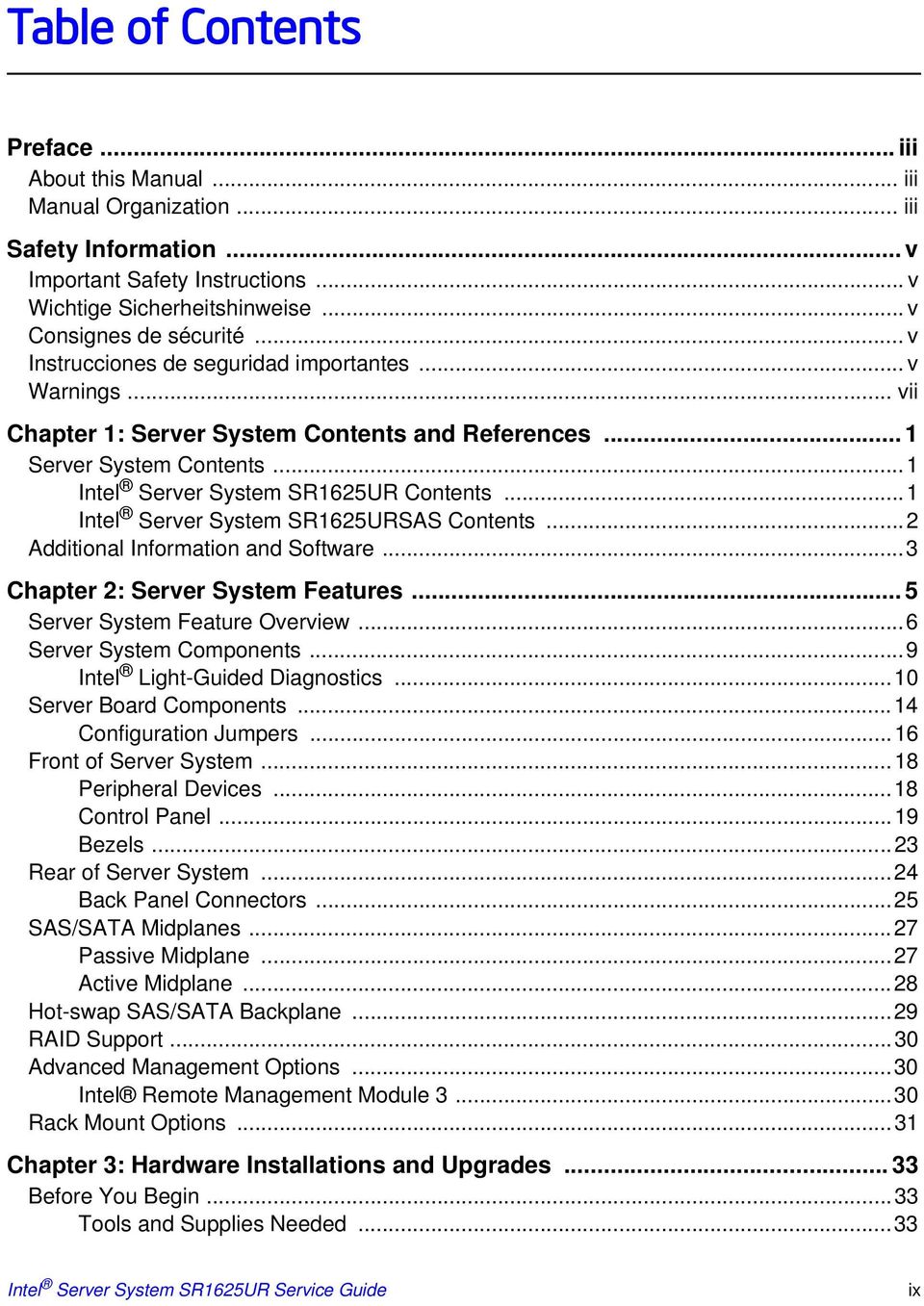
9 Table of Contents Preface...iii About this Manual... iii Manual Organization... iii Safety Information... v Important Safety Instructions... v Wichtige Sicherheitshinweise... v Consignes de sécurité... v Instrucciones de seguridad importantes... v Warnings... vii Chapter 1: Server System Contents and References... 1 Server System Contents...1 Intel Server System SR1625UR Contents...1 Intel Server System SR1625URSAS Contents...2 Additional Information and Software...3 Chapter 2: Server System Features... 5 Server System Feature Overview...6 Server System Components...9 Intel Light-Guided Diagnostics...10 Server Board Components...14 Configuration Jumpers...16 Front of Server System...18 Peripheral Devices...18 Control Panel...19 Bezels...23 Rear of Server System...24 Back Panel Connectors...25 SAS/SATA Midplanes...27 Passive Midplane...27 Active Midplane...28 Hot-swap SAS/SATA Backplane...29 RAID Support...30 Advanced Management Options...30 Intel Remote Management Module Rack Mount Options...31 Chapter 3: Hardware Installations and Upgrades Before You Begin...33 Tools and Supplies Needed...33 Intel Server System SR1625UR Service Guide ix
10 System References Cable Routing Removing and Installing from a Rack Fixed Bracket Rack Mount Removal Fixed Bracket Rack Mount Installation Basic Rail Rack Mount Removal Basic Rail Rack Mount Installation Tool-less Rail Rack Mount Servicing Removing and Installing the Front Bezel Removing the Front Bezel Installing the Front Bezel Removing and Installing the System Cover Removing the Server System Cover Installing the Server System Cover Removing and Installing the PCI Riser Assembly Removing the PCI Riser Assembly Installing the PCI Riser Assembly Replacing the PCI Riser Card Removing the PCI Express* Riser Card Installing the Replacement PCI Express* Riser Card Installing and Removing a PCI Add-in Card Installing a PCI Add-in Card Removing a PCI Add-in Card Removing and Installing the Processor Air Duct Removing the Processor Air Duct Installing the Processor Air Duct Installing and Removing Memory Installing DIMMs Removing DIMMs Installing and Removing the Processor Installing the Processor Installing the Heatsink Removing the Heatsink Removing the Processor Installing and Removing a Hot-swap Hard Drive Installing a Hot-swap SAS/SATA Hard Disk Drive Removing a Hot-swap SAS/SATA Hard Disk Drive Installing and Removing a Slimline Optical Drive Installing a Slimline Optical Drive Removing a Slimline Optical Drive Installing and Removing the I/O Expansion Module Installing the I/O Expansion Module Removing the I/O Expansion Module(s) Installing and Removing the Intel Remote Management Module x Intel Server System SR1625UR Service Guide

11 Installing the Intel RMM Removing the Intel RMM Removing and Installing the Midplane Board...70 Removing the Midplane Board...70 Installing the Midplane Board...71 Installing and Removing the Intel Integrated RAID Activation Key and the RAID Mini DIMM (Active System Only)...74 Installing the Intel Integrated RAID Activation Key and the RAID Mini-DIMM...74 Removing the Intel Integrated RAID Activation Key and the RAID Mini-DIMM...75 Installing and Removing the RAID Battery Backup Unit (Active System Only)...76 Installing the RAID Battery Backup Unit (BBU)...76 Removing the RAID Battery Backup Unit...77 Removing and Installing the Server Board...78 Removing the Server Board...78 Installing the Server Board...79 Replacing the Backup Battery...81 Replacing or Adding a Power Supply...82 Replacing the Power Distribution Module...84 Replacing the Control Panel...86 Reinstalling the Mini Control Panel...88 Replacing a System Fan...90 Removing and Installing the Fan Assembly...91 Removing the System Fan Assembly...91 Installing the System Fan Assembly...92 Installing and Removing the Rack Handles...94 Installing the Rack Handles...94 Removing the Rack Handles...94 Chapter 4: Server Utilities Using the BIOS Setup Utility...95 Entering BIOS Setup...95 If You Cannot Access Setup...95 Setup Menus...95 Upgrading the BIOS...97 Preparing for the Upgrade...97 Upgrading the BIOS...98 Clearing the Password...98 Restoring the BIOS Defaults Appendix A: Technical Reference W Single Power Supply Input Voltages W Single Power Supply Output Voltages System Environmental Specifications Appendix B: Intel Server Issue Report Form Intel Server System SR1625UR Service Guide xi

12 Appendix C: LED Decoder Appendix D: Getting Help Warranty Information Appendix E: Regulatory and Certification Information Product Regulatory Compliance Product Safety Compliance Product EMC Compliance - Class A Compliance Product Ecology Compliance Certifications/Registrations/Declarations Product Regulatory Compliance Markings Rack Mount Installation Guidelines Power Cord Usage Guidelines Electromagnetic Compatibility Notices FCC Verification Statement (USA) ICES-003 (Canada) CE Declaration of Conformity (Europe) VCCI (Japan) BSMI (Taiwan) KCC (Korea) Regulated Specified Components Appendix F: Installation/Assembly Safety Instructions English Deutsch Français Español Italiano Appendix G: Safety Information English Server Safety Information Safety Warnings and Cautions Intended Application Uses Site Selection Equipment Handling Practices Power and Electrical Warnings System Access Warnings Rack Mount Warnings Electrostatic Discharge (ESD) Other Hazards Deutsch Sicherheitshinweise für den Server Sicherheitshinweise und Vorsichtsmaßnahmen Zielbenutzer der Anwendung xii Intel Server System SR1625UR Service Guide

13 Standortauswahl Handhabung von Geräten Warnungen zu Netzspannung und Elektrizität Warnhinweise für den Systemzugang Warnhinweise für Racks Elektrostatische Entladungen (ESD) Andere Gefahren Français Consignes de securite sur le serveur Séurité: avertissements et mises en garde Domaines d utilisation prévus Sélection d un emplacement Pratiques de manipulation de l équipement Alimentation et avertissements en matiére d électricité Avertissements sur le cordon d alimentation Avertissements sur l accés au systéme Avertissements sur le montage en rack Décharges électrostatiques (ESD) Autres risques Périphériques laser Español Información de seguridad del servidor Advertencias y precauciones sobre seguridad Aplicaciones y usos previstos Seleccién de la ubicación Manipulacién del equipo Advertencias de alimentacién y eléctricas Advertencias sobre el cable de alimentación Advertencias el acceso al sistema Advertencias sobre el montaje en bastidor Descarga electrostática (ESD) Otros riesgos Intel Server System SR1625UR Service Guide xiii

14 xiv Intel Server System SR1625UR Service Guide

15 List of Figures Figure 1. Intel Server System SR1625UR... 5 Figure 2. Server System Components... 9 Figure 3. Intel Light-Guided Diagnostic LEDs - Server Board Figure 4. Intel Light-Guided Diagnostic LEDs - Passive Midplane Figure 5. Intel Light-Guided Diagnostic LEDs - Active Midplane Figure 6. Intel Light-Guided Diagnostic LEDs - Mini Control Panel Figure 7. Server Board Connector and Component Locations Figure 8. Configuration Jumpers Figure 9. Front Panel Features and Peripherals Figure 10. Mini Control Panel Figure 11. Standard Control Panel Figure 12. Intel Local Control Panel Figure 13. Server System Rear Components Figure 14. Back Panel Connectors Figure 15. Passive SATA/SAS Midplane Components Figure 16. Active SAS/SAS RAID Midplane Components Figure 17. Hot-swap SAS/SATA Backplane Front Side Components Figure 18. Hot-swap SAS/SATA Backplane Back Side Components Figure 19. System Cable Routing Figure 20. Front Bezel Supporting the Standard Control Panel Figure 21. Front Bezel Supporting the Intel Local Control Panel Figure 22. Front Bezel Supporting the Mini Control Panel Figure 23. Removing the Front Bezel Figure 24. Installing the Front Bezel Figure 25. Removing the Server System Cover Figure 26. Installing the Server System Cover Figure 27. Removing PCI Riser Assembly from the Server System Figure 28. Installing PCI Riser Assembly into the Server System Figure 29. Removing the PCI Express* Riser Card Figure 30. Installing the Replacement PCI Express* Riser Card Figure 31. Installing an Add-In Card Figure 32. Removing an Add-In Card Figure 33. Removing the Processor Air Duct Figure 34. Installing the Processor Air Duct Figure 35. Installing the Memory Figure 36. Lifting the Processor Socket Lever Figure 37. Opening the Load Plate Figure 38. Removing the Protective Socket Cover Figure 39. Removing the Processor Protective Cover Figure 40. Installing the Processor Figure 41. Closing the Load Plate Figure 42. Installing the Heatsink Intel Server System SR1625UR Service Guide xv

16 Figure 43. Removing the Heatsink Figure 44. Removing Hot-swap Disk Carrier from the Server System Figure 45. Removing Drive Blank from Drive Carrier Figure 46. Installing Hard Drive into Carrier Figure 47. Install Drive Assemby into the Server System Figure 48. Installing the Plastic Guide to the Optical Drive Figure 49. Installing an Optical Drive into the Server System Figure 50. Removing the Slimline Optical Drive from the Server System Figure 51. Installing the I/O Expansion Module to the Server System Figure 52. Removing the I/O Expansion Module from the Server System Figure 53. Removing the Intel RMM3 filler panel Figure 54. Installing the Intel RMM3 to the bracket Figure 55. Connecting the Intel RMM3 cable Figure 56. Installing the Intel RMM3 to the Server System Figure 57. Removing the Intel RMM3 from the Server System Figure 58. Installing the Intel RMM3 filler panel Figure 59. Removing the Midplane from the Server System Figure 60. Installing the Midplane Board into the Server System Figure 61. Installing the SATA Cables Figure 62. Installing the RAID Activation Key and the RAID Mini-DIMM Figure 63. Removing the Intel Integrated RAID Activation Key and the RAID Mini-DIMM Figure 64. Installing the RAID Battery Backup Unit Figure 65. Removing the RAID Battery Backup Unit Figure 66. Removing the Server Board Figure 67. Installing the Server Board Figure 68. Replacing the Backup Battery Figure 69. Removing Power Supply Filler Panel from the Server System Figure 70. Removing Power Supply Module from the Server System Figure 71. Installing Power Supply Module into the Server System Figure 72. Removing the Power Distribution Board Cover Figure 73. Installing the Power Distribution Board Cover Figure 74. Removing Mini Control Panel Module from the Server System Figure 75. Connecting the Control Panel Cables Figure 76. Installing Control Panel Module into the Server System Figure 77. Removing the Standard Control Panel from the Server System Figure 78. Installing Mini Control Panel into the Server System Figure 79. Removing a System Fan Figure 80. Installing a System Fan Figure 81. Removing the Fan Assembly Figure 82. Installing the System Fan Assembly Figure 83. Installing the Rack Handle Figure 84. Removing the Rack Handle Figure 85. Password Clear Jumper Figure 86. BIOS Default Jumper Figure 87. Diagnostic LED Placement Diagram xvi Intel Server System SR1625UR Service Guide

17 List of Tables Table 1. Server System References...3 Table 2. Intel Server System SR1625UR Feature Summary...6 Table 3. NIC LED Descriptions...26 Table 4. Setup Menu Key Use...95 Table 5. Power Supply input Voltages Table 6. Power Supply Output Capability Table 7. System Environmental Specifications Table 8. POST Progress Code LED Example Table 9. Diagnostic LED POST Code Decoder Table 10. Product Regulatory Compliance Markings Intel Server System SR1625UR Service Guide xvii
18 xviii Intel Server System SR1625UR Service Guide

19 1 Server System Contents and References There are two versions of the Intel Server System SR1625UR: Intel Server System SR1625UR (Passive system) Intel Server System SR1625URSAS (Active system) Unless noted otherwise, all references to the Intel Server System SR1625UR refer to both product codes. Server System Contents The Intel Server System SR1625UR ships with the Intel Server Board S5520UR. For information about the server board, see Intel Server Board S5520UR Technical Product Specification. The contents of each server system are listed below. Intel Server System SR1625UR Contents Your Intel Server System SR1625UR (passive system) ships with the following items: Intel Server Board S5520UR, installed in the server system One 650-W power supply, installed in the server system Full-length and full-height PCI Express* riser card assembly, installed in the server system Processor air duct, installed in the server system Two processor heatsinks, installed in the server system Passive midplane, installed in the server system Hot-swap SAS/SATA backplane, installed in the server system Bridge board, installed in the server system Mini control panel, installed in the server system Six 2.5-inch hot-swap drive trays and drive filler blanks, installed in the server system A filler panel (for drive locations 6 and 7), installed in the server system System fan assembly, including five 40X40X56-mm dual-rotor fans, installed in the server system Intel Server System SR1625UR Service Guide 1

20 A box of hardware components (referred to herein as the hardware box ) Optical drive tray assembly, in the hardware box Two screws for installing the optical drive component, in the hardware box Rack handles, in the hardware box Slimline peripheral bay filler panel, in the hardware box One ganged SATA cable (consisting of six cables tied together), in the hardware box Attention document, in the server system product box Quick Start User's Guide, in the server system product box Intel Server Deployment Toolkit 3.0 CD Intel System Management Software DVD Intel Server System SR1625URSAS Contents Your Intel Server System SR1625URSAS (active system) ships with the following items: Intel Server Board S5520UR, installed in the server system One 650-W power supply, installed in the server system Full-length and full-height PCI Express* riser card assembly, installed in the server system Processor air duct, installed in the server system Two processor heatsinks, installed in the server system Active SAS/SATA midplane, installed in the server system Hot-swap SAS/SATA backplane, installed in the server system Bridge board, installed in the server system Mini control panel, installed in the server system Eight 2.5-inch hot-swap drive trays and drive filler blanks, installed in the server system System fan assembly, including five 40X40X56-mm dual-rotor fans, installed in the server system A box of hardware components (referred to herein as the hardware box ) Optical drive tray assembly, in the hardware box Two screws for installing the optical drive component, in the hardware box Slimline peripheral bay filler panel, in the hardware box Rack handles, in the hardware box Attention document, in the server system product box Quick Start User's Guide, in the server system product box 2 Intel Server System SR1625UR Service Guide

21 Intel Server Deployment Toolkit 3.0 CD Intel System Management Software DVD Additional Information and Software If you need more information about this product or information about the accessories that can be used with this server system, use the following resources. Table 1. Server System References For this information or software For in-depth technical information about the server chassis, including subsystem overviews and mechanical drawings For in-depth technical information about the server board, including board layout, connector pin-outs, timing information, mechanical drawings and LED information For basic BIOS settings and chipset information If you just received this product and you need to assemble your system and install components Accessories or other Intel server products Use this Document or Software Intel Server System SR1625UR Technical Product Specification Available at: Intel Server Board S5520UR Technical Product Specification Available at: Intel Server Board S5520UR Technical Product Specification Available at: Intel Server System SR1625UR Quick Start User's Guide Available in the product box Spares, Parts List and Configuration Guide Available at: by using the Server Configurator Tool Available at: Intel Server System SR1625UR Service Guide 3
22 Table 1. Server System References For this information or software Hardware (peripheral boards, adapter cards) and operating systems that have been tested with this product Processors that have been tested with this product DIMMs that have been tested with this product Hard Drives that have been tested with this product Latest drivers, firmware updates (BIOS, BMC, FRUSDR), and utilities To make sure your system falls within the allowed power budget For software to manage your Intel server Use this Document or Software Server Configurator Tool Available at: Available for download at: s5520urclick the Software and Drivers link on the left side of the web page. Power Budget Analysis Tool Available at: Intel System Management Software Available at: 4 Intel Server System SR1625UR Service Guide
23 2 Server System Features This chapter briefly describes the main features of the server system. This includes illustrations of the product, a list of the server system features, and diagrams showing the location of important components and connections on the server system. TP02211 Figure 1. Intel Server System SR1625UR Intel Server System SR1625UR Service Guide 5
24 Server System Feature Overview Table 2 summarizes the features of the server system. Table 2. Intel Server System SR1625UR Feature Summary Dimensions Feature Server Board Description 1.70 inches (43.2 mm) high inches (430.0 mm) wide inches (654.4 mm) deep 37 pounds (16.8 kg) - base chassis weight Intel Server Board S5520UR Processor Support for one or two Intel Xeon Processors in FC-LGA 1366 Socket B package with up to 95 W Thermal Design Power (TDP) 4.8 GT/s, 5.86 GT/s and 6.4 GT/s Intel QuickPath Interconnect (Intel QPI) EVRD11.1 For a complete list of supported processors, see compat.htm. Memory Chipset Twelve DIMMs across six memory channels (three channels per processor) Support for 800/1066/1333 MT/s ECC registered (RDIMM) or unbuffered (UDIMM) DDR3 memory Intel 5520 Chipset I/O Hub Intel 82801Jx I/O Controller Hub 6 Intel Server System SR1625UR Service Guide
25 Table 2. Intel Server System SR1625UR Feature Summary Feature Peripheral Interfaces Video LAN Expansion Capabilities Hard Drives Peripherals Control Panel Description External connections: DB-15 video connector (back) RJ-45 serial Port A connector Two RJ-45 10/100/1000 Mb network connections Four USB 2.0 connectors (back) One USB 2.0 connector (front) Internal connections: One USB 2x5 pin header, which supports two USB 2.0 ports One low-profile USB 2x5 pin header to support low-profile USB Solid State drives One DH-10 Serial Port B header Six Serial ATA (SATA) II connectors Two I/O module connectors One RMM3 connector to support an optional Intel Remote Management Module 3 SATA Software 5 Activation Key connector One SSI-EEB compliant front panel header One SSI-EEB compliant 24-pin main power connector One SSI-compliant 8-pin CPU power connector One SSI-compliant auxiliary power connector On-board ServerEngines* LLC Pilot II Controller Integrated 2D Video Controller 32 MB DDR2 Memory Two 10/100/1000 Intel PHYs One x16 PCI Express* Gen 2 PCI riser slot capable of supporting a full-length full-height PCI Express* add-in card Up to eight 2.5 inch hot-swap SATA/SAS drives with mini control panel Up to six 2.5 inch hot-swap SATA/SAS drives with standard control panel or Intel Local Control Panel Intel Embedded Server RAID Technology II with SW RAID levels 0/1/10 Optional support for Software RAID 5 with activation key Slimline bay for slimline SATA optical drive One PCI Express* X16 add-in card slot (Gen 2) Standard control panel Intel Local Control Panel Mini control panel Intel Server System SR1625UR Service Guide 7
26 Table 2. Intel Server System SR1625UR Feature Summary Feature Description LEDs and displays With Mini control panel: Power/Sleep System Status System Identification Intel Light-Guided diagnostic LEDs: Fan Fault DIMM Fault CPU Fault 5V-STBY System Status System Identification POST Code Diagnostics Power Supply Fans System Management Up to two 650-W power supply modules Five 40x40x56-mm dual-rotor system fans Two 56-mm dual-rotor power supply fans On-board ServerEngines* LLC Pilot II Controller Integrated Baseboard Management Controller (Integrated BMC),. IPMI 2.0 compliant Integrated Super I/O on LPC interface Support for Intel System Management Software 8 Intel Server System SR1625UR Service Guide
27 Server System Components This section helps you identify the components of your server system. If you are near the system, you can also use the Quick Reference Label provided on the inside of the chassis cover to assist in identifying components. F G B E H C D A I P O A N HM L K J AF A. Rack Handles I. Processor Air Duct B. Power Supply Air Duct J. Processor and Heatsink C. Battery Pack (Optional) K. System Memory D. Slimline Optical Drive Bay (Optical Drive Shown) L. Bridge Board E. Power Distribution Board M. Fan Assembly F. Power Supply Modules N. Midplane Board (Active Version Shown) G. Server Board O. Mini Control Panel H. PCI Riser Assembly P. Hard Drive Bays Figure 2. Server System Components Intel Server System SR1625UR Service Guide 9
28 Intel Light-Guided Diagnostics The server system contains the following diagnostic LEDs, each providing the following functions: The System Status LED on the front and back panels (see Figure 3 and Figure 6) shows the overall health of the system (green, blinking green, blinking amber, amber, off). The System Identification LED on the front and back panel (see Figure 3 and Figure 6) helps identify the server from among several servers. The ID LED is off by default, and blue when activated by button or software. DIMM Fault LEDs on the server board (see Figure 3) help identify failed and failing DIMM slots. The DIMM fault LEDs turn on (amber) if there is a DIMM fault. POST Code Diagnostic LEDs on the server board (see Figure 3) change color or state (off, green, red, amber) according to the POST sequence. The 5V-STBY LED on the server board (see Figure 3) is illuminated (green) when AC power is applied. Fan Fault LEDs on the passive midplane (in the passive system - see Figure 4) or active midplane (in the active system - see Figure 5) help identify failed and failing fans. The fan fault LEDs turn on (amber) if there is a fan fault. 10 Intel Server System SR1625UR Service Guide
29 A B C D E J F G J I H AF A. POST Code Diagnostic LEDs B. System Identification LED C. Status LED D. Memory 1 Fan Fault LED E. CPU 1 Fan Fault LED F. CPU 1 DIMM Fault LEDs G. CPU 2 Fan Fault LED H. Memory 2 Fan Fault LED I. CPU 2 DIMM Fault LEDs J. 5V Standby LED Figure 3. Intel Light-Guided Diagnostic LEDs - Server Board Intel Server System SR1625UR Service Guide 11
30 D C E B A F AF A. Fan 2 Fault LED B. Fan 3 Fault LED C. Fan 4 Fault LED D. Fan 5 Fault LED E. Fan 6 Fault LED F. Fan 1 Fault LED Figure 4. Intel Light-Guided Diagnostic LEDs - Passive Midplane D C E B A F AF A. Fan 2 Fault LED B. Fan 3 Fault LED C. Fan 4 Fault LED D. Fan 5 Fault LED E. Fan 6 Fault LED F. Fan 1 Fault LED Figure 5. Intel Light-Guided Diagnostic LEDs - Active Midplane 12 Intel Server System SR1625UR Service Guide
31 A B AF A. Status LED B. System Identification LED Figure 6. Intel Light-Guided Diagnostic LEDs - Mini Control Panel Intel Server System SR1625UR Service Guide 13
32 Server Board Components This section helps you identify the components and connectors on the server board. A B C D E F G DD CC H I J BB K AA Z Y W X V U T L S R Q P O N M AF Intel Server System SR1625UR Service Guide
33 A. 280-pin Intel Adaptive Slot B. POST Code Diagnostic LEDs C. Intel RMM3 Header D. Processor 1 Socket E. Back Panel I/O Ports F. System Identification LED G. System Status LED H. Memory 1 Fan Header I. Processor 1 Fan Header J. Processor 1 DIMM slots K. Processor 2 DIMM slots L. Processor 2 Socket M. Processor 2 Fan Header N. Memory 2 Fan Header O. Bridge Board Connector (Intel Server Chassis) P. Front Panel Connector Q. Fan Board Connector R. 2x4 Power Connector S. Main Power Connector T. Power Supply SMBus Connector V. USB Header W. Low-profile USB Solid State Drive Header U. System 2 Fan Header X. System 1 Fan Header Y. LCP IPMB Header Z. SATA Software 5 Key Header AA. SGPIO Header BB. SATA Connectors CC. I/O Module Connector 2 DD. I/O Module Connector 1 Figure 7. Server Board Connector and Component Locations Intel Server System SR1625UR Service Guide 15
34 Configuration Jumpers BIOS Recover J1D4 D 2 3 Normal Recover Password Clear J1E8 2 3 C Protect Clear BIOS Default J1E7 B 2 3 Normal Set Default BMC Force Update J1H2 2 3 A Disable Enable AF Intel Server System SR1625UR Service Guide
35 Jumper Name A. BMC Force Update (J1H2) Jumper Purpose If pins 2-3 are jumpered, the Integrated BMC Force Update Mode is enabled. These pins should be jumpered on 1-2 for normal system operation. B. BIOS Default (J1E7) If pins 2-3 are jumpered, the BIOS settings are cleared on the next reset. These pins should be jumpered on 1-2 for normal operation. C. Password Clear (J1E8) If pins 2-3 are jumpered, administrator and user passwords are cleared within five to ten seconds after the system is powered on. These pins should be jumpered on 1-2 for normal system operation. D. BIOS Recover (J1D4) If pins 2-3 are jumpered, the system can only boot from EFIbootable recovery media with the recovery BIOS image. The main system BIOS will not boot. These pins should be jumpered on 1-2 for normal system operation. Figure 8. Configuration Jumpers Intel Server System SR1625UR Service Guide 17
36 Front of Server System Peripheral Devices The server system provides locations and hardware for installing hard drives, CD-ROM drive, or DVD-ROM drive. The drives must be purchased separately. The following figure shows the available options. A B C A D TP A. Rack Handles B. Slimline Optical Drive C. Mini Control Panel D. Hard Disk Drive Bays (Optional HDD Carriers shown) Figure 9. Front Panel Features and Peripherals Hard Disk Drives The server system supports 2.5 inch SAS or Serial ATA (SATA) hot-swap drives. The system can support: Up to eight 2.5 inch hard drives with the mini control panel. Up to six 2.5 inch hard drives with the standard control panel or the Intel Local Control Panel. For instructions on installing hard drives, see Installing and Removing a Hot-swap Hard Drive on page 59. Note: Drives can consume up to 17 watts of power each. Drives must be specified to run at a maximum ambient temperature of 45 C. Note: The Intel Server System SR1625UR does not support all SAS or Serial ATA (SATA) hard drives. For a list of supported hard drives, use the Server Configurator Tool. For a web link to this tool, see Additional Information and Software on page Intel Server System SR1625UR Service Guide
37 Slimline Optical Drive The system includes a slimline optical drive carrier, which can be used to install an optional optical drive. The optical drive must be purchased separately. You can only install or remove the slimline optical drive carrier when the system power is turned off. Drive in the optical drive carrier is NOT hot swappable. For instructions on installing an optical drive, see Installing and Removing a Slimline Optical Drive on page 62. To use one of the drives provided by Intel, use the following order codes: Slimline DVD-ROM Drive: AXXSATADVDROM Slimline DVD-RW Drive: AXXSATADVDRWROM Note: The Intel Server System SR1625UR does not support all slimline optical drives. For a list of supported slimline optical drives, use the Server Configurator Tool. For a web link to this tool, see Additional Information and Software on page 3. Intel provides accessory kits for these drives. Control Panel Mini Control Panel The Intel Server System SR1625UR supports the following types of control panels: Mini Control Panel Standard Control Panel Intel Local Control Panel The following diagram shows the features available on the mini control panel. For instructions on installing the mini control panel, see Replacing the Control Panel on page 86. A B C D G F E TP02215 Callout Feature Function A. USB Port Allows you to attach a USB component to the front of the system. Intel Server System SR1625UR Service Guide 19
38 Callout Feature Function B. System Identification LED Standard Control Panel Solid blue indicates system identification is active. No light indicates system identification is not activated. C. System Status LED Solid green indicates normal operation. Blinking green indicates degraded performance. Solid amber indicates a critical or non-recoverable condition. Blinking amber indicates a non-critical condition. No light indicates POST is running or the system is off. D. Power/Sleep LED Continuous green light indicates the system has power applied to it or the system is in ACPI S0 state. Blinking green indicates the system is in sleep or ACPI S1 state. No light indicates the power is off or the system is in ACPI S4 or S5 state. E. Power/Sleep Button Powers on/off the system. If enabled by an ACPI-compliant operating system, this button puts the system in an ACPI sleep state. F. NMI Button Puts the server in a halt-state for diagnostic purposes and allows you to issue a non-maskable interrupt. After issuing the interrupt, a memory download can be performed to determine the cause of the problem. G. System Identification Button Turns on/off the system identification LED. Figure 10. Mini Control Panel The following diagram shows the features available on the standard control panel. For instructions on installing the standard control panel, see Replacing the Control Panel on page 86. A B C D E F G H I L K J TP Intel Server System SR1625UR Service Guide
39 A. B. Callout Feature Function NIC 2 Activity LED NIC 1 Activity LED Intel Local Control Panel Continuous green light indicates a link between the system and the network to which it is connected. Blinking green light indicates network activity. C. Power/Sleep Button Powers on/off the system. If enabled by an ACPI-compliant operating system, this button functions as a Sleep button and puts the system in an ACPI sleep state. D. Power/Sleep LED Continuous green light indicates the system has power applied to it or the system is in ACPI S0 state. Blinking green indicates the system is in sleep or ACPI S1 state. No light indicates the power is off or the system is in ACPI S4 or S5 state. E. Hard Disk Drive Activity LED Random blinking green light indicates hard disk drive activity (SAS or SATA). No light indicates no hard disk drive activity. F. System Status LED Solid green indicates normal operation. Blinking green indicates degraded performance. Solid amber indicates a critical or non-recoverable condition. Blinking amber indicates a non-critical condition. No light indicates POST is running or the system is off. G. System Identification LED Solid blue indicates system identification is active. No light indicates system identification is not activated. H. System Identification Button Turns on/off the system identification LED. I. Reset Button Reboots and initializes the system. J. USB Port Allows you to attach a USB component to the front of the chassis. K. NMI Button Puts the server in a halt-state for diagnostic purposes and allows you to issue a non-maskable interrupt. After issuing the interrupt, a memory download can be performed to determine the cause of the problem. L. Video Port Allows you to attach a video monitor to the front of the chassis. The front and rear video ports cannot be used at the same time. Figure 11. Standard Control Panel The following diagram shows the features available on the Intel Local Control Panel. For instructions on installing the standard control panel, see Replacing the Control Panel on page 86. Intel Server System SR1625UR Service Guide 21
40 A B C D E F O N M L K J I H G TP02214 Callout Feature Function A. USB Port Allows you to attach a USB component to the front of the chassis. B. LCD Display Screen on which system information is displayed. C. Menu Control Button, Scroll Up D. Menu Control Button, Scroll Down E. Menu Control Button, Scroll Left F. Menu Control Button, Enter Scroll up one option at a time. Scroll down one option at a time. Move to the previous option. Select option. G. System Identification LED Solid blue indicates system identification is active. No light indicates system identification is not activated. H. Power/Sleep LED Continuous green light indicates the system has power applied to it or the system is is S0 state. Blinking green indicates the system is in sleep or ACPI S1 state. No light indicates the power is off or the system is in ACPI S4 or S5 state. I. Power/Sleep Button Powers on/off the system. If enabled by an ACPI-compliant operating system, this button functions as a Sleep button and puts the system in an ACPI sleep state. J. System Status LED Solid green indicates normal operation. Blinking green indicates degraded performance. Solid amber indicates a critical or non-recoverable condition. Blinking amber indicates a non-critical condition. No light indicates POST is running or the system is off. 22 Intel Server System SR1625UR Service Guide
41 K. L. Callout Feature Function NIC 2 Activity LED NIC 1 Activity LED M. Hard Disk Activity LED Continuous green light indicates a link between the system and the network to which it is connected. Blinking green light indicates network activity. Random blinking green light indicates hard disk drive activity (SAS or SATA). No light indicates no hard disk drive activity. N. Reset Button Reboots and initializes the system. O. USB Port Allows you to attach a USB component to the front of the system. Figure 12. Intel Local Control Panel Bezels The optional front bezels provide a snap-on design that allows for maximum airflow through the server chassis. Three bezels are available. One fits a system that has the standard control panel installed. The second bezel is used for a chassis with the other Intel Local Control Panel. The third bezel is used for chassis with the mini control panel installed. Each bezel provides a lock to secure the hard drive and optical drive area. For instructions on installing either of the front bezels, see Installing the Front Bezel on page 40. The order numbers for the bezels are: ASR1550MINBEZ: Black bezel for use with the Mini control panel. ASR1550BEZ: Black bezel for use with the standard control panel. ASR1550LCDBEZ: Black bezel for use with the Intel Local Control Panel. Intel Server System SR1625UR Service Guide 23
42 Rear of Server System A J I H G F E D C B AF A. Full-height PCI Add-in Card Slot B. Power Supply Module 2 C. Power Supply Module 1 D. I/O Expansion Modules (Optional) E. Intel Remote Management Module NIC (IOptional) F. NIC 2 (10/100/1000 Mb) G. NIC 1 (10/100/1000 Mb) H. Four USB Ports I. Video J. RJ-45 Serial B Connector Figure 13. Server System Rear Components 24 Intel Server System SR1625UR Service Guide
43 Back Panel Connectors A. Serial Port A (RJ-45) B. Video C. USB Ports 0 and 1 D. USB Ports 2 and 3 E. NIC 1 (10/100/1000 Mb) F. NIC 2 (10/100/1000 Mb) Figure 14. Back Panel Connectors Intel Server System SR1625UR Service Guide 25
44 The NIC LEDs at the right and left of each NIC provide the following information. Table 3. NIC LED Descriptions LED LED State Description Right Off No network connection Solid Green Blinking Green Network connection in place Transmit/receive activity Left Off 10 Mbps connection (if right LED is on or blinking) Solid Green Solid Amber 100 Mbps connection 1000 Mbps connection 26 Intel Server System SR1625UR Service Guide
45 SAS/SATA Midplanes Passive Midplane The midplane serves as the primary interface between the server board, the hot-swap backplane, and the control panel. Two midplanes are offered for this system: Passive SATA/SAS Active SAS/SAS RAID. The passive midplane s used as an interconnect, routing drive control signals from either the on-board SATA ports of the server board or SAS/SATA ports from an add-in card to the hot-swap backplane. The following diagram show the location for each connector found on the passive midplane. A B C D E F G H I J AF A. Power Connector F. Fan 4 Connector B. Fan 6 Connector G. Fan 3 Connector C. Fan 5 Connector H. Fan 1 Connector D. SAS/SATA Connectors I. Fan 2 Connector E. Bridge Board Connector J. Backplane Connector Figure 15. Passive SATA/SAS Midplane Components Intel Server System SR1625UR Service Guide 27
46 Active Midplane The active midplane is used to provide SAS/SAS RAID support. The following diagram show the location for each connector found on the active midplane. A B C D E F G H I J L K AF A. RAID Battery Backup Unit Connector G. Fan 4 Power Connector B. Power Connector H. Fan 3 Power Connector C. Mini-DIMM Connector I. Fan 1 Power Connector D. Fan 6 Power Connector J. Fan 2 Power Connector E. Fan 5 Power Connector K. RAID Activation Key Connector F. Bridge Board Connector L. Backplane Connector Figure 16. Active SAS/SAS RAID Midplane Components 28 Intel Server System SR1625UR Service Guide
47 Hot-swap SAS/SATA Backplane The system supports a multifunctional SAS/SATA backplane, which installs on the back side of the hot-swap drive bay inside the chassis. The following diagrams show the location for each connector found on the front and the back of the backplane. A B C AF A. Slimline Optical Device Connector C. SAS/SATA hot-swap Connectors B. Mini Control Panel Connector Figure 17. Hot-swap SAS/SATA Backplane Front Side Components A B D C AF A. USB Connector C. Card Edge Connectors to Midplane B. Power Connector D. 10-pin Control Panel Connector Figure 18. Hot-swap SAS/SATA Backplane Back Side Components Intel Server System SR1625UR Service Guide 29
48 RAID Support The server system provides an embedded SATA controller on the server board that is accessible through the passive midplane. The SATA controller supports both 1.5 and 3.0 Gbps data transfer rates. The BIOS Setup utility provides multiple drive configuration options on the Advanced ATA Controller setup page, some of which affect the ability to configure RAID. The Onboard SATA Controller option is enabled by default. When this option is enabled, the SATA Mode option can be set to either Legacy or Enhanced. The Legacy and Enhanced modes affect the RAID configuration as follows: Legacy supports four disk drives and does not provide RAID support. Enhanced supports six disk drives and is required for RAID configurations. When the enhanced mode is selected, you can choose to enable or disable AHCI Mode or Configure SATA as RAID. The Intel Embedded Server RAID Technology II is enabled by the Configure SATA as RAID option. The Intel Embedded Server RAID Technology II feature provides RAID modes 0, 1, and 10. For RAID 0, 1, and 10, enclosure management is provided over the bridge board. If RAID 5 is desired, the optional Intel RAID Activation Key AXXRAKSW5 can be installed. To enable RAID 5, this activation key is placed on the SATA Key connector that is located at the left side of the server board. For information on installing the Intel RAID Activation Key AXXRAKSW5 accessory to enable RAID 5, see Installing the Intel Integrated RAID Activation Key and the RAID Mini-DIMM on page 74. For information on configuring RAID, see the Intel RAID Software User s Guide that is included on the Intel Server Deployment Toolkit 3.0 CD. Advanced Management Options Intel Remote Management Module 3 The Intel Remote Management Module 3 plugs into a dedicated connector on the server board and provides additional server management functionality to the server board. This module provides a dedicated web server for viewing server information and remote control of the system. It also provides Remote KVM Redirection and USB Media Redirection allowing USB devices attached to the remote system to be used on the managed server. For instructions on installing the Intel Remote Management Module 3, see Installing and Removing the Intel Remote Management Module 3 on page Intel Server System SR1625UR Service Guide
49 Rack Mount Options Your Intel Server System SR1625UR can be mounted into a rack. Intel provides the following three options to mount this server system into a rack: Fixed mount relay rack/cabinet mount kit: This kit can be configured to mount the system into either a 2-post rack or 4-post cabinet. Tool-less sliding rail kit: This kit is used to mount the chassis into a standard (19 inches by upto 30 inches deep) EIA-310D compatible server cabinet. An optional cable management arm can be used with this kit. Basic three-quarter extension sliding rail kit: This kit is used to mount the chassis into a standard (19 inches by upto 30 inches deep) EIA-310D compatible server cabinet. When installing the chassis into a rack, Intel recommends you install systems from the bottom of the rack to the top. In other words, install the first system in the rack into the bottom position of the rack, the second system in the second position from the bottom, and so on. For instructions on installing your chassis into a rack, see Removing and Installing from a Rack on page 35. These instructions are also included in each rackmount option kit. Intel Server System SR1625UR Service Guide 31
50 32 Intel Server System SR1625UR Service Guide
51 3 Hardware Installations and Upgrades Before You Begin Before working with your server product, pay close attention to the Safety Information on page v at the beginning of this manual. Note: Whenever you service the system, you must first power down the server and unplug all peripheral devices and the AC power cord. Tools and Supplies Needed System References Phillips* (cross head) screwdriver (#1 bit and #2 bit) Needle nosed pliers Anti-static wrist strap and conductive foam pad (recommended) All references to left, right, front, top, and bottom assume the reader is facing the front of the server system as it would be positioned for normal operation. Intel Server System SR1625UR Service Guide 33
52 Cable Routing When you add or remove components from your server system, make sure your cables are routed correctly before reinstalling the server system cover. Use caution to make sure no cables or wires are pinched and that the airflow from the fans is not blocked. Use the following figures to determine the correct cable routing. B A A Intel Remote Management Module 3 (optional) B I/O Module (optional) C Power Supply O Server Board CPU1 D Bridge Board E Midplane Board (Active shown) F Power Distribution Board G Backplane Board Power to Midplane Board H I J K L M N O Power to Backplane Board Power to Server Board (CPU) Power to Server Board (Main) Power to Server Board (Aux.) Fan Power Cables RAID Battery Power to Active Midplane Board Server Board SATA Connector Legend Begin cable connections at the SATA-0 location F G C L K H I N J E D CPU2 Fan Module M AF Figure 19. System Cable Routing 34 Intel Server System SR1625UR Service Guide
53 Removing and Installing from a Rack To install the Intel Server System SR1625UR in a rack, three Intel rack options are available: Fixed mount relay rack/cabinet mount kit This rack option requires the system to removed from the rack before servicing. Basic sliding rail kit This rack option requires the system to removed from the rack before servicing. Tool-less sliding rail kit. Only the tool-less rail kit allows you to service the server system while installed in a rack. Note: Follow all safety guidelines while removing a system from a rack to avoid injury. Intel Server System SR1625UR Service Guide 35
54 Fixed Bracket Rack Mount Removal 1. Disconnect all cables from the back of the system. Note: Remember to use the system LED to properly identify the system you are servicing. 2. Remove screws from the brackets and remove the system from the rack. Fixed Bracket Rack Mount Installation 1. Fully extend a rail assembly; the finger tab for the extension lock is revealed. 2. Press the finger tab and slide the inside rail from the middle rail until it completely separates. Note: The middle rail and outer rail cannot be separated. 3. Position an inside rail along one side of the chassis with the finger tab facing outward and located closer to the rear of the chassis. 4. Align the holes in the rail with the tabs on the chassis and place the rail against the chassis. 5. Slide the rail as far as it will go toward the front of the chassis to engage the tabs. 6. Fasten the rail to the chassis using one screw at the front of the chassis. 7. In the same manner, attach the other inside rail to the other side of the chassis 8. Using two screws, attach one nut bar to the inside of the rack post. Do not completely tighten the screws; leave them loose enough to allow insertion of the brackets in the next step. 9. Insert the slotted foot of a rail bracket between each nut bar and post. 10. Align the face of the bracket foot with the inside edge of the rack post and firmly tighten the screws. 11. Repeat steps 8 to 10 above to install the other 3 brackets (2 front & 2 back). Ensure all brackets are at the same height on the rack. 12. Position a rail assembly (middle and outer rails) with its black plastic end caps toward the rear of the rack and its outer rail closest to the brackets. 13. Align the front screw hole in the outer rail with the threaded hole nearest the front of the front bracket and fit the rail assembly into the front and rear brackets. 14. Slide the middle rail toward the front until the access hole in the middle rail is aligned with the front screw hole in the outer rail. 15. Insert screw through the access hole and loosely attach the outer rail to the front bracket. 16. In a similar manner to steps 13 through 15, install a screw through a slot in the outer rail and into the rear-most threaded hole in the front bracket. Firmly tighten this screw. 17. Firmly tighten the front screw installed loosely in step Intel Server System SR1625UR Service Guide
55 18. In the same manner, attach the other rail assembly to the other side. 19. Slide the middle rail toward the front until the rear bracket area is accessible. 20. Attach the rear end of the outer rail to the rear bracket with at least one screw. If possible, attach at two places. 21. In the same manner, attach the other rail assembly to the other side. 22. Fully extend the left and right rails until the extension locks have engaged and the rails will not push back in. The rail system is now ready to receive the chassis. Caution: Lifting and placing the chassis in the rails is a two-person job. If needed, use an appropriate lifting device. 23. With the chassis front facing you, lift the chassis and carefully insert the rails attached to the chassis in the extended rails. 24. Slide the chassis toward the rear of the cabinet until the rails lock together. 25. Depress and hold down the finger tabs on both extension locks while sliding the chassis toward the rear. 26. Slide the chassis all the way into the rack until the chassis handles are against the front posts. Basic Rail Rack Mount Removal 1. Disconnect all cables from the back of the system. Note: Remember to use the system LED to properly identify the system you are servicing. 2. Pull system from rack until brackets are fully extended. 3. Push in both clips on the brackets and slide the system forward until the inner rail separates from the outer rail. 4. Remove and service the system. Basic Rail Rack Mount Installation 1. Extend the inner rail until it locks. 2. Depress the spring safety lock to release the inner rail. 3. Remove the inner rail from the rail assembly. 4. Attach the outer rail slides to the rack posts using two #10-32 x 1/2 screws at the front posts, and two #10-32 x 1/2 screws at the rear posts. Note: The rail flanges mount to the inside of each post. 5. Insert the inner rails over the server chassis sidewall studs. 6. Slide the inner rails toward the front of the server chassis. 7. Secure the inner rails with one #6-32 x 1/4 screw for each rail. Intel Server System SR1625UR Service Guide 37
56 8. Align the inner rails (attached to the server chassis) with the outer rail assemblies (attached to the rack). 9. Engage the matching rails and slide the server chassis into the rack until the two safety stops lock into position. 10. Depress the two safety locks (one on each side). 11. Slide the server chassis all the way into the rack. 12. Use the rack screws (#10-32 x 3/4) to secure the chassis and rack handles into the rack. Tool-less Rail Rack Mount Servicing 1. To service the system, pull the system out from the rack. 2. Disconnect the power cable(s) and proceed with servicing the system. 3. When the servicing is completed, re-connect the power cable(s). 4. Pull up on the green tabs on each rail and slide the system back into the rack. Note: Beware of cables when re-installing the system into the rack so that the cables do not get pulled or interfered with. Removing and Installing the Front Bezel The front bezels are available as optional accessories for the Intel Server System SR1625UR. The following three front bezel options are available: Bezel for use with the Mini Control Panel (Product Order Code: ASR1550MINBEZ). Bezel for use with the Standard Control Panel (Product Order Code: ASR1550BEZ). Bezel for use with the Intel Local Control Panel (Product Order Code: ASR1550LCDBEZ). To identify your front bezel, see the following figures. Note the orientation in the figures - the control panel is at the right. If you are installing a bezel on your server system, make sure you position it as shown. 38 Intel Server System SR1625UR Service Guide
57 TP02220 Figure 20. Front Bezel Supporting the Standard Control Panel TP02221 Figure 21. Front Bezel Supporting the Intel Local Control Panel TP02222 Removing the Front Bezel Figure 22. Front Bezel Supporting the Mini Control Panel If your system includes a front bezel, follow these steps to remove the bezel: 1. Unlock the bezel (if locked). 2. Pull the bezel from the server system. Intel Server System SR1625UR Service Guide 39
58 AF Figure 23. Removing the Front Bezel Installing the Front Bezel The front bezel is optional. If your system includes the bezel for either the mini control panel, standard control panel or Intel Local Control Panel, follow these steps to install the bezel: Note: Before installing the bezel, you must install the rack handles. For instructions, see Installing the Rack Handles on page 94. To install the front bezel, follow these steps: 1. At each end of the bezel, line up the center notch on the bezel with the center guide on the rack handles. 40 Intel Server System SR1625UR Service Guide
59 2. Push the bezel onto the front of the server system until it clicks into place. AF Figure 24. Installing the Front Bezel Removing and Installing the System Cover Removing the Server System Cover The server system must be operated with the chassis cover in place to ensure proper cooling. You will need to remove the top cover to add or replace components inside of the server. Note: A nonskid surface or a stop behind the server system may be needed to prevent the server system from sliding on your work surface. To remove the server system cover, follow these steps: 1. Remove the security screw if it is installed (see letter "A" in Figure 25). 2. While holding in the blue button at the top of the server system in (see letter "B" in Figure 25), slide the top cover back until it stops (see letter "C" in Figure 25). 3. Insert your finger in the notch (see letter D in Figure 25) and lift the cover upward to remove it. Intel Server System SR1625UR Service Guide 41
60 D A C B TP02218 Installing the Server System Cover Figure 25. Removing the Server System Cover To install the server system cover, follow these steps: 1. Place the cover over the server system so that the side edges of the cover sit just inside the server system sidewalls. 2. Slide the cover forward until it clicks into place (see letter A in Figure 26). 3. (Optional) Insert the security screw at the center of the top cover (see letter B in Figure 26). B A TP02219 Figure 26. Installing the Server System Cover 42 Intel Server System SR1625UR Service Guide
61 Removing and Installing the PCI Riser Assembly Removing the PCI Riser Assembly To remove the PCI riser assembly, follow these steps: 1. Disconnect any cables attached to any add-in cards. 2. Grasp both riser latches with thumb and forefinger (see letter A in Figure 27), and pull up to release riser assembly. 3. Lift riser assembly straight up ( (see letter B in Figure 27). A A B Riser Card Connector AF Figure 27. Removing PCI Riser Assembly from the Server System Caution: Place the riser assembly upside down to avoid damage to the riser card connector. 4. Do one of the following: If you need to add or replace a PCI add-in card, see Installing and Removing a PCI Add-in Card on page 46. If you need to add or replace a PCI riser connector, see Replacing the PCI Riser Card on page 45. Intel Server System SR1625UR Service Guide 43
62 Processor Air Duct a. If you removed the PCI riser assembly for another procedure, continue with that procedure. Installing the PCI Riser Assembly To install the PCI riser assembly, follow these steps: 1. Lower the riser assembly into place (see letter A in Figure 28). 2. Align the two hooks in the riser assembly with the matching slots at the back of the server system (see letter B in Figure 28). Hooks (2) B A Riser Card Edge Connector B Chassis Slots (2) PCI Riser Socket Air Duct Slot AF Figure 28. Installing PCI Riser Assembly into the Server System 3. Press down uniformly until the two hooks on the rear of the PCI riser assembly engage the server system back panel slots. The riser cards will seat into the matching sockets on the server board. 44 Intel Server System SR1625UR Service Guide
63 4. Connect any cables to add-in cards that require them. See your add-in card documentation for information and add-in card requirements. Replacing the PCI Riser Card Caution: PCI riser connectors are NOT hot-swappable. Before removing or replacing the riser connector, you must first take the server out of service, turn off all peripheral devices connected to the system, turn off the system by pressing the power button, and unplug the AC power cord from the system or wall outlet. Removing the PCI Express* Riser Card To remove the PCI Express* riser card, follow these steps: 1. Disconnect any cables attached to any add-in cards. 2. Remove the PCI riser assembly. For instructions, see Removing the PCI Riser Assembly on page Remove any add-in cards from the PCI riser connector. For instructions, see Removing a PCI Add-in Card on page Remove the two screws securing the riser card to the riser assembly and remove the riser card (see Figure 29). AF Figure 29. Removing the PCI Express* Riser Card 5. Install the replacement riser connector, if desired. For instructions, see Installing the Replacement PCI Express* Riser Card on page Install the PCI add-in card(s) if desired. For instructions, see Installing a PCI Addin Card on page Install the PCI riser assembly into the server system. For instructions, see Installing the PCI Riser Assembly on page Connect any cables to add-in cards that require them. See your add-in card documentation for information and add-in card requirements. Intel Server System SR1625UR Service Guide 45
64 Installing the Replacement PCI Express* Riser Card To install the replacement PCI Express* riser card, follow these steps: 1. Disconnect any cables attached to any add-in cards. 2. Remove the PCI riser assembly. For instructions, see Removing the PCI Riser Assembly on page Remove any add-in cards from the PCI riser connector. For instructions, see Removing a PCI Add-in Card on page Position the riser card in the assembly such the holes on the card and the assembly align. 5. Secure the riser card using two screws (see Figure 30). AF Figure 30. Installing the Replacement PCI Express* Riser Card 6. Install the PCI add-in card(s) if desired. For instructions, see Installing a PCI Addin Card on page Install the PCI riser assembly into the server system. For instructions, see Installing the PCI Riser Assembly on page Connect any cables to add-in cards that require them. See your add-in card documentation for information and add-in card requirements. Installing and Removing a PCI Add-in Card The following sections describe how to install and remove a PCI add-in card. Installing a PCI Add-in Card To install a PCI add-in card, follow these steps: 1. Remove the PCI riser assembly. For instructions, see Removing the PCI Riser Assembly on page Intel Server System SR1625UR Service Guide
65 REMOVE Filler Panel 2. Remove the filler panel from the selected add-in card slot (see letter A in Figure 31). 3. Remove the screw (see letter B in Figure 31). 4. Insert add-in card until it seats in riser card connector (see letter C in Figure 31). 5. Secure the add-in card with screw (see letter D in Figure 31). Riser Connector A C B D AF Figure 31. Installing an Add-In Card 6. Install the PCI riser assembly into the server system. For instructions, see Installing the PCI Riser Assembly on page 44. Removing a PCI Add-in Card To remove the PCI add-in card, follow these steps: 1. Remove the PCI riser assembly. For instructions, see Removing the PCI Riser Assembly on page Remove the screw securing the add-in card to the add-in card slot (see letter A in Figure 32). 3. Remove the PCI add-in card from the riser card connector (see letter B in Figure 32). Intel Server System SR1625UR Service Guide 47
66 Riser Connector B A AF Figure 32. Removing an Add-In Card Note: Make sure that the empty add-in card slot has the filler panel installed. 4. Install the PCI riser assembly into the server system. For instructions, see Installing the PCI Riser Assembly on page 44. Removing and Installing the Processor Air Duct Always operate your server server system with the processor air duct in place. The air duct is required for proper airflow within the server system. Removing the Processor Air Duct To remove the processor air duct, follow these steps: 1. Remove the PCI riser assembly. For instructions, see Removing the PCI Riser Assembly on page Lift the processor air duct from its location over the two processor sockets. 48 Intel Server System SR1625UR Service Guide
67 Processor Air Duct AF Installing the Processor Air Duct Figure 33. Removing the Processor Air Duct Place the processor air duct over the processor socket(s) (see Figure 34). The front edge of the air duct should align correctly with the notches on the fan module. Use caution not to pinch or disengage cables that may be near or under the air duct. Intel Server System SR1625UR Service Guide 49
68 Processor Air Duct AF Figure 34. Installing the Processor Air Duct Installing and Removing Memory Installing DIMMs The silkscreen on the board displays DIMM A1, DIMM A2, DIMM B1, DIMM B2, DIMM C1, DIMM C2 for DIMMs on CPU socket 1 and DIMM D1, DIMM D2, DIMM E1, DIMM E2, DIMM F1, DIMM F2 for DIMMs on CPU socket 2. To install DIMMs, follow these steps: 1. Remove the PCI riser assembly. For instructions, see Removing the PCI Riser Assembly on page Remove the processor air duct. For instructions, see Removing the Processor Air Duct on page Intel Server System SR1625UR Service Guide
69 3. Locate the DIMM sockets (see Figure 35). DIMM B2 DIMM A1 DIMM A2 DIMM B1 DIMM C2 DIMM C1 E C A D B DIMM F1 DIMM F2 DIMM E1 DIMM D2 DIMM D1 DIMM E2 AF Figure 35. Installing the Memory 4. Make sure the clips at either end of the DIMM socket(s) are pushed outward to the open position (see letter A in Figure 35). 5. Holding the DIMM by the edges, remove it from its anti-static package. 6. Position the DIMM above the socket. Align the notch on the bottom edge of the DIMM with the key in the DIMM socket (see letter B in Figure 35 - the arrow is pointing to the key in the socket). 7. Insert the bottom edge of the DIMM into the socket. 8. When the DIMM is correctly positioned, push down on the top edge of the DIMM until the retaining clips snap into place (see letter C in Figure 35). 9. Make sure the clips are firmly in place (see letter D in Figure 35). Intel Server System SR1625UR Service Guide 51
70 Removing DIMMs To remove a DIMM, follow these steps: 1. Remove the PCI riser assembly. For instructions, see Removing the PCI Riser Assembly on page Remove the processor air duct. For instructions, see Removing the Processor Air Duct on page Locate the DIMM sockets (see Figure 35). 4. Gently spread the retaining clips at each end of the socket. The DIMM lifts from the socket. 5. Holding the DIMM by the edges, lift it from the socket, and store it in an anti-static package. Installing and Removing the Processor Caution: Processor must be appropriate: You may damage the server board if you install a processor that is inappropriate for your server. See Additional Information and Software on page 3 for a web link to the list of compatible processor(s). Caution: ESD and handling processors: Reduce the risk of electrostatic discharge (ESD) damage to the processor by doing the following: (1) Touch the metal chassis before touching the processor or server board. Keep part of your body in contact with the metal chassis to dissipate the static charge while handling the processor. (2) Avoid moving around unnecessarily. Installing the Processor To install a processor, follow these steps: 1. Remove the PCI riser assembly. For instructions, see Removing the PCI Riser Assembly on page Remove the processor air duct. For instructions, see Removing the Processor Air Duct on page Remove the heatsink, if installed. For instructions, see Removing the Heatsink on page Locate the processor socket. 5. Push the lever handle down and away from the socket to release it (see letter A in Figure 36). 6. Rotate the lever open all the way (see letter B in Figure 36). 52 Intel Server System SR1625UR Service Guide
71 B A AF Figure 36. Lifting the Processor Socket Lever 7. Push the rear tab with your finger tip to bring the front end of the load plate open slightly (see letter A in Figure 37). 8. Open the load plate (see letter B in Figure 37). A B AF Figure 37. Opening the Load Plate 9. Remove the protective socket cover (see Figure 38). Note: Do not touch the orientation posts on the socket; they are very sensitive and easily damaged. Note: Retain the protective socket cover for use when removing a processor that will not be replaced. Intel Server System SR1625UR Service Guide 53
72 AF Figure 38. Removing the Protective Socket Cover 10. Remove the processor from the packaging box and remove the protective shipping cover (see Figure 39). AF Figure 39. Removing the Processor Protective Cover 11. Orient the processor with the socket such that the orientation notches on the processor align with the two orientation posts on the socket, and insert the processor into the socket (see Figure 40). 54 Intel Server System SR1625UR Service Guide
73 Orientation Notch A Orientation Post AF Figure 40. Installing the Processor 12. Close the CPU load plate all the way (see letter A in Figure 41). 13. Close the socket lever completely and ensure that the load plate tab engages under the socket lever when fully closed (see letter B in Figure 41). A B AF Installing the Heatsink Figure 41. Closing the Load Plate 14. Install the heatsink. For instructions, see Installing the Heatsink on page 55. You must install the processor before installing the heatsink. For instructions, see Installing the Processor on page 52. Caution: Improper installation can damage the heatsink. Pay close attention to the steps and perform each step exactly as indicated to avoid damage. Caution: The heatsink has Thermal Interface Material (TIM) located on the bottom of it. Use caution when you unpack the heatsink so you do not damage the TIM. Note: New unused heatsinks have adequate TIM on the bottom. If you are reusing a heatsink from replacing a processor, make sure there is adequate TIM present on the heatsink to support processor cooling. Intel Server System SR1625UR Service Guide 55
74 To install the heatsink, follow these steps: 1. Remove the protective film on the TIM if present. 2. Orient the heatsink over the processor as shown in Figure 42. The heatsink fins must be positioned as shown to provide correct airflow through the system. 3. Set the heatsink over the processor, lining up the four captive screws with the four posts surrounding the processor. 4. Loosely screw in the captive screws on the heatsink corners in a diagonal manner according to the numbers shown in Figure 42 as follows: a. Starting with the screw at location 1, engage the screw threads by giving it two rotations in the clockwise direction and stop. (IMPORTANT: Do not fully tighten.) b. Proceed to the screw at location 2 and engage the screw threads by giving it two rotations and stop. c. Engage screws at locations 3 and 4 by giving each screw two rotations and then stop. d. Repeat steps 4a through 4c by giving each screw two rotations each time until all screws are lightly tightened upto a maximum of 8 inch-lbs torque. 3 2 Air Flow 1 TIM 4 Chassis Front AF Figure 42. Installing the Heatsink 56 Intel Server System SR1625UR Service Guide
75 Removing the Heatsink To install or remove the processor, you must first remove the heatsink. Caution: Improper removal can damage the heatsink. Pay close attention to the steps and perform each step exactly as indicated to avoid damage. To remove the heatsink, follow these steps: 1. Remove the PCI riser assembly. For instructions, see Removing the PCI Riser Assembly on page Remove the processor air duct. For instructions, see Removing the Processor Air Duct on page Loosen the four captive screws on the heatsink corners in a diagonal manner according to the numbers shown in Figure 43 as follows: a. Starting with the screw at location 1, loosen it by giving it two rotations in the anticlockwise direction and stop. (IMPORTANT: Do not fully loosen.) b. Proceed to the screw at location 2 and loosen it by giving it two rotations and stop. c. Loosen screws at locations 3 and 4 by giving each screw two rotations and then stop. d. Repeat steps 3a through 3c by giving each screw two rotations each time until all screws are loosened. 4. Do one of the following: If removing the heatsink for the first time, do the following: i. Lift the heatsink from the board. ii. Remove and discard the spacer (see letter C in Figure 43). Note: The system is shipped with a spacer installed between the heatsink and the processor socket to protect the socket protective cover. This spacer will need to be removed and discarded before installing the processor. If a processor is already installed, do the following: i. Twist the heatsink slightly to break the seal between the heatsink and the processor. ii. Lift the heatsink from the processor. If it does not pull up easily, twist the heatsink again. Do not force the heatsink from the processor. Doing so could damage the processor. Intel Server System SR1625UR Service Guide 57
76 B 3 A 2 1 TIM 4 C Discard to Install CPU This Side Up This Side Up Discard to Install CPU Figure 43. Removing the Heatsink Removing the Processor To remove the processor, follow these steps: 1. Remove the PCI riser assembly. For instructions, see Removing the PCI Riser Assembly on page Remove the processor air duct. For instructions, see Removing the Processor Air Duct on page Remove the heatsink. For instructions, see Removing the Heatsink on page Unplug the processor fan cable from the server board. 5. Open the processor socket lever (see Figure 36). 6. Open the CPU load plate (see Figure 37). 7. Remove the processor. 8. If installing a replacement processor, see Installing the Processor on page 52. Otherwise, install the protective socket cover over the empty processor socket. 58 Intel Server System SR1625UR Service Guide
77 Installing and Removing a Hot-swap Hard Drive When the system is configured with the mini control panel, up to eight hot-swap SAS or SATA drives can be installed. When configured with the Standard control panel or Intel Local Control Panel, up to six hot-swap SAS or SATA drives can be installed. Cautions: If you install less than the supported number of drives or devices, empty drive bays must be occupied by carriers with baffles or with a filler panel provided for drive locations 6 and 7 to maintain proper system cooling. To avoid possible damage to your server system, do not use older style drive carriers. Note: The server system does not support all hard drives. See Additional Information and Software on page 3 for a web link to a list of supported hardware. Installing a Hot-swap SAS/SATA Hard Disk Drive To install a hot-swap SAS/SATA hard disk drive, follow these steps: 1. Press in on the green latch (at the front of the hard drive carrier) to release the carrier (see letter "A" in Figure 44). Note: If the filler panel is installed in drive locations 6 and 7, remove it to install drives in that location. 2. Pull out on the black lever and slide the carrier out from the server system (see letter "B" in Figure 44). AF Figure 44. Removing Hot-swap Disk Carrier from the Server System 3. Remove the four screws securing the plastic retention device to the carrier (see letter A in Figure 45) and remove the retention device (see letter B in Figure 45). Store the retention device for future use. Intel Server System SR1625UR Service Guide 59
78 B A AF Figure 45. Removing Drive Blank from Drive Carrier 4. Remove the hard drive from its wrapper and place it on an anti-static surface. 5. Set any jumpers and/or switches on the drive according to the drive manufacturer's instructions. 6. With the drive circuit-side down, position the connector end of the drive so that it is facing the rear of the drive carrier. 7. Align the holes in the drive to the holes in the drive carrier and attach it to the carrier using the four screws that were attached to the plastic retention device (see letter B in Figure 46). B A TP02231 Figure 46. Installing Hard Drive into Carrier 8. With the black lever held in the fully open position, slide the hard disk assembly into the server system and push all the way until it clicks (see letter A in Figure 47). 60 Intel Server System SR1625UR Service Guide
79 9. Close the lever to lock the drive assembly into place (see letter B in Figure 47).) A B AF Figure 47. Install Drive Assemby into the Server System Removing a Hot-swap SAS/SATA Hard Disk Drive To remove a hot-swap SAS/SATA hard disk drive, follow these steps: 1. Press in on the green latch at the front of the hard drive carrier. 2. Pull out on the black lever to slide the carrier out from the server system. 3. Remove the four screws that attach the hard drive to the drive carrier. Lift the drive from the carrier and store the drive in an anti-static bag. 4. Do one of the following: To install the replacement drive, see Installing a Hot-swap SAS/SATA Hard Disk Drive on page 59. If you are not installing a drive, place the plastic retention device into the drive carrier and secure the device by inserting the four screws you removed from the hard drive into the screw locations on the carrier. Note: To maintain proper system cooling, all hard drive carriers must be installed in the server system and populated with either a drive or a drive blank. 5. With the black lever held in the fully open position, slide the drive carrier into the server system and push all the way until it clicks. 6. Close the lever to lock the drive assembly into place. Intel Server System SR1625UR Service Guide 61
80 Installing and Removing a Slimline Optical Drive Cautions: The slimline optical drive is NOT hot-swappable. Before removing or replacing the drive, you must first take the server out of service, turn off all peripheral devices connected to the system, turn off the system by pressing the power button, and unplug the AC power cord from the system or wall outlet. To maintain proper system cooling, a filler blank must be installed if you do not install a device at this location. Installing a Slimline Optical Drive To install the slimline optical drive, follow these steps: 1. Install the plastic guide onto the rear of the optical drive and attach with two screws as shown in Figure 48. TP02233 Figure 48. Installing the Plastic Guide to the Optical Drive 2. Insert the optical drive tray assembly into the server system opening and push all the way until it stops (see Figure 49). 3. Make sure that the back end of the device plugs into the matching socket on the backplane. 62 Intel Server System SR1625UR Service Guide
81 TP02234 Removing a Slimline Optical Drive Figure 49. Installing an Optical Drive into the Server System To remove the slimline optical drive, follow these steps: 1. Press in on the plastic guide at the rear of the optical drive (see letter A in Figure 50) and push forward to unlock and remove the slimline optical drive from the server system. A B TP02261 Figure 50. Removing the Slimline Optical Drive from the Server System 2. Slide the optical drive out (see letter B in Figure 50) 3. If no device will be installed in this location, install a filler blank in this location. Intel Server System SR1625UR Service Guide 63
82 Installing and Removing the I/O Expansion Module Installing the I/O Expansion Module To install the I/O expansion module, follow these steps: 1. Remove the PCI riser assembly. For instructions, see Removing the PCI Riser Assembly on page Remove the processor air duct. For instructions, see Removing the Processor Air Duct on page Squeeze the sides of the I/O expansion module filler panel(s) to disengage it from the server system back panel and remove it (see letter A in Figure 51). Note: If you are installing an I/O expansion module that uses only one slot, remove the filler panel only from the slot shown so that the module can be attached to I/O connector 1. Do not remove the filler panel from the second slot. 4. Attach the standoffs to the server board by pressing into the holes (see letter B in Figure 51). Note: For the 1-socket expansion module, install the three standoffs as shown in gray. For the 2- socket expansion module, also install the fourth standoff as shown in red. 5. Position the I/O expansion module over the server board as shown in Figure First fit the front of the module into the back panel slot(s), and then attach the module to the server board connector and engage the standoffs (see letter C in Figure 51). 64 Intel Server System SR1625UR Service Guide
83 2-Socket I/O Exp. Module 1-Socket I/O Exp. Module A Snap Standoff C B Standoff Hole Server Board I/O Connector 1 Filler Panels AF Figure 51. Installing the I/O Expansion Module to the Server System 7. Install the processor air duct. For instructions, see Installing the Processor Air Duct on page Install the PCI riser assembly into the server system. For instructions, see Installing the PCI Riser Assembly on page 44. Removing the I/O Expansion Module(s) To remove the I/O expansion module, follow these steps: 1. Remove the PCI riser assembly. For instructions, see Removing the PCI Riser Assembly on page Remove the processor air duct. For instructions, see Removing the Processor Air Duct on page Disconnect the I/O expansion module from the server board connector and the standoffs and remove the module out of the server system (see letter A in Figure 52). 4. Remove the standoffs from the server board (see letter B in Figure 52). Intel Server System SR1625UR Service Guide 65
84 5. Install the I/O expansion module filler panel(s) into the system back panel (see letter C in Figure 52). 2-Socket I/O Exp. Module 1-Socket I/O Exp. Module C Snap Standoff B A Standoff Hole Server Board Connector Filler Panel AF Figure 52. Removing the I/O Expansion Module from the Server System 6. Install the processor air duct. For instructions, see Installing the Processor Air Duct on page Install the PCI riser assembly into the server system. For instructions, see Installing the PCI Riser Assembly on page 44. Installing and Removing the Intel Remote Management Module 3 Installing the Intel RMM3 To install Intel Remote Management Module 3, follow these steps: 1. Remove the PCI riser assembly. For instructions, see Removing the PCI Riser Assembly on page Remove the processor air duct. For instructions, see Removing the Processor Air Duct on page Intel Server System SR1625UR Service Guide
85 3. Squeeze the sides of the Intel RMM3 filler panel to disengage it from the server system back panel and remove it (see Figure 53). AF Figure 53. Removing the Intel RMM3 filler panel 4. Attach the Intel RMM3 to the module bracket with two screws (see Figure 54). Top View AF Figure 54. Installing the Intel RMM3 to the bracket 5. Connect one end of the cable (labeled RMM3 ) to the RMM3 connector on the Intel RMM3 (see Figure 55). Intel Server System SR1625UR Service Guide 67
86 Note: Cable connectors are keyed and can only go in one way. Bottom AF Figure 55. Connecting the Intel RMM3 cable 6. Connect the opposite end of the cable to the RMM3 connector on the server board (see letter A in Figure 56). 7. Attach the module bracket to the chassis with two screws (see letter B in Figure 56). Note: The screws install from the back of the chassis. RMM3 Module B RMM3 Connector A AF Figure 56. Installing the Intel RMM3 to the Server System 8. Install the processor air duct. For instructions, see Installing the Processor Air Duct on page Install the PCI riser assembly into the server system. For instructions, see Installing the PCI Riser Assembly on page Intel Server System SR1625UR Service Guide
87 Removing the Intel RMM3 To remove Intel Remote Management Module 3, follow these steps: 1. Remove the PCI riser assembly. For instructions, see Removing the PCI Riser Assembly on page Remove the processor air duct. For instructions, see Removing the Processor Air Duct on page Remove screws from the back of the chassis (see letter A in Figure 57) 4. Disconnect the Intel RMM3 from the connector on the server board (see letter B in Figure 57) and remove the module out of the server system (see letter C in Figure 57). C A B AF Figure 57. Removing the Intel RMM3 from the Server System Intel Server System SR1625UR Service Guide 69
88 5. Install the Intel RMM3 filler panel into the system back panel (see Figure 58). AF Figure 58. Installing the Intel RMM3 filler panel 6. Install the processor air duct. For instructions, see Installing the Processor Air Duct on page Install the PCI riser assembly into the server system. For instructions, see Installing the PCI Riser Assembly on page 44. Removing and Installing the Midplane Board The following sections describe how to replace the midplane board. Removing the Midplane Board To remove the midplane board, follow these steps: 1. Remove the PCI riser assembly. For instructions, see Removing the PCI Riser Assembly on page Remove the processor air duct. For instructions, see Removing the Processor Air Duct on page Disconnect all cables from the midplane board. 4. Remove the bridge board as follows: a. Open the bridge board connector retention clips on the midplane and server board. b. Disconnect the bridge board from the connector on the midplane and server board and lift the bridge board straight up. 70 Intel Server System SR1625UR Service Guide
89 5. Remove the power distribution board cover. For instructions, see Replacing the Power Distribution Module on page Unscrew the thumbscrew (see letter A in Figure 59). 7. Hold the midplane board only by the edges and slide the midplane board in the direction shown to release it from the backplane (see letter B in Figure 59). 8. Lift the midplane board over the retention pins (see letter C in Figure 59) and out of the server system (see letter D in Figure 59). C B D A AF Installing the Midplane Board Figure 59. Removing the Midplane from the Server System To install the midplane board, follow these steps: 1. Lower the midplane board into the system and position the midplane board over the retention pins (see letter A in Figure 60). 2. Align the four holes on the midplane with the four standoffs on the chassis and press down uniformly until it clicks into place (see letter B in Figure 60). 3. Slide the midplane board in the direction shown (see letter C in Figure 60) and insert the midplane into the backplane connector. 4. Tighten the thumbscrew (see letter D in Figure 60). Intel Server System SR1625UR Service Guide 71
90 B C A D AF Figure 60. Installing the Midplane Board into the Server System 5. Install integrated RAID if necessary. For instructions, see Installing the Intel Integrated RAID Activation Key and the RAID Mini-DIMM on page Connect cables as necessary to the midplane board. 7. Passive midplane only: Do the following: a. Connect the hard drive SATA cables from either the server board or the add-in card to the corresponding SATA connectors on the midplane board (see Figure 61 - connection to the server board shown). 72 Intel Server System SR1625UR Service Guide
91 A 0 Cable Retention Tab Power Distribution Board Cover Power Supply B A Server Board Passive Midplane SATA Connectors Passive Midplane AF Figure 61. Installing the SATA Cables b. If you connect the SATA cables from the passive midplane to the add-in card, also install the 3-pin white cable between the HBA connector on the midplane and the add-in card to enable fault LED control. Note: Do NOT connect the HBA cable in a system with an active midplane or when using the SATA connectors on the server board to connect the hard drive SATA cables. 8. Install the bridge board as follows: a. Open the retention clips on both ends. b. Insert the bridge board into the bridge board connector on the midplane and server board. c. Close the retention clips on both ends to hold the bridge board in place. 9. Install the processor air duct. For instructions, see Installing the Processor Air Duct on page Install the PCI riser assembly into the server system. For instructions, see Installing the PCI Riser Assembly on page 44. Intel Server System SR1625UR Service Guide 73
92 Installing and Removing the Intel Integrated RAID Activation Key and the RAID Mini DIMM (Active System Only) Installing the Intel Integrated RAID Activation Key and the RAID Mini-DIMM To install the Intel Integrated RAID Activation Key and the RAID mini-dimm, follow these steps: 1. Remove the PCI riser assembly. For instructions, see Removing the PCI Riser Assembly on page Remove the processor air duct. For instructions, see Removing the Processor Air Duct on page Install the Intel Integrated RAID activation key by pushing straight down into the RAID key socket (see letter A in Figure 62). Make sure the socket metal clips snap securely over top edge of key. 4. Remove the power distribution board cover. For instructions, see Replacing the Power Distribution Module on page Install the RAID mini-dimm as follows: a. Open both socket levers (see letter B in Figure 62) b. Insert the DIMM into the socket (see letter C in Figure 62) making sure the connector edge of the DIMM aligns correctly with the slot. 74 Intel Server System SR1625UR Service Guide
93 c. Push firmly on the DIMM until it snaps into place and both levers close. Open Levers C B RAID Mini DIMM B RAID Mini DIMM Socket Intel RAID Activation Key Socket RAID Key A Midplane Board AF Figure 62. Installing the RAID Activation Key and the RAID Mini-DIMM 6. Install the power distribution board cover. For instructions, see Replacing the Power Distribution Module on page Install the processor air duct. For instructions, see Installing the Processor Air Duct on page Install the PCI riser assembly into the server system. For instructions, see Installing the PCI Riser Assembly on page 44. Removing the Intel Integrated RAID Activation Key and the RAID Mini-DIMM To remove the Intel Integrated RAID Activation Key and the RAID mini-dimm, follow these steps: 1. Remove the PCI riser assembly. For instructions, see Removing the PCI Riser Assembly on page Remove the processor air duct. For instructions, see Removing the Processor Air Duct on page Remove the Intel Integrated RAID activation key by lifting straight up (see letter A in Figure 63). 4. Remove the power distribution board cover. For instructions, see Replacing the Power Distribution Module on page Remove the RAID mini-dimm as follows: a. Open both socket levers (see letter B in Figure 63) Intel Server System SR1625UR Service Guide 75
94 b. Pull the DIMM out of the socket (see letter C in Figure 63).. Open Levers C B RAID Mini DIMM B RAID Mini DIMM Socket Intel RAID Activation Key Socket RAID Key A Midplane Board AF Figure 63. Removing the Intel Integrated RAID Activation Key and the RAID Mini- DIMM 6. Install the processor air duct. For instructions, see Installing the Processor Air Duct on page Install the PCI riser assembly into the server system. For instructions, see Installing the PCI Riser Assembly on page 44. Installing and Removing the RAID Battery Backup Unit (Active System Only) Installing the RAID Battery Backup Unit (BBU) To install the RAID battery backup unit, follow these steps: 1. Remove the PCI riser assembly. For instructions, see Removing the PCI Riser Assembly on page Remove the processor air duct. For instructions, see Removing the Processor Air Duct on page Remove the power distribution board cover. For instructions, see Replacing the Power Distribution Module on page Open the RAID battery backup unit cover (see letter A in Figure 64) and connect the cable as shown (see letter B in Figure 64). 5. Close and latch the battery backup unit cover. 76 Intel Server System SR1625UR Service Guide
95 6. Insert the RAID battery backup unit into the server system making sure the hooks on the underside of the RAID BBU aligns with the matching chassis tabs and slide towards the power supply until it locks into place (see letter C in Figure 64). 7. Connect the cable from the rear of the RAID battery backup unit to the midplane board (see letter D in Figure 64). D C A B TP02257 Figure 64. Installing the RAID Battery Backup Unit 8. Install the power distribution board cover. For instructions, see Replacing the Power Distribution Module on page Install the processor air duct. For instructions, see Installing the Processor Air Duct on page Install the PCI riser assembly into the server system. For instructions, see Installing the PCI Riser Assembly on page 44. Removing the RAID Battery Backup Unit To remove the RAID battery backup unit, follow these steps: 1. Remove the PCI riser assembly. For instructions, see Removing the PCI Riser Assembly on page Remove the processor air duct. For instructions, see Removing the Processor Air Duct on page Remove the power distribution board cover. For instructions, see Replacing the Power Distribution Module on page Remove the cable from the rear of the RAID battery backup unit and the midplane board (see letter A in Figure 65). 5. Slide the RAID battery backup unit forward and lift from the server system (see letter B in Figure 65). Intel Server System SR1625UR Service Guide 77
96 A B TP02258 Figure 65. Removing the RAID Battery Backup Unit 6. Install the power distribution board cover. For instructions, see Replacing the Power Distribution Module on page Install the processor air duct. For instructions, see Installing the Processor Air Duct on page Install the PCI riser assembly into the server system. For instructions, see Installing the PCI Riser Assembly on page 44. Removing and Installing the Server Board Removing the Server Board To remove the server board, follow these steps: 1. If installed, remove the PCI riser assembly. For instructions, see Removing the PCI Riser Assembly on page If installed, remove the processor air duct. For instructions, see Removing the Processor Air Duct on page Disconnect the SATA cables from the server board, if applicable. 4. If installed, remove the bridge board. Remove the bridge board. For instructions, see step 4 in Removing the Midplane Board on page Remove the system fan assembly. For instructions, see Removing the System Fan Assembly on page Disconnect all power cables coming from the power supply to the server board. 78 Intel Server System SR1625UR Service Guide
97 7. If installed, remove memory, processor heatsink(s), and processor(s) from the server board. For instructions, see Removing DIMMs on page 52 and Removing the Heatsink on page Remove the I/O expansion module, if installed. 9. Remove the Intel RMM3, if installed. 10. Remove the nine screws from the server board (see letter A in Figure 66) and lift the server board from the server system (see letter B in Figure 66). A B AF Figure 66. Removing the Server Board 11. Install the replacement server board. For instructions, see Installing the Server Board on page 79. Installing the Server Board To install the server board, follow these steps: 1. Place the server board into the server system (see letter A in Figure 67). 2. Attach the server board with nine screws (see letter B in Figure 67). Intel Server System SR1625UR Service Guide 79
98 B A AF Figure 67. Installing the Server Board 3. Connect all the power cables coming from the power supply to the server board. 4. Install the system fan assembly. For instructions, see Installing the System Fan Assembly on page Install the bridge board. or instructions, see step 8 in Installing the Midplane Board on page Install memory. For instructions, see Installing DIMMs on page Install processor(s). For instructions, see Installing the Processor on page Install processor heatsink(s). For instructions, see Installing the Heatsink on page If necessary, install the I/O expansion module. For instructions, see Installing the I/O Expansion Module on page If necessary, install the Intel RMM3. For instructions, see Installing the Intel RMM3 on page Connect SATA cables to the server board if applicable. 12. Connect all additional cables to the server board as necessary. 80 Intel Server System SR1625UR Service Guide
99 13. Install the processor air duct. For instructions, see Installing the Processor Air Duct on page Install the PCI riser assembly. For instructions, see Installing the PCI Riser Assembly on page 44. Replacing the Backup Battery The lithium battery on the server board powers the RTC for up to ten years in the absence of power. When the battery starts to weaken, it loses voltage, and the server settings stored in CMOS RAM in the RTC (for example, the date and time) may be wrong. Contact your customer service representative or dealer for a list of approved devices. Warning: Danger of explosion if battery is incorrectly replaced. Replace only with the same or equivalent type recommended by the equipment manufacturer. Discard used batteries according to manufacturer's instructions. Advarsel: Lithiumbatteri - Eksplosionsfare ved fejlagtig håndtering. Udskiftning må kun ske med batteri af samme fabrikat og type. Levér det brugte batteri tilbage til leverandøren. Advarsel: Lithiumbatteri - Eksplosjonsfare. Ved utskifting benyttes kun batteri som anbefalt av apparatfabrikanten. Brukt batteri returneres apparatleverandøren. Varning: Varoitus: Explosionsfara vid felaktigt batteribyte. Använd samma batterityp eller en ekvivalent typ som rekommenderas av apparattillverkaren. Kassera använt batteri enligt fabrikantens instruktion. Paristo voi räjähtää, jos se on virheellisesti asennettu. Vaihda paristo ainoastaan laitevalmistajan suosittelemaan tyyppiin. Hävitä käytetty paristo valmistajan ohjeiden mukaisesti. To replace the backup barttery, follow these steps: 1. If installed, remove the PCI riser assembly. For instructions, see Removing the PCI Riser Assembly on page If installed, remove the processor air duct. For instructions, see Removing the Processor Air Duct on page Locate the battery (see Figure 68). 4. Insert the tip of a small flat bladed screwdriver, or an equivalent, under the tab in the plastic retainer. Gently push down on the screwdriver to lift the battery. 5. Remove the battery from its socket. Intel Server System SR1625UR Service Guide 81
100 AF Figure 68. Replacing the Backup Battery 6. Dispose of the battery according to local ordinance. 7. Remove the new lithium battery from its package, and, being careful to observe the correct polarity, insert it in the battery socket. Note: You will need to run the BIOS Setup to restore the configuration settings to the RTC. Replacing or Adding a Power Supply Caution: The power supply is only hot-swappable if you have a redundant system with two power supplies installed. If you only have one power supply installed, before removing or replacing the power supply, you must first take the server out of service, turn off all peripheral devices connected to the system, turn off the system by pressing the power button, and unplug the AC power cord from the system or wall outlet. The power supply can be replaced if it fails or if one of the fans that is integrated into it fails. To replace the power supply, follow these steps: 1. Do one of the following: If a filler panel is installed, use the finger hole to remove the filler panel (see Figure 69). 82 Intel Server System SR1625UR Service Guide
101 TP02242 Figure 69. Removing Power Supply Filler Panel from the Server System If a power supply is installed, push the green latch in the direction shown (see letter A in Figure 70) and remove the power supply module by pulling it out by the handle (see letter B in Figure 70). B A TP02244 Figure 70. Removing Power Supply Module from the Server System 2. Do one of the following: Intel Server System SR1625UR Service Guide 83
102 Insert the replacement power supply module into the power supply cage and push hard until it clicks into place. TP02243 Figure 71. Installing Power Supply Module into the Server System If no power supply is to be installed, insert a power supply filler panel. Replacing the Power Distribution Module To replace the power distribution module, follow these steps: 1. If installed, remove the PCI riser assembly. For instructions, see Removing the PCI Riser Assembly on page If installed, remove the processor air duct. For instructions, see Removing the Processor Air Duct on page Remove the system fan assembly. For instructions, see Removing the System Fan Assembly on page Disconnect all power cables from the server board, midplane and backplane. 5. Remove the hot-swap power supply/supplies. For instructions, see Replacing or Adding a Power Supply on page Remove the screw to release the power distribution board cover (see letter A in Figure 72). 7. Lift the power distribution board cover from the server system (see letter B in Figure 72). 84 Intel Server System SR1625UR Service Guide
103 A B AF Figure 72. Removing the Power Distribution Board Cover 8. Remove the power distribution board by sliding the board to the right and lifting. 9. Install a new power distribution board by lining up the standoffs to the holes in the power distribution board and sliding the board to the left. 10. Reconnect all the power cables to the server board, midplane and backplane. 11. Reinstall the system fan assembly. For instructions, see Installing the System Fan Assembly on page 92. Intel Server System SR1625UR Service Guide 85
104 12. Install the power distribution board cover and screw it into place. B A AF Figure 73. Installing the Power Distribution Board Cover 13. Install the hot-swap power supply/supplies. For instructions, see Replacing or Adding a Power Supply on page Install the processor air duct. For instructions, see Installing the Processor Air Duct on page Install the PCI riser assembly. For instructions, see Installing the PCI Riser Assembly on page 44. Replacing the Control Panel Your system comes with a mini control panel installed. You can remove this and replace it with a standard control panel or the Intel Local Control Panel. Note: If you replace the mini control panel, your system is now limited to six hard drives. The steps for replacing the standard control panel and the Intel Local Control Panel are nearly identical. Use the following steps for both varieties of the control panel. Where necessary, differences between the two control panels are noted. Your server must be operated with a control panel installed. Caution: The control panel is NOT hot-swappable. Before removing or replacing the control panel, you must first take the server out of service, turn off all peripheral devices connected to the system, turn off the system by pressing the power button, and unplug the AC power cord from the system or wall outlet. 86 Intel Server System SR1625UR Service Guide
105 1. Press the latch at the back of the mini control panel and push the control panel forward to release it from the system (see letter A in Figure 74). 2. Slide the mini control panel out through the front of the server system (see letter B in Figure 74). 3. Remove the filler panel or two right drive carriers (see letter C in Figure 74). Latch A B Mini Control Panel C Filler Panel AF Figure 74. Removing Mini Control Panel Module from the Server System 4. Connect the USB and data cables to the replacement control panel (see letter A in Figure 75) 5. Feed the cables of the replacement control panel through the chassis opening (see letter B in Figure 75). Data Cable USB Cable A Local Control Panel B AF Figure 75. Connecting the Control Panel Cables 6. Slide the replacement control panel into the server system (see letter A in Figure 76) until it clicks into place. 7. Connect the two cables to the USB and control panel connectors on the backplane as shown (see letter B in Figure 76). Intel Server System SR1625UR Service Guide 87
106 8. Install the mini control panel filler (see letter C in Figure 76). C Filler Panel Local Control Panel A Backplane B AF Figure 76. Installing Control Panel Module into the Server System Reinstalling the Mini Control Panel Your system comes with a mini control panel installed. You can remove this and replace it with a standard control panel or the Intel Local Control Panel. If your system has a standard control panel or the Intel Local Control Panel installed and you wish to reinstall the mini control panel, follow the instructions below. Note: If you reinstall the mini control panel, your system is now capable of supporting up to eight 2.5 hard drives. Caution: The control panel is NOT hot-swappable. Before removing or replacing the control panel, you must first take the server out of service, turn off all peripheral devices connected to the system, turn off the system by pressing the power button, and unplug the AC power cord from the system or wall outlet. To reinstall the mini control panel, follow these steps: 1. Disconnect the control panel cables from the backplane as shown (see letters A and B in Figure 77). 2. Press the latch at the back of the control panel (see letter C in Figure 77) and push the control panel forward to release it from the server system. 3. Slide the control panel out through the front of the server system as shown (see letter D in Figure 77). 88 Intel Server System SR1625UR Service Guide
107 4. Remove the mini control panel filler from the server system (see letter E in Figure 77). C E Filler Panel Local Control Panel D Backplane B A AF Figure 77. Removing the Standard Control Panel from the Server System 5. Slide the mini control panel into the server system until it clicks into place (see letter A in Figure 78). 6. Install a standard control panel filler or two drive carriers (see letter B in Figure 78). A Mini Control Panel B Filler Panel AF Figure 78. Installing Mini Control Panel into the Server System Intel Server System SR1625UR Service Guide 89
108 Replacing a System Fan Caution: The system fans are NOT hot-swappable. Before removing or replacing a fan, you must first take the server out of service, turn off all peripheral devices connected to the system, turn off the system by pressing the power button, and unplug the AC power cord from the system or wall outlet. Note: The fans that are integrated into the power supply cannot be replaced separately. If one of the fans in the power supply fails, the power supply must be replaced. The system fans at the front of the Intel Server System SR1625UR can be individually replaced if one of them fails. To replace a system fan, follow these steps: 1. Disconnect the fan cable from the midplane board (see letter A in Figure 79). 2. Lift the failed fan from the module (see letter B in Figure 79). There are no screws to loosen. A B AF Figure 79. Removing a System Fan 3. Position the replacement fan so the connector on the fan is at the right and pointing down. 90 Intel Server System SR1625UR Service Guide
109 4. With the fan oriented correctly, insert the fan into the fan module (see letter A in Figure 80). 5. Connect the fan cable to the matching connector on the midplane board (see letter B in Figure 80). B A AF Figure 80. Installing a System Fan Removing and Installing the Fan Assembly Removing the System Fan Assembly To remove the system fan assembly, follow these steps: 1. If installed, remove the PCI riser assembly. For instructions, see Removing the PCI Riser Assembly on page If installed, remove the processor air duct. For instructions, see Removing the Processor Air Duct on page Remove the bridge board. For instructions, see step 4 in Removing the Midplane Board on page 70. Intel Server System SR1625UR Service Guide 91
110 4. Disconnect the fan power cables from the midplane board (see letter A in Figure 81). 5. Press latch (see letter B in Figure 81) and slide fan assembly to the left (see letter C in Figure 81). 6. Lift up to remove the fan assembly (see letter D in Figure 81). C B D A AF Installing the System Fan Assembly Figure 81. Removing the Fan Assembly To install the system fan assembly, follow these steps: 1. Lower the system fan assembly into place (see letter A in Figure 82) and slide it to the right (see letter B in Figure 82). 92 Intel Server System SR1625UR Service Guide
111 2. Connect the fan cables to the midplane board (see letter C in Figure 82). C A B AF Figure 82. Installing the System Fan Assembly 3. Install the bridge board. For instructions, see step 8 in Installing the Midplane Board on page Install the processor air duct. For instructions, see Installing the Processor Air Duct on page Install the PCI riser assembly. For instructions, see Installing the PCI Riser Assembly on page 44. Intel Server System SR1625UR Service Guide 93
112 Installing and Removing the Rack Handles Installing the Rack Handles Align the rack handle with the two holes on the side of the server system and attach the rack handle to the server system with two screws as shown in Figure 83. AF Removing the Rack Handles Figure 83. Installing the Rack Handle Remove the two screws holding the rack handle in place, and remove the rack handle from the server system as shown in Figure 84. AF Figure 84. Removing the Rack Handle 94 Intel Server System SR1625UR Service Guide
113 4 Server Utilities Using the BIOS Setup Utility This section describes the BIOS Setup Utility options, which is used to change server configuration defaults. You can run the BIOS Setup with or without an operating system being present. For information about specific BIOS setup screens, see the Intel Server Board S5520UR Technical Product Specification. For a web link to this document, see Additional Information and Software on page 3. Entering BIOS Setup To enter the BIOS Setup, press the F2 function key when prompted during boot time. You must ensure that all the jumpers are in the normal operating position. The following prompt appears during the Power-On Self Test (POST) after POST completes the memory test: Press <F2> to enter SETUP When the BIOS setup is entered, the Main screen is displayed. If You Cannot Access Setup Setup Menus If you are not able to access the BIOS Setup, you might need to restore the BIOS default settings. For instructions, see Restoring the BIOS Defaults on page 100". Each BIOS Setup menu page contains a number of features. Except for those features that are provided only to display automatically configured information, each feature is associated with a value field that contains user-selectable parameters. These parameters can be changed if the user has adequate security rights. If a value cannot be changed for any reason, the feature's value field is inaccessible. The following table describes the keyboard commands you can use in the BIOS Setup menus. Table 4. Setup Menu Key Use <F1> Key to Press Description Pressing <F1> on any menu invokes the general help window. Intel Server System SR1625UR Service Guide 95
114 Table 4. Setup Menu Key Use Key to Press Left and right arrows Up arrow Down arrow <F5> or <-> <F6> or <+> <Enter> <Esc> <F9> Description The left and right arrow keys are used to move between the major menu pages. The keys have no affect if a submenu or pick list is displayed. Select Item up - The up arrow is used to select the previous value in a menu item's option list, or a value field pick list. Pressing the <Enter> key activates the selected item. Select Item down - The down arrow is used to select the next value in a menu item's option list, or a value field pick list. Pressing the <Enter> key activates the selected item. Change Value - The minus key or the <F5> function key is used to change the value of the current item to the previous value. This key scrolls through the values in the associated pick list without displaying the full list. Change Value - The plus key or the <F6> function key is used to change the value of the current menu item to the next value. This key scrolls through the values in the associated pick list without displaying the full list. On 106-key Japanese keyboards, the plus key has a different scan code than the plus key on the other keyboard, but it has the same effect. Execute Command - The <Enter> key is used to activate submenus when the selected feature is a submenu, or to display a pick list if a selected feature has a value field, or to select a sub-field for multi-valued features like time and date. If a pick list is displayed, the <Enter> key selects the currently highlighted item, undoes the pick list, and allows another selection in the parent menu. Exit - The <Esc> key provides a mechanism for backing out of any field. This key undoes the pressing of the <Enter> key. When the <Esc> key is pressed while editing any field or selecting features of a menu, the parent menu is re-entered. When the <Esc> key is pressed in any submenu, the parent menu is re-entered. When the <Esc> key is pressed in any major menu, the exit confirmation window is displayed and the user is asked whether changes can be discarded. Setup Defaults - Pressing <F9> causes the following to appear: Setup Confirmation Load default configuration now? [Yes] [No] If "Yes" is selected and the <Enter> key is pressed, all Setup fields are set to their default values. If "No" is selected and the <Enter> key is pressed, or if the <Esc> key is pressed, yor are returned to the screen you were in before <F9> was pressed without affecting any existing field values. 96 Intel Server System SR1625UR Service Guide
115 Table 4. Setup Menu Key Use <F10> Key to Press Description Save and Exit - Pressing <F10> causes the following message to appear: Setup Confirmation Save Configuration changes and exit now? [Yes] [No] If "Yes" is selected and the <Enter> key is pressed, all changes are saved and Setup is exited. If "No" is selected and the <Enter> key is pressed, or the <Esc> key is pressed, you are returned to the screen you were in before <F10> was pressed without affecting any existing values. Upgrading the BIOS The upgrade utility allows you to upgrade the BIOS in flash memory. The code and data in the upgrade file include the following: On-board system BIOS, including the recovery code, BIOS Setup Utility, and strings. On-board video BIOS, and other option ROMs for devices embedded on the server board. OEM binary area Microcode A way to change the BIOS language Preparing for the Upgrade The steps below explain how to prepare to upgrade the BIOS, including how to record the current BIOS settings and how to obtain the upgrade utility. Note: In the unlikely event that a BIOS error occurs during the BIOS update process, a recovery process may need to be followed to return the system to service. See Additional Information and Software on page 3 for a web link to necessary software and instrutions. Recording the Current BIOS Settings 1. Boot the computer and press <F2> when you see the message: Press <F2> Key if you want to run SETUP 2. Write down the current settings in the BIOS Setup program. Note: Do not skip step 2. You will need these settings to configure your server at the end of the procedure. Intel Server System SR1625UR Service Guide 97
116 Obtaining the Upgrade Download the BIOS image file to a temporary folder on your hard drive. See Additional Information and Software on page 3 for a web link to the update software. Note: Review the instructions and release notes that are provided in the readme file distributed with the BIOS image file before attempting a BIOS upgrade. The release notes contain critical information regarding jumper settings, specific fixes, or other information to complete the upgrade. Upgrading the BIOS Follow the instructions in the readme file that came with the BIOS upgrade. When the update completes, remove the bootable media from which you performed the upgrade. Caution: Do not power down the system during the BIOS update process! The system will reset automatically when the BIOS update process is completed. Note: You may encounter a CMOS Checksum error or other problem after reboot. If this happens, shut down the system and boot it again. CMOS checksum errors require that you enter Setup, load BIOS defaults, check your settings, save your settings, and exit Setup. Clearing the Password If the user or administrator password(s) is lost or forgotten, moving the password clear jumper into the "clear" position clears both passwords. The password clear jumper must be restored to its original position before a new password(s) can be set. 1. Power down the system; do not disconnect the AC power. 2. Open the server system. For instructions on removing the system cover, see Removing the Server System Cover on page Locate the Password Clear jumper block at board postion J1E8. 4. Move the jumper from the normal operation position, that is, Password Clear Protect position (covering pins 1 and 2) to the Password Clear Erase position (covering pins 2 and 3). 98 Intel Server System SR1625UR Service Guide
117 Password Clear J1E8 2 3 Protect Clear AF Figure 85. Password Clear Jumper 5. Wait ten seconds or until POST completes. 6. Move the Password Clear jumper back to the Password Clear Protect position (covering pins 1 and 2). 7. Close the server system. 8. Power up the server. The password is now cleared and can be reset by going into the BIOS setup. Intel Server System SR1625UR Service Guide 99
118 Restoring the BIOS Defaults If you need to restore the BIOS default settings, the BIOS Default jumper will need to be used.. 1. Power down the system; do not disconnect the AC power. 2. Open the server system. For instructions on removing the system cover, see Removing the Server System Cover on page Locate the BIOS Default jumper block at board position J1E7. 4. Move the jumper from the normal operation position (covering pins 1 and 2) to the Set Default position (covering pins 2 and 3). BIOS Default J1E7 2 3 Normal Set Default Figure 86. BIOS Default Jumper 5. Wait five seconds. 6. Return the BIOS Default jumper to the normal position (covering pins 1 and 2). 7. Close the server system. 8. Power up the system. The BIOS defaults settings are now restored and can be reset by going into the BIOS setup. AF Intel Server System SR1625UR Service Guide
119 Appendix A: Technical Reference 650-W Single Power Supply Input Voltages The power supply must operate within all specified limits over the input voltage range shown in the following table. Table 5. Power Supply input Voltages Parameter Minimum Rated Maximum Startup VAC Power-off VAC Maximum Input AC Current Maximum Rated Input AC Current Voltage (110) Voltage (220) 90 V rms V rms 85 VAC +/- V rms 4 VAC 75 VAC +/- 5 VAC 8.5 A rms 1,3 7.6 A rms V rms V rms 264 V rms 4.2 A rms 2,3 3.8 A rms 4 Frequency 47 Hz 50/60 Hz 63 Hz Note: 1. Maximum input current at low input voltage range is measured at 90 VAC, at maximum load. 2. Maximum input current at high input voltage range is measured at 180 VAC, at maximum load. 3. This is not to be used for determining agency input current markings. 4. Maximum rated input current is measured at 100 VAC and 200 VAC. Intel Server System SR1625UR Service Guide 101
120 650-W Single Power Supply Output Voltages The table below lists the total wattage available from the power subsystem for each voltage. Ensure that your loads do not exceed the combined total wattage of 650 Watts. Table 6. Power Supply Output Capability Voltage Minimum OCP Limits Maximum OCP Limits +3.3 V 13.2 A 18 A +5.0 V 26 A 30 A V A 20 A V A 20 A V A 20 A V A 20 A V Protected under over-current or shorted conditions 5.0 VSB Protected under over-current or shorted conditions with auto recovery Warning: Do not exceed a combined power output of 90 Watts for the +5 V and +3.3 V outputs. Exceeding a combined 90 Watts will overload the power subsystem and may cause the power supplies to overheat and malfunction. 102 Intel Server System SR1625UR Service Guide
121 System Environmental Specifications The following table defines the system level operating and non-operating environmental limits. Table 7. System Environmental Specifications Temperature Non-operating Operating Humidity Non-operating Shock Operating Packaged Unpackaged Acoustic noise Electrostatic discharge (ESD) System Cooling Requirement in BTU/Hr -40 to 70 C. 10 C to 35 C with the maximum rate of change not to exceed 10 C per hour 90% relative humidity (non-condensing) at 28 C. 2.0 g, 11 msec, half sine Non-palletized free fall in height 24 inches (> 40 lbs to < 80 lbs). Trapezoidal, 25 g, velocity change 136 inches/sec. Sound Power: 7.0 BA in an idle state at typical office ambient temperature (23 +/- 2 C). +/-12 KV except I/O port +/- 8 KV per Intel Environment test specification BTU/Hr Intel Server System SR1625UR Service Guide 103
122 104 Intel Server System SR1625UR Service Guide
123 Appendix B: Intel Server Issue Report Form Issue Report Form (Rev 3.6) Note: Filling out this form completely is required for any escalation. =============================================================== Customer Contact Information: Customer Support Case #: =============================================================== Intel Server Board or System: (Example : S5000PSL or SR6850HW4) =============================================================== Server Chassis: (Example SC5400. If third-party chassis used, indicate make and model.) =============================================================== Baseboard Information: (some information maybe found by accessing BIOS & going through the Server Management menu -> System Information) Baseboard PBA/TA/AA # (Example: ): System BIOS Version: - can be found on the white sticker label on the baseboard Intel Remote Management Module Firmware Version (if applicable): Intel Management Module BMC Revision (if applicable) : BMC/mBMC Version: FRU/SDR Version: HSC Version: Has the latest BIOS been tried? (Yes/No): Intel Server System SR1625UR Service Guide 105
124 Has the latest BMC/mBMC been tried? (Yes/No): Has the latest IMM BMC been tried? (Yes/No): Has the latest RMM Firmware been tried? (Yes/No): Has the latest FRU/SDR been tried? (Yes/No): Has the latest HSC been tried? (Yes/No): =============================================================== Processor information: Type Speed sspec Thermal Solution Processor 1 Processor 2 Processor 3 Processor 4 Thermal solution (Heatsink) examples: (1U, Passive w/air ducting, Active w/fan, etc.) =============================================================== Memory: Manufacturer Part Number DRAM Part Number On Intel tested list? 106 Intel Server System SR1625UR Service Guide
125 Add-in adapters (Example: NICs, Management Adapters, Serial Expansion Cards, PCI-Express* Adapters, RAID Controllers, SCSI Controllers, etc.): Type Slot Manufacturer Model Firmware Third party hardware (Example: Example: KVM, Chassis, etc): Description/Use Manufacturer Model Firmware Storage Devices (Example: SCSI, SATA, SAS, USB, Tape, etc.): Manufacturer Model Type Size Firmware In Hot-Swap Bay? =============================================================== Operating System Information (Example: RedHat* Enterprise Linux, Microsoft* Windows* Server 2003, Service pack 1, OEM CD): Manufacturer: Version: Language version (English, Arabic, Chinese (Simplified)): Service Pack Level or Kernel Revision: Distribution (OEM/Retail): =============================================================== Intel Server System SR1625UR Service Guide 107
126 Intel RAID Controller: (Example SRCU42E) RAID controller part number (PBA number): RAID controller firmware version: Has the latest RAID firmware been tried? (Yes/No): RAID driver version: Has the latest RAID driver been tried? (Yes/No): RAID volumes configuration (disks & RAID level): RAID volume use (Boot device/data Volume): Is BBU (Battery Backup Unit) installed? (Yes/No): BBU part number: =============================================================== Detailed description of issue: Troubleshooting tried: 108 Intel Server System SR1625UR Service Guide
127 Steps to replicate the issue: =============================================================== Issue impact statements: Do you have any potential Intel system, or component purchases that this issue is holding up? If yes, please provide a brief description below. Do you have systems already purchased that are not being delivered to your customers because of this issue? If yes, please provide a brief description below. Have you returned systems or components to your place of purchase because of this issue? If yes, please provide a brief description below. *All other brands and names are property of their respective owners. Intel Server System SR1625UR Service Guide 109
128 110 Intel Server System SR1625UR Service Guide
129 Appendix C: LED Decoder During the system boot process, the BIOS executes a number of platform configuration processes, each of which is assigned a specific hex POST code number. As each configuration routine is started, the BIOS displays the POST code to the POST Code Diagnostic LEDs found on the back edge of the server board. To assist in troubleshooting a system hang during the POST process, the Diagnostic LEDs can be used to identify the last POST process to be executed. Each POST code is represented by the eight amber Diagnostic LEDs. The POST codes are divided into two nibbles, an upper nibble and a lower nibble. The upper nibble bits are represented by Diagnostic LEDs #4, #5, #6, #7. The lower nibble bits are represented by Diagnostics LEDs #0, #1, #2 and #3. If the bit is set in the upper and lower nibbles, then the corresponding LED is lit. If the bit is clear, then the corresponding LED is off. The Diagnostic LED #7 is labeled as "MSB", and the Diagnostic LED #0 is labeled as "LSB". In the following example, the BIOS sends a value of ACh to the diagnostic LED decoder. The LEDs are decoded as follows: "Upper nibble bits = 1010b = Ah; Lower nibble bits = 1100b = Ch; The two are concatenated as ACh. Table 8. POST Progress Code LED Example Upper Nibble LEDs Lower Nibble LEDs LEDs MSB LSB LED #7 LED #6 LED #5 LED #4 LED #3 LED #2 LED #1 LED #0 8h 4h 2h 1h 8h 4h 2h 1h Status ON OFF ON OFF ON ON OFF OFF Result Ah Ch Intel Server System SR1625UR Service Guide 111
130 A B C AF A. System Status LED B. System Identification LED C. POST Code Diagnostic LEDs Figure 87. Diagnostic LED Placement Diagram Table 9. Diagnostic LED POST Code Decoder Diagnostic LED Decoder O=On; X=Off Checkpoint MSB Upper Nibble Lower Nibble LSB Description 8h 4h 2h 1h 8h 4h 2h 1h LED #7 #6 #5 #4 #3 #2 #1 #0 Multi-Use Code (This beep code is used in different contexts) Seen at the start of Memory Reference Code (MRC) 0xF2h O O O O X X O X Start of the very early platform initialization code Very late in POST, it is the signal that the OS has switched to virtual memory mode Memory Error Codes (Accompanied by a beep code) 0xE8h O O O X O X X X No Usable Memory Error: No memory in the system, or SPD bad so no memory could be detected OxEAh O O O X O X O X Channel Training Error: DQ/DQS training failed on a channel during memory channel initialization. 0xEBh O O O X O X O O Memory Test Error: memory failed Hardware BIST. 112 Intel Server System SR1625UR Service Guide
131 Table 9. Diagnostic LED POST Code Decoder Diagnostic LED Decoder O=On; X=Off Checkpoint MSB Upper Nibble Lower Nibble LSB Description 0xEDh O O O X O O X O Population Error: RDIMMs and UDIMMs cannot be mixed in the system 0xEEh O O O X O O O X Mismatch Error: more than 2 Quad Ranked DIMMS in a channel. Memory Reference Code Progress Codes (Not accompanied by a beep code) 0xB0h O X O O X X X X Chipset Initialization Phase OxB1h O X O O X X X O Reset Phase 0xB2h O X O O X X O X DIMM Detection Phase 0xB3h O X O O X X O O Clock Initialization Phase 0xB4h O X O O X O X X SPD Data Collection Phase OxB6h O X O O X O O X Rank Formation Phase 0xB8h O X O O O X X X Channel Training Phase 0xB9h O X O O O X X O Memory Test Phase 0xBAh O X O O O X O X Memory Map Creation Phase 0xBBh O X O O O X O O RAS Initialization Phase 0xBFh O X O O O O O O MRC Complete Host Processor 8h 4h 2h 1h 8h 4h 2h 1h LED #7 #6 #5 #4 #3 #2 #1 #0 0x04h X X X X X O X X Early processor initialization where system BSP is selected 0x10h X X X O X X X X Power-on initialization of the host processor (bootstrap processor) 0x11h X X X O X X X O Host processor cache initialization (including AP) 0x12h X X X O X X O X Starting application processor initialization 0x13h X X X O X X O O SMM initialization Intel Server System SR1625UR Service Guide 113
132 Table 9. Diagnostic LED POST Code Decoder Diagnostic LED Decoder O=On; X=Off Checkpoint MSB Upper Nibble Lower Nibble LSB Description Chipset 0x21h X X O X X X X O Initializing a chipset component Memory 0x22h X X O X X X O X Reading configuration data from memory (SPD on DIMM) 0x23h X X O X X X O O Detecting presence of memory 0x24h X X O X X O X X Programming timing parameters in the memory controller 0x25h X X O X X O X O Configuring memory parameters in the memory controller 0x26h X X O X X O O X Optimizing memory controller settings 0x27h X X O X X O O O Initializing memory, such as ECC init 0x28h X X O X O X X X Testing memory PCI Bus 0x50h X O X O X X X X Enumerating PCI buses 0x51h X O X O X X X O Allocating resources to PCI buses 0x52h X O X O X X O X Hot Plug PCI controller initialization 0x53h X O X O X X O O Reserved for PCI bus 0x54h X O X O X O X X Reserved for PCI bus 0x55h X O X O X O X O Reserved for PCI bus 0x56h X O X O X O O X Reserved for PCI bus 0x57h X O X O X O O O Reserved for PCI bus USB 8h 4h 2h 1h 8h 4h 2h 1h LED #7 #6 #5 #4 #3 #2 #1 #0 0x58h X O X O O X X X Resetting USB bus 0x59h X O X O O X X O Reserved for USB devices 114 Intel Server System SR1625UR Service Guide
133 Table 9. Diagnostic LED POST Code Decoder Diagnostic LED Decoder O=On; X=Off Checkpoint MSB Upper Nibble Lower Nibble LSB Description ATA/ATAPI/SATA 0x5Ah X O X O O X O X Resetting SATA bus and all devices 0x5Bh X O X O O X O O Reserved for ATA SMBUS 0x5Ch X O X O O O X X Resetting SMBUS 0x5Dh X O X O O O X O Reserved for SMBUS Local Console 0x70h X O O O X X X X Resetting the video controller (VGA) 0x71h X O O O X X X O Disabling the video controller (VGA) 0x72h X O O O X X O X Enabling the video controller (VGA) Remote Console 0x78h X O O O O X X X Resetting the console controller 0x79h X O O O O X X O Disabling the console controller 0x7Ah X O O O O X O X Enabling the console controller Keyboard (USB only) 0x90h O X X O X X X X Resetting the keyboard 0x91h O X X O X X X O Disabling the keyboard 0x92h O X X O X X O X Detecting the presence of the keyboard 0x93h O X X O X X O O Enabling the keyboard 0x94h O X X O X O X X Clearing keyboard input buffer 0x95h O X X O X O X O Instructing keyboard controller to run Self Test (PS2 only) Mouse (USB only) 8h 4h 2h 1h 8h 4h 2h 1h LED #7 #6 #5 #4 #3 #2 #1 #0 Intel Server System SR1625UR Service Guide 115
134 Table 9. Diagnostic LED POST Code Decoder Diagnostic LED Decoder O=On; X=Off Checkpoint MSB Upper Nibble Lower Nibble LSB Description 0x98h O X X O O X X X Resetting the mouse 0x99h O X X O O X X O Detecting the mouse 0x9Ah O X X O O X O X Detecting the presence of mouse 0x9Bh O X X O O X O O Enabling the mouse Fixed Media 0xB0h O X O O X X X X Resetting fixed media device 0xB1h O X O O X X X O Disabling fixed media device 0xB2h O X O O X X O X Detecting presence of a fixed media device (hard drive detection, etc.) 0xB3h O X O O X X O O Enabling/configuring a fixed media device Removable Media 0xB8h O X O O O X X X Resetting removable media device 0xB9h O X O O O X X O Disabling removable media device 0xBAh O X O O O X O X Detecting presence of a removable media device (CDROM detection, etc.) 0xBCh O X O O O O X X Enabling/configuring a removable media device Boot Device Selection (BDS) 8h 4h 2h 1h 8h 4h 2h 1h LED #7 #6 #5 #4 #3 #2 #1 #0 0xD0 O O X O X X X X Trying to boot device selection 0 0xD1 O O X O X X X O Trying to boot device selection 1 0xD2 O O X O X X O X Trying to boot device selection 2 0xD3 O O X O X X O O Trying to boot device selection 3 0xD4 O O X O X O X X Trying to boot device selection 4 0xD5 O O X O X O X O Trying to boot device selection Intel Server System SR1625UR Service Guide
135 Table 9. Diagnostic LED POST Code Decoder Diagnostic LED Decoder O=On; X=Off Checkpoint MSB Upper Nibble Lower Nibble LSB Description 0xD6 O O X O X O O X Trying to boot device selection 6 0xD7 O O X O X O O O Trying to boot device selection 7 0xD8 O O X O O X X X Trying to boot device selection 8 0xD9 O O X O O X X O Trying to boot device selection 9 0xDA O O X O O X O X Trying to boot device selection A 0xDB O O X O O X O O Trying to boot device selection B 0xDC O O X O O O X X Trying to boot device selection C 0xDD O O X O O O X O Trying to boot device selection D 0xDE O O X O O O O X Trying to boot device selection E 0xDF O O X O O O O O Trying to boot device selection F Pre-EFI Initialization (PEI) Core 0xE0h O O O X X X X X Started dispatching early initialization modules (PEIM) 0xE1h O O O X X X X O Reserved for initialization module use (PEIM) 0xE2h O O O X X X O X Initial memory found, configured, and installed correctly 0xE3h O O O X X X O O Reserved for initialization module use (PEIM) Driver Execution Environment (DXE) Core (not accompanied by a beep code) 0xE4h O O O X X O X X Entered EFI driver execution (DXE) phase 0xE5h O O O X X O X O Started dispatching drivers 0xE6h O O O X X O O X Started connecting drivers DXE Drivers 8h 4h 2h 1h 8h 4h 2h 1h LED #7 #6 #5 #4 #3 #2 #1 #0 0xE7h O O O X O O X O Waiting for user input Intel Server System SR1625UR Service Guide 117
136 Table 9. Diagnostic LED POST Code Decoder Diagnostic LED Decoder O=On; X=Off Checkpoint MSB Upper Nibble Lower Nibble LSB Description 8h 4h 2h 1h 8h 4h 2h 1h LED #7 #6 #5 #4 #3 #2 #1 #0 0xE8h O O O X O X X X Checking password 0xE9h O O O X O X X O Entering BIOS setup 0xEAh O O O X O X O X Flash Update 0xEEh O O O X O O O X Calling Int 19. One beep unless silent boot is enabled. 0xEFh O O O X O O O O Unrecoverable boot failure Runtime Phase/EFI Operating System Boot 0xF2h O O O O X X O X Signal that the OS has switched to virtual memory mode 0xF4h O O O O X O X X Entering Sleep state 0xF5h O O O O X O X O Exiting Sleep state 0xF8h O O O O O X X X OS has requested EFI to close boot services (ExitBootServices ( ) has been called) 0xF9h O O O O O X X O OS has switched to virtual address mode (SetVirtualAddressMap ( ) has been called) 0xFAh O O O O O X O X OS has requested the system to reset (ResetSystem ( ) has been called) Pre-EFI Initialization Module (PEIM)/Recovery 0x30h X X O O X X X X Crisis recovery has been initiated because of a user request 0x31h X X O O X X X O Crisis recovery has been initiated by software (corrupt flash) 0x34h X X O O X O X X Loading crisis recovery capsule 0x35h X X O O X O X O Handing off control to the crisis recovery capsule 0x3Fh X X O O O O O O Unable to complete crisis recovery capsule 118 Intel Server System SR1625UR Service Guide
137 Appendix D: Getting Help If you encounter an issue with your server system, follow these steps to obtain support: 1. Visit the following Intel support web page: This web page provides 24x7 support when you need it to get the latest and most complete technical support information on all Intel Enterprise Server and Storage Platforms. Information available at the support site includes: Latest BIOS, firmware, drivers and utilities Product documentation, installation and quick start guides Full product specifications, technical advisories and errata Compatibility documentation for memory, hardware add-in cards, chassis support matrix and operating systems Server and chassis accessory parts list for ordering upgrades or spare parts A searchable knowledgebase to search for product information throughout the support site 2. If you are still unable to obtain a solution to your issue, send an to Intel s technical support center using the online form available at 3. Lastly, you can contact an Intel support representative using one of the support phone numbers available at (charges may apply). Intel customer support suggests filling out the issue report form available at Intel Server Issue Report Form on page 105 to better service the issue. Intel also offers Channel Program members around-the-clock 24x7 technical phone support on Intel server boards, server chassis, server RAID controller cards, and Intel Server Management at Note: You will need to log in to the Reseller site to obtain the 24x7 number. Warranty Information To obtain warranty information, visit the following Intel web site: Intel Server System SR1625UR Service Guide 119
138 120 Intel Server System SR1625UR Service Guide
139 Appendix E: Regulatory and Certification Information Warning: To ensure regulatory compliance, you must adhere to the assembly instructions in this guide to ensure and maintain compliance with existing product certifications and approvals. Use only the described, regulated components specified in this guide. Use of other products/components will void the UL listing and other regulatory approvals of the product and will most likely result in noncompliance with product regulations in the region(s) in which the product is sold. To help ensure EMC compliance with your local regional rules and regulations, before computer integration, make sure that the server system, power supply, and other modules have passed EMC testing using a server board with a microprocessor from the same family (or higher) and operating at the same (or higher) speed as the microprocessor used on this server board. The final configuration of your end system product may require additional EMC compliance testing. For more information, please contact your local Intel representative. This is an FCC Class A device. Integration of it into a Class B system does not result in a Class B device. Product Regulatory Compliance This server chassis product, when correctly integrated per this guide, complies with the following safety and electromagnetic compatibility (EMC) regulations. Intended Application - This product was evaluated as Information Technology Equipment (ITE), which may be installed in offices, schools, computer rooms, and similar commercial type locations. The suitability of this product for other product categories and environments (such as: medical, industrial, telecommunications, NEBS, residential, alarm systems, test equipment, etc.), other than an ITE application, may require further evaluation. Product Safety Compliance UL CSA (USA/Canada) EN60950 (Europe) IEC60950 (International) CB Certificate & Report, IEC60950 (report to include all country national deviations) GS Certification (Germany) Intel Server System SR1625UR Service Guide 121
140 GOST R Certification (Russia) Belarus Certification (Belarus) Ukraine Certification (Ukraine) CE - Low Voltage Directive 73/23/EEE (Europe) IRAM Certification (Argentina) Product EMC Compliance - Class A Compliance FCC /ICES Emissions (USA/Canada) Verification CISPR 22 - Emissions (International) EN Emissions (Europe) EN Immunity (Europe) EN Harmonics (Europe) EN Voltage Flicker (Europe) CE - EMC Directive 89/336/EEC (Europe) VCCI Emissions (Japan) AS/NZS 3548 Emissions (Australia/New Zealand) BSMI CNS13438 Emissions (Taiwan) GOST R Emissions (Russia) GOST R Immunity (Russia) Belarus Certification (Belarus) Ukraine Certification (Ukraine) KCC Certification (EMI) (Korea) 122 Intel Server System SR1625UR Service Guide
141 Product Ecology Compliance Intel has a system in place to restrict the use of banned substances in accordance with world wide regulatory requirements. A Material Declaration Data Sheet is available for Intel products. For more reference on material restrictions and compliance you can view Intel's Environmental Product Content Specification at Europe - European Directive 2002/95/EC - Restriction of Hazardous Substances (RoHS) Threshold limits and banned substances are noted below. Quantity limit of 0.1% by mass (1000 PPM) for: Lead, Mercury, Hexavalent Chromium, Polybrominated Biphenyls Diphenyl Ethers (PBB/PBDE) Quantity limit of 0.01% by mass (100 PPM) for: Cadmium California Code of Regulations, Title 22, Division 4.5, Chapter 33: Best Management Practices for Perchlorate Materials China - Restriction of Hazardous Substances (China RoHS) WEEE Directive (Europe) Packaging Directive (Europe) Certifications/Registrations/Declarations NRTL Certification (US/Canada) CE Declaration of Conformity (CENELEC Europe) FCC/ICES-003 Class A Attestation (USA/Canada) VCCI Certification (Japan) C-Tick Declaration of Conformity (Australia) MED Declaration of Conformity (New Zealand) BSMI Certification (Taiwan) GOST R Certification/Certification (Russia) Belarus Certification/Certification (Belarus) KCC Certification (Korea) IRAM Certification (Argentina) Ecology Declaration (International) China RoHS Environmental Friendly Use Period Packaging & Product Recycling Marks Intel Server System SR1625UR Service Guide 123
142 Product Regulatory Compliance Markings This Intel Server Chassis product if provided with the following regulatory and safety markings. In the event there is no room for a marking(s) on the chassis, the information is provided here in this guide. Table 10. Product Regulatory Compliance Markings Regulatory Compliance Country Marking culus Listing Marks USA/Canada GS Mark Germany CE Mark Europe FCC Marking (Class A) USA EMC Marking (Class A) Canada VCCI Marking (Class A) Japan 124 Intel Server System SR1625UR Service Guide
143 Table 10. Product Regulatory Compliance Markings Regulatory Compliance Country Marking BSMI Certification Number & Class A Warning Taiwan GOST R Marking Russia KCC Mark (Korean Communications Comission Korea Belarus Safety Compliance Mark Belarus Waste of Electronic and Electrical Equipment Recycling Mark Europe China Restriction of Hazardous Substance Environmental Friendly Use Period Mark China Intel Server System SR1625UR Service Guide 125
144 Table 10. Product Regulatory Compliance Markings Regulatory Compliance Country Marking China Recycling Mark China Recycling Marks International Battery Perchlorate Warning Information California Perchlorate Material - Special handling may apply. See perchlorate This notice is required by California Code of Regulations, Title 22, Division 4.5, and Chapter 33: Best Management Practices for Perchlorate Materials. This product may include a battery which contains Perchlorate material. 126 Intel Server System SR1625UR Service Guide
145 Table 10. Product Regulatory Compliance Markings Regulatory Compliance Country Marking Safety Multiple Power Cord Marking This unit has more than one power supply cord. To reduce the risk of electrical shock, disconnect (2) two power supply cords before servicing. Simplified Chinese: Traditional Chinese: Nordic Countries Connection to Proper Ground Outlet German: Dieses Geräte hat mehr als ein Stromkabel. Um eine Gefahr des elektrischen Schlages zu verringern trennen sie beide (2) Stromkabeln bevor Instandhaltung. "WARNING:" "Apparaten skall anslutas till jordat uttag, när den ansluts till ett nätverk." "Laite on liitettävä suojamaadoituskoskettimilla varustettuun pistorasiaan." "Connect only to a properly earth grounded outlet." Safety Stand-by power Intel Server System SR1625UR Service Guide 127
146 Rack Mount Installation Guidelines Anchor the equipment rack: The equipment rack must be anchored to an unmovable support to prevent it from falling over when one or more servers are extended in front of the rack on slides. You must also consider the weight of any other device installed in the rack. A crush hazard exists should the rack tilt forward which could cause serious injury. Temperature: The temperature, in which the server operates when installed in an equipment rack, must not go below 5 C (41 F) or rise above 40 C (104 F). Extreme fluctuations in temperature can cause a variety of problems in your server. Ventilation: The equipment rack must provide sufficient airflow to the front of the server to maintain proper cooling. The rack must also include ventilation sufficient to exhaust a maximum of 1023 BTU's (British Thermal Units) per hour for the server. The rack selected and the ventilation provided must be suitable to the environment in which the server will be used. If AC power supplies are installed: Mains AC power disconnection: The AC power cord(s) is considered the mains disconnect for the server and must be readily accessible when installed. If the individual server power cord(s) will not be readily accessible for disconnection then you are responsible for installing an AC power disconnect for the entire rack unit. This main disconnect must be readily accessible, and it must be labeled as controlling power to the entire rack, not just to the server(s). Grounding the rack installation: To avoid the potential for an electrical shock hazard, you must include a third wire safety ground conductor with the rack installation. If the server power cord is plugged into an AC outlet that is part of the rack, then you must provide proper grounding for the rack itself. If the server power cord is plugged into a wall AC outlet, the safety ground conductor in the power cord provides proper grounding only for the server. You must provide additional, proper grounding for the rack and other devices installed in it. Overcurrent protection: The server is designed for an AC line voltage source with up to 20 amperes of overcurrent protection per cord feed. If the power system for the equipment rack is installed on a branch circuit with more than 20 amperes of protection, you must provide supplemental protection for the server. If DC power supplies are installed: Connection with a DC (Direct Current) source should only be performed by trained service personnel. The server with DC input is to be installed in a Restricted Access Location in accordance with articles , , and of the National Electric Code, ANSI/NFPA 70. The DC source must be electrically isolated by double or reinforced insulation from any hazardous AC source. 128 Intel Server System SR1625UR Service Guide
147 Main DC power disconnect: You are responsible for installing a properly rated DC power disconnect for the server system. This mains disconnect must be readily accessible, and it must be labeled as controlling power to the server. The circuit breaker of a centralized DC power system may be used as a disconnect device when easily accessible and should be rated no more than 10 amps. Grounding the server: To avoid the potential for an electrical shock hazard, you must reliably connect an earth grounding conductor to the server. The earth grounding conductor must be a minimum 18AWG connected to the earth ground stud(s) on the rear of the server. The safety ground conductor should be connected to the chassis stud with a Listed closed two-hole crimp terminal having 5/8 inch pitch. The nuts on the chassis earth ground studs should be installed with a 10 in/lbs torque. The safety ground conductor provides proper grounding only for the server. You must provide additional, proper grounding for the rack and other devices installed in it. Overcurrent protection: Overcurrent protection circuit breakers must be provided as part of each host equipment rack and must be incorporated in the field wiring between the DC source and the server. The branch circuit protection shall be rated minimum 75Vdc, 10 A maximum per feed pair. If the DC power system for the equipment rack is installed with more than 10 amperes of protection, you must provide supplemental protection for the server. Power Cord Usage Guidelines Warning: Do not attempt to modify or use an AC power cord set that is not the exact type required. You must use a power cord set that meets the following criteria: Rating: In the U.S. and Canada, cords must be UL (Underwriters Laboratories, Inc.) Listed/CSA (Canadian Standards Organization) Certified type SJT, 18-3 AWG (American Wire Gauge). Outside of the U.S. and Canada, cords must be flexible harmonized (<HAR>) or VDE (Verband Deutscher Electrotechniker, German Institute of Electrical Engineers) certified cord with 3 x 0.75 mm conductors rated 250 VAC (Volts Alternating Current). Connector, wall outlet end: Cords must be terminated in grounding-type male plug designed for use in your region. The connector must have certification marks showing certification by an agency acceptable in your region and for U.S. must be Listed and rated 125% of overall current rating of the server. Connector, server end: The connectors that plug into the AC receptacle on the server must be an approved IEC (International Electrotechnical Commission) 320, sheet C13, type female connector. Cord length and flexibility: Cords must be less than 4.5 meters (14.76 feet) long. Intel Server System SR1625UR Service Guide 129
148 Electromagnetic Compatibility Notices FCC Verification Statement (USA) This device complies with Part 15 of the FCC Rules. Operation is subject to the following two conditions: (1) this device may not cause harmful interference, and (2) this device must accept any interference received, including interference that may cause undesired operation. For questions related to the EMC performance of this product, contact: Intel Corporation 5200 N.E. Elam Young Parkway Hillsboro, OR This equipment has been tested and found to comply with the limits for a Class A digital device, pursuant to Part 15 of the FCC Rules. These limits are designed to provide reasonable protection against harmful interference in a residential installation. This equipment generates, uses, and can radiate radio frequency energy and, if not installed and used in accordance with the instructions, may cause harmful interference to radio communications. However, there is no guarantee that interference will not occur in a particular installation. If this equipment does cause harmful interference to radio or television reception, which can be determined by turning the equipment off and on, the user is encouraged to try to correct the interference by one or more of the following measures: Reorient or relocate the receiving antenna. Increase the separation between the equipment and the receiver. Connect the equipment to an outlet on a circuit other than the one to which the receiver is connected. Consult the dealer or an experienced radio/tv technician for help. Any changes or modifications not expressly approved by the grantee of this device could void the user's authority to operate the equipment. The customer is responsible for ensuring compliance of the modified product. Only peripherals (computer input/output devices, terminals, printers, etc.) that comply with FCC Class A or B limits may be attached to this computer product. Operation with noncompliant peripherals is likely to result in interference to radio and TV reception. All cables used to connect to peripherals must be shielded and grounded. Operation with cables, connected to peripherals that are not shielded and grounded may result in interference to radio and TV reception. 130 Intel Server System SR1625UR Service Guide
149 ICES-003 (Canada) Cet appareil numérique respecte les limites bruits radioélectriques applicables aux appareils numériques de Classe A prescrites dans la norme sur le matériel brouilleur: "Apparelis Numériques", NMB-003 édictee par le Ministre Canadian des Communications. English translation of the notice above: This digital apparatus does not exceed the Class A limits for radio noise emissions from digital apparatus set out in the interference-causing equipment standard entitled: "Digital Apparatus," ICES-003 of the Canadian Department of Communications. CE Declaration of Conformity (Europe) VCCI (Japan) This product has been tested in accordance to, and complies with the Low Voltage Directive (73/23/EEC) and EMC Directive (89/336/EEC). The product has been marked with the CE Mark to illustrate its compliance. BSMI (Taiwan) English translation of the preceding notice: This is a Class A product based on the standard of the Voluntary Control Council for Interference (VCCI) from Information Technology Equipment. If this is used near a radio or television receiver in a domestic environment, it may cause radio interference. Install and use the equipment according to the instruction manual. The BSMI Certification Marking and EMC warning is located on the outside rear area of the product. Intel Server System SR1625UR Service Guide 131
150 KCC (Korea) Following is the KCC certification information for Korea. English translation of the notice above: 1. Type of Equipment (Model Name): On License and Product 2. Certification No.: On RRL certificate. Obtain certificate from local Intel representative 3. Name of Certification Recipient: Intel Corporation 4. Date of Manufacturer: Refer to date code on product 5. Manufacturer/Nation: Intel Corporation/Refer to country of origin marked on product Regulated Specified Components To maintain the UL listing and compliance to other regulatory certifications and/or declarations, the following regulated components must be used and conditions adhered to. Interchanging or use of other components will void the UL listing and other product certifications and approvals. Updated product information for configurations can be found on the Intel Server Builder Web site at the following URL: If you do not have access to Intel's Web address, please contact your local Intel representative. Server Chassis: (base chassis is provided with power supply and fans) - UL listed. Server board: you must use an Intel server board - UL recognized. Add-in boards: must have a printed wiring board flammability rating of minimum UL94V-1. Add-in boards containing external power connectors and/or lithium batteries must be UL recognized or UL listed. Any add-in board containing modem telecommunication circuitry must be UL listed. In addition, the modem must have the appropriate telecommunications, safety, and EMC approvals for the region in which it is sold. Peripheral Storage Devices: must be UL recognized or UL listed accessory and TUV or VDE Certificationd. Maximum power rating of any one device is 19 watts. Total server configuration is not to exceed the maximum loading conditions of the power supply. 132 Intel Server System SR1625UR Service Guide
151 Appendix F: Installation/Assembly Safety Instructions English The power supply in this product contains no user-serviceable parts. There may be more than one supply in this product. Refer servicing only to qualified personnel. Do not attempt to modify or use the supplied AC power cord if it is not the exact type required. A product with more than one power supply will have a separate AC power cord for each supply. The power button on the system does not turn off system AC power. To remove AC power from the system, you must unplug each AC power cord from the wall outlet or power supply. The power cord(s) is considered the disconnect device to the main (AC) power. The socket outlet that the system plugs into shall be installed near the equipment and shall be easily accessible. SAFETY STEPS: Whenever you remove the chassis covers to access the inside of the system, follow these steps: 1. Turn off all peripheral devices connected to the system. 2. Turn off the system by pressing the power button. 3. Unplug all AC power cords from the system or from wall outlets. 4. Label and disconnect all cables connected to I/O connectors or ports on the back of the system. 5. Provide some electrostatic discharge (ESD) protection by wearing an antistatic wrist strap attached to chassis ground of the system-any unpainted metal surface-when handling components. 6. Do not operate the system with the chassis covers removed. Intel Server System SR1625UR Service Guide 133
152 After you have completed the six SAFETY steps above, you can remove the system covers. To do this: 1. Unlock and remove the padlock from the back of the system if a padlock has been installed. 2. Remove and save all screws from the covers. 3. Remove the cover(s). For proper cooling and airflow, always reinstall the chassis covers before turning on the system. Operating the system without the covers in place can damage system parts. To install the covers: 1. Check first to make sure you have not left loose tools or parts inside the system. 2. Check that cables, add-in boards, and other components are properly installed. 3. Attach the covers to the chassis with the screws removed earlier, and tighten them firmly. 4. Insert and lock the padlock to the system to prevent unauthorized access inside the system. 5. Connect all external cables and the AC power cord(s) to the system. A microprocessor and heatsink may be hot if the system has been running. Also, there may be sharp pins and edges on some board and chassis parts. Contact should be made with care. Consider wearing protective gloves. Danger of explosion if the battery is incorrectly replaced. Replace only with the same or equivalent type recommended by the equipment manufacturer. Dispose of used batteries according to manufacturer's instructions. The system is designed to operate in a typical office environment. Choose a site that is: Clean and free of airborne particles (other than normal room dust). Well ventilated and away from sources of heat including direct sunlight. Away from sources of vibration or physical shock. Isolated from strong electromagnetic fields produced by electrical devices. In regions that are susceptible to electrical storms, we recommend you plug your system into a surge suppresser and disconnect telecommunication lines to your modem during an electrical storm. Provided with a properly grounded wall outlet. Provided with sufficient space to access the power supply cord(s), because they serve as the product's main power disconnect. 134 Intel Server System SR1625UR Service Guide
153 Deutsch Benutzer können am Netzgerät dieses Produkts keine Reparaturen vornehmen. Das Produkt enthält möglicherweise mehrere Netzgeräte. Wartungsarbeiten müssen von qualifizierten Technikern ausgeführt werden. Versuchen Sie nicht, das mitgelieferte Netzkabel zu ändern oder zu verwenden, wenn es sich nicht genau um den erforderlichen Typ handelt. Ein Produkt mit mehreren Netzgeräten hat für jedes Netzgerät ein eigenes Netzkabel. Der Wechselstrom des Systems wird durch den Ein-/Aus-Schalter für Gleichstrom nicht ausgeschaltet. Ziehen Sie jedes Wechselstrom-Netzkabel aus der Steckdose bzw. dem Netzgerät, um den Stromanschluß des Systems zu unterbrechen. Die Stromkabel sind das "Unterbrechungsgerät" zur Hauptstromquelle. Die Steckdose, in die das System gesteckt wird, sollte sich in der Nähe des Gerätes befinden und leicht zugänglich sein. SICHERHEITSMASSNAHMEN: Immer wenn Sie die Gehäuseabdeckung abnehmen um an das Systeminnere zu gelangen, sollten Sie folgende Schritte beachten: 1. Schalten Sie alle an Ihr System angeschlossenen Peripheriegeräte aus. 2. Schalten Sie das System mit dem Hauptschalter aus. 3. Ziehen Sie den Stromanschlußstecker Ihres Systems aus der Steckdose. 4. Auf der Rückseite des Systems beschriften und ziehen Sie alle Anschlußkabel von den I/O Anschlüssen oder Ports ab. 5. Tragen Sie ein geerdetes Antistatik Gelenkband, um elektrostatische Ladungen (ESD) über blanke Metallstellen bei der Handhabung der Komponenten zu vermeiden. 6. Schalten Sie das System niemals ohne ordnungsgemäß montiertes Gehäuse ein. Intel Server System SR1625UR Service Guide 135
154 SICHERHEITSMASSNAHMEN: Immer wenn Sie die Gehäuseabdeckung abnehmen um an das Systeminnere zu gelangen, sollten Sie folgende Schritte beachten: 1. Schalten Sie alle an Ihr System angeschlossenen Peripheriegeräte aus. 2. Schalten Sie das System mit dem Hauptschalter aus. 3. Ziehen Sie den Stromanschlußstecker Ihres Systems aus der Steckdose. 4. Auf der Rückseite des Systems beschriften und ziehen Sie alle Anschlußkabel von den I/O Anschlüssen oder Ports ab. 5. Tragen Sie ein geerdetes Antistatik Gelenkband, um elektrostatische Ladungen (ESD) über blanke Metallstellen bei der Handhabung der Komponenten zu vermeiden. 6. Schalten Sie das System niemals ohne ordnungsgemäß montiertes Gehäuse ein. Zur ordnungsgemäßen Kühlung und Lüftung muß die Gehäuseabdeckung immer wieder vor dem Einschalten installiert werden. Ein Betrieb des Systems ohne angebrachte Abdeckung kann Ihrem System oder Teile darin beschädigen. Um die Abdeckung wieder anzubringen: 1. Vergewissern Sie sich, daß Sie keine Werkzeuge oder Teile im Innern des Systems zurückgelassen haben. 2. Überprüfen Sie alle Kabel, Zusatzkarten und andere Komponenten auf ordnungsgemäßen Sitz und Installation. 3. Bringen Sie die Abdeckungen wieder am Gehäuse an, indem Sie die zuvor gelösten Schrauben wieder anbringen. Ziehen Sie diese gut an. 4. Bringen Sie die Verschlußeinrichtung (Padlock) wieder an und schließen Sie diese, um ein unerlaubtes Öffnen des Systems zu verhindern. 5. Schließen Sie alle externen Kabel und den AC Stromanschlußstecker Ihres Systems wieder an. Der Mikroprozessor und der Kühler sind möglicherweise erhitzt, wenn das System in Betrieb ist. Außerdem können einige Platinen und Gehäuseteile scharfe Spitzen und Kanten aufweisen. Arbeiten an Platinen und Gehäuse sollten vorsichtig ausgeführt werden. Sie sollten Schutzhandschuhe tragen. Bei falschem Einsetzen einer neuen Batterie besteht Explosionsgefahr. Die Batterie darf nur durch denselben oder einen entsprechenden, vom Hersteller empfohlenen Batterietyp ersetzt werden. Entsorgen Sie verbrauchte Batterien den Anweisungen des Herstellers entsprechend. 136 Intel Server System SR1625UR Service Guide
155 Das System wurde für den Betrieb in einer normalen Büroumgebung entwickelt. Der Standort sollte: "sauber und staubfrei sein (Hausstaub ausgenommen); "gut gelüftet und keinen Heizquellen ausgesetzt sein (einschließlich direkter Sonneneinstrahlung); "keinen Erschütterungen ausgesetzt sein; "keine starken, von elektrischen Geräten erzeugten elektromagnetischen Felder aufweisen; "in Regionen, in denen elektrische Stürme auftreten, mit einem Überspannungsschutzgerät verbunden sein; während eines elektrischen Sturms sollte keine Verbindung der Telekommunikationsleitungen mit dem Modem bestehen; "mit einer geerdeten Wechselstromsteckdose ausgerüstet sein; "über ausreichend Platz verfügen, um Zugang zu den Netzkabeln zu gewährleisten, da der Stromanschluß des Produkts hauptsächlich über die Kabel unterbrochen wird Français Le bloc d'alimentation de ce produit ne contient aucune pièce pouvant être réparée par l'utilisateur. Ce produit peut contenir plus d'un bloc d'alimentation. Veuillez contacter un technicien qualifié en cas de problème. Ne pas essayer d'utiliser ni modifier le câble d'alimentation CA fourni, s'il ne correspond pas exactement au type requis. Le nombre de câbles d'alimentation CA fournis correspond au nombre de blocs d'alimentation du produit Notez que le commutateur CC de mise sous tension /hors tension du panneau avant n'éteint pas l'alimentation CA du système. Pour mettre le système hors tension, vous devez débrancher chaque câble d'alimentation de sa prise. C'est le câble d'alimentation qui est considéré comme le moyen de se déconnecter du CA. La prise à laquelle le système est branché doit se situer à proximité de l'équipement et être facilement accessible. Intel Server System SR1625UR Service Guide 137
156 CONSIGNES DE SÉCURITÉ -Lorsque vous ouvrez le boîtier pour accéder à l'intérieur du système, suivez les consignes suivantes: 1. Mettez hors tension tous les périphériques connectés au système. 2. Mettez le système hors tension en mettant l'interrupteur général en position OFF (bouton-poussoir). 3. Débranchez tous les cordons d'alimentation c.a. du système et des prises murales. 4. Identifiez et débranchez tous les câbles reliés aux connecteurs d'e-s ou aux accès derrière le système. 5. Pour prévenir les décharges électrostatiques lorsque vous touchez aux composants, portez une bande antistatique pour poignet et reliez-la à la masse du système (toute surface métallique non peinte du boîtier). 6. Ne faites pas fonctionner le système tandis que le boîtier est ouvert. Une fois TOUTES les étapes précédentes accomplies, vous pouvez retirer les panneaux du système. Procédez comme suit: 1. Si un cadenas a été installé sur à l'arrière du système, déverrouillez-le et retirez-le. 2. Retirez toutes les vis des panneaux et mettez-les dans un endroit sûr. 3. Retirez les panneaux. Afin de permettre le refroidissement et l'aération du système, réinstallez toujours les panneaux du boîtier avant de mettre le système sous tension. Le fonctionnement du système en l'absence des panneaux risque d'endommager ses pièces. Pour installer les panneaux, procédez comme suit: 1. Assurez-vous de ne pas avoir oublié d'outils ou de pièces démontées dans le système. 2. Assurez-vous que les câbles, les cartes d'extension et les autres composants sont bien installés. 3. Revissez solidement les panneaux du boîtier avec les vis retirées plus tôt. 4. Remettez le cadenas en place et verrouillez-le afin de prévenir tout accès non autorisé à l'intérieur du système. 5. Rebranchez tous les cordons d'alimentation c. a. et câbles externes au système. Le microprocesseur et le dissipateur de chaleur peuvent être chauds si le système a été sous tension. Faites également attention aux broches aiguës des cartes et aux bords tranchants du capot. Nous vous recommandons l'usage de gants de protection. 138 Intel Server System SR1625UR Service Guide
157 Danger d'explosion si la batterie n'est pas remontée correctement. Remplacer uniquement avec une batterie du même type ou d'un type équivalent recommandé par le fabricant. Disposez des piles usées selon les instructions du fabricant. Le système a été conçu pour fonctionner dans un cadre de travail normal. L'emplacement choisi doit être: "Propre et dépourvu de poussière en suspension (sauf la poussière normale). "Bien aéré et loin des sources de chaleur, y compris du soleil direct. "A l'abri des chocs et des sources de vibrations. "Isolé de forts champs électromagnétiques géenérés par des appareils électriques. "Dans les régions sujettes aux orages magnétiques il est recomandé de brancher votre système à un supresseur de surtension, et de débrancher toutes les lignes de télécommunications de votre modem durant un orage. "Muni d'une prise murale correctement mise à la terre. "Suffisamment spacieux pour vous permettre d'accéder aux câbles d'alimentation (ceux-ci étant le seul moyen de mettre le système hors tension). Español El usuario debe abstenerse de manipular los componentes de la fuente de alimentación de este producto, cuya reparación debe dejarse exclusivamente en manos de personal técnico especializado. Puede que este producto disponga de más de una fuente de alimentación No intente modificar ni usar el cable de alimentación de corriente alterna, si no corresponde exactamente con el tipo requerido. El número de cables suministrados se corresponden con el número de fuentes de alimentación de corriente alterna que tenga el producto Intel Server System SR1625UR Service Guide 139
158 Nótese que el interruptor activado/desactivado en el panel frontal no desconecta la corriente alterna del sistema. Para desconectarla, deberá desenchufar todos los cables de corriente alterna de la pared o desconectar la fuente de alimentación. Estos cables actúan como dispositivo de desconexión. La toma de corriente deberá estar situada cerca del equipo y ser de fácil acceso. INSTRUCCIONES DE SEGURIDAD: Cuando extraiga la tapa del chasis para acceder al interior del sistema, siga las siguientes instrucciones: 1. Apague todos los dispositivos periféricos conectados al sistema. 2. Apague el sistema presionando el interruptor encendido/ apagado. 3. Desconecte todos los cables de alimentación CA del sistema o de las tomas de corriente alterna. 4. Identifique y desconecte todos los cables enchufados a los conectores E/S o a los puertos situados en la parte posterior del sistema. 5. Cuando manipule los componentes, es importante protegerse contra la descarga electrostática (ESD). Puede hacerlo si utiliza una muñequera antiestática sujetada a la toma de tierra del chasis - o a cualquier tipo de superficie de metal sin pintar. 6. No ponga en marcha el sistema si se han extraído las tapas del chasis. Después de completar las seis instrucciones de SEGURIDAD mencionadas, ya puede extraer las tapas del sistema. Para ello: 1. Desbloquee y extraiga el bloqueo de seguridad de la parte posterior del sistema, si se ha instalado uno. 2. Extraiga y guarde todos los tornillos de las tapas.extraiga las tapas. Para obtener un enfriamiento y un flujo de aire adecuados, reinstale siempre las tapas del chasis antes de poner en marcha el sistema. Si pone en funcionamiento el sistema sin las tapas bien colocadas puede dañar los componentes del sistema. Para instalar las tapas: 1. Asegúrese primero de no haber dejado herramientas o componentes sueltos dentro del sistema. 2. Compruebe que los cables, las placas adicionales y otros componentes se hayan instalado correctamente. 3. Incorpore las tapas al chasis mediante los tornillos extraídos anteriormente, tensándolos firmemente. 4. Inserte el bloqueo de seguridad en el sistema y bloquéelo para impedir que pueda accederse al mismo sin autorización. 5. Conecte todos los cables externos y los cables de alimentación CA al sistema. 140 Intel Server System SR1625UR Service Guide
159 Si el sistema ha estado en funcionamiento, el microprocesador y el disipador de calor pueden estar aún calientes. También conviene tener en cuenta que en el chasis o en el tablero puede haber piezas cortantes o punzantes. Por ello, se recomienda precaución y el uso de guantes protectores. Existe peligro de explosión si la pila no se cambia de forma adecuada. Utilice solamente pilas iguales o del mismo tipo que las recomendadas por el fabricante del equipo. Para deshacerse de las pilas usadas, siga igualmente las instrucciones del fabricante. El sistema está diseñado para funcionar en un entorno de trabajo normal. Escoja un lugar: "Limpio y libre de partículas en suspensión (salvo el polvo normal). "Bien ventilado y alejado de fuentes de calor, incluida la luz solar directa. "Alejado de fuentes de vibración. "Aislado de campos electromagnéticos fuertes producidos por dispositivos eléctricos. "En regiones con frecuentes tormentas eléctricas, se recomienda conectar su sistema a un eliminador de sobrevoltage y desconectar el módem de las líneas de telecomunicación durante las tormentas. "Provisto de una toma de tierra correctamente instalada. "Provisto de espacio suficiente como para acceder a los cables de alimentación, ya que éstos hacen de medio principal de desconexión del sistema. Intel Server System SR1625UR Service Guide 141
160 Italiano Rivolgersi ad un tecnico specializzato per la riparazione dei componenti dell'alimentazione di questo prodotto. È possibile che il prodotto disponga di più fonti di alimentazione. Non modificare o utilizzare il cavo di alimentazione in c.a. fornito dal produttore, se non corrisponde esattamente al tipo richiesto. Ad ogni fonte di alimentazione corrisponde un cavo di alimentazione in c.a. separato L'interruttore attivato/disattivato nel pannello anteriore non interrompe l'alimentazione in c.a. del sistema. Per interromperla, è necessario scollegare tutti i cavi di alimentazione in c.a. dalle prese a muro o dall'alimentazione di corrente. Il cavo è considerato il dispositivo d'interruzione dell'alimentazione principale (in c.a.). La presa alla quale si collega il sistema deve essere installata vicino all'unità e deve essere facilmente accessibile. PASSI DI SICUREZZA: Qualora si rimuovano le coperture del telaio per accedere all'interno del sistema, seguire i seguenti passi: 1. Spegnere tutti i dispositivi periferici collegati al sistema. 2. Spegnere il sistema, usando il pulsante spento/acceso dell'interruttore del sistema. 3. Togliere tutte le spine dei cavi del sistema dalle prese elettriche. 4. Identificare e sconnettere tutti i cavi attaccati ai collegamenti I/O od alle prese installate sul retro del sistema. 5. Qualora si tocchino i componenti, proteggersi dallo scarico elettrostatico (SES), portando un cinghia anti-statica da polso che è attaccata alla presa a terra del telaio del sistema - qualsiasi superficie non dipinta Non far operare il sistema quando il telaio è senza le coperture. Dopo aver seguito i sei passi di SICUREZZA sopracitati, togliere le coperture del telaio del sistema come seque: 1. Aprire e rimuovere il lucchetto dal retro del sistema qualora ve ne fosse uno installato. 2. Togliere e mettere in un posto sicuro tutte le viti delle coperture. 3. Togliere le coperture. 142 Intel Server System SR1625UR Service Guide
161 Per il giusto flusso dell'aria e raffreddamento del sistema, rimettere sempre le coperture del telaio prima di riaccendere il sistema. Operare il sistema senza le coperture al loro proprio posto potrebbe danneggiare i componenti del sistema. Per rimettere le coperture del telaio: 1. Controllare prima che non si siano lasciati degli attrezzi o dei componenti dentro il sistema. 2. Controllare che i cavi, dei supporti aggiuntivi ed altri componenti siano stati installati appropriatamente. 3. Attaccare le coperture al telaio con le viti tolte in precedenza e avvitarle strettamente. 4. Inserire e chiudere a chiave il lucchetto sul retro del sistema per impedire l'accesso non autorizzato al sistema. 5. Ricollegare tutti i cavi esterni e le prolunghe AC del sistema. Se il sistema è stato a lungo in funzione, il microprocessore e il dissipatore di calore potrebbero essere surriscaldati. Fare attenzione alla presenza di piedini appuntiti e parti taglienti sulle schede e sul telaio. È consigliabile l'uso di guanti di protezione. Esiste il pericolo di un esplosione se la pila non viene sostituita in modo corretto. Utilizzare solo pile uguali o di tipo equivalente a quelle consigliate dal produttore. Per disfarsi delle pile usate, seguire le istruzioni del produttore. Il sistema è progettato per funzionare in un ambiente di lavoro tipo. Scegliere una postazione che sia: "Pulita e libera da particelle in sospensione (a parte la normale polvere presente nell'ambiente). "Ben ventilata e lontana da fonti di calore, compresa la luce solare diretta. "Al riparo da urti e lontana da fonti di vibrazione. "Isolata dai forti campi magnetici prodotti da dispositivi elettrici. "In aree soggette a temporali, è consigliabile collegare il sistema ad un limitatore di corrente. In caso di temporali, scollegare le linee di comunicazione dal modem. "Dotata di una presa a muro correttamente installata. "Dotata di spazio sufficiente ad accedere ai cavi di alimentazione, i quali rappresentano il mezzo principale di scollegamento del sistema. Intel Server System SR1625UR Service Guide 143
162 144 Intel Server System SR1625UR Service Guide
163 Appendix G: Safety Information English Server Safety Information This document applies to Intel server boards, Intel server chassis (pedestal and rackmount) and installed peripherals. To reduce the risk of bodily injury, electrical shock, fire, and equipment damage, read this document and observe all warnings and precautions in this guide before installing or maintaining your Intel server product. In the event of a conflict between the information in this document and information provided with the product or on the website for a particular product, the product documentation takes precedence. Your server should be integrated and serviced only by technically qualified persons. You must adhere to the guidelines in this guide and the assembly instructions in your server manuals to ensure and maintain compliance with existing product certifications and approvals. Use only the described, regulated components specified in this guide. Use of other products/components will void the UL Listing and other regulatory approvals of the product, and may result in noncompliance with product regulations in the region(s) in which the product is sold. Safety Warnings and Cautions To avoid personal injury or property damage, before you begin installing the product, read, observe, and adhere to all of the following safety instructions and information. The following safety symbols may be used throughout the documentation and may be marked on the product and/or the product packaging. CAUTION WARNING Indicates the presence of a hazard that may cause minor personal injury or property damage if the CAUTION is ignored. Indicates the presence of a hazard that may result in serious personal injury if the WARNING is ignored. Indicates potential hazard if indicated information is ignored. Indicates shock hazards that result in serious injury or death if safety instructions are not followed. Indicates hot components or surfaces. Intel Server System SR1625UR Service Guide 145
164 Indicates do not touch fan blades, may result in injury. Indicates to unplug all AC power cord(s) to disconnect AC power Please recycle battery Intended Application Uses This product was evaluated as Information Technology Equipment (ITE), which may be installed in offices, schools, computer rooms, and similar commercial type locations. The suitability of this product for other product categories and environments (such as medical, industrial, residential, alarm systems, and test equipment), other than an ITE application, may require further evaluation. Site Selection The system is designed to operate in a typical office environment. Choose a site that is: Clean, dry, and free of airborne particles (other than normal room dust). Well-ventilated and away from sources of heat including direct sunlight and radiators. Away from sources of vibration or physical shock. Isolated from strong electromagnetic fields produced by electrical devices. In regions that are susceptible to electrical storms, we recommend you plug your system into a surge suppresser and disconnect telecommunication lines to your modem during an electrical storm. Provided with a properly grounded wall outlet. Provided with sufficient space to access the power supply cord(s), because they serve as the product's main power disconnect. Equipment Handling Practices Reduce the risk of personal injury or equipment damage: Conform to local occupational health and safety requirements when moving and lifting equipment. Use mechanical assistance or other suitable assistance when moving and lifting equipment. To reduce the weight for easier handling, remove any easily detachable components. 146 Intel Server System SR1625UR Service Guide
165 Power and Electrical Warnings Caution: The power button, indicated by the stand-by power marking, DOES NOT completely turn off the system AC power, 5V standby power is active whenever the system is plugged in. To remove power from system, you must unplug the AC power cord from the wall outlet. Your system may use more than one AC power cord. Make sure all AC power cords are unplugged. Make sure the AC power cord(s) is/are unplugged before you open the chassis, or add or remove any non hot-plug components. Do not attempt to modify or use an AC power cord if it is not the exact type required. A separate AC cord is required for each system power supply. Some power supplies in Intel servers use Neutral Pole Fusing. To avoid risk of shock use caution when working with power supplies that use Neutral Pole Fusing. The power supply in this product contains no user-serviceable parts. Do not open the power supply. Hazardous voltage, current and energy levels are present inside the power supply. Return to manufacturer for servicing. When replacing a hot-plug power supply, unplug the power cord to the power supply being replaced before removing it from the server. To avoid risk of electric shock, turn off the server and disconnect the power cord, telecommunications systems, networks, and modems attached to the server before opening it. Power Cord Warnings If an AC power cord was not provided with your product, purchase one that is approved for use in your country. Caution: To avoid electrical shock or fire, check the power cord(s) that will be used with the product as follows: Do not attempt to modify or use the AC power cord(s) if they are not the exact type required to fit into the grounded electrical outlets The power cord(s) must meet the following criteria: The power cord must have an electrical rating that is greater than that of the electrical current rating marked on the product. The power cord must have safety ground pin or contact that is suitable for the electrical outlet. The power supply cord(s) is/are the main disconnect device to AC power. The socket outlet(s) must be near the equipment and readily accessible for disconnection. The power supply cord(s) must be plugged into socket-outlet(s) that is /are provided with a suitable earth ground. Intel Server System SR1625UR Service Guide 147
166 System Access Warnings Caution: To avoid personal injury or property damage, the following safety instructions apply whenever accessing the inside of the product: Turn off all peripheral devices connected to this product. Turn off the system by pressing the power button to off. Disconnect the AC power by unplugging all AC power cords from the system or wall outlet. Disconnect all cables and telecommunication lines that are connected to the system. Retain all screws or other fasteners when removing access cover(s). Upon completion of accessing inside the product, refasten access cover with original screws or fasteners. Do not access the inside of the power supply. There are no serviceable parts in the power supply. Return to manufacturer for servicing. Power down the server and disconnect all power cords before adding or replacing any non hot-plug component. When replacing a hot-plug power supply, unplug the power cord to the power supply being replaced before removing the power supply from the server. Caution: If the server has been running, any installed processor(s) and heatsink(s) may be hot. Unless you are adding or removing a hot-plug component, allow the system to cool before opening the covers. To avoid the possibility of coming into contact with hot component(s) during a hot-plug installation, be careful when removing or installing the hot-plug component(s). Caution: To avoid injury do not contact moving fan blades. If your system is supplied with a guard over the fan, do not operate the system without the fan guard in place. Rack Mount Warnings The equipment rack must be anchored to an unmovable support to prevent it from tipping when a server or piece of equipment is extended from it. The equipment rack must be installed according to the rack manufacturer's instructions. Install equipment in the rack from the bottom up, with the heaviest equipment at the bottom of the rack. Extend only one piece of equipment from the rack at a time. You are responsible for installing a main power disconnect for the entire rack unit. This main disconnect must be readily accessible, and it must be labeled as controlling power to the entire unit, not just to the server(s). To avoid risk of potential electric shock, a proper safety ground must be implemented for the rack and each piece of equipment installed in it. 148 Intel Server System SR1625UR Service Guide
167 Electrostatic Discharge (ESD) Caution: ESD can damage disk drives, boards, and other parts. We recommend that you perform all procedures at an ESD workstation. If one is not available, provide some ESD protection by wearing an antistatic wrist strap attached to chassis ground -- any unpainted metal surface -- on your server when handling parts. Always handle boards carefully. They can be extremely sensitive to ESD. Hold boards only by their edges. After removing a board from its protective wrapper or from the server, place the board component side up on a grounded, static free surface. Use a conductive foam pad if available but not the board wrapper. Do not slide board over any surface. Other Hazards Battery Replacement Caution: There is the danger of explosion if the battery is incorrectly replaced. When replacing the battery, use only the battery recommended by the equipment manufacturer. Dispose of batteries according to local ordinances and regulations. Do not attempt to recharge a battery. Do not attempt to disassemble, puncture, or otherwise damage a battery. Cooling and Airflow Caution: Carefully route cables as directed to minimize airflow blockage and cooling problems. For proper cooling and airflow, operate the system only with the chassis covers installed. Operating the system without the covers in place can damage system parts. To install the covers: Check first to make sure you have not left loose tools or parts inside the system. Check that cables, add-in boards, and other components are properly installed. Attach the covers to the chassis according to the product instructions. Laser Peripherals or Devices Caution: To avoid risk of radiation exposure and/or personal injury: Do not open the enclosure of any laser peripheral or device Laser peripherals or devices have are not user serviceable Return to manufacturer for servicing Intel Server System SR1625UR Service Guide 149
168 Deutsch Sicherheitshinweise für den Server Das vorliegende Dokument bezieht sich auf Intel Serverplatinen, Intel Servergehäuse (Standfuß und Rack) sowie installierte Peripheriegeräte. Es enthält Warnungen und Vorsichtsmaßnahmen zur Vermeidung von Gefahren durch Verletzung, Stromschlag, Feuer und Beschädigungen von Geräten. Lesen Sie diese Dokument daher sorgfältig, bevor Sie Ihr Intel Serverprodukt installieren oder warten. Bei Widersprüchen zwischen den hier vorliegenden Angaben und den Informationen im Lieferumfang des Produkts oder auf der Website des betreffenden Produkts hat die Produktdokumentation Vorrang. Die Integration und Wartung des Servers darf nur durch technisch qualifizierte Personen erfolgen. Um die Einhaltung der vorhandenen Zulassungen und Genehmigungen für das Produkt zu gewährleisten, sind die Richtlinien in diesem Handbuch sowie die Montageanleitungen in den Serverhandbüchern zu beachten. Verwenden Sie nur die beschriebenen, zugelassenen Komponenten, die im vorliegenden Handbuch angegeben werden. Die Verwendung anderer Produkte oder Komponenten führt zum Erlöschen der UL-Zulassung und anderer Genehmigungen für das Produkt. Dadurch kann das Produkt gegen Produktbestimmungen verstoßen, die im Verkaufsland gelten. Sicherheitshinweise und Vorsichtsmaßnahmen Um Verletzungen und Beschädigungen zu vermeiden, sollten Sie vor dem Beginn der Produktinstallation die nachfolgend aufgeführten Sicherheitshinweise und -informationen sorgfältig lesen und befolgen. In dem vorliegenden Handbuch sowie auf dem Produkt und auf der Verpackung werden folgende Sicherheitssymbole verwendet: VORSICHT WARNUNG Weist auf eine Gefahrenquelle hin, die bei Nichtbeachtung des VORSICHTSHINWEISES zu leichteren Verletzungen bzw. Sachbeschädigungen führen kann. Weist auf eine Gefahrenquelle hin, die bei Nichtbeachtung der WARNUNG zu ernsten Verletzungen führen kann. Weist auf potentielle Gefahr bei Nichtbeachtung der angezeigten Informationen hin. Weist auf die Gefahr eines Stromschlags hin, der bei Nichtbeachtung der Sicherheitshinweise zu schweren oder tödlichen Verletzungen führen kann. Weist auf Verbrennungsgefahr an heißen Bauteilen bzw. Oberflächen hin. 150 Intel Server System SR1625UR Service Guide
169 Weist darauf hin, daß das Anfassen des Gebläses zu Verletzungen führen kann. Bedeutet, alle Netzkabel abzuziehen und das Gerät von der Netzspannung zu trennen. Bereiten Sie bitte Batterie auf Zielbenutzer der Anwendung Dieses Produkt wurde in seiner Eigenschaft als IT-Gerät getestet, das in Büros, Schulen, Computerräumen und ähnlichen öffentlichen Räumlichkeiten installiert werden kann. Die Eignung dieses Produkts für andere Einsatzbereiche als IT (z. B. Medizin, Industrie, Alarmsysteme oder Prüfgeräte) kann u. U. weitere Tests erfordern. Standortauswahl Das System ist für den Betrieb innerhalb normaler Büroumgebungen geeignet. Wählen Sie einen Standort, der folgenden Kriterien entspricht: Sauber, trocken und frei von Partikeln in der Luft (außer dem normalen Raumstaub). Gut belüftet, nicht in der Nähe von Wärmequellen und keiner direkten Sonnenbestrahlung ausgesetzt. Nicht in der Nähe von Vibrations- oder Erschütterungsquellen. Abgeschirmt von starken elektromagnetischen Feldern, die durch elektrische Geräte erzeugt werden. In gewittergefährdeten Gebieten sollten Sie das System an einen Überspannungsschutz anschließen und bei einem Gewitter die Telekommunikationskabel zum Modem abziehen. Eine ordnungsgemäß geerdete Wandsteckdose muß vorhanden sein. Ausreichender Freiraum für den Zugang zu den Netzkabeln, da diese die Hauptvorrichtung zum Trennen des Produkts von der Stromversorgung sind. Handhabung von Geräten Beachten Sie zur Vermeidung von Verletzungen oder Beschädigungen an den Geräten die folgenden Hinweise: Halten Sie beim Transportieren und Anheben von Geräten die örtlichen Gesundheits- und Sicherheitsvorschriften ein. Verwenden Sie mechanische oder andere geeignete Hilfsmittel zum Transportieren oder Anheben von Geräten. Entfernen Sie alle Komponenten, die sich leicht abnehmen lassen, um das Gewicht zu reduzieren und die Handhabung zu erleichtern. Intel Server System SR1625UR Service Guide 151
170 Warnungen zu Netzspannung und Elektrizität Caution: Durch Betätigen der mit dem Standby-Symbol gekennzeichneten Netztaste wird das System NICHT vollständig vom Netz getrennt. Es sind weiterhin 5 V aktiv, solange das System eingesteckt ist. Um das System vollständig vom Strom zu trennen, muß das Netzkabel aus der Steckdose abgezogen werden. Das System verfügt möglicherweise über mehrere Netzkabel. Vergewissern Sie sich in diesem Fall, daß alle Netzkabel abgezogen sind. Wenn Sie Komponenten ein- oder ausbauen möchten, die nicht hot-plug-fähig sind, stellen Sie sicher, daß zuvor alle Netzkabel abgezogen sind. Nehmen Sie keine Änderungen am Netzkabel vor, und verwenden Sie kein Kabel, das nicht genau dem geforderten Typ entspricht. Jedes Netzteil im System muß über ein eigenes Netzkabel angeschlossen werden. Einige Netzteile von Intel Servern verwenden Nullleitersicherungen. Vorsicht ist geboten im Umgang mit Netzteilen, welche Nullleitersicherungen verwenden, um das Risiko eines elektrischen Schlages zu vermeiden Das Netzteil in diesem Produkt enthält keine Teile, die vom Benutzer gewartet werden können. Öffnen Sie das Netzteil nicht. Im Netzteil bestehen gefährliche Spannungen, Ströme und Energiequellen. Schicken Sie das Gerät für Wartungsarbeiten an den Hersteller zurück. Wenn Sie ein hot-plug-fähiges Netzteil austauschen, ziehen Sie dessen Netzkabel ab, bevor Sie es aus dem Server ausbauen. Zur Vermeidung von Stromschlägen schalten Sie den Server aus, und trennen Sie vor dem Öffnen des Geräts das Netzkabel sowie alle an den Server angeschlossene Telekommunikationssysteme, Netzwerke und Modems. Hinweis für Netzkabel Wenn kein Netzkabel mit dem Produkt geliefert wurde, kaufen Sie ein Kabel, das für die Caution: Prüfen Sie zur Vermeidung von Stromschlag oder Feuergefahr die mit dem Produkt zu verwendenden Netzkabel wie folgt: Nehmen Sie keine Änderungen an einem Netzkabel vor, und benutzen sie es nicht, wenn es nicht genau in die geerdeten Netzsteckdosen paßt. Netzkabel müssen die folgenden Anforderungen erfüllen: Die Nennbelastbarkeit des Netzkabels muß mindestens so hoch sein wie die am Produkt angegebenen Nennstromaufnahme. Das Netzkabel muß einen zur Netzsteckdose passenden Schutzkontakt besitzen. Die Netzkabel sind die Hauptvorrichtung zum Trennen des Geräts vom Stromnetz. Die Steckdose muß in der Nähe der Anlage angebracht und gut erreichbar sein. Netzkabel müssen an eine ordnungsgemäß geerdete Steckdose angeschlossen sein. 152 Intel Server System SR1625UR Service Guide
171 Warnhinweise für den Systemzugang Caution: Um Verletzungen und Beschädigungen zu vermeiden, sollten Sie vor Arbeiten im Produktinneren folgende Sicherheitsanweisungen beachten: Schalten Sie alle am Produkt angeschlossenen Peripheriegeräte aus. Schalten Sie das System mit dem Netzschalter aus. Trennen Sie das Gerät von der Stromquelle, indem Sie alle Netzkabel vom System bzw. aus der Steckdose ziehen. Ziehen Sie alle Kabel und alle an das System angeschlossenen Telekommunikationsleitungen ab. Bewahren Sie alle Schrauben und anderen Befestigungselemente gut auf, nachdem Sie die Gehäuseabdeckung entfernt haben. Wenn Sie Ihre Arbeiten im Systeminneren beendet haben, befestigen Sie die Gehäuseabdeckung mit den Originalschrauben bzw. -befestigungselementen. Führen Sie keine Arbeiten im Netzteil aus. Das Netzteil enthält keine für den Benutzer wartungsbedürftigen Teile. Schicken Sie das Gerät für Wartungsarbeiten an den Hersteller zurück. Schalten Sie den Server aus, und ziehen Sie alle Netzkabel ab, bevor Sie Komponenten ein- oder ausbauen, die nicht hot-plug-fähig sind. Wenn Sie ein hot-plug-fähiges Netzteil austauschen, ziehen Sie dessen Netzkabel ab, bevor Sie es aus dem Server ausbauen. Caution: War Ihr Server in Betrieb, können die installierten Prozessoren und Kühlkörper heiß sein. Sofern Sie keine Hot-Plug-Komponenten ein- oder ausbauen, warten Sie mit dem Abnehmen der Abdeckungen, bis das System abgekühlt ist. Gehen Sie beim Aus- oder Einbauen von Hot-Plug-Komponenten sorgfältig vor, um nicht mit heißen Komponenten in Berührung zu kommen. Caution: Berühren Sie nicht die rotierenden Lüfterflügel, um Verletzungen zu vermeiden. Falls Ihr System mit eine Lüfterabdeckung besitzt, darf es nicht ohne diese Abdeckung betrieben werden. Warnhinweise für Racks Das Geräte-Rack muß auf einer geeigneten, festen Unterlage verankert werden, um ein Umkippen zu vermeiden, wenn ein Server oder andere Geräte herausgezogen werden. Bei der Installation des Racks müssen die Anweisungen des Rack-Herstellers beachtet werden. Gehen Sie bei der Installation von Geräten im Rack immer von unten nach oben vor, und bauen Sie das schwerste Gerät an der untersten Position im Rack ein. Ziehen Sie jeweils immer nur ein Gerät aus dem Rack heraus. Intel Server System SR1625UR Service Guide 153
172 Sie müssen für die gesamte Rack-Einheit einen Netztrennschalter einrichten. Dieser Netztrennschalter muß leicht zugänglich sein und über eine Kennzeichnung verfügen, die besagt, daß er die Stromzufuhr zur gesamten Einheit steuert und nicht nur zu den Servern. Zur Vermeidung von Stromschlaggefahr müssen das Rack selbst und alle darin eingebauten Geräte ordnungsgemäß geerdet sein. Elektrostatische Entladungen (ESD) Caution: Elektrostatische Entladungen können zur Beschädigung von Festplatten, Platinen und anderen Komponenten führen. Daher sollten Sie alle Arbeiten an einer ESD-Workstation ausführen. Steht ein solcher Arbeitsplatz nicht zur Verfügung, erzielen Sie einen gewissen Schutz vor elektrostatischen Entladungen durch Tragen einer Antistatik-Manschette, die Sie während der Arbeit zur Erdung an einem beliebigen unlackierten Metallteil des Computergehäuses befestigen. Gehen Sie bei der Handhabung von Platinen immer mit größter Vorsicht vor. Sie können äußerst empfindlich gegenüber elektrostatischer Entladung sein. Halten Sie Platinen nur an den Kanten fest. Legen Sie die Platinen nach dem Auspacken aus der Schutzhülle oder nach dem Ausbau aus dem Server mit der Bauelementseite nach oben auf eine geerdete, statisch entladene Unterlage. Verwenden Sie dazu, sofern verfügbar, eine leitfähige Schaumstoffunterlage, aber nicht die Schutzhülle der Platine. Ziehen Sie die Platine nicht über eine Fläche. Andere Gefahren Batterieaustausch Caution: Wird die Batterie unsachgemäß ausgetauscht, besteht Explosionsgefahr. Verwenden Sie als Ersatz nur die vom Gerätehersteller empfohlene Batterie. Beachten Sie bei der Entsorgung von Batterien die gültigen Bestimmungen. Versuchen Sie nicht, eine Batterie aufzuladen. Versuchen Sie nicht, eine Batterie zu öffnen oder sonstwie zu beschädigen. Kühlung und Luftstrom Caution: Verlegen Sie Kabel sorgfältig entsprechend der Anleitung, um Störungen des Luftstroms und Kühlungsprobleme zu vermeiden. Zur Gewährleistung des ordnungsgemäßen Kühlungs- und Luftstromverhaltens darf das System nur mit angebrachten Gehäuseabdeckungen betrieben werden. Die Inbetriebnahme des Systems ohne Abdeckung kann zur Beschädigung von Systemkomponenten führen. So bringen Sie die Abdeckung wieder an: Vergewissern Sie sich zunächst, daß Sie keine Werkzeuge oder Teile im Gehäuse vergessen haben. 154 Intel Server System SR1625UR Service Guide
173 Prüfen Sie, ob Kabel, Erweiterungskarten sowie weitere Komponenten ordnungsgemäß angebracht sind. Befestigen Sie die Abdeckungen am Gehäuse des Produkts, wie in dessen Anleitung beschrieben. Laser-Peripheriegeräte oder -Komponenten Caution: Beachten Sie zur Vermeidung von Strahlung und Verletzungen die folgenden Hinweise: Öffnen Sie keinesfalls das Gehäuse von Laser-Peripheriegeräten oder Laser- Komponenten. Laser-Peripheriegeräte oder -Komponenten besitzen keine für den Benutzer wartungsbedürftigen Teile. Schicken Sie das Gerät für Wartungsarbeiten an den Hersteller zurück. Français Consignes de securite sur le serveur Ce document s applique aux cartes serveur Intel, au châssis de serveur Intel (sur pieds et sur rack) et aux périphériques installés. Pour réduire les risques de dommages corporels, d électrocution, d incendie et de dommages matériels, lisez ce document et respectez tous les avertissements et précautions mentionnés dans ce guide avant d installer ou de mettre à jour votre produit serveur Intel. En cas de conflit entre les informations fournies dans ce document et celles livrées avec le produit ou publiées sur le site Web pour un produit particulier, la documentation du produit prime. Votre serveur doit être intégré et entretenu uniquement par des techniciens qualifiés. Vous devez suivre les informations de ce guide et les instructions d assemblage des manuels de serveur pour vérifier et maintenir la conformité avec les certifications et approbations de produit existantes. Utilisez uniquement les composants décrits et réglementés spécifiés dans ce guide. L utilisation d autres produits/composants annulera la liste UL et les autres approbations réglementaires du produit, et le produit peut ne pas être conforme aux autres lois et réglementations locales applicables au produit. Séurité: avertissements et mises en garde Pour éviter de vous blesser ou d endommager votre équipement, lisez et respectez toutes les informations et consignes de sécurité avant de commencer l installation du produit. Les symboles de sécurité suivants peuvent être utilisés tout au long de cette documentation et peuvent figurer sur le produit ou sur son emballage. Intel Server System SR1625UR Service Guide 155
174 ATTENTION AVERTISSEMEN T Indique la présence d un risque pouvant entraîner des blessures physiques mineures ou endommager légèrement le matériel si la mise en garde n est pas prise en compte. Indique la présence d un risque pouvant entraîner des blessures corporelles graves si l avertissement n est pas pris en compte. Indique un risque potentiel si les informations signalées ne sont pas prises en compte. Indique des risques d électrocution pouvant entraîner des blessures corporelles graves ou mortelles si les consignes de sécurité ne sont pas respectées. Signale des composants ou des surfaces soumis à des températures élevées. Indique de ne pas toucher aux pales de ventilateur, car cela peut entraîner des blessures. Indique de débrancher tous les cordons d alimentation secteur pour déconnecter l alimentation. Veuillez réutiliser la batterie Domaines d utilisation prévus Ce produit a été testé comme équipement informatique (ITE) et peut être installé dans des bureaux, des écoles, des salles informatiques et des endroits commerciaux similaires. L utilisation du présent produit dans des catégories et environnements de produits et domaines d application (par exemple, le domaine médical, industriel, résidentiel, les systèmes d alarme et les appareils de contrôle) autres qu ITE doit faire l objet d évaluations supplémentaires. Sélection d un emplacement Le système est conçu pour fonctionner dans un environnement standard de bureau. Choisissez un emplacement respectant les conditions suivantes : Propre, sec et exempt de particules en suspension (autres que la poussière normale d une pièce). Bien ventilé et à l écart des sources de chaleur telles que la lumière directe du soleil et les radiateurs. À l écart des sources de vibration ou des chocs physiques. Isolé des champs électromagnétiques importants produits par des appareils électriques. 156 Intel Server System SR1625UR Service Guide
175 Dans les régions sujettes aux orages magnétiques, nous vous recommandons de brancher votre système à un suppresseur de surtension et de déconnecter les lignes de télécommunication de votre modem pendant les orages. Équipé d une prise murale reliée à la terre. Équipé d un espace suffisant pour accéder aux cordons d alimentation secteur, car ils servent de disjoncteur principal d alimentation du produit. Pratiques de manipulation de l équipement Réduisez le risque de dommages personnels ou matériels : Conformez-vous aux exigences de médecine du travail et de sécurité lorsque vous déplacez et soulevez le matériel. Utilisez l assistance mécanique ou toute autre assistance appropriée lorsque vous déplacez et soulevez le matériel. Pour réduire le poids en vue de faciliter la manipulation, retirez tout composant amovible. Alimentation et avertissements en matiére d électricité Attention:Le bouton d alimentation, indiqué par le symbole de mise en veille, NE COUPE PAS complètement l alimentation secteur du système car le courant de veille 5 V reste actif lorsque le système est sous tension. Pour couper l alimentation du système, vous devez débrancher le cordon d alimentation secteur de la prise murale. Votre système peut utiliser plusieurs cordons d alimentation secteur. Assurez-vous que tous les cordons d alimentation sont débranchés. Vous devez les débrancher avant d ouvrir le châssis, d ajouter ou de supprimer un composant non connectable à chaud. Les alimentations de certains serveurs Intel sont munies de doubles fusibles pôle/neutre: veuillez observer les précautions d'usage afin d'éviter tout risque d'eléctrocution. N essayez pas de modifier ou d utiliser un cordon d alimentation secteur s il ne s agit pas du type exact requis. Un cordon secteur est requis pour chaque alimentation système. Le bloc d alimentation de ce produit ne contient aucun composant réparable par l utilisateur. N ouvrez pas le bloc d alimentation. L intérieur de celui-ci est soumis à des Intel Server System SR1625UR Service Guide 157
176 niveaux dangereux de tension, de courant et d énergie. Renvoyez-le au fabricant en cas de problème. Lorsque vous remplacez un bloc d alimentation à chaud, débranchez le cordon du bloc d alimentation en cours de remplacement avant de le retirer du serveur. Pour éviter tout risque d électrocution, mettez le système hors tension et débranchez les cordons d alimentation ainsi que les systèmes de télécommunication, réseaux et modems reliés au système avant d ouvrir ce dernier. Avertissements sur le cordon d alimentation Si aucun cordon d alimentation secteur n a été fourni avec votre produit, vous devez vous en procurer un qui soit approuvé pour une utilisation dans votre pays. Attention:Pour éviter tout risque d électrocution ou d incendie, vérifiez les cordons d alimentation qui seront utilisés avec le produit comme suit : N essayez pas d utiliser ou de modifier les cordons d alimentation en CA s ils ne correspondent pas exactement au type requis pour les prises électriques reliées à la terre. Les cordons d alimentation doivent répondre aux critères suivants : Le cordon d alimentation doit supporter une intensité supérieure à celle indiquée sur le produit. Le cordon d alimentation doit posséder une broche ou un contact de mise à la terre approprié à la prise électrique. Les cordons d alimentation électrique représentent le principal dispositif de déconnexion raccordé à l alimentation secteur. Les prises de courant doivent se trouver à proximité de l équipement et être facilement accessibles pour une déconnexion. Les cordons d alimentation doivent être branchés sur des prises électriques correctement reliées à la terre. Avertissements sur l accés au systéme Attention:Pour éviter de vous blesser ou d endommager votre équipement, les consignes de sécurité suivantes s appliquent chaque fois que vous accédez à l intérieur du produit : Mettez hors tension tous les périphériques connectés à ce produit. Éteignez le système en appuyant sur le bouton d alimentation. Déconnectez l alimentation secteur en débranchant tous les cordons d alimentation secteur du système ou de la prise murale. Déconnectez l ensemble des câbles et lignes de télécommunication qui sont connectés au système. 158 Intel Server System SR1625UR Service Guide
177 Mettez toutes les vis ou autres attaches de côté lorsque vous retirez les panneaux d accès. Une fois que vous avez terminé d accéder à l intérieur du produit, refixez le panneau d accès avec les vis ou attaches d origine. N essayez pas d accéder à l intérieur du bloc d alimentation. Il ne contient aucune pièce réparable. Renvoyez-le au fabricant en cas de problème. Mettez le serveur hors tension et débranchez tous les cordons d alimentation avant d ajouter ou de remplacer tout composant non connectable à chaud. Lorsque vous remplacez le bloc d alimentation à chaud, débranchez le cordon du bloc d alimentation en cours de remplacement avant de retirer le bloc du serveur. Attention:Si le serveur a été utilisé, les processeurs et dissipateurs de chaleur installés peuvent être chauds. À moins que vous n ajoutiez ou ne retiriez un composant connectable à chaud, laissez le système refroidir avant d ouvrir les panneaux. Pour éviter tout risque d entrer en contact avec un composant chaud lors d une installation à chaud, prenez toutes les précautions nécessaires lorsque vous retirez ou installez des composants connectables à chaud. Attention:Pour éviter de vous blesser, ne touchez pas les pales de ventilateur en mouvement. Si votre système est fourni avec une protection sur le ventilateur, ne mettez pas le système en route sans la protection en place. Avertissements sur le montage en rack Le rack doit être fixé à un support inamovible pour éviter qu il ne bascule lors de l extension d un serveur ou d un élément de l équipement. Le rack doit être installé conformément aux instructions du fabricant. Installez les équipements dans le rack en partant du bas, en plaçant le plus lourd en bas du rack. N étendez qu un seul élément de l équipement à partir du rack à la fois. Vous êtes responsable de l installation d un disjoncteur principal d alimentation pour la totalité du rack. Ce disjoncteur principal doit être rapidement accessible et doit être étiqueté comme contrôlant toute l unité, et pas uniquement le ou les serveurs. Pour éviter tout risque d électrocution, le rack et chaque élément de l équipement installé dans le rack doivent être correctement reliés à la terre. Intel Server System SR1625UR Service Guide 159
178 Décharges électrostatiques (ESD) Attention:Les décharges électrostatiques (ESD) peuvent endommager les lecteurs de disque dur, les cartes et d autres pièces. Il est fortement conseillé d effectuer l ensemble des procédures décrites à un poste de travail protégé contre les ESD. Au cas où aucun poste de ce type ne serait disponible, protégez-vous contre les ESD en portant un bracelet antistatique relié à la masse du châssis (n importe quelle surface métallique non peinte) de votre serveur lorsque que vous manipulez les pièces. Manipulez toujours les cartes avec précaution. Elles peuvent être extrêmement sensibles aux ESD. Ne tenez les cartes que par leurs bords. Après avoir retiré une carte de son emballage de protection ou du serveur, placez-la sur une surface reliée à la terre, exempte de charge statique, composants orientés vers le haut. Utilisez si possible un tapis de mousse conducteur, mais pas l emballage de la carte. Veillez à ce que la carte ne glisse sur aucune surface. Autres risques Remplacement de la pile Attention:Il existe un risque d explosion si la pile n est pas correctement remplacée. Lors du remplacement de la pile, utilisez uniquement celle recommandée par le fabricant du matériel. Mettez la pile au rebut en vous conformant aux réglementations locales. N essayez pas de recharger une pile. N essayez pas de démonter, de percer ou d endommager la pile d une quelconque façon. Refroidissement et ventilation Attention:Routez les câbles avec précaution comme indiqué pour minimiser les blocages de circulation d air et les problèmes de refroidissement. Afin de permettre une ventilation et un refroidissement corrects, ne mettez le système en marche que lorsque les panneaux du châssis sont en place. L utilisation du système sans les panneaux peut endommager les composants système. Pour installer les panneaux : Vérifiez tout d abord que vous n avez pas oublié d outils ou de composants détachés à l intérieur du système. Vérifiez que les câbles, les cartes d extension et les autres composants sont correctement installés. Fixez les panneaux au châssis en suivant les instructions du produit. 160 Intel Server System SR1625UR Service Guide
179 Périphériques laser Attention:Pour éviter tout risque d exposition aux rayonnements et/ou de dommage personnel: N ouvrez pas l enceinte d un périphérique laser. Les périphériques laser ne sont pas réparables par l utilisateur. Retournez-les au fabricant en cas de problème. Español Información de seguridad del servidor Este documento se aplica a las tarjetas de servidor de Intel, las carcasas de servidor de Intel (montaje en bastidor y en pedestal) y los dispositivos periféricos. Para reducir el riesgo de daños corporales, descargas eléctricas, fuego y en el equipo, lea este documento y preste atención a todos las advertencias y precauciones de esta guía antes de instalar o mantener el producto de servidor de Intel. En el caso de que haya diferencias entre la información para un producto en particular contenida en este documento y la información proporcionada con dicho producto o en el sitio Web, la documentación del producto es la que prevalece. Sólo personal técnico cualificado debe montar y prestar los servicios para el servidor. Debe ceñirse a las directrices de esta guía y a las instrucciones de montaje de los manuales del servidor para asegurar y mantener el cumplimiento con las certificaciones y homologaciones existentes de los productos. Utilice sólo los componentes descritos y homologados que se especifican en esta guía. El uso de otros productos o componentes anulará la homologación UL y otras certificaciones oficiales del producto, pudiendo dejar de ser compatible con las normativas locales de los países en los que se comercializa. Advertencias y precauciones sobre seguridad Para reducir la posibilidad de que se produzcan lesiones personales o daños en la propiedad, antes de empezar a instalar el producto, lea, observe y cumpla toda la información e instrucciones de seguridad siguientes. Puede que se utilicen los siguientes símbolos de seguridad en la documentación y es posible que aparezcan en el producto o en su embalaje. PRECAUCIÓN ADVERTENCIA Indica la existencia de un riesgo que podría causar lesiones personales o daños en la propiedad leves si no se tiene en cuenta la PRECAUCIÓN. Indica la existencia de un riesgo que podría causar lesiones personales graves si no se tiene en cuenta la ADVERTENCIA. Intel Server System SR1625UR Service Guide 161
180 Indica un riesgo potencial si no se tiene en cuenta la información indicada. Indica riesgo de descargas eléctricas que podrían causar lesiones graves o la muerte si no se siguen las instrucciones de seguridad. Indica componentes o superficies calientes. Indica que no se deben tocar las aspas de los ventiladores, ya que de lo contrario se podrían producir lesiones. Indica que es necesario desenchufar los cables de alimentación de CA para desconectar la alimentación de CA Recicle por favor la batería Aplicaciones y usos previstos Este producto ha sido evaluado como equipo de tecnología informática (ITE) que puede instalarse en oficinas, escuelas, salas de equipos informáticos o lugares de ámbito comercial similares. Es posible que sea necesario llevar a cabo una evaluación adicional para comprobar si este producto es apropiado para otras categorías de productos y entornos además de las aplicaciones informáticas (por ejemplo, soluciones médicas, industriales, residenciales, sistemas de alarma y equipos de pruebas). Seleccién de la ubicación El sistema se ha diseñado para funcionar en un entorno normal de oficinas. Seleccione una ubicación que esté: Limpia, seca y libre de macropartículas en suspensión en el aire (que no sean el polvo habitual de la habitación). Bien ventilada y alejada de fuentes de calor, incluida la luz solar directa y los radiadores. Alejada de fuentes de vibración o de golpes físicos. Aislada de campos electromagnéticos producidos por dispositivos eléctricos. En zonas propensas a tormentas eléctricas, se recomienda que conecte el servidor a un supresor de sobretensiones y desconecte las líneas de telecomunicaciones al módem durante una tormenta eléctrica. Provista de una toma de corriente alterna correctamente conectada a tierra. Provista de espacio suficiente para acceder a los cables de la fuente de alimentación ya que constituyen la desconexión principal de la alimentación. 162 Intel Server System SR1625UR Service Guide
181 Manipulacién del equipo Reduzca el riesgo de daños personales o en el equipo: Respete los requisitos de sanidad y seguridad laborales de su país cuando traslade y levante el equipo. Utilice medios mecánicos u otros que sean adecuados al trasladar o levantar el equipo. Para que el peso sea menor para manipularlo con más facilidad, extraiga los componentes que sean de fácil extracción. Advertencias de alimentacién y eléctricas Precaución: El botón de encendido, indicado con la marca del modo de reposo o stand-by, NO DESCONECTA completamente la alimentación de CA del sistema, ya que el modo de reposo de 5 V sigue activo mientras el sistema está enchufado. Para desconectar el sistema debe desenchufar el cable de alimentación de CA de la toma de la pared. Puede usar más de un cable de alimentación de CA con el sistema. Asegúrese de que todos los cables de alimentación de CA están desenchufados. Asegúrese de que los cables de alimentación de CA estén desenchufado antes de abrir la carcasa, agregar o extraer cualquier componente que no es de conexión en funcionamiento. Algunas fuentes de alimentación de electricidad de los servidores de Intel utilizan el polo neutral del fuselaje. Para evitar riesgos de choques electricos use precauciónes al trabajar con las fuentes de alimentación que utilizan el polo neutral de fuselaje. No intente modificar ni utilizar un cable de alimentación de CA si no es del tipo exacto requerido. Se necesita un cable de CA para cada fuente de alimentación del sistema. La fuente de alimentación de este producto no contiene piezas que puedan ser reparadas por el usuario. No abra la fuente de alimentación. Dentro de la fuente de alimentación puede haber niveles de tensión, corriente y energía peligrosos. Devuélvala al fabricante para repararla. Al reemplazar una fuente de alimentación de conexión en funcionamiento, desenchufe el cable de alimentación de la fuente de alimentación que va a reemplazar antes de extraerla del servidor. Para evitar el riesgo de descargas eléctricas, antes de abrir el servidor, apáguelo, desconecte el cable de alimentación, los sistemas de telecomunicaciones, las redes y los módems conectados al mismo. Advertencias sobre el cable de alimentación Si no se ha proporcionado con el producto ningún cable de alimentación de CA, adquiera alguno cuyo uso esté aprobado en su país. Intel Server System SR1625UR Service Guide 163
182 Precaución: Para evitar descargas eléctricas o fuego, revise los cables de alimentación que usará con el producto tal y como se describe a continuación: No intente modificar ni utilizar los cables de alimentación de CA si no son exactamente del modelo especificado para ajustarse a las tomas de corriente conectadas a tierra. Los cables de alimentación deben reunir los siguientes requisitos: El cable de alimentación debe disponer de una capacidad nominal de corriente eléctrica mayor que la capacidad especificada en el producto. El cable de alimentación debe disponer de una patilla o contacto de conexión a tierra que sea apto para la toma de corriente. Los cables de la fuente de alimentación son los dispositivos de desconexión principales a la corriente alterna. El enchufe o enchufes de zócalo deben encontrarse cerca del equipo y el acceso a ellos debe poderse efectuar de forma inmediata con el fin de desconectarlos. Los cables de la fuente de alimentación deben estar conectados a los enchufes con una toma de tierra adecuada. Advertencias el acceso al sistema Precaución: Para evitar lesiones personales o daños en la propiedad, se aplican las siguientes instrucciones de seguridad siempre que se acceda al interior del producto: Apague todos los dispositivos periféricos conectados a este producto. Pulse el botón de alimentación para apagar el sistema. Desconecte la alimentación de CA desenchufando los cables de alimentación de CA del sistema o de la toma de corriente alterna. Desconecte todos los cables y líneas de telecomunicación que estén conectados al sistema. Guarde todos los tornillos o elementos de fijación cuando retire las cubiertas de acceso. Cuando termine de operar en el interior del producto, vuelva a colocar los tornillos o los elementos de fijación originales de la cubierta de acceso. No acceda al interior de la fuente de alimentación. No hay elementos en la fuente de alimentación que usted pueda reparar y utilizar. Devuélvala al fabricante para repararla. Apague el servidor y desconecte todos los cables de alimentación antes de agregar o reemplazar cualquier componente que no es de conexión en funcionamiento. 164 Intel Server System SR1625UR Service Guide
183 Al reemplazar una fuente de alimentación de conexión en funcionamiento, desenchufe el cable de alimentación de la fuente de alimentación que va a reemplazar antes de extraerla del servidor. Precaución: Si el servidor se ha estado ejecutando, los procesadores y disipadores de calor estarán recalentados. A no ser que esté instalando o extrayendo un componente de conexión en funcionamiento, deje que el sistema se enfríe antes de abrir las cubiertas. Para que no llegue a tocar los componentes que estén calientes cuando esté realizando una instalación de conexión en funcionamiento, tenga cuidado al extraer o instalar los componentes de conexión en funcionamiento. Precaución: Para evitar posibles daños, no toque las aspas en movimiento de los ventiladores. Si el sistema se le ha suministrado con una protección para el ventilador, asegúrese de que cuando esté funcionando el sistema la protección esté en su sitio. Advertencias sobre el montaje en bastidor El bastidor del equipo se debe sujetar con un soporte fijo para evitar que se caiga cuando se extraiga un servidor o una pieza del mismo. El bastidor del equipo debe instalarse siguiendo las instrucciones del fabricante del bastidor. Instale el equipo en el bastidor comenzando desde la parte de abajo, con el equipo más pesado en la parte inferior del bastidor. Extraiga las piezas del equipo del bastidor de una a una. El usuario es el responsable de la instalación de un dispositivo de desconexión de la alimentación principal para toda la unidad del bastidor. El acceso a este dispositivo de desconexión deberá ser de fácil acceso y deberán incluirse indicaciones que lo identifiquen como el control de alimentación eléctrica de toda la unidad, no sólo de los servidores. Para evitar el riesgo de descargas eléctricas, deberá instalar una conexión a tierra apropiada para el bastidor y para cada pieza del equipo instalada en el mismo. Descarga electrostática (ESD) Precaución: Las descargas electrostáticas pueden dañar las unidades de disco, las tarjetas y otros componentes. Recomendamos que realice todos los procedimientos en una estación de trabajo protegida contra descargas electrostáticas. En caso de que no haya una Intel Server System SR1625UR Service Guide 165
184 Otros riesgos disponible, protéjase de alguna forma contras las descargas llevando un brazalete antiestático conectado a la toma de tierra de la carcasa (cualquier superficie de metal que no esté pintada) del servidor cuando manipule las piezas. Manipule siempre las tarjetas con el máximo cuidado. Pueden ser sumamente sensibles a las descargas electrostáticas. Sujételas sólo por los bordes. Una vez extraída la tarjeta de su envoltorio de protección o del servidor, colóquela con el lado de los componentes hacia arriba sobre una superficie con toma de tierra y sin carga estática. Utilice una almohadilla de espuma conductora si dispone de ella, pero nunca el envoltorio de la tarjeta. No deslice la tarjeta sobre ninguna superficie. Sustitución de la batería Precaución: Existe el peligro de explosión si la batería no se reemplaza correctamente. Al reemplazar la batería, utilice sólo la batería recomendada por el fabricante del equipo. Deseche las baterías respetando la normativa local. No intente recargar la batería. No intente desmontar, pinchar o causar cualquier otro desperfecto a una batería. Enfriamiento y circulación de aire Precaución: El tendido de los cables debe realizarse cuidadosamente tal y como se le indica para reducir al mínimo los problemas de obstrucción de la ventilación y de refrigeración. Para conseguir una refrigeración y corriente de aire adecuadas, compruebe que cuando sistema esté funcionando, las cubiertas de la carcasa están instaladas. Si utiliza el sistema sin las cubiertas, podría dañar sus componentes. Para instalar las cubiertas: Compruebe primero que no ha dejado herramientas o piezas sueltas dentro del sistema. Compruebe que los cables, tarjetas adicionales y otros componentes están instalados correctamente. Sujete las cubiertas a la carcasa siguiendo las instrucciones del producto. 166 Intel Server System SR1625UR Service Guide
185 Periféricos o dispositivos láser Precaución Para evitar el riesgo de la exposición a radiaciones o de daños personales: No abra la caja de ningún periférico o dispositivo láser Los periféricos o dispositivos láser no pueden ser reparados por el usuario Haga que el fabricante los repare Intel Server System SR1625UR Service Guide 167
186 168 Intel Server System SR1625UR Service Guide
Rack Mount Kit Install Guide: Intel Entry Server Chassis SC5295-E UP/DP/WS/BRP Intel Entry Server Chassis SC5299-E DP/WS/BRP
 Rack Mount Kit Install Guide: Intel Entry Server Chassis SC5295-E UP/DP/WS/BRP Intel Entry Server Chassis SC5299-E DP/WS/BRP A Guide for Technically Qualified Assemblers of Intel Identified Subassemblies/Products
Backup Battery Kit Install Guide: Intel Storage Controller AXXSCM3S
 Backup Battery Kit Install Guide: Intel Storage Controller AXXSCM3S A Guide for Technically Qualified Assemblers of Intel Identified Subassemblies/ Products Intel Order Number: E13860-004 Disclaimer Information
Rail Kit Install Guide: Intel Modular Server System MFSYS25 A Guide for Technically Qualified Assemblers of Intel Identified Subassemblies/ Products
 Rail Kit Install Guide: Intel Modular Server System MFSYS25 A Guide for Technically Qualified Assemblers of Intel Identified Subassemblies/ Products Intel Order Number: E12567-002 Disclaimer Information
4x3.5" Hot-Swap Drive Cage Kit Installation Guide for Intel Server Chassis/System
 4x3.5" Hot-Swap Drive Cage Kit Installation Guide for Intel Server Chassis/System Order Number: G23758-002 G23758-002 This document provides instructions for installing the following accessory kit: FUP4X35HSDK
Intel Server System SC5650HCBRP Service Guide
 Intel Server System SC5650HCBRP Service Guide Order Number: E81421-002 Revision 1.1 Disclaimer Disclaimer Information in this document is provided in connection with Intel products. No license, express
Intel RAID Premium Feature Key AXXRPFKSSD, AXXRPFKDE, and AXXRPFKSNSH Installation Guide
 Intel RAID Premium Feature Key AXXRPFKSSD, AXXRPFKDE, and AXXRPFKSNSH Installation Guide Order Number: E88588-001 E88588-001 IMPORTANT: Your Intel RAID Controller must be programmed with the latest Intel
5520UR 00UR 00UR 625UR 625URSAS 00UR URBRP 600URLX 625URLX
 Intel Server Board S5520 5520UR Intel Server System SR600 00UR Intel Server System SR600 00UR URHS Intel Server System SR625UR Intel Server System SR625UR 625URSAS Intel Server System SR2600 00UR URBRP
Intel Server Board S5520HC, S5520HCT and S5500HCV Service Guide
 Intel Server Board S5520HC, S5520HCT and S5500HCV Service Guide Order Number: E39527-008 Revision 1.4 Disclaimer Disclaimer Information in this document is provided in connection with Intel products. No
Intel Storage Server SSR212MC2/ SSR212MC2R User Guide
 Intel Storage Server SSR212MC2/ SSR212MC2R User Guide A Guide for Technically Qualified Assemblers of Intel Identified Subassemblies/ Products Intel Order Number D90842-002 Disclaimer Information in this
Intel Server System P4000RP Family Service Guide A Guide for Technically Qualified Assemblers of Intel identified Subassemblies/Products
 Intel Server System P4000RP Family Service Guide A Guide for Technically Qualified Assemblers of Intel identified Subassemblies/Products Order Number: G89704-001 Disclaimer Disclaimer INFORMATION IN THIS
Intel Entry Server Chassis SC5275-E
 Product Brief Intel Server Chassis SC5275-E Support for Dual Intel Xeon Processors Extensive Storage Capacity Power and Thermal Headroom Intel Entry Server Chassis SC5275-E A powerful, reliable, and cost-effective
Intel RAID Controller Troubleshooting Guide
 Intel RAID Controller Troubleshooting Guide A Guide for Technically Qualified Assemblers of Intel Identified Subassemblies/Products Intel order number C18781-001 September 2, 2002 Revision History Troubleshooting
Intel SC5100 Pedestal and Rack Server Chassis Subassembly Product Guide
 Intel SC5100 Pedestal and Rack Server Chassis Subassembly Product Guide A Guide for Technically Qualified Assemblers of Intel Identified Subassemblies/Products Order Number: A55454-003 http://support.intel.com/support/motherboards/server/chassis/sc5100
Intel Desktop Board D925XECV2 Specification Update
 Intel Desktop Board D925XECV2 Specification Update Release Date: July 2006 Order Number: C94210-005US The Intel Desktop Board D925XECV2 may contain design defects or errors known as errata, which may cause
System x3650 Type 7979
 System x3650 Type 7979 User s Guide Table 1. Features and specifications Microprocessor: v Intel Xeon FC-LGA 771 dual-core with 4 MB Level-2 cache or quad-core with 8 MB (2x4 MB) Level-2 cache v Support
Intel Server Chassis P4304XXSHCN/P4304XXSFCN/P4000XXSFDR
 Intel S1200SP Product Family Intel Server Chassis P4304XXSHCN/P4304XXSFCN/P4000XXSFDR Configuration Guide and Spares/Accessories List A Reference document used to assist with ordering parts and accessories
HP 22-in-1 Media Card Reader
 HP 22-in-1 Media Card Reader Introduction This document describes how to install the HP 22-in-1 Media Card Reader into an HP Workstations adapter bracket, and then install the media card reader and bracket
TS500-E5. Configuration Guide
 TS500-E5 Configuration Guide E4631 Second Edition V2 March 2009 Copyright 2009 ASUSTeK COMPUTER INC. All Rights Reserved. No part of this manual, including the products and software described in it, may
HP ProLiant DL165 G7 Server. Installation Instructions
 HP ProLiant DL165 G7 Server Installation Instructions Identifying server components Front panel components Figure 1 Front Panel Components / 4 3.5 HDD Item 1 Thumbscrews for rack mounting 2 Drive status
HP SATA/SAS hard drive and Solid State Drive installation
 HP SATA/SAS hard drive and Solid State Drive installation This document describes how to install Serial ATA (SATA) and Serial Attached SCSI (SAS) hard drives or Solid State Drives (SSD) in an internal
StorTrends 3400 Hardware Guide for Onsite Support
 StorTrends 3400 Hardware Guide for Onsite Support MAN-3400-SS 11/21/2012 Copyright 1985-2012 American Megatrends, Inc. All rights reserved. American Megatrends, Inc. 5555 Oakbrook Parkway, Building 200
McAfee Data Loss Prevention
 Hardware Guide Revision B McAfee Data Loss Prevention 1650, 3650, 4400, 5500 This guide describes the features and capabilities of McAfee Data Loss Prevention (McAfee DLP) appliances to help you to manage
Compaq Presario Desktop Products. Upgrading and Servicing Guide
 Compaq Presario Desktop Products Upgrading and Servicing Guide The information in this document is subject to change without notice. Hewlett-Packard Company makes no warranty of any kind with regard to
Upgrading and Servicing Guide
 Upgrading and Servicing Guide The only warranties for Hewlett-Packard products and services are set forth in the express statements accompanying such products and services. Nothing herein should be construed
DD670, DD860, and DD890 Hardware Overview
 DD670, DD860, and DD890 Hardware Overview Data Domain, Inc. 2421 Mission College Boulevard, Santa Clara, CA 95054 866-WE-DDUPE; 408-980-4800 775-0186-0001 Revision A July 14, 2010 Copyright 2010 EMC Corporation.
Express5800/120Ed. Rack Mount Kit Installation Procedures PN: 455-01607-001
 Express5800/120Ed Rack Mount Kit Installation Procedures PN: 455-01607-001 Proprietary Notice and Liability Disclaimer The information disclosed in this document, including all designs and related materials,
Small form factor bay converter and hard drive installation
 Small form factor bay converter and hard drive installation HP xw6600 and HP xw8600 Workstations This document describes how to convert HP xw6600 and HP xw8600 Workstation 3.5-inch hard drive bays to hold
Executive Series. Intel Desktop Board DB75EN Executive Series MicroATX Form Factor
 Intel Desktop Board DB75EN MicroATX Form Factor product brief Built for Business: Intel Desktop Board DB75EN maximizes employee productivity, PC performance, and data security with Intel Small Business
High Performance 2U Storage Server. Mass Storage Capacity in a 2U Chassis
 High Performance 2U Storage Server Based on the Intel Socket R E5-2600 processor platform, the ASUS RS720-E7/RS12 server offers customers an extensive feature set: mass storage. high memory capacity, outstanding
Tyan Computer. Transport PX22. Service Engineer s Manual
 Tyan Computer Transport PX22 Service Engineer s Manual 1 Precaution To read through the user manual, check all assembly and follow setup process before any operation on this server To keep paper clips,
EVGA Z97 Classified Specs and Initial Installation (Part 1)
 User Guide EVGA Z97 Classified Specs and Initial Installation (Part 1) - 1 - Table of Contents Before you Begin 3 Parts Not in the kit.4 Intentions of the kit 4 Motherboard Specifications 5 Unpacking and
Monthly Specification Update
 Intel Server Board S1200BTLR Intel Server Board S1200BTSR Intel Server Board S1200BTLRM Intel Server System R1304BTLSFANR Intel Server System R1304BTSSFANR Intel Server System R1304BTLSHBNR Intel Server
ProLiant DL380 Generation 2 Server Maintenance and Service Guide
 ProLiant DL380 Generation 2 Server Maintenance and Service Guide Second Edition (June 200) Part Number 203840-002 Spare Part Number 228520-00 Compaq Computer Corporation Notice 200 Compaq Computer Corporation
Intel RAID Maintenance Free Backup Unit AXXRMFBU2 User s Guide
 Intel RAID Maintenance Free Backup Unit ARMFBU2 User s Guide A Guide for Technically Qualified Assemblers of Intel identified Subassemblies/Products Intel Order Number: G49043-005 Disclaimer Information
Intel RAID Module RMS3CC080/ RMS3CC040 and Intel RAID Maintenance Free Backup Unit 5 Quick Installation User's Guide
 Intel RAID Module RMS3CC080/ RMS3CC040 and Intel RAID Maintenance Free Backup Unit 5 Quick Installation User's Guide Thank you for buying an Intel RAID Module. Your Intel RAID Module provides reliability,
Enclosure Management Cabling Guide for Intel C200 and C600 Series Chipset Based Server Systems with Hot-Swap Drive Enclosures
 Enclosure Management Cabling Guide for Intel C200 and C600 Series Chipset Based Server Systems with Hot-Swap Drive Enclosures Cabling Guide for: Intel C200 or C600 Series Chipset based Server Boards and
RAID and Storage Options Available on Intel Server Boards and Systems based on Intel 5500/5520 and 3420 PCH Chipset
 and Options Available on Intel Server Boards based on Intel 5500/550 and 340 PCH Chipset Revision.0 January, 011 Revision History and Options Available on Intel Server Boards based on Intel 5500/550 and
HP UPS R1500 Generation 3
 HP UPS R1500 Generation 3 Installation Instructions Part Number 650952-001 NOTE: The rating label on the device provides the class (A or B) of the equipment. Class B devices have a Federal Communications
High Performance 1U Server. High Performance 1U Storage Server. Front Parallel CPU Design features better cooling
 High Performance 1U Server The ASUS RS700-E7/RS8 1U server is based on dual Intel Socket R series processors (135W), designed with 24 DIMM slots to support up to 512GB memory. It features an optimized
BIOS Update Release Notes
 BIOS Update Release Notes PRODUCTS: DH61BE, DH61CR, DH61DL, DH61WW, DH61SA, DH61ZE (Standard BIOS) BIOS Version 0120 - BEH6110H.86A.0120.2013.1112.1412 Date: November 12, 2013 ME Firmware: Ignition SKU
RAID and Storage Options Available on Intel Server Boards and Systems
 and Storage Options Available on Intel Server Boards and Systems Revision 1.0 March, 009 Revision History and Storage Options Available on Intel Server Boards and Systems Revision History Date Revision
McAfee Firewall Enterprise
 Hardware Guide Revision C McAfee Firewall Enterprise S1104, S2008, S3008 The McAfee Firewall Enterprise Hardware Product Guide describes the features and capabilities of appliance models S1104, S2008,
Dell PowerEdge R730 Owner's Manual
 Dell PowerEdge R730 Owner's Manual Regulatory Model: E31S Series Regulatory Type: E31S001 Notes, cautions, and warnings NOTE: A NOTE indicates important information that helps you make better use of your
IBM Europe Announcement ZG08-0232, dated March 11, 2008
 IBM Europe Announcement ZG08-0232, dated March 11, 2008 IBM System x3450 servers feature fast Intel Xeon 2.80 GHz/1600 MHz, 3.0 GHz/1600 MHz, both with 12 MB L2, and 3.4 GHz/1600 MHz, with 6 MB L2 processors,
LaCie 12big Rack Network
 LaCie The Ultimate Corporate File-Sharing Solution. Network-Attached and Block Storage up to 96TB Customizable. Robust. Enterprise Class. Network-Attached Storage Just Got 12 Times Better. A Complete Network
Intel Remote Management Module User s Guide A Guide for Technically Qualified Assemblers of Intel Identified Subassemblies/ Products
 Intel Remote Management Module User s Guide A Guide for Technically Qualified Assemblers of Intel Identified Subassemblies/ Products Intel Order Number D48601-001 Disclaimer Information in this document
Dell Inspiron 660s Owner s Manual
 Dell Inspiron 660s Owner s Manual Computer model: Inspiron 660s Regulatory model: D06S Regulatory type: D06S001 Notes, Cautions, and Warnings NOTE: A NOTE indicates important information that helps you
Tipos de Máquinas. 1. Overview - 7946 x3550 M2. Features X550M2
 Tipos de Máquinas X550M2 1. Overview - 7946 x3550 M2 IBM System x3550 M2 Machine Type 7946 is a follow on to the IBM System x3550 M/T 7978. The x3550 M2 is a self-contained, high performance, rack-optimized,
CG2100 Carrier Grade Server. Document Revision 1.2
 CG2100 Carrier Grade Server Document Revision 1.2 September 2014 Revision History Revision Date Comments 1.0 April 29, 2010 Initial revision for production. 1.1 March 30, 2011 1.2 September 17, 2014 Added
Data Sheet Fujitsu PRIMERGY BX900 S1 Blade Server
 Data Sheet Fujitsu PRIMERGY BX900 S1 Blade Server The Dynamic Cube Fujitsu PRIMERGY BX Blade Servers meet all the requirements of medium-sized companies as well as the branches and data centers of large
Intel Server Board Platform Confidence Test Installation and Operating Instructions
 Intel Server Board Platform Confidence Test Installation and Operating Instructions i Intel Corporation 2002-2009 Information in this document is provided in connection with Intel products. No license,
Cascade Profiler Fibre Channel SAN Attached Storage Installation Guide. Version 8.2 March 2009
 Cascade Profiler Fibre Channel SAN Attached Storage Installation Guide Version 8.2 March 2009 Trademarks Riverbed, the Riverbed logo, Riverbed Cascade, and Cascade are trademarks of Riverbed Technology,
EVGA X99 Classified Specs and Initial Installation (Part 1)
 User Guide EVGA X99 Classified Specs and Initial Installation (Part 1) - 1 - Table of Contents Before you Begin 3 Parts Not in the kit.4 Intentions of the kit 4 Motherboard Specifications 5 Unpacking and
Chapter 5 Cubix XP4 Blade Server
 Chapter 5 Cubix XP4 Blade Server Introduction Cubix designed the XP4 Blade Server to fit inside a BladeStation enclosure. The Blade Server features one or two Intel Pentium 4 Xeon processors, the Intel
Home Theater PC Chassis
 Home Theater PC Chassis Model: HTPC 180 BA & SA Color: Black & Silver Quick Installation Guide (U.S. & Canada Only) Version 1.0 DISCLAIMER No warranty or representation, either expressed or implied, is
Intel Entry Storage System SS4000-E
 Intel Entry Storage System SS4000-E Software Release Notes March, 2006 Storage Systems Technical Marketing Revision History Intel Entry Storage System SS4000-E Revision History Revision Date Number 3 Mar
Dell PowerEdge R710 Systems Hardware Owner s Manual
 Dell PowerEdge R710 Systems Hardware Owner s Manual Notes, Cautions, and Warnings NOTE: A NOTE indicates important information that helps you make better use of your computer. CAUTION: A CAUTION indicates
HP ProLiant BL460c Gen9 Server Blade User Guide
 HP ProLiant BL460c Gen9 Server Blade User Guide Abstract This document is for the person who installs, administers, and troubleshoots servers and storage systems. HP assumes you are qualified in the servicing
NEC EXPRESS5800/R320c-E4 Configuration Guide
 NEC EXPRESS5800/R320c-E4 Configuration Guide VMware model Introduction This document contains product and configuration information that will enable you to configure your system. The guide will ensure
DD160 and DD620 Hardware Overview
 DD160 and DD620 Hardware Overview Data Domain, Inc. 2421 Mission College Boulevard, Santa Clara, CA 95054 866-WE-DDUPE; 408-980-4800 775-0206-0001 Revision A March 21, 2011 Copyright 2011 EMC Corporation.
HP SuperSpeed USB 3.0 PCIe x1 Card. User Guide
 HP SuperSpeed USB 3.0 PCIe x1 Card User Guide Copyright 2010 Hewlett-Packard Development Company, L.P. The information contained herein is subject to change without notice. Microsoft, Windows, and Windows
Inspiron 15. Service Manual. 3000 Series
 Inspiron 15 3000 Series Service Manual Computer Model: Inspiron 15 3541/Inspiron 15 3542/Inspiron 15 3543 Regulatory Model: P40F Regulatory Type: P40F001/P40F002 Notes, Cautions, and Warnings NOTE: A NOTE
Mini server, BIG performance AC100
 Mini server, BIG performance AC100 The AC100 is the perfect first server for your small business. This tiny dynamo packs a wealth of enterprise level features including Intel Xeon processors, ECC memory,
HP Optical Bay Hard Drive Bracket
 HP Optical Bay Hard Drive Bracket Introduction This document describes how to install 8.89 cm (3.5 inch) hard drives in the HP optical bay hard drive bracket and install the bracket in the optical drive
Intel Desktop Board DG43NB
 Intel Desktop Board DG43NB Specification Update August 2010 Order Number: E49122-009US The Intel Desktop Board DG43NB may contain design defects or errors known as errata, which may cause the product to
Intel Desktop Board D101GGC Specification Update
 Intel Desktop Board D101GGC Specification Update Release Date: November 2006 Order Number: D38925-003US The Intel Desktop Board D101GGC may contain design defects or errors known as errata, which may cause
Inspiron 13. Service Manual. 7000 Series. Computer Model: Inspiron 13 7348 Regulatory Model: P57G Regulatory Type: P57G001
 Inspiron 13 7000 Series Service Manual Computer Model: Inspiron 13 7348 Regulatory Model: P57G Regulatory Type: P57G001 Notes, Cautions, and Warnings NOTE: A NOTE indicates important information that helps
Intel Server System R1304BTSSFAN Intel Server System R1304BTLSFAN Intel Server System R1304BTLSHBN
 Intel Server System R1304BTSSFAN Intel Server System R1304BTLSFAN Intel Server System R1304BTLSHBN Technical Product Specification Revision 2.1 October, 2012 Enterprise Platforms and Services Division
Intel RAID Maintenance Free Backup Unit 4 Quick Installation User's Guide
 Intel RAID Maintenance Free Backup Unit 4 Quick Installation User's Guide Thank you for buying an Intel RAID Maintenance Free Backup Unit 4. The Intel RAID Maintenance Free Backup Unit 4 supports the Intel
Taurus Super-S3 LCM. Dual-Bay RAID Storage Enclosure for two 3.5-inch Serial ATA Hard Drives. User Manual March 31, 2014 v1.2 www.akitio.
 Dual-Bay RAID Storage Enclosure for two 3.5-inch Serial ATA Hard Drives User Manual March 31, 2014 v1.2 www.akitio.com EN Table of Contents Table of Contents 1 Introduction... 1 1.1 Technical Specifications...
Intel Desktop Board DQ45CB
 Intel Desktop Board DQ45CB Specification Update July 2010 Order Number: E53961-007US The Intel Desktop Board DQ45CB may contain design defects or errors known as errata, which may cause the product to
New levels of efficiency and optimized design. The latest Intel CPUs. 2+1 expandability in UP 1U
 New levels of efficiency and optimized design As always, ASUS makes servers that deliver superior performance. In this generation, the ASUS RS300-E8-RS4 supports the latest Intel Xeon E3-1200 v3 processor
Intel RAID Controllers
 Intel RAID Controllers Best Practices White Paper April, 2008 Enterprise Platforms and Services Division - Marketing Revision History Date Revision Number April, 2008 1.0 Initial release. Modifications
How To Buy An Fujitsu Primergy Bx400 S1 Blade Server
 Data Sheet Fujitsu PRIMERGY BX400 S1 Blade Server BLADE MADE EASY - tailor-made for medium-sized companies Fujitsu PRIMERGY BX Blade Servers meet all the requirements of medium-sized companies as well
Hard Disk Drive (HDD)
 Installation Instructions Hard Disk Drive (HDD) Catalog Number 6189V-35HDDST80, 6189V-35HDDST160 Topic Page About This Publication 1 Important User Information 2 Electrostatic Discharge (ESD) Precautions
3.5 Dual Bay USB 3.0 RAID HDD Enclosure
 3.5 Dual Bay USB 3.0 RAID HDD Enclosure User Manual August 11, 2011 v1.1 MFG Part # MT2U3-MP BARCODE Introduction 1 Introduction 1.1 System Requirements 1.1.1 PC Requirements Minimum Intel Pentium III
Set Up Your MXI -Express x4 System
 Set Up Your MXI -Express x4 System Terminology This document explains what you will need to set up various MXI-Express x4 hardware configurations. The products covered by this guide are the NI PCIe-8371/8372
BladeRunner 4U Blade Server User Manual. December 2004 (Revision A)
 BladeRunner 4U Blade Server User Manual December 2004 (Revision A) Copyright Notice The copyright in all material provided in this User Manual is held by Penguin Computing Inc. or by the original creator
Data Sheet FUJITSU Server PRIMERGY CX420 S1 Out-of-the-box Dual Node Cluster Server
 Data Sheet FUJITSU Server PRIMERGY CX420 S1 Out-of-the-box Dual Node Cluster Server Data Sheet FUJITSU Server PRIMERGY CX420 S1 Out-of-the-box Dual Node Cluster Server High availability for lower expertise
Intel RAID Software v6.x (and newer) Upgrade/Installation Procedures
 Intel RAID Software v6.x (and newer) Upgrade/Installation Procedures For Intel Server RAID Controller U3-1 and Intel Server RAID Controller U3-1L Revision 1.1 12/21/01 Date Rev Modifications 12/21/01 1.1
HP AD397A rx2660 SAS Smart Array P400 Controller Installation Guide Manufacturing Part Number: AD397-9001A February 2007
 HP AD397A rx2660 SAS Smart Array P400 Controller Installation Guide Manufacturing Part Number: AD397-9001A February 2007 United States Copyright 2007 Hewlett-Packard Development Company L.P.. Legal Notices
Set Up Your MXI -Express x1 System
 Set Up Your MXI -Express x1 System Terminology This document explains what is needed to set up various MXI-Express x1 hardware configurations. The products covered by this guide are the NI PCI-8361, NI
Intel Desktop Board DG45FC
 Intel Desktop Board DG45FC Specification Update July 2010 Order Number: E46340-007US The Intel Desktop Board DG45FC may contain design defects or errors known as errata, which may cause the product to
2-3 SAS/SATA II HDD Canister USER S MANUAL XC-23D1-SA10-0-R. Document number: MAN-00076-A
 2-3 SAS/SATA II HDD Canister XC-23D1-SA10-0-R USER S MANUAL Document number: MAN-00076-A ii Preface Important Information Warranty Our product is warranted against defects in materials and workmanship
HP ProLiant BL660c Gen9 Server Blade User Guide
 HP ProLiant BL660c Gen9 Server Blade User Guide Abstract This document is for the person who installs, administers, and troubleshoots servers and storage systems. HP assumes you are qualified in the servicing
HP ProLiant BL660c Gen8 Server Blade User Guide
 HP ProLiant BL660c Gen8 Server Blade User Guide Abstract This document is for the person who installs, administers, and troubleshoots servers and storage systems. HP assumes you are qualified in the servicing
Fujitsu PRIMERGY BX600 S3 Blade Server
 Datasheet Fujitsu PRIMERGY BX600 S3 Blade Server Advanced Blade Ecosystem - the ideal platform for branch offices and medium-sized companies The PRIMERGY BX Blade Servers are the ideal choice for the data
Data Sheet Fujitsu PRIMERGY CX122 S1 Cloud server unit for PRIMERGY CX1000
 Data Sheet Fujitsu PRIMERGY CX122 S1 Cloud server unit for PRIMERGY CX1000 Datasheet for Red Hat certification PRIMERGY CX1000 is a new product category within the PRIMERGY x86 server family. Its focus
Intel Desktop Board DP55WB
 Intel Desktop Board DP55WB Specification Update July 2010 Order Number: E80453-004US The Intel Desktop Board DP55WB may contain design defects or errors known as errata, which may cause the product to
Intel RAID Expander Card RES3TV360 Hardware User's Guide. Intel Order Number: H40805-002
 Intel RAID Expander Card RES3TV360 Hardware User's Guide Intel Order Number: H40805-002 DISCLAIMER IINFORMATION IN THIS DOCUMENT IS PROVIDED IN CONNECTION WITH INTEL PRODUCTS. NO LICENSE, EXPRESS OR IMPLIED,
Technical Information Jumpers, Connectors and Memory JXM7031 (7031-xxx) MicroATX Motherboard Dual Jasper Forest Processors
 Technical Information Jumpers, Connectors and Memory JXM7031 (7031-xxx) MicroATX Motherboard Dual Jasper Forest Processors Dimension Diagram * = Pin 1 = Card Slots are on.800 centers Notes: All dimensions
HP Integrity rx2660 Server Installation Guide
 HP Integrity rx2660 Server Installation Guide HP Part Number: AB419-9000C Published: November 2007 Copyright 2007 Hewlett-Packard Development Company, L.P Legal Notices The information contained herein
Dell PowerEdge R610 Systems Hardware Owner s Manual
 Dell PowerEdge R610 Systems Hardware Owner s Manual Notes, Cautions, and Warnings NOTE: A NOTE indicates important information that helps you make better use of your computer. CAUTION: A CAUTION indicates
Dell PowerVault MD3400 and MD3420 Storage Arrays Owner's Manual
 Dell PowerVault MD3400 and MD3420 Storage Arrays Owner's Manual Regulatory Model: E03J and E04J Series Regulatory Type: E03J001 and E04J001 Notes, Cautions, and Warnings NOTE: A NOTE indicates important
User Manual. EtherUSB
 User Manual EtherUSB USB Ethernet Access Point for PDA V 2.0 Clarinet Systems, Inc. Clarinet Systems, Inc. http://www.clarinetsys.com Page 1 Publication Revision No. Control Table Rev. No. Date Contents
HP ProLiant DL140 Server Setup and Installation Guide
 HP ProLiant DL140 Server Setup and Installation Guide November 2003 (Second Edition) Part Number 349109-002 This guide provides IT administrators and technicians setup and installation requirements, precautions,
Getting Started. rp5800, rp5700 and rp3000 Models
 Getting Started rp5800, rp5700 and rp3000 Models Copyright 2011 Hewlett-Packard Development Company, L.P. The information contained herein is subject to change without notice. Microsoft, Windows, and Windows
Dell PowerEdge T130 Owner's Manual
 Dell PowerEdge T130 Owner's Manual Regulatory Model: E36S Series Regulatory Type: E36S001 Notes, cautions, and warnings NOTE: A NOTE indicates important information that helps you make better use of your
Servers, Clients. Displaying max. 60 cameras at the same time Recording max. 80 cameras Server-side VCA Desktop or rackmount form factor
 Servers, Clients Displaying max. 60 cameras at the same time Recording max. 80 cameras Desktop or rackmount form factor IVR-40/40-DSKT Intellio standard server PC 60 60 Recording 60 cameras Video gateway
Monthly Specification Update
 Monthly Specification Update Intel Server Board S1400FP Family August, 2013 Enterprise Platforms and Services Marketing Enterprise Platforms and Services Marketing Monthly Specification Update Revision