
Release 392. Exact Globe Inventory
|
|
|
- Paula Newman
- 9 years ago
- Views:
Transcription
1 Release 392 Exact Globe Inventory
2

3 release 392 Exact Globe Inventory

4 EXACT GLOBE INVENTORY The information provided in this manual is intended for internal use by or within the organization of the customer only. Exact Group B.V. has carefully selected the content of this document. However, the content may not always represent reality or may become out-dated. Information may be changed or updated without notice. Exact Group B.V. may also make improvements and/or changes in the products, prices and/or the programs described in this manual at any time without notice. Exact Group B.V. shall not be liable for the accuracy of any of the examples included and procedures described in this document, nor shall Exact be liable for any ensuing damage or loss of any nature whatsoever arising from or relating to its use. No part of this manual may be reproduced, published and/or transmitted in any form or in any way, electronically, by print photocopy, microfilm or any other means, without the prior written consent of Exact Group B.V. Copyright Exact Group B.V. All rights reserved. All trademarks mentioned herein belong to their respective owners. Exact and Exact Software are a registered trademarks of Exact Group B.V. II
5 Welcome to Exact Globe! This guide provides the information you need to work effectively with Exact Globe. It is part of the series of user guides for Exact Globe. The goal of this documentation is to help you to get quickly acquainted with the product and the possibilities it offers. It will help all users, especially those without much experience with our software, to get started with and benefit from the product straightaway. Exact Globe is an integrated software solution; its modules of related business processes function together in an integrated manner. Besides the user guides, there are several information sources, related to the software, available to you. You can access online help documents on Exact Globe functionalities while working with the software by just pressing the F1 key. The list of help document also contains release notes related to the product. They inform you of the improvements and functional additions in the various releases of the product. EXACT GLOBE INVENTORY You can also access the help documents, release notes and other related documents online through the Exact Customer Portal on The Customer Portal is a protected part of the Exact Software internet site, which has been specially developed to provide you with information and to help you get the maximum yield from your software. This portal informs you about our contacts, downloads, FAQs, and the latest product news. We invite you to use the portal as often as you wish! We value your comments and feedback. We hope that you will use the reader's feedback form at the end of this user guide to tell us how we can improve this manual. Please take a few minutes to fill in the form and return it to us. Thank you for using Exact Globe and this user guide! III
6 EXACT GLOBE INVENTORY IV

7 Introduction Inventory is among the most important process for any business. Inventory is also closely related to other business processes like the purchase process, the sales process and the invoicing process. The inventory module of Exact Globe allows you to monitor and record incoming (receiving, positive stock count) and outgoing (fulfillment, negative stock count) inventory transactions, manage and keep track of the stock movement and stock levels for the respective warehouses, set up replenishment methods, implement stock valuation and adjustments, generate invoices and facilitate reconciliation of receipts. EXACT GLOBE INVENTORY Being a complete ERP package, Exact Globe incorporates and integrates the data flow of all the business processes involved with the inventory processes. Therefore, the information presented by Exact Globe reflects the overall picture of the inventory processes within the business organization. The advantages of the inventory module are: Flexible set-up of basic inventory and warehouse management settings Basic inventory business rules such as replenishment methods, stock valuation methods and storage identification, can be set up using the inventory module. Efficient tracking, recording and control of stock movement All inventory transaction history is recorded and can be viewed per respective item. An accurate record of inventory transaction history is important because it will be used as data for auditing purposes and inventory management processes. Efficient management of stock By setting up the basic inventory management and warehouse management methods, it is easier to manage common inventory operations like the replenishment of stock, and the fulfillment of goods. Efficient management of stock ensures that an optimal supply is available as needed, and that goods are fulfilled according to customer delivery dates. Simplify calculation of complex stock valuation methods Stock valuation is conducted at periodic intervals to evaluate the value of current inventory and assets. The calculations are usually complex, and require a high level of accuracy. The inventory module helps simplify the stock valuation process by automating the calculation. Different types of reports to assist strategic decisions and financial analysis Reports are available for managers to help them in strategic planning and financial analysis of inventory. Several basic reports are available such as stock positions report, shortage report, item transactions report, flow of goods report, general ledger analysis for the item and warehouse and profit calculation report. V

8 EXACT GLOBE INVENTORY This manual is based on Exact Globe license containing Inventory Management and E-Warehouse Management. This user guide will cover the following chapters: Chapter 1: Setting Up Chapter 2: Preparing Warehouses and Items for Use Chapter 3: Inventory Management Chapter 4: Management Information Chapter 5: Advanced Features VI

9 Contents Welcome Introduction Chapter 1: Setting Up 1.1 Inventory Settings 1.2 Item Data Settings 1.3 Purchase Settings 1.4 Order Settings 1.5 General ledger settings 1.6 Numbers settings III V EXACT GLOBE INVENTORY Chapter 2: Preparing Warehouses and Items for Use 2.1 Defining Warehouses 2.2 Defining Item Groups 2.3 Defining Units of Measurement 2.4 Defining Assortments 2.5 Defining Serial/Batch Numbers 2.6 Defining Items 2.7 Batch Update of Existing Items 2.8 Recoding Items 2.9 Copying Items Chapter 3: Inventory Management 3.1 Stock Count 3.2 Purchase Process 3.3 Sales Process 3.4 Internal Use 3.5 Interbranch Transfers 3.6 Location Transfers 3.7 Inventory Costing VII

10 EXACT GLOBE INVENTORY Chapter 4: Management Information 4.1 Stock Position 4.2 Shortage 4.3 Deliverable from Stock 4.4 Item Transactions 4.5 Flow of Goods 4.6 G/L Analysis - Item/Warehouse 4.7 Profit calculation 4.8 Audit Trail 4.9 Assortments 4.10 List of serial/batch numbers 4.11 Delivered serial/batch numbers 4.12 Reserved serial/batch numbers 4.13 Expired serial/batch numbers Chapter 5: Advanced Features 5.1 Using External Numbering VIII

11 Chapter 1 Setting Up

12 CHAPTER 1 SETTING UP SETTING UP Inventory Settings Item Data Settings Purchase Settings Order Settings General ledger settings Numbers settings 2

13 1. Setting Up Before you can use the Inventory Management and E-Warehouse Management module, you need to first set up the modules. These settings will affect the stock valuation method, authorization for internal use request and interbranch transfers, fulfillment of internal use request and interbranch transfers, and the receiving process for interbranch transfers. The settings relevant to inventory and warehouse management are as follows: Inventory settings Item data settings Purchase settings Order settings General ledger settings Numbers settings CHAPTER 1 SETTING UP 1.1 Inventory Settings Inventory transactions include receiving items into the warehouse, delivering items from the warehouse, and managing inventory in the warehouse. The inventory settings are defined at System/General/Settings, under Settings (on the left), click Inventory settings. 3

14 CHAPTER 1 SETTING UP Entry section Valuation method per item Select the Valuation method per item check box to enable different valuation methods for different items. Valuation method is used in the stock valuation process to assess the value of current inventory. This function allows stock valuation for an item based on the valuation method defined in item maintenance (Valuation method under the Financial tab at Inventory/Items/Maintain). Valuation method Select the valuation method you want to use in your stock valuation and stock revaluation. The selected valuation method will be the default method for stock valuation and stock revaluation. This box is enabled only if the Valuation method per item check box is not selected. The difference between these two methods is that the option selected at Valuation method (all options except Standard cost price (Classic) applies to all items whereas if you select Valuation method per item, you can specify the individual valuation method for each item separately. Stock valuation as from last revaluation Select the Stock valuation as from last revaluation check box to use the last revaluation transaction as the starting point for stock valuation. The number of inventory transactions increases every year, and this could affect the performance of the system as when it is processing stock valuation, taking a longer time to complete the process. This option aims to improve the processing time. In order to get an accurate stock value using this function, you should use it in the following sequence in the stock valuation procedure: 1. Register all transactions 2. Logistics reconciliation 3. Stock valuation 4. Stock revaluation 5. Close the financial period Cost price calculation per warehouse Select the Cost price calculation per warehouse check box to value inventory per warehouse. This means the cost price for each item is valued based on the item transactions per warehouse. This function is applicable when different warehouses are accountable for their own operations. The items in different warehouses may incur different level of cost (for example insurance, transportation, and import duty) which results in different stock values across warehouses. 4
15 Authorize section Internal use Select the Internal use check box to make authorization of internal use requests a mandatory process before the requests can be fulfilled. This function is available only if you have the E-Internal Usage module. Interbranch transfers Select the Interbranch transfers check box to make authorization of interbranch transfers a mandatory process before the transfers can be fulfilled. This function is available only if you have the E-Warehouse Management module. CHAPTER 1 SETTING UP Fulfillment section Warehouse locations Select the Warehouse locations check box to enable the use of warehouse locations in your warehouse. This function is available only if you have the E-Warehouse Location module. Warehouse locations are uniquely identified locations within a warehouse. For a big warehouse, the identification is accurate to the specific building, area, rack, and storage unit. Warehouse locations can be used to identify whether a location is used for receiving or/and issuing items, and also to define the attributes of the inventory such as pick or bulk items, and whether the location is allocated for fixed, multiple, or variable item. Before you can enable the Warehouse locations check box, you should ensure that the proper procedures have been implemented in the following sequence: 1. Set the stock of all items to zero by creating a stock count with the new quantity zero 2. Select the Warehouse locations check box 3. Create a stock count with the correct actual quantity per warehouse location Costs: Check related purchase order Select the Costs: Check related purchase order check box to enable the checking of linked purchase orders during the fulfillment of internal use requests which involves cost items. Cost items are items that have a profit and loss ledger linked as the stock ledger in item maintenance (under the Financial tab at Inventory/Item/Maintenance). This function is available only if you have the E-Internal Usage module. The purpose of this checking is to ensure that the linked purchase order is already printed before you can fulfill the internal use request. This is to ensure that the purchase order is approved by a higher authority and a copy is sent to the supplier, before the items requested can be delivered to fulfill the request. If this check box is not selected, the message Not printed: Linked purchase order will be displayed when you attempt to fulfill an internal use request without first printing the linked purchase order. 5
16 CHAPTER 1 SETTING UP Counts: Check free stock Select an option at Counts: Check free stock to determine how the system reacts to negative free stock during stock count. The quantity to be reduced for negative stock counts is a negative value under the Difference column in the stock count entry screen. This setting is only available if you have the Inventory Management module. This setting is only applicable when the Check stock check box is selected in Order settings. For more information on stock count, see 3.1 Stock count. If the Counts: Check free stock is set to No, upon authorizing (if authorization is mandatory) or processing a negative stock count, the quantity to be reduced will be validated against the physical stock quantity without any reference to the free stock quantity. It is then possible that the free stock is a negative amount when the quantity to be reduced is more than the free stock quantity. If the Counts: Check free stock, is set to Yes, upon authorizing (if authorization is mandatory) or processing a negative stock count, you are only allowed to enter a quantity that is less than or the same as the free stock quantity. If you enter and save a quantity that exceeds the free stock quantity, you will see a message Must be less than or equal to : Free stock. If the Counts: Check free stock, is set to Show warnings, upon authorizing (if authorization is mandatory) or processing a negative stock count, you are able to enter and save a quantity that exceeds the free stock quantity. If you enter and save a quantity that exceeds the free stock quantity, a warning message This process will result in negative free stock. Continue? will be displayed. You can then select to continue or cancel the operation. If you choose to continue the operation, it is then possible that the free stock is a negative amount when the quantity to be reduced is more than the free stock quantity. Interbranch transfers: Check free stock Select an option at Interbranch transfers: Check free stock to determine how the system reacts to free stock during creation, authorization and fulfillment of interbranch transfers. This setting is only available when you have both Inventory Management and E-Warehouse Management modules. This setting is only applicable when the Check stock check box is selected in Order settings. If the Interbranch transfers: Check free stock is set to No, the quantity to be reduced or moved will be validated against the physical stock quantity without any reference to the free stock quantity. It is then possible that the free stock is a negative amount when the quantity to be transferred is more than the free stock quantity. If the Interbranch transfers: Check free stock is set to Yes, you are only allowed to enter a quantity that is less than or the same as the free stock quantity. If you enter and save a quantity that exceeds the free stock, you will see a message Must be less than or equal to: Free stock. If the Interbranch transfers: Check free stock is set to Show warnings, you are able to enter and save a quantity that exceeds the free stock quantity, but a warning message This process will result in negative free stock. Continue? will be displayed. You can then select to continue or cancel the operation. If you choose to continue the operation, it is then possible that the free stock is a negative amount when the quantity to be transferred is more than the free stock quantity. 6
17 Interbranch transfers section Use intermediate warehouse Select the Use intermediate warehouse check box to use an intermediate warehouse for interbranch transfers. This function will only be available if you have the E-Warehouse Management module. When this check box is selected, Exact Globe will automatically create the Transport warehouse as the intermediate warehouse. Therefore, there is an extra step of receiving the items from an intermediate warehouse. The purpose of having a transit warehouse is to split the fulfillment transaction in the issuing warehouse from the receiving transaction in the receiving warehouse. By doing this, you will be able to reflect the status of the item in transit between the issuing warehouse and the receiving warehouse. CHAPTER 1 SETTING UP Receipt labels Select the Receipt labels check box to enable printing of item labels for interbranch transfer receipt. Receiving labels are used to identify the items received so that they can be properly processed and stored away. Receiving labels usually contain information such as the item code, receipt date, order number, and the supplier. 1.2 Item Data Settings In order to identify the inventory in your warehouse and analyze item information in reports (such as the revenue generated, ABC analysis, and customer credit balance), you can set up assortments in the item data settings. To define the item data settings, go to System/General/Settings, under Settings, click Item data settings. 7
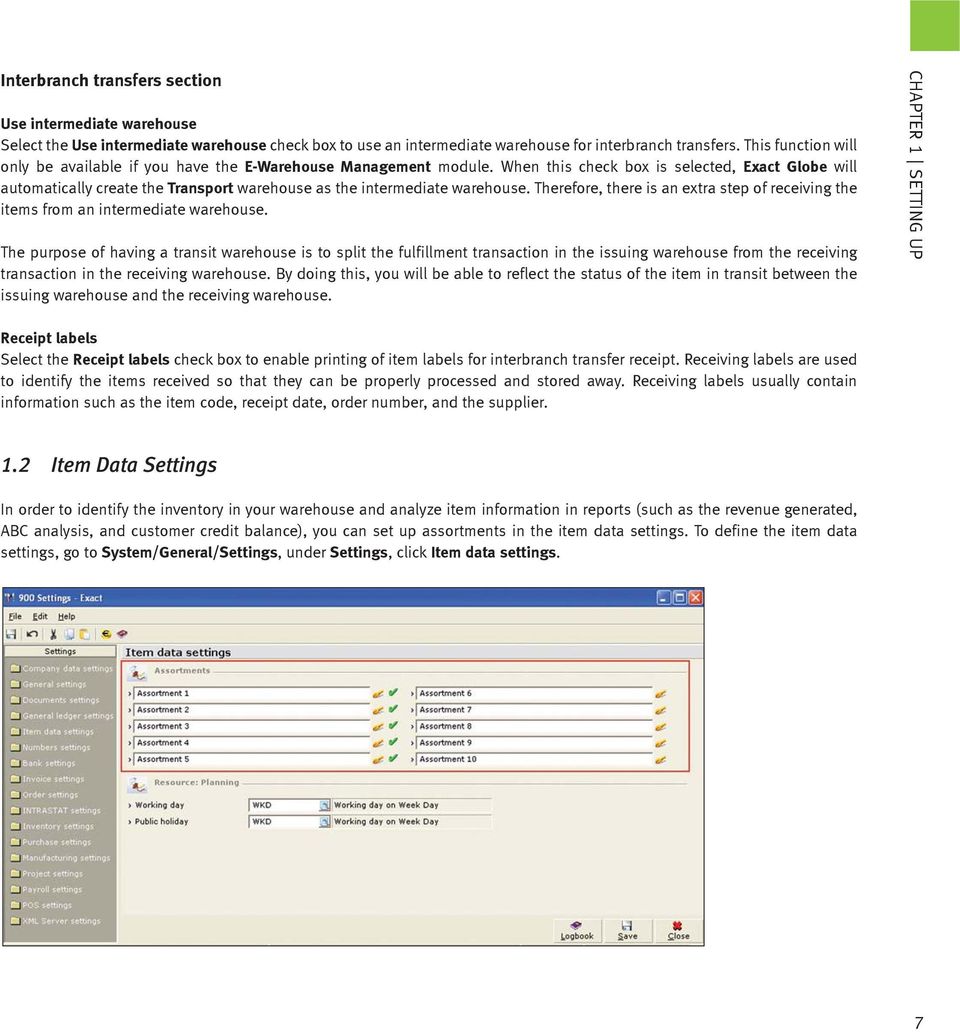
18 CHAPTER 1 SETTING UP Assortments section For the Inventory Management and E-Warehouse Management modules, only the settings in the Assortment section will be relevant for item data. Assortments are used to categorize different types of items that share certain common properties. Assortments and its properties are user defined. You can use assortments to classify the inventory for better item management, warehouse management, and reporting purposes. For example, in materials resource planning or stock valuation for a specific group of items, you can use assortments to select the group of items you want instead of generating the data for each item. Assortments do not have a financial impact on the item and inventory transactions. To create a new assortment: 1. Click and the Assortments box is displayed. 2. Click New, and then type a code and description for the new assortment. 3. Click Save to save the new assortment and then Close. The new assortment will be displayed in the Assortments box. 1.3 Purchase Settings Purchase settings determine how inventory is processed during the receipt of purchase orders. The settings that are related to inventory and warehouse management in purchase settings are settings for receiving of purchase orders. To define the purchase settings, go to System/General/Settings and then click Purchase settings. 8

19 Receipt section The settings under this section determine whether you need to assign unique serial/batch numbers, whether you can block batch number automatically, print receiving labels, and receiving slips upon receipt of purchased items. The settings in the receipt section allow you to define the things you would want to do upon receiving the items. Assign serial/batch numbers Select the Assign serial/batch numbers check box to make it mandatory for every purchase receipt to be assigned with a unique serial number. This setting is available only if you have the E-Serie/Batch module. CHAPTER 1 SETTING UP Serial and batch numbers are unique numbers assigned to items for the purpose of identification and tracking. Serial numbers are unique for one unit of item; for example item M1350 with a quantity of 10 will be assigned 10 unique serial numbers, one for each item. Batch numbers are unique for each batch quantity of items; for example, one batch of 10 screws will be assigned one unique batch number. If you do not select this option, it is not mandatory to assign serial/batch numbers during the receipt of the items. In this case, you can assign serial/batch number later via the Item transaction card or upon the delivery of the goods. In order to be able to assign serial/batch numbers to an item, the attribute Serial or Batch must be enabled in the item maintenance under the Inventory tab. The use of serial/batch items also work concurrently with the settings in Order settings, under the Entry section at Selection: Serial/batch numbers. If the Selection: Serial/batch numbers is set to Manually and the Assign serial/batch numbers check box is selected, then it is possible to reuse the existing serial numbers at the moment of receiving the items by selecting Yes to continue when you are prompted the message Already exists - Continue anyway?. If the Selection: Serial/ batch numbers is set to Valid, then it is not possible to reuse existing serial numbers and you must define unique serial numbers for the items at the moment of receipt. If you clear the Assign serial/ batch numbers check box, then it is possible to receive serial/batch items without assigning serial or batch number to them. You may manually assign the serial/batch numbers at a later stage during the fulfillment of the serial items in the sales process. Block batch numbers automatically Select the Block batch numbers automatically check box to automatically block batch numbers from being used during the receipt of purchase orders. Receipt labels Select the Receipt labels check box to enable the printing of receipt labels upon the receipt of purchased items. Receipts labels are stick-on labels printed with information about the item such as bar code, product code, product name, serial numbers, and other information, that can be pasted on the items being received for easy identification. 9

20 CHAPTER 1 SETTING UP Receiving slips Select the Receiving slips check box to enable the printing of receiving slips upon the receipt of purchased items. A receiving slip is a document printed with information on what has been actually received. It serves as a proof document to acknowledge the receipt of items. Exchange rate based on receipt date Select the Exchange rate based on receipt date check box to enable the system to derive the receipt amount from the exchange rate on the receipt date during purchase order receipt. Otherwise, the receipt amount will be derived from the exchange rate on the purchase order date. 1.4 Order Settings Order settings determine how inventory is processed during fulfillment and shipment of sales orders. The settings that have to be defined for inventory and warehouse management are settings for sales order fulfillment and shipment. To define the order settings, go to System/General/Settings and then click Order settings. 10

21 Entry section The order settings in the Entry section determine the settings in the sales order entry screen when you create a new sales order at Order/Entries/Sales orders. For further details on the three sections in the sales order entry screen, see 2.1 Creating and Maintaining Sales Orders in E-Sales Order. Selection: Serial/batch numbers Select the required option to enable the selection of serial/batch numbers when creating or fulfilling a sales order. The options available are: Manually - This option allows you to manually select the serial/batch numbers. By default, this option is selected. Valid - This option allows you to select only from a list of available serial/batch numbers linked to existing stock. Available serial/batch numbers are numbers that are not blocked or have not expired. All - This option allows you to select from all available serial/batch numbers in the system. CHAPTER 1 SETTING UP Fulfillment section The order settings in the Fulfillment section are for sales order fulfillment (at Order/Entries/Fulfillment). Create cost price entry Select the type of debtor to be used in the item transaction card (at Order/Items/Cards, select the fulfilled item, click Card, select the sales order, and click Our ref.) after sales orders have been fulfilled, if the sales order debtor and the invoiced debtor are different. The options available for selection are Sales order debtor and Invoice debtor. Check credit line Select the Check credit line check box to check the total amount of the sales order to be fulfilled against the credit limit of the invoiced debtor before the sales order can be fulfilled. If the total amount of the sales order exceeds the invoiced debtor s credit limit, the sales order cannot be fulfilled. If this check box is not selected, the sales order can be fulfilled even though the total amount of the sales order exceeds the invoiced debtor s credit limit. Use enrichment Select the Use enrichment check box if you want the Enrichment button at Order/Entries/Picking list to be available. Serial/batch numbers and warehouse location of the items have to be defined if you want to use the enrichment feature. For further details on enrichment, see 4.7 Allocating and Enriching Items in E-Sales Order. 11
22 CHAPTER 1 SETTING UP Hours Select the Hours check box to enable hour items to be fulfilled. Use multiple layouts Select the Use multiple layouts check box to print several layouts at the same time during the fulfillment of sales orders. Multiple layouts are available for delivery notes, order confirmation, and service slips. If this check box is selected, the System/Logistics/Layouts menu path will be available. Selection: Multiple Select the Selection: Multiple check box to fulfill more than one sales order at the same time. If this check box is not selected, only one sales order can be selected for fulfillment whereby the sales orders have to be fulfilled separately. Check stock Select the Check stock check box to check the availability of the items in the warehouse before fulfillment. Sales orders cannot be fulfilled if there is insufficient stock in the warehouse, and delivery note will not be printed. If this check box is not selected, sales orders can be fulfilled, and delivery notes will be printed even though the stock level is negative. Shipment section Generate tracking number Select the Generate tracking number check box to generate the shipment tracking numbers. 12
23 1.5 General Ledger Settings General ledger settings determine how financial transactions are managed in the system. The inventory-related general ledger settings allow you to define the default general ledger (G/L) accounts and journal to be used for inventory transactions. To define the general ledger settings, go to System/General/Settings and then click General ledger settings. CHAPTER 1 SETTING UP 13
24 CHAPTER 1 SETTING UP General ledger section Invoices / items to be received Type or select the Invoices/items to be received (ITR) general ledger (G/L) account, which is used as a suspense or intermediate account at receipt of items and purchase invoices. The ITR G/L account is used for balancing of double entry. When items are received pending invoice, the financial entry involved will be debit stock G/L account and credit the ITR G/L account. When the invoice is received subsequently, the financial entry will be to debit the ITR G/L account and credit the creditor G/L account. In addition to this, it is also used for receiving of invoice before goods. In this example, the G/L account is also called Items to be received. Journal section Item transactions Type or select the journal which is used to record item transactions. General section Invoices / items to be received per item Select the Invoices / items to be received per item check box if you want to use different invoices or items to be received (ITR) G/L accounts for different items or item groups. By default, the check box is not selected. This means only one ITR G/L account is used for all items and item groups. In this scenario, the standard ITR G/L account to be used will be based on the default ITR G/L account you have selected at Invoices / items to be received under the General ledger section. Note: If you have selected the check box, you will see the Invoices / items to be received field in the item group and item maintenance screens. 14
25 1.6 Numbers Settings Numbers settings determine how the sequential numbers for journal entries are generated. In addition, it also allows you to define the start number for various logistics-related documents such as the delivery notes and interbranch transfer slips. Based on the start number, the subsequent sequential numbers will be assigned to the documents. To define the numbers settings, go to System/General/Settings and then click Numbers settings. CHAPTER 1 SETTING UP 15
26 CHAPTER 1 SETTING UP General section Use external numbering Select the Use external numbering check box to enable the external numbering functionality in Exact Globe. This functionality allows you to use the external numbers in your business documents apart from the standard numbering system based on the Entry, Our reference, and Your reference numbers. Once you have enabled the external numbering functionality, you can define the numbering rules and the number ranges for the external numbers. The system will then assign external numbers for the specific business transactions based on the defined numbering rules and number ranges. Logistics section Delivery note number Type the start delivery order number to be printed on the delivery note. An order can be delivered in several parts or at a different time. As such, there can be several deliveries per order. This number will be automatically updated whenever a delivery note is printed. Interbranch transfer number Type the start number to be used in the interbranch transfer. This is a running number and is automatically generated whenever a new interbranch transfer is recorded. Alternatively, you can select the Delivery note number check box to use the delivery note number when you record the interbranch transfer. Note: Interbranch transfer number is disabled if you select the Delivery note number check box. 16
27 Chapter 2 Preparing Warehouses and Items for Use
28 CHAPTER 2 PREPARING WAREHOUSES AND ITEMS FOR USE PREPARING WAREHOUSES AND ITEMS FOR USE Defining Warehouses Defining Item Groups Defining Units of Measurement Defining Assortments Defining Serial/Batch Numbers Defining Items Batch Update of Existing Items Recoding Items Copying Items 18
29 2. Preparing Warehouses and Items for Use Before populating Exact Globe with items, you should first define holding areas for your inventory. This is termed as a Warehouse in Exact Globe. A warehouse provides characteristics of your holding areas. You can specify the items to be stored in each warehouse. You can also assign different employees to different warehouses to manage it. This is useful as a control measure in your organization. Apart from that, you should also define the characteristics of your stock items. This allows you to include various different information of the item including the price, the markup, its suppliers or purchasers, the warehouse attributed to it, and other information. Maintaining the information for all these varied characteristics ensures the item will be managed properly. For instance, you can specify whether the item is a sellable item. This ensures that when a sales invoice is created, if a non-sellable item is accidentally chosen, the system will alert you to this. 2.1 Defining Warehouses A warehouse is used to define the location where inventory is stored. It can contain the address of the warehouse as well as assigned employees and items in a particular warehouse. Even if your organization does not have a physical warehouse, it would be beneficial to create one in Exact Globe in order to better reflect the way your inventory is managed. A new installation of Exact Globe will have one warehouse already defined. CHAPTER 2 PREPARING WAREHOUSES AND ITEMS FOR USE Creating warehouses 19
30 CHAPTER 2 PREPARING WAREHOUSES AND ITEMS FOR USE To create warehouses: 1. Go to Inventory/Warehouse management/warehouses and click New. The Maintain warehouses screen will be displayed. 2. Type a unique warehouse code and a descriptive name to identify the warehouse. This is mandatory. If Name is left blank, it will be automatically filled in with the same details as Warehouse code. 3. Select a status for the warehouse. This denotes whether the warehouse is in operation or not. Select Active if it is in operation and Blocked if it is not. There may be times when you need to block the warehouse, for instance when the warehouse/business is closed for stock taking activities or when it has received structural damage and is not fit for storing your inventory. 4. Under the Basics tab, fill in the address for the warehouse. Although optional, this is useful for differentiating storage locations later. 5. Type or select a contact person for this warehouse at Contact. This contact person may or may not have rights to the warehouse. 6. Click Save to save the information and Close to exit. Note: You can view the items that can be stored at this warehouse under the Items tab. Once you have created your inventory items, you can assign them to each warehouse later. The Serial/batch tab displays information about the inventory for serialized or batch items in a particular warehouse. When creating a new warehouse, this tab will not show any information as no item has been assigned to the warehouse yet. Under the Rights tab, assign an employee to be responsible for the warehouse. This acts as a control measure for your organization since only authorized employees can make changes to the warehouse. However, you can assign employees only after you have saved other information for the warehouse. 2.2 Defining Item Groups After creating a warehouse, you are advised to create item groups before creating items. This is to allow you to link each item to an item group in the item maintenance. The item groups enable you to categorize the items for the purpose of financial reporting. Having item groups makes it easier for specifying the general ledger accounts that will be used for recording logistics transactions such as sales or purchase of items that belong to the respective item groups. For instance, you may want to specify that items in the Software group is to be linked to Revenue of software account and Cost of Goods sold software account while items in the Hardware group is to be linked to the Revenue of hardware account and Cost of Goods sold hardware account. Linking each item to an item group will ensure that the appropriate financial transactions are carried out. 20
31 Creating item groups To create item groups: 1. Go to System/Logistics/Item groups and click New. The Item groups screen will be displayed. 2. Type a unique number at Item group, Code, and Description for the item group. This is mandatory. The Code can be the same as Item group. 3. Under the Basics tab, type or select the appropriate accounts at Revenue account and Cost of goods sold account. These are mandatory. 4. Under the Purchase tab, type or select the appropriate account at Stock account. This account reflects the account whereby the financial transactions of this stock are recorded. This is mandatory. 5. Click Save to save the information and the Close to exit. CHAPTER 2 PREPARING WAREHOUSES AND ITEMS FOR USE For Cost unit in the Basics tab, you may type or select the cost unit to be associated with this item group, if available. A cost unit can be a division of your organization, either geographically or departmental. This is useful when attributing the different parts of your organization to an item group which can be used for measuring performance. For the Purchase tab, you can type or select the Invoices/items to be received (ITR) G/L account to be used for the item group at Invoices / items to be received if you have selected the Invoices / items to be received per item check box under the General section in General ledger settings. If you do not define a specific ITR G/L account for the item group, the default ITR G/L account as defined in the General ledger settings under the General ledger section will be used when items or purchase invoices are received. The Price differences account is used to record the difference in prices between the standard cost price as specified by the supplier and the purchase invoice price during the point of purchase. For the Extra tab, Price list rounding is used to specify the appropriate rounding off method for the prices of items in this group. No rounding will not round off any amount. Round up will round the amount to the next higher number. Round down will round the amount down to the next lower number. This can be applied for your organization s policies in rounding off amount for a certain item group. This feature is applied only when the Round off button is clicked when maintaining price lists at Order/Price management/price lists, if relevant. When a price list for a particular item is clicked, the item will be rounded off according to the price list rounding method specified here. 21
32 CHAPTER 2 PREPARING WAREHOUSES AND ITEMS FOR USE 2.3 Defining Units of Measurement Defining different units of measurement allows you to use them to reflect different ways your inventory is packaged. For instance, your purchase of keyboards may be in boxes containing 12 pieces in each box. And when it is sold, the keyboards are sold by piece. For this, you can record your purchases by box and sales by pieces using different units of measurement. This is for more effective inventory handling and gives a more accurate reflection of your organization s business. Creating units of measurement To create units of measurement: 1. Go to System/Logistics/Units and click New. The Units screen will be displayed. 2. Type a unique name for the unit of measurement. This is mandatory. 3. At Type, select the appropriate measurement type. Select Length, Time, or Weight for units that measure length, time, and weight, respectively. Select Other for units that are not represented by any of the other options. 4. Select the Active check box to activate the unit of measurement. When a unit is Active, it can be used in your business operations. There may be times when you need to make a measurement unit inactive by clearing this check box. This is because you cannot delete an existing measurement unit if it is currently being used. If the unit is not used anymore in the future, you can make it inactive, thereby maintaining past items that use it while preventing future items from using it. 5. Click Save to save the information and then Close to exit. 22
33 2.4 Defining Assortments Assortments, in Exact Globe, are used in grouping or categorizing different types of items that have certain properties in common. The assortments and the properties are user-defined. For example, you can specify Color as an assortment for a car. You can then define its properties such as Black, Blue, Red, and so on. Assortments can be used in reports as search criteria. This will effectively create reports based on certain assortments that you want to view. Creating assortments CHAPTER 2 PREPARING WAREHOUSES AND ITEMS FOR USE To create assortments: 1. Go to Inventory/Items/Assortments and type a relevant name for each assortment. You can have up to 10 different assortments. 2. Click Maintain: Properties to define the assortment s properties. 3. Click New to add new properties to the assortment. 4. Type a unique code and a description for the property. This is mandatory. 5. Click Save to save the assortment s property. Click New to add new properties to the same assortment or Close to exit. Note: After creating properties for an assortment, you can also edit the details of a property by clicking property by clicking Delete after selecting a property. Edit or delete the 23
34 CHAPTER 2 PREPARING WAREHOUSES AND ITEMS FOR USE 2.5 Defining Serial/Batch Numbers Serial and batch numbers are used primarily for tracking purposes. These numbers are very useful especially when dealing with the quality of the item. If a complaint is received with regards to the item, the serial or batch number can be used to pinpoint its origins so that investigative steps can be taken. A serial number is unique and is used to identify a single piece of item. A batch number identifies a group of similar items for a particular production run. Creating serial numbers To create serial numbers: 1. Go to Inventory/Serial/batch/Serial and click New. The Serial/batch numbers screen will be displayed. 2. Type a unique serial number for the item. This is mandatory. 3. Type a description for the serial number. If you want to have the description in a different language, click. However, this is available only if the languages are defined at System/General/Settings, click General settings, under the Descriptions in list boxes section. 4. If relevant, click the Blocked check box to block the serial number from being used. 5. Under the General tab, type or select the item for the serial number in Item Code. This will link the serial number to the item and is mandatory. 24
35 6. Type or select the lot number the serial number is associated to, if available. Lot numbers are usually batches of item that will contain a range of serial numbers. 7. Type or select the start and end dates to define the date the serial number takes effect and expires, respectively. The start date is mandatory. 8. Type or select the supplier that supplies the item with this serial number, if relevant. 9. Type or select the warehouse the item with this serial number is stored in. This is mandatory. 10. Type or select the location within the warehouse the item will be stored in. This is mandatory and is available if the Warehouse location check box is selected at System/General/Settings, under Inventory settings at the Fulfillment section. 11. Click Save to save the serial number and then Close to exit. Note: If you want to view additional information on the movement of the item such as whether any new stock has been ordered or whether any stock is in transit, click MRP. The Item management: Planning screen for the item with this serial number displays the information. Copying serial numbers If you want to create a new serial number for another item with similar information, you can copy the information of an existing item. To copy serial numbers: 1. Go to Inventory/Serial/batch/Serial, select the item you want to copy the serial number details from, and then click New. The Serial/batch numbers screen will be displayed with the relevant information already filled in. 2. Type a unique number and description for the new serial number. 3. Fill in new information or edit the existing information. 4. Click Save to save the new serial number and then Close to exit. CHAPTER 2 PREPARING WAREHOUSES AND ITEMS FOR USE Creating batch numbers To create batch numbers: 1. Go to Inventory/Serial/batch/Batch and click New. The Serial/batch numbers screen will be displayed. 2. Type a unique batch number for the item. This is mandatory. 3. Type a description for the batch number. If you want to have the description in a different language, click. However, this is available only if the languages are defined at System/General/Settings, click General settings, under the Descriptions in list boxes section. 4. Click the Blocked check box to block the batch number from being used. 5. Under the General tab, type or select the item for the batch number. This will link the batch number to the item and is mandatory. 6. Type or select the lot number the batch number is associated to, if available. 25
36 CHAPTER 2 PREPARING WAREHOUSES AND ITEMS FOR USE 7. Type or select the start and end dates to define the date the batch number takes effect and expires, respectively. The start date is mandatory. 8. Type or select the supplier that supplies the item with this batch number, if relevant. 9. Type or select the warehouse and the location the item with this serial number is stored in. This is mandatory. 10. Type or select the location within the warehouse the item will be stored in. This is mandatory and is available if the Warehouse location check box is selected at System/General/Settings, under Inventory settings at the Fulfillment section. 11. Click Save to save the batch number and then Close to exit. Note: If you want to view additional information on the movement of the item such as whether any new stock has been ordered or whether any stock is in transit, click MRP. The Item management: Planning screen for the item with this batch number displays the information. Copying batch numbers If you want to create a new batch number for another item with similar information, you can copy the information of an existing item. To copy batch numbers: 1. Go to Inventory/Serial/batch/Batch, select the item you want to copy the batch number details from, and then click New. The Serial/batch numbers screen will be displayed with the relevant information already filled in. 2. Type a unique number and description for the new batch number. 3. Fill in new information or edit the existing information. 4. Click Save to save the new batch number and then Close to exit. 26
37 2.6 Creating New Items Items are the heart of your organization as they heavily determine whether your organization will be successful or not. For this reason, Exact Globe allows you to keep a lot of information related to an item. Creating new items CHAPTER 2 PREPARING WAREHOUSES AND ITEMS FOR USE 27
38 CHAPTER 2 PREPARING WAREHOUSES AND ITEMS FOR USE To create new items: 1. Go to Inventory/Items/Maintain and click New. The Items screen will be displayed. 2. Type a unique code and a description for the item. This is mandatory. 3. Type a search code which is used when searching for items. If this is left blank, it will be automatically filled in with the Item code. However, you may change it, if required. 4. Select an appropriate type for the item. A Standard type item allows it for normal business operations where it can be purchased and sold intact. A Bulk issue type item is used mainly in the manufacturing process. It is purchased for the purpose of creating a final product or enhancing an existing product. 5. Select the appropriate status for the item. Typically, a new item will have the Active and Future status only. Active items are items that can be purchased, sold, and manufactured. The Future status relates to items that have not been made active yet but which your organization has details about. 6. Type or select the appropriate dates to denote the validity of the item. If the start and end dates are specified, it is active within this period only. Typically, it will only have the From date specified. This means the item is active from that date onwards. The end date is filled in only if you want to discontinue the item after a certain date. 7. At Sls. unit, Price, type or select the sales unit and selling price of the item. The sales unit indicates the unit of measurement the item is sold at. For more details, see 2.3 Defining Units of Measurement. 8. Type or select a value-added tax code at Sales VAT code, where applicable. A VAT code can be defined at System/General/Countries/Tax codes. 9. Type the item's cost price as derived by your organization. The cost price is usually lower than the sales price so that the profit margin will be positive. 10. Type or select the assortment(s) that the item is linked to. The assortments available depend on the settings defined at Inventory/Items/Assortments. For more details, see 2.4 Defining Assortments. 11. Under the Attributes section, select the Text check box if you want the system to prompt the user to enter a longer description for the item in the Enter text item box during transactions involving the item such as creation of sales or purchase orders and invoices. This allows users to add in their own remarks for the item, the result of which will be shown in the Long description column. 12. Select the Divisible check box to allow the quantity of this item to be in decimals. This check box is enabled only if the item is not a serial item. 13. In the Text section, you can pre-define additional description that will be displayed in the Enter text item box when filling up sales or purchase orders and invoices. 14. Type alternative descriptions in different languages, if applicable. This is available only if the Descriptions in list boxes section is defined at System/General/Settings, under General settings. 15. Click Save to save the item's information and then Close to exit. 28
39 Markup (the percentage added to the cost price to reach the sales price) or Margin (the difference between the cost price and the sales price in percentage) will be automatically displayed depending on the selection at System/General/Settings, under Order settings, at Profit calculation. If no cost price is specified, this will be blank. The Purchase price will be automatically filled in according to the price defined under the Purchase/Sales tab. To specify that an item is a purchase item, add a new supplier under the Suppliers section. After adding the supplier, the Buy check box will be automatically selected under the Attributes: Purchase section. The item is then available for purchase. The Financial tab defines where inventory transactions (sale and purchase of goods) for the item are recorded in the financial ledgers. By default, the first item group in the list of item groups that are available in Exact Globe is automatically selected when you create a new item. You can still manually change the accounts. By default, the accounts defined in the item group will be displayed for the relevant account information under the Financial section. The mandatory accounts are Revenue, Stock, and Cost of goods sold. The Revenue account is the general ledger account where the sales revenue will automatically be credited when the item is sold. The Stock account is the general ledger account where the stock is automatically credited when the item is sold, and debited when the item is purchased. The Cost of goods sold account is the general ledger account where the cost of sales will automatically be debited when the item is sold. In the Financial section of the Financial tab, you can type or select the Invoices/items to be received (ITR) G/L account to be used for the item at Invoices / items to be received if you have selected the Invoices / items to be received per item check box under the General section in General ledger settings. If you do not define a specific ITR G/L account for the item, the default ITR G/L account as defined in the General ledger settings under the General ledger section will be used when items or purchase invoices are received. CHAPTER 2 PREPARING WAREHOUSES AND ITEMS FOR USE 29
40 CHAPTER 2 PREPARING WAREHOUSES AND ITEMS FOR USE Assigning and Removing Assigned Items to Warehouses After creating new items, you may want to assign the items to the appropriate warehouses. This allows you to better manage your items and to effectively segregate the usage of your warehouses based on items. To assign items to a warehouse: 1. Go to Inventory/Warehouse management/warehouses, select a warehouse that you want to assign items to, and then click Open. 2. In the Maintain warehouses screen, click Assign items. 3. In the Maintain warehouses - Assign screen, type or select the relevant location within the warehouse that you want to assign items to. This option is available if the Warehouse locations check box is selected under the Fulfillment section of Inventory settings at System/General/Settings. You need to specify the location before you can assign items to it. Click Assign. 4. In the Maintain warehouses - Items screen, select the relevant item(s) that you want to assign to the warehouse, and then click Process. In the Maintain warehouses - Assign screen, the selected item(s) will be displayed. 5. Click Close to exit. To remove assigned items from a warehouse: 1. Go to Inventory/Warehouse management/warehouses. Select an existing warehouse that you would like to remove assigned items from and then click Open. 2. In the Maintain warehouses screen, click Assign items. 3. In the Maintain warehouses - Assign screen, type or select the relevant location within the warehouse that contains the assigned items. You need to specify the location before you can remove the item's assignment. You also need to ensure that there is no stock available for the item before you can remove the item's assignment. Click Unassign. 4. In the Maintain warehouses - Items screen, select the relevant item(s) to remove their assignment, and then click Process. In the Maintain warehouses - Assign screen, the selected item(s) will be removed. 5. Click Close to exit. 30
41 2.7 Batch Update of Existing Items Now that you have your warehouses filled with your organization s items, there may be times when you need to update the data of multiple items at the same time. This can be due to an increase in shipping charges, for example. As such, the organization decides to increase the sales price for a range of items to absorb the shipping charges. Another example would be if there is a change in company policy whereby the maximum stock level of some items needs to be reduced. Exact Globe allows you to quickly update selected item information for multiple products to reflect scenarios like the ones above. For complete functionality of this feature, it is advised that you have the Add-in for Microsoft Excel already installed. Updating multiple items There are two types of information that can be updated for multiple items. Updating of item data will affect only the items individual characteristics, such as the pricing and grouping of the item. Updating of stock data will affect the stock information, such as stock levels and stock count cycle, of the items within a warehouse. A separate warehouse may have different stock information even for the same item. CHAPTER 2 PREPARING WAREHOUSES AND ITEMS FOR USE 31
42 CHAPTER 2 PREPARING WAREHOUSES AND ITEMS FOR USE To update multiple item data: 1. Go to Inventory/Items/Maintain and click Batch updates. 2. In the Update items screen, under the Data selection section, select Item data to update information for a range of items. 3. Under the Range section, define the criteria relevant to the batch updating of items. 4. Under the Change section, select the relevant check boxes to change the item data. Select the Cost price check box to update the cost price of item(s) according to the selected pricing scheme. Four options are available namely: Calculated cost price - Selecting this will change the cost price to be the same as the total of the calculated cost price plus the percentage that you specify. Having a negative percentage will reduce the total while having it at 0% will cause the cost price to be the same as the calculated cost price. This is relevant if the item is made up of different parts that your organization handles, in particular, involving assembly items or Bill of Materials (BOM). The calculated cost price of an item is the total cost price of its components. Cost price - Selecting this will change the cost price of the item according to the percentage that you specify. Having a negative percentage will reduce the cost price. For this example, your organization may decide to increase the cost price by 10%. Sales price - Selecting this will change the cost price to be the same as the total of the sales price plus the percentage that you specify. Having a negative percentage will reduce the total while having it at 0% will cause the cost price to be the same as the sales price. Supplier's purchase price - Selecting this will change the cost price to be the same as the total of the supplier's purchase price plus the percentage that you specify. Having a negative percentage will reduce the total while having it at 0% will cause the cost price to be the same as the supplier's purchase price. 5. Select the Stock controlled check box to update the item to a stock controlled item or non-stock controlled item. This option is available only if Type is selected. 6. Price lists, together with items, can have different assortment combinations. This capability allows all items within a set of combinations to follow the properties of a price list with the same combination. Selecting the Price list assortments check box will add the item(s) into the price list with the updated assortment combination. This option is available only if any of the Assortment options is defined at the bottom of the Change section. 7. Update the items' assortments by selecting them at the bottom of the Change section. 8. Click Show list to display the old and new item data in Microsoft Excel. 9. Click Update in Microsoft Excel's toolbar to confirm the information changes to Exact Globe. 10. Save and close Microsoft Excel, if required. 11. Click Close to exit. 32
43 To update stock data of multiple items: 1. Go to Inventory/Items/Maintain and click Batch updates. 2. In the Update items screen, select Stock data to update the stock information of items in a particular warehouse. 3. Under the Range section, define the criteria relevant to the batch updating of items. 4. Under the Change section, select the relevant check boxes to update the stock information of items described as follows: Default location - This is available only if you have selected the Warehouse location check box under the Fulfillment section of Inventory settings at System/General/Settings. This option allows you to update the default location for placement of the item within a warehouse. Purchase order level - This updates the minimum purchase order level for the items. Maximum stock - This updates the maximum quantity allowed of this item in a warehouse. Time of delivery - sales - This updates the time of delivery for sales for the item. Counting cycle - This updates the counting cycle for the item. 5. Click Show list to display the old and updated information in Microsoft Excel. 6. Click in Microsoft Excel's toolbar to confirm the information changes to Exact Globe. 7. Save and close Microsoft Excel, if required. 8. Click Close to exit. CHAPTER 2 PREPARING WAREHOUSES AND ITEMS FOR USE Note: Updating of stock data can be done to either a single warehouse every time or to all warehouses. This is different from updating of item data whereby you are able to update item information for a range of warehouses. 33
44 CHAPTER 2 PREPARING WAREHOUSES AND ITEMS FOR USE To update item group of multiple items: 1. Go to Inventory/Items/Maintain, and then click Batch updates. 2. In the Update items screen, under the Data selection section, select Item data to update the information for a range of items. 3. Under the Range section, define the relevant criteria for batch updating. 4. Under the Change section, select the relevant check boxes to change the item data. Select the Item group check box, and type or select the new value at New value to update the item group of the item(s) to the selected new item group. 5. Click Show list to display the old and new item data in Microsoft Excel. A message "Changed: item group. Link general ledger accounts? Invoices / items to be received: Changing the account will not recode existing transactions to the new account" will be displayed. Click No if you do not want to change the invoices to be received account. If you click Yes, a message "Depending on the size of your company, this function may take a long time because all files will be checked. Would you like to continue?" will be displayed. From here, click No if you do not want to update the item group, and Yes if you want to update the item group and the invoices to be received account for item(s) that will be updated with the item group's invoices to be received account. 6. Click Update in Microsoft Excel's toolbar to confirm the information changes to Exact Globe. The following condition must be met: The current Invoices to be received account must have zero balance per item, and all orders (purchase order, purchase return, and return to vendor (RTV)) on the current invoices to be received account must be completed. If the above condition is not met, then a message "Not updated, Some account do not have zero balance and / or still attached to some non-completed orders" will be displayed. The update process will be terminated. You must rectify the error before running the batch update successfully. 7. Save and close Microsoft Excel, if required. 8. Click Close to exit. 34
45 2.8 Recoding Items Recoding items in Exact Globe is the changing of code numbers for your items. In a normal business process, this does not happen very often. Recoding of items is not encouraged because transactions involving your organization s items are mostly tied to the item code. Changing the code of the item will affect other transactions extensively including sales, purchases, and financial transactions. There are also times when you need to merge similar items. This can be due to a mistake whereby two different employees created the same new item. In order to maintain just one instance of the item, both these items have to be merged. You can merge items by recoding one of the items to have the same code as the other. To recode an item: 1. Go to Inventory/Items/Maintain, select the item that you want to recode, and then click Recode. A message "This process may take some time. Continue?" will be displayed. 2. Click Yes and the Recode box will be displayed. 3. Type a new code for the item and click Recode. Typing a code of an existing item will merge the two items together. All outstanding quotations, sales and/or purchase orders must be processed first before a merge can occur. A message "Completed successfully: Recode" will be displayed. 4. Click OK to exit. CHAPTER 2 PREPARING WAREHOUSES AND ITEMS FOR USE 35
46 CHAPTER 2 PREPARING WAREHOUSES AND ITEMS FOR USE 2.9 Copying Items In the process of recording your organization s items into Exact Globe, there will be times when you encounter items that have similar properties. Exact Globe allows you to copy an existing item s properties when creating a new item. This significantly reduces the need to retype the same information, already contained in an existing item, into a new item. To copy item properties: 1. Go to Inventory/Items/Maintain, select an item to be copied, and then click Copy. 2. In the Copy Item screen, type the new item code, description, and search code. This is mandatory and the new item code must be unique. The Supp. item code box is automatically filled in (this box is available only if the Main supplier check box under the Copy section is selected). 3. Under the Copy section, select the relevant check boxes to copy the selected information. The boxes are enabled only if the item contains the relevant information. For example, the Attachment check box is enabled only if the item to be copied has an attachment. 4. Click OK to create the new item. The Items screen will be displayed. 5. Make the necessary changes for the new item and click Save. 6. Click Close to exit. 36
47 Chapter 3 Inventory Management
48 CHAPTER 3 INVENTORY MANAGEMENT INVENTORY MANAGEMENT Stock Count Purchasing Process Sales Process Internal Use Interbranch Transfers Location Transfers Inventory Costing 38
49 3. Inventory Management Inventory management involves managing the day-to-day inventory transactions such as stock counting, the receiving of inventory, fulfillment of inventory, internal use requests, inter-branch transfers, and inventory costing. The following are business processes described in the Inventory Management and E-Warehouse Management modules: Stockcount Purchasing process Sales process Internal use (Internal requisition) Inter-branch transfer Location transfer Inventory costing CHAPTER 3 INVENTORY MANAGEMENT 3.1 Stock Count Stock count is the process of counting inventory on a periodic basis throughout the year so that you have accurate information on inventory. Stock count is used to check for discrepancies between the physical and recorded inventory levels, and this is done on a frequency based on the value of the items. Usually if the value of a stock is higher, the stock is counted more frequently. This is to ensure that the inventory is consistently accurate and prevent discrepancies due to damage, loss, and theft. A counting cycle is used in Exact Globe to determine the frequency of stock count. The counting cycle (in days) for an item is defined per warehouse in the item maintenance (under the Inventory tab, double-click a warehouse in the Warehouses pane, and fill in a value at Counting cycle). Counting cycles determine when an item will be counted again after the last count. For example, item A has a counting cycle of 90 days and the last count was on January 1, Thus if you conduct a stock count on March 28, 2006, this function will check whether the item needs to be counted based on the counting cycle. It will not allow you to create a count because the next count for item A should be 90 days from January 1, When you process a stock count, two entries are recorded on the reference dates in the stock account and the cost of goods sold account respectively. If there are discrepancies between the physical quantity and the data in the system, there will be an amount adjustment in the stock account and the cost of goods sold account. The following financial transactions are recorded in the financial ledgers for the respective scenarios: Positive stock count - This occurs when the physical quantity is more than the system quantity. Debit the stock account and credit the cost of goods sold account. Negative stock count - This occurs when the physical quantity is less than the system quantity. Credit the stock account and debit the cost of goods sold account. 39
50 CHAPTER 3 INVENTORY MANAGEMENT To create a new stock count: 1. Go to Inventory/Warehouse Management/Counts and click New. You will see the Counts screen. 2. Select the warehouse where you want to conduct the stock count. You can also select a location if you have selected the Warehouse locations check box at System/General/Settings under Inventory settings. 3. Type or select an item code or a range of item codes for which you want to create a stock count. If you want to create a stock count for a group of items then you can type or select an item group or a range of item groups. Item groups are items with the same revenue, cost of goods sold and stock accounts. 4. Type or select the reference date when the stock count is created. By default, the current date is displayed. Select the Use: Counting cycle check box if you want to include the items that are eligible for stock count only. Items are eligible for stock count if the period starting from the date the item was last counted until the current date has exceeded the counting cycle. 5. Select the Sort by option if you want to sort the results of the stock count by items or warehouse locations. For additional sort options, you can define the ABC analysis to sort the items by the quantity used, sales quantity, revenue, cost of goods sold, purchase cost, and margin. 6. Select the Use inventory class from ABC analysis check box to enable the options for ABC analysis. For more information on ABC analysis, see 3.7 Inventory Costing. 40
51 7. Click New and you will see the Counts screen. Select the Use Cost of goods sold check box and the financial entries will be recorded in the Cost of goods sold account as defined in the item maintenance (under the Financial tab). Alternatively, you can specify the G/L account manually if it is different from the one specified in item maintenance. Only if there are no discrepancies found during the stock count for the item, you can proceed to step If you have selected the Warehouse locations check box at System/General/Settings, under Inventory settings, in the Fulfillment section, click under the Loc. column and you will see the Counts screen. Otherwise, proceed to step 9. Fill in the difference in quantity counted in a particular warehouse in the Difference column or the new quantity in the New column. The stock quantity is updated to zero in the background when you reset the stock quantity to zero via stock count. If this is a serialized or batch item, you need to specify the serial or batch numbers of items you want to count by clicking in the S/B column. Since it is not necessary to select any serial or batch number when the quantity in the New column is set to zero, the S/B column will be disabled accordingly. Click OK to exit. 9. Fill in the difference in quantity counted in a particular warehouse in the Difference column or the new quantity in the New column. If it is a negative stock count, type the difference in quantity (it must be a negative value) under the Difference column or the new quantity in the New column. Otherwise, if it is a positive stock count, type the additional quantity under the Difference column or the new quantity under the New column. The Counted column will automatically be selected. If you have selected the Warehouse locations check box and have defined the stock count quantity in step 8, the Difference and New column will automatically display the quantity defined earlier. 10. If this is a serialized or batch item, you need to specify the serial or batch numbers of items you want to count by clicking in the S/B column. If it is a negative stock count, you will see the Serial numbers For CAS:VG01 or Batch numbers For CAS:VG01 screen where CAS:VG01 is the item you want to count. Select the serial/batch numbers from a list of numbers available in the current stock, and then click Select to link the numbers to the stock count entry screen and exit automatically. Otherwise, if it is a positive stock count, you will see the Create: Serial number or Create: Batch number screen. Type the serial/batch number for the serial/batch item in Serial number or Batch number. If you are registering more than one serial item, click Advanced, type the number of serial numbers you want to create in Increment factor, then type the first serial number in From, and then press TAB. The last serial number in a series of running number will be displayed automatically in To. Click OK to save and exit and return to the Counts screen. 11. Under the Counted column, select the check box in the relevant lines to verify the count. 12. Click Process to generate the stock count. After processing is completed, the stock count transaction will be registered in the financial journals with an entry number. CHAPTER 3 INVENTORY MANAGEMENT In step 8, the order and inventory settings determine the stock count difference allowed for negative stock count. Stock count difference for positive stock count is not affected. If the Check stock check box is selected under Order settings and Counts: Check free stock is set to Yes under Inventory settings, the difference quantity entered must be less than or equal to physical stock per warehouse/warehouse location (in the Current column) and free stock per warehouse (in the Free stock column). If you enter a stock count difference that is more than the free stock in the warehouse, you will see a tooltip message "Must be less than or equal to : Free stock" and you will not be able to proceed to process the stock count. 41
52 CHAPTER 3 INVENTORY MANAGEMENT 3.2 Purchasing Process The purchasing process is related to the inventory business process because companies need to replenish depleted stock and fulfill customer orders. Purchase orders are created and sent to suppliers to request for the required items by the purchasing representative/buyer. Delivery of purchase orders by suppliers involves the receipt of items, processing of the attached documents such as delivery notes and invoices, and storage of the received items in an assigned location. An invoice is received either together with the items or separately. The invoice is then entered in the purchase journal to record the amount to be paid to the supplier for the items received. As an optional checking procedure, a reconciliation of the receipt to the invoice is done to ensure that the amount to be paid matches the amount and quantity of items received. After processing the invoice and paying the supplier, the purchase process is considered complete. In the event that there are damaged goods or the quantity delivered is more than the purchase order quantity, the items will be removed from the warehouse and sent back to the supplier s warehouse. A return receipt is created to register the returned stock. Upon receiving the returned items, the supplier will send a credit invoice to adjust the amount that was charged in the first invoice. During the transportation of goods from the supplier s warehouse to the customer s warehouse, additional cost such as transportation cost, insurance cost, inspection cost, import duties, and other taxes, are incurred within the purchasing process. The additional cost is called landed cost and needs to be added to the value of the stock so that it can be included to the calculation of margin and profit. Landed costs are not registered as a percentage or amount of the item during the purchase order or receipt entry. Therefore, the cost has to be booked directly to the purchase invoice by creating a separate landed cost invoice. The landed cost invoice is then allocated to the purchase receipt. Thus during stock valuation, the landed cost will be considered as part of the purchase receipt and will be included when updating the cost price of outgoing items. For more details on stock valuation and the stock valuation methods, refer to the 3.7 Inventory Costing. The following topics are relevant to this section: Receiving purchased items Reconciliation of receipts to invoices Creating and allocating landed cost invoices 42
53 Receiving purchased items When purchased items arrive at the warehouse, the items are first unloaded to a temporary waiting area before being processed and received. In the temporary waiting area, documents are checked against the items ordered to verify the physical item and quantity. In Exact Globe, the receipt of purchased items is registered at Purchase/Entries/Receipts. This function is available only if you have the E-Purchase module. Also, a purchase order must be printed before the items can be received because the purchase order must be sent to the supplier in order for the supplier to send the items. After the purchase receipt is created, the purchase receipt is recorded in the financial journals. If a receipt is created before the invoice then the entries are as follows: Debit the stock account Credit the invoice to be received Otherwise, if the receipt and the invoice are created on the same date, the following entries are recorded: CHAPTER 3 INVENTORY MANAGEMENT Debit the stock account Credit the invoice to be received Debit the invoice to be received Credit the accounts payable account 43
54 CHAPTER 3 INVENTORY MANAGEMENT To receive purchase order items: 1. Go to Purchase/Entries/Receipts, define the relevant criteria and then click Refresh to see a list of processed purchase orders. 2. Click Advanced under the Selection section in order to define the transaction date. At Transaction date, type or select a date to receive the items. The transaction date is the date the receipt will be recorded in the financial journals. 3. Select the purchase order you want to receive and click Receipts. You will see the Receipts screen. All items that are requested by the purchase order are displayed with the quantity ordered and the respective items' planned fulfillment dates. 4. Type the Your ref. (up to 30 alphanumeric characters) to register the receipt in the financial journals. This is an internal reference which will be used for invoicing purposes. In the Actuals column, type the quantity you are receiving. By default, the actual quantity displayed is the ordered quantity. In the case of partial receipt, you can type a quantity that is less than the ordered quantity. However, you are not allowed to receive more than the ordered quantity. 5. If the item is a serial/batch item, you need to type the serial/batch number in the Serial/batch number column. Type a new serial/batch number for each unit of the item received. If you want to create serial/batch numbers in a series of numbers for multiple units of the item, press F2 and you will see the Create: Serial number screen. Click Advanced, and then type the number of serial/batch numbers you want to create in addition to the first one. At the From box, type the serial number for the first item, then press TAB and the last number in the running series will be displayed automatically in the To box. Click OK to exit. 6. Click Process to process the receipt and exit. Reconciliation of receipts to invoices After receiving purchased items, reconciliation is usually carried out before payment to ensure that the correct amount is paid for the right quantity. Reconciliation is done periodically at regular intervals, for example at month-end or every quarter, to match the registered receipts with the corresponding invoices. In Exact Globe, both the receipt and the invoice have to be processed before reconciliation. This is a checking measure to ensure that the invoice has the correct prices and quantities for the purchased items. If the amount on the receipt does not match the invoiced amount, then the actual amount in the processed invoice for the items received needs to be adjusted. For more details on adjusting processed invoices, see 2.5 Correcting Processed Invoices in the Invoice user guide. Reconciliation of receipts to invoices is possible only if the following conditions are fulfilled: The amount and the quantity in the receipt(s) match those in the invoice(s) The invoice and receipt lines selected must have the same item code The receipt lines selected must have the same purchase order number. One invoice line can be reconciled to multiple receipt lines so long as both the invoice and receipt totals are equal. Multiple invoice lines can be reconciled to multiple receipt lines so long as the invoices have the same Our ref. The total amount for the selected invoice lines cannot be greater than that of the selected receipt lines. 44
55 CHAPTER 3 INVENTORY MANAGEMENT To reconcile receipts to invoices: 1. Go to Inventory/Warehouse management/reconcile and select Supplier or Item to group the receipts and invoices according to the selected option. 2. Type or select a date or a range of dates of receipts and invoices that you want to reconcile in the Date from boxes. Click Advanced if you want to define more criteria, and then click Refresh. A list of suppliers or items with the number of invoices, receipts, the invoiced amount, and the received amount will be displayed. 3. Select the supplier or item for reconciliation and click Zoom to view the transactions. 4. Select the receipts (and return receipts if any) and the matching invoices (and credit invoices if any) and then click Reconcile. Upon clicking Reconcile, both the receipt and invoice will be automatically removed from the Reconcile screen. Note that credit invoices are created manually and is thus registered without a purchase order number. Therefore, it is advisable to use the same Our ref. as the original invoice to identify the original invoice during reconciliation. Click Close to exit. 5. Repeat steps 3 and 4 until all the receipts and invoices are reconciled. Alternatively, you can click Automatically to let Exact Globe automatically reconcile the receipts and return receipts with the corresponding invoices. However, for credit invoice reconciliation, you need to manually match it with the original invoice. 6. Click Close to exit. 45
56 CHAPTER 3 INVENTORY MANAGEMENT Creating and allocating landed cost invoices Landed cost is the total cost incurred when an item is transported from one location to another. Landed cost such as insurance, transportation, and import duty are incurred during the purchasing process to deliver the items from the warehouse to the customer s warehouse. In Exact Globe, landed cost is added to the stock value of an item to get a more accurate cost price. This way, a more accurate cost price can be reflected in the stock value for the purpose of margin and profit calculations. Before allocating the landed cost in Exact Globe, you need to register the landed cost invoice in the financial ledgers (purchase journal) under a profit and loss account. To create an invoice for landed cost: 1. Go to Finance/Entries/Purchase, select the purchase journal, and then click Zoom. 2. Click New to create landed cost entries in the purchase journal and you will see the Make purchase entry screen. 3. In the invoice header, press TAB once and then type the date you receive the invoice for the landed cost in the Date box. By default, the current date is displayed in the Date and Reporting date boxes, and an entry number is automatically generated by the system for the purchase journal entry. The entry number depends on the settings defined at System/General/Settings, under Numbers settings at Purchase journal. 4. Press TAB to fill in the information or to accept the default values. You can type or select the relevant options by pressing F2. Fill in the following information at the header: Creditor - Select the creditor that you are creating the invoice for Your reference - Type the reference number provided in the invoice received from the supplier Amount - Type the total amount invoiced Description - You can add a description to identify the invoice By default, Our ref. is a system-generated number based on the settings at System/General/Settings, under Number settings at Purchase journal, and the invoice type selected is Purchase invoice. 46
57 5. Fill in the details of the landed cost in the entry lines. The relevant information is as follows: G/L, G/L - Description - Type or select the general ledger account code and the corresponding description will be displayed automatically. The entry for the landed cost will be recorded in this account journal. Amount - The amount will automatically be displayed with the total quantity as entered in the invoice header. You can change the amount for that entry line to reflect the charges for the respective landed cost. If you do change this amount, the next line will automatically display the total of the invoice header amount minus the amount for that invoice entry line. Description - You can add a description to identify the entry line. 6. Click Close to exit and the financial entries for the landed cost invoice will be registered at the selected general ledger accounts. Note: You can choose to add the information by clicking Columns at the toolbar and selecting the relevant check boxes. CHAPTER 3 INVENTORY MANAGEMENT To allocate landed cost: 1. Go to Inventory/Warehouse management/landed costs. This menu path is available only if you have the Inventory Management module and if Standard cost price (Classic) is not selected at Valuation method at System/General/Settings under Inventory settings. 2. In the Landed costs - To be allocated/unallocated screen, Allocation is the default method. Define the relevant criteria and click Refresh to display a list of landed cost lines that you want to allocate. Only entries in profit and loss accounts in the purchase journal (invoices) and general journal (estimation of cost for month-end closing when no invoice is received yet) can be selected. 3. Select the landed cost line you want to allocate and click Continue. 4. In the Landed cost - Receipts screen, define the relevant criteria and then click Refresh to display a list of receipts. 47
58 CHAPTER 3 INVENTORY MANAGEMENT 5. Select the corresponding receipt line to be allocated to the invoice and click Allocate. Information of the landed cost line selected earlier is displayed above the receipt lines. 6. In the Landed costs - Allocation screen, select an allocation method to allocate the cost to the receipt. Three methods are available and the following are the formulas for the respective methods: Quantity - (Quantity in sales units/total sales unit) * Amount to be allocated Value - (Value in default amount/total default amount) * Amount to be allocated Weight - (Quantity * weight/total weight) * Amount to be allocated Volume - (Quantity * volume/total volume) * Amount to be allocated Allocation using the quantity method uses the quantity in the allocated receipt. The value method uses the cost price of the item as defined in the item maintenance (Inventory/Items/Maintain) and is displayed in the Value column. You can also use the weight and volume method for non-countable items such as items in liquid form and items that are purchased in bulk. 7. Click Calculate to calculate the stock value after allocation and refresh the values on the screen. You can use this function to view the calculated values in the Costs column whenever you change the calculation method. 8. Click Process and a message "Completed successfully" will be displayed. Click OK to exit. 3.3 Sales Process The sales order process is closely connected to the inventory process because both processes involve the movement of stock when items that were ordered by customers are delivered from the warehouse(s). Firstly, the warehouse manager needs to identify the sales orders that are required for fulfillment on a certain date. Then he has to ensure that there is sufficient items and stock to meet the specific sales order items and quantity. If the warehouse has available items and sufficient quantity to meet the items requested by the sales order, then picking lists can be printed for the warehouse personnel to retrieve the items requested in the sales orders from their specific warehouse locations. Once the items are collected and packed for shipment, the sales order is ready for fulfillment. The following topics are relevant to this section: Generating reports on deliverables from stock Printing picking lists for sales orders Fulfilling sales orders Processing sales order shipment Generating reports on deliverables from stock Before items in sales orders can be delivered to customers, the warehouse will prepare the items for delivery. The preparation includes picking, packaging, and shipment of the items by the freight forwarder. Before items in a sales order can be fulfilled, the warehouse has to check whether the items are available in stock or if there is sufficient current available stock. In Exact Globe, you can generate a report on deliverables from stock in order to determine the sales orders that are ready for fulfillment. 48
59 To generate reports on deliverables from stock: 1. Go to Inventory/Reports/Deliverable from stock. 2. At the Warehouse box, select the warehouse of the deliverable items and then fill in the Fulfillment date box to display the orders that are expected to be fulfilled by a specific date. By default, the current date is displayed as the fulfillment date. 3. Click Display and the Deliverable from stock screen will display the sales orders that can be fulfilled. For more information on the deliverable from stock report, see 4.3 Deliverable from Stock. Printing picking lists for sales orders A picking list is a list of items to be fulfilled for a sales order sorted in the order of the items warehouse location(s). It is useful for warehouse employees so that they can pick the items at the right quantity at the respective warehouse location(s) easily and quickly. After determining the sales orders that can be fulfilled from the deliverables from the stock report, the warehouse employees can start retrieving the items for the respective sales orders. A picking list is then printed in order to retrieve the items in an efficient manner. You can choose to print the picking list separately before the fulfillment process or during the fulfillment process. The items printed on the picking list are based on the sales orders. CHAPTER 3 INVENTORY MANAGEMENT To print picking lists for sales orders: 1. Go to Orders/Entries/Picking list, define the relevant criteria and then click Search. Sales orders that match the defined criteria are then displayed. Alternatively, you can click Search to view all printed sales orders. 2. Select the relevant sales order and click Print. 3. Under the Type section, by default, Picking list is selected. If you want to include the item parts in the picking list, select the Explode check box under the Options section. 4. Type or select the layout for the picking list and click Print. Fulfilling sales orders When the items are picked and ready to be delivered, you can then proceed to fulfill the sales orders. Fulfillment of sales orders indicate that the items requested by customers have been satisfied and the items are ready for shipment and actual delivery. Fulfillment can be done only when sales orders are authorized and processed, and there is sufficient free stock for the ordered items. In Exact Globe, multiple sales orders can be fulfilled at the same time if the Selection: Multiple check box is selected at System/General/Settings, under Order settings, in the Fulfillment section. This functionality is useful if there are a huge number of sales orders to fulfill on a particular date. Partial deliveries are also allowed depending on the conditions set in the sales order. 49
60 CHAPTER 3 INVENTORY MANAGEMENT Exact Globe enables you to print packing lists and delivery notes during fulfillment. Packing lists are used to identify the items in the sealed packages, and are used by customers to identify the orders when receiving the items. Delivery notes list all the items and quantity delivered. Customers use delivery notes to check whether all the items listed in the delivery notes are delivered as requested in the sales orders, and also to confirm that the correct items and quantity are delivered. To fulfill a sales order: 1. Go to Inventory/Entries/Fulfillment and select Sales order under the Selection section. You can choose to display a list of sales orders that are planned for fulfillment on a specific date by typing or selecting the date in the Fulfillment date box. Define the relevant criteria and then click Refresh. 2. Click Advanced to define the transaction date for the fulfillment. In the Transaction date box, type or select the transaction date. The transaction date is the date of the actual delivery and is registered in the financial ledgers while the fulfillment date is the planned fulfillment date for the sales order. Select the sales order you want to fulfill and then click Fulfillment. 3. In the Fulfillment screen, type or select the warehouse location (by pressing F2) in the Location column. 4. Type the quantity to be fulfilled in the Actuals column. Partial deliveries are allowed if you have selected the Partial delivery allowed check box in the conditions set in the sales order (click Conditions at the sales order entry screen). 5. Type or select the serial/batch number in the Serial/batch column. To select a serial number, press F2, select the serial/batch number and then click Select. This step is applicable only to serialized or batch items. 6. Type or select the person in charge of the item in the Resource column. 7. If you want to print a picking list, click Picking list. Instead of printing the picking list separately at Orders/Entries/Picking list, this function allows you to print the picking list before you fulfill the sales order. 8. Click Fulfillment and you will see the Print: Sales orders screen. Select Final under the Print section. 9. Select None under the Output section if you do not wish to print a copy of the delivery note. Otherwise, select Printer to print a delivery note or select to send the delivery note by You can have the option to generate the sales order invoice at this point. Select the Generate invoices check box in the Entry data section if you want to generate an invoice. To print a copy of the invoice, select the Print invoices check box. The printed invoice is sent to the customer, along with the delivered items. If you want to generate invoice only for the items that are fulfilled, select the Lines check box. 50
61 11. Select the Packing list check box if you want to print the packing list for the sales order. 12. Click Start to process the fulfillment of the sales order, and/or print or send the delivery note. If you want to view the delivery note before printing or sending, click Preview. 13. After clicking Start, the Print invoices screen will be displayed if you have selected the Print invoices check box under the Entry data section. Under the Process section, select the Final option and select a layout for the invoice document. For the final invoice, you have the option of selecting Printer to print the invoice or to send the invoice by . You can also change the due date for the invoice in the Print invoices screen, and it will update the invoice due date set in the sales order conditions (click Conditions at the sales order entry screen). 14. Click Process to process and print the invoice. To fulfill multiple sales orders: 1. Go to Inventory/Entries/Fulfillment, define the relevant criteria and then click Refresh. Take note that fulfillment of multiple of sales orders is allowed only if you have selected the Selection: Multiple check box at System/General/Settings, under Order settings, at the Fulfillment section. 2. Hold down CTRL and select the sales orders you want to fulfill and click Process. 3. In the Print: Sales orders screen, select Final under the Print section. Select None under the Output section if you do not wish to print the delivery notes. Otherwise, select Printer to print the delivery notes or to send the notes to the customer by Select the Generate invoices check box under the Entry data section if you want to generate invoices for the sales orders. Select the Print invoices check box if you want to print the invoices. If you want to generate invoices only for the items that are fulfilled, select the Lines check box. 5. Select the Packing list check box if you want to print the packing lists for the sales orders. 6. Click Start to process the fulfillment of the sales orders, and/or print or send the delivery notes. If you want to view the delivery notes before printing or sending, click Preview. 7. After clicking Start, the Print invoices screen will be displayed if you have selected the Print invoices check box under the Entry data section. Under the Process section, select the Final option and select a layout for the invoice document. For the final invoice, select Printer to print the invoice or to send a softcopy by . You can also change the due date for the invoices in the Print invoices screen, and it will be update the invoice due date set in the sales order conditions (click Conditions at the sales order entry screen). 8. Click Process to process and print the invoices. CHAPTER 3 INVENTORY MANAGEMENT In step 4 of To fulfill a sales order, the order and inventory settings determine the quantity you are allowed to enter in the Actuals column. If the Check stock check box is selected in the Order settings and the Warehouse location check box is selected in the Inventory settings, the system will check the actual quantity based on the physical stock per warehouse location and the free stock per warehouse. If the actual quantity entered is more than the physical stock in the warehouse location, you will see a tooltip message at the entry box Must be less than or equal to: Stock. If the actual quantity entered is more than the free stock in the warehouse, you will see a tool tip message at the entry box Must be less than or equal to: Free stock. 51
62 CHAPTER 3 INVENTORY MANAGEMENT If the Check stock check box is selected but the Warehouse location check box is not selected, the system will validate the actual quantity based on free stock per warehouse and you will see a tool tip message if the actual quantity is more than the free stock per warehouse. If an interbranch transfer is created for a sales order, the interbranch transfer stock must be received before fulfilling the sales order. This feature prevents the unwanted situation where free stock is more than the physical stock in the warehouse. For more information on interbranch transfer, see 3.5 Interbranch transfer. Otherwise, you will see a message Not received: Linked interbranch transfer and you will not be able to proceed to fulfill the sales order. For multiple sales orders, only the sales orders which are linked to interbranch transfer requests that are not received will not be processed. These sales orders will be identified and listed in a sales order error report. In many practical situations, the actual delivery of goods can be different from the items listed in the sales order due to reasons such as replacing items that are out of stock and items that are measured in bulk (weight or volume). Exact Globe allows you to fulfill extra items based on existing sales order line or an additional new line in the sales order fulfillment screen. When you enter extra items in a new line in the fulfillment screen, the price of the items is calculated based on the price in the item maintenance. The additional line will be reflected in the sales order and invoice. Processing sales order shipment After sales orders are fulfilled, you can then process the shipment for deliveries to be made to customers. Processing of shipment is an optional step in the sales process and is used to track the shipment details such as shipment dates, delivery cycle times, and actual customer receipt dates. These shipment details provide a benchmark to further improve existing logistics processes. When processing shipment in Exact Globe, you can use a tracking number to track your deliveries. The tracking number is usually provided by the freight forwarder that is in charge of transporting the items to customers. The shipping method used is defined during the creation of sales orders. You can still change the shipping method after fulfillment but it must be done before processing the sales order shipment. You can print a receipt label for the shipment. Receipts labels are attached to the shipment so that the customer can identify the order for this receipt. 52
63 To process a sales order shipment: 1. Go to Inventory/Entries/Shipping, define the relevant criteria and then click Refresh. 2. Select the sales order that you want to ship and then click Shipping. 3. In the Shipment screen, the shipment method you have selected during the creation of sales order is displayed by default in the Item column. You can change the shipping method by clicking F2 and selecting the shipment method you want (defined at System/Logistics/Shipping methods). 4. Type the number of packages to be delivered in the Packages column, the tracking number of the shipment, and then click Process. The Tracking number column is enabled only if the Shipment check box is selected in the shipping method maintenance (go to System/Logistics/Shipping methods and open the shipping method displayed in the Item column). 5. In the Receipts label screen, click Start to print the receipt label. Click Cancel if you only want to process the shipment without printing the receipt label. CHAPTER 3 INVENTORY MANAGEMENT 53
64 CHAPTER 3 INVENTORY MANAGEMENT 3.4 Internal Use Internal use requests are orders made to fulfill needs within an organization, for example when an employee needs new equipment or service during the course of work or when there is a need to replenish stationery and tools at the workplace. Exact Globe allows you to create two types of internal use requests, namely the standard internal use requests and group internal use requests. An internal use request is created for requesting items or services to support daily internal processes in an organization. A standard internal use request contains a single item per request whereas a group internal use request contains multiple items per request. You can generate standard internal use requests in multiples but once saved, the requests will be divided into the individual standard internal use requests. This function is available in Exact Globe only if you have the E-Internal Usage license. After creating the internal use request, it has to be authorized by the employee s manager before the internal request can be fulfilled. In Exact Globe the authorization step is mandatory only if you have the selected the Internal use check box at System/General/Settings, under the Inventory settings, in the Authorize section. If items are not available in stock or if there is insufficient quantity, you can create purchase orders to replenish the items. In Exact Globe, you can create a linked purchase order to meet the requirements of a particular internal use request. When the purchased item is received, you can then fulfill the internal use request. The sequence of the process flow is displayed as follows: The following topics are relevant to this section: Creating and modifying standard internal use requests Creating and modifying group internal use requests Authorizing internal use requests Creating linked purchase orders Fulfilling internal use requests Deleting internal use requests In Exact Globe, internal use requests can be created by the persons requesting the items or by an administrator. User rights: You can only create, modify, or delete internal requests if you have the proper rights at System/HR & Security/Security roles. To enable the menu path for the user, you need to go to Menu/Inventory/Security roles to create a new role that has the rights to authorize or add the user to an existing role. 54
65 Creating and modifying standard internal use requests CHAPTER 3 INVENTORY MANAGEMENT To create standard internal use requests: 1. Go to Inventory/Entries/Internal use and select Internal use in the Selection section. Then, click New. You will see the Internal use screen. 2. At Item, Qty., Unit, Price, type or select the item and specify the quantity and then press TAB. The unit price and the total cost price (unit price multiplied by the quantity) will be automatically displayed. The price displayed is the cost price of the item and is defined in the item maintenance. 3. In the Date box, type or select the expected fulfillment date. The fulfillment date is the planned date for the fulfillment of the internal request item or service. Click Avail. stock if you want to check whether there is sufficient available quantity to fulfill the internal use request. Otherwise, you will have to generate a purchase order to fulfill the request. For details on how to generate a purchase order, see Creating linked purchase orders. 4. Type the reason for the request, which is mandatory, and then fill in additional details on the request at Note. If you press TAB, the creator's timestamp will be automatically displayed. This timestamp is used for tracking when the internal use request is created and when remarks are attached to the request. 5. Type or select the resource who is requesting this item or service and the corresponding cost center for that resource will be automatically displayed. If you prefer to record the expense to another cost center, you can type or select a cost center at the Cost center box. 6. Type or select the cost unit of the selected resource at Cost unit. By default, the cost unit linked to the item group of the requested item will be displayed. The creditor information is automatically displayed and it cannot be modified. The creditor is the requester by default, so that the company can reimburse a claim to the creditor account of the resource during payroll processing. 55
66 CHAPTER 3 INVENTORY MANAGEMENT 7. You can tell whether an item is available at Avail. stock. indicates insufficient stock and the main supplier's delivery time will be displayed next to MRP. indicates that there is sufficient stock. Click MRP if you want to view the materials requirement planning for the item requested. The materials requirement planning is a schedule to determine the items required, the quantity required and the date the item needs to be delivered. 8. Click Save to exit. You can specify the warehouse and warehouse location you want to use to fulfill the request. It is useful to specify a warehouse situated at an address that is convenient for the requestor to pick up the requested item. To specify the warehouse and warehouse location, click Advanced to enter the information at Warehouse, Location. If the item requested is a serial/batch item, you can assign the serial or batch number from current available stock at Serial number or Batch number. You can modify an internal use request as long as it is not in the authorized stage yet. If the request is already authorized, you have to remove the authorization before you can modify it. The purpose of removing the authorization is so that changes made to the internal use request has to be authorized again before proceeding to do a fulfillment. Creating and modifying group internal use requests To create group internal use requests: 1. Go to Inventory/Entries/Internal use and select Group internal use in the Selection section. Then, click New. You will see the Group Internal use screen. 2. At Selection code, type or select a selection code to categorize the request under this selection code. 56
67 3. Type a reason for creating the request at Reason. This is mandatory. 4. In the Item column, type or select an item to create a request for this item. You can select items with the stock-controlled, order-controlled, sales, and buy attributes. Besides that, you can also select machine hour items and expense items. Once entered, the item description, quantity, unit, unit price, amount, warehouse, cost of goods sold, and status are automatically filled under the respective columns. For more information, see 2.6 Creating New Items. 5. In the Quantity column, type the quantity of the requested item. By default, the quantity is Type or select a unit of measurement for the item in the Unit column. By default, the unit of measurement defined in the maintenance screen of the requested item is displayed. 7. In the Warehouse column, type or select a warehouse for the requested item. By default, the warehouse defined in the maintenance screen of the requested item is displayed. 8. Type or select a general ledger account for the costs of goods sold of the requested item in the Cost of Goods Sold column. By default, the general ledger account for the cost of goods sold defined in the maintenance screen of the requested item is displayed. 9. In the Resource column, type or select a resource for whom the request is created. This is mandatory. 10. In the Cost center column, type or select the cost center of the selected resource. By default, the cost center of the selected resource will be displayed. This is mandatory. 11. Click Save to exit. CHAPTER 3 INVENTORY MANAGEMENT To modify internal use requests: 1. Go to Inventory/Entries/Internal use, define the relevant criteria and click Search. The internal use requests that match the defined criteria are then displayed. 2. Select the internal use request you want to modify and click Open. You will see the Internal use or Group internal use screen with the request details. 3. Make the necessary changes and then click Save to save your changes and exit. Authorizing internal use requests After an internal use request is created, the internal use request can be authorized. Authorization is an important step in the internal use process flow because there is a financial cost as a result of the item requested for internal use and the cost has to be approved by the management personnel. Authorization is usually done by the management personnel responsible for the department s budget and business planning. In Exact Globe, authorization is an optional process. It is made mandatory only if you have selected the Internal use check box at System/General/Settings, under Inventory settings at the Authorize section. However, you can still remove the authorization if there is a need to modify or delete an authorized internal use request. User rights: You can only create, modify, or delete internal requests if you have the proper rights at System/HR & Security/Security roles. To enable the menu path for the user, you need to go to Menu/Inventory/Security roles to create a new role that has the rights to authorize or add the user to an existing role. Note that the requester is not allowed to authorize the internal use request. 57
68 CHAPTER 3 INVENTORY MANAGEMENT To authorize internal use requests or to remove the authorization from internal use requests: 1. Go to Inventory/Entries/Authorize and select Internal use or Group internal use in the Selection section. Define the relevant criteria and click Refresh. Internal use requests that match the defined criteria are then displayed. 2. Select the internal use request you want to authorize and click Open. 3. Click the Authorized process step to authorize the internal use request. Tip: You can also authorize the internal use request by selecting the relevant request and clicking Auth.. Alternatively, you can authorize the internal use request at Inventory/Entries/Internal use by opening an existing request and clicking the Authorized process step. Creating linked purchase orders A linked purchase order is a purchase order that is generated to meet the needs of an internal use request. The reason for this could be because there is insufficient or unavailable stock for the item or service requested. By linking the purchase order to the internal use request, you can allocate the quantity to the internal use request for the materials requirements planning. In Exact Globe, you need to authorize the internal use request before you can create a linked purchase order. When you create a purchase order from the internal use request, the system will automatically prompt you with an advised quantity to be purchased. The quantity advised will depend on the order policy code, stock PO level and the supplier PO size in the item maintenance (under the Purchase/Sales tab and the Inventory tab respectively). The order policy code determines the method by which the order requirements and stock is replenished. The order policy code available in Exact Globe are lot-for-lot (order controlled), fixed (stock controlled), period order (stock controlled), and reorder point (stock controlled). The stock PO level controls the minimum level of stock allowed at any point of time for an item. The supplier PO size determines the minimum quantity or a batch quantity that can be ordered from a supplier. To create linked purchase orders: 1. Go to Inventory/Entries/Internal use, define the relevant criteria and click Search. Internal requests that match the defined criteria are then displayed. 2. Select the internal use request you want to generate a purchase order for, click Open and then click Purchase. 58
69 3. In the Generate purchase orders screen, the quantity you need to fulfill this request is automatically displayed in the Advice column. If the item you requested is a stock controlled item, then select the Include: Stock controlled check box to see the advised quantity. 4. Click Purchase and the Purchase order screen will be displayed with the purchase order details filled out already. Ensure that the appropriate purchase order creation date and the fulfillment date are filled out so that the internal request can be fulfilled by the fulfillment date. 5. Click Close to exit. When you reopen the internal use request, you will be able to see the purchase order number at Creditor, PO (on the right). You can then track whether the purchase order items have been received from the suppliers by clicking Purchase. Fulfilling internal use requests If there is sufficient stock for the items requested or if the purchased items have already been received from the supplier, you can then fulfill the internal use requests. During fulfillment, you can choose to print an issue slip. The issue slip will be delivered to the requester of the item. Using the issue slip, the requester can verify item and quantity received. CHAPTER 3 INVENTORY MANAGEMENT To fulfill internal use requests: 1. Go to Inventory/Entries/Fulfillment, select the Internal use option under the Selection section, and then click Refresh to display all authorized internal use requests that have not been fulfilled. Click Advanced if you want to define more criteria. 2. Select the internal use request you want to fulfill and then type or select the date of fulfillment in Transaction date. 3. Click Fulfillment and you will see the Internal use screen. The actual fulfillment date entered in step 2 is automatically displayed in the Date column. If you have selected the Warehouse locations check box at System/General/Settings, under Inventory settings, in the Fulfillment section, you will see a Location column. In the Location column, type or select (by pressing F2) the warehouse location of the items that you want to use to fulfill the internal use request. By default, the quantity you need to fulfill the internal use request is displayed in the Actuals column. If this is a partial fulfillment, you can type the partial quantity. The actual quantity should always be the same or less than the authorized quantity in the # Authorized column. If the item is a serial or batch item, you must specify the serial or batch number in the Serial/batch column. 59
70 CHAPTER 3 INVENTORY MANAGEMENT 4. If you want to print a picking list for the item(s) requested, click Picking list. The picking list will contain information on the warehouse location of the items. For details on picking list, see 3.3 Sales Process. 5. Click Fulfillment to process the fulfillment of the internal use request. 6. In the Print screen, select a layout and click Start to print the issue slip. Otherwise, click Skip if you do not want to print the issue slip or Close to cancel the fulfillment. In step 3 of To fulfill internal use requests, the order and inventory settings determine the quantity you are allowed to enter in the Actuals column. If the Check stock check box is selected in the Order settings and the Warehouse location check box is selected in the Inventory settings, the system will check the actual quantity based on the physical stock per warehouse location and the free stock per warehouse. If the actual quantity entered is more than the authorized quantity (in the # Authorized column), you will see the tool tip message Must be less than or equal to: # Authorized. If the actual quantity entered is more than the physical stock in the warehouse location (in the Stock column), you will see a tool tip message at the entry box Must be less than or equal to: Stock. If the actual quantity entered is more than the free stock in the warehouse (in the Free stock column), you will see a tool tip message at the entry box Must be less than or equal to: Free stock. If the Check stock check box is selected but the Warehouse location check box is not selected, the system will validate the actual quantity based on free stock per warehouse and you will see a tool tip message if the actual quantity is more than the authorized quantity or the free stock per warehouse. If an interbranch transfer is created for an internal use request, the interbranch transfer stock must be received before fulfilling the internal use request. This feature prevents the unwanted situation where free stock is more than the physical stock in the warehouse. For more information on interbranch transfer, see 3.5 Interbranch transfer. Otherwise, you will see a message Not received: Linked interbranch transfer and you will not be able to proceed to fulfill the internal use request. Deleting internal use requests It is possible to delete internal use requests that have been created provided the requests are not authorized. If the requests are already authorized, you have to remove the authorization first before you can delete the internal use request. You can remove the authorization at Inventory/Entries/Authorize by selecting the relevant internal use request and click Authorize. To delete internal use requests: 1. Go to Inventory/Entries/Internal use, define the relevant criteria and then click Search. Internal requests that match the defined criteria are then displayed. 2. Select the internal use request that you want to delete and click Delete. A message "Delete the data selected?" is displayed. 3. Click Yes to delete. 60
71 3.5 Interbranch Transfers Warehouses at different locations can be managed differently for the same organization. This could be due to factors such as different management personnel and demand from customers and logistics business processes. Therefore, there are times when an item is stocked in one warehouse and not available in another because it has been discontinued or there is a strong demand for the item. When certain items or quantity is needed to fulfill a sales order or an internal use request but is available at another warehouse, an interbranch transfer is done to deliver the items from the issuing warehouse (where the item is available) to the receiving warehouse (where the item is requested). In Exact Globe, you can create an interbranch transfer to record the movement of stock from the issuing warehouse to the receiving warehouse. The interbranch transfer process flow starts from the Ordered step. If you have made authorization mandatory by selecting the Interbranch transfers check box at the Authorize section under Inventory settings (at System/General/Settings), you need to authorize the interbranch transfer before you can fulfill the interbranch transfer. After that, you need to fulfill the interbranch transfer to record the items when the items are fulfilled by the issuing warehouse and received in the receiving warehouse. This is done in the Fulfilled step. CHAPTER 3 INVENTORY MANAGEMENT You can use an intermediate warehouse to record the movement of stock in transit between the issuing warehouse and the receiving warehouse. If you select the Use intermediate warehouse check box under Inventory settings, the Received step is required. This function allows you to separate the steps for fulfillment at the issuing warehouse and receiving at the receiving warehouse. The sequence of the process flow is displayed as follows: Exact Globe also gives you the option of using receipt labels for interbranch transfer receipts. Receipt labels enable the receiving warehouse to identify the items and quantity received in the received package. From the receipt label, you can easily find out the item(s) and the received date. When the interbranch transfer is received by the warehouse, a receipt label is printed by the warehouse personnel and attached to the received packaged. Receipt labels are printed when items are received. For details on the settings for transit warehouse and receipt labels for interbranch transfer, see 1. Setting Up. 61
72 CHAPTER 3 INVENTORY MANAGEMENT The following topics are relevant to this section: Creating interbranch transfers Authorizing interbranch transfers Fulfilling interbranch transfers Processing interbranch transfer receipts Creating interbranch transfers To create interbranch transfers: 1. Go to Inventory/Warehouse management/interbranch transfers. In the Extra section, select the unit to be used for the transfer and then click New. The Sales unit and Purchase unit for the item is defined under the Basics tab and Purchase/Sales tab respectively, in the item maintenance. The units selected for the interbranch transfer will be used to display the transaction quantity during the creation of interbranch transfer. 2. In the Warehouse transfers screen, type or select the issuing warehouse and the receiving warehouse. The issuing warehouse must be different from the receiving warehouse. 3. At Reference date, type or select a date the interbranch transfer is created. Then type or select a date the interbranch transfer is expected to be fulfilled at Fulfillment date and press TAB. By default, the current date is displayed. 4. At the Item column, type or select (by pressing F2) an item. If you select by pressing F2, you will see a list of items with available current free stock. Select the item and click Select. By default, the Stock column displays the quantity in stock. 62
73 5. If you have selected the Warehouse locations check box at System/General/Settings, under Inventory settings, in the Fulfillment section, click in the Loc. column to select the destination warehouse location you are transferring the items to, and you will see the Warehouse transfer screen. Otherwise, proceed to step 6. Type or select a location in the Destination column to select a location of the receiving warehouse. Then type the interbranch transfer quantity in the Move column to transfer to the respective warehouse location in the receiving warehouse. If this is a serialized or batch item, you need to specify the serial or batch numbers of items you want to transfer by clicking in the S/B column. Click OK to save and return to the Warehouse transfers screen. 6. Then type the interbranch transfer quantity in the Move column. If you have selected the Warehouse locations check box and have defined the transfer quantity in step 5, the Move column will automatically display the quantity defined earlier. 7. If this is a serialized or batch item, you need to specify the serial or batch numbers of items you want to transfer by clicking in the S/B column. You will see the Serial numbers For CAS:VG01 or Batch numbers For CAS:VG01 screen where CAS:VG01 is the item you want to transfer. Select the serial/batch numbers from a list of numbers available in the current stock, and then click Select to link the numbers to the interbranch transfer and exit automatically. 8. Click Save and then click the Authorize. After the interbranch transfer is authorized, it is then ready for fulfillment. CHAPTER 3 INVENTORY MANAGEMENT Authorizing interbranch transfers Interbranch transfers involve the movement of stock from one warehouse to another, and the stock value of both the issuing and receiving warehouses will change after the transfer. Therefore, it is a good practice to get the authorization of management level personnel to authorize the interbranch transfer. In Exact Globe, authorization is mandatory only if you have selected the Interbranch transfer check box at System/General/Settings, under Inventory settings in the Authorize section. Otherwise, you can proceed to fulfill the interbranch transfer without authorization. User rights: You can only authorize interbranch transfers if you have the proper rights at System/HR & Security/User rights. To enable the menu path for the user, you need to go to Menu/Inventory/Security roles to create a new role that has the rights to authorize or add the user to an existing role. To authorize interbranch transfers: 1. Go to Inventory/Entries/Authorize and select Interbranch transfer in the Selection section. Define the relevant criteria and click Refresh. Interbranch transfers that match the defined criteria are then displayed. 2. Select the interbranch transfer you want to authorize and click Open. 3. Click Authorize to authorize the interbranch transfer. Tip: You can also authorize the interbranch transfer without opening the interbranch transfer order by selecting the order and then clicking Auth.. Alternatively, you can authorize the interbranch transfer at Inventory/Entries/Interbranch transfer when the interbranch transfer is being created. 63
74 CHAPTER 3 INVENTORY MANAGEMENT Fulfilling interbranch transfers After creating and authorizing (if you have made it a mandatory step) the interbranch transfer, the next step is fulfilling the interbranch transfer. This step will process and register the stock transaction for the quantity leaving the issuing warehouse and the quantity received by the receiving warehouse. To fulfill interbranch transfers: 1. Go to Inventory/Entries/Fulfillment. At the Selection section, select Interbranch transfer. 2. Click Advanced to define the relevant criteria. You can choose to display a list of interbranch transfers for a specific fulfillment date by typing or selecting the date in the Fulfillment date box. Then click Refresh to display a list of authorized interbranch transfers. 3. Select the interbranch transfer you want to fulfill and then type or select the date of the fulfillment in the Transaction date box. The fulfillment date selected in the Transaction date box is the actual transaction date, whereas the fulfillment date selected in the Fufillment date box is the planned fulfillment date which was filled in when the interbranch transfer was created. 4. Click Fulfillment and you will see the Warehouse transfers screen. 5. If you have selected the Warehouse locations check box at System/General/Settings, under Inventory settings, in the Fulfillment section, click in the Loc. column and you will see the details of the item location. Otherwise, proceed to step 6. Press F2 in the Destination column to select a location in the receiving warehouse, and then type the interbranch transfer quantity in the Move column. If this is a serialized or batch item, you need to specify the serial or batch numbers of items you want to transfer by clicking in the S/B column. Click OK to save and return to the Warehouse transfers screen. 6. Then type the interbranch transfer quantity in the Move column. If you have selected the Warehouse locations check box and have defined the transfer quantity in step 5, the Move column will automatically display the quantity defined earlier. 64
75 7. If this is a serialized or batch item, you need to specify the serial or batch numbers of items you want to transfer by clicking in the S/B column. You will see the Serial numbers For CAS:VG01 or Batch numbers For CAS:VG01 screen where CAS:VG01 is the item you want to transfer. Select the serial/batch numbers from a list of numbers available in the current stock, and then click Select to link the numbers to the interbranch transfer and exit automatically. 8. Click Process to exit and save the interbranch transfer fulfillment. 9. In the Print screen, select a layout and click Start to print the issue slip. You will see a preview of the issue slip. Click Close to cancel the fulfillment. In step 5 or 6 of To fulfill interbranch transfers, the inventory settings determine the quantity you are allowed to enter in the Move column. If the Interbranch transfers: Check free stock is set to Yes and the Warehouse location check box is selected in the Inventory settings, the system will check the move quantity based on the physical stock per warehouse location and the free stock per warehouse. If the move quantity entered is more than the physical stock in the warehouse location, you will see a tool tip message at the entry box Must be less than or equal to : Stock net of enrichment. If the move quantity entered is more than the free stock in the warehouse, you will see a tool tip message at the entry box Total Move Quantity Must be less than or equal to: Free stock. CHAPTER 3 INVENTORY MANAGEMENT If the Interbranch transfers: Check free stock is set to Yes but the Warehouse location check box is not selected, the system will validate the move quantity based on the free stock per warehouse and you will see a tool tip message if the move quantity is more than the free stock per warehouse. Processing interbranch transfer receipts You can also use a different warehouse as a transit in the process of delivering the items from the issuing warehouse to the receiving warehouse. An example of this is when imported items that need customs clearance are stored in the customs warehouse before being released to the receiving warehouse. This step is relevant in Exact Globe only if you select intermediate warehouse check box under Inventory settings. If you choose to use a transit warehouse, you will need to receive the transferred item into the receiving warehouse by processing the interbranch transfer receipt. 65
76 CHAPTER 3 INVENTORY MANAGEMENT To process interbranch transfer receipts: 1. Go to Inventory/Entries/Interbranch transfer receipt. 2. At Warehouse, select the warehouse that will receive the interbranch transfer of items. You can also type or select a fulfillment date in the Fulfillment date box to display only interbranch transfers on the planned fulfillment date. Click Refresh and a list of interbranch transfers will be displayed. 3. Select the interbranch transfer that the warehouse is receiving and then click Receipts. 4. Click in the Loc. column and you will see the details of the item location. This column is available only if you have selected the Warehouse locations check box at System/General/Settings, under Inventory settings, in the Fulfillment section. Otherwise, proceed to step 5. Press F2 in the Destination column to select a location in the receiving warehouse and then click OK to exit. 5. Click Process to save the interbranch transfer receipt. 66
77 3.6 Location transfers In Exact Globe, a warehouse can have multiple warehouse locations. When you move stock from one warehouse location to another location within a warehouse, the process is called a location transfer. The location transfer function is available only if you have selected the Warehouse locations check box at System/General/Settings, under Inventory settings, in the Fulfillment section. Warehouse locations are used to easily store, locate, and retrieve items from stock and can be as specific as the storage bin or shelf that the item is stored. Transfer of stock from one warehouse location to another is needed in some cases when the item is made obsolete and has to be removed from its current location to another to avoid mixing with the other items. Another purpose for allocating different warehouse locations within the same warehouse is to identify the status of an item from its current warehouse location. For example, if the item is in the receiving location, then we know from the current warehouse location that the item is waiting to be received into the warehouse. When the item is processed and has already been received, it is then transported to the appropriate warehouse location in the warehouse. Therefore, you need to do a warehouse location transfer to reflect the movement of the item and transferred quantity. CHAPTER 3 INVENTORY MANAGEMENT The following topic is relevant to this section: Creating location transfers Creating location transfers To create location transfers: 1. Go to Inventory/Entries/Location transfers. In the Warehouse section, select the warehouse and warehouse location for which you want to create the location transfer. In the Extra section, select the unit to be used for the transfer. 2. Type or select the location transfer date at Transaction date. Based on the unit selected, the quantity displayed or typed during the creation of the location transfer will be in terms of that unit. 67
78 CHAPTER 3 INVENTORY MANAGEMENT 3. Click New and in the Location transfers screen, type or select an item to be transferred at the Item column. If you select by pressing F2, you will see a list of items with the available current free stock. Select the item and click Select. By default, the Stock column displays the quantity in stock. 4. At the Location column, type or select (by pressing F2) a warehouse location you want to transfer from. 5. Click in the Loc. column to select the destination warehouse location you are transferring the items to, and you will see the Location transfers screen. Type or select a location in the Destination column to select a location in the same warehouse. Then type the location transfer quantity in the Move column. If this is a serialized or batch item, you need to specify the serial or batch numbers of items that you want to transfer by clicking in the S/B column. You will see the Serial numbers For GC:V200 or Batch numbers For CAS:VG01 screen where GC:V200 is the item code you want to transfer. Select the serial/batch numbers from a list of numbers available in the current stock, and then click Select to link the numbers to the location transfer and exit automatically. 6. Click OK to exit automatically and return to the Location transfers screen. 7. Click Process to create the location transfer. You will see a preview of the location transfers details in the Report screen. Click Close to exit and save the location transfer. 3.7 Inventory Costing Inventory costing is the process of assigning the right cost to the cost of goods sold and ending inventory. Cost price fluctuates over time due to factors such as inflation, demand, and supply. Therefore, inventory costing is needed to capture the changes in the cost price and reflect the changes in the closing stock and cost of goods sold. It is important to capture the cost price fluctuations to enable better strategic planning and strategic decision making purposes such as estimating the monetary value of inventory, the margin from sales, the cost of manufacturing, cost of operation, and the value of assets in a company. Inventory costing is usually done at periodic intervals to close a financial period. Fluctuations of cost price in incoming transactions are reflected in the current stock value by updating the outgoing stock transactions (in the stock account) and cost of goods sold (in the profit and loss account). To reflect the changes in cost, you need to calculate the value of your closing stock. You can then use the closing stock value to determine the cost of goods sold and current stock value. The cost of goods sold during an accounting period is determined by the opening stock, the purchased stock, and the closing stock. The following formula illustrates the relationship among the different amount: C = O + P - E C = Cost of goods sold O = Opening stock P = Purchased stock E = Closing stock 68
79 The following methods can be used to determine the ending inventory: Periodic inventory method - This method records the opening inventory quantity but does not keep track of the quantity and cost during the buying and selling of stock. It derives the cost of goods sold using physical count of the stock at periodic intervals (for example, year-end, quarterly, month-end). This method keeps the cost of maintaining the inventory count low but inventory data is not updated (inaccuracy cannot be adjusted immediately). Perpetual inventory method - This method records the opening inventory quantity and at the same time updates the quantity and cost during the buying and selling of stock. Thus the inventory information is constantly updated. The stock valuation method a company uses will have an impact on the balance sheet, income statement (gross profit margin), and statement of cash flow. Stock valuation methods use incoming and outgoing stock transactions to calculate the stock value. Incoming transactions are transactions of items coming into the warehouse such as purchase order receipts, return receipts, positive stock counts (physical quantity is more than the system quantity) and production receipts. Outgoing transactions are transactions of items leaving the warehouse such as sales order deliveries, return deliveries, negative stock counts (the physical quantity is less than the system quantity) and production issuing. The stock valuation methods available in Exact Globe are as follows: CHAPTER 3 INVENTORY MANAGEMENT Standard cost price Standard cost price (Classic) Average purchase price FIFO LIFO Real time APP Standard cost price and Standard cost price (Classic) The Standard cost price method uses a predetermined fixed cost price for the item. This method is simple to use and easy to implement. It uses a standard cost regardless of the change in the item s cost price. However, this method does not provide the accuracy needed by some companies to reflect the actual fluctuations in cost at a particular time or period. It is mostly used for pricing items with a stable and regulated cost price (ceiling price) like sugar, rice, and flour. The difference between Standard cost price and Standard cost price (Classic) is that Standard cost price uses the cost price at the time of purchase receipt whereas Standard cost price (Classic) uses the fixed cost price in item maintenance. 69
80 CHAPTER 3 INVENTORY MANAGEMENT The following is an example of stock valuation method using the Standard cost price method: Quantity Cost per unit Standard cost Opening inventory 10 $100 $100 Buy on February 1 10 $97.2 $100 Buy on March $98.8 $100 Sell on March $100 Buy on April $99.6 $100 Sales for the rest of the year 22 $100 Average purchase price The Average purchase price method is used in determining cost prices that tend to fluctuate but where the fluctuation is not significant. This method is used to value items with minor cost fluctuations. The following formula illustrates how the cost price is derived using Average purchase price: Average purchase price = OC + PC/TQ OC = Opening inventory cost PC = Purchased inventory cost TQ = Total quantity The following is an example of stock valuation using the Average purchase price method: Quantity Cost per unit Average cost Opening inventory 10 $100 $100 Buy on February 1 10 $98 $99 Buy on March $97 $98.3 Buy on April $99 $98.5 Sell on April $
81 FIFO Both the FIFO (First-In-First-Out) and LIFO (Last-In-First-Out) methods use the order in which the transaction occurs to calculate stock value. The FIFO method assumes that the first item purchased is the first item used/sold. It takes the purchase price of the earliest incoming transaction and updates the stock value when an outflow transaction occurs. The FIFO method is consistent with a merchandiser s operation because it is normal practice to use/sell the older stock first. Therefore, this method can provide a good indication of the closing stock value. Assuming that prices are rising, this method will result in a lower cost of goods sold since it uses the cost price of older stock, thus raising the net income. However, the higher net income will mean that the company has to pay more taxes. The following is an example of stock valuation using the FIFO method: Quantity Cost per unit Cost of goods sold Opening inventory 10 $90 Buy on February 1 10 $96 Buy on March $98 Buy on April $99 Sell on April units x $ units x $ units x $98 = $2056 CHAPTER 3 INVENTORY MANAGEMENT LIFO By contrast, the LIFO method assumes that the last item purchased is the first item used/sold. It takes the purchase price of the last incoming transaction and updates the stock value when an outflow transaction occurs. Since this method assumes that newer items are used/sold first, the closing stock value will reflect the prices of older stock which could be obsolete or have already greatly depreciated. Therefore, it is not a good indicator of the closing stock value. Also, this method will result in a much lower cost of goods sold, and thus a higher cost of goods sold. The following is an example of stock valuation using the LIFO method: Quantity Cost per unit Cost of goods sold Opening inventory 10 $90 Buy on February 1 10 $96 Buy on March $98 Buy on April $99 Sell on April units x $ units x $ units x $96 = $
82 CHAPTER 3 INVENTORY MANAGEMENT The following topics are relevant to this section: Stock valuation Stock revaluation Stock value adjustment ABC Analysis Stock valuation Stock valuation examines incoming transactions and calculates the current stock value using a pre-specified stock valuation method. It then updates the stock value and adjusts the cost of goods sold in the outgoing transactions. Stock valuation is conducted during the closing of a financial period (for example, bi-weekly, monthly, quarterly). This is done periodically to determine the closing stock value at the end of a financial period and to update the cost of goods sold for the preparation of financial statement reports. In Exact Globe, the stock valuation process involves two main steps. Firstly, the stock valuation function examines all the incoming transactions within a specific period (range of transaction or reporting dates), or of specific items (range of items, item groups, or assortments). Based on the selected stock valuation method, the stock valuation function then uses this information to derive the new cost price and thus calculate the closing stock value. The new cost price is then used to adjust the cost of goods sold for outgoing transactions for the specified time period or items. If you are using the Average purchase price method for your stock valuation, the item maintenance cost (in Cost price under the Basics tab in Inventory/Items/Maintain) is also updated during this process. The stock valuation function only processes the transactions that occurred in open financial periods. Due to an increasingly huge amount of transactions accumulated over time, Exact Globe allows you to process the stock valuation within a specific period of time and/or for specific items. Thus you will get accurate information within a relatively short time. To process stock valuations: 1. To select a stock valuation method, go to Inventory settings at System/General/Settings. In the Entry section, select the valuation method you want to use to process the stock value. 2. Go to Inventory/Warehouse management/stock valuation. The menu path is available only if Standard cost price (Classic) is not selected in Valuation method. 3. In the Stock valuation screen, the valuation method you want to use is automatically selected based on the method selected in step 1. If you have selected a method different from the one defined in Inventory settings, you will only be able to preview the stock valuation results but not able to process the stock valuation. 4. In the Criteria section, you can define the transaction/reporting date(s), item groups, and items to process the stock valuation for a selected time period or item/range of items only. 72
83 5. In the Revalue positive counts section, you can choose to revalue positive counts (physical quantity is more than the system quantity). Select Zero amounts to update the positive stock count with either cost price or purchase price. If you are using the Average purchase price method or the Valuation method per item, you have the option to select all amount. 6. If you want to preview the stock valuation results before the actual processing, select Totals only or Detailed information in the Report section. The Totals only option displays the summary of the stock valuation for a list of items. The Detailed information displays the transactions that were processed to calculate the final stock valuation results in addition to the summary of the stock valuation for individual items. 7. After defining the relevant criteria, click Process. You can choose to use the transaction date or reporting date in step 4 to further specify and limit the volume of inventory transactions for the stock valuation. You will see Transaction date or Reporting date in the Criteria section depending on your setting of Check: Closed periods in the General settings at System/General/Settings. Transaction dates are the actual dates of the inventory transactions whereas reporting dates are the dates the inventory transactions are recorded in the general ledger. The transaction and reporting date can differ, for example if you receive an order of goods on January 1, 2007 and then process the receipt on January 2, 2007, the transaction date is January 1, 2007 and the reporting date is January 2, CHAPTER 3 INVENTORY MANAGEMENT After the stock valuation process, you can view the new cost prices in the stock positions report at Inventory/Reports/Stock positions. The stock positions report calculates the new stock quantity by summing up all the amount and quantity for incoming transactions. In addition to that, the report also calculates the new stock value based on the updated cost of goods sold reflected in the outgoing transactions. For details on the stock position report, see 4.1 Stock Position. Stock revaluation Like stock valuation, the stock revaluation function examines incoming transactions and calculates the stock value based on the pre-specified stock valuation method. However, unlike stock valuation, it calculates the new cost by making additional adjustments to the stock and cost of goods sold transactions. While stock valuation is done during an open period, stock revaluation is done only to capture changes in cost prices in a previously closed financial period (which can be yearly, quarterly, monthly). During the stock revaluation process, the stock quantity is calculated and the item cost price will be determined based on the stock valuation method you have determined earlier. The difference between the calculated stock value and the actual stock value will be written off in a revaluation entry. During the stock revaluation in Exact Globe, two financial journal entries are updated if there is a new cost price captured and there are adjustments to be made. The first transaction is the updating of the new stock value in the existing incoming transaction in the stock account (balance sheet account). 73
84 CHAPTER 3 INVENTORY MANAGEMENT The account used to adjust the new stock value is adjusted in the account defined in the Stock box in item maintenance (under the Financial tab in Inventory/Items/Maintain). The next step is the updating of the adjustment amount in the cost of goods sold account (profit and loss account). After processing the stock revaluation, the new stock value and the respective revaluation adjustment amounts will be updated to the specified accounts. To process stock revaluations: 1. Go to System/Logistics/Revaluation. 2. Define the relevant criteria in the Range section to include only item(s) you want to revaluate. 3. In the Extra section, type or select the transaction/reporting date to revaluate inventory transactions registered on or before the entered date. 4. After defining the relevant criteria, click Start. You will see the Revaluation screen. In the Profit & Loss account column, specify the account in which you want to register the adjusted amount. The amount to be adjusted is automatically displayed in the Revaluation column. The stock (purchased items) account is displayed by default in the Purchase account column. This account will be used to register the new stock value as displayed in the New value column. 5. Click Process to process the revaluation and exit. You can choose to use the transaction date or reporting date in step 3 to further specify and limit the volume of inventory transactions for the stock revaluation. You will see Transaction date or Reporting date in the Extra section depending on your setting of Check: Closed periods in the General settings at System/General/Settings. Transaction dates are the actual dates of the inventory transactions whereas reporting dates are the dates the inventory transactions are recorded in the general ledger. The transaction and reporting date can differ, for example if you receive an order of goods on January 1, 2007 and then process the receipt on January 2, 2007, the transaction date is January 1, 2007 and the reporting date is January 2,
85 Stock value adjustment A stock value adjustment is similar to a stock revaluation but unlike stock revaluation, it does not alter the existing stock quantity, nor does it adjust the cost of goods sold in the outgoing transactions. Instead, a new value is adjusted in the cost of goods sold transaction, and is used in the next stock valuation calculation to get the new item cost, current stock value, and update the cost of goods sold. While you may use the stock value revaluation for the adjusting stock value and quantity in a closed period, you use stock value adjustment to adjust new stock value in an open period. The stock value adjustment is used only during an open financial period. During the stock value adjustment two transactions are made. The first is the registration of the adjustment value in the stock account (balance sheet). The second transaction is the registration of the adjustment value in the cost of goods sold account (profit and loss account). The stock value adjustment will be reflected in the item cost price, stock value, and cost of goods sold in the next stock valuation. CHAPTER 3 INVENTORY MANAGEMENT To process stock value adjustments: 1. Go to Inventory/Warehouse management/stock value adjustment. 2. In the Stock value adjustment screen, type or select the transaction date you want to register this adjustment. In the G/L account box, type or select the stock account you want to debit the stock value adjustment with. 3. In the entry lines, type or select (by pressing F2) the item you want to adjust the stock value for in the Item column. 4. Press TAB once to fill in the following columns in the entry lines. You can type or select by pressing F2, to fill in the following details of the stock value adjustment: Warehouse - Type or select the warehouse that is storing the item you want to adjust stock value for. Adjustment - Type the amount for the adjustment. G/L account - Type or select the cost of goods sold (profit and loss) account that you want to credit the stock value adjustment in. 5. Click Process to process the adjusted amounts and exit automatically. After the stock valuation process, you can view the new cost prices in the stock positions report at Inventory/Reports/Stock positions. 75
86 CHAPTER 3 INVENTORY MANAGEMENT ABC Analysis An ABC analysis is a classification of a group of products/items to form three categories (A, B, C) for stock control and planning purposes. After processing the stock value for the items in the warehouse, an ABC analysis is done to determine the value of an item relative to another in a warehouse, and group the items into classes that represent the item s relative values. Criteria for the stock analysis may include the quantity used, quantity sold, revenue generated, cost of goods sold, purchase cost and profit generated. Based on the item s relative values as a result of the ABC analysis, we can determine the frequency of an item s cycle count. To process an ABC analysis: 1. Go to Inventory/Item management/abc analysis. 2. After defining the relevant criteria in the Range section, specify the sorting method you want to use to present the ABC analysis report in the Options section. Quantity used - Items will be sorted in terms of the total quantity fulfilled Sales quantity - Items will be sorted in terms of the total quantity sold Revenue - Items will be sorted in terms of revenue generated by sales Cost of goods sold - Items will be sorted in terms of cost of goods sold Purchase cost - Items will be sorted in terms of the total purchase cost Margin - Items will be sorted in terms of the profit. 3. In the ABC analysis section, type the percentage of items you want to categorize the items based on the sorting method. The total of the three percentages for A, B, and C respectively should amount to Click Start to generate the ABC analysis in the form of data and graph in Microsoft Excel. 76
87 Chapter 4 Management Information
88 CHAPTER 4 MANAGEMENT INFORMATION MANAGEMENT INFORMATION Stock Position Deliverable from Stock Shortage Item Transactions Flow of Goods G/L Analysis - Item/Warehouse Profit calculation Audit Trail Assortments List of serial/batch numbers Delivered serial/batch numbers Reserved serial/batch numbers Expired serial/batch numbers 78
89 4. Management Information Now that you have items and warehouses to store them and have conducted transactions by adding, selling, and moving your stocks, you can compile all the available information and produce certain managerial-relevant information in the format that you want to assist in the decision-making process. Exact Globe provides comprehensive reporting functionalities to maximize the usage of all your information contained in the system. To effectively make decisions, you must have relevant information and the facility to present the information in the format that you want. The reports generated depend on the criteria and how you define these criteria. With Exact Globe, you can access information such as the position of your items at any single point in time. This provides you with an overview of your organization s capability to meet current and future demands for your items. You can also analyze the movement of items in your organization which allows you to place and manage your items in the various warehouses more efficiently. Another use is to monitor the ordered items that have not been delivered yet and this may indirectly show the level of customer service your organization is providing. CHAPTER 4 MANAGEMENT INFORMATION 4.1 Stock Position It is useful for organizations to know the position of their stock at any point in time. This allows managers to properly manage the organization s stocks such as ensuring that stock levels of popular items are enough for an upcoming holiday season after taking into account stocks in transit and stocks that have been reserved for orders made. For instance, a manager may want to find out the current status of all the warehouses to see whether additional quantity of items has to be replenished. To check your stock position, go to Inventory/Reports/Stock positions. You may click Advanced to show additional criteria. Define the relevant criteria and then click Display to generate the report. Some criteria of note include Show where you select either Purchase units or Sales units. This option determines whether the report will show the quantities in Purchase or Sales units. Depending on what you have defined for an item, the unit for purchase can be different from the one for sales. For instance, you may purchase keyboards in boxes whereby one box contains 12 keyboards while you sell one keyboard each time. Another option is Lines with quantity 0 where it will list existing items that have the quantity 0 when the check box is selected. The New: Items option lists new items that have no prior transactions and should have a quantity of 0. The Planner option searches for the selected employee that is responsible for planning. 79
90 CHAPTER 4 MANAGEMENT INFORMATION Essentially, the Stock positions report provides information on each item s stock level in each warehouse. For management personnel, the report is useful in obtaining the current overall status of stock levels of all the organization s products. This will assist in making decisions especially on whether to replenish the stock from suppliers or whether to transfer the existing stock from another warehouse. In the example, the PO level column shows the minimum recommended quantity for the item. It helps in determining the minimum quantity that should be ordered in order to maintain a safe level, as decided by your organization, of items in the warehouse. Usually, a safe level is the quantity that can still sustain sales while replenishments are made or in transit. Other important columns include the Quantity to be received and Quantity to be delivered columns. The former shows any incoming stock while the latter shows outgoing stock. The Available column shows the current free stock available for that item in a particular warehouse. If the total is negative, it means that the item does not have enough quantity to meet sales already made. You can access other information by clicking the relevant buttons. The Totals only button shows the total quantity in hand, and the expected inflow and outflow of the items. Selecting an item will enable other buttons. Clicking Allocation will display the Allocation screen where you can set aside stocks for other purposes such as for sales that are not delivered yet. The Export button allows you to export the report to Microsoft Excel. 80
91 4.2 Shortage The Shortage report is useful for managers to quickly ascertain the items that have insufficient quantity to meet demands. With this knowledge in hand, they will be able to decide where and how to allocate the organization s resources. The report also takes into account items that are scheduled to be received and the expected delivery time. This allows a more accurate gauge as to how soon additional items need to be purchased. To check your stock shortage, go to Inventory/Reports/Shortage. You may click Advanced to show additional filtering criteria. Define the relevant criteria and then click Display to generate the report. Some criteria of note after clicking Advanced include the Report options section where you can specify whether to display purchase orders that are unauthorized and/or not printed. This allows you to take into account purchase orders that have not been processed yet but might affect your future stock levels when the orders are processed later. CHAPTER 4 MANAGEMENT INFORMATION In this example, the Shortage report provides a quick view on all items that do not have sufficient stock. This is after taking into account the stock in hand and stock that are expected to arrive. This will be compared to the expected quantity ordered by customers. This is reflected in the example s first entry whereby the Quantity to be delivered column is 15 units. The Qty. to be rcvd. column shows that there are 3 units that will be arriving soon. This causes the Available column to be -12 units. The negative value shows that quantity is short of 12 units. This is reflected in the Shortage column. You can obtain other information by clicking the relevant buttons. The Totals only, Allocation, and Export buttons are explained in 4.1 Stock Position. The Warehouse location button shows the quantity of the item in each location of that warehouse. The Card button shows the stock movements of the selected item. 81
92 CHAPTER 4 MANAGEMENT INFORMATION 4.3 Deliverable from Stock The Deliverable from stock report shows sales order for items that are scheduled to be delivered to customers but have not been done so yet. With this information, you can quickly rectify the situation and improve on your organization s customer service. This report also helps to identify inefficiency in your organization when you compare the dates of the sales order with the current date. Usually, the longer the period is between these dates, the more inefficient your delivery methods are. Some of these inefficiencies can be due to late delivery from suppliers, delivery methods of your organization, and procedures involving the delivery of stocks. To check sales orders that are not delivered yet, go to Inventory/Reports/Deliverable from stock. Define the appropriate criteria and click Display. In the Deliverable from stock screen, you can select to view the sales orders based on the stock deliverable or stock shortage. Select Deliverable to list sales orders that you can deliver with enough stock but not delivered yet. Select Shortage to list sales orders that you are unable to deliver due to insufficient stock. Selecting a sales order and clicking Zoom will display the Sales orders screen with the details of the order. If you click Debtor Card, you will see more information with regards to the transaction or the customer. This report can be exported to Microsoft Excelbyclicking Export. 82
93 4.4 Item Transactions The Item transactions report lists all transactions that are related to your organization s items. This allows you to effectively view all the item s movements from a single screen. To view your items transactions, go to Inventory/Reports/Item transactions. You may click Advanced to show additional criteria. Define the appropriate criteria and click Display to view the report. CHAPTER 4 MANAGEMENT INFORMATION The Stock transactions report provides information on the movement of your organization s items. The Received and Fulfilled columns show the items that have been received and delivered within the specified transaction dates. The Balance column shows the balance of stock left after taking into account the quantity received and delivered while the Stock column shows the balance of stock after taking into account the opening balance of the items. If you want to view the report in Microsoft Excel, click Export. 83
94 CHAPTER 4 MANAGEMENT INFORMATION 4.5 Flow of Goods The Flow of goods report shows the inflow and outflow of your organization s items. It allows you to closely monitor the movements of your items. If required, you can also use it to verify a sales or purchase order by comparing the order to the report on information such as the warehouse, item, and number of units involved. To view the report, go to Inventory/Reports/Flow of goods. You may click Advanced to show more criteria including the classification of customers. Define the appropriate criteria and click Display to view the report. The report records the items flow in the relevant Fulfilled or Received columns. Depending on how you choose to group the report (Warehouse, Item, or Fulfillment), the report will group the purchase and sales orders based on your selection. If the report is not grouped, you will see the purchase and sales orders specified in the Order column, and each line tells you the debtor or creditor that was involved as well as the item and quantity of that transaction and whether it was a receipt or a delivery. If it is grouped, you will need to click on Zoom to see this. The total received and fulfilled amount will also be displayed at the bottom right of the report. 84
95 4.6 G/L Analysis - Item/Warehouse The G/L analysis - item/warehouse report provides information on the financial transactions for every transaction. From this report, you can view, at a single place, the general ledger (G/L) accounts involved for each transaction. To view the G/L analysis - item/warehouse report, go to Inventory/Reports/G/L analysis - item/warehouse. You may click Advanced to show more criteria. Define the appropriate criteria and click Display to view the report. You can choose to sort the report by item or G/L account by selecting the relevant option under the General section. CHAPTER 4 MANAGEMENT INFORMATION The relevant account code reflected in the G/L column has been defined earlier for each item. This is specified in the item maintenance card accessible via Inventory/Items/Maintain, under the Financial tab. In this example, for item NB:S2300-M, it also recorded a transaction that will be completed at a later date in the Invoice to be Received account. This is a suspense account and is specified at System/General/Settings in the General ledger settings, under the General ledger section. The Balance column shows the total amount for all transactions related to the item for that particular G/L account. Sometimes it is possible for the Balance column to have a negative figure. This shows that either the account is a credit balance account or the transactions resulted in a negative balance. This report can be exported to Microsoft Excel by clicking Export. You can then view and save the Microsoft Excel file for future reference. 85
96 CHAPTER 4 MANAGEMENT INFORMATION 4.7 Profit calculation If you want to view the profitability of items sold, you can use the Profit calculation report. The profit calculation for each item is displayed in amount and percentage. This report only includes items that have been actually delivered to maintain the accuracy of the report and not to be distorted by including items that are not delivered yet. The report also includes non-physical items and is thus, useful for viewing items sold based on hours such as services. To view the profit calculation report, go to Inventory/Item management/profit calculation, define the relevant criteria and click Refresh. The Average price column is derived from the average sales price calculated from all the items sold. This is because sales prices are not necessarily the same when we sell to different customers and when sold at different times due to different pricing and discount structures that are applied according to your organization s policies. The Margin column is derived from the average price less the purchase price for that item. A negative value means the item is not profitable whereby the purchase price is higher than the average sales price. The Margin % column is the percentage of margin over the purchase price. This shows the profitability of the item in percentage. At the bottom of the screen are totals of the corresponding information. These totals will give an overview of the profitability of sold items for the organization as a whole. 86
97 4.8 Audit Trail There may be times when you need to find out the status of internal use requests for items or services. Internal use requests are requests made by your employees to use your organization s products and services. This can be items such as stationery or new computers. The status of internal use requests can be retrieved from the Audit trail report. This report provides information on the status of each internal use request made. The information is useful in determining the efficiency of fulfilling internal use requests of your organization and can be used to improve the process, where possible. The report can also inform you of any pending internal use requests that have not been fulfilled, processed, or awaiting replenishment of stock so decisions can be made if these requests need to be expedited. To view the audit trail of internal use requests, go to Inventory/Item management/audit trail, define the relevant criteria and click Display. If you select the Incomplete check box under the Show all section, the report will include the following internal use requests: CHAPTER 4 MANAGEMENT INFORMATION internal use requests without purchase orders internal use requests with purchase orders but without purchase invoices, and internal use requests with purchase orders where the purchase invoice amount is not the same as the internal use request amount. 87
98 CHAPTER 4 MANAGEMENT INFORMATION In the example, the last two transactions required replenishment of stock so purchase orders were created. This is reflected in the quantities being displayed in the Purchase column. The last transaction also recorded a receipt of the requested items as evident from the figures appearing in the Receipt column. The Purchase, Receipt, and Invoice columns are relevant only if the item needs to be replenished before it can fulfill the internal use request. Also, in the event that there are expense claims, the Invoice columns will be filled out with the relevant details. When the requester finally receives the item, the corresponding information will be filled out in the Issue column. The totals of all the transactions are displayed at the bottom of the screen. To obtain further information about each transaction, click the relevant buttons at the bottom of the screen that allow you to view the following: Our ref. - The financial transactions involved. PO - The related purchase order, if available. Request - The related internal use request. Receipts - The related receipt of the item, if available. 4.9 Assortments The Assortments report displays details of assortments linked to items in your organization. It lists information such as the item, its sales and cost prices, the markup or margin, and its type. This report can be used to give a quick overview of your organization s categorization of items based on assortments and their respective properties. One item can be linked to more than one assortment. This reflects the possible combinations of properties an item can have in your organization. You can obtain the Assortments report at Inventory/Item management/assortments. Define the relevant criteria and click Start to generate the report. The Reference date option allows you to provide a specific date in which the report should be based on. Depending on your data, different dates may produce a report with different data. 88
99 CHAPTER 4 MANAGEMENT INFORMATION The report lists the assortments and their corresponding items. It also lists the price lists that are linked to that assortment as specified in Order/Price management/price lists. The Markup column as shown in the example can be changed to show the margin of the item. This is defined in System/General/Settings, under Order settings, at the Profit calculation option in the Entry section. The Type column shows the item s type. An item with the type Phantom means it is not a physical item or parts used to manufacture an item. However, phantom items are accounted for because it can be part of a business process. Exact Globe handles this scenario by categorizing these items as phantom items. In the example, the price list attached to the assortment is of type Phantom. Other forms of phantom items include extra charges, payment conditions, and shipping methods. Other item types that can be displayed in this column include Labor hour and Machine hour. Labor and machine hours are used in managing the productivity of these items. For instance, labor hours are related to the effectiveness of your organization s human resources while machine hour relates to your organization s machine resources. These item types can be placed into separate assortments for improved classification. 89
100 CHAPTER 4 MANAGEMENT INFORMATION 4.10 List of Serial/Batch Numbers The serial and batch number report is a list of serial or batch numbers that are available in the system. You can use this list to keep track of all your serial and batch numbers and related information such as the validity period and the current status of the number. Serial numbers are used to uniquely identify individual units of the same or different item. Items with serial numbers are usually items that have a high value or have a service warranty as part of a sales or purchase contract. Batch numbers are used to uniquely identify a large quantity of items that were manufactured in a single production run. The batch numbers are usually used to identify all the final products of the same batch for quality control purposes. If the material or parts used in the production is defective, you can trace other items that may be similarly defective by using the batch numbers. To view a list of all existing serial and batch numbers in the system, go to Inventory/Serial/batch/List. You can limit your list of serial or batch numbers by specifying a range of numbers, a range of items, a specific period of time for which the numbers are valid starting on the dates, or range of lot numbers in the Range section. You can sort the order of the list of serial and batch numbers by selecting the relevant option at Sort by to sort by date, serial/batch numbers in ascending order and an alphabetical order of the items. You can further limit the serial/batch numbers that will be displayed in the report based on the status by selecting Active or Blocked at Status. You can also choose whether to display the lot numbers for the respective serial/batch numbers. Lot numbers identify items that share the same production and resultant characteristics for example the same physical properties, evaluated at the same production costs or quality. Lot numbers can be used to identify serial/batch numbers that originated from the specific lot of the same production batch. 90
101 4.11 Delivered Serial/Batch Numbers The delivered serial/batch number report displays a list of serial or batch numbers for items used in the fulfillment of requests such as sales orders, internal use requests, warehouse transfers, and production orders. You can use the delivered serial/batch number report to track the items that have been delivered from your inventory. The serial/batch numbers are recorded for quality control, marketing, and customer service purposes. For example, if you receive a complaint on a defective car brake and the cause of the defect is a part or the raw material that might be present in other units of the same item, you can then track, retrieve, and replace the other units with the same batch numbers. Serial numbers can be used for recording customer complaints for items like computers where after-sales services are provided free of charge within the period of warranty. To generate the delivered serial/batch number report, go to Inventory/Serial/batch/Delivered. The number of delivered of serial/batch numbers that are delivered over a long period of time may be considerably large. You can choose to display a specific set of serial/batch numbers by selecting the relevant criteria such as the warehouse it was delivered from, the request type fulfilled by the serial/batch number, the serial/batch numbers by a specific supplier, the serial/batch numbers that were sent to a specific resource, requests that were fulfilled on a specific date, a range of items or items from a specific lot. CHAPTER 4 MANAGEMENT INFORMATION The delivered serial/batch number report contains information about the delivered serial/batch numbers such as the item, lot number, the serial validity period, the warehouse the item were stored in and delivered from, the type of requests that were fulfilled, and the request number. 91
102 CHAPTER 4 MANAGEMENT INFORMATION 4.12 Reserved serial/batch numbers You can use the reserved serial/batch numbers report to display information on serial/batch numbers that have been reserved by existing open requests. This report contains information on reserved serial/batch numbers such as the sales order debtor, warehouse the serial number item is stored, sales order number and the expected fulfillment date. This report is useful if you want to identify the serial/batch numbers in your inventory that are already reserved and the items and the requests the serial/batch numbers are reserved for so that you can accurately plan the allocation of limited stock. You can then use this information to plan for fulfillment in case of shortage of stock and to avoid allocating reserved serial numbers to other open orders. To generate the reserved serial/batch number report, go to Inventory/Serial/batch/Reservations. You can use the report criteria to target specific serial/batch numbers and reduce the volume of serial/batch numbers that will be displayed in the report. You can choose to display the reserved serial/batch numbers that are specific to a warehouse or a range of warehouses, a debtor or a range of debtors, sales orders within a range of expected fulfillment dates, an item or a range of items, and a lot number or a range of lot numbers. You can also display the lot number (if any) for the respective serial/batch numbers in the report by selecting the Lot number check box. 92
103 4.13 Expired serial/batch numbers The expired serial/batch numbers report can be used to display the serial/batch numbers that are no longer valid for use. Expired serial/batch numbers are numbers that has an end date that is earlier than the current date in the system. You can use this report to identify expired serial/batch numbers and view the expiry details of active serial/batch numbers. The expired serial/batch numbers report contains information about the serial/batch numbers such as the end date (if any), the number of days before the serial/batch number expired or the number of days after expiry, the quantity, reserved quantity, and the quantity fulfilled. This is useful so that you can avoid fulfilling expired serial/batch numbers to customers. To generate the expired serial/batch number report, go to Inventory/Serial/batch/Expiry date. You can use the report criteria to display the specific expired serial/batch numbers and reduce the volume of serial/batch numbers that will be displayed in the report. You can choose to display the expiry information for the serial/batch numbers that are specific to a warehouse or a range of warehouses, a debtor or a range of debtors, a date or a range of dates after which the serial/batch number are considered invalid, an item or a range of items, and a lot number or a range of lot numbers. You can display only the serial/batch numbers that are still valid by clicking the Expired check box. You can also display the lot number (if any) for the respective serial/batch numbers in the report by selecting the Lot number check box. CHAPTER 4 MANAGEMENT INFORMATION 93
104 CHAPTER 4 MANAGEMENT INFORMATION 94
105 Chapter 5 Advanced Features
106 CHAPTER 5 ADVANCED FEATURES ADVANCED FEATURES Using External Numbering 96
107 5. Advanced Features Besides the basic features, Exact Globe also provides advanced features to handle additional functions for inventory management. In this chapter, the external numbering functionality is explained from the setting up stage up to its applications in the inventory operations Using External Numbering External numbering is a functionality offered by Exact Globe to provide you the flexibility to use the external numbers in your business documents apart from the standard numbering system based on the Entry, Our reference, and Your reference numbers. In addition, the external numbering functionality caters to users in some countries where the legislation requires businesses to use a numbering system, in which documents generated from different business transaction types are to use different sets of numbers. CHAPTER 5 ADVANCED FEATURES In certain countries, these numbers must meet specific format requirements such as to include prefixes and masks. For these reasons, you can now choose to enable the external numbering functionality in your system to cater to the additional needs of your business. In line with the external numbering functionality, you can define the numbering rules and the number ranges for the external numbers. The system will then assign external numbers for the specific business transactions based on the defined numbering rules and number ranges. Meanwhile, the external number will be printed on the final printed documents if you have added the external number field in the document layout. Setting up external numbering functionality Before you can use the external numbering functionality, you need to enable this functionality in Exact Globe. After you have enabled the functionality, you will then be able to see two new menu paths, which include System/Logistics/External numbering/numbering rules and System/Logistics/External numbering/external numbers. 97
108 CHAPTER 5 ADVANCED FEATURES To set up the external number functionality: 1. Go to System/General/Settings, and click Numbers settings under the Settings section. 2. Under the General section, select the Use external numbering check box. 3. Click Save, and the message Changes will only take effect after restarting the software will be displayed. Click OK. 4. Click Close on the main menu to exit the software and then restart the software. You will see two new menu paths, which include System/Logistics/External numbering/numbering rules and System/Logistics/External numbering/external numbers. Creating numbering rules After you have enabled the external numbering setting, you can create the numbering rules which will determine the external numbers to be generated. By creating the numbering rules, you can define the transaction types, optional conditions, and number ranges to be used to generate the external numbers. The system will refer to these criteria when assigning the external numbers to your business documents. 98
109 CHAPTER 5 ADVANCED FEATURES To create numbering rules: 1. Go to System/Logistics/External numbering/numbering rules and click New. 2. Type a code for the new numbering rule at Numbering rule code. This is mandatory. 3. At Description, type a description for the new numbering rule. This is mandatory. Click if you want to type the description in foreign languages which have been defined in the Descriptions in list boxes section in General settings. 4. Under the Basics tab in the Transactions section, the Available box lists all available transaction types which you can select for use in the numbering rule. Select the transaction type(s) and then click to move the selected transaction type(s) to the Selected box. By doing this, you are selecting the transaction type(s) to be used in the numbering rule. If you want to move any of the transaction types from the Selected box to the Available box, select the transaction type(s) in the Selected box and then click. By doing this, you can delete the transaction type(s) selected earlier to be used in the numbering rule. 5. Under the Optional conditions section, you can select None, one, or two at Number of optional conditions to define the number of optional conditions you want to use in the numbering rule. Optional conditions are used if you want to further define the conditions of every numbering rule. These optional conditions are important while generating the external number within a number range and at the same time, helping to speed up data retrieval in reports. 6. Based on the Number of optional conditions you have defined, you can select the optional conditions to be used at Optional condition 1 and Optional condition 2. If you select None at Number of optional conditions, the Optional condition 1 and Optional condition 2 fields will be disabled. If you select one, you can select Cost center, Resource, or Warehouse at Optional condition 1 while the Optional condition 2 field will be disabled. If you select two at Number of optional conditions, you can select two optional conditions to be used with the available options of Cost center, Resource, and Warehouse. However, the optional condition selected at Optional condition 1 and Optional condition 2 must be different. For an existing numbering rule which is linked to number ranges, the Optional conditions section will be disabled for editing. 99
110 CHAPTER 5 ADVANCED FEATURES 7. Click Save to save the numbering rule. By default, a newly created numbering rule will be activated. As such, when you are creating a new numbering rule, the Inactive check box will be disabled. The check box will only be enabled after you have clicked Save to save the new numbering rule. 8. Under the Number ranges tab, click New to create new number ranges for the numbering rule. 9. You will see the Number range screen. Optional condition 1 and Optional condition 2 will be disabled if you have selected None at Number of optional conditions under the Optional conditions section. If you have defined to use one or two optional conditions and selected the optional conditions under the Optional conditions section, the label of the Optional condition 1 and Optional condition 2 fields as shown in the preceding image will display the optional conditions you have selected. For example, if you have selected to use Resource as the optional condition 1 and Warehouse as the optional condition 2 under the Optional conditions section, the Optional condition 1 field will be shown as Resource, while the Optional condition 2 field will be shown as Warehouse in the Number range screen. 10. Next, click to select the optional condition values to be used to generate the external numbers if you are using the optional conditions. For example, if you have selected to use Cost center as the optional condition 1, click Select to select the cost center(s) to use the number ranges for transactions involving the selected cost center(s). In this example, you will see the Optional condition box displaying all the active cost centers in the system. Select the cost center(s) and click Select to select the cost center(s) that the number ranges will be created for. Alternatively, double-click a cost center to select the cost center. A green check mark will be displayed under the Select column to indicate that the cost center(s) has been selected. Click Deselect all to clear the selection of all the selected cost centers. To clear the selection of a specific selected cost center, double-click the selected cost center or click Select again. Click Close to exit. By doing this, you can create different number ranges for transactions involving different cost centers or one number range for use by multiple cost centers. 11. At Mask, type the mask for the number range. This information is mandatory. You can type up to 30 characters in this field. The mask is case-sensitive and it can contain a separator as well as any symbol, except # and (ENTER key on the keyboard) when you define a prefix for the mask. A <space> is allowed in between the mask; however it cannot be placed before or after the mask as all spaces will be trimmed by the system during the numbers generation. In addition, the mask must represent the running number format which is indicated by the # symbol. For example, if you want to create a mask with prefix ABC and the running number to contain three digits, you can type SALEINVOICE-### in Mask. You should type at least one # in Mask to represent the running number format in the number range. 100
111 12. Type the start and end number for the number range at Number range > To. This information is mandatory. The maximum number of digits allowed will depend on the mask you have defined. For example, if you have typed SALEINVOICE-### in Mask, the maximum number of digits that you can type as the start and end number in the number range will be three as indicated by the three # symbols in the mask. The start and end number must not be equal to 0 and the start number must be a smaller number than the end number in the number range. For example, you type 1 in Number range and 999 in To. The resulting number range will start from SALEINVOICE-001 to SALEINVOICE-999 as shown in Preview. 13. At Valid > To, type or select the validity date range for the number range. This determines the life cycle of the number range. By default, the start date of the validity period will show the current date when you create a new number range. The start date is mandatory information. However, you can leave the To field empty. You may want to do this if you want to use the number range for as long as you desire, and will only enter an end date when your business requires so. Once an external number from the number range has been used, you cannot change the start date of the number range. In addition, the validity period of the number range cannot overlap with the validity period of other existing number ranges in the numbering rule. For example, you have an existing number range with the validity period from to If you create a new number range now with a validity period from to an undefined end date, you will see this message This range is overlapping with one of the existing number range s criteria: Life cycle once you click Save to save the new number range. Click OK to close the message and then change the start date so that it will not overlap with the existing number range. 14. Click Save to save the number range. CHAPTER 5 ADVANCED FEATURES Note: When you create a new number range, by default, the Inactive check box is disabled. This means, the status of a new number range is automatically set to Active. The check box will be enabled only when you edit an existing active number range. Select the check box to inactivate the number range. Once you have selected the check box, the message Set to inactive? will be displayed. Click Yes to inactivate the number range and then type the reason for inactivating the number range in the Note box. Click Save to save the note. Once you have inactivated a number range, you are not allowed to reactivate the number range. The system will delete all the unused external numbers in the number range and update the end number of the number range equal to the last assigned number. If the number range has not been used, the inactivation process will reset the start and end number of the number range to
112 CHAPTER 5 ADVANCED FEATURES External numbering in interbranch transfer External numbering in interbranch transfer is applied at the following menu paths: Inventory/Warehouse management/interbranch transfers Inventory/Entries/Fulfillment, and then Interbranch transfer option under the Selection section Inventory/Entries/Interbranch transfer receipt The external numbering depends on the Use intermediate warehouse setting under the Interbranch transfers section in Inventory settings at System/General/Settings: If the Use intermediate warehouse check box is not selected, then the fulfilment process will refer to the transaction type Interbranch transfer fulfilment in the external numbering rule. If the Use intermediate warehouse check box is selected, then the fulfilment process will refer to the transaction type Interbranch transfer fulfilment in the external numbering rule. The receiving process will refer to the transaction type Interbranch transfer receipt in the external numbering rule. Note: When the Use external numbering check box under the General section in Numbers settings at System/General/Settings is selected, and the interbranch transfer is linked to an active numbering rule with matching optional condition values, then the external number will be assigned to the issuing and/or receiving slips. An attachment will always be generated regardless of whether the transactions and range definitions match. This functionality allows saving of the interbranch transfer transaction documents into the system. To enable this, two document types which are IBT (Interbranch Transfer) issuing slip and IBT (Interbranch Transfer) receiving slip are added at System/General/CRM/Document types. The documents printed will be saved based on the Use intermediate warehouse setting under the Interbranch transfers section in Inventory settings at System/General/Settings: If the Use intermediate warehouse check box is not selected, then the interbranch transfer documents will be saved under the IBT issuing slip document type. If Use intermediate warehouse check box is selected, then the following applies: If the document is generated from an issuing process, then the document will be saved under the IBT issuing slip document type. If the document is generated from a receiving process, then the document will be saved under the IBT receiving slip document type. Note: The printed documents can be reprinted from the documents entry at CRM/Entries/Documents, under the IBT issuing slip and IBT receiving slip document types respectively. 102
113 External numbering in stock count The external numbering in interbranch transfer is applied at Inventory/Warehouse management/counts. The stock count refers to the Stock count transaction type in the external numbering rule. Note: When the Use external numbering check box under the General section in Numbers settings at stem/general/settings is selected and the stock count is linked to an active numbering rule with matching optional condition values, then the external number will be assigned to the stock count document. If there is no stock movement where quantity = 0, then an external number will not be assigned to the transaction. If an error occurs during the stock count processing, the transaction will not be rolled back but it will be registered in the system with an external number without an attachment. The status of the linked external number will be set to Void. CHAPTER 5 ADVANCED FEATURES External numbering in internal use External numbering in internal use is applied at the following menu paths: Inventory/Entries/Internal use Inventory/Entries/Fulfillment, and then Internal use option under the Selection section Internal use refers to the Internal fulfilment and Internal return transaction types in the external numbering rule. Note: When the Use external numbering check box under the General section in Number settings at System/General/Settings is selected and the internal use transaction is linked to an active numbering rule with matching optional condition values, then the external number will be assigned to the issuing or return slip. If the internal use transaction meets the range definition in the external numbering rule, then an attachment with an external number will be generated regardless of whether the printout is required. If the internal use transaction does not meet the range definition in the external numbering rule, and the print option is selected, then an attachment without the external number will be generated. If the print option is not selected, then the attachment will not be generated. This functionality allows you to save the internal use transaction documents into the system. To enable this, the Internal use document type is added in Document types at System/General/CRM. Note: The printed documents can be reprinted from the documents entry at CRM/Entries/Documents, under the Internal use document type. 103
114 CHAPTER 5 ADVANCED FEATURES If the Use external numbering check box under the General section in Number settings at System/General/Settings is selected and there is an active numbering rule defined for internal fulfillment or internal return, then the multiple selection feature for multiple fulfillment of internal use will be disabled. Note: Multiple selection feature is where you can select more than one line of internal use in the results section at Inventory/Entries/Fulfillment, and then the Internal Use option under the Selection section. You can press the Shift key and then select the internal use lines simultaneously. For random selection of multiple lines, you can press the Ctrl key and then select the internal use lines simultaneously. External numbering in overviews and search criteria When you are using the external numbering function in your inventory application, the external number field or column will be added in the following overview, search, and report screens: To view external number in item transactions: 1. Go to Inventory/Warehouse management/warehouses, select a warehouse, and then click Open to display the Maintain warehouses screen. 2. Click Item transactions to display the Item transactions screen. 3. Next, type or select an item code at Item. This information is mandatory. 4. Type or select a range of transaction dates at Transaction date or select the All check box to display the transactions of items with the corresponding dates selected. 5. Click Edit to display the item transactions. 6. In the Item transactions screen, the External number column displays the external numbers for all types of item transactions such as Receipt, Fulfilment, Count, and Returns. 7. Click Close to exit. To view external number in overview of warehouse card: 1. Go to Inventory/Warehouse management/cards, select a warehouse and click Card to display the Card: Warehouse location screen. 2. Click Filter to expand the search criteria. 3. In the search criteria, define the external number at External number to search for financial transactions of the warehouse that correspond with the external number that is filled in. 4. Click Refresh to display the financial transactions of the warehouse. 5. In the results section, the External number column displays the external numbers that correspond with each financial transaction of the warehouse. 6. Click Close to exit. 104
115 To view external number in logistics reconciliation: 1. Go to Inventory/Warehouse management/reconcile, and click Advanced. 2. Type an external number or a range of external numbers at External number, or select the All check box to display the logistics transactions that correspond with the defined external number(s). 3. Click Zoom to display the logistics transactions in the Reconcile screen. The logistics transactions of items such as receipts and invoices that correspond with the external number filled in are displayed under the External number column. 4. Click Export to export the displayed data to Microsoft Excel. In the Microsoft Excel report, the external number will be displayed under the External number column. 5. Select an item transaction in the Reconcile screen and click Edit to make changes to the item transaction. 6. The Change: data screen display the corresponding external number for each of the item transactions under the External number column. CHAPTER 5 ADVANCED FEATURES To view external number in inventory transaction report: 1. Go to Inventory/Reports/Transactions. 2. In the search criteria, type an external number at External number and click Search to display the corresponding inventory transactions. The External number column in the inventory transaction report will display the corresponding external number for each inventory transaction. 3. Click Print to print the inventory transaction report. To view external number in item card: 1. Go to any one of the following menu paths:- Inventory/Items/Cards Invoice/Items/Cards Order/Items/Cards POS/Items/Cards Purchase/Items/Cards Project/Items/Cards 2. Select an item and click Card to display the Item transaction card screen. 3. Click Zoom for a detailed view of the item transaction. 4. Click Filter, type an external number at External number and click Refresh to display the corresponding financial transactions of the item. 5. In the results section, the External number column displays the external number for each financial transaction of the item. 6. Click Export to export the displayed data to Microsoft Excel. In the Microsoft Excel report, the External number column displays the external number for each financial transaction of the item. Save the report, if required. 7. Click Close to close the Items transaction card screen and return to the previous screen. 8. Select an item at any one of the menu paths listed above and click Print to print the financial transaction report. 9. In the Item card screen, define the relevant criteria and click Start to generate a financial transaction report for the selected item. 10. In the Report screen, the External number field displays the corresponding external number for each financial transaction. 105
116
117 Reader's Feedback Product Type Exact Globe - Release 392 Item Code HE1300EN02 User Manual Type Inventory Exact Software welcomes your comments and suggestions on the quality and usefulness of this publication. Your input is an important part of the information we use for revision. Please take a few minutes of your time to read through the document to be evaluated as thoroughly as you can. Then use your fair judgment to rate the evaluation criteria in the questionnaire basing on the following five-point scores. 1. Extremely Satisfied - exceeds all expectations 2. Very Satisfied - has a very high standard 3. Satisfied - meets the expectations 4. Dissatisfied - does not meet the expectations 5. Very Dissatisfied - needs a lot of improvement 6. Extremely Dissatisfied - clearly not up to the mark Questionnaire 1. Contents a. Breadth: How well has the document covered the desired scope of the subject? b. Depth: How complete have the different sections covered their topics? 2. Quality a. Language: How is the overall standard of the language used? b. Graphics: How is the overall standard of the graphic contents of the document? c. Presentation: How is the overall standard of the presentation (layouts) of the document? 3. User-friendliness a. Structure: Is the overall structure or flow used useful for the readers to understand the topics described? b. Descriptions: Overall, are the topics being described in an easy-to-understand manner? 4. Other comments What features did you like most about this User Manual? What did you like least about it? Provide any other comments you have relating to the document evaluated. score Other comments: Reader's Name: Designation: Company: Address: Telephone: Fax: Thank you for helping us to improve our service. Mail your feedback to the following address or to [email protected]. You can also fill in an online evaluation form at the customer portal. Marketing Services, User Manuals Feedback Exact Asia Development Center Sdn Bhd, Level 34, Tower 2, Petronas Twin Towers, Kuala Lumpur City Centre Kuala Lumpur, Malaysia Tel: Fax:
118
119 Exact Software Nederland B.V. Poortweg 6, 2600 GB, Delft, The Netherlands
120 June
release 380 Exact Globe E-Invoice
 release 380 Exact Globe E-Invoice EXACT GLOBE E-INVOICE The information provided in this manual is intended for internal use by or within the organization of the customer only. Exact Group B.V. has carefully
Microsoft Dynamics GP. Inventory Control
 Microsoft Dynamics GP Inventory Control Copyright Copyright 2010 Microsoft. All rights reserved. Limitation of liability This document is provided as-is. Information and views expressed in this document,
release 240 Exact Synergy Enterprise CRM Implementation Manual
 release 240 Exact Synergy Enterprise CRM Implementation Manual EXACT SYNERGY ENTERPRISE CRM IMPLEMENTATION MANUAL The information provided in this manual is intended for internal use by or within the organization
for Sage 100 ERP Bill of Materials Overview Document
 for Sage 100 ERP Bill of Materials Document 2012 Sage Software, Inc. All rights reserved. Sage Software, Sage Software logos, and the Sage Software product and service names mentioned herein are registered
Exact Synergy Enterprise Financial Consolidation Implementation Manual
 Exact Synergy Enterprise Financial Consolidation Implementation Manual Exact Synergy Enterprise Financial Consolidation Implementation Manual EXACT SYNERGY ENTERPRISE FINANCIAL CONSOLIDATION IMPLEMENTATION
Microsoft Dynamics GP. Invoicing
 Microsoft Dynamics GP Invoicing Copyright Copyright 2007 Microsoft Corporation. All rights reserved. Complying with all applicable copyright laws is the responsibility of the user. Without limiting the
for Sage 100 ERP Sales Order Overview Document
 for Sage 100 ERP Sales Order Document 2012 Sage Software, Inc. All rights reserved. Sage Software, Sage Software logos, and the Sage Software product and service names mentioned herein are registered trademarks
for Sage 100 ERP Purchase Order Overview Document
 for Sage 100 ERP Purchase Order Document 2012 Sage Software, Inc. All rights reserved. Sage Software, Sage Software logos, and the Sage Software product and service names mentioned herein are registered
CHAPTER 1: SALES ORDER MANAGEMENT
 Chapter 1: Sales Order Management CHAPTER 1: SALES ORDER MANAGEMENT Objectives Introduction The objectives are: Review the setup of Sales Order Management, including customers, shipping options, reservation
Microsoft Dynamics GP. Sales Order Processing
 Microsoft Dynamics GP Sales Order Processing Copyright Copyright 2007 Microsoft Corporation. All rights reserved. Complying with all applicable copyright laws is the responsibility of the user. Without
Distribution Training Guide. D110 Sales Order Management: Basic
 Distribution Training Guide D110 Sales Order Management: Basic Certification Course Prerequisites The combined D110 Sales Order Management certification course consists of a hands- on guide that will walk
Create a New Stock Item. Click Stock on top bar of buttons on main screen. To enter a new stock item onto the system click New.
 Chapter 6 Stock 139 140 Create a New Stock Item Click Stock on top bar of buttons on main screen. Stock Section To enter a new stock item onto the system click New. This will open the Stock Wizard. New
INVENTORY SET UP LESSON 6. Lesson 6: Inventory Set up LEARNING OUTCOME LEARNING OBJECTIVES
 INVENTORY SET UP LESSON 6 LEARNING OUTCOME The purpose of this lesson is to successfully set up the Inventory Module s defaults and master files. Lesson 6: Inventory Set up LEARNING OBJECTIVES On completion
Accounts Payable and Inventory Management
 Accounts Payable and Inventory Management 2013 SedonaOffice Users Conference Presented by: Lisa Gambatese & Laurie Goodrich Table of Contents Accounts Payable G/L Account Defaults (AP) 4 A/P Setup Processing
Welcome to the topic on valuation methods.
 Welcome to the topic on valuation methods. In this topic, we will look at the three valuation methods used in perpetual inventory in SAP Business One We describe how each valuation method works. Additionally,
Distribution Training Guide. D100 Inventory Management: Basic
 Distribution Training Guide D100 Inventory Management: Basic Certification Course Prerequisites The course consists of a hands- on guide that will walk you through the specifics of Acumatica s Inventory
Stock Control. Tutorial Guide API PRO. Open.7
 Tutorial Guide API PRO Stock Control Open.7 Module 2.4, the Stock control system, is one of the API PRO basic modules. The system handles spare parts on stock (stock items), stock levels and purchase needs
INTRODUCTION SAHAJ ACCOUNTING
 INTRODUCTION Welcome to SAHAJ ACCOUNTING software, not just accounting, complete business solutions. Whether you plan to manage your personal accounts or the finances of your business, you can use SAHAJ
Contents PAYMENTS...1 PAYMENT TABLES...67
 Payments Guide 062212 2012 Blackbaud, Inc. This publication, or any part thereof, may not be reproduced or transmitted in any form or by any means, electronic, or mechanical, including photocopying, recording,
TheFinancialEdge. Records Guide for Fixed Assets
 TheFinancialEdge Records Guide for Fixed Assets 101811 2011 Blackbaud, Inc. This publication, or any part thereof, may not be reproduced or transmitted in any form or by any means, electronic, or mechanical,
Sales Order Processing new features
 Sage 200 Accounts v2009 is supplied with a new help system. The new help system is complemented by a comprehensive search facility across all of the accounting modules. We have provided this Sage 200 v5.1
Inventory Management Overview Document. for Sage 100 ERP
 Document for Sage 100 ERP 2012 Sage Software, Inc. All rights reserved. Sage Software, Sage Software logos, and the Sage Software product and service names mentioned herein are registered trademarks or
HorseTrak Accounting System
 HorseTrak Accounting System For Users of HT Gold and HT Deluxe General In this manual we explain the operation of the accounting features of HorseTrak Software. While teaching the principles of accounting
SAP Business One. A Single System to Streamline Your Entire Business
 SAP Business One A Single System to Streamline Your Entire Business LBSi Whistle Stop Tour Regional SAP User Group Meeting 1. Welcome Introductions 2. Second Whistle Stop Tour on Inventory Control For
Getting started with Sage Accounts The online retailers guide
 Getting started with Sage Accounts The online retailers guide Contents Overview... 3 Which Sage Accounts package to use?... 3 Configuring Sage Accounts... 5 Nominal Codes... 5 Departments... 7 Bank Accounts...
Point of Sale Setting up Point of Sale User Guide (POS)
 Point of Sale Setting up Point of Sale User Guide (POS) Page 1 of 11 Table of Contents Setting up Point of Sale for the first time... 4 Point of Sale Activation... 4 Point of Sale Security Settings...
Version 7.40 Customer Upgrade Guide. Sage ERP MAS 500
 Version 7.40 Customer Upgrade Guide Sage ERP MAS 500 2005-2011 Sage Software, Inc. All rights reserved. Sage, the Sage logos, and the Sage product and service names mentioned herein are registered trademarks
Mamut Knowledge Series. Accounting Expensing Product Costs in Mamut Enterprise E5
 Mamut Knowledge Series ing Expensing Product Costs in Mamut Enterprise E5 I Expensing Product Costs in Mamut Enterprise E5 Contents Introduction... 3 Settings... 4 Company Settings for stock management...
Microsoft Dynamics GP. Project Accounting Cost Management Guide
 Microsoft Dynamics GP Project Accounting Cost Management Guide Copyright Copyright 2008 Microsoft Corporation. All rights reserved. Complying with all applicable copyright laws is the responsibility of
How To Use Hansaworld Enterprise
 HansaWorld Enterprise Integrated Accounting, CRM and ERP System for Macintosh, Windows, Linux, PocketPC 2003 and AIX Stock Module Program version: 5.1 2006-10-20 2006 HansaWorld Ireland Limited, Dublin,
Welcome to the topic on purchasing items.
 Welcome to the topic on purchasing items. In this topic, we will perform the basic steps for purchasing items. As we go through the process, we will explain the consequences of each process step on inventory
Accounting Startup in Mamut Business Software. Content
 ACCOUNTING STARTUP IN MAMUT BUSINESS SOFTWARE Accounting Startup in Mamut Business Software Content 1 WELCOME... 4 2 THE TOOLBAR EXPLAINED... 5 3 GETTING STARTED... 6 3.1 Navigating... 6 3.2 Accounting
CHAPTER 6: SALES ORDERS
 Chapter 6: Sales Orders CHAPTER 6: SALES ORDERS Objectives Introduction The objectives are: Review the various forms and list pages for working with sales orders. Determine and apply different sales order
for Sage 100 ERP General Ledger Overview Document
 for Sage 100 ERP General Ledger Document 2012 Sage Software, Inc. All rights reserved. Sage Software, Sage Software logos, and the Sage Software product and service names mentioned herein are registered
MM - Managing Material Master Data
 MM - Managing Material Master Data The following Help Topics are available: Matedal~&lst~ For Help on Help, Press F1 Version SAP-00008868 Version Prepared for R/3 Release 2.2. August 1994 SAP-00008869
Retail User Training. IT Retail, Inc. 2010. Inventory Training Retail 7
 Retail User Training IT Retail, Inc. 2010 Inventory Training Retail 7 RETAIL 7 User Training: Inventory Using RETAIL 7 ITRetail, Inc. RETAIL User Training TABLE OF CONTENTS Inventory MANAGE INVENTORY...
FINACS INVENTORY Page 1 of 9 INVENTORY TABLE OF CONTENTS. 1. Stock Movement...2 2. Physical Stock Adjustment...7. (Compiled for FINACS v 2.12.
 FINACS INVENTORY Page 1 of 9 INVENTORY TABLE OF CONTENTS 1. Stock Movement...2 2. Physical Stock Adjustment...7 (Compiled for FINACS v 2.12.002) FINACS INVENTORY Page 2 of 9 1. Stock Movement Inventory
12/16/2015 Blackbaud Altru 4.6 Merchandise US
 Merchandise Guide 12/16/2015 Blackbaud Altru 4.6 Merchandise US 2015 Blackbaud, Inc. This publication, or any part thereof, may not be reproduced or transmitted in any form or by any means, electronic,
for Sage 100 ERP Work Order Overview Document
 for Sage 100 ERP Work Order Document 2012 Sage Software, Inc. All rights reserved. Sage Software, Sage Software logos, and the Sage Software product and service names mentioned herein are registered trademarks
Microsoft Dynamics GP. Project Accounting Cost Management Guide
 Microsoft Dynamics GP Project Accounting Cost Management Guide Copyright Copyright 2010 Microsoft. All rights reserved. Limitation of liability This document is provided as-is. Information and views expressed
TheFinancialEdge. Records Guide for Accounts Payable
 TheFinancialEdge Records Guide for Accounts Payable 101212 2012 Blackbaud, Inc. This publication, or any part thereof, may not be reproduced or transmitted in any form or by any means, electronic, or mechanical,
MODULE 1: SALES ORDER MANAGEMENT. Module Overview
 MODULE 1: SALES ORDER MANAGEMENT Module Overview For companies to survive, they must keep customers satisfied. Therefore, a quick and accurate response to inquiries, such as the price of a product or the
Sage Accpac ERP Order Entry 5.3A Service Pack 5 (070309)
 Sage Accpac ERP Order Entry 5.3A Service Pack 5 (070309) This Service Pack, contains a modified version of one or more Order Entry program modules. The modification is not a full upgrade or a product replacement;
Microsoft Dynamics GP. Bill of Materials
 Microsoft Dynamics GP Bill of Materials Copyright Copyright 2007 Microsoft Corporation. All rights reserved. Complying with all applicable copyright laws is the responsibility of the user. Without limiting
Dynamics GP Year End Closing Processes
 Dynamics GP Year End Closing Processes FOLLOWING ARE THE COMBINED STEPS FROM THE MICROSOFT DYNAMICS GP YEAR END CLOSING PROCEDURES. WHEN TO CLOSE AND THE ORDER FOR CLOSING MODULES (1) Inventory Fiscal
February 2010 Version 6.1
 HansaWorld University Point Of Sales (POS) Training Material HansaWorld Ltd. February 2010 Version 6.1 Table Of Contents INTRODUCTION...5 What is Point Of Sales?...5 THE 4 DIFFERENT WAYS OF USING POS...6
Sage 300 ERP 2012. Bank Services User's Guide
 Sage 300 ERP 2012 Bank Services User's Guide This is a publication of Sage Software, Inc. Copyright 2014. Sage Software, Inc. All rights reserved. Sage, the Sage logos, and the Sage product and service
BACK OFFICE DATA ENTRY REVISION 1.2
 BACK OFFICE DATA ENTRY REVISION 1.2 Contents Contents... 1 BEACON BACK OFFICE SYSTEM... 3 DATA ENTRY... 3 Overview... 3 Receipt Entry... 4 Overview... 4 Debtor Receipt Entry Screen... 4 Debtor Receipt
Postage Accounting Module User Guide
 Postage Accounting Module User Guide Table Of Contents INTRODUCTION...1 ACCOUNTING PRINCIPLES...1 Access Postage Accounting...2 LOGGING IN AND SECURITY...2 SETTING THE INTERACTION BETWEEN POSTAGE ACCOUNTING
MOVE.IT USER MANUAL VERSION 4
 MOVE.IT USER MANUAL VERSION 4 Information in this document is subject to change without notice. Companies, names and data used in examples herein are fictitious unless otherwise noted. No part of this
Getting Started 7. The Customer Ledger 19
 Contents Contents 1 Getting Started 7 Introduction 8 Starting Sage 50 9 Sage 50 Desktop Views 10 Settings 11 Company Preferences 1 Currency & the Euro 15 Customer & Supplier Defaults 16 Finance Rates 18
MANAGE. Warehouse Management Systems. Microsoft Dynamics NAV 5.0. Technical Whitepaper
 MANAGE Microsoft Dynamics NAV 5.0 Warehouse Management Systems Technical Whitepaper This Paper will give you an overview of the Warehouse Management Systems granule in Microsoft Dynamics NAV. It is written
How to Set Up and Manage a Perpetual Inventory System
 SAP Business One How-To Guide PUBLIC How to Set Up and Manage a Perpetual Inventory System Applicable Release: SAP Business One 8.8 All Countries English March 2010 Table of Contents Introduction... 4
ADDING OPENING BALANCES
 ADDING OPENING BALANCES This document outlines how to enter Opening Balances when you are starting with GlobalBake s native accounting features. In order to bring on the opening balances you will need
Vendor Configuration, Ordering, and Receiving. Kroll 9.1. Kroll 9.1
 Vendor Configuration, Ordering, and Receiving Kroll 9.1 Kroll 9.1 Contents Vendor Configuration... 1 Catalog Tab... 3 Ordering Tab... 6 Receiving Tab... 7 General Tab... 9 Preventing OTC Inventory Adjustments...
Microsoft Dynamics GP. Bill of Materials
 Microsoft Dynamics GP Bill of Materials Copyright Copyright 2010 Microsoft. All rights reserved. Limitation of liability This document is provided as-is. Information and views expressed in this document,
TheFinancialEdge. Administration Guide
 TheFinancialEdge Administration Guide 102011 2011 Blackbaud, Inc. This publication, or any part thereof, may not be reproduced or transmitted in any form or by any means, electronic, or mechanical, including
Introduction to Client Online. Factoring Guide
 Introduction to Client Online Factoring Guide Contents Introduction 3 Preparing for Go live 3 If you have any questions 4 Logging In 5 Welcome Screen 6 Navigation 7 Navigation continued 8 Viewing Your
MYOB EXO FIXED ASSETS
 MYOB EXO FIXED ASSETS User Guide 2015.5 Important Notices This material is copyright. It is intended only for MYOB Enterprise Solutions Business Partners and their customers. No part of it may be reproduced
A basic knowledge of ERP concepts will help you in understanding the concepts of SAP Material Management System described in this tutorial.
 About the Tutorial SAP is an enterprise resource planning software that was basically designed to manage resources, information and activities that are required to complete business processes such as procurement
[ Training Manual ] Pastel Partner Version 12 Bridging Manual for Dealers: Version 12.1.1
![[ Training Manual ] Pastel Partner Version 12 Bridging Manual for Dealers: Version 12.1.1](/thumbs/28/12953323.jpg "[ Training Manual ] Pastel Partner Version 12 Bridging Manual for Dealers: Version 12.1.1") [ Training Manual ] Pastel Partner Version 12 Bridging Manual for Dealers: Version 12.1.1 V e r s i o n 1 1 T r a i n i n g M a n u a l Notices This product is copyrighted to: Softline Pastel, Softline
[ Training Manual ] Pastel Partner Version 12 Bridging Manual for Dealers: Version 12.1.1 V e r s i o n 1 1 T r a i n i n g M a n u a l Notices This product is copyrighted to: Softline Pastel, Softline
Sage 300 ERP 2014. Tax Services User's Guide
 Sage 300 ERP 2014 Tax Services User's Guide This is a publication of Sage Software, Inc. Copyright 2014. Sage Software, Inc. All rights reserved. Sage, the Sage logos, and the Sage product and service
AR Part 1: An Introduction to Accounts Receivable
 AR Part 1: An Introduction to Accounts Receivable Table of Contents 1. Overview... 3 2. Searching for a Customer... 4 3. Transactions... 6 4. Raising a sales invoice... 7 5. Completing a Transaction...
Infusion Business Software Update 8.200
 Infusion Business Software Update 8.200 Administration The re-index process now has an option to complete all the Integrity checks for Customers, Suppliers, Products and Financials along with a History
Logistics. Presenting Navision Axapta Logistics
 Logistics Overview Contracts, trade agreements, special pricing and discounts Price and discount management, purchase and sales Inventory, purchase and sales forecasting Forecast evaluation Product development
Microsoft Axapta Inventory Closing White Paper
 Microsoft Axapta Inventory Closing White Paper Microsoft Axapta 3.0 and Service Packs Version: Second edition Published: May, 2005 CONFIDENTIAL DRAFT INTERNAL USE ONLY Contents Introduction...1 Inventory
How do I Use the Inventory/Stock Management System?
 1/11 How do I Use the Inventory/Stock Management System? 1. Introduction. 2. Code Management. 3. Setting up the Product Item Catalogue. 4. Managing Prices and Price Lists. 5. Bulk Price Update. 6. Appendix
PARITY SOFTWARE S SAGE ERP X3 CASHBOOK USER MANUAL
 PARITY SOFTWARE S SAGE ERP X3 CASHBOOK USER MANUAL Introduction Parity s Cashbook allows for the efficient reconciliation of Bank Statements to Bank Entry transactions within Sage ERP X3. Parity s Cashbook
CHAPTER 6: SALES TAX SETUP
 Chapter 6: Sales Tax Setup CHAPTER 6: SALES TAX SETUP Objectives Introduction The objectives are: Provide an overview on sales tax Create Ledger Posting Groups Create Sales Tax Authorities Create Sales
CLIENT BOOKKEEPING SOLUTION ACCOUNTS RECEIVABLE. Getting Started. version 2007.x.x
 CLIENT BOOKKEEPING SOLUTION ACCOUNTS RECEIVABLE Getting Started version 2007.x.x TL 20746 (06/09/09) Copyright Information Text copyright 1997 2009 by Thomson Reuters/Tax & Accounting. All rights reserved.
The POS system can track sales by various payment methods like cash, checks, credit cards, coupons, and gift certificates.
 Point-Of-Sale Overview You can use the Point-of-Sale module (POS) to create Cash Receipts, Invoices, and receive A/R Payments. In addition, you can create returns for Receipts and Invoices. The POS system
AccuPOS to MAS90/200 Integration Guide
 AccuPOS to MAS90/200 Integration Guide Part I - MAS90 Company Setup In order to use AccuPOS Point of Sale and have it integrate with MAS90/200 for inventory and accounting purposes, we ask that you setup
Studio Designer 80 Guide
 Table Of Contents Introduction... 1 Installation... 3 Installation... 3 Getting started... 5 Enter your company information... 5 Enter employees... 6 Enter clients... 7 Enter vendors... 8 Customize the
Epicor 9 Accounts Receivable Course 9.05.600
 Epicor 9 Accounts Receivable Course 9.05.600 Disclaimer Copyright 2010 by Epicor Software Corporation. All rights reserved. Printed in the United States of America. No part of this publication may be reproduced
Microsoft Dynamics GP. Cashbook Bank Management
 Microsoft Dynamics GP Cashbook Bank Management Copyright Copyright 2007 Microsoft Corporation. All rights reserved. Complying with all applicable copyright laws is the responsibility of the user. Without
CHAPTER 5: PROCESS PURCHASES
 Chapter 5: Process Purchases CHAPTER 5: PROCESS PURCHASES Objectives Introduction The objectives are: Outline a complete purchase process and how it connects to other application areas. Set up a new vendor
MYOB EXO BUSINESS WHITE PAPER
 MYOB EXO BUSINESS WHITE PAPER Stock Integration EXO BUSINESS MYOB ENTERPRISE SOLUTIONS Contents Overview... 3 Perpetual Inventory... 3 Overview... 3 Setup... 4 Operation... 5 Periodic Inventory... 6 Overview...
How To Use A Bank Service On A Bank System
 Sage 300 ERP 2014 Bank Services User's Guide This is a publication of Sage Software, Inc. Copyright 2014. Sage Software, Inc. All rights reserved. Sage, the Sage logos, and the Sage product and service
HansaWorld Enterprise
 HansaWorld Enterprise Integrated Accounting, CRM and ERP System for Macintosh, Windows, Linux, PocketPC 2002 and AIX Assets Program version: 4.2 2005-03-04 2004 HansaWorld Ireland Limited, Dublin, Ireland
TheFinancialEdge. Administration Guide
 TheFinancialEdge Administration Guide 110309 2009 Blackbaud, Inc. This publication, or any part thereof, may not be reproduced or transmitted in any form or by any means, electronic, or mechanical, including
020112 2008 Blackbaud, Inc. This publication, or any part thereof, may not be reproduced or transmitted in any form or by any means, electronic, or
 Point of Sale Guide 020112 2008 Blackbaud, Inc. This publication, or any part thereof, may not be reproduced or transmitted in any form or by any means, electronic, or mechanical, including photocopying,
// Mamut Business Software. Complete CRM, Sales Management and Web Solutions
 // Mamut Business Software Complete CRM, Sales Management and Web Solutions Produced and distributed by: Mamut Software Ltd. a Visma company. 90 Long Acre Covent Garden London WC2E 9RZ Tel: 020 7153 0900
Accounting & Finance. Guidebook
 Accounting & Finance Guidebook January 2012 TABLE OF CONTENTS Table of Contents... 2 Preface... 6 Getting Started... 8 Accounting... 10 Accounting Welcome... 10 Sales Quotes... 11 New Sales Quote... 11
How to Configure and Use MRP
 SAP Business One How-To Guide PUBLIC How to Configure and Use MRP Applicable Release: SAP Business One 8.8 All Countries English October 2009 Table of Contents Purpose... 3 The MRP Process in SAP Business
Sage 300 ERP 2012. What's New
 Sage 300 ERP 2012 What's New This is a publication of Sage Software, Inc. Version 2012 Copyright 2012. Sage Software, Inc. All rights reserved. Sage, the Sage logos, and the Sage product and service names
Manufacturing Inventory Management with Manufacturing Processing, Job Shop Integration, Bar Coding and Sales Analysis Part #105.
 Manufacturing Inventory Management with Manufacturing Processing, Job Shop Integration, Bar Coding and Sales Analysis Part #105 User Manual Version 7.3 Information in this document is subject to change
User Guide Volume 8B SERVICE/SUPPORT MANAGEMENT
 User Guide Volume 8B SERVICE/SUPPORT MANAGEMENT 78-0455A MFG/PRO Version 9.0 Printed in the U.S.A. March 1999 This document contains proprietary information that is protected by copyright. No part of this
HansaWorld Enterprise
 HansaWorld Enterprise Integrated Accounting, CRM and ERP System for Macintosh, Windows, Linux, PocketPC 2002 and AIX Quotations Program version: 4.2 2004-11-20 2004 HansaWorld Ireland Limited, Dublin,
Sage Cloud Connector Getting Started Guide. January 2014
 Sage Cloud Connector Getting Started Guide January 2014 This is a publication of Sage Software, Inc. Copyright 2014 Sage Software, Inc. All rights reserved. Sage, the Sage logos, and the Sage product and
Microsoft Dynamics GP. Bank Reconciliation
 Microsoft Dynamics GP Bank Reconciliation Copyright Copyright 2007 Microsoft Corporation. All rights reserved. Complying with all applicable copyright laws is the responsibility of the user. Without limiting
SAP Business One Integration with Radley icaras EDI. Mascidon, LLC March, 2011 Dr. Don Maes 248-568-0418
 SAP Business One Integration with Radley icaras EDI Mascidon, LLC March, 2011 Dr. Don Maes 248-568-0418 Table of Contents SAP B1 Integration to icaras... 4 Figure 1.1 SAP Integration Points... 4 Figure
Infor10 ERP Enterprise (LN) Financials. Reference Guide for Cash Management
 Infor10 ERP Enterprise (LN) Financials Reference Guide for Cash Management Copyright 2011 Infor All rights reserved. The word and design marks set forth herein are trademarks and/or registered trademarks
Sage MAS 90 and 200 ERP
 Sage MAS 90 and 200 ERP What s New in Sage MAS 90 and 200 4.4? Something for Everyone in 4.4 Based on the solid foundation that Sage MAS 90 and Sage MAS 200 ERP solutions have continued to build on for
Work Order Management. Release 8.7.2
 Work Order Management Release 8.7.2 Legal Notices 2011 Epicor Software Corporation. All rights reserved. Unauthorized reproduction is a violation of applicable laws. Epicor and the Epicor logo are registered
Property Manager V7.0 User Guide
 Property Manager V7.0 User Guide www.propertymanageronline.com Contents 1. Overview of Property Manager 2. Quick Start 3. Property Details 4. Tenants 5. Landlord Accounts 6. Letting Agent Accounts 7. Property
Client Relationship Management (CRM) Guide
 Client Relationship Management (CRM) Guide 110911 2011 Blackbaud, Inc. This publication, or any part thereof, may not be reproduced or transmitted in any form or by any means, electronic, or mechanical,
Year End Closing Procedures for Sage 100 ERP. Martin & Associates
 Year End Closing Procedures for Sage 100 ERP 2014 Martin & Associates Period End/Year End FAQs Page 1 of 2 Period End/Year End FAQs Home FAQs & Troubleshooting Show/Hide All Click a question below to
Reference Manual Agresso Accounts Payable
 Reference Manual Agresso Accounts Payable Contents Project background...1 Why Agresso?...1 Viewing Supplier Details...2 Scanning Invoices...5 Load Invoices...5 Invoice Registration...7 Overview...7 Purchase
Overview of Procure to Pay
 This segment from our 427+ page JD Edwards Accounts Payable manual is being made available as a sample of our training manuals. Please contact [email protected] if you have any JDE training needs,