
SYNERGY SIS CALPADS State Reporting Administration and User Guide
|
|
|
- Nigel McBride
- 9 years ago
- Views:
Transcription
1 SYNERGY SIS CALPADS State Reporting Administration and User Guide Edupoint Educational Systems, LLC 1955 South Val Vista Road, Ste 200 Mesa, AZ Phone (877) Fax (800) Volume 01, Edition 04, Revision 01 November 2012 Copyright 2013 Edupoint Educational Systems, LLC Document Number: SISCA
2 Fourth Edition, November 2012 This edition applies to Synergy SIS Student Information System software and Synergy SIS software and all subsequent releases and modifications until indicated with new editions or revisions. Edupoint s Synergy SIS Student Information System software and any form of supporting documentation are proprietary and confidential. Unauthorized reproduction or distribution of the software and any form of supporting documentation is strictly prohibited and may result in severe civil and criminal penalties. Information in this document is provided in connection with Edupoint Educational Systems products. No license to any intellectual property rights is granted by this document. The screens, procedural steps, and sample reports in this manual may be slightly different from the actual software due to modifications in the software based on state requirements and/or school district customization. The data in this document may include the names of individuals, schools, school districts, companies, brands, and products. Any similarities to actual names and data are entirely coincidental. Synergy SIS is a trademark of Edupoint Educational Systems, LLC. * Other names and brands may be claimed as the property of others. Copyright , Edupoint Educational Systems, LLC. All rights reserved. Copyright 2013Edupoint Educational Systems, LLC
3 TABLE OF CONTENTS Chapter One : Introduction Transaction Processing Effective Date Processing Replacement Processing Chapter Two : Organization Setup Organization Setup Organization District Organization School Organization Alternative Education Schools District Setup District Setup Increment Staff Years District Setup Graduation Cohort District Setup Allowing No-Shows District Setup Program Exits District Setup Show District of Residence as Lookup District Setup Enable Historical Tracking of Staff in Sections School Setup School Setup Exclude from State Reporting School Setup School Wide Programs Chapter Three : Lookup Table Definitions Lookup Definition Setup Year End Status Completion Status Receiver School Setup Free and Reduced Meals Gifted and Talented Student Special Ed School Of Attendance District of Residence Instructional Strategy Severity Chapter Four : Program Setup Program Setup Program Setup Needs Program Setup NSLP Program Setup Special Education Program Setup GATE Program Setup Student Copyright 2013 Edupoint Educational Systems, LLC 3
4 CA Setup Program Configuration Setup Chapter Five : UC/CSU Grad Requirements Graduation Requirements Options tab Class of Credit Chapter Six : CA Setup CA Setup CAHSEE Setup UC/CSU Grad Requirements Student Gate Location Student 504 Location Class ID Method Display Special Warnings Remove Dashes from Course Section ID Fields Program Configuration Setup Chapter Seven : District Discipline Setup District Discipline Options District Discipline Code Setup District Disposition Code Setup Chapter Eight : Student screen Data Entry Student screen Demographics tab Demographics tab Cont Other Information tab Enrollment tab Enrollment History tab Chapter Nine : Parent Data Entry Parent screen Parent Demographics tab Chapter Ten : English Learner Data Entry English Learner screen ELL tab ELL History tab Chapter Eleven : Program Data Entry Free and Reduced Meals FRM tab FRM Transactions tab Student GATE Copyright 2013 Edupoint Educational Systems, LLC
5 Gate History Student Needs Student Special Education Student Chapter Twelve : District Course Data Entry District Course Course tab Chapter Thirteen : Staff Data Entry Staff screen General tab General tab Cont General tab Cont Schools tab Credentials tab Staff Assignments District Assignment Superintendent School Assignment Teacher School Assignment Teacher Department Chair School Assignment Principal Update Highly Qualified Values Chapter Fourteen : Section Data Entry Sections Current Students tab Additional Staff tab Staff History tab Synchronize Staff History Primary Historical Staff Records Additional Historical Staff Records Chapter Fifteen : Discipline Incidents Violation tab Student Incident Student Incident Detail tab Student Incident Violations tab Chapter Sixteen : Test Waivers Student Test Waiver Waiver tab Chapter Seventeen : Mass Update Student Programs Mass Update Student Programs Copyright 2013 Edupoint Educational Systems, LLC 5
6 Free & Reduced tab Student Needs tab Chapter Eighteen : Processing SSID Numbers Requesting State ID Numbers Importing State ID Numbers Importing Replacement State ID Numbers Chapter Nineteen : Importing ODS Records Importing SENR-R ODS Files Importing SINF-R ODS Files Chapter Twenty : CALPADS ODS screen CALPADS Student ODS - Enrollment CALPADS Student ODS Student Information SINF ODS Data Chapter Twenty-one : Synchronizing Files Running Enrollment Sync Running Student Information Sync Chapter Twenty-two : Creating Rules Revelation Message Rules Group Rules Setup Rules Examples AKA First Name Rule Birth State - Canada Birth State Mexico Birth Country US School Entry Date Chapter Twenty-three : Generating Extracts CALPADS Submission Logic Processing Fall 1 Extracts Step 1 - Creating SENR Student Enrollment Files Step 2 - Creating SINF Student Information Files Step 3 - Creating SPRG Student Program Files Processing Fall 2 Extracts Step 1 - Creating SDEM - Staff Demographic Files Step 2 - Creating SASS Staff Assignments Files Step 3 Verify ELL Section and Staff Data for CRSE Step 4 - Creating CRSE Course Section Files Step 5 - Creating SCSE Student Course Section Files Processing Spring Extracts Copyright 2013 Edupoint Educational Systems, LLC
7 Step 1 - Creating SENR Student Enrollment Files Step 2 - Creating SINF Student Information Files PROCESSING END of Year Extracts - (EOY I) Step 1 - Creating CRSC Course Completion Files Step 2 - Creating SCSC Student Course Completion Files PROCESSING END of Year Extracts - (EOY II) Creating SPRG Student Program Files PROCESSING END of Year Extracts - (EOY III) Creating SDIS Student Discipline Files PROCESSING END of Year Extracts - (EOY IV) Creating SWAV Student Waiver Files Processing Enrollment Maintenance Extract Step 1 - Creating SENR Student Enrollment Files Step 2 - Creating SINF Student Information Files Chapter Twenty-four : Reports CALP401 Section ELL Cross Check Report CALP402 CALPADS Validation Report PGM401 Program/Needs List PGM402 Free and Reduced Meals List Chapter Twenty-five : CALPADS Extract Mapping SSID Enrollment (SENR) Student Information (SINF) Student Program (SPRG) Student Discipline (SDIS) Student Waivers (SWAV) Staff Demographic (SDEM) Staff Assignment (SASS) Course Section Enrollment (CRSE) Course Section Completion (CRSC) Student Course Section Enrollment (SCSE) Student Course Section Completion (SCSC) Student Career Technical Education (SCTE) Copyright 2013 Edupoint Educational Systems, LLC 7
8 ABOUT THIS MANUAL Edupoint Educational Systems develops software with multiple release dates for the software and related documentation. This documentation is released in multiple volumes to meet this commitment. The table below lists the release date, software version, documentation volume number, and the content included in each volume of documentation to date. Software and Document History Date Volume Edition Revision Content November June October Added Assign to District functionality on the Staff screen. Added EOY formats and revised format for new CALPADS functionality Added Student SINF Sync, SINF ODS Import, Mass update programs, School wide programs September Updated documentation for school year July June May March Clarified field name location values for grid values 2.45, 7.13, 7.14, 7.15, 9.19, Added new report section for ELL Cross Check Report and setup Added Update Highly Qualified Staff Process Added updates for Fall 2 and assignment examples Staff Added additional process information for Spring Spring update information and minor changes January Initial release of this document 8 Copyright 2013 Edupoint Educational Systems, LLC
9 CONVENTIONS USED IN THIS MANUAL Bold Text Bold Text - Indicates a button or menu or other text on the screen to click, or text to type. Tip Suggests advanced techniques or alternative ways of approaching the subject. Note Provides additional information or expands on the topic at hand. Reference Refers to another source of information, such as another manual or website Caution Warns of potential problems. Take special care when reading these sections. BEFORE YOU BEGIN Before installing any of the Edupoint family of software products, please be sure to rescreen the system requirements and make sure the district s computer hardware and software meet the minimum requirements. If there are any questions about the system requirements, please contact an Edupoint representative at (877) Caution: The Edupoint family of software does not support the use of pop-up blockers. Please disable any pop-up blockers (also known as pop-up ad blockers) on the system before logging into any Edupoint product. At any point, if there are any technical difficulties, please contact the Edupoint technical support team at [email protected] or by phone at option 1. Copyright 2013 Edupoint Educational Systems, LLC 9
10 Chapter One: INTRODUCTION 10 Copyright 2013 Edupoint Educational Systems, LLC
11 The California CALPADS Reporting Guide provides detailed information on how to use the Synergy SIS software for California CALPADS state reporting. Synergy SIS uses three types of processing for CALPADS. The following section explains how Synergy SIS processes each of the three types of processing required by CALPADS. Transaction Processing A date time stamp is stored in the Synergy SIS record(s) where the data for the CALPADS record is recorded. The date time stamp represents the last time the data was submitted to CALPADS. The stored date time will be compared to the change date, time stamp, which is also present in the Synergy SIS record. If the change date, time stamp is greater than the new date time stamp then the record will be submitted to CALPADS with a blank, (add/update) transaction type. An additional table is used to handle deletion of records from Synergy SIS. Just before a record in Synergy SIS is deleted, a new record will be added to the new table. When generating the CALPADS records, if the focus of the record (a student) has a record in the new table then all the records will be submitted to CALPADS for the current school year. The first record will have a Transaction Type code of R, and all other records will have the Transaction Type set to blank (add/update). Effective Date Processing A copy of the most current CALPADS record will be kept in a Synergy SIS table. The CALPADS record will be generated and compared to the record in the Synergy SIS table. If any field in the CALPADS record is different than the fields in the Synergy SIS table, then the Effective Start Date will be updated with the values from the UI and the CALPADS Transaction type will be updated with a blank (add/update). The record will also be saved in the Synergy SIS table, and the local record ID field in the CALPADS record will be filled in with the primary key value of the record from the Synergy SIS table. Replacement Processing Records, which use replacement processing, are extracted every time a submission takes place. The records will be treated as a collection, with the first record having transaction type code set to replace type code of R, and all other records in the collection will have the transaction type code set to blank. Copyright 2013 Edupoint Educational Systems, LLC 11
12 Chapter Two: ORGANIZATION SETUP In this chapter, the following topics are covered: Organization Setup District Setup School Setup 12 Copyright 2013 Edupoint Educational Systems, LLC

13 ORGANIZATION SETUP Use the Organization screen to define the district structure within Synergy SIS. Verify that the District and Schools within the district contain the correct California District School code known as the CDS code. Organization District 1. Navigate to Synergy SIS> System> Setup> Organization screen. 2. Locate the District organization. 3. In the District organization, locate and select the District tab. 4. On the District tab, locate the District Number field. 5. Verify the five-digit district number portion of the CDS (County District School Number) is entered correctly, (xxdddddxxxxxxx) where D equals the District Number of the CDS code. 6. In the County Code field, verify the 2-digit county code number portion of the CDS number is present, (CCxxxxxxxxxxxx) where C equals the County number portion of the CDS code. Organization School 1. Navigate to Synergy SIS> System> Setup> Organization screen. 2. On the Organization screen, select the appropriate school you will be working with. 3. In the Other Information group box, locate the State CTDS Code field. 4. Verify the seven-digit school code number of the CDS (County District School Number) is entered correctly, (xxxxxxxsssssss) where S equals the School Code number of the CDS code. Copyright 2013 Edupoint Educational Systems, LLC 13
14 5. Repeat for each school in the district. Organization Alternative Education Schools Alternate education requires the withdrawal reason of T160 transaction to have the destination school defined during an inactivation process as outlined in the CALPADS business rules requirements. This setup is only required for Alternate Education Schools. 1. Navigate to Synergy SIS > System> Setup> Organization screen. 2. On the Organization screen, select the appropriate school you will be working with. 3. Select the Use Alternate District CTDS if the school is an Alternative Education school. Note: By selecting this check box, the school will be required to enter a Receiver school value when exiting students with a T160 exit reason. Only set this option for alternative schools. 14 Copyright 2013 Edupoint Educational Systems, LLC
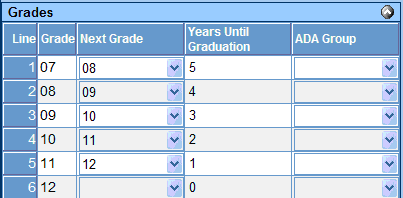
15 DISTRICT SETUP District Setup Increment Staff Years Use the Increment staff years function in District Setup to increase the years in district and years educational service by one year. Run this process prior to the Fall 2 submission. 1. Navigate to Synergy SIS> System> Setup> District Setup> Options tab. 2. From the Staff Years group box, locate the Increment Staff Years button. Note: New staff members that are entered into the system should have data entered for staff years through generic conversion or manual entry. This process only updates records where the value of the field is not empty. District Setup Graduation Cohort Graduation Cohort from the District Setup is used to report the initial ninth grade year calculation needed for the graduation cohort year that will be reported to CALPADS. 1. Navigate to Synergy SIS> System> Setup> District Setup screen> Grade Setup tab. 2. In the Years until Graduation area, enter the number of years until graduation for each of the grades listed in the table. Note: The ability to override the cohort calculation for retained students is available on the other info tab of the student screen. Copyright 2013 Edupoint Educational Systems, LLC 15

16 District Setup Allowing No-Shows District setup has two settings that must be enabled in order to collect leave codes and leave dates for students who are No Shows. These two settings are Allow No Show and Require Summer Withdrawal Code for No Show. 1. Navigate to Synergy SIS> System> Setup> District Setup screen> System tab. 2. Select the Allow No Show and Require Summer Withdrawal Code/Date for No-Show on the System tab and save the record. Note: Turning on the No Show boxes will allow for a secondary box to appear when the user selects to No Show a student. The user will then be required to enter a Summer Withdrawal Code and Summer Withdrawal Date. District Setup Program Exits District setup has two settings that schools must decide upon in order to collect leave dates for Programs. These two settings are Exit Programs/Services On Student Inactivation and Auto-Generate Needs Transactions. Exit Programs/Services On Student Inactivation requires manual entry when a student returns to a school. Make sure that Exit Programs/Services On Student Inactivation is turned off. The use of Auto-Generate Needs Transactions is required for CALPADS submission. Selecting this option automatically exits the student from all programs when they switch schools. Auto-Generate Needs Transactions uses the enrollment history to automatically exit and re-enroll the student when they transfer from school to school. 1. Navigate to Synergy SIS> System> Setup> District Setup screen> System tab. 2. Select Auto-Generate Needs Transactions. 16 Copyright 2013 Edupoint Educational Systems, LLC
17 District Setup Show District of Residence as Lookup Use the Show District of Residence as Lookup option to change the free form field located on the Student Enrollment tab into a lookup table. 1. Navigate to Synergy SIS> System> Setup> District Setup screen> System tab. 2. From the Enrollment Options group box, locate Show District of Residence as Lookup. 3. Select Show District of Residence as Lookup. 4. Save the record. District Setup Enable Historical Tracking of Staff in Sections Use the Enable historical tracking of staff in sections to allow tracking of section changes when teachers change for a section. 1. Navigate to Synergy SIS> System> Setup> District Setup screen> System tab. 2. From the Other Options group box, select the Enable historical tracking of staff in sections option. 3. Save the record. Note: Turning on this option will enable a new tab on the sections screen to track historical staff records for all sections. Use of this functionality is only for CALPADS and PRE-ID extracts. Copyright 2013 Edupoint Educational Systems, LLC 17
18 SCHOOL SETUP Use the School Setup screen to exclude schools from state reporting, define term durations used for Fall2 state reporting and school wide need information. School Setup Exclude from State Reporting Use the Exclude from State Reporting option, located on the School Setup general tab, to exclude school years from state reporting. 1. Navigate to Synergy SIS>System>Setup>School Setup>Basic Info tab. 2. From the School Setup screen, locate the Other Info group box. 3. Select the Exclude from State Reporting option. 4. Save the record. Note: By using this selection, the school is excluded from state reporting, but will show in the list to be selected from the extract screen but data will not be generated for the school. School Setup School Wide Programs The ability to defined school wide programs for the National School Lunch program and other programs administered to an entire school, are configurable from the School Setup screen. School Wide - NSLP 1. Navigate to Synergy SIS>System>Setup>School Setup>Basic Info tab. 2. From the School Setup screen, locate the Programs group box. 3. For NSLP, select the code that will be assigned to all students in the school. 4. Save the record. 18 Copyright 2013 Edupoint Educational Systems, LLC
19 School Wide Other Programs/Needs Programs defined as school wide require additional setup in the Synergy Needs definition prior to completing school wide setup. 1. Navigate to Synergy SIS > Student Programs > Setup > Needs/Programs Definition. 2. From the Needs Programs/Levels Definition screen, locate each program defined as School Wide. 3. From the Menu area drop down, select Edit Need Definition Data. 4. Select the School Based check box and save the record. 5. Repeat these steps for each program that will be used as a school-based program. 6. Navigate to Synergy SIS > System > Setup > School Setup >Basic Info tab. 7. From the School Setup screen, locate the Programs / Needs group box. 8. Select the show detail link. The School Need Detail screen appears. 9. From the School Need Detail screen, locate the Program Grade Availability group box. 10. From the Program Grade Availability, select all grades to which the program will be available. Copyright 2013 Edupoint Educational Systems, LLC 19
20 11. Save the record. Once completed, the Program Participation Grades group box becomes available for selection. 12. From the Program Participation Grades area, select each grade that will participate in the program 13. Save the record. 20 Copyright 2013 Edupoint Educational Systems, LLC
21 Chapter Three: LOOKUP TABLE DEFINITIONS In this chapter, the following topics are covered: Lookup Definition Setup Special table Setup Copyright 2013 Edupoint Educational Systems, LLC 21
22 LOOKUP DEFINITION SETUP Lookup Definition requires that all state codes are setup prior to submitting to CALPADS. Some lookup table definitions require additional setup to activate specific user prompts or functionality as defined in this chapter. 1. Navigate to Synergy SIS > System > Setup >Lookup table Definition. 2. From the Lookup table Definition screen, locate the appropriate node and table entry from the table below. 3. Verify that the State code field in the Synergy SIS table matches the CDE table values for the state code for each of the tables. Refrence: Verify that all tables defined in the CALPADS datamapping portion of this guide are setup in accordance with the associated state values. Valid values are located at the following state website: Synergy SIS - table Definitions CALPADS - Code Set Name K12 K12 > Education Level Highest Education Level K12 > Grade Grade Level K12 > Language Language K12 > Staff Education Level Degree K12.CA K12.CA > Health Code 504 *See Student 504 in this Chapter K12.Course History Info K12.CourseHistoryInfo > Term Code Academic Term K12.Course Info K12.Course Info > ELL indicator Education Service English Learners K12.Course Info > Funding Source Education Program Funding Source K12.Course Info > Instructional Level Course Non Standard Instructional Level K12.Course Info > NCLB CORE NCLB Core Course Indicator and Instructional Level K12.Course Info > State Cat Course Group State K12.Course Info > Technical Provider Career Technical Education Funding Provider Category K12.Course Info > University Subject Area College Admission Requirement K12.Course Info > VOC Ed Type Education Program Course Content K12.Demographics K12.Demographics > Dwelling Type Primary Residence Category K12.Demographics > Summer Withdrawal Code Student Exit Category K12.Demographics > Year End Status *Student Exit Category K12.Discipline K12.Discipline > Modifications Expulsion Modification Category K12.Discipline Info K12.DisciplineInfo > Authority Disciplinary Action Authority K12.DisciplineInfo > Severity *See Severity Setup in this Chapter *Setup requires special setup defined in this chapter. 22 Copyright 2013 Edupoint Educational Systems, LLC
23 K12.Enrollment K12.Enrollment > Attend Permit Reason Interdistrict Transfer Category K12.Enrollment > Completion Status *School Completion Status K12.Enrollment > Enter Code Enrollment Status K12.Enrollment > Leave Code Student Exit Category K12.Enrollment > Receiver School *See Receiver School Setup in this Chapter K12.Enrollment > Special Ed School Of Attendance *See Special Ed School of Attendance in this Chapter K12.Program Info K12.Program Info > ELL IDEA Level ELL IDEA Level K12.Program Info > FRM Code *See Free and Reduced Meals in this Chapter K12.Program Info > GATE Code *See Gifted and Talented in this Chapter K12.Schedule Info K12.Schedule Info > Instructional Strategy *Instructional Strategy K12.Schedule Info > Team Teaching Multiple Teacher Instruction Strategy Category K12.Schedule Info > Term Codes Academic Term K12.Setup K12.Setup > District Number *See District of Residence Setup in this Chapter K12.Special Ed K12.Special Ed > Disability Code Disability Code K12.Staff K12.Staff > Job Class Educational Service Job Classification K12.Staff > Position Status Employment Status Category K12.Staff > Qual. Method Content Area Competency Category K12.Staff > Support Type Non Classroom Based or Support Assignment K12.Test Info K12.TestInfo > Waiver Outcome Regulatory Exemption Outcome Revelation Revelation > Country Country International Standards Organization Revelation > Ethnicity Race Category Revelation > Gender Gender Revelation > State *Setup requires special setup defined in this chapter. State / Province Caution: Only change the state code column value for the corresponding state table. Do not change or remove table code values that are already in use. If a code is no longer used for state reporting, use the fields Year Start and Year End to deprecate codes that will no longer be used. Copyright 2013 Edupoint Educational Systems, LLC 23
24 Year End Status Year End Status creates enrollment records for active students who matriculate or move to another school. The Year End Status table includes additional setup to turn on the process of generating enrollment records. Multiple codes with the same State Code values can be utilized for specific district tracking purposes in the lookup table definition. Only values with state code and alt code 3 are extracted. 1. Navigate to Synergy SIS> System> Setup> Lookup Table Definition. 2. From the Lookup Table Definition screen, locate K12.Demographics. 3. From K12.Demographics locate, Year End Status. 4. In the State Code field, enter the state exit code reason 5. In Alt Code 3, enter a Y to activate the state code field for enrollment records. 6. Save the record. Caution: Codes that do not have a value of Y will not generate an SENR enrollment line with the accompanying state code value. Other values that do not require a State Code value should not have Alt Code 3 populated. 24 Copyright 2013 Edupoint Educational Systems, LLC
25 Completion Status Additional setup is required for completion status codes. Students that exit with an E230 code must have a completion status code populated 1. Navigate to the Synergy SIS> System> Setup> Lookup Table Definition. 2. From the Lookup Table Definition screen, navigate to K12.Enrollment> Completion Status. 3. In the State Code field, enter the state code for each completion code defined by the state. 4. In the Alt Code 3 field, enter Y for each code where State Code 100, 106, 108 is present. 5. Save the record. Note: Only State Code values of 100, 106, 108 require an Alt Code 3 value of Y to allow Synergy SIS to generate the UC/CSU calculation defined in CA Setup for the SENR extract. If the Alt Code 3 field is not populated for State Code 100, 106, 108, students will not extract the UC/CSU calculated value. Receiver School Setup The Receiver school is required for T165 exits for Non-Voluntary Transfer records. In addition, Receiver school values for T160 exit codes are required when the school is marked as an Alternative school in the Organization screen. 1. Navigate to Synergy SIS> System> Setup> Lookup table Definition. 2. From the Lookup table Definition screen, locate K12.Enrollment. 3. From K12.Enrollment, locate Receiver School. 4. From the grid, add each school that a student could attend. 5. In the State Code field, enter the 7 digit school number of the school. Copyright 2013 Edupoint Educational Systems, LLC 25

26 If a student is non-voluntarily expelled from a school and sent to an alternative school, they require a T165 exit code and a receiver school value. If a student attends an alternative school but goes back to the regular school, then they require a T160 exit code and a receiver school value. 26 Copyright 2013 Edupoint Educational Systems, LLC
27 Free and Reduced Meals NSLP requires additional setup to define if a program will be Eligible or Participation. 1. Navigate to the Synergy SIS> System> Setup> Lookup table Definition. 2. From the Lookup table Definition screen, locate K12.ProgramInfo. 3. From K12.ProgramInfo, locate FRM Code. 4. In the State Code field, enter 175 for both Free and Reduced Values. 5. In the Alt Code 3 field, Enter 1 (Eligible) or 3 (Participation) for each value designated with a state code. 6. Save the record. Gifted and Talented There are two locations where GATE information can be stored in Synergy SIS. Continue with the following table setup only if you store GATE data in Student GATE screen. If GATE is stored in Student Needs, then additional setup is required in the Needs portion of this manual. Edupoint recommends that the Gifted and Talented screen be used. 1. Navigate to the Synergy SIS> System> Setup> Lookup table Definition. 2. From the Lookup table Definition screen, navigate to K12.ProgramInfo. 3. From the K12.programInfo, locate Gate Code. Copyright 2013 Edupoint Educational Systems, LLC 27

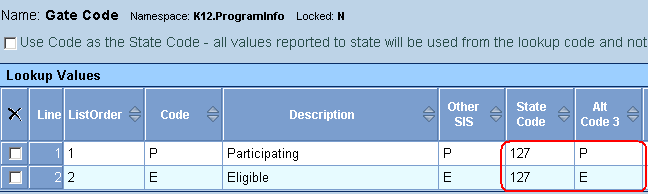
28 4. In the State Code field, enter the state code of 127 for each code that qualifies for GATE. 5. In the Alt Code 3 field, enter E (Eligible) or P (Participating) for each value designated with a state code in step Save the record. Student 504 There are two locations where Student 504 information can be stored in Synergy SIS. Continue with the following table setup only if you store Student 504 data in Student 504 screen. If Student 504 data is stored in Student Needs, then additional setup is required in the Needs portion of this manual. 1. Navigate to the Synergy SIS> System> Setup> Lookup table Definition. 2. From the Lookup table Definition screen, navigate to K12.CA. 3. From the K12.CA, locate Health Code In the State Code field, enter the state code of 101 for each code that qualifies for In the Alt Code 3 field, enter E (Eligible) or P (Participating) for each value designated with a state code. 6. Save the record. Special Ed School Of Attendance 1. Navigate to Synergy SIS>System>Setup>Lookup table Definition. 2. From the Lookup table Definition screen, locate K12.Enrollment. 3. From K12.Enrollment, locate Special Ed School Of Attendance 28 Copyright 2013 Edupoint Educational Systems, LLC

29 4. From the grid, add each school that a student could attend. 5. Enter a unique value for the Code field and a descriptive name for the school in the Description field. 6. In the State Code field, enter the 7 digit school number of the school. 7. Save the record. District of Residence 1. Navigate to Synergy SIS> System> Setup> Lookup table Definition. 2. From the Lookup table Definition screen, locate K12.Setup. 3. From K12.Setup, locate District Number. 4. From the grid, add each district that a student could attend. 5. Enter the 7 digit numeric value in the Code field and a descriptive name for the district in the Description field. 6. In the State Code field, enter the 7 digit District Number. 7. Save the record. Copyright 2013 Edupoint Educational Systems, LLC 29

30 Instructional Strategy In addition to the state codes required for Instructional Strategy, the ELL Cross Check report uses the Alt Code 3 field value of EL to determine EL specific sections. All Instructional Strategy alt code 3 values must contain a value. 1. Navigate to the Synergy SIS> System> Setup> Lookup table Definition. 2. From the Lookup table Definition screen, navigate to K12.Schedule Info> Instructional Strategy. 3. In the State Code field, enter the state code for each Instructional Strategy code defined by the state. 4. In the Alt Code 3 field, enter EL for each code defined as an EL Instructional Strategy. For Home and Hospital enter HH, and for Special Education enter SE. 5. Save the record. 30 Copyright 2013 Edupoint Educational Systems, LLC
31 Severity The Severity drop down table is used in place of the free form field on District Disposition Code, District Discipline Code and Violation Severity Field. Only numeric values can be stored in this table. By default, this table only contains five values as an example but can be modified. 1. Navigate to the Synergy SIS> System> Setup> Lookup table Definition. 2. From the lookup table definition screen, locate the K12.DisciplineInfo. 3. From K12. DisciplineInfo, locate Severity. 4. In the Code field, enter a numeric value from In Description, enter a descriptive value for the severity. 6. Save the record. Caution: Only use numeric values for the code value. Copyright 2013 Edupoint Educational Systems, LLC 31
32 Chapter Four: PROGRAM SETUP In this chapter, the following topics are covered: Student Needs Setup Gifted and Talented Setup Free and Reduced Meals Setup Student 504 Setup CALPADS Program Setup 32 Copyright 2013 Edupoint Educational Systems, LLC
33 PROGRAM SETUP This section will outline the specific setup needed for CALPADS programs. Special consideration is needed for programs such as Student GATE and Student 504 programs. Program Setup Needs 1. Navigate to the Synergy SIS> Student Programs> Setup> Needs/Programs Definition. 2. Rescreen the existing programs in the Needs/Program Definition. 3. Verify programs defined by your district are defined correctly with state code values 4. For School wide programs, select the School Based check box for the program. This will allow the program to display in school wide program setup defined later in this chapter. Caution: Do not add 175 NSLP, or 144 Special Education to the needs definition screen. In addition, do not add code 127 GATE or 101 Student 504, if you are using the specific program module instead of Needs. Unexpected results in program extraction will occur. Copyright 2013 Edupoint Educational Systems, LLC 33

34 Program Setup NSLP National School Lunch Program setup requires that the lookup table be defined in system setup. 1. Navigate to the Synergy SIS> System> Setup> Lookup table Definition. 2. From the Lookup table Definition screen, locate K12.ProgramInfo. 3. From Lookup table Definition, locate FRM Code. 4. In the State Code field, enter Lookup table Definition for both Free and Reduced Values. 5. In the Alt Code 3 field, enter a 1 (Eligible) or 3 (Participation) for each value designated with a state code. 6. Save the record. Program Setup Special Education There are two locations in Synergy SIS where Special Education information can be stored. Synergy SE: Program 144 records are extracted from the students Initial IEP document in the system. The initial IEP date is used as the eligibility date for the program record generated for CALPADS. Synergy SIS: Program 144 records are extracted from the Student Special Education screen. The students Initial IEP date is extracted as the start date while the exit date is extracted from the Membership End Date field. Only lookup table setup is required for Special Education Programs. 34 Copyright 2013 Edupoint Educational Systems, LLC

35 Program Setup GATE There are two locations where GATE information can be stored in Synergy SIS. Only one location is used for CALPADS reporting. The exact location of where GATE information will be extracted for CALPADS will need to be identified. 1. Navigate to the Synergy SIS> CA> Setup> CA Setup screen. 2. Select the CALPADS tab from the CA Setup screen. 3. From the Student Gate Location drop down, select the location from where GATE programs will be extracted for CALPADS. 4. Based on the student gate location selected in the above steps, verify that the associated GATE location has been properly setup and defined in the following sub section. Student Gate screen Setup If the system is configured to use the Student Gate screen, additional table setup is required. 1. Navigate to the Synergy SIS> System> Setup> Lookup table Definition. 2. From the Lookup table Definition screen, navigate to K12.ProgramInfo> Gate Code. 3. In the State Code field, enter the state code of 127 for each code that qualifies for GATE. 4. In the Alt Code 3 field, enter E (Eligible) or P (Participating) for each value designated with a state code. Copyright 2013 Edupoint Educational Systems, LLC 35

36 Student Needs screen Setup If the system is configured to use Student Needs screen for GATE program, then additional table setup is required. 1. Navigate to the Synergy SIS> Student Programs> Setup> Needs/Programs Definition. 2. Rescreen the existing programs defined for your district and verify that the 127 GATE program is defined. Program Setup Student 504 There are two locations where Student 504 information can be stored in Synergy SIS. Only one location is used for CALPADS reporting. The exact location of where 504 information will be extracted for CALPADS will need to be identified. 1. Navigate to the Synergy SIS> CA> Setup> CA Setup screen. 2. Select the CALPADS tab from the CA Setup screen. 3. From the Student 504 Location drop down, select the location from where 504 programs will be extracted for CALPADS. 4. Based on the student 504 location selected in the above steps, verify that the associated 504 location has been properly setup and defined in the following sub section. Student 504 screen Setup If the system is configured to use the Student 504 screen, additional table setup is required. 1. Navigate to the Synergy SIS> System> Setup> Lookup Table Definition. 2. From the Lookup Table Definition screen, navigate to K12.CA> Health Code In the State Code field, enter the state code of 101 for each code that qualifies for In the Alt Code 3 field, enter E (Eligible) or P (Participating) for each value designated with a state code. 36 Copyright 2013 Edupoint Educational Systems, LLC
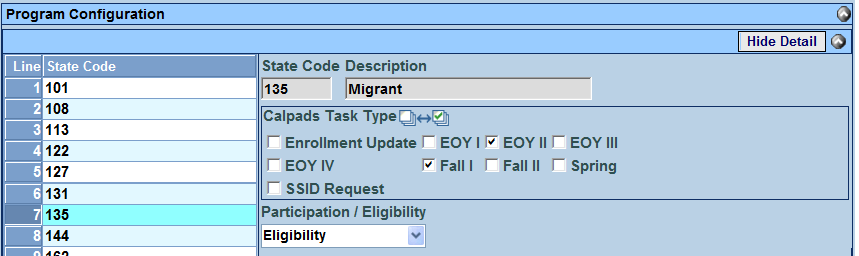
37 Student Needs screen Setup If the system is configured to use student needs screen for the 504 program, then additional setup is required. 1. Navigate to the Synergy SIS> Student Programs> Setup> Needs/Programs Definition. 2. Rescreen the existing programs defined for your district and verify that the 101 Student 504 program is defined. CA Setup Program Configuration Setup Once all programs are defined in Synergy SIS, open the CA Setup screen to define the Extract Submission and Participation or Eligibility for each program. 1. Navigate to the Synergy SIS> CA> Setup> CA Setup screen. 2. Select the CALPADS tab from the CA Setup screen. 3. From the Program Configuration area, select a program line. 4. Highlight a program that will be reported to CALPADS and select the Show Details button. 5. Select the check box for each CALPADS Task Type group and save the record. 6. From the Participation / Eligibility drop down, choose the value you wish to use for the program. Copyright 2013 Edupoint Educational Systems, LLC 37
38 Note: NSLP will not have a Participation / Eligibility drop down in the Program Configuration screen and uses the Alt Code 3 lookup table configuration for Participation / Eligibility. In addition, when CA Setup is set to use the Student 504 or Student GATE screens, the Alt Code 3 lookup table values are used for Participation / Eligibility. 7. Repeat steps for all programs defined in the following gird for each submission. Code Program Name Type Fall Fall EOY EOY Spring Student 504 P X 108 Opportunity Program P X 113 California Partnership Academy P X 122 NCLB Title I Part A Basic Targeted P X 127 Gifted and Talented Education (GATE) E X X U 131 NCLB Title X Homeless P X 135 Title I Part C Migrant E X X U 144 Special Education E X X U 162 California School-Age Families Education (Cal- P X SAFE) 164 NCLB Title I Part D Delinquent P X 171 NCLB Title I Part D Neglected P X 172 NCLB Title I Part D At Risk P X 173 NCLB Title I Part D Juvenile Detention P X 174 NCLB Title I Part A Neglected P X 175 Free or Reduced Price Meal Program E X X U 180 CAHSEE Intensive Instruction P X EOY 3 EOY 4 Reference: Verify that the programs codes, Eligibility, Participation and submission types are setup in accordance with the associated state requirements. State codes and submissions are located at the following state website: 38 Copyright 2013 Edupoint Educational Systems, LLC
39 Chapter Five: UC/CSU GRAD REQUIREMENTS In this chapter, the following topics are covered: UC/CSU Graduation Requirement Setup Copyright 2013 Edupoint Educational Systems, LLC 39

40 GRADUATION REQUIREMENTS Use the Graduation Requirements screen to setup the UC/CSU Subject area requirements. A single graduation requirement definition is required for CALPADS submission. Options tab Use the options tab of the graduation requirements screen to add the UC/CSU Requirement used for the calculation for UC/CSU subject area requirements setup. 1. Navigate to the Synergy SIS> Grading> Setup> Graduation Requirements. 2. From the Options tab, locate the defined UC/CSU Graduation Requirement definition if present or create a definition if necessary with the following values. 3. Save the record. Field Required Note Name Yes Value used to define the Graduation Requirement for UC/CSU. Subject Area Yes Area where the UC/CSU values are present on the District Course screen Credit Load Theory Yes Order in which the credit will be loaded into the specific subject areas Credit Application Sort Order Yes Order in which the credit information will be sorted prior to loading credit 40 Copyright 2013 Edupoint Educational Systems, LLC
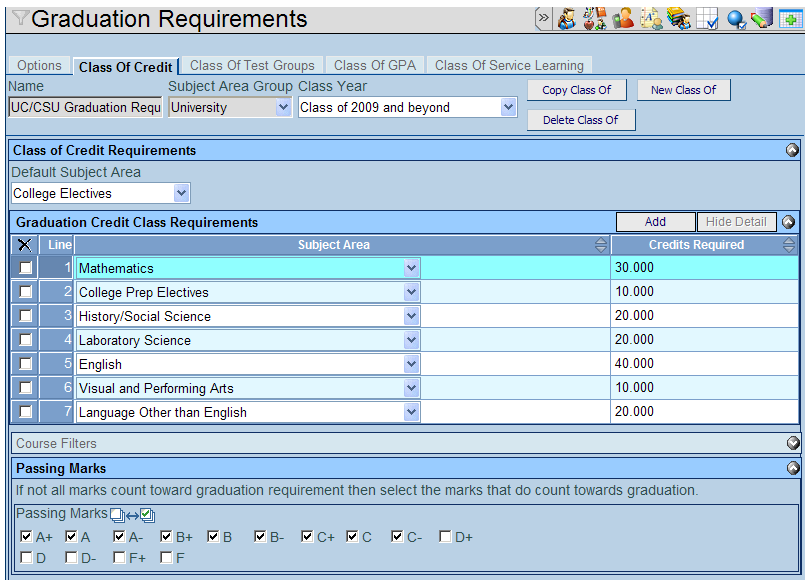
41 Class of Credit Use the Class of Credit tab of the graduation requirements screen to define the total credits required for the UC/CSU Subject area requirement setup. 1. Navigate to the Synergy SIS> Grading> Setup> Graduation Requirements. 2. From the Class of Credit tab, locate the defined UC/CSU Graduation Requirement. 3. If necessary, create new Class of Year for the Graduation requirements. 4. From the Graduation Credit Class Requirements group box, locate Credits Required and enter the appropriate number of credits for each subject area. 5. From the Passing Marks group box, locate and select the passing marks that will receive credit towards the graduation requirement. 6. Save the record. Copyright 2013 Edupoint Educational Systems, LLC 41
42 Chapter Six: CA SETUP In this chapter, the following topics are covered: CAHSEE Setup CALPADS Setup 42 Copyright 2013 Edupoint Educational Systems, LLC

43 CA SETUP Use the CA Setup screen to define CALPADS specific setup criteria as well program requirements and eligibility information. CAHSEE Setup Use the CAHSEE Setup tab of the CA Setup screen to define the Test Mapping for test Waivers, Exemptions and Pre-ID extracts. 1. Navigate to the Synergy SIS> CA> Setup> CA Setup screen. 2. Select the CAHSEE Setup tab from the CA Setup screen. 3. From the Graduation Requirement drop down, select the High School graduation requirement that will be used for CALPADS to define the CAHSEE test requirements. 4. From the Test Mapping grid, select the class of requirement for each Test for English and Math CAHSEE test definitions. This will be used to define the tests and parts required for the CAHSEE Test waivers value for EOY IV. UC/CSU Grad Requirements For High school graduating seniors, the UC/CSU Grad Requirements met must be set up in order for the SENR UC/CSU requirements met to be populated. Once the UC/CSU Graduation Requirements are set up, select the graduation requirement in the CA Setup screen. 1. Navigate to the Synergy SIS> CA> Setup> CA Setup screen. 2. Select the CALPADS tab from the CA Setup screen. 3. From the UC/CSU Graduation Requirement drop down, select the CSU/UC graduation requirement that will be used for CALPADS. Copyright 2013 Edupoint Educational Systems, LLC 43

44 4. By populating the UC/CSU Graduation Requirement field in the CA Setup, Synergy SIS will verify all students that have a completion status of 100 against the UC/CSU graduation requirements screen. Note: If there is a special instance where a student has met the UC/CSU Graduation requirement, an override field can be populated in the Student screen to allow the student to be marked as Y. Student Gate Location There are two locations where GATE information can be stored in Synergy SIS. Only one location is used for CALPADS reporting. The exact location of where GATE information will be extracted for CALPADS will need to be identified. For additional information on GATE, see the program area of this document. 1. Navigate to the Synergy SIS> CA> Setup> CA Setup screen. 2. Select the CALPADS tab from the CA Setup screen. 3. From the Student Gate Location drop down, select the location where GATE programs will be extracted from for CALPADS. 4. Save the record Note: Edupoint recommends the use of the Student Gate screen as the location for Student GATE information. Student Gate gives the flexibility to track additional information concerning GATE students programs. 44 Copyright 2013 Edupoint Educational Systems, LLC

45 Student 504 Location There are two locations where Student 504 information can be stored in Synergy SIS. Only one location is used for CALPADS reporting. The exact location of where Student 504 information will be extracted for CALPADS will need to be identified. For additional information on 504, see the program area of this document 1. Navigate to the Synergy SIS> CA> Setup> CA Setup screen. 2. Select the CALPADS tab from the CA Setup screen. 3. From the Student 504 Location drop down, select the location where 504 programs will be extracted from for CALPADS. 4. Save the record. Class ID Method The Class ID Method field generates a unique classroom ID for use in the CSRE file. Two options are available from the drop down. Use begin period, room name and primary teacher badge number or Use section ID. Edupoint recommends the use of Use begin period, room name, and badge Number as the Class ID Method. 1. Navigate to the Synergy SIS> CA> Setup> CA Setup screen. 2. Select the CALPADS tab from the CA Setup screen. 3. From the Class ID Method drop down, select Use begin period, room name, and badge number. 4. Save the record. Copyright 2013 Edupoint Educational Systems, LLC 45

46 Display Special Warnings Use the display special warnings check box to display warning messages where data is calculated based on missing data in the extract file. Synergy SIS generates the parent Highest Education level for student records by selecting the highest education level from the parents. If all parents associated to the student do not contain a highest education value, Synergy SIS will automatically assign the value 15 Declined to state to the student record. In addition, if a student has a primary home language other than English or America Sign language and the student does not have a Language Proficiency the system will extract that student as a TBD. Selecting this option will generate a warning for each student where the highest education level value is blank for all parents or the student does not have completed EL records. 1. Navigate to the Synergy SIS> CA> Setup> CA Setup screen. 2. Select the CALPADS tab from the CA Setup screen. 3. From the Settings group box, locate the Display special warnings (no parent Highest Education Level values set or ELL data for ELL student). 4. Select the check box for the option and save the record. Remove Dashes from Course Section ID Fields The remove dashes from course section ID field option, removes the dash value from the section ID in the CRSE and SCSE files. Use this option when section lengths are 11 characters in length counting the dash value. Use of this option will remove the dash from the section ID value and generating a 10-character section ID. 1. Navigate to the Synergy SIS> CA> Setup> CA Setup screen 2. Select the CALPADS tab from the CA Setup screen 3. From the Settings Group box, locate the Remove dashes from the Course Section ID fields check box. 4. Select the check box for the option and save the record. 46 Copyright 2013 Edupoint Educational Systems, LLC
47 Program Configuration Setup In order to generate program files need for CALPADS all programs used by the district must exist in Synergy SIS. To define what programs will be generated for CALPADS, open the CA Setup screen to select the Extract Submission type and Participation or Eligibility per program. 1. Navigate to the Synergy SIS> CA> Setup> CA Setup screen. 2. Select the CALPADS tab from the CA Setup screen. 3. From the Program Configuration area, select a program line. 4. Highlight a program that will be reported to CALPADS and select the Show Details button. 5. Select the check box for each CALPADS task type group and save the record. 6. From the Participation / Eligibility drop down, choose the value you wish to use for the program. Note: For additional information on program setup and configuration, see the program area of this document. Copyright 2013 Edupoint Educational Systems, LLC 47
48 Chapter Seven: DISTRICT DISCIPLINE SETUP In this chapter, the following topics are covered: District Discipline Code Setup District Discipline Options District Disposition Code Setup 48 Copyright 2013 Edupoint Educational Systems, LLC

49 DISTRICT DISCIPLINE OPTIONS Use the District Discipline Options screen to configure CALPADS to use the incident based discipline records for state reporting. 1. Navigate to the Synergy SIS> Discipline Incident> Setup> District Discipline Options. 2. From the Discipline Options tab, locate and populate the following fields. Field Required Note Discipline Type Yes Value of Incident is required for CALPADS state reporting. Show Severity Level as Lookup No Selecting this check box turns the severity free form text field into a lookup table. If this option is used, numeric values are required for the lookup table values. See the Lookup Definition Setup chapter of this guide for the lookup table location and setup. Copyright 2013 Edupoint Educational Systems, LLC 49

50 DISTRICT DISCIPLINE CODE SETUP Discipline code setup is required for CALPADS extracts for Synergy. Synergy will extract all discipline codes where the Report to State and State Code are populated. In the case of multi-tiered discipline code configuration, Synergy will process from the lowest tier up to the base level. 1. Navigate to the Synergy SIS> Discipline Incident> Setup> District Discipline Code Setup. 2. From the Discipline Code tab, locate the discipline code that will be modified. 3. Enter the following fields. Field Required Note State Code Yes Enter the valid state code value for each violation. This will be the code that will extract for each violation Alt State Code No Use this field to store the Ed Code value for each state code. This field is not used in reports but can be used for query purposes. Severity Level Yes Use this field to define the default severity of the incident. 1-Highest - 99-Lowest. Report To State Yes Selecting the Report To State box includes the Discipline Code in the extract. 50 Copyright 2013 Edupoint Educational Systems, LLC
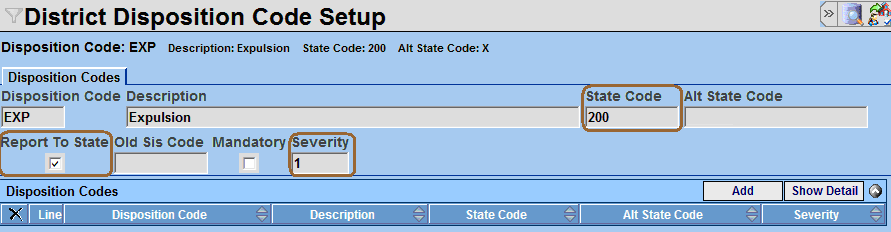
51 DISTRICT DISPOSITION CODE SETUP Disposition code setup is required for CALPADS submissions. Discipline records where a disposition is not marked as report to state will not extract for end of year reporting. Use the following screen to identify all dispositions that need to be reported to the state. 1. Navigate to the Synergy SIS> Discipline Incident> Setup> District Disposition Code Setup. 2. From the Disposition Code tab, locate the disposition code that will be modified. 3. Enter the following fields. Field Required Note State Code Yes Enter the valid state code value for each Disposition. This will be the code that will extract for each violation Severity Level Yes Use this field to define the default severity of the Disposition. 1-Expulsion, 2-Suspension, 3-In School Suspension, 4-No Expulsion or Suspension Report To State Yes Selecting the Report To State box includes the Disposition Code in the extract. Copyright 2013 Edupoint Educational Systems, LLC 51
52 Chapter Eight: STUDENT SCREEN DATA ENTRY In this chapter, the following topics are covered: State Specific Student Data 52 Copyright 2013 Edupoint Educational Systems, LLC

53 STUDENT SCREEN Use the Student screen to collect student information required for California state reporting. Complete the following fields in the Student screen for students. Demographics tab 1. Navigate to the Synergy SIS> Student> Student. 2. From the Demographic tab, search for a student and modify the fields as needed. Field Required Note First Name Yes Student Legal First Name Middle Name No Student Legal Middle Name Last Name Yes Student Legal Last Name Suffix No Student Legal Name Suffix Code Perm ID Yes Local Student ID Grade Yes Student Current Grade SSID Yes State ID Gender Yes Student Gender Code Home Language Yes Primary Language Code AKA Last Name No* Student Alias Last Name, required if AKA First Name is Populated AKA First Name No* Student Alias First Name, required if AKA Last Name is Populated AKA Middle Name No Student Alias Middle Name Birth Date Yes Student Birth Date Birth Place No Student Birth City Birth State No* Student Birth State Province Code Birth Country Yes Student Birth Country Code *Required under certain business rules only Copyright 2013 Edupoint Educational Systems, LLC 53

54 Demographics tab Cont. Field Required Note Hispanic / Latino No The Hispanic / Latino field is used to satisfy the Hispanic/Latino portion of the two-part question. The field has three options that can be used, If this field is left blank or Declined to state is selected it will be reported as missing Hispanic Indicator Secondary Race No The following check boxes are used to satisfy the race portion of the two-part question. If all boxes are left blank or a table value is defined as Declined to state, The extract will report a Y in the missing race indicator. Field Required Note Address Yes Address of Student used for CALPADS; ensure to use postal standards for the address as it is used for Direct Certification. City Yes City of Student State Yes State of Student Zip Code Yes Zip Code of Student Reason for Attendance Yes This field is required for all inter district transfers. table setup is required for this field. 54 Copyright 2013 Edupoint Educational Systems, LLC

55 Other Information tab Field Required Note Initial Ninth Grade Year Special Ed School Of Attendance District of Special Education Accountability No* No* No* Only populate this field for retained students. The initial Ninth Grade Year field is used as an override for retained students for the Graduation Cohort year. This field overrides the calculation that is performed by the district setup in Synergy SIS. This field is used to calculate the graduation cohort value. To populate this field for retained students locate the Initial Ninth Grade Year field on the Other Info page of the Student screen. This field is used to designate the NPS school of the child. Setup for this table is needed. Enter the seven digit number of the District of the student that is attending your school for special ed. Dwelling Type Yes The Dwelling type field must be populated for all students. Migrant No* Required for all students with a student need of 135 Partnership Academy *Required under certain business rules only No* Required for all students with a student need of 113 Field Required Note UC/CSU Requirements Met No* *Required under certain business rules only Use this field to override the Graduation requirements calculation, calculated field based on the Graduation Requirement defined in CA Setup. Copyright 2013 Edupoint Educational Systems, LLC 55

56 Enrollment tab 1. Navigate to the Synergy SIS> Student> Student. 2. From the Enrollment tab, search for a student and modify the fields as needed. Field Required Note District of Residence No* Enter the value of the District of Residence for students that have an Interdistrict Transfer Code. EOY Status No* Required at the end of the year for the highest grade at each school, this field requires additional setup for tables. US School Entry Date Enrolled in US Less than three years Yes No* The date when the student first entered a US school for grades KN through 12 Used as an override for the enrolled in US less than three years calculation based on US School Entry Date. The current calculation takes the US School Entry Date and checks to see if the student has attended more than 3 years. If the student has not attended more than 3 years, this field can be used as an override to allow for students with mobility that would still allow funding. Completion Status No* Field required to define the Completion status value for all E230 codes. *Required under certain business rules only 56 Copyright 2013 Edupoint Educational Systems, LLC

57 Enrollment History tab Field Required Note Enter Date Yes Used for the school mobility start date of the student. Synergy SIS will find the first enrollment date of the student in Synergy SIS then compare that date to the ODS start date to determine the School Mobility start date. Enter Code Yes Used to designate the Enrollment status code value of 10, 20, 30 or 40, Additional setup is required for this table Leave Date No* Used to designate the end date of the continuous enrollment line for the student. Leave Code No* Used to designate the exit reason for the student. Additional setup is required for this table Receiver School No* Populated on inactivation of students that have a T165 record or for students leaving an alternative education school with a T160 code. ADA / ADM No* The ADA/ADM field on the Enrollment tab of the student screen is used to determine if a student will be counted as concurrent during the extract process. If the concurrent value is found in this field on the Enrollment page, the student is extracted with a value of 20 in the SENR extract. If the student is defined as concurrent then the SINF will not extract for the student. School Completion Status No* *Required under certain business rules only This field is populated only when inactivating students where the state code is equal to E230. Copyright 2013 Edupoint Educational Systems, LLC 57
58 Chapter Nine: PARENT DATA ENTRY In this chapter, the following topics are covered: State Specific Parent Data 58 Copyright 2013 Edupoint Educational Systems, LLC
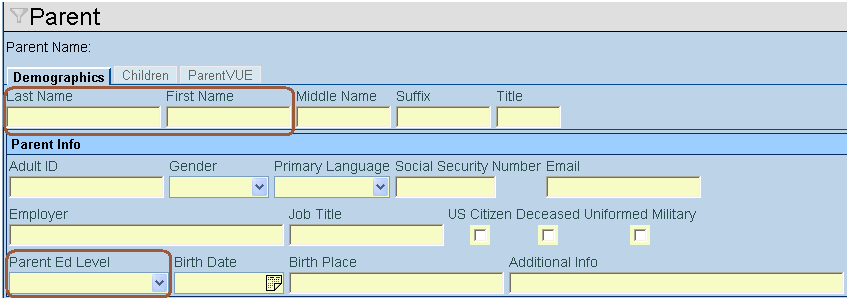
59 PARENT SCREEN Use the Parent screen to collect parent information required for California state reporting. To collect parent information for CALPADS, complete the following fields. Parent Demographics tab 1. Navigate to the Synergy SIS> Parent> Parent. 2. From the Demographics tab, search for a parent and modify the fields as needed. Field Required Note Last Name Yes Used in CALPADS to designate the Guardian values in SINF records First Name Yes Used in CALPADS to designate the Guardian values in SINF records Parent Ed Level Yes Used to determine social economic status, if this field is left blank will be extracted as 15 if both parents do not have a value. Otherwise, it will take the highest education level value for the two parents. Lookup table K12.Education Level. Copyright 2013 Edupoint Educational Systems, LLC 59
60 Chapter Ten: ENGLISH LEARNER DATA ENTRY In this chapter, the following topics are covered: State Specific ELL Data 60 Copyright 2013 Edupoint Educational Systems, LLC

61 ENGLISH LEARNER SCREEN Use the English Language Learner screen to collect ELL information required for California state reporting. To collect ELL information for CALPADS, complete the following mandatory fields. All English learner students must have an ELL record. 1. Navigate to the Synergy SIS> Student Programs> English Language Learners. 2. From the ELL tab, search for a student and modify the fields as needed. ELL tab Field Required Note English Language Acquisition Status Yes This field represents the most recent ELL proficiency status of the student. FEP Date N/A This field is read only and is for display purposes only of the original IFEP or RFEP date found on the ELL History tab. ELA CST Proficient 3 Years Yes This field is only populated if the student has scored as proficient or advanced for 3 years on the CST ELL History tab Field Required Note Date Yes Used to find the English Language acquisition date based on the oldest date found for the corresponding Language ability English Lang Acquisition Status Yes Values of TBD, IFEP, RFEP, EO, and EL are used for this table. Values of IFEP, RFEP and EL are used to find the EL Acquisition date. Copyright 2013 Edupoint Educational Systems, LLC 61
62 Chapter Eleven: PROGRAM DATA ENTRY In this chapter, the following topics are covered: NSLP Data Entry Gifted and Talented Data Entry Student Needs Data Entry Special Education Data Entry 62 Copyright 2013 Edupoint Educational Systems, LLC
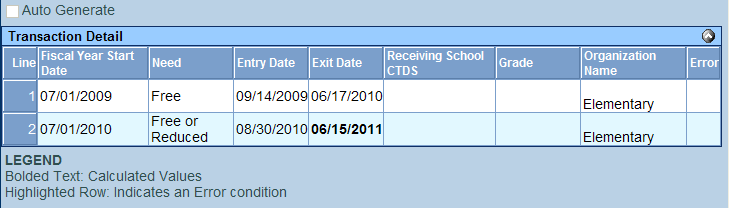
63 FREE AND REDUCED MEALS Use the Free and Reduced screen to collect NSLP (National School Lunch Program) information required for California state reporting. To collect NSLP information for CALPADS, complete the following fields. FRM tab 1. Navigate to the Synergy SIS> Student Programs> Free and Reduced Meals. 2. From the FRM tab, search for a student and modify the fields as needed. Field Required Note Enter Date Yes Used to determine the start date of the free and reduced program FRM Code Yes The lookup state determines if a program is extracted, based on the state code value. If the state code is 175, the record will extract. Additional setup is required on this table to determine if a code is eligible for participation. Exit Date No* Used to determine the exit date of the free and reduced program *Required under certain business rules only FRM Transactions tab The FRM Transaction tab is used as a visual queue to see what will extract for the Free and Reduced program. Synergy SIS will take the existing programs and automatically exit the student in the New Year from the program if the program extends into the New Year if Auto Generate is used. Copyright 2013 Edupoint Educational Systems, LLC 63

64 STUDENT GATE Use the Student GATE screen to collect program information required for California state reporting. To collect GATE information for CALPADS, complete the following fields. 1. Navigate to the Synergy SIS> Student Programs> Student GATE. 2. Search for a student and modify the fields as needed. Gate History Field Required Note Enter Date Yes Used to determine the start date of the GATE program Gate Code Yes This table will determine if a program is extracted, based on the state code value. If the state code is 127, the record will extract. Additional setup is required on this table to determine if a code is eligible for participation. Exit Date No* Used to determine the exit date from the GATE program if auto generate is not used. *Required under certain business rules only 64 Copyright 2013 Edupoint Educational Systems, LLC
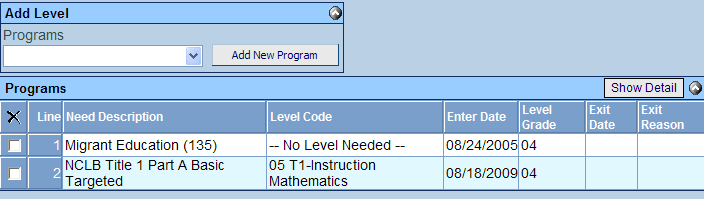
65 STUDENT NEEDS Use the Student Needs screen to collect program information required for California state reporting. To collect Program information for CALPADS, complete the following steps 1. Navigate to Synergy SIS> Student Programs> Student Needs. 2. Locate a student to modify 3. From the Add Level group box, select the program you wish to add. 4. Select the button Add New Program. A new window will appear. The Enter Date will default to the current date The Grade field will populate with the current grade of the student. 5. From the Student Level Add window, select the Save Level button. Field Required Note Need Description Yes Description of Code extracted for CALPADS Level Code No* Level Code is used for Title 1 programs only Enter Date Yes Enter Date is used to extract the date the program started Level Grade No Level Grade is not used for CALPADS Exit Date No* Exit Date is only used if a student exits a program Exit Reason No Exit Reason is not used for CALPADS *Required under certain business rules only Copyright 2013 Edupoint Educational Systems, LLC 65
66 STUDENT SPECIAL EDUCATION Use the Student Special Ed screen to collect Special ED information required for California state reporting. To collect Special ED information for CALPADS, complete the following mandatory fields. 1. Navigate to Synergy SIS> CA > Student Special Ed. 2. Locate a student to modify. 3. Select the button Add from the CASEMIS History grid box. A new row will appear. 4. Enter the Effective Date for the Primary Disability record. 5. From the Primary Disability drop down, select the Primary Disability for the student. 6. Enter the Initial IEP Date for the student for the Primary Disability. 7. Save the record. Field Required Note Effective Date Yes This field is used for internal tracking of Synergy SIS to show the date the record change became effective. This date is not used for CALPADS Primary Disability Yes Disability code used for Special ED students. Additional setup is required for this table. Initial IEP Date Yes This field is used as the Eligibility start date for Special ED students. Sped Exit Date No This field is not required for CALPADS unless a student is truly exiting Special ED 66 Copyright 2013 Edupoint Educational Systems, LLC
67 STUDENT 504 Use the Student 504 screen to collect 504 student information required for California state reporting. To collect 504 student information for CALPADS, complete the following mandatory fields. 1. Navigate to Synergy SIS> CA > Locate a student to modify. 3. Select the button Add from the 504 grid box. A new row will appear. 4. Enter the Evaluation Date for the 504 record. 5. Enter a descriptive value for the CODE 504 field 6. From the Health Code drop down, select the 504 value. 7. Save the record. Field Required Note Evaluation Date Yes This field is used for locating students that are in a 504 program. This date is used for eligibility start date if the program is set to Eligible for CALPADS Code 504 No This field is not used for CALPADS but is used to enter a detailed description of the 504 program Health Code Yes This field is used to determine which records will be extracted for CALPADS. Special setup is required in lookup table definition for this field, see lookup table definitions chapter for more details. Exit Date No This field is not required for CALPADS unless a student is truly exiting 504 then the extract will extract the date entered. Copyright 2013 Edupoint Educational Systems, LLC 67
68 Chapter Twelve: DISTRICT COURSE DATA ENTRY In this chapter, the following topics are covered: State Specific District Course Data 68 Copyright 2013 Edupoint Educational Systems, LLC

69 DISTRICT COURSE Use the District Course screen to collect course information required for California state reporting. To collect course information for CALPADS, complete the following mandatory fields. Course tab 1. Navigate to the Synergy SIS> Course> District Course. 2. From the Course tab, locate the course record that will be modified. 3. Enter the following fields. Field Required Note Course ID Yes Local Course ID Course Title Yes Course Name CBEDS Assignment Code Yes State Course Code Instructional Level Yes Instructional Level used to designate the type of course NCLB Core Yes NCLB Core Course Technical Course No* CTE Technical Course Technical Provider No* Provider of Technical Course Voc Ed Type No* Voc Ed Type Funding Source No* Funding Source, this field is also used to determine ROP class generation of SIED of for non-district funding. University Area 1 Yes UC/CSU Admission Requirement Code *Required under certain business rules only Copyright 2013 Edupoint Educational Systems, LLC 69
70 Chapter Thirteen: STAFF DATA ENTRY In this chapter, the following topics are covered: State Specific Staff Data Staff Assignments Update HQT Process 70 Copyright 2013 Edupoint Educational Systems, LLC
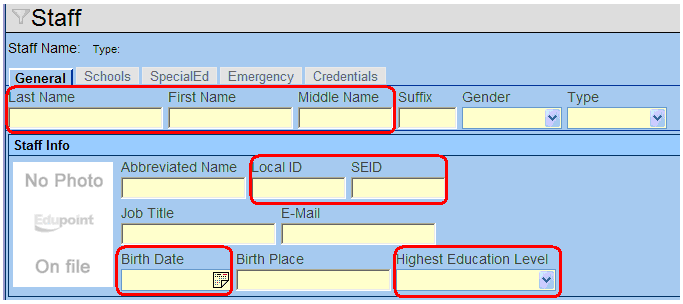
71 STAFF SCREEN Use the Staff screen to collect Staff information required for California state reporting. To collect Staff information for CALPADS, complete the following mandatory fields. 1. Navigate to the Synergy SIS> Staff> Staff. 2. From the General tab area search for a staff member and modify the fields as needed. General tab Field Required Note Last Name Yes Last Name First Name Yes First Name Middle Name No Middle Name Local ID Yes Badge Number of the Staff member SEID Yes State ID number Birth Date Yes Birth Date Highest Education Level Yes Highest education level Copyright 2013 Edupoint Educational Systems, LLC 71

72 General tab Cont. Field Required Note Hispanic / Latino No The Hispanic / Latino, used to satisfy the Hispanic/Latino portion of the two-part question. The field has three options that can be used. If this field is left blank or Declined to state is selected, it will be reported as a Y in the missing Hispanic Indicator Race No Check mark boxes used to satisfy the race portion of the two-part question. If all boxes are blank or a table value is defined as Declined to State, the missing race indicator will extract as Y. Field Required Note Exclude From State Reporting Default Position Status No* Yes Excludes the staff record from being generated, used to exclude staff members like ROP. Used to indicate if a position status as Tenured, Probationary, etc. This field is used as the default value for all records generated. Default Job Class Yes Current Job Class, used as the default value for all records generated. Only staff members with the Job Class field populated with a valid state code value will extract the Staff Demographic record. FTE Yes Used as the default FTE for the staff member. Values are used for the maximum amount of FTE for the staff assignment record. Valid values are Copyright 2013 Edupoint Educational Systems, LLC

73 Field Required Note District Personnel No* Used only to generate a Non-Classroom Type Assignment record (SASS) for District Personnel; this check box activates the Default Job Class grid on the front page of the staff screen General tab Cont. Field Required Note Years in District Yes Number of years in district service Years Of Education Service Yes Total Years in Ed Service Ell Indicator Yes ELL Indicator This field is used as the ELL Service for the student on the section. See lookup table K12.CourseInfo.ELL_INDICATOR for valid values. Language Of Instruction Default Support Type Yes No* Language of Instruction in the classroom used for EL sections Used for non-classroom Based Assignments. Only used for individuals that have District Personnel selected. Last Name (AKA) No* AKA Last Name, required if AKA First Name is populated First Name (AKA) No* AKA First Name, required if AKA Last Name is populated Middle Name (AKA) No AKA Middle Name Hire Date Yes Hire Date is used as the inclusion field for Staff Demographic records. Populate this field for all Staff records. Exit Date No* Exit Date if staff member leaves district. This field is used to validate inclusion for Staff records. Copyright 2013 Edupoint Educational Systems, LLC 73

74 Schools tab 1. Navigate to the Synergy SIS> Staff> Staff. 2. From the School tab area, modify the fields as needed. Field Required Note Assign To District No* Select this check mark box for all District staff that do not have a Staff School Assignment record. This check mark box will generate the SDEM record for district staff. Job Class No* Only used to override the default Job Class value from the General tab of the Staff screen, this field is also present on the detail screen area. FTE No* Only used to override the default FTE value from the General tab of the Staff screen, this field is also present on the detail screen area. *Required under certain business rules only Field Required Note Default Support Type No* *Required under certain business rules only By selecting Show Detail from the school year line the additional support type values will display that only pertain to the current school and year. Use this field to designate councilors, department heads and other types of jobs at the school level. 74 Copyright 2013 Edupoint Educational Systems, LLC

75 Credentials tab 1. Navigate to the Synergy SIS> Staff> Staff. 2. From the Credentials tab area, modify the fields as needed. Field Required Note Course ID and Title Yes Must be the current course that the staff member is teaching Qual. Method Yes Highly Qualified value for Staff records based on course. See the additional section in this chapter for updating Highly Qualified values. Start Date No* Used to show the start date of an additional job class; Additional Job Classes are only used if an additional job class is needed and could not be satisfied by the General or School tab settings. End Date No* Used to show the End of an additional job class; Additional Job Classes are only used if an additional job class is needed and could not be satisfied by the General or School tab settings. Job Class No* Used to show the Job Class of an additional job class; Additional Job Classes are only used if an additional job class is needed and could not be satisfied by the General or School tab settings. FTE No* Used to show the percent of FTE on an additional job class; Additional Job Classes are only used if an additional job class is needed and could not be satisfied by the General or School tab settings. This field is only required if a set amount is needed. Organization No* Used to generate the school record of an additional job class; Additional Job Classes are only used if an additional job class is needed and could not be satisfied by the General or School tab settings. *Required under certain business rules only Copyright 2013 Edupoint Educational Systems, LLC 75
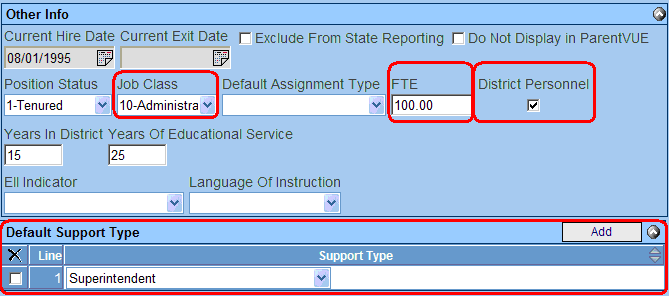
76 STAFF ASSIGNMENTS The following section contains examples of Staff Assignments needed for submission for Fall 2. District Assignment Superintendent District Personnel non-classroom based jobs are populated from the front page of the Staff screen. These records are only reported if the District Personnel check box is selected. 1. Navigate to Synergy SIS>Staff>Staff. 2. Select the General tab of the Staff screen. 3. Locate the Other Info group box. 4. From the Job Class field select the value of Administrator. 5. Locate the FTE field and enter the total amount of FTE for the Teacher. 6. Locate and select the District Personnel check box. 7. From the Default Support Type, click Add. 8. From the Support Type drop down, select Superintendent and save the record. 76 Copyright 2013 Edupoint Educational Systems, LLC

77 School Assignment Teacher 1. Navigate to Synergy SIS> Staff> Staff. 2. Select the General tab of the Staff screen. 3. Locate the Other Info group box. 4. From the Job Class field, select the value of Teacher. 5. Locate the FTE field and enter the total amount of FTE for the Teacher. School Assignment Teacher Department Chair 1. Navigate to Synergy SIS> Staff> Staff. 2. Select the General tab of the Staff screen. 3. Locate the Other Info group box. 4. From the Job Class field select the value of Teacher. 5. Locate the FTE field and enter the total amount of FTE for the Teacher. 6. Select the School Year tab of the Staff screen. 7. Locate the Staff School Assignment group box. 8. Select the school and year that you need to modify. 9. Choose Show Detail for the row selected. 10. Locate the Default Support Type group box and select the Add button 11. From the Support Type field, select Department Chair and save the record Copyright 2013 Edupoint Educational Systems, LLC 77

78 School Assignment Principal 1. Navigate to Synergy SIS> Staff> Staff. 2. Select the General tab of the Staff screen. 3. Locate the Other Info group box. 4. From the Default Job Class field, select the value of Administrator. 5. Locate the FTE field and enter the total amount of FTE for the Principal. 6. Select the School Year tab of the staff screen. 7. Locate the Staff School Assignment group box. 8. Select the school and year that you need to modify. 9. Choose Show Detail for the row selected. 10. Locate the Default Support Type group box and select the Add button. 11. From the Default Support Type field, select Principal and save the record. 78 Copyright 2013 Edupoint Educational Systems, LLC

79 UPDATE HIGHLY QUALIFIED VALUES An automated process is available to mass populate the Highly Qualified by Course matrix located on the Credentials tab of the Staff screen. The process searches for sections currently taught by the teacher considered as NCLB core courses. The process then allows for selection of a default Qualified Method for each NCLB Core Course found. Once this selection completes the process will generate a log of all courses added to each staff record for additional modification if needed. Note: This process will add a record for each staff with a default Qualified Method selected. This process does not replace any data already populated for the staff member. Added records for staff members who require a different value from the default value selected will need to be manually changed. 1. Navigate to Synergy SIS> Staff> Staff. 2. Scroll to the first staff record. 3. From the Menu area, select Populate Highly Qualified Staff. 4. From the NCLB Core group box, select Core Academic Elementary and Core Academic Secondary. 5. From the Qual Method drop down, select the default Qualified Method that should be used. 6. Once all values are selected, click Run Process. A results window will appear with the total records rescreened, added and supporting process log. 7. Open the Populate Highly Qualified Process Log to view the records added for each staff member. 8. Using the Process log, modify any staff member record with result value of ADDED that should have a different Qualified Method than the default value used in the process. Copyright 2013 Edupoint Educational Systems, LLC 79
80 Chapter Fourteen: SECTION DATA ENTRY In this chapter, the following topics are covered: State Specific Section Data Additional Staff Data 80 Copyright 2013 Edupoint Educational Systems, LLC
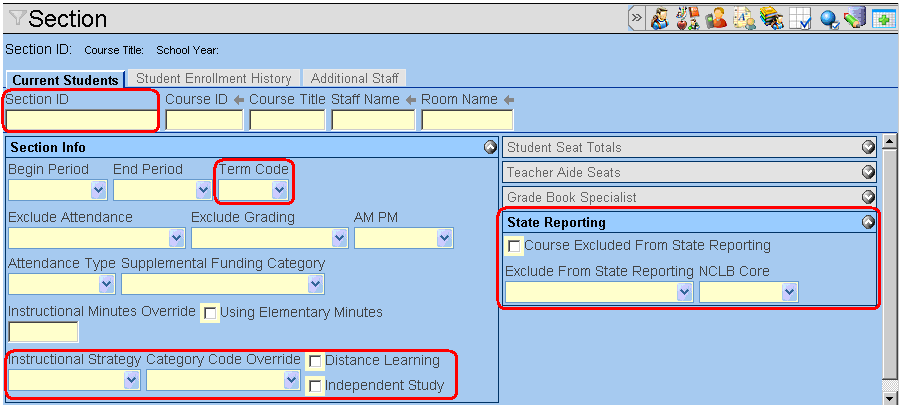
81 SECTIONS Use the Section screen to collect section specific information required for California state reporting. To collect section information for CALPADS, complete the following mandatory fields. Current Students tab 1. Navigate to the Synergy SIS> Schedule> Section. 2. From the Current Students tab, modify the fields as needed. Field Required Note Section ID Yes Course Section ID Term Code Yes Academic Term Code Instructional Strategy Category Code Override No* No* Instructional Strategy field is used to designate ELL, Special Ed and other types of Instructional Strategy values for the section. Used to override the CBEDS course code value of District course Distance Learning No* Select this box to designate if a section is a District Learning section. Independent Study Course Exclude From State Reporting Exclude From State Reporting No* No* No* Select this box to designate if a section is an Independent Study section. This is a screen only field displaying if a course is excluded from state reporting Used to override if a single section to be excluded or included in a submission NCLB Core No* Used to override NLCB settings on a section that is different from the district course NCLB value. Copyright 2013 Edupoint Educational Systems, LLC 81

82 Additional Staff tab Use the additional staff tab of the Section screen to add Team and Shared teachers. This screen is also used to attach substitutes. Additional staff members are only reported to CALPADS if the Team Teaching value is present. Additional staff that should be excluded from CALPADS should have the Exclude from state reporting check box selected for the teacher. 1. Navigate to the Synergy SIS> Schedule> Section. 2. From the Additional Staff tab, modify the fields as needed. Field Required Note Team Teaching No* Use this field to denote if a section will be used for Team and Shared Staff Additional Staff No* Use this field to enter additional staff records. Use the Exclude from state reporting area to exclude specific staff from state reporting from a section. *Required under certain business rules only 82 Copyright 2013 Edupoint Educational Systems, LLC

83 Staff History tab The Staff History tab is available if the District Setup option for historical tracking or staff in sections is selected. Use the staff history tab of the Section screen to view historical effective start date values for staff history per section. Prior to using this tab, the use of Synchronize Staff History process is required. Use this tab to validate staff enrollment per section on CBEDS day. Changes to the section will automatically populate this tab with information. Synchronize Staff History Run the following process to update the staff history tab of the Section screen. This is required for CALPADS submission to track the correct staff member that taught the class on the submission date. 1. Navigate to the Synergy SIS> Schedule> Section. 2. From the Menu, select Synchronize Staff History. The Synchronize Staff History Options box will appear. 3. Only select the Synchronize all sections across the entire district option if all schools need updating in the district. Leaving this check mark unselected will only process the current focus school. 4. Select the Synchronize button to run the update process. A conformation message will appear, prompting if you are sure you want to synchronize staff history. 5. Select OK to run the process. A process log will appear showing the modifications made to each section that did not have a staff history line. Copyright 2013 Edupoint Educational Systems, LLC 83
84 Primary Historical Staff Records Historical Staff group box of the section screen is used to view historical effective start date values for the primary staff per section. This data is used to determine the primary staff that will be sent to CALPADS on for the FALL2 submission. 1. Navigate to the Synergy SIS> Schedule> Section. 2. Search for the specified section or teacher that needs to be modified. 3. From the Staff History tab, locate the Historical Staff group box. 4. Verify that at least one record exists for the section. Field Required Note Effective Date Yes This date is used to find the primary staff that will be reported to CALPADS for Fall2 reporting. Staff Name Yes This will be the staff that will be reported for Fall2 for the selected section based on the Effective date field. Note: One record must exist for all sections if this process is enabled. Additional Historical Staff Records Use the Additional Historical Staff group box of the Section screen to view staff members who are exited from the Additional Staff tab of the section. This group box displays staff members who are exited from the section. The functionality for staff members that are present in this grid is similar to the Student Enrollment History tab of the Section screen. Field Required Note Start Date No* This date is used to find the secondary staff that will be reported to CALPADS for Fall2 reporting if the sections are a Team. Staff Name Yes Name of the additional staff that will be reported for Fall2 for the selected section based on the Start Date field. 84 Copyright 2013 Edupoint Educational Systems, LLC
85 Chapter Fifteen: DISCIPLINE In this chapter, the following topics are covered: Discipline Incidents Discipline Student Incident Copyright 2013 Edupoint Educational Systems, LLC 85
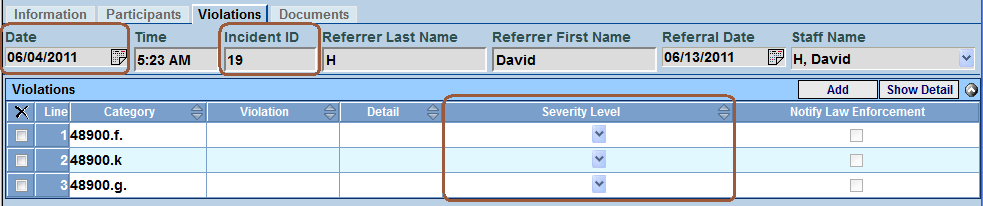
86 INCIDENTS Use the incidents Violation screen to verify the Incident Date, Incident ID and the Severity Level Override violations in an incident. Violation tab 1. Navigate to the Synergy SIS> Discipline Incident> Incident. 2. Search for the specified Incident that needs to be modified 3. From the Violations tab, locate the Violations group box. 4. Modify the severity level field if the desired result in the extract does not give the specific violation as the highest offense. Field Required Note Date Yes This date is used for the incident date in the SDIS extract file Incident ID Yes This field is used as the incident ID number in the extract. Severity Level No* Use this field to override the severity of the violations if there is a violation that should be the most severe. 86 Copyright 2013 Edupoint Educational Systems, LLC

87 STUDENT INCIDENT Use the student incidents screen to verify the correct information for CALPADS discipline reporting. Student Incident Detail tab Use the Student Incident Detail screen to verify correct Disposition information for CALPADS discipline reporting. 1. Navigate to Synergy SIS> Discipline Incident> Student Incident. 2. Search for the specified Student Incident that needs to be modified and select show detail. 3. From the Student Incident tab, locate the Disposition group box. 4. Verify that a Disposition Code values are entered correctly. Field Required Note Disposition Code Yes Disposition code is required for CALPADS SDIS records. System will take the most severe Disposition in the grid as the Disposition reported to CALPADS on the SDIS record Start Date Yes Start date is required for calculating the days duration for suspensions and expulsions for special education students End Date No* This field is required, but is not required for Expulsion dispositions unless the expulsion is modified or ends prior to the last day of school. SDIS will calculate the end date as the last valid school day for expulsions if this field is blank. Days No* This field overrides the Start and End date calculation used for the SDIS extract. This field will extract the value as displayed in the field. Copyright 2013 Edupoint Educational Systems, LLC 87

88 5. From the Disposition grid, select a disposition row and select Show Detail. The Student Disposition Detail screen will appear. 6. Verify the population of the following fields, and save the record when completed. Field Required Note Modification Yes Required for all students who have an expulsion Authority Code Yes Required for students who are suspended or have an expulsion Receives Support Services No* Required for all special ed students who are suspended or have an expulsion. 88 Copyright 2013 Edupoint Educational Systems, LLC
89 Student Incident Violations tab Use the Student Incident Detail screen to verify that weapons are entered for each violation that contains a weapon state code. 1. Navigate to Synergy SIS> Discipline Incident> Student Incident. 2. Search for the specified Student Incident that needs to be modified and select show detail. 3. From the Incident Violation tab, locate the Incident Violations group box. 4. Verify that each Violation Code has a weapon value selected. 5. Select the hyperlink in the weapons column. The Weapons Used tab will appear. 6. Select the Add button to create a new row and select the weapon that will be associated to the violation. 7. Save the record and close the window. Note: The List Order field is used in determining what weapon violation will extract in the SDIS. If the List Order value is blank then the first record in the list is used. Copyright 2013 Edupoint Educational Systems, LLC 89
90 Chapter Sixteen: TEST WAIVERS In this chapter, the following topics are covered: Test Waivers 90 Copyright 2013 Edupoint Educational Systems, LLC
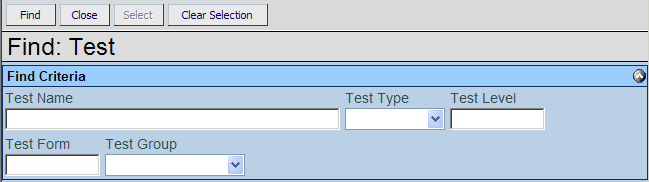
91 STUDENT TEST WAIVER Waiver tab Use the Student Waiver tab on the Student Test screen to identify students who require a waiver/exemption for CALPADS EOY reporting. 1. Navigate to Synergy SIS> Test History> Student Test. 2. Search for the specified student record that needs to be modified. 3. From the Wavier tab, select the Add button on the Waiver group box. The Student Test Waiver screen will appear. 4. From the Student Test Waiver screen, select the arrow next to the Test Name field. The Find: Test screen will appear. 5. From the Find Criteria group box, locate the Test Name field. 6. Enter the CAHSEE test name and select Find. 7. Select the Test that will be given the waiver or exemption. 8. From the Student Test Waiver screen, enter the following fields, and save the record. Copyright 2013 Edupoint Educational Systems, LLC 91

92 Field Required Note Test Name Yes Required for linking the test back to CA Setup Waivers area to determine if the test is CAHSEE Test Part No* If the CAHSEE test definition contains both parts of the test math and English and the test is being exempted then this is not required. Application Date Yes Date the application was received for the waiver or exemption. This field is used to determine the order in which the records are processed. Application Type Yes This field is used for defining the waiver or exemption value of the test. This field is extracted in the SWAV linked to the CAHSEE test setup in CA Setup. Outcome Code Yes This field is used to define if the application was Granted, Denied or Withdrawn. This field is extracted in the SWAV as the outcome code Outcome Date Yes This field is extracted in the SWAV as the outcome date Comment No Not used for CALPADS 92 Copyright 2013 Edupoint Educational Systems, LLC
93 Chapter Seventeen: MASS UPDATE STUDENT PROGRAMS In this chapter, the following topics are covered: Using Mass Update to Close Program Records Copyright 2013 Edupoint Educational Systems, LLC 93
94 MASS UPDATE STUDENT PROGRAMS Mass Update Student Programs screen is used to mass exit close programs. Run this process for programs that require exits for previous years for CALPADS submission. Free & Reduced tab Run the close function from the Free and Reduced tab at the end of each year. Completion of this process is required prior to reporting programs for Fall1 for previous years. 1. Change the focus to the year that you will be closing out programs for. 2. Navigate to Synergy SIS> Student Programs> Mass Update Student Programs. 3. From the Mass Update Student Programs screen, locate the Free & Reduced Meals tab. 4. Select the Include In Process check box. 5. Select the Update Programs button. Caution: This process must be completed every year during the EOY II submission. NSLP must be exited every year. 94 Copyright 2013 Edupoint Educational Systems, LLC
95 Student Needs tab Run the close function from the Student Needs tab at the end of each year for needs programs that require new records each year. Completion of this process is required prior to reporting programs for Fall1 for previous years. Leaving a needs record open will cause the program to continue to report the record until it is closed. 1. Navigate to Synergy SIS> Student Programs> Mass Update Student Programs. 2. From the Mass Update Student Programs screen, locate the Student Needs tab. 3. From the Action drop down, select Close. 4. From the Effective Year Source field, select Focus Year. 5. Select the Include In Process check box. 6. Select the Update Programs button. Note: The Needs Exit Reason field is not required. Copyright 2013 Edupoint Educational Systems, LLC 95
96 Chapter Eighteen: PROCESSING SSID NUMBERS In this chapter, the following topics are covered: Requesting SSID Numbers for CALPADS Importing SSID Numbers into Synergy SIS Importing Replacement SSID Numbers into Synergy SIS 96 Copyright 2013 Edupoint Educational Systems, LLC
97 REQUESTING STATE ID NUMBERS Use the CALPADS Submission screen to generate SSID request files for California state reporting. The extract will only process students that do not have an SSID in the student screen. 1. Navigate to Synergy SIS> CA> CALPADS> CALPADS Submission. 2. Select Acquire SSID Extract from the Submission Type drop down. 3. From the Records to Generate area, click the Add button. A new drop down item is displayed. 4. Select SSID Enrollment. 5. Towards the middle of the screen locate the Submission Date field, and enter today s date. 6. From the top of the page locate and press the Create button to start the process. Note: When a Submission type is first selected, the records to generate are not pre-populated. Once a successful process has completed, the CALPADS Submission screen will save the settings and display the previous run at the bottom of the screen. Copyright 2013 Edupoint Educational Systems, LLC 97
98 IMPORTING STATE ID NUMBERS Use the CALPADS Processes screen to Import in State ID Numbers. Prior to running, download the SSID result file from CALPADS and save the file to the desktop. 1. Navigate to Synergy SIS> CA> CALPADS> CALPADS Processes. 2. Select the State ID Import tab from the CALPADS Processes screen. 3. Choose the Add button and a new Web Form will appear. 4. Click the Browse button and locate the CALPADS SSID Extract file to upload. 5. After selecting the CALPADS SSID Extract file, click Upload. 6. Once the file has been uploaded, select the Process File button to import the file into Synergy SIS. 98 Copyright 2013 Edupoint Educational Systems, LLC
99 IMPORTING REPLACEMENT STATE ID NUMBERS Use the CALPADS Processes screen to Import in Replacement State ID Numbers. Prior to running, download the Replacement State ID result file from CALPADS and save the file to the desktop. 1. Navigate to Synergy SIS> CA> CALPADS> CALPADS Processes. 2. Select the State ID Import tab from the CALPADS Processes screen. 3. Choose the Add button and a new Web Form will appear. 4. Click the Browse button and locate the CALPADS SSID Extract file to upload. 5. After selecting the CALPADS SSID Extract file, click Upload. 6. One the file has been uploaded select the Process File button to import the file into Synergy SIS. After the process is completed, a process log will appear showing the results of the import. Note: Prior to replacing the state id for the student, this process will copy the current State ID value into the CALPADS Student ODS screen. Copyright 2013 Edupoint Educational Systems, LLC 99
100 Chapter Nineteen: IMPORTING ODS RECORDS In this chapter, the following topics are covered: Importing SENR ODS files into Synergy SIS Importing SINF ODS files into Synergy SIS 100 Copyright 2013 Edupoint Educational Systems, LLC
101 IMPORTING SENR-R ODS FILES Use the CALPADS Processes screen to Import the SENR ODS file used for reconciliation. Prior to running, download the SENR-R ODS from CALPADS and save the file to the desktop. 1. Request a CALPADS SENR-R ODS file for the current year 7/1 - to Today s Date. 2. Once the ODS is available from CALPADS, save the result to the desktop or folder. 3. Navigate to Synergy SIS> CA> CALPADS> CALPADS Processes. 4. Select the Enrollment Import tab from the CALPADS Processes screen. 5. Choose the Add button and a new Web Form will appear. 6. Click the Browse button and locate the CALPADS ODS Extract file to upload. 7. After selecting the CALPADS ODS Extract file, click Upload. 8. After the upload completes, select the Process File button to import the file into Synergy SIS. The system will import and sort the file based on effective date. Note: The CALPADS Operational Data Store (ODS) download contains all of the enrollment records for the District based on the date range selected. It is recommended for new users of Synergy SIS to download an original ODS, spanning multiple years, to populate all historical student records. After the initial import of the historical data is completed, a smaller subset is required for ongoing maintenance. Copyright 2013 Edupoint Educational Systems, LLC 101
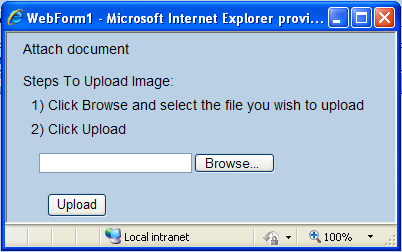
102 IMPORTING SINF-R ODS FILES Use the CALPADS Processes screen to Import the SINF ODS file used for reconciliation. Prior to running, download the SINF-R ODS from CALPADS and save the file to the desktop. 1. Request a CALPADS SINF-R ODS file for the current year 7/1 - to Today s Date. 2. Once the ODS is available from CALPADS save the result to the desktop or folder. 3. Navigate to Synergy SIS> CA> CALPADS> CALPADS Processes. 4. Select the Student Information Import tab from the CALPADS Processes screen. 5. Choose the Add button and a new Web Form will appear. 6. Click the Browse button and locate the CALPADS ODS Extract file to upload. 7. After selecting the CALPADS ODS Extract file, click Upload. 8. After the upload completes, select the Process File button to import the file into Synergy SIS. The system will import and sort the file based on effective date. 102 Copyright 2013 Edupoint Educational Systems, LLC
103 Chapter Twenty: CALPADS ODS SCREEN In this chapter, the following topics are covered: screening Imported SENR ODS records screening Submitted SINF Records Copyright 2013 Edupoint Educational Systems, LLC 103
104 CALPADS STUDENT ODS - ENROLLMENT Use the Enrollment tab on the CALPADS Student ODS screen to view the SENR ODS file imported from the enrollment import process. This screen will only show the most recent Enrollment ODS for a student. 1. Navigate to Synergy SIS> CA> CALPADS> CALPADS Student ODS. 2. Select the Enrollment tab. 3. Scroll or Find a student record to view. The imported ODS record will appear for the student selected. This screen will show the most recent ODS record that was imported in for the student. Field Academic Year ID Reporting Lea School of Attendance NPS School of Attendance Enrollment Status School Start Date School Exit Date Student Exit Reason Completion Status Note Academic Year of the ODS file that was imported into Synergy SIS Seven digit district number of the student record Seven digit school number of the student record Seven digit school number of the NPS school where the student attends for the enrollment record Enrollment status of the most recent record for the student in CALPADS School Mobility start date for the student for the most recent record in CALPADS. This field is used for Enrolment Synchronization School Mobility exit date for the student for the most recent record in CALPADS. This field is used for Enrolment Synchronization Exit Reason if populated at CALPADS for the most recent enrollment record Completion Status value for the most recent ODS record in CALPADS. Note: This screen ignores current year focus. So it is possible to see students that are not in the current school in this screen. All students that will be reported to CALPADS are required to have an ODS record. 104 Copyright 2013 Edupoint Educational Systems, LLC
105 CALPADS STUDENT ODS STUDENT INFORMATION Use the Student Information tab on the CALPADS Student ODS screen to view SINF records. This screen contains records generated by the system or downloaded from the state. 1. Navigate to Synergy SIS> CA> CALPADS> CALPADS Student ODS. 2. Select the Student Information tab. 3. Scroll or Find a student record to view. Field / Button Old State Student Number Clear All Tracking Button Academic Year ID School of Attendance Effective Date Last Updated Show Detail Button Note Read only field updated by the Replacement SSID process to track historically the previous SSID value. This button allows the ability to delete all SINF records that were previously generated from Synergy SIS Academic Year of the most recent file that was finalized in Synergy SIS Seven digit school number of the student record of the most recent file that was finalized in Synergy SIS The last finalized student information record based on the first day of school for the student. The Last Updated field will show the date and time for the selected student SINF Finalized record. Records that do not have a Last Updated field populated are records that were created in CALPADS Submission but are not finalized. Selecting this button will show the contents of the SINF record that Synergy SIS created for the selected row. Note: This screen ignores current year focus. So it is possible to see students that are not in the current school in this screen. This screen by default is blank until a record is finalized in the system. Copyright 2013 Edupoint Educational Systems, LLC 105
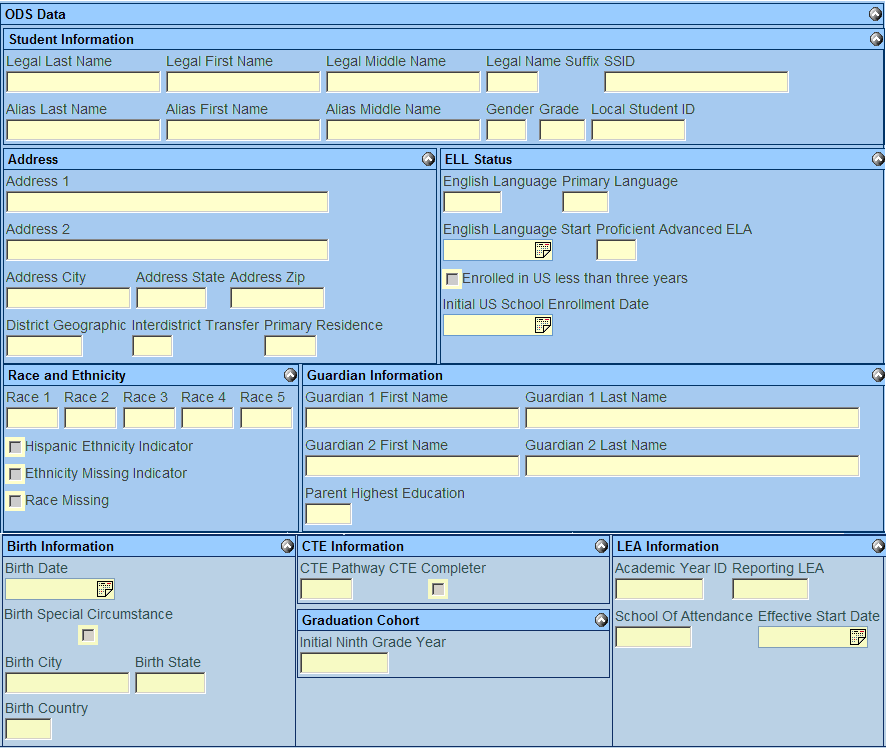
106 SINF ODS Data Use the ODS Data group box to view imported SINF-R records from CALPADS. The screen will only display the most recent ODS record from the state and shows all of the fields used in the SINF file. The ODS Data screen is used as a baseline to compare against when creating SINF records in Synergy. The importing of SINF-R is only required for this screen, running a SINF reconciliation is not required. 106 Copyright 2013 Edupoint Educational Systems, LLC
107 Chapter Twenty-one: SYNCHRONIZING FILES In this chapter, the following topics are covered: Enrollment Sync Process Student Information Sync Process Copyright 2013 Edupoint Educational Systems, LLC 107

108 RUNNING ENROLLMENT SYNC Synergy SIS keeps an internal record of which enrollment records it has submitted to CALPADS. However, some reconciliation may be required if CALPADS has been modified and Synergy SIS has not been kept up to date. The enrollment synchronization tool allows districts to download the SENR ODS and update Synergy SIS with the changes made at CALPADS. This process can replace the need to run an SENR from the CALPADS submission window. Tip: Download an ODS file from CALPADS with the date range of the last time the ODS was previously requested, up to the present date. If you are unsure of the last time an ODS was downloaded choose today s date back to fiscal year 7/1. 1. Request a new SENR ODS with the date of last ODS download - to Today s Date. 2. Import the file into Synergy SIS. 3. Navigate to Synergy SIS> CA> CALPADS> CALPADS Processes. 4. Select the Enrollment Sync tab from the CALPADS Processes screen. 5. Select Validation Mode and Do NOT flag student enrollment date mismatches as an error. 6. Click the Synchronize button to start the synchronization process. Once the synchronization process has completed a result window will appear 108 Copyright 2013 Edupoint Educational Systems, LLC

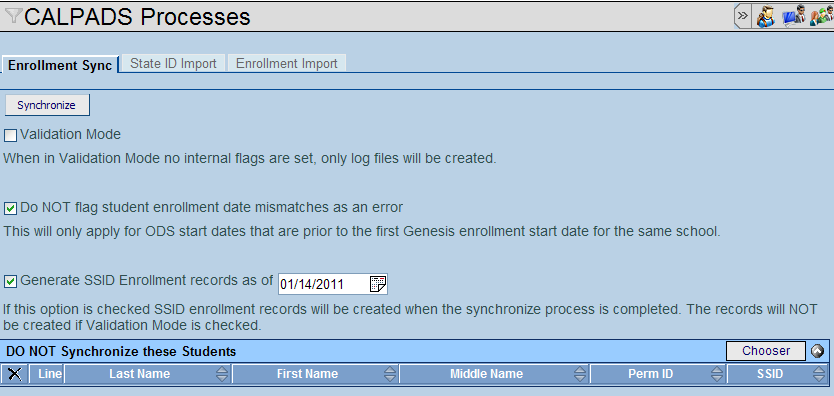
109 7. Open the Enrollment Synchronize Error Log and address any errors that show for students. 8. Re-run the process until the Enrollment Synchronize Error Log is free of errors. Caution: Do not continue until all errors are resolved in the Enrollment Synchronize Error Log. Only after all errors are resolved in the Enrollment Synchronize Error Log can you continue to the next step. 9. Next, run the create process to generate an SENR file that will be sent to CALPADS. 10. Select the Do NOT flag student enrollment date mismatches as an error and Generate SSID Enrollment records as of boxes, and enter today s date in the date window. 11. Click the Synchronize button to start the synchronization process. Once the synchronization process has completed a result window will appear. 12. If an Enrollment Synchronize Error Log appears, address any errors that show for students. Re-run the process until the Enrollment Synchronize Error Log is free of errors. Copyright 2013 Edupoint Educational Systems, LLC 109
110 13. Upload the SSID Enrollment Records file to CALPADS and process the file. 14. If errors are present at CALPADS, post the records that pass at CALPADS and continue to work on the errors in Synergy SIS. 15. Download a new ODS from CALPADS the following day and resynchronize the data. 16. Continue this process until the Enrollment Sync returns an empty result file. RUNNING STUDENT INFORMATION SYNC This process is not required. Use this process to reset Synergy SIS when SINF records have been finalized in Synergy accidentally or when SINF records are partially posted at CALPADS and all SINF records created in Synergy are finalized. Note: This process does not create an SINF extract. The process is used to reconcile SINF records if CALPADS SINF records are finalized in the system but not all records passed at CALPADS and the system needs to be reset. Synergy SIS keeps an internal record of each SINF record it has submitted to CALPADS. The CALPADS Sync process for SINF records allows the ability to finalize the SINF records from Synergy SIS and post the SINF records to the state that pass. Then by downloading a SINF-R from the state and importing the file, the sync process will clear the SINF records in Synergy SIS that did not post due to errors. 1. Request a new SINF-R ODS from the state. 2. Import the file into Synergy SIS. 3. Navigate to Synergy SIS> CA> CALPADS> CALPADS Processes. 4. Select the Student Information Sync tab from the CALPADS Processes screen. 5. Click the Synchronize button to start the synchronization process. Once the synchronization process has completed a result window will appear 110 Copyright 2013 Edupoint Educational Systems, LLC

111 6. Open the Student Information Synchronize Process Log to view records that were processed. This log is for informational purposes. Copyright 2013 Edupoint Educational Systems, LLC 111
112 Chapter Twenty-two: CREATING RULES In this chapter, the following topics are covered: Creating Error Messages Creating Rules Creating Rule Groups CALPADS Rules Examples 112 Copyright 2013 Edupoint Educational Systems, LLC

113 REVELATION MESSAGE Use the Revelation Message screen to create custom error messages for California state reporting. Rule messages created in this screen can be used in real time when users enter data or in batch mode during a nightly process that can be configured in Rules Setup. 1. Navigate to Synergy SIS> System> Setup> Revelation Message. 2. Click the Add button. The Revelation Message box will appear. 3. Populate the following fields with values, and save the record. Field Required Note Message Number Yes Enter a value greater than 99,999. Values less than 99,999 are reserved for system owned errors. Msg. Type Yes Select Error, Message, and Warning for the type of message that will be displayed. Msg. Group Yes Select State Reporting for all messages created for state reporting. Message Yes Enter a message that will be specific for the rule that you will be creating. Help Message No* Enter the steps or information that will tell the user exactly where they should go to find the field and what to do in order to fix the issue. The help message is only shown in the batch process error log and will not show on the screen Help Link No* Used to give a website with information but will not display for the user when entering data. Copyright 2013 Edupoint Educational Systems, LLC 113

114 RULES GROUP Use the Rules Group screen to create custom groups to send messages for California state reporting. Rule Groups created in this screen are used for batch processing to send s to specific groups at scheduled times. 1. Navigate to Synergy SIS> System> Setup> Rules Group. 2. From the Group Setup tab, locate the Groups group box and select Add. A new row will appear. 3. Populate the following fields with values, and save the record. Field Required Note Group Name Yes Enter the name of the group that you will add specific rules into. For example, you may use CALPADS for CALPADS specific rules or PREID for PREID Specific Rules. Items defined in this Group are linked to rules in the rules setup portion of this guide. Admin User List Yes Enter the address of the person that will be receiving the notification of issues Execute Time Yes Enter the execution time of when the report will run. 114 Copyright 2013 Edupoint Educational Systems, LLC

115 RULES SETUP Use the Rules Setup screen to create custom rules for California state reporting. Rules created in this screen can be used in real time when users enter data or in batch mode during a nightly process that can be configured in Rules Setup. 1. Navigate to Synergy SIS> System> Setup> Rules Setup. 2. Click the Add button. The Rules Setup box will appear 3. Populate the following fields with values. Field Requi red Note Rule Name Yes Use a common naming convention when creating rules. For instance, use CA in front of all state specific rules so that they are grouped together if you were trying to find something related to California. Category Yes Select the Category that the rule will be configured in. Enable Rule Yes This check box will turn on or off the rule. Run Type Yes Values of Real Time and Batch, Real Time, Batch can be used; Real Time will prompt the user to enter values when saving a record. Error or Notification Caused When Yes Batch will only generate an error when running the rules group process. Real Time and Batch will prompt the user during data entry but will also generate the batch error log generated by rules group processing. Enter the value that will create the error. For example if All Rules are False, then all rules defined must return a false value for the error to trigger. Template No* Use the template to determine how the rules group will be processed Year Start No* This field can be left blank or can be used to have a rule only start on a certain year Copyright 2013 Edupoint Educational Systems, LLC 115

116 Year End No* This field can be left blank or can be used to have a rule end on a certain year Year Extensions Yes Always select Regular. Synergy only extracts from the Regular school year extension for CA State Reporting. 4. From the Processing Group field, select CALPADS and select the Include Validation Errors in Report option. This setting will enable the rule to run as a report in rules group. 5. From the Message Number field, select the find foreign key arrow. The Find Rev Message window will appear. 6. From the Find Criteria box group box, locate the Message Number field. 7. Type the error message number for the rule you are creating and press Find. 8. Select the appropriate error message. This will return you to the previous screen with the error selected. 9. From the Rules Details box, select the Add button to create a new row. 10. Locate and enter the value of 1 into the Order field. 11. From the Type field, select the area the rule will validate against in the system. 116 Copyright 2013 Edupoint Educational Systems, LLC
117 12. Save the record. 13. From the Rule Details group box, select Show Detail for the newly created row. 14. From the Rule area of the Rules Details, enter the business objects and fields used in the validation. 15. Save the record. Note: The details area of rules detail returns different setup values based on the Category initially defined in Rules Setup. The following steps outline a student business object rule specific to the AKA last name field. Copyright 2013 Edupoint Educational Systems, LLC 117
118 RULES EXAMPLES The following section shows examples of CALPADS Rules that can be configured to be real time and batch. Always test rules in a test environment prior to releasing rules into production. Note: The following chapter shows examples. Always verify that the codes used to validate in rules created are the most recent code set values as defined by CALPADS or the CDE. AKA First Name Rule The following example will generate an error if the AKA Last Name is populated and then AKA First Name is blank. 118 Copyright 2013 Edupoint Educational Systems, LLC

119 Birth State - Canada The following example will generate an error if the Birth Country is Canada and the State field is blank or has an invalid value. Copyright 2013 Edupoint Educational Systems, LLC 119

120 Birth State Mexico The following example will generate an error if the Birth Country is Mexico and the State field is blank or has an invalid value. 120 Copyright 2013 Edupoint Educational Systems, LLC

121 Birth Country The following example will generate an error if the Birth Country is US, Mexico, Canada and the State field is blank or has an invalid value. Copyright 2013 Edupoint Educational Systems, LLC 121

122 US School Entry Date The following example will generate an error if the Birth Country is not United States and the US School Entry Date is blank. 122 Copyright 2013 Edupoint Educational Systems, LLC
123 Chapter Twenty-three: GENERATING EXTRACTS In this chapter, the following topics are covered: CALPADS Submission Logic Processing Fall 1 Extracts Processing Fall 2 Extracts Processing Spring Extracts Processing EOY 1 Extracts Processing EOY 2 Extracts Processing EOY 3 Extracts Processing EOY 4 Extracts Enrollment Maintenance Extracts Copyright 2013 Edupoint Educational Systems, LLC 123
124 CALPADS SUBMISSION LOGIC The CALPADS Submission screen is used to generate SSID Requests, Enrollment Updates, Fall 1, Fall2, SPRING and EOY Submissions. Internally, Synergy SIS keeps track of data elements reported to CALPADS by using hidden fields and database tables to compare files. On the Action Bar, four buttons control the submission process, Create, Rollback, Finalize and Validate. The Validate button is used to test selected extracts for errors. These extracts and reports are used to correct any errors and screen the extracts. Extracts generated by the Validate process should not to be sent to CALPADS. While these extracts are correct, Synergy SIS does not mark the records included as submitted to CALPADS. Once Validate is free of errors the create process should be followed. The Create button will run the extract process and mark all of the records included in the extract as sent to CALPADS. This process also creates the extracts needed for CALPADS submission. This process is only run if Validate does not return errors. If new errors are produced, use the rollback process to return Synergy SIS back to fix errors. The Rollback button is used to undo the Create process. The Rollback process removes all of the hidden flags, created by the Create process. Rollback sets the database back to its previous state allowing modifications to the database. Do not modify CALPADS required data fields with Synergy SIS in Rollback mode. The Finalize button is used to post the changes to Synergy SIS only after the file created by the Create process was error free and ALL records in the file were posted to CALPADS without errors. When a submission type is first selected, the records to generate are not pre-populated. Once a successful process has completed the CALPADS Submission screen will save the settings and display the previous run at the bottom of the screen. CAUTION: The extracts SINF, SENR, SPRG and SDEM files use the prior submit date to filter records. SENR and SPRG extracts require the Prior submit date before you can generate a file, while the SINF and SDEM do not. Leaving the prior submit date blank for the SINF and SDEM process will cause the SINF and SDEM extract to generate records for all years. 124 Copyright 2013 Edupoint Educational Systems, LLC

125 Copyright 2013 Edupoint Educational Systems, LLC 125
126 PROCESSING FALL 1 EXTRACTS The Fall 1 submission requires three extract files, SENR, SINF and SPRG. The SENR file is submitted to CALPADS first to generate the needed Enrollment records. Followed by the SINF file to update the demographic records in CALPADS, only after the SENR and SINF are posted can the SPRG file be sent to CALPADS. Step 1 - Creating SENR Student Enrollment Files 1. Request a new SENR ODS with the date of prior year CBEDS date to Today s Date. 2. Import the file into Synergy SIS. 3. Navigate to Synergy SIS> CA> CALPADS> CALPADS Processes. 4. Run the Enrollment Synchronization process for the current date to synchronize the data with CALPADS. 5. Submit the SENR file following the Enrollment Synchronization process steps. Step 2 - Creating SINF Student Information Files 1. Navigate to Synergy SIS> CA> CALPADS> CALPADS Submission. 2. Select Fall 1 Extract from the Submission Type drop down list. 3. From the Records to Generate area, press the Add button. A new drop down item is displayed. 4. Select SINF - Student Information. 5. Locate the Submission Date field and enter CBEDS day for the date. 6. Locate and press the Validate button to start the process. Once the Fall 1 process has completed a result window will appear. 7. Select each error report generated for the schools and correct in Synergy SIS. 8. Once errors are corrected, re-run the Fall 1 extract in validate mode again until all errors are corrected. Once all errors are corrected, the creation process can begin and the file can be sent to CALPADS. Caution: Do not continue until all errors are resolved in Synergy SIS. Only after all errors are resolved can you continue to the next step. The creation process in the next step flags the internal database and marks students as reported to state. 126 Copyright 2013 Edupoint Educational Systems, LLC
127 9. Locate and press the Create button to start the process. Once the Fall 1 process has completed in Create mode a result window will appear. 10. Send the file created to CALPADS and verify that no errors are present. 11. If errors are present at CALPADS, locate and press the Rollback button in the CALPADS Submission screen. This will roll the database back and allow the ability to fix the errors reported by CALPADS. Tip: Optionally you can finalize the SINF record for Synergy SIS and post all SINF records that pass at CALPADS. If this option is used you will need to download a SINF-R file and run the SINF sync process in this document and then regenerate the SINF record from Synergy SIS. 12. Resolve errors for students, Create the file again, and send it to CALPADS. 13. Once CALPADS is error free you can then press the Finalize button on the CALPADS Submission screen. This will mark all records as sent to the state and the records will not extract again unless something changes for the student. Step 3 - Creating SPRG Student Program Files 1. Navigate to Synergy SIS> CA> CALPADS> CALPADS Submission. 2. Select Fall 1 Extract from the Submission Type drop down list. 3. From the Records to Generate area, change the SINF - Student Information file to SPRG - Student Program. 4. Locate the Submission Date field and enter CBEDS day for the date. 5. Locate and press the Validate button to start the process. Once the Fall 1 process has completed a result window will appear. 6. Select each error report generated for the schools and correct in Synergy SIS. 7. Once errors are corrected, re-run the Fall 1 extract in validate mode again until all errors are corrected. Once all errors are corrected, the creation process can begin and the file can be sent to CALPADS. Caution: Do not continue untill all errors are resolved in Synergy SIS. Only after all errors are resolved can you continue to the next step. The creation process in the next step flags the internal database and marks students as reported to state. 8. Locate and press the Create button to start the process. Once the Fall 1 process has completed in Create mode a result window will appear. Copyright 2013 Edupoint Educational Systems, LLC 127

128 9. Send the file created to CALPADS and verify that no errors are present. 10. If errors are present at CALPADS, locate and press the Rollback button in the CALPADS Submission screen. This will roll the database back and allow the ability to fix the errors reported by CALPADS. 11. Resolve errors for students and then Create the file again and send it to CALPADS. 12. Once CALPADS is error free you can then press Finalize on the CALPADS Submission screen. This will mark all records as having been sent to the state and the records will not extract again unless something changes for the student. 128 Copyright 2013 Edupoint Educational Systems, LLC
129 PROCESSING FALL 2 EXTRACTS The Fall 2 requires four files to be submitted to CALPADS for processing. These files must be submitted in the correct order to avoid errors at CALPADS. The correct order is Staff Demographics, Staff Assignments, Course Section, and then followed by Student Course Section. The Course Section and Student Course Section can be sent at the same time if you choose. Step 1 - Creating SDEM - Staff Demographic Files 1. Navigate to Synergy SIS> CA> CALPADS> CALPADS Submission. 2. Select Fall 2 Extract from the Submission Type drop down list. 3. From the Records to Generate area, press the Add button. A new drop down item is displayed. 4. Select SDEM - Staff Demographic. 5. Locate the Submission Date field and enter the CBEDS date for the date. 6. Locate and press the Validate button to start the process. Once the Fall 2 process has completed a result window will appear. Note: When a Submission type first selected, the records to generate are not pre-populated. Once a successful process has completed the CALPADS Submission screen will save the settings and display the previous run at the bottom of the screen. 7. Select each error report generated for the schools and correct in Synergy SIS. 8. Once errors are corrected, re-run the Fall 2 extract in validate mode again until all errors are corrected. Once all errors are resolved, the creation process can begin and the file sent to CALPADS. 9. Locate and press the Create button to start the process. Once the Fall 2 process has completed in Create mode a result window will appear. 10. Send the file created to CALPADS and verify that no errors are present. 11. If errors are present at CALPADS, locate and press the Rollback button in the CALPADS Submission screen. This will roll the database back and allow the ability to fix the errors reported by CALPADS. 12. Resolve errors for Staff and then create the file again and send it to CALPADS. 13. Once CALPADS is error free you can then press the Finalize button on the CALPADS submission screen. This will mark all records as having been sent to the Copyright 2013 Edupoint Educational Systems, LLC 129
130 state and the records will not extract again unless something changes for the record. Caution: Verify that all staff members that should extract are included in the SDEM file. Failure to do this housekeeping step will cause additional errors in the SASS, CRSE and SCSE files. Step 2 - Creating SASS Staff Assignments Files 1. Navigate to Synergy SIS> CA> CALPADS> CALPADS Submission. 2. Select Fall 2 Extract from the Submission Type drop down list. 3. From the Records to Generate area, change the previous submission value to SASS Staff Assignment Files. 4. Locate the Submission Date field and enter the CBEDS date for the date. 5. Locate and press the Validate button to start the process. Once the Fall 2 process has completed a result window will appear. 6. Select each error report generated for the schools and correct in Synergy SIS. 7. Once errors are corrected, re-run the Fall 2 extract in validate mode again until all errors are corrected. Once all errors are resolved, the creation process can begin and the file sent to CALPADS. Caution: This file format is a complete replacement file. You must send the entire school again if the file has problems at the state. Sending single records will completely delete all records for the school for SASS. 8. Locate and press the Create button to start the process. Once the Fall 2 process has completed in Create mode, a result window will appear. 9. Send the file created to CALPADS and verify that no errors are present. 10. If errors are present at CALPADS, locate and press the Rollback button in the CALPADS Submission screen. This will roll the database back and allow the ability to fix the errors reported by CALPADS. 11. Resolve errors for Staff and then create the file again and send it to CALPADS. 12. Once CALPADS is error free you can then press the Finalize button on the CALPADS submission screen. This will mark all records as having been sent to the state and the records will not extract again unless something changes for the record. 130 Copyright 2013 Edupoint Educational Systems, LLC
131 Step 3 Verify ELL Section and Staff Data for CRSE 1. Navigate to the Synergy SIS> CA> Reports> List> CALP401 Section ELL Cross Check. 2. Choose Print to launch the report. 3. Correct any errors that may appear for sections or staff records. Reference the Reports section of this manual for additional setup for this report. Step 4 - Creating CRSE Course Section Files 1. Navigate to Synergy SIS> CA> CALPADS> CALPADS Submission. 2. Select Fall 2 Extract from the Submission Type drop down list. 3. From the Records to Generate area, change the previous submission value to CRSE Course Section File. 4. Locate the Submission Date field and enter the CBEDS date for the date. 5. Locate and press the Validate button to start the process. Once the Fall 2 process has completed, a result window will appear. 6. Select each error report generated for the schools and correct in Synergy SIS. 7. Once errors are corrected, re-run the Fall 2 extract in validate mode again until all errors are corrected. Once all errors are resolved, the creation process can begin and the file sent to CALPADS. Caution: This file format is a complete replacement file. You must send the entire school again if the file has problems at the state. Sending single records will completely delete all records for the school for CSRE. 8. Locate and press the Create button to start the process. Once the Fall 2 process has completed in Create mode a result window will appear. 9. Send the file created to CALPADS and verify that no errors are present. 10. If errors are present at CALPADS, locate and press the Rollback button in the CALPADS Submission screen. This will roll the database back and allow the ability to fix the errors reported by CALPADS. 11. Resolve errors for Course Section fields and then create the file again and send it to CALPADS. Copyright 2013 Edupoint Educational Systems, LLC 131
132 12. Once CALPADS is error free you can then press the Finalize button on the CALPADS submission screen. This will mark all records as having been sent to the state and the records will not extract again unless something changes for the record. Step 5 - Creating SCSE Student Course Section Files 1. Navigate to Synergy SIS> CA> CALPADS> CALPADS Submission. 2. Select Fall 2 Extract from the Submission Type drop down list. 3. From the Records to Generate area, change the previous submission value to SCSE Student Course Section. 4. Locate the Submission Date field and enter the CBEDS date for the date. 5. Locate and press the Validate button to start the process. Once the Fall 2 process has completed a result window will appear. 6. Select each error report generated for the schools and correct Synergy SIS. 7. Once errors are corrected, re-run the Fall 2 extract in validate mode again until all errors are corrected. Once all errors are resolved, the creation process can begin and the file sent to CALPADS. Caution: This file format is a complete replacement file. You must send the entire school again if the file has problems at the state. Sending single records will completely delete all records for the school for SCSE. 8. Locate and press the Create button to start the process. Once the Fall 2 process has completed in Create mode a result window will appear. 9. Send the file created to CALPADS and verify no errors are present. 10. If errors are present at CALPADS, locate and press the Rollback button in the CALPADS Submission screen. This will roll the database back and allow the ability to fix the errors reported by CALPADS. 11. Resolve errors for Student Course Sections and then create the file again and send it to CALPADS. 12. Once CALPADS is error free you can then press Finalize button on the CALPADS submission screen. This will mark all records as being sent to the state and the records will not extract again unless something changes for the record. 132 Copyright 2013 Edupoint Educational Systems, LLC
133 PROCESSING SPRING EXTRACTS The SPRING requires updated SENR and SINF records are sent to the state. Optionally SPRG is needed if requesting additional reports from CALPADS. Step 1 - Creating SENR Student Enrollment Files 1. Request a new SENR ODS with the date of the last Enrollment update to Today s Date. 2. Import the file into Synergy SIS. 3. Navigate to Synergy SIS> CA> CALPADS> CALPADS Processes. 4. Run the Enrollment Synchronization process for the Current date to synchronize the data with CALPADS. 5. Submit the SENR file following the Enrollment Synchronization process steps. Step 2 - Creating SINF Student Information Files 1. Navigate to Synergy SIS> CA> CALPADS> CALPADS Submission. 2. Select SPRING Extract from the Submission Type drop down list. 3. From the Records to Generate area, press the Add button. A new drop down item is displayed. 4. Select SINF - Student Information. 5. Locate the Submission Date field and enter March 1st for the date. 6. Locate and press the Validate button to start the process. Once the SPRING process has completed a result window will appear. 7. Select each error report generated for the schools and correct in Synergy SIS. 8. Once errors are corrected, re-run the SPRING extract in validate mode again until all errors are corrected. Once all errors are corrected, the creation process can begin and the file can be sent to CALPADS. Caution: Do not continue until all errors are resolved. Only after all errors are resolved can you continue to the next step. The creation process in the next step flags the internal database and marks students as reported to state. 9. Locate and press the Create button to start the process. Once the SPRING process has completed in Create mode a result window will appear. Copyright 2013 Edupoint Educational Systems, LLC 133
134 10. Send the file created to CALPADS and verify that no errors are present. 11. If errors are present at CALPADS, locate and press the Rollback button in the CALPADS Submission screen. This will roll the database back and allow the ability to fix the errors reported by CALPADS. Tip: Optionally you can finalize the SINF record for Synergy SIS and post all SINF records that pass at CALPADS. If this option is used you will need to download a SINF-R file and run the SINF sync process in this document and then regenerate the SINF record from Synergy SIS. 12. Resolve errors for students and then create the file again and send it to CALPADS. 13. Once CALPADS is error free you can then press the Finalize button on the CALPADS submission screen. This will mark all records as having been sent to the state and the records will not extract again unless something changes for the student. 134 Copyright 2013 Edupoint Educational Systems, LLC
135 PROCESSING END OF YEAR EXTRACTS - (EOY I) The EOY 1 requires updated SENR and SINF records are sent to the state prior to running this extract. Step 1 - Creating CRSC Course Completion Files 1. Navigate to Synergy SIS> CA> CALPADS> CALPADS Submission. 2. Select End of Year I Extract from the Submission Type drop down list. 3. From the Records to Generate area, press the Add button. A new drop down item is displayed. 4. Select Course Section. 5. Locate the Submit Date field and enter last day of school for the date. 6. Locate the Prior Submit Date field and enter the first day of school for the date. 7. Locate and press the Validate button to start the process. Once the End of Year I process has completed a result window will appear. 8. Select each error report generated for the schools and correct in Synergy SIS. 9. When all errors are corrected in the validation process, locate and press the Create button to start the process. When the End of Year I process has completed in Create mode a result window will appear. 10. Send the file created to CALPADS and verify that no errors are present. 11. If errors are present at CALPADS, locate and press the Rollback button in the CALPADS Submission screen. This will roll the database back and allow the ability to fix the errors reported by CALPADS. 12. Resolve errors for students and then create the file again and send it to CALPADS. 13. Once CALPADS is error free you can then press the Finalize button on the CALPADS Submission screen. Step 2 - Creating SCSC Student Course Completion Files 1. Navigate to Synergy SIS> CA> CALPADS> CALPADS Submission. 2. Select End of Year I Extract from the Submission Type drop down list. 3. From the Records to Generate area, press the Add button. A new drop down item is displayed. 4. Select Student Course Section. Copyright 2013 Edupoint Educational Systems, LLC 135
136 5. Locate the Submit Date field and enter last day of school for the date. 6. Locate the Prior Submit Date field and enter the first day of school for the date. 7. Locate and press the Validate button to start the process. Once the End of Year I process has completed a result window will appear. 8. Select each error report generated for the schools and correct in Synergy SIS. 9. When all errors are corrected in the validation process, locate and press the Create button to start the process. 10. When the End of Year I process has completed in Create mode a result window will appear. 11. Send the file created to CALPADS and verify that no errors are present. 12. If errors are present at CALPADS, locate and press the Rollback button in the CALPADS Submission screen. This will roll the database back and allow the ability to fix the errors reported by CALPADS. 13. Resolve errors for students and then create the file again and send it to CALPADS. 14. Once CALPADS is error free you can then press the Finalize button on the CALPADS Submission screen. 136 Copyright 2013 Edupoint Educational Systems, LLC
137 PROCESSING END OF YEAR EXTRACTS - (EOY II) The EOY 1 requires updated SENR and SINF records have been sent to the state prior to running this extract. Creating SPRG Student Program Files 1. Navigate to Synergy SIS> CA> CALPADS> CALPADS Submission. 2. Select End of Year II Extract from the Submission Type drop down list. 3. From the Records to Generate area, press the Add button. A new drop down item is displayed. 4. Select Student Program. 5. Locate the Submit Date field and enter the last day of school. 6. Locate the Prior Submit Date field and enter the first day of school. 7. Locate and press the Validate button to start the process. Once the End of Year II process has completed a result window will appear. 8. Select each error report generated for the schools and correct in Synergy SIS. 9. Once errors are corrected, re-run the End of Year II extract in validate mode again until all errors are corrected. Once all errors are corrected, the creation process can begin and the file can be sent to CALPADS. 10. Locate and press the Create button to start the process. When the End of Year II process has completed in Create mode a result window will appear. 11. Send the file created to CALPADS and verify that no errors are present. 12. If errors are present at CALPADS, locate and press the Rollback button in the CALPADS Submission screen. This will roll the database back and allow the ability to fix the errors reported by CALPADS. 13. Resolve the errors for students and then Create the file again and send it to CALPADS. 14. Once CALPADS is error free and you have posted the results to CALPADS, you can then press Finalize on the CALPADS Submission screen. Copyright 2013 Edupoint Educational Systems, LLC 137
138 PROCESSING END OF YEAR EXTRACTS - (EOY III) The End of Year III requires updated SENR and SINF records have been sent to the state prior to running this extract. Creating SDIS Student Discipline Files 1. Navigate to Synergy SIS> CA> CALPADS> CALPADS Submission. 2. Select End of Year III Extract from the Submission Type drop down list. 3. From the Records to Generate area, press the Add button. A new drop down item is displayed. 4. Select Student Discipline. 5. Locate the Submit Date field and enter the last day of school. 6. Locate the Prior Submit Date field and enter the first day of school. 7. Locate and press the Validate button to start the process. Once the End of Year III process has completed a result window will appear. 8. Select each error report generated for the schools and correct in Synergy SIS. 9. Once errors are corrected, re-run the End of Year III extract in validate mode again until all errors are corrected. Once all errors are corrected, the creation process can begin and the file can be sent to CALPADS. 10. Locate and press the Create button to start the process. When the End of Year III process has completed in Create mode a result window will appear. 11. Send the file created to CALPADS and verify that no errors are present. 12. If errors are present at CALPADS, locate and press the Rollback button in the CALPADS Submission screen. This will roll the database back and allow the ability to fix the errors reported by CALPADS. 13. Resolve the errors for students and then Create the file again and send it to CALPADS. 14. Once CALPADS is error free and you have posted the results to CALPADS, you can then press Finalize on the CALPADS Submission screen. 138 Copyright 2013 Edupoint Educational Systems, LLC
139 PROCESSING END OF YEAR EXTRACTS - (EOY IV) The End of Year IV requires updated SENR and SINF records have been sent to the state prior to running this extract. Creating SWAV Student Waiver Files 1. Navigate to Synergy SIS> CA> CALPADS> CALPADS Submission. 2. Select End of Year IV Extract from the Submission Type drop down list. 3. From the Records to Generate area, press the Add button. A new drop down item is displayed. 4. Select Student Waivers. 5. Locate the Submit Date field and enter the last day of school. 6. Locate the Prior Submit Date field and enter the first day of school. 7. Locate and press the Validate button to start the process. Once the End of Year IV process has completed a result window will appear. 8. Select each error report generated for the schools and correct in Synergy SIS. 9. Once errors are corrected, re-run the End of Year IV extract in validate mode again until all errors are corrected. Once all errors are corrected, the creation process can begin and the file can be sent to CALPADS. 10. Locate and press the Create button to start the process. When the End of Year IV process has completed in Create mode a result window will appear. 11. Send the file created to CALPADS and verify that no errors are present. 12. If errors are present at CALPADS, locate and press the Rollback button in the CALPADS Submission screen. This will roll the database back and allow the ability to fix the errors reported by CALPADS. 13. Resolve the errors for students and then Create the file again and send it to CALPADS. 14. Once CALPADS is error free and you have posted the results to CALPADS, you can then press Finalize on the CALPADS submission screen. Copyright 2013 Edupoint Educational Systems, LLC 139
140 PROCESSING ENROLLMENT MAINTENANCE EXTRACT Use the Enrollment Maintenance submission to send periodic updates throughout the year. Step 1 - Creating SENR Student Enrollment Files 1. Request a new SENR ODS with the date of the last Enrollment update to Today s Date. 2. Import the file into Synergy SIS. 3. Navigate to Synergy SIS> CA> CALPADS> CALPADS Processes. 4. Run the Enrollment Synchronization process for the Current date to synchronize the data with CALPADS. 5. Submit the SENR file following the Enrollment Synchronization process steps. Step 2 - Creating SINF Student Information Files 1. Navigate to Synergy SIS> CA> CALPADS> CALPADS Submission. 2. Select SSID Enrollment Management Extract from the Submission Type drop down list. 3. From the Records to Generate area, press the Add button. A new drop down item is displayed. 4. Select SINF - Student Information. 5. Locate the Submission Date field and enter CBEDS day for the date. 6. Locate and press the Validate button to start the process. Once the SSID Enrollment Management Extract process has completed a result window will appear. 7. Select each error report generated for the schools and correct in Synergy SIS. 8. Once errors are corrected, re-run the SSID Enrollment Management extract in validate mode again until all errors are corrected. Caution: Do not continue until all errors are resolved in Synergy SIS. Only after all errors are resolved can you continue to the next step. The creation process in the next step flags the internal database and marks student information records as reported to state. 140 Copyright 2013 Edupoint Educational Systems, LLC
141 9. Once all errors are corrected in Synergy SIS, the creation process can begin and the file can be sent to CALPADS. 10. Locate and press the Create button to start the process. Once the SSID Enrollment Management Extract process has completed in Create mode a result window will appear. 11. Send the file created SINF file to CALPADS and verify that no errors are present. 12. If errors are present at CALPADS, locate and press the Rollback button in the CALPADS Submission screen. This will roll the database back and allow the ability to fix the errors reported by CALPADS. Tip: Optionally you can finalize the SINF record for Synergy SIS and post all SINF records that pass at CALPADS. If this option is used you will need to download a SINF-R file and run the SINF sync process in this document and then regenerate the SINF record from Synergy SIS. 13. Resolve errors for students, create the file again, and send it to CALPADS. 14. Once CALPADS is error free you can then press the Finalize button on the CALPADS Submission screen. This will mark all records as sent to the state and the records will not extract again unless something changes for the student. Copyright 2013 Edupoint Educational Systems, LLC 141
142 Chapter Twenty-four: REPORTS In this chapter, the following topics are covered: Section ELL Cross Check Report CALP401 CALPADS Validation Report CALP402 Need List PGM401 Free and Reduced Meals PGM Copyright 2013 Edupoint Educational Systems, LLC
143 CALP401 SECTION ELL CROSS CHECK REPORT Use the Section ELL Cross Check Report to verify that all sections that contain ELL students have values defined in the instructional strategy field of the Section screen. In addition, the report will check for ELL Indicator values for staff members assigned to sections with an ELL Instructional Strategy value. PAD Location: Synergy SIS > CA> Reports > List Report Options As Of Date Date used to verify ELL students enrolled in a section on the given day Focus Obeys the district or school focus for organization filtering Report Output Note: The ELL Cross Check report only generates two errors. The Staff Errors will only appear if section errors are resolved. Only sections where the district course is marked as NCLB Core Elementary or Secondary will appear on the report. Lookup tables Instructional Strategy K12.ScheduleInfo.Instructional Strategy ELL Indicator K12.CourseInfo.ELL indicator Copyright 2013 Edupoint Educational Systems, LLC 143
144 CALP402 CALPADS VALIDATION REPORT The CALPADS Validation Report allows the ability to run the validation portion of the CALPADS submission extract for any selected extract record. Use this report to schedule validation reports or run extracts for specific dates. Pad Location: Synergy SIS > CA> Reports > List Report Options Submission Type Extract type used for specific extract and validation rules Submit Date Use submission date for the selected submission type Prior Submit Date Use prior submission date for the selected submission type Records to Generate Select the extract records to generate the validation reports for Focus Obeys the district or school focus for organization filtering Only schedule this report to run after hours; do not run all extract files at the same time. In order to receive correct error messages for this report all setup is required. 144 Copyright 2013 Edupoint Educational Systems, LLC
145 PGM401 PROGRAM/NEEDS LIST The Program/Needs List report allows the ability to display selected needs program information based on CALPADS report logic for Eligible vs. Participation. Pad Location: Synergy SIS > Student Programs> Reports > List Report Options Grade Used to filter report by grade Need Select Need codes to be reported Focus Obeys the district or school focus for organization filtering Report Output Note: This report requires that all needs are designated as Participation or Eligible in the CA Setup Program area; reference the CA Setup chapter of this guide for more information Copyright 2013 Edupoint Educational Systems, LLC 145
146 PGM402 FREE AND REDUCED MEALS LIST The Free and Reduced Meals List report allows the ability to display Free or Reduced program information based on CALPADS report logic for Eligible vs. Participation. Pad Location: Synergy SIS > Student Programs> Reports > List Report Options Focus Obeys the district or school focus for organization filtering Grade Used to filter report by grade Free/Reduced Meal Codes Select Free/Reduced meal codes to be reported Report Output Lookup tables FRM Code K12.ProgramInfo.FRM Code Note: This report requires that FRM Codes are marked as Participation or Eligible in the associated lookup table; reference the Lookup Definition chapter of this guide for more information 146 Copyright 2013 Edupoint Educational Systems, LLC
147 Chapter Twenty-five: CALPADS EXTRACT MAPPING In this chapter, the following extract formats are covered: SENR SSID Enrollment SINF Student Information SPRG Student Programs SWAV Student Waivers SDEM Staff Demographics SASS Staff Assignments CRSE Course Section Enrollment CRSC Course Section Completion SCSE Student Course Section Enrollment SCSC Student Course Section Completion SCTE Student Career Technical Education Copyright 2013 Edupoint Educational Systems, LLC 147
148 SSID ENROLLMENT (SENR) Field # CALPADS Name Edupoint BO and Property Synergy SIS Location tab Field Name Look-up table 1.01 Record Type Code Default to SENR Transaction Type Code Calculated Local Record ID Calculated Reporting LEA K12.DistrictSetup.DistrictNumber Organization District County Code + District Number School of Attendance K12.School.StateSchoolCode Organization School State CTDS Code School of Attendance NPS StudentSchoolYear.SpecialEdSchoolOf Attendance Student Other Info Special Ed School of Attendance Academic Year ID RevYear.FullYear SSID K12.Student.StateStudentNumber Student tab Panel State Student Number Local Student ID K12.Student.SisNumber Student tab Panel Perm ID Student Legal First Name Student Legal Middle Name Student Legal Last Name Student Legal Name Suffix Code Student Alias First Name Student Alias Middle Name Student Alias Last Name K12.Student.FirstName Student tab Panel First Name - - K12.Student.MiddleName Student tab Panel Middle Name - - K12.Student.LastName Student tab Panel Last Name - - CALPADS Code Set Record Type CALPADS Transaction Type CALPADS K12.Student.Suffix Student tab Panel Suffix - Name Suffix K12.Student.AKAFirstName Student Demographics AKA First Name - - K12.Student.AKAMiddleName Student Demographics AKA Middle Name - - K12.Student.AKALastName Student Demographics AKA Last Name Student Birth Date K12.Student.BirthDate Student Demographics Birth Date Student Gender Code K12.Student.Gender Student Demographics Gender Revelation. Gender Gender 1.19 Student Birth City K12.Student.BirthPlace Student Demographics Birth Place Student Birth State Province Code K12.Student.BirthState Student Demographics Birth State Revelation. State State/Province 148 Copyright 2013 Edupoint Educational Systems, LLC
149 Field # CALPADS Name Edupoint BO and Property Synergy SIS Location tab Field Name Look-up table CALPADS Code Set Country 1.21 Student Birth Country Revelation. International K12.Student.BirthCountry Student Demographics Birth Country Code Country Standards Organization 1.22 Primary Language Code K12.Student.HomeLanguage Student Demographics Home Language K12.Language Language 1.23 Student School Start Date K12.EnrollmentInfo.StudentEnrollment. EnterDate Student 1.24 Enrollment Status Code Calculated Student 1.25 Grade Level Code Student School Exit Date Student Exit Reason Code Student School Completion Status Expected Receiver School of Attendance Student Met all UC CSU Requirements Indicator K12.EnrollmentInfo.StudentEnrollment. Grade K12.EnrollmentInfo.LeaveDate K12.EnrollmentInfo.LeaveCode K12.EnrollmentInfo.StudentSOREnroll ment.completionstatus K12.EnrollmentInfo.StudentSchoolYear.ReceiverSchool Student Student Student Enrollment History Enrollment History Enrollment History Enrollment History Enrollment History Enter Date - - Enter Code K12.EnterCode Enrollment Status Grade K12. Grade Grade Level Leave Date - - Leave Code Student Enrollment Completion Status Student Enrollment History K12.Student.UcGradReq Student Other Info Receiver School UC/CSU Requirements Met K12.LeaveCode K12.Completion Status K12.Reciver School - - Student Exit Category School Completion Status - Copyright 2013 Edupoint Educational Systems, LLC 149
150 Field # STUDENT INFORMATION (SINF) Public Name Edupoint BO and Property Synergy SIS Location tab Field Name Look-up table CALPADS Code Set 2.01 Record Type Code Default to SINF Record Type CALPADS 2.02 Transaction Type Code Calculated Transaction Type CALPADS 2.03 Local Record ID Calculated Effective Start Date Calculated Effective End Date Reporting LEA K12.DistrictSetup.DistrictNumber Organization District County Code + District Number School of Attendance K12.School.StateSchoolCode Organization School State CTDS Code Academic Year ID RevYear.FullYear SSID K12.Student.StateStudentNumber Student tab Panel State Student Number Local Student ID K12.Student.SiSNumber Student tab Panel Perm ID Student Legal First Name Student Legal Middle Name Student Legal Last Name Student Legal Name Suffix Code Student Alias First Name Student Alias Middle Name Student Alias Last Name K12.Student.FirstName Student tab Panel First Name - - K12.Student.MiddleName Student tab Panel Middle Name - - K12.Student.LastName Student tab Panel Last Name - - K12.Student.Suffix Student tab Panel Suffix - Name Suffix K12.Student.AKAFirstName Student Demographics AKA First Name - - K12.Student.AKAMiddleName Student Demographics AKA Middle Name - - K12.Student.AKALastName Student Demographics AKA Last Name Student Birth Date K12.Student.BirthDate Student Demographics Birth Date Student Gender Code K12.Student.Gender Student Demographics Gender Revelation. Gender Gender 2.20 Student Birth City K12.Student.BirthPlace Student Demographics Birth Place Copyright 2013 Edupoint Educational Systems, LLC
151 Field # Public Name Student Birth State Province Code Student Birth Country Code Edupoint BO and Property Synergy SIS Location K12.Student.BirthState Student Demographics Birth State tab Field Name Look-up table K12.Student.BirthCountry Student Demographics Birth Country Revelation. State Revelation. Country CALPADS Code Set State/Province Country International Standards Organization 2.23 Primary Language Code K12.Student.HomeLanguage Student Demographics Home Language K12.Language Language Student Hispanic Ethnicity Indicator Student Ethnicity Missing Indicator K12.Student.HispanicIndicator Student Demographics - Revelation. Hispanic Indicator Calculated Student Race 1 Code K12.Student.EthnicCode Student Demographics Student Race 2 Code RevPersonSecondaryEthnic.EthnicCode Student Demographics Student Race 3 Code RevPersonSecondaryEthnic.EthnicCode Student Demographics Student Race 4 Code RevPersonSecondaryEthnic.EthnicCode Student Demographics Student Race 5 Code RevPersonSecondaryEthnic.EthnicCode Student Demographics 2.31 Student Race Missing Indicator 2.32 Grade Level Code Primary Residence Category Code Interdistrict Transfer Code District of Geographic Residence Residential Address Line 1 Residential Address Line 2 Residential Address City Name Residential Address State Province Code Revelation. Ethnicity Revelation. Ethnicity Revelation. Ethnicity Revelation. Ethnicity Revelation. Ethnicity Calculated K12.EnrollmentInfo.StudentSOREnroll ment.grade Student Enrollment History K12.Student.DwellingType Student Other Info Dwelling Type K12.EnrollmentInfo.StudentSOREnroll ment.attendpermitcode K12.EnrollmentInfo.StudentSOREnroll ment.districtofresidence Student Student Demographics Enrollment Copyright 2013 Edupoint Educational Systems, LLC Race Category Race Category Race Category Race Category Race Category Grade K12.Grade Grade Level Reason for Attendance District of Residence K12.Demograph ics.dwelling Type K12.Enrollment. Attend Permit Reason - - K12.Student.HomeAddress Student Demographics Address K12.Student.HomeCity Student Demographics City - - K12.Student.HomeState Student Demographics State Revelation. State Primary Residence Category Interdistrict Transfer Category State/Province
152 Field # Public Name Residential Address Zip Code English Language Acquisition Status Code English Language Acquisition Status Start Date Student Proficient or Advanced for ELA Code Edupoint BO and Property Synergy SIS Location tab Field Name Look-up table K12.Student.HomeZipCode5 Student Demographics ZipCode - - K12.ProgramInfo.ELL.IdeaCurLevel English Language Learners ELL English Proficiency K12.ProgramInf o.ell Idea Level Calculated K12.ProgramInfo.ELL.ElaCstProf English Language Learners ELL ELA CST Proficient 3 Years - CALPADS Code Set English Language Acquisition Status State English Language Arts Proficiency Test 2.44 Filler Filler Student Initial US School Enrollment Date Enrolled in US School less than Three Cumulative Years Indicator Student Initial Ninth Grade Entry Year K12.Student.USEntryDateSchool Student Enrollment Calculated / Override Student Enrollment Calculated / Override Student Other Info US School Entry Date Enrolled in US less than three years Initial Ninth Grade Year Filler Filler Filler Filler Parent Guardian Highest Education Level Code 2.51 Guardian 1 First Name 2.52 Guardian 1 Last Name 2.53 Guardian 2 First Name 2.54 Guardian 2 Last Name Calculated / K12.ParentGuardianInfo.Parent. HighestEducationLevel K12.ParentGuardianInfo.Parent. FirstName K12.ParentGuardianInfo.Parent. LastName K12.ParentGuardianInfo.Parent. FirstName K12.ParentGuardianInfo.Parent. LastName Parent Demographics Highest Education Level K12.Education Level Parent tab Panel First Name - - Parent tab Panel Last Name - - Parent tab Panel First Name - - Parent tab Panel Last Name - - Highest Education Level 152 Copyright 2013 Edupoint Educational Systems, LLC
153 STUDENT PROGRAM (SPRG) Field # Public Name Edupoint BO and Property Synergy SIS Location tab Field Name Look-up table name CALPADS Code Set 3.01 Record Type Code Default SPRG Record Type CALPADS 3.02 Transaction Type Code Calculated Transaction Type CALPADS 3.03 Local Record ID Blank Reporting LEA K12.DistrictSetup.DistrictNumber Organization District 3.05 School of Attendance K12.School.StateSchoolCode Organization School County Code + District Number State CTDS Code Academic Year ID RevYear.FullYear SSID K12.Student.StateStudentNumber Student tab Panel State Student Number Local Student ID K12.Student.SiSNumber Student tab Panel Perm ID Student Legal First Name Student Legal Last Name K12.Student.FirstName Student tab Panel First Name - - K12.Student.LastName Student tab Panel Last Name Student Birth Date K12.Student.BirthDate Student Demographics Birth Date Student Gender Code K12.Student.Gender Student Demographics Gender Revelation. Gender Gender Education Program Code Education Program Membership Code FRM - K12.ProgramInfo.StudentFRMHistory. FRMCode GATE -K12.ProgramInfo. StudentGateHistory. GateGrade NEED - K12.ProgramInfo.StudentNeeds Programs SPED - Generated as 144 FRM - (Defined by Lookup table) GATE - (Defined by Lookup table) NEED - K12.CA.CALPADS.CalStateProgs. PartEligibility SPED - K12.CA.CALPADS.CalStateProgs. PartEligibility Free and Reduced Meals Student GATE Student Needs Student Special Ed Lookup table Def Lookup table Def CA Setup Copyright 2013 Edupoint Educational Systems, LLC 153 FRM Student Gate Programs Frm Code Gate Code Need Description AltCode3 - AltCode3 CALPADS Participation / Eligibility K12.ProgramInfo. Frm Code K12.ProgramInfo. Gate Code - K12.ProgramInfo. Frm Code K12.ProgramInfo. Gate Code - Set Education Program Membership Category
154 Field # Public Name Edupoint BO and Property FRM - K12.ProgramInfo.StudentFRMHistory. Enter Date GATE K12.ProgramInfo.StudentGateHistory. Education Program Enter Date Membership Start Date NEED - K12.ProgramInfo.StudentNeeds Programs.EnterDate SPED - K12.SpecialEd.IEP.CA.CASEMISv02 History.Initial IEP Date FRM - K12.ProgramInfo.StudentFRMHistory. Exit Date Education Program Membership End Date Education Service Academic Year 3.18 Education Service Code 3.19 California Partnership Academy ID GATE - K12.ProgramInfo.StudentGateHistory. Exit Date NEED - K12.ProgramInfo.StudentNeeds Programs.ExitDate SPED - K12.SpecialEd.IEP.CA.CASEMISv02 History.SpedExitDate Synergy SIS Location tab Field Name Free and Reduced FRM Enter Date Meals Student GATE Student Needs Student Special Ed Free and Reduced Meals Student GATE Student Needs Student Special Ed Student Gate Programs Special Education FRM Student Gate Programs Special Education Enter Date Enter Date Initial Iep Date Exit Date Exit Date Exit Date Sped Exit Date RevYear.FullYear K12.ProgramInfo.StudentNeeds Programs.ProgramCode Student Needs Programs K12.Student.PartnershipAcademyID Student Other Info 3.20 Migrant Student ID K12.Student.MigrantStudentID Student Other Info 3.21 Primary Disability Code 3.22 District of Special Education Accountability K12.SpecialEd.IEP.CA.CASEMISv02 History K12.EnrollmentInfo.StudentSOREnroll ment.specialeddistrictofaccountability Student Special Ed Student Special Education Other Info Level Code Partnership Academy ID Migrant Student ID Primary Disability District of Special Education Accountability Look-up table name Configured in Needs/Program Def K12.SpecialEd. Disability Code - - CALPADS Code Set Education Service Title I Part A Basic Disability Category 154 Copyright 2013 Edupoint Educational Systems, LLC
155 Field # STUDENT DISCIPLINE (SDIS) Public Name Edupoint BO and Property Synergy SIS Location tab Field Name 4.01 Record Type Code Default to SDIS Transaction Type Code Calculated Look-up table name 4.03 Local Record ID Calculated Reporting LEA K12.DistrictSetup.DistrictNumber Organization District County Code + District Number School of Attendance K12.School.StateSchoolCode Organization School State CTDS Code Academic Year ID RevYear.FullYear SSID K12.Student. StateStudentNumber Student tab Panel State Student Number Local Student ID K12.Student.SiSNumber Student tab Panel Perm ID Student Legal First Name Student Legal Last Name K12.Student.FirstName Student tab Panel First Name - - K12.Student.LastName Student tab Panel Last Name Student Birth Date K12.Student.BirthDate Student 4.12 Student Gender Code K12.Student.Gender Student Disciplinary Incident ID Local Disciplinary Incident Occurrence Date 4.15 Student Offense Code K12.DisciplineInfo.SchoolIncident. IncidentID K12.DisciplineInfo.SchoolIncident. IncidentDate K12.DisciplineInfo.Setup.District DisciplineCode.StateCode Demographi cs Demographi cs Birth Date - - Gender Revelation. Gender Incidents Information Incident ID - - Incidents Information Date - - District Discipline Code Setup Discipline Codes State Code - CALPADS Code Set Record Type CALPADS Transaction Type CALPADS Gender Student Offense 4.16 Incident Most Severe Offense Code K12.DisciplineInfo.Setup.District DisciplineCode.StateCode Calculated Student Offense Copyright 2013 Edupoint Educational Systems, LLC 155
156 Field # Public Name Edupoint BO and Property Synergy SIS Location tab Field Name Look-up table name CALPADS Code Set 4.17 Weapon Category Code K12.DisciplineInfo.StuIncDiscViolDisc Weapon.Weapon Student Incident Incident Violations Weapons K12.DisciplineInfo.Weapons Weapon Category 4.18 Incident Disciplinary Action Taken Code K12.DisciplineInfo.Setup.District DispositionCode.StateCode District Disposition Code Setup Disposition Code Description State Code - Disciplinary Action Category 4.19 Disciplinary Action Authority Code K12. Discipline Info. StudentIncidentDisposition. Authority Code Student Disposition Information Authority Code K12.DisciplineInfo. Authority Disciplinary Action Authority 4.20 Incident Disciplinary Action Duration Days K12.DisciplineInfo.StudentIncident Disposition.ReassignmentDays Student Disposition Information Start and End Date or Reassignment Days Student Instructional Support Indicator K12.DisciplineInfo.StudentIncident Disposition.RecievesSupportServices Student Disposition Information Receives Support Services Expulsion Modification Category Code K12.DisciplineInfo.StudentIncident Disposition.Modification Student Disposition Information Authority Code K12.Discipline. Modification Expulsion Modification Category 156 Copyright 2013 Edupoint Educational Systems, LLC
157 STUDENT WAIVERS (SWAV) Field # Public Name Edupoint BO and Property Synergy SIS Location tab Field Name 6.01 Record Type Code Default to SWAV Transaction Type Code Calculated Look-up table name 6.03 Local Record ID Calculated Reporting LEA K12.DistrictSetup.DistrictNumber Organization District County Code + District Number School of Attendance K12.School.StateSchoolCode Organization School State CTDS Code Academic Year ID RevYear.FullYear SSID K12.Student.StateStudentNumber Student tab Panel State Student Number Local Student ID K12.Student.SiSNumber Student tab Panel Perm ID Student Legal First Name Student Legal Last Name K12.Student.FirstName Student tab Panel First Name - - K12.Student.LastName Student tab Panel Last Name Student Birth Date K12.Student.BirthDate Student Demographics Birth Date Student Gender Code K12.Student.Gender Student Demographics Gender Education Regulatory Exemption Code Education Regulatory Exemption Outcome Code Education Regulatory Exemption Outcome Start Date Calculated K12.TestInfo.StudentTestWaiver. OutcomeCode K12.TestInfo.StudentTestWaiver. OutcomeDate Student Test Waiver Outcome Code - Student Test Waiver Outcome Date - - CALPADS Code Set Record Type CALPADS Transaction Type CALPADS Education Regulatory Exemption Education Regulatory Exemption Outcome Copyright 2013 Edupoint Educational Systems, LLC 157
158 STAFF DEMOGRAPHIC (SDEM) Field # Public Name Edupoint BO and Property Synergy SIS Location tab Field Name 7.01 Record Type Code Default to SDEM Transaction Type Code Calculated Look-up table name 7.03 Local Record ID K12.Staff.StaffGu Effective Start Date Calculated Effective End Date Calculated Reporting LEA K12.DistrictSetup.DistrictNumber Organization District County Code + District Number 7.07 Academic Year ID RevYear.FullYear SEID K12.Staff.StateID Staff General State ID Local Staff ID K12.Staff.BadgeNum Staff General Local ID Staff Legal First Name K12.Staff.FirstName Staff tab Panel First Name Staff Legal Middle Name K12.Staff.MiddleName Staff tab Panel Middle Name Staff Legal Last Name K12.Staff.LastName Staff tab Panel Last Name Staff Alias First Name K12.Staff.AKAFirstName Staff General Former Names: First Name Staff Alias Middle Name K12.Staff.AKAMiddleName Staff General Former Names: Middle Name Staff Alias Last Name K12.Staff.AKALastName Staff General Former Names: Last Name Staff Birth Date K12.Staff.BirthDate Staff General BirthDate Staff Gender Code K12.Staff.Gender Staff tab Panel Gender Revelation. Gender Gender Staff Hispanic Ethnicity Indicator Staff Ethnicity Missing Indicator Calculated Staff General Hispanic/Latino Revelation. Hispanic Indicator Calculated Staff Race 1 Code K12.Staff.EthnicCode Staff General Race 7.21 Staff Race 2 Code K12.Staff.EthnicCode Staff General Race 7.22 Staff Race 3 Code K12.Staff.EthnicCode Staff General Race Revelation. Ethnicity Revelation. Ethnicity Revelation. Ethnicity CALPADS Code Set Record Type CALPADS Transaction Type CALPADS - - Race Category Race Category Race Category 158 Copyright 2013 Edupoint Educational Systems, LLC
159 Field # Public Name Edupoint BO and Property Synergy SIS Location tab Field Name 7.23 Staff Race 4 Code K12.Staff.EthnicCode Staff General Race 7.24 Staff Race 5 Code K12.Staff.EthnicCode Staff General Race Staff Race Missing Indicator Staff Highest Degree Code Staff Employment Status Code Staff Employment Start Date Staff Employment End Date Look-up table name Revelation. Ethnicity Revelation. Ethnicity Calculated K12.Staff.HighestEducationLevel Staff General Highest Education Level K12.Staff.DefaultPositionStatus Staff General Position Status K12.Staff Education Level K12.Staff.Position Status K12.Staff.HireDate Staff General Hire Date - - K12.Staff.ExitDate Staff General Exit Date Staff Service Years LEA K12.Staff.YearsInDist Staff General Years In District - - CALPADS Code Set Race Category Race Category Degree Employment Status Category 7.31 Staff Service Years Total K12.Staff.YearsOfEdSrvc Staff General Years of Educational Service - - Copyright 2013 Edupoint Educational Systems, LLC 159
160 STAFF ASSIGNMENT (SASS) Field # Public Name Edupoint BO and Property Synergy SIS Location tab Field Name 8.01 Record Type Code Default to SASS Transaction Type Code Calculated Look-up table name 8.03 Local Record ID Calculated Reporting LEA K12.DistrictSetup.DistrictNumber Organization District County Code + District Number School of Assignment K12.School.StateSchoolCode Organization School State CTDS Code Academic Year ID RevYear.FullYear SEID K12.Staff.StateID Staff General SEID Local Staff ID K12.Staff.BadgeNum Staff General Local ID Staff Legal First Name K12.Staff.FirstName Staff tab Panel First Name Staff Legal Last Name K12.Staff.LastName Staff tab Panel Last Name Staff Birth Date K12.Staff.BirthDate Staff General Birth Date Staff Gender Code K12.Staff.Gender Staff tab Panel Gender Revelation. Gender Gender Staff Job Classification Code Staff Job Classification FTE Percentage Non Classroom Based Job Assignment Code 1 Non Classroom Based Job Assignment Code 2 Non Classroom Based Job Assignment Code 3 Non Classroom Based Job Assignment Code 4 Non Classroom Based Job Assignment Code 5 Non Classroom Based Job Assignment Code 6 Non Classroom Based Job Assignment Code 7 K12.Staff.DefaultJobClass Staff General Job Class K12.Staff.Job Class K12.Staff.Fte Staff General FTE - - K12.StaffInfo.StaffDefaultSupportType Staff General K12.StaffInfo.StaffDefaultSupportType Staff General K12.StaffInfo.StaffDefaultSupportType Staff General K12.StaffInfo.StaffDefaultSupportType Staff General K12.StaffInfo.StaffDefaultSupportType Staff General K12.StaffInfo.StaffDefaultSupportType Staff General K12.StaffInfo.StaffDefaultSupportType Staff General Default Support Type Default Support Type Default Support Type Default Support Type Default Support Type Default Support Type Default Support Type K12.Staff. Support Type CALPADS Code Set Record Type CALPADS Transaction Type CALPADS Educational Service Job Classification Non Classroom Based or Support Assignment 160 Copyright 2013 Edupoint Educational Systems, LLC
161 COURSE SECTION ENROLLMENT (CRSE) Field # Public Name Edupoint BO and Property Synergy SIS Location tab Field Name 9.01 Record Type Code Default to CRSE Transaction Type Code Calculated Local Record ID Calculated Reporting LEA K12.DistrictSetup.DistrictNumber Organization District 9.05 School of Course Delivery County Code + District Number K12.School.StateSchoolCode Organization School State CTDS Code Academic Year ID RevYear.FullYear CRS-State Course Code CRS-Local Course ID K12.CourseInfo.Course.StateCategory Code K12.CourseInfo.Course.CourseID 9.09 CRS-Course Name K12.CourseInfo.Course.CourseTitle CRS-Course Content Code CRS-NCLB Core Course Instructional Level Code CRS-CTE Technical Preparation Course Indicator CRS-UC CSU Approved Indicator K12.CourseInfo.Course.VocEdType K12.CourseInfo.Course.NCLBCore K12.CourseInfo.Course.TechnicalCours e K12.CourseInfo.Course.College Approved District Course District Course District Course District Course District Course District Course District Course Course Category Code tab Panel Course ID - tab Panel Course Title - Course Course Course Course Voc Ed Type NCLB Core Technical Course (Check Box) College Approved 9.14 Course Section ID K12.ScheduleInfo.Section.SectionID Section tab Panel Section ID Academic Term Code K12.ScheduleInfo.Section.TermCode Section Current Students Term Code 9.16 SEID K12.Staff.StateID Staff General State ID N/A 9.17 Local Staff ID K12.Staff.BadgeNum Staff General Badge Number N/A 9.18 Class ID K12.ScheduleInfo.Section.SectionID Section tab Panel Class ID N/A - Look-up table name K12.CourseInfo. State Cat K12.CourseInfo. VOC Ed Type K12.CourseInfo. NCLB_CORE - - K12.ScheduleInfo. Term Code CALPADS Code Set Record Type CALPADS Transaction Type CALPADS Course Group State Education Program Course Content NCLB Core Course Indicator and Instructional Level Academic Term Copyright 2013 Edupoint Educational Systems, LLC 161
162 Field # Public Name Edupoint BO and Property Course Section Instructional Level Code Education Service Code Language of Instruction Code Instructional Strategy Code Independent Study Indicator Distance Learning Indicator Multiple Teacher Code Education Program Funding Source Code CTE Course Section Provider Code HQT Competency Code K12.CourseInfo.Course.Instructional Level Synergy SIS Location tab Field Name District Course Course Instructional Level K12.Staff.EllIndicator Staff General Ell Indicator K12.Staff.LanguageOfInstruction Staff General K12.ScheduleInfo.Section.Instructional Strat K12.ScheduleInfo.Section.Independent StudyCourse (checkbox) K12.ScheduleInfo.Section.Distance Learning (checkbox) K12.ScheduleInfo.Section.Team Teaching K12.CourseInfo.Course.FundingSource K12.CourseInfo.Course.Technical Provider K12.Staff.StaffCourseQualification. QualMethod Section Section Section Current Students Current Students Current Students Language Of Instruction Instructional Strategy Independent Study (Check Box) Distance Learning (Check Box) Section Additional Staff Team Teaching District Course District Course Course Course Funding Source Technical Provider Staff Credentials Qual Method Look-up table name K12.CourseInfo. Instructional Level K12.CourseInfo. ELL Indicator K12.Language K12.ScheduleInfo. Instructional Strategy K12.ScheduleInfo. Team Teaching K12.CourseInfo. Funding Source K12.CourseInfo. Technical Provider K12.Staff.Qual Method CALPADS Code Set Course Non Standard Instructional Level Education Service English Learners Language Instructional Strategy Multiple Teacher Instruction Strategy Category Education Program Funding Source Career Technical Education Funding Provider Category Content Area Competency Category 162 Copyright 2013 Edupoint Educational Systems, LLC
163 COURSE SECTION COMPLETION (CRSC) Field # Public Name Edupoint BO and Property Synergy SIS Location tab Field Name 9.01 Record Type Code Default to CRSC Transaction Type Code Calculated Look-up table name 9.03 Local Record ID Calculated Reporting LEA K12.DistrictSetup.DistrictNumber Organization District 9.05 School of Course Delivery County Code + District Number - - K12.School.StateSchoolCode Organization School State CTDS Code Academic Year ID RevYear.FullYear CRS-State Course Code CRS-Local Course ID K12.CourseInfo.Course. StateCategoryCode K12.CourseInfo.Course.CourseID 9.09 CRS-Course Name K12.CourseInfo.Course.CourseTitle CRS-Course Content Code CRS-NCLB Core Course Instructional Level Code CRS-CTE Technical Preparation Course Indicator CRS-UC CSU Approved Indicator K12.CourseInfo.Course.VocEdType K12.CourseInfo.Course.NCLBCore K12.CourseInfo.Course.Technical Course K12.CourseInfo.Course.College Approved District Course District Course District Course District Course District Course District Course District Course Course Category Code K12.CourseInfo. State Cat tab Panel Course ID N/A - tab Panel Course Title N/A - Course Course Course Course Voc Ed Type NCLB Core Technical Course (Check Box) College Approved K12.CourseInfo. VOC Ed Type K12.CourseInfo. NCLB_CORE N/A - N/A Course Section ID K12.ScheduleInfo.Section.SectionID Section tab Panel Section ID N/A Academic Term Code K12.ScheduleInfo.Section.TermCode Section Current Students Term Code K12.ScheduleInfo. Term Code 9.16 SEID K12.Staff.StateID Staff General State ID N/A Local Staff ID K12.Staff.BadgeNum Staff General Badge Number N/A Class ID K12.ScheduleInfo.Section.SectionID Section tab Panel Class ID N/A - CALPADS Code Set Record Type CALPADS Transaction Type CALPADS Course Group State Education Program Course Content NCLB Core Course Indicator and Instructional Level Academic Term Copyright 2013 Edupoint Educational Systems, LLC 163
164 Field # Public Name Edupoint BO and Property Course Section Instructional Level Code Education Service Code Language of Instruction Code Instructional Strategy Code Independent Study Indicator Distance Learning Indicator Multiple Teacher Code Education Program Funding Source Code CTE Course Section Provider Code HQT Competency Code K12.CourseInfo.Course. InstructionalLevel Synergy SIS Location tab Field Name District Course Course Instructional Level K12.Staff.EllIndicator Staff General Ell Indicator K12.Staff.LanguageOfInstruction Staff General K12.ScheduleInfo.Section. InstructionalStrat K12.ScheduleInfo.Section.Independent StudyCourse (checkbox) K12.ScheduleInfo.Section.Distance Learning (checkbox) K12.ScheduleInfo.Section.Team Teaching K12.CourseInfo.Course.FundingSource K12.CourseInfo.Course.Technical Provider K12.Staff.StaffCourseQualification. QualMethod Section Section Section Current Students Current Students Current Students Language Of Instruction Instructional Strategy Independent Study (Check Box) Distance Learning (Check Box) Section Additional Staff Team Teaching District Course District Course Course Course Funding Source Technical Provider Staff Credentials Qual Method Look-up table name K12.CourseInfo. Instructional Level K12.CourseInfo. ELL Indicator K12.Language K12.ScheduleInfo. Instructional Strategy K12.ScheduleInfo. Team Teaching K12.CourseInfo. Funding Source K12.CourseInfo. Technical Provider K12.Staff.Qual Method CALPADS Code Set Course Non Standard Instructional Level Education Service English Learners Language Instructional Strategy Multiple Teacher Instruction Strategy Category Education Program Funding Source Career Technical Education Funding Provider Category Content Area Competency Category 164 Copyright 2013 Edupoint Educational Systems, LLC
165 Field # STUDENT COURSE SECTION ENROLLMENT (SCSE) Public Name Edupoint BO and Property Synergy SIS Location tab Field Name Look-up table name CALPADS Code Set Record Type Record Type Code Defaults to SCSE CALPADS Transaction Type Transaction Calculated Code Type CALPADS Local Record ID Calculated Reporting LEA K12.DistrictSetup.DistrictNumber Organization District School of Course Delivery County Code + District Number - - K12.School.StateSchoolCode Organization School State CTDS Code Academic Year ID RevYear.FullYear SSID K12.Student.StateStudentNumber Student tab Panel State Student Number Local Student ID K12.Student.SiSNumber Student tab Panel Perm ID Student Legal First Name Student Legal Last Name K12.Student.FirstName Student tab Panel First Name - - K12.Student.LastName Student tab Panel Last Name Student Birth Date K12.Student.BirthDate Student Demographics Birth Date Student Gender Code K12.Student.Gender Student Demographics Gender Revelation.Gender Gender Local Course ID K12.CourseInfo.Course.CourseID District Course tab Panel Course ID Course Section ID K12.ScheduleInfo.Section.SectionID Section tab Panel Class ID Academic Term Code K12.ScheduleInfo.Section.TermCode Section Current Students Student Credits Attempted Filler - Not Used in SCSE Student Credits Earned Filler - Not Used in SCSE Student Course Final Grade Filler - Not Used in SCSE UC/CSU Admission Requirement Code K12.CourseInfo.Course.UniversityArea1 District Course Marking Period Code Filler - Not Used in SCSE Term Code Course University Area 1 K12.ScheduleInfo. Term Codes K12.CourseInfo. University Subject Area Academic Term College Admission Requirement Copyright 2013 Edupoint Educational Systems, LLC 165
166 Field # STUDENT COURSE SECTION COMPLETION (SCSC) Public Name Edupoint BO and Property Synergy SIS Location tab Field Name Record Type Code Defaults to SCSC Transaction Type Code Calculated Look-up table name Local Record ID Calculated Reporting LEA K12.DistrictSetup.DistrictNumber Organization District School of Course Delivery County Code + District Number - - K12.School.StateSchoolCode Organization School State CTDS Code Academic Year ID RevYear.FullYear SSID K12.Student.StateStudentNumber Student tab Panel State Student Number Local Student ID K12.Student.SiSNumber Student tab Panel Perm ID Student Legal First Name Student Legal Last Name K12.Student.FirstName Student tab Panel First Name - - K12.Student.LastName Student tab Panel Last Name Student Birth Date K12.Student.BirthDate Student Demographics Birth Date - - CALPADS Code Set Record Type CALPADS Transaction Type CALPADS Student Gender Code K12.Student.Gender Student Demographics Gender Revelation. Gender Gender Local Course ID K12.CourseInfo.Course.CourseID District Course tab Panel Course ID Course Section ID K12.ScheduleInfo.Section.SectionID Section tab Panel Class ID Academic Term Code Student Credits Attempted Student Credits Earned Student Course Final Grade UC/CSU Admission Requirement Code Marking Period Code K12.ScheduleInfo.Section.TermCode K12.CourseHistoryInfo.StudentCourse History.CreditAttempted K12.CourseHistoryInfo.StudentCourse History.CreditCompleted K12.CourseHistoryInfo.StudentCourse History.MarkDD Section Student Course History Student Course History Student Course History Current Students Term Code K12.Schedule Info.Term Codes Course History Credit Attempted - - Course History Credit Earned - - Course History Mark K12.CourseInfo.Course.UniversityArea1 District Course Course University Area 1 K12.CourseHistoryInfo.StudentCourse History.TermCode Student Course History Course History Term Code K12.Course HistoryInfo.Mark K12.CourseInfo. University Subject Area K12.CourseHisto ryinfo. Term Code Academic Term College Admission Requirement Academic Term 166 Copyright 2013 Edupoint Educational Systems, LLC
167 Field # STUDENT CAREER TECHNICAL EDUCATION (SCTE) Public Name Edupoint BO and Property Synergy SIS Location tab Field Name Record Type Code Defaults to SCTE Transaction Type Code Calculated Look-up table name Local Record ID Calculated Reporting LEA K12.DistrictSetup.DistrictNumber Organization District School of Attendance County Code + District Number - - K12.School.StateSchoolCode Organization School State CTDS Code Academic Year ID RevYear.FullYear SSID K12.Student.StateStudentNumber Student tab Panel State Student Number Local Student ID K12.Student.SiSNumber Student tab Panel Perm ID Student Legal First Name Student Legal Last Name K12.Student.FirstName Student tab Panel First Name - - K12.Student.LastName Student tab Panel Last Name Student Birth Date K12.Student.BirthDate Student Demographics Birth Date Student Gender Code K12.Student.Gender Student Demographics Gender Revelation. Gender CTE Pathway Code Calculated Student CTE CTE CALPADS Code Set Record Type CALPADS Transaction Type CALPADS Gender CTE Pathway Completion Academic Year ID Calculated Student CTE CTE Copyright 2013 Edupoint Educational Systems, LLC 167
Synergy SIS TeacherVUE User Guide
 Synergy SIS TeacherVUE User Guide Edupoint Educational Systems, LLC 1955 South Val Vista Road, Ste 210 Mesa, AZ 85204 Phone (877) 899-9111 Fax (800) 338-7646 Volume 01, Edition 01, Revision 06 April 2014
Synergy SIS AdminVUE Administrator & User Guide
 Synergy SIS AdminVUE Administrator & User Guide Edupoint Educational Systems, LLC 1955 South Val Vista Road, Ste 210 Mesa, AZ 85204 Phone (877) 899-9111 Fax (800) 338-7646 Volume 01, Edition 01, Revision
Synergy SIS Student Information Administrator Guide
 Synergy SIS Student Information Administrator Guide Edupoint Educational Systems, LLC 1955 South Val Vista Road, Suite 200 Mesa, AZ 85204 Phone (480) 633-7500 (480) 633-7501 Fax Volume 01, Edition 01,
SYNERGY SIS Attendance User Guide
 SYNERGY SIS Attendance User Guide Edupoint Educational Systems, LLC 1955 South Val Vista Road, Ste 210 Mesa, AZ 85204 Phone (877) 899-9111 Fax (800) 338-7646 Volume 01, Edition 01, Revision 03 April 2011
Synergy SIS System Administrator Guide
 Synergy SIS System Administrator Guide Edupoint Educational Systems, LLC 1955 South Val Vista Road, Ste 210 Mesa, AZ 85204 Phone (877) 899-9111 Fax (800) 338-7646 Volume 01, Edition 07 March 2013 Copyright
Synergy SIS Grade Book User Guide
 Synergy SIS Grade Book User Guide Edupoint Educational Systems, LLC 1955 South Val Vista Road, Ste 200 Mesa, AZ 85204 Phone (877) 899-9111 Fax (800) 338-7646 Volume 01, Edition 01 April 2010 Copyright
Synergy SIS Scheduling and Course Guide
 Synergy SIS Scheduling and Course Guide Edupoint Educational Systems, LLC 1955 South Val Vista Road, Ste 200 Mesa, AZ 85204 Phone (877) 899-9111 Fax (800) 338-7646 Volume 01, Edition 01, Revision 08 September
SuccessMaker Learning Management System User s Guide Release 1.0
 SuccessMaker Learning Management System User s Guide Release 1.0 Copyright 2007 2008 Pearson Education, Inc. or its affiliates Copyright 2007 2008 Pearson Education, Inc. or its affiliates. All rights
SuccessMaker Learning Management System Administrator's Guide Version 1.0
 SuccessMaker Learning Management System Administrator's Guide Version 1.0 Copyright 2007 2008 Pearson Education, Inc. or its affiliates Copyright 2007 2008 Pearson Education, Inc. or its affiliates. All
DataDirector Getting Started
 DataDirector Getting Started LOG-IN 1. Login to the DataDirector website: https://www.achievedata.com/yourdistrictname 2. Enter your User Name and Password. 3. You may need to select the site and level
Discipline Incident Management User Guide. PowerSchool Student Information System
 Discipline Incident Management User Guide PowerSchool Student Information System Released June 25, 2008 Document Owner: Documentation Services This edition applies to Release 5.2 of the PowerSchool software
HMIS Client Services User Guide
 HMIS Client Services User Guide Washington State HMIS AES Adaptive Enterprise Solutions unlocking the dawn of better results for your organization 2009 AdSystech, Inc. This document is not to be photocopied
Schedule User Guide. PowerSchool 6.0 Student Information System
 PowerSchool 6.0 Student Information System Released June 2009 Document Owner: Document Services This edition applies to Release 6.0 of the PowerSchool Premier software and to all subsequent releases and
NSSRS Desktop Database Version 11.0 User Guide Version 1.0 July 15, 2015
 NSSRS Desktop Database Version 11.0 User Guide Version 1.0 July 15, 2015 Nebraska Department of Education 301 Centennial Mall South PO Box 94987 Lincoln, NE 68509-4987 888-285-0556 402-471-3151 [email protected]
School Social Worker INTRODUCTION
 INTRODUCTION The following document is designed to help School Social Workers to utilize Infinite Campus in their job functions. We will be looking at four areas of the program. The first area will be
TE Glossary. Assessment Forms - The Assessment Forms lister maintains a list of all CASAS tests available in the TOPSpro Enterprise database
 TE Glossary 3 rd Party Import Wizard Go to Tools 3 rd Party Import Wizard. This feature enables you to bring in files from third party systems into your TE database so that you can include this data for
WIDA Assessment Management System (WIDA AMS) User Guide, Part 2
 WIDA Assessment Management System (WIDA AMS) User Guide, Part 2 Data Recognition Corporation (DRC) 13490 Bass Lake Road Maple Grove, MN 55311 Direct: 1-855-787-9615 https://wida-ams.us Revision Date: September
2012 13 Academic Performance Index Reports
 2012 13 Accountability Progress Reporting System 2012 13 Academic Performance Index Reports Information Guide May 2013 Prepared by the California Department of Education Available online at: http://www.cde.ca.gov/ta/ac/ap/
Eclipse Palm Sales Force Automation. Release 8.6.2 (Eterm)
 Eclipse Palm Sales Force Automation Release 8.6.2 (Eterm) Legal Notices 2007 Activant Solutions Inc. All rights reserved. Unauthorized reproduction is a violation of applicable laws. Activant and the Activant
Ruling on the University of Aizu
 Ruling on the University of Aizu April 1, 2006, Regulation No. 3 Latest revision: March 25, 2015 Contents Chapter One General Provisions (Articles 1 and 2) Chapter Two Organization (Articles 3-6) Chapter
EDM Validation Report
 Template: ASSESSMENT FACT EDM Validation Report Data Collection: SY202 80D (ID: 4) 6 6 STUDENT SNAPSHOT DATE No Value Allowed 0 N/A 09/9/202 Copyright 202 escholar LLC / 2 Template: COURSE 26 26 27 SUPPLEMENTARY
Getting Started 1. Harmony. User s Guide
 Getting Started 1 Harmony User s Guide Chapter 1 Getting Started Getting Started Starting Harmony Harmony is started by double clicking on the Harmony icon. Harmony can also be started by selecting Start
This guide will go through all steps of the process, and includes a Frequently Asked Questions section as well.
 Charter Schools Office Online Invoicing Application- User Guide 2: Payment Cycles 3-6 Introduction In an effort to create systems that are sustainable and efficient for charter schools, the Charter Schools
Washington Access to Instruction and Measurement (WA-AIM) Engrade Users Guide
 Washington Access to Instruction and Measurement (WA-AIM) Engrade Users Guide Copyright 2015 by OSPI, Data Recognition Corporation, and McGraw-Hill LLC. All rights reserved. Developed and published under
Pearson Inform v4.0 Educators Guide
 Pearson Inform v4.0 Educators Guide Part Number 606 000 508 A Educators Guide v4.0 Pearson Inform First Edition (August 2005) Second Edition (September 2006) This edition applies to Release 4.0 of Inform
Sage Abra SQL HRMS System. User Guide
 Sage Abra SQL HRMS System User Guide 2009 Sage Software, Inc. All rights reserved. Sage, the Sage logos, and the Sage product and service names mentioned herein are registered trademarks or trademarks
eschoolplus Users Guide Teacher Access Center 2.1
 eschoolplus Users Guide Teacher Access Center 2.1. i Table of Contents Introduction to Teacher Access Center... 1 Logging in to Teacher Access Center (TAC)...1 Your My Home Page... 2 My Classes...3 News...4
Getting Started: Cadet Online Testing
 Getting Started: Cadet Online Testing Step by Step Before You Start Gather the following information: 1. Your CAPID Number (six digit number found on your membership id card) 2. Last 4 digits of your social
Training Guide. Health. May 2012
 Training Guide Health May 2012 Copyright 2012 by Texas Computer Cooperative All rights reserved Education Service Center, Region 20 1314 Hines Avenue San Antonio, TX 78208-1899 This manual was prepared
Ruling on the University of Aizu Graduate School
 Ruling on the University of Aizu Graduate School April 1, 2006, Regulation No. 4 Latest revision: March 25, 2015 Contents Chapter One General Provisions (Articles 1-5) Chapter Two Faculty Assembly of the
ewebextra OfficeMate Integration User s Guide
 ewebextra OfficeMate Integration User s Guide April 2014 2014 Eyefinity, Inc. All rights reserved. Eyefinity, OfficeMate, ewebextra, and ExamWRITER are registered trademarks of Eyefinity, Inc. All other
Import and Export User Guide. PowerSchool 7.x Student Information System
 PowerSchool 7.x Student Information System Released June 2012 Document Owner: Documentation Services This edition applies to Release 7.2.1 of the PowerSchool software and to all subsequent releases and
Powerschool Documentation
 Powerschool Documentation Table of Contents Introduction The purpose of this document is to articulate the data entry requirements and data management processes that are involved with the Powerschool Student
Illinois State Board of Education (ISBE) Student Information System (SIS) Early Spring Update Webinar (Webinar Date: 2/11/2015) # Question Answer
 Illinois State Board of Education (ISBE) Student Information System (SIS) Early Spring Update Webinar (Webinar Date: 2/11/2015) # Question Answer 1 2 Can you enter special education accommodations for
ewebextra OfficeMate Integration User s Guide
 ewebextra OfficeMate Integration User s Guide September 2013 2013 Eyefinity, Inc. All rights reserved. Eyefinity, OfficeMate, ewebextra, and ExamWRITER are registered trademarks of Eyefinity, Inc. All
Summer School Setup Guide PowerSchool 5.1 Student Information System
 PowerSchool 5.1 Student Information System Document Properties Copyright Owner Copyright 2007 Pearson Education, Inc. or its affiliates. All rights reserved. This document is the property of Pearson Education,
SNACS. Free and Reduced Price School Meal Application Guide
 SNACS Free and Reduced Price School Meal Application Guide Wisconsin Department of Public Instruction 125 South Webster Street, P.O. Box 7841, Madison, WI 53707 Phone: (800) 441-4563, Fax: (608) 267-0363
E-Z Frame-MaximEyes EHR Integration Users Guide For E-Z Frame Versions 3.0.2.0 and Higher
 E-Z Frame-MaximEyes EHR Integration Users Guide For E-Z Frame Versions 3.0.2.0 and Higher This guide will explain the workflow and interactions between E-Z Frame and MaximEyes EHR once the two systems
North Carolina State Reporting Guide. PowerSchool Student Information System
 PowerSchool Student Information System Released December 13, 2013 Document Owner: Documentation Services This edition applies to Release 7.x of the PowerSchool software and to all subsequent releases and
PowerSchool Parent Portal User Guide. PowerSchool 7.x Student Information System
 PowerSchool 7.x Student Information System Released December 2011 Document Owner: Documentation Services This edition applies to Release 7.1 of the [product name] software and to all subsequent releases
E-Commerce Interface Module (ECIM) User s Guide TRS Version 11
 E-Commerce Interface Module (ECIM) User s Guide TRS Version 11 Copyright 2014 JMM Software, Inc. All rights reserved. Printed in the U.S.A. Any production or transfer of all or part of this document without
F9 Integration Manager
 F9 Integration Manager User Guide for use with QuickBooks This guide outlines the integration steps and processes supported for the purposes of financial reporting with F9 Professional and F9 Integration
GP REPORTS VIEWER USER GUIDE
 GP Reports Viewer Dynamics GP Reporting Made Easy GP REPORTS VIEWER USER GUIDE For Dynamics GP Version 2015 (Build 5) Dynamics GP Version 2013 (Build 14) Dynamics GP Version 2010 (Build 65) Last updated
MYEDUCATION BC MIDDLE SCHOOL TEACHER GUIDE BOOK
 MYEDUCATION BC MIDDLE SCHOOL TEACHER GUIDE BOOK Janzen, Barry GREATER VICTORIA SCHOOL DISTRICT 61 [Company address] Middle School Teacher MyEducation BC Basics Guide Book Contents: 1. Logging On and Change
SAIS Online Users Guide
 Arizona Department of Education Tom Horne, Superintendent of Public Instruction System Training and Response (STaR) Team SAIS Online SAIS Online Users Guide This document is intended to provide basic step-by-step
POWERSCHOOL INCIDENT MANAGEMENT II
 POWERSCHOOL INCIDENT MANAGEMENT II POWERSCHOOL TEAM With the release of PowerSchool 6.0.1, Pearson introduced an updated version of Incident Management, PowerSchool s discipline management feature. This
LCAP Dashboards October 7, 2015. 2. Initializing LCAP Initialize LCAP ** Update LCAP Configuration** Nightly Processing
 LCAP Dashboards October 7, 2015 1. LCAP Overview Navigation Tree Security 2. Initializing LCAP Initialize LCAP ** Update LCAP Configuration** Nightly Processing 3. Aeries Analytics Dashboards General Navigation
Installing Your Multifunction to Your Network for the First Time
 > Installing Your Multifunction to Your Network for the First Time PIXMA MX452 Mac OS 1 > Installing Your Multifunction to Your Network for the First Time PIXMA MX452
Secure Site Procedure and User Manual
 Version 1.0 Michigan Department of Education Bureau of Assessment & Accountability (BAA) www.baa.state.mi.us/baasecure 877-560-8378 Revision History Date Version Revision Revised By 7/27/13 1.0 Initial
How To Manage A Cart In A Remote Management Software
 RMS Software Product Manual Copyright and Distribution Notice November 2009 Copyright 2009 ARTROMICK International, Inc. ALL RIGHTS RESERVED. Published 2009. Printed in the United States of America WARNING:
COMBINED INCIDENT REPORTING SOFTWARE (CIRS) School Year 2015-2016 Software Instructions
 COMBINED INCIDENT REPORTING SOFTWARE (CIRS) School Year 2015-2016 Software Instructions DUE July 1, 2016 IT: Data Management and Analysis (802) 479-1044 Table of Contents COLLECTION SPECIFICATIONS... 4
Integrating Kareo PM and Practice Fusion EHR
 Integrating Kareo PM and Practice Fusion EHR Welcome to the Kareo guide to integrating Kareo s Practice Management (PM) system with Practice Fusion s electronic health record (EHR) system. The technology
Generate Electronic Payments in Accounts Payable
 Generate Electronic Payments in Accounts Payable IMPORTANT NOTICE This document and the Sage 300 Construction and Real Estate software may be used only in accordance with the Sage 300 Construction and
DataDirector Getting Started
 DataDirector Getting Started LOGIN Log into the DataDirector website: https://www.achievedata.com/yourdistrictname User Name: New Password: Enter your User Name and Password o After login, you may need
DIRECT PAYMENTS (ACH TRANSFER MODULE)
 DIRECT PAYMENTS (ACH TRANSFER MODULE) Direct payments is an add on module to utility billing that allows customers to pay their utility bill by a recur ACH payment. Please note that the term ACH (Automatic
. NOTE: See Chapter 5 - Medical Management System for conditions that must be met in CHAPTER 6. ELECTRONIC CLAIMS PROCESSING MODULE
 Electronic Claims Processing Module 6-1 CHAPTER 6. ELECTRONIC CLAIMS PROCESSING MODULE Processing claims electronically is an option that may be selected in place of or in conjunction with the processing
Requirement for Data Migration: Access to both the SMS and SAM servers; A separate application called the SMS Data Preparation Tool (page 9).
 Data Migration Data Migration may be used to transfer students performance and roster data from a Scholastic Management System (SMS) installation to a SAM installation. Data for any SMS program may be
Interskill LMS Admin Guide
 Interskill LMS Admin Guide Guide to Your Own Online Training System A roadmap to training success! Training Online Table of Contents Interskill LMS Overview... 3 The Login Page... 3 Navigation Menu...
Santa Ana College, School of Continuing Education, Centennial Education Center. Data collection reports. Prepared by: Jarek Janio, CEC
 Santa Ana College, School of Continuing Education, Centennial Education Center Data collection reports Prepared by: Jarek Janio, CEC Friday, December 20 th, 2013 Glossary of terms and abbreviations: ABE
Enhancements to Aspen SIS and IMS
 Enhancements to Aspen SIS and IMS All users Follett Notifications app To download the free Follett Notifications app: 1. Android devices: Go to the Play Store. ios (Apple) devices: Go to the App Store.
Contact Manager and Document Tracking. CampusVue Student User Guide
 Contact Manager and Document Tracking CampusVue Student User Guide Campus Management Corporation Web Site http://www.campusmanagement.com/ E-mail Information: Support: E-mail form on Web site [email protected]
Data Management Manual
 Data Management Manual For use with SAM v2.0.2 and later Copyright 2011 by Scholastic Inc. All rights reserved. Published by Scholastic Inc. SCHOLASTIC, SCHOLASTIC ACHIEVEMENT MANAGER, SYSTEM 44, SCHOLASTIC
Contents INDEX...61 ECRM...1
 ecrm Guide 111011 2011 Blackbaud, Inc. This publication, or any part thereof, may not be reproduced or transmitted in any form or by any means, electronic, or mechanical, including photocopying, recording,
Vermont Student Census Spring Update School Year 2014-2015. Online Instructions
 Vermont Student Census Spring Update School Year 2014-2015 Online Instructions Due Date: July 15, 2015 IT Team: Data Management & Analysis (802) 479-1044 Table of Contents System Requirements... 1 Starting
Trustwave SEG Cloud Customer Guide
 Trustwave SEG Cloud Customer Guide Legal Notice Copyright 2015 Trustwave Holdings, Inc. All rights reserved. This document is protected by copyright and any distribution, reproduction, copying, or decompilation
DEPARTMENT OF EDUCATION. Online Application General Information
 DEPARTMENT OF EDUCATION CHILD NUTRITION PROGRAM Online Application General Information Contents Revision History... 2 Revision History Chart... 2 Welcome to the Child Nutrition Programs Website... 3 What
Higher Education Act Title II. Institutional and Program Report Card System (IPRC) User Manual. February 2015
 - i Higher Education Act Title II Institutional and Program Report Card System (IPRC) User Manual February 2015 U.S. Department of Education Office of Postsecondary Education OMB Control No. 1840-0744
STAAR Assessment Management System User s Guide. STAAR Grades 3 8 and End-of-Course Assessments
 STAAR Assessment Management System User s Guide STAAR Grades 3 8 and End-of-Course Assessments March 2, 2016 Student Assessment Division Texas Education Agency 1701 N. Congress Avenue Austin, TX 78701-1494
Vendor Solutions Gateway
 Vendor Solutions Gateway Vendor Registration User Guide Because of increasing regulatory requirements within the business environment, a new business requirement is being implemented for all supply partners
Flexera Software Product Download and License Guide for AdminStudio 11.x
 Flexera Software Product Download and License Guide for AdminStudio 11.x Flexera Software Product Download and License Guide for AdminStudio 11.x Part Number: ADS-1150-LG02 Product Release Date: July 2012
2B-Inventory for Microsoft RMS and POS Quick Start
 2B-Inventory for Microsoft RMS and POS Quick Start WARNING: When the mobile device s main battery runs low, you will see a popup notification on the mobile device s screen indicating low power. Upon receiving
GEAR UP Virginia Database Program User Guide
 GEAR UP Virginia Database Program User Guide Contents Click on topic to advance to specific section. GEAR UP Virginia Program Database Introduction and security information 3 User/Login Names and Password
Administration: Users and Roles
 Last Update: September 2011 Release 7.5 Administration: Users and Roles This lesson is specifically designed for administrators responsible for user security settings in the Astra Schedule system. Astra
Juris Installation / Upgrade Guide
 Juris Installation / Upgrade Guide Version 2.7 2015 LexisNexis. All rights reserved. Copyright and Trademark LexisNexis, Lexis, and the Knowledge Burst logo are registered trademarks of Reed Elsevier Properties
Ministry of Education User Guide for the School Facilities Inventory System Application
 Ministry of Education User Guide for the School Facilities Inventory System Application Version 3.0 November 2009 Table of Contents Purpose of this Guide... 1 Overview... 2 Connecting to the SFIS Application...
Testing and Accommodation Enhancements
 Testing and Accommodation Enhancements CECAS users will notice that a set of changes to the CECAS production (live) site have occurred. The changes are: Child Demographics screen has been updated to contain
Installing Your Multifunction to Your Network for the First Time
 > Installing Your Multifunction to Your Network for the First Time PIXMA MX452 Windows OS 1 > Installing Your Multifunction to Your Network for the First Time PIXMA
Chicago Public Schools Policy Manual
 Chicago Public Schools Policy Manual Title: ENROLLMENT AND TRANSFER OF STUDENTS IN THE CHICAGO PUBLIC SCHOOLS Section: 702.1 Board Report: 10-0623-PO1 Date Adopted: June 23, 2010 Policy: THE CHIEF EXECUTIVE
Special Education Reporting November 5, 2015
 File Center link (Black menu bar) Special Education Reporting November 5, 2015 Dashboards The simplest way to view student demographics and special education student counts for fall PEIMS (as of the last
esd Mobile Student User Guide v. 4.2.0
 esd Mobile Student User Guide v. 4.2.0 Copyright 2002-2014 eschooldata, LLC All rights reserved. TABLE OF CONTENTS Overview... 3 Logging In... 3 Navigating esd Mobile Student... 5 Home Tab... 7 Students
Student Service Learning Hours
 Student Service Learning Hours SchoolMAX Version 1.7 Updated 2/17/2010 Contents Getting Started... 3 Verify Service Hours... 4 Add Service Hours... 7 Service Hours Correction... 11 Service Hours by Category...
Career and Technical Education
 Career and Technical Education Teacher Training Manual Iredell Statesville Schools December 1, 2010 Table of Contents Before you Start...2 Number of Questions in an Objective...3 Online Help...3 Make a
SUCCESSFACTORS LEARNING USER OVERVIEW REFERENCE GUIDE
 SUCCESSFACTORS LEARNING USER OVERVIEW REFERENCE GUIDE SuccessFactors, Inc. 4401 Wilson Boulevard, Suite 400 Arlington, VA 22203 Tel: (703) 678-0000 www.successfactors.com Confidential and Proprietary For
KIPP Scholar Academy. Tiffany Moore, Principal. 1729 West Martin Luther King Jr. Blvd. Los Angeles, CA 90062
 KIPP Scholar Academy Tiffany Moore, Principal Principal, KIPP Scholar Academy About Our School About Our School Tiffany Moore is the Founding School leader of KIPP Scholar Academy. Before opening KSA,
Oracle s PeopleSoft 9.0 Recruiting and Admissions: Managing PeopleSoft Admission Transactions
 Oracle s PeopleSoft 9.0 Recruiting and Admissions: Managing PeopleSoft Admission Transactions April 2011 9.0 Oracle s PeopleSoft 9.0 Recruiting and Admissions: Managing PeopleSoft Admission Transactions
Missouri Department of Health and Senior Services Bureau of Immunization Assessment and Assurance February 2013
 1 SMV Help Desk: 877.813.0933 / [email protected] Missouri Department of Health and Senior Services Bureau of Immunization Assessment and Assurance February 2013 Accessing ShowMeVax website
Application Guide for External Applicants through Candidate Space
 Application Guide for External Applicants through Candidate Space This guide provides instructions to help you register, create a profile and apply for job opportunities with North East Independent School
Recurring Contract Billing 10.0 SP6
 Recurring Contract Billing 10.0 SP6 An application for Microsoft Dynamics ΤΜ GP 10.0 Furthering your success through innovative business solutions Copyright Manual copyright 2011 Encore Business Solutions,
Florida Department of Education
 Florida Department of Education www.floridastudentfinancialaid.org Office of Student Financial Assistance Training Manual for Self-Study: Online Transcript Entry & Evaluation System for Private Schools
Center for Educational Performance and Information (CEPI) Student Data System (SDS)
 Center for Educational Performance and Information (CEPI) Student Data System (SDS) Training Manual Questions? Contact: 517.335.0505 E-mail: [email protected] Table of Contents MODULE 1 STUDENT DATA SYSTEM
ProSystem fx Electronic Filing How to Set Up Office Manager
 ProSystem fx Electronic Filing How to Set Up Office Manager January 2015 2000-2015, CCH INCORPORATED, a part of Wolters Kluwer. All rights reserved. Material in this publication may not be reproduced or
Portal View Login to Griffith Portal
 Portal View Login to Griffith Portal Bank Details appears in Employment Folder navigate via the Menu on left hand side or select Links on the right Add/update bank accounts Add/update pay distributions
PowerSchool Parent Portal Administrator Guide. PowerSchool 7.x Student Information System
 PowerSchool 7.x Student Information System Released March 2012 Document Owner: Documentation Services This edition applies to Release 7.1.3 of the PowerSchool software and to all subsequent releases and
How to Consolidate Members
 How to Consolidate Members August 2008 (last update) SOS consolidation feature, allows the user, with the right security, to move data from one member to another. Then the original member is deleted. To