
OroTimesheet 7 Installation Guide
|
|
|
- Hortense Morrison
- 9 years ago
- Views:
Transcription
1 Installation Guide Copyright OroLogic Inc. Revision 7.00

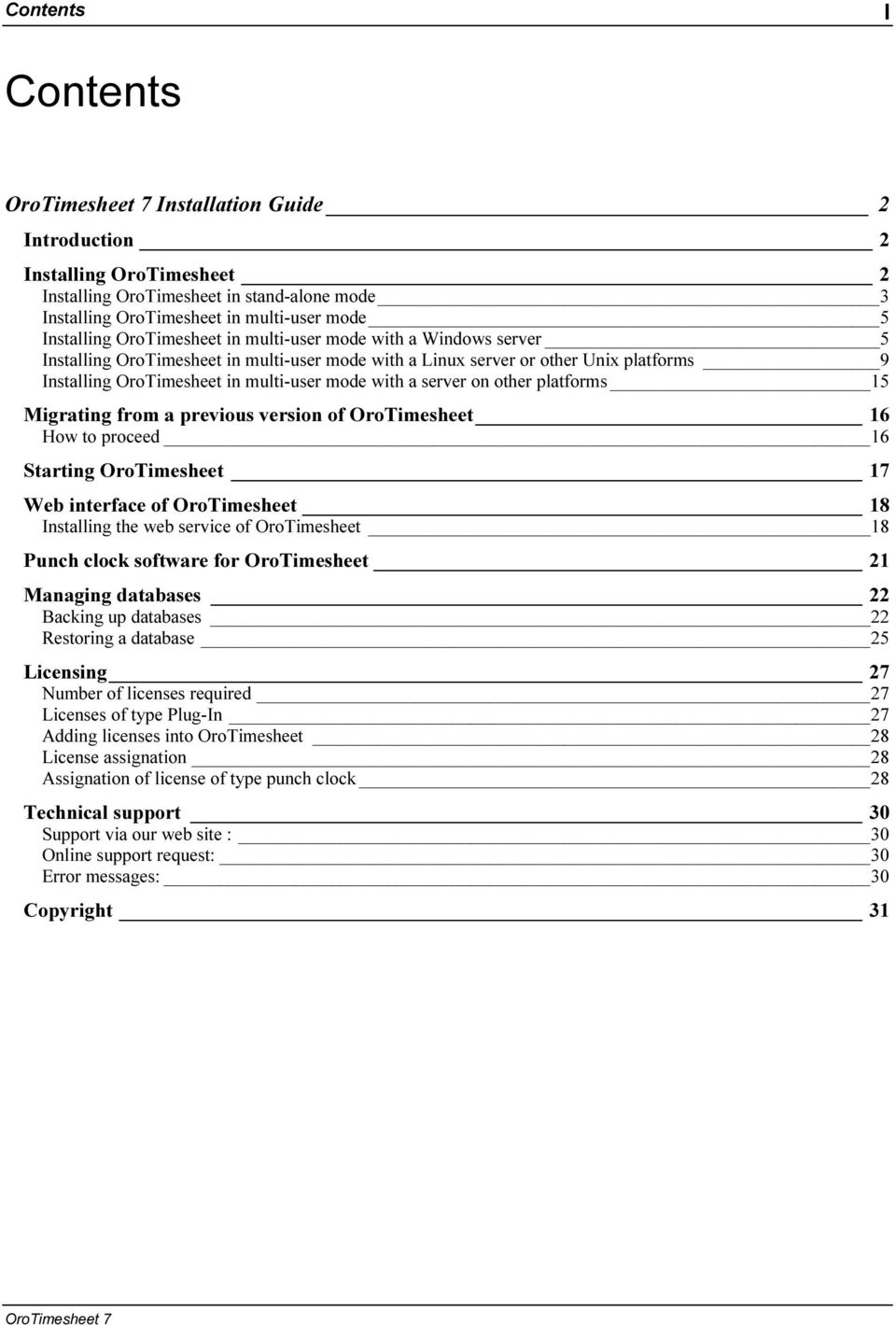
2 Contents I Contents Installation Guide 2 Introduction 2 Installing OroTimesheet 2 Installing OroTimesheet in stand-alone mode 3 Installing OroTimesheet in multi-user mode 5 Installing OroTimesheet in multi-user mode with a Windows server 5 Installing OroTimesheet in multi-user mode with a Linux server or other Unix platforms 9 Installing OroTimesheet in multi-user mode with a server on other platforms 15 Migrating from a previous version of OroTimesheet 16 How to proceed 16 Starting OroTimesheet 17 Web interface of OroTimesheet 18 Installing the web service of OroTimesheet 18 Punch clock software for OroTimesheet 21 Managing databases 22 Backing up databases 22 Restoring a database 25 Licensing 27 Number of licenses required 27 Licenses of type Plug-In 27 Adding licenses into OroTimesheet 28 License assignation 28 Assignation of license of type punch clock 28 Technical support 30 Support via our web site : 30 Online support request: 30 Error messages: 30 Copyright 31
3 Installation Guide 2 Installation Guide Introduction This installation guide explains how to install OroTimesheet in stand-alone mode as well as in multi-user mode. In stand-alone mode, the OroTimesheet program as well as the OroTimesheet database are located on the same computer. This mode is perfect when used by a single user on a single computer or if you just want to evaluate the software. Note that you can reinstall it in multi-user mode later without having to uninstall it first. In multi-user mode, the OroTimesheet program is installed on several computers (client computers) while the database is installed on a server. So, several users can access the centralized database simultaneously. Installing OroTimesheet The following section explains how to install OroTimesheet starting from the OroTimesheet compressed file previously downloaded. If you don t have OroTimesheet yet, you can download it from our web site at You must first install the software in order to use it. We recommend that you follow all steps below in order to ensure that the software will properly work on your computer. OroTimesheet can be installed on Windows XP, Windows Vista, Windows 2003, Windows 2008 or Windows 7 operating systems. The minimum requirement to run OroTimesheet is a computer with a 1 Ghz processor with a minimum of 256Mb of RAM. 300 Mb of free disk space is also required. OroTimesheet is using the FIREBIRD database engine to keep its data. FIREBIRD is a robust Open Source relational database and is completely free. Visit the official FIREBIRD web site at for more information about FIREBIRD. Note that in multi-user mode, the FIREBIRD database can be installed on a Windows platform as well as a Linux platform. FIREBIRD is also available on other platforms such as MacOs X and several Unix flavors. Visit the FIREBIRD web site for more details. OroTimesheet can be used on a single computer (in stand-alone mode) or in network mode (in multi-user mode) in order to allow several users to access the same OroTimesheet data simultaneously. Note that OroTimesheet was specifically developed to be used in multi-user mode. To install OroTimesheet on a single computer, refer to the section Installing OroTimesheet in stand-alone mode. To install OroTimesheet in network environment, refer to the section Installing OroTimesheet in multiuser mode.

4 Installation Guide 3 Installing OroTimesheet in stand-alone mode If you want to install OroTimesheet and use it in stand-alone mode, follow steps below. Note that installing OroTimesheet in stand-alone mode is perfect to evaluate the software or use it from a single computer. Note that later, if needed, you will be able to reinstall OroTimesheet in multi-user mode without any problem and without having to uninstall it first. Note that when installing OroTimesheet under Windows, you must be connected with the Administrator user or a user that has the same rights so that the installation can run without any problem. Double-click on the OroTimesheet file previously downloaded to start the installation. Once the installation is started, click Next. The installation program displays the license agreement of the product. You must accept the license agreement by clicking the radio button I agree with all these terms and click Next to continue with the installation. At next step, select the option Installation in stand-alone mode then click Next to continue. Then, you have to choose where OroTimesheet will be installed. We recommend you to install OroTimesheet in the suggested default installation folder C:\Program Files\OroLogic\OroTimesheet7. However, if you decide to install OroTimesheet in another folder than the suggested one, change it using the Browse button. Click Next to continue. Now, select the group of programs where icons will be installed. We recommend you to install icons in the suggested group of programs. Choose the group of programs or let the suggested one then click Next. After it, enter your company name and check additional options if desired then click Next. The installation program is now ready to copy files on your computer. Answer Yes to the confirmation to start file copy. When all files are copied, the installation program ends by displaying Installation successful. Click OK to finish.

5 Installation Guide 4 When the installation is over, you are ready to use the software. OroTimesheet for more information. Refer to the section Starting
6 Installation Guide 5 Installing OroTimesheet in multi-user mode Note that for this part of the installation, a qualified computer/network technician is recommended. If you want that several computers access simultaneously the same OroTimesheet database, the database must be located on a computer that will act as the database server. OroTimesheet uses the FIREBIRD database engine (note that the Windows version of FIREBIRD is already included with OroTimesheet). It s not obligatory to have a dedicated server for FIREBIRD. FIREBIRD can be installed on your current server or if you don t have one, the computer of one of your users can act as the server and at the same time be used by this user. However, note that if you expect to have several users or a lot of data, installing FIREBIRD on a dedicated server is recommended for better performances. Whereas OroTimesheet must obligatory be executed on a Windows platform (Win32), the FIREBIRD database engine can be installed on several different platforms such as Windows, Linux and several other ones. Note that FIREBIRD supports the TCP/IP protocol for all these platforms. OroTimesheet can run in a Local Area Network (LAN) as well as in Wide Area Network (WAN / INTERNET). However, note that since OroTimesheet is a client/server software, when using OroTimesheet, a lot of data can be transferred on your network between the OroTimesheet program and the FIREBIRD database. So, if you expect to use OroTimesheet on a WAN and/or INTERNET, be sure that you have a fast enough communication link so that OroTimesheet can run at an acceptable speed. Note that some solutions are available on the market to allow users to run client/server software (such as OroTimesheet) on a WAN or Internet with a low speed link. For example, you could use solutions such as Windows Terminal Service, Citrix, etc. or other kind of software such as Symantec pcanywhere, VNC or the Remote Desktop Connection of Microsoft Windows. Ask you computer supplier for more information about these solutions. To install OroTimesheet in multi-user mode with a Windows server, refer to the section Installing OroTimesheet in multi-user mode with a Windows server. To install OroTimesheet in multiuser mode with a Linux server or other Unix platforms, refer to the section Installing OroTimesheet in multi-user mode with a Linux server or other Unix platforms. To install OroTimesheet in multi-user mode with a server on other platforms such as MacOS X, refer to the section Installing OroTimesheet in multi-user mode with a server on other platforms. Installing OroTimesheet in multi-user mode with a Windows server Here are the main steps to follow for installing OroTimesheet in multi-user mode with a Windows server: 1. Installation of OroTimesheet on the Windows server. 2. Installation and configuration of OroTimesheet on each client computer. 1. Installation of OroTimesheet on a Windows server. Note that when installing OroTimesheet under Windows, you must be connected with the Administrator user or a user that has the same rights so that the installation can run without any problem. Double-click on the OroTimesheet file previously downloaded to start the installation. Once the installation is started, click Next. The installation program displays the license agreement of the product. You must accept the license agreement by clicking the radio button I agree with all these terms and click Next to continue with the installation.

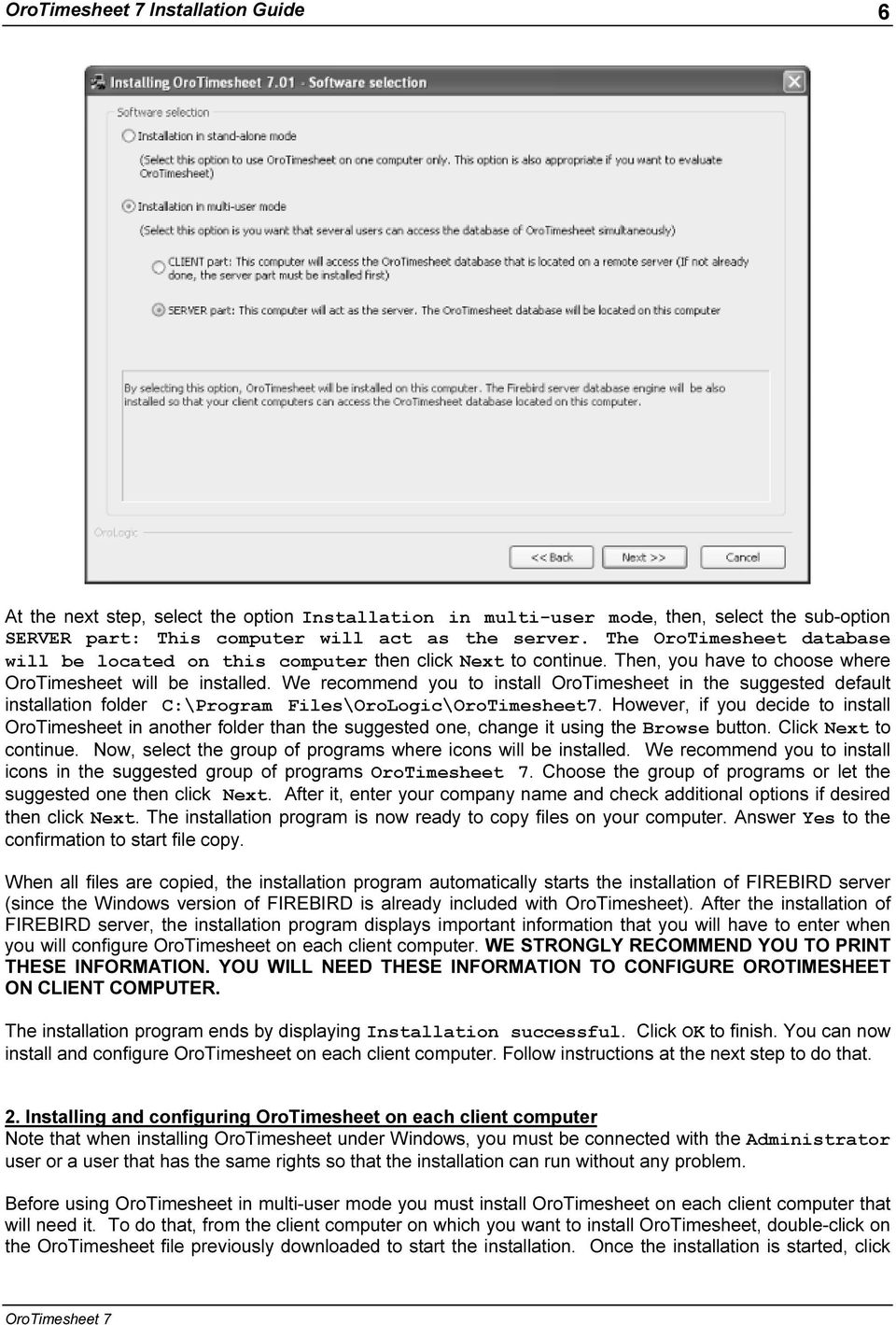
7 Installation Guide 6 At the next step, select the option Installation in multi-user mode, then, select the sub-option SERVER part: This computer will act as the server. The OroTimesheet database will be located on this computer then click Next to continue. Then, you have to choose where OroTimesheet will be installed. We recommend you to install OroTimesheet in the suggested default installation folder C:\Program Files\OroLogic\OroTimesheet7. However, if you decide to install OroTimesheet in another folder than the suggested one, change it using the Browse button. Click Next to continue. Now, select the group of programs where icons will be installed. We recommend you to install icons in the suggested group of programs. Choose the group of programs or let the suggested one then click Next. After it, enter your company name and check additional options if desired then click Next. The installation program is now ready to copy files on your computer. Answer Yes to the confirmation to start file copy. When all files are copied, the installation program automatically starts the installation of FIREBIRD server (since the Windows version of FIREBIRD is already included with OroTimesheet). After the installation of FIREBIRD server, the installation program displays important information that you will have to enter when you will configure OroTimesheet on each client computer. WE STRONGLY RECOMMEND YOU TO PRINT THESE INFORMATION. YOU WILL NEED THESE INFORMATION TO CONFIGURE OROTIMESHEET ON CLIENT COMPUTER. The installation program ends by displaying Installation successful. Click OK to finish. You can now install and configure OroTimesheet on each client computer. Follow instructions at the next step to do that. 2. Installing and configuring OroTimesheet on each client computer Note that when installing OroTimesheet under Windows, you must be connected with the Administrator user or a user that has the same rights so that the installation can run without any problem. Before using OroTimesheet in multi-user mode you must install OroTimesheet on each client computer that will need it. To do that, from the client computer on which you want to install OroTimesheet, double-click on the OroTimesheet file previously downloaded to start the installation. Once the installation is started, click
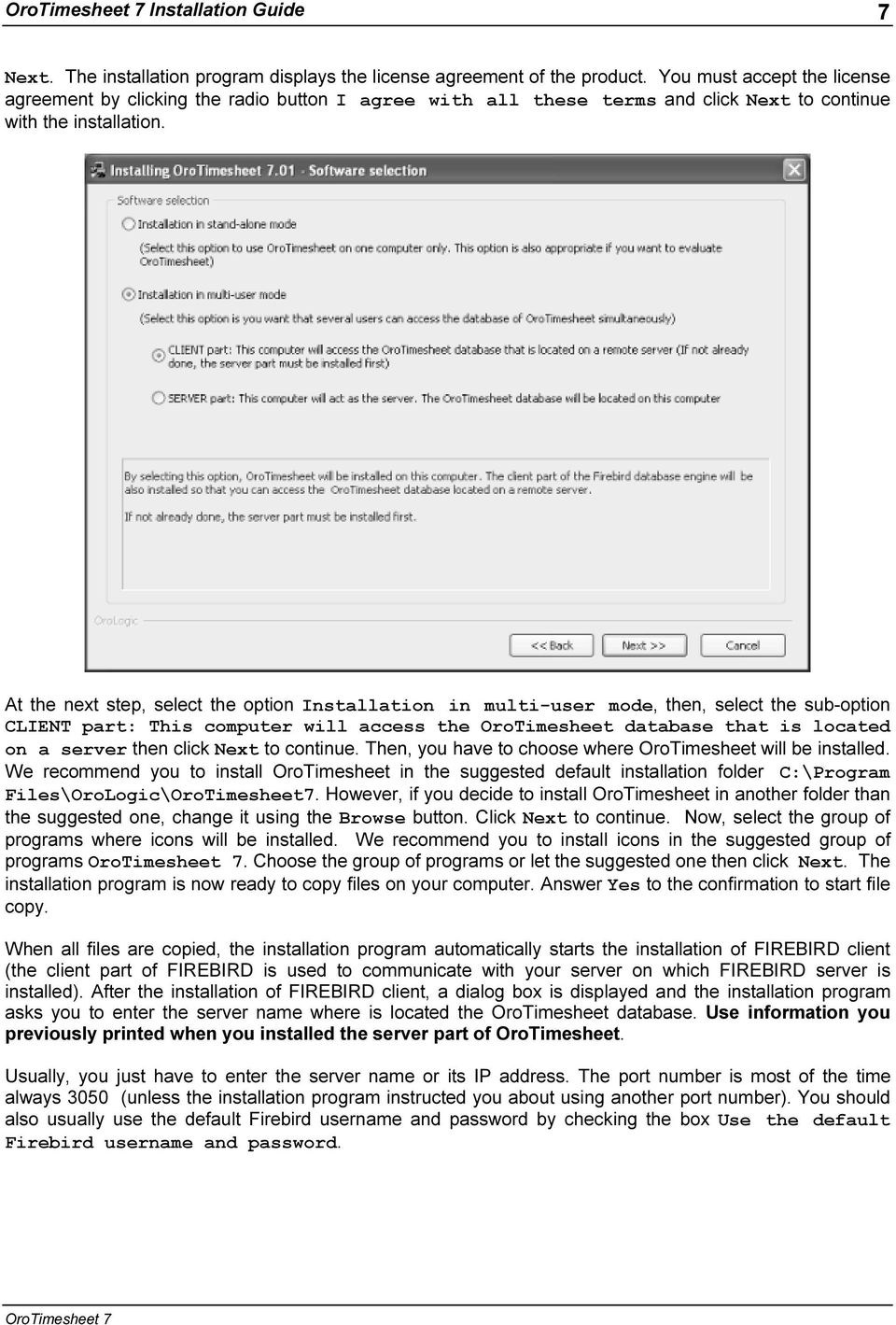
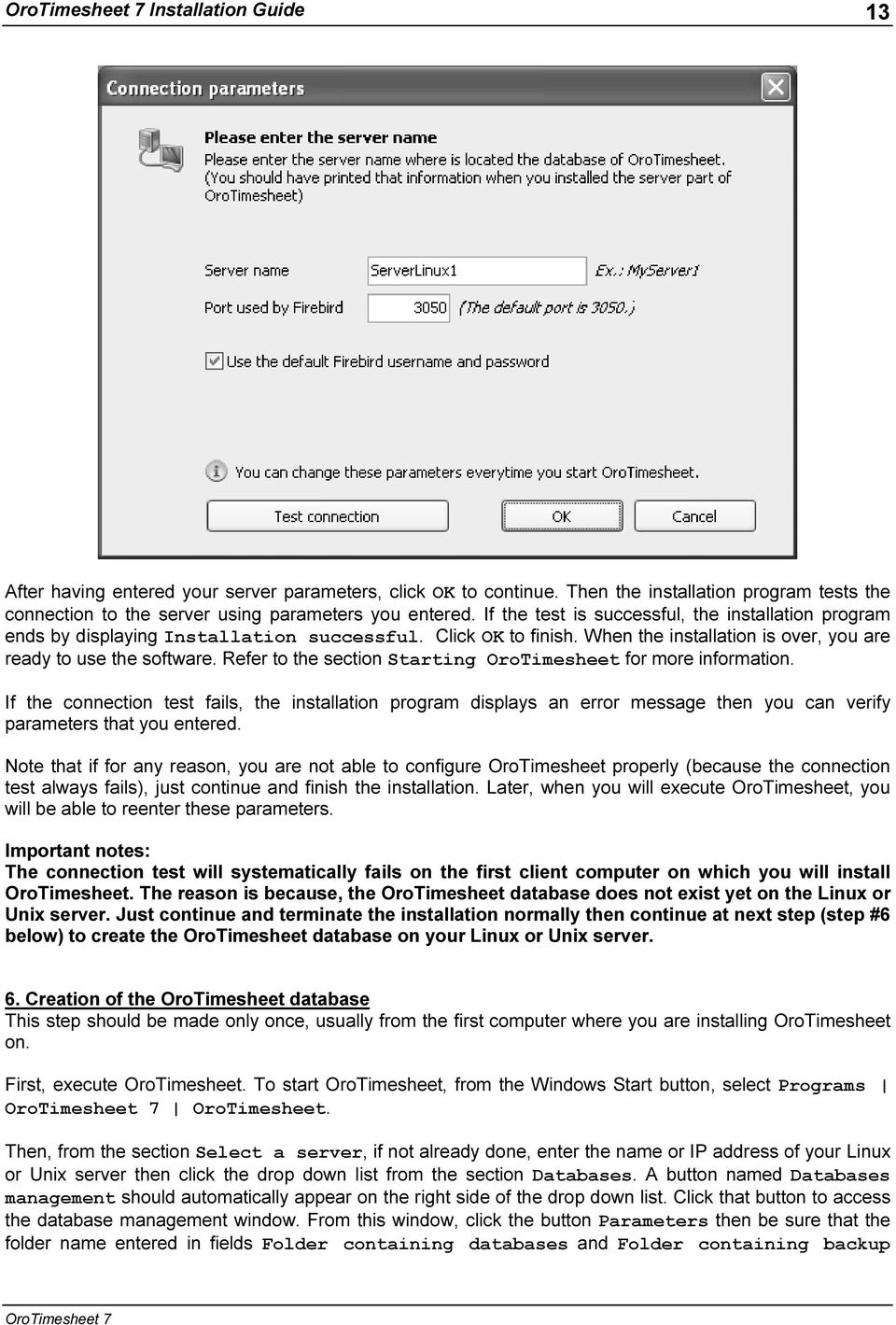
8 Installation Guide 7 Next. The installation program displays the license agreement of the product. You must accept the license agreement by clicking the radio button I agree with all these terms and click Next to continue with the installation. At the next step, select the option Installation in multi-user mode, then, select the sub-option CLIENT part: This computer will access the OroTimesheet database that is located on a server then click Next to continue. Then, you have to choose where OroTimesheet will be installed. We recommend you to install OroTimesheet in the suggested default installation folder C:\Program Files\OroLogic\OroTimesheet7. However, if you decide to install OroTimesheet in another folder than the suggested one, change it using the Browse button. Click Next to continue. Now, select the group of programs where icons will be installed. We recommend you to install icons in the suggested group of programs. Choose the group of programs or let the suggested one then click Next. The installation program is now ready to copy files on your computer. Answer Yes to the confirmation to start file copy. When all files are copied, the installation program automatically starts the installation of FIREBIRD client (the client part of FIREBIRD is used to communicate with your server on which FIREBIRD server is installed). After the installation of FIREBIRD client, a dialog box is displayed and the installation program asks you to enter the server name where is located the OroTimesheet database. Use information you previously printed when you installed the server part of OroTimesheet. Usually, you just have to enter the server name or its IP address. The port number is most of the time always 3050 (unless the installation program instructed you about using another port number). You should also usually use the default Firebird username and password by checking the box Use the default Firebird username and password.
9 Installation Guide 8 After having entered your server parameters, click OK to continue. Then the installation program tests the connection to the server using parameters you entered. If the test is successful, the installation program ends by displaying Installation successful. Click OK to finish. When the installation is over, you are ready to use the software. Refer to the section Starting OroTimesheet for more information. If the connection test fails, the installation program displays an error message then you can verify parameters that you entered. Note that if for any reason, you are not able to configure OroTimesheet properly (because the connection test always fails), just continue and finish the installation. Later, when you will execute OroTimesheet, you will be able to reenter these parameters.

10 Installation Guide 9 Installing OroTimesheet in multi-user mode with a Linux server or other Unix platforms Note: Two different versions of FIREBIRD can be installed on a Linux or Unix server. The Classic Server version and the Super Server version. We recommend you to install the Super Server version because this version offers more functionalities. Visit the FIREBIRD web site for more information about differences between these two versions. Note also that on some Linux or Unix platforms, only one version or the other is available. Before installing FIREBIRD on your Linux or Unix server, we recommend you to take a look at the Quick Start Guide for Firebird guide that contains useful information about installing FIREBIRD. This guide is available for download on the FIREBIRD web site at Here are the main steps to follow for installing OroTimesheet in multi-user mode and the FIREBIRD database on a Linux or Unix server: 1. Download of FIREBIRD for Linux or Unix from the FIREBIRD web site. 2. Installation of FIREBIRD server on the Linux or Unix server. 3. Transfer of files otbtf.fbk and ot_conx_non_windows_os.fbk on the Linux or Unix server. 4. Creation of the connection database file ot_conx.fdb on the Linux or Unix server and addition of an alias. 5. Installation and configuration of OroTimesheet on each client computer. 6. Creation of the OroTimesheet database. 1. Download of FIREBIRD for Linux or Unix from the FIREBIRD web site Only the Windows version of FIREBIRD is included with OroTimesheet. So, it s for this reason that you must first, download the FIREBIRD version for Linux or Unix according to your platform. To download FIREBIRD, visit the FIREBIRD web site at then, access the Downloads section and download the version of FIREBIRD according to your platform. Important notes: At the time this documentation was written, OroTimesheet was tested with the version 2.5 of FIREBIRD. We recommend you to download and install a version 2.5.x of FIREBIRD. Once you downloaded FIREBIRD, continue to the next step to install it on your server. 2. Installation of FIREBIRD server on the Linux or Unix server Since the FIREBIRD installation can differ according to your platform, refer to the documentation included with FIREBIRD to install it on your specific platform. Also, the help of a qualified person about Linux or Unix is indispensable for this part of the installation. Before continuing at the step 3, after the installation of FIREBIRD on Linux or Unix, be sure that FIREBIRD is running properly. When installing FIREBIRD on Linux or Unix, example databases are also installed. Connect to one of these database to check if FIREBIRD is running properly. Example of a connection test to FIREBIRD: Suppose that FIREBIRD is installed in the /opt/firebird folder on Linux or Unix and you want to access the employee.fdb database that is located in the examples folder of FIREBIRD, type the following command line under Linux or Unix (in one line) to connect to the database: /opt/firebird/bin/isql user sysdba password masterkey /opt/firebird/examples/employee.fdb
11 Installation Guide 10 Once you are connected, you can run a query on the employee table to display the employee list of this database by typing the following command: select * from employee; Type the following command to quit the ISQL utility: quit; As indicated above, you can also take a look at the Quick Start Guide for Firebird guide that contains useful information about how to verify if the server is properly running. For more information on FIREBIRD configuration and management utilities, refer to the FIREBIRD documentation. Important notes: Since FIREBIRD is derived from INTERBASE 6, if you already have INTERBASE installed on your Linux or Unix server, in that case, you will have to configure FIREBIRD so that it uses another port. In fact, both FIREBIRD and INTERBASE database engines are using the same port number to communicate (port TCP/3050) that can cause conflicts if both database engines are running simultaneously on the server. For example, to configure FIREBIRD so that it uses the port number 3051 instead of the port number 3050, from the FIREBIRD folder (for example /opt/firebird, edit the file firebird.conf then remove the # character before the line #RemoteServicePort = 3050 then change the port number from 3050 to Then, stop and restart FIREBIRD on the server. Original line : #RemoteServicePort = 3050 Modified line : RemoteServicePort = 3051 Note that if you change the port on which FIREBIRD communicate, do not forget to specify this new port number when you will configure the OroTimesheet connection on each client computer. For more information about FIREBIRD configuration, take a look at the documentation included with FIREBIRD. Once the installation of FIREBIRD is completed on Linux or Unix server, continue to the next step to transfer the OroTimesheet database on your server. 3. Transfer of files otbtf.fbk and ot_conx.fdb on the Linux or Unix server OroTimesheet database files are named ot.fdb and ot_conx_non_windows_os.fbk and are included with OroTimesheet. However, since the FIREBIRD database format differ from a Windows platform vs. a Linux or Unix platform, and files ot.fdb and ot_conx_non_windows_os.fbk that are included by default with OroTimesheet are in the format of FIREBIRD for Windows, you cannot just copy these files on your Linux or Unix server. Instead, you must create your database files using files otbtf.fbk and ot_conx_non_windows_os.fbk (FIREBIRD transportable backup file format also included with OroTimesheet). However, before doing that, you must first transfer files otbtf.fbk and ot_conx_non_windows_os.fbk on your Linux or Unix server as indicated below. The following procedure explains how to transfer file otbtf.fbk and ot_conx_non_windows_os.fbk on your Linux or Unix server. However, if it is not already done, you must first install OroTimesheet on at least one computer to be able to access these files. So, install OroTimesheet on one of your computers and just select the option Installation in stand-alone mode. The files needed (otbtf.fbk and ot_conx_non_windows_os.fbk) will be automatically copied in the OroTimesheet data folder usually named C:\Documents and Settings\All Users\Application Data\OroLogic\OroTimesheet\Databases\Backups. Later, you will just have to reinstall OroTimesheet on this computer then select the option Installation in multi-user mode as
12 Installation Guide 11 indicated at step 5. For more information about installing OroTimesheet in stand-alone mode, refer to the section Installing OroTimesheet in stand-alone mode. From the computer where you installed OroTimesheet, transfer the files otbtf.fbk and ot_conx_non_windows_os.fbk using an FTP utility (Transfer method Binary) or any other transfer utility. The files otbtf.fbk and ot_conx_non_windows_os.fbk are uncompressed by the installation program and usually located in the OroTimesheet data folder C:\Documents and Settings\All Users\Application Data\OroLogic\OroTimesheet\Databases\Backups. Before transferring your files, create a new folder on your Linux or Unix server where your files will be transferred and where the database file will be created. For example, you can create a folder named logisales in the /home folder of your server. Then transfer your files otbtf.fbk and ot_conx_non_windows_os.fbk in the /home/orotimesheet7 folder on your Linux or Unix server. 4. Creation of the connection database ot_conx.fdb on the Linux or Unix server and addition of an alias To create the connection database file on your Linux or Unix server, connect to the server with the root user or any other user that have enough rights. Type the following command line (in one line) to create the database file (by supposing that FIREBIRD was installed in the /opt/firebird folder and the file otbtf.fbk was transferred in the /home/orotimesheet7 folder) : /opt/firebird/bin/gbak rep user sysdba password masterkey /home/orotimesheet7/ot_conx_non_windows_os.fbk /home/orotimesheet7/ot_conx.fdb masterkey is the default password of the FIREBIRD SYSDBA user. If you changed the password of the FIREBIRD SYSDBA user, just replace masterkey by this new password. Once this command has been executed, if no message is displayed, it is because the database was successfully created. Verify that the created file ot_conx.fdb exists in the /home/orotimesheet7 folder using the ls command. If you receive an error message, verify that you correctly entered the command line. The connection database creation is now completed. The other file named otbtf.fbk will be directly used by OroTimesheet to create OroTimesheet databases. Now the last thing to do is to add an alias to indicate where is located the database file (file ot_conx.fdb) that contains the list of connections. To do that, edit the Firebird file named aliases.conf that should be located in the Firebird installation folder, usually /opt/firebird. Add the following line at the end of the file (filenames and folder names are case sensitive on Linux or Unix): OROLOGIC_OROTIMESHEET = /home/orotimesheet7/ot_conx.fdb After it, close and save the file. The installation part on the Linux/Unix server side is now over. 5. Installation and configuration of OroTimesheet on each client computer Note that when installing OroTimesheet under Windows, you must be connected with the Administrator user or a user that has the same rights so that the installation can run without any problem.
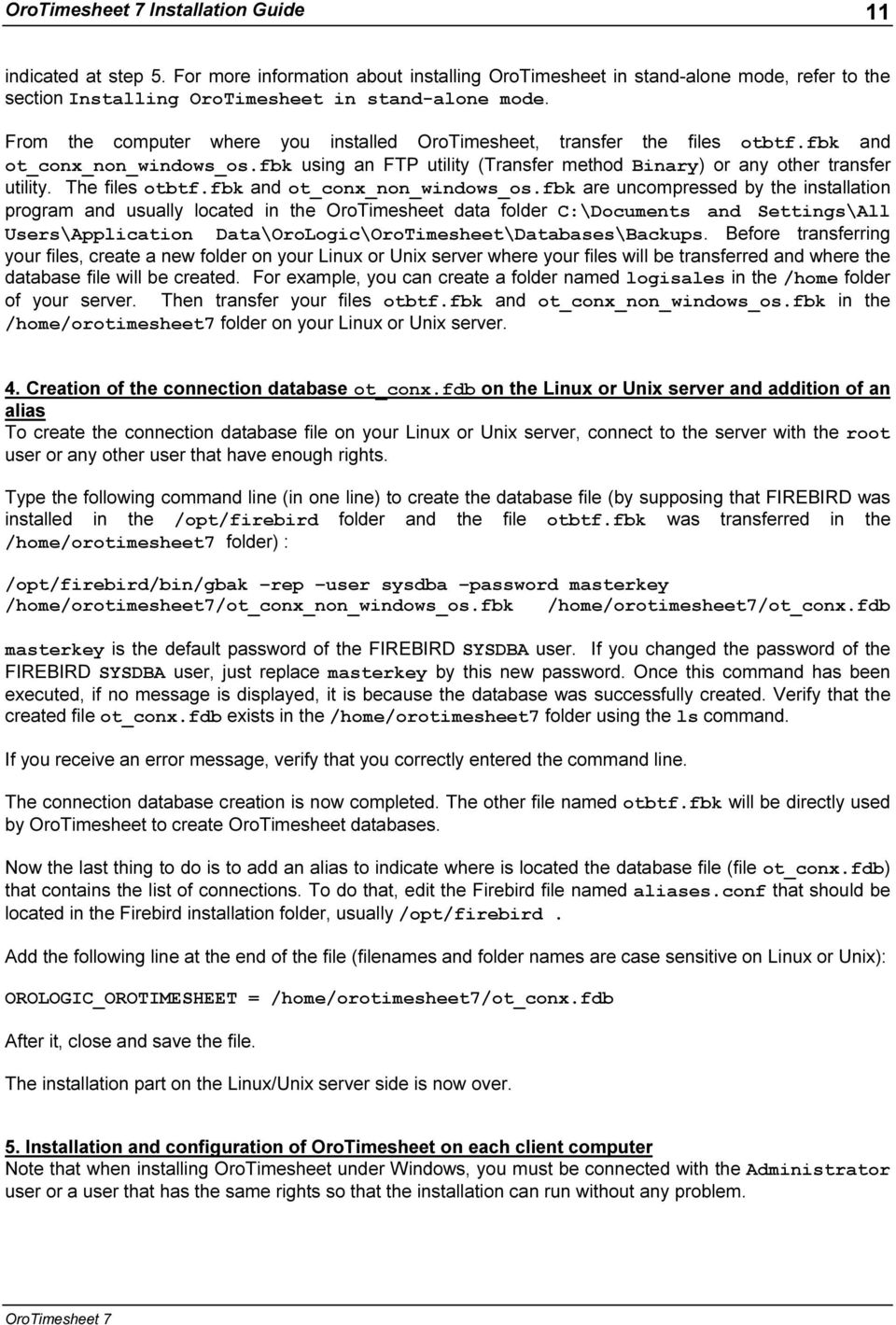
13 Installation Guide 12 Before using OroTimesheet in multi-user mode you must install OroTimesheet on each client computer that will need it. To do that, from the client computer on which you want to install OroTimesheet, double-click. on the OroTimesheet file previously downloaded to start the installation. Once the installation is started, click Next. The installation program displays the license agreement of the product. You must accept the license agreement by clicking the radio button I agree with all these terms and click Next to continue with the installation. At the next step, select the option Installation in multi-user mode, then, select the sub-option CLIENT part: This computer will access the OroTimesheet database that is located on a server then click Next to continue. Then, you have to choose where OroTimesheet will be installed. We recommend you to install OroTimesheet in the suggested default installation folder C:\Program Files\OroLogic\OroTimesheet7. However, if you decide to install OroTimesheet in another folder than the suggested one, change it using the Browse button. Click Next to continue. Now, select the group of programs where icons will be installed. We recommend you to install icons in the suggested group of programs. Choose the group of programs or let the suggested one then click Next. The installation program is now ready to copy files on your computer. Answer Yes to the confirmation to start file copy. When all files are copied, the installation program automatically starts the installation of FIREBIRD client (the client part of FIREBIRD is used to communicate with your server on which FIREBIRD server is installed). After the installation of FIREBIRD client, a dialog box is displayed and the installation program asks you to enter the server name where is located the OroTimesheet database. Usually, you just have to enter the server name or the IP address of your Linux or Unix server. The port number is most of the time always 3050 (unless you decided to change it when you installed Firebird on your Linux or Unix server). You should also usually use the default Firebird username and password by checking the box Use the default Firebird username and password.
14 Installation Guide 13 After having entered your server parameters, click OK to continue. Then the installation program tests the connection to the server using parameters you entered. If the test is successful, the installation program ends by displaying Installation successful. Click OK to finish. When the installation is over, you are ready to use the software. Refer to the section Starting OroTimesheet for more information. If the connection test fails, the installation program displays an error message then you can verify parameters that you entered. Note that if for any reason, you are not able to configure OroTimesheet properly (because the connection test always fails), just continue and finish the installation. Later, when you will execute OroTimesheet, you will be able to reenter these parameters. Important notes: The connection test will systematically fails on the first client computer on which you will install OroTimesheet. The reason is because, the OroTimesheet database does not exist yet on the Linux or Unix server. Just continue and terminate the installation normally then continue at next step (step #6 below) to create the OroTimesheet database on your Linux or Unix server. 6. Creation of the OroTimesheet database This step should be made only once, usually from the first computer where you are installing OroTimesheet on. First, execute OroTimesheet. To start OroTimesheet, from the Windows Start button, select Programs OroTimesheet. Then, from the section Select a server, if not already done, enter the name or IP address of your Linux or Unix server then click the drop down list from the section Databases. A button named Databases management should automatically appear on the right side of the drop down list. Click that button to access the database management window. From this window, click the button Parameters then be sure that the folder name entered in fields Folder containing databases and Folder containing backup
15 Installation Guide 14 files match the folder name you created on your Linux or Unix server. By default, the folder name entered is these two fields is the same and is /home/orotimesheet7. Also, be sure that the file name entered in the field Model file for empty database is otbtf.fbk that should correspond to the file name you transferred in the folder /home/orotimesheet7 on your server. Please, note that the case is important. After it, click OK to save changes. Now, click the button New to create a new OroTimesheet database on the Linux or Unix server. Select the option I want to create a new empty database then enter a description for this database. Normally, the description should be the name of your enterprise. After it, click OK to create the database. Once the database created, quit the database management window then click again on the drop down list from the Database section. That time you should see the new database that you just created. Select this database then click on the button Connect to access the database. Refer to the section Starting OroTimesheet for more information.
16 Installation Guide 15 Installing OroTimesheet in multi-user mode with a server on other platforms In addition to be able to install FIREBIRD on Windows platforms as well as on different flavors of Linux or Unix, FIREBIRD can also be installed on other platforms such as MacOS X. Visit the FIREBIRD web site at to get the complete platform list compatible with FIREBIRD. Note: According to the platform chosen, two different versions of FIREBIRD can be installed on your server. The Classic Server version and the Super Server version. We recommend you to install the Super Server version because this version offers more functionalities. Visit the FIREBIRD web site for more information about differences between these two versions. Note also that on some platforms, only one or the other is available. Before installing FIREBIRD on your server, we recommend you to take a look at Quick Start Guide for Firebird guide that contains useful information about installing FIREBIRD. This guide is available for download on the FIREBIRD web site at To install OroTimesheet in multi-user mode and the FIREBIRD database on another platform, we recommend you to follow same steps as the installation of OroTimesheet in multi-user mode with a Linux server or other Unix platforms. The only differences are mainly the way you specify a path and/or a file name. Here are some recommendations: - At step 1, download the version of FIREBIRD according to your platform. - At step 2, refer to the documentation included with the FIREBIRD to install it on the platform chosen. - At step 3, transfer files otbtf.fbk and ot_conx.fbk on your server. - At step 4, create the connection database file using the gbak utility included with the FIREBIRD version you downloaded and installed on your server and create the alias in the file aliases.conf. - At step 5, just configure OroTimesheet by entering the name of your server where is located the OroTimesheet database. - At step 6, create your OroTimesheet database normally.
17 Installation Guide 16 Migrating from a previous version of OroTimesheet This section explains you how to proceed when you are currently using a previous version of OroTimesheet (version 4,5 or 6) and you want to migrate to version 7. as well as all previous versions are completely independent software. Unlike other software, you could for example use two versions simultaneously and independently. For example, could access an database while at the same time running OroTimesheet 6 could access an OroTimesheet 6 database. OroTimesheet 4 is usually installed in the folder C:\Program Files\OroLogic\OroTimesheet4 OroTimesheet 5 is usually installed in the folder C:\Program Files\OroLogic\OroTimesheet5 OroTimesheet 6 is usually installed in the folder C:\Program Files\OroLogic\OroTimesheet6 is usually installed in the folder C:\Program Files\OroLogic\OroTimesheet7 How to proceed Just begin by installing according to the procedure in the Installing section above. Then, when everything is properly configured and working, it only remains to transfer your previous version data to. To transfer your data, run then instead of connecting to a database, click the button Manage databases. (So that this button be visible, you must run OroTimesheet directly from the server console is you installed OroTimesheet in multi-user mode) From this window, click on the button New, select the option I want to create a database from a previous version then click OK. From the drop down list, select the database you want to transfer then click Start transfer. When the transfer ends, close the database management window to get back to the connection screen then select your new created database from the drop down list.

18 Installation Guide 17 Starting OroTimesheet Before being able to start OroTimesheet, you must first install it if it is not already done. For more information about installing OroTimesheet, refer to the section Installing OroTimesheet. To start OroTimesheet, from the Windows Start button, select Programs OroTimesheet. From the section Select a server, if not already done, enter the name or IP address of your server then click the drop down list from the section Database. You should see in the list databases you can access. Select the database you want to access then click Connect to access it. After a few seconds, you will be in the program ready to use it. If you cannot start OroTimesheet and/or an error message is displayed, refer to the section Technical support.
19 Installation Guide 18 Web interface of OroTimesheet A web interface is also included with OroTimesheet. This web interface is used to enter timesheets using a simple web browser. Indeed, you do not have to install OroTimesheet on the client computer to access the web interface. Before users be able to access the web interface to enter their timesheets, you must install it. The web interface of OroTimesheet is only available in the form of a Windows service. This Windows service is a real independent web server that is only used for OroTimesheet. So, you don't need to install a web server on your server to use the web version of OroTimesheet. Note that if there is already a web server installed on your server such as IIS (Internet Information Services) from Microsoft, it will not conflict because by default, the web service of uses a different port number (port 8888) than the default port of other web servers (port 80). Note however that you can change the port number that will be used by the web service of OroTimesheet for any other port number. The web service of is already included with OroTimesheet. However, the installation program does not install it systematically on each computer since this service needs to be executed on one computer only (usually on your server). As indicated above, the web interface of OroTimesheet is a Windows service. So, this one can only be executed on a Windows platform. The service cannot be executed on other platforms such as Linux or Unix. However, note that the service could run on a Windows server while the database could be located on a Linux server or other plate-form. If your server is of type Windows, we recommend you to simply install the service on your server. If your server is on another platform, then just install the service on another server or a Windows client computer. No matter that you install the web service of OroTimesheet on a server or one of your client computers, what is important here is that the computer where the service is installed be always running so that employees could access the web version anytime Installing the web service of OroTimesheet If you checked the box Install and start also the web version (Windows service) on this computer when you installed OroTimesheet, the service should be already installed. If you did not checked that box, you do not have to re-execute the installation program of OroTimesheet. You can install the web service simply by following instructions below. Here are the main steps to follow to install the OroTimesheet web service: 1. Be sure that is properly installed and configured on the computer where you want to install the web service of. 2. Install and start the web service of. 3. Test the web service of. 1. Be sure that OroTimesheet is properly installed and configured on the computer where you want to install the web service of. If it is not already done, install on the computer on which you want to install the web service. You must install OroTimesheet in multi-user mode. Refer to the section Installing OroTimesheet in multi-user mode above for more information. Then, run OroTimesheet on this computer to be sure that you can connect to the database without any problem. After it, just quit OroTimesheet then continue to next step. 2. Install and start the web service of. Important notes if you were using OroTimesheet version 5 or version 6:
20 Installation Guide 19 Since by default, the web service of is using the same port number (# 8888) than the web service of OroTimesheet version 5 and version 6, before installing the web service of, be sure to stop and uninstall the web service of OroTimesheet version 5 or version 6 (as the case may be). If you want to install two different versions of the service on the same computer, in such case, change the port number of one or the other so that web services do not conflict and run fine. Using the Windows File Explorer, go to the OroTimesheet installation folder (usually C:\Program Files\OroLogic\OroTimesheet7), then, double-click on the file srvman.exe to start the Service manager for utility. Select the tab Web interface then click on the Install button to install the service. Installing the service takes approximately one second. Once installed, the status on screen should change from Not installed to Started. If not, click the button Refresh to refresh the status of the service on screen. To verify that the service was correctly installed and started, go to the Windows control panel, double-click on the Administrative tools icon then double-click on the Services icon. Verify that the service named OroTimesheet7 is in the list of services and that the status is Started. Also, verify that the startup type is Automatic so that the service start automatically each time Windows is started. The web service is now installed. You can continue to the next step. 3. Test the web service of. From the computer where you installed the web service, start your Internet browser (such as Microsoft Internet Explorer) then enter the following address by replacing server-name by the name of the computer where the web service is running. For example, if the name of the computer is server1, enter The connection page should be displayed in your browser. Select the database you want to access then click the Connect button.

21 Installation Guide 20 If no page is displayed, maybe that some parameters (such as the server name) in the Services manager utility are not valid. In such case, run back the Services manager utility, select the tab Web Interface then click the button Configure to verify parameters. If an error page is displayed, verify that there is no firewall or security program that do not block communications on port Refer to your network administrator for more information. Note that you can also change the web service port number also using the Services manager utility. When everything is working well using the browser directly on the server, try to access the same address from another client computer. Again, if an error page is displayed, verify that there is no firewall or any other security program that could block communications on that port. Ask your network administrator for more information. Finally, you could add a link to the OroTimesheet web version directly in a web page of your corporate Internet or Intranet web site so that your employees had only to click this link instead of always entering your server address followed by the port number. If you do not specify the port number in your browser, by default the browser will try to access port 80 (as indicated above, by default, the web service if configured on port 8888) and no page will be displayed.
22 Installation Guide 21 Punch clock software for OroTimesheet The punch clock software for OroTimesheet is already included in the OroTimesheet installation kit. You do not have to download or install additional files to use it. The punch clock software can run in stand-alone mode as well as in multi-user mode. For example, you could install the punch clock software on several computers in your factory. So, your employees could punch in and out from any computer and all data would be always saved in the same centralized database. To start the punch clock software, from the Windows Start button, select Programs OroTimesheet 7 Punch clock. Then, select the database you want to access. After some seconds, you will be into the punch clock software ready to use it. If you cannot start the punch clock software and/or an error message is displayed, refer to the section Technical support. For more information about the punch clock software for OroTimesheet, refer to the document user's guide.
23 Installation Guide 22 Managing databases This option allows you to manage your databases. Each database usually contains data of a company. When installing OroTimesheet, the installation program automatically create two databases; One that usually hold your data and that is named ot.fdb and another one that contains fictive data and that is called demo.fdb. To access that option, when you run OroTimesheet, select This computer from the section Select a server then click the button Database management. Note that this option is available only if you installed OroTimesheet in stand alone mode or in multiuser mode (server part). If you installed OroTimesheet in multi-user mode (client part) you must obligatory go at the server console to be able to access that option. The only exception is if you are using a server Linux or Unix or any other non Windows server. In such case, that option will be available from any client computer. From that option, you can create, modify or even delete databases. You can also backup and restore databases id needed. It is also possible to restrict access to that option by adding a password using the button Parameters. Backing up databases We strongly recommend that you backup your data on a regular basis. Backing up your data protects you from losing your data by a hardware failure (computer, hard disk, etc.) or a software failure (operating system, virus, electricity lost, etc.). OroTimesheet works with the FIREBIRD database engine. To make a backup copy of your database, you can use the option Backup available from the menu Utilities directly into OroTimesheet, the option Database management available when starting OroTimesheet or the GBAK utility of FIREBIRD. No matter the way used when making a backup copy of your database, a copy of the database is created in a new file of type FIREBIRD backup format and this new file usually has the extension.fbk. Once that the backup file is created, we strongly recommend you to save this file on a cd-rom, a tape or any other media. For more information on different archive method or archive media, ask your computer supplier.
24 Installation Guide 23 Important note: If you are using a backup software, configure the software so that the software does not backup the database file. You must instead backup the backup file created using one of the methods indicated above. Indeed, if your backup software try to backup a database file that is in use, in some cases, this could damage the database. If later, you get a problem and you have to restore your database, and a backup file was created using any method indicated above, you will be able to restore your database using the Database management option available when stating OroTimesheet or the GBAK utility of FIREBIRD. Note that you cannot just only rename a backup file from the extension.fbk to the extension.fdb. It will not work. A backup file must obligatory be restored using the utility named OroTimesheet database utility or the GBAK utility of FIREBIRD. Refer to the sections Restoring a database below for more information. Backing up the database using the Backup option from the Utilities menu This option is the simplest way to make a backup copy of your database. You just have to run the option Backup available from the menu Utilities and click on the button Start backup. No parameter is required. You can run this option even when employees are accessing the database. In fact, this option was specifically developed for this purpose. This option creates a copy of the database file (in FIREBIRD backup format) in the same folder where is located the database you are currently accessing. Usually, the name of the file will be the name of the database with the date and hour and the extension will be.fbk instead of.fdb. Backing up the database using the Database management option On the right side of each database in the list, there is a button Backup. Just click that button to backup the database. No parameter is required. You can run this option even when employees are accessing the database. In fact, this option was specifically developed for this purpose. This option creates a copy of the database file (in FIREBIRD backup format) in the same folder where is located the database you are currently accessing. Usually, the name of the file will be the name of the database with the date and hour and the extension will be.fbk instead of.fdb. Backing up the database using the FIREBIRD GBAK utility GBAK is a backup and restore utility that is included with FIREBIRD. GBAK is a command line utility and works the same way no matter if your database is located on a Windows, Linux or Unix server or on any other platform. One of the benefits of using GBAK is to be able to backup your database using script files (batch files on Windows). So, using any scheduling software, you could run script files, for example, to automatically backup your database each night. Also, since the GBAK utility was specifically developed for FIREBIRD databases, you can even backup your database while users are using OroTimesheet and are accessing the database. For more information about the FIREBIRD GBAK utility, refer to the documentation included with FIREBIRD. For more information about script files, refer to the documentation of the operating system where FIREBIRD server is installed.
25 Installation Guide 24 Example of backup using GBAK under Windows For our example here, the database is named ot.fdb and is located in the C:\Documents and Settings\All Users\Application Data\OroLogic\OroTimesheet\Databases folder. FIREBIRD is installed in the C:\Program Files\Firebird\Firebird_2_5 folder. From the Windows server where the database is located, start a command shell session and type the following command line (in one line and including double quotes): "C:\Program Files\Firebird\Firebird_2_5\bin\gbak" -B -USER SYSDBA -PASSWORD masterkey "C:\Documents and Settings\All Users\Application Data\OroLogic\OroTimesheet\Databases\ot.fdb" "C:\Documents and Settings\All Users\Application Data\OroLogic\OroTimesheet\Databases\ls.fbk" The parameter -B indicates to the GBAK utility to make a backup. The parameter -USER indicates the FIREBIRD user name to use. In this case, the SYSDBA FIREBIRD user is used (Do not confuse with users of OroTimesheet). The parameter -PASSWORD indicates the FIREBIRD user password (in this case SYSDBA). By default the password of the FIREBIRD SYSDBA user is masterkey (in lowercase). This command performs a backup of the ot.fdb database. The backup file will be named ls.fbk. Important notice: The command above will work only if it is run directly from the server console. This command will not work if you run it through a client terminal server session or for example if the command is run in background from a task scheduler software. In such case, you must specify the server name as well as the port number on which Firebird is running (TCP/IP syntax). Usually, the default port number used is Verify your OroTimesheet connection parameters to see which port number to use in the command. Here is the same example as above, except that the server name and port number are specified: "C:\Program Files\Firebird\Firebird_2_5\bin\gbak" -B -USER SYSDBA -PASSWORD masterkey "localhost/3050:c:\documents and Settings\All Users\Application Data\OroLogic\OroTimesheet\Databases\ot.fdb" "C:\Documents and Settings\All Users\Application Data\OroLogic\OroTimesheet\Databases\ls.fbk" In this example, the server is named localhost and the port number on which Firebird is running is Note that you must add the character / between the server name and the port number and add the character : after the port number. Please, also note that you could enter the IP address of the server instead of its name. Example of backup using GBAK under Linux or Unix For our example here, the database is named ot.fdb and is located in the /home/orotimesheet7 folder. FIREBIRD is installed in the /opt/firebird folder. From the Linux or Unix server where the database is located, start a command shell session and type the following command line (in one line): /opt/firebird/bin/gbak -b -user SYSDBA -password masterkey /home/orotimesheet7/ot.fdb /home/orotimesheet7/ls.fbk The parameter -b indicates to the GBAK utility to make a backup.
26 Installation Guide 25 The parameter -user indicates the FIREBIRD user name to use. In this case, the SYSDBA FIREBIRD user is used (Do not confuse with users of OroTimesheet). The parameter -password indicates the FIREBIRD user password (in this case SYSDBA). By default the password of the FIREBIRD SYSDBA user is masterkey (in lowercase). This command performs a backup of the ot.fdb database. The backup file will be named ls.fbk. Restoring a database Restoring a database using the Database management option First, be sure that nobody is accessing the database you want to restore. After it, on the right side of each database in the list, there is a button Restore. Just click that button to restore your database. The list of backups you made in the past will be displayed. Select the backup to restore then click Restore. When the restore is completed, you can run OroTimesheet and access your database. Restoring the database using the FIREBIRD GBAK utility First, be sure that nobody is accessing the database you want to restore. Then copy the backup file in the same folder where is located the database to restore. Example of Restore using GBAK under Windows For our example here, our backup file is named ls.fbk and is located in the C:\Documents and Settings\All Users\Application Data\OroLogic\OroTimesheet\Databases folder. FIREBIRD is installed in the C:\Program Files\Firebird\Firebird_2_5 folder. From the Windows server where the database is located, start a command shell session and type the following command line (in one line and including double quotes): "C:\Program Files\Firebird\Firebird_2_5\bin\gbak" -REP -USER SYSDBA -PASSWORD masterkey "C:\Documents and Settings\All Users\Application Data\OroLogic\OroTimesheet\Databases\ls.fbk" "C:\Documents and Settings\All Users\Application Data\OroLogic\OroTimesheet\Databases\ot.fdb" The parameter -REP indicates to the GBAK utility to make a restore. The parameter -USER indicates the FIREBIRD user name to use. In this case, the SYSDBA FIREBIRD user is used (Do not confuse with users of OroTimesheet). The parameter -PASSWORD indicates the FIREBIRD user password (in this case SYSDBA). By default the password of the FIREBIRD SYSDBA user is masterkey (in lowercase). This command restore the file ls.fbk over the file ot.fdb. Important notice: The command above will work only if it is run directly from the server console. This command will not work if you run it through a client terminal server session or for example if the command is run in background from a task scheduler software. In such case, you must specify the server name as well as the port number on which Firebird is running (TCP/IP syntax). Usually, the default port number used is Verify your OroTimesheet connection parameters to see which port number to use in the command. Here is the same example as above, except that the server name and port number is specified:
27 Installation Guide 26 "C:\Program Files\Firebird\Firebird_2_5\bin\gbak" -REP -USER SYSDBA -PASSWORD masterkey "C:\Documents and Settings\All Users\Application Data\OroLogic\OroTimesheet\Databases\ls.fbk" "localhost/3050:c:\documents and Settings\All Users\Application Data\OroLogic\OroTimesheet\Databases\ot.fdb" In this example, the server is named localhost and the port number on which Firebird is running is Note that you must add the character / between the server name and the port number and add the character : after the port number. Please, also note that you could enter the IP address of the server instead of its name. Example of Restore using GBAK under Linux or Unix For our example here, our backup file is named ls.fbk and is located in the /home/orotimesheet7 folder. FIREBIRD is installed in the /opt/firebird folder. From the Linux or Unix server where the database is located, start a command shell session and type the following command line (in one line): /opt/firebird/bin/gbak -rep -user SYSDBA -password masterkey /home/orotimesheet7/ls.fbk /home/orotimesheet7/ot.fdb The parameter -rep indicates to the GBAK utility to make a restore. The parameter -user indicates the FIREBIRD user name to use. In this case, the SYSDBA FIREBIRD user is used (Do not confuse with users of OroTimesheet). The parameter -password indicates the FIREBIRD user password (in this case SYSDBA). By default the password of the FIREBIRD SYSDBA user is masterkey (in lowercase). This command restore the file ls.fbk over the file ot.fdb.
28 Installation Guide 27 Licensing You can use OroTimesheet for a free 45-day trial period. During this period, each time you start OroTimesheet and no valid license numbers are detected, a dialog box is displayed indicating the number of days remaining to your trial period. There is no software limitation when you are in trial mode. So, you can use OroTimesheet in stand-alone mode as well as in multi-user mode without any problem. After having evaluated OroTimesheet, if you decide to buy or rent it, you will have nothing to reinstall or reconfigure. Your data will also be preserved in the database even if the trial period is over. You will only have to enter license numbers that you will receive by to automatically unlock OroTimesheet and continue to use it. Number of licenses required To continue to use OroTimesheet after the 45-day trial period, you must buy or rent one or several licenses. Licenses are the same no matter if your employees are using OroTimesheet (the Windows program) or the web interface. You need at least one license for each employee that must use OroTimesheet. In fact, you can install OroTimesheet on any number of computers you want since licenses are managed per employee instead of per computer. For example, if you have 5 employees that must use OroTimesheet (no matter if they are using OroTimesheet simultaneously or not), you will need 5 licenses. Please note that licenses are not concurrent. So, even if there is never more than 3 employees that are using OroTimesheet at the same time, you will even need 5 licenses. The only exception is for the punch clock software for OroTimesheet. To be able to use the punch clock software after the 45-day trial period, you must buy or rent one or several licenses of type punch clock. Unlike OroTimesheet licenses, licenses for the punch clock software are managed per computer and not per employee. So, you will need one different license of type punch clock for each computer on which you want to use the punch clock software for OroTimesheet. Please note that since the punch clock software works jointly with OroTimesheet, for each license of type punch clock you buy or rent, you get one license of OroTimesheet for free. Please also note that the number of licenses does not limit the number of employees you can create into OroTimesheet. For example, if only one employee uses OroTimesheet to enter time for 50 employees, in that case, you will only need one license since only one employee will use OroTimesheet even if 50 employees are created in the database. Licenses of type Plug-In Licenses of type Plug-in are optional. There is licenses of type Plug-in for QuickBooks and licenses of type Plug-in for Simply Accounting. The license of type Plug-in for QuickBooks allows you to synchronize data with QuickBooks while the license of type Plug-in for Simply Accounting allows you to synchronize data with Simply Accounting. If you need to synchronize data with QuickBooks, you need to rent only one license of type Plug-in for QuickBooks no matter the number of users that are using OroTimesheet into your enterprise. The same rule applies if you need to synchronize data with Simply Accounting and that you want to rent a license of type Plug-in for Simply Accounting.
29 Installation Guide 28 Adding licenses into OroTimesheet When you buy or rent OroTimesheet licenses, you will receive your licenses by (in a file in attachment). Once received, you must add it into OroTimesheet. To do that, double-click on the file that contains license numbers to open it. Select all text (including <BEGIN-LIC-OT> and <END-LIC-OT> tags) then copy all the text in the clipboard. After it, click on the button Add my licenses to OroTimesheet from the dialog box that displays the number of days remaining to your trial period, or click the Add button from the option Licenses manager available in the Tools Licenses manager menu of OroTimesheet. Paste all the text in the edit box and click OK. License numbers will be automatically decrypted and OroTimesheet will be automatically unlocked for the number of employees that corresponds to the number of licenses decrypted. In the case of licenses of type punch clock OroTimesheet will be automatically unlocked for the number of computers that corresponds to the number of licenses of type punch clock decrypted. Note that license numbers are kept directly into the database. So, you only need to add licenses once from any computer. License assignation By default, when adding new licenses into OroTimesheet, these licenses are not assigned to any employee. As employees access OroTimesheet, a license is automatically assigned to them forever. So, even if the employee quit OroTimesheet, the license remains assigned to this employee any time. If a new employee try to access OroTimesheet and all licenses are already assigned, this new employee will receive a message indicating that no more licenses are available. OroTimesheet never unassign a license already assigned to an employee. When an employee does not need to use OroTimesheet anymore (for example, because this employee does not work for your organization anymore), you can assign its license to another employee. To do that, from the Licenses manager option available from the menu Tools Licenses manager select the license you want to assign to another employee then click the Assign button. Then, select Assign to then select the name of the new employee. It can happen that for a license, OroTimesheet indicates that the employee is connected to OroTimesheet but in fact, the employee is not into OroTimesheet anymore (for example if the computer of this employee had a problem and the employee was not able to quit OroTimesheet by the correct way). In that case, if the employee try to run back OroTimesheet, he could receive a message indicating that he is already connected on another computer if there is no more licenses available (non assigned). In a such case, if the employee wait 15 minutes before running back OroTimesheet, OroTimesheet will detect the problem and will allow back the employee to use OroTimesheet. However, if the employee wants that the license be available immediately (because he cannot wait), then, you could manually unassign the license that this employee is using. To do that, from the option Licenses manager available in the menu Tools Licenses manager select the license you want to unassign then click the Assign button. Then, select Unassign from the menu. Warning: never unassign a license that is really in use by an employee else OroTimesheet will stop working for this employee. This employee will have to restart OroTimesheet. Please also note that usually, you never have to use the option Unassign. Assignation of license of type punch clock Licenses of type punch clock work mainly the same way as licenses for OroTimesheet. The only difference is that licenses are assigned per computer instead of per employee. By default, when adding new licenses of type punch clock into OroTimesheet, these licenses are not assigned to any computer. As computers with the punch clock software access OroTimesheet, a license is automatically assigned to them forever. So, even if you close the punch clock software on a computer, the license remains assigned to this computer any time. If a new computer try to run the punch clock software and all licenses are already
30 Installation Guide 29 assigned, a message indicating that no more licenses are available will be displayed. OroTimesheet never unassign a license of type punch clock already assigned to a computer. When you do not need to run the punch clock software on a specific computer anymore, you can release the license assigned to this computer so that this license become available for another computer. To do that, from the Licenses manager option available from the menu Tools Licenses manager select the license you want to release then click the Assign button. Then, select Unassign. It can happen that for a license that OroTimesheet indicates that the computer is connected but in fact, the punch clock software in not running on that computer (for example if the computer had a problem and the punch clock software was not closed by the correct way). In that case, if you try to run the punch clock software from this computer, you could receive a message indicating that there is no more licenses available. In a such case, if you wait 15 minutes before running back the punch clock software on that computer, the software will detect the problem and will allow back to run the punch clock software. However, if you want to run the punch clock software immediately on that computer, then, you could manually unassign the license that this computer is using. To do that, from the option Licenses manager available in the menu Tools Licenses manager select the license you want to unassign then click the Assign button. Then, select Unassign from the menu. Warning: never unassign a license that is really in use by the punch clock software else the punch clock software will stop working on that computer. You will have to restart the punch clock software on that computer. Please also note that usually, you never have to use the option Unassign.
31 Installation Guide 30 Technical support To get technical support on installation and/or use of OroTimesheet here are the different sources of information available: Support via our web site : You can, 24 hours a day, 7 days a week, access the Support section of our web site, at The Support section of our web site is updated on a regular basis and you can consult the list of frequent problems and their suggested solutions. This service is free for all users of OroTimesheet. Online support request: From the menu Help Online services Fill an online support request of OroTimesheet, you can fill an online support request. This option automatically open your browser and access the Online support request form in the Support section of our web site at Support requests made directly from this form are usually faster to answer and process since most information we need are automatically filled. This service is free for all OroTimesheet users. Note that support requests from users that already rent OroTimesheet licenses will be processed in priority. If for any reason, you cannot run OroTimesheet and you do not have access to the OroTimesheet Help menu, you can access to the online support request form by accessing the Support section of our web site at Error messages: If you fill a support request, according to an error or problem you get when you are using OroTimesheet, please add this error message in the description of your support request. When an error message is displayed on screen, just click the More info button then click Copy to clipboard. After it, just paste it in your support request description. You can also click directly on the button Send support request from this error.
32 Installation Guide 31 Copyright OroTimesheet Copyright OroLogic Inc., All rights reserved. Warning: This software and its documentation is protected by copyright law and international treaties. Unauthorized reproduction or distribution of this program, or any portion of it, may result in severe civil and criminal penalties, and will be prosecuted to the maximum extent possible under the law. OroTimesheet and OROLOGIC are trademarks of OroLogic Inc., 330 St-Vallier East, suite 110B Quebec, (Quebec), Canada, G1K 9C5. The names of other products, services and societies mentioned are trademarks of their respective owners. The societies, names used in the examples are fictive. Association with any society, name, product or events existing is not desired and is not an insinuation.
NovaBACKUP Central Management Console
 NovaBACKUP Central Management Console User Manual NovaStor / November 2013 2013 NovaStor, all rights reserved. All trademarks are the property of their respective owners. Features and specifications are
QUANTIFY INSTALLATION GUIDE
 QUANTIFY INSTALLATION GUIDE Thank you for putting your trust in Avontus! This guide reviews the process of installing Quantify software. For Quantify system requirement information, please refer to the
Installation Instructions Release Version 15.0 January 30 th, 2011
 Release Version 15.0 January 30 th, 2011 ARGUS Software: ARGUS Valuation - DCF The contents of this document are considered proprietary by ARGUS Software, the information enclosed and any portion thereof
ilaw Installation Procedure
 ilaw Installation Procedure This guide will provide a reference for a full installation of ilaw Case Management Software. Contents ilaw Overview How ilaw works Installing ilaw Server on a PC Installing
TECHNICAL SUPPORT GUIDE
 TECHNICAL SUPPORT GUIDE INTRODUCTION This document has been developed to provide a guideline for assisting our clients and their technicians with a standard Console Gateway Live configuration. IS THIS
STATISTICA VERSION 9 STATISTICA ENTERPRISE INSTALLATION INSTRUCTIONS FOR USE WITH TERMINAL SERVER
 Notes: STATISTICA VERSION 9 STATISTICA ENTERPRISE INSTALLATION INSTRUCTIONS FOR USE WITH TERMINAL SERVER 1. These instructions focus on installation on Windows Terminal Server (WTS), but are applicable
User Manual. Onsight Management Suite Version 5.1. Another Innovation by Librestream
 User Manual Onsight Management Suite Version 5.1 Another Innovation by Librestream Doc #: 400075-06 May 2012 Information in this document is subject to change without notice. Reproduction in any manner
Networking Best Practices Guide. Version 6.5
 Networking Best Practices Guide Version 6.5 Summer 2010 Copyright: 2010, CCH, a Wolters Kluwer business. All rights reserved. Material in this publication may not be reproduced or transmitted in any form
Installation Instruction STATISTICA Enterprise Small Business
 Installation Instruction STATISTICA Enterprise Small Business Notes: ❶ The installation of STATISTICA Enterprise Small Business entails two parts: a) a server installation, and b) workstation installations
SmartSync Monitor Help
 1.0 (Build 15) 2 Table of Contents Foreword 0 Part I Welcome to SmartSync Monitor 3 Part II Getting Started 4 1 Copyright... 4 2 System... requirements and installation 4 3 Uninstalling... 5 6 Part III
STATISTICA VERSION 12 STATISTICA ENTERPRISE SMALL BUSINESS INSTALLATION INSTRUCTIONS
 STATISTICA VERSION 12 STATISTICA ENTERPRISE SMALL BUSINESS INSTALLATION INSTRUCTIONS Notes 1. The installation of STATISTICA Enterprise Small Business entails two parts: a) a server installation, and b)
Moxa Device Manager 2.3 User s Manual
 User s Manual Third Edition, March 2011 www.moxa.com/product 2011 Moxa Inc. All rights reserved. User s Manual The software described in this manual is furnished under a license agreement and may be used
Keystone 600N5 SERVER and STAND-ALONE INSTALLATION INSTRUCTIONS
 The following instructions are required for installation of Best Access System s Keystone 600N5 (KS600N) network key control software for the server side. Please see the system requirements on the Keystone
How To Install Database Oasis On A Computer Or Computer (For Free)
 INSTALLATION INSTRUCTIONS Table of Contents Installation Instructions 1 Table of Contents 1 System Requirements 2 Installation 3 Selecting where to Install the Professional Server 3 Installing Prerequisites
Immotec Systems, Inc. SQL Server 2005 Installation Document
 SQL Server Installation Guide 1. From the Visor 360 installation CD\USB Key, open the Access folder and install the Access Database Engine. 2. Open Visor 360 V2.0 folder and double click on Setup. Visor
Server & Workstation Installation of Client Profiles for Windows
 C ase Manag e m e n t by C l i e n t P rofiles Server & Workstation Installation of Client Profiles for Windows T E C H N O L O G Y F O R T H E B U S I N E S S O F L A W General Notes to Prepare for Installing
How To Create An Easybelle History Database On A Microsoft Powerbook 2.5.2 (Windows)
 Introduction EASYLABEL 6 has several new features for saving the history of label formats. This history can include information about when label formats were edited and printed. In order to save this history,
Volume SYNAMETRICS TECHNOLOGIES. A Division of IndusSoft Technologies, Inc. DeltaCopy User s Guide
 Volume 1 SYNAMETRICS TECHNOLOGIES A Division of IndusSoft Technologies, Inc DeltaCopy User s Guide SYNAMETRICS TECHNOLOGIES DeltaCopy User s Guide Synametrics Technologies 27 Sand Hill Ct., Jamesburg,
Imaging Computing Server User Guide
 Imaging Computing Server User Guide PerkinElmer, Viscount Centre II, University of Warwick Science Park, Millburn Hill Road, Coventry, CV4 7HS T +44 (0) 24 7669 2229 F +44 (0) 24 7669 0091 E [email protected]
Upgrading from MSDE to SQL Server 2005 Express Edition with Advanced Services SP2
 Upgrading from MSDE to SQL Server 2005 Express Edition with Advanced Services SP2 Installation and Configuration Introduction This document will walk you step by step in removing MSDE and the setup and
Exchange 2003 Mailboxes
 Exchange 2003 Mailboxes Microsoft will stop supporting Exchange 2003 mailboxes in 2014 as it comes to the end of it s life. To maintain our levels of support and performance of all our customers, we will
GUARD1 PLUS SE Administrator's Manual
 GUARD1 PLUS SE Administrator's Manual Version 4.4 30700 Bainbridge Road Solon, Ohio 44139 Phone 216-595-0890 Fax 216-595-0991 [email protected] www.guard1.com i 2010 TimeKeeping Systems, Inc. GUARD1 PLUS
Installing, Uninstalling, and Upgrading Service Monitor
 CHAPTER 2 Installing, Uninstalling, and Upgrading Service Monitor This section contains the following topics: Preparing to Install Service Monitor, page 2-1 Installing Cisco Unified Service Monitor, page
Installing The SysAidTM Server Locally
 Installing The SysAidTM Server Locally Document Updated: 17 October 2010 Introduction SysAid is available in two editions: a fully on-demand ASP solution and an installed, in-house solution for your server.
WhatsUp Gold v16.1 Installation and Configuration Guide
 WhatsUp Gold v16.1 Installation and Configuration Guide Contents Installing and Configuring Ipswitch WhatsUp Gold v16.1 using WhatsUp Setup Installing WhatsUp Gold using WhatsUp Setup... 1 Security guidelines
Installing the Microsoft Network Driver Interface
 Installing the Microsoft Network Driver Interface Overview This guide explains how to install the PictureTel Live200 Microsoft Network Driver Interface (NDIS) software you have downloaded from PictureTel's
CODESOFT Installation Scenarios
 CODESOFT Installation Scenarios NOTES: CODESOFT is a separate install from existing versions of CODESOFT. You will need to make note of your current settings (default directories, etc.) so you can duplicate
Installation and Deployment
 Installation and Deployment Help Documentation This document was auto-created from web content and is subject to change at any time. Copyright (c) 2016 SmarterTools Inc. Installation and Deployment SmarterStats
Point of Sale 2015 Enterprise. Installation Guide
 Point of Sale 2015 Enterprise Installation Guide Contents About this guide 3 System Requirements - Microsoft SQL Server 2008 R2 Express 3 System Requirements - POS Enterprise 2015 (Administrator) 3 System
Administrators Help Manual
 Administrators Help Manual Lepide Active Directory Self Service Lepide Software Private Limited Page 1 Administrators Help Manual for Active Directory Self-Service Lepide Active Directory Self Service
Symantec AntiVirus Corporate Edition Patch Update
 Symantec AntiVirus Corporate Edition Patch Update Symantec AntiVirus Corporate Edition Update Documentation version 10.0.1.1007 Copyright 2005 Symantec Corporation. All rights reserved. Symantec, the Symantec
Installation Instruction STATISTICA Enterprise Server
 Installation Instruction STATISTICA Enterprise Server Notes: ❶ The installation of STATISTICA Enterprise Server entails two parts: a) a server installation, and b) workstation installations on each of
Upgrading Your Web Server from ClientBase Browser Version 2.0 or Above to Version 2.1.1
 Upgrading Your Web Server from ClientBase Browser Version 2.0 or Above to Version 2.1.1 Introduction Successful ClientBase Browser usage depends on proper hardware, setup and installation. This section
PLEASE NOTE: The client data used in these manuals is purely fictional.
 Welcome! CAREWare Quick Start guides will walk you through the basics of setting up, managing and using the main CAREWare functions. It is intended for non-technical users who just need to get basic information
Lepide Active Directory Self Service. Installation Guide. Lepide Active Directory Self Service Tool. Lepide Software Private Limited Page 1
 Installation Guide Lepide Active Directory Self Service Tool Lepide Software Private Limited Page 1 Lepide Software Private Limited, All Rights Reserved This User Guide and documentation is copyright of
Spector 360 Deployment Guide. Version 7.3 January 3, 2012
 Spector 360 Deployment Guide Version 7.3 January 3, 2012 Table of Contents Deploy to All Computers... 48 Step 1: Deploy the Servers... 5 Recorder Requirements... 52 Requirements... 5 Control Center Server
Windows Domain Network Configuration Guide
 Windows Domain Network Configuration Guide Windows Domain Network Configuration Guide for CCC Pathways Copyright 2008 by CCC Information Services Inc. All rights reserved. No part of this publication may
Lexia Network Installation Instructions
 Lexia Network Installation Instructions For Lexia Early Reading 3.x, Primary Reading 1.x, Foundation Reading 1.x, Strategies for Older Students 4.x, Cross-Trainer 1.x and Quick Reading Test 2.x (NOT for
Installation Troubleshooting Guide
 Installation Troubleshooting Guide Firebird Database Connection Errors DBA Next Generation uses the Firebird Database server for connections to the database. If you have a connection error when launching
Close Support Service Desk v 3.00. Upgrade Guide
 Close Support Service Desk v 3.00 Upgrade Guide I Close Support Service Desk v 3 Upgrade Manual Table of Contents Part I Upgrading from version 2.95 2 1 Prerequisites... 2 2 Potential version... conflicts
1. Set Daylight Savings Time... 3. 2. Create Migrator Account... 3. 3. Assign Migrator Account to Administrator group... 4
 1. Set Daylight Savings Time... 3 a. Have client log into Novell/Local Machine with Administrator Account...3 b. Access Adjust Date/Time...3 c. Make sure the time zone is set to Central Time...3 2. Create
Citrix Access Gateway Plug-in for Windows User Guide
 Citrix Access Gateway Plug-in for Windows User Guide Access Gateway 9.2, Enterprise Edition Copyright and Trademark Notice Use of the product documented in this guide is subject to your prior acceptance
Intelligent Power Protector User manual extension for Microsoft Virtual architectures: Hyper-V 6.0 Manager Hyper-V Server (R1&R2)
 Intelligent Power Protector User manual extension for Microsoft Virtual architectures: Hyper-V 6.0 Manager Hyper-V Server (R1&R2) Hyper-V Manager Hyper-V Server R1, R2 Intelligent Power Protector Main
Error: "Object reference not set to an instance of an object" When Opening Any Database
 Answer ID: 13609 Date Created: 07/03/2005 12:08 AM Last Updated: 10/07/2005 02:22 PM Access Level: ACT!-Basic Error: "Object reference not set to an instance of an object" When Opening Any Database Question
AVG 8.5 Anti-Virus Network Edition
 AVG 8.5 Anti-Virus Network Edition User Manual Document revision 85.2 (23. 4. 2009) Copyright AVG Technologies CZ, s.r.o. All rights reserved. All other trademarks are the property of their respective
Introduction. This white paper provides technical information on how to approach these steps with Symantec Antivirus Corporate edition.
 Introduction The process of updating virus definitions on workstations protected by Deep Freeze Enterprise involves three fundamental steps: 1. Rebooting the workstations into a Thawed state so the updates
Dell UPS Local Node Manager USER'S GUIDE EXTENSION FOR MICROSOFT VIRTUAL ARCHITECTURES Dellups.com
 CHAPTER: Introduction Microsoft virtual architecture: Hyper-V 6.0 Manager Hyper-V Server (R1 & R2) Hyper-V Manager Hyper-V Server R1, Dell UPS Local Node Manager R2 Main Operating System: 2008Enterprise
Pearl Echo Installation Checklist
 Pearl Echo Installation Checklist Use this checklist to enter critical installation and setup information that will be required to install Pearl Echo in your network. For detailed deployment instructions
CYCLOPE let s talk productivity
 Cyclope 6 Installation Guide CYCLOPE let s talk productivity Cyclope Employee Surveillance Solution is provided by Cyclope Series 2003-2014 1 P age Table of Contents 1. Cyclope Employee Surveillance Solution
Reference and Troubleshooting: FTP, IIS, and Firewall Information
 APPENDIXC Reference and Troubleshooting: FTP, IIS, and Firewall Information Although Cisco VXC Manager automatically installs and configures everything you need for use with respect to FTP, IIS, and the
Administrator Manual
 . Self-evaluation Platform (SEP) on Information Technology in Education (ITEd) for School Administrator Manual Mar 2006 [Version 3.0] Copyright 2005 Education and Manpower Bureau Page 1 Table of Contents
Synchronizer Installation
 Synchronizer Installation Synchronizer Installation Synchronizer Installation This document provides instructions for installing Synchronizer. Synchronizer performs all the administrative tasks for XenClient
Diamond II v2.3 Service Pack 4 Installation Manual
 Diamond II v2.3 Service Pack 4 Installation Manual P/N 460987001B ISS 26APR11 Copyright Disclaimer Trademarks and patents Intended use Software license agreement FCC compliance Certification and compliance
Sharp Remote Device Manager (SRDM) Server Software Setup Guide
 Sharp Remote Device Manager (SRDM) Server Software Setup Guide This Guide explains how to install the software which is required in order to use Sharp Remote Device Manager (SRDM). SRDM is a web-based
Copyright. Disclaimer. Introduction 1. System Requirements... 3. Installing the software 4
 Digital Signatures User Guide Revision 1.2 build 1, Document Revision 1.12 Published 31. Octover 2011 ii Contents Copyright Disclaimer iii iii Introduction 1 System Requirements... 3 Installing the software
Setup and Configuration Guide for Pathways Mobile Estimating
 Setup and Configuration Guide for Pathways Mobile Estimating Setup and Configuration Guide for Pathways Mobile Estimating Copyright 2008 by CCC Information Services Inc. All rights reserved. No part of
ESET REMOTE ADMINISTRATOR. Migration guide
 ESET REMOTE ADMINISTRATOR Migration guide ESET REMOTE ADMINISTRATOR migration guide Copyright 2012 by ESET, spol. s r.o. ESET REMOTE ADMINISTRATOR was developed by ESET, spol. s r.o. For more information
Mirtrak 6 Powered by Cyclope
 Mirtrak 6 Powered by Cyclope Installation Guide Mirtrak Activity Monitoring Solution v6 is powered by Cyclope Series 2003-2013 Info Technology Supply Ltd. 2 Hobbs House, Harrovian Business Village, Bessborough
Server Installation, Administration and Integration Guide
 Server Installation, Administration and Integration Guide Version 1.1 Last updated October 2015 2015 sitehelpdesk.com, all rights reserved TABLE OF CONTENTS 1 Introduction to WMI... 2 About Windows Management
AVG Internet Security Business Edition 2012
 AVG Internet Security Business Edition 2012 User Manual Document revision 2012.07 (3/1/2012) C opyright AVG Technologies C Z, s.r.o. All rights reserved. All other trademarks are the property of their
Desktop Surveillance Help
 Desktop Surveillance Help Table of Contents About... 9 What s New... 10 System Requirements... 11 Updating from Desktop Surveillance 2.6 to Desktop Surveillance 3.2... 13 Program Structure... 14 Getting
Abila MIP. Installation User's Guide
 This is a publication of Abila, Inc. Version 2014.x Copyright 2013 Abila, Inc. All rights reserved. Abila, the Abila logos, and the Abila product and service names mentioned herein are registered trademarks
3M Occupational Health and Environmental Safety 3M E-A-Rfit Validation System. Version 4.2 Software Installation Guide (Upgrade) 1 P age
 3M Occupational Health and Environmental Safety 3M E-A-Rfit Validation System Version 4.2 Software Installation Guide (Upgrade) 1 P age Contents Important Information Read First... 3 Software Download...
Migrating MSDE to Microsoft SQL 2008 R2 Express
 How To Updated: 11/11/2011 2011 Shelby Systems, Inc. All Rights Reserved Other brand and product names are trademarks or registered trademarks of the respective holders. If you are still on MSDE 2000,
User's Manual. Intego Remote Management Console User's Manual Page 1
 User's Manual Intego Remote Management Console User's Manual Page 1 Intego Remote Management Console for Macintosh 2007 Intego, Inc. All Rights Reserved Intego, Inc. www.intego.com This manual was written
Migrating helpdesk to a new server
 Migrating helpdesk to a new server Table of Contents 1. Helpdesk Migration... 2 Configure Virtual Web on IIS 6 Windows 2003 Server:... 2 Role Services required on IIS 7 Windows 2008 / 2012 Server:... 2
Configuration for Professional Client Access
 In a network environment, in order for the clients to access the data over the network, you will need to set up a network share to the data file. CREATING A NETWORK SHARE There may be slight differences
Ekran System Help File
 Ekran System Help File Table of Contents About... 9 What s New... 10 System Requirements... 11 Updating Ekran to version 4.1... 13 Program Structure... 14 Getting Started... 15 Deployment Process... 15
How To Restore Your Data On A Backup By Mozy (Windows) On A Pc Or Macbook Or Macintosh (Windows 2) On Your Computer Or Mac) On An Pc Or Ipad (Windows 3) On Pc Or Pc Or Micro
 Online Backup by Mozy Restore Common Questions Document Revision Date: June 29, 2012 Online Backup by Mozy Common Questions 1 How do I restore my data? There are five ways of restoring your data: 1) Performing
Metalogix SharePoint Backup. Advanced Installation Guide. Publication Date: August 24, 2015
 Metalogix SharePoint Backup Publication Date: August 24, 2015 All Rights Reserved. This software is protected by copyright law and international treaties. Unauthorized reproduction or distribution of this
Client Program Installation Guide
 Siku Quanshu (Wenyuange Edition) Online Subscription Services Client Program Installation Guide 1. System Requirements The minimum requirements of the Siku Quanshu (Wenyuange Edition) Online Subscription
2. Installation and System requirements
 RELEASE NOTES F-Secure Anti-Virus for Windows Servers Version 9.00 build 333 Copyright 1993-2010 F-Secure Corporation. All Rights Reserved. Portions Copyright 2004 BackWeb Technologies Inc. This product
Microsoft SQL 2008 / R2 Configuration Guide
 TM Triple Crown Microsoft SQL 2008 / R2 Configuration Guide Revised June 11, 2013 2013 ImproMed, LLC. All rights reserved. No part of this publication may be reproduced, transmitted, transcribed, stored
XenClient Enterprise Synchronizer Installation Guide
 XenClient Enterprise Synchronizer Installation Guide Version 5.1.0 March 26, 2014 Table of Contents About this Guide...3 Hardware, Software and Browser Requirements...3 BIOS Settings...4 Adding Hyper-V
LPR for Windows 95/98/Me/2000/XP TCP/IP Printing User s Guide. Rev. 03 (November, 2001)
 LPR for Windows 95/98/Me/2000/XP TCP/IP Printing User s Guide Rev. 03 (November, 2001) Copyright Statement Trademarks Copyright 1997 No part of this publication may be reproduced in any form or by any
Spector 360 Deployment Guide. Version 7
 Spector 360 Deployment Guide Version 7 December 11, 2009 Table of Contents Deployment Guide...1 Spector 360 DeploymentGuide... 1 Installing Spector 360... 3 Installing Spector 360 Servers (Details)...
AVG 9.0 Internet Security Business Edition
 AVG 9.0 Internet Security Business Edition User Manual Document revision 90.5 (16. 4. 2010) C opyright AVG Technologies C Z, s.r.o. All rights reserved. All other trademarks are the property of their respective
1. CONFIGURING REMOTE ACCESS TO SQL SERVER EXPRESS
 1. CONFIGURING REMOTE ACCESS TO SQL SERVER EXPRESS From the Start menu, point to All Programs, point to Microsoft SQL Server 2005, point to Configuration Tools, and then click SQL Server Configuration
INSTALLATION AND SET UP GUIDE
 INSTALLATION AND SET UP GUIDE This guide will help IT administrators to install and set up NVivo Server. It provides step by step instructions for installing the software, configuring user permissions
How To Run Eve 5 On A Pc Or Mac Or Ipad (For Pc Or Ipa) On A Network (For Mac) On Your Computer Or Ipro (For Ipro) On An Ipro Or Ipo (For Windows)
 EVE5 Hardware and Software Requirements EVE5 is a Client/Server program. i.e. there are 2 components to the program: 1/ The Server: this controls your database and will be installed on one computer only.
How To Use Gfi Mailarchiver On A Pc Or Macbook With Gfi Email From A Windows 7.5 (Windows 7) On A Microsoft Mail Server On A Gfi Server On An Ipod Or Gfi.Org (
 GFI MailArchiver for Exchange 4 Manual By GFI Software http://www.gfi.com Email: [email protected] Information in this document is subject to change without notice. Companies, names, and data used in examples
Issue Tracking Anywhere Installation Guide
 TM Issue Tracking Anywhere Installation Guide The leading developer of version control and issue tracking software Table of Contents Introduction...3 Installation Guide...3 Installation Prerequisites...3
RemoteTM LAN Server User Guide
 RemoteTM LAN Server User Guide Copyright 2008-2013 Maxprograms Contents 3 Contents Introduction...5 Supported Platforms...5 Requirements...5 LAN Server...7 System Tray Menu...7 Server Status...7 Server
Scala InfoChannel Content Manager 5 Backup and Restore Instructions
 4 Scala InfoChannel Content Manager 5 Backup and Restore Instructions This document describes how to backup and restore Scala InfoChannel Content Manager 5. Databases currently supported are: PostgreSQL
Install MS SQL Server 2012 Express Edition
 Install MS SQL Server 2012 Express Edition Sohodox now works with SQL Server Express Edition. Earlier versions of Sohodox created and used a MS Access based database for storing indexing data and other
Important Notes for WinConnect Server VS Software Installation:
 Important Notes for WinConnect Server VS Software Installation: 1. Only Windows Vista Business, Windows Vista Ultimate, Windows 7 Professional, Windows 7 Ultimate, Windows Server 2008 (32-bit & 64-bit),
Server Application. ACTi NVR v2.2. Quick Installation Guide
 Server Application ACTi NVR v2.2 Quick Installation Guide ACTi APP-2000 This document is copyrighted, 2003-2008 by ACTi Corporation. All rights are reserved. ACTi Corporation reserves the right to make
Windows XP with Symantec AntiVirus 10 Corporate Edition
 NC State University 1 of 7 Windows XP with Symantec AntiVirus 10 Corporate Edition home download free antivirus now windows xp with symantec antivirus 10 corporate edition Install SAV10 on Windows XP only
Enterprise Remote Control 5.6 Manual
 Enterprise Remote Control 5.6 Manual Solutions for Network Administrators Copyright 2015, IntelliAdmin, LLC Revision 3/26/2015 http://www.intelliadmin.com Page 1 Table of Contents What is Enterprise Remote
webkpi SaaS ETL Connector Installation & Configuration Guide
 webkpi SaaS ETL Connector Installation & Configuration Guide SaaS ETL Version 2.5.0.12 Version 1.6 September 2013 webkpi SaaS ETL Connector Version 2.5.0.12 V 1.6 Page 1 Table of Contents Table of Contents
Sysax Multi Server User manual
 Sysax Multi Server User manual Table of Contents 1. Introduction to Sysax Multi Server... 1 1.1. Introduction to Sysax Multi Server... 2 2. Minimum System Requirements... 4 2.1. System Requirements...
IBM WebSphere Application Server Version 7.0
 IBM WebSphere Application Server Version 7.0 Centralized Installation Manager for IBM WebSphere Application Server Network Deployment Version 7.0 Note: Before using this information, be sure to read the
VERITAS Backup Exec TM 10.0 for Windows Servers
 VERITAS Backup Exec TM 10.0 for Windows Servers Quick Installation Guide N134418 July 2004 Disclaimer The information contained in this publication is subject to change without notice. VERITAS Software
Symantec LiveUpdate Administrator. Getting Started Guide
 Symantec LiveUpdate Administrator Getting Started Guide Symantec LiveUpdate Administrator Getting Started Guide The software described in this book is furnished under a license agreement and may be used
Sentinel Management Server
 Sentinel Management Server Installation, Reinstallation, and Upgrade Guide Server Sentinel 4.4.3 and Higher April 2007 . unisys imagine it. done. Sentinel Management Server Installation, Reinstallation,
Installing Ameos for Windows Platforms
 OpenAmeos Software through Pictures Installing Ameos for Windows Platforms StP Administration Guide Installing Ameos for Windows Platforms Trademarks Aonix and its logo, Software through Pictures, StP,
User's Manual. Intego VirusBarrier Server 2 / VirusBarrier Mail Gateway 2 User's Manual Page 1
 User's Manual Intego VirusBarrier Server 2 / VirusBarrier Mail Gateway 2 User's Manual Page 1 VirusBarrier Server 2 and VirusBarrier Mail Gateway 2 for Macintosh 2008 Intego. All Rights Reserved Intego
Portions of this product were created using LEADTOOLS 1991-2009 LEAD Technologies, Inc. ALL RIGHTS RESERVED.
 Installation Guide Lenel OnGuard 2009 Installation Guide, product version 6.3. This guide is item number DOC-110, revision 1.038, May 2009 Copyright 1992-2009 Lenel Systems International, Inc. Information
Central Management System
 Central Management System Software Installation Guide Ver. 1.5.0.101115.001 ... ii System Introduction... 3 Client/Server Architecture...3 System Requirements... 4 System Setup...4 Multiple Monitor Configuration...5
WhatsUp Gold v16.2 Installation and Configuration Guide
 WhatsUp Gold v16.2 Installation and Configuration Guide Contents Installing and Configuring Ipswitch WhatsUp Gold v16.2 using WhatsUp Setup Installing WhatsUp Gold using WhatsUp Setup... 1 Security guidelines