
Travel Expense Reimbursement: Electronic Receipts (ereceipts)
|
|
|
- Anissa Kelly
- 9 years ago
- Views:
Transcription
1 This quick reference guide is intended to be a tool to assist the Traveler in complying with Laboratory policy. Travelers should always consult the Laboratory Travel policy to gain a full understanding of the rules and requirements governing travel for a Department of Energy management and operating contractor. Purpose The purpose of this document is to (1) guide travelers and traveler arrangers in the process to attach ereceipts to expense reports in the TREX system and (2) guide approvers in the process to access ereceipts during expense report approval. Procedure All receipts required to substantiate a travel expense reimbursement request are required to be submitted electronically via the TREX system. The Laboratory no longer requires travelers to submit original paper receipts for their travel reimbursements. Paper receipts should not be sent to the Travel Office. Travelers should keep the original receipts until reimbursement has been received. Travel expense report approvers have access to view and verify the attached receipts at the time of their approval in TREX. Receipt Attachment Requirements All receipts are to be attached by the traveler or travel arranger Only PDF s are accepted in TREX. Paper Receipts All paper receipts are to be scanned and attached to the expense report as a PDF file Receipts Received All receipts that are electronically received are to be converted to a PDF and Electronically attached to the expense report Other formats such as, jpeg, Word doc., tif, Excel..are not accepted formats in TREX. In accordance with LBNL Policy, Personally Identifiable Information (PII) may not be submitted electronically. Personally Identifiable Information (PII). Attachments containing this information must have all visible PII redacted/removed. Receipt Requirements Receipts are always required for the following: Airline Tickets Any $ Amount Hotel/Lodging Any $ Amount Event Registrations Any $ Amount *Receipts for meals are not required regardless of the dollar amount. Car Rentals Any $ Amount Expenses $75 and over (excluding meals*) Receipt Attachment Best Practices Receipts should be on one PDF file, however if this is not practical, multiple pdf s are ok; provided they are named properly as indicated in the naming convention guidelines below. Suggested naming convention for receipts is as follows: Trip number, traveler s last name and first initial, report ID number and description, (i.e., Smith J Hotel).

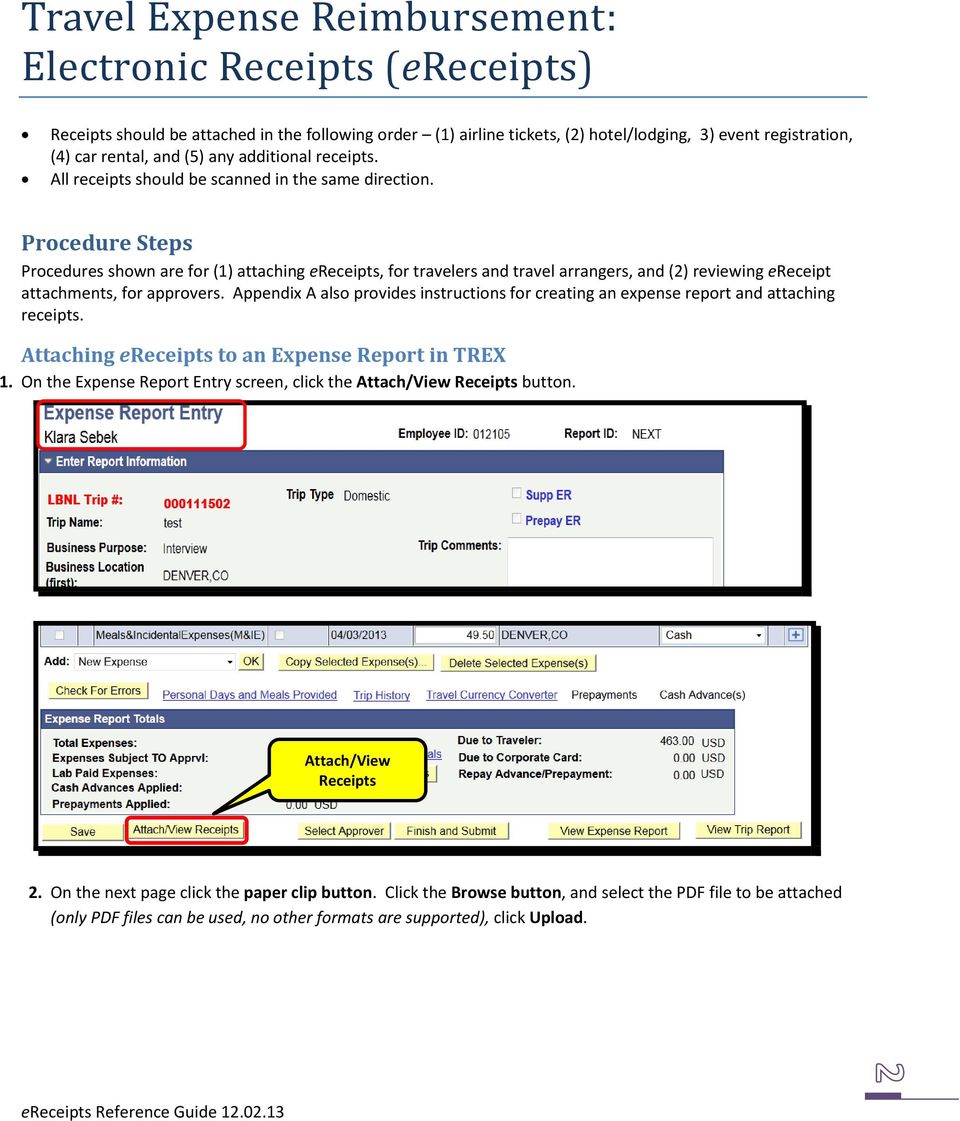
2 Receipts should be attached in the following order (1) airline tickets, (2) hotel/lodging, 3) event registration, (4) car rental, and (5) any additional receipts. All receipts should be scanned in the same direction. Procedure Steps Procedures shown are for (1) attaching ereceipts, for travelers and travel arrangers, and (2) reviewing ereceipt s, for approvers. Appendix A also provides instructions for creating an expense report and attaching receipts. Attaching ereceipts to an Expense Report in TREX 1. On the Expense Report Entry screen, click the Attach/View Receipts button. Attach/View Receipts 2. On the next page click the paper clip button. Click the Browse button, and select the PDF file to be attached (only PDF files can be used, no other formats are supported), click Upload.

3 Attach button Delete Add another View The name of the attached file will be displayed on row #1. a. Click the icon with glasses to view it. Please make sure that the receipt is captured in its entirety and is legible. If multiple receipts on one PDF file, make sure they are all facing one direction (and not sideways). b. To delete an click the trash can icon. c. To add another PDF file, first add another row by clicking the plus icon, and then repeat the upload step.

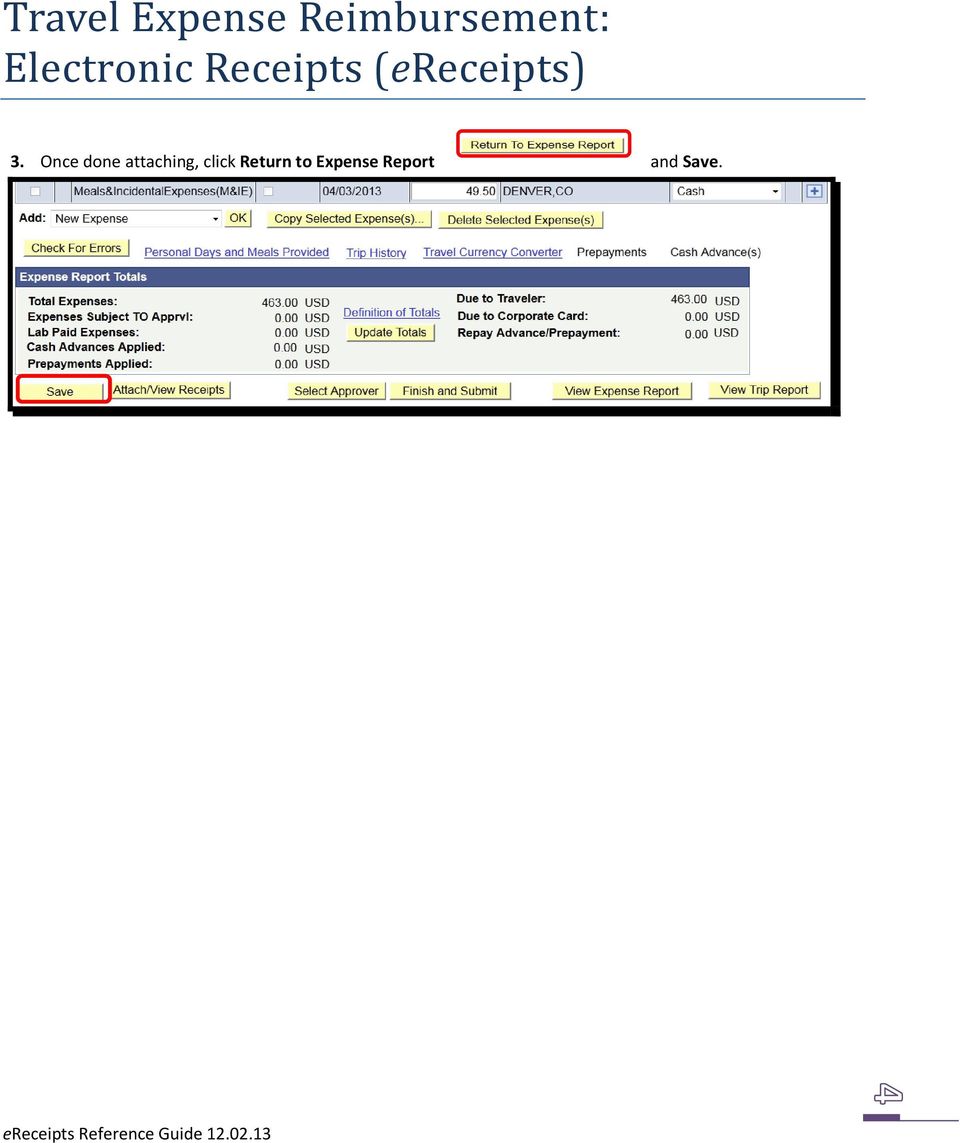
4 3. Once done attaching, click Return to Expense Report and Save.

5 Reviewing ereceipts attached to an Expense Report in TREX 1. On the Expense Report Entry screen, click the Attach/View Receipts button. Attach/View Receipts 2. Select view. View The name of the attached file will be displayed on row #1.

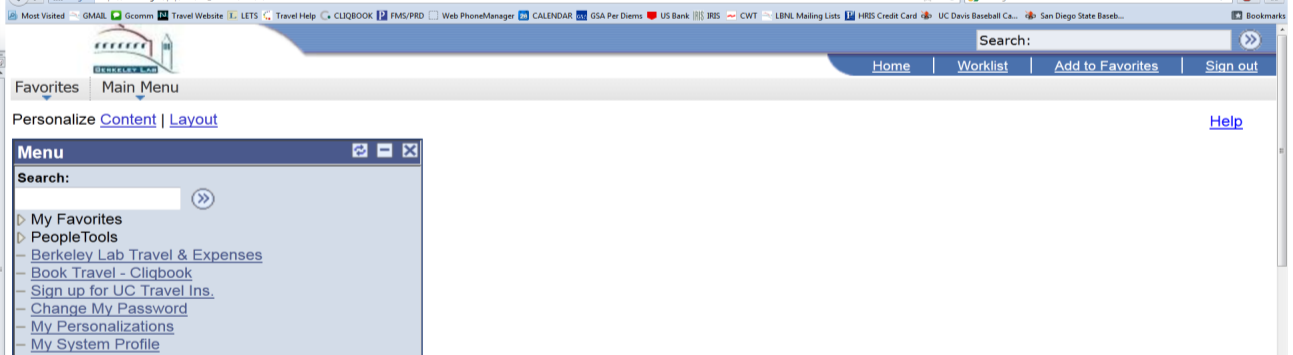

6 Appendix A: Entering an Expense Report in TREX 1. Use get to the TREX sign in page. Use your LDAP user name and password (same as for your LBL ). Travel arrangers use fms.lbl.gov. 2. From the Main Menu, click Berkeley Lab Travel & Expenses. 3. Click Manage Trips.

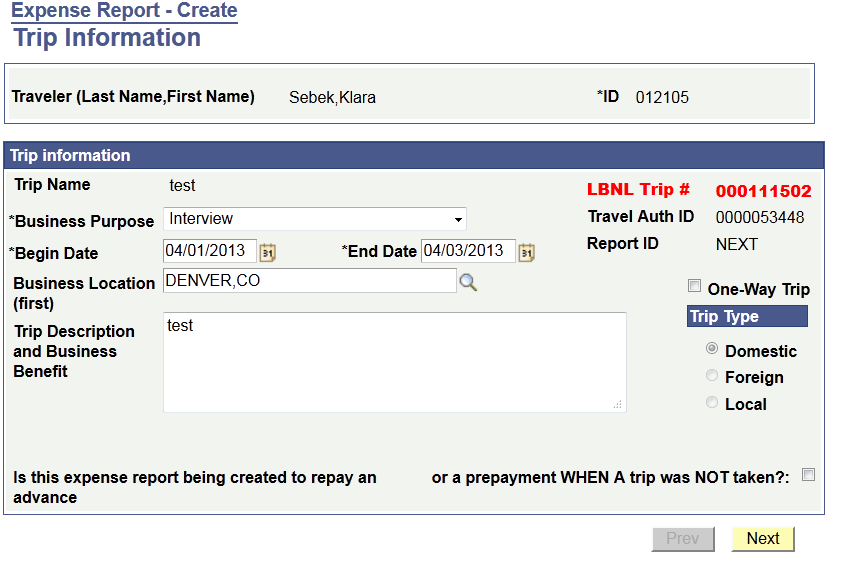
7 4. On the Trip Action and Key Information screen create new or modify existing expense report. Click Go. Create new or modify existing Expense Report 5. If creating a new Expense Report, on the Trip Information screen enter the Trip Name, Business Purpose, first Business Location and Trip Description and Business Benefit. Choose the trip type and click Next.

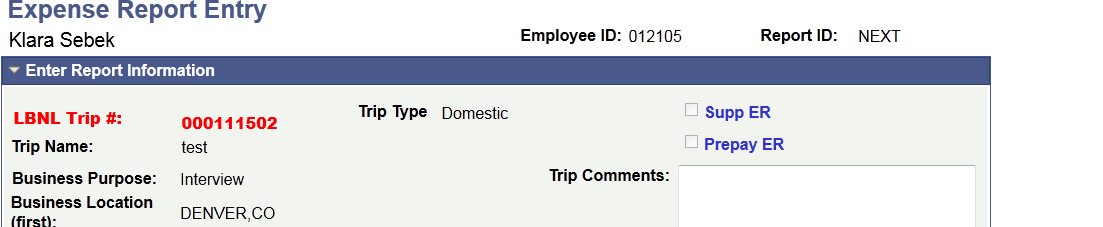
8 6. On the Trip Leg Information screen enter the Project ID and the departure (your home) location. Click Next. Enter your departure location Enter your return location 7. On the Expense Report Entry screen first click Save to obtain the trip number and activate the Attach/View Receipts button. Then proceed to enter any additional expenses by clicking the plus (+) sign to add rows, and choosing the appropriate expense type from the drop down menu (i.e. Airline Ticket), click Save. Click Save to Activate


9 Add new expense line Attach/View Receipts 8. Click the Attach/View Receipts button. 9. On the next screen, click the paper clip button. Click the Browse button, and select the PDF file to be attached (only PDF files can be used, no other formats are supported), click Upload. Attach button

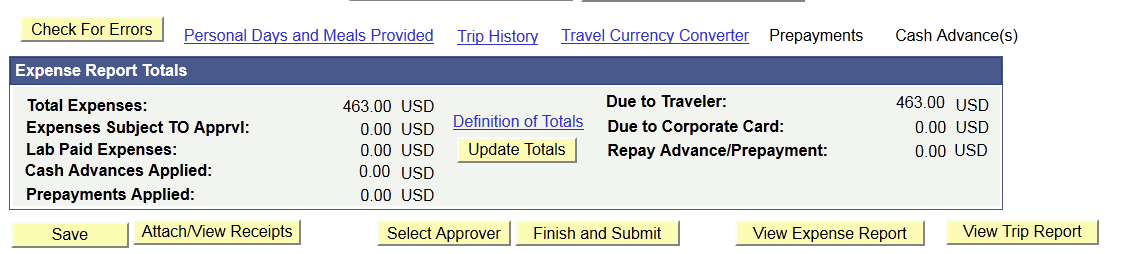
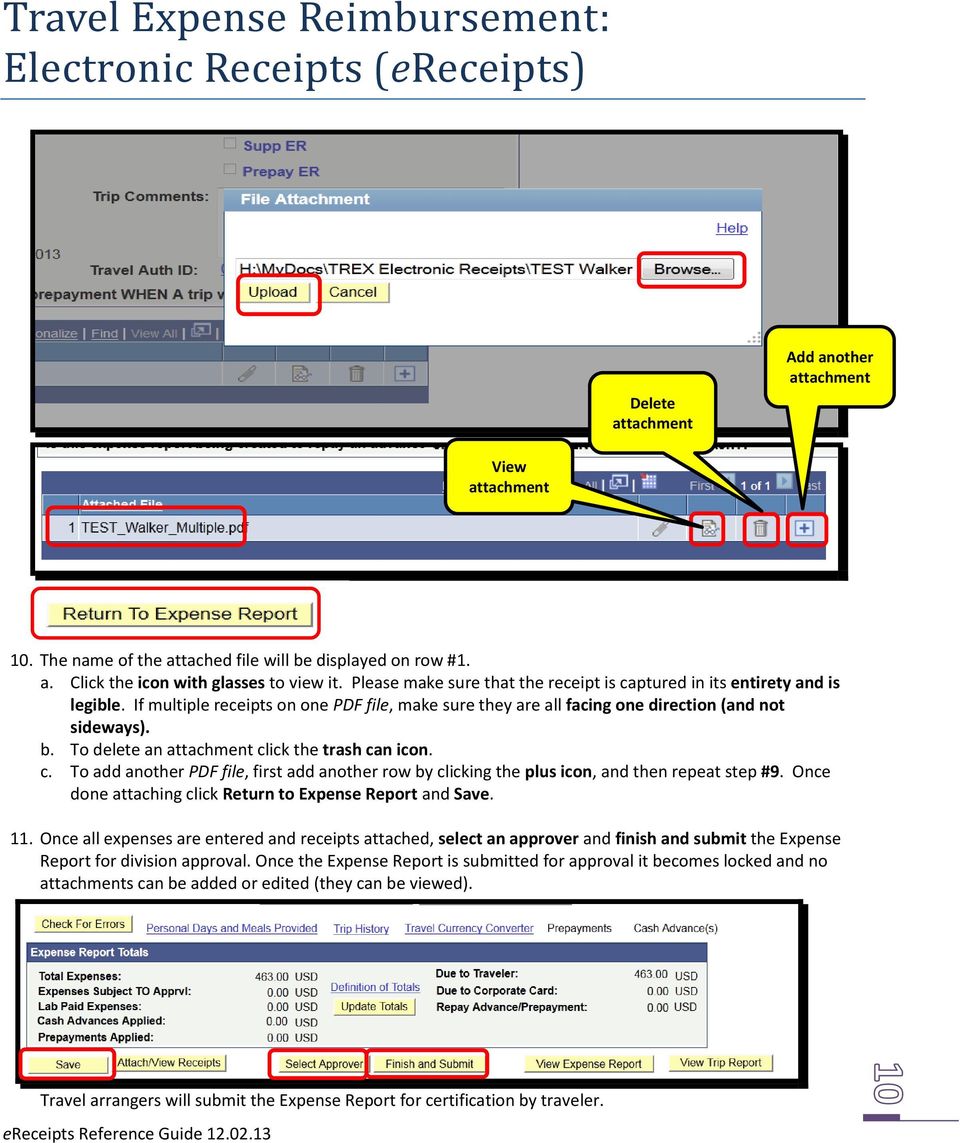
10 Delete Add another View 10. The name of the attached file will be displayed on row #1. a. Click the icon with glasses to view it. Please make sure that the receipt is captured in its entirety and is legible. If multiple receipts on one PDF file, make sure they are all facing one direction (and not sideways). b. To delete an click the trash can icon. c. To add another PDF file, first add another row by clicking the plus icon, and then repeat step #9. Once done attaching click Return to Expense Report and Save. 11. Once all expenses are entered and receipts attached, select an approver and finish and submit the Expense Report for division approval. Once the Expense Report is submitted for approval it becomes locked and no s can be added or edited (they can be viewed). Travel arrangers will submit the Expense Report for certification by traveler.
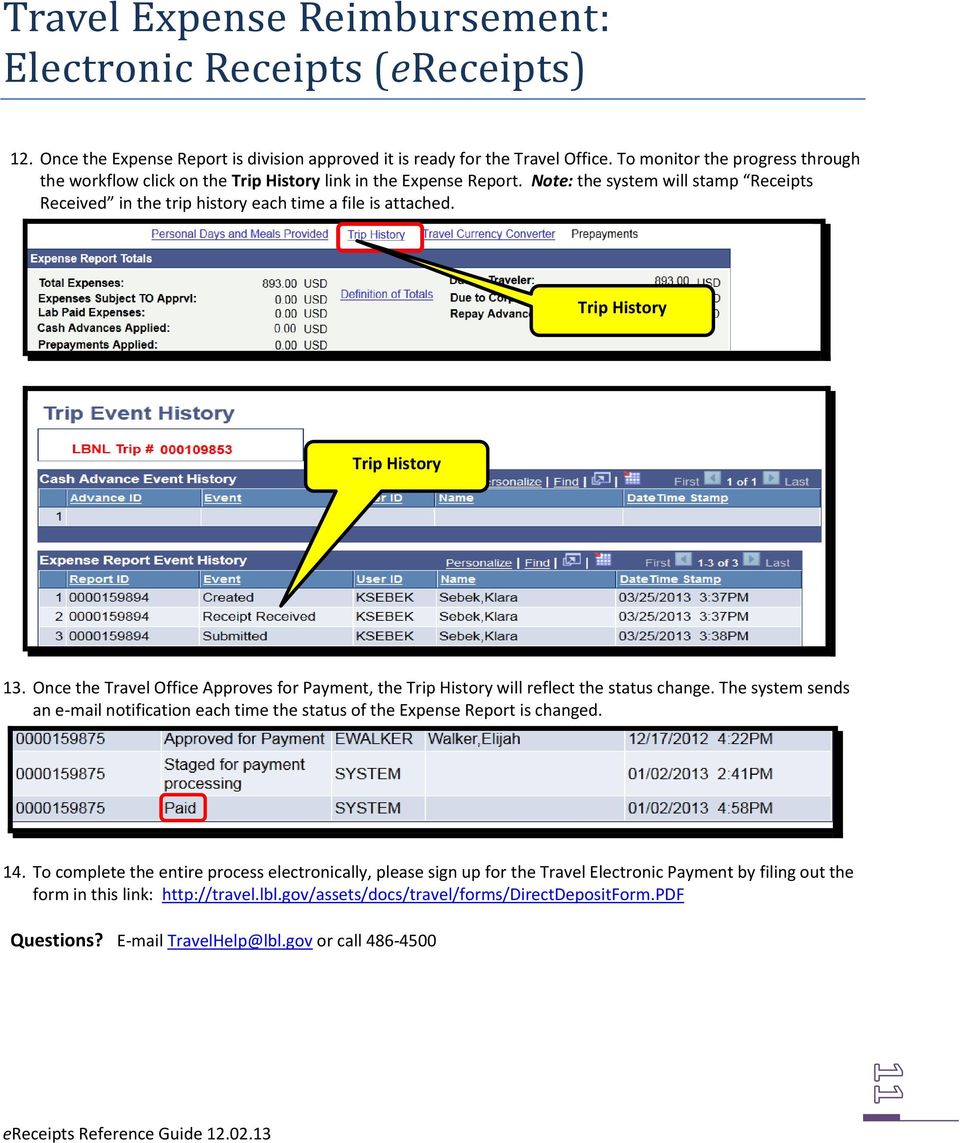
11 12. Once the Expense Report is division approved it is ready for the Travel Office. To monitor the progress through the workflow click on the Trip History link in the Expense Report. Note: the system will stamp Receipts Received in the trip history each time a file is attached. Trip History Trip History 13. Once the Travel Office Approves for Payment, the Trip History will reflect the status change. The system sends an notification each time the status of the Expense Report is changed. 14. To complete the entire process electronically, please sign up for the Travel Electronic Payment by filing out the form in this link: Questions? [email protected] or call
Prepare and Submit your Planar Expense Report in 10 Easy Steps
 Prepare and Submit your Planar Expense Report in 10 Easy Steps Step 1: Update Internet Browser Settings Your browser should already be set up to use Concur, but the following steps will ensure that your
Creating Expense Reports
 KENTUCKY COMMUNITY & TECHNICAL COLLEGE SYSTEM Creating Expense Reports Training Document This training document was developed in support of KCTCS Financials 9.2 Contents Travel and Expense Module... 4
Concur Expense Guide: Version 2
 Concur Expense Guide: Version 2 Welcome to Concur Expense...3 Log on to Concur...3 Explore the My Concur Page...4 Update Your Expense Profile...5 Step 1: Change Your Password...5 Step 2: Review Your Expense
Concur Expense Quick Reference Guide
 Content Section 1: Section 2: Section 3: Section 4: Section 4a: Section 4b: Section 4c: Getting Started, Login Explore My Concur tab Update Your Profile, Add an Expense Delegate Create a New Expense Report
Once your request has been approved, you can begin creating a new expense report.
 Once your request has been approved, you can begin creating a new expense report. Click on the Requests header. Find the request you want to work on. Notice the Status column says Approved. Click Expense
Quick Reference Card Review and Approve Expense Report in Concur Travel and Expense
 The following steps can be utilized in approving expense reports. Fiscal approvers will receive an e-mail notification when the traveler submits the report for approval. Log In To Concur Go to the Employee
Concur Travel and Expense Integration. 2011 Concur, all rights reserved. Concur is a registered trademark of Concur Technologies, Inc.
 Concur Travel and Expense Integration Travel and Expense Integration This presentation shows the integration of Travel and Expense depicting the End to End Travel and Expense solution. These slides can
QuickStart Guide Concur Premier: Travel and Expense
 QuickStart Guide Concur Premier: Travel and Expense Proprietary Statement This document contains proprietary information and data that is the exclusive property of Concur Technologies, Inc., Redmond, Washington.
Frequently Asked Questions
 Frequently Asked Questions What is Xythos? Xythos is a secure web-based file storage system that allows you to place files in a central location so they can be accessed via the internet. You can upload,
Reporting Continuing Education Credits on the CMTBC Online Portal
 Reporting Continuing Education Credits on the CMTBC Online Portal As part of CMTBC s Quality Assurance program, RMTs in BC receive continuing education credits (CECs) for completing approved continuing
Quick Reference Card Booking Travel in Concur Travel and Expense
 This QRC provides the steps for travelers and/or their delegates to book travel and complete the Request Header in Concur Travel and Expense. Log In To Concur Go to the Employee Portal page. www.purdue.edu/employeeportal
Memo Online Travel Reimbursement Request (OTRR)
 Memo Online Travel Reimbursement Request (OTRR) Dear COST Action participants, In order to optimise the travel reimbursement process and to avoid a duplication of work on the e-cost system, the COST Association
Creating an Expense Report from a Blank Report Form. These instructions are designed for those who do NOT need a Travel Authorization.
 Creating an Expense Report from a Blank Report Form These instructions are designed for those who do NOT need a Travel Authorization. Expense Reports are required for the following reasons: Document all
To successfully initialize Microsoft Outlook (Outlook) the first time, email settings need to be verified.
 TO: UAN CLIENTS FROM: UAN STAFF DATE: OCTOBER 8, 2008 SUBJECT: Steps for Initial Setup of Microsoft Outlook To successfully initialize Microsoft Outlook (Outlook) the first time, email settings need to
Entering an Employee Expense Report
 Upon completion of this guide you will be able to Enter an Expense Report: For travel or non-travel reimbursement For yourself or as proxy for someone else With single, or multiple expense lines Charged
Profile. 2 On the Expense Settings menu on the left
 Section 1: Getting Started Step 1: Log on to Concur Expense 1 In the User Name field, enter your user name. 2 In the Password field, enter your password. 3 Click Login. If you are not sure how to start
1. Log on to Concur Travel & Expense
 1. Log on to Concur Travel & Expense Type in your employee identification number as your username. i.e. [email protected] Your generic password will be sent to you via e-mail. Click login. 1 2. Update Your
DATABASICS Expense User s Guide v2.2
 CALIBRE DATABASICS Expense User s Guide v2.2 A Guide to CALIBRE s Expense Reporting Website August 2015 Our Success Follows Yours 6354 Walker Lane, Suite 500 Alexandria, Virginia 22310-3252 Telephone:
Travel & Expense Module
 Travel & Expense Module Table of Content I. Travel Authorization.1 Create a Travel Authorization.2 Expense Type List...11 II. Expense Report 12 Create an Expense Report..12 Expense Type List 20 Travel
Concur Expense Report Approvers
 Concur Expense Report Approvers I. What is a Expense Report Approver?... 1 II. Travel Approval and Workflow... 1 III. Expense Report Approval Request Notification... 3 IV. Accessing Concur and Reviewing
User Guide for CBER s Electronic Signature Process
 SOPP 8116: Appendix 1: Electronic Signature User Guide User Guide for CBER s Electronic Signature Process To Attach a Word Document Once you have converted the document to PDF, you are ready to electronically
QuickStart Guide. Concur Expense
 QuickStart Guide Concur Expense PROPRIETARY STATEMENT This document contains proprietary information and data that is the exclusive property of Concur Technologies, Inc, Redmond, Washington If you are
Concur Expense QuickStart Guide. Concur Technologies Version 1.0
 Concur Expense QuickStart Guide Concur Technologies Version 1.0 August 22, 2014 Document Revision History Date Description Version Author 08/22/2014 Concur Expense QuickStart Guide 1.0 Concur Proprietary
Creating Expense Reports and Spend Authorization Requests
 ALL reimbursement for out-of-pocket businessrelated expenses incurred on or after 2/16/15 will be submitted through Workday, including: mileage, travel, memberships, professional dues, license payments,
Phone.com. Communicate Better
 1 Communicate Better - 1 / 16 - 2 Faxes Setting a Number to Receive Faxes Fax Notification Email Notification Text Message (SMS) notification Managing Faxes Viewing a Fax Downloading a Fax Viewing a Fax
Tutorial of Deltek s Expense Report Domestic Travel Edition
 Tutorial of Deltek s Expense Report Domestic Travel Edition Please note that any expense incurred by an employee and to be reimbursed by BCF Solutions, Inc. has to be through an expense report. Step 1:
Adding Receipts to your Certify Wallet
 Adding Receipts to your Certify Wallet Log into Certify using your full Bowdoin College email address and your password. If you have forgotten your password click on the "Lost Password Wizard" from the
GEMS Program Concur Travel & Expense Quick-Start Guide
 GEMS Program Concur Travel & Expense Quick-Start Guide Your Guide to Booking Travel, and Creating, Submitting, and Approving Expense Reports http://gems.uchicago.edu Proprietary Statement This document
Content: Create ER 1-2 Review Expense Report 7-8 Enter Expenses 2-5 Submit ER 8 ereceipts 6-7 Workflow/Approvals 8
 EXPENSE REPORT Financial Services User Guide Content: Create ER 1-2 Review Expense Report 7-8 Enter Expenses 2-5 Submit ER 8 ereceipts 6-7 Workflow/Approvals 8 Overview A completed Expense Report is required
Concur Travel and Expense Reporting FAQs
 Concur Travel and Expense Reporting FAQs General: How will I use Concur? The Concur travel and Expense system is for tracking and reconciling employee travel and other travel related expenses purchased
How to Create an Expense Report
 How to Create an Expense Report Contents Expense Report Layout... 2 Creating an Expense Report... 3 Project Charging... 7 Attaching Receipts... 9 Submitting the Expense Report... 11 How to Create an Expense
PCard Reconciliation. WVOasis. Things you will need: My Apps Password. Scanned image of signed receipts. Funding information
 PCard Reconciliation WVOasis Things you will need: My Apps Password Scanned image of signed receipts Funding information Go to the following website and bookmark: http://www.wvsao.gov Click on the myapps
CentreSuite Expense Routing Cardholder USER GUIDE
 CentreSuite Expense Routing Cardholder USER GUIDE CentreSuite Expense Routing Cardholder User Guide Table of Contents 3 First Time Users 6 Quick Links from your Home Screen 7 Statements 9 Creating and
Expense Report: Guide for Students
 Version: 3-28-2013 Expense Report: Guide for Students Log into Concur https://medley.isc-seo.upenn.edu/authentication/profile/concur?app=concurprod 1. Your PennKey authentication page will pop up. Login.
Banner Travel and Expense Module Traveler User Guide
 November 2014 Banner Travel and Expense Module Traveler User Guide Oregon State University Business Affairs FA&A Table of Contents Banner Travel and Expense Module Overview... 2 Accessing Travel and Expense
Expense Report: Detailed Guide. The expense report process has three main steps
 Version: 5-24-2013 Expense Report: Detailed Guide The expense report process has three main steps STEP ONE: Creation and submittal of an expense report using Concur software 1. Select new Expense Report
Integrated Cloud Environment OneDrive User s Guide
 Integrated Cloud Environment OneDrive User s Guide 2012-2015 Ricoh Americas Corporation It is the reader's responsibility when discussing the information contained this document to maintain a level of
Attach receipt options:
 Attaching Receipts and Receipt Store There are a few ways to attach receipts to an expense report. You will only need to choose one of the following options when attaching receipts. You can add receipts
Travel and Expense Management Training Manual
 Travel and Expense Management Training Manual TEM Team Colorado School of Mines Cindy Kerr - 303.273.3274 Cathy Daniels - 303.273.3264 Tim Huelsman 303.273.3266 Tressa Ries 303.273.3262 1 Overview TEM
Job Aid. Create an Expense Report from a Blank Form. 1. Click the Employee Self-Service link. 2. Click the Travel and Expense Center - E link.
 Create an Expense Report from a Blank Form 1. Click the Employee Self-Service link. 2. Click the Travel and Expense Center - E link. 3. Click the Expense Report link. 4. Click the Create link. 5. IMPORTANT
Concur Quick Start Guide Instructions to create employee expense reports
 Concur Quick Start Guide Instructions to create employee expense reports Kindred Healthcare 0 Concur Quick Start Guide Kindred Healthcare Concur log in page: https://www.concursolutions.com New expense
Creating Expense Reports (Campuses)
 Creating Expense Reports (Campuses) When you create an expense report, you have several options on which to base the new document, and the selection that you make triggers other choices that prompt you
Joint Logistics Managers, Inc. Deltek Systems, Inc. Electronic Expense Training Manual
 Joint Logistics Managers, Inc. Deltek Systems, Inc. Electronic Expense Training Manual JLMI Rev. April 2013 Table of Contents Welcome 3 Getting Started 3 Logging In 3 Create an Expense Authorization 4
Integrated Cloud Environment Box User s Guide
 Integrated Cloud Environment Box User s Guide 2012-2015 Ricoh Americas Corporation It is the reader's responsibility when discussing the information contained this document to maintain a level of confidentiality
Submitting a Claim in New MIPS Sponsor of Day Care Homes (more detailed instructions found in back of document)
 Submitting a Claim in New MIPS Sponsor of Day Care Homes (more detailed instructions found in back of document) Log into MIPS (using same Authorization Number and Password as before). **Be sure to take
Worldspan Go! Internet Connection Office Management Instructions
 Worldspan Go! Internet Connection Office Management Instructions Follow these instructions after the installation of Worldspan Go! These instructions will walk you through getting started to downloading
Google Apps for Sharing Folders and Collecting Assignments
 Google Apps for Sharing Folders and Collecting Assignments The Google Drive is cloud (online) storage space, and it is also where you create and work with Google Docs, Sheets, Slides, etc. Create a Folder
Employee Expense Management 5.0 User Guide
 Employee Expense Management 5.0 User Guide Countries without American Express Corporate Card Load Rev. 12.4.1 HP Restricted 1 2 Contents Employee Expense Management 5.0 User Guide... 1 Contents... 2 Overview...
Travel Request and Expense Report Processing for Monthly Personal Car Mileage
 Travel Request and Expense Report Processing for Monthly Personal Car Mileage 1 Table of Contents Travel Request Overview... 3 Section 1: Create a New Travel Request for Monthly Personal Car Mileage...
16.4.3 Lab: Data Backup and Recovery in Windows XP
 16.4.3 Lab: Data Backup and Recovery in Windows XP Introduction Print and complete this lab. In this lab, you will back up data. You will also perform a recovery of the data. Recommended Equipment The
GRS Advantage Website User Reference Guide
 GRS Advantage Website User Reference Guide This document describes how to use the GRS Advantage Website. Table of Contents GRS Advantage Website... 2 Accessing the Website... 2 Requesting Access to the
Job Aid. Creating Expense Reports. 1. Begin by navigating to the Expense Report Entry page. 2. Click Create under Expense Report in the Main Page
 Creating Expense Reports 1. Begin by navigating to the Expense Report Entry page. Employee Self Service Travel and Expense Center 2. Click Create under Expense Report in the Main Page 3. A search box appears.
Joint Logistics Managers, Inc. Deltek Systems, Inc. Electronic Expense Training Manual
 Joint Logistics Managers, Inc. Deltek Systems, Inc. Electronic Expense Training Manual JLMI Rev. Jan 2012 Table of Contents Welcome 3 Getting Started 3 Logging In 3 Create an Expense Authorization 4 Adding
TeamWorks Travel and Expense
 TeamWorks Travel and Expense With Concur Technologies TTE System User Reference TABLE OF CONTENTS SECTION 1: GETTING STARTED... 6 Log on to TTE Travel & Expense... 6 SECTION 2: MY CONCUR... 6 Explore the
Integrated Cloud Environment Scan to Oracle Cloud User s Guide
 Integrated Cloud Environment Scan to Oracle Cloud User s Guide 2012-2015 Ricoh Americas Corporation It is the reader's responsibility when discussing the information contained this document to maintain
I Expense Online Expense submissions For fulltime Faculty & Staff Revised: Sept 2013
 I Expense Online Expense submissions For fulltime Faculty & Staff Revised: Sept 2013 Table of Contents I-EXPENSE PROCESS... 1 IEXPENSE - LOGIN... 3 NAVIGATING THE I-EXPENSE HOME PAGE... 5 Expenses Home
STEP - I: ( FILING CASES IN THE CIS SOFTWARE )
 STEP - I: ( FILING CASES IN THE CIS SOFTWARE ) DATA ENTRY OF FRESH CASES (CIVIL CASE FILING) Civil Case Filing (Add): [Civil Case Filing Civil Stamp Case Filing Add] 2. Click the Civil Stamp Case Filing
The MIL Corporation. Deltek Expense Report Training
 Deltek Expense Report Training Contents Chapter 1: How to Access the Expense Application... 3 Chapter 2: Filling out an Expense Report... 4 Chapter 3: Expense Report Details... 12 Chapter 4: Signing the
Concur Travel Training California State University, Stanislaus Financial Services
 Concur Travel Training California State University, Stanislaus Financial Services Traveler and Delegate Handbook Lucero Mascorro Accounts Payable- Travel 1 TABLE OF CONTENTS GETTING STARTED 3 USE CONCUR
AC4S Employee s User Guide for Deltek Time & Expense 9. Expense Reports
 AC4S Employee s User Guide for Deltek Time & Expense 9 Expense Reports Open Expense Report To record expenses, click on Expense on the top menu bar. Next, click on Record Expenses, then Expense Report
EMPLOYEE EXPENSE ENTRY GUIDE (EMPLOYEE ONLY)
 EMPLOYEE EXPENSE ENTRY GUIDE (EMPLOYEE ONLY) 1 Contents 1- Introduction..... 3 2- Login... 4 3- Initial Homepage Icons.... 5 4- Expense Report Icons,.... 6 5- Entering New Expense Report... 7 2 1- Introduction
The Welcome screen displays each time you log on to PaymentNet; it serves as your starting point or home screen.
 PaymentNet Cardholder Quick Reference Card Corporate Card ffwelcome to PaymentNet The Welcome screen displays each time you log on to PaymentNet; it serves as your starting point or home screen. PaymentNet
How to create database in GlycomcsPortal?
 How to create database in GlycomcsPortal? 1. Log- in Log in through Log in 2. Submit Content Click Submit Content on the menu. 3. Choose Database Choose Database as a type of entry you desire to create.
Travel and Expense System. Traveler s Guide
 Travel and Expense System Traveler s Guide Contents System Setup... 3 Authorization Reports (Before Traveling)... 3 Creating and Reviewing an Authorization Report... 3 Adding a Comment... 5 Submitting
10.3.1.6 Lab - Data Backup and Recovery in Windows XP
 5.0 10.3.1.6 Lab - Data Backup and Recovery in Windows XP Introduction Print and complete this lab. In this lab, you will back up data. You will also perform a recovery of the data. Recommended Equipment
www.shopmainstreet.com 855-733-SHOP (7467) [email protected]
 www.shopmainstreet.com 855-733-SHOP (7467) [email protected] TABLE OF CONTENTS Getting Started...3 Business Address & Categories.......... 4 Payment Method...6 Merchant Profile...7 Everyday Offers...9
Redtail Integration. Establishing the Redtail Connection. 1. From the Applications dropdown, choose Setup.
 In this user guide, we will demonstrate how to integrate your Redtail service into the emoney platform. This will allow the Advisor to import and link clients currently in Redtail into emoney. Establishing
GA Travel & Expense System. FAQ s
 GA Travel & Expense System FAQ s TABLE OF CONTENTS Travel System Access... 7 1. How do I log in to the GA Travel & Expense System?... 7 2. What should I do if I need to travel and I don t have a vendor
Welcome to e-expense Travel & Business Expense Reimbursement System. A User Guide 2014 Tufts University Finance
 Welcome to e-expense Travel & Business Expense Reimbursement System A User Guide 2014 Tufts University Finance 5/20/2014 Support: [email protected] Table of Contents Signing into and Tufts Corporate
Integrated Cloud Environment Google Drive User s Guide
 Integrated Cloud Environment Google Drive User s Guide 2012-2015 Ricoh Americas Corporation It is the reader's responsibility when discussing the information contained this document to maintain a level
PeopleSoft. Travel and Expense Center. Expense Report. User Guide
 Travel and Expense Center Expense Report User Guide Table of Contents Document Overview... 3 Expense Report Guidelines... 3 Creating an Expense Report... 4 Creating an Expense Report from a Blank Report...
ClicktoFax Service Usage Manual
 ClicktoFax Service Usage Manual 1. Log in to Fax Service 2. Configure your account 3. Send a fax 4. Receive a fax/search for Faxes/View Faxes 5. Logout 6. Additional Support 1. Log into fax service: a.
Claimants and Delegates
 User Guide Contents Chapter 1: Signing In... 1 Chapter 2: My Profile... 4 Chapter 3: Expense Reimbursements... 9 Chapter 4: Submitting Your Receipts... 17 Chapter 5: Advance Requests... 21 Chapter 6: Acting
How Do I Upload Multiple Trucks?
 How Do I Upload Multiple Trucks? 1. Log into account. Please see the How Do I Log into My Account? document (DOC-0125) for additional assistance with logging into PrePass.com. 2. On the Admin Home tab,
Travel and Expense User Guide Created on Tuesday, July 02, 2013
 Created on Tuesday, July 02, 2013 COPYRIGHT & TRADEMARKS Copyright 2003, 2007, Oracle. All rights reserved. Powered by OnDemand Software. Distributed by Oracle under license from Global Knowledge Software
Concur Travel & Expense Frequently Asked Questions
 What is Concur Travel & Expense? How do I log in to Concur Travel & Expense? What should I do the first time I log into Concur Travel & Expense? What are the required fields on the profile page? What if
Endsleigh User Guide. Tenant Verifier
 Endsleigh User Guide Tenant Verifier 1 Contents Logging in to Tenant Verifier... 3 Logging In:... 3 Forgotten Passwords... 4 Customer Home Page... 5 Creating and Managing Applications... 5 Create Application...
FAST Travel System. Guide: Creating Expense Reports
 FAST Travel System Guide: Creating Expense Reports Purpose: To provide instructions on how to create an Expense Report (ER) in FAST 9.2 Travel module. Definition: Expense Report submission entered into
United States Agency for International Development Bureau for Management Office of Chief Information Officer E2 Travel Management Service User Guide
 United States Agency for International Development Bureau for Management Office of Chief Information Officer E2 Travel Management Service User Guide Release 1.0 Revisions Release Number Author Comment
Secure File Transfer Guest User Guide Updated: 5/8/14
 Secure File Transfer Guest User Guide Updated: 5/8/14 TABLE OF CONTENTS INTRODUCTION... 3 ACCESS SECURE FILE TRANSFER TOOL... 3 REGISTRATION... 4 SELF REGISTERING... 4 REGISTER VIA AN INVITATION SENT BY
Concur Expense System. User Reference Guide
 Concur Expense System User Reference Guide February, 2009 Table of Contents HOW TO GET SETUP IN THE CONCUR EXPENSE SYSTEM... 1 LOG IN... 1 CHANGE YOUR PASSWORD... 1 VIEW AND EDIT YOUR PROFILE INFORMATION...
User Guide for Hourly Casual Staff Entering a Timesheet
 User Guide for Hourly Casual Staff Entering a Timesheet Brief Document Description Overview On engagement, Hourly Casual staff are required to submit their hours worked for approval and submission to Staff
ProMaster User Guide For Travel Expense Allocations (Reconciliations)
 ProMaster User Guide For Travel Expense Allocations (Reconciliations) 1 P a g e Table of Contents Who do I contact with my questions?...3 How do I log in to ProMaster?...4 What do all the Icons mean?...5
Asset Management Automatic Financials Upload on the MITAS Internet Property Management site
 Slide 1 - Title on the MITAS Internet Property Management site Page 1 of 38 Slide 2 - Objectives Section One Objectives In this section you will learn how to automatically upload financial data from the
IU Travel Guide. A comprehensive guide to travel policies & resources.
 IU Travel Guide This guide is designed to provide IU travelers, arrangers, fiscal officers, and processing staff with all the information and resources required for successful traveling at Indiana University.
Travel Expenses Claim Workflow System Quick Reference Guide v1.0
 Travel Expenses Claim Workflow System Quick Reference Guide v1.0 Page 1 of 14 Travel Expenses Claim Workflow System Quick User Guide Table of Contents Chapter 1: Steps to Prepare and Submit Travel Expense
PROACTIS: Supplier User Guide Contract Management
 PROACTIS: Supplier User Guide Contract Management Contents Introduction Why PROACTIS Contract Management Tender award Updating Contractor details Accepting tender award Accepting / rejecting the contract
Travel and Expense Management User Guide. Revised 02.04.15
 Travel and Expense Management User Guide Revised 02.04.15 2 Table of Contents Access TEM and Review Profile. 4 Submitting a Travel Authorization (TA).. 5 Intro and Login.. 5 Funding Change. 6 Itinerary..
Concur Travel and Expense Reporting. Mobile Application
 Questions General Information and Requirements... 3 1. How is Concur's mobile app useful?... 3 2. Does the mobile app offer the same functionality as Concur's full-featured, web-based service?... 3 3.
Surplus Lines Online User Guide
 Surplus Lines Online User Guide Missouri Department of Insurance, Financial Institutions and Professional Registration Contents Summary... 1 Site Address... 1 Account Management... 2 Account Registration...
Create an Expense Report: Detailed Guide
 Overview Creating expense reports is one of the primary functions of Concur. This Guide provides detailed instructions on how to create and submit an expense report. Log into Concur 1. Log into Concur:
Travel Management System. Travel Manager. Training and Reference Guide. For Travel Manager Release 9.0
 Travel Management System Travel Manager Training and Reference Guide For Travel Manager Release 9.0 May 2006 T A B L E O F C O N T E N T S Chapter 1 - Introduction... 1-1 Overview... 1-1 Chapter 2 - Getting