
Cognos (R) 8 Analytic Applications
|
|
|
- Ilene Stafford
- 9 years ago
- Views:
Transcription
1 Cognos(R) 8 Analytic Applications Installation and Configuration Guide INSTALLATION AND CONFIGURATION GUIDE Cognos (R) 8 Analytic Applications INSTALLATION AND CONFIGURATION GUIDE

2 Product Information This document applies to Cognos (R) 8 Analytic Applications Version 8.2 and may also apply to subsequent releases. To check for newer versions of this document, visit the Cognos Global Customer Services Web site ( Copyright Copyright (C) 2007 Cognos Incorporated. Portions of Cognos(R) software products are protected by one or more of the following U.S. Patents: 6,609,123 B1; 6,611,838 B1; 6,662,188 B1; 6,728,697 B2; 6,741,982 B2; 6,763,520 B1; 6,768,995 B2; 6,782,378 B2; 6,847,973 B2; 6,907,428 B2; 6,853,375 B2; 6,986,135 B2; 6,995,768 B2; 7,062,479 B2; 7,072,822 B2; 7,111,007 B2; 7,130,822 B1; 7,155,398 B2; 7,171,425 B2; 7,185,016 B1; 7,213,199 B2. Cognos and the Cognos logo are trademarks of Cognos Incorporated in the United States and/or other countries. All other names are trademarks or registered trademarks of their respective companies. While every attempt has been made to ensure that the information in this document is accurate and complete, some typographical errors or technical inaccuracies may exist. Cognos does not accept responsibility for any kind of loss resulting from the use of information contained in this document. This document shows the publication date. The information contained in this document is subject to change without notice. Any improvements or changes to either the product or the document will be documented in subsequent editions. U.S. Government Restricted Rights. The software and accompanying materials are provided with Restricted Rights. Use, duplication, or disclosure by the Government is subject to the restrictions in subparagraph (C)(1)(ii) of the Rights in Technical Data and Computer Software clause at DFARS , or subparagraphs (C) (1) and (2) of the Commercial Computer Software - Restricted Rights at 48CFR , as applicable. The Contractor is Cognos Corporation, 15 Wayside Road, Burlington, MA This software/documentation contains proprietary information of Cognos Incorporated. All rights are reserved. Reverse engineering of this software is prohibited. No part of this software/documentation may be copied, photocopied, reproduced, stored in a retrieval system, transmitted in any form or by any means, or translated into another language without the prior written consent of Cognos Incorporated.

3 Table of Contents Introduction 7 Using This Document 7 Audience 7 Related Documentation 7 Finding Documentation 8 Using Quick Tours 8 Getting Help 8 Printing Copyright Material 8 Chapter 1: Components Used by Cognos 8 Analytic Applications 9 Cognos 8 Runtime Components 9 Cognos 8 Adaptive Applications Framework Components 9 Third-Party Components 10 Chapter 2: Distribution Options for Cognos 8 Analytic Applications 11 All Components on One Computer 11 Cognos 8 Adaptive Applications Framework Components and Cognos 8 Runtime Components on Different Computers 12 Cognos 8 Runtime Components on Different Computers 13 All Cognos 8 Runtime Components on One Computer 13 Gateways on Separate Computers 14 Application Tier Components and Content Managers on Separate Computers 15 More Than One Content Manager 16 Chapter 3: Workflows for Cognos 8 Analytic Applications 17 Install Cognos 8 Adaptive Applications Framework Components with Cognos 8 Runtime Components 17 Install Cognos 8 Adaptive Applications Framework Components Within an Existing Cognos 8 Environment 19 Install SAP Interface Files 21 Chapter 4: Upgrading Cognos 8 Analytic Applications 23 Plan the Upgrade 23 Review the Documentation 23 Conduct a Site Survey 24 Perform a Trial Upgrade 24 Upgrade Cognos 8 Runtime Components 25 Customized Cognos 8 Runtime Files 25 Install Cognos 8 Runtime Components in the Same Directory 26 Install Cognos 8 Runtime Components in a New Directory 26 Upgrade Cognos 8 Adaptive Applications Framework Components from Cognos 8 Analytic Applications Install Cognos 8 Adaptive Applications Framework Components in the Same Directory 28 Install Cognos 8 Adaptive Applications Framework Components in a New Directory 28 Chapter 5: Installing and Uninstalling Cognos 8 Analytic Applications 31 Verify System Requirements 31 Review Supported Environments 32 Set Up Database Connectivity for the Content Store Database 32 Install Cognos 8 Runtime Components 33 Install Cognos 8 Adaptive Applications Framework Components 35 Installation and Configuration Guide 3

4 Install Application Content Files for the ERP 37 Install SAP Interface Files 37 Install the SAP Gateway Functions 37 Install the SAP Content Interface Files 38 Apply the SAP Gateway Functions and Content Interface Files 38 Install the Cognos Compression Utility 39 Set Access Permissions for the Gateway Functions and Content Interface Files 39 Default Settings for Cognos 8 Analytic Applications 40 Uninstall Cognos 8 Runtime Components 41 Uninstall Cognos 8 Runtime Components for UNIX 41 Uninstall Cognos 8 Runtime Components for Windows 42 Uninstall Cognos 8 Adaptive Applications Framework Components 42 Uninstall Cognos 8 Adaptive Applications Framework Runtime for UNIX 42 Uninstall Cognos 8 Adaptive Applications Framework for Windows 43 Uninstall Application Content Files 44 Chapter 6: Setting Up the Environment 45 Create the Content Store 45 Set Up the Database Client for the Content Store 48 Set Up Environment Variables to Use Scripts 49 Update the Java Environment 50 Configure the Web Server 51 Configure the Web Browser 52 Configure the Router to Test Dispatcher Availability 53 Set Up the Data Source Environment 53 Chapter 7: Configuring Cognos 8 Analytic Applications 55 Start Cognos Configuration 55 Configure Single Computer Installations 56 Set Database Connection Properties for the Content Store 56 Save Your Configuration Settings 57 Test the Installation and Configuration 58 Import the Splash Screen for the Cognos 8 Analytic Applications Portal Page 59 Copy Image Files for Adaptive Analytics Report Icons 59 Finish the Configuration 59 Configure Distributed Installations 60 Set Database Connection Properties for the Content Store 60 Set the Cognos 8 Runtime Gateway and Dispatcher Connections 62 Save Your Configuration Settings 62 Test the Installation and Configuration 62 Import the Splash Screen for the Cognos 8 Analytic Applications Portal Page 63 Copy Image Files for Adaptive Analytics Report Icons 64 Change the Default Configuration Settings 64 Change a URI 64 Change Cryptographic Settings 66 Configure Reporting Components to Use Cognos Application Firewall 67 Configure Temporary File Properties 68 Configure the Gateway to Use a Namespace 68 Enable and Disable Services 69 Specify Resources for the Cognos 8 Service 69 Configure the SSL Protocol 70 Configure SSL for Cognos 8 Adaptive Applications Framework 70 Set Up Shared Trust Between Cognos Servers and Other Servers 72 Select and Rank Cipher Suites for SSL 72 Set Data Manager Runtime Data and Log File Locations 73 Configure Log Messages 73 Set Up the Database Client for a Logging Database 74 Specify the Log Messages Destination 75 4
5 Change Global Settings 76 Customize Language Support to the User Interface 76 Customize Currency Support 77 Customize Content Locale Support 77 Map Content Locales 78 Map Product Locales 79 Customize the Server Time Zone 80 Change Encoding for Messages 80 Customize Cookie Settings 80 Configure Fonts 81 Change the Gateway 82 Configure the Gateway for Cognos Apache Web Server Module 83 Configure a Servlet Gateway 84 Chapter 8: Configuring Cognos 8 Components to Use an Authentication Provider 87 Disable Anonymous Access 88 Restrict User Access to the Cognos Namespace 88 Configuring Cognos 8 Components to Use Active Directory Server 88 Configure an Active Directory Namespace 89 Make Custom User Properties for Active Directory Available to Cognos 8 Components 90 Enabling Secure Communication to the Active Directory Server 90 Include or Exclude Domains Using Advanced Properties 91 Enabling Single Signon Between Active Directory Server and Cognos 8 Components 91 Configuring Cognos 8 to Use Cognos Series 7 Namespace 92 Configure a Cognos Series 7 Namespace 93 Enabling Secure Communication to the Directory Server Used by the Series 7 Namespace 93 Enabling Single Signon Between Cognos Series 7 and Cognos 8 93 Cognos Series 7 Namespaces and the Cognos Series 7 Trusted Signon Plug-in 94 Configuring Cognos 8 to Use a Custom Authentication Provider 96 Configure a Custom Authentication Namespace 96 Configuring Cognos 8 Components to Use LDAP 96 Configure an LDAP Namespace 97 Configure an LDAP Namespace for Active Directory Server 98 Configure an LDAP Namespace for IBM Directory Server 99 Configure an LDAP Namespace for Novell Directory Server 101 Configure an LDAP Namespace for Sun ONE Directory Server 102 Make Custom User Properties for LDAP Available to Cognos 8 Components 104 Enable Secure Communication to the LDAP Server 104 Enabling Single Signon Between LDAP and Cognos 8 Components 105 Replace Operation 105 Configuring Cognos 8 Components to Use etrust SiteMinder 106 Configure a Netegrity SiteMinder Namespace 107 Enabling Secure Communication to the etrust SiteMinder User Directory 108 Enable Single Signon Between etrust SiteMinder and Cognos Protecting the Cognos Web Alias 108 Configuring Cognos 8 Components to Use an NTLM Namespace 108 Configure an NTLM Namespace 109 Enable Single Signon Between NTLM and Cognos 8 Components 109 Test the Namespaces 109 Delete an Authentication Provider 110 Chapter 9: Setting Up an Unattended Installation and Configuration 111 Set Up an Unattended Installation 111 Set Up an Unattended Configuration 113 Installation and Configuration Guide 5

6 Appendix A: Troubleshooting 115 Log Files 115 Use Knowledge Base 117 Call Cognos Support 117 Problems Starting Cognos CFG-ERR-0106 Error When Starting the Cognos 8 Service in Cognos Configuration 118 Unable to Start the Cognos 8 Service Because the Port is Used by Another Process 119 Cognos BI Server Not Available When Starting Cognos Cannot Log On to a Namespace When Using Cognos Connection (PRS-CSE-1255 Error) 122 Cognos 8 Services Fail to Restart After a Network Outage 123 No Warning That Installing a Later Version of Cognos 8 Will Automatically Update the Earlier Version of the Content Store 123 Download of Resource Fails 123 DB2 Returns SQL1224N Error When Connecting from AIX 123 Content Manager Error When Starting Cognos Cannot Open an MS Cube or PowerCube 124 Cannot Open an OLAP Data Source 124 The Page Cannot Be Found When Starting Cognos 8 in Windows The Page Is Not Shown When Opening a Portal After Installing Cognos DPR-ERR-2058 Error Appears in Web Browser When Starting Cognos Report Studio Does Not Start 126 DPR-ERR-2022 Error Appears in Web Browser When Starting Cognos Unable to Download the cognos.xts File 126 Application Server Startup Script Fails 127 Deploying Cognos 8 to an Oracle Application Server or IBM WebSphere Application Server Fails 127 Microsoft Excel 2000 Multipage Report Type Does Not Work 127 Unable to Deserialize Context Attribute Error When Deploying the p2pd.war File to WebLogic 128 Error Appears After Upgrading Cognos 8 on a WebLogic Application Server 128 The Upgrade Message in Cognos Configuration 128 Unable to Uninstall ReportNet Service on Windows 128 Chinese, Japanese, or Korean Characters Are Different After Upgrade 129 Unable to Start the Cognos 8 Service Because the Port is Used by Another Process 129 The Page Cannot Be Found When Starting Cognos 8 in Windows The Page Is Not Shown When Opening a Portal After Installing Cognos Unable to Download the cognos.xts File 130 DPR-ERR-2058 Error Appears in Web Browser When Starting Cognos Index 133 6

7 Introduction This document is intended for use with Cognos 8 Analytic Applications. It contains instructions for installing, configuring, adding content to, and testing Cognos 8 Analytic Applications. Cognos 8 Analytic Applications is a performance management solution that includes a populated data warehouse, packages that describe the data available in the data warehouse, and a set of predefined reports. Using This Document The objectives of the Cognos 8 Analytic Applications documentation are to provide information about the initial deployment of the application to introduce the content of each application and provide a reference to it to help create the data warehouse, and customize and extend the application to help create reports and make them accessible to the business users of the application Audience You should be familiar with reporting concepts database and data warehouse concepts security issues basic Windows and/or UNIX administration skills the existing server environment, enterprise resource planning systems, and the security infrastructure in your organization Related Documentation Our documentation includes user guides, getting started guides, new features guides, readmes, and other materials to meet the needs of our varied audience. The following documents contain related information and may be referred to in this document. Note: If you receive an error message when you click a document name, search the Product Documentation library of the Cognos Global Customer Services Web site ( If you require logon credentials, consult your administrator or send an to [email protected]. Document Cognos Connection User Guide Cognos 8 Administration and Security Guide Description Using Cognos Connection to publish, find, manage, organize, and view Cognos content, such as scorecards, reports, analyses, and agents Managing servers, security, reports, and Portal Services; setting up Cognos samples; and customizing Cognos 8 Installation and Configuration Guide 7

8 Introduction Document Cognos Configuration User Guide Adaptive Warehouse User Guide Adaptive Analytics User Guide Application user guides Description Using Cognos Configuration to configure Cognos 8 Designing and populating a data warehouse that is used by Analytic Applications Exploring and customizing the content included with Adaptive Analytics, and deploying the reports to report consumers Reference material about the content delivered with Cognos 8 Analytic Applications Finding Documentation Using Quick Tours Getting Help To find the most current Cognos documentation, including all localized documentation, access the Cognos Global Customer Services Web site ( Click the Documentation link to access product documentation. Click the Knowledge Base link to access all documentation, technical papers, and multimedia materials. Product-specific documentation is available in online help from the Help menu or button in Cognos products. You can also download documentation in PDF format from the Cognos Global Customer Services Web site, or click the following link to open a printable version of this document (PDF). You can also read PDF versions of the product readme files and installation guides directly from Cognos product CDs. Quick tours are short online tutorials that illustrate key features in Cognos product components. To view a quick tour, start Cognos Connection and click the Quick Tour link in the lower-right corner of the Welcome page. For more information about using this product or for technical assistance, visit the Cognos Global Customer Services Web site ( This site provides product information, services, user forums, and a knowledge base of documentation and multimedia materials. To create a case, contact a support person, or provide feedback, click the Contact Support link. For information about education and training, click the Training link. Printing Copyright Material You can print selected pages, a section, or the whole book. Cognos grants you a non-exclusive, non-transferable license to use, copy, and reproduce the copyright materials, in printed or electronic format, solely for the purpose of operating, maintaining, and providing internal training on Cognos software. 8

9 Chapter 1: Components Used by Cognos 8 Analytic Applications Cognos components integrate easily into your existing infrastructure by using resources that are in your environment. Some of these existing resources are required, such as a Java Virtual Machine or a third-party database for the content store. Other resources are optional, such as a third-party security provider for authentication. Some Cognos components, including Adaptive Analytics, use an application server. Apache Tomcat is provided as the default application server. Cognos 8 Runtime Components Cognos 8 Analytic Applications uses the following Cognos 8 runtime components. Cognos Connection Cognos Connection is the Web portal for Cognos 8. It provides a single access point to corporate data. It also provides a single point of entry for querying and organizing data. Users can run all their Web-based Cognos 8 applications through Cognos Connection. Other business intelligence applications, and URLs to other applications, can be integrated with Cognos Connection. Cognos Viewer Cognos Viewer is a portlet in which you can view and interact with any type of published Cognos content. It is accessible through Cognos Connection and any existing enterprise portal. Cognos Configuration Cognos Configuration is a tool that you use to configure Cognos 8, and to start and stop its services. Gateway Web communication in Cognos 8 is typically through gateways, which reside on one or more Web servers. A gateway is an extension of a Web server program that transfers information from the Web server to another server. Gateways are often CGI programs, but may follow other standards, such as Internet Server Application Program Interface (ISAPI) and Apache Modules (apache_mod). Content Manager Content Manager is the Cognos 8 service that manages the storage of Cognos data, including security, server configuration data, packages, and models. Content Manager also manages the Cognos namespace. Cognos 8 Adaptive Applications Framework Components Cognos 8 Adaptive Applications Framework consists of the following components. Installation and Configuration Guide 9

10 Chapter 1: Components Used by Cognos 8 Analytic Applications Adaptive Warehouse Adaptive Warehouse is a data modeling environment for users to design and populate a target data warehouse. It provides an interface that facilitates the extraction, transformation, and loading of application-specific data from an enterprise resource planning (ERP) source into the target data warehouse. Adaptive Warehouse Runtime Adaptive Warehouse Runtime is an engine component that is used by the Adaptive Warehouse user interface and scripts. Adaptive Analytics Adaptive Analytics provides a set of reports for performance monitoring, analyses, and operational reporting. These role-based report layouts allow users to quickly start analyzing the data in their warehouse for each performance application. Third-Party Components Cognos 8 Analytic Applications uses the following third-party components. Content Store The content store is a relational database that contains data, such as report packages, that Cognos 8 Analytic Applications needs to operate, and connection information about the external namespace, and the Cognos namespace itself. Log files are not stored in the content store. The Cognos 8 service that uses the content store is named Content Manager. Data Sources Data sources are relational databases or other physical data stores that can be accessed through Cognos 8 Analytic Applications. Application Tier components use data source connections to access data sources. Enterprise Resource Planning (ERP) System Cognos 8 Analytic Applications delivers pre-packaged mappings for different ERP source systems. 10
11 Chapter 2: Distribution Options for Cognos 8 Analytic Applications Cognos 8 Analytic Applications consists of the following installation CDs: Cognos 8 Runtime This CD contains the Cognos 8 runtime components (p. 9). You must install these components if you do not have Cognos 8 installed in your environment your installed version of Cognos 8 is incompatible with the Cognos 8 Analytics Applications installation For more information on Cognos 8 compatible versions, see If you need to install these components, and Cognos 8 is already installed in your environment, you must install them in a different location to Cognos 8. A separate CD is available for each platform on which you can install Cognos 8 runtime components. Cognos 8 Adaptive Applications Framework This Windows CD installs the Adaptive Warehouse and Adaptive Analytics user interface components. You should install these components if you are setting up a demonstration or proof of concept environment you are setting up a user interface development or production environment you want to create scripts that run in a script-based production environment Cognos 8 Adaptive Applications Framework Runtime This CD installs the Adaptive Warehouse Runtime component. You should install this component if you are setting up a script-based production environment that uses a dedicated server to perform regular updates to the database. A separate CD is available for each platform on which you can install the Adaptive Warehouse Runtime component. application content CD This CD contains the application content files for your ERP system. You can install all Cognos 8 Analytic Applications components on one computer, or install them on different computers. The best distribution option depends on your requirements, resources, and preferences. Configuration requirements differ depending on whether you install all components on a single or multiple computers. We strongly recommend that you install the Cognos 8 Adaptive Applications Framework components in a different location to Cognos 8 runtime components. You can change the default installation location for Cognos 8 Adaptive Applications Framework components, but you cannot install them in the same location as Cognos 8 runtime components. The application content files can be installed in any location on any computer. All Components on One Computer You can install the Cognos 8 runtime components, the Cognos 8 Adaptive Applications Framework components, and the application content files on one Windows computer. Choose this scenario for setting up a demonstration or proof of concept environment, where the user load is small. Installation and Configuration Guide 11
12 Chapter 2: Distribution Options for Cognos 8 Analytic Applications You must install Cognos 8 runtime components in a different location on the computer to Cognos 8 Adaptive Applications Framework components. For this scenario, install the Cognos 8 runtime components from the Cognos 8 Runtime CD, followed by Adaptive Warehouse and Adaptive Analytics from the Cognos 8 Adaptive Applications Framework CD. You must also install the application content files from the application content CD. Note: If a compatible version of Cognos 8 is already installed in your environment, the Cognos 8 runtime components are available and it is not necessary to install the Cognos 8 Runtime CD. Because the gateway must be located with the Web server, the single computer must also be running a Web server. Configuration Requirements If you have installed the Cognos 8 runtime components using the Cognos 8 Runtime CD, you must configure your Web server specify connection information to the content store Cognos 8 Adaptive Applications Framework Components and Cognos 8 Runtime Components on Different Computers You can distribute the installation so that Cognos 8 runtime components are installed on one computer and Cognos 8 Adaptive Applications Framework components are installed on a different computer. You must install the Cognos 8 runtime components using the Cognos 8 Runtime CD. Because the gateway must be located with the Web server, the computer on which you install the Cognos 8 runtime components must also be running a Web server. Note: If a compatible version of Cognos 8 is already installed in your environment, the Cognos 8 runtime components are available and it is not necessary to install the Cognos 8 Runtime CD. You can then install the Cognos 8 Adaptive Applications Framework components on a different computer. The CDs that you require for installation depend on the type of environment you are setting up. If you are setting up a user interface development or production environment, or you want to create scripts that run in a script-based production environment, install Adaptive Warehouse and Adaptive Analytics from the Cognos 8 Adaptive Applications Framework CD. If your production environment is script-based and uses a dedicated server to schedule regular updates to the database, install the Adaptive Warehouse Runtime component from the Cognos 8 Adaptive Applications Framework Runtime CD. You must also install the application content files from the application content CD. These files can be installed in any location on any computer. Configuration Requirements for a User Interface Environment To configure the user interface environment, you must configure your Web server (this is not required if Cognos 8 is already installed in your environment) specify connection information to the content store on the computer on which Cognos 8 runtime components are installed (this not required if Cognos 8 is already installed in your environment) set the port numbers for the Cognos 8 gateway and dispatcher, on the computer on which Cognos 8 Analytic Applications are installed Configuration Requirements for a Script-Based Environment To configure the script-based environment for Adaptive Warehouse, you must 12

13 Chapter 2: Distribution Options for Cognos 8 Analytic Applications ensure your Cognos 8 environment is running specify connection information to the data sources set up environment variables so that you can run scripts set the port numbers for the Cognos 8 gateway and dispatcher Cognos 8 Runtime Components on Different Computers When you install Cognos 8 runtime components, you specify where to place the gateways, Application Tier Components, and Content Manager. You can install these components using any of these options: Install all Cognos 8 runtime components on one computer. This option is typically used for a demonstration or in a proof of concept environment. Install the gateway on a separate computer. In this option, the gateway and Web server are on one computer, and the remaining Cognos components are on other computers. You may choose this option if you have existing Web servers available to handle Cognos component requests. Install Application Tier Components and Content Manager on separate computers. Choose this option to maximize performance, availability, capacity, or security based on the processing characteristics of your organization. After installing Cognos 8 runtime components, you must configure them to communicate with each other. If a compatible version of Cognos 8 is already installed in your environment, the Cognos 8 runtime components are available and it is not necessary to install the Cognos 8 Runtime CD. For more information on distribution options for Cognos 8, see the Cognos 8 Installation and Configuration Guide. All Cognos 8 Runtime Components on One Computer You can install all the Cognos 8 runtime components on one computer. Choose this scenario for proof of concept or demonstration environments where the user load is small. Because the gateway must be located with the Web server, the single computer must also be running a Web server. In the following diagram, all Cognos 8 server components are installed on one computer. The content store, data sources, and Adaptive Warehouse and Adaptive Analytics are located on different computers. Installation and Configuration Guide 13

14 Chapter 2: Distribution Options for Cognos 8 Analytic Applications Configuration Requirements If you install all Cognos 8 runtime components on the same computer, you must then configure your Web server to view Cognos content specify connection information to the content store Gateways on Separate Computers The gateway manages communications among Cognos 8 runtime components. It can reside on one or more Web servers. You can install the gateway and a Web server on one computer, and install the remaining Cognos 8 runtime components on different computers. If you have a Web farm, you may want to install a gateway on each Web server. Using multiple Web servers to manage incoming requests provides a better level of service. If you install only the gateway component on the same computer as the Web server, your Web server manages the core Web services and does not process user requests. This separation of processing may be required if you have a firewall between the Web server and your Application Tier Components computers. In the following diagram, two Web servers each have a gateway installed. Incoming requests are passed to either gateway and forwarded to the Application Tier Components computer. 14

15 Chapter 2: Distribution Options for Cognos 8 Analytic Applications Configuration Requirements If you install one or more gateways on separate computers, ensure that you can view Cognos content and that the gateways can communicate with other Cognos components. On each computer where the gateway is installed you must configure cryptographic properties configure your Web server to view Cognos content configure the Dispatcher URIs Application Tier Components and Content Managers on Separate Computers One or more Cognos 8 runtime components use the Cognos Connection interface to balance loads, access data, perform queries, schedule jobs, and render reports. Content Manager stores all report specifications, results, packages, folders, and jobs in the content store. You can install the Application Tier Components and Content Manager on the same computer, or on different computers. Installing on different computers can improve performance, availability, and capacity. To improve scalability in an environment in which there is a large number of requests to process, you can install the Application Tier Components on multiple computers dedicated to processing incoming requests. Installing the Application Tier Components on multiple computers distributes and balances the load among the computers. You also have better accessibility and throughput than on a single computer, as well as support if one computer fails. In the following diagram, incoming requests are routed to a gateway. The gateway forwards the request to one of the Application Tier Components computers. The report server forwards the request to Content Manager, which queries the content store and sends the results back to the report server for rendering. Configuration Requirements If you install one or more Application Tier Components on a separate computer, to ensure that they can communicate with other Cognos 8 runtime reporting components you must configure cryptographic properties specify all Content Manager URIs specify the Dispatcher URIs specify the Dispatcher URI for external applications Installation and Configuration Guide 15

16 Chapter 2: Distribution Options for Cognos 8 Analytic Applications More Than One Content Manager You can install any number of installations of Content Manager, although only one is active at any time. The other installations each act as a standby Content Manager. One becomes active only if the computer on which the active Content Manager is installed fails. For failover support, it is advisable to install Content Manager on two or more computers. Content Manager stores data that Cognos 8 runtime components need to operate, such as report specifications, published models, and the packages that contain them; connection information for data sources; information about the external namespace and the Cognos namespace itself. The content store is a relational database management system (RDBMS). There is only one content store for each Cognos installation. You may choose to install Content Manager separately from the Application Tier Components if your data contains sensitive information. Data is then stored in the data tier along with your security information. When an active Content Manager fails, unsaved session data is lost. When the new active Content Manager takes over, users may be prompted to logon. Configuration Requirements On each computer where you install Content Manager, you must configure cryptographic properties specify connection information to the content store specify the Dispatcher URIs specify all Content Manager URIs specify the Dispatcher URI for external applications 16
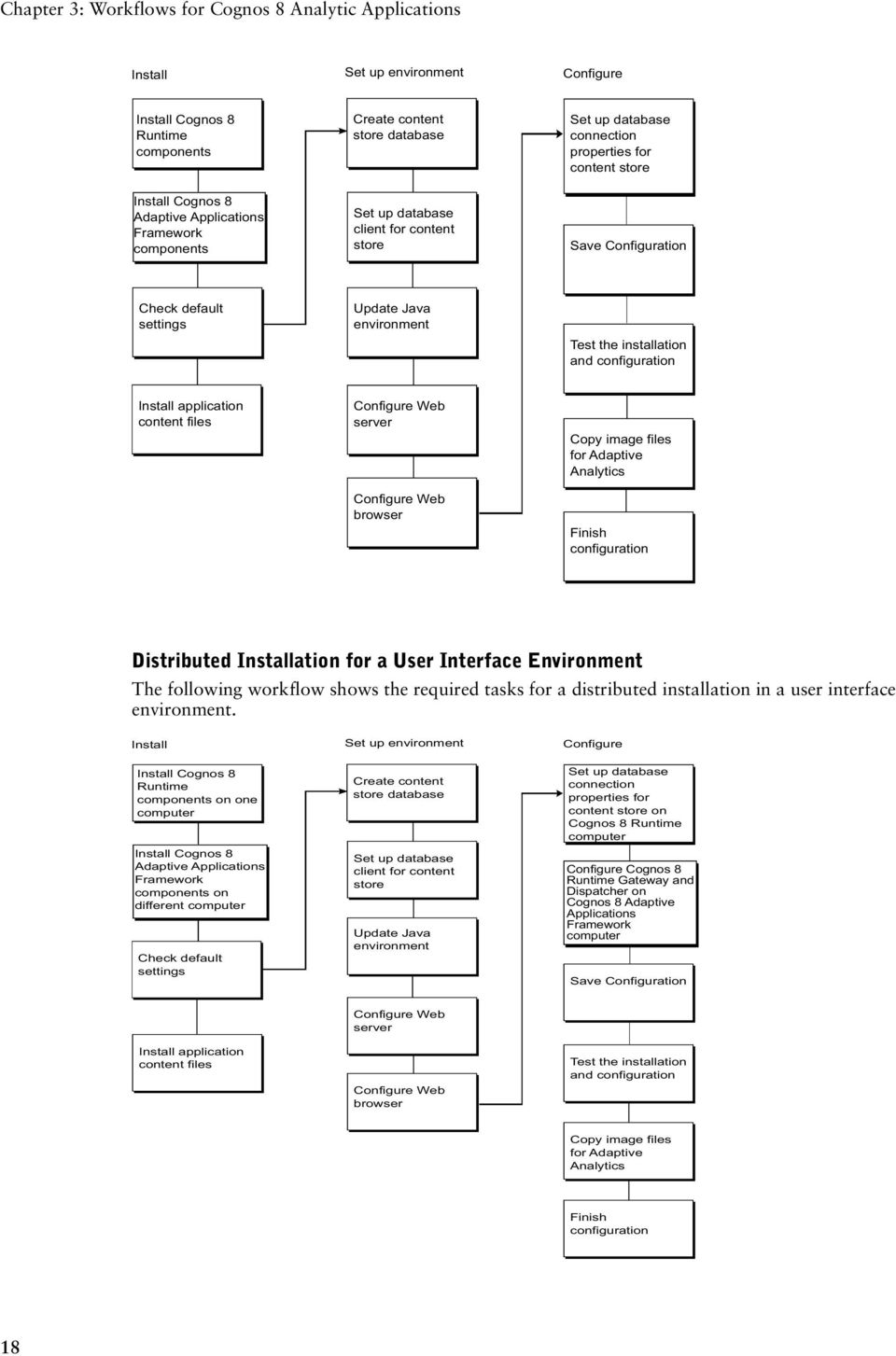
17 Chapter 3: Workflows for Cognos 8 Analytic Applications After you decide on the appropriate distribution options (p. 11) for your environment, you must follow a specific workflow to install and configure Cognos 8 Analytic Applications. For example, follow one workflow to install and configure Cognos 8 Analytic Applications on a single computer. Follow another workflow to install and configure Cognos 8 Analytic Applications in a distributed installation. We recommend that you print the workflow that you plan to use. You can then use the printed copy as a checklist to ensure that you complete all tasks. Install Cognos 8 Adaptive Applications Framework Components with Cognos 8 Runtime Components If you do not already have Cognos 8 installed in your environment, you must install the Cognos 8 runtime components provided. The following workflows show the required tasks for installing and configuring a single-computer installation and a distributed installation. For information about installing Cognos 8 Adaptive Applications Framework within an existing Cognos 8 environment, see "Install Cognos 8 Adaptive Applications Framework Components Within an Existing Cognos 8 Environment" (p. 19). For all types of installation, perform the installation in the following order: Cognos 8 runtime components Cognos 8 Adaptive Applications Framework components application content files Single-Computer Installation The following workflow shows the required tasks for a single-computer installation. Installation and Configuration Guide 17

18 Chapter 3: Workflows for Cognos 8 Analytic Applications Distributed Installation for a User Interface Environment The following workflow shows the required tasks for a distributed installation in a user interface environment. 18
19 Chapter 3: Workflows for Cognos 8 Analytic Applications Distributed Installation for a Script-Based Environment The following workflow shows the required tasks for a distributed installation in a script-based environment. Install Cognos 8 Adaptive Applications Framework Components Within an Existing Cognos 8 Environment If you already have a compatible version of Cognos 8 installed in your environment, you can install Cognos 8 Adaptive Applications Framework and configure it so that Adaptive Warehouse and Adaptive Analytics access the necessary Cognos 8 runtime components. The following workflows show the required tasks for installing and configuring a single-computer installation and a distributed installation. For information about installing Cognos 8 Analytic Applications without an existing Cognos 8 environment, see "Install Cognos 8 Adaptive Applications Framework Components with Cognos 8 Runtime Components" (p. 17). For all types of installation, perform the installation in the following order: Cognos 8 Adaptive Applications Framework components application content files Single-Computer Installation The following workflow shows the required tasks for a single-computer installation. Installation and Configuration Guide 19
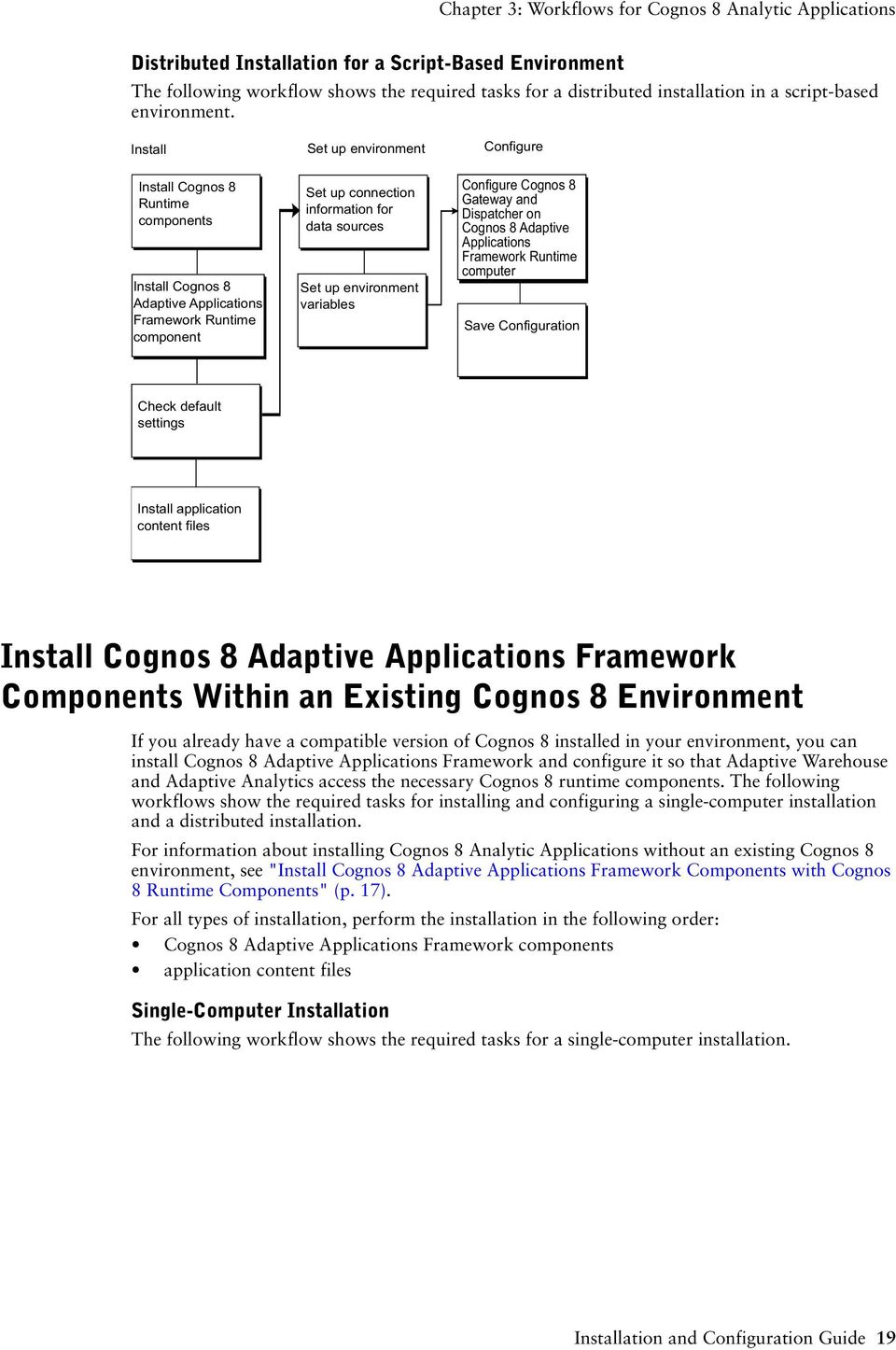
20 Chapter 3: Workflows for Cognos 8 Analytic Applications Distributed Installation for a User Interface Environment The following workflow shows the required tasks for a distributed installation in a user interface environment. Distributed Installation for a Script-Based Environment The following workflow shows the required tasks for a distributed installation in a script-based environment. 20
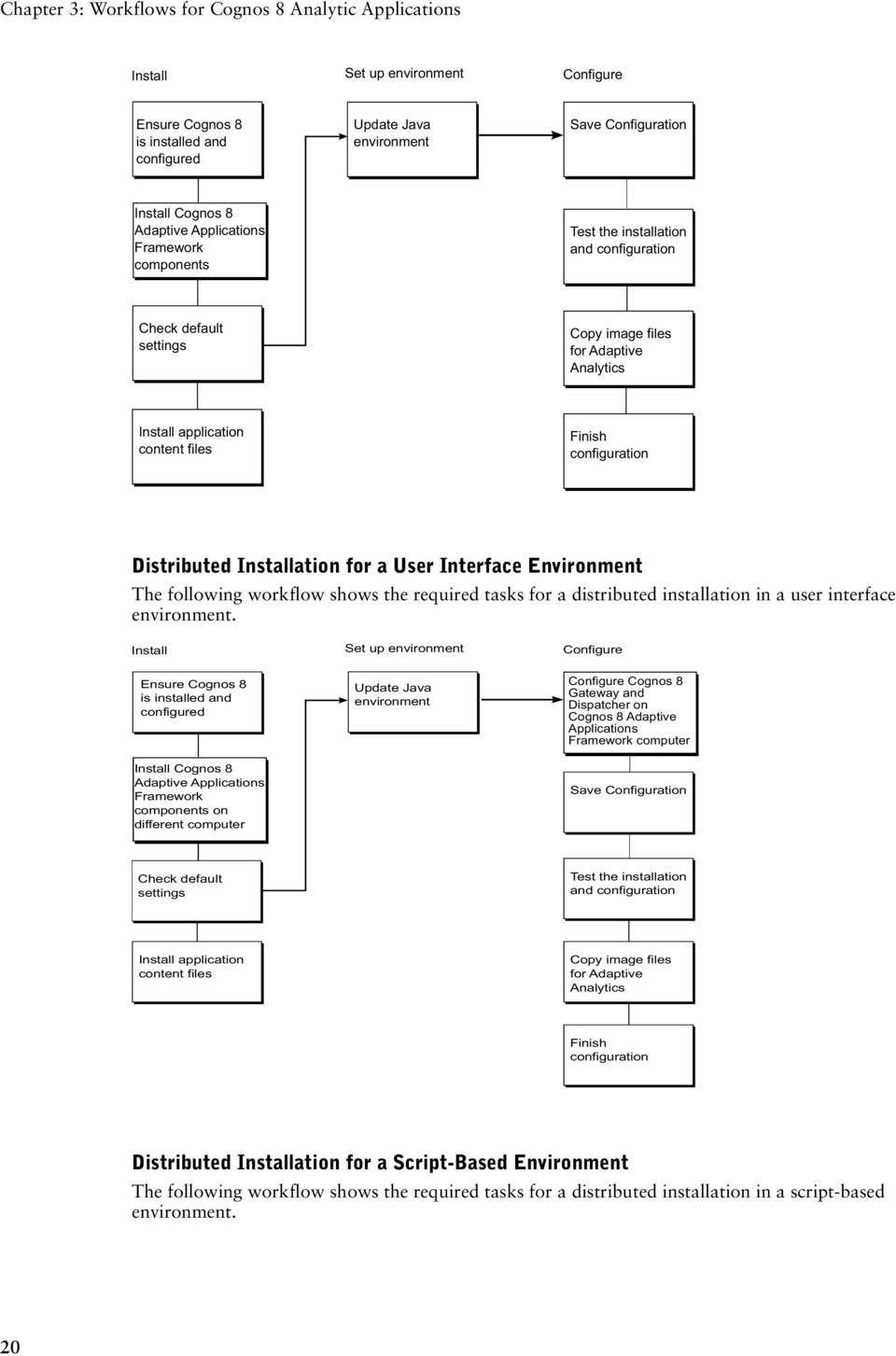
21 Chapter 3: Workflows for Cognos 8 Analytic Applications Install SAP Interface Files After you have installed Cognos 8 Analytic Applications in your environment, you must install the SAP interface files if you want to use SAP content. The following workflow shows the required tasks for installing SAP interface files. Installation and Configuration Guide 21
22 Chapter 3: Workflows for Cognos 8 Analytic Applications 22
23 Chapter 4: Upgrading Cognos 8 Analytic Applications Plan the Upgrade If you have a previous version of Cognos 8 Analytic Applications installed you must upgrade to Cognos 8 Analytic Applications 8.2 to use the new features available. To upgrade Cognos 8 Analytic Applications, we recommend that you do the following: Plan the Upgrade Upgrade Cognos 8 Runtime Components Upgrade Cognos 8 Adaptive Applications Framework Components from Cognos 8 Analytic Applications 8.1 We recommend that you plan your upgrade so that you know what to expect at each stage of the process. In the planning stage, you can review the upgrade documentation for information about expected behavior, new features, deprecated features, compatibility between versions, and requirements for preparing your production environment. When you finish the review, you can then conduct a site survey to identify the infrastructure, reports, and custom configuration settings. Finally, you can test the upgrade on a subset of your data so that you can fine tune your reports and data before committing to the full upgrade. Use the following checklist to guide you through the planning process: Review the documentation Conduct a site survey Perform a trial upgrade Review the Documentation Cognos provides documentation from a variety of sources to help you achieve a successful upgrade. All of the documentation is available online at the Cognos Global Customer Services Web site ( 1. Read the rest of the upgrade information in this document. 2. From the Documentation link on the Cognos Global Customer Services Web site ( download and review the latest versions of the following documentation: Cognos 8 Analytic Applications Readme The Readme is regularly updated to document issues that might affect you during an upgrade. the section of the user guide for your application about upgrading applications created in an earlier version The user guide for your application contains information about how the content has changed since the previous release, and about the process of upgrading your application. the section of the Adaptive Warehouse User Guide about upgrading a data warehouse the section of the Adaptive Analytics User Guide about upgrading an Adaptive Analytics project all Best Practices documents about upgrading Installation and Configuration Guide 23
24 Chapter 4: Upgrading Cognos 8 Analytic Applications Conduct a Site Survey Do a site survey to assess the current production environment and identify areas that require attention during an upgrade. The site survey should include information about the infrastructure, users, and configuration settings for Cognos 8 Analytic Applications. 1. Assess the third-party software that you use by doing the following: List third-party software, such as operating systems, Web servers, security, databases, and so on. Compare the list to the supported versions for your target upgrade version, available from the Production Information, Software Environments link at the Cognos Global Customer Services Web site ( Determine whether any third-party components require updating. 2. List your applications, including Adaptive Warehouse models and packages Adaptive Analytics reports 3. List all the reports and do the following: Make note of heavily used reports and high-profile reports for priority treatment during the upgrade. Use audit report data to determine report usage. For more information about audit reports, see the Administration and Security Guide. Make note of reports that fail to run in the current environment. They are unlikely to upgrade successfully. Repair these reports so that they upgrade. Consider retiring unused or little-used reports. 4. List the following information about your configuration: configuration settings that you enabled using Cognos Configuration These settings are preserved through the upgrade. They are stored in two files. For Cognos 8, the files are cogstartup.xml and coglocale.xml. changes to other configuration files Changes to other files must be made manually during the upgrade. If you changed other configuration files, you must assess the changes that you want to preserve in the upgraded environment. This may include.xml,.txt, and.css files in the configuration, templates, webapps, and webcontent directories of the installation location. Important: Changes to.ini files are not supported. If you changed.ini files, please contact Customer Support. Perform a Trial Upgrade We recommend that you perform a trial upgrade several weeks before upgrading your production system. The trial upgrade identifies components that will upgrade with minimal effort and components that may require additional actions before or after the upgrade. 1. In your production environment, back up your data warehouse and export the content files. 2. Prepare the test environment by doing the following: Install your current release system in the test environment and configure it to be similar to your production environment. Restore the data warehouse and test that the data source connections to the data warehouse are valid. 3. Install and configure the target upgrade release in the test environment. 4. Using Adaptive Warehouse and Adaptive Analytics, upgrade your application by upgrading the data warehouse and your Adaptive Analytics project. 24
25 Chapter 4: Upgrading Cognos 8 Analytic Applications For more information, see the user guide for your application. The user guide contains information about the process of upgrading your application. It refers to the Adaptive Warehouse User Guide for information about upgrading a data warehouse, and to the Adaptive Analytics User Guide for information about upgrading an Adaptive Analytics project. 5. Using Cognos Connection, publish the reports from the deployment archive. 6. Review the reports and compare the output between the earlier version and the upgraded version. 7. Troubleshoot any issues and contact Cognos Support about unresolved upgrade issues. When all issues are resolved, you can develop your plan for the full upgrade. Upgrade Cognos 8 Runtime Components If you have a previous version of Cognos 8 Analytic Applications installed, you must upgrade the Cognos 8 runtime components before you can use version 8.2. This section explains how you upgrade these components if you originally installed them using the Cognos 8 Runtime CD. If you previously installed Cognos 8 Analytic Applications within an existing Cognos 8 environment, you must ensure your version of Cognos 8 is compatible, and upgrade it if necessary. For more information on Cognos 8 compatible versions, see For more information on upgrading Cognos 8, see the Cognos 8 Installation and Configuration Guide. You can upgrade Cognos 8 Runtime in the same directory as an earlier version or in a different directory. If you are installing in a new directory, see "Install Cognos 8 Runtime Components in a New Directory" (p. 26). When you back up the configuration data, you store it in a secure directory. The directory must be protected from unauthorized or inappropriate access. An alternative method of upgrading is to export the entire content store to a deployment archive and then import the deployment archive into Cognos 8 Runtime after the upgrade. For more information about deployment, see the Cognos 8 Administration and Security Guide. A deployment upgrade is required if you want to change the type of database that you use for the content store. If you use the deployment upgrade method, only the steps for exporting and restoring the configuration data are different. All other steps are the same as documented in this section. Customized Cognos 8 Runtime Files If you manually edited any configuration files, the changes will be overwritten during the upgrade. You must reapply the changes. Keep a record of any customizations to ensure that they can be reapplied after upgrading. Back up these files so that the original version can be restored if necessary. You may have modified files other than those in the configuration folder. If so, you should also back up the additional files before upgrading. The Cognos 8 Runtime presentation service supports automatic upgrade of some system.xml files. If you made many customization changes to system.xml files, you can use this automatic upgrade feature instead of reapplying the changes manually after upgrading. The system.xml files are overwritten during the installation of Cognos 8 Runtime. You must back up the customized versions of these files and then copy them to the directory after upgrading Cognos 8 Runtime. The automatic upgrade is applied when you start the Cognos 8 service. The system.xml files for which automatic upgrade is supported are in the following directories: c8_location/templates/ps c8_location/templates/ps/portal c8_location/templates/ps/qs Installation and Configuration Guide 25
26 Chapter 4: Upgrading Cognos 8 Analytic Applications Note: The recommended method to upgrade customized files is to manually reapply changes after the new software is installed. Automatic upgrade of system.xml files is to be used only when you have made a large number of customizations to these files. Install Cognos 8 Runtime Components in the Same Directory This section describes how to upgrade Cognos 8 Runtime components in the same directory as an earlier version. 1. Using your database tools, back up the existing content store database. For information on how to do this, see the documentation for your database. 2. Back up the following files to a secure location: coglocale.xml in the c8_location/configuration directory server.xml in the c8_location/tomcat4.1.27/conf directory system.xml in the appropriate directory, if required Ensure that you note the directory path. For example, c8_location/templates/ps 3. In Cognos Configuration, export the configuration data to the same secure location. To make the data usable for upgrading, name the file cogstartup.xml. Important: Because the exported cogstartup.xml file contains unencrypted passwords, ensure that the location is secure. 4. Back up any manually edited files in the c8_location/configuration and other directories to a secure location. 5. Stop all Cognos services. 6. Uninstall Cognos 8 Runtime from every Cognos 8 Runtime computer (p. 41). 7. Install the newer version of Cognos 8 Runtime in the same directory that you used for Cognos 8 Runtime on every computer (p. 31). 8. Copy the.xml files from the secure backup location as follows: Copy cogstartup.xml and coglocale.xml to c8_location/configuration. Copy server.xml to c8_location/tomcat4.1.27/conf. Copy system.xml to the appropriate directory, if required. For example, c8_location/templates/ps If you are prompted to overwrite existing files, click Yes. 9. For files that you manually edited in earlier versions of Cognos 8 Runtime, edit the new versions of these files in the c8_location directory and reapply the changes that you made to the original customized files. Do not copy the earlier versions of the files to the c8_location directories. They may not be compatible. 10. In Cognos Configuration, review the configuration, and then save it. 11. Start the Cognos 8 service. Cognos 8 Runtime automatically upgrades the content store. System.xml files are upgraded, if required, to a Cognos 8 Runtime compatible version. Install Cognos 8 Runtime Components in a New Directory This section describes how to upgrade Cognos 8 Runtime components in a different directory to an earlier version. 1. Using your database tools, copy your existing content store database into a new content store database. 26
27 Chapter 4: Upgrading Cognos 8 Analytic Applications For information on how to do this, see the documentation for your database. 2. Back up the following files to a secure location: coglocale.xml in the c8_location/configuration directory server.xml in the c8_location/tomcat4.1.27/conf directory system.xml in the appropriate directory, if required Ensure that you note the directory path. For example, c8_location/templates/ps In Cognos Configuration, export the configuration data to the same secure location. To make the data usable for upgrading, name the file cogstartup.xml. Important: Because the exported cogstartup.xml file contains unencrypted passwords, ensure that the location is secure. Back up any manually edited files in the c8_location/configuration and other directories to a secure location. 3. Install Cognos 8 Runtime in a new directory (p. 33). 4. Copy the.xml files from the secure backup location to the following directory: Copy cogstartup.xml and coglocale.xml to c8_location/configuration. Copy server.xml to c8_location/tomcat4.1.27/conf. Copy system.xml to the same directory in the new location as it was in the earlier version, if required. For example, c8_location/templates/ps If you are prompted to overwrite existing files, click Yes. 5. For files that you manually edited, edit the new versions of these files in the c8_location directory and reapply the changes that you made to the original customized files. Do not copy the earlier versions of the files to the c8_location directories. They may not be compatible. 6. Configure new Web server aliases (p. 51). 7. In Cognos Configuration, configure Cognos 8 Runtime to point to the new content store, configure new ports and URLs, use a different cookie path, and then save the configuration (p. 55). Ensure that the port numbers and service name for this installation are different from those used for earlier versions so that there are no conflicts. Ensure that security authentication settings are not changed. For example, the namespaces must be the same for policies, users, roles, and groups for security authentication to work correctly. 8. Start the Cognos 8 service. Cognos 8 Runtime automatically upgrades the new content store. System.xml files are upgraded, if required, to a Cognos 8 Runtime compatible version. 9. Open the Administration portal, and unregister the dispatchers that are used with earlier versions of Cognos 8 Runtime. When you open the Administration portal in Cognos 8 Runtime, you may see the dispatchers that are registered for both versions. For more information, see the Cognos 8 Administration and Security Guide. 10. When you are ready to uninstall the previous version of Cognos 8 Runtime, do the following: Stop the Cognos 8 service. Uninstall Cognos 8 Runtime from all computers (p. 41). When you complete the upgrade tasks, Cognos 8 Runtime is fully configured except for new properties and features. If you use Chinese, Japanese, or Korean characters, you may notice differences in some characters after upgrading. For more information, see the Troubleshooting Guide. If you use a DB2 database for the content store, you can tune the database to take advantage of DB2 features. For more information, see the Architecture and Planning Guide. Installation and Configuration Guide 27
28 Chapter 4: Upgrading Cognos 8 Analytic Applications To ensure the security and integrity of Cognos 8 Runtime, it is important to protect the installation directory from unauthorized or inappropriate access. Upgrade Cognos 8 Adaptive Applications Framework Components from Cognos 8 Analytic Applications 8.1 If you have a previous version of Cognos 8 Analytic Applications installed, you must upgrade the Cognos 8 Adaptive Applications Framework components before you can use version 8.2. This section explains how to upgrade these components. You can upgrade to Cognos 8 Adaptive Applications Framework components in the same directory as an earlier version or in a different directory. If you are installing in a new directory, see "Install Cognos 8 Adaptive Applications Framework Components in a New Directory" (p. 28). Install Cognos 8 Adaptive Applications Framework Components in the Same Directory This section describes how to upgrade Cognos 8 Adaptive Applications Framework components in the same directory as an earlier version. 1. Uninstall Cognos 8 Analytic Applications from every Cognos 8 Analytic Applications computer (p. 42). 2. Install the new version of Cognos 8 Adaptive Applications Framework in the same directory that you used for Cognos 8 Analytic Applications on every computer (p. 35). 3. For files that you manually edited in earlier versions of Cognos 8 Analytic Applications, edit the new versions of these files in the apps_location directory and reapply the changes that you made to the original customized files. Do not copy the earlier versions of the files to the apps_location directories. They may not be compatible. 4. In Cognos Configuration, review the configuration, and then save it. 5. Start the Cognos 8 service. Install Cognos 8 Adaptive Applications Framework Components in a New Directory This section describes how to upgrade Cognos 8 Adaptive Applications Framework components in a different directory to an earlier version. 1. Install Cognos 8 Adaptive Applications Framework in a new directory (p. 35). 2. For files that you manually edited, edit the new versions of these files in the apps_location directory and reapply the changes that you made to the original customized files. Do not copy the earlier versions of the files to the apps_location directories. They may not be compatible. 3. In Cognos Configuration, configure new ports and URLs, use a different cookie path, and then save the configuration (p. 55). Ensure that the port numbers and service name for this installation are different from those used for earlier versions so that there are no conflicts. Ensure that security authentication settings are not changed. For example, the namespaces must be the same for policies, users, roles, and groups for security authentication to work correctly. 4. Start the Cognos 8 service. 28
29 Chapter 4: Upgrading Cognos 8 Analytic Applications 5. Uninstall the previous version of Cognos 8 Analytic Applications from all computers. Installation and Configuration Guide 29
30 Chapter 4: Upgrading Cognos 8 Analytic Applications 30
31 Chapter 5: Installing and Uninstalling Cognos 8 Analytic Applications There are several tasks that you should perform before you install Cognos 8 Analytic Applications. After these tasks are complete, you can install the Cognos 8 Analytic Applications components. Use the following checklist to guide you through the installation tasks: Ensure that your computer meets the software and hardware requirements. Review the supported environments. Set up the database connectivity for the content store database. Install Cognos 8 runtime components, if required. Install Cognos Adaptive Applications Framework components. Install application content files for the ERP. Install SAP interface files, if required After you install Cognos 8 Analytic Applications, you must set up your environment. Verify System Requirements Before you install Cognos 8 Analytic Applications, ensure that your computer meets the software and hardware requirements. The hardware requirements depend on your Cognos environment. You may require additional resources, such as disk space. The following table lists the minimum hardware and software requirements to run Cognos 8 Analytic Applications. Requirement Operating system RAM Operating system specifications Disk space Web server JRE Specification Windows UNIX: Sun Solaris HP-UX IBM AIX Minimum: 2 GB File descriptor limit set to 1024 on Solaris (recommended) Minimum: 1 GB of free space on the drive that contains the temporary directory used by Cognos components. A Web server installed and started Java Runtime Environment (JRE) JRE is installed automatically with Cognos 8 for Windows. If you are using an application server, use the JRE that is installed with it. Installation and Configuration Guide 31
32 Chapter 5: Installing and Uninstalling Cognos 8 Analytic Applications Requirement Database Web browser Other Specification One of the following databases available to store Cognos data: Oracle DB2 Microsoft SQL Server TCP/IP connectivity to Microsoft SQL Server Sybase One of the following databases available to store Adaptive Warehouse data: Oracle DB2 Microsoft SQL Server For all Web browsers, the following enabled: cookies JavaScript For Microsoft Internet Explorer only, the following enabled: Run ActiveX controls and plug-ins Script ActiveX controls marked safe for scripting Active scripting Allow META REFRESH For a terminal emulator to install Cognos 8 Analytic Applications for UNIX, the emulation set to VT220 equivalent or better to ensure that the hot keys in the Installation wizard work For Windows, Microsoft Data Access Component (MDAC) for use with product samples If you want to reports, the ability to use a mail server If you are installing Cognos 8 Analytic Applications for use with SAP content application files, you must also ensure that you have an SAP Runtime Client installed. Cognos 8 Analytic Applications uses the SAP Runtime Client to communicate with the SAP server environment. The runtime client must be installed on the same computer where Cognos 8 Adaptive Applications Framework components are installed. The SAP Runtime Client is typically installed during the SAP GUI client installation. Contact your SAP system administrator to confirm that the SAP Runtime Client is installed. Review Supported Environments You can view an up-to-date list of environments supported by Cognos products, such as operating systems, patches, browsers, Web servers, directory servers, database servers, and application servers on the Cognos Global Customer Services Web site ( It is important to apply all required operating system patches and to use only the versions of third-party software that are supported for a Cognos product. Otherwise, your product may not work properly. Set Up Database Connectivity for the Content Store Database If you are using a database other than Cognos Content Database as the content store, database client software must be installed and configured on each computer where you install Content Manager. 32
33 Chapter 5: Installing and Uninstalling Cognos 8 Analytic Applications In Cognos 8 Planning, you must install and configure database client software to be used as the content store on each computer where you install Content Manager. To set up database connectivity for the content store database: Install the appropriate JDBC driver for your Content Manager database, as follows: Database Oracle DB2 Microsoft SQL Server Sybase Cognos Content Database JDBC Driver JDBC thin driver, ojdbc14.jar JDBC driver that requires DB2 client installation Included with Cognos components. No other software is required. Cognos 8 requires TCP/IP connectivity with Microsoft SQL Server. JDBC driver, jconn2.jar Included with Cognos components. No other software is required. Install Cognos 8 Runtime Components You should only install the Cognos 8 runtime components if you do not have a compatible version of Cognos 8 installed in your environment. For more information, see (p. 11). You must install the Cognos 8 runtime components before you install Cognos 8 Adaptive Applications Framework components. Use the installation wizard, provided on the Cognos 8 Runtime CD, to select the components you want to install and the location on your computer where you want to install them. Only the components that you choose to install are copied from the CD to your computer. For UNIX, you can install components using either a character-based interface or a graphical user interface. To run graphical-mode installation, the console attached to your UNIX-based computer must support a Java-based graphical user interface. For UNIX, Cognos 8 Runtime respects the file mode creation mask (umask) of the account running the installation program. This affects only the installation directories. It does not affect the file permissions within the directories. However, run-time generated files, such as logs, respect the mask. We recommend umask 022 on the installation directory. For Windows, ensure that you have administrator privileges for the Windows-based computer you are installing on. Also ensure that your computer has a TEMP system variable that points to the directory where you want to store temporary files. During installation, files from the CD are temporarily copied to this directory. for UNIX 1. Set the JAVA_HOME environment variable to point to the installation location of your Java Runtime Environment (JRE). An example of the installation location of a Java Runtime Environment is /directory/java/java_version/jre. 2. On HP-UX, set the _M_ARENA_OPTS environment variable as follows: _M_ARENA_OPTS 1:4 This increases the memory allocation for HP-UX to more closely match that of other UNIX platforms. 3. Mount the CD for your Cognos product using Rock Ridge file extensions. Important: To mount the Cognos CD on HP-UX, do the following: Installation and Configuration Guide 33
34 Chapter 5: Installing and Uninstalling Cognos 8 Analytic Applications Add the pfs_mount directory in your path. For example, PATH=/usr/sbin/:$PATH export PATH To start the required NFS daemons and run the daemons in the background, type bg pfs_mountd and then type bg pfsd To mount the drive, type pfs_mount -t rrip <device><mount_dir> -o xlat=unix For example, pfs_mount /dev/dsk/c0t2d0 /cdrom -o xlat=unix You can now install or copy files as a non-root user using a Cognos CD from this drive. When the installation is complete, type pfs_umount /cdrom and kill the pfsd and pfs_mountd daemons to unmount the CD. 4. Go to the operating system directory on the CD. For example, for Solaris, go to the solaris directory. 5. Type the appropriate command: If you are running X-Windows, type./issetup If you are not running X-Windows, type./issetupcc 6. Follow the directions in the installation wizard. Install Cognos 8 runtime components in a directory that contains only ASCII characters in the path name. Some UNIX Web servers do not support non-ascii characters in directory names. 7. Choose how to proceed in the Finish page of the installation wizard: If you want to configure Cognos 8 runtime components immediately, click Start Cognos Configuration. If you want to see the latest information about Cognos 8 runtime components, select View the Readme and then select Finish. Tip: For character-mode installations for UNIX, close the readme text file by pressing Crtl + C or q. If the console attached to your computer does not support a Java-based graphical user interface or if you want to configure Cognos 8 runtime components later, click Finish. You can configure Cognos 8 runtime components later using Cognos Configuration by starting cogconfig.sh in the c8_location/bin directory, or editing cogstartup.xml in c8_location/configuration directory. 8. Append the c8_location/bin directory to the appropriate library path environment variable. For Solaris, LD_LIBRARY_PATH For AIX, LIBPATH For HP-UX, SHLIB_PATH To ensure the security and integrity of Cognos 8 runtime components, it is important to protect the installation directory from unauthorized or inappropriate access. You must also update your Java security framework (p. 50) before you can configure Cognos 8 runtime components. Otherwise, you may receive the following error: [Cryptography] 1. [ ERROR ] java.lang.noclassdeffounderror: javax/net/serversocketfactory: for Windows 1. Insert the Cognos 8 Runtime CD. The Welcome page of the installation wizard should appear. If the Welcome page does not appear, in the win32 directory on the CD, double-click the issetup.exe file. 2. Follow the directions in the installation wizard to copy the required files to your computer. 34
35 Chapter 5: Installing and Uninstalling Cognos 8 Analytic Applications 3. Choose how to proceed in the Finish page of the installation wizard: If you want to configure Cognos 8 runtime components immediately, click Start Cognos Configuration. If you want to see the latest information about Cognos 8 runtime components, click View the Readme. 4. Click Finish. Use the Windows Start menu to start Cognos Configuration from the shortcut folder. Install Cognos 8 Adaptive Applications Framework Components The type of environment that you are setting up determines whether to use the Cognos 8 Adaptive Applications Framework CD or the Cognos 8 Adaptive Applications Framework Runtime CD. For more information, see (p. 11). Use the installation wizard, provided on the installation CDs, to select the components you want to install and the location on your computer where you want to install them. Only the components that you choose to install are copied from the CD to your computer. For UNIX, you can install components using either a character-based interface or a graphical user interface. To run graphical-mode installation, the console attached to your UNIX-based computer must support a Java-based graphical user interface. For UNIX, Cognos 8 Adaptive Applications Framework respects the file mode creation mask (umask) of the account running the installation program. This affects only the installation directories. It does not affect the file permissions within the directories. However, run-time generated files, such as logs, respect the mask. We recommend umask 022 on the installation directory. For Windows, ensure that you have administrator privileges for the computer you are installing on. Also ensure that your computer has a TEMP system variable that points to the directory where you want to store temporary files. During installation, files from the CD are temporarily copied to this directory. for UNIX 1. Set the JAVA_HOME environment variable to point to the installation location of your Java Runtime Environment (JRE). An example of the installation location of a Java Runtime Environment is /directory/java/java_version/jre. 2. On HP-UX, set the _M_ARENA_OPTS environment variable as follows: _M_ARENA_OPTS 1:4 This increases the memory allocation for HP-UX to more closely match that of other UNIX platforms. 3. Mount the CD for your Cognos product using Rock Ridge file extensions. Important: To mount the Cognos CD on HP-UX, do the following: Add the pfs_mount directory in your path. For example, PATH=/usr/sbin/:$PATH export PATH To start the required NFS daemons and run the daemons in the background, type bg pfs_mountd and then type bg pfsd To mount the drive, type pfs_mount -t rrip <device><mount_dir> -o xlat=unix For example, pfs_mount /dev/dsk/c0t2d0 /cdrom -o xlat=unix You can now install or copy files as a non-root user using a Cognos CD from this drive. Installation and Configuration Guide 35
36 Chapter 5: Installing and Uninstalling Cognos 8 Analytic Applications When the installation is complete, type pfs_umount /cdrom and kill the pfsd and pfs_mountd daemons to unmount the CD. 4. Go to the operating system directory on the CD. For example, for Solaris, go to the solaris directory. 5. Type the appropriate command: If you are running X-Windows, type./issetup If you are not running X-Windows, type./issetupcc 6. Follow the directions in the installation wizard. Install Cognos 8 Adaptive Applications Framework components in a directory that contains only ASCII characters in the path name. Some UNIX Web servers do not support non-ascii characters in directory names. 7. Choose how to proceed in the Finish page of the installation wizard: If you want to configure Cognos 8 Adaptive Applications Framework components immediately, click Start Cognos Configuration. If you want to see the latest information about Cognos 8 Adaptive Applications Framework components, select View the Readme and then select Finish. Tip: For character-mode installations for UNIX, close the readme text file by pressing Crtl + C or q. If the console attached to your computer does not support a Java-based graphical user interface or if you want to configure Cognos 8 Adaptive Applications Framework components later, click Finish. You can configure Cognos 8 Adaptive Applications Framework components later using Cognos Configuration by starting cogconfig.sh in the apps_location/bin directory, or editing cogstartup.xml in apps_location/configuration directory. 8. Append the apps_location/bin directory to the appropriate library path environment variable. For Solaris, LD_LIBRARY_PATH For AIX, LIBPATH For HP-UX, SHLIB_PATH To ensure the security and integrity of Cognos 8 Adaptive Applications Framework components, it is important to protect the installation directory from unauthorized or inappropriate access. You must also update your Java security framework (p. 50) before you can configure Cognos 8 Adaptive Applications Framework components. Otherwise, you may receive the following error: [Cryptography] 1. [ ERROR ] java.lang.noclassdeffounderror: javax/net/serversocketfactory: for Windows 1. Insert the appropriate CD for the type of installation you require. The Welcome page of the installation wizard should appear. If the Welcome page does not appear, go to the win32 directory on the CD and double-click the issetup.exe file. 2. Follow the directions in the installation wizard to copy the required files to your computer. 3. Choose how to proceed in the Finish page of the installation wizard: If you want to configure Cognos 8 Adaptive Applications Framework components immediately, click Start Cognos Configuration. If you want to see the latest information about Cognos 8 Adaptive Applications Framework components, click View the Readme. 4. Click Finish. Use the Windows Start menu to start Cognos Configuration from the shortcut folder. 36
37 Chapter 5: Installing and Uninstalling Cognos 8 Analytic Applications Install Application Content Files for the ERP Use the installation wizard, provided on the application content CD, to select the version-specific content files you want to install and the location on your computer where you want to install the application content files for your ERP. 1. Insert the application content CD. The Welcome page of the installation wizard should appear. If the Welcome page does not appear, go to the win32 directory on the CD and double-click the issetup.exe file. 2. Follow the directions in the installation wizard to copy the required files to your computer. 3. In the Finish page of the installation wizard if you want to see the latest information about the application content files, click View the Readme. 4. Click Finish. Install SAP Interface Files If you install Cognos 8 Analytic Applications with SAP application content files, you must also perform the following tasks: Install the SAP Gateway functions. Install the SAP content interface files. Apply the SAP Gateway functions and content interface files. Install the Cognos compression utility. Set access permissions for Cognos products. Install the SAP Gateway Functions Cognos 8 Analytic Applications uses Advanced Business Applications Programming (ABAP) function modules that interface with the SAP environment. The gateway functions must be installed on each SAP server in your environment and should be installed by an SAP system administrator. The installation provides ABAP function modules for different version of SAP. By default, the files for these modules are located in application_content_location\transports directory. A separate directory is created for each version of SAP that is supported. Note: If you are using SAP ERP Central Components (ECC5 or ECC6), you must use the ABAP function modules in the application_content_location\transports\v47 directory. If your SAP servers are running on UNIX-based computers, you must copy the gateway functions from the Windows-based computer where you installed the application content files to the UNIX-based computer where SAP is running. Even if you install Cognos 8 Analytic Applications on different computers, you only need to install the gateway functions on each SAP server once. for SAP Servers for Windows 1. Copy the file named Knn.ext from the application_content_location\transports\sap_version directory to the SAP_home\trans\cofiles directory on the SAP server. 2. Copy the files named Rnn.ext from the application_content_location\transports\sap_version directory to the SAP_home\trans\data directory on the SAP server. You can now apply the functions. for SAP Servers for UNIX 1. Use file transfer protocol (FTP) in ASCII mode to copy the files named Knn.ext from the application_content_location\transports\sap_version directory to the SAP_home/trans/cofiles directory on the SAP server. Installation and Configuration Guide 37
38 Chapter 5: Installing and Uninstalling Cognos 8 Analytic Applications 2. Use FTP in binary (bin) mode to copy the files named Rnn.ext from the application_content_location\transports\sap_version directory to the SAP_home/trans/data directory on the SAP server. You can now apply the functions. Install the SAP Content Interface Files Content-specific SAP interface files are provided that must be installed on each SAP server in your environment and should be installed by an SAP system administrator. By default, the interface files are located in application_content_location\bin directory. If your SAP servers are running for UNIX-based computers, you must copy the interface files from the Windows-based computer where you installed the application content files to the UNIX-based computer where SAP is running. Even if you install Cognos 8 Analytic Applications on different computers, you only need to install the gateway functions on each SAP server once. for SAP Servers for Windows 1. In the application_content_location\bin directory where you installed the application content files, run TransportWFP.exe. The files are extracted to the specified directory. 2. Copy the file named Knn.ext from the directory where you extracted the TransportWFP files to the SAP_home\trans\cofiles directory on the SAP server. 3. Copy the files named Rnn.ext from the directory where you extracted the TransportWFP files to the SAP_home\trans\data directory on the SAP server. You can now apply the interface files. for SAP Servers for UNIX 1. In the application_content_location\bin directory where you installed the application content files, run TransportWFP.exe. The files are extracted to the specified directory. 2. Use file transfer protocol (FTP) in ASCII mode to copy the files named Knn.ext from the directory where you extracted the TransportWFP files to the SAP_home/trans/cofiles directory on the SAP server. 3. Use FTP in binary (bin) mode to copy the files named Rnn.ext from the directory where you extracted the TransportWFP files to the SAP_home/trans/data directory on the SAP server. You can now apply the functions. Apply the SAP Gateway Functions and Content Interface Files After you install the SAP gateway functions and content-specific SAP interface files, you must apply them using SAP GUI. Applying the functions and interface files should be performed by an SAP system administrator. Even if you install Cognos 8 Analytic Applications on different computers, you only need to install the gateway functions and interface files on each SAP server once. 1. In the SAP GUI, start an STMS transaction. 2. Click Imports, and then double-click the queue name. 3. If a message appears prompting you to add to the import queue, click Yes and, if required, type your password. 4. In the queue, select the transport request name that matches the name in the TRnames.txt file. 5. From the Request menu, click Import and type the target client number. 6. Click Start Import, and then click Yes. If required, type the password. 7. If you want to check the result, click Logs. 38
39 Chapter 5: Installing and Uninstalling Cognos 8 Analytic Applications You can now install the Cognos Compression Utility. Install the Cognos Compression Utility The Cognos Compression Utility is required for data compression on an SAP server. The corresponding decompression function is included in the SAP gateway functions and interface files. For SAP servers for UNIX, you must copy the compression utility files from the installation CD. Even if you install Cognos 8 Analytic Applications on different computers, you only need to install the Cognos compression utility on each SAP server once. for SAP Servers for Windows 1. Copy the file named zlib.dll from the apps_location\bin directory to the DIR_EXECUTABLE directory on all Windows SAP servers. The DIR_EXECUTABLE directory is usually defined as SAP_instance\SYS\exe\run. 2. Copy the file named udacompr.exe from the application_content_location\bin directory to the DIR_EXECUTABLE directory on all Windows SAP servers. for SAP Servers for UNIX 1. Using binary transfer mode, FTP the files from the zipfiles/operating_system directory on the application content files CD to the DIR_EXECUTABLE directory on all UNIX SAP Servers. The DIR_EXECUTABLE directory is usually defined as SAP_instance/SYS/exe/run. 2. Set execute privileges on each of the files. You can now set the access permissions for the gateway functions and content interface files. Set Access Permissions for the Gateway Functions and Content Interface Files For the SAP gateway functions and content interface files to be able to access SAP data, the user accounts used to connect to SAP must have specific permissions. 1. Ensure that the SAP user accounts that use the SAP connector have the following privileges: S_RFC, for the authorization check for RFC access S_DATASET, for the authorization check for file access S_BTCH_JOB, for background processing S_PROGRAM, for ABAP program flow checking S_TABU_DIS, for access to data in the tables Cognos 8 Analytic Applications uses SAP security to determine access for the user profile. Ensure that your system administrator grants S_TABU_DIS privileges to the user profile used to access SAP. If these privileges are not granted, you cannot access the data in the tables. Incorrect privileges may result in run-time errors, such as the following: 1. ERROR DS-DBMS-E400: UDA driver reported the following on connection 'ALIAS_01F1A4DC': DMS-E-SAP_CONNECTION_FAILURE, Connection to SAP failed: User UDAQC4 has no RFC authorization for function group Z70F. 2. You must also ensure that the SAP accounts have the following additional permissions to be able to import data: Installation and Configuration Guide 39
40 Chapter 5: Installing and Uninstalling Cognos 8 Analytic Applications Authorization Object Field Value S_RFC Activity Name of RFC to be protected 16 - Execute HRPAY99_IMPEXP, PRGN_J2EE, RFC1, RPRU, SDTX, SUSO, SU_USER, SYST, ZCOGNOS_80A, ZWFP_COGNOS FUGR - Function group S_DATASET S_BTCH_JOB S_PROGRAM S_TABU_DIS Type of RFC object to be protected Activity Physical file name Program Name with Search Help Job operations Summary of jobs for a group User action ABAP/4 program Authorization group ABAP/4 program Activity Authorization Group 06 - Delete 33 - Read 34 - Write A7 - Write with filter * * RELE Release Jobs (Released Automatically) ' ' SUBMIT Execute ABAP program GBSE 03 - Display &NC&, FA, FB00, FB01, FB12, FB21, FB32, FC, GC, KA, KCOR, KEC, PA, PC, PC01, PS, SC, SDIC, SS, VC Tips: Before importing new tables from SAP, check that your administrator has added the authorization group to the authorization object S_TABU_DIS in table TDDAT. You can use the asterisk (*) to represent all values, when it appears alone, or partial values, when used anywhere in a string. Default Settings for Cognos 8 Analytic Applications The following table lists the default ports and URI settings for Cognos 8 Analytic Applications. After installation, you can use the configuration tool to change the settings (p. 62). You can also change them by editing the cogstartup.xml file in the apps_location/configuration directory. Setting Default Description Content Manager URI vlet The URI to Content Manager 40
41 Chapter 5: Installing and Uninstalling Cognos 8 Analytic Applications Setting Default Description Gateway URI Dispatcher URI (Internal, External) Dispatcher URI for external applications Dispatcher URIs for Gateway i-bin/cognos.cgi vlet/ dispatch vlet/ dispatch vlet/ dispatch/ext The URI to the gateway The URI to the dispatcher The URI to the dispatcher The URI to the primary dispatcher used by the gateway Log server port 9362 The port used by the local log server The following table lists the default settings used by Cognos 8 Analytic Applications for Tomcat. The non-ssl connector is automatically updated in the server.xml file when you use Cognos Configuration to change the dispatcher port (p. 62). You can directly update the shutdown port using Cognos Configuration. Setting Port Description Non-SSL Coyote HTTP/1.1 Connector 9300 The port Tomcat uses to pass requests from the Web server to Cognos 8 Shutdown port 9399 The port Tomcat uses to listen for a shutdown command Uninstall Cognos 8 Runtime Components It is important to use uninstallation programs to completely remove all files and modifications to system files. If you are upgrading from an older version of Performance Applications to Cognos 8 Analytic Applications, follow the uninstallation instructions in the documentation for the older version of Performance Applications. Uninstall Cognos 8 Runtime Components for UNIX If you no longer require Cognos 8 Analytic Applications for UNIX, uninstall Cognos 8 runtime components, if you used the Cognos 8 runtime CD to install these components. 1. If the console attached to your computer does not support a Java-based graphical user interface, determine the process identification (pid) of the Cognos process by typing the following command: ps -ef grep cogbootstrapservice 2. Stop the Cognos process: If you are running X-Windows, start Cognos Configuration, and from the Actions menu, click Stop. If you are not running X-Windows, type: kill -TERM pid 3. To uninstall Cognos 8 runtime components, go to the c8_location/uninstall directory and type the appropriate command: If you are running X-Windows, type./uninst -u Installation and Configuration Guide 41
42 Chapter 5: Installing and Uninstalling Cognos 8 Analytic Applications If you are not running X-Windows, type./uninstcc -u 4. Follow the prompts to complete the uninstallation. 5. Delete all temporary Internet files. Uninstalling does not remove any files that have changed since the installation, such as configuration and user data files. The installation location remains on your computer, and you retain these files until you delete them manually. Important: Do not delete the configuration and data files if you are upgrading to a new version of Cognos 8 Analytic Applications and you want to use the configuration data with the new version. Uninstall Cognos 8 Runtime Components for Windows If you no longer require Cognos 8 Analytic Applications for Windows, uninstall Cognos 8 runtime components, if you used the Cognos 8 Runtime CD to install these components. If you installed more than one component in the same location, the uninstall wizard lets you choose the packages to uninstall. You must repeat the uninstallation process on each computer that contains Cognos 8 runtime components. It is not necessary to back up the configuration and data files. These files are preserved during the uninstallation. We recommend that you close all programs before you uninstall Cognos 8 runtime components. Otherwise, some files may not be removed. 1. From the Start menu, click Programs, Cognos 8, Uninstall Cognos 8. The Uninstall wizard appears. Tip: Cognos 8 is the default name of the Program Folder that is created during the installation. If you chose another name, go to that folder to find the program. 2. Follow the instructions to uninstall the components. The cognos_uninst_log.htm file records the activities that the Uninstall wizard performs while uninstalling files. Tip: To find the log file, look in the Temp directory. 3. Delete all temporary Internet files. For more information, see your Web browser documentation. Uninstalling does not remove any files that changed since the installation, such as configuration and user data files. Your installation location remains on your computer, and you retain these files until you delete them. Important: Do not delete the configuration and data files if you are upgrading to a new version of Cognos 8 Analytic Applications and you want to use the configuration data with the new version. Uninstall Cognos 8 Adaptive Applications Framework Components It is important to use uninstallation programs to completely remove all files and modifications to system files. If you are upgrading from an older version of Performance Applications to Cognos 8 Analytic Applications, follow the uninstallation instructions in the documentation for the older version of Performance Applications. Uninstall Cognos 8 Adaptive Applications Framework Runtime for UNIX If you no longer require Adaptive Warehouse Runtime for UNIX, uninstall the component. 42
43 Chapter 5: Installing and Uninstalling Cognos 8 Analytic Applications 1. If the console attached to your computer does not support a Java-based graphical user interface, determine the process identification (pid) of the Cognos process by typing the following command: ps -ef grep cogbootstrapservice 2. Stop the Cognos process: If you are running X-Windows, start Cognos Configuration, and from the Actions menu, click Stop. If you are not running X-Windows, type: kill -TERM pid 3. To uninstall Adaptive Warehouse Runtime, go to the apps_location/uninstall directory and type the appropriate command: If you are running X-Windows, type./uninst -u If you are not running X-Windows, type./uninstcc -u 4. Follow the prompts to complete the uninstallation. 5. Delete all temporary Internet files. Uninstalling does not remove any files that changed since the installation, such as configuration and user data files. Your installation location remains on your computer, and you retain these files until you delete them manually. Important: Do not delete the configuration and data files if you are upgrading to a new version of Cognos 8 Analytic Applications and you want to use the configuration data with the new version. Uninstall Cognos 8 Adaptive Applications Framework for Windows If you no longer require Adaptive Warehouse and Adaptive Analytics for Windows, uninstall the components. If you installed more than one component in the same location, the uninstall wizard lets you choose the packages to uninstall. You must repeat the uninstallation process on each computer that contains Cognos 8 Adaptive Applications Framework components. It is not necessary to back up the configuration and data files. These files are preserved during the uninstallation. We recommend that you close all programs before you uninstall Cognos 8 Adaptive Applications Framework. Otherwise, some files may not be removed. 1. From the Start menu, click Programs, Cognos 8 Analytic Applications, Uninstall Analytic Application Components, Uninstall Analytic Application Components. The Uninstall wizard appears. Tip: Cognos 8 Analytic Applications is the default name of the Program Folder that is created during the installation. If you chose another name, go to that folder to find the program. 2. Follow the instructions to uninstall the components. The cognos_uninst_log.htm file records the activities that the Uninstall wizard performs while uninstalling files. Tip: To find the log file, look in the Temp directory. 3. Delete all temporary Internet files. For more information, see your Web browser documentation. Uninstalling does not remove any files that changed since the installation, such as configuration and user data files. Your installation location remains on your computer, and you retain these files until you delete them. Important: Do not delete the configuration and data files if you are upgrading to a new version of Cognos 8 Analytic Applications and you want to use the configuration data with the new version. Installation and Configuration Guide 43
44 Chapter 5: Installing and Uninstalling Cognos 8 Analytic Applications Uninstall Application Content Files If you no longer require the application content files for Cognos 8 Analytic Applications, uninstall the files. If you installed more than one component in the same location, the uninstall wizard lets you choose the packages to uninstall. You must repeat the uninstallation process on each computer that contains application content files. Important: Do not delete the content files if you are upgrading to a new version of Cognos 8 Analytic Applications and you want to use the data with the new version. We recommend that you close all programs before you uninstall the application content files. Otherwise, some files may not be removed. 1. From the Start menu, click Programs, Cognos 8 Analytic Applications, Uninstall Analytic Application Components, Uninstall Analytic Application Components. The Uninstall wizard appears. Tip: Cognos 8 Analytic Applications is the default name of the Program Folder that is created during the installation. If you chose another name, go to that folder to find the program. 2. Follow the instructions to uninstall the files. The cognos_uninst_log.htm file records the activities that the Uninstall wizard performs while uninstalling files. Tip: To find the log file, look in the Temp directory. 3. Delete all temporary Internet files. For more information, see your Web browser documentation. 44
45 Chapter 6: Setting Up the Environment After you install Cognos 8 Analytic Applications, you must set up resources in your environment so that the components can operate. You must ensure that a Java Runtime Environment (JRE) is available. You must ensure that a Web browser and a Web server are set up to provide access to Cognos components. If you use a router, you must configure it to support Cognos features. Use the following checklist to guide you through the setup process: Create a database for the content store. Set up the database client for the content store. Set up environment variables to run scripts. Update the Java environment, if required. Configure the Web server. Configure the Web browser. Configure the router to test whether a dispatcher is available, if required. Set up the data source environment. After you complete these tasks, you must configure the Cognos components (p. 55) to work in your environment. Create the Content Store The content store is a database that Content Manager uses to store global configuration data and global Cognos 8 Analytic Applications settings (such as the language formats shown in Cognos Connection). Log files are not stored in the content store. You must create this database using Oracle, Microsoft SQL Server, DB2, or Sybase Adaptive Server Enterprise (ASE). An Oracle or Microsoft SQL Server database can use UTF-8 or UTF-16 encoding. A DB2 or Sybase database must use UTF-8 encoding. All database types must use the TCP/IP protocol, which is required by Cognos 8 runtime components to access data. Content Manager uses a single sort order that specifies the rules used by the database to interpret, collect, compare, and present character data. For example, a sort order defines whether the letter 'a' is less than, equal to, or greater than the letter 'b', whether the collation is case-sensitive; and whether the collation is accent-sensitive. For more information about collation and collation sequences, see the database vendor documentation. Tips: Your database administrator must regularly back up the content store database because it contains the Cognos data. To ensure the security and integrity of databases, it is also important to protect them from unauthorized or inappropriate access. for Microsoft SQL Server 1. Ensure that your installation of Microsoft SQL Server is configured as follows: UTF-8 or UTF-16 encoding is used For more information about character sets, encoding, and collation, see the Microsoft SQL documentation. the collation sequence is case-insensitive Installation and Configuration Guide 45
46 Chapter 6: Setting Up the Environment In a Custom installation, you choose a collation, which includes character sets and sort order, during the SQL Server setup. In a Typical installation, the installation uses the locale identified by the installation program for the collation. This setting cannot be changed later. the TCP/IP protocol is enabled This protocol is required by Cognos 8 to access data. 2. Create the database. 3. If the content store database uses Windows authentication, you must ensure that SQL Server database (Windows Authentication) is selected as the database type for the content store in Cognos Configuration. 4. Determine which user account will be used to access the database. Tip: If you want to host more than one content store on your Microsoft SQL Server instance and you will use both at the same time, use a different user account for each content store to ensure that each Cognos 8 instance is fully isolated from the others. 5. Grant create and drop table privileges for the database to the user account. Ensure that the user account is a member of the db_ddladmin, db_datareader, and db_datawriter roles. Ensure that the user is the owner of their default schema. for Oracle 1. Ensure that the parameter for the database instance compatibility level of the content store database is set to or higher. For information about changing an instance configuration parameter, see the Oracle documentation. 2. Determine if the database is Unicode. Tip: One method is to type the following select statement: select * from NLS_DATABASE_PARAMETERS The result set returns NLS_CHARACTERSET as UTF-8 or UTF-16, or AL32UTF8 or AL16UTF16, or not Unicode. If the result set returns an NLS_CHARACTERSET that is not Unicode, create a new database and specify AL32UTF8 or UTF-8 for the database character set parameters. 3. Determine which user account will be used to access the database. Tip: If you want to host more than one content store on your Oracle instance and you will use both at the same time, use a different user account for each content store to ensure that each Cognos 8 instance is fully isolated from the others. 4. Ensure that the user account that accesses the database has permission to do the following: connect to the database create, alter, and drop tables, triggers, views, procedures, and sequences insert, update, and delete data in the database tables for DB2 1. Set the appropriate environment variables for DB2. Environment variable DB2DIR Description The top level directory that contains the database client software or the entire database installation. The load library path.you must add driver location. Examples: 46
47 Chapter 6: Setting Up the Environment Environment variable On Solaris: LD_LIBRARY_PATH On AIX: LIBPATH On HP-UX: SHLIB_PATH DB2INSTANCE DB2CODEPAGE Description Solaris example: LD_LIBRARY_PATH= $DB2DIR/lib: $LD_LIBRARY_PATH AIX example: LIBPATH=$DB2DIR/lib: $LIBPATH HP-UX example: SHLIB_PATH=$DB2DIR/lib: $SHLIB_PATH The default database server connection. Setting this optional environment variable to a value of 1208 provides support for multilingual databases. For information about whether to use this environment variable, see the DB2 documentation. 2. Determine if the database is Unicode by typing the following at the command prompt: db2 get database configuration for database_name The codepage is Unicode if it has a value of If the codepage is not Unicode, create a new database that has a codepage value of Ensure that you set the following configuration parameters. Property Application heap size (applheapsz) Lock timeout Setting 1024k 4 min. (or 240 sec.) Do not set this to an infinite timeout value. 5. Create a buffer pool with a page size of 16k. 6. Create a system temporary tablespace with a page size of 32k. 7. Create a user temporary tablespace with a page size of 4k. Global temporary tables will be created in the user temporary tablespace. 8. Create a user temporary tablespace with a page size of 8k. Global temporary tables will be created in the user temporary tablespace. 9. Create a regular user tablespace with a page size of 4k. 10. Create a regular user tablespace with a page size of 8k. If the tablespace is less than 8k, the administrator will not be able to create an application using the Contributor Administration Console. 11. If you already created the content store and are now creating a logging database, create an additional regular user tablespace with a page size of 8k. 12. Determine which user account Cognos 8 will use to access the database. Installation and Configuration Guide 47
48 Chapter 6: Setting Up the Environment Tip: If you want to host more than one content store on your DB2 instance and you will use both at the same time, use a different user account for each content store to ensure that each Cognos 8 instance is fully isolated from the others. 13. Grant create and drop table privileges on the database to the user account. Ensure that the user account has CREATETAB, CONNECT and IMPLICITSCHEMA privileges for the database. Ensure that the user account has USE privileges for the USER TEMPORARY tablespace and other appropriate tablespaces associated with the database. For Windows XP, ensure that the user account has GRANT privileges for the USER TEMPORARY tablespace. for Sybase Adaptive Server Enterprise 1. On the Sybase server, create a server instance with an 8K server page size. For instructions, see the Sybase documentation. 2. If required, install jconnect 5.5. This tool sets up the communication between the JDBC driver and the Sybase Adaptive Server instance. For instructions, see the Sybase documentation. If your version of Sybase does not include JConnect 5.5, you must download the installer from Sybase s Web site. 3. Add the UTF-8 character set to the server instance. 4. If required, make UTF-8 the default character set on the server. 5. Create a database device. Tip: Set log_segment to a minimum of 10 MB. 6. Set the new database device as the default. Information about the new database will be stored in the new database device. Keep a backup of the database device for recovery purposes. 7. Create the database. 8. Determine which user account will be used to access the database. Tip: If you want to host more than one content store on your Sybase instance and you will use them at the same time, use a different user account for each content store to ensure that each Cognos 8 instance is fully isolated from the others. 9. Grant create and drop table privileges on the database to the user account. Ensure that the user account has the following privileges for the database: create default, create procedure, create rule, create table, and create view. 10. For the database, set the Select into property to True and restart the server. Set Up the Database Client for the Content Store If you use Oracle, DB2, or Sybase as the database server for the content store, additional steps are required after you install Cognos 8 Analytic Applications before you can configure it. You must set up the following on the computer where Content Manager is installed: Database Oracle DB2 Sybase Microsoft SQL Server Additional steps Set up the JDBC driver. Set up the database client software and the JDBC 2.0 driver. Set up the JDBC driver. The JSQLConnect.jar file is installed to the appropriate location by default and no additional steps are required. 48
49 Chapter 6: Setting Up the Environment for Oracle 1. On the computer where Oracle is installed, go to the ORACLE_HOME/jdbc/lib directory. 2. Copy the classes12.jar file to the c8_location/webapps/p2pd/web-inf/lib directory. This file includes the driver required by the content store. In a distributed installation, you must copy this file on the Cognos 8 computers where the software must be installed. for DB2 1. Install the DB2 client software on the appropriate computers. 2. If the content store is on a different computer from Content Manager, configure a database alias to the content store by running the DB2 Client Configuration Assistant. If the content store database and Content Manager are on the same computer, the content store automatically becomes the alias. When you configure the Content Manager computers, ensure that they are all configured to use the same content store. 3. Stop the DB2 services and the HTML Search Server. 4. To copy the JDBC2 driver, copy the DB2_installation/sqllib/java/db2java.zip file to the c8_location/webapps/p2pd/web-inf/lib directory. 5. Rename the db2java.zip file to db2java.jar. 6. Restart the DB2 services and the HTML Search Server. 7. Repeat this entire procedure on the Cognos 8 Analytic Applications computers where the software must be installed. You can tune the database to take advantage of DB2 features. For more information, see the Cognos 8 Architecture and Deployment Guide. for Sybase 1. On the computer where Sybase is installed, go to the Sybase_location /jconnect-5_5/classes directory. 2. Copy the jconn2.jar file to the c8_location/webapps/p2pd/web-inf/lib directory the computer where Content Manager is installed. When the installation is complete, some configuration tasks are required to ensure that Cognos 8 Analytic Applications (p. 55) works in your environment. Set Up Environment Variables to Use Scripts For Adaptive Warehouse Runtime, you must specify environment variables before you can use a DB2 or Oracle database in a scripting environment. The proper syntax for creating environment variables is shell dependent. Oracle For Oracle databases, you must set and export the database environment variables for the user of scripts before you start the Cognos processes. Adaptive Warehouse Runtime uses these database variables to connect to your database. One way to set these environment variables is to include these commands in the.profile or.login script of the user who starts the Cognos services. When you set the load library paths, ensure that the 32-bit Oracle libraries are in the library search path, which is usually the $ORACLE_HOME/lib directory or the $ORACLE_HOME/lib32 directory if you installed a 64-bit Oracle client. Installation and Configuration Guide 49
50 Chapter 6: Setting Up the Environment The following table describes environment variables for Oracle databases. Contact your database or network administrator for the correct values for your system. Environment variable ORACLE_HOME TNS_ADMIN PATH Description The top level directory that contains the database client software or the entire database installation. Example: /usr/oracle You may be able to use an Oracle script to create the environment variables. For more information, see the Oracle documentation. Example: /usr/local/bin/coraenv The directory that contains the Oracle tnsnames.ora file, which allows calls to the Oracle database to determine the required server connections. Example: $ORACLE_HOME/network/admin The variable to locate executable files. Example: $PATH:$ORACLE_HOME/bin The load library path. On Solaris: LD_LIBRARY_ PATH On AIX: LIBPATH On HP-UX: SHLIB_PATH Solaris Examples: LD_LIBRARY_PATH=$ORACLE_HOME/ lib:$ld_library_path LD_LIBRARY_PATH=$ORACLE_HOME/ lib32:$ld_library_path AIX Examples: LIBPATH=$ORACLE_HOME/ lib:$libpath LIBPATH=$ORACLE_HOME/ lib32:$libpath HP-UX Examples: SHLIB_PATH=$ORACLE_HOME/ lib:$shlib_path SHLIB_PATH=$ORACLE_HOME/ lib32:$shlib_path DB2 For IBM DB2 databases, you must set the database variables by running the environment setup scripts included with the IBM DB2 installation. For Bourne or Korn shells, run the following command or add it to the.profile script: DB2_installation_path/db2profile Contact your database or network administrator for the correct values for your system. Update the Java Environment Cognos 8 Analytic Applications cryptographic services use specific.jar (Java Archive) files in your Java Runtime Environment (JRE) to determine the allowed strength of the JRE. Cognos 8 Analytic Applications provides the necessary jurisdictional policy.jar files in case your JRE does not have the minimum require cryptographic strength. 50
51 Chapter 6: Setting Up the Environment If you do not have a JAVA_HOME variable already set or if JAVA_HOME points to a Java version that is not valid for Cognos 8 Analytic Applications, the JRE files provided with the installation will be used, and you do not have to update any files in your environment. If you want to use your own JRE and have JAVA_HOME set to that location, you may have to update the Java environment for the cryptographic services. The need to update your Java environment depends on the relative strength of jurisdictional policy.jar files in your environment. For example, if you already have stronger files in your environment than are provided with Cognos 8 Analytic Applications, you do not have to update the environment. Doing so, in this case, may cause other applications to not work correctly. If you update your Java environment, it is recommended that you make a backup copy of the files you overwrite. If other applications fail, you may have to replace the original jurisdictional policy.jar files. For Windows, you can set JAVA_HOME as a system variable or a user variable. If you set it as a system variable, it may be necessary to restart your computer for it to take effect. If you set it as a user variable, set it so that the environment in which Tomcat is running can access it. Java is the minimum supported JRE for Cognos 8 Analytic Applications. Ensure that you installed the correct JRE for the hardware that you are using. The encryption.jar files provided with the installation are for Java Ensure that the JAVA_HOME environment variable is set to the JRE location. For example, to set JAVA_HOME to the JRE files provided with the installation, the path is c8_location/bin/jre/version. 2. Copy the bcprov-jdknn-nnn.jar file from the c8_location/bin/jre/version/lib/ext directory to the Java_location/lib/ext directory. Configure the Web Server Before you can use Web pages generated by Cognos 8 Analytic Applications, you must configure your Web server. You must set up virtual directories, also known as Web aliases, for the directories that contain the HTML and Web files for Cognos 8 Analytic Applications. You must also set the content expiry for the images directory in your Web server so that the Web browser does not check image status after the first access. 1. Create the following virtual directories: Alias Location Permission cognos8 c8_location/webcontent Read cognos8/cgi-bin c8_location/cgi-bin Execute You can use a name other than cognos8 in the aliases. However, you must use cgi-bin as the second part of the alias and you must change the virtual directory in the Gateway URI property to match the new Cognos alias. For more information about changing the gateway URI, see "Set the Cognos 8 Runtime Gateway and Dispatcher Connections" (p. 62). For Apache Web Server, ensure that you define the cognos8/cgi-bin alias before the cognos8 alias in the httpd.conf file located in the Apache_installation/conf directory. The cognos8/cgi-bin alias must be defined as a ScriptAlias. For Java System Web Server, ensure that you define the cognos8/cgi-bin alias before the cognos8 alias. Note: Java System Web Server was formerly named Sun ONE Web Server or iplanet Web Server. 2. Set the content expiry on the c8_location/pat/images virtual directory in your Web server. Installation and Configuration Guide 51
52 Chapter 6: Setting Up the Environment Each time a user opens Cognos 8 Analytic Applications, their Web browser checks with the Web server to determine if images are current. Because there are over 600 images, this can result in excess network traffic. You can postpone this check until a specified date by using the content expiry feature of the Web server. For information on setting content expiry, see the documentation for your Web server. If you use Web aliases other than cognos8, or your Web server is on another computer, or you are using Microsoft Internet Application Interface (ISAPI), apache_mod or a servlet gateway, change the Gateway URI (p. 62) when you configure Cognos components. Configure the Web Browser Cognos 8 Analytic Applications uses the default browser configurations provided by Microsoft, Netscape, and Firefox. For all browsers, you must ensure that settings are enabled for cookies and Java scripts. Additional required settings are specific to the browser. The following table shows the settings that must be enabled in the supported Web browsers. Browser Setting Cognos component Internet Explorer Netscape Firefox Allow Cookies Active Scripting Allow META REFRESH Allow Cookies JavaScript Allow Cookies Enable Java Enable JavaScript Load Images Cognos Connection Cognos Viewer Cognos Connection Cognos Connection Cognos Viewer Cognos 8 Analytic Applications uses the following cookies to store user information. Cookie Type Purpose AS_TICKET Session temporary Created if Cognos 8 Analytic Applications is configured to use a Cognos Series 7 namespace Cam_passport Session temporary Stores a reference to a user session stored on the Content Manager server cc_session Session temporary Holds session information that is specific to Cognos Connection cc_state Session temporary Holds information during edit operations, such as cut, copy, and paste CRN Session temporary Contains the content and product locale information, and is set for all Cognos users PAT_CURRENT_ FOLDER Persistent Stores the current folder path if local file access is used, and is updated after the Open or Save dialog box is used 52
53 Chapter 6: Setting Up the Environment Cookie Type Purpose qs Persistent Stores the settings that the user makes for user interface elements such as menus and toolbars After upgrading or installing new software, restart the Web browser and advise users to clear their browser cache. Configure the Router to Test Dispatcher Availability If you use a router to distribute requests to Cognos 8 dispatchers, and the router can test the availability of a server using a test URL, you can configure the router to test the availability of a Cognos 8 dispatcher. To test the availability of a dispatcher, do the following: Configure the router to use a URL with the path /p2pd/servlet/ping. If the dispatcher is not ready, the following response is returned: 503 Service Unavailable If the dispatcher is ready, the following response is returned: 200 OK Set Up the Data Source Environment Cognos 8 Analytic Applications creates and manages metadata used for reporting. Because metadata is derived from data sources in multi-platform or multilingual environments, there are several things you must think about or do when you set up the data source environment. Commonly, these things depend on the third-party technology you use for your data source. If you use a Sybase data source, these steps are not necessary. Ensure that you install the appropriate language packs to support the character sets and currency symbols you use. 1. Set the environment variable for multilingual support: For Oracle, set the NLS_LANG (National Language Support) environment variable on each computer where Cognos 8 Adaptive Applications Framework and Cognos 8 runtime components are installed by typing the following command: NLS_LANG = language_territory.character_set An example is NLS_LANG = JAPANESE_JAPAN.UTF8 The value of the variable determines the locale-dependent behavior of Cognos 8. Error messages, sort order, date, time, monetary, numeric, and calendar conventions automatically adapt to the native language and locale. For DB2, set the DB2CODEPAGE environment variable to a value of For more information about whether to use this optional environment variable, see the DB2 documentation. 2. For Oracle, add $ORACLE_HOME/lib to your LD_LIBRARY_PATH. 3. For Oracle, copy the classes12.jar file from ORACLE_HOME/jdbc/lib to the c8_location/webapps/p2pd/web-inf/lib directory. After you complete these tasks, you must configure the Cognos components (p. 55) to work in your environment. Installation and Configuration Guide 53
54 Chapter 6: Setting Up the Environment 54
55 Chapter 7: Configuring Cognos 8 Analytic Applications After you install one or more Cognos 8 Analytic Applications components on your computer, you must configure them to work in your Cognos environment. Initially, default property settings chosen by Cognos are used to configure the Cognos 8 Analytic Applications components. However, you may want to change these default settings if existing conditions make the default choices inappropriate, or to better suit your environment. For all types of installation (p. 11), some configuration tasks are required. For example, you must configure your Web server and specify the database connection properties to the content store. If you distribute Cognos 8 Analytic Applications across more than one computer, some additional configuration tasks are required to ensure that the components can communicate with each other. The order in which you configure and start the components is also important. Other configuration tasks are optional and depend on your Cognos environment. Use these optional configuration tasks to customize your configuration so that Cognos 8 Analytic Applications easily integrates into your existing environment. For example, you can configure features for Cognos Application Firewall or specify the amount of resources Cognos 8 uses. You can also configure Cognos 8 Analytic Applications to use other resources, such as using an authentication provider and then enabling single signon for the database connection and the users. Start Cognos Configuration Use Cognos Configuration to configure your Cognos Environment URIs and to specify the database connection properties to the content store. You should start Cognos Configuration in the last page of the installation wizard only if additional setup is not required. For example, if you use a database server other than Microsoft SQL for the content store, we recommend that you copy the JDBC drivers to the appropriate location before you start the configuration tool. If you change the value of a property, you must save the configuration and then restart the Cognos 8 service to apply the new settings to your computer. If your UNIX environment does not support a Java-based graphical user interface, you must configure your components by editing the cogstartup.xml file located in the apps_location/configuration directory or the c8_location/configuration directory. After you edit the file, you can run Cognos Configuration in silent mode to apply the configuration. For more information, see the Cognos Configuration User Guide. To start Cognos Configuration for Cognos 8 runtime components on a Windows computer, do the following: From the Start menu, click Programs, Cognos 8, Cognos Configuration. To start Cognos Configuration on a Windows computer, do the following: From the Start menu, click Programs, Cognos 8 Analytic Applications, Cognos Configuration. To start Cognos Configuration on a UNIX computer, do the following: Go to the installation_location/bin directory and type the appropriate command: If you use XWindows, type./cogconfig.sh If you do not use XWindows, type./cogconfig.sh -s Alternatively, you can start Cognos Configuration from the last page of the installation wizard. Installation and Configuration Guide 55
56 Chapter 7: Configuring Cognos 8 Analytic Applications Configure Single Computer Installations If you install all Cognos 8 Analytic Applications components on one computer, some configuration tasks are required so that the components work in your Cognos environment. Before you configure Cognos 8 Analytic Applications, ensure that Cognos 8 runtime components are installed a Web server is installed, configured, and running on the same computer as Cognos 8 runtime components a Web browser is installed, configured, and running on the same computer as Cognos 8 runtime components you created a database for the content store you have set the required environment variables, if you intend to run scripts Use the following checklist to guide you through the required configuration tasks: Set the database connection properties for the content store. Save the configuration settings. Test the installation and configuration. Import the splash screen for the Cognos 8 Analytic Applications portal page, if required. Copy the image files for Adaptive Analytics report icons, if required. Finish the configuration. Set Database Connection Properties for the Content Store For all installations, you must specify the database server information to ensure that Content Manager can connect to the database you use for the content store. Content Manager uses the database logon to access the content store. After you set the database connection properties, you can test the connection between Content Manager and the content store. Ensure that you use one of the supported database servers to create the content store. The content store must be created using Oracle, Microsoft SQL Server, or DB2. Cognos 8 Analytic Applications requires the TCP/IP protocol to access data and the content store. Ensure that the database server has the protocol set to TCP/IP. For more information, see (p. 45). Note: Some database servers are available with advanced features. When you select an advanced database, Cognos 8 Analytic Applications uses features of the database server to manage the connection. If you select the advanced Oracle database, for example, Cognos 8 Analytic Applications uses enterprise-oriented Oracle features to select a listener, switch to another listener if the first listener fails, automatically reconnect to the database if the connection fails, balance connection requests among listeners, and balance connection requests among dispatchers. 1. On the computer where you installed Content Manager, start Cognos Configuration. 2. In the Explorer window, under Data Access, Content Manager, right-click Content Store and click Delete. This deletes the default resource. Content Manager must be configured to access only one content store. 3. Right-click Content Manager, and then click New resource, Database. 4. In the Name box, type a name for the resource. 5. In the Type box, select the type of database and click OK. Tip: If you want to use Oracle Net8 keyword-value pair to manage the database connection, select Oracle database (Advanced). 6. In the Properties window, provide values depending on your database type: If you use a Microsoft SQL Server database, type the appropriate values for the Database server with port number or instance name and Database name properties. 56
57 Chapter 7: Configuring Cognos 8 Analytic Applications For a Microsoft SQL Server database, you can choose to use a port number, such as 1433, or a named instance as the value for the Database server with port number or instance name property. To connect to a named instance, you must specify the instance name as a JDBC URL property or a data source property. For example, you can type localhost\instance1. If no instance name property is specified, a connection to the default instance is created. Note that the properties specified for the named instance, along with the user ID and password, and database name, are used to create a JDBC URL. Here is an example: jdbc:jsqlconnect://localhost\\instance1/user=sa/more properties as required If you use a DB2 database, for the Database name property, type the database alias. If you use an Oracle database, type the appropriate values for the Database server and port number and Service name properties. If you use an advanced Oracle database, for the Database specifier property, type the Oracle Net8 keyword-value pair for the connection. Here is an example: (description=(address=(host=myhost)(protocol=tcp)(port=1521)(connect_data=(sid=(orcl ))))) If you use a Sybase database, type the appropriate values for the Database server and port number and Database name properties. 7. If you want to change the logon credentials, specify a user ID and password: Click the Value box next to the User ID and password property and then click the edit button when it appears. Type the appropriate values and click OK. 8. From the File menu, click Save. The logon credentials are immediately encrypted. 9. Test the connection between Content Manager and the content store. Tip: In the Explorer window, right-click the new database and click Test. Content Manager connects to the database, checks the database permissions, and creates and populates a table. The table is not deleted and is used each time that the test is repeated. Content Manager can now create the required tables in the content store when you start the Cognos 8 service for the first time. If the connection properties are not specified correctly, the tables are not created and you cannot connect to Cognos Connection. Save Your Configuration Settings After you specify the values for the mandatory configuration properties, or make any changes to local property values, you must save the configuration. When you save the configuration, passwords are encrypted and a certificate is issued to validate the identity of the Cognos computer. You can save the configuration in the default encoding of your computer or in UTF-8 encoding. Each time that you save your configuration, the changes are stored in the cogstartup.xml and the coglocale.xml files in the apps_location/configuration directory. At the same time, a backup copy of these files, containing the previous configuration settings, is created with a date and time stamp in the apps_location/configuration directory. 1. From the File menu, choose which encoding to use to save the configuration: If you use more than one language or character set in the configuration settings, click Save As UTF-8. If you use the default encoding of your computer, click Save. Errors, such as missing values for mandatory properties, cause an error message to appear. To view the cause of the error, click the Details box. Tip: Restart the Cognos service to apply the saved configuration values to your computer. Installation and Configuration Guide 57
58 Chapter 7: Configuring Cognos 8 Analytic Applications 2. If you plan to use the local configuration as a template for configuring other computers that have the same installed Cognos components, export the configuration. For information, see the Cognos Configuration User Guide. Test the Installation and Configuration You can test your configuration settings by running the test feature before you start the Cognos 8 service. Then you can test the installation by starting the Cognos 8 service and then opening Cognos Connection. You can test the Cognos 8 Analytic Applications components by starting the required component and creating a project. Before you can use Cognos 8 Analytic Applications, you must start the Cognos 8 service. For Windows, the Cognos 8 service is configured to start automatically by default. For UNIX, to start the Cognos 8 process automatically, you must configure the process as a daemon. For more information, see your operating system documentation. 1. Start Cognos Configuration. 2. Ensure that you save your configuration, otherwise you cannot start the Cognos 8 service. 3. From the Actions menu, click Test. Cognos Configuration checks the CSK availability, tests the namespace configuration, and tests the connections to the content store and logging database. If you are using a separate planning store database or a notification database and mail server, they are tested as well. Tip: If Test is not available for selection, in the Explorer window, click Local Configuration. 4. If the test fails, reconfigure the affected properties and then test again. Do not start the service until all tests pass. 5. From the Actions menu, click Start. It may take a few minutes for the Cognos 8 service to start. This action starts all installed services that are not running. If you want to start a particular service, select the service node in the Explorer window and then click Start from the Actions menu. 6. Open a Web browser. 7. Open Cognos Connection by typing one the following, where cognos8 is the virtual directory you created when you configured the Web server. For the CGI gateway: For an ISAPI gateway: It may take a few minutes for the Web page to open. If you see the Welcome page of Cognos Connection, your installation is working. for Adaptive Warehouse 1. Start the Cognos 8 service. 2. To start Adaptive Warehouse, from the Start menu, click Programs, Cognos 8 Analytic Applications, Cognos 8 Adaptive Warehouse. If you see the Welcome page of Adaptive Warehouse, your installation is working. for Adaptive Analytics 1. Start the Cognos 8 service. 2. To start Adaptive Analytics, from the Start menu, click Programs, Cognos 8 Analytic Applications, Cognos 8 Adaptive Analytics. If you see the Welcome page of Adaptive Analytics, your installation is working. 58
59 Chapter 7: Configuring Cognos 8 Analytic Applications Import the Splash Screen for the Cognos 8 Analytic Applications Portal Page The Cognos 8 deployment archive that is created by Cognos 8 Analytic Applications does not include the splash screen for the Cognos 8 portal. While you can still traverse folders and run reports, you can manually import the splash screen to improve the Cognos 8 Analytic Applications portal experience. 1. Go to the apps_location/analyticcontent/staticcontent directory. 2. Copy the file splash.zip to the c8_location/deployment directory. 3. Start Cognos 8 by typing the following in the Address box of your web browser: computer name/cognos8 4. In the Cognos 8 Welcome screen, click Cognos Connection. 5. From the Tools menu, click Content Administration. 6. Click New Import. 7. Select the Splash deployment archive, and then click Next. Tip: If the Splash deployment archive is not listed, open Cognos Configuration and confirm that you copied splash.zip to the location specified in the Deployment file location of the Environment group. 8. Click Next to accept the default name and description. 9. Select the check box adjacent to the Analytic Applications folder in the Name column. 10. Ensure the Disable after input check box is cleared, and then click Next. 11. Click Next to accept the default general options. 12. Click Next to accept the summary. 13. Click Save and run once, and then click Finish. 14. Click Run. 15. Click OK to start the import. After importing the splash screen, you can also manually create a Cognos 8 portal tab, which will make the user experience even better. For more information, see the Cognos Connection User Guide. Copy Image Files for Adaptive Analytics Report Icons You must copy the image files, used for the report icons in Adaptive Analytics, to the correct location so that they appear correctly in reports. 1. Go to apps_location/webcontent/skins/adaptive, and copy the contents of this directory. 2. Paste the copied contents to the c8_location/webcontent/skins directory. Finish the Configuration After you complete the required configuration tasks, you can perform some additional configuration tasks to customize the behavior of Cognos 8 runtime components to better suit your Cognos environment (p. 64). You can also add resources, such as configuring Cognos 8 runtime components to use an authentication provider (p. 87). We recommend that you specify the amount of resources the Cognos 8 service uses (p. 69) to ensure that performance is optimized. After you have completed the configuration, you can create a database to contain your data warehouse and then create an Adaptive Warehouse project. For more information, see the Adaptive Warehouse User Guide. Installation and Configuration Guide 59
60 Chapter 7: Configuring Cognos 8 Analytic Applications Configure Distributed Installations You must configure components in an environment where you distribute Cognos 8 Analytic Applications components across more than one computer. You configure environment properties so that the distributed components can communicate with each other: The Content Manager computer must know the location of the content store. The gateway computer must know the location of at least one dispatcher. The dispatcher should be located on a Cognos 8 runtime components computer. The Cognos 8 runtime components computer must know the location of the Content Manager computer and the database to use for job and schedule information. The Web Services Server must know the location of the Cognos 8 runtime components computer. You must also configure cryptographic properties to ensure that each computer uses the same settings. In a distributed environment, the sequence in which you configure computers is important. You must configure and then start the Cognos 8 service on at least one computer where you installed Content Manager before you configure other computers in your Cognos environment. You must configure the gateway computer last so that cryptographic keys are shared and secure communication can take place among the three components. The server specified for the External Dispatcher URI property on the gateway computer must be the last server that you start. Other configuration tasks, such as using an authentication provider (p. 87), enabling and disabling services (p. 69) are optional and change the default behavior of Cognos 8 Analytic Applications components to better suit your reporting objectives. Before you configure Cognos 8 Analytic Applications, ensure that Cognos 8 runtime components are installed a Web server is installed, configured, and running on the same computer as Cognos 8 runtime components a Web browser is installed, configured, and running on the same computer as Cognos 8 runtime components you created a database for the content store you have set the required environment variables, if you intend to run scripts Use the following checklist to guide you through the required configuration tasks: Set the database connection properties for the content store. Set the Cognos 8 gateway and dispatcher connections. Save the configuration settings. Test the installation and configuration. Import the splash screen for the Cognos 8 Analytic Applications portal page, if required. Copy the image files for Adaptive Analytics report icons, if required. Finish the configuration After you complete these configuration tasks, you can change the default behavior of Cognos 8 Analytic Applications components (p. 64) to better suit your Cognos environment. We recommend that you specify the amount of resources the Cognos 8 service uses (p. 69) to ensure that performance is optimized. Set Database Connection Properties for the Content Store For all installations, you must specify the database server information to ensure that Content Manager can connect to the database you use for the content store. Content Manager uses the database logon to access the content store. After you set the database connection properties, you can test the connection between Content Manager and the content store. 60
61 Chapter 7: Configuring Cognos 8 Analytic Applications Ensure that you use one of the supported database servers to create the content store. The content store must be created using Oracle, Microsoft SQL Server, or DB2. Cognos 8 Analytic Applications requires the TCP/IP protocol to access data and the content store. Ensure that the database server has the protocol set to TCP/IP. For more information, see (p. 45). Note: Some database servers are available with advanced features. When you select an advanced database, Cognos 8 Analytic Applications uses features of the database server to manage the connection. If you select the advanced Oracle database, for example, Cognos 8 Analytic Applications uses enterprise-oriented Oracle features to select a listener, switch to another listener if the first listener fails, automatically reconnect to the database if the connection fails, balance connection requests among listeners, and balance connection requests among dispatchers. 1. On the computer where you installed Content Manager, start Cognos Configuration. 2. In the Explorer window, under Data Access, Content Manager, right-click Content Store and click Delete. This deletes the default resource. Content Manager must be configured to access only one content store. 3. Right-click Content Manager, and then click New resource, Database. 4. In the Name box, type a name for the resource. 5. In the Type box, select the type of database and click OK. Tip: If you want to use Oracle Net8 keyword-value pair to manage the database connection, select Oracle database (Advanced). 6. In the Properties window, provide values depending on your database type: If you use a Microsoft SQL Server database, type the appropriate values for the Database server with port number or instance name and Database name properties. For a Microsoft SQL Server database, you can choose to use a port number, such as 1433, or a named instance as the value for the Database server with port number or instance name property. To connect to a named instance, you must specify the instance name as a JDBC URL property or a data source property. For example, you can type localhost\instance1. If no instance name property is specified, a connection to the default instance is created. Note that the properties specified for the named instance, along with the user ID and password, and database name, are used to create a JDBC URL. Here is an example: jdbc:jsqlconnect://localhost\\instance1/user=sa/more properties as required If you use a DB2 database, for the Database name property, type the database alias. If you use an Oracle database, type the appropriate values for the Database server and port number and Service name properties. If you use an advanced Oracle database, for the Database specifier property, type the Oracle Net8 keyword-value pair for the connection. Here is an example: (description=(address=(host=myhost)(protocol=tcp)(port=1521)(connect_data=(sid=(orcl ))))) If you use a Sybase database, type the appropriate values for the Database server and port number and Database name properties. 7. If you want to change the logon credentials, specify a user ID and password: Click the Value box next to the User ID and password property and then click the edit button when it appears. Type the appropriate values and click OK. 8. From the File menu, click Save. The logon credentials are immediately encrypted. 9. Test the connection between Content Manager and the content store. Tip: In the Explorer window, right-click the new database and click Test. Content Manager connects to the database, checks the database permissions, and creates and populates a table. The table is not deleted and is used each time that the test is repeated. Installation and Configuration Guide 61
62 Chapter 7: Configuring Cognos 8 Analytic Applications Content Manager can now create the required tables in the content store when you start the Cognos 8 service for the first time. If the connection properties are not specified correctly, the tables are not created and you cannot connect to Cognos Connection. Set the Cognos 8 Runtime Gateway and Dispatcher Connections Cognos 8 Analytic Applications can access data sources used by other Cognos 8 runtime components. You first must configure the Cognos 8 gateway and dispatcher on the computer where Cognos 8 Adaptive Applications Framework components are installed. If you installed Cognos 8 Adaptive Applications Framework components on the same computer as Cognos 8 runtime components, the default settings may be appropriate. However, your installation may need to use ports that differ from the default. If Cognos 8 Adaptive Applications Framework components are installed on another computer, your installation must point to the Cognos 8 dispatcher and use the same protocol. 1. In Cognos Configuration, click Environment. 2. Click the Value box for Gateway URI, and type the location for the Cognos 8 gateway. 3. Click the Value box for Dispatcher URI for external applications, and type the location for the Cognos 8 dispatcher. Save Your Configuration Settings After you specify the values for the mandatory configuration properties, or make any changes to local property values, you must save the configuration. When you save the configuration, passwords are encrypted and a certificate is issued to validate the identity of the Cognos computer. You can save the configuration in the default encoding of your computer or in UTF-8 encoding. Each time that you save your configuration, the changes are stored in the cogstartup.xml and the coglocale.xml files in the apps_location/configuration directory. At the same time, a backup copy of these files, containing the previous configuration settings, is created with a date and time stamp in the apps_location/configuration directory. 1. From the File menu, choose which encoding to use to save the configuration: If you use more than one language or character set in the configuration settings, click Save As UTF-8. If you use the default encoding of your computer, click Save. Errors, such as missing values for mandatory properties, cause an error message to appear. To view the cause of the error, click the Details box. Tip: Restart the Cognos service to apply the saved configuration values to your computer. 2. If you plan to use the local configuration as a template for configuring other computers that have the same installed Cognos components, export the configuration. For information, see the Cognos Configuration User Guide. Test the Installation and Configuration You can test your configuration settings by running the test feature before you start the Cognos 8 service. Then you can test the installation by starting the Cognos 8 service and then opening Cognos Connection. You can test the Cognos 8 Analytic Applications components by starting the required component and creating a project. Before you can use Cognos 8 Analytic Applications, you must start the Cognos 8 service. For Windows, the Cognos 8 service is configured to start automatically by default. For UNIX, to start the Cognos 8 process automatically, you must configure the process as a daemon. For more information, see your operating system documentation. 62
63 Chapter 7: Configuring Cognos 8 Analytic Applications 1. Start Cognos Configuration. 2. Ensure that you save your configuration, otherwise you cannot start the Cognos 8 service. 3. From the Actions menu, click Test. Cognos Configuration checks the CSK availability, tests the namespace configuration, and tests the connections to the content store and logging database. If you are using a separate planning store database or a notification database and mail server, they are tested as well. Tip: If Test is not available for selection, in the Explorer window, click Local Configuration. 4. If the test fails, reconfigure the affected properties and then test again. Do not start the service until all tests pass. 5. From the Actions menu, click Start. It may take a few minutes for the Cognos 8 service to start. This action starts all installed services that are not running. If you want to start a particular service, select the service node in the Explorer window and then click Start from the Actions menu. 6. Open a Web browser. 7. Open Cognos Connection by typing one the following, where cognos8 is the virtual directory you created when you configured the Web server. For the CGI gateway: For an ISAPI gateway: It may take a few minutes for the Web page to open. If you see the Welcome page of Cognos Connection, your installation is working. for Adaptive Warehouse 1. Start the Cognos 8 service. 2. To start Adaptive Warehouse, from the Start menu, click Programs, Cognos 8 Analytic Applications, Cognos 8 Adaptive Warehouse. If you see the Welcome page of Adaptive Warehouse, your installation is working. for Adaptive Analytics 1. Start the Cognos 8 service. 2. To start Adaptive Analytics, from the Start menu, click Programs, Cognos 8 Analytic Applications, Cognos 8 Adaptive Analytics. If you see the Welcome page of Adaptive Analytics, your installation is working. Import the Splash Screen for the Cognos 8 Analytic Applications Portal Page The Cognos 8 deployment archive that is created by Cognos 8 Analytic Applications does not include the splash screen for the Cognos 8 portal. While you can still traverse folders and run reports, you can manually import the splash screen to improve the Cognos 8 Analytic Applications portal experience. 1. Go to the apps_location/analyticcontent/staticcontent directory. 2. Copy the file splash.zip to the c8_location/deployment directory. 3. Start Cognos 8 by typing the following in the Address box of your web browser: computer name/cognos8 4. In the Cognos 8 Welcome screen, click Cognos Connection. 5. From the Tools menu, click Content Administration. 6. Click New Import. Installation and Configuration Guide 63
64 Chapter 7: Configuring Cognos 8 Analytic Applications 7. Select the Splash deployment archive, and then click Next. Tip: If the Splash deployment archive is not listed, open Cognos Configuration and confirm that you copied splash.zip to the location specified in the Deployment file location of the Environment group. 8. Click Next to accept the default name and description. 9. Select the check box adjacent to the Analytic Applications folder in the Name column. 10. Ensure the Disable after input check box is cleared, and then click Next. 11. Click Next to accept the default general options. 12. Click Next to accept the summary. 13. Click Save and run once, and then click Finish. 14. Click Run. 15. Click OK to start the import. After importing the splash screen, you can also manually create a Cognos 8 portal tab, which will make the user experience even better. For more information, see the Cognos Connection User Guide. Copy Image Files for Adaptive Analytics Report Icons You must copy the image files, used for the report icons in Adaptive Analytics, to the correct location so that they appear correctly in reports. 1. Go to apps_location/webcontent/skins/adaptive, and copy the contents of this directory. 2. Paste the copied contents to the c8_location/webcontent/skins directory. Change the Default Configuration Settings Change a URI When you install Cognos 8 Analytic Applications, the installation uses default configuration settings. You may decide to change some settings to better suit your environment. You can change the settings during the initial configuration, or later, using Cognos Configuration. Some of the optional configuration tasks you can do include: change a URI configure cryptographic settings configure the reporting components to use Cognos Application Firewall configure temporary file properties configure the gateway to use a namespace enable and disable services specify the amount of resources the Cognos 8 service uses If you install the Cognos 8 runtime components on more than one computer, ensure that you configure all computers where you install Content Manager before you change default configuration settings on other computers. If you change the value of a property, you must save the configuration and then restart the Cognos 8 service to apply the new settings to your computer. You change the URI for one of the environment settings if your installation is distributed you change the gateway there is a port conflict You can change certain elements in a URI depending on your environment. 64
65 Chapter 7: Configuring Cognos 8 Analytic Applications A URI contains the following elements: for a Content Manager URI, Dispatcher URI for external applications, or dispatcher URI protocol: //host_name_or_ip:port/context_root/alias_path for a Gateway URI or a Web content URI protocol: //host_name_or_ip:port/virtual_directory/gateway_application OR protocol: //host_name_or_ip:port/context_root/alias_path Element Examples Description protocol http Specifies the protocol used to request and transmit information. host name or IP localhost or Specifies the identity of the host on the network You can use an IP address, a computer name, or a fully qualified domain name. In a distributed installation, you must change the localhost element of a URI. port 9300 or 80 Specifies the port on which the host system listens for requests The default port for Tomcat is The default port for a Web server is 80. context root p2pd Used by Tomcat to determine the context of the application so that the request can be routed to the correct Web application for processing alias path servlet/ dispatch Used by the application server to route a request to the correct component within a Web application The alias path must not be modified or Cognos 8 Adaptive Applications Framework components will not function correctly. virtual directory cognos8/ Used by the Web server to map a virtual directory or alias to a physical location For example, in the default Gateway URI of the virtual directory is cognos8/cgi-bin. gateway application cognos.cgi Specifies the name of the Cognos gateway application that is used For example, if you use the default Common Gateway Interface (CGI), the gateway application is cognos.cgi. 1. Start Cognos Configuration. 2. In the Explorer window click the appropriate group or component: To change an element for the dispatcher, click Environment. To change an element for the local log server, under Environment, click Logging. 3. In the Properties window, click the Value box next to the URI property that you want to change. 4. Select the element and type the new information. Tips: Installation and Configuration Guide 65
66 Chapter 7: Configuring Cognos 8 Analytic Applications To change the port used by the local dispatcher, change the value of the Internal dispatcher URI property. Because the change affects all the URIs that are based on the local dispatcher, you must change the URIs of all local components. If you change the dispatcher port in the dispatcher URI, ensure that you specify the new port number when you configure remote computers that use the dispatcher or Content Manager services. 5. From the File menu, click Save. Change Cryptographic Settings You can change cryptographic and cryptographic provider settings to better suit your environment. Cognos 8 Analytic Applications requires a cryptographic provider. If you delete the default cryptographic provider, you must configure another provider to replace it. By default, the cryptographic provider uses keys up to 56 bits in length for data encryption and secure sockets layer (SSL) protocol Some of the common settings that you can change include: advanced algorithms These include signing and digest algorithms. common symmetric key store (CSK) properties The CSK is used to encrypt and decrypt data. signing key store properties The signing key pair includes the private key used to generate the digital signature and the public key used to verify authenticity. encryption key store properties The encryption key pair includes the private key used to encrypt data and the public key used to decrypt data. In a distributed installation, Cognos 8 Adaptive Applications Framework computers obtain the cryptographic keys from Content Manager. If you reinstall Content Manager, the cryptographic keys change and you must delete the cryptographic keys on all other Cognos 8 Adaptive Applications Framework computers. You must then re-save the configuration on each computer to ensure that each of the computers acquire the new cryptographic keys from Content Manager. All Cognos 8 Adaptive Applications Framework components must be configured with the same cryptographic provider settings. for Cryptographic Settings 1. Start Cognos Configuration. 2. In the Explorer window, under Security, click Cryptography. 3. In the Properties window, change the default values by clicking the Value box and then selecting the appropriate value: Only on the default active Content Manager computer, under CSK settings, set Create symmetric key store to True. On all other computers, including standby Content Manager, you must change Create symmetric key store to False. On computers that do not contain Content Manager, if you do not want to store the CSKs locally, under CSK settings, change Store symmetric key locally to False. When Store symmetric key locally is False, the key is retrieved from Content Manager when required. The Common symmetric key store location property is ignored. If you want to change the digest algorithm, for the Digest algorithm property, select another value. 4. From the File menu, click Save. 5. Test the cryptographic provider on a gateway computer only. In the Explorer window, right-click Cryptography and click Test. Components check the availability of the symmetric key. 66
67 Chapter 7: Configuring Cognos 8 Analytic Applications After you configure the cryptographic provider, passwords in your configuration and any data you create are encrypted. for Cryptographic Provider Settings 1. Start Cognos Configuration. 2. In the Explorer window, under Security, Cryptography, click Cognos. If you want to change the location of the signing keys, under Signing key settings, change the Signing key store location property to the new location. If you want to change the location of the encryption keys, under Encryption key settings, change Encryption key store location to the new location. If you want to use a third-party certificate authority, under Certificate Authority settings, change Use third party CA to True. You must also ensure that you use the same values for the -k parameter as you used for the Signing key store location and Encryption key store location properties. Important: The Confidentiality algorithm value determines how data is encrypted by Cognos 8 runtime components. For example, database passwords entered in Cognos Configuration are encrypted when you save the configuration. The algorithm selected when the data is encrypted must also be available for the data to be decrypted at a later date. The availability of confidentiality algorithms can change if there are changes to your environment. For example, if your Java Runtime Environment (JRE) has changed or if you have installed third-party cryptographic software on the computer. If you have made changes to a computer, such as upgraded the JRE or installed software that has upgraded the JRE, this may affect the availability of confidentiality algorithms. You must ensure that the Confidentiality algorithm that was selected when the data was encrypted is also available when you want to access the data. 3. From the File menu, click Save. If you use a third-party Certificate Authority (CA) server, you must now configure Cognos 8 Analytic Applications components to use the CA. Configure Reporting Components to Use Cognos Application Firewall Cognos Application Firewall analyzes and validates HTTP and XML requests before they are processed. Cognos Application Firewall may modify these HTTP and XML requests. Cognos Application Firewall protects the Cognos Web products from malicious data. The most common forms of malicious data are buffer overflows and cross-site scripting attacks (XSS links), either through script injection in valid pages or redirection to another Web site. You can change settings for XSS checking. You can also add host and domain names to the Cognos list of validated names. You can track firewall activity by checking the log file, which contains rejected requests only. If firewall validation fails, you can check the log file to find where the failure occurred. By default, log messages are stored in the c8_location/logs/cogserver.log file. In a gateway-only installation, the file is named caf.log. If you configure a destination for log messages (p. 75), Cognos Application Firewall log messages are sent to the specified destination. Cognos Application Firewall also has a Secure Error feature, which gives administrators control over which groups or users can view detailed error messages. For more information, see the Cognos 8 Administration and Security Guide. 1. On each computer identified as an external dispatcher, start Cognos Configuration. 2. In the Explorer window, under Security, click Cognos Application Firewall. 3. In the Properties window, for the CAF enabled property, set the appropriate values. By default, Cognos Application Firewall is enabled. Installation and Configuration Guide 67
68 Chapter 7: Configuring Cognos 8 Analytic Applications Important: The Cognos Application Firewall is an essential component of Cognos security, helping to provide protection against penetration vulnerabilities. Disabling the Cognos Application Firewall will remove this protection; therefore, this should not be done under normal circumstances. The CAF enabled property must have the same setting on all Cognos 8 computers. If it is disabled on some computers and enabled on other computers, unexpected behavior and product errors may result. 4. In the Properties window, to use third-party cross site scripting (XSS): For the Is third party XSS checking enabled property, change the value to True. For the Third party XSS characters property, add any additional characters that are prohibited by SiteMinder. The default characters are >, <, and. 5. Add host and domain names to the Cognos list of validated names: For the Valid domains and hosts property, click the value and then click the edit button. In the Value - Valid domains or hosts dialog box, click Add. In the blank row of the table, click and then type the host or domain name. Repeat the previous two bulleted steps for each name to be added. Tip: If you are drilling through from Cognos Series 7 to reports on Cognos 8, add the hostnames of the Cognos Series 7 gateway servers to the list. Click OK. Cognos Application Firewall validates domain and host names to protect URLs that are created. By default, Cognos Application Firewall considers domain names derived from the environment configuration properties to be safe domain names. You can add names manually to the list of valid domains and hosts. Adding names is useful when you need to redirect requests to non-cognos computers using the Back or Cancel functions within the web browser. 6. Save the configuration. Configure Temporary File Properties You can change the location where components store recently viewed reports, and you can choose to encrypt their content. By default, components store temporary files in the c8_location/temp directory and the files are not encrypted. We recommend that you first set up read-only access for all users to the c8_location directory. 1. Start Cognos Configuration. 2. In the Explorer window, click Environment. 3. In the Properties window, for the Temporary files location property, specify the new location. 4. If you require the content of temporary files to be encrypted, set the Encrypt temporary files property to True. 5. Ensure that the user account under which Cognos 8 Adaptive Applications Framework components run have the appropriate privileges to the temporary files location. For example, for Windows, full control privileges. Configure the Gateway to Use a Namespace If Cognos 8 Adaptive Applications Framework components use multiple namespaces or if anonymous access is enabled and Cognos 8 Adaptive Applications Framework components use one namespace, you can configure the gateway to connect to one namespace. Users logged onto the Web server where the gateway is located are not prompted to choose an authentication source. For example, if you have two Web servers, you can configure each Web server to use a different namespace. 1. On the computer where the gateway is located, start Cognos Configuration. 68
69 Chapter 7: Configuring Cognos 8 Analytic Applications 2. In the Explorer window, click Environment. 3. In the Properties window, in the Value box next to the Gateway namespace property, type the Namespace ID of the namespace you want to use. 4. From the File menu, click Save. Enable and Disable Services In a distributed installation, you can send certain types of requests to specific computers by enabling or disabling the installed services. Note: The default values for dispatcher service and presentation service are false on computers that have the Content Manager only installed. On all other types of installations, the default values are true. If you installed all components on several computers, you can disable appropriate services on each computer to get the distributed configuration you require. Requests are sent only to dispatchers where a given service is enabled. Disabling a service prevents the service from loading into memory. When disabled, services do not start and therefore do not consume resources. The service does not run until you enable it. If you disable the dispatcher service, all services that run under that dispatcher are also disabled. Only dispatcher services that are enabled can process requests. 1. Start Cognos Configuration. 2. In the Explorer window, under Environment, click Cognos 8 service. 3. In the Properties window, click the Value next to the service that you want to disable or enable. By default, all services are enabled. 4. Click the appropriate state for the services: To disable the service, click False. To enable the service, click True. 5. From the File menu, click Save. Specify Resources for the Cognos 8 Service To improve performance in a distributed environment, you can change the amount of resources that the Cognos 8 service uses by choosing a configuration template. By default, the Cognos 8 service is configured to use minimal memory resources to optimize startup time. The Cognos 8 service is available only on the computers where you installed Content Manager or the Report Server. 1. Start Cognos Configuration. 2. In the Explorer window, under Environment, Cognos 8 service, right-click Cognos 8, and click Delete. This deletes the default configuration template for the service. 3. Right-click Cognos 8 service, and click New resource, Configuration. 4. Type a name for the service. In Windows, the name you choose is used to register the service. You will see this name in the list of services running on your computer. 5. In the Type box, click the configuration template to use: If you previously changed the default setting and now want to reduce the startup time, memory footprint, and resources used, click Small configuration. Installation and Configuration Guide 69
70 Chapter 7: Configuring Cognos 8 Analytic Applications If you want a balance between fast startup time and quick operating speeds, click Medium configuration. If you want to maximize operating speeds and if performance is more important than fast startup time, and if your computer has more resources, click Large configuration. 6. In the Properties window, edit the properties so that they are appropriate for your environment. 7. From the File menu, click Save. Configure the SSL Protocol The Secure Sockets Layer (SSL) protocol is used to secure communication between Cognos components installed on the same computer or on different computers. In addition, you may want to set up SSL connections between Cognos components and other servers. You must ensure that SSL is set up for the other servers and then you must set up a shared trust between Cognos components and the other servers. After configuring the SSL protocol, you can select and rank cipher suites, which control the quality of protection used in the SSL connection. To configure SSL protocol, do the following: Configure SSL for Cognos 8 Analytic Applications. Set up shared trust between Cognos severs and other servers. Select and rank Cipher Suites for SSL. Configure SSL for Cognos 8 Adaptive Applications Framework You can configure Cognos components to use the SSL protocol for internal connections only external connections only internal and external connections connections to local and remote log servers If you configure SSL only for internal connections, Cognos components on the local computer communicate using this protocol. The dispatcher listens for secure connections on a different port than for remote, http requests. Therefore, you must configure two dispatcher URIs. If you configure SSL only for external connections, communications from remote Cognos components to the local computer use the SSL protocol. You must configure the dispatcher to listen for secure, remote requests on a different port than local, HTTP requests. You must also configure the Content Manager URIs and the dispatcher URI for external applications to use the same protocol and port as the external dispatcher. If you configure SSL for all connections, the dispatcher can use the same port for internal and external connections. Similarly, if you do not use SSL for local or remote communication, the dispatcher can use the same port for all communications. You must also update the Content Manager URIs, Dispatcher URI for external applications, and Gateway URI to use SSL, if required. Tomcat Connectors If the internal dispatcher URI is prefixed with http but the external dispatcher URI is prefixed with https, or vice versa, both the non-ssl Coyote HTTP/1.1 and SSL Coyote HTTP/1.1 connectors are enabled in the server.xml file. If the internal and external dispatcher URIs use different protocol or ports, the internal dispatcher port is accessible only to the components on the local computer. The internal dispatcher URI must also specify localhost. 70
71 Chapter 7: Configuring Cognos 8 Analytic Applications Single Computer Installations In single computer installations, if you are running Cognos 8 without SSL, you must stop the service before adding SSL to your configuration. After you save the configuration with SSL settings, you can restart the service. Distributed Installations In distributed installations, if you are using the Cognos certificate authority service, you must first configure all Cognos computers to use the non-secure (http) protocol before you configure Cognos components to use the SSL protocol. You must do this because you cannot set up the SSL protocol before trust has been established. Also, ensure that you follow the required order of configuring computers in a distributed environment. That means that you must first configure the computer where the default active Content Manager is installed and then start the services on this computer before you configure other computers or start services on other computers. By first configuring the default active Content Manager computer and starting the services, you ensure that the certificate authority service on the default active Content Manager computer can issue certificates to other computers in the Cognos environment. After you configure all computers in the distributed installation to use the default, non-secure protocol, we recommend that you test your installation to ensure that Cognos components are working properly. After you test your installation, you can configure the SSL protocol. When you configure Cognos 8 to use the SSL protocol, ensure that you first configure the default active Content Manager computer to use the protocol and start the services on the default active Content Manager computer. After you do this, you can configure the SSL protocol on other Cognos computers in your environment. Add a Computer to an Installation If you add a computer to an SSL-enabled environment, you will be prompted to temporarily accept trust for a certificate when you save the configuration. Accepting the temporary certificate will allow permanent trust to be established with the Content Manager computer. Add a Component to a Computer You can later add a component to the same location as other Cognos components. If you add the component to a different location on the same computer as other Cognos components, you will be prompted to temporarily accept trust for a certificate when you save the configuration. Accepting the temporary certificate will allow permanent trust to be established between the new component and the Content Manager computer. 1. Start Cognos Configuration. 2. In the Explorer window, click Environment. 3. In the Properties window, type the appropriate values for the Internal dispatcher URI and External dispatcher URI values: To configure SSL for internal connections only, for the Internal dispatcher URI property, type https and a port for SSL communication. For the External dispatcher URI property, type http and use the default or another available port. If you use Tomcat, the Internal dispatcher URI property must also specify localhost. The ports in the two dispatcher URIs must be different. To configure SSL for external connections only, for the External dispatcher URI property, type https and a secure port. For the Internal dispatcher URI property, type http and use the default or another available port. If you use Tomcat, the Internal dispatcher URI property must also specify localhost. The ports in the two dispatcher URIs must be different. To configure SSL for all connections, type the same URI for both the Internal dispatcher URI and External dispatcher URI properties. Type https and a secure port, such as Note: You do not have to use port 9343, the default SSL port. You can choose any available port. Installation and Configuration Guide 71
72 Chapter 7: Configuring Cognos 8 Analytic Applications 4. Configure the SSL protocol for the other environment URIs, including the Content Manager URIs, the Dispatcher URI for external applications, and Gateway URI. For internal connections only, type https in the URIs that contain localhost. For external connections only, type https in the URIs that do not contain localhost. For all connections, type https in all the URIs. 5. In the Explorer window, click Security, Cryptography. 6. To use SSL protocol, you must specify passwords for the Cognos 8 encryption key stores. There are more settings under Security, Cryptography, Cognos. 7. From the File menu, click Save. Set Up Shared Trust Between Cognos Servers and Other Servers If you want to use the default Cognos certificate authority and you want to use SSL for connections from other servers to Cognos servers, you must add the Cognos certificate to the trust store on the other servers. Note: If you use browsers to connect to Cognos components, the browsers automatically prompt users to update their trust stores. If you want the connection between Cognos servers and the other server to be mutually authenticated, you must also copy the certificate from your certificate authority to the trust store for Cognos servers. If you have configured Cognos components to use a third-party certificate authority (CA), you do not have to set up shared trust between Cognos server and other servers. to Copy the Cognos Certificate to Another Server 1. Go to the c8_location/bin directory. 2. Extract the Cognos certificate by typing the following command: For UNIX, type ThirdPartyCertificateTool.sh -E -T -r destination_file -D c8_location/configuration/signkeypair -p password For Windows, type ThirdPartyCertificateTool.bat -E -T -r destination_file -D c8_location/configuration/signkeypair -p password 3. Import the certificate to the trust store on your server. For information on updating the server trust store, see the documentation for your server. to Copy the CA Certificate to Cognos Servers 1. Copy the certificate from your certificate authority to a secure location on the Cognos server. Ensure that the CA certificate is in Base-64 encoded X.509 format. 2. Import the CA certificate by typing the following command: For UNIX, type ThirdPartyCertificateTool.sh -T -i -r CA_certificate_file -D c8_location/configuration/signkeypair -p password For Windows, type ThirdPartyCertificateTool.bat -T -i -r CA_certificate_file -D c8_location/configuration/signkeypair -p password Select and Rank Cipher Suites for SSL An SSL connection begins with a negotiation in which the client and server present a list of supported cipher suites in a priority sequence. A cipher suite provides the quality of protection for the connection. It contains cryptographic, authentication, hash, and key exchange algorithms. The SSL protocol selects the highest priority suite that the client and the server both support. 72
73 Chapter 7: Configuring Cognos 8 Analytic Applications Cognos provides a list of supported cipher suites for SSL. You can eliminate cipher suites that do not meet your requirements and then assign a priority, or preference, to the remaining cipher suites. The selected cipher suites are presented in priority sequence for the client and server sides of the negotiation. At least one of the selected cipher suites between the client and server platforms must match. The list of supported cipher suites is dynamically generated on each computer, and depends on the Java Runtime Environment (JRE) or if you have third-party cryptographic software installed on the computer. If you have made changes to a computer, such as upgraded the JRE or installed software that has upgraded the JRE, this may affect the supported cipher suites available on that computer. If you no longer have a supported cipher suite that matches the other computers in your environment, you may have to change the JRE on the computer to match the other computers in your environment. 1. Start Cognos Configuration. 2. In the Explorer window, click Cryptography, Cognos. 3. In the Properties window, click the Value column for the Supported ciphersuites property. 4. Click the edit button. To move a cipher suite to the Current values list, click the check box in the Available values list and then click Add. To move a cipher suite up or down in the Current values list, click the check box and then click the up or down arrows. To remove a cipher suite from the Current values list, click the check box and then click Remove. 5. Click OK. 6. From the File menu, click Save. Set Data Manager Runtime Data and Log File Locations You use Cognos Configuration if you want to change the data and log file locations for Data Manager Runtime log files. 1. In Cognos Configuration, expand Environment, and click Data Manager. 2. Click the Value box, and select a location for the data and log files. Configure Log Messages You can specify where the local log server sends log messages. A local log server is automatically installed when you install Cognos 8 runtime components. The log server can send log messages to one or more destinations, which include, but are not limited to, the following types: a remote log server a file a database A Remote Log Server In a distributed installation, you can configure the log servers to send log messages to a single log server, which acts as a common log server. You can then configure the common log server to send the log messages to a flat file or database on the same or another computer. Installation and Configuration Guide 73
74 Chapter 7: Configuring Cognos 8 Analytic Applications If the remote log server becomes unavailable, log messages are redirected to recovery files on the local computer in the c8_location/logs/recovery/remote directory. These recovery files have timestamp information in their file names, and are not readable like regular log files. When the remote log server becomes available, an automatic recovery process moves all log information to the remote log server and deletes the local log files. A File The log server is configured by default to send log messages to the crnserver.log file located in the c8_location/logs directory. You can configure the log server to send log messages to an alternative file, such as the Windows NT Event log. A Database The log server can also send messages to a database on the same or another computer. The logging database has the same configuration and user account requirements as the content store database. After you configure Cognos 8 Analytic Applications components to send messages to a logging database, and restart the Cognos 8 service, Cognos 8 Analytic Applications components create the required tables and table fields. You can test the connection to the logging database before you restart the Cognos 8 service. Configuring Log Messages To configure log messages: Create the logging database using the same procedure as to create the content store database (p. 45). Important: For DB2, you must create an additional regular user tablespace with a page size of 8k for Cognos 8 Analytic Applications components to create the logging database. Set up the database client, if required. Specify the log messages destination. Set Up the Database Client for a Logging Database After you create a database for your log messages, if you use Oracle, DB2, or Sybase as the database server, additional steps are required. If you use an Oracle or Sybase database, you must set up the JDBC driver. If you use a DB2 database, you must set up the database client software and the JDBC 2.0 driver. If you use a Microsoft SQL Server database, the JSQLConnect.jar file is installed to the appropriate location by default. The only additional step is to ensure that the Microsoft SQL Server uses TCP/IP connectivity. If you are using the same type of database for the log messages as you use for the content store, you do not have to set up a JDBC driver on the Content Manager computers. You must, however, set up a JDBC driver on the Report Server computers. for Oracle 1. On the computer where Oracle is installed, go to the ORACLE_HOME/jdbc/lib directory. 2. Copy the classes12.zip file to the c8_location/webapps/p2pd/web-inf/lib directory on every computer where Content Manager or Report Server are installed. 3. Rename the classes12.zip file to classes12.jar. for DB2 1. Install the DB2 client software on the computer where Content Manager or the Report Server are installed. 2. If the logging database is on a different computer from the log server, configure a database alias to the logging database by running the DB2 Client Configuration Assistant. Note: If the logging database and log server are on the same computer, the logging database name is automatically used to create an alias. 3. Stop the DB2 services and the HTML Search Server. 74
75 Chapter 7: Configuring Cognos 8 Analytic Applications 4. To copy the JDBC2 driver, copy the DB2_installation/sqllib/java/db2java.zip file to the c8_location/webapps/p2pd/web-inf/lib directory. 5. Rename the db2java.zip file to db2java.jar. 6. Restart the DB2 services and the HTML Search Server. 7. Repeat this entire procedure on every computer where Content Manager or Report Server are installed. for Sybase 1. On the computer where Sybase is installed, enable the JDBC driver using the following script: Sybase_location/jConnect-5_5/sp/sql_server12.5.sql 2. Go to the Sybase_location/jConnect-5_5/classes directory. 3. Copy the jconn2.jar file to the c8_location/webapps/p2pd/web-inf/lib directory on every computer where Content Manager is installed. Specify the Log Messages Destination You can configure a type of destination for the log messages, and then configure properties for the specific destination. You can also configure more than one destination for log messages. 1. If the destination is a database, ensure that you created the logging database (p. 45) set up the database client (p. 74) 2. On the computer where you installed Content Manager or the Report Server, start Cognos Configuration. 3. In the Explorer window, under Environment, click Logging. 4. In the Properties window, set the log server properties. If you want to use TCP between Cognos 8 Analytic Applications components and the remote log server, set the Enable TCP property to True. 5. In the Explorer window, under Environment, right-click Logging, and click New resource, Destination. 6. In the Name box, type the name of the destination. 7. In the Type list, click the type of destination and then click OK. 8. If the destination is a file or a remote log server, in the Properties window, type the appropriate values for the mandatory and optional properties. For a remote log server, you must later specify the log messages destination when you configure the remote log server. 9. If the destination is a database, add a database resource: In the Explorer window, right-click the database, and click New resource, Database. In the Name box, type the name of the logging database that you created. In the Type list, click the database type, and then click OK. In the Properties window, type the appropriate values for the mandatory and optional properties. Test the connection to the new database. In the Explorer window, under Environment, right-click Logging and click Test. Cognos 8 Analytic Applications components connect to the database. If you configured more than one database for logging messages, Cognos 8 Analytic Applications components test all of the databases. 10. Repeat steps 5 to 9 for each destination to which you want the log server to send messages. 11. From the File menu, click Save. 12. In the Explorer window, click Cognos 8 service, Cognos From the File menu, click Restart. Installation and Configuration Guide 75
76 Chapter 7: Configuring Cognos 8 Analytic Applications If you selected a database as the destination, Cognos 8 Analytic Applications components create the required tables and fields in the database that you created. If the destination is a remote log server, configure and start the remote log server. Then restart the Cognos 8 service on the local computer. If the destination is a database, you can use Cognos 8 Analytic Applications components to run log reports from the database. You can also set the logging level, which controls the amount of detail and type of messages that are sent to a log file or database. For instructions, see the Cognos 8 Administration and Security Guide. Change Global Settings You change global settings to customize language support for the user interface to customize currency support to customize content locale support to map the language used in the product user interface to map content locales to add fonts to your Cognos environment to customize the default time zone to change the encoding for messages to customize cookie settings By default, Cognos 8 runtime components ensure that all locales, which may come from different sources and in various formats, use a normalized form. That means that all expanded locales conform to a language and regional code setting. Each computer has a default system locale and one user locale per user. The user locales may be different from the default system locale. Important: If you change global settings on one Content Manager computer, you must make the same changes on the other Content Manager computers. Customize Language Support to the User Interface Use the Product Locales table to add or remove the user interface language support. For example, if you do not require a German user interface, you can remove the language from the list. Before you can add language support to the user interface, you must install the language files on all computers in your distributed installation. For more information, contact your Cognos support representative. Adding languages to the Cognos environment does not guarantee that your computer has a font that can display Web pages in your preferred languages. Ensure that you install the appropriate language packs to support the character sets you use. If you change the user interface language of the product, data is not affected. 1. On each Content Manager computer, start Cognos Configuration. 2. From the Actions menu, click Edit Global Configuration. 3. Click the Product Locales tab. 4. Click Add. Tip: To remove support, select the check box next to the Supported Locale and then click Remove. 5. In the second column, type the language portion of a locale. 6. Repeat steps 3 to 5 for other language support that you want to add. 76
77 Chapter 7: Configuring Cognos 8 Analytic Applications 7. Click OK. 8. From the File menu, click Save. Customize Currency Support If you require additional currencies or want to remove some from the user interface, you can update the list of supported currencies in the Currencies table. By default Cognos 8 runtime components show only a subset of supported currencies in the user interface. Currencies are identified by their ISO 4217 currency code. The complete list of supported currencies that can be added are listed in the i18n_res.xml file in the c8_location/bin/ directory. If you add a currency code that is not supported by Cognos, you must manually add it to the i18n_res.xml file in the c8_location/bin/ directory. Copy this file to each Cognos computer in your installation. Adding currencies to the Cognos environment does not guarantee that your computer has a font with the required characters to display the currency. Ensure that you install the appropriate language packs to the support currency symbols you use. For example, to display the Indian currency symbol (rupee) correctly, you must run a Japanese operating system or install a Japanese language. 1. On each Content Manager computer, start Cognos Configuration. 2. From the Actions menu, click Edit Global Configuration. 3. Click the Currencies tab. 4. Click Add. Tip: To remove support, select the check box next to the supported item and then click Remove. 5. In the second column, type an appropriate value. The value you add must comply with ISO 4217 codes for the representation of currencies and formats. Usually the value you add is a three-letter alphabetic code. The first two characters are letters representing the ISO 3166 country code for the country the currency is from. The additional letter represents the first letter of the currency. 6. Repeat steps 3 to 5 for other types of support that you want to add. 7. From the File menu, click Save. Customize Content Locale Support To ensure users see reports, data or metadata in their preferred language, or specific to their region, you can add partial locales (language) or complete locales (language-region) to the Content Locales table. This way, if content is available in different languages, or in different locales, it is rendered to users based on their user locale. By default, content locale overrides product locale in the portal for some content. If a locale is not required, you can remove it from the list. You must leave at least one content locale in the list for the report server to operate. Adding incomplete locales (languages) to the Cognos environment does not guarantee that your computer has a font that can display Web pages in your preferred languages. Ensure that you install the appropriate language packs to support the character sets you use. If you view reports in Thai language, digits are not supported. 1. On each Content Manager computer, start Cognos Configuration. 2. From the Actions menu, click Edit Global Configuration. 3. Click the Content Locales tab. 4. Click Add. Installation and Configuration Guide 77
78 Chapter 7: Configuring Cognos 8 Analytic Applications Map Content Locales Tip: To remove support, select the check box next to the supported item and then click Remove. 5. In the second column, type an appropriate value. To add language support for report data and metadata, type a partial local (language) setting. To add support specific to a region, type a complete locale (language-region) setting. 6. Repeat steps 3 to 5 for each additional locale that you want to support. 7. From the File menu, click Save. Use the Content Locale Mappings table to map user locales to a complete (language-region) or partial (language) locale. You can also map a user s preferred language to another language if content is not available in the user s preferred language. For example, if a report or scorecard is not available in a preferred language, for example Vietnamese, but is available in French and German, you can use the Content Mappings table to map the preferred language (Vietnamese) to another language (French or German). This way, you see the report or scorecard in the mapped language. By default, the Content Locale Mappings table includes locales that do not contain the region. This allows you to use only the language portion of the locale when you specify locale settings and ensures that you always see the correct information. For example, in a multilingual database, data is usually available in different languages, such as French (fr), Spanish (es) and English (en), rather than being available in different locales, such as English Canada (en-ca), English United States (en-us), or French France (fr-fr). The following examples shows the method that Cognos 8 runtime components use to determine which report or scorecard the user sees if the multiple language versions are available. Example 1 A report is available in Content Manager in two locales, such as en-us (English-United States) and fr-fr (French-France), but the user locale is set to fr-ca (French-Canadian). Cognos 8 uses the locale mapping to determine which report the user sees. First, Cognos 8 checks to see if the report is available in Content Manager in the user s locale. If it is not available in the user s locale, Cognos 8 maps the user s locale to a normalized locale configured on the Content Locale Mapping tab. Because the user s locale is fr-ca, it is mapped to fr. Cognos 8 uses the mapped value to see if the report is available in fr. In this case, the report is available in en-us and fr-fr, not fr. Next, Cognos 8 maps each of the available reports to a normalized locale. Therefore, en-us becomes en and fr-fr becomes fr. Because both report and the user locale maps to fr, the user having the user locale fr-ca will see the report saved with the locale fr-fr. Example 2 The user s locale and the report locales all map to the same language. Cognos 8 chooses which locale to use. For example, if a user s locale is en-ca (English-Canada) and the reports are available in en-us (English-United States) and en-gb (English-United Kingdom), Cognos 8 maps each locale to en. The user will see the report in the locale setting that Cognos 8 chooses. Example 3 The report and the user locales do not map to a common language. Cognos 8 chooses the language. In this case, you may want to configure a mapping. For example, if a report is available in en-us (English-United States) and fr-fr (French-France), but the user locale is es-es (Spanish-Spain), Cognos 8 chooses the language. 1. On each Content Manager computer, start Cognos Configuration. 78
79 Chapter 7: Configuring Cognos 8 Analytic Applications Map Product Locales 2. From the Actions menu, click Edit Global Configuration. 3. Click the Content Locale Mapping tab. 4. Click Add. 5. In the Key box, type the user locale: To ensure all regions for a user locale see content in a specific language, type the language portion of the locale, followed by a dash (-) and an asterisk (*). For example, type fr-* To ensure a user locale (language-region) sees content in a specific language, type the complete locale. For example, type fr-ch To map a preferred language to another language, type the preferred language portion of the locale. For example, type zh Tip: To specify the locale to use for a range of keys, use the wildcard character (*) with the Key value and then, in the Locale Mapping box, type the locale. For example, if you want all the German keys to use the German locale, type de* in the Key box and type de in the Locale Mapping box. 6. In the Locale Mapping box, type the language portion of the locale. User locales specified in the Key box will see content in this language. 7. Repeat steps 3 to 5 for other mappings you want to do. 8. Click OK. 9. From the File menu, click Save. Use the Product Locale Mappings table to specify the language used in the user interface when the language specified in the user s locale is not available. You can ensure that all regions for a locale use the same language, or that a specific, complete locale (language-region) uses a particular language. By default, the user sees the product interface in the language that matches the language setting of the user locale. 1. On each Content Manager computer, start Cognos Configuration. 2. From the Actions menu, click Edit Global Configuration. 3. Click the Product Locale Mappings tab. 4. Click Add. 5. In the Key box, type the user locale: To ensure all regions for a locale see the user interface in a specific language, type the language portion of the locale, followed by a dash (-) and an asterisk (*). For example, type es-* To ensure a complete locale (language-region) see the user interface in a specific language, type the complete locale. For example, type es-es To map a preferred language to another language, type the preferred language portion of the locale. For example, type zh Tip: To specify which locale to use as the default, use the wildcard character (*) for the Key value and then, in the Locale Mapping box type the locale. 6. In the Locale Mapping box, type the language portion of the locale. User locales specified in the Key box will see content in this language. 7. Repeat steps 3 to 5 for other mappings you want to do. Installation and Configuration Guide 79
80 Chapter 7: Configuring Cognos 8 Analytic Applications 8. Click OK. 9. From the File menu, click Save. Customize the Server Time Zone You can customize the time zone used by Content Manager by selecting a different server time zone in Cognos Configuration. Content Manager is configured to use the time zone of your operating system by default. All scheduled activities in Cognos 8 are set using this time zone. In addition, users in Cognos Connection use this time zone if they set their preferences for the default time zone. For more information about setting user preferences in Cognos Connection, see the Administration and Security Guide. 1. Start Cognos Configuration. 2. From the Actions menu, click Edit Global Configuration. 3. In the Global Configuration window, click the Server tab. 4. Click the Value column for Server time zone and select another time zone from the list. 5. From the File menu, click Save. Change Encoding for Messages By default, Cognos 8 runtime components use UTF-8 encoding in s. This value sets the default encoding used by the delivery service in this instance for all messages. You may have older clients or send from Cognos 8 to cell phones and PDAs that do not recognize UTF-8. If so, you can change the encoding to a value that works on all your clients (for example, ISO , Shift-JIS). Each instance of Cognos 8 that has an available delivery service must be changed. The specified encoding affects only the subject, attachment names, and plain body text of the message. HTML body text and the content of the attachments remains in UTF-8 encoding. Note: The conversion from Unicode to the Japanese encoding EUC-JP and ISO-2022-JP is not fully supported by the Java runtime environment. If you select either of these two settings, the characters are not supported in the subject or body text of the Start Cognos Configuration. 2. From the Actions menu, click Edit Global Configuration. 3. In the Global Configuration window, click the Server tab. 4. Click the Value column for the Encoding property. 5. Scroll to the desired setting and click it. 6. From the File menu, click Save. Customize Cookie Settings Based on the requirements of your Cognos environment, you may need to modify the settings that Cognos 8 runtime components use to create cookies. You can use Cognos Configuration to customize the cookie domain, path, and secure flag. Cognos 8 runtime components determine the cookie domain from the HTTP request submitted by the client, which is typically a Web browser. In most network configurations, HTTP requests pass through intermediaries such as proxy servers and firewalls as they travel from the browser to Cognos 8 runtime components. Some intermediaries modify the information that Cognos 8 runtime components use to calculate the cookie domain, and Cognos 8 runtime components then cannot set cookies. The usual symptom of this problem is that users are repeatedly prompted to log on. To avoid this problem, configure the cookie domain. 80
81 Chapter 7: Configuring Cognos 8 Analytic Applications To set the correct value for the cookie domain, use the format and value that represents the widest coverage for the host. Host Format for domain Example computer or server computer or server name (no dots) mycompany suffix is.com,.edu,.gov,.int,.mil,.net, or.org other.name.suffix (two dots).name1.name2.suffix (three dots).mycompany.com.travelinfo.co.nz Configure Fonts 1. On each Content Manager computer, start Cognos Configuration. 2. From the Actions menu, click Edit Global Configuration. 3. Click the Server tab. 4. Click in the Value column under Cookie Settings for each property that you want to change and specify the new value. If you leave the Domain property blank, the dispatcher derives the domain from the host name of the request. 5. Click OK. Cognos 8 runtime components use fonts to render PDF reports on the Cognos server. Cognos 8 runtime components also use fonts to render charts used in PDF and HTML reports. To show output correctly, fonts must be available where the report or chart is rendered. In the case of charts and PDF reports, the fonts must be installed on the Cognos server. If a requested font is not available, Cognos 8 runtime components substitute a different font. Because HTML reports are rendered on a browser, the required fonts must be installed on the computer of each Cognos user who will read the HTML report. If a requested font is not available, the browser substitutes a different font. If you want to use a new font in your reports, you must add the font to the list of supported fonts specify the file location of the new font map the new font to the physical font name, if required Add Fonts to the Cognos Environment You can add fonts to the list of supported fonts in your Cognos environment if you want to generate reports that use fonts that are currently not available. You can also remove fonts. By default, Cognos 8 runtime components use a set of global fonts, which are available on all Cognos server computers. 1. On each Content Manager computer, start Cognos Configuration. 2. From the Actions menu, click Edit Global Configuration. 3. Click the Fonts tab. 4. Click Add. Tip: To remove a font from the list of supported fonts, click the box next to the font name and then click Remove. 5. In the Supported Font Name box, type the font name and then click OK. Installation and Configuration Guide 81
82 Chapter 7: Configuring Cognos 8 Analytic Applications 6. From the File menu, click Save. All global fonts, including new fonts that you add, must be installed on all Cognos computers in your environment. If a global font is not installed on all Cognos computers, you must map the global font to an installed, physical font name. Specify the Location of Available Fonts You must specify the installation location of all fonts, including fonts that you add to the list of supported fonts. By default, the list of fonts consists of fonts installed in the c8_location/bin/fonts directory of the Cognos computer. If Cognos 8 runtime components are installed on a Windows computer, they also use the fonts installed in the Windows font directory. You specify the font location on all computers where Application Tier Components are installed. 1. On each Application Tier Components computer, start Cognos Configuration. 2. In the Explorer window, click Environment. 3. In the Properties window, for the Physical fonts locations property, specify the location of the fonts. Tip: If there are multiple font paths, separate each path by a semicolon (;). 4. From the File menu, click Save. Map Supported Fonts to Installed Fonts You can substitute global fonts, which are not installed on the computer, for physical fonts. For example, you add a font to the list of supported fonts that is not installed on the Cognos computer. You can specify which font to use as a substitute. You map fonts on each computer where the report server is installed. No mapping is required if you add a font to the supported font list that is installed on Cognos computers. However, you must specify the location of the font. 1. On each Application Tier Components computer, start Cognos Configuration. 2. In the Explorer window, click Environment. 3. In the Properties window, click the Value box next to the Physical fonts map property, and then click the edit button. The Value - Physical fonts map dialog box appears. 4. Click Add. Tip: To remove a font, select the check box next to the font and click Remove. 5. In the Global Font Name box, type the name of the font you added to the supported font list. 6. Click the Physical Font Name box. 7. If you know the physical font name, type it. Otherwise, click the edit button. In the Physical Font Name dialog box, click Search Now and then click a font name from the results. 8. Repeat steps 4 to 7 for each global font that requires mapping. 9. Click OK. 10. From the File menu, click Save. Now, if required, you must specify the location of the font. Change the Gateway To improve Web server performance, you can configure Cognos 8 to use alternate gateways that replace the default CGI program. You can use one of the following gateways: 82
83 Chapter 7: Configuring Cognos 8 Analytic Applications Microsoft Internet Application Programming Interface (ISAPI) for Microsoft Internet Information Services for Windows apache_mod for Apache Web Server servlet for an application server or Web server that supports Java There is no additional Web server configuration required to use ISAPI. To access Cognos 8 runtime components using ISAPI, in Cognos Configuration, change the cognos.cgi portion of the Gateway URI property to cognosisapi.dll. Then specify the ISAPI URI, in your browser. Before you change the gateway, we recommend that you first ensure that the default CGI gateway and your configuration work in your environment. Configure the Gateway for Cognos Apache Web Server Module Cognos 8 provides two Apache modules. The Cognos Apache module requires Apache Server 1.3.x and the Cognos Apache 2 module requires Apache Server 2.0.x. 1. Stop Apache Web Server. 2. Append the c8_location/cgi-bin directory to the appropriate environment variable: On Solaris or Linux, LD_LIBRARY_PATH On HP-UX, For Apache 1.3, SHLIB_PATH For Apache 2.0, SHLIB_PATH and LD_LIBRARY_PATH On AIX, LIBPATH 3. On HP-UX PA-RISC, do the following: Ensure that the LD_PRELOAD environment variable contains /usr/lib/libcl.2. For Apache 1.3, set the COG_CGIBIN_DIR environment variable to c8_location/cgi-bin. 4. Go to the Apache_installation/conf directory. 5. Open the httpd.conf file in an editor. 6. Add the following to the end of the load module list: LoadModule cognos_module "c8_location/cgi-bin/module_name" where module_name is as follows: Operating system Apache 1.3 module Apache 2.0 module Windows mod_cognos.dll mod2_cognos.dll Solaris, AIX mod_cognos.so mod2_cognos.so HP-UX PA-RISC mod_cognos.sl mod2_cognos.sl HP-UX IA, Linux (not supported) mod2_cognos.s0 7. For Apache 1.3, add the following to the end of the add module list: AddModule mod_cognos.cpp 8. Add the following to the aliases section: ScriptAlias /cognos8/cgi-bin "c8_location/cgi-bin" Alias /cognos8 "c8_location/webcontent" <Directory "c8_location/webcontent"> Options Indexes MultiViews </Directory> The <Directory> directive is optional. Tip: Ensure that you define the cognos8/cgi-bin alias before the cognos8 alias. 9. Add the following to the server status reports section: Installation and Configuration Guide 83
84 Chapter 7: Configuring Cognos 8 Analytic Applications <Location /cognos8/cgi-bin/cognos_module> SetHandler cognos-handler </Location> 10. To enable the gateway diagnostic page, add the following to the server status reports section: <Location /cognos8/cgi-bin/diag_cognos_module> SetHandler cognos-handler </Location> The diag_ string is required. 11. For Apache 1.3, for Windows, Solaris, and AIX, add the following to the user directory section: <IfModule mod_cognos.cpp> CGIBinDir "c8_location/cgi-bin" </IfModule> 12. For Apache 2.0, add the following to the user directory section: <IfModule mod_cognos.c> CGIBinDir "c8_location/cgi-bin" </IfModule> 13. Save and close the file. 14. For Apache 2.0, on HP-UX, enable searching for LD_LIBRARY_PATH by running the following command in the Apache_installation/bin directory: chatr +s enable +b enable httpd 15. Start Apache Web Server. 16. In Cognos Configuration, configure the Gateway URI property to use the apache_mod gateway: where filename matches the name that you used in step 9. Configure a Servlet Gateway You can configure the Servlet Gateway to run under a supported application server. After ensuring that the required components are installed and operating, you copy Cognos security provider files to the JVM environment, configure Cognos 8, change the application server startup script, and then deploy the Cognos servlet gateway to the application server. The Cognos security provider files must be located in the JVM environment used by your application server. These files provide additional encryption and decryption routines that are not supplied as part of a default JVM installation. To ensure security, encryption files must be loaded by the JVM using the java extensions directory. Before you set up the Cognos servlet gateway, ensure that the application server is installed and operational on each computer where the servlet gateway is to be installed Cognos 8 Gateway components are installed on the same system as the application server the Cognos 8 dispatcher and Content Manager components are installed and running in the environment the application server user account has full access permissions for the Cognos installation We recommend that you create a new UNIX group named cognos8. This group must contain the user that starts the application server and the user that owns the Cognos files. Change the group ownership of the Cognos files to the cognos8 group and change the file permissions for all Cognos files to GROUP READABLE/WRITABLE/EXECUTABLE. For simplicity, you can also use the application server user account to install and run Cognos components. to Copy Cognos Security Provider Files 1. Backup the JVM_version /jre/lib/ext directory if it exists. 2. Create one of the following directories if it does not exist in your JVM environment: For JDK, JVM_version/jre/lib/ext For JRE, JVM_version/lib/ext 84
85 Chapter 7: Configuring Cognos 8 Analytic Applications Some JVM distributions do not ship with either of these directories. 3. Copy the contents of the c8_location/bin/jre/version/lib/ext directory to the JVM_version/jre/lib/ext directory for the JVM environment. Important: Do not overwrite any existing files. to Configure Cognos 8 1. Set the JAVA_HOME environment variable to point to the JVM used by the application server. Tip: If the application server ships with a JVM, then the JAVA_HOME environment variable should be set to reference it. Cognos Configuration uses this variable to locate the JVM used by the applications server and the security provider files supplied by Cognos. 2. From the c8_location/bin directory, start Cognos Configuration: For Windows, type cogconfig.bat in a command window or select Cognos Configuration from the Start menu. For UNIX, type cogconfig.sh If you have existing incompatible encryption keys, you will be prompted to automatically generate new ones at this time. 3. In the Explorer window of Cognos Configuration, expand Environment. 4. In the Properties window, under Gateway settings, change the Dispatcher URIs for Gateway property to use the port number and host name or IP address of the server where the dispatcher component is installed. The default context root value for the servlet gateway is /ServletGateway. 5. Complete other required configuration changes such as enabling security. 6. Save the configuration. New cryptographic keys are created using the JVM that is defined by the JAVA_HOME variable. 7. To create the application file to deploy to the application server, from the Actions menu, click Build Application Files. The Build Application Wizard opens and allows you to select the type of application to build and the context root to use to access the application. 8. Close Cognos Configuration. If you are using an application server, you must now change the application server startup script and then configure the application server properties and deploy Cognos components. A maximum heap memory setting of between 256MB and 512MB is a suggested starting value that you can change to suit your environment. Installation and Configuration Guide 85
86 Chapter 7: Configuring Cognos 8 Analytic Applications 86
87 Chapter 8: Configuring Cognos 8 Components to Use an Authentication Provider Cognos 8 components run with two levels of logon: anonymous and authenticated. By default, anonymous access is enabled. Cognos 8 Planning components run only with authenticated logon. By default, anonymous access is enabled. Therefore you must disable anonymous access. You can use both types of logon with your installation. If you choose to use only authenticated logon, you can disable anonymous access. For authenticated logon, you must configure Cognos 8 components with an appropriate namespace for the type of authentication provider in your environment. You can configure multiple namespaces for authentication and then choose at run time which namespace you want to use. For more information, see the Administration and Security Guide. Cognos 8 components support the following types of servers as authentication sources: Active Directory Server Cognos Series 7 Custom Authentication Provider Lightweight Directory Access Protocol (LDAP) etrust SiteMinder NT LAN Manager (NTLM) If you use more than one Content Manager computer, you must configure identical authentication providers on each Content Manager computer. This means that the type of authentication provider you select and the way you configure it must be identical on all computers for all platforms. The configuration must contain information that is accessible by all Content Manager computers. If you enable security, you must configure security settings immediately after you complete the installation and configuration process. For more information, see the Administration and Security Guide. Important: We recommend that you do not disable security after you enable it. If you delete a namespace, the user preferences, My Folders, and My Pages entries are permanently lost. Existing permission settings will refer to users, groups or roles that no longer exist. While this does not affect how the permissions work, a user administering the permission settings may see "unknown" entries. Because these entries refer to users, groups, and roles which no longer exist, you can safely delete them. After you configure an authentication provider for Cognos 8 components, you can enable single signon between your authentication provider environment and Cognos 8 components. This means that a user logs on once and can then switch to another application without being asked to log on again. To use an authentication provider and to require users to authenticate: Disable anonymous access, if required. Disable anonymous access, which is required for Cognos 8 Planning. Configure Cognos 8 components to use an authentication provider. Installation and Configuration Guide 87
88 Chapter 8: Configuring Cognos 8 Components to Use an Authentication Provider Disable Anonymous Access By default, Cognos 8 components do not require user authentication. Users can log on anonymously. If you want to use authenticated logon only, you can use Cognos Configuration to disable anonymous access. By default, users are not required to log on to Cognos 8. To use Cognos 8 Planning, you must disable anonymous access so that only authenticated users can access your planning applications. 1. On each Content Manager computer, start Cognos Configuration. 2. In the Explorer window, under Security, Authentication, click Cognos. The Cognos resource represents the Cognos namespace. The Cognos namespace stores information about Cognos groups, such as the Anonymous User, contacts, and distribution lists, and refers to objects in other security namespaces. For more information, see the Administration and Security Guide. 3. In the Properties window, click the box next to the Allow anonymous access property and then click False. 4. From the File menu, click Save. Now, users are required to provide logon credentials when they access Cognos resources. Restrict User Access to the Cognos Namespace Access can be restricted to users belonging to any group or role defined in the Cognos built-in namespace. By default, all users belong to several built-in groups or roles. To restrict access, you must: enable the property to restrict access remove the Everyone group from the Cognos built-in roles and groups ensure that authorized users belong to at least one Cognos role or group 1. On each Content Manager computer, start Cognos Configuration. 2. In the Explorer window, under Security, click Authentication. 3. In the Properties window, change the value of Restrict access to members of the built-in namespace to True. 4. From the File menu, click Save. You must now use the portal to remove the Everyone group from the Cognos built-in roles and groups and then ensure that authorized users belong to at least one Cognos built-in role or group. For information about adding or removing members of a Cognos group or role, see the Administration and Security Guide. Configuring Cognos 8 Components to Use Active Directory Server If you install Content Manager on a Windows computer, you can configure Active Directory as your authentication source using an Active Directory namespace. If you install Content Manager on a UNIX computer, you must instead use an LDAP namespace to configure Active Directory as your authentication source. If you install Content Manager on both UNIX and Windows computers, you must use an LDAP namespace to configure Active Directory on all Content Manager computers. For more information, see "Configure an LDAP Namespace for Active Directory Server" (p. 98). 88
89 Chapter 8: Configuring Cognos 8 Components to Use an Authentication Provider If you want to use Microsoft SQL Server or Microsoft Analysis Server as a data source and use single signon for authentication, you must use Active Directory as your authentication source. You cannot connect to the Active Directory Global Catalog, which is a caching server for Active Directory Server. If the connection uses port 3268, you must change it. By default, Active Directory Server uses port 389. To use an Active Directory Server namespace and to set up single signon, do the following: Configure Cognos 8 components to use an Active Directory Server namespace Enable secure communication to the Active Directory Server, if required Enable single signon between Active Directory Server and Cognos 8 components Configure an Active Directory Namespace You can use Active Directory Server as your authentication provider. You also have the option of making custom user properties from the Active Directory Server available to Cognos 8 components. For Cognos 8 to work properly with Active Directory Server, you must ensure that the Authenticated users group has Read privileges for the Active Directory folder where users are stored. If you are configuring an Active Directory namespace to support single signon with a Microsoft SQL Server or Microsoft Analysis Server data source, the following configuration is required: The Cognos 8 gateway must be installed on an IIS Web server that is configured for Windows Integrated Authentication. The gateway must be assigned to the local intranet Web site in your Web browser. Content Manager must be installed on a Windows 2000 or Windows 2003 server. Content Manager, the report server (Application Tier Components), IIS Web server, and the data source server (Microsoft SQL Server or Microsoft Analysis Server) must belong to the Active Directory domain. Content Manager, planning server components, IIS Web server, and the data source server (Microsoft SQL Server or Microsoft Analysis Server) must belong to the Active Directory domain. The data source connection for Microsoft SQL Server or Microsoft Analysis Server must be configured for External Namespace and that namespace must be the Active Directory namespace. For more information about data sources, see the Administration and Security Guide. 1. On every computer where you installed Content Manager, open Cognos Configuration. 2. In the Explorer window, under Security, right-click Authentication, and then click New resource, Namespace. 3. In the Name box, type a name for your authentication namespace. 4. In the Type list, click the appropriate namespace and then click OK. The new authentication provider resource appears in the Explorer window, under the Authentication component. 5. In the Properties window, for the Namespace ID property, specify a unique identifier for the namespace. 6. Specify the values for all other required properties to ensure that Cognos 8 components can locate and use your existing authentication provider. 7. Specify the values for the Host and port property. To support Active Directory Server failover, you can specify the domain name instead of a specific domain controller. For example, use mydomain.com:389 instead of dc1.mydomain.com: If you want to be able to search for details when authentication fails, specify the user ID and password for the Binding credentials property. Installation and Configuration Guide 89
90 Chapter 8: Configuring Cognos 8 Components to Use an Authentication Provider Use the credentials of an Active Directory Server user who has search and read privileges for that server. 9. From the File menu, click Save. 10. Test the connection to a new namespace. In the Explorer window, under Authentication, right-click the new authentication resource and click Test. Cognos 8 loads, initializes, and configures the provider libraries for the namespace. Make Custom User Properties for Active Directory Available to Cognos 8 Components You can use arbitrary user attributes from your Active Directory Server in Cognos 8 components. To configure this, you must add these attributes as custom properties for the Active Directory namespace. The custom properties are available as session parameters through Framework Manager. For more information about session parameters, see the Framework Manager User Guide The custom properties can also be used inside command blocks that are used to configure Oracle sessions and connections. The command blocks can be used with Oracle light-weight connections and virtual private databases. For more information, see the Administration and Security Guide. 1. On every computer where you installed Content Manager, open Cognos Configuration. 2. In the Explorer window, under Security, Authentication, click the Active Directory namespace. 3. In the Properties window, click in the Value column for Custom properties and click the edit button. 4. In the Value - Custom properties window, click Add. 5. Click the Name column and enter the name you want Cognos 8 components to use for the session parameter. 6. Click the Value column and enter the name of the account parameter in your Active Directory Server. 7. Repeat steps 4 to 6 for each custom parameter. 8. Click OK. 9. From the File menu, click Save. Enabling Secure Communication to the Active Directory Server If you are using an SSL connection to the Active Directory Server, you must copy the certificate from the Active Directory Server to the Content Manager computer. 1. On every Content Manager computer, use your Web browser to connect to the Active Directory Server and copy the CA root certificate to a location on the Content Manager computer. 2. Add the CA root certificate to the certificate store of the account that you are using for the current Cognos session: If you are running the Cognos session under a user account, use the same Web browser as in step 1 to import the CA root certificate to the certificate store for your user account. For information, see the documentation for your Web browser. If you are running the Cognos session under the local computer account, use Microsoft Management Console (MMC) to import the CA root certificate to the certificate store for the local computer. For information, see the documentation for MMC. 3. In Cognos Configuration, restart the service: In the Explorer window, click Cognos 8 service, Cognos 8. 90
91 Chapter 8: Configuring Cognos 8 Components to Use an Authentication Provider From the Actions menu, click Restart. Include or Exclude Domains Using Advanced Properties When you configure an authentication namespace for Cognos 8, users from only one domain can log in. By using the Advanced properties for Active Directory Server, users from related (parent-child) domains and unrelated domain trees within the same forest can also log in. Authentication in One Domain Tree If you set a parameter named chasereferrals to true, users in the original authenticated domain and all child domains of the domain tree can log in to Cognos 8. Users above the original authenticated domain or in a different domain tree cannot log in. Authentication in All Domain Trees in the Forest If you set a parameter named MultiDomainTrees to true, users in all domain trees in the forest can log in to Cognos On every computer where you installed Content Manager, open Cognos Configuration. 2. In the Explorer window, under Security, Authentication, click the Active Directory namespace. 3. In the Properties window, specify the Host and port property: For users in one domain, specify the host and port of a domain controller for the single domain. For users in one domain tree, specify the host and port of the top-level controller for the domain tree. For users in all domain trees in the forest, specify the host and port of any domain controller in the forest. 4. Click in the Value column for Advanced properties and click the edit button. 5. In the Value - Advanced properties window, click Add. 6. Specify two new properties, chasereferrals and MultiDomainTrees, with the following values: Authentication for chasereferrals MultiDomainTrees One domain False False One domain tree True False All domain trees in the forest True True 7. Click OK. 8. From the File menu, click Save. Enabling Single Signon Between Active Directory Server and Cognos 8 Components By default, the Active Directory provider uses Kerberos delegation and integrates with the IIS Web server for single signon if Windows integrated authentication (formerly named NT Challenge Response) is enabled on the IIS Web server. If Windows integrated authentication is enabled, you are not prompted to reenter authentication information when accessing Cognos content that is secured by the Active Directory namespace. Installation and Configuration Guide 91
92 Chapter 8: Configuring Cognos 8 Components to Use an Authentication Provider If you do not want Kerberos delegation, the provider can be configured to access the environment variable REMOTE_USER to achieve single signon. You must set the advanced property singlesignonoption to the value IdentityMapping. You must also specify bind credentials for the Active Directory namespace. Microsoft sets REMOTE_USER by default when you enable Windows integrated authentication. If Kerberos authentication is bypassed, single signon to Microsoft OLAP (MSAS) data sources will not be possible. for Single Signon Using Kerberos Delegation 1. Set up Windows integrated authentication on the IIS Web server. 2. Install Content Manager on a computer that is part of the domain, for the active and standby Content Manager computers. 3. Set up the computers, or the user account under which Content Manager runs, to be trusted for delegation. When setting up the computers using the Active Directory user tool, do not select the Account attribute, which is sensitive and cannot be delegated. for Single Signon Using REMOTE_USER 1. On every computer where you installed Content Manager, open Cognos Configuration. 2. In the Explorer window, under Security, Authentication, click the Active Directory namespace. 3. Click in the Value column for Advanced properties and then click the edit button. 4. In the Value - Advanced properties dialog box, click Add. 5. In the Name column, type singlesignonoption 6. In the Value column, type IdentityMapping. 7. Click OK. 8. Click in the Value column for Binding credentials and then click the edit button. 9. In the Value - Binding credentials dialog box, specify a user ID and password and then click OK. The Active Directory provider now uses REMOTE_USER for single signon. Tip: To switch back to Kerberos delegation, edit Advanced properties and, in the Value column, type KerberosAuthentication. Configuring Cognos 8 to Use Cognos Series 7 Namespace You can configure Cognos 8 components to use a Cognos Series 7 namespace as the authentication provider. Users will be authenticated based on the authentication and signon configuration of the Cognos Series 7 namespace. Note: You cannot use a Cognos Series 7 Local Authentication Export (LAE) file for authentication with Cognos 8 components. You can configure Cognos 8 components to use multiple Cognos Series 7 authentication providers. We recommend that all Cognos Series 7 namespaces use the same primary Cognos Series 7 Ticket Server. Otherwise, you may receive errors or be prompted for authentication more than once. If you change the configuration information stored in the directory server used for Cognos Series 7, you must restart the Cognos 8 service before the changes take effect in the Cognos installation. A user must be in at least one Access Manager user class to be able to log on to Cognos 8 components. To use a Cognos Series 7 namespace and to set up single signon, do the following: Configure Cognos 8 to use a Cognos Series 7 namespace Enable secure communication to the directory server used by the Cognos Series 7 namespace, if required Enable single signon between Cognos Series 7 and Cognos 8 92
93 Configure a Cognos Series 7 Namespace Chapter 8: Configuring Cognos 8 Components to Use an Authentication Provider You can configure Cognos 8 to use one or more Cognos Series 7 namespaces for authentication. 1. On every computer where you installed Content Manager, open Cognos Configuration. 2. In the Explorer window, under Security, right-click Authentication, and then click New resource, Namespace. 3. In the Name box, type a name for your authentication namespace. 4. In the Type list, click the appropriate namespace and then click OK. The new authentication provider resource appears in the Explorer window, under the Authentication component. 5. In the Properties window, for the Namespace ID property, specify a unique identifier for the namespace. 6. Specify the values for all other required properties to ensure that Cognos 8 components can locate and use your existing authentication provider. If your Series 7 namespace version is 16.0, ensure that the Data encoding property is set to UTF-8. In addition, the computers where Content Manager is installed must use the same locale as the data in the Series 7 namespace. The host value can be a computer name or an IP address. If you are publishing from PowerPlay Enterprise Server to Cognos 8, you must use the same value format that is used in Cognos Series 7 Configuration Manager for the location of the directory server. For example, if the computer name is used in Cognos Series 7 Configuration Manager, the computer name must also be used in Cognos Configuration for Cognos If your namespace environment includes version 15.2 of the Series 7 namespace, you must disable the Series7NamespacesAreUnicode setting. In the Properties window, in the Advanced Properties value, click the edit button. In the Value - Advanced properties window, click Add. In the Name box, type Series7NamespacesAreUnicode. In the Value box, type False, and then click OK. 8. In the Properties window, under Cookie settings, ensure that the Path, Domain, and Secure flag enabled properties match the settings configured for Cognos Series From the File menu, click Save. 10. Test the connection to a new namespace. In the Explorer window, under Authentication, right-click the new authentication resource and click Test. Enabling Secure Communication to the Directory Server Used by the Series 7 Namespace If you are using an SSL connection to the Directory Server used by the Cognos Series 7 namespace, you must copy the certificate from the Directory Server to each Content Manager computer. For more information, see the Cognos Access Manager Administrator Guide and the documentation for your Directory Server. Enabling Single Signon Between Cognos Series 7 and Cognos 8 If your Cognos Series 7 namespace has been configured for integration with your external authentication mechanisms for single signon, the Cognos Series 7 provider will automatically use this configuration. By configuring single signon, you are not prompted to reenter authentication information when accessing Cognos content that is secured by the Cognos Series 7 namespace. 1. Ensure that you configured Cognos 8 components to use a Cognos Series 7 namespace as an authentication provider (p. 92). Installation and Configuration Guide 93
94 Chapter 8: Configuring Cognos 8 Components to Use an Authentication Provider 2. For Cognos Series 7, start Configuration Manager. 3. Click Open the current configuration. 4. On the Components tab, in the Explorer window, expand Services, Access Manager - Runtime and click Cookie Settings. 5. In the Properties window, ensure that the Path, Domain, and Secure Flag Enabled properties match the settings configured for Cognos Save and close Configuration Manager. 7. If the Cognos Series 7 namespace uses the Trusted Signon plug-in for single signon, you must now define the SaferAPIGetTrustedSignonWithEnv function. You can now add Cognos Upfront Series 7 NewsBoxes to your Cognos Connection portal pages. Cognos Series 7 Namespaces and the Cognos Series 7 Trusted Signon Plug-in If the Cognos Series 7 namespace uses the Trusted Signon plug-in for single signon, you must define the SaferAPIGetTrustedSignonWithEnv function in your plug-in. Then you must recompile and redeploy the library for single signon to be achieved between Cognos 8 components and your authentication mechanism. The SaferAPIGetTrustedSignonWithEnv function is an updated version of the SaferAPIGetTrustedSignon function. This update is required because Cognos 8 logon is not performed at the Web server as is the case for Cognos Series 7 applications. Therefore, it is not possible for the plug-in to perform a getenv() API call to retrieve Web server environment variables. The plug-in can request that specific environment variables be removed from the Web server using the SaferAPIGetTrustedSignonWithEnv function. If you are running both Cognos Series 7 and Cognos 8 products using the same plug-in, both the SaferAPIGetTrustedSignonWithEnv and SaferAPIGetTrustedSignon functions are required. For information about the SaferAPIGetTrustedSignon function, see the Cognos Series 7 documentation. SaferAPIGetTrustedSignonWithEnv Function For users to be successfully authenticated by Access Manager, OS signons must exist and be enabled in the current namespace. The memory for the returned trustedsignonname and trusteddomainname is allocated internally in this API. If the function returns SAFER_SUCCESS, Access Manager calls SaferAPIFreeTrustedSignon to free the memory allocated. The memory for the returned reqenvvarlist is allocated internally in this API. If the function returns SAFER_INFO_REQUIRED, Access Manager calls SaferAPIFreeBuffer() to free the memory allocated. Both functions, SaferAPIGetTrustedSignon and SaferAPIFreeBuffer must be implemented to successfully register the library when SaferAPIGetTrustedSignonWithEnv is implemented. The function SaferAPIGetError is required only if you want specific error messages returned from your plug-in. Syntax SaferAPIGetTrustedSignonWithEnv( EnvVar envvar[], /*[IN]*/ char **reqenvvarlist, /*[OUT]*/ void **trustedsignonname, /*[OUT]*/ unsigned long *trustedsignonnamelength, /*[OUT]*/ void **trusteddomainname, /*[OUT]*/ 94
95 Chapter 8: Configuring Cognos 8 Components to Use an Authentication Provider unsigned long *trusteddomainnamelength, /*[OUT]*/ SAFER_USER_TYPE *usertype, /*[OUT]*/ void **implementerdata); /*[IN/OUT]*/ Parameter [in] envvar [in] reqenvvarlist [out] trustedsignonname [out] trustedsignonnamelength [out] trusteddomainname [out] trusteddomainnamelength [out] usertype [in/out] implementerdata Description An array of environment variable names and values that were retrieved from the Web server. The end of the array is represented by an entry with a null envvarname and a null envvarvalue. Note that the first time this API is called, the envvar array contains only the end of array marker. A string that contains a comma separated list of environment variable names that are requested by the Safer implementation. The end of the list must be null-terminated. A sequence of bytes that identifies the currently authenticated user. This value does not need to be null-terminated. This value is mandatory. An integer value that indicates the length of the trustedsignonname. This length should exclude the null terminator, if there is one. This value is mandatory. A sequence of bytes that identifies the domain of the currently authenticated user. This value does not need to be null-terminated. If there is no trusteddomainname, the return is null. This value is optional. An integer value that indicates the length of the trusteddomainname. This length should exclude the null terminator, if there is one. This value is mandatory and must be set to zero if there is no trusteddomainname. A value that indicates the type of user that Access Manager will authenticate. This value is mandatory. The following return values are required for users to be successfully authenticated by Access Manager: SAFER_NORMAL_USER A named user. OS signons must exist and be enabled in the current namespace. SAFER_GUEST_USER A guest user. A guest user account must exist and be enabled in the current namespace. SAFER_ANONYMOUS_USER An anonymous user. An anonymous user account must exist and be enabled in the current namespace. A pointer used to preserve implementation-specific data between invocations. An invocation occurs every time Access Manager calls the trusted signon plug-in. This value is valid only if the trusted signon plug-in was invoked and you set a value for it. Installation and Configuration Guide 95
96 Chapter 8: Configuring Cognos 8 Components to Use an Authentication Provider Configuring Cognos 8 to Use a Custom Authentication Provider If you implemented a custom Java authentication provider with your existing security infrastructure, you can configure Cognos 8 components to use it. You can use a custom authentication provider to access and authenticate users to an alternate authentication source. You can also use it as a single signon mechanism to integrate Cognos 8 components with your security infrastructure. For more information, see the Custom Authentication Provider Developer Guide. Configure a Custom Authentication Namespace You can configure Cognos 8 components to use a custom authentication namespace. Any additional configuration for authentication source access, single signon, or custom attributes are dependent on the custom authentication provider implementation. 1. On every computer where you installed Content Manager, open Cognos Configuration. 2. In the Explorer window, under Security, right-click Authentication, and click New resource, Namespace. 3. In the Name box, type a name for your authentication namespace. 4. In the Type list, click Custom Java Provider and then click OK. The new authentication provider resource appears in the Explorer window, under the Authentication component. 5. In the Properties window, for the NamespaceID property, specify a unique identifier for the namespace. Tip: Do not use colons (:) in the Namespace ID property. 6. Specify the values for all other required properties to ensure that Cognos 8 can locate and use your existing authentication provider. 7. From the File menu, click Save. 8. Test the connection to a new namespace. In the Explorer window, under Authentication, right-click the new authentication resource and click Test. Cognos 8 loads, initializes, and configures the provider libraries for the namespace. Configuring Cognos 8 Components to Use LDAP You can configure Cognos 8 components to use an LDAP namespace as the authentication provider. To bind a user to the LDAP server, the LDAP authentication provider must construct the distinguished name (DN). If the Use external identity property is set to True, it uses the External identity mapping property to try to resolve the user's DN. If it cannot find the environment variable or the DN in the LDAP server, it attempts to use the User lookup property to construct the DN. If users are stored hierarchically within the directory server, you can configure the User lookup and External identity mapping properties to use search filters. When the LDAP authentication provider performs these searches, it uses the filters you specify for the User lookup and External identity mapping properties. It also binds to the directory server using the value you specify for the Bind user DN and password property or using anonymous if no value is specified. When an LDAP namespace has been configured to use the External identity mapping property for authentication, the LDAP provider binds to the directory server using the Bind user DN and password or using anonymous if no value is specified. All users who log on to Cognos 8 using external identity mapping see the same users, groups, and folders as the Bind user. 96
97 Chapter 8: Configuring Cognos 8 Components to Use an Authentication Provider Important: If you use a DN syntax, such as uid=${userid}, ou=mycompany.com, for the properties User lookup, External identity mapping, or Bind user DN and password, you must escape all special characters that are used in the DN. If you use a search syntax, such as (uid=${userid}), for the properties User lookup or External identity mapping, you must not escape special characters that are used in the DN. You also have the option of making custom user properties from the LDAP namespace available to Cognos 8 components. To use an LDAP namespace and set up single signon, do the following: Configure Cognos 8 components to use an LDAP namespace Make custom user properties available to Cognos 8 components, if required Enable secure communication to the LDAP server, if required Enable single signon between LDAP and Cognos 8 components, if required Configure an LDAP Namespace You can configure Cognos 8 components to use an LDAP namespace when the users are stored in an LDAP user directory. The LDAP user directory may be accessed from within another server environment, such as Active Directory Server or etrust SiteMinder. If you are configuring an LDAP namespace for a directory server other than LDAP, see the appropriate section: For Active Directory Server, see Configure an LDAP Namespace for Active Directory Server. For IBM Directory Server, see Configure an LDAP Namespace for IBM Directory Server. For Novell Directory Server, see Configure an LDAP Namespace for Novell Directory Server. For Sun ONE Directory Server, see Configure an LDAP Namespace for Sun ONE Directory Server 1. On every computer where you installed Content Manager, open Cognos Configuration. 2. In the Explorer window, under Security, right-click Authentication, and then click New resource, Namespace. 3. In the Name box, type a name for your authentication namespace. 4. In the Type list, click the appropriate namespace and then click OK. The new authentication provider resource appears in the Explorer window, under the Authentication component. 5. In the Properties window, for the Namespace ID property, specify a unique identifier for the namespace. 6. Specify the values for all other required properties to ensure that Cognos 8 components can locate and use your existing authentication provider. 7. If you want the LDAP authentication provider to bind to the directory server using a specific Bind user DN and password when performing searches, then specify these values. If no values are specified, the LDAP authentication provider binds as anonymous. If external identity mapping is enabled, Bind user DN and password are used for all LDAP access. If external identity mapping is not enabled, Bind user DN and password are used only when a search filter is specified for the User lookup property. In that case, when the user DN is established, subsequent requests to the LDAP server are executed under the authentication context of the end user. 8. Check the mapping settings for required objects and attributes. Depending on the LDAP configuration, you may have to change some default values to ensure successful communication between Cognos 8 components and the LDAP server. LDAP attributes that are mapped to the Name property in Folder mappings, Group mappings, and Account mappings must be accessible to all authenticated users. In addition, the Name property must not be blank. 9. From the File menu, click Save. Installation and Configuration Guide 97
98 Chapter 8: Configuring Cognos 8 Components to Use an Authentication Provider 10. Test the connection to a new namespace. In the Explorer window, under Authentication, right-click the new authentication resource and click Test. Cognos 8 loads, initializes, and configures the provider libraries for the namespace. Configure an LDAP Namespace for Active Directory Server If you configure a new LDAP namespace for use with an Active Directory Server, you must modify the necessary settings and change the values for all properties of the Active Directory objects. 1. On every computer where you installed Content Manager, open Cognos Configuration. 2. In the Explorer window, under Security, right-click Authentication, and then click New resource, Namespace. 3. In the Name box, type a name for your authentication namespace. 4. In the Type list, click the appropriate namespace and then click OK. The new authentication provider resource appears in the Explorer window, under the Authentication component. 5. In the Properties window, for the NamespaceID property, specify a unique identifier for the namespace. Tip: Do not use colons (:) in the Namespace ID property. 6. Specify the values for all other required properties to ensure that Cognos 8 components can locate and use your existing authentication provider. The following settings are examples: For User lookup, specify (samaccountname=${userid}) If you use single signon, for Use external identity, set the value to True. If you use single signon, for External identity mapping, specify (samaccountname=${environment("remote_user")}) If you want to remove the domain name from the REMOTE_USER variable, specify(samaccountname=${replace(${environment("remote_user")}, "domain\\","")}). For Bind user DN and password, specify user@domain For Unique identifier, specify objectguid 7. If you want the LDAP authentication provider to bind to the directory server using a specific Bind user DN and password when performing searches, then specify these values. If no values are specified, the LDAP authentication provider binds as anonymous. 8. To configure the LDAP advanced mapping properties for use with the Active Directory Server objects, use the values specified in the following table. LDAP attributes that are mapped to the Name property in Folder mappings, Group mappings, and Account mappings must be accessible to all authenticated users. In addition, the Name property must not be blank. Mappings LDAP property LDAP value Folder Object class organizationalunit,organization,container Description Name description ou,o,cn Group Object class group Description Member description member 98
99 Chapter 8: Configuring Cognos 8 Components to Use an Authentication Provider Mappings LDAP property LDAP value Name cn Account Object class user Business phone Content locale Description Fax/Phone Given name Home phone Mobile phone Name Pager phone Password Postal address Product locale Surname Username telephonenumber (leave blank) description mail facsimiletelephonenumber givenname homephone mobile displayname pager unicodepwd postaladdress (leave blank) sn samaccountname These mapping properties represent changes based on a default Active Directory Server installation. If you have modified the schema, you may have to make additional mapping changes. 9. From the File menu, click Save. 10. Test the connection to a new namespace. In the Explorer window, under Authentication, right-click the new authentication resource and click Test. Cognos 8 loads, initializes, and configures the provider libraries for the namespace. Configure an LDAP Namespace for IBM Directory Server If you configure a new LDAP namespace for use with an IBM Directory Server, you must modify the necessary settings and change the values for all properties of the IBM Directory objects. 1. On every computer where you installed Content Manager, open Cognos Configuration. 2. In the Explorer window, under Security, right-click Authentication, and then click New resource, Namespace. 3. In the Name box, type a name for your authentication namespace. 4. In the Type list, click LDAP and then click OK. The new authentication namespace resource appears in the Explorer window, under the Authentication component. 5. In the Properties window, for the NamespaceID property, specify a unique identifier for the namespace. Tip: Do not use colons (:) in the Namespace ID property. Installation and Configuration Guide 99
100 Chapter 8: Configuring Cognos 8 Components to Use an Authentication Provider 6. Specify the values for all other required properties to ensure that Cognos 8 can locate and use your existing authentication namespace. For User lookup, specify (cn=${userid}) For Bind user DN and password, specify cn=root 7. If you want the LDAP authentication provider to bind to the directory server using a specific Bind user DN and password when performing searches, then specify these values. If no values are specified, the LDAP authentication namespace binds as anonymous. 8. To configure the LDAP advanced mapping properties for use with IBM Directory Server objects, use the values specified in the following table. LDAP attributes that are mapped to the Name property in Folder mappings, Group mappings, and Account mappings must be accessible to all authenticated users. In addition, the Name property must not be blank. Mappings LDAP property LDAP value Folder Object class organizationalunit,organization,container Description Name description ou,o,cn Group Object class groupofnames Description Member Name description member cn Account Object class inetorgperson Business phone Content locale Description Fax/Phone Given name Home phone Mobile phone Name Pager phone Password Postal address Product locale Surname Username telephonenumber (leave blank) description mail facsimiletelephonenumber givenname homephone mobile cn pager userpassword postaladdress (leave blank) sn uid 100
101 Chapter 8: Configuring Cognos 8 Components to Use an Authentication Provider These mapping properties represent changes based on a default IBM Directory Server installation. If you have modified the schema, you may have to make additional mapping changes. 9. From the File menu, click Save. Configure an LDAP Namespace for Novell Directory Server If you configure a new LDAP namespace for use with a Novell Directory Server, you must modify the necessary settings and change the values for all properties of the Novell Directory objects. 1. On every computer where you installed Content Manager, open Cognos Configuration. 2. In the Explorer window, under Security, right-click Authentication, and then click New resource, Namespace. 3. In the Name box, type a name for your authentication namespace. 4. In the Type list, click LDAP and then click OK. The new authentication namespace resource appears in the Explorer window, under the Authentication component. 5. In the Properties window, for the NamespaceID property, specify a unique identifier for the namespace. Tip: Do not use colons (:) in the Namespace ID property. 6. Specify the values for all other required properties to ensure that Cognos 8 can locate and use your existing authentication namespace. For User lookup, specify (cn=${userid}) For Bind user DN and password, specify the base DN for an administration user, such as cn=admin,0=cognos 7. If you want the LDAP authentication provider to bind to the directory server using a specific Bind user DN and password when performing searches, then specify these values. If no values are specified, the LDAP authentication namespace binds as anonymous. 8. To configure the LDAP advanced mapping properties for use with Novell Directory Server objects, use the values specified in the following table. LDAP attributes that are mapped to the Name property in Folder mappings, Group mappings, and Account mappings must be accessible to all authenticated users. In addition, the Name property must not be blank. For users to successfully log in to Cognos Connection, they must have permission to read the ou and o attributes. Mappings LDAP property LDAP value Folder Object class organizationalunit,organization,container Description Name description ou,o,cn Group Object class groupofnames Description Member Name description member cn Account Object class inetorgperson Business phone telephonenumber Installation and Configuration Guide 101
102 Chapter 8: Configuring Cognos 8 Components to Use an Authentication Provider Mappings LDAP property LDAP value Content locale Description Fax/Phone Given name Home phone Mobile phone Name Pager phone Password Postal address Product locale Surname Username Language description mail facsimiletelephonenumber givenname homephone mobile cn pager (leave blank) postaladdress Language sn uid These mapping properties represent changes based on a default Novell Directory Server installation. If you have modified the schema, you may have to make additional mapping changes. 9. From the File menu, click Save. Configure an LDAP Namespace for Sun ONE Directory Server If you configure a new LDAP namespace for use with Sun ONE Directory Server, you must modify the necessary settings and change the values for all properties of the Sun ONE Directory objects. 1. On every computer where you installed Content Manager, open Cognos Configuration. 2. In the Explorer window, under Security, right-click Authentication, and then click New resource, Namespace. 3. In the Name box, type a name for your authentication namespace. 4. In the Type list, click LDAP and then click OK. The new authentication namespace resource appears in the Explorer window, under the Authentication component. 5. In the Properties window, for the NamespaceID property, specify a unique identifier for the namespace. Tip: Do not use colons (:) in the Namespace ID property. 6. Specify the values for all other required properties to ensure that Cognos 8 can locate and use your existing authentication namespace. The following settings are examples: For User lookup, type (uid=${userid}) If you use single signon, for Use external identity, set the value to True. If you use single signon, for External identity mapping, specify any attribute, such as the NT user domain ID or the user ID: 102
103 Chapter 8: Configuring Cognos 8 Components to Use an Authentication Provider (ntuserdomainid=$environment("remote_user")}) (uid=${environment("remote_user")}) For Unique identifier, type nsuniqueid 7. If you want the LDAP authentication provider to bind to the directory server using a specific Bind user DN and password when performing searches, then specify these values. If no values are specified, the LDAP authentication namespace binds as anonymous. 8. To configure the LDAP advanced mapping properties for use with Sun ONE Directory Server objects, use the values specified in the following table. LDAP attributes that are mapped to the Name property in Folder mappings, Group mappings, and Account mappings must be accessible to all authenticated users. In addition, the Name property must not be blank. Mappings LDAP property LDAP value Folder Object class organizationalunit,organization Description Name description ou,o Group Object class groupofuniquenames Description Member Name description uniquemember cn Account Object class inetorgperson Business phone Content locale Description Fax/Phone Given name Home phone Mobile phone Name Pager phone Password Postal address Product locale Surname Username telephonenumber preferredlanguage description mail facsimiletelephonenumber givenname homephone mobile cn pager userpassword postaladdress preferredlanguage sn uid Installation and Configuration Guide 103
104 Chapter 8: Configuring Cognos 8 Components to Use an Authentication Provider These mapping properties represent changes based on a default Sun ONE Directory Server installation. If you have modified the schema, you may have to make additional mapping changes. 9. From the File menu, click Save. Make Custom User Properties for LDAP Available to Cognos 8 Components You can use arbitrary user attributes from your LDAP authentication provider in Cognos 8 components. To configure this, you must add these attributes as custom properties for the LDAP namespace. The custom properties are available as session parameters through Framework Manager. For more information about session parameters, see the Framework Manager User Guide. The custom properties can also be used inside command blocks that are used to configure Oracle sessions and connections. The command blocks can be used with Oracle lightweight connections and virtual private databases. For more information, see the Administration and Security Guide. 1. On every computer where you installed Content Manager, open Cognos Configuration. 2. In the Explorer window, under Security, Authentication, click the LDAP namespace. 3. In the Properties window, click in the Value column for Custom properties and click the edit button. 4. In the Value - Custom properties window, click Add. 5. Click the Name column, and enter the name you want Cognos 8 components to use for the session parameter. 6. Click the Value column, and enter the name of the account parameter in your LDAP authentication provider. 7. Repeat the preceding two bulleted steps for each custom parameter. 8. Click OK. 9. From the File menu, click Save. Enable Secure Communication to the LDAP Server Secure LDAP protocol (LDAPS) encrypts the communication between the Access Manager component of Content Manager and the directory server. LDAPS prevents sensitive information in the directory server and the LDAP credentials from being sent as clear text. To enable LDAPS, install a server certificate that is signed by a certificate authority in the directory server. Next, create a certificate database to contain the certificates. Finally, configure the directory server and the Cognos 8 LDAP namespace to use LDAPS. The server certificate must be a copy of either the trusted root certificate and all other certificates that make up the chain of trust for the directory server certificate The trusted root certificate is the certificate of the root certificate authority that signed the directory server certificate. the directory server certificate only The certificates must be Base64 encoded in ASCII (PEM) format. All certificates except the trusted root certificate must not be self-signed. You must use the certutil tool from Netscape OpenSource toolkit NSS_3_3_2_RTM to create the certificate database. Cognos 8 does not accept other versions of cert7.db files, including those from the certutil tool that is provided with Microsoft Active Directory. The appropriate certutil tool is available from the Cognos Series 7 Supplementary Software CD or from ftp://ftp.mozilla.org/pub/mozilla.org/security/nss/releases/nss_3_3_2_rtm. For UNIX and Linux, you must also use the NSPR library, which is available from ftp://ftp.mozilla.org/pub/mozilla.org/nspr/releases/v
105 Chapter 8: Configuring Cognos 8 Components to Use an Authentication Provider 1. Create a directory for the certificate database. 2. Create the certificate database by typing certutil -N -d certificate_directory where certificate_directory is the directory that you created in step 1. This command creates a cert7.db file and a key3.db file in the new directory. 3. Add the certificate authority (CA) certificate or the directory server certificate to the certificate database by typing the appropriate command for the type of certificate: For a CA certificate, type certutil -A -n certificate_name -d certificate_directory -i CA.cert -t C,C,C For a directory server certificate, type certutil -A -n certificate_name -d certificate_directory -i server_certificate.cert -t P where certificate_name is an alias that you assign, such as the CA name or host name; and server_certificate is the prefix of the directory server certificate file. 4. Copy the certificate database directory to the c8_location/configuration directory on every computer where Content Manager is installed. 5. Configure the directory server to use LDAPS and restart the directory server. For more information, see the documentation for the directory server. 6. On the Content Manager computer where you configured the LDAP namespace to use the directory server, start Cognos Configuration. 7. In the Explorer window, under Security, Authentication, click the LDAP namespace. 8. In the Properties window, for the Host and port property, change the port to the secure LDAPS port. For the SSL certificate database property, specify the path to the cert7.db file. 9. In the Explorer window, right-click the LDAP namespace and click Test. If the test fails, revise the properties, ensuring that the correct certificate is used. 10. From the File menu, click Save. 11. From the Actions menu, click Restart. 12. Repeat steps 6 to 11 on every other computer where Content Manager is installed. Enabling Single Signon Between LDAP and Cognos 8 Components Replace Operation You achieve single signon to Cognos 8 components by configuring the External Identity mapping property. The External Identity mapping can refer to a CGI environment variable or an HTTP header variable. In the case of an application server gateway or dispatcher entry pointing to Cognos 8 components, the External Identity mapping can refer to the userprincipalname session variable. The resolved value of the External Identity mapping property at runtime must be a valid user DN. When an LDAP namespace is configured to use the External Identity mapping property for authentication, the LDAP provider binds to the directory server using the Bind user DN and password or using anonymous if no value is specified. All users who log on to Cognos 8 using external identity mapping see the same users, groups, and folders as the Bind user. If you want Cognos 8 components to work with applications that use Java or application server security, you can configure the External identity mapping property to obtain the user ID from the Java user principal. Include the token ${environment("user_principal")} in the value for the property. For more information, see the online help for Cognos Configuration. You can apply limited expression editing to the External Identity mapping property using the replace operation. The replace operation returns a copy of the string with all occurrences of the old substring replaced by the new substring. Installation and Configuration Guide 105
106 Chapter 8: Configuring Cognos 8 Components to Use an Authentication Provider The following rules apply: The character \ is used to escape the characters in the function parameters. Characters such as \ and " need escaping. Nested function calls are not supported. Special characters are not supported. Syntax ${replace(str, old, new)} Parameter str old new Description The string to search. The substring to be replaced by the new substring. The substring that replaces the old substring. Examples ${replace(${environment("remote_user")},"namerica\\",)} ${replace(${environment("remote_user")},"namerica\\","")} Configuring Cognos 8 Components to Use etrust SiteMinder To configure an authentication provider in an etrust SiteMinder environment, you configure an LDAP, NTLM, or Netegrity SiteMinder namespace depending on your etrust SiteMinder configuration. Supported etrust SiteMinder configurations are LDAP, Active Directory Server, and NTLM user directories. Note: The authentication provider uses an etrust SiteMinder SDK to implement a custom agent, and the custom agent deployment requires that the Agent Properties in the etrust SiteMinder Policy server administration console be set to be able to support 4.x agents. If etrust SiteMinder is Configured For More Than One User Directory If you configured etrust SiteMinder for more than one user directory, you must use the Netegrity SiteMinder namespace. After configuring the Netegrity SiteMinder namespace in Cognos 8, you must also add a corresponding LDAP, Active Directory Server, or NTLM namespace to the Cognos configuration for each user directory defined in etrust SiteMinder. When configuring a corresponding LDAP namespace, you must ensure that the External identity mapping property is enabled and that you include the token REMOTE_USER in the value for the property. This does not mean that etrust SiteMinder must be configured to set REMOTE_USER. The Cognos Netegrity SiteMinder namespace passes user information internally to the corresponding LDAP namespace when it receives successful user identification from the etrust SiteMinder environment. When configuring a corresponding Active Directory namespace, you must ensure that the singlesignonoption property is set to IdentityMapping. The Cognos Netegrity SiteMinder namespace passes user information internally to the corresponding LDAP namespace using the REMOTE_USER environment variable when it receives successful user identification from the etrust SiteMinder environment. For more information, see "Enabling Single Signon Between Active Directory Server and Cognos 8 Components" (p. 91). 106
107 Chapter 8: Configuring Cognos 8 Components to Use an Authentication Provider If etrust SiteMinder is Configured With Only One User Directory If etrust SiteMinder is configured with only one user directory, the Netegrity SiteMinder namespace is not required. You can use the user directory as your authentication source by configuring the appropriate namespace, or you can configure the etrust SiteMinder provider with one user directory. For example, if the etrust SiteMinder user directory is NTML, you can configure Cognos 8 components with an NTLM namespace or configure Cognos 8 components with one Netegrity SiteMinder namespace, referring to one user directory that is an NTLM namespace. If the etrust SiteMinder user directory is Active Directory, you can use an Active Directory namespace or an LDAP namespace that is configured for use with Active Directory. If you want to use the user directory as your authentication source directly instead of configuring a Netegrity SiteMinder namespace, configure the appropriate LDAP (p. 97), Active Directory (p. 98), or NTLM (p. 108) namespace. In this case, you must verify the Agent Configuration Object properties in etrust SiteMinder Policy Server. Ensure that SetRemoteUser is activated. When configuring the LDAP namespace, in this case, you must ensure that the External identity mapping property is enabled and that you include the token REMOTE_USER in the value for the property. When configuring the Active Directory namespace, in this case, you must ensure that the singlesignonoption property is set to IdentityMapping. For more information, see "Enabling Single Signon Between Active Directory Server and Cognos 8 Components" (p. 91). To use an etrust SiteMinder namespace and to set up single signon, do the following: Configure Cognos 8 components to use a Netegrity SiteMinder namespace Enable secure communication to the etrust SiteMinder user directory, if required Enable single signon between etrust SiteMinder and Cognos 8 Protect the Cognos Web alias. Configure a Netegrity SiteMinder Namespace If you configured etrust SiteMinder for more than one user directory, you must use the Netegrity SiteMinder namespace. After adding the Netegrity SiteMinder namespace, you must also add a corresponding LDAP or NTLM namespace for each user directory. You can also configure an Netegrity SiteMinder namespace if users are stored in an LDAP server an NTLM server an Active Directory server 1. On the computer where you installed Content Manager, open Cognos Configuration. 2. In the Explorer window, under Security, right-click Authentication, and click New resource, Namespace. 3. In the Name box, type a name for your authentication namespace. 4. In the Type list, click the Netegrity SiteMinder namespace and then click OK. The new authentication provider resource appears in the Explorer window, under the Authentication component. 5. In the Properties window, for the NamespaceID property, specify a unique identifier for the namespace. Tip: Do not use colons (:) in the Namespace ID property. 6. Specify the values for all other required properties to ensure that Cognos 8 components can locate and use your existing authentication provider. 7. In the Explorer window, under Security, Authentication, right-click the namespace and click New resource, SiteMinder Policy Server. 8. In the Name box, type a name for the policy server and click OK. Installation and Configuration Guide 107
108 Chapter 8: Configuring Cognos 8 Components to Use an Authentication Provider 9. In the Properties window, specify the Host property and any other property values you want to change. 10. In the Explorer window, right-click the new SiteMinder Policy Server and click New resource, User directory. Tip: Configure a user directory for each user directory in the SiteMinder policy server. 11. In the Name box, type a name for the user directory and click OK. Important: The name of the user directory must match the name that appears on the policy server. 12. In the Properties window, type a value for the Namespace ID reference property. 13. From the File menu, click Save. 14. Test the connection to a new namespace. In the Explorer window, under Authentication, right-click the new authentication resource and click Test. 15. Configure a corresponding LDAP, Active Directory, or NTLM namespace for each LDAP, Active Directory, or NTLM user directory. Important: Ensure that you use the same value for the Namespace ID property that you use for the Namespace ID property for the Netegrity SiteMinder namespace. Enabling Secure Communication to the etrust SiteMinder User Directory If you use an SSL connection to the directory server, you must appropriately configure the Cognos namespace for the user directory. For more information, see "Configure an LDAP Namespace" (p. 97). Enable Single Signon Between etrust SiteMinder and Cognos 8 By configuring single signon, you are not prompted to reenter authentication information. Cognos 8 components automatically refer to the etrust SiteMinder session cookie for user session data. If the etrust SiteMinder user directory is LDAP or Active Directory, you must configure the etrust SiteMinder user directory to use external identity mapping to the REMOTE_USER environment variable. If the etrust SiteMinder user directory is NTLM, Integrated Windows Authentication is used for single signon and no additional configuration is required. Protecting the Cognos Web Alias etrust SiteMinder must be configured correctly to protect the Cognos Web alias. Use the test tool provided with etrust SiteMinder to verify that the resource is protected, authenticated, and authorized. For more information, see your etrust SiteMinder documentation. Configuring Cognos 8 Components to Use an NTLM Namespace You can configure Cognos 8 components to use the Windows native security, NT LAN Manager (NTLM), as the authentication source. If you are not using NTLM in your IS environment, you cannot use an NTLM namespace. If you want to use an NTLM user directory as your authentication source with etrust SiteMinder, you must verify the Agent Configuration Object properties in the etrust SiteMinder Policy Server. Ensure that SetRemoteUser is activated. To use NTLM and to set up single signon, do the following: configure an NTLM namespace enable single signon between NTLM and Cognos 8 components 108
109 Configure an NTLM Namespace Chapter 8: Configuring Cognos 8 Components to Use an Authentication Provider You can configure Cognos 8 components to use an NTLM namespace when users are stored in an NTLM user directory. The NTLM user directory may also be accessed using an etrust SiteMinder authentication provider. 1. On the computer where you installed Content Manager, open Cognos Configuration. 2. In the Explorer window, under Security, right-click Authentication, and click New resource, Namespace. 3. In the Name box, type a name for your authentication namespace. 4. In the Type list, click NTLM and click OK. The new authentication provider resource appears in the Explorer window, under the Authentication component. 5. In the Properties window, for the NamespaceID property, specify a unique identifier for the namespace. Tip: Do not use colons (:) in the NamespaceID property. 6. Specify the values for all other required properties to ensure that Cognos 8 components can locate and use your existing authentication provider. 7. From the File menu, click Save. 8. Test the connection to a new namespace. In the Explorer window, under Authentication, right-click the new authentication resource and click Test. Cognos 8 loads, initializes, and configures the provider libraries for the namespace. Enable Single Signon Between NTLM and Cognos 8 Components By default, the Cognos NTLM provider integrates with the IIS Web server for single signon if Windows integrated authentication (formerly named NT Challenge Response) is enabled on the IIS Web server. If Windows integrated authentication is enabled, you are not prompted to reenter authentication information when accessing Cognos content that is secured by the NTLM namespace. 1. Set up Windows integrated authentication on the IIS Web server. 2. Install Content Manager on a computer that is part of the domain, for the active and standby Content Manager computers. 3. Set up the computers, or the user account under which Content Manager runs, to be trusted for delegation. 4. Test the connection to a new namespace. In the Explorer window, under Authentication, right-click the new authentication resource and click Test. Cognos 8 loads, initializes, and configures the provider libraries for the namespace. Test the Namespaces After you configure one or more new namespaces for Cognos 8 components, you can test the namespaces. The test can occur before or after you start the Cognos 8 service. You can test all namespaces at the same time or test them individually. Step to Test All Namespaces In the Explorer window, right-click Authentication and click Test. Cognos 8 components load, initialize, and configure the provider libraries for one namespace before testing the next namespace. Tip: To cancel a namespace test, click Cancel. The test stops when the current namespace test is complete. Installation and Configuration Guide 109
110 Chapter 8: Configuring Cognos 8 Components to Use an Authentication Provider Step for a Single Namespace In the Explorer window, under Authentication, right-click the new authentication resource and click Test. Cognos 8 components load, initialize, and configure the provider libraries for the namespace. Delete an Authentication Provider If they are no longer required, you can delete namespaces that you added or unconfigured namespaces that Cognos 8 components detected. Important: You must not delete the Cognos namespace. It contains authentication data that pertains to all users and is required to save the configuration. When you delete a namespace, you can no longer log on to the namespace. Security data for the namespace remains in Content Manager until you permanently delete it in the portal. For more information, see the Administration and Security Guide. After you delete a namespace, it appears as Inactive in the portal. 1. On a computer where you installed Content Manager, open Cognos Configuration. 2. In the Explorer window, under Security, Authentication, right-click the namespace and click Delete. 3. Click Yes to confirm. The namespace disappears from the Explorer window and you can no longer log on to the namespace on that computer. 4. From the File menu, click Save. 5. Repeat steps 1 to 4 for each computer where you installed Content Manager. You must now log on to the portal and permanently delete the data for the namespace. For more information, see the Administration and Security Guide. 110
111 Chapter 9: Setting Up an Unattended Installation and Configuration Set up an unattended installation and configuration to install an identical configuration on several computers on your network automate the installation and configuration process by specifying options and settings for users Before you set up an unattended installation and configuration, ensure that all the system requirements and prerequisites are met and that all third-party products are installed and configured. To set up an unattended installation and configuration, you must complete these tasks: Configure a transfer specification file (.ats) to specify installation options. Run the installation tool in silent mode. Use a preconfigured Cognos 8 Analytic Applications configuration file from another computer. Run Cognos Configuration in silent mode. After you complete these tasks, ensure that the Cognos 8 Analytic Applications installation directories on all computers are protected from unauthorized or inappropriate access. Then you will be ready to use Cognos 8 Analytic Applications. Set Up an Unattended Installation Use a transfer specification file (.ats) to copy Cognos 8 Analytic Applications to your computer without being prompted for information. By default, each time you install Cognos 8 Analytic Applications using the installation wizard, the options you select are recorded in a transfer specification file. Therefore, if you already installed Cognos 8 Analytic Applications on a sample computer, you can use the generated transfer specification file as a template for unattended installations on different computers. If you do not use the installation wizard to install components, you can use the default transfer specification file named response.ats that is available on the CD. You must modify the response.ats file for your environment before you can use it for an unattended installation. Using a File Generated by a Previous Installation 1. Use the installation wizards to install Cognos 8 Analytic Applications on your computer. 2. Go to the appropriate installation directory: To install Cognos 8 runtime, go to c8_location/instlog. Note: By default, the Cognos 8 runtime components are not installed into the same location as the other components. To install Cognos 8 Adaptive Applications Framework components, go to apps_location/instlog. 3. Locate the transfer specification file (.ats) that was generated. The file name differs depending on the type of installation you previously performed: ts-c8runtime-version-yyyymmdd_hhmm.ats (for installations performed using the Cognos 8 Runtime CD) ts-adapappsfw-version-yyyymmdd_hhmm.ats (for installations performed using the Cognos 8 Adaptive Applications Framework CD) Installation and Configuration Guide 111
112 Chapter 9: Setting Up an Unattended Installation and Configuration ts-adapappsfwrt-version-yyyymmdd_hhmm.ats (for installations performed using the Cognos 8 Adaptive Applications Framework Runtime CD) ts-application content-version-yyyymmdd_hhmm.ats (for installations performed using the application content CD) 4. Copy the transfer specification file to the computer where you plan to install Cognos 8 Analytic Applications. 5. On the computer where you plan to install the software, insert the installation CD and copy the contents of the Cognos directory to your computer. Note: If the Cognos directory does not exist on your computer, you must create it. 6. Open a command line utility. For example, from the Start menu, click Programs, Command Prompt. 7. Type the following command, where location is the directory where you copied the filename,transfer specification file: location_of_setup_files/issetup -s location/filename.ats If a return status other than zero (0) is returned, check the log files for error messages. Errors are recorded in the installation directory in one of the following log files: tl-c8runtime-version-yyyymmdd-hhmm_summary-error.txt tl-adapappsfw-version-yyyymmdd-hhmm_summary-error.txt tl-adapappsfwrt-version-yyyymmdd-hhmm_summary-error.txt tl-application content-version-yyyymmdd_hhmm_summary-error.txt If an errors occur before sufficient initialization occurs, log messages are sent to the following log file in the Temp/cog_x directory: yyyymmdd_hhmm_tmp.log Also ensure that the installation directory is protected from unauthorized access. After all errors are resolved, you can set up an unattended Cognos 8 Analytic Application configuration. Using the Response.ats File 1. On the target computer, insert the CD and copy the contents to your computer. 2. Go to the win32 directory and open the response.ats file in a text editor. Each section in the response.ats file corresponds to a dialog box in the installation wizard. 3. Type the installation location of the program files for Cognos 8 Analytic Applications: appdir=location Tip: There should be no space on either side of the equal (=). 4. In the section named [Component List], next to each component do one of the following: To install the component, type 1. To not install the component, type For the APPFOLDER= property, type the name of the Start menu folder that contains your program shortcuts. Tip: To ensure that the shortcut folder is visible to all users, type 1 for the ALLUSERS_FLAG= property. 6. For the install information in the [Install Conditions] section: To specify the condition is true, type 1 To specify the condition is false, type 0 7. Save the response.ats file to a local directory after you make the necessary changes. 8. Go to the win32 directory. 9. At the command prompt type the following command, where location is the directory where you copied response.ats: issetup -s location/response.ats If a return status other than zero (0) is returned, check the log files for error messages. Errors are recorded in the installation directory in one of the following log files: 112
113 Chapter 9: Setting Up an Unattended Installation and Configuration tl-c8runtime-version-yyyymmdd-hhmm_summary-error.txt tl-adapappsfw-version-yyyymmdd-hhmm_summary-error.txt tl-adapappsfwrt-version-yyyymmdd-hhmm_summary-error.txt tl-application content-version-yyyymmdd_hhmm_summary-error.txt If a return status other than zero (0) is returned, check the log files for error messages. Errors are recorded in the installation directory in one of the following log files: tl-c8runtime-version-yyyymmdd-hhmm_summary-error.txt tl-adapappsfw-version-yyyymmdd-hhmm_summary-error.txt tl-adapappsfwrt-version-yyyymmdd-hhmm_summary-error.txt tl-application content-version-yyyymmdd_hhmm_summary-error.txt If an errors occur before sufficient initialization occurs, log messages are sent to the following log file in the Temp/cog_x directory: yyyymmdd_hhmm_tmp.log Also ensure that the installation directory is protected from unauthorized access. After all errors are resolved, you can set up an unattended Cognos 8 Analytic Applications configuration. Set Up an Unattended Configuration An unattended configuration applies similar configuration settings to another computer. Before you set up an unattended Cognos 8 Analytic Applications configuration, you must export a configuration from another computer that has Cognos 8 Analytic Applications installed. You can then run Cognos Configuration in silent mode. The exported configuration contains the properties of the Cognos 8 Analytic Applications components that you installed on the source computer. If you made changes to the global configuration, you must also copy the global configuration file from the source computer to the computer where you plan to run an unattended configuration. Global configuration includes such settings as content locale, product locale, and cookie settings. For more information see "Change Global Settings" (p. 76). Ensure that the configuration settings on the local computer are appropriate to use to configure another Cognos 8 Analytic Applications computer with the same installed components. For example, if you changed the host name portion of the Gateway URI property from local host to an IP address or computer name, ensure this setting is appropriate for the new computer s configuration. You can check if the unattended configuration was successful by checking the return status. A value of zero (0) indicates success and all other values indicate that an error occurred. 1. In Cognos Configuration, from the File menu, click Export as. 2. If you want to export the current configuration to a different folder, in the Look in box, locate and open the folder. Ensure that the folder is protected from unauthorized access. 3. In the File name box, type a name for the configuration file. 4. Click Save. 5. Copy the exported configuration file from the source computer or network location to the installation_location/configuration directory on the computer where you plan to do an unattended configuration. 6. Rename the file to cogstartup.xml. 7. If you changed the global configuration on the source computer, copy the coglocale.xml file from the source computer to the installation_location/configuration directory on the computer where you plan to do an unattended configuration. 8. Go to installation_location/bin. Installation and Configuration Guide 113
114 Chapter 9: Setting Up an Unattended Installation and Configuration 9. Type the configuration command: cogconfig.bat -s Tip: To view log messages that were generated during an unattended configuration, see the cogconfig_response.csv file in the installation_location/logs directory. Cognos Configuration applies the configuration settings specified in the local copy of cogstartup.xml, encrypts credentials, generates digital certificates, and if applicable, starts Cognos 8 Analytic Applications services or processes. 114
115 Appendix A: Troubleshooting Log Files Use this troubleshooting reference information as a resource to help you solve specific problems you may encounter during or after the installation of Cognos 8 Analytic Applications. Problems are characterized by their symptoms. Each symptom can be traced to one or more causes by using specific troubleshooting tools and techniques. After being identified, each problem can be fixed by implementing a series of actions. When you are troubleshooting, log files can help you. Another valuable troubleshooting tool is the Knowledge Base, which is available on the Cognos Global Customer Services Web site ( The Knowledge Base is a database of problems and solutions for all Cognos products. When you cannot resolve a problem, the final resource is your Cognos technical support representative. To analyze a problem, your technical support representative requires information about the situation and the symptoms that you are experiencing. To help isolate the problem, collect the necessary data before you contact your representative. Log files can help you troubleshoot problems by recording the activities that take place when you work with a product. Operations performed in Cognos 8 are recorded in various log files for tracking purposes. For example, if you experienced problems installing Cognos 8, consult the transfer log file to learn what activities the installation wizard performed while transferring files. Use Cognos Configuration to specify the size, number, and location of log files, and to configure the properties of the log server. When troubleshooting, the following files can assist you: The Transfer Log File This file records the activities that the installation wizard performed while transferring files. The transfer log file is located in the c8_location\instlog directory. The file name identifies the product name, version, and build number, and includes a time stamp. The following is an example of the file name format: tl-c8bisrvr _1122.txt The Transfer Summary-Error Log File This file records the components you installed, disk space information, the selections you made in the transfer dialogs, and any errors the installation wizard encountered while transferring components. The transfer summary-error log file is located in the c8_location/instlog directory. The file name identifies the product name, version, and build number, and includes a time stamp. The following is an example of the file name format: tl-c8bisrvr _1122_summary_error.txt The Startup Configuration File This file records your configuration choices each time you save your property settings. The file name is cogstartup.xml. If you are unable to save your configuration, or are having problems you can revert to a previously saved configuration file. The backup configuration files are located in the c8_location/configuration directory. The following is an example of the file name format for backup configuration files: cogstartup_ xml Installation and Configuration Guide 115
116 Appendix A: Troubleshooting The Startup Configuration Lock File This file is created each time you open Cognos Configuration. It prevents you from opening more than one Cognos Configuration window. If you experience problems opening Cognos Configuration, you can check the c8_location/configuration directory for the cogstartup.lock file. If the file exists and Cognos Configuration is not open, it means that Cognos Configuration did not shut down properly the last time you used it. You can delete the lock file and then open Cognos Configuration. The Locale Configuration File This file records the configuration choices you make in Cognos Configuration for product and content locales, locale mapping, and currency support. If you experience problems with language support in the user interface or in reports, use these files to track your changes. The backup configuration files are located in the c8_location/configuration directory. The following is an example of the file name format: coglocale_ xml The Run-Time Log File The default Cognos log file named cogserver.log file, or other log files that you configure to receive log messages from the log server, record information after you start the Cognos 8 service. They are located in the c8_location/logs directory. If you configured another destination for log messages, check the appropriate file or database. Some log messages indicate problems. Most messages provide information only, but others can help you to diagnose problems in your run-time environment. The Gateway Log File The gateways record errors in the gateway log file, which is located in the c8_location/logs directory. You can use the gateway log file to troubleshoot problems that prevent the gateway from processing requests or from using encryption. Symptoms of these problems are user IDs and passwords do not work, single signon does not work, and the dispatcher is running but users receive the following error message: The Cognos BI server is not available. The gateway log file uses the following naming format, where gateway_interface is cgi, mod (Apache 1.3 module), mod2 (Apache 2.0 module), or isapi. gwgateway_interface.log (e.g., gwcgi.log) The Uninstallation Log File This file records the activities that the Uninstall wizard performed while uninstalling files. The log file is named cognos_uninst_log.htm and is located in the Temp directory. You can use the log file to troubleshoot problems related to uninstalling Cognos 8 components. The Silent Mode Log File This file records the activities that Cognos Configuration performed while running in silent mode. This log file is named cogconfig_response.csv and is located in the c8_location/logs directory. Windows Event Viewer Windows Event Viewer provides information about program, security, and system events. For example, if the Cognos 8 service fails to start, this fact is recorded in the event log. For information about how to use Windows Event Viewer, see the Windows help. Microsoft Internet Information Services (IIS) Log File This file records Microsoft Internet Information Services (IIS) activities. The log file is found in the c8_location/windows/system32/logfiles/w3svc1 directory. You can use this log file to troubleshoot problems related to your IIS Web server. For example: Code 404 is a page not found error. Your virtual directory may not be configured correctly. Code 304 is a security credential error. 116
117 Appendix A: Troubleshooting Your directory security may not be configured correctly. Code 200 indicates that IIS is working correctly. The problem you are encountering is not related to your IIS Web server. For more information, see the Microsoft Internet Information Services help. Use Knowledge Base Knowledge Base is a database of documents maintained by Cognos support containing problems logged by customers. Consequently, a problem you are experiencing with Cognos 8 may already be reported by someone else, and a solution already found. If Knowledge Base does not include the problem you are having, you can call Cognos support for individual assistance. Before you can access Knowledge Base, you must have a valid logon. To obtain one, send an message to [email protected]. 1. In your Web browser, go to ( 2. In the Enter Network Password dialog box, type your user name and password, and click OK. The Advanced Search page appears. 3. Search through the available documents. Call Cognos Support If you are unable to resolve a problem using all other troubleshooting resources call Cognos support to receive immediate help. For information about Cognos support locations and programs, see the Cognos Global Customer Services web site ( To contact Cognos support, you must have a current support agreement with Cognos. Before you call, do the following: Ensure that the problem is related to Cognos software and results in a Cognos error message. Attempt to reproduce the problem to ensure that it is not just a simple error. Check obvious things like file locations, directories, paths, and access. Review all relevant documentation, including any release notes or readme files. Check to see if any recent changes in your computing environment may be responsible for the problem. 1. Have the following information at hand: your customer identification number your case reference number, if it is an ongoing case the phone number where you can be reached the version of the software you use the version of the operating environment you use a description of what you were doing when the problem occurred the exact wording of any error messages that appear any steps you took to attempt to solve the problem 2. Contact the Cognos support center nearest you. You are asked whether this is a new or ongoing case. If it is an ongoing case, provide your case reference number or, if appropriate, your customer identification number. Installation and Configuration Guide 117
118 Appendix A: Troubleshooting If you don t have support on the software about which you are calling, you will be directed to a support renewal representative. Problems Starting Cognos 8 You may encounter problems when you try to start the Cognos 8 service to open the Welcome page for Cognos Connection for the first time to start an application server, such as WebLogic or WebSphere Symptoms You do not see the splash screen for Cognos Connection when you start Cognos 8. The service starts but no tables are created in the content store database. The service does not start. The third-party application server does not start. Solution Check your Web server configuration. Check your content store configuration. Ensure that you wait a few moments before submitting a request. Check the file permissions and directory names of the application server installation location. Ensure that you use third-party software that is supported by Cognos components. You can view an up-to-date list of environments, such as operating systems, patches, browsers, Web servers, directory servers, and database servers on the Cognos Global Customer Services Web site ( CFG-ERR-0106 Error When Starting the Cognos 8 Service in Cognos Configuration When you start the Cognos 8 service, you may receive the following error message: CFG-ERR-0106 Cognos Configuration received no response from the Cognos 8 service in the allotted time. Check that Cognos 8 service is available and properly configured. There are two possible causes for this problem: The Cognos 8 service needs more time to start. A standby Content Manager computer may be configured incorrectly. The Cognos 8 Service Needs More Time By default, Cognos Configuration checks the progress of the start request every half second for three minutes. If Cognos Configuration does not receive a response within this time, the error message appears. To avoid this error, you can change the amount of time that Cognos Configuration waits to receive a response from the Cognos 8 service. You do this by configuring the ServiceWaitInterval and ServiceMaxTries properties in the c8_location/configuration/cogconfig.prefs file. The ServiceWaitInterval property represents the time interval, in milliseconds, at which Cognos Configuration checks the progress of the start request. By default, its value is 500, which is equivalent to half a second. The ServiceMaxTries property represents the number of times that Cognos Configuration checks the progress of the start request. By default, its value is
119 Appendix A: Troubleshooting Content Manager Is Configured Incorrectly If the error message appears on a standby Content Manager computer, the setting for storing the symmetric keys may be incorrect. To avoid this problem, configure the standby Content Manager computer to store the symmetric keys locally. to Change the Wait Time 1. Using Cognos Configuration, stop the Cognos 8 service. 2. Open the c8_location/configuration/cogconfig.prefs file in an editor. This file is created automatically the first time you open Cognos Configuration. 3. Add the following code to the file: ServiceWaitInterval=number of milliseconds ServiceMaxTries=number of times Tip: Add the numeric values that correspond to your configuration needs. 4. Save the file. 5. Using Cognos Configuration, start the Cognos 8 service. to Store Symmetric Keys Locally 1. On the standby Content Manager computer, start Cognos Configuration. 2. In the Explorer window, under Security, click Cryptography. 3. In the Properties window, under CSK settings, set Store symmetric key locally to True. 4. From the File menu, click Save. 5. From the Actions menu, click Start. This action starts all installed services that are not running. If you want to start a particular service, select the service node in the Explorer window and then click Start from the Actions menu. Unable to Start the Cognos 8 Service Because the Port is Used by Another Process You may not be able to start the Cognos 8 service or process if one of the default ports is used by another process. Tip: To view the current network TCP/IP network connections, use the netstat command. Use Cognos Configuration to change the default port that Cognos 8 uses. When you change the port used by the local dispatcher, you must change the value of the Dispatcher URI property. Because the change affects all the URIs that are based on the local dispatcher, you must change the URIs of all local components. By default, local components contain localhost in the URI. For example, if you install all components on one computer and you change the dispatcher port, you must also change the port in the local Content Manager URIs and local Dispatcher URI for external applications. to Change the Default Port 1. Start Cognos Configuration. 2. In the Explorer window, click the appropriate group or component: To change the port number for the dispatcher, click Environment. To change the port number for the local log server, under Environment, click Logging. 3. In the Properties window, click the Value box next to the property that you want to change. 4. If you change the dispatcher port, ensure that you change the ports in other URIs that contain a local host. 5. From the File menu, click Save. 6. From the Action menu, click Start. Installation and Configuration Guide 119
120 Appendix A: Troubleshooting Cognos BI Server Not Available When Starting Cognos 8 After you configure Cognos components and start the Cognos 8 services, when you open Cognos Connection, the following error message may appear: The Cognos Gateway is unable to connect to the Cognos BI server. The server may be unavailable, or the gateway may not be correctly configured. Check the Cognos server log file for more information. By default, the cogserver.log file is located in the c8_location/logs directory. If you configured another destination for log messages, check the appropriate file or database. Content Manager may not be able to connect to the content store if the content store is not configured properly. This may occur if the content store uses an unsupported character encoding the content store uses a database collation sequence that is case sensitive the configuration settings you specified in Cognos Configuration are not valid Unsupported Character Encoding If the following messages appear in the log file, the database that you created for the content store uses a character encoding that is not supported: For Oracle: CM-CFG-5063 A Content Manager configuration error was detected while connecting to the content store. CM-SYS-5121 Content Manager cannot start because the database character set for the content store is not supported. CM-SYS-5126 The content store database server uses the character set US7ASCII. CM-SYS-5125 The content store database client uses the character set US7ASCII. For DB2 UDB: CM-CFG-5063 A Content Manager configuration error was detected while connecting to the content store. CM-SYS-5121 Content Manager cannot start because the database character set for the content store is not supported. CM-SYS-5124 The content store database server uses the code page For Sybase: CM-CFG-5063 A Content Manager configuration error was detected while connecting to the content store. CM-SYS-5121 Content Manager cannot start because the database character set for the content store is not supported. For Content Manager to connect to the content store, the content store must use the correct character encoding. Database Oracle 9i DB2 UDB Sybase ASE Microsoft SQL Server Character encoding AL32UTF8 AL32UTF16 Codeset UTF-8 UTF-8 UTF8 UTF16 To resolve this problem, recreate the content store database using the correct character encoding, or convert the character encoding. For more information, see the database vendor documentation. 120
121 Appendix A: Troubleshooting Case Sensitive Collation Sequence If the following messages appear in the log file, the database you created for the content store uses a database collation sequence that is case sensitive: CM-CFG-5063 A Content Manager configuration error was detected while connecting to the content store. CM-SYS-5122 The content store database has a default collation that is case-sensitive. Content Manager requires a content store that has a case-insensitive collation. CM-SYS-5123 The content store database server uses the collation <parameter>. CM-SYS-5007 Content Manager failed to start! Review the Content Manager log files and then contact your system administrator or customer support. To resolve this problem, recreate the content store database using a database collation sequence that is not case sensitive. For more information, see the database vendor documentation. Invalid Configuration Settings If the following or similar messages appear in the log file, you did not configure the content store correctly in Cognos Configuration. For Microsoft SQL Server: CM-CFG-5063 A Content Manager configuration error was detected while connecting to the content store. CM-CFG-5036 Content Manager failed to connect to the content store. The connection string is "jdbc:jsqlconnect://localhost:1433/cm". Failed Logon:com.jnetdirect.jsql.x: Cannot open database requested in login 'cm'. Login fails. url:jdbc:jsqlconnect://localhost:1433/cm. For DB2: CM-CFG-5063 A Content Manager configuration error was detected while connecting to the content store. CM-SYS-5003 Content Manager is unable to access the content store. Verify your database connection parameters and then contact your database administrator. [IBM][CLI Driver] SQL1013N The database alias name or database name "CM123" could not be found. For Oracle: CM-CFG-5063 A Content Manager configuration error was detected while connecting to the content store. CM-CFG-5036 Content Manager failed to connect to the content store. The connection string is "jdbc:oracle:thin:@localhost:1521:pb1". ORA-01017: invalid username/password; logon denied. For Sybase: CM-CFG-5063 A Content Manager configuration error was detected while connecting to the content store. CM-CFG-5036 Content Manager failed to connect to the content store. The connection string is "jdbc:sybase:tds:localhost:5000/cm". JZ006: Caught IOException: java.net.connectexception: Connection refused: connect. If you are using an Oracle database, do not use illegal characters such as an underscore in Cognos Configuration for the Service Name property. If the Service Name includes illegal characters, tables are not created in the content store database when the Cognos 8 service is started. 1. On the computer where you installed Content Manager, start Cognos Configuration. 2. In the Explorer window, under Data Access, Content Manager, right-click Content Store and click Delete. This deletes the default resource. Content Manager must be configured to access only one content store. 3. Right-click Content Manager, and then click New resource, Database. Installation and Configuration Guide 121
122 Appendix A: Troubleshooting 4. In the Name box, type a name for the resource. 5. In the Type box, select the type of database and click OK. Tip: If you want to use Oracle Net8 keyword-value pair to manage the database connection, select Oracle database (Advanced). 6. In the Properties window, provide values depending on your database type: If you use a Microsoft SQL Server database, type the appropriate values for the Database server with port number or instance name and Database name properties. For a Microsoft SQL Server database, you can choose to use a port number, such as 1433, or a named instance as the value for the Database server with port number or instance name property. To connect to a named instance, you must specify the instance name as a JDBC URL property or a data source property. For example, you can type localhost\instance1. If no instance name property is specified, a connection to the default instance is created. Note that the properties specified for the named instance, along with the user ID and password, and database name, are used to create a JDBC URL. Here is an example: jdbc:jsqlconnect://localhost\\instance1/user=sa/more properties as required If you use a DB2 database, for the Database name property, type the database alias. If you use an Oracle database, type the appropriate values for the Database server and port number and Service name properties. If you use an advanced Oracle database, for the Database specifier property, type the Oracle Net8 keyword-value pair for the connection. Here is an example: (description=(address=(host=myhost)(protocol=tcp)(port=1521)(connect_data=(sid=(orcl ))))) If you use a Sybase database, type the appropriate values for the Database server and port number and Database name properties. 7. If you want to change the logon credentials, specify a user ID and password: Click the Value box next to the User ID and password property and then click the edit button when it appears. Type the appropriate values and click OK. 8. From the File menu, click Save. The logon credentials are immediately encrypted. 9. Test the connection between Content Manager and the content store. Tip: In the Explorer window, right-click the new database and click Test. Content Manager connects to the database, checks the database permissions, and creates and populates a table. The table is not deleted and is used each time that the test is repeated. Cannot Log On to a Namespace When Using Cognos Connection (PRS-CSE-1255 Error) You open Cognos 8 through Cognos Connection. However, when you attempt to create a data source and log on to a namespace, the following error messages appear: PRS-CSE-1255 Exception error encountered in data decryption. CAM-CRP-1064 Unable to process the PKCS #7 data because of an internal error. Reason: java.lang.indexoutofboundsexception. This issue can occur if you do not have the necessary permissions for the following directories: c8\configuration c8\configuration\csk c8\configuration\encryptkeypair c8\configuration\signkeypair The solution is to enable the read and execute permissions on the directories listed above for anyone who must start the Cognos 8 service. 122
123 Cognos 8 Services Fail to Restart After a Network Outage Appendix A: Troubleshooting The Cognos Bootstrap Service restarts Cognos 8 services after a network outage for Tomcat installations where a network IP address is specified in the internal dispatcher URI. During the restart, The Cognos 8 services may not initialize successfully, requiring a manual restart after the network is restored. To resolve the problem, configure the Internal Dispatcher URI property in Cognos Configuration to use localhost or the network host name. No Warning That Installing a Later Version of Cognos 8 Will Automatically Update the Earlier Version of the Content Store You have a version of ReportNet installed on your computer. You install a later version into a new location. You use the same database for the content store for both versions. After you configure the later version and start the Cognos 8 service, the earlier version of ReportNet no longer works because all content is automatically upgraded. If you want to use different versions of ReportNet and Cognos 8 after you upgrade, ensure that before you install the later version, you back up the database you use for the content store restore the backup to a new location Alternatively, you can choose to use the deployment tool to import the entire content store from an earlier version to the later version. All existing content in the content store database is replaced by the imported content. You receive a warning message about this. Download of Resource Fails You start Report Studio in Internet Explorer and the following error message appears: The download of the specified resource has failed. This problem may be caused by recent Microsoft XMLHTTP upgrades if you do not have a language preference set in Internet Explorer. To resolve the problem, specify a language preference in Internet Explorer. DB2 Returns SQL1224N Error When Connecting from AIX If your content store is a DB2 database and you receive an SQL1224N error on AIX, check the db2diag.log file for additional information about the error. If the error includes reason code 18, you may need to change the DB2 configuration to accept more connections. For more information, see the IBM DB2 support pages for the error SQL1224N. Content Manager Error When Starting Cognos 8 After starting Cognos 8, no BIBUSTKSERVMA process is started. There are errors listed in the pogo******.log and cogserver.log files. Users receive errors in the browser when connecting to Cognos Connection. In the pogo******.log file, an error related to Content Manager appears. In the cogserver.log file, the following error appears: An attempt to register the dispatcher in Content Manager was unsuccessful. Will retry periodically. When connecting to name/cognos8, the following error messages appear in the browser: DPR-ERR-2058 The dispatcher cannot service the request at this time. The dispatcher is still initializing SoapSocketException: Connection Refused Installation and Configuration Guide 123
124 Appendix A: Troubleshooting Cognos Configuration uses a user ID to bind to the LDAP database. If this user ID is moved to another group, Cognos Configuration can no longer locate it. To correct the problem, move the user ID back to the original group. Cannot Open an MS Cube or PowerCube You are unable to open an MS Cube or PowerCube, or you can open an MS Cube but only metadata is shown. To solve this problem, ensure that the user running the Cognos 8 service is a domain user with access rights to the cube. For example, in a distributed environment, where the MSAS cube is running on another computer, you may have to add the Cognos 8 service user as an OLAP administrator. PowerCubes are accessed through mapped drives or UNC path names. Cannot Open an OLAP Data Source You cannot open one of the following data sources: MSAS Essbase DB2 You can try opening the same cube with Excel. This will tell you whether the OLAP server is configured and running, and whether the appropriate client software is installed. The Page Cannot Be Found When Starting Cognos 8 in Windows 2003 After installing Cognos 8 on Windows 2003, the following message can appear when you try to start Cognos 8: The page cannot be found. The page you are looking for might have been removed, had its name changed, or is temporarily unavailable. HTTP Error File or Directory not found. This error is caused by a security feature in Windows 2003 Internet Information Services (IIS). This security feature does not allow unknown cgi file extensions. To resolve this problem, add a new file extension in IIS for the cognos.cgi file. For more information, see the IIS documentation. The Page Is Not Shown When Opening a Portal After Installing Cognos 8 After you install and configure Cognos 8, you are unable to open Cognos Connection. This may be because the Web server is not properly configured. For example, the virtual directories required for Cognos 8 may not exist or they may point to the wrong physical folders. For information about configuring the Web server, see the Installation and Configuration Guide. DPR-ERR-2058 Error Appears in Web Browser When Starting Cognos 8 After you start the services in Cognos Configuration and then try to open the portal, a message similar to one of the following may appear: DPR-ERR-2058 The dispatcher encountered an error while servicing a request. XTS handler must be initialized before being invoked. DPR-ERR-2058 The dispatcher cannot service the request at this time. The dispatcher is still initializing. Please try again or contact your administrator. These error messages usually occur when the dispatcher cannot communicate with Content Manager. To help you determine the specific cause, look in the cogserver.log file in the c8_location/logs directory. The most common causes are listed in the following sections, with solutions. 124
125 Appendix A: Troubleshooting Cognos Services are Not Done Initializing After you start the services in Cognos Configuration and the configuration tool shows that the services are running, wait a few minutes for all services to start before you open the portal. Content Manager is Not Available In a distributed installation, ensure that Content Manager is installed, configured, and running. Ensure also that the other Cognos computers are configured with the correct Content Manager URI. The Content Store is Not Available or is Not Configured Properly Ensure that the content store database was created and that you configured it correctly in Cognos Configuration. Tables are Not Created in the Content Store Ensure that you are using a version of DB2, Microsoft SQL Server, Oracle, or Sybase that is supported by Cognos components. The Logon Credentials for the Content Store Are Incorrect Check whether the information changed. For example, DB2 reads information from the NT user management. If the password for the NT account changed, you must also change the logon credentials for the content store in Cognos Configuration. Check for special characters in the logon password. Occasionally, the JDBC driver does not accept characters that are reserved for xml, such as %,!, <, and >. The User Does not Have Appropriate Permissions Ensure that the user has the appropriate permissions. Out of Memory on HP-UX If you are using Tomcat, you can determine if the issue is related to HP-UX server configuration. You may be exceeding the expected maximum number of simultaneously active threads per process. to Check for an HP-UX Configuration Problem 1. In the /bin/startup.sh file, find:../tomcat4.1.27/bin/catalina.sh start "$@" 2. Change it to:../tomcat4.1.27/bin/catalina.sh run "$@" The run command causes the Tomcat output to appear in the console window for Cognos Stop and restart Cognos 8 using the./shutdown.sh and./startup.sh commands. If the following error message appears in the console window for any of the application servers, the issue is an HP-UX configuration problem: OutofMemoryException error: Unable to create new native thread on HP-UX The problem is that the default values for HP-UX 11.0 and 11i are set too low for most Java applications. Tip:You can check the number of threads in your process by using the -eprof option available in JDK and by analyzing the Java.eprof file using HPjmeter by selecting the threads metric. to Increase the Maximum Number of Threads Per Process 1. Change the Kernel parameter to the following values: max_thread_proc = 512 nkthread = Ensure that the ulimit settings are unlimited. Installation and Configuration Guide 125
126 Appendix A: Troubleshooting Content Manager Cannot Connect to the Content Store on Oracle If you are using an Oracle database as a content store, the DPR-ERR-2058 error can be generated when logging onto the portal All tables are created on the database. You can also receive the following error messages: CM-CFG-5036 Content Manager failed to connect to the content store. ORA-01017: invalid username/password; logon denied to Set the Oracle Database Server Name 1. In the Explorer window, click Data Access, Content Manager, Content Store. 2. Change the Oracle database server name to a fully qualified name such as host_name.companyname:1534 to match the name in the tnsnames.ora file. Report Studio Does Not Start You may not be able to start Report Studio if you are using pop-up blocking software on your computer. When you start Report Studio, it opens in a new browser window. In addition, a new browser window opens when you run a report and when an error is detected. To correct the problem, disable any pop-up blocking software when working in Report Studio. DPR-ERR-2022 Error Appears in Web Browser When Starting Cognos 8 After you start the services in Cognos Configuration and then try to open the portal, a message similar to the following may appear: DPR-ERR-2022 No response generated. This may be due to an incorrect configuration, a damaged installation, or the dispatcher not having finished initializing. Opening the Portal Too Soon This problem can occur if you try to open the portal before Cognos services are initialized. To avoid this problem, after you start the services in Cognos Configuration and the configuration tool shows that the services are running, wait a few minutes for all services to start before you open the portal. The system.xml File Contains Errors The system.xml file may have been edited. Replace the system.xml file in the c8_location\templates\ps\portal directory with a copy from backup or use an XML editor to edit it. Unable to Download the cognos.xts File After installing Cognos 8, you are prompted to download the cognos.xts file when opening Cognos Connection. The following error message may appear: You have chosen to download a file from this location. cognos.xts from servername This problem occurs when the permissions on the virtual directories are not set properly. You must provide the cgi-bin virtual directory in the Microsoft Internet Information Service (IIS) with execute permissions. To resolve this problem, recreate the virtual directories in IIS with the following permissions. Alias Path Permissions cognos8 c8_location\program Files\Cognos\c8\webcontent Read 126
127 Appendix A: Troubleshooting Alias Path Permissions cognos8\ cgi-bin cognos8\help c8_location\program Files\Cognos\c8\cgi-bin c8_location\program Files\Cognos\c8\webcontent\d ocumentation Read Execute Read Application Server Startup Script Fails You may have problems running the startup scripts for an application server to deploy the Cognos application if Cognos 8 components are installed in a directory with a name that includes spaces. To resolve this problem, rename the directory and do not include spaces in the new name. If this solution is not easily handled by the startup scripts, try adding quotation marks around the directory name that includes spaces or use the 8.3 naming convention. Deploying Cognos 8 to an Oracle Application Server or IBM WebSphere Application Server Fails Deploying Cognos 8 to an Oracle application server or an IBM WebSphere application server may fail with any of the following errors: Browser timeout in administration console Error Message: HTTP 500 Internal Error Error Message: Deployment failed: Base Exception: java.rmi.remoteexception (Oracle) Return to application file selection page (IBM WebSphere) These errors can occur because the application file that you are trying to deploy is too large. To solve this problem, do the following: If you are using the Build Application Wizard, clear the Include static files from the Webcontent folder check box when you select the application to build. This will reduce the size of the application file. If static content is required, you can manually copy it to the deployed application location after you have successfully deployed Cognos 8 into the application server. If you are deploying the application file manually for an Oracle application server, type the following command: dcmctl deployapplication -f path_and_name_of_ear_file -a application_name -co OC4J_instance_name This command is not supported for Oracle Release 3. For more information about deploying Cognos 8 to an application server, see the Installation and Configuration Guide. Microsoft Excel 2000 Multipage Report Type Does Not Work To ensure that report URLs cannot be changed when passed from a client browser to the report server, Cognos 8 applies signatures to the URLs it generates. However, Excel 2000 multipage (XLS) does not support signed URLs. To use the Excel 2000 multipage report type, you must disable digital signing of the URLs by doing the following: to Disable Signed URLs 1. Stop the dispatcher. 2. In the c8_location/configuration directory, rename the cafconfig.xml.sample file to cafconfig.xml. 3. Open the cafconfig.xml and navigate to the following section: Installation and Configuration Guide 127
128 Appendix A: Troubleshooting <!--Should we reject unsigned requests for /gd/ urls. (e.g. multipage excel reports) Default: true--> <crn:parameter name="caf_signedreporturls"> <crn:value xsi:type="xsd:boolean">true</crn:value> </crn:parameter> 4. Change ="xsd:boolean">true</crn:value> to ="xsd:boolean">false</crn:value>. 5. Restart your dispatcher. 6. Repeat the above steps for every dispatcher in your environment, or copy the cafconfig.xml to each c8_location/configuration directory and restart the dispatchers. Unable to Deserialize Context Attribute Error When Deploying the p2pd.war File to WebLogic When you deploy the p2pd.war file to WebLogic, you may see the following error: Error [context]could not deserialize context attribute java.io.notserializableexception: com.cognos.logserver.logservice This error does not affect the deployment of the p2pd.war file. To avoid this problem, add at least one language preference in Internet Explorer. Error Appears After Upgrading Cognos 8 on a WebLogic Application Server You are using WebLogic and upgrade Cognos 8 from an earlier release. After you deploy the p2pd.war file for the new installation, a message similar to the following may appear: <BEA > <Malformed Request "null". Request parsing failed, Code: -10> This can occur if you undeploy Cognos 8 from WebLogic and some files from the earlier version are not removed from the system. To solve this problem, use the administrative tools for your application server to ensure that Cognos 8 has been undeployed. For information about undeploying applications, see your application server documentation. If the directory to which Cognos 8 was originally deployed is not removed during the undeploy process, delete the directory. Also, remove any Cognos 8.jar files that are cached in your application server environment. For example, in WebLogic 7.0,.jar files are sometimes left in %WL_HOME%\user_projects\<domain-name>\<managed-server-name>\.wlnotdelete\c8_p2pd_p 2pd\jarfiles You can remove them by deleting the WEB-INF directory. In WebLogic 8.1.2, the cache location is %WL_HOME%\user_projects\domains\<domain-name>\<managed-server-name>\.wlnotdelete\e xtract\c8_p2pd_p2pd\jarfiles After you remove all files from the previous installation, you can redeploy Cognos 8. The Upgrade Message in Cognos Configuration After you upgrade to Cognos 8, the first time you start Cognos Configuration, a message notifies you that an upgrade is occurring. This message appears each time you open Cognos Configuration until you save the configuration. This message does not cause any side effects. To remove the message, save the configuration. Unable to Uninstall ReportNet Service on Windows You install Cognos 8, but the ReportNet service continues to run. 128
129 Appendix A: Troubleshooting You can install more than one version of Cognos 8 in different locations on the same computer. If the versions use the same ports, the installation may not upgrade the service correctly. Cognos Configuration upgrades to the most recently configured service for Cognos 8. You must manually remove the service. Tip: To see if the correct Cognos 8 service is running, check the version number in the About window in Cognos Configuration. to Manually Remove the ReportNet Service 1. Start Cognos Configuration. 2. Click on the service node "Cognos 8" (or other name that the user has been given to the service) in the left tree panel. 3. From the Action menu, click Stop. 4. Open a Command Prompt window. 5. Go to the c8_location /bin directory. 6. Uninstall the service: If you used the default name for the service, typecogbootstrapservice -u If you specified another name, typecogbootstrapservice -u -name="c8_service_name" 7. Close the Command Prompt window. 8. Restart Cognos Configuration to upgrade to the correct service. Chinese, Japanese, or Korean Characters Are Different After Upgrade If you use Chinese, Japanese, or Korean characters, you may notice differences in some characters after upgrading to Cognos 8. Examples You run an existing report. When you compare the output to the same report in ReportNet, you see that some of the characters are different. You do a search that you did in ReportNet and get different results. The differences occurred because the conversion tables that are used for Chinese, Japanese, and Korean were modified to meet global standards. If your report specifications or search filters contain expressions that use constant values, the results may be affected. If you want to use the same conversion table that you used in ReportNet, run the following script in the c8_location/bin directory: On UNIX, type conv_compat.sh On Windows, type conv_compat.cdm Unable to Start the Cognos 8 Service Because the Port is Used by Another Process You may not be able to start the Cognos 8 service or process if one of the default ports is used by another process. Tip: To view the current network TCP/IP network connections, use the netstat command. Use Cognos Configuration to change the default port that Cognos 8 uses. When you change the port used by the local dispatcher, you must change the value of the Dispatcher URI property. Because the change affects all the URIs that are based on the local dispatcher, you must change the URIs of all local components. By default, local components contain localhost in the URI. Installation and Configuration Guide 129
130 Appendix A: Troubleshooting For example, if you install all components on one computer and you change the dispatcher port, you must also change the port in the local Content Manager URIs and local Dispatcher URI for external applications. to Change the Default Port 1. Start Cognos Configuration. 2. In the Explorer window, click the appropriate group or component: To change the port number for the dispatcher, click Environment. To change the port number for the local log server, under Environment, click Logging. 3. In the Properties window, click the Value box next to the property that you want to change. 4. If you change the dispatcher port, ensure that you change the ports in other URIs that contain a local host. 5. From the File menu, click Save. 6. From the Action menu, click Start. The Page Cannot Be Found When Starting Cognos 8 in Windows 2003 After installing Cognos 8 on Windows 2003, the following message can appear when you try to start Cognos 8: The page cannot be found. The page you are looking for might have been removed, had its name changed, or is temporarily unavailable. HTTP Error File or Directory not found. This error is caused by a security feature in Windows 2003 Internet Information Services (IIS). This security feature does not allow unknown cgi file extensions. To resolve this problem, add a new file extension in IIS for the cognos.cgi file. For more information, see the IIS documentation. The Page Is Not Shown When Opening a Portal After Installing Cognos 8 After you install and configure Cognos 8, you are unable to open Cognos Connection. This may be because the Web server is not properly configured. For example, the virtual directories required for Cognos 8 may not exist or they may point to the wrong physical folders. For information about configuring the Web server, see the Installation and Configuration Guide. Unable to Download the cognos.xts File After installing Cognos 8, you are prompted to download the cognos.xts file when opening Cognos Connection. The following error message may appear: You have chosen to download a file from this location. cognos.xts from servername This problem occurs when the permissions on the virtual directories are not set properly. You must provide the cgi-bin virtual directory in the Microsoft Internet Information Service (IIS) with execute permissions. To resolve this problem, recreate the virtual directories in IIS with the following permissions. Alias Path Permissions cognos8 c8_location\program Files\Cognos\c8\webcontent Read 130
131 Appendix A: Troubleshooting Alias Path Permissions cognos8\ cgi-bin cognos8\help c8_location\program Files\Cognos\c8\cgi-bin c8_location\program Files\Cognos\c8\webcontent\d ocumentation Read Execute Read DPR-ERR-2058 Error Appears in Web Browser When Starting Cognos 8 After you start the services in Cognos Configuration and then try to open the portal, a message similar to one of the following may appear: DPR-ERR-2058 The dispatcher encountered an error while servicing a request. XTS handler must be initialized before being invoked. DPR-ERR-2058 The dispatcher cannot service the request at this time. The dispatcher is still initializing. Please try again or contact your administrator. These error messages usually occur when the dispatcher cannot communicate with Content Manager. To help you determine the specific cause, look in the cogserver.log file in the c8_location/logs directory. The most common causes are listed in the following sections, with solutions. Cognos Services are Not Done Initializing After you start the services in Cognos Configuration and the configuration tool shows that the services are running, wait a few minutes for all services to start before you open the portal. Content Manager is Not Available In a distributed installation, ensure that Content Manager is installed, configured, and running. Ensure also that the other Cognos computers are configured with the correct Content Manager URI. The Content Store is Not Available or is Not Configured Properly Ensure that the content store database was created and that you configured it correctly in Cognos Configuration. Tables are Not Created in the Content Store Ensure that you are using a version of DB2, Microsoft SQL Server, Oracle, or Sybase that is supported by Cognos components. The Logon Credentials for the Content Store Are Incorrect Check whether the information changed. For example, DB2 reads information from the NT user management. If the password for the NT account changed, you must also change the logon credentials for the content store in Cognos Configuration. Check for special characters in the logon password. Occasionally, the JDBC driver does not accept characters that are reserved for xml, such as %,!, <, and >. The User Does not Have Appropriate Permissions Ensure that the user has the appropriate permissions. Out of Memory on HP-UX If you are using Tomcat, you can determine if the issue is related to HP-UX server configuration. You may be exceeding the expected maximum number of simultaneously active threads per process. Installation and Configuration Guide 131
132 Appendix A: Troubleshooting to Check for an HP-UX Configuration Problem 1. In the /bin/startup.sh file, find:../tomcat4.1.27/bin/catalina.sh start 2. Change it to:../tomcat4.1.27/bin/catalina.sh run The run command causes the Tomcat output to appear in the console window for Cognos Stop and restart Cognos 8 using the./shutdown.sh and./startup.sh commands. If the following error message appears in the console window for any of the application servers, the issue is an HP-UX configuration problem: OutofMemoryException error: Unable to create new native thread on HP-UX The problem is that the default values for HP-UX 11.0 and 11i are set too low for most Java applications. Tip:You can check the number of threads in your process by using the -eprof option available in JDK and by analyzing the Java.eprof file using HPjmeter by selecting the threads metric. to Increase the Maximum Number of Threads Per Process 1. Change the Kernel parameter to the following values: max_thread_proc = 512 nkthread = Ensure that the ulimit settings are unlimited. Content Manager Cannot Connect to the Content Store on Oracle If you are using an Oracle database as a content store, the DPR-ERR-2058 error can be generated when logging onto the portal All tables are created on the database. You can also receive the following error messages: CM-CFG-5036 Content Manager failed to connect to the content store. ORA-01017: invalid username/password; logon denied to Set the Oracle Database Server Name 1. In the Explorer window, click Data Access, Content Manager, Content Store. 2. Change the Oracle database server name to a fully qualified name such as host_name.companyname:1534 to match the name in the tnsnames.ora file. 132
133 Index A access enabling authentication, 88 Active Directory Server advanced properties, 91 authenticating in multiple domains, 91 enabling single signon, 91 enabling SSL, 90 using for authentication, 88 with an LDAP namespace, 98 Adaptive Analytics Cognos 8 Analytic Applications components, 10 copy image files, 59, 64 installing, 35 testing installation and configuration, 58, 63 uninstalling on Windows, 43 Adaptive Warehouse Cognos 8 Analytic Applications components, 10 installing, 35 testing installation and configuration, 58, 63 uninstalling on Windows, 43 Adaptive Warehouse Runtime Cognos 8 Analytic Applications components, 10 installing, 35 uninstalling on UNIX, 42 adding fonts, 81 AIX error connecting to DB2 database, 123 aliases configuring on Apache Web Server, 83 configuring on Web servers, 51 anonymous logon disabling, 88 Apache gateways configuring, 83 Apache Web Server configuring aliases, 51 Apache Web servers configuring as gateways, 83 application content files installing, 37 application servers servlet gateways, 84 startup script fails, 127 authentication Active Directory Server, 88 configuring Cognos Series 7 namespace, 93 custom authentication providers, 96 custom properties for Active Directory Server, 90 custom user properties for LDAP, 104 deleting namespaces, 110 disabling anonymous logon, 88 authentication (cont'd) domain trees for Active Directory Server, 91 enabling, 88 etrust Siteminder, 106, 107, 108 LDAP, 96, 97 LDAP using Active Directory Server, 98 LDAP using IBM Directory Server, 99 LDAP using Novell Directory Server, 101 LDAP using Sun ONE Directory Server, 102 NTLM, 108 requirements for single signon with Microsoft Analysis Server or Microsoft SQL Server, 89 SaferAPIGetTrustedSignon function, 94 single signon for NTLM, 109 single signon using Active Directory Server, 91 single signon using Cognos Series 7 namespace, 93 single signon using etrust SiteMinder, 108 single signon using LDAP, 105 SSL for etrust Siteminder, 108 SSL using LDAP, 104 testing namespaces, 109 trusted signon plug-ins for Cognos Series 7, 94 using namespaces, 87 B backing up the content store, 45 Bind user DN and password property special characters for LDAP namespace, 96 C changing configuration settings, 64 URI, 64 characters encoding not supported, 120 chase_referral files, 91 Chinese characters display incorrectly after upgrade, 129 cipher suites configring for SSL connections, 72 code pages for data sources, 53 Cognos 8 Adaptive Applications Framework installing, 35 uninstalling on Windows, 43 Cognos 8 Adaptive Applications Framework Runtime installing, 35 uninstalling on UNIX, 42 Cognos 8 Analytic Applications components, 9 configuring, 55 default settings, 31 Installation and Configuration Guide 133
134 Index Cognos 8 Analytic Applications (cont'd) upgrading, 23 Cognos 8 Analytic Applications components Adaptive Analytics, 10 Adaptive Warehouse, 10 Adaptive Warehouse Runtime, 10 Cognos 8 Runtime installing, 33 setting dispatcher location, 62 setting gateway location, 62 uninstalling on UNIX, 41 uninstalling on Windows, 42 Cognos 8 runtime components, 9 installation options, 13 Cognos 8 service configuring, 69 server not available, 120 Cognos Application Firewall configuring, 67 Cognos Configuration component description, 9 invalid settings, 120 problems opening, 116 running in unattended mode, 113 starting, 55 upgrade message, 128 Cognos Connection component, 9 unable to open, 124, 130 Cognos Series 7 enabling single signon, 93 enabling SSL, 93 trusted signon plug-ins, 94 using for authentication, 92 Cognos support, 117 Cognos Viewer component description, 9 cogstartup.lock file, 116 collation sequences case-sensitive, 120 common symmetric keys, 66 components Cognos 8 runtime, 9 Cognos Configuration, 9 Cognos Connection, 9 Cognos Viewer, 9 configuration requirements on different computer in a script-based environment, 12 configuration requirements on different computer in a user interface environment, 12 configuration requirements on one computer, 12 Content Manager, 9, 16, 33 content store, 10 ERP system, 10 gateway, 33 gateways, 9 installing Cognos 8 Analytic Applications on a different computer to Cognos 8 runtime components, 12 installing on one computer, 11 third-party, 10 used by Cognos 8 Analytic Applications, 9 confidentiality algorithm, 67 configuration Content Manager, 16 copy image files for Adaptive Analytics, 59, 64 lock file, 116 requirements for single signon with Microsoft Analysis Server or Microsoft SQL Server, 89 settings for Cognos 8 Analytic Applications, 40 testing, 58, 62 unable to open Cognos Configuration, 116 upgrade considerations, 25, 28 upgrade message, 128 workflows, 17 configuration files exporting, 113 configuration settings changing, 64 saving, 57, 62 configuring Active Directory namespace, 89 Cognos 8 Analytic Applications, 55 custom authentication providers, 96 distributed installations, 60 encoding, 80 etrust SiteMinder namespace, 107 fonts, 81 gateways, 82 global settings, 76 JDBC drivers, 48 LDAP namespace, 97 LDAP namespace for Active Directory Server, 98 LDAP namespace for IBM Directory Server, 99 logs, 73 NTLM namespace, 109 routers, 53 shared trust, 72 single computer installations, 56 SSL protocols, 70 temporary files location, 68 time zones, 80 Web browser, 52 Web server, 51 connection management for the content store, 56, 60 contacting Cognos support, 117 content locales configuring, 77 mapping to user locales, 78 Content Manager an attempt to register the dispatcher, 123 component, 9, 16 configuration, 16 failover protection, 16 installation options, 16 installing, 33 setting up a database, 45 standby, 16 content store backing up, 45 component, 10 creating, 31, 45 database connections, 56, 60 DB2,
135 Index content store (cont'd) invalid settings, 120 Microsoft SQL Server, 45 Oracle, 46 setting up database clients, 48 setting up JDBC drivers, 48 Sybase Adaptive Server Enterprise, 48 upgrading, 123 context attribute cannot be deserialized, 128 context error, 128 cookies enabling in Web browser, 52 settings, 80 copyright, 2 creating content store, 31, 45 cross-script checking configuring in Cognos Application Firewall, 67 cubes cannot open, 124 currency configuring, 77 custom authentication providers, 96 custom user properties Active Directory Server, 90 LDAP, 104 customer support, 117 contacting Cognos, 117 D Data Manager logging options setting, 73 data sources third-party components, 10 data warehouse, 59 database client logging databases, 74 setting up for a content store, 48 database connection strings for content store IBM DB2, 56, 60 Microsoft SQL Server, 56, 60 Oracle, 56, 60 database connections content store, 56, 60 database connections for content store setting, 56, 60 database connectivity content store, 32 databases log messages, 74 DB2, 124 code pages, 53 content store, 46 database connectivity, 32 environment variables, 46 environment variables for scripts on UNIX, 50 DB2 databases JDBC drivers, 74 setting up JDBC drivers, 49 default configuration settings Tomcat, 40 demonstration environments, 56 deploying failure on Oracle or WebSphere Application Server, 127 directory not found error, 124, 130 distributed installation installation and configuration workflows, 18, 19, 20 script-based environment, 19, 20 user interface environment, 18, 20 distributed installations Cognos 8 runtime components, 13 configuring, 60 scenarios, 11 domains Active Directory Server domain trees, 91 download of resource fails, 123 E messages encoding, 80 environment variables DB2, 46 Oracle, 46 setting up for scripts, 49 environments supported, 32 supported operating systems, 32 ERP system component, 10 error messages CAM-CRP-1064, 122 CFG-ERR-0106 Cognos Configuration received no response, 118 could not deserialize context attribute, 128 download of specified resource fails, 123 DPR-ERR-2022 No response generated, 126 DPR-ERR-2058, 123, 124, 131 HTTP Error 404, 124, 130 malformed request, 128 page not found, 124, 130 PRS-CSE-1255, 122 SoapSocketException, 123 SQL1224N, 123 you have chosen to download a file, 126, 130 Essbase, 124 etrust SiteMinder configuring namespaces, 107 enabling single signon, 108 protecting the Cognos 8 Web alias, 108 SSL, 108 using for authentication, 106 event log, 74 Excel multipage report type does not work, 127 exporting configuration files, 113 External identity mapping property special characters for LDAP namespace, 96 external identity mapping property editing for an LDAP namespace, 105 Installation and Configuration Guide 135
136 Index F failover protection, 16 files configuring log messages, 74 not found, 124, 130 response.ats, 112 transfer specification files, 111 fonts configuring, 81 G gateway configuring, 82 configuring to use a namespace, 68 installing, 33 servlets gateways, 84 gateways component description, 9 H HTML cookies, See cookies HTTP Error 404, 124, 130 I IBM DB2 creating connection strings for content store, 56, 60 IBM Directory Server with an LDAP namespace, 99 IIS Web servers single signon using Active Directory, 91 installation checklist, 31 options for Content Manager, 16 testing, 58, 62 workflows, 17 installation files transfer specification file (.ats), 111 installing Adaptive Analytics, 35 Adaptive Warehouse, 35 Adaptive Warehouse Runtime, 35 application content files, 37 Cognos 8 Adaptive Applications Framework, 35 Cognos 8 Adaptive Applications Framework Runtime, 35 Cognos 8 Analytic Applications, 31 Cognos 8 Runtime, 33 SAP interface files, 37 integrating third-party components, 10 interface configuring languages, 76 Internet Explorer browser settings, 52 invalid settings Cognos Configuration, 120 content store, 120 iplanet Web Server See Sun Java System Web Server J Japanese characters display incorrectly after upgrade, 129 Java Runtime Environment (JRE), 50 Java scripts enabling in Web browser, 52 JDBC database connectivity for content store, 32 JDBC drivers, 48 DB2 databases, 74 Oracle databases, 74 setting up DB2 databases, 49 setting up Oracle databases, 49 K Knowledge Base, 117 Korean characters display incorrectly after upgrade, 129 L language conversion tables, 129 incompatibility after upgrade, 129 languages configuring for user interfaces, 76 content locale, 77 LDAP Active Direcetory Server, 98 configuring a namespace, 97 custom properties, 104 editing the External identity mapping property, 105 enabling single signon, 105 enabling SSL, 104 IBM Directory Server, 99 Novell Directory Server, 101 Sun ONE Directory Server, 102 using for authentication, 96 load balancing enabling and disabling services, 69 log files, 115 configuring, 75 locale configuration, 116 run-time, 116 silent mode, 116 startup configuration, 115 transfer, 115 transfer summary, 115 uninstallation, 116 log messages destination, 73 enabling for Cognos Application Firewall, 67 log servers messages, 73 remote, 73 logging database configuring, 75 creating,
137 Index M managing connections for the content store, 56, 60 memory configuring, 69 messages log server, 73 Microsoft Analysis Server namespace requirement, 89 Microsoft Analysis Services single signon to MSAS data sources, 91 Microsoft Office Excel multipage report type does not work, 127 Microsoft SQL Server content store, 45 creating connection strings for content store, 56, 60 database connectivity, 32 namespace requirement, 89 modifying response.ats file, 111 MS Cube, 124 MSAS, 124 multi_domain_tree, 91 N namespace cannot log on, 122 namespaces authentication, 87 configuring custom authentication providers, 96 configuring for a gateway, 68 deleting, 110 testing, 109 Netegrity SiteMinder See etrust SiteMinder network outage services fail to start, 123 no response generated, 126 Novell Directory Server with an LDAP namespace, 101 NTLM, 108 configuring, 109 enabling single signon, 109 NTLM, See also Windows native security (NTLM) O OLAP data sources, 124 Oracle content store, 46 creating connections strings for content store, 56, 60 database connectivity, 32 database JDBC drivers, 49 environment variables, 46 environment variables for scripts on UNIX, 49 multilingual support, 53 Oracle Application Server Cognos 8 deployment failure, 127 Oracle databases JDBC drivers, 74 P p2pd.war file for WebLogic, 128 page not found error starting Cognos 8 in Windows 2003, 124, 130 pop-up blocking, 126 portal errors in starting, 124, 126, 131 portal problems unable to open, 124, 130 ports changing, 64 default configuration settings, 40 ports already in use, 119, 129 PowerCubes cannot open, 124 problems opening Cognos Configuration, 116 product locales mapping for user interfaces, 79 proof of concept, 56 properties temporary files location, 68 R remote log servers configuring, 75 Report Studio does not start, 126 ReportNet unable to uninstall service, 128 reports configuring languages, 77 response files response.ats, 111 using, 112 response.ats file modifying, 111 routers configuring, 53 S SaferAPIGetTrustedSignon function using for authentication, 94 SAP interface installation and configuration workflows, 21 SAP interface files installing, 37 saving configuration settings, 57, 62 script-based environment distributed installation, 19, 20 scripts setting up environment variables, 49 secure LDAP communication, 104 Secure Sockets Layer, See SSL protocol services enabling and disabling, 69 fail to start after network outage, 123 unable to start, 119, 129 servlet gateway, 84 Installation and Configuration Guide 137
138 Index setting database connections for content store, 56, 60 silent configurations, See unattended configurations silent installations, See unattended installations silent mode, See unattended installations single computer installation configuring, 56 installation and configuration workflows, 17, 19 single signon Active Directory namespace, 91 etrust SiteMinder user directory, 108 LDAP namespace, 105 NTLM namespace, 109 using Cognos Series 7 namespace, 93 special characters in LDAP namespace properties, 96 SQL Server databases creating content store, 45 SSL Active Directory Server, 90 etrust SiteMinder user directory, 108 LDAP namespace, 104 quality of protection, 72 setting up shared trust, 72 using Cognos Series 7 namespace, 93 SSL protocols configuring, 70 standby Content Manager, 16 starting Cognos Configuration, 55 startup configuration lock file, 116 DB2 returns SQL1224N error when connecting from AIX, 123 download of resource fails, 123 page not found, 124, 130 problems, 118 Report Studio does not start, 126 script fails, 127 unable to download cognos.xts, 126, 130 unable to open Cognos Connection, 124, 130 unable to start service, 119, 129 Sun ONE Directory Server with an LDAP namespace, 102 Sun ONE Web Server See Sun Java System Web Server supported environments, 32 Sybase Adaptive Server Enterprise content store, 48 system requirements Cognos 8 Analytic Applications, 31 T temporary files, 68 testing configuration, 58, 62 installation, 58, 62 third-party components data sources, 10 time zones changing, 80 Tomcat default configuration settings, 40 transfer specification files (.ats) configuration, 111 U UDB, See DB2 unable to open Cognos Configuration, 116 unattended configuration setting up, 113 unattended installations, 111 response files, 112 setting up, 111 transfer specification files, 111 uninstalling Adaptive Analytics on Windows, 43 Adaptive Warehouse on Windows, 43 Adaptive Warehouse Runtime on UNIX, 42 Cognos 8 Adaptive Applications Framework on Windows, 43 Cognos 8 Adaptive Applications Framework Runtime on UNIX, 42 Cognos 8 Runtime on UNIX, 41 Cognos 8 Runtime on Windows, 42 ReportNet service, 128 UNIX system requirements, 31 uninstalling Adaptive Warehouse Runtime, 42 uninstalling Cognos 8 Adaptive Applications Framework Runtime, 42 uninstalling Cognos 8 Runtime, 41 unsupported characters, 120 updating.jar files, 50 upgrading affect on Chinese, Japanese, or Korean characters, 129 Cognos 8 Adaptive Applications Framework components, 28 Cognos 8 Analytic Applications, 23 Cognos 8 Runtime, 25 content store, 123 message in Cognos Configuration, 128 unable to uninstall ReportNet Service, 128 URI changing, 64 default configuration settings, 40 user interface environment distributed installation, 18, 20 user interfaces mapping for product locales, 79 user locales mapping to content locales, 78 User lookup property special characters for LDAP namespace, 96 V version of document, 2 virtual directories setting up,
139 Index W Web aliases setting up, 51 Web browsers configuring, 52 errors in starting the Web portal, 126 errors when starting the web portal, 124, 131 Web servers configuring, 51 servlet gateways, 84 single signon using Active Directory and IIS Web server, 91 WebLogic could not deserialize context attribute, 128 deploying p2pd.war file, 128 startup script fails, 127 WebSphere Application Server Cognos 8 deployment failure, 127 startup script fails, 127 Windows system requirements, 31 uninstalling Adaptive Analytics, 43 uninstalling Adaptive Warehouse, 43 uninstalling Cognos 8 Adaptive Applications Framework, 43 uninstalling Cognos 8 Runtime, 42 Windows event log log messages, 74 Windows integrated authentication, 91 Windows native security (NTLM) enabling single signon, 109 using for authentication, 108 workflows installation and configuration, 17 Installation and Configuration Guide 139
140 Index 140
IBM Cognos 8 ARCHITECTURE AND DEPLOYMENT GUIDE
 IBM Cognos 8 ARCHITECTURE AND DEPLOYMENT GUIDE Product Information This document applies to IBM Cognos 8 Version 8.4 and may also apply to subsequent releases. To check for newer versions of this document,
Enabling Single Signon with IBM Cognos ReportNet and SAP Enterprise Portal
 Guideline Enabling Single Signon with IBM Cognos ReportNet and SAP Enterprise Portal Product(s): IBM Cognos ReportNet Area of Interest: Security 2 Copyright Copyright 2008 Cognos ULC (formerly Cognos Incorporated).
Table of Contents. 4 Receivables Analytics for Oracle E-Business Suite
 IBM Cognos 8 Financial Performance Receivables Analytics for Oracle E-Business Suite USER GUIDE Product Information This document applies to IBM Cognos 8 Financial Performance Version 8.3 and may also
Enabling Single Signon with IBM Cognos 8 BI MR1 and SAP Enterprise Portal
 Guideline Enabling Single Signon with IBM Cognos 8 BI MR1 and SAP Enterprise Portal Product: IBM Cognos 8 BI Area of Interest: Security 2 Copyright Copyright 2008 Cognos ULC (formerly Cognos Incorporated).
Table of Contents. 4 General Ledger Analytics for Oracle E-Business Suite
 IBM Cognos 8 Financial Performance General Ledger Analytics for Oracle E-Business Suite USER GUIDE Product Information This document applies to IBM Cognos 8 Financial Performance Version 8.3 and may also
IBM Cognos Business Intelligence Version 10.1.1. Architecture and Deployment Guide
 IBM Cognos Business Intelligence Version 10.1.1 Architecture and Deployment Guide Note Before using this information and the product it supports, read the information in Notices on page 127. Product Information
Enabling Single-Sign-On on WebSphere Portal in IBM Cognos ReportNet
 Guideline Enabling Single-Sign-On on WebSphere Portal in IBM Cognos ReportNet Product(s): IBM Cognos ReportNet Area of Interest: Security 2 Copyright Copyright 2008 Cognos ULC (formerly Cognos Incorporated).
Configuring IBM Cognos Controller 8 to use Single Sign- On
 Guideline Configuring IBM Cognos Controller 8 to use Single Sign- On Product(s): IBM Cognos Controller 8.2 Area of Interest: Security Configuring IBM Cognos Controller 8 to use Single Sign-On 2 Copyright
Installation Guide QAD Business Intelligence. QAD BI OpenEdge 10 Edition QAD BI Progress 9 Edition
 Installation Guide QAD Business Intelligence QAD BI OpenEdge 10 Edition QAD BI Progress 9 Edition 78-0703A MFG/PRO 9.0 through QAD 2008 Standard and Enterprise March 2008 This document contains proprietary
Enabling Single-Sign-On between IBM Cognos 8 BI and IBM WebSphere Portal
 Guideline Enabling Single-Sign-On between IBM Cognos 8 BI and IBM WebSphere Portal Product(s): IBM Cognos 8 BI Area of Interest: Security Copyright Copyright 2008 Cognos ULC (formerly Cognos Incorporated).
CA ARCserve Backup for Windows
 CA ARCserve Backup for Windows Agent for Microsoft SharePoint Server Guide r15 This documentation and any related computer software help programs (hereinafter referred to as the "Documentation") are for
Enabling Kerberos SSO in IBM Cognos Express on Windows Server 2008
 Enabling Kerberos SSO in IBM Cognos Express on Windows Server 2008 Nature of Document: Guideline Product(s): IBM Cognos Express Area of Interest: Infrastructure 2 Copyright and Trademarks Licensed Materials
SMART Vantage. Installation guide
 SMART Vantage Installation guide Product registration If you register your SMART product, we ll notify you of new features and software upgrades. Register online at smarttech.com/registration. Keep the
HYPERION SYSTEM 9 N-TIER INSTALLATION GUIDE MASTER DATA MANAGEMENT RELEASE 9.2
 HYPERION SYSTEM 9 MASTER DATA MANAGEMENT RELEASE 9.2 N-TIER INSTALLATION GUIDE P/N: DM90192000 Copyright 2005-2006 Hyperion Solutions Corporation. All rights reserved. Hyperion, the Hyperion logo, and
Enabling SSO between Cognos 8 and WebSphere Portal
 Guideline Enabling SSO between Cognos 8 and WebSphere Portal Product(s): Cognos 8 Area of Interest: Security Enabling SSO between Cognos 8 and WebSphere Portal 2 Copyright Your use of this document is
Embarcadero Performance Center 2.7 Installation Guide
 Embarcadero Performance Center 2.7 Installation Guide Copyright 1994-2009 Embarcadero Technologies, Inc. Embarcadero Technologies, Inc. 100 California Street, 12th Floor San Francisco, CA 94111 U.S.A.
TIBCO Spotfire Web Player 6.0. Installation and Configuration Manual
 TIBCO Spotfire Web Player 6.0 Installation and Configuration Manual Revision date: 12 November 2013 Important Information SOME TIBCO SOFTWARE EMBEDS OR BUNDLES OTHER TIBCO SOFTWARE. USE OF SUCH EMBEDDED
CA SiteMinder. Agent for IIS Installation Guide. r12.0 SP3
 CA SiteMinder Agent for IIS Installation Guide r12.0 SP3 This documentation, which includes embedded help systems and electronically distributed materials, (hereinafter referred to as the Documentation
SAP BusinessObjects Business Intelligence Suite Document Version: 4.1 Support Package 3-2014-05-07. Patch 3.x Update Guide
 SAP BusinessObjects Business Intelligence Suite Document Version: 4.1 Support Package 3-2014-05-07 Table of Contents 1 Document History....3 2 Introduction....4 2.1 About this Document....4 2.1.1 Constraints....4
CA Harvest Software Change Manager
 CA Harvest Software Change Manager Implementation Guide Release 12.5 This Documentation, which includes embedded help systems and electronically distributed materials, (hereinafter referred to as the Documentation
Novell Access Manager
 J2EE Agent Guide AUTHORIZED DOCUMENTATION Novell Access Manager 3.1 SP3 February 02, 2011 www.novell.com Novell Access Manager 3.1 SP3 J2EE Agent Guide Legal Notices Novell, Inc., makes no representations
Oracle Enterprise Single Sign-on Logon Manager. Installation and Setup Guide Release 11.1.1.2.0 E15720-02
 Oracle Enterprise Single Sign-on Logon Manager Installation and Setup Guide Release 11.1.1.2.0 E15720-02 November 2010 Oracle Enterprise Single Sign-on Logon Manager, Installation and Setup Guide, Release
COGNOS (R) 8 Business Intelligence
 COGNOS (R) 8 Business Intelligence QUERY STUDIO USER GUIDE Query Studio Quick Tour Cognos(R) 8 Business Intelligence Readme Query Studio User Guide USER GUIDE THE NEXT LEVEL OF PERFORMANCE TM Product Information
Oracle WebCenter Content Service for Microsoft Exchange
 Oracle WebCenter Content Service for Microsoft Exchange Installation and Upgrade Guide 10g Release 3 (10.3) November 2008 Oracle WebCenter Content Service for Microsoft Exchange Installation and Upgrade
Version 10.1.0 Getting Started
 IBM Cognos Business Intelligence Version 10.1.0 Getting Started Product Information This document applies to IBM Cognos Version 10.1.0 and may also apply to subsequent releases. To check for newer versions
NetIQ Identity Manager Setup Guide
 NetIQ Identity Manager Setup Guide July 2015 www.netiq.com/documentation Legal Notice THIS DOCUMENT AND THE SOFTWARE DESCRIBED IN THIS DOCUMENT ARE FURNISHED UNDER AND ARE SUBJECT TO THE TERMS OF A LICENSE
CA Spectrum and CA Embedded Entitlements Manager
 CA Spectrum and CA Embedded Entitlements Manager Integration Guide CA Spectrum Release 9.4 - CA Embedded Entitlements Manager This Documentation, which includes embedded help systems and electronically
Securing SAS Web Applications with SiteMinder
 Configuration Guide Securing SAS Web Applications with SiteMinder Audience Two application servers that SAS Web applications can run on are IBM WebSphere Application Server and Oracle WebLogic Server.
DEPLOYMENT ROADMAP March 2015
 DEPLOYMENT ROADMAP March 2015 Copyright and Disclaimer This document, as well as the software described in it, is furnished under license of the Instant Technologies Software Evaluation Agreement and may
Ajera 7 Installation Guide
 Ajera 7 Installation Guide Ajera 7 Installation Guide NOTICE This documentation and the Axium software programs may only be used in accordance with the accompanying Axium Software License and Services
Tivoli Common Reporting Version 3.1 Beta. User Guide
 Tivoli Common Reporting Version 3.1 Beta User Guide Tivoli Common Reporting Version 3.1 Beta User Guide Note Before using this information and the product it supports, read the information in Notices.
epolicy Orchestrator Log Files
 Reference Guide epolicy Orchestrator Log Files For use with epolicy Orchestrator 4.6.0 Software COPYRIGHT Copyright 2011 McAfee, Inc. All Rights Reserved. No part of this publication may be reproduced,
RSA Authentication Manager 7.1 to 8.1 Migration Guide: Upgrading RSA SecurID Appliance 3.0 On Existing Hardware
 RSA Authentication Manager 7.1 to 8.1 Migration Guide: Upgrading RSA SecurID Appliance 3.0 On Existing Hardware Contact Information Go to the RSA corporate website for regional Customer Support telephone
TANDBERG MANAGEMENT SUITE 10.0
 TANDBERG MANAGEMENT SUITE 10.0 Installation Manual Getting Started D12786 Rev.16 This document is not to be reproduced in whole or in part without permission in writing from: Contents INTRODUCTION 3 REQUIREMENTS
IBM WebSphere Application Server Version 7.0
 IBM WebSphere Application Server Version 7.0 Centralized Installation Manager for IBM WebSphere Application Server Network Deployment Version 7.0 Note: Before using this information, be sure to read the
Crystal Server Upgrade Guide SAP Crystal Server 2013
 Crystal Server Upgrade Guide SAP Crystal Server 2013 Copyright 2013 SAP AG or an SAP affiliate company. All rights reserved. No part of this publication may be reproduced or transmitted in any form or
Version 7.5 Backup and Recovery Guide
 IBM Cognos Business Intelligence Series 7 IBM Cognos Series 7 Deployment Manager Version 7.5 Backup and Recovery Guide Product Information This document applies to IBM Cognos Series 7 Deployment Manager
Simba XMLA Provider for Oracle OLAP 2.0. Linux Administration Guide. Simba Technologies Inc. April 23, 2013
 Simba XMLA Provider for Oracle OLAP 2.0 April 23, 2013 Simba Technologies Inc. Copyright 2013 Simba Technologies Inc. All Rights Reserved. Information in this document is subject to change without notice.
CA SiteMinder. Web Agent Installation Guide for IIS. r12.0 SP3. Fourth Edition
 CA SiteMinder Web Agent Installation Guide for IIS r12.0 SP3 Fourth Edition This Documentation, which includes embedded help systems and electronically distributed materials, (hereinafter referred to as
StreamServe Persuasion SP5 StreamStudio
 StreamServe Persuasion SP5 StreamStudio Administrator s Guide Rev B StreamServe Persuasion SP5 StreamStudio Administrator s Guide Rev B OPEN TEXT CORPORATION ALL RIGHTS RESERVED United States and other
Sage 100 ERP. Installation and System Administrator s Guide
 Sage 100 ERP Installation and System Administrator s Guide This is a publication of Sage Software, Inc. Version 2014 Copyright 2013 Sage Software, Inc. All rights reserved. Sage, the Sage logos, and the
BlackBerry Enterprise Service 10. Version: 10.2. Configuration Guide
 BlackBerry Enterprise Service 10 Version: 10.2 Configuration Guide Published: 2015-02-27 SWD-20150227164548686 Contents 1 Introduction...7 About this guide...8 What is BlackBerry Enterprise Service 10?...9
CA Technologies SiteMinder
 CA Technologies SiteMinder Agent for Microsoft SharePoint r12.0 Second Edition This Documentation, which includes embedded help systems and electronically distributed materials, (hereinafter referred to
Creating IBM Cognos Controller Databases using Microsoft SQL Server
 Guideline Creating IBM Cognos Controller Databases using Microsoft SQL Product(s): IBM Cognos Controller 8.1 or higher Area of Interest: Financial Management 2 Copyright Copyright 2008 Cognos ULC (formerly
Integrating IBM Cognos 8 BI with 3rd Party Auhtentication Proxies
 Guideline Integrating IBM Cognos 8 BI with 3rd Party Auhtentication Proxies Product(s): IBM Cognos 8 BI Area of Interest: Security Integrating IBM Cognos 8 BI with 3rd Party Auhtentication Proxies 2 Copyright
DameWare Server. Administrator Guide
 DameWare Server Administrator Guide About DameWare Contact Information Team Contact Information Sales 1.866.270.1449 General Support Technical Support Customer Service User Forums http://www.dameware.com/customers.aspx
CA SiteMinder. Web Agent Installation Guide for IIS. r12.5
 CA SiteMinder Web Agent Installation Guide for IIS r12.5 This Documentation, which includes embedded help systems and electronically distributed materials, (hereinafter referred to as the Documentation
System Administration Training Guide. S100 Installation and Site Management
 System Administration Training Guide S100 Installation and Site Management Table of contents System Requirements for Acumatica ERP 4.2... 5 Learning Objects:... 5 Web Browser... 5 Server Software... 5
CA SiteMinder. Web Agent Installation Guide for IIS 12.51
 CA SiteMinder Web Agent Installation Guide for IIS 12.51 This Documentation, which includes embedded help systems and electronically distributed materials (hereinafter referred to as the Documentation
StreamServe Persuasion SP4
 StreamServe Persuasion SP4 Installation Guide Rev B StreamServe Persuasion SP4 Installation Guide Rev B 2001-2009 STREAMSERVE, INC. ALL RIGHTS RESERVED United States patent #7,127,520 No part of this document
Readme File for All Platforms
 Essbase Spreadsheet Services Release 7.1 Readme File for All Platforms This file contains the following sections: What is Essbase Spreadsheet Services?... 1 New Features in this Release... 2 Platforms
PATROL Console Server and RTserver Getting Started
 PATROL Console Server and RTserver Getting Started Supporting PATROL Console Server 7.5.00 RTserver 6.6.00 February 14, 2005 Contacting BMC Software You can access the BMC Software website at http://www.bmc.com.
Application Servers - BEA WebLogic. Installing the Application Server
 Proven Practice Application Servers - BEA WebLogic. Installing the Application Server Product(s): IBM Cognos 8.4, BEA WebLogic Server Area of Interest: Infrastructure DOC ID: AS01 Version 8.4.0.0 Application
Pre-Installation Instructions
 Agile Product Lifecycle Management PLM Mobile Release Notes Release 2.0 E49504-02 October 2014 These Release Notes provide technical information about Oracle Product Lifecycle Management (PLM) Mobile 2.0.
HP Service Manager. Software Version: 9.40 For the supported Windows and Linux operating systems. Application Setup help topics for printing
 HP Service Manager Software Version: 9.40 For the supported Windows and Linux operating systems Application Setup help topics for printing Document Release Date: December 2014 Software Release Date: December
TIBCO Administrator User s Guide. Software Release 5.7.1 March 2012
 TIBCO Administrator User s Guide Software Release 5.7.1 March 2012 Important Information SOME TIBCO SOFTWARE EMBEDS OR BUNDLES OTHER TIBCO SOFTWARE. USE OF SUCH EMBEDDED OR BUNDLED TIBCO SOFTWARE IS SOLELY
FileMaker Server 13. FileMaker Server Help
 FileMaker Server 13 FileMaker Server Help 2010-2013 FileMaker, Inc. All Rights Reserved. FileMaker, Inc. 5201 Patrick Henry Drive Santa Clara, California 95054 FileMaker and Bento are trademarks of FileMaker,
WhatsUp Gold v16.2 Installation and Configuration Guide
 WhatsUp Gold v16.2 Installation and Configuration Guide Contents Installing and Configuring Ipswitch WhatsUp Gold v16.2 using WhatsUp Setup Installing WhatsUp Gold using WhatsUp Setup... 1 Security guidelines
Release Notes for Version 1.5.207
 Release Notes for Version 1.5.207 Created: March 9, 2015 Table of Contents What s New... 3 Fixes... 3 System Requirements... 3 Stonesoft Appliances... 3 Build Version... 4 Product Binary Checksums... 4
Installation Guide. Tech Excel January 2009
 Installation Guide Tech Excel January 2009 Copyright 1998-2009 TechExcel, Inc. All Rights Reserved. TechExcel, Inc., TechExcel, ServiceWise, AssetWise, FormWise, KnowledgeWise, ProjectPlan, DownloadPlus,
Tutorial: BlackBerry Object API Application Development. Sybase Unwired Platform 2.2 SP04
 Tutorial: BlackBerry Object API Application Development Sybase Unwired Platform 2.2 SP04 DOCUMENT ID: DC01214-01-0224-01 LAST REVISED: May 2013 Copyright 2013 by Sybase, Inc. All rights reserved. This
TIBCO Spotfire Automation Services 6.5. Installation and Deployment Manual
 TIBCO Spotfire Automation Services 6.5 Installation and Deployment Manual Revision date: 17 April 2014 Important Information SOME TIBCO SOFTWARE EMBEDS OR BUNDLES OTHER TIBCO SOFTWARE. USE OF SUCH EMBEDDED
IBM Cognos Business Intelligence Version 10.2.0. Getting Started Guide
 IBM Cognos Business Intelligence Version 10.2.0 Getting Started Guide Note Before using this information and the product it supports, read the information in Notices on page 51. Product Information This
Upgrade Guide BES12. Version 12.1
 Upgrade Guide BES12 Version 12.1 Published: 2015-02-25 SWD-20150413111718083 Contents Supported upgrade environments...4 Upgrading from BES12 version 12.0 to BES12 version 12.1...5 Preupgrade tasks...5
Novell ZENworks 10 Configuration Management SP3
 AUTHORIZED DOCUMENTATION Software Distribution Reference Novell ZENworks 10 Configuration Management SP3 10.3 November 17, 2011 www.novell.com Legal Notices Novell, Inc., makes no representations or warranties
http://docs.trendmicro.com/en-us/smb/hosted-email-security.aspx
 Trend Micro Incorporated reserves the right to make changes to this document and to the product described herein without notice. Before installing and using the product, review the readme files, release
BusinessObjects XI R2 Product Documentation Roadmap
 XI R2 Product Documentation Roadmap XI R2 indows and UNIX Patents Trademarks Copyright Third-party contributors Business Objects owns the following U.S. patents, which may cover products that are offered
CA Identity Manager. Installation Guide (WebLogic) r12.5 SP8
 CA Identity Manager Installation Guide (WebLogic) r12.5 SP8 This documentation, which includes embedded help systems and electronically distributed materials, (hereinafter referred to as the Documentation
Synthetic Monitoring Scripting Framework. User Guide
 Synthetic Monitoring Scripting Framework User Guide Please direct questions about {Compuware Product} or comments on this document to: APM Customer Support FrontLine Support Login Page: http://go.compuware.com
Setup Guide Access Manager 3.2 SP3
 Setup Guide Access Manager 3.2 SP3 August 2014 www.netiq.com/documentation Legal Notice THIS DOCUMENT AND THE SOFTWARE DESCRIBED IN THIS DOCUMENT ARE FURNISHED UNDER AND ARE SUBJECT TO THE TERMS OF A LICENSE
BusinessObjects Enterprise XI Release 2 Administrator s Guide
 BusinessObjects Enterprise XI Release 2 Administrator s Guide BusinessObjects Enterprise XI Release 2 1 Patents Trademarks Copyright Third-party contributors Business Objects owns the following U.S. patents,
FileMaker Server 14. FileMaker Server Help
 FileMaker Server 14 FileMaker Server Help 2007 2015 FileMaker, Inc. All Rights Reserved. FileMaker, Inc. 5201 Patrick Henry Drive Santa Clara, California 95054 FileMaker and FileMaker Go are trademarks
CA SiteMinder. Implementation Guide. r12.0 SP2
 CA SiteMinder Implementation Guide r12.0 SP2 This documentation and any related computer software help programs (hereinafter referred to as the "Documentation") are for your informational purposes only
StreamServe Persuasion SP5 Control Center
 StreamServe Persuasion SP5 Control Center User Guide Rev C StreamServe Persuasion SP5 Control Center User Guide Rev C OPEN TEXT CORPORATION ALL RIGHTS RESERVED United States and other international patents
CA SiteMinder. Federation Security Services Release Notes. r12.0 SP3
 CA SiteMinder Federation Security Services Release Notes r12.0 SP3 This documentation and any related computer software help programs (hereinafter referred to as the "Documentation") are for your informational
Upgrade Guide. CA Application Delivery Analysis 10.1
 Upgrade Guide CA Application Delivery Analysis 10.1 This Documentation, which includes embedded help systems and electronically distributed materials, (hereinafter referred to as the Documentation ) is
Symantec LiveUpdate Administrator. Getting Started Guide
 Symantec LiveUpdate Administrator Getting Started Guide Symantec LiveUpdate Administrator Getting Started Guide The software described in this book is furnished under a license agreement and may be used
FileMaker Server 13. Getting Started Guide
 FileMaker Server 13 Getting Started Guide 2007 2013 FileMaker, Inc. All Rights Reserved. FileMaker, Inc. 5201 Patrick Henry Drive Santa Clara, California 95054 FileMaker and Bento are trademarks of FileMaker,
Ajera 8 Installation Guide
 Ajera 8 Installation Guide Ajera 8 Installation Guide NOTICE This documentation and the Axium software programs may only be used in accordance with the accompanying Axium Software License and Services
CA Workload Automation Agent for Databases
 CA Workload Automation Agent for Databases Implementation Guide r11.3.4 This Documentation, which includes embedded help systems and electronically distributed materials, (hereinafter referred to as the
IBM Campaign and IBM Silverpop Engage Version 1 Release 2 August 31, 2015. Integration Guide IBM
 IBM Campaign and IBM Silverpop Engage Version 1 Release 2 August 31, 2015 Integration Guide IBM Note Before using this information and the product it supports, read the information in Notices on page 93.
Novell Identity Manager
 Password Management Guide AUTHORIZED DOCUMENTATION Novell Identity Manager 3.6.1 June 05, 2009 www.novell.com Identity Manager 3.6.1 Password Management Guide Legal Notices Novell, Inc. makes no representations
Deploying Oracle Business Intelligence Publisher in J2EE Application Servers Release 10.1.3.2.0
 Oracle Business Intelligence Publisher Deploying Oracle Business Intelligence Publisher in J2EE Application Servers Release 10.1.3.2.0 Part No. B32481-01 December 2006 Introduction Oracle BI Publisher
Backup Exec 15. Quick Installation Guide
 Backup Exec 15 Quick Installation Guide 21344987 Documentation version: 15 PN: 21344987 Legal Notice Copyright 2015 Symantec Corporation. All rights reserved. Symantec, the Symantec Logo, the Checkmark
SQL Server Integration Services with Oracle Database 10g
 SQL Server Integration Services with Oracle Database 10g SQL Server Technical Article Published: May 2008 Applies To: SQL Server Summary: Microsoft SQL Server (both 32-bit and 64-bit) offers best-of breed
IBM Campaign Version-independent Integration with IBM Engage Version 1 Release 3 April 8, 2016. Integration Guide IBM
 IBM Campaign Version-independent Integration with IBM Engage Version 1 Release 3 April 8, 2016 Integration Guide IBM Note Before using this information and the product it supports, read the information
Sage ERP Accpac 6.0A. Installation and System Administrator's Guide
 Sage ERP Accpac 6.0A Installation and System Administrator's Guide 2010 Sage Software, Inc. All rights reserved. Sage, the Sage logos, and all Sage ERP Accpac product and service names mentioned herein
IBM Cognos 8 BI: The platform of choice for Software as a Service (SaaS)
 Data Sheet IBM Cognos 8 BI: The platform of choice for Software as a Service (SaaS) Both large-scale enterprises and midsize organizations are turning to software as a service (SaaS) providers to decrease
Siebel Installation Guide for UNIX. Siebel Innovation Pack 2013 Version 8.1/8.2, Rev. A April 2014
 Siebel Installation Guide for UNIX Siebel Innovation Pack 2013 Version 8.1/8.2, Rev. A April 2014 Copyright 2005, 2014 Oracle and/or its affiliates. All rights reserved. This software and related documentation
Change Manager 5.0 Installation Guide
 Change Manager 5.0 Installation Guide Copyright 1994-2008 Embarcadero Technologies, Inc. Embarcadero Technologies, Inc. 100 California Street, 12th Floor San Francisco, CA 94111 U.S.A. All rights reserved.
Troubleshooting Active Directory Server
 Proven Practice Troubleshooting Active Directory Server Product(s): IBM Cognos Series 7 Area of Interest: Security Troubleshooting Active Directory Server 2 Copyright Copyright 2008 Cognos ULC (formerly
Installation Guide for Pulse on Windows Server 2012
 MadCap Software Installation Guide for Pulse on Windows Server 2012 Pulse Copyright 2014 MadCap Software. All rights reserved. Information in this document is subject to change without notice. The software
Student Data Reporting I Cognos
 Confidential Business Information This documentation is proprietary information of New Mexico State University (NMSU) and is not to be copied, reproduced, lent or disposed of, nor used for any purpose
User Guide. Informatica Smart Plug-in for HP Operations Manager. (Version 8.5.1)
 User Guide Informatica Smart Plug-in for HP Operations Manager (Version 8.5.1) Informatica Smart Plug-in for HP Operations Manager User Guide Version 8.5.1 December 2008 Copyright 2008 Informatica Corporation.
FileMaker Server 11. FileMaker Server Help
 FileMaker Server 11 FileMaker Server Help 2010 FileMaker, Inc. All Rights Reserved. FileMaker, Inc. 5201 Patrick Henry Drive Santa Clara, California 95054 FileMaker is a trademark of FileMaker, Inc. registered
Siebel Installation Guide for Microsoft Windows. Siebel Innovation Pack 2013 Version 8.1/8.2, Rev. A April 2014
 Siebel Installation Guide for Microsoft Windows Siebel Innovation Pack 2013 Version 8.1/8.2, Rev. A April 2014 Copyright 2005, 2014 Oracle and/or its affiliates. All rights reserved. This software and
DEPLOYMENT GUIDE Version 1.1. Deploying F5 with Oracle Application Server 10g
 DEPLOYMENT GUIDE Version 1.1 Deploying F5 with Oracle Application Server 10g Table of Contents Table of Contents Introducing the F5 and Oracle 10g configuration Prerequisites and configuration notes...1-1
Sophos for Microsoft SharePoint startup guide
 Sophos for Microsoft SharePoint startup guide Product version: 2.0 Document date: March 2011 Contents 1 About this guide...3 2 About Sophos for Microsoft SharePoint...3 3 System requirements...3 4 Planning
Oracle Endeca Information Discovery
 Oracle Endeca Information Discovery Quick Start Guide Copyright and disclaimer Copyright 2003, 2012, Oracle and/or its affiliates. All rights reserved. Oracle and Java are registered trademarks of Oracle