
IBM Cognos Business Intelligence Version Getting Started Guide
|
|
|
- Elmer Peters
- 10 years ago
- Views:
Transcription
1 IBM Cognos Business Intelligence Version Getting Started Guide

2 Note Before using this information and the product it supports, read the information in Notices on page 51. Product Information This document applies to IBM Cognos Business Intelligence Version and may also apply to subsequent releases. To check for newer versions of this document, visit the IBM Cognos Information Centers ( Licensed Materials - Property of IBM Copyright IBM Corporation 2005, US Government Users Restricted Rights Use, duplication or disclosure restricted by GSA ADP Schedule Contract with IBM Corp.
3 Contents Introduction v Chapter 1. IBM Cognos Business Intelligence IBM Cognos Connection IBM Cognos Insight IBM Cognos Workspace IBM Cognos Workspace Advanced IBM Cognos Report Studio IBM Cognos Event Studio IBM Cognos Metric Studio IBM Cognos for Microsoft Office IBM Cognos Query Studio IBM Cognos Analysis Studio IBM Cognos Transformer How IBM Cognos Business Intelligence Works Viewing and Organizing Content Administration of IBM Cognos Business Intelligence Security Scheduling Content The IBM Cognos Software Development Kit Integrating with Other IBM Cognos Products Building IBM Cognos business intelligence applications Chapter 2. IBM Cognos Business Intelligence Examples Example - Run a Report Example - Schedule a Report Example - Create a Portal Page Example - Work with a workspace Example - Create a Statement-Style Report Example - Create a Report Example - Manage an Event Example - Monitor Performance Example - Work with IBM Cognos Content in Microsoft Excel Example - Create a Query Example - Create an Analysis Notices Glossary A B C D E F G H I J L M N O P Copyright IBM Corp. 2005, 2012 iii

4 Q R S T U W Index iv IBM Cognos Business Intelligence Version : Getting Started Guide

5 Introduction This document is intended for use with IBM Cognos Business Intelligence. IBM Cognos BI is a Web-based business intelligence solution with integrated reporting, analysis, scorecarding, and event management features. This document introduces the IBM Cognos BI architecture and provides examples to illustrate key functionality. Finding information To find IBM Cognos product documentation on the web, including all translated documentation, access one of the IBM Cognos Information Centers ( Release Notes are published directly to Information Centers, and include links to the latest technotes and APARs. You can also read PDF versions of the product release notes and installation guides directly from IBM Cognos product disks. Accessibility Features Accessibility features help users who have a physical disability, such as restricted mobility or limited vision, to use information technology products. Some product components described in this document have accessibility features. For information on these features, see the accessibility sections in the documents for each component. Forward-looking statements This documentation describes the current functionality of the product. References to items that are not currently available may be included. No implication of any future availability should be inferred. Any such references are not a commitment, promise, or legal obligation to deliver any material, code, or functionality. The development, release, and timing of features or functionality remain at the sole discretion of IBM. Samples disclaimer The Great Outdoors Company, GO Sales, any variation of the Great Outdoors name, and Planning Sample depict fictitious business operations with sample data used to develop sample applications for IBM and IBM customers. These fictitious records include sample data for sales transactions, product distribution, finance, and human resources. Any resemblance to actual names, addresses, contact numbers, or transaction values is coincidental. Other sample files may contain fictional data manually or machine generated, factual data compiled from academic or public sources, or data used with permission of the copyright holder, for use as sample data to develop sample applications. Product names referenced may be the trademarks of their respective owners. Unauthorized duplication is prohibited. Copyright IBM Corp. 2005, 2012 v

6 vi IBM Cognos Business Intelligence Version : Getting Started Guide

7 Chapter 1. IBM Cognos Business Intelligence IBM Cognos Business Intelligence is an integrated business intelligence suite that provides a wide range of functionality to help you understand your organization's data. Everyone in your organization can use IBM Cognos BI to view or create business reports, analyze data, and monitor events and metrics so that they can make effective business decisions. IBM Cognos BI integrates the following business intelligence activities in one Web-based solution. Before you use IBM Cognos BI, you should understand how each of the components that make up the IBM Cognos BI user interfaces can help you do your job. Component IBM Cognos Connection IBM Cognos Insight IBM Cognos Workspace IBM Cognos Workspace Advanced IBM Cognos Report Studio IBM Cognos Event Studio IBM Cognos Metric Studio IBM Cognos for Microsoft(tm) Office IBM Cognos Query Studio IBM Cognos Analysis Studio Activity Publishing, managing, and viewing content Managed workspaces Interactive workspaces Ad hoc querying and data exploration Managed reporting Event management and alerting Scorecarding and metrics Working with IBM Cognos BI content in Microsoft Office Ad hoc querying Data exploration IBM Cognos Connection Depending on your licensing permissions, you may not have access to all the functionality available in IBM Cognos BI. Related concepts: How IBM Cognos Business Intelligence Works on page 6 When you view or create a report, you are viewing data stored in your organization's databases. The following diagram explains the steps involved in using IBM Cognos Business Intelligence. The IBM Cognos Software Development Kit on page 11 The IBM Cognos Software Development Kit provides a platform-independent automation interface for working with IBM Cognos BI services and components. Integrating with Other IBM Cognos Products on page 11 IBM Cognos Business Intelligence is fully integrated with other IBM Cognos products so your business intelligence capabilities can grow with your needs. IBM Cognos Connection is the Web portal for IBM Cognos Business Intelligence. It is the starting point to access your BI information and the functionality of IBM Cognos BI. Use the portal to publish, find, manage, organize, and view your organization's business intelligence content, such as reports, scorecards, and agents. If you have Copyright IBM Corp. 2005,

8 IBM Cognos Insight IBM Cognos Workspace the necessary permissions, you can access the various studios from the portal and use the portal for content administration, including scheduling and distributing reports, and creating jobs. You view reports in IBM Cognos Viewer. System administrators also use the portal to administer servers, optimize performance, and set access permissions. Related tasks: Example - Run a Report on page 15 IBM Cognos Connection is the Web portal that gives you access to all the IBM Cognos Business Intelligence functionality. In the portal, you can run reports. Example - Schedule a Report on page 17 You can schedule entries that are stored in IBM Cognos Connection, such as reports, queries, and agents, so that they run at a time that is convenient for you. Example - Create a Portal Page on page 19 You can customize the IBM Cognos Connection portal by creating your own portal pages. You can choose the information that is most important to you and make it available from your page. Choose from different types of content and organize the pages in a way that works for you. In IBM Cognos Insight, you can analyze data, explore scenarios, and influence decisions by creating personal or managed workspaces. Use these interactive workspaces to communicate results to managers. Because Cognos Insight supports write-back, you can also use these workspaces to gather and consolidate management targets, commitments, and forecasts. IBM Cognos Insight is provided with IBM Cognos BI. Use the IBM Cognos Connection Installer for Cognos Insight to install provisioning software on Cognos BI servers. This software allows multiple users to download and install IBM Cognos Insight on their computers from the Cognos Connection interface. For more information about Cognos Insight, see the IBM Cognos Insight User Guide and the IBM Cognos Insight Tutorial. In IBM Cognos Workspace, you can create sophisticated interactive workspaces using IBM Cognos content, as well as external data sources such as TM1 Websheets and CubeViews, according to your specific information needs. You can view and open favorite workspaces and reports, manipulate the content in the workspaces, and your workspaces. You can also use comments, activities and social software such as IBM Connections for collaborative decision making. 2 IBM Cognos Business Intelligence Version : Getting Started Guide

9 Related tasks: Example - Work with a workspace on page 21 Use IBM Cognos Workspace to build sophisticated interactive workspaces that facilitate collaborative decision making. You can open workspace widgets in IBM Cognos Workspace Advanced to edit them. IBM Cognos Workspace Advanced IBM Cognos Report Studio With IBM Cognos Workspace Advanced, you can perform advanced data exploration and author simple reports. When you are in a workspace in IBM Cognos Workspace and want to perform deeper analysis and report authoring, you can seamlessly graduate to Cognos Workspace Advanced, where you can perform more advanced data exploration, such as adding additional measures, conditional formatting, and advanced calculations. You can also launch Cognos Workspace Advanced directly from the IBM Cognos Connection portal. With Cognos Workspace Advanced, you can create reports with relational or dimensional data sources, and that show data in lists, crosstabs, and charts. You can also use your own external data source. When you are using Cognos Workspace Advanced, if you open a report that was authored in IBM Cognos Report Studio, you can see the objects that can be inserted only in Report Studio, such as map. However, you cannot modify these objects. Related tasks: Example - Create a Statement-Style Report on page 23 Use IBM Cognos Workspace Advanced to create reports with relational or dimensional data sources and to show data in lists, crosstabs, and charts. Using Report Studio, report authors create, edit, and distribute a wide range of professional reports. They can also define corporate-standard report templates for use in Query Studio, and edit and modify reports created in Query Studio or Analysis Studio. Use Report Studio for reports that v Are intended for a wide audience v Exist long enough to require maintenance for changing requirements and data v Require detailed control over the appearance Report Studio provides powerful functionality, such as bursting, prompts, maps, and advanced charting, and provides many ways to customize reports. Chapter 1. IBM Cognos Business Intelligence 3

10 IBM Cognos Event Studio IBM Cognos Metric Studio Related tasks: Example - Create a Report on page 26 Use IBM Cognos Report Studio to create reports with complex layout, formatting, and report user interactions. Such reports are usually created by professional report authors who have a good knowledge of the data and tools. In Event Studio, you set up agents to monitor your data and perform tasks when business events or exceptional conditions occur in your data that must be dealt with. When an event occurs, people are alerted to take action. Agents can publish details to the portal, deliver alerts by , run and distribute reports based on events, and monitor the status of events. For example, a support call from a key customer or the cancellation of a large order may trigger an event, sending an to the appropriate people. Related tasks: Example - Manage an Event on page 30 Use IBM Cognos Event Studio to define business events or exceptional conditions in your data that require attention. Create agents to monitor your data and notify decision-makers in your organization of events as they happen, so that they can make timely and effective decisions. You create agents to perform tasks or deliver alerts when the data meets predefined thresholds. In Metric Studio, you can create and deliver a customized scorecarding environment for monitoring and analyzing metrics throughout your organization. Users can monitor, analyze, and report on time-critical information by using scorecards based on cross-functional metrics. Related tasks: Example - Monitor Performance on page 33 With IBM Cognos Metric Studio, you can track the performance of your organization against its objectives. At a quick glance, decision makers at every level of the organization can see the status of the organization, and then react or plan. IBM Cognos for Microsoft Office When you use IBM Cognos for Microsoft Office, you can work with secure IBM Cognos Business Intelligence content in your familiar Microsoft Office environment. You can retrieve report content from a variety of IBM Cognos applications, including IBM Cognos BI and IBM Cognos PowerPlay. IBM Cognos for Microsoft Office provides access to all IBM Cognos report content, including data, metadata, headers, footers, and charts. You can use predefined reports, or create new content using IBM Cognos Query Studio, IBM Cognos Analysis Studio, or IBM Cognos Report Studio. By importing content into Microsoft Excel spreadsheet software, you can work with the data and leverage Microsoft Excel's formatting, calculation, and presentation capabilities. You can also use the formatting and charting features of Microsoft Excel. 4 IBM Cognos Business Intelligence Version : Getting Started Guide
11 IBM Cognos Query Studio IBM Cognos Analysis Studio IBM Cognos Transformer By importing content into Microsoft PowerPoint and Microsoft Word, you can include reports and charts to enhance your presentations and documents. Related tasks: Example - Work with IBM Cognos Content in Microsoft Excel on page 38 You use IBM Cognos for Microsoft Office to access IBM Cognos content in Microsoft Excel spreadsheet software. In Excel, you can work with and add value to existing IBM Cognos reports, apply calculations, and use your existing Microsoft Excel macros. When you reconnect to the IBM Cognos server, you can refresh the data to obtain the latest information. You can also import content into Microsoft PowerPoint and Microsoft Word. Using Query Studio, users with little or no training can quickly design, create and save reports to meet reporting needs not covered by the standard, professional reports created in Report Studio. Related tasks: Example - Create a Query on page 41 Use IBM Cognos Query Studio to retrieve information from a relational data source when you want to create reports that answer simple business questions. Also use Query Studio to publish reports for audiences who do not require complex layout or formatting. In Analysis Studio, users can explore, analyze, and compare dimensional data. Analysis Studio provides access to dimensional, OLAP (online analytical processing), and dimensionally modeled relational data sources. Analyses created in Analysis Studio can be opened in Report Studio and used to build professional reports. Related tasks: Example - Create an Analysis on page 44 In IBM Cognos Analysis Studio, you can manipulate items in your data interactively so that you can identify and understand the problems and issues in your business. IBM Cognos Transformer is a multi-dimensional data modeling component designed for use with IBM Cognos Business Intelligence. You use this component to create a multi-dimensional model: a business presentation of the information in one or more different data sources that share common data. After you add the needed metadata from IBM Cognos Business Intellligence packages, reports, and other various data sources, model the dimensions, customize the measures, and apply IBM Cognos BI secured views with dimensional filtering, you can create IBM Cognos PowerCubes based on this model. You can deploy these cubes to support OLAP reporting and analysis around the globe. For more information, see the IBM Cognos Transformer User Guide. Chapter 1. IBM Cognos Business Intelligence 5

12 How IBM Cognos Business Intelligence Works When you view or create a report, you are viewing data stored in your organization's databases. The following diagram explains the steps involved in using IBM Cognos Business Intelligence. 6 IBM Cognos Business Intelligence Version : Getting Started Guide

13 1. In IBM Cognos Framework Manager, the modeler ensures that metadata is presented in a manner that business users can understand. Modelers import the metadata from one or more databases, and then add to the model to meet user requirements. 2. In IBM Cognos Metric Designer, the modeler identifies the data items and calculations that form the targets and actual results for each metric. 3. The modeler then publishes and updates packages to IBM Cognos Connection so that authors can use them to create reports, agents, and scorecards. 4. Business users and report authors use the published packages to understand their business data. 5. Users run, view, and manage their content in IBM Cognos Connection. Depending on their security permissions, they may be able to simply run and view reports or manage schedules, portal layout, and other users' permissions. 6. In IBM Cognos Transformer, you can leverage queries in published packages, queries from IBM Cognos BI reports, and personal data sources, such as Microsoft Excel spreadsheet software, to create a unique, focused model of your business. Transformer is IBM Cognos's industry leading OLAP modeling tool, which is designed so that business users can be self-sufficient in modeling a view of the business that suits the needs of their department or specialty. For more information, see the IBM Cognos Architecture and Deployment Guide. Report Specifications When authors create a report, they are actually creating a report specification. The report specification is an XML representation of the queries and prompts that are used to retrieve data, as well as the layouts and styles used to present the data. For simplicity, the report specification is called the report. Report specifications can be useful to report authors for troubleshooting. For information about working with report specifications, see the Report Studio User Guide, the IBM Cognos Workspace Advanced User Guide, and the IBM Cognos Software Development Kit Developer Guide. Models and Packages Because stored data is typically designed for storage and not for reporting, a data modeler uses Framework Manager to create metadata models. Models structure, add to, and manage data in ways that make sense to business users. Models define business rules, data descriptions, data relationships, and business dimensions and hierarchies. Models can be based on the compatible query mode or the dynamic query mode. The compatible query mode supports legacy reports and is required for some data sources. The dynamic query mode is recommended for new applications of IBM Cognos Business Intelligence. The dynamic query mode provides the following benefits: v It is optimized for complex queries and larger data volumes. v It provides advanced query capabilities, such as in-memory caching, which can improve query planning, execution, and results. Chapter 1. IBM Cognos Business Intelligence 7

14 v It enables the use of IBM Cognos Dynamic Cubes as data sources, which allow low-latency, high-performance OLAP analytics over large relational data warehouses. Planning and creating a model is an important task that should be performed by a modeler or a modeling team familiar with both the database structure and the needs of the business users. After the metadata model is defined, modelers create a package to make metadata available to report authors. Each package must contain all the information that a specific user or group of users needs to create reports. For example, one package can contain human resources data, and another sales data. When users open an authoring studio, they must select which package to use. Each report can contain data from only one package. After a package is made available in IBM Cognos Connection, the Transformer modeler can begin to design a multidimensional IBM Cognos PowerCube for a more focused analysis of the business. The queries can be created directly in Transformer using metadata from any published package. Business specialists can also design their own model for a more focused analysis, combining metadata from different packages and even including personal data using flat files. A more refined query intended for Transformer modeling can be authored by a business specialist by creating a report in IBM Cognos Query Studio or Report Studio. That report can then be used to create a data source in Transformer, allowing the business specialist full control over changes to the report, and therefore the query, rather than relying on the Framework Manager administrator for changes. Once the multi-dimensional design is complete, IBM Cognos BI security can be added with dimensional filtering and the PowerCube can be built. The PowerCube can then be published to IBM Cognos Connection just like any other package, making it available for multi-dimensional analysis and reporting. For more information, see the IBM Cognos Dynamic Query Guide, the Framework Manager User Guide, the Metric Designer User Guide, and the IBM Cognos Transformer User Guide. Viewing and Organizing Content When you view and run a report, scorecard, or agent, the information that you see comes from data sources, the package, calculations, other properties added by the author, and from IBM Cognos Business Intelligence itself. You use IBM Cognos Connection to organize your reports and other IBM Cognos content such as agents, metrics packages, URLs, and folders. You can access public content on the Public Folders tab or custom portal pages, and store and access your favorite content on the My Folders tab. Report and Agent Views If you want to personalize an existing public report or agent, you can create a report or agent view and save the view on the My Folders tab. This allows you to save prompt values, modify the schedule, and change the output format of reports. For more information, see the online help in IBM Cognos Connection. 8 IBM Cognos Business Intelligence Version : Getting Started Guide

15 Report Outputs When a report is run, it contains the latest data from the data source. However, viewing the most recent data may not always meet your needs. When you want to view older data, you save and view the report output. Report outputs are created when you schedule a report, when a report has multiple formats or languages, when a report has a delivery method of save, print, or , and when a report is burst. You can produce report outputs in the following formats: v Hypertext markup language (.html) v Adobe portable document format (.pdf) v Microsoft Excel spreadsheet (.xls or.xlsx) v Delimited text (.csv) v Extensible markup language (.xml) If you are the owner of a report or have the necessary permissions, you can specify the default format for each report. You can also specify how many report output versions to keep. For more information, see the online help in IBM Cognos Connection. Drill-through Links A report can contain drill-through links, also known as Go To links, so that you can easily open related content. A value in the report is linked to more detailed information in another report. For example, a report includes sales information for each continent. When you click a continent name, a more detailed report about sales for that specific continent opens. When you view report data in IBM Cognos Connection, IBM Cognos Query Studio, and IBM Cognos Analysis Studio, you can also drill down and drill up. When you drill down, you follow a link from one layer of data to a more detailed layer within the same report. When you drill up, you access a less detailed layer. For more information, see the online help in IBM Cognos Connection, Query Studio, or Analysis Studio. Multilingual User Interface and Content IBM Cognos Business Intelligence is a multilingual suite that lets you author reports once and deploy them globally. When users open a report, it automatically opens in the proper language, based on their locale settings. You can select the language that you prefer for the user interface. If your data and reports are available in multiple languages, you can also select the language that you prefer for the content. There is also support for bidirectional languages such as Hebrew, Arabic, Urdu, and Farsi. Report authors can control the display of native digits and the direction of text, crosstabs, and charts. For more information, see the IBM Cognos Administration and Security Guide, the IBM Cognos Connection User Guide, the IBM Cognos Workspace User Guide, the IBM Chapter 1. IBM Cognos Business Intelligence 9

16 Cognos Workspace Advanced User Guide, and the IBM Cognos Report Studio User Guide. Portal Pages In IBM Cognos Connection, you can create your own custom portal pages. You use these portal pages to view frequently-used content, to group related reports and folders, and to combine IBM Cognos BI and non-ibm Cognos content within a single page. Within your portal pages, you can add IBM Cognos BI portlets, which you use to view and interact with your IBM Cognos BI content. If you have the necessary permissions, you can create public pages that other users and groups can access and even use as their own. You can assign security permissions to allow only certain users to access the pages. For more information, see the online help in IBM Cognos Connection. Administration of IBM Cognos Business Intelligence IBM Cognos Business Intelligence administrators ensure that IBM Cognos BI runs smoothly and at its optimum performance. They can v Define connections to the organization's data sources v Define security permissions for users and groups in the organization v Specify distribution lists, contacts, and printers v Manage servers and dispatchers and fine-tune the performance of IBM Cognos BI v Pre-define links for an entire package that authors can then easily add to their reports v Customize the appearance and functionality of IBM Cognos BI For more information, see the IBM Cognos Administration and Security Guide. Security IBM Cognos BI is secured by setting permissions and enabling user authentication. When anonymous access is enabled, you can use IBM Cognos BI without authenticating as a specific user. In IBM Cognos BI, administrators define permissions so that users can access functionality. For example, to edit a report using IBM Cognos Report Studio, you must have the appropriate security and licensing permissions. In addition, each entry in IBM Cognos Connection is secured to define who can read, edit, and run the entry. For more information, see the online help in the IBM Cognos Administration console. Scheduling Content You can schedule most content that appears in IBM Cognos Connection to run at a time that is convenient for you. 10 IBM Cognos Business Intelligence Version : Getting Started Guide

17 You can schedule v Reports v Metrics v Metrics data refreshes v Agents v Deployments You can also create jobs to schedule multiple entries together. For more information, see the online help in IBM Cognos Connection. The IBM Cognos Software Development Kit The IBM Cognos Software Development Kit provides a platform-independent automation interface for working with IBM Cognos BI services and components. Developers in your organization can use the IBM Cognos Software Development Kit to create custom reports, manage deployment, and integrate security and portal functionality to suit your needs, locale, and existing software infrastructure. The Software Development Kit uses a collection of cross-platform Web services, libraries, and programming interfaces. You can choose to automate only a specific task, or you can program the entire process from modeling through to reporting, scheduling, and distribution. The Software Development Kit is available as a separate package. For more information, see the IBM Cognos Software Development Kit Developer Guide and the IBM Cognos Software Development Kit Getting Started Guide. Integrating with Other IBM Cognos Products IBM Cognos Business Intelligence is fully integrated with other IBM Cognos products so your business intelligence capabilities can grow with your needs. Cognos Mobile With IBM Cognos Mobile, you can access reports authored with Analysis Studio, Report Studio, Query Studio, and workspaces created in IBM Cognos Workspace on a mobile device (such as a Blackberry) or a tablet computer. To download, view, and interact with reports, IBM Cognos Mobile devices are either web-based, require the download of a native client or require the installation of a rich client, in addition to the installation of IBM Cognos BI components on the server. Both IBM Cognos Mobile and IBM Cognos BI server must be at the same version. For more information, see the IBM Cognos Mobile Installation and Administration Guide. Cognos Planning - Analyst You can access published plan data in IBM Cognos BI by using the Generate Framework Manager Model wizard, which requires IBM Cognos Planning - Analyst 7.3 MR1 or later. Chapter 1. IBM Cognos Business Intelligence 11

18 If you want to use this product with the IBM Cognos BI server, you must ensure that both products are the same version. For more information, see the IBM Cognos Analyst User Guide. Cognos Planning - Contributor You can access unpublished (real-time) Contributor cubes in IBM Cognos BI by custom installing the IBM Cognos BI - Contributor Data Server component that is included with IBM Cognos Planning - Contributor 7.3 MR1 release or later. You can access published plan data in IBM Cognos BI by using the Generate Framework Manager Model administration extension in Contributor, which requires IBM Cognos Planning - Contributor 7.3 MR1 or later. If you want to use this product with the IBM Cognos BI server, you must ensure that both products are the same version. You cannot install IBM Cognos Planning in the same path as 64-bit IBM Cognos BI. For more information, see the IBM Cognos Contributor Administration Guide. Cognos Finance You can access IBM Cognos Finance cubes that are secured against a Series 7 namespace by using the IBM Cognos Finance Network API Service. You can also export data and metadata from IBM Cognos Finance for use in Framework Manager. Cognos Controller You can access IBM Cognos BI to create IBM Cognos Controller Standard Reports by using a predefined Framework Manager model that is created when IBM Cognos Controller is installed. You can also access published Controller data and structures in Framework Manager for custom reporting and analysis. If you want to use this product with the IBM Cognos BI server, you must ensure that both products are the same version. Cognos Transformer You can use IBM Cognos PowerCubes and Transformer models that were generated by Transformer 7.3 or later directly in IBM Cognos BI. The cubes and models are upwards compatible and require no migration or upgrade tools. You can run reports and analyses in IBM Cognos BI against the IBM Cognos PowerCubes. Cognos TM1 IBM Cognos TM1 integrates business planning, performance measurement and operational data to enable companies to optimize business effectiveness and customer interaction regardless of geography or structure. Cognos TM1 provides immediate visibility into data, accountability within a collaborative process, and a consistent view of information, allowing managers to quickly stabilize operational fluctuations and take advantage of new opportunities. For more information, see the IBM Cognos TM1 User Guide. 12 IBM Cognos Business Intelligence Version : Getting Started Guide

19 Building IBM Cognos business intelligence applications You use the IBM Cognos Business Intelligence components to build reporting and analysis applications. The lifetime of an IBM Cognos Business Intelligence application can be months, or even years. During that time, data may change and new requirements appear. As the underlying data changes, authors must modify existing content and develop new content. Administrators must also update models and data sources over time. For more information about using data sources, see the IBM Cognos Business Intelligence Administration and Security Guide and the IBM Cognos Framework Manager User Guide. Before you begin In a working application, the technical and security infrastructure and the portal are in place, as well as processes for change management, data control, and so on. For information about the workflow associated with creating IBM Cognos BI content, see the IBM Cognos Business Intelligence Architecture and Deployment Guide. For additional information, see the IBM Cognos Solutions Implementation Methodology toolkit, which includes implementation roadmaps and supporting documents. Information about the toolkit is available on the Cognos Customer Center ( The following graphic provides an overview for how to use IBM Cognos BI to build applications across all of your IBM Cognos BI components. Figure 1. Using Cognos Business Intelligence to build applications Procedure 1. Locate and prepare data sources and models. IBM Cognos BI can report from a wide variety of data sources, both relational and dimensional. Database connections are created in the Web administration interface, and are used for modeling, for authoring, and for running the application. To use data for authoring and viewing, the business intelligence studios need a subset of a model of the metadata (called a package). The metadata may need extensive modeling in Framework Manager. 2. Build and publish the content. Reports, scorecards, analysis, workspaces and more are created in the business intelligence studios of IBM Cognos BI. Which studio you use depends on the content, life span, and audience of the report, and whether the data is modeled dimensionally or relationally. For example, self-service reporting and analysis are done through IBM Cognos Workspace Advanced, IBM Cognos Query Studio, and IBM Cognos Analysis Studio, and scheduled reports are created in IBM Cognos Report Studio. Report Studio reports and scorecards are usually prepared for a wider audience, published to IBM Cognos Connection or Chapter 1. IBM Cognos Business Intelligence 13
20 another portal, and scheduled there for bursting, distribution, and so on. You can also use Report Studio to prepare templates for self-service reporting. 3. Deliver and view the information. You deliver content from the IBM Cognos portal or other supported portals, and view information that has been saved to portals, or delivered by other mechanisms. You can also run reports, analyses, scorecards, and more from within the business intelligence studio in which they were created. For information about tuning and performance, see the IBM Cognos Business Intelligence Administration and Security Guide and the Cognos Customer Center ( 14 IBM Cognos Business Intelligence Version : Getting Started Guide

21 Chapter 2. IBM Cognos Business Intelligence Examples Example - Run a Report Complete the examples to become familiar with the different functionality of the various IBM Cognos Business Intelligence components. Complete these examples in any order that you choose. For example, you can start with the Analysis Studio example without doing the previous examples. Before you experiment with a data source of your own, we recommend that you try these examples using the sample data. IBM Cognos Samples Before you can work through these examples, ensure that all the IBM Cognos samples are set up. They show a good cross-section of reports that you can create using IBM Cognos BI. For more information, contact your administrator or see the IBM Cognos Administration and Security Guide. The sample databases shipped with IBM Cognos BI contain data from the operations of a fictional retail company, the Sample Outdoors Company. The Sample Outdoors Company sells camping and sports equipment directly in retail stores across the world, and through other manufacturers. IBM Cognos Connection is the Web portal that gives you access to all the IBM Cognos Business Intelligence functionality. In the portal, you can run reports. In this exercise, you will learn how to v Navigate the portal v Run a report v Navigate within a report v Drill through from one report to another v View the report in a different format You are a business analyst for the Sample Outdoors Company. You are asked to study the percentage of returned products. Returned items reveal important information about the quality of products, especially products that are returned because they are defective or are missing parts. You will drill down to more detailed information in the pie chart, drill back up to the beginning, then drill through to another report using the data shown in your current report as a filter. Things to notice: v The icon for a report shows the default format and default action of the report. v Reports that have saved outputs have an additional icon in the Actions column. v At any time, you can click the arrow next to the help button, and click Go to the Welcome Page to return to the IBM Cognos Welcome page. Copyright IBM Corp. 2005,
22 Procedure 1. Open IBM Cognos Connection: a. Start your Web browser. b. In the address bar, type the URL supplied by your administrator, and then press Enter. The URL looks something like this: 2. In the IBM Cognos Welcome page, click IBM Cognos content. InthePublic Folders tab, click Samples, Models, GO Data Warehouse (analysis), and Query Studio Report Samples. 3. Locate the Return Quantity by Product Line Chart report. Tip: The icon beside an entry identifies its default action. The default action for this report is to open it in IBM Cognos Query Studio. Instead, you want to run the report in HTML format in the viewer. 4. Under Actions, click the Run with Options icon next to the report, accept the defaults, and then click Run. The report runs and opens with the latest data about product returns. You notice that Outdoor Protection products have the highest number of returns. You want to drill down to obtain more detailed information. 16 IBM Cognos Business Intelligence Version : Getting Started Guide
23 5. Click the Outdoor Protection slice in the pie chart to drill down to more detailed information. Tip: You can also drill down by right-clicking or by clicking the legend label. At a quick glance, you notice that insect repellents have the highest number of returns. 6. Drill down on Insect Repellents. You notice that the BugShield Lotion has the highest number of returns. You want to drill up to go back to where you started in this report. 7. Drill up twice to return to the high-level product returns data. To do so, right-click any area on the pie chart and click Drill Up, then repeat this step to drill up again. Example Use IBM Cognos Connection to try the following report features: v On the toolbar, click the Home or Return icon to return to the portal. v Change the report format to PDF. v Tip: Click Run with Options select PDF, and click Run. on the actions toolbar. From the Format list, Change the report to a different language. To do so, change the language settings in IBM Cognos Connection or in your Web browser, and then run the report again. Because the sample data is multilingual, all data will be translated. Tip: Click My Area Options, My Preferences. Under Regional options, change the Product language and the Content language. To see the content language changes, you must run the report. What to do next Example - Schedule a Report For more information about running reports, see the online help in IBM Cognos Connection. You can schedule entries that are stored in IBM Cognos Connection, such as reports, queries, and agents, so that they run at a time that is convenient for you. In this exercise, you will learn how to v Save a report as a report view v Schedule a report so it runs daily v Use the schedule management tool to view the status of the schedule You are a business analyst for the Sample Outdoors Company. You want to schedule the Return Quantity by Product Line Chart report because some people in your organization need the data updated daily. You schedule the report to run daily, and then check that it is properly scheduled. Things to notice: v When a report runs according to a schedule, the report output is saved, and appears in the Action column in IBM Cognos Connection. Chapter 2. IBM Cognos Business Intelligence Examples 17

24 v At any time, you can click the arrow next to the Help button, and click Go to the Welcome Page to return to the IBM Cognos Welcome page. Procedure 1. Open IBM Cognos Connection: a. Start your Web browser. b. In the address bar, type the URL supplied by your administrator, and then press Enter. The URL looks something like this: 2. In the IBM Cognos Welcome page, click IBM Cognos content. InthePublic Folders tab, click Samples, Models, GO Data Warehouse (analysis), and Query Studio Report Samples. 3. Locate the Return Quantity by Product Line Chart report. You can also use any one of the IBM Cognos sample reports. 4. Create a report view for a daily view of the report: a. Under Actions, click the Report View icon next to the report. b. In the Name box, remove the words Report View of from the beginning of the name, type (daily) at the end of the name, and click Finish. A new entry appears in IBM Cognos Connection, with the report view icon. 5. Schedule the report view to run daily: a. Click the Schedule icon next to the entry. b. Under Frequency, click the By Day tab. c. Accept the default time and other defaults. d. Click OK. 6. Check the schedule: a. Click My Area Options, My Activities and Schedules. b. Click Schedules. c. In the Filter pane, select Any status and Any priority, and click Apply. Results Your report view appears in the list of scheduled reports. Example Use IBM Cognos Connection to try the following report features: v Modify the schedule so that the report runs weekly. Tip: Under Actions, click More, and click Modify the schedule. 18 IBM Cognos Business Intelligence Version : Getting Started Guide
25 v Permanently remove the schedule. Tip: Under Actions, click More, and click Remove the schedule. What to do next For more information about scheduling reports, see the online help in IBM Cognos Connection. Example - Create a Portal Page You can customize the IBM Cognos Connection portal by creating your own portal pages. You can choose the information that is most important to you and make it available from your page. Choose from different types of content and organize the pages in a way that works for you. This exercise shows how to v Create a page v Add content to a page v Define the appearance of a page v Enhance the content of a page You want to create a personal page that includes all of the reports and content that you worked on in the previous exercises so that you can easily view the content each time you log on to IBM Cognos Business Intelligence. Things to notice: v In a portal page, you can add IBM Cognos content (such as business intelligence reports), utilities (such as URLs and bookmarks), and third-party portlets. v You can make a portal page available to a group in your organization, such as to the sales team, or you can create a portal page for your personal use. Procedure 1. Open IBM Cognos Connection: a. Start your Web browser. b. In the address bar, type the URL supplied by your administrator, and then press Enter. The URL looks something like this: 2. In the IBM Cognos Welcome page, click IBM Cognos content and then click New Page. 3. Type the name My Sample Outdoors page, click Select My Folders as the location for the new page, and click Next. 4. Specify the page layout: a. Under Number of columns, select two columns. b. Change the width of the first column to 40% and the second column to 60%. 5. Add content to your page: a. Under the first column, click Add. b. Click IBM Cognos Content. Chapter 2. IBM Cognos Business Intelligence Examples 19
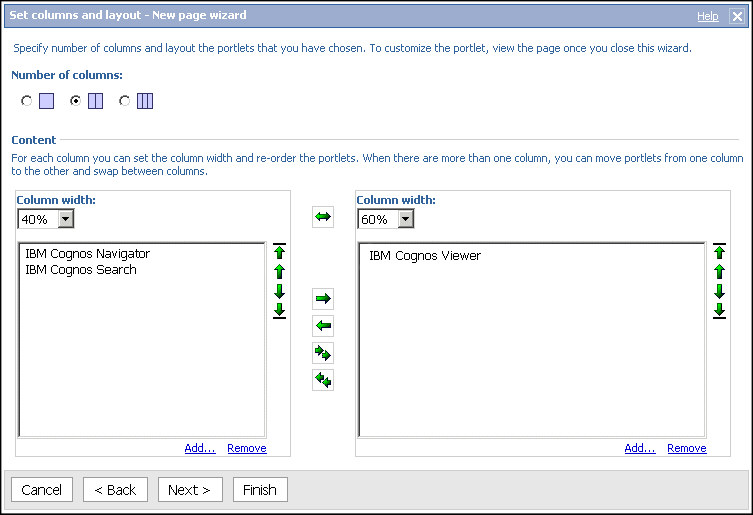
26 c. Select the IBM Cognos Navigator, IBM Cognos Search, and IBM Cognos Viewer portlets. Click Add to move them to the Selected entries box. Tip: You can preview the content of the portlets by clicking View This Portlet. d. Click OK. e. In the first column, click IBM Cognos Viewer and click the right arrow. f. Click Next. 6. Define the appearance of the page: a. In the Title box, type My Sample Outdoors page. Tip: You can change the formatting of the text. b. Click Next. c. Select the Add this page to the portal tabs check box. d. Click Finish. The My Sample Outdoors page that you created appears as a tab in IBM Cognos Connection. 7. Enhance the content of your page: a. Click the My Sample Outdoors page tab. b. In the IBM Cognos Viewer portlet title bar, click Edit. c. Under Entry, click Select an entry. Click Public Folders, Samples, Models, GO Data Warehouse (analysis), and Query Studio Report Samples. Select the Return Quantity by Product Line Chart sample report and click OK. Tip: You can also use any other sample report. d. Under Height (pixels), type IBM Cognos Business Intelligence Version : Getting Started Guide
27 e. Click OK. The report now appears in your portal page. If the report was not previously run and saved, click the run button in the IBM Cognos Viewer portlet. In the Run with options page, click Save the report and then click Run. Example Try on your own: v Set the My Sample Outdoors page as your home page. v Tip: Next to the home icon Delete the page., click the arrow, and click Set View as Home. Tip: From the tab menu tab., on the left side of the tab bar, click Remove this What to do next For information about creating portal pages, see the IBM Cognos Connection online help. Example - Work with a workspace Use IBM Cognos Workspace to build sophisticated interactive workspaces that facilitate collaborative decision making. You can open workspace widgets in IBM Cognos Workspace Advanced to edit them. Chapter 2. IBM Cognos Business Intelligence Examples 21
28 In this exercise, you will open a Cognos Workspace widget in Cognos Workspace Advanced to make changes and then view your changes in Cognos Workspace. You are a report author in the Sample Outdoors Company. You want to create a workspace showing employee training by organization level. You have a report widget that shows some of the information you need, so you decide to customize this widget and create a workspace for future reference. To perform this exercise, you must have the appropriate licensing and security permissions for this functionality. Procedure 1. Open Cognos Workspace: a. Start your Web browser. b. In the address bar, type the URL supplied by your administrator, and then press Enter. The URL looks something like this: 2. In the IBM Cognos Welcome page, click Create a workspace on the web. 3. Click Create New. 4. In the Content tab of the Content pane, expand Public Folders, Samples, Models, Go Data Warehouse (analysis), and Cognos Workspace Source Reports. Drag Employee Training Cost to the workspace. 5. Click the Actions menu icon for the Employee Training widget, and then click Do More. The report widget opens in Cognos Workspace Advanced. 6. Click the chart body to show the drop zones where you can insert data items. 7. Delete Course cost in the Default measure (y-axis) drop zone. 8. In the Source tab of the Content pane, expand HR (analysis), Employee training, and Employee training fact. Drag Course cost to replace Employee expense type in the Series (primary axis) drop zone. 9. In HR (analysis), Employee training, expand Organization, Organization, and drag Organization name (level 1) to replace Organization (level 1) in the Categories (x-axis ) drop zone. 10. Click Done to return to Cognos Workspace. Note your changes to the Employee Training widget. 11. On the application bar, click the Actions menu icon, and click Save as. 12. Click My Folders, and type My Employee Training in the Name text box, and then click Save. The final report looks like this: 22 IBM Cognos Business Intelligence Version : Getting Started Guide

29 What to do next For information about using Cognos Workspace, see the IBM Cognos Workspace User Guide. Example - Create a Statement-Style Report Use IBM Cognos Workspace Advanced to create reports with relational or dimensional data sources and to show data in lists, crosstabs, and charts. In this exercise, you will learn how to create a statement-style report. You are a report author in the finance department of the Sample Outdoors Company. You create a balance sheet that shows the assets, liabilities, and equity for the company over the last few years. To perform this exercise, you must have the appropriate licensing and security permissions for this functionality. Things to notice: v When you use Cognos Workspace Advanced, data is live. You do not have to run a report to see the data. From the View menu, you can switch between the Page Design and Page Preview views to see the live data and the design of your report. Chapter 2. IBM Cognos Business Intelligence Examples 23

30 Procedure 1. Open IBM Cognos Connection: a. Start your Web browser. b. In the address bar, type the URL supplied by your administrator, and then press Enter. The URL looks something like this: 2. In the IBM Cognos Welcome page, click Author business reports. 3. Click Samples, Models, GO Data Warehouse (analysis). 4. Click Create new, click Financial, and click OK. 5. Insert data in the crosstab zones: a. In the Content pane, click Insert Members with Children, and click Insert Single Member. b. In the Source tab of the Content pane, expand Finance (analysis), Finance, Account, and Balance sheet (total). Drag Assets (total) to the Rows zone. c. Under Balance sheet (total), expand Liabilities & equities (total). Drag Liabilities (total) and Equity (total) to the Rows zone, under Assets (total). Tip: When you drag an object to the crosstab, you see a flashing horizontal or vertical bar to indicate where the item will be placed in the crosstab. d. Expand Submission. Drag 2012 Actual results in USD to the Columns zone. e. Drag 2011 Actual results in USD to the Columns zone, next to 2012 Actual results in USD. f. Expand Time, 2012, and Q Drag December 2012 to the Columns zone, under the 2012 Actual results in USD. g. Under Time, expand 2011 and Q Drag December 2011 to the Columns zone, under the 2011 Actual results in USD. h. Under Finance (analysis), expand Finance fact. Drag Amount (year to date) to the Measures zone. 6. Expand the rows to view the breakdown of assets, liabilities, and equity: a. In the report, right-click Assets (total) and click Expand Member to examine the members of the assets. b. Repeat for Liabilities (total) and Equities (total). 7. Change the title of the report to reflect the contents of the balance sheet: a. Double-click the heading title, type Sample Outdoors Company, and click OK. 24 IBM Cognos Business Intelligence Version : Getting Started Guide
31 b. In the Toolbox tab of the Content pane, drag the Block object to the right of the Sample Outdoors Company title. Repeat the steps to add a second block underneath the first. c. In the Toolbox tab of the Content pane, drag the Text Item object inside the first block object. When the Text window opens, type balance sheet as at Dec 31, 2012, and click OK. d. Drag the Text Item object inside the second block object. When the Text window opens, type (with prior year comparative data), and click OK. e. Ctrl+click both block objects and, by using the toolbar, change the font to 10 point size (10 pt). 8. Change the currency format of the balance sheet: a. In your report, under the 2011 Actual results in USD, under December 2011, use Shift+click to select the whole column. b. Right-click the selection, click Style, and click Data Format. c. In the Format type list, select Currency. d. In the Properties pane, click the Currency property, and select $ (USD) - United States of America, dollar. e. Click the No. of Decimal Places property, and then select 0. f. Click OK. 9. Copy the formatting to the 2012 column: a. To copy all the formatting that is applied to the item, click Pick up Style, click the items that you want to format, and then click Apply Style. b. To copy only one of the formatting styles, click the down arrow next to the Pick up Style icon, and click the style that you want to copy. Then, click the item that you want to format, and click Apply Style. c. If you want to change a style that you copied, click the down arrow next to the Pick up Style icon, and click Edit Dropper Style. Specify basic and advanced style characteristics, and then click OK. 10. Change the text formatting to reflect a standard balance sheet: Chapter 2. IBM Cognos Business Intelligence Examples 25

32 a. Right-click Amount (year to date) and click Edit Data Item Label. Inthe Data item label box, type Year to date (USD), and click OK. b. Select Year to date (USD) and, by using the toolbar, change the text to bold. 11. From the Run menu, click Run Report - HTML. What to do next Example - Create a Report For information about using Cognos Workspace Advanced, see the IBM Cognos Workspace Advanced User Guide. Use IBM Cognos Report Studio to create reports with complex layout, formatting, and report user interactions. Such reports are usually created by professional report authors who have a good knowledge of the data and tools. In this exercise, you will learn how to: v Create a chart v Make the report interactive with prompts You are a business analyst for the Sample Outdoors Company. You create a chart report in Report Studio to show the performance of returns over the last few years. You make the report interactive by adding a prompt. You will create a report that looks like the Report Studio sample Returns by Order Method - Prompted Chart in the GO Data Warehouse (analysis) sample package. To perform this exercise, you must have the appropriate licensing and security permissions for this functionality. Things to notice: v When you use Report Studio, data is not live. You must run the report to view data. v You can view the XML report specification. 26 IBM Cognos Business Intelligence Version : Getting Started Guide

33 v You can add multilingual capabilities. Procedure 1. Open IBM Cognos Connection: a. Start your Web browser. b. In the address bar, type the URL supplied by your administrator, and then press Enter. The URL looks something like this: 2. In the IBM Cognos Welcome page, click Author advanced reports to open Report Studio. 3. Click Samples, Models, GO Data Warehouse (analysis). 4. Click Create new, click Crosstab, and click OK. 5. Insert data in the crosstab zones: a. In the Source pane, expand Sales and Marketing (analysis), Returned items, Return reason, and Return reason. Drag Reason description to the Columns zone. b. Under Returned items, expand Returned items. Drag Return quantity to the Measures zone. c. Under Sales and Marketing (analysis), expand Inventory, Products, and Products. Drag Product line to the Rows zone. 6. Click Run Report to run your report and verify the content. The report output appears in IBM Cognos Viewer. Tip: To return to Report Studio, close the IBM Cognos Viewer Web browser. 7. Insert another column in the report: a. In the Source pane, expand Sales, Time, and Time. b. Drag Year to the column after the Reason description column. 8. Insert a chart in the report: a. In the Source pane, click the Toolbox tab. b. Drag the Chart object below the crosstab. c. When the Insert Chart window opens, click the Column chart type. d. Select Fill with data and click OK. The data from the crosstab is automatically added to the chart. e. Click the chart to select it. Chapter 2. IBM Cognos Business Intelligence Examples 27
34 f. In the Properties pane, underdata properties, select the Query property. Select Query1 from the list. Tip: When you change the Query property to the query that you used for the crosstab, it becomes easier to find and reuse the same data items for the chart. 9. Create a filter to exclude the Wrong product ordered return reason from the crosstab: a. In the crosstab, click the Reason description column heading. b. On the toolbar, click the arrow next to the Filter icon, and click Create Custom Filter. c. Under Condition, select Do NOT show the following values. d. Under Values, select Wrong product ordered and move it to the Selected values list. e. Click OK. 10. Create a prompt page for the order method to allow users to filter data in the report and retrieve data only for the order method they select: a. Click the background of the work area to clear. b. From the Tools menu, click Build Prompt Page. c. Use Ctrl+click to select the Back and Next buttons, and the Double click to edit text prompt page title (that are automatically created) and delete them. d. In the Source pane, click the Toolbox tab. e. Drag the Value Prompt object into the prompt page. The Prompt Wizard - Value Prompt window opens. 28 IBM Cognos Business Intelligence Version : Getting Started Guide

35 f. Click Next. g. Beside the Package item box, click the ellipsis (...) button. h. When the Choose Package Item window opens, expand Sales and Marketing (analysis), Sales, and Order method. i. Click the Order method dimension, and then click OK. j. Click Next to accept the defaults, and click Finish. 11. Pause the pointer over the Page Explorer button on the Explorer bar. In Report Pages, click Page1 to return to the report page. Tip: Click the Prompt Pages folder title to remove or rename a page, or to edit properties. 12. Add a title to the report: a. Double-click the Double click to edit text title area, type Returns by Order Method, and click OK. 13. Save the report: a. From the File menu, click Save As. b. Name the report Returns by Order Method - Prompted Chart and click Save. 14. Run your report and verify the content: a. Click the run report button. b. In the Order method drop-down list, click and then click Finish. The report output appears in IBM Cognos Viewer. Chapter 2. IBM Cognos Business Intelligence Examples 29
36 Example Try on your own: v Save the report as a template so you can create reports with the same layout and include different data. Tip: From the File menu, click Convert to Template and then save the report with a new name. v Change the chart background color. Tip: In the work area, click the chart. In the Properties pane, expand Color & Background, click Background Color, and click the ellipsis (...) button next to Background Color. v View the XML specification for the report. Tip: From the Tools menu, click Show Specification. What to do next Example - Manage an Event For information about using Report Studio, see the IBM Cognos Report Studio User Guide. Use IBM Cognos Event Studio to define business events or exceptional conditions in your data that require attention. Create agents to monitor your data and notify decision-makers in your organization of events as they happen, so that they can make timely and effective decisions. You create agents to perform tasks or deliver alerts when the data meets predefined thresholds. This exercise shows how to v Define business events v Define agent tasks 30 IBM Cognos Business Intelligence Version : Getting Started Guide
37 v Review the status of events You are a business analyst for the Sample Outdoors Company. You want to ensure that your customers are satisfied with the products and services that you provide. In particular, if products are returned, you want to investigate why, and ensure that you offer a replacement before your customers decide to shop elsewhere. Event Studio can notify you when a customer returns a product because it was defective, unsatisfactory, incomplete, or because the wrong product was shipped to them. You want to immediately send an to your customer service department with details about the order and the customer, so that they can contact the customer. You will create an agent that looks like the Event Studio sample Returns Agent in the GO Sales (query) sample package. To perform this exercise, you must have the appropriate licensing and security permissions. The tasks that you need to perform to create an agent in Event Studio appear in the I want to area. By default, when you open Event Studio, you start with the first task, defining an event. Procedure 1. Open IBM Cognos Connection: a. Start your Web browser. b. In the address bar, type the URL supplied by your administrator, and then press Enter. The URL looks something like this: 2. In the IBM Cognos Welcome page, click Manage my events to open Event Studio. 3. Click Samples, Models, GO Sales (query). 4. Create the expression that defines the event: a. In the Insertable Objects pane, expand Returned items (query) and Returned items. b. Under Returned items (query), expand Return reason. c. Use both Return quantity and Reason description to create the following expression: [Return quantity]>0 AND [Reason description] IN ( Wrong product shipped, Unsatisfactory product, Incomplete product, Defective product ) Tip: Insert items from the Insertable Objects pane. To select from a list of possible values for the return reason, click the select values button. Move the values you want from the Select Value box to the Selected Items box and click OK. d. Click the validate button to validate your expression. Tip: You can also click Preview from the Actions menu to see the data retrieved from the data source. You defined the expression that will notify you whenever a customer returns a product because it was defective, unsatisfactory, incomplete, or because the wrong product was shipped to them. 5. Create an task to immediately send an to your customer service department with details about the returned order and the customer so that they can contact the customer: a. In the I want to list, click Add a task and click Send an . Chapter 2. IBM Cognos Business Intelligence Examples 31
38 b. In the To box, type the address for the customer service department. Tip: Since this example is for learning purposes, the agent will not actually run. Therefore, you can type any address. c. In the Subject, type Products Returned. d. Above the Body box, click the insert table button, specify four columns and two rows, and click OK. e. Add information about returned products to the table as follows: Manually type the text for the heading row of the table. Overwrite the insert text... text in each cell. Drag objects from the Insertable Objects pane to the bottom row of the table. Tip: In the Insertable Objects pane, expand Returned items (query). Expand Order to find Order number; Products to find Product; Returned items to find Return quantity, and Retailers to find Company name. Order Number Product Name Quantity Company Name [Order number] [Product] [Return quantity] [Company name] When the agent runs, the data item for each event is replaced by the current value in the package. f. Select the heading row and then click bold to make the column headings more prominent. 6. Set the execution rules so that a notification is sent for new events only: a. In the I want to list, click Manage the task execution rules. b. Click the Event Key tab. c. In the Insertable Objects pane, click the Source tab. d. Expand Sales (query), Order, and drag Order number to the Event key box. e. Click the Event Selection tab. 32 IBM Cognos Business Intelligence Version : Getting Started Guide
39 f. Under Select when to perform this task, ensure that only the New events check box is selected. g. Click OK. 7. Set the schedule for when you want to the event to run: a. In the I want to list, click Schedule the agent. b. In the Set the schedule pane, under Frequency, click the By Day tab, and select Every 1 hour(s). c. Click OK. 8. Save the agent as Returns Agent. Each hour, the agent runs and the next time a customer returns a product, an is sent to the customer service department with information about the order. Example Attach the event list to the . An event list shows the events that the agent processed. In this example, the event that we defined is when a customer returns a product. Tip: In the summary area, click the Products Returned task. Below the Body box, click Attach, and then click Attach the event list. What to do next For information about creating agents, see the Cognos Event Studio online help. Example - Monitor Performance With IBM Cognos Metric Studio, you can track the performance of your organization against its objectives. At a quick glance, decision makers at every level of the organization can see the status of the organization, and then react or plan. A metric is an indicator of key measures that compares actual results to targets. A metric also records who is responsible for the results and the impact of the metric. A scorecard is a collection of performance metrics and projects that reflects the strategic goals of a unit in an organization. This exercise shows how to v Review a strategy map for a visual representation of the strategy and the objectives of that strategy for an organization v Review and understand the performance of a metric on a scorecard v Create an action on a metric v Add a metric to your watch list You are a sales manager for a region for the Sample Outdoors Company. You regularly look at a scorecard that contains metrics about your sales area. The metrics give you an instant idea of how the current sales compare to the sales targets set by the company. Return quantity is one of the metrics. To perform this exercise, you must have the appropriate licensing and security permissions for this functionality. Things to notice: Chapter 2. IBM Cognos Business Intelligence Examples 33
40 v Metrics appear as either Poor (red), Average (yellow), or Excellent (green). v For each metric, you can see whether the trend is improving, staying the same, or getting worse. v When you move your pointer over the title of a metric, you see a history chart that shows the performance of the metric. A fly-out menu extends when you pause your pointer over a metric or a diagram. Procedure 1. Open IBM Cognos Connection: a. Start your Web browser. b. In the address bar, type the URL supplied by your administrator, and then press Enter. The URL looks something like this: 2. In the IBM Cognos Welcome page, click Manage my metrics. 3. Click Samples, Models, GO Metrics. 4. View the strategy map: a. In the left pane, click the Scorecards tab, and click GO Consolidated. b. In the right pane, click the Diagrams tab. In the GO Strategy map, notice how you can quickly evaluate the performance of each of the goals of the organization. The large indicators show the status for a specific strategy. The smaller indicators that appear below a strategy show the trend. The values for metrics that are not performing well appear in red. Status and trend indicators that appear in red indicate possible problem areas. For example, in the Production and Distribution function of the strategy map, in the Control product quality metric, Return quantity % is red, which shows a poor performance metric. 34 IBM Cognos Business Intelligence Version : Getting Started Guide
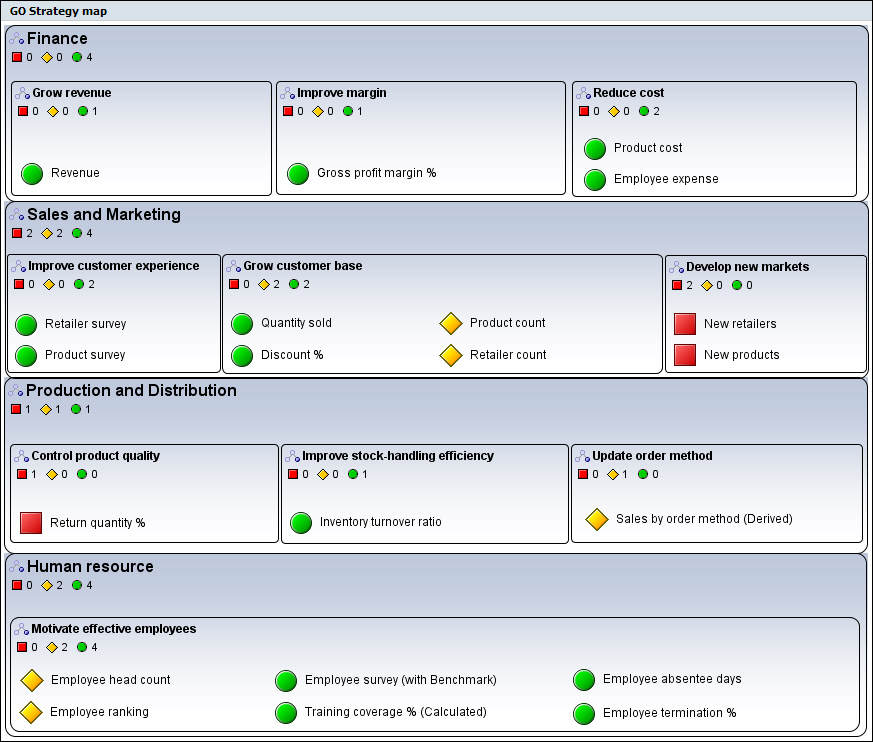
41 5. Explore the scorecard: a. In the left pane, click the Scorecards tab. b. Expand GO Consolidated. You see that the Sample Outdoors Company has scorecards for each of the four functions of the company: Finance, Sales and Marketing, Production and Distribution, and Human Resource. c. Expand Production and Distribution, and click Asia Pacific. d. Click the Metrics tab. All the metrics associated with the Asia Pacific region are shown. Notice that the Asia Pacific Return by reason % Wrong product ordered metric is red. You might want to explore this metric further to see what is causing the problem. e. Click Asia Pacific Return quantity %, and click the Diagrams tab. f. Expand the metrics in the diagram by clicking the arrow next to the Asia Pacific Return by reason % Failed Orders metric. You can see what data is in the Return quantity % metric. You can also see which return reason has a critical issue. Chapter 2. IBM Cognos Business Intelligence Examples 35

42 g. Pause your pointer over Asia Pacific Return quantity % to see more information about that metric. h. In the left pane, under Production and Distribution, click Asia Pacific, and then click the Metrics tab to view the metric related to return quantity. Notice that the status of Asia Pacific Return by reason % Wrong product ordered metric is poor. 36 IBM Cognos Business Intelligence Version : Getting Started Guide
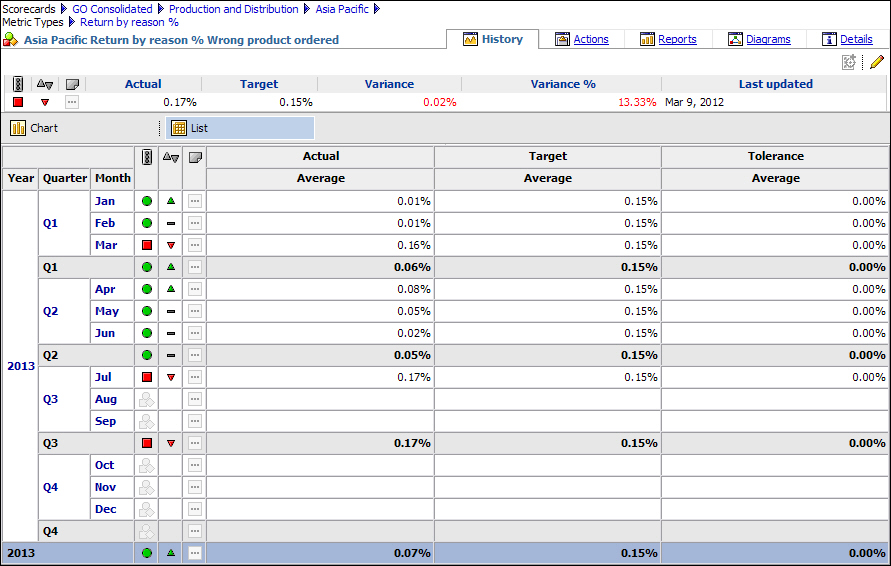
43 6. Click the Asia Pacific-Return by reason %-Wrong product ordered metric. In Metric Studio, the tabs represent the questions you might ask yourself, as you try to solve a problem or understand a piece of information. 7. On the right pane, on the History tab, click List. The information on the History tab answers the question "When?". You see the actual and target values for the metric data for previous periods. You also see quarterly and yearly summaries. 8. Click the Diagrams tab. The information in the Diagrams tab helps you understand the question "How?" by comparing your metric with other metrics. Impact diagrams show the relationships between the Return by reason % metric and other metrics. 9. Create an action for one of your business analysts to have her investigate the performance of product returns: a. Click the Actions tab. b. Click New Action. Tip: You must select a metric to see the New Action icon. c. In the Name box, type Kazumi Uragome, the person who will own the action. Chapter 2. IBM Cognos Business Intelligence Examples 37
44 d. To let Kazumi know what to do, in the Description box, type Please investigate. e. Beside the Planned Finish box, click the calendar icon, select a date one week from today. Tip: You may need to scroll down to see the Planned Finish box. f. Click OK. 10. Add the Asia Pacific Return reason % Wrong product ordered metric to your watch list so that you can easily monitor it in the future: a. In the left pane, in the Production and Distribution scorecard, click Asia Pacific, and click the Metrics tab. b. Click the Asia Pacific Return reason % Wrong product ordered metric. c. On the upper toolbar, click Add to Watch List, and click OK. d. In the left pane, click My Folders and click Watch List. The Asia Pacific Return by reason % Wrong product ordered metric appears in your watch list. Example v Add a comment to the metric to communicate information to users of the metric. Tip: Beside the metric, in the comment column, click the ellipsis (...) button. After you add a comment, a comment icon appears. v Add an notification so that you will be notified when the metric changes. Tip: Beside the metric, click the alerts button. The alerts button changes to show that alerts is now turned on. You can also specify when and how often you receive notification about changes to metrics in the watch list, by changing the alerts properties. v Filter the scorecard according to the status of the metrics. Tip: On the Metrics tab, in the Filter box, select the status or trend that you want. What to do next For more information about using scorecards, see the Metric Studio online help. Example - Work with IBM Cognos Content in Microsoft Excel You use IBM Cognos for Microsoft Office to access IBM Cognos content in Microsoft Excel spreadsheet software. In Excel, you can work with and add value to existing IBM Cognos reports, apply calculations, and use your existing Microsoft Excel macros. When you reconnect to the IBM Cognos server, you can refresh the data to obtain the latest information. You can also import content into Microsoft PowerPoint and Microsoft Word. 38 IBM Cognos Business Intelligence Version : Getting Started Guide
45 IBM Cognos security is maintained in your Microsoft Office environment. For example, if you share a Microsoft Excel workbook with coworkers, when they connect to the IBM Cognos server to retrieve or refresh data, their security permissions retrieve the appropriate data. This exercise shows how to v Import IBM Cognos content into a Microsoft Excel workbook v Refresh data v Publish a workbook to IBM Cognos Connection You want to import the information from the two IBM Cognos Query Studio sample reports named Return Quantity by Product Line and Return Quantity by Product Line Chart into Microsoft Excel. To perform this exercise, you must have the appropriate licensing and security permissions. IBM Cognos for Microsoft Office as well as the.net framework must be installed and configured on your computer. Things to notice: v You use IBM Cognos for Microsoft Office to import IBM Cognos report elements, such as headers, footers, images, lists, and charts in your Microsoft Excel workbook. You can import elements from different reports into the same workbook. v When you save your workbook, you can save it with or without data. v You can publish workbooks to IBM Cognos Connection so that other users can access them. Procedure 1. Start Microsoft Excel. The IBM Cognos for Microsoft Office pane appears on the right side. 2. To begin using IBM Cognos for Microsoft Office, on the toolbar, click the Logon icon, select the server that you want to connect to, type your user ID and password, and click OK. 3. Import the sample reports Return Quantity by Product Line and Return Quantity by Product Line Chart in the workbook: a. In the IBM Cognos for Microsoft Office pane, click the Browse Content tab. b. Expand Public Folders, Samples, Models, GO Data Warehouse (analysis), Query Studio Report Samples, and click Returns Quantity by Product Line. c. Click Import content. In the Import Content window, you can select the specific report elements that you want to import. You want to keep the default selections. d. Click Finish. e. Repeat the steps for the Return Quantity by Product Line Chart report. Chapter 2. IBM Cognos Business Intelligence Examples 39
46 The reports appear in the workbook. 4. Refresh the data in the report: a. In the IBM Cognos for Microsoft Office pane, click the Manage Data tab. In the Imported report elements box, you can see all the elements in your workbook and their properties. b. Right-click the report and click Refresh Data and Formatting. Because the sample database is static, the report contents do not actually change. 5. Publish the workbook to My Folders in IBM Cognos Connection: a. Save the workbook on your computer. Tip: To save the workbook without data, right-click the report and click Remove Data. You can refresh all data later. b. From the IBM Cognos for Microsoft Office toolbar, click the publish icon. c. In the Publish window, select the IBM Cognos Business Intelligence server where you want to save the report, and click Publish. 40 IBM Cognos Business Intelligence Version : Getting Started Guide
47 The workbook now appears in IBM Cognos Connection. To open a workbook from IBM Cognos Connection, select it and save it locally to your computer. What to do next Example - Create a Query For information about working with IBM Cognos content in Microsoft Office, see the IBM Cognos for Microsoft Office online help. Use IBM Cognos Query Studio to retrieve information from a relational data source when you want to create reports that answer simple business questions. Also use Query Studio to publish reports for audiences who do not require complex layout or formatting. In this exercise, you will learn how to v Add columns v Add calculations v Add conditional formatting v Apply a template to the report v Save the report You are a business analyst for the Sample Outdoors Company. You want to create a report that shows which products have the highest return rate and how much revenue was lost from product returns. To perform this exercise, you must have the appropriate licensing and security permissions. Things to notice: v Data that you can add to the report has a different icon depending on the data type. v The reports that you create in Query Studio can be viewed and edited in IBM Cognos Report Studio. Procedure 1. Open IBM Cognos Connection: a. Start your Web browser. b. In the address bar, type the URL supplied by your administrator, and then press Enter. The URL looks something like this: 2. In the IBM Cognos Welcome page, click Query my data, and select the GO Data Warehouse (query) package. A blank report appears. 3. Add columns to the report: a. From the Menu, click Insert Data. b. Expand Sales and Marketing (query), Sales (query), and Products. Drag Product type and Product to the work area. The work area is the area within a studio that contains the report, analysis, query, or agent that you are currently using. c. From Sales (query), expand Sales fact, and drag Quantity and Unit cost to the work area. The item Unit cost will not appear in the final report, but you need it to build a calculation. Chapter 2. IBM Cognos Business Intelligence Examples 41

48 d. Expand Returned items (query), and Returned items fact, and drag Return quantity to the work area. 4. Create a calculation to show the lost revenue (Return quantity * Unit cost = Lost revenue): a. Select the column headings that you want for the calculation. In the work area, click the heading for Return quantity and Ctrl+click the heading for the Unit cost column. b. Click Calculate. c. In the Operation box, select * (multiplication). d. In the New item name box, type Lost revenue. e. Click Insert. f. Delete the Unit cost column. 5. Format the calculated column that you added: a. Right-click the heading for the Lost revenue column and click Format Data. b. In the Category list, click Currency. c. In the Thousands separator list, click Yes, and then click OK. 6. Create a calculation to show the percentage of returns (Return quantity / Quantity)*100): a. In the work area, click the heading for the Return quantity column, and Ctrl+click the heading for the Quantity column. b. Click Calculate. c. In the Operation type box, select Percentage. d. The content of the Operation box changes to percent (%). e. In the New item name box, type % Returned. f. Click Insert. 7. Sort the % Returned column in descending order: a. Right-click the heading for the % Returned column, and click Sort. b. Under Sort order, click Descending (9 to 1), and then click OK. 8. Apply conditional formatting to highlight products with a lost revenue greater than $200,000: a. Click the heading for the Lost revenue column. b. From the Menu, click Change Layout, and click Define Conditional Styles. c. In the New value: box, type , and click Insert. d. For the first range, in the Style column, select Poor, and click OK. 42 IBM Cognos Business Intelligence Version : Getting Started Guide

49 The cells with a lost revenue greater than $200,000 appear with a red background. 9. Apply a template to the report: a. From the Menu, click Change Layout, and click Apply Template. b. Select Apply a template, and click Select a template. c. In Public Folders, click Samples, Sample Template. Select Great Outdoors Template, and click OK twice. The report appears with the styles from the template. 10. Add a title to the report: a. Above the report, click the report title. b. In the Title box, type Returns by Product Type. Clear the Subtitle box, and click OK. 11. Save the report: a. From the toolbar, click Save. b. In the Name box, type Returns by Product Type. c. Accept the default save location, and click OK. The final report looks like this: Chapter 2. IBM Cognos Business Intelligence Examples 43

50 Notice that the Star Gazer 2 tent has the highest lost revenue rate. Example Try on your own: v Every time you modify a report, Query Studio updates the results by running a query. Use the run options to preview the report with no data. From the Run Report menu, click Preview with No Data. Tip: To preview a report with limited data, you must define design filters in the model. v Review the definition of all report items in the report. From the Manage File menu, click Report Definition. This is useful for troubleshooting a report. What to do next Example - Create an Analysis For information about using Query Studio, see the Query Studio online help. In IBM Cognos Analysis Studio, you can manipulate items in your data interactively so that you can identify and understand the problems and issues in your business. In this exercise, you will learn how to v Drill down v Create a top filter v Create a summary calculation v Create a crosstab and a chart 44 IBM Cognos Business Intelligence Version : Getting Started Guide
51 You are a business analyst for the Sample Outdoors Company. You want to further analyze the returns business items to find out where and why products are the most frequently returned, and that have the biggest impact on the profit of the company. To perform this exercise, you must have the appropriate licensing and security permissions. Things to notice: v The items and measures that you can add to your analysis appear in the data tree in the left pane. v The overview area above the work area is a convenient place to quickly explore and change the contents of your analysis. You manipulate rows and columns, drill up or down, and provide context for the work area. v Cognos Analysis Studio uses sets, which are collections of similar items. You manipulate items by applying actions to sets. You can sort, filter, and nest sets. You can also save custom sets and view subtotals for your sets. Procedure 1. Open IBM Cognos Connection: a. Start your Web browser. b. In the address bar, type the URL supplied by your administrator, and then press Enter. The URL looks something like this: 2. In the IBM Cognos Welcome page, click Analyze my business. 3. Click Samples, Cubes, Sales and Marketing (cube). 4. Click Blank Analysis, and click OK. 5. Insert data in the crosstab: a. In the Insertable objects pane, expand Measures. Drag Returns to the Measure zone or to the upper-left corner of the work area. b. Drag Products to the Rows zone. c. Expand Time and Time. Select all four years (2010, 2011, 2012, 2013) and drag them to the Columns zone. You now see the returns for all the product brands over a four-year span. The total number of returns is visible in the Total column. 6. Filter the top 10 product brands based on their total returns over the last four years: a. In the overview area, right-click Products and click Down a Level. The overview area is located above the work area. You can use the overview area as a convenient place to quickly explore and change the contents of the work area. The overview area shows any applied filters and sorting. b. Repeat the previous step to see a list of all individual products. c. In the overview area, right-click Products (depth 3) and click Top or Bottom > Top > 10. You see that the top 10 products with the most returns are now the only products in the crosstab. Chapter 2. IBM Cognos Business Intelligence Examples 45

52 Tip: To use a specific product name rather than having to drill down multiple layers, in the Insertable objects pane, navigate to the product that you want. Select the product you want, and in the Information pane, drag the level name into the crosstab. 7. Create a summary calculation to see what the average returns are per year for the top 10 products: a. In the overview area, right-click Time (list) and click Summarize > Average (Time (list)). The Average (Time (list)) summary is added to the crosstab. This summary shows the average number of returns over the fours years in the crosstab. 8. View your analysis as a chart to see whether there is a trend or spike in any of the top 10 returns: a. Click View > Select Chart Type > Line Chart > Standard. Take note of the top 10 products with the highest returns. There may be some products, like BugShield Lotion, that are anomalies. You may want to exclude them from your analysis, or you may decide that you need to be comparing returns to other metrics; such as quantity sold or gross profit. 46 IBM Cognos Business Intelligence Version : Getting Started Guide
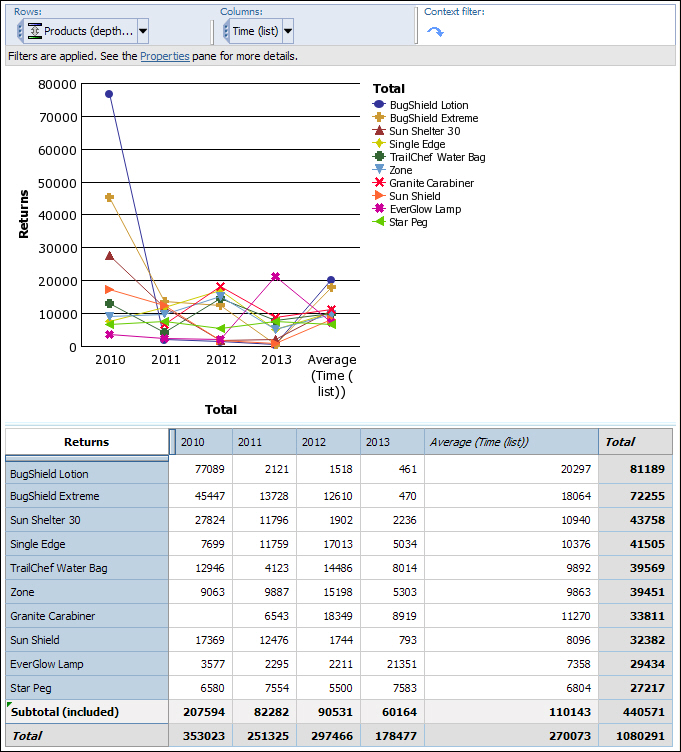
53 9. Change the top 10 definition to filter on year 2013 to give you the most recent data for product returns. a. In the overview area, right-click Products (depth 3) and click Top or Bottom > Top > Custom. b. In the Define top or bottom filter pane, from the For column list, select By specifying 2013 in the top definition, you change the filter context to focus on the highest 10 returns for the year In addition, you see the other years in the crosstab, to give you some additional historical information. Tip: In the definition, you can specify the number of items you want by number, percentage, or sum. c. Click OK. Notice that EverGlow Lamp has the highest number of returns. Tip: In the overview area, using the Time (list) column, you can also filter on The data returned when using this filter is different from the data Chapter 2. IBM Cognos Business Intelligence Examples 47

54 returned when you set the 2013 context in the top definition. Only 2013 data appears in the crosstab, and historical data does not appear. 10. Save the analysis as Returns vs Gross Profit over Time. Example For report formatting and layout control, edit the report in IBM Cognos Report Studio. With Cognos Report Studio, you can extend the report definition to include other reporting elements, or enhance the report by defining bursting rules. To use Cognos Report Studio, you must have the appropriate licensing and security permissions. Tip: From the File menu, click Open in Report Studio. After you save an analysis in Cognos Report Studio, you can no longer edit the analysis in Cognos Analysis Studio. 48 IBM Cognos Business Intelligence Version : Getting Started Guide
55 What to do next For information about using Cognos Analysis Studio, see the Cognos Analysis Studio online help. Chapter 2. IBM Cognos Business Intelligence Examples 49
56 50 IBM Cognos Business Intelligence Version : Getting Started Guide
57 Notices This information was developed for products and services offered worldwide. IBM may not offer the products, services, or features discussed in this document in other countries. Consult your local IBM representative for information on the products and services currently available in your area. Any reference to an IBM product, program, or service is not intended to state or imply that only that IBM product, program, or service may be used. Any functionally equivalent product, program, or service that does not infringe any IBM intellectual property right may be used instead. However, it is the user's responsibility to evaluate and verify the operation of any non-ibm product, program, or service. This document may describe products, services, or features that are not included in the Program or license entitlement that you have purchased. IBM may have patents or pending patent applications covering subject matter described in this document. The furnishing of this document does not grant you any license to these patents. You can send license inquiries, in writing, to: IBM Director of Licensing IBM Corporation North Castle Drive Armonk, NY U.S.A. For license inquiries regarding double-byte (DBCS) information, contact the IBM Intellectual Property Department in your country or send inquiries, in writing, to: Intellectual Property Licensing Legal and Intellectual Property Law IBM Japan Ltd , Shimotsuruma, Yamato-shi Kanagawa Japan The following paragraph does not apply to the United Kingdom or any other country where such provisions are inconsistent with local law: INTERNATIONAL BUSINESS MACHINES CORPORATION PROVIDES THIS PUBLICATION "AS IS" WITHOUT WARRANTY OF ANY KIND, EITHER EXPRESS OR IMPLIED, INCLUDING, BUT NOT LIMITED TO, THE IMPLIED WARRANTIES OF NON-INFRINGEMENT, MERCHANTABILITY OR FITNESS FOR A PARTICULAR PURPOSE. Some states do not allow disclaimer of express or implied warranties in certain transactions, therefore, this statement may not apply to you. This information could include technical inaccuracies or typographical errors. Changes are periodically made to the information herein; these changes will be incorporated in new editions of the publication. IBM may make improvements and/or changes in the product(s) and/or the program(s) described in this publication at any time without notice. Any references in this information to non-ibm Web sites are provided for convenience only and do not in any manner serve as an endorsement of those Web sites. The materials at those Web sites are not part of the materials for this IBM product and use of those Web sites is at your own risk. Copyright IBM Corp. 2005,
58 IBM may use or distribute any of the information you supply in any way it believes appropriate without incurring any obligation to you. Licensees of this program who wish to have information about it for the purpose of enabling: (i) the exchange of information between independently created programs and other programs (including this one) and (ii) the mutual use of the information which has been exchanged, should contact: IBM Software Group Attention: Licensing 3755 Riverside Dr Ottawa, ON K1V 1B7 Canada Such information may be available, subject to appropriate terms and conditions, including in some cases, payment of a fee. The licensed program described in this document and all licensed material available for it are provided by IBM under terms of the IBM Customer Agreement, IBM International Program License Agreement or any equivalent agreement between us. Any performance data contained herein was determined in a controlled environment. Therefore, the results obtained in other operating environments may vary significantly. Some measurements may have been made on development-level systems and there is no guarantee that these measurements will be the same on generally available systems. Furthermore, some measurements may have been estimated through extrapolation. Actual results may vary. Users of this document should verify the applicable data for their specific environment. Information concerning non-ibm products was obtained from the suppliers of those products, their published announcements or other publicly available sources. IBM has not tested those products and cannot confirm the accuracy of performance, compatibility or any other claims related to non-ibm products. Questions on the capabilities of non-ibm products should be addressed to the suppliers of those products. All statements regarding IBM's future direction or intent are subject to change or withdrawal without notice, and represent goals and objectives only. This information contains examples of data and reports used in daily business operations. To illustrate them as completely as possible, the examples include the names of individuals, companies, brands, and products. All of these names are fictitious and any similarity to the names and addresses used by an actual business enterprise is entirely coincidental. If you are viewing this information softcopy, the photographs and color illustrations may not appear. 52 IBM Cognos Business Intelligence Version : Getting Started Guide
59 Trademarks IBM, the IBM logo, ibm.com, PowerPlay, TM1, Express, and Cognos are trademarks or registered trademarks of International Business Machines Corp., registered in many jurisdictions worldwide. Other product and service names might be trademarks of IBM or other companies. A current list of IBM trademarks is available on the Web at Copyright and trademark information at The following terms are trademarks or registered trademarks of other companies: v Adobe, the Adobe logo, PostScript, and the PostScript logo are either registered trademarks or trademarks of Adobe Systems Incorporated in the United States, and/or other countries. v Microsoft, Windows, Windows NT, and the Windows logo are trademarks of Microsoft Corporation in the United States, other countries, or both. Microsoft product screen shot(s) used with permission from Microsoft. Notices 53
60 54 IBM Cognos Business Intelligence Version : Getting Started Guide
61 Glossary This glossary includes terms and definitions for IBM Cognos Business Intelligence. The following cross-references are used in this glossary: v See refers you from a term to a preferred synonym, or from an acronym or abbreviation to the defined full form. v See also refers you to a related or contrasting term. To view glossaries for other IBM products, go to terminology (opens in new window). A B C D on page 57 E on page 57 F on page 57 G on page 57 H on page 58 I on page 58 J on page 58 L on page 58 M on page 58 N on page 59 O on page 59 P on page 59 Q on page 60 R on page 60 S on page 61 T on page 61 U on page 61 W on page 62 A access permission A privilege that permits the access or use of an object. accountability scorecard A scorecard that Metric Studio automatically builds for each user which contains the metrics and projects they own. agent A process that performs an action on behalf of a user or other program without user intervention or on a regular schedule, and reports the results back to the user or program. alias An alternative name used instead of a primary name. anonymous access A type of access that allows users and servers to access a server without first authenticating with it. application tier component For installation, the set of processors that access the query databases to gather information and then render the results as PDF and HTML reports and metrics. Application tier components also pass requests to Content Manager and render the results that Content Manager retrieves from the content store. attribute In BI Modeling, a characteristic of an entity which is descriptive rather than a unique identifier or an aggregative measure. authentication The process of validating the identity of a user or server. authentication provider The communication mechanism to an external authentication source. Functionalities, such as user authentication, group membership, and namespace searches, are made available through authentication providers. B burst To create several report results by running a single report once. For example, the user can create a report that shows sales for each employee, and run it once, sending different results to regional managers by bursting on region. burst key The dimension or level of a query in the report specification that is used to create, or burst, a set of report results. C CA See certificate authority. calculated member A member of a dimension whose measure values are not stored but are calculated at run time using an expression. canvas An area within a dashboard or workspace that users interact with to create, view, and manipulate content and data. capability A group of functions and features that Copyright IBM Corp. 2005,
62 can be hidden or revealed to simplify the user interface. Capabilities can be enabled or disabled by changing preference settings, or they can be controlled through an administration interface. cardinality 1. For relational data sources, a numerical indication of the relationship between two query subjects, query items, or other model objects. 2. For OLAP data sources, the number of members in a hierarchy. The cardinality property for a hierarchy is used to assign solve orders to expressions. cascading prompt A prompt that uses values from a previous prompt to filter the values in the current prompt or pick list. certificate In computer security, a digital document that binds a public key to the identity of the certificate owner, thereby enabling the certificate owner to be authenticated. A certificate is issued by a certificate authority and is digitally signed by that authority. See also certificate authority. certificate authority (CA) A component that issues certificates to each computer on which components are installed. CGI See Common Gateway Interface. cipher suite The combination of authentication, key exchange algorithm, and the Secure Sockets Layer (SSL) cipher specification used for the secure exchange of data. class style A combination of formatting characteristics, such as font, font size, and border, that the user names and stores as a set. CM See Content Manager. Common Gateway Interface (CGI) An Internet standard for defining scripts that pass information from a web server to an application program, through an HTTP request, and vice versa. condition An expression that can be evaluated as true, false, or unknown. It can be expressed in natural language text, in mathematically formal notation, or in a machine-readable language. constraint 1. A security specification that denies one or more users the ability to access a model component or to perform a modeling or authoring task. 2. A restriction on the possible values that users can enter in a field. contact A named address to which reports and agent s can be sent. Contacts are never authenticated. content locale A code that is used to set the language or dialect used for browsers and report text, and the regional preferences, such as formats for time, date, money, money expressions, and time of day. Content Manager (CM) The service that retrieves information from the content store, and saves information to the content store. content store The database that contains the data needed to operate, such as report specifications, published models, and security rights. credential A set of information that grants a user or process certain access rights. cube A multidimensional representation of data needed for online analytical processing, multidimensional reporting, or multidimensional planning applications. custom set In Analysis Studio, a named object which can include filter rules, calculations, and sort rules. Custom sets can define a set of members that is different from any set originally defined in the cube model. See also predefined set, set. 56 IBM Cognos Business Intelligence Version : Getting Started Guide
63 D dashboard A web page that can contain one or more widgets that graphically represent business data. data source The source of data itself, such as a database or XML file, and the connection information necessary for accessing the data. data source connection The named information that defines the type of data source, its physical location, and any sign-on requirements. A data source can have more than one connection. data tree Within a studio, a structure that contains objects such as query subjects, query items, dimensions, levels, and members. A data tree is used as a palette of the available data that can be inserted into calculations, filters, display areas, and other authoring gestures. deployment The process of moving an application (such as a report or model) to a different instance. For example, reports are often created in a test environment and then deployed to production. When an application is deployed, it is exported, transferred, and imported. deployment archive A file used for deployment. A deployment archive contains the data from the content store that is being moved. deployment specification A definition of what packages to move (deploy) between source and target environments, the deployment preferences, and the archive name. Deployment specifications are used for import and export. derived index A calculated metric that provides a status and a score based on other metrics. details-based set A set based on an item and its immediate details. See also set. dimension A broad grouping of descriptive data about a major aspect of a business, such as products, dates, or locations. Each dimension includes different levels of members in one or more hierarchies and an optional set of calculated members or special categories. dimensional data source A data source containing data modeled using OLAP concepts, including dimensions, hierarchies, and measures. drill down In a multidimensional representation of data, to access information by starting with a general category and moving downwards through the hierarchy of information, for example from Years to Quarters to Months. E event A change to a state, such as the completion or failure of an operation, business process, or human task, that can trigger a subsequent action, such as persisting the event data to a data repository or invoking another business process. event key A combination of data items that uniquely defines an event instance. Identifying an event instance enables the agent to determine if it is new, ongoing or stopped. event list The set of detected event instances evaluated by the task execution rules to determine which agent tasks should be performed. F fact G See measure. gateway An extension of a web server program that transfers information from the web server to another server. Gateways are Glossary 57
64 glyph often CGI programs, but may follow other standards such as ISAPI and Apache modules. The actual shape (bit pattern, outline) of a character image. For example, italic A and roman A are two different glyphs representing the same underlying character. Strictly speaking, any two images which differ in shape constitute different glyphs. In this usage, glyph is a synonym for character image, or simply image (The Unicode Standard Version 1.0). group A collection of users who can share access authorities for protected resources. grouping In reporting, the process of organizing common values of query items together and only displaying the value once. H hierarchy The organization of a set of entities into a tree structure, with each entity (except the root) having one or more parent entities and an arbitrary number of child entities. I information card A display of high-level information about dashboard, workspace, or report content, such as owner, contact information, date modified, and an optional thumbnail view of the dashboard, workspace, or report. information pane In Analysis Studio, a pane that helps the user to confirm their selection in the data tree by displaying related information, such as the level and attributes. initiative A task developed to achieve objectives or close the gap between performance and targets. Initiatives are associated with individual objectives and often known as projects, actions, or activities. item See member. J job A group of runnable objects, such as reports, agents, and other jobs that the user runs and schedules as a batch. job step The smallest part of a job that can be run separately. A job step can be a report or it can be another job. L layout The arrangement of printed matter on a screen or page, including margins, line spacing, type specification, header and footer information, indents, and more. level locale M A set of entities or members that form one section of a hierarchy in a dimension and represent the same type of object. For example, a geographical dimension might contain levels for region, state, and city. A setting that identifies language or geography and determines formatting conventions such as collation, case conversion, character classification, the language of messages, date and time representation, and numeric representation. MDX See Multidimensional Expression Language. measure A performance indicator that is quantifiable and used to determine how well a business is operating. For example, measures can be Revenue, Revenue/Employee, and Profit Margin percent. member A unique item within a hierarchy. For example, Camping Equipment and 4 Man tent are members of the Products hierarchy. metric A measure to assess performance in a key area of a business. metric extract A set of mappings between an existing Cognos data source and a Metric Studio object or value. For example, a cube 58 IBM Cognos Business Intelligence Version : Getting Started Guide
65 measure named Revenue is mapped to a Metric Studio metric named Revenue Actual Value. metric package In Cognos Connection, a representation of a Metric Studio application. A metric package contains connection information, reports, and metric management tasks for that application. See also package. metric store A database that contains content for metric packages. A metric store also contains Metric Studio settings, such as user preferences. metric type A category of metrics that defines the business rules such as performance pattern, units, and meaning of a group of metrics. For example, Revenue can be a metric type, and European Revenue and North American Revenue would be metrics of this type. model A physical or business representation of the structure of the data from one or more data sources. A model describes data objects, structure, and grouping, as well as relationships and security. In Cognos BI, a model is created and maintained in Framework Manager. The model or a subset of the model must be published to the Cognos server as a package for users to create and run reports. multidimensional data source See dimensional data source. Multidimensional Expression Language (MDX) The multidimensional equivalent of Structured Query Language (SQL). N named set See predefined set. namespace A part of the model in which the names may be defined and used. Within a namespace, each name has a unique meaning. news item A single entry in a Really Simple Syndication (RSS) compatible format. It can include a headline, text, and a link to more information. A news item task in an O agent can be used to create news items for display in a Cognos Connection portlet. object In Report Studio, an empty information container that can be dragged to a report from the Toolbox tab and then filled with data. Reports are made up of objects, which include crosstabs, text items, calculations, graphics, and tables. object extract An extract that defines the metadata for a Metric Studio object, such as a user defined column, a scorecard, or a data source. P package A subset of a model, which can be the whole model, to be made available to the Cognos server. See also metric package. page set In Report Studio, a set of one or more designed pages which repeat in the report output for each instance of a chosen query item. See also set. passport Session-based information, stored and encrypted in Content Manager memory, regarding authenticated users. A passport is created the first time a user accesses Cognos 8, and it is retained until a session ends, either when the user logs off or after a specified period of inactivity. portlet A reusable component that is part of a web application that provides specific information or services to be presented in the context of a portal. predefined set A set of members defined inside an OLAP data source as a list or by an expression. Predefined sets can be used in analysis and report authoring. See also custom set, set. product locale The code or setting that specifies which language, regional settings, or both to use for parts of the product interface, such as menu commands. Glossary 59
66 project 1. In Metric Studio, a task or set of tasks undertaken by a team and monitored on a scorecard. A project tracks dates, resources, and status. 2. In Metric Designer, a group of extracts. Each extract contains the metadata that is used to populate the Metric Studio data store or to create applications. prompt A report element that asks for parameter values before the report is run. properties pane Within a studio, a pane that provides an overview of the properties for selected data. The properties pane can also be used to make several changes and apply them at the same time, instead of repeating several different commands. publish In Cognos BI, to expose all or part of a Framework Manager model or Transformer PowerCube, through a package, to the Cognos server, so that the data can be used to create reports and other content. Q query The simple report specifications created and edited by Query Studio. query item A representation of a column of data in a data source. Query items may appear in a model or in a report and contain a reference to a database column, a reference to another query item, or a calculation. query subject A named collection of query items that are closely functionally related. Query subjects are defined using Framework Manager to represent relational data and form the set of available data for authoring reports in Query Studio and Report Studio. A query subject is similar to a relational view in that it can be treated as a table but does not necessarily reflect the data storage. R Really Simple Syndication (RSS) An XML file format for syndicated web content that is based on the Really Simple Syndication specification (RSS 2.0). The RSS XML file formats are used by Internet users to subscribe to websites that have provided RSS feeds. See also Rich Site Summary. repeater In Report Studio, a cell container that repeats values within itself with no predefined internal structure. repeater table In Report Studio, a table-like container that repeats cells across and down the page or row in the associated query. report A set of data deliberately laid out to communicate business information. report output The output produced as a result of executing a report specification against a data set. report specification An executable definition of a report, including query and layout rules, which can be combined with data to produce a report output. report view A reference to another report that has its own properties, such as prompt values, schedules, and results. Report views can be used to share a report specification instead of making copies of it. response file An ASCII file that can be customized with the setup and configuration data that automates an installation. During an interactive installation, the setup and configuration data must be entered, but with a response file, the installation can proceed without any intervention. Rich Site Summary (RSS) An XML-based format for syndicated web content that is based on the RSS 0.91 specification. The RSS XML file formats are used by Internet users to subscribe to websites that have provided RSS feeds. See also Really Simple Syndication. RSS 60 IBM Cognos Business Intelligence Version : Getting Started Guide
67 S 1. See Really Simple Syndication. 2. See Rich Site Summary. score A number or ranking that expresses applicability in relation to a standard. scorecard A collection of metrics representing the performance of one unit or aspect of an organization. scorecard structure The hierarchy of scorecards that reflects how an enterprise organizes its metrics. security provider See authentication provider. selection-based set A collection of individual items that the user has explicitly selected. The items or members may be selected from one or more levels of the same hierarchy. See also set. session The time during which an authenticated user is logged on. set A collection of related items or members. Members in a set may be specifically chosen, or selected by one or more filter rules. See also custom set, details-based set, page set, predefined set, selection-based set, stacked set. stacked set Two or more sets arranged one above another in rows or side-by-side in columns. See also set. strategy The overall plan of action (such as for a brand unit, business unit, channel, or company) to achieve a stated goal. Strategies normally cover a period of more than one year. strategy map In Metric Studio, a visual representation of the strategy and the objectives of that strategy for an organization. For example, a strategy map may show employees how their jobs are aligned to the overall objectives of the organization. summary In reporting and analysis, an aggregate value that is calculated for all the values T of a particular level or dimension. Examples of summaries include total, minimum, maximum, average, and count. task An action performed by an agent if the event status meets the task execution rules. For example, an agent can send an , publish a news item, or run a report. task execution rule A user-specified option within an agent that determines which statuses and values cause a task to be run. It determines which tasks to execute for each event instance. template In report authoring, a reusable report layout or style that can be used to set the presentation of a query or report. thumbnail An icon-sized rendering of a larger graphic image that permits a user to preview the image without opening a view or graphical editor. tuple U An ordered collection of two or more members from different dimensions. For example, the tuple (2007, Camping Equipment, Japan) returns the value for the intersection of the three members: 2007, Camping Equipment, and Japan. Tuples can be used to filter and sort data, and to create calculations. union set See stacked set. user Any individual, organization, process, device, program, protocol, or system that uses the services of a computing system. user-defined column In metric management, a column used to represent a value other than the actual or target. It may be an industry benchmark or any other useful additional numerical information for a period, including a calculation based on the other values of the metric. User-defined columns may be different for each metric type. Glossary 61
68 W watch list A list of metrics that each user has chosen to monitor closely. If notification is enabled in Metric Studio, the user will receive notification of changes to these metrics. Users can also choose to display their watch list as a portlet within Cognos Connection. watch rule A user-defined condition that determines whether a report is delivered to the user. When the rule is run, the output is evaluated and, if it satisfies the condition or rule, the report is delivered by or news item. Watch rules limit report delivery to those reports containing data of significance to the user. Web Services for Remote Portlets A standard for creating presentation-oriented web services so that they can be easily integrated within other applications, such as web portals. widget A portable, reusable application or piece of dynamic content that can be placed into a web page, receive input, and communicate with an application or with another widget. work area The area within a studio that contains the report, analysis, query, or agent currently being used. workspace See dashboard. 62 IBM Cognos Business Intelligence Version : Getting Started Guide
69 Index A accessing IBM Cognos content 39 ad hoc reports 5 administering IBM Cognos 8 10 agent views 8 agents 4 examples 31 monitoring 4 analyses Analysis Studio 5 creating 45 examples 45 Analysis Studio 5 examples 15, 45 analyzing data in Analysis Studio 45 automating IBM Cognos BI 11 C charts creating in Report Studio 27 Cognos Workspace 3 examples 22 Cognos Workspace Advanced 3 examples 24 components 1 conditional formatting applying in Query Studio 41 conditions defining in Event Studio 31 content adding to portal pages 19 creating multidimensional models 5 portal pages 15 queries 15 reports 15 statement-style reports 15 crosstabs creating in Analysis Studio 45 CSV report outputs 9 D drill down 45 example 16 drill through 9 example 16 drill up example 16 E Event Studio 4 examples 15, 31 events See also agents managing 31 monitoring 4 examples 15 analyzing data in Analysis Studio 45 creating a query using Query Studio 41 creating a report in Cognos Workspace Advanced 22, 24 creating a report in Report Studio 27 creating portal pages 19 managing events in Event Studio 31 monitoring performance using Metric Studio 34 running reports 16 scheduling reports 18 F filters creating in Analysis Studio 45 creating in Report Studio 27 formatting conditional 41 Framework Manager 7 G glossary 55 Go To links 9 H HTML report outputs 9 I IBM Cognos 8 importing into Microsoft Excel 39 importing into Microsoft PowerPoint 39 importing into Microsoft Word 39 samples 15 workflow 6 IBM Cognos 8 Go! Office examples 15 working with IBM Cognos content 39 IBM Cognos 8 Go! Search examples 15 IBM Cognos Administration 10 IBM Cognos Business Intelligence 1 IBM Cognos Connection 1 creating portal pages 19 examples 15, 16, 18, 19 running reports 16 scheduling reports 18 IBM Cognos Controller data access in IBM Cognos BI 12 Copyright IBM Corp. 2005,
70 IBM Cognos Finance data access in IBM Cognos BI 12 IBM Cognos for Microsoft Office 4 IBM Cognos Mobile mobile reports 11 IBM Cognos Planning - Analyst data access in IBM Cognos BI 11 IBM Cognos Planning - Contributor data access in IBM Cognos BI 12 IBM Cognos Software Development Kit 11 IBM Cognos Viewer 16 integrating other IBM Cognos products with IBM Cognos BI 11 L language support 9 linking reports 9 M managed reports 3 managing reports 8 Metric Designer 7 Metric Studio 4 examples 15, 34 monitoring performance 34 metrics 4 examples 34 Microsoft Excel 4 importing IBM Cognos 8 content 39 report outputs 9 Microsoft PowerPoint 4 importing IBM Cognos 8 content 39 Microsoft Word 4 importing IBM Cognos 8 content 39 mobile devices using to access reports 11 models 7 monitoring agents 4 events 4 multidimensional models creating in Transformer 5 multilingual solution 9 My Folders 8 O organizing entries in the portal 8 outputs 9 P packages 7 PDFs report outputs 9 performance monitoring using Metric Studio 34 permissions 10 required for samples 15 personalizing agents 8 personalizing (continued) portal pages 10, 19 reports 8 portal pages 10 examples 19 portals 1 portlets 10, 19 PowerCubes access in IBM Cognos BI 12 prompts creating in Report Studio 27 Public Folders 8 Q queries examples 41 Query Studio 5 examples 15, 41 R report outputs 9 report specifications 7 Report Studio 3 examples 15, 27 report views 8 creating 18 reports 11 advanced 3 creating 41 creating in Cognos Workspace Advanced 24 managing 8 running 16 scheduling 18 simple 3 statement-style 3 running reports 16 S samples IBM Cognos 8 15 permissions required 15 scheduling 11 reports 18 scorecards 4 examples 34 security 10 T templates applying in Query Studio 41 TM1 business planning 12 Transformer 5, 7 data access in IBM Cognos BI 12 W watch lists 34 workflow 6 64 IBM Cognos Business Intelligence Version : Getting Started Guide
71 workspaces working with in Cognos Workspace 22 XML (continued) report specifications 7 X XML report outputs 9 Index 65
Version 10.1.0 Getting Started
 IBM Cognos Business Intelligence Version 10.1.0 Getting Started Product Information This document applies to IBM Cognos Version 10.1.0 and may also apply to subsequent releases. To check for newer versions
COGNOS 8 Business Intelligence
 COGNOS 8 Business Intelligence QUERY STUDIO USER GUIDE Query Studio is the reporting tool for creating simple queries and reports in Cognos 8, the Web-based reporting solution. In Query Studio, you can
IBM Cognos Query Studio Version 10.2.0. User Guide
 IBM Cognos Query Studio Version 10.2.0 User Guide Note Before using this information and the product it supports, read the information in Notices on page 107. Product Information This document applies
IBM Cognos Event Studio Version 10.2.1. User Guide
 IBM Cognos Event Studio Version 10.2.1 User Guide Note Before using this information and the product it supports, read the information in Notices on page 65. Product Information This document applies to
COGNOS (R) 8 Business Intelligence
 COGNOS (R) 8 Business Intelligence QUERY STUDIO USER GUIDE Query Studio Quick Tour Cognos(R) 8 Business Intelligence Readme Query Studio User Guide USER GUIDE THE NEXT LEVEL OF PERFORMANCE TM Product Information
IBM Cognos Business Intelligence Version 10.1.1. Architecture and Deployment Guide
 IBM Cognos Business Intelligence Version 10.1.1 Architecture and Deployment Guide Note Before using this information and the product it supports, read the information in Notices on page 127. Product Information
Version 8.4.1 User Guide
 IBM Cognos 8 Business Intelligence PowerPlay Studio Version 8.4.1 User Guide Product Information This document applies to IBM Cognos 8 Business Intelligence Version 8.4.1 and may also apply to subsequent
Student Data Reporting I Cognos
 Confidential Business Information This documentation is proprietary information of New Mexico State University (NMSU) and is not to be copied, reproduced, lent or disposed of, nor used for any purpose
InfoView User s Guide. BusinessObjects Enterprise XI Release 2
 BusinessObjects Enterprise XI Release 2 InfoView User s Guide BusinessObjects Enterprise XI Release 2 Patents Trademarks Copyright Third-party contributors Business Objects owns the following U.S. patents,
Business Insight Report Authoring Getting Started Guide
 Business Insight Report Authoring Getting Started Guide Version: 6.6 Written by: Product Documentation, R&D Date: February 2011 ImageNow and CaptureNow are registered trademarks of Perceptive Software,
Business Analytics Training Catalog
 Business Analytics Training Catalog Why use QueBIT for training? QueBIT helps users learn and develop their IBM Business Analytics skills in a wide variety of situations. Customized courses provide a creative
IBM Cognos 8 Business Intelligence Analysis Discover the factors driving business performance
 Data Sheet IBM Cognos 8 Business Intelligence Analysis Discover the factors driving business performance Overview Multidimensional analysis is a powerful means of extracting maximum value from your corporate
Version 9.5.2 Workflow Administrator Guide
 IBM Cognos TM1 Version 9.5.2 Workflow Administrator Guide Product Information This document applies to IBM Cognos TM1 Version 9.5.2 and may also apply to subsequent releases. To check for newer versions
IBM Cognos 8 Business Intelligence Reporting Meet all your reporting requirements
 Data Sheet IBM Cognos 8 Business Intelligence Reporting Meet all your reporting requirements Overview Reporting requirements have changed dramatically in organizations. Organizations today are much more
SAS BI Dashboard 4.3. User's Guide. SAS Documentation
 SAS BI Dashboard 4.3 User's Guide SAS Documentation The correct bibliographic citation for this manual is as follows: SAS Institute Inc. 2010. SAS BI Dashboard 4.3: User s Guide. Cary, NC: SAS Institute
2. Metadata Modeling Best Practices with Cognos Framework Manager
 IBM Cognos 10.1 DWH Basics 1 Cognos System Administration 2 Metadata Modeling Best Practices With Cognos Framework Manager 3 OLAP Modeling With Cognos Transformer (Power Play Tranformer) 4 Multidimensional
IBM Cognos Business Intelligence Version 10.2.1.1. New Features Guide
 IBM Cognos Business Intelligence Version 10.2.1.1 New Features Guide Note Before using this information and the product it supports, read the information in Notices on page 21. Product Information This
IBM Cognos Business Intelligence Version 10.2.0. New Features
 IBM Cognos Business Intelligence Version 10.2.0 New Features Note Before using this information and the product it supports, read the information in Notices on page 13. Product Information This document
COGNOS Query Studio Ad Hoc Reporting
 COGNOS Query Studio Ad Hoc Reporting Copyright 2008, the California Institute of Technology. All rights reserved. This documentation contains proprietary information of the California Institute of Technology
Introduction to Business Reporting Using IBM Cognos
 Introduction to Business Reporting Using IBM Cognos Table of Contents Introducing Reporting... 1 Objectives... 1 Terminology... 2 Cognos Users... 2 Frequently Used Terms... 3 Getting Started... 4 Gaining
How To Use Ibo Cognos Workspace Advanced On A Computer Or Computer (For Free)
 IBM Cognos Workspace Advanced Version 10.2.0 User Guide Note Before using this information and the product it supports, read the information in Notices on page 229. Product Information This document applies
IBM Cognos Training: Course Brochure. Simpson Associates: SERVICE www.simpson associates.co.uk
 IBM Cognos Training: Course Brochure Simpson Associates: SERVICE www.simpson associates.co.uk Information Services 2013 : 2014 IBM Cognos Training: Courses 2013 2014 +44 (0) 1904 234 510 training@simpson
Decision Support AITS University Administration. EDDIE 4.1 User Guide
 Decision Support AITS University Administration EDDIE 4.1 User Guide 2 P a g e EDDIE (BI Launch Pad) 4.1 User Guide Contents Introduction to EDDIE... 4 Log into EDDIE... 4 Overview of EDDIE Homepage...
IBM Tivoli Netcool Performance Manager, Version 1.3.2 Model Maker 1.2.0 Document Revision R2E1. Getting Started with Common Reporting Guide
 IBM Tivoli Netcool Performance Manager, Version 1.3.2 Model Maker 1.2.0 Document Revision R2E1 Getting Started with Common Reporting Guide Note Before using this information and the product it supports,
SAP BusinessObjects Business Intelligence Platform Document Version: 4.1 Support Package 5-2014-11-06. Business Intelligence Launch Pad User Guide
 SAP BusinessObjects Business Intelligence Platform Document Version: 4.1 Support Package 5-2014-11-06 Business Intelligence Launch Pad User Guide Table of Contents 1 Document history....7 2 Getting started
MicroStrategy Course Catalog
 MicroStrategy Course Catalog 1 microstrategy.com/education 3 MicroStrategy course matrix 4 MicroStrategy 9 8 MicroStrategy 10 table of contents MicroStrategy course matrix MICROSTRATEGY 9 MICROSTRATEGY
Big Data Analytics with IBM Cognos BI Dynamic Query IBM Redbooks Solution Guide
 Big Data Analytics with IBM Cognos BI Dynamic Query IBM Redbooks Solution Guide IBM Cognos Business Intelligence (BI) helps you make better and smarter business decisions faster. Advanced visualization
WebSphere Business Monitor V7.0 Business space dashboards
 Copyright IBM Corporation 2010 All rights reserved IBM WEBSPHERE BUSINESS MONITOR 7.0 LAB EXERCISE WebSphere Business Monitor V7.0 What this exercise is about... 2 Lab requirements... 2 What you should
Report authoring with IBM Cognos Business Intelligence
 Report authoring with IBM Cognos Business Intelligence Contents 2 Executive summary 3 Overview 3 The challenges of report authoring 4 How Cognos Business Intelligence software can help report authors 8
BusinessObjects Enterprise InfoView User's Guide
 BusinessObjects Enterprise InfoView User's Guide BusinessObjects Enterprise XI 3.1 Copyright 2009 SAP BusinessObjects. All rights reserved. SAP BusinessObjects and its logos, BusinessObjects, Crystal Reports,
SAS BI Dashboard 4.4. User's Guide Second Edition. SAS Documentation
 SAS BI Dashboard 4.4 User's Guide Second Edition SAS Documentation The correct bibliographic citation for this manual is as follows: SAS Institute Inc. 2013. SAS BI Dashboard 4.4: User's Guide, Second
ORACLE BUSINESS INTELLIGENCE SUITE ENTERPRISE EDITION PLUS
 Oracle Fusion editions of Oracle's Hyperion performance management products are currently available only on Microsoft Windows server platforms. The following is intended to outline our general product
Combination Chart Extensible Visualizations. Product: IBM Cognos Business Intelligence Area of Interest: Reporting
 Combination Chart Extensible Visualizations Product: IBM Cognos Business Intelligence Area of Interest: Reporting Combination Chart Extensible Visualizations 2 Copyright and Trademarks Licensed Materials
Version 7.5 Backup and Recovery Guide
 IBM Cognos Business Intelligence Series 7 IBM Cognos Series 7 Deployment Manager Version 7.5 Backup and Recovery Guide Product Information This document applies to IBM Cognos Series 7 Deployment Manager
How To Create A Report In Excel
 Table of Contents Overview... 1 Smartlists with Export Solutions... 2 Smartlist Builder/Excel Reporter... 3 Analysis Cubes... 4 MS Query... 7 SQL Reporting Services... 10 MS Dynamics GP Report Templates...
Building reports using the Java Report Panel
 Building reports using the Java Report Panel BusinessObjects Enterprise XI 3.0 Copyright 2008 Business Objects. All rights reserved. Business Objects owns the following U.S. patents, which may cover products
Build Your First Web-based Report Using the SAS 9.2 Business Intelligence Clients
 Technical Paper Build Your First Web-based Report Using the SAS 9.2 Business Intelligence Clients A practical introduction to SAS Information Map Studio and SAS Web Report Studio for new and experienced
IBM Cognos Workspace Advanced Version 10.2.1. User Guide
 IBM Cognos Workspace Advanced Version 10.2.1 User Guide Note Before using this information and the product it supports, read the information in Notices on page 235. Product Information This document applies
WebSphere Business Monitor V6.2 Business space dashboards
 Copyright IBM Corporation 2009 All rights reserved IBM WEBSPHERE BUSINESS MONITOR 6.2 LAB EXERCISE WebSphere Business Monitor V6.2 What this exercise is about... 2 Lab requirements... 2 What you should
WebSphere Business Monitor
 WebSphere Business Monitor Dashboards 2010 IBM Corporation This presentation should provide an overview of the dashboard widgets for use with WebSphere Business Monitor. WBPM_Monitor_Dashboards.ppt Page
Cognos 8 Business Intelligence
 Cognos 8 Business Intelligence REPORT STUDIO EXPRESS AUTHORING USER GUIDE Product Information This document applies to Cognos 8 Version 8.3 and may also apply to subsequent releases. To check for newer
Creating a Patch Management Dashboard with IT Analytics Hands-On Lab
 Creating a Patch Management Dashboard with IT Analytics Hands-On Lab Description This lab provides a hands-on overview of the IT Analytics Solution. Students will learn how to browse cubes and configure
HP Storage Essentials Storage Resource Management Report Optimizer Software 6.0. Building Reports Using the Web Intelligence Java Report Panel
 HP Storage Essentials Storage Resource Management Report Optimizer Software 6.0 Building Reports Using the Web Intelligence Java Report Panel First edition: July 2008 Legal and notice information Copyright
Novell ZENworks Asset Management 7.5
 Novell ZENworks Asset Management 7.5 w w w. n o v e l l. c o m October 2006 USING THE WEB CONSOLE Table Of Contents Getting Started with ZENworks Asset Management Web Console... 1 How to Get Started...
ORACLE BUSINESS INTELLIGENCE SUITE ENTERPRISE EDITION PLUS
 ORACLE BUSINESS INTELLIGENCE SUITE ENTERPRISE EDITION PLUS PRODUCT FACTS & FEATURES KEY FEATURES Comprehensive, best-of-breed capabilities 100 percent thin client interface Intelligence across multiple
IBM Cognos Express Essential BI and planning for midsize companies
 Data Sheet IBM Cognos Express Essential BI and planning for midsize companies Overview IBM Cognos Express is the first and only integrated business intelligence (BI) and planning solution purposebuilt
Release 2.1 of SAS Add-In for Microsoft Office Bringing Microsoft PowerPoint into the Mix ABSTRACT INTRODUCTION Data Access
 Release 2.1 of SAS Add-In for Microsoft Office Bringing Microsoft PowerPoint into the Mix Jennifer Clegg, SAS Institute Inc., Cary, NC Eric Hill, SAS Institute Inc., Cary, NC ABSTRACT Release 2.1 of SAS
SAS IT Resource Management 3.2
 SAS IT Resource Management 3.2 Reporting Guide Second Edition SAS Documentation The correct bibliographic citation for this manual is as follows: SAS Institute Inc 2011. SAS IT Resource Management 3.2:
IBM Unica emessage Version 8 Release 6 February 13, 2015. User's Guide
 IBM Unica emessage Version 8 Release 6 February 13, 2015 User's Guide Note Before using this information and the product it supports, read the information in Notices on page 403. This edition applies to
NV301 Umoja Advanced BI Navigation. Umoja Advanced BI Navigation Version 5 1
 NV301 Umoja Advanced BI Navigation Umoja Advanced BI Navigation Version 5 Last Copyright Modified: United 08-August-13 Nations 1 Agenda Course Introduction Module 1: Analysis Workspaces Module 2: Define
IBM Cognos TM1 Executive Viewer Fast self-service analytics
 Data Sheet IBM Cognos TM1 Executive Viewer Fast self-service analytics Overview IBM Cognos TM1 Executive Viewer provides business users with selfservice, real-time, Web-based access to information from
The IBM Cognos Platform
 The IBM Cognos Platform Deliver complete, consistent, timely information to all your users, with cost-effective scale Highlights Reach all your information reliably and quickly Deliver a complete, consistent
Business Intelligence Tutorial
 IBM DB2 Universal Database Business Intelligence Tutorial Version 7 IBM DB2 Universal Database Business Intelligence Tutorial Version 7 Before using this information and the product it supports, be sure
IBM Cognos Business Intelligence License Descriptions
 IBM Cognos Business Intelligence License Descriptions March 18, 2014 IBM Cognos Business Intelligence License Descriptions This document describes the capabilities associated with IBM Cognos Business Intelligence
Data Warehouse. Business Objects
 Data Warehouse Business Objects Power User: Querying [DW POWER USER] The data warehouse, at Booth, is used to store, retrieve and create reports for data at Booth. The first release of the warehouse contains
IBM Cognos 8 ARCHITECTURE AND DEPLOYMENT GUIDE
 IBM Cognos 8 ARCHITECTURE AND DEPLOYMENT GUIDE Product Information This document applies to IBM Cognos 8 Version 8.4 and may also apply to subsequent releases. To check for newer versions of this document,
OnCommand Report 1.2. OnCommand Report User Guide. NetApp, Inc. 495 East Java Drive Sunnyvale, CA 94089 U.S.
 OnCommand Report 1.2 OnCommand Report User Guide NetApp, Inc. 495 East Java Drive Sunnyvale, CA 94089 U.S. Telephone: +1(408) 822-6000 Fax: +1(408) 822-4501 Support telephone: +1 (888) 463-8277 Web: www.netapp.com
Release Document Version: 1.4-2013-05-30. User Guide: SAP BusinessObjects Analysis, edition for Microsoft Office
 Release Document Version: 1.4-2013-05-30 User Guide: SAP BusinessObjects Analysis, edition for Microsoft Office Table of Contents 1 About this guide....6 1.1 Who should read this guide?....6 1.2 User profiles....6
Taleo Enterprise. Taleo Reporting Getting Started with Business Objects XI3.1 - User Guide
 Taleo Enterprise Taleo Reporting XI3.1 - User Guide Feature Pack 12A January 27, 2012 Confidential Information and Notices Confidential Information The recipient of this document (hereafter referred to
Microsoft Office System Tip Sheet
 The 2007 Microsoft Office System The 2007 Microsoft Office system is a complete set of desktop and server software that can help streamline the way you and your people do business. This latest release
ER/Studio Enterprise Portal 1.0.2 User Guide
 ER/Studio Enterprise Portal 1.0.2 User Guide Copyright 1994-2008 Embarcadero Technologies, Inc. Embarcadero Technologies, Inc. 100 California Street, 12th Floor San Francisco, CA 94111 U.S.A. All rights
DCA. Document Control & Archiving USER S GUIDE
 DCA Document Control & Archiving USER S GUIDE Decision Management International, Inc. 1111 Third Street West Suite 250 Bradenton, FL 34205 Phone 800-530-0803 FAX 941-744-0314 www.dmius.com Copyright 2002,
Analysis for everyone
 Analysis for everyone Highlights Satisfying the spectrum of user needs with simple to advanced analysis Getting the right people engaged in the decision-making process Delivering analysis where and when
IBM Information Server
 IBM Information Server Version 8 Release 1 IBM Information Server Administration Guide SC18-9929-01 IBM Information Server Version 8 Release 1 IBM Information Server Administration Guide SC18-9929-01
MicroStrategy Desktop
 MicroStrategy Desktop Quick Start Guide MicroStrategy Desktop is designed to enable business professionals like you to explore data, simply and without needing direct support from IT. 1 Import data from
IBM Cognos Controller Version 10.2.0. New Features Guide
 IBM Cognos Controller Version 10.2.0 New Features Guide Note Before using this information and the product it supports, read the information in Notices on page 9. Product Information This document applies
ElegantJ BI. White Paper. The Enterprise Option Reporting Tools vs. Business Intelligence
 ElegantJ BI White Paper The Enterprise Option Integrated Business Intelligence and Reporting for Performance Management, Operational Business Intelligence and Data Management www.elegantjbi.com ELEGANTJ
Learn About Analysis, Interactive Reports, and Dashboards
 Learn About Analysis, Interactive Reports, and Dashboards This document supports Pentaho Business Analytics Suite 5.0 GA and Pentaho Data Integration 5.0 GA, documentation revision February 3, 2014, copyright
Creating Dashboards for Microsoft Project Server 2010
 Creating Dashboards for Microsoft Project Server 2010 Authors: Blaise Novakovic, Jean-Francois LeSaux, Steven Haden, Microsoft Consulting Services Information in the document, including URL and other Internet
Mitigation Planning Portal MPP Reporting System
 Mitigation Planning Portal MPP Reporting System Updated: 7/13/2015 Introduction Access the MPP Reporting System by clicking on the Reports tab and clicking the Launch button. Within the system, you can
Creating Basic Custom Monitoring Dashboards Antonio Mangiacotti, Stefania Oliverio & Randy Allen
 Creating Basic Custom Monitoring Dashboards by Antonio Mangiacotti, Stefania Oliverio & Randy Allen v1.1 Introduction With the release of IBM Tivoli Monitoring 6.3 and IBM Dashboard Application Services
Oracle Sales Cloud Reporting and Analytics Overview. Release 13.2 Part Number E51666-02 January 2014
 Oracle Sales Cloud Reporting and Analytics Overview Release 13.2 Part Number E51666-02 January 2014 Copyright 2005, 2014 Oracle and/or its affiliates. All rights reserved. This software and related documentation
University of Rochester
 University of Rochester User s Guide to URGEMS Ad Hoc Reporting Guide Using IBM Cognos Workspace Advanced, Version 10.2.1 Version 1.0 April, 2016 1 P age Table of Contents Table of Contents... Error! Bookmark
Sterling Business Intelligence
 Sterling Business Intelligence Concepts Guide Release 9.0 March 2010 Copyright 2009 Sterling Commerce, Inc. All rights reserved. Additional copyright information is located on the documentation library:
Multiple Aligned Column Headers in Lists and Crosstabs
 Tip or Technique Multiple Aligned Column Headers in Lists and Crosstabs Product(s): IBM Cognos 8 Area of Interest: Report Design Multiple Aligned Column Headers in Lists and Crosstabs 2 Copyright Copyright
BusinessObjects Planning Excel Analyst User Guide
 BusinessObjects Planning Excel Analyst User Guide BusinessObjects Planning Excel Analyst 5.2 Copyright Third-party contributors Copyright 2007 Business Objects. All rights reserved. Business Objects owns
IBM Cognos Performance Management Solutions for Oracle
 IBM Cognos Performance Management Solutions for Oracle Gain more value from your Oracle technology investments Highlights Deliver the power of predictive analytics across the organization Address diverse
IBM Cognos Analysis for Microsoft Excel
 IBM Cognos Analysis for Microsoft Excel Explore and analyze data in a familiar spreadsheet format Highlights Explore and analyze data drawn from IBM Cognos TM1 models and IBM Cognos Business Intelligence
Reporting and Analysis with SAP BusinessObjects
 Ingo Hilgefort Reporting and Analysis with SAP BusinessObjects Bonn Boston Contents at a Glance 1 Introduction to the SAP BusinessObjects Reporting and Analysis Tools... 19 2 Customer Requirements and
Oracle Fusion Middleware
 Oracle Fusion Middleware Getting Started with Oracle Business Intelligence Publisher 11g Release 1 (11.1.1) E28374-02 September 2013 Welcome to Getting Started with Oracle Business Intelligence Publisher.
BusinessObjects XI R2 Product Documentation Roadmap
 XI R2 Product Documentation Roadmap XI R2 indows and UNIX Patents Trademarks Copyright Third-party contributors Business Objects owns the following U.S. patents, which may cover products that are offered
TxDMV RTS Training Guide for Working with Cognos Reports
 TxDMV RTS Training Guide for Working with Cognos Reports April, 2015 About This Guide This Training Guide introduces the implementation of the Cognos enterprise reporting tool for the TxDMV Registration
IBM Configuring Rational Insight 1.0.1.1 and later for Rational Asset Manager
 IBM Configuring Rational Insight 1.0.1.1 and later for Rational Asset Manager Rational Insight and Rational Asset Manager...4 Prerequisites...5 Configuring the XML data configuration for Rational Asset
CRGroup Whitepaper: Digging through the Data. www.crgroup.com. Reporting Options in Microsoft Dynamics GP
 CRGroup Whitepaper: Digging through the Data Reporting Options in Microsoft Dynamics GP The objective of this paper is to provide greater insight on each of the reporting options available to you within
Making confident decisions with the full spectrum of analysis capabilities
 IBM Software Business Analytics Analysis Making confident decisions with the full spectrum of analysis capabilities Making confident decisions with the full spectrum of analysis capabilities Contents 2
Reporting and Analysis Guide
 Reporting and Analysis Guide InForm TM GTM 5.5 SP0 Part number: DC-INF55-003-000 Copyright 1998-2011, Oracle and/or its affiliates. All rights reserved. The Programs (which include both the software and
Reporting Services. White Paper. Published: August 2007 Updated: July 2008
 Reporting Services White Paper Published: August 2007 Updated: July 2008 Summary: Microsoft SQL Server 2008 Reporting Services provides a complete server-based platform that is designed to support a wide
Microsoft Dynamics AX. Reporting and Business Intelligence in Microsoft Dynamics AX
 INSIGHT Microsoft Dynamics AX Reporting and Business Intelligence in Microsoft Dynamics AX White Paper A roadmap for managing business performance with Microsoft Dynamics AX Date: September 2006 http://www.microsoft.com/dynamics/ax/
IBM Tivoli Software. Version 7.5 Report Planning Guide Document Version 4
 IBM Tivoli Software Maximo Asset Management Version 7 Releases Version 7.5 Report Planning Guide Document Version 4 Pam Denny Maximo Report Designer/Architect CONTENTS Revision History... iv 1 Overview...5
Oracle Business Intelligence Discoverer Viewer
 Oracle Business Intelligence Discoverer Viewer User s Guide 10g Release 2 (10.1.2.1) B13987-04 July 2005 Oracle Business Intelligence Discoverer Viewer User s Guide, 10g Release 2 (10.1.2.1) B13987-04
Jet Data Manager 2012 User Guide
 Jet Data Manager 2012 User Guide Welcome This documentation provides descriptions of the concepts and features of the Jet Data Manager and how to use with them. With the Jet Data Manager you can transform
Colligo Email Manager 6.0. Offline Mode - User Guide
 6.0 Offline Mode - User Guide Contents Colligo Email Manager 1 Key Features 1 Benefits 1 Installing and Activating Colligo Email Manager 2 Checking for Updates 3 Updating Your License Key 3 Managing SharePoint
Sage Intelligence Financial Reporting for Sage ERP X3 Version 6.5 Installation Guide
 Sage Intelligence Financial Reporting for Sage ERP X3 Version 6.5 Installation Guide Table of Contents TABLE OF CONTENTS... 3 1.0 INTRODUCTION... 1 1.1 HOW TO USE THIS GUIDE... 1 1.2 TOPIC SUMMARY...
SAS Information Delivery Portal: Organize your Organization's Reporting
 SAS Information Delivery Portal: Organize your Organization's Reporting Kevin Davidson Texas Institute for Measurement, Evaluation, and Statistics University of Houston, Houston, TX ABSTRACT The SAS Information
SQL Server 2005 Reporting Services (SSRS)
 SQL Server 2005 Reporting Services (SSRS) Author: Alex Payne and Brian Welcker Published: May 2005 Summary: SQL Server 2005 Reporting Services is a key component of SQL Server 2005. Reporting Services
Vendor briefing Business Intelligence and Analytics Platforms Gartner 15 capabilities
 Vendor briefing Business Intelligence and Analytics Platforms Gartner 15 capabilities April, 2013 gaddsoftware.com Table of content 1. Introduction... 3 2. Vendor briefings questions and answers... 3 2.1.