
Zeiss 710 Confocal Microscope User Guide
|
|
|
- Oscar Black
- 10 years ago
- Views:
Transcription
1 Cornell University - Biotechnology Resource Center Imaging Facility Zeiss 710 Confocal Microscope User Guide B46 Weill Hall BRC Imaging Facility

2 Table of Contents Startup General Procedure 2 Microscope General Info 2 To see your sample thru the microscope 3 Zen software Locate (Eyepieces) 4 Zen software Acquisition 5 Configurations 5 Smart Setup 5 Initial Settings for Live Scan 7 Confocal Scanning 8 Saving Image Files 9 Z-Stack 10 Saturated Pixels 11 Scale Bar 11 Optimizing Image Quality Chart 12 Multi-tracking (Sequential Imaging) 13 Time Series 14 Tile Scan 14 Reflected Light Confocal 15 Transmitted Light (Bright Field) 15 Positions or Multi X-Y-Z 16 PhotoBleaching (FRAP) or Photoactivation 16 Definite Focus 17 Zen Light 2012 Browser 18 Adjusting the Brightness and Contrast 19 DIC 20 Specifications 21 Common Errors and Problems 22 1

3 Startup General Procedure See instructions posted Login to computer with net id and netid password Start Zen software Start System Choose objective, add immersion if needed Place sample on stage Focus on sample with bright field or fluorescence Switch to Confocal Acquisition Load configuration Start Live Scan Microscope General Info Objectives Right focus knob, far buttons will change objectives. Objectives are covered with spill protectors but are in this order: 10x is dry has large top lens and yellow ring 25x is multi-immersion, has red and green top rings o o Remove protective cover Set black line on knurled ring for immersion Oil use red tape setting Water use blue tape setting 40x is water immersion, has blue ring, set knurled ring for cover slip thickness (black line to 0.17 = #1.5) 63x is oil immersion, has black ring and paper collar Note: See Stats at end for more info about objectives Ending your Session: Check schedule Save your images Exit Zen software Transfer your files to Imaging Lab FileShare Logoff Windows Lower objective, remove sample Wipe oil or water off objective STOP HERE Total Shutdown: Start as above See instructions posted Also: Shut down Windows Cover microscope NOTE: after hours, if the next person is not there, Do Total Shutdown. When in doubt, do total shutdown. 10x Dry 25xOil/H20 H2O setting Oil setting 40x H2O cover slip setting 63x Oil 40x Dipping Change Objectives with buttons on Right focus knob 2

4 Stage control X-Y joystick - Top button toggles between very slow and Right Focus Knob normal speed (beeps) Focus Quick focus o Manual coarse and fine knobs on each side o Away is up (see arrows above left knob) o You must manual focus the first time Quick Focus o Auto up and down with buttons on right focus knob, see arrows on scope o Always lower objective with down button before placing or removing samples. o Up button returns to previous position Do not use up button until you have found the focus manually. Sample loading onto microscope Put oil or water on objective (not 10x) Put sample on stage, cover slip down, center with joy stick Manually focus up (away) until immersion liquid contacts sample, lower slightly but don t lose contact with immersion liquid Find focus through eyepieces. To see your sample thru the microscope Without using Zen Brightfield Touchscreen Press Set Work Position to get rid of this screen Home-Make it Visible for viewing bright field Look thru eyepieces and focus up Wiggle the stage as you go, look for movement Fluorescence You must Start Zen software first, see next page Once you set up for fluorescence, you can change the filters on the microscope: Make it Visible for bright field at the eyepieces Left Focus Knob Fluorescence Filter Cubes: Use 2 back buttons on left focus knob to change filters Last button o Blue->green->red (towards red) Second last button: o Red->green->blue (towards blue) If spinning, hit same button twice blue>green>red red>green>blue Note: Fluorescence at the microscope uses the Mercury- Halide lamp, not the lasers. The Blue and Green filters are Long Pass (LP) meaning you will see all colors through them. These filters are not used for confocal imaging. 3

5 Zen software Locate (Eyepieces) Choose Bright Field or Fluorescence If no buttons or buttons don t work: Turn on desired lamp o (12% for fluorescence) Open shutter Close other shutter Choose filter (for fluorescence) Find sample with eyepieces, focus When ready for confocal: o Hit Light Off avoid photobleaching o Acquisition to do confocal Fluorescence Bright Field 4

6 Zen software Acquisition Configurations To use an existing configuration you must open the folder and choose the config Or, open a previous image and Reuse To make a new configuration or change an existing one, use Smart Setup Show all tools should always be checked Note: You have to load a configuration each time you start Zen. It does not load automatically. If the software asks about the 561 laser and you have a red dye, say yes to turn it on. Smart Setup Use this rather than making your own or adding to an existing configuration. Adding a dye to an existing configuration often will not work. Choose dyes and colors, starting with lowest wavelength Choose Current (default) Choose Smartest (Line) Apply 5

7 Smart Setup Options Name Autoscan Frame size Scan Speed Bit Depth Scan direction Pinhole Current No 512 x single 1 AU Quality Yes 1700 X single 1 AU Speed Yes 400 x bi-directional 1 AU Standard Yes 512 x single 1 AU Widefield Like Yes 512 x single Max Note: numbers may vary. Recommended to use Current (no autoscan) and set these parameters yourself. See Optimizing Image Quality for guidance. Lasers For Green dyes the 488nm laser is turned on with the key on the laser control box For Red dyes (rhodamine, dsred) use 561nm laser. 405nm (DAPI) and 633nm (AF647) lasers automatically go on as needed Note: 488, 514 and 458 nm lines are all from the same laser Light Path Adjust emission (spectral) regions if desired MBS (Main Beam Splitter) Filters o must match laser lines in use For a Bright field/dic image click on T-PMT (transmitted light detector) Note: bright field uses whatever lasers are on as the light source, not a separate lamp Detector ChS1 This channel can be divided into many colors, designated S1, S2, etc. ChS only has one master Gain. To adjust the brightness of the individual S channels, use the digital gain. See next page. Notes on layout and windows with blue bars: Can be open or closed click on blue bar Can be expanded (Show all on blue bar) or not Can be moved, drag blue bar (arrow in upper right corner returns to home) To make a new column, click in grey area and drag over You can save your arrangement of windows using Workspace config in the upper right corner of the software o Zen2012 is the default o Once loaded or saved, it will load automatically every time. 6

8 Initial Settings for Live Scan Note: see Optimizing Image Quality for more information. Acquisition Mode window Show All Check that correct objective is listed Pixel format: Click on X*Y to change Use 512 x 512 or 1024 x 1024 Bit Depth: use 12 bits for measuring fluorescence, else 8 bits Use Bi-directional scanning unless using very high resolution Channels window Laser Power (2% is a good starting point) Pinhole: 1 AU for optimal section thickness Master Gain (~ ) Digital Offset (keep near 0) Digital Gain leave at 1.0 For 4+ colors, use the Digital Gain to adjust the S1, S2 channels separately 7

9 Confocal Scanning Live for a fast continuous scan Continuous for a high quality continuous scan (slow) Snap to take an image Save Immediately or open a new window See Saving Images (p8). Split to see individual color channels Zoom-Crop Box You must stop scanning to use Position box on object of interest Resize, move, rotate Live to see zoomed image Live Zoom Active while live scanning Adjust zoom value Move, resize, rotate with o Graphic o Values o Sliders o Little arrows (most accurate) Reset All to return to zoom 1, center You can zoom out to 0.6 but the corners and edges may be less bright Stop First, then Crop Can be adjusted while Live Imaging Notes on Zoom: Real Optical zoom Increases Resolution Decreases Image Area Resolution Collect 2-3 pixels over the smallest object you want to resolve Do not collect smaller than the minimum pixel size Use higher mag/na lens if needed Minimum pixel size 10x pixel size ~ 0.30 um (300 nm) 25x pixel size ~ 0.10 um (100 nm) 40x pixel size ~ 0.08 um (80 nm) 63x pixel size ~ 0.07 um (70 nm) Note: To get small pixels but a larger field you can collect 1024 x 1024 pixels or use tiling. 8

10 Saving Image Files Single images - Save Immediately or open a new document window. Z-stack, Time series, Tile, etc are not overwritten. You can save later. Save files to D:\ALL USER IMAGES HERE Save files as.czi. stores all the hardware settings Reuse the settings from any image Information to see settings Copy Images to Z:Imaging Lab FileShare Retrieve from CU campus only Retrieve and backup in a timely manner Opening.czi files later Zen Lite 2012 Blue or Black Free (see below) Find in the Imaging Fileshare Zeiss 710 folder Zen 2012 Full version o On our workstation FIJI (is Image J) Free software for PC or Mac Autosave Saves your file automatically Breaks up your.czi files Separate files for each channel, z-plane, time point or position (not tiles) Save as.czi o If you save as.tif, the colors will be wrong Name is a base name and will be followed by date, time and other identifiers (ch, z, t) Saving.tif images Batch Export There is a macro that will export a list of files to.tif all at once. File- Export to.tif See Zen Browser 9

11 Z-Stack Check Z-Stack box and open window Focus (down) to desired starting point Set First Focus (up) to desired ending point Set Last Stop scanning Choose optimal step size Start Experiment Note: always focus down to set First. Zen only collects against gravity. Set Zero Only if you want, not required Go to Focus window Show all Manually set zero position Optimize Sectioning and Step Optimal: 50% section overlap o Best for 3D imaging Match Pinhole: no overlap, no gaps X:Y:Z=1 gives cubic pixels Imaging your Z-Series Gallery to see all slices Ortho- gives you a cross section at any location, cover slip (start point) is to the outside 3D to do a live rotation. o Use Maximum Projection o House icon to return o Create image to save Cut slices in another direction Note: Volocity is another software option for doing 3D visualization and analysis 10

12 Saturated pixels Range Indicator Check Range Indicator Saturated pixels are red, Black (zero value) pixels are blue. Use Split view and adjust each channel Aim for a few red and a few blue pixels, max For quantification, avoid all red and blue pixels collect 12 bit images See Optimizing Image Quality Note: You can always make your images brighter and the background blacker, with image processing, but you cannot unsaturate pixels after acquisition Merged Image-Fewer channels To remove a channel from the Merged Image, Click on the name of the channel above the color bar, eg Ch1 or T-PMT. This only changes what you view, the image is still acquired and saved. Scale Bar Overlay Click on ruler Click on image and drag to set length. Change color, etc To save scale bar on image: Change to single image (2D vs Split) Use 100% for screen zoom File-Export Choose High resolution contents of image window Choose channels Save as tif Note: scale bar is saved as a screen shot. Saving contents of image window will save exactly what you see in the Image Window. You can also save a series. 11

13 Optimizing Image Quality Option Optimal Range What it Does Pros Cons Increasing Brightness Master gain - increase Amplifies signal, makes image brighter No effect on photobleaching High gains amplify noise Laser Power - increase 2% - 20% More excitation light No increase in noise Can increase photobleaching Pinhole - open wider 1AU - > Adjust Display Increasing Signal to Noise Ratio Collects thicker slice, more emission light No effect on photobleaching Decreases Z resolution Best Fit or min/max Only affects view, not data See low signal better Use with 12 bit images Master Gain - decrease < 700 Lower brightness of image Image less noisy Need to increase laser power Line Average - increase 2-8 Repeats scans to collect more excitation light Image less noisy Slow, increases photobleaching Scan Speed - decrease 7-9 Slower speed collects more excitation light Image less noisy Slow, increases photobleaching Increasing Speed Scan Speed >9 Scans faster Fast, less damage Collects less light Bidirectional Scanning On or Off Scans in both directions Increasing Resolution (decreased pixel size) Cuts time in half, no loss of light Zoom up to minimum pixel size Scans smaller area Pixel size is reduced Divides image into more Image area not # pixels 1024 x 1024 pixels reduced up to minimim Zoom + tiling pixel size Scans a larger area Pixel size is reduced High NA objective Can resolve smaller objects Thinner slices May produce artifacts at high resolution Image area reduced, increases photobleaching Less light per pixel Takes time, increases photobleaching, poor stitching Also higher magnification 12

14 Multi-tracking (Sequential Imaging) Use Smartest (Line) in Smart Setup Check Channels Laser Lines Colors Pinhole Main Beam Splitter Note: Set Pinhole to 1 AU on track with longest laser wavelength Start Live scanning Adjust Gain (use Digital Gain for ChS1 and ChS2) Laser Powers, etc Save Configuration in upper left corner of Zen Note: With line method, only the channels (on/off) and lasers (on/off) can change between tracks Line method is preferred unless you absolutely need to change something else between tracks, like pinhole, or beam splitter. Then you need the frame method. This is often the case with reflected light. 13

15 Time Series Click on time series at top Set interval and total number of scans Start Experiment o If you also have Z-Stack checked, you will get an xyzt series Definite Focus will keep sample in focus over time. See more notes below Tile Scan Use to get large field at high resolution Set number of tiles (eg) 3 x 3 (odd numbers) puts current image in the center 2 x 2 (even numbers) cuts up the current image 2 x 8- can be non-square Rotate image to fit tile grid Scan overview image for quick view Set# tiles Set objective Start Experiment o You can do a z-stack at each tile, set up as usual Note: Tile Scan creates one large image and the stitching is not perfect. To get a perfect, stitched image, or to get separate tiles, you can use the Multitime Macro. It tends to be much slower and does not rotate. We will be getting a better stitching algorithm. 14

16 Reflected Light Confocal Light Path Set Main Beam Splitter to T80/R20 Check box for Reflection Create small region under desired laser line Can do fluorescence and reflected light Reflected Light Note: For brighter fluorescence, use frame sequential Will not work with 405 line. Transmitted Light (Bright Field) In Light Path window, Click on T-PMT. Adjust gain and offset Gain = brightness Offset = blackness or contrast o Can be negative to increase contrast Uses whatever lasers are active o Changing any laser power affects this image Note: This image is not an optical section For a high quality image see DIC Transmitted Light T-PMT 15

17 Positions or Multi X-Y-Z Click on positions in upper left Got to desired X-Y-Z location Add position, repeat Return to first position Start Experiment For Z-stack at several positions Use the center option to define the z-stack at the first position Then just add each location when in the center of the object. o You must do the same range and step size for each position o X-Y-Z coordinate is recorded o Software sets an offset to relate to center of the first position Center Option for Z-series Choose Center vs First/Last Manually focus to the center of sample Hit Center Choose Interval, then calculate the # of steps needed to get the distance you want and set steps o Use the focus window to set the center to zero, if desired Range Select Will do x-z scan, you can change center or top/bottom on this image PhotoBleaching (FRAP) or Photoactivation Choose Bleach at the top o Time series and Regions should also activate Choose # of before scans Iterations is the number of scans during the bleaching o More iterations will bleach longer Repeat bleach-don t use this, it repeats the before scans, too. Set laser and laser power o 405nm at high percent will give fastest bleaching o Slower scan speed will give better bleaching, use fewer iterations o Zoom bleach can be faster but is less spatially accurate Define region(s) o Define control regions, too o Choose which to bleach and analyze Set up time series o Time series does not include the bleach step, just pauses Start Experiment Note that a larger region than defined may be bleached, esp above and below the plane 16

18 Definite Focus Uses a very far red laser (750nm) to find the coverslip and maintain the same distance from the objective to the coverslip. It does not follow your moving cells Works with a time series +/- Z series, positions, tiling. Helps to have >10 sec between acquisitions (end to begin) o Other things are possible with the Multitime Macro Touch Pad: Home, Settings o Set how often to check focus (this is disabled during the time course and Zen uses its own interval so you don t really need to do this) Home, Microscope, XYZ, Definite Focus o ON or Once watch on Touch Pad or on Power supply o Will be Waiting between focus checks on control box Watch it on the Touchpad. Let it check once or twice. Hit OFF Focus Devices and Strategy (Zen Blue Bar) Need to have Time checked o Choose Definite focus o Choose how often to check Start Experiment You will see it Setting Focus on the control box Or watch the Touchpad to see it check focus. This is usually fast but sometimes can take up to 10 seconds Batch Export There is a macro that will export a list of files to.tif all at once. To Load the macro the first time Macro-macro Assign macro Menu entry - choose 1 or whatever.browse, find C:\zen\macros\Batch export Text, type in Batch Export (this will appear in the dropdown menu) Apply, wait Close window To Use, Macro Batch Export Find directory (folder) Open Highlight files choose only single image or series files, do not mix Single image with raw data or Series with raw data For individual channel tifs, check the box for Monochrome For merged tifs, leave unchecked and choose channels You cannot mix these, you have to do them separately You can only use Red, Green, Blue, no other colors No greyscale for brightfield images Click box for Long file names (?) Do not click box for overwrite files Name will be the original file name plus ch1, etc Choose.tif Start Batch Export 17

19 Zen Light 2012 Browser Get this free browser from the fileshare where you retrieve your image files. Look under Zeiss710. Install on any PC anywhere. They now have a Blue and a Black edition. Both have 3D capabilities, but the Black has more confocal features and the Blue has better export and image processing features. If you have a 32bit computer, you can only use the Blue edition. Zen Installation Instructions for a 64-bit PC: (Note: this takes a while.) 1) Find the folder Zeiss 710 on the fileshare where you download your files from 2) copy this file to your computer: ZEN_2012SP1_black_SP2_blue.exe 3) double click to extract 4) follow instructions to install but X-out AxioCam, CanCheck, System Maintenance Tool and MTB (see pic below) 5) Install drivers (there are many) 6) This will install both the black and the blue versions a. The black has confocal features-recommended b. The blue has more image processing/analysis features c. Both will do 3D rotations Zen Installation Instructions for a 32-bit PC: 1) Download and install the 32bit.exe version. This is only the blue version but you do get the 3D rotation feature. (I think) Sorry -- there are no Zen options for a Mac Mac and PC users can open.czi files with the FIJI version of ImageJ available at 18

20 Using the Zen 2012 Browser This looks just like the acquisition software, so you should be able to do basic things. Here are some extras: Export to.tif Use File-Export- Export Raw Data Choose single plane or series, RGB image or pallet for single color Chose tif, 12 bit tif, 16 bit tif Choose Full resolution image window makes the pixel size of the image match the pixel size of the monitor. This is the best way to capture a screen shot. Use this to: Save a scale bar or other overlay items (numbers, arrows, regions, etc) Save a greyscale image or an overlay including greyscale (use single, not tile) Save any colors other than Red, Green Blue. Contents of image window gives a screen shot of whatever is in the image window. If you zoom up (make image pixelated) you will get only the area visible on the screen. Processing-Copy-Subset: to remove frames from a Z-stack or Time series or X-Y crop Select current image, Adjust, Apply 3D You can do lots of 3D stuff with ZenLight Rotations Surface shadowing Make AVI movies Etc. You should just play around. For better 3D try Volocity (see Carol or Johanna) Adjusting the Brightness and Contrast of your image Photoshop (is the BEST) Image--Adjustments--Levels Choose color(s) Adjust histogram with little triangles on right or left of histogram Center triangle is gamma, this effects linearity of brightness, use with care Gamma can brighten dim areas without saturating already bright areas. Save with new name as this is permanent and changes the image data. Adobe Elements does the same thing, just look here: Enhance Adjust Lighting Levels (Ctrl-L) ImageJ (Fiji) Image-Adjust-Brightness/Contrast or Color Balance This gives you both the histogram adjustment and, brightness and contrast adjustment. No gamma Note: Save with a new name. Always save your raw image or.czi file. These procedures change the pixel values of your image! 19

21 DIC (Differential Interference Contrast or Nomarski) Note: Get help with this the first time, at least At microscope (Ocular) Set Kohler Illumination First: Close Field Stop near top of microscope Adjust condenser height to see and focus on small spot of light (polygon) o Should have sharply focused edges Center with centering screws Open field stop to fill field Note: you should set Kohler every time you collect a bright field image Condenser Settings On left is aperture -- Open fully for DIC o Close partly for Bright Field (to increase contrast) Closing too far lowers resolution, better to increase contrast by lowering offset in software On right are settings must look on Touch Screen to see current setting o Options are PH2, PH3, BF, DICII, DICIII o Use DICII for 25x, DICIII for 40x or 63x Note: you must have this setting on the Touch Screen even when in confocal acquisition mode. You may have to resave your config so it stays. Filter Cube Setting (right focus knob) Use POL for DIC. See setting on Touchscreen. o This is only for eyepieces, it will change when acquiring an image. Upper Polarizer This must be rotated to the left when using the eyepieces When switching to confocal, rotate to the right Clicks into correct position Wollaston Prism This is a small filter with an adjustable screw just below the objective. Each objective has one (except 10x) but they are not kept on the microscope. Must be inserted (and removed) each time and this is best to do before moving objective into position. Adjust the screw as desired (try to get your hand in there while looking thru the eyepieces) o The center of the adjustment should be darkest, as you move away in either direction the DIC effect maximizes and then goes away. o Light / dark shadows flip from one side to the other as you cross the center. You may get nice colors in the eyepieces. Confocal Acquisition of DIC Rotate upper polarizer to right Make sure condenser setting is still on DICII or DICIII Click on T-PMT Feel free to lower offset to a very negative value, increase gain as needed. This increases contrast. Adjust Wollaston prism while scanning if desired 20
22 Specifications Lasers 405nm 30mW 488nm (also 458nm and 514nm) - 25mW 561nm -15mW 633nm - 5mW Objectives Mag/ NA Imm Name Coverslip WD(mm) Ring Color 10x/ 0.3 dry EC Plan-NEOFLUAR Yellow 25x/ 0.8 Oil/W* LCI Plan-APOCHROMAT +/ Red/Green 40x/ 1.2 Water C-APOCHROMAT ** 0.28 Blue 63x/ 1.4 Oil Plan-APOCHROMAT Black *25x: Set to Red mark for oil, Green mark for water **set for cover slip thickness. #1 cover slip is 0.13 μm, #1.5 cover slip is 0.17 μm. #1.5 cover slip is recommended, esp for oil immersion WD = Working distance: how far the objective can focus past the coverslip Focus Coarse 1 revolution = 2mm Fine 1 revolution = 0.2 mm (200μm) Filters in Microscope Axio Observer.Z1 Position Set# Ex BS Em 1 empty 2 02 G365 FT 395 LP 420 (Long Pass) 3 09 BP 470/40 FT 510 LP BP 546/12 FT 580 LP POL Polarizer for DIC 6 Mirror for LSM Stage Speed Focus Speed 10x x x x 3 1 Resolution Collect 2-3 pixels over the smallest object you want to resolve Maximum zoom (at 512x512) and minimum pixel size Objective Max Zoom Minimum pixel size 10x um (300 nm) 25x um (100 nm) 40x um (80 nm) 63x um (70 nm) To get smaller pixels but a larger field you can collect 1024 x 1024 pixels or use tiling. 21
23 Common Errors and Problems Inkubator When starting, small box in lower right will say Error Inkubator Ignore this. Unless you are trying to use the incubator. No light at microscope in Ocular mode Did you hit Online? Is the lamp on in the screen graphic? For fluorescence is the power >0%? Is the shutter open? If yes to all of these, hit Offline, then Online again. This usually works. Zen not loading Blue bar is stops moving after ~1/4 inch: Stop and exit Find large black box on the table in the corner, it looks like a computer and is called the Real Time Controller (RTC). Open front (like a door far side opens). Hit reset button (yellow triangle). Watch for red flashes, takes a minute Restart Zen. Blue bar stops moving near the end: You will also get more error messages in the lower left box. o You will need to restart everything. Stop Zen and restart Windows Turn off all buttons on white control box. Then quickly turn Main back on Wait 5 sec and turn on 2 small buttons Turn the laser key off and on again. o You may have to actually shut down the computer, not just restart. 22
Zeiss 780 Training Notes
 Zeiss 780 Training Notes 780 Start Up Sequence Do you need the argon laser, 458,488,514nm lines? No Turn on the Systems PC Switch Turn on Main Power Switch Yes Turn on the laser main power switch and turn
OPERATING INSTRUCTIONS Nikon TiE Deconvolution Microscope CCRB 1-220G
 OPERATING INSTRUCTIONS Nikon TiE Deconvolution Microscope CCRB 1-220G Conventions Through these notes bold font refers to a software button and italics refer to a hardware switch. The software makes extensive
Leica TCS SP5 Confocal Laser Scanning Microscope User Guide 1. BASIC IMAGE ACQUISITION
 Leica TCS SP5 Confocal Laser Scanning Microscope User Guide 1. BASIC IMAGE ACQUISITION This manual is the FIRST section of a THREE part Leica TCS - SP5 User Guide edited by Donald Pottle Leica True Confocal
The How Do Guide to AxioVision. Author: Brian Svedberg Image Analysis Specialist Carl Zeiss MicroImaging, Inc.
 The How Do Guide to AxioVision Author: Brian Svedberg Image Analysis Specialist Carl Zeiss MicroImaging, Inc. How do I grab a single image? How do I grab a single image? Click on the Camera icon to switch
CONFOCAL LASER SCANNING MICROSCOPY TUTORIAL
 CONFOCAL LASER SCANNING MICROSCOPY TUTORIAL Robert Bagnell 2006 This tutorial covers the following CLSM topics: 1) What is the optical principal behind CLSM? 2) What is the spatial resolution in X, Y,
Webex-based remote instrument control guide
 Webex-based remote instrument control guide 1) Once a microscopic imaging experiment is scheduled, the host (i.e., Hunter Bioimaging Facility) will send an email containing a Webex meeting link to the
ACS CLIENT SOFTWARE USER MANUAL
 ACS CLIENT SOFTWARE USER MANUAL 1 ACS USER GUIDE 1.1 System Requirement Recommended System Requirement OS CPU VGA RAM HDD WindowXP, Vista Pentium 4, 2Ghz 1024*768, 64MB 24bit color graphic card 1GB 20MB
Watch Your Garden Grow
 Watch Your Garden Grow The Brinno GardenWatchCam is a low cost, light weight, weather resistant, battery operated time-lapse camera that captures the entire lifecycle of any garden season by taking photos
Navios Quick Reference
 Navios Quick Reference Purpose: The purpose of this Quick Reference is to provide a simple step by step outline of the information needed to perform various tasks on the system. We begin with basic tasks
HCImage Live Getting Started Guide
 HCImage Live Getting Started Guide Release 4.3.5 May 2016 2016 Hamamatsu Corporation FCD-0332-HCILQ4516 This guide, as well as the software described in it, is covered under license agreement and may be
Using Image J to Measure the Brightness of Stars (Written by Do H. Kim)
 Using Image J to Measure the Brightness of Stars (Written by Do H. Kim) What is Image J? Image J is Java-based image processing program developed at the National Institutes of Health. Image J runs on everywhere,
Tutorial for Tracker and Supporting Software By David Chandler
 Tutorial for Tracker and Supporting Software By David Chandler I use a number of free, open source programs to do video analysis. 1. Avidemux, to exerpt the video clip, read the video properties, and save
1 ImageBrowser Software User Guide
 1 ImageBrowser Software User Guide Table of Contents (1/2) Chapter 1 Try It! ImageBrowser Chapter 2 What is ImageBrowser? Chapter 3 Starting ImageBrowser... 4 Downloading Images to Your Computer... 9 Printing
Instructions for Use. CyAn ADP. High-speed Analyzer. Summit 4.3. 0000050G June 2008. Beckman Coulter, Inc. 4300 N. Harbor Blvd. Fullerton, CA 92835
 Instructions for Use CyAn ADP High-speed Analyzer Summit 4.3 0000050G June 2008 Beckman Coulter, Inc. 4300 N. Harbor Blvd. Fullerton, CA 92835 Overview Summit software is a Windows based application that
DVS Net (Integration)
 DVS Net (Integration) Installation and User s Guide Ver 11.10.x Digital Video Security System Digital Video Recorder www.tuniss.com PLEASE CALL TUNISS COMPUTER AT: 650-401-6138 FOR ANY QUASTIONS REGARDING
Operating Manual for UVEX-p (JAN Scientific, Inc. Aug 2014)
 Operating Manual for UVEX-p (JAN Scientific, Inc. Aug 2014) [The beige shaded areas introduce the user interface in detail. For turn on and run operation, you may skip these descriptions. The blue shaded
Takeoff Guide Tutorial to get started with the AxioVision Imaging System (Based on Release 4.7.2 December 2008)
 Takeoff Guide Tutorial to get started with the AxioVision Imaging System (Based on Release 4.7.2 December 2008) This Takeoff Guide has been prepared for Carl Zeiss by Imaging Associates Ltd. www.imas.co.uk
OPERATION MANUAL. MV-410RGB Layout Editor. Version 2.1- higher
 OPERATION MANUAL MV-410RGB Layout Editor Version 2.1- higher Table of Contents 1. Setup... 1 1-1. Overview... 1 1-2. System Requirements... 1 1-3. Operation Flow... 1 1-4. Installing MV-410RGB Layout
NetClient software user manual
 NetClient software user manual 1-1. General information Net Client is an application which provides users not only viewing and controling remote DVRs, but also receiving realtime event data or alarm signals
1. Central Monitoring System Software
 1. Central Monitoring System Software 1-1. General information CMS program is an application with which users not only watch and control remote DVRs, but also receive video/audio data or alarm signals
Professional Surveillance System User s Manual
 Professional Surveillance System User s Manual \ 1 Content Welcome...4 1 Feature...5 2 Installation...6 2.1 Environment...6 2.2 Installation...6 2.3 Un-installation...8 3 Main Window...9 3.1 Interface...9
Microsoft Picture Manager. Picture Manager
 Picture Manager Picture Manager allows you to easily edit and organize the pictures on your computer. Picture Manager is an application that was included with Microsoft Office suite for Windows 2003 and
Multi Client (Integration)
 Multi Client (Integration) Installation and User s Guide Ver 12.10.x *All contents of this document may change without prior notice. INDEX 1. Index 01 2. Introduction 02 3. Installation 03 4. Using Multi
SEMTech Solutions. Leaders in Refurbished SEMs. SEMTech Solutions Windows 7 SOFTWARE CONTROL SYSTEM
 SEMTech Solutions Leaders in Refurbished SEMs SEMTech Solutions Windows 7 SOFTWARE CONTROL SYSTEM Recertification Process Our Goal: Value Added Technologies Demo Outgoing Inspection Can Include: New PC
+ Create, and maintain your site
 T4 Basics Version 1.0 + Create, and maintain your site With T4, you are in control of the content of your website. Feel free to be creative, and keep your site up to date. Few of T4 Features Media Library
NVMS-1200. User Manual
 NVMS-1200 User Manual Contents 1 Software Introduction... 1 1.1 Summary... 1 1.2 Install and Uninstall... 1 1.2.1 Install the Software... 1 2 Login Software... 3 2.1 Login... 3 2.2 Control Panel Instruction...
Microscopy. MICROSCOPY Light Electron Tunnelling Atomic Force RESOLVE: => INCREASE CONTRAST BIODIVERSITY I BIOL1051 MAJOR FUNCTIONS OF MICROSCOPES
 BIODIVERSITY I BIOL1051 Microscopy Professor Marc C. Lavoie [email protected] MAJOR FUNCTIONS OF MICROSCOPES MAGNIFY RESOLVE: => INCREASE CONTRAST Microscopy 1. Eyepieces 2. Diopter adjustment
1. Central Monitoring System Software
 1. Central Monitoring System Software 1-1. General information CMS program is an application with which users not only watch and control remote DVRs, but also receive video/audio data or alarm signals
Name: Due: September 21 st 2012. Physics 7230 Laboratory 3: High Resolution SEM Imaging
 Name: Due: September 21 st 2012 Physics 7230 Laboratory 3: High Resolution SEM Imaging 1. What is meant by the term resolution? How does this differ from other image variables, such as signal to noise
The Applied Imaging Cytogenetic Workstation
 The Applied Imaging Cytogenetic Workstation Introduction to the Genus F.I.S.H. Imaging System. The Genus Imaging System is a powerful and easy way to capture Fluorescence in-situ Hybridisation pictures
Instructions for Creating a Poster for Arts and Humanities Research Day Using PowerPoint
 Instructions for Creating a Poster for Arts and Humanities Research Day Using PowerPoint While it is, of course, possible to create a Research Day poster using a graphics editing programme such as Adobe
FrontDesk Installation And Configuration
 Chapter 2 FrontDesk Installation And Configuration FrontDesk v4.1.25 FrontDesk Software Install Online Software Activation Installing State Related Databases Setting up a Workstation Internet Transfer
Pictorial User s Guide
 S-T IMAGING Pictorial User s Guide Copyright 2008 ST Imaging, Inc. a division of Digital Check Corp. All Rights Reserved. Table of Contents Getting Started... 1 Adjust for Viewing...1 Loading Microfilm...2
BD LSR II and FACSDiVa Software. Dr. Jens Fleischer, Basel Dr. Norbert Leclere,, Berlin
 BD LSR II and FACSDiVa Software, Basel Dr. Norbert Leclere,, Berlin Overview Electronics Covers Fluidics Connectors Controlpanel Sample Port On/Off The Control Panel Ease of Use The basic procedures to
dmxlan software Version 3.1.x by ELC lighting
 dmxlan software Version 3.1.x by ELC lighting The dmxlan system is built-up from DMX/Ethernet nodes / DMX/ethernet recorders and intelligent network switches. All of these units can be configured using
Step 1: Setting up the Document/Poster
 Step 1: Setting up the Document/Poster Upon starting a new document, you will arrive at this setup screen. Today we want a poster that is 4 feet (48 inches) wide and 3 feet tall. Under width, type 48 in
NIS-Elements Viewer. User's Guide
 NIS-Elements Viewer User's Guide Publication date 10.09.2013 v. 4.20.00 Laboratory Imaging, s. r. o., Za Drahou 171/17, CZ - 102 00 Praha 10 No part of this publication may be reproduced or transmitted
WAM Remote Wireless Asset Monitoring. Website User Guide
 WAM Remote Wireless Asset Monitoring Website User Guide Table of Contents Overview... 2 Login Page... 2 Quick Start Guide...3-4 Locations Page... 5 Devices Page... 5 Register Devices Page... 6 Temp or
5. Tutorial. Starting FlashCut CNC
 FlashCut CNC Section 5 Tutorial 259 5. Tutorial Starting FlashCut CNC To start FlashCut CNC, click on the Start button, select Programs, select FlashCut CNC 4, then select the FlashCut CNC 4 icon. A dialog
Photoshop- Image Editing
 Photoshop- Image Editing Opening a file: File Menu > Open Photoshop Workspace A: Menus B: Application Bar- view options, etc. C: Options bar- controls specific to the tool you are using at the time. D:
Multi-Touch Control Wheel Software Development Kit User s Guide
 Multi-Touch Control Wheel Software Development Kit User s Guide V3.0 Bulletin #1204 561 Hillgrove Avenue LaGrange, IL 60525 Phone: (708) 354-1040 Fax: (708) 354-2820 E-mail: [email protected] www.grayhill.com/instinct
Universal Simple Control, USC-1
 Universal Simple Control, USC-1 Data and Event Logging with the USB Flash Drive DATA-PAK The USC-1 universal simple voltage regulator control uses a flash drive to store data. Then a propriety Data and
NVMS - 1000 USER MANUAL. Version 2.1.0
 NVMS - 1000 USER MANUAL Version 2.1.0 Contents 1 Software Introduction... 1 1.1 Summary... 1 1.2 Operation Environment... 1 1.3 Install and Uninstall... 2 1.3.1 Install the Software... 2 1.3.2 Uninstall
1 ImageBrowser Software Guide
 1 ImageBrowser Software Guide Table of Contents (1/2) Chapter 1 Try It! ImageBrowser Starting ImageBrowser -------------------------------------------------- 4 Importing Images to Your Computer ---------------------------------
Printing to the Poster Printer
 Printing to the Poster Printer Document size The HP Design Jet Z3100ps uses a roll of paper that is 36 wide, however it does not print all the way to the edge of the paper (known as a bleed ). One dimension
SpaceClaim Introduction Training Session. A SpaceClaim Support Document
 SpaceClaim Introduction Training Session A SpaceClaim Support Document In this class we will walk through the basic tools used to create and modify models in SpaceClaim. Introduction We will focus on:
Banner Document Management Suite (BDMS) Web Access Help
 May 10 th, 2011 Banner Document Management Suite (BDMS) Web Access Help Division of Information Technology AppXtender Web Access Help: For questions regarding AppXtender Web Access, please contact the
Lab #8: Introduction to ENVI (Environment for Visualizing Images) Image Processing
 Lab #8: Introduction to ENVI (Environment for Visualizing Images) Image Processing ASSIGNMENT: Display each band of a satellite image as a monochrome image and combine three bands into a color image, and
3D Viewer. user's manual 10017352_2
 EN 3D Viewer user's manual 10017352_2 TABLE OF CONTENTS 1 SYSTEM REQUIREMENTS...1 2 STARTING PLANMECA 3D VIEWER...2 3 PLANMECA 3D VIEWER INTRODUCTION...3 3.1 Menu Toolbar... 4 4 EXPLORER...6 4.1 3D Volume
Network Probe User Guide
 Network Probe User Guide Network Probe User Guide Table of Contents 1. Introduction...1 2. Installation...2 Windows installation...2 Linux installation...3 Mac installation...4 License key...5 Deployment...5
PREPARING PHOTOS for PRINTING
 PREPARING PHOTOS for PRINTING GENERAL WORKFLOW Open a PSD file SAVE AS a TIFF File Resize to Printer Resolution using IMAGE SIZE Sharpen with Layer Sharpen Add a Black Border using CANVAS SIZE Set the
Classroom Setup... 2 PC... 2 Document Camera... 3 DVD... 4 Auxiliary... 5. Lecture Capture Setup... 6 Pause and Resume... 6 Considerations...
 Classroom Setup... 2 PC... 2 Document Camera... 3 DVD... 4 Auxiliary... 5 Lecture Capture Setup... 6 Pause and Resume... 6 Considerations... 6 Video Conferencing Setup... 7 Camera Control... 8 Preview
The Basics of Scanning Electron Microscopy
 The Basics of Scanning Electron Microscopy The small scanning electron microscope is easy to use because almost every variable is pre-set: the acceleration voltage is always 15kV, it has only a single
User Guide LUXXOR VIDEO MICROSCOPE. 2 Luxxor Video Microscope Set Up
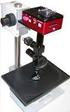
 2 Luxxor Video Microscope Set Up User Guide LUXXOR VIDEO MICROSCOPE Column When removed from its packaging, the Luxxor Video Microscope will be configured as shown, with the Vertical Slide and Slide Stop
Atomic Force Microscope
 Atomic Force Microscope (Veeco Nanoman) User Manual Basic Operation 4 th Edition Aug 2012 NR System Startup If the system is currently ON To start the NanoScope software, double-click the NanoScope startup
SE05: Getting Started with Cognex DataMan Bar Code Readers - Hands On Lab Werner Solution Expo April 8 & 9
 SE05: Getting Started with Cognex DataMan Bar Code Readers - Hands On Lab Werner Solution Expo April 8 & 9 Learning Goals: At the end of this lab, the student should have basic familiarity with the DataMan
Introduction to Autodesk Inventor for F1 in Schools
 Introduction to Autodesk Inventor for F1 in Schools F1 in Schools Race Car In this course you will be introduced to Autodesk Inventor, which is the centerpiece of Autodesk s digital prototyping strategy
IncuCyte ZOOM Whole Well Imaging Overview
 IncuCyte ZOOM Whole Well Imaging Overview With the release of the 2013B software, IncuCyte ZOOM users will have the added ability to image the complete surface of select multi-well plates and 35 mm dishes
MJPEG Camera Client User Manual
 MJPEG Camera Client User Manual CONTENTS User Manual 1 WELCOME... 3 1.1Features... 3 1.2Installation Requirements... 3 1.3 Software Installation... 3 2 Software Operation... 5 2.1 Tab bar... 6 2.2 Device
Central Management Software CV3-M1024
 Table of Contents Chapter 1. User Interface Overview...5 Chapter 2. Installation...6 2.1 Beginning Installation...6 2.2 Starting the CMS software...10 2.3 Starting it from the Start menu...10 2.4 Starting
HP Scanjet G4000 series. User Guide
 HP Scanjet G4000 series User Guide Contents 1 How to use the scanner...2 Where to get additional information...2 Accessibility...2 How to use the HP Photosmart software...3 Front panel and accessories
LCD MONITOR TOUCH PANEL DRIVER 2 OPERATION MANUAL. for Mac. Version 1.0 PN-L703A/PN-70TA3/PN-L703B/PN-70TB3/PN-L603A/PN-60TA3/PN-L603B/PN-60TB3
 LCD MONITOR TOUCH PANEL DRIVER 2 OPERATION MANUAL for Mac Version 1.0 Applicable models PN-L703A/PN-70TA3/PN-L703B/PN-70TB3/PN-L603A/PN-60TA3/PN-L603B/PN-60TB3 Contents Introduction...3 System Requirements...3
User Tutorial on Changing Frame Size, Window Size, and Screen Resolution for The Original Version of The Cancer-Rates.Info/NJ Application
 User Tutorial on Changing Frame Size, Window Size, and Screen Resolution for The Original Version of The Cancer-Rates.Info/NJ Application Introduction The original version of Cancer-Rates.Info/NJ, like
QUICK REFERENCE: ADOBE ILLUSTRATOR CS2 AND CS3 SECTION 1: CS3 TOOL BOX: PAGE 2 SECTION 2: CS2 TOOL BOX: PAGE 11
 QUICK REFERENCE, ADOBE ILLUSTRATOR, PAGE 1 QUICK REFERENCE: ADOBE ILLUSTRATOR CS2 AND CS3 CS2 SECTION 1: CS3 TOOL BOX: PAGE 2 SECTION 2: CS2 TOOL BOX: PAGE 11 SECTION 3: GENERAL CONCEPTS: PAGE 14 SELECTING
Chapter 4. Microscopy, Staining, and Classification. Lecture prepared by Mindy Miller-Kittrell North Carolina State University
 Chapter 4 Microscopy, Staining, and Classification 2012 Pearson Education Inc. Lecture prepared by Mindy Miller-Kittrell North Carolina State University Microscopy and Staining 2012 Pearson Education Inc.
Manual Client Management Software HDR50-CMS
 Manual Client Management Software HDR50-CMS HDR50-CMS (Client Management Software) A-1. Install HDR50-CMS for Windows PC HDR50-CMS is a program for communication between DVR and PC to control signal and
Writer Guide. Chapter 15 Using Forms in Writer
 Writer Guide Chapter 15 Using Forms in Writer Copyright This document is Copyright 2005 2008 by its contributors as listed in the section titled Authors. You may distribute it and/or modify it under the
Setup and Configuration Guide
 Setup and Configuration Guide Kintronics Inc. 500 Executive Blvd. Ossining, NY 10562 1-800-431-1658 [email protected] www.kintronics.com 1 OVERVIEW... 6 1.1 BASIC SYSTEM... 6 1.2 ADDITIONAL PRODUCTS...
CDVS-7000 Series Remote Software Users Guide
 CDVS-7000 Series Remote Software Users Guide Crest Electronics, Inc. Version 12.1005 Remote Surveillance Program The remote surveillance program enables users of the Crest 7000 series DVRs to connect remotely
How to Use Motion Detection in ACTi Cameras
 ACTi Knowledge Base Category: Installation & Configuration Note Sub-category: Application Model: All Firmware: N/A Software: N/A Author: Ando.Meritee Published: 2010/11/19 Reviewed: 2011/03/02 How to Use
This document is aimed at users of the Milestone XProtect Professional s Monitor application, including users of the Monitor application s Viewer.
 milestone XProtect Professional 4.6 Monitor & Viewer User s Manual Target Audience for this Document This document is aimed at users of the Milestone XProtect Professional s Monitor application, including
Care and Use of the Compound Microscope
 Revised Fall 2011 Care and Use of the Compound Microscope Objectives After completing this lab students should be able to 1. properly clean and carry a compound and dissecting microscope. 2. focus a specimen
Correcting the Lateral Response Artifact in Radiochromic Film Images from Flatbed Scanners
 Correcting the Lateral Response Artifact in Radiochromic Film Images from Flatbed Scanners Background The lateral response artifact (LRA) in radiochromic film images from flatbed scanners was first pointed
SMART Ink 1.5. Windows operating systems. Scan the following QR code to view the SMART Ink Help on your smart phone or other mobile device.
 SMART Ink 1.5 Windows operating systems User s guide Scan the following QR code to view the SMART Ink Help on your smart phone or other mobile device. Trademark notice SMART Ink, SMART Notebook, SMART
Adobe Illustrator CS5 Part 1: Introduction to Illustrator
 CALIFORNIA STATE UNIVERSITY, LOS ANGELES INFORMATION TECHNOLOGY SERVICES Adobe Illustrator CS5 Part 1: Introduction to Illustrator Summer 2011, Version 1.0 Table of Contents Introduction...2 Downloading
SA-9600 Surface Area Software Manual
 SA-9600 Surface Area Software Manual Version 4.0 Introduction The operation and data Presentation of the SA-9600 Surface Area analyzer is performed using a Microsoft Windows based software package. The
How To Set Up Flir Cloud Client For Pc Or Mac Or Mac (For Pc Or Ipad) On A Pc Or Pc Or Mouse (For Mac) On An Iphone Or Ipa) On Pc Or Tv (For Ipa
 Instruction Manual FLIR Cloud Services Client Instruction Manual FLIR Cloud Services Client #LX400018; r. 2.0/14567/14568; en-us iii Table of contents 1 Setting up FLIR Cloud Client for PC or Mac...1
ImagineWorldClient Client Management Software. User s Manual. (Revision-2)
 ImagineWorldClient Client Management Software User s Manual (Revision-2) (888) 379-2666 US Toll Free (905) 336-9665 Phone (905) 336-9662 Fax www.videotransmitters.com 1 Contents 1. CMS SOFTWARE FEATURES...4
Digital Signage with Apps
 Version v1.0.0 Digital Signage with Apps Copyright 2012 Syabas Technology, All Rights Reserved 2 Digital Signage with Apps Project...6 New Project...6 Scheduler...6 Layout Panel...7 Property Panel...8
Appendix A. CMS(Client Management Software)
 Appendix A. CMS(Client Management Software) A-1. Install CMS for Windows PC CMS is a program for communication between DVR and PC to control signal and video. Insert the enclosed CD, and go to CD-ROM Drive
1. Introduction... 3. 2.Fixture exterior view... 3. 3. Connecting the Robe Universal Interface... 4. 3.1 Software update of the fixture...
 1 Table of contests 1. Introduction... 3 2.Fixture exterior view... 3 3. Connecting the Robe Universal Interface... 4 3.1 Software update of the fixture... 4 3.2 Connecting a DMX console to the Media Fusion...
How To Use The Dc350 Document Camera
 www.optoma.com DC350 Document Camera / Visualiser 1.4kg 5mp Camera XGA,720P support Power on via USB or Power Supply Micro SD Full SD CARD Support for both Images and Video saving Built-in speaker Built-in
Introduction to Autodesk Inventor for F1 in Schools
 F1 in Schools race car Introduction to Autodesk Inventor for F1 in Schools In this course you will be introduced to Autodesk Inventor, which is the centerpiece of Autodesk s Digital Prototyping strategy
MiraCosta College now offers two ways to access your student virtual desktop.
 MiraCosta College now offers two ways to access your student virtual desktop. We now feature the new VMware Horizon View HTML access option available from https://view.miracosta.edu. MiraCosta recommends
Ohio University Computer Services Center August, 2002 Crystal Reports Introduction Quick Reference Guide
 Open Crystal Reports From the Windows Start menu choose Programs and then Crystal Reports. Creating a Blank Report Ohio University Computer Services Center August, 2002 Crystal Reports Introduction Quick
IP Surveillance System. User s manual
 IP Surveillance System User s manual IP Surveillance system Table of Contents TABLE OF CONTENTS TABLE OF CONTENTS...1 SYSTEM REQUIREMENT...3 INSTALLATION...4 1. MAIN CONSOLE...12 1.1 Start...14 1.2 Information
Basic 3D reconstruction in Imaris 7.6.1
 Basic 3D reconstruction in Imaris 7.6.1 Task The aim of this tutorial is to understand basic Imaris functionality by performing surface reconstruction of glia cells in culture, in order to visualize enclosed
Vanderbilt University School of Nursing. Running Scopia Videoconferencing from Windows
 Vanderbilt University School of Nursing Running Scopia Videoconferencing from Windows gordonjs 3/4/2011 Table of Contents Contents Installing the Software... 3 Configuring your Audio and Video... 7 Entering
AxioCam HR The Camera that Challenges your Microscope
 Microscopy from Carl Zeiss AxioCam HR The Camera that Challenges your Microscope Documentation at the edge of the visible The Camera for Maximum Success: AxioCam HR Low light fluorescence, live cell imaging,
picture real beauty Capture real beauty with the one you love
 picture real beauty Capture real beauty with the one you love Lina Dove invites you to experience photography for yourself and capture images of beauty that live around you. To help, we ve taken the principles
Hydras 3 LT Quick Start
 Catalog Number 6234218 Hydras 3 LT Quick Start SOFTWARE MANUAL December 2005, Edition 2 Hach Company, 2005. All rights reserved. Printed in the U.S.A. Catalog Number 6234218 Hydras 3 LT SOFTWARE MANUAL
Quick-Start Guide. Remote Surveillance & Playback SUPER DVR MONITORING SOFTWARE. For use on Q-See s QSDT series of PC Securitiy Surveillance Cards
 Quick-Start Guide SUPER DVR MONITORING SOFTWARE Remote Surveillance & Playback For use on Q-See s QSDT series of PC Securitiy Surveillance Cards 2 CONFIGURING ROUTER FOR REMOTE ACCESS REMOTE SURVEILLANCE
How To Sync Between Quickbooks And Act
 QSalesData User Guide Note: In addition to this User Guide, we have an extensive Online Video Library that you can access from our website: www.qsalesdata.com/onlinevideos Updated: 11/14/2014 Installing
Metatrader 4 Tutorial
 Metatrader 4 Tutorial Thank you for your interest in Best Metatrader Broker! This tutorial goes in detail about how to install and trade with your new Metatrader Forex trading platform. With Best Metatrader
Chapter 15 Using Forms in Writer
 Writer Guide Chapter 15 Using Forms in Writer OpenOffice.org Copyright This document is Copyright 2005 2006 by its contributors as listed in the section titled Authors. You can distribute it and/or modify
2013 Getting Started Guide
 2013 Getting Started Guide The contents of this guide and accompanying exercises were originally created by Nemetschek Vectorworks, Inc. Vectorworks Fundamentals Getting Started Guide Created using: Vectorworks