
Dell NetVault Backup Plug-in for SQL Server 6.1. User s Guide
|
|
|
- Ezra McCarthy
- 10 years ago
- Views:
Transcription
1 Dell NetVault Backup Plug-in for SQL Server 6.1

2 2014 Dell Inc. ALL RIGHTS RESERVED. This guide contains proprietary information protected by copyright. The software described in this guide is furnished under a software license or nondisclosure agreement. This software may be used or copied only in accordance with the terms of the applicable agreement. No part of this guide may be reproduced or transmitted in any form or by any means, electronic or mechanical, including photocopying and recording for any purpose other than the purchaser s personal use without the written permission of Dell Inc. The information in this document is provided in connection with Dell products. No license, express or implied, by estoppel or otherwise, to any intellectual property right is granted by this document or in connection with the sale of Dell products. EXCEPT AS SET FORTH IN THE TERMS AND CONDITIONS AS SPECIFIED IN THE LICENSE AGREEMENT FOR THIS PRODUCT, DELL ASSUMES NO LIABILITY WHATSOEVER AND DISCLAIMS ANY EXPRESS, IMPLIED OR STATUTORY WARRANTY RELATING TO ITS PRODUCTS INCLUDING, BUT NOT LIMITED TO, THE IMPLIED WARRANTY OF MERCHANTABILITY, FITNESS FOR A PARTICULAR PURPOSE, OR NON-INFRINGEMENT. IN NO EVENT SHALL DELL BE LIABLE FOR ANY DIRECT, INDIRECT, CONSEQUENTIAL, PUNITIVE, SPECIAL OR INCIDENTAL DAMAGES (INCLUDING, WITHOUT LIMITATION, DAMAGES FOR LOSS OF PROFITS, BUSINESS INTERRUPTION OR LOSS OF INFORMATION) ARISING OUT OF THE USE OR INABILITY TO USE THIS DOCUMENT, EVEN IF DELL HAS BEEN ADVISED OF THE POSSIBILITY OF SUCH DAMAGES. Dell makes no representations or warranties with respect to the accuracy or completeness of the contents of this document and reserves the right to make changes to specifications and product descriptions at any time without notice. Dell does not make any commitment to update the information contained in this document. If you have any questions regarding your potential use of this material, contact: Dell Inc. Attn: LEGAL Dept 5 Polaris Way Aliso Viejo, CA Refer to our web site (software.dell.com) for regional and international office information. Patents This product is protected by U.S. Patents #7,814,260; 7,913,043; 7,979,650; 8,086,782; 8,145,864; 8,171,247; 8,255,654; 8,271,755; 8,311,985; 8,452,731; and 8,544,023. Protected by Japanese, E.U., French, and UK patents and , and German patent DE Additional patents pending. For more information, go to Trademarks Dell, the Dell logo, and NetVault are trademarks of Dell Inc. and/or its affiliates. SQL Server and Windows are registered trademarks of Microsoft Corporation in the United States and/or other countries. Other trademarks and trade names may be used in this document to refer to either the entities claiming the marks and names or their products. Dell disclaims any proprietary interest in the marks and names of others. Legend CAUTION: A CAUTION icon indicates potential damage to hardware or loss of data if instructions are not followed. WARNING: A WARNING icon indicates a potential for property damage, personal injury, or death. IMPORTANT NOTE, NOTE, TIP, MOBILE, or VIDEO: An information icon indicates supporting information. NetVault Backup Plug-in for SQL Server Updated - April 2014 Software Version MSG EN-01
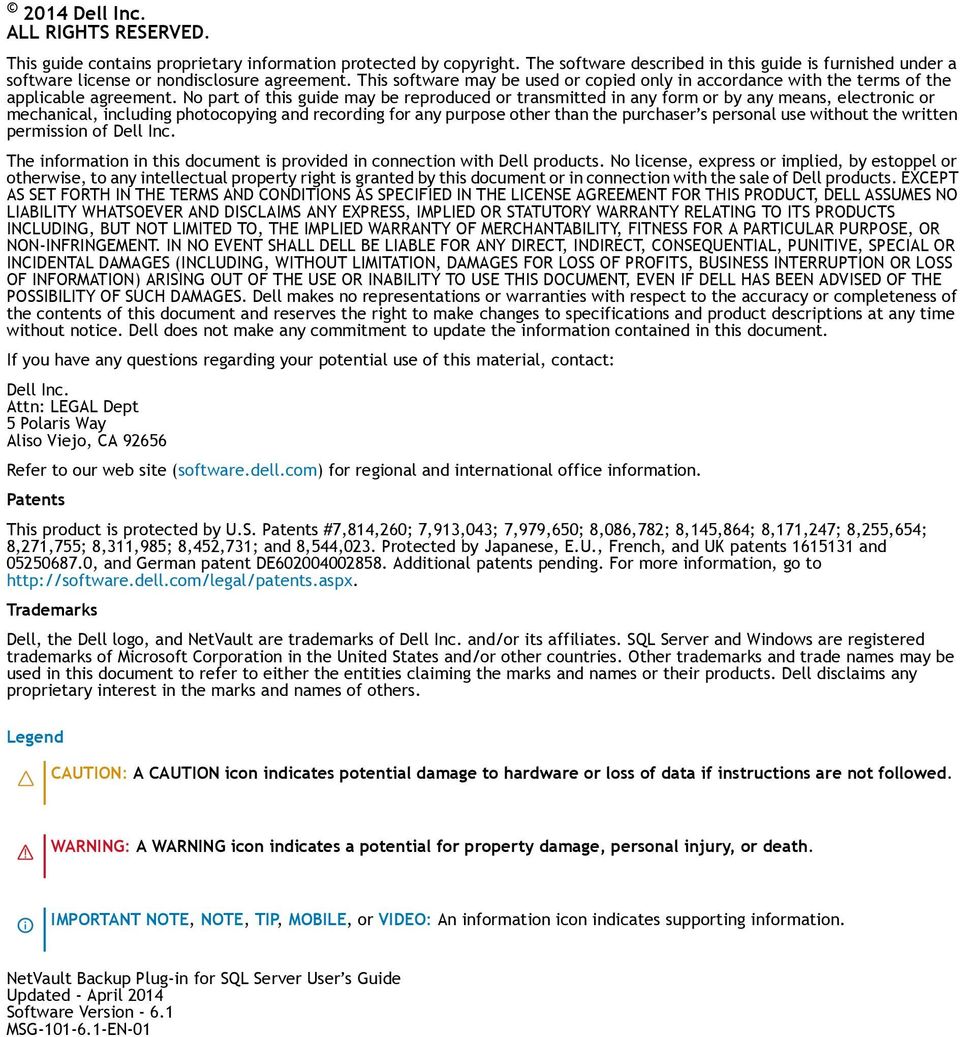
3 Contents Introducing Dell NetVault Backup Plug-in for SQL Server Dell NetVault Backup Plug-in for SQL Server at a glance Key benefits Feature summary Target audience Recommended additional reading Deploying, installing, and removing the plug-in Deploying the plug-in Important considerations Installation prerequisites Installing the plug-in Removing the plug-in Configuring the plug-in Configuring authentication details Important notes regarding mixed environments that include SQL Server Removing a SQL Server Instance Specifying a default configuration (optional) Changing the TCP/IP port for SQL Server Backing up data Defining a backup strategy Reviewing the available backup methods Reviewing SQL Server recovery models Defining an online VDI (or named pipe) backup strategy and reviewing types Examples of VDI online (or named pipe) backup sequences Defining a VSS backup strategy and reviewing types Examples of VSS backup sequences Backing up system databases Backing up replicated databases Reviewing the compression features Performing backups in SQL Server Selecting data for a backup Setting backup options Finalizing and submitting the job Performing online VDI backups in SQL Server 2005 and later Selecting data for a backup Setting backup options Finalizing and submitting the job Performing VSS backups in SQL Server 2005 and later Selecting data for a backup Setting backup options Finalizing and submitting the job
4 Restoring data Restoring data an overview Understanding the online VDI restore process Restoring data in SQL Server Selecting data for a restore Setting restore options Finalizing and submitting a job Restoring data from online VDI backups in SQL Server 2005 and later Selecting data for a restore Setting restore options Finalizing and submitting a job Restoring data from VSS backups in SQL Server 2005 and later Selecting data for a restore Setting restore options Finalizing and submitting a job Using other restore procedures Renaming or relocating a database Restoring a database to an alternate instance Restoring data to an alternate SQL Server Using the plug-in in a failover cluster environment SQL Server failover clustering an overview Important considerations Installing the plug-in Creating a Virtual Client Licensing the plug-in Configuring the plug-in Backing up data Restoring data Using Multiple SQL Server Virtual Servers in the same failover cluster Installation requirements Configuration requirements Backup requirements Restore requirements Troubleshooting About Dell Contacting Dell Technical support resources Third-party contributions

5 Introducing Dell NetVault Backup Plug-in for SQL Server 1 Dell NetVault Backup Plug-in for SQL Server at a glance Key benefits Feature summary Target audience Recommended additional reading Dell NetVault Backup Plug-in for SQL Server at a glance The Dell NetVault Backup (NetVault Backup) Plug-in for SQL Server (Plug-in for SQL Server) increases confidence in recoverability of SQL Server databases and eliminates the need for complex scripting. Through an intuitive web-based user interface (WebUI) and automated workflow process, the plug-in offers a centralized way to set up, configure, and define backup and restore policies. Support for Online Virtual Device Interface (VDI) and Volume Shadow Copy Service (VSS) backups provides users with the flexibility to implement their preferred backup method, without requiring them to learn SQL Server internals. Plug-in for SQL Server offers granular control, which allows users to restore complete databases, partial databases, or individual data files quickly and reliably, thereby minimizing downtime. Through automatic integration with a wide range of backup devices, you can be confident that your SQL Server is being protected, and that it is stored offsite for disaster recovery purposes that provide proven business continuity. Key benefits Increases confidence and reduces risk while deploying SQL Server With Plug-in for SQL Server, database administrators (DBAs) no longer have to worry about learning SQL Server internals before being able to implement a backup policy that is flexible enough to account for a large number of recovery scenarios. DBAs have the flexibility to choose the best method for the job whether it is VDI, which provides maximum reliability and performance while supporting the full range of SQL Server backup and restore functionality, or Microsoft s VSS framework, which allows volume backups to be performed while applications on a system continue to write to the volumes, all without writing complex scripts. Plug-in for SQL Server s flexible backup features also include: Online VDI- or VSS-based backups Full, Differential Database backups while data is online and accessible Incremental Transaction Log and Tail-Log backups Copy-Only backups 5

6 Advanced Full and Differential File backups along with Partial Database and Differential Partial Database backups Protection for Filestreams Protection down to the datafile level Backup-compression support Creation of backup checksums that are used during restores to detect corruption By relying on Plug-in for SQL Server to implement backup policies, DBAs can be freed to focus on more critical tasks without risking the ability to recover exactly what is needed in the unfortunate event of a failure. In addition, the IT manager s confidence is increased by knowing that SQL Server data is protected, no matter what. Speeds up restores to reduce downtime With Plug-in for SQL Server, DBAs are no longer required to create a script or manually issue each command required in the recovery process. Select what needs to be restored, the backup set to restore from, and, if appropriate, the time or marked transaction restore point, and Plug-in for SQL Server automatically performs the recovery without further interaction. Not only are restores faster due to the reduced reliance on human interaction, the chance for a syntax error in a manual execution that would require a restart is eliminated, too. Additional Plug-in for SQL Server restore and recovery features include: Full, differential, incremental, and time and marked transaction point-in-time (PIT) restores Restores of complete databases, partial databases, or individual datafiles Rename of datafiles Restore VDI-based backups to an alternate server Restore VDI-based backups from a clustered configuration to a standalone installation Disaster recovery Ensure business continuity with automatic integration of backup devices With offsite backups being an important part of the data protection plan for any mission-critical application, Plug-in for SQL Server takes advantage of NetVault Backup s fundamental integration with a wide range of backup devices, which includes tape libraries, stand-alone tape devices, virtual tape (disk) libraries, and shared virtual tape libraries. NetVault Backup lets you select which backup device to store the backup on. You can store the backup online in a virtual tape library and duplicate the job to physical tape libraries shared by multiple SQL Server databases, other proprietary databases, or used for backup. Plug-in for SQL Server gives you the confidence that your SQL Server environment is being protected, and that it is stored offsite for disaster recovery purposes. At the same time, it frees administrators from being present 24x7 as less-experienced SQL Server personnel can initiate restores with the confidence that they will be performed correctly and as quickly as possible, thereby reducing downtime and improving business continuity. Feature summary Online VDI- or VSS-based backups Full, Differential Database backups while data is online and accessible Incremental Transaction Log and Tail Log backups Copy-Only backups Advanced Full and Differential File backups along with Partial Database and Differential Partial Database backups Protection for Filestreams Protection down to the datafile level Backup-compression support 6

7 Creation of backup checksums that are used during restores to detect corruption Full, differential, incremental, and time and marked transaction PIT Verify-only restore option Restores of complete databases, partial databases, or individual datafiles Rename of datafiles Restore VDI-based backups to alternate server Disaster recovery Target audience This guide is intended for users who are responsible for the backup and recovery of SQL Server. Familiarity with SQL Server administration and the operating system (OS) under which the database is running is assumed. Advanced knowledge of SQL Server would be useful for defining an efficient backup-and-recovery strategy for the database. Recommended additional reading Dell recommends that you have the following documentation available for reference while setting up and using this plug-in. Microsoft SQL Server documentation: SQL Server 2012 Books Online: SQL Server 2008 Books Online: SQL Server 2005 Books Online: SQL Server 2000 Books Online: Volume Shadow Copy Service: NetVault Backup documentation: Dell NetVault Backup Installation Guide This guide provides complete details on installing the NetVault Backup Server and Heterogeneous Client software. Dell NetVault Backup Administrator s Guide This guide explains how to use NetVault Backup and describes the functionality common to all plug-ins. Dell NetVault Backup Command Line Interface Reference Guide This guide provides a detailed description of the command line utilities. You can download these guides from IMPORTANT: Starting with 10.0, NetVault Backup provides a WebUI to configure, manage, and monitor your NetVault Backup system and installed plug-ins. The procedures described in the user s guide for this version of the plug-in are intended for the new WebUI. For procedures based on the NetVault Backup Console (user interface available with NetVault Backup 9.x and 8.x), refer to the documentation for an earlier version of the plug-in. 7

8 Deploying, installing, and removing the plug-in 2 Deploying the plug-in Installation prerequisites Installing the plug-in Removing the plug-in Deploying the plug-in While you can set up a single machine as both the NetVault Backup Server and the SQL Server (that is, all software installation and configuration requirements are performed on a single machine), Dell recommends that these two entities exist on separate machines. Figure 1. Deployment NetVault Backup Server SQL Server machine NetVault Backup Server Plug-in for SQL Server NetVault Backup Client software Important considerations Regardless of configuration environment in place (that is, separate NetVault Backup Sever and SQL Server, vs. a single machine configured as both), Plug-in for SQL Server must be installed on the host where SQL Server resides. Sample images and procedures throughout this guide assume that this two-machine environment is in place and all configuration requirements have been met. If you have implemented SQL Server Replicated Databases, based on the replication type and the database backup and recovery requirements, you must obtain the required number of licenses for Plug-in for SQL Server, and install the plug-in on each host to be included in the SQL Server Replication environment, including the following: Publisher Plug-in for SQL Server must be installed on this node regardless of the replication type implemented. Distributor In the case of a Local Distributor, the Distributor is running on the same node as the Publisher. However, in the case of a Remote Distributor, the plug-in must be installed on the Distributor host. 8

9 Subscriber If you want to back up the changed data in a Subscriber database, Plug-in for SQL Server must be installed on the Subscriber hosts. This will allow you to synchronize the Publication database with the Subscription database after recovery. If the plug-in is not installed on the Subscriber nodes, you must re-initialize all subscriptions to the publications in the Publication database after recovery. The plug-in will consider each of these nodes as an individual Client. Installation prerequisites Before installing Plug-in for SQL Server, make sure the following software is installed and properly configured on the machine that is to host SQL Server: NetVault Backup Server/Client software At a minimum, the Client version of NetVault Backup software must be installed on the machine configured as the SQL Server. SQL Server software The machine must be running a supported version of SQL Server. For a list of supported versions, refer to the Dell NetVault Backup Plug-in Compatibility Guide, which is available at IMPORTANT: Service Pack 2 is a requirement for SQL Server 2005 to run on Windows 2008 (both 32- bit and 64-bit). For more information, refer to SQL Server VSS Writer Services If you want to implement a VSS backup strategy for SQL Server databases (versions 2005 and later), the SQL Server VSS Writer service must be running. The SQL Server VSS Writer is automatically installed with SQL Server 2005 and later. However, the service is not set to start automatically. To enable VSS backups, use the Windows Services utility. Dell recommends that you set the startup type for this service to Automatic. NetVault Backup s Application Cluster Support functionality offers support for the backup and restore of clustered instances of SQL Server (Active/Passive). For complete details on the installation, configuration, and backup procedures required to set up this functionality with the plug-in, see Using the plug-in in a failover cluster environment. Installing the plug-in To install the plug-in 1 Access the NetVault Configuration Wizard or Manage Clients page. NOTE: You can use the configuration wizard to install the plug-in on multiple clients at the same time (provided that the selected clients are all the same type). When you select multiple clients, make sure that the plug-in binary file is compatible with the OS and platforms of the target clients. From the Manage Clients page, you can only select one client for plug-in installation. To access the NetVault Configuration Wizard page: a b c In the Navigation pane, click Guided Configuration. On the NetVault Configuration Wizard page, click Install Plugins. On the next page, select the applicable clients. To access the Manage Clients page: a b In the Navigation pane, click Manage Clients. On the Manage Clients page, select the machine that contains the SQL Server, and click Manage. c On the View Client page, click the Install Plug-in button ( ). 9

10 2 Click Choose Plug-in File, navigate to the location of the.npk installation file for the plug-in (on the installation CD or the directory to which the file was downloaded from the web site). Based on the OS in use, the path for this software may vary on the installation CD. 3 Select the file entitled sql-x-x-x-x.npk (where xxxx represents the platform and version number), and click Open. 4 Click Install Plugin to begin installation. After the plug-in is successfully installed, a message is displayed. Removing the plug-in To remove the plug-in 1 In the Navigation pane, click Manage Clients. 2 On the Manage Clients page, select the applicable client, and click Manage. 3 In the Installed Software table on the View Client page, select Plug-in for SQL Server, and click the Remove Plugin button ( ). 4 In the Confirm dialog, click Remove. 10
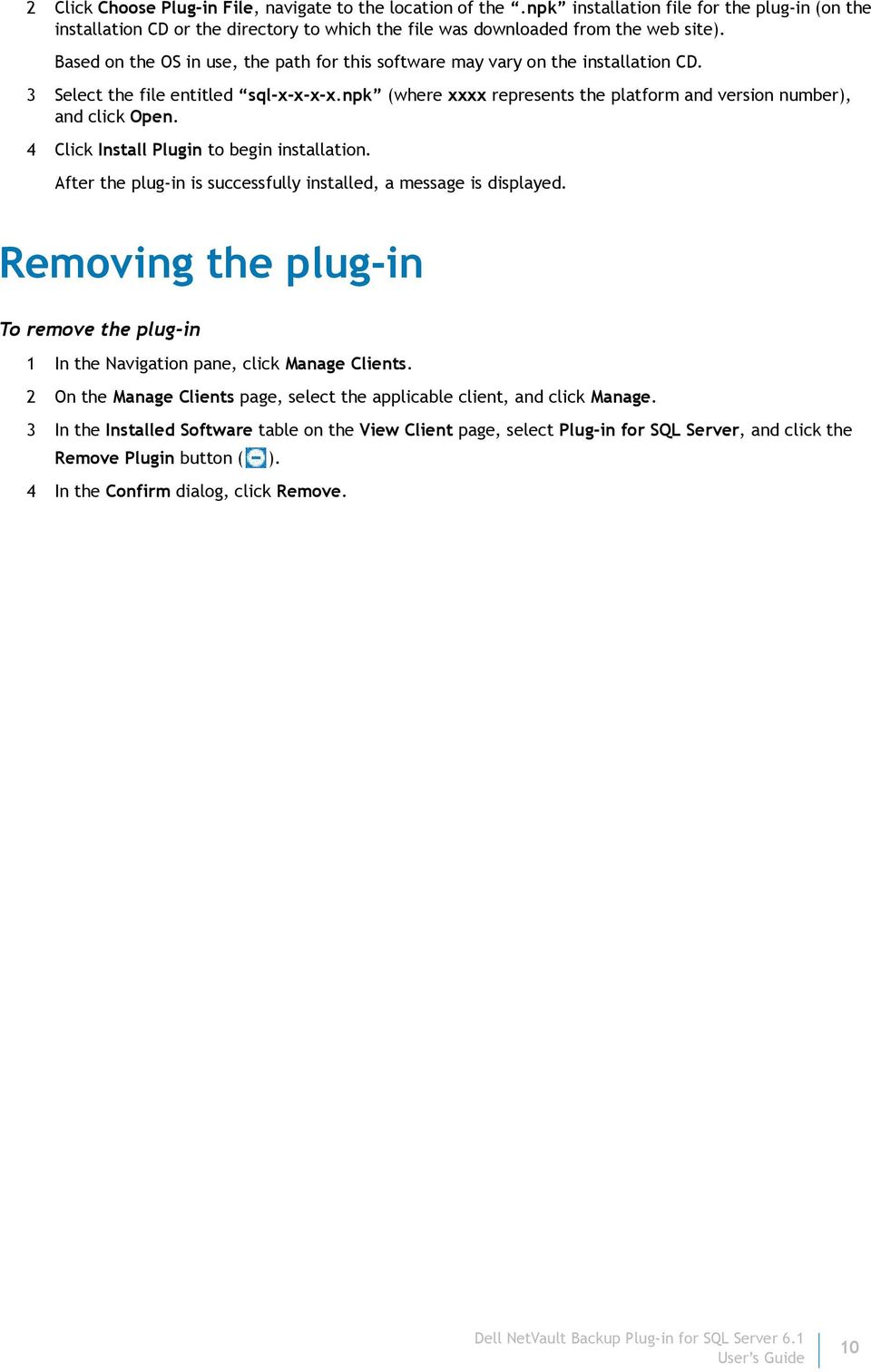
11 3 Configuring the plug-in Configuring authentication details Specifying a default configuration (optional) Changing the TCP/IP port for SQL Server Configuring authentication details Before initiating a backup, you must configure the plug-in s authentication details, which include authentication mode, user name, and password. SQL Server provides two authentication modes: Windows Authentication and SQL Server Authentication. Windows Authentication With Windows Authentication, the user connects through a Microsoft Windows user account. SQL Server validates the account name and password using information in the Windows OS. This is the default authentication mode, and is much more secure than Mixed Mode, which allows a combination of Windows authentication and SQL Server Authentication. Windows Authentication uses Kerberos security protocol, provides password policy enforcement in terms of complexity validation for strong passwords, provides support for account lockout, and supports password expiration. Microsoft strongly recommends implementing a Windows Authentication mode for SQL Server. SQL Server Authentication With SQL Server Authentication, you must provide the user name and password for a SQL Server user with the sysadmin server role. To configure authentication 1 In the Navigation Pane, click Create Backup Job, and click Create New next to the Selections list. 2 In the selection tree, open the applicable client node. 3 Double-click Plug-in for SQL Server, and double-click the All Instances node to display the list of SQL Server Instances. Because you can use a single SQL Server installation to create multiple SQL Server Instances and configure authentication differently for each instance, NetVault Backup supports the use of different authentication information for different instances. If you only create one instance, that node is labeled local. 4 Select the node for the first SQL Server Instance that you want to configure (if you only have one instance, select the local node). 5 From the Actions list, select Configure. 6 Complete the applicable fields: Logon security mode Based on the Authentication Mode set for the SQL Server Instance, you can specify either a Windows Administrator or a SQL Server Administrator account. To specify a Windows Administrator account, select Windows. For a SQL Server Administrator account, select SQL Server. IMPORTANT: You can only select SQL Server if the SQL Server Authentication Mode is set to Mixed Mode/SQL Authentication. 11

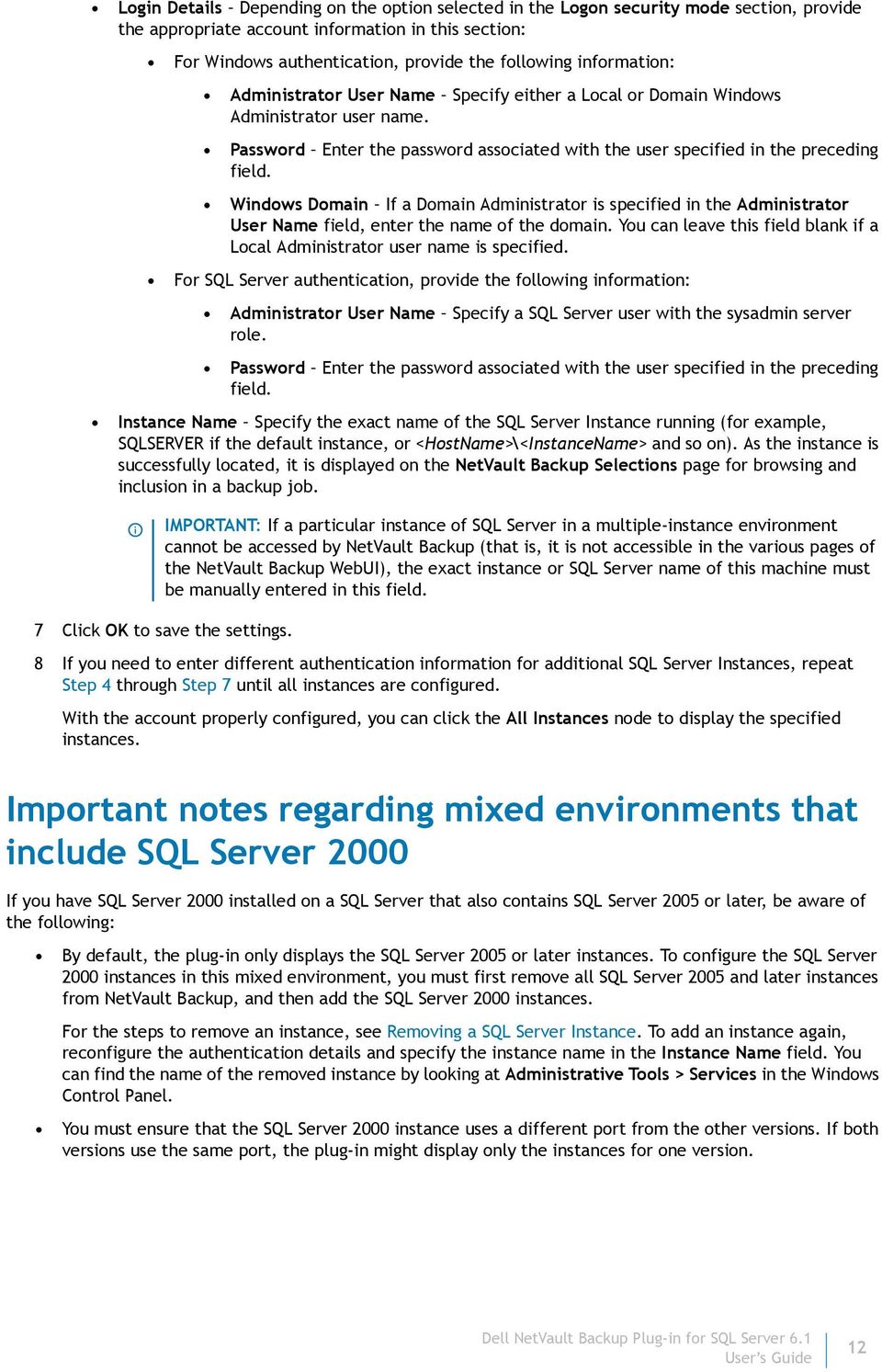
12 Login Details Depending on the option selected in the Logon security mode section, provide the appropriate account information in this section: For Windows authentication, provide the following information: Administrator User Name Specify either a Local or Domain Windows Administrator user name. Password Enter the password associated with the user specified in the preceding field. Windows Domain If a Domain Administrator is specified in the Administrator User Name field, enter the name of the domain. You can leave this field blank if a Local Administrator user name is specified. For SQL Server authentication, provide the following information: Administrator User Name Specify a SQL Server user with the sysadmin server role. Password Enter the password associated with the user specified in the preceding field. Instance Name Specify the exact name of the SQL Server Instance running (for example, SQLSERVER if the default instance, or <HostName>\<InstanceName> and so on). As the instance is successfully located, it is displayed on the NetVault Backup Selections page for browsing and inclusion in a backup job. IMPORTANT: If a particular instance of SQL Server in a multiple-instance environment cannot be accessed by NetVault Backup (that is, it is not accessible in the various pages of the NetVault Backup WebUI), the exact instance or SQL Server name of this machine must be manually entered in this field. 7 Click OK to save the settings. 8 If you need to enter different authentication information for additional SQL Server Instances, repeat Step 4 through Step 7 until all instances are configured. With the account properly configured, you can click the All Instances node to display the specified instances. Important notes regarding mixed environments that include SQL Server 2000 If you have SQL Server 2000 installed on a SQL Server that also contains SQL Server 2005 or later, be aware of the following: By default, the plug-in only displays the SQL Server 2005 or later instances. To configure the SQL Server 2000 instances in this mixed environment, you must first remove all SQL Server 2005 and later instances from NetVault Backup, and then add the SQL Server 2000 instances. For the steps to remove an instance, see Removing a SQL Server Instance. To add an instance again, reconfigure the authentication details and specify the instance name in the Instance Name field. You can find the name of the removed instance by looking at Administrative Tools > Services in the Windows Control Panel. You must ensure that the SQL Server 2000 instance uses a different port from the other versions. If both versions use the same port, the plug-in might display only the instances for one version. 12
13 Removing a SQL Server Instance To remove an instance 1 In the Navigation Pane, click Create Backup Job, and click Create New next to the Selections list. 2 In the selection tree, open the applicable client node. 3 Double-click Plug-in for SQL Server, double-click the All Instances node, and click the applicable instance to select it. 4 From the Actions list, select Remove. Specifying a default configuration (optional) The plug-in lets you set default options for backup and restore jobs. You can override these options on a per-job basis. To configure default settings 1 In the Navigation pane, click Change Settings. 2 Click Server Settings or Client Settings, as applicable. 3 On the Settings page, click Plugin Options. 4 In the Plug-in for SQL Server section of the dialog, complete the applicable fields: Error Encountered During Checksum SQL Server lets you specify the action that should be taken if an error is encountered when performing checksums on backups and restores. You can specify the default action to take on encountering checksum errors by selecting one of the following two options from the list: Continue after error This is the default action set during the plug-in installation. With this value selected, the backup or restore job will continue in spite of checksum errors. Stop on error Select this option to set it as the default action. With this value selected, the backup or restore job will stop when a checksum error is encountered. New Database Found in Differential/Incremental Backup If a new database is found while performing Transaction Log or Differential Database backups and the Instance Node is selected on the NetVault Backup Selections page, you can choose to either ignore it or take a full backup of it. You can set this action globally for all Transaction Log and Differential Database backups by selecting the applicable action from the list: Do full database backup This is the default action set during the plug-in installation. Retaining this option instructs the plug-in to perform a full backup of all databases added since the last Full Database or Database - Complete backup. Ignore Selecting this option instructs the plug-in to ignore any databases created since the last Full Database or Database - Complete backup (that is, any databases created after the last backup are left out of the Transaction Log or Differential Database backup). Undo file for Standby Restores For performing Standby Restores, the plug-in requires a temporary Undo File. It is required only when the Action After Restore field is set to With STANDBY; More Transaction Logs can be Restored (SQL Server 2000) or With STANDBY (SQL Server 2005 and later). Specify the directory path for the temporary UNDO.DAT file in this field. Incomplete Backup of ALL Items Selected The plug-in can do one of the following when this error condition occurs: 13

14 Complete with Warnings - Saveset Retained The job returns a status of Backup Completed with warnings and a backup saveset is created that includes the items that were successfully backed up. Complete without Warnings - Saveset Retained The job completes and returns a status of Backup Completed. While errors are logged in the NetVault Backup binary logs, the errors are essentially ignored in the Job Status page and a backup saveset is created that includes the items that were successfully backed up. Fail - Saveset Retained The job returns a status of Backup Failed. However, a backup saveset is generated that includes the items that were successfully backed up. Fail - No Saveset Retained The job returns a status of Backup Failed and no saveset of backed up objects is kept. That is, even if some of the objects were successfully backed up, the saveset is discarded. If either of the following occurs, the plug-in overrides the Incomplete Backup of ALL Items Selected setting and responds as indicated: If a fatal error occurs, the job returns a Backup Failed status. If a Partial Database or Differential Partial Database backup is performed on a database whose backup target contains a read-only filegroup, the job returns a Backup Completed with warnings status. Media Format during VSS Restores By default, the plug-in assumes that the media format for backup tapes is MTF, which is typically used for Windows. If you are using CPIO, which is used for Linux/UNIX, specify CPIO to ensure that restores of VSS-based backups will be processed correctly. IMPORTANT: Dell strongly recommends that you leave this option blank and let NetVault Backup determine the format to use. You should only change this option if you need to override the default media format during a restore that failed because of a media-channel error in which a VSS restore failed from a NetVault Backup Server installed on Linux/UNIX. In most cases, this option should not be used. For more information, see Troubleshooting. 5 Click Apply to save the settings. Changing the TCP/IP port for SQL Server The plug-in does not communicate with a specific port. The plug-in connects with a SQL Server driver, which then communicates with the Database Engine on the configured TCP/IP port. Because the plug-in does not directly use the TCP/IP port itself, you can configure the SQL Server Database Engine to monitor a different port without having to reconfigure the plug-in. 14

15 4 Backing up data Defining a backup strategy Reviewing the compression features Performing backups in SQL Server 2000 Performing online VDI backups in SQL Server 2005 and later Performing VSS backups in SQL Server 2005 and later Defining a backup strategy The purpose of creating SQL Server backups is to recover a database that is damaged from media failure or data corruption. Reliable use of backup for recovery requires a well-designed backup strategy that maximizes data availability and minimizes data loss, taking into account defined business requirements. A backup strategy is divided into two pieces: a backup piece and a restore piece. The backup piece defines the type and frequency of backups that are required to meet the goals for availability of the database and for minimizing data loss. The restore piece defines who is responsible for performing restores, and how restores should be performed to recover from the particular type of damage or failure. IMPORTANT: If you use Plug-in for SQL Server, make sure that you are not using a third-party program to complete additional backups of SQL Server. Otherwise, a conflict might occur during the restore or recovery process when the differential backups do not match. For more information, review the following sections: Reviewing the available backup methods Reviewing SQL Server recovery models Defining an online VDI (or named pipe) backup strategy and reviewing types Examples of VDI online (or named pipe) backup sequences Defining a VSS backup strategy and reviewing types Examples of VSS backup sequences Backing up system databases Backing up replicated databases Reviewing the available backup methods The plug-in offers the following backup methods: Online Virtual Device Interface (VDI) Online Named Pipe SQL Server 2000 Only Volume Shadow Copy Service (VSS) SQL Server 2005 and later 15
16 The plug-in supports implementing an Online VDI or a pure VSS backup strategy; that is, your backup strategy should include either Online VDI backups or VSS backups, not a combination of the two. Online Virtual Device Interface (VDI) Microsoft supports the ability to perform online backups that use the VDI Application Program Interface (API) to integrate seamlessly with the wide range of backup devices supported by NetVault Backup. Online VDI backups provide maximum reliability and flexibility when defining a backup strategy. This method supports the full range of backup types and options available with SQL Server s Transact SQL language along with the ability to handle a number of recovery scenarios. The backup-and-restore strategies available with the Online via VDI Backup Method are thoroughly discussed in the Backing Up and Restoring Databases section of the SQL Server Books Online. Plug-in for SQL Server s Online via VDI backup method is available for SQL Server 2000 and later and is the preferred backup method. Online Named Pipe For SQL Server 2000, Microsoft also supports the ability to perform online backups that use named pipes to integrate seamlessly with the wide range of backup devices supported by NetVault Backup. A named pipe is an Inter Process Communication construct that allows programmatic communication between a client and a server. Online Named Pipe backups provide reliability and flexibility when defining a backup strategy. This method supports the full range of backup types and options available with SQL Server s Transact SQL language along with the ability to handle a number of recovery scenarios. Plug-in for SQL Server s Online via Named Pipes method is only available for SQL Server Volume Shadow Copy Service (VSS) Microsoft supports the ability to create snapshots of SQL Server data using VSS. VSS allows volume backups to be performed while applications on the system continue to write to the volumes. With SQL Server 2005 and later, Microsoft provides a SQL Writer that permits backup programs such as Plug-in for SQL Server to copy SQL Server data while SQL Server is running. VSS-based backups do not negatively impact SQL Server s performance or stability. The plug-in s VSS backup method is available for SQL Server 2005 and later. IMPORTANT: The most prominent disadvantage to the VSS backup method is that the SQL Writer does not support the ability to restore a database to an alternate SQL Server Instance whether that Instance is located on the same server and host or an alternate server and host. Reviewing SQL Server recovery models When a database is created, a recovery model is enabled. Microsoft defines a recovery model as a database property that controls the basic behavior of backup and recovery of the database. The database s recovery model controls how its transactions are logged, whether the transaction log can be backed up, and which kinds of restores are supported. SQL Server provides three different recovery models: Simple, Full, and Bulk-Logged. Simple Recovery Model With a Simple Recovery Model, log backups are not supported. Therefore, changes since the most recent backup are not protected. In the unfortunate event of failure, these changes must be re-executed. PIT recovery is not allowed. Full Recovery Model Full Recovery Model databases require log backups; therefore, no work is lost due to a lost or damaged data file. PIT recovery is supported, assuming backups are complete up to the point-of-failure. Bulk-Logged Recovery Model Bulk-Logged Recovery Model databases require log backups. The Bulk- Logged Recovery Model is a variation of the Full Recovery Model that permits high-performance bulk- 16
17 copy operations. This model reduces log space usage by bulk-logging most bulk operations. If a log is damaged or bulk-operations have occurred since the most recent Transaction Log backup, these changes must be re-executed. PIT recovery is not supported for bulk-logged databases. Choosing the best recovery model Consider the following when choosing a recovery model for a database: Simple Recovery Model The Simple Recovery Model should only be enabled for databases that are not updated frequently such as test, development, or databases mostly containing read-only data. Full Recovery Model The Full Recovery Model should be enabled for transactional databases where full recoverability and preventing work loss in a full range of recovery scenarios is required. Bulk-Logged Recovery Model The Bulk-Logged Recovery Model should be used temporarily when bulk operations, such as bulk inserts or index creation, are performed on Full Recovery Model databases. The Bulk-Logged Recovery Model increases performance and reduces log space consumption during these operations; you can switch databases back to full recovery immediately after the bulk operations have completed. For more information, refer to Recovery Models and Transaction Log Management in the SQL Server Books Online. Defining an online VDI (or named pipe) backup strategy and reviewing types After selecting the recovery model that best meets your business requirements for each database, you are ready to design and implement a corresponding backup strategy. When defining a SQL Server Online VDI Backup strategy, the DBA must answer the following questions: Is there a predictable off-peak period for full backups? What is the frequency of updates and changes? Are changes confined to a small or large number of tables in a database? Answering these questions will help the DBA define the type and frequency of backups that should be implemented. The plug-in provides the following types of Online VDI Backup: Full Database backup Differential Database backup Copy-Only backup Incremental Transaction Log backup Tail-Log backup Full File and Filegroup backup Differential File and Filegroup backup Partial Database backup Differential Partial Database Backup 17

18 Full Database backup Full Database backups are supported by: SQL Server Versions All Recovery Models All A Full Database backup is a backup of the entire database. In SQL Server 2005 and later, a Full Database backup also includes part of the transaction log, which enables recovery of the database to the point at which the backup was completed. Full Database backups consume more space and time per backup and are typically supplemented by differential backups, which are created more frequently. With Full Database backups, you can re-create an entire database in one step by restoring the database. Differential Database backup Differential Database backups are supported by: SQL Server Versions All Recovery Model All With a Differential Database, back up only the data that has changed since the last Full Database backup is backed up. Differential backups are smaller and faster to create than the full backups. A Differential Database backup is useful if some of the database s tables are modified more frequently than others. In this case, Differential Database backups allow you to back up frequently without the overhead of Full Database backups. Copy-Only backup Copy-Only backups are supported by: SQL Server Versions 2005 and later Recovery Models All Copy-Only backups are independent of the normal sequence of backups. A Copy-Only backup cannot serve as the base backup for a series of differential backups as a Full Backup can, and performing a Copy-Only backup does not affect what is backed up by the next differential backup. Copy-Only backups are ideal for situations that require special purposes, such as creating test environments or standby databases. Incremental Transaction Log backup Incremental Transaction Log backups are supported by: SQL Server Versions All Recovery Models Full or Bulk-Logged Only SQL Server Transaction Logs are essential to data recovery and need to be backed up regularly. With Transaction Log backups, you can recover the database to a point-of-failure or specific point-in-time. An Incremental Transaction Log backup captures all the transaction logs including the transaction logs that have been generated since the last Full Database/File or Filegroup, Differential Database/File or Filegroup, or Incremental Transaction Log backup. An Incremental Transaction Log backup should not be performed in the following conditions: Until a Full Database or Full File and Filegroup backup has been created because the transaction log contains changes made to the database after the last backup was created. 18

19 After the transaction log has been manually truncated, until a Full Database or Differential Database backup has been performed. Microsoft strongly recommends against manually truncating transaction logs. Tail-Log backup Tail-Log backups are supported by: SQL Server Versions 2005 and later Recovery Models Full Only A Tail-Log backup captures the transaction logs that have not yet been backed up and is the last backup restored in a restore sequence. SQL Server requires you to back up the tail of the log before restoring a database that is currently attached to the SQL Server Instance. Therefore, a Tail-Log backup is the first step in most restore sequences. A Tail-Log differs from an Incremental Transaction Log in the following ways: You can try to execute a Tail-Log backup even if the database will not start, for example if the database is damaged or is offline. If the database is damaged, a Tail-Log backup succeeds only if the log files are undamaged, the database is in a state that supports Tail-Log backups, and the database does not contain any bulk-logged changes. A Tail-Log might contain incomplete metadata if the database is damaged because some of the metadata normally available for log backups may be unavailable in a Tail-Log backup. However, the captured log is complete and usable. A Tail-Log's data might not be fully self-contained if the database is not online and undamaged at the time of the Tail-Log backup. Transactional data from a Tail-Log is always complete and usable, but if the Tail-Log backup is initiated while the database is damaged or offline, metadata might be only partially captured. If this occurs, a recovery from the Tail-Log will leave the backupfilegroup table missing some information about filegroups, and the has_incomplete_metadata column of the backupset table will be set to 1. WARNING: Because Tail-Log backups place the databases in Offline Mode, you should only perform a Tail-Log backup if you are preparing to perform a restore and recovery. Tail-Log backups should not be used as a substitute for regular or ad hoc Incremental Transaction Log backups. Full File and Filegroup backup Full File and Filegroup backups are supported by: SQL Server Versions All Recovery Models All (2005 and later) or Full or Bulk-logged Only (2000) A Full File and Filegroup backup backs up all the data in one or more files or filegroups. A complete set of Full File and Filegroup backups is equivalent to a Full Database backup. Full File and Filegroup backups have the following advantages over Full Database backups: With a Full File and Filegroup backup, you can back up and restore the files in a database individually. This can speed up the recovery process as you can restore only damaged files without restoring the rest of the database. Full File and Filegroup backups increase the flexibility in dealing with large databases that contain data with varying update characteristics. For example, consider the following recommendations: Back up frequently modified data often. Back up infrequently modified data less often. Back up read-only data once. The primary disadvantage of Full File and Filegroup backups is the risk that a media failure can render an entire database unrecoverable if a damaged file lacks a backup. 19
20 In SQL Server 2000, Full File and Filegroup backups are not supported for Simple Recovery Model databases. In addition, Full File and Filegroup backups do not contain log records, and you must explicitly apply a log backup to recover their data. In SQL Server 2005 and later, by default, file backups contain enough log records to roll forward the file to the end of the backup operation. Under Simple Recovery Model in SQL Server 2005 and later, the Full File and Filegroup backups are restricted to read-only secondary filegroups. You can create a file backup of a read/write filegroup, but before you can restore the read/write file backup, you must set the filegroup to read-only and take a differential read-only file backup. Differential File and Filegroup backup Differential File and Filegroup backups are supported by: SQL Server Versions All Recovery Models All (2005 and later)/ Full or Bulk-logged Only (2000) A Differential File and Filegroup backup captures only the data changed since the last file backup. In SQL Server 2005 and later, these backups are extremely fast because the Database Engine tracks changes made since the file was last backed up, eliminating the need to scan the file. For Simple Recovery Model databases, Differential File backups provide a faster, space-saving way to create backups of current files. Differential File backups also reduce recovery time for Full Recovery Model databases by reducing the number of transaction logs that must be restored. Differential File and Filegroup backups should be considered when: You are backing up some files much less frequently than others. Your files are large and the data is updated infrequently, or the same data is updated repeatedly. Partial Database backup Partial Database backups are supported by: SQL Server Versions 2005 and later Recovery Models Simple Designed to create more flexibility for Simple Recovery Model databases, a Partial Database backup is similar to a Full Database backup except that a Partial Database backup does not contain all the database s filegroups. A Partial Database backup contains all the data in the primary filegroup and every read-write filegroup. Optionally, specified read-only files can also be included. However, a partial backup of a read-only database contains only the primary filegroup. A Partial Database backup is useful when a database contains read-only files that do not need to be included in every database backup. A Partial Database backup can also be used as a basis for a piecemeal restore scenario, which will be supported in a future release of the plug-in. Differential Partial Database Backup Differential Partial Database backups are supported by: SQL Server Versions 2005 and later Recovery Models Simple Used only with Partial Database backups, a Differential Partial backup contains only those extents changed in the primary filegroup and read-write filegroups since the previous partial backup. If only some of the data captured by a partial backup has changed, using a Differential Partial backup lets you back up frequently without the overhead of Full Database backups. For more information on the effect of adding, deleting, or modifying Filegroups on Partial Differential backups, refer to Differential Partial Backups in the SQL Server Books Online. 20
21 Examples of VDI online (or named pipe) backup sequences Following are a few examples of backup sequences that support multiple restore scenarios and that you can implement to meet your SQL Server data protection requirements. Simple recovery model backup sequences Full Database backups only When business requirements guarantee data protection up to the previous day, performing Full Database backups nightly should be sufficient when one or more of the following conditions exist: Backup windows are large. Databases are small. Updates are infrequent across entire database. Databases are only for testing or development purposes. Entire database is read-only. Full Database and Differential Database backups When business requirements guarantee data protection up to the previous day and backups have to be as fast as possible, Full Database backups coupled with Differential Database backups is a valid strategy. For example, Full Database backups are performed every Sunday night at 11:00 P.M. while Differential Database backups are performed Monday through Saturday at 11:00 P.M. Each Differential Database backup will include all the changes since the last Full Database backup, which is known as the differential base. No matter when recovery is performed, the same number of restore jobs is required. For example, if recovery is performed on Tuesday, Sunday s Full Database backup and Monday s Differential Database must be restored. Whereas, if recovery is performed on Thursday, Sunday s Full Database backup followed by Wednesday s Differential Database backup must be restored. Even though Differential Database backups will increase not only in size but in duration, restores are quicker due to the fewer number of restore jobs that must be executed. Full File and Filegroup backups and Partial Database backups When a Simple Recovery Model database includes secondary read-only filegroups, a valid backup strategy might include Partial Database backups for the primary and read-write filegroups and Full File and Filegroup backups for read-only secondary filegroups. This ensures recoverability of the entire database without requiring the read-only filegroups to be unnecessarily backed up every time the read-write filegroups are backed up. Secondary read-only filegroups only need to be backed up once after the initial load and after subsequent updates. When business requirements guarantee data protection up to the previous day for read-write filegroups, performing nightly Partial Database backups should be sufficient. Full File and Filegroup backups and Partial Database and Differential Partial Database backups When business requirements guarantee data protection for read-write data up to the previous day and backups have to be as fast as possible, Partial Database backups coupled with Differential Database Backups for the read-write data and Full File and Filegroup backup for the secondary read-only filegroups is a valid strategy. For example, Full File and Filegroup backups are performed for read-only data only after the initial load and subsequent updates, while Partial Database backups, which include the primary filegroup and all read-write filegroups, are performed every Sunday night at 11:00 P.M. In addition, Differential Partial Database backups for the same read-write filegroups are performed Monday through Saturday at 11:00 P.M. Each Differential Partial 21
22 Database backup includes all the changes since the last Partial Database Backup, which is known as the differential base. No matter when recovery is performed, the same number of restore jobs is required. For example, if recovery is performed on Tuesday, Sunday s Partial Database backup and Monday s Differential Partial Database must be restored. Whereas, if recovery is performed on Thursday, Sunday s Partial Database backup followed by Wednesday s Differential Partial Database backup must be restored. Even though Differential Partial Database backups will increase not only in size but also in duration, restores are quicker due to the fewer number of restore jobs that must be executed. Full recovery model backup sequences Full Database and Incremental Transaction Log backups When business requirements mandate PIT data protection, performing Full Database backup nightly plus Incremental Transaction Log backups every four to eight hours should be sufficient when one or more of the following conditions exist: Backup windows are large. Databases are small. Updates are infrequent across the entire database. For example, Full Database backups are performed every night while Incremental Transaction Log backups are performed every four to eight hours. Each Incremental Transaction Log backup includes the transaction logs since the last Full Database or Incremental Transaction Log backup. Restore sequences that use Incremental Transaction Log backups require that every Incremental Transaction Log backup between the last Full Database backup and the point-of-failure must be restored in succession. This can lead to longer restores and increased DBA intervention to initiate multiple restore jobs. To speed up restores, include Differential Database backups, which reduces the number of Incremental Transaction Log backups that must be restored. Full Database and Differential Database and Incremental Transaction Log backups When business requirements mandate PIT data protection and restores of the complete database have to be as fast as possible, Full Database plus Differential Database plus Incremental Transaction Log backups is an ideal strategy. For example, Full Database backups are performed every Sunday night at 11:00 P.M. while Differential Database backups are performed Monday through Saturday at 11:00 P.M., and Incremental Transaction Log backups are performed every hour. Each Differential Database backup includes all the changes since the last Full Database backup, and each Incremental Transaction Log backup includes the transaction logs since the last Differential Database backup. Restore sequences that use Incremental Transaction Log backups require that every Incremental Transaction Log backup between the last Full Database or Differential Database backup and the point-of-failure must be restored in succession. This can lead to longer restores and increased DBA intervention to initiate multiple restore jobs. To speed up restores, increase the frequency of the Differential Database backups to every four to eight hours, which reduces the number of Incremental Transaction Log backups that must be restored. This strategy provides complete protection of the entire database with the simplest administration while supporting multiple restore scenarios. Full File and Filegroup and Differential File and Filegroup and Incremental Transaction Log backups When business requirements mandate PIT data protection and restores have to be as fast as possible, Full File and Filegroup plus Differential File and Filegroup plus Incremental Transaction Log backups is an ideal strategy. This strategy offers the advantage of being able to restore a complete database or the files or filegroups that are damaged. By being able to restore only what is needed, restores are faster and data loss is minimized. 22
23 For example, Full File and Filegroup backups are performed every Sunday night at 11:00 P.M. while Differential File and Filegroup backups are performed Monday through Saturday at 11:00 P.M., and Incremental Transaction Log backups are performed every hour. Each Differential File and Filegroup backup includes all the changes since the last Full File and Filegroup backup, and each Incremental Transaction Log backup includes the transaction logs since the last Differential File and Filegroup backup. Restore sequences that use Incremental Transaction Log backups require that every Incremental Transaction Log backup between the last Full File and Filegroup or Differential File and Filegroup backup and the point-offailure must be restored in succession. This can lead to longer restores and increased DBA intervention to initiate multiple restore jobs. To speed up restores, increase the frequency of the Differential File and Filegroup backups to every four to eight hours, which reduces the number of Incremental Transaction Log backups that must be restored. This strategy provides complete protection of the entire database with the flexibility to restore only the files or filegroups that are damaged while supporting most restore scenarios. Defining a VSS backup strategy and reviewing types Plug-in for SQL Server provides the following types of VSS backups: Full Database backup Differential Database backup Copy-Only backup Full Database backup Full Database backups are supported by: SQL Server Versions 2005 and later Recovery Models All A VSS Full Database backup backs up database data and all the log files necessary to bring the database up to a transactionally consistent state at restore time. Full Database backups consume more space and time per backup and are typically supplemented by differential backups, which are created more frequently. With Full Database backups, you can re-create an entire database in one step by restoring the database. Differential Database backup Differential Database backups are supported by: SQL Server Versions 2005 and later Recovery Model All A VSS Differential Database backup backs up only the data that has changed since the most recent base Full Database backup. A Differential Database backup contains only those parts of the database files that have changed. Differential Database backups are smaller and faster to create than the Full Database backups. A Differential Database backup is useful if some of the database s tables are modified more frequently than others. In this case, Differential Database backups allow you to back up frequently without the overhead of Full Database backups. Copy-Only backup Copy-Only backups are supported by: SQL Server Versions 2005 and later Recovery Models All VSS Copy-Only backups are independent of the normal sequence of backups. Unlike a full backup, a Copy-Only backup cannot serve as the base backup for a series of differential backups, and performing a Copy-Only backup 23
24 does not affect what is backed up by the next differential backup. Copy-Only backups are ideal for situations that require special purposes, such as creating test databases. Examples of VSS backup sequences Following are few examples of backup sequences that support multiple restore scenarios and that you can implement to meet your SQL Server data protection requirements. Full Database backups only When business requirements guarantee data protection up to the previous day, performing Full Database backups nightly should be sufficient when one or more of the following conditions exist: Backup windows are large. Databases are small. Updates are infrequent across entire database. Databases are only for testing or development purposes. Entire database is read-only. Full Database and Differential Database backups When business requirements guarantee data protection up to the previous day and backups have to be as fast as possible, Full Database backups coupled with Differential Database backups is a valid strategy. For example, Full Database backups are performed every Sunday night at 11:00 P.M., while Differential Database backups are performed Monday through Saturday at 11:00 P.M. Each Differential Database backup includes all the changes since the last Full Database Backup, which is known as the differential base. No matter when recovery is performed, the same number of restore jobs is required. For example, if recovery is performed on Tuesday, Sunday s Full Database backup and Monday s Differential Database backup must be restored. Whereas, if recovery is performed on Thursday, Sunday s Full Database backup followed by Wednesday s Differential Database backup must be restored. Even though Differential Database backups will increase not only in size but in duration, restores are quicker due to the fewer number of restore jobs that must be executed. Copy-Only backups When business requirements demand that a backup be created without interfering with regular scheduled backup sequences, Copy-Only backups is a valid strategy. Often times, you must create a full backup outside of the regular backup schedule, such as when refreshing your test databases. This could potentially interfere with the regular backup schedule and throw off subsequent differential backups. The Copy-Only backup allows administrators to run non-regular Full Database backups at any time without interfering with scheduled backups. Backing up system databases The SQL Server system databases are essential for the operation of a server instance. These backups will enable recovery of the SQL Server in the event of system failure, such as loss of a hard disk. The system databases that you must always back up include msdb, master, and model. The master and msdb databases have a Simple Recovery Model while the model database has a Full Recovery Model. In case of replicated databases, you should also back up the distribution database. master The master database records system-level information for a SQL Server system. For the master database, SQL Server supports only Full Database backups. Dell recommends that you schedule routine Full Database backups of master. 24
25 msdb and model The msdb database is used by SQL Server to store data. The model database is the template used by SQL Server when you create a user database. Back up the model and msdb databases whenever they are updated. (You can back up the model and msdb databases in the same way that you back up user databases.) Dell recommends that you create only Full Database backups of the model database. Because it is small and rarely changes, backing up the log is not required. NOTE: The plug-in cannot back up tempdb or Resourcedb databases. For more information, refer to Backing Up and Restoring System Databases in SQL Server Books Online. Backing up replicated databases Database replication is supported from SQL Server 2005 onward. Plug-in for SQL Server supports all three types of replication: Transactional Replication, Merge Replication, and Snapshot Replication. Replicated databases and their associated system databases should be backed up regularly, including the following: The publication database at the Publisher. The distribution database at the Distributor. The subscription database at each Subscriber. The master and msdb system databases at the Publisher, Distributor, and all Subscribers. These databases should be backed up at the same time as each other and the relevant replicated database. For example, back up the master and msdb databases at the Publisher at the same time that you back up the publication database. If the publication database is restored, ensure that the master and msdb databases are consistent with the publication database in terms of replication configuration and settings. The replicated databases can be backed up in the same way as the non-replicated databases with the plug-in. If you perform regular Incremental Transaction Log backups, any replication-related changes should be captured in the Incremental Transaction Log backups. If you do not perform Incremental Transaction Log backups, a backup should be performed whenever a setting relevant to replication is changed. For more information, refer to Strategies for Backing Up and Restoring Snapshot and Transactional Replication, Strategies for Backing Up and Restoring Merge Replication, and Common Actions Requiring an Updated Backup in the SQL Server Books Online. Reviewing the compression features Before configuring a backup, review the following information. This information applies to all versions of SQL Server that are supported by the plug-in, although some of the features described are not supported by all versions of SQL Server. If your version of SQL Server supports it, you can use the SQL Server Backup Compression feature. The plug-in also provides three levels of compression, low, medium, and high, which you can use whether or not your server supports SQL Server Backup Compression. You can also turn off compression. The compression options include: Use NetVault Backup Low Compression This method, which is selected by default, provides good compression with minimal CPU usage. Dell recommends that you select this option when compression is needed but minimizing CPU is more important. Use NetVault Backup Medium Compression This method provides better compression but requires additional CPU. Dell recommends that you select this option when improved compression is needed and additional CPU usage during backup is not an issue. Use NetVault Backup High Compression This method provides the best compression. Dell recommends that you select this option when compression is the most important factor and CPU consumption is not an issue. 25
26 Use SQL Server Compression as Set in the SQL Server Instance (This option is only available if the plug-in is connecting to a SQL Server Instance that supports the SQL Server Backup Compression feature.) If SQL Server Backup Compression is enabled for this SQL Server Instance, the plug-in will use SQL Server Backup Compression for this instance. If it is disabled for this SQL Server Instance, the plug-in will not use SQL Server Backup Compression. Use SQL Server Compression (This option is only available if the plug-in is connecting to a SQL Server Instance that supports the SQL Server Backup Compression feature.) Specifying this option tells the SQL Server to use a SQL Server Backup Compression algorithm to compress the data stored on backup media. For more information on SQL Server Backup Compression, refer to Do Not Use Compression To disable compression, select this option. To view the compression ratio achieved after a backup job has run, click Job Status in the Navigation pane, and select the completed job, and click View logs. In the log that appears, locate a message that starts with Compression Ratio. To view additional information, select the line, and click More info. You can then view the total number of bytes of uncompressed data that was backed up, the number of bytes that was sent to the backup media, and the number of administrative bytes included as a header, which are also included as part of the compressed data statistic but are extraneous to the actual compressed data. The compression ratio that is reported in the log is [[(total uncompressed data) (total compressed data)] x 100%] / (total uncompressed data). The number of header bytes is usually an insignificant part of the backup size, except when extremely small databases are backed up using multiple NetVault Backup streams. If you use the SQL Server Backup Compression feature, or if you choose not to use compression, the VDI Streams when NetVault Backup Compression is not used option is enabled. If you use one of the NetVault Backup Compression methods, the VDI Streams/Compression Threads and Number of Parallel NetVault Backup Streams options are enabled. Compression is performed by the VDI threads. During a backup, each VDI thread or connection accepts data from SQL Server, compresses it, and then writes it to the output device using a NetVault Backup stream. Because higher compression levels are more CPUintensive, you might want to make effective use of the number of CPUs available on the system running the NetVault Backup Client (that is, the system running the SQL Server Instance that you are backing up). For example, you might specify a number of VDI threads that is slightly less than the number of CPUs on your system. However, the number of backup streams should not exceed the number of output devices. For this reason, you must specify the number of VDI streams (VDI Streams/Compression Threads) and the number of NetVault Backup streams (Number of Parallel NetVault Backup Streams) separately. When you access the SQL Server Backup Options tab, the number of VDI streams initially displayed is one less than the number of CPUs detected on the NetVault Backup Client. The value specified in this field determines the number of VDI devices to be used for storing the backup job. In the default setting, all backup job options have one VDI device set to the job, when Use Virtual Device Interface (VDI) is selected. You can add additional VDI devices; however, the minimum number of VDI devices is 1, and the maximum number cannot exceed 32 for SQL Server 2000 or 64 for later versions. IMPORTANT: If you use the SQL Server Backup Compression feature or no compression, the number of VDI devices selected must be equal to or less than the number of available media or tape drives. For example, if the number of VDI devices selected is 5, a minimum of five media or tape drives must exist. If you use NetVault Backup Compression, the number of parallel backup streams selected must be equal to or less than the number of available media or tape drives. At the bottom of the VDI Backup Options section, the plug-in displays the number of processors on the NetVault Backup Client. If the processors use Hyper-Threading (HT), the number reflects it; a system with four physical processors and with HT enabled is identified as having eight processors. You can use this number when choosing the number of VDI streams if you use NetVault Backup Compression. For optimal backup times when NetVault Backup Compression is used, base the entry for the Number of Parallel NetVault Backup Streams on the number of backup media. If your media uses striped disks, the fastest backup might occur with the number of backup streams set to the number of stripes. If the backup is writing to different hard drives that are not striped, with each NetVault Backup output device on a different hard drive, set the number of backup streams to the number of hard drives. If you are backing up to one or more VTLs located on a single non-striped disk, use only one or two NetVault Backup streams. If you are backing up to a 26
27 tape library with a number of tape drives, use no more backup streams (preferably fewer) than there are tape drives. Whether or not you use NetVault Backup Compression, the number of VDI devices required for a restore will be equal to the number that were used in the backup, and the number of backup streams required for the restore will also be equal to the number that were used in the backup. If you use tape media and fewer tape drives are available for the restore than were used for the backup, the restore might fail, so Dell strongly recommends that you use fewer NetVault Backup streams than you have tape drives available. Performing backups in SQL Server 2000 A backup using Plug-in for SQL Server in SQL Server 2000 includes the steps outlined in the following sections. Selecting data for a backup Setting backup options Finalizing and submitting the job Selecting data for a backup You must use sets (Backup Selection Set, Backup Options Set, Schedule Set, Target Set, and Advanced Options Set) to create a backup job. Backup Selection Sets are essential for Incremental and Differential Backups. You must create the Backup Selection Set during a Full Backup, and use it for Full, Incremental, and Differential Backups. The backup job will report an error if you do not use a Selection Set for the Incremental or Differential Backup. For more information, refer to the Dell NetVault Backup Administrator s Guide. To create a Backup Selection Set 1 In the Navigation pane, click Create Backup Job. You can also start the wizard from the Guided Configuration link. In the Navigation pane, click Guided Configuration. On the NetVault Configuration Wizard page, click Create backup jobs. 2 In Job Name, specify a name for the job. Assign a descriptive title that lets you easily identify the job for monitoring its progress or restoring data. The job name can contain alphanumeric and non-alphanumeric characters, but it cannot include non-english characters. On Windows, there is no length restriction; however, a maximum of 40 characters is recommended. 3 Click Create New next to the Selections list. 4 On the NetVault Backup Selections page, enter a name for the set in the Backup Selection Set box, and then open the NetVault Backup Client on which the plug-in is installed. 5 In the list of plug-ins, open Plug-in for SQL Server, and then open the All Instances node to view the individual instances. With the instances visible, you can do one of the following: Select an entire instance for inclusion. Open an instance to display its individual databases, and select the databases to be included in the backup. Open an individual database to display its files and filegroups, and select the items to be included in the backup. 27
28 6 Click Save to save the set. IMPORTANT: For the File and Filegroup backup type, a read-only filegroup must be selected explicitly in the selection tree to include it in the backup. Though a green check mark appears for the read-only filegroups when you select the parent-level database, these filegroups are not actually backed up. When including a read-only filegroup in a backup, select the individual items instead of selecting the parent-level database. To use an existing Backup Selection Set 1 In the Navigation pane, click Create Backup Job. You can also start the wizard from the Guided Configuration link. In the Navigation pane, click Guided Configuration. On the NetVault Configuration Wizard page, click Create backup jobs. 2 In the Selections list, select a existing Backup Selection Set. Setting backup options The next step involves creating the Backup Options Set or selecting an existing one. To create a Backup Options Set 1 Click Create New next to the Plugin Options list. 2 In the Backup Type section, select the applicable option: Database - complete File and filegroup Database - differential Transaction log For information on these backup types, see Defining an online VDI (or named pipe) backup strategy and reviewing types. 3 If you selected a Backup Type of Database - differential or Transaction log, and the Instance Node is selected, use the If New Database Found in Differential/Incremental Backup section to specify what action to take if a new database is found during backup: Ignore Selecting this option instructs the plug-in to ignore any databases created since the last Database - complete backup (that is, any databases created after the last backup are left out of the Transaction log or Database - differential backup). Do Full Backup This option instructs the plug-in to perform a full backup of all databases added since the last Database - complete backup. 4 If you selected a Backup Type of Transaction log, use the Transaction log options section to specify whether the inactive portion of the log must be truncated: Normal Select this option if you want the plug-in to truncate the inactive portion of the log file and make it available for re-use. This is the default for Transaction log backups. No Truncate Select this option to avoid truncation of the log during backup. Selecting this option is equivalent to performing a Tail-Log backup. 28
29 IMPORTANT: When the Normal option is enabled, SQL Server automatically truncates the Transaction Logs after sending the backup Transaction Logs to the plug-in. When the No Truncate option is enabled, the Transaction Logs are not truncated. If the Normal option is used and the backup dies unexpectedly, the Transaction Logs are lost permanently. If the plug-in fails to write the index or dies, the Transaction Logs cannot be restored and those transactions have already been deleted from the SQL Server logs. This results in errors when attempting to restore Transaction Log backups that were created after the failed backup job. If this situation occurs, make a full backup of your database to eliminate the need for these logs during restoration. If the backup encounters normal errors, the Transaction Logs are not lost. 5 In the Backup Method section, select the applicable option: Use Named Pipe With this backup method selected, the plug-in uses a named pipe for performing the backups. A named pipe is an Inter Process Communication construct that allows programmatic communication between a client and a server. Use Virtual Device Interface (VDI) This method (the default) lets you take advantage of Microsoft s VDI Application Program Interface (API), which provides maximum reliability and flexibility when defining a backup strategy. 6 If you selected the Use Virtual Device Interface (VDI) option, set the following options, if applicable: Block Size (Bytes) This field allows for the input of a device block size (in bytes). The default value for this field is 64 kilobytes (KB), that is, bytes. Transfer Multiple The value specified in this field is used as a multiplier for the value specified in the Block Size field. The overall value of the two serves as the maximum allowable data transfer size (that is, the Block Size default of bytes multiplied by the default Transfer Multiple of 24, results in a maximum allowable transfer size of 1.6 megabytes [MB]). 7 Select the applicable Backup Compression option (Use NetVault Backup Low Compression is the default): Use NetVault Backup Low Compression Use NetVault Backup Medium Compression Use NetVault Backup High Compression Do Not Use Compression 8 If you selected one of the NetVault Backup Compression options, complete the VDI Streams/Compression Threads and Number of Parallel NetVault Backup Streams options, and then skip to Step 10. The number of parallel backup streams selected must be equal to or less than the number of available media or tape drives. 9 If you selected Do Not Use Compression, enter the number of VDI streams in the VDI Streams when NetVault Backup Compression is not used field. The number of VDI devices selected must be equal to or less than the number of available media or tape drives. 10 In the Backup Options section, select the applicable Incomplete Backup of ALL Items Selected option to instruct the plug-in on what it should do if this error condition occurs: Complete with Warnings - Saveset Retained The job returns a status of Backup Completed with warnings and a backup saveset is created that includes the items that were successfully backed up. Complete without Warnings - Saveset Retained The job completes and returns a status of Backup Completed. While errors are logged in the NetVault Backup binary logs, the errors are essentially ignored in the Job Status page and a backup saveset is created that includes the items that were successfully backed up. 29
30 Fail - Saveset Retained The job returns a status of Backup Failed. However, a backup saveset is generated that includes the items that were successfully backed up. Fail - No Saveset Retained The job returns a status of Backup Failed and no saveset of backed up objects is kept. That is, even if some of the objects were successfully backed up, the saveset is discarded. If either of the following occurs, the plug-in overrides the Incomplete Backup of ALL Items Selected setting and responds as indicated: If a fatal error occurs, the job returns a Backup Failed status. If a Partial Database or Differential Partial Database backup is performed on a database whose backup target contains a read-only filegroup, the job returns a Backup Completed with warnings status. IMPORTANT: To change the default action for all subsequent jobs, see Specifying a default configuration (optional). 11 Click Save to save the set. 12 In the Create New Set dialog, specify a name for the set, and click Save. The name can contain alphanumeric and non-alphanumeric characters, but it cannot include non-english characters. On Windows, there is no length restriction; however, a maximum of 40 characters is recommended. To use an existing Backup Options Set In the Plugin Options list, select the existing Backup Options Set that you want to use. Finalizing and submitting the job The final steps include setting additional options on the Schedule, Target Storage, and Advanced Options pages, submitting the job, and monitoring the progress via the Job Status and View Logs pages. These pages and options are common to all NetVault Backup Plug-ins. For more information, refer to the Dell NetVault Backup Administrator s Guide. To finalize and submit a backup job 1 Use the Schedule, Target Storage, and Advanced Options lists to configure any additional required options. 2 Click Save or Save & Submit, whichever is applicable. TIP: To run a job that you have already created and saved, select Manage Job Definitions in the Navigation pane, select the applicable job, and click Run Now. Performing online VDI backups in SQL Server 2005 and later An online VDI backup using Plug-in for SQL Server in SQL Server 2005 and later includes the steps outlined in the following sections. Selecting data for a backup Setting backup options Finalizing and submitting the job 30
31 Selecting data for a backup You must use sets (Backup Selection Set, Backup Options Set, Schedule Set, Target Set, and Advanced Options Set) to create a backup job. Backup Selection Sets are essential for Incremental and Differential Backups. You must create the Backup Selection Set during a Full Backup, and use it for Full, Incremental, and Differential Backups. The backup job will report an error if you do not use a Selection Set for the Incremental or Differential Backup. For more information, refer to the Dell NetVault Backup Administrator s Guide. To create a Backup Selection Set 1 In the Navigation pane, click Create Backup Job. You can also start the wizard from the Guided Configuration link. In the Navigation pane, click Guided Configuration. On the NetVault Configuration Wizard page, click Create backup jobs. 2 In Job Name, specify a name for the job. Assign a descriptive title that lets you easily identify the job for monitoring its progress or restoring data. The job name can contain alphanumeric and non-alphanumeric characters, but it cannot include non-english characters. On Windows, there is no length restriction; however, a maximum of 40 characters is recommended. 3 Click Create New next to the Selections list. 4 On the NetVault Backup Selections page, enter a name for the set in the Backup Selection Set box, and then open the NetVault Backup Client on which the plug-in is installed. 5 In the list of plug-ins, open Plug-in for SQL Server, and then open the All Instances node to view the individual instances. With the instances visible, you can do one of the following: Select an entire instance for inclusion. Open an instance to display its individual databases, and select the databases to include in the backup. Open an individual database to display its files and filegroups, and select the items to include in the backup. IMPORTANT: For the backup types Full File and Filegroup, Differential File and Filegroup, Partial Database, and Differential Partial Database, a read-only filegroup must be explicitly selected in the selection tree to include it in the backup. Though a green check mark will appear against the read-only filegroups when you select the parent-level database, these filegroups will not actually be backed up. When including a read-only filegroup in a backup, select the individual items instead of the parent-level database. To use an existing Backup Selection Set 1 In the Navigation pane, click Create Backup Job. You can also start the wizard from the Guided Configuration link. In the Navigation pane, click Guided Configuration. On the NetVault Configuration Wizard page, click Create backup jobs. 2 In the Selections list, select an existing Backup Selection Set. Setting backup options The next step involves creating the Backup Options Set or selecting an existing one. To create a Backup Options Set 1 Click Create New next to the Plugin Options list. 31
32 2 In the Backup Method section, select Use Virtual Device Interface (VDI). The VDI backup method lets you take advantage of Microsoft s VDI API, which provides maximum reliability and flexibility when defining a backup strategy. 3 Set the following options, if applicable: Block Size (Bytes) This field allows for the input of a device block size (in bytes). The default value for this field is 64KB (that is, bytes). Transfer Multiple The value specified in this field is used as a multiplier for the value specified in the Block Size field. The overall value of the two serves as the maximum allowable data transfer size (that is, the Block Size default of bytes multiplied by the default Transfer Multiple of 24, results in a maximum allowable transfer size of 1.6MB). 4 In the Backup Type section, select the applicable option: Full Database Differential Database Copy-Only Incremental Transaction Log Tail-Log Full File and Filegroup Differential File and Filegroup Partial Database Differential Partial Database For information on these backup types, see Defining an online VDI (or named pipe) backup strategy and reviewing types. 5 In the Incomplete Backup of ALL Items Selected section, select the applicable option to instruct the plug-in on what it should do if this error condition occurs: Complete with Warnings - Saveset Retained The job returns a status of Backup Completed with warnings and a backup saveset is created that includes the items that were successfully backed up. Complete without Warnings - Saveset Retained The job completes and returns a status of Backup Completed. While errors are logged in the NetVault Backup binary logs, the errors are essentially ignored in the Job Status page and a backup saveset is created that includes the items that were successfully backed up. Fail - Saveset Retained The job returns a status of Backup Failed. However, a backup saveset is generated that includes the items that were successfully backed up. Fail - No Saveset Retained The job returns a status of Backup Failed and no saveset of backed up objects is kept. That is, even if some of the objects were successfully backed up, the saveset is discarded. If either of the following occurs, the plug-in overrides the Incomplete Backup of ALL Items Selected setting and responds as indicated: If a fatal error occurs, the job returns a Backup Failed status. If a Partial Database or Differential Partial Database backup is performed on a database whose backup target contains a read-only filegroup, the job returns a Backup Completed with warnings status. 6 In the VDI Backup Options section, select the applicable Backup Compression option (Use NetVault Backup Low Compression is the default): Use NetVault Backup Low Compression Use NetVault Backup Medium Compression 32
33 Use NetVault Backup High Compression Use SQL Server Compression as Set in the SQL Server Instance Use SQL Server Compression Do Not Use Compression 7 If you selected one of the NetVault Backup Compression options, complete the VDI Streams/Compression Threads and Number of Parallel NetVault Backup Streams options, and then skip to Step 10. The number of parallel backup streams selected must be equal to or less than the number of available media or tape drives. 8 If you selected either of the options related to the SQL Server Backup Compression feature, enter the number of VDI streams in the VDI Streams when NetVault Backup Compression is not used field, and then skip to Step 10. The number of VDI devices selected must be equal to or less than the number of available media or tape drives. 9 If you selected Do Not Use Compression, enter the number of VDI streams in the VDI Streams when NetVault Backup Compression is not used field. The number of VDI devices selected must be equal to or less than the number of available media or tape drives. 10 If you selected a Backup Type of Differential Database or Incremental Transaction Log, and the Instance Node is selected, use the New Database Found in Differential/Incremental Backup option to specify what action to take if a new database is found during backup: Do full database backup This option instructs the plug-in to perform a full backup of all databases added since the last Full Database backup. Ignore Selecting this option instructs the plug-in to ignore any databases created since the last Full Database backup (that is, any databases that were created after the last backup are left out of the Differential Database or Incremental Transaction Log backup). 11 If you selected a Backup Type of Incremental Transaction Log or Tail-Log, use the Transaction Log Options option to specify whether the inactive portion of the log must be truncated: Normal Select this option if you want the plug-in to truncate the inactive portion of the log file and make it available for re-use. This is the default for Incremental Transaction Log backups. No Truncate Select this option to avoid truncation of the log during backup. This option must be selected for performing Tail-Log backups. IMPORTANT: When the Normal option is enabled, SQL Server automatically truncates the Transaction Logs after sending the backup Transaction Logs to the plug-in. When the No Truncate option is enabled, the Transaction Logs are not truncated. If the Normal option is used and the backup dies unexpectedly, the Transaction Logs are lost permanently. If the plug-in fails to write the index or dies, the Transaction Logs cannot be restored and those transactions have already been deleted from the SQL Server logs. This results in errors when attempting to restore Transaction Log backups that were created after the failed backup job. If this situation occurs, make a full backup of your database to eliminate the need for these logs during restoration. If the backup encounters normal errors, the Transaction Logs are not lost. 12 If you want the plug-in to perform checksum on the backups, select the Enable Backup Checksum option, and then use Error Encountered During Checksum to indicate what the plug-in should do if it encounters an error. Selecting this option tells SQL Server to verify the page (checksum or torn page) if this information is present on the page prior to writing a page to the backup media. Regardless of whether page checksums are present, SQL Server generates a separate backup checksum for the backup streams. Restore operations can optionally use the backup checksum to validate that the backup is not corrupt. The backup checksum is stored on the backup media, not on the database pages and can affect workload and backup throughput. 33
34 Continue after error With this value selected (this is the default), the backup job will continue even if it encounters an invalid checksum. Stop on error With this value selected, the backup job will fail. IMPORTANT: To change the default action for this option for all subsequent jobs, see Specifying a default configuration (optional). 13 Click Save to save the set. 14 In the Create New Set dialog, specify a name for the set, and click Save. The name can contain alphanumeric and non-alphanumeric characters, but it cannot include non-english characters. On Windows, there is no length restriction; however, a maximum of 40 characters is recommended. To use an existing Backup Options Set In the Plugin Options list, select the existing Backup Options Set that you want to use. Finalizing and submitting the job The final steps include setting additional options on the Schedule, Target Storage, and Advanced Options pages, submitting the job, and monitoring the progress via the Job Status and View Logs pages. These pages and options are common to all NetVault Backup Plug-ins. For more information, refer to the Dell NetVault Backup Administrator s Guide. To finalize and submit a backup job 1 Use the Schedule, Target Storage, and Advanced Options lists to configure any additional required options. 2 Click Save or Save & Submit, whichever is applicable. TIP: To run a job that you have already created and saved, select Manage Job Definitions in the Navigation pane, select the applicable job, and click Run Now. 34
35 Performing VSS backups in SQL Server 2005 and later Microsoft supports the ability to create snapshots of SQL Server data using VSS. VSS allows volume backups to be performed while applications on the system continue to write to the volumes. With SQL Server 2005 and later, Microsoft provides a SQL Writer that permits backup solutions such as Plug-in for SQL Server to copy SQL Server data while SQL Server is running. VSS-based backups do not negatively impact SQL Server s performance or stability. A VSS backup using Plug-in for SQL Server includes the steps outlined in the following sections. Selecting data for a backup Setting backup options Finalizing and submitting the job IMPORTANT: Prior to initiating VSS backups, make sure that the SQL Server VSS Writer service is running on the SQL Server. The SQL Server VSS Writer is automatically installed with SQL Server. However, the service is not enabled to start automatically. For VSS backups, start this service from the Windows Services panel (Start > Control Panel > Administrative Tools > Services). Dell recommends that you set the startup type for this service to Automatic. You can define a VSS backup job regardless of the state of this service. However, the job will fail if it is run while the SQL Server VSS Writer service is not running. The log for the failed backup job will contain a message stating Please ensure the SQL Server Writer service is started. Selecting data for a backup You must use sets (Backup Selection Set, Backup Options Set, Schedule Set, Target Set, and Advanced Options Set) to create a backup job. Backup Selection Sets are essential for Incremental and Differential Backups. You must create the Backup Selection Set during a Full Backup, and use it for Full, Incremental, and Differential Backups. The backup job will report an error if you do not use a Selection Set for the Incremental or Differential Backup. For more information, refer to the Dell NetVault Backup Administrator s Guide. To create a Backup Selection Set 1 In the Navigation pane, click Create Backup Job. You can also start the wizard from the Guided Configuration link. In the Navigation pane, click Guided Configuration. On the NetVault Configuration Wizard page, click Create backup jobs. 2 In Job Name, specify a name for the job. Assign a descriptive title that lets you easily identify the job for monitoring its progress or restoring data. The job name can contain alphanumeric and non-alphanumeric characters, but it cannot include non-english characters. On Windows, there is no length restriction; however, a maximum of 40 characters is recommended. 3 Click Create New next to the Selections list. 4 On the NetVault Backup Selections page, enter a name for the set in the Backup Selection Set box, and then open the NetVault Backup Client on which the plug-in is installed. 5 In the list of plug-ins, open Plug-in for SQL Server, and then open the All Instances node to view the individual instances. 35
36 With the instances visible, you can do either of the following: Select an entire instance for inclusion. Open an instance to display its individual databases, and select the databases to be included in the backup. 6 Click Save to save the set. To use an existing Backup Selection Set 1 In the Navigation pane, click Create Backup Job. You can also start the wizard from the Guided Configuration link. In the Navigation pane, click Guided Configuration. On the NetVault Configuration Wizard page, click Create backup jobs. 2 In the Selections list, select an existing Backup Selection Set. Setting backup options The next step involves creating the Backup Options Set or selecting an existing one. To create a Backup Options Set NOTE: During a VSS backup, the plug-in will ignore all new databases and perform only the differential backup of databases that have had a full VSS backup first. An error message indicating that this has occurred will display in the NetVault Backup log. 1 Click Create New next to the Plugin Options list. 2 In the Backup Method section, select Use Volume Shadow Copy Services (VSS). 3 In the Backup type section, select the applicable option: Full Database Differential Database Copy-Only For information on these backup types, see Defining a VSS backup strategy and reviewing types. 4 Click Save to save the set. 5 In the Create New Set dialog, specify a name for the set, and click Save. The name can contain alphanumeric and non-alphanumeric characters, but it cannot include non-english characters. On Windows, there is no length restriction; however, a maximum of 40 characters is recommended. To use an existing Backup Options Set In the Plugin Options list, select the existing Backup Options Set that you want to use. 36
37 Finalizing and submitting the job The final steps include setting additional options on the Schedule, Target Storage, and Advanced Options pages, submitting the job, and monitoring the progress via the Job Status and View Logs pages. These pages and options are common to all NetVault Backup Plug-ins. For more information, refer to the Dell NetVault Backup Administrator s Guide. To finalize and submit a backup job 1 Use the Schedule, Target Storage, and Advanced Options lists to configure any additional required options. 2 Click Save or Save & Submit, whichever is applicable. TIP: To run a job that you have already created and saved, select Manage Job Definitions in the Navigation pane, select the applicable job, and click Run Now. 37
38 5 Restoring data Restoring data an overview Restoring data in SQL Server 2000 Restoring data from online VDI backups in SQL Server 2005 and later Restoring data from VSS backups in SQL Server 2005 and later Using other restore procedures Restoring data an overview Restoring is the process of copying data from a backup and applying transaction logs to the data to roll it forward to the target recovery point. A backup contains sufficient transaction log records to allow rolling forward the active transactions as part of restoring each backup. Each backup also contains sufficient transaction logs to roll back any uncommitted transactions to bring the database to a consistent, usable state. The process of rolling forward uncommitted transactions, if any, and bringing the database online is known as Recovery. Understanding the online VDI restore process This section includes the following topics: Reviewing the phases of the restore sequence Understanding the available types of online VDI restores Restoring system databases Restoring databases involved in replication Reviewing the phases of the restore sequence Each SQL Server restore scenario is implemented using one or more restore operations, which is called a restore sequence. A restore sequence moves data through one or more phases of restore. The possible phases of a restore include the data copy, redo (roll forward), and undo (roll back) phases, which are detailed in the following sections. Data copy phase The first phase in any restore process is the data copy phase. The data copy phase involves copying all the data, log, and index pages from the backup media to the database files. It involves copying data from one or more of the following backup types: Full Database Differential Database Copy-Only Full File and Filegroup 38
39 Differential File and Filegroup Partial Database Differential Database Redo phase (roll forward) Redo or roll forward is the process of reapplying logged changes to the data in the roll forward set to bring the data forward in time. To accomplish this, the SQL Server Database Engine processes Transaction Log backups as they are restored, beginning with the log contained in the data copy backups listed in the preceding section and any Incremental Transaction Log backups that are subsequently restored. Roll forward stops at the recovery point, which is either the end of the transaction log or a point-in-time that is specified in the SQL Server restore options for Incremental Transaction Log backups. Plug-in for SQL Server supports both time-based and marked transaction-based PIT recovery. Undo (roll back) phase and recovery After the redo phase has rolled forward all the log transactions, a database typically contains changes made by transactions that are uncommitted at the recovery point. This makes the rolled forward data transactionally inconsistent. The recovery process opens the transaction log and identifies uncommitted transactions and rolls them back to bring the database into a transactionally consistent state. This step is called the undo (or roll back) phase. If the data is transactionally consistent at the start of the recovery process, the undo phase is skipped. After the database is transactionally consistent, recovery brings the database online. Understanding the available types of online VDI restores To perform a successful restore, you must have a full understanding of the types of restores that are available for use. This section outlines the possible restore scenarios supported for different recovery models. Restoring databases under Simple Recovery Model The following restore scenarios are supported under Simple Recovery Model: Complete database restore With a Simple Recovery Model database, the goal of a complete database restore is to restore the entire database. This type of restore typically involves restoring a Full Database backup or a Full Database backup followed by a Differential Database backup. The entire database is offline for the duration of a complete database restore. File restore In a file restore for a Simple Recovery Model database, the goal is to restore one or more damaged read-only files without restoring the entire database. This type of restore will involve a Full File and Filegroup backup. Partial database restore (SQL Server 2005 and later) A partial restore for a Simple Recovery Model database includes restoring the primary filegroup and all read-write filegroups that were included in a Partial Database or Differential Partial Database backup. Restores of the read-only filegroups with a Full File and Filegroup backup are required only if the read-only filegroups are damaged. Restoring databases under Full and Bulk-Logged Recovery Models The following restore scenarios are supported under the Full and Bulk-Logged Recovery Models: Complete database restore Under the Full and Bulk-Logged Recovery Models, the goal is to restore the entire database to the point-of-failure. A complete database restore sequence will typically include: 1 Perform Tail-Log backup. 2 Restore Full Database or Full File and Filegroup backup while selecting With NO RECOVERY restore option. 3 Restore Differential Database or Differential File and Filegroup backup while selecting With NO RECOVERY restore option. 39
40 4 Restore all subsequent Incremental Transaction Log backups in order while selecting the With NO RECOVERY restore option. 5 Restore and recover the Tail-Log backup by selecting the With RECOVERY restore option. File restore In a file restore for a Full or Bulk-Logged Recovery Model database, the goal is to restore the entire database while leaving the option available to restore one or more damaged files without restoring the entire database. This type of restore will involve the following restore sequence: 1 Perform Tail-Log backup. 2 Restore Full File and Filegroup backup with With NO RECOVERY restore option. 3 Restore Differential File and Filegroup backup with With NO RECOVERY restore option. 4 Restore all subsequent Incremental Transaction Log backups in order while selecting the With NO RECOVERY restore option. 5 Restore and recover the Tail-Log backup while selecting the With RECOVERY restore option. Point-in-time (PIT) recovery You can perform a PIT recovery on the transaction logs that are restored during an Incremental Transaction Log restore. Plug-in for SQL Server supports both time-based (using hours:minutes:seconds) and marked-transaction-based PIT recovery. PIT recovery options are available when restoring Incremental Transaction Log and Tail-Log backups. Time-Based Point-in-Time Recovery Time-based PIT recovery is useful when the time that the data corruption occurred is known. For example, if a developer dropped a table at 6:00:00 A.M., PIT recovery can be performed with a stop time of 5:55:00 A.M. Time-based PIT recovery can only be used for unrelated databases; therefore, when multiple SQL Server databases (versions 2005 and later) are required to be logically consistent, marked-transaction PIT recovery should be used. Marked-Transaction-Based Point-in-Time Recovery (SQL Server 2005 and later) SQL Server 2005 and later support the ability to insert named marks into a transaction log to allow recovery to a specific mark. This functionality is beneficial if you have two or more databases that must be logically consistent. You can implement special procedures to ensure the recoverability of these databases after a restore. Because you can only recover related databases to a marked transaction, not to a specific point in time, your application must be configured to insert named marks into the transaction log prior to performing backups. For more information, refer to Ensuring Recoverability of Related Databases and the Recovering to a Marked Transaction in the SQL Server Books Online. Restoring system databases You can only restore system databases from backups that are created on the version of SQL Server that the server instance is currently running. For example, to restore a system database on a server instance that is running on SQL Server 2005 SP1, you must use a database backup that was created after the SQL Server Instance was upgraded to SQL Server 2005 SP1. Restoring the master database The master database must be accessible and at least partly usable for starting a SQL Server Instance. If the master database becomes unusable, you can return the database to a usable state by either restoring the master from a current database backup or rebuilding the master completely. You can restore the master database from a Full Database backup only if you are able to start the server instance. If severe damage to the master database prevents you from starting the SQL Server, rebuilding the master is the only option left. For more information, refer to Rebuilding the master Database in the SQL Server Books Online. The restoration of the master database includes: 1 Start the server instance in single-user mode. 2 Restore a Full Database backup of the master database. The SQL Server Instance is stopped automatically on completion of the data restoration process. 40
41 3 Because the changes made to master since the last backup were lost, re-create them by executing those steps again. 4 After the master has been restored and changes reapplied, back up the master immediately. For more information, see Restoring data to an alternate SQL Server. Restoring the model or msdb databases Restoring the model or msdb database from a backup is required under the following circumstances: The master database has been rebuilt. In this case, you must restore model from a backup because rebuilding master re-creates model. The model or msdb database has been damaged (for example, due to media failure). Restoring model or msdb is the same as performing a Complete Database restore of a user database. Before restoring msdb, the SQL Server Agent Service in the Control Panel must be stopped. Dell also recommends that you shut down applications, because the restore procedure will disconnect users when necessary. Restoring databases involved in replication You can restore all databases in a replication topology if recent backups are available and the proper steps are followed. The restore steps for the publication database depend on the type of replication and options used, but the restore steps for all other databases are independent of the type and options. Replication supports restoring replicated databases to the same SQL Server Instance and database from which the backup was created. If you restore a replicated database from a backup to another instance, replication settings cannot be preserved. In this case, you must re-create all publications and subscriptions after backups are restored. For more information, refer to the Strategies for Backing Up and Restoring Snapshot and Transactional Replication and Strategies for Backing Up and Restoring Merge Replication sections in the SQL Server Books Online. Restoring data in SQL Server 2000 A standard restore with Plug-in for SQL Server in SQL Server 2000 includes the steps outlined in the following sections: Selecting data for a restore Setting restore options Finalizing and submitting a job Selecting data for a restore To select data to restore 1 In the Navigation pane, click Create Restore Job. 2 On the Create Restore Job - Choose Saveset page, select Plug-in for SQL Server from the Plugin Type list. 3 To filter the items displayed in the saveset table further, use the Client, Date, and Job ID lists. The table displays the saveset name (Job Title and Saveset ID), creation date and time, and size. By default, the list is sorted alphabetically by saveset name. The following table outlines the backup-type identifiers: 41
42 Table 1. Backup type identifiers Backup type Database - Complete Database - Differential File and Filegroup Transaction Log Backup type identifier VDI FULL VDI DIFFERENTIAL VDI FILEGROUP VDI INCREMENTAL 4 In the saveset table, select the applicable item. When you select a saveset, the following details are displayed in the Saveset Information area: Job ID, Job Title, name of the NetVault Backup Server, name of the client from which the data was backed up, plug-in used to create the saveset, saveset creation date and time, saveset retirement setting, whether it is an Incremental Backup, whether it is an Archive, and saveset size. 5 To continue, click Next. 6 On the Create Selection Set page, select the data that you want to restore. The database name is displayed when you open this node. For the File and Filegroup backup saveset, you can further open the database node and select the individual files or filegroups. For other backup types, further drill-down will show items but you cannot select them. IMPORTANT: When restoring a read-only filegroup, the filegroup must be explicitly selected in the selection tree. Though a green check mark appears for the read-only filegroup when you select the parent-level database, the filegroup is not actually restored. When including a read-only filegroup in a restore, select the individual items instead of selecting the parent-level database. 7 Select the applicable instance or the database for inclusion in the restore procedure. Setting restore options On the Create Selection Set page, click Edit Plugin Options, and configure the following parameters: Backup Type This field displays the type of backup used for the selected saveset. Action After Restore This section contains the following options: Set Database with RECOVERY; No More Transaction Logs can be Restored Select this option if no further Transaction Log or Differential Database backups are to be applied after the restore of the selected data has completed. After SQL Server restores the final transaction logs included in the backup, the database is brought online. Set Database with NO RECOVERY; More Transaction Logs can be Restored Select this option if another Transaction Log or Differential Database backup is to be applied after this restore has completed. Set Database with STANDBY; More Transaction Logs can be Restored Select this option when restoring a Database - Complete or Transaction Log backup to create or maintain a standby server. IMPORTANT: SQL Server 2000 supports creating standby servers only with Database - Complete backups. Therefore, a restore will fail if the Set Database With STANDBY; More Transaction Logs can be Restored option is enabled for File or Filegroup backup types. Undo File for Standby Restores For performing Standby Restores the plug-in requires a temporary Undo file. It is required only when the Action After Restore field is set to Set Database with STANDBY; More Transaction Logs can be Restored. By default, the path is blank. Specify the directory path for the temporary UNDO.DAT file in this field. You can set a default path for field in the Configurator. For more information, see Specifying a default configuration (optional). 42
43 Point in Time Restore Available only for Transaction Log backups, this option lets you perform timebased PIT recovery (using hours:minutes:seconds). Select this option and specify the date and time in the respective fields to apply the transactions up to that point in the Transaction Log backup. The specified recovery point must be contained in the Transaction Log backup. Target Instance This field lets you restore the database to a different SQL Server Instance. The procedure for performing this type of restore is outlined in Restoring a database to an alternate instance. Leave this option blank for a standard restore of the database to the same instance. Restore Method This section contains options that allow you to select the restore method of the plugin. Use Named Pipe Select this option to perform the restore of selected data using the Named Pipe method, which is an Inter Process Communication construct that allows programmatic communication between a client and a server. With this method selected, the other options in this section do not apply. Use Virtual Device Interface (VDI) Select this option to take advantage of Microsoft s VDI API, which provides offers the maximum reliability and flexibility. You can set the following options for this method: Block Size (Bytes) This field lets you specify the device block size (in bytes). The default value for this field is 64KB (that is, bytes). Transfer Multiple The value specified in this field is used as a multiplier for the value specified in the Block Size field. The overall value of the two serves as the maximum allowable data transfer size (that is, the Block Size default of bytes multiplied by the default Transfer Multiple of 24, results in a maximum allowable transfer size of 1.6MB). Finalizing and submitting a job The final steps include setting additional options on the Schedule, Source Options, and Advanced Options pages, submitting the job, and monitoring the progress via the Job Status and View Logs pages. These pages and options are common to all NetVault Backup Plug-ins. For more information, refer to the Dell NetVault Backup Administrator s Guide. To finalize and submit a restore job 1 Click Ok to save the settings, and then click Next. 2 In Job Name, specify a name for the job if you do not want to use the default setting. Assign a descriptive title that lets you easily identify the job for monitoring its progress. The job name can contain alphanumeric and non-alphanumeric characters, but it cannot include non-english characters. On Windows, there is no length restriction; however, a maximum of 40 characters is recommended. 3 In the Target Client list, select the machine on which you want to restore the data. TIP: You can also click Choose, and then locate and select the applicable client in the Choose the Target Client dialog. 4 Use the Schedule, Source Options, and Advanced Options lists to configure the any additional required options. 5 Click Submit to submit the job for scheduling. You can monitor progress on the Job Status page and view the logs on the View Logs page. For more information, refer to the Dell NetVault Backup Administrator s Guide. 43
44 Restoring data from online VDI backups in SQL Server 2005 and later A standard restore with Plug-in for SQL Server in SQL Server includes the steps outlined in the following sections: Selecting data for a restore Setting restore options Finalizing and submitting a job Selecting data for a restore To select data to restore 1 In the Navigation pane, click Create Restore Job. 2 On the Create Restore Job - Choose Saveset page, select Plug-in for SQL Server from the Plugin Type list. 3 To filter the items displayed in the saveset table further, use the Client, Date, and Job ID lists. The table displays the saveset name (Job Title and Saveset ID), creation date and time, and size. By default, the list is sorted alphabetically by saveset name. The following table outlines the backup-type identifiers: Table 2. Backup type identifier Backup type Full Database Differential Database Copy - Only Incremental Transaction Log Transaction Log Tail-Log Full File and Filegroup Differential File and Filegroup Partial Database Differential Partial Database Backup type identifier VDI FULL VDI DIFFERENTIAL VDI Copy - ONLY VDI INCREMENTAL VDI INCREMENTAL VDI TAIL-LOG VDI FILEGROUP VDI FILEGROUP DIFFERENTIAL VDI PARTIAL VDI PARTIAL DIFFERENTIAL 4 In the saveset table, select the applicable item. When you select a saveset, the following details are displayed in the Saveset Information area: Job ID, Job Title, name of the NetVault Backup Server, name of the client from which the data was backed up, plug-in used to create the saveset, saveset creation date and time, saveset retirement setting, whether it is an Incremental Backup, whether it is an Archive, and saveset size. 5 To continue, click Next. 6 On the Create Selection Set page, select the data that you want to restore. The database name is displayed when you open this node. For the Full File and Filegroup, Differential File and Filegroup, Partial Database, and Differential Partial Database backup types, you can further open the database node and select the individual files or filegroups. For other backup types, further drill-down will show items but you cannot select them. 44
45 IMPORTANT: When restoring a read-only filegroup, the filegroup must be explicitly selected in the selection tree. Though a green check mark appears for the read-only filegroup when you select the parent-level database, the filegroup is not actually restored. When including a read-only filegroup in a restore, select the individual items instead of selecting the parent-level database. 7 Select the applicable instance or the database for inclusion in the restore procedure. 8 If you are restoring from a Partial Database backup and you want to restore only the modified data, use the following SQL Server command to restore only the applicable items: RESTORE DATABASE <DatabaseName> <ReadWriteFilegroupOptions> FROM VIRTUAL_DEVICE=<VirtualDeviceName> WITH PARTIAL <RestoreAndRecoveryOptions> The WITH PARTIAL clause identifies the specific data to restore. For example: RESTORE DATABASE [testdb5] READ_WRITE_FILEGROUPS FROM VIRTUAL_DEVICE='SAMPLE4052' WITH PARTIAL, BLOCKSIZE=65536, MAXTRANSFERSIZE= , REPLACE, RECOVERY Setting restore options IMPORTANT: After you have created a restore job, you cannot update the restore options located in the Create Restore Job - Choose Saveset page until you select the Modify check box. Additionally, you cannot view the Transaction Log Options tab until you select Modify. 1 On the Create Selection Set page, click Edit Plugin Options. 2 Configure the following parameters (these are common to all backup types): Backup Method This field displays the backup method used for the selected saveset. Backup Type This field displays the type of backup used for the selected saveset. Restore Type This section lets you specify the action that must be performed after the restore operation. You can select from the following options: With RECOVERY Select this option if no further Transaction Log or Differential Database backups are to be applied after the restore of the selected data has completed. With NO RECOVERY Select this option if another Transaction Log or Differential Database backup is to be applied after this restore has completed. With STANDBY Select this option when applying an Incremental Transaction Log backup from the primary server in a warm standby server scenario. Verify-only Select this option if you want to perform a verification check on a backup to determine if a backup set is complete and the entire backup is readable. The data is not actually restored. VDI Options The VDI restore method lets you take advantage of Microsoft s VDI API, which provides the maximum reliability and flexibility. You can set the following options for this method: Block Size (Bytes) This field lets you specify the device block size (in bytes). The default value for this field is 64KB (that is, bytes). Transfer Multiple The value specified in this field is used as a multiplier for the value specified in the Block Size field. The overall value of the two serves as the maximum allowable data transfer size (that is, the Block Size default of bytes multiplied by the default Transfer Multiple of 24, results in a maximum allowable transfer size of 1.6MB). Restore Options This section contains the following options: 45
46 Target Instance This field lets you restore the database to a different SQL Server Instance. The procedure for this type of restore is outlined in Restoring a database to an alternate instance. Leave this option blank for a standard restore of the database to the same SQL Server Instance. Undo File for Standby Restores For performing Standby Restores the plug-in requires a temporary Undo File. It is required only when the Restore Type is set to With STANDBY. By default, the path is blank. Specify the directory path for the temporary UNDO.DAT file in this field. You can set a default path for field in the Configurator. For more information, see Specifying a default configuration (optional). Enable Restore Checksum Specifies that backup checksums must be verified and, if the backup lacks backup checksums, causes the restore operation to fail with a message indicating that checksums are not present. Select this check box to enable restore checksum. Error Encountered During Checksum If checksum is enabled (that is, the Enable Restore Checksum check box is selected), you must indicate what the plug-in should do if it encounters a checksum error. Select one of the following options from the list: Continue After Error This is the default action set during the plug-in installation. With this value selected, the restore job will proceed, if the corruption permits, after returning a checksum error with the number of the page containing the invalid checksum. Stop on Error With this value selected, the restore job will report a checksum error and stop if it encounters errors. To change the default action for this option for all subsequent jobs, see Specifying a default configuration (optional). Restore as compressed, read-only database If you are using an NTFS-based system and the backup was created using NetVault Backup-based compression or no compression, select this option if you want to restore a user database or Tail-Log as a compressed, readonly database. (This option is dimmed if the backup was created using the SQL Server Backup Compression feature.) This is useful if you want to save space when you restore a production database to a nonproduction environment. Because SQL Server cannot support a read-write database that resides in a compressed folder, it is restored as read-only. By default, NTFS-compressed files and folders are displayed in Windows using different colors to distinguish them from standard files and folders. Restore Location Enter the path to a compressed folder where the data files and log files should be restored to. If the folder does not exist, NetVault Backup will create the folder as an NTFS-compressed folder. If the specified folder exists and it is not an NTFS-compressed folder, the job will fail and display a Database cannot be restored as compressed in this folder, specify a new folder or select an existing compressed folder message. 3 If you are restoring an Incremental Transaction Log or Tail-Log backup, click the Transaction Log Options tab, and configure the following parameters to set the recovery point: Enable Point-in-Time Restore Select this check box to enable PIT recovery of the log backup. Point-In-Time Options You can perform PIT recovery with either the timestamp of the transaction or the named mark for the transaction. Date and Time To perform recovery up to a specific point in time within the log backup, select this option and set the Time (using hours:minutes:seconds) and Date in the respective fields. Marked Transaction To perform recovery up to a mark within the Transaction Log backup, select this option. In the Mark field, enter the string to identify the transaction mark. Select Stop At from the list to perform recovery up through this transaction (the marked transaction is included). Select Stop Before to recover all transactions before this mark. 46
47 Finalizing and submitting a job Complete the steps outlined in Finalizing and submitting a job under Restoring data in SQL Server Restoring data from VSS backups in SQL Server 2005 and later The Microsoft VSS restore process includes the steps outlined in the following sections: Selecting data for a restore Setting restore options Finalizing and submitting a job IMPORTANT: The SQL Server Instance must be stopped when restoring the master database. Selecting data for a restore To select data to restore 1 In the Navigation pane, click Create Restore Job. 2 On the Create Restore Job - Choose Saveset page, select Plug-in for SQL Server from the Plugin Type list. 3 To filter the items displayed in the saveset table further, use the Client, Date, and Job ID lists. The table displays the saveset name (Job Title and Saveset ID), creation date and time, and size. By default, the list is sorted alphabetically by saveset name. The following table outlines the backup-type identifiers: Table 3. Backup type identifier Backup type Full Database Differential Database Copy-Only Backup type identifier VSS Full VSS Differential VSS Copy Only 4 In the saveset table, select the applicable item. When you select a saveset, the following details are displayed in the Saveset Information area: Job ID, Job Title, name of the NetVault Backup Server, name of the client from which the data was backed up, plug-in used to create the saveset, saveset creation date and time, saveset retirement setting, whether it is an Incremental Backup, whether it is an Archive, and saveset size. 5 To continue, click Next. 6 On the Create Selection Set page, select the applicable instance or the database for inclusion in the restore procedure. Although you can double-click a node to open it and display the database name, and further drill-down will show items, you cannot select them. 47
48 Setting restore options On the Create Selection Set page, click Edit Plugin Options, and configure the following parameters (these options are available for all VSS backup types): Backup Method This field displays the backup method used for the selected saveset. Backup Type This field displays the type of backup used for the selected saveset. Restore Method Select one of the following options: VSS Restore Select this option if to complete a restore to the same machine from which the backup was created. Copy Database Files to Target Directory Select this option to restore database files to a location that you specify. You can specify a directory on the local machine where the backups were taken, or you can specify a directory on any machine that has NetVault Backup and the plugin installed and is reachable from the NetVault Backup Server, even if the machine does not have SQL Server installed. To restore a VSS backup using Copy Files to Target Directory option to a machine other than the machine where the backup was performed, use the Target Client list to select the NetVault Backup Client of the corresponding target machine. IMPORTANT: Because the maximum path length in Windows is 260 characters, make sure that the combination of the file names and target path do not exceed 260 characters; otherwise, the restore will fail. Restore Type This section lets you specify the action that must be performed after the restore operation. You can select from the following options: With RECOVERY Select this option if no further Transaction Log or Differential Database backups are to be applied after the restore of the selected data has completed. With NO RECOVERY Select this option if another Transaction Log or Differential Database backup is to be applied after this restore has completed. Finalizing and submitting a job Complete the steps outlined in Finalizing and submitting a job under Restoring data in SQL Server
49 Using other restore procedures This section describes other restore operations that you can perform with the plug-in: Renaming or relocating a database Restoring a database to an alternate instance Restoring data to an alternate SQL Server Renaming or relocating a database The plug-in lets you restore a database to a different name during restore. The renaming of a database can be useful if you do not want to overwrite the existing version and want to create a copy of the database. You can also relocate the database to a different directory while restoring it with the plug-in. IMPORTANT: To make a copy of a database using the Full File and Filegroup Backup method, it must be restored to a different SQL Server Instance.When renaming a database during a VSS-based restore, the database files must also be relocated to an alternate directory. If the database files are not relocated to an alternate directory, the restore will fail. This is because VSS does not let you rename the database without moving the data and log files to a different directory. When relocating data and log files for VSSbased restores, you can relocate the data files to one directory and the log files to a separate directory as long as both directories are different than the original directory. To rename or relocate a database (or both) during a restore 1 In the Navigation pane, click Create Restore Job, select Plug-in for SQL Server from the Plugin Type list, select the applicable saveset, and click Next. Select the database to be restored from the backup saveset by following the instructions outlined in Restoring data in SQL Server 2000 or Restoring data from online VDI backups in SQL Server 2005 and later based on your environment. 2 With the database selected on the Create Selection Set page, select Rename from the Actions list. 3 In the Rename/Relocate dialog, enter the applicable information: Rename Enter the new name. IMPORTANT: When renaming a database during a VSS-based restore, the database files must also be relocated to an alternate directory. If the database files are not relocated to an alternate directory, the restore will fail. This is because VSS will not allow you to rename the database without moving the data and log files to a different directory. When relocating data and log files for VSS-based restores, you can relocate the data files to one directory and the log files to a separate directory as long as both directories are different than the original directory. Relocate Enter the new path. The plug-in lets you relocate the log files to a directory other than the data files directory. To restore to separate directories, type in the paths to the directories where the data files and log files are to be restored. The data file directory must be specified first, followed by the path to the log file directory. The two directory paths must be separated by comma (no space must exist before or after the comma). The directory specified in this field must exist at job run-time. 4 Click Ok to apply your changes. The database name is accompanied by the rename/relocate information in parentheses. 5 Based on your environment, continue with the restore procedure as explained in Restoring data in SQL Server 2000 or Restoring data from online VDI backups in SQL Server 2005 and later. 49
50 Restoring a database to an alternate instance With the plug-in s VDI-based backup method, you can restore a database to an alternate Instance of SQL Server running on the database server. The procedure for performing this type of a restore is outlined in the following sections. Figure 2. Restoring to alternate instance SQL Server NetVault Backup Server Backup Path Restore Path Prior to initiating this type of restore, make sure that the following prerequisites are met: Same version of SQL Server Both the source instance from which the data was backed up and the target instance to which the data is to be restored must be running the same version of SQL Server software. Instance configured for access The instance to which the database is to be restored must be accessible to the plug-in. To set up the instance for access, see Configuring authentication details. To complete the restore 1 In the Navigation pane, click Create Restore Job, select Plug-in for SQL Server from the Plugin Type list, select the applicable saveset, and click Next. Select the database to be restored from the backup saveset by following the instructions outlined in Restoring data in SQL Server 2000 or Restoring data from online VDI backups in SQL Server 2005 and later based on your environment. 2 On the Create Selection Set page, click Edit Plugin Options, and configure the restore options by following the instructions outlined in Restoring data in SQL Server 2000 or Restoring data from online VDI backups in SQL Server 2005 and later based on your environment. 3 In addition, set the Target Instance parameter. To do so, specify the name of the instance to which the selected database is to be restored. You can either specify the fully qualified name (that is, <HostName>\<InstanceName> for example, WIN2K3\SQLINSTANCE2 or the instance name (for example, SQLINSTANCE2) in this field. 4 Complete the procedure by following the instructions outlined in outlined in Restoring data in SQL Server 2000 or Restoring data from online VDI backups in SQL Server 2005 and later based on your environment. IMPORTANT: You can also rename or relocate a database while performing this type of restore for VDI-based backups. For more information, see Renaming or relocating a database. 50
51 Restoring data to an alternate SQL Server Similar to the plug-in s ability to restore databases to a different SQL Server Instance on the same database server, you can target a different SQL Server during the restore process. Figure 3. Restoring to alternate SQL Server SQL Server #1 NetVault Backup Server SQL Server #2 Backup Path Restore Path This functionality is useful during disaster recovery operations. You can restore a database to a different SQL Server by using the steps provided in the following sections. You can also use this process to restore a NetVault Backup Virtual Client to a standalone NetVault Backup Client. IMPORTANT: Microsoft s VSS backup method does not support restoring a VSS-based backup to an alternate Instance; therefore, restoring VSS-based backups to an alternate instance with Plug-in for SQL Server is not supported. The following requirements must be met on the new restore target before attempting this procedure: Same version of SQL Server installed The SQL Server version must be the same as the version running on the existing database server. NetVault Backup software and the Plug-in for SQL Server installed The same version of NetVault Backup software and the plug-in must be installed and configured on the new restore target. Client added to the NetVault Backup Server The target machine must be added to the NetVault Backup Server via the Manage Clients page of the NetVault Backup WebUI. Instance of SQL Server must exist on the new restore target An instance of SQL Server must exist on the new restore target. This instance will serve as the target of the relocation restore. Not only must this instance be properly set up and configured in SQL Server, it must also be accessible to the plug-in on the new restore target. To set up the instance for access, see Configuring authentication details. To complete the restore IMPORTANT: In a disaster recovery scenario, you must use this procedure to restore the master and the msdb database backups. After restoring the master database, restart the server. Restore and recover each individual database. 1 Restore the master and the msdb database backups. IMPORTANT: When you perform a restore to an alternate server, you cannot modify the name or destination of the restored master database. The master database will be restored to the location of the current master database in the target for the restore. 2 After restoring the master database, restart the server. 51
52 3 Restore and recover each individual database. a b c In the Navigation pane, click Create Restore Job, select Plug-in for SQL Server from the Plugin Type list, select the applicable saveset, and click Next. Select the database to be restored from the backup saveset by following the instructions outlined in Restoring data in SQL Server 2000 or Restoring data from online VDI backups in SQL Server 2005 and later based on your environment. On the Create Selection Set page, click Edit Plugin Options, and configure the restore options by following the instructions outlined in Restoring data in SQL Server 2000 or Restoring data from online VDI backups in SQL Server 2005 and later based on your environment. In addition, set the Target Instance parameter. To do so, specify the name of the instance to which the selected database is to be restored on the new database server. Enter only the instance name in this field; the restore will fail if the server name is included. NOTE: If you are restoring the default SQL Server Instance to the alternate server, you can enter the name of the destination server (for example, MSSQLSERVER) for the Target Instance. d e f g h Click Ok to save the settings, and then click Next. In Job Name, specify a name for the job if you do not want to use the default setting. Assign a descriptive title that lets you easily identify the job for monitoring its progress. The job name can contain alphanumeric and non-alphanumeric characters, but it cannot include non- English characters. On Windows, there is no length restriction; however, a maximum of 40 characters is recommended. In the Target Client list, select the new restore target. Use the Schedule, Source Options, and Advanced Options lists to configure the any additional required options. Click Submit to submit the job for scheduling. 52
53 Using the plug-in in a failover cluster environment A SQL Server failover clustering an overview Installing the plug-in Licensing the plug-in Configuring the plug-in Backing up data Restoring data Using Multiple SQL Server Virtual Servers in the same failover cluster SQL Server failover clustering an overview SQL Server Failover Clustering (Active/Passive) is designed to provide high-availability for an entire SQL Server Instance. For example, you can configure a SQL Server Instance on one node of a failover cluster to fail over to any other node in the cluster during a hardware failure, OS failure, or a planned upgrade. A failover cluster is a combination of one or more nodes (hosts) with two or more shared disks, known as a resource group. The combination of a resource group, along with its network name, and an IP address that makes up the clustered application or server is referred to as a Virtual Server. A Virtual Server appears on the network as if it were a single computer, but provides failover from one node to another node if the current node becomes unavailable. IMPORTANT: In NetVault Backup terminology, a cluster node is referred to as a Virtual Client. The references to Virtual Client in Plug-in for SQL Server are basically references to the Virtual Server in the SQL Server Failover Cluster environment. Plug-in for SQL Server provides support for SQL Server Failover Clustering. Using the failover cluster network name, the plug-in is able to identify the current node that is in control of the SQL Server Virtual Server and target it for backup. This section points out differences between the setup and usage of the plug-in in a Failover Cluster environment vs. a traditional one. It mirrors the sections found in the standard instructions. Important considerations Unless outlined in the sections that follow, backups and restores performed with the plug-in of clustered data are the same as those performed with traditional Microsoft SQL Server data. The following sections only offer information on Microsoft SQL-specific settings required for the use of this plug-in in a Failover Cluster environment. They do not offer instructions on how to set up NetVault Backup s Application Cluster Support to administer backups and restores of non-sql Server-related data and files. This process is not plug-in-specific, and you can find complete details in the Dell NetVault Backup Administrator s Guide. 53
54 Before you continue, Dell strongly recommends that you review all cluster-related information provided in the Dell NetVault Backup Administrator s Guide to understand how the following information works in conjunction with SQL Server Failover Cluster functionality. Installing the plug-in The following prerequisites must be met before you install Plug-in for SQL Server in a clustered environment: Microsoft SQL Failover Clustering environment in place You must have a properly configured Failover Clustering environment. Failover Clustering is only supported with SQL Server Standard and Enterprise Editions. For more information on installing Failover Clustering, refer to the Failover Clustering section of SQL Server 200x Books Online. Separate NetVault Backup Server machine The machine that is to serve as the NetVault Backup Server must be properly configured and it must exist outside the SQL Server cluster, but have network connectivity to the nodes (hosts) within the cluster. Installation of the plug-in for a clustered environment is different than the traditional installation of this plugin. This process is completed through the creation of a Virtual Client on the NetVault Backup Server. A Virtual Client is a group of nodes within the cluster that are seen by the NetVault Backup Server as a single client that is created to back up a single clustered resource (for example, a SQL Server Virtual Server). During the Virtual Client creation process, the plug-in is transferred from the NetVault Backup Server to selected nodes within a cluster and installed there. Creating a Virtual Client As noted earlier, the Virtual Client creation process is not plug-in-specific, and you can find complete details in the Dell NetVault Backup Administrator s Guide. However, consider the following points during the Virtual Client creation process: Assign a name to the Virtual Client Dell strongly recommends that the Virtual Server network name assigned to the SQL Server be used as the NetVault Backup Virtual Client name. When a Virtual Client is browsed, NetVault Backup will locate the node currently in control of the clustered application, and reveal the SQL Server Instance (for example, on the NetVault Backup Selections page). With a Virtual Client name set up as the SQL Server Virtual Server network name, it is easier to recognize the SQL Server Instance for which the Virtual Client was created. Only include relevant cluster nodes in the Virtual Client The hosts that are to be included in the creation of a Virtual Client should only be those nodes within the cluster that are relevant to the SQL Server Virtual Server that is to be backed up and restored. After the creation of the Virtual Client, the plug-in is transferred to all designated cluster nodes and installed locally. You can use the installed Plug-in for SQL Server via the Virtual Client to back up and restore shared data (you can only perform backups and restores of data established as shared within the cluster). Licensing the plug-in Another difference between using Plug-in for SQL Server in a clustered environment is how it is licensed for use. The plug-in supports backup and restore of shared data only. Hence, for a SQL Server Failover Cluster environment, only a single license would be needed a clustered application license for the Virtual Client. For information on the licensing process, including how to obtain the proper license keys, refer to the Dell NetVault Backup Installation Guide. 54
55 Configuring the plug-in This section assumes that a Virtual Client has already been created for use with Plug-in for SQL Server. NOTE: Configuration of the plug-in in a clustered environment that houses multiple instances of SQL Server requires additional steps. For more information, see Configuration requirements. You must configure the actual Virtual Client from the NetVault Backup Server by performing the following steps on the primary node. To configure the Virtual Client 1 In the Navigation Pane, click Create Backup Job, and click Create New next to the Selections list. 2 In the selection tree, open the newly created Virtual Client. 3 Double-click Plug-in for SQL Server, and double-click the All Instances node. 4 From the Actions list, select Configure. 5 Complete the applicable fields. For more information, see Configuring authentication details. 6 If you anticipate having to create additional backup jobs or modify existing backup jobs on the secondary node, perform the following steps: a Fail over the primary node to the secondary node. b Repeat Step 1 through Step 5. c IMPORTANT: You must add each cluster instance in the Instances field of the Configure dialog. To add an instance, specify the SQL Server cluster name as VIRTUAL SERVER NAME\INSTANCE NAME. Fail back to the primary node. 7 With the applicable options set, click OK to save the settings. Backing up data Backing up data using Plug-in for SQL Server that has been set up for use in a Virtual Client is relatively simple. Open the Plug-in for SQL Server node on the NetVault Backup Selections page, and select the SQL Server Virtual Server (or the items contained within) for inclusion in the backup. Note that the instance name displayed on this page is actually the SQL Server Virtual Server that is established as the Virtual Client during the installation process (as outlined in Creating a Virtual Client). If other SQL Server Virtual Servers are running on this node, those instances will also be displayed within the Plug-in for SQL Server node. Data from these other instances must not be selected for inclusion in the backup. NOTE: When you back up or restore data, make sure that you execute the process using the Virtual Client and not from one of the nodes. If you open or expand one of the nodes and drill down through the hierarchy, you might see a dimmed SQL Server Instance identified as local. While the system might use this instance in maintaining log information, you should not be attempting to execute any processes at this level. Restoring data Restoring data to a Virtual Client is conducted in the same manner as a restore performed to a traditional NetVault Backup Client. All options available for a restore with Plug-in for SQL Server are also available for Failover Clustering environments, and data selection is performed in the same way as well. The only difference is that restorable backups of a Virtual Client are displayed on the Create Restore Job - Choose Saveset page 55
56 under the name of the Virtual Client, not the specific NetVault Backup Client or node that was active during each backup. When a restore job is initiated, NetVault Backup will communicate with all member Clients to determine which machine is currently in control of the failover cluster, and then target this machine for the restore. Additionally, you can restore a NetVault Backup Virtual Client to a non-clustered (standalone) NetVault Backup Client. All the instructions offered in reference to performing a restore can be used in the recovery of a Virtual Client. For more information on restoring a NetVault Backup Virtual Client, see the various sections in Restoring data. To restore a NetVault Backup Virtual Client to a standalone NetVault Backup Client, use the instructions provided in Restoring data to an alternate SQL Server. Using Multiple SQL Server Virtual Servers in the same failover cluster SQL Server Failover Clustering supports the ability to create multiple Virtual Servers in a cluster. However, each Virtual Server can have only one instance of SQL Server running. The following special provisions, in addition to those outlined in the previous section, must be taken into account when using Plug-in for SQL Server in this configured environment. Installation requirements In this scenario, you must create a NetVault Backup Virtual Client for each SQL Server Virtual Server. Each Virtual Server will have its own network name and IP address, and it will be displayed as a separate Virtual Client in NetVault Backup. Create an individual NetVault Backup Virtual Client for each SQL Server Virtual Server For each SQL Server Virtual Server in the failover cluster, create a separate Virtual Client. During the creation process, ensure that the following are included: IP Address of the SQL Server Virtual Server In the Virtual Client Address field of the Virtual Client page, enter the IP Address assigned to the appropriate SQL Server Virtual Server. For example, if creating the first of the two SQL Server Virtual Servers in a failover cluster for a clustered environment, the IP address assigned to the first Virtual Server would be entered. Give a name to the Virtual Client that corresponds to the network name of the SQL Server Virtual Server Enter the network name associated with the SQL Server Virtual Server in the Virtual Client Name field. Figure 4. Creation of Virtual Client for first SQL Server Virtual Server in clustered environment that contains Virtual Servers Copy the nvsqlserver.cfg file before creating the next NetVault Backup Virtual Client Because creating a new Virtual Client overwrites the configuration file, which includes the Logon Detail information, Dell recommends that you perform the following steps: 1 Store a copy of the first nvsqlserver.cfg file in a safe location. 56
57 You can find this file in: \\<NetVaultBackupInstallDirectory>\config 2 Create the next Virtual Client, store a copy of the its nvsqlserver.cfg file in a safe location, and repeat this step for every new Virtual Client that you need to create. Ensure that the correct network name for the SQL Server Virtual Server and IP address is provided for each. 3 When you have finished creating Virtual Clients, copy the applicable information from the [Security-<instanceName>] and [ServerList:List] sections in each nvsqlserver.cfg file to the same sections in the nvsqlserver.cfg file on the primary node. 4 If you have browsed the Virtual Client, close and reopen the NetVault Backup Selections page. Configuration requirements After the proper installation steps for this environment have been followed, you must set configuration options for each individual Virtual Client created. To configure the Virtual Clients 1 In the Navigation Pane, click Create Backup Job, and click Create New next to the Selections list. 2 In the selection tree, open the newly created Virtual Client that was set up for the first SQL Server Virtual Server. 3 Double-click Plug-in for SQL Server. All the SQL Server Virtual Servers within the failover cluster are revealed. 4 Select the first SQL Server Virtual Server in the tree. 5 From the Actions list, select Configure. 6 Complete the applicable fields. For more information, see Configuring authentication details. With the configuration set for the first SQL Server Virtual Server in its corresponding Virtual Client, it is now necessary to repeat the process for all remaining SQL Server Virtual Servers. 7 Repeat steps Step 2 through Step 6 for all remaining Virtual Clients, ensuring that the proper SQL Server Virtual Server is selected for each Virtual Client. Backup requirements While performing backups in this scenario, it is important to select the correct SQL Server Virtual Server on the NetVault Backup Selections page. For example, using the same sample setup illustrated in the configuration section, for a backup of the first SQL Server Virtual Server, perform the following steps: 1 Open the Virtual Client created for the first SQL Server Virtual Server, which is SQL_Virtual_Server_1. 2 Locate Plug-in for SQL Server in the list, and open it. 3 With the correct SQL Server Virtual Server selected, perform the backup in the same manner as a traditional Plug-in for SQL Server backup (for more information, see Backing up data). IMPORTANT: It is not necessary to select an entire SQL Server Virtual Server when backing up in this manner. You can select individual databases within. However, the correct SQL Server Virtual Server must be identified and then opened to select its individual contents. 57
58 Restore requirements There are no specific requirements for the restore of data in a multiple instance environment. Provided the previous three sections were followed correctly, backed up data of this type should be restored the same as any other Plug-in for SQL Server data. 58
59 B Troubleshooting This section describes some common errors and their solutions. In those cases where an error occurs and is not described in this table, obtain the Microsoft SQL Server error number from the NetVault Backup Logs, and then refer to the relevant Microsoft SQL Server documentation for the resolution. Table 4. Troubleshooting Symptom Reason/symptom Solution NetVault Backup 10.x service (netvaultpgsql) will not start on Windows Transaction Log backup failed Backup failed Check the Windows Event Viewer to see if it displays the following message: PDT FATAL: lock file postmaster.pid already exists Transaction Log backups are not allowed for Simple Recovery Model databases. The File and Filegroup backup fails and the following error message appears in the logs: The primary filegroup cannot be backed up as a file backup because the database is using the SIMPLE recovery model. Consider taking a partial backup by specifying READ_WRITE_FILEGROUPS. NetVault Backup 10.x uses a PostgreSQL database. If the PostgreSQL database does not start, NetVault Backup cannot start. To correct this issue, delete the postmaster.pid file from the location referenced in the log and restart the NetVault Backup Server. For more information, refer to ult-backup/kb/ For taking Transaction Log backups, the recovery model for the database must be set to Full Recovery Model. Or clear the Simple Recovery Model databases. Either modify the Selection Set to include only secondary filegroups for the Simple Recovery Model databases or select the Partial Database or Differential Partial Database backup type. Backup failed Login failed for user <username>. Make sure that the password for the plugin has been entered correctly. Backup Completed with warnings After this status is revealed for backup, check the NetVault Backup Log entries for the job to see if they display one or both of the following messages: Failed to add backup record Failed to write index of backup to the database These messages indicate that the selected data was actually backed up, but the job s index information was not properly added by NetVault Backup to its database. Without this index information, the data cannot be properly restored. Method 1: Open the Manage Devices page, select the backup media, and click Scan. NetVault Backup stores index information for backup jobs in two locations: in the NetVault Database and on the media targeted by the backup. Performing this scan adds the index information to the NetVault Database. To verify this, open the Manage Job Definitions page, and locate the specific job. If you can run the job now, the scan process has corrected the problem. Method 2: If the scan has failed, run the backup job again. 59
60 Table 4. Troubleshooting Symptom Reason/symptom Solution In a mixed environment in which instances of SQL Server 2000 and SQL Server 2005 or later co-exist on the same SQL Server, not all instances are displayed by the plugin. VSS Restore fails from a NetVault Backup Server installed on Linux/UNIX. SQL Server 2000 and SQL Server 2005 or later are using the same listening port. By default, the plug-in assumes that the media format for backup tapes is MTF, which is typically used for Windows. However, Linux/UNIX uses CPIO. Change the configuration to ensure that SQL Server 2000 uses a different port from the other versions. Configure the plug-in to set the Media Format to use CPIO during VSS Restores. For more information, see Specifying a default configuration (optional). 60
61 About Dell Dell listens to customers and delivers worldwide innovative technology, business solutions and services they trust and value. For more information, visit Contacting Dell Technical support: Online support Product questions and sales: (800) Technical support resources Technical support is available to customers who have purchased Dell software with a valid maintenance contract and to customers who have trial versions. To access the Support Portal, go to The Support Portal provides self-help tools you can use to solve problems quickly and independently, 24 hours a day, 365 days a year. In addition, the portal provides direct access to product support engineers through an online Service Request system. The site enables you to: Create, update, and manage Service Requests (cases) View Knowledge Base articles Obtain product notifications Download software. For trial software, go to Trial Downloads. View how-to videos Engage in community discussions Chat with a support engineer 61
62 Third-party contributions This product contains the third-party components listed below. For third-party license information, go to Source code for components marked with an asterisk (*) is available at Table 5. List of third-party contributions Component zlib License or acknowledgement copyright Jean-loup Gailly and Mark Adler. 62
Dell NetVault Backup Plug-in for SharePoint 1.3. User s Guide
 Dell NetVault Backup Plug-in for 1.3 2014 Dell Inc. ALL RIGHTS RESERVED. This guide contains proprietary information protected by copyright. The software described in this guide is furnished under a software
Dell NetVault Backup Plug-in for SQL Server 6.1
 Dell NetVault Backup Plug-in for SQL Server 6.1 April 2014 These release notes provide information about the Dell NetVault Backup Plug-in for SQL Server release. About Enhancements Resolved issues Known
Dell NetVault Backup Plug-in for SQL Server 10.0.1
 Dell NetVault Backup Plug-in for SQL Server 10.0.1, Revision 1 February 2015 These release notes provide information about the Dell NetVault Backup Plug-in for SQL Server release. About Dell NetVault Backup
Dell NetVault Backup Plug-in for Advanced Encryption 2.2. User s Guide
 Dell Backup Plug-in for Advanced Encryption 2.2 2014 Dell Inc. ALL RIGHTS RESERVED. This guide contains proprietary information protected by copyright. The software described in this guide is furnished
Dell NetVault Backup Plug-in for Hyper-V 10.0.1. User s Guide
 Dell NetVault Backup Plug-in for Hyper-V 10.0.1 2015 Dell Inc. ALL RIGHTS RESERVED. This guide contains proprietary information protected by copyright. The software described in this guide is furnished
Built-in Plug-ins User s Guide
 Quest NetVault Backup version 9.1 Built-in Plug-ins User s Guide Version: Product Number: NVG-129-9.1-EN-01 NVG-129-9.1-EN-01 05/10/13 2013 Quest Software, Inc. ALL RIGHTS RESERVED. This guide contains
Dell InTrust 11.0. Preparing for Auditing Microsoft SQL Server
 2014 Dell Inc. ALL RIGHTS RESERVED. This guide contains proprietary information protected by copyright. The software described in this guide is furnished under a software license or nondisclosure agreement.
NetVault : Backup. for Exchange Server. User s Guide. Application Plugin Module (APM) version 4.1 MEG-101-4.1-EN-01 10/29/09
 NetVault : Backup Application Plugin Module (APM) for Exchange Server version 4.1 User s Guide MEG-101-4.1-EN-01 10/29/09 Copyrights NetVault: Backup APM for Exchange Server User s Guide Software Copyright
Dell Spotlight on Active Directory 6.8.3. Server Health Wizard Configuration Guide
 Dell Spotlight on Active Directory 6.8.3 Server Health Wizard Configuration Guide 2013 Dell Software Inc. ALL RIGHTS RESERVED. This guide contains proprietary information protected by copyright. The software
Dell Recovery Manager for Active Directory 8.6. Quick Start Guide
 Dell Recovery Manager for Active Directory 8.6 2014 Dell Inc. ALL RIGHTS RESERVED. This guide contains proprietary information protected by copyright. The software described in this guide is furnished
About Recovery Manager for Active
 Dell Recovery Manager for Active Directory 8.6.1 May 30, 2014 These release notes provide information about the Dell Recovery Manager for Active Directory release. About Resolved issues Known issues System
Dell Enterprise Reporter 2.5. Configuration Manager User Guide
 Dell Enterprise Reporter 2.5 2014 Dell Inc. ALL RIGHTS RESERVED. This guide contains proprietary information protected by copyright. The software described in this guide is furnished under a software license
Spotlight Management Pack for SCOM
 Spotlight Management Pack for SCOM User Guide January 2015 The is used to display data from alarms raised by Spotlight on SQL Server Enterprise in SCOM (System Center Operations Manager). About System
Dell Statistica 13.0. Statistica Enterprise Installation Instructions
 Dell Statistica 13.0 2015 Dell Inc. ALL RIGHTS RESERVED. This guide contains proprietary information protected by copyright. The software described in this guide is furnished under a software license or
Dell One Identity Cloud Access Manager 8.0 - How to Configure vworkspace Integration
 Dell One Identity Cloud Access Manager 8.0 - How to Configure vworkspace Integration February 2015 This guide describes how to configure Dell One Identity Cloud Access Manager to communicate with a Dell
Dell Statistica. Statistica Document Management System (SDMS) Requirements
 Dell Statistica Statistica Document Management System (SDMS) Requirements 2014 Dell Inc. ALL RIGHTS RESERVED. This guide contains proprietary information protected by copyright. The software described
Dell One Identity Cloud Access Manager 8.0.1- How to Configure for High Availability
 Dell One Identity Cloud Access Manager 8.0.1- How to Configure for High Availability May 2015 Cloning the database Cloning the STS host Cloning the proxy host This guide describes how to extend a typical
Dell One Identity Cloud Access Manager 8.0.1 - How to Configure for SSO to SAP NetWeaver using SAML 2.0
 Dell One Identity Cloud Access Manager 8.0.1 - How to Configure for SSO to SAP NetWeaver using SAML 2.0 May 2015 About this guide Prerequisites and requirements NetWeaver configuration Legal notices About
Security Analytics Engine 1.0. Help Desk User Guide
 2015 Dell Inc. ALL RIGHTS RESERVED. This guide contains proprietary information protected by copyright. The software described in this guide is furnished under a software license or nondisclosure agreement.
NetVault : Backup. for Exchange Server. User s Guide. Application Plugin Module (APM) version 4.5 MEG-101-4.5-EN-01 06/28/10
 NetVault : Backup Application Plugin Module (APM) for Exchange Server version 4.5 User s Guide MEG-101-4.5-EN-01 06/28/10 Copyrights NetVault: Backup APM for Exchange Server User s Guide Software Copyright
Dell Statistica Document Management System (SDMS) Installation Instructions
 Dell Statistica Document Management System (SDMS) Installation Instructions 2015 Dell Inc. ALL RIGHTS RESERVED. This guide contains proprietary information protected by copyright. The software described
Object Level Authentication
 Toad Intelligence Central Version 2.5 New in This Release Wednesday, 4 March 2015 New features in this release of Toad Intelligence Central: Object level authentication - Where authentication is required
Dell Unified Communications Command Suite - Diagnostics 8.0. Data Recorder User Guide
 Dell Unified Communications Command Suite - Diagnostics 8.0 2014 Dell Inc. ALL RIGHTS RESERVED. This guide contains proprietary information protected by copyright. The software described in this guide
Technical Notes. EMC NetWorker Performing Backup and Recovery of SharePoint Server by using NetWorker Module for Microsoft SQL VDI Solution
 EMC NetWorker Performing Backup and Recovery of SharePoint Server by using NetWorker Module for Microsoft SQL VDI Solution Release number 9.0 TECHNICAL NOTES 302-001-760 REV 01 September, 2015 These technical
BrightStor ARCserve Backup for Windows
 BrightStor ARCserve Backup for Windows Agent for Microsoft SQL Server r11.5 D01173-2E This documentation and related computer software program (hereinafter referred to as the "Documentation") is for the
Dell Spotlight on Active Directory 6.8.4. Deployment Guide
 Dell Spotlight on Active Directory 6.8.4 2014 Dell Inc. ALL RIGHTS RESERVED. This guide contains proprietary information protected by copyright. The software described in this guide is furnished under
Dell InTrust 11.0. Preparing for Auditing Cisco PIX Firewall
 2014 Dell Inc. ALL RIGHTS RESERVED. This guide contains proprietary information protected by copyright. The software described in this guide is furnished under a software license or nondisclosure agreement.
Dell Recovery Manager for Active Directory 8.6.0
 Dell Recovery Manager for Active Directory 8.6.0 April, 2014 These release notes provide information about the Recovery Manager for Active Directory release. About Recovery Manager for Active Directory
Dell One Identity Cloud Access Manager 8.0.1 - How to Configure Microsoft Office 365
 Dell One Identity Cloud Access Manager 8.0.1 - How to Configure Microsoft Office 365 May 2015 This guide describes how to configure Microsoft Office 365 for use with Dell One Identity Cloud Access Manager
Spotlight Management Pack for SCOM
 Spotlight Management Pack for SCOM User Guide March 2015 The Spotlight Management Pack for SCOM is used to display data from alarms raised by Spotlight on SQL Server Enterprise in SCOM (System Center Operations
Dell One Identity Cloud Access Manager 8.0 - How To Deploy Cloud Access Manager in a Virtual Private Cloud
 Dell One Identity Cloud Access Manager 8.0 - How To Deploy Cloud Access Manager in a Virtual Private Cloud February 2015 This guide describes how to deploy Dell One Identity Cloud Access Manager within
Dell MessageStats for Lync and the MessageStats Report Pack for Lync & OCS 7.3. User Guide
 Dell MessageStats for Lync and the MessageStats Report Pack for Lync & OCS 7.3 User Guide 2014 Dell Inc. ALL RIGHTS RESERVED. This guide contains proprietary information protected by copyright. The software
Dell One Identity Cloud Access Manager 7.0.2. Installation Guide
 Dell One Identity Cloud Access Manager 7.0.2 2014 Dell Inc. ALL RIGHTS RESERVED. This guide contains proprietary information protected by copyright. The software described in this guide is furnished under
Dell One Identity Manager 7.0. Help Desk Module Administration Guide
 Dell 2015 Dell Inc. ALL RIGHTS RESERVED. This guide contains proprietary information protected by copyright. The software described in this guide is furnished under a software license or nondisclosure
formerly Help Desk Authority 9.1.3 Upgrade Guide
 formerly Help Desk Authority 9.1.3 Upgrade Guide 2 Contacting Quest Software Email: Mail: Web site: [email protected] Quest Software, Inc. World Headquarters 5 Polaris Way Aliso Viejo, CA 92656 USA www.quest.com
New Features and Enhancements
 Dell Migration Manager for SharePoint 4.7 Build number: 4.7.20141207 December 9, 2014 These release notes provide information about the Dell Migration Manager for SharePoint release. New Features and Enhancements
Quick Connect Express for Active Directory
 Quick Connect Express for Active Directory Version 5.2 Quick Start Guide 2012 Dell Inc. ALL RIGHTS RESERVED. This guide contains proprietary information protected by copyright. The software described in
Dell InTrust 11.0. Preparing for Auditing and Monitoring Microsoft IIS
 Preparing for Auditing and Monitoring Microsoft IIS 2014 Dell Inc. ALL RIGHTS RESERVED. This guide contains proprietary information protected by copyright. The software described in this guide is furnished
Dell InTrust 11.0. Preparing for Auditing CheckPoint Firewall
 2014 Dell Inc. ALL RIGHTS RESERVED. This guide contains proprietary information protected by copyright. The software described in this guide is furnished under a software license or nondisclosure agreement.
Quest NetVault Backup Plug-in for Hyper-V
 Quest NetVault Backup Plug-in for Hyper-V version 1.5 User s Guide HYV-101-1.5-EN-01 11/16/12 2012 Quest Software, Inc. ALL RIGHTS RESERVED. This guide contains proprietary information protected by copyright.
Enterprise Reporter Report Library
 Enterprise Reporter Overview v2.5.0 This document contains a list of the reports in the Enterprise Reporter. Active Directory Reports Change History Reports Computer Reports File Storage Analysis Reports
Dell NetVault Bare Metal Recovery for Dell NetVault Backup Server 10.5. User s Guide
 Dell NetVault Bare Metal Recovery for Dell NetVault Backup Server 10.5 User s Guide Copyright 2015 Dell Inc. All rights reserved. This product is protected by U.S. and international copyright and intellectual
Security Explorer 9.5. User Guide
 2014 Dell Inc. ALL RIGHTS RESERVED. This guide contains proprietary information protected by copyright. The software described in this guide is furnished under a software license or nondisclosure agreement.
Dell Recovery Manager for Active Directory 8.6. Deployment Guide
 Dell Recovery Manager for Active Directory 8.6 2014 Dell Inc. ALL RIGHTS RESERVED. This guide contains proprietary information protected by copyright. The software described in this guide is furnished
Introduction to Version Control in
 Introduction to Version Control in In you can use Version Control to work with different versions of database objects and to keep the database updated. You can review, manage, compare, and revert to any
NetVault LiteSpeed for SQL Server version 7.5.0. Integration with TSM
 NetVault LiteSpeed for SQL Server version 7.5.0 Integration with TSM 2013 Quest Software, Inc. ALL RIGHTS RESERVED. This guide contains proprietary information protected by copyright. The software described
Dell Recovery Manager for Active Directory 8.6.3
 Dell Recovery Manager for Active Directory 8.6.3 May 15, 2015 These release notes provide information about the Dell Recovery Manager for Active Directory release. Resolved Issues Known Issues System Requirements
Dell One Identity Quick Connect for Cloud Services 3.6.1
 Dell One Identity Quick Connect for Cloud Services 3.6.1 March 2015 These release notes provide information about the Dell One Identity Quick Connect for Cloud Services release. About New features Resolved
Defender Delegated Administration. User Guide
 Defender Delegated Administration User Guide 2012 Quest Software, Inc. ALL RIGHTS RESERVED. This guide contains proprietary information protected by copyright. The software described in this guide is furnished
4.0. Offline Folder Wizard. User Guide
 4.0 Offline Folder Wizard User Guide Copyright Quest Software, Inc. 2007. All rights reserved. This guide contains proprietary information, which is protected by copyright. The software described in this
Dell One Identity Quick Connect for Cloud Services 3.6.0
 Dell One Identity Quick Connect for Cloud Services 3.6.0 August, 2014 These release notes provide information about the Dell One Identity Quick Connect for Cloud Services release. About New features Resolved
EMC APPSYNC AND MICROSOFT SQL SERVER A DETAILED REVIEW
 EMC APPSYNC AND MICROSOFT SQL SERVER A DETAILED REVIEW ABSTRACT This white paper discusses how EMC AppSync integrates with Microsoft SQL Server to provide a solution for continuous availability of critical
6.7. Quick Start Guide
 6.7 Quick Start Guide 2010 Quest Software, Inc. ALL RIGHTS RESERVED. This guide contains proprietary information protected by copyright. The software described in this guide is furnished under a software
Backups and Maintenance
 Backups and Maintenance Backups and Maintenance Objectives Learn how to create a backup strategy to suit your needs. Learn how to back up a database. Learn how to restore from a backup. Use the Database
2.0. Quick Start Guide
 2.0 Quick Start Guide Copyright Quest Software, Inc. 2007. All rights reserved. This guide contains proprietary information, which is protected by copyright. The software described in this guide is furnished
FOR WINDOWS FILE SERVERS
 Quest ChangeAuditor FOR WINDOWS FILE SERVERS 5.1 User Guide Copyright Quest Software, Inc. 2010. All rights reserved. This guide contains proprietary information protected by copyright. The software described
How To Backup And Restore A Database With A Powervault Backup And Powervaults Backup Software On A Poweredge Powervalt Backup On A Netvault 2.5 (Powervault) Powervast Backup On An Uniden Power
 Database Backup and Recovery using NetVault Backup and PowerVault MD3260 A Dell Technical White Paper Database Solutions Engineering Dell Product Group Umesh Sunnapu Mayura Deshmukh Robert Pound This document
7.5 7.5. Spotlight on Messaging. Evaluator s Guide
 7.5 Spotlight on Messaging 7.5 Evaluator s Guide 2010 Quest Software, Inc. ALL RIGHTS RESERVED. This guide contains proprietary information protected by copyright. The software described in this guide
Dell NetVault Backup Plug-in for VMware 10.0.1. User s Guide
 Dell NetVault Backup Plug-in for VMware 10.0.1 2014 Dell Inc. ALL RIGHTS RESERVED. This guide contains proprietary information protected by copyright. The software described in this guide is furnished
How To Use A Microsoft Microsoft Database Server 2012
 OFFICIAL MICROSOFT LEARNING PRODUCT 10775A Lab Instructions and Lab Answer Key: Administering Microsoft SQL Server 2012 Database Information in this document, including URL and other Internet Web site
formerly Help Desk Authority 9.1.3 HDAccess Administrator Guide
 formerly Help Desk Authority 9.1.3 HDAccess Administrator Guide 2 Contacting Quest Software Email: Mail: Web site: [email protected] Quest Software, Inc. World Headquarters 5 Polaris Way Aliso Viejo, CA 92656
Dell InTrust 11.0 Best Practices Report Pack
 Complete Product Name with Trademarks Version Dell InTrust 11.0 Best Practices Report Pack November 2014 Contents About this Document Auditing Domain Controllers Auditing Exchange Servers Auditing File
NetVault : Backup File System Plugin
 NetVault : Backup File System Plugin Version: 7.5Product Number: NVG-128-7.5.17-EN-02 version 7.5.17 User s Guide NVG-128-7.5.17-EN-02 08/23/10 Copyrights NetVault: Backup File System Plugin User s Guide
8.7. Target Exchange 2010 Environment Preparation
 8.7 Target Exchange 2010 Environment Preparation 2011 Quest Software, Inc. ALL RIGHTS RESERVED. This document contains proprietary information protected by copyright. The software described in this document
Symantec AntiVirus Corporate Edition Patch Update
 Symantec AntiVirus Corporate Edition Patch Update Symantec AntiVirus Corporate Edition Update Documentation version 10.0.1.1007 Copyright 2005 Symantec Corporation. All rights reserved. Symantec, the Symantec
ChangeAuditor 6.0 For Windows File Servers. Event Reference Guide
 ChangeAuditor 6.0 For Windows File Servers Event Reference Guide 2013 Quest Software, Inc. ALL RIGHTS RESERVED. This guide contains proprietary information protected by copyright. The software described
Security Explorer 9.5. About Security Explorer 9.5. New features. June 2014
 June 2014 These release notes provide information about Dell. About New features s Known issues System requirements Product licensing Getting started with Security Explorer Globalization About Dell About
ChangeAuditor 5.6. For Windows File Servers Event Reference Guide
 ChangeAuditor 5.6 For Windows File Servers Event Reference Guide 2011 Quest Software, Inc. ALL RIGHTS RESERVED. This guide contains proprietary information protected by copyright. The software described
Dell One Identity Cloud Access Manager 8.0.1 - SonicWALL Integration Overview
 Dell One Identity Cloud Access Manager 8.0.1 - SonicWALL Integration Overview May 2015 Overview Functional highlights Functional details Legal notices Overview Support for Dell SonicWALL malware detection
Dell NetVault Bare Metal Recovery 10.5. User s Guide
 Dell NetVault Bare Metal Recovery 10.5 User s Guide Copyright 2015 Dell Inc. All rights reserved. This product is protected by U.S. and international copyright and intellectual property laws. Dell, the
Dell Migration Manager for Enterprise Social What Can and Cannot Be Migrated
 Dell Migration Manager for Enterprise Social What Can and Cannot Be Migrated MMES - What Can and Cannot Be Migrated First Release - April 2015 2015 Dell Inc. ALL RIGHTS RESERVED. This guide contains proprietary
Acronis Backup & Recovery 11.5
 Acronis Backup & Recovery 11.5 Update 2 Backing Up Microsoft Exchange Server Data Copyright Statement Copyright Acronis International GmbH, 2002-2013. All rights reserved. Acronis and Acronis Secure Zone
Acronis Backup & Recovery 11.5. Backing Up Microsoft Exchange Server Data
 Acronis Backup & Recovery 11.5 Backing Up Microsoft Exchange Server Data Copyright Statement Copyright Acronis International GmbH, 2002-2012. All rights reserved. Acronis and Acronis Secure Zone are registered
StarWind iscsi SAN Software: Implementation of Enhanced Data Protection Using StarWind Continuous Data Protection
 StarWind iscsi SAN Software: Implementation of Enhanced Data Protection Using StarWind Continuous Data Protection www.starwindsoftware.com Copyright 2008-2011. All rights reserved. COPYRIGHT Copyright
Foglight. Managing Hyper-V Systems User and Reference Guide
 Foglight Managing Hyper-V Systems User and Reference Guide 2014 Quest Software, Inc. ALL RIGHTS RESERVED. This guide contains proprietary information protected by copyright. The software described in this
Veritas Cluster Server Database Agent for Microsoft SQL Configuration Guide
 Veritas Cluster Server Database Agent for Microsoft SQL Configuration Guide Windows 2000, Windows Server 2003 5.0 11293743 Veritas Cluster Server Database Agent for Microsoft SQL Configuration Guide Copyright
Foglight 1.0.0.0. Cartridge for Active Directory Installation Guide
 Foglight 1.0.0.0 Cartridge for Active Directory Installation Guide 2010 Quest Software, Inc. ALL RIGHTS RESERVED. This guide contains proprietary information protected by copyright. The software described
Foglight. Foglight for Virtualization, Free Edition 6.5.2. Installation and Configuration Guide
 Foglight Foglight for Virtualization, Free Edition 6.5.2 Installation and Configuration Guide 2013 Quest Software, Inc. ALL RIGHTS RESERVED. This guide contains proprietary information protected by copyright.
6.7. Replication: Best Practices and Troubleshooting
 6.7 Replication: Best Practices and Troubleshooting 2010 Quest Software, Inc. ALL RIGHTS RESERVED. This guide contains proprietary information protected by copyright. The software described in this guide
Quest ChangeAuditor 4.8
 Quest ChangeAuditor 4.8 Migration Guide Copyright Quest Software, Inc. 2009. All rights reserved. This guide contains proprietary information protected by copyright. The software described in this guide
Protecting Microsoft SQL Server with Asigra Cloud Backup
 Technical Note Protecting Microsoft SQL Server with Asigra Cloud Backup Table of Contents Introduction 3 Overview - Asigra Cloud Backup Software Platform 3 Microsoft SQL Server Backup Set in Asigra DS-Client
Veritas NetBackup for Microsoft Exchange Server Administrator s Guide
 Veritas NetBackup for Microsoft Exchange Server Administrator s Guide Windows Release 6.5 Veritas NetBackup for Microsoft Exchange Server Administrator s Guide Copyright 2002-2007 Symantec Corporation.
8.7. Resource Kit User Guide
 8.7 Resource Kit User Guide 2011 Quest Software, Inc. ALL RIGHTS RESERVED. This document contains proprietary information protected by copyright. The software described in this document is furnished under
Foglight 5.6.4. Managing SQL Server Database Systems Getting Started Guide. for SQL Server
 Foglight for SQL Server 5.6.4 Managing SQL Server Database Systems Getting Started Guide 2012 Quest Software, Inc. ALL RIGHTS RESERVED. This guide contains proprietary information protected by copyright.
KEYWORDS InteractX, database, SQL Server, SQL Server Express, backup, maintenance.
 Document Number: File Name: Date: 10/16/2008 Product: InteractX, SQL Server, SQL Server Application Note Associated Project: Related Documents: BackupScript.sql KEYWORDS InteractX, database, SQL Server,
Foglight 5.6.5.2. Managing SQL Server Database Systems Getting Started Guide. for SQL Server
 Foglight for SQL Server 5.6.5.2 Managing SQL Server Database Systems Getting Started Guide 2013 Quest Software, Inc. ALL RIGHTS RESERVED. This guide contains proprietary information protected by copyright.
WhatsUp Gold v16.3 Installation and Configuration Guide
 WhatsUp Gold v16.3 Installation and Configuration Guide Contents Installing and Configuring WhatsUp Gold using WhatsUp Setup Installation Overview... 1 Overview... 1 Security considerations... 2 Standard
Veritas Cluster Server Application Note: Disaster Recovery for Microsoft SharePoint Server
 Veritas Cluster Server Application Note: Disaster Recovery for Microsoft SharePoint Server Windows Server 2003, Windows Server 2008 5.1 Veritas Cluster Server Application Note: Disaster Recovery for Microsoft
Defender 5.7. Remote Access User Guide
 Defender 5.7 Remote Access User Guide 2012 Quest Software, Inc. ALL RIGHTS RESERVED. This guide contains proprietary information protected by copyright. The software described in this guide is furnished
ActiveRoles 6.9. Replication: Best Practices and Troubleshooting
 ActiveRoles 6.9 Replication: Best Practices and Troubleshooting 2013 Quest Software, Inc. ALL RIGHTS RESERVED. This guide contains proprietary information protected by copyright. The software described
VERITAS NetBackup 6.0 for Microsoft Exchange Server
 VERITAS NetBackup 6.0 for Microsoft Exchange Server System Administrator s Guide for Windows N152688 September 2005 Disclaimer The information contained in this publication is subject to change without
Foglight for Oracle. Managing Oracle Database Systems Getting Started Guide
 Foglight for Oracle Managing Oracle Database Systems Getting Started Guide 2014 Quest Software, Inc. ALL RIGHTS RESERVED. This guide contains proprietary information protected by copyright. The software
WHITE PAPER: DATA PROTECTION. Veritas NetBackup for Microsoft Exchange Server Solution Guide. Bill Roth January 2008
 WHITE PAPER: DATA PROTECTION Veritas NetBackup for Microsoft Exchange Server Solution Guide Bill Roth January 2008 White Paper: Veritas NetBackup for Microsoft Exchange Server Solution Guide Content 1.
How to Deploy Models using Statistica SVB Nodes
 How to Deploy Models using Statistica SVB Nodes Abstract Dell Statistica is an analytics software package that offers data preparation, statistics, data mining and predictive analytics, machine learning,
formerly Help Desk Authority 9.1.2 Quest Free Network Tools User Manual
 formerly Help Desk Authority 9.1.2 Quest Free Network Tools User Manual 2 Contacting Quest Software Email: Mail: Web site: [email protected] Quest Software, Inc. World Headquarters 5 Polaris Way Aliso Viejo,