
Symantec Messaging Gateway 10.0 Installation Guide. powered by Brightmail
|
|
|
- Louise Ferguson
- 10 years ago
- Views:
Transcription
1 Symantec Messaging Gateway 10.0 Installation Guide powered by Brightmail

2 The software described in this book is furnished under a license agreement and may be used only in accordance with the terms of the agreement. Documentation version: 10.0 Legal Notice Copyright 2012 Symantec Corporation. All rights reserved. Symantec and the Symantec Logo are trademarks or registered trademarks of Symantec Corporation or its affiliates in the U.S. and other countries. Other names may be trademarks of their respective owners. This Symantec product may contain third party software for which Symantec is required to provide attribution to the third party ( Third Party Programs ). Some of the Third Party Programs are available under open source or free software licenses. The License Agreement accompanying the Software does not alter any rights or obligations you may have under those open source or free software licenses. Please see the Third Party Legal Notice Appendix to this Documentation or TPIP ReadMe File accompanying this Symantec product for more information on the Third Party Programs. The product described in this document is distributed under licenses restricting its use, copying, distribution, and decompilation/reverse engineering. No part of this document may be reproduced in any form by any means without prior written authorization of Symantec Corporation and its licensors, if any. THE DOCUMENTATION IS PROVIDED "AS IS" AND ALL EXPRESS OR IMPLIED CONDITIONS, REPRESENTATIONS AND WARRANTIES, INCLUDING ANY IMPLIED WARRANTY OF MERCHANTABILITY, FITNESS FOR A PARTICULAR PURPOSE OR NON-INFRINGEMENT, ARE DISCLAIMED, EXCEPT TO THE EXTENT THAT SUCH DISCLAIMERS ARE HELD TO BE LEGALLY INVALID. SYMANTEC CORPORATION SHALL NOT BE LIABLE FOR INCIDENTAL OR CONSEQUENTIAL DAMAGES IN CONNECTION WITH THE FURNISHING, PERFORMANCE, OR USE OF THIS DOCUMENTATION. THE INFORMATION CONTAINED IN THIS DOCUMENTATION IS SUBJECT TO CHANGE WITHOUT NOTICE. The Licensed Software and Documentation are deemed to be commercial computer software as defined in FAR and subject to restricted rights as defined in FAR Section "Commercial Computer Software - Restricted Rights" and DFARS , "Rights in Commercial Computer Software or Commercial Computer Software Documentation", as applicable, and any successor regulations. Any use, modification, reproduction release, performance, display or disclosure of the Licensed Software and Documentation by the U.S. Government shall be solely in accordance with the terms of this Agreement.

3 Symantec Corporation 350 Ellis Street Mountain View, CA

4 Technical Support Contacting Technical Support Symantec Technical Support maintains support centers globally. Technical Support s primary role is to respond to specific queries about product features and functionality. The Technical Support group also creates content for our online Knowledge Base. The Technical Support group works collaboratively with the other functional areas within Symantec to answer your questions in a timely fashion. For example, the Technical Support group works with Product Engineering and Symantec Security Response to provide alerting services and virus definition updates. Symantec s support offerings include the following: A range of support options that give you the flexibility to select the right amount of service for any size organization Telephone and/or Web-based support that provides rapid response and up-to-the-minute information Upgrade assurance that delivers software upgrades Global support purchased on a regional business hours or 24 hours a day, 7 days a week basis Premium service offerings that include Account Management Services For information about Symantec s support offerings, you can visit our Web site at the following URL: All support services will be delivered in accordance with your support agreement and the then-current enterprise technical support policy. Customers with a current support agreement may access Technical Support information at the following URL: Before contacting Technical Support, make sure you have satisfied the system requirements that are listed in your product documentation. Also, you should be at the computer on which the problem occurred, in case it is necessary to replicate the problem. When you contact Technical Support, please have the following information available: Product release level

5 Hardware information Available memory, disk space, and NIC information Operating system Version and patch level Network topology Router, gateway, and IP address information Problem description: Error messages and log files Troubleshooting that was performed before contacting Symantec Recent software configuration changes and network changes Licensing and registration Customer service If your Symantec product requires registration or a license key, access our technical support Web page at the following URL: Customer service information is available at the following URL: Customer Service is available to assist with non-technical questions, such as the following types of issues: Questions regarding product licensing or serialization Product registration updates, such as address or name changes General product information (features, language availability, local dealers) Latest information about product updates and upgrades Information about upgrade assurance and support contracts Information about the Symantec Buying Programs Advice about Symantec's technical support options Nontechnical presales questions Issues that are related to CD-ROMs, DVDs, or manuals

6 Support agreement resources If you want to contact Symantec regarding an existing support agreement, please contact the support agreement administration team for your region as follows: Asia-Pacific and Japan Europe, Middle-East, and Africa North America and Latin America

7 Contents Technical Support... 4 Chapter 1 Installing Symantec Messaging Gateway... 9 About installation configurations... 9 Before you install About the appliance's functions Where to position your Scanners About the environmental factors that affect performance Installation checklist Sample Scanner port configurations Ports that Symantec Messaging Gateway uses Required ports System requirements Features that can affect performance Chapter 2 Installing the Symantec Messaging Gateway product Installing the Symantec Messaging Gateway product Setting up the appliance hardware Setting up the Symantec Messaging Gateway Virtual Edition Starting the appliance software set up Specifying Ethernet interfaces Specifying a static IP address for routing Specifying gateway and DNS IP addresses Specifying the role for the appliance Registering your license Updating to the latest software during initial setup Configuring the Control Center How to add a Scanner through the Control Center Adding a Scanner through the Control Center Configuring the Scanner for inbound and outbound mail filtering Configuring the Scanner for inbound mail filtering only Configuring the Scanner for outbound mail filtering only... 49

8 8 Contents Chapter 3 Chapter 4 Appendix A Installing Symantec Messaging Gateway Virtual Edition About Symantec Messaging Gateway Virtual Edition Virtual software terminology Symantec Messaging Gateway support for VMware Tools System requirements for virtual deployment Deploying an OVF template on an ESX 4.x or ESXi 5/4.x Server Installing from an ISO image or OS restore CD onto a virtual machine on your ESX or ESXi Server Using an OS restore CD on your ESX or ESXi Server to boot your virtual computer Using an ISO image on your datastore to boot your virtual computer Using an OS restore CD or ISO image on your local computer to boot your virtual computer Completing your Symantec Messaging Gateway installation Post-installation tasks About adjusting MX records to prevent spam About message filtering policies Testing antivirus filtering Testing the delivery of legitimate Testing spam filtering Testing that spam messages are quarantined Logging on and logging off Performing initial configuration tasks Performing optional configuration tasks Web addresses and ports that Symantec Messaging Gateway uses Reserved ports Web addresses Symantec Messaging Gateway uses Index... 81

9 Chapter 1 Installing Symantec Messaging Gateway This chapter includes the following topics: About installation configurations Before you install System requirements Features that can affect performance About installation configurations You can install and run Symantec Messaging Gateway in several ways: Symantec Messaging Gateway appliance Symantec Messaging Gateway Virtual Edition Install and run a physical, Symantec-supplied appliance. See Installing the Symantec Messaging Gateway product on page 27. Install and run a virtual appliance, using your choice of hardware. See About Symantec Messaging Gateway Virtual Edition on page 53. Mixed-mode Install and run a combination of physical and virtual components.

10 10 Installing Symantec Messaging Gateway Before you install Before you install Table 1-1 lists the preinstallation tasks to perform before you install Symantec Messaging Gateway. Table 1-1 Task Preinstallation tasks Description Plan your deployment. Review the following topics to help you plan your deployment. See About installation configurations on page 9. See About the appliance's functions on page 10. See Where to position your Scanners on page 11. See About the environmental factors that affect performance on page 12. Meet the system requirements. Ensure that your environment meets the minimum system requirements. See System requirements on page 24. See System requirements for virtual deployment on page 56. Gather the items and information on the preinstallation checklist. The preinstallation checklist specifies the items and information to have readily available when you install and setup the appliance. See Installation checklist on page 12. Configure your firewall, if applicable. If there is a firewall between any of your appliances and the Internet, configure the firewall to permit network traffic through certain ports. See Ports that Symantec Messaging Gateway uses on page 19. Ensure that the required ports are available. Symantec Messaging Gateway requires that certain ports be made available. See Required ports on page 22. About the appliance's functions You can use each appliance to perform a variety of functions. During the initial setup, the installation wizard prompts you to choose the function that each appliance performs. Symantec recommends that before you install the product,

11 Installing Symantec Messaging Gateway Before you install 11 you decide which function or set of functions to assign your appliance. Contact a sales representative for additional help with performance sizing. The available functions are as follows: Control Center A Control Center lets you configure and manage Symantec Messaging Gateway from a Web-based interface. The Control Center provides information on the status of all of the Symantec Messaging Gateway hosts in your environment, including logs and reports. You must configure one Control Center for your site. One Control Center controls one or more Scanners. Scanner Scanners can perform all of the following tasks: Filter for viruses, spam, and noncompliant messages Check against Good Senders lists and Bad Senders list You can configure one or more Scanners. Note: Symantec Messaging Gateway is not intended to be used for load balancing. Administrators can associate only one host name or IP address as the MTA to which is relayed. You must implement multiple Scanners to perform load balancing. Control Center and Scanner Performs both functions. This configuration is suitable for smaller installations. See Installing the Symantec Messaging Gateway product on page 27. See About Symantec Messaging Gateway Virtual Edition on page 53. Where to position your Scanners As a best practice, place Symantec Messaging Gateway Scanners in front of other filtering products and MTAs for the following reasons: Filtering products and MTAs can alter or remove pre-existing message headers or modify message bodies. Symantec Messaging Gateway needs unaltered message headers and message bodies to properly filter . If your Scanner is not at the messaging gateway, Symantec Messaging Gateway Scanners might identify the IP address of your gateway MTA as a source of spam.

12 12 Installing Symantec Messaging Gateway Before you install Many reputation features, such as Connection Classification, Fastpass, and sender groups that match IP addresses, do not function properly when the Scanner is downstream of one or more internal MTAs. To ensure that all incoming IP addresses are correctly identified and not confused with internal IP addresses, it is best to place your Scanner at the messaging gateway. If you plan to place your Scanners downstream of an MTA, specify the gateway MTA IP address when you set up the appliance. You can also specify the IP address of the gateway MTA after installation through the Control Center. For more information about how to specify gateway MTAs through the Control Center, see the Symantec Messaging Gateway Administration Guide. See About installation configurations on page 9. About the environmental factors that affect performance Installation checklist Environmental factors affect performance, including historical usage patterns of your particular deployment. Collect information about your environment to understand typical usage patterns before you install the appliance. Outgoing SMTP connections can cause additional overhead. They can swell disk queues with destined for the remote servers that might not immediately accept new . Larger queues on disk result in reduced MTA performance. For larger organizations, inbound and outbound mail streams can be configured on separate Scanners. The characteristics of messages sent and received can affect performance; key parameters to consider are as follows: Average message size Number of messages with attachments Average attachment size Types of attachments Percentage of virus-infected messages in the traffic See Where to position your Scanners on page 11. See About installation configurations on page 9. Table 1-2 provides a list of the items and information to have on hand when you perform the hardware and initial software setup of Symantec Messaging Gateway.

13 Installing Symantec Messaging Gateway Before you install 13 Table 1-2 Initial configuration checklist Completed Item Description Details Console access to the appliance You need a keyboard and VGA monitor or access from another computer through a serial port. The serial port must be a null modem cable with a DB9 connector and settings of 9600 bps, 8/N/1. Some ports may need to be opened on your firewall to allow Dell Remote Access Controller (DRAC) access. For more information, see Dell Support for your DRAC version. Keyboard and VGA monitor OR Serial port OR DRAC See Setting up the appliance hardware on page 29. Host domain name You are requested to change the password during this stage. Ensure you have the new password that you want to use. New password: Host domain name: To avoid problems with message routing, this host name should not be your mail domain, such as symantecexample.com. For example, the name should be similar in form to: host6.symantecexample.com See Starting the appliance software set up on page 30. Ethernet interfaces Ethernet 1 is for inbound ; Ethernet 2 is for outbound. If you do not intend to use the appliance for outbound scanning, you do not need to specify an Ethernet interface 2. See Specifying Ethernet interfaces on page 31. IP address of Ethernet interface 1: Subnet mask for Ethernet interface 1: IP address of Ethernet interface 2: Subnet mask for Ethernet interface 2:

14 14 Installing Symantec Messaging Gateway Before you install Table 1-2 Initial configuration checklist (continued) Completed Item Description Details Static IP address The static IP address is for mail routing. You can set up multiple static IP addresses or none at all. IP address or CIDR block of the destination host or network: 1. See Specifying a static IP address for routing on page Default gateway See Specifying gateway and DNS IP addresses on page 33. Default gateway (default router) IP address: Domain Name Server (DNS) server DNS is required to route . You can use the Internet root DNS servers or specify internal DNS servers. You can have up to three DNS servers. See Specifying gateway and DNS IP addresses on page 33. DNS server IP addresses: Appliance role Available options are as follows: Appliance role: Scanner only Control Center only Scanner and Control Center IP address of Control Center (for Scanner only installations): See About the appliance's functions on page 10. See Specifying the role for the appliance on page 34. For Scanner only installations, you need to provide the IP address of the Control Center that will manage the Scanner.

15 Installing Symantec Messaging Gateway Before you install 15 Table 1-2 Initial configuration checklist (continued) Completed Item Description Details Valid license file After you complete the license information on Symantec's licensing Web page, Symantec s you a license file. The license file has a.slf suffix. The same license file can be used to license multiple appliances. File location of the license file: You must be able to access the license file from the Control Center. See Registering your license on page 35. Proxy server host name and port (optional) You only need to provide proxy server information if you use a proxy server to communicate with Symantec. See Registering your license on page 35. Proxy server host name: Proxy server port: Administrator address (Control Center configuration only) Symantec Messaging Gateway sends alerts to this address, if alert notifications are enabled. Administrator address: NTP servers (optional) You can specify an Internet or internal NTP server to manage time. You can specify up to three servers. NTP servers: Scanner role The Scanner roles are as follows: Scanner role: Inbound and outbound mail filtering Inbound mail filtering only Outbound mail filtering only Scanner host name or IP address (Scanner configuration only) You must provide a host name or IP address for the Scanner. Scanner host name or IP address:

16 16 Installing Symantec Messaging Gateway Before you install Table 1-2 Initial configuration checklist (continued) Completed Item Description Details Virtual IP address (Scanner configuration only) If the Scanner performs multiple roles (such as in bound and outbound mail filtering), you must have more than one Ethernet interface. You can do create multiple Ethernet interfaces by creating a virtual IP address. Virtual IP address: Netmask: Port: Table 1-3 provides the information to have on hand to configure a Scanner for inbound mail filtering. Table 1-3 Inbound mail filtering checklist Completed Item Description Details Inbound mail address This address is the address and port to use for inbound mail filtering. This address is most likely the address for your Ethernet 1 port. Inbound mail filtering IP address: Port: Inbound mail acceptance You can accept mail from all sources or specify the domains from which you accept mail. Accept mail from all sources OR IP addresses or host names of domains from which you accept mail:

17 Installing Symantec Messaging Gateway Before you install 17 Table 1-3 Inbound mail filtering checklist (continued) Completed Item Description Details Inbound local mail delivery You can specify a specific server or you can use Enable MX Lookup. IP address of mail server to accept mail relay: This server is typically a downstream mail server, such as your corporate mail server. You can specify up to three mail servers to accept inbound mail relay. 1. Port: 2. Port: 3. Port: OR MX Lookup host name (do not use IP address): Non-local mail delivery You can use MX Lookup, add a new host, or use an existing host. If there is a separate gateway MTA between the Scanner and the Internet, provide that MTA's host name or IP address and port. Host name or IP address: OR MX Lookup host name: Local domains These addresses are added to the Local Domains list. Domain or IP address: OR MX Lookup host name: Table 1-4 provides the information to have on hand to configure a Scanner for outbound mail filtering.

18 18 Installing Symantec Messaging Gateway Before you install Table 1-4 Outbound mail filtering checklist Completed Item Description Details Outbound mail address This address is the address and port to use for outbound mail filtering. This address is most likely the address for your Ethernet 2 port. Outbound mail filtering IP address: Port: Outbound mail acceptance Provide an IP address or domain. You can specify multiple addresses and domains. IP addresses or domains: Outbound local mail delivery You can specify a specific server or you can use Enable MX Lookup. IP address of mail server to accept mail relay: This server is typically a downstream mail server, such as your corporate mail server. OR MX Lookup host name: Non-local mail delivery You can use MX Lookup, add a new host, or use an existing host. If there is a separate gateway MTA between the Scanner and the Internet, provide that MTA's host name or IP address and port. Host name or IP address: OR MX Lookup host name: Sample Scanner port configurations A Scanner requires one of the following configurations when you configure the appliance to filter inbound and outbound Two IP addresses One IP address and two ports One IP address and one port Table 1-5 provides some examples of the port configurations that you can use (it does not include all IP address and port possibilities).
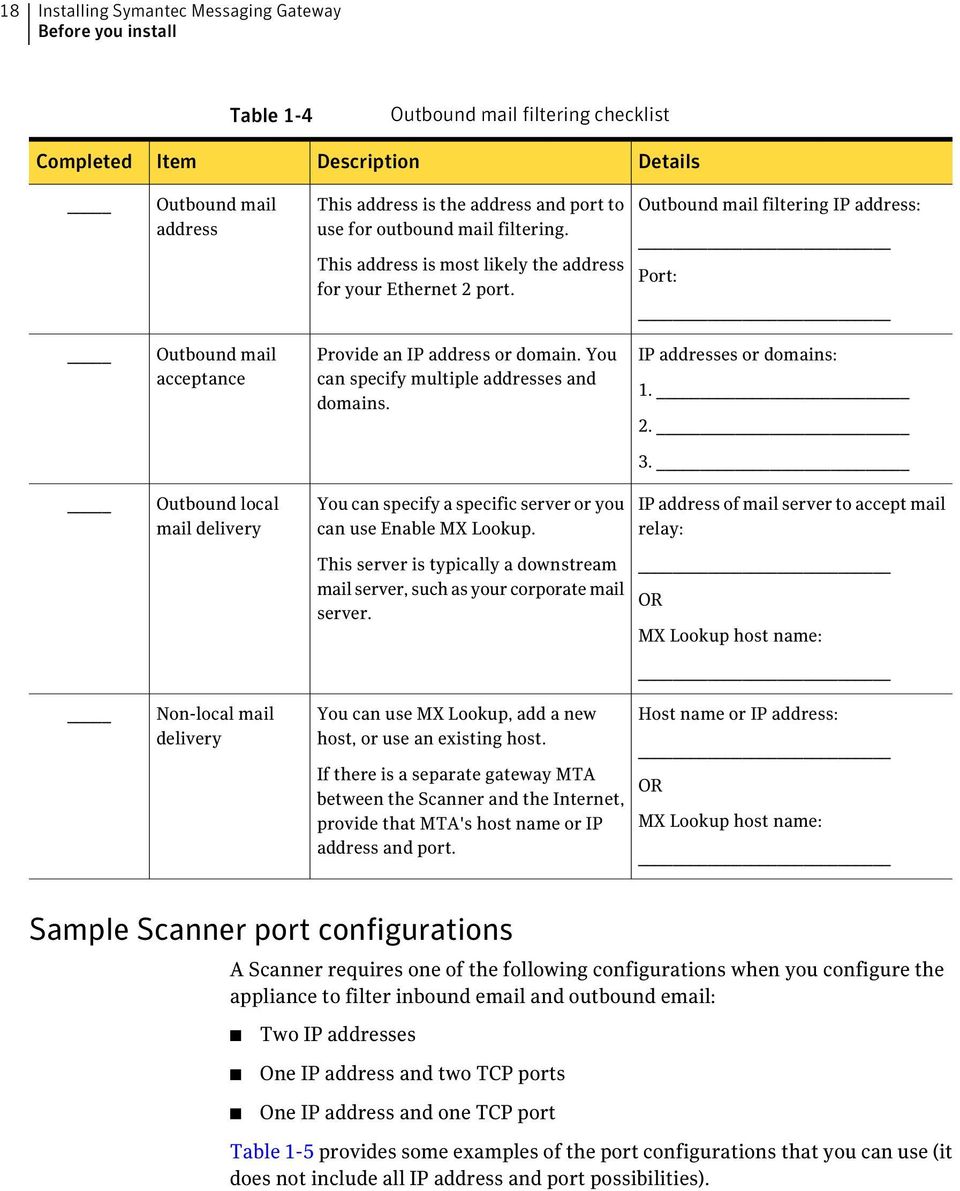
19 Installing Symantec Messaging Gateway Before you install 19 Table 1-5 Scanner port configurations examples Port configuration Example IP addresses and port Notes Two physical ports (eth0 and eth1) Each port has one IP address : :25 The appliance routes inbound and outbound on separate Ethernet ports. This configuration is the best option in most cases because it provides the most network bandwidth. One physical port One IP address Two different ports : :50 The appliance routes inbound and outbound through the same physical Ethernet port but uses two different ports. This configuration can result in network bottlenecks, but is suitable for sites with relatively low traffic. One physical port One standard IP address One virtual IP address : :25 The appliance routes inbound and outbound through the same physical Ethernet port. This configuration uses use two different IP addresses, one of which is virtual. This configuration can result in network bottlenecks, but is suitable for sites with relatively low traffic. One physical port One standard IP address :25 The appliance routes inbound and outbound through the same physical Ethernet port, using the same IP address. This configuration can result in network bottlenecks, but is suitable for sites with relatively low traffic. See Before you install on page 10. Ports that Symantec Messaging Gateway uses Table 1-6 lists the ports that Symantec Messaging Gateway components and functions use. Ensure that your firewalls permit access to these ports. These assignments may differ slightly depending on your environment and filtering types (inbound, outbound, or both).

20 20 Installing Symantec Messaging Gateway Before you install Note: The effectiveness and accuracy of Symantec Messaging Gateway filtering depends on constant updates from the Symantec Global Intelligence Network. In order to maintain the usefulness of your appliance, it is crucial that you facilitate automated communications between the appliance and Symantec. Table 1-6 Ports to open in your network for Symantec Messaging Gateway Port Protocol Origin Destination Description Notes 22 Your management hosts Control Center/ Scanners SSH connectivity to the appliance This port provides access to the command line interface. 25 Control Center/ Scanners Internal mail servers Inbound internal traffic The Control Center uses internal mail hosts to send alerts and reports. 25 Internal mail servers Scanners Outbound internal mail traffic 25 Internet Scanners Inbound Internet mail traffic 25 Scanners Internet Outbound Internet mail traffic 25 Scanners Internal SMTP server SMTP authentication forwarding 53 UDP Scanners Internet DNS lookups The destination servers can be either internal DNS servers or the Internet root DNS servers. If you use the Internet root DNS servers, ensure that you have a rule allowing external access. 80 Control Center Internet ThreatCon updates The ThreatCon level appears on the Dashboard page. 80 Scanners Internet Default automatic antivirus updates and rapid response antivirus updates 123 UDP Control Center/ Scanners Internet/ internal NTP Servers Time sync servers for the appliance

21 Installing Symantec Messaging Gateway Before you install 21 Table 1-6 Ports to open in your network for Symantec Messaging Gateway (continued) Port Protocol Origin Destination Description Notes 161 UDP SNMP servers Control Center/ Scanners SNMP management The default port for SNMP communications. This port can be changed to match your SNMP configuration. This port is disabled by default. 389 Control Center/ Scanners LDAP servers LDAP server access to lookup users, groups, and distribution lists if the directory data service is enabled. Both Control Center and Scanners use this port if directory data service is enabled. 443 Control Center/ Scanners Internet Rule updates, software updates, and license registration Symantec sends rule updates to your appliances. 587 Internet Scanners SMTP authentication traffic 636 Control Center/ Scanners LDAP servers SSL encrypted LDAP server access to lookup users, groups, and distribution lists if the directory data service is enabled. Both Control Center and Scanners use this port if directory data service is enabled Control Center/ Scanners LDAP servers Active Directory Global Catalog server (LDAP) 3269 Control Center/ Scanners LDAP servers SSL encrypted Active Directory Global Catalog server (LDAP) MTA/ Scanners MTA/ Scanners Bidirectional
22 22 Installing Symantec Messaging Gateway Before you install Table 1-6 Ports to open in your network for Symantec Messaging Gateway (continued) Port Protocol Origin Destination Description Notes Control Center/ Scanners Control Center/ Scanners Bidirectional communication between the Control Center and Scanners Traffic on (the agent port), flows as follows: BCC to scanner (session request) Scanner to BCC (session accept) BCC to scanner (agent request) Scanner to BCC (agent response) BCC to scanner (terminate session) Control Center Scanners Quarantine communication Scanners Control Center Quarantine communication Scanners send quarantined messages to the Control Center on this port Your management hosts Control Center Control Center Web management interface (HTTP) This port is disabled by default Management Hosts Control Center Control Center Web management interface (HTTPS) Web management port for the Control Center SPC host Control Center SPC management interface (HTTPS) To integrate Symantec Messaging Gateway with Symantec Protection Center, ensure that the Protection Center server(s) are able to communicate with all Symantec Messaging Gateway appliances over port Depending on your environment, this may require firewall changes. See Before you install on page 10. Required ports Required ports lists the ports that you must have available before you install Symantec Messaging Gateway.
23 Installing Symantec Messaging Gateway Before you install 23 Table 1-7 Required ports Protocols needed Name Protocol Default port Notes Remote access to the appliance SSH 22 This port provides access to the command line interface. Access to name service DNS UDP () 53 The destination servers can be either internal DNS servers or the Internet root DNS servers. If you use the Internet root DNS servers, ensure that you have a rule allowing external access. Access to the Control Center and outbound access to external Internet HTTP 80 See Ports that Symantec Messaging Gateway uses on page 19. Access to time service NTP UDP 123 Access to Control Center (secured) HTTPS 443 Outbound access to external Internet (secured) HTTPS 443 MTA to Scanner (bi-directional) Control Center to Scanner (bi-directional) Traffic on (the agent port), flows as follows: BCC to scanner (session request) Scanner to BCC (session accept) BCC to scanner (agent request) Scanner to BCC (agent response) BCC to scanner (terminate session)
24 24 Installing Symantec Messaging Gateway System requirements System requirements Table 1-8 lists the minimal system requirements. See System requirements for virtual deployment on page 56. See Before you install on page 10. Table 1-8 Item Web browsers System requirements Requirement The Control Center supports the following browsers: Microsoft Internet Explorer 9/8 Mozilla Firefox 13 or later Chrome 19 or later LDAP Symantec Messaging Gateway supports the following LDAP directory types: Windows 2008 Active Directory (both LDAP and Global Catalog) Windows 2003 Active Directory (both LDAP and Global Catalog) Sun Directory Server 7.0 Sun Directory Server 6.3 Sun Directory Server 6.0 Lotus Domino LDAP Server 8.5 Lotus Domino LDAP Server 8.0 Lotus Domino LDAP Server 7.0 OpenLDAP 2.4 OpenLDAP 2.3 Symantec Messaging Gateway is LDAP v.3 compliant and can be configured to work with other directory server types. Refer to the Symantec Messaging Gateway Administration Guide for more information about how to configure Symantec Messaging Gateway for use with LDAP. Features that can affect performance Table 1-9 describes how features might affect performance and how to off-set the performance demands.
25 Installing Symantec Messaging Gateway Features that can affect performance 25 Table 1-9 Feature Policy groups Scanners Logs Reports Features that can affect performance How performance can be affected You can define the policy groups, including in each policy group the users that share filtering requirements. If a message has multiple recipients with members in different policy groups, then the Scanner bifurcates the message (split it into one or more messages). Bifurcated messages for many policy groups can degrade performance. Use policy groups as necessary, but be aware that a large number of policy groups can affect performance. Performance can be affected when a Control Center must collect logging and statistics from multiple Scanners. As you add Scanners, monitor performance to ensure that the additional Scanners do not degrade performance to unacceptable levels. The higher the log levels, the more data the Control Center must consolidate over the network. Consider keeping log levels relatively low unless you are troubleshooting. You can also set logs to be purged more frequently. Configure scheduled reports to run at times when utilization is low. This configuration helps reduce the demand on system resources during peak hours. Store report data only for the reports you need, for the length of time you need. Appliance roles When you configure the appliance to be a Control Center and a Scanner, the appliance requires the resources to fulfill both roles. In mid-sized environments and large environments, this configuration can slow performance. Consider setting up the Control Center and Scanner on separate appliances.
26 26 Installing Symantec Messaging Gateway Features that can affect performance Table 1-9 Feature Spam Quarantine Features that can affect performance (continued) How performance can be affected The following are Spam Quarantine performance implications: The more messages that Symantec Messaging Gateway routes to Spam Quarantine, the larger the Quarantine becomes, and the more processing that is required. Reduce the maximum size of Spam Quarantine. You can delete the messages that are identified as spam or reduce spam retention time. The more users that access Spam Quarantine, the more performance overhead that is required. Not allowing end user access to Spam Quarantines ca increase performance significantly. LDAP lookups for message recipients against a limited capacity LDAP server can severely impair Spam Quarantine performance. Ensure that you have adequate capacity on your LDAP server. The Spam Quarantine's SMTP server may slow down. If it does, the Scanner s delivery MTA could back up when the destination MTA accepts messages slowly or not at all. As such, some legitimate mail messages may be delayed. Text-based attachment scanning Symantec Messaging Gateway can scan attachments for spam in an message. Enabling this option may result in slower performance of Symantec Messaging Gateway. By default, the option is enabled in new installations of Symantec Messaging Gateway and disabled for upgrade. When this option is disabled, Symantec Messaging Gateway does not use all scanning technologies for evaluating the attachments for spam. DKIM signing SMTP authentication Enabling DKIM signing can impact outbound messaging performance. Using a shorter encryption key can reduce this impact. SMTP authentication adds overhead that can impact outbound messaging performance. For more information about these topics, see the Symantec Messaging Gateway Administration Guide.
27 Chapter 2 Installing the Symantec Messaging Gateway product This chapter includes the following topics: Installing the Symantec Messaging Gateway product Installing the Symantec Messaging Gateway product Before you install Symantec Messaging Gateway, ensure that you have reviewed and completed the preinstallation tasks. See Before you install on page 10. After you successfully complete installation, perform the post-installation tasks. See Post-installation tasks on page 63. Table 2-1 Step 1 Symantec Messaging Gateway installation process Task and description Unpack the appliance, mount it, and connect the appropriate cables to the appliance box. See Setting up the appliance hardware on page 29. For installing the Symantec Messaging Gateway Virtual Edition: Access the Symantec Messaging Gateway Virtual machine through VMware vsphere Client. See Setting up the Symantec Messaging Gateway Virtual Edition on page 30.
28 28 Installing the Symantec Messaging Gateway product Installing the Symantec Messaging Gateway product Table 2-1 Step 2 Symantec Messaging Gateway installation process (continued) Task and description Turn on the appliance. The setup wizard guides you through the setup process. For installing the Symantec Messaging Gateway Virtual Edition: In VMware vsphere Client, right-click Symantec Messaging Gateway virtual machine and select Power on from right-click menu. See Starting the appliance software set up on page Specify the Ethernet settings. See Specifying Ethernet interfaces on page Specify static IP address for routing. This step is optional. See Specifying a static IP address for routing on page Specify the IP addresses for the default gateway and your DNS servers. See Specifying gateway and DNS IP addresses on page Specify the role for the appliance. See Specifying the role for the appliance on page Register your license. See Registering your license on page Update the product with the latest software. See Updating to the latest software during initial setup on page Set up and configure the Control Center. See Configuring the Control Center on page 38.
29 Installing the Symantec Messaging Gateway product Installing the Symantec Messaging Gateway product 29 Table 2-1 Step 10 Symantec Messaging Gateway installation process (continued) Task and description Set up the Scanner. Set up your Scanner based on one of the following scenarios: The Scanner is on the same appliance as the Control Center. After the setup wizard guides you through the process to setup the Control Center, it automatically begins the process to add a Scanner. See Configuring the Control Center on page 38. The Scanner is on different appliance than the Control Center. Install Scanners on a different appliance from the Control Center through the Control Center. See How to add a Scanner through the Control Center on page After you set up your Scanner, configure it based on its intended function, as follows: See Configuring the Scanner for inbound and outbound mail filtering on page 43. See Configuring the Scanner for inbound mail filtering only on page 46. See Configuring the Scanner for outbound mail filtering only on page 49. Setting up the appliance hardware Before you can install and configure the appliance, you must first set up the hardware. See Installing the Symantec Messaging Gateway product on page 27. To set up the appliance hardware 1 Unpack the appliance and either rack mount it or place it on a level surface. 2 Plug in AC power. 3 Plug in an Ethernet Cable to DRAC port and enable DRAC. For more information on DRAC, see Dell Support. 4 Connect the appliance with one of the following methods: Connect a keyboard and VGA monitor to the appliance. Connect another computer to the appliance with the serial port.
30 30 Installing the Symantec Messaging Gateway product Installing the Symantec Messaging Gateway product Use a null modem cable with a DB9 connector and settings of 9600 bps, 8/N/1. Connect to appliance through DRAC console from a remote computer. 5 Connect an Ethernet cable to the Ethernet jack that is labeled 1 on the back panel of the appliance, which corresponds to eth0. To use the second Ethernet port for outbound traffic, connect a second cable to the Ethernet jack that is labeled 2 on the back of the appliance and corresponds to eth1. See Starting the appliance software set up on page 30. Setting up the Symantec Messaging Gateway Virtual Edition Before you can set up and configure the Symantec Messaging Gateway Virtual Edition appliance, you must first set up the virtual host. See About Symantec Messaging Gateway Virtual Edition on page 53. To set up Symantec Messaging Gateway Virtual Edition 1 Access the VMware ESX server through the VMware vsphere Client. You can download this software from VMware Web site or directly from your appliance if your VMware ESX server is configured for https access. Go to of ESX Server> Select link Download vsphere Client and install the VMware vsphere Client software. Log into your VMware ESX server through VMware vsphere Client. 2 In VMware vsphere Client, right-click on Symantec Messaging Gateway virtual machine and select Power on from right-click menu. 3 In VMware vsphere Client, select the Symantec Messaging Gateway Virtual machine and then click on the console tab. Starting the appliance software set up After you set up the appliance hardware, begin the software set up process. See Setting up the appliance hardware on page 29. See Installing the Symantec Messaging Gateway product on page 27. To start the appliance software set up 1 Turn on the power. 2 Log on with the logon name admin and the password symantec.
31 Installing the Symantec Messaging Gateway product Installing the Symantec Messaging Gateway product 31 3 When you are prompted, type your new password twice. 4 When you are prompted, type a fully qualified domain name for this host. To avoid problems with message routing, this host name should not be your mail domain, such as symantecexample.com. For example, the name should be similar in form to: host6.symantecexample.com 5 When you are prompted, type the correct time zone. Type? to see a list of time zones. Press the space bar to scroll through the list or type Q to exit the list. 6 To continue installation, next you specify Ethernet interfaces. Specifying Ethernet interfaces See Specifying Ethernet interfaces on page 31. After you perform the initial steps of starting the appliance setup, the next step is to configure the Ethernet interfaces. See Starting the appliance software set up on page 30. To specify Ethernet interfaces 1 When you are prompted, type the IP address for the Ethernet interface that is labeled 1 on the back of the appliance. For example: When you are prompted, type the subnet mask for Ethernet interface 1. For example:
32 32 Installing the Symantec Messaging Gateway product Installing the Symantec Messaging Gateway product 3 When you are prompted if you want to use the second Ethernet interface, interface 2, type one of the following responses: YES NO You want to use interface 2. You do not want to use interface 2. Skip to the next procedure. See Specifying a static IP address for routing on page When you are prompted, type the IP address for Ethernet interface 2. For example: When you are prompted, type the subnet mask for Ethernet interface 2. For example: To continue installation, next you specify a static IP address for routing. See Specifying a static IP address for routing on page 32. See Installing the Symantec Messaging Gateway product on page 27. Specifying a static IP address for routing After you set up the Ethernet interfaces, the next step in setting up your appliance is to set up a static IP address for routing. You can set up multiple static IP addresses or none at all. See Specifying Ethernet interfaces on page 31. See Installing the Symantec Messaging Gateway product on page 27.
33 Installing the Symantec Messaging Gateway product Installing the Symantec Messaging Gateway product 33 To specify a static IP address static for routing 1 When you are prompted whether you want to add a static IP address for routing, type one of the following responses: YES NO You want to add a static IP address for routing. You do not want to add a static IP address for routing. Skip to the next procedure. See Specifying gateway and DNS IP addresses on page When you are prompted, specify the IP address or CIDR block of the destination host or network. 3 If you configure multiple Ethernet interfaces, you are prompted to specify the Ethernet Interface number (either 1 or 2, the default is 1). This setting is to force the route to be associated with the specified device. 4 When you are prompted whether you want to add another static IP address, type one of the following responses: YES You want to add another static IP address. Repeat steps 2 through 3 to add another static IP address. NO You do not want to add another static IP address. Skip to the next procedure. See Specifying gateway and DNS IP addresses on page To continue installation, next you specify gateway and DNS IP addresses. See Specifying gateway and DNS IP addresses on page 33. Specifying gateway and DNS IP addresses After you configure the static IP address, specify the default gateway IP address and the IP address of your DNS server. You can add up to three DNS server IP addresses. See Specifying a static IP address for routing on page 32. See Installing the Symantec Messaging Gateway product on page 27.
34 34 Installing the Symantec Messaging Gateway product Installing the Symantec Messaging Gateway product To specify gateway and DNS settings 1 When you are prompted, type the IP address of the default gateway (default router). 2 When you are prompted, type the IP address of the DNS server. 3 When you are prompted if you want to enter another DNS server, type one of the following responses: YES You want to add an additional DNS server. Type the IP address. You can add up to three addresses. NO You do not want to an additional DNS server. Skip to the next procedure. See Specifying the role for the appliance on page To continue installation, next you specify the role for the appliance. See Specifying the role for the appliance on page 34. Specifying the role for the appliance After you have specified IP addresses for your default gateway and DNS servers, specify the role for the appliance. See Specifying gateway and DNS IP addresses on page 33. See Installing the Symantec Messaging Gateway product on page 27. The roles that you can choose are as follows: Scanner only Control Center only Scanner and Control Center See About the appliance's functions on page 10. To set the role for the appliance 1 When you are prompted, choose one of the following roles for this appliance: Scanner only Control Center only
35 Installing the Symantec Messaging Gateway product Installing the Symantec Messaging Gateway product 35 Scanner and Control Center 2 For Scanner only, when prompted, type the IP address of the Control Center that you intend to use to manage this Scanner. 3 When you are prompted, type one of the following responses: YES The summary information is correct. Product setup is complete and the appliance restarts. After the appliance restarts, you can register your appliance. See Registering your license on page 35. NO The summary information is not correct. You return to the beginning of the process to make your changes. See Starting the appliance software set up on page 30. Registering your license To register your license, you need the license file that Symantec provides you. Place this file on the computer from which you access the Control Center. Each time you add a Scanner, you must confirm your licenses or register again. However, you can use the same license file for each Scanner. Note: For your Scanners, ensure that your network is configured to permit outbound connections to Symantec on port 443. Symantec Messaging Gateway communicates with Symantec Security Response over a secure connection for product registration and ongoing operations. If you are performing the initial setup of your appliance, these steps appear in the setup wizard after the appliance restarts. See Specifying the role for the appliance on page 34. See Installing the Symantec Messaging Gateway product on page 27.
36 36 Installing the Symantec Messaging Gateway product Installing the Symantec Messaging Gateway product To register your license 1 From a computer that can access your appliance, locate the appliance in a browser. The default logon address is as follows: where <hostname> is the host name that you designate for your appliance during setup or the IP address. To use HTTP, you must enable HTTP through the command line interface and specify port See the Symantec Messaging Gateway Administration Guide for information about the http command. 2 When the security alert message appears, accept the self-signed certificate to continue. 3 On the Control Center logon page, log on as user admin and use the password that you specified set during initial setup. 4 On the End-User License Agreement page, click I accept the terms of the license agreement and click Next. 5 On the License Information Registration page, click Browse to locate your license file. 6 Select your license file and click Open to return to the License Registration page. 7 If your Scanner uses a proxy server for communications with Symantec, click Proxy Server. 8 To specify a proxy server, check Use HTTP Proxy and type the server host name and port. If required, type the user name and password. 9 Click Register License. If registration was successful, the License Registration Information page returns. See Troubleshooting license file registration on page 37. Registration may fail because of an inaccessible proxy, closed port 443, or an expired, missing, or corrupt license file.
37 Installing the Symantec Messaging Gateway product Installing the Symantec Messaging Gateway product If you have another license file for a different feature, repeat the process for registering each license. 11 When all of the license files are successfully registered, click Next. If your software is up-to-date, the setup wizard appears. Continue with the installation process. See Configuring the Control Center on page 38. If a software update is available, the Software Update page appears. See Updating to the latest software during initial setup on page 37. Troubleshooting license file registration If you have difficulty installing a license during installation, the installation wizard lets you troubleshoot the issue with the Traceroute utility or the Ping utility. Troubleshooting license file registration 1 On the License Information Registration page, click Utilities. 2 In the Utility field, click the drop-down menu and select whether to use Traceroute or Ping, and then in the Host name or IP address field, type the host name or IP address. Make sure you can connect to 3 Click Run. The results appear in the Results text box. 4 Click Register License. 5 Complete registration. See Registering your license on page 35. Updating to the latest software during initial setup Symantec recommends that you apply the current software update after you register the product, if one is available. See Registering your license on page 35. See Installing the Symantec Messaging Gateway product on page 27.
38 38 Installing the Symantec Messaging Gateway product Installing the Symantec Messaging Gateway product Updating to the latest software during initial setup 1 On the Software Update page, select any of the following options: Skip Update Lets you update your software later. Updates your software now. After the update, the setup wizard appears to help you configure your appliance. See Configuring the Control Center on page 38. Cancel Back Returns you to the License Registration page. See Registering your license on page When the software update finishes, do one of the following tasks: Refresh your browser. Close and re-open your browser to ensure that the cached versions of graphics redisplay correctly. 3 To continue installation, next you configure the Host. Configuring the Control Center See Configuring the Control Center on page 38. See the Symantec Messaging Gateway Administration Guide for details on Configuring Scanners. After you register your license or after you complete the software update, the Administrator Settings page appears in the setup wizard. See Registering your license on page 35. See Updating to the latest software during initial setup on page 37. See Installing the Symantec Messaging Gateway product on page 27. Configure the Control Center before you configure any Scanners. If you specified that this appliance is a Control Center and a Scanner, the wizard continues with the Scanner set up after the Control Center set up finishes.
39 Installing the Symantec Messaging Gateway product Installing the Symantec Messaging Gateway product 39 To configure the Control Center 1 On the Administrator Settings page, type an address for the administrator. 2 Check Receive Alert Notifications to have Symantec Messaging Gateway send alert notifications to this address. You can set up alert notifications for outbreaks, spam and virus filters, message queues, disk space, SMTP authentication, directories, licenses, software updates, and events. Events include scheduled task, service, hardware, swap space, and UPS issues. You can add additional administrators or modify this administrator's settings in the Control Center later. 3 Click Next. 4 On the Time Settings page, to verify that the date that appears in the Current Appliance Time area is correct, select one of the following options: Do not change the time Set time manually Use NTP servers The time is correct and you do not want to make changes. This option is the default setting. You want to manually change the time. Type the proper values in the Date and Set Time fields. You want to use NTP servers to manage time. Type the IP address for up to three NTP servers. 5 Click Next. 6 On the System Locale page, specify the locale that the appliance should use for formatting numbers, dates, and times. This setting is the language and regional formatting Symantec Messaging Gateway uses for messages. 7 Select a Quarantine fallback encoding format. Fallback encoding is the formatting that the product uses for quarantined messages if the formatting that you specified in the System Locale field fails.
40 40 Installing the Symantec Messaging Gateway product Installing the Symantec Messaging Gateway product 8 Click Next. If your appliance has been set up as a Control Center and a Scanner, the Scanner Role page appears, and you must define your Scanner role as described in the following topics: See Configuring the Scanner for inbound and outbound mail filtering on page 43. See Configuring the Scanner for inbound mail filtering only on page 46. See Configuring the Scanner for outbound mail filtering only on page 49. If you set up your appliance as a Control Center only, the Setup Summary page lists your selected configuration options. 9 On the Setup Summary page, select any of the following options: Finish Back Cancel You are satisfied with the settings and do not want to make changes. This option is the default setting. You want to modify your settings. You want to end the setup without saving your changes. You cannot use the appliance until you complete the setup. 10 If your Scanner is not on the Control Center, set up a Scanner on a separate appliance. You can do this task through the Control Center. See Adding a Scanner through the Control Center on page 41. How to add a Scanner through the Control Center If you configure your appliance as a Control Center and Scanner, you set up the Scanner during the initial appliance setup. If the Scanner is separate from the Control Center or you want to add a Scanner at any time after installation, do so through the Control Center. See Installing the Symantec Messaging Gateway product on page 27. Table 2-2 lists the steps to add a Scanner through the Control Center.
41 Installing the Symantec Messaging Gateway product Installing the Symantec Messaging Gateway product 41 Table 2-2 Step 1 How to add a Scanner Task description Use the Add Scanner setup wizard in the Control Center to add a Scanner. See Adding a Scanner through the Control Center on page When you finish adding a new Scanner, configure it based on the Scanner's intended function. See Configuring the Scanner for inbound and outbound mail filtering on page 43. See Configuring the Scanner for inbound mail filtering only on page 46. See Configuring the Scanner for outbound mail filtering only on page If you enable end-user preferences, manually trigger user preferences replication after you add a new Scanner. Wait until the replication completes before you let mail be sent to the new Scanner. See the Symantec Messaging Gateway Administration Guide for more information. 4 Check the status of the Scanner to ensure that it functions properly. See the Symantec Messaging Gateway Administration Guide for more information. Adding a Scanner through the Control Center You must have Full Administration rights or Manage Settings modify rights to add a Scanner. Note: None of the settings that you specify throughout the wizard are final until you click Finish at the end of the wizard. See How to add a Scanner through the Control Center on page 40. To add a Scanner through the Control Center 1 On the Control Center, click Administration > Hosts > Configuration. 2 If this Scanner is the first Scanner that you add, the Add Scanner wizard appears. Otherwise, on the Host Configuration page under Reconfigure a Scanner or Control Center host, click Add.
42 42 Installing the Symantec Messaging Gateway product Installing the Symantec Messaging Gateway product 3 On the Add Scanner Wizard page, click Next. 4 On the Scanner Host Settings page, do all of the following: In the Host description box, type a description for the new Scanner. In the Host name or IP address box, type the host name or IP address for the new Scanner. 5 Click Next. 6 On the License Registration page, click Browse to locate your license file. 7 Select your license file and click Open to return to the License Registration page. 8 If your Scanner uses a proxy server for communications with Symantec, click Proxy Server. 9 To specify a proxy server, check Use HTTP Proxy and type the server host name and port. 10 Click Register License. If registration was successful, the License Registration page returns. If the license registration fails, perform troubleshooting steps. See Troubleshooting license file registration on page If you have another license file for a different feature, repeat the process for registering each license. 12 When all the license files are successfully registered, click Next. If your software needs to be updated, the Software Update page appears. If not, proceed to step On the Software Update page, select any of the following options: Skip Update Cancel Lets you update your software later. Updates your software now. After the update, the setup wizard returns you to the Time Settings page. Returns you to the License Registration page. See Registering your license on page 35.
43 Installing the Symantec Messaging Gateway product Installing the Symantec Messaging Gateway product On the Time Settings page, verify whether the date in the Current Appliance Time area is correct. Select one of the following options: Do not change the time Set time manually Use NTP servers The time is correct and you do not want to make changes. This option is the default setting. You want to manually change the time. Type the proper values in the Date and Set Time fields. You want to use NTP servers to manage time. Click and provide the IP address for up to three NTP servers. 15 To complete the Add Scanner wizard, you must now configure the Scanner based on its function. See Configuring the Scanner for inbound and outbound mail filtering on page 43. See Configuring the Scanner for inbound mail filtering only on page 46. See Configuring the Scanner for outbound mail filtering only on page 49. Configuring the Scanner for inbound and outbound mail filtering You can configure the Scanner to perform both inbound mail filtering and outbound mail filtering. You can use the same Ethernet interface for both inbound mail filtering and outbound mail filtering. Or you can create a virtual IP address to use for either inbound or outbound mail filtering. See Sample Scanner port configurations on page 18. See About the appliance's functions on page 10. To configure the Scanner for inbound and outbound mail filtering 1 On the Scanner Role page, click Inbound and Outbound mail filtering then click Next. 2 On the Create Optional Virtual IP Address page, select one of the following options: Yes No You want to create a Virtual IP address. You do not want to create a Virtual IP address. Proceed to step 6. 3 Click Next.
44 44 Installing the Symantec Messaging Gateway product Installing the Symantec Messaging Gateway product 4 On the Create Virtual IP Address page, do all of the following tasks: Ethernet IP address Subnet mask Network Broadcast Click to select the Ethernet interface. Type the IP address for the virtual server. Type the subnet mask IP address. Type the network IP address. Type the broadcast IP address 5 Click Next. 6 On the Inbound Mail Filtering page, click Inbound mail IP address to select the IP address to use for inbound mail filtering. 7 In the Inbound mail SMTP port field, type the port, and then click Next. 8 On the Inbound Mail Filtering - Accepted Hosts page, to specify the IP addresses of the mail servers from which this Scanner should accept inbound mail, select one of the following options: All IP addresses Specific IP Addresses You want your Scanner to accept mail from all sources or the Scanner is deployed at the gateway. For a Scanner deployed at the Internet gateway, Symantec recommends that you select this option to accept mail from any MTA on the Internet. You want to restrict the domains from which your Scanner accepts mail. Type IP addresses, CIDR ranges, or domains. If the Scanner is deployed behind upstream mail servers, specify the upstream mail servers. 9 Click Next.
45 Installing the Symantec Messaging Gateway product Installing the Symantec Messaging Gateway product On the Local Domains page, check the addresses that you want to accept inbound mail for in the Local Domains list. To modify the list, do any of the following tasks: To add an address Type the address into the Domain or address field for which to accept inbound mail field, and click Add. For each domain address or address that you add, you can also specify whether messages should be routed through a specific host and port. Add that information to the Optionally route to the following destination host and Port fields. To delete an address To import a list of addresses Check the address to remove and click Delete. Click Import, and then navigate to an existing file. To route messages according to the MX record for the specified host name Check Enable MX Lookup. If you enable MX lookup, you must specify a host name, not an IP address. For example, enable MX lookup if you configure multiple downstream mail servers and use MX records for load balancing. 11 Click Next. 12 On the Outbound Mail Filtering page, click the drop-down list to select the IP address to use for outbound mail filtering. 13 In the Outbound mail SMTP port field, type the port, and click Next. 14 On the Outbound Mail Filtering - Accepted Hosts page, do one of the following tasks: Specify the internal host to which this Scanner should relay local domain mail after filtering is complete. This server is typically a downstream mail server, such as your corporate mail server. Check Enable MX Lookup for this host. If you enable MX lookup, specify a host name instead of an IP address. 15 Click Next. 16 On the Mail Filtering - Mail Delivery page, type a host name or IP address and port to specify how you want to relay local domain filtered mail. 17 Optionally, check Enable MX lookup for this host.
46 46 Installing the Symantec Messaging Gateway product Installing the Symantec Messaging Gateway product 18 On the Mail Filtering - Non-local Mail Delivery page, select one of the following options to specify how you want to relay filtered mail: Use default MX Lookup Define new host Use an existing host You want to use MX Lookup to return the hosts for any domain. You want to specify a new host. Type a host name or IP address and port. Symantec recommends that you check Enable MX lookup for this host if you position the Scanner at the gateway. If you choose this option, specify a host name (not an IP address). You want to use an existing host. Select a host from the drop-down list. If there is a separate gateway MTA between the Scanner and the Internet, provide that MTA's host name or IP address and port. 19 Click Next. 20 On the Setup Summary page, review your settings and select one of the following options: Finish Back Cancel You are satisfied with the settings and want to save them. You want to modify your settings. Go back and revise your settings. You want to cancel your changes without saving them. Configuring the Scanner for inbound mail filtering only You can configure the Scanner to only filter inbound . See Sample Scanner port configurations on page 18. See About the appliance's functions on page 10. To configure the Scanner for inbound mail filtering only 1 On the Scanner Role page, click Inbound mail filtering and click Next. 2 On the Inbound Mail Filtering page, click the drop-down list to select the IP address to use for inbound mail filtering.
47 Installing the Symantec Messaging Gateway product Installing the Symantec Messaging Gateway product 47 3 In the Inbound mail SMTP port field, type the port, and then click Next. 4 On the Inbound Mail Filtering - Accepted Hosts page, to specify the IP addresses of the mail servers from which this Scanner should accept inbound mail, select one of the following options: All IP addresses You want your Scanner to accept mail from all sources or the Scanner is deployed at the Internet gateway. For a Scanner that is deployed at the Internet gateway, Symantec recommends that you select this option to let the appliance accept mail from any MTA on the Internet. Specific IP Addresses You want to restrict the domains from which your Scanner should accept mail. Type the IP addresses or host names. If the Scanner is deployed behind one or more upstream mail servers, specify the upstream mail servers. 5 Click Next. 6 On the Inbound Mail Filtering - Mail Delivery page, do one of the following tasks: In the Host name or IP address field, type the host where the Scanner should relay inbound mail after filtering is complete and in the Port field, type the port. This server is typically a downstream mail server, such as your corporate mail server. Check Enable MX Lookup for this host. If you enable MX lookup, specify a host name instead of an IP address. 7 Click Next.
48 48 Installing the Symantec Messaging Gateway product Installing the Symantec Messaging Gateway product 8 On the Inbound Mail Filtering - Non-local Mail Delivery page, select one of the following options to specify how you want to relay filtered mail: Use default MX Lookup Define new host You want to use MX Lookup to return the hosts for any domain. You want to specify a new host. Type a host name or IP address and port in the required fields. Symantec also recommends that you check Enable MX lookup for this host if you position the Scanner at the Internet gateway. If you choose this option, specify a host name (not an IP address) for that server. Use an existing host You want to use an existing host. Select an existing host from the drop-down list. If there is a separate gateway MTA between the Scanner and the Internet, provide that MTA's host name or IP address and port. 9 Click Next.
49 Installing the Symantec Messaging Gateway product Installing the Symantec Messaging Gateway product On the Local Domains page, check the addresses that you want in the Local Domains list. Include all domains for which you want to accept incoming mail. To modify the list, do any of the following tasks: To add an address Type the address into the Domain or address field for which to accept inbound mail field field and click Add. For each domain address or address that you add, you can also specify whether messages should be routed through a specific host and port. Add that information to the Optionally route to the following destination host and Port fields. To delete an address To import a list of addresses Check the address that you want to remove and click Delete. Click Import, and then navigate to an existing file. To route messages according to the MX record for the specified host name Check Enable MX Lookup. If you enable MX lookup, you must specify a host name, not an IP address. For example, enable MX lookup if you configure multiple downstream mail servers and use MX records for load balancing. 11 Click Next. 12 On the Setup Summary page, review your settings and select one of the following options: Finish Back Cancel You are satisfied with the settings and want to save them. You want to modify your settings. Go back and revise your settings. You want to cancel your changes without saving them. Configuring the Scanner for outbound mail filtering only You can configure the Scanner to only filter outbound . See Sample Scanner port configurations on page 18.
50 50 Installing the Symantec Messaging Gateway product Installing the Symantec Messaging Gateway product See About the appliance's functions on page 10. To configure the Scanner for outbound mail filtering only 1 On the Scanner role page, click Outbound Mail Filtering and click Next. 2 On the Outbound Mail Filtering page, click the drop-down list to select the IP address to use for outbound mail filtering. 3 In the Outbound mail SMTP port field, type the port, and then click Next. 4 On the Outbound Mail Filtering - Accepted Hosts page, in the Available IP Addresses/Domains list, select the IP addresses from which the Scanner should accept mail for outbound filtering. To add a new IP address or domain, type the new IP address in the IP addresses/domains field and click Add. 5 After you add and select all of your IP addresses and domains, click Next. 6 On the OutboundMailFiltering-MailDelivery page, do one of the following tasks: In the Host name or IP address field, type the host where the Scanner should relay outbound mail after filtering is complete and in the Port field, type the port. This server is typically a downstream mail server, such as your corporate mail server. Check Enable MX Lookup for this host. If you enable MX lookup, specify a host name instead of an IP address. 7 Click Next.
51 Installing the Symantec Messaging Gateway product Installing the Symantec Messaging Gateway product 51 8 On the Mail Filtering - Non-local Mail Delivery page, select one of the following options to specify how you want to relay filtered mail: Use default MX Lookup Define new host You want to use MX Lookup to return the hosts for any domain. You want to specify a new host. Type a host name or IP address and port in the required fields. Symantec also recommends that you check Enable MX lookup for this host if you position the Scanner at the Internet gateway. If you choose this option, specify a host name (not an IP address) for that server. Use an existing host You want to use an existing host. Select an existing host from the drop-down list. If a separate gateway MTA is configured between the Scanner and the Internet, provide that MTA's host name or IP address and port. 9 Click Next. 10 On the Setup Summary page, review your settings and select one of the following options: Finish Back Cancel You are satisfied with the settings and want to save them. You want to modify your settings. Go back and revise your settings. You want to cancel your changes without saving them.
52 52 Installing the Symantec Messaging Gateway product Installing the Symantec Messaging Gateway product
53 Chapter 3 Installing Symantec Messaging Gateway Virtual Edition This chapter includes the following topics: About Symantec Messaging Gateway Virtual Edition System requirements for virtual deployment Deploying an OVF template on an ESX 4.x or ESXi 5/4.x Server Installing from an ISO image or OS restore CD onto a virtual machine on your ESX or ESXi Server Using an OS restore CD on your ESX or ESXi Server to boot your virtual computer Using an ISO image on your datastore to boot your virtual computer Using an OS restore CD or ISO image on your local computer to boot your virtual computer About Symantec Messaging Gateway Virtual Edition Use Symantec Messaging Gateway Virtual Edition with VMware to create a simulated computer environment (a virtual computer) on which to run Symantec Messaging Gateway. The guest software is a complete operating system that contains the Symantec Messaging Gateway Virtual Edition software. It runs in a similar manner to the application as installed on a standalone hardware platform.
54 54 Installing Symantec Messaging Gateway Virtual Edition About Symantec Messaging Gateway Virtual Edition You can deploy the Symantec Messaging Gateway as a virtual appliance on your existing VMware infrastructure in one of the following ways: As an OVF on ESX 4.x and ESXi 5/4.x See Deploying an OVF template on an ESX 4.x or ESXi 5/4.x Server on page 57. As an ISO or OSrestore CD See Installing from an ISO image or OS restore CD onto a virtual machine on your ESX or ESXi Server on page 58. The resources that are allocated to Symantec Messaging Gateway Virtual Edition must meet the minimum requirements. See System requirements for virtual deployment on page 56. This documentation assumes the following: Your environment has an existing VMware ESX or ESXi Server deployment. You are familiar with administering virtual computers. Your environment meets all pre-requisite system requirements. For more information about VMware and to download trialware and prerequisite applications, see the VMware Web site at See Virtual software terminology on page 54. Virtual software terminology Key terminology relating to virtual software is as follows: Virtual computer Host computer OS Guest computer OS VMware ESX Server VMware ESXi Server A virtual computer is the software that insulates the application stack from the physical hardware. The host computer or operating system (OS) is the physical hardware and primary OS upon which the guest computer/os run. The OS installed on the virtual computer. Symantec Messaging Gateway Virtual Edition is the guest computer and OS. VMware ESX Server is an enterprise-quality virtual machine platform that is recommended for best performance results. VMware ESXi is a free download that offers similar functionality to ESX but with a smaller disk footprint.
55 Installing Symantec Messaging Gateway Virtual Edition About Symantec Messaging Gateway Virtual Edition 55 Virtual computer Image ISO image or OS restore CD OVF template vsphere client A set of files in a VMware-specific format that contains an image of a preconfigured virtual computer and Symantec Messaging Gateway Virtual Edition. This image can be used to install a virtual computer on a host computer that runs the VMware ESX Server or VMware ESXi Server. An image that lets you install Symantec Messaging Gateway onto a computer that runs VMware ESX Server or ESXi Server. A virtual machine that includes a set of software. For example, an OVF template can include the Symantec Messaging Gateway software. A desktop virtual machine platform that connects to a VMware ESX Server or VMware ESXi server. The free version of vsphere 4 or later lets you run one virtual machine. The purchased version lets you manage multiple virtual machines. See About Symantec Messaging Gateway Virtual Edition on page 53. Symantec Messaging Gateway support for VMware Tools Symantec Messaging Gateway virtual appliances provide support for a limited set of VMware Tools. Only the following tools are supported: Second-generation vmxnet Virtual NIC driver vmtoolsd daemon vmmemctl This tool loads automatically at virtual appliance boot time. No action is required to activate this support. This tool starts automatically during virtual appliance boot time. No action is required to activate this support. The vmtoolsd daemon supports automatic turn off of the virtual appliance from the vsphere4 Client dashboard. The vmtoolsd daemon also supports the Guest Information Service. This tool enables transparent page sharing and reclaims unused memory from the guest OS. It also enables memory swapping of the virtual machines. No other VMware Tools functionality is supported. See About Symantec Messaging Gateway Virtual Edition on page 53.
56 56 Installing Symantec Messaging Gateway Virtual Edition System requirements for virtual deployment System requirements for virtual deployment Table 3-1 lists the system requirements to deploy Symantec Messaging Gateway as a guest on VMware ESX Server and VMware ESXi Server. You must install and configure one of these servers before you install Symantec Messaging Gateway Virtual Edition. Note: Symantec Messaging Gateway does not support any version of BusLogic Controller. For requirements specific to VMware ESX Server and VMware ESXi Server, refer to your VMware documentation. Table 3-1 Supported Configurations for Symantec Messaging Gateway Virtual Edition Description Recommended Minimum Notes VMware ESX Server Version 4.1 Version 4.x VMware ESXi Server version Version 4.1 Version 5.0/4.x ESXi 5 update 1 is also supported. Disk space For more information, consult the Symantec Knowledge Base article, Disk Space Recommendations for Symantec Messaging Gateway Virtual Edition. 90 GB 90 GB 90 GB For Scanner-only virtual machines. For Control Center only virtual machines. For combined Scanner and Control Center virtual machines. Memory 8 GB 4 GB A minimum of 4 GB is necessary to run Symantec Messaging Gateway and the virtual machine.
57 Installing Symantec Messaging Gateway Virtual Edition Deploying an OVF template on an ESX 4.x or ESXi 5/4.x Server 57 Table 3-1 Supported Configurations for Symantec Messaging Gateway Virtual Edition (continued) Description Recommended Minimum Notes CPUs 4 2 ESX 4.x and ESXi 5/4.x are limited to two virtual CPUs per virtual machine. Symantec recommends allocating up to four, based on workload demands and hardware configuration. NICs 2 1 Only one network interface card is required per virtual machine. See About Symantec Messaging Gateway Virtual Edition on page 53. Deploying an OVF template on an ESX 4.x or ESXi 5/4.x Server An OVF template is a virtual machine that includes the software you plan to run on the machine. You can deploy an OVF template that contains Symantec Messaging Gateway Virtual Edition on a VMware ESX Server 4.x or VMware ESXi Server 4.x. To deploy the OVF template, use a vsphere or vcenter client on a different computer than the computer hosting your ESX or ESXi Server. You may want to ensure that your guest computer is configured to restart when the host computer restarts. Consult your VMware documentation for more information. Note: If you cannot successfully complete this procedure, you can instead use an OS restore disk. See Installing from an ISO image or OS restore CD onto a virtual machine on your ESX or ESXi Server on page 58.
58 58 Installing Symantec Messaging Gateway Virtual Edition Installing from an ISO image or OS restore CD onto a virtual machine on your ESX or ESXi Server To deploy an OVF template on an ESX 4.x or ESXi 5/4.x Server 1 Insert the DVD that contains the OVF template or locate the OVF template online. The OVF template file name is as follows: Symantec_Messaging_Gateway_10.0.*.ovf If you accessed the file online, proceed to step 2. If you inserted the DVD, proceed to step 3. 2 If you access the file online, unzip the file. The OVF template file name is as follows: Symantec_Messaging_Gateway_10.0.ovf 3 In the File menu, click Deploy OVF template. 4 On the Source page, click Deploy from file. 5 Select the file. If necessary, click Browse to find the file. 6 Click Next. 7 On the OVF Template Details page, click Next. 8 On the Name and Location page, enter the name for your deployment and click Next. 9 On the Ready to Complete page, click Finish. Deploying the OVF may take a few minutes. When complete, the new computer appears in your inventory. 10 After deployment is complete, access the new virtual computer from your client. The standard Symantec Messaging Gateway boot sequence begins. See Installing the Symantec Messaging Gateway product on page 27. Installing from an ISO image or OS restore CD onto a virtual machine on your ESX or ESXi Server You can configure a virtual machine and deploy an instance of Symantec Messaging Gateway from an OS restore CD or an ISO image. You can perform this task on a computer that runs ESX 4.x or ESXi 5/4.x, but you must install either server first. Use only ASCII characters in the entry fields when you create a virtual computer with the management interface. The virtual computer's display name and path cannot contain non-ascii characters. Do not use spaces when you create file names and directories for virtual computers.
59 Installing Symantec Messaging Gateway Virtual Edition Installing from an ISO image or OS restore CD onto a virtual machine on your ESX or ESXi Server 59 You may want to ensure that your guest computer is configured to restart when the host computer restarts. Consult your VMware documentation for more information. Note: By default, ESXi uses DHCP and does not use a root password. If you use ESXi, Symantec recommends that you modify the ESXi settings to create a root password and assign a static IP address before installation. See Specifying a static IP address for routing on page 32. To install from an ISO image or OS restore CD onto a virtual machine on your ESX 4.x or ESXi 5/4.x Server 1 Click on the ESX or ESXi Server on which you want to place your virtual machine. 2 On the File menu, click New, then click Virtual Machine. 3 Select the Typical option and click Next. 4 Type a descriptive name for the virtual computer and click Next. 5 Select a data store option. This setting is where your virtual computer is located on the physical disk. Make this selection based on your particular storage configuration. Options can vary. Click Next. 6 Select the virtual machine version. If you use ESX 4.x, select Virtual Machine version 7. 7 For the OS, click Linux as the guest operating system and RedHatEnterprise Linux 5 (32-bit) as the version, and then click Next. 8 Reserve the necessary quantity of disk space, and then click Next. See System requirements for virtual deployment on page 56. More disk space may be required based on your deployment. After you reserve disk space and complete deployment, any changes to disk space require that you repeat the OS restore process. 9 Select the LSI SAS SCSI device. 10 On the Ready to Complete page, check Edit the virtual machine settings before submitting and click Continue.
60 60 Installing Symantec Messaging Gateway Virtual Edition Using an OS restore CD on your ESX or ESXi Server to boot your virtual computer 11 Click Memory at the left. Reserve the system memory based on your deployment needs, and then click Next. A minimum of 4 GB is necessary to run Symantec Messaging Gateway Virtual Edition and the virtual computer. Symantec recommends that you use at least 8 GB. 12 Click CPU at the left. Select the number of virtual CPUs, and then click Next. ESX 4.x and ESXi 4.x are limited to two virtual CPUs per virtual computer. Symantec recommends allocating a minimum of two virtual processors. 13 If you want a second network interface, click the Add button at the top, choose the Ethernet Adapter, click Next, click Next again, and click Finish. 14 Click Finish. 15 Continue the deployment to bootstrap your virtual appliance. See Using an OS restore CD on your ESX or ESXi Server to boot your virtual computer on page 60. See Using an ISO image on your datastore to boot your virtual computer on page 61. See Using an OS restore CD or ISO image on your local computer to boot your virtual computer on page 62. Using an OS restore CD on your ESX or ESXi Server to boot your virtual computer After you configure a virtual computer on ESX Server or ESXi Server, you can use an OS restore CD or ISO image as your bootstrap media. See Installing from an ISO image or OS restore CD onto a virtual machine on your ESX or ESXi Server on page 58. To use an OS restore CD on your ESX or ESXi Server to boot your virtual computer 1 Insert the OS restore disk into your ESX or ESXi Server's CD drive. 2 Click Edit virtual machine settings. 3 On the Hardware tab, select CD/DVD Drive 1. 4 Choose Host Device and choose CD. 5 Check Connect at power on and click OK. 6 Click the power on virtual machine icon. The virtual machine now reboots from the CD drive.
61 Installing Symantec Messaging Gateway Virtual Edition Using an ISO image on your datastore to boot your virtual computer 61 7 Click the Disconnect CD/DVD button and remove the disk from your drive to prevent the system from performing another OS restore. Symantec recommends that you disconnect your boot media immediately after the initial boot process to avoid a future accidental OS restore. 8 Once the installation process is complete, turn off the computer through the client and edit your computer settings. 9 On the Hardware tab, select CD/DVD Drive Uncheck Connect at power on and click OK. 11 Restart your computer to begin the Symantec Messaging Gateway boot sequence. See Installing the Symantec Messaging Gateway product on page 27. Using an ISO image on your datastore to boot your virtual computer After you configure a virtual computer on ESX Server or ESXi Server, you can use an ISO image on your datastore as your bootstrap media. See Installing from an ISO image or OS restore CD onto a virtual machine on your ESX or ESXi Server on page 58. To use an ISO image on your datastore to boot your virtual computer 1 On the Hardware tab, select New CD/DVD and check Datastore ISO file as the Device Type. 2 Click Browse and select the ISO file on your datastore. If you have not already added the ISO image to your datastore, refer to your VMware documentation for the procedure. 3 Check Connect at Power on, then click Finish. The new virtual computer appears in the inventory. 4 Turn on your new computer and access your console. The boot process begins. 5 If the console prompts you to partition your SDA device, click your mouse on the console window, and then press the Enter key for Yes. 6 Once the installation process is complete, turn off the computer through the client and edit your computer settings. 7 On the Hardware tab, select CD/DVD Drive 1.
62 62 Installing Symantec Messaging Gateway Virtual Edition Using an OS restore CD or ISO image on your local computer to boot your virtual computer 8 Uncheck Connect at power on and click OK. 9 Restart your computer to begin the Symantec Messaging Gateway boot sequence. See Installing the Symantec Messaging Gateway product on page 27. Using an OS restore CD or ISO image on your local computer to boot your virtual computer After you configure a virtual computer on an ESX Server or ESXi Server, use an OS restore CD or ISO image on your local computer as your bootstrap media. See Installing from an ISO image or OS restore CD onto a virtual machine on your ESX or ESXi Server on page 58. To use an OS restore CD or ISO image on your local computer to boot your virtual computer 1 Insert the OS restore CD into the drive on your local computer, or copy the ISO image onto your local hard drive. 2 Click Edit virtual machine settings. 3 On the Hardware tab, select New CD/DVD and make sure Client Device is selected as the Device Type. 4 On the Options tab, select Boot Options and set the Force BIOS Setup. 5 Click OK. The new virtual computer appears in the inventory. 6 Click on the new virtual computer in the inventory, then click the console icon. 7 Click the power on virtual machine icon. 8 If you are using in ISO image. click Connect CD/DVD > Use ISO image, and browse to your ISO image. If you are using an OS restore CD, choose the letter of your computer's CD/DVD drive. The boot process begins. 9 Once the installation process is complete, the Symantec Messaging Gateway boot sequence begins. If the Symantec Messaging Gateway boot sequence does not begin, turn off the computer through the client, click Disconnect CD/DVD device to disconnect your ISO image, then restart your computer. See Installing the Symantec Messaging Gateway product on page 27.
63 Chapter 4 Completing your Symantec Messaging Gateway installation This chapter includes the following topics: Post-installation tasks Performing initial configuration tasks Performing optional configuration tasks Post-installation tasks Table 4-1 lists the optional tasks that you can perform after you install Symantec Messaging Gateway. Table 4-1 Task Post-installation tasks Description Modify DNS MX records to block spam. Modify DNS mail exchange (MX) records when you implement Symantec Messaging Gateway in front of a separate MTA that receives inbound messages. See About adjusting MX records to prevent spam on page 64. Modify the default filtering policies. Symantec Messaging Gateway installs with default policies. Review these policies to ensure that they meet your needs. If not, modify the policies as needed. See About message filtering policies on page 65.
64 64 Completing your Symantec Messaging Gateway installation Post-installation tasks Table 4-1 Task Post-installation tasks (continued) Description Test antivirus filtering. To ensure that your environment is protected against viruses, test to ensure that antivirus filtering works properly. See Testing antivirus filtering on page 66. Test message delivery. Test to ensure that users receive legitimate messages. See Testing the delivery of legitimate on page 67. Test spam filtering. If you filter spam, test to ensure that spam filtering works properly. See Testing spam filtering on page 67. Test Spam Quarantine. If you configured Symantec Messaging Gateway to use Spam Quarantine, you can test to ensure that the messages are properly quarantined. See Testing that spam messages are quarantined on page 68. Fine-tune features to enhance performance. Certain features have a greater affect on performance than others. After you install the appliance, you may want to fine-tune these features to avoid performance problems. See Features that can affect performance on page 24. Specify the administrator address for notifications. When you install the product, the installation wizard prompts you for an administrator address. Symantec Messaging Gateway sends alerts to this address. However, this address does not automatically become the notification sender address for scheduled reports. After installation you can specify the sender address that you want to use for report notifications. See the Symantec Messaging Gateway Administration Guide for more details. About adjusting MX records to prevent spam You must change the DNS mail exchange (MX) records when you implement Symantec Messaging Gateway in front of a separate MTA that receives inbound messages. The records must point incoming messages to the Symantec Messaging Gateway Scanner or Scanners.
65 Completing your Symantec Messaging Gateway installation Post-installation tasks 65 Spammers can look up the previous MTA's MX record if you list Symantec Messaging Gateway as a higher-weighted MX record in addition to the existing MX record. If spammers have the previous MTA's MX record, they can send spam directly to the old server and bypass spam filtering. To prevent spammers from circumventing the new spam-filtering servers, do one of the following tasks: Point the MX record at your Symantec Messaging Gateway Scanner or Scanners. Do not point the MX record at downstream MTAs. Remove the previous MTA's MX record from DNS. Block off the previous MTA from the Internet through a firewall. Modify the firewall's network address translation (NAT) tables to route external IP addresses to internal non-routable IP addresses. You can then map from the old server to Symantec Messaging Gateway. When you name Symantec Messaging Gateway, ensure that the name you choose does not imply its function. For example, antispam.yourdomain.com, symantec.yourdomain.com, or antivirus.yourdomain.com are not good choices. If you want to send mail to a downstream MTA, you can specify a downstream load balancer. See Post-installation tasks on page 63. About message filtering policies Symantec Messaging Gateway installs with default message filtering policies. You can use these policies or customize them. The initial default policies are as follows: The default policy group includes all users and specifies default filtering policies for spam, suspected spam, unwanted s, and malware. The default spam policy is to modify the subject line by prepending [Spam] and deliver the message to the inbox. The default suspected spam policy is to modify the subject line by prepending [Suspected Spam] and deliver the message to the inbox. The following default unwanted policies apply to inbound messages only and are not assigned to the default policy group: Marketing Mail The default marketing policy prepends the subject line with [Marketing Mail] and delivers the message to the inbox.
66 66 Completing your Symantec Messaging Gateway installation Post-installation tasks Newsletter The default newsletter policy prepends the subject line with [Newsletter] and delivers the message to the inbox. Suspicious URL Content The default policy for with Suspicious URLs prepends the subject line with [Caution: Message contains Suspicious URL Content] and delivers the message to the inbox. The suspected spam threshold is set to 72. The default malware policy is to clean the message. The default worm policy is to delete the message. No default content filtering policies are in place. No user configuration capabilities are in place. For more information on configuring policies and settings, see the Symantec Messaging Gateway Administration Guide. Testing antivirus filtering You can verify that antivirus filtering works properly by sending a test message that contains a pseudo virus. A pseudo virus is not a real virus. To test antivirus filtering 1 In an client (such as Microsoft Outlook), create a new . 2 Address the to a test account for which the policy is to clean virus-infected messages. 3 Attach a virus test file such as eicar.com to the . Virus test files are located at 4 Send the message. 5 Send a message to the same address that does not contain a virus. 6 After several minutes have passed, in the Control Center, click Status > Dashboard. Typically, several minutes are sufficient time for statistics to update on the Control Center. The Viruses counter on the Dashboard page increases by one if antivirus filtering works. 7 Check the mailbox for the test account to verify receipt of the cleaned message with the text indicating cleaning has occurred.
67 Completing your Symantec Messaging Gateway installation Post-installation tasks 67 Testing the delivery of legitimate Testing spam filtering You can verify whether your preferred program works properly with the Scanner to deliver legitimate by sending an to a user. See Post-installation tasks on page 63. To test the delivery of legitimate 1 In an client (such as Microsoft Outlook), create a new . 2 Address the to a valid user. 3 Give the message a subject that is easy to find, such as NormalDeliveryTest. 4 Send the message. 5 Verify that the test message arrives correctly in the normal delivery location on your local host. This test assumes that you use the default installation settings for spam message handling. See Post-installation tasks on page 63. To test spam filtering 1 Create a POP3 account on your Mail Delivery Agent (MDA). For the SMTP server setting on this account, specify the IP address of an enabled Scanner. 2 Compose an message that is addressed to an account on the computer on which the Scanner runs. 3 Give the message a subject that is easy to find, such as Test Spam Message. 4 To classify the message as spam, include the following URL on a line by itself in the message body: 5 Send the message. 6 Check the account to which you sent the message. You should find a message with the same subject prefixed by the word [Spam].
68 68 Completing your Symantec Messaging Gateway installation Post-installation tasks 7 Send a message that is not spam to the same address. 8 After several minutes have passed, in the Control Center, click Status > Dashboard. The Spam counter on the Dashboard page increases by one if spam filtering works. Testing that spam messages are quarantined You must configure Symantec Messaging Gateway to forward spam messages and suspected spam messages to Spam Quarantine. When you do, users see spam and suspected spam messages in their Spam Quarantine. Note: There can be a slight delay until the first spam message arrives, depending on the amount of spam that your organization receives. The default configuration inserts [Spam] in the subject line of spam messages and delivers them to users' inbox, rather than to Spam Quarantine. To test that spam messages are quarantined 1 In an client (such as Microsoft Outlook), create a new . 2 Address the to an account that belongs to a group that is configured to filter spam to Spam Quarantine. 3 Give the message a subject that is easy to find, such as Test Spam Message. 4 To classify the message as spam, include the following URL on a line by itself: 5 Send the message. 6 Send a message to the same account that is not spam and that does not contain any viruses. 7 In the Control Center, click Spam > Quarantine > Spam. 8 Click Show Filters and in the Subject: box, type Test Spam Message. 9 Click Display Filtered. If Spam Quarantine is configured properly, the test spam message that you sent should appear in the result list.
69 Completing your Symantec Messaging Gateway installation Post-installation tasks 69 Logging on and logging off End users manage their Spam Quarantine, personal Good Senders list, Bad Senders list, and language settings through the Control Center. Use the Control Center to configure an LDAP source, enable LDAP authentication, and enable those features. Note: Do not create an account for an administrator that is identical to a user account name. Conversely, do not create an account for a user that is identical as an administrator account name. If a naming conflict occurs, the administrator logon takes precedence, and the user is denied access to their account. If an administrator user name and password and a user name and password are identical, the user is granted access to the administrator account. To log on as a user with an iplanet, SunONE, or Domino directory server account, your Administrator must enable LDAP authentication for the Control Center. To log on as an administrator 1 Access the Control Center from a browser. The default logon address is as follows: where <hostname> is the host name designated for the appliance. Or you can use the IP address in place of <hostname>. 2 If you see a security alert message, accept the self-signed certificate to continue. The Control Center Login page appears. 3 Choose the language that you want to use to operate the Quarantine views and user views of the Control Center. 4 In the User name box, type the user name that your system administrator assigns to you. If you are the first administrator to access the Control Center, type admin. 5 In the Password box, type your administrative password. Contact your system administrator if you do not know the password.
70 70 Completing your Symantec Messaging Gateway installation Post-installation tasks 6 If the system administrator has enabled the Remember me feature, the Remember me on this computer option appears. Check this option to bypass your logon credentials when you subsequently access the Control Center. Symantec Messaging Gateway requires you to re-enter your logon credentials after logging out, or based on the duration that the administrator specifies. Note that if you use this feature, anyone that has access to your computer has access to the Control Center. 7 Click Login. To log on as a user with an iplanet or SunONE Directory Server account 1 Access your Control Center from a browser. The default logon address is as follows: where <hostname> is the host name designated for the appliance. Or you can use the IP address in place of <hostname>. 2 If you see a security alert message, accept the self-signed certificate to continue. The Control Center Login page appears. 3 Choose the language that you want to use to operate the Quarantine views and user views of the Control Center. 4 In the User name box, type your full address (for example, [email protected]). 5 In the Password box, type the password that you normally use to log onto the network. 6 If the system administrator has enabled the Remember me feature, the Remember me on this computer option appears. Check this option to bypass your logon credentials when you subsequently access the Control Center. Symantec Messaging Gateway requires you to re-enter your logon credentials based on the duration that the administrator specifies. Note that if you use this feature, anyone that has access to your computer has access to the Control Center. 7 Click Login.
71 Completing your Symantec Messaging Gateway installation Post-installation tasks 71 To log on as a user with a Domino account 1 Access your Control Center from a browser. The default logon address is as follows: where <hostname> is the host name designated for the appliance. Or you can use the IP address in place of <hostname>. 2 If you see a security alert message, accept the self-signed certificate to continue. The Control Center Login page appears. 3 Choose the language that you want to use to operate the Quarantine views and user views of the Control Center. 4 In the User name box, type your full address (for example, [email protected]). 5 In the Password box, type the password that you normally use to log onto the network. 6 If the system administrator has enabled the Remember me feature, the Remember me on this computer option appears. Check this option to bypass your logon credentials when you subsequently access the Control Center. Symantec Messaging Gateway requires you to re-enter your logon credentials after logging out, or based on the duration that the administrator specifies. Note that if you use this feature, anyone that has access to your computer has access to the Control Center. 7 Click Login. To log on as a user with an Active Directory account 1 Access your Control Center from a browser. The default logon address is as follows: where <hostname> is the host name designated for the appliance. Or you can use the IP address in place of <hostname>. 2 If you see a security alert message, accept the self-signed certificate to continue. The Control Center Login page appears. 3 Choose the language that you want to use to operate the Quarantine views and user views of the Control Center.
72 72 Completing your Symantec Messaging Gateway installation Performing initial configuration tasks 4 In the User name box, type your user name (for example, kris). 5 In the Password box, type the password that you normally use to log onto the network. 6 Select the LDAP server that you use to verify your credentials. 7 If the system administrator has enabled the Remember me feature, the Remember me on this computer option appears. Check this option to bypass your logon credentials when you subsequently access the Control Center. Symantec Messaging Gateway requires you to re-enter your logon credentials after logging out, or based on the duration that the administrator specifies. Note that if you use this feature, anyone that has access to your computer has access to the Control Center. 8 Click Login. To log off 1 In the upper right corner of any page, click the Log Out icon. 2 For security purposes, close your browser window to clear your browser s memory. Troubleshooting problems logging on and logging off If you have trouble logging on or logging off, consider the following: When logging on, make sure that you type your user name and password in the correct case. Note the difference between kris, Kris, and KRIS. You are automatically logged off if you do not use the Control Center for 30 minutes. If it happens, log on again. See Logging on and logging off on page 69. Performing initial configuration tasks During installation you set the initial configuration parameters that Symantec Messaging Gateway uses to operate. Symantec Messaging Gateway will continue to operate using the initial defaults as well as the specific choices you made during installation. However, most customers benefit from reviewing the initial configuration settings, enabling additional features, and modifying settings that were not a part of the installation process.
73 Completing your Symantec Messaging Gateway installation Performing initial configuration tasks 73 Follow the four-step process below to ensure that you are ready to take full advantage of the extensive capabilities of Symantec Messaging Gateway to meet the specific needs of your installation. Table 4-2 Step Step 1 Step 2 Step 3 Initial configuration tasks Action After installing Symantec Messaging Gateway, test message flow. Configure optional communications and monitoring features. Configure optional directory integration features. Description Ensure that your appliance is filtering and delivering mail. Symantec Messaging Gateway provides a variety of powerful communications and monitoring features. You can control SMTP communications parameters and security. You ca n control end user access and communications between your Control Center and your Scanners. You can set up alerts, logs, and reports, as well as SNMP monitoring and UPS backup. See Table 4-3 on page 74. You can use LDAP directory data sources to integrate Symantec Messaging Gateway with your existing directory data infrastructure. See Table 4-4 on page 75.
74 74 Completing your Symantec Messaging Gateway installation Performing optional configuration tasks Table 4-2 Step Step 4 Initial configuration tasks (continued) Action Configure optional management and filtering features. Description Symantec Messaging Gateway enables you to manage many aspects of flow and filtering. These features can vastly increase antispam effectiveness, reduce infrastructure needs, and significantly enhance protection of your users and assets. See Table 4-5 on page 75. Performing optional configuration tasks Depending on your network environment, your users, and your processing needs, you may need to change some configuration settings in order to make the Symantec Messaging Gateway product work optimally in your environment. Symantec recommends enabling reputation filtering for increased antispam effectiveness and processing efficiency. You may want to enable other optional features. Some optional features require the configuration of an LDAP directory data source, or have other requirements. For more information on any of the tasks in this section, see the Symantec Messaging Gateway Administration Guide. Table 4-3 Action Communications and monitoring Description Configure additional Scanner settings Configure Control Center settings In addition to the MTA and SMTP choices made during installation, you can configure additional settings as needed. You can enable Scanner settings, and SMTP filtering. Configure certificates, system locale, fallback encoding, listening ports, and SMTP settings for the Control Center. Set up end user logins for access to Spam Quarantine, and manage end user preferences data.
75 Completing your Symantec Messaging Gateway installation Performing optional configuration tasks 75 Table 4-4 Directory integration Action Configure directory integration Description Create and configure LDAP directory data sources. Some Symantec Messaging Gateway features require you to configure a directory data source. Table 4-5 Action management and filtering Description Configure settings Enable reputation filtering Set up authentication Create policy groups Configure additional local and non-local domains, address masquerading, aliasing, invalid recipient handling, bad message handling, SMTP greetings, postmaster address, and container limits. Enable preliminary filtering at connection time through Brightmail Adaptive Reputation Management. By enabling this feature you can dramatically reduce message processing volumes and enhance protection. You can set up four different types of authentication: SPF, Sender ID, DKIM, and SMTP. You can set up groups of users, so that you can process messages differently based on group membership. Assign policies to groups. Or, you can skip this step if you want to apply the same actions to messages for all users.
76 76 Completing your Symantec Messaging Gateway installation Performing optional configuration tasks
77 Appendix A Web addresses and ports that Symantec Messaging Gateway uses This appendix includes the following topics: Reserved ports Web addresses Symantec Messaging Gateway uses Reserved ports Table A-1 lists ports that you might encounter during a security audit or in log files while you troubleshoot an issue. Table A-1 Symantec Messaging Gateway reserved ports Port Protocol Listens on Description 199 All enabled interfaces SNMP multiplexing protocol 953 Loopback interface DNS 3306 Loopback interface MySQL database 8005 Loopback interface Internal Control Center communication 8080 Loopback interface Software update All enabled interfaces Transformation Engine All enabled interfaces Inbound internal Suspect Virus Quarantine communication
78 78 Web addresses and ports that Symantec Messaging Gateway uses Web addresses Symantec Messaging Gateway uses Table A-1 Symantec Messaging Gateway reserved ports (continued) Port Protocol Listens on Description All enabled interfaces Outbound internal Suspect Virus Quarantine communication Loopback interface Directory data service Loopback interface Directory data service shutdown See Before you install on page 10. Web addresses Symantec Messaging Gateway uses Table A-2 lists the Web addresses that Symantec Messaging Gateway uses. Table A-2 Symantec Messaging Gateway Web addresses URL Protocol Port Description swupdate.brightmail.com 443 Used to retrieve new software register.brightmail.com 443 Used to register the appliance aztec.brightmail.com 443 Used for the following customer-specific spam submission service items: Administrator spam submissions Provisioning the submission service Service status Reading reports Service configuration Ruleset retrieval rules.ara.brightmail.com 443 Used to retrieve customer-specific rulesets submit.ara.brightmail.com 443 Used for end user missed spam and false positive spam submissions probes.brightmail.com 443 Used for Probe accounts liveupdate.symantecliveupdate.com 80 Default automatic antivirus updates liveupdate.symantec.com 80 Default automatic antivirus updates definitions.symantec.com 80 Rapid response antivirus updates
79 Web addresses and ports that Symantec Messaging Gateway uses Web addresses Symantec Messaging Gateway uses 79 See Ports that Symantec Messaging Gateway uses on page 19.
80 80 Web addresses and ports that Symantec Messaging Gateway uses Web addresses Symantec Messaging Gateway uses
81 Index A Active Directory 69 administrator address 38 antivirus filters 66 appliance hardware setup 29 initial setup 30 roles 10, 34 C Control Center configuring 38 function 10 logging on and off 69, 72 registration 35, 37 D deployment considerations 12 DNS (Domain Name Server) 33 Domino 69 E delivery 67 ESX Server 58 ESXi Server 58 Ethernet settings 31 Exchange. See Microsoft Exchange F fallback encoding 38 G gateway IP address 33 H hardware 29 I installation checklist 12 configurations 9 ports 19, 22, 77 post-installation tasks 63 pre-installation tasks 10 process 27 iplanet. See Sun Directory Server L license 35, 37 load balancing 10 logon bypassing credentials 69 Control Center 69, 72 logon, Control Center 69, 72 Lotus Domino. See Domino M mail filtering configuring inbound and outbound 43 inbound only 46 outbound only 49 Microsoft Exchange 69 MTA MX records, adjusting 64 Scanner placement 11 MX records 64 P password 30 performance 12, 24 policies, default 65 port 18 19, 22, 77 post-installation 63 pre-installation 10
82 82 Index R registration 35, 37 S Scanners adding 40 through the Control Center 41 configuring inbound and outbound mail filtering 43 inbound mail filtering 46 outbound mail filtering 49 function 10 placement 11 port configuration 18 software 37 spam 67 MX records, adjusting 64 testing filters 67 quarantine 68 static IP address 32 Sun Directory Server 69 SunOne. See Sun Directory Server Symantec Messaging Gateway Web addresses 78 Symantec Messaging Gateway Virtual Edition about 53 deployment 58 ISO image OSrestore CD 60 system requirements 56 terminology 54 system locale 38 system requirements 24, 56 V virtual computer about 53 terminology 54 virtual IP address 43 VMware 53 W Web addresses 78 T tests antivirus filtering 66 legitimate mail delivery 67 spam filtering 67 spam quarantine 68 time settings 38 troubleshooting licensing 37 logging on or off 72
Symantec Security Information Manager - Best Practices for Selective Backup and Restore
 Symantec Security Information Manager - Best Practices for Selective Backup and Restore Symantec Security Information Manager - Best practices for selective backup and restore The software described in
Symantec Enterprise Security Manager Oracle Database Modules Release Notes. Version: 5.4
 Symantec Enterprise Security Manager Oracle Database Modules Release Notes Version: 5.4 Symantec Enterprise Security Manager Oracle Database Modules Release Notes The software described in this book is
Symantec Mail Security for Microsoft Exchange Management Pack Integration Guide
 Symantec Mail Security for Microsoft Exchange Management Pack Integration Guide Symantec Mail Security for Microsoft Exchange Management Pack Integration Guide The software described in this book is furnished
Symantec Mobile Management for Configuration Manager
 Symantec Mobile Management for Configuration Manager Replication Services Installation Guide 7.5 Symantec Mobile Management for Configuration Manager: Replication Services Installation Guide The software
Email Encryption. Administrator Guide
 Email Encryption Administrator Guide Email Encryption Administrator Guide Documentation version: 1.0 Legal Notice Copyright 2015 Symantec Corporation. All rights reserved. Symantec, the Symantec Logo,
Veritas Operations Manager Package Anomaly Add-on User's Guide 4.1
 Veritas Operations Manager Package Anomaly Add-on User's Guide 4.1 November 2011 Veritas Operations Manager Package Anomaly Add-on User's Guide The software described in this book is furnished under a
Symantec Endpoint Protection Shared Insight Cache User Guide
 Symantec Endpoint Protection Shared Insight Cache User Guide Symantec Endpoint Protection Shared Insight Cache User Guide The software described in this book is furnished under a license agreement and
Backup Exec Cloud Storage for Nirvanix Installation Guide. Release 2.0
 Backup Exec Cloud Storage for Nirvanix Installation Guide Release 2.0 The software described in this book is furnished under a license agreement and may be used only in accordance with the terms of the
Veritas Operations Manager LDom Capacity Management Add-on User's Guide 4.1
 Veritas Operations Manager LDom Capacity Management Add-on User's Guide 4.1 November 2011 Veritas Operations Manager LDom Capacity Management Add-on User's Guide The software described in this book is
Symantec Security Information Manager 4.8 Release Notes
 Symantec Security Information Manager 4.8 Release Notes Symantec Security Information Manager 4.8 Release Notes The software described in this book is furnished under a license agreement and may be used
Symantec Mobile Management 7.2 MR1Quick-start Guide
 Symantec Mobile Management 7.2 MR1Quick-start Guide Symantec Mobile Management 7.2 MR1 Quick-start Guide The software described in this book is furnished under a license agreement and may be used only
Symantec NetBackup Backup, Archive, and Restore Getting Started Guide. Release 7.5
 Symantec NetBackup Backup, Archive, and Restore Getting Started Guide Release 7.5 Symantec NetBackup Backup, Archive, and Restore Getting Started Guide The software described in this book is furnished
Configuring Symantec AntiVirus for Hitachi High-performance NAS Platform, powered by BlueArc
 Configuring Symantec AntiVirus for Hitachi High-performance NAS Platform, powered by BlueArc Configuring Symantec AntiVirus for Hitachi High-performance NAS Platform, powered by BlueArc The software described
Symantec Integrated Enforcer for Microsoft DHCP Servers Getting Started Guide
 Symantec Integrated Enforcer for Microsoft DHCP Servers Getting Started Guide Legal Notice Copyright 2006 Symantec Corporation. All rights reserved. Federal acquisitions: Commercial Software - Government
Symantec NetBackup OpenStorage Solutions Guide for Disk
 Symantec NetBackup OpenStorage Solutions Guide for Disk UNIX, Windows, Linux Release 7.6 Symantec NetBackup OpenStorage Solutions Guide for Disk The software described in this book is furnished under a
Symantec NetBackup Vault Operator's Guide
 Symantec NetBackup Vault Operator's Guide UNIX, Windows, and Linux Release 7.5 Symantec NetBackup Vault Operator's Guide The software described in this book is furnished under a license agreement and may
Symantec Database Security and Audit 3100 Series Appliance. Getting Started Guide
 Symantec Database Security and Audit 3100 Series Appliance Getting Started Guide Symantec Database Security and Audit 3100 Series Getting Started Guide The software described in this book is furnished
Symantec Data Center Security: Server Advanced v6.0. Agent Guide
 Symantec Data Center Security: Server Advanced v6.0 Agent Guide Symantec Data Center Security: Server Advanced Agent Guide The software described in this book is furnished under a license agreement and
Symantec Protection Engine for Cloud Services 7.0 Release Notes
 Symantec Protection Engine for Cloud Services 7.0 Release Notes Symantec Protection Engine for Cloud Services Release Notes The software described in this book is furnished under a license agreement and
Symantec Secure Email Proxy Administration Guide
 Symantec Secure Email Proxy Administration Guide Documentation version: 4.4 (2) Legal Notice Copyright 2014 Symantec Corporation. All rights reserved. Symantec, the Symantec Logo, and the Checkmark Logo
Symantec Enterprise Vault
 Symantec Enterprise Vault Setting up SMTP Archiving 10.0 Symantec Enterprise Vault: Setting up SMTP Archiving The software described in this book is furnished under a license agreement and may be used
Symantec Protection Center Enterprise 3.0. Release Notes
 Symantec Protection Center Enterprise 3.0 Release Notes Symantec Protection Center Enterprise 3.0 Release Notes The software described in this book is furnished under a license agreement and may be used
Symantec Client Firewall Policy Migration Guide
 Symantec Client Firewall Policy Migration Guide Symantec Client Firewall Policy Migration Guide The software described in this book is furnished under a license agreement and may be used only in accordance
Symantec NetBackup for Microsoft SharePoint Server Administrator s Guide
 Symantec NetBackup for Microsoft SharePoint Server Administrator s Guide for Windows Release 7.5 Symantec NetBackup for Microsoft SharePoint Server Administrator s Guide The software described in this
Symantec ApplicationHA Agent for Microsoft Internet Information Services (IIS) Configuration Guide
 Symantec ApplicationHA Agent for Microsoft Internet Information Services (IIS) Configuration Guide Windows Server 2003, Windows Server 2008 and 2008 R2 6.0 September 2011 Symantec ApplicationHA Agent for
Configuring Symantec AntiVirus for NetApp Storage system
 Configuring Symantec AntiVirus for NetApp Storage system Configuring Symantec AntiVirus for NetApp Storage system The software described in this book is furnished under a license agreement and may be used
Symantec LiveUpdate Administrator. Getting Started Guide
 Symantec LiveUpdate Administrator Getting Started Guide Symantec LiveUpdate Administrator Getting Started Guide The software described in this book is furnished under a license agreement and may be used
Veritas Cluster Server Getting Started Guide
 Veritas Cluster Server Getting Started Guide Windows Server 2003, Windows Server 2008 5.1 Service Pack 2 21101490 Veritas Cluster Server Getting Started Guide The software described in this book is furnished
Altiris IT Analytics Solution 7.1 SP1 from Symantec User Guide
 Altiris IT Analytics Solution 7.1 SP1 from Symantec User Guide Altiris IT Analytics Solution 7.1 from Symantec User Guide The software described in this book is furnished under a license agreement and
Symantec ApplicationHA agent for SharePoint Server 2010 Configuration Guide
 Symantec ApplicationHA agent for SharePoint Server 2010 Configuration Guide Windows on Hyper-V 6.1 February 2014 Symantec ApplicationHA agent for SharePoint Server 2010 Configuration Guide The software
Symantec Enterprise Security Manager Modules for Sybase Adaptive Server Enterprise Release Notes 3.1.0
 Symantec Enterprise Security Manager Modules for Sybase Adaptive Server Enterprise Release Notes 3.1.0 Release 3.1.0 for Symantec ESM 6.5.x and 9.0.1 Symantec Enterprise Security Manager Modules for Sybase
Recovering Encrypted Disks Using Windows Preinstallation Environment. Technical Note
 Recovering Encrypted Disks Using Windows Preinstallation Environment Technical Note Preface Documentation version Documentation version: 11.0, Release Date: Legal Notice Copyright Symantec Corporation.
Symantec Virtual Machine Management 7.1 User Guide
 Symantec Virtual Machine Management 7.1 User Guide Symantec Virtual Machine Management 7.1 User Guide The software described in this book is furnished under a license agreement and may be used only in
Symantec Backup Exec System Recovery Granular Restore Option User's Guide
 Symantec Backup Exec System Recovery Granular Restore Option User's Guide Symantec Backup Exec System Recovery Granular Restore Option User's Guide The software described in this book is furnished under
Symantec NetBackup for Microsoft SharePoint Server Administrator s Guide
 Symantec NetBackup for Microsoft SharePoint Server Administrator s Guide for Windows Release 7.6 Symantec NetBackup for Microsoft SharePoint Server Administrator s Guide The software described in this
Symantec ApplicationHA agent for Microsoft Exchange 2010 Configuration Guide
 Symantec ApplicationHA agent for Microsoft Exchange 2010 Configuration Guide Windows on Hyper-V 6.1 February 2014 Symantec ApplicationHA agent for Microsoft Exchange 2010 Configuration Guide The software
Symantec Enterprise Vault Technical Note
 Symantec Enterprise Vault Technical Note Configuring Internal and External WebApp URLs for OWA 2007 SP4 and later Symantec Enterprise Vault: Configuring Internal and External WebApp URLs for OWA The software
Symantec Protection for SharePoint Servers 6.0.4 Implementation Guide
 Symantec Protection for SharePoint Servers 6.0.4 Implementation Guide for Microsoft SharePoint 2003/2007 Symantec Protection for SharePoint Servers Implementation Guide The software described in this book
Veritas Operations Manager Release Notes. 3.0 Rolling Patch 1
 Veritas Operations Manager Release Notes 3.0 Rolling Patch 1 Veritas Operations Manager Release Notes The software described in this book is furnished under a license agreement and may be used only in
Symantec NetBackup Desktop and Laptop Option README. Release 6.1 MP7
 TM Symantec NetBackup Desktop and Laptop Option README Release 6.1 MP7 2 The software described in this document is furnished under a license agreement and may be used only in accordance with the terms
Symantec NetBackup for Lotus Notes Administrator's Guide
 Symantec NetBackup for Lotus Notes Administrator's Guide for UNIX, Windows, and Linux Release 7.5 Symantec NetBackup for Lotus Notes Administrator's Guide The software described in this book is furnished
F-Secure Messaging Security Gateway. Deployment Guide
 F-Secure Messaging Security Gateway Deployment Guide TOC F-Secure Messaging Security Gateway Contents Chapter 1: Deploying F-Secure Messaging Security Gateway...3 1.1 The typical product deployment model...4
Symantec ApplicationHA agent for Internet Information Services Configuration Guide
 Symantec ApplicationHA agent for Internet Information Services Configuration Guide Windows on Hyper-V 6.1 February 2014 Symantec ApplicationHA agent for Internet Information Services Configuration Guide
Symantec Patch Management Solution for Windows 7.5 SP1 powered by Altiris User Guide
 Symantec Patch Management Solution for Windows 7.5 SP1 powered by Altiris User Guide Altiris Patch Management Solution for Windows 7.5 SP1 from Symantec User Guide The software described in this book is
Symantec Enterprise Vault
 Symantec Enterprise Vault Reporting 10.0 Symantec Enterprise Vault: Reporting The software described in this book is furnished under a license agreement and may be used only in accordance with the terms
Symantec Backup Exec System Recovery Exchange Retrieve Option User's Guide
 Symantec Backup Exec System Recovery Exchange Retrieve Option User's Guide Symantec Backup Exec System Recovery Exchange Retrieve Option User's Guide The software described in this book is furnished under
Symantec NetBackup Plug-in for VMware vcenter Guide. Release 7.6
 Symantec NetBackup Plug-in for VMware vcenter Guide Release 7.6 Symantec NetBackup Plug-in for vcenter Guide The software described in this book is furnished under a license agreement and may be used only
Symantec System Recovery 2013 Management Solution Administrator's Guide
 Symantec System Recovery 2013 Management Solution Administrator's Guide Symantec System Recovery 2013 Management Solution Administrator's Guide The software described in this book is furnished under a
Symantec Enterprise Vault
 Symantec Enterprise Vault Setting up SMTP Archiving 11.0 Symantec Enterprise Vault: Setting up SMTP Archiving The software described in this book is furnished under a license agreement and may be used
Altiris Patch Management Solution for Linux 7.1 SP2 from Symantec User Guide
 Altiris Patch Management Solution for Linux 7.1 SP2 from Symantec User Guide Altiris Patch Management Solution for Linux 7.1 SP2 from Symantec User Guide The software described in this book is furnished
Symantec Event Collector 4.3 for Microsoft Windows Quick Reference
 Symantec Event Collector 4.3 for Microsoft Windows Quick Reference Symantec Event Collector for Microsoft Windows Quick Reference The software described in this book is furnished under a license agreement
Altiris Asset Management Suite 7.1 SP2 from Symantec User Guide
 Altiris Asset Management Suite 7.1 SP2 from Symantec User Guide Altiris Asset Management Suite 7.1 SP2 from Symantec User Guide The software described in this book is furnished under a license agreement
Altiris Asset Management Suite 7.1 from Symantec User Guide
 Altiris Asset Management Suite 7.1 from Symantec User Guide Altiris Asset Management Suite 7.1 from Symantec User Guide The software described in this book is furnished under a license agreement and may
Symantec Critical System Protection 5.2.9 Agent Guide
 Symantec Critical System Protection 5.2.9 Agent Guide Symantec Critical System Protection Agent Guide The software described in this book is furnished under a license agreement and may be used only in
Configuring Symantec Protection Engine for Network Attached Storage 7.5 for NetApp Data ONTAP
 Configuring Symantec Protection Engine for Network Attached Storage 7.5 for NetApp Data ONTAP Configuring Symantec Protection Engine for Network Attached Storage 7.5 for NetApp Data ONTAP. The software
Symantec Enterprise Vault. Upgrading to Enterprise Vault 11.0.1
 Symantec Enterprise Vault Upgrading to Enterprise Vault 11.0.1 Symantec Enterprise Vault: Upgrading to Enterprise Vault 11.0.1 The software described in this book is furnished under a license agreement
Symantec NetBackup Appliance Getting Started Guide
 Symantec NetBackup Appliance Getting Started Guide NetBackup 52xx Series Release 2.5.2 21283281 NetBackup 52xx Series Appliance Getting Started Guide The software described in this book is furnished under
Symantec Critical System Protection Configuration Monitoring Edition Release Notes
 Symantec Critical System Protection Configuration Monitoring Edition Release Notes Symantec Critical System Protection Configuration Monitoring Edition Release Notes The software described in this book
Symantec Security Information Manager 4.5 Installation Guide
 Symantec Security Information Manager 4.5 Installation Guide PN: 10912602 Symantec Security Information Manager 4.5 Installation Guide The software described in this book is furnished under a license agreement
Symantec Endpoint Protection Integration Component 7.5 Release Notes
 Symantec Endpoint Protection Integration Component 7.5 Release Notes Symantec Endpoint Protection Integration Component 7.5 Release Notes Legal Notice Copyright 2013 Symantec Corporation. All rights reserved.
PGP CAPS Activation Package
 PGP CAPS Activation Package Administrator's Guide 9.12/10.0 The software described in this book is furnished under a license agreement and may be used only in accordance with the terms of the agreement.
Symantec Enterprise Security Manager Modules. Release Notes
 Symantec Enterprise Security Manager Modules for MS SQL Server Databases Release Notes Release 4.1 for Symantec ESM 9.0.x and 10.0 For Windows 2000/2008 and Windows Server 2003 Symantec Enterprise Security
Symantec High Availability Console Installation and Upgrade Guide
 Symantec High Availability Console Installation and Upgrade Guide Windows Server 2008 (x64), Windows Server 2008 R2 (x64) 6.0.1 February 2013 Symantec High Availability Solution Installation and Configuration
Symantec NetBackup Clustered Master Server Administrator's Guide
 Symantec NetBackup Clustered Master Server Administrator's Guide for Windows, UNIX, and Linux Release 7.5 Symantec NetBackup Clustered Master Server Administrator's Guide The software described in this
Symantec Critical System Protection Agent Event Viewer Guide
 Symantec Critical System Protection Agent Event Viewer Guide Symantec Critical System Protection The software described in this book is furnished under a license agreement and may be used only in accordance
PGP Desktop Version 10.2 for Mac OS X Maintenance Pack Release Notes
 PGP Desktop Version 10.2 for Mac OS X Maintenance Pack Release Notes Thank you for using this Symantec Corporation product. These Release Notes contain important information regarding this release of PGP
QUICK START GUIDE. Cisco C170 Email Security Appliance
 1 0 0 1 QUICK START GUIDE Email Security Appliance Cisco C170 303357 Cisco C170 Email Security Appliance 1 Welcome 2 Before You Begin 3 Document Network Settings 4 Plan the Installation 5 Install the Appliance
Symantec Security Information Manager 4.7.4 Release Notes
 Symantec Security Information Manager 4.7.4 Release Notes Symantec Security Information Manager 4.7.4 Release Notes The software described in this book is furnished under a license agreement and may be
Symantec NetBackup AdvancedDisk Storage Solutions Guide. Release 7.5
 Symantec NetBackup AdvancedDisk Storage Solutions Guide Release 7.5 21220064 Symantec NetBackup AdvancedDisk Storage Solutions Guide The software described in this book is furnished under a license agreement
Symantec Endpoint Protection Small Business Edition 12.1.2 Installation and Administration Guide
 Symantec Endpoint Protection Small Business Edition 12.1.2 Installation and Administration Guide Symantec Endpoint Protection Small Business Edition Installation and Administration Guide The software described
Symantec Management Platform Installation Guide. Version 7.0
 Symantec Management Platform Installation Guide Version 7.0 Symantec Management Platform Installation Guide The software described in this book is furnished under a license agreement and may be used only
Altiris Patch Management Solution for Windows 7.1 SP2 from Symantec User Guide
 Altiris Patch Management Solution for Windows 7.1 SP2 from Symantec User Guide Altiris Patch Management Solution for Windows 7.1 SP2 from Symantec User Guide The software described in this book is furnished
Backup Exec 15. Quick Installation Guide
 Backup Exec 15 Quick Installation Guide 21344987 Documentation version: 15 PN: 21344987 Legal Notice Copyright 2015 Symantec Corporation. All rights reserved. Symantec, the Symantec Logo, the Checkmark
Altiris Monitor Solution for Servers 7.5 from Symantec User Guide
 Altiris Monitor Solution for Servers 7.5 from Symantec User Guide Altiris Monitor Solution for Servers 7.5 from Symantec User Guide The software described in this book is furnished under a license agreement
Symantec ApplicationHA Agent for Microsoft Internet Information Services (IIS) Configuration Guide
 Symantec ApplicationHA Agent for Microsoft Internet Information Services (IIS) Configuration Guide Windows on VMware 6.1 February 2014 Symantec ApplicationHA Agent for Microsoft Internet Information Services
Symantec AntiVirus for Network Attached Storage Integration Guide
 Symantec AntiVirus for Network Attached Storage Integration Guide Introducing Symantec AntiVirus for Network Attached Storage The software described in this book is furnished under a license agreement
Symantec NetBackup PureDisk Deduplication Option Guide
 Symantec NetBackup PureDisk Deduplication Option Guide Windows, Linux, and UNIX Release 6.6.5 Revision 1 The software described in this book is furnished under a license agreement and may be used only
Veritas Storage Foundation and High Availability Solutions Getting Started Guide
 Veritas Storage Foundation and High Availability Solutions Getting Started Guide Linux 5.1 Service Pack 1 Platform Release 2 Veritas Storage Foundation and High Availability Solutions Getting Started Guide
Symantec Storage Foundation and High Availability Solutions Microsoft Clustering Solutions Guide for Microsoft SQL Server
 Symantec Storage Foundation and High Availability Solutions Microsoft Clustering Solutions Guide for Microsoft SQL Server Windows 6.1 February 2014 Symantec Storage Foundation and High Availability Solutions
Symantec Endpoint Protection Small Business Edition Implementation Guide
 Symantec Endpoint Protection Small Business Edition Implementation Guide Symantec Endpoint Protection Small Business Edition Implementation Guide The software described in this book is furnished under
Symantec NetBackup for Enterprise Vault Agent Administrator's Guide
 Symantec NetBackup for Enterprise Vault Agent Administrator's Guide for Windows Release 7.6 The software described in this book is furnished under a license agreement and may be used only in accordance
Installing and Configuring vcloud Connector
 Installing and Configuring vcloud Connector vcloud Connector 2.7.0 This document supports the version of each product listed and supports all subsequent versions until the document is replaced by a new
Symantec NetBackup Network Ports Reference Guide. Release 7.6
 Symantec NetBackup Network s Reference Guide Release 7.6 The software described in this book is furnished under a license agreement and may be used only in accordance with the terms of the agreement. Documentation
Veritas Storage Foundation and High Availability Solutions HA and Disaster Recovery Solutions Guide for Enterprise Vault
 Veritas Storage Foundation and High Availability Solutions HA and Disaster Recovery Solutions Guide for Enterprise Vault Windows Server 2003 Windows Server 2008 5.1 Service Pack 2 Veritas Storage Foundation
Symantec System Recovery 2011 Management Solution Administrator's Guide
 Symantec System Recovery 2011 Management Solution Administrator's Guide Symantec System Recovery 2011 Management Solution Administrator's Guide The software described in this book is furnished under a
Symantec Event Collector for Kiwi Syslog Daemon version 3.7 Quick Reference
 Symantec Event Collector for Kiwi Syslog Daemon version 3.7 Quick Reference Symantec Event Collector for Kiwi Syslog Daemon Quick Reference The software described in this book is furnished under a license
Symantec Backup Exec 2010 R2. Quick Installation Guide
 Symantec Backup Exec 2010 R2 Quick Installation Guide 20047221 The software described in this book is furnished under a license agreement and may be used only in accordance with the terms of the agreement.
Symantec Mail Security for Microsoft Exchange Management Pack Integration Guide
 Symantec Mail Security for Microsoft Exchange Management Pack Integration Guide Symantec Mail Security for Microsoft Exchange Management Pack Integration Guide The software described in this book is furnished
Symantec Messaging Gateway for Service Providers 10.5. Implementation Guide
 Symantec Messaging Gateway for Service Providers 10.5 Implementation Guide The software described in this book is furnished under a license agreement and may be used only in accordance with the terms of
Symantec Critical System Protection Agent Event Viewer Guide
 Symantec Critical System Protection Agent Event Viewer Guide Symantec Critical System Protection Agent Event Viewer Guide The software described in this book is furnished under a license agreement and
Symantec Security Information Manager 4.6 Administrator's Guide
 Symantec Security Information Manager 4.6 Administrator's Guide Symantec Security Information Manager 4.6 Administrator's Guide The software described in this book is furnished under a license agreement
Symantec Response Assessment module Installation Guide. Version 9.0
 Symantec Response Assessment module Installation Guide Version 9.0 The software described in this book is furnished under a license agreement and may be used only in accordance with the terms of the agreement.
Symantec Enterprise Vault
 Symantec Enterprise Vault Setting up IMAP 11.0 Symantec Enterprise Vault: Setting up IMAP The software described in this book is furnished under a license agreement and may be used only in accordance with
Symantec Endpoint Protection and Symantec Network Access Control Client Guide
 Symantec Endpoint Protection and Symantec Network Access Control Client Guide Symantec Endpoint Protection and Symantec Network Access Control Client Guide The software described in this book is furnished
Policy Based Encryption Essentials. Administrator Guide
 Policy Based Encryption Essentials Administrator Guide Policy Based Encryption Essentials Administrator Guide Documentation version: 1.0 Legal Notice Copyright 2015 Symantec Corporation. All rights reserved.
Symantec NetBackup Clustered Master Server Administrator's Guide
 Symantec NetBackup Clustered Master Server Administrator's Guide for Windows, UNIX, and Linux Release 7.6 Symantec NetBackup Clustered Master Server Administrator's Guide The software described in this
Veritas Operations Manager Advanced 5.0 HSCL Pack 1 Release Notes
 Veritas Operations Manager Advanced 5.0 HSCL Pack 1 Release Notes November 2012 Veritas Operations Manager Advanced Release Notes The software described in this book is furnished under a license agreement
Barracuda Link Balancer Administrator s Guide
 Barracuda Link Balancer Administrator s Guide Version 1.0 Barracuda Networks Inc. 3175 S. Winchester Blvd. Campbell, CA 95008 http://www.barracuda.com Copyright Notice Copyright 2008, Barracuda Networks
Symantec Security Information Manager 4.7.4 Administrator Guide
 Symantec Security Information Manager 4.7.4 Administrator Guide Symantec Security Information Manager 4.7.4 Administrator Guide The software described in this book is furnished under a license agreement