
Intel RAID Controller SRCSASLS4I Hardware User s Guide. Intel Order Number: E
|
|
|
- Marian Blake
- 10 years ago
- Views:
Transcription
1 Intel RAID Controller SRCSASLS4I Hardware User s Guide Intel Order Number: E

2 INFORMATION IN THIS DOCUMENT IS PROVIDED IN CONNECTION WITH INTEL(R) PRODUCTS. NO LICENSE, EXPRESS OR IMPLIED, BY ESTOPPEL OR OTHERWISE, TO ANY INTELLECTUAL PROPERTY RIGHTS IS GRANTED BY THIS DOCUMENT. EXCEPT AS PROVIDED IN INTEL'S TERMS AND CONDITIONS OF SALE FOR SUCH PRODUCTS, INTEL ASSUMES NO LIABILITY WHATSOEVER, AND INTEL DISCLAIMS ANY EXPRESS OR IMPLIED WARRANTY, RELATING TO SALE AND/OR USE OF INTEL PRODUCTS INCLUDING LIABILITY OR WARRANTIES RELATING TO FITNESS FOR A PARTICULAR PURPOSE, MERCHANTABILITY, OR INFRINGEMENT OF ANY PATENT, COPYRIGHT OR OTHER INTELLECTUAL PROPERTY RIGHT. Intel products are not intended for use in medical, life saving, life sustaining applications. Intel may make changes to specifications and product descriptions at any time, without notice. Intel is a trademark or registered trademark of Intel Corporation or its subsidiaries in the United States and other countries. *Other names and brands may be claimed as the property of others. Copyright by Intel Corporation. Portions Copyright by LSI Logic Corporation. All rights reserved. ii Intel RAID Controller SRCSASLS4I Hardware User s Guide

3 Preface This is the primary hardware guide for the Intel RAID Controller SRCSASLS4I, which can be used for SAS and SATA disk drives. It contains installation instructions and specifications. For details on how to configure the storage adapters, and for an overview of the software drivers, see the Software User s Guide on the Resource CD. Audience This document assumes that you have some familiarity with RAID controllers and related support devices. The people who benefit from this book are: Engineers who are designing an Intel RAID Controller SRCSASLS4I storage adapter into a system. Anyone installing an Intel RAID Controller SRCSASLS4I storage adapter in their RAID system. Organization This document includes the following chapters and appendixes: Chapter 1 provides a general overview of the Intel RAID Controller SRCSASLS4I. Chapter 2 describes the procedures for installing the RAID controller. Chapter 3 provides the characteristics and technical specifications for the Intel RAID Controller SRCSASLS4I. Appendix A explains drive roaming and how to do a drive migration. Related Publication The Software User s Guide in included on the Resource CD that shipped with the RAID controller. Intel RAID Controller SRCSASLS4I Hardware User s Guide iii

4 iv Intel RAID Controller SRCSASLS4I Hardware User s Guide

5 Contents Preface...iii Audience... iii Organization... iii Related Publication... iii Chapter 1, Overview... 1 Benefits of SAS...1 Intel RAID Controller SRCSASLS4I...2 Protocol Support...2 Operating System Support...2 Usability...2 Redundancy and Error Handling...3 SAS/SATA Features of the 1078 Controller...4 Beep Codes...5 Chapter 2, Intel RAID Controller SRCSASLS4I Hardware Installation... 7 Requirements...7 Install the RAID Controller...7 Configure the RAID Controller...10 Replacing a Controller, Resolving a Config Mismatch...10 Chapter 3, Intel RAID Controller SRCSASLS4I Characteristics Technical Specifications...12 Array Performance Features...13 Fault Tolerance...13 Electrical Characteristics...14 Safety Characteristics...14 A. Drive Roaming and Drive Migration Install Drive Roaming...15 Drive Migration...16 B. Installation / Assembly Safety Instructions English...19 Deutsch...20 Français...22 Español...23 Italiano...24 C. Regulatory and Certification Information Electromagnetic Compatibility Notices...29 Intel RAID Controller SRCSASLS4I Hardware User s Guide v

6 vi Intel RAID Controller SRCSASLS4I Hardware User s Guide

7 1 Overview The Intel RAID Controller SRCSASLS4I is a high-performance intelligent PCI- Express* SAS/SATA RAID controller that offers reliability, high performance, and faulttolerant disk subsystem management. This is a RAID solution that meets the internal storage needs of workgroup, department, or enterprise systems to use cost-effective SATA or high performance SAS media. As a third generation PCI Express storage controller, the Intel RAID Controller SRCSASLS4I addresses the demand for increased data throughput and scalability requirements across entry level and midrange and enterprise server platforms. The controller can be connected to up to four drives directly and allows the use of expanders to connect up to sixteen drives. See the ANSI SAS standard, version 1.0 specification for more information about the use of expanders. SATA and SAS are serial, point-to-point, device interfaces that use simplified cabling, smaller connectors, lower pin counts, and lower power requirements than parallel SCSI. The optional Intel RAID Smart Battery AXXRSBBU6 provides cached data protection for the RAID controller, even during system failures. Benefits of SAS SAS is a serial, point-to-point, enterprise-level device interface that leverages the proven SCSI protocol set. SAS is a convergence of the advantages of SATA, SCSI, and FC, and is the future mainstay of the enterprise and high-end workstation storage markets. SAS offers a higher bandwidth per pin than parallel SCSI and improves signal and data integrity. The SAS interface uses the proven SCSI command set to ensure reliable data transfers, while providing the connectivity and flexibility of point-to-point serial data transfers. The serial transmission of SCSI commands eliminates clock skew challenges. The SAS interface provides improved performance, simplified cabling, smaller connectors, lower pin count, and lower power requirements than parallel SCSI. SAS controllers leverage a common electrical and physical connection interface that is compatible with Serial ATA technology. The SAS and SATA protocols use a thin, 7-wire connector instead of the 68-wire SCSI cable or 40-wire ATA cable. The SAS/SATA connector and cable are easier to manipulate, connect to smaller devices, and do not inhibit airflow. The point-to-point SATA architecture eliminates difficulties created by the legacy ATA master-slave architecture, while maintaining compatibility with existing ATA firmware. Intel RAID Controller SRCSASLS4I Hardware User s Guide 1

8 Intel RAID Controller SRCSASLS4I The Intel RAID Controller SRCSASLS4I is an intelligent low-profile RAID adapter with an integrated LSI* 1078 RAID-On-Chip chipset, providing both a SAS controller and RAID engine. With 128 MB RAM built onto the board and four independent ports using one SFF-8087 mini multi-lane connector, this controller supports up to 16 enterprise-class SAS or SATA devices and 64 logical drives. The PCI-Express* connector fits into an x8 or x16 PCI-Express slot capable of 2.5 Gbps per lane over PCI Express* x4 with a 3.0 Gbps point to point transfer rate. The SAS controller supports the ANSI Serial Attached SCSI (SAS) standard, version 1.0 and the Serial ATA (SATA) protocol defined by the Serial ATA specification, version 1.0a. Protocol Support Serial SCSI Protocol (SSP): Communication with other SAS devices. SATA II Protocol: Communication with other SATA II devices. Serial Management Protocol (SMP): Topology management information sharing with expanders. Serial Tunneling Protocol (STP) support for SATAII through expander interfaces. Operating System Support Windows Server 2003*, Windows 2000* Enterprise Server, SP4 and Windows XP*. Red Hat* Enterprise Linux 3.0, 4.0, ad 5.0. SuSE* Linux Enterprise Server 9, SP1-3 and SLES 10. The operating systems supported may not be supported by your server board. See the tested operating system list for your server board at See also the tested hardware and operating system list for the Intel RAID Controller SRCSASLS4I to make sure the RAID card supports your operating system. Usability The card ships with both a standard and a low-profile bracket. Small, thin cabling with serial point-to-point 3.0 Gbps data transfer rates. Support for non-disk devices and mixed capacity drives. Support for intelligent XOR RAID levels 0, 1, 5, 6, 10, 50, and 60. Dedicated or global hot spare with auto rebuild if an array drive fails. User defined stripe size per drive: 8, 16, 32, 64 (def), 128, 256, 512, or 1024 KB. 2 Intel RAID Controller SRCSASLS4I Hardware User s Guide

9 Advanced Array configuration and Management Utilities provides: Online Capacity Expansion (OCE) adds space to existing drive or new drive. See Appendix A for limitations on OCE and RAID migration. Online RAID level migration (upgrade of RAID mode, may require OCE). Drive migration. Drive roaming. No reboot necessary after expansion. Upgradeable Flash ROM interface. Allows for staggered spin up, hot-plug, and lower power consumption. User specified rebuild rate (percent of system resources to use from 0-100%). Caution: Exceeding 50% rate may cause operating system errors due to waiting for controller access. Background operating mode can be set for Rebuilds, Consistency Checks, Initialization (auto restarting Consistency Check on redundant volumes); Migration, OCE, and Patrol Read. Redundancy and Error Handling In-band and out-of-band SES2. Enclosure management support. Fault indicators per drive. Drive coercion (auto-resizing to match existing disks). Auto-detection of failed drives with transparent rebuild. There must be disk activity (I/O to the drive) for a missing drive to be marked as failed. Auto-resume on reboot of initialization or rebuild (must be enabled before virtual disk creation). Smart initialization automatically checks consistency of virtual disks if there are five or more disks in a RAID 5 array, which optimizes performance by enabling readmodify-write mode. RAID 5 arrays of only three or four drives use Peer Read mode. Dirty cache LED plus error reporting for cache write to disk. Smart Technology predicts failures of drives and electronic components. Patrol Read checks drives and maps bad sectors. Commands are retried at least four times. Firmware provides best effort to recognize an error and recover if possible. Failures are logged from controller and drive firmware, and SMART monitor. Failures are logged in NVRAM, viewable from OS Event Log, Intel RAID Web Console 2; CIM, LEDs, and via alarm. Intel RAID Controller SRCSASLS4I Hardware User s Guide 3

10 Multiple cache options allow configuration-specific performance optimization: Write-back. Faster because it does not wait for the disk but data will be lost if power is lost. Write-through. Usually slower but ensures data is on the disk. Read Ahead. Predicts next read will be sequential and buffers this data into the cache. Non Read Ahead. Always reads from the drive after determining exact location of each read. Adaptive Read Ahead. Reads ahead and caches data only if doing sequential reads. I/O setting. Determines whether read operations check the cache before reading from disks. Cache I/O: Checks cache first, only reads disk if data is not in the cache. Direct I/O: Reads data directly from disk. (not cache) Redundancy through: Configuration stored in nonvolatile RAM and on the drives (COD). Hot-swap support. Optional battery backup for cache memory. Controller provides fast or trickle charges. SAS/SATA Features of the 1078 Controller Provides four independent phys, each supporting 3.0 Gbps SATA data transfers. Scalable interface that supports up to 16 physical devices and 64 logical devices via expanders. Supports SSP to enable communication with other SAS devices. Supports SMP to communicate topology management information. Supports single PHY or wide ports consisting of 2, 3, or 4 PHY within one quad port. Allows addressing of multiple SATA targets through an expander if using SATA 2.0- compliant hard disk drives. Allows multiple initiators to address a single target (in a fail-over configuration) through an expander. 4 Intel RAID Controller SRCSASLS4I Hardware User s Guide

11 Online Capacity Expansion and RAID Level Migration Rules Beep Codes Migration must occur to the same or larger capacity configuration. Migration cannot occur if there is more than one virtual disk in a logical array. Migration and OCE cannot be done on Spanned Arrays (RAID 10, 50, 60). Migrations supported are : RAID 1 to RAID 0, RAID 5 to RAID 0, RAID 6 to RAID 0. With OCE migrations supported are RAID 0 to RAID 1, RAID 0 to RAID 5, RAID 1 to RAID 5. Short beep, 1 second on, 1 second off. Array is degraded but no data lost. Long beep, 3 seconds on, 1 second off. Array has failed. Data has been lost. Short beep, 1 second on, 3 seconds off. Using hot spare in rebuild. Alarm will continue during rebuild with a different sound at completion. To disable the alarm, choose Disable Alarm. To enable alarm, choose Enable Alarm To disable alarm only until the next event or until next power cycle, choose Silence Alarm. Intel RAID Controller SRCSASLS4I Hardware User s Guide 5

12 6 Intel RAID Controller SRCSASLS4I Hardware User s Guide

13 2 Intel RAID Controller SRCSASLS4I Hardware Installation Requirements The Intel RAID Controller SRCSASLS4I, with the provided cables. A host system with an available x8 or x16 PCI-Express* slot. The Resource CD, which contains drivers and documentation. SAS or SATA 3.0 hard drives. Note: Intel Corporation strongly recommends using an uninterruptible power supply (UPS). Install the RAID Controller 1. Turn off the power to the system and all drives, enclosures, and system components. Remove the power cord(s). 2. Follow the instructions that came with your server system to remove the server cover. 3. If necessary, change the bracket on the RAID controller to fit the height of the server system. See the following figure. Figure 1. Changing the Bracket AF Intel RAID Controller SRCSASLS4I Hardware User s Guide 7

14 4. Install the RAID controller into an available server system x8 or x16 PCI-Express* slot. See your server system documentation to locate an appropriate slot and for instructions on installing an add-in card. See also the following figure. AF Figure 2. Installing the Intel RAID Controller SRCSASLS4I 5. For the four drives, ports 0-3, connect one 4-port combined end of an internal cable to the connector. See the following figure. To prevent throughput problems, use the cable provided or use the shortest possible cable. Do not use a cable longer than one meter. Decrease the maximum length by one foot if using a backplane. Do not use a cross-over cable. Only connect to SAS or SATA drives, SAS or SATA backplanes, or an expander device. Route the cable carefully. Check that controller and cable are all properly attached. 8 Intel RAID Controller SRCSASLS4I Hardware User s Guide

15 AF Figure 3. Connecting Cable between the RAID Controller and Drives/Backplane 6. Install the server system cover and connect the power cords. See your server system documentation for instructions. Intel RAID Controller SRCSASLS4I Hardware User s Guide 9

16 Configure the RAID Controller 1. Turn on the system power and listen to be sure that the SATA devices power up before or at the same time as the system. 2. During the boot, a BIOS message displays to state the keys to press to enter the Intel RAID BIOS Console 2, such as Press <CTRL><G> to run BIOS Console 2. This message times out after several seconds. If you miss it, you need to restart the system. After you press the keys to enter the Intel RAID BIOS Console 2 software, the firmware takes several seconds to initialize and then display the Intel RAID Controller SRCSASLS4I number and firmware version. The numbering of the RAID controller follows the PCI slot scanning order used by the server board. 3. See the Quick Start User s Guide and the Software User's Guide for instructions to configure the RAID controller and to install the operating system drivers. Replacing a Controller, Resolving a Config Mismatch To replace the RAID controller, see your server system documentation for instructions to remove and then install an add-in adapter. If the newly installed RAID controller was previously configured, a message displays during POST, stating that there is a configuration mismatch because the configuration data in the NVRAM differs from that in the hard drives. Use these steps to resolve the mismatch: 1. Press <Ctrl> + <G> when prompted during boot up to access the BIOS Configuration Utility. 2. Select Configure > View/Add Configuration to see the NVRAM and drive configurations. 3. Since the drives contain the correct configuration, use configuration from the disks. 4. Press <Esc> and select YES to update the NVRAM. 5. Exit and reboot. 10 Intel RAID Controller SRCSASLS4I Hardware User s Guide

17 3 Intel RAID Controller SRCSASLS4I Characteristics s Figure 4. Card Layout AF Jumper Description Type Comments J1 Drive Fault LED Header 8x2 header LED signal support for front panel drive fault per port. J2 Dirty Cache LED Header 2-pin connector For connection to enclosure LED. When lit, indicates the data in the cache has not been written to disk. J3 Drive Activity LED Header 2-pin connector LED signal for drive activity. J4 Debug Connector 2-pin connector Reserved J5 Universal Asynchronous Receiver/Transmitter (UART) 4-pin connector For factory and debug use. J6 Mode 0 Select 2-pin connector No jumper is required for normal operation. Setting the controller to Mode 0 holds the I/O processor in reset for firmware recovery. No jumper = Normal operational mode. Jumper = Mode 0 for firmware recovery; requires a firmware recovery utility and firmware image file. J7 Keyed I 2 C Connector 3-pin keyed connector Out-of-band enclosure management (SES2) Intel RAID Controller SRCSASLS4I Hardware User s Guide 11

18 Jumper Description Type Comments J9 Internal SAS/SATA Port Connector, Ports 0-3 SFF8087 Connection to SAS/SATA devices. J10 Board-to-board connector for battery backup unit 20-pin connector Provides an interface to the daughter card that contains the battery backup unit. Technical Specifications Specification Processor Operating voltage Card size Array interface to host SATA bus speed Serial port Intel RAID Controller SRCSASLS4I LSI 1078 Integrated RAID on Chip 500 MHz +3.3 V, +12 V Low profile, extended half-length (6.6-inch, MD2) PCI Express* Rev 1.0A, x8 lane width 2.5 Gbps 3 Gbps per port, point-to-point 3-pin RS232-compatible connector for debug use only SAS controller LSI 1078 SAS/SATA ports Physical and virtual drive support Cache Firmware Compatible devices Cabling Redundant configuration Enclosure management Enclosure support 1x4 internal port, up to 4 direct attached devices 16 drives per controller, 64 logical drives, and 8 RAID arrays per controller 128 MBs DDR2 667 MHz SDRAM, optional battery backup 4 M in reflashable flash ROM 2.5-inch and 3.5-inch SAS or SATA 3.0 drives; non disk devices including expanders. Can support drives of mixed capacity. Small, thin cables do not restrict airflow; Shared connectors for multiple drives 32 Kb NVRAM and config-on-disk (COD) in-band and out-of-band Assumes one SEP per enclosure 12 Intel RAID Controller SRCSASLS4I Hardware User s Guide

19 Array Performance Features Host data transfer rate Drive data transfer rate Maximum scatter / gather Maximum size of I/O requests Max queue tags per drive Stripe sizes 2.5 Gigabit/s per PCI Express* lane 3 Gigabit/s per lane 26 elements 6.4 Mbytes in 64 Kbyte stripes As many as the drive can accept 8, 16, 32, 64, 128, 256, 512, or 1024 KB Max concurrent commands 255 Support for multiple initiators Performance Flexibility Background services Cache options Yes Native command queuing Drive migration, RAID level migration, Drive Roaming, Online Capacity Expansion - without reboot Rebuild, Consistency Check, Migration, OCE, and Patrol Read Write-back or Write-through Read Ahead, Adaptive Read Ahead, NonRead Ahead, Cache I/O or Direct I/O Fault Tolerance Self Monitoring Analysis and Reporting Technology (SMART) support Optional Battery Backup Drive Replacement Drive Rebuild Using Hot Spares Error Checking and Indication Detects up to 70% of predictable disk drive failures and monitors the internal performance of all motors, heads, and drive electronics. Intel RAID Smart Battery AXXRSBBU6 cache backup. Up to 72 hours of data retention. Gas Gauge". Auto detection of failure, hot plug, hot swap. Automatic at fail: Dedicated per Array; Global for any array; Auto-resume of initialization or rebuild on reboot Parity generation and checking, automatic consistency checking; patrol reads; activity and fault LEDs, alarm; multiple retries; logs in NVRAM, event log, CIM, Smart, Intel RAID Web Console 2 Intel RAID Controller SRCSASLS4I Hardware User s Guide 13

20 Electrical Characteristics PCI +12 V PCI +3.3 Aux PCI +3.3 V Temperatures Other A 30mA 330mA 0C to 40C with battery, 0 to 50C without battery Non-operating, no battery -30C to +80C Airflow > 200 LFPM relative humidity non-condensing: 5%-90%. With battery 20-80% 10-90% condensing Safety Characteristics The Intel RAID Controller SRCSASLS4I meets or exceeds the requirements of UL flammability rating 94 V0. Each bare board is marked with the supplier name or trademark, type, and UL flammability rating. For the boards installed in a PCI bus slot, all voltages are lower than the SELV 42.4 V limit. 14 Intel RAID Controller SRCSASLS4I Hardware User s Guide

21 Appendix A: Drive Roaming and Drive Migration Install Drive Roaming Drive roaming occurs when the hard drives are changed to different ports on the same controller. When the drives are placed on different ports, the controller detects the RAID configuration from the configuration data on the drives. Note: If you move a drive that is currently being rebuilt, the rebuild operation will restart, not resume. To use drive roaming: 1. Turn off the power to the system and all drives, enclosures, and system components. Remove the power cord(s). 2. Follow the instructions that came with your server system to remove the server cover. 3. Move the drives to different positions on the backplane to change the targets. See your server documentation for instructions to install and remove drives. 4. Determine the target requirements. 5. Make sure the drives are inserted properly. 6. Follow the instructions that came with your server system to remove the server cover. 7. Plug in and power on the system. The controller detects the RAID configuration from the configuration data on the drives (COD). Intel RAID Controller SRCSASLS4I Hardware User s Guide 15
22 Drive Migration Drive migration moves a configured set of hard drives from one controller to another. The drives must remain on the same port and be reinstalled in the same order as in the original configuration. The controller to which you migrate the drives cannot have an existing configuration. Note: Only complete configurations can be migrated; individual virtual disks cannot be migrated. Drive roaming and drive migration cannot be supported at the same time. To migrate drives: 1. Clear the configuration on the system to which you migrate the drives. This prevents a configuration data mismatch between the hard drives and the NVRAM. 2. Turn off the power to the system and all drives, enclosures, and system components. Remove the power cord(s). 3. Follow the instructions that came with your server system to remove the server cover. 4. Disconnect the cables from the drives to be migrated. 5. Remove the hard drives from the first system and install them into the second system. See your server documentation for instructions to install and remove drives. 6. Connect the data cables to the hard drives in the second system in the same order as they were connected in the first system. Make sure all the cables meet specifications. 7. Determine the drive target requirements. 8. Make sure all cables are properly attached and the RAID controller is properly installed. 9. Follow the instructions that came with your server system to remove the server cover. 10. Plug in and power on the system. When you start the system, the controller detects the RAID configuration from the configuration data on the drives. 16 Intel RAID Controller SRCSASLS4I Hardware User s Guide
23 Appendix B: Installation / Assembly Safety Instructions As you use your computer system, observe these safety guidelines: Do not operate your computer system with any cover(s) (such as computer covers, bezels, filler brackets, and front-panel inserts) removed: To help avoid damaging your computer, be sure the voltage selection switch on the power supply is set to match the alternating current (AC) power available at your location. To help avoid possible damage to the server board, wait five seconds after turning off the system before removing a component from the server board or disconnecting a peripheral device from the computer. To help prevent electric shock, plug the computer and peripheral power cables into properly grounded power sources. These cables are equipped with 3-prong plugs to ensure proper grounding. Do not use adapter plugs or remove the grounding prong from a cable. If you must use an extension cable, use a 3-wire cable with properly grounded plugs. To help protect your computer system from sudden, transient increases and decreases in electrical power, use a surge suppressor, line conditioner, or uninterruptible power supply. Be sure nothing rests on your computer system's cables and that the cables are not located where they can be stepped on or tripped over. Do not spill food or liquids on your computer. If the computer gets wet, consult the documentation that came with it. Do not push any objects into the openings of your computer. Doing so can cause fire or electric shock by shorting out interior components. Keep your computer away from radiators and heat sources. Also, do not block cooling vents. Avoid placing loose papers underneath your computer; do not place your computer in a closed-in wall unit or on a rug. When working inside your computer: Do not attempt to service the computer system yourself, except as explained in this guide and elsewhere in Intel documentation. Always follow installation and service instructions closely. Turn off your computer and any peripherals. Disconnect your computer and peripherals from their power sources. Also disconnect any telephone or telecommunications lines from the computer. Doing so reduces the potential for personal injury or shock. Intel RAID Controller SRCSASLS4I Hardware User s Guide 17
24 Additional safety guidelines: When you disconnect a cable, pull on its connector or on its strain-relief loop, not on the cable itself. Some cables have a connector with locking tabs; if you are disconnecting this type of cable, press in on the locking tabs before disconnect the cable. As you pull connectors apart, keep them evenly aligned to avoid bending any connector pins. Also, before you connect a cable, make sure both connectors are correctly oriented and aligned. Handle components and cards with care. Don't touch the components or contacts on a card. Hold a card by its edges or by its metal mounting bracket. Hold a component such as a microprocessor chip by its edges, not by its pins. Protecting against electrostatic discharge Static electricity can harm delicate components inside your computer. To prevent static damage, discharge static electricity from your body before you touch any of your computer's electronic components, such as the microprocessor. You can do so by touching an unpainted metal surface, such as the metal around the card-slot openings at the back of the computer. As you continue to work inside the computer, periodically touch an unpainted metal surface to remove any static charge your body may have accumulated. In addition to the preceding precautions, you can also take the following steps to prevent damage from electrostatic discharge (ESD): When unpacking a static-sensitive component from its shipping carton, do not remove the component from the antistatic packing material until you are ready to install the component in your computer. Just before unwrapping the antistatic packaging, be sure to discharge static electricity from your body. When transporting a sensitive component, first place it in an antistatic container or packaging. Handle all sensitive components in a static-safe area. If possible, use antistatic floor pads and workbench pads. 18 Intel RAID Controller SRCSASLS4I Hardware User s Guide
25 English Read all caution and safety statements in this document before performing any of the instructions. See also Intel Server Boards and Server Chassis Safety Information on the Resource CD and/or at htm. The power button on the system does not turn off system AC power. To remove AC power from the system, you must unplug each AC power cord from the wall outlet or power supply. The power cord(s) is considered the disconnect device to the main (AC) power. The socket outlet that the system plugs into shall be installed near the equipment and shall be easily accessible. SAFETY STEPS: Whenever you remove the chassis covers to access the inside of the system, follow these steps: 1. Turn off all peripheral devices connected to the system. 2. Turn off the system by pressing the power button. 3. Unplug all AC power cords from the system or from wall outlets. 4. Label and disconnect all cables connected to I/O connectors or ports on the back of the system. 5. Provide some electrostatic discharge (ESD) protection by wearing an antistatic wrist strap attached to chassis ground of the system-any unpainted metal surface-when handling components. 6. Do not operate the system with the chassis covers removed. After you have completed the six SAFETY steps above, you can remove the system covers. To do this: 1. Unlock and remove the padlock from the back of the system if a padlock has been installed. 2. Remove and save all screws from the covers. 3. Remove the cover(s). For proper cooling and airflow, always reinstall the chassis covers before turning on the system. Operating the system without the covers in place can damage system parts. To install the covers: 1. Check first to make sure you have not left loose tools or parts inside the system. 2. Check that cables, add-in cards, and other components are properly installed. 3. Attach the covers to the chassis with the screws removed earlier, and tighten them firmly. 4. Insert and lock the padlock to the system to prevent unauthorized access inside the system. 5. Connect all external cables and the AC power cord(s) to the system. Intel RAID Controller SRCSASLS4I Hardware User s Guide 19
26 A microprocessor and heat sink may be hot if the system has been running. Also, there may be sharp pins and edges on some board and chassis parts. Contact should be made with care. Consider wearing protective gloves. Deutsch Lesen Sie zunšchst sšmtliche Warn- und Sicherheitshinweise in diesem Dokument, bevor Sie eine der Anweisungen ausfÿhren. Beachten Sie hierzu auch die Sicherheitshinweise zu Intel-Serverplatinen und -ServergehŠusen auf der Ressourcen-CD oder unter Der Wechselstrom des Systems wird durch den Ein-/Aus-Schalter für Gleichstrom nicht ausgeschaltet. Ziehen Sie jedes Wechselstrom-Netzkabel aus der Steckdose bzw. dem Netzgerät, um den Stromanschluß des Systems zu unterbrechen. SICHERHEISMASSNAHMEN: Immer wenn Sie die Gehäuseabdeckung abnehmen um an das Systeminnere zu gelangen, sollten Sie folgende Schritte beachten: 1. Schalten Sie alle an Ihr System angeschlossenen Peripheriegeräte aus. 2. Schalten Sie das System mit dem Hauptschalter aus. 3. Ziehen Sie den Stromanschlußstecker Ihres Systems aus der Steckdose. 4. Auf der Rückseite des Systems beschriften und ziehen Sie alle Anschlußkabel von den I/O Anschlüssen oder Ports ab. 5. Tragen Sie ein geerdetes Antistatik Gelenkband, um elektrostatische Ladungen (ESD) über blanke Metallstellen bei der Handhabung der Komponenten zu vermeiden. 6. Schalten Sie das System niemals ohne ordnungsgemäß montiertes Gehäuse ein. 20 Intel RAID Controller SRCSASLS4I Hardware User s Guide
27 SICHERHEISMASSNAHMEN: Immer wenn Sie die Gehäuseabdeckung abnehmen um an das Systeminnere zu gelangen, sollten Sie folgende Schritte beachten: 1. Schalten Sie alle an Ihr System angeschlossenen Peripheriegeräte aus. 2. Schalten Sie das System mit dem Hauptschalter aus. 3. Ziehen Sie den Stromanschlußstecker Ihres Systems aus der Steckdose. 4. Auf der Rückseite des Systems beschriften und ziehen Sie alle Anschlußkabel von den I/O Anschlüssen oder Ports ab. 5. Tragen Sie ein geerdetes Antistatik Gelenkband, um elektrostatische Ladungen (ESD) über blanke Metallstellen bei der Handhabung der Komponenten zu vermeiden. 6. Schalten Sie das System niemals ohne ordnungsgemäß montiertes Gehäuse ein. Zur ordnungsgemäßen Kühlung und Lüftung muß die Gehäuseabdeckung immer wieder vor dem Einschalten installiert werden. Ein Betrieb des Systems ohne angebrachte Abdeckung kann Ihrem System oder Teile darin beschädigen. Um die Abdeckung wieder anzubringen: 1. Vergewissern Sie sich, daß Sie keine Werkzeuge oder Teile im Innern des Systems zurückgelassen haben. 2. Überprüfen Sie alle Kabel, Zusatzkarten und andere Komponenten auf ordnungsgemäßen Sitz und Installation. 3. Bringen Sie die Abdeckungen wieder am Gehäuse an, indem Sie die zuvor gelösten Schrauben wieder anbringen. Ziehen Sie diese gut an. 4. Bringen Sie die Verschlußeinrichtung (Padlock) wieder an und schließen Sie diese, um ein unerlaubtes Öffnen des Systems zu verhindern. 5. Schließen Sie alle externen Kabel und den AC Stromanschlußstecker Ihres Systems wieder an. Der Mikroprozessor und der Kühler sind möglicherweise erhitzt, wenn das System in Betrieb ist. Außerdem können einige Platinen und Gehäuseteile scharfe Spitzen und Kanten aufweisen. Arbeiten an Platinen und Gehäuse sollten vorsichtig ausgeführt werden. Sie sollten Schutzhandschuhe tragen. Intel RAID Controller SRCSASLS4I Hardware User s Guide 21
28 Français Lisez attention toutes les consignes de sžcurité et les mises en garde indiqužes dans ce Notez que le commutateur CC de mise sous tension /hors tension du panneau avant n'éteint pas l'alimentation CA du système. Pour mettre le système hors tension, vous devez débrancher chaque câble d'alimentation de sa prise. CONSIGNES DE SÉCURITÉ -Lorsque vous ouvrez le boîtier pour accéder à l'intérieur du système, suivez les consignes suivantes: 1. Mettez hors tension tous les périphériques connectés au système. 2. Mettez le système hors tension en mettant l'interrupteur général en position OFF (bouton-poussoir). 3. Débranchez tous les cordons d'alimentation c.a. du système et des prises murales. 4. Identifiez et débranchez tous les câbles reliés aux connecteurs d'e-s ou aux accès derrière le système. 5. Pour prévenir les décharges électrostatiques lorsque vous touchez aux composants, portez une bande antistatique pour poignet et reliez-la à la masse du système (toute surface métallique non peinte du boîtier). 6. Ne faites pas fonctionner le système tandis que le boîtier est ouvert. Une fois TOUTES les étapes précédentes accomplies, vous pouvez retirer les panneaux du système. Procédez comme suit: 1. Si un cadenas a été installé sur à l'arrière du système, déverrouillez-le et retirez-le. 2. Retirez toutes les vis des panneaux et mettez-les dans un endroit sûr. 3. Retirez les panneaux. Afin de permettre le refroidissement et l'aération du système, réinstallez toujours les panneaux du boîtier avant de mettre le système sous tension. Le fonctionnement du système en l'absence des panneaux risque d'endommager ses pièces. Pour installer les panneaux, procédez comme suit: 1. Assurez-vous de ne pas avoir oublié d'outils ou de pièces démontées dans le système. 2. Assurez-vous que les câbles, les cartes d'extension et les autres composants sont bien installés. 3. Revissez solidement les panneaux du boîtier avec les vis retirées plus tôt. 4. Remettez le cadenas en place et verrouillez-le afin de prévenir tout accès non autorisé à l'intérieur du système. 5. Rebranchez tous les cordons d'alimentation c. a. et câbles externes au système. 22 Intel RAID Controller SRCSASLS4I Hardware User s Guide
29 Le microprocesseur et le dissipateur de chaleur peuvent être chauds si le système a été sous tension. Faites également attention aux broches aiguës des cartes et aux bords tranchants du capot. Nous vous recommandons l'usage de gants de protection. document avant de suivre toute instruction. Consultez Intel Server Boards and Server Chassis Safety Information sur le CD Resource CD ou bien rendez-vous sur le site Español Lea todas las declaraciones de seguridad y precaucion de este documento antes de realizar cualquiera de las instrucciones. Vea Intel Server Boards and Server Chassis Safety Information en el CD Resource y/o en Nótese que el interruptor activado / desactivado en el panel frontal no desconecta la corriente alterna del sistema. Para desconectarla, deberá desenchufar todos los cables de corriente alterna de la pared o desconectar la fuente de alimentación. INSTRUCCIONES DE SEGURIDAD: Cuando extraiga la tapa del chasis para acceder al interior del sistema, siga las siguientes instrucciones: 1. Apague todos los dispositivos periféricos conectados al sistema. 2. Apague el sistema presionando el interruptor encendido / apagado. 3. Desconecte todos los cables de alimentación CA del sistema o de las tomas de corriente alterna. 4. Identifique y desconecte todos los cables enchufados a los conectores E/S o a los puertos situados en la parte posterior del sistema. 5. Cuando manipule los componentes, es importante protegerse contra la descarga electrostática (ESD). Puede hacerlo si utiliza una muñequera antiestática sujetada a la toma de tierra del chasis - o a cualquier tipo de superficie de metal sin pintar. 6. No ponga en marcha el sistema si se han extraído las tapas del chasis. Intel RAID Controller SRCSASLS4I Hardware User s Guide 23
30 Después de completar las seis instrucciones de SEGURIDAD mencionadas, ya puede extraer las tapas del sistema. Para ello: 1. Desbloquee y extraiga el bloqueo de seguridad de la parte posterior del sistema, si se ha instalado uno. 2. Extraiga y guarde todos los tornillos de las tapas.extraiga las tapas. Para obtener un enfriamiento y un flujo de aire adecuados, reinstale siempre las tapas del chasis antes de poner en marcha el sistema. Si pone en funcionamiento el sistema sin las tapas bien colocadas puede dañar los componentes del sistema. Para instalar las tapas: 1. Asegúrese primero de no haber dejado herramientas o componentes sueltos dentro del sistema. 2. Compruebe que los cables, las placas adicionales y otros componentes se hayan instalado correctamente. 3. Incorpore las tapas al chasis mediante los tornillos extraídos anteriormente, tensándolos firmemente. 4. Inserte el bloqueo de seguridad en el sistema y bloquéelo para impedir que pueda accederse al mismo sin autorización. 5. Conecte todos los cables externos y los cables de alimentación CA al sistema. Si el sistema ha estado en funcionamiento, el microprocesador y el disipador de calor pueden estar aún calientes. También conviene tener en cuenta que en el chasis o en el tablero puede haber piezas cortantes o punzantes. Por ello, se recomienda precaución y el uso de guantes protectores. Italiano L'interruttore attivato / disattivato nel pannello anteriore non interrompe l'alimentazione in c.a. del sistema. Per interromperla, è necessario scollegare tutti i cavi di alimentazione in c.a. dalle prese a muro o dall'alimentazione di corrente. 24 Intel RAID Controller SRCSASLS4I Hardware User s Guide
31 PASSI DI SICUREZZA: Qualora si rimuovano le coperture del telaio per accedere all'interno del sistema, seguire i seguenti passi: 1. Spegnere tutti i dispositivi periferici collegati al sistema. 2. Spegnere il sistema, usando il pulsante spento / acceso dell'interruttore del sistema. 3. Togliere tutte le spine dei cavi del sistema dalle prese elettriche. 4. Identificare e sconnettere tutti i cavi attaccati ai collegamenti I/O od alle prese installate sul retro del sistema. 5. Qualora si tocchino i componenti, proteggersi dallo scarico elettrostatico (SES), portando un cinghia anti-statica da polso che è attaccata alla presa a terra del telaio del sistema - qualsiasi superficie non dipinta Non far operare il sistema quando il telaio è senza le coperture. Dopo aver seguito i sei passi di SICUREZZA sopracitati, togliere le coperture del telaio del sistema come seque: 1. Aprire e rimuovere il lucchetto dal retro del sistema qualora ve ne fosse uno installato. 2. Togliere e mettere in un posto sicuro tutte le viti delle coperture. 3. Togliere le coperture. Per il giusto flusso dell'aria e raffreddamento del sistema, rimettere sempre le coperture del telaio prima di riaccendere il sistema. Operare il sistema senza le coperture al loro proprio posto potrebbe danneggiare i componenti del sistema. Per rimettere le coperture del telaio: 1. Controllare prima che non si siano lasciati degli attrezzi o dei componenti dentro il sistema. 2. Controllare che i cavi, dei supporti aggiuntivi ed altri componenti siano stati installati appropriatamente. 3. Attaccare le coperture al telaio con le viti tolte in precedenza e avvitarle strettamente. 4. Inserire e chiudere a chiave il lucchetto sul retro del sistema per impedire l'accesso non autorizzato al sistema. 5. Ricollegare tutti i cavi esterni e le prolunghe AC del sistema. Se il sistema è stato a lungo in funzione, il microprocessore e il dissipatore di calore potrebbero essere surriscaldati. Fare attenzione alla presenza di piedini appuntiti e parti taglienti sulle schede e sul telaio. È consigliabile l'uso di guanti di protezione. Intel RAID Controller SRCSASLS4I Hardware User s Guide 25
32 26 Intel RAID Controller SRCSASLS4I Hardware User s Guide
33 Appendix C: Regulatory and Certification Information Product Safety Compliance This RAID Controller Card complies with the following safety and electromagnetic compatibility (EMC) regulations. Product EMC Compliance - Class B UL CSA 950 (US/Canada) EN (European Union) IEC (International) CE - Low Voltage Directive (73/23/EEC) (European Union) FCC / ICES-003 (USA/Canada) CISPR 22 (International) EN55022 (Europe) EN55024 (Europe) CE - EMC Directive 89/336/EEC (Europe) VCCI (Japan) AS/NZS 3548 (Australia / New Zealand) BSMI CNS13438 (Taiwan) RRL, MIC Notice No (EMC) & (EMI) (Korea) Product Regulatory Compliance Markings The RAID Controller Card is marked with the following compliance markings. Some marking information may be provided on the packaging and/or in the product documentation due to limited marking space on the product. ETL NRTL Mark (US/Canada) FCC Mark (US) ICES-003 (Canada) CE Mark (Europe) VCCI Mark (Japan) MIC Mark (Korea) Intel RAID Controller SRCSASLS4I Hardware User s Guide 27
34 BSMI DOC Mark (Taiwan) ACS C-Tick Mark (Australia) Regulatory Compliance Country Marking UL Listing Marks USA/Canada ETL (NRTL) Mark USA/Canada CE Mark Europe FCC Marking (Class A) USA This device complies with Part 15 of the FCC Rules. Operation of this device is subject to the following two conditions: (1) This device may not cause harmful interference, and (2) This device must accept any interference received, including interference that may cause undesired operation. FCC Marking (Class B) USA EMC Marking (Class A) Canada CANADA ICES-003 CLASS A CANADA NMB-003 CLASSE A EMC Marking (Class B) Canada CANADA ICES-003 CLASS B CANADA NMB-003 CLASSE B VCCI Marking (Class A) Japan VCCI Marking (Class B) Japan 28 Intel RAID Controller SRCSASLS4I Hardware User s Guide
35 Regulatory Compliance Country Marking BSMI Marking (Class A or B) and Class A EMC Warning Taiwan RRL MIC Mark Korea C-Tick Mark Australia Electromagnetic Compatibility Notices FCC Verification Statement (USA) : This device complies with Part 15 of the FCC Rules. Operation is subject to the following two conditions: (1) This device may not cause harmful interference, and (2) this device must accept any interference received, including interference that may cause undesired operation. Intel Corporation 5200 N.E. Elam Young Parkway Hillsboro, OR Phone: This equipment has been tested and found to comply with the limits for a Class B digital device, pursuant to Part 15 of the FCC Rules. These limits are designed to provide reasonable protection against harmful interference in a residential installation. This equipment generates, uses, and can radiate radio frequency energy and, if not installed and used in accordance with the instructions, may cause harmful interference to radio communications. However, there is no guarantee that interference will not occur in a particular installation. If this equipment does cause harmful interference to radio or television reception, which can be determined by turning the equipment off and on, the user is encouraged to try to correct the interference by one or more of the following measures: Reorient or relocate the receiving antenna. Increase the separation between the equipment and the receiver. Intel RAID Controller SRCSASLS4I Hardware User s Guide 29
36 Connect the equipment into an outlet on a circuit different from that to which the receiver is connected. Consult the dealer or an experienced radio/tv technician for help. Intel is not responsible for any radio or television interference caused by unauthorized modification of this equipment for substitution or attachment of connecting cables and equipment other than those specified by Intel. The correction of interferences caused by such unauthorized modification, substitution, or attachment will be the responsibility of the user. This RAID Controller has been tested to comply with FCC standards for home or office use. ICES-003 (Canada) This digital apparatus does not exceed the Class B limits for radio noise emissions from digital apparatus set out in the interferencecausing equipment standard entitled "Digital Apparatus," ICES-003 of the Canadian Department of Communications. Cet appareil numžrique respecte les limites bruits radiožlectriques applicables aux appareils numžriques de Classe Aprescrites dans la norme sur le matžriel brouilleur: "Appareils NumŽriques", NMB-003 ŽdictŽe par le Ministre Canadien des Communictations. Europe (CE Declaration of Conformity) This product has been tested in accordance too, and complies with the Low Voltage Directive (73/23/EEC) and EMC Directive (89/336/EEC). The product has been marked with the CE Mark to illustrate its compliance. RRL (Korea): Type of Equipment (Model Name): Model name on product Certification No.: On RRL certificate. Obtain certificate from local Intel representative Name of Certification Recipient: LSI Logic Corporation Date of Manufacturer: Refer to date code on product Manuation: LSI Logic Corporation Manufacturer/Nation / Refer to country of origin marked on product 30 Intel RAID Controller SRCSASLS4I Hardware User s Guide
Backup Battery Kit Install Guide: Intel Storage Controller AXXSCM3S
 Backup Battery Kit Install Guide: Intel Storage Controller AXXSCM3S A Guide for Technically Qualified Assemblers of Intel Identified Subassemblies/ Products Intel Order Number: E13860-004 Disclaimer Information
Rack Mount Kit Install Guide: Intel Entry Server Chassis SC5295-E UP/DP/WS/BRP Intel Entry Server Chassis SC5299-E DP/WS/BRP
 Rack Mount Kit Install Guide: Intel Entry Server Chassis SC5295-E UP/DP/WS/BRP Intel Entry Server Chassis SC5299-E DP/WS/BRP A Guide for Technically Qualified Assemblers of Intel Identified Subassemblies/Products
4x3.5" Hot-Swap Drive Cage Kit Installation Guide for Intel Server Chassis/System
 4x3.5" Hot-Swap Drive Cage Kit Installation Guide for Intel Server Chassis/System Order Number: G23758-002 G23758-002 This document provides instructions for installing the following accessory kit: FUP4X35HSDK
Rail Kit Install Guide: Intel Modular Server System MFSYS25 A Guide for Technically Qualified Assemblers of Intel Identified Subassemblies/ Products
 Rail Kit Install Guide: Intel Modular Server System MFSYS25 A Guide for Technically Qualified Assemblers of Intel Identified Subassemblies/ Products Intel Order Number: E12567-002 Disclaimer Information
Intel RAID Controller SASMF8I Hardware User s Guide. Intel Order Number: E33625-003
 Intel RAID Controller SASMF8I Hardware User s Guide Intel Order Number: E33625-003 DISCLAIMER INFORMATION IN THIS DOCUMENT IS PROVIDED IN CONNECTION WITH INTEL(R) PROD- UCTS. NO LICENSE, EXPRESS OR IMPLIED,
Intel Order Number: E33256-001. Intel RAID Controller SRCSASPH16I Hardware Guide
 Intel RAID Controller SRCSASPH16I Hardware Guide Intel Order Number: E33256-001 Intel RAID Controller SRCSASPH16I Hardware Guide i INFORMATION IN THIS DOCUMENT IS PROVIDED IN CONNECTION WITH INTEL(R) PROD-
MegaRAID 6Gb/s SAS RAID Controllers
 MegaRAID 6Gb/s SAS RAID Controllers User Guide 41450-02, Revision D, June 2010 41450-02D Revision History Version and Date Description of Changes 41450-02 Rev. D, June 2010 Added the SAS 9260-16i, SAS
Intel RAID Premium Feature Key AXXRPFKSSD, AXXRPFKDE, and AXXRPFKSNSH Installation Guide
 Intel RAID Premium Feature Key AXXRPFKSSD, AXXRPFKDE, and AXXRPFKSNSH Installation Guide Order Number: E88588-001 E88588-001 IMPORTANT: Your Intel RAID Controller must be programmed with the latest Intel
6Gb/s MegaRAID SAS RAID Controllers
 6Gb/s MegaRAID SAS RAID Controllers User Guide 41450-04, Rev. B 41450-04B Revision History Version and Date Description of Changes 41450-04, Rev. B, Updated the environmental conditions for the RAID controllers.
Intel Remote Management Module 4 User Guide
 Intel Remote Management Module 4 User Guide February, 2011 Enterprise Platforms and Services Division Revision History Revision History Date ii December 2010 Revision Number 0.5 Modifications First Pre-release.
Intel Remote Management Module 4 and Integrated BMC Web Console User Guide
 Intel Remote Management Module 4 and Integrated BMC Web Console User Guide Intel order number H54847-001 Revision 2.8 July 2014 Intel Server Boards and Systems Marketing Revision History Intel BMC And
Intel RAID Controllers
 Intel RAID Controllers Best Practices White Paper April, 2008 Enterprise Platforms and Services Division - Marketing Revision History Date Revision Number April, 2008 1.0 Initial release. Modifications
Intel RAID Module RMS3CC080/ RMS3CC040 and Intel RAID Maintenance Free Backup Unit 5 Quick Installation User's Guide
 Intel RAID Module RMS3CC080/ RMS3CC040 and Intel RAID Maintenance Free Backup Unit 5 Quick Installation User's Guide Thank you for buying an Intel RAID Module. Your Intel RAID Module provides reliability,
Intel Remote Management Module 3 User Guide
 Intel Remote Management Module 3 User Guide May, 2010 Revision History Intel Remote Management Module 3 User Guide Revision History Date Revision Modifications Number Aug 2009 1.1 Updated document for
Gigabit Ethernet Switch 10/100/1000 Mbps GS605 / GS608. Installation Guide
 Gigabit Ethernet Switch 10/100/1000 Mbps GS605 / GS608 Installation Guide Introduction The NETGEAR 5/8-Port Gigabit Ethernet Switch Model GS605 / GS608 provides you with a high-speed, reliable, easy-to-use
Intel Remote Management Module 4 and Integrated BMC Web Console User Guide
 Intel Remote Management Module 4 and Integrated BMC Web Console User Guide May 2012 Enterprise Platforms and Services Division Revision History Intel Remote Management Module 4 and Integrated BMC Web Console
4 Port PCI Express Gigabit Ethernet PoE PSE Network Card
 4 Port PCI Express Gigabit Ethernet PoE PSE Network Card ST4000PEXPSE *actual product may vary from photos DE: Bedienungsanleitung - de.startech.com FR: Guide de l'utilisateur - fr.startech.com ES: Guía
Gateway Port Replicator User Guide
 Gateway Port Replicator User Guide Using the Port Replicator Identifying features Connecting and disconnecting the port replicator 1 Using the Port Replicator Top Power button Component Icon Description
Technical Support. Support Information
 Technical Support Please refer to the Support Information card that shipped with your product. By registering your product at www.netgear.com/register, we can provide you with faster expert technical support
esata 6G RAID PCIe 2.0 Controller Card
 esata 6G RAID PCIe 2.0 Controller Card User Manual Table of Contents Part 1: Introduction Page 3 a. Overview Page 3 b. MAXPower esata 6G RAID Features Page 3 c. What is esata 6Gb/s? Page 3 d. What is RAID?
NOTE: Additional user information for your printer may be available in the "Manuals" section at support.dell.com.
 CAUTION: General Safety Instructions Use the following safety guidelines to help ensure your own personal safety and to help protect your equipment and working environment from potential damage. NOTE:
Rocket 750. 40-Channel SATA 6Gb/s PCI-Express 2.0 x8 HBA
 Rocket 750 40-Channel SATA 6Gb/s PCI-Express 2.0 x8 HBA Quick Installation Guide v1.0 Dec. 17, 2012 1 Table of Contents HighPoint Rocket 750 HBA... 3 Kit Contents... 3 Board Layout... 4 Hardware Installation...
Intel Remote Management Module 3
 Intel Remote Management Module 3 User Guide Revision 1.0 March 2009 Legal Statements INFORMATION IN THIS DOCUMENT IS PROVIDED IN CONNECTION WITH INTEL PRODUCTS FOR THE PURPOSE OF SUPPORTING INTEL DEVELOPED
Taurus Super-S3 LCM. Dual-Bay RAID Storage Enclosure for two 3.5-inch Serial ATA Hard Drives. User Manual March 31, 2014 v1.2 www.akitio.
 Dual-Bay RAID Storage Enclosure for two 3.5-inch Serial ATA Hard Drives User Manual March 31, 2014 v1.2 www.akitio.com EN Table of Contents Table of Contents 1 Introduction... 1 1.1 Technical Specifications...
4 Port PCIe 2.0 SATA III 6Gbps RAID Controller
 4 Port PCIe 2.0 SATA III 6Gbps RAID Controller PEXSAT34SFF *actual product may vary from photos DE: Bedienungsanleitung - de.startech.com FR: Guide de l'utilisateur - fr.startech.com ES: Guía del usuario
DataCenter 7280 3Gb/s SATA Host Adapter User Manual
 DataCenter 7280 3Gb/s SATA Host Adapter User Manual Revision: 1.1 Date: May 2011 HighPoint Technologies, Inc. Copyright... 3 Trademarks... 3 HighPoint Technologies, Inc.... 4 Highpoint DataCenter 7280
AXIS 291 1U Video Server Rack Installation Guide
 AXIS 291 1U Video Server Rack Installation Guide About This Document This document describes how to install Axis blade video servers in the AXIS 291 1U Video Server Rack. Updated versions of this document
Intel RAID Expander Card RES3TV360 Hardware User's Guide. Intel Order Number: H40805-002
 Intel RAID Expander Card RES3TV360 Hardware User's Guide Intel Order Number: H40805-002 DISCLAIMER IINFORMATION IN THIS DOCUMENT IS PROVIDED IN CONNECTION WITH INTEL PRODUCTS. NO LICENSE, EXPRESS OR IMPLIED,
StorTrends 3400 Hardware Guide for Onsite Support
 StorTrends 3400 Hardware Guide for Onsite Support MAN-3400-SS 11/21/2012 Copyright 1985-2012 American Megatrends, Inc. All rights reserved. American Megatrends, Inc. 5555 Oakbrook Parkway, Building 200
SATA PCI Express Adapter PEXSATA22I
 SATA PCI Express Adapter PEXSATA22I FCC Compliance Statement This equipment has been tested and found to comply with the limits for a Class B digital device, pursuant to part 15 of the FCC Rules. These
Intel Matrix Storage Manager 8.x
 Intel Matrix Storage Manager 8.x User's Manual January 2009 Revision 1.0 Document Number: XXXXXX INFORMATION IN THIS DOCUMENT IS PROVIDED IN CONNECTION WITH INTEL PRODUCTS. NO LICENSE, EXPRESS OR IMPLIED,
16-port Gigabit Switch 10/100/1000 Mbps GS116. Installation Guide
 16-port Gigabit Switch 10/100/1000 Mbps GS116 Installation Guide Introduction The NETGEAR 16-port Gigabit Switch Model GS116 provides you with a low-cost, reliable, high-performance switch to connect up
Intel Remote Management Module 2 User Guide. Order Number: E27084-001
 Intel Remote Management Module 2 User Guide Order Number: E27084-001 Disclaimer Information in this document is provided in connection with Intel products. No license, express or implied, by estoppel
2 Bay USB 3.0 RAID 3.5in HDD Enclosure
 2 Bay USB 3.0 RAID 3.5in HDD Enclosure SAT3520U3SR *actual product may vary from photos DE: Bedienungsanleitung - de.startech.com FR: Guide de l'utilisateur - fr.startech.com ES: Guía del usuario - es.startech.com
Intel Rapid Storage Technology
 Intel Rapid Storage Technology User Guide August 2011 Revision 1.0 1 Document Number: XXXXXX INFORMATION IN THIS DOCUMENT IS PROVIDED IN CONNECTION WITH INTEL PRODUCTS. NO LICENSE, EXPRESS OR IMPLIED,
Express5800/120Ed. Rack Mount Kit Installation Procedures PN: 455-01607-001
 Express5800/120Ed Rack Mount Kit Installation Procedures PN: 455-01607-001 Proprietary Notice and Liability Disclaimer The information disclosed in this document, including all designs and related materials,
EPSON USB/Parallel Adapter User s Guide
 EPSON USB/Parallel Adapter User s Guide EPSON Stylus COLOR 440 EPSON Stylus COLOR 800 EPSON Stylus COLOR 600 EPSON Stylus COLOR 850 EPSON Stylus COLOR 640 EPSON Stylus COLOR 1520 EPSON Stylus Photo EX
EVGA Z97 Classified Specs and Initial Installation (Part 1)
 User Guide EVGA Z97 Classified Specs and Initial Installation (Part 1) - 1 - Table of Contents Before you Begin 3 Parts Not in the kit.4 Intentions of the kit 4 Motherboard Specifications 5 Unpacking and
IDE ATA/133 Controller
 IDE ATA/133 Controller 2 Port PCI ATA-133 IDE Adapter Card PCIIDE2 Actual product may vary from photo FCC Compliance Statement This equipment has been tested and found to comply with the limits for a Class
RocketStor SMART RAID
 RocketStor SMART RAID User Guide v1.0 1 Copyright HighPoint Technologies Inc., 1995-2012. All rights reserved. OS X and Macintosh are registered trademarks of Apple Corporation. All other trademarks and
User s Manual. Home CR-H212. 2.5 2-BAY RAID Storage Enclosure
 User s Manual Home CR-H212 2.5 2-BAY RAID Storage Enclosure 1 Introduction 1.1 Features - 2-Bay Bus Powered Portable RAID Enclosure -Works with SATA HDD or SSD -Supports Big (JBOD), RAID0, RAID1, and Normal
High Density RocketRAID 2711 + Rocket EJ220 Device Board Data RAID Installation Guide
 High Density RocketRAID 2711 + Rocket EJ220 Device Board Data RAID Installation Guide Introduction The HighPoint High Density Storage Solutions hammer down high density storage cost over a single mini-
Benefits of Intel Matrix Storage Technology
 Benefits of Intel Matrix Storage Technology White Paper December 2005 Document Number: 310855-001 INFORMATION IN THIS DOCUMENT IS PROVIDED IN CONNECTION WITH INTEL PRODUCTS. NO LICENSE, EXPRESS OR IMPLIED,
Intel Remote Management Module 4 and Integrated BMC Web Console User Guide
 Intel Remote Management Module 4 and Integrated BMC Web Console User Guide July 2013 Enterprise Platforms and Services Division Revision History Intel Remote Management Module 4 and Integrated BMC Web
GSM-EXT Cable Assembly Installation Guide
 GSM-EXT Cable Assembly Installation Guide For Documentation and Online Support: http://www.security.honeywell.com/hsc/resources/mywebtech General Information The GSM-EXT cable assembly is used to connect
Intel RAID Software User s Guide:
 Intel RAID Software User s Guide: Intel Embedded Server RAID Technology II Intel Integrated Server RAID Intel RAID Controllers using the Intel RAID Software Stack 3 July, 2007 Intel Order Number: D29305-005
5520UR 00UR 00UR 625UR 625URSAS 00UR URBRP 600URLX 625URLX
 Intel Server Board S5520 5520UR Intel Server System SR600 00UR Intel Server System SR600 00UR URHS Intel Server System SR625UR Intel Server System SR625UR 625URSAS Intel Server System SR2600 00UR URBRP
PCI Express to 6Gb/s Serial Attached SCSI (SAS) Host Bus Adapters. User Guide
 PCI Express to 6Gb/s Serial Attached SCSI (SAS) Host Bus Adapters User Guide September 2010 Revision History Version and Date September 2010 April 2010 March 2010 October 2009 July 2009 Description of
Removable 2.5 SATA HDD Backup System
 Removable 2.5 SATA HDD Backup System SAT2510U3REM SAT2510U3S *actual product may vary from photos DE: Bedienungsanleitung - de.startech.com FR: Guide de l'utilisateur - fr.startech.com ES: Guía del usuario
HP SuperSpeed USB 3.0 PCIe x1 Card. User Guide
 HP SuperSpeed USB 3.0 PCIe x1 Card User Guide Copyright 2010 Hewlett-Packard Development Company, L.P. The information contained herein is subject to change without notice. Microsoft, Windows, and Windows
HARDWARE GUIDE. MegaRAID SCSI 320-2 RAID Controller
 HARDWARE GUIDE MegaRAID SCSI 320-2 RAID Controller November 2002 This document contains proprietary information of LSI Logic Corporation. The information contained herein is not to be used by or disclosed
HP SATA/SAS hard drive and Solid State Drive installation
 HP SATA/SAS hard drive and Solid State Drive installation This document describes how to install Serial ATA (SATA) and Serial Attached SCSI (SAS) hard drives or Solid State Drives (SSD) in an internal
DELL RAID PRIMER DELL PERC RAID CONTROLLERS. Joe H. Trickey III. Dell Storage RAID Product Marketing. John Seward. Dell Storage RAID Engineering
 DELL RAID PRIMER DELL PERC RAID CONTROLLERS Joe H. Trickey III Dell Storage RAID Product Marketing John Seward Dell Storage RAID Engineering http://www.dell.com/content/topics/topic.aspx/global/products/pvaul/top
Installation Guide. RAID 5 esata 3Gbps 2 external port Low profi le PCI Express card. GICe702S3R5W6 PART NO. M0557
 Installation Guide RAID 5 esata 3Gbps 2 external port Low profi le PCI Express card 1 GICe702S3R5W6 PART NO. M0557 Table of Contents Caution 4 Introduction 6 Features 7 Package Contents 8 What Is RAID?
Mercury Helios 2 ASSEMBLY MANUAL & USER GUIDE
 Mercury Helios 2 ASSEMBLY MANUAL & USER GUIDE TABLE OF CONTENTS INTRODUCTION...1 1.1 MINIMUM SYSTEM REQUIREMENTS 1.1.1 Apple Mac Requirements 1.1.2 PC Requirements 1.1.3 Supported PCIe Cards 1.2 PACKAGE
Smart Remote. with. QuickGuide
 Smart Remote with QuickGuide 1 1 2 3 2 A B 3 A Connecting the remote control B Do not cover the microphone 1 Adjusting the volume Press the + or - button. 2 Controlling audio functions Press the button
Intel Entry Server Chassis SC5275-E
 Product Brief Intel Server Chassis SC5275-E Support for Dual Intel Xeon Processors Extensive Storage Capacity Power and Thermal Headroom Intel Entry Server Chassis SC5275-E A powerful, reliable, and cost-effective
RAID EzAssist Configuration Utility Quick Configuration Guide
 RAID EzAssist Configuration Utility Quick Configuration Guide DB15-000277-00 First Edition 08P5520 Proprietary Rights Notice This document contains proprietary information of LSI Logic Corporation. The
4 Port PCI Express Low Profile High Speed USB Card
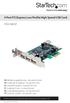 4 Port PCI Express Low Profile High Speed USB Card PEXUSB4DP DE: Bedienungsanleitung - de.startech.com FR: Guide de l'utilisateur - fr.startech.com ES: Guía del usuario - es.startech.com IT: Guida per
PCIe SATA 6G Raid Card
 PCIe SATA 6G Raid Card User Manual Ver. 1.00 All brand names and trademarks are properties of their respective owners. Contents: Chapter 1: Introduction... 3 1.1 Product Introduction... 3 1.2 Features...
4 Channel 6-Port SATA 6Gb/s PCIe RAID Host Card
 4 Channel 6-Port SATA 6Gb/s PCIe RAID Host Card User Manual Model: UGT-ST644R All brand names and trademarks are properties of their respective owners www.vantecusa.com Contents: Chapter 1: Introduction...
ESATA PCI CARD. User s Manual
 ESATA PCI CARD User s Manual Introduction... 3 System Requirements... 3 RAID Introduction... 3 BIOS Configuration Utility... 5 Configuring Arrays... 5 RAID Mode Definitions... 5 BIOS Configuration Utility...
Hydra Super-S Combo. 4-Bay RAID Storage Enclosure (3.5 SATA HDD) User Manual July 29, 2009 - v1.3
 4-Bay RAID Storage Enclosure (3.5 SATA HDD) User Manual July 29, 2009 - v1.3 EN Introduction 1 Introduction 1.1 System Requirements 1.1.1 PC Requirements Minimum Intel Pentium III CPU 500MHz, 128MB RAM
Regulatory Compliance Statement
 Regulatory Compliance Statement 0560 EU Declaration of Conformity The declaration of conformity may be consulted at www.kobo.com/userguides SAR Limits The exposure standard for wireless devices employs
Power Supply Guide Version 1.0 for D-Show
 Power Supply Guide Version 1.0 for D-Show Digidesign 2001 Junipero Serra Boulevard Daly City, CA 94014-3886 USA tel: 650 731 6300 fax: 650 731 6399 Technical Support (USA) tel: 650 731 6100 fax: 650 731
The SATA II PCIe RAID is an ultra high-speed two channel Serial ATA Generation II RAID controller for use in PCI Express enabled systems.
 SATA II PCIe RAID Quick Installation Guide Introducing the SATA II PCIe RAID The SATA II PCIe RAID is an ultra high-speed two channel Serial ATA Generation II RAID controller for use in PCI Express enabled
LaCie 12big Rack Network
 LaCie The Ultimate Corporate File-Sharing Solution. Network-Attached and Block Storage up to 96TB Customizable. Robust. Enterprise Class. Network-Attached Storage Just Got 12 Times Better. A Complete Network
Dell PowerEdge Expandable RAID Controller 3/QC, 3/DC, 3/DCL and 3/SC. PERC 3 User s Guide. www.dell.com support.dell.com
 Dell PowerEdge Expandable RAID Controller 3/QC, 3/DC, 3/DCL and 3/SC PERC 3 User s Guide www.dell.com support.dell.com Information in this document is subject to change without notice. 2002 Dell Computer
USB 3.0 to M.2 NGFF SSD Enclosure with UASP
 USB 3.0 to M.2 NGFF SSD Enclosure with UASP SM2NGFFMBU33 *actual product may vary from photos DE: Bedienungsanleitung - de.startech.com FR: Guide de l'utilisateur - fr.startech.com ES: Guía del usuario
2013 VTech Printed in China 91-009656-000 US
 Rechargeable Power Pack User s Manual 2013 VTech Printed in China 91-009656-000 US INTRODUCTION The Rechargeable Power Pack makes it easier than ever to keep the InnoTab 3 or InnoTab 3S charged and ready
Intel RAID Software v6.x (and newer) Upgrade/Installation Procedures
 Intel RAID Software v6.x (and newer) Upgrade/Installation Procedures For Intel Server RAID Controller U3-1 and Intel Server RAID Controller U3-1L Revision 1.1 12/21/01 Date Rev Modifications 12/21/01 1.1
2-Port SATA 6Gbps PCI Express Controller 2-Port esata 6Gbps PCI Express Controller
 2-Port SATA 6Gbps PCI Express Controller 2-Port esata 6Gbps PCI Express Controller PEXSAT32 PEXESAT32 DE: Bedienungsanleitung - de.startech.com FR: Guide de l'utilisateur - fr.startech.com ES: Guía del
Intel RAID Maintenance Free Backup Unit AXXRMFBU2 User s Guide
 Intel RAID Maintenance Free Backup Unit ARMFBU2 User s Guide A Guide for Technically Qualified Assemblers of Intel identified Subassemblies/Products Intel Order Number: G49043-004 Disclaimer Information
PCI Express 10GBase-LR/SR/LRM Fiber Network Card with Open SFP Slot
 PCI Express 10GBase-LR/SR/LRM Fiber Network Card with Open SFP Slot PEX10000SFP *actual product may vary from photos DE: Bedienungsanleitung - de.startech.com FR: Guide de l'utilisateur - fr.startech.com
Installation Guide. Wyse VX0L and VX0LE Thin Clients 1-GB RAM Upgrade Option Kit. Issue: 022808 PN: 883884-07L Rev. A
 Installation Guide Wyse VX0L and VX0LE Thin Clients 1-GB RAM Upgrade Option Kit Issue: 022808 PN: 883884-07L Rev. A ii Copyright Notice 2008, Wyse Technology Inc. All rights reserved. This manual and the
Intel NUC Kit DC3217IYE User Guide. Intel NUC Kit DC3217IYE
 Intel NUC Kit DC3217IYE User Guide 1 Before You Begin CAUTIONS The procedures in this user guide assume familiarity with the general terminology associated with personal computers and with the safety practices
P73474-F5U006-UNV-AM-man.qxd 9/18/00 10:10 AM Page 1
 P73474-F5U006-UNV-AM-man.qxd 9/18/00 10:10 AM Page 1 En 4-Port USB PCI Card User Manual Guide d utilisation de la carte PCI USB à quatre ports Manual de usuario para la tarjeta PCI USB de 4 puertos Placa
PCI Express 2.0 SATA III RAID Controller Card with Internal Mini-SAS SFF-8087 Connector
 PCI Express 2.0 SATA III RAID Controller Card with Internal Mini-SAS SFF-8087 Connector StarTech ID: PEXSAT34SFF The PEXSAT34SFF PCI Express SATA Controller Card enables 4 AHCI SATA III connections to
5-Port Switch 10/100/1000 Mbps Gigabit Ethernet GS105
 5-Port Switch 10/100/1000 Mbps Gigabit Ethernet GS105 Installation Guide Introduction The NETGEAR 5-Port Gigabit Ethernet Switch Model GS105 provides you with a low-cost, reliable, high-performance switch
HARDWARE GUIDE. MegaRAID SCSI 320-0 Zero-Channel RAID Controller
 HARDWARE GUIDE MegaRAID SCSI 320-0 Zero-Channel RAID Controller September 2002 This document contains proprietary information of LSI Logic Corporation. The information contained herein is not to be used
ServeRAID H1110 SAS/SATA Controller for IBM System x IBM System x at-a-glance guide
 ServeRAID H1110 SAS/SATA Controller for IBM System x IBM System x at-a-glance guide The ServeRAID H1110 SAS/SATA Controller for IBM System x offers a low-cost enterprise-grade RAID solution for internal
Energy Smart Electric Water Heater Controller
 Installation, Operation and Troubleshooting Instructions Energy Smart Electric Water Heater Controller Table of Contents Installation and Setup, 2 Operation, 5 Troubleshooting, 7 Regulatory Notices, 11
As enterprise data requirements continue
 Storage Introducing the Dell PERC 6 Family of SAS RAID ControlLers By Bhanu Prakash Dixit Sanjay Tiwari Kedar Vaze Joe H. Trickey III The Dell PowerEdge Expandable RAID Controller (PERC) 6 family of enterprise-class
HARDWARE GUIDE. MegaRAID SCSI 320-1 RAID Controller
 HARDWARE GUIDE MegaRAID SCSI 320-1 RAID Controller September 2002 This document contains proprietary information of LSI Logic Corporation. The information contained herein is not to be used by or disclosed
Beckhoff onboard SATA-RAID
 Installation and operating instructions for Beckhoff onboard SATA-RAID Version: 1.3 Date: 2009-07-24 Table of contents Table of contents 1. 2. 3. 4. 5. 6. 7. General notes 2 Notes on the documentation
Intel RAID Controller Troubleshooting Guide
 Intel RAID Controller Troubleshooting Guide A Guide for Technically Qualified Assemblers of Intel Identified Subassemblies/Products Intel order number C18781-001 September 2, 2002 Revision History Troubleshooting
Serial Attached SCSI RAID Controllers Installation and User s Guide
 Serial Attached SCSI RAID Controllers Installation and User s Guide 2 Copyright 2008 Adaptec, Inc. All rights reserved. No part of this publication may be reproduced, stored in a retrieval system, or transmitted
Internal Drive Mounted Dual SATA Hard Drive RAID Adapter
 Internal Drive Mounted Dual SATA Hard Drive RAID Adapter S322SAT3R *actual product may vary from photos DE: Bedienungsanleitung - de.startech.com FR: Guide de l'utilisateur - fr.startech.com ES: Guía del
USB Mini Print Server PS121. Installation Guide
 USB Mini Print Server PS121 Installation Guide Introduction Thank you for purchasing a NETGEAR PS121 USB Mini Print Server. With this print server you can share your printer with all the computers in your
PCI Express USB 2.0 Adapter Card
 PEXUSB400 Instruction Manual PCI Express USB 2.0 Adapter Card 4-Port (Independent) PCI Express to High Speed USB 2.0 Adapter Card FCC Compliance Statement This equipment has been tested and found to comply
SSDNow For Desktops. Installation Guide
 Installation Guide Your purchase of the SSDNow with Accessory Kit will allow you to enjoy the benefits of increased system performance and reliability. All hardware and software necessary to replace your
Compaq Presario Desktop Products. Upgrading and Servicing Guide
 Compaq Presario Desktop Products Upgrading and Servicing Guide The information in this document is subject to change without notice. Hewlett-Packard Company makes no warranty of any kind with regard to
User guide. Stereo Bluetooth Headset SBH70
 User guide Stereo Bluetooth Headset SBH70 Contents Introduction...3 Function overview...3 Hardware overview...3 Basics...5 Charging the battery...5 Battery and power management...5 Turning the headset
Dell Inspiron 660s Owner s Manual
 Dell Inspiron 660s Owner s Manual Computer model: Inspiron 660s Regulatory model: D06S Regulatory type: D06S001 Notes, Cautions, and Warnings NOTE: A NOTE indicates important information that helps you
FUSION R400 RAID USB 3.0
 FUSION R400 RAID USB 3.0 1U Rackmount 4-Drive Hardware RAID 5 SATA Storage System with USB 3.0 Interface User s Guide For Windows Contents 1 Fusion R400 RAID USB 3.0 Features 1 2 Drive Installation and
Tyan Computer. Transport PX22. Service Engineer s Manual
 Tyan Computer Transport PX22 Service Engineer s Manual 1 Precaution To read through the user manual, check all assembly and follow setup process before any operation on this server To keep paper clips,
WebBIOS Configuration Utility Guide
 Dell PowerEdge Expandable RAID Controller 3/QC, 3/DC, 3/DCL and 3/SC WebBIOS Configuration Utility Guide www.dell.com support.dell.com Information in this document is subject to change without notice.
LG 8820 IP Phone. User Guide. for Bell Aliant Call Servers
 LG 8820 IP Phone User Guide for Bell Aliant Call Servers Please read this guide carefully before operating your set. Retain this guide for future reference. 1 Regulatory and Safety Notices 1. Radio Frequency
Small form factor bay converter and hard drive installation
 Small form factor bay converter and hard drive installation HP xw6600 and HP xw8600 Workstations This document describes how to convert HP xw6600 and HP xw8600 Workstation 3.5-inch hard drive bays to hold