
Axxess. Model 8520 Phone User Guide
|
|
|
- Marcia Lawrence
- 10 years ago
- Views:
Transcription
1 Axxess Model 8520 Phone User Guide

2

3 MODEL 8000 SERIES PHONES QUICK REFERENCE GUIDE TO FREQUENTLY USED FEATURES These are the basic instructions for the most frequently used telephone system and voice mail features. For detailed information on these and other features, refer to the complete instructions in the User Guide. PLACING AN INTERCOM CALL 1. With or without the handset lifted, dial an extension number. 2. If your call goes through handsfree to the called phone s speaker, speak after you hear a double tone. If you hear continuous ringing, wait for the call to be answered. ANSWERING AN INTERCOM CALL To answer an intercom call that comes in through your speakerphone: EITHER, Respond handsfree. OR, Lift the handset for privacy. To answer a ringing (non-handsfree) intercom call: EITHER, Lift the handset for privacy. OR, Press (Speaker) or ANSWER to respond handsfree. OR, Press the flashing IC (Intercom) button. PLACING AN OUTSIDE CALL 1. With or without the handset lifted, press OUTGOING. 2. Dial the desired number. (If you see a request for an account code and hear a single progress tone, you must dial an account code before you can place your call.) MAKING AN EMERGENCY CALL Dial to automatically place a call to the system s programmed emergency number (usually 911). You do not have to press OUTGOING first. CAUTION If using an IP Phone, consult your System Administrator and your local Inter-Tel servicing company for important information about dialing emergency services from your phone before you begin using it. Inter-Tel, Inc. June 2003 printed in US Part no

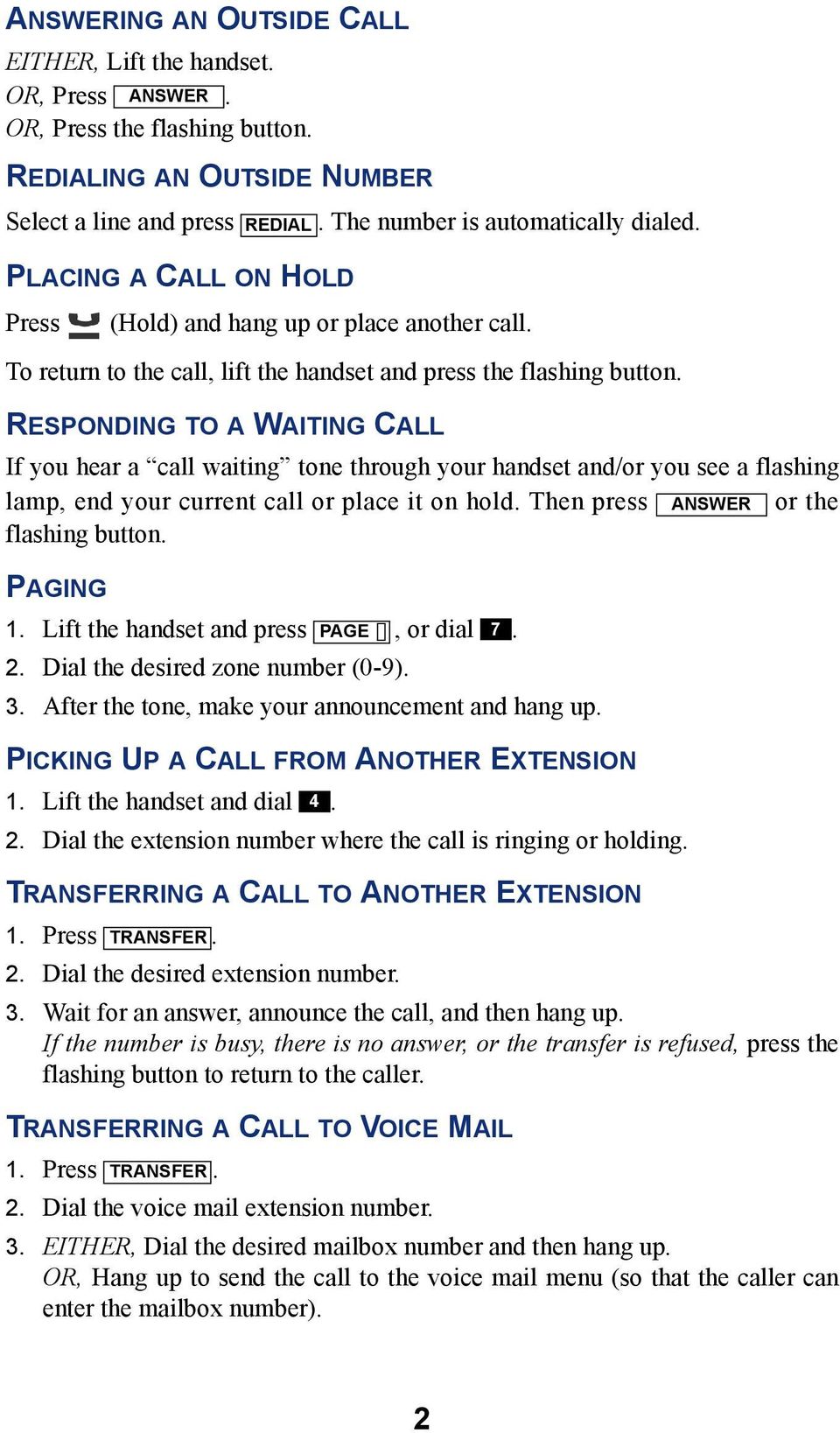
4 ANSWERING AN OUTSIDE CALL EITHER, Lift the handset. OR, Press ANSWER. OR, Press the flashing button. REDIALING AN OUTSIDE NUMBER Select a line and press PLACING A CALL ON HOLD Press REDIAL. The number is automatically dialed. (Hold) and hang up or place another call. To return to the call, lift the handset and press the flashing button. RESPONDING TO A WAITING CALL If you hear a call waiting tone through your handset and/or you see a flashing lamp, end your current call or place it on hold. Then press ANSWER or the flashing button. PAGING 1. Lift the handset and press PAGE, or dial Dial the desired zone number (0-9). 3. After the tone, make your announcement and hang up. PICKING UP A CALL FROM ANOTHER EXTENSION 1. Lift the handset and dial Dial the extension number where the call is ringing or holding. TRANSFERRING A CALL TO ANOTHER EXTENSION 1. Press TRANSFER. 2. Dial the desired extension number. 3. Wait for an answer, announce the call, and then hang up. If the number is busy, there is no answer, or the transfer is refused, press the flashing button to return to the caller. TRANSFERRING A CALL TO VOICE MAIL 1. Press TRANSFER. 2. Dial the voice mail extension number. 3. EITHER, Dial the desired mailbox number and then hang up. OR, Hang up to send the call to the voice mail menu (so that the caller can enter the mailbox number). 2
5 TRANSFERRING A CALL TO AN OUTSIDE NUMBER 1. Press TRANSFER and select an outside line. 2. Dial the desired telephone number. 3. Wait for an answer, announce the call, and then hang up. If the number is busy, there is no answer, or the transfer is refused, press the flashing button to return to the caller. FORWARDING CALLS 1. Press FWD. (Model 8560 and 8660 users must then select a menu button.) 2. Do one of the following: To forward to an outside telephone number: Select an outside line and dial a telephone number. To forward to an extension number: Dial the extension number. To forward to your voice mailbox: Dial the voice mail extension. CANCELING CALL FORWARD Press FWD. (Model 8560 and 8660 users must then press the FWD OFF menu button.) PLACING CONFERENCE CALLS 1. While on the first call, press CNF. The call is now on hold. 2. Place an intercom or outside call, then press the flashing CNF to place the call on hold. (If necessary, repeat this step to place a third call on hold.) 3. Press the flashing CNF to join all of the calls together in the conference. CHANGING VOLUME LEVELS Press the (high) or (low) end of the Volume button. To save your change: EITHER, Press both ends of the Volume button at the same time. OR, Press the middle of the Volume button. ACCESSING YOUR VOICE MAILBOX If your MSG 1. Lift the handset or press. 2. Press MSG. button is lit and you have a message from voice mail: 3. Enter your personal password and press #. 3

6 If your MSG button is not lit, access your mailbox as follows: 1. Dial the voice mail extension number. (You hear the main menu.) 2. During or after the greeting, press to identify yourself as a subscriber. 3. Enter your mailbox number and your personal password (if programmed). Then press #. LISTENING TO VOICE MAIL MESSAGES 1. Access your mailbox as described on page Press 1 to listen to your new messages. While you are listening to a message, you can use the following options: Press # to skip to the end of the recording. Press 1 to back up. Press 2 to pause. (Press any button to continue.) Press 3 to skip ahead. Press 4 to lower the volume. Press 5 to play the message envelope. Press 6 to raise the volume. Press 7 to save the new message in your mailbox. Press 9 to delete the message from your mailbox. 3. When the message has finished playing, you have the following options: Press 1 to replay the message from the beginning. Press 2 to reply to the message (or make a return call, if enabled). Press 3 to forward a copy of the message to another subscriber. Press 4 to listen to the previous message. Press 5 to play the introductory message envelope. Press 6 to listen to the next message. Press 7 to save the new message in your mailbox. Press 9 to delete the message from your mailbox. SENDING VOICE MAIL MESSAGES 1. Access your mailbox as described on page Press Dial the mailbox number where you want to leave the message. 4. Press # to accept the subscriber s name. 5. Record your message after the tone. 6. When finished, hang up or press # and listen for more options. 4

7 VOICE MAIL OPTIONS Below is a summary of the options you can use when listening to messages, after playing messages, and when leaving messages. # LISTENING TO MSG AFTER MSG PLAYS LEAVING MSG 1 Back Up Replay the Replay Your Message Message 2 Pause Reply to the Message Add to Your Message 3 Skip Forward Forward a Copy Erase and Re-record 4 Lower Volume Listen to Previous Msg 5 Play Envelope Play Envelope 6 Increase Volume Listen to Next Message 7 Save the Message 8 9 Delete the Message Delivery Options * Cancel # Skip to End Send Message and Exit FEATURE CODES PHONE SYSTEM AND CODE FEATURE NAME CODE FEATURE NAME VOICE MAIL FEATURE GUIDE 391 Account Code All Calls 324 Hunt Group Remove/Replace 390 Account Code Optional 303 LCD Contrast Control 326 ACD Agent Log In 365 Message 327 ACD Agent Log Out 366 Message - Cancel Msg Left 328 ACD Agent Log In/out 368 Message -Cancel Msg On Phone 329 ACD Agent Wrap-up Term. 367 Message - Silent 375 Agent Help Request 314 Microphone Mute 376 Agent Help Reject 7 Page 361 Automatic Intercom Access 325 Page Remove/Replace 360 Automatic Line Access 397 Program Buttons 350 Automatic Line Answer 392 Program Station Password 313 Background Music 6 Queue (Callback) Request 355 Call Forward All Calls 385 Record-A-Call 357 Call Forward If Busy 380 Redial 356 Call Forward If No Answer 331 Redirect Call 358 Call Fwd. If No Answer/Busy 305 Reminder Message 5 Conference 306 Reminder Message Cancel 301 Change Language 359 Remote Programming 394 Default Station 4 Reverse Transfer 307 Directory 396 Review Buttons 300 Display Time And Date 377 Ring Intercom Always On/off 372 Do-Not-Disturb On/Off 398 Ring Tone Selection 373 Do-Not-Disturb Override 321 Station Monitor 395 Feature Button Default 382 Station Speed Dial 312 Group Listen 383 Station Speed Dial Program 319 Handsfree On/Off 354 System Forward On/Off 317 Headset On/Off 381 System Speed Dial 336 Hold Individual 399 Switch Keymap 335 Hold System 346 Transfer To Hold USING VOICE MAIL To access your voice mailbox: 1. Dial the Voice Mail extension number. 2. Press and enter your mailbox number. 3. Enter your password and press #. 4. You have the following options: Press 1 to listen to new messages. Press 2 to leave a message. Press 3 to listen to saved messages. Press 4 to program personal options and remote message notification (if enabled). Press 5 for message options (undelete messages or cancel unheard sent messages). Voice Mail will guide you through the options with voice prompts. For your convenience, the table inside this guide summarizes the options available when listening to messages, after playing messages, and when leaving messages. 330 Hookflash 345 Transfer To Ring

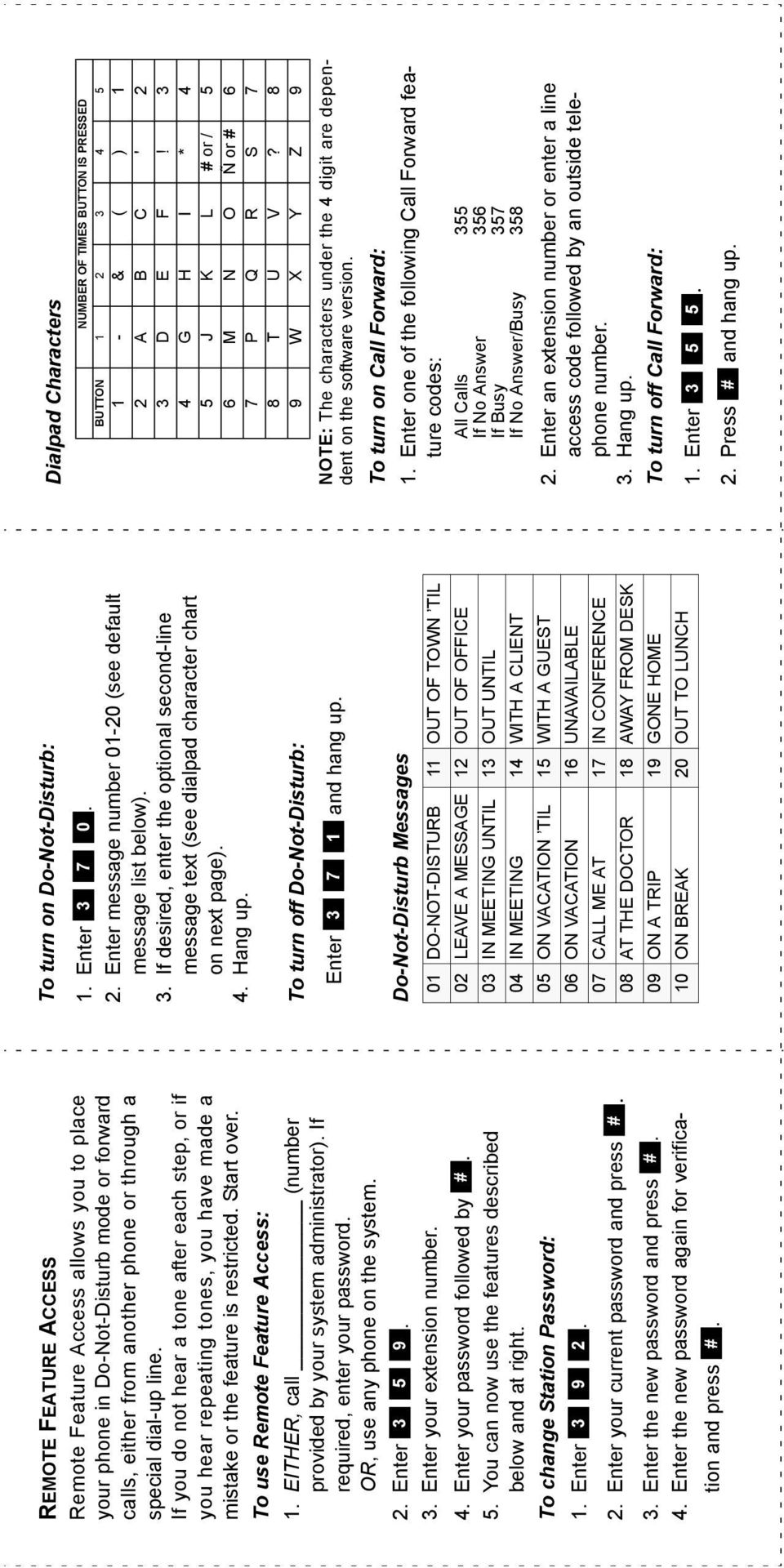
8 REMOTE FEATURE ACCESS Remote Feature Access allows you to place your phone in Do-Not-Disturb mode or forward calls, either from another phone or through a special dial-up line. If you do not hear a tone after each step, or if you hear repeating tones, you have made a mistake or the feature is restricted. Start over. To use Remote Feature Access: 1. EITHER, call (number provided by your system administrator). If required, enter your password. OR, use any phone on the system. 2. Enter Enter your extension number. 4. Enter your password followed by #. 5. You can now use the features described below and at right. To change Station Password: 1. Enter Enter your current password and press #. 3. Enter the new password and press #. 4. Enter the new password again for verification and press #. To turn on Do-Not-Disturb: 1. Enter Enter message number (see default message list below). 3. If desired, enter the optional second-line message text (see dialpad character chart on next page). 4. Hang up. To turn off Do-Not-Disturb: Enter and hang up. Do-Not-Disturb Messages 01 DO-NOT-DISTURB 11 OUT OF TOWN TIL 02 LEAVE A MESSAGE 12 OUT OF OFFICE 03 IN MEETING UNTIL 13 OUT UNTIL 04 IN MEETING 14 WITH A CLIENT 05 ON VACATION TIL 15 WITH A GUEST 06 ON VACATION 16 UNAVAILABLE 07 CALL ME AT 17 IN CONFERENCE 08 AT THE DOCTOR 18 AWAY FROM DESK 09 ON A TRIP 19 GONE HOME 10 ON BREAK 20 OUT TO LUNCH Dialpad Characters NUMBER OF TIMES BUTTON IS PRESSED BUTTON & ( ) 1 2 A B C ' 2 3 D E F! 3 4 G H I * 4 5 J K L # or / 5 6 M N O Ñ or # 6 7 P Q R S 7 8 T U V? 8 9 W X Y Z 9 NOTE: The characters under the 4 digit are dependent on the software version. To turn on Call Forward: 1. Enter one of the following Call Forward feature codes: All Calls 355 If No Answer 356 If Busy 357 If No Answer/Busy Enter an extension number or enter a line access code followed by an outside telephone number. 3. Hang up. To turn off Call Forward: 1. Enter Press # and hang up.
9 Table of Contents CONTENTS PAGE FINDING YOUR WAY Welcome About This Guide About Your Phone About Voice Mail What You See and Hear Software Compatibility GETTING STARTED Introduction Adjusting Your Phone s Viewing Angle Adjusting Your Phone s LCD Contrast Setting Up Voice Mail Making and Receiving Calls Placing Calls On Hold Placing Conference Calls Transferring Calls Using Reverse Transfer Forwarding Calls Redialing a Number Displaying Information on Your Phone Using a Headset Using the Speaker and Microphone Using the Message Button Accessing Your Mailbox Using Voice Mail Messages Using Do-Not-Disturb Mode Using Reminder Messages MOVING ON Introduction Setting Preferences Speed Dialing Using Record-A-Call Paging FINDING YOUR WAY GETTING STARTED MOVING ON LEARNING MORE Inter-Tel, Inc. September 2003 printed in US i

10 CONTENTS PAGE Performing a Hookflash During a Call Programming Your Feature Buttons Programming Direct Station Selection Buttons Programming Secondary Extension Buttons Using Account Codes Screening Calls Using the Directories Programming Remote Feature Access Requesting Agent Help Working in Hunt Groups LEARNING MORE Introduction What the Administrators Can Do for You Frequently Asked Questions (FAQs) Default Feature Codes INDEX For sales, service, or technical support, contact your local authorized Inter-Tel dealer. If you have questions or comments about this User Guide, contact Inter-Tel Technical Publications at: [email protected] All products and services mentioned in this publication are the trademarks, service marks, registered marks, or registered service marks of their respective owners. Inter-Tel and Axxess are registered trademarks of Inter-Tel, Inc. ii

11 Finding Your Way SECTION CONTENTS PAGE Welcome About This Guide About Your Phone Feature Button Functions Display Message Indicator Lamp DSS/BLF and Mini-DSS About Voice Mail What You See and Hear Software Compatibility FINDING YOUR WAY 1

12 FINDING YOUR WAY WELCOME Your new Model 8520 Phone provides access to several features, each of which is described in this guide. The About This Guide section below lists the different sections in this user guide and describes the type of information you can find there. If you need to access information quickly, refer to the Quick Reference Guide attached to the front of this guide. You can also tear out the pocket guide to keep as a handy reference for features you are likely to use while away from the office (Remote Feature Access and Voice Mail). ABOUT THIS GUIDE This guide contains instructions for using the Model 8520 Phone on the Inter-Tel Axxess telephone and voice mail systems. To help you find information more quickly, this guide is divided into four separate sections, as indicated by the tabs. These sections include the following: Finding Your Way: This section provides the map for your phone and this guide. It includes figures and general information designed to help you find what you need. Getting Started: If you need to make a call, this is the section for you. It not only includes basic phone and voice mail information, but it provides instructions on how to perform everyday tasks, such as answering calls, making calls, accessing voice mail, etc. Moving On: Once you ve got the basics down, it s time to move on to the advanced features. In this section, you ll learn how to program speed-dial numbers, use remote messaging, define secondary extensions, and access other helpful features. Learning More: This is the place where the answers are. With a Frequently Asked Questions (FAQs) section and additional information about the phone and voice mail systems, you can perform basic troubleshooting and learn more about the system. In addition, this guide contains a list of default feature codes (see page 75), an index (see page 79), and a voice mail flowchart (see page 83) for easy reference. NOTE: Because the telephone system is very flexible and programmable, the procedures for using the features might vary slightly from the descriptions in this guide. If so, your trainer or system administrator can tell you how your system differs and how to use the features. 2

13 ABOUT YOUR PHONE Your phone has two basic types of buttons in addition to a display and a Message Indicator lamp. Dialpad buttons: Allow you to enter numbers and letters. Feature buttons: Provide quick access to various phone and voice mail features. FINDING YOUR WAY Internal Speaker LCD With Two 16-Character Lines Message Indicator Lamp Ring and Voice Volume Control Hold Button Special Button 12-Button Dialpad Speaker Button Hearing Aid-Compatible (HAC) Handset Feature Buttons Handsfree Microphone (Underneath Edge) NOTE: This is the default configuration. Your buttons may have been programmed differently. If you are uncertain about the configuration, ask your system administrator. 3

14 FINDING YOUR WAY Feature Button Functions The feature buttons are designed to automate some of the commonly-used functions, such as dialing an outside number. Each of these is described in the table below. BUTTON IF YOU... YOU CAN... PG. ANSWER OUTGOING CALL IC Press ANSWER Answer a call. 20 Press OUTGOING and dial the number Place an outgoing call. 19 Press an unlit CALL button or the flashing Select an outside line or answer a call. 19, 20 button Press IC Access an intercom call. 16 DND CNF TRANSFER SYS SPDL STN SPDL PAGE REDIAL MSG MUTE FWD Press unlit or lit DND Enable/disable Do-Not-Disturb mode. 38 Press CNF and dial the numbers you would like to add to the conference Place a conference call. 22 Press (International Hold Symbol) Put a call on hold. 21 Press TRANSFER and dial the destination number Press SYS SPDL Transfer a call. 23 View or access System Speed-Dial numbers. Press STN SPDL View or dial Station Speed-Dial numbers. 52 Press PAGE Choose a page zone to place a page. 57 Press REDIAL Redial a telephone number or save the last number dialed. Press and hang up Put a call on the speaker. 29 Press MSG Leave or listen to a message. 31 Press MUTE Mute the microphone. 29 and dial the destination num- Press FWD ber Press the high or low end of the Volume button In addition to the buttons identified in the preceding table, your phone has a Special button ( ). Depending on how your telephone system is configured, you may need to press this button before you dial a feature code Forward calls to the specified number. 25 Adjust volume during a call. 39 NOTE: Because the telephone system allows customized feature buttons, your phone may have been reprogrammed so that the feature buttons do not match those described in this guide. 4

15 Display Your Model 8520 Phone has two lines of display with 16 characters per line. When your phone is idle, this display shows your extension number, your username, the time of day, and the date. At other times, it may display reminder messages, Do-Not- Disturb (DND) messages, numbers dialed, call sources, elapsed time of calls, current call costs, error messages, etc. Because the display can only support 16 characters, you may see a few abbreviations. The most commonly used abbreviations are provided in the table below. ACCT CODE CNF DEST DIR DND EXT MSG RCL SPKR SPKRPHN STN SPD SYS SPD TFR TG TRNK Account Code Conference Destination Directory Do-Not-Disturb Extension Message Recall Speaker Speakerphone Station Speed Dial System Speed Dial Transfer Trunk Group (a group of outside lines) Trunk (an outside line) FINDING YOUR WAY 5

16 FINDING YOUR WAY Message Indicator Lamp The Message Indicator lamp (located at the top, right-hand corner of the phone) shows the same indications as the MSG button. The Message Indicator lamp flashes whenever there is a waiting message. NOTE: Because the telephone system allows for customization, your phone s message indicator may have been reprogrammed to indicate a different feature. DSS/BLF and Mini-DSS Generally, the Model 8450 Direct Station Selection/Busy Lamp Field (DSS/BLF) unit is used by individuals that handle a high volume of incoming calls, such as receptionists. The DSS/BLF provides one-button access to up to 50 extension numbers or a programmable feature. For more information about programming and using the DSS, refer to the current Administrator s Guide (part no ). The Model 8416 Mini-DSS unit is a scaled-down version of the full-sized DSS/BLF unit. This optional unit adds 16 user-programmable buttons to your phone. These buttons can be programmed as any of the following: DSS buttons: Provide one-button access to extension numbers and display the status of the extension associated with the button (see page 59). Feature buttons: Provide quick access to frequently-used features (see page 58). Secondary extensions: Allow one-button access to calls ringing or holding at another station (see page 60). NOTE: Instructions for attaching the Mini-DSS to your phone are included with the unit. The DSS/BLF and Mini-DSS lamps indicate the status of the extension or feature assigned to the button. These indications are shown in the table below. If the lamp is... Solidly lit Flashing slowly Flashing rapidly Fluttering continuously Then... The associated extension is busy, or the associated feature is enabled. The extension is in Do-Not-Disturb. The extension has a call ringing in. The extension is causing a STATION OFF-HOOK system alarm. 6

17 ABOUT VOICE MAIL Voice mail is an application that is part of the Inter-Tel Voice Processor. With the voice mail application, you and other callers can send and receive recorded messages from any station or touchtone telephone. To use this and other features, each user (you included) is assigned a voice mailbox, which usually corresponds to a valid extension number. You can, however, have an unassociated mailbox that does not correspond to an extension. Unassociated mailboxes are typically used for agents or other personnel who don t have a permanent office. With your voice mailbox, you can use personal or system greetings to let callers know if you are out of town, on a call, etc. (see page 47). If a caller reaches your voice mailbox, they can leave a message, hang up, or access an attendant. In addition, the voice mail administrator can program the name for group lists of mailboxes. With these lists, you can send a message to a group of people by entering one number instead of everyone s individual mailbox number. FINDING YOUR WAY NOTE: You cannot cancel unheard (unretrieved) messages that are sent using group lists (see page 37). 7

18 FINDING YOUR WAY WHAT YOU SEE AND HEAR As you can see, your Model 8520 Phone and telephone system come equipped with a lot of bells and whistles. To help you understand what everything means, it is recommended that you read the following information before you use your phone: Your telephone system may be programmed for one or two dial tones. Systems with two dial tones have one for intercom calls and one for outside calls. Many features time out if you wait too long before performing the next step. If this happens, you must hang up and start over. If you hear four fast tones or repeating fast tones, you have pressed an invalid button combination, tried to select a restricted line, dialed a restricted or invalid number, dialed too slowly between digits, or waited too long before performing the next step. Hang up and try again. Some phone models have red/green lamps in the feature buttons. Green indicates a call is ringing, holding, or active on your phone. Red means the call is on another phone. If the buttons only light red, either your phone does not have the green lamps, or the system is not programmed to support the two lamp colors. NOTE: Your phone may be programmed to always use red lamps for calls ringing directly to your phone. If you are uncertain about the configuration, ask your system administrator. The button lamps may be solidly lit or flashing to indicate the status of a call or feature. To avoid confusion, this guide uses different icons to signify that a lamp is unlit ( CNF ), lit, ( CNF ), or flashing ( CNF ). Off-hook means that either the handset is lifted or the speakerphone is on ( is lit). On-hook indicates that the handset is in the cradle or the speakerphone is off. For example, you must first go off-hook to make a call, but you must go on-hook to end a call. If the MSG button and Message Indicator lamp are lit when using a directory or entering a message, you are in alphanumeric mode, which allows you to enter letters. If the MSG button and the Message Indicator lamp are unlit, you are in numeric mode and can only enter numbers and special characters. Handsfree mode indicates that a call is connected through the speakerphone (i.e., you don t have to lift the handset to speak). While in handsfree mode, you can make or receive calls. 8

19 SOFTWARE COMPATIBILITY Your phone is compatible with system software versions 7.0 and later. Phones using software versions 3.0 to 6.x have limited functionality in the following areas: The STN SPDL button will not work; however, you can still use this feature by dialing the Station Speed-Dial feature code (see page 52). The PAGE button will not work; however, you can still use this feature by dialing the Page feature code (see page 57). The Message Indicator lamp will not work; however, the MSG button will still function properly (see page 31). The dedicated headset audio jack will not work; however, you can still use the headset by plugging the headset into the handset jack and dialing the Headset On/ Off feature code (see page 28). The optional Mini-DSS will not work. The TRANSFER, ANSWER, OUTGOING, SYS SPDL, and REDIAL lamps will not light. The Model 8520 Phone does not support software versions 3.0 and earlier. FINDING YOUR WAY NOTE: This information about compatibility applies to phones programmed to use the default button locations. Your buttons may have been programmed differently. If you are uncertain about the configuration, ask your system administrator. 9

20 FINDING YOUR WAY 10

21 Getting Started SECTION CONTENTS PAGE Introduction Adjusting Your Phone s Viewing Angle Adjusting Your Phone s LCD Contrast Setting Up Voice Mail Initializing Your Mailbox Recording Your Personal Greetings Recording Your Voice Mail Directory Name Making and Receiving Calls Intercom Calls Outside Calls Emergency Calls Call Waiting Placing Calls On Hold Placing Conference Calls Transferring Calls To Another Extension To Voice Mail To an Outside Number Using Reverse Transfer Forwarding Calls Manual Call Forwarding Automatic System Forwarding Redirect Call Redialing a Number Displaying Information on Your Phone Date, Time, Name, and Extension Number Outside Party s Name/Number Using a Headset Using the Speaker and Microphone Mute Button Group Listen Using the Speaker Enhanced Speakerphone Mode Using the Message Button Leaving Messages Retrieving Messages Accessing Your Mailbox Using Voice Mail Messages Listening to Messages Undeleting Messages Sending Messages Canceling Unheard Messages Using Do-Not-Disturb Mode Using Reminder Messages GETTING STARTED 11
22 INTRODUCTION Now that you know what your phone can do, it s time to start using it. In this section, you ll learn how to make and receive calls, transfer calls, retrieve voice mail messages, and much more. ADJUSTING YOUR PHONE S VIEWING ANGLE Your Model 8520 Phone has an adjustable base that allows you to tilt your phone to enhance the viewing angle. There are two types of bases available on the phone, each of which allow you to adjust the angle of the phone. Use the appropriate instructions (listed below) to adjust the angle of your phone. GETTING STARTED If your phone has a support mechanism that fits into holes on the base: 1. Position the bottom of the phone s base on a flat surface. 2. Tilt the phone to the desired angle. 3. Place the feet of the support mechanism in the holes on the base to secure the position of the phone. If your phone has buttons located on the back to release the locking base: 1. Position the bottom of the phone s base on a flat surface. 2. Press both buttons on the back of the phone to disengage the base s locking mechanism. 3. Tilt the phone to the desired angle. 4. Release both buttons to lock the base in place. NOTE: If you position your phone s viewing angle to 60 degrees or greater, it is recommended that you flip the handset hanger down to the horizontal position. ADJUSTING YOUR PHONE S LCD CONTRAST Your Model 8520 Phone has a contrast control wheel that allows you to adjust the Liquid Crystal Display (LCD) contrast. This wheel is located on the back of the phone and can be adjusted while viewing the LCD screen. To adjust your phone s LCD contrast: 1. While viewing the LCD screen, locate the contrast control wheel on the back, upper-right section of the phone. 2. Adjust the contrast of the LCD screen by turning the wheel clockwise (lighter) or counterclockwise (darker). 12
23 SETTING UP VOICE MAIL To begin using your voice mailbox you will need to complete a few basic set-up procedures to initialize your mailbox, customize your personal greetings, and record your voice mail directory name. See page 47 for additional voice mail options. Initializing Your Mailbox One of the first things you should do is initialize your mailbox. This allows you to: Change the default password number to a personal password. Record a name to identify yourself in the company directory. Listen to the voice mail introduction. To initialize your mailbox: 1. Dial the voice mail extension number. (You hear the main menu.) NOTE: If you don t know what the voice mail extension number is, check with your system administrator. 2. Press to identify yourself as a subscriber. 3. Enter your mailbox number and default password. NOTE: Your mailbox number is your default password. 4. If you want a password, enter a new password using digits 0-9 (up to 12 digits). Then press #. Voice mail plays back your password. If you do not want to use a password, just press #. 5. Press # to accept the entry. Press 3 to re-enter your password. The system prompts you to record your directory name. 6. After the tone, record your first and last name. When finished, press #. 7. Do one of the following: Press # again to accept the name. Press 1 to replay the name you just recorded. Press 2 to add to your name. Press 3 to erase and re-record your name. The system then plays a prompt that introduces you to the basic voice mail features. You can skip this introduction by pressing #, if desired. GETTING STARTED 13
24 GETTING STARTED Recording Your Personal Greetings You can store two different personal greetings in your voice mailbox: a primary and an alternate. You can then select which greeting you want played when a caller reaches your voice mailbox. Because the purpose of this greeting is to tell callers why they have reached your voice mailbox, you should include the following information: Whether or not you are in the office and where you can be reached When you will be returning calls For callers who do not wish to leave a message, how to exit voice mail (press 0 to return to the operator) The following are some sample greetings to help you plan your message: Primary Greeting: Hello, this is. I am either on another line or away from my desk and cannot take your call at this time. If you need to speak to someone immediately, please dial zero now. Otherwise, please leave a detailed message, and I will return your call as soon as possible. Thank you. Alternate Greeting: Hello, this is. I will be away from the office from day/date until day/date. If you need to speak to someone immediately, please dial zero now. Otherwise, please leave a detailed message, and I will return your call when I return. Thank you. To change your personal greeting: 1. Access your mailbox as described on page Press 4 to select the Personal Options Menu. 3. Press 1 to record/change your personal greeting. 4. Do one of the following: Press 1 to record and/or enable your primary greeting. Press 2 to record and/or enable your alternate greeting. Press 3 to enable the system default mailbox greeting. 5. If you pressed 3, continue to the next step. If you pressed 1 or 2, the current greeting is played (if one exists). You can then do one of the following: Press # to accept the greeting. Press 1 to replay the greeting. Press 2 to add to the greeting. Press 3 to erase and re-record the greeting. Press to exit without changing your greeting. 6. Hang up. 14
25 Recording Your Voice Mail Directory Name Your recorded name is used to identify you in the voice mail directory and to verify your mailbox number when messages are addressed to you. To change your directory name: 1. Access your mailbox as described on page Press 4 to select the Personal Options Menu. 3. Press 2. Your current name is played. (Press 1 to replay your recorded name.) 4. Press 3 to erase and re-record your name. 5. When you hear a tone, record your first and last name, then press #. 6. Do one of the following: Press # again to accept your recorded name. Press 1 to replay your recorded name. Press 2 to add to your name. Press 3 to erase and re-record your name. 7. Hang up. GETTING STARTED 15
26 MAKING AND RECEIVING CALLS Making and receiving calls is the basic purpose of any phone. With your Model 8520 Phone, you can make/receive intercom and outside calls and make emergency calls. Intercom Calls Your extension number allows other people to place intercom calls to you, without dialing any extra codes. And, because every phone in your phone system is assigned an extension number, you can call other people in your system quickly and easily. NOTE: Ask your system administrator for a list of extensions. GETTING STARTED Placing Intercom Calls To place an intercom call: 1. With or without the handset lifted, dial an extension number. 2. If your call goes through handsfree to a phone s speaker, speak after you hear a double tone. If you hear continuous ringing, wait for the call to be answered. The phone system allows you to place a non-handsfree call that will override handsfree mode on the extension you are calling. If you use the Ring Intercom Always feature to always send non-handsfree calls, the called party must pick up the handset to answer the call. To place a non-handsfree call that will ring at the other phone until answered: Press # before dialing the extension number. To program your phone to always send non-handsfree calls using the Ring Intercom Always feature: With the handset in the cradle, dial The current status is shown. 16
27 If there is no answer or if the phone is busy when you place an intercom call, you can do any of the following: To leave a station message, press MSG and then hang up. To leave a voice mail message, press MSG and wait for the message center to answer. (See page 31 for more message options.) NOTE: This option is only available if the called phone has a voice mailbox. To camp onto a busy extension, stay on the line and wait for the phone to become available. Do not hang up. After the system timer expires, you hear music until the phone is available. NOTE: You cannot camp on to a phone if it is in DND mode. To request a callback (queue on to the phone): Press 6 and hang up. When the phone is available, your phone rings. (To cancel the queue request before the callback, press 6.) To use the Off-Hook Voice Announce feature (if the called phone is programmed for it): Do not hang up. After the busy signals stop, you are automatically connected and may speak. (If you hear music or if the phone is in DND mode, your off-hook voice announce call will not go through.) This allows you to talk to the phone user on his or her handsfree speakerphone, even though the user already has a call in progress on the handset. This feature is not available if your phone has the Ring Intercom Always feature enabled. GETTING STARTED 17
28 GETTING STARTED Receiving Intercom Calls Your phone can receive both intercom and non-handsfree intercom calls. If the handsfree feature is enabled on your phone, intercom calls are automatically answered. Non-handsfree intercom calls (see page 16) override the handsfree option. If your handsfree feature is disabled, or if you receive a non-handsfree intercom call, you must pick up the handset or press a button to answer the call. To enable or disable your phone s handsfree answering feature: With the handset in the cradle, dial To receive an intercom call: If the handsfree feature is enabled, respond handsfree. If the handsfree feature is disabled, press or IC or lift the handset for privacy. To receive a non-handsfree intercom call: EITHER, Lift the handset for privacy. OR, Press or IC to answer the call. NOTE: You must lift the handset if the caller has the Ring Intercom Always feature enabled. To redirect a ringing call to another extension or to an outside number: 1. Press and dial Enter the extension or outside number to which you want to redirect the call. See page 26 for more information. To receive an Off-Hook Voice Announce call (through your speaker) while you are on a call: When you hear a single tone and see an incoming call display, you can do the following: To accept the call on the speakerphone without ending your current call: When you hear a double tone, you may talk handsfree with the caller through the speakerphone. (The caller on the handset will be able to hear both you and the party on the speakerphone.) To block the call from coming through the speaker: a. Press to allow the incoming intercom call to camp on. The IC button flashes, and the call is placed on hold. b. Press DND to place your phone in DND mode, if desired. (See page 38 for more information about DND mode.) NOTE: To use this feature, the Off-Hook Voice Announce feature must be enabled. 18
29 Outside Calls With outside calls, you can talk to people who aren t members of your phone system. When you make an outside call, however, you must dial any area codes or long distance digits that your telephone company requires. Placing Outside Calls To place an outside call: 1. With or without the handset lifted, press OUTGOING. 2. Dial the desired number. NOTE: If you see a request for an account code and hear a single beep, you must dial an account code before you can place your call (see page 61). Depending on how your system is programmed, you may be able to use one of the following methods to select an outgoing line, instead of pressing the OUTGOING button: Dial the Outgoing Call feature code (default is 8). Press an unlit CALL button, if you have one. Dial a Select Line Group feature code (the defaults are but may differ depending on the software version). Dial the Automatic Route Selection (ARS) feature code (the default is but may differ depending on the software version). To request a callback (queue on to the line) if all outgoing lines are busy when you try to call out: When you hear busy signals, press 6 and hang up. When the line is available, your phone rings. To cancel the queue request before your phone rings: Press 6. When dialing the number, you can do one of the following: Use the speed-dial directory. See page 62. Use the Station Speed-Dial feature. See page 52. Use the System Speed-Dial feature. See page 55. Redial the last number you dialed. See page 26. GETTING STARTED 19
30 GETTING STARTED Receiving Outside Calls To receive an outside call: EITHER, Lift the handset. OR, Press ANSWER. Depending on how your system is programmed, you may be able to press the flashing CALL button instead. To redirect a ringing call to another extension or to an outside number: 1. Press and dial Enter the extension or outside number to which you want to redirect the call. See page 26 for more information. Emergency Calls With the telephone system, you do not have to access an outside line (press OUTGOING ) to dial an emergency number. To make an emergency call: Dial A call is automatically placed to the preset emergency number. Call Waiting If you receive a call while you are already on another call, you will hear a call waiting tone and/or you will see a display. To respond to a waiting call (you hear a single tone and a button is flashing): To end the current call: Hang up. The waiting call rings in. To place the current call on hold: Press. Then press the flashing button to answer the waiting call. To have the caller hear DND signals: Press DND. (See page 38 for more information about DND mode.) 20
31 PLACING CALLS ON HOLD You can place calls on hold in one of two ways: individual or system. Individual Hold places the call on hold at one phone. It can then be directly picked up at that phone or it can be picked up at another phone using the Reverse Transfer (Call Pickup) feature (see page 24). System Hold places the call on hold in the system. You can then pick up the call at any phone that has a flashing button for the call, including the phone that placed it on hold. NOTE: You cannot place intercom calls on system hold. To place a call on Individual Hold: 1. Press. 2. Hang up or place another call. To place an outside call on System Hold: 1. Press and dial Hang up or place another call. To return to a call that is on hold: Lift the handset and press the flashing button. GETTING STARTED 21
32 PLACING CONFERENCE CALLS GETTING STARTED With the Conference feature, you can establish a conference call with up to three intercom and/or outside parties (four, including you). To place a conference call: 1. While on the first call, press CNF to put the call on hold. 2. Place another intercom or outside call. 3. Press CNF to place the call on hold. (If necessary, repeat this step to place one more call on hold.) 4. Press CNF to join all of the calls together in the conference. During the conference call, you can do the following: To place the conference on hold: Press. This places the conference on hold without disconnecting the parties. To return to the conference, press CNF. To drop out of the conference: Press CNF and hang up. This removes your phone from the conference, but leaves the other parties connected. To add additional parties to the conference: Do the following: a. Press CNF. This leaves the conference parties connected. b. Place a call to the party to be added to the conference. c. Press CNF twice to put yourself and the new party into the conference. To end the conference and place all parties on individual hold: Press CNF and then press to place all of the parties on individual hold. You can then speak to one party at a time by pressing or a flashing button. To mute your microphone: Press MUTE. This turns your microphone on or off during the conference. If mute is enabled, you can hear the conferenced parties, but they cannot hear you. To transfer the conference to another extension or to voice mail: Press TRANSFER and dial the desired extension number. Then hang up when you are ready to complete the transfer. 22
33 TRANSFERRING CALLS Although transferring calls is considered a basic function of a phone, your Model 8520 Phone has many advanced options for this feature. With your phone, you can transfer to another extension, voice mail, or even an outside line. To Another Extension 1. EITHER, Press TRANSFER. OR, Press and dial to place the call on hold at the other phone. 2. Dial the desired extension number. 3. Wait for an answer, announce the call, and then hang up. If the number is busy, there is no answer, or the transfer is refused, press the flashing button to return to the caller. NOTE: If you are receiving a transferred call and the Transfer-To-Connect option is enabled for your phone, you are automatically connected to the transferred caller once the transferring party hangs up. If this option is disabled, you must press a CALL button to answer the transferred call. To Voice Mail 1. Press TRANSFER. 2. Dial the voice mail extension number. 3. EITHER, Dial the desired mailbox number and hang up. OR, Hang up to send the call to the voice mail menu (so that the caller can select the mailbox number). To an Outside Number 1. Press TRANSFER. 2. Select an outgoing line and dial the desired telephone number. 3. Wait for an answer, announce the call, and then hang up. If the number is busy, there is no answer, or the transfer is refused, press the flashing button to return to the caller. GETTING STARTED 23
34 USING REVERSE TRANSFER GETTING STARTED The Reverse Transfer (Call Pick Up) feature allows you to answer a call that is ringing or holding at another phone. For example, if the attendant transfers a call to you but you have stepped away from your phone, you can pick up the call using another phone. To answer a call ringing or holding at another phone: 1. Lift the handset and dial Dial the extension or hunt group number (see page 68) where the call is ringing or holding. The call is transferred to the phone you are using and you are connected to the caller. NOTE: If the Group Call Pickup feature is enabled, you can pick up a call ringing at any station in a hunt group by dialing the hunt group s extension number (available in versions 5.2 and later). 24
35 FORWARDING CALLS With the Forwarding feature, you can have calls follow you (e.g., forwarded to a cell phone), or you can redirect calls to a voice mail or other extension. Manual Call Forwarding Manual call forwarding allows you to send incoming calls to another extension number. You can even forward calls to outside numbers, if your phone is programmed to allow this. To forward calls: 1. EITHER, Press FWD. OR, Enter one of the following feature codes: (Call Forward All Calls): All incoming calls are forwarded without ringing at your phone (Call Forward If No Answer): All incoming calls are forwarded if they are not answered before a timer expires. NOTE: Only the installer or system administrator can adjust this timer (Call Forward If Busy): When your phone is busy, all incoming calls are forwarded without ringing at your phone (Call Forward If No Answer or Busy): All incoming calls are forwarded if your phone is busy or if you do not answer, as described above. 2. Do one of the following: To forward to an outside telephone number: Select an outgoing line and dial a telephone number. To forward to an extension number: Dial the extension number. To forward to your message center: Press MSG. To cancel any call forward request: EITHER, Press FWD and then. OR, Dial any one of the feature codes listed above and then press. Automatic System Forwarding Automatic System Forwarding allows your system administrator to route calls based on the type of call and the status of your telephone. Although you cannot program the path of a system forward, you can enable or disable this feature on your phone. To enable or disable System Forwarding: Dial GETTING STARTED 25
36 Redirect Call NOTE: This feature is available only with versions 5.3 and later system software. The Redirect Call feature allows you to forward any call that is ringing on your phone without having to answer the call. NOTE: You cannot redirect calls to an extension that is in DND or to a restricted outside number. GETTING STARTED To redirect a call to an extension number: 1. Press and dial Dial the extension number. To redirect a call to an outside telephone number: 1. Press and dial Enter the outside telephone number. 3. Press #. REDIALING A NUMBER Although most phones redial the last number dialed, your system administrator can program your phone to redial the last number saved. To use the Last Number Dialed feature (if enabled): With or without the handset lifted, press REDIAL. A line is selected automatically, and the number is dialed. To use the Last Number Saved feature (if enabled): To save the last number dialed: While the phone is idle or while listening to intercom dial tone, press REDIAL. To redial the saved number: After selecting a line, press REDIAL. The number is dialed automatically. 26
37 DISPLAYING INFORMATION ON YOUR PHONE Your Model 8520 Phone has two lines of display where you can view information, such as the date and time or the outside party s name/number. Date, Time, Name, and Extension Number You can temporarily display the system date and time, your username, and your extension number at any time. To show the date and time display (while on a call, in DND, etc.): Press and dial Outside Party s Name/Number NOTE: This feature is available only in versions 4.4 and later system software. If you are currently connected to an outside caller with Caller ID, you can toggle between displaying the caller s name and number. To show the outside party s name/number: Press and dial NOTE: If there is no outside party name available, the display shows CANNOT ACCESS FEATURE. GETTING STARTED 27
38 USING A HEADSET With an electret headset, you can talk on the phone handsfree, without using your speaker and microphone. NOTE: If your headset has a power-saver mode, make sure the system administrator has the Headset Connect Tone flag enabled in the telephone system. If this flag is not enabled, you may miss the first few seconds of incoming calls. GETTING STARTED To connect a headset: 1. Insert the headset plug into the headset jack. 2. With the handset in the cradle, dial (Headset On feature code) or dial (Headset On/Off feature code). The display shows HEADSET MODE ON. NOTE: If using a headset, press to connect and disconnect calls. To disconnect a headset: 1. Unplug the headset cord from the headset jack. 2. With the handset in the cradle, dial (Headset Off feature code) or dial (Headset On/Off feature code). The display shows HEADSET MODE OFF. NOTE: If you have both a headset and handset connected to your phone and you are using the headset, you can quickly transfer audio to the handset by lifting the handset from the cradle. Press to transfer the call back to the headset before replacing the handset in the cradle. 28
39 USING THE SPEAKER AND MICROPHONE If you are not using a headset, you can talk handsfree using your speaker and microphone. You can also use the speakerphone for on-hook dialing, call monitoring, and background music. Mute Button To mute the microphone so that you can hear the other party, but they cannot hear you (this does not put them on hold): Press MUTE. To return to the call: Press MUTE. Group Listen Using the Speaker With the Group Listen feature, you can transmit a conversation over the speaker while you use the handset or headset to continue speaking. This allows other people to hear the caller while the caller can only hear you. NOTE: You cannot use this feature on a handsfree call. You must be on a call using the handset or a headset before entering the feature code. GETTING STARTED To turn the group listen feature on or off during a call: Press and dial You hear a confirmation tone (the other party does not hear this tone). NOTE: If you are using the handset, the button lamp will remain unlit, even though the speaker is on. This allows you to place the call into handsfree mode at any time during the call by pressing and hanging up. If you are using a headset, however, the button lamp is lit. Pressing will disconnect the call. 29
40 Enhanced Speakerphone Mode The Enhanced Speakerphone Mode improves transmission quality while on a speakerphone call over a limited volume level range (typically the range is 1 to 3). NOTE: To use this feature, the system administrator or installer must program your phone for Enhanced Speakerphone Mode. GETTING STARTED To enable enhanced speakerphone mode while on a call: EITHER, Press and then. OR, Press and dial The speakerphone will return to standard mode when you end the call. There will be about one second of white noise while the speakerphone circuitry is calibrated to the call. (Both parties should avoid speaking during this white noise.) If the speakerphone cannot be calibrated correctly, displays show CANNOT ENABLE ENHANCED MODE. NOTE: Two display phones cannot be in enhanced mode while on a call together; one phone must be off-hook to allow the other phone to enter enhanced speakerphone mode. ALSO: On some long-distance calls, the outside party may hear his or her own echo when speaking. If the amount of echo is objectionable, do not use the Enhanced Speakerphone Mode. 30
41 USING THE MESSAGE BUTTON In today s busy world, it s almost guaranteed that you will call someone that is on another call, does not answer, or is in DND. But, with the MSG button, you can let the other person know you called. When you leave a message, you can: Have the called party return your call. When the party you called responds to the message indication, a call is automatically placed to your phone. Leave a message with the called party s message center (which can be a person or voice mail). When the party you called responds to the message, a call is automatically placed to his or her message center instead of your phone. To indicate that a message is waiting, your phone s MSG button flashes, and the display shows the number of waiting messages. Leaving Messages To leave a station message while on an intercom call, press MSG and hang up. To leave a voice mail message while on an intercom call, press MSG and wait for the message center to answer. To leave a silent message without placing an intercom call: 1. Dial Dial the desired extension number and hang up to leave a station message. To cancel a message that you left at another phone: 1. Dial Dial the extension number of the phone where you left the message. Retrieving Messages To retrieve a message (Message button and lamp are flashing): Lift the handset and press MSG. A call is automatically placed to the phone or message center that left the message. (See the following section for information about entering your mailbox.) To select the message you want to answer first: 1. With the handset in the cradle, press MSG repeatedly to view your waiting messages. 2. When the desired message is displayed, press # or lift the handset for privacy and then press # to respond. To cancel a waiting message: 1. Press MSG repeatedly to view your waiting messages. 2. Press to cancel the desired message when it is displayed. GETTING STARTED 31
42 ACCESSING YOUR MAILBOX If you have a message waiting in your mailbox, you must access your voice mailbox to retrieve it. TIP: Generally, pressing # during any voice mail operation will advance you to the next step. For example, when leaving a voice mail message for another voice mail user, you can press # to skip the person s introductory message and proceed directly to the recording phase. Similarly, while listening to messages, you can press # to skip the system-generated voice prompts and proceed directly to the playback phase. You can also press to cancel or return to the previous menu at any menu level. GETTING STARTED When you access your mailbox, the system may play one of the following messages: Mailbox almost full or full: If your mailbox is full, no new messages can be received until you delete waiting or saved messages. Message count: The system tells you how many messages are waiting to be heard, if any, and how many are priority messages. Remote Messaging: The system will indicate whether primary or alternate Remote Messaging is selected when the Remote Messaging feature is enabled (see page 65). It will also alert you if a programming error has been detected and/ or if it encountered busy system resources when attempting to place a Remote Messaging call. To access your mailbox: 1. Dial the voice mail extension number. (You hear the main menu.) 2. During or after the greeting, press to identify yourself as a subscriber. 3. Enter your mailbox number and your personal password (if programmed). Then press #. NOTE: If you do not have a password, just press on programming passwords. #. See page 47 for information 32
43 USING VOICE MAIL MESSAGES Once you ve accessed your mailbox, the system will tell you how many new and saved messages you have. You can then listen to messages, delete messages, save messages, etc. Listening to Messages To listen to messages: 1. Access your mailbox as described on page EITHER, Press 1 to listen to your new messages. OR, Press 3 to listen to your saved messages. 3. While you are listening to a message, you can use the following options: Press # to skip to the end of the recording. Press 1 to back up. Press 2 to pause. Then press any button to continue. Press 3 to skip ahead. Press 4 or to lower the volume. Press 5 to play the message envelope. Press 6 or to raise the volume. Press 7 to save the new message in your mailbox. Press 9 to delete the message from your mailbox. GETTING STARTED 33
44 GETTING STARTED 4. When the message has finished playing, you have the following options: Press 1 to replay the message from the beginning. Press 2 to reply to the message. If you are using version 5.1 or later software, you have the following options (earlier versions only leave voice mail messages): Press 1 to leave a voice mail message for the caller. If the caller had a mailbox number, it will ask you to verify the destination by pressing #. If the number was not associated with a mailbox, it will ask you to enter a mailbox number. If the message was from an outside caller, you cannot leave a voice mail message. Press 2 to make a return call. Your call will be transferred automatically to the caller s extension or telephone number, if available. If the extension number is not available, you will have the option of leaving voice mail. If the telephone number is not available, you cannot reply to the message. Press 3 to forward a copy of the message to another subscriber. If you want to include an introduction, press 1. If not, press # to forward the message without additional comments. Press 4 to listen to the previous message. Press 5 to play the introductory message envelope (see page 47 for information on envelope options). Press 6 to listen to the next message. Press 7 to save the new message in your mailbox. Press 9 to delete the message from your mailbox. 5. Hang up. 34
45 Undeleting Messages NOTE: This feature is available only in versions 5.1 and later system software. If you accidently delete a voice mail message, you can retrieve it within a specific time frame (programmed by your system administrator). Any retrieved messages are then restored to your saved-message queue. Messages that are not undeleted within the programmed time (up to 24 hours) are automatically erased. To recover deleted messages: 1. Access your mailbox as described on page Press 5 for Message Options. 3. Press 2 to access undelete options. Your options are: Press 1 to listen to your deleted messages and choose which ones to delete or recover. After each message you can: Press 1 to replay the message. Press 2 to reply to the message. Press 3 to forward the message to another mailbox. Press 4 to listen to the previous message. Press 5 to play the message envelope. Press 6 to listen to the next message. Press 7 to recover the message. Press 9 to purge the message from your mailbox. Press 2 to recover all of your deleted messages and store them as saved messages. Press 3 to erase all of your deleted messages. 4. Hang up. GETTING STARTED 35
46 GETTING STARTED Sending Messages To send a message: 1. Access your mailbox as described on page Press Dial the desired mailbox number or group list number. 4. Press # to accept the subscriber s name. 5. Record your message after the tone. While recording, you have the following options: Press 2 to pause while recording. Then press any button to continue. Press 3 to erase and re-record your message. 6. When finished recording, hang up or press # to access the following options. Press # to send the message and return to the voice mail options. Press 1 to replay your message. Press 2 to add to your message. Press 3 to erase and re-record your message. Press 9 to use the special delivery options. You can then use one or more of the following options: Press 1 to mark the message private. (This prevents the recipient from forwarding it to other subscribers.) Press 2 to mark the message certified. (When the recipient listens to the message, you will receive a receipt notice.) Press 3 to mark the message priority. (This will place your message ahead of all other waiting messages in the receiving mailbox.) Press to cancel delivery options. Press # to deliver the message. (If you want to mark the message certified, private, and/or priority, you must do so before completing this step.) You may choose either of the following options: Press # and enter another mailbox number to send the message to another destination. Press to exit and return to voice mail options. 7. Hang up. 36
47 Canceling Unheard Messages NOTE: This feature is available only in versions 5.1 and later system software. You can cancel unretrieved messages that you have sent to individuals, but not messages that you sent to group lists. To cancel unheard messages: 1. Access your mailbox as described on page While listening to the voice mail main menu, press 5 for Message Options. 3. Press When prompted, enter the number of the mailbox containing the unheard message. 5. Press # to confirm the mailbox you are selecting. Voice mail will tell you how many messages you have waiting at the mailbox and play them for you. After each message, you can: Press 1 to replay the message. Press 2 to add to the message. Press 3 to forward the message to another mailbox. Press 4 to listen to the previous message. Press 5 to play the message envelope. Press 6 to listen to the next message. Press 7 to save the message in your mailbox. Press 9 to delete the message. 6. Hang up. GETTING STARTED 37
48 USING DO-NOT-DISTURB MODE If you are away from your desk, or if you do not want to be disturbed, you can use the DND feature. This halts all pages and calls to your phone, except queue callbacks, recalls, and direct ring-in calls. When other users call your phone, they hear a repeating signal of four fast tones and, if they have a display phone, see the DND message you have selected. Your telephone system can have up to 20 different DND messages, each of which can be changed by the system administrator, installer, or programmer. Your trainer or system administrator will give you a list of the programmed DND messages. For convenience, you should update the following default list. GETTING STARTED DEFAULT MESSAGE NEW MESSAGE DEFAULT MESSAGE NEW MESSAGE 01 DO-NOT-DISTURB 11 OUT OF TOWN TIL 02 LEAVE A MESSAGE 12 OUT OF OFFICE 03 IN MEETING UNTIL 13 OUT UNTIL 04 IN MEETING 14 WITH A CLIENT 05 ON VACATION TIL 15 WITH A GUEST 06 ON VACATION 16 UNAVAILABLE 07 CALL ME AT 17 IN CONFERENCE 08 AT THE DOCTOR 18 AWAY FROM DESK 09 ON A TRIP 19 GONE HOME 10 ON BREAK 20 OUT TO LUNCH Because the system DND message only uses one line of your display, you can enter a second line of text, up to 16 characters. For example, if you select 03 (IN MEETING UNTIL) as your first line of text, you can enter 3:30 as your second line. Callers with a display phone will then see, IN MEETING UNTIL 3:30. 38
49 To enable DND: 1. Press DND. 2. EITHER, Dial the two-digit number corresponding to the message you want to use. OR, Press the (high) or (low) end of the Volume button to scroll through the messages. 3. If desired, customize the second display line by dialing the desired numbers or letters as described below: Remain in numeric mode (Message button and lamp unlit): Press the dialpad buttons to dial the desired numbers. Press # for a hyphen (-), for a colon (:), FWD to leave a space, or MUTE to backspace. Change to alphanumeric mode (Message button and lamp lit): Press MSG and then press the dialpad buttons to enter the desired characters. (Note that letters correspond to the letters printed on the buttons.) The number of times a button is pressed determines which character is entered. For example, enters FRIDAY. When adjoining characters are located under the same button, press FWD once to advance to the next character. For example, 6 FWD 666 FWD enters MONDAY. Press FWD twice to leave a space or press MUTE if you need to backspace. 4. Press or lift and replace the handset. To cancel DND mode: Press DND. GETTING STARTED NUMBER OF TIMES BUTTON IS PRESSED BUTTON ENGLISH CHARACTERS JAPANESE CHARACTERS** 1 - & ( ) 1 A I U E O a 2 A B C ' 2 KA KI KU KE KO i 3 D E F! 3 SA SHI SU SE SO u 4 G H I * 4 TA CHI TSU TE TO e 5 J K L # or /* 5 NA NI NU NE NO o 6 M N O Ñ or #* 6 HA HI FU HE HO tsu 7 P Q R S 7 MA MI MU ME MO ya 8 T U V? 8 YA YU YO., yu 9 W X Y Z 9 RA RI RU RE RO yo :., 0 WA WO N pa ba long *The character available depends on the software version. **The Japanese characters are only available if the Multilingual feature is enabled and Japanese is installed as the secondary language. 39
50 USING REMINDER MESSAGES GETTING STARTED Never be late for a meeting again! With Reminder Messages, you can program your phone, up to 24 hours in advance, to alert you at a specified time. At the programmed time, the reminder message signals you with eight short tones, and your display shows the message. If you are on a call, you still hear the tones, and the message displays for ten seconds. Then the display returns after you hang up. (Reminder displays interrupt, but do not affect, programming.) Your phone system can have up to 20 different reminder messages, each of which can be changed by the system administrator, installer, or programmer. Your trainer or system administrator will give you a list of reminder messages for your system. For convenience, you should update the following default list. DEFAULT MESSAGE NEW MESSAGE DEFAULT MESSAGE NEW MESSAGE 01 MEETING 11 CALL ENGINEERING 02 STAFF MEETING 12 CALL MARKETING 03 SALES MEETING 13 CALL ACCOUNTING 04 CANCEL MEETING 14 CANCEL DND 05 APPOINTMENT 15 CANCEL CALL FWD 06 PLACE CALL 16 TAKE MEDICATION 07 CALL CLIENT 17 MAKE RESERVATION 08 CALL CUSTOMER 18 REVIEW SCHEDULE 09 CALL HOME 19 LUNCH 10 CALL CORPORATE 20 REMINDER 40
51 To request a reminder message: 1. With the handset in the cradle, dial EITHER, Dial the desired two-digit number for the message that you want. OR, Press or to scroll through the messages. 3. While the desired message is displayed, press #. 4. Enter the time you wish to receive the message in hours and minutes. For example, 0900 = 9:00. If you dial three digits, such as 900 for 9:00, press #. NOTE: If your system is set for 24-hour format, you must enter the time appropriately (e.g., 1400 = 2:00PM). If your system is set for 12-hour display format, press 1 for AM or 2 for PM. To cancel all reminder message requests before they signal you: With the handset in the cradle, dial To clear a received reminder message: With the handset in the cradle, press. GETTING STARTED 41
52 GETTING STARTED 42
53 Moving On SECTION CONTENTS PAGE Introduction Setting Preferences Phone Configuration Voice Mail Options Speed Dialing Station Speed Dial System Speed Dial Using Record-A-Call Paging Enabling Paging Making Pages Performing a Hookflash During a Call Programming Your Feature Buttons Programming Direct Station Selection Buttons Programming Secondary Extension Buttons Using Account Codes Screening Calls Using the Directories Phone Directory Voice Mail Directory Programming Remote Feature Access Remote Access Password Remote Feature Access Requesting Agent Help Working in Hunt Groups Hunt Group Calls Enabled/Disabled ACD Hunt Groups MOVING ON 43
54 INTRODUCTION Now that you ve mastered the basics, it s time to move on to the advanced features. In this section, you ll learn how to program your phone, use directories, access your voice mailbox remotely, and perform various other functions. SETTING PREFERENCES Your phone and voice mailbox are automatically set to specific defaults. You can, however, configure many of these settings at any time. Phone Configuration Customizable features on your phone include changing volume levels, enabling background music, selecting a ring tone, and others. Changing Volume Levels The telephone system has eight volume settings: handset intercom, handset outside call, speakerphone intercom, speakerphone outside call, background music, ringing, handset intercom dial tone, and speakerphone intercom dial tone. NOTE: To change each of these levels, you must be using that feature. For example, if you want to change the speakerphone level for an intercom call, you must be on a handsfree intercom call. MOVING ON To change a volume level: Press (the high end of the Volume button) to increase the volume. Press (the low end of the Volume button) to decrease the volume. To save your change: EITHER, Press both ends of the Volume button. OR, Press the middle of the Volume button. 44
55 Selecting a Ring Tone The ability to change your ring tone is helpful in close-quartered environments. If your ring tone is unique, you can quickly identify when a call is ringing on your phone. To select the type of ring tone for your phone: 1. With the handset in the cradle, dial Do one of the following to select your ring tone: EITHER, Press 0 for no ringing. OR, Press or to scroll to the desired tone. OR, Dial 1-9 to select a specific tone. 3. When you hear the tone you want, press # or, or lift and replace the handset. Enabling Background Music If your telephone system is equipped with a music source, you can listen to music through your speaker. To enable or disable background music: Dial Changing Keymaps Keymaps identify where feature buttons appear on your phone. While all phones are programmed with a standard keymap, some phones have alternate keymaps (ask your system administrator). If you have an alternate keymap, you can switch between the keymaps by dialing a specific feature code. To switch between keymaps when your phone is idle: With the handset in the cradle, dial To switch between keymaps during a call: Press and dial MOVING ON Enabling Automatic Call Answer The Automatic Call Answer feature determines whether or not you are automatically connected to a caller when you lift the handset (or press ). If this feature is enabled, you are automatically connected when you go off-hook. If it is disabled, you must first lift the handset (or press ) and then press the flashing button. To enable/disable this feature for ringing outside calls: With the handset in the cradle, dial To enable/disable this feature for ringing (non-handsfree) intercom calls: With the handset in the cradle, dial
56 Changing the Language When your phone system is installed, the system administrator can choose two of four different languages (American English, British English, Japanese, or Spanish) as the primary and secondary languages. You can then change the display and voice mail prompts on your phone by toggling between the primary and secondary languages. For example, if the system s primary language is American English, and your phone is programmed for the primary language, all displays appear in American English, and your voice mail prompts are played in American English (unless changed, as outlined below). If the secondary language is Japanese, and your phone is programmed for the secondary language, all displays appear in Japanese (Katakana) characters, and your voice mail prompts are played in Japanese. NOTE: You can only use the secondary language voice mail prompts if they are loaded on the system. By default, all phones are set for the primary language. See your system administrator to determine which languages are programmed for your phone system. You can also program messages using English/Spanish or Japanese characters, or a combination of both (see page 63 for a list of characters). In displayed lists, such as directories, the English/Spanish characters are alphabetized before the Japanese characters. To change the assigned language for your phone: Dial to change between your system s primary and secondary languages, as desired. Your display shows the current language. MOVING ON Returning to Default Operation You can return your phone to default levels at any time. This feature returns volumes to default levels; cancels DND, manual call forwarding, background music, and queue requests; and restores handsfree mode, pages, hunt group calls, and system forwarding all at once. To return your phone to default: Dial
57 Voice Mail Options Your voice mailbox contains personal options to allow you to customize voice mail functions. However, before you change your voice mail options, you must first initialize your mailbox (see page 13). Changing Your Mailbox Password Your password prevents unauthorized access to your mailbox. To change your password: 1. Access your mailbox as described on page Press 4 to select the Personal Options Menu. 3. Press If you want to have a password, enter a new password, using up to 12 digits. If you do not want to use a password, skip this step. 5. Press #. Voice mail plays back your password if you entered one. 6. Press # to accept the password as entered or press 3 to erase and re-enter your password. 7. Hang up. Changing the Voice Mail Message Envelope When you receive a voice mail message, the voice mail system plays an envelope that can include the time and date the message was left, the source of the message, and/or the message length. By default, the envelope contains all of this information, but you can change your envelope, as described below. To change your message envelope: 1. Access your mailbox as described on page Press 4 to select the Personal Options Menu. 3. Press 4 to select the Message Envelope Options Menu. You can then do any of the following: Press 1 to enable or disable the time/date option. Press 2 to enable or disable the message source option. Press 3 to enable or disable the message length option. Press 4 to enable all options and return to the Personal Options Menu. Press 5 to disable the entire envelope and return to the Personal Options Menu. Press # or to return to the Personal Options Menu. 4. Hang up. MOVING ON 47
58 Changing the Call Screening Transfer Method NOTE: The Call Screening feature is available only if it is enabled for your mailbox (ask your system administrator). MOVING ON Depending on the transfer method you select, transferred calls from voice mail may be unannounced (as usual), or one of the following may occur: Announce Only Calls: Before voice mail transfers a call to you, a prompt asks the caller to record his or her name. When you answer, you hear, You have a call from (caller s name). Screened Calls: Before voice mail transfers a call to you, a prompt asks the caller to record his or her name. When you answer, you hear, You have a call from (caller s name). You can choose whether or not to accept the call (see page 62). To change your transfer method (if allowed): 1. Access your mailbox as described on page Press 4 to select the Personal Options Menu. 3. Press 9 for More Options. (If using version 5.0 or earlier software, skip this step.) 4. Press 5. The system tells you what your current transfer method is. You can then select the desired transfer method, as follows: Press 1 to select unannounced transfers. Press 2 to select screened transfers. Press 3 to select announce only transfers. Press to return to the Personal Options Menu without making changes. 5. Hang up. 48
59 Programming a Fax Destination NOTE: This feature is available only in software versions 5.1 and later. With the Inter-Tel Voice Processor, callers can use your mailbox to send you a fax. To use this feature, you must specify the destination fax number. To change your Fax Destination Number: 1. Access your mailbox as described on page Press 4 to select the Personal Options Menu. 3. Press 9 for More Options. 4. Press Enter the number of your fax destination, followed by #. 6. EITHER, Press # to accept the number. OR, Press 3 to erase and re-enter the number. 7. Hang up. Changing the Message Search Order NOTE: This feature is available only in software versions 5.2 and later. When more than one message is left in your voice mailbox, you can change the order in which you retrieve your messages, based on the date and time they were received. To change the listening order of your messages: 1. Access your mailbox as described on page Press 4 to select the Personal Options Menu. 3. Press 9 for more options. 4. Press 2 for the Message Search Order. 5. Press 1 to change the search order for new messages or press 2 to change the search order for saved messages. You have the following options: Press 1 to retrieve the earliest-received messages first (First In/First Out). Press 2 to retrieve the latest-received messages first (Last In/First Out). Press to return to the Personal Options Menu without making changes. 6. Hang up. MOVING ON 49
60 Programming Remote Messaging NOTE: Your installer or system administrator must enable this feature on your voice mailbox. With Remote Messaging, you can program the Voice Processor (voice mail) to call you when your mailbox receives new messages. Using a cascade (a series of up to nine telephone numbers), voice mail will call each number until it successfully connects to a device (e.g., pager, answering machine, etc.). Because your mailbox can have a primary and an alternate cascade of numbers, you can program a cascade to be used during specific days and times. For example, if you want to be paged when you receive a message from 5-10 PM on weekdays, you can set up a primary cascade. If you also want to receive pages for messages marked priority on the weekends, you could set your alternate cascade for all day on Saturdays and Sundays. NOTE: If for some reason voice mail is not able to use your remote notification, your mailbox will receive a message stating that notification could not be completed. MOVING ON 50
61 To set up remote messaging: 1. Access your mailbox as described on page Press 4 to select the Personal Options Menu. (If using version 5.0 or earlier software, skip this step.) 3. Press 5. NOTE: This option is not available if you do not have Remote Messaging enabled. 4. Press 1 to set up a primary cascade or press 2 to set up an alternate cascade. 5. Do one of the following. To program a cascade level: Press 1 and enter the number of the level you wish to program (1-9). You then have the following options: To set up or change an extension or telephone number: Press 2. Then press 1 for an extension number or press 2 for an outside number. Then enter the number. To set up or change a pager number: Press 3. Then enter the number. To enable or disable the cascade level: Press 1. (You cannot enable the level until a notification number is programmed.) To set up time of day for notification: Press 2. Then enter the time you want the message notification to start and stop. Enter the times with two digits for the hour and two digits for the minutes (e.g., 0915 = 9:15). If entering the time in 12-hour format, you are prompted to press 1 for AM or 2 for PM. NOTE: For 24-hour notification, program the starting and ending times to be the same. To set up the days of the week for notification: Press 3. Then select one of the following: Press 1 for Monday-Friday. Press 2 for all days. Press 3 to select individual days. You are prompted to press digits 1-7 which correspond to the days Sunday through Saturday. To select all or priority-only message notification: Press 4. Then press 1 for all messages or 2 for priority messages only. 6. Either select another option, as described above, or press # to save the settings and exit. MOVING ON 51
62 SPEED DIALING Speed dialing allows you (and your system administrator) to store and access frequently dialed numbers. Each number is stored in your phone (Station Speed Dial) or in the phone system (System Speed Dial) and is identified by a location number. Once programmed, you can quickly dial these numbers by entering a feature code and dialing the desired location number. Because the system supports both Station and System Speed-Dial numbers, you can have access to over 1000 stored numbers. Station Speed Dial You can program and use up to ten personal speed-dial numbers on your phone. In addition, if you have programmable feature buttons, you can program them as speeddial buttons for one-touch dialing. To use a speed-dial button, you must: Store the number in a speed-dial location. Program an available feature button as a speed-dial button. Associate a speed-dial location with the new speed-dial button. NOTE: You can use the Speed-Dial feature even if your phone does not have programmable feature buttons. MOVING ON 52
63 Storing Station Speed-Dial Numbers To store a speed-dial number, use the Station Speed-Dial Programming feature code to program the number in a speed-dial location. Use the following table to list the numbers that you store in speed-dial locations To store a number in a Speed-Dial location: 1. With the handset in the cradle, dial Dial the speed-dial location (0-9) you want to program. 3. Enter the desired name for the speed-dial number, as described below: Alphanumeric mode (Message button and lamp lit): Press the dialpad buttons to enter the desired characters. (Refer to the chart on page 63.) The number of times a button is pressed determines which character is entered. For example, would enter JEAN. When adjoining characters are located under the same button, press FWD once to advance to the next character. For example, 66 FWD would enter NORM. (Note that letters correspond to the letters printed on dialpad buttons 2-9.) Press FWD twice to leave a space. Press MUTE if you need to backspace. Press # to save the name. 4. Dial the extension number or telephone number to be stored, as described below: Numeric mode (Message button and lamp unlit): Press the dialpad buttons to dial the desired numbers. Press # for a hyphen (-), for a colon (:), FWD to leave a space, or MUTE to backspace. If your number includes an asterisk, pound, a hookflash (a quick hang up and release), or a pause, press once for an asterisk, twice for a pound, three times for a hookflash, or four times for a pause. (Each pause or hookflash counts as one digit.) You can enter more than one special character in a row by pressing FWD between the characters. Press # to save the number. MOVING ON TIP: To dial outside telephone numbers without first selecting an outgoing line, enter the Outgoing access code (default is 8 ) before the outside telephone number. 53
64 Programming Station Speed-Dial Numbers If your phone has programmable buttons, you can program one or more as speed-dial buttons. After the button is programmed, you must select a speed-dial location to associate with the button. NOTE: Before you program a speed-dial button, you need to store a number in a speed-dial location (see the previous instructions). MOVING ON To program a speed-dial button: 1. With the handset in the cradle, dial Press the feature button you want to program as a speed-dial button. 3. Dial Dial the speed-dial location (0-9) that contains the number you want to associate with the button. To view how your Station Speed-Dial buttons are programmed: 1. With the handset in the cradle, dial Press the desired Station Speed-Dial button. The name or number is displayed. 3. Press # to exit. To erase a Station Speed-Dial name and/or number: 1. With the handset in the cradle, dial Dial the desired location code (0-9) or press the desired Station Speed-Dial button. 3. Press MUTE repeatedly until the name is erased. 4. Press # to continue. 5. Press MUTE repeatedly until the number is erased. 6. Press # to exit. 54
65 Dialing Station Speed-Dial Numbers To dial a Station Speed-Dial number: If necessary, select an outgoing line. You have the following options: To use a location number: Press STN SPDL or dial and then enter the desired Station Speed-Dial location number (0-9). To use a Station Speed-Dial button: Press the desired Station Speed-Dial button. System Speed Dial Your system administrator can store up to 1000 speed-dial numbers in System Speed- Dial locations To view and/or dial System Speed-Dial numbers: 1. Press SYS SPDL or dial Dial the location code ( ) for the desired number. 3. Press # to dial the number. MOVING ON 55
66 USING RECORD-A-CALL If your telephone system is equipped with a Voice Processor (voice mail), you may have access to the Record-A-Call feature. If so, you can record an ongoing call as a mailbox message. You can then retrieve the message, just as you would any other mailbox message. To use the Record-A-Call feature while on a call: 1. Press and dial If required, dial the desired mailbox number. (Your phone may be programmed to select the mailbox, or you may be required to dial it.) You hear a confirmation tone when the Record-A-Call feature is activated. To turn off Record-A-Call: EITHER, Press and dial OR, Hang up. MOVING ON 56
67 PAGING The Paging feature allows you to make an announcement through phone speakers or external speakers (if your system is equipped with external paging equipment). To prevent announcements from transmitting through every phone in the system, this feature uses page zones. Each zone contains a different combination of extensions and external paging equipment, and is programmed by your system administrator. Ask your trainer or system administrator how the zones are programmed, and list them below for your convenience NOTE: The Model 8520 Phone has a PAGE button, which is programmed to a specific page zone. If you do not know which page zone is programmed for this button, ask your system administrator. Enabling Paging You can enable or disable page receiving for your phone by using the Page Remove/ Replace feature code. If your phone is assigned to more than one page zone, all zones are removed or replaced at once (you cannot turn off individual zones). To turn paging on and off for your phone: Dial Making Pages To make pages: 1. Press PAGE or dial Dial the desired zone number (0-9). 3. After the tone, make your announcement and hang up. MOVING ON 57
68 PERFORMING A HOOKFLASH DURING A CALL Certain telephone service companies may require a timed hookflash (a quick hang up and release). To generate a hookflash while using a line: Press and dial PROGRAMMING YOUR FEATURE BUTTONS Depending on how your system is programmed, some of your feature buttons may be user-programmable. If so, you can program them with any of the feature codes listed in the back of this user guide. The buttons on the Mini-DSS can also be programmed as feature buttons. In addition, you can combine the feature button and Station Speed-Dial functions to program a feature button to dial an outside number. NOTE: You cannot program secondary extension buttons as feature buttons (see Programming Secondary Extension Buttons on page 59). MOVING ON To program a user-programmable feature button: 1. With the handset in the cradle, dial Press the feature button you want to program. 3. Dial the feature code or extension number you want to store under that button. (Refer to page 75 for default feature codes.) To return all feature buttons to their original default values: With the handset in the cradle, dial To display the current feature button values: 1. With the handset in the cradle, dial Press the feature button(s) you want displayed. 3. Press to exit. 58
69 PROGRAMMING DIRECT STATION SELECTION BUTTONS A button programmed as a Direct Station Selection/Busy Lamp Field (DSS/BLF) button provides a way to dial the associated extension with one touch. In addition, if the button is equipped with a lamp, you can visually monitor the status of the associated extension. To assign an extension to a DSS/BLF button: 1. With the handset in the cradle, dial Press the DSS button(s) and dial the desired extension number. Once programmed, you can use your DSS button as follows: You can place an intercom call to the extension that the DSS button is programmed for by pressing the button once. You can transfer a call to the extension that the DSS button is programmed for by pressing the button once and hanging up. (For transferred calls that are forwarded to voice mail you will hear repeating double tones, and the display will show DEST FORWARDED TO VOICE MAIL.) You can visually monitor the status of the extension. The DSS/BLF lamps indicate the status of the extension or feature assigned to the button. These indications are shown in the table below. If the lamp is... Solidly lit Flashing slowly Flashing rapidly Fluttering continuously Then... The associated extension is busy, or the associated feature is enabled. The extension is in Do-Not-Disturb. The extension has a call ringing in. The extension is causing a STATION OFF-HOOK system alarm. NOTE: For the DSS buttons to work as described above, your system administrator must define them as user-programmable in Database Programming. MOVING ON 59
70 PROGRAMMING SECONDARY EXTENSION BUTTONS With the Secondary Extension Appearances feature, you can program various buttons on your phone (and on the Mini-DSS) to indicate the call activity at a different extension (primary phone). In addition to being able to see when a call is ringing, answered, or on hold, you can use your secondary extension button to answer a call that is ringing at the primary phone. Your phone may also be programmed to ring automatically when a given number of calls are waiting at the primary phone (ask your system administrator). There are two possible types of secondary extension buttons: programmable and nonprogrammable. If you have a non-programmable secondary extension button, only the system administrator can change the associated extension. If you have a programmable button, you can change the extension, as described below. NOTE: You can only assign the extension for a secondary extension button. You cannot create or change the secondary extension button (e.g., make it a feature button). MOVING ON To display the current secondary extension button assignment(s): 1. With the handset in the cradle, dial Press the secondary extension button(s) you want displayed. To assign a primary phone to a secondary extension button (if enabled): 1. With the handset in the cradle, dial Press the secondary extension button and dial the desired extension number. Once programmed, you can use your secondary extension button as follows: You can press your flashing secondary extension button to answer a call that is ringing or holding on any CALL button at the primary phone. You can press your unlit secondary extension button to place an intercom call to the primary phone. NOTE: If the secondary button is flashing (i.e., a call is ringing at the primary phone), you can press # before pressing the flashing button to place an intercom call to the primary phone without answering the call. Or, you can just dial the primary phone s extension number. To transfer a call back to the extension after you have answered it on your phone: To transfer to hold: Press the secondary extension button, announce the call (if desired), and then hang up. To transfer to ring: Press TRANSFER and then the secondary extension button. You can announce the call, if desired, before hanging up to complete the transfer. 60
71 USING ACCOUNT CODES If your telephone system is programmed to use the Station Message Detail Recording (SMDR) feature, you might be required to enter account codes when you place a call. These codes add information to phone record reports that the system will periodically print. There are three types of account codes: Standard account codes are automatically entered into the SMDR report whenever you place a call. Forced account codes must be dialed before you can place an outside call. Optional account codes can be entered at any time during a call. NOTE: Your system administrator can tell you which types of account codes are used on your telephone system. To enter an optional account code: 1. Press and dial Enter the optional account code. If the account code is not immediately accepted, press #. To set an account code for all calls placed from your phone: Dial and then the account code. If the account code is not immediately accepted, press #. This code will be used for all calls made from your phone until it is disabled. To disable the code: Dial and press #. MOVING ON 61
72 SCREENING CALLS NOTE: This feature is available only if your telephone system is equipped with a Voice Processor (voice mail). If your voice mailbox is programmed correctly, you can screen calls that are transferred from voice mail. This allows you to accept and/or refuse specific calls. Depending on the transfer method you use, calls from voice mail may be unannounced, announce only, or screened calls (see page 48 for details). If your voice mailbox is programmed for screened calls, you have the following options when you receive a transfer: Press # to accept the call. Press 1 to replay the announcement. Press 2 to send the call to voice mail. Press 3 and then enter the extension number to forward the call to another extension. Press to refuse the call. MOVING ON USING THE DIRECTORIES With directories, you can use your phone s dialpad to find names and numbers. You can then use the directory information to make calls, access features, or leave voice mail messages. Phone Directory The phone directory contains a list of the extension numbers, System Speed-Dial numbers, feature codes, and their associated names. To search for an item, you can enter the full or partial name. The system will then find the closest match. Once the correct match is displayed on your phone, you can dial the number or press a button to access that extension or feature. 62
73 To perform a directory search using your dialpad buttons: 1. With the handset in the cradle, press Press 1 for the intercom directory, 2 for the outside directory, or 3 for the feature directory. 3. Enter letters or numbers (up to 10 characters) as described below: Remain in alphanumeric mode (Message button and lamp lit): Press the dialpad buttons to enter the desired characters. (Note that letters correspond to the letters printed on dialpad buttons 2-9.) The number of times a button is pressed determines which character is entered. For example, would enter SMITH. When adjoining characters are located under the same button, press FWD once to advance to the next character. For example, 5666 FWD would enter JONES. Press FWD once to advance and twice to leave a space or press MUTE to backspace. Change to numeric mode (Message button and lamp unlit): Press the dialpad buttons to enter an extension number. Press MUTE to backspace. 4. Press # to begin the search. If desired, you can use the high/low end of the Volume button to move alphabetically through the directory. To dial a number or feature code while it is displayed: Press #. NUMBER OF TIMES BUTTON IS PRESSED BUTTON ENGLISH CHARACTERS JAPANESE CHARACTERS** 1 - & ( ) 1 A I U E O a 2 A B C ' 2 KA KI KU KE KO i 3 D E F! 3 SA SHI SU SE SO u 4 G H I * 4 TA CHI TSU TE TO e 5 J K L #or / * 5 NA NI NU NE NO o 6 M N O N or #* 6 HA HI FU HE HO tsu 7 P Q R S 7 MA MI MU ME MO ya 8 T U V? 8 YA YU YO., yu 9 W X Y Z 9 RA RI RU RE RO yo :., 0 WA WO N pa ba long *The character available depends on the software version. **The Japanese characters are only available if the Multilingual feature is enabled and Japanese is installed as the secondary language. MOVING ON 63
74 MOVING ON Voice Mail Directory Whenever voice mail asks you to enter a mailbox number, you can use the mailbox and extension number directories. You can also use these directories to leave a voice message with another user. The system finds the closest matching directory name based on your entry. To perform a directory search using your dialpad buttons: When prompted, press the buttons to enter the name. The number of times a button is pressed determines which character is entered, as shown below. When adjoining characters are under the same button, press FWD to advance to the next character. For example, 5666 FWD enters JONES. NUMBER OF TIMES BUTTON IS PRESSED BUTTON & ( ) 1 2 A B C ' 2 3 D E F! 3 4 G H I * 4 5 J K L # or / * 5 6 M N O Ñ or # * 6 7 P Q R S 7 8 T U V? 8 9 W X Y Z 9 :., 0 *The character available depends on the software version. To use the directory to leave a voice mail message: 1. Dial the voice mail extension number. 2. Press # for Directory Services. 3. Enter the desired name, as described above, and press #. The selected name is played. 4. Do one of the following: Press # to accept the name. Press 1 to hear the previous name in the directory. Press 2 to hear additional information for the selected name (if allowed). Press 3 to hear the next name in the directory. Press 4 and spell a new name to search for a different name. Press 5 to switch the first/last name sort order. 64
75 PROGRAMMING REMOTE FEATURE ACCESS If you are away from your desk and forgot to put your phone in DND, don t worry. With the Remote Feature Access, you can place your phone in DND or forward calls from any other phone on the system. And, if you have a special dial-up line, you can access your phone features from an outside line. NOTE: For your convenience, a pocket-sized guide of the Remote Feature Access is located in the front of this guide. Remote Access Password Before you use Remote Feature Access, you should program a password, as described below. To change the password from your phone: 1. Dial Enter your current password, followed by #. NOTE: Your extension number is your password at default. 3. Enter the new password followed by #. You hear a confirmation tone. 4. Enter the new password again for verification followed by #. You hear a confirmation tone. To change the station password using remote programming, see the next page. MOVING ON 65
76 Remote Feature Access To access your phone from another phone: 1. EITHER, Call your Direct Inward System Access number (provided by your system administrator). If required, enter your password. OR, Use any phone on the system. 2. Enter Enter your extension number. 4. Enter your password followed by #. You can now use any of the following features. To change the station password using Remote Programming: a. Enter b. Enter the new password, followed by #. c. Enter the new password again for verification, followed by #. To turn on DND: a. Enter b. Enter the message number (01-20) and enter the optional second-line message text. MOVING ON To turn off DND: Enter To turn on Call Forward: a. Enter one of the following Call Forward feature codes. All Calls... If No Answer... If Busy If No Answer or Busy b. Enter an extension number or enter an outside line access code followed by a telephone number. To turn off Call Forward: Enter Hang up. 66
77 REQUESTING AGENT HELP Your telephone system may be programmed to support the Agent Help feature, which allows you to request help from a designated Agent Help Extension (usually your supervisor) during a call. When your request call rings at the Agent Help Extension, the supervisor can choose to join the call or reject the request. If the Agent Help Extension is a digital phone, the phone s microphone is automatically muted so that the supervisor cannot be heard unless he or she presses MUTE. If the Agent Help Extension is a single-line phone, however, the supervisor can be heard as soon as the conference is established. In either case, the supervisor can hear all other parties on the call. To use the Agent Help feature while on a call: 1. Press and dial If you hear repeating tones, the Agent Help feature is not available at your phone, you already have four parties in your call, not enough system circuits are currently available, or the Agent Help Extension is in DND. 2. Dial the Agent Help Extension number, if required. (Your phone may be programmed to automatically dial the number, or you may be required to dial it.) If the Agent Help Extension accepts the call, you hear the Agent Help tone, if it is enabled, and the supervisor can monitor or join your call. If the Agent Help Extension rejects the call, you hear a confirmation tone, and the display shows AGENT HELP REJECTED. To respond to an Agent Help request: When you receive an Agent Help request, your display shows <name> REQUESTS HELP. You can do one of the following: To accept the call: Answer as usual. Your microphone is muted and you cannot be heard by either party unless you press MUTE. To reject the call: Dial MOVING ON 67
78 WORKING IN HUNT GROUPS Your system may be programmed with hunt groups. Hunt groups are groups of phones that share a common extension number in addition to having individual extension numbers. This allows someone to call anyone in the group (using the common extension) or a specific member (using the individual extension). The members of these groups and the common extension(s) are programmed by your system administrator. Hunt Group Calls Enabled/Disabled If you are a member of a hunt group, you can enable or halt hunt group calls to your extension. To turn on or off hunt group calls: Dial ACD Hunt Groups Some hunt groups use a special feature called Automatic Call Distribution (ACD) that distributes the hunt group calls equally among the available members. These hunt group members are referred to as agents, who log in to the ACD hunt group to receive calls and log out to halt ACD hunt group calls. Distributing Calls MOVING ON Calls are distributed through an ACD hunt group based on Agent IDs or extensions, as described below. Agent IDs: If the hunt group is programmed to use ACD Agent IDs, each agent is assigned an Agent ID number to enter during the login procedure (described on the next page). The hunt group calls are routed to logged-in agents, according to their Agent ID number instead of their extension number. Because the Agent ID is not associated with any extension, the agent can use any phone in the system to log in. Members: If the hunt group is not programmed to use Agent IDs, it will have a pre-programmed list of phones and will send calls to the phones where agents are logged in. 68
79 Logging In and Out of ACD Hunt Groups Agents can log in to and out of the ACD hunt group at any time. While logged in, the agent receives calls through the ACD hunt group. When the agent is logged out, calls to that ACD hunt group bypass the agent. To log in to all of your ACD hunt groups at once using the ACD Agent Login/ Logout feature code: With or without the handset lifted, dial and enter your Agent ID, if necessary. The display shows AGENT LOGGED IN TO ALL ACDS, and you hear a confirmation tone. NOTE: This feature code acts as a toggle. If you were already logged in, the display shows AGENT LOGGED OUT OF ALL ACDS, and you hear a confirmation tone. To log in to one or more hunt groups using the ACD Agent Login feature code: 1. With or without the handset lifted, dial The display shows AGENT LOGIN ACD NUMBER. 2. EITHER, Enter the desired ACD hunt group number. OR, Press # to log in to all of your ACD hunt groups at once. The display shows AGENT LOGIN AGENT ID. NOTE: If you entered an invalid hunt group number, the display shows NOT AN ACD HUNT GROUP, and you hear repeating tones. 3. Do one of the following: To log into one or more ACD hunt groups using Agent IDs: Enter your Agent ID. The display shows AGENT LOGGED INTO ALL ACDS. You are logged into the ACD hunt group using Agent IDs. NOTE: If another Agent ID is already logged in at this phone, you hear repeating tones, and the display shows DIFFERENT AGENT ID ALREADY USED. You must have the other agent log out before you can use that phone. MOVING ON To log into one or more ACD hunt groups that do not use Agent IDs: Press #. The display shows AGENT LOGGED INTO ALL ACDS. You are logged into the ACD hunt group that does not use Agent IDs. If you were already logged in, the display shows ALREADY LOGGED INTO <hunt group>. If you are not a member of the entered hunt group, the display shows NOT AN AGENT IN THIS HUNT GROUP, and you hear repeating tones. Start over. 4. Hang up if off-hook. Repeat this procedure to log into additional ACD groups, if necessary. 69
80 When you log in to a group, you may be automatically connected to a call after you hear a short ring burst. If the ACD Agent ID Automatic Connect option is enabled for your hunt group and you are using a headset, you will be automatically connected. If this option is not enabled for your hunt group, the call will ring until you answer it or until it times out to another extension. NOTE: Even if the ACD Agent ID Automatic Connect option is enabled, the first call you receive (after you log in or remove your phone from DND while logged in) will ring until you answer it. You will, however, be automatically connected to subsequent calls. MOVING ON To log out of one or more ACD hunt group: 1. EITHER, Dial to log out of all of your ACD hunt groups at once. The display shows AGENT LOGGED OUT OF ALL ACDS, and you hear a confirmation tone. OR, With or without the handset lifted, dial One of the following displays will appear: If you were logged in to only one hunt group, the display shows AGENT LOGGED OUT OF <hunt group>. The procedure is complete. If you were logged in to more than one hunt group, the display shows AGENT LOGOUT ACD NUMBER. Dial the extension number of the desired ACD hunt group. If you were not logged in to any hunt group, the display shows NOT LOGGED INTO ANY ACD GROUP. 2. Hang up if off-hook. Ending an ACD Hunt Group Call Each time you end an ACD hunt group call, a wrap-up timer is started. Until this timer expires, you will not receive another call through any ACD hunt group. You can, however, end the wrap-up session before this timer expires, as described below. To terminate the ACD Agent wrap-up period before the timer expires: With the handset in the cradle, dial NOTE: If you were not logged in to an ACD hunt group, the display shows CANNOT ACCESS RESERVED FEATURE. 70
81 Learning More SECTION CONTENTS PAGE Introduction What the Administrators Can Do for You Frequently Asked Questions (FAQs) Default Feature Codes LEARNING MORE GETTING STARTED 71
82 INTRODUCTION If you want to know more about your phone and voice mail system, this is the section for you. With additional information and an FAQ, you should be able to find answers to most of your questions. WHAT THE ADMINISTRATORS CAN DO FOR YOU The administrators are the people to whom you should turn if you have any problems with your phone and/or voice mail. They have access to advanced programming features and can reset certain settings associated with your phone. The types of administrators that can help you with your phone/voice mail are as follows: System Administrator: Performs certain telephone system functions, including: Setting the date and time Programming System Speed-Dial numbers Making database changes, such as programming usernames, toll restriction, DND messages, and extension numbers Voice Mail Administrator: Performs tasks associated with the voice mail system, including: Recording a broadcast message that is sent to all mailboxes at once Performing mailbox maintenance (such as changing your password) Customizing voice mail prompts NOTE: Because the telephone system is very flexible and programmable, the procedures for using the features might vary slightly from the descriptions in this guide. If so, your trainer or system administrator can tell you how your system differs and how to use the features. If you are a system administrator or if you need additional information not available in this guide, refer to the Administrator s Guide (part number ). GETTING LEARNING STARTED MORE 72
83 FREQUENTLY ASKED QUESTIONS (FAQS) This section includes some of the most frequently asked questions. If you have problems with your phone or voice mailbox, refer to this section before you contact your system administrator or your local Inter-Tel dealer. Q1. How do I program System Speed-Dial numbers? A1. Only your system administrator can program System Speed-Dial numbers. You can, however, program up to ten Station Speed-Dial numbers (see page 52). Q2. How do I change the time and date on my phone? A2. Only your system administrator can change the time and date. Please contact your system administrator if you notice that the date and time are incorrect. Q3. How can I retrieve messages if I don t know the password for my voice mail? A3. Try using your extension number, which is your default password. Or, maybe you don t have a password, in which case pressing # is all you need to do. If these options don t work, contact your system administrator, who can change or erase the password for you. You can then retrieve your messages and reset the password, if desired (see page 47). Q4. Why can t I retrieve deleted messages? A4. Voice mail may have erased your message. After a programmed amount of time has lapsed, up to 24 hours, voice mail automatically erases all deleted messages (see page 35). If you attempted to undelete a voice mail within this time frame but you were still unsuccessful, your voice mail system may not have sufficient space programmed to store deleted messages. Or, your telephone system may not be using a software version that supports this feature (the undelete feature is supported by software versions 5.3 and later). Contact your system administrator to determine if this feature is available. Q5. How can I set the number of rings that are allowed before the call is sent to voice mail? A5. Only your system administrator can change the number of rings. Q6. How can I change the name displayed on my phone? A6. Only your system administrator can change the usernames assigned to extensions. LEARNING MORE GETTING STARTED 73
84 Q7. How do I scroll the display screen? A7. Press (the low end of the Volume button) to scroll down or (the high end of the Volume button) to scroll up. Q8. Why can t I program a Station Speed-Dial number to the button I want? It keeps saying that the button is non-programmable. A8. Your system administrator has programmed that button as a non-programmable button. Because you cannot override system programming from your phone, you must choose another button. Q9. Why can t I use one of the features described in this guide? A9. There are a few reasons why you might not be able to access the feature. Some possible reasons include: Your system software version may not support the feature. This guide covers software versions 3.0 and later. (See page 9 for information about software compatibility.) Your system administrator may not have enabled the feature for your phone. Your system administrator may have programmed your phone to block the feature. Q10. If I need further assistance, how do I get technical support? A10. First, contact your system administrator if you have a question that is not covered in this user guide. If you need further assistance, contact your local authorized Inter-Tel dealer. All Inter-Tel sales, service, and support are handled at the local level. GETTING LEARNING STARTED MORE 74
85 DEFAULT FEATURE CODES Use the blank spaces below to enter custom feature codes, if necessary. OUTSIDE LINE ACCESS CODES ACCESS CODE NAME ACCESS CODE NEW CODE Select Line Group * Automatic Route Selection 92000* Emergency Call 911 Outgoing Call 8 *These defaults may differ depending on the software version. EXTENSION NUMBERS EXTENSION NAME EXTENSION NUMBER NEW NUMBER Phone Extensions Hunt Groups Attendant 0 LEARNING MORE GETTING STARTED 75
86 GENERAL FEATURE CODES GETTING LEARNING STARTED MORE FEATURE NAME FEATURE CODE NEW CODE Account Code Following Calls 391 Account Code Optional 390 ACD Agent Log In 326 ACD Agent Log Out 327 ACD Agent Log In/Out 328 ACD Agent Wrap-Up Terminate 329 Agent Help Request 375 Agent Help Reject 376 Answer (Ringing Call) 351 Automatic Intercom Access On/Off 361 Automatic Line Access On/Off 360 Automatic Line Answer 350 Background Music On/Off 313 Call Forward All Calls 355 Call Forward If Busy 357 Call Forward If No Answer 356 Call Forward No Answer/Busy 358 Conference 5 Change Language 301 Data 340 Default Station 394 Directory 307 Display Time And Date 300 Do-Not-Disturb 370 Do-Not-Disturb Cancel 371 Do-Not-Disturb On/Off 372 Do-Not-Disturb Override 373 Enhanced Speakerphone Enable 310 Feature Button Default 395 Group Listen 312 Handsfree On/Off 319 Headset On 315 Headset Off 316 Headset On/Off 317 Hold Individual 336 Hold System 335 Hookflash 330 Hunt Group Remove 322 Hunt Group Replace 323 Hunt Group Remove/Replace 324 Message 365 Message Cancel Message Left 366 Message Cancel Message On Phone 368 Message Silent Message
87 GENERAL FEATURE CODES (CONTINUED) FEATURE NAME FEATURE CODE NEW CODE Microphone Mute On/Off 314 Page 7 Page Receive On/Off 325 Program Baud Rate 393 Program Buttons 397 Program Station Password 392 Queue (Callback) Request 6 Record-A-Call 385 Redial 380 Redirect Call 331 Reminder Message 305 Reminder Message Cancel 306 Remote Programming 359 Reverse Transfer (Call Pick-Up) 4 Review Buttons 396 Ring Intercom Always On/Off 377 Ring Tone Selection 398 Routing Off 304 Station Speed Dial 382 Station Speed-Dial Programming 383 System Forward Enable 352 System Forward Disable 353 System Forward On/Off 354 System Speed Dial 381 Switch Keymap 399 Transfer To Hold 346 Transfer To Ring 345 LEARNING MORE GETTING STARTED 77
88 NOTES GETTING LEARNING STARTED MORE 78
89 Index A Abbreviations 5 About This Guide 2 About Voice Mail 7 About Your Phone 3 Accessing Your Mailbox 32 Account Codes 61 ACD Hunt Groups 68 Adding Parties to a Conference 22 Adjusting Your Phone s LCD Contrast 12 Adjusting Your Phone s Viewing Angle 12 Administrators 72 Agent Help 67 Agent IDs 68 Alphanumeric Mode 8 Alternate Greeting 14 Assigning Secondary Extension Buttons 59 Automatic Call Answer 45 Automatic Call Distribution (ACD) 68 Automatic System Forwarding 25 B Background Music 45 Buttons DSS/BLF 59 lamps 6, 8 message 31 mute 29 secondary extension 59 special 4 C Call Pick Up (Reverse Transfer) 24 Call Waiting 20 Callbacks 17 Calls enabling/disabling hunt groups 68 forwarding 25 making conference 22 placing on hold 21 receiving non-handsfree 18 receiving off-hook voice announce 17 redirecting 18 transferring 23 waiting for called phone 17 Camp On 17 Canceling call forwarding 25 callback requests 17 do-not-disturb 39 messages 31 queue requests 19 reminder messages 41 unheard messages 37 waiting messages 31 Cascade Levels 50 Changing call screening transfer method 48 directory name 15 fax destination number 49 keymaps 45 language 46 message envelope 47 message search order 49 personal greeting 14 remote access password 65 transfer method 48 voice mail message envelope 47 voice mail password 47 volume levels 44 Clearing Reminder Messages 41 Compatibility 9 Conference Calls 22 Connecting a Headset 28 D Date, Time, Name, and Extension Number 27 Default Feature Codes 75 Defaults do-not-disturb message chart 38 mailbox password 13 outgoing call feature code 19 reminder message chart 40 Deleting Station Speed-Dial Numbers 54 Dial Tones 8, 45 Dialing Options 16 Dialing Station/System Speed-Dial Numbers 55 Dialpad Buttons 3 Direct Station Selection/Busy Lamp Field 6, 59 79
90 Directories feature 62 intercom 62 name 15 outside 62 phone 62 voice mail 64 Disabling account codes 61 automatic call answer 45 background music 45 cascade levels 51 group listen feature 29 hunt group calls 68 message envelope options 47 paging 57 record-a-call 56 system forwarding 25 time/date option 47 Disconnecting a Headset 28 Display 5 Displaying Information 27 date, time, name, and extension number 27 feature button current values 58 outside party s name 27 secondary extension button assignments 59 speed-dial assignments 55 Displaying Speed-Dial Numbers 54 Distributing Calls 68 Do-Not-Disturb 38 Dropping Out of a Conference 22 DSS buttons 59 DSS/BLF 6 E Emergency Calls 20 Enabling automatic call answer 45 background music 45 call forwarding 25 cascade levels 51 do-not-disturb 39 enhanced speakerphone 30 group listen feature 29 hunt group calls 68 paging 57 record-a-call 56 system forwarding 25 Ending a Conference Call 22 Enhanced Speakerphone Mode 30 Entering Account Codes 61 Erasing Station Speed-Dial Numbers 54 Exiting a Conference Call 22 F Fax Destination Number 49 Feature Button Functions 4 Feature Buttons 3 Features agent help 67 group listen 29 handsfree 16 hold 21 last number dialed/saved 26 off-hook voice announce 17 record-a-call 56 redial 26 redirect calls 18 reverse transfer (call pick up) 24 ring intercom always 16 speed dialing 52 Forced Account Codes 61 Forwarding Calls 25 automatic system forwarding 25 manual call forwarding 25 redirecting calls 26 Frequently Asked Questions (FAQs) 73 Full Mailbox 32 G Generating a Hookflash 58 Green Lamps 8 Greeting 14 Group Listen Using the Speaker 29 H Handsfree Mode 8 Headset 28 Hold 21 Hookflash 58 Hunt Groups 68 I Individual Hold 21 Initializing Your Mailbox 13 Intercom Calls 16 Introduction 44 80
91 K Keymaps 45 L Lamps 6, 8 Language 46 Last Number Dialed/Saved 26 LCD 5 LCD Contrast 12 Leaving Messages 31 Listening to Messages 33 Logging In and Out of ACD Hunt Groups 69 M Mailbox Almost Full 32 Making and Receiving Calls 16 Making Pages 57 Manual Call Forwarding 25 Members, Hunt Group 68 Message button 31 center 31 count 32 indicator lamp 6 notification 51 search order 49 Messages receiving 33 recovering deleted 35 sending 36 using do-not-disturb 38 using reminder 40 Messaging, Remote 50 Microphone 29 Mini-DSS 6 Multilingual Capability 46 Mute Button 29 N Non-Handsfree Calls 18, 45 Numeric Mode 8 O Off-Hook 8 Off-Hook Voice Announce 17 Optional Account Codes 61 Outside directory 63 enable/disable automatic call answer 45 party s name 27 receiving calls 20 P Paging 57 Passwords changing default 13 programming remote access 65 Performing a Directory Search 63 Performing a Hookflash During a Call 58 Phone Configuration changing language selection 46 changing volume levels 44 enabling automatic call answer 45 enabling background music 45 returning to default operation 46 selecting a ring tone 45 Phone Directory 62 Placing calls on hold 21 conference calls 22 intercom calls 16 Primary Greeting 14 Primary Language 46 Programming cascade levels 50 date and time notification 51 Direct Station Selection buttons 6 fax destination 49 feature buttons 58 remote feature access 65 remote messaging 50 ring intercom always 16 secondary extension buttons 59, 60 station speed-dial numbers 52 Q Queue the Line 17 R Receiving intercom calls 16 off-hook voice announce 18 outside calls 20 Record-A-Call 56 Recording Personal Greeting 14 Recording Voice Mail Directory Name 15 Recovering Deleted Messages 35 81
92 Red Lamps 8 Redial 26 Redialing a Number 26 Redirect Calls 18, 26 Reminder Messages 40 Remote Access Password 65 Remote Feature Access 66 Remote Messaging 50 Requesting a callback 17 a reminder message 41 Agent Help 67 Responding to a waiting call 20 Agent Help 67 Retrieving Messages 31 Returning feature buttons to default 58 phone to default 46 Reverse Transfer (Call Pick Up) 21 Ring Intercom Always 16 Ring Types 45 S Saving Last Number Dialed 26 Saving Volume Levels 44 Screening Calls 62 Search Order 49 Searching Directories 63 Secondary Extension Buttons 59 Secondary Language 46 Selecting a Message Order 31 Selecting a Ring Tone 45 Sending Calls to Voice Mail 23 Sending Messages 36 Setting account codes 61 preferences 44 remote messaging 50 SMDR (Station Message Detail Recording) 61 Software Compatibility 9 Speaker 29 Speed Dialing 52 Standard Account Codes 61 Station Message 17 Station Speed Dial 52 System Administrator 72 System Hold 21 System Speed Dial 55 T Timers 8, 70 Tones, Dial 8 Transferring Calls 23 U Undeleting Messages 35 Using account codes 61 defaults 13, 19, 38, 40 directories 62 do-not-disturb mode 38 feature buttons 58 group listen 29 headset 28 message button 31 mute button 29 off-hook voice announce 17 record-a-call 56 reminder messages 40 secondary extension buttons 59 speaker and microphone 29 voice mail messages 33 V Voice Mail administrator 7 messages 17 options 47 Voice Mail Messages 33 canceling unheard messages 37 sending messages 36 undeleting messages 35 Voice Processor 7 Volume Levels 44 W Waiting Calls 20 What the Administrators Can Do for You 72 What You See and Hear 8 Working in Hunt Groups 68 Wrap-Up Timer 70 Z Zones, Page 57 82
93 VOICE MAIL FLOWCHART NOTE: At any menu level, you can press to cancel or return to the previous menu or press # to accept. ACCESSING YOUR MAILBOX EITHER, Press the Message button to respond to a message from voice mail. OR, Call the voice mail extension number, press, and enter your mailbox number. Enter your password and then #. SUBSCRIBER MAILBOX MENU Listen to New Message 1 Send a Message 2 Listen to Saved Messages 3 Personal Options 4 Message Options 5 SENDING A MESSAGE Dial the mailbox number, reply to a message, or forward a message. Record your message. To pause press 2 To erase press 3 Hang up to send OR Press # for options. RECORDING OPTIONS Replay Add Erase and Re-Record Delivery Options DELIVERY OPTIONS Private Certified Priority Send to Other Mailboxes Send and Exit # Hang Up PERSONAL OPTIONS Record Greeting 1 Primary Greeting 1 Alternate Greeting 2 System Greeting 3 Also see Recording Options Record Directory Name 2 See Recording Options Record Password 3 Change Envelope Settings 4 Time and Date 1 Message Source 2 Message Length 3 All Options 4 No Options 5 Remote Messaging 5 Primary Cascade 1 Alternate Cascade 2 More Options 9 Fax Destination 1 Message Order 2 Transfer Method 5 MESSAGE ORDER New Messages Saved Messages TRANSFER METHOD Unannounced Screened Announce Only MESSAGE OPTIONS Cancel Unheard Messages Recover Deleted Messages Listen 1 Recover All 2 Erase All LISTENING TO MESSAGES While the message is playing: Back Up 1 Pause 2 Move Forward 3 Lower the Volume 4 Play the Envelope 5 Increase the Volume 6 Save the Message 7 Delete the Message 9 Skip to the End # After the message: Replay to Message 1 Reply to the Message 2 Voice Mail Message 1 Return Call 2 Forward a Copy 3 See Recording Options Listen to Previous Message 4 Play the Envelope 5 Listen to Next Message 6 Save the Message 7 Delete the Message 9 REMOTE MESSAGING Program Cascade Level 1 Enter cascade level number, then: Enable/Disable 1 Enter Personal # 2 Enter Pager # 3 Enter Time of Day 2 Set Days of Week 3 Monday-Friday 1 All Days 2 Individual Days Select Message Types 4 All Messages 1 Priority Messages 2
94 Part No Issue 8.0, September 2003 A661/9223A
User Guide. Model 8560 Display Phone Model 8660 IP Phone
 User Guide Model 8560 Display Phone Model 8660 IP Phone AXXESS MODEL 8000 SERIES QUICK REFERENCE GUIDE TO FREQUENTLY USED FEATURES These are the basic instructions for the most frequently used telephone
Axxess. Executone Phone User Guide
 Axxess Executone Phone User Guide QUICK REFERENCE GUIDE TO FREQUENTLY USED FEATURES These are the basic instructions for the most frequently used telephone system and voice mail features. For detailed
User Guide. Standard Display Phone and Basic Digital Phone
 User Guide Standard Display Phone and Basic Digital Phone QUICK REFERENCE GUIDE TO FREQUENTLY USED FEATURES These are the basic instructions for the most frequently used telephone system and voice mail
Model 8500. User Guide
 Model 8500 User Guide QUICK REFERENCE GUIDE TO FREQUENTLY-USED FEATURES These are the basic instructions for the most frequently-used telephone and voice mail features for Inter-Tel endpoints. For detailed
Executone Endpoint. User Guide
 Executone Endpoint User Guide QUICK REFERENCE GUIDE TO FREQUENTLY USED FEATURES These are the basic instructions for the most frequently used telephone and voice mail features for Inter-Tel endpoints.
Inter-Tel Eclipse 2. Associate Display and Basic Digital Phone. User s Guide
 Associate Display Phone 560.4200 Basic Digital Phone 560.4100 Inter-Tel Eclipse 2 Associate Display and Basic Digital Phone User s Guide Page 1 of 23 Feature Key Functions Press IC or CALL OUTGOING Unlit
Standard Display Endpoint Basic Digital Endpoint. User Guide
 Standard Display Endpoint Basic Digital Endpoint User Guide QUICK REFERENCE GUIDE TO FREQUENTLY USED FEATURES These are the basic instructions for the most frequently used telephone and voice mail features
If you have questions or comments about this User Guide, contact Inter-Tel Technical Publications at: [email protected]
 $;;(66 6WDQGDUGDQG%DVLF 'LJLWDO.H\VHWV DQG $;;(6625
Mitel 5000 Telephone System
 Mitel 5000 Telephone System Phone Keys & Key Descriptions The following telephone feature descriptions identify the keys on the key panel of your 8528 phone. Handset If you are using a headset or if you
Model 8600/8620/8622/8662
 Model 8600/8620/8622/8662 Session Initiation Protocol Mode User Guide QUICK REFERENCE GUIDE TO FREQUENTLY USED FEATURES These are the basic instructions for the most frequently used telephone and voice
MITEL. Single-Line. Phone User Guide
 MITEL Single-Line Phone User Guide Single-Line Phone Quick Reference Guide This guide provides information for frequently used features. For more information about these and other features, refer to the
Cisco 7941 / 7961 IP Phone User Guide
 Cisco 7941 / 7961 IP Phone User Guide Emergency To dial 911 for emergency service, you must dial the Outside Access Digit first (usually 9) + 911. Customer Service / Technical Support (919) 459-2300, option
Ipiphony Phone System. User Manual. 1 P a g e
 Ipiphony Phone System User Manual 1 P a g e About this Guide This guide explains how to use the basic features of your new Aastra phones. Not all features listed are available by default. Contact your
Phone System Guide Handout
 Phone System Guide Handout Union Institute & University September 2012 Rev 1 9/6/2012 1 Contents Union Institute & University... 1 Introduction... 4 Section 1 Phone System Voicemail:... 5 Section 2 Phone
BCT Communication Systems Inc.
 BCT Communication Systems Inc. Basic Operating Instructions For the Panasonic PBX Telephone System Making Calls To an Extension: 1. Lift the handset of your telephone 2. Press the INTERCOM key 3. Dial
TABLE OF CONTENTS 816 AND 800 KEYSET USER GUIDE. GENERAL INFORMATION About This Book... 1 Keyset Diagrams... 2 3 Things You Should Know...
 TABLE OF CONTENTS 816 AND 800 KEYSET USER GUIDE PROSTAR 816 PLUS September 1996 GENERAL INFORMATION About This Book... 1 Keyset Diagrams... 2 3 Things You Should Know... 4 5 OUTSIDE CALLS Making a Call...
How To Use A Cell Phone On A Sim Sims 2.2 (Sprinting) And Sims 1 (Cell Phone) With A Sims 3.2.2 On A Iphone Or Ipod) With An Ipod
 LINKSYS SPA941 / SPA942 User Guide Emergency To dial 911 for emergency service, you must dial the Outside Access Digit first (usually 9) + 911. Customer Service / Technical Support (919) 459-2300, option
M6320 Featurephone. User Guide
 M6320 Featurephone User Guide Introduction The M6320 Featurephone is a practical and convenient way to use a wide range of business telephone features, including Call Forward, Conference Calling, and Speed
Multiline Telephone User Guide
 NOTICE Note that when converting this document from its original format to a.pdf file, some minor font and format changes may occur. When viewing and printing this document, we cannot guarantee that your
Cisco IP Phone 7960 / 7940 Quick Reference Guide
 Cisco IP Phone 7960 / 7940 Quick Reference Guide CONTENTS CALLS... 5 Placing a Call... 5 Dialing... 5 Answering a Call... 5 Ending a Call... 5 Muting a Call... 5 Placing a Call on Hold... 5 TRANSFERS...
MITEL. Single-Line. Phone User Guide
 MITEL Single-Line Phone User Guide Single-Line Phone Quick Reference Guide This guide provides information for frequently used features. For more information about these and other features, refer to the
MITEL. Telephone User Guide
 MITEL 8520 Telephone User Guide 8520 Telephone Quick Reference Guide This guide provides information for frequently used features. For more information about these and other features, refer to the user
DIVERTING CALLS: EXTENSION DIVERT... 36 Diverting all calls from your extension... 36 Diverting your calls while you are at another extension (Follow
 Contents WELCOME...1 USING THIS DOCUMENT...1 BT CONTACT DETAILS...1 ABOUT YOUR BT QUANTUM TELEPHONES...2 BT QUANTUM SYSTEMPHONES...2 BT 8568 Digital Systemphone...2 BT 8528 Digital Systemphone...5 BT 5360
Quick Reference Book. Cisco 7940 & 7960 Series IP Phones. Business Feature Set T6000 Release 6.0 SCCP Protocol
 Quick Reference Book Cisco 7940 & 7960 Series IP Phones Business Feature Set T6000 Release 6.0 SCCP Protocol 2007 Red Gap Communications, Inc. All rights reserved. Revision 20070309 Important Phone Numbers
Multiline Telephone User Guide
 NOTICE Note that when converting this document from its original format to a.pdf file, some minor font and format changes may occur causing slight variations from the original printed document. When viewing
Multiline Telephone User Guide
 Notice Note that when converting this document from its original format to a.pdf file, some minor font and format changes may occur causing slight variations from the original printed document. When viewing
TOSHIBA. 1. While on a call, press the Cnf/Trn button. 2. Dial another station or outside number. 3. After the called party answers, press the
 Telephone User Instructions Your phone is programmed with a Direct Dial Number, which is. Your 4-digit extension is. You may also have a rollover line. If your first line is busy, calls to your main number
User s Guide EKT-824
 User s Guide EKT-824 The Communiqué Telephone Station Table of Contents Introduction 3 About This Guide 3 The Basics Answering and Making Calls 4 Answering an External Call 4 Answering an Internal Call
Panasonic Business Telephone and Voice Mail Systems. User Guide
 Panasonic Business Telephone and Voice Mail Systems User Guide Location of Controls Panasonic Telephone System Telephone Set 2 Explanation of Controls PAUSE: Used to insert a pause when storing a telephone
IP Phone System: Cisco 7960G and 7940G
 IP Phone System: Cisco 7960G and 7940G Table of Contents: IP Phone System 7940G and 7960G CISCO IP PHONE ROAD MAP...1 NAVIGATE THE PHONE SYSTEM AND USE THE LCD SCREEN...2 SOFT KEYS... 2 USE THE NAVIGATION
4406D+, 4412D+. 4424D+, and 4424LD+ Telephones User s Guide
 4406D+, 4412D+. 4424D+, and 4424LD+ Telephones User s Guide Back Panels: Programming and Feature Codes Displays Front Panels: Your Telephone Call Handling Using Features Programming and Feature Codes 555-710-127
ABOUT YOUR PHONE... 1 TIPS FOR YOUR COMFORT AND SAFETY... 2. Don't cradle the handset!... 2 Protect your hearing... 2 Adjusting the viewing angle...
 USER GUIDE Contents ABOUT YOUR PHONE... 1 TIPS FOR YOUR COMFORT AND SAFETY... 2 Don't cradle the handset!... 2 Protect your hearing... 2 Adjusting the viewing angle... 2 CUSTOMIZING YOUR PHONE... 4 Ringer
TABLE OF CONTENTS TABLE OF CONTENTS. 1. Introduction:
 TABLE OF CONTENTS TABLE OF CONTENTS 1. Introduction: General... 4 Telephone Layout... 4 Key Definitions... 5 IP Telephone Log In/Out Hot Desking... 16 Speed Dial Programming Personal or Station... 17 Speed
Standard Telephone User Guide
 Standard Telephone User Guide STANDARD TELEPHONE USER GUIDE for OfficeServ 100, OfficeServ 500 and OfficeServ 7000 Series May 2009 Samsung Telecommunications America reserves the right without prior notice
5000 COMMUNICATIONS PLATFORM (CP)
 MITEL 5000 COMMUNICATIONS PLATFORM (CP) MITEL 5320e/5330e/5340e USER GUIDE NOTICE This guide is released by Mitel Networks Corporation and provides information necessary to use the 5320e/5330e/5340e IP
Release Date Version Supersedes Description. June 2006 Initial Release Initial Release
 45p SLT User Guide Record of Revision Release Date Version Supersedes Description June 2006 Initial Release Initial Release Copyright XBLUE Networks, LLC 2006 XBLUE Networks reserves the right to make
2 Session buttons. 1 Phone Screen
 1 Phone Screen 2 Session buttons Shows information about your phone, including directory number (extension), call information (for example caller ID, icons for an active call or call on hold) and available
OfficeSuite Mitel IP Phone User Reference Guide Release 4.1
 OfficeSuite Mitel IP Phone User Reference Guide Release 4.1 2004-2009 Broadview Networks & Natural Convergence Inc. All rights reserved. Table of Contents TABLE OF CONTENTS...I INTRODUCTION...4 WHAT'S
Analog Business Phone User Guide
 Analog Business Phone User Guide Emergency To dial 911 for emergency service, you must dial the Outside Access Digit first (usually 9) + 911. Customer Service / Technical Support (919) 459-2300, option
Shaw Business Hosted PBX user guide
 Shaw Business Hosted PBX user guide Contents 4 Welcome 5 AASTRA Hosted IP Phone 7 Handling Calls 9 Voicemail / Greetings 11 Voicemail / Playback Features 12 Additional Voicemail Features 13 Call Forward
MITEL 5320/5330/5340. IP Phone User Guide
 MITEL 5320/5330/5340 IP Phone User Guide 5320/5330/5340 IP Phone Quick Reference Guide This guide provides information for frequently used features. For more information about these and other features,
User Guide. for the. Coral. Phone System. and. T3 Voice Mail System
 User Guide for the Coral Phone System and T3 Voice Mail System July 2010 Accessing Help on Using the Phone System Help Desk 581-4000 option 1 The following materials may be found on-line: The Coral User
South College VOIP Phone Training
 South College VOIP Phone Training Some of the components of your new telephone system are Cisco IP phones (Series 7945/7962), Call Manager and Unity Express Voice Mail. Some employees will have 7945/7962
Four-Line Intercom Speakerphone 944
 1 USER S MANUAL Part 2 Four-Line Intercom Speakerphone 944 Please also read Part 1 Important Product Information AT&T and the globe symbol are registered trademarks of AT&T Corp. licensed to Advanced American
CISCO 7912 TELEPONE USER GUIDE
 Release 5.6.2 CISCO 7912 TELEPONE USER GUIDE WWW www.tekelec.com Tekelec, Inc. 3605 E. Plano Parkway, Suite 100 Plano, TX 75074 2005 Tekelec, Inc. All rights reserved. T100, T300, T6000, T7000, T8000,
TruConnect. Hosted PBX User Guide. Quick Start Guide - Page 2. Table of Contents - Page 5. 1-800-768-1212 www.truvista.net
 TruConnect Hosted PBX User Guide R R Quick Start Guide - Page 2. Table of Contents - Page 5. 1-800-768-1212 www.truvista.net TruConnect User Guide Page 1. Hosted TruConnect IP PBX Quick Reference Guide
SAMSUNG HANDSET USER GUIDE FOR DS-5007S / DS-5014S / DS-5038S / DS-5014D / DS-5021D ITP-5107 / ITP-5114D / ITP5121D
 SAMSUNG HANDSET USER GUIDE FOR DS-5007S / DS-5014S / DS-5038S / DS-5014D / DS-5021D ITP-5107 / ITP-5114D / ITP5121D FOR TECHNICAL TIPS PLEASE VISIT OUR WEBSITE www.prptelecom.co.uk 2 Table of Contents
3 = Current Menu * = Return to Main Menu # = Step Back to Previous Menu
 Main Menu Check New Messages 4 Leave Messages 5 Review Old Messages 6 Change Setup Options 7 Greetings Hear Current Greeting 4 Switch Greetings 5 Edit Standard Greeting 6 Edit Alternate Greeting 7 Edit
Cisco IP Phone 7941 and 7961 User Guide
 Cisco IP Phone 7941 and 7961 User Guide Depending on configuration, programmable buttons provide access to: Phone lines (line buttons) Speed-dial numbers (speed-dial buttons) 1 The buttons illuminate to
Using the 5215 IP Phone in Remote Mode 3 About Feature Access Codes 3 For Users on Resilient 3300 ICP Systems 3
 USER GUIDE 3300 ICP - 7.0 Contents ABOUT YOUR PHONE 1 Using the 5215 IP Phone in Remote Mode 3 About Feature Access Codes 3 For Users on Resilient 3300 ICP Systems 3 TIPS FOR YOUR COMFORT AND SAFETY 3
Training Guide For 7960 & 7940 Series Cisco IP Phones
 Training Guide For 7960 & 7940 Series Cisco IP Phones Prepared by: Corporate Technologies, LLC 2000 44 th Street SW, Suite 100 Fargo, ND 58103 (701) 893-4000 1 Table of Contents: Section I: GETTING STARTED
Personal Speed Dial Numbers
 Personal Speed Dial Numbers To dial a Personal Speed Dial number: Press [ Feature ] followed by the Dial Code. See panel 4 for programming instructions. Your system may also be programmed with System Speed
AT&T. PARTNER Plus/PARTNER II. Quick Reference for Use with MLS-Series Telephones. Communications System
 AT&T PARTNER Plus/PARTNER II Communications System Quick Reference for Use with MLS-Series Telephones Copyright 1994 AT&T All Rights Reserved Printed in U.S.A. 518-455-327 Issue 1 August 1994 MLS-34D,
How To Use A Sim Sim Sims 3.2 On A Cell Phone On A Pc Or Mac Or Ipa (For A Sims) On A Simmer (For An Ipa) Or Ipb (For Mac) On An Ip
 Telephone and Voice Mail Quick Reference Guide ADTRAN IP 712 and IP 706 Phones ADTRAN Polycom IP 650, IP 601, IP 501, and IP 430 Phones Table of Contents 4 5 6 10 15 16 17 19 20 21 22 Voice Mail Quick
DKT / IPT Telephone Quick Reference Guide STRATA. Business Telephones Helping You Communicate Better CIX/CTX
 DKT / IPT Telephone Quick Reference Guide STRATA CIX/CTX Business Telephones Helping You Communicate Better Introduction This quick reference guide applies to Toshiba DKT3200-series digital telephones
Humboldt State University. 661Digital User Guide. TNS User Support 826-5000. 661 Digital
 Humboldt State University TNS User Support 826-5000 661 Digital 661Digital User Guide Humboldt State University owns and operates its own telephone switch, often referred to as a PBX (Private Branch Exchange).
CONVERSip EP100 Digital Endpoint. User Guide
 CONVERSip EP100 Digital Endpoint User Guide TABLE OF CONTENTS OVERVIEW...15 1.2 Positioning Your EP100...22 1.3 Setting Display Contrast...23 1.4 Setting a Personal Ringing Tone...24 1.5 Setting Volume
THE EWING PUBLIC SCHOOLS. CISCO VoIP TELEPHONY UNITY VOICE MAIL INSTRUCTIONS TIPS AND SHORTCUTS
 THE EWING PUBLIC SCHOOLS CISCO VoIP TELEPHONY UNITY VOICE MAIL INSTRUCTIONS TIPS AND SHORTCUTS Any questions or concerns, or if any part of your phone is broken and needs to be replaced, enter a ticket
NITSUKO DS01 TELEPHONE USER S GUIDE
 NITSUKO DS01 TELEPHONE USER S GUIDE 2003-2004 Version 1.1 TABLE OF CONTENTS PAGES INTRODUCTION TELEPHONE FEATURES. TELEPHONE SERVICES.. VOICE MAIL. TELEPHONE FREQUENTLY ASKED QUESTIONS (FAQs) ADVANCED
MITEL. Telephone User Guide
 MITEL 8568 Telephone User Guide Mitel 8568 Telephone Quick Reference Guide This guide provides information for frequently used features. For more information about these and other features, refer to the
NEC SV8100 Telephone System User Guide (for SV8100 12-button and 24-button phones)
 NEC SV8100 Telephone System User Guide (for SV8100 12-button and 24-button phones) KEYS AND BUTTONS ON YOUR PHONE Incoming Call/Message Waiting indicator light Flashes red quickly when a call is ringing
Place a call using the handset Pick up the handset and enter a number. An Overview of Your Phone, page 8 Place a call using the speakerphone
 Basic Call Handling You can perform basic call-handling tasks using a range of features and services. Feature availability can vary; see your system administrator for more information. Placing a Call Basic
Using Your ShoreTel 210 IP Phone
 Using Your ShoreTel 210 IP Phone Document and Software Copyrights Copyright 1998 2005 by ShoreTel, Inc., Sunnyvale, California, U.S.A. All rights reserved. Printed in the United States of America. Contents
Panasonic DECT KX-TGP600 User Guide for 8x8 PBX Service
 Panasonic DECT KX-TGP600 User Guide for 8x8 PBX Service August, 2015 Contents Basic Calling... 4 Calling by Dialing...4 Making an Intercom Call...4 Easy Dialing... 5 Making a Call Using the Redial List...5
IP Office 2030 & 2050 Telephone User Guide
 IP Office 2030 & 2050 Telephone User Guide 40DHB0002UKAG Issue 3 (04/03/2002) Page 2 Contents Contents The 2030 & 2050 Phone... 3 Making Calls... 5 Speed Dials... 7 Account Codes... 8 Busy or Unanswered...
How To Use A Mitel 5340 Ip Phone
 silhouette Mitel IP Phone User Reference Guide Release 4.0 Final Contents Introduction...1 Setting your language...1 Setting your language for the web interface...1 Setting your language for the phone
ShoreTel 115 IP Phone User Guide
 ShoreTel 115 IP Phone User Guide Document and Software Copyrights Copyright 1998 2007 by ShoreTel, Inc., Sunnyvale, California, U.S.A. All rights reserved. Printed in the United States of America. Contents
IPitomy User Guide Business Phones Conferencing Voice Mail
 IPitomy User Guide Business Phones Conferencing Voice Mail Using Your Telephone Your new telephone is a state of the art IP Telephone instrument. It is manufactured by Aastra, the manufacturers of Northern
Part No.: GA68-00120A Printed in Korea
 Part No.: GA68-00120A Printed in Korea DS 24D/DS 24S KEYSET USER GUIDE SAMSUNG DCS SYSTEM AUGUST 2001 TABLE OF CONTENTS ABOUT THIS BOOK...1 THINGS YOU SHOULD KNOW...2 6 ASSEMBLING YOUR KEYSET...7 OUTSIDE
Enterprise Messaging, Basic Voice Mail, and Embedded Voice Mail Card
 MITEL Enterprise Messaging, Basic Voice Mail, and Embedded Voice Mail Card User Guide Notice This guide is released by Mitel Networks Corporation and provides information necessary to use Mitel voice
DP 5000 Series Telephone Button Overview.
 DP 5000 Series Telephone Button Overview. A. Status LED (message and ringing) B. LCD Display C. Softkeys D. Programmable Feature Buttons E. Message Waiting LED F. Microphone Mute Button G. Speaker Phone
How To Use A Cell Phone On A Cell (Cell Phone) On A Landline Phone On An Iphone Or Ipad Or Ipa (Cellphone)
 STANDARD TELEPHONE USER GUIDE idcs 500 DIGITAL COMMUNICATIONS SYSTEM November 2001 Samsung Telecommunications America reserves the right without prior notice to revise information in this guide for any
KEYSET (DIGITAL) TELEPHONE USER GUIDE FOR SAMSUNG DIGITAL COMMUNICATION SYSTEMS
 KEYSET (DIGITAL) TELEPHONE USER GUIDE FOR SAMSUNG DIGITAL COMMUNICATION SYSTEMS Phone: (07) 4931 0333 Fax: (07) 4922 5647 Email: [email protected] TABLE OF CONTENTS ABOUT THIS BOOK... 1 THINGS YOU
silhouette Cloud-Based Phone System Mitel IP Phone User Reference Guide Release 5.0 Final
 silhouette Cloud-Based Phone System Mitel IP Phone User Reference Guide Release 5.0 Final Contents Introduction...1 Setting your language...1 Setting your language for the web interface...1 Setting your
AT&T MERLIN COMMUNICATIONS SYSTEM USER S GUIDE MODELS 206, 410 AND 820 WITH FEATURE PACKAGE 2
 AT&T MERLIN COMMUNICATIONS SYSTEM USER S GUIDE MODELS 206, 410 AND 820 WITH FEATURE PACKAGE 2 Table of Contents Page Page Available Features Key to Symbols Placing and Answering Calls Line Buttons and
AT&T. DEFINITY Communications. and System 85 8102 and 8110 Telephone User's Guide. System Generic 2
 AT&T DEFINITY Communications System Generic and System 85 810 and 8110 Telephone User's Guide NOTICE While reasonable efforts were made to ensure that the information in this document was complete and
Cisco IP 7961 Telephone & Unity Voicemail User s Guide
 Cisco IP 7961 Telephone & Unity Voicemail User s Guide Office of Information Technology Telecommunications and Network Operations Table of Contents General Information...1 Understanding Lines vs. Calls...2
EP4300 4 Line Intercom Speakerphone with Caller ID and Jumbo Pivoting Display
 EP4300 4 Line Intercom Speakerphone with Caller ID and Jumbo Pivoting Display User s Guide Please read before using telephone Getting Started Congratulations! You ve purchased a HGC EP4300 System Intercom
Mitel IP Phone User Reference Guide Release 5.0
 830 Parkview Drive North, El Segundo, CA 90245 Tel: 310 747 3232 Fax: 310 747 3233 WWW.UNIVOIP.COM OfficeConnect Mitel IP Phone User Reference Guide Release 5.0 Note: The information contained in this
Avaya 9608 IP Phone Quick Reference User Guide
 Avaya 9608 IP Phone Quick Reference User Guide The phone supports 24 programmable call appearance/feature buttons. The labels for these are displayed in the main display and can be controlled by the adjacent
Cisco IP Phone Models 7941 and 7945 Quick Reference Guide December 23, 2011
 Emergency Calls Dial 911 or 3 911 Cisco IP Phone Models 7941 and 7945 Quick Reference Guide December 23, 2011 Place a Call Lift handset (or press the Speaker button, the line button, or New Call soft key)
NEC SV8100 Telephone System User Guide (for SV8100 12-button and 24-button phones with CAP/PARK keys)
 NEC SV8100 Telephone System User Guide (for SV8100 12-button and 24-button phones with CAP/PARK keys) KEYS AND BUTTONS ON YOUR PHONE Incoming Call/Message Waiting indicator light Flashes red quickly when
Excel 2000 Charts Level 2. NEC Telephone and Voice Mail Training
 Excel 2000 Charts Level 2 NEC Telephone and Voice Mail Training Table of Contents NEC PHONE SYSTEM... 1 Make Calls... 1 Types of Phones... 1 Display Box... 2 Phone Panel... 2 Soft Key Buttons... 2 Exit
OfficeSuite Cloud-Based Phone System Mitel IP Phone User Reference Guide Release 5.0 Final
 OfficeSuite Cloud-Based Phone System Mitel IP Phone User Reference Guide Release 5.0 Final Note: The information contained in this document is the property of Broadview Networks Inc. and is disclosed to
STANDARD TELEPHONE USER GUIDE
 STANDARD TELEPHONE USER GUIDE for OfficeServ 100, OfficeServ 500 and OfficeServ 7000 Series September 2005 Samsung Telecommunications America reserves the right without prior notice to revise information
Telephone User Guide (3-digit Extensions) (337) 234-2828. Business phones that build business
 Telephone User Guide (3-digit Extensions) (337) 234-2828 Business phones that build business Volume Control To adjust Handset Volume During a call, press down Vol or Vol. When you hang up, volume returns
NEC SV-8100 Multiline Telephone User Guide All Digital and IP Phones w/inmail Voice Mail
 Version 2.50G NEC SV-8100 Multiline Telephone User Guide All Digital and IP Phones w/inmail Voice Mail NEC SV-8100 - User Introduction for Display Phone TO TRANSFER A CALL DIRECTLY TO A MAILBOX: Press
Welcome! Cisco 8945 End User Training
 Welcome! Cisco 8945 End User Training Welcome Instructor: Name Schedule: One hour and fifteen minutes Phone Orientation Call Handling Features Voice Mail Reference Cards Conversion: Date and Details Cell
Toshiba Business Phones Quick Reference Guide
 Toshiba Business Phones Quick Reference Guide Training Videos and User Guides are available online at www.cdcomm.net 1 Index. Phone Button Overview... 3 Making A Call... 4 Answering A Call... 4 Placing
TABLE: The 2420 Telephone Components
 2420 Telephone TABLE: The 2420 Telephone Components 1. Display, Call Appearance and Feature buttons: Call Appearance Keys allow the user to handle multiple calls and the display shows call information.
DS 24D KEYSET USER GUIDE
 DS 24D KEYSET USER GUIDE SAMSUNG idcs 16 SYSTEM March 2005 Samsung Telecommunications America reserves the right without prior notice to revise information in this guide for any reason. Samsung Telecommunications
Executone Phone Instructions (Not All Phones Have All Features)
 Executone Phone Instructions (Not All Phones Have All Features) To Reach Any Internal Extension: Press the Hands-free key or lift the handset. Enter the extension number or press the name key. To Take
di git al u se r guide
 di git al t e le ph o n e u se r guide Xen Digital Telephones 1 9 6 10 2 5 3 4 1 9 7 6 Xen Talk 8 line non display 10 11 2 5 10 1 9 11 7 6 3 4 Xen Exec 16 line display 2 3 5 Xen Professional 16 line display
DIGITAL TELEPHONE USER GUIDE
 DIGITAL TELEPHONE USER GUIDE Xen IPK II DIGITAL TELEPHONE User Guide Table of Contents Xen IPK II Digital Telephones............................2 Key Descriptions......................................3
NEC SV-8100. Multiline Telephone User Guide All Digital and IP Phones w/um-8000 Voice Mail
 NEC SV-8100 Multiline Telephone User Guide All Digital and IP Phones w/um-8000 Voice Mail NEC SV-8100 - User Introduction for Display Phone TO TRANSFER A CALL DIRECTLY TO A MAILBOX: Press Transfer Dial
User Guide. SIP Third-Party Endpoints
 User Guide SIP Third-Party Endpoints Contents CONTENTS PAGE FINDING YOUR WAY................................................... 1 Welcome................................................................
Cisco Unified IP Phone 6945 User Guide for Cisco Unified Communications Manager Express Version 8.8 (SCCP)
 Cisco Unified IP Phone 6945 User Guide for Cisco Unified Communications Manager Express Version 8.8 (SCCP) First Published: July 22, 2011 Last Modified: July 22, 2011 Americas Headquarters Cisco Systems,
Introducing your Meridian Digital Telephone 1
 Contents Introducing your Meridian Digital Telephone 1 Meridian Digital Telephones 1 M3820 1 M3310 2 M3110 3 Selecting a position for your Meridian Digital Telephone 4 Parts of your Meridian Digital Telephone