
Quick Start Manual_En
|
|
|
- Emery Riley
- 10 years ago
- Views:
Transcription
1 Quick Start Manual_En

2 2 TITEL DES KAPITELs Content Safety Instructions 1_Introduction 5 2_Faults and damages 6 3_Further safety advises 7 Quick Start 4_Keys 9 5_First steps _Battery _Installing and extracting the battery _Charging the battery _Battery use _Installation of the SIM card _Installation of the microsd card 12 6_Status icons 13 Menu navigation 7_Menu navigation _Phonebook _File manager _Java apps 14

3 TITEL DES KAPITELs 3 EN 7.4_Messages _Camera _Profiles _Media player _FM radio _Call log _Settings _Extra _Browser 19 Informations 8_Specifications 20 9_Troubleshooting 21 10_Maintenance 23 11_SAR 24 Service Center 26

4 Reservation Technical Data is subject to change without notice. Changes, errors and misprints may not be used as a basis for any claim for damages. All rights reserved. RugGear Europe GmbH cannot be held responsible for any data or other loss and direct or indirect damages caused by any improper use of this phone. This document contains a quick start guide and the safety instructions necessary for the safe use of the mobile phone RG300. More detailed instructions on the use of the phone can be found at or directly at our Service Centre. (c) 2014 RugGear Europe GmbH

5 Safety Instructions 5 1_Introduction EN This document contains information and safety regulations which are to be observed without fail for safe operation of the mobile phone RG300 under the described conditions. The current EC declaration of conformity, EC certificate of conformity, safety instructions and manual can be found at or requested from RugGear Europe GmbH. Note This document contains only the instructions necessary for setting up and safe use of your phone. A complete Quick Start Manual can be found at To ensure the IP protection of the phone please make sure that the seals of the battery, the USB port cover and all the screw covers are in their correct place.

6 6 Safety Instructions 2_Faults and Damages If there is any reason to suspect that the safety of the phone has been compromised, it must be withdrawn from use immediately. Measures must be taken to prevent any accidental restarting of the phone. The safety of the phone may be compromised if, for example: malfunctions occur. the housing of the phone or the battery shows damage. the phone has been subjected to excessive loads. the phone has been stored improperly.

7 Safety Instructions 7 3_FurtHEr Safety AdviSES EN Do not touch the screen of the phone with sharp objects. Dust particles and dirt may scratch the screen. Please maintain the screen clean. Remove dust on the screen with a soft cloth gently and do not scratch the screen. Charge the phone under indoor conditions only. Please do not put the phone in environments with excessive temperatures as this could lead to heating of the battery, resulting in fire or explosion. Do not charge the phone near any flammable or explosive substances. Do not charge the phone in environments with much dust, humidity, or excessively high or low temperatures (the permitted charging temperature range is 0 C 45 C). Do not use the phone in areas where regulations or legislatives prohibit the use of a mobile phone. Do not expose the phone, the battery or the charger to strong magnetic fields, such as are emitted from induction ovens or micro-waves. Do not attempt to open or repair the phone. Improper repair or opening can lead to the destruction of the phone, fire or explosion. Only authorized personnel are allowed to repair the phone. Only use accessories approved by RugGear Europe GmbH. Please do not connect the poles of the battery directly, to avoid short-circuiting the battery. Power off the phone in hospitals or other places where the use of mobile phones is prohibited. This phone may affect proper work of medical equipment, like pacemakers, so always keep a distance of at least 15 cm between the phone and these devices.

8 8 Safety Instructions Observe all corresponding laws that are in force in the respective countries regarding the use of mobile phones while operating a vehicle. Please power off the phone and disconnect the charging cable before cleaning the phone. Do not use any chemical cleaning agents to clean the phone or the charger. Use a damp and anti-static soft cloth for cleaning. Do not discard old and abandoned lithium batteries into the trash, send them to designated waste disposal locations or return them to RugGear Europe GmbH. The user alone is responsible for any and all damages and liabilities caused by malware downloaded when using the network or other data-exchange functions of the phone. RugGear Europe GmbH cannot be held responsible for any of these claims. Warning RugGear Europe GmbH will not assume any liability for damages caused by disregarding any of these advices or by any inappropriate use of the phone.

9 Quick Start 9 4_Keys EN 1_power: Lock the phone. Long press to power on and off the phone. 2_ Send: Bring up the call log or answer a call when the phone is ringing _End: Return to homescreen from any menu. End or reject a call. 4_ Menu: While on the homescreen: enter settings. 5_ clear: Deletes your selection. 6_ navigation: 4-way navigation through menus. 7_ ok: Confirm the selected item or function. 8_keypad: Use for text or number entry. 9_ volume: Adjust the volume. 10_ camera: Take a photo when in camera mode (only valid for ADVANTAGE 1.0). 11_ SOS button: SOS button with emergency call function.

10 10 Quick Start 5_First Steps 5.1_Battery The battery is inserted into the back of the mobile phone. The battery is not fully charged when the mobile phone is purchased, but it contains enough energy to power on the phone. To obtain best battery performance and battery life, let the battery discharge completely before charging it completely for the first three charging cycles _Installing and Extracting the Battery When installing the battery, insert the teeth at the top of the battery into the corresponding notches of the mobile phone, then press the battery down and secure it by turning the two screws with the delivered screw driver. Ensure that the battery is safely in place before powering on the phone.

11 Quick Start _Charging the Battery EN Connect the USB-cable with the phone as indicated in the picture. Connect the plug with the socket of the power supply. After charging, remove the USB-cable from the charger _Battery Use In actual use, the standby time and talk time of the phone varies with the network status, working environment and usage. When the power of the battery is lower than normal, the phone will prompt you to charge it. Please charge the battery; otherwise you may lose any files which have not been saved. If you do not charge for a long time, the phone will be powered off automatically. Warning The phone may only be charged at ambient temperatures in a range from 0 C 45 C. Please do not use charging equipment if the temperature exceeds this range. Only use the RugGear approved USB-cable and charger. Using any other cable may cause danger and will void the warranty.

12 12 Quick start 5.2_ Installation of the SIM Card The SIM card holder (1) is placed in the battery compartment. Please remove the battery to gain access to the holder. Unlock the SIM card holder by sliding it forward as indicated on the holder. Open the holder and insert the SIM card. Close the holder and lock it again to safely retain the SIM card. 5.3_ Installation of the Micro-SD Card 1 2 The SD card holder (2) is placed in the battery compartment. Please remove the battery to gain access to the holder. Unlock the SD card holder by sliding it forward as indicated on the holder. Open the holder and insert the SD card. Close the holder and lock it again to safely retain the SD card. Warning Do not try to insert or remove the SIM card when any external power supply is connected, otherwise the SIM card or the mobile phone may be damaged.

13 Quick start 13 6_StaTus Icons EN Current Signal Strength Battery power level indicator GPRS Connectiont EDGE Connection UMTS Connection New SMS New MMS Alarm clock active MP3 playing FM radio active Bluetooth active Call in progress Missed calls Airplane mode Ringtone only Vibration only Vibration and ringtone Mute

14 14 menu navigation 7_MENU navigation 7.1_Phonebook Search contact Add new contact Send SMS Send MMS Voice call Video call Edit before call Send as vcard Group Delete Move to phone/sim Copy to phone/sim Add to blacklist By the english initials or name, digital search contacts, (long press the arrow keys up and down for fast search) View a contact Mark (Mark one or all contacts) Export to SD card (reference: File manager -> SD card -> contacts -> csv/ _Alert.csv) Import from SD card Settings Speed dial Contacts to display (Phone + SIM card) Default storage location Memory status (All contacts, Phone contacts, SIM contacts, Group) Options OK Back Send SMS Send MMS Edit Voice call Video call Edit before call Send as vcard Delete Move to Copy to Duplicate contact Add to speed dial Add to blacklist Export to SD card Voice call Video call Send SMS Send MMS Edit before call 7.2_File manager The cell phone or the card s files: such as photo, video, audio and so on management) Delete Delete more Through the MMS/Bluetooth send Rename Manage (To move or copy a file to another folder, of create a new folder) List by Properties (Check the selected files detailed information) Memory status (Check mobile phone memory and storage condition) 7.3_ JAVA apps Download the application (Connection network download relevant JAR format of the game, or can be automaticly install format matching JAVA games and applications)

15 menu navigation _Messages SMS New SMS, Options Add from contacts (one or all) Save to drafts Save as template Insert (contact info, text template, calender event) Send EN Check the message from inbox Sent, Draft, Outbox, Options Reply Forward Voice call sender Edite Before call Save to contacts Delete Move to phone/(u)sim card Export to SD card Extract details Add to blacklist View by location Resend Delete Delete all Settings Storage status New contact Existing contact SMS Settings (Service Center, Deliver report, SMS type, Validity period, Save sent SMS) Text template Cell Broadcast MMS New MMS, Otions Add from contacts (one of all) Save to drafts Insert picture, video, sound, other, MMS controls, Add subject, Add Cc/Bcc Send Check the message from inbox Download/Play Reply Forward Voice call sender Edit before call Save to contacts Delete Extract adress Extract Details Attachement New contact Existing contact , Opt. Sent, Draft, Outbox, Options User information Connection Settings Edit Msg prefference Rename, Delete Signature Create new account (details plese check below instructions) Accounts (press Up/Down key to select the account you want) Memory status

16 16 menu navigation 7.5_Camera Switch, Snapshot Scenes (Normal, MMS, Continuous, Night, Sunset, Text) Flashlight EV Settings Resolution, Timer, White balance, Effects, ISO, Image quality, Schutter Sound, Storage (All photos are stored in Photos of File Management) Switch, Record Album Scenes Flashlight EV Settings Slideshow Delete all (mark) Normal, MMS Back, Delete, MMS or Bluetooth Send, Use as wallpaper, Options (Rename, Slideshow, Details) Resolution, White balance, Effects, Video quality, Audio recording, Storage Album Slideshow Delete all (mark) Back, Delete, MMS or Bluetooth Send, Play, Options (Rename, Slideshow, Details) 7.6_Profiles Active (In the screen, the icons are different for different user profiles) Standby (state long press the # key can switch over the choice model) General Silence Call alert type Volume level Keypad tone Reset default Call alert type Reset default Meeting, Outdoor, Headset, Customised (with general menu settings and check) Flight Keypad tone Reset default

17 menu navigation _Media Player EN Options Now playing All tracks Artists Albums Playlists Videos Settings Update Now playing list Music main menu Settings Add to playlist Send via (MMS/Bluetooth ) Set as Listen via Bluetooth Equalizer settings Play mode Sleeping mode Lyrics display Profile ringtone Contact ringtone Play (Play in the * key can switch over the playback modes) Options Delete Delete more Rename Send via (MMS/Bluetooth ) Set as (Profile ringtone, Contact ringtone Settings (Equalizer settings, Play Mode) Details Update 7.8_FM Radio Please to connect the headphones Volume keys can be in play interface increase or decrease volume My channels (Display a collection of channel) All channels (Search and manage all can receive channel) Manual tuning Fine-tune Add to my channels Scan channels Rename (According to "My channel" named after the channel) Activate or deactivate loudspeaker 7.9_Call log All calls, Missed calls, Dialled, Answered calls Voice call Edit before call Send SMS Send MMS Save to contacts Add to blacklist Delete Delete more New contact Existing contact

18 18 menu navigation 7.10_Settings Emergency Call Display Ringtone Phone settings SOS on Numbers list Edit SMS Theme Wallpaper Shortcuts (Up key, Down key, Left key, Right key, OK key) Call default ringtone SIM voice call Message ringtone Time and date Language Backlight Input settings Auto power on/off Time Zone, Time, Use 24-hour format, Date, Date format Brightness, Backlight duration Call settings Networks Call control Voice call Voice mail Network mode Operator selection Send my number Reject message text Call connect tone Minute remider Call end tone Answer mode Call duration Blacklist (Default password: 0000) Call diverting Call barring Call waiting Auto redial Connectivity Default, Browser, Java, MMS, Data account Security Phone lock (Default password: 0000) Keypad autolock Data lock (Default password: 0000) Change phone code (Default password: 0000) Security Lock PIN Change PIN code Change PIN2 code Reset default (Default password: 0000)

19 menu navigation _Extra Bluetooth Calendar options Notes Calculator Recorder Clock Converter Pedometer GPS (GPS location) On/Off Device list My phone s visability My phone s name Service New View (All events, All meetings, All To-Do, All anniversary) Weekly view/monthly view Delete Go to date Settings Calendar alarm ring Alarm snooze time Week starts on Default view Voice clips Settings (Record mode, Storage location) World time Alarm Stopwatch Countdown EN 7.12_Browser Enter adress Forward Go to Refresh Safe as bookmark Set as homepage Show address Push message Settings Save image Exit Home Bookmarks History

20 20 Information 8_Specifications Frequencies Quad band GSM 850/900/1800/1900 MHz WCDMA 850/1900/2100 MHz (850/1700 AWS/2100 MHz optional) Dimension weight: 168 g, size: x 63 x 21.5 mm Screen 2.2" (5.58 cm) RugDisplay- Glass with a resolution of 240 x 320 pixel Camera 5 MP rear camera SOS button with emergency call function Wireless technologies Bluetooth 2.1, GPS, G-Sensor Battery 1500 mah, standby 300 hrs., talktime 2G/3G: 300 min./240 min. Memory internal memory 256 MB ROM, 128 MB RAM, external memory microsd up to 8 GB Processor Qualcomm QSC6270 Temperature operation range from -20 C to 60 C IP68 waterproof: 30 min. up to 2 m, impervious to dust and microparticles MIL-STD-810G 2 m drop-protection, impervious to dust and microparticles

21 Information 21 9_TroublESHooting EN If problems occur when using the mobile, please try the following tips. If the problem is not solved, please contact your vendor or RugGear Europe GmbH directly. the phone cannot be powered on The battery voltage is too low. Please recharge the battery. The power on key is not pressed long enough. Please press power on key for more than three seconds. The connection to the battery is bad. Please assemble the battery again or clean the contact points of the battery carefully. Tthe SIM card has a failure. Please check or replace the SIM card. the phone has insufficient standby time The battery performance is reduced because of the age of the battery. Please contact your vendor or RugGear Europe GmbH for a replacement battery. Too many programs running. Please reduce the number of running programme.
22 22 Information The phone is not charging Poor electrical contact. Please check and replace any dirty or broken plugs. Input voltage is too low. Please charge for about one hour first, remove the plug, wait a minute and then continue charging. During this time it is possible that the phone cannot be powered on, as the voltage is too low. A battery fault has occurred. Please replace the battery. Failures during calls occur SIM Card failures occur. Please check the contacts of the SIM card or replace the card. Network error. Please change to a network provider with a stronger signal. Other people are answering my calls The phone has been set into divert your calls to another phone number. Please check and cancel call divert. the phone powers off automatically The charge of the battery is too low. Please recharge the battery. There was an error during operation. Please restart the phone. If the problem reoccurs, please contact your vendor or RugGear Europe GmbH directly.
23 Information 23 10_Maintenance EN Thank you for using the RG300. If there is a problem with the mobile phone, please contact your vendor or consult the Service Center. If your phone is in need of repair, you can either contact the Service Center or your vendor. Trademarks RugGear (Europe) and the RugGear (Europe) logo are registered trademarks of RugGear Europe GmbH. Bluetooth is a registered trademark of Bluetooth SIG, Inc. worldwide. All other trademarks and copyrights are the properties of their respective owners. Recycling The crossed-out wheeled-bin symbol on your product, battery, literature, or packaging reminds you that all electrical and electronic products, batteries, and accumulators must be taken to separate collection at the end of their working life. This requirement applies in the European Union. Do not dispose of these products as unsorted municipal waste. Always return your used electronic products, batteries, and packaging materials to dedicated collection points. This way you help to prevent uncontrolled waste disposal and to promote the recycling of materials. More detailed information is available from the product retailer, local waste authorities, national producer responsibility organizations, or your local RugGear Europe GmbH representative.
24 24 Information The content of this document is presented as it currently exists. RugGear Europe GmbH does not provide any explicit or tacit guarantee for the accuracy or completeness of the content of this document, including, but not restricted to, the tacit guarantee of market suitability or fitness for a specific purpose unless applicable laws or court decisions make liability mandatory. RugGear Europe GmbH reserves the right to make changes to this document or to withdraw it any time without prior notice. 11_ Specific Absorption Rate (SAR) certification information This device meets international guidelines for exposure to radio waves Your mobile device is a radio transmitter and receiver. It is designed not to exceed the limits for exposure to radio waves (radio frequency electromagnetic fields) recommended by international guidelines. The guidelines were developed by an independent scientific organization (ICNIRP) and include a substantial safety margin designed to assure the safety of all persons, regardless of age and health. The radio wave exposure guidelines use a unit of measurement known as the Specific Absorption, or SAR. The SAR limit for mobile devices is 2.0 W/kg.
25 Information 25 Tests for SAR are conducted using standard operating positions with the deice transmitting at its highest certified power level in all tested frequency bands. The highest SAR values under the ICNIRP guidelines for this device model are: EN Maximum Sar for this model and conditions under which it was recorded SAR (head) SAR (body - worn) W/kg (GSM900) W/kg (GSM900 GPRS) During use, the actual SAR values for this device are usually well below the values stated above. This is because, for purposes of system efficiency and to minimize interference on the network, the operating power of your mobile device is automatically decreased when full power is not needed for the call. The lower the power output of the device, the lower its SAR value. A body-worn SAR test has been performed on this device at a separation distance of 1.5 cm. To meet RF exposure guidelines during body-worn operation, the device must be positioned at least 1.5 cm away from the body. Organizations such as the World Health Organization and the US Food and Drug Administration have suggested that if people are concerned and want to reduce their exposure, they could use a hands-free accessory to keep the wireless device away from the head and body during use, or they could reduce the amount of time spent using the device.
26
27 27 Contact / Service center EN RugGear Europe GmbH Service Center c/o AdivoTEC GmbH Averdiekstraße Osnabrück Germany [email protected] Fon +49 (0) Fax +49 (0) Available: Monday Friday, 08:00 am 05:00 pm (not during public holidays) Read the User Manual Online RugGear Europe GmbH [email protected] i_park Tauberfranken Lauda-Koenigshofen Germany
28 TITEL DES KAPITELs 55 KONTAKT / Service center DE RugGear Europe GmbH Service Center c/o AdivoTEC GmbH Averdiekstraße Osnabrück [email protected] Fon +49 (0) Fax +49 (0) Erreichbar: Montag Freitag, 08:00 17:00 Uhr (nicht an gesetzlichen Feiertagen) Hier geht s zum Online Handbuch! RugGear Europe GmbH [email protected] i_park Tauberfranken Lauda-Koenigshofen Germany
29
Quick Start Manual_En
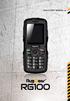 Quick Start Manual_En 2 TITEL DES KAPITELs Content Safety Instructions 1_Introduction 5 2_Faults and damages 6 3_Further safety advises 7 Quick Start 4_Keys 9 5_First steps 10 5.1_Battery 10 5.1.1_Installing
GLOBAL. The world s local mobile phone. Quick Start Guide
 GLOBAL The world s local mobile phone Quick Start Guide 1 SAR This mobile phone meets applicable national SAR limits of 2.0 W/Kg. The specific maximum SAR values can be found in the SAR information section
Thank you for choosing our mobile phone! Please read this manual before use.
 Thank you for choosing our mobile phone! Please read this manual before use. We reserve the right to upgrade the software and product and/or to make changes to this user manual without prior notice. from
User Manual. Vogue2.8-D6
 User Manual Vogue2.8-D6 S L E E C Index 1. iball Vogue2.8-D6...1 1.1 Phone Overview...1 1.2 Functions of Keys...2 2. Getting Started...3 2.1 Installing the SIM Cards and the Battery...3 2.2 Installing
Optional. The Rugged Phone RUGGED MOBILE PHONE. Language. Type of product
 The Rugged Phone RUGGED MOBILE PHONE Language Type of product WELCOME Thank you for choosing the WORKZONE mobile phone. The phone is shockproof, waterproof and dustproof. Please take some time to read
Otium Gear S Smart Watch User Guide Please read the manual before use. * For further information, please visit www.otiumobile.com
 Otium Gear S Smart Watch User Guide Please read the manual before use. * For further information, please visit www.otiumobile.com 1 About this manual You can use this Gear S as a companion device to some
User Guide. Lynx A100. www.poshmobile.com
 User Guide Lynx A100 www.poshmobile.com POSH LYNX User Manual A100 Directory Before Using... 2 Phone Unlock... 2 SIM Unlock... 2 Function menu Introduction... 2 Phonebook... 2 Call history... 3 Settings...
Z222 Mobile Phone User guide
 Z222 Mobile Phone User guide LEGAL INFORMATION Copyright 2013 ZTE CORPORATION. All rights reserved. No part of this publication may be excerpted, reproduced, translated or utilized in any form or by any
User Guide. Memo S580. www.poshmobile.com
 User Guide Memo S580 www.poshmobile.com Welcome to POSH S580 Memo Quick Guide S580 is designed with Android system, support dual Sim and dual stand-by. Except for the standard communication function, it
Your Phone This section introduces you to the hardware of the device.
 Your Phone This section introduces you to the hardware of the device. No. Items Functions 1 Earphone jack 2 Strap hole 3 LED / Speaker Use a headset for hands-free conversation or listening to music. It
Some of the contents in this manual may differ from your phone depending on the software of the phone or your service provider.
 Some of the contents in this manual may differ from your phone depending on the software of the phone or your service provider. World Wide Web http://www.samsungmobile.com Printed in Korea Code No.:GH68-22158A
125 8880 telstra.com/ppmbb visit a telstra store or partner GETTING TO KNOW YOUR
 FOR MORE INFORMATIoN: 125 8880 telstra.com/ppmbb visit a telstra store or partner GETTING TO KNOW YOUR Telstra PRE-paid 4G wi-fi LET S GET THIS SHOW ON THE ROad WHAT S INSIDE Your Telstra Pre-Paid 4G Wi-Fi
Doro PhoneEasy 607. English
 Doro PhoneEasy 607 English 1 13 2 3 4 5 12 11 14 15 16 17 18 19 20 6 10 7 9 8 1. Earpiece 2. Microphone 3. Arrow buttons 4. Left selection button 5. Call button 6. Speed dial 7. Voice mail 8. Silent /
GETTING TO KNOW YOUR TELSTRA PRE-PAID 3G WI-FI
 GETTING TO KNOW YOUR TELSTRA PRE-PAID 3G WI-FI LET S GET THIS SHOW ON THE ROAD You must be excited about your brand new Telstra Pre-Paid 3G Wi-Fi. This guide will help you get connected as quickly and
Instruction Manual GSM Cell phone Easiphone MM910
 Instruction Manual GSM Cell phone Easiphone MM910 If you need technical assistance, call the following hotline (+48) 32 325 07 00 or [email protected] Our website: http://www.maxcom.pl/ Set content: GSM
User guide. T250i. This is the Internet version of the User's guide. Print only for private use.
 User guide T250i Congratulations on your purchase of the Sony Ericsson T250i. For additional phone content, go to www.sonyericsson.com/fun. Register now to get free online storage and special offers at
Doro PhoneEasy 626. English (US)
 Doro PhoneEasy 626 English (US) 1 2 3 4 5 6 7 8 14 13 12 11 10 9 15 20 19 18 17 16 25 24 23 22 21 Note! All illustrations are for illustrative purposes only and may not accurately depict the actual device.
Android Mobile Phone User Manual
 Android Mobile Phone User Manual The manual is applicable for the Grand X mobile phone. Contents Let s get started... 1 Getting to know your phone... 2 Screen control... 2 Open and switch applications...
Doro PhoneEasy 612. English
 Doro PhoneEasy 612 English 17 18 19 1. Earpiece 2. Camera shortcut 3. Left selection button 4. Call button 5. Speed dial 6. Voice mail 7. Silent/Input method 8. Microphone 9. SMS shortcut 10. Arrow buttons
User Guide. BlackBerry Storm 9530 Smartphone. Version: 4.7
 BlackBerry Storm 9530 Smartphone Version: 4.7 SWD-490426-0909090640-001 Contents Shortcuts... 9 BlackBerry basics shortcuts... 9 Phone shortcuts... 9 Camera shortcuts... 9 Media shortcuts... 9 Typing shortcuts...
GSM Desktop phone DPH101. User manual v1.00
 GSM Desktop phone DPH101 User manual v1.00 LEGAL NOTICE Copyright 2011 TELTONIKA Ltd. All rights reserved. Reproduction, transfer, distribution or storage of part or all of the contents in this document
Mobile Phone UMX MXE-570. User Guide
 Mobile Phone UMX MXE-570 User Guide 1 Table of Contents 1. Safety and Cautions 4 2. Look and Feel 7 3. Specifications 8 4. Essential Topics 10 5. Getting Started 15 6. Basic Operations 19 7. Using the
Samba W - Table of Contents
 Samba W - Table of Contents 1.Getting Started... 3 1.1 Installing the SIM Card, SD Card and Battery... 3 2. Input Type... 4 3. Menu Guide... 6 1.2 Messaging... 6 1.3 Call History... 6 1.4 Calculator...
Samsung B2100. user manual
 Samsung B2100 user manual using this manual This user manual has been specially designed to guide you through the functions and features of your mobile phone. To get started quickly, refer to introducing
User s Guide 9357246 Issue 5
 Electronic user's guide released subject to "Nokia User's Guides Terms and Conditions, 7th June, 1998" User s Guide 9357246 Issue 5 DECLARATION OF CONFORMITY We, NOKIA CORPORATION declare under our sole
Doro PhoneEasy 612. English
 Doro PhoneEasy 612 English 17 18 19 1. Earpiece 2. Camera shortcut 3. Left selection button 4. Call button 5. Speed dial 6. Voice mail 7. Silent/Input method 8. Microphone 9. SMS shortcut 10. Arrow buttons
Easy Use Mobile Phone 9861
 Easy Use Mobile Phone 9861 Instructions Please read this instruction manual thoroughly to ensure you are familiar with the operation of your new Easy Use Mobile Phone. Read all instructions before use.
User s Guide for Nokia 3530
 User s Guide for Nokia 3530 List of menu functions 1. Phone book 1. Search 2. Add name 3. Edit name 4. Delete 5. Copy 6. Add number 7. Settings 1. Memory in use 2. Phone book view 3. Memory status 8. Speed
Version: 01310310 Printed in Poland
 1 Content List 1. Security...3 2. Enjoy Your Cell Phone Trip...9 2.1. Install/remove the battery...9 2.1.1. Install the battery...9 2.1.2. Remove the battery...10 2.2. Install/Remove SIM Card (phone card)...12
User Guide. Orion Pro X500. www.poshmobile.com
 User Guide Orion Pro X500 www.poshmobile.com 1 Introduction... 3 2 Safety & Notice... 4 3 Start to use... 5 3.1 Touch & type... 5 3.2 Assemble & charge... 5 3.2.1 Switch On and Off... 6 3.2.2 Unlock SIM
GETTING TO KNOW YOUR PRE-PAID TELSTRA WI-FI 4G
 GETTING TO KNOW YOUR PRE-PAID TELSTRA WI-FI 4G LET S GET THIS SHOW ON THE ROAD You must be excited about your brand new Pre-Paid Telstra Wi-Fi 4G. This guide will help you get connected as quickly and
Tecdesk 3500 User Manual
 Fixed Wireless Phones Tecdesk 3500 User Manual English tecdesk.com CONTENTS INTRODUCTION 4 PACKAGE CONTENTS 5 GETTING TO KNOW YOUR PHONE 6 BUTTON FUNCTIONS 11 STATUS ICONS 14 ALPHANUMERIC KEYPAD 15 CALL
Get started. Issue 1
 Get started Issue 1 2008 Nokia. All rights reserved. Nokia, Nokia Connecting People, Nseries, N85, Navi, and Nokia Care are trademarks or registered trademarks of Nokia Corporation. Other product and company
GT-B2710. user manual
 GT-B2710 user manual Using this manual Thank you for purchasing this Samsung mobile phone. This phone will provide you with high quality mobile communication and entertainment based on Samsung s exceptional
English User s Manual for GSM/GPRS Digital Mobile Phone Model No. L1 LIFE
 User s Manual for GSM/GPRS Digital Mobile Phone Model No. L1 LIFE 1 Congratulations on your purchase of the GSM mobile phone. Please read this User Guide before you use your mobile phone. Notice: If there
User Guide Microsoft Screen Sharing for Lumia Phones (HD-10)
 User Guide Microsoft Screen Sharing for Lumia Phones (HD-10) Issue 1.1 EN User Guide Microsoft Screen Sharing for Lumia Phones (HD-10) Contents Safety 3 About your accessory 4 Keys and parts 5 Connect
Doro PhoneEasy 606. English
 Doro PhoneEasy 606 English 1 2 14 15 3 4 5 6 7 12 11 10 9 13 16 17 18 19 8 1. Earpiece 2. Display 3. Arrow buttons 4. Left selection button 5. Call button 6. Speed dial 7. Voice mail 8. Silent / Input
Table of Contents. Unpacking... 7 For Your Safety... 8 Your Phone... 13. Getting Started... 17
 LG225 User Guide Table of Contents Unpacking... 7 For Your Safety... 8 Your Phone... 13 Phone Components... 13 Your Phone s Features... 14 Display Information... 15 Making a Call From the Contacts... 21
Device Information This section introduces you to the hardware of the device.
 Device Information This section introduces you to the hardware of the device. No. Items Functions 1 Touch Screen Display screen. Use stylus to select items on screen. 2 3 Windows Flag Key Phone Settings
ZTE V790 WCDMA Mobile Phone After-sales Service Manual (Level 1) Version 1.0
 ZTE V790 WCDMA Mobile Phone After-sales Service Manual (Level 1) Version 1.0 dfdgfdsgs LEGAL INFORMATION Copyright 2009 ZTE CORPORATION. The contents of this document are protected by copyright laws and
SW10. User Guide. Smart Watch. Please read the manual before use.
 SW10 Smart Watch User Guide www. ScinexUSA.com Please read the manual before use. 1 About this manual You can use this Watch as a companion device to most Android and IOS mobile devices. This user manual
F2400 User Guide - ENGLISH
 F2400 User Guide F2400 User Guide Some of contents in this manual may differ from your phone depending on the software of the phone or your service provider. Part No. MMBB0163204 Issue 1.0 Printed in Korea
Nokia USB Modem. Issue 1.1
 Nokia USB Modem Issue 1.1 2 Contents About your USB modem 3 Get started 3 Parts 3 Insert the SIM card 4 Insert a memory card 4 Install the connection manager 6 Uninstall from your computer 6 Internet connection
User s Guide for Nokia 6510
 User s Guide for Nokia 6510 List of menu functions 1. Messages 1. Write message 2. Inbox 3. Outbox 4. Archive 5. Templates 6. My folders 7. Erase messages 8. Voice messages 9. Info messages 10.Service
ELEGANCEplus DEAR MOBILE PHONE USER! Congratulations on your emporiaeleganceplus mobile phone!
 ELEGANCEplus DEAR MOBILE PHONE USER! Congratulations on your emporiaeleganceplus mobile phone! To get you acquainted with your new mobile phone as quickly as possible, we have put together all the essential
USER GUIDE MOBILE M400
 1 USER GUIDE MOBILE M400 V2 2 P1 3 1 BECAUSE WE CARE Thank you for purchasing this product. This product has been designed and assembled with utmost care for you and the environment. This is why we supply
User s Guide for Nokia 6131
 User s Guide for Nokia 6131 DECLARATION OF CONFORMITY We, NOKIA CORPORATION declare under our sole responsibility that the product RM-115 is in conformity with the provisions of the following Council Directive:
Primo 413 by Doro. Operating Instructions. by Doro
 Primo 413 by Doro Operating Instructions by Doro 23 U2 i 1. Receiver loudspeaker Making phone calls holding the cell phone to the ear 2. Display 3. Speed-dial buttons Speed-dialling of the numbers saved
Nokia 6303 classic User Guide
 Nokia 6303 classic User Guide 9214002 Issue 3 2 Contents Contents Safety 4 Start up 5 Keys and parts 5 Install SIM card and battery 5 Insert and remove the memory card 6 Charge the battery 6 Antenna 7
PLUM RAM. User Manual
 PLUM RAM User Manual I WELCOME... ERROR! BOOKMARK NOT DEFINED. IMPORTANT SAFETY PRECAUTIONS... 1 GETTING STARTED... 3 BATTERY USE... 3 Installing the battery... 3 Charge the battery... 4 SIM CARD INFORMATION...
USB Modem User Guide ZTE MF823
 Need any help? Please visit www.bt.com/business/help/mobilebroadband Xxx BT Business Mobile Broadband USB Modem User Guide ZTE MF823 1 Contents Contents Quick Start Set-up / What s In Your Pack 3 Minimum
Back, start, and search key... 3. Lock the keys and screen... 6. Unlock the keys and screen... 7. Set the keys and screen to lock automatically...
 Userguide Nokia Lumia 620 Table of Contents Keys and parts... 3 Back, start, and search key... 3 How to Insert a SIM card... 4 First start-up... 6 Switching Phone ON and OFF... 6 Switch the phone on...
Notes Tasks FM Radio. Games Mobile TV Multimedia. Starmobile 4 Dialer 5 Messaging 6 Warnings and Precautions
 TABLE OF CONTENTS 1 Overview 2 Getting Started Installing the Battery and SIM Cards Installing a Micro SD Card Charging the Battery Phone Lock PIN and PUK Locking the Keypad 3 Main Menu Contacts Call Logs
FMT600BT Transmitter
 Technaxx FMT600BT Transmitter User Manual Transfer of music and calls directly from your Bluetooth device to your car radio This device complies with the requirements of the standards referred to the Directive
GT-B7722. user manual
 GT-B7722 user manual Using this manual Thank you for purchasing this Samsung mobile phone. This phone will provide you with high quality mobile communication and entertainment based on Samsung s exceptional
PM1109 Mondo QUICK GUIDE
 PM1109 Mondo QUICK GUIDE SUMMARY Content of the sales pack... 3 How to change the language... 4 SIM card... 4 MicroSD card... 6 Recharging the battery... 7 Phone... 8 Keys and functions... 8 Touchscreen...
2 INSTALLATION AND SETUP
 USER GUIDE UK version 1 BOX CONTENT In the box you will find: 1 mobile handset 1 power adapter 1 handset back cover 1 rechargeable battery pack 1 quick start guide Keep the packing materials in a safe
KAZAM Life C5 User Manual
 ALL RIGHTS RESERVED 2013 Kazam Mobile Ltd. All rights are reserved. Kazam, the Kazam logo and the Kazam icon are trademarks of Kazam Mobile Ltd. No part of this document can be reproduced without permission.
Rugged Mobile Phone. User Manual
 Telstra T54 Rugged Mobile Phone User Manual 1 PC Software Requirements Join Me PC Software included supports Microsoft Windows 7, Vista (32 and 64 bit), XP with Service Pack 2 & 3. A limited version of
KPN USB-Modem 2 (HSUPA) Quick Start Manual
 KPN USB-Modem 2 (HSUPA) Quick Start Manual Table of Contents What Is in Your Packet 2 Getting to Know Your KPN USB-Modem 2 3 Preparation 4 Installation/Removal Guide 5 Safety Information 7 Acronyms and
How To Use A Bluetooth Phone On A Iphone Or Ipad (Samsung)
 Some of the contents in this manual may differ from your phone depending on the software of the phone or your service provider. www.samsungmobile.com Printed in Korea Code No.:GH68-28298A English (EU).
G5510. GSM Mobile Phone. User Guide
 G5510 GSM Mobile Phone User Guide Copyright Huawei Technologies Co., Ltd. 2012. All rights reserved. Trademarks and Permissions,, and are trademarks or registered trademarks of Huawei Technologies Co.,
Table of contents 1. Basics... 3 5. Entering Text...18 6. Messages...21 2. Getting Started... 8 3. Phone Calls...11 7. Browser...25 4. Contacts...
 Table of contents 1. Basics... 3 Activating Your Phone... 3 Powering On or Off... 4 Charging Your Device... 4 Phone Overview... 5 Setting Up Voicemail... 7 2. Getting Started... 8 Status Bar Icons... 8
GETTING TO KNOW YOUR TELSTRA PRE-PAID 3G USB + WI-FI
 FOR MORE INFORMATION CALL 125 8880 or FROM A NON-TELSTRA PHONE, CALL 13 2200 AND SAY PRE-PAID VISIT telstra.com/ppmbb VISIT A TELSTRA STORE OR PARTNER GETTING TO KNOW YOUR TELSTRA PRE-PAID 3G USB + WI-FI
User Guide. Welcome to HUAWEI
 User Guide Welcome to HUAWEI Contents Introduction.................................... 1 Installation..................................... 2 Keys and Functions.................................. 2 Installation..........................................
BLU Vivo 4.3 User Manual
 BLU Vivo 4.3 User Manual 1 Table of Contents Phone Safety Information... 3 Appearance and Key Functions... 4 Installation and Charging... 5 Phone Operation... 7 Communication... 10 Camera... 11 Gallery...
User s Guide for Nokia 1108
 User s Guide for Nokia 1108 DECLARATION OF CONFORMITY We, NOKIA CORPORATION declare under our sole responsibility that the product Rh-18 is in conformity with the provisions of the following Council Directive:
2011 ZTE CORPORATION.
 LEGAL INFORMATION Copyright 2011 ZTE CORPORATION. All rights reserved. No part of this publication may be quoted, reproduced, translated or used in any form or by any means, electronic or mechanical, including
Nokia 6700 classic User Guide
 Nokia 6700 classic User Guide Issue 5.2 2 Contents Contents Safety 4 General information 5 About your device 5 Network services 5 Access codes 5 Configuration setting service 6 My Nokia 6 Download content
User s Guide for Nokia 7600
 User s Guide for Nokia 7600 DECLARATION OF CONFORMITY We, NOKIA CORPORATION declare under our sole responsibility that the product NMM-3 is in conformity with the provisions of the following Council Directive:
WiFi Phone WP589 User Guide
 WiFi Phone WP589 User Guide 001.001.024 2010/06/22 1 n CONTENTS For your safety...5 Getting Started...6 Phone Overview...6 To insert the battery...6 Charging the battery...7 Turn on and turn off the phone...7
Nokia 103 User Guide. Issue 1.0EN
 Nokia 03 User Guide Issue.0EN Keys and parts 7 3 6 5 4 Earpiece Display 3 End/Power key 4 Keypad 5 Navi key (navigation key) 6 Call key 7 ion keys 8 9 0 8 Flashlight 9 Charger connector 0 Microphone Loudspeaker
the cellphone for seniors
 the cellphone for seniors Model eztwo Owner s Manual Tech Data: GSM 850/900/1800/1900 MHz Battery: Li-Ion 3.7V / 1000mAh Dimensions: 118.5 x 57.5 x 15.3mm Weight: 90 g M3 / T3 Hearing Aid Compatible Table
En g l i s h. Bluetooth Headset for Motorcycle. VOX Technology Intercom Technology Multi-Point Connection
 En g l i s h TOOTH Bluetooth Headset for Motorcycle VOX Technology Intercom Technology Multi-Point Connection Features Auto-Volume Level Adjusting Stereo (A2DP) Audio GPS A. PRODUCT DESCRIPTION: SHARKTOOTH
KAZAM Life B2 User Manual
 KAZAM Life B2 User Manual 0 ALL RIGHTS RESERVED 2013 Kazam Mobile Ltd. All rights are reserved. Kazam, the Kazam logo and the Kazam icon are trademarks of Kazam Mobile Ltd. No part of this document can
No part of this publication may be excerpted, reproduced, translated or utilized in any form or
 TELSTRA T20 3G MOBILE PHONE USER MANUAL Copyright 2014. All rights reserved. No part of this publication may be excerpted, reproduced, translated or utilized in any form or by any means, electronic or
Primo 305 by Doro User Manual
 Primo 305 by Doro User Manual U2 1. Speaker Phone with the mobile phone at the ear. 2. Navigation buttons For navigating in menus and text input. In addition by default quick access (see also page 58):
V173 GSM. motorola.com
 V173 GSM motorola.com Welcome Welcome to the world of Motorola digital wireless communications! We are pleased that you have chosen the Motorola V173 wireless phone.. Earpiece Listen to your voice calls
Nokia Bluetooth Headset BH-607. Issue 2. 1
 Nokia Bluetooth Headset BH-607 2 3 1 4 5 6 7 8 9 11 10 Issue 2. 1 12 13 14 DECLARATION OF CONFORMITY Hereby, NOKIA CORPORATION declares that this BH-607 product is in compliance with the essential requirements
LG A380 User Guide. www.lg.com
 LG A380 User Guide All screen shots in this guide are simulated. Actual displays and the color of the phone may vary. Some of the contents in this manual may differ from your phone depending on the software
Nokia Bluetooth Headset BH-109
 Nokia Bluetooth Headset BH-109 Issue 1.0 2 Introduction About your headset With Nokia Bluetooth Headset BH-109, you can handle calls hands-free, even when you are using two mobile devices at the same time.
Point of View ProTab 3XXL IPS - Android 4.0 Tablet PC. Contents... 1 General notices for use... 2 Disclaimer... 2 Box Contents...
 Point of View ProTab 3XXL IPS - Android 4.0 Tablet PC English Contents Contents... 1 General notices for use... 2 Disclaimer... 2 Box Contents... 2 1.0 Product basics... 3 1.1 Buttons and connections...
MOTO. Quick Start Guide
 MOTO 9h Quick Start Guide welcome Technology promised to make things easier... but then it gave you more to do phone calls, e-mails, music, photos, videos, the Internet, and more. It s time to take back
How To Use An Isat Phone On A Cell Phone On Your Ipod Or Ipod
 37 personalising personalised settings user guide The mobile satellite company Congratulations on buying your IsatPhone Pro. It offers the ultimate combination: Global coverage Robust handset Clear voice
TABLE OF CONTENTS CHAPTER 2. BASIC OPERATION TURNING THE PHONE ON / OFF...16. DO s...14 DON Ts...14
 TABLE OF CONTENTS CHAPTER 1. BEFORE USING YOUR PHONE PACKAGE CONTENTS...6 HANDSET DESCRIPTION...7 BATTERY USAGE...11 POWER CONNECTION...13 BATTERY HANDLING INFORMATION...14 DO s...14 DON Ts...14 CHAPTER
BT Synergy 5500 User Guide
 BT Synergy 5500 User Guide Welcome to your BT Synergy 5500 Digital Cordless Telephone Answering Machine Display with blue backlight. 250 Name and number phonebook. Copy phonebook entries between other
Point of View Mobii 925 - Android 4.2 Tablet PC. General notices for use... 2 Disclaimer... 2 Box Contents... 2
 Table of Contents General notices for use... 2 Disclaimer... 2 Box Contents... 2 1.0 Product basics... 3 1.1 Buttons and connections... 3 1.2 Start up and shut down... 3 2.0 Introduction to Google Android
Mobile Phone M350. Operating Instructions
 Mobile Phone M350 Operating Instructions 2 Operating Instructions............ 3 Declaration of Conformity......... 95 HAC Hearing Aid Compatible to M3 / T3 Rating The M350 Phone has a built in Induction
User s Guide for Nokia 6310i
 User s Guide for Nokia 6310i List of menu functions 1. Messages 1. Write message 2. Write e-mail 3. Inbox 4. Outbox 5. Archive 6. Templates 7. My folders 8. Erase messages 9. Voice messages 10.Info messages
Contents. New features. Getting started. Entertainment. Transferring data. Managing your phone. Tools
 User Guide Contents New features 1 Read before use 1 Unlocking with fingerprint 3 Safe 3 All focus mode 4 Taking photos from the timeline album screen 5 Scanning a QR code 6 Protecting your privacy Getting
 Doro 6030 English 1 2 3 4 5 6 7 8 14 13 12 11 10 9 15 16 17 18 19 20 21 22 The items supplied with your phone might vary depending on the software and accessories available in your region or offered by
Content Get Started... 3 Insert SIM card and Memory Card...3 Charging the Battery or Connect to a Computer...4 PAD Overview...
 Content Get Started... 3 Insert SIM card and Memory Card...3 Charging the Battery or Connect to a Computer...4 PAD Overview... 5 Locking and Unlocking the Screen...6 Basic Operation... 7 Switch on/off...
VoIP MWP1100N User Manual
 VoIP MWP1100N User Manual User Precautions Basic Instructions Please read the instructions carefully to protect yourself and others from personal injury or damage to property. Precautions when installing
Single Day Alarm Clock with. Bluetooth and USB Play-through
 Single Day Alarm Clock with Bluetooth and USB Play-through MODEL : BSC 200 READ THIS INSTRUCTION MANUAL BEFORE OPERATING THE APPLIANCE. SAVE THIS MANUAL FOR FUTURE REFERENCE. TABLE OF CONTENTS IMPORTANT