
EP-693A. Mainboard TRADEMARK
|
|
|
- Myrtle Gwendolyn Thornton
- 10 years ago
- Views:
Transcription
1 A Socket 370 Processor based Mainboard Supports PC133/VC133 Memory Modules TRADEMARK All products and company names are trademarks or registered trademarks of their respective holders. These specifications are subject to change without notice. Manual Revision 1.0 August 08, 2000

2 User Notice No part of this product, including the product and software may be reproduced, transmitted, transcribed, stored in a retrieval system, or translated into any language in any form without the express written permission of EPoX Computer Company (hereinafter referred to as EPoX) except for documentation kept by the purchaser for backup purposes. We provide this manual as is without warranty of any kind, either expressed or implied, including but not limited to the implied warranties or conditions of merchantability or fitness for a particular purpose. In no event shall EPoX be liable for any loss of profits, loss of business, loss of use or data, interruption of business or for indirect, special incidental, or consequential damages of any kind, even if EPoX has been advised of the possibility of such damages arising from any defect or error in the manual or product. EPoX may revise this manual from time to time without notice. For updated BIOS, drivers, or product release information you may visit our websites at epox.com or Products mentioned in this manual are mentioned for identification purposes only. Product names appearing in this manual may or may not be registered trademarks or copyrights of their respective companies. The product name and revision number are both printed on the mainboard itself. Handling Procedures Static electricity can severely damage your equipment. Handle the EP-693A and any other device in your system with extreme care and avoid unnecessary contact with system components on the mainboard. Always work on an antistatic surface to avoid possible damage to the mainboard from static discharge. Always have the power supply unplugged and powered off when inserting and removing devices within the computer chassis. EPoX assumes no responsibility for any damage to the EP-693A mainboard that results from failure to follow instruction or failure to observe safety precautions. CAUTION The EP-693A mainboard is subject to damage by static electricity. Always observe the handling procedures.

3 Technical Support Services If you need additional information, help during installation or normal use of this product, please contact your retailer. Your retailer will have the most current information about your configuration. If your retailer cannot help, you may visit our online technical support website and/or contact our support technicians at the locations listed below. Record your serial number before installing your EP-693A mainboard. (The serial number is located near the ISA slots at the edge of the board.) EP-693A serial number: Contacting Technical Support EPoX technical support is working hard to answer all of your questions online. From our website you can find answers to many common questions, drivers, BIOS updates, tech notes, and important technical bulletins. If you are still unable to locate the solution you are seeking, you always have the option to contact our support technicians directly. North American website (English language) European website (Multi-language) Taiwan website (Chinese language) Thank you for using EPoX mainboards! Copyright 2000 EPoX Computer Company. All rights reserved.

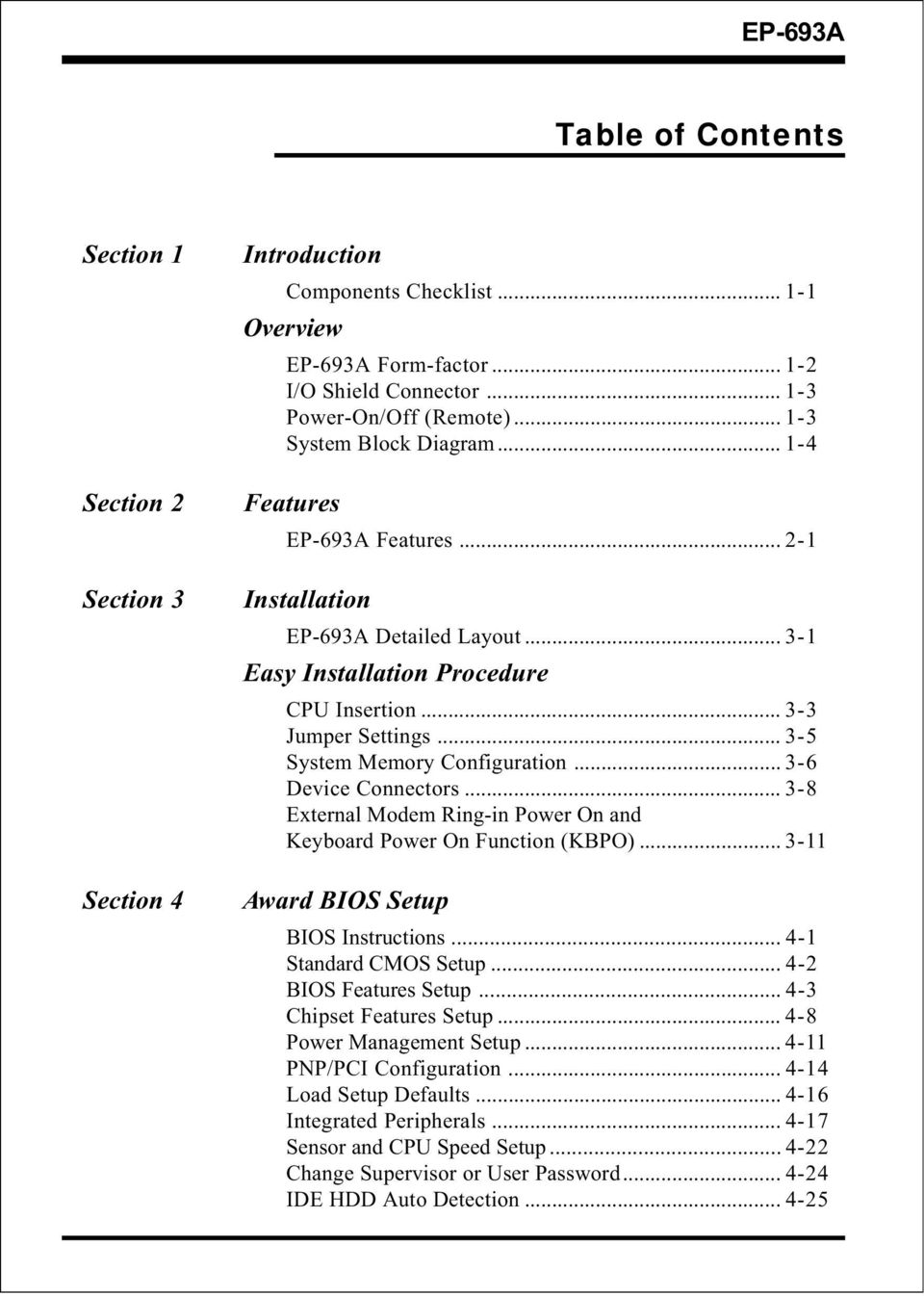
4 Table of Contents Section 1 Section 2 Section 3 Section 4 Introduction Components Checklist Overview EP-693A Form-factor I/O Shield Connector Power-On/Off (Remote) System Block Diagram Features EP-693A Features Installation EP-693A Detailed Layout Easy Installation Procedure CPU Insertion Jumper Settings System Memory Configuration Device Connectors External Modem Ring-in Power On and Keyboard Power On Function (KBPO) Award BIOS Setup BIOS Instructions Standard CMOS Setup BIOS Features Setup Chipset Features Setup Power Management Setup PNP/PCI Configuration Load Setup Defaults Integrated Peripherals Sensor and CPU Speed Setup Change Supervisor or User Password IDE HDD Auto Detection
5 Save & Exit Setup Exit Without Saving Section 5 Appendix Appendix A Memory Map... A-1 I/O Map... A-1 Timer & DMA Channels Map... A-2 Interrupt Map... A-2 RTC & CMOS RAM Map... A-3 Appendix B POST Codes... B-1 Unexpected Errors... B-4 Appendix C Load Setup Defaults... C-1 Appendix D GHOST 5.1 Quick User s Guide... D-1

6 Page Left Blank

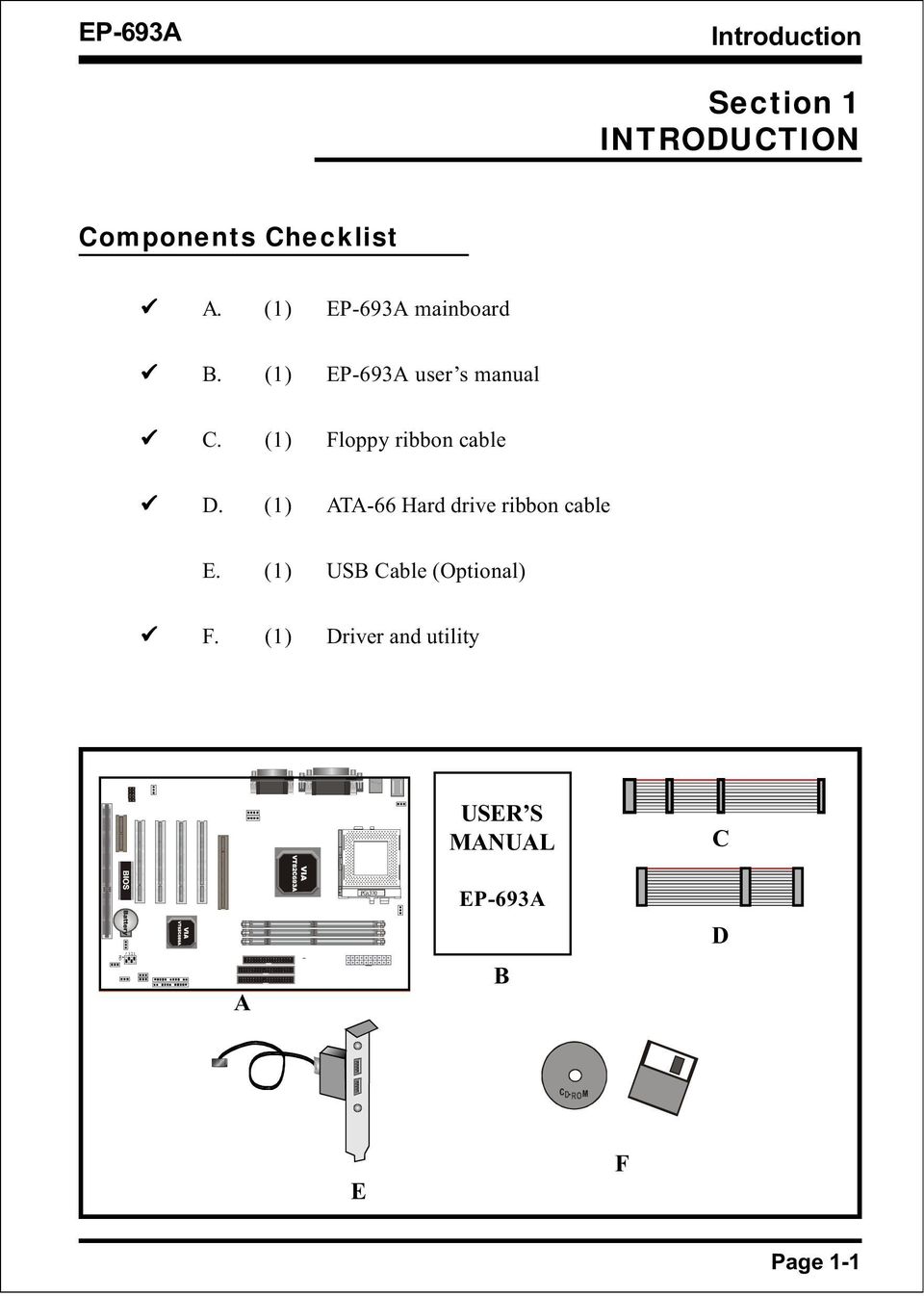
7 Introduction Section 1 INTRODUCTION Components Checklist A. (1) EP-693A mainboard B. (1) EP-693A user s manual C. (1) Floppy ribbon cable D. (1) ATA-66 Hard drive ribbon cable E. (1) USB Cable (Optional) F. (1) Driver and utility A USER S MANUAL EP-693A B C D E F Page 1-1
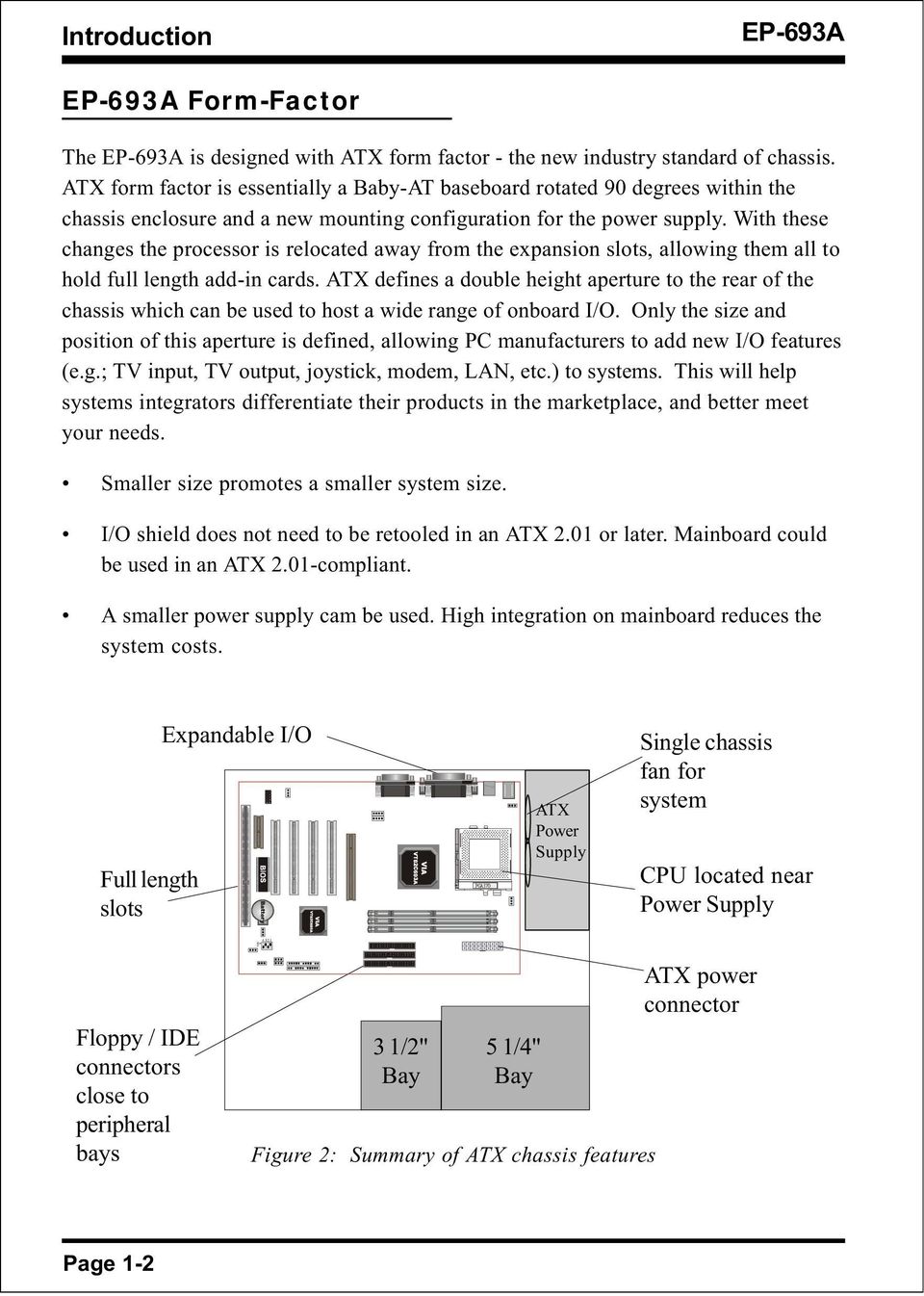
8 Introduction EP-693A EP-693A Form-Factor The EP-693A is designed with ATX form factor - the new industry standard of chassis. ATX form factor is essentially a Baby-AT baseboard rotated 90 degrees within the chassis enclosure and a new mounting configuration for the power supply. With these changes the processor is relocated away from the expansion slots, allowing them all to hold full length add-in cards. ATX defines a double height aperture to the rear of the chassis which can be used to host a wide range of onboard I/O. Only the size and position of this aperture is defined, allowing PC manufacturers to add new I/O features (e.g.; TV input, TV output, joystick, modem, LAN, etc.) to systems. This will help systems integrators differentiate their products in the marketplace, and better meet your needs. Smaller size promotes a smaller system size. I/O shield does not need to be retooled in an ATX 2.01 or later. Mainboard could be used in an ATX 2.01-compliant. A smaller power supply cam be used. High integration on mainboard reduces the system costs. Full length slots Expandable I/O ATX Power Supply Single chassis fan for system CPU located near Power Supply Floppy / IDE connectors close to peripheral bays 3 1/2" Bay 5 1/4" Bay Figure 2: Summary of ATX chassis features ATX power connector Page 1-2
9 Introduction I/O Shield Connector The EP-693A is equipped with an I/O back panel. Please use the appropriate I/O shield (figure 3). parallel port Joystick/Midi port PS/2 Mouse USB port PS/2 KEYBOARD COM1 COM2 Speaker Line_inMIC Figure 3: I/O back panel layout Power-On/Off (Remote) The EP-693A has a single 20-pin connector for ATX power supplies. For ATX power supplies that support the Remote On/Off feature, this should be connected to the systems front panel for system Power On/Off button. The systems power On/Off button should be a momentary button that is normally open. The EP-693A has been designed with Soft Off" functions. You can turn Off the system from one of two sources: The first is the front panel Power On/Off button, and the other is the "Soft Off" function (coming from the EP-693A s onboard circuit controller) that can be controlled by the operating system such as Windows 95/98 or Windows J 3 Case (chassis) Power ON/OFF button (J 3) ATX POWER SUPPLY Figure 4: Simple ATX Power ON/OFF Controller Page 1-3

10 Introduction EP-693A System Block Diagram Socket 370 Processor 133/100/66MHz 66MHz PAC PCI Bridge and memory controller VT82C693A 133/100/66MHz AC 97 VT82C686A I/O Bridge USB 0,1 USB 2,3 Figure 5: System Block Diagram Page 1-4

11 Features Section 2 FEATURES EP-693A Features: EP-693A is based on the Socket 370 Processors including PPGA & FC-PGA operating at 500 ~866MHz. Designed with VIA Apollo Pro 133 AGPset. Supports up to 768MB of DRAM (minimum of 32 MB) on board (please see Section 3-3). EP-693A will support Error Checking and Correcting (ECC) when using parity SDRAM memory modules. This will detect multiple bit errors and correct 1-bit memory errors. Supports (1) 16 bit ISA slots, (4) 32 bit PCI slots, (1) AGP slot, (1) AMR slot and provides (2) independent high performance PCI IDE interfaces capable of supporting PIO Mode 3/4 and Ultra DMA 33/66 devices. The EP-693A supports (4) PCI Bus Master slots and a jumperless PCI INT# control scheme which reduces configuration confusion when plugging in PCI card(s). Supports ATAPI (e.g. CD-ROM) devices on both Primary and Secondary IDE interfaces. Designed with on chip Multi I/O: (1) floppy port, (1) parallel port (EPP, ECP), and (2) serial ports (16550 Fast UART). Note: Japanese Floppy 3 mode is also supported Features Award Plug & Play BIOS. With Flash Memory you can always upgrade to the current BIOS as they are released. ( please visit our Technical Support section for the latest updates). EP-693A utilizes a Lithium battery which provides environmental protec tion and longer battery life. Page 2-1

12 Features EP-693A Supports the (4) Universal Serial Bus (USB) Ports, 2 ports on board and another 2 ports for option. The onboard VT82C686A chip provides the means for connecting PC peripherals such as; keyboards, joysticks, telephones, and modems. Built-in ATX 20-pin power supply connector. Software power-down when using Windows 95/98 or Windows Supports ring-in feature (remote power-on through external modem, allows system to be turned on remotely). Resume by Alarm - Allows your system to turn on at a preselected time. Power Loss Recovery - In the event of a power outtage your system will automatically turn itself back on without user intervention. Supports CPU Hardware sleep and SMM (System Management Mode). Supports Keyboard power ON function (KBPO). Built-in WOL (Wake-up On Lan) Connector. Built-in AC97 PCI Audio. Page 2-2
13 EP-693A Installation EP-693A Section 3 INSTALLATION Page 3-1

14 Installation EP-693A EP-693A Detailed Layout Figure 1 Page 3-2

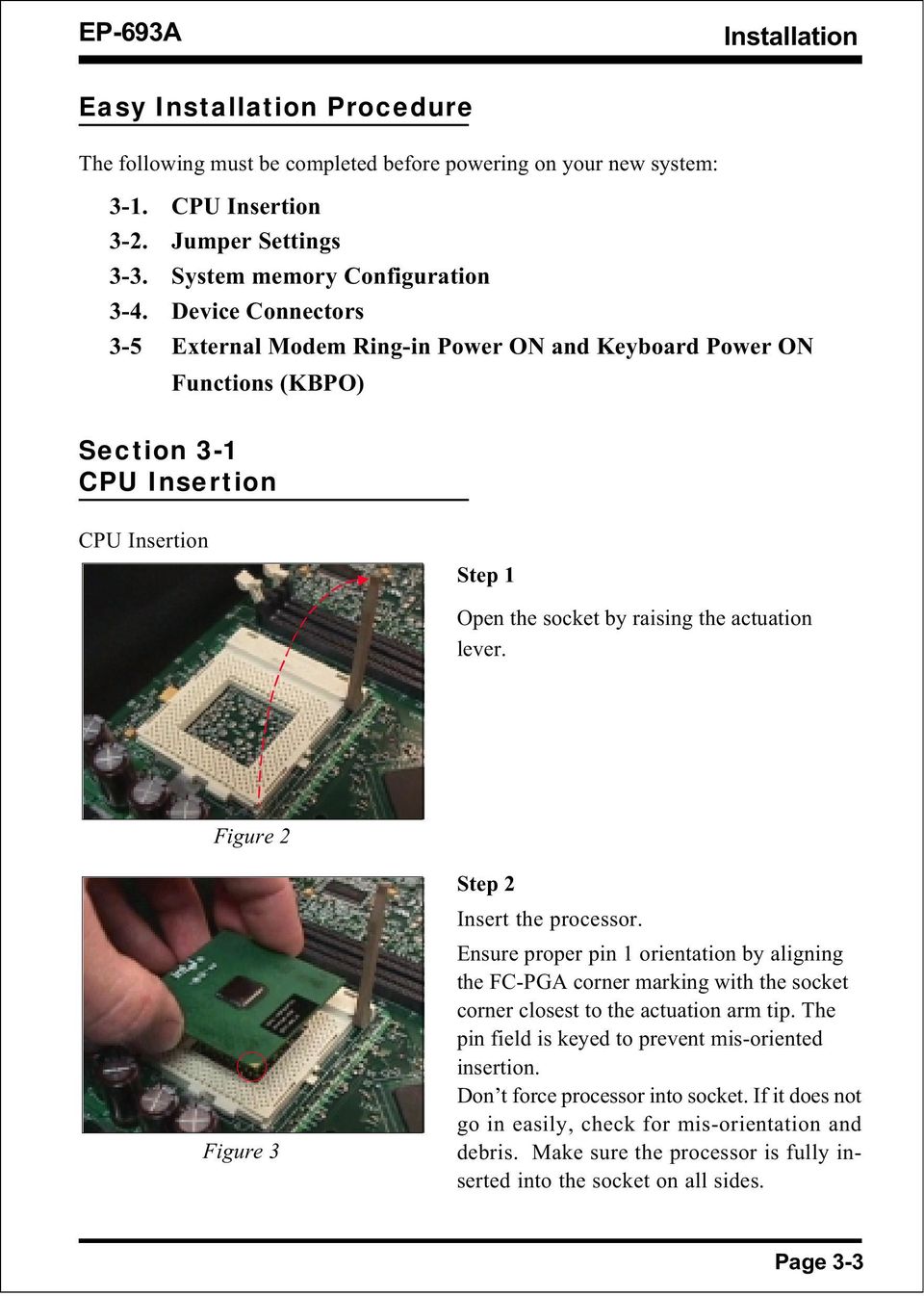
15 Installation Easy Installation Procedure The following must be completed before powering on your new system: 3-1. CPU Insertion 3-2. Jumper Settings 3-3. System memory Configuration 3-4. Device Connectors 3-5 External Modem Ring-in Power ON and Keyboard Power ON Functions (KBPO) Section 3-1 CPU Insertion CPU Insertion Step 1 Open the socket by raising the actuation lever. Figure 2 Figure 3 Step 2 Insert the processor. Ensure proper pin 1 orientation by aligning the FC-PGA corner marking with the socket corner closest to the actuation arm tip. The pin field is keyed to prevent mis-oriented insertion. Don t force processor into socket. If it does not go in easily, check for mis-orientation and debris. Make sure the processor is fully inserted into the socket on all sides. Page 3-3
16 Installation EP-693A Step 3 Close the socket by lowering and locking the actuation lever. Figure 4 Note: Intel s reference design thermal solution is an active heatsink; an extruded aluminum heatsink based and a fan attached to the top on the fin array. (See Figure 5) Figure 5 Page 3-4

17 Installation Section 3-2 Jumper Settings SW1: CPU Multiple Frequency Selection S W1 CPU(MHz ) ON Ratio ON ON ON ON ON ON ON ON ON ON ON ON ON ON ON ON ON ON 66MHz 100MHz 133MHz 4X X X X X X X * X *1000 8X *reserved JP1 1 CMOS Clear JP1 = 1-2 Normal (Default) = 2-3 Clear CMOS JP2 JP3 1 JP3 JP2 CPU Select 1 JP2 JP3 CPU Select Auto MHz None MHz None None 133MHz JP4 JP5 1 1 Keyboard Power-ON Function JP4 = 1-2 Disabled (Default) = 2-3 Enabled Power Loss Revovery JP5 = 1-2 Enabled = 2-3 Disabled (Default) Page 3-5

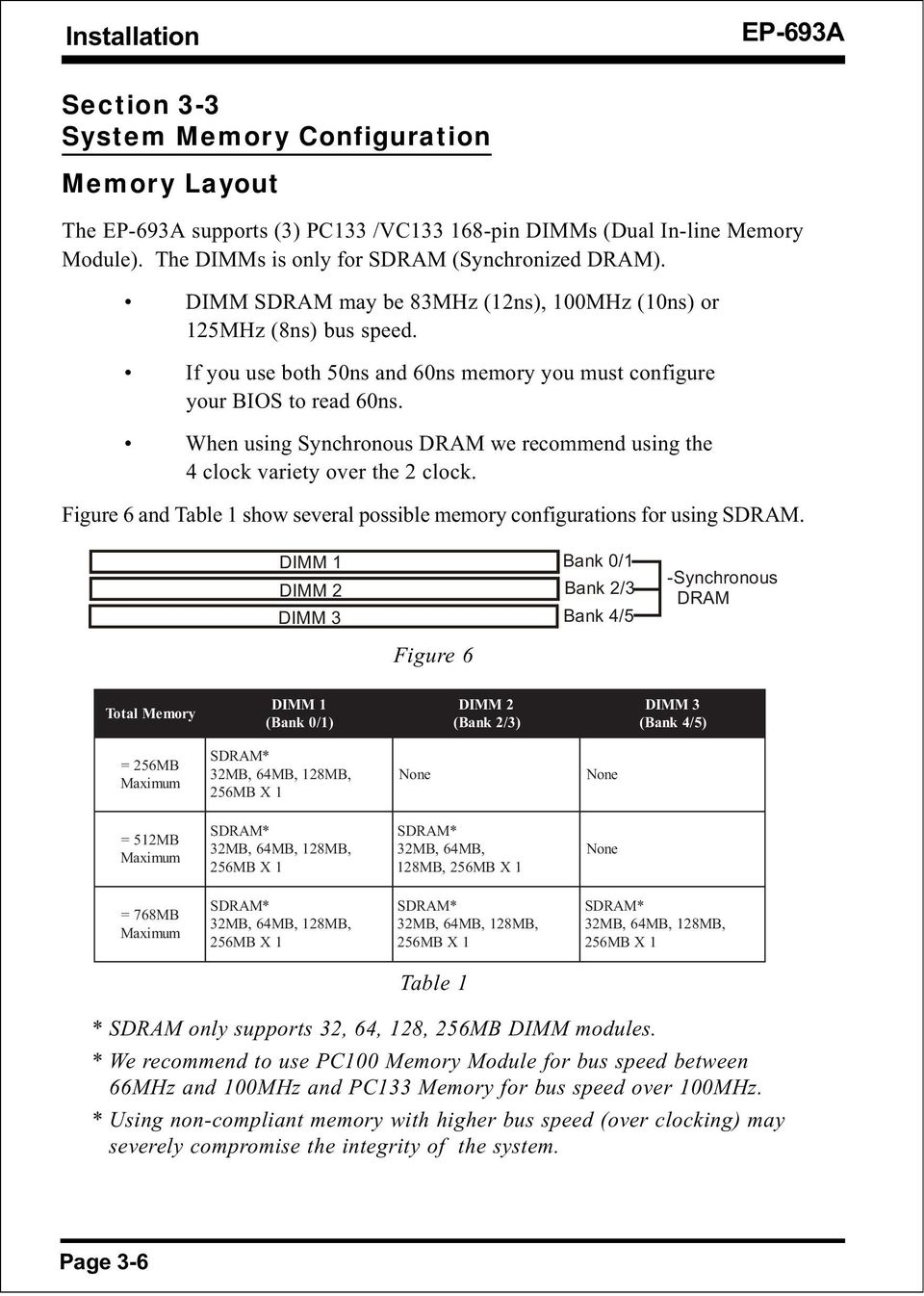
18 Installation EP-693A Section 3-3 System Memory Configuration Memory Layout The EP-693A supports (3) PC133 /VC pin DIMMs (Dual In-line Memory Module). The DIMMs is only for SDRAM (Synchronized DRAM). DIMM SDRAM may be 83MHz (12ns), 100MHz (10ns) or 125MHz (8ns) bus speed. If you use both 50ns and 60ns memory you must configure your BIOS to read 60ns. When using Synchronous DRAM we recommend using the 4 clock variety over the 2 clock. Figure 6 and Table 1 show several possible memory configurations for using SDRAM. DIMM 1 Bank 0/1 DIMM 2 Bank 2/3 DIMM 3 Bank 4/5 Figure 6 -Synchronous DRAM Total Memory DIMM 1 (Bank 0/1) DIMM 2 (Bank 2/3) DIMM 3 (Bank 4/5) = 256MB Maximum SDRAM* 32MB, 64MB, 128MB, 256MB X 1 None None = 512MB Maximum SDRAM* 32MB, 64MB, 128MB, 256MB X 1 SDRAM* 32MB, 64MB, 128MB, 256MB X 1 None = 768MB Maximum SDRAM* 32MB, 64MB, 128MB, 256MB X 1 SDRAM* 32MB, 64MB, 128MB, 256MB X 1 SDRAM* 32MB, 64MB, 128MB, 256MB X 1 Table 1 * SDRAM only supports 32, 64, 128, 256MB DIMM modules. * We recommend to use PC100 Memory Module for bus speed between 66MHz and 100MHz and PC133 Memory for bus speed over 100MHz. * Using non-compliant memory with higher bus speed (over clocking) may severely compromise the integrity of the system. Page 3-6
19 Installation DIMM Module Installation Figure 7 displays the notch marks and what they should look like on your DIMM memory module. DIMMs have 168-pins and two notches that will match with the onboard DIMM socket. DIMM modules are installed by placing the chip firmly into the socket at a 90 degree angle and pressing straight down (figure 8) until it fits tightly into the DIMM socket (figure 9). LEFT KEY ZONE (UNBUFFERED) CENTER KEY ZONE (3.3 V DRAM) Figure 7 Figure 8 DIMM Module clip before installation Figure 9 DIMM Module clip after installation To remove the DIMM module simply press down both of the white clips on either side and the module will be released from the socket. Page 3-7

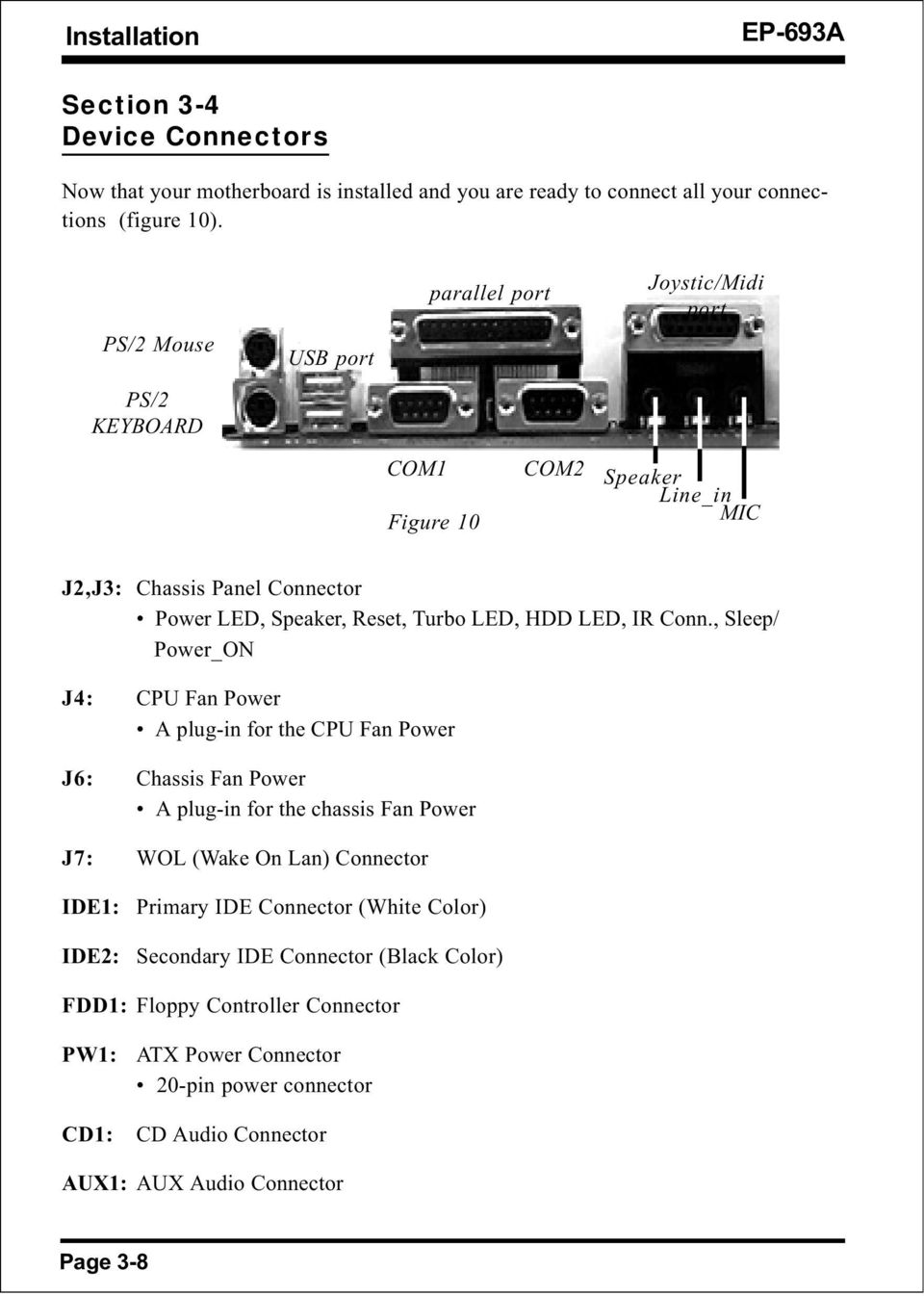
20 Installation EP-693A Section 3-4 Device Connectors Now that your motherboard is installed and you are ready to connect all your connections (figure 10). PS/2 Mouse PS/2 KEYBOARD USB port parallel port Joystic/Midi port COM1 Figure 10 COM2 Speaker Line_in MIC J2,J3: Chassis Panel Connector Power LED, Speaker, Reset, Turbo LED, HDD LED, IR Conn., Sleep/ Power_ON J4: CPU Fan Power A plug-in for the CPU Fan Power J6: Chassis Fan Power A plug-in for the chassis Fan Power J7: WOL (Wake On Lan) Connector IDE1: IDE2: Primary IDE Connector (White Color) Secondary IDE Connector (Black Color) FDD1: Floppy Controller Connector PW1: CD1: ATX Power Connector 20-pin power connector CD Audio Connector AUX1: AUX Audio Connector Page 3-8
21 Installation USB2: USB port header pins for adding two additional USB ports. VCC -Data +Data GND GND +Data -Data VCC 10 USB port header pin descriptions. PIN# Wire color 1 Red 2 White 3 Green 4 Black 5 Black 6 Black 7 Black 8 Green 9 White 10 Red Signal Name Vcc Commen t -Data Data + Data Data Ground Ground Ground Ground + Data Data -Data Data Vcc Cable Power Cable Ground Case Ground Case Ground Cable Ground Cable Power Page 3-9
22 Installation EP-693A Device Connectors (continued) J3 1 (This is connected to the power button on the case. Using the Soft- Off by Pwr-BTTN feature, you can choose either Instant Off (turns system off immediatly), or 4 sec delay (you need to hold the button down for 4 seconds before the system turns off). When the system is in 4 sec delay mode, there is a special feature to make the system to go into suspend mode when the button is pressed momentarily). Power On/Off + + Turbo LED indicator - LED ON when higher speed is selected IDE LED indicator - LED ON when Onboard PCI IDE Hard disks is activate 1 IR Connector 1. VCC 4. GND 2. NC 5. IRTX 3. IRRX J2 1 Power LED - Power LED connector 1. Power LED(+) 4. NC 2. N/C 5. GND 3. GND 1 Speaker - Connect to the system's speaker for beeping 1. Speaker 3. GND 2. N/C 4. GND 1 Reset - Closed to restart system. Page 3-10
23 Installation Section 3-5 External Modem Ring-in Power ON and Keyboard Power ON Functions (KBPO) On the basis of bounded functions in I/O chipset, the two serial ports are able to support the External Modem Ring-in Power ON function. Once users connect the external modem to COM1 or COM2, the EP-693A mainboard allows users to turn on their system through the remote and host's dial-up control. Exclusive Keyboard Power ON Function To innovate a unique feature to benefit users, we devoted the easiest and most convenient way to turn on your system based on the the ATX power supply. How to work with it Step 1: Please check JP4 at the position 2-3 after you finished the system installation. JP4 1 Keyboard Power-ON Function JP4 = 1-2 Disabled (Default) = 2-3 Enabled Step 2: You can enjoy the Keyboard Power ON function (KBPO) by pressing any key and BUTTON only to turn on your system. Your system will be turned on automatically, after releasing the keys. To power off you system, you can use the Soft-OFF function under Windows 95/98. Notes: Intel ATX version 2.0 specification has recommended you use the power supply with 0.72A(720mA) in 5.0VSB. With our EP-693A mainboard, the 5. 0VSB standby power only has to be > = 0.2A (200mA) then you can enjoy this unique benefit. However, the ATX power supply which is < 0.2 (200mA) is still applicable to your system by placed JP4 at the position 1-2 to disable this feature. Page 3-11
24 Installation EP-693A Page Left Blank Page 3-12
25 BIOS Section 4 AWARD BIOS SETUP BIOS Instructions Award s ROM BIOS provides a built-in Setup program which allows user to modify the basic system configuration and hardware parameters. The modified data will be stored in a battery-backed CMOS, so that data will be retained even when the power is turned off. In general, the information saved in the CMOS RAM will stay unchanged unless there is a configuration change in the system, such as hard drive replacement or a device is added. It is possible for the CMOS battery to fail, this will cause data loss in the CMOS only. If this does happen you will need to reconfigure your BIOS settings. To enter the Setup Program : Power on the computer and press the <Del> key immediately, this will bring you into the BIOS CMOS SETUP UTILITY. Figure 1: CMOS Setup Utility Page 4-1
26 BIOS EP-693A The menu displays all the major selection items. Select the item you need to reconfigure. The selection is made by moving the cursor (press any direction key ) to the item and pressing the Enter key. An on-line help message is displayed at the bottom of the screen as the cursor is moved to various items which provides a better understanding of each function. When a selection is made, the menu of the selected item will appear so that the user can modify associated configuration parameters. 4-1 Standard CMOS Setup Choose Standard CMOS Setup in the CMOS SETUP UTILITY Menu (Figure 2). The Standard CMOS Setup allows the user to configure system settings such as the current date and time, type of hard disk drive installed, floppy drive type, and display type. Memory size is auto-detected by the BIOS and displayed for your reference. When a field is highlighted (use direction keys to move the cursor and the <Enter> key to select), the entries in the field can be changed by pressing the <PgDn> or the <PgUp> key. Figure 2: Standard CMOS Setup Page 4-2
27 BIOS NOTE: If the hard disk Primary Master/Slave and Secondary Master/ Slave are set to Auto, then the hard disk size and model will be auto-detected. NOTE: The Halt On: field is used to determine when to halt the system by the BIOS if an error occurs. NOTE: Floppy 3 Mode support is a mode used to support a special 3.5 drive used in Japan. This is a 3.5 disk that stores only 1.2 MB, the default setting for this is disabled. 4-2 BIOS Features Setup Selecting the BIOS FEATURES SETUP option in the CMOS SETUP UTILITY menu allows users to change system related parameters in the displayed menu. This menu shows all of the manufacturer s default values for the EP-693A. Pressing the [F1] key will display a help message for the selected item. Figure 3: BIOS Features Setup Virus Warning: During and after the system boots up, any attempt to write to the boot sector or partition table of the hard disk drive will halt the system and an error message will appear. Page 4-3
28 BIOS EP-693A You should then run an anti-virus program to locate the virus. Keep in mind that this feature protects only the boot sector, not the entire hard drive. The default value is Disabled. Enabled: Activates automatically when the system boots up causing a warning message to appear when anything attempts to access the boot sector. Disabled: No warning message will appear when anything attempts to access the boot sector. Note: Many disk diagnostic programs that access the boot sector table can trigger the virus warning message. If you plan to run such a program, we recommend that you first disable the virus warning. CPU Internal Cache: This controls the status of the processor s internal cache area. The default is Enabled. Enabled: This activates the processor s internal cache thereby increasing performance. Disabled: This deactivates the processor s internal cache thereby lowering performance. External (L2) Cache: This controls the status of the external (L2) cache area. The default is Enabled. Enabled: This activates the CPU S L2 cache thereby increasing performance. Disabled: This deactivates the ard CPU S L2 cache thereby lowering performance. CPU L2 Cache ECC Checking: This control if the CPU s L2 Cache will support Error Checking and Correcting (ECC). The default is Disabled. Enabled: Enables ECC support for the CPU s L2 cache. Performance will decrease 2% ~ 4%. Disabled: Disables ECC support for the CPU s L2 cache. Processor Number Feature: Pentium III or later CPU new feature. The default is Enabled. Enabled: Processor serial number readable. Disabled: Processor serial number disabled. Quick Power On Self Test: This category speeds up the Power On Self Test (POST). The default is Enabled. Enabled: This setting will shorten or skip of the items checked during POST. Disabled: Normal POST. Page 4-4
29 BIOS Boot Sequence: This category determines which drive is searched first by the O/S (Operating System). The default is A,C,SCSI. The following is your list of options: [A, C, SCSI] - [C, A, SCSI] - [C, CD-ROM, A] - [CD-ROM, C, A] [D, A,CD-ROM],[E, A, CD-ROM] - [F, A, CD-ROM] - [SCSI, A, C] [SCSI C, A] - [C Only] Swap Floppy Drive: This will swap your physical drive letters A & B if you are using two floppy disks. The default is Disabled. Enabled: Floppy A & B will be swapped under the O/S. Disabled: Floppy A & B will be not swapped. Boot Up Floppy Seek: During Power-On-Self-Test (POST), BIOS will determine if the floppy disk drive installed is 40 or 80 tracks. Only 360K type is 40 tracks while 760K, 1.2MB and 1.44MB are all 80 tracks. The default is Enabled. Enabled: The BIOS will search the floppy disk drive to determine if it is 40 or 80 tracks. Disabled: The BIOS will not search for the type of floppy disk drive by track number. Note: BIOS can not tell the difference between 720K, 1.2MB and 1.44MB drive types as they are all 80 tracks. Boot Up NumLock Status: This controls the state of the NumLock key when the system boots. The default is On. On: The keypad acts as a 10-key pad. Off: The keypad acts like the cursor keys. IDE HDD Block Mode: IDE Block Mode allows the controller to access blocks of sectors rather than a single sector at a time. The default is Enabled. Enabled: Enabled IDE HDD Block Mode. Provides higher HDD transfer rates. Disabled: Disable IDE HDD Block Mode. Gate A20 Option: This refers to the way the system addresses memory above 1MB (extended memory). The default is Fast. Normal: The A20 signal is controlled by the keyboard controller or chipset hardware. Fast: The A20 signal is controlled by Port 92 or chipset specific method. Page 4-5
30 BIOS EP-693A Memory Parity/ECC Check: If the DRAM chip in your system support Parity/ ECC check, select Enabled. Typematic Rate Setting: This determines the keystrokes repeat rate. The default is Disabled. Enabled: Allows typematic rate and typematic delay programming. Disabled: The typematic rate and typematic delay will be controlled by the keyboard controller in your system. Typematic Rate (Chars/Sec): This is the number of characters that will be repeated by a keyboard press. The default is 6. 6: 6 characters per second. 8: 8 characters per second. 10: 10 characters per second. 12: 12 characters per second. 15: 15 characters per second. 20: 20 characters per second. 24: 24 characters per second. 30: 30 characters per second. Typematic Delay (msec): This setting controls the time between the first and the second character displayed by typematic auto-repeat. The default is : 250 msec. 500: 500 msec. 750: 750 msec. 1000: 1000 msec. Security Option: This category allows you to limit access to the System and Setup, or just to Setup. The default is Setup. System: The system will not boot and the access to Setup will be denied if the correct password is not entered at the prompt. Setup: The system will boot; but the access to Setup will be denied if the incorrect password is not entered at the prompt. PCI/VGA Palette Snoop: This field controls the ability of a primary PCI VGA controller to share a common palette (When a snoop write cycles) with an ISA video card. The default is Disabled. Enabled: If an ISA card is connected to a PCI VGA card via the VESA connector, and that ISA card connects to a VGA monitor, then that ISA card uses the RAMDAC of the PCI card. Page 4-6
31 BIOS OS Select For DRAM > 64MB: Some operating systems require special handling. Use this option only if your system has greater than 64MB of memory. The default is Non-OS2. OS2: Select this if you are running the OS/2 operating system with greater than 64MB of RAM. Non-OS2: Select this for all other operating systems and configurations. Video BIOS Shadow: This option allows video BIOS to be copied into RAM. Video Shadowing will increase the video performance of your system. The default is Enabled. Enabled: Video shadow is enabled. Disabled: Video shadow is disabled. C CBFFF Shadow: CC000 - CFFFF Shadow: D D3FFF Shadow: D D7FFF Shadow: D DBFFF Shadow: DC000 - DFFFF Shadow: These categories determine whether ROMs from option cards will be copied into RAM. This will be in 16K byte or 32K byte units, and the size will depend on chipset of the option card. Enabled: Optional shadow is enabled. Disabled: Optional shadow is disabled. Page 4-7
32 BIOS EP-693A 4-3 Chipset Features Setup Choose the CHIPSET FEATURES SETUP in the CMOS SETUP UTILITY menu to display following menu. Figure 4: Chipset Features Setup Bank 0/1, 2/3 DRAM Timing: This value in this field is set by the system board manufacturer. The default is SDRAM Fast. The Choice: SDRAM Fast, SDRAM Normal. SDRAM Cycle length: This setting defines the CAS timing parameter of the SDRAM in terms of clocks. The default is 3. 2: Provides faster memory performance. 3: Provides better memory compatibility. SDRAM Bank Interleave: The item allows you to set how many banks of SDRAM support in your mainboard. The Choice: 2 Bank, 4 Bank, Disabled. DRAM Page-Mode: The item will active or inactive chipset page registers. Enabled: Page-Mode Enabled. Disabled: No page registers update and non Page-Mode operation. Page 4-8
33 BIOS DRAM Fast Decoding: The item will effective DRAM operation sequential. DRAM Read Time Option: The item will effective DRAM reading CMD sequential. Memory Hole : You can reserve this memory area for the use of ISA adaptor ROMs. The default is Disabled. Enabled: This field enables the main memory (15~16MB) to remap to ISA BUS. Disabled: Normal Setting. Note: If this feature is enabled you will not be able to cache this memory segment. Read Around write: DRAM optimization feature: If a memory read is addressed to a location whose latest write is being held in a buffer contents, and the read is not sent to the DRAM. The Choice: Enabled, Disabled Concurrent PCI/Host: When disabled, CPU bus will be occupied during the entire PCI operation period. The Choice: Enabled, Disabled System BIOS Cacheable: This allows you to copy your BIOS code from slow ROM to fast RAM. The default is Disabled. Enabled: The option will improve system performance. However, if any program writes to this memory area, a system error may result. Disabled: System BIOS non-cacheable. Video BIOS Cacheable: This option copies the video ROM BIOS to fast RAM (C0000h to C7FFFh). The default is Enabled. Enabled: Enables the Video BIOS Cacheable to speed up the VGA Performance. Disabled: Will not use the Video BIOS Cacheable function. Video RAM Cacheable: This option allows the CPU to cache read/writes of the video RAM. The default is Enabled. Enabled: This option allows for faster video access. Disabled: Reduced video performance. AGP Aperture Size: The amount of system memory that the AGP card is allowed to share. The default is 64. 4: 4MB of systems memory accessable by the AGP card. Page 4-9
34 BIOS EP-693A 8: 8MB of systems memory accessable by the AGP card. 16: 16MB of systems memory accessable by the AGP card. 32: 32MB of systems memory accessable by the AGP card. 64: 64MB of systems memory accessable by the AGP card. 128: 128MB of systems memory accessable by the AGP card. 256: 256MB of systems memory accessable by the AGp card. AGP-2X Mode: Chipset AGP Mode support. Options: Enabled, Didabled. USB Keyboard Support: This controls the activation status of an optional USB keyboard that may be attached. The default is disabled. Enabled: Enable USB keyboard support. Disabled: Disable USB keyboard support. OnChip Sound: Turn on/off onchip sound device. OnChip Modem: Turn on/off onchip software modem device. Page 4-10
35 BIOS 4-4 Power Management Setup Choose the POWER MANAGEMENT SETUP in the CMOS SETUP UTILITY to display the following screen. This menu allows the user to modify the power management parameters and IRQ signals. In general, these parameters should not be changed unless it s absolutely necessary. Figure 5: Power Management Setup ACPI Function: This option allows you to select ACPI Function. The default is Enabled. Enabled: Support ACPI function for new O.S Disabled: No Support ACPI function. You can only change the content of Doze Mode, Standby Mode, and Suspend Mode when the Power Management is set to User Define. Power Management: Use this to select your Power Management selection. The default is User define. Disabled: The system operates in NORMAL conditions (Non-GREEN), and the Power Management function is disabled. Max. saving: Maximum power savings. Inactivity period is 1 minute in each mode. Min. saving: Minimum power savings. Inactivity period is 1 hour in each mode. Page 4-11
36 BIOS User define: EP-693A Allows user to define PM Timers parameters to control power saving mode. PM controlled APM: This option shows weather or not you want the Power Management to be controlled the Advanced Power Management (APM). The default is Yes. Yes: APM controls your PM No: APM does not control your PM Video Off After: Tells you what time frame that the video will be disabled under current power management settings. The default is Standby. Standby: Video powers off after time shown in standby mode setting. Doze: Video powers off after time shown in doze mode setting. Suspend: Video powers off after time shown in suspend mode setting. N/A: Video power off not controlled by power management. Video Off Method: This option allows you to select how the video will be disabled by the power management. The default is V/H Sync + Blank V/H Sync + Blank: System turns off vertical and horizontal synchronization ports and writes blanks to the video buffer. DPMS: Select this option if your monitor supports the Display Power Management Signaling (DPMS) standard of the Video Electronics Standards Association (VESA). Use the software supplied for your video subsystem to select video power management values. Blank Screen: System only writes blanks to the video buffer. MODEM Use IRQ: Name the interrupt request (IRQ) line assigned to the modem (if any) on your system. Activity of the selected IRQ always awakens the system. Default is IRQ 3. N/A: No IRQ is used. 3: IRQ 3 4: IRQ 4 5: IRQ 5 7: IRQ 7 9: IRQ 9 10: IRQ 10 11: IRQ 11 Soft-Off by PWRBTN: Use this to select your soft-off function. The default is Instant Off. Page 4-12
37 BIOS Instant Off: Turns off the system instantly. Delay 4 Second : Turns off the system after a 4 second delay. If momentary press of button, the system will go into Suspend Mode. Press the power botton again to take system out of Suspend Mode. PWRON After PW-Fail: The system will stay of or power on after a power interrupte. The default is Fomer-Status. Fomer-Status: Stay off or power on depend on system safe shut-down or power fail. ON: System always power on after a power interrupte. OFF: System always stay off after a power interrupte. HDD Power Down: HDD Standby timer can be set from 1 to 15 minute(s). Doze Mode: The Doze mode timer starts to count when no PM events have occurred. Suspend Mode: This function works only when the Pentium II Processor is installed. The timer starts to count when System Standby mode timer is timed out and no PM Events are occurring. Valid range is from 1 minute up to 1 hour. VGA: When set to On (default), any event occurring at a VGA port will awaken a system which has been powered down. LPT & COM: When set to On (default), any event occurring at a COM(serial)/ LPT (printer) port will awaken a system which has been powered down. HDD & FDD: When set to On (default), any event occurring at a hard or floppy drive port will awaken a system which has been powered down. PCI Master: When set to On (default), any event occurring to the DMA controller will awaken a system which has been powered down. Modem Ring Resume: When set to Enabled, any event occurring to the Modem Ring will awaken a system which has been powered down. RTC Alarm Resume: When set to Enable rtc alarm resume, you could set the date (of month) and timer (hh:mm:ss), any event occurring at will awaken a system which has been powered down. Primary INTR: When set to On (default), any event occurring at will awaken a system which has been powered down. Page 4-13
38 BIOS EP-693A 4-5 PNP/PCI Configuration The PNP/PCI configuration program is for the user to modify the PCI/ISA IRQ signals when various PCI/ISA cards are inserted in the PCI or ISA slots. WARNING: Conflicting IRQ s may cause the system to not find certain devices. Figure 6: PCI Configuration Setup PNP OS Installed: Do you have a PNP OS installed on your system. The default is No. Yes: Select if you are using a PNP OS. No: Select if your OS does not support PNP. Resources Controlled By: Who controlled the system PNP/PCI resources. The default is Auto. Manual: Auto: PNP Card s resources will be controlled manually. You can set which IRQ-X and DMA-X are assigned to PCI/ISA PNP or Legacy ISA Cards. If your ISA card and PCI card are all PNP cards, BIOS will assign the interrupt resource automatically. Page 4-14
39 BIOS Reset Configuration Data: This setting allows you to clear ESCD data. The default is Disabled Disabled: Normal Setting. Enabled: If you have plugged in some Legacy cards to the system and they were recorded into ESCD (Extended System Configuration Data), you can set this field to Enabled in order to clear ESCD. CPU to PCI Write Buffer: When enabled, up to four D words of data can be written to the PCI bus without interruting the CPU. When disabled, a write buffer is not used and the CPU read cycle will not be completed until the PCI bus signals that it is ready to receive the data. The Choice: Enabled, Disabled. PCI Dynamic Bursting: When Enabled, data transfers on the PCI bus, where possible, make use of the high-performance PCI bust protocol, in which graeater amounts of data are transferred at a single command. The Choice: Enabled, Disabled. PCI Master 0 WS Write: When Enabled, writes to the PCI bus are command with zero wait states. The Choice: Enabled, Disabled. PCI Delay Transaction: The chipset has an embedded 32-bit posted write buffer to support delay transactions cycles. Select Enabled to support compliance with PCI specification version 2.1. The Choice: Enabled, Disabled. PCI #2 Access #1 Retry: This item allows you enabled/disable the PCI #2 Access #1 Retry. The Choice: Enabled, Disabled. AGP Master 1 WS Write: When Enabled, writes to the AGP are executed with one wait states. The Choice: Enabled, Disabled. AGP Master 1 WS Read: When Enabled, read to the AGP are executed with one wait states. The Choice: Enabled, Disabled. Page 4-15
40 BIOS EP-693A Slot 1 to Slot 5 Use IRQ No: These settings allow the user to specify what IRQ will be assigned to PCI devices in the chosen slot. Options available: Auto,3,4,5, 7,9,10,11,12,14 & 15. The defaults are Auto. 4-6 Load Setup Defaults The LOAD SETUP DEFAULTS function loads the system default data directly from ROM and initializes the associated hardware properly. This function will be necessary only when the system CMOS data is corrupted. Page 4-16
41 BIOS 4-7 Integrated Peripherals Figure 7: Integrated Peripherals Note: If you do not use the Onboard IDE connector, then you will need to set Onboard Primary PCI IDE: Disabled and Onboard Secondary PCI IDE: Disabled Note: The Onboard PCI IDE cable should be equal to or less than 18 inches (45 cm.). OnChip IDE Channel0: The default value is Enabled. Enabled: Enables Onboard IDE primary port. Disabled: Disables Onboard IDE primary port. OnChip IDE Channel1: The default is Enabled. Enabled: Enables Onboard IDE secondary port. Disabled: Disables Onboard IDE secondary port. IDE Prefetch Mode: Enable prefetching for IDE drive interfaces that support its faster drive accesses. If uou are getting disk drive errors, change the setting to omit the drive interface where the errors occur. Depending on the configuration Page 4-17
42 BIOS EP-693A of your IDE subsystem, this field may not appear, and it does not appear when the Internal PCI/IDE field, above, is Disabled. The Choice: Enabled, Disabled. Primary Master PIO: The default is Auto. Auto: BIOS will automatically detect the Onboard Primary Master PCI IDE HDD Accessing mode. Mode 0~4: Manually set the IDE Programmed interrupt mode. Primary Slave PIO: The default is Auto. Auto: BIOS will automatically detect the Onboard Primary Slave PCI IDE HDD Accessing mode. Mode 0~4: Manually set the IDE Programmed interrupt mode. Secondary Master PIO: The default is Auto. Auto: BIOS will automatically detect the Onboard Secondary Master PCI IDE HDD Accessing mode. Mode 0~4: Manually set the IDE Programmed interrupt mode. Secondary Slave PIO: The default is Auto. Auto: BIOS will automatically detect the Onboard Secondary Slave PCI IDE HDD Accessing mode. Mode 0~4: Manually set the IDE Programmed interrupt mode. Primary Master UDMA: This allows you to select the mode of operation for the hard drive. The default is Auto. Auto: The computer will select the optimal setting. Disabled: The hard drive will run in normal mode. Primary Slave UDMA: This allows you to select the mode of operation for the hard drive. The default is Auto. Auto: The computer will select the optimal setting. Disabled: The hard drive will run in normal mode. Secondary Master UDMA: This allows you to select the mode of operation for the hard drive. The default is Auto. Auto: The computer will select the optimal setting. Disabled: The hard drive will run in normal mode. Page 4-18
43 BIOS Secondary Slave UDMA: This allows you to select the mode of operation for the hard drive. The default is Auto. Auto: The computer will select the optimal setting. Disabled: The hard drive will run in normal mode. Init Display First: If two video cards are used (1 AGP and 1 PCI) this specifies which one will be the primary display adapter. The default is PCI Slot. PCI Slots: PCI video card will be primary adapter. AGP: AGP video card will be primary adapter. Onboard FDD Controller: This controls the state of the onboard floppy controller. The default value is Enabled. Enabled: Enable the Onboard Winbond Chips s floppy drive interface controller. Disabled: Disable the Onboard Winbond Chip s floppy drive interface controller. Onboard Serial Port 1: This field allows the user to configure the 1st serial port. The default is Auto. AUTO: Enable Onboard Serial port 1 and address is Auto adjusted. COM1: Enable Onboard Serial port 1 and address is 3F8H/IRQ4. COM2: Enable Onboard Serial port 1 and address is 2F8H/IRQ3. COM3: Enable Onboard Serial port 1 and address is 3E8H/IRQ4. COM4: Enable Onboard Serial port 1 and address is 2E8H/IRQ3. Disabled: Disable Onboard SMC CHIP s Serial port 1. Onboard Serial Port 2: This field allows the user to configure the 2nd serial port. The default is Auto. AUTO: Enable Onboard Serial port 2 and address is Auto adjusted. COM1: Enable Onboard Serial port 2 and address is 3F8H/1RQ4 COM2: Enable Onboard Serial port 2 and address is 2F8H/IRQ3. COM3: Enable Onboard Serial port 2 and address is 3E8H/IRQ4. COM4: Enable Onboard Serial port 2 and address is 2E8H/IRQ3. Disabled: Disable Onboard SMC CHIP s Serial port 2. UART 2 Mode: This item allows you to determine which Infra Red (IR) function of onboard I/O chip. The Choice: Standard, ASKIR, HPSIR. Page 4-19
44 BIOS EP-693A IR Function Duplex: This item allows you to select the IR function when you select the UART2 Mode is ASKIR. The Choice: Half, Full. TX, RX inverting enable: This item invert serial port 2 TX and RX output signal level. No, No TX, RX have no signal inverting. No, Yes RX have signal inverting. Yes, No TX have signal inverting. Yes, Yes TX, RX have signal inverting. Onboard Parallel port: This field allows the user to configure the LPT port. The default is 378H / IRQ7. 378H: Enable Onboard LPT port and address is 378H and IRQ7. 278H: Enable Onboard LPT port and address is 278H and IRQ5. 3BCH: Enable Onboard LPT port and address is 3BCH and IRQ7. Disabled: Disable Onboard Winbond Chip s LPT port. Parallel Port Mode: This field allows the user to select the parallel port mode. The default is Normal. Normal: Standard mode. IBM PC/AT Compatible bidirectional parallel port. EPP: Enhanced Parallel Port mode. ECP: Extended Capabilities Port mode. EPP+ECP: ECP Mode & EPP Mode. ECP Mode USE DMA: This field allows the user to select DMA1 or DMA3 for the ECP mode. The default is DMA3. DMA1: This field selects the routing of DMA1 for the ECP mode. DMA3: This field selects the routing of DMA3 for the ECP mode. Parallel Port EPP Type: This item allows you to determine the IR transfer mode of onboard I/O chip. The Choice: EPP1.9, EPP1.7. Onboard Legacy Audio: Legacy Audio enabled/disabled. Sound Blaster: Sound Blaster compatible device enabled/disabled. Page 4-20
45 BIOS SB I/O Base Address: Sound Blaster I/O resource selection. SB IRQ Select: Legacy audio device IRQ selection. SB DMA Select: Sound Blaster DMA channel selection. MPU-401: MPU-401 function enabled/disabled. MPU-401 I/O Address: Built-in MPU-401 compatible MIDI I/O port selection: H H H H (default) Game Port ( H): Built-in joystick port support disabled/enabled(default). Page 4-21
46 BIOS EP-693A 4-8 Sensor and CPU Speed Setup 2.07V 3.33V 12.15V 31 o C/87 o F 24 o C/75 o F 0 RPM 0 RPM 1.52V 5.02V Figure 8: Sensor and CPU Speed Setup Auto Detect DIMM/PCI Clk: When enabled the motherboard will automatically disable the clock source for a DIMM socket which does not have a module in it. Same applies for PCI slots. The default is Enabled. Enabled: Enables this option. Disabled: Disables this option. Spread Spectrum : The default is Disabled. Enabled: Enables this option. Disabled: Disables this option. CPU Host Clock (CPU/PCI): Allows the external clock to be modified depending upon what FSB has been selected. Should not be used to clock processor faster than it was designed for. The default is Default. DRAM Clock Is: The item will synchronize/asynchronize DRAM operation clock. Host Clock: DRAM has same working clock with CPU host bus. 2/3 Host: DRAM running with lower operation clock. Page 4-22
47 BIOS VIA CyrixIII Clock Ratio : CyrixIII CPU Ratio adjust (for CyrixIII CPU only). CPUFAN Off In Suspend: This option is used to set if the CPU fans will turn off during suspend mode. The default is Off. Off: The system will turn off the CPU fans during suspend mode. On : The system will turn on the CPU fan during suspend mode. Current System Temp: This is the Current temperature of the system. Current CPU Temperature: This is the current temperature of the CPU. Current CPU FAN Speed: The current CPU fan speed in RPMs. Current Chassis FAN Speed: The current chassis fan speed in RPMs. CPU(V): The voltage level of the CPU(Vio/Vcore). Vtt, +3.3V, +5V, +12V: The voltage level of the switch power supply. Page 4-23
48 BIOS EP-693A 4-9 Change Supervisor or User Password To change the password, choose the SUPERVISOR PASSWORD or USER PASSWORD option from the CMOS SETUP UTILITY menu and press [Enter]. Note: Either Setup or System must be selected in the Security Option of the BIOS FEATURES SETUP menu. 1.If CMOS is corrupted or the option was not used, a default password stored in the ROM will be used. The screen will display the following message: Enter Password: Press the [Enter] key to continue after the proper password is given. 2.If the CMOS is corrupted or the option was used earlier and the user wishes to change the default password, the SETUP UTILITY will display a message and ask for a confirmation. Confirm Password: 3.After pressing the [Enter] key (ROM password if the option was not used) or current password (user-defined password), the user can change the password and store new one in CMOS RAM. A maximum of 8 characters can be entered. Page 4-24
49 BIOS 4-10 IDE HDD Auto Detection The IDE HDD auto detection utility is a very useful tool, especially when you do not know which kind of hard disk type you are using. You can use this utility to detect the correct disk type installed in the system automatically. But now you can set HARD DISK TYPE to Auto in the STANDARD CMOS SETUP. You don t need the IIDE HDD AUTO DETECTION utility. The BIOS will Auto-detect the hard disk size and model on display during POST. ROM PCI/ISA BIOS(2A6LJPAA) CMOS SETUP UTILITY AWARD SOFTWARE, INC. HARD DISKS TYPE SIZE CYLS HEADS PRECOMP LANDZONE SECTORS MODE Primary Master : Select Secondary Slave Option (N=Skip) : N OPTIONS SIZE CYLS HEAD PRECOMP LANDZ SECTORMODE 2 (Y) LBA NORMAL LARGE Note: Some OSes (like SCO-UNIX) must use NORMAL for installation Note: HDD Modes ESC : Skip Figure 9: IDE HDD Auto Detection The Award BIOS supports 3 HDD modes : NORMAL, LBA & LARGE NORMAL mode Generic access mode in which neither the BIOS nor the IDE controller will make any transformations during accessing. The maximum number of cylinders, head & sectors for NORMAL mode are 1024, 16 & 63. no. Cylinder (1024) x no. Head ( 16) x no. Sector ( 63) x no. per sector ( 512) 528 Megabytes Page 4-25
50 BIOS EP-693A If user set his HDD to NORMAL mode, the maximum accessible HDD size will be 528 Megabytes even though its physical size may be greater than that! LBA (Logical Block Addressing) mode: A new HDD accessing method to overcome the 528 Megabyte bottleneck. The number of cylinders, heads & sectors shown in setup may not be the number physically contained in the HDD. During HDD accessing, the IDE controller will transform the logical address described by sector, head & cylinder into its own physical address inside the HDD. The maximum HDD size supported by LBA mode is 8.4 GigaBytes which is obtained by the following formula: Page 4-26 no. Cylinder (1024) x no. Head ( 255) x no. Sector ( 63) x bytes per sector ( 512) 8.4 GigaBytes LARGE mode: Extended HDD access mode supported by Award Software. Some IDE HDDs contain more than 1024 cylinder without LBA support (in some cases, user do not want LBA). The Award BIOS provides another alternative to support these kinds of LARGE mode. CYLS HEADS SECTOR MODE NORMAL LARGE BIOS tricks DOS (or other OS) that the number of cylinders is less than 1024 by dividing it by 2. At the same time, the number of heads is multiplied by 2. A reverse transformation process will be made inside INT 12h in order to access the right HDD address! Maximum HDD size: no. Cylinder (1024) x no. Head ( 32) x no. Sector ( 63) x bytes per sector ( 512) 1 GigaByte Note: To support LBA or LARGE mode of HDDs, there must be some software involved. All the software is located in the Award HDD Service Routine
51 BIOS (INT 13h). It may fail to access a HDD with LBA (LARGE) mode selected if you are running under an Operating System which replaces the whole INT 13h. UNIX operating systems do not support either LBA or LARGE and must utilize the Standard mode. UNIX can support drives larger than 528MB Save & Exit Setup The SAVE & EXIT SETUP option will bring you back to the boot up procedure with all the changes you just recorded in the CMOS RAM Exit Without Saving The EXIT WITHOUT SAVING option will bring you back to normal boot up procedure without saving any data into CMOS RAM. All old data in the CMOS will not be destroyed. Page 4-27
52 BIOS EP-693A Page Left Blank Page 4-28
53 Appendix Appendix A A-1 MEMORY MAP Address Range Size Description [ FFFF] 512K Conventional memory [ FBFF] 127K Extended Conventional memory [9FC00-9FFFF] 1K Extended BIOS data area if PS/2 mouse is installed [A0000-C7FFF] 160K Available for Hi DOS memory [C8000-DFFFF] 96K Available for Hi DOS memory and adapter ROMs [E0000-EEFFF] 60K Available for UMB [EF000-EFFFF] 4K Video service routine for Monochrome & CGA adaptor [F0000-F7FFF] 32K BIOS CMOS setup utility [F8000-FCFFF] 20K BIOS runtime service routine (2) [FD000-FDFFF] 4K Plug and Play ESCD data area [FE000-FFFFF] 8K BIOS runtime service routine (1) A-2 I/O MAP [000-01F] DMA controller.(master) [ ] INTERRUPT CONTROLLER.(Master) [ ] CHIPSET control registers. I/O ports. [040-05F] TIMER control registers. [060-06F] KEYBOARD interface controller.(8042) [070-07F] RTC ports & CMOS I/O ports. [080-09F] DMA register. [0A0-0BF] INTERRUPT controller.(slave) [0C0-0DF] DMA controller.(slave) [0F0-0FF] MATH COPROCESSOR. [1F0-1F8 ] HARD DISK controller. [278-27F] PARALLEL port 2. [2B0-2DF] GRAPHICS adapter controller. A-1
54 Appendix EP-693A [2F8-2FF] SERIAL port 2. [360-36F] NETWORK ports. [378-37F] PARALLEL port 1. [3B0-3BF] MONOCHROME & PARALLEL port adapter. [3C0-3CF] EGA adapter. [3D0-3DF] CGA adapter. [3F0-3F7] FLOPPY DISK controller. [3F8-3FF] SERIAL port 1. A-3 TIMER & DMA CHANNELS MAP TIMER MAP: TIMER Channel 0 System timer interrupt. TIMER Channel 1 DRAM REFRESH request. TIMER Channel 2 SPEAKER tone generator. DMA CHANNELS: DMA Channel 0 Available. DMA Channel 1 Onboard ECP (Option). DMA Channel 2 FLOPPY DISK (SMC CHIP). DMA Channel 3 Onboard ECP (default). DMA Channel 4 Cascade for DMA controller 1. DMA Channel 5 Available. DMA Channel 6 Available. DMA Channel 7 Available A-4 INTERRUPT MAP NMI : Parity check error. IRQ (H/W): 0 System TIMER interrupt from TIMER 0. 1 KEYBOARD output buffer full. 2 Cascade for IRQ SERIAL port 2. 4 SERIAL port 1. 5 PARALLEL port 2. A-2
55 Appendix 6 FLOPPY DISK (SMC CHIP). 7 PARALLEL port 1. 8 RTC clock. 9 Available. 10 Available. 11 Available. 12 PS/2 Mouse. 13 MATH coprocessor. 14 Onboard HARD DISK (IDE1) channel. 15 Onboard HARD DISK (IDE1) channel. A-5 RTC & CMOS RAM MAP RTC & CMOS: 00 Seconds. 01 Second alarm. 02 Minutes. 03 Minutes alarm. 04 Hours. 05 Hours alarm. 06 Day of week. 07 Day of month. 08 Month. 09 Year. 0A Status register A. 0B Status register B. 0C Status register C. 0D Status register D. 0E Diagnostic status byte. 0F Shutdown byte. 10 FLOPPY DISK drive type byte. 11 Reserve. 12 HARD DISK type byte. 13 Reserve. 14 Equipment type. 15 Base memory low byte. A-3
56 Appendix EP-693A 16 Base memory high byte. 17 Extension memory low byte. 18 Extension memory high byte. 19-2d 2E-2F 30 Reserved for extension memory low byte. 31 Reserved for extension memory high byte. 32 DATE CENTURY byte. 33 INFORMATION FLAG. 34-3F Reserve. 40-7F Reserved for CHIPSET SETTING DATA. A-4
57 Appendix Appendix B B-1 POST CODES ISA POST codes are typically output to I/O port address 80h. POST (hex) DESCRIPTION Reserved. C0 Turn off OEM specific cache, shadow Initialize EISA registers (EISA BIOS only). 2. Initialize all the standard devices with default values Standard devices includes. - DMA controller (8237). - Programmable Interrupt Controller (8259). - Programmable Interval Timer (8254). - RTC chip. 04 Reserved Keyboard Controller Self-Test Enable Keyboard Interface. 07 Reserved. 08 Verifies CMOS's basic R/W functionality. C1 Auto-detection of onboard DRAM & Cache. C5 Copy the BIOS from ROM into E0000-FFFFF shadow RAM so that POST will go faster. 08 Test the first 256K DRAM. 09 OEM specific cache initialization. (if needed) 0A 1. Initialize the first 32 interrupt vectors with corresponding Interrupt handlers. Initialize INT numbers from with Dummy (Spurious) Interrupt Handler. 2. Issue CPUID instruction to identify CPU type. 3. Early Power Management initialization. (OEM specific) 0B 1. Verify the RTC time is valid or not. 2. Detect bad battery. 3. Read CMOS data into BIOS stack area. 4. PnP initializations including. (PnP BIOS only) - Assign CSN to PnP ISA card. B-1
58 Appendix EP-693A - Create resource map from ESCD. 5. Assign IO & Memory for PCI devices. (PCI BIOS only) 0C Initialization of the BIOS Data Area. (40:ON - 40:FF) 0D 1. Program some of the Chipset's value according to Setup. (Early Setup Value Program) 2. Measure CPU speed for display & decide the system clock speed. 3. Video initialization including Monochrome, CGA, EGA/ VGA. If no display device found, the speaker will beep. 0E 1. Test video RAM. (If Monochrome display device found) 2. Show messages including. - Award Logo, Copyright string, BIOS Data code & Part No. - OEM specific sign on messages. - Energy Star Logo. (Green BIOS ONLY) - CPU brand, type & speed. - Test system BIOS checksum. (Non-Compress Version only) 0F DMA channel 0 test. 10 DMA channel 1 test. 11 DMA page registers test Reserved. 14 Test 8254 Timer 0 Counter Test 8259 interrupt mask bits for channel Test 8259 interrupt mask bits for channel Reserved. 19 Test 8259 functionality. 1A-1D Reserved. 1E If EISA NVM checksum is good, execute EISA initialization. (EISA BIOS only) 1F-29 Reserved. 30 Detect Base Memory & Extended Memory Size Test Base Memory from 256K to 640K. 2. Test Extended Memory from 1M to the top of memory Display the Award Plug & Play BIOS Extension message. (PnP BIOS only) 2. Program all onboard super I/O chips (if any) including B-2
59 Appendix COM ports, LPT ports, FDD port... according to setup value. 33-3B Reserved. 3C Set flag to allow users to enter CMOS Setup Utility. 3D 1. Initialize Keyboard. 2. Install PS2 mouse. 3E Try to turn on Level 2 cache. Note: Some chipset may need to turn on the L2 cache in this stage. But usually, the cache is turn on later in POST 61h. 3F-40 Reserved. BF 1. Program the rest of the Chipset's value according to Setup. (Later Setup Value Program) If auto-configuration is enabled, program the chipset with pre-defined Values. 42 Initialize floppy disk drive controller. 43 Initialize Hard drive controller. 45 If it is a PnP BIOS, initialize serial & parallel ports. 44 Reserved. 45 Initialize math coprocessor. 46-4D Reserved. 4E If there is any error detected (such as video, kb...), show all error messages on the screen & wait for user to press <F1> key. 4F 1. If password is needed, ask for password. 2. Clear the Energy Star Logo. (Green BIOS only) 50 Write all CMOS values currently in the BIOS stack area back into the CMOS. 51 Reserved Initialize all ISA ROMs. 2. Later PCI initializations. (PCI BIOS only) - assign IRQ to PCI devices. - initialize all PCI ROMs. 3. PnP Initialzations. (PnP BIOS only) - assign IO, Memory, IRQ & DMA to PnP ISA devices. - initialize all PnP ISA ROMs. 4. Program shadows RAM according to Setup settings. 5. Program parity according to Setup setting. B-3
60 Appendix EP-693A 6. Power Management Initialization. - Enable/Disable global PM. - APM interface initialization If it is NOT a PnP BIOS, initialize serial & parallel ports. 2. Initialize time value in BIOS data area by translate the RTC time value into a timer tick value. 60 Setup Virus Protection. (Boot Sector Protection) functionality according to Setup setting Try to turn on Level 2 cache. Note: If L2 cache is already turned on in POST 3D, this part will be skipped. 2. Set the boot up speed according to Setup setting. 3. Last chance for Chipset initialization. 4. Last chance for Power Management initialization. (Green BIOS only) 5. Show the system configuration table Setup daylight saving according to Setup value. 2. Program the NUM Lock, typematic rate & typematic speed according to Setup setting If there is any changes in the hardware configuration, update the ESCD information. (PnP BIOS only) 2. Clear memory that have been used. 3. Boot system via INT 19H. FF System Booting. This means that the BIOS already pass the control right to the operating system. B-2 Unexpected Errors: POST (hex) B0 B1 DESCRIPTION If interrupt occurs in protected mode. Unclaimed NMI occurs.0 B-4
61 Appendix Appendix C NOTE: The "LOAD SETUP DEFAULTS" function loads the system default data directly from ROM and initializes the associated hardware properly. This function will be necessary when you accept this mainboard, or the system CMOS data is corrupted. STANDARD CMOS SETUP BIOS FEATURES SETUP CHIPSET FEATURES SETUP POWER MANAGEMENT SETUP ROM PCI/ISA BIOS(2A6LGPAA) CMOS SETUP UTILITY AWARD SOFTWARE, INC. SUPERVISOR PASSWORD USER PASSWORD IDE HDD AUTO DETECTION HDD LOW LEVEL FORMAT PNP/PCI CONFIGURA Load SETUP Default (Y/N)? Y ETUP INTEGRATED PERIPH SAVING LOAD SETUP DEFAULTS ESC: QUIT :SELECT ITEM F10:Save & Exit Setup (Shift)F2 :Change Color Load Setup Defaults Except Standard COMS SETUP LOAD SETUP DEFAULTS Page C-1
62 Appendix EP-693A Page Left Blank Page C-2
63 Appendix Appendix D D-1 GHOST 5.1 Quick User s Guide Installation is very easy. You only need to copy the Ghost5 folder or Ghost.exe to your hard disk. The current market version is for single Client, so the LPT and NetBios portions will not be explained further. Description of Menus Ghost clones and backs up Disk and Partition. In which Disk indicates hard disk options Partition indicates partition options Check indicates check options Disk D-1
64 Appendix EP-693A There are 3 hard disk functions: 1. Disk To Disk (disk cloning) 2. Disk To Image (disk backup) 3. Disk From Image (restore backup) Important! 1. To use this function, the system must have at least 2 disks. Press the Tab key to move the cursor. 2. When restoring to a destination disk, all data in that disk will be completely destroyed. Disk To Disk (Disk Cloning) 1. Select the location of the Source drive. 2. Select the location of the Destination drive. 3. When cloning a disk or restoring the backup, set the required partition size as shown in the following figure. D-2
65 Appendix 4. Click OK to display the following confirmation screen. Select Yes to start. Disk To Image (Disk Backup) 1. Select the location of the Source drive. 2. Select the location for storing the backup file. D-3
66 Appendix EP-693A 3. Click OK to display the following confirmation screen. Select Yes to start. Disk From Image (Restore Backup) 1. Select the Restore file. 2. Select the Destination drive of the disk to be restored. D-4
67 Appendix 3. When restoring disk backup, set the required partition size as shown in the following figure. 4. Click OK to display the following confirmation screen. Select Yes to start. Partition D-5
68 Appendix EP-693A There are 3 partition functions: 1. Partition To Partition (partition cloning) 2. Partition To Image (partition backup) 3. Partition From Image (restore partition) Partition To Partition (Partition Cloning) The basic unit for partition cloning is a partition. Refer to disk cloning for the operation method. Partition To Image (Partition Backup) 1. Select the disk to be backed up. 2. Select the first partition to be backed up. This is usually where the operating system and programs are stored. D-6
69 Appendix 3. Select the path and file name for storing the backup file. 4. Is the file compressed? There are 3 options: (1) No: do not compress data during backup (2) Fast: Small volume compression (3) High: high ratio compression. File can be compressed to its minimum, but this requires longer execution time. 5. During confirmation, select Yes to start performing backup. D-7
70 Appendix EP-693A Partition From Image (Restore Partition) 1. Select the backup file to be restored. 2. Select the source partition. 3. Select the disk to be restored. D-8
71 Appendix 4. Select the partition to be restored. 5. Select Yes to start restoring. Check This function checks the hard disk or backup file for backup or restoration error due to FAT or track error. D-9
72 Appendix EP-693A How to Reinstall Windows in 2 Minutes This chapter teaches you how to set your computer properly and, if necessary, reinstall Windows in 2 minutes. Ghost can use different methods to complete this task. The following two sections explain the creation of the emergency Recover Floppy and Recover CD: Emergency Recover Floppy Divide a hard disk into two partitions. The first partition is for storing the operating system and application programs. The second partition is for backing up the operating system and data. The size of the partition can be set according to the backup requirements. For example, the Windows operating system needs 200MB of hard disk space, while the complete Office installation requires 360MB. The remaining space can be used to store other data. After installing Windows, use Ghost to create a backup of the source system and store the file (Image file) in drive D. The file is named as Original.gho. Then, create a recover floppy disk containing: Bootable files (Command.com, Io.sys, and MSDOS.SYS ) Config.sys (configuration setup file) Autoexec.bat (auto-execution batch file) Ghost.exe (Ghost execution file) There are two ways to set the content of the recover floppy for restoration: (1)To load Windows automatically after booting, set the Autoexec.bat command as: Ghost.exe clone, mode=pload, src=d:\original.gho:2,dst=1:1 -fx -sure -rb Description: Runs the restore function automatically using the Image File. After execution, it exits Ghost and boots the system automatically. Refer to the [Introducing Ghosts Functions]. D-10
73 Appendix (2) After booting, the screen displays the Menu. Select Backup or Restore: Since the user may install other applications in the future, he/she may design Autoexec.bat as a Menu to back up or restore the userdefined Image file as follows: Backup Back up Windows and application programs as a file (Recent. gho). Command is: Ghost clone,mode=pdump,src=1:1,dst=d:\recent.gho -fx - sure -rb Restore Restore types include [General Windows] and [Windows and Application Programs]. If you select [General Windows], the system is restored to the general Windows operation condition. The command is: Ghost.exe -clone,mode=pload,src=d:\original.gho,dst=1:1 -fx -sure -rb If you select [Windows and Application Programs], the latest backup file (Recent.gho) is restored, skipping the installation and setup of application programs. For description of relevant parameters, refer to [Introducing Ghosts Functions]. For more information about menu design, refer to Config.sys and Autoexec.bat under /Menu in the CD. You can also create a backup CD containing Ghost.exe and these two files. D-11
74 Appendix EP-693A Recover CD In recent years, well-known computer manufacturers (such as IBM, Acer, Compaq, etc.) bundle Recover CDs with their computers to reduce the cost resulting from servicing, while at the same time increasing their market competitiveness. The following is a simple guide to how to create a recover CD: 1. For extremely easy creation of the recover floppy disk, use the copy program for example Easy CD Creator (Note 2). First, create a recover floppy disk containing: Bootable files (Command.com and Io.sys and MSDOS.SYS) Config.sys (Configuration setup file) Autoexec.bat (Auto-execution batch file) Mscdex.exe (CD-Rom execution file) Ghost.exe (Ghost execution file) Oakcdrom.sys (ATAPI CD-ROM compatible driver) The content of Config.sys is: DEVICE=Oakcdrom.sys /d:idecd001 The content of Autoexec.bat includes: MSCDEX.EXE /D:IDECD001 /L:Z Ghost.exe clone,mode=load,src=z:\original.gho,dst=1 -sure -rb 2. Write the backup image file (original.gho) of the entire hard disk or partition into the recover CD. Use the Recover CD to boot up the system and restore the backup files automatically. For description of relevant parameters, refer to [Introducing Ghosts Functions]. Note: For more details regarding the creation program and method for creating the recover CD, please refer to the legal software and relevant operation manual. D-12
75 Appendix Ghost Command Line Switches Reference Ghost may be run in interactive or in batch mode. Batch mode is useful for automating installations for backups using Ghost. Most of the Ghost switches are used to assist with batch mode operation. To list switches from Ghost, type ghost.exe -h. -clone The full syntax for this switch is: clone,mode={copy load dump pcopy pload pdump},src= {drive file drive:partition,dst={drive file drive:partition},sze{f L n= {nnnnm nnp F V}} Clone using arguments. This is the most useful of the batch switches and has a series of arguments that define: a) MODE This defines the type of clone command to be used: COPY disk to disk copy LOAD file to disk load DUMP disk to file dump PCOPY partition to partition copy PLOAD file to partition load PDUMP partition to file dump b) SRC This defines the source location for the operation: Mode Meaning: COPY/ DUMP Source drive (e.g, 1 for drive one) LOAD Disk image filename or device (e.g, g:\images\system2.img) PCOPY/ PDUMP PLOAD Source partition e.g, 1:2 indicates the second partition on drive one. Partition image filename or device and partition number. Example: g:\images\disk1.img:2 indicates the second partition in the Image file. D-13
76 Appendix EP-693A D-14 c) DST This defines the destination location for the operation: Mode Meaning COPY/ LOAD Destination drive (e.g, 2 for drive two) DUMP Disk image filename or device,(e.g, g:\images\system2.img) PCOPY/ PLOAD Destination partition,(e.g, 2:2 indicates the second partition on drive two). PDUMP Partition image filename (e.g, g:\images\part1.img). c) SZEy Used to set the size of the destination partitions for either a disk load or disk copy operation. Available y Options: F L n=xxxxm n=f n=v Resizes the first partition to maximum size allowed based on file system t type. Resizes the last partition to maximum size allowed based on file system type. - indicates that the n?h destination partition is to have a size of xxxx Mb. (e.g, SZE2=800M indicates partition two is to have 800 mb.) n=mmp - indicates that the n?h destination partition is to have a size of mm percent of the target disk. - indicates that the n?h destination partition is to remain fixed in size. - Indicates that the partition will be resized according to the following rules: Rule 1 - If the destination disk is larger than the original source disk, then the partition(s) will be expanded to have the maximum amount of space subject to the free space available and the partition type (e.g, FAT16 partitions will have a maximum size of 2048Mb.) Rule 2 - If the destination disk is smaller than the original source disk, (but still large enough to accommodate the data from the source disk), the free space left over after the
77 Appendix -fx -ia -span -split=x -sure data space has been satisfied will be distributed between the destination partitions in proportion to the data usage in the source partitions Someexamples follow that will help illustrate: flag Exit. Normally when Ghost has finished copying a new system to a disk, it prompts the user to reboot with a press Ctrl-Alt-Del to reboot window. However, if Ghost is being run as part of a batch file it is sometimes useful to have it just exist back to the DOS prompt after completion so that further batch commands may be processed. -fx enables this. See -rb for another option on completing a clone. Image All. The Image All switch forces Ghost to do a sector by sector copy of all partitions. When copying a partition from a disk to an image file or to another disk, Ghost examines the source partition and decides whether to copy just the files and directory structure, or to do an image (sector by sector) copy. If it understands the internal format of the partition it defaults to copying the files and directory structure. Generally this is the best option, but occasionally if a disk has been set up with special hidden security files that are in specific positions on the partition, the only way to reproduce them accurately on the target partition is via an image or sector-by-sector copy. enables spanning across volumes. splits image file into x Mb? Mb spans. Use this to create a forced size volume set. For example, if you would like to force smaller image files from a 1024 Megabyte drive, you could specify 200 megabyte segments.for example, ghost. exe -split=200 will divide the image into 200 Megabyte segments. use the -sure switch in conjunction with -clone to avoid being prompted with the final Proceed with disk clone destination drive will be overwritten? question. This command is useful in batch mode. D-15
78 Appendix EP-693A Example 1: To copy drive one to drive two on a PC, without final prompt if OK to proceed. ghost.exe -clone,mode=copy,src=1,dst=2 sure Example 2: To connect via NetBIOS to another PC running Ghost in slave mode, and dump a disk image of local drive two to the remote file c:\drive2.gho ghost.exe -clone,mode=dump,src=2,dst=c:\drive2.gho -nbm Note: The slave Ghost can be started with ghost nbs Example 3: To copy drive one, second partition on a PC to drive two, first parti-tion the same PC, without final prompt ghost.exe -clone,mode=pcopy,src=1:2,dst=2:1 sure Example 4: To dump the second partition of drive one to an image file on a mapped drive g: ghost.exe -clone,mode=pdump,src=1:2,dst=g:\part2.gho Example 5: To load partition 2 from a two-partition image file on a mapped drive g: onto the second partition of the local disk ghost -clone,mode=pload,src=g:\part2.gho:2,dst=1:2 Example 6: To load drive 2 from an image file and resize the destination partitions into a 20:40 allocation ghost.exe -clone,mode=load,src=g:\2prtdisk.gho,dst=2,sze1=60p, sze2=40p D-16
M7VIK BIOS Setup BIOS Setup...1
 BIOS Setup...1 1 Main Menu... 3 2 Standard CMOS Features... 6 3 Advanced BIOS Features... 9 4 Advanced Chipset Features... 12 5 Integrated Peripherals... 16 6 Power Management Setup... 21 7 PnP/PCI Configurations...
User s Manual. mainboard (133/100/66 MHz) TRADEMARK
 User s Manual A Socket 370 Processor based mainboard (133/100/66 MHz) Supports PC133/VC133 Memory Modules TRADEMARK All products and company names are trademarks or registered trademarks of their respective
85MIV2 / 85MIV2-L -- Components Locations
 Chapter Specification 85MIV2 / 85MIV2-L -- Components Locations RJ45 LAN Connector for 85MIV2-L only PS/2 Peripheral Mouse (on top) Power PS/2 K/B(underside) RJ45 (on top) +2V Power USB0 (middle) USB(underside)
AwardBIOS Setup Utility
 AwardBIOS Setup Utility Modifications to the BIOS Setup settings should be performed by advanced users only. Setting items to incorrect values may cause your system to malfunction. Introducing BIOS Setup...2
Trademarks. IBM, PC/AT, and PC/XT are trademarks of International Business Machines Corporation.
 The information presented in this publication has been carefully checked for reliability; however, no responsibility is assumed for inaccuracies. Specifications are subject to change without notice. Trademarks
Electronic Emission Notices
 1 Electronic Emission Notices Federal Communications Commission (FCC) Statement This equipment has been tested and found to comply with the limits for a Class B digital device, pursuant to Part 15 of FCC
BIOS Award v6.00pg BIOS setup guidelines
 BIOS The BIOS setup, also called CMOS setup, is a crucial part of the proper setting up of a PC the BIOS (Basic Input Output System) tells the operating system the characteristics of the main basic components
Computer Setup (F10) Utility Guide Evo Desktop Family Evo Workstation Family
 b Computer Setup (F10) Utility Guide Evo Desktop Family Evo Workstation Family Document Part Number: 215867-004 May 2002 This guide provides instructions on how to use Computer Setup. This tool is used
Mother Board Component
 Mother Board Component Explain Introduction Mother Board Component 1.Clock Generator 2. CPU socket 3. Memory Socket Memory error checking 4. ROM Bios 5. CMOS Ram 6. Battery 7. Chipset 8. Expansion Slot
M266A. User Manual. Version 3.0 Published July 2003 Copyright 2003 ASRock INC. All rights reserved.
 M266A User Manual Version 3.0 Published July 2003 Copyright 2003 ASRock INC. All rights reserved. 1 Copyright Notice: No part of this manual may be reproduced, transcribed, transmitted, or translated in
Computer Setup (F10) Utility Guide HP Compaq dx2200 Microtower Business PC
 Guide HP Compaq dx2200 Microtower Business PC Document Part Number: 413759-001 January 2006 This guide provides instructions on how to use Computer Setup. This tool is used to reconfigure and modify computer
Trademarks. IBM, PC/AT, and PC/XT are trademarks of International Business Machines Corporation.
 The information presented in this publication has been carefully checked for reliability; however, no responsibility is assumed for inaccuracies. Specifications are subject to change without notice. Trademarks
PC Notebook Diagnostic Card
 www.winter-con.com User s Guide PC Notebook Diagnostic Card User s Guide 1 www.winter-con.com User s Guide INTRODUCTION Notebook Diagnostic Card is a powerful diagnostic tool for technicians and administrators
Phoenix SecureCore TM Setup Utility
 Phoenix SecureCore TM Setup Utility Important information: We continually strive to bring you the latest and proven features and technologies. As part of our drive to continually improve our products modifications
Handling Precautions. Trademarks. Notice to Customers CAUTION
 Handling Precautions CAUTION High potential static charge may cause damage to the integrated circuits on the board. Before handling any mainboard outside of its protective packaging, ensure that there
K7S8XE. User Manual. Version 1.0 Published April 2003 Copyright 2003 ASRock INC. All rights reserved.
 K7S8XE User Manual Version 1.0 Published April 2003 Copyright 2003 ASRock INC. All rights reserved. 1 Copyright Notice: No part of this manual may be reproduced, transcribed, transmitted, or translated
PTM800Pro MAINBOARD MANUAL
 PTM800Pro MAINBOARD MANUAL DOC No. : M0590040 Rev. : A0 Date : 3, 2006 Part No. : 25-13031-00 Table of Contents Chapter 1. Overview... 1-2 Package Checklist...1-3 The PTM800Pro Mainboard...1-4 Main Features...1-5
EP-GXB-M (SMP) A Dual Pentium II Xeon Slot 2 Processor based AGP mainboard.
 (SMP) A Dual Pentium II Xeon Slot 2 Processor based AGP mainboard. TRADEMARKS All products and company names are trademarks or registered trademarks of their respectives holders. These specifications are
Chapter 5 Cubix XP4 Blade Server
 Chapter 5 Cubix XP4 Blade Server Introduction Cubix designed the XP4 Blade Server to fit inside a BladeStation enclosure. The Blade Server features one or two Intel Pentium 4 Xeon processors, the Intel
Federal Communications Commission (FCC)
 Safety Compliance Federal Communications Commission (FCC) This equipment has been tested and found to comply with the limits for a Class B digital device, pursuant to Part 15 of the FCC Rules. These limits
How To Use An Uniden U8768 With A Power Supply (I386) And Power Supply For A Power Card (Amd) (I86) (Amd86) With A Hard Disk Drive (Amd66) (Power Card) (
 FCC Information and Copyright This equipment has been tested and found to comply with the limits of a Class B digital device, pursuant to Part 5 of the FCC Rules. These limits are designed to provide reasonable
Chapter 6. Inside the System Unit. What You Will Learn... Computers Are Your Future. What You Will Learn... Describing Hardware Performance
 What You Will Learn... Computers Are Your Future Chapter 6 Understand how computers represent data Understand the measurements used to describe data transfer rates and data storage capacity List the components
(AOpen reserves the right to revise all the specifications and information contained in this document which is subject to change without notice.
 (AOpen reserves the right to revise all the specifications and information contained in this document which is subject to change without notice.) PS/2 Mouse Connector USB2.0 Ports SPP/EPP/ECP Parallel
NOTICE. The information in this manual is subject to change without notice.
 NOTICE TMC shall not be responsible for technical or editorial errors or omissions contained in this manual. TMC will not be liable for incidental or consequential damages resulting from the furnishing,
AMD Slot-A AGP/PCI/ISA Motherboard QS754. User s Manual
 AMD Slot-A AGP/PCI/ISA Motherboard QS754 User s Manual 1 Declaration Rights: Declaration No part of this manual, including but not limited to the products and software described in it, may be reproduced,
Red: MODEM-CN Connector Green: AUX-IN Connector Black: CD-IN Connector
 PS/2 Mouse RJ-45 LAN Connector Connector (Optional) SPP/EPP/ECP Parallel Port MIDI/Game Port PS/2 Keyboard Connector USB Port COM 1 Port COM 2 Port Red: MODEM-CN Connector Green: AUX-IN Connector Black:
System Installation. 3-1 Socket 370 Celeron/Pentium-III Processor. Installing S370 CPU. Removing CPU. Configuring System Bus
 System Installation This chapter provides you with instructions to set up your system. The additional information is enclosed to help you set up onboard PCI device and handle WDT operation in software
K7S8X. User Manual. Version 1.0 Published January 2003 Copyright 2003 ASRock INC. All rights reserved.
 K7S8X User Manual Version 1.0 Published January 2003 Copyright 2003 ASRock INC. All rights reserved. 1 Copyright Notice: No part of this manual may be reproduced, transcribed, transmitted, or translated
GA - 586S2 USER'S MANUAL. Auto detect CPU Voltage. Support MMX CPU. Switching mode Voltage regulator on Board.
 GA - 586S2 USER'S MANUAL Auto detect Voltage. Support MMX. Switching mode Voltage regulator on Board. Support Cyrix / IBM 6x86MX & AMD-K6. Pentium Processor PCI - ISA BUS MAINBOARD REV..0 Third Edition
Copyright 1999 Soltek Computer Inc. All right reserved. http://www.soltek.com.tw [email protected]
 Notice to End Users This UserÕs Guide & Technical Reference is for assisting system manufacturers and end users in setting up and installing the mainboard. Every effort has been made to ensure that the
PhoenixBIOS 4.0 Revision 6
 Phoenix Technologies Ltd. PhoenixBIOS 4.0 Revision 6 User's Manual Phoenix Technologies Ltd., 411 E. Plumeria, San Jose, CA 95134 Copyright Disclaimer Purpose of Document PhoenixBIOS 4.0 User's Manual
H ARDWARE C ONSIDERATIONS
 H ARDWARE C ONSIDERATIONS for Sidewinder 5 firewall software Dell Precision 530 This document provides information on specific system hardware required for running Sidewinder firewall software on a Dell
BIOS Update Release Notes
 PRODUCTS: D975XBX (Standard BIOS) BIOS Update Release Notes BIOS Version 1351 August 21, 2006 BX97510J.86A.1351.2006.0821.1744 Fixed issue where operating system CD installation caused blue screen. Resolved
The Motherboard Chapter #5
 The Motherboard Chapter #5 Amy Hissom Key Terms Advanced Transfer Cache (ATC) A type of L2 cache contained within the Pentium processor housing that is embedded on the same core processor die as the CPU
EUCIP IT Administrator - Module 1 PC Hardware Syllabus Version 3.0
 EUCIP IT Administrator - Module 1 PC Hardware Syllabus Version 3.0 Copyright 2011 ECDL Foundation All rights reserved. No part of this publication may be reproduced in any form except as permitted by ECDL
USA Notice. Any changes or modifications not expressly approved by the grantee of this device could void the user s authority to operate the device.
 Safety and Regulatory Information USA Notice FCC Part 15:This equipment has been tested and found to comply with the limits for a class B digital device, pursuant to Part 15 of the FCC Rules. These limits
Computer Setup (F10) Utility Guide Business PCs
 Computer Setup (F10) Utility Guide Business PCs Copyright 2007 Hewlett-Packard Development Company, L.P. The information contained herein is subject to change without notice. Microsoft, Windows, and Windows
Getting Started. Chapter 1
 Chapter 1 Getting Started Thank you for choosing the 7728 v2.x Series Micro-ATX mainboard. The 7728 v2.x Series mainboards are based on Intel H61 chipsets for optimal system efficiency. Designed to fit
PM266A PRO/ PM266A 120410043M1N
 PM66A PRO/ PM66A Copyright All rights are reserved. No part of this publication may be reproduced, transmitted, transcribed, stored in a retrieval system or translated into any language or computer language,
P4I45D. User Manual. Published October 2002 Copyright 2002 ASRock INC. All rights reserved.
 P4I45D User Manual Published October 2002 Copyright 2002 ASRock INC. All rights reserved. 1 Copyright Notice: No part of this manual may be reproduced, transcribed, transmitted, or translated in any language,
TriGem Micro-ATX Motherboard (Napoli-2)
 TriGem Micro-ATX Motherboard (Napoli-2) Table of Contents I. Introduction 1. Generation Description ------------------------------------------------------------ 2 2. Function Block Diagram ------------------------------------------------------------
IB800 USER S MANUAL. Full-Size Socket 478 Pentium 4 Intel 845 CPU Card. Version 1.0B
 IB800 Full-Size Socket 478 Pentium 4 Intel 845 CPU Card USER S MANUAL Version 1.0B Acknowledgments Award is a registered trademark of Award Software International, Inc. PS/2 is a trademark of International
Technical Information Jumpers, Connectors and Memory JXM7031 (7031-xxx) MicroATX Motherboard Dual Jasper Forest Processors
 Technical Information Jumpers, Connectors and Memory JXM7031 (7031-xxx) MicroATX Motherboard Dual Jasper Forest Processors Dimension Diagram * = Pin 1 = Card Slots are on.800 centers Notes: All dimensions
Chapter 1. Getting Started Getting Started
 Getting Started Chapter 1. Getting Started Getting Started Thank you for purchasing the MD-8080 M-ATX mainboard. The MD-8080 is based on Intel 865PE & Intel ICH5 chipsets for optimal system efficiency.
XPC Bios User Guide. For the : SZ77R5
 XPC Bios User Guide For the : SZ77R5 Shuttle XPC Installation Guide 2012 by Shuttle Inc. All Rights Reserved. Copyright No part of this publication may be reproduced, transcribed, stored in a retrieval
Fujitsu LifeBook S Series
 Fujitsu LifeBook S Series BIOS Guide LifeBook S Series Model: S7220 Document Date: 07/08/2008 Document Part Number: FPC58-1920-01 FUJITSU COMPUTER SYSTEMS CORPORATION 1 LifeBook S Series BIOS S Series
MODBIN USER'S GUIDE V4.50.58. Documentation Revision 1.5. (C) Copyright 1996 Award Software, International Inc. All Rights Reserved
 MODBIN USER'S GUIDE V4.50.58 Documentation Revision 1.5 (C) Copyright 1996 Award Software, International Inc. All Rights Reserved All trademarks are the property of their respective owners Europe U.S.A
C440GX+ System Event Log (SEL) Messages
 C440GX+ System Event Log (SEL) Messages Revision 0.40 4/15/99 Revision Information Revision Date Change 0.40 4/15/99 Changed BIOS Events 0C EF E7 20, 0C EF E7 21 to 0C EF E7 40, 0C EF E7 41 Disclaimers
Intel N440BX Server System Event Log (SEL) Error Messages
 Intel N440BX Server System Event Log (SEL) Error Messages Revision 1.00 5/11/98 Copyright 1998 Intel Corporation DISCLAIMERS Information in this document is provided in connection with Intel products.
Keep it Simple Timing
 Keep it Simple Timing Support... 1 Introduction... 2 Turn On and Go... 3 Start Clock for Orienteering... 3 Pre Start Clock for Orienteering... 3 Real Time / Finish Clock... 3 Timer Clock... 4 Configuring
A+ Guide to Managing and Maintaining Your PC, 7e. Chapter 1 Introducing Hardware
 A+ Guide to Managing and Maintaining Your PC, 7e Chapter 1 Introducing Hardware Objectives Learn that a computer requires both hardware and software to work Learn about the many different hardware components
Network Appliance. Model Number SCB-6971. User s Manual. User s Manual
 Network Appliance Model Number SCB-6971 Desktop AMD Geode LX800 Network Appliance with four LAN or three LAN and four switch, Mini PCI User s Manual Version 1.0 AEWIN Technologies Co., Ltd 1 Copyright
IS7 Series (IS7-G, IS7, IS7-E, IS7-E2, IS7-E2G, IS7-E2V, IS7-M, IS7-V2)
 IS7 Series (IS7-G, IS7, IS7-E, IS7-E2, IS7-E2G, IS7-E2V, IS7-M, IS7-V2) Intel Pentium 4 System Board Socket 478 User s Manual 4200-0375-11 Rev. 1.06 Copyright and Warranty Notice The information in this
English. Configuring SATA Hard Drive(s)
 Configuring SATA Hard Drive(s) To configure SATA hard drive(s), follow the steps below: (1) Install SATA hard drive(s) in your system. (2) Configure SATA controller mode and boot sequence in BIOS Setup.
XPC BIOS User Guide. For the : DS437T
 XPC BIOS User Guide For the : DS437T Shuttle XPC Installation Guide 2014 by Shuttle Inc. All Rights Reserved. Copyright No part of this publication may be reproduced, transcribed, stored in a retrieval
TS500-E5. Configuration Guide
 TS500-E5 Configuration Guide E4631 Second Edition V2 March 2009 Copyright 2009 ASUSTeK COMPUTER INC. All Rights Reserved. No part of this manual, including the products and software described in it, may
H ARDWARE C ONSIDERATIONS
 H ARDWARE C ONSIDERATIONS for Sidewinder 5 firewall software Compaq ProLiant ML370 G2 This document provides information on specific system hardware required for running Sidewinder firewall software on
Trademarks. PS/2,OS/2,IBM,PC/AT, and PC/XT are trademarks of International Business Machines Corporation.
 The information presented in this publication has been carefully checked for reliability; however, no responsibility is assumed for inaccuracies. Specifications are subject to change without notice. Trademarks
Intel Desktop Board D925XECV2 Specification Update
 Intel Desktop Board D925XECV2 Specification Update Release Date: July 2006 Order Number: C94210-005US The Intel Desktop Board D925XECV2 may contain design defects or errors known as errata, which may cause
PS/2 Keyboard Connector
 PS/2 Mouse Connector SPP/EPP/ECP Parallel Port RJ45 LAN Jack (for AX45F-4DL, AX45F-4DN and AX45F-4D Max) Line-In USB 2.0 Ports Speaker Out MIC-In Realtek Gigabit LAN chip (for AX45F-4D Max and AX45F-4DL)
P/E-P55T2P4D Motherboard USER'S MANUAL
 P/E-P55T2P4D Motherboard USER'S MANUAL USER'S NOTICE No part of this product, including the product and software may be reproduced, transmitted, transcribed, stored in a retrieval system, or translated
PCA-6278. Full-size dual socket 370 Intel Tualatin/Pentium III processor-based PCI/ISA-bus CPU card. User's Manual
 PCA-6278 Full-size dual socket 370 Intel Tualatin/Pentium III processor-based PCI/ISA-bus CPU card User's Manual Copyright notice This document is copyrighted, 2003, by Advantech Co., Ltd. All rights are
Executive Series. Intel Desktop Board DB75EN Executive Series MicroATX Form Factor
 Intel Desktop Board DB75EN MicroATX Form Factor product brief Built for Business: Intel Desktop Board DB75EN maximizes employee productivity, PC performance, and data security with Intel Small Business
EVGA Z97 Classified Specs and Initial Installation (Part 1)
 User Guide EVGA Z97 Classified Specs and Initial Installation (Part 1) - 1 - Table of Contents Before you Begin 3 Parts Not in the kit.4 Intentions of the kit 4 Motherboard Specifications 5 Unpacking and
Mainboard User s Manual
 This publication, including all photographs, illustrations and software, is protected under international copyright laws, with all rights reserved. Neither this manual, nor any of the material contained
EUCIP - IT Administrator. Module 1 - PC Hardware. Version 2.0
 EUCIP - IT Administrator Module 1 - PC Hardware Version 2.0 Module 1 Goals Module 1 The PC Hardware module requires the candidate to know and recognise the basic physical make-up of a personal computer
Important Information
 Caution! When installing a CPU heatsink and cooling fan make sure that you DO NOT scratch the motherboard or any of the surface-mount resistors with the clip of the cooling fan. If the clip of the cooling
AWARDBIOS 6.0. User Guide
 NOTE: This manual is generic. Not all fields will be the same for your BIOS. For more detailed information please refer to either http://www.esupport.com/techsupport/award/awarddocs.htm or http://www.phoenix.com/en/support/bios+support/awardbios/setup+index.htm
GA - 586DX USER'S MANUAL. Dual PENTIUM PCI - ISA BUS MAINBOARD. REV. 1 Third Edition
 GA - 586DX USER'S MANUAL Dual PENTIUM PCI - ISA BUS MAINBOARD REV. 1 Third Edition GA-586DX The author assumes no responsibility for any errors or omissions which may appear in this document nor does it
Award Software International CMOS Setup Utility User's Guide
 Award Software International CMOS Setup Utility User's Guide for OPTi Viper-M Chipset (82C556M/82C557M/82C558M) EliteBIOS Version 4.51PG Introduction to Setup This manual describes the Award BIOS Setup
USB 2.0 VGA ADAPTER USER MANUAL
 USB 2.0 VGA ADAPTER USER MANUAL CONTENTS INTRODUCTION... 3 FEATURES... 3 SYSTEM REQUIREMENTS... 3 PACKAGE CONTENTS... 3 SUPPORTED COMMON DISPLAY RESOLUTION... 4 TECHNICAL SPECIFICATIONS... 4 INSTALLATION
Monitor Characteristics
 Monitor Characteristics ENERGY STAR qualified monitors automatically enter two successive low-power modes of less than or equal to 15 watts and 8 watts after a period of inactivity. New chip technologies
XL-RAID-SATA Data Backup System. User s Guide
 XL-RAID-SATA Data Backup System User s Guide Chapter 1 Introduction...1 1-1 Functions and Features... 1 1-2 Product Specification... 2 Chapter 2 Hardware Installation...3 2-1 Contents in the product package...
Quick Installation. A Series of Intelligent Bar Code Reader with NeuroFuzzy Decoding. Quick Installation
 Quick Installation A Series of Intelligent Bar Code Reader with NeuroFuzzy Decoding This chapter intends to get your new FuzzyScan scanner working with your existing system within minutes. General instructions
Ultra Thin Client TC-401 TC-402. Users s Guide
 Ultra Thin Client TC-401 TC-402 Users s Guide CONTENT 1. OVERVIEW... 3 1.1 HARDWARE SPECIFICATION... 3 1.2 SOFTWARE OVERVIEW... 4 1.3 HARDWARE OVERVIEW...5 1.4 NETWORK CONNECTION... 7 2. INSTALLING THE
Magic Card Plus User Manual
 TABLE OF CONTENTS Magic Card Plus User Manual Rogev Computers LTD http://www.rogev.com Tel: 972-9-7469155 Fax: 972-9-7469196 Copyright 2 Important notice for user 2 Chapter 1 introduction 3 1-1Scope of
Computer Components Study Guide. The Case or System Box
 Computer Components Study Guide In this lesson, we will briefly explore the basics of identifying the parts and components inside of a computer. This lesson is used to introduce the students to the inside
Ultra ATA 133 RAID PCI Pro
 Ultra ATA 133 RAID PCI Pro 1-1 Introduction Quick Installation Guide This ultra high-speed dual channel Ultra ATA/133 RAID controller is designed to support RAID 0, 1, 0+1 and JBOD. RAID configurations
nanoetxexpress Specification Revision 1.0 Figure 1 nanoetxexpress board nanoetxexpress 26.02.2009 Specification Rev 1.
 nanoetxexpress Specification Revision 1.0 Figure 1 nanoetxexpress board Specification Rev 1.0 Page 1 of 12 Contents Figure 1 nanoetxexpress board...1 1. Introduction...3 2. Module Configuration...4 3.
Thank you for purchasing this Factory Service Manual CD/DVD from servicemanuals4u.com.
 Thank you for purchasing this Factory Service Manual CD/DVD from servicemanuals4u.com. Please check out our ebay auctions for more great deals on Factory Service Manuals: servicemanuals4u Notice The information
Safety and Regulatory Information
 Safety and Regulatory Information Notice for the USA FCC Part 15: This equipment has been tested and found to comply with the limits for a class B digital device, pursuant to Part 15 of the FCC Rules.
6A815E1/EP1. User's Manual Version 1.0
 6A815E1/EP1 User's Manual Version 1.0 The information presented in this publication has been made carefully for reliability; however, no responsibility is assumed for inaccuracies. Specifications are subject
Genesi Pegasos II Setup
 Freescale Semiconductor Application Note AN2666 Rev. 0, 07/2004 Genesi Pegasos II Setup by Maurie Ommerman CPD Applications Freescale Semiconductor, Inc. Austin, TX This application note is the first in
PCM-3662 PC/104-plus Ethernet Module
 PCM-3662 PC/104-plus Ethernet Module Introduction The PCM-3662 is a 10/100 Mbps Ethernet interface module that attaches to the PC/104-plus connector on your CPU card or PC/104-plus CPU module. The PCM-3662
Chapter 1. Getting Started Getting Started
 Getting Started Chapter 1. Getting Started Getting Started Thank you for purchasing the MD-5000 M-ATX mainboard. The MD-5000 mainboard is based on SiS 648 North Bridge & 963 South Bridge chipsets for optimal
If any problems occur after making BIOS settings changes (poor performance, intermittent issues, etc.), reset the desktop board to default values:
 Intel Desktop Boards BIOS Settings Dictionary By Menu The BIOS Setup program can be used to view and change the BIOS settings for the computer. The BIOS Setup program is accessed by pressing the key
ITE RAID Controller USER MANUAL
 ITE RAID Controller USER MANUAL 120410096E1N Copyright Copyright 2004. All rights reserved. No part of this publication may be reproduced, transmitted, transcribed, stored in a retrieval system or translated
Chapter 5 Busses, Ports and Connecting Peripherals
 Chapter 5 Busses, Ports and Connecting Peripherals 1 The Bus bus - groups of wires on a circuit board that carry information (bits - on s and off s) between computer components on a circuit board or within
General FAQ s E-Pos Systems.
 General FAQ s E-Pos Systems. Q1. To install ELO touch screen, why does E-Touch Pro (B55 M/B) work fine in Windows but fail in DOS? Q2. Why can't the Touch screen driver work on Win XP? Q3. I installed
Motherboard P4SD-LA. ( Oxford ) User Guide
 ( Oxford ) User Guide Motherboard Checklist Contents specifications summary... iii 1. Motherboard layout... 1 2. Central Processing Unit (CPU)... 2 3. System memory... 3 Memory configurations... 3 Installing
PLACAS BASE DEL LABORATORIO
 PLACAS BASE DEL LABORATORIO Especificaciones técnicas descargadas de: http://docs.van-diepen.com/ Procesador Placa base Fabricante / Placa base (instrucciones) Num. Unidades 486 DX 33 MB-4D33/50N Unidentified
How To Set Up Your Motherboard With A Power Supply And Power Supply On A Microtower 2.2 (Ios) With A Hard Disk Drive On A Mini Usb 2.3 (I386) With An External Hard Disk (I2)
 4-1-4 Configuring SATA Hard Drive(s) To configure SATA hard drive(s), follow the steps below: (1) Install SATA hard drive(s) in your system. (2) Configure SATA controller mode and boot sequence in BIOS
Computer Setup (F10) Utility Guide Business Desktops
 Guide Business Desktops Document Part Number: 361206-002 September 2004 This guide provides instructions on how to use Computer Setup. This tool is used to reconfigure and modify computer default settings
FCC Information and Copyright
 FCC Information and Copyright This equipment has been tested and found to comply with the limits of a Class B digital device, pursuant to Part 5 of the FCC Rules. These limits are designed to provide reasonable
Specifications for the Gateway M1300 Tablet PC
 Specifications for the Gateway M1300 Tablet PC Specifications are subject to change without notice or obligation. Processor and Core Logic Processor options Chipset Processor packaging Level 2 cache Core
2-Serial/1-Parallel Port PCI Adapter RC303 User Manual
 Overview This PCI I/O card is a dual UART with 1284 printer interface port controller with PCI bus interface and uses an all-in-one solution from NeMos Technology, which provides superior performance and
BIOS Update Release Notes
 BIOS Update Release Notes PRODUCTS: DH55TC, DH55HC, DH55PJ (Standard BIOS) BIOS Version 0040 - TCIBX10H.86A.0040.2010.1018.1100 October 18, 2010 Integrated Graphics Option ROM Revision on HC/TC: 2017 PC