
Copyright 1999 Soltek Computer Inc. All right reserved.
|
|
|
- Morgan Wiggins
- 10 years ago
- Views:
Transcription
1 Notice to End Users This UserÕs Guide & Technical Reference is for assisting system manufacturers and end users in setting up and installing the mainboard. Every effort has been made to ensure that the information in this manual is accurate. Soltek Computer Inc. is not responsible for printing or clerical errors. Information in this document is subject to change without notice and does not represent a commitment on the part of Soltek Computer Inc. No part of this manual may be reproduced, transmitted, translated into any language in any form or by any means, electronic or mechanical, including photocopying and recording, for any purpose without the express written permission of Soltek Computer Inc. Companies and products mentioned in this manual are for identification purposes only. Product names appearing in this manual may or may not be registered trademarks or copyrights of their respective companies. SOLTEK COMPUTER INC. PROVIDES THIS MANUAL ÒAS ISÓ WITHOUT WARRANTY OF ANY KIND, EITHER EXPRESS OR IMPLIED, INCLUDING BUT NOT LIMITED TO THE IMPLIED WARRANTIES OR CONDITIONS OF MERCHANTABILITY OR FITNESS FOR A PARTICULAR PURPOSE. IN NO EVENT SHALL SOLTEK COMPUTER INC. BE LIABLE FOR ANY LOSS OR PROFITS, LOSS OF BUSINESS, LOSS OF USE OR DATA, INTERRUPTION OF BUSINESS, OR FOR INDIRECT, SPECIAL, INCIDENTAL, OR CONSEQUENTIAL DAMAGES OF ANY KIND, EVEN IF SOLTEK COMPUTER INC. HAS BEEN ADVISED OF THE POSSIBILITY OF SUCH DAMAGES ARISING FROM ANY DEFECT OR ERROR IN THIS MANUAL OR PRODUCT. Copyright 1999 Soltek Computer Inc. All right reserved Web site: [email protected] Edition: January 1999 Version: 1.0 SL-67EB SERIALS i

2

3 Contents Chapter 1: Introduction Features CPU Chipset L2 Cache Main Memory BIOS Super I/O Function Other Functions Mainboard Layout with Default Settings Chapter 2: Hardware Setup CPU Type Configuration CPU 3.5X Clock Setting Deschutes Ð 350/100MHz Pentium II Ð 233/66MHz CPU 4.0X Clock Setting Deschutes Ð 400/100MHz Pentium II Ð 266/66 MHz CPU 4.5X Clock Setting Deschutes Ð 450/100MHz Pentium II Ð 300/66 MHz CPU 5.0X Clock Setting Deschutes Ð 500/100MHz Pentium II Ð 333/66 MHz System Memory Configuration CPU Installation Contents iii

4 Jumper Settings JP2: Keyboard Power Selection XFAN 1: board FAN (12V) Connector JBAT1: Clear CMOS Data JP6: Power Lost Resume JP3, JP4: USB Port Select JVGA1: VGA Card SW1: 5Ð6 Bus Clock Select SW1: 1Ð4: Bus Ratio Select IDE LED Activity Light: (J2 pin1ð4) Infrared Port Module Connector (J2 pin6ð10) J2 pin12, 13: PWR Switch SLEEP Switch (J2 pin14, 15) Speaker Connector (J3 pin1ð4) Reset Switch (J3 pin5, 6) J1: Audio Socket (SB Link) Power LED and Keylock Switch (J3 pin8ð12) JWOL1: Wake Lan (WOL) Connector Green LED (J3 pin14, 15) J2 Switch Signal Summary J3 Switch Signal Summary Chapter 3: BIOS Setup Standard CMOS Setup BIOS Features Setup Chipset Features Setup Power Management Setup PnP/PCI Configuration Setup Load Setup Defaults Integrated Peripherals Supervisor/User Password IDE HDD Auto Detection Save & Exit Setup Exit Without Saving iv

5 Chapter 1 Introduction Features CPU Chipset L2 Cache 1. Supports Intel Pentium II, Deschutes, and Celeron CPUs using SLOT1 at 233 ~ 533 MHz (PII/Celeron) or 800MHz (Deschutes) 2. Supports CPU voltage autodetect circuit 3. Supports 66/100MHz Bus Clock with autodetect (BIOS provides 103/112 MHz Bus Clock without auto detect) 1. Intel 82440BX chipset 2. PCI Rev 2.1, 5V, 33MHz interface compliant 3. Supports AGP 1x/2x Mode, 3.3V AGP (Accelerated Graphics Port) slot 1. PII (Deschutes) supports 256K/512k write back cache with Pipelined Burst SRAMs Main Memory 1. Memory range from 8MB (minimum) to 768MB(SDRAM) (maximum) with DRAM Table Free configurations 2. Supports SDRAM with 12/10/8ns DRAM speed 3. Supports 3 pcs 168pin DIMM sockets (3.3V Unbuffered type) 4. DRAM supports ECC or Parity function Introduction 1

6 BIOS 1. AWARD Plug and Play BIOS 2. Supports Advanced Power Management Function 3. Flash Memory for easy upgrade Super I/O Function 1. Integrated USB (Universal Serial Bus) controller with two USB ports. 2. Supports 2 IDE channels with 4IDE devices (including 120MB IDE floppy) 3. Provides PCI IDE Bus Master function and supports Ultra DMA33 function 4. e floppy port 5. Two high speed FIFO UART ports 6. e parallel port with EPP/ECP/SPP capabilities 7. PS/2 mouse connector 8. Built-in RTC, CMOS, keyboard controller on single I/O chip 9. Peripherals boot function (with ATX power) Other Functions 1. ATX size 17cm x 30.5cm 2. 4 PCI Master slots, 2 ISA slots, and 1 AGP slot 3. Supports CPU temperature warning function (optional) 4. Provides DIP switch setting 5. Supports 66/100MHz Bus Clock 6. Supports keyboard Power function 7. Supports Wake LAN function 8. Supports Power Lost Resume function 9. BIOS supports 103/112MHz Bus clock. 2

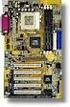
7 Mainboard Layout with Default Settings The default settings of the following figure is for the Pentium II (Celeron) 233/66MHz or Pentium II 350/100MHz. Figure 1-1. Motherboard Layout Note: For 100MHz CPU environment, the SDRAM specification must comply with PC-100 spec. Introduction 3

8 Chapter 2 Hardware Setup CPU Type Configuration CPU 3.5X Clock Setting Pentium II/Deschutes 350/100MHz Pentium II 233/66MHz Figure 2-1 CPU Type Configuration 4

9 CPU 4.0X Clock Setting Pentium II/Deschutes - 400/100MHz Pentium II -266/66 MHz Figure 2-2 CPU Type Configuration CPU 4.5X Clock Setting Pentium II/Deschutes - 450/100MHz Pentium II -300/66 MHz Figure 2-3 CPU Type Configuration CPU 5.0X Clock Setting Pentium II/Deschutes -500/100MHz Pentium II -333/66 MHz Figure 2-4 CPU Type Configuration Hardware Introduction 5

10 System Memory Configuration This 82440BX motherboard supports 168 pin DIMM of 4MB, 8MB, 16MB, 32MB or 64MB to form a memory size between 8MB to 768MB(SDRAM) BX chipsets provide ÒTable- FreeÓ function. It means that users can install DRAM with any configuration and in any bank, and that is why the DRAM table is not needed but do remember that the DRAM must be 3.3V type. For 100MHz CPU environment, the SDRAM specification must comply with PC-100 spec. CPU Installation Follow the following steps in order to install your Intel Pentium II, Celeron, and Deschutes properly. Step 1: Be sure you are in contact with heat sink vendors for attaching the heat sink on to the CPU. Latch Heat Sink Intel Pentium II (or Celeron) CPU Side View Heat Sink Latch Intel Pentium II (Klamath) CPU Top View Notice that the heat sink may be different from the drawings shown here. 6

11 Step 2: Install the 2 pairs of screws, which are shown in the following drawing, onto the mainboard under the SLOT1 Socket. Two of the screws are right around the SLOT1 Socket and the other pair of screws should be inserted opposite the first pair. The screws should be inserted from the bottom of the motherboard upward. Step 3: Retention clip is shown in the following figure: Set the board according to the following diagram before installing the retention clip. Hardware Installation 7

12 The retention clip should be inserted so that the small rectangle window is more toward to the right hand side of the board. If installed incorrectly, you will not be able to insert the CPU into the retention clip and in this situation you might need to rotate the retention clip by 180 Tighten the 4 screws on the retention clip till the neck of the screws can not be seen from the bottom of the board Step 4: Pull the latches up on the base of the CPU supporter and insert it into the two holes directly to the left of the retention clip so that the larger hole is on the bottom. 8 Press the base of the CPU supporter down in to the holes and lock the latches.

13 Latch Latch Side View of CPU Supporter Base Step 5: Flatten the two latches on the side of CPU. Insert the CPU into the retention clip and notice that the heat sink is on the right hand side of the board. Lock the two latches to secure the CPU. Hardware Installation 9

14 Step 6: Insert the clip portion of the CPU supporter so that the heat sink can sit on the top of the whole CPU supporter. Top View of CPU Support Clip Notice that the base and the clip of CPU Supporter may be different from the figures shown here. Jumper Settings JP2: Keyboard Power Selection Keyboard Power Disabled (default) JP2 1 3 Enabled 1 3 Note: 1. If the JP2 is fixed by jumperwire then the board does not support keyboard power on function. 2. When the keyboard power on function shows any compatible problem, choose Disabled and report the keyboard model to the vendor/maker. 3. Keyboard power on function must be set from the BIOS. Refer to the Integrated Peripherals section in the Chapter 3. 10

15 XFAN 1: board FAN (12V) Connector FAN# SFAN1 CFAN1 PFAN1 Function System FAN CPU FAN Chasis FAN JBAT1: Clear CMOS Data Clear the CMOS memory by shorting this jumper momentarily; then remove the cap to retain new settings. CMOS Data JBAT1 Clear Data 1 3 Retain Data (default) 1 3 JP6: Power Lost Resume This jumper allows you to use the switch of ATX power supply to control on/off switch directly instead of using the power switch on the mainboard. Power Lost Resume Normal (default) 1 JP6 3 Enabled 1 3 Hardware Installation 11

16 JP3, JP4: USB Port Select USB Port JP3/JP4 Redirect all USB ports to USB connector (default) JP3 JP4 3 1 Redirect USB1 to AGP port JP3 JP4 3 1 JVGA1: VGA Card For Special VGA Card* JVGA1 Normal (default) Note: This jumper is set for the special VGA card. Open this jumper when the systme isn t able to boot SW1: 5 6 Bus Clock Select Bus Clock SW: 5~6 66MHz 100MHz Auto Detect (default)

17 SW1: 1 4: Bus Ratio Select Bus Ratio SW: 1~4 Bus Ratio SW: 1~4 Bus Ratio SW: 1~4 3.0x ON 5.0x ON 7.0x ON x ON 5.5x ON 7.5x ON x ON 6.0x ON 8.0x ON x ON 6.5x ON IDE LED Activity Light: (J2 pin1 4) This connector connects to the hard disk activity indicator light on the case. Hardware Installation 13

18 Infrared Port Module Connector (J2 pin6 10) The system board provides a 5-pin infrared connectorñir1 as an optional module for wireless transmitting and receiving. Pin 6 through 10 are Transmit, GND, Receive (low speed), Receive (high speed), and Vcc, respectively. J2 pin12, 13: PWR Switch Power Switch: Toggle this pin for turnning on/off of the power supply (for ATX power only). SLEEP Switch (J2 pin14, 15) Toggle this jumper forces the system to sleep and the system wonõt wake up until the hardware event is coming. (The BIOS Power Management setting muse be Enabled.) Speaker Connector (J3 pin1 4) The speaker connector is a 4-pin connector for connecting the system and the speaker. (See the following drawing for jumper position.) Reset Switch (J3 pin5, 6) The system board has a 2-pin connector for rebooting your computer without having to turn off your power switch. This prolongs the life of the systemõs power supply. J1: Audio Socket (SB Link) This socket is designed for using SoundBlast PCI sound card. Power LED and Keylock Switch (J3 pin8 12) The keylock switch is a 5-pin connector for locking the keyboard for security purposes. (See the following drawing for jumper position, and pin1~3 is connected to power LED and pin 4~5 is connected to keylock switch.) 14

19 JWOL1: Wake Lan (WOL) Connector This connector is designed to use Lan to bootup the system. Connect the wake on signal from Lan card to this connector. Green LED (J3 pin14, 15) Reserved. J2 J3 EXTSM1 HD/LED IR PWR/SW SPK RESET KEYLOCK GRN-LED J2 J3 EXTSM1 HD/LED IR PWR/SW SPK RESET KEYLOCK GRN-LED Hardware Installation 15

20 J2 Switch Signal Summary J2 Pin Signal Description 1 +5V HDD LED Connector 2 HDD LED Signal 3 HDD LED Signal 4 +5V N.C. 5 No Connection 6 Infrared Transmit Signal 7 GND Infrared Connector 8 Infrared Receive Signal (low speed) 9 Infrared Receive Signal (high speed) 10 +5V N.C. 11 No Connection PWR12 5V StandBy 13 Power Switch (for ATX Power) SLEEP14 SMI Signal 15 GND 16

21 J3 Switch Signal Summary J3 Pin Signal Description 1 Speaker Signal Speaker Connector 2 No Connection 3 Ground 4 +5V Reset Switch 5 Reset Signal 6 Ground N.C. 7 No Connection 8 +5V Power LED Connector 9 No Connection 10 Ground Keylock Connector 11 Keylock Signal 12 GND N.C. 13 No Connection Power Saving14 Green LED Signal Connector15 Ground Hardware Installation 17
22 Chapter 3 Award BIOS Setup This 82440BX motherboard comes with the AWARD BIOS from AWARD Software Inc. Enter the Award BIOS programõs Main Menu as follows: 1. Turn on or reboot the system. After a series of diagnostic checks, the following message will appear: PRESS <DEL> TO ENTER SETUP 2. Press the <DEL> key and the main program screen appears as in the following page. ROM PCI/ISA BIOS CMOS SETUP UTILITY AWARD SOFTWARE, INC. STANDARD CMOS SETUP BIOS FEATURES SETUP CHIPSET FEATURES SETUP POWER MANAGEMENT SETUP PNP/PCI CONFIGURATION LOAD SETUP DEFAULTS Esc : Quit F10 : Save & Exit Setup INTEGRATED PERIPHERALS SUPERVISOR PASSWORD USER PASSWORD IDE HDD AUTO DETECTION SAVE & EXIT SETUP EXIT WITHOUT SAVING : Select Item (Shift) F2 : Change Color Time, Date, Hard Disk Type... 18
23 3. Using one of the arrows on your keyboard to select an option and press <Enter>. Modify the system parameters to reflect the options installed in the system. 4. You may return to the Main Menu anytime by press <ESC>. 5. In the Main Menu, ÒSAVE AND EXIT SETUPÓ saves your changes and reboots the system, and ÒEXIT WITHOUT SAVINGÓ ignores your changes and exits the program. Standard CMOS Setup Standard CMOS Setup allows you to record some basic system hardware configuration and set the system clock and error handling. You only need to modify the configuration values of this option when you change your system hardware configuration or the configuration stored in the CMOS memory got lost or damaged. Run the Standard CMOS Setup as follows: 1. Choose ÒSTANDARD CMOS SETUPÓ from the Main Menu and a screen with a list of options appears. ROM PCI/ISA BIOS STANDARD CMOS SETUP AWARD SOFTWARE, INC. Date (mm:dd:yy) : Thu, May Time (hh:mm:ss) : 15 : 45 : 10 HARD DISKS TYPE SIZE CYLS HEAD PRECOMP LANDZ SECTOR MODE Primary Master : Auto Auto Primary Slave : Auto Auto Secondary Master : Auto Auto Secondary Slave : Auto Auto Drive A : 1.44M, 3.5 in. Drive B : None Base Memory: 640K Extended Memory: 15360K Other Memory: 384K Video : EGA/VGA Total Memory: 16384K Halt : All Errors Esc : Quit : Select Item PU/PD/+/ : Modify F1 : Help (Shift) F2 : Change Color 2. Use one of the arrow keys to move between options and modify the selected options by using PgUp/PgDn/+/Ð keys. Award BIOS Setup 19
24 A short description of screen options follows: Date (mm:dd:yy) Time (hh:mm:ss) Primary (Secondary) Master/Slave Drive A/B Video Halt Set the current date and time. This field records the specifications for all non-scsi hard disk drives installed in your system. Refer to the respective documentation on how to install the drivers. Set this field to the types of floppy disk drives installed in your system. The choices are: 360KB, 5.25 in., 1.2MB, 5.25 in., 720KB, 3.5 in., 1.44M, 3.5 in. (default), 2.88MB, 3.5 in., or None Set this field to the type of video display card installed in the system. The choices are: Monochrome; Color 40x25; VGA/EGA (default); or Color 80x25 Set this filed to the type of errors that will cause the system to halt. The choices are: All Errors (default); No Errors; All, But Keyboard; All, But Diskette; or All, But Disk/Key 3. Press <ESC> to return to the Main Menu when you finish setting up in the ÒStandard CMOS SetupÓ. 20
25 BIOS Features Setup BIOS Features Setup allows you to improve your system performance or set up some system features according to your preference. Run the BIOS Features Setup as follows: 1. Choose ÒBIOS FEATURES SETUPÓ from the Main Menu and a screen with a list of options appears. ROM PCI/ISA BIOS BIOS FEATURES SETUP AWARD SOFTWARE, INC. Virus Warning : Disabeld CPU Internal Cache : Enabled External Cache : Enabled CPU L2 Cache ECC Checking : Enabled Quick Power on Self Test : Enalbed Boot Sequence : A,C, SCSI Swap Floppy Drive : Disabled Boot Up Floppy Seek : Enabled Boot Up NumLock Status : Gate A20 Option : Fast Typematic Rate Setting : Disabled Typematic Rate (Chars/Sec): 6 Typematic Delay (Msec) : 250 Security Option : Setup PCI/VGA Palette Snoop : Disabled Assign IRQ For VGA : Enabled OS Select for DRAMs>64MB : Non-OS/2 Report No FDD For WIN 95 : No Video BIOS Shadow : Enabled C8000-CBFFF Shadow : Disabled CC000-CFFFF Shadow : Disabled D0000-D3FFF Shadow : Disabled D4000-D7FFF Shadow : Disabled D8000-DBFFF Shadow : Disabled DC000-DFFFF Shadow : Disabled ESC : Quit : Select Item F1 : Help PU/PD/+/ : Modify F5 : Old Values (Shift)F2 : Color F6 : Load BIOS Defaults F7 : Load Setup Defaults 2. Use one of the arrow keys to move between options and modify the selected options by using PgUp/PgDn/+/Ð keys. An explanation of the <F> keys follows: <F1>: ÒHelpÓ gives options available for each item. Shift <F2>: Change color. <F5> : Get the previous values. These values are the values with which the user started the current session. <F6>: Load all options with the BIOS default values. <F7>: Load all options with the Setup default values. Award BIOS Setup 21
26 A short description of screen options follows: Virus Warning Enabled: Activates automatically when the system boots up causing a warning message to appear if there is anything attempts to access the boot sector or hard disk partition table. Disabled: No warning message will appear when there is something attempts to access the boot sector or hard disk partition table Note: Many diagnostic (or boot manager) programs which attempt to access the boot sector table can cause the above warning message. If you will be running such a program, we recommend that you disable the virus protection first. CPU Internal Cache External Cache Quick Power Self Test Choose Enabled (default) or Disabled. This option allows you to enable or disable the CPUÕs internal cache. Choose Enabled (default) or Disabled. This option allows you to enable or disable the external cache memory. Choose Enabled (default)or Disabled. This option allows you to speed up the Power Self Test routine. 22
27 Boot Sequence Default is ÒA, C, SCSIÓ. This option determines which drive to look for first for an operating system. Swap Floppy Drive Choose Enabled or Disabled (default). This option swaps floppy drive assignments when it is enabled. Boot Up Floppy Seek Enabled (default): During POST, BIOS checks the track number of the floppy disk drive to see whether it is 40 or 80 tracks. Disabled: During POST, BIOS will not check the track number of the floppy disk drive. Boot Up NumLock Status Gate A20 Option Typematic Rate Setting Typematic Rate (Chars/Sec) Typematic Delay (Msec) Choose (default) or. This option lets user to activate the NumLock function at boot-up. Choose Normal or Fast (default). This option allows the RAM to access the memory above 1MB by using the fast gate A20 line. Choose Enabled or Disabled (default). Enable this option to adjust the keystroke repeat rate. Range between 6 (default) and 30 characters per second. This option controls the speed of repeating keystrokes. Choose 250 (default), 500, 750, and This option sets the time interval for displaying the first and the second characters. Award BIOS Setup 23
28 Security Option PCI/VGA palette Snoop Assign IRQ for VGA OS Select for DRAM > 64MB Report No FDD For WIN95 Video BIOS Shadow C8000-CBFFF to DC000-DFFF Shadow Choose System or Setup (default). This option is to prevent unauthorized system boot-up or use of BIOS Setup. Choose Enabled or Disabled (default). It determines whether the MPEG ISA cards can work with PCI/VGA or not. Choose Enabled (default) or Disabled. Enabled: Add one IRQ to VGA controller. Deisabled: Remove IRQ from VGA controller. The system will have extra IRQ for other devices but the VGA controller will still not disabled (only IRQ was removed.) Non-OS2 (default): For Non-OS/2 system. OS: For OS/2 system. Yes: BIOS reports ÒNO FDDÓ to Win95. No (default): BIOS will not report ÒNO FDDÓ to Win95. Enabled (default): Map the VGA BIOS to system RAM. Disabled: DonÕt map the VGA BIOS to system RAM. These options are used to shadow other expansion card ROMs. 3. Press <ESC> and follow the screen instructions to save or disregard your settings. 24
29 Chipset Features Setup Chipset Features Setup changes the values of the chipset registers. These registers control the system options. Run the Chipset Features Setup as follows: 1. Choose ÒCHIPSET FEATURES SETUPÓ from the Main Menu and a screen with a list of options appears. ROM PCI/ISA BIOS CHIPSET FEATURES SETUP AWARD SOFTWARE, INC. Auto Configuration : Enabled EDO DRAM Speed Selection : 60ns EDO CASx# MA Wait State : 2 EDO RASx# To CAS# Delay : 2 SDRAM CAS latency Time : 3 DRAM Data Integrity Mode : Non-ECC System BIOS Cacheable : Disabled Video BIOS Cacheable : Disabled Video RAM Cacheable : Disabled 8 Bit I/O Recovery Time : 1 16 Bit I/O Recovery Time : 1 Memory hole At 15M-16M : Disabled Passive Release : Disabled Delay Transaction : Disabled AGP Aperture Size (MB) : 64 Auto Detect DIMM/PCI Clk : Enabled Spread Spectrum Modulated: Disabled CPU Host Clock : Default CPU Warning Temperature : Disabled Current System Temp. : Current CPU1 Temperature : Current CPUFAN1 Speed : Current CPUFAN2 Speed : Current CPUFAN3 Speed : INO (V) : IN1 (V) : IN2 (V) : + 5 V : +12 V : -12 V :- - 5 V : ESC : Quit : Select Item F1 : Help PU/PD/+/ : Modify F5 : Old Values (Shift)F2 : Color F6 : Load BIOS Defaults F7 : Load Setup Defaults 2. Use one of the arrow keys to move between options and modify the selected options by using PgUp/PgDn/+/Ð keys. A short description of screen options follows: Auto Configuration Choose Enabled (default) or Disabled. The system sets all options on the left side of the screen automatically when choose Enabled. EDO DRAM Speed Selection Choose 50ns or 60ns (default). Do not change this setting unless you know the DRAM access time spec. Award BIOS Setup 25
30 EDO CASX# MA Wait State EDO RASX# Wait State SDRAM CAS Latency Time DRAM Data Integrity Mode System BIOS Cacheable Video BIOS Cacheable Video RAM Cacheable Use the default setting. Use the default setting. Use the default setting. Choose Non-ECC (default) or ECC depending on the DRAM type. ECC stands for Error Check and Correct. Non-ECC: Disabled ECC check function. ECC: Enabled ECC check function. Choose Enabled or Disabled (default). When Enabled, the access to the system BIOS ROM addressed at F0000H-FFFFFH is cached. Choose Enabled or Disabled (default). When Enabled, the access to the VGA BIOS ROM addressed at C0000H-C7FFFH is cached. Choose Enabled or Disabled (default). When Enabled, the access to the VGA RAM addressed is cached. 26
31 8 Bit I/O Recovery Time 16 Bit I/O Recovery Time Memory Hole At 15M-16M This delay happens when the CPU is running so much faster than the I/O bus that the CPU must be delayed to allow for the completion of the I/O. The choices for 8 bit I/O are NA, 1 to 8 CPU clock. Default is 3. The choices for 16 bit I/O are NA, 1 to 4 CPU clock. Default is 2. Choose Enabled or Disabled (default). In order to improve performance, certain space in memory can be reserved for ISA cards. This memory must be mapped into the memoryõs space below 16MB. Passive Release Delayed Transaction AGP Aperture Size (MB) CPU Host Clock Spread Spectrum Modulated Use the default setting. Use the default setting. Choose 4, 8, 16, 32, 64 (default), 128, or 256 MB. Memory mapped and graphics data structures can reside in a Graphics Aperture. This area is like a linear buffer. BIOS will auto report the starting address of this buffer to the O.S. Choose CPU host clock ratio from: default, 66MHz, 68MHz, 75MHz, 83MHz, 100MHz, 103MHz, 112, MHz, or 133MHz. Choose Disabled (default) or Enabled. This function is designed only for EMI test. Award BIOS Setup 27
32 CPU Warning Temperature + Current System + Temp Choose Disabled (default), 50 C/122 F, 53 C/127 F, 56 C/133 F, 60 C/140 F, 63 C/145 F, 66 C/151 F, 70 C/150 F. When CPU temperature is over the setting value, the speaker will sound an alarm and the clock will drop until the temperature is within optimum the temperature range. BIOS will displays SystemÕs temperature, fan speed, and voltage value. + : These two functions are dependent on the necessary hardware installation. 3. Press <ESC> and follow the screen instructions to save or disregard your settings. 28
33 Power Management Setup Power Management Setup sets the systemõs power saving functions. 1. Choose ÒPOWER MANAGEMENT SETUPÓ from the Main Menu and a screen with a list of options appears. Power Management : User Define PM Control by APM : No Video Method : V/H SYNC+Blank Video After : Standby Modem Use IRQ : 3 Doze Mode : Disabled Standby Mode : Disabled Suspend Mode : Disabled HDD Power Down : Disabled Throttle Duty Cycle : 62.5% VGA Active Monitor : Disabled Soft- by PWR-BTTN : Instant- Resume by Ring : Enabled Resume by Alarm : Enabled Date (of Month) Alarm*: 0 Time (hh:mm:ss) Alarm*: 7:0:0 Wake Up LAN : Disabled IRQ 8 Break Suspend : Disabled ROM PCI/ISA BIOS POWER MANAGEMENT SETUP AWARD SOFTWARE, INC. ** Reload Global Timer Events ** IRQ[3-7,9-15], NMI : Enabled Primary IDE 0 : Enabled Primary IDE 1 : Enabled Secondary IDE 0 : Enabled Secondary IDE 1 : Enabled Floppy Disk : Enabled Serial Port : Enabled Parallel Port : Enabled ESC : Quit : Select Item F1 : Help PU/PD/+/ : Modify F5 : Old Values (Shift)F2 : Color F6 : Load BIOS Defaults F7 : Load Setup Defaults *: These options are available only when Resume by Alarm is set to Enabled. 2. Use one of the arrow keys to move between options and modify the selected options by using PgUp/PgDn/+/Ð keys. A short description of screen options follows: Power Management PM Control by APM Choose Max. Saving, User Define (default), Disabled, or Min Saving. Choose Yes or No (default). You need to choose Yes when the operating system has the APM functions, choose No otherwise. Award BIOS Setup 29
34 Video Method Video After MODEM Use IRQ Doze Mode Standby Mode Suspend Mode Choose Blank, DPMS, or V/H Sync+Blank (default). You can chose either DPMS or V/H Sync+Blank when the monitor has the Green function. You need to choose Blank when the monitor has neither the Green function. Choose NA, Suspend, Standby (default), or Doze. Assign the IRQ number to the modem which is being used so that the ring signal can wakeup the system. The default setting is 3 (COM2). This option sets the CPU speed down to 33MHz during this mode. These two options allow you to choose the mode for the different timers. The Standby Mode turns off the VGA monitor, and the Suspend Mode turns off the CPU and saves the energy of the system. HDD Power Down Time is adjustable from 1 to 15 minutes. When the set time has elapsed, the BIOS sends a command to the HDD to power down, which turns off the motor. Throttle Duty Cycle Choose the duty cycle time: 12.5%, 25%, 37.5%, 50%, 62.5% (default), or 75%. The bigger of the percentage, the more saving power it gets. 30
35 VGA Active Monitor Soft- by PWR- BTTN Enabled: the system can not enter the power saving mode when monitor is on. Disabled: the system can enter the power saving mode when monitor is on. Instant-off: (default) turns off the system power at once after pushing the power button. Delay 4 Sec: turns off the system power 4 seconds after pushing the power button (to meet PC97 spec.) Resume by Ring Enabled: Wake up the system from ring signal. Disabled: (default) Ring signal can not wake up the system. Resume by Alarm Enabled: Wake up the system at assigned time, and also, the user needs to set both ÒDate AlarmÓ and ÒTime AlarmÓ 2 options. Disabled: (default) Disable this feature. IRQ8 Break Use the default setting. Suspend Award BIOS Setup 31
36 Wake LAN Enabled: Wake up the system from LAN card (LAN card must support Wake Up LAN function and the power supply must provide at least 5V/750mA standby current. Disabled: (default) Disabled Wake LAN function. IRQ (#), NMI; Primary IDE 0 Primary IDE 1; Secondary IDE 0 Secondary IDE 1; Floppy Disk; Serial Port; Parallel Port Enabled: (default) The system can not enter the power saving mode when I/O ports or IRQ# is activated. Disabled: The system still can enter the power saving mode when I/O ports or IRQ# is activated. Note: These functions can only be activated when the power management option is Enabled. 3. Press <ESC> and follow the screen instructions to save or disregard your settings. 32
37 PnP/PCI Configuration Setup PnP/PCI Configuration Setup configures the PCI bus slots. Run the Chipset Features Setup as follows: 1. Choose ÒPnP/PCI CONFIGURATION SETUPÓ from the Main Menu and a screen with a list of options appears. ROM PCI/ISA BIOS PNP/PCI CONFIGURATION AWARD SOFTWARE, INC. PNP OS Installed : No Resources Controlled By : Auto Reset Configuration Data : Disabled Used MEM base adr : N/A Used MEM Length* : 8K Assign IRQ For USB : Enabled IRQ-3 assigned to : PCI/ISA PnP IRQ-4 assigned to : PCI/ISA PnP IRQ-5 assigned to : PCI/ISA PnP IRQ-7 assigned to : PCI/ISA PnP IRQ-9 assigned to : PCI/ISA PnP IRQ-10 assigned to : PCI/ISA PnP IRQ-11 assigned to : PCI/ISA PnP IRQ-12 assigned to : PCI/ISA PnP IRQ-14 assigned to : PCI/ISA PnP IRQ-15 assigned to : PCI/ISA PnP DMA-0 assigned to : PCI/ISA PnP DMA-1 assigned to : PCI/ISA PnP DMA-3 assigned to : PCI/ISA PnP DMA-5 assigned to : PCI/ISA PnP DMA-6 assigned to : PCI/ISA PnP DMA-7 assigned to : PCI/ISA PnP ESC : Quit : Select Item F1 : Help PU/PD/+/ : Modify F5 : Old Values (Shift)F2 : Color F6 : Load BIOS Defaults F7 : Load Setup Defaults Note: The above setting is displayed only when Manual is chosen in the Resources Controlled By function. 2. Use one of the arrow keys to move between options and modify the selected options by using PgUp/PgDn/+/Ð keys. Award BIOS Setup 33
38 A short description of screen options follows: PNP OS Installed Resources Controlled By Yes: OS supports Plug and Play function. No (default): OS doesnõt support Plug and Play function. Note: BIOS will automaticaly disable all PnP resources except the boot device card when select Yes on Non-PnP OS. Choose Manual or Auto (default). The BIOS checks the IRQ/DMA channel number on the ISA and PCI card manually if chose Manual and the IRQ/DMA channel number will be checked automatically if choose Auto. Reset Configuration Data IRQ-x assigned to DMA-x assigned to Choose Enabled or Disabled (default). Disabled means to retain PnP configuration data in BIOS and Enabled means to reset PnP configuration data in BIOS. Legacy ISA: Manually assigns IRQ/DMA to device. PCI/ISA PnP: BIOS assigns IRQ/DMA to device automatically. Used MEM Base Addr Choose N/A (default) or ISA legacy card requests to have memory start address. 34
39 Used MEM Length* Choose 8K, 16K, 32K, or 64K. With the above two functions, users can define where the used memory address is located and its corresponding length of the legacy area. BIOS will skip the UMB area which is used by the legacy device to avoid memory space conflict. * This function actives only when the ÒUsed MEM Base AddrÓ is chosen. Assign IRQ for USB Choose Enabled (default) or Disabled. Enabled: Add one IRQ to USB controller. Deisabled: Remove IRQ from USB controller. The system will have extra IRQ for other devices but the USB controller will still not disabled (only IRQ was removed.) 3. Press <ESC> and follow the screen instructions to save or disregard your settings. Load Setup Defaults Load Setup Defaults option loads the default system values to the system configuration fields. If the CMOS is corrupted the defaults are loaded automatically. Choose this option and the following message appears: Load Setup Defaults (Y/N)? N To use the Setup defaults, change the prompt to ÒYÓ and press <Enter>. Award BIOS Setup 35
40 Integrated Peripherals Integrated Peripherals option changes the values of the chipset registers. These registers control system options in the computer. 1. Choose ÒINTEGRATED PERIPHERALSÓ from the Main Menu and a screen with a list of options appears. IDE HDD Block Mode : Enabled IDE Primary Master PIO : Auto IDE Primary Slave PIO : Auto IDE Secondary Master PIO : Auto IDE Secondary Slave PIO : Auto IDE Primary Master UDMA : Auto IDE Primary Slave UDMA : Auto IDE Secondary Master UDMA : Auto IDE Secondary Slave UDMA : Auto -Chip Primary PCI IDE : Enalbed -Chip Secondary PCI IDE : Enalbed USB Keyboard Support : Disabled Init Display First : PCI Slot KBC Input Clock : 8 MHz board FDC Controller : Enabled board Serial Port 1 : Auto board Serial Port 2 : Auto ROM PCI/ISA BIOS INTEGRATED PERIPHERALS AWARD SOFTWARE, INC. UART Mode Select* : IrDA RxD, TxD Active* : Lo, Lo IR Transmittion Delay* : Disabled board Parallel Port : 378/IRQ7 Parallel Port Mode : ECP+EPP ECP Mode Use DMA + : 3 EPP Mode Select + : EPP1.7 Power Function + : BUTTON ONLY ESC : Quit : Select Item F1 : Help PU/PD/+/ : Modify F5 : Old Values (Shift)F2 : Color F6 : Load BIOS Defaults F7 : Load Setup Defaults *: These items are available only when UART Mode Select is set to either IrDA or ASKIR. + : These items are available only when Parallel Port Mode is set to ECP+EPP/ECP/EPP. 2. Use one of the arrow keys to move between options and modify the selected options by using PgUp/PgDn/+/Ð keys. A short description of screen options follows: IDE HDD Block Mode Choose Enabled (default) or Disabled. If your hard disk size is larger than 540MB, choose Enabled, and, if you are using the IDE HDD Auto Detection option, the BIOS will choose this option automatically. Note: Some HDDs of old models donõt provide this feature.) 36
41 IDE Primary Master/Slave PIO IDE Secondary Master/Slave PIO Choose Auto (default) or Mode 0~4. The BIOS will detect the HDD Mode type automatically when you choose Auto. You need to set to a lower mode than Auto when your hard disk becomes unstable. -Chip Primary/ Secondary PCI IDE Enabled: (default)turn on the onboard IDE function. Disabled: Turn off the onboard IDE function. USB Keyboard Support KBC Input Clock board FDC Controller board Serial Port 1 board Serial Port 2 Enabled: Enables function when the USB keyboard is being used. Disabled: (default) When the AT keyboard be used. Choose 6MHz, 8MHz (default), 12MHz, or 16MHz. There might be a compatible problem when is above 8MHz. Choose Enabled (default) or Disabled. Choose Disabled when you use an ISA card with FDD function, or, choose Enabled to use the onboard FDD connector. Choose Auto (default), 3F8/IRQ4, 2F8/IRQ3, 3E8/IRQ4, 2E8/IRQ3, or Disabled. Do no set port 1 & 2 to the same value except for Disabled. Choose Auto (default), 3F8/IRQ4, 2F8/IRQ3, 3E8/IRQ4, 2E8/IRQ3, or Disabled. UART Mode select Choose Normal (default), IrDA, or ASKIR. Award BIOS Setup 37
42 IR Transmition Delay board Parallel Port Parallel Port Mode ECP Mode Use DMA EPP Mode Select Enabled: Enabled delay when transfers data. Disabled (default) Disabled delay when transfers data. Choose the printer I/O address: 378H/IRQ7 (default), 3BCH/IRQ7, 278H/IRQ5 Choose SPP (default), ECP + EPP EPP, or ECP mode. The mode depends on your external device that connects to this port. Choose DMA3 (default) or DMA1. Most sound cards use DMA1. Check with your sound card configuration to make sure that there is no conflict with this function. *: This option will not be displayed unless the EPP/ECP function is selected.. Choose EPP1.7 (default) or EPP1.9. EPP1.9 supports hardware handshake. This setting is dependent on your EPP device. Note: The above 2 options will not be displayed unless the EPP/ECP function is selected. 38
43 Power Function Choose BUTTON ONLY (default), Password, Mouse Left, or Mouse Right. Mouse Left: Use the PS/2 Mouse Left to boot the system. Mouse Right: Use the PS/2 Mouse Right to boot the system. Password: Choose a special password which is defined by the user or use one of the HOT keys (from CTRL-F1 to CTRL- F12) to boot the system. 3. Press <ESC> and follow the screen instructions to save or disregard your settings. Award BIOS Setup 39
44 Supervisor/User Password These two options allows you to set your system passwords. Normally, supervisor has a higher right to change the CMOS setup option than the user. The way to set up the passwords for both Supervisor and User are as follow: 1. Choose ÒChange PasswordÓ in the Main Menu and press <Enter>. The following message appears: Enter Password: 2. The first time you run this option, enter your password up to only 8 characters and press <Enter>. The screen does not display the entered characters. 3. After you enter the password, the following message appears prompting you to confirm the password: Confirm Password: 4. Enter exact the same password you just typed again to confirm the password and press <Enter>. 5. Move the cursor to Save & Exit Setup to save the password. 6. If you need to delete the password you entered before, choose the Supervisor Password and press <Enter>. It will delete the password that you had before. 7. Move the cursor to Save & Exit Setup to save the option you did, otherwise the old password will still be there when you turn on your machine next time. 8. Press <ESC> to exit to the Main Menu. Note: If you forget or lose the password, the only way to access the system is to clear the CMOS RAM by setting JBAT1. All setup information will be lost and you need to run the BIOS setup program again. 40
45 IDE HDD Auto Detection IDE HDD Auto Detection detects the parameters of an IDE hard disk drive and automatically enters them to the Standard CMOS Setup screen. The screen will ask you to select a specific hard disk for Primary Master after you select this option. If you accept a hard disk detected by the BIOS, you can enter ÒYÓ to confirm and then press <Enter> to check next hard disk. This function allows you to check four hard disks and you may press the <ESC> after the <Enter> to skip this function and go back to the Main Menu. Save & Exit Setup Save & Exit Setup allows you to save all modifications you have specified into the CMOS memory. Highlight this option on the Main Menu and the following message appears: SAVE to CMOS and EXIT (Y/N)? Y Press <Enter> key to save the configuration changes. Exit Without Saving Exit Without Saving allows you to exit the Setup utility without saving the modifications that you have specified. Highlight this option on the Main Menu and the following message appears: Quit Without Saving (Y/N)? N You may change the prompt to ÒYÓ and press <Enter> key to leave this option. Award BIOS Setup 41
M7VIK BIOS Setup BIOS Setup...1
 BIOS Setup...1 1 Main Menu... 3 2 Standard CMOS Features... 6 3 Advanced BIOS Features... 9 4 Advanced Chipset Features... 12 5 Integrated Peripherals... 16 6 Power Management Setup... 21 7 PnP/PCI Configurations...
85MIV2 / 85MIV2-L -- Components Locations
 Chapter Specification 85MIV2 / 85MIV2-L -- Components Locations RJ45 LAN Connector for 85MIV2-L only PS/2 Peripheral Mouse (on top) Power PS/2 K/B(underside) RJ45 (on top) +2V Power USB0 (middle) USB(underside)
Electronic Emission Notices
 1 Electronic Emission Notices Federal Communications Commission (FCC) Statement This equipment has been tested and found to comply with the limits for a Class B digital device, pursuant to Part 15 of FCC
AwardBIOS Setup Utility
 AwardBIOS Setup Utility Modifications to the BIOS Setup settings should be performed by advanced users only. Setting items to incorrect values may cause your system to malfunction. Introducing BIOS Setup...2
BIOS Award v6.00pg BIOS setup guidelines
 BIOS The BIOS setup, also called CMOS setup, is a crucial part of the proper setting up of a PC the BIOS (Basic Input Output System) tells the operating system the characteristics of the main basic components
Trademarks. IBM, PC/AT, and PC/XT are trademarks of International Business Machines Corporation.
 The information presented in this publication has been carefully checked for reliability; however, no responsibility is assumed for inaccuracies. Specifications are subject to change without notice. Trademarks
Trademarks. IBM, PC/AT, and PC/XT are trademarks of International Business Machines Corporation.
 The information presented in this publication has been carefully checked for reliability; however, no responsibility is assumed for inaccuracies. Specifications are subject to change without notice. Trademarks
Computer Setup (F10) Utility Guide HP Compaq dx2200 Microtower Business PC
 Guide HP Compaq dx2200 Microtower Business PC Document Part Number: 413759-001 January 2006 This guide provides instructions on how to use Computer Setup. This tool is used to reconfigure and modify computer
Handling Precautions. Trademarks. Notice to Customers CAUTION
 Handling Precautions CAUTION High potential static charge may cause damage to the integrated circuits on the board. Before handling any mainboard outside of its protective packaging, ensure that there
Mother Board Component
 Mother Board Component Explain Introduction Mother Board Component 1.Clock Generator 2. CPU socket 3. Memory Socket Memory error checking 4. ROM Bios 5. CMOS Ram 6. Battery 7. Chipset 8. Expansion Slot
AMD Slot-A AGP/PCI/ISA Motherboard QS754. User s Manual
 AMD Slot-A AGP/PCI/ISA Motherboard QS754 User s Manual 1 Declaration Rights: Declaration No part of this manual, including but not limited to the products and software described in it, may be reproduced,
PTM800Pro MAINBOARD MANUAL
 PTM800Pro MAINBOARD MANUAL DOC No. : M0590040 Rev. : A0 Date : 3, 2006 Part No. : 25-13031-00 Table of Contents Chapter 1. Overview... 1-2 Package Checklist...1-3 The PTM800Pro Mainboard...1-4 Main Features...1-5
SL-65JVB/JVB-X USER MANUAL
 T h e S o u l O f C o m p u t e r T e c h n o l o g y SL-65JVB/JVB-X USER MANUAL USER NOTICE Product Model : SL-65JVB / 65JVB-X Manual Revision : V1.0 Release Date : April 2000 This User s Guide & Technical
GA - 586S2 USER'S MANUAL. Auto detect CPU Voltage. Support MMX CPU. Switching mode Voltage regulator on Board.
 GA - 586S2 USER'S MANUAL Auto detect Voltage. Support MMX. Switching mode Voltage regulator on Board. Support Cyrix / IBM 6x86MX & AMD-K6. Pentium Processor PCI - ISA BUS MAINBOARD REV..0 Third Edition
Computer Setup (F10) Utility Guide Evo Desktop Family Evo Workstation Family
 b Computer Setup (F10) Utility Guide Evo Desktop Family Evo Workstation Family Document Part Number: 215867-004 May 2002 This guide provides instructions on how to use Computer Setup. This tool is used
Federal Communications Commission (FCC)
 Safety Compliance Federal Communications Commission (FCC) This equipment has been tested and found to comply with the limits for a Class B digital device, pursuant to Part 15 of the FCC Rules. These limits
IB800 USER S MANUAL. Full-Size Socket 478 Pentium 4 Intel 845 CPU Card. Version 1.0B
 IB800 Full-Size Socket 478 Pentium 4 Intel 845 CPU Card USER S MANUAL Version 1.0B Acknowledgments Award is a registered trademark of Award Software International, Inc. PS/2 is a trademark of International
Network Appliance. Model Number SCB-6971. User s Manual. User s Manual
 Network Appliance Model Number SCB-6971 Desktop AMD Geode LX800 Network Appliance with four LAN or three LAN and four switch, Mini PCI User s Manual Version 1.0 AEWIN Technologies Co., Ltd 1 Copyright
M266A. User Manual. Version 3.0 Published July 2003 Copyright 2003 ASRock INC. All rights reserved.
 M266A User Manual Version 3.0 Published July 2003 Copyright 2003 ASRock INC. All rights reserved. 1 Copyright Notice: No part of this manual may be reproduced, transcribed, transmitted, or translated in
P/E-P55T2P4D Motherboard USER'S MANUAL
 P/E-P55T2P4D Motherboard USER'S MANUAL USER'S NOTICE No part of this product, including the product and software may be reproduced, transmitted, transcribed, stored in a retrieval system, or translated
Chapter 5 Cubix XP4 Blade Server
 Chapter 5 Cubix XP4 Blade Server Introduction Cubix designed the XP4 Blade Server to fit inside a BladeStation enclosure. The Blade Server features one or two Intel Pentium 4 Xeon processors, the Intel
English. Configuring SATA Hard Drive(s)
 Configuring SATA Hard Drive(s) To configure SATA hard drive(s), follow the steps below: (1) Install SATA hard drive(s) in your system. (2) Configure SATA controller mode and boot sequence in BIOS Setup.
USA Notice. Any changes or modifications not expressly approved by the grantee of this device could void the user s authority to operate the device.
 Safety and Regulatory Information USA Notice FCC Part 15:This equipment has been tested and found to comply with the limits for a class B digital device, pursuant to Part 15 of the FCC Rules. These limits
Safety and Regulatory Information
 Safety and Regulatory Information Notice for the USA FCC Part 15: This equipment has been tested and found to comply with the limits for a class B digital device, pursuant to Part 15 of the FCC Rules.
XPC Bios User Guide. For the : SZ77R5
 XPC Bios User Guide For the : SZ77R5 Shuttle XPC Installation Guide 2012 by Shuttle Inc. All Rights Reserved. Copyright No part of this publication may be reproduced, transcribed, stored in a retrieval
PM266A PRO/ PM266A 120410043M1N
 PM66A PRO/ PM66A Copyright All rights are reserved. No part of this publication may be reproduced, transmitted, transcribed, stored in a retrieval system or translated into any language or computer language,
Phoenix SecureCore TM Setup Utility
 Phoenix SecureCore TM Setup Utility Important information: We continually strive to bring you the latest and proven features and technologies. As part of our drive to continually improve our products modifications
PCA-6278. Full-size dual socket 370 Intel Tualatin/Pentium III processor-based PCI/ISA-bus CPU card. User's Manual
 PCA-6278 Full-size dual socket 370 Intel Tualatin/Pentium III processor-based PCI/ISA-bus CPU card User's Manual Copyright notice This document is copyrighted, 2003, by Advantech Co., Ltd. All rights are
Fujitsu LifeBook S Series
 Fujitsu LifeBook S Series BIOS Guide LifeBook S Series Model: S7220 Document Date: 07/08/2008 Document Part Number: FPC58-1920-01 FUJITSU COMPUTER SYSTEMS CORPORATION 1 LifeBook S Series BIOS S Series
6A815E1/EP1. User's Manual Version 1.0
 6A815E1/EP1 User's Manual Version 1.0 The information presented in this publication has been made carefully for reliability; however, no responsibility is assumed for inaccuracies. Specifications are subject
GA - 586DX USER'S MANUAL. Dual PENTIUM PCI - ISA BUS MAINBOARD. REV. 1 Third Edition
 GA - 586DX USER'S MANUAL Dual PENTIUM PCI - ISA BUS MAINBOARD REV. 1 Third Edition GA-586DX The author assumes no responsibility for any errors or omissions which may appear in this document nor does it
EP-693A. Mainboard TRADEMARK
 A Socket 370 Processor based Mainboard Supports PC133/VC133 Memory Modules TRADEMARK All products and company names are trademarks or registered trademarks of their respective holders. These specifications
User s Manual. mainboard (133/100/66 MHz) TRADEMARK
 User s Manual A Socket 370 Processor based mainboard (133/100/66 MHz) Supports PC133/VC133 Memory Modules TRADEMARK All products and company names are trademarks or registered trademarks of their respective
Trademarks. PS/2,OS/2,IBM,PC/AT, and PC/XT are trademarks of International Business Machines Corporation.
 The information presented in this publication has been carefully checked for reliability; however, no responsibility is assumed for inaccuracies. Specifications are subject to change without notice. Trademarks
K7S8XE. User Manual. Version 1.0 Published April 2003 Copyright 2003 ASRock INC. All rights reserved.
 K7S8XE User Manual Version 1.0 Published April 2003 Copyright 2003 ASRock INC. All rights reserved. 1 Copyright Notice: No part of this manual may be reproduced, transcribed, transmitted, or translated
AWARDBIOS 6.0. User Guide
 NOTE: This manual is generic. Not all fields will be the same for your BIOS. For more detailed information please refer to either http://www.esupport.com/techsupport/award/awarddocs.htm or http://www.phoenix.com/en/support/bios+support/awardbios/setup+index.htm
System Installation. 3-1 Socket 370 Celeron/Pentium-III Processor. Installing S370 CPU. Removing CPU. Configuring System Bus
 System Installation This chapter provides you with instructions to set up your system. The additional information is enclosed to help you set up onboard PCI device and handle WDT operation in software
How To Set Up Your Motherboard With A Power Supply And Power Supply On A Microtower 2.2 (Ios) With A Hard Disk Drive On A Mini Usb 2.3 (I386) With An External Hard Disk (I2)
 4-1-4 Configuring SATA Hard Drive(s) To configure SATA hard drive(s), follow the steps below: (1) Install SATA hard drive(s) in your system. (2) Configure SATA controller mode and boot sequence in BIOS
IS7 Series (IS7-G, IS7, IS7-E, IS7-E2, IS7-E2G, IS7-E2V, IS7-M, IS7-V2)
 IS7 Series (IS7-G, IS7, IS7-E, IS7-E2, IS7-E2G, IS7-E2V, IS7-M, IS7-V2) Intel Pentium 4 System Board Socket 478 User s Manual 4200-0375-11 Rev. 1.06 Copyright and Warranty Notice The information in this
(AOpen reserves the right to revise all the specifications and information contained in this document which is subject to change without notice.
 (AOpen reserves the right to revise all the specifications and information contained in this document which is subject to change without notice.) PS/2 Mouse Connector USB2.0 Ports SPP/EPP/ECP Parallel
PhoenixBIOS 4.0 Revision 6
 Phoenix Technologies Ltd. PhoenixBIOS 4.0 Revision 6 User's Manual Phoenix Technologies Ltd., 411 E. Plumeria, San Jose, CA 95134 Copyright Disclaimer Purpose of Document PhoenixBIOS 4.0 User's Manual
H ARDWARE C ONSIDERATIONS
 H ARDWARE C ONSIDERATIONS for Sidewinder 5 firewall software Dell Precision 530 This document provides information on specific system hardware required for running Sidewinder firewall software on a Dell
NOTICE. The information in this manual is subject to change without notice.
 NOTICE TMC shall not be responsible for technical or editorial errors or omissions contained in this manual. TMC will not be liable for incidental or consequential damages resulting from the furnishing,
Mainboard User s Manual
 This publication, including all photographs, illustrations and software, is protected under international copyright laws, with all rights reserved. Neither this manual, nor any of the material contained
Mainboard. SL-85DR-C User Manual V2.0
 R T h e S o u l O f C o m p u t e r T e c h n o l o g y Mainboard SL-85DR-C User Manual V2.0 NOTICE T Product Model : SL-85DR-C Manual Revision : V2.0 Release Date : January 2002 his Users Guide & Technical
Products. CM-i586 Highlights. Página Web 1 de 5. file://c:\documents and Settings\Daniel\Os meus documentos\humanoid\material_o...
 Página Web 1 de 5 The Home of the World's Best Computer-On-Module's Products Computer- On-Module's CM-X270 CM-X255 CM-iGLX CM-F82 CM-i686M CM-i686B CM-iVCF CM-i886 CM-i586 PC/104+ & ATX boards SBC-X270
Important Information
 Caution! When installing a CPU heatsink and cooling fan make sure that you DO NOT scratch the motherboard or any of the surface-mount resistors with the clip of the cooling fan. If the clip of the cooling
K7S8X. User Manual. Version 1.0 Published January 2003 Copyright 2003 ASRock INC. All rights reserved.
 K7S8X User Manual Version 1.0 Published January 2003 Copyright 2003 ASRock INC. All rights reserved. 1 Copyright Notice: No part of this manual may be reproduced, transcribed, transmitted, or translated
XPC BIOS User Guide. For the : DS437T
 XPC BIOS User Guide For the : DS437T Shuttle XPC Installation Guide 2014 by Shuttle Inc. All Rights Reserved. Copyright No part of this publication may be reproduced, transcribed, stored in a retrieval
Red: MODEM-CN Connector Green: AUX-IN Connector Black: CD-IN Connector
 PS/2 Mouse RJ-45 LAN Connector Connector (Optional) SPP/EPP/ECP Parallel Port MIDI/Game Port PS/2 Keyboard Connector USB Port COM 1 Port COM 2 Port Red: MODEM-CN Connector Green: AUX-IN Connector Black:
Reborn Card NET. User s Manual
 Reborn Card NET User s Manual Table of Contents Notice Before Installation:... 2 System Requirements... 3 1. First Installation... 4 2. Hardware Setup... 4 3. Express Installation... 6 4. How to setup
CPU SHB210 BIOS Versionen V14.x
 CPU SHB210 BIOS Versionen V14.x 2 BIOS V 14.x Version V 1.0 Stand 05.07.2013 r Pa Bearbeitung/Illustrationen Pa Warenzeichen Alle verwendeten Produktnamen und Warenzeichen sind Eigentum ihrer jeweiligen
Promise FastTrak 100-Lite RAID Controller
 Promise FastTrak 100-Lite RAID Controller User s Manual Version 1.3, November 9, 2001 Copyright Copyright by Promise Technology, Inc. ( Promise ), XP. No part of this manual may be reproduced or transmitted
Chapter 1. Getting Started Getting Started
 Getting Started Chapter 1. Getting Started Getting Started Thank you for purchasing the MD-8080 M-ATX mainboard. The MD-8080 is based on Intel 865PE & Intel ICH5 chipsets for optimal system efficiency.
Chapter 6. Inside the System Unit. What You Will Learn... Computers Are Your Future. What You Will Learn... Describing Hardware Performance
 What You Will Learn... Computers Are Your Future Chapter 6 Understand how computers represent data Understand the measurements used to describe data transfer rates and data storage capacity List the components
EUCIP IT Administrator - Module 1 PC Hardware Syllabus Version 3.0
 EUCIP IT Administrator - Module 1 PC Hardware Syllabus Version 3.0 Copyright 2011 ECDL Foundation All rights reserved. No part of this publication may be reproduced in any form except as permitted by ECDL
Getting Started. Chapter 1
 Chapter 1 Getting Started Thank you for choosing the 7728 v2.x Series Micro-ATX mainboard. The 7728 v2.x Series mainboards are based on Intel H61 chipsets for optimal system efficiency. Designed to fit
How To Use An Uniden U8768 With A Power Supply (I386) And Power Supply For A Power Card (Amd) (I86) (Amd86) With A Hard Disk Drive (Amd66) (Power Card) (
 FCC Information and Copyright This equipment has been tested and found to comply with the limits of a Class B digital device, pursuant to Part 5 of the FCC Rules. These limits are designed to provide reasonable
Chapter 1. Getting Started Getting Started
 Getting Started Chapter 1. Getting Started Getting Started Thank you for purchasing the MD-5000 M-ATX mainboard. The MD-5000 mainboard is based on SiS 648 North Bridge & 963 South Bridge chipsets for optimal
Specifications for the Gateway M1300 Tablet PC
 Specifications for the Gateway M1300 Tablet PC Specifications are subject to change without notice or obligation. Processor and Core Logic Processor options Chipset Processor packaging Level 2 cache Core
Magic Card Plus User Manual
 TABLE OF CONTENTS Magic Card Plus User Manual Rogev Computers LTD http://www.rogev.com Tel: 972-9-7469155 Fax: 972-9-7469196 Copyright 2 Important notice for user 2 Chapter 1 introduction 3 1-1Scope of
ITE RAID Controller USER MANUAL
 ITE RAID Controller USER MANUAL 120410096E1N Copyright Copyright 2004. All rights reserved. No part of this publication may be reproduced, transmitted, transcribed, stored in a retrieval system or translated
PS/2 Keyboard Connector
 PS/2 Mouse Connector SPP/EPP/ECP Parallel Port RJ45 LAN Jack (for AX45F-4DL, AX45F-4DN and AX45F-4D Max) Line-In USB 2.0 Ports Speaker Out MIC-In Realtek Gigabit LAN chip (for AX45F-4D Max and AX45F-4DL)
PC Notebook Diagnostic Card
 www.winter-con.com User s Guide PC Notebook Diagnostic Card User s Guide 1 www.winter-con.com User s Guide INTRODUCTION Notebook Diagnostic Card is a powerful diagnostic tool for technicians and administrators
4-1-4 Serial ATA SATA. A. Intel ICH8R (1) SATA (1) SATA (2) BIOS SATA (3) RAID BIOS RAID (4) SATA (5) SATA
 4-1-4 Serial ATA (1) (2) BIOS (3) RAID BIOS RAID ( ) (4) (5) (a) ( RAID ) (b) (c) Windows XP 2000 (d) A. Intel ICH8R (1) ( ) ( ) RAID - 69 - (2) BIOS BIOS 1 BIOS POST (Power-On Self Test ) BIOS CMOS
P4I45D. User Manual. Published October 2002 Copyright 2002 ASRock INC. All rights reserved.
 P4I45D User Manual Published October 2002 Copyright 2002 ASRock INC. All rights reserved. 1 Copyright Notice: No part of this manual may be reproduced, transcribed, transmitted, or translated in any language,
Award Software International CMOS Setup Utility User's Guide
 Award Software International CMOS Setup Utility User's Guide for OPTi Viper-M Chipset (82C556M/82C557M/82C558M) EliteBIOS Version 4.51PG Introduction to Setup This manual describes the Award BIOS Setup
Copyright 2004 All Rights Reserved PVM266aM-P P4M266A/March 2004
 This publication, including photographs, illustrations and software, is under the protection of international copyright laws, with all rights reserved. Neither this manual, nor any of the material contained
PLACAS BASE DEL LABORATORIO
 PLACAS BASE DEL LABORATORIO Especificaciones técnicas descargadas de: http://docs.van-diepen.com/ Procesador Placa base Fabricante / Placa base (instrucciones) Num. Unidades 486 DX 33 MB-4D33/50N Unidentified
MB896 USER S MANUAL. Intel Pentium M Mini-ITX Motherboard. Version 1.0
 MB896 Intel Pentium M Mini-ITX Motherboard USER S MANUAL Version 1.0 Acknowledgments Award is a registered trademark of Award Software International, Inc. PS/2 is a trademark of International Business
Intel ESB2 SATA RAID Setup Guidelines
 Intel ESB2 SATA RAID Setup Guidelines Intel ESB2 SATA RAID Setup Guidelines After all the hardware has been installed, you must first configure Intel ESB2 SATA RAID Settings before you install the Windows
Chapter 6 The BIOS Setup Program
 6 Chapter 6 The BIOS Setup Program 6.1 Introduction The BIOS (Basic Input and Output System) Setup program is a menu driven utility that enables you to make changes to the system configuration and tailor
Computer Components Study Guide. The Case or System Box
 Computer Components Study Guide In this lesson, we will briefly explore the basics of identifying the parts and components inside of a computer. This lesson is used to introduce the students to the inside
SYSTEM BOARD D1107 ADDITIONAL TECHNICAL MANUAL
 SYSTEM BOARD D07 ADDITIONAL TECHNICAL MANUAL Is there...... any technical problem or other question you need clarified? Please contact: Our Hotline: Mo-Fr: 8 a.m. - 6 p.m. Sat: 9 a.m. - 2 p.m. Tel.: ++49
TriGem Micro-ATX Motherboard (Napoli-2)
 TriGem Micro-ATX Motherboard (Napoli-2) Table of Contents I. Introduction 1. Generation Description ------------------------------------------------------------ 2 2. Function Block Diagram ------------------------------------------------------------
BIOS Update Release Notes
 PRODUCTS: D975XBX (Standard BIOS) BIOS Update Release Notes BIOS Version 1351 August 21, 2006 BX97510J.86A.1351.2006.0821.1744 Fixed issue where operating system CD installation caused blue screen. Resolved
Microsoft, MS-DOS and Windows are registered trademarks of Microsoft
 Preface Copyright This publication, including all photographs, illustrations and software, is protected under international copyright laws, with all rights reserved. Neither this manual, nor any of the
USER'S MANUAL Of VIA CN700 Chipset & VIA VT8237R Plus Chipset
 USER'S MANUAL Of VIA CN700 Chipset & VIA VT8237R Plus Chipset M/B For VIA C7 processor family NO. G03-7F2WE-F Rev:4.0 Release date: Aug. 2007 Trademark: * Specifications and Information contained in this
GA-K8U AMD Socket 754 Processor Motherboard
 GA-K8U AMD Socket 754 Processor Motherboard User's Manual Rev. 1002 12ME-K8U-1002 Motherboard GA-K8U Jan. 26, 2005 Motherboard GA-K8U Jan. 26, 2005 Copyright 2005 GIGA-BYTE TECHNOLOGY CO., LTD. All rights
Important Information
 Caution! When installing a CPU heatsink and cooling fan make sure that you DO NOT scratch the motherboard or any of the surface-mount resistors with the clip of the cooling fan. If the clip of the cooling
H ARDWARE C ONSIDERATIONS
 H ARDWARE C ONSIDERATIONS for Sidewinder 5 firewall software Compaq ProLiant ML370 G2 This document provides information on specific system hardware required for running Sidewinder firewall software on
TECHNICAL MANUAL Of Intel Cedar Trail-D & NM10 Chipset Based Mini-ITX M/B for ATOM Processor
 TECHNICAL MANUAL Of Intel Cedar Trail-D & NM10 Chipset Based Mini-ITX M/B for ATOM Processor NO.G03-NC9K-F Revision: 2.0 Release date: July 17, 2012 Trademark: * Specifications and Information contained
Microsoft, MS-DOS and Windows are registered trademarks of Microsoft
 Preface Copyright This publication, including all photographs, illustrations and software, is protected under international copyright laws, with all rights reserved. Neither this manual, nor any of the
PCM-3662 PC/104-plus Ethernet Module
 PCM-3662 PC/104-plus Ethernet Module Introduction The PCM-3662 is a 10/100 Mbps Ethernet interface module that attaches to the PC/104-plus connector on your CPU card or PC/104-plus CPU module. The PCM-3662
The Motherboard Chapter #5
 The Motherboard Chapter #5 Amy Hissom Key Terms Advanced Transfer Cache (ATC) A type of L2 cache contained within the Pentium processor housing that is embedded on the same core processor die as the CPU
Table of Contents 1. INTRODUCTION TO THE DC-200 RAID CARD... 3
 Table of Contents 1. INTRODUCTION TO THE DC-200 RAID CARD... 3 1.1 UNDERSTANDING RAID CONCEPTS... 3 1.2 OVERVIEW OF DC-200 RAID CARD... 3 1.2.1 Features and specifications of the DC-200 RAID card... 5
K7NCR18DM/ 18GM/18DLM. Socket A Motherboards User s Manual
 K7NCR18DM/ 18GM/18DLM Socket A Motherboards User s Manual Copyright 2003 by Leadtek Research Inc. All rights reserved. No part of this document may be copied or reproduced in any form or by any means without
SATA+Ultra ATA RAID CONTROLLER RC212. User Manual
 SATA+Ultra ATA RAID CONTROLLER RC212 Contents Feature and benefits Package contents System requirement Magic Switch introduction and jumper setting Hardware installation Important message for user RAID
Intel Desktop Board D925XECV2 Specification Update
 Intel Desktop Board D925XECV2 Specification Update Release Date: July 2006 Order Number: C94210-005US The Intel Desktop Board D925XECV2 may contain design defects or errors known as errata, which may cause
SL-75KV+/75KV2/75JV/75JV2 USER MANUAL V1.1
 R SL-75KV+/75KV2/75JV/75JV2 USER MANUAL V1.1 USER NOTICE T Product Model : SL-75KV+/KV2/JV/JV2 Manual Revision : V1.1 Release Date : September 2000 his Users Guide & Technical Reference is for assisting
Intel N440BX Server System Event Log (SEL) Error Messages
 Intel N440BX Server System Event Log (SEL) Error Messages Revision 1.00 5/11/98 Copyright 1998 Intel Corporation DISCLAIMERS Information in this document is provided in connection with Intel products.
C Series BIOS BIOS SETUP UTILITY. Navigating through the Setup Utility. Entering the BIOS Setup Utility. Using the TrustedCore Menu
 BIOS SECTION C1410 LifeBook C Series BIOS C Series BIOS BIOS SETUP UTILITY The BIOS Setup Utility is a program that sets up the operating environment for your notebook. Your BIOS is set at the factory
MODBIN USER'S GUIDE V4.50.58. Documentation Revision 1.5. (C) Copyright 1996 Award Software, International Inc. All Rights Reserved
 MODBIN USER'S GUIDE V4.50.58 Documentation Revision 1.5 (C) Copyright 1996 Award Software, International Inc. All Rights Reserved All trademarks are the property of their respective owners Europe U.S.A
TECHNICAL MANUAL Of Intel 945GSE Express Chipset & Intel FW82801GBM ICH Chipset Based. Mini-ITX M/B For ATOM Processor
 TECHNICAL MANUAL Of Intel 945GSE Express Chipset & Intel FW82801GBM ICH Chipset Based Mini-ITX M/B For ATOM Processor NO.G03-NF94-F Rev 4.0 Release date: December, 2009 Trademark: * Specifications and
Practice Test for the 220-801 Domain 1 - PC Hardware (Brought to you by RMRoberts.com)
 Practice Test for the 220-801 Domain 1 - PC Hardware (Brought to you by RMRoberts.com) This is a practice test designed to determine if you are ready to take the CompTIA 220-801 certification test. Only