
PathAway GPS 4 version 4.0 for Windows Mobile Handhelds User Manual
|
|
|
- Marylou Simpson
- 10 years ago
- Views:
Transcription
1 PathAway GPS 4 version 4.0 for Windows Mobile Handhelds User Manual Last Updated: Nov 28, 2005
2 Table of Contents Table of Contents... 2 Installation... 3 Getting Started... 6 Tutorial... 8 Screen Views... 8 Choosing a Route Simulating Navigation Scrolling Maps Changing Map Views Capturing Points on a Map Creating Routes Connecting a GPS Navigating with a GPS Recording Tracks Following Recorded Tracks Terminology Map Data Reference Navigation Views Navigating without Maps Navigating with Maps Navigating with a GPS Device Main Menu Context Sensitive Popup Menus Map Popup Menus Dashboard Context Menus Customizing Screens Toolbar Buttons Hard Key Assignments Dialogs GPS Menu View Menu Dialogs Options Menu Dialogs Entering Longitude/Latitude Coordinates Entering UTM Coordinates Entering OSGB Coordinates PathAway Tools Installing Map Manager Icon Manager... 87

3 Installation PathAway GPS 4 is an online application that must be downloaded from the internet from or an authorized Reseller. The program comes in the form of a Windows Executable Setup program. Before Downloading Ensure: 1. You have read and accepted the License Agreement as posted on the Download Page and in the Install program. 2. PathAway supports your Handheld Device Processor. (ie. ARM) 3. PathAway supports your installed operating system. (ie. Pocket PC 2003) 4. You have enough memory available to meet the specified system requirements. 5. You have enough disk space available on your PC to download and install the PathAway Tools. All the necessary information will be posted on the Download page. Follow these steps to download and install the application. - Press the Download PathAway button from the site. The following screen will appear if you're using Internet Explorer 6 (Your actual screen may be different depending on the installation of your Internet browser.: It is safe to download the PathAway install executable. It has been certified to be Virus free and will not access any private information on your PC. On this screen you can run the Install program as soon as it downloads by pressing the Open button. To run the install later, press the Save button and specify a folder on your computer to save to. Be sure you remember this folder so you can find the program after the install is complete. - If you pressed Open, the Install program, will run immediately after downloading. or - If you pressed Save, then, locate the program on your PC via your Desktop, or Windows File Explorer. Right click on the PathAway3Install.exe icon and press Open from the Popup menu.

4 - The following screen will appear. - Read and accept the License Agreement, then press I Agree. The Choose Components Screen Appears.
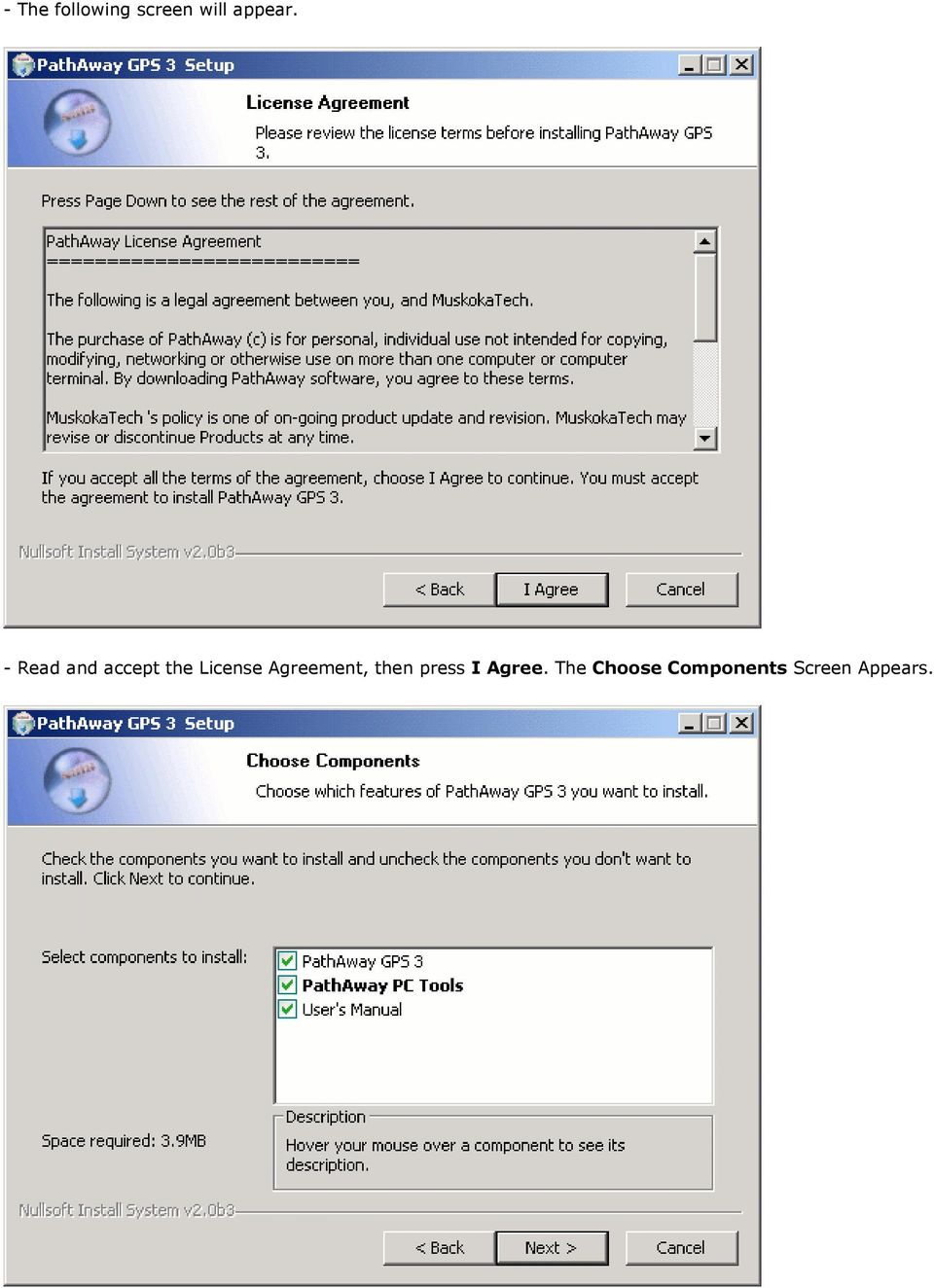
5 - Select the desired components to install. At the very least, you need to choose PathAway GPS 4. It contains the actual program to run on your Handheld. The PathAway PC Tools, allows you to prepare your own maps and icons for use on the device. Once selected, then you need to ensure that ActiveSync is running and connected to the device. - Press Next and continue to follow the onscreen instructions until the the Setup program reports the program has been installed successfully. Once installed, proceed to the Getting Started section.

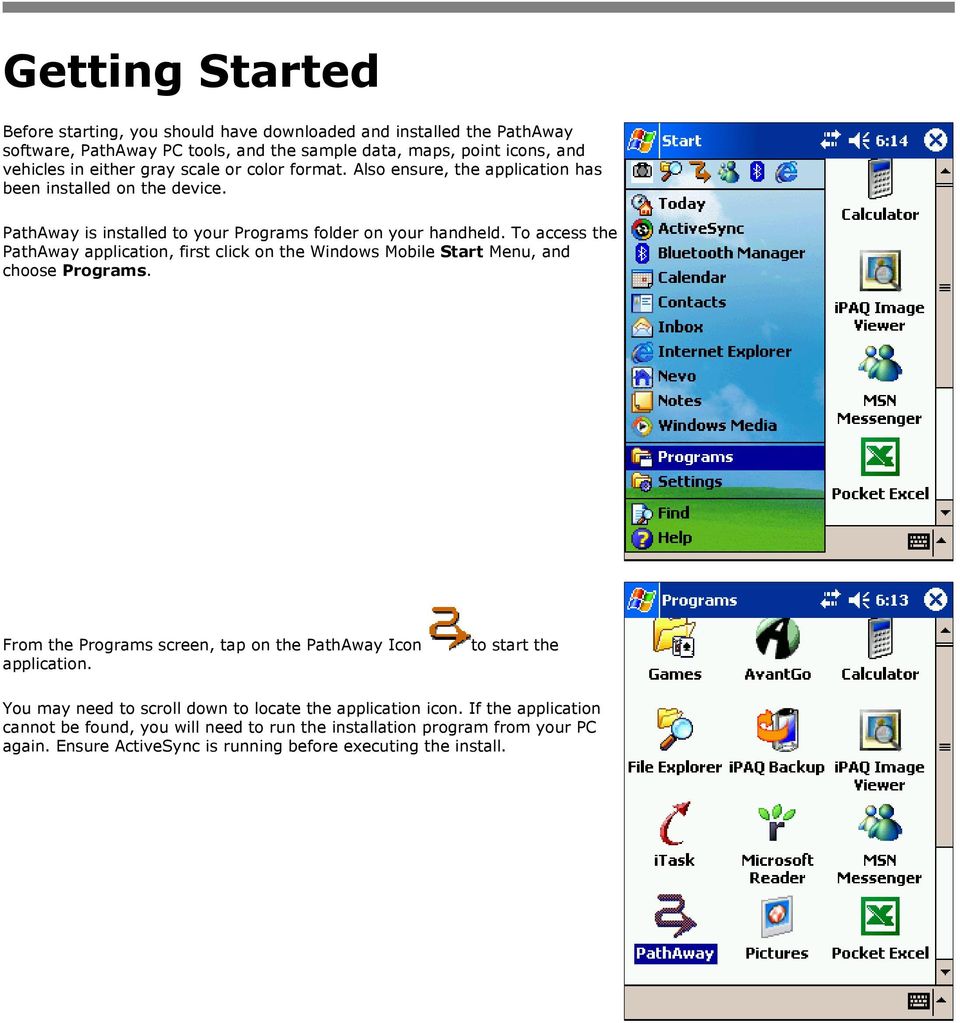
6 Getting Started Before starting, you should have downloaded and installed the PathAway software, PathAway PC tools, and the sample data, maps, point icons, and vehicles in either gray scale or color format. Also ensure, the application has been installed on the device. PathAway is installed to your Programs folder on your handheld. To access the PathAway application, first click on the Windows Mobile Start Menu, and choose Programs. From the Programs screen, tap on the PathAway Icon application. to start the You may need to scroll down to locate the application icon. If the application cannot be found, you will need to run the installation program from your PC again. Ensure ActiveSync is running before executing the install.
7 If you are running the free time limited trial version, you will first be presented with the Startup Registration screen. If you have purchased, then this is where you enter your Registration key to unlock the full unlimited application. Once you have entered your key, press the Register button to unlock the program for full unlimited use. If you wish to continue running the trial, and there is still time remaining on the trial, then simply press the Try it button. To exit the program immediately, press Cancel. Also on this screen is important information you may need to refer to if you are looking for help or where to purchase the application. Program Version: The version number is listed under the PathAway logo. If contacting PathAway Support, you will need to specific this version number. address for support questions. Web: Web site for information, support, purchasing, and obtaining updates. Registration key: When you purchase, you are given a registration key which is encoded to your Owner name or your UID (Unique Device Identifier). Enter this key into this field and press OK, to unlock full functionality of the program. Owner Name: The registered Owner name on the device. You may be required to provide this name for purchasing the application. UID: The handheld device Unique Device Identifier. This ID is a unique number for the individual handheld device. You may be required to provide this name for purchasing the application. Now, try following the short tutorial to get an overview of PathAway's features.

8 Tutorial Be sure you have downloaded and installed the PathAway optional components. If you haven't done so already, then start PathAway from the handheld Programs home page by tapping on the PathAway Icon. If presented, press OK in the About PathAway Screen to continue to run the program. Once the program starts up, you should see a map on the screen. If not, or you see the World Map, then the tutorial maps have not been installed. To determine what maps and other data is stored on your device, go to the select the PathAway main menu by pressing the Main menu toolbar icon, then choosing the menu Options and select Maps. This will show you all of the maps installed on your device. If no maps are listed, then they have not been installed. In this case, you'll need to go back and reinstall the application. Screen Views The first screen you see is the Full Screen Map View. PathAway has many different views. To see the different views, select PathAway's menu bar. You bring up the main menu by tapping the main menu toolbar button. Choose the View menu. Now choose one of the four screen views listed. Here is an overview the different screen views.

9 Full Screen Map View Utilizes most of the screen to show as large a map area as possible. Long/Lat, speed, elevation, and direction of travel are displayed. This data is the navigation data in the program. In this view, by default, the dashboard shows as follows: Upper left: Elevation Upper Middle: Course Upper Right: Speed Bottom Left: Location, overlaid by Proximity and Alarm information. Bottom Center: Current Time Bottom Right: Map Range Tracking View Shows the map and navigation data. Default travel stats are related to information specific to your current trip. Default settings are: Upper Left: Elevation Upper Middle: Course Upper Right and down: current, average, and maximum speed. Left side: trip time and distance (odometer)

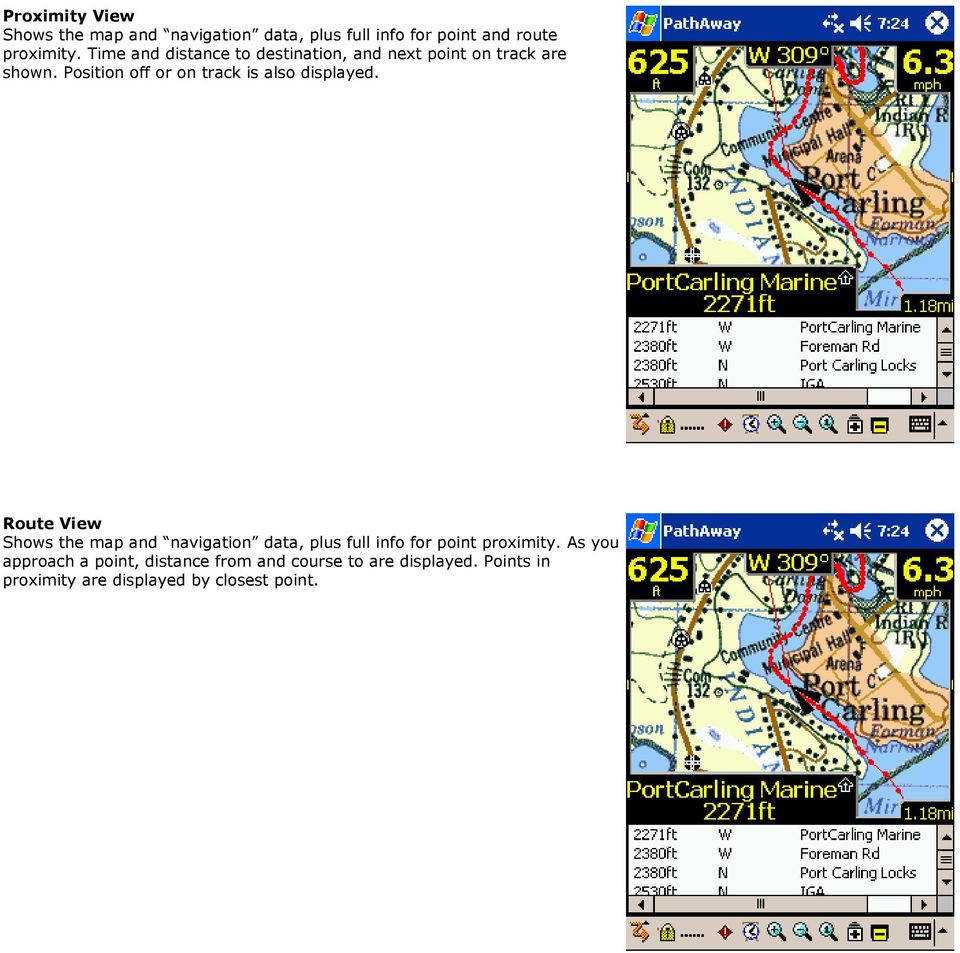
10 Proximity View Shows the map and navigation data, plus full info for point and route proximity. Time and distance to destination, and next point on track are shown. Position off or on track is also displayed. Route View Shows the map and navigation data, plus full info for point proximity. As you approach a point, distance from and course to are displayed. Points in proximity are displayed by closest point.
11 Point View Shows the map and navigation data, plus access to the point/route and track databases. Useful for selecting items from the databases and displaying them on the map or placing them into a route. Details such as Position, Proximity, Elevation, Time, Leg Time, Leg Distance, and Leg Speed can also be displayed. Tip. You can also traverse through the screens by pressing hard key 2. Compass View Shows the navigation Compass and selected navigation data. The Compass view is customizable. The screen can display data in a Tiled format, or a single Compass in full screen. By Default, the Compass view shows the following information by default: Top-Left: Heading Compass Top-Right: Next Point navigation Compass Left under heading Compass: Primary Location Coords. Plus: Time, Date, Speed, Elevation

12 GPS Sky View Shows a Sky view circle showing each SVID and it s relative location in the sky. Also show fix and signal strength information. Red Symbols indicate a GPS Fix, white symbols indicate no signal, gray indicates a weak signal (no fix). Satellite Data View Shows Details of Satellite data. Each satellite detected is listed. Columns are as follows: Svid: Satellite Vehicle ID. This is the identifier number for the satellite. 255=undefined. SNR: Signal to noise ratio in Db Hz. -1 if no signal Elevation: Elevation in nautical miles above mean sea level. Azim: Azimuth, in Degrees (relative to TRUE Magnetic North) E: Ephermis valid. 1 = yes, 0 = no D: Differential Fix: 1=yes, 0=no U: Satellite is Used in determining location.1=yes,0=no R: Satellite is Signal Strength is Rising. 1=yes, 0=no

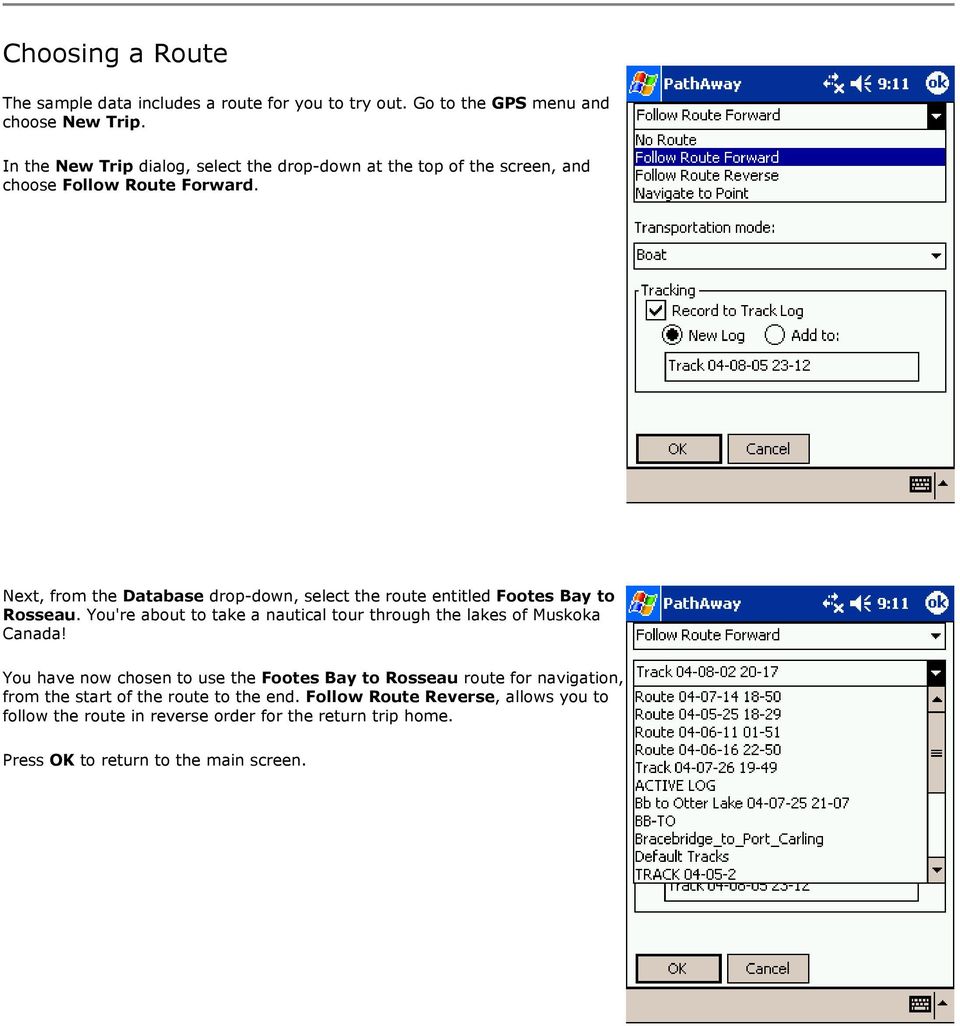
13 Choosing a Route The sample data includes a route for you to try out. Go to the GPS menu and choose New Trip. In the New Trip dialog, select the drop-down at the top of the screen, and choose Follow Route Forward. Next, from the Database drop-down, select the route entitled Footes Bay to Rosseau. You're about to take a nautical tour through the lakes of Muskoka Canada! You have now chosen to use the Footes Bay to Rosseau route for navigation, from the start of the route to the end. Follow Route Reverse, allows you to follow the route in reverse order for the return trip home. Press OK to return to the main screen.
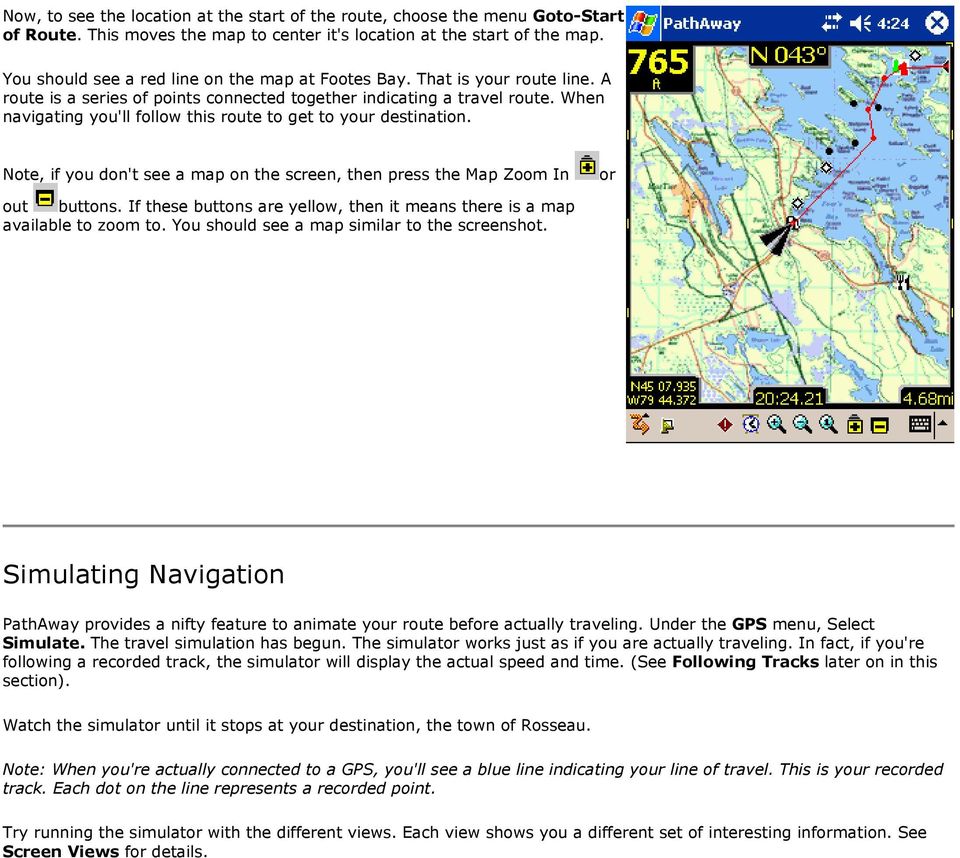
14 Now, to see the location at the start of the route, choose the menu Goto-Start of Route. This moves the map to center it's location at the start of the map. You should see a red line on the map at Footes Bay. That is your route line. A route is a series of points connected together indicating a travel route. When navigating you'll follow this route to get to your destination. Note, if you don't see a map on the screen, then press the Map Zoom In or out buttons. If these buttons are yellow, then it means there is a map available to zoom to. You should see a map similar to the screenshot. Simulating Navigation PathAway provides a nifty feature to animate your route before actually traveling. Under the GPS menu, Select Simulate. The travel simulation has begun. The simulator works just as if you are actually traveling. In fact, if you're following a recorded track, the simulator will display the actual speed and time. (See Following Tracks later on in this section). Watch the simulator until it stops at your destination, the town of Rosseau. Note: When you're actually connected to a GPS, you'll see a blue line indicating your line of travel. This is your recorded track. Each dot on the line represents a recorded point. Try running the simulator with the different views. Each view shows you a different set of interesting information. See Screen Views for details.
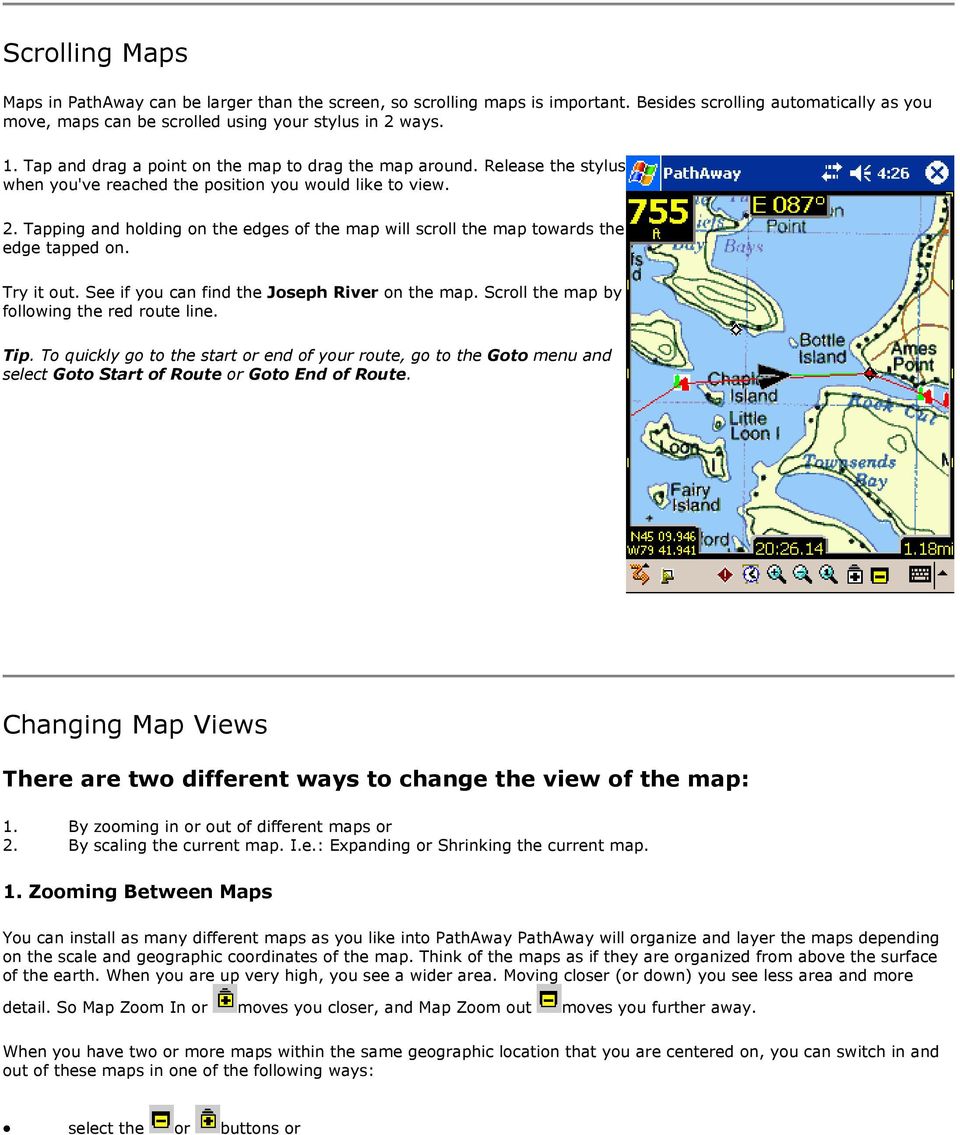
15 Scrolling Maps Maps in PathAway can be larger than the screen, so scrolling maps is important. Besides scrolling automatically as you move, maps can be scrolled using your stylus in 2 ways. 1. Tap and drag a point on the map to drag the map around. Release the stylus when you've reached the position you would like to view. 2. Tapping and holding on the edges of the map will scroll the map towards the edge tapped on. Try it out. See if you can find the Joseph River on the map. Scroll the map by following the red route line. Tip. To quickly go to the start or end of your route, go to the Goto menu and select Goto Start of Route or Goto End of Route. Changing Map Views There are two different ways to change the view of the map: 1. By zooming in or out of different maps or 2. By scaling the current map. I.e.: Expanding or Shrinking the current map. 1. Zooming Between Maps You can install as many different maps as you like into PathAway PathAway will organize and layer the maps depending on the scale and geographic coordinates of the map. Think of the maps as if they are organized from above the surface of the earth. When you are up very high, you see a wider area. Moving closer (or down) you see less area and more detail. So Map Zoom In or moves you closer, and Map Zoom out moves you further away. When you have two or more maps within the same geographic location that you are centered on, you can switch in and out of these maps in one of the following ways: select the or buttons or
16 press the hard Up (out) or Down keys (In) or select an area of the map to bring up the Popup Menu. Choose "Map Menu >" from the list, and select Zoom Map In, or Zoom Map Out or selecting an area of the map, Choosing "Map Menu >" from the Popup menu, from the Map Menu > select "Choose Map >" and select the map by name. The samples come with a few different resolutions of maps. The buttons at the top right of the screen allow you to move into and out of these stacked maps. You don't need a map to increase or decrease the view, but if there is a map available, it will be shown. These buttons change shape to show you whether there is a map available. A highlighted zoom button indicates there is a map available. A unhighlight zoom button means there is not. Scroll around the Joseph River. You'll see the buttons change. When the button changes to, press it. You'll be shown a closer up view of the river. You can also select maps by name by going to the Options-Maps dialog, selecting a map, and pressing the Display button. Please note, moving between stacked maps should not be confused with map scaling where you zoom into or out of a single map by expanding or shrinking the map. The scaling of maps is done via the magnifying icons. 2. Scaling a Map (Expand/Shrink) As of PathAway 3, you can now expand or shrink your maps on the view screen to show a wider area or to get "close" to a location, while still rendering a view of the map. This operation is recommended for Handhelds with higher processing power and internal memory, but is available for all devices. To scale maps use one of the following methods: select the or buttons or selecting an area of the map, Choose "Map Menu >" from the Popup menu, and select Zoom Scale In, or Zoom Scale Out. When you zoom in, all of the map pixels are expanded to show you a closer look at the area. When you zoom out, you will see a wider view of the map. To return to the original map pixels select the Scale 100% icon select the Popup menu > Map Menu > Scale 100% on the tool bar, or
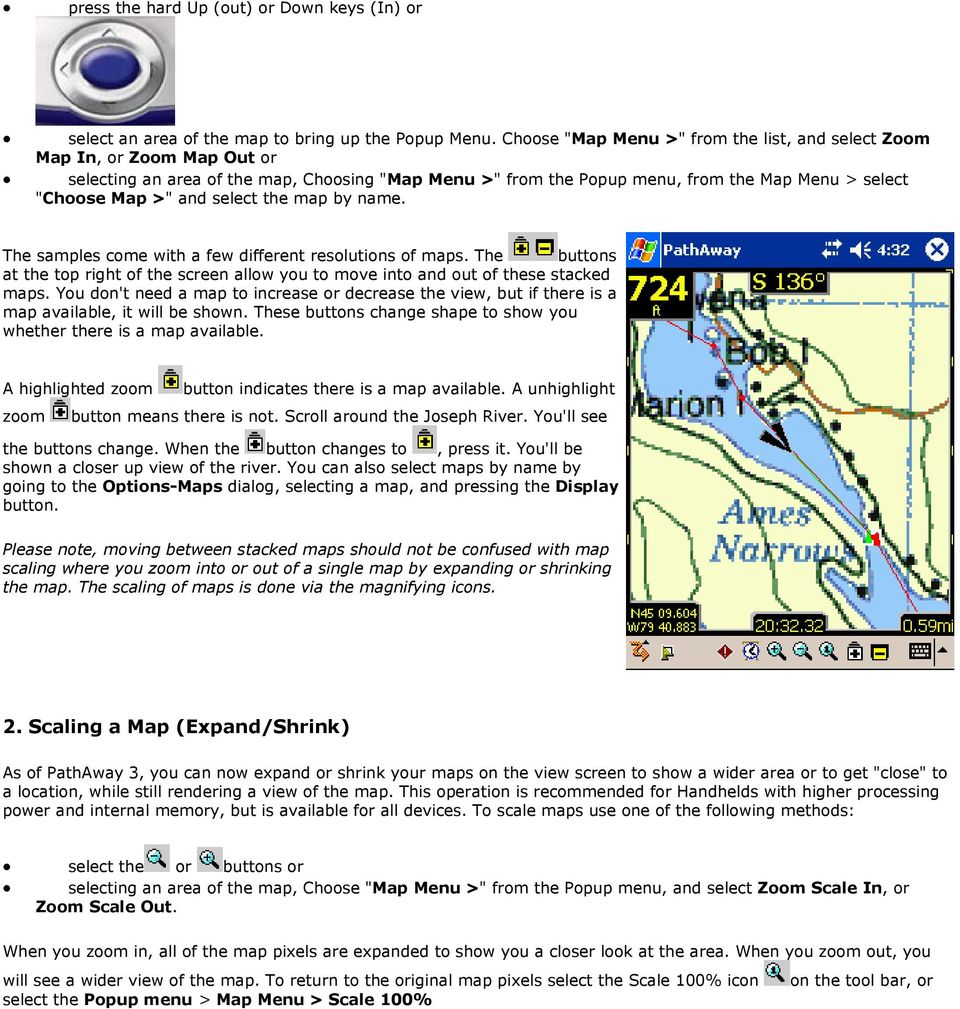
17 Improving Visibility of Navigation Lines You may notice the screen above has a thicker route line and larger position marker. This is because the Color and Lines settings were changed to improve the visibility of the route line on the map. To do this, choose the Options - Preferences menu, select the preferences category Color and Lines. In the Colors & Lines preferences, you can change the way the lines and colors on the maps are displayed. If you have a color device, you can create easy-to-read contrast between your maps and route and track lines. Experiment with this option until you've found a view that suits you. You can even change the look of the current Position Marker by selecting between 3 different styles.

18 For example, to change the way the active route you are following is drawn, click on the Active Route button. This will bring up the Line Style dialog and display the current style for the Active Route. Change the color by clicking on the Color button, and the width of the line by pressing either the + or - buttons beside the width label. To have a circle drawn at each Route Point, check the Show Points button. When you are satisfied with the style, press the OK button. The Position Marker is the Arrow or cursor in the center of the screen. It represents your current geographical position on the map. If you are navigating with a GPS, it points in your direction of travel. If you are disconnected and following a route, it will point in the direction to the next point in the route. If no route is being followed, you'll see only the cross-hairs. You can set the style of direction pointer in the Position Marker Style dialog. To do this, click on the Position Marker button, from the Lines & Style Dialog. In the Position Marker Style dialog, you can choose the desired Direction Arrow style, color, and size of the marker. For more emphasis on screen, set the 3d Effect to create a shadow behind the marker.

19 Capturing Points on a Map Run the simulator until it stops at the town of Rosseau. Lets say there is a marina close by that you'd like to mark for future reference. I.e. you're almost out of gas and can't afford to go searching for the nearest marina. Center the map at a shoreline near Rosseau. Press the Add Point button. The Edit Point dialog is displayed. Here you can enter information about this point such as its name, description, icon, position and elevation. Position will be already entered because the point has a location on the map. If you were actually tracking using a GPS, the true position and elevation would be entered. Alternatively, you can tap and hold on a point anywhere on the map. A menu pops up with some options. Select Add Point. Tip. You can also add a point to the map by pressing hard key 1. Press the key again to save the point and exit the Edit Point dialog. This is a quick way to capture a point as you travel. You can go back to the point later to enter its other details. One of the coolest features of PathAway is that you can use your own icons to display your points on the map. In the Edit Point dialog, select the Icon Popup. You'll be shown a list of available icons available to attach to a point. If you installed the icons.prc database, an extensive list of icons will be displayed. For the marina, choose the Gas Station icon. Tip:. Check out PathAway Tools - Icon Manager for creating your own icons.

20 Creating Routes To create a new route, go to the Options - Route dialog and select New. You will be presented with a dialog for naming the route, and setting the mode of transportation. Select your vehicle for the route. For this tutorial, select the Boat icon. To add points to your route, select the Edit Points button. This brings up an empty list of points. Choose Add... Select Footes Bay Marina as your starting point. Press OK. Select Add... again. Select Rosseau and OK. Now you have a basic Point A to B route. Lets go with it and press OK until you get back to the map screen. On your map you should have one red straight red line heading from Footes Bay to Rosseau. But you're not flying there, so you'll have to choose to alter the route. Pick a point along the water, and tap on the map. Choose the Add to Route button. Press OK from the Edit Point dialog to accept the point. The point will be added to the route, and the route line is altered to reflect the change. PathAway will insert the new point between the two closest points along the route. Note: Alternatively, you can choose to navigate to just a single point by selecting the point on the map and choosing Add to Route > New Route... from the Popup menus. Choose the option to Navigate to selected point from the New Route dialog. Connecting a GPS Now that you've got the basics, its time to get on your PathAway. PathAway works best with a GPS (Global Positioning Satellite) device. Most GPS devices transmit location information through a serial cable attached to the PDA. Other units attach directly to the device. See the support page for a listing of compatible GPS devices and accessories. To setup your GPS device for use in PathAway, select the menu GPS- Configure. Choose your GPS device protocol from the list. Most GPS devices use NMEA standard protocol. If your model is not specifically listed in the list box, then NMEA will most likely work. Select how you are connected to the GPS. If you attach via cable, choose Cradle. If your device works through the device infrared port, choose Infrared. Ensure your GPS device is setup to communicate and match up the baud, parity, bits, and stop bits settings. Most (if not all) GPS devices use Parity=N, Bits=8, Stop= is the most common baud rate. Attach and turn on your GPS unit. Ensure you can get a signal. Most GPS units require a direct line of sight to the satellites. Press the Connect button to test
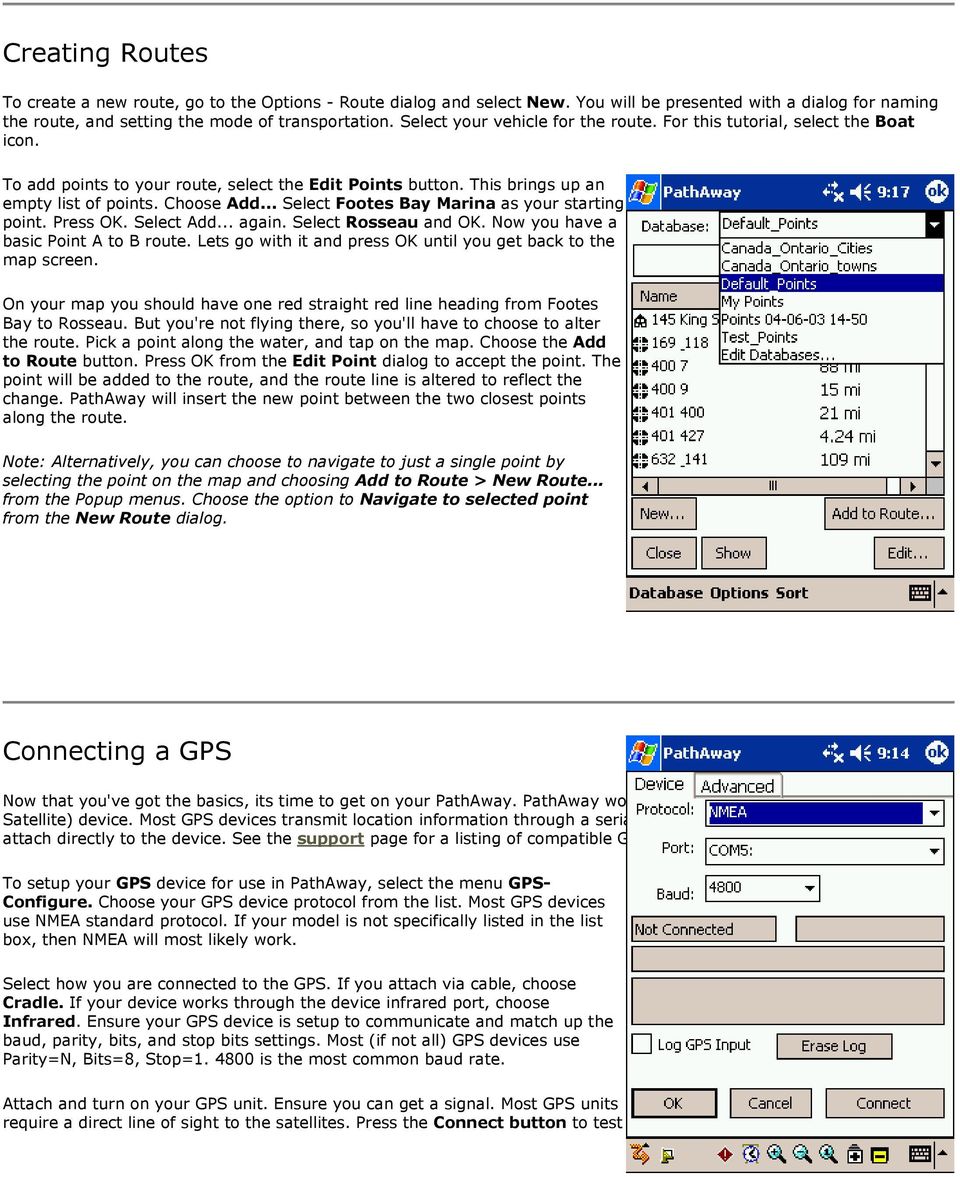
21 the GPS. You should see the data stream messages flowing from the unit. Once your position is fixed, the longitude, latitude, elevation, and UTC (Universal Time Clock) are displayed. Press OK to exit the dialog. Congratulations, you're now ready to navigate with PathAway Press the satellite to connect and disconnect from the GPS. icon Tip. You can also connect and disconnect the GPS by pressing the hard key 4. When you first connect, the New Trip dialog will appear. To accept the defaults (Follow last route, and record a new track), press hard key 4 again to begin tracking with GPS. Navigating with a GPS Now that you're connected to the GPS, you can begin to travel. At this point you should have acquired your own maps and installed them into PathAway using PathAway Tools - Map Manager. You can acquire maps from online web mapping sites, or you can scan your own from paper maps, use digital pictures, or get maps from CD-ROM. Note: In order to use maps with a GPS, you need to calibrate them to their proper geographic (longitude/latitude) coordinates. This can be done in map manger by specifying the top-left and bottom-right coordinates of the map, or in PathAway using positions of known points. Refer to Calibrating Maps for more information. Once calibrated, PathAway will center the map to your current location. As you move, the map is re-centered to show your position. If you are recording your track, you'll see a blue (or dark gray) line showing your line of travel. Recording Tracks You can record tracks for later use, or to see where you've been. This is especially helpful in case you start going in circles! Tracking databases can get quite large, especially if you are capturing constantly. This can slow screen refreshing down and consume a large amount of memory. The Preferences section under Tracks, has some options for controlling track database size, and recording precision. A good detailed track for traveling between 30 and 60 mph is to set the precision to record position every 10 seconds. To keep individual track database sizes down, you can select the menu option End Trip. This will save the track, and start a new one. Screen refreshes will only draw the current recorded track. Alternatively, you can set the tracking to record at certain distances. This will create a track record when you reach a certain distance. Therefore all track points will be of equal distance apart, regardless of your speed.
22 Following Recorded Tracks Once you're recorded a journey, you can now use the track to follow. This is an extremely useful feature for finding your way home. To choose a track to follow, select the Options-Tracks menu. The tracks are automatically named using the date and time they are created. You can change the name for your track and indicate the method of transportation by pressing the Details button. Select the track you've just recorded. Press Follow reverse. This will set activate the track to be followed in the reverse order it was recorded in. You will see the red route line on the map. You can now use this track in the same way you would a route. You can get additional information when following a recorded track. To get the recorded track time as your ETA data, go to the Options-Preference menu, and select the Time section. Under the heading Time estimates based on, turn the check box on entitled Recorded Track Speed. You'll see your time remaining in the Route view screen. This is the actual time it took you when you recorded the track. This includes any stops along the way.
23 Terminology Map Data A database containing a map. The Map Manager is used to create maps for PathAway The current version runs under Windows 95,98,2000,XP,ME or higher. Original maps can be in Jpeg, or BMP format. You can create your own maps in a Paint program, or acquire the maps through scanning, CD-ROM, or download from the Internet. You must ensure you do not violate copyright rules applied for the maps acquired. In the Map Manager you can enter the Long/Lat coordinates for the top-left and bottom right corners of the map, as well as the color depth. Gray shade, 16 color, 256 color, or 64 million colors (depending on capabilities of your device). Maps can be as large as the user desires providing there is enough memory on the handheld. Maps should be in longitude and latitude format. Meaning the actual curvature of the map is stretched onto a flat surface and all longitude and latitude lines are straight. Dashboard Customizable Border around navigation map screens. Contains useful travel statistics and information. Dashboard items can be modified via Tap and Hold on a particular item, and selecting a new data item from the Popup menu. See Dashboard-Context Menu. GPS Global Positioning Satellite system uses a series of satellites to transmit data to receivers enabling them to accurately pinpoint their location and elevation on earth. Originally developed by the U.S. Department of Defense as a military system, GPS has become a global utility. It benefits users around the world in many different applications, including air, road, marine, and rail navigation, telecommunications, emergency response, oil exploration, mining, and many more. PathAway utilizes connections to GPS devices to provide accurate positioning data. Routes Routes can be created by linking points together in a sequence. When following a route, the distance to next point, and time and distance to destination are displayed. Also, the distance and direction off of the route is shown. Travel/Transportation Mode Define your mode of transportation, for easy searching for routes and tracks. Time Estimates can be made by the default vehicle speed or a custom speed you choose. Vehicles are currently defined PC-side. Tracks Tracks can be created by recording GPS movement. These tracks can then be Followed to perform as an accurate guide for the travel. Icons Icons in PathAway can be created and modified by using the PathAway Tools - Icon Manager. Original Icons can be created from a paint program in Jpeg or BMP format and imported into your Icon database. These icons can then be used in PathAway to mark Points.
24 Points Points are locations marked by the user. Each point can be identified by a name, icon, and description. The icon you choose for your point, will be displayed on the map. In PathAway, points are stored in the Points database. You make create multiple points databases to store points. To Create and Edit these databases, go to the Points Dialog, and select Options-Edit Databases. Proximity While traveling, PathAway will display the points on the map that are in close proximity. If following a track, the distance to the closest point on the track, and the distance to the end of the track are displayed. Simulate Simulates a route by moving the map to points along the route in sequence until the end of the route. Use the simulate to verify routes you've created, or to review tracks after they've been recorded.
25 Reference Navigation Views The main screens of the program are the navigation screens used for displaying maps, and other travel and location information. The screens are all composed of a map viewing area surrounded by a customizable dashboard. The dashboard can also be completely removed from the view in the "View" menu. There are a number of different screens available for targeted use.. They are shown as follows: Full Screen Map View Utilizes most of the screen to show as large a map area as possible. Long/Lat, speed, elevation, and direction of travel are displayed. This data is the navigation data in the program. In this view, by default, the dashboard shows as follows: Upper left: Elevation Upper Middle: Course Upper Right: Speed Bottom Left: Location, overlaid by Proximity and Alarm information. Bottom Center: Current Time Bottom Right: Map Range
26 Tracking View Shows the map and navigation data. Default travel stats are related to information specific to your current trip. Default settings are: Upper Left: Elevation Upper Middle: Course Upper Right and down: current, average, and maximum speed. Left side: trip time and distance (odometer) Proximity View Shows the map and navigation data, plus full info for point and route proximity. Time and distance to destination, and next point on track are shown. Position off or on track is also displayed.
27 Route View Shows the map and navigation data, plus full info for point proximity. As you approach a point, distance from and course to are displayed. Points in proximity are displayed by closest point. Point View Shows the map and navigation data, plus access to the point/route and track databases. Useful for selecting items from the databases and displaying them on the map or placing them into a route. Details such as Position, Proximity, Elevation, Time, Leg Time, Leg Distance, and Leg Speed can also be displayed. Tip. You can also traverse through the screens by pressing hard key 2.
28 Compass View Shows the navigation Compass and selected navigation data. The Compass view is customizable. The screen can display data in a Tiled format, or a single Compass in full screen. By Default, the Compass view shows the following information by default: Top-Left: Heading Compass Top-Right: Next Point navigation Compass Left under heading Compass: Primary Location Coords. Plus: Time, Date, Speed, Elevation GPS Sky View Shows a Sky view circle showing each SVID and it s relative location in the sky. Also show fix and signal strength information. Red Symbols indicate a GPS Fix, white symbols indicate no signal, gray indicates a weak signal (no fix).
29 Satellite Data View Shows Details of Satellite data. Each satellite detected is listed. Columns are as follows: Svid: Satellite Vehicle ID. This is the identifier number for the satellite. 255=undefined. SNR: Signal to noise ratio in Db Hz. -1 if no signal Elevation: Elevation in nautical miles above mean sea level. Azim: Azimuth, in Degrees (relative to TRUE Magnetic North) E: Ephermis valid. 1 = yes, 0 = no D: Differential Fix: 1=yes, 0=no U: Satellite is Used in determining location.1=yes,0=no R: Satellite is Signal Strength is Rising. 1=yes, 0=no Tip. You can also traverse through the screens by pressing hard key 2. Navigating without Maps PathAway works with or without maps. When used without maps, PathAway will display all points in a virtual Longitude and Latitude world. You can Zoom In and out to increase and decrease the Scale factor of your view. If you have points, routes, or Tracks defined, PathAway will display them on the screens. GPS connectivity works well with or without maps. When the zoom buttons are not highlighted ( or ), you can increase of decrease the view range of the virtual map. In this case, The scale zoom buttons ( or )do the same thing. The Zoom 100% button in this case will bring up a dialog allowing you to specify the desired zoom range. Navigating with Maps When navigating with maps, PathAway will center the map on your current location. When not connected to GPS, you can scroll the map to view different portions. To scroll the map, Tap down, then drag the stylus on the screen to scroll the map in the direction you want.
30 Navigating with a GPS Device PathAway supports any NMEA0183 v2.0 or higher compatible GPS device. This encompasses the majority of GPS devices on the market. Delorme Earthmate, and Tripmate proprietary protocols are also supported. A GPS is not required to use the software. A GPS device can be cable or infrared. Special serial cable can be purchased from GPS device manufacturer. A handheld device serial cable adapter can also be purchased separately. Some devices may come with the required cables for connecting to your handheld device. See the section on GPS Sites for information and links to get your device attached to a GPS. Current location on map is shown by the cross-hairs in the center of the map window or with an arrow showing direction of travel. When connected to a GPS, direction is shown by course required to reach the next point on route. To navigate with your own maps, you need to convert and install them into PathAway using PathAway Tools - Map Manager. You can acquire maps from online web mapping sites, or scan them from paper maps, use digital pictures, or get maps from CD-ROM. In order to use maps with a GPS, you need to calibrate them to their proper geographic (longitude/latitude) coordinates. This can be done in Map Manger by specifying the top-left and bottom-right coordinates of the map, or in PathAway using positions of known points. Refer to Calibrating Maps for more information. Once calibrated, PathAway will center the map to your current location. As you move, the map is re-centered to show your position. If you are recording your track, you'll see a blue (or dark gray) line showing your line of travel on the map.
31 Main Menu The following menus are available from all Navigation screens. Select the PathAway main menu by pressing the Main menu toolbar icon. GPS Menu Connect/Disconnect Simulate Controls connection to GPS device. Simulates a route by animating travel along the points of the route. Pocket Mode Start New Trip... End Trip Advance Route Target Set Closest Route Target Configure GPS... Turns off screen and locks keys but continues GPS tracking. This feature enables you to track your way while reducing battery consumption as much as possible. Locking the screen and keys allows you to put your handheld in your pocket without the worry of commands being accidentally pressed. Most handhelds will still communicate with Bluetooth GPS devices even if they re in your pocket. Start a new trip. Options to start with a new track log, or continue current, and choose a new route to follow. Clear the track log, reset odometer. Next connection will start with a new track log. Move to the next route point to navigate to. Available when Manual Route Targeting is set. (See Preferences->Routes) Reset the Route Target point to the nearest Route Point in the direction of travel. Available when Manual Route Targeting is set. (See Preferences->Routes) Setup for GPS device. Choose device type. Confirm communications.
32 View Menu Full Screen Map View Tracking View Proximity View Route View Point View Compass View GPS Sky View Satellite Data View Map Display... Show/Hide Dashboard Default Dashboard Show/Hide Taskbar Refresh Shows Full Screen map view. Shows Tracking view. Shows Proximity view. Shows Route View. Shows Point View. Shows Compass View Shows GPS Sky View Shows Satellite Data View. Show options for Map Display. Turn Dashboard On/Off. Restores original Dashboard for current screen. Turn Top toolbar on/off Force PathAway to enumerate all maps, and databases on the registered folder locations. This feature can be used if PathAway does not detect the addition or removal of maps or databases from outside the application.
33 Options Menu Points... Routes... Tracks... Point Databases... Folders... Maps... Preferences... Calibrate Map... About PathAway... Management of Points. Shows list of points. Options to Create new points, delete, edit individual points, Sort, find, and go to selected points on map. Beam points to others. Management of Routes. Shows list of routes. Options to Create new routes, rename, delete, edit route points, duplicate, join 2 routes together. Beam route to others. Select a route to display on the map. Management of Tracks. Shows list of recorded tracks. Options to rename, delete, edit track points, duplicate, join 2 tracks together. Beam tracks to others. Select a track to display on the map. Management of Points databases. You can store points in multiple databases and show/hide databases. The Folders dialog allows you to specify the file folders that PathAway uses to look for Maps, Point, Route, and Track databases. Management of Maps. Shows list of maps. Options to edit map location details, Display map, delete maps, beam maps to others. Settings for options such as units of display, track recording options, map display options, time estimation settings, alarm settings, and GPS configuration. Adjust map location coordinates by selecting 2 known points on the map. Map location is adjusted by distances between the two points, by nudge controls, or by setting the top-left and bottom right longitude and latitude coordinates. Information about PathAway. Registration key entry.
34 Goto Menu Go to Start/End of Route Go to Start/End of Track Goto Location World Map Moves location to the start or end of the active route. Moves location to the start or end of the active recorded track. Enter specific location coordinates to center map on. Display built-in world map. This is the default view if no maps are installed, or found at the current location.
35 Context Sensitive Popup Menus Tapping on PathAway screen brings up a context menu depending on the item selected. Tapping on the map brings up the Map Popup Context menu. Tapping on a dashboard item brings up the Dashboard Popup menu options. Map Popup Menus Tapping on the map brings up a context sensitive menu. Tapping on an existing point will display the current location coordinates, the closest point name, and a menu of options. The following menus are activated when the map is tapped on, based on the condition. The menus are organized into multiple layers for easy navigation. The first menu is the Top Level. Map Popup Menu - Top Level Name Description Action <Current Location> <Closest Point> > Add Point Add Route Pt Displays the geographic coordinates of the selected location Displays the name of the closest point, if any. Select the item to display a list of commands to operate on the selected point. Adds the selected location to the Points database. Calls up Edit Point dialog for naming and selecting icon. Adds selected location to the route. Displays a screen showing detailed information about the location, such as distance to, ETA to, etc. Shown when a Point is selected. Shown when no point selected. Shown when there is an Active Route, and location not on route. Center Map Centers map at selected location. For all Taps. Navigation Menu > Map Menu > Display the main Navigation Options menu (same as main menu GPS) Display the commands available on the current map. Includes repositioning, zoom, rotate, and other map Shown always. Provides access to main menu by clicking on screen. Shown always.
36 Point Menu > selection Display the commands related to points on the map. Includes Add Point, add to route, and measuring distance between points. Shown always. Route Menu > Display the Routing commands available. Shown always. Tracking Menu > Display the Tracking options available. Shown always. View Screens > Display the main View Screens menu Shown always. Goto > Display the main Goto menu Shown always. Other Points > Displays list of other points in the proximity of the selected area. Shown always. Map Popup Menu->closest point Contains location sensitive options for the currently selected point. Show details of point, edit the point, or delete it. Name Description Action Details Displays a screen showing detailed information about the point, such as distance to, ETA to, etc. Edit Point... Displays the Point Edit dialog for the selected point. Shown when a Point is selected. Show Picture Play Audio Displays the picture associated with the selected point Plays the associated audio attached to the selected point. Shown when a Point with an associated picture attached is selected. Shown when a point is selected that has an associated sound clip attached to it.
37 Adjust Location Allows adjusting the location of the selected point by tapping it's proper position on the map. Shown when a Point is selected. Delete Point Deletes the selected point from the Points database. Shown when a Point is selected. Map Popup Menu->Map Menu > Contains location sensitive options for maps, such as zooming, repositioning map, and choosing maps within the boundaries of the location selected. Name Description Action <Closest Map> Displays the name of the current map, if any none Center Map Centers map at selected location. For all Taps. Zoom Map > Menu options for zooming in and out of maps For all Taps. Rotate Map > Map Rotation menu options For all Taps. Show/Hide Map Choose Map > Map Display Other Maps... Remove the map from the screen or show the current map if it has been hidden Go to the Maps dialog to choose other maps not within the bounds of the selected area. Same as selecting the main menu Options - Maps... Brings up Map Display Preferences Dialog. Brings up list of all available Maps
38 Map Popup Menu->Map Menu->Zoom Map Contains zooming options for maps, Name Description Action <Closest Map> Displays the name of the current map, if any none Map Zoom In Zooms into the next map under the selected location. For all Taps. Map Zoom Out Center map and Zoom out to the wider area map. For all Taps. Overview Map Scale Zoom In Scale Zoom Out Scale 100% Displays the overview map. Expands the pixels of the current map to show a close up view of the area. Shrinks the pixels of the current map to show a wider view of the area. Draws the map in its original scale.
39 Map Popup Menu->Map Menu->Rotate Map Contains rotation options for maps. Note, if the Preferences are set to Auto Rotate, then the map will automatically rotate upon the next location movement. Name Description Action <Closest Map> Displays the name of the current map, if any none Rotate Left Rotate Right Rotate 180 North Up East Up West Up South Up Rotates the map 90 degrees to the left Rotates the map 90 degrees to the right Rotates the map 180 degrees Rotates the map so North is facing up Rotates the map so East is facing up Rotates the map so West is facing up Rotates the map so South is facing up
40 Map Popup Menu->Map Menu->Choose Map > Choose a map that falls within the current location. Name Description Action (+) <Map Name> Name of Map available to Zoom Into (-) <Map Name> Name of Map available to Zoom out to Other Maps... Displays the Maps dialog. Map Popup Menu->Route Menu > Shows the Routing options available at the current location. If a Route Point is under the location clicked on, then options for this point are shown. Name Description Action
41 <Route Name> Edit... Add Route Pt Add Turn Instruction... Delete fm Route Follow Forward Follow Reverse Displays the name of the current route, if any Displays the Point Edit dialog for the selected route point. Adds selected location to the route. Adds the selected location to the route and flags it as a Turn point. Note the "Intersection" icon is the indicator of a Turn. Removes the specific point selected from the active route. Point remains in point database if there already. Activate the selected Route to follow from the start. Activate the selected Route to follow in reverse order starting at end point of the route Route Point selected. Shown when there is an Active Route, and location not on route. Shown when there is an Active Route, and location not on route. Route Point selected. New Route Create a new route Brings up the New Route dialog Routes Go to the Routes dialog to choose other Routes. Same as selecting the main menu Options - Routes... Map Popup Menu->Other Points> Name Description Action <Points List> <Closest Point> Displays a list of points found in the geographic coordinates of the selected location Displays the name of the closest point, if any Displays a screen showing detailed information about the location, such as distance to, ETA to, etc. Displays a screen showing detailed information about the point, such as distance to, ETA to, etc.
42 Add Point Add Route Pt Add Turn Instruction... Adds the selected location to the Points database. Calls up Edit Point dialog for naming and selecting icon. Adds selected location to the route. Adds the selected location to the route and flags it as a Turn point. Note the "Intersection" icon is the indicator of a Turn. No point selected. Shown when there is an Active Route, and location not on route. Shown when there is an Active Route, and location not on route. Edit... Displays the Point Edit dialog for the selected point. Point selected. Adjust Location Allows adjusting the location of the selected point by tapping it's proper position on the map. Point selected. Delete Point Deletes the selected point from the Points database. Point selected. Points... Measure Go to the Points dialog to choose other Routes. Same as selecting the main menu Options - Points... Measure Distance between 2 points Map Popup Menu->Tracking Menu > Shows the options available at the current location for the Active Track Log. If a Track Log Point is under the location clicked on, then options for this point are shown, otherwise, only options for the Active Track log are shown. Name Description Action <Current Track Log> Follow Forward Follow Reverse Suspend/Resume Tracking Show/Hide Track Log Tracks... Displays the name of the current track log. Activate the selected Route to follow from the start. Activate the selected Route to follow in reverse order starting at end point of the route Suspends or Resumes recording positions to the current track log. Shows or hides the current track log on the map Go to the Tracks dialog to choose other Tracks. Same as selecting the main menu Options - Tracks...
43 Dashboard Context Menus Customizable Dashboard Options allow you to see the information you are most interested in. Each of the PathAway screens can be customized differently. This allows you to quickly change to a view most appropriate for navigating. Tapping on a Dashboard item allows you to have different information displayed at the dash location tapped on. If no information is selected for a Dashboard, or there is no information available, then a small bar is displayed. Clicking on the bar will also bring up the Dashboard menu. The following describes the Dashboard menu Options. Name Hide Set Font... Description Removes the currently selected info from the selected Dashboard. Set the primary font for the currently selected item. Brings up the Set Font Dialog
44 Dashboard Item - Set Font Dialog Dashboard items all consist of 2 potential lines. Set the font size desired for the Top and bottom lines of the selected dashboard item. Dashboard Tracking Info Heading Elevation Speed Location Coordinates Secondary Coordinates Shows current Heading (course) direction. Shows current Elevation. Shows current rate of speed. Shows current position in the Primary Coordinate setting. (Options- >Preferences->Coords) Shows current position in the Secondary Coordinate setting (Options- >Preferences->Coords)
45 North Arrow Trip Dist (odo) Elapsed Time Average Speed Max Speed Vert Speed Proximity Displays a compass showing N,S,W,E and a North Arrow. Distance traveled since start of Trip (first GPS fix). Elapsed time in minutes since start of Trip (first GPS fix). Average speed since start of trip. Maximum speed obtained. Displays the vertical rate of climb or descent. Displays the proximity information to the closest point. Dashboard - Routing Info Displays information regarding the current Route being followed. These items are only valid if following a route. Off Track Warning Elevation Warning Time to Dest (ete) Arrival Time (eta) Dist to Dest (dtd) Heading Direct to Dest Dist Direct to Dest Follow Heading Dist to Next Point Time to Next Point Vert Dist to Next Vert Angle to Next Heading on Next Leg Displays distance and position off the route track. Displays distance and position from the elevation recorded at the current route position in the active route database. Estimated amount of time to reach destination. Estimated time of Arrival at destination. Distance to destination along route. Displays the heading direct to the route destination point. Displays the straight line distance direct to the route destination point. Follow this course to reach next leg point. Distance to next route leg point. Estimated time to reach next leg point. Displays the vertical distance in elevation units to the next point on the route. Displays the vertical angle to the next point as expressed in degrees Heading to follow after next point in route is reached.
46 Dist of Next Leg Time on Next Leg Turn Instructions Time to Turn Distance to next leg point after next point. Estimated time on next leg point. Display Right-Left turn instructions. Activates when next point is defined as an Intersection. Estimated time to reach next turn. Dashboard - General Info Map Name Map Details Time Date View Range Displays the current map name Displays the current map name, projection and datum type Current Time. Displays time from the Handheld, when not connected to GPS. GPS UTC + time zone offset when connected to GPS. Displays the current date Map View range distance. Horizontal distance from left to right side of screen. Battery Status Battery charge status expressed as a percentage %. Free Memory Displays the amount of available memory. Customizing Screens All of the screens contain a customizable dashboard. Each screen has a dashboard setup associated with it. Here is how to customize the dashboard. To Hide the Dashboard, choose the main menu select View, then Hide Dashboard. The screen will look similar to the this: Hide the Dashboard for large screen map viewing
47 Choose the View menu option Show Dashboard to turn the dashboard back on. You can also utilize the entire full view of the screen by turning the Top Toolbar off by selecting the View menu and choosing Hide Toolbar. To adjust individual dashboard items, simply tap the item you would like to customize. The Dashboard Options menu will appear showing the currently selected item and the options to available to set for the dashboard. When there is no active information available for a dashboard control item, or the dashboard item is hidden, only a bar will be displayed. Clicking on one of the bars will bring up the dashboard menu.
48 Toolbar Buttons The top of the screen contains a set of tools designed for quick access to the most common functions. Toolbar: Main Menu Bar. Press to bring up the Main Menu. Turns to hourglass when drawing screen. Connect/Disconnect GPS. When connected to GPS, turns to a Lock icon when a GPS fix is obtained. Vertical bars shows # of satellites fixed on. Short dots indicate # of satellites in view. Add Point at location. Toggle proximity alarm on/off. Scale Zoom into current map by expanding the map. Scale Zoom Out of the current map by shrinking the map. Restore the map to 100% view. No Scaling is done for this view. If there is no active map, this button will bring up a dialog allowing you to specify the desired zoom range. Map Zoom Out - no Map. There is no map available to Zoom out to. Pressing this button will go to the virtual map view where no map is shown on the screen. If there is no active map, this button performs a Scale Zoom Out. Map Zoom In - no Map. There is no map available to Zoom In to. Pressing this button will go to the virtual map view where no map is shown on the screen. If there is no active map, this button performs a Scale Zoom Out. Map Zoom Out - to another Map. When the Map Zoom Out button is highlighted, it means there is a lower resolution map at the current location. Pressing this button, will show this map on the screen. Map Zoom In - to another Map. When the Map Zoom In button is highlighted, it means there is a higher resolution map at the current location. Pressing this button, will show this map on the screen. Please note, moving between stacked maps should not be confused with map scaling where you zoom into or out of a single map by expanding or shrinking the map. Map zoom moves between layers of maps of different resolutions. Scale zoom expands or shrinks the current map.
49 Hard Key Assignments Hard key 1 Add Point and OK button Hard key 2 Cycle Screen Views Navigation Hard keys Zoom In/Out Hard key 3 Databases Hard key 4 Connect/ Disconnect GPS Note some hard keys can also be used to press OK from a dialog. New Trip Dialog OK key = Connect GPS hard key. Edit Point OK key = Add Point button. To override or disable the functions of these keys, go to the Preferences-Hard Keys dialog.
50 Dialogs GPS Menu Options from the GPS menu bar. Start New Trip... For selecting route and track recording log before beginning a trip. This dialog requires that you have previously defined or recorded the routes or points you are going to use for navigation. Follow Track Forward or Follow Track Reverse: Select the route to follow from the list of previously created routes and recorded tracks. Navigate to Point: Select a single point to navigate to. Selecting this option will bring up the Point Selection Dialog. Here you select the point to navigate to. Single Point navigation differs from Route database navigation in that only a single point is routed to. The Route line will appear on the map directing you to straight to this point.
51 Transportation Mode: Select the transportation mode type. This enables you to easily identify trips of common type Record to Track Log: Turn on or off track recording. Choose to create a new track log, or to add to the current track database. If you choose new track, then all travel stats will be reset. I.e.. Odometer, travel time etc. Tip: This dialog is launched when you first connect to the GPS. If you've connected using hard key 4, you can quickly accept the defaults (Follow last route, and record a new track), by pressing hard key 4 again to begin tracking with GPS. GPS Configure Setup for GPS device. Watch GPS input stream to ensure communications is working properly. Device Protocol: This is the method that your GPS device uses for communicating with other devices. Choose your type of GPS device, or specify it's communications protocol. NMEA is the most common protocol for serial communications in use today. NMEA stands for National Marine Electronics Association. PathAway supports version 2.0 or higher of NMEA Check your device for specifications on interfacing with other devices. Some devices have multiple interfaces that can be set. Ensure that NMEA is set as the active communications interface. Port: Choose the port your GPS is connected to. Most common connection via cable is COM1. This is the same port you attach a cable or cradle to sync your handheld with your PC. For Bluetooth GPS devices, the COM port number varies across different Handheld devices. Most will display the name Bluetooth beside the COM port number associated with it. See our FAQs on the PathAway forum for the most up-to-date information on specific GPS device configurations. For information on how to configure cables to connect your GPS device to your PDA, see the links in the GPS Sites page. Auto Detect: If you re unsure of the specific Port and Baud rate, select Auto Detect, then press the Connect button. This will cycle through all of the ports and baud rates available and attempt to connect to a GPS stream based on the selected protocol. Once a match is found, the auto detect will display the settings being used. You should note these settings for future reference. Baud Rate: The Baud rate is the speed in, bits per second, which data is transferred from the GPS device. Some devices have a fixed baud rate, others can be selected on the GPS device itself. Ensure that your baud rate on your GPS matches the selected baud rate here. Check your GPS device manual for information on proper baud rate settings. The most common baud rate for most GPS devices is 4800 BPS. Next is 9600, followed by 57,600.
52 Log GPS input: Used for debugging GPS communications. Checking this flag will record the GPS communications stream to a log file. Connect: Begins communicating with GPS device. If communications are working properly, you should see a stream of GPS information on the screen. When a "FIX" of your current position has been determined, then the current longitude and latitude position will be displayed, along with type of fix, number of satellites used for the fix, and total number of satellites in view. Advanced GPS Options The advanced options are settings that are uncommon to most GPS device configurations. Only adjust these settings if you are having problems communicating with the GPS, or the specs for your GPS require it. Elevation Correction: Elevation correction allows you to set an amount to adjust the Elevation reported by the GPS. Some GPS devices report the Elevation. Options are: - Sirf GGA Altitude Correction: NMEA rules say, elevation in $GPGGA is either uncorrected ellipsoidal(wgs84) elevation, or if a correction table is included with the GPS Receiver, then the corrected (near geoidal) elevation is given, plus, right behind, the value is noted, by which this corrected elevation differs from the ellipsoidal (WGS84) altitude. But some SIRF II chipset devices do not stick to this rule. They give the uncorrected ellipsoidal elevation as altitude plus the correction value right behind. So using a sirf II chipset may end up with a wrong elevation constantly. I.E. elevation reported is meters, actual elevation (seen from DEM or MAP or other receivers) is 649 meters, correction value is 48.0 meters: $GPGGA, , ,N, ,E,1,06,1.8,707.7,M, 48.0,M,0.0,0000*75 Note: This correction value can be negative (-) thus, finally adding up to the elevation given. The entire story can be found at - Add/Subtract fixed Elevation value: This option simply adds or subtracts the specified elevation value to the recorded elevation from the GPS receiver. Use this option in cases where the elevation data is off by a fixed estimated amount and there is no correction value provided. Enter a - sign for negative numbers. Timer Comm: PathAway can communicate with the GPS via a Timer or on an Interrupt. Interrupt method is preferable if it works for your GPS device. If you have been encountering difficulties with GPS connectivity, you can set PathAway to use the "Timer-Based Communications" as in Version 2. To set "Timer-Based Communications": turn ON the setting for "Timer Comm". This will set the program to communicate on a timer rather than the new Interrupt based communications. Disconnect if no response after X seconds: If the GPS receiver is not responding, turning this option on and setting the timeout value will cause the program to disconnect from the GPS if there is no response from it within the specified time period. With this option off, PathAway will continue to monitor the GPS for data. Parity, Bits, Stop bits: Serial communications settings. Most devices use N,8,1. Check your GPS manual for proper settings. Buffer: This is the Communications Buffer Size in kilobytes. It may be necessary to increase this value for some receivers that send data at high baud rates. Ie plus.
53 View Menu Dialogs Map Display Options Control what layers are displayed on the maps. Show Maps: Display maps on the navigation screen. When not selected, navigation can be done by the virtual map, which will still place your recorded points on the screen based on the current zoom factor. Auto Select Maps: When Show Maps is selected, this option will automatically switch maps, when the position is no longer over the current map. When this option is checked, the zoom to No Map feature is not available if there is at least one map at the current location. Auto Zoom when connected: With this option on, the map of the highest detail will automatically be chosen while connected to the GPS. User Gray for 4-bit maps: For color devices only. If you have created or acquired 16 color (4-bit) maps, they can be displayed in either 16 colors, or gray scale. Scale Maps for zoom: Enable map scaling. With this feature on, PathAway enables scaling of maps for scale zoom in and out. Show Active Tracks: Show the currently active track log line. For color devices, the log is shown in blue. For gray-scale devices, the track log is gray and identifiable by the points that connect the lines. Show All Enabled Tracks: Display all the available tracks on the device. This feature may cause the screen to draw quite slowly, depending on the number of tracks in memory. This feature is useful to see all the tracks you've traveled on. To select a track to follow, tap on one of the track points and select Follow Forward, or Follow Reverse from the Tracks Menu > Popup. Show All Enabled Routes: Display all the available routes on the device. This feature is useful to see all the routes you've created. To select a route to follow, tap on one of the points in the Route and select Follow Forward, or Follow Reverse from the Route Menu > Popup. Show Active Route: Show/Hide the track line of the active route being followed. Line to next point: Show/Hide the line from the current location to the next point.
54 Line to next turn: Show/Hide the line from the current location to the next turn point. Circle next point: Show/Hide the circle showing the Route Target Proximity Radius around the target point. See Preferences-Routes for more info. Circle next turn: Show/Hide the circle showing the Route Target Proximity Radius around the next turn.. See Preferences-Routes for more info. Show Points: Show the recorded point icons and/or labels on the map screen. Show Icons: Show the point icons. When you zoom out you can specify the threshold when the icons are not to be displayed. This is useful to avoid screen clutter when viewing wide areas. Show Text Labels: Show the point text labels. When you zoom out you can specify the threshold when the text is not to be displayed. This is useful to avoid screen clutter when viewing wide areas. Highlight Closest Point: Show label, distance to, and pointer to the closest point in proximity. Show Dashboard: Show or hide the Dashboard Normal/Small/Large Text: Global setting to show text in different sizes. When large text is selected, each font on the dashboard is expanded by one size. When small text is selected, each font is reduced by one size. Show Toolbar: Show or hide the toolbar on the main screens.
55 Show Text Labels: Show the point text labels. When you zoom out you can specify the threshold when the text is not to be displayed. This is useful to avoid screen clutter when viewing wide areas. Highlight Closest Point: Show label, distance to, and pointer to the closest point in proximity. Show Dashboard: Show or hide the Dashboard Normal/Small/Large Text: Global setting to show text in different sizes. When large text is selected, each font on the dashboard is expanded by one size. When small text is selected, each font is reduced by one size. Show Toolbar: Show or hide the toolbar on the main screens. Options Menu Dialogs Options->Routes Route management dialog. Lists all of your routes. You can create new routes, edit a route, or choose an existing route to follow forward or reverse. The current Route you are following is indicated in the rightmost column by an 'f' for forward, or 'r' for reverse. Select a Route to follow by highlighting a route in the list. If the Map Display Preferences are set to "Show All Tracks", then a check-box will appear beside each route. Turn the check-box on to always display the route on the map. Turn the check-box OFF to hide the route from the display
56 Routes Dialog Buttons New: Create a new route. Will launch the Route Database Info Dialog. Edit Points...: Add or Edit Route Points. Launches the Point Record Management dialog. Details...: For modifying the details of the route, such as name, transportation mode, and individual points. Launches the Route Database Details Dialog. Follow Off:Clears the Follow flag on the selected route. Follow Forward: Activate the selected Route to follow from the start. As you travel, your current position along the route will be displayed. Information such as ETA, Dist to Next point, Distance to destination etc. can be displayed. Follow Reverse: Activate the selected Route to follow in reverse order starting at end point of the route Goto: Reposition the map to the start of the selected route New: Create a new blank Route Database. Use the Edit Points option to add points to the route, or add points via tapping points on the main screen (set the new route to be followed first). Routes Dialog Menus Name Description Database Menu New Edit Points... Duplicate... Creates a new route. Edit track records in the Points Record Dialog. Duplicates the selected track. Join Select the a route database, select the Join menu command. It will go back to the Route database screen. Then you select the route you want to append to the previously selected one. Press OK. The Join will be performed. Delete Beam... Move To... Send to GPS... Get from GPS... Import... Unsorted Deletes the selected route. Beam route database to another handheld device. Move route database to and from expansion card. Send route to Garmin GPS device. Download route directly from a Garmin GPS device. Import GPS/LOC or PathAway pw* files into PathAway databases. Brings up a file selector dialog that allows you to select the file to import. No sorting.
57 Sort by Name Sort by Date Sort by Transportation Mode Sort by Location Preferences Sorts by name. Sorts by creation date. Sorts by selected transportation mode name. Sorts in order of closest proximity to current location. Launches Track preferences dialog. Options->Routes->Details For modifying the details of the route, such as name, transportation mode, and individual points. Name: Name of Route. Add Points...: Add points to route. Launches the Point Record Editor. Note: Route points can also be added from the map view by selecting a point on the map and selecting "Add to Route" from the menu. Edit Points...: Modify the points in the route. Add new points, delete points, or change order. Launches the Point Record Management dialog. Mode of Transportation:: Select the transportation mode from the list. Icons can be created using PathAway Icon Manager.
58 Options->Tracks Lists of your recorded tracks. Choose a track to follow for pinpoint accurate routing. Manage your tracks by duplicating or joining tracks, and transfer between Garmin GPS devices. Tracks Dialog Buttons Follow: Selects the track as a route. Can follow tracks in the order they were recorded forward or in reverse order. An 'f' for forward or 'r' for reverse is displayed on the track list indicating the track currently selected to follow. Activate: Sets the selected track as the active track log. The track is Displayed on the current navigation screen. All subsequent position recording added to this track. Goto: Repositions the location to the start of the currently selected track. The track will not be displayed unless it is the Active track, or is checked to show. Edit Points...: Edit track points in the Points Record Dialog. Details...: Allows editing of the track name, mode of transportation. Close: Returns to the current navigation screen. Tracks Dialog Menus Name New Description Creates a new track.
59 Edit Points... Duplicate... Edit Track points. Brings up Database Record Edit Screen. Duplicates the selected track Join Select the a tracking database, Select the Join menu command. It will go back to the Track database screen. Then select the track to append to the previously selected one. Press OK. The Join will be performed. Delete Beam... Move To... Send to GPS... Get from GPS... Import... Unsorted Sort by Name Sort by Date Sort by Transportation Mode Sort by Location Preferences Deletes the selected track Beam entire track database to another handheld device. Move database to and from expansion card. Send track to Garmin GPS device. Download track directly from a Garmin GPS device. Import GPS/LOC or PathAway pw* files into PathAway databases. Brings up a file selector dialog that allows you to select the file to import. No sorting Sorts by name Sorts by creation date Sorts by selected transportation mode name. Sorts in order of closest proximity to current location Launches Track preferences dialog Options->Tracks->Details
60 For modifying the details of the route, such as name, transportation mode, and individual points. Name: Name of Track. Add Points...: Add points to track. Launches the Point Record Editor. Edit Points...: Modify the points in the track. Add new points, delete points, or change order. Launches the Point Record Management dialog. Mode of Transportation: Select the transportation mode from the list. Icons can be created using PathAway Icon Manager. Options->Points Lists all points. Points may be stored in multiple databases. Select a point to "Goto" on the map, edit point information, delete, add new points. Database: Select the point database to edit. Choose Edit Databases to add, or modify entire Point databases. Find: Searches for the next occurrence of the entered point name. New: Create a new point. Will launch the Point Edit Dialog. Up - Down Arrows: Moves the selected point up or down in the list. Relevant only if the database is a Route or track database. Add to Route: Adds the selected point to the active route. Close: Closes the current dialog and returns to the previous dialog. Show: Shows the selected point on the navigation screen. Add From...: Add points to current database from another point databases. A new list is displayed. Choose the point to add and press OK. Edit...: For modifying the details of the selected point, such as name, geographical coordinates, description, and icon. Launches the Point Edit Dialog.
61 Points Dialog Menus Name Description Point New... Edit Points... Delete Beam... Move To... Send to GPS... Get from GPS... Creates a new point. Modify selected point details Deletes the selected point. Beam entire point to another handheld device. Move entire point database to and from expansion card. Send selected point or entire point database to Garmin GPS device. Download points directly from a Garmin GPS device. Options New Database... Edit Databases... Add from other Database... Split Database Sort by Name Sort by Proximity Sort by Icon Database Details Preferences Create a new Points database Edit point database list Add points from other database to current database. Split database at current record. Sort by point name Sort points in order of closest location to current location Sort by selected point icon name. Edit Database name and details. Launch Preferences...
62 Options->Points->Details Edit point name, geographic location, description, and choose an icon to represent the point on the map. This dialog is divided into sections: Info and Location. The point Info section is for specifying information on the description of the point. The Location section holds the actual geographic location data for the point. Options->Points->Details->Info Name: Name for the point. Maximum length is 79 characters. All characters except (commas and quotes) are valid. Note: Describe the point. Maximum length is 4000 characters. Show on Map: Center the map on the current point. Add to Route: Add point to current route. Point Icon Drop-down list: Apply your own custom made icons to your points. See Icon Manager for details on how to import your own points.
63 Options->Points->Details->Location Longitude/Latitude: Geographical coordinates for the point. See Entering Longitude/Latitude coordinates for specifying the top-left and bottom right coordinates of the map. Elevation: Altitude above sea level for the point. Options->Points->Details->Sound This section you can select a sound clip to attach to your point. This sound can be played automatically when this point is the closest in proximity, or you can select the point and play the sound clip from the map popup menu. Sound: This is the name of the sound file. Click the button to select the sound file from the list. Play: Play the sound. Clear: Remove the sound from the point.
64 Options->Points->Details->Picture This section you can select a picture or video clip to attach to your point. The picture can be viewed when this point is the closest in proximity (select it from the dashboard when it pops up to indicate the point is in proximity, or you can select the point and view the picture from the map popup menu. Picture: Name of picture or video file. Note, not all systems may support video. Pictures may be Jpeg, Bmp, Gif, or Png. Capture: For handhelds equipped with a digital camera, this option will allow you to take a picture and attach it to your point. See Release Notes for currently supported handhelds. Options->Tracks/Routes/Points->Get From GPS Device For acquiring data from Garmin GPS devices. Routes: Downloads all routes from GPS. Each route will be downloaded to a unique route database. Tracks: Downloads recorded track logs from GPS. Garmin separates track logs into segments. The tracks can be downloaded into a single track log containing all track segments, or each segment can be placed in a separate database. Points: Downloads waypoints from GPS into selected Points database.
65 Options->Tracks/Routes/Points->Send To GPS Device For sending data to handheld GPS devices. This operation is supported for only Garmin GPS devices in Garmin-Garmin Interface mode, and Magellan NMEA. Please ensure that your GPS device is on and connected before selecting this option. Routes: Sends selected route to GPS. All points in the route may be uploaded as waypoints linking to the route. Tracks: Sends selected track to GPS as a track log. Points: Sends points from entire Points database, or only the currently selected point. Points are stored as waypoints on the device. Options->Maps Lists all loaded maps. Choose display to show the map on-screen. Transfer maps between memory expansion cards. Close: Returns to the current navigation screen. Show: Displays currently selected map on the current navigation screen. Delete: Deletes the current map. Details...: Allows editing of the map details. Map Dialog Menus Name Calibrate Map Description Calibrate selected map to it's geographic coordinates.
66 Delete Deletes the selected map. Beam... Move To... Beam maps to another device. Move maps to and from expansion cards. Options->Maps->Details Edit map information such as name, map type, and geographical coordinates, projection, and datum. The map details dialog is divided into sections, Info and Calibration. The Info section contains the information about the map. The Calibration section holds information on the map coordinates. Options->Maps->Details->Info Name: Edit the name of the map. The format must be a valid file name. The folder name appears to the right of the Name prompt. It is not editable. Use the Options->Maps->Database->Move To... option to move databases around folders. Transportation Mode: The travel type the map is intended for. Allows you to organize maps by type. I.e.. Aviation, boating, Hiking etc. Note, the transportation mode data comes from the Vehicles.prc Icon database. You can create your own types by editing this database in the Icon Manager. Options->Maps->Map Details->Calibration The Calibration of the map requires three major components: 1. Type of Calibration 2. Map Datum Information 3. Map Geographic Coordinates relative to the pixel image of the map
67 1. Calibration Type PathAway allows the map to be defined by 4 different types. 1. Top-Left Bottom-Right. 2. Known Points 3. Projection 4. 3x3 Point (Touratech-QV) Top-Left Bottom-Right The Top-Left Bottom-Right coordinate system is a simple rectangular map shape. All longitude lines are perfectly vertical and all latitude lines are perfectly horizontal. This type of map is accurate enough for maps of small areas where the curvature of the earth is insignificant. PathAway will also run much faster with this system since no complex math is required to determine plot points on the map. To calibrate maps of this type you need to know only the top-left and bottom-right longitude and latitude coordinates of the map. See Entering Longitude/Latitude coordinates for specifying the top- left and bottom-right coordinates of the map. You can also calibrate the map right in PathAway using the locations of two or more known points. See the section on Calibrating Maps.
68 Projection The Projection type of map employs maps defined using specific named projections such as Lambert Conformal Conic, UTM, and Transverse Mercator. All projected maps require the library ProjLib.prc, and their appropriate projection library. (except Lambert Conformal Conic, which is built into ProjLib) Refer to the Advanced Mapping Manual for more information on specific projections and how to set them up in PathAway. Known Points The Known Points type of map is calibrated by using three or more known points. The points can be set from the Calibration Points dialog, or via selecting points on the map via the Options > Calibrate Map dialog. This technique should be used when a projection is not known or the map does not have horizontal and vertical latitude and longitude lines. If the map is slightly skewed then this method will provide the best accuracy. Each known point has a geographic location coordinate, and a pixel offset on the map.
69 3x3 (Touratech-QV) The 3x3 map type is a non-rectangular map type controlled by 9 coordinate positions on the map. Currently these map types can only be generated and calibrated using Touratech Desktop mapping software. See out section on Touratech for more information 2. Map Datum You can also specify the source map datum used by the defined map. This allows you to convert coordinated of different datums to display correctly on all maps. Refer to the Advanced Mapping Manual for more information on specific datums and how to set them up in PathAway.
70 Options->Maps->Move To/From Expansion Cards From the a track/route/point or map database dialog. Select the Move to... menu option. Move or copy (Duplicate) databases to and from expansion card. Selected Database: Copy or move the currently selected database to. If the database is on the expansion card, the Option is to move from the card to Handheld main memory. All Databases: Copy All Databases To and From expansion cards Overwrite Existing: Delete and overwrite databases of identical name found in the destination folder. Options->Calibrate Map Once maps have been transferred to the device, you can fine-tune the map coordinates by matching the positions of known points on the maps, with the actual position displayed by the map. Resolution, and offset of the map is adjusted. Or the map database can be edited and the top-left - bottom-right coordinates of the map can be manually edited. First you should select the map you are going to calibrate. If the map to calibrate is not visible, go to the Options-Maps dialog, and choose the map by it's name, and tap the Show button. To calibrate the map, select the Options-Calibrate Map menu options. You will be shown a dialog with calibration options. Calibrate top-left and bottom-right by selecting TWO known points: The easiest way to calibrate a map is to simply choose two points where their geographical location (longitude-latitude) is already known. These may be points you've already captured using your GPS. Calibrate THREE or more known points on the map: This method allow you to select up to 9 known points to be used for calibration. This method is useful if your map does not have horizontal and vertical latitude and longitude lines respectively. Use this method for the highest map accuracy. Selecting this method will bring up a panel below the map. Options in this panel allow you to select points on the map for use in calibration, select captured points for use, or enter the coordinates manually.
71 Calibrate using Nudge Controls: Nudge Map Calibration controls are for making small adjustments to the maps. They work best when you have a map and have recorded tracks with the GPS and or have marked a few points. If the track doesn't exactly line up with a road, or points are not right on the place they should be, you can use the nudge controls to "Line up" the maps with the known points. Calibrate Manually: Manual calibration means simply setting the geographical (longitude-latitude) coordinates of the map, using the Map Details dialogs. Calibrate by TWO known points First you should select the map you are going to calibrate. If the map to calibrate is not visible, go to the Options-Maps dialog, and choose the map by it's name, and select Show. To choose a map. The screen will be changed to the Full Screen Map View. You are prompted to select the first point. Scroll the map to a position of known coordinates. I.e. your home. Click on the map the location where the point SHOULD be. This brings up the Points list. Select the point that should be displayed at the selected location. Press OK.
72 Do the same for the second point. It is best to try to pick two points that are as far away as possible. This gives the map calibrator more data to perform the adjustments. When you select the second point, the Points dialog appears prompting for the name of the known location. Choose this point and press OK. This will perform the map calibration. The Map Details dialog will be displayed showing the new top-left and bottom-right coordinates of the map. To accept the changes press OK. Your known points should be displayed on the map in their correct locations - To ensure that the two points you will use are correct, physically go to the point, and capture the exact coordinates of each point from the GPS. I.e.. Point 1 = Corner Store, Point 2 = Home. If this is not possible, try to determine the coordinates from a paper map, or pinpoint them on an electronic map on the Web. I.e.. Mapquest. - Select the Options-Calibrate Map menu options. The screen will be changed to the Full Screen Map View. You are prompted to select the first point. Scroll the map to a position of known coordinates. I.e. Corner store. - Click on the map the location where the point SHOULD be. This brings up the Points list. Select the point that should be displayed at the selected location. In this case, choose the Corner Store point. Press OK. - Do the same for the second point. I.e. Click where your home is on the map, then select the Home point you captured earlier. Note. It is best to try to pick two points that are as far away as possible, and not positioned horizontal or perpendicular to each other. This gives the map calibrator more data to perform the adjustments. Once calibrated, your known points should be displayed on the map in their correct locations. Calibrate by THREE or more known points The Known Points Calibration method brings up an interactive screen that allows you to select the known points on the map, and then specify their geographic coordinates. If you have saved points already, you can select these points to be used in the calibration. Commands are as follows: Show: Highlight this button to automatically move the map into view of the calibration point. Mark: Highlight this button to mark the point on the map as it s pixel coordinate. To mark the point, tap and hold the at the location on the map where this point resides. Point : Select an existing point from the Points Database to use as the geographic coordinates for the calibration point. Del: Remove the calibration point. < # >: Traverse through the 9 calibration points. OK: Save the calibration settings. X: Exit Calibration mode
73 Calibrate using Nudge Controls When the option for calibrating using Nudge controls is selected, the nudge control screen is shown. Nudge moves adjusting the calibration of the map by geographical coordinates. This amount of adjustment is set by the nudge factor. The nudge factor is set in decimal degrees. This screen contains a number of buttons for adjusting the coordinates of the map. As well, a nudge factor can be set for adjusting the precision to which to move the map. Adjusts the map towards the corresponding direction by the given factor (nudge). Adjusts the map in both directions horizontally or vertically by the given factor. Adjusts the map in both directions equally horizontally and vertically by the given factor. Effect is to make the map appear to cover a larger or smaller geographical space. Note if the geographical width is not exactly the same as the height, then the map sizing movement will appear to be of different values horizontally and vertically, since the pixel coverage of a nautical mile (degree lat or lon) is different between width and height. Calibrate manually Set the geographical (longitude-latitude) coordinates, projection type, and datum of the map. See Map Details for more information
74 Options->Point Databases Lists of your points databases, Choose a point database to make the active database for which new points will be added to. Manage point databases by duplicating or joining databases, move to and from expansion cards, beam to others, and transfer between Garmin GPS devices. New: Create a new Point database. Edit Points...: Edit points in the Points Record Dialog. Close: Returns to the current navigation screen. Details...: Allows editing of the point name. Point Database Dialog Menus Name New Edit Points... Duplicate... Description Creates a new point database. Edit points in the Points Record Dialog. Duplicates the selected database Join... Select the a point database, Select the Join menu command. It will go back to the Point database screen. Then you select the database you want to append to the previously selected one. Press OK. The Join will be performed. Delete Beam... Move To... Send to GPS... Get from GPS... Import... Deletes the selected point database. Beam entire point database to another handheld device. Move database to and from expansion card. Send point database to Garmin GPS device. Download points directly from a Garmin GPS device. Import GPS/LOC or PathAway pw* files into PathAway databases. Brings up a file selector dialog that allows you to select the file to import.
75 Options->Folders The Folders dialog allows you to specify the file folders that PathAway uses to look for Maps, Point, Route, and Track databases. By default, PathAway uses the following Folders: On first time startup, PathAway enumerates the folders as follows: 1. Registers <Personal Folder>\PathAway folder. The actual name of the <Personal Folder> is resolved in the device registry. It is usually called "\My Documents". 2. Searches and registers a "PathAway" folder in all storage cards found. If the storage car does not have a "PathAway" folder, it will be created, and a Database volume is mounted. (PathAwayDB.csv). This allows reading and writing of Tracks, routes, and points on the card. Subsequent startup: 1. Storage cards are not automatically searched for. They must be registered via, the Options-Folders dialog. 2. Card Insertion/Removal. Will automatically register cards inserted while PathAway is in use. \My Documents\PathAway (for device Memory) \Storage Card\PathAway (for expansion cards) Folders Dialog Commands: Delete: Removes a folder from the Folder Enumeration list. PathAway will no longer search for databases in this folder. Note, the \My Documents\PathAway folder cannot be removed. Add...: Register a new folder. PathAway will look for databases in the new folders. Note, PathAway does not search for databases in sub-folders.
76 Options-Folders-Add Folders This dialog allows you to add and remove PathAway folders. Simply Check the folders you want PathAway to look for databases. Uncheck folders to remove them from the enumeration list. Note, the \My Documents\PathAway folder cannot be removed. To view the sub-folders, press the + sign to the left of the folder name. New Folder: Create a new folder. Edit the folder name inline, then tap outside the field to apply the name. Options->Preferences Settings for options such as units of display, track recording options, map display options, time estimation settings, and GPS configuration. Options->Preferences->General Distance, Elevation, Volume, Course: General settings for units of measure. New Trip on Startup: Automatically run the New Trip dialog when the program starts. Allows you to choose your route instead of the program automatically starting with the last used route and track log. Stay on when Connected: Override handheld's auto shutoff feature.
77 Options->Preferences->Coords Define the geographical coordinate display format and datum. Latitude/Longitude, UTM, OSGB or other national grid. Primary/Secondary Coordinates: You can set two sets of coordinates for PathAway. The primary coordinates are used as the default location display, and for editing and viewing of all particulars involving geographic coordinates Position: Define the geographical coordinate display format. Latitude/Longitude, UTM, OSGB or other national grid. Datum: Specify the Datum to use for the coordinates. Most popular datum is WGS84. Use Current Map Datum: Each map is calibrated using a specific datum. Turn this option on if you want your coordinate system to change to use the datum of the map currently being viewed. When no map is in view, the Map Datum is WGS 84. Turning this option off allows you to select the datum of choice. Options->Preferences->Time Control how time-based estimates are calculated. Time Estimates based on: Recorded Track Speed: Report to the exact time it took previously on a followed track. Applies only when following a recorded track. Then Average Speed: Estimates based on current average speed. Current Speed: Estimates based on current speed. Set the speed in the Custom Speed box. Range Time Radials (minutes): PathAway can display the estimated travel time graphically on the map via special range radials set a specific minutes. Each ring shows the estimated time to reach a certain portion of the map. Ie. If the first setting is set to 1 minutes, then there will be a ring shown on the map indicating where you will be in one minute. Local time offset: Add or subtract time extracted from GPS (Greenwich mean time). GPS calculates Speed/Course: When On, use the speed reported by the GPS device as the current speed and course. When off, PathAway will calculate the current speed and course. This option is provide because some GPS devices report course and or speed incorrectly.
78 Options->Preferences->Map See View->View-Map Display Options->Preferences->Tracking Set track recording preferences. Allows you to Control how often position data is logged to the Active Track Database log. Record Track History: Saves recorded GPS location to a logging database while connected. Track Data Size: Control how large the track file can get. Record By Time Record track log point at time intervals. Set to Constant to record as often as the communications speed and device performance will allow. Record on Course Change only: Will only record track points if the time precision has passed and a course change has occurred since the last track was recorded. Record While Moving only: Will only record track points if the time precision has passed and have traveled the specified distance since the last track was recorded. Record By Distance Record track log point at distance intervals. PathAway will record a track point at specified distance traveled markers.
79 Options->Preferences->Alarm Have audible alarms sound when you reach points of interest, or get off your route track. Set the distance threshold for the proximity point, and choose from one of the predefined alarm sounds. All Alarms: Enable/Disable alarms Off Track Warning: Set the Off Track warning alarm distance, and sound. This alarm will sound when you veer from the specified track by the off track distance. The Off track alarm will continue to sound every 30 seconds while off-track. Proximity Approaching and Reached: Proximity alarms can be set to alert you at two separate proximity distances. Different sounds can be set to notify you of when you are approaching points. Turn Instruction approaching and reached: Turn instructions can be created by setting a route point to be an Intersection (by editing the route point and setting the Icon as the Intersection Icon). The Turn alarm settings will sound as you approach turns. Note, turns are set by selecting Add Turn Instruction when adding routes, or by editing a Route point and selecting the Intersection icon for the route point. Elevation Warning: Defines vertical distance of track route you can get before Elevation too low, too high warning is triggered. Route being followed must contain Elevation information. GPS Fix Acquired/Lost: Alarms that sound when a GPS fix is first acquired, or when the signal is lost. Edit : Select one of the alarm settings and choose Edit to modify it s sound, and trigger distance. Options->Preferences->Alarm -> Configure Alarm Set the distance threshold for the proximity, and choose from one of the predefined alarm sounds, or select a custom sound of your own. Distance from Target: The distance value that must be reached in order to trigger the alarm. Each trigger is different depending on the type. For Proximity and Turn Instructions, the alarm will sound when you get closer than the specified target distance. Of Off-Track and elevation warnings, you must be further away (or above or below) from this distance for the alarm to sound. Sound: Set the warning alarm sound. Choose from the pre-defined sounds, or from a sound file of your choice. Press the Play button to test the sound.
80 Options->Preferences->Routes Route Preferences. Define preferences for navigating using routes. Route Warnings Off Track Warning: Defines distance to right or left of route track you can get before Off-track warning is triggered. Elevation Warning: Defines vertical distance of track route you can get before Elevation too low, too high warning is triggered. Route being followed must contain Elevation information. Route Navigation Follow Routes in Sequence: By Default, PathAway targets the Next Route point by determining the closest route point in the direction of travel. This might not be the most desirable method for navigation since, some routes my crisscross, or loop back. Or perhaps, the route requires a grid pattern to be run. In this case, the Follow Routes in Sequence can force PathAway to Target only the Next Point after the current target point, when it reaches the Route Pt Proximity Radius. Route Pt Proximity Radius: This specifies the criteria for determining when a Route point target has been reached. The wider the radius setting, the sooner the PathAway will move onto the next route point target. Manual Route Advance Only: In certain cases, it may be required that the Route target point be advanced manually. If Manual Route advance is enabled, then PathAway will stay fixed on the target route point until you specify Advance Route Target Point Options->Preferences->Points Preferences related to the display of points and naming of new points. In Proximity when within: Defines the radius to search for points to display in proximity list. Auto Point Naming: Define how new points are auto-named. Points can be automatically named by geographical coordinate or be incrementing numeric ids. Point View Width: Set the map display range threshold for when to display the icons and text labels. When zoomed out to a range higher than these settings, the icons will be shown only as dots, and the text will not be displayed. Note, the icons and text can be turned on and off completely in the View > Map Display dialog.
81 Options->Preferences->Colors & Lines The Colors and Lines dialog allows you to to improve the visibility of the navigation displays on the map. Select the preferences category Color and Lines to activate this dialog. Here you can change the way the lines and colors on the maps are displayed. If you have a color device, you can create easy-toread contrast between your maps and route and track lines. Experiment with this option until you've found a view that suits you. You can even change the look of the current Position Marker by selecting between 3 different styles. Active Route: Set the color and width of the Active route line. Can set whether to show each route point mark as well. Brings up Line Style dialog. Other Routes: Set the color and width of the non-active Route lines. These are shown when the preferences option "Show All Tracks" is on. Can set whether to show each route point mark as well. Brings up Line Style dialog. Line to Next Point: Set the color and width of the line from the current position to the next point on the route. These are shown when the preferences option "Show All Tracks" is on. Can set whether to show each route point mark as well. Brings up Line Style dialog. Active Track: Set the color and width of the Active track log line. Can set whether to show each track point mark as well. Brings up Line Style dialog. Other Tracks: Set the color and width of the non-active Track lines. These are shown when the preferences option "Show All Tracks" is on. Can set whether to show each track point mark as well. Brings up Line Style dialog. Dashboard Text/Background: Change the display color of the dashboard text and background. Point Labels Text/Background: Change the display color and background of the point label text. Options->Preferences->System The System preferences contain more advanced general settings for PathAway. Event Timeout: PathAway monitors for events from the system on a continuous basis. On occasion, it may be necessary to force PathAway to wait for a few seconds before checking for new commands. Typically, increasing the wait time may be necessary to enable for some system resources (like GPS device drivers) to process their own data. Show GPS Connecting Status: When the GPS is initially connected, a status line is shown at the bottom of the screen to show the flow of GPS information being sent by the device. Once a fix has been reached, the status bar is removed. This option allows you to disable this status line, so it does not show when connecting the GPS. Switch Units when within X nm: With this option enabled, PathAway will switch from Major distance units (such as nm, miles, kilometers) to minor units (ft, metres) when the value falls below the specified threshold. Speed Precision: When your speed drops below 10 nm per hr, PathAway will
82 increase the number of decimal units used to display speed. Adjust this value to increase or decrease the number of decimal places used for these thresholds. Options->Preferences->Colors & Lines->Line Style The Line Style dialog displays the current style for the chosen Line Type. Change the color by clicking on the Color button, and the width of the line by pressing either the + or - buttons beside the width label. To have a circle drawn at each Route Point, check the Show Points button. Turn on the Show Turns setting, to have an Icon used to display the turns attached to the route. Options->Preferences->Colors & Lines->Position Marker The Position Marker is the Arrow or cursor in the center of the screen. It represents your current geographical position on the map. If you are navigating with a GPS, it points in your direction of travel. If you are disconnected and following a route, it will point in the direction to the next point in the route. If no route is being followed, you'll see only the cross-hairs. You can set the style of direction pointer in the Position Marker Style dialog. To do this, click on the Position Marker button, from the Lines & Style Dialog. In the Position Marker Style dialog, you can choose the desired Direction Arrow style, color, and size of the marker. For more emphasis on screen, set the 3d Effect to create a shadow behind the marker.
83 Options->Preferences->Hard Keys The Hard keys dialog allows you to control the function of the hard keys on the device. Select the preferences category Hard Keys to activate this dialog. Enable Hard Buttons: Check this item to enable the hard buttons. Unchecking this button will disable the hard buttons completely. Note, that disabling the hard keys will make them inoperational while PathAway is the active application. The default System settings will not be executed. To set the hard buttons to execute the default system setting, select the individual button number, and choose System Setting from the drop-down. Enable Directional Buttons: Check this item to enable the hard navigation buttons to operate map zooming in and out. Unchecking this button will disable the directional buttons. Goto->Location Goto Location allows you to enter specific location coordinates and center the map on this location. Great if you know the exact coordinates you need to go to.
84 Goto->World View World view displays your location on a view of the world. This feature is useful for easy scrolling to a relative world location. You may zoom in by pressing the Zoom Scale In button a few times. This image map of the world is very low resolution and will lose detail after zooming a few times. The Map Zoom In button will highlight when you position your location over an installed map. Press this button, when it turns yellow, to go to the map in that location. If this button is not highlighted, then pressing it will increase your resolution but will go to No Map view, meaning no map will be displayed, but all tracks, routes and points within this location will be. With PathAway, you do not need maps to do navigation. Entering Longitude/Latitude Coordinates The geographical coordinates are specified vertical distance from the equator known as latitude, and horizontal distance from the Central meridian over Greenwich England, known as longitude. These coordinates are entered in one of these available formats: Hemisphere Coordinates Latitude coordinates north of the equator are prefixed by 'N' or a positive number. Coordinates in the southern hemisphere are prefixed by 'S' or negative numbers. Examples: Hemisphere-Degrees-minutes: N , W * must be a space between degrees and minutes. Hemisphere-Degrees-minutes-seconds: N , W * must be a space between degrees, minutes, and seconds. Decimal degrees: , or N W * Latitude positive values specify Northern Hemisphere. * Longitude positive values specify Eastern Hemisphere.
85 Entering UTM Coordinates Universal Transverse Mercator (UTM) coordinates define two dimensional, horizontal, positions. The sixty UTM zone numbers designate 6 degree wide longitudinal strips extending from 80 degrees South latitude to 84 degrees North latitude. UTM zone characters are letters which designate 8 degree zones extending north and south from the equator. Beginning at 80 south and proceeding northward, twenty bands are lettered C through X, omitting I and O. These bands are all 8 wide except for bond X which is 12 wide (between N). There are some zones that are of different size. See the Map Projections manual for more info on UTM. If you have set your preferences to UTM coordinates (see Options->Preferences->General), the data is entered as follows: Grid Zone: Format: <Zone Number><Zone Letter Designator> Example: 17T, meaning Zone Number 17, Designator T. Northing: Northing or vertical value specified in Metres within the Grid Zone. Example: Easting: Easting or horizontal value specified in Metres within the Grid Zone. Example: Entering OSGB Coordinates Ordinal Survey of Great Britain (OSGB) coordinates define two dimensional, horizontal, positions within the area of Great Britain. If you have set your preferences to UTM coordinates (see Options->Preferences->General), the data is entered as follows: Grid Zone: Format: <Two Letter Designator> Example: ST Northing: Northing or vertical value specified in Metres within the Grid Zone. Example: Easting: Easting or horizontal value specified in Metres within the Grid Zone. Example: 17353
86 PathAway Tools Installing Install PathAway Tools on your Windows PC, by running the Install program PathAway3Install.exe. The install wizard will lead you through the steps of installing the software. Ensure the option for PathAway Tools is selected. Once completed PathAway Tools will be installed on your computer in the folder you specify and can be run from your Start-Programs menu. Map Manager Use the Map Manager to prepare maps for PathAway. The application is quite simple and straight forward. For detailed information see the PathAway Map Manager manual. Quick Start: To prepare a map follow these steps: Ensure the map is in either Jpeg or BMP format. Run the Map Manager. To import a map, choose from the menu Map-Import Map. Select your map from the dialog. The Map Manager will convert the image into the format necessary to display in PathAway. Next, give the map a name, and set its color depth. The color depth must at least match your device's. Most handheld devices support color depths that are equal to or less than the maximum available on the device. I.e. if your handheld device supports up to 256 colors, then, 4-bit gray-scale maps will work. You can enter the longitude and latitude coordinates at this time, if you know them. If not, it is sometimes easier to match them up to known geographical points. This is done once the maps are transferred to the device. (See section on Calibrating Maps). The position coordinates can be specified by one of the following methods: 1) By top-left and bottom right corners or, 2) By the map center coordinates, and the total distance covered by the map. Total distance is in statute miles. To convert from nautical miles to statute miles, multiply nautical miles by For Kilometers to Miles, multiply kilometers by ) by a number of known geographic points. 4) by projection type along with some known points.
87 When you're done, save the map by selecting File-Save Map As. You will be prompted to save it with a.prc extension. You can also send the map directly to your handheld device via the File-Send To command. For PalmOS, you can send the file to the device by selecting File-Send Map to PalmOS via HotSync. Then, simply press the HotSync button to install the map on the Palm Powered device. For Windows Mobile, select the option File-Send Map to Windows Mobile Device... In this case, ActiveSync must be running and connected to the handheld device. For importing pre-calibrated maps, PathAway Map manager supports.jpr calibration,.cal format, and PathAway's own PWM format. See the Advanced Map Converter manual for details on these formats. Icon Manager The Icon Manager allows you to create your own custom icons to represent Points, or mode of transportation icons. If you haven't done so, download onto your PC, the sample icon and vehicle databases. Once done, open up the Icon.prc file from the File-Open dialog. You'll see the list of icons already in the database. Each name for an icon must be followed by a ",P" (comma P). This is an indicator to PathAway that the image is a Point Icon. Similarly ",V" (comma V) indicates a vehicle icon. Create your own icon using an application such as Windows Paint. Create an image no larger than 24 pixels wide by 14 pixels high. The average is 11x11. Save the file as a.bmp, or Jpeg. Then, in the icon manager, choose Image-Add Image, and select the icon you just created. That's it, now save the file, or send it to your handheld. You're ready to use your new icon as a point.
Using PathAway to Prepare Your Maps With a GPS
 PathAway GPS 4 Standard Edition version 4.0 for Palm OS Handhelds User Manual Last Updated: Dec 12, 2005 Table of Contents Table of Contents...2 Installation...5 Getting Started...8 Tutorial...10 Screen
Contents. Introduction... Shorthand... Tappable Items... Arrows... The Basics: Finding and Navigating to a Destination
 Contents Introduction... Shorthand... Tappable Items... Arrows... The Basics: Finding and Navigating to a Destination Simple Search and Navigation... Part 1. Getting Started Touch Gestures... Using Touch
SMART Ink 1.5. Windows operating systems. Scan the following QR code to view the SMART Ink Help on your smart phone or other mobile device.
 SMART Ink 1.5 Windows operating systems User s guide Scan the following QR code to view the SMART Ink Help on your smart phone or other mobile device. Trademark notice SMART Ink, SMART Notebook, SMART
GO7. Getting Started ENGLISH. simrad-yachting.com
 GO7 Getting Started ENGLISH simrad-yachting.com GO7 Getting Started 3 4 GO7 Getting Started Contents 7 Introduction 7 The Home page 8 Application pages 9 Integration of 3 rd party devices 9 GoFree wireless
User Guide Win7Zilla
 User Guide Win7Zilla Table of contents Section 1: Installation... 3 1.1 System Requirements... 3 1.2 Software Installation... 3 1.3 Uninstalling Win7Zilla software... 3 Section 2: Navigation... 4 2.1 Main
OPERATION MANUAL. MV-410RGB Layout Editor. Version 2.1- higher
 OPERATION MANUAL MV-410RGB Layout Editor Version 2.1- higher Table of Contents 1. Setup... 1 1-1. Overview... 1 1-2. System Requirements... 1 1-3. Operation Flow... 1 1-4. Installing MV-410RGB Layout
GoodReader User Guide. Version 1.0 GoodReader version 3.16.0
 GoodReader User Guide Version 1.0 GoodReader version 3.16.0 Contents Operating GoodReader 1 Send PDF files to Your ipad 2 Copy Files with itunes 2 Copy Files to a Cloud Service 5 Download Files from the
SketchUp Instructions
 SketchUp Instructions Every architect needs to know how to use SketchUp! SketchUp is free from Google just Google it and download to your computer. You can do just about anything with it, but it is especially
Dell SonicWALL SRA 7.5 Secure Virtual Meeting and Secure Virtual Assist
 Dell SonicWALL SRA 7.5 Secure Virtual Meeting and Secure Virtual Assist Document Scope This document describes how to configure and use the Dell SonicWALL SRA Secure Virtual Meeting feature and the Dell
Table of Contents. 1. Overview... 3. 1.1 Materials Required. 3 1.2 System Requirements. 3 1.3 User Mode 3. 2. Installation Instructions..
 Table of Contents 1. Overview..... 3 1.1 Materials Required. 3 1.2 System Requirements. 3 1.3 User Mode 3 2. Installation Instructions.. 4 2.1 Installing the On Call Diabetes Management Software. 4 2.2
1 ImageBrowser Software Guide
 1 ImageBrowser Software Guide Table of Contents (1/2) Chapter 1 Try It! ImageBrowser Starting ImageBrowser -------------------------------------------------- 4 Importing Images to Your Computer ---------------------------------
NETWORK PRINT MONITOR User Guide
 NETWORK PRINT MONITOR User Guide Legal Notes Unauthorized reproduction of all or part of this guide is prohibited. The information in this guide is subject to change without notice. We cannot be held liable
ImagineWorldClient Client Management Software. User s Manual. (Revision-2)
 ImagineWorldClient Client Management Software User s Manual (Revision-2) (888) 379-2666 US Toll Free (905) 336-9665 Phone (905) 336-9662 Fax www.videotransmitters.com 1 Contents 1. CMS SOFTWARE FEATURES...4
BD CellQuest Pro Software Analysis Tutorial
 BD CellQuest Pro Analysis Tutorial This tutorial guides you through an analysis example using BD CellQuest Pro software. If you are already familiar with BD CellQuest Pro software on Mac OS 9, refer to
DESIGN A WEB SITE USING PUBLISHER Before you begin, plan your Web site
 Page 1 of 22 DESIGN A WEB SITE USING PUBLISHER Before you begin, plan your Web site Before you create your Web site, ask yourself these questions: What do I want the site to do? Whom do I want to visit
Florence School District #1
 Florence School District #1 Training Module 2 Designing Lessons Designing Interactive SMART Board Lessons- Revised June 2009 1 Designing Interactive SMART Board Lessons Lesson activities need to be designed
Handout: Word 2010 Tips and Shortcuts
 Word 2010: Tips and Shortcuts Table of Contents EXPORT A CUSTOMIZED QUICK ACCESS TOOLBAR... 2 IMPORT A CUSTOMIZED QUICK ACCESS TOOLBAR... 2 USE THE FORMAT PAINTER... 3 REPEAT THE LAST ACTION... 3 SHOW
DAS202Tools v1.0.0 for DAS202 Operating Manual
 DAS202Tools v1.0.0 for DAS202 Operating Manual DAT102Tools 1.0.0 Manual Table of context 2 Table of Contents 1 General Information... 3 2 PC... Configuration Requirements 3 3 Software Installation... 3
Volvo Parts Corporation 04-02-03 Volvo Trip Manager. Contents
 User s Manual Contents Functional Overview...4 Welcome to Volvo Trip Manager...4 About the documentation...4 Information Downloading...5 Vehicle Groups...6 Warning Messages...6 Reports...7 Trend Report...7
Lesson 7 - Creating Animation II
 Lesson 7 - Creating Animation II A. Motion-Tweened Animation With motion tweening, you can easily create motion effects for the objects in your Flash movies. Kites flying, balls bouncing, rocks rolling
delorme.com/earthmate Earthmate A Guide to the Complete GPS Navigation Solution for Smartphones and Tablets.
 delorme.com/earthmate Earthmate A Guide to the Complete GPS Navigation Solution for Smartphones and Tablets. EARTHMATE I N C L U D E D A guide to Earthmate Hunt Edition is included in this document. Earthmate
VantagePoint PC Application Software USER MANUAL
 VantagePoint PC Application Software USER MANUAL 605-0183-004 A Overview Magellan VantagePoint software allows you to view, edit and store color maps on a personal computer, with zoom and pan functions
13 Managing Devices. Your computer is an assembly of many components from different manufacturers. LESSON OBJECTIVES
 LESSON 13 Managing Devices OBJECTIVES After completing this lesson, you will be able to: 1. Open System Properties. 2. Use Device Manager. 3. Understand hardware profiles. 4. Set performance options. Estimated
How To Use Textbuster On Android (For Free) On A Cell Phone
 www.textbuster.com 1 Applications and Account Manager Dashboard User Guide For Android phones www.textbuster.com 2 Downloading the TextBuster applications After the TextBuster device is installed into
Creating a Guided Tour with Google Earth
 Creating a Guided Tour with Google Earth Before creating a tour, first orient yourself to basic Google Earth functions. To start, download Google Earth to your desktop. This is free through earth.google.com.
Personal Call Manager User Guide. BCM Business Communications Manager
 Personal Call Manager User Guide BCM Business Communications Manager Document Status: Standard Document Version: 04.01 Document Number: NN40010-104 Date: August 2008 Copyright Nortel Networks 2005 2008
>> smart cross connect Users Guide. November 2014.
 >> smart cross connect Users Guide November 2014. >> Table of Contents 1 Overview 1.1 Getting Around 1.2 Pairing your smart with smart cross connect 2 In-Car Mode 2.1 Car Info 2.2 Navigation 2.2.1 Addresses
Decision Support AITS University Administration. Web Intelligence Rich Client 4.1 User Guide
 Decision Support AITS University Administration Web Intelligence Rich Client 4.1 User Guide 2 P age Web Intelligence 4.1 User Guide Web Intelligence 4.1 User Guide Contents Getting Started in Web Intelligence
USER S MANUAL. AXIS Mobile Monitor
 USER S MANUAL AXIS Mobile Monitor AXIS Mobile Monitor Overview Main window Main menu Find Devices Find Devices menu Monitor window Monitor menu Sequence window Sequence menu How to Use AXIS Mobile Monitor
Introduction to MS WINDOWS XP
 Introduction to MS WINDOWS XP Mouse Desktop Windows Applications File handling Introduction to MS Windows XP 2 Table of Contents What is Windows XP?... 3 Windows within Windows... 3 The Desktop... 3 The
RDM+ Remote Desktop for Android. Getting Started Guide
 RDM+ Remote Desktop for Android Getting Started Guide RDM+ (Remote Desktop for Mobiles) is a remote control tool that offers you the ability to connect to your desktop or laptop computer from Android device
Magnum AVL GPS Fleet Tracking User Interface Help Guide
 2011 Magnum AVL GPS Fleet Tracking User Interface Help Guide Contents: Recent Technical Bulletins and Website Updates, Overview of Control Panel and Software Menus and Quick Reference How To Guide Magnum
Appointment Scheduler
 EZClaim Appointment Scheduler User Guide Last Update: 11/19/2008 Copyright 2008 EZClaim This page intentionally left blank Contents Contents... iii Getting Started... 5 System Requirements... 5 Installing
PopupProtect User Guide
 Having the power to block or allow popup and popunder advertising www.contentwatch.com 2004 All rights reserved. 2369 West Orton Circle, Salt Lake City, UT 84119 Table of Contents Welcome and Installation
TimeValue Software Due Date Tracking and Task Management Software
 User s Guide TM TimeValue Software Due Date Tracking and Task Management Software File In Time Software User s Guide Copyright TimeValue Software, Inc. (a California Corporation) 1992-2010. All rights
Tutorial for Tracker and Supporting Software By David Chandler
 Tutorial for Tracker and Supporting Software By David Chandler I use a number of free, open source programs to do video analysis. 1. Avidemux, to exerpt the video clip, read the video properties, and save
PowerPoint: Graphics and SmartArt
 PowerPoint: Graphics and SmartArt Contents Inserting Objects... 2 Picture from File... 2 Clip Art... 2 Shapes... 3 SmartArt... 3 WordArt... 3 Formatting Objects... 4 Move a picture, shape, text box, or
Central Management Software CV3-M1024
 Table of Contents Chapter 1. User Interface Overview...5 Chapter 2. Installation...6 2.1 Beginning Installation...6 2.2 Starting the CMS software...10 2.3 Starting it from the Start menu...10 2.4 Starting
The Dashboard. Change ActivInspire's Look And Feel. ActivInspire Primary. ActivInspire Studio. <- Primary. Studio -> page 1
 page 1 The Dashboard When ActivInspire opens, you are immediately greeted with the Dashboard. The Dashboard contains shortcuts to flipcharts and time-saving tools. The Dashboard remains open until it is
User Manual MapShow For ALAN Map500 V2.0.2 ALAN MAP 500. System requirements
 System requirements 1 Installation description 2 Select and view a single map from the Europe map 3 Description of the individual functions 3 Basic data transfer between PC and GPS Step 1: Activate the
History Explorer. View and Export Logged Print Job Information WHITE PAPER
 History Explorer View and Export Logged Print Job Information WHITE PAPER Contents Overview 3 Logging Information to the System Database 4 Logging Print Job Information from BarTender Designer 4 Logging
SMART Notebook 10 User s Guide. Linux Operating Systems
 SMART Notebook 10 User s Guide Linux Operating Systems Product Registration If you register your SMART product, we ll notify you of new features and software upgrades. Register online at www.smarttech.com/registration.
CMS-DH CENTRAL MANAGEMENT SOFTWARE
 CMS-DH CENTRAL MANAGEMENT SOFTWARE CMS-DH is a central management software that allows you to view and manage up to 300 DH200 series DVRs. System Requirements Your system must meet the system requirements
Epson Brightlink Interactive Board and Pen Training. Step One: Install the Brightlink Easy Interactive Driver
 California State University, Fullerton Campus Information Technology Division Documentation and Training Services Handout Epson Brightlink Interactive Board and Pen Training Downloading Brightlink Drivers
Operating Systems. and Windows
 Operating Systems and Windows What is an Operating System? The most important program that runs on your computer. It manages all other programs on the machine. Every PC has to have one to run other applications
Virtual Exhibit 5.0 requires that you have PastPerfect version 5.0 or higher with the MultiMedia and Virtual Exhibit Upgrades.
 28 VIRTUAL EXHIBIT Virtual Exhibit (VE) is the instant Web exhibit creation tool for PastPerfect Museum Software. Virtual Exhibit converts selected collection records and images from PastPerfect to HTML
Microsoft Access 2010 handout
 Microsoft Access 2010 handout Access 2010 is a relational database program you can use to create and manage large quantities of data. You can use Access to manage anything from a home inventory to a giant
How To Understand How To Use A Computer On A Macintosh (Apple) Computer With A Mouse And Mouse (Apple Macintosh)
 Chapter 1 Macintosh Basics The purpose of the this chapter is to help introduce students to the Macintosh environment. Although we will be dealing with Macintosh computers exclusively in this class, students
Data Visualization. Prepared by Francisco Olivera, Ph.D., Srikanth Koka Department of Civil Engineering Texas A&M University February 2004
 Data Visualization Prepared by Francisco Olivera, Ph.D., Srikanth Koka Department of Civil Engineering Texas A&M University February 2004 Contents Brief Overview of ArcMap Goals of the Exercise Computer
Book Builder Training Materials Using Book Builder September 2014
 Book Builder Training Materials Using Book Builder September 2014 Prepared by WDI, Inc. Table of Contents Introduction --------------------------------------------------------------------------------------------------------------------
User's Guide. Using RFDBManager. For 433 MHz / 2.4 GHz RF. Version 1.23.01
 User's Guide Using RFDBManager For 433 MHz / 2.4 GHz RF Version 1.23.01 Copyright Notice Copyright 2005 Syntech Information Company Limited. All rights reserved The software contains proprietary information
Polycom Converged Management Application (CMA ) Desktop for Mac OS X. Help Book. Version 5.1.0
 Polycom Converged Management Application (CMA ) Desktop for Mac OS X Help Book Version 5.1.0 Copyright 2010 Polycom, Inc. Polycom and the Polycom logo are registered trademarks and Polycom CMA Desktop
GelAnalyzer 2010 User s manual. Contents
 GelAnalyzer 2010 User s manual Contents 1. Starting GelAnalyzer... 2 2. The main window... 2 3. Create a new analysis... 2 4. The image window... 3 5. Lanes... 3 5.1 Detect lanes automatically... 3 5.2
2013 Getting Started Guide
 2013 Getting Started Guide The contents of this guide and accompanying exercises were originally created by Nemetschek Vectorworks, Inc. Vectorworks Fundamentals Getting Started Guide Created using: Vectorworks
Making Your Computer Work for You Tips for Windows 7, Laptops, Internet Explorer, MS Office and Adobe Acrobat
 Making Your Computer Work for You Tips for Windows 7, Laptops, Internet Explorer, MS Office and Adobe Acrobat By Drew Kottke Bureau of Technical Services Division of Transportation Systems Development
Back, start, and search key... 3. Lock the keys and screen... 6. Unlock the keys and screen... 7. Set the keys and screen to lock automatically...
 Userguide Nokia Lumia 620 Table of Contents Keys and parts... 3 Back, start, and search key... 3 How to Insert a SIM card... 4 First start-up... 6 Switching Phone ON and OFF... 6 Switch the phone on...
PowerPoint 2007: Basics Learning Guide
 PowerPoint 2007: Basics Learning Guide What s a PowerPoint Slide? PowerPoint presentations are composed of slides, just like conventional presentations. Like a 35mm film-based slide, each PowerPoint slide
Data Visualization. Brief Overview of ArcMap
 Data Visualization Prepared by Francisco Olivera, Ph.D., P.E., Srikanth Koka and Lauren Walker Department of Civil Engineering September 13, 2006 Contents: Brief Overview of ArcMap Goals of the Exercise
Outlook. Getting Started Outlook vs. Outlook Express Setting up a profile Outlook Today screen Navigation Pane
 Outlook Getting Started Outlook vs. Outlook Express Setting up a profile Outlook Today screen Navigation Pane Composing & Sending Email Reading & Sending Mail Messages Set message options Organizing Items
Project Setup and Data Management Tutorial
 Project Setup and Heavy Construction Edition Version 1.20 Corporate Office Trimble Navigation Limited Engineering and Construction Division 5475 Kellenburger Road Dayton, Ohio 45424-1099 U.S.A. Phone:
Foot Locker Web Conferencing Service Guide
 Foot Locker Web Conferencing Service Guide For Assistance Call: 1-800-688-9137 Reservation Line: (800) 688-9137 1 WebEx Users Guide This guide provides tips and techniques that you can use to conduct effective
SMART Board Training Outline Trainer: Basel Badran
 Sharjah Higher Colleges of Technology SMART Board Training Outline Trainer: Basel Badran What is a SMART Board? o Concept & Technology SMART Board Components: o Smart Tools Start Center Recorder Keyboard
Working With Animation: Introduction to Flash
 Working With Animation: Introduction to Flash With Adobe Flash, you can create artwork and animations that add motion and visual interest to your Web pages. Flash movies can be interactive users can click
ACS CLIENT SOFTWARE USER MANUAL
 ACS CLIENT SOFTWARE USER MANUAL 1 ACS USER GUIDE 1.1 System Requirement Recommended System Requirement OS CPU VGA RAM HDD WindowXP, Vista Pentium 4, 2Ghz 1024*768, 64MB 24bit color graphic card 1GB 20MB
Trace600 OTDR Test Management Software User s guide
 Trace600 OTDR Test Management Software User s guide T e s t & I n s p e c t i o n A Trace600 OTDR Test Management Software User s guide T e s t & I n s p e c t i o n 2002, AFL Telecommunications, all rights
Introduction to Microsoft Word 2008
 1. Launch Microsoft Word icon in Applications > Microsoft Office 2008 (or on the Dock). 2. When the Project Gallery opens, view some of the available Word templates by clicking to expand the Groups, and
2006-2011, SHAPE Services www.shapeservices.com
 RDM+ Remote Desktop for Mobiles For Java-powered phones and Symbian OS devices 1. Installing RDM+ Client on a phone... 2 Internet connection... 2 2. Registration and trial... 3 3. Address book... 3 4.
TABLE OF CONTENTS. INTRODUCTION... 5 Advance Concrete... 5 Where to find information?... 6 INSTALLATION... 7 STARTING ADVANCE CONCRETE...
 Starting Guide TABLE OF CONTENTS INTRODUCTION... 5 Advance Concrete... 5 Where to find information?... 6 INSTALLATION... 7 STARTING ADVANCE CONCRETE... 7 ADVANCE CONCRETE USER INTERFACE... 7 Other important
PDA Software Manual For the Windows CE and Mobile Operating Systems
 PDA Software Manual For the Windows CE and Mobile Operating Systems Global Water Instrumentation, Inc. 151 Graham Road P.O. Box 9010 College Station, TX 77842-9010 T: 800-876-1172 Int l: (979) 690-5560,
Hermes.Net IVR Designer Page 2 36
 Hermes.Net IVR Designer Page 2 36 Summary 1. Introduction 4 1.1 IVR Features 4 2. The interface 5 2.1 Description of the Interface 6 2.1.1 Menus. Provides 6 2.1.2 Commands for IVR editions. 6 2.1.3 Commands
NVMS - 1000 USER MANUAL. Version 2.1.0
 NVMS - 1000 USER MANUAL Version 2.1.0 Contents 1 Software Introduction... 1 1.1 Summary... 1 1.2 Operation Environment... 1 1.3 Install and Uninstall... 2 1.3.1 Install the Software... 2 1.3.2 Uninstall
Strategic Asset Tracking System User Guide
 Strategic Asset Tracking System User Guide Contents 1 Overview 2 Web Application 2.1 Logging In 2.2 Navigation 2.3 Assets 2.3.1 Favorites 2.3.3 Purchasing 2.3.4 User Fields 2.3.5 History 2.3.6 Import Data
House Design Tutorial
 Chapter 2: House Design Tutorial This House Design Tutorial shows you how to get started on a design project. The tutorials that follow continue with the same plan. When we are finished, we will have created
CREATING A 3D VISUALISATION OF YOUR PLANS IN PLANSXPRESS AND CORTONA VRML CLIENT
 CREATING A 3D VISUALISATION OF YOUR PLANS IN PLANSXPRESS AND CORTONA VRML CLIENT 20-25 Minutes This topic is for users of PlansXpress Total Toolkit Edition. To upgrade to PlansXpress Total Toolkit, call
If you know exactly how you want your business forms to look and don t mind detail
 Advanced Form Customization APPENDIX E If you know exactly how you want your business forms to look and don t mind detail work, you can customize QuickBooks forms however you want. With QuickBooks Layout
StrikeRisk v6.0 IEC/EN 62305-2 Risk Management Software Getting Started
 StrikeRisk v6.0 IEC/EN 62305-2 Risk Management Software Getting Started Contents StrikeRisk v6.0 Introduction 1/1 1 Installing StrikeRisk System requirements Installing StrikeRisk Installation troubleshooting
User s Guide for version 5 Page
 Network Management Interface Catalog VPi 32.15E For use with these ATS products: 7000 & 4000 Series (Group 5 Controller) Series 300 (Group 1 Controller), and 940, 962, 436, 434, 447, 448 (Group 6A/7A Control
SolarTrak Users Guide GPS Satellites
 SolarTrak Users Guide GPS Satellites Your PC or Smartphone How SolarTrak Works 1. GPS signal received from the Satellite Cell Tower SolarTrak Tracker installed on Equipment 2. Communication is established
Getting Started... 1. What s included... 1. Setting up Fitbit One on a computer... 2. Mac & PC Requirements... 2
 User Manual Table of Contents Getting Started... 1 What s included... 1 Setting up Fitbit One on a computer... 2 Mac & PC Requirements... 2 Installing Fitbit Connect on a computer... 2 Installing Fitbit
ENLTV-FM3. PCI TV Tuner Adapter with FM Radio. User s Guide
 ENLTV-FM3 PCI TV Tuner Adapter with FM Radio User s Guide User s Notice No part of this manual, including the products and software described in it, may be reproduced, transmitted, transcribed, stored
Welcome to MaxMobile. Introduction. System Requirements. MaxMobile 10.5 for Windows Mobile Pocket PC
 MaxMobile 10.5 for Windows Mobile Pocket PC Welcome to MaxMobile Introduction MaxMobile 10.5 for Windows Mobile Pocket PC provides you with a way to take your customer information on the road. You can
Florence School District #1
 Florence School District #1 Module 2: SMART Board Basics and Beyond 1 SMART Board Software and Beyond In SMART Notebook software, you can create or open SMART Notebook software (.notebook) files. After
Linkage 3.2. User s Guide
 Linkage 3.2 User s Guide David Rector Wednesday, April 06, 2016 Table of Contents Table of Contents... 2 Installation... 3 Running the Linkage Program... 3 Simple Mechanism Tutorial... 5 Mouse Operations...
Bluetooth GPS with Navigation Software. Software Quick Start Guide (GBGPS201)
 Bluetooth GPS with Navigation Software Software Quick Start Guide (GBGPS201) 2004 IOGEAR. All Rights Reserved. PKG-M0129QS-SW IOGEAR, the IOGEAR logo, MiniView, VSE are trademarks or registered trademarks
1 ImageBrowser Software User Guide
 1 ImageBrowser Software User Guide Table of Contents (1/2) Chapter 1 Try It! ImageBrowser Chapter 2 What is ImageBrowser? Chapter 3 Starting ImageBrowser... 4 Downloading Images to Your Computer... 9 Printing
efiletexas.gov Review Queue User Guide
 efiletexas.gov Review Queue User Guide EFS-TF-200-3194 v.4 February 2014 Copyright and Confidentiality Copyright 2014 Tyler Technologies, Inc. All rights reserved. All documentation, source programs, object
SMART Board Interactive Whiteboard Setup with USB Cable
 SMART Board Interactive Whiteboard Setup with USB Cable The instructions below are for the SMART Board interactive whiteboard 500 series and apply to both desktop and laptop computers. Ready Light USB
Table of Contents. Welcome to CoPilot Truck 4 Driving Screen 4 Driving Menu 5
 v9 User Guide Table of Contents Welcome to CoPilot Truck 4 Driving Screen 4 Driving Menu 5 GO TO MENU 6 Address 6 My Places 7 Points of Interest 11 Contact 12 Browse Map 13 PhotoNav 13 Coordinates 14 ROUTE
From GPS Data Collection to GIS Data Display A Walk-Through Example
 From GPS Data Collection to GIS Data Display A Walk-Through Example The Global Positioning System (GPS) is a satellite based navigation system consisting of 24 satellites, a worldwide network of tracking
CONSTRUCTING SINGLE-SUBJECT REVERSAL DESIGN GRAPHS USING MICROSOFT WORD : A COMPREHENSIVE TUTORIAL
 CONSTRUCTING SINGLE-SUBJECT REVERSAL DESIGN GRAPHS USING MICROSOFT WORD : A COMPREHENSIVE TUTORIAL PATRICK GREHAN ADELPHI UNIVERSITY DANIEL J. MORAN MIDAMERICAN PSYCHOLOGICAL INSTITUTE This document is
NDSU Technology Learning & Media Center. Introduction to Google Sites
 NDSU Technology Learning & Media Center QBB 150C 231-5130 www.ndsu.edu/its/tlmc Introduction to Google Sites Get Help at the TLMC 1. Get help with class projects on a walk-in basis; student learning assistants
CONFERENCE NOW. with WebConnect
 CONFERENCE NOW with WebConnect I. WebConnect Overview 2 A. Conference Center 2 B. Conference Controls II. Log in (Chairperson) 3 III. Join a Meeting (Participant) 5 IV. Conference Controls 6 A. Participants
Adobe Illustrator CS5 Part 1: Introduction to Illustrator
 CALIFORNIA STATE UNIVERSITY, LOS ANGELES INFORMATION TECHNOLOGY SERVICES Adobe Illustrator CS5 Part 1: Introduction to Illustrator Summer 2011, Version 1.0 Table of Contents Introduction...2 Downloading
Assets, Groups & Networks
 Complete. Simple. Affordable Copyright 2014 AlienVault. All rights reserved. AlienVault, AlienVault Unified Security Management, AlienVault USM, AlienVault Open Threat Exchange, AlienVault OTX, Open Threat
LOCAL FLEET TRACKING. GPS Fleet Tracking Help Guide
 LOCAL FLEET TRACKING GPS Fleet Tracking Help Guide Table of Contents HOW TO SET UP THE CONTROL PANEL... 3 HOW TO SET UP A BOOKMARK... 5 HOW TO SET UP A GEOFENCE... 7 HOW TO DISPLAY VEHICLE HISTORY... 9
User Manual. Windows 7 / Vista / XP. iotablet Driver
 User Manual Windows 7 / Vista / XP iotablet Driver I. General Information 2 1. Overview 2 2. Pen Tablet Function 2 3. System Requirements 2 4. Driver Installation 3 5. Hardware Installation 3 6. Verifying
Mobius Manual (3.55)
 Mobius Manual (3.55) Page 1 Datalink Systems, Inc. TECHNICAL DOCUMENTATION Mobius Manual (3.55) (Last updated: Monday, 16 April 2007) Mobius Manual (3.55) Page 2 Contents 1.0 Mobius Overview...3 2.0 Installation...4
NDA-30141 ISSUE 1 STOCK # 200893. CallCenterWorX-Enterprise IMX MAT Quick Reference Guide MAY, 2000. NEC America, Inc.
 NDA-30141 ISSUE 1 STOCK # 200893 CallCenterWorX-Enterprise IMX MAT Quick Reference Guide MAY, 2000 NEC America, Inc. LIABILITY DISCLAIMER NEC America, Inc. reserves the right to change the specifications,
Instruction manual. testo easyheat Configuration and Analysis software
 Instruction manual testo easyheat Configuration and Analysis software en 2 General Information General Information This documentation includes important information about the features and application of