
WorldCard Mac User Manual
|
|
|
- Geraldine Watts
- 10 years ago
- Views:
Transcription
1 WorldCard Mac User Manual Release: July, 2011 Version: 2.3 Edition: 1
2 Penpower Technology Ltd. Software User License Agreement You are licensed to legally use this software program ( the Software ) by Penpower Technology Ltd ( Penpower ) under this license agreement ( The Agreement ). If you do not agree with any of the provisions in this Agreement, please do not install, copy or use the Software. By using the Software, you are deemed to fully understand and accept the provisions of this Agreement. 1. Intellectual Property All intellectual property rights in the Software, together with all information and documents included in the packaging for the Software (including but not limited to copyrights), are property of Penpower, and are protected by relevant laws and regulations. 2. License to Use You are authorized to use the Software on one (1) single computer only. You may not use the Software on any other machines other than the said single computer. 3. Authority to Copy The Software and all documents included with the Software, and copyright thereof, are property of Penpower. You are licensed to make one (1) copy of the Software for your personal backup purposes. All other acts of copying are strictly prohibited. You may not sell, lease, dissemble, reverse engineer, copy, translate, adapt or derive the Software, or obtain the source code of the Software by any other means. You may not use the Software for any purposes other than those permitted under this Agreement. 4. Business Users If you need to install or use the Software on more than one (1) computer, please contact Penpower or our local distributor to purchase a license for the additional use. 5. Liability You agree to indemnify Penpower against all losses, costs, debts, settlement payments or other expenses (including but not limited to attorneys fees) arising from your breach of this Agreement, and you agree to compensate Penpower for all of the abovementioned damages.
3 6. No Warranty Effectiveness of a packaged software in handling information is closely related to its software and hardware environment. The Software is published following careful development and product testing by Penpower, but Penpower is not able to conduct tests based on all possible combinations of software and hardware environment. Therefore, Penpower is unable to promise nor warrant that there will be absolutely no risk of loss or damage of information, or any other kind of loss, during installation and/or execution of the Software. You must be fully aware of your risks in using the Software. Penpower will provide you with the Software and support services in respect of the Software to the maximum extent permitted by law. However, Penpower does not warrant that the Software and information included in the package of the Software contain no defects or errors. Penpower is not liable for any indirect, special or incidental loss arising from the Software, including but not limited to loss of profits, damage to business reputation, cessation of work, hardware malfunction or damage, or any other commercial damage or loss arising from commercial use of the Software. 7. Limitation of Liability and Damages The maximum amount of compensation payable by Penpower, in respect of any damage incurred by you for any reason under this Agreement, is limited to the amount you have already paid to Penpower in respect of the Software. Under no circumstances will Penpower be held liable for the possibility of loss, notwithstanding Penpower may be aware of the possibility of such loss. 8. Prohibition Against Sublicense You are prohibited to assign the license in respect of the Software granted to you under this Agreement, or to grant a sublicense to another person. 9. Jurisdiction With regards to any disputes arising from this Agreement, Penpower and you agree that the court having jurisdiction over the business location of Penpower will be the court in the first instance. 10. Miscellaneous In the event that any provision of this Agreement is found to be invalid at law, such invalidity will not affect the validity of any other provisions, or the legal enforceability of such other provisions. In the event that the Software cannot be executed under conditions of normal use, due to any damage to the original disk/s, Penpower will replace the disk/s free of charge.
4 Contents Chapter 1 Product Introduction Product Features Hardware Introduction Elegant Stylish Design Specification Chapter 2 Getting Started System Requirements Installation Starting WorldCard Mac Registration Calibration Chapter 3 User Interface User Interface Toolbar Chapter 4 Scanning Business Cards Scanning a Business Card Browsing Contacts Editing Contacts Scan Wizard Chapter 5 Editing Contacts Edit Mode Business Card Image...5-2
5 5.3 Editing Business Card Images Chapter 6 Managing Contacts Categorizing Cards Adding and Deleting Categories Categorizing from Browse Mode Searching Contacts Text Search Advanced Search Search for Duplicate Contacts Adding Cards Settings Importing Contacts Exporting Contacts Exchange Contacts with WorldCard Series products Import contacts from other WorldCard Series products Export contacts from other WorldCard Series products Sending s Visiting Website Online Map Getting Direction Backup Contact Information Restore Contact Information Create Empty WorldCard Mac FAQ... FAQ-1 There may be newer versions of the software that was released during or after this product s manufacturing date. If the content in the User Manual differs from the on-screen interface, please follow the instructions on the on-screen interface instead of the User Manual.
6 Chapter 1 Product Introduction Chapter1 Product Introduction The WorldCard Mac provides you a total business card management solution by integrating card recognition, management and transmission functions in a single digitizing unit. You can find your business cards anytime and anywhere when you need them. 1.1 Product Features Digitize business cards in seconds WorldCard Mac scans and recognizes business cards, then saves contact information into Address Book or Microsoft Entourage; turns business cards into accurate digital format in a few seconds. Support multiple languages Recognize business cards in different languages, including English, French, German, Italian, Dutch, Swedish, Norwegian, Danish, Finnish, Russian, Polish, Turkish, Hungarian, Spanish(Spain and Mexico) Portuguese(Portugal and Brazil), Greek, Czech, Slovak, Traditional Chinese, Simplified Chinese, Japanese, Korean and many more to come.. Business card management Complete sets of management functions, including for editing of information, assigning multiple categories. Quick and efficient searching Find your contacts quickly and efficiently with WorldCard Text Search and Advanced Search Functions. Direct link to website and online maps Clicking the address or website button will link to the map and contact s website directly and search the address of the contact from the internet map service website. Sending Quickly send to multiple contacts in one click. Data exchange Exchange data with Address Book, vcard, Text, Microsoft Entourage, Microsoft Outlook, HTML, image file format, and WorldCard series, such as WorldCard windows versions, WorldCard Mobile versions ( WorldCArd Mobile and WorldCard Contacs). 1-1
7 WorldCard Mac 1.2 Hardware Introduction Elegant Stylish Design The intelligent mailbox concept with indication light, guides you to scan business cards in the easiest way that you have never experienced. Intuitive LED Indicator Hardware Operation Business Card Placement 1. Business card placement: Insert card with the information side facing up. 2. Intuitive LED indicator: LED indicator blinks when a card is inserted. It blinks faster during scanning. Tip WorldCard Mac plus has the new open/close design. Be sure to open the WorldCard Mac plus card scanner, before you start to scan. When the scanner is not used, please close it to avoid dust getting into it Specification 1. Dimensions: 106 x 53 x 27 mm 2. Weight: 160 g 3. Resolution: 600 dpi 4. Interface: USB 5. Image: Color 1-2

8 Chapter 2 Getting Started Chapter 2 Getting Started 2.1 System Requirements 1. Mac OS X Version 10.5 or later MB of RAM MB of available hard disk space 4. Intel based Macintosh 5. USB port 2.2 Installation Step1 : Insert the software CD. Step2 : Click Install WorldCard Mac, follow the instructions to install WorldCard Mac software. Step3 : Connect the WorldCard Mac scanner to your Mac. 2-1

![When you need to register, click [Help] on the toolbar and select [Registration] from the toolbar to register. If you have registered, please tap [Registered, skip it].](/docs-images/27/10697324/images/9-0.jpg "Tip: If you do not need to be reminded again, you can check [Never display the registering window in future]. 2-2")
9 WorldCard Mac 2.3 Starting WorldCard Mac After installation, you may find folder under Applications. Double click to open the folder. Click to run WorldCard Mac. 2.5 Registration When you first time run the WorldCard Mac, a registration reminder will appear. Please click on [Register Now] to register and ensure the warranty service. You can also click [Register Later] to close the reminder. When you need to register, click [Help] on the toolbar and select [Registration] from the toolbar to register. If you have registered, please tap [Registered, skip it]. Tip: If you do not need to be reminded again, you can check [Never display the registering window in future]. 2-2
10 2.5 Calibration Chapter 2 Getting Started The WorldCard Mac plus scanner doesn t need initial calibration, but if there is any color distortion please insert the blank side of the card face up to calibrate it. 1. In case the calibration card is lost, you can use any same size white card for calibration. Tip 2. If there is any color distortion after scanning a card, you can calibrate the scanner by clicking Run\Calibration from the menu or the Calibration button on the Scan Wizard. 2-3
11 Chapter 3 User Interface Chapter 3 User Interface 3.1 User Interface Menu: Provide File, Edit, Settings, Window, Run and Help menu. 2. Toolbar: Refer to Chapter 3.2 Toolbar. 3. Category/Search tab: Category tab helps you to manage your contacts. Search tab provides advanced search function. 4. Alphabet index: Help you to find your contacts by indexing the first letter of their names. 5. Browse/Edit mode: Browse mode lists the contact information and business card image. Edit mode lets you verify and edit the contact information. 6. Add / Delete contact: Click to add a contact person. Click to delete a contact person. 7. Hardware connection status: Show the connection status of the scanner. 3-1
12 WorldCard Mac 3.2 Toolbar Scan : Open the Scan Wizard to scan business cards. 2. New card : Create a new contact. 3. Settings : Scan settings. 4. Import : Import contacts from other resources. 5. Export : Export contacts to other application or other formats Send an to the selected contact. 7. Map : Search the address of the selected contact from the internet map service and connect the route between two contacts. 8. Web : Browse the website of the selected contact 9. Delete card : Delete the selected contact. 10. Text Search : Help you to quickly find the specific contacts. Refer to Chapter 6 Managing Business Cards for detailed explanation. 3-2
13 Chapter 4 Scanning Business Cards Chapter 4 Scanning Business Cards 4.1 Scanning a Business Card To scan a business card, insert the business card into your scanner with the card information facing up. The scanner will begin scanning and recognizing the business card after detecting the business card. 4.2 Browsing Contacts If you did not assign a category, the scanned business card information is organized into the Unfiled category. You can also find the scanned business card information in the All Records. Click the Unfiled category or All Records from the left side pane and click the Browse mode, the scanned contact information will be listed in the right pane. 4-1
14 WorldCard Mac 4.3 Editing Contacts After adding business cards, you may verify the contact information in the Edit mode. The information is categorized in fields such as Name, Company, Position, Department, Address, Tel., , Mobile, Fax and Web Site...etc. Click the field that you want to correct, and then modify the information manually. Or you can adjust the business card image and recognize again to get the better recognition results. Please refer to Chapter 5 Editing Contacts for detailed explanation. 4.4 Scan Wizard If you have various business cards, you can click the Scan button from the toolbar to launch the Scan Wizard and follow the steps below to set the parameters and scan business cards. 4-2
15 Chapter 4 Scanning Business Cards Step1 Step3 Step2 Step4 Step5 Step1 : Select Single or Double sided business card. Step2 : Select the language of the business card. If the business card is double-sided, select the languages of the both sides. Step3 : If you want to automatically scan when the business card is inserted, click Auto Scan. If you want the business card information to be automatically recognized and added to your file after scanning, click Auto recognition after scanning. Step4 : Insert the business card into your scanner with the card information face up. Click Scan button to begin scanning the business card. Step5 : Click Exit to exit the scan wizard and see the recognition results. Tips When you scan Double-sided business card and want to preview the scanned image before recognition, do not select Auto recognition after scanning. 4-3
16 4-4 WorldCard Mac
17 Chapter 5 Editing Contacts Chapter 5 Editing Contacts 5.1 Edit Mode Select one or multi-contacts and click Edit Mode to enter the Edit Mode Contact information editing area: Provide the information of Name, Company, Position, Department, Address, Tel., , Mobile, Fax and Web Site...etc. You may edit and verify the contact information in this area. Click to add a field. Click to delete field. 2. Business card image editing area: Provide View mode, Partial recognize, Zoom in, Zoom out, Save picture, Rotate, Exchange card, Rescan and Recognize again functions for editing the business card image. 3. Add contact: Click to add a new contact person. 4. Previous / Next: Display the order and amount of the selected contacts. If you select more than one contact, the Previous and Next button show up for editing other contacts. 5-1
18 WorldCard Mac 5.2 Business Card Image Front side or back side image: Click Front side or Back side icon to see the different side of scanned business card image. 2. Business card image: Display the scanned business card image. 3. Recognition language and region: Show the recognition language and region. 4. Toolbar: Provide View mode, Partial recognize, Zoom in, Zoom out, Save picture, Rotate, Exchange card, Rescan and Recognize again functions for editing business card images Editing Business Card Images 1. View mode : View the business card image. 2. Partial recognize : Partially recognize the selected information. You may select a specific area that contains the correct data, and then select the appropriate field. The information will be recognized to the assigned field directly. 5-2
19 Chapter 5 Editing Contacts Tip You can click View mode to view business card image. 3. Zoom In : Zoom in the business card image. 4. Zoom Out : Zoom out the business card image. 5. Save picture : Save the business card image to.bmp file. 6. Rotate : If the business card image shows in an incorrect orientation, you can use the Rotate function to properly align the business card orientation. Once you click the Rotate button, the business card image will rotate to Exchange card : Exchange the front side and back side of business card image. 8. Rescan : If the scanned image quality is not good and it influences the recognition result, you can use the Rescan function by clicking on the Rescan button to scan the business card again. 9. Recognize again : After a card image has been edited, it may be necessary to recognize the card data again. You may select the appropriate language of the business card and the correct region. Then recognize again by clicking on the Recognize again button. Attention The existing information will be cleaned when using Recognize again function. 5-3
20 5-4 WorldCard Mac
21 Chapter 6 Managing Contacts Chapter 6 Managing Contacts The management functions allow you to categorize contacts, search contacts, add new cards, import contacts from other sources, export contacts to other applications, search contacts by various data fields or full text, send by contacts or group functions, visit web site of contacts and search the address from the internet map...etc. 6.1 Categorizing Cards WorldCard Mac allows you to manage your business cards by storing them in the category groups. After installing the WorldCard Mac, you will find All Records and Unfiled category on the left side of the Category pane Adding and Deleting Categories You can add as many user-specified categories as you choose to manage your business cards. Click from the left side bottom to add a category and type a category name. You can also click to delete your category Categorizing from Browse Mode From Browse mode pane, select the contact you want to categorize, drag it directly into a category on the left side of the Category pane. 1. Contacts in each category can be easily moved from one category to another by dragging. Tips 2. Each contact can be set to multi-categories. You can also find it in All Records. 3. To save time, you can also select one category and then scan business cards into that category. 4. You can also right click on contact and then set the category. 6-1
22 WorldCard Mac 6.2 Searching Contacts You can quickly and efficiently find your contacts with Text Search and Advanced Search features Text Search The Text Search function provides you to quickly find the specific contacts. To use the Text Search function, enter a key word in the Text Search box, the system will search the contacts immediately and display the search results in the Browse mode pane Advanced Search WorldCard Mac also offers an Advanced Search function for you to search the contacts who match with the specific fields. Click Advanced Search button, the Advanced Search pane will appear in the left side pane. Select the field name that you want to search, and enter a key word in the Search box and click the Search button. The search results will display in the Browse mode pane Search for Duplicate Contacts To find duplicate contacts, you just need to click Run\Duplicates Data from the menu. The duplicate contacts will then be listed in the right pane for you to delete or modify. 6-2

23 Chapter 6 Managing Contacts 6.3 Adding Cards WorldCard Mac offers two methods to adding new contacts. You can add a new contacts by scanning business cards as the explanation of 4.1 Scan a Business Card. You can also click New Card button to create a new contact manually. 6.4 Settings WorldCard Mac provides Settings for configuring the operational functions of Scan options. Click Settings Settings. button or Settings\Scan option from the menu to open the The default configuration as seen in the preceding picture, you may define Card Style, Language and Chinese character option. Check Capitalize the first letter of name to recognize the first letter of the contact s name to a capital letter. The other letters of the name will be recognized to lowercase letters. Click OK for the settings to take effect. Tip When scanning a Chinese business card, the system will accord to the Output charset to display Chinese character. 6-3
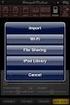
24 WorldCard Mac 6.5 Importing Contacts WorldCard Mac allows you to import valuable contact information from Address Book, Image File, VCard, WorldCard file, or WorldCard series data exchange file to WorldCard Mac database. 1. Click Import button or File\Import function from the menu. You will see the pulldown menu as below. 1. The imported image files allow.jpg and.bmp only. Note 2. To learn how to use WorldCard series data exchange file, please refer Setcion 6.7 for further information. 2. Select the import source, the contacts will be imported to WorldCard Mac. For example, choose Address Book. A note window will appear to confirm importing all cards. Click OK to continue. 3. A note window will appear to show the import results when it is done. 4. The imported contacts will be shown in the Browse pane. 6-4

25 Chapter 6 Managing Contacts 6.6 Exporting Contacts WorldCard Mac allows you to export the selected contacts or all records to other application or file formats such as Address Book, Html File, Microsoft Entourage 2004, Microsoft Entourage 2008, Text File, Vcard File, WorldCard File, and WorldCard series data exchange file. 1. Select the contacts which you want to export and click Export button or File\ Export function from the menu. Select the export application or file format, for example Address Book. Note To learn how to export contacts as WorldCard series data exchange file, please refer Setcion 6.7 for further information. 2. Select All cards or Selected cards. 3. A note window will appear to show the export results when it is done. 6-5
26 WorldCard Mac 4. You can find the exported contact inforamtion in the Address Book. Follow the steps below, you can sync. Address Book with your iphone or ipod: 1. Connect iphone to your computer and open itunes (if it doesn t open automatically). 2. In itunes, select iphone or ipod in the sidebar. 3. Configure the sync settings in each of the settings panes. 4. Select Automatically sync when this iphone is connected to have itunes sync iphone automatically whenever you connect it to your computer. Tips 5. Click Info pane and check contacts. Please refer to itunes User Guide for details. 6-6

27 Chapter 6 Managing Contacts 6.7 Exchange Contacts with WorldCard Series products The new data exchanging function in WorldCard Mac allows you to export contacts to another WorldCard series product, such as WorldCard Mobile, and import them from any other WorldCard series product, such as WorldCard Contacts. WorldCard Mac will convert the selected contacts in the WorldCard Mac to a new WCXF format, whicn is compatible with all WorldCard Series products. Notes 1. Only WorldCard Mobile or later supports the WCXF format. 2. Only WorldCard Contacts or later supports the WCXF format Import contacts from other WorldCard Series products 1. Click Import button or File\ Import function from the menu. Select WorldCard series data exchange file from the drop-down menu. 2. Locate the WCXF contact file you want to import, and then click Choose button. 3. A note window will appear to ask whether you want to import category or not. Click Yes to import categories or vice versa. 4. The new contacts should appear in the Browse pane. 6-7


28 WorldCard Mac Export contacts to other WorldCard Series products You need to export contacts from WorldCard Mac first before you share them. These contacts will be bundled and saved as WCXF format, which can be shared by all WorldCard Series products via or itunes File Sharing. 1. Select the contacts which you want to export and click Export button or File\Export function from the menu. Select WorldCard series data exchange file. 2. Select All cards or Selected cards. 3. Input the file name of the exporting file and where you want to save the exporitng file. 4. A note window will appear telling you that the export process has completed. Click OK to close. 6-8


29 Chapter 6 Managing Contacts 5. You can share the WCXF ontact file by attaching it to an message and then share the WCXF file with other WorldCard series prducts. To share the WCXF file with WorldCard(PC or Mac Version), please follow the steps below: Step1 Open with a WCXF file. Then save the WCXF file to your computer. Step2 Lauch WorldCard. Step3 Click the import button of on the toolbar. Step4 Select WorldCard series data exchange files and follow the importing process to import the WCXF file into WorldCard. To share the WCXF file with WorldCard Mobile or WorldCard Contacts, please follow the steps below: Step1 Open with a WCXF file and tap the WCXF file. Step2 Select Open In and then select the App that you want to share the WCXF with. Then contacts int the app will open instantly and the contacts in the WCXF file will be imported into the app at the same time. 6-9

30 WorldCard Mac 6. You can share the WCXF ontact file by attaching it to an message or share the WCXF file with WorldCard Mobile or WorldCard Contacts on your iphone via itunes File Sharing. Notes itunes File Sharing requires: 1. itunes version 9.1 or later. 2. Mac OS version or later. 3. iphone ios version 4 or later. step 1 Connect your iphone to your computer, launching itunes on your computer, and then selecting your iphone from the Device section of itunes step 2 Select Apps tab and scroll down to the bottom of the page. You will see the File Sharing section. step 3 You will find a list of apps that are installed on your iphone that supports File Sharing function. Select the app that you want to share the WCXF contact file with. Take WorldCard Mobile for example. You will find the right Document area lists the file that can share with your computer. 6-10

![..] to add the file in the document file to your computer. step 5 Return to your iphone.](/docs-images/27/10697324/images/31-0.jpg "Choose WorldCard Mobile on your iphone and select Settings\Import from itunes file sharing.")
31 Chapter 6 Managing Contacts step 4 Please click Add... and locate the WCXF file that you want to copy from your computer and click Choose. This WCXF file wiill be copied in the Documents sharing area immediately. Tip You can click [Add...] to add the file in the document file to your computer. step 5 Return to your iphone. Choose WorldCard Mobile on your iphone and select Settings\Import from itunes file sharing. step 6 Tap WCXF file that you want to import into WorldCard Mobile and then tap Import. The contacts in the WCXF file will then be imported into Card Holer of WorldCard Mobile. 6-11

32 WorldCard Mac 6.8 Sending s To send to the selected contacts, select the contacts and click the button or the Run\ function from the menu, or right click on the contact and choose Send . Then choose whether you want to to put the contacts into To, From, BCC, or Attatchment field. WordCard Mac will open the editing window of your default software, and add the addresses into the corresponding field. Note If you put the contacts into the Attachment filed, both the image and the text information of the contact will be included in the mail as attachment. 6.9 Visiting Website To visit the Website of the selected contact person, select a contact and click the Web button or the Run\Web function from the menu. WordCard Mac will open your default Internet browser and browse the Website of the contact person Online Map WorldCard Mac offers you online map with a click of your mouse. Select a contact and click Map button and select Display Map of Address or the Run\Display Map of Address function from the menu. Select the region of the address. If the contact has more than one address, you can select an address of the contact. Click OK. WordCard Mac will open your default internet browser to search the address of the contact from the Internet map service website. 6-12

33 Chapter 6 Managing Contacts 6-11 Getting Direction WorldCard provides Get Direction function through map service websites for looking up the route between two contacts or between your location and a specific contact address. 1. Right click on a contact and select Get direction/direction from here from the the popup menu. Tip You can also click the Map from here function. button to selct the Get direction/direction 2. Right click on another contact and select Get direction/direction to here from the popup menu. 3. After setting the Direction from here and Direction to here, a Get Direction window will pop up. You can also enter your personal address in the the start location or destination. 1. If the contact contains more than one address, you can select the other address from the pulldown menu. Tip 2. You can select Personal Address to edit your personl address. WorldCard can save five lists of address. 6-13
34 WorldCard Mac 6-12 Backup Contact Information Backup and Restore features help you to keep your data safe. Click File\Backup from the menu and enter the file name to backup your contact information. The backup file will be saved as.wmf file format Restore Contact Information You can restore your contact information by clicking File\Restore from the menu. In order to protect your current data, WorldCard Mac will ask you to backup your contact information. 6-14
35 Chapter 6 Managing Contacts Click OK to backup your contact information. Then select a.wmf backup file to restore your contact information. 1. The restore function will over write the current contact information, please use it with care. Attention 2. WorldCard Mac saves the database in the Documents/My Business Card. Please do not delete or modify it with other programs Create Empty If you wish to create a new database, you may backup your current contact information and click File\Create Empty from the menu. All the contact information will be deleted after executing the Create Empty function. Attention The Create Empty function will delete the current contact information. Please use it carefully. 6-15
36 6-16 WorldCard Mac
37 CE Conformity and FCC Statement This equipment has been tested and found to comply with the limits of the European Council Directive on the approximation of the member states relating to electromagnetic compatibility according to EN 55022/55024 Part 15 B. This equipment has been tested and found to comply with the limits for a Class B digital device, pursuant to Part 15 of the FCC Rules. These limits are designed to provide reasonable protection against harmful interference in a residential energy and, if not installed and used in accordance with the instructions, may cause harmful interference to radio communications. However, there is no guarantee that interference will not occur in a particular installation. If this equipment does cause harmful interference to radio or television reception, which can be determined by turning the equipment off and on, the user is encouraged to try to correct the interference by one or more of the following measures: Reorient the receiving antenna Increase the separation between the equipment and receiver Move the computer away from the receiver Connect the equipment into an outlet on a circuit different from that to which the receiver is connected WorldCard Mac User Manual Manufacturer: Penpower Technology Ltd. Release: July, 2011 Version: 2.2 Edition: 1
38 WorldCard Mac FAQ WorldCard Mac FAQ Q. I installed WorldCard Mac, but how to launch it? A: You may find WorldCard Mac folder under Applications. Double click to open the folder. Click WorldCard Mac to start WorldCard Mac. Q. How to save business card information to my Address Book? A: You can click the Export button and choose Address Book to export the contacts to the Address Book. Q: If some information is not recognized completely, what can I do? A: You may use the Partially Select and Recognize function in Edit Window to select a specific area and assign to the proper field. Q: Can I sync. contacts with my Palm device? A: You can use isync and HotSync to sync contacts from your address book to your Palm device. Please visit for more information. Q: Can WorldCard Mac be used in Power PC-based Mac? A: WorldCard Mac only supports Intel-based Mac, and it supports Mac OS X 10.4 or later version. Q: When scanning business cards, the scanner makes loud noise. A: Some of USB ports may result in loud noise with the design of USB port, please try to connect the USB cable of the scanner to another USB port.
39 WorldCard Mac
mini ScanEYE User Manual
 mini ScanEYE User Manual Version: V3.0 Edition: Released in June 2009 Penpower Technology Ltd. Software User License Agreement You are licensed to legally use this software program ( the Software ) by
Penpower WorldocScan. User's Guide
 Penpower User's Guide Version: V1.0 Release: July 2008 Penpower Technology Ltd. Software User License Agreement You are licensed to legally use this software program ( the Software ) by Penpower Technology
WorldCard Mac User Manual
 WorldCard Mac User Manual Release: March, 2014 Version: 3.2 Contents Chapter 1 Getting Started...1-1 1.1 Installation...1-1 1.1.1 System Requirements...1-1 1.1.2 Software Installation...1-1 1.2 Launch
PENPOWER WorldCard User Manual
 PENPOWER WorldCard User Manual Version: 6.5 Edition: 5 Release: March, 2012 Contents Chapter 1 Product Introduction... 1-1 Chapter 2 Getting Started... 2-1 2.1 System Requirements... 2-1 2.2 Installing
WorldCard User Manual
 WorldCard User Manual Version: v8.3 Release: May, 2014 Contents Chapter 1 Getting Started... 1-1 1.1 Installation...1-1 1.1.1 System Requirements...1-1 1.1.2 Software Installation...1-1 1.2 Launch WorldCard...1-4
Getting Started with CardScan. Chapter
 Getting Started with CardScan Chapter 1 1 Copyright 2006 CardScan, Inc. All rights reserved worldwide. This guide is protected by federal copyright law. No part of this guide may be reproduced or distributed,
Getting Started. Table of Contents. Quick User Guide - English
 Getting Started This Quick User Guide helps you get started with the IRIScan TM Anywhere Wifi. Please read this guide before operating this scanner and its software. All information is subject to change
Duplex ID Card & License Scanner. User Guide
 Duplex ID Card & License Scanner User Guide CE Conformity and FCC Statement This equipment has been tested and found to comply with the limits of the European Council Directive on the approximation of
Laptop USB KVM Switch USER MANUAL CS661
 Laptop USB KVM Switch USER MANUAL CS661 FCC Information This equipment has been tested and found to comply with the limits for a Class B digital device, pursuant to Part 15 of the FCC Rules. These limits
Mobility with Eye-Fi Scanning Guide
 Mobility with Eye-Fi Scanning Guide Scan and Transfer Images Wirelessly with Eye-Fi This document is to be used in addition to the scanner s user guide located on the installation disc. The instructions
LabelWriter. Print Server. User Guide
 LabelWriter Print Server User Guide Copyright 2010 Sanford, L.P. All rights reserved. 08/10 No part of this document or the software may be reproduced or transmitted in any form or by any means or translated
ASUS GX900 Gaming Mouse
 ASUS GX900 Gaming Mouse User Manual 15G06S002000 E5887 First Edition (V1) July 20 Copyright 20 ASUSTeK Computer Inc. All Rights Reserved. No part of this manual, including the products and software described
auslogics DISK DEFRAG FREE Help Manual www.auslogics.com /
 auslogics DISK DEFRAG FREE Help Manual www.auslogics.com / Contents Introduction... 3 Installing the Program... 5 System Requirements... 5 Installation... 5 Uninstalling the Program... 7 Interface... 8
Installation Guide Wireless 4-Port USB Sharing Station. GUWIP204 Part No. M1172-a
 Installation Guide Wireless 4-Port USB Sharing Station 1 GUWIP204 Part No. M1172-a 2011 IOGEAR. All Rights Reserved. PKG-M1172-a IOGEAR, the IOGEAR logo, MiniView, VSE are trademarks or registered trademarks
for Android Desktop and Conduit for Mac Quick Start Guide
 for Android Desktop and Conduit for Mac Quick Start Guide HanDBase is a Registered Trademark of DDH Software, Inc. All information contained in this manual and all software applications mentioned in this
Echo Backup Software. Quick Start Guide
 Echo Backup Software Quick Start Guide INTRODUCTION Whether you re a business professional on the road, a student doing homework at a friend s house, or someone simply using a laptop in a café, it s important
Product Library v.1.1 EUR Release Notes. DVD Contents. January 10th, 2014. Windows. Windows. Windows 8. Server 2008 Server 2008 R2.
 1 of 8 Product Library v.1.1 EUR Release Notes January 10th, 2014 DVD Contents Printer Drivers Version KX DRIVER 5.1.1405e2 (Generic) KX DRIVER 6.0.3306 KX (XPS) DRIVER PCL Mini Driver (Generic) PCL Mini
IEEE 802.11b WLAN PC Card
 IEEE 802.11b WLAN PC Card User s Guide Version: 1.3 August 2001 Please install the Utility/Driver first before inserting the PCMCIA Card. FCC Class B Radio Frequency Interference Statement The manufacturer
AccuRead OCR. Administrator's Guide
 AccuRead OCR Administrator's Guide July 2016 www.lexmark.com Contents 2 Contents Change history... 3 Overview... 4 System requirements...4 Supported applications... 4 Supported formats and languages...
Laser Wireless Rechargeable Mouse. User s Manual
 Laser Wireless Rechargeable Mouse Model #: LM8000WR User s Manual Rev. 060801 User s Record: To provide quality customer service and technical support, it is suggested that you keep the following information
`````````````````SIRE QUICK START GUIDE
 `````````````````SIRE QUICK START GUIDE Table of Contents Table of Contents 2 Introduction 3 Set-up 4 Getting Started 5 Set-up Your Backup Profile 6 Custom Backup 7 Launch Your Backup 9 Main Screen 10
reflecta Super 8 Scanner
 reflecta Super 8 Scanner User Manual 1 FEDERAL COMMUNICATIONS COMMISSION (FCC) STATEMENT This Equipment has been tested and found to comply with the limits for a class B digital device, pursuant to Part
Operating Instructions Driver Installation Guide
 Operating Instructions Driver Installation Guide For safe and correct use, be sure to read the Safety Information in "Read This First" before using the machine. TABLE OF CONTENTS 1. Introduction Before
High Speed File Share Cable USER GUIDE
 High Speed File Share Cable USER GUIDE Visit our Website at www.targus.com/emea Features and specifications are subject to change without notice. 2008 Targus Group International, Inc. and Targus, Inc.
Installation Guide 1-port USB 2.0 Print Server 1 GPSU21
 Installation Guide 1-port USB 2.0 Print Server 1 GPSU21 2 Welcome Thank you for purchasing this 1-port USB 2.0 Print Server that allows any networked computer to share a USB printer. It complies with USB
M a r k B o o k C Y, M a r k B o o k A M, v e r s i o n, e d i t i o n. MarkBook for Windows on a Mac 1
 M a r k B o o k C Y, M a r k B o o k A M, v e r s i o n, e d i t i o n MarkBook for Windows on a Mac 1 Installation/Use on an Apple Macintosh Computer Ordinarily, a Mac computer cannot run Windows software.
USB to DVI Video Adapter
 USB2DVI Instruction Manual USB to DVI Video Adapter USB 2.0 to DVI External Multi Monitor Video Adapter FCC Compliance Statement This equipment has been tested and found to comply with the limits for a
HP Backup and Recovery Manager
 HP Backup and Recovery Manager User Guide Version 1.0 Table of Contents Introduction Installation How to Install Language Support HP Backup and Recovery Manager Reminders Scheduled Backups What Can Be
Wireless Mouse USER GUIDE. for Mac. www.targus.com/us/formac ONE YEAR LIMITED WARRANTY N2953
 AMW43US / 410-1514-001C N2953 www.targus.com/us/formac 2008 Manufactured or imported by Targus Group International, Inc. (for U.S. sales: 1211 North Miller Street, Anaheim, CA 92806 USA, for Australia
Product Library v.2.0eur Release Notes. DVD Contents. October 8th, 2013. Windows Server 2008 Server 2008 R2. Windows 2000 Windows
 1 of 8 Product Library v.2.0eur Release Notes October 8th, 2013 DVD Contents Printer Drivers Version KX DRIVER 5.1.1405e2 (Generic) KX DRIVER 6.0.3024 KX (XPS) DRIVER PCL Mini Driver (Generic) PCL Mini
User s Manual Model KB990W
 Wireless Internet Keyboard & Optical Mouse User s Manual Model KB990W FCC Statement This device complies with part 15 of FCC Rules. Operation is subject to the following two conditions: (1) this device
Novell Filr. Mobile Client
 Novell Filr Mobile Client 0 Table of Contents Quick Start 3 Supported Mobile Devices 3 Supported Languages 4 File Viewing Support 4 FILES THAT CANNOT BE VIEWED IN THE FILR APP 4 FILES THAT GIVE A WARNING
CardScan Executive for Mac Reviewer s Guide
 System Requirements Mac OS X 10.5.3+ (Leopard) Intel-based Mac Installation Install the software before connecting the scanner. Insert the CardScan CD. (You may be prompted to login as an administrator.)
MS Word 2007. Microsoft Outlook 2010 Mailbox Maintenance
 MS Word 2007 Microsoft Outlook 2010 Mailbox Maintenance INTRODUCTION... 1 Understanding the MS Outlook Mailbox... 1 BASIC MAILBOX MAINTENANCE... 1 Mailbox Cleanup... 1 Check Your Mailbox Size... 1 AutoDelete
Intel Device View. User Guide
 Intel Device View User Guide Year 2000 Capable An Intel product, when used in accordance with its associated documentation, is Year 2000 Capable when, upon installation, it accurately stores, displays,
A Presentation of TeachUcomp Incorporated. Copyright TeachUcomp, Inc. 2013. Mastering Outlook Made Easy for Lawyers CPE Edition v.2.
 A Presentation of TeachUcomp Incorporated. Copyright TeachUcomp, Inc. 2013 Mastering Outlook Made Easy for Lawyers CPE Edition v.2.0 TeachUcomp, Inc. it s all about you Copyright: Copyright 2013 by TeachUcomp,
Appointment Scheduler
 EZClaim Appointment Scheduler User Guide Last Update: 11/19/2008 Copyright 2008 EZClaim This page intentionally left blank Contents Contents... iii Getting Started... 5 System Requirements... 5 Installing
Microsoft Dynamics GP. Audit Trails
 Microsoft Dynamics GP Audit Trails Copyright Copyright 2007 Microsoft Corporation. All rights reserved. Complying with all applicable copyright laws is the responsibility of the user. Without limiting
EasySuite. User Guide V1.0
 EasySuite User Guide V1.0 1 Launch EasySuite...3 Stop the EasySuite:...4 System Requirements...5 EasyCopy...6 Function Description...7 File Transfer...9 EasyMover...12 Function Descriptions of EasyMover...12
Kerio Connect. Kerio Connect Client. Kerio Technologies
 Kerio Connect Kerio Connect Client Kerio Technologies 2015 Kerio Technologies s.r.o. Contents Kerio Connect Client.......................................................... 10 Kerio Connect Client.....................................................
User Guide. Time Warner Cable Business Class Cloud Solutions Control Panel. Hosted Microsoft Exchange 2007 Hosted Microsoft SharePoint 2007
 Chapter Title Time Warner Cable Business Class Cloud Solutions Control Panel User Guide Hosted Microsoft Exchange 2007 Hosted Microsoft SharePoint 2007 Version 1.1 Table of Contents Table of Contents...
USB 2.0 Peripheral Switch USER MANUAL US221A / US421A
 USB 2.0 Peripheral Switch USER MANUAL US221A / US421A FCC Information This equipment has been tested and found to comply with the limits for a Class B digital device, pursuant to Part 15 of the FCC Rules.
SMART Meeting Pro software
 Release notes SMART Meeting Pro software About these release notes These release notes summarize the changes in SMART Meeting Pro software (formerly SMART Meeting Pro 2010 software) and its service packs.
SP Widget. Users Manual
 SP Widget Users Manual 1 Contents 1. Disclaimer notice... 4 2. Product intro...5 3. System requirements... 5 4. Introduction... 6 4.1 Activating SP Widget... 6 Illustration 4.1... 6 4.2 Browser interface...
6. If you want to enter specific formats, click the Format Tab to auto format the information that is entered into the field.
 Adobe Acrobat Professional X Part 3 - Creating Fillable Forms Preparing the Form Create the form in Word, including underlines, images and any other text you would like showing on the form. Convert the
Clean Up Email Rules Quick Steps Search Tools Change Views Export Data Convert email to tasks Contact Groups. Outlook Functions
 Clean Up Email Rules Quick Steps Search Tools Change Views Export Data Convert email to tasks Contact Groups Outlook Functions Clean Up: New ways to manage conversations and remove redundant emails: Email
DocuSign for Salesforce User Guide v6.2 Published: November 16, 2015
 DocuSign for Salesforce User Guide v6.2 Published: November 16, 2015 Copyright Copyright 2003-2015 DocuSign, Inc. All rights reserved. For information about DocuSign trademarks, copyrights and patents
To successfully initialize Microsoft Outlook (Outlook) the first time, email settings need to be verified.
 TO: UAN CLIENTS FROM: UAN STAFF DATE: OCTOBER 8, 2008 SUBJECT: Steps for Initial Setup of Microsoft Outlook To successfully initialize Microsoft Outlook (Outlook) the first time, email settings need to
Product Library 2.5 EUR. DVD Contents. Release Notes January 31st, 2012. Windows 2000 Windows Server 2000. Windows. Windows Vista. Windows.
 1 von 7 Product Library 2.5 EUR Release Notes January 31st, 2012 DVD Contents Printer Drivers Version 2000 Server 2000 XP Vista 7 Server 2003 R2 KX DRIVER (Generic) 5.1.1405e2 KX DRIVER 5.2.1327d KX (XPS)
HP DeskJet 970C Series Printer Network Guide for Windows. English
 HP DeskJet 970C Series Printer Network Guide for Windows English Table of Contents 1 Using Your Printer on a Network Setting Up Your Printer.......................................................... 2
Getting Started with BarTender
 Getting Started with BarTender MANUAL Contents Getting Started with BarTender 3 Installation 4 Choosing What to Install 4 Automation Editions (Automation and Enterprise Automation) 4 Installing BarTender
Targus Bluetooth Keyboard for Tablets
 1 BLUETOOTH KEYBOARD for Tablets 410-2153-001B / AKB33US 1 YEAR LIMITED WARRANTY: We pride ourselves on the quality of our products. For complete warranty details and a list of our worldwide offices, please
MULTIFUNCTIONAL DIGITAL SYSTEMS. Network Fax Guide
 MULTIFUNCTIONAL DIGITAL SYSTEMS Network Fax Guide 2009 KYOCERA MITA Corporation All rights reserved Preface Thank you for purchasing Multifunctional Digital Color Systems. This manual explains the instructions
Professional USB to Serial Adapter Hub with COM Retention
 Professional USB to Serial Adapter Hub with COM Retention ICUSB2321X ICUSB2322X ICUSB2324X *actual product may vary from photos *actual product may vary from photos DE: Bedienungsanleitung - de.startech.com
CHARTER BUSINESS custom hosting faqs 2010 INTERNET. Q. How do I access my email? Q. How do I change or reset a password for an email account?
 Contents Page Q. How do I access my email? Q. How do I change or reset a password for an email account? Q. How do I forward or redirect my messages to a different email address? Q. How do I set up an auto-reply
Email Basics. a. Click the arrow to the right of the Options button, and then click Bcc.
 Email Basics Add CC or BCC You can display the Bcc box in all new messages that you compose. In a new message, do one of the following: 1. If Microsoft Word is your e-mail editor a. Click the arrow to
This Quick User Guide helps you install and get started with IRISCard Anywhere 5 and IRISCard Corporate 5 scanners.
 This Quick User Guide helps you install and get started with IRISCard Anywhere 5 and IRISCard Corporate 5 scanners. The software delivered with these scanners is: - Cardiris Pro 5 and Cardiris Corporate
VIRTUAL DESKTOP COMPANION SOFTWARE FOR MAC
 VIRTUAL DESKTOP COMPANION SOFTWARE FOR MAC USER MANUAL 25206A ABOUT THIS MANUAL Thank you for getting the Boogie Board Sync 9.7 LCD ewriter. This manual will help you with the Sync Virtual Desktop Companion
Docking station for two laptops
 Docking station for two laptops USB3DDOCKFT DE: Bedienungsanleitung - de.startech.com FR: Guide de l'utilisateur - fr.startech.com ES: Guía del usuario - es.startech.com IT: Guida per l'uso - it.startech.com
Verizon Cloud Desktop Application Help Guide Version 4.1 72
 Verizon Cloud Desktop Application Help Guide Version 4.1 72 CONTENTS I. Getting started... 4 A. Verizon Cloud... 4 B. Main navigation... 5 C. System requirements... 5 D. Installing the application... 6
Outlook E-Mail. Step 1: Open and Configure Outlook
 Outlook E-Mail Step 1: Open and Configure Outlook 1. Click the Microsoft Button in the lower left task bar 2. Select All Programs 3. Select Microsoft Office 4. Select Microsoft Outlook 5. Follow the Start
ViewPower. User s Manual. Management Software for Uninterruptible Power Supply Systems
 ViewPower User s Manual Management Software for Uninterruptible Power Supply Systems Table of Contents 1. ViewPower Overview... 2 1.1. Introduction...2 1.2. Structure...2 1.3. Applications...2 1.4. Features...2
Xerox Easy Translator Service User Guide
 Xerox Easy Translator Service User Guide Table of Contents Xerox Easy Translator 2 Service Overview Creating an Account 3 via our Web Portal Logging In to the Web Portal 4 Utilizing the Web Portal 4 Creating
Export / Import using itunes File Sharing
 Export to itunes File Sharing Access Edit Mode Tap the pencil button on the bottom toolbar to access Edit Mode. Select a Button or a Folder Select to the button(s) you want to export/ import. A checkmark
You can access it anywhere - on your desktop, online, or on your ipad. Benefits include:-
 EndNote online Contents Introduction... 2 Creating an EndNote online account... 2 Option 1: via EndNote desktop (X7)... 2 Option 2: via EndNote online... 4 Online search (Collect)... 5-6 Manual entry (Collect)...
SMART Meeting Pro System Administrator s Guide
 PLEASE THINK BEFORE YOU PRINT SMART Meeting Pro System Administrator s Guide Windows Operating Systems Product Registration If you register your SMART product, we ll notify you of new features and software
Image Editing Helper User s Guide
 Image Editing Helper User s Guide Manual-en-250-0842-E-Image Editing Helper-V100 Copyright Copyright 2014 Avision Inc. All rights reserved. Information in this document is subject to change without notice.
SoftRAID 5 QUICK START GUIDE. for OWC ThunderBay
 SoftRAID 5 QUICK START GUIDE for OWC ThunderBay TABLE OF CONTENTS INTRODUCTION...1 1.1 MINIMUM SYSTEM REQUIREMENTS 1.2 FEATURES 1.3 ABOUT THIS MANUAL SYSTEM SETUP...2 2.1 GETTING STARTED 2.2 INITIALIZING,
Software Application Tutorial
 Software Application Tutorial Copyright 2005, Software Application Training Unit, West Chester University. No Portion of this document may be reproduced without the written permission of the authors. For
ZConverter. Windows Backup v 3.5
 ZConverter ZConverter Windows Backup v 3.5 [User Guide] NOTE : DO NOT COPY, REPRODUCE OR REDISTRIBUTE WITHOUT EXPRESS WRITTEN CONSENT OF THE AUTHOR Copyright 2004-2010 ISA Technologies, Inc. ZConverter
Email Setup Guide. network support pc repairs web design graphic design Internet services spam filtering hosting sales programming
 Email Setup Guide 1. Entourage 2008 Page 2 2. ios / iphone Page 5 3. Outlook 2013 Page 10 4. Outlook 2007 Page 17 5. Windows Live Mail a. New Account Setup Page 21 b. Change Existing Account Page 25 Entourage
VIRTUAL DESKTOP COMPANION SOFTWARE FOR WINDOWS
 VIRTUAL DESKTOP COMPANION SOFTWARE FOR WINDOWS USER MANUAL 25205A About this Manual Thank you for getting the Boogie Board Sync 9.7 LCD ewriter. This manual will help you with the Sync Virtual Desktop
USER S MANUAL USB FILE TRANSFER CABLE
 1. Introduction USER S MANUAL USB FILE TRANSFER CABLE Congratulations on your purchase of the PC-Linq, an USB file transfer cable. This unique cable allows you to easily connect two computers with USB
File Share Cable USER GUIDE. for Mac. www.targus.com/us/formac ONE YEAR LIMITED WARRANTY N2953
 N2953 USER GUIDE ACC9602US / 410-1486-001A www.targus.com/us/formac 2008 Manufactured or imported by Targus Group International, Inc. (for U.S. sales: 1211 North Miller Street, Anaheim, CA 92806 USA, for
Network Scanner Tool R3.1. User s Guide Version 3.0.04
 Network Scanner Tool R3.1 User s Guide Version 3.0.04 Copyright 2000-2004 by Sharp Corporation. All rights reserved. Reproduction, adaptation or translation without prior written permission is prohibited,
Table of Contents. 16 Technical Support System Requirements. Included in the Box General Controls Playback Features Care Charging
 Instruction Manual Table of Contents 01 02 02 03 04 Included in the Box General Controls Playback Features Care Charging 05 06 07 08 09 10 10 10 Uploading Songs Supported Audio Files Manual Drag and Drop
Trimble Office Synchronizer Release Notes. Version 1.68 November 2013
 Trimble Office Synchronizer Release Notes Version 1.68 November 2013 Corporate Office Trimble Navigation Limited Engineering and Construction Division 935 Stewart Drive Sunnyvale, California 94085 U.S.A.
BIGPOND ONLINE STORAGE USER GUIDE Issue 1.1.0-18 August 2005
 BIGPOND ONLINE STORAGE USER GUIDE Issue 1.1.0-18 August 2005 PLEASE NOTE: The contents of this publication, and any associated documentation provided to you, must not be disclosed to any third party without
QuarkXPress 8.01 ReadMe
 QuarkXPress 8.01 ReadMe CONTENTS Contents QuarkXPress 8.01 ReadMe...4 System requirements...5 Mac OS...5 Windows...5 Installing: Mac OS...6 Performing a silent installation...6 Preparing for silent installation...6
e-dpp 4.0.2 May 2013 Quick Installation Guide Microsoft Windows 2003 Server, XP, Vista, 7 Access Database
 e-dpp 4.0.2 May 2013 Microsoft Windows 2003 Server, XP, Vista, 7 Access Database ELTECHS Engineering and Consulting Co., Ltd., Japan www.eltechs.co.jp Tel No. +81 (47) 490-1010 Fax No. +81 (47) 490-1011
Apple Mail... 36 Outlook Web Access (OWA)... 38 Logging In... 38 Changing Passwords... 39 Mobile Devices... 40 Blackberry...
 Contents Email Accounts... 3 Adding accounts... 3 Account Modifications... 6 Adding Aliases... 7 Primary E-mail Addresses... 10 Mailbox Quotas... 12 Removing accounts... 13 Mail Forwarding and Distribution
HDDtoGO. User Guide. User Manual Version 3.4 2004-2010 CoSoSys SRL 2010 A-DATA Technology Co., Ltd. HDDtoGO User Manual
 HDDtoGO User Guide User Manual Version 3.4 2004-2010 CoSoSys SRL 2010 A-DATA Technology Co., Ltd. HDDtoGO User Manual Table of Contents Table of Contents...1 1. Introduction...2 2. System Requirements...3
Net USER GUIDE MEDIA SHARING DEVICE
 FCC DECLARATION OF CONFORMANCE This device complies with Part 15 of the FCC Rules. Operation is subject to the following two conditions: (1) this device may not cause harmful interference, and (2) this
`````````````````SIRE USER GUIDE
 `````````````````SIRE USER GUIDE Table of Contents INTRODUCTION 3 SYSTEM REQUIREMENTS 4 RUNNING SANDISK BACKUP 5 Setup Your First Backup 6 Create Your Backup 7 Custom Backup 8 Dmailer Online 10 Launch
etoken Single Sign-On
 etoken Single Sign-On Version 5.1 Rev A User s Guide All attempts have been made to make the information in this document complete and accurate. Aladdin is not responsible for any direct or indirect damages
5-Bay Raid Sub-System Smart Removable 3.5" SATA Multiple Bay Data Storage Device User's Manual
 5-Bay Raid Sub-System Smart Removable 3.5" SATA Multiple Bay Data Storage Device User's Manual www.vipower.com Table of Contents 1. How the SteelVine (VPMP-75511R/VPMA-75511R) Operates... 1 1-1 SteelVine
OS X LION SET UP THE SYSTEM
 OS X LION SET UP THE SYSTEM OS X Lion Set Up the System Last Edited: 2012-07-10 1 Personalize the Interface... 3 Organize the Desktop... 3 Configure Apple Trackpad... 4 Configure Apple Magic Mouse... 6
Personal Archive User Guide
 Personal Archive User Guide Personal Archive gives you an unlimited mailbox and helps you quickly and easily access your archived email directly from Microsoft Outlook or Lotus Notes. Since Personal Archive
Importing Contacts to Outlook
 Importing Contacts to Outlook 1. The first step is to create a file of your contacts from the National Chapter Database. 2. You create this file under Reporting, Multiple. You will follow steps 1 and 2
User Guide. Version 3.0 April 2006
 User Guide Version 3.0 April 2006 2006 Obvious Solutions Inc. All rights reserved. Dabra and Dabra Network are trademarks of Obvious Solutions Inc. All other trademarks owned by their respective trademark
Communication/Internet Operation Manual
 Communication/Internet Operation Manual To ensure correct use of your camera, read this manual carefully before use. Keep the manual handy for future use. Introduction Thank you for purchasing a Ricoh
Making and Exporting a Backup
 Save and Restore Backups using itunes File Sharing on iphone/ipod touch Making and Exporting a Backup Hiding the keyboard Launch Proloquo4Text by tapping on its icon. If the keyboard is visible, tap the
Education Software Installer 2014
 Education Software Installer 2014 SYSTEM ADMINISTRATOR S GUIDE FOR MAC OS X OPERATING SYSTEM SOFTWARE Product registration If you register your SMART product, we ll notify you of new features and software
How to configure your Desktop Computer and Mobile Devices post migrating to Microsoft Office 365
 How to configure your Desktop Computer and Mobile Devices post migrating to Microsoft Office 365 1 Contents Purpose... 3 Office 365 Mail Connections... 3 Finding IMAP server... 3 Desktop computers... 4
Email Protection for your account
 User Guide Revision A SaaS Email Protection Email Protection for your account The Email Protection service works in the cloud to protect your email account from spam, viruses, worms, phishing scams, and
NVMS-1200. User Manual
 NVMS-1200 User Manual Contents 1 Software Introduction... 1 1.1 Summary... 1 1.2 Install and Uninstall... 1 1.2.1 Install the Software... 1 2 Login Software... 3 2.1 Login... 3 2.2 Control Panel Instruction...
How To Set Up Total Recall Web On A Microsoft Memorybook 2.5.2.2 (For A Microtron)
 Total Recall Web Web Module Manual and Customer Quick Reference Guides COPYRIGHT NOTICE Copyright 1994-2009 by DHS Associates, Inc. All Rights Reserved. All TOTAL RECALL, TOTAL RECALL SQL, TOTAL RECALL