
PeopleSoft HCM 9.2: Human Resources Manage German Public Sector
|
|
|
- Gervase Bernard Parrish
- 10 years ago
- Views:
Transcription
1 PeopleSoft HCM 9.2: Human Resources Manage German Public Sector March 2013

2 PeopleSoft HCM 9.2: Human Resources Manage German Public Sector CDSKU hcm92pbr0 Trademark Notice Oracle and Java are registered trademarks of Oracle and/or its affiliates. Other names may be trademarks of their respective owners. Intel and Intel Xeon are trademarks or registered trademarks of Intel Corporation. All SPARC trademarks are used under license and are trademarks or registered trademarks of SPARC International, Inc. AMD, Opteron, the AMD logo, and the AMD Opteron logo are trademarks or registered trademarks of Advanced Micro Devices. UNIX is a registered trademark of The Open Group. License Restrictions Warranty/Consequential Damages Disclaimer This software and related documentation are provided under a license agreement containing restrictions on use and disclosure and are protected by intellectual property laws. Except as expressly permitted in your license agreement or allowed by law, you may not use, copy, reproduce, translate, broadcast, modify, license, transmit, distribute, exhibit, perform, publish, or display any part, in any form, or by any means. Reverse engineering, disassembly, or decompilation of this software, unless required by law for interoperability, is prohibited. Warranty Disclaimer The information contained herein is subject to change without notice and is not warranted to be error-free. If you find any errors, please report them to us in writing. Restricted Rights Notice If this is software or related documentation that is delivered to the U.S. Government or anyone licensing it on behalf of the U.S. Government, the following notice is applicable: U.S. GOVERNMENT END USERS: Oracle programs, including any operating system, integrated software, any programs installed on the hardware, and/or documentation, delivered to U.S. Government end users are "commercial computer software" pursuant to the applicable Federal Acquisition Regulation and agency-specific supplemental regulations. As such, use, duplication, disclosure, modification, and adaptation of the programs, including any operating system, integrated software, any programs installed on the hardware, and/or documentation, shall be subject to license terms and license restrictions applicable to the programs. No other rights are granted to the U.S. Government. Hazardous Applications Notice This software or hardware is developed for general use in a variety of information management applications. It is not developed or intended for use in any inherently dangerous applications, including applications that may create a risk of personal injury. If you use this software or hardware in dangerous applications, then you shall be responsible to take all appropriate fail-safe, backup, redundancy, and other measures to ensure its safe use. Oracle Corporation and its affiliates disclaim any liability for any damages caused by use of this software or hardware in dangerous applications.

3 Third Party Content, Products, and Services Disclaimer This software or hardware and documentation may provide access to or information on content, products, and services from third parties. Oracle Corporation and its affiliates are not responsible for and expressly disclaim all warranties of any kind with respect to third-party content, products, and services. Oracle Corporation and its affiliates will not be responsible for any loss, costs, or damages incurred due to your access to or use of third-party content, products, or services. Alpha and Beta Draft Documentation Notice If this document is in preproduction status: This documentation is in preproduction status and is intended for demonstration and preliminary use only. It may not be specific to the hardware on which you are using the software. Oracle Corporation and its affiliates are not responsible for and expressly disclaim all warranties of any kind with respect to this documentation and will not be responsible for any loss, costs, or damages incurred due to the use of this documentation.

4

5 Contents Preface...ix Understanding the PeopleSoft Online Help and PeopleBooks... ix PeopleSoft Hosted Documentation... ix Locally Installed Help... ix Downloadable PeopleBook PDF Files...ix Common Help Documentation...ix Field and Control Definitions... x Typographical Conventions... x ISO Country and Currency Codes... xi Region and Industry Identifiers... xi Access to Oracle Support...xii Documentation Accessibility...xii Using and Managing the PeopleSoft Online Help...xii Contact Us...xii Follow Us...xii Chapter 1: Getting Started with Manage German Public Sector Manage German Public Sector Overview Manage German Public Sector Business Processes Manage German Public Sector Integrations...16 Manage German Public Sector Implementation...16 Chapter 2: Setting Up Workforce Tables for German Public Sector...17 Understanding German Public Sector Setup Installing German Public Sector Functionality Setting Up German Public Sector Workforce Data Tables Pages Used to Set Up German Public Sector Workforce Data Tables Remuneration Regulations Page Job Group/Service Class Page Jobs Page Civil Service Ranks Page...22 Municipality Table Page...23 Setting Up Human Resources Tables for German Public Sector Workforce Data Understanding HR Setup Table for German Public Sector Defining Contract Types for German Public Sector...30 Specifying Default Information for Companies for German Public Sector...30 Specifying Municipality Information for German Public Sector Locations Defining Service Class Groups and Allowances by Position Mapping Data to Employee Categories for German Public Sector Understanding Employee Categories Pages Used to Map Data to Employee Categories for German Public Sector...32 Defining Employee Categories for Labor Agreements...32 Job Group/Service Class Information Page Civil Service Rank Information Page Setting Up Child Allowance Types Understanding Child Allowance Types Page Used to Set Up Child Allowance Types Child Allowance Type Page...38 Chapter 3: Managing Workforce Data for German Public Sector Employees v

6 Contents Understanding German Public Sector Employment and Processing Rules...39 Recording German Public Sector Data in Job Data Hiring and Personnel Maintenance Pre-Service Period Probation Period Adding Contract Data for a GPS Employee...41 Handling Employee Transfers...42 Adding a German Public Sector Employee Pages Used to Add a German Public Sector Employee Entering Disability Information in the Personal Data Pages German Public Sector Page Grade Step Information Page...47 Managing Employee Transactions Entering Personal and Job Data for Retirees Establishing Retiree Administration Transferring Information from an Employee to Person of Interest Relationship...48 Chapter 4: Setting Up and Working with Child and Family Allowances...51 Understanding Child and Family Allowances...51 Child Allowance (Kindergeld) Child Related Orts- and Sozialzuschlag (Kinderbezogener Orts- und Sozialzuschlag)...52 Family Allowance (Familienzuschlag)...52 Sending Notifications for Child Allowance Data Updates Sending Notifications for Children No Longer Meeting Age Requirements...53 Setting Up Child and Family Allowances...54 Pages Used to Set Up Child and Family Allowances Entering Dependent and Child-Related Family Allowance Data in HR...54 Child Allowance Administration Page...54 Specifying Marriage-Based Family Allowance Data Dependent Age Notifications Page Chapter 5: Setting Up and Managing Posts Understanding Post Planning and Administration...59 Post Plan Post Planning Creating Post Plans Modifying Post Plans Approving Post Plans Post Cleanup Post Administration Single-Year Planning and 2-Year Planning...62 Calculations in a 2-Year Planning Cycle Delivered Actions for Post Plans and Posts Availability of Actions for Editing Posts...63 Post Management Security...65 Defining Setup Elements for Post Management Pages Used to Define Setup Elements for Post Management Post Management Define Budgeting System Page Post Management - Installation Settings Page...69 Post Management Function Index Page Post Management Post Grade Table Page Post Management Post Grade Mapping Table Page...73 Post Management Post Type Definition Page vi
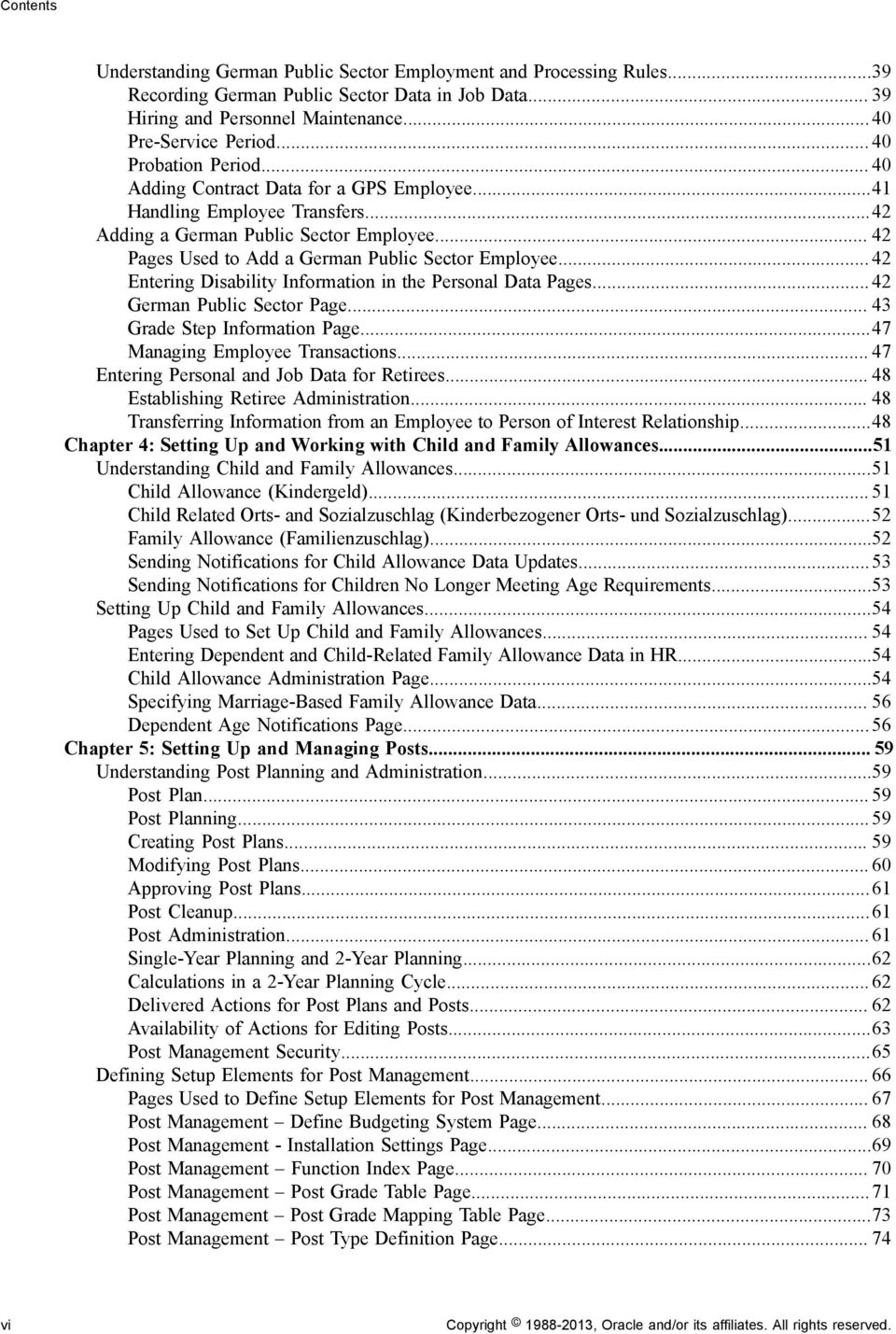
7 Contents Post Management On Behalf Of Page...76 Post Management Setup Action Table Page...77 Setting Up Post Management Security...78 Page Used to Set Up Post Management Security...78 Setting Up Security Set and Security Type Defining Security By Budgeting System...78 Defining Security By Department...78 Post Management Security Page Creating and Modifying Post Plans...80 Understanding New and Copied Post Plans Pages Used to Create, Modify and View Post Plans Post Management Create New Post Plan Page, Post Management Modify Post Plan Page, or Post Management View Plan Details Page Post Management Modify Copied Plan Page Post Management Define KU Page or Post Management Define KW Page Cleaning Up Post Plans Administering Post Plans...92 Post Administration Actions KU and KW Remark Realization Message Center...94 Pages Used to Administer Plans Post Management - Search Post Plan - by Post Page or Post Management - Search Post Plan - By Payee Page Post Management Administrate Plan Page...98 Post Administration - Create New Post Plan Row Page Post Administration - Add New Post Page Post Administration - Post Edit Request Page Post Administration - Post Edit Request Page (Staffing Posts Manually) Post Administration Cut Page Post Administration Relocation Page Post Administration Reclassification Page Post Administration - Post Edit Request Page (Resetting Posts) Post Administration Increment Page or Post Administration Decrement Page Post Administration Reserve Page Post Administration Block Temporarily Page Post Administration Block Finally Page Post Administration Individualize KU/KW Page Post Management - Review KU Remarks Page or Post Management - Review KW Remarks Page Post Management Manage HR and Payroll Messages Page Job Summary Page Running Post Plan Processes Understanding Post Plan Processes Pages Used to Run Post Plan Processes Management - Copy Post Plan Page Post Management Prepare Clean Up Page Post Administration - Automated Post Assignment Page Post Administration Search Unassigned Payees Page Post Administration - Automated Post Assignments Page Post Administration - Finalize Page Chapter 6: Setting Up and Viewing German Public Sector Reports vii

8 Contents Understanding German Public Sector Reporting German Public Sector Report Setup Running and Viewing German Public Sector Reports Setting Up German Public Sector Reports Pages Used to Set Up German Public Sector Reports Entering Additional Information Needed for Reporting Workforce Statistic - Meta Mapping Page EF10 Ratio Page EF 11 Duration Page EF12 Employ Type Page EF13 Service Page EF17 Grade Page EF41U1 Education Page EF43 Labor Page Workforce Statistic - Report Maintenance Page or Family Allowance - Report Maintenance Page File Options Page Viewing German Public Sector Reports Pages Used to View German Public Sector Reports Running German Public Sector Reports Workforce Statistic / Family Allowance Page Family Allowance Employee Results Page Workforce Statistic Employee Results Page Chapter 7: Integrating German Public Sector Payroll Using PeopleSoft HCM and ADP Understanding German Public Sector and Payroll Interface with ADP PAISY Integration Tables between HCM and ADP PAISY Outbound Values from HCM to PAISY Inbound Data Values to HCM from PAISY viii

9 Preface Understanding the PeopleSoft Online Help and PeopleBooks The PeopleSoft Online Help is a website that enables you to view all help content for PeopleSoft Applications and PeopleTools. The help provides standard navigation and full-text searching, as well as context-sensitive online help for PeopleSoft users. PeopleSoft Hosted Documentation You access the PeopleSoft Online Help on Oracle s PeopleSoft Hosted Documentation website, which enables you to access the full help website and context-sensitive help directly from an Oracle hosted server. The hosted documentation is updated on a regular schedule, ensuring that you have access to the most current documentation. This reduces the need to view separate documentation posts for application maintenance on My Oracle Support, because that documentation is now incorporated into the hosted website content. The Hosted Documentation website is available in English only. Locally Installed Help If your organization has firewall restrictions that prevent you from using the Hosted Documentation website, you can install the PeopleSoft Online Help locally. If you install the help locally, you have more control over which documents users can access and you can include links to your organization s custom documentation on help pages. In addition, if you locally install the PeopleSoft Online Help, you can use any search engine for fulltext searching. Your installation documentation includes instructions about how to set up Oracle Secure Enterprise Search for full-text searching. See PeopleTools 8.53 Installation for your database platform, Installing PeopleSoft Online Help. If you do not use Secure Enterprise Search, see the documentation for your chosen search engine. Note: Before users can access the search engine on a locally installed help website, you must enable the Search portlet and link. Click the Help link on any page in the PeopleSoft Online Help for instructions. Downloadable PeopleBook PDF Files You can access downloadable PDF versions of the help content in the traditional PeopleBook format. The content in the PeopleBook PDFs is the same as the content in the PeopleSoft Online Help, but it has a different structure and it does not include the interactive navigation features that are available in the online help. Common Help Documentation Common help documentation contains information that applies to multiple applications. The two main types of common help are: Application Fundamentals ix

10 Preface Using PeopleSoft Applications Most product lines provide a set of application fundamentals help topics that discuss essential information about the setup and design of your system. This information applies to many or all applications in the PeopleSoft product line. Whether you are implementing a single application, some combination of applications within the product line, or the entire product line, you should be familiar with the contents of the appropriate application fundamentals help. They provide the starting points for fundamental implementation tasks. In addition, the PeopleTools: PeopleSoft Applications User's Guide introduces you to the various elements of the PeopleSoft Pure Internet Architecture. It also explains how to use the navigational hierarchy, components, and pages to perform basic functions as you navigate through the system. While your application or implementation may differ, the topics in this user s guide provide general information about using PeopleSoft Applications. Field and Control Definitions PeopleSoft documentation includes definitions for most fields and controls that appear on application pages. These definitions describe how to use a field or control, where populated values come from, the effects of selecting certain values, and so on. If a field or control is not defined, then it either requires no additional explanation or is documented in a common elements section earlier in the documentation. For example, the Date field rarely requires additional explanation and may not be defined in the documentation for some pages. Typographical Conventions The following table describes the typographical conventions that are used in the online help. Typographical Convention Description Bold Highlights PeopleCode function names, business function names, event names, system function names, method names, language constructs, and PeopleCode reserved words that must be included literally in the function call. Italics Highlights field values, emphasis, and PeopleSoft or other book-length publication titles. In PeopleCode syntax, italic items are placeholders for arguments that your program must supply. Italics also highlight references to words or letters, as in the following example: Enter the letter O. x Key+Key Indicates a key combination action. For example, a plus sign ( +) between keys means that you must hold down the first key while you press the second key. For Alt+W, hold down the Alt key while you press the W key. Monospace font Highlights a PeopleCode program or other code example.... (ellipses) Indicate that the preceding item or series can be repeated any number of times in PeopleCode syntax.

11 Preface Typographical Convention Description { } (curly braces) Indicate a choice between two options in PeopleCode syntax. Options are separated by a pipe ( ). [ ] (square brackets) Indicate optional items in PeopleCode syntax. & (ampersand) When placed before a parameter in PeopleCode syntax, an ampersand indicates that the parameter is an already instantiated object. Ampersands also precede all PeopleCode variables. This continuation character has been inserted at the end of a line of code that has been wrapped at the page margin. The code should be viewed or entered as a single, continuous line of code without the continuation character. ISO Country and Currency Codes PeopleSoft Online Help topics use International Organization for Standardization (ISO) country and currency codes to identify country-specific information and monetary amounts. ISO country codes may appear as country identifiers, and ISO currency codes may appear as currency identifiers in your PeopleSoft documentation. Reference to an ISO country code in your documentation does not imply that your application includes every ISO country code. The following example is a country-specific heading: "(FRA) Hiring an Employee." The PeopleSoft Currency Code table (CURRENCY_CD_TBL) contains sample currency code data. The Currency Code table is based on ISO Standard 4217, "Codes for the representation of currencies," and also relies on ISO country codes in the Country table (COUNTRY_TBL). The navigation to the pages where you maintain currency code and country information depends on which PeopleSoft applications you are using. To access the pages for maintaining the Currency Code and Country tables, consult the online help for your applications for more information. Region and Industry Identifiers Information that applies only to a specific region or industry is preceded by a standard identifier in parentheses. This identifier typically appears at the beginning of a section heading, but it may also appear at the beginning of a note or other text. Example of a region-specific heading: "(Latin America) Setting Up Depreciation" Region Identifiers Regions are identified by the region name. The following region identifiers may appear in the PeopleSoft Online Help: Asia Pacific Europe Latin America xi

12 Preface North America Industry Identifiers Industries are identified by the industry name or by an abbreviation for that industry. The following industry identifiers may appear in the PeopleSoft Online Help: USF (U.S. Federal) E&G (Education and Government) Access to Oracle Support Oracle customers have access to electronic support through My Oracle Support. For information, visit or visit lookup?ctx=acc&id=trs if you are hearing impaired. Documentation Accessibility For information about Oracle's commitment to accessibility, visit the Oracle Accessibility Program website at Using and Managing the PeopleSoft Online Help Click the Help link in the universal navigation header of any page in the PeopleSoft Online Help to see information on the following topics: What s new in the PeopleSoft Online Help. PeopleSoft Online Help acessibility. Accessing, navigating, and searching the PeopleSoft Online Help. Managing a locally installed PeopleSoft Online Help website. Contact Us Send us your suggestions Please include release numbers for the PeopleTools and applications that you are using. Follow Us Get the latest PeopleSoft updates on Facebook. xii

13 Preface Follow PeopleSoft on xiii

14

15 Chapter 1 Getting Started with Manage German Public Sector Manage German Public Sector Overview The Manage German Public Sector (GPS) business process enables German customers to hire and administer public sector staffs and provides functionality to manage child and family allowances, create and manage posts, generate reports for the workforce and process payroll (with the integration to ADP PAISY). Manage German Public Sector Business Processes PeopleSoft Human Resources (HR) Manage German Public Sector supports these business processes: Administer hiring and employee job maintenance. German Public Sector (GPS) records new employees in the system and enters key data such as personal information, GPS-specific data such as disability information, labor agreement, employee category, salary plan, job group or service class, job, grade and step, family allowance eligibility, and so on. GPS also supports the setup and tracking of retirees as persons of interest in the HCM system. Manage child and family allowances. GPS captures and manages data of employee s dependent and family. The information is used to process child and family allowances to which employees are entitled. Manage posts. Using post plans, planners recommend the number of posts that are available for distribution in a given fiscal cycle. Upon approval, budget is distributed to individual agencies for staffing, and agencies are able to assign their workforce to available posts. Generate reports. Two reports are delivered for GPS, one on employees workforce data and the other on employees child allowance information. We discuss these business processes in the business process topics in this documentation. 15

16 Getting Started with Manage German Public Sector Chapter 1 Manage German Public Sector Integrations The Manage German Public Sector business process integrates with PeopleSoft HR Administer Workforce and ADP PAISY (third-party) to support the employee management and payroll functionality. We discuss integration considerations in corresponding topics of this product documentation. Related Links "Identifying Integrations for Your Implementation (PeopleSoft HCM 9.2: Application Fundamentals)" "Activating Service Operations and Queues (PeopleSoft HCM 9.2: Application Fundamentals)" "Working with HCM Local Integrations (PeopleSoft HCM 9.2: Application Fundamentals)" "Working with Other HCM Integrations (PeopleSoft HCM 9.2: Application Fundamentals)" Manage German Public Sector Implementation PeopleSoft Setup Manager enables you to generate a list of setup tasks for your organization based on the features that you are implementing. The setup tasks include the components that you must set up, listed in the order in which you must enter data into the component tables, and links to the corresponding documentation. Other Sources of Information In the planning phase of your implementation, take advantage of all PeopleSoft sources of information, including the installation documentation, table-loading sequences, data models, and business process maps. See Also PeopleTools: PeopleSoft Setup Manager Related Links PeopleSoft HCM 9.2: Application Fundamentals 16

17 Chapter 2 Setting Up Workforce Tables for German Public Sector Understanding German Public Sector Setup Before you can perform business processes specific to German Public Sector (GPS), you must establish GPS-specific system parameters that define basic operational rules and drive the software package. This diagram shows the various components you will use to set up and map the GPS tables: Image: GPS table setup Diagram showing various components used to set up and map the GPS tables. Setting up HR German Public Sector includes the following steps: 1. Install German Public Sector functionality. 17

18 Setting Up Workforce Tables for German Public Sector Chapter 2 Activate German Public Sector on the Installation Table. 2. Set up GPS and HR tables. a. Define employee category codes. b. Define remuneration regulation codes. c. Define job groups and service class codes. d. Create GPS Jobs for BAT labor agreement workers. e. Define civil service rank codes. f. Enter municipality codes. g. Define labor agreements (see "Defining Labor Agreements (PeopleSoft HCM 9.2: Manage Labor Administration)"). h. Set up contract types (HR). i. Establish salary plan and grade information (see "Setting Up Salary Plans, Grades, and Steps (PeopleSoft HCM 9.2: Human Resources Manage Base Compensation and Budgeting)"). j. Establish Action and Action Reason codes (see "Defining Personnel Actions and Reasons (PeopleSoft HCM 9.2: Human Resources Administer Workforce)"). k. Associate GPS sector information to the HR tables for company, locations, and positions. 3. Map employee category information that will be used for validation. a. Map contracts, salary plans, and remuneration regulations to your employee categories using the Employee Categorization component. b. Associate job group/service classes to the remuneration regulations on the Job Group/Service Class Information page. Then link jobs, service class groups, age and other limits for validation, salary grades, and action information to your job group/service classes. c. Link civil service rank codes to your salary grades on the Civil Service Rank Information page. Note: This document focuses on the setup tables for GPS workforce data and does not detail the setup of the core HR table, such as the Labor Agreement, Salary Plans and Grades, Actions, and Action Reasons tables. Installing German Public Sector Functionality To install GPS functionality, select the German Public Sector check box on the Installation Table Products page (PeopleSoft HCM 9.2: Application Fundamentals). When selected, it indicates that German Public Sector functionality is installed. 18

19 Chapter 2 Setting Up Workforce Tables for German Public Sector Setting Up German Public Sector Workforce Data Tables To set up German Public Sector workforce data tables, use the Remuneration Regulations (GPS_REMUN_REG), Job Group/Service Classes (GPS_JG_SC), Jobs (GPS_JG_JOB), Civil Service Ranks (GPS_CSR_CODES), and Municipality Table (GPS_MUNICIP_TBL) components. This section discusses how to: Defining remuneration regulations. Define job groups/service classes. Create jobs for a BAT (Bundesangestelltentarif) labor agreement. Define civil service ranks. Define municipalities. Pages Used to Set Up German Public Sector Workforce Data Tables Page Name Definition Name Navigation Usage Remuneration Regulation GPS_REMUN_REG Set Up HCM, Product Related, Workforce Administration, Workforce Data GPS, Remuneration Regulation Define remuneration regulations. Remuneration regulations are components that further detail the compensation structure of the labor agreements for different employee categories. Job Group/Service Classes GPS_JG_SC Set Up HCM, Product Related, Workforce Administration, Workforce Data GPS, Job Group/Service Class Define job groups and service classes for your employees. Jobs GPS_JG_JOB Set Up HCM, Product Related, Workforce Administration, Workforce Data GPS, Jobs Create jobs for a BAT ( Bundesangestelltentarif) labor agreement. Civil Service Ranks GPS_CSR_CODES Set Up HCM, Product Related, Workforce Administration, Workforce Data GPS, Civil Service Ranks Define civil service ranks. Municipality Table GPS_MUNICIP_TBL Set Up HCM, Product Related, Workforce Administration, Workforce Data GPS, Municipality Table, Municipality Table Define municipality codes ( Amtlicher Gemeindeschlüssel) for workforce statistical reporting. Remuneration Regulations Page Use the Remuneration Regulations page (GPS_REMUN_REG) to define remuneration regulations. Remuneration regulations are components that further detail the compensation structure of the labor agreements for different employee categories. 19

20 Setting Up Workforce Tables for German Public Sector Chapter 2 Navigation Set Up HCM, Product Related, Workforce Administration, Workforce Data GPS, Remuneration Regulations Image: Remuneration Regulations page This example illustrates the fields and controls on the Remuneration Regulations page. You can assign different remuneration regulations for labor agreements for different employee categories. The mapping of the remuneration regulation is defined on the Employee Categorization page. Retirement is based upon the remuneration regulation and service class group. To enter retirement information for a remuneration regulation, use the Job Group/Service Class Information page to define retirement ages. The minimum age and maximum age are stored by service class group. When you enter an action of RET (Retirement) in the worker s Job Data, the system validates this information to ensure that the individual qualifies for retirement. See Defining Employee Categories for Labor Agreements and Job Group/Service Class Information Page. Job Group/Service Class Page Use the Job Group/Service Classes page (GPS_JG_SC) to define job groups and service classes for your employees. 20

21 Chapter 2 Setting Up Workforce Tables for German Public Sector Navigation Set Up HCM, Product Related, Workforce Administration, Workforce Data GPS, Job Group/Service Class Image: Job Group/Service Classes page This example illustrates the fields and controls on the Job Group/Service Classes page. Remuneration regulations are composed of different job groups and service classes. Note: A job group is the description for white and blue collar workers. A service class is the description for all civil servants. Job groups are unique to each type of remuneration regulation. You will map the job group and service class to remuneration regulations on the Job Group/Service Class Information page when you set up employee categories. See Job Group/Service Class Information Page. Jobs Page Use the Jobs page (GPS_JG_JOB) to create jobs for a BAT (Bundesangestelltentarif) labor agreement. 21
22 Setting Up Workforce Tables for German Public Sector Chapter 2 Navigation Set Up HCM, Product Related, Workforce Administration, Workforce Data GPS, Jobs Image: Jobs page This example illustrates the fields and controls on the Jobs page. The jobs you create in this component are available for the BAT (Bundesangestelltentarif) labor agreement and are for white collar workers only. They are not available for other labor agreements. You will map jobs to remuneration regulations within employee categories for a labor agreement on the Job Group/Service Class Information page. See Job Group/Service Class Information Page. Civil Service Ranks Page Use the Civil Service Ranks page (GPS_CSR_CODES) to define civil service ranks. 22
23 Chapter 2 Setting Up Workforce Tables for German Public Sector Navigation Set Up HCM, Product Related, Workforce Administration, Workforce Data GPS, Civil Service Ranks Image: Civil Service Ranks page This example illustrates the fields and controls on the Civil Service Ranks page. The civil service ranking is a vital part of a GPS civil servant s professional status as well as prominently used in an individual s personal life. The civil service rank for the salary grade is dependent upon the employee category, job group/service class and service class group and should be set up prior to creating employee categories. Note: When accessing the Civil Service Ranks component, the search page will display the Set ID, Civil Service Rank Code, and Male Description fields for searching. Civil Service Rank Code Enter a code for the civil service rank. You can use up to 15 characters. This field is required. Male Description Enter a male oriented description for the civil service rank. You can use up to 120 characters. Female Description Enter a female oriented description for the civil service rank. You can use up to 120 characters. See Civil Service Rank Information Page. Municipality Table Page Use the Municipality Table page (GPS_MUNICIP_TBL) to define municipality codes (Amtlicher Gemeindeschlüssel) for workforce statistical reporting. 23
24 Setting Up Workforce Tables for German Public Sector Chapter 2 Navigation Set Up HCM, Product Related, Workforce Administration, Workforce Data GPS, Municipality Table, Municipality Table Image: Municipality Table page This example illustrates the fields and controls on the Municipality Table page. Use this page to define you municipality codes. Municipality codes can be associated with a location. It is also used for workforce statistics in tracking family allowance. Note: We recommend that you populate the Municipality table with values from the Community Codes table. See Also Specifying Municipality Information for German Public Sector Locations Workforce Statistic / Family Allowance Page Setting Up Human Resources Tables for German Public Sector Workforce Data This section provides an overview of HR setup tables for German Public Sector, and discusses how to: Define contract types for German Public Sector. Specify default information for companies for German Public Sector. Specify municipality information for German Public Sector locations. Define service class groups and allowances by position. Understanding HR Setup Table for German Public Sector German Public Sector works in conjunction with various HR tables to manager employee categories and support statistical reporting. When setting up employee categories, you must first establish your labor agreements. Employee categories have the high level keys of set ID and labor agreement. On the Employee Categorization page, you can map contracts, salary plans, and remuneration regulations to the employee category for a 24
25 Chapter 2 Setting Up Workforce Tables for German Public Sector labor agreement. After you enter remuneration regulations, you can access the Job Group/Service Class Information page to map additional HR data, such as salary grades and personnel actions to the job group/ service class. This section provides an overview of: Labor agreements and employee categories. Salary plans, grades, and steps. Action and action reason codes. Understanding Labor Agreements and Employee Categories The labor agreement is the work or labor contract between the German Public Sector (GPS) and the individual. The labor agreement controls the rules within payroll to correctly define an employee s remuneration. Here are some examples of different types of labor agreements: Labor Agreement Description BAT The BAT Labor Agreement is for white-collar workers within GPS. There are different components within the BAT and many regulations within this labor agreement have similarities between the different components. The main distinction is within the job specifications. The BAT is the most common of all the labor agreements. Although the different labor agreements appear to be similar to the standard BAT, they differ in the job requirements and definitions ( Tätigkeitsmerkmale). BBesO The BBesG (Bundesbesoldungsgesetz) together with the BBesO (Bundesbesoldungsordung) are the labor agreements for civil servants. The BBesG provides the definition of jobs and the remuneration regulations for all civil servants in the GPS. The structure of the BBesG is similar to the BAT. The main difference is that the civil service rank (Amtsbezeichnung) must be stored in the system to be able to address the person with the correct name. The civil servant rank must be stored against each and every job. BBesG labor agreements do not have case groups. MTArb The MTArb is the labor agreement for blue-collar workers within the area of the Federal government case groups as well as the Federal state government. The validation of these jobs is similar to those of the BAT. In addition to the Jobs validation, the MTArb labor agreements are split into sub case groups. A case group within this labor agreement refers to a particular area of employment. The numbering system within the labor agreement, defines the rules for promotion. 25
26 Setting Up Workforce Tables for German Public Sector Chapter 2 Labor Agreement Description TV-L The TV-L is the labor agreement for all Federal employees. The BAT and MTArb agreements are no longer valid. The TV-L labor agreement is used for the blue- and white-collar workers within GPS. Many regulations within this labor agreement have similar components. AZUBI The Manteltarifvertrag for Auszubildende is the labor agreement for apprentices in GPS. TVöD The TVöD is the labor agreement for all employees for the states (Bund) and all cities (Commune). The BAT and MTArb agreements are no longer valid; the TVöD labor agreement is used for blueand white-collar workers within GPS. Many regulations within this labor agreement have similar components PRAKTIKANT The TV Prak (Tarifvertrag für Praktikanten) is the labor agreement for trainees. Note: This is not a complete list of the German labor agreements. Your implementation consultant may be required to enter other values if needed. The mapping of the labor agreement to the employee category is defined on the Employee Categorization page. The labor agreement is a key field in the Employee Categorization table. See Also "Defining Labor Agreements (PeopleSoft HCM 9.2: Manage Labor Administration)" Defining Employee Categories for Labor Agreements 26
27 Chapter 2 Setting Up Workforce Tables for German Public Sector Understanding Salary Plans, Grades, and Steps The pay grade is vital for the person s employment terms. For GPS workers, you will map pay grades to the service class group, service class, and employee category combination, as shown in this diagram: Image: Association of salary grade with service class group, service class and employee category for GPS worker This diagram illustrates the association of salary grade with job group/service class on the Job Group/ Service Class Information page. Within GPS there are pay grades with additional exception clauses. These additional exception clauses are identified by three pay dimensions: 1. Pay Grade (for example, E1, A16, R1, and B7). 2. Service Class Group (for example, 1, 2, GD, MD, HD, and ED). The service class group is only required in situations when the same salary grade is used for different service class groups. 3. Allowances (use Z to denote). Allowances are an indicator that differentiates between grades as the same grade can have different allowances b. Oracle s PeopleSoft HCM and ADP PAISY payroll support German Public Sector labor agreements and salary information through the use of an integrated salary plan table. The two systems share and exchange this HR information to perform payroll interface processing. PeopleSoft HCM manages the HR data side while PAISY identifies the rules and the payroll processes based upon the employee s employee category and salary information. 27
28 Setting Up Workforce Tables for German Public Sector Chapter 2 See Also "Setting Up Salary Plans, Grades, and Steps (PeopleSoft HCM 9.2: Human Resources Manage Base Compensation and Budgeting)" Understanding German Public Sector and Payroll Interface with ADP PAISY Understanding Action and Action Reason Codes In the course of maintaining information in the Administer Workforce business process, you enter changes to worker data resulting from such activities as promotions, transfers, terminations, salary increases, and leaves of absence. Each of these activities is called a personnel action. You use them to enter and update employee data on the Job Data - Work Location page and the Data Control page. The codes classifying the types of personnel actions that you'll perform are stored in the Action table. Action reasons enable you to easily identify the causes of changes made to worker data and are stored in the Action Reasons table. The PeopleSoft system delivers a set of Action and Action Reasons values; however, you can create your own Action and Action Reasons codes. In GPS, certain actions and action reasons trigger notifications to post management and can be tied to service class groups under the job group/service classes under the remuneration regulations under the salary administration plan under the employee categories, as shown in this diagram. Image: Association of actions and action reasons to job group or service class This diagram illustrates the association of actions and action reasons to a job group or service class on the Job Group/Service Class Information page. For example, you can specify actions and action reasons for the General Administration remuneration regulation, Non-Technical service class of the Civil Servant on Tenure employee category. Note that not all actions and action reasons are applicable to all employee categories. However, it is important for the Civil Servant on Recall employee category, and moving an individual from the Civil Servant on Recall category to the Civil Servant on Probation category is a significant employee data change that post 28
29 Chapter 2 Setting Up Workforce Tables for German Public Sector management needs to be aware of, because a post management clerk will need to assign this person to another post type. Note: An action reason not is required for a job group/service class. However, if it is not entered, any action reason associated with the corresponding Action code will trigger a post management notification. The PeopleSoft system delivers the following action and action reason codes that trigger system validations and notifications to post management for GPS: Code Action Description Reason Code Action Reasons RCL Person Reclassification ESC Employment Status Change STC Status Change EPS End of Pre-Service Period SPB Start of Probation Period EPB End of Probation Period STN Start of Tenure Period PMW Part Model Work Phase PML Part Model Leave of Absence PTM Part Time WPT With Part Time NPT Without Part Time XFR Transfer DLG Delegation OPT PLV XFR Old Part Time Parental Leave Transfer (existing) PSF Change of Pay System (existing) FTE Change FTE LTO Long Term Disability (existing) UVC Unpaid Vacation SCK Sickness SBT Sabbatical GSP Grade Step Promotion GSD Grade Step Demotion CNT Change of Contract PAY DTA Pay Rate Change (existing) Data Change (existing) See Also 29
30 Setting Up Workforce Tables for German Public Sector Chapter 2 "Defining Personnel Actions and Reasons (PeopleSoft HCM 9.2: Human Resources Administer Workforce)" Defining Contract Types for German Public Sector To support the GPS requirement to fully describe a contract type, a 240 character Description field is available under the German Public Sector section of the Define Contract Types page (PeopleSoft HCM 9.2: Human Resources Administer Workforce). The employee category assigned to an individual determines the valid contract type. The mapping of the contract type to the employee category takes place on the Employee Categorization page under the GPS flag section. See Also Defining Employee Categories for Labor Agreements Specifying Default Information for Companies for German Public Sector Specify default information for companies for German Public Sector on the Default Settings page (PeopleSoft HCM 9.2: Application Fundamentals). Specifying Municipality Information for German Public Sector Locations Use the German Public Section flag section of the Location Profile page (PeopleSoft HCM 9.2: Application Fundamentals) to specify the municipality for locations used in German Public Sector. Defining Service Class Groups and Allowances by Position Use the German Public Section flag section of the Position Data Description page (PeopleSoft HCM 9.2: Human Resources Manage Positions) to enter a service class group and indicate allowance. Mapping Data to Employee Categories for German Public Sector To define employee categories for GPS labor agreements, use the Employee Categorization (EMPL_CTG_L1) component. This section provides an overview of employee categories, and discusses how to: Define employee categories for labor agreements. Map job group and service class information for a remuneration regulation. Map civil service rank information to a salary grade. Understanding Employee Categories The employee category indicates whether the employee is a white-collar worker, blue-collar worker, public sector employee, civil servant on probation, or a civil servant on tenure. 30
31 Chapter 2 Setting Up Workforce Tables for German Public Sector Note: Blue-collar and white-collar employee categories are no longer used as new statutory regulations for the labor agreements in GPS. However, it is still necessary to record these employee category values for historical reasons. In GPS, consider the following when setting up and working with employee categories: Employee Category Type Other Details White Collar Workers Should be assigned to the BAT labor agreement. This service class group is further defined by Job definitions, which you will map to the remuneration regulations on the Job Group/Service Class Information page. Job definitions are not available for other employee categories and labor agreements. The case group in the Job Data component applies to this category type only. Civil Servants on Probation Probation periods apply. Judges on Probation Apprentices Public Sector Employees (PSE) Civil servants on recall Pre-service periods apply. Civil Servants on: The BDA date in the Job Data components applies to these category types only. Tenure Probation Judges on: Tenure Probation Civil Servants on: Tenure Probation Recall Retirement The civil service ranks apply to these category types only. Public Sector Employees (PSE) Judges on: Tenure Probation 31
32 Setting Up Workforce Tables for German Public Sector Chapter 2 Employee Category Type Other Details Civil Servants on: The Family Allowance fields in the Job Data component apply to these category types only. Tenure Probation Recall Judges on: Tenure Probation All employee category types except Civil Servants in Retirement The hiring age limits apply. The Step fields in the Job Data component apply. Pages Used to Map Data to Employee Categories for German Public Sector Page Name Definition Name Navigation Usage Job Group/Service Class Information GPS_JG_SC_JOB Click the Job Group/Service Class Info link related to a remuneration regulation on the Employee Categorization page. Map job group and service class information for a remuneration regulation. Civil Service Rank Information GPS_GRD_CSR_MAP Click the Civil Service Rank Information link related to the salary grade on the Job Group/Service Class Information page. Map civil service rank information to a salary grade. Defining Employee Categories for Labor Agreements The mapping of the labor agreement to the employee category is defined on the Employee Categorization page. The mapping of contract data, job data, and the labor agreement are all performed using this component. Note: Since the labor agreement is a key field in the Employee Categorization table, labor agreements must be set up prior to defining employee categories by navigating to Set Up HCM, Product Related, Workforce Administration, Labor Administration, Labor Agreement, Labor Agreement. For information about labor agreements, see Understanding HR Setup Table for German Public Sector. Job Group/Service Class Information Page Use the Job Group/Service Class Information page (GPS_JG_SC_JOB) to map job group and service class information for a remuneration regulation. 32
33 Chapter 2 Setting Up Workforce Tables for German Public Sector Navigation Click the Job Group/Service Class Info link related to a remuneration regulation on the Employee Categorization page. Job Group Service Class Information In GPS, job group/service classes are tied to remuneration regulations under the salary administration plans under the employee categories. Job Group/Service Class Enter all job groups and service classes that should be associated with this remuneration regulation of the salary administration plan of the employee category. Valid values are defined in the Job Group/Service Class component. See Job Group/Service Class Page. Job Information GPS jobs are tied to the job group/service classes under the remuneration regulations under the salary administration plans under the employee categories. Job Enter all jobs that should be associated with this job group/ service class. Note: The Job grid is available for the White Collar Worker employee category type under the BAT labor agreement only. For all other category types and labor agreements, this grid is hidden. Valid values are defined in the Jobs component. See Jobs Page. Service Class Group Information GPS service class groups are tied to the job group/service classes under the remuneration regulations under the salary administration plans under the employee categories. Remuneration regulations for retirement and hiring age limits, as well as the probation and pre-service period limits, are mapped to service class groups. As a person progresses through their career path in GPS, changes to an individual s employment are usually reflected by receiving a new contract which may result in a change to the employee category. There are a number of rules which must be verified upon hire and change in status. Each service class group may display several of the following group boxes and rule attributes: Hiring Age Limits: Minimum Hiring Age Maximum Hiring Age Maximum Disabled Hiring Age 33
34 Setting Up Workforce Tables for German Public Sector Chapter 2 Retirement Age Limits: Minimum Retirement Age Minimum Disabled Retirement Age Maximum Retirement Age Pre-Service Periods in months for Civil Servants on Recall: Standard Pre-Service Period Minimum Pre-Service Period Probation Periods in months (for Civil Servants on Probation, Judge on Probation, Apprentice, and Public Sector Employee): Standard Probation Period Minimum Probation Period Maximum Probation Period Salary Grade Information Salary Grade Salary Grade Sequence Civil Service Rank Information Action/Action Reason Information Action Action Reason For more information on which employee categories require retirement, pre-service, or probation information, see Understanding Employee Categories. Service Class Group 34 Select the service class groups that should be associated with this job group/service class for this remuneration regulation. Valid values are: 1 Without University Degree (Mit Hochschulabschluß) 2 With University Degree (Ohne Hochschulabschluß) ED Simple Service (einfacher Dienst) GD Upper Service (gehobener Dienst) HD Supreme Service (höherer Dienst)
35 Chapter 2 Setting Up Workforce Tables for German Public Sector MD Midrange Service (Mittlerer Dienst) Hiring Age Limits Hiring age limits apply to all employee categories except Civil Servants in Retirement. The page will display this group box only when the employee category type is not Civil Servant in Retirement on the Employee Categorization page. Minimum Hiring Age Enter the minimum age for hiring for this employee category/ service class group combination. The system will verify this information against the date of birth entered on the Personal Data page. Maximum Hiring Age Enter the maximum age for hiring for this employee category/ service class group combination. The system will verify this information against the date of birth entered on the Personal Data page. Maximum Disabled Hiring Age Enter the disabled maximum age for hiring for this employee category/service class group combination. The system will verify this information against the date of birth entered on the Personal Data page. Retirement Age Limits Retirement age limits apply to all employee categories. Minimum Retirement Age Enter the minimum age for retirement for this employee category/service class group combination. The system will verify this information against the date of birth entered on the Personal Data page. Maximum Retirement Age Enter the maximum age for retirement for this employee category/service class group combination. The system will verify this information against the date of birth entered on the Personal Data page. Min Disabled Retirement Age Enter the disabled minimum age for retirement for this employee category/service class group combination. The system will verify this information against the date of birth entered on the Personal Data page. Pre-Service Periods in months for Civil Servants on Recall Pre-service periods apply to certain employee categories only. The page will display this group box only when the employee category type is Civil Servant on Recall on the Employee Categorization page. Standard Pre-Service Period Enter the standard number in months for the pre-service period for this employee category/service class group combination. The system will verify this information against the effective date in Job Data. 35
36 Setting Up Workforce Tables for German Public Sector Minimum Pre-Service Period Chapter 2 Enter the minimum number of months for the pre-service period for this employee category/service class group combination. The system will verify this information against the effective date in Job Data. The Pre-Service End Date value is equal to the Job effective date plus standard pre-service period minus one day. For example, if the Job effective date is May 25, 2012 and the standard pre-service period is 6 months, the pre-service end date will be November 24, Probation Periods in months Probation periods apply to certain employee categories only. The page will display this group box only when the employee category type is Civil Servant on Probation, Judge on Probation, Apprentice, or Public Sector Employee on the Employee Categorization page. Standard Probation Period Enter the standard probation period in months for this employee category/service class group combination. The system will verify this information against the effective date in Job Data. Minimum Probation Period Enter the minimum probation period in months for this employee category/service class group combination. The system will verify this information against the effective date in Job Data. Maximum Probation Period Enter the maximum probation period in months for this employee category/service class group combination. The system will verify this information against the effective date in Job Data. The Probation End Date value is equal to the Job effective date plus standard probation period minus one day. For example, if the Job effective date is May 25, 2012 and the standard probation period is 6 months, the Probation End Date value will be November 24, Salary Grade Information In GPS, Salary Grades are tied to the service class groups under the job group/service classes under the remuneration regulations under the salary administration plans under the employee categories. This group box is available for all employee categories; however, the Civil Service Rank Information link and column is not available for all employee categories. 36 Salary Grade In GPS, salary grades are tied to the service class groups under the job group/service classes under the remuneration regulations under the salary administration plans under the employee categories. This group box is available for all employee categories; however, the Civil Service Rank Information link and column is not available for all employee categories. Salary Grade Sequence Define the sort order that you want users to see when the page displays salary grades. Civil Service Rank Information Click this link to access the Civil Service Rank Information page to assign the appropriate civil service rank information for the combination of employee category, remuneration regulation, job group/service class, service class group, and salary grade.
37 Chapter 2 Setting Up Workforce Tables for German Public Sector Civil service ranks apply to certain employee categories only. The Civil Service Rank Information field is available only if the value of the employee category type is Civil Servant on Tenure, Civil Servant on Probation, Civil Servant on Recall, Civil Servant in Retirement, Judge on Probation, Judge on Tenure, or Public Sector Employee on the Employee Categorization page. See Civil Service Rank Information Page. Action/Action Reason Information Use this group box to define the personnel actions that trigger notifications to post management. In GPS, civil service ranks are tied to the salary grades under service class groups under the job group/ service classes under the remuneration regulations under the salary administration plans under the employee categories. Action Select the personnel action for which post management notifications need to occur. Action Reason Select a personnel action reason that you want to associate with the action. The action reason is not required. When the field is left blank, any action reason for the corresponding Action code will trigger a post management notification. See Understanding HR Setup Table for German Public Sector. Civil Service Rank Information Page Use the Civil Service Rank Information page (GPS_GRD_CSR_MAP) to map civil service rank information to a salary grade. Navigation Click the Civil Service Rank Information link related to the salary grade on the Job Group/Service Class Information page. Enter the civil service rank codes that should be associated with this salary grade. Valid vales are defined on the Civil Service Ranks Page. Setting Up Child Allowance Types To set up child allowance types, user the Child Allowance Type (GPS_CHILD_ALLOW) component. This section provides an overview of child allowance types and discusses how to set up child allowance types. Understanding Child Allowance Types You use child allowance types to specify the approved allowance amount for each child in a household. Each child is assigned a number based on birth order, with 1 being the oldest, 2 the second oldest and so 37
38 Setting Up Workforce Tables for German Public Sector Chapter 2 on. Using this information, the system populates the base child allowance amount for an eligible child on the Child Allowance Administration page. Page Used to Set Up Child Allowance Types Page Name Definition Name Navigation Usage Child Allowance Type GPS_CHILD_ALLOW Set Up HCM, Product Related, Workforce Administration, Workforce Data GPS, Child Allowance Type Specify child allowance amounts that eligible children in a household can collect each month. Child Allowance Type Page Use the Child Allowance Type page (GPS_CHILD_ALLOW) to specify child allowance amounts that eligible children in a household can collect each month. Navigation Set Up HCM, Product Related, Workforce Administration, Workforce Data GPS, Child Allowance Type Image: Child Allowance Type page This example illustrates the fields and controls on the Child Allowance Type page. Use this page to specify the monthly child allowance amount that each eligible child is entitled to as approved by the current legislation. The information is effective-dated. In single-child household, the child is always assigned the child number of 1; in a household with multiple children, child number 1 is assigned to the oldest child, 2 to the second oldest, and so on. The system delivers a child allowance type named Normal Child. 38
39 Chapter 3 Managing Workforce Data for German Public Sector Employees Understanding German Public Sector Employment and Processing Rules This section discusses: Recording German public sector data in Job Data. Hiring and personnel maintenance. Pre-service period. Probation period. Adding contract data for a GPS employee. Handling employee transfers. Recording German Public Sector Data in Job Data The Job Data component provides the German Public Sector page in Job Data to support GPS tracking for your employees. In order to have Job Data display this page, German Public Sector functionality must be installed and selected on the Installation Table. Field values that are defined on the German Public Sector page in Job Data, such as the labor agreement, labor agreement entry date, and employee category, populate the same fields on the Job Labor page. This also applies for salary-related fields that populate on the Salary Plan page. Some values may be provided by default from other values; for example, the salary plan may be provided from the job or location. When you change a German Public Sector related field value on any of the Job Data pages, the system will keep the fields in sync, so the field values on the German Public Sector page and the other Job Data page are always the same. On the Work Location page, use the Job Indicator field to indicate the primary job associated with the primary employee category and the secondary job associated with the secondary employee category. A value must be selected for the Job Indicator field. On the Payroll page, select Other for the Payroll System value. GPS integrates with ADP for its payroll processing. See Integrating German Public Sector Payroll Using PeopleSoft HCM and ADP. 39
40 Managing Workforce Data for German Public Sector Employees Chapter 3 Hiring and Personnel Maintenance GPS workers are employees that are associated with an employee category, such as a Public Sector Employee, Civil Servant, Trainee or Apprentice. When you hire a GPS worker, you will select the Employee check box as the organizational relationship in the Add a Person pages. You will later enter an Employee Category field value, which is located on the Job Data - German Public Sector page. Validating Disability Upon hire, the minimum and maximum age validation for the individual assigned to the disabled employee category/service class group combination will check to see if the person is disabled. The minimum and maximum age validation is also required when the employee category is being changed for the individual; for example, moving from a Civil Servant on Probation to a Civil Servant on Tenure. The system must check that the individual meets the minimum/maximum age requirement by validating against the person s date of birth. The system displays a warning message if the minimum age requirement or the maximum age requirement is not met. Disabled The system displays a warning message if the minimum disabled age or maximum disabled age requirement is not met. Note: If the minimum or maximum age requirement is not fulfilled, the system displays this warning message: Invalid age for assignment of this Employee Category, please verify. The system then permits a Save. Pre-Service Period The system will verify the pre-service period when the employee category is updated from Civil Servant on Recall to Civil Servant on Probation. The pre-service period only applies to the Civil Servant on Recall employee category. If the minimum or standard pre-service period has not been completed, the user receives one of these warning messages and a Save is permitted: Minimum Pre-Service Period has not been completed, please verify. Standard Pre-Service Period has not been completed, please verify. The pre-service period varies for different service class groups, as defined by the administrator. Probation Period Probation periods are for these employee categories: 40 Civil Servant on Probation Public Sector Employee (PSE) Judge on Probation Apprentice
41 Chapter 3 Managing Workforce Data for German Public Sector Employees The following rules must be followed for the probation: If you have a person who has the Civil Servant on Probation or Judge on Probation employee category and change it to a Civil Servant on Tenure or Judge on Tenure employee category, the minimum probation months must be verified to ensure they have fulfilled the probation period before the employee category is saved successfully. When the employee category is updated from Civil Servant on Probation to Civil Servant on Tenure before the end of the probation period, the system displays this warning: Minimum Probation Period has not been completed, please verify. Note: Validation is also required when the contract type associated to the individual is changed. In the Contracts form, when the contract type is updated to On Lifetime before the end of the probation period, the system displays this warning message: Minimum Probation Period has not been completed, please verify. This is also true for both Civil Servant on Probation moving to Civil Servant on Tenure and Judge on Probation moving to Judge on Tenure. If you have a person with the Public Sector Employee category, the system uses a standard probation period and uses the end date on the job page. Since you do not change the employee category for a Public Sector Employee worker, the system does not use the same validation method. For these employees, you will not assign a new or other contract. As mentioned previously, the validation of the person s minimum age must also be completed in addition to a check for whether the minimum probation period has been completed before a change to the employee category is successfully saved. Adding Contract Data for a GPS Employee Throughout the duration of an individual s public sector career, employee information progresses through contract agreements associated with potential changes to Job data. For example, a change from a Public Sector Employee (older part time employee) to a civil servant would change all their values on the Job table. PeopleSoft uses the existing Contract Administration component to add contract data for the employee, using the contract types created for the employee category. Validation is also required when assigning contracts to an employee, based upon their employee category. The system must validate against the mapping defined on the Employee Categorization page. To add or update basic information about the contract between your organization and a worker, you will use the Update Contracts component (Workforce Administration, Job Information, Contract Administration, Update Contract). However, in order to add a contract for a GPS employee, you must use the Job Data Job Information page and specify a contract number. The HR administrator hires the employee by creating the Person and Job record. On the Job Information page, the administrator selects the Next Contract button and the system populates the Contract field with the next available contract number for this employee. After saving the Job record for the employee, the administrator then navigates to the Update Contract component and accesses the contract for the employee. When the administrator selects the Contract Type lookup, the system looks to the employee category saved on the Job record and then returns only the valid values in the contract type prompt for that employee category. 41
42 Managing Workforce Data for German Public Sector Employees Chapter 3 Handling Employee Transfers Standard PeopleSoft security enables HR administrators to create job records for people in departments that they can't access for updates. This enables them to transfer workers from one department to another. However, after the HR administrator transfers an employee to a department to which he or she has no access, he or she will no longer be able to see that employee. Upon implementation, the GPS administrator should work with an implementation consultant to define department security trees to grant and restrict access to data. If you need to, you can restrict access to individual departments or to a group of departments. See "Understanding PeopleSoft Security (PeopleSoft HCM 9.2: Application Fundamentals)". Adding a German Public Sector Employee You add a GPS employee to the system much the same way you would any other employee. However, GPS employees require additional information for tracking purposes. This section will address those workforce administration pages and fields specific to managing a GPS employee in HR. This section discusses how to: Enter disability information in the personal data pages. Record German Public Sector information in Job Data. Enter additional grade step information. Manage employee transactions. See Also "Adding a Person (PeopleSoft HCM 9.2: Human Resources Administer Workforce)" "Understanding Job Data (PeopleSoft HCM 9.2: Human Resources Administer Workforce)" Pages Used to Add a German Public Sector Employee Page Name Definition Name Navigation Usage German Public Sector JOB_DATA_GPS Workforce Administration, Job Information, Job Data, German Public Sector Record German Public Sector information in job data. Grade Step Information GPS_GR_STP_INF_SEC Click the Grade Step Information link on the German Public Sector page. Enter additional grade step information such as next step and performance dates. Entering Disability Information in the Personal Data Pages Track a person s disability on the Regional page (PeopleSoft HCM 9.2: Human Resources Administer Workforce) of personal data under the German Public Sector flag section. 42
43 Chapter 3 Managing Workforce Data for German Public Sector Employees The disability selection here displays on the Job Data - German Public Sector page and is also maintained in the Disabilities component (PeopleSoft HCM 9.2: Human Resources Administer Workforce). German Public Sector Page Use the German Public Sector page (JOB_DATA_GPS) to record German Public Sector information in job data. Navigation Workforce Administration, Job Information, Job Data, German Public Sector Disabled Displays the disability status of the person and is display only. When you save the page, the system validates data against the job group/service class processing rules for the employee category to which this person is associated. Edit Disability Details Click this link to transfer to the Disability component to view or edit the disability information. Any change to the Disabled check box will also be reflected in personal data on the Regional page for German Public Sector. Labor Agreement Specify which labor agreement applies to this worker. This is the same field as shown on the Job Labor page. Labor Agreement Entry Dt (labor agreement entry date) Enter the date on which the worker enters the labor agreement. Also, use this date to track the worker's seniority within the category. This is the same field as shown on the Job Labor page. Employee Category Specify the worker category to which the worker belongs under the labor agreement. Only those employee categories associated with the labor agreement you entered for this person will be available for selection. This category is linked to various processing rules. This is the same field as shown on the Job Labor page. Salary Admin Plan Enter a salary plan for this worker. Only those salary plans mapped to the employee category that you entered for this person are available for selection. Remuneration Regulation Select the remuneration regulation that should be associated with this worker. The list of values is dependent upon the employee category and salary administration plan value selected. Job Group/Service Class Enter a job group or service class for the salary plan and remuneration regulation values selected. Job Enter a GPS job for the person. Only those GPS jobs mapped to the job group/service class that you entered for this person are 43
44 Managing Workforce Data for German Public Sector Employees Chapter 3 available for selection. GPS jobs apply to white collar workers ( angestellte) only. Note: This field is not available for other employee categories. Service Class Group Enter a service class group value for this worker. Only those service class groups mapped to the job group/service class that you entered for this person are available for selection. BDA Date (Besoldungsdienstalter date) Displays the 1st day of the month in which the employee has their 21st birthday using the birthday stored in personal data. If the date of the individual s 21st birthday is on the 1st day of the month, the BDA date defaults to the 1st day of the previous month. This field used for historical purposes only and is available for the Civil Servant on Probation, Judge on Probation, and Judge on Tenure categories. The system disables this field if the employee category is not equal to these categories. Case Group Enter the case group defined by the HR administrator. This field is required for historical informational purposes and is only required by employees who had a BAT (white collar worker) labor agreement. This field is disabled for all other labor agreement values. Reporting XML Click this link to access the Workforce Statistic / Family Allowance page to enter or view reports on the employee s workforce statistics and child allowance data. For more information, see Workforce Statistic / Family Allowance Page. Grade Step Grade and Grade Entry Date Enter a salary grade for this worker and the date this person started this grade. Only those salary plans mapped to the job group/service class that you entered for this person are available for selection. For a new hire, this field is required. ADP automatically updates this field for grade changes after a hire. This is the same field as shown on the Salary Plan page. Civil Service Rank Code Enter a civil service rank code for this person. Civil service ranks apply to certain employee categories only. This field is available only if the value of the employee category type is Civil Servant on Tenure, Civil Servant on Probation, Civil Servant on Recall, Civil Servant in Retirement, Judge on 44
45 Chapter 3 Managing Workforce Data for German Public Sector Employees Probation, Judge on Tenure, Judge on Retirement, or Public Sector Employee. Step and Step Entry Date Enter a salary step for this worker and the date this person started this step. Salary steps are associated with the salary grade. ADP automatically updates this field. This is the same field as shown on the Salary Plan page. On Transition Step Select to indicate that this employee is on an intermediate step, such as a transition step between step 1 and step 2. This information is used by ADP. Eligible for Extra Company Allowance Select this option If the employee is entitled to an allowance. Grade Step Information Click this link to access the Grade Step Information page and enter additional step information. When using Position Management, this information is provided by default from the position as defined on the Position Data - Description page. See Defining Service Class Groups and Allowances by Position. See Grade Step Information Page. FTE Percentage FTE % (full-time equivalency percentage) Displays the percentage of full-time work that the worker should normally work in this job. The system calculates this value based on the standard hours entry for this job and the standard work period. You can override the system-calculated percentage and the system will adjust the Standard Hours field value to reflect the percentage you entered. Work Period Select a standard work period, the time period during which workers must complete the standard hours. The system uses the annualization factor of the standard work period in combination with the standard hours to calculate fulltime equivalency. Standard Hours Displays the standard hours this person should work for the work period specified. If you change this value, the system will calculate the FTE % field based on this information and the work period. Family Allowance This section is used for family allowances. The fields are shown only for civil servants (except on retirement) and judge employee category types. 45
46 Managing Workforce Data for German Public Sector Employees Eligible for Family Allowance Chapter 3 Indicates that this person is entitled to marriage-based family allowance. In order to be eligible for the family allowance, a civil servant has to be married, or provide spousal support to ex-spouse in case of a divorce. See Family Allowance (Familienzuschlag). FTE % Spouse in Public Service (full-time equivalency percentage spouse in public service) Displays the percentage of full-time that the employee's spouse normally works in his or her job. Enter this value only if the spouse works as a civil servant in the German public sector too. The system uses this information to calculate the allowance amount that the employee receives for the family allowance. When both the worker and the spouse are civil servants, both have a claim on the family allowance based on their respective FTE s. Refer to the Family Allowance (Familienzuschlag) section for more information on the calculation of family allowance benefits. Pre-Service Periods Pre-Service Period in Months Enter the pre-service period in months for the employee. This field is only valid for the Civil Servant on Recall employee category. For all other employee categories the system disables this field. Pre-Service End Date Displays the end date of the standard pre-service period, which is calculated and defaulted based on the processing rules defined on the Job Group/Service Class Information page for the employee category and service class group. You can override this value, if necessary. Probation Periods 46 Probation Period in Months Enter probation period in months. This field is available for the Civil Servant on Probation, Judge on Probation, Apprentice, and Public Servant Employee categories only. For all other employee categories, this field is not available. Probation End Date Displays the end date of the standard probation period, which is calculated and defaulted based on the processing rules defined on the Job Group/Service Class Information page for the employee category and service class group. You can override this value, if necessary.
47 Chapter 3 Managing Workforce Data for German Public Sector Employees Grade Step Information Page Use the Grade Step Information page (GPS_GR_STP_INF_SEC) to enter additional grade step information such as next step and performance dates. Navigation Click the Grade Step Information link on the German Public Sector page. The system uses this page to define grade step information for the employee for automatic step increment payroll calculations. Next Grade Step and Next Grade Step Date Displays the next step and when that step should take place for this employee. This information is populated by the ADP payroll process. When you select Manual from the Grade Step Action field, this field becomes available for manual entry. Performance Step Date Displays the performance step date for this employee. This field is populated by the ADP payroll process. Grade Step Action Select a grade action type. Valid values are: Promote - The system enables the Step Action Date field so the HR clerk can enter the start date of promotion to the next step. Demote - The system enables the Step Action Date field so the HR clerk can enter the end date for the blocking to the next step. Manual - The system enables the Next Grade Step and Next Grade Step Date fields so the HR clerk can manually change the data. Hire - The system defaults to this value for the initial Job row (where action is equal to Hire) for an individual. Doing this alerts ADP that this is the first step entered for a new hire. Managing Employee Transactions In addition to the system validation required for hiring and termination, validation is performed based upon personnel maintenance, such as a change in civil servant status or employment. For example: Civil servant status change Use as part of career path progression from Civil Servant on Recall to Civil Servant on Probation to Civil Servant on Tenure. Employment type change Use for changes in employee category (for example, Public Sector Employee to Civil Servant or Trainee to Public Sector Employee or Public Sector Employee to Retiree). 47
48 Managing Workforce Data for German Public Sector Employees Chapter 3 Entering Personal and Job Data for Retirees This section discusses how to: Establish retiree administration. Transfer information from an employee to person of interest relationship. Establishing Retiree Administration These setup procedures are required to support the tracking of personal and job data for retirees and beneficiaries: Set up for multiple jobs Since retiree jobs are concurrent with an employee s original job, the system must be set up to support multiple jobs. Set up for multiple companies Each pension plan will be setup as a retiree company. On the Installation Table, ensure that the Multi-Company Organization check-box is selected. Set up for retiree departments All pension payees belong to departments. You can implement this in a manner that is meaningful to the organization (for example, retired employees, beneficiaries and so on). Set up control tables Enter locations, job codes, earnings programs and pay groups for each retiree company. Transferring Information from an Employee to Person of Interest Relationship PeopleSoft HR provides benefit plan data, personal data, job data, and tracks human resources events and statuses. This data is used for pension payees: both employees (retirees) and non-employees (beneficiaries). Changing an employee to a retiree requires updating his employment relationship to a person of interest (POI) and updating Job Data to reflect the retiree job information. Changing an Employee Relationship Very few changes are required to establish a retiree s personal data record; only the person type needs to be changed. To track information for the retiree, use the person s employee ID. 48
49 Chapter 3 Managing Workforce Data for German Public Sector Employees Access the Workforce Administration, Job Information, Other Payee component to transfer an employee to a person of interest. Image: Other Payee page This example illustrates the fields and controls on the Other Payee page. Enter information on this page to create a POI Job associated to a new employee record. Select Other Payee as the Person of Interest Type value. The POI type is used for retirees that are not paid via Pension Administration. You can then see two jobs for this employee as you essentially have given a payee a job as a retiree. Entering Work Location Information for a Retiree Access the Work Location page (PeopleSoft HCM 9.2: Human Resources Administer Workforce) to enter work location information for retirees. Enter the values for the Company, Business Unit, Department, and Location fields as structured for your retiree plan. Payee records in the HCM system use the same data structure as employee records. This means that you identify companies, jobs, locations, and other employment-related information in the payee records. Much of this data is generic to all payees. For example, you can establish a single job to use for all retirees. 49
50
51 Chapter 4 Setting Up and Working with Child and Family Allowances Understanding Child and Family Allowances PeopleSoft Human Resources Manage German Public Sector enables you to capture and manage data of employees dependents and family, as well as to process child and family allowances to which employees are entitled. The paying of all allowances is based on data in your HCM database and is done by the external PAISY ADP Payroll system when your HCM system is up and processing payroll. Manage German Public Sector supports a number of child and family allowances: Child allowance (Kindergeld) Child-related Orts- and Sozialzuschlag (Kinderbezogener Orts- und Sozialzuschlag) Family allowance (Familienzuschlag) Child Allowance (Kindergeld) To help defray costs of raising children, the German Government distributes child allowance to all German taxpayers with children who are qualified for the payments. These allowances are paid out to employees (parents of eligible children). A German taxpayer can apply for child allowance if he or she has one or more: Biological child Adopted child Step child Grand child Foster child (without care relationship with own parents) Any of the children listed in the application must live in the same household as the applicant. Normally a child can begin receiving child allowances at birth until the age of 18. In some cases, the allowance payout period can be extended: Typical child From birth to 18 years of age Child engaged in education (for example, higher education or apprenticeship) From birth to 25 years of age 51
52 Setting Up and Working with Child and Family Allowances Chapter 4 Child with disability unlimited child allowance Note: Children with an income that exceeds the annual income ceiling through trust funds, employment, or monetary support from outside Germany are not eligible for child allowance. The monthly allowance amount that each eligible child can collect is determined by the child's number (number 1 for the first child, 2 for the second, and so on). Each child receives a different amount as determined by legislation and the amounts can be defined in the Child Allowance Type page. The system provides the Child Allowance Administration page where clerks can view and make changes to employees' child allowance data and eligibility. It displays personal profile data of employee's children that comes from the Dependent Information component and using the page, clerks can manage data that pertains to the child allowance program, for example, updating allowance amounts, adding new children to the program, changing children's eligibility to the program, and so on. Child Related Orts- and Sozialzuschlag (Kinderbezogener Orts- und Sozialzuschlag) The salary in the old tariff contracts is based on grade, grade step and an allowance, which is similar to family allowance that is available to civil servants. This allowance is called Ortszuschlag (regional) for white collar workers and Sozialzuschlag (social) for blue collar workers. Workers who were previously employed in the old German Tariff for Public Service BAT and had child allowance during the time of employment are entitled to child-related Orts- und Sozialzuschlag. Workers meeting these conditions are entitled to child-related Orts- und Sozialzuschlag: Had employment during the transition time period (TV-L/MTArb = October 2006, TVöD/BMTG = September 2005) with Orts- or Sozialzuschlag claim Claimed child allowance in October 2006 or September 2005 Had children with a date of birth until the end of 2005 or 2006 The child part of Orts- or Sozialzuschlag is a dynamic acquis allowance (dynamische Besitzstandzulage), which means that the allowance changes with tariff rate increase. Family Allowance (Familienzuschlag) Married civil servants working in the German public sector are entitled to family allowance. The amount of family allowance that a married civil servant household collects is based on two factors: Employment status of spouse If the spouse is also a civil servant, then each of them can claim half of the full family allowance amount when one of these conditions is met: 1. Both individuals work full time 2. One works full time and the other works part time 3. Both individuals work part time, one works under 50% of the regular FTE and the other works over 50% of the regular FTE, with a total FTE of at least 1. 52
53 Chapter 4 Setting Up and Working with Child and Family Allowances If the combined FTE is less than 1, each individual can claim a portion of the half family allowance amount based on the FTE. Suppose that the full family allowance amount is 1000 euros, and the FTEs of both civil servants in the household are 0.75 and 0.2 respectively. The total amount they collect is: 500 x x 0.2 = 475 euros If the spouse is not a civil servant, the employee (civil servant) has claim to the full amount of the family allowance based on his or her FTE. Child specific family allowance It is also known as the child related part of family allowance. Besides marriage-based family allowance, the German Government also provides child-based family allowance to civil servants with children. If a civil servant is entitled to child allowance (EStG and BKGG), he or she is also automatically eligible for collecting the child related part of family allowance. For civil servants in grades A1 through A5, they are entitled to a larger child related family allowance amount. The same numbering of children used for child allowance also applies to the child related family allowance. The FTE percentage of civil servant is not taken into consideration for this type of family allowance. Sending Notifications for Child Allowance Data Updates German Public Sector provides the ability to send notifications to child allowance administration personnel when changes are made in HR tables to employees' child allowance data, so they can take actions accordingly. Notifications are set up using the Events and Notifications Framework and will be sent to child allowance administration personnel (grouped in role) when any of these events takes place: A new child is added to an employee's personal record as dependent and the employee is currently a child allowance recipient. A child is removed from an employee's personal record as dependent and the employee is currently a child allowance recipient. The personal profile of an employee's child is updated, and the employee is currently a child allowance recipient. The system uses the GPS_ADMINISTRATOR user list to map users to the Child Allowance Administrator role (GPS Administrator), and the HR_GPS_ALLOWANCES template to establish common formats (text) to set up the notifications. Users can view these notifications from their worklists. Sending Notifications for Children No Longer Meeting Age Requirements The system provides an application engine (AE) program that generates notifications to GPS administrators when GPS dependents in the database reach the age of 18 or 25. Administrators can review the data ahead of time and take appropriate action to assign allowances. See Also Dependent Age Notifications Page 53
54 Setting Up and Working with Child and Family Allowances Chapter 4 Setting Up Child and Family Allowances To set up child and family allowances, use the Child Allowance Administration (GPS_ALLOWANCE_ADM) and Dependent Age Notifications (GPS_AGE_PRCS) components. This section discusses how to: Enter dependent and child-related family allowance data in HR. Specify child allowance data. Specify marriage-based family allowance data. Send child age notifications. Pages Used to Set Up Child and Family Allowances Page Name Definition Name Navigation Child Allowance Administration GPS_CHILD_ALLOW2 Workforce Administration, Personal Information, Personal Relationships, Child Allowance Administration, Child Allowance Administration Manage child allowance related tasks, such as modifying allowance amounts and adding or removing children from the child allowance eligibility program. Dependent Age Notifications GPS_AGE_PRCS Run the AE process to send notifications to administrators when children exceeding the age of 18 or 25 are found in the system. Workforce Administration, Collective Processes, Dependent Age Notifications, Dependent Age Notifications Usage Entering Dependent and Child-Related Family Allowance Data in HR For any type of family allowances to be processed, enter dependent's name, address, and personal information in the Dependents Information component. The Name and Address pages define the relationship of the person to the employee and determine whether the person is a dependent, beneficiary, or both. This definition affects the person's eligibility to be enrolled in health benefits or to be assigned as a beneficiary in certain benefit plans. The Personal Profile page (PeopleSoft HCM 9.2: Human Resources Administer Workforce) defines the personal information of the individual, which also affects whether the person is eligible for benefits. Use the Germany section to enter dependent information that is used for processing family allowances (both marriage-based and child-based). Child Allowance Administration Page Use the Child Allowance Administration page (GPS_CHILD_ALLOW2) to manage child allowance related tasks, such as modifying allowance amounts and adding or removing children from the child allowance eligibility program. 54
55 Chapter 4 Setting Up and Working with Child and Family Allowances Navigation Workforce Administration, Personal Information, Personal Relationships, Child Allowance Administration, Child Allowance Administration Image: Child Allowance Administration page (1 of 2) This example illustrates the fields and controls on the Child Allowance Administration page (1 of 2). Image: Child Allowance Administration page (2 of 2) This example illustrates the fields and controls on the Child Allowance Administration page (2 of 2). This page displays the personal information of employee's children that is populated from the Dependent Information component. If the employee has multiple children registered in the system, only the ones that are eligible for child allowance appear on this page, ordered by birth date. To edit any of the read-only information, click the Dependent Information Data link. 55
56 Setting Up and Working with Child and Family Allowances Chapter 4 Child Allowance Data Data in this section is effective-dated and editable. Child allowance administrator can make changes to this information, for example, when a child in the household is no longer qualified for child allowance due to age and the administrator needs to reassign child numbers to the rest of the children. Number of Child This field value is populated from the Dependent Information component. Employee to be paid out and Employment Record for Payee Displays the employee's name, who is receiving the allowance on behalf of the child, and the employee's employment record from the Dependent Information component. PAISY uses this information for payroll calculation and assignment. Child Allowance Eligibility Values are: Counting Child and Not Eligible: Base amount is set to zero. Counting child is not eligible for allowance claims. Correction: the Correction Amt field becomes available for edit and you can enter the corrected allowance amount. Eligible: populate the field with the appropriate amount from the Child Allowance Type page. Eligible with Correction: both Base Amount and Correction Amt fields become available for edit. Base Amount The system populates this value from the Child Allowance Type page only if the child is eligible for child allowance claims (that is, the value of the Child Allowance Eligibility field is not set to Not Eligible or Counting Child). The amount populated is determined by the number to which the child is assigned. Income Tax Data Use this section to specify information about any income that the child collects. Specifying Marriage-Based Family Allowance Data Marriage-based family allowances are employment-related. Access the German Public Sector page in the Job Data component to indicate the employee's family allowance eligibility and FTE percent. Dependent Age Notifications Page Use the Dependent Age Notifications page (GPS_AGE_PRCS) to run the AE process to send notifications to administrators when children exceeding the age of 18 or 25 are found in the system. 56
57 Chapter 4 Setting Up and Working with Child and Family Allowances Navigation Workforce Administration, Collective Processes, Dependent Age Notifications, Dependent Age Notifications Image: Dependent Age Notifications page This example illustrates the fields and controls on the Dependent Age Notifications page. The GPS_AGE_PRCS AE process, when run, looks for GPS dependents who have reached the age of 18 or 25. If these individuals are found, the process sends notifications to users with the GPS Administrator role. Administrators can then review the allowance data of the individuals and take appropriate actions. Report Request Parameter(s) Use the From Date and End Date fields to specify a time period. The process sends notifications to administrators if it identifies GPS dependents who would have reached the age of 18 or 25 during this time period. Enter values in these two fields if you wish to run this process manually for a specific period. From Date Enter the start date of the time period. End Date Enter the end date of the time period. If this field is left empty, the process runs repeatedly as configured by the values set in the Processing Controls section. Processing Controls Enter values in these fields to schedule the process to run periodically. For example, to set up the process to run monthly, enter: A from date, for example, May 01, 2012 No end date 0 as the months after process date 1 as the duration/period in months Based on this setup, the process creates notifications for children who would turn 18 or 25 in the period May 01, 2012 and June 01, Starting from May 01, 2012, the process runs monthly using the 57
58 Setting Up and Working with Child and Family Allowances Chapter 4 new from date and end date that are calculated using the values of the Months After Process Date and Duration/Period in Months fields. Months After Process Date Enter the number of months the AE process continues to run after the From Date (process date) entered. Enter 0 to have the process run indefinitely. Duration/Period in Months 58 Enter the number of times the process is to run in a month.
59 Chapter 5 Setting Up and Managing Posts Understanding Post Planning and Administration In German Public Sector, the staffing and placement of staffs are planned and managed using post plans. A post plan, which doesn t contain monetary values, is an attachment to the budget plan. Post Planning and Administration tasks are performed by the Post Plan Management administrators in divisions of an HR department and reflect spending allowances for employment. Post Plan Post plan is the main component in post management. It is built by personnel in the HR department (referred to as planners in this documentation) and it lists the numbers of posts available for distribution for each pay grade for a specific budgeting unit in a given fiscal cycle. Hence, a post can be viewed the basis for the calculation of employee-related costs in German Public Sector. As a post plan gets approved by the Government, its budget is then distributed to individual agencies for staffing. Agencies can now assign their workforce to available posts. A post plan is valid for one fiscal year. For agencies that work with 2-year plans, post plans can be created and developed for two years simultaneously. A post plan includes one or more post plan rows. Within a post plan, a post plan row is created for each post type, grade and rank where posts are added in the planning phase, and managed (staff, cut, reclassify, and so on) in the administration phase. Typically a post plan goes through a cycle where it begins with planning, making necessary changes based on requirements of the fiscal year, and sending it off for approval. Once the approval is granted, the post plan enters the cleanup phase where all change requests are addressed. Lastly, the post plan can be activated and be ready for implementation (the administration phase). Post Planning The post planning phase involves these planning activities: Creating a post plan Modifying the post plan based on requirements Approving the post plan for implementation in the next planning cycle Creating Post Plans Post management supports the creation of post plans in two ways: create new from scratch or by cloning from the one used in the previous planning cycle. 59
60 Setting Up and Managing Posts Chapter 5 New Post plans can be manually created using the Create a New Post Plan component. The administrator specifies basic information (plan year, plan type, and fields that are specific to the budgeting system, such as product area, product group, product and account for Doppik) that the system uses to create the definition of a post plan. When the post plan is added, the administrator enters post plan rows and for each row, adds the number of posts, post fraction, and the department to which posts shall be created when the plan is implemented in its plan year. Copy In addition to creating new post plans from scratch, the administrator can choose to create post plans in an automated fashion by copying from an existing post plan. This is a more commonly used approach to plan creation. Post management provides an application engine process that, when triggered, takes a post plan (basic or amendment), makes a copy of it and the copy becomes the post plan for the next planning cycle. The administrator can update the copied plan based on the requirements pertaining to the new fiscal period. See Also The Copy Post Plans section in the Understanding Post Plan Processes topic. Modifying Post Plans In the planning phase, the planner can perform these updates to the post plan based on the requirements that are given: Add or remove post plan rows. Modify post plan row information (for example, change post type, grade, or rank for newly created, not copied, post plans). Add or remove posts in post plan rows, modify post information (for example, number of posts created, post fraction and department for which posts are created. Add KU or KW remarks (change requests) in post plan rows. Note: If the administrator adds a new post plan row to the first year of a 2-year plan, the new post plan row will be added to the second year of the plan with the status of Changed. When a post plan row is updated on the first year, the change will be reflected in the corresponding post plan row in the second year as well. For example, if the administrator changes the number of post in a post plan row and saves the change, the target total displayed in the post plan row in first and second years will be updated. In a newly created 2-year plan, the only action that the administrator can do on the first year regarding posts is to add them to post plan rows (this restriction does not apply if both plan years of a 2-year plan are derived from a copied plan, in which case all active actions are available for use). As for the second year, the administrator can select which actions to perform on posts, how many of them are impacted and update post fraction if necessary. For example, the planner may advise the administrator to decrement or cut a post (as a cost-cutting measure) when the post plan is implemented in the future. The list of actions that are available for use in the planning phase is established on the Post Management Setup Action Table page. 60
61 Chapter 5 Setting Up and Managing Posts Approving Post Plans After all the necessary updates are made, a post plan row is ready for approval. In order for a post plan budget to be eligible for approval, each of its post plan rows has to be approved. A system user (for example, a clerk or administration personnel) can approve or deny post plan rows on behalf of actual approvers, who may not be available to sign off on post plan rows in person (for example, head of a government agency). Users can make changes to post plan rows that have been approved or denied. Saving changes to approved or denied post plan rows updates their status to Changed. After reviewing the changes, users need to approve or deny post plan rows again. Post Cleanup After the planning has finished (copying of plan, changes added to plan) and all budgeting units that are associated to the plan year have been is approved (for 2-year cycle, all budgeting units for both plan years must be approved), it is ready for the cleanup phase. At this time, the plan can be finalized. The system provides the Prepare Cleanup AE process to prepare the plan data for the cleanup process. Among other things, this process creates new posts defined in the post plan, copies occupancy list of post plan rows and takes care of remarks. It also removes all associations to terminated rows for the new fiscal year. During the cleanup phase, the system provides useful messages that pertain to the cleanup effort. For example, it shows information on posts that might come in from other post plan rows, as well as modifications that are already submitted from a different post plan row. When all discrepancies have been addressed (for example, target number matches current plan number), a post plan row can be saved and status set to done if all requests from a planner are fulfilled. When all the requested changes are executed and all post plan rows are cleaned up, the plan can be activated for implementation. See Also The Prepare for Plan Cleanup section in the Understanding Post Plan Processes topic. Post Administration A post plan is officially moved over to the administration phase when it s set to an active status. During the administration phase, the administrator can modify the plan throughout a fiscal year. The system provides a different component (with a similar look and feel as the component used for post planning) for plan administration. The administrator can look up post plans to work on by post, or by payee, and perform these activities: Add new posts to existing post plan rows. Add new post plan rows. Update existing post plan rows and posts during the current fiscal year. Assign payees to vacant posts (manual or automatic through the post staff process (GPS_ATSTF). 61
62 Setting Up and Managing Posts Chapter 5 Perform actions on posts, such as relocate, reclassify, increment, decrement, cut, reserve, and block. During the administration phase, if something happens (for example, budget revisions occur at the Government level and change the budget plan) and it causes the post plan (currently in implementation) to change, an amendment plan can be created to replace the current post plan. Single-Year Planning and 2-Year Planning A post plan is built to support one fiscal year at a time. German Public Sector supports both single-year and 2-year post planning with an option set at the installation level. For 2-year post planning, a plan is built and implemented for 2 consecutive years. From the planning component, some modifications made to the first plan year are refreshed and displayed on the page for the second plan year. The planner can navigate from one plan year to another via a hyperlink, or by searching for a particular plan year using the search component. Calculations in a 2-Year Planning Cycle Post targets for the first year have a direct impact on the second plan year. The first plan year s target is forwarded to the second year. The system calculates the target for the second plan year using the first year s target plus post changes (addition and subtraction of posts) that are made to the second plan year. For example, suppose that the system has a 2-year post plan for , and the current target total number for post plan row A8 in year 2013 is 20. If 2 posts need to be cut to save costs in year 2013, then: Target total for post plan row A8 in year 2013 becomes: 20 2 = 18 If another post needs to be cut in 2014 (the second plan year), then: Target total for post plan row A8 in year 2014 becomes: 18 1 = 17 If post plan row A9 has a post (decrement to A8) in year 2014, then: Target total for post plan row A8 in year 2014 becomes: = 18 The post that is decremented from A9 to A8 becomes an incoming value (+1) to post plan row A8. Note: Changes (for example, actions to add or remove posts) made to the second plan year do not impact the first plan year. Delivered Actions for Post Plans and Posts During the planning and administration phases, planners and administrators can select actions, also known as edit functions in the system, to execute on post plans. When a planner selects an edit function (except KU or KW definition), a piece of information is stored in the database as to what action needs to be performed later in the clean-up phase. This information is visible in the Clean-Up Messages section on the Post Management - Cleanup page, and the administrator must manually execute every edit function planned. 62
63 Chapter 5 Setting Up and Managing Posts When an administrator selects an edit function in the administration phase, the administrator manually executes the action in the same phase. This table lists edit functions that are delivered for use in post management: Edit Function Outgoing Block Finally Subtract Not available during planning Block Temporarily No change Not available during planning Cut Subtract Decrement Subtract Define KU Calculates number of KWs. Special treatment for individualized KW/KUs. Not available during administration Define KW See above Not available during administration Increment Subtract Individualize KU/KW No change New post Add Reclassification Subtract Add Relocation Subtract Add Reserve No change Not available during planning Reset Depending on the previous edit function that was reset, the reset function can impact the V-Soll and other calculated fields. Not available during planning Staff Incoming Comment Add Add Not available during planning Not available during planning When a planner selects an edit function to perform on a post, the system does not take into consideration the fractions of posts that exist in the post plan. The planner needs to make sure that he or she knows the fraction of the post on which the edit function executes, for example, the fraction of the post to be decremented. The system shows the fraction to decrement from a plan and will only allow posts with the correct fraction to be selected for the decrement edit function. Availability of Actions for Editing Posts Administrators perform actions on posts on the Post Administration - Post Edit Request page. The system lists the edit functions that can be executed on a post based on these rules: 63
64 Setting Up and Managing Posts Chapter 5 Available Action (right) Decrement Post Status (below) Increment Block Temporarily Block Finally Cut (Cleanup Phase) Relocate Reclassify Vacant Y Y Y Y Occupied Y Y (only if post is not fully occupied) Y N New Y Y Y Y Reserved N N N N/A Cut N N N N Block Temporarily N Y (to cancel block) N N/A Block Finally N N Y (to cancel block) N Terminated N N N N Individualized N N N N Available Action (right) Cut Reserve Staff Reset Post Status (below) (Admin Phase) Vacant Y (only those created in Administration) Y Occupied N Y (only if post is not Y fully occupied) Y New Y (only those created in Administration) Y Y N Reserved N Y (to cancel reservation) Y Y Cut N N N Y (only those created in Administration) Block Temporarily N N Y (to unstaff) Y Unstaff Y Y (not if deleting the effective date would leave the post in the status of NEW) N (if post is completely vacant and end date hasn't been reached) 64
65 Chapter 5 Setting Up and Managing Posts Available Action (right) Cut Reserve Post Status (below) (Admin Phase) Block Finally N Staff Reset Unstaff N Y (to unstaff) Y N (if post is completely vacant) Terminated N N N Y (not if termination is the result of a KU/KW execution) Individualized N N Y (to unstaff) N For example, if the status of a post is Vacant, all delivered edit functions are available for selection when the post is edit mode with a couple of exceptions: the post cannot be cut if it is not created in the administration phase. Also, the post cannot be reset if deleting the effective date would leave it in the status of New. Post Management Security The enforcement of post management security is based on access rights by budgeting unit and by department. Security needs to be implemented so that prompts, post plan searches as well as the navigation tree all work in accordance to the security requirements defined by German Public Sector agencies. For instance, suppose we have a single plan defined using the Kameralistik budgeting system with this information: Plan Element Sample Value Plan 01 Chapter 0101 Organization A Title Service Class Group ED, MD, GD, HD ED, MD, GD, HD ED, MD, GD, ED, MD, GD, ED, MD, GD, HD HD HD 0102 B A B ED, MD, GD, HD Using the security components provided for post management, the administrator can set up security access for any of these configurations: Access to everything under plan 01. Access to everything under chapter Access to everything under organization A in chapter Access to everything under title in plan
66 Setting Up and Managing Posts Chapter 5 Access to everything under title in organization A in chapter Access to service class group ED in title in organization A in chapter Access to everything under chapter 0101, plus service class group ED in title in organization A in chapter See Also Setting Up Post Management Security Defining Setup Elements for Post Management To define setup elements for post management, use the Installation Setting (GPS_INSTALLATION), Budget System (GPS_DEFINE_BDG), Function Index (GPS_FUNCTION_INDEX), Post Grade Table (GPS_GRADE_TABLE), Post Grade Mapping (GPS_GRADE_MAP), Post Type (GPS_POSTTYPE_DEF), On Behalf Of (GPS_IN_BEHALF_OF), and Action Table Setup (GPS_ACTION_TBL) components. This section discusses how to: Specify installation options for post management. Define budgeting systems. Define function indexes. Define post grades. Map public sector and regular post grades. Define post types. Specify plan approvers. Set up actions. Note: Post management setup data is setid-based. It is recommended that these setup elements are defined in the order suggested in the bulleted list. Since the definitions of some of the setup elements for post management depend on the availability of HR Core setup data, make sure that the foundational data in HR Core already exists in the database (for example, payee information, salary plan to supply salary grades, civil servant rank for use in post grade definition) prior to establishing setup data for post management. 66
67 Chapter 5 Setting Up and Managing Posts Pages Used to Define Setup Elements for Post Management Page Name Definition Name Navigation Usage Post Management Define Budgeting System GPS_BDG_SYSTEM Set Up HCM, Product Related, Workforce Administration, Workforce Data GPS, Post Management, Budget System, Post Management Define Budgeting System Set up the budgeting system to be used for post management. Post Management Installation Settings GPS_INSTALLATION Set Up HCM, Product Related, Workforce Administration, Workforce Data GPS, Post Management, Installation Setting, Post Management - Installation Settings Specify installation options for post management. Post Management Function Index GPS_FUNCTION_INDEX Set Up HCM, Product Related, Workforce Administration, Workforce Data GPS, Post Management, Function Index, Post Management Function Index Define function indexes. Post Management Post Grade Table GPS_GRADE_TABLE Set Up HCM, Product Related, Workforce Administration, Workforce Data GPS, Post Management, Post Grade Table, Post Management Post Grade Table Define post grades and their associations with salary grades. Post Management Post Grade Mapping GPS_GRADE_MAP Set Up HCM, Product Related, Workforce Administration, Workforce Data GPS, Post Management, Post Grade Mapping, Post Management Post Grade Mapping Create mapping between post grades (for civil servant) and public service employee grades. Post Management Post Type GPS_POSTTYPE_DEF Definition Set Up HCM, Product Related, Workforce Administration, Workforce Data GPS, Post Management, Post Type Definition, Post Management Post Type Definition Define applicable person types, post type availability in different phases (planning and administration) and association to the last level of a budgeting unit. Post Management On Behalf Of Set Up HCM, Product Related, Workforce Administration, Workforce Data GPS, Post Management, On Behalf Of, Post Management On Behalf Of Specify plan approvers. GPS_IN_BEHALF_OF 67
68 Setting Up and Managing Posts Chapter 5 Page Name Definition Name Navigation Usage Post Management Setup Action Table GPS_ACTION_TBL Set Up HCM, Product Related, Workforce Administration, Workforce Data GPS, Post Management, Action Table Setup, Post Management Setup Action Table Specify actions that can be performed on post plans. Post Management Define Budgeting System Page Use the Post Management Define Budgeting System page (GPS_BDG_SYSTEM) to set up the budgeting system to be used for post management. Navigation Set Up HCM, Product Related, Workforce Administration, Workforce Data GPS, Post Management, Budget System, Post Management Define Budgeting System Image: Post Management Define Budgeting System page This example illustrates the fields and controls on the Post Management Define Budgeting System page. A budgeting system allows customers to associate a post plan to a budgeting unit. Budgeting systems that are commonly used in German public agencies include Kameralistik and Doppik. The system supports the setup of these budgeting systems: Kameralistik, Doppik and Other. 68
69 Chapter 5 Setting Up and Managing Posts For example, the system delivers four levels for Doppik: 1. Product Area 2. Product Group 3. Product 4. Account For Kameralistik, these levels are delivered: 1. Single Plan 2. Chapter 3. Title The Other option allows you to define your own budgeting unit, which can support up to five levels. When creating your own budgeting system, be aware that: 1. For the first (root) level, the value and parent value specified for each definition (node) must be the same. 2. For the last level, All can be used as the parent value. It means that the definition (with All as parent value) is valid for all nodes in the second to last level. Label Displays the field label to be used for the corresponding level in all post management PIA pages, for example, in post plan search pages, or the header area where a post plan is being viewed or modified. Post Management - Installation Settings Page Use the Post Management - Installation Settings page (GPS_INSTALLATION) to specify installation options for post management. 69
70 Setting Up and Managing Posts Chapter 5 Navigation Set Up HCM, Product Related, Workforce Administration, Workforce Data GPS, Post Management, Installation Setting, Post Management - Installation Settings Image: Post Management - Installation Settings page This example illustrates the fields and controls on the Post Management - Installation Settings page. Use this page to specify a number of installation-level settings for the post management functionality. Budgeting System Select the budgeting system to be used, Kameralistik, Doppik, or Other. Organisation Type Select whether post management is for Local Government or National Government. Cut Off Month and Cut Off Day Specify the cutoff month and day to be used in German Public Sector post plans. The system uses these values and the current year to construct the cutoff date. Cutoff date is used to determine system behavior when moving a post plan from the planning phase to the cleanup phase. For example, a vacant post was permanently blocked prior to the cutoff date. During the cleanup phase, the post will not be moved forward into the next administration phase. However, if the post was finally blocked after the cutoff date, the post will be taken into the next administration phase in the Block Finally status. The cutoff date is set each year when the copy is created. use 2-Year Plan Select if the organization works with two-year post plans. If the field is clear, the system creates single year post plans. Post Management Function Index Page Use the Post Management Function Index page (GPS_FUNCTION_INDEX) to define function indexes. 70
71 Chapter 5 Setting Up and Managing Posts Navigation Set Up HCM, Product Related, Workforce Administration, Workforce Data GPS, Post Management, Function Index, Post Management Function Index Image: Post Management Function Index page This example illustrates the fields and controls on the Post Management Function Index page. Function index is an attribute of a post plan and it is used mainly for reporting purposes. Function indexes can be defined for each setid and organization type combination in the system. Post Management Post Grade Table Page Use the Post Management Post Grade Table page (GPS_GRADE_TABLE) to define post grades and their associations with salary grades. 71
72 Setting Up and Managing Posts Chapter 5 Navigation Set Up HCM, Product Related, Workforce Administration, Workforce Data GPS, Post Management, Post Grade Table, Post Management Post Grade Table Image: Post Management Post Grade Table page This example illustrates the fields and controls on the Post Management Post Grade Table page. Post grade is referenced in post plan rows to show the grade of a post upon which some action will be taken during the corresponding post plan year. It is a combination of HR grade, person type, service class group and allowance. Define all grades (civil service or public sector employee) that are used in post management on this page. Seq Nbr (sequence number) Enter a sequence number, which is used to define sorting orders in prompts and on search results. Ranking Sequence Enter a ranking for the post grade, as one grade may be equal to or higher than another grade. It is used to identify what grade is of lower or higher value when performing decrements or increments. The administrator uses this information in his or her staffing decisions. He or she may staff a post with an employee whose grade is lower than the post grade, in which case, the actual cost will be lower than the budgeting cost. With Allowance Select if the post is suitable for a civil servant or employee who collects allowance (not family or child allowance). Person Type Specify if the post grade is created for civil servant or employee. Service Class Group Specify a service class group for the post grade. Values are: Simple Service Midrange Service 72
73 Chapter 5 Setting Up and Managing Posts Upper Service Supreme Service Without University Degree With University Degree Salary Grade Specify a salary grade for the post grade. Field values come from the salary plan component of the same setid in HR Core. Rank Mapping Click to access the Civil Service Rank Mapping page (GPS_ RANK_MAP_SBP) and enter equivalent civil service ranks for the post grade. In German Public Sector, one grade can be associated with different civil service ranks. Civil service ranks are defined using the Civil Service Ranks page (GPS_CSR_CODES). Post Management Post Grade Mapping Table Page Use the Post Management Post Grade Mapping Table page (GPS_GRADE_MAP) to create mapping between post grades (for civil servant) and public service employee grades. 73
74 Setting Up and Managing Posts Chapter 5 Navigation Set Up HCM, Product Related, Workforce Administration, Workforce Data GPS, Post Management, Post Grade Mapping, Post Management Post Grade Mapping Table Image: Post Management Post Grade Mapping Table page This example illustrates the fields and controls on the Post Management Post Grade Mapping Table page. Use this page to provide mapping between civil service grades and public sector employee grades. When administrators staff posts, they can fill civil service positions with public sector employees in grades that are equivalent to the grades listed on civil servant posts. Both civil servant and public sector employee grades are defined using the Post Grade Table page. Post Management Post Type Definition Page Use the Post Management Post Type Definition page (GPS_POSTTYPE_DEF) to define applicable person types, post type availability in different phases (planning and administration) and association to the last level of a budgeting unit. 74
75 Chapter 5 Setting Up and Managing Posts Navigation Set Up HCM, Product Related, Workforce Administration, Workforce Data GPS, Post Management, Post Type, Post Management Post Type Definition Image: Post Management Post Type Definition page This example illustrates the fields and controls on the Post Management Post Type Definition page. Available for Person Type Select the person type for which the post type is used. Values are Civil Servant and Employee. Selecting the person type on a post type definition has an impact on prompting by grades. Availability Select which post management phase or phases does the post type support. Post Type Mapping Displays the number of levels supported by the specified budgeting system. Select the values of the last level of the budgeting system ( Accounts for Doppik and Titles for Kameralistik) that are available to the post type. This mapping is used in instances where the planner or administrator reclassifies posts. When the action is selected, the user needs to provide more information for the reclassification, including the account or title for the post 75
76 Setting Up and Managing Posts Chapter 5 pending reclassification. Account or title values that are specified here will be available for selection in a reclassification action based on the post type that is selected. The mapping also defines what post types will be available in prompt when new post plan rows are defined. For example, you add a new post plan row to a Karmeralistik budgeting unit of in the administration phase. Any post type that is available in the administration phase and specifies the value of in the Post Type Mapping section of its definition will be available for selection as the post type of the new post plan row. Post Management On Behalf Of Page Use the Post Management On Behalf Of page (GPS_IN_BEHALF_OF) to specify plan approvers. Navigation Set Up HCM, Product Related, Workforce Administration, Workforce Data GPS, Post Management, On Behalf Of, Post Management On Behalf Of Image: Post Management On Behalf Of page This example illustrates the fields and controls on the Post Management On Behalf Of page. Use this page to list all the people whom post management personnel can act on behalf of. For example, when a post planner clicks to approve a post plan row, the system asks on behalf of whom the approval is granted. Usually these are decision making people like the head of the agency, city mayor, Governor and so on. For employees, select the people from the prompt lookup. For non-employees (other), enter the names using the free-form text field. 76
77 Chapter 5 Setting Up and Managing Posts Post Management Setup Action Table Page Use the Post Management Setup Action Table page (GPS_ACTION_TBL) to specify actions that can be performed on post plans. Navigation Set Up HCM, Product Related, Workforce Administration, Workforce Data GPS, Post Management, Action Table Setup, Post Management Setup Action Table Image: Post Management Setup Action Table page This example illustrates the fields and controls on the Post Management Setup Action Table page. This page lists all the actions that can be performed on post plans at different post management phases. It identifies the code that must be executed when a particular edit function was selected by the user. Do not change existing information on this page other than the action description and short description. Additional actions can be added to the page if coded as a customization. Action Displays the key code that is used in PeopleCode to identify the application class that needs to execute for the corresponding action. Action Description Displays the text that is used as the field value in the Edit Function field. Action Status Displays the text that is used as the Action field value for posts after the action is performed. Availability Displays the phase in which the edit function is available. This can be Planning, Admin, Clean Up, or All (all three phases). Classpath Displays the path to the application class that is used to find the method required for the corresponding action. 77
78 Setting Up and Managing Posts Chapter 5 Setting Up Post Management Security To set up post management security, use the Security (GPS_SCRY_SETUP) component. Post management security is done in four areas. This section discusses how to: Set up security set and security type. Define security by budgeting system. Define security by department. Define data access security by setid and budgeting system. Page Used to Set Up Post Management Security Page Name Definition Name Navigation Usage Post Management - Security GPS_SCRY_SETUP Set Up HCM, Product Related, Workforce Administration, Workforce Data GPS, Post Management, Security, Post Management Security Define data access security by setid and budgeting system. Setting Up Security Set and Security Type The system delivers a new security set (GPSPOST) for post management using the Security Set Table component. It also delivers a new security type (037) that is defined using the Security Type Table component. It identifies the security key fields used and prompts to set up particular security sets that are then mapped to a permission list. See Also "Implementing Data Permission Security (PeopleSoft HCM 9.2: Application Fundamentals)" Defining Security By Budgeting System Specify security settings for each setid and permission list combination that would be used for post management purposes. This is done on the Security by Permission List page. See Also "Security by Permission List Page (PeopleSoft HCM 9.2: Application Fundamentals)" Defining Security By Department Row-level security is used to implement departmental security. For each permission list that German Public Sector users are associated with, define security profiles by specifying the setid and department 78
79 Chapter 5 Setting Up and Managing Posts ID combination to which access will be granted. All children of each specified department will be granted access as well. Access code is not used in post management security. See Also "Security by Dept Tree Page (PeopleSoft HCM 9.2: Application Fundamentals)" Post Management Security Page Use the Post Management Security page (GPS_SCRY_SETUP) to define data access security by setid and budgeting system. Navigation Set Up HCM, Product Related, Workforce Administration, Workforce Data GPS, Post Management, Security, Post Management Security Image: Post Management Security page This example illustrates the fields and controls on the Post Management Security page. A security tree is defined for the setid and budgeting system combination that is specified on the search page. The security tree displays security information pertaining to the node of the tree that is currently selected. Each GPS user profile is mapped to a security tree through a permission list that is assigned to the user of the user profile. The number of levels available on a security tree is based on the associated budgeting system. The lowest level is represented with a leaf icon whereas all the other levels are displayed with a folder icon. Refresh Security Tree Click to have the budgeting system re-read. For example, if new nodes are added to the tree, clicking the button updates the underlying security table with this new data. The default is no 79
80 Setting Up and Managing Posts Chapter 5 security. When the budgeting system has changed, the tree must be refreshed, or else users will not be able to open tree branches. Use the button to refresh and save the data in accordance with any changes in the budgeting system. Access This section is displayed on the right when the administrator selects a node on the security tree. It shows the information of the current node, such as which level it is in the tree, the number of its parent node and its own number value. It also shows the access rights for this node as currently set. Accessible Select to make this node available to a user who is associated with this security tree via his or her permission list. When this option is selected at a parent level, the system cascades the value down to all its child nodes by default. Similarly, if the administrator clears this check box to make this node inaccessible and saves the change, all its child nodes will be inaccessible as well. Service Class Group and Accessible This grid is displayed when a node of the lowest level (a leaf node) is selected. It shows all the service class groups that are associated with the node and their corresponding accessibility option. Creating and Modifying Post Plans This section provides an overview of new and copied post plans and discusses how to: Create, modify or view post plans. Add or modify post plan details. Define KUs or KWs. Understanding New and Copied Post Plans Customers create new post plans if they are new to German Public Sector and have just beginning to use the application, or if they have changed to a new budgeting system, in which case they need to create their post plans again. Usually, administrators work with copied post plans containing data that is carried over from the previous plan period. They adjust copied plans based on the requirements of the new fiscal period. Note: For 2-year post plans, the second plan year is always a Copied plan regardless of whether the plan was created new or copied from the previous one. When working on a new plan, the planner: 80
81 Chapter 5 Setting Up and Managing Posts Can add additional post plan rows or provide plan details (for example, add new posts). For plans with New status, the only available post action is to add new posts. For Copied plans, more actions are available, for example, cut, decrement, increment, reclassify and relocate. Can define KU/KW remarks. (For copied plans) Cannot remove existing post plan rows or change post plan row information (for example, grade and rank). The only editable area in plan details. Pages Used to Create, Modify and View Post Plans Page Name Definition Name Navigation Usage Post Management Create New Post Plan GPS_VT_NEW Workforce Administration, Post Management DEU, Create a New Post Plan Enter basic information for a new post plan. Post Management Modify Post Plan GPS_VT_NEW Workforce Administration, Post Management DEU, Modify a Post Plan Enter search information to find and update existing post plans. Post Management View Plan Details GPS_VT_NEW Workforce Administration, Enter search information to Post Management DEU, View find and view post plan details Planning Details in read-only mode. Post Management Create/ Modify New Plan GPS_POSTPLN_NEW Click the Add Plan button on the Post Management Create New Post Plan page. Select a plan to update on the Post Management Modify Post Plan page. or Post Management Modify Copied Plan Post Management View Plan Post Management Define KU GPS_POSTPLN_NEW GPS_REMARK_EDIT or Post Management Define KW Select a plan to view on the Post Management View Plan Details page. Add or modify post plan details. View existing post plans in read-only mode. This page is targeted for users who do not have access to modify plans but need to view plans, or to access plan details for plans that are closed, in cleanup phase, or in administration phase. Select the Define KU or Define KU or KW remarks Define KW edit function for the corresponding post on the Post Management plan row. Create/Modify New Plan page and click the run button. 81
82 Setting Up and Managing Posts Chapter 5 Post Management Create New Post Plan Page, Post Management Modify Post Plan Page, or Post Management View Plan Details Page Use the Post Management Create New Post Plan page, Post Management Modify Post Plan page, or Post Management View Plan Details page (GPS_VT_NEW) to enter basic information for a new post plan, or search information to find and update existing post plans. Navigation Workforce Administration, Post Management DEU, Create a New Post Plan Workforce Administration, Post Management DEU, Modify a Post Plan Workforce Administration, Post Management DEU, View Planning Details Image: Post Management Create New Post Plan page This example illustrates the fields and controls on the Post Management Create New Post Plan page. To create a post plan, enter information for all fields on this page. It will be used as of the basic, header information of the new post plan. To modify or view an existing plan, use these fields as search fields and enter search criteria for the system to return matching post plans. Additional search fields are available on this page for modifying post plans and viewing post plan details: 82 Post Type Row Status Grade Rank
83 Chapter 5 Setting Up and Managing Posts Post Management Modify Copied Plan Page Use the Post Management Modify Copied Plan page (GPS_POSTPLN_NEW) to add or modify post plan details. Navigation Click the Add Plan button on the Post Management Create New Post Plan page. Select a plan to update on the Post Management Modify Post Plan page. Image: Post Management Modify Copied Plan page (1 of 2) This example illustrates the fields and controls on the Post Management Modify Copied Plan page (1 of 2). Image: Post Management Modify Copied Plan page (2 of 2) This example illustrates the fields and controls on the Post Management Modify Copied Plan page (2 of 2). This page is used to create as well as modify post plans. When you modify a plan that was copied over from the previous fiscal year, some of the page fields are read-only. Based on the budgeting system that is selected in the installation level, the number of fields (used for identify the budgeting entity) and field labels in the header area can vary. For example, if Kameralistik is used, Single Plan, Chapter and Title field labels are displayed as delivered. If Doppik is the selected budgeting system, Product Area, Product Group, Product, and Account field labels are displayed. 83
84 Setting Up and Managing Posts Chapter 5 Note: For users who are not part of the planning or administration group and therefore don t necessarily have the right access post plans, they can view post plans from the Post Management View Plan page. Post plans are displayed in the read-only mode. Approved plans and closed plans, which are not modifiable anymore, are displayed using the same page. Post Plan Type Displays the type of the post plan base plan, or amendment to an existing base plan (1-4). Approve Budgeting Unit & Exit (button) Click to approve the post plan and set its status to Approved. This button appears when all of the associated post plan rows of the current budgeting unit are approved. Once a plan is set to Approved, it is displayed on the Post Management - View Plan page when users open it and is no longer available for edit. Finalize Plan Year & Exit (button) Click to get the approved budgeting units ready for cleanup. This button appears if all budgeting units of the plan year (or all of the 2 years in a 2-year planning cycle) are approved. Clicking the button also initiates the Prepare Cleanup AE process. The process creates all new posts and set the new association of posts (GPS_POST_DTL) to GPS_POST. Depending on the plan year (for 2-year planning cycle) and plan type, the process also removes all associations to terminated rows for the new fiscal year. The removal applies if this is the second year of the 2-year plan, or the plan is a base plan. This button does not appear, even if the conditions are met, if the user has no access to the Process Scheduler page that s used to trigger the process. Prepare for Clean-Up (button) Click to initiate the Prepare Cleanup AE process. This button appears if the user has appropriate security clearance ( component access). The planner can also access the same AE process through menu navigation. See Post Management Prepare Clean Up Page. Status Displays the current status of the post plan. The editability of a post plan changes based on the status it is in. Note: This description covers statuses that are specific to the planning phase. New: set by the system for all newly created post plans, and most fields are available for edits, except for the header information and the 2-Year Plan field. Copied: indicates that the plan was either cloned from a previous plan by an AE process, or it is the plan for the second year of a 2-year plan (Doppelhaushalt). 84
85 Chapter 5 Setting Up and Managing Posts Approved: indicates that the plan is being approved, after the Approve Budgeting Unit & Exit button is clicked. When all post plans for the same plan year are approved, a button appears and clicking it enters the clean-up phrase, where an AE program is run to perform a list of clean-up activities for the post plans before they can be activated. The AE program copies over current live data to the new year, and the current plan year will be closed for planning. A closed plan is not modifiable and all its KU/KW remarks become unavailable for edit. Note: Status change is controlled by button actions and the execution of Copy and Prepare Cleanup AE processes. The availability of these action buttons is controlled by the current status of the plan. On Behalf Of Displays the person who approved or denied the budgeting unit, if available. Function Index Enter a function index. Description 1 and Description 2 Enter post plan description. 2-Year Plan Displays if this is a 2-year post plan. Budget Year Displays, for 2-year post plans, whether the current plan is for the first year or the second year. Click the Modify 2nd Plan Year link to transfer to the plan for the second year. To return to the first year plan, click the OK or Cancel button. Cost Center Select a cost center to map with the post plan. This is the cost center of payees that might be eligible for posts identified in the plan. Cost center values are defined by ADP and made available to post management via integration messages (Integration Broker). Edit Function Select an edit function to perform in the post planning phase and click the run button adjacent to the field to transfer to the appropriate page. The system delivers two edit functions: Define KU and Define KW. KUs and KWs are instructions about modifying posts; they are triggered automatically by the system when a plan is active (or becomes active) and a post is vacant or becomes vacant. 85
86 Setting Up and Managing Posts Chapter 5 Post Plan Row Details A post plan row shows the number of posts, specified by grade and rank, to be assigned to any given agency within the public sector. For example, a planner may add one chief inspector (grade) post, one inspector (grade) post and 10 sergeant (grade) posts for the police department of a city government. Each row must be approved via the federal budget in order for the plan to be eligible for approval. Use this section to perform planning activities, such as add post plan rows (or delete them if created in error), modify post plan row details, and taking necessary actions on posts based on requirements. Status Displays the status of the corresponding post plan row. Values are: New: indicates that the row is newly created independent of when it was created. Copied: indicates that the row was copied from a previous post plan to the current post plan through an AE process. Clean Up: indicates the row and its plan are in the cleanup phase. Additional cleanup specific information is available during this phase and the administrator can execute the instructions on posts that are selected for cleanup. Active: status is set after the administrator clicked the Activate Plan button. The plan is officially in administration phase. The system sets the status of all new posts to Vacant and tries to execute any available KU or KW remark. Done: indicates that the row has completed cleanup. This status is only available in post administration. Changed: indicates that the row has been modified. This status is available in post planning. If a post plan row was approved and modified afterwards, row status is updated to Changed and the row must be approved again. For 2-year plans, changes made on one year can impact the second year. For example, when a change is made to the first year and it has an impact on the target soll, it can cause an approved post plan row in the second year to be set back to Changed. Similarly, when changes are made to post plan rows in 1-year plans or the second year of 2-year plans, the status of the post plan rows will be updated from Copied, Approved or Denied to Changed. The date is also updated and set to the current date. Denied: indicates that the row has been denied after the approver clicked the Deny Budget button. Clicking this button also changes its label to Reset Denial. Approved: indicates that the row has been approved after the approver clicked the Approve Budget button. Clicking this button also changes its label to Reset Approval. 86
87 Chapter 5 Setting Up and Managing Posts The planner needs to attend to rows that are in Denied status and makes any necessary changes. A budgeting unit cannot be approved until all of its rows are approved. When all budgeting units of a year (or two years for 2-year plans) have been approved, a button is available and when it is clicked, the cleanup phase can begin. Maintain/View Notes Click to view any notes that were written for the specified post plan row. On Behalf Of Displays the person who approved or denied the post plan row, if available. Target (Source Plan) or Target (<previous year>) Displays 0.00 if the plan is newly created and not a copy from the previous year. If the plan is a clone from the previous year, the field label shows the previous year and the value displayed is the target total for the previous year. Target Total Displays the current target number of posts for the post plan. This is the number of posts that an agency has available for distribution for the corresponding plan year. If the plan is newly created, 0.00 is displayed by default. If the plan is a clone from the previous year, it displays the target total of the previous year. The value gets updated for the current plan year when posts are added or reorganized during planning. The calculations are as follows: No post change (no calculation needed): Target total = Target of previous year If an add new post row is added: New target total = Current target total + (number of added post * post fraction) + incoming If a reorganized post row (decrement, cut, increment, reclassification, relocation) is added: New target total = Current target total - (number of reorganized post * post fraction) + incoming Note: For two-year post plans, the target total is displayed in both years. If changes are made to the first year of the plan, its target total will be recalculated and reflected in the second year as well. The second year s target total will be recalculated based on its plan details regarding new posts and reorganized posts. 87
88 Setting Up and Managing Posts Chapter 5 Target Total of second year = Target (source year) + Incoming (number of reorganized posts* post fraction) + number of added posts Incoming Displays, if any, additions of posts to this post plan row from other post plan rows. For example, post plan row A9 decrements one post to post plan row A8. When you view post plan row A8, an incoming value of 1 is displayed. The value is also used to recalculate the target total of A8. Post Average (in Euro) Displays, if applicable, the average cost (monetary value) for a grade. It reflects the cost of hiring one FTE for the post for one year. In German Public Sector, a grade is split into steps, and each step means a salary raise. For example, if a grade consists of 10 steps, the post average of it would be the monetary value represented in step 5. Post Type Select a post type for the post plan row. Delivered values are: Civil Servant Empty Post (Leerstelle) Public Sector Employee Replacement Post (Ersatzplanstelle) Apprentice Other Post Civil Servant on Recall Post types are defined on the Post Management Post Type Definition page They are setid-based and are available when their availability and budgeting system level conditions are met. There are two types of availability that, together, determine if a post type value will be available in this field. One is the phase or phases that the post type is set to be available in (planning, administration, or both phases) and it is done as part of the post type definition. The other one is the based on the mapping of the post type to the lowest level of the corresponding budgeting unit. For example, suppose that the lowest level of the budgeting unit of the current post plan is , any post types that are mapped to this value in their definition will be available for selection. 88 Grade Select a grade. Values are available based on the person type of the selected post type. Rank Select a rank. Values are available based on the selected grade.
89 Chapter 5 Setting Up and Managing Posts Review KU or Review KW Click to review any available KU or KW remarks on the Post Management - Review KU Remarks page or Post Management Review KW Remarks page (GPS_REMARK_HIS_SEC). It includes remarks that are remained open (not executed) and those that were executed past the cutoff date. Plan Details Use this section to add individual posts to the post plan row, or perform other action on posts that are in the target of the post plan row (to be executed during cleanup). Actions are defined on the Post Management Setup Action Table page. For new plans, the only available action is Add new Post. For copied plans, additional actions are available based on action status and availability. Depending on the selected action, some fields become editable for the planner to enter relevant information needed for the action. For example, if the Decrement or Increment action is selected, the planner needs to specify the grade and rank (in addition to number of post and post fraction) that the post or posts should be changed to after the action is performed. During the planning phase, the edit functions (available in the Action field) are used as instructions to the administrator, listing the actions that need to be performed by administrators on posts during the cleanup phase. Used during planning, they impact the calculation of the target total for the row plan. A plan cannot be activated unless all edit functions that were set during the planning phase are executed. Number Enter the number of posts on which the corresponding action will need to be executed during the cleanup phase. For example, if the action selected is to add new post and the number is set to 2, two new posts will be added during the cleanup phase. Post Fraction Enter the assignment fraction. For example, add 2 new posts with a post fraction of 0.5. A fraction number cannot exceed the value of 1. Approve Budget Click to approve the current post plan row. Clicking this button transfers the user to the Approval Authorization page (GPS_INBEHALF2_SEC) where an approver is specified. After an approver is selected, the system changes the status of the current row to Approved, and its button label to Reset Approval. Clicking the Reset Approval button sets the status back to the original status and the date to the date prior to the change. Reset is available only until the approval is saved. Deny Budget Click to deny the current post plan row. Clicking this button changes the status or the current row to Denied, and its button label to Reset Denial. 89
90 Setting Up and Managing Posts Chapter 5 Navigation Tree The tree provides a visual representation of the post plan structure and it displays all post plan rows pertaining to the plan. It allows administrators to navigate from one post plan row to the next easily. Each post plan row is shown as a node with its grade and rank as the node name. Clicking a node link refreshes the Post Plan Row Details section with information for that node. OK Click to save changes and return to the previous page. Apply Click to save changes and return to the current page. Post Management Define KU Page or Post Management Define KW Page Use the Post Management Define KU page or Post Management Define KW page (GPS_REMARK_EDIT) to define KU or KW remarks for the corresponding post plan row. Navigation Select the Define KU edit function on the Post Management Create/Modify New Plan page and click the run button. Select the Define KW edit function on the Post Management Create/Modify New Plan page and click the run button. Image: Post Management Define KU page This example illustrates the fields and controls on the Post Management Define KU page. The same page is used for defining KUs and KWs. Available fields are slight different depending on which type of remark (KU or KW) you are entering. A KW (kuenfig wegfallend) indicates that a post would be discontinued and removed as soon as it becomes vacant, where a KU (kuenftig umzuwandeln) remark indicates that a post needs to be changed to the grade and rank specified in the definition as soon as it becomes vacant. During the planning phase, the planner adds needed KUs and KWs to the budgeting unit (and to both years for 2-year plans). In this phase, KUs and KWs can be updated or removed as long as their associated post plan rows are in these statuses: New, Denied, Changed, or Copied. If an approved post 90
91 Chapter 5 Setting Up and Managing Posts plan row gets a KU or KW, the row status is updated to Changed. No changes can be made to these remarks after the associated budgeting unit has been approved. During the administration phase, the administrator can define a post upon which an existing KU or KW remark should be executed. He or she can associate the remark with the post, which is referred to as remark individualization. Old and unused KUs and KWs will be available in a plan the moment the plan was copied forward into the next 2-year or 1-year planning phase. Remarks are available for review in both years using the Review KU or Review KW link. If the current year is the second year of a 2-year plan, and a remark was executed the previous year, it becomes read-only and not available for edit in the current year (the remark s count will be added to the value in the KU or KW field if it was executed prior to the cutoff date). If it s defined the previous year but has not been executed, the only remark information that the administrator can update the status (change it to Inactive). If the remark is defined in the current year, the administrator can delete it or modify its details. KUs and KWs that are not executed will always be in active status (unless they are deactivated manually in the planning phase) in the next administration year and will be executed the moment a post becomes vacant. Remark Details Use this section to enter one or more remarks for the corresponding post plan row (information is listed in the Source Information section). Earliest Execution The year entered here must be equal to or greater than the current year. Grade Target This field applies to KUs only. Rank This field is required for civil service posts and applies to KUs only. See Also Post Administration Individualize KU/KW Page Cleaning Up Post Plans After the Prepare Cleanup process is run successfully, the post plans that were processed are now in the cleanup phase and are ready for cleanup. To finish cleanup for post plans, access the Post Management Cleanup page (select an approved post plan row on the Post Management Search Post Plan (by post or by payee) page. During the cleanup phase, the administrator executes all changes that are requested by the planner (for example, decrement, increment, and relocate posts). These requests are displayed in the Outgoing section on the message center, ready to be executed. Outgoing To execute a cleanup message listed in this section, for example, decrement post to A16 for 3 posts, select the radio button of the message, and then click the Select for Clean-Up check box for the three posts 91
92 Setting Up and Managing Posts Chapter 5 on which the action is performed. The system tries to execute as many edit functions from the list as possible, or as selected from the list of posts. Finish Clean-Up Click to complete the cleanup process. Clicking this button changes the status of the post plan row to Clean Up. Select for Clean-Up Select for the corresponding post upon which the cleanup action (selected in the Outgoing section) is executed. Clean-up Messages Displays information that assists administrator make decisions pertaining to the cleanup process. Outgoing displays changes requested by the planner. They are executable actions on posts. Pending Incoming displays changes that are requested in other post plan rows that impact the current one if they are executed. Changes after Cut-Off Date displays all post leaving changes from cut-off date to the end of last year. Administering Post Plans This section provides an overview of post administration actions and discusses how to: 92 Search for post plans. Administer post plans. Add new post plan rows. Add new posts. Edit posts. Staff posts manually. Cut posts. Relocate posts. Reclassify posts. Reset posts. Increment or decrement post grades and ranks. Reserve posts. Block posts temporarily. Block posts finally. Individualize KUs or KWs.
93 Chapter 5 Setting Up and Managing Posts Review remark details. View HR and Payroll messages. Post Administration Actions Post management supports a list of actions that can be performed on post plans during the administration phase. They include: Staff posts Cut posts Increment or decrement post grades and ranks Relocate posts Reclassify posts Reset the last edit function performed on posts Reserve posts Block posts temporarily and permanently Individualize KU and KW remarks Review remark details Each action is discussed in subsequent sections. KU and KW Remark Realization When the status of a post is changed to Vacant (for example, after a cancel staffing, cancel reservation, cancel remark individualization or cancel block action has taken place), the system checks to see if any KU or KW remark is available and can be executed on the post. If the post has an individualized, active remark that is not yet executed, the administrator will be given a choice to either realize the remark or abort the action that can cause the post to be vacant. If the post is not associated with an active remark that has not been executed, but its associated post plan row has, the system displays a list of KU remarks for the administrator to select which one to execute on the vacant post. Here is an example of how a remark is realized. Suppose that we have this post information available in the system: Post plan row grade: A8 Post number: 1008 Individualized KU remark ID for post 1008: 5 (sequence number: 6) Individualized KU request: change post grade to A7 93
94 Setting Up and Managing Posts Chapter 5 The administrator has just cancelled staffing on post When post 1008 becomes vacant, and the administrator selects to realize the individualized remark 5, the following occurs: Post 1008 is transferred to post plan row A7. Specifically: The association of the post to grade A8 is terminated. Action is set to KU Realize. The post is set to Reserved for its new association with grade A7. Action is set to KU Realize, the sequence number is set to: the highest sequence number + 1 of the target post plan row. The remark status is changed to Executed. Going forward, post 1008 can be individualized with a remark that is associated with the new target location (post plan row A7 and corresponding post rank). If the individualized remark is a KW remark, the system terminates the post and sets the status of the remark to Executed. The system also executes KUs and KWs upon plan activation. When a plan is activated, the status of all new posts is set to Vacant. The system looks for vacant posts for the plan year and executes individualized KUs or KWs that are associated with vacant posts. For those that do not have individualized remarks, the system looks for any KWs that are associated with the post plan rows of the post. If there are KWs defined for a plan row and this plan has vacant posts, the system executes one of the KWs on the first vacant post, next on the second post until there is no more KWs or vacant posts. If there are KUs defined for the plan row, the system executes the first KU on the next available vacant post it identifies in the row. Message Center Message Center refers to sections that are displayed on the right side of the Post Management Administrate Plan page or the Post Management Cleanup page. The center consists of these sections: Clean-Up Messages: Outgoing, Pending Incoming and Changes after Cut-off Date Person-Related Messages: Unassigned persons and Alerts Depending on the phase (administration or cleanup) that the post is currently in, one or more of these sections are shown to present information that is specific to the phase, making it easier for administrators to perform their tasks at any given plan phase. See Also Administering Post Plans 94
95 Chapter 5 Setting Up and Managing Posts Pages Used to Administer Plans Page Name Definition Name Navigation Usage Post Management - Search Post Plan - by Post GPS_VT_SEARCH Workforce Administration, Post Management DEU, Administer Plan - By Payee Enter search information to find post plan by post, or by payee with assignment in an active post plan. Workforce Administration, Post Management DEU, Administer Plan - By Post or Post Management - Search Post Plan - By Payee Post Management Administrate Plan GPS_POSTMANAGEMENT Select a post plan on the Post Administer post plans. Management - Search Post Plan - by Post page or the Post Management - Search Post Plan - By Payee page. Post Administration - New Post Plan Row GPS_POSTADDFUNC Select Create New Post Plan Add new post plan rows to Row in the Edit Function field post plans. on the Post Management Administrate Plan page. Post Administration - Add New Post GPS_POSTADDFUNC Add new posts to post plan Select Add new Post in the Edit Function field on the Post rows. Management Administrate Plan page. Post Administration - Post Edit Request GPS_POSTEDIT_REQ Click the Select button of the post that needs updates in the Post Administration Administrate Plan page. Select actions to perform on posts. Post Administration Cut GPS_POSTEDIT_SEC Select Cut in the Edit Function field on the Post Administration - Post Edit Request page. Cut posts from post plan rows. Post Administration Relocation GPS_POSTEDIT_SEC Select Relocation in the Edit Function field on the Post Administration - Post Edit Request page. Relocate posts to new locations (different single plan, chapter, and title combination for the delivered Kameralistik system, and product area, product group, product and account combination for the delivered Doppik system). Post Administration Reclassification GPS_POSTEDIT_SEC Select Reclassification in the Reclassify posts from civil Edit Function field on the Post service posts to public employee sector posts. Administration - Post Edit Request page. 95
96 Setting Up and Managing Posts Chapter 5 Page Name Definition Name Navigation Usage Post Administration Increment GPS_POSTEDIT_SEC Select Increment in the Edit Function field on the Post Administration - Post Edit Request page. Increment post grades and ranks. Post Administration Decrement GPS_POSTEDIT_SEC Select Decrement in the Edit Function field on the Post Administration - Post Edit Request page. Decrement post grades and ranks. Post Administration Reserve GPS_POSTEDIT_SEC Select Reserve in the Edit Function field on the Post Administration - Post Edit Request page. Reserve posts. Post Administration Block Temporarily GPS_POSTEDIT_SEC Select Block Temporarily in the Edit Function field on the Post Administration - Post Edit Request page. Block posts from being staffed for a period of time. Post Administration Block Finally GPS_POSTEDIT_SEC Block posts from being Select Block Finally in the Edit Function field on the Post staffed permanently. Administration - Post Edit Request page. Post Administration Individualize KU/KW GPS_POSTEDIT_SEC Move KUs or KWs from a Select Individualize KU/KW post plan row to a specific in the Edit Function field on the Post Administration - Post established post. Edit Request page. Post Management - Review KU Remarks or Post Management - Review KW Remarks GPS_REMARK_HIS_SEC Click the Review KU or Review KW link on the Post Management Administrate Plan page. Review remark details. Post Management Manage HR and Payroll Messages GPS_SYSTEM_MSG Workforce Administration, Post Management DEU, Manage Notifications View payees HR and payroll messages. Job Summary GPS_JOB_SUMMARY Click the name link in the message center on the Post Management - Administrate Plan or Post Management Cleanup page. View payee s job summary. Post Management - Search Post Plan - by Post Page or Post Management Search Post Plan - By Payee Page Use the Post Management - Search Post Plan - by Post page or Post Management - Search Post Plan - By Payee page (GPS_VT_SEARCH) to enter search information to find post plan by post, or by payee with assignment in an active post plan. 96
97 Chapter 5 Setting Up and Managing Posts Navigation Workforce Administration, Post Management DEU, Administer Plan - By Payee Workforce Administration, Post Management DEU, Administer Plan - By Post Image: Post Management - Search Post Plan - By Payee page This example illustrates the fields and controls on the Post Management - Search Post Plan - By Payee page. 97
98 Setting Up and Managing Posts Chapter 5 Image: Post Management - Search Post Plan - by Post page This example illustrates the fields and controls on the Post Management - Search Post Plan - by Post page. The system supports the search of post plans (active, closed, or in cleanup phase) by post or by payee and payee assignments. Search fields are slightly different. Post Management Administrate Plan Page Use the Post Management Administrate Plan page (GPS_POSTMANAGEMENT) to administer post plans. 98
99 Chapter 5 Setting Up and Managing Posts Navigation Select a post plan on the Post Management - Search Post Plan - by Post page or the Post Management Search Post Plan - By Payee page. Image: Post Management Administrate Plan page (1 of 4) This example illustrates the fields and controls on the Post Management Administrate Plan page (1 of 4). Image: Post Management Administrate Plan page (2 of 4) This example illustrates the fields and controls on the Post Management Administrate Plan page (2 of 4). 99
100 Setting Up and Managing Posts Chapter 5 Image: Post Management Administrate Plan page (3 of 4) This example illustrates the fields and controls on the Post Management Administrate Plan page (3 of 4). Image: Post Management Administrate Plan page (4 of 4) This example illustrates the fields and controls on the Post Management Administrate Plan page (4 of 4). Use this page to manage post plan rows of an active plan. 100
101 Chapter 5 Setting Up and Managing Posts Header Information View Additional Data Click to see more details of the post plan that is not displayed on this page, for example, plan descriptions, function index, as well as information on the source year that the instance was copied from and the original row ID (applicable only for copied plans). For new plans that are created from scratch, this information is unavailable. For amendment plans, this information is the same as the current plan. Status Displays the current status of the post plan. Note: This description covers statuses that are specific to the cleanup and administration phases. Plan in Clean-Up Phase: indicates that the Prepare Cleanup batch process (used to create new posts) has completed successfully on the plan. For single year plans, they can start the cleanup process when all single year plans for the same fiscal year have been approved. For 2-year plans, all plans for both fiscal years have to be approved before they can begin the cleanup process. Active Plan: indicates that the plan is activated. When all of its rows are in Clean-Up status, the plan can be activated by clicking the Activate Plan button. Only one plan year (either last year or the current fiscal year) can be active at any given time. Closed: indicates that the plan is no longer used and cannot be modified. For example, if an amendment plan is activated for the fiscal year, the base plan would be set in Closed status. Closed plans can be viewed in read-only mode using the Post Management View Plan Details page (which displays planning details), and the Post Management Administrate Plan page (which displays administration details based on a specific effective date). Edit Function Select an edit function to perform in the post administration phase and click the run button adjacent to the field to transfer to the appropriate page. Edit functions that are post plan row-specific are available for selection on this main page. Values are: Add new Post Create New Post Plan Row 101
102 Setting Up and Managing Posts Chapter 5 Note: For edit functions that are specific to posts, or possibly their current associations with post plan rows, they are available for selection on the Post Administration - Post Edit Request page. More discussions of these edit functions are available in this documentation. Statistics - Post Plan Row This section displays statistical information for the entire post plan row. If the current post plan row has only one department, the result is the same as the one by department. If the post plan row is associated with multiple departments, results will be different between the two sections. Target Total Displays the planned number of posts coming from the post plan. This number does not include posts that are added or removed in the administration phase. V-Soll Total or V-Soll Displays the calculated number of posts currently available in administration. Actual Total or Actual Displays the number of posts that have payee assignment ( regardless of the fraction assigned). If a post has more than one payee assigned to it, it is still counted just as 1. Adjusted Actual Total or Adjusted Actual Sum of all post fractions that have payee assignment. For example, if there are 2 posts and the assigned FTE values are 0. 5 and 1 respectively, the adjusted actual total is 1.5. Grade Difference Total or Grade Difference Number of posts (times fraction) with assignment of payee who doesn t have a matching grade as the post. PSE assigned to Post Total or PSE assigned to Post Number of posts (times fraction) with assignment of payee who is in a different post type. This refers to the situation where a payee is a public sector employee and is assigned to a civil servant post. Vacant Fractions Total or Vacant Fractions Sum of all post fractions that are not occupied. KU and KW Display the numbers of KUs and KWs that are active, as well as those that were executed past or on the cutoff date. KU Executed and KW Executed Display the counts all KUs and KWs that are executed past or on the cutoff date. This number excludes permanently blocked or otherwise terminated posts. The KU executed (KW executed) number is a subset of the KU (KW) number. Post Assignments This section displays all posts that are associated with the current post plan row and the basic information of each post, for example, post ID, post status, effective date, the last action performed on the post, and 102
103 Chapter 5 Setting Up and Managing Posts post fraction. If the post is assigned to a payee, basic information and assignment details for the payee are also available, for example, grade, service class group, payee s FTE, and FTE assigned to the post. For more job-related information about the payee, click the name link to access the Job Summary page. Has Future Date Displays as selected if the post has a future effective date. The information is not available here but can be viewed by clicking the Select button. Statistic by Department This section displays statistical information by department. If the post plan row has only one department, values shown here are identical to the values displayed in the Statistic Post Plan Row section. If there are multiple departments associated to the post plan row, the numbers are split by department accordingly. Refresh Grid As Of Date Click to refresh the Post Assignments section as of the date specified. Navigation Tree The section displays all post plan rows pertaining to the plan, grouped by department, and post type. Each post plan row is shown as a node with its grade and rank as the node name. Clicking a node link refreshes the Post Plan Row Details section with information for that node. Person Related Messages This section acts as a message center where information pertaining to the plan s current phase is presented. For example, if the plan is in the cleanup phase, the message center displays plan details that administrators need to react upon as part of the cleanup. Similarly, when the plan is in its administration phase, it displays information that assists administrators in doing their tasks, such as a list of unassigned payees to be considered for staffing posts based on the organizational instance (cost center) post type, grade and rank, as well as alerts. Unassigned This section lists payees who have unassigned FTEs that can be used to staff partially occupied or vacant posts of the current post plan row. The list of payees that administrator personnel can see is based on the permission given to the administrator. The system provides two ways for administrators to staff posts: 1. Execute the Staffing function and manually select payees and associated FTEs to be assigned to post on the Post Administration - Post Edit Request page. 2. Select payees for a post they want to staff in this section, and then click the Select button of that post in the Post Assignment section. Both methods can be used to staff posts that are in any of these statuses: New, Reserved, Vacant, and Occupied (with vacant fractions). For posts that are in temporarily or permanently blocked status, only unstaffing is possible (staffing is not allowed) and it should be performed using the first option. When the second option is used, the system automatically populates the payee information to the Post Administration - Post Edit Request page, where Staffing is automatically selected as the action and the status is changed to Occupied. 103
104 Setting Up and Managing Posts Chapter 5 If the total number of unassigned payees is greater than 100, the system displays a message, which suggests that the administrator runs the automatic post assignment process instead of staffing posts manually. Name Click the link to view the payee s job summary on the Job Summary page. Vacant Displays the payee s vacant FTE based on the date that is specified in the As of Date field on the page. The as of date can be, but is not necessarily the current date. If a payee is assigned to fill a post in the future, entering the current date as the as of date and refreshing the post assignment information based on the as of date, the payee (with the future assignment) is still listed in this section. However, if the effective date of the future assignment is specified as the as of date, the payee will no longer be listed in this section when the post assignment information is refreshed. Alerts This section lists the HR job data changes for payees that administrators may find useful when doing their tasks. Some HR operations have an impact on post management, and knowing what these are helps administrators react to them in a timely manner. For payees whom the administrator has no permission to access, the system displays a message that shows the number of messages that the administrator cannot view due to permission restriction. Access the Post Management Manage HR and Payroll Messages page o view HR and Payroll messages in details. Name Clicking the name link in either the Unassigned or Alerts section takes administrators to the Job Summary page where payee s job details are displayed. Source Displays either Payroll or HR as the source of the message. Mark as Read Click to remove messages that are selected from the Alerts section. Clean-Up Messages This section is available when the post in its cleanup phase. During the cleanup phase, the administrator needs to compare the actual number of posts with the post budget in every post plan row. If the actual post number is greater than what is budgeted for, the administrator must decide which post to leave from the post occupancy list, so that the post budget is greater than or equal to the number of posts in all occupancy lists by the time the cleanup phase is finished. To accomplish that goal, the administrator needs to see all proposed changes relevant to each single plan-chapter-title-post plan row instance. There are three types of messages that are specific to the cleanup phase: 104
105 Chapter 5 Setting Up and Managing Posts Outgoing Displays all proposed changes (actions, number of posts and fraction of posts impacted) for the current post plan row. When the administrator chooses a proposed action from here and an appropriate number of posts (on which the action is performed) from the Post Assignments section, clicking the Execute button automatically executes the selected action on the selected posts. If, instead of selecting a proposed change from the Outgoing section, the administrator executes the exact same proposed change using the regular method, which is selecting a post and executing the action on the Post Administration - Post Edit Request page, the system recalculates the number of impacted posts for each post successfully decremented, incremented, reclassified, relocated, and cut. Results of the actions that are executed here are the same as if they were performed on the Post Administration - Post Edit Request page. In other words, for the Cut action, the post is terminated. For the Increment or Decrement action, the post is moved to another post plan row. For reclassification, the system updates the post s last level of budget center, post type, grade and rank. And for relocation, the post s budget center and department are changed. Prior to executing these actions, the system checks if the posts selected have payee assignments. If yes, staffing will be cancelled as part of the process. Any proposed change row will be removed from this section when its number of impacted posts reaches zero. Pending Incoming Displays additions that maybe coming to this instance (post plan row) based on suggested changes that are made in other post plan rows. This section provides the administrator an estimate on the number of posts that may be added to the current post plan row after the plan was executed. Changes after Cut-Off Date Displays all the post leaving changes from cut-off date to the end of last year (for 2-year plans, the changes include leave changes for the past two years). The administrator needs this information to decide whether or not to adjust the amount of suggested actions. See Also Post Management Manage HR and Payroll Messages Page Post Administration - Create New Post Plan Row Page Use the Post Administration - Create New Post Plan Row page (GPS_POSTADDFUNC) to add new post plan rows to post plans. 105
106 Setting Up and Managing Posts Chapter 5 Navigation Select Create New Post Plan Row in the Edit Function field on the Post Management Administrate Plan page. Image: Post Administration - New Post Plan Row page This example illustrates the fields and controls on the Post Administration - Create New Post Plan Row page. Administrators enter information in this page to create new post plan rows to the current post plan. The effective date entered here is used as the effective date of the newly added posts. By default, this post plan row contains one or more New posts, based on the specified number of posts to create. Note: For 2-year plans, if the current year that the post plan row is added is the first year, the same post plan row will also be added to the second year. On the Post Management - Administrate Plan page, only one post plan row is displayed at any given time. Use the navigation tree on the right side of the page to navigate among post plan rows, which are grouped by department and then post type. Post Administration - Add New Post Page Use the Post Administration - Add New Post page (GPS_POSTADDFUNC) to add new posts to post plan rows. 106
107 Chapter 5 Setting Up and Managing Posts Navigation Select Add new Post in the Edit Function field on the Post Management Administrate Plan page. Image: Post Administration - Add New Post page This example illustrates the fields and controls on the Post Administration - Add New Post page. Use this page to add new posts to the current post plan row. Because the post is added during the administration phase, administrators can only add posts in types that are applicable to the administration phase. Enter department, number of posts, post fraction and comment (optional) to create the new post. Newly added posts appear in the Reserved status in the Post Assignments section of the Post Management Administrate Plan page. 107
108 Setting Up and Managing Posts Chapter 5 Calculations for Adding Posts When a new post is added, the system recalculates these values (increase by the number of post times post fraction entered in new post), which are shown in the Statistic by Department section: V-Soll Vacant Post Administration - Post Edit Request Page Use the Post Administration - Post Edit Request page (GPS_POSTEDIT_REQ) to select actions to perform on posts. Navigation Click the Select button of the post that needs updates in the Post Administration - Administrate Plan page. Image: Post Administration - Post Edit Request page This example illustrates the fields and controls on the Post Administration - Post Edit Request page. Edit Function Select an action to perform on the post. The list of available actions is determined by the current post status. Current Definition This section displays information of the associated post plan and post plan row for reference. Post Employee Information The section displays, information of payees that are assigned to the post, if available. 108
109 Chapter 5 Setting Up and Managing Posts Post Administration - Post Edit Request Page (Staffing Posts Manually) Use the Post Administration - Post Edit Request page (GPS_POSTEDIT_REQ) to staff posts manually. Navigation Select Staffing in the Edit Function field on the Post Administration - Post Edit Request page to assign payees to a post. Image: Post Administration Post Edit Request page (edit function: Staffing) This example illustrates the fields and controls on the Post Administration Post Edit Request page (edit function: Staffing). This function is available for posts that are in these statuses: New Reserved Vacant Occupied Final Blocked (available only when post is not entirely vacant) only unstaffing (the removal of existing staffing) is available Temporarily Blocked only unstaffing is available If the effective date is after the planned end date, staffing (both add and remove) is allowed; if the effective date is before the planned end date, only unstaffing can be performed. When the Staffing function is executed, these fields and section become available for edits: 109
110 Setting Up and Managing Posts Status Chapter 5 Select a new status for the post if needed, for example, administrators can reserve posts or make them vacant (by removing all payees from the post) using the Staffing function. Note: This field is not editable to posts that are in temporarily or permanently blocked status. When a payee is assigned to a post, the post status is changed from New or Vacant to Occupied. In the case of a Reserved post, its status remains the same after a payee is assigned to it. If a post plan row has a KU or KW associated to it, and one of its posts is saved with a Vacant status, the system displays a message stating that saving a vacant post can trigger the execution of KU or KW. Administrators can choose to let the execution begin or abort the save operation. On Behalf Of Select an approver if applicable. Post Employee Information Enter one or more payees to fill the corresponding post and the FTE assigned to it. In addition to assigning people to posts, administrators can use the Staffing function to modify the employee information of an occupied or partially occupied post (for example, update employee or the assigned FTE, or remove employee assignment), reserve a post or cancel assignment of a permanently blocked post. The Staffing function supports the cancellation of all occupied fractions in posts that are being blocked temporarily or permanently. When a blocked post is unstaffed entirely, no staffing is allowed during the time the post is blocked. To do so, select a post that is permanently or temporarily blocked and has a payee assigned to it (staffing is not available to blocked posts that do not have current payee assignment). Run the Staffing function and remove the assignment. Like other edit functions, staffing actions can be reset as long as no other actions had taken place. Generally, when the administrator selects to reset an action, the system reverts the change by deleting the last effective dated row that was inserted to the database (by any edit function). For edit functions (for example, Increment, Decrement, Relocate, Reclassify) that insert two rows (one for the source and one for the target), the last two effective dated or effective sequence rows are deleted. Empl ID (employee ID) Enter the employee ID of the payee to be assigned to the corresponding post. The system refines the list of available payees based on a set of rules. A payee is available for selection if he or she satisfies all these conditions: 110 Accessible by the administrator (security permission). Is active and current (with an effective date that is earlier than the effective date of the post) Is associated with the same cost center as the post.
111 Chapter 5 Setting Up and Managing Posts Payee s HR grade, service class group, and allowance setting must match an entry defined for the current setid ( setid of post) in the Post Management Post Grade Table page. Payee s person grade is equal to or lower than the post grade AND the payee s person type is equal to the post person type. Or,Payee with mapping grade (for example, the post type is civil servant and person type is employee, the mapping employee grade, which is defined in the Post Grade Mapping Table page, is displayed) Has a non-zero vacant FTE Payees do not have to have matching grade, civil service rank, service class group, and department as the post in order to be eligible for assignment. The same filter criteria are used when the system populates the Unassigned section in the message center, with an additional requirement on service class group. Payees who meet all the requirements listed in the bulleted list, have a matching service class group as the post plan row, and have a grade that is equal to or greater than the post plan row s grade will be listed in the Unassigned section. Empl Record (employee record) If the employee is associated with multiple jobs, select the employee record number to specify which one to use. Assigned FTE Displays the payee s FTE fraction to be assigned to this post. For example, a post has a post fraction of 1. When a payee with a vacant FTE of 0.75 is assigned to this post, the system shows 0.75 as the payee s assigned FTE. If the administrator adds another payee to the post and this payee s vacant FTE is 0.5, the system performs a calculation and shows 0.25 (1-0.75), which is the additional FTE that is needed to staff the post entirely. The second payee still has a vacant FTE of 0.25 that can be used to fill another post. Payees with their remaining vacant fractions will be shown in the list of unassigned payees on the Message Center. System Assigned Displays as selected if the payee is assigned to the post through the automatic post assignment AE process. Primary Flag Select if this is the payee s primary post. The system selects it automatically if this is the first post of the selected payee. The field value is used in the Workforce Statistics report to identify the post plan to which a payee s primary assignment belongs. It can be manually updated by administrators. A warning message is displayed to ask that the field value be updated if: 111
112 Setting Up and Managing Posts Chapter 5 The post is the assigned payee s first and only assignment and the primary flag is changed to not being selected. The post is not the assigned payee s first assignment, the primary flag is selected. The effective dates of this post and the first post are not the same. If the effective dates of this post and the first post are the same, the system displays an error message. For post management, it is assumed that a payee can only have one primary post in any given effective date. Post Administration Cut Page Use the Post Administration Cut page (GPS_POSTEDIT_SEC) to cut posts from post plan rows. Navigation Select Cut in the Edit Function field on the Post Administration - Post Edit Request page. The Cut function is only available for posts that are in Vacant or New status. Also, a post cannot be cut if it is individualized. The phase in which a post is in also plays a role in determining whether or not it can be cut. In the cleanup phase, a post can be cut regardless of when and where it was created as long as it s either new or vacant, and it is not individualized. When a post plan becomes active in the administration phase, a post can be cut if: Its associated post plan row is created in the administration phase, or It was not created in the planning phase. A post cannot be cut if it was created during the planning phase as part of the post plan. The cut function is not available in the planning phase. Calculations for Cutting Posts When a new post is cut, the system recalculates these values, which are shown in the Statistic by Department section or the Statistic by Post Plan Row section: V-Soll (decrease by the number of post or post fraction entered for cut post) Vacant (decrease by the number of post entered for cut post) Post Administration Relocation Page Use the Post Administration Relocation page (GPS_POSTEDIT_SEC) to relocate posts to new locations (different single plan, chapter, and title combination for the delivered Kameralistik system, and product area, product group, product and account combination for the delivered Doppik system). 112
113 Chapter 5 Setting Up and Managing Posts Navigation Select Relocation in the Edit Function field on the Post Administration - Post Edit Request page. Image: Post Administration Relocation page This example illustrates the fields and controls on the Post Administration Relocation page. Post relocation changes the home address of a post. The function can change all levels of a budgeting system, as well as department. Relocation is not available for individualized posts, or posts that are in these statuses: Blocked Inactive Reserved Terminated Temporarily Blocked Cut If a post (to be relocated) has assignments to one or more payees, those assignments are terminated. The payees will show in the list of unassigned payees and need to be assigned to available posts for their grades. Statistics can be impacted depending on whether the post was occupied by the time it was relocated. 113
114 Setting Up and Managing Posts Chapter 5 Target Data Enter the new budgeting system information for the post after the relocation is completed. For required fields, the system defaults to the current values of the post plan row. Update the information to complete the relocation request. This page displays fields of all budgeting system levels. The number of fields and field labels are dynamic based on how they were set up in the system. After the post is relocated successfully, it is displayed in Terminated status in its old post plan row, Reserved in its new post plan row location, and REL action in both places. If you relocate a post that has been occupied (current post status = Occupied and action = Staffing), the system cancels the staffing assignment automatically, which changes the post status to Reserved with the same Staffing action. When completed, the old post plan row is in Terminated status and the new post plan row is in Reserved status, along with the REL action in both places. Statistics (for example, V-Soll and vacant fractions) will be recalculated to reflect the change (decrease in numbers for the old post plan row and increase in numbers for the new post plan row). If the post was occupied, all other statistical fields are recalculated as well. Post Administration Reclassification Page Use the Post Administration Reclassification page (GPS_POSTEDIT_SEC) to reclassify posts from civil service posts to public employee sector posts. Navigation Select Reclassification in the Edit Function field on the Post Administration - Post Edit Request page. Image: Post Administration Reclassification page This example illustrates the fields and controls on the Post Administration Reclassification page. 114
115 Chapter 5 Setting Up and Managing Posts Reclassifying a post typically means changing the post type. Typically it s used for changing civil servant posts to public sector employee posts. In some rare cases, reclassification occurs to change public sector employee posts to civil servant posts. This action is not available to other post types. Reclassification also changes the last level of the budgeting system, grade, and rank of the post. The function is not available for individualized posts, or posts that are in these statuses: Blocked Inactive Reserved Terminated Temporarily Blocked Cut If a post (to be reclassified) has assignments to one or more payees, those assignments are terminated. The payees will show in the list of unassigned payees and need to be assigned to available posts for their grades. Statistics can be impacted depending on whether the post was occupied by the time it was reclassified. Target Data Enter the new information for the post after the reclassification is completed. For required fields, the system defaults to the current values of the post plan row. Update the information to complete the reclassification request. Post Type Values are Civil Servant and Public Sector Employee. The new value must be different from the old one. Title This is the lowest level of the selected budgeting system. The values of this field change dynamically based on the setup on the Post Type Definition page for the selected post type. Make sure that the system already has a post plan row that matches the values you enter in the reclassification request. A post cannot be reclassified if the target post plan row it is supposed to move to doesn t exist. After the post is reclassified successfully, it is displayed in Terminated status in its old post plan row and Reserved in its new post plan row location, and REC action in both places. If you reclassify a post that has been occupied (current post status = Occupied and action = Staffing), the system cancels the staffing assignment automatically, which changes the post status to Reserved with the same Staffing action. When completed, the old post plan row is in Terminated status and the new post plan row is in Reserved status, along with the REC action in both places. Statistics (for example, V-Soll and vacant fractions) will be recalculated to reflect the change (decrease in numbers for the old post plan row and increase in numbers for the new post plan row). If the post was occupied, all other statistical fields are recalculated as well. 115
116 Setting Up and Managing Posts Chapter 5 Post Administration - Post Edit Request Page (Resetting Posts) Use the Post Administration - Post Edit Request page (GPS_POSTEDIT_REQ) to reset posts. Navigation Select Reset in the Edit Function field on the Post Administration - Post Edit Request page to reset a post. Confirm the system message to reset the post. Use the Reset function to undo the last action made to the post. Last calculations will be undone, and field value updates reverted. The Reset function can be used to undo these actions that were just performed on posts, for example: Add (if the previous post status was Reserved and current post status is Add) Relocation (if the previous post status was Reserved and there is no additional edit function executed on the post after the relocation) Staffing Cut (for posts that are created in the administration phase) Block (both types) Reserved Decrement, increment, relocation, and reclassification (if the previous post status was Terminated and current post status is Reserved) Note that for actions such as decrement, increment, relocation and reclassification (actions that impact more than one post rows), they cannot be reset if additional edit functions are executed afterwards. For example, if a post has relocated to a new post plan row, followed by an individualization of a KU to the post, the relocation action cannot be reset. Previous payee assignments cannot be reset. The administrator must manually reassign the payee with a post. The payee will show in the list of unassigned payees. Post Administration Increment Page or Post Administration Decrement Page Use the Post Administration Increment page (GPS_POSTEDIT_SEC) to increment post grades and ranks. Use the Post Administration Decrement page (GPS_POSTEDIT_SEC) to decrement post grades and ranks. 116
117 Chapter 5 Setting Up and Managing Posts Navigation Select Increment in the Edit Function field on the Post Administration - Post Edit Request page. Select Decrement in the Edit Function field on the Post Administration - Post Edit Request page. Image: Post Administration Increment page This example illustrates the fields and controls on the Post Administration Increment page. Use the Increment function to increase the grade of an existing post and change the civil service rank based on the grade change. In the case of public service posts, the rank is always employee. Image: Post Administration Decrement page This example illustrates the fields and controls on the Post Administration Decrement page. Use the Decrement function to decrease the grade of an existing post and change the civil service rank based on the grade change. In the case of public service posts, the rank is always employee. 117
118 Setting Up and Managing Posts Chapter 5 Incrementing or decrementing a post changes the V-Soll of the current post plan row. Statistics can also be impacted depending on whether the post was occupied by the time it was incremented or decremented. If you increment or decrement a post that has been occupied (current post status = Occupied and action = Staffing), the system cancels the staffing assignment automatically, which changes the post status to Reserved with the same Staffing action. When completed, the old post plan row is in Terminated status and the new post plan row is in Reserved status, along with the INC (for increment) or DEC (for decrement) action in both places. After the increment or decrement action is completed, the system terminates the post from it old location (old post plan row), and sets the post status of the new target location to Reserved. Any existing payee assignments in the old location are no longer available; the administrator can staff the post from the new target location. Calculations for Increment and Decrement Functions The system recalculates the statistics as a result of the execution of increment and decrement functions. The changes that are caused to both the old and new home locations are summarized as follows: Changes to the old location (post plan row): The V-Soll is decreased by the total fraction of the post. The actual and actual totals are also decreased if the post had occupations. There may also be an impact on Grade Difference or PSE Assigned to Post value. The adjusted actual value is decreased by the total fraction of the post. The vacant post fractions value is decreased by vacant fraction of the post, when the post was not assigned or partially assigned to a payee. Changes to the new location (post plan row): The V-Soll needs to be increased by the fraction of the post. The adjusted actual does not change. It is only needed with the Staffing function. The summary of the vacant post does not change, as the post in the new location has the status of Reserved. Here is an example of a change in plan statistics after an increment action (A7 to A8) has executed on a post: 118 Current Values (before Increment) New Values (after Increment) Old location V-Soll: 4.00 V-Soll: 3.00 (Example: A7) Adj. Actual: 3.75 Adj. Actual: 2.75 Vacant Post Fraction: 0.25 Vacant Post Fraction: 0.25 New location V-Soll: 5.00 V-Soll: 6.00 (Example: A8) Adj. Actual: 4.75 Adj. Actual: 4.75 Vacant Post Fraction: 0.25 Vacant Post Fraction: 0.25
119 Chapter 5 Setting Up and Managing Posts Here is an example of a change in plan statistics after a decrement action (B11 to B10) has executed on a post with payee assignment: Current Values (before Decrement) New Values (after Decrement) Old location V-Soll: 4.00 V-Soll: 3.00 (Example: B11) Adj. Actual: 2 Adj. Actual: 1 Grade Difference: 2 Grade Difference: 1 Vacant Post Fraction: 2 Vacant Post Fraction: 2 New location V-Soll: 4.00 V-Soll: 5.00 (Example: A10) Adj. Actual: 0 Adj. Actual: 0 Vacant Post Fraction: 4 Vacant Post Fraction: 5 Post Administration Reserve Page Use the Post Administration Reserve page (GPS_POSTEDIT_SEC) to reserve posts. Navigation Select Reserve in the Edit Function field on the Post Administration - Post Edit Request page. Image: Post Administration Reserve page This example illustrates the fields and controls on the Post Administration Reserve page. The function is available to posts that are in Vacant status or posts that contain vacant fractions. When a post is in Reserved status, the only available edit functions are Reserve, Staffing and Reset. During the cleanup phase, posts that are reserved and have payee assignments are copied over to the target year with the Occupied status by the Prepare Cleanup AE program. 119
120 Setting Up and Managing Posts Chapter 5 Note: If the administrator selects the Reserve function on a post that is currently being reserved, the Cancel Reservation field is displayed as selected on the Cancel Reservation page that appears and clicking the OK button on the page lifts the reserve condition off the post. Post Administration Block Temporarily Page Use the Post Administration Block Temporarily page (GPS_POSTEDIT_SEC) to block posts from being staffed for a period of time. Navigation Select Block Temporarily in the Edit Function field on the Post Administration - Post Edit Request page. Image: Post Administration Block Temporarily page This example illustrates the fields and controls on the Post Administration Block Temporarily page. Similar to the Reserve function, the Block Temporarily function is available to posts that are in Vacant status or posts that contain vacant fractions. This function is not available to individualized posts. Use this page to block the post for a period of time, as specified by the effective date and the planned end date. Use this function if the administrator wants to put the post on hold for a while, and staffing can resume after the planned end date is reached. When a post is being blocked temporarily, the vacant portion of it is not available for staffing. For the portion that is occupied, the only action that can be taken is to cancel staffing. During the cleanup phase, posts that are blocked temporarily and not occupied are copied over to the target year with the Reserved status by the Prepared-Clean Up AE program. For posts that are blocked temporarily and have payee assignments, the system sets their status to Occupied. Note: If the administrator selects the Block Temporarily function on a post that is currently on temporary block, the Cancel Block field is displayed as selected on the Cancel Temporary Block page that appears, and clicking the OK button on the page cancels the block from the post. 120
121 Chapter 5 Setting Up and Managing Posts Post Administration Block Finally Page Use the Post Administration Block Finally page (GPS_POSTEDIT_SEC) to block posts from being staffed permanently. Navigation Select Block Finally in the Edit Function field on the Post Administration - Post Edit Request page. Image: Post Administration Block Finally page This example illustrates the fields and controls on the Post Administration Block Finally page. The function is available to posts that are in these statuses: New Vacant Occupied Enter the person who approves to block the post and any comments pertaining to the action (optional). If a post that is blocked finally is not occupied or fully occupied, any vacant portion of it is not longer available for staffing. For the portion that is occupied, the only action that can be taken is to cancel staffing. During the cleanup phase, posts that are finally blocked and not occupied are not copied over to the target year by the Prepared Clean-Up AE program. Note: If the administrator selects the Block Finally function on a post that is currently being blocked indefinitely, the Cancel Block field is displayed as selected on the Cancel Final Block page that appears, and clicking the OK button on the page cancels the block from the post. Post Administration Individualize KU/KW Page Use the Post Administration Individualize KU/KW page (GPS_POSTEDIT_SEC) to move KUs or KWs from a post plan row to a specific established post. 121
122 Setting Up and Managing Posts Chapter 5 Navigation Select Individualize KU/KW in the Edit Function field on the Post Administration - Post Edit Request page. Use this function to move KUs or KWs from a post plan row to a specific established post. This function is available to posts that are in these statuses: New, Vacant, Reserved and Occupied. When an individualized post (post with individualized remark) becomes vacant and the remark is defined for the same current year, the system alerts the administrator to either choose to realize the remark or otherwise abort the action that caused the post to be vacant. Individualized posts are only available to their own individualized remarks, not others that are associated with their post plan rows. Note: If the administrator wants to cancel the individualization of a KU or KW remark, select the Individualize KU/KW function on a post that is currently being individualized. When that happens, the system checks for any vacant posts that exist in the current post plan row. If one or more are found, the administrator will need to select one for the remark to be realized. Prior to performing the Cut, Increment, Decrement, Relocate, Reclassify, or Final Block action on an individualized post, the administrator must cancel the individualization. Post Management - Review KU Remarks Page or Post Management Review KW Remarks Page Use the Post Management - Review KU Remarks page or Post Management - Review KW Remarks page (GPS_REMARK_HIS_SEC) to review remark details. Navigation Click the Review KU or Review KW link on the Post Management Administrate Plan page. Image: Post Management - Review KU Remarks or Post Management - Review KW Remarks page This example illustrates the fields and controls on the Post Management - Review KU Remarks or Post Management - Review KW Remarks page. Use this page to review details of the remarks that are associated with the current post plan row. For remarks that have been individualized, they are displayed on this page as well with their individual post IDs. Post Management Manage HR and Payroll Messages Page Use the Post Management Manage HR and Payroll Messages page (GPS_SYSTEM_MSG) to view payees HR and payroll messages. 122
123 Chapter 5 Setting Up and Managing Posts Navigation Workforce Administration, Post Management DEU, Manage Notifications Image: Post Management Manage HR and Payroll Messages page This example illustrates the fields and controls on the Post Management Manage HR and Payroll Messages page. Use this page to view payees HR and Payroll messages that are generated for post administration in more details. For each message that the administrator has permission to view, this page displays information such as the source of the message, the payee and the event (such as new hire or retirement) for which the message is created. Job Summary Page Use the Job Summary page (GPS_JOB_SUMMARY) to view payee s job summary. Navigation Click the name link in the message center on the Post Management - Administrate Plan or Post Management - Cleanup page. Image: Job Summary page This example illustrates the fields and controls on the Job Summary page. Use this page to review payee s job information, which helps administrators make informed decisions when they assign posts to payees. 123
124 Setting Up and Managing Posts Chapter 5 Running Post Plan Processes This section provides an overview on post plan processes and discusses how to: Copy post plans. Prepare for clean-up. Select automatic post assignment process type. Select payees for automatic post assignment process. Run the automatic post assignment process. Finalize post assignments. Understanding Post Plan Processes German Public Sector uses application engine (AE) process to perform these post management tasks: Copy current post plans for use in the next planning cycle. Prepare plan data for the cleanup phase. Assign payees to posts. Copy Post Plans The Copy process (GPS_COPY_PRO), when run, creates a post plan for the next fiscal year (or two years for 2-year plans) by copying the content from a post plan of the current year. The planner can choose to copy base plans or amendment plans. The copy process can only be run once for each fiscal period. Note: For 2-year plans, the copy process works only if the current year is on the second year of plan. It copies all post plan rows from the second year and pastes them to both the first and second years of the new fiscal 2-year period. Before initiation, the copy process performs the following validation checks: 124 All current year s post plans must be in Active status before the process can be initiated. (For base plan) the target year (the year for which the new plan is created) is set as the source year plus one year. The process defaults the source year as the current year. (For amendment plan) the target year is set as the same as the current year. Amendment plans can be created up until the last day of the running fiscal year. (For 2-year plan) the current year must be year 2 of the plan. The copy process do not apply if the current year is year 1 of the plan Request to start the copy process for the same year and post plan type does not exist. Invalid ones (for example, status of the request is cancelled or deleted) are acceptable.
125 Chapter 5 Setting Up and Managing Posts If during the administration phase, the administrator adds a new post under special circumstances and an approval is granted for the post, this post will not be copied over to the next fiscal year by the copy process. Also, this post is not subject to any KU or KW execution, and cannot be incremented, decremented, relocated or reclassified. Copy Post Plans - Examples When the validation checks are complete, the copy process takes place. For single year plans, plan data of the source year is copied over to the new plan for the target year. Base Plan Assumption: Current Year: 2012; Single Year Plan; Post Plan Period: 2012 Result: If the use 2-Year Plan option is selected, the copy process generates base plans for 2013 and 2014 using base plan If the use 2-Year Plan option is not selected, the process generates base plan 2013 using base plan Assumption: Current Year: 2012 (first year of 2-year plan); 2-Year Plan; Post Plan Period: Result: If the current year is the 1st year of a 2-year post plan, the Copy process cannot run. Assumption: Current Year: 2012 (second year of 2-year plan); 2-Year Plan; Post Plan Period: Result: If the use 2-Year Plan option is selected, the copy process generates base plans for 2013 and 2014 using base plan If the use 2-Year Plan option is not selected, the process generates base plan 2013 using base plan Amendment Plan Assumption: Current Year: 2012; Single Year Plan; Post Plan Period: 2012 Result: The copy process generates amendment plan 2012 using base plan Assumption: Current Year: 2012 (first year of 2-year plan); 2-Year Plan; Post Plan Period: Result: The copy process generates an amendment plan for 2012 based on the 2012 plan, and another amendment plan for 2013 based on the 2013 plan. Assumption: Current Year: 2013 (second year of 2-year plan); 2-Year Plan; Post Plan Period: Result: When the copy process runs, it generates an amendment plan for 2013 based on the 2013 plan. Prepare for Plan Cleanup After a post plan is created (from scratch or by copying from the previous year), the plan is in the planning phase and the planner works on the plan until it is approved (for 2-year plans, both years need to be approved). Then, the plan undergoes the Prepare Cleanup AE process, which prepares the plan data for the cleanup process. The AE process (GPS_PRE_CLNP), when run, performs the following tasks: Note: All budgeting units of the same fiscal year have to be approved before the Prepare Cleanup process can be initiated. 125
126 Setting Up and Managing Posts Chapter 5 Close all budgeting units of the currently active plan year (2 years for 2-year plans) or plan type (base, amendment, or second year of 2-year plan). Transfer post occupancy list based on post status. There are different sets of rules for three different scenarios. Refer the Rules for Copying Post Occupancy List section for more information. Resort the post sequence for every post plan row. Add posts that were defined in the planning phase. Process remarks, change the year of remark detail and update remark status. The status of the plan is changed to Clean Up after the Prepare Cleanup AE process is run successfully. Prior to running the Prepare Cleanup process, these validation checks are performed: All plans for all budgeting units for this fiscal year or plan type must be approved. For 2-year plans, both years in plan must be approved. If no active plan is available for the current year, the user can prepare any year s plans if such plans exist and all have been approved. If an active plan is available for the current year, the user can only prepare an amendment plan for the current year. If the active plan is an amendment plan (for example, 1. Amendment Plan), the user can only prepare the next version of the amendment plan (for example, 2. Amendment Plan). If an active plan is available but it s for year that is prior to the current year, only the base plan for the current year can be prepared for cleanup. Rules for Copying Post Occupancy List As mentioned previously, the process transfers the post occupancy list (GPS_POST) based on post status. It follows different copy and transfer rules base on the plan type: Let s take an example from the first row of the table below. For posts that are currently in New status, if the post status was set before the cut-off date, or set after the cut-off date, the new post status is set to New after the transfer. Copying for Single-Year Plan, or Second Year to Next Year 126 Current Post Status Post Action New Status Copy if Status is Set Before Cut-off Date? Copy if Status is Set After Cut-off Date? New - New Yes Yes Vacant - Vacant Yes Yes Occupied - Occupied Yes Yes Reserved - Occupied (for assigned post) Yes Yes
127 Chapter 5 Setting Up and Managing Posts Current Post Status Post Action New Status Copy if Status is Set Before Cut-off Date? Copy if Status is Set After Cut-off Date? Temporary Blocked - Reserved (for post with no assignment) Yes Yes Occupied (for assigned post) Finally Blocked - Finally Blocked No Yes KW realized Terminated No Yes KU realized Terminated No Yes Other ** - No No Cut Cut No No Note: Posts with no payee assignment are not copied over Terminated Cut **Other: This row pertains to posts that are terminated due to one of these edit functions: relocation, reclassification, decrement, and increment. The system does not copy the occupancy list for terminated posts, but it copies their relationships with the new plan rows based on the copy rules for reserved posts. Copying from First Year to Second Year in 2-Year Plan Current Post Status Post Action New status Copy if Status is Set Before Cut-off Date? Copy if Status is Set After Cut-off Date? New - New Yes Yes Vacant - Vacant Yes Yes Occupied - Occupied Yes Yes Reserved - Occupied (for assigned post) Yes Yes Temporary Blocked - Reserved (for post with no assignment) Yes Yes Yes Yes Occupied (for assigned post) Finally Blocked - Finally Blocked Note: Posts with no payee assignment are not copied over 127
128 Setting Up and Managing Posts Current Post Status Chapter 5 Post Action New status Copy if Status is Set Before Cut-off Date? Copy if Status is Set After Cut-off Date? KW realized Terminated Yes Yes KU realized Terminated Yes Yes Terminated Other** - No No Cut - - No No **Other: This row pertains to posts that are terminated due to one of these edit functions: relocation, reclassification, decrement, and increment. The system does not copy the occupancy list for terminated posts, but it copies their relationships with the new plan rows based on the copy rules for reserved posts. Copying for Amendment Plan No special rules apply. The same post occupancy list is transferred to the target plan. Note: If a post is created in the administration phase but its post plan row is created in the planning phase, the Prepare Cleanup AE process sets the new post status to Cut after the transfer. This applies if the current year is the first year of a single-year or 2-year plan. If it is the second year of a 2-year plan, the transfer takes place as described in the table above. See Also The Prepare for Plan Cleanup section in the Understanding Post Plan Processes topic. Cleaning Up Post Plans Staff Posts Automatically The post staff process (GPS_ATSTF) assigns posts to unassigned payees. It takes posts that are in these statuses: New, Vacant, Occupied (Partial Occupied), and Reserved (if configured) and matches them with payees who are unassigned to posts. The post staffing process can be run in two modes: mass and custom. 128 The mass process is a simple process that attempts to assign posts to all unassigned payees in the system. The custom process allows administrators to select a group of unassigned payees for whom post assignment is performed. Administrators enter a list of search criteria for unassigned payees, and, from the search result that returns, selects one or more payees for whom automatic post assignment will be performed. Administrators can specify staffing options to be used in the post staff process, for example, assign payees posts with the highest possible grade, specify the number of assigned posts allowed for each payee, include reserved posts to be assigned to payees, and allow public sector employees to staff civil service posts. The custom process includes two AE processes one to return the search result of unassigned payees for post assignment and the other to copy user applied result to database tables.
129 Chapter 5 Setting Up and Managing Posts When a match between a post and a payee is identified, the process performs the assignment automatically. For the mass process, a post-payee match is found if: Post s cost center = Payee s cost center Post s Department ID = Payee s Department ID Post s Grade, Service Class Group, Rank = Payee s HR Grade, Service Class Group, Rank Post has no payee assignment and it is in either New or Vacant status (the mass process does not process reserved posts), and payee has no post assignment Vacant post fraction matches payee s vacant FTE As for the custom process, the match rules are slightly different, specifically: Post grade and payee grade don t have to be the same. A post can be filled by a payee of the same or lower grade. Also, mapping grade can be accepted if public sector employees can be assigned to civil servant posts. Payee s FTE can be shared by multiple posts, and a post can be assigned to multiple payees based on post fraction and payees FTEs. For example, if the system has one vacant post (post fraction = 1) and two payees (vacant FTE = 0.5 each), the custom process assigns these payees to the post if other matching rules are satisfied. Similarly, if the system has two posts (vacant fraction = 0.5 each) and one payee (vacant FTE = 1) available, the custom process assigns these posts to the payee (the maximum number of post assignments for each payee is configurable). Payees and posts that are partially assigned or occupied can potentially get new assignments as a result of running the custom process. Pages Used to Run Post Plan Processes Page Name Definition Name Navigation Post Management - Copy Post Plan GPS_COPY_PRO Workforce Administration, Post Create a post plan (base or Management DEU, Automation and amendment) for the next Processes, Copy a Post Plan target year by cloning the post plan of the current year. Post Management Prepare Clean Up GPS_PRE_ CLEANUP Workforce Administration, Post Prepare data of the approved Management DEU, Automation and post plans for the cleanup Processes, Prepare Clean Up phase. Post Administration - Automated Post Assignments GPS_ATSTF_TYPE Workforce Administration, Post Select the type of automatic Management DEU, Automation post assignment process to and Processes, Run Automated Post run. Assignments Post Administration - Run Automated Post Assignments GPS_ATSTF_RUN Select a post assignment process type on the Post Administration Run Automated Post Assignments page and click the Continue button. Usage Run the selected post assignment process. 129
130 Setting Up and Managing Posts Chapter 5 Page Name Definition Name Navigation Usage Post Administration Search Unassigned Payees page GPS_ATSTF_ SEARCH Click Perform Custom Process and click the Continue button on the Post Administration - Run Automated Post Assignments page. Select a group of unassigned payees to be included in the custom post assignment process. Post Administration - Finalize GPS_ATSTF_RSLT Workforce Administration, Post Management DEU, Automation and Processes, Work or Close Assignment Lists Finalize the post assignment suggested by the custom process. Management - Copy Post Plan Page Use the Management - Copy Post Plan page (GPS_COPY_PRO) to create a post plan (base or amendment) for the next target year by cloning the post plan of the current year. Navigation Workforce Administration, Post Management DEU, Automation and Processes, Copy a Post Plan Image: Post Management - Copy Post Plan page This example illustrates the fields and controls on the Post Management - Copy Post Plan page. The system defaults the source (always shows the current year) and target years based on the selected post plan type. For 2-year plans, the system allows to copy process to be trigger only on the second plan year. The next two fiscal years are shown as the target years. The copy process (GPS_COPY_PRO) creates post plans for the next planning cycle by cloning from current year s post plans. Administrators can choose to copy base plans or amendment plans. The copy process cannot be initiated if there are no active post plans in the current year or the copy process has already taken place for the given setid and source year. 130
131 Chapter 5 Setting Up and Managing Posts Post Management Prepare Clean Up Page Use the Post Management Prepare Clean Up page (GPS_PRE_CLEANUP) to prepare data of the approved post plans for the cleanup phase. Navigation Workforce Administration, Post Management DEU, Automation and Processes, Prepare Clean Up Image: Post Management Prepare Clean Up page This example illustrates the fields and controls on the Post Management Prepare Clean Up page. Prepare Clean Up Click to initiate the GPS_PRE_CLNP AE process for the selected post plan type and year. The plan must be in Approved status in order for this process to be initiated. Post Administration - Automated Post Assignment Page Use the Post Administration - Automated Post Assignment page (GPS_ATSTF_TYPE) to select the type of automatic post assignment process to run. 131
132 Setting Up and Managing Posts Chapter 5 Navigation Workforce Administration, Post Management DEU, Automation and Processes, Run Automated Post Assignments, Post Administration - Automated Post Assignment Image: Post Administration - Automated Post Assignment page This example illustrates the fields and controls on the Post Administration - Automated Post Assignment page. Select Staffing Type Automatic Staffing for All Select to run the automatic post assignment process for all unassigned payees. Perform Custom Process Select to run the automatic post assignment process for a list of selected unassigned payees. Post Administration Search Unassigned Payees Page Use the Post Administration Search Unassigned Payees page (GPS_ATSTF_SEARCH) to select a group of unassigned payees to be included in the custom post assignment process. 132
133 Chapter 5 Setting Up and Managing Posts Navigation Click Perform Custom Process and click the Continue button on the Post Administration - Run Automated Post Assignments page. Image: Post Administration Search Unassigned Payees page (1 of 2) This example illustrates the fields and controls on the Post Administration Search Unassigned Payees page (1 of 2). Image: Post Administration Search Unassigned Payees page (2 of 2) This example illustrates the fields and controls on the Post Administration Search Unassigned Payees page (2 of 2). Note: This page applies to the custom post assignment process only. 133
134 Setting Up and Managing Posts Chapter 5 Use this page to select a group of payees to be included in the post assignment process. Enter information in the search fields to look for potential payees for the process. The system returns payees who meet these criteria: With effective date that is earlier than or equal to the system date. With a non-zero vacant FTE value. With matching values entered in the search fields. With an active employee status. With a cost center code. Whose post grade (HR grade), service class group and allowance setting are specified in the Post Grade Table page for the set ID listed on the page. From the search result that returns, select the individuals to be included to the post assignment process. Post Administration - Automated Post Assignments Page Use the Post Administration - Run Automated Post Assignments page (GPS_ATSTF_RUN) to run the selected post assignment process. 134
135 Chapter 5 Setting Up and Managing Posts Navigation Select a post assignment process type on the Post Administration - Run Automated Post Assignments page and click the Continue button. Image: Post Administration Automated Assignments page if the mass process option is selected This example illustrates the fields and controls on the Post Administration Automated Assignments page if the mass process option is selected. Image: Post Administration Automated Assignments page if the custom process option is selected This example illustrates the fields and controls on the Post Administration Automated Assignments page if the custom process option is selected. Different information is presented on this page depending on the selected post assignment process. If the option to perform the process for all is selected, a text is displayed, which reports the number of payees to be included in the process. If the option to perform the custom process is selected, the Enter Run Criteria section is displayed. In addition to using the perfect match search rules that are mentioned in the overview section, the custom process also takes these additional settings into consideration when staffing posts for a group of selected payees. Enter Run Criteria Allow Assignment to Posts with higher Grade Select to have the process match payees with posts of higher grades than their HR grades if available. Clear the option for the process to match payees with posts of grades that are equal to their HR grades only. Maximum Splits by Payee Enter the maximum number of payee assignment after the process. For example, if 3 is entered as the maximum split 135
136 Setting Up and Managing Posts Chapter 5 number, any payee who is assigned to posts as a result of this process will not be assigned to more than three different posts. Include Reserved Posts Select to include posts of these statuses in the assignment process: New, Vacant, Reserved, and Occupied (Partial Occupied) Clear this option to exclude Reserved posts from the assignment process. Allow Public Sector Employees assignment to Civil Service Posts Select for the process to also assign civil service posts to public sector employees, in addition to civil servants. This involves civil service posts with grades that have equivalent public sector post grades. Post Administration - Finalize Page Use the Post Administration - Finalize page (GPS_ATSTF_RSLT) to finalize post assignments that are generated by the custom process. Navigation Workforce Administration, Post Management DEU, Automation and Processes, Work or Close Assignment Lists Image: Post Administration - Finalize page This example illustrates the fields and controls on the Post Administration - Finalize page. Note: This task applies to the custom post assignment process only. Use this page to select a custom process instance (assignment in progress or closed) and finalize the post assignments that are suggested by the process. Execute Assignments 136 Click to trigger the GPS_ATSTF_AP AE process, which finalizes the post assignments selected on this page and inserts the corresponding staffing data to actual database tables.
137 Chapter 5 Setting Up and Managing Posts Close Assignment Lists Click to close this assignment list for update and change its status to Closed. If there are suggestions and none of them are selected, it means that the administrator rejects the suggestion. When the button is clicked, the page becomes read-only and cannot be undone. The results shown on page will be updated in the database. Pre-run Results - Suggested Assignments The section lists the payees with matching posts that were identified during the custom process run. Administrators can review each row, select the ones that can be finalized and click the Execute Assignments button. For each row that is selected to accept the suggested post assignment, its row status gets updated when its information is processed by the AE process. Pre-run Results No Matching Posts Found This section lists the payees that were included in the custom process but no matching posts were found for them. 137
138
139 Chapter 6 Setting Up and Viewing German Public Sector Reports Understanding German Public Sector Reporting German Public Sector enables you to generate reports using BI Publisher for Oracle (BI Publisher) on the following employee data: Workforce statistic Child allowance Workforce Statistic Workforce Statistic ascertains data about the structure of the number of public service employees in Germany. It is conducted on the 30th of June each year in form of a census. In German Public Sector, the Workforce Statistic report displays workforce data of an employee and the information comes from several source systems: HCM, German Public Sector, and Payroll. Child Allowance Similar to Workforce Statistic, German Public Sector provides reporting on employees child allowance information, as required by 4 Steuerstatistiken (StStatG), using the same reporting framework. The data that is available in the child allowance report includes: (for beneficiaries) Number of children with allowance payments, marital status, country of residence, and zip code of residence. (for children) Sequence number and age as of the period s end date. The setup and viewing pages for the child allowance report are labeled family allowance in the application. See Also Understanding Child and Family Allowances German Public Sector Report Setup Prior to running these reports, the report administrator needs to perform these setup tasks: Enter additional information to be used in the report. Set up the mapping of source and target report data. This is for business data (source) that is more customer-specific and not recognized by the system. 139
140 Setting Up and Viewing German Public Sector Reports Chapter 6 Specify report parameters. See Also Setting Up German Public Sector Reports Running and Viewing German Public Sector Reports The system provides a component where the report administrator runs these reports and makes necessary edits. These reports can be run in three ways: Generate report results which are stored in the database, no report file is created. The administrator can view and make changes to the results. Generate report files using BI Publisher based on report results that already exist in the database. Generate both report results and report files. After the report is run, the administrator can view and edit the results from an employee s perspective. The system also generates error files for each report run that had issues (for example, missing mapping). Once the administrator fixes all issues addressed in the error file, he or she can rerun the report to make sure that all data is corrected and displayed properly. To made edits to a report file, the administrator can save it to a local machine, make changes, and upload it to the database. In addition to save and upload, the administrator can also perform these actions on a report or error file: view its source on a browser, generate an ASCII file, launch it in PDF, XLS or RTF format, and remove it from the database. These reports are available for edits and viewing by employee on the German Public Sector page of the Job Data component. See Also Viewing German Public Sector Reports Setting Up German Public Sector Reports To set up German Public Sector reports, use the Cross Reference (GPS_WFS_MAP) and Meta Mapping (GPS_WFS_META_MAP) components. This section discusses how to: 140 Enter additional information needed for reporting. Set up dynamic configuration for report fields. Specify source and target data mapping for report fields. Specify report parameters. Select file viewing options.
141 Chapter 6 Setting Up and Viewing German Public Sector Reports Pages Used to Set Up German Public Sector Reports Page Name Definition Name Navigation Usage Workforce Statistic - Meta Mapping GPS_WFS_MAP_ META Set Up HCM, Product Related, Workforce Administration, Workforce Data GPS, Reporting, Setup Workforce Statistic, Meta Mapping Set up dynamic configuration for EF10, EF11 and EF12 report fields. EF10 Ratio GPS_WFS_MAP_ RATIO Set Up HCM, Product Related, Workforce Administration, Workforce Data GPS, Reporting, Setup Workforce Statistic, Cross Reference, EF10 Ratio Specify source and target data mapping for the EF10 report field. EF 11 Duration GPS_WFS_MAP_ DURATI Set Up HCM, Product Related, Workforce Administration, Workforce Data GPS, Reporting, Setup Workforce Statistic, Cross Reference, EF11 Duration Specify source and target data mapping for the EF11 report field. EF12 Employ Type GPS_WFS_MAP_ EMPTYP Set Up HCM, Product Related, Workforce Administration, Workforce Data GPS, Reporting, Setup Workforce Statistic, Cross Reference, EF12 Employ Type Specify source and target data mapping for the EF12 report field. EF13 Service GPS_WFS_MAP_SC Set Up HCM, Product Related, Workforce Administration, Workforce Data GPS, Reporting, Setup Workforce Statistic, Cross Reference, EF13 Service Specify source and target data mapping for the EF13 report field. EF17 Grade GPS_WFS_MAP_ STP Set Up HCM, Product Related, Workforce Administration, Workforce Data GPS, Reporting, Setup Workforce Statistic, Cross Reference, EF17 Grade Specify source and target data mapping for the EF17 report field. EF41U1 Education GPS_WFS_MAP_ EDU Set Up HCM, Product Related, Workforce Administration, Workforce Data GPS, Reporting, Setup Workforce Statistic, Cross Reference, EF41U1 Education Specify source and target data mapping for the EF41U1 report field. EF43 Labor GPS_WFS_MAP_ AGR Set Up HCM, Product Related, Workforce Administration, Workforce Data GPS, Reporting, Setup Workforce Statistic, Cross Reference, EF43 Labor Specify source and target data mapping for the EF43 report field. Set Up HCM, Product Related, Workforce Administration, Workforce Data GPS, Reporting, Create & View Reports, <Family Allowance or Workforce Statistic> Report Maintenance Specify report parameters (year and month, file number, group ID and run type) for running GPS reports. Family Allowance - Report GPS_RPT_MGMT Maintenance or Workforce Statistic Report Maintenance 141
142 Setting Up and Viewing German Public Sector Reports Page Name Definition Name Chapter 6 Navigation Usage Family Allowance - Report GPS_CAR_RPT_ Maintenance LIST Click the Details button on the Family Allowance Report Maintenance page (GPS_RPT_ MGMT). Select to view the child allowance report or error generated by the report. File Options Click the Go button on the Workforce Select what to do with the report Statistic - Report Maintenance or error file, for example, view, or Family Allowance - Report upload, download, and so on. Maintenance page. GPS_WFS_FILE_ MGMT Entering Additional Information Needed for Reporting This task includes entering information at the company level and employee level. This information will be pulled from the database and displayed in the Workforce Statistic report as report field values. Tasks are: Specifying Default Information for Companies for German Public Sector This task provides values for EF1, EF2 and EF3 report fields for the Workforce Statistic report, as well as the employer number that is needed for the Family Allowance report. Specifying Municipality Information for German Public Sector Locations This task provides value for the EF14 report field. Workforce Statistic / Family Allowance Page This task provides values for EF20, EF23, EF25 and EF26 report fields. Make sure that these values are specified properly so that the report source data can all be rendered and displayed on the report file as expected. Workforce Statistic - Meta Mapping Page Use the Workforce Statistic - Meta Mapping page (GPS_WFS_MAP_META) to set up dynamic configuration for EF10, EF11 and EF12 report fields. 142
143 Chapter 6 Setting Up and Viewing German Public Sector Reports Navigation Set Up HCM, Product Related, Workforce Administration, Workforce Data GPS, Reporting, Setup Workforce Statistic, Meta Mapping Image: Workforce Statistic - Meta Mapping page This example illustrates the fields and controls on the Workforce Statistic - Meta Mapping page. Use this page to configure the layout of the mapping pages for report fields (EF10, EF11 and EF12). The system delivers meta mapping for three report fields, all of which need dynamic configuration. For each report field, select one or more sections to be displayed on their corresponding pages in the Cross Reference component. For example, if Job Code Map and Grade Map are selected for the EF10 report field, the corresponding sections, Job Code Mapping and Grade Mapping, will be displayed on the EF10 Ratio page. EF10 Ratio Page Use the EF10 Ratio page (GPS_WFS_MAP_RATIO) to specify source and target data mapping for the EF10 report field. 143
144 Setting Up and Viewing German Public Sector Reports Chapter 6 Navigation Set Up HCM, Product Related, Workforce Administration, Workforce Data GPS, Reporting, Setup Workforce Statistic, Cross Reference, EF10 Ratio Image: EF10 Ratio page for ratio of employment or service contract This example illustrates the fields and controls on the EF10 Ratio page for ratio of employment or service contract. Note: The sections shown on the EF10 Ratio, EF11 Duration and EF12 Employ Type pages are set up in the Meta Mapping page. Let s use the setup data of this screenshot as an example. For employees who either have JC BBC as their job code AND 0001 and B10 as their salary plan and grade, or JC BBC as their job code AND 0019 and A13 as their salary plan and grade, 2 will be displayed as the EF10 report field value for these employees in the Workforce Statistic report. For those who do not meet any of the conditions, their corresponding report field will be empty. Mapping Result Enter the report field value to show in the Workforce Statistic report for employees who meet the condition specified in the fields on the left of the Mapping Result field. Exclude Select if you wish to exclude information of employees, who meet any of the conditions specified on this page, from the Workforce Statistic report. EF 11 Duration Page Use the EF 11 Duration page (GPS_WFS_MAP_DURATI) to specify source and target data mapping for the EF11 report field. 144
145 Chapter 6 Setting Up and Viewing German Public Sector Reports Navigation Set Up HCM, Product Related, Workforce Administration, Workforce Data GPS, Reporting, Setup Workforce Statistic, Cross Reference, EF11 Duration Image: EF11 Duration page for duration of employment This example illustrates the fields and controls on the EF11 Duration page for duration of employment. Note: The sections shown on the EF10 Ratio, EF11 Duration and EF12 Employ Type pages are set up in the Meta Mapping page. EF12 Employ Type Page Use the EF12 Employ Type page (GPS_WFS_MAP_EMPTYP) to specify source and target data mapping for the EF12 report field. Navigation Set Up HCM, Product Related, Workforce Administration, Workforce Data GPS, Reporting, Setup Workforce Statistic, Cross Reference, EF12 Employ Type Image: EF12 Employ Type page for type of employment This example illustrates the fields and controls on the EF12 Employ Type page for type of employment. Note: The sections shown on the EF10 Ratio, EF11 Duration and EF12 Employ Type pages are set up in the Meta Mapping page. 145
146 Setting Up and Viewing German Public Sector Reports Chapter 6 EF13 Service Page Use the EF13 Service page (GPS_WFS_MAP_SC) to specify source and target data mapping for the EF13 report field. Navigation Set Up HCM, Product Related, Workforce Administration, Workforce Data GPS, Reporting, Setup Workforce Statistic, Cross Reference, EF13 Service Image: EF13 Service page for service class group and grade rating This example illustrates the fields and controls on the EF13 Service page for service class group and grade rating. Service class and grade rating Functions the same as the Mapping Result field. Employees meeting any of the conditions listed on this page will have the corresponding service class and grade rating value as their EF13 report field on the Workforce Statistic report. EF17 Grade Page Use the EF17 Grade page (GPS_WFS_MAP_STP) to specify source and target data mapping for the EF17 report field. 146
147 Chapter 6 Setting Up and Viewing German Public Sector Reports Navigation Set Up HCM, Product Related, Workforce Administration, Workforce Data GPS, Reporting, Setup Workforce Statistic, Cross Reference, EF17 Grade Image: EF17 Grade page for employee salary grade and step This example illustrates the fields and controls on the EF17 Grade page for employee salary grade and step. Grade Step Functions the same as the Mapping Result field. Employees meeting any of the conditions listed on this page will have the corresponding grade step value as their EF17 report field on the Workforce Statistic report. EF41U1 Education Page Use the EF41U1 Education page (GPS_WFS_MAP_EDU) to specify source and target data mapping for the EF41U1 report field. 147
148 Setting Up and Viewing German Public Sector Reports Chapter 6 Navigation Set Up HCM, Product Related, Workforce Administration, Workforce Data GPS, Reporting, Setup Workforce Statistic, Cross Reference, EF41U1 Education Image: EF41U1 Education page for highest education level This example illustrates the fields and controls on the EF41U1 Education page for highest education level. Education Functions the same as the Mapping Result field. Employees meeting any of the conditions listed on this page will have the corresponding education value as their EF41U1 report field on the Workforce Statistic report. EF43 Labor Page Use the EF43 Labor page (GPS_WFS_MAP_AGR) to specify source and target data mapping for the EF43 report field. 148
149 Chapter 6 Setting Up and Viewing German Public Sector Reports Navigation Set Up HCM, Product Related, Workforce Administration, Workforce Data GPS, Reporting, Setup Workforce Statistic, Cross Reference, EF43 Labor Image: EF43 Labor page for labor agreement This example illustrates the fields and controls on the EF43 Labor page for labor agreement. Type of labor agreement Functions the same as the Mapping Result field. Employees meeting any of the conditions listed on this page will have the corresponding labor agreement type value as their EF43 report field on the Workforce Statistic report. Workforce Statistic - Report Maintenance Page or Family Allowance Report Maintenance Page Use the Family Allowance - Report Maintenance page or Workforce Statistic - Report Maintenance page (GPS_RPT_MGMT) to specify report parameters (year and month, file number, group ID and run type) for running GPS reports. 149
150 Setting Up and Viewing German Public Sector Reports Chapter 6 Navigation Set Up HCM, Product Related, Workforce Administration, Workforce Data GPS, Reporting, Create & View Reports, <Family Allowance or Workforce Statistic> - Report Maintenance Image: Workforce Statistic - Report Maintenance page This example illustrates the fields and controls on the Workforce Statistic - Report Maintenance page. Run Criteria Use this section to specify parameters to be used by the AE program (GPS_CAR_RPT for child allowance report or GPS_WFS_RPT for workforce statistic report) for running the selected report (child allowance or workforce statistics). Year / Month Enter the year and month for the report in numeric value. For example, for 2012 February. Month is a key field and is required. For the workforce statistic report, month is not applicable. Group ID Specify a group ID if applicable. File No (file number) (For child allowance report only) Enter a file number, for example, 1. This is a key field and is required. Run Type Select the report type (required field). Values are: File: Generate the report in XML format for the specified report type and company based on the corresponding report result ( 150
151 Chapter 6 Setting Up and Viewing German Public Sector Reports an interface). An interface must be run prior to selecting this option. Interface: Generate the report result, which is then stored in database. No file is created as a result an interface run. With this option, report administrators can view and make necessary changes to the report result, as well as addressing all the issues displayed in the error file before creating the actual xml report file. Interface & File. Run Click to trigger the AE process to run the report based on the specified run criteria. Refresh Click to clear all values entered in the Run Criteria section. Go Click to access the File Options page and select what to do with the XML report or error file. Details Click to access the Family Allowance Report Maintenance page (GPS_CAR_RPT_LIST), where you click the Go button to view the report in XML or view the error file for the report. This button is available on the Family Allowance - Report Maintenance page only. File Options Page Use the File Options page (GPS_WFS_FILE_MGMT) to select what to do with the report or error file, for example, view, upload, download, and so on. Navigation Click the Go button on the Workforce Statistic - Report Maintenance or Family Allowance - Report Maintenance page. Image: File Options page This example illustrates the fields and controls on the File Options page. The report administrator can perform a number of actions on the currently selected report file or error file. 151
152 Setting Up and Viewing German Public Sector Reports Chapter 6 Upload Files Click to upload report file (for example, updated) to the database. Save Click to download the listed report file locally. For example, download an ASCII file to a local system, and send it to the statistic office. Delete Click to remove the report file from the database. View Files Click to open the report file in its native format (XML, or TXT for ASCII report file). Process Click to launch the Generate ASCII AE program (GPS_WFS_ FM) to create an ASCII text file based on the XML report file. Print View Click to launch the XML report file (in the specified format and language) in a new browser window. This option is not supported for ASCII report file. Supported formats include PDF, XLS and RTF (rich text format). Viewing German Public Sector Reports This section discusses how to: Run German Public Sector reports. Select to view employee s workforce statistic or child allowance report. View employee s child allowance information. View employee s workforce statistics. Pages Used to View German Public Sector Reports Page Name Definition Name Navigation Usage Workforce Statistic / Family Allowance GPS_RPT_JOB Click the Reporting XML link on the German Public Sector page. Select which German Public Sector report to view. Family Allowance Employee Results GPS_RPT_PERSON Click the Family Allowance button or the Workforce statistic button on the Workforce Statistic / Family Allowance page. or Workforce Statistic Employee Results 152 View employee s family allowance or workforce statistics, and edit report results if necessary.
153 Chapter 6 Setting Up and Viewing German Public Sector Reports Running German Public Sector Reports Click the Run button on the Create & View Reports page to run the selected report. See Also Workforce Statistic - Report Maintenance Page or Family Allowance - Report Maintenance Page Workforce Statistic / Family Allowance Page Use the Workforce Statistic / Family Allowance page (GPS_RPT_JOB) to select which German Public Sector report to view. Navigation Click the Reporting XML link on the German Public Sector page. Municipality Specify a municipality for the employee. The value will be used as the EF20 value in the Workforce Statistic report that is run for the company of this employee. Gross (EF23), Capital formation (EF25), and Allowances (EF26) Displays the earning information of the employee from the payroll system, which will be used as the EF23, EF25 and EF26 values in the Workforce Statistic report that is run for the company of this employee. Workforce statistic Click to access the Employee Results page where a list of workforce statistics reports pertaining to the employee are available for review. Family Allowance Click to access the Employee Results page where a list of family allowance reports pertaining to the employee are available for review. Family Allowance Employee Results Page Use the Family Allowance Employee Results page (GPS_RPT_PERSON) to view employee s family allowance and edit report results if necessary. Navigation Click the Family Allowance button on the Workforce Statistic / Family Allowance page. Results Per Person This section lists the child allowance report details that pertain to the specified employee. Version 1 is always the system-generated report (source indicator = System), which is read-only and cannot be modified. To make update to the report result, add a new row to this section and click the Details link to update data. Rows that are added manually have User as the source indicator and can be removed. The report of the latest version is the only effective report version. If the report has been modified by user, the system no longer generates XML for the employee automatically. Instead, it uses the modified report results to generate the XML file accordingly. 153
154 Setting Up and Viewing German Public Sector Reports Chapter 6 Click the Details link to view employee s family allowance information for the corresponding company and source on the View/Update Person Data page (GPS_CAR_PERSON_SEC). To edit the report data, click the Details link of a row that has User as the source indicator. Workforce Statistic Employee Results Page Use the Workforce Statistic Employee Results page (GPS_RPT_PERSON) to view employee s workforce statistics and edit report results if necessary. Navigation Click the Workforce statistic button on the Workforce Statistic / Family Allowance page. This page works the same for family allowance and workforce statistic reporting. Click the Details link to view employee s work statistics for the corresponding company and source on the View/Update Person Data page (GPS_RPT_PERSON_SEC). Data of User rows is available for edits. 154
155 Chapter 7 Integrating German Public Sector Payroll Using PeopleSoft HCM and ADP Understanding German Public Sector and Payroll Interface with ADP PAISY Oracle s PeopleSoft HCM and ADP PAISY integrate together to fulfill German Public Sector requirements and address collective labor agreements. The two systems share and exchange HR information to perform payroll interface processing. PeopleSoft HCM manages the HR data side while PAISY identifies the rules and the payroll processes. Since both the HCM and PAISY systems reside in the same environment, PAISY can access any HCM data directly while processing. The communication between the two systems is synchronized. PAISY uses a synchronization engine to monitor data changes significant to the PAISY interface. Image: Data change between HCM and PAISY systems monitored by synchronization engine Use of synchronization engine to monitor data changes that are significant to the PAISY interface Triggers In the HCM Payroll system, triggers are used to detect online changes to data that should result in some type of system action. Examples of common data changes that might use triggers are the hiring of a new payee, a change in pay rate, or a change in job location. PAISY uses a synchronization engine at the HCM database level to monitor these data changes. These triggers are defined by query structures and the engine generates dedicated triggers that collect the trigger events and make them available for later processing to PAISY. The configuration of the engine on the PAISY side reflects the following: 155
156 Integrating German Public Sector Payroll Using PeopleSoft HCM and ADP Chapter 7 The RECVR_DEFN/RECVR_FIELD holds the predefined PAISY metadata that describes the interface points. The SENDR_DEFN/SENDR_RECORD/SENDR_FIELD/SENDR_CALC holds the user-defined query, which defines the outbound dataset. PeopleCode for the application engine program retrieves the sync-events and processes them. The engine monitors the changes at the field level using effective dated logic. PeopleSoft HCM delivers triggers as sample data. Review the delivered triggers and adjust existing triggers, or define your own triggers based on your company's needs. Integration Tables between HCM and ADP PAISY PeopleSoft HCM delivers the following integration records to support the GPS payroll interface between HCM and ADP PAISY: GPS_INBOUND_DATA This table lists the GPS_INBOUND_DATA record fields: Field Name Description EMPLID Employee ID EMPL_RCD Employee Record Number BGN_DT Begin Date END_DT End Date GPS_CHILD_ALLOW_NR Child Allowance Number GPDE_AL_SEQCE_NBR Number of Child GPS_NOTIFIC_SRC Notification Source GPS_BASE_AMOUNT Child Allowance Base Amount BIRTHDATE Date of Birth BIRTHPLACE Birth Location GPDE_DV_TIME Timestamp GPS_CHECK_FLAG Marked as Read GPS_POST_NOTIFY This table lists the GPS_POST_NOTIFY record fields: 156
157 Chapter 7 Integrating German Public Sector Payroll Using PeopleSoft HCM and ADP Field Name Description EMPLID Employee ID EMPL_RCD Employee Record Number EFFDT Effective Date EFFSEQ Effective Sequence GPS_NOTIFIC_SRC Notification Source ACTION Action BEGIN_DT Begin Date ACTION_REASON Reason Code RETURN_DT Return Date GPS_EF23U2_RPT Gross Amount GPS_EF25_RPT Capital formation Services GPS_EF26_RPT Allowances PIN_NM Absence Element GPS_CHECK_FLAG Marked as Read GPS_SAL_PLAN This table lists the GPS_SAL_PLAN record fields: Field Name Description EMPLID Employee ID EMPL_RCD Employee Record Number EFFDT Effective Date EFFSEQ Effective Sequence GPS_NOTIFIC_SRC Notification Source SAL_ADMIN_PLAN Salary Administration Plan GRADE Salary Grade 157
158 Integrating German Public Sector Payroll Using PeopleSoft HCM and ADP Field Name Description STEP Salary Step Chapter 7 GPS_COST_CENTER This table lists the GPS_COST_CENTER record fields: Field Name Description EMPLID Employee ID EMPL_RCD Employee Record Number EFFDT Effective Date GPS_COST_CENTER_CD Cost Center EFF_STATUS Status as of Effective Date GPS_PRIMARY_FLAG Primary Flag GPS_COST_RANGE Cost Center Range GPS_COST_PCT Cost Center Percentage GPS_COST_SETUP This table lists the GPS_COST_SETUP record fields: Field Name Description GPS_COST_RANGE Cost Center Range GPS_COST_CENTER_CD Cost Center EFFDT Effective Date EFF_STATUS Status as of Effective Date DESCR Description Outbound Values from HCM to PAISY The exchange of data between the PAISY and HCM systems uses the following payroll information from HCM for processing: 158 Full-time equivalency (FTE)
159 Chapter 7 Integrating German Public Sector Payroll Using PeopleSoft HCM and ADP Tariff Information Salary plan data Job compensation rate Full-Time Equivalency from HCM The PeopleSoft system calculates FTE using the product of the standard hours of the job multiplied by the annualization factor of the job's standard (Std) work period which is then divided by the product of the default standard hours multiplied by the annualization factor of the default full time standard hours work period, as shown in this equation: This table defines the components of the FTE calculation: Element Descriptions Job standard hours Standard hours from the Job table for a given employee record. Annualization factor of the job standard work period Annualization factor from the HR Frequency Table (PS_FREQUENCY_TBL) based on the frequency from JOB. Default full time standard hours Standard hours from the Salary Plan Table (PS_SAL_PLAN_TBL), if a salary plan is defined for the employee and if both standard hours and standard work period are defined for this salary plan. If no salary plan is defined for the employee, the system uses the values on the Org Defaults by Permission Lst component (PS_OPR_DEF_TBL_HR). Annualization factor of the default full-time standard hour work period Annualization factor from the HR Frequency Table (PS_FREQUENCY_TBL) based on the frequency from Salary Plan. If a salary plan is not defined for the employee, the system uses the Org Defaults by Permission Lst component (PS_OPR_DEF_TBL_ HR). When the standards hours on the salary plan change, a new FTE calculation is done at an employee level: all GPS employees in Job will have their JOB standards hours recalculated based on the new standards hours from the salary plan. The system uses the FTE % field on the German Public Section (JOB_DATA_GPS) page in Job Data, where an organization supporting German Public Section stores the FTE as a percentage (%). This field information is stored on the GPS_JOB table, which is a child of JOB. Note: The FTE job processing behind the scenes uses the core Job Data FTE as a decimal instead of percentage. 159
160 Integrating German Public Sector Payroll Using PeopleSoft HCM and ADP Chapter 7 Tariff Information from HCM When an employee is assigned to a group of tariff employed people, the payroll needs to know the assigned tariff group, grade, and step. Payroll calculates the pay elements based on this information. When there is an intermediate change of tariff information, the new information replaces the existing information in the payroll product. Salary Plan Data from HCM PeopleSoft HCM enables you to define parameters, such as review rating scale, currency, salary ranges, and labor agreement information at the salary plan and grade levels, which the system enters as default information at the worker s Job Data level. A German tariff (such as Metal, Banking, Building, Public Sector, and so forth) and Tariff area are also associated to a salary plan. For information on how to set up salary plans, grades, and steps, see "Understanding Salary Plans (PeopleSoft HCM 9.2: Human Resources Manage Base Compensation and Budgeting)". When the standards hours on the salary plan changes, the system will perform an FTE calculation at an employee level. All German Public Section employees with this salary plan will have their job standard hours recalculated based on the new standards hours from salary plan. The HCM salary plan interfacing table between HCM and ADP is the GPS_SAL_PLAN table. The ADP/PAISY process populates the interfacing table. HR then uses this table for further employee step calculations such as promotions and demotions. Inbound Data Values to HCM from PAISY The exchange of data between the HCM and PAISY systems uses the following payroll information from PAISY for processing: Tariff Information Salary plan data Post planning Absence data Family allowance Tariff Information and Salary Plan Data from PAISY During the payroll calculation the actual tariff information is calculated. In cases where there is a difference between the actual tariff step and the step from the previous calculation, PAISY returns the new step to HCM. The information is sent to HCM only when a change occurs in the tariff information due to a new calculation of the actual employee s step. PAISY Payroll will send the following updated field values to HCM using the GPS_SAL_PLAN table: 160 EmplID Empl Rcd EffectiveDate
161 Chapter 7 Integrating German Public Sector Payroll Using PeopleSoft HCM and ADP Salary Plan Salary Grade Step HR then uses this table for further employee step calculations. Post Planning The HCM Post Planning system retrieves absence information from the PAISY advanced payroll system. Absence Data Post Planning needs to know when an employee is on a long term absence. Long term absence information is stored in the PAISY system. The absence information needed for HCM Post Planning is provided via a shared table between HCM and PAISY in the GPS_POST_NOTIFY table. This way ADP PAISY provides absence data relevant for HCM Post Planning and the absence data is easily accessed by HCM processes for planning management. Family (Ehegattenbezogener Anteil) and Child (Kinderbezogener Anteil) Allowance The claim on the family allowance for married employee (civil servant) depends on whether his spouse is a civil servant or not. For a non-civil servant spouse, the full amount is contributed (111,83 Euro x % FTE). When the spouse is also a civil servant, both have a claim on the family allowance based on their respectively FTE s. The system uses this data for family allowance based on family status: Employer of spouse Family status Name of spouse Employer of spouse Address of employer of spouse FTE of spouse The child related part of family allowance depends on the entitlement for a child allowance (EStG and BKGG). The employee civil servant should be eligible for a child allowance to apply and get an entitlement for child related part of the family allowance. Civil servants in the grades from A1 until A5 can claim an increased amount of the child related part of family allowance. The amount of the child related part of family allowance is independent from the FTE. The system uses this data for family allowance based on child allowance: Name of child (per child) Numbering of child (per child) Date of birth of child (per child) 161
162 Integrating German Public Sector Payroll Using PeopleSoft HCM and ADP Eligible for child allowance Eligible for child part of family allowance Entitlement for increased amount Chapter 7 An employee s spouse and children information is recorded in the system on the Dependent Information component, regardless of the attribution of the allowance. On the Personal Profile page of this component, use the Germany flag section to indicate if a spouse or dependent is eligible for a family allowance. Since HCM needs to maintain the final amount paid out for the employee child allowances, PAISY populates the integrating GPS_INBOUND_DTA table with this payout information after payroll is run. The data in this table is then used by HCM for reporting on the child and family allowances. 162
PeopleSoft HCM 9.2: Human Resources Manage Employee Reviews
 PeopleSoft HCM 9.2: Human Resources Manage Employee Reviews March 2013 PeopleSoft HCM 9.2: Human Resources Manage Employee Reviews CDSKU hcm92pbr0 Copyright 1988-2013, Oracle and/or its affiliates. All
PeopleSoft HCM 9.2: Human Resources Manage Professional Compliance
 PeopleSoft HCM 9.2: Human Resources Manage Professional Compliance March 2013 PeopleSoft HCM 9.2: Human Resources Manage Professional Compliance CDSKU hcm92pbr0 Copyright 1988-2013, Oracle and/or its affiliates.
PeopleSoft FSCM 9.2: Contracts for Government Contracting
 PeopleSoft FSCM 9.2: Contracts for Government Contracting March 2013 PeopleSoft FSCM 9.2: Contracts for Government Contracting CDSKU fscm92pbr0 Trademark Notice Oracle and Java are registered trademarks
PeopleSoft HCM 9.2: Human Resources Manage Positions
 PeopleSoft HCM 9.2: Human Resources Manage Positions March 2013 PeopleSoft HCM 9.2: Human Resources Manage Positions CDSKU hcm92pbr0 Copyright 1988-2013, Oracle and/or its affiliates. All rights reserved.
PeopleSoft CRM 9.2: Business Object Management
 PeopleSoft CRM 9.2: Business Object Management June 2013 PeopleSoft CRM 9.2: Business Object Management CDSKU crm92pbr0 Copyright 2001, 2013, Oracle and/or its affiliates. All rights reserved. Trademark
PeopleSoft HCM 9.2: Human Resources Manage Commitment Accounting
 PeopleSoft HCM 9.2: Human Resources Manage Commitment Accounting March 2013 PeopleSoft HCM 9.2: Human Resources Manage Commitment Accounting CDSKU hcm92pbr0 Trademark Notice Oracle and Java are registered
PeopleSoft 9.2: Events and Notifications Framework
 PeopleSoft 9.2: Events and Notifications Framework March 2013 PeopleSoft 9.2: Events and Notifications Framework CDSKU elm92pbr0 Copyright 1992-2013, Oracle and/or its affiliates. All rights reserved.
PeopleSoft CRM 9.2: Integrated FieldService
 PeopleSoft CRM 9.2: Integrated FieldService June 2013 PeopleSoft CRM 9.2: Integrated FieldService CDSKU crm92pbr0 Copyright 2001, 2013, Oracle and/or its affiliates. All rights reserved. Trademark Notice
PeopleSoft CRM 9.2: Services Foundation
 PeopleSoft CRM 9.2: Services Foundation June 2013 PeopleSoft CRM 9.2: Services Foundation CDSKU crm92pbr0 Copyright 2001, 2013, Oracle and/or its affiliates. All rights reserved. Trademark Notice Oracle
PeopleSoft FSCM 9.2: Supply Chain Management Common Information
 PeopleSoft FSCM 9.2: Supply Chain Management Common Information July 2013 PeopleSoft FSCM 9.2: Supply Chain Management Common Information CDSKU fscm92pbr1_r03_hosted-doc Trademark Notice Oracle and Java
PeopleSoft CRM 9.2: Event Management
 PeopleSoft CRM 9.2: Event Management June 2013 PeopleSoft CRM 9.2: Event Management CDSKU crm92pbr0 Copyright 2001, 2013, Oracle and/or its affiliates. All rights reserved. Trademark Notice Oracle and
PeopleSoft FSCM 9.2: Asset Lifecycle Management Fundamentals
 PeopleSoft FSCM 9.2: Asset Lifecycle Management Fundamentals March 2013 PeopleSoft FSCM 9.2: Asset Lifecycle Management Fundamentals CDSKU fscm92pbr0 Copyright 1992-2013, Oracle and/or its affiliates.
PeopleSoft HCM 9.2: Human Resources Track Global Assignments
 PeopleSoft HCM 9.2: Human Resources Track Global Assignments March 2013 PeopleSoft HCM 9.2: Human Resources Track Global Assignments CDSKU hcm92pbr0 Copyright 1988-2013, Oracle and/or its affiliates. All
PeopleSoft FSCM 9.2: Mobile Inventory Management
 PeopleSoft FSCM 9.2: Mobile Inventory Management July 2013 PeopleSoft FSCM 9.2: Mobile Inventory Management CDSKU fscm92pbr1_r03_hosted-doc Trademark Notice Oracle and Java are registered trademarks of
PeopleSoft HCM 9.2: Human Resources Manage Profiles
 PeopleSoft HCM 9.2: Human Resources Manage Profiles March 2013 PeopleSoft HCM 9.2: Human Resources Manage Profiles CDSKU hcm92pbr0 Trademark Notice Oracle and Java are registered trademarks of Oracle and/or
PeopleSoft HCM 9.2: Payroll Interface
 PeopleSoft HCM 9.2: Payroll Interface March 2013 PeopleSoft HCM 9.2: Payroll Interface CDSKU hcm92pbr0 Copyright 1988-2013, Oracle and/or its affiliates. All rights reserved. Trademark Notice Oracle and
PeopleSoft HCM 9.2: Administer Company Cars
 PeopleSoft HCM 9.2: Administer Company Cars March 2013 PeopleSoft HCM 9.2: Administer Company Cars CDSKU hcm92pbr0 Copyright 1988-2013, Oracle and/or its affiliates. All rights reserved. Trademark Notice
PeopleSoft HCM 9.2: Stock Administration
 PeopleSoft HCM 9.2: Stock Administration March 2013 PeopleSoft HCM 9.2: Stock Administration CDSKU hcm92pbr0 Trademark Notice Oracle and Java are registered trademarks of Oracle and/or its affiliates.
PeopleSoft CRM 9.2: Sales
 PeopleSoft CRM 9.2: Sales June 2013 PeopleSoft CRM 9.2: Sales CDSKU crm92pbr0 Copyright 2001, 2013, Oracle and/or its affiliates. All rights reserved. Trademark Notice Oracle and Java are registered trademarks
PeopleSoft HCM 9.2: Human Resources Monitor Health and Safety
 PeopleSoft HCM 9.2: Human Resources Monitor Health and Safety March 2013 PeopleSoft HCM 9.2: Human Resources Monitor Health and Safety CDSKU hcm92pbr0 Trademark Notice Oracle and Java are registered trademarks
PeopleSoft FSCM 9.2: Real Estate Management
 PeopleSoft FSCM 9.2: Real Estate Management March 2013 PeopleSoft FSCM 9.2: Real Estate Management CDSKU fscm92pbr0 Copyright 1992-2013, Oracle and/or its affiliates. All rights reserved. Trademark Notice
PeopleSoft HR 9.1 PeopleBook: Administer Compensation
 PeopleSoft HR 9.1 PeopleBook: Administer Compensation March 2012 PeopleSoft HR 9.1 PeopleBook: Administer Compensation SKU hcm91fp2hhac-b0312 Copyright 1988, 2012, Oracle and/or its affiliates. All rights
PeopleSoft HCM 9.2: Human Resources Administer Training
 PeopleSoft HCM 9.2: Human Resources Administer Training March 2013 PeopleSoft HCM 9.2: Human Resources Administer Training CDSKU hcm92pbr0 Trademark Notice Oracle and Java are registered trademarks of
How To Create Employee Review Documents In Peoplesoft
 PeopleSoft HR 9.1 PeopleBook: Manage Employee Reviews March 2012 PeopleSoft HR 9.1 PeopleBook: Manage Employee Reviews SKU hcm91fp2herv-b0312 Copyright 1988, 2012, Oracle and/or its affiliates. All rights
PeopleSoft HCM 9.2: eperformance
 PeopleSoft HCM 9.2: eperformance March 2013 PeopleSoft HCM 9.2: eperformance CDSKU hcm92pbr0 Trademark Notice Oracle and Java are registered trademarks of Oracle and/or its affiliates. Other names may
PeopleSoft HR 9.1 PeopleBook: Manage Variable Compensation
 PeopleSoft HR 9.1 PeopleBook: Manage Variable Compensation March 2012 PeopleSoft HR 9.1 PeopleBook: Manage Variable Compensation SKU hcm91fp2hhvc-b0312 Copyright 1988, 2012, Oracle and/or its affiliates.
PeopleSoft Enterprise Human Resources 9.1 PeopleBook: Administer Compensation
 PeopleSoft Enterprise Human Resources 9.1 PeopleBook: Administer Compensation November 2010 PeopleSoft Enterprise Human Resources 9.1 PeopleBook: Administer Compensation SKU hrms91hhac-b1110 Copyright
Oracle Cloud. Creating a Business Intelligence Cloud Extract 11.1.1.10.1 E59934 01
 Oracle Cloud Creating a Business Intelligence Cloud Extract 11.1.1.10.1 E59934 01 June 2015 Oracle Cloud Creating a Business Intelligence Cloud Extract, 11.1.1.10.1 E59934 01 Copyright 2014, 2015, Oracle
PeopleSoft HR 9.1 PeopleBook: Administer Salary Packaging
 PeopleSoft HR 9.1 PeopleBook: Administer Salary Packaging March 2012 PeopleSoft HR 9.1 PeopleBook: Administer Salary Packaging SKU hcm91fp2hhsp-b0312 Copyright 1988, 2012, Oracle and/or its affiliates.
PeopleSoft Candidate Gateway 9.1 PeopleBook
 PeopleSoft Candidate Gateway 9.1 PeopleBook March 2012 PeopleSoft Candidate Gateway 9.1 PeopleBook SKU hcm91fp2hert-b0312 Copyright 1988, 2012, Oracle and/or its affiliates. All rights reserved. Trademark
PeopleSoft 9.2: Staffing Front Office
 PeopleSoft 9.2: Staffing Front Office March 2013 PeopleSoft 9.2: Staffing Front Office CDSKU fscm92pbr0 Copyright 1992-2013, Oracle and/or its affiliates. All rights reserved. Trademark Notice Oracle and
Oracle Retail MICROS Stores2 Functional Document Tax Free - Manual Receipt Number Assignment Release 1.35. September 2015
 Oracle Retail MICROS Stores2 Functional Document Tax Free - Manual Receipt Number Assignment Release 1.35 September 2015 Oracle Retail MICROS Stores2 Functional Document Tax Free - Manual Receipt Number
PeopleSoft FSCM 9.2: Financial Gateway
 PeopleSoft FSCM 9.2: Financial Gateway July 2013 PeopleSoft FSCM 9.2: Financial Gateway CDSKU fscm92pbr1_r03_hosted-doc Trademark Notice Oracle and Java are registered trademarks of Oracle and/or its affiliates.
PeopleSoft FSCM 9.2: Risk Management
 PeopleSoft FSCM 9.2: Risk Management July 2013 PeopleSoft FSCM 9.2: Risk Management CDSKU fscm92pbr1_r03_hosted-doc Copyright 1992, 2013, Oracle and/or its affiliates. All rights reserved. Trademark Notice
Oracle Cloud E66330-01
 Oracle Cloud Known Issues for Oracle Data Visualization Cloud Service E66330-01 November 2015 Describes information about known software issues and their workarounds for this release of Oracle Data Visualization
PeopleSoft Enterprise FSCM 9.1 Mobile Inventory Management Hardware and Software Requirements
 PeopleSoft Enterprise FSCM 9.1 Mobile Inventory Management Hardware and Software Requirements FEBRUARY 2011 PeopleSoft Enterprise FSCM 9.1 Mobile Inventory Hardware and Software Requirements SKU ifscm91hwsw_021011
Oracle Cloud E37404-05
 Oracle Cloud Known Issues for Oracle Business Intelligence Cloud Service E37404-05 November 2015 Describes information about known software issues and their workarounds for this release of Oracle Business
PeopleSoft HCM 9.2 Benefits Administration
 PeopleSoft HCM 9.2 Benefits Administration March 2013 PeopleSoft HCM 9.2 Benefits Administration CDSKU hcm92pbr0 Trademark Notice Oracle and Java are registered trademarks of Oracle and/or its affiliates.
PeopleSoft Customer Relationship Management 9.1 Hardware and Software Requirements Guide
 PeopleSoft Customer Relationship Management 9.1 Hardware and Software Requirements Guide June 2012 PeopleSoft Customer Relationship Management 9.1 Hardware and Software Requirements Guide SKU crm91hwsw
Oracle Fusion Transactional Business Intelligence 11.1.1.8.0
 Oracle Fusion Transactional Business Intelligence 11.1.1.8.0 Payroll Payroll Run Results Real Time Subject Area November 2014 Contents Payroll Payroll Run Results Real Time... 3 Description... 3 This subject
Oracle Retail MICROS Stores2 Functional Document Sales - Reasons Release 1.34. September 2015
 Oracle Retail MICROS Stores2 Functional Document Sales - Reasons Release 1.34 September 2015 Oracle Retail MICROS Stores2 Functional Document, Sales - Reasons, Release 1.34 Copyright 2015, Oracle and/or
PeopleSoft Enterprise Campus Solutions 9.0 Enrollment Web Services
 PeopleSoft Enterprise Campus Solutions 9.0 Enrollment Web Services DEVELOPER'S GUIDE July 2011 ORACLE PROPRIETARY AND C ONFIDENTIAL P AGE 1 OF 26 Enrollment Web Services Developer s Guide for PeopleSoft
PeopleSoft CRM for Online Marketing 9.2
 PeopleSoft CRM for Online Marketing 9.2 June 2013 PeopleSoft CRM for Online Marketing 9.2 CDSKU crm92pbr0 Copyright 2001, 2013, Oracle and/or its affiliates. All rights reserved. Trademark Notice Oracle
PeopleSoft FSCM 9.2: Cash Management
 PeopleSoft FSCM 9.2: Cash Management March 2013 PeopleSoft FSCM 9.2: Cash Management CDSKU fscm92pbr0 Copyright 1992-2013, Oracle and/or its affiliates. All rights reserved. Trademark Notice Oracle and
Oracle Transactional Business Intelligence Enterprise for Human Capital Management Cloud Service 11.1.1.10
 Oracle Transactional Business Intelligence Enterprise for Human Capital Management Cloud Service 11.1.1.10 Human Resources Talent Profile Subject Area July 2015 Contents Human Resources Talent Profile
PeopleSoft HR 9.1 PeopleBook: Plan Careers and Successions
 PeopleSoft HR 9.1 PeopleBook: Plan Careers and Successions March 2012 PeopleSoft HR 9.1 PeopleBook: Plan Careers and Successions SKU hcm91fp2hhcs-b0312 Copyright 1988, 2012, Oracle and/or its affiliates.
Oracle Transactional Business Intelligence Enterprise for Human Capital Management Cloud Service 11.1.1.10
 Oracle Transactional Business Intelligence Enterprise for Human Capital Management Cloud Service 11.1.1.10 Human Resources Workforce Learning Enrollment and Completion July 2015 Contents Human Resources
Reviewing Employee History
 COPYRIGHT & TRADEMARKS Copyright 1998, 2009, Oracle and/or its affiliates. All rights reserved. Oracle is a registered trademark of Oracle Corporation and/or its affiliates. Other names may be trademarks
PeopleSoft Enterprise Supply Chain Management 9.1 Common Information PeopleBook
 PeopleSoft Enterprise Supply Chain Management 9.1 Common Information PeopleBook November 2009 PeopleSoft Enterprise Supply Chain Management 9.1 Common Information PeopleBook SKU fscm91pbr0 Copyright 1992,
PeopleSoft FSCM 9.2: Cash Management
 PeopleSoft FSCM 9.2: Cash Management July 2013 PeopleSoft FSCM 9.2: Cash Management CDSKU fscm92pbr1_r03_hosted-doc Trademark Notice Oracle and Java are registered trademarks of Oracle and/or its affiliates.
PeopleSoft Application Management Plug-in 12.1.0.1 for Oracle Enterprise Manager 12c Implementation Guide
 PeopleSoft Application Management Plug-in 12.1.0.1 for Oracle Enterprise Manager 12c Implementation Guide February 2013 PeopleSoft Application Management Plug-in 12.1.0.1 for Oracle Enterprise Manager
PeopleTools 8.55: Reporting Web Services
 PeopleTools 8.55: Reporting Web Services December 2015 PeopleTools 8.55: Reporting Web Services CDSKU pt855pbr0_r02 Copyright 1988, 2015, Oracle and/or its affiliates. All rights reserved. License Restrictions
PeopleSoft HCM 9.2: Human Resources Manage Base Benefits
 PeopleSoft HCM 9.2: Human Resources Manage Base Benefits March 2013 PeopleSoft HCM 9.2: Human Resources Manage Base Benefits CDSKU hcm92pbr0 Trademark Notice Oracle and Java are registered trademarks of
Oracle Fusion Middleware. 1 Oracle Identity Management Templates
 Oracle Fusion Middleware Domain Reference for Oracle Identity and Access Management 11g Release 2 (11.1.2) E35961-01 July 2012 This chapter describes the WebLogic domain and extension templates that are
Oracle Retail MICROS Stores2 Functional Document General - License Control Release 1.37.1. September 2015
 Oracle Retail MICROS Stores2 Functional Document General - License Control Release 1.37.1 September 2015 Oracle Retail MICROS Stores2 Functional Document General - License Control, Release 1.37.1 Copyright
Oracle Virtual Desktop Client for ipad. User Guide for Version 1.0
 Oracle Virtual Desktop Client for ipad User Guide for Version 1.0 Oracle Virtual Desktop Client for ipad: User Guide for Version 1.0 Published June 2011 Abstract Part Number: E23350-01 This manual describes
Oracle Enterprise Manager
 Oracle Enterprise Manager System Monitoring Plug-in Installation Guide for Microsoft Active Directory Release 12.1.0.1.0 E28548-04 February 2014 Microsoft Active Directory, which is included with Microsoft
JD Edwards EnterpriseOne Applications
 JD Edwards EnterpriseOne Applications Customer Relationship Management Fundamentals Implementation Guide Release 9.1 E15092-03 November 2012 JD Edwards EnterpriseOne Applications Customer Relationship
PeopleSoft Enterprise Human Resources 9.1 PeopleBook: Track Faculty Events
 PeopleSoft Enterprise Human Resources 9.1 PeopleBook: Track Faculty Events November 2010 PeopleSoft Enterprise Human Resources 9.1 PeopleBook: Track Faculty Events SKU hrms91hhfe-b1110 Copyright 1988,
Revenue/Expenses Balance by Fund
 COPYRIGHT & TRADEMARKS Copyright 1998, 2009, Oracle and/or its affiliates. All rights reserved. Oracle is a registered trademark of Oracle Corporation and/or its affiliates. Other names may be trademarks
PeopleSoft FSCM 9.2: Cash Management
 PeopleSoft FSCM 9.2: Cash Management March 2014 PeopleSoft FSCM 9.2: Cash Management CDSKU fscm92pbr3 Copyright 1992, 2014, Oracle and/or its affiliates. All rights reserved. Trademark Notice Oracle and
StorageTek Library Attach for Window Servers
 StorageTek Library Attach for Window Servers Release Notes Version 1.4.3 Part Number: 316138001 May 2010, Revision AA Submit comments about this document by clicking the Feedback [+] link at: http://docs.sun.com
Oracle Enterprise Manager
 Oracle Enterprise Manager System Monitoring Plug-in Installation Guide for Microsoft Internet Information Services Release 12.1.0.2.0 E28547-05 February 2014 This document provides a brief description
Review Employee Leave Balances
 COPYRIGHT & TRADEMARKS Copyright 1998, 2009, Oracle and/or its affiliates. All rights reserved. Oracle is a registered trademark of Oracle Corporation and/or its affiliates. Other names may be trademarks
PeopleSoft Enterprise CRM 9.1 Marketing Applications PeopleBook
 PeopleSoft Enterprise CRM 9.1 Marketing Applications PeopleBook October 2009 PeopleSoft Enterprise CRM 9.1 Marketing Applications PeopleBook SKU crm91pbr0 Copyright 2001, 2009, Oracle and/or its affiliates.
PeopleSoft Enterprise Human Resources 9.1 PeopleBook: Administer Company Cars
 PeopleSoft Enterprise Human Resources 9.1 PeopleBook: Administer Company Cars November 2010 PeopleSoft Enterprise Human Resources 9.1 PeopleBook: Administer Company Cars SKU hrms91hhcc-b1110 Copyright
NetFlow Collection and Processing Cartridge Pack User Guide Release 6.0
 [1]Oracle Communications Offline Mediation Controller NetFlow Collection and Processing Cartridge Pack User Guide Release 6.0 E39478-01 June 2015 Oracle Communications Offline Mediation Controller NetFlow
Oracle Enterprise Manager Ops Center. Introduction. Tuning Monitoring Rules and Policies 12c Release 1 (12.1.1.0.0)
 Oracle Enterprise Manager Ops Center Tuning Monitoring Rules and Policies 12c Release 1 (12.1.1.0.0) E27340-01 August 2012 This guide provides an end-to-end example for how to use Oracle Enterprise Manager
PeopleSoft FSCM 9.2: Supply Chain Management Integration
 PeopleSoft FSCM 9.2: Supply Chain Management Integration July 2013 PeopleSoft FSCM 9.2: Supply Chain Management Integration CDSKU fscm92pbr1_r03_hosted-doc Trademark Notice Oracle and Java are registered
Oracle Virtual Desktop Client for Android. Release Notes for Release 1.2
 Oracle Virtual Desktop Client for Android Release Notes for Release 1.2 E35974-01 February 2013 Oracle Virtual Desktop Client for Android: Release Notes for Release 1.2 Copyright 2013, Oracle and/or its
IBM WebSphere Portal Reference Guide Release 9.2
 [1]JD Edwards EnterpriseOne IBM WebSphere Portal Reference Guide Release 9.2 E53620-03 March 2016 Describes how to use this guide to supplement the use of the IBM WebSphere Portal with Oracle JD Edwards
Oracle FLEXCUBE Direct Banking Release 12.0.1.0.0 Help Desk User Manual. Part No. E52306-01
 Oracle FLEXCUBE Direct Banking Release 12.0.1.0.0 Help Desk User Manual Part No. E52306-01 Help Desk User Manual Table of Contents 1. Transaction Host Integration Matrix... 3 2. Introduction... 4 3. Advance
PeopleSoft CRM for Higher Education 9.2
 PeopleSoft CRM for Higher Education 9.2 June 2013 PeopleSoft CRM for Higher Education 9.2 CDSKU crm92pbr0 Copyright 2001, 2013, Oracle and/or its affiliates. All rights reserved. Trademark Notice Oracle
Bank Account Numbers for ACH Payments
 COPYRIGHT & TRADEMARKS Copyright 1998, 2009, Oracle and/or its affiliates. All rights reserved. Oracle is a registered trademark of Oracle Corporation and/or its affiliates. Other names may be trademarks
Oracle Human Capital Management Cloud Securing Oracle HCM Cloud. Release 10
 Oracle Human Capital Management Cloud Release 10 Oracle Human Capital Management Cloud Part Number E61339-03 Copyright 2011-2015, Oracle and/or its affiliates. All rights reserved. Authors: Suzanne Kinkead,
Oracle Communications Network Charging and Control. Session Initiation Protocol (SIP) Protocol Implementation Conformance Statement Release 5.0.
 Oracle Communications Network Charging and Control Session Initiation Protocol (SIP) Protocol Implementation Conformance Statement Release 5.0.2 July 2014 Copyright Copyright 2014, Oracle and/or its affiliates.
PeopleSoft HCM 9.2: Human Resources Administer Salary Packaging
 PeopleSoft HCM 9.2: Human Resources Administer Salary Packaging March 2013 PeopleSoft HCM 9.2: Human Resources Administer Salary Packaging CDSKU hcm92pbr0 Copyright 1988-2013, Oracle and/or its affiliates.
Oracle Banking Current Accounts and Savings Accounts
 Oracle Banking Current Accounts and Savings Accounts Functional Overview Release 2.2.0.0.0 E51323-01 December 2013 Oracle Banking Current Accounts and Savings Accounts Functional Overview, Release 2.2.0.0.0
PeopleSoft Enterprise Human Resources 9.1 PeopleBook: Manage Positions
 PeopleSoft Enterprise Human Resources 9.1 PeopleBook: Manage Positions November 2010 PeopleSoft Enterprise Human Resources 9.1 PeopleBook: Manage Positions SKU hrms91hhms-b1110 Copyright 1988, 2010, Oracle
JD Edwards EnterpriseOne Tools. 1 Understanding JD Edwards EnterpriseOne Business Intelligence Integration. 1.1 Oracle Business Intelligence
 JD Edwards EnterpriseOne Tools Embedded Business Intelligence for JD Edwards EnterpriseOne Release 8.98 Update 4 E21426-02 March 2011 This document provides instructions for using Form Design Aid to create
PeopleSoft Financials/Supply Chain Management 9.1 FP2 Hardware and Software Requirements
 PeopleSoft Financials/Supply Chain Management 9.1 FP2 Hardware and Software Requirements November 2013 PeopleSoft Financials/Supply Chain Management 9.1 FP2 Hardware and Software Requirements SKU fscm91hwsw_fp2_112013
Rental Management Implementation Guide Release 9.1
 [1]JD Edwards EnterpriseOne Applications Rental Management Implementation Guide Release 9.1 E55294-09 May 2016 Describes the Rental Management module, and discusses how to set up and use the module to
Oracle Banking Digital Experience
 Oracle Banking Digital Experience Merchant Payments User Manual Release 16.1.0.0.0 Part No. E71761-01 March 2016 Merchant Payments User Manual March 2016 Oracle Financial Services Software Limited Oracle
Oracle. Human Capital Management Cloud Using Workforce Reputation Management. Release 11. This guide also applies to on-premise implementations
 Oracle Human Capital Management Cloud Using Workforce Reputation Management Release 11 This guide also applies to on-premise implementations Oracle Human Capital Management Cloud Part Number E67266-01
Vendor Performance Summary Report
 COPYRIGHT & TRADEMARKS Copyright 1998, 2009, Oracle and/or its affiliates. All rights reserved. Oracle is a registered trademark of Oracle Corporation and/or its affiliates. Other names may be trademarks
Oracle Communications Network Charging and Control. Release: 4.4
 Oracle Communications Network Charging and Control SMS Email Interface Release: 4.4 June 2011 Copyright Copyright 2011, Oracle and/or its affiliates. All rights reserved. This software and related documentation
Introduction to Virtual Datacenter
 Oracle Enterprise Manager Ops Center Configuring a Virtual Datacenter 12c Release 1 (12.1.1.0.0) E27347-01 June 2012 This guide provides an end-to-end example for how to use Oracle Enterprise Manager Ops
Oracle Field Service Cloud SmartCollaboration Administration Panel. Release 4.5
 Oracle Field Service Cloud SmartCollaboration Administration Panel Release 4.5 Copyright 2015 Oracle and/or its affiliates. All rights reserved. Part Number E62377-02. This software and related documentation
Oracle Transactional Business Intelligence Enterprise for Human Capital Management Cloud Service 11.1.1.10
 Oracle Transactional Business Intelligence Enterprise for Human Capital Management Cloud Service 11.1.1.10 Human Resources Succession Management Subject Area July 2015 Contents Human Resources Succession
Reference Process Models User's Guide for Oracle Application Integration Architecture Foundation Pack 11g Release 1 (11.1.1.9.0)
 [1]Oracle Fusion Middleware Reference Process Models User's Guide for Oracle Application Integration Architecture Foundation Pack 11g Release 1 (11.1.1.9.0) E17368-09 December 2014 Describes the modeling
Oracle Virtual Desktop Client. Release Notes for Version 3.0
 Oracle Virtual Desktop Client Release s for Version 3.0 Oracle Virtual Desktop Client: Release s for Version 3.0 Published August 2011 Abstract Part Number: E23537-01 This manual provides information about
Oracle Banking Digital Experience
 Oracle Banking Digital Experience Dashboard Widgets Loans User Manual Release 15.1.0.0.0 Part No. E66313-01 October 2015 Dashboard Widgets Loans User Manual October 2015 Oracle Financial Services Software
Agile Product Lifecycle Management for Process
 Document Reference Library User Guide Release 6.0.0.3.0 Part No. E18528-01 September 2010 Copyrights and Trademarks Agile Product Lifecycle Management for Process, Release 6.0.0.3.0 E18528-01 Copyright
Approve or Reject Purchase Requistions, Contracts, and Purchase Orders
 Contracts, and Purchase Orders COPYRIGHT & TRADEMARKS Copyright 1998, 2009, Oracle and/or its affiliates. All rights reserved. Oracle is a registered trademark of Oracle Corporation and/or its affiliates.
Oracle Hospitality Payment Gateway Services Release Notes Release 6.0.2 Part Number: E70291-01. January 2016
 Oracle Hospitality Payment Gateway Services Release Notes Release 6.0.2 Part Number: E70291-01 January 2016 Copyright 2006, 2016, Oracle and/or its affiliates. All rights reserved. This software and related
Oracle Virtual Desktop Client. Release Notes for Release 3.2
 Oracle Virtual Desktop Client Release s for Release 3.2 E36350-03 January 2013 Oracle Virtual Desktop Client: Release s for Release 3.2 Copyright 2013, Oracle and/or its affiliates. All rights reserved.
Oracle Agile Product Lifecycle Management for Process
 Oracle Agile Product Lifecycle Management for Process Document Reference Library User Guide Release 6.1.0.1 E27854-01 March 2012 Oracle Agile Product Lifecycle Management for Process Document Reference
ORACLE GOLDENGATE BIG DATA ADAPTER FOR HIVE
 ORACLE GOLDENGATE BIG DATA ADAPTER FOR HIVE Version 1.0 Oracle Corporation i Table of Contents TABLE OF CONTENTS... 2 1. INTRODUCTION... 3 1.1. FUNCTIONALITY... 3 1.2. SUPPORTED OPERATIONS... 4 1.3. UNSUPPORTED
PeopleSoft FSCM 9.2: Electronic Data Interchange
 PeopleSoft FSCM 9.2: Electronic Data Interchange March 2013 PeopleSoft FSCM 9.2: Electronic Data Interchange CDSKU fscm92pbr0 Copyright 1992-2013, Oracle and/or its affiliates. All rights reserved. Trademark
About Contract Management
 Contract Management System Architecture Data Sheet June 2015 About Contract Management Oracle Primavera Contract Management is a multi-user, multi-project Web-based application that manages all aspects