
Trademarks. For Technical Assistance, send us at 1 NT401 Oil Service Tool Manual_English_V1.01
|
|
|
- Gerald Stone
- 10 years ago
- Views:
Transcription
1 Trademarks FOXWELL is trademark of Shenzhen Foxwell Technology Co., Ltd. All other marks are trademarks or registered trademarks of their respective holders. Copyright Information 2013 Shenzhen Foxwell Technology Co., Ltd. All rights reserved. Disclaimer The information, specifications and illustrations in this manual are based on the latest information available at the time of printing. Foxwell reserves the right to make changes at any time without notice. Visit our website at: For Technical Assistance, send us at 1

2 One-Year Limited Warranty Subject to the conditions of this limited warranty, Shenzhen Foxwell Technology Co., Ltd ( FOXWELL ) warrants its customer that this product is free of defects in material and workmanship at the time of its original purchase for a subsequent period of one (1) year. In the event this product fails to operate under normal use, during the warranty period, due to defects in materials and workmanship, FOXWELL will, at its sole option, either repair or replace the product in accordance with the terms and conditions stipulated herein. Terms and Conditions 1 If FOXWELL repairs or replaces the product, the repaired or replaced product shall be warranted for the remaining time of the original warranty period. No charge will be made to the customer for replacement parts or labor charges incurred by FOXWELL in repairing or replacing the defective parts. 2 The customer shall have no coverage or benefits under this limited warranty if any of the following conditions are applicable: a) The product has been subjected to abnormal use, abnormal conditions, improper storage, exposure to moisture or dampness, unauthorized modifications, unauthorized repair, misuse, neglect, abuse, accident, alteration, improper installation, or other acts which are not the fault of FOXWELL, including damage caused by shipping. b) The Product has been damaged from external causes such as collision with an object, or from fire, flooding, sand, dirt, windstorm, lightning, earthquake or damage from exposure to weather conditions, an Act of God, or battery leakage, theft, blown fuse, improper use of any electrical source, or the product was used in combination or connection with other product, attachments, supplies or consumables not manufactured or distributed by FOXWELL. 3 The customer shall bear the cost of shipping the product to FOXWELL. And FOXWELL shall bear the cost of shipping the product back to the customer after the completion of service under this limited warranty. 4 FOXWELL does not warrant uninterrupted or error-free operation of the product. If a problem develops during the limited warranty period, the consumer shall take the following step-by-step procedure: a) The customer shall return the product to the place of purchase for repair or replacement processing, contact your local FOXWELL distributor or visit our website to get further information. b) The customer shall include a return address, daytime phone number and/or fax number, complete description of the problem and original invoice specifying date of purchase and serial number. c) The customer will be billed for any parts or labor charges not covered by this limited warranty. d) FOXWELL will repair the Product under the limited warranty within 30 days after receipt of the product. If FOXWELL cannot perform repairs covered under this limited warranty within 30 days, or after a reasonable number of attempts to repair the same defect, FOXWELL at its option, will provide a replacement product or refund the purchase price of the product less a reasonable amount for usage. e) If the product is returned during the limited warranty period, but the problem with the product is not covered under the terms and conditions of this limited warranty, the customer will be notified and given an estimate of the charges the customer must pay to have the product repaired, with all shipping charges billed to the customer. If the estimate is refused, the product will be returned freight collect. If the product is returned after the expiration of the limited warranty period, FOXWELL normal service policies shall apply and the customer will be responsible for all shipping charges. 5 ANY IMPLIED WARRANTY OF MERCHANTABILITY, OR FITNESS FOR A PARTICULAR PURPOSE OR USE, SHALL BE LIMITED TO THE DURATION OF THE FOREGOING LIMITED WRITTEN WARRANTY. OTHERWISE, THE FOREGOING LIMITED WARRANTY IS THE CONSUMER S SOLE AND EXCLUSIVE REMEDY AND IS IN LIEU OF ALL OTHER WARRANTIES, EXPRESS OR IMPLIED. FOXWELL SHALL NOT BE LIABLE FOR SPECIAL, INCIDENTAL, PUNITIVE OR CONSEQUENTIAL DAMAGES, INCLUDING BUT NOT LIMITED 2

3 TO LOSS OF ANTICIPATED BENEFITS OR PROFITS, LOSS OF SAVINGS OR REVENUE, LOSS OF DATA, PUNITIVE DAMAGES, LOSS OF USE OF THE PRODUCT OR ANY ASSOCIATED EQUIPMENT, COST OF CAPITAL, COST OF ANY SUBSTITUTE EQUIPMENT OR FACILITIES, DOWNTIME, THE CLAIMS OF ANY THIRD PARTIES, INCLUDING CUSTOMERS, AND INJURY TO PROPERTY, RESULTING FROM THE PURCHASE OR USE OF THE PRODUCT OR ARISING FROM BREACH OF THE WARRANTY, BREACH OF CONTRACT, NEGLIGENCE, STRICT TORT, OR ANY OTHER LEGAL OR EQUITABLE THEORY, EVEN IF FOXWELL KNEW OF THE LIKELIHOOD OF SUCH DAMAGES. FOXWELL SHALL NOT BE LIABLE FOR DELAY IN RENDERING SERVICE UNDER THE LIMITED WARRANTY, OR LOSS OF USE DURING THE PERIOD THAT THE PRODUCT IS BEING REPAIRED. 6 Some states do not allow limitation of how long an implied warranty lasts, so the one-year warranty limitation may not apply to you (the Consumer). Some states do not allow the exclusion or limitation of incidental and consequential damages, so certain of the above limitations or exclusions may not apply to you (the Consumer). This limited warranty gives the Consumer specific legal rights and the Consumer may also have other rights which vary from state to state. 3

4 Safety Information For your own safety and the safety of others, and to prevent damage to the equipment and vehicles, read this manual thoroughly before operating your service tool. The safety messages presented below and throughout this user s manual are reminders to the operator to exercise extreme care when using this device. Always refer to and follow safety messages and test procedures provided by vehicle manufacturer. Read, understand and follow all safety messages and instructions in this manual. Safety Message Conventions Used We provide safety messages to help prevent personal injury and equipment damage. Below are signal words we used to indicate the hazard level in a condition. Indicates an imminently hazardous situation which, if not avoided, will result in death or serious injury to the operator or to bystanders. Indicates a potentially hazardous situation which, if not avoided, could result in death or serious injury to the operator or to bystanders. Indicates a potentially hazardous situation which, if not avoided, may result in moderate or minor injury to the operator or to bystanders. Important Safety Instructions And always use your service tool as described in the user s manual, and follow all safety messages. Do not route the test cable in a manner that would interfere with driving controls. Do not exceed voltage limits between inputs specified in this user s manual. Always wear ANSI approved goggles to protect your eyes from propelled objects as well as hot or caustic liquids. Fuel, oil vapors, hot steam, hot toxic exhaust gases, acid, refrigerant and other debris produced by a malfunction engine can cause serious injury or death. Do not use the service tool in areas where explosive vapor may collect, such as in below-ground pits, confined areas, or areas that are less than 18 inches (45 cm) above the floor. Do not smoke, strike a match, or cause a spark near the vehicle while testing and keep all sparks, heated items and open flames away from the battery and fuel / fuel vapors as they are highly flammable. Keep a dry chemical fire extinguisher suitable for gasoline, chemical and electrical fires in work area. Always be aware of rotating parts that move at high speed when an engine is running and keep a safe distance from these parts as well as other potentially moving objects to avoid serious injury. Do not touch engine components that get very hot when an engine is running to avoid severe burns. Block drive wheels before testing with engine running. Put the transmission in park (for automatic transmission) or neutral (for manual transmission). And never leave a running engine unattended. Do not wear jewelry or loose fitting clothing when working on engine. 4

5 Table of Contents ONE-YEAR LIMITED WARRANTY... 2 SAFETY INFORMATION... 4 SAFETY MESSAGE CONVENTIONS USED... 4 IMPORTANT SAFETY INSTRUCTIONS USING THIS MANUAL BOLD TEXT SYMBOLS AND ICONS Solid Spot Arrow Icon Note and Important Message INTRODUCTION SCANNER DESCRIPTIONS ACCESSORY DESCRIPTIONS TECHNICAL SPECIFICATIONS GETTING STARTED PROVIDING POWER TO SCANNER Connecting to Vehicle Power Connecting to Personal Computer with USB Cable APPLICATION OVERVIEW INPUT DIALOG BOX INSTRUCTIONS VEHICLE IDENTIFICATION SERVICE RESET OPERATIONS Oil Reset With One Button Manual Reset Auto Reset AUDI/SEAT/SKODA/VW Operations BMW Operations OBDII 16PIN Connector PIN Connector Fiat Operations GM Operations Mercedes Benz Operations Land Rover Operations Saab Operations Vauxhall Operations Volvo Operations OBDII/EOBD OPERATIONS SYSTEM STATUS

6 5.2 READ CODES ERASE CODES LIVE DATA Complete Data List Custom Data List FREEZE FRAME READ I/M READINESS STATUS DATA O2 MONITOR TEST ON-BOARD MONITOR TEST COMPONENT TEST REQUEST VEHICLE INFORMATION MODULES PRESENT DTC LOOKUP PLAYBACK DATA SYSTEM SETUP SELECT LANGUAGE CHANGE UNITS CONFIGURE BEEPER TEST KEYPAD LCD KEYPAD TOOL INFORMATION CONFIGURE SHORTCUT KEYS UPDATE REGISTER THE SCANNER UPDATE THE SCANNER

7 1 Using This Manual We provide tool usage instructions in this manual. Below is the conventions we used in the manual. 1.1 Bold Text Bold text is used to highlight selectable items such as buttons and menu options. Example: Press the ENTER button to select. 1.2 Symbols and Icons Solid Spot Operation tips and lists that apply to specific tool are introduced by a solid spot. Example: When System Setup is selected, a menu that lists all available options displays. Menu options include: Languages Unit Beep Keypad Test LCD Test About Shortcuts Arrow Icon An arrow icon indicates a procedure. Example: To change menu language: 1. Scroll with the arrow keys to highlight Language on the menu. 2. Press the ENTER button to select Note and Important Message Note A NOTE provides helpful information such as additional explanations, tips, and comments. Example: NOTE Test results do not necessarily indicate a faulty component or system. Important IMPORTANT indicates a situation which, if not avoided, may result in damage to the test equipment or vehicle. Example: IMPORTANT Do not soak keypad as water might find its way into the scanner. 7

8 2 Introduction Oil changes are the #1 service your shop will perform each year. Enhance your service with the latest NT401 Oil Light Reset Tool from Foxwell and eliminate the need to take the vehicle to the dealer or use an OEM service tool to reset oil service lights. With the tool properly connected to the vehicle s data link connector (DLC), you can use the service tool to reset oil service light, oil inspection light, service mileage, service intervals and more on 32 vehicles. 2.1 Scanner Descriptions This section illustrates external features, ports and connectors of the service tool. Figure 2-1 Front View 1 Diagnostic Port - provides connection between the service tool and vehicle. 2 LCD Display - shows menus, test results and operation tips. 3 Function Keys / Shortcut keys - three keys that correspond with buttons on some screens for executing special commands or provide quick access to most frequently used applications or functions. 4 Direction Keys - select an option or scroll through a screen of data or text. 5 BACK Key - exits a screen and generally returns to previous screen. 6 ENTER Key - executes a selected option and generally goes to the next screen. 7 HELP Key - displays helpful information. 8 Power Switch - turns on/off the service tool and press and hold for 5 seconds for emergency reboots. 9 SD Card Port - holds the SD memory card for data backup and software update. 8

9 10 USB Port - provides a USB connection between the Service tool and PC or laptop IMPORTANT Do not use solvents such as alcohol to clean keypad or display. Use a mild nonabrasive detergent and a soft cotton cloth. 2.2 Accessory Descriptions This section lists the accessories that go with the service tool. If you find any of the following items missing from your package, contact your local dealer for assistance. 1 User s Guide - provides operation instructions for the usage of the service tool. 2 USB Cable - provides connection between the service tool and a computer to upgrade the tool. 3 Memory Card - contains the service tool s operating software and applications. IMPORTANT Do not remove the memory card unless performing updates to the card. 4 Diagnostic Cable - provides connection between the service tool and vehicle. 5 Nylon Carry Pouch - stores the service tool and its accessories. 2.3 Technical Specifications Display: Backlit, 240*320 TFT color display Working Temperature: 0 to 60 (32 to 140 ) Storage Temperature: -20 to 70 (-4 to 158 ) Power Supply: 8-18V powered by vehicle battery Dimensions (L*W*H): 200*100*38mm Gross Weight: 1.2Kg Protocols: SAE J1850 (VPW and PWM), ISO , ISO (KWP 2000), ISO (CAN) 3 Getting Started This section describes how to provide power to the service tool, provides brief introductions of applications loaded on the service tool and display screen layout and illustrates how to input text and numbers with the service tool. 3.1 Providing Power to Scanner Before using the service tool, make sure to provide power to the service tool. The unit operates on any of the following sources: 12-volt vehicle power USB connection to personal computer Connecting to Vehicle Power The service tool normally powers on whenever it is connected to the data link connector (DLC). To connect to vehicle power: 1. Locate the data link connector (DLC). The DLC is generally located under the dash on the driver side of the vehicle. 9

10 2. Attached the diagnostic cable to the service tool and tighten the captive screws to ensure good connection. 3. Connect a correct adapter to the data cable according to the vehicle being serviced and plug it into the vehicle DLC. 4. Switch the ignition key to the ON position. 5. The service tool automatically boots up. IMPORTANT Never try to provide power for the service tool from USB connection when the service tool is communicating with a vehicle Connecting to Personal Computer with USB Cable The service tool also receives power through the USB port when it is connected to a PC for updating software and transferring saved files. To connect to PC: 1. Insert the small end of the USB cable to the USB port at the right side of the scanner and the large end to a computer. 2. Press the power switch of the service tool to power it on. 3.2 Application Overview When the service tool boots up, the Home screen opens. This screen shows all applications loaded on the unit. Following applications are preloaded into the service tool: OBDII/EOBD leads to OBDII screens for all 9 generic OBD system tests. Oil Reset leads to screens for resetting oil service light, oil inspection light, service mileage, service intervals and more on 32 vehicle makes sold worldwide. Setup leads to screens for adjusting default settings to meet your own preference and view information about the scanner. Playback leads to screens for access saved data files. 3.3 Input Dialog Box This section illustrates how to use the service tool to input letters and numbers, such as channel number, test values, service intervials, oil life values, service mileage, and DTC number. Typically, you may be required to input letters or numbers when you are doing any of the following operations. Input channel number look up DTCs service intervals oil life values service mileage The service tool provides 3 different types of keyboard to meet your specific needs. Depending on the needs of text entry, it automatically shows the most suitable keypad. classic QWERTY keyboad for input of texts that contain both letters and numbers numeric keyboard for input of numbers alphabet keyboard for input of letters To input text with the service tool: 1. When you are requested to input text, press the function key Keyboard, and the keyboard displays. 10

11 Figure 3-1 Sample Input Text Screen 2. Scroll with the arrow keys to highlight your desired letter or number and press the ENTER key to confirm. Figure 3-2 Sample QWERTY Keyboard Screen 3. To delete a letter or number, use the function key Previous to move the cursor to it and then press the Backspace button. 4. When finished the entry, press Finish key to continue. 4 Instructions This section illustrates how to use the service tool to reset oil service light, oil inspection light, service mileage, service intervals and more on 32 vehicle manufacturers. NOTE All software screens shown in this manual are examples; actual test screens may vary by the year, model, and makes of the test vehicle. Observe the menu titles and onscreen instructions to make correct option selections. 4.1 Vehicle Identification The vehicle identification information presented is provided by the ECM of the vehicle being tested. Therefore, certain attributes of the test vehicle must be entered into the service tool to ensure the data displays correctly. The vehicle identification sequence is menu driven, you simply follow the screen prompts and make a series of choices. Each selection you make advances you to the next screen. Exact procedures may vary somewhat by vehicle. To identify a vehicle: 11

12 1. Scroll with the arrow keys to highlight Oil Reset from the Application menu and press the ENTER key to start. If you have the application assigned to one of the function keys at the bottom of the screen, you can alternatively press the function key to start the application. Figure 4-1 Sample Application Menu Screen 2. A screen with a list of vehicles displays. Select the vehicle you wish to test and press the ENTER key. Figure 4-2 Sample Vehicle Manufacturer Selection Screen 3. On each screen that appears, select the correct option and then press the ENTER key. Do this until the complete vehicle information is entered and the menu of controller selection displays. 12

13 Figure 4-3 Sample Vehicle Selection Screens 4.2 Service Reset Operations Oil service reset methods are determined by the vehicle being tested. Depending on the vehicle being tested, any of the following means displays: Oil Reset With One Button Manual Reset Auto Reset Oil Reset With One Button Oil Reset With One Button is applicable to GM models only. It offers quick and simple oil service reset with the click of one button. To do Oil Reset With One Button: 1. Scroll with up and down arrow keys to highlight Oil Reset With One Button from the Oil Reset menu. An Information screen displays. Press the function key OK to continue or Cancel key to return to the Oil Reset menu. Figure 4-4 Sample Oil Reset Menu Screen 2. Follow on-screen instruction and send a command to reset oil service. A screen with Success message displays once the lamp has been reset. Press any key to return. Figure 4-5 Sample Oil Reset With One Button Success Screen 3. If the oil service reset failed, the following screen displays. Please follow on-screen instructions to troubleshoot it. If the problem still exists, please contact your local dealer for assistant. 13

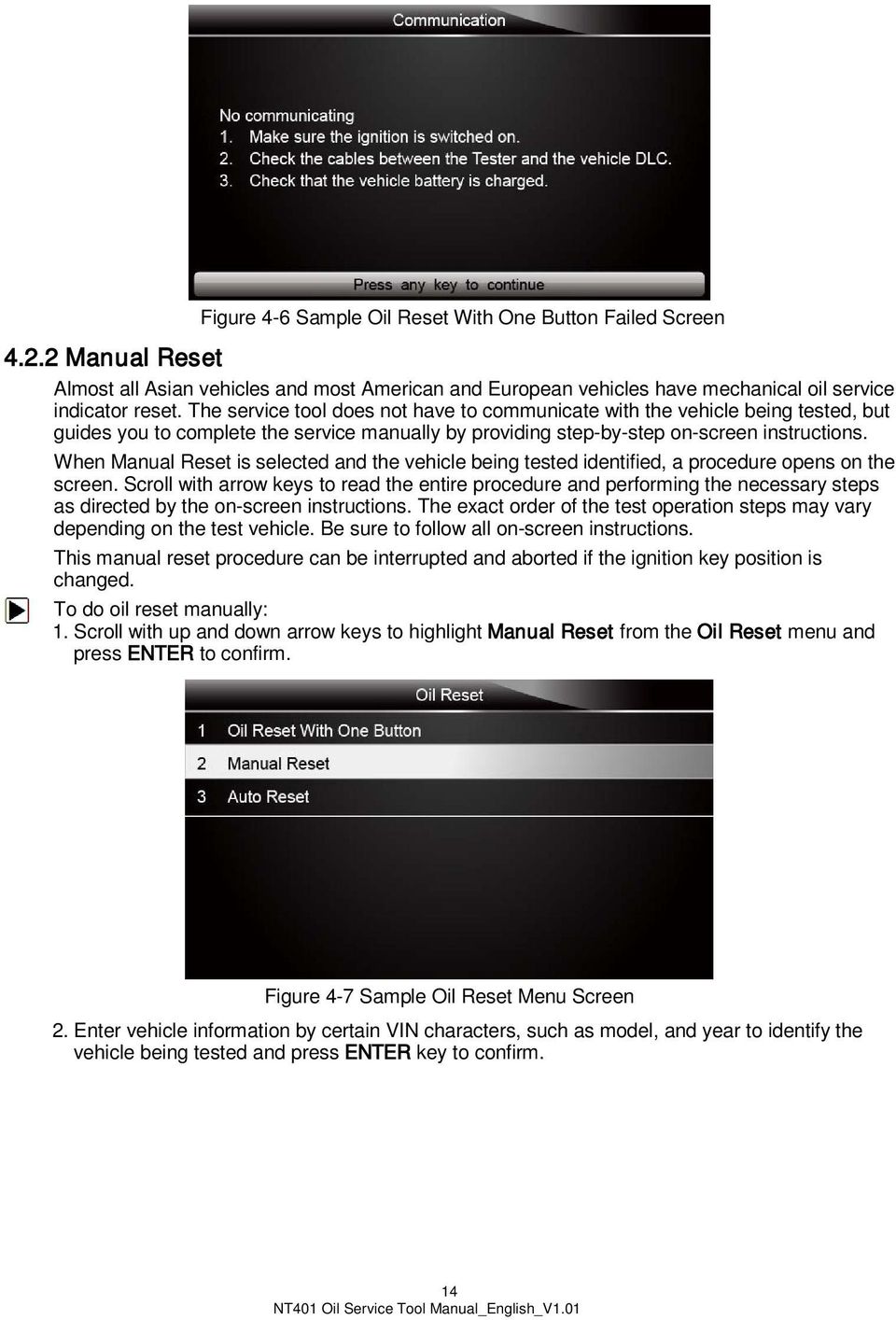
14 Figure 4-6 Sample Oil Reset With One Button Failed Screen Manual Reset Almost all Asian vehicles and most American and European vehicles have mechanical oil service indicator reset. The service tool does not have to communicate with the vehicle being tested, but guides you to complete the service manually by providing step-by-step on-screen instructions. When Manual Reset is selected and the vehicle being tested identified, a procedure opens on the screen. Scroll with arrow keys to read the entire procedure and performing the necessary steps as directed by the on-screen instructions. The exact order of the test operation steps may vary depending on the test vehicle. Be sure to follow all on-screen instructions. This manual reset procedure can be interrupted and aborted if the ignition key position is changed. To do oil reset manually: 1. Scroll with up and down arrow keys to highlight Manual Reset from the Oil Reset menu and press ENTER to confirm. Figure 4-7 Sample Oil Reset Menu Screen 2. Enter vehicle information by certain VIN characters, such as model, and year to identify the vehicle being tested and press ENTER key to confirm. 14
15 Figure 4-8 Sample Vehicle Identification Screens 3. When the vehicle is identified, a procedure screen displays. Figure 4-9 Sample Manual Reset Instructions Screen 4. Follow all on-screen instructions to perform the manual mechanical reset. 5. Press function key OK to return Auto Reset Auto Reset is a bi-directional communication procedure directed by the service tool. The service tool displays guides for you through the process. A number of instructions that require a response to continue display, including an option to clear any stored codes once the interval has been reset. Follow the on-screen instructions AUDI/SEAT/SKODA/VW Operations Oil Service menu allows to reset the Service Reminder in vehicles so equipped. This function will automatically access the Instrument Cluster and will retrieve SRI instructions as well as current values stored in the cluster. It will also specify the total length in kilometers and or days between the service intervals. In this case it only specifies the time or distance between intervals, it does not reset the interval. When an inspection has been carried out prematurely (before the service interval is required), it will read the kilometers or days since the last service set them to the required value. To do oil service reset on AUDI/SEAT/SKODA/VW vehicles: 1. Scroll with up and down arrow keys to highlight Auto Reset from the Oil Reset menu and press ENTER. A screen with a list of available service displays. 15

16 Figure 4-10 Sample Oil Reset Menu Screen 2. Scroll with the arrow keys to highlight a function you wish to test and press the ENTER key to confirm. Figure 4-11 Sample Oil Reset Function Screen 3. The stored value on the vehicle being tested displays. Press the function key OK to set the service value you want or press the function key Cancel to quit service reset. Figure 4-12 Sample Vehicle Stored Value Screen 4. Enter a valid value and press Finish to continue. 16

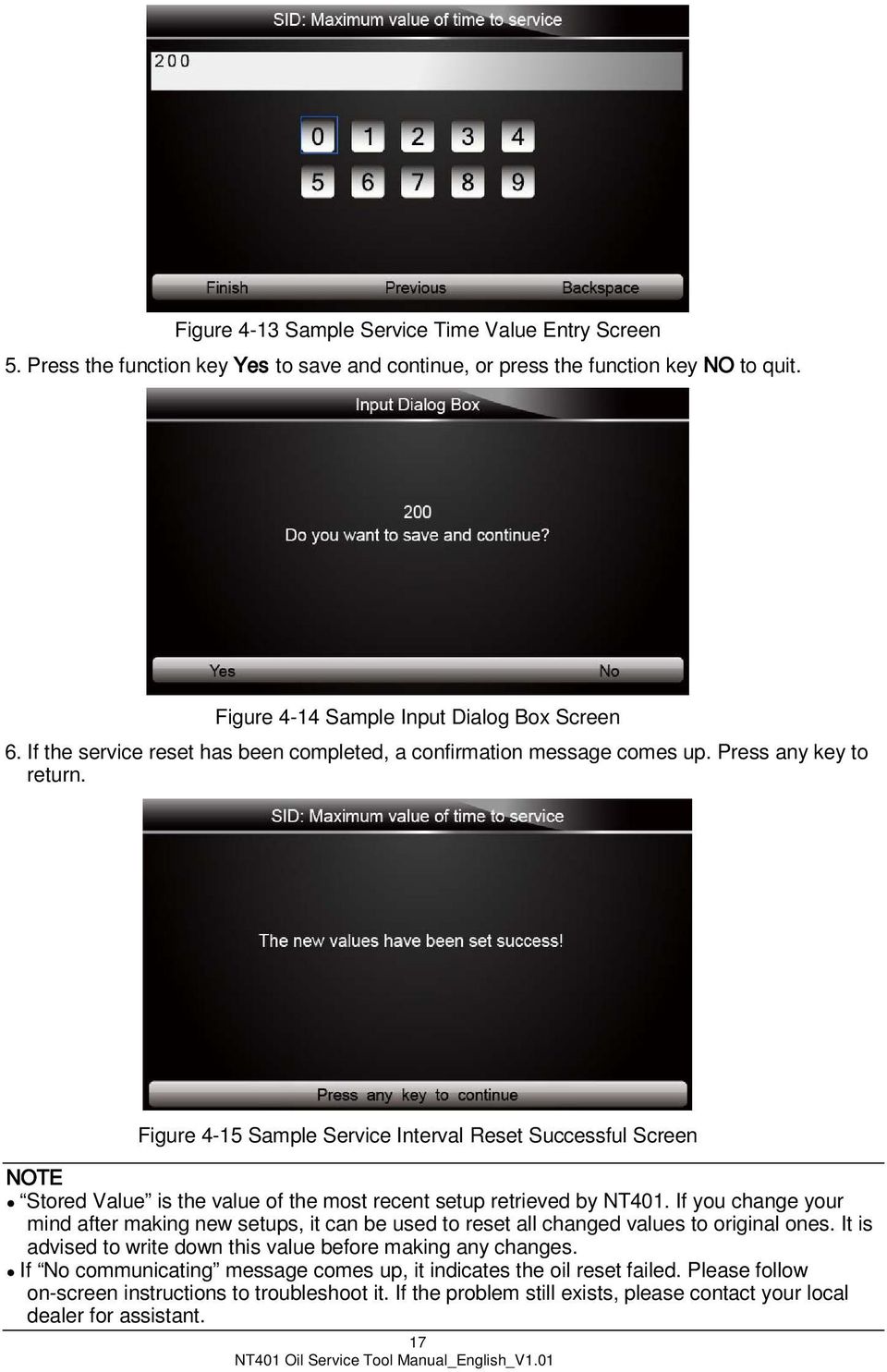
17 Figure 4-13 Sample Service Time Value Entry Screen 5. Press the function key Yes to save and continue, or press the function key NO to quit. Figure 4-14 Sample Input Dialog Box Screen 6. If the service reset has been completed, a confirmation message comes up. Press any key to return. Figure 4-15 Sample Service Interval Reset Successful Screen NOTE Stored Value is the value of the most recent setup retrieved by NT401. If you change your mind after making new setups, it can be used to reset all changed values to original ones. It is advised to write down this value before making any changes. If No communicating message comes up, it indicates the oil reset failed. Please follow on-screen instructions to troubleshoot it. If the problem still exists, please contact your local dealer for assistant. 17
18 BMW Operations This section illustrates how to reset the oil service lamps on the instrument cluster of BMW vehicles. The Service Indicator System (SIA) is designed to alert the driver when the vehicle is due for a service. The BMW Maintenance System includes the Engine Oil Service and Inspections I (minor service) and II (major service). Different years and models have display variations depending on the instrument cluster level type. To perform oil service on BMW: 1. Scroll with up and down arrow keys to highlight Auto Reset from the Oil Reset menu and press ENTER to start. Figure 4-16 Sample Oil Reset Menu Screen 2. The connector type selection screen displays. Scroll with arrow keys to select the connector type for the vehicle being tested. Figure 4-17 Sample BMW Vehicle Connector Screen OBDII 16PIN Connector BMW vehicles with OBDII connector have more service functions than those with 20-PIN connector. There are two ways to complete oil reset on 16 PIN Connector vehicles. CBS reset CBS correction CBS reset To perform oil service functions on BMW with OBDII connector: 1. To complete the service functions automatically, scroll with up and down arrow keys to select CBS Reset from the Oil Reset menu and press ENTER key to confirm. 18

19 Figure 4-18 Sample Oil Reset Menu Screen NOTE Not all functions listed are applicable to all vehicles. Available options may very by the model year of the vehicle being tested. 2. A screen with available services displays. Figure 4-19 Sample CBS Reset Menu Screen 3. Scroll with up and down arrow keys to highlight service you want to perform and press ENTER key to confirm. Press Modify to perform the service. Figure 4-20 Sample Engine Oil Reset Screen 4. A command to reset the engine oil is sent. A screen with ECU default value displays when the lamp has been reset successfully. Press any key to return to the function menu. 19

20 Figure 4-21 Sample Engine Oil Reset Successful Screen 5. If it fails to reset engine oil, the following screen displays. Please follow the on-screen instructions to troubleshoot it. If the problem still exists, please contact your local dealer for assistant. Figure 4-22 Sample Engine Oil Reset Failed Screen NOTE Not all failure screens are the same. The message may vary by the service being performed. CBS Correction To perform oil service functions on BMW with OBDII connector: 1. Scroll with up and down arrow keys to select the CBS Correction function and press ENTER key to confirm. Figure 4-23 Sample Oil Reset Menu Screen 20

21 2. A screen with a list of available tests displays as below. Figure 4-24 Sample CBS Correction Menu Screen NOTE Not all functions listed above are applicable to all vehicles. Available options may vary by the year and model of the test vehicle. 3. Scroll with up and down arrow keys to highlight a function from the menu and press the ENTER key to confirm. Figure 4-25 Sample Spark Plugs Test Screen 4. If the value needs to be changed, press the function key Modify. The screen for new value entry displays as below. Figure 4-26 Sample New Spark Plug Value Entry Screen 21
22 5. Input a valid value and use the function key Finish to confirm. Figure 4-27 Sample Spark Plugs Enter Screen 6. Press the function key Yes to if the new value is to be saved, or press the function key NO to quit. Figure 4-28 Sample Input Dialog Box Screen 7. A screen with success message displays and the new value is set. Figure 4-29 Sample Spark Plugs Reset Successful Screen NOTE If No communicating message comes up, it indicates the oil reset failed. Please follow on-screen instructions to troubleshoot it. If the problem still exists, please contact your local dealer for assistant. 22
23 20PIN Connector To perform oil service functions on vehicles with a 20PIN connector: 1. Scroll with up and down arrow keys to select the function from the menu and press ENTER key to confirm. Figure 4-30 Sample Oil Reset Function Menu Screen 2. A screen with Reset Implemented message displays once the oil service reset has been done successfully. Figure 4-31 Sample Oil Service Reset Successful Screen NOTE If No communicating message comes up, it indicates the oil reset failed. Please follow on-screen instructions to troubleshoot it. If the problem still exists, please contact your local dealer for assistant Fiat Operations This section illustrates how to do oil service reset automatically on Fiat vehicles. To perform the oil service on Fiat: 1. Scroll with up and down arrow keys to highlight an option and press ENTER key to confirm. 23
24 Figure 4-32 Sample Oil Reset Menu Screen 2. Press the function key OK to perform the service, or press Cancel to quit. Figure 4-33 Sample Oil Change Servicing Screen 3. Follow on-screen instructions and send a command to reset oil service. A screen with a Test Performed message comes up once the oil change has been done successfully. Press any key to return. Figure 4-34 Sample Test Performed Screen NOTE If a No communicating message comes up, it indicates the oil reset failed. Please follow on-screen instructions to troubleshoot it. If the problem still exists, please contact your local dealer for assistant. 24
25 GM Operations This section illustrates how to do oil reset by auto reset on GM. To perform Auto Reset on GM: 1. Scroll with up and down arrow keys to highlight Auto Reset from the Oil Reset menu and press ENTER to confirm. Figure 4-35 Sample Oil Reset Menu Screen 2. Enter vehicle information by certain VIN characters, such as model and year to identify the vehicle being tested and press ENTER key to confirm. Figure 4-36 Sample Vehicle Identification Screens 3. Select the control module and press ENTER key to communicate with the vehicle 25
26 Figure 4-37 Sample Control Module Selection Screen 4. Once the tool established communication with the vehicle, the Oil Reset screen comes up. Press the ENTER key to confirm. Figure 4-38 Sample Oil Reset Menu Screen 5. Press the function key OK to continue, or press the function key Cancel to quit. Figure 4-39 Sample Oil Life Reset Screen 6. If the value needs to be changed, press the function key Keyboard. The screen for new value entry displays 26
27 Figure 4-40 Sample Oil Life Reset Entry Screen 7. Input a valid value and use the function key Finish to confirm. Figure 4-41 Sample Oil Life Reset Entry Screen 8. Press the function key Yes if the entered value are to be saved, or press the function key NO to quit. Figure 4-42 Sample Input Dialog Box Screen 9. Wait for a few seconds, and a screen with Success message comes up once the oil life reset has been done successfully. Press any key to continue. 27
28 Figure 4-43 Sample Oil Life Reset Successful Screen NOTE If No communicating message comes up, it indicates the oil reset failed. Please follow on-screen instructions to troubleshoot it. If the problem still exists, please contact your local dealer for assistant Mercedes Benz Operations This section illustrates how to do oil reset on Mercedes Benz. To do oil reset on Mercedes Benz: 1. Scroll up and down arrow keys to select a control unit and press ENTER key to continue. Figure 4-44 Sample Control Unit Adaptations Screen 2. Scroll up and down arrow keys to highlight the settings item and press ENTER key to reset the value. 28
29 Figure 4-45 Sample Oil Reset Setting Menu Screen 3. Press the function key Modify to enter the new value Figure 4-46 Sample ASSYST Setting Screen 4. Follow on-screen instruction and then you can enter a new value by pressing the function key Keyboard Figure 4-47 Sample Service Mileage Entry Screen 5. Scroll with the arrow keys to highlight your desired letter or number and press the ENTER key to confirm. To delete a letter or number, use the function key Previous to move the cursor to it and then press the Backspace button. When finished the entry, press Finish key to continue Figure 4-48 Sample Service Mileage Entry Keyboard Screen 29
30 6. Press the function key YES to save and continue the oil light reset, or press the function key NO to quit the oil light reset. Figure 4-49 Sample Service Mileage Reset Confirmation Dialog Box Screen 7. A screen with Success message comes up once the oil light reset has been done successfully. Figure 4-50 Sample Service Mileage Reset Successful Screen NOTE If No communicating message comes up, it indicates the oil reset failed. Please follow on-screen instructions to troubleshoot it. If the problem still exists, please contact your local dealer for assistant Land Rover Operations This section illustrates how to do oil reset on Land Rover. To do oil reset on Land Rover: 1. Scroll with up and down arrow keys to highlight Auto Reset from the Oil Reset menu and press ENTER key. 30
31 Figure 4-51 Sample Oil Reset Menu Screen 2. Select the vehicle being tested and press the ENTER key to confirm. Figure 4-52 Sample Vehicle Selection Screen 3. Set the ignition switch to on and press the function key OK to continue or press Cancel to quit. Figure 4-53 Sample Oil Reset Instruction Screen 4. Turn key on with engine off and press the function key OK to continue or press Cancel key to quit oil light reset. 31
32 Figure 4-54 Sample Oil Reset Instruction Screen 5. Set the ignition switch to off and press the function key OK to continue or press Cancel key to quit the oil light reset. Figure 4-55 Sample Oil Reset Instruction Screen 6. Set the ignition switch to on again and press the function key OK to continue or press Cancel to quit the oil light reset. Figure 4-56 Sample Oil Reset Instruction Screen 7. A screen with Complete message comes up once the oil light reset has been done successfully. 32
33 Figure 4-57 Sample Oil Reset Successful Screen NOTE If No communicating message comes up, it indicates the oil reset failed. Please follow on-screen instructions to troubleshoot it. If the problem still exists, please contact your local dealer for assistant Saab Operations This section illustrates how to do oil reset on Saab. To do oil reset on Saab: 1. Scroll with up and down arrow keys to highlight Auto Reset from the oil reset menu and press ENTER key. Figure 4-58 Sample Oil Reset Menu Screen 2. Select the function you wish to test and press the ENTER key to confirm. 33
34 Figure 4-59 Sample Service Reset Menu Screen 3. The Oil Reset menu displays. Press ENTER key to send a command to the ECU. Figure 4-60 Sample Oil Reset Menu Screen 4. A screen with Success message comes up once the oil light reset has been done successfully. Figure 4-61 Sample Service Reset Successful Screen NOTE If No communicating message comes up, it indicates the oil reset failed. Please follow on-screen instructions to troubleshoot it. If the problem still exists, please contact your local dealer for assistant. 34
35 Vauxhall Operations This section illustrates how to do oil reset automatically on Vauxhall. To perform oil reset on Vauxhall: 1. Scroll with up and down arrow keys to highlight a function and press ENTER key to confirm. Figure 4-62 Sample Service Interval Resetting Menu Screen 2. Follow on-screen instruction and press any key to continue. Figure 4-63 Sample Service Interval Resetting Instruction Screen 3. Wait for a few seconds, and a screen with Reset Successfully message displays once the service interval reset has been done successfully. NOTE Figure 4-64 Sample Service Interval Reset Successful Screen 35
36 If No communicating message comes up, it indicates the oil reset failed. Please follow on-screen instructions to troubleshoot it. If the problem still exists, please contact your local dealer for assistant Volvo Operations This section illustrates how to do oil reset on Volvo. To do oil reset on Volvo: 1. Scroll with up and down arrow keys to highlight Auto Reset from the oil reset menu and press ENTER key to confirm. Figure 4-65 Sample Oil Reset Menu Screen 2. A list of vehicle models displays. Scroll with up and down arrow keys to highlight the vehicle being tested and press the ENTER key to continue. Figure 4-66 Sample Vehicle Model Selection Screen 3. Select the year of the vehicle being tested and press the ENTER key to confirm. 36
37 Figure 4-67 Sample Vehicle Year Selection Screen 4. Select a service function from the Oil Reset menu and press ENTER key to send a command to the vehicle ECU. Figure 4-68 Sample Oil Reset Menu Screen 5. Wait for a few seconds, and the Success message screen comes up once the oil reset has been done successfully. Figure 4-69 Oil Reset Successful Screen NOTE If No communicating message comes up, it indicates the oil reset failed. Please follow on-screen instructions to troubleshoot it. If the problem still exists, please contact your local dealer for assistant. 37
38 5 OBDII/EOBD Operations OBD-II/EOBD menu lets you access all OBD service modes. According to ISO , ISO , and SAE J1850 standards, the OBD application is divided into several sub programs, called Service $xx. Below is a list of OBD diagnostic services: Service $01 - request current powertrain diagnostic data Service $02 - request powertrain freeze frame data Service $03 - request emission-related diagnostic trouble codes Service $04 - clear/reset emission-related diagnostic information Service $05 - request oxygen sensor monitoring test results Service $06 - request on-board monitoring test results for specific monitored systems Service $07 - request emission-related diagnostic trouble codes detected during current or last completed driving cycle Service $08 - request control of on-board system, test or component Service $09 - request Vehicle Information When OBDII/EOBD application is selected from Home screen, the service tool starts to detect the communication protocol automatically. Once the connection has been established a menu that lists all of the tests available on the identified vehicle displays. Menu options typically include: System Status Read Codes Freeze Frame Data Erase Codes Live Data I/M Readiness O2 Sensor Test On-board Monitor Test Component Test Vehicle Information Modules Present Code Lookup NOTE Not all function options listed above are applicable to all vehicles. Available options may vary by the year, model, and make of the test vehicle. A The selected mode is not supported! message displays if the option is not applicable to the vehicle under test. 5.1 System Status System Status option open a screen with a summary of system status of the vehicle under test. To view summary system status of a vehicle: 1. Scroll with the arrow keys to highlight System Status from Diagnostic Menu and press the ENTER key. 38
39 Figure 5-1 Sample Diagnostic Menu Screen 2. A screen with detailed information displays. Figure 5-2 Sample System Status Screen 5.2 Read Codes Read Codes menu lets you read both stored codes and pending codes found in the control unit. Typical menu options include: Stored Codes Pending Codes Diagnostic trouble codes stored in a control module are used to help identify the cause of a trouble or troubles with a vehicle. These codes have occurred a specific number of times and indicate a problem that requires repair. Pending codes are also referred to as maturing codes that indicate intermittent faults. If the fault does not occur within a certain number of drive cycles (depending on vehicle), the code clears from memory. If a fault occur a specific number of times, the code matures into a DTC and the MIL illuminates or blinks. To read codes/pending codes from a vehicle: 1. Scroll with the arrow keys to highlight Read Codes from Diagnostic Menu and press the ENTER key. Figure 5-3 Sample Diagnostic Menu Screen 2. Select Stored Codes/Pending Codes and press the ENTER key to confirm. A code list including code number and its description displays. 39
40 Figure 5-4 Sample Read Codes Screen If no DTCs are present the message No (Pending) Codes Found! is displayed. If any manufacturer specific or enhanced codes detected, select vehicle a make before viewing DTC information. Figure 5-5 Sample No Codes Screen 3. Use the up and down arrow keys to scroll through data to select lines, and left and right arrow keys to scroll back and forth through different screens of data. Figure 5-6 Sample Code screen 4. Press function key Save to store DTC information. Or use the BACK key to exit. 40
41 5.3 Erase Codes Erase Codes menu lets you to clear all current and stored DTCs from the control module. Also it erases all temporary ECU information, including freeze frame. So make sure that the selected system are completely checked and serviced by technicians and no vital information will be lost before clearing codes. NOTE To clear codes, make sure that the ignition key is switched to ON with the engine off. Erase Codes does not fix the problem that caused the fault! DTCs should only be erased after correcting the condition(s) that caused them. To clear codes: 1. Scroll with the arrow keys to highlight Erase Codes from Diagnostic Menu and press the ENTER key. Figure 5-7 Sample Diagnostic Menu Screen 2. Follow the on-screen instructions and answer questions about the vehicle being tested to complete the procedure. Figure 5-8 Sample Erase Codes Screen 3. Check the codes again. If any codes remain, repeat the Erase Codes steps. 5.4 Live Data Live Data menu lets you view and record real time PID data from the electronic control module. Menu options typically include: Complete Data List Custom Data List 41
42 5.4.1 Complete Data List Complete Data List menu lets you view all live PID data from a selected system. To view all live PID data: 1. Scroll with the arrow keys to highlight Live Data from Diagnostic Menu and press the ENTER key. Figure 5-9 Sample Diagnostic Menu Screen 2. Select Complete List from the menu and press the ENTER key to display the datastream screen Figure 5-10 Sample Live Data Menu Screen 3. Use the up and down arrow keys to scroll through data to select lines, and left and right arrow keys to scroll back and forth through different screens of data. Figure 5-11 Sample Complete List Screen 42
43 4. Scroll with the up and down arrow keys to highlight a line, if the One Graphic on the bottom is highlighted, it indicates the graphing is available for the selected line. Press the function key One Graphic to display the PID graph. Figure 5-12 Sample PID Graph Screen 5. Press the function key Two Graphics to display two PID graphs in one screen Figure 5-13 Sample Two PID Graph Screen 6. Press the function key Merge Graph to display two PID plots in one coordinate for easy and intuitive diagnosis. Figure 5-14 Sample Merge Graph Screen 7. To record the data to memory of the service tool, use the function key SAVE, and press Stop Saving to stop recording at any time. 8. Select Text to return to text viewing of PID data. 43
44 9. Press Pause to suspend collecting data and use the Start key to resume collecting data. 10.Use the Back key to return to diagnostic menu Custom Data List Custom Data List menu lets you to minimize the number of PIDs on the data list and focus on any suspicious or symptom-specific data parameters. To create a custom data list: 1. Select Custom List from the menu and press the ENTER key. Figure 5-15 Sample Live Data Menu Screen 2. The custom datastream selection screen displays. Scroll with the up and down arrow keys to highlight a line, press the ENTER key and then repeat the action to make more selections. Figure 5-16 Sample Custom Datastream Selection Screen NOTE To deselect an item, select it again and then press the ENTER key. Alternatively, use the function keys SELECT ALL and CLEAR ALL to select or deselect all items at once. 3. When finished selection, use the function key VIEW DATA to display selected items. 44
45 Figure 5-17 Sample Datastream Screen 5.5 Freeze Frame Freeze Frame menu displays freeze frame data, a snapshot of critical vehicle operating conditions automatically recorded by the on-board computer at the time of the DTC set. It is a good function to help determine what caused the fault. To view freeze frame data: 1. Select Freeze Frame from the Diagnostic Menu. Details of freeze frame data displays. Figure 5-18 Sample Diagnostic Menu Screen 2. Use the up and down arrow keys to scroll through data to select lines, and left and right arrow keys to scroll back and forth through different screens of data. If no freeze frame detected, the message No freeze frame data stored! is displayed. 45
46 Figure 5-19 Sample Freeze Data Screen 3. Press function key Save to store freeze frame information. Or use the BACK key to exit. 5.6 Read I/M Readiness Status Data I/M Readiness option allows to view a snapshot of the operations for the emission system on OBDII/EOBD vehicles. I/M Readiness is a useful function used to check if all monitors are OK or N/A. The vehicle s computer performs tests on the emission system during normal driving conditions. After a specific amount of drive time (each monitor has specific driving conditions and time required), the computer s monitors decide if the vehicles emission system is working correctly. When the monitor s status is: OK - vehicle was driven enough to complete the monitor. INC (Incomplete) - vehicle was not driven enough to complete the monitor. N/A (Not Applicable) - vehicle does not support that monitor. There are two types of I/M Readiness tests: Since DTCs Cleared - shows status of the monitors since the DTCs were last cleared. This Drive Cycle - shows status of monitors since the start of the current drive cycle. Below is a list of abbreviations and names of OBD II monitors supported by the service tool. No. Abbreviation Name 1 Misfire Monitor Misfire Monitor 2 Fuel System Mon Fuel System Monitor 3 Comp. Component Comprehensive Components Monitor 4 Catalyst Mon Catalyst Monitor 5 Htd Catalyst Heated Catalyst Monitor 6 Evap System Mon Evaporative System Monitor 7 Sec Air System Secondary Air System Monitor 8 A/C Refrig Mon Air Conditioning Refrigerant Monitor 9 Oxygen Sens Mon Oxygen Sensor Monitor 10 Oxygen Sens Htr Oxygen Sensor Heater Monitor 11 EGR System Mon Exhaust Gas Recirculation System Monitor NOTE To review I/M Readiness status, make sure that the ignition key is switched to ON with the engine off. Not all monitors are supported by all vehicles. To retrieve I/M Readiness Status data: 1. Scroll with the arrow keys to highlight I/M Readiness from Diagnostic Menu and press the ENTER key. If vehicle supports both types of monitors, a screen for monitor type selection displays. Select a monitor type and press the ENTER key. 46
47 Figure 5-20 Sample Diagnostic Menu Screen 2. Depending on readiness test, one of these 2 screens will be present. Use the up and down arrow keys to scroll through data to select lines, and left and right arrow keys to scroll back and forth through different screens of data. Or Figure 5-21 Sample IM Readiness Screen 1 Figure 5-22 Sample IM readiness screen 2 3. Press the BACK key to exit. 47
48 5.7 O2 Monitor Test OBD II regulations require certain vehicles monitor and test oxygen (O2) sensors to isolate fuel and emissions related faults. The O2 Monitor Test function is used to retrieve completed O2 sensors monitor test results. The O2 Monitor Test is not an on-demand test. O2 sensors are not tested when selected via the menu but tested when engine operating conditions are within specified limits. If the vehicle uses a controller area network (CAN) protocol to communicate, this function is not supported by vehicle. Refer to On-Board Monitor Tests on page for O2 monitor data of CAN-equipped vehicles. To retrieve O2 monitor data: 1. Scroll with the arrow keys to highlight O2 Monitor Test from Diagnostic Menu and press the ENTER key. A screen with a list of available sensors displays. Figure 5-23 Sample Diagnostic Menu Screen 2. Scroll with the arrow keys to highlight an O2 sensor and press the ENTER key to confirm. A screen with details of the selected sensor displays. Figure 5-24 Sample O2 Monitor Test screen 3. Use the up and down arrow keys to scroll through data to select lines, and left and right arrow keys to scroll back and forth through different screens of data. 48
49 Figure 5-25 Sample O2 Bank1 Sensor 1 Screen 4. Press Enter key to view data of selection. Figure 5-26 Sample data of $81 screen 5. Press the BACK key to exit and return. 5.8 On-Board Monitor Test The On-Board Monitor Test function is useful after servicing or after clearing a vehicle ECU s memory. It receives test results for emission-related powertrain components and systems that are not continuously monitored for Non-CAN vehicles. And for CAN vehicles, it receives test data for emission-related powertrain components and systems that are and are not continuously monitored. It is vehicle manufacturer who is responsible for assigning test and component IDs. NOTE Test results do not necessarily indicate a faulty component or system. To request on-board monitor test results: 1. Scroll with the arrow keys to highlight On-Board Monitor Test from Diagnostic Menu and press the ENTER key. 49
50 Figure 5-27 Sample Diagnostic Menu Screen 2. Depending on the protocol the vehicle used, one of these 2 screens shows. Or Figure 5-28 Sample Non-CAN Vehicle Test Screen Figure 5-29 Sample CAN vehicle test screen 3. Scroll with the arrow keys to highlight a test group and press the ENTER key to confirm. A screen with details of the selected sensor displays. Use the up and down arrow keys to scroll through data to select lines, and left and right arrow keys to scroll back and forth through different screens of data. For non-can vehicles, test screen is illustrated as below: 50
51 Figure 5-30 Sample Non-CAN vehicle test screen For CAN vehicles, test screen is illustrated as below: 4. Press the BACK key to exit and return. Figure 5-31 Sample Can vehicle test screen 5.9 Component Test Component Test allows the service tool to control operation of vehicle components, tests or systems. NOTE Some manufacturers do not allow tools to control vehicle systems. The manufacturer sets the criteria to automatically stop test. Refer to appropriate vehicle service manual before using this function. To perform a component test: 1. Scroll with the arrow keys to highlight Component Test from Diagnostic Menu and press the ENTER key. A screen with a list of available tests displays. 51
52 Figure 5-32 Sample Diagnostic Menu Screen 2. Scroll with the arrow keys to highlight a system or component, press the ENTER key to start test and the service tool displays the message Command Sent!. Figure 5-33 Sample Component test screen 3. Press the BACK key to exit and return Request Vehicle Information Vehicle Information allows to request the vehicle s VIN number, calibration ID(s) which identifies software version in vehicle control module(s), calibration verification numbers (CVN(s)) and in-use performance tracking on model year 2000 and newer OBD II compliant vehicles. CVNs are calculated values required by OBD II regulations. They are reported to check if emission-related calibrations have been changed. Multiple CVNs may be reported for a control module. It may take several minutes to do the CVN calculation. In-use performance tracking tracks performance of key readiness monitors. NOTE Available options will vary depending on the vehicle under test. To request vehicle information: 1. Scroll with the arrow keys to highlight Vehicle Info. from Diagnostic Menu and press the ENTER key. 52
53 Figure 5-34 Sample Diagnostic Menu Screen 2. Follow on-screen instruction and send the command to read vehicle information. A screen with a list of available options displays. Figure 5-35 Sample Vehicle Info Screen 3. Scroll with the arrow keys to highlight an available option and press the ENTER key. A screen with details of the selected option displays. Figure 5-36 Sample Calibration ID Screen 4. Press function key Save to store the readiness data. Or use the BACK key to exit and return Modules Present The service tool identifies module IDs and communication protocols for OBD2 modules in the vehicle. 53
54 To view module IDs and communication types: 1. Scroll with the arrow keys to highlight Modules Present from Diagnostic Menu and press the ENTER key. Figure 5-37 Sample Diagnostic Menu Screen 2. A screen with the module IDs and protocols displays. Figure 5-38 Sample Module Present Screen 3. Press function key Save to store the readiness data. Or use the BACK key to exit and return DTC Lookup DTC Lookup menus allows to request DTC definitions stored in the service tool. To Look up DTCs: 1. Scroll with the arrow keys to highlight DTC Lookup. from Diagnostic Menu and press the ENTER key. 54
55 Figure 5-39 Sample Diagnostic Menu Screen 2. Enter a valid code number and press the function key Finish. Figure 5-40 Sample DTC Lookup Screen 3. A screen with code number and its definition displays. If definition could not be found (SAE or Manufacturer Specific), the service tool displays DTC definition not found! Please refer to vehicle service manual! If a P1xxx, C1xxx, B1xxx or U1xxx code is entered, select a vehicle make to look for DTC definitions. Press the Back key to exit. Figure 5-41 Sample Trouble Codes Screen 55
56 6 Playback Data The PlayBack option leads to screens for review of recorded test results. To review recorded data: 1. Scroll with the arrow keys to highlight PlayBack from home screen and press the ENTER key. Figure 6-1 Sample Home Screen 2. A screen with a list of test records displays. If no data is recorded, the message No Data available! is displayed. Figure 6-2 Sample Playback Screen 3. Scroll with the arrow keys to highlight a vehicle record and press the ENTER key. Details of the test record displays. Use the up and down arrow keys to scroll through data to select lines. Figure 6-3 Sample Test Data Details Screen 56
57 4. If you are reviewing live data or freeze frame data, use the function key Next Frame or Pre. Frame to scroll through all possible frames when necessary. Figure 6-4 Sample Test Data Details Screen 5. To erase a record, scroll with the arrow keys to highlight it and press the function key Delete. To delete all records, press the function key Delete All. Answer Yes to delete and No to quit. 7 System Setup This section illustrates how to program the service tool to meet your specific needs. When Setup application is selected, a menu with available service options displays. Menu options typically include: Language Unit Beep Set Key Test LCD Test About Shortcuts 7.1 Select Language Selecting Language opens a screen that allows you to choose system language. The service tool is set to display English menus by default. To configure system language: 1. Scroll with the arrow keys to highlight Language from Setup menu and press the ENTER key. 57
58 Figure 7-1 Sample Setup Screen 2. Press the LEFT/RIGHT arrow key select a language and press the ENTER key to confirm. Press the Back key to exit and return. Figure 7-2 Sample Language Selection Screen 7.2 Change Units Selecting Unit opens a dialog box that allows you to choose between US customary or metric units of measure. To change the unit setup: 1. Scroll with the arrow keys to highlight Units from Setup menu and press the ENTER key. Figure 7-3 Sample Setup Screen 2. Press the LEFT/RIGHT arrow key select an item and press the ENTER key to save and return. 58
59 Figure 7-4 Sample Language Selection Screen 7.3 Configure Beeper Selecting Beep Set opens a dialog box that allows you to turn on/off the beeper. To turn on/off the beeper: 1. Scroll with the arrow keys to highlight Beep Set from Setup menu and press the ENTER key. Figure 7-5 Sample Setup Screen 2. Press the LEFT/RIGHT arrow key select an item and press the ENTER key to save and return. Figure 7-6 Sample Beeper On/Off Selection Screen 7.4 Test Keypad Selecting Key Test option opens a screen that allows you to check the functionality of the keypad. To test the keypad: 1. Scroll with the arrow keys to highlight Key Test from Setup menu and press the ENTER key. 59
60 Figure7-7 Sample Setup Screen 2. Press any key to start test. The virtue key corresponding with the key you pressed will be highlighted on the screen if it works correctly. Figure 7-8 Sample Key Test Screen 1. To quit the test, click the F2 function key twice. 7.5 LCD Keypad Selecting LCD Test option opens a screen that allows you to check the functionality of the display. To test the display: 1. Scroll with the arrow keys to highlight LCD Test from Setup menu and press the ENTER key to start test. Check if there are any missing spots in the LCD screen. 60
61 2. To quit the test, press the Back key. Figure 7-9 Sample LCD Test Screen 7.6 Tool Information Selecting About option opens a screen that show information about your service tool, such as serial number and register password which may be required for product registration. To view information of your service tool: 1. Scroll with the arrow keys to highlight About from Setup menu and press the ENTER key. Figure 7-10 Sample Setup screen 2. A screen with detailed information of the service tool displays. Figure 7-11 Sample Tool Information Screen 3. Press the Back key to exit and return to the Setup menu. 7.7 Configure Shortcut Keys Selecting Shortcuts option lets you to change the functionality of the shortcut buttons. To assign a function to a shortcut button: 1. Scroll with the arrow keys to highlight Shortcuts from Setup menu and press the ENTER key. A screen with available shortcut keys displays. 61
62 Figure 7-12 Sample Setup screen 2. Press the UP/DOWN arrow key select an shortcut key and press the ENTER key. A screen with a list of loaded applications displays. Figure 7-13 Sample Shortcuts Screen 3. Scroll with the UP/DOWN arrow keys to highlight an application and press the ENTER key to assign the application to the shortcut key. 4. Press any key to exit and return. 8 Update The scanner can be updated to keep you stay current with the latest development of diagnosis. This section illustrates how to register and update your scan tool. 8.1 Register the Scanner If you are new to FOXWELL, please register the scanner first. All of your scanners can be registered on One Foxwell ID. To register the scanner: 1. Visit our site and then select Register Products to create a Foxwell ID and register your scan tool. Alternatively, please visit our website and then select Support>Updates>Professional Scanner to download the update tool DiagMate to complete the registration. If you have already had a Foxwell ID, just click the Sign in link at the top right of the website to login. 62
63 Figure 8-1 Sample Register Products Screen 2. Select your scanner part number, enter your serial number and initial register password which can be found by turning on your scan tool and selecting Setup>About, and click Submit to continue. Figure 8-2 Sample Serial No. & Password Entering Screen 63
64 3. Read through our Register Information and click Agree to continue. Figure 8-3 Sample Terms & Conditions Screen 4. Create a unique user name and password, complete the registration form and then click Submit to create your ID. When your ID has been created, you are allowed to view all programs associated with your tool, download updates, edit your profile, leave us feedbacks and join our community to share your ideas and your stories about our products. 64
65 Figure 8-4 Sample Registration Form Filling Screen 5. A Submit OK message will comes up if it is registered successfully. 65
66 Figure 8-5 Sample Succeed Registration Screen 6. If you forget your register ID or password, just click Sign in link at the top right of the website, then click Forgot your user ID and/or password? link to input product s serial number and registered address. The New password will comes up once you click Submit button. If you want to change password, please sign in with your user name and password, then select My Profile/Password Change to create a new password. Figure 8-6 Sample User ID and/or Password Reset Screen Figure 8-7 Sample Password Reset Successful Screen 66
67 NOTE If the user name is different from the you filled when registration, please input registered rather than your user name to retrieve your password. Figure 8-8 Sample Registration Screen 7. Sign in with your Foxwell ID and click My Products>New Registration option if you have more than one scan tool to be registered. And repeat the process as necessary. Figure 8-9 Sample New Registration Screen 8.2 Update the Scanner To update your scanner, you need following tools: the scan tool update tool DiagMate 67
68 PC or laptop with USB ports and Internet explorer Internet service SD card reader NOTE The updates are installed in the SD cards. Please make sure that SD card is corrected connected to the computer before upgrading. The SD card can be inserted into the laptop directly without SD card reader if there s SD card slot on your laptop. The USB Port on the scanner is for data reviewing when it connects with a PC/laptop. To be able to use update tool, PC or laptop must meet the following minimum requirements: Operation System: Win98/NT, Win ME, Win2000, Win XP, VISTA and Windows 7. CPU: Intel PⅢ or better RAM: 64MB or better Hard Disk Space: 30MB or better Display: 800*600 pixel, 16 byte true color display or better Internet Explorer 4.0 or newer NOTE Before updating, please make sure your network works correctly and the SD card has been identified. 1. Download the update tool DiagMate from our site by selecting Support>updates>Professional Scanner and save the application in computer disk. 2. Unzip the update tool file. Follow instructions on computer screen to install the tool and driver. 3. Double click the desktop icon to launch the application. 4. Remove the memory card from the scanner, put it into the card reader and plug the reader into the computer. 5. Login with your Foxwell ID and password. Figure 8-10 Sample Software Update Sign In Screen 6. Click My Updates, and all updates applicable to your scanner displays. 68
69 Figure 8-11 Sample Home Screen 7. Click the check box(es) in front of the software(s) you wish to update and then click the Update button to download and update. When download completed, the downloaded programs start to update automatically. Figure 8-12 Sample Software Downloading and Updating Screen 8. An Update Complete message displays once the updates completed. 69
70 Figure 8-13 Sample Update Complete Screen NOTE If Update Failed dialog comes up, it indicates that the software updates failed. Please check the network connection or SD card. If the problem still exists, please contact with your local dealer for assistance. 9. To view installed items, click the Installed Software tab. 10. To uninstall a software or all software select them and click the Uninstall button. And the uninstalled items can be found in the Updates screen. Figure 8-14 Sample Uninstall Software Screen 70
www.autodiagtool.de Trademarks
 Trademarks FOXWELL is trademark of Shenzhen Foxwell Technology Co., Ltd. All other marks are trademarks or registered trademarks of their respective holders. Copyright Information 2013 Shenzhen Foxwell
1. SAFETY PRECAUTIONS AND WARNINGS
 Table of Contents 1. SAFETY PRECAUTIONS AND WARNINGS...1 2. INTRODUCTION...3 2.1 On Board Diagnostics (OBD)...3 2.2 Vehicles Covered...4 2.3 Diagnostic Trouble Codes (DTCs)...6 2.4 Location of the Data
Table of Contents 1. SAFETY PRECAUTIONS AND WARNINGS... 1 2. GENERAL INFORMATION... 2 3. USING THE SCAN TOOL... 6
 Table of Contents 1. SAFETY PRECAUTIONS AND WARNINGS... 1 2. GENERAL INFORMATION... 2 2.1 ON-BOARD DIAGNOSTICS (OBD) II... 2 2.2 DIAGNOSTIC TROUBLE CODES (DTCS)... 2 2.3 LOCATION OF THE DATA LINK CONNECTOR
BMW Multi Tool User Manual
 X-Horse Electronics Co., Ltd. Table of Contents 1. Safety Precautions and Warnings... 3 2. General Information... 4 3. Hardware Overview... 5 3.1. Tool Description... 5 3.2. Specifications... 6 3.3. System
Diagnostics Scanner RAC-HP104
 Diagnostics Scanner RAC-HP104 Environmental Protection Waste electrical products should not be disposed of with household waste. Please recycle where facilities exist. Check with your local authority or
CReaderVI User s Manual 2011-03-01 V1.00.001
 2011-03-01 V1.00.001 Trademark Information LAUNCH is a registered trademark of LAUNCH TECH CO., LTD. (LAUNCH) in China and other countries. All other LAUNCH trademarks, service marks, domain names, logos
APPENDIX D PUBLIC AWARENESS INFORMATION
 APPENDIX D PUBLIC AWARENESS INFORMATION READINESS FAILURE FACT SHEET Beginning December 2004, New York will implement a new motor vehicle emission testing program in 53 of New York s upstate counties,
Table of Contents. Precautions and WarningsUT...1
 TU1.UT TUSafety TU2.UT TUGeneral TU3.UT TU4.UT TUReview TU5.UT TUDiagnosticsUT TU6.UT TUpdating TU7.UT TUAppendixUT TU8.UT TUWarranty Table of Contents Precautions and WarningsUT...1 InformationUT...2
Global OBD Vehicle Communication Software Manual
 Global OBD Vehicle Communication Software Manual August 2013 EAZ0025B43C Rev. A Trademarks Snap-on is a trademark of Snap-on Incorporated. All other marks are trademarks or registered trademarks of their
CReader V User s Manual. PDF version provided by ScanTool.net, LLC www.scantool.net
 CReader V User s Manual PDF version provided by ScanTool.net, LLC www.scantool.net CReaderV Trademark Information LAUNCH is a registered trademark of LAUNCH TECH CO., LTD. (LAUNCH) in China and other countries.
ITC-BTTN Cellular Bluetooth Gateway. Owner s Manual 1
 ITC-BTTN Cellular Bluetooth Gateway Owner s Manual 1 2 Table of Contents Introduction...3 Package Contents...3 XLink Connections Diagram...4 Setup...5 Pairing your Bluetooth Cell Phone to the XLink...6
Data Analysis Software
 TRAKPRO Data Analysis Software User s Manual November 1996 P/N 1980200 Rev. D TSI Incorporated TRAKPRO Data Analysis Software User s Manual November 1996 P/N 1980200 Rev. D SHIP TO: TSI Incorporated 500
User Manual (English)
 User Manual (English) Table of Contents General Safety Information...2 Fueltank UNO Components...3 Charging the Fueltank UNO...4 Using the Fueltank UNO...5 Power Saving Mode...6 Checking the Fueltank UNO
GX-2009 Data Logger Management Program Operator s Manual
 GX-2009 Data Logger Management Program Operator s Manual Part Number: 71-0163RK Revision: C Released: 3/19/12 www.rkiinstruments.com Warranty RKI Instruments, Inc. warrants gas alarm equipment sold by
Start Here. 3200 Series. All-in-One Printer. Print Copy Scan. Includes Information on the: ESP 3250 All-in-One Printer ESP 3260 All-in-One Printer
 Start Here All-in-One Printer 3200 Series MS SD/HC MMC Print Copy Scan Includes Information on the: ESP 3250 All-in-One Printer ESP 3260 All-in-One Printer Note: A USB 2.0 cable is required to connect
7 High-Resolution Digital Photo Frame
 TM 16-1003 User s Guide 7 High-Resolution Digital Photo Frame One demo photo included, as illustrated Please read this user s guide before using your new photo frame. Package contents Photo Frame AC Adapter
2GB MP3 Player USER GUIDE
 DO NOT FORMAT UNIT under FAT. 2GB MP3 Player USER GUIDE Jazwares, Inc. 2010 CONTENTS Please read the instructions along with the MP3 Player carefully before you use it, so that you can operate it conveniently.
ROUSH PERFORMANCE - Limited Warranty
 ROUSH PERFORMANCE - Limited Warranty ROUSH PARTS AND ACCESSORIES* WHO IS COVERED ROUSH's warranty obligations for ROUSH Parts and Accessories (individually and collectively Part(s) ) is limited to defects
IMPORTANT COPYRIGHTS DISCLAIMER TRADEMARKS
 IMPORTANT NOTICES 1 IMPORTANT Before operating or maintaining this unit, please read this manual carefully paying extra attention to the safety warnings and precautions. www.maxidas.com www.auteltech.com
Wolverine 35mm Film to Digital Converter. Model F2D USER MANUAL
 Wolverine 35mm Film to Digital Converter Model F2D USER MANUAL Version 1.01 December 2008 TABLE OF CONTENTS DESCRIPTION PAGE Table of Contents 1 Before Using the F2D Converter 3 FCC Certifications 3 Warning
Wormhole Switch JUC400
 For MAC & Windows OS Wormhole Switch JUC400 User Manual JUC400 Ver4.0 Required Environments Windows - OS: Windows 7 / Vista / XP / 2000 - Available USB port (USB 2.0 is recommended) - CPU: Intel Pentium
User manual. Your best protection against theft and loss. (Android) Made for
 User manual Made for Your best protection against theft and loss (Android) Warranty SCOPE OF THE WARRANTY Subject to legal provisions, the responsibility of SECU4 under this warranty is limited to the
RA Automotive. Silver Scan-Tool for the testing of OBD functionality. Peter Stoß Senior Manager RA Automotive. Mai 2008
 RA Automotive Silver Scan-Tool for the testing of OBD functionality Peter Stoß Senior Manager RA Automotive RA Consulting GmbH Zeiloch 6a D-76646 Bruchsal Tel +49 (0)7251 3862-0 Fax +49 (0)7251 3862-11
User s Manual. Bluetooth Calculator Keypad. Page
 User s Manual Bluetooth Calculator Keypad Page Regulatory Compliance This device complies with Part 15 of the FCC Rules. Operation is subject to the following two conditions: (1) This device may not cause
User's Guide. Integrating Sound Level Datalogger. Model 407780. Introduction
 User's Guide 99 Washington Street Melrose, MA 02176 Phone 781-665-1400 Toll Free 1-800-517-8431 Visit us at www.testequipmentdepot.com Back to the Extech 407780 Product Page Integrating Sound Level Datalogger
AGS. Owner's Manual. Xantrex Automatic Generator Start Control System
 AGS Owner's Manual Xantrex Automatic Generator Start Control System TABLE OF CONTENTS INTRODUCTION...3 Main Features...3 Safety Summary...3 THINGS YOU SHOULD KNOW...4 THEORY OF OPERATION...5 System...5
BW TECHNOLOGIES GasAlertMicroClip Soft Tools Instruction Sheet
 Introduction BW TECHNOLOGIES GasAlertMicroClip Soft Tools Instruction Sheet The GasAlertMicroClip Soft Tools application is required to configure the GasAlertMicroClip detector ( the detector ). Software/Hardware
Automatic Phone-Out Home Monitoring Systems
 Automatic Phone-Out Home Monitoring Systems Power Outage and Freeze Alarm Model Number: THP202 Power Outage, Freeze and Flood Alarm Product Description Model Number: THP201 These monitoring systems are
OBD2 PCM Programmer Quick Start Guide
 OBD2 PCM Programmer Quick Start Guide Table of Contents Introduction... 1 Minimum PC Requirements... 1 Program Installation... 1 Program Registration... 2 Program Setup... 3 Reading the PCM... 3 Programming
FT-100 Fire Training Fog Machine User Manual English
 FT-100 Fire Training Fog Machine User Manual English 2015 Antari Lighting and Effects Ltd. User Manual - English Safety Information Please read the following safety information carefully before operating
543-0032-00, 943-0032-00. User s Manual
 543-0032-00, 943-0032-00 User s Manual 1 Comfort Alert Diagnostics Faster Service And Improved Accuracy The Comfort Alert diagnostics module is a breakthrough innovation for troubleshooting heat pump and
Mastertech Diagnostic Software Frequently Asked Questions
 Mastertech Diagnostic Software Frequently Asked Questions Version 1.8 02 February 2010 Table of Contents MDS USER INTERFACE - OVERVIEW... 2 HARDWARE AND O/S REQUIREMENTS... 2 HARDWARE AND O/S REQUIREMENTS...
USB Scrolling Optical Mini Mouse
 USB Scrolling Optical Mini Mouse Owner s Manual Please read before using this equipment. ˆ Contents Features... 3 System Requirements... 4 FCC Declaration of Conformity... 5 The FCC Wants You to Know...
USB INTERFACE BELL202 MODEM MODEL: COP-HU DRIVER INSTALLATION MANUAL
 USB INTERFACE BELL202 MODEM MODEL: COP-HU DRIVER INSTALLATION MANUAL CONTENTS 1. INTRODUCTION...3 1.1 OUTLINE...3 1.2 PC REQUIREMENTS...3 2. SETUP...4 2.1 INSTALLATION...4 2.2 UNINSTALLATION...5 2.3 HOW
Intelli-Time Alarm Clock model 13027
 Instruction Manual Intelli-Time Alarm Clock model 13027 CONTENTS Unpacking Instructions... 2 Package Contents... 2 Product Registration... 2 Features & Benefits... 3 Clock Setup... 4 Intelli-Time Clock...
TABLE OF CONTENTS INTRODUCTION 2 PACKAGE CONTENTS. 3 TECHNICAL REQUIREMENTS... 3 PRODUCT SUPPORT... 3 SPECIFICATIONS 4 INSTALLATION GUIDE...
 MANUAL TABLE OF CONTENTS INTRODUCTION 2 PACKAGE CONTENTS. 3 TECHNICAL REQUIREMENTS... 3 PRODUCT SUPPORT... 3 SPECIFICATIONS 4 INSTALLATION GUIDE... 5 DEVICE LAYOUT 6 SOFTWARE GUIDE 7 LEGAL INFORMATION...
el-720 Carbon Dioxide Gas Leak Detector User s Guide
 el-720 Carbon Dioxide Gas Leak Detector User s Guide Congratulations on the purchase of the AccuTools el-720 Carbon Dioxide Gas Leak Detector, the most technologically advanced instrument of its kind.
Refrigerant Charging Unit ICOGD. 020AH1000 Operating Manual. FR.8.2.4-09 İ-COLD 12.03.2014 Rev. 00
 E Refrigerant Charging Unit ICOGD 020AH1000 Operating Manual FR.8.2.4-09 İ-COLD 12.03.2014 Rev. 00 Contents Technical Specifications... 20 Safety... 21 A/C System... 22 Components... 23 Control Panel...
PC Tab Security System INSTRUCTION MANUAL
 PC Tab Security System INSTRUCTION MANUAL This manual is intended as a Quick Start manual covering the basic functions that have been enabled on the alarm panel. The alarm panel is capable of extensive
Smart-UPS RT External Battery Pack Stack/Rack-Mount 6U
 Smart-UPS RT External Battery Pack Stack/Rack-Mount 6U SURT192RMXLBP2 SURT192RMXLBP2J English 990-2485B 02/2009 Introduction About this UPS The American Power Conversion (APC ) SURT192RMXLBP2 external
Installation Guide Smart-UPS X External Battery Pack SMX120BP
 Installation Guide Smart-UPS X External Battery Pack SMX120BP Inventory Inspect the contents upon receipt. Notify the carrier and dealer if there is damage. Two bezels Tie brackets used to secure multiple
MOTOROLA MOBILITY INC. LIMITED GLOBAL WARRANTY MOTOROLA TABLET COMPUTER
 MOTOROLA MOBILITY INC. LIMITED GLOBAL WARRANTY MOTOROLA TABLET COMPUTER FOR CONSUMERS WHO ARE COVERED BY CONSUMER PROTECTION LAWS OR REGULATIONS IN THEIR COUNTRY OF PURCHASE OR, IF DIFFERENT, THEIR COUNTRY
Reference Guide and Step-by-Step Installation Manual. Table of Contents
 Part #674 Revision Date: 6.7.07 Reference Guide and Step-by-Step Installation Manual Some adjustable features listed on the following pages are NOT applicable for all applications. The year, make, and
Weather Radio Alarm Clock
 1200093 User s Guide Weather Radio Alarm Clock Thank you for purchasing your Weather Radio Alarm Clock from RadioShack. Please read this user s guide before installing, setting up, and using your new weather
Dolphin 9900 Mobile Computers
 Dolphin 9900 Mobile Computers Dolphin 9900 Dolphin 9950 Dolphin 9951 with Windows Mobile 6.1 Quick Start Guide Dolphin 9900 Series Quick Start Guide Out of the Box Verify that the box contains the following
PC-Based Vehicle OBD Tester
 PC-Based Vehicle OBD Tester Presented by: Peter Dzhelekarski, M. Sc. Ph. D. Student at the Technical University of Sofia E-mail: [email protected] Research director: Dimiter Alexiev, Assoc. Prof. Dr. Sofia
Leak Detection System
 Instructions - Parts List Leak Detection System 311200A For detecting leaks in your diaphragm pump system. Not for use in explosive atmospheres. Part No. 234576 120 psi (0.8 MPa, 8 bar) Maximum Air Input
Volvo Vehicle Communications Software Manual
 Volvo Vehicle Communications Software Manual August 2013 EAZ0025B47A Rev. C Trademarks Snap-on is a trademark of Snap-on Incorporated. All other marks are trademarks or registered trademarks of their respective
Gibson Dark Fire System Quick Start
 Gibson Dark Fire System Quick Start Installation and Authorization Windows XP RIP Console Native Instruments Guitar Rig 3 Ableton Live 7 Lite Gibson Studio Edition Owner s Manual Version 1.1 1 Important
LS1024B / LS2024B/ LS3024B. Solar Charge Controller USER MANUAL
 EPSOLAR LS1024B / LS2024B/ LS3024B Solar Charge Controller USER MANUAL Thank you very much for selecting our product! This manual offers important information and suggestions with respect to installation,
User Guide. Vehicle Diagnostics by Delphi
 User Guide Vehicle Diagnostics by Delphi Table Of Contents Welcome...9 Is My Vehicle Compatible?...9 Equipment Overview...10 Package Contents...10 System Requirements...11 Installation Requirements...11
CA-125 Owner's Manual
 Remote Vehicle Control System CA-125 Owner's Manual Vehicle Security System With Remote Keyless Entry IMPORTANT NOTE: The operation of the Security and Convenience System as described in this manual is
24.2L M.A.N. V12 Engine Module
 24.2L M.A.N. V12 Engine Module MANV1224 INSTALLATION INSTRUCTIONS For 24.2L M.A.N. V12 Engines V12 M.A.N. Engine Instructions Module ECM s (male and female, connect to the same ECM) ECM s (male and female,
Harrison R&D www.obdscan.net Houston, TX. OBDScan Manual Version March 22, 2005
 OBDScan Manual Version March 22, 2005 Congratulations for choosing the Harrison R&D OBDScan. We have made every attempt to insure your success with this product. Please take time to read through these
POS-X Stock Manager User s Guide
 POS-X Stock Manager User s Guide Version 1.3 Copyright 2005 POS-X Inc. All rights reserved. POS-X.com 1-800-790-8657 1 POS-X Stock Manager User s Guide Stock Manager Version 1.1.67 POS-X Inc. Telephone:
Owner s Manual & Safety Instructions
 Owner s Manual & Safety Instructions Save This Manual Keep this manual for the safety warnings and precautions, assembly, operating, inspection, maintenance and cleaning procedures. Write the product s
Emissions Readiness Monitor Strategies
 Emissions Readiness Monitor Strategies A presentation by NYS DMV s Office of Clean Air for New York State Automobile Dealers Association 10/30/2012 1 What is the payoff for mastering readiness monitor
3 WATT LED SPOTLIGHT Model No. SLM - 3801
 3 WATT LED SPOTLIGHT Model No. SLM - 3801 OWNER'S MANUAL Customer Service Tel: 1-800-268-3319 Superex Canada Ltd, Toronto,M2H 3B8 Made in China Table of Contents A). Important Safety Instructions B). Charging
LCD5500Z / PKP-LCD v3.x Installation Instructions
 LCD5500Z / PKP-LCD v3.x Installation Instructions TM Introduction The LCD5500Z / PKP-LCD keypad displays system status using an LCD screen. The keypad can be used on PowerSeries security systems with up
Nest Learning Thermostat Installation Guide. Installation step-by-step
 Nest Learning Thermostat Installation Guide Installation step-by-step Contents Compatibility. 3 In the box. 4 Before you start. 5 Choose an installation method. 6 Replacing an existing wired thermostat.
User and Installation Guide
 Connect the AC adapter with the amplifier BEFORE plugging the AC adapter into an outlet to avoid spark generation! User and Installation Guide BlueFIDELITYTM Bluetooth Audio Amplifier Model 300 Contents
Installation Instructions
 520 Installation Instructions Thank you very much for purchasing PIAA product. Please read this entire manual before installation and use of this product. For Installers Please give this Installation Manual
How To Use An Imclean Dad (Dvd) With A Car Or Car (Dcd) On A Computer Or Car
 IMclean Manual Note: Before you start, Please Fill out the enclosed disclosure form send to Drew Technologies LIMITED WARRANTY Drew Technologies, Inc. guarantees that every IMClean device as well as included
Premium Tech Tool: Frequently Asked Question and News Version 1.18 (Released on January 13th, 2015)
 : Frequently Asked Question and News Version 1.18 (Released on January 13th, 2015) Note: Updates and changes are indicated with the bar on the left side of the text. Upcoming Release Schedule, Improvement
IDD-213T User Manual. (Rev. 1.0) China Aerospace Telecommunications Limited
 (Rev. 1.0) China Aerospace Telecommunications Limited Contents 1. Introduction......3 2. Specifications...4 2.1 External Interface... 4 2.2 Status Indicator...... 5 2.3 Technical Parameters... 6 3. Device
8 Digital Photo Frame Instructional Manual
 8 Digital Photo Frame Instructional Manual aluratek.com mnl M10126 ADMPF108F Copyright 2012 Aluratek, Inc. All Rights Reserved. Table of Contents Frame Close-up... Remote Control Close-up... Package Contents...
LPE Handheld Programmer
 Lingenfelter Performance Engineering 1557 Winchester Road Decatur, IN 46733 Tel.: 260-724-2552 Fax: 260-724-8761 www.lingenfelter.com LPE Handheld Programmer Operating Instructions LPE PROGRAMMER OVERVIEW
How To Use A Powerpoint 3D (Powerpoint) With A Car (Powerstation) With An Mp3) (Powerplant) (Ppl) (Control) (Programme) (Computer) (Manual) (Aut
 MITSUBISHI MOTORS M.U.T.-III Owner s Manual Multi Use Tester < Ver. 4 > Heart-Beat Motors MITSUBISHI MOTORS M.U.T.-III User's Manual Foreword This manual explains M.U.T.-III: functions, operating procedures,
6 & 12 Volt Battery and Systems Tester with 100 Amp Load
 6 & 12 Volt Battery and Systems Tester with 100 Amp Load Form No. 841-731 -000 DESCRIPTION This Load Tester tests 6 or 12 volt automotive-size lead-acid batteries under load. It will also test 6 or 12
Universal Wireless Effects Controller USER S GUIDE SA115
 Universal Wireless Effects Controller USER S GUIDE SA115 Welcome Thank you for purchasing this Hot Hand 3 Universal Wireless Effects Controller. We hope that the new functionality of the Hot Hand 3 unit
ROTOR LOADER OWNER S MANUAL
 ROTOR LOADER OWNER S MANUAL ROTOR LOADER OWNER S MANUAL WARNING IMPORTANT SAFETY INSTRUCTIONS AND GUIDELINES. Misuse of paintball equipment may cause serious injury or death. QUICK SET-UP GUIDE BATTERY
Alarm Clock USER GUIDE
 Alarm Clock USER GUIDE Jazwares, Inc. 2012 CONTENTS Please read the instructions along with the Alarm Clock carefully before you use it, so that you can operate it conveniently. WELCOME & Warnings Page
Questions and Answers
 Emissions Warranties for 1995 and Newer Light-duty Cars and Trucks under 8,500 Pounds Gross Vehicle Weight Rating (GVWR) Federally required emission control warranties protect you, the vehicle owner, from
Dual Laser InfraRed (IR) Thermometer with Color Alert
 User Manual Dual Laser InfraRed (IR) Thermometer with Color Alert MODEL 42509 Introduction Congratulations on your purchase of the Model 42509 IR Thermometer with Color Alert. This Infrared thermometer
Micro Tuner model S-JR PoD Common Rail Dodge Ram 5.9L, 24 Valve, Cummins Diesel Engine. Instruction Manual
 Micro Tuner model S-JR PoD Common Rail Dodge Ram 5.9L, 24 Valve, Cummins Diesel Engine Instruction Manual PLEASE READ THIS ENTIRE INSTRUCTION MANUAL BEFORE PROCEEDING www.madselectronics.com Rev. 5.08A
WWW.CALIFORNIAAIRTOOLS.COM Customer Support 1-866-409-4581
 sound proof AIr CoMprEssor CAbInEt owner's MAnuAl spc03 WWW.CALIFORNIAAIRTOOLS.COM Customer Support 1-866-409-4581 TAbLe OF CONTeNTS INTROduCTION IntroductIon 2 Important Safety InStructIonS 5 components
Installation and Operation Manual. Digital Remote Meter for Monitoring System Performance. Version: RM-1
 REMOTE METER TM Installation and Operation Manual. Digital Remote Meter for Monitoring System Performance. Version: RM-1 1098 Washington Crossing Road Washington Crossing, PA 18977 USA www.morningstarcorp.com
Wireless Keyboard & Optical Mouse. User Manual
 Wireless Keyboard & Optical Mouse User Manual Table of Contents Introduction... 1 Software Compatibility... 1 Product Features... 2 Quick Installation Setup for PS/2 Connections (PC-only)... 5 Quick Installation
Getting Started. rp5800, rp5700 and rp3000 Models
 Getting Started rp5800, rp5700 and rp3000 Models Copyright 2011 Hewlett-Packard Development Company, L.P. The information contained herein is subject to change without notice. Microsoft, Windows, and Windows
Owner's Manual [ S/N LABEL HERE ] Document # BW-BCU5DOC
![Owner's Manual [ S/N LABEL HERE ] Document # BW-BCU5DOC](/thumbs/39/18146231.jpg "Owner's Manual [ S/N LABEL HERE ] Document # BW-BCU5DOC") Owner's Manual [ S/N LABEL HERE ] Document # BW-BCU5DOC BAYweb Remote Model BW-BCU5 Owner's Manual Copyright 2009-2010 Bay Controls, LLC Part Number: BW-BCU5DOC Revision: 0.2 April 18, 2010 BAYweb is a
Owner's Manual [ S/N LABEL HERE ] Document # BW-BCU5DOC BAYweb Remote Model BW-BCU5 Owner's Manual Copyright 2009-2010 Bay Controls, LLC Part Number: BW-BCU5DOC Revision: 0.2 April 18, 2010 BAYweb is a
VM-4 USB Desktop Audio Device Installation Guide
 VM-4 USB Desktop Audio Device Installation Guide THE POSSIBILITIES ARE ENDLESS. 9 Austin Drive, Marlborough, CT 06447 (860) 295-8100 www.essentialtel.com [email protected] Table of Contents Introduction...3
Alarm Clock USER GUIDE
 Alarm Clock USER GUIDE Jazwares, Inc. 2010 1 CONTENTS Please read the instructions along with the alarm clock carefully before you use it, so that you can operate it conveniently. WELCOME, Safety Tips
BC-5000 OPERATIONS MANUAL BATTERY CAPACITY TESTER COFKO LLC.
 BC-5000 BATTERY CAPACITY TESTER OPERATIONS MANUAL COFKO LLC. COPYRIGHT 2010 1 UNPACKING As you unpack your new BC-5000 battery capacity tester, inspect the tester for signs of shipping damage. If shipping
2 TM. Users Manual. SEC100, SEC200 USB Media Alert
 2 TM 2 TM Users Manual SEC100, SEC200 USB Media Alert Version 5.0 10/7/2014 Thank you for purchasing the Sonic-connect USB Media Alert Device, your companion to help you stay connected with today s specialized
ADRENALINE TRUCK PERFORMANCE
 ADRENALINE TRUCK PERFORMANCE EFILive AutoCal Customer Quick Start Guide (No Tunes Loaded) Idaho Rob www.atptrucks.com (208) 685-1000 Table Of Contents 3. - Getting Started 5. - Reading Your Stock Tune
ADP Autoline 3A0986A ENG
 ADP Autoline 3A0986A ENG Definition of Terms Definition of Terms DMS: Dealer Management System Generic term referring to the business system a car dealership or similar organization uses to manage their
Owner s Guide. ca6554
 PROFESSIONAL SERIES Owner s Guide For Models: ca6554 Deluxe Vehicle Security and Remote Start System with 2 Way Confirming LCD Remote Control IMPORTANT NOTE: The operation of the Security and Convenience
PL-1, Pocket Logger 11-0135B
 PL-1, Pocket Logger 1 PL-1... 2 2 Wiring... 3 2.1.1 Single Innovate Device Relay Wiring Instructions... 3 3 Mounting... 4 4 Connecting the PL-1 to the MTS serial chain... 4 5 Recording... 5 6 LogWorks...
Use & Care. of your Iron. All about the TA B L E O F C O N T E N T S. USA and Canada 1-888-845-7330
 All about the Use & Care of your Iron Important Safeguards... 2 Iron Safety Instructions... 3 Parts and Features...4 TA B L E O F C O N T E N T S Using Your Iron...6 Cleaning and Maintenance... 8 Warranty...9
VM-8 USB Desktop Audio Device Installation Guide
 VM-8 USB Desktop Audio Device Installation Guide THE POSSIBILITIES ARE ENDLESS. 9 Austin Drive, Marlborough, CT 06447 (860) 295-8100 www.essentialtel.com [email protected] Table of Contents Introduction...3
Wolverine Data PASS Portable Scanner User Manual V1.0
 Wolverine Data PASS Portable Scanner User Manual V1.0 Table of Contents 1. Before Using the PASS Battery Powered Portable Scanner ------- 2 Having difficulty using this product? -------------------------------------
Targus Wireless RF Mouse USER S GUIDE. Making Your Mobile Life Easier.
 Targus Wireless RF Mouse Visit our Web site at: www.targus.com Features and specifications are subject to change without notice. 2004 Targus Group International and Targus, Inc.. 400-0111-001B USER S GUIDE
Laptop Power Adapter for home/office User Manual
 Laptop Power Adapter for home/office User Manual Introduction Congratulations and thank you for purchasing the Laptop Power Adapter for home/office from Belkin. This new Adapter provides a single source
Scanner Wedge for Windows Software User Guide
 Scanner Wedge for Windows Software User Guide Contents INSTALLING THE SCANNER WEDGE SOFTWARE 2 ACTIVATING THE SCANNER CONNECTION 3 TRACING SCANNER OUTPUT 7 FORMATTING OUTPUT 9 SELECTING START-UP OPTIONS
Quick Start Guide. Rev. 1.0
 Quick Start Guide Rev. 1.0 WARNING TO PREVENT SERIOUS INJURY OR DEATH FROM MOVING GARAGE DOORS OR GATES: DO NOT let children use the Gogogate product and app without adult supervision. ONLY operate your
Dual Laser InfraRed (IR) Thermometer
 User Manual Dual Laser InfraRed (IR) Thermometer MODEL 42570 Introduction Congratulations on your purchase of the Model 42570 IR Thermometer. This Infrared thermometer measures and displays non-contact
If you have questions or concerns contact Technical Support:
 OBD1300 Enhanced OBD I & OBD II Scan Tool Analyseur-contrôleur OBD1300 amélioré OBD I et OBD II OBD1300 Herramienta mejorada de escaneo OBD I y OBD II en User guide en 2 User guide OBD1300 Enchanced ODB