
VoIP Gateway Ethernet
|
|
|
- Juniper Potter
- 10 years ago
- Views:
Transcription
1 VoIP Gateway Ethernet VoiceGate ATA User s Guide rev / VoIP lines

2 VoIP Gateway Configuration

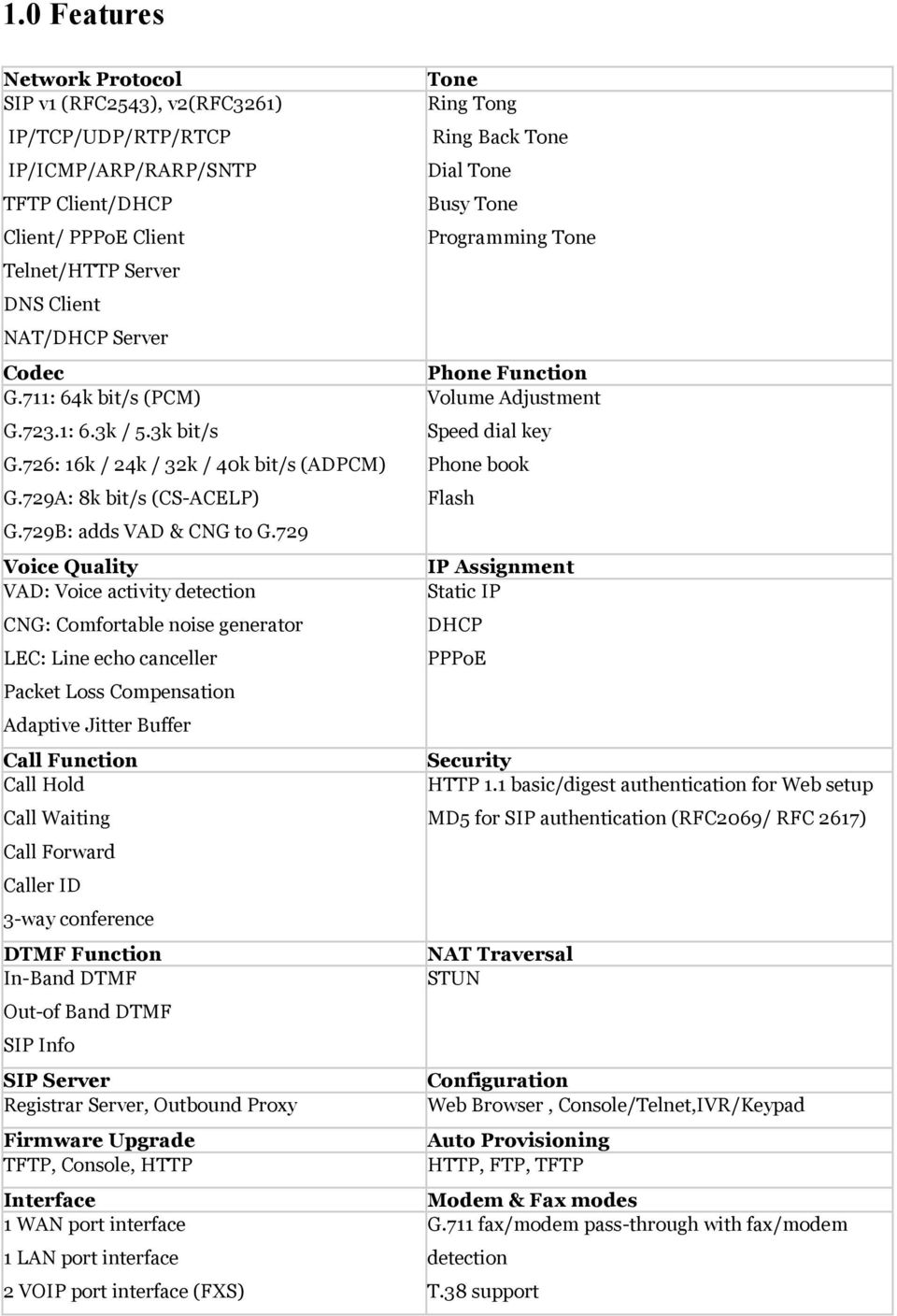
3 1.0 Features Network Protocol SIP v1 (RFC2543), v2(rfc3261) IP/TCP/UDP/RTP/RTCP IP/ICMP/ARP/RARP/SNTP TFTP Client/DHCP Client/ PPPoE Client Telnet/HTTP Server DNS Client NAT/DHCP Server Codec G.711: 64k bit/s (PCM) G.723.1: 6.3k / 5.3k bit/s G.726: 16k / 24k / 32k / 40k bit/s (ADPCM) G.729A: 8k bit/s (CS-ACELP) G.729B: adds VAD & CNG to G.729 Voice Quality VAD: Voice activity detection CNG: Comfortable noise generator LEC: Line echo canceller Packet Loss Compensation Adaptive Jitter Buffer Call Function Call Hold Call Waiting Call Forward Caller ID 3-way conference DTMF Function In-Band DTMF Out-of Band DTMF SIP Info SIP Server Registrar Server, Outbound Proxy Firmware Upgrade TFTP, Console, HTTP Interface 1 WAN port interface 1 LAN port interface 2 VOIP port interface (FXS) Tone Ring Tong Ring Back Tone Dial Tone Busy Tone Programming Tone Phone Function Volume Adjustment Speed dial key Phone book Flash IP Assignment Static IP DHCP PPPoE Security HTTP 1.1 basic/digest authentication for Web setup MD5 for SIP authentication (RFC2069/ RFC 2617) NAT Traversal STUN Configuration Web Browser, Console/Telnet,IVR/Keypad Auto Provisioning HTTP, FTP, TFTP Modem & Fax modes G.711 fax/modem pass-through with fax/modem detection T.38 support
4 PARAMETERS THAT YOU NEED TO CONFIGURE THE VOIP GATEWAY Following table is the parameters that you need to configure the VoIP Gateway. If you cannot get the Internet/WAN access of your own network and VoIP Configuration of your VoIP Service Provider, it s difficult to configure the VoIP Gateway correctly and have it work properly. Parameters that you need to configure the VoIP Gateway Internet/WAN Access of your own Network DHCP Client PPPoE Client Static IP Obtain an IP Address automatically X N/A N/A Username N/A 1234 N/A Password N/A 1234 N/A IP Address N/A N/A Subnet Mask N/A N/A Gateway N/A N/A DNS Server IP N/A N/A VoIP Configuration of Your VoIP Service Provider Domain Server Address Domain Server Port 5060 Proxy Server Address Proxy Server Port 5060 Outbound Proxy Address Outbound Proxy Port 5060 Note: * Username / Password which was given by Telecom or by your Internet Service Provider (ISP). * IP Address / Subnet Mask / Gateway / DNS Server IP which was given by your network administrator or by Telecom or by your Internet Service Provider (ISP). * Domain Server Address and Port / Proxy Server Address and Port / Outbound Proxy Address and Port / User Name / Register Name / Register Password which was given by Telecom or by your Internet Service Provider (ISP) or by your VoIP Service Provider.

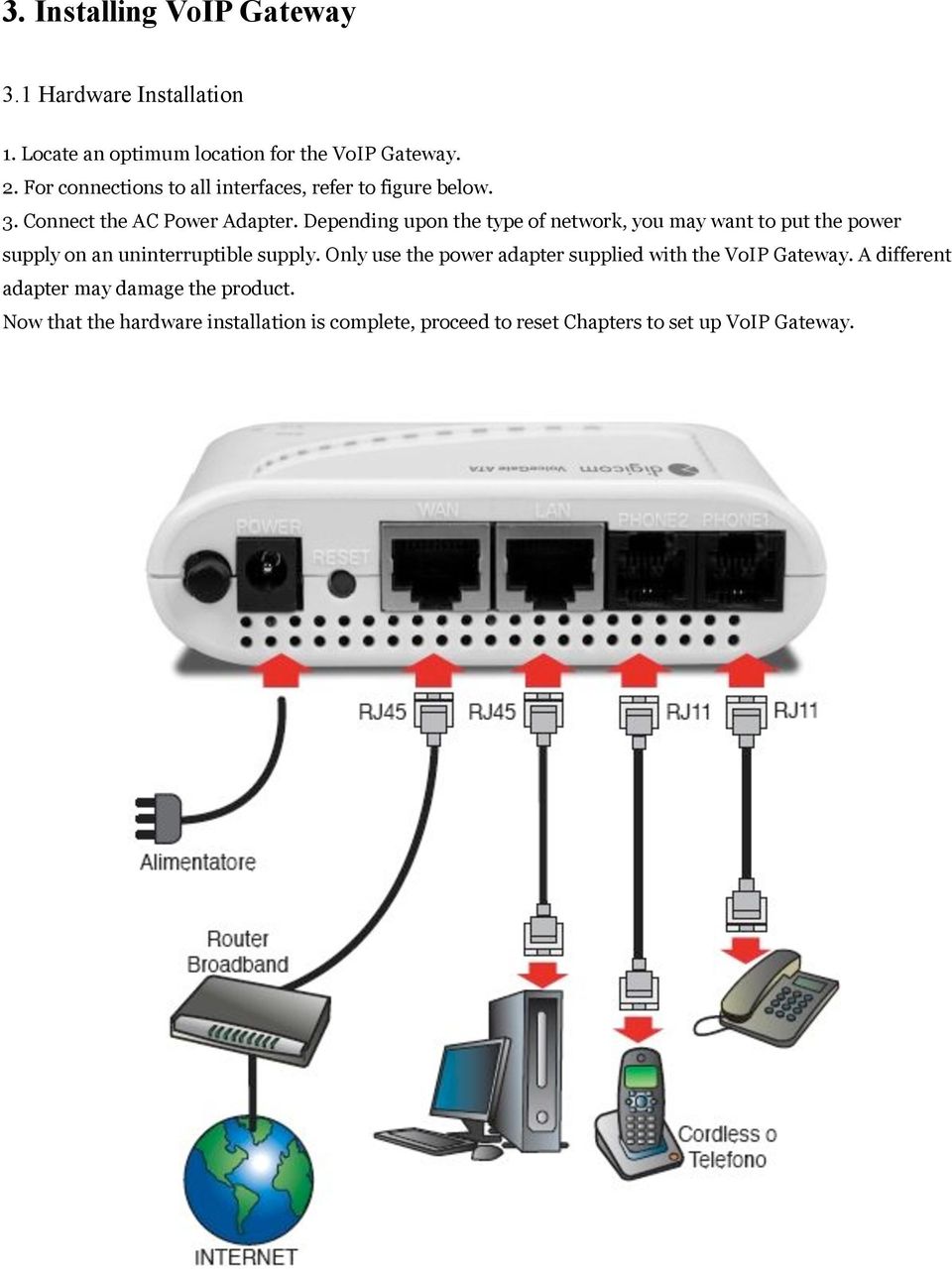
5 2. VoIP Gateway Overview VoIP Gateway has many ports, switches and LEDs. VoIP Gateway may have some or all of the features listed below 2.1 Ports and Buttons POWER: Connect the power adapter that came with the VoIP Gateway. Using a power supply with a different voltage rating will damage this product. Make sure to observe the proper power requirements. The power requirement is DC12 volts/0.6 A. POWER Switch: Power on/off the VoIP Gateway. WAN Port: Connect to Broadband devices, such as a ADSL or Cable modem. LAN Port: Connect to Ethernet network devices, such as a PC, hub, switch, or router. Depending on the connection, you may need a cross over cable or a strait through cable. RESET: The RESET button will set the VoIP Gateway to its factory default setting and reset the VoIP Gateway. You may need to place the VoIP Gateway into its factory defaults if the configuration is changed, you loose the ability to enter the VoIP Gateway via the web interface, or following a software upgrade, and you loose the ability to enter the VoIP Gateway. To reset the VoIP Gateway, simply press the reset button for more than 10 seconds. The VoIP Gateway will be reset to its factory defaults and after about 30 seconds the VoIP Gateway will become operational again. PHONE Jack: Connect a standard telephone handset to the VoIP Gateway phone jack using a telephone cable.

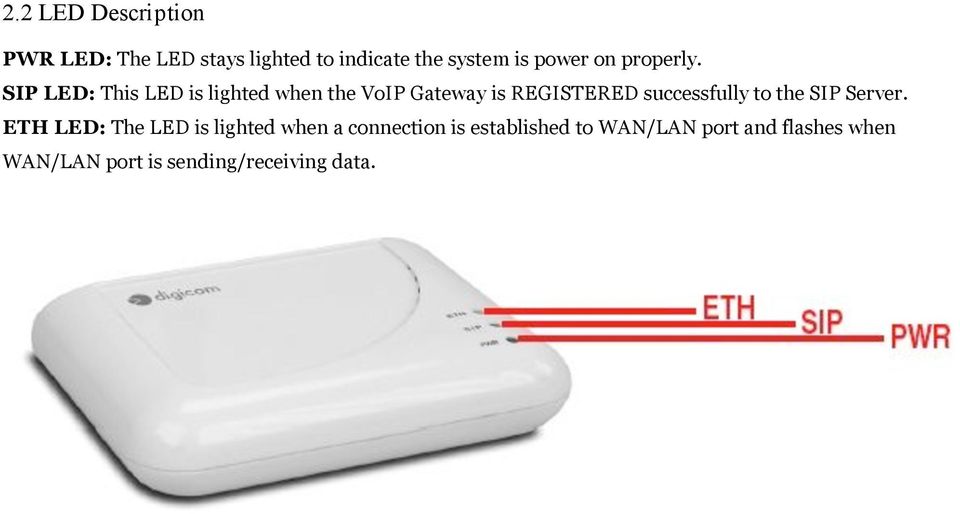
6 2.2 LED Description PWR LED: The LED stays lighted to indicate the system is power on properly. SIP LED: This LED is lighted when the VoIP Gateway is REGISTERED successfully to the SIP Server. ETH LED: The LED is lighted when a connection is established to WAN/LAN port and flashes when WAN/LAN port is sending/receiving data.
7 3. Installing VoIP Gateway 3.1 Hardware Installation 1. Locate an optimum location for the VoIP Gateway. 2. For connections to all interfaces, refer to figure below. 3. Connect the AC Power Adapter. Depending upon the type of network, you may want to put the power supply on an uninterruptible supply. Only use the power adapter supplied with the VoIP Gateway. A different adapter may damage the product. Now that the hardware installation is complete, proceed to reset Chapters to set up VoIP Gateway.
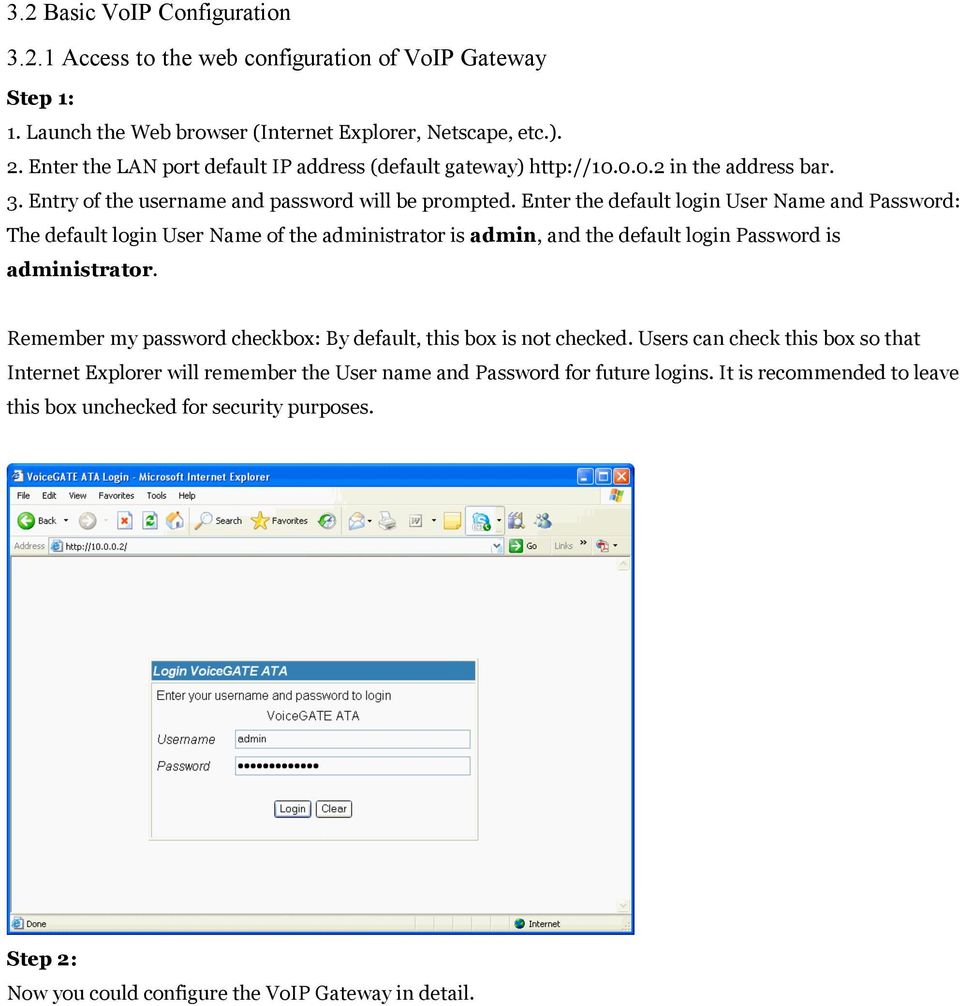
8 3.2 Basic VoIP Configuration Access to the web configuration of VoIP Gateway Step 1: 1. Launch the Web browser (Internet Explorer, Netscape, etc.). 2. Enter the LAN port default IP address (default gateway) in the address bar. 3. Entry of the username and password will be prompted. Enter the default login User Name and Password: The default login User Name of the administrator is admin, and the default login Password is administrator. Remember my password checkbox: By default, this box is not checked. Users can check this box so that Internet Explorer will remember the User name and Password for future logins. It is recommended to leave this box unchecked for security purposes. Step 2: Now you could configure the VoIP Gateway in detail.
9

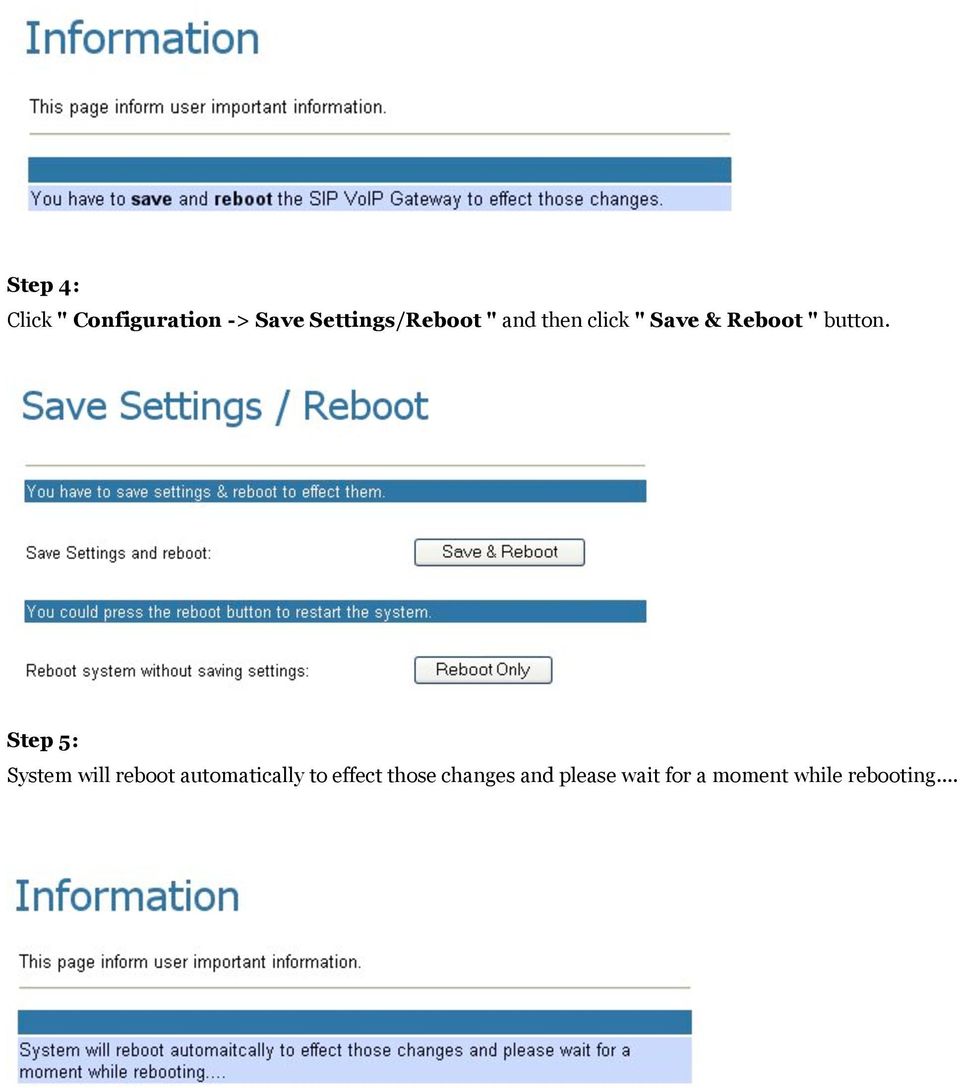
10 3.2.2 VoIP Configuration Step 1: Click " Configuration -> VoIP -> SIP Service Provider " Step 2: Click On ratio in Active, enter the information of "Domain Server / Proxy Server / OutboundProxy / Display Name / User Name / Register Name / Register Password ", which was provided by your VoIP Service Provider and then click "Submit ". Step 3: You have to save and reboot the SIP VoIP Gateway to effect those changes.

11 Step 4: Click " Configuration -> Save Settings/Reboot " and then click " Save & Reboot " button. Step 5: System will reboot automatically to effect those changes and please wait for a moment while rebooting...
12 3.2.3 WAN Configuration Static IP Configuration Step 1: Click " WAN -> Fixed IP " and then enter the " IP Address / Subnet Mask / Gateway / DNS Server1 / DNS Server2 " and then click " Submit " Step 2: You have to save and reboot the SIP VoIP Gateway to effect those changes. Step 3:

13 Click " Configuration -> Save Settings/Reboot " and then click " Save & Reboot " button. Step 4: System will reboot automatically to effect those changes and please wait for a moment while rebooting... Please check the SIP LED is lighted or not. If the SIP LED is lighted, the VoIP Gateway is REGISTERED successfully to the SIP Server. If not, please press reset button and reconfigure configuration again DHCP Client Mode Configuration Step 1: 1. Launch the Web browser (Internet Explorer, Netscape, etc.). 2. Enter the LAN port default IP address (default gateway) in the address bar. 3. Entry of the username and password will be prompted. Enter the default login User Name and Password: The default login User Name of the administrator is admin, and the default login Password is administrator. Remember my password checkbox: By default, this box is not checked. Users can check this box so that Internet Explorer will remember the User name and Password for future logins. It is recommended to leave this box unchecked for security purposes.

14 Step 2: Click " WAN -> DHCP client " and then click " Submit "
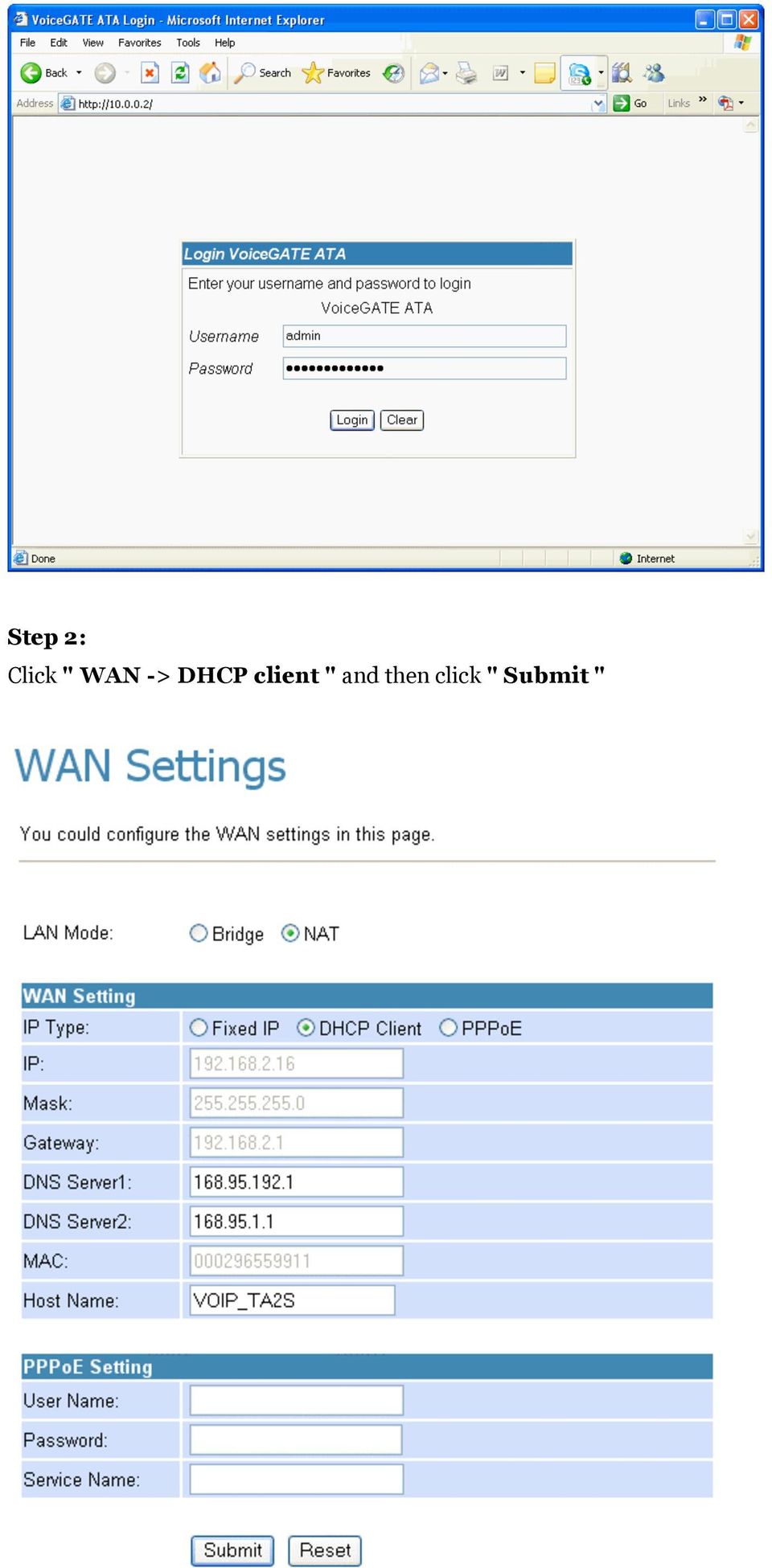
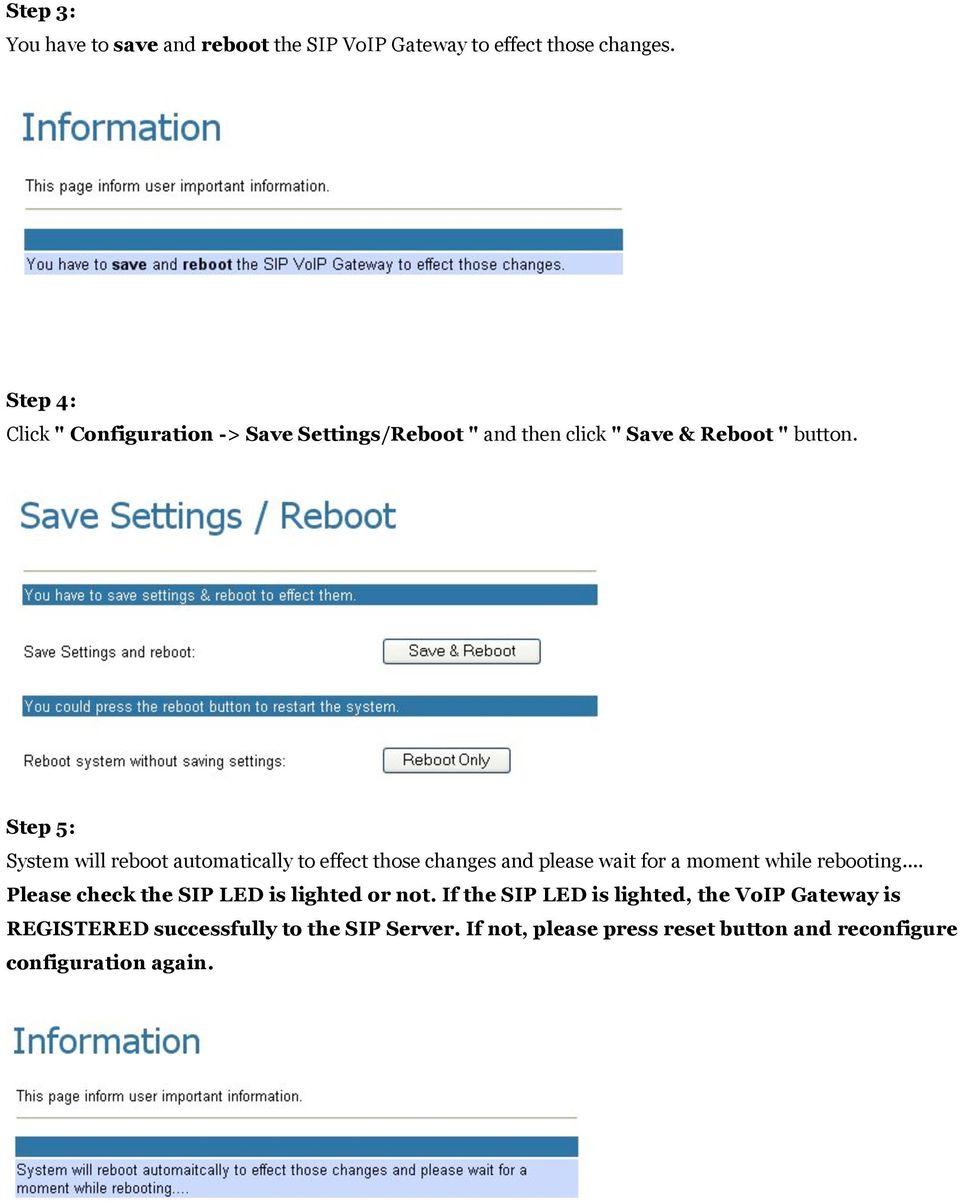
15 Step 3: You have to save and reboot the SIP VoIP Gateway to effect those changes. Step 4: Click " Configuration -> Save Settings/Reboot " and then click " Save & Reboot " button. Step 5: System will reboot automatically to effect those changes and please wait for a moment while rebooting... Please check the SIP LED is lighted or not. If the SIP LED is lighted, the VoIP Gateway is REGISTERED successfully to the SIP Server. If not, please press reset button and reconfigure configuration again.
16 PPPoE Client Mode Configuration Step 1: 1. Launch the Web browser (Internet Explorer, Netscape, etc.). 2. Enter the LAN port default IP address (default gateway) in the address bar. 3. Entry of the username and password will be prompted. Enter the default login User Name and Password: The default login User Name of the administrator is admin, and the default login Password is administrator. Remember my password checkbox: By default, this box is not checked. Users can check this box so that Internet Explorer will remember the User name and Password for future logins. It is recommended to leave this box unchecked for security purposes. Step 2: Click " WAN -> PPPoE ", enter the " User Name and Password " which was given by Telecom or by your Internet Service Provider (ISP) and then click " Submit "

17 Step 3: You have to save and reboot the SIP VoIP Gateway to effect those changes. Step 4: Click " Configuration -> Save Settings/Reboot " and then click " Save & Reboot " button.

18 Step 5: System will reboot automatically to effect those changes and please wait for a moment while rebooting... Please check the SIP LED is lighted or not. If the SIP LED is lighted, the VoIP Gateway is REGISTERED successfully to the SIP Server. If not, please press reset button and reconfigure configuration again.

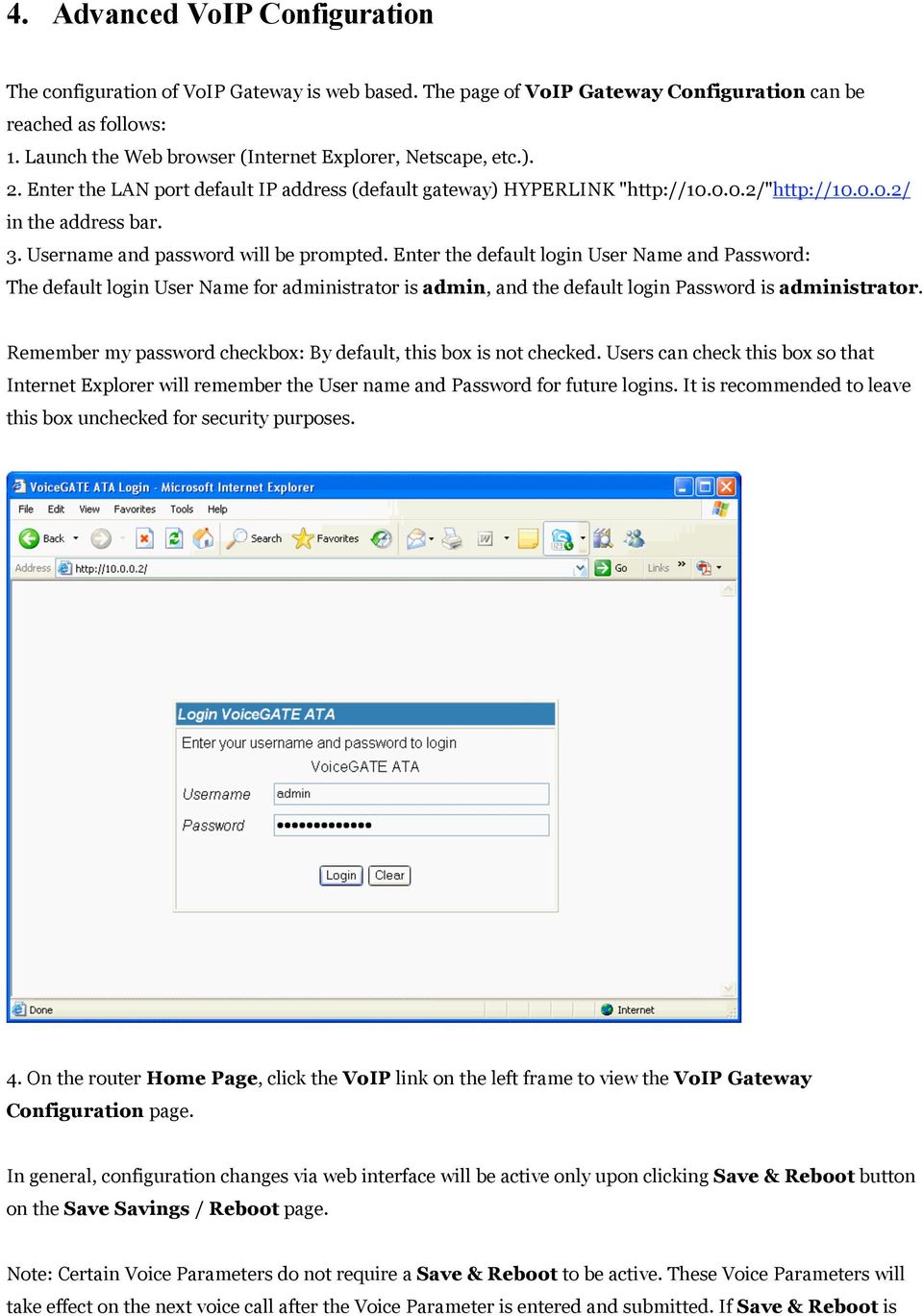
19 4. Advanced VoIP Configuration The configuration of VoIP Gateway is web based. The page of VoIP Gateway Configuration can be reached as follows: 1. Launch the Web browser (Internet Explorer, Netscape, etc.). 2. Enter the LAN port default IP address (default gateway) HYPERLINK " in the address bar. 3. Username and password will be prompted. Enter the default login User Name and Password: The default login User Name for administrator is admin, and the default login Password is administrator. Remember my password checkbox: By default, this box is not checked. Users can check this box so that Internet Explorer will remember the User name and Password for future logins. It is recommended to leave this box unchecked for security purposes. 4. On the router Home Page, click the VoIP link on the left frame to view the VoIP Gateway Configuration page. In general, configuration changes via web interface will be active only upon clicking Save & Reboot button on the Save Savings / Reboot page. Note: Certain Voice Parameters do not require a Save & Reboot to be active. These Voice Parameters will take effect on the next voice call after the Voice Parameter is entered and submitted. If Save & Reboot is
20 not done, then these Voice Parameters will not be saved over a power cycle. The Voice Parameters that can be changed on the fly are noted in the respective sections. 4.1 Status Page System Information Page This page illustrates the system related information Network Status Page You can check the current Network setting in this page VoIP Status Page The page shows current status of VoIP SIP Service provider.

21 4.2 Configuration Page WAN Configuration Page You can configure the WAN settings in this page The TCP/IP Configuration item defines the LAN port s network environment. You may refer to your current network environment to configure the VoIP Gateway properly The PPPoE Configuration item defines the PPPoE Username and Password. If you have the PPPoE account from your Service Provider, please insert Username and Password correctly The Bridge Item defines the VoIP Gateway Bridge mode Enable/Disable. If you set the Bridge On, then the two Fast Ethernet ports will be transparent When you complete the setting, please click the Submit button.
22 4.2.2 LAN Configuration Page You can configure the LAN settings/dhcp Server in this page VoIP Gateway Configuration Page The VoIP Gateway Configuration page sets the parameters for the VoIP application. The VoIP Gateway Configuration page is divided into three general categories: SIP Setting, Phone Book, Phone Setting, and Others.
23 SIP Setting Configuration In SIP Settings you can setup the Service Domain, Port Settings, Codec Settings, RTP Setting, RPort Setting and Other Settings. If the VoIP service is provided by ISP, you need to setup the related information correctly then you can register to the SIP Proxy Server correctly SIP Service Provider In Service Domain Function insert the account and the related information received by your ISP provider. You can register three SIP accounts in the VoIP Gateway. You can dial your friends' VoIP phone enabling the first SIP account and receive the call from these three SIP accounts.
24 Active Domain Server Proxy Server Outbound Proxy Display Name User Name Register Name Register Password Subscribe for MWI Register Status Submit Button Reset Button Back Button SIP Service Provider First you need click On to enable the Service Domain, then you can input the following items: For example, in the domain is domain.com. Provided by your VoIP Service Provider. If your VoIP service provider has an proxy address and requires that you provide the address to VoIP Gateway. For the address enter a domain name (for example, domain.com) or an IP address (for example, ). If your VoIP service provider has an outbound proxy address and requires that you provide the address to VoIP Gateway. For the address enter a domain name (for example, domain.com) or an IP address (for example, ). This name is displayed in the VoIP Gateway display. Other parties will see this name they are when connected to you. Typically the account number for the SIP account. For example, in [email protected], the user name is test. Provided by your VoIP Service Provider. May not be required. If it is required, it will be provided by your VoIP Service Provider. Provided by the VoIP Service Provider. When set to On a Subscribe for Message Waiting Indication will be sent periodically. You can see the Register Status in the Status item. If the item shows Registered, then your VoIP Gateway is registered to the ISP, you can make a phone call directly. When you finished the setting, please click the Submit button. You can reset the configured parameters before you submit Go back to the previous web page Port Setting You can setup the SIP and RTP port number in this page. Each ISP provider will have different SIP/RTP port setting, please refer to the ISP to setup the port number correctly. When you complete the setting, please click the Submit button.
25 Codec Settings You can setup the Codec priority, RTP packet length, and VAD(Voice Activity Detection) function in this page. Follow the suggestion of your ISP to setup these items. When you complete the setting, please click the Submit button Codec ID Setting You can set the value of Codec ID in this page.
26 DTMF Setting You can setup the Out-Band DTMF and Send DTMF SIP Info Enable/Disable in this page. To change this setting, please follow your VoIP Service Provider s information. When you complete the setting, please click the Submit button. RFC 2833: Click this button to send Mid-Call DTMF tones in RTP packets separately using RFC2833, i.e., dynamic negotiation of RTP payload for DTMF digits will be done. Inband DTMF (IN AUDIO): Click this button to send Mid-Call DTMF tones in RTP packets with the same payload as voice, i.e., dynamic payload negotiation for DTMF digits will not be done. Send DTMF SIP Info: This field is configurable when RFC 2833 is selected as the DTMF Relay mechanism. Specify the payload number that needs to be used for DTMF information negotiated in SDP during SIP signaling RPort Function You can setup the RPort Enable/Disable in this page. To change this setting, please follow your VoIP Service Provider s information. When you complete the setting, please click the Submit button QoS You can setup the Hold by RFC, Voice/SIP QoS, SIP expire time and Use DNS SRV in this page. To change these settings please follow your ISP information. When you complete the setting, please click the Submit button.
27 The QoS sets the voice packets priority. If you set the value higher than 0, then the voice packets will get the higher priority to the Internet. But the QoS function still needs to cooperate with the other Internet devices Phone Book Configuration The Phone Book contains Speed Dial Settings. You can setup the Speed Dial number. If you want to use Speed Dial, just dial the speed dial number then press # In the Phone Book setting function you can add/delete Speed Dial number. You can insert 140 entries maximum in the Speed Dial list To add a phone number in the Speed Dial list, insert the position, the name (Speed Dial Number), and the phone number (by URL type). When you complete a new phone list, just click the Add Phone button If you want to delete a phone number, select the phone number you want to delete then click the Delete Selected button If you want to delete all phone numbers, click the Delete All button.
28 Phone Book Page Book Page Default page is Page1. There are total 14 pages from Page 1 to Page 14 Phone Show the phone number by sequence. There are total 140 phone numbers from Phone 0 to Phone 139 can be set Name Enter the Name Number Enter the Speed Dial Number URL Display the URL that you configured Select Select the item of the phone number Delete Selected Delete selected item [Button] Delete All [Button] Delete all items Reset [Button] Reset selected item Add New Phone Position Enter the phone number from 0 to 139 Name Enter the Name Number Enter the Speed Dial Number URL Enter the URL, VoIP Phone Number, Remote WAN IP Address of VoIP Gateway Add Phone Add the new Phone which you configured [Button] Reset [Button] Reset configured items Examples
29 Example 1: Position: 0, Name: IPtel User test, Number: 000, URL: HYPERLINK When the user dials the Number 000, he will call the VoIP User test who is registered to the SIP Server iptel.org. Please note that you need also to register to the SIP Server iptel.org. If you register to different SIP Server, please make sure that the SIP Server allows you to call iptel.org. Example 2: Position: 1, Name: IP Dialing #1, Number: 001, URL: When the user dials the Number 001, he will call the VoIP Device whose WAN IP Address is Example 3: Position: 2, Name: IP Dialing #2, Number: 002, URL: :5062 When the user dials the Number 002, he will call the VoIP Device whose WAN IP Address is with the port Example 4: Position: 3, Name: VoIP User , Number: 003, URL: When the user dials the Number 003, he will call the VoIP User whose phone number is Example 5: Position: 4, Name: VoIP User voipuser, Number: 004, URL: voipuser When the user dials the Number 004, he will call the VoIP User whose phone number is voipuser. Example 6: Position: 5, Name: VoIP Out #1, Number: 005, URL: When the user dials the Number 005, he will call the PSTN phone number by VoIP OUT. Important notice: make sure that your VoIP Service Provider supports the VoIP OUT.
30 If your VoIP Service Provider supports the VoIP OUT, please follow the instructions of your VoIP Service Provide to dial the PSTN phone number by VoIP OUT. For example: as suggested by the VoIP Server Provider, dial the recommended dialing sequence: 00 + country code + telephone number (e.g ). Example 7: When dialing a VoIP Phone Number that isn t configured in the Number list, it will dial out the VoIP Phone Number Phone Setting The Phone Setting contains the following functions: Call Forward, Volume Settings, DND Settings, Auto Answer, Caller ID, Dial Plan Settings, Flash Time Settings, Call Waiting Settings, T.38(FAX) Settings and Hot line Settings Call Forward function In this page you can setup the phone number you want to forward. There are three type of Forward mode. You can choose All Forward, Busy Forward, and No Answer Forward by click the icon.
31 All Forward Busy Forward No Answer Forward Off IP PSTN (Optional) All Fwd No. Busy Fwd No. No Answer Fwd No. Name URL No Answer Fwd Time Out Submit Button Reset Button Back Button All incoming call will be forwarded to the URL/number you configured. If you are on the phone, the new incoming call will be forwarded to the URL/number you configured. If you can not answer the phone after a specific ring you configured, the incoming call will be forwarded to the URL/number you configured. Disable call forward. Enable call forward for URL/number. Enable call forward for PSTN phone number. Only the for 1 FXO +1 FXS The URL/number you configured will be forwarded to for All Forward The URL/number you configured will be forwarded to for Busy Forward The URL/number you configured will be forwarded to for No Answer Forward Display the name of URL/number you configured Enter the URL, VoIP Phone Number, Remote WAN IP Address of VoIP Gateway to which you want the call is to be forwarded to. You can set the Time Out time for system to start the call forwarding to the number you configured for No Answer Forward When you complete the setting, please click the Submit button. You can reset the configured parameters before you submit. Go back to the previous web page Example 1: All Forward: IP, Name.: 7777, URL/Number: 7777 All incoming calls will be forwarded to the VoIP phone number Example 2: All Forward: IP, Name: , URL/Number:
32 All incoming calls will be forwarded to the VoIP IP Gateway s WAN IP Address Example 3: All Forward: PSTN, Name.: , URL/Number: All incoming calls will be forwarded to the PSTN phone number Example 4: All Forward: IP, Name.: 7777, URL/Number: 7777 If you are on the phone, the new incoming call will be forwarded to the VoIP phone number Example 5: All Forward: IP, Name: , URL/Number:
33 If you are on the phone, the new incoming call will be forwarded to the VoIP IP Gateway s WAN IP Address Example 6: All Forward: IP, Name.: 7777, URL/Number: 7777 If you can not answer the phone after 3 rings, the incoming call will be forwarded to the VoIP phone number Example 7: All Forward: IP, Name: , URL/Number: If you can not answer the phone after 3 rings, the incoming call will be forwarded to the VoIP IP Gateway s WAN IP Address Example 8: All Forward: PSTN, Name.: , URL/Number:
34 If you can not answer the phone after 3 rings, the incoming call will be forwarded to the PSTN phone number Volume Setting function You can setup the Handset Volume, PSTN-Out Volume, Handset Gain and the PSTN-In Gain. When you complete the setting, please click the Submit button Handset Volume sets the volume of the earphone of your handset PSTN-Out Volume sets the PSTN volume of the microphone of your handset, sent out to the other side's earphone of handset Handset Gain sets the volume of the microphone of your handset, sent out to the other side's earphone of handset PSTN-In Gain sets the PSTN volume of the earphone of your handset When you complete the setting, please click the Submit button DND Setting function In this page you can set the do not disturb period of your phone.
35 DND Always DNS Period From To Submit Button Reset Button Back Button Default is Off (disable). When it was On (enable). All incoming call will be blocked and the caller will hear the busy tone any time when place a call until disable this feature. Default is Off (disable). When it was On (enable). All incoming call will be blocked and the caller will hear the busy tone any time when place a call during the time period until disable this feature. If the From time is large than the To time, the Block time will from Day 1 to Day 2. Input the start time of the time period. (24 hours format, hh:mm) Input the end time of the time period. (24 hours format, hh:mm) When you finished the setting, please click the Submit button. You can reset the configured parameters before you submit Go back to the previous web page Caller ID function You can set the device to show Caller ID in your PSTN Phone or IP Phone. There are four selections for Caller ID. The setting of the Caller ID function for FSK or DTMF depends on your phone.
36 Single Caller ID CID Without Time CID Type 2 Submit Button Reset Button Back Button Default is Off (disable). When it was Yes (enable), It ll detect the Singel Caller ID. Default is Off (disable). When it was Yes (enable), It ll detect the Caller ID without time. Default is Off (disable). When it was Yes (enable), It ll detect the Caller ID Type 2. When you finished the setting, please click the Submit button. You can reset the configured parameters before you submit Go back to the previous web page Dial Plan function Number to add or replace before dial the phone number. Drop Prefix Replace rule1 Replace rule2 Default is NO (Add the Prefix). When it was Yes (Drop the Prefix), It ll drop the prefix. NO (Add the Prefix): When it meets the rule which you configured, it ll add the prefix. Maximum input digits are 7. Yes (Drop the Prefix): When it meets the rule which you configured, it ll drop the prefix and replace the number which you configured. Maximum input digits are 31. There are total 4 replace rules for use.
37 Replace rule3 Replace rule4 Dial now Auto Dial Time Use # as send key Use * for IP dialing Submit Button Reset Button Back Button +: or xxx: Define the length of digits. If the numbers which you dialed met this rule, it will dial out with its dial plan immediately. Be noted that the first digit cannot be 0 due to 0 in the first digit is to ignore this rule. If you set the rule 0xxxxx and this rule is invalid due to the first digit is 0. Default is 5 (Seconds). How long the phone number will be dialed out after finishing dialing the digits. Default is Yes. When it was No, It ll wait for the setting of Auto Dial Time and then dial out after dialing the phone numbers. Default is Yes. When it was No, the * key will not be as. for IP Dialing. When you finished the setting, please click the Submit button. You can reset the configured parameters before you submit Go back to the previous web page Symbol explanation: x or X 0,1,2,3,4,5,6,7,8,9 + or Example 1: Drop prefix: No, Replace rule 1: 002, When the number 8613 is dialed and the prefix 002is added, the real phone number [ xxx] will be dialed out. For example, when you dial the number , the prefix 002 will be added and the real phone number will be dialed out. When the number 8662 is dialed and the prefix 002 is added, the real phone number [ xxx] will be dialed out. For example, when you dial the number , the prefix 002 will be added and the real phone number will be dialed out. Example 2: Drop prefix: Yes, Replace rule 2: 006, When the number 002 is dialed, the digits 002 will be replaced with 006 and the whole digits [006+xxx] will be dialed out. For example, when you dial the number and the digits 002 is replaced with 006, then the real phone number will be dialed out. When the number 003 is dialed, the digits 003 is replaced with 006 and the real phone number
38 [006+xxx] will be dialed out. For example, when you dial the number and the digits 003 will be replaced with 006, then the real phone number will be dialed out. When the number 004 is dialed, the digits 004 will be replaced with 006 and the real phone number [006+xxx] will be dialed out. For example, when you dial the number and the digits 004 will be replaced with 006, then the real phone number will be dialed out. When the number 005 is dialed, the digits 005 will be replaced with 006 and the real phone number [006+xxx] will be dialed out. For example, when you dial the number and the digits 005 will be replaced with 006, then real phone number digits will be dialed out. When the number 007 is dialed, the digits 007 will be replaced with 006 and the real phone number [006+xxx] will be dialed out. For example, when you dial the number and the digits 007 will be replaced with 006, then the real phone number will be dialed out. When the number 009 is dialed, the digits 009 will be replaced with 006 and the real phone number [006+xxx] will be dialed out. For example, when you dial the number and the digits 009 will be replaced with 006, then the real phone number will be dialed out. Example 3: Drop prefix: No, Replace rule 3: 009, 12 When the number 12 is dialed, the prefix 009 is added and the whole digits [ xxx] will be dialed out. For example, when you dial the number and the prefix 009 will be added, the real phone number will be dialed out. Example 4: Drop prefix: No, Replace rule 4: 007, 5xxx+35xx+21xx When the number 5xxx is dialed and the prefix 007 is added, the whole digits [007+5xxx] will be dialed out. Note that the range of xxx is from 000 to 999. For example, when you dial the number 5000 and the prefix 007 will be added and the real phone number
39 will be dialed out. For example, when you dial the number 5999 and the prefix 007 is added, the real phone number will be dialed out. When the number 35xx is dialed and the prefix 007 is added, the whole digits [007+35xx] will be dialed out. Note that the range of xx is from 00 to 99. For example, when you dial the number 3500 and the prefix 007 is added, the real phone number will be dialed out. For example, when you dial the number 3599 and the prefix 007 is added, the real phone number will be dialed out. When the number 21xx is dialed, the prefix 007 is added and the whole digits [007+21xx] will be dialed out. Note that the range of xx is from 00 to 99. For example, when you dial the number 2100, the prefix 007 is added and the real phone number will be dialed out. For example, when you dial the number 2199 and the prefix 007 is added, the real phone number will be dialed out. When the number 534 is dialed, the prefix 007 will not be added and the real phone number 534 will be dialed out because the above mentioned rule is not matched. When the number is dialed, the prefix 007 will not be added and the real phone number will be dialed out because the above mentioned rule is not matched. Example 5: Dial Now: xx When the two digits in the range from 00 to 99 have been dialed, they will be dial out immediately. Auto Dial Time function It is when you insert the phone number by the keypad and you don t need to press #. After time out the system will dial directly. Auto Dial Time function The * key will not be as. in IP Dialing. If you want to dial the IP Dialing, you need to know the WAN IP Address of the remote VoIP Devices. For example if the WAN IP Address of Remote VoIP Device is
40 , then you need to dial 222*222*222*222# to make a IP Dialing Flash Time Settings function When you use the PSTN Phone and you need to press the Hook to do the Flash(Switch to the other phone line or HOLD). This function sets the time you must press the Hook to activate the Flash function Call Waiting Settings In this page you can enable/disable the call waiting setting. If a new call is coming while you are talking, you can press the Flash button to switch to the new call. Pressing the Flash button you switch between the two calls. To end the first call, hang up the phone. Then the phone will ring, please pick it up to answer the second call. Hang up again to end the call T.38 (FAX) Setting In this page you can enable/disable the FAX function.
41 T.38 (FAX) Default is Off (Disabled). When it is On (Enabled), it enables the T.38 Fax function. T.38 Port/ T.38 Port of Phone1 Default is (Only one port at a time is supported) T.38 Port of Phone2 Default is (Only one port at a time is supported) Submit Button When you complete the setting, please click the Submit button. Reset Button You can reset the configured parameters before you submit Back Button Go back to the previous web page T.38 support Fax Pass-through In fax pass-through mode, UDPTL packets are not used. Fax communication between the two fax machines is carried in its entirety in-band over a voice call (over RTP). The VoIP Gateway is aware that the call in progress is a fax call and not a voice call. If during a voice call, the CED/CNG fax tones are recognized, then the VoIP Gateway will change the voice codec to G.711, if necessary, turn off echo cancellation (EC) and voice activity detection (VAD) and fix the jitter and reorder buffers to fix the network delay for the duration of the call. T.38 support mode T.38 provides an ITU-T standards-based method and protocol for fax. Annexe D describes the system level requirements and procedures for establishing fax calls between two SIP based endpoints. In this mode, the VoIP Gateway will establish a normal voice call and switch to fax based on the detection of Fax tones from the PTM. It will then renegotiate the session parameters with new T.38 parameters. The rest of the fax signaling and data is then encapsulated and sent in IFP packets. The IFP packets can be sent over TCP or UDP (VoIP Gateway supports only UDP). On call disconnect, SIP signaling is used to end the call. The ITU-T T.38 defines the behavior for both Internet Aware Fax Devices (IAF, network aware fax machine) and Gateways connected to G3FE (Group 3 Fax equipment). The VoIP Gateway supports both kinds of behaviors.
42 Hot line Settings Provide the Hot Line function. It'll dial the configured URL, VoIP Phone Number or the Remote WAN IP Address of VoIP Gateway automatically every time you pick up the phone. Use Hot Line Hot Line Number Submit Button Reset Button Back Button Default is Disable. When it is Enable, it enables the Hot Line function. Enter the URL, VoIP Phone Number, Remote WAN IP Address of VoIP Gateway you want to use for Hot Line. When you finished the setting, please click the Submit button. You can reset the configured parameters before you submit Go back to the previous web page Example 1: Use Hot Line: Enable, Hot line number: Every time you pick up the phone, it will dial the VoIP Phone Number automatically. Example 2: Use Hot Line: Enable, Hot line number: voiptest
43 Every time you pick up the phone, it will dial the VoIP Phone Number voiptest automatically. Example 3: Use Hot Line: Enable, Hot line number: Every time you pick up the phone, it will dial the WAN IP Address of Remote VoIP Gateway automatically Others This section contains Auto Configuration Settings, FXO & FXS Impedence Setting, MAC Clone Settings and Advanced Settings functions.
44 Auto Configuration Settings In this page you can enable/disable the auto configuration/provisioning settings. The VoIP Gateway provides secure provisioning and remote upgrade. Provisioning is achieved through configuration profiles transferred to the device via TFTP, HTTP or FTP. The VoIP Gateway can be configured to update its VoIP Configuration from a remote profile at power up or reboot. Auto Configuration TFTP Server HTTP Server HTTP Path FTP Server FTP Username FTP Password File Path Submit Button Reset Button Back Button Default is Off(Disable). When it was Enable, there are 3 types of Auto Configuration: TFTP, FTP and HTTP. Enter IP or Domain Name of TFTP Server. Enter IP or Domain Name of HTTP Server. Enter File Path where the provisioning file is. Enter IP or Domain Name of FTP Server. Enter Username which provided by FTP Server. Enter Password which provided by FTP Server. Enter File Path where the provisioning file is. When you finished the setting, please click the Submit button. You can reset the configured parameters before you submit Go back to the previous web page Example 1: Auto Configuration for HTTP Server Auto Configuration: HTTP, HTTP Server: , HTTP Path: /
45 Every time you power on the VoIP Gateway, it will update its VoIP configuration to the latest one from Auto Provisioning Server (HTTP Server) automatically. Example 2: Auto Configuration for TFTP Server Auto Configuration: TFTP, TFTP Server: Every time you power on the VoIP Gateway, it will update its VoIP configuration to the latest one from Auto Provisioning Server (TFTP Server) automatically. Example 3: Auto Configuration for FTP Server Auto Configuration: FTP, FTP Server: , FTP Username: 1234, FTP Password: 1234, FTP Path: /
46 Every time you power on the VoIP Gateway, it will update its VoIP configuration to the latest one from Auto Provisioning Server (FTP Server) automatically FXO & FXS Impedence Setting In this page you can select the FXO & FXS Impedence Setting for different countries. FXO Port FXS Port Submit Button Reset Button Back Button Default is USA. You could select the FXO Impedence Setting for different country here. Default is USA. You could select the FXS Impedence Setting for different country here. When you finished the setting, please click the Submit button. You can reset the configured parameters before you submit Go back to the previous web page
47 STUN Setting In this page you can Enable/Disable the STUN and configure the STUN Server IP address. This function helps your VoIP Gateway working properly behind NAT. To change these settings please follow your VoIP Service Provider s information. When you complete the setting, please click the Submit button. STUN STUN Server STUN Port Submit Button Reset Button Back Button Default is Off (disable). When it was On (enable). It enables STUN (Simple Transversal of UDP through NAT) if the VoIP Gateway is behind a NAT enabled router and the router has no ALG for SIP, or NONE to disable STUN (VoIP Gateway is not to use STUN for NAT traversal). VoIP Gateway also supports a proprietary implementation of NAT traversal where the Service provider is expected to provide some relay support. If NONE is selected, then based on the responses received, the VoIP Gateway will dynamically determine if the SIP Server supports the proprietary implementation. Note: Even when STUN is enabled, the VoIP Gateway does an automatic detection of the presence of SIP ALG and disables the use of STUN. This is to avoid some media problems arising out of the behavior of some ALGs when STUN is used at the user end. Enter the IP address or Domain Name of the STUN Server. The default is stun.xten.com. This field is applicable only if USE STUN is selected as the NAT traversal technique. Enter the port number on which the STUN server listens for requests from the STUN Client on VoIP Gateway. The range is 1024 to The default is This field is applicable only if USE STUN is selected as the NAT traversal technique. When you finished the setting, please click the Submit button. You can reset the configured parameters before you submit Go back to the previous web page
48 MAC Clone Settings Some ISPs do not want you to have a home network and have a DSL/Cable modem that allows only 1 MAC to talk on the internet. If you change the network cards, you have to call them up to change the MAC. The VoIP Gateway can clone the computer's MAC that was originally set up for such an ISP. MAC Clone Submit Button Reset Button Back Button Default is Off (disabled). When it is On (enabled), the VoIP Gateway clones the computer's MAC that was originally set up for that ISP. When you complete the setting, please click the Submit button. You can reset the configured parameters before you submit Go back to the previous web page Tones settings In this page you can configure your tones settings.
49 Advanced Settings In this page you can change advanced setting. CPC (Calling Party Control) is a signal sent from most modern electronic COs to indicate that the "Calling Party" has hung up. The CPC signal tells the phone equipment that the outside party has hung-up, so it can stop recording to an answering machine or voice mail, drop the call off hold, or just release a line that might be used for dictation or announcements. ICMP Not Echo Send Anonymous CID Billing Signal CPC Delay CPC Duration Send Flash event Default is Off (disable). When it was On (enable). The VoIP Gateway will not echo the ICMP request. The Anonymous Caller ID to display when you make a call to others VoIP Gateways. Default is Off (disable). When it was On (enable). Polarity Reversal is enabled to inform the charge/billing system (Polarity Reversal, Tone_12K, Tone_16K). Support FXS Port only Default is 2. The VoIP Gateway will send the CPC after the delay time which you configuration. Support FXS Port only When VoIP Gateway is the called party, CPC duration is the "voltage drop" duration, before it plays dial tone again. Support FXS Port only Default is Disable. There are two types of Flash event: DTMF Event and SIP Info.
50 SIP Encrypt PPPoE retry period (*) System Log Server System Log Type Submit Button Reset Button Back Button Default is Disable. There are four types of SIP Encrypt: INFINET, AVS, WALKERSUN1, WALKERSUN2, CSF1, CSF2 and GX. Default is 5 seconds. The range is 5 to 255. When PPPoE failed to connect to ISP, it will wait for the period which you configured to redial. To upload the system log on the specified Server Default is None. There are 7 types: Call Statistics, General Debug, Call Statistics + General Debug, SIP Debug, Call Statistics + SIP Debug, General Debug + SIP Debug, All. When you finished the setting, please click the Submit button. You can reset the configured parameters before you submit Go back to the previous web page Example 1: ICMP Not Echo: Yes The ICMP will not echo no matter you request from LAN side or WAN side. Example 2: Send Anonymous CID: Yes Every time you make a call to others VoIP Gateways, it willl send the Anonymous as Caller ID out automatically. Example 3: Management from WAN: Yes You can remote manage from the WAN IP Address of the VoIP Gateway. Example 4: Send Flash event: DTMF EVENT It will send the DTMF EVENT as Flash event. Send Flash event: SIP INFO It will send the SIP INFO as Flash event.
51 4.2.4 DDNS Configuration Page In this page you can configure the DDNS setting. You must have the DDNS account and insert the information properly. You can have a DDNS account with a public IP address so that others can call you via the DDNS account. But now most of the VoIP applications are working with a SIP Proxy Server. When you complete the setting, please click the Submit button. Example 1: Configure the WAN to PPPoE Client and make sure you got the WAN IP Address (Public IP Address).
52 Configure the Host Name, User Name, Password, and Address.
53 If every parameter is correctly configured, you can visit the home page of the VoIP Gateway entering the DDNS Host Name as follow VLAN Settings Page In this page you can set the VLAN settings.
54 VLAN Packets VID (802.1Q/TAG) User Priority (802.1P) CFI Submit Button Reset Button Back Button Default is Off(Disable). When it was On(Enable), It ll enable to receive VLAN Packets function. Default is 136. Configure the Virtual LAN ID (VLAN ID or VID) for VLAN Server. The VLAN Identifier is a 12-bit field. It uniquely identifies the VLAN to which the frame belongs. The field can have a value between 2 and Default is 0. Configure user priority. Also known as user priority, this 3-bit field refers to the IEEE 802.1p priority. The field indicates the frame priority level which can be used for the prioritization of traffic. The field can represent 8 levels (0 through 7). The Canonical Format Indicator is a 1-bit field. If the value of this field is 1, the MAC address is in non-canonical format. If the value is 0, the MAC address is in canonical format. When you finished the setting, please click the Submit button. You can reset the configured parameters before you submit Go back to the previous web page Virtual Server Page In this page you can configure your demilitarized zone setting.
55 4.2.7 Virtual Server Page Virtual Servers are used for port forwarding from the WAN to LAN networks. The Virtual Server Configuration page allows you to set the configuration of the Virtual Server. All UDP/TCP ports are protected from intrusion. If any specific local PCs need to be mapped to the UDP/TCP port on WAN side, please insert the mappings here. There can be up to 24 different Virtual Server Configurations. Virtual Server Page Virtual Server Page Default page is Page1. There are total 3 pages from Page 1 to Page 3 Num Enable Protocol In Port (Internal Port) Ex Port (External Port) Server IP Select Enable Selected Show the number by sequence. There are total 24 numbers from Phone 0 to Phone 23 can be set This is the number corresponding to the Virtual Server configuration. Default is Disable. When it was Enable, It ll enable the Virtual Server Select TCP or UDP. Display the Internal Port that you configured Display the External Port that you configured Display the private network IP address for the particular server. Select the item of the Virtual Server Enable selected item
56 [Button] Delete Selected [Button] Delete All [Button] Reset [Button] Delete selected item Delete all items Reset selected item Num Server IP Protocol Internal Port External Port Add Server [Button] Reset [Button] Add Virtual Server Enter the number corresponding to the Virtual Server configuration. Enter the private network IP address for the particular server. Select TCP or UDP. Enter the port number of the Private Network (LAN or internal network). In most cases, the private port number is same as public port number. This port number cannot be seen from the WAN side. Enter the port number of the Public Network (WAN or external network). Add the new Server which you configured Reset configured items Example 1 (FTP Server): Num: 0, Server IP: , Protocol: TCP, Internal Port: 21, External Port: 21 Other people can visit your FTP Server by entering the WAN IP Address of VoIP Gateway and then the VoIP Gateway will re-direct it to your LAN IP
57 Table 4-3. Well Known TCP/UDP Ports Port Protocol UDP TCP 20 File Transfer Protocol (FTP) Data X 21 FTP Commands X 23 Telnet X 25 SMTP X 43 Whois X 53 Domain Name System (DNS) 69 Trivial File Transfer Protocol (TFTP) X X X 70 Gopher X 79 Finger X 80 HTTP X 110 POP3 X 111 SUN Remote Procedure Call (RPC) 115 SFTP X X 119 Network News Transfer Protocol (NNTP) 123 Network Time Protocol (NTP) X X 144 News X X 161 Simple Network Management Protocol (SNMP) X 162 SNMP traps X 179 Border Gateway Protocol (BGP) X 443 Secure HTTP (HTTPS) X 513 rlogin X 514 rexec X 517 talk X X 518 ntalk X X
58 520 Routing Information Protocol (RIP) 1701 Layer 2 Tunneling Protocol (L2TP) X X 2000 Open Windows X X 2049 Network File System (NFS) X 6000 X11 X X PPTP Settings Page A VPN is a private network of computers that uses the public Internet to connect some nodes. Because the Internet is essentially an open network, the Point-to-Point Tunneling Protocol (PPTP) is used to ensure that messages transmitted from one VPN node to another are secure. With PPTP, users can dial in to their corporate network via Internet. PPTP PPTP Server PPTP Username PPTP Password Submit Button Reset Button PPTP Settings Page Default is Off. When it was On, It ll enable the PPTP client. Enter the IP Address of PPTP Server. Enter the Username of PPTP client. Enter the Pasword of PPTP client. When you finished the setting, please click the Submit button. You can reset the configured parameters before you submit SNTP Settings Page You can setup the primary and second SNTP Server IP Address, to get the date/time information. Also you can base on your location to set the Time Zone, and how long need to synchronize again. When you complete the setting, please click the Submit button.
59 If synchronization is enabled, your VoIP Gateway clock is synchronized with an Internet time server once a day. However, if you don't have a continuous Internet connection through a cable modem or DSL modem, the automatic synchronization might not always occur. If time synchronization fails, it might be due to: You are not connected to the Internet. Establish an Internet connection before you attempt to synchronize your clock. Your personal or network firewall prevents clock synchronization. Most corporate and organizational firewalls will block time synchronization. The Internet time server is too busy or is temporarily unavailable. If this is the case, try synchronizing your clock later, or update it manually by powering off and then on the VoIP Gateway. You can also try using a different time server. The time shown on your VoIP Gateway is too different from the current time on the Internet time server. Internet time servers might not synchronize your clock if your VoIP Gateway's time is off by more than 15 hours Alarm Settings Page It provides the alarm function. The alarm will sound when it reached the Alarm Time you configured.
60 Alarm Alarm Time Current time Submit Button Reset Button Default is OFF (Disabled). When it is ON (Enabled), it will enable the Alarm function. Default is 0:0 (hh:mm). Set the Alarm Time. (24 hours format, hh:mm) It s the current time of the VoIP Gateway. When you complete the setting, please click the Submit button. You can reset the configured parameters before you submit Example 1: Alarm: ON, Alarm Time: 8:1(hh:mm) The alarm will sound when it reached the current time 08:01. Example 2: Alarm: ON, Alarm Time: 23:31(hh:mm)
61 The alarm will sound when it reached the current time 23: System Authority Page In the System Authority you can change your login name and password Save Settings/Reboot Page In Save Settings/Reboot you can save the changes you have done or reboot only. If you want to use new setting in the VoIP Gateway, you have to click the Save & Reboot button. After you click the Save & Reboot button, the VoIP Gateway will automatically restart and the new setting will be effective. If you want to reboot the VoIP Gateway, you have to click the Reboot Only button. After you click the Reboot Only button, the VoIP Gateway will automatically restart.
62 4.3 System Page Reset factory default Page In Reset to Factory Default setting you can restore the VoIP Gateway to factory default. Just click the Restore button, the VoIP Gateway will restore to default and automatically restart Firmware Update Page In Update you can update the VoIP Gateway s firmware to the new one or do the factory reset to let the VoIP Gateway back to default setting. Click the Browse button in the right side of the File Location or type the correct path and the filename in File Location blank and then click the Update button.
63 4.3.3 Auto Update Page To update the firmware, power on the VoIP Gateway or Scheduling. Update via TFTP Server HTTP Server HTTP Path FTP Server FTP Username FTP Password File Path Check new firmware Default is OFF (Disable). When it was TFTP/FTP/HTTP(Enable), it ll enable the auto update function and request from the TFTP/FTP/HTTP Server. Enter IP or Domain Name of TFTP Server. Enter IP or Domain Name of HTTP Server. Enter File Path where the file is. Enter IP or Domain Name of FTP Server. Enter Username which provided by FTP Server. Enter Password which provided by FTP Server. Enter File Path where the file is. Power ON: It ll check if there is a new firmware on the TFTP/FTP/HTTP Server by powering on the VoIP Gateway. Scheduling: It ll check if there is a new firmware on the TFTP/FTP/HTTP
64 Scheduling (Date) Scheduling (Time) Automatic Update Firmware File Prefix Next update time Submit Button Reset Button Server by scheduling. Default is 14. It ll check if there is a new firmware on the TFTP/FTP/HTTP Server periodically. The range of the Scheduling Date is Default is AM 00:00-05:59. It ll check if there is new firmware on the TFTP/FTP/HTTP Server periodically. There are four Scheduling Time: AM 00:00-05:59, AM 06:00-11:59, PM 12:00-17:59, PM 18:00-23:59 Notify only: When there is a newer firmware, it will only notify by BEEP BEEP BEEP you when you pick up the phone. Automatic (Scheduling): When there is a newer firmware, it will update the firmware automatically. The file prefix of the firmware It s the next update or check time. When you finished the setting, please click the Submit button. You can reset the configured parameters before you submit Example 1: HTTP - Firmware update by notification when powered on Auto Update Settings Update via: HTTP HTTP Server: HTTP Path: / Check new Firmware: Power ON Automatic Update: Notify only Firmware File Prefix: TA2S
65 RULE of AUTO UPDATE: Every time you power on the VoIP Gateway, it will notify you with BEEP BEEP BEEP that there is an up to date firmware available on HTTP Server after you pick up the phone; you can update the firmware manually. Create the Auto Update files on HTTP Server: 1. To check the current firmware version of the VoIP Gateway: a. Telnet b. Enter the login name admin and password administrator. c. ver d. You will get the firmware version as follow: Firmware Version: V Create a TA2S_ver.dat due to format of the file is Firmware File Prefix_ ver.dat and edit the content as follow: Version: NAME:TA2S_ 3. Change the new firmware voip.gz to TA2S_ gz
66 4. Put the TA2S_ gz and TA2S_ver.dat in Server AUTO UPDATE PROCEDURES: Power on the VoIP Gateway and it will check if there is any firmware update on the Server. If a newer firmware is avilable, it will only notify you with BEEP BEEP BEEP after you pick up the phone. Please press #190# and then hang up the phone to unlock the special key on keypad. Pick up the phone again and then press #160#, then hang up the phone to have your VoIP Gateway firmware upgraded immediately. It takes about 3 minutes for updating the new firmware and the SIP LED starts blinking while updating the firmware. Once the SIP LED stop blinking, please power off and then power on the VoIP Gateway to active the new firmware. Example 2: TFTP - Firmware update by notification when powered on Auto Update Settings Update via: TFTP TFTP Server: Check new Firmware: Power ON Automatic Update: Notify only Firmware File Prefix: TA2S
67 RULE of AUTO UPDATE: Every time you power on the VoIP Gateway, it will notify you with BEEP BEEP BEEP there is an up to date firmware available on TFTP Server after you pick up the phone; you can update the firmware manually. Create the Auto Update files on TFTP Server: 1. To check the current firmware version of the VoIP Gateway: a. Telnet b. Enter the login name admin and password administrator. c. ver d. You will get the firmware version as follow: Firmware Version: V Create a TA2S_ver.dat due to format of the file is Firmware File Prefix_ ver.dat and edit the content as follow: Version: NAME:TA2S_ 3. Change the new firmware voip.gz to TA2S_ gz
68 4. Put the TA2S_ gz and TA2S_ver.dat in Server AUTO UPDATE PROCEDURES: Every time you power on the VoIP Gateway, it will check if there is an up to date firmware available on TFTP Server and update the firmware manually. When there is a newer firmware, it will only notify you with BEEP BEEP BEEP after you pick up the phone. Please press #190# and then hang up the phone to unlock the special key on keypad. Pick up the phone, press #160# and then hang up the phone to have VoIP Gateway firmware updated immediately. It takes about 3 minutes to update the new firmware and the SIP LED starts blinking while updating the firmware. When the SIP LED stops blinking, VoIP Gateway will reboot itself to active the new firmware. Example 3: FTP - Firmware update by notification when powered on Auto Update Settings Update via: FTP FTP Server: FTP Username: 1234 FTP Password: 1234 File Path: / Check new Firmware: Power ON Automatic Update: Notify only Firmware File Prefix: TA2S
69 RULE of AUTO UPDATE: Every time you power on the VoIP Gateway, it will notify you with BEEP BEEP BEEP an up to date firmware is available on FTP Server after you pick up the phone; you can update the firmware manually. Create the Auto Update files on FTP Server: 1. To check the current firmware version of the VoIP Gateway: a. Telnet b. Enter the login name admin and password administrator. c. ver d. You will get the firmware version as follow: Firmware Version: V Create a TA2S_ver.dat due to format of the file is Firmware File Prefix_ ver.dat and edit the content as follow: Version: NAME:TA2S_ 3. Change the new firmware voip.gz to TA2S_ gz 4. Put the TA2S_ gz and TA2S_ver.dat in Server
70 AUTO UPDATE PROCEDURES: Every time you power on the VoIP Gateway, it wil check if there is an up to date firmware available on FTP Server and update the firmware manually. If there is a newer firmware, it will only notify you with BEEP BEEP BEEP after you pick up the phone. Please press #190# and then hang up the phone to unlock the special key on keypad. Pick up the phone and then press #160#, then hang up the phone to have VoIP Gateway firmware updated immediately. It takes about 3 minutes to update the new firmware, the SIP LED starts blinking while updating the firmware. Once the SIP LED stops blinking, the VoIP Gateway will reboot itself to active the new firmware. Example 3: FTP - Firmware update by notification when reached the Scheduling Date and Time Auto Update Settings Update via: FTP FTP Server: FTP Username: 1234 FTP Password: 1234 File Path: / Check new Firmware: Scheduling Automatic Update: Notify only Firmware File Prefix: TA2S
71 RULE of AUTO UPDATE: It will update its VoIP firmware to the latest version from FTP Server automatically when it reaches the Scheduling Date and Scheduling Time (Next update time). Create the Auto Update files on FTP Server: 1. To check the current firmware version of the VoIP Gateway: a. Telnet b. Enter the login name admin and password administrator. c. ver d. You will get the firmware version as follow: Firmware Version: V Create a TA2S_ver.dat due to format of the file is Firmware File Prefix_ ver.dat and edit the content as follow: Version: NAME:TA2S_ 3. Change the new firmware voip.gz to TA2S_ gz 4. Put the TA2S_ gz and TA2S_ver.dat in Server
72 AUTO UPDATE PROCEDURES: Every time the VoIP Gateway reaches the scheduling date and time, it will notify you with BEEP BEEP BEEP an up to date firmware is available on FTP Server after you pick up the phone and you can update the firmware manually. Be noted: If the VoIP Gateway is powered off and passed the Next update time, it will not update the firmware after you power on the VoIP Gateway. It will only update when the VoIP Gateway is powered on and reaches Next update time. If you are on the phone having a conversation via VoIP and the Next update time is passing, it will update the firmware immediately after you hang up the phone. Example 3: Firmware update by notification when reached the Scheduling Date and Time Auto Update Settings Update via: HTTP HTTP Server: HTTP Path: / Check new Firmware: Scheduling Automatic Update: Automatic (Scheduling) Firmware File Prefix: TA2S
73 RULE of AUTO UPDATE: It will update its firmware to the latest one from HTTP Server automatically when it reaches the Scheduling Date and Scheduling Time (Next update time). Create the Auto Update files on HTTP Server: 1. To check the current firmware version of the VoIP Gateway: a. Telnet b. Enter the login name admin and password administrator. c. ver d. You will get the firmware version as follow: Firmware Version: V Create a TA2S_ver.dat due to format of the file is Firmware File Prefix_ ver.dat and edit the content as follow: Version: NAME:TA2S_ 3. Change the new firmware voip.gz to TA2S_ gz 4. Put the TA2S_ gz and TA2S_ver.dat in Server
74 AUTO UPDATE PROCEDURES: Every time the VoIP Gateway reaches the Scheduling date and time, it will check if there is an up to date firmware available on HTTP Server and update the firmware automatically. It takes about 3 minutes for updating the new firmware, the SIP LED starts blinking while updating the firmware. Once the SIP LED stop blinking, please power off and then power on the VoIP Gateway to active the new firmware. Be noted: If the VoIP Gateway is powered off and passed the Next update time, it will not update the firmware after you power on the VoIP Gateway. It will only update when the VoIP Gateway is powered on and reaches Next update time. If you are on the phone having a conversation via VoIP and the Next update time is passing, it will update the firmware immediately after you hang up the phone. Example 4: Firmware update automatically when reached the Scheduling Date and Time Auto Configuration Settings Update via: TFTP TFTP Server: Check new Firmware: Scheduling Automatic Update: Automatic (Scheduling) Firmware File Prefix: TA2S
75 RULE of AUTO UPDATE: It will update its firmware to the latest one from TFTP Server automatically when it reaches the Scheduling Date and Scheduling Time (Next update time). Create the Auto Update files on TFTP Server: 1. To check the current firmware version of the VoIP Gateway: a. Telnet b. Enter the login name admin and password administrator. c. ver d. You will get the firmware version as follow: Firmware Version: V Create a TA2S_ver.dat due to format of the file is Firmware File Prefix_ ver.dat and edit the content as follow: Version: NAME:TA2S_ 3. Change the new firmware voip.gz to TA2S_ gz
76 4. Put the TA2S_ gz and TA2S_ver.dat in Server AUTO UPDATE PROCEDURES: Every time the VoIP Gateway reaches the Scheduling date and time, it will check if there is an up to date firmware available on TFTP Server and update the firmware automatically. It takes about 3 minutes to update the new firmware, the SIP LED starts blinking while updating the firmware. Once the SIP LED stops blinking, the VoIP Gateway will reboot itself to active the new firmware. Be noted: If the VoIP Gateway is powered off and passed the Next update time, it will not update the firmware after you power on the VoIP Gateway. It will only update when the VoIP Gateway is powered on and reaches Next update time. If you are on the phone having a conversation via VoIP and the Next update time is passing, it will update the firmware immediately after you hang up the phone. Example 5: Auto Configuration Settings (Firmware update by Scheduling) Update via: FTP Update via: FTP FTP Server: FTP Username: 1234 FTP Password: 1234 File Path: / Check new Firmware: Scheduling Automatic Update: Automatic (Scheduling) Firmware File Prefix: TA2S
77 RULE of AUTO UPDATE: It will update its firmware to the latest one from FTP Server automatically when it reaches the Scheduling Date and Scheduling Time (Next update time). Create the Auto Update files on FTP Server: 1. To check the current firmware version of the VoIP Gateway: a. Telnet b. Enter the login name admin and password administrator. c. ver d. You will get the firmware version as follow: Firmware Version: V Create a TA2S_ver.dat due to format of the file is Firmware File Prefix_ ver.dat and edit the content as follow: Version: NAME:TA2S_ 3. Change the new firmware voip.gz to TA2S_ gz 4. Put the TA2S_ gz and TA2S_ver.dat in Server
78 AUTO UPDATE PROCEDURES: Every time the VoIP Gateway reaches the Scheduling date and time, it will check if there is an up to date firmware available on FTP Server and update the firmware automatically. It takes about 3 minutes to update the new firmware, the SIP LED starts blinking while updating the firmware. Once the SIP LED stops blinking, the VoIP Gateway will reboot itself to active the new firmware. Be noted: If the VoIP Gateway is powered off and passed the Next update time, it will not update the firmware after you power on the VoIP Gateway. It will only update when the VoIP Gateway is powered on and reaches Next update time. If you are on the phone having a conversation via VoIP and the Next update time is passing, it will update the firmware immediately after you hang up the phone. 5. IVR Interface for VoIP Gateway You can use the PSTN phone to configure the VoIP Gateway. Please follow the instruction to configure your VoIP Gateway. Group IVR Action IVR Menu Parameter(s) Notes: Choice Function Reboot #195# None After you hear Option Successful, hang-up. The system will reboot automatically. Function Factory Reset #198# None System will automatically Reboot. WARNING: ALL User-Changeable NONDEFAULT SETTINGS WILL BE LOST! This will include network and service provider data. Info Check IP Address #120# None IVR will report the LAN port IP address Info Check IP Type #121# None IVR will report the WAN Port DHCP is enabled or disabled. Info Check the Phone Number #122# None IVR will report current in use VoIP number Info Check Network Mask #123# None IVR will report the WAN Port network mask
79 Info Check Gateway IP Address #124# None IVR will announce the current gateway IP address of the VoIP Gateway Info Check Primary DNS Server Setting #125# None IVR will announce the current setting in the Primary DNS field. Info Check IP Address #126# None IVR will report the WAN port IP address Info Check Firmware Version #128# None IVR will announce the version of the firmware running on the VoIP Gateway.
80 6. How to make a phone call When your VoIP Gateway is configured properly, you can make a phone call to your friend with the same Service provider. Please make sure all the cables are connected properly, like PSTN Line cable, Phone cable, Ethernet cable, Power cable. If you want to make a phone VoIP call, you can dial the phone number and press # button to start the dialing of the phone number. 6.1 Dial a PSTN Phone call Default the VoIP Gateway is set in VoIP Phone Call mode. If you want to make a phone PSTN call, you can press 0*, dial the phone number and press # button to start to dial the phone number. For example: 0* + phone number + # 6.2 Dial a VoIP Phone call When your VoIP Gateway is configured properly, you can make a phone call to your friend in the same Service provider. If you want to make a phone call, you can dial the phone number and press # button to start to dial the phone number. The VoIP Gateway also provides some functions that list as below: Blind Transfer This feature allows a user (transferor) to transfer an existing call to another telephone number (transfer target) without connecting to the transfer target number. How to Use: 1. During an existing call, perform a hook flash to put the other party on hold and get a dial tone. 2. When you hear the dial tone, press #510# on your telephone dial-pad. 3. When you hear the dial tone indicating that the VoIP Gateway is expecting a number, dial the phone number to which you want to transfer the other party, then press # (optional) and then hang up the phone Attendant Transfer This feature allows a user to transfer an existing call to another telephone number after first consulting with the dialed party (transfer target) before hanging up. How to Use: 1. During an existing call, perform a hook flash to put the other party on hold and get a dial tone. 2. When you hear the dial tone, press #511# on your telephone dial-pad. 3. When you hear the dial tone, dial the telephone number to which the existing party is to be transferred, then press # (optional). 4. When the target transfer answers the phone, you may consult with the target transfer, and then hang up your phone to transfer the call to the target transfer.
81 Way Conferencing How to Use: 1. Dial the first number. 2. During connection to the first party, perform a hook flash to put the first party on hold. 2. When you hear the dial tone, press #512# on your telephone dial-pad. 3. When you hear the recall dial tone, dial another number and talk with the second person. 4. To conference with both callers at the same time, perform a hook flash. 5. To transfer the second call to first call, perform a hook flash after entering into conferencing mode. Note: If you hang up during conferencing, it ll transfer the first call to the second call Call Waiting How to Use: 1. When a new call is coming while you are talking, you can push the Flash button or perform a hook flash to switch to the new call. 2. You can push the Flash button to switch between the two calls. or 1. Dial the first number to make a conversation. 2. During connection to the first party, push the Flash button or perform a hook flash to put the first party on hold. 3. When you hear the dial tone, dial another number and talk with the second person. 4. You can push the Flash button or perform a hook flash to switch between the two calls Call Hold How to Use: 1. When a new call is coming while you are talking, you can push the Flash button or perform a hook flash to hold the current call for a while, then push Hold key again to keep talking. 2. You can push the Flash button to switch between the two calls.
82 7. Trouble Shooting 7.1 To check what the Internet/WAN access if your own Network is DHCP Client, Static IP or PPPoE Client 1. Please make sure that you have the Interent/WAN access before changing to the VoIP Gateway, please check if you could surf the Internet. If you could surf the Internet, you have the Interent/WAN access If your Internet/WAN access is the PPPoE client a. You'll have a shortcut of PPPoE dial up connection on desktop as follow b. When PPPoE dial up connection connected, there will be an icon of PPPoE dial up connection showed in notification area as follow. You could double click on the icon and then click on the Details tab to check the detailed information as follow. If you could see the Device Tyep is PPPoE, your WAN access is the PPPoE client.
83 Or click on Start Menu -> Run.. -> enter command -> click OK -> enter ipconfig /all and then press enter key. The detail IP configuration is showed as follow: If you could see the PPP adapter as follow, your WAN access is the PPPoE client: C:\Documents and Settings\ASUS P4P800VM>ipconfig /all Windows IP Configuration Host Name : asus-00ef66a32b Primary Dns Suffix : Node Type : Unknown IP Routing Enabled : No WINS Proxy Enabled : No DNS Suffix Search List : local.lan Ethernet adapter Local Area Connection: Connection-specific DNS Suffix. : local.lan Description : Intel(R) PRO/100 VE Network Connection Physical Address : F E5 Dhcp Enabled : Yes Autoconfiguration Enabled.... : Yes IP Address : Subnet Mask :
84 Default Gateway : DHCP Server : DNS Servers : Lease Obtained : Thursday, August 03, :24:31 AM Lease Expires : Thursday, August 03, :24:31 PM PPP adapter 1234: Connection-specific DNS Suffix. : Description : WAN (PPP/SLIP) Interface Physical Address : Dhcp Enabled : No IP Address : Subnet Mask : Default Gateway : DNS Servers : NetBIOS over Tcpip : Disabled For Windows 98/ME user who will see the PPP Adapter as follow: 1 Ethernet adapter : Description : PPP Adapter. Physical Address : DHCP Enabled : Yes IP Address : Subnet Mask : Default Gateway : DHCP Server : Primary WINS Server.... : Secondary WINS Server... : Lease Obtained : Lease Expires : If your Internet/WAN access is the DHCP client Click on Start Menu -> Run.. -> enter command -> click OK -> ipconfig /all. The detail IP configuration is showed as follow: If the Dhcp Enabled is Yes in Ethernet adapter Local Area Connection, your WAN access is
85 the DHCP client: C:\Documents and Settings\ASUS P4P800VM>ipconfig /all Windows IP Configuration Host Name : asus-00ef66a32b Primary Dns Suffix : Node Type : Unknown IP Routing Enabled : No WINS Proxy Enabled : No DNS Suffix Search List : local.lan Ethernet adapter Local Area Connection: Connection-specific DNS Suffix. : local.lan Description : Intel(R) PRO/100 VE Network Connection Physical Address : F E5 Dhcp Enabled : Yes Autoconfiguration Enabled.... : Yes IP Address : Subnet Mask : Default Gateway : DHCP Server : DNS Servers : Lease Obtained : Thursday, August 03, :24:31 AM Lease Expires : Thursday, August 03, :24:31 PM If your Internet/WAN access is the Static IP Click on Start Menu -> Run.. -> enter command -> click OK -> ipconfig /all. The detail IP configuration is showed as follow: If the Dhcp Enabled is No in Ethernet adapter Local Area Connection, your WAN access is the Static IP, please write down all the parameters (IP Address / Subnet Mask/ Default Gateway / DNS Servers )for configuring the VoIP Gateway and then refer to the : C:\Documents and Settings\ASUS P4P800VM>ipconfig /all Windows IP Configuration
86 Host Name : asus-00ef66a32b Primary Dns Suffix : Node Type : Unknown IP Routing Enabled : No WINS Proxy Enabled : No DNS Suffix Search List : local.lan Ethernet adapter Local Area Connection: Connection-specific DNS Suffix. : local.lan Description : Intel(R) PRO/100 VE Network Connection Physical Address : F E5 Dhcp Enabled : No Autoconfiguration Enabled.... : Yes IP Address : Subnet Mask : Default Gateway : DNS Servers : Appendix A Glossary This glossary defines acronyms and keywords used in this document. A.1 Acronyms ATA BLAM Broadband Codec CPC Analog Telephony Adaptor Background Logging Application Mechanism Broad or wide bandwidth. In data transmssion, the wider the band, the more data it is possible to transmit in a given time span. A cable, DSL and ADSL connection to the network provide broadband for data transmission. A dialup or ISDN connection typically provides a narrow bandwidth for data transmission. The format by which audio or video streams are compressed for transmission over networks. CPC (Calling Party Control) is a signal sent from most modern electronic COs to indicate that the "Calling Party" has hung up. It's usually called "Open Loop Disconnect" when you're programming telephone equipment. The CPC signal tells the phone equipment that the outside party has hung-up, so it can stop recording to an answering
87 machine or voice mail, drop the call off hold, or just release a line that might be used for dictation or announcements. Generally speaking, if a human is using a phone line, it doesn't matter whether the phone equipment recognizes CPC or not, since the human will physically hang-up the phone when they're done with the call, or they'll pick the call up off of hold when the phone system rings back after X seconds / minutes. CPC is normally sent as an open (0 volts DC), ranging from 250 to 500 milliseconds. When the outside party hangs-up, either on an inbound or outbound call, the phone equipment sees this open on the line and hangs up. Most voice mail and phone systems have a timer setting for CPC (or Open Loop Disconnect). I generally set CPC at 500ms, unless I have a problem. If you set it at 800ms, and the CPC open loop signal is only 500ms, the system will never see the open loop (it never gets to 800ms). If you set it at 500ms, and the actual CPC duration is 800ms, the phone system will recognize the CPC since there was 0 volts (an open loop) for 500ms (it won't matter if the open loop lasted another 300ms). If you accidentally set it for 50ms you'll probably get cut-offs, especially during a lightning storm which sometimes results in very brief blips in the loop current. Setting this timer for 50ms means that if the phone equipment sees an open for 1/20th of a second (not very long), it will hang up. Setting it for 500ms means it will hang-up if it sees an open of half a second or longer. That's much more reliable. DTMF FoIP FXO FXS IP There's often a short open (0 volts DC) on a phone line just after you go offhook, or just after you've finished dialing a phone number. These are usually very short opens, like 20 to 50ms. If your phone system Open Loop Disconnect timer is set at 50ms, you may never be able to make a call because every call would be cut-off as soon as you went off-hook or were finished dialing. That Open Loop Disconnect Timer is very important! Dual-tone multifrequency. DTMF is the system that is used in interactive voice-response menu systems such as the menu system for accessing voic messages. The DTMF system allows the user to interact with the menu by pressing keys on a dialpad or keyboard. Fax over Internet Protocol Foreign Exchange Office Foreign Exchange Station Internet Protocol. A data-oriented protocol used for communicating data
88 IP address MWI Narrowband PSTN PTM RFC RTP Signaling SIP SIP account SIP address STUN TCP TLS UA UDP URI URL VoIP across a network. IP is the most common protocol used on the internet. A unique number that devices use in order to identify and communicate with each other on a computer network using the IP standard. Message Waiting Indicator. An indicator that there is a voic message for the owner of an account. In data transmission, the wider the band, the more data it is possible to transmit in a given time span. A cable, DSL and ADSL connection to the network provide broadband for data transmission. A dialup or ISDN connection typically provides a narrow bandwidth for data transmission. Public Switch Telephone Network. The traditional land-line phone network. Packet Telephony Module RTP Real-time Transport Protocol Request for Comment. A document that describes an aspect of an internet technology. An RFC may be a proposed, draft or full internet standard. Real-time Transport Protocol. A protocol for delivering the media portion of a data transmission over an IP network. SRTP is another media protocol. In a VoIP phone call, the information in a call that deals with establishing and controling the connection, and managing the network. The nonsignaling portion of the call is the Media. Session Initiation Protocol. The signaling protocol followed by VoIP Gateway for handling phone calls. An account that provides the user the ability to make VoIP phone calls. The account encapsulates the rules and functions the user can access. The address used to connect to a SIP endpoint. In other words, the phone number used in a VoIP phone call. For example, sip:[email protected]. Simple Transversal of UDP through NAT Transmission Control Protocol. A transport protocol for delivering data over an IP network. Other transport protocols are TLS and UDP. Transport Layer Security. A transport protocol for delivering data over an IP network. TLS is a secure transport protocol, which means that all the data being transmitted (signaling and media) is encrypted. Other transport protocols are TCP and UDP. User Agent User Datagram Protocol. A transport protocol for delivering data over an IP network. Other transport protocols are TCP and TLS. URI Uniform Resource Identifier. A name or address that identifies a location on the world wide web. A SIP address is a type of URI. Uniform Resource Locator. A URI that both identifies a name or address and indicates how to locate it. Voice over Internet Protocol. A variation of IP used for sending voice data over the internet, in other words, used for making phone calls over the
89 VoIP Service Provider internet. A business that provides a VoIP service, allowing a user to connect to the internet in order to make VoIP phone calls using VoIP Gateway. The VoIP service provider sets up a SIP account for the user. A.2 Keyword and Definitions Caller Callee Transferor Transferee Transfer Target Call Originating End is called the Caller The Call Terminating End is called the Callee The End transferring the call The End being transferred The End to whom the transferee is being transferred
90 Italy Cardano al Campo VA via Alessandro Volta 39
How To Set Up A Sip V1.2.2 (Sip V2) On A Pc Or Mac Or Ipa (Siph) With A Sim Simmeringa (Networking) On An Ipa V1 (
 TW-VoIP-S2 User manual 1 1. Features... 5 2. VoIP Gateway Overview... 7 2.1 Ports and Buttons... 7 2.2 LED Description... 8 3. Installing VoIP Gateway... 9 3.1 To check what the Internet/WAN access of
NETCOMM EXPRESS TM SERIES. VoIP Adapter USER GUIDE
 NETCOMM EXPRESS TM SERIES VoIP Adapter USER GUIDE Table of Contents Introduction...3 Welcome to VoIP...4 VoIP ATA Features...5 Package Contents...6 Minimum System Requirements...6 Getting to KNow your
VoIP Telephone Adapter User s Manual
 VoIP Telephone Adapter User s Manual Last Update: 2008/10/10 1 Introduction...3 1.1 Product Overview (Single Phone Port Model)...3 1.2 Product Overview (Dual Phone Port Model)...4 2 IVR Interface for TA...6
IP101 VoIP Phone. User Manual
 IP101 VoIP Phone User Manual 1 Introduction...3 1.1 Hardware Overview...3 1.2 Software Overview...4 2 Setup the IP Phone system by using keypad...4 2.1 Keypad Description...4 2.2 Keypad Function and Setting
VoIP Gateway Configuration
 VoIP Gateway Configuration 1. Features...4 1.1 Parameters that you need to configure the VoIP Gateway... 6 2. VoIP Gateway Overview... 7 2.1 Ports and Buttons... 7 2.2 LED Description... 9 3. Installing
V101 SIP VoIP Telephone Adaptor User Manual V1.1m
 V101 SIP VoIP Telephone Adaptor User Manual V1.1m Quick Guide Step 1: Broadband (ADSL/Cable Modem) Connections for V101 A. Connect V101 LAN port to ADSL NAT Router as the following connection. B. Connect
VoIP ATA series (ATA171plus, ATA172plus, ATA-171, ATA-172, ATA-171M, ATA-171P)
 ATA Web User Guide VoIP ATA series (ATA171plus, ATA172plus, ATA-171, ATA-172, ATA-171M, ATA-171P) User Guide Released Date : January-2012 Firmware Version : V.300 1. Introduction... 4 2. Hardware Overview...
Note: these functions are available if service provider supports them.
 Key Feature New Feature Remote Maintenance: phone can be diagnosed and configured by remote. Zero Config: automated provisioning and software upgrading even through firewall/nat. Centralized Management:
VP301 SIP. VoIP Phone. User Manual. V1.1p
 VP301 SIP VoIP Phone User Manual V1.1p Quick Guide Step 1: Broadband (ADSL/Cable Modem) Connections for VP301 A. Connect VP301 RJ45 WAN port to ADSL NAT Router as the following connection. B. Connect VP301
SMCDSP-200/SMCDSP-205 Series
 SMCDSP-200/SMCDSP-205 Series VoIP Phone Administration Guide SMC s Limited WARRANTY Limited Warranty Statement: SMC Networks, Inc. ("SMC") warrants its products to be free from defects in workmanship and
UTG7100-IP Series. SIP VoIP Telephone. User Manual. V1.1t
 UTG7100-IP Series SIP VoIP Telephone User Manual V1.1t 1 Table of Content 1. Introductions...3 2. Features...3 3. Standard Compliances...4 4. Packing Contents...4 5. LED Indicators...4 6. Installations
VOI-7000 VOI-7100 SIP IP Telephone
 VOI-7000 VOI-7100 SIP IP Telephone User Manual 1 Ver 2.01-0609 Table of Contents 1. INTRODUCTIONS... 1 1.1. FEATURES... 1 1.2. PACKING CONTENTS... 2 1.3. LCD DISPLAY AND KEYPADS... 2 2. INSTALLATIONS &
Minitar MVA11A. VoIP ATA (SIP) User Manual
 Minitar MVA11A VoIP ATA (SIP) User Manual Last Revision Date: March 2008 Table of Contents Chapter 1 Introduction... 6 1.1 Overview... 6 1.2 Features... 7 1.3 PC System Requirements... 7 Chapter 2 Installation...
VS211. 1 FXS / 1 FXO SIP VoIP Telephone Adaptor. User Manual. V2.1h
 VS211 1 FXS / 1 FXO SIP VoIP Telephone Adaptor User Manual V2.1h Quick Guide Step 1: Broadband (ADSL/Cable Modem) Connections for VS211 A. Connect VS211 WAN port to ADSL NAT Router as the following connection.
P160S SIP Phone Quick User Guide
 P160S SIP Phone Quick User Guide Version 2.2 TABLE OF CONTENTS 1.0 INTRODUCTION... 1 2.0 PACKAGE CONTENT... 1 3.0 LIST OF FIGURES... 2 4.0 SUMMARY OF KEY FUNCTIONS... 3 5.0 CONNECTING THE IP PHONE... 4
GSM VOIP GATEWAY LEVEL. User Guide. GB 400 010 with GSM module Two-way converter between VoIP and GSM
 GSM VOIP GATEWAY GB 400 010 with GSM module Two-way converter between VoIP and GSM User Guide LEVEL 2 Dear customers, Congratulations on purchasing our product - GSM Gateway GB 400 010. You have acquired
Broadband Phone Gateway BPG510 Technical Users Guide
 Broadband Phone Gateway BPG510 Technical Users Guide (Firmware version 0.14.1 and later) Revision 1.0 2006, 8x8 Inc. Table of Contents About your Broadband Phone Gateway (BPG510)... 4 Opening the BPG510's
DPH-140S SIP Phone Quick User Guide
 DPH-140S SIP Phone Quick User Guide Version 1.0 TABLE OF CONTENTS 1.0 INTRODUCTION... 1 2.0 PACKAGE CONTENT... 1 3.0 LIST OF FIGURES... 2 4.0 SUMMARY OF KEY FUNCTIONS... 3 5.0 CONNECTING THE IP PHONE...
NetComm V90 VoIP Phone Quick Start Guide Draft Release 0.1
 NetComm V90 VoIP Phone Quick Start Guide Draft Release 0.1 Copyright NetComm Ltd Overview NetComm V90 SIP VoIP Phone User Guide Table of Contents Overview... 3 V90 VoIP Phone Specification...4 Shipping
AudioCodes. MP-20x Telephone Adapter. Frequently Asked Questions (FAQs)
 AudioCodes MP-20x Telephone Adapter Frequently Asked Questions (FAQs) Page 2 AudioCodes Customer Support Table of Contents Introduction... 6 Frequently Asked Questions... 7 Web Access... 7 Q1: How must
ATA-171/172/17 1P (ATA-S1/S2/P) User s Guide
 ATA-171/172/17 1P (ATA-S1/S2/P) V.1.4 2006/4/24 0 1 Introduction... 2 1.1 Hardware Overview...2 1.2 Software Overview...2 2 Keypad Interface for The ATA... 3 3 Setup the ATA by Web Browser... 4 3.1 Login...4
UIP1868P User Interface Guide
 UIP1868P User Interface Guide (Firmware version 0.13.4 and later) V1.1 Monday, July 8, 2005 Table of Contents Opening the UIP1868P's Configuration Utility... 3 Connecting to Your Broadband Modem... 4 Setting
User Manual. SIP Analog Telephone Adaptor SIP-GW2. Sedna Advanced Electronics Ltd. www.sednacomputer.com
 User Manual SIP-GW2 SIP Analog Telephone Adaptor Sedna Advanced Electronics Ltd. www.sednacomputer.com Table of Contents 1. WELCOME... 3 2. INSTALLATION... 3 3. WHAT IS INCLUDED IN THE PACKAGE... 5 3.1
User Manual 821121-ATA-PAK
 User Manual 821121-ATA-PAK IMPORTANT SAFETY INSTRUCTIONS When using your telephone equipment, basic safety precautions should always be followed to reduce the risk of fire, electric shock and injury to
CRA 210 Analog Telephone Adapter 3 Ethernet Port + 2 VoIP Line + 1 PSTN Line
 CRA 210 Analog Telephone Adapter 3 Ethernet Port + 2 VoIP Line + 1 PSTN Line Getting Started Guide Page: 1 of 30 Table of Contents 1. WELCOME - - - - - - - - - - - - - - - - - - - - - - - - - - - - - -
VoIP Router TA G81022MS User Guide
 VoIP Router TA G81022MS User Guide V. 1.0 TABLE OF CONTENTS TABLE OF CONTENTS...2 1.0 INTRODUCTION...1 2.0 PACKAGE CONTENT...1 3.0 SUMMARY OF LED & CONNECTOR DESCRIPTION...2 3.1 THE FRONT LEDS...2 3.2
Business VoIP Solution Training 04/2009
 Business VoIP Solution Training 04/2009 IP Phone Deployment Scenario 1 Company LAN All the IP Phones and PBX are within the same local area network, no firewall and NAT traversal issues IP PBX 2 IP Phone
NRX EVoIP 1 USER GUIDE
 NRX EVoIP 1 USER GUIDE www.nrx-tele co m. co m The layout of your NRX EVoIP 1 MENU ENTER OK L 1 DEL/MUTE L 2 PHONEBOOK L 3 CALL LOG M1 FORWARD M2 DND 1 2 ABC DEF 3 HOLD TRANSFER Tel No: EXT: 4 GHI 5 JKL
D-Link DVG-1402S. Manual. 2Voice + 4SW VoIP Router. Version B.1. Building Networks for People
 D-Link DVG-1402S 2Voice + 4SW VoIP Router Manual Building Networks for People Version B.1 Contents Package Contents... 3 Introduction... 4 Rear Panel Connections... 5 Front Panel LEDs... 6 Features...
GW400 VoIP Gateway. User s Guide
 GW400 VoIP Gateway User s Guide P/N: 956YD30001 Copyright 2006. All Rights Reserved. Document Version: 1.0 All trademarks and trade names are the properties of their respective owners. i Table of Contents
User Manual. ANALOG TERMINAL ADAPTOR Model: HT-912. Release 1.0
 User Manual ANALOG TERMINAL ADAPTOR Model: HT-912 Release 1.0 Contents 1 Introduction...3 1.1 General Information...3 1.2 Protocols...3 1.3 Hardware Specification...3 1.4 Software Specification...4 1.5
 Date: December 19, 2007 [R7] [ The VoIP Technology Expert ] WellGate 3512 Wi Fi VoIP Gateway Broadband Router 2 port FXS + 1 PSTN VoIP Gateway Wi Fi 802.11 b/g Access Point Mode Wi Fi 802.11 b/g Client
IP Phone. User Manual
 IP Phone Version: V1.0 Welltech Technology Co., Ltd. 1 / 89 2014/02/11 Version directions: Version date Modify content 1.0 2014/02/11 First release of New v3.0 web page user operation. Welltech Technology
Voice Gateway with Router
 Voice User Guide Model No. SPA3102 Copyright and Trademarks Specifications are subject to change without notice. Linksys is a registered trademark or trademark of Cisco Systems, Inc. and/or its affiliates
SOYO G668 VOIP IP PHONE USER MANUAL
 SOYO G668 VOIP IP PHONE USER MANUAL Inglos Networks Industrial Global Solutions Teléfono: +1 (585) 217-9864, Fax: + 1 (585) 872-9627, Email: [email protected] Table of Content SAFETY INFORMATION... 1 INTRODUCTION...
IP PBX. SD Card Slot. FXO Ports. PBX WAN port. FXO Ports LED, RED means online
 1 IP PBX SD Card Slot FXO Ports PBX LAN port PBX WAN port FXO Ports LED, RED means online 2 Connect the IP PBX to Your LAN Internet PSTN Router Ethernet Switch FXO Ports 3 Access the PBX s WEB GUI The
Broadband Router ESG-103. User s Guide
 Broadband Router ESG-103 User s Guide FCC Warning This equipment has been tested and found to comply with the limits for Class A & Class B digital device, pursuant to Part 15 of the FCC rules. These limits
VOIP-211RS/210RS/220RS/440S. SIP VoIP Router. User s Guide
 VOIP-211RS/210RS/220RS/440S SIP VoIP Router User s Guide Trademarks Contents are subject to revise without prior notice. All trademarks belong to their respective owners. FCC Warning This equipment has
User Manual. ANALOG TERMINAL ADAPTOR Model: HT-842R. Release 1.2
 User Manual ANALOG TERMINAL ADAPTOR Model: HT-842R Release 1.2 Contents 1 Introduction...3 1.1 General Information...3 1.2 Protocols...3 1.3 Hardware Specification...4 1.4 Software Specification...4 1.5
PA168X SIP Phone Http Setup Guide
 PA168X SIP Phone Http Setup Guide Configured by WEB... 2 Network Setting:... 3 Audio settings:... 5 Dial Plan settings:... 7 SIP Protocol Setting:... 10 Other settings:... 15 When PA168X SIP phone is properly
How To Set Up A 9339 Voip Phone For The First Time
 Interquartz 9339HS VoIP Phone Quick Start User Guide Rev 3a 1/16 9339HS VoIP Phone Quick Start Up Guide The 9339HS VoIP (Voice over Internet Protocol) Phone provides a cost-saving solution for small business/home
Analog Telephone Adapter Network settings via Keypad commands:
 Analog Telephone Adapter Network settings via Keypad commands: The ATA series phone adapters (VIP-156/VIP-156PE/VIP-157/VIP-157S) support telephone keypad configurations, please connect analog telephone
VOICE OVER IP USER S MANUAL
 VOICE OVER IP USER S MANUAL Your User Name: Your Password: Your Prefix No.: Your H323 ID: Your Extension No.: PI Gatekeeper IP Address: 4.38.32.22 i. INDEX i. INDEX..............................................................
Quick set-up instructions for. The Avois AV-3500 IP Phone
 Solwise Ltd. Quick set-up instructions for The Avois AV-3500 IP Phone www.solwiseforum.co.uk The Solwise Forum is designed to be the first port-of-call for technical support and sales advice for the whole
GoIP Series. SIM Card for GSM Voice Gateway. User Manual
 GoIP Series SIM Card for GSM Voice Gateway User Manual Content Content... 1 1 Overview... 4 1.1 Introduction... 4 1.2 Protocols... 5 1.3 Hardware Feature... 5 1.4 Software Feature... 5 1.5 Product Package
KE1020A INSTALL GUIDE
 KE1020A INSTALL GUIDE Table of Contents 1 Check for Required Items...2 2 Installation Steps...2 2.1 Installation View... 2 2.2 Connection Chart to Determine Cable Types... 2 3 Ready to Use...3 3.1 Changing
WEB CONFIGURATION. Configuring and monitoring your VIP-101T from web browser. PLANET VIP-101T Web Configuration Guide
 WEB CONFIGURATION Configuring and monitoring your VIP-101T from web browser The VIP-101T integrates a web-based graphical user interface that can cover most configurations and machine status monitoring.
Sipura SPA-3102 Simplified Users Guide Version 1.1a In Progress :)
 Sipura SPA-3102 Simplified Users Guide Version 1.1a In Progress :) A Step by Step Introduction Written by Jason from JMG Technology http://www.jmgtechnology.com.au Section 1 Getting Started When you receive
VIP-156/VIP156PE/VIP-157/VIP-157S
 VoIP Analog Telephone Adapter VIP-156/VIP156PE/VIP-157/VIP-157S User s manual Version 3.01 1 Copyright Copyright (C) 2007 PLANET Technology Corp. All rights reserved. The products and programs described
6.40A AudioCodes Mediant 800 MSBG
 AudioCodes Mediant 800 MSBG Page 1 of 66 6.40A AudioCodes Mediant 800 MSBG 1. Important Notes Check the SIP 3 rd Party Validation Website for current validation status. The SIP 3 rd party Validation Website
D-Link DVG-G1402S. Manual. Wireless + 2Voice + 4SW VoIP Router. Version B.1. Building Networks for People
 D-Link DVG-G1402S Wireless + 2Voice + 4SW VoIP Router Manual Building Networks for People Version B.1 Contents Package Contents... 3 Introduction... 4 Rear Panel Connections... 5 Front Panel LEDs... 6
Cisco SPA901 1-Line IP Phone Cisco Small Business IP Phone
 Cisco SPA901 1-Line IP Phone Cisco Small Business IP Phone Durable, Affordable, Feature-Rich IP Telephone for the Home Office and Business Small, affordable, single line business class IP Phone Connect
Operation Manual V3.2T
 THE SPECIFICATIONS AND INFORMATION REGARDING THE PRODUCTS IN THIS MANUAL ARE SUBJECT TO CHANGE WITHOUT NOTICE. ALL STATEMENTS, INFORMATION, AND RECOMMENDATIONS IN THIS MANUAL ARE BELIEVED TO BE ACCURATE
Welcome. Unleash Your Phone
 User Manual Welcome Unleash Your Phone For assistance with installation or troubleshooting common problems, please refer to this User Manual or Quick Installation Guide. Please visit www.vonage.com/vta
SIP IP Phone with PSTN spport VIP-254NT User s manual Version 1.0
 SIP IP Phone with PSTN spport VIP-254NT User s manual Version 1.0 1 Copyright Copyright (C) 2011 PLANET Technology Corp. All rights reserved. The products and programs described in this User s Manual are
Tables of Contents. Getting Started... - 1 -
 11/2010 Versie 1 About This Guide Thank you for choosing the tiptel IP 28xs which is especially designed for power users in the office environment. It features fashionable and sleek design, abundant telephony
Prestige 2302R Series
 VoIP Station Gateway Quick Start Guide Version 3.60 6/2005 Overview This Quick Start Guide covers the Prestige (P2302R) and (P2302RL) models. It explains how to use your Prestige to make phone calls through
PLANET is a registered trademark of PLANET Technology Corp. All other trademarks belong to their respective owners.
 Trademarks Copyright PLANET Technology Corp. 2004 Contents subject to revise without prior notice. PLANET is a registered trademark of PLANET Technology Corp. All other trademarks belong to their respective
DVG-2101SP VoIP Telephone Adapter
 This product can be set up using any current web browser, i.e., Internet Explorer 6 or Netscape Navigator 6.2.3. DVG-2101SP VoIP Telephone Adapter Before You Begin 1. If you purchased this VoIP Telephone
BR-6624. Load Balancing Router. Manual
 BR-6624 Load Balancing Router Manual TABLE OF CONTENTS 1: INTRODUCTION...1 Internet Features...1 Other Features...3 Package Contents...4 Physical Details...4 2: BASIC SETUP...8 Overview...8 Procedure...8
Load Balancer LB-2. User s Guide
 Load Balancer LB-2 User s Guide TABLE OF CONTENTS 1: INTRODUCTION...1 Internet Features...1 Other Features...3 Package Contents...4 Physical Details...4 2: BASIC SETUP...8 Overview...8 Procedure...8 3:
V310 Support Note Version 1.0 November, 2011
 1 V310 Support Note Version 1.0 November, 2011 2 Index How to Register V310 to Your SIP server... 3 Register Your V310 through Auto-Provision... 4 Phone Book and Firmware Upgrade... 5 Auto Upgrade... 6
CISCO SPA3102 PHONE ADAPTER WITH ROUTER
 CISCO SMALL BUSINESS VOICE GATEWAYS AND ATAS Intelligent Call-Routing Gateway for VoIP HIGHLIGHTS Enables high-quality, feature-rich voice-over-ip service through your broadband Internet connection Two
Wireless VoIP Phone User s Manual
 Wireless VoIP Phone User s Manual Table of Contents Chapter 1 Overview of the WiFi phone... 5 1.1 Front Panel and Keypad...5 1.2 Removing and Installing the Battery...7 1.3 Charging the WIFI PHONE...8
User Manual. Model: GoIP
 User Manual One Channel GSM VoIP Gateway Model: GoIP Discovery Telecom Technologies skype: discoverytelecom tel. +1 801 7900348 www.dtt.tw [email protected] 1 Contents One Chunnel GSM VoIP Gateway 1 Product
VoIP Analog Telephone Adapter VIP-156/VIP156PE/VIP-157/VIP-157S. User s manual. Version 2.0
 VoIP Analog Telephone Adapter VIP-156/VIP156PE/VIP-157/VIP-157S User s manual Version 2.0 1 Copyright Copyright (C) 2006 PLANET Technology Corp. All rights reserved. The products and programs described
Configuration Notes 290
 Configuring Mediatrix 41xx FXS Gateway with the Asterisk IP PBX System June 22, 2011 Proprietary 2011 Media5 Corporation Table of Contents Introduction... 3 About Mediatrix 41xx Series FXS Gateways...
Load Balancing Router. User s Guide
 Load Balancing Router User s Guide TABLE OF CONTENTS 1: INTRODUCTION... 1 Internet Features... 1 Other Features... 3 Package Contents... 4 Physical Details... 4 2: BASIC SETUP... 8 Overview... 8 Procedure...
EZLoop IP-PBX Enterprise SIP Server
 EZLoop IP-PBX Enterprise SIP Server Copyright 2007 Teletronics International, Inc. 2 Choke Cherry Road, Rockville, MD 20850 [email protected] www.teletronics.com CH1. Overview...4 1.1 Specifications...4
Firewall VPN Router. Quick Installation Guide M73-APO09-380
 Firewall VPN Router Quick Installation Guide M73-APO09-380 Firewall VPN Router Overview The Firewall VPN Router provides three 10/100Mbit Ethernet network interface ports which are the Internal/LAN, External/WAN,
Linksys SPA2102 Router Configuration Guide
 Linksys SPA2102 Router Configuration Guide Dear 8x8 Virtual Office Customer, This Linksys guide provides instructions on how to configure the Linksys SPA2102 as a router. You only need to configure your
Prestige 2002 Series. VoIP Analog Telephone Adaptor. Quick Start Guide
 VoIP Analog Telephone Adaptor Quick Start Guide Version 3.60 5/2005 Overview The Prestige allows you to use an analog telephone to make phone calls over the Internet (Voice over IP or VoIP). It uses SIP
Router configuration manual for I3 Micro Vood 322
 Router configuration manual for I3 Micro Vood 322 v1.0 1 (25) Table of contents 1 LED BEHAVIOUR... 4 1.1 POWER... 4 1.2 STATUS... 4 1.3 WAN... 4 1.4 LAN... 4 1.5 PHONE 1 VOIP... 4 1.6 PHONE 1 HOOK... 4
Broadband Router User s Manual
 Broadband Router User s Manual Table of Contents Chapter 1 Introduction...4 1.1 The Broadband Router......4 1.2 Physical Features of Broadband Router...4 1.3 Non-Physical Features of Broadband Router..
Provisioning and configuring the SIP Spider
 Provisioning and configuring the SIP Spider Administrator Guide Table of Contents 1. Introduction... 3 2. Manual Provisioning... 4 3. Automatic Provisioning... 5 3.1 Concept... 5 3.2 Preparing the configuration
DVG-2101S VoIP Telephone Adapter User Manual
 DVG-2101S VoIP Telephone Adapter User Manual Version 1.00 November 5, 2007 Table of Contents INTRODUCTION... 1 PACKAGE CONTENTS... 1 FEATURES... 2 FRONT PANEL... 4 REAR PANEL... 5 HARDWARE INSTALLATION...
Cisco PAP2T Internet Phone Adapter with 2 VoIP Ports Cisco Small Business Voice Gateways and ATAs
 Cisco PAP2T Internet Phone Adapter with 2 VoIP Ports Cisco Small Business Voice Gateways and ATAs Feature-Rich VoIP Service Through Your High-Speed Internet Connection Highlights Enables high-quality feature-rich
ADMINISTRATION GUIDE Cisco SPA100 Series Phone Adapters
 ADMINISTRATION GUIDE Cisco SPA100 Series Phone Adapters SPA112 and SPA122 Cisco and the Cisco Logo are trademarks of Cisco Systems, Inc. and/or its affiliates in the U.S. and other countries. A listing
VoiceCenter IP-based Phone System
 FEATURES & BENEFITS + A Microsoft Response Point Phone System + Designed with Simplicity in Mind: Easy to Install, Use, and Manage + Scalable Add Up to 50 Phones and Phone Lines 1 to a Network + No Fees
IP Telephony. User Guide. System SPA9000. Model No. Voice
 IP Telephony System User Guide Voice Model No. SPA9000 Copyright and Trademarks Specifications are subject to change without notice. Linksys is a registered trademark or trademark of Cisco Systems, Inc.
CPEi 800/825 Series. User Manual. * Please see the Introduction Section
 CPEi 800/825 Series User Manual * Please see the Introduction Section Contents Introduction...iii Chapter 1: CPEi 800/825 User Guide Overview... 1-1 Powerful Features in a Single Unit... 1-2 Front of the
Multi-Homing Dual WAN Firewall Router
 Multi-Homing Dual WAN Firewall Router Quick Installation Guide M73-APO09-400 Multi-Homing Dual WAN Firewall Router Overview The Multi-Homing Dual WAN Firewall Router provides three 10/100Mbit Ethernet
SVP307 SIP VoIP phone User Manual
 SVP307 SIP VoIP phone User Manual Table of Contents 1 Check for Required Items...3 2 Installation Steps...3 2.1 Installation View...3 2.2 Connection Chart to Determine Cable Types...3 3 LCD Display...4
Cisco SPA2012 Phone Adapter with Router
 Cisco SPA2102 Phone Adapter with Router Cisco Small Business Voice Gateways and ATAs Feature-Rich Voice Adapter for VoIP Highlights Enables high-quality, feature-rich voice-over-ip service through your
H.323 / SIP VoIP Gateway VIP GW. Quick Installation Guide
 H.323 / SIP VoIP Gateway VIP GW Quick Installation Guide Overview This quick installation guide describes the objectives; organization and basic installation of the PLANET VIP-281/VIP-480/VIP-880/VIP-1680/VIP-2480
About This Guide Declaration of Conformity CE Mark Warning WEEE Warning
 About This Guide Thank you for choosing this Simply IP Phone which is especially designed for power users in the office environment. It features fashionable and sleek design, abundant telephony applications,
P-2302HWUDL-P1. Quick Start Guide. 802.11g Wireless VoIP Station Gateway. with Built-in DECT Base Station
 P-2302HWUDL-P1 802.11g Wireless VoIP Station Gateway with Built-in DECT Base Station Quick Start Guide Version 3.60 Edition 1 3/2007 Overview The P-2302HWUDL-P1 model is a router with IEEE 802.11g wireless
Advanced Business IP Phone IP652 Highlights:
 Advanced Business IP Phone IP652 Highlights: SIP V2.0 (RFC 3261, 3262, 3263, 3264) 2 10/100M RJ45 ports 128*64 graphic LCD with white backlight 5 Line-Keys & 5 SIP accounts 3 software defined keys for
8 Port Modular IP PBX Solution 8 Port IP PBX + SIP Gateway System IPG-80XG
 8 Port IP Modular PBX + SIP PBX Gateway Solution System The IPG-80XG SIP IPPBX is a feature rich IP PBX offering PBX services and VoIP Telephony Management in one device. It can support a telephone network
Mediatrix 4404 Step by Step Configuration Guide June 22, 2011
 Mediatrix 4404 Step by Step Configuration Guide June 22, 2011 Proprietary 2011 Media5 Corporation Table of Contents First Steps... 3 Identifying your MAC Address... 3 Identifying your Dynamic IP Address...
VOICECOM Voice over Internet Protocol Gateway. Installation Manual
 VOICECOM Voice over Internet Protocol Gateway Installation Manual Read this manual carefully before operation, and keep the manual in a proper place. V2.4 NATEKS NETWORKS THE SPECIFICATIONS AND INFORMATION
FBR-4000. Multi-WAN VPN Router. User Manual
 FBR-4000 Multi-WAN VPN Router User Manual V1.0 TABLE OF CONTENTS 1: INTRODUCTION... 1 INTERNET FEATURES... 1 OTHER FEATURES... 3 PACKAGE CONTENTS... 4 PHYSICAL DETAILS... 4 Front Panel... 4 Rear Panel...
4-Port SIP VoIP Gateway (4 FXO)
 4-Port SIP VoIP Gateway (4 FXO) Highlights Supports SIP 2.0 (RFC 326) Supports IPv6 and IPv4 simultaneously Up to 4 SIP service domains and Caller ID Supports auto HTTP provision and fax feature Cost-effective,
TW100-BRF114 Firewall Router. User's Guide. Cable/DSL Internet Access. 4-Port Switching Hub
 TW100-BRF114 Firewall Router Cable/DSL Internet Access 4-Port Switching Hub User's Guide Table of Contents CHAPTER 1 INTRODUCTION...1 TW100-BRF114 Features...1 Package Contents...3 Physical Details...
Cisco ATA 187 Analog Telephone Adaptor
 Cisco ATA 187 Analog Telephone Adaptor Product Overview The Cisco ATA 187 Analog Telephone Adaptor is a handset-to-ethernet adaptor that turns traditional telephone devices into IP devices. Customers can
SIP-6002 User Guide SIP-6002. User Guide
 SIP-6002 User Guide 1 Directory 1. Welcome---------------------------------------------------------------------------------3 2. Installation-------------------------------------------------------------------------------3
SIP Proxy Server. Administrator Installation and Configuration Guide. V2.31b. 09SIPXM.SY2.31b.EN3
 SIP Proxy Server Administrator Installation and Configuration Guide V2.31b 09SIPXM.SY2.31b.EN3 DSG, DSG logo, InterPBX, InterServer, Blaze Series, VG5000, VG7000, IP590, IP580, IP500, IP510, InterConsole,
VoIP 110R/200R/422R/404R/440R. User s Guide
 VoIP 110R/200R/422R/404R/440R User s Guide Trademarks Contents are subject to revise without prior notice. All trademarks belong to their respective owners. FCC Warning This equipment has been tested and
DVG-5004S VOIP Gateway User Manual
 DVG-5004S VOIP Gateway User Manual Version 1.0 Contents 1. Introduction...3 Product Overview... 3 Hardware Description... 4 2. Installation and Applications...6 Network Interface... 6 Gateway Assigned
BroadCloud Adtran Total Access Quick Start Guide
 BroadCloud Adtran Total Access Quick Start Guide Specification Document Version 2.0 1009 Pruitt Road The Woodlands, TX 77380 Tel +1 281.465.3320 WWW.BROADSOFT.COM BroadCloud Adtran NetVanta QSG Copyright