
NATIONAL CENTER FOR EDUCATION STATISTICS. Integrated Postsecondary Education Data System (IPEDS) IPEDS Data Center User Manual
|
|
|
- Lisa Rich
- 10 years ago
- Views:
Transcription
1 ASDFASFDAS NATIONAL CENTER FOR EDUCATION STATISTICS Integrated Postsecondary Education Data System (IPEDS) IPEDS Data Center User Manual
2 ASDFASFDAS INTEGRATED POSTSECONDARY EDUCATION DATA SYSTEM (IPEDS) DATA CENTER User Manual National Center for Education Statistics 1990 K Street, NW Washington, DC Phone nces.ed.gov

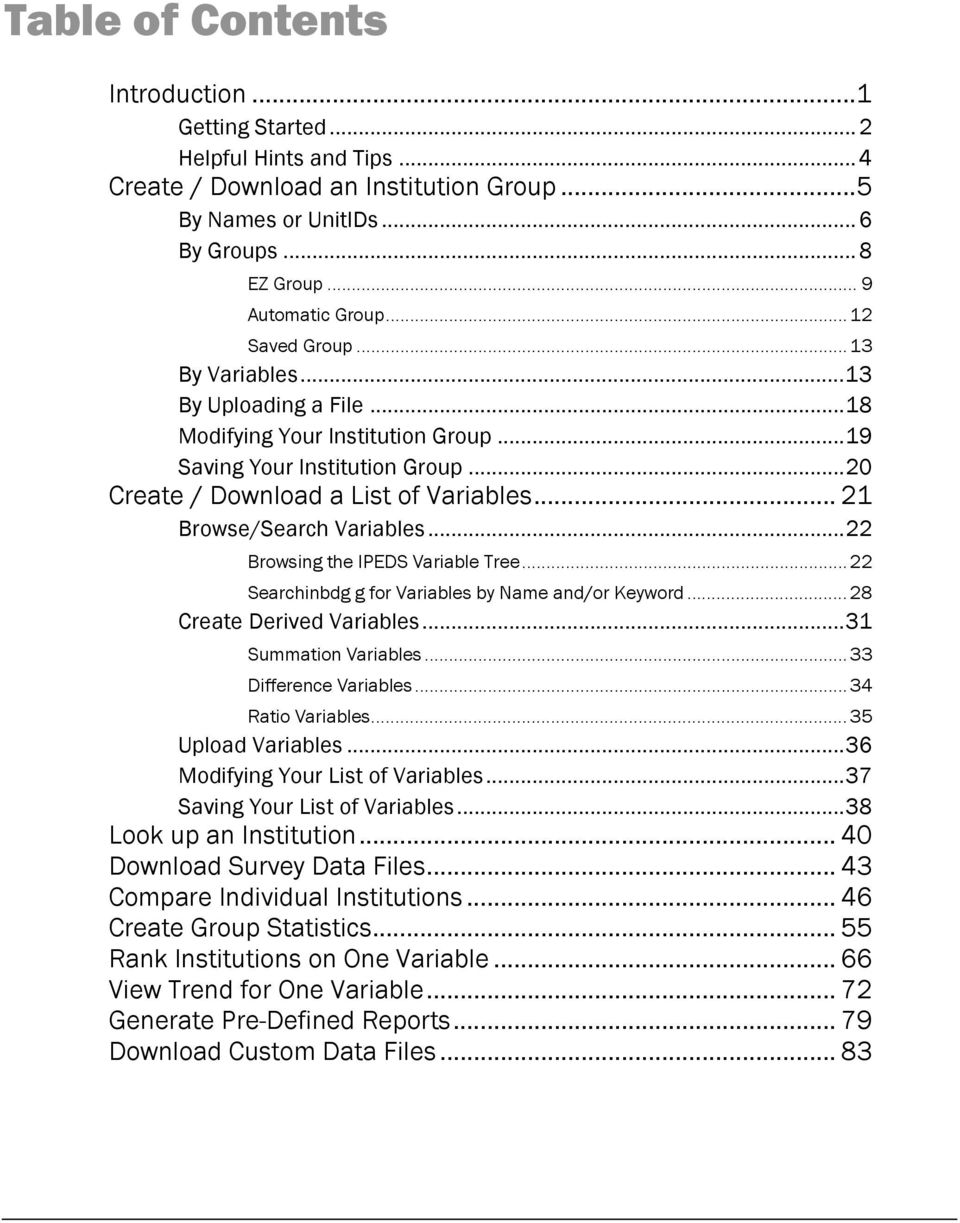
3 Table of Contents Introduction...1 Getting Started...2 Helpful Hints and Tips...4 Create / Download an Institution Group...5 By Names or UnitIDs...6 By Groups...8 EZ Group... 9 Automatic Group Saved Group By Variables...13 By Uploading a File...18 Modifying Your Institution Group...19 Saving Your Institution Group...20 Create / Download a List of Variables Browse/Search Variables...22 Browsing the IPEDS Variable Tree Searchinbdg g for Variables by Name and/or Keyword Create Derived Variables...31 Summation Variables Difference Variables Ratio Variables Upload Variables...36 Modifying Your List of Variables...37 Saving Your List of Variables...38 Look up an Institution Download Survey Data Files Compare Individual Institutions Create Group Statistics Rank Institutions on One Variable View Trend for One Variable Generate Pre-Defined Reports Download Custom Data Files... 83
4 INTRODUCTION Chapter 1 Introduction This chapter introduces you to the basic format of this User Manual and provides a general overview of the IPEDS Data Center features and functionalities. T he Integrated Postsecondary Education Data System (IPEDS) is the National Center for Education Statistics (NCES) core postsecondary education data collection program. Information is collected annually from all providers of postsecondary education in fundamental areas such as enrollments, program completion and graduation rates, institutional costs, student financial aid, and human resources. The primary means by which these data are released to both providers of postsecondary education and the public is through the IPEDS Data Center. Designed as a centralized, web-based tool for the retrieval and analysis of IPEDS data, the system allows users to access and evaluate institutional data using a widerange of analytical features that includes the ability to construct customized data sets, download full data files, and to create different reports including statistics and trends. This user manual is intended to guide you through the various functions, processes, and capabilities of the IPEDS Data Center. While most users should find that they are able to successfully and effectively navigate the system ICON KEY! Critical information Hints/tips Key terms Test your knowledge without a detailed set of instructions, a wealth of information, hints, tips, and insights are provided to help focus your time and efforts more productively. Some users may find that browsing is a better way to learn from this manual than reading straight through it. This will depend largely on the extent and goals of usage, as well as on your past experience with other NCES software applications such as the Peer Analysis System (PAS), Dataset Cutting Tool (DCT), Executive Peer Tool (ExPT), and Data Analysis System (DAS). 1

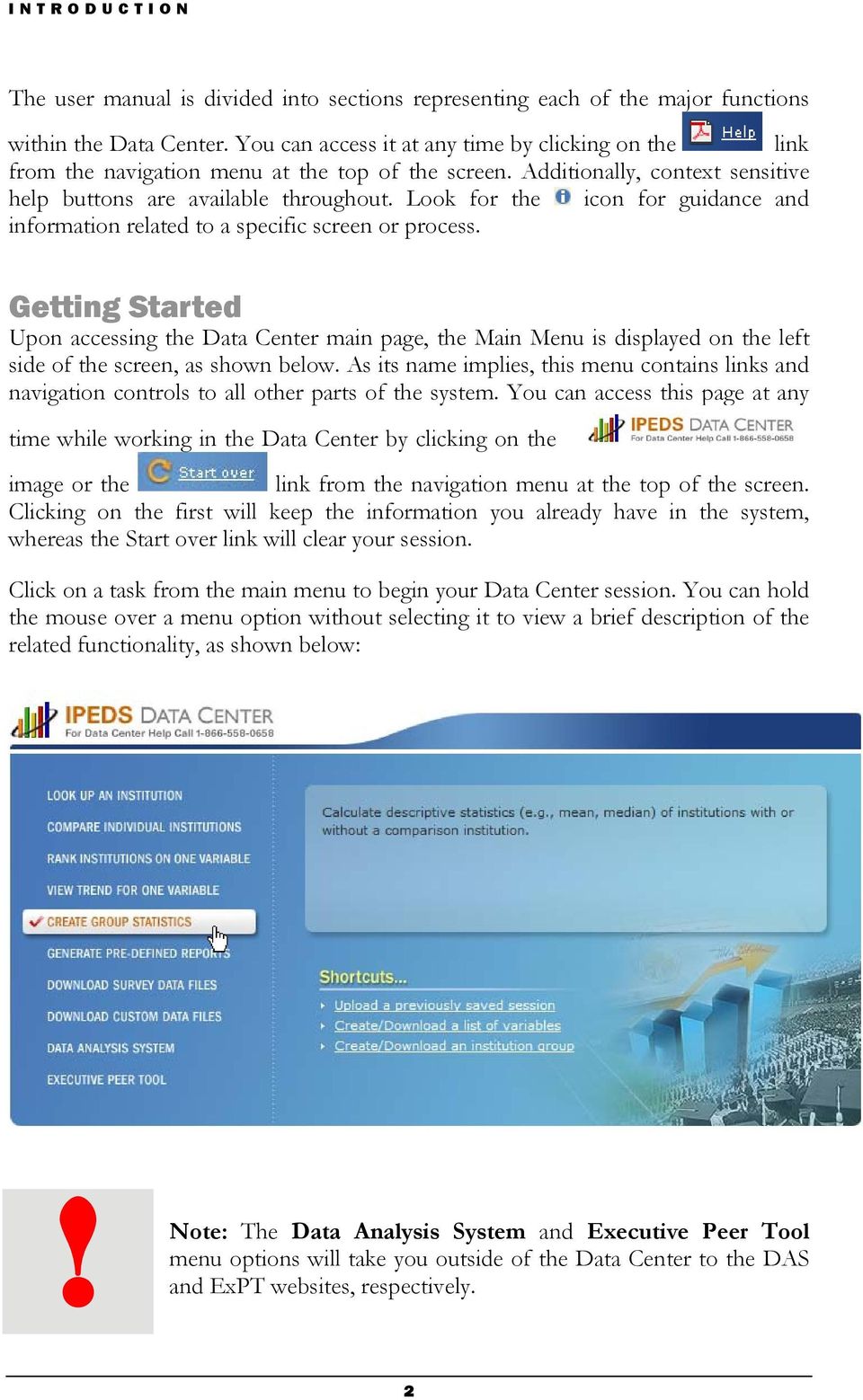
5 INTRODUCTION The user manual is divided into sections representing each of the major functions within the Data Center. You can access it at any time by clicking on the link from the navigation menu at the top of the screen. Additionally, context sensitive help buttons are available throughout. Look for the icon for guidance and information related to a specific screen or process. Getting Started Upon accessing the Data Center main page, the Main Menu is displayed on the left side of the screen, as shown below. As its name implies, this menu contains links and navigation controls to all other parts of the system. You can access this page at any time while working in the Data Center by clicking on the image or the link from the navigation menu at the top of the screen. Clicking on the first will keep the information you already have in the system, whereas the Start over link will clear your session. Click on a task from the main menu to begin your Data Center session. You can hold the mouse over a menu option without selecting it to view a brief description of the related functionality, as shown below:! Note: The Data Analysis System and Executive Peer Tool menu options will take you outside of the Data Center to the DAS and ExPT websites, respectively. 2
6 INTRODUCTION Additional options are also available under the Shortcuts menu. Returning users can click on the related links quickly create and save a new institution group or variable list for use with any of the wide-range of Data Center tools and functionalities (this can also be done within each function). Additionally, users can use the Upload a previously saved session to enter a saved session number. Once you have selected a task, you will be asked to indicate the type of data you want to access: Publicly Released Data Publicly released data are data that have been published and released to the general public via NCES First Look reports. These data have been reviewed and include imputations (statistical estimates) to account for missing pieces of data. Select this option and click Continue to continue using the Data Center at the guest/public level of user access. Additional Early Release Data The Additional Early Release Data option includes access to both publicly released data and early release data that have been reviewed but may or may not contain imputations. These data are not yet available to the general public, only to institutions that have submitted data to IPEDS. As a result, you must login to the Data Center with a valid user name and password in order to access these data. To login, use your institution s UnitID as both your User Name and Password; then click Login. Imputation A method of estimating data (or filling in the blanks) for institutions that did not respond to a data item or survey. Explore the system as needed to familiarize yourself with all of the available features and functionalities. You can use the Main Menu drop down at the top of the screen to navigate between tasks at any time, as shown below: 3

7 INTRODUCTION Helpful Hints and Tips Here you will find some general hints and tips for using the IPEDS Data Center. More detailed tips related to specific functions within the application can be found in the corresponding sections of this user manual. You can always call the IPEDS Data Center Help Desk at You can save session data at any time and access it later during subsequent Data Center sessions by clicking on the link at the top of the screen. Your data will be saved on the NCES server for 30 days. It is recommended that you save frequently to avoid potential data loss resulting from system failures, power outages, or other unforeseen circumstances. When generating a report, you can use the tabbed links at the top of the screen to quickly navigate back and forth between steps, as shown below: Any institutions and/or variables you select for a particular function or process will be stored in your My Institutions and My Variables lists respectively throughout your Data Center session. This allows you to easily reuse your selections for various operations without having to navigate the same screens and processes multiple times. Click on to see the lists and/or make changes. Most lists in the Data Center can be sorted based on various criteria such as Institution Name, Variable Name, Data Year, or Ranking Value. Look for active column headings (displayed with an underscore) to identify lists that can be sorted; then click on the corresponding column heading to sort the list accordingly. For example, you might click on Institution Name to view a list of search results in alphabetical order by institution name. By default, results are generally displayed in ascending order (A-Z or lowest to highest numeric value), but you can click on a column heading multiple times to toggle the view between ascending and descending order. 4

8 CREATE / DOWNLOAD AN INSTITUTION GROUP Chapter 2 Create / Download an Institution Group This chapter contains detailed instructions for creating, modifying, and saving a list of institutions for a data file or report in the IPEDS Data Center. A wide range of customizable reports and analytical tools are available for review and analysis of institutional data in the IPEDS Data Center. These are all discussed in greater detail in subsequent chapters of this User Manual. It is important to note however, that regardless of which tool you are using, the first step in creating any data file or report within the Data Center is to select the institutions that you want to compare or evaluate. This can be done in several ways (click on the links below to learn more about each): By Names or UnitIDs By Groups By Variables By Uploading a File (Power User Account Required) The methods you use will most likely vary depending on your data needs and which report you are generating, so it is a good idea to familiarize yourself with each of the available processes. Note: The selection of institutions can also be completed within an individual function, and does not need to be completed via Create/Download an Institution Group. As you select institutions, they will be stored in your My Institutions list for continued use throughout your current Data Center session. You can modify this list at any time, or save it for future use in subsequent Data Center sessions. Click on the links above to learn more about each process. 5
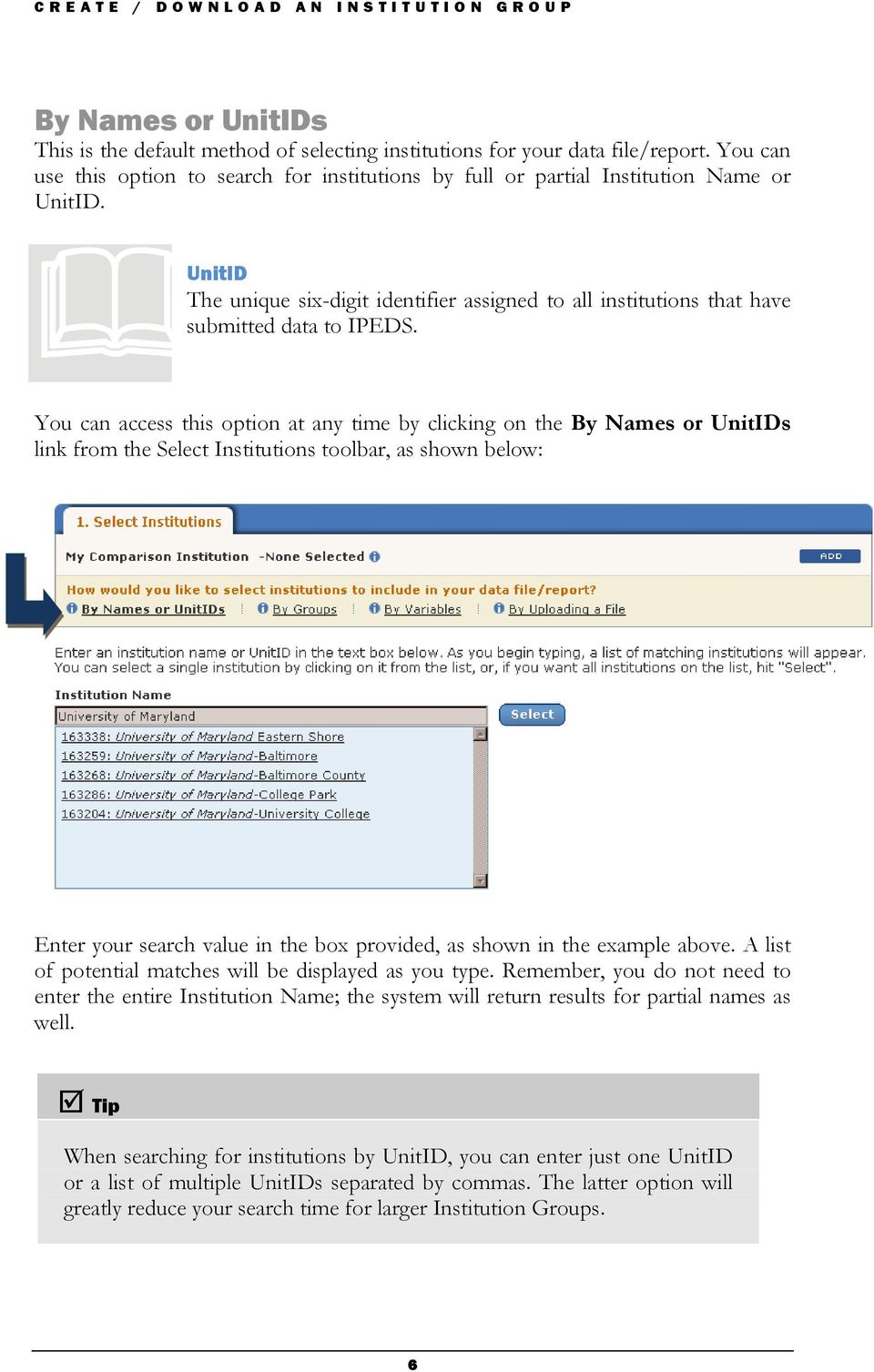
9 CREATE / DOWNLOAD AN INSTITUTION GROUP By Names or UnitIDs This is the default method of selecting institutions for your data file/report. You can use this option to search for institutions by full or partial Institution Name or UnitID. UnitID The unique six-digit identifier assigned to all institutions that have submitted data to IPEDS. You can access this option at any time by clicking on the By Names or UnitIDs link from the Select Institutions toolbar, as shown below: Enter your search value in the box provided, as shown in the example above. A list of potential matches will be displayed as you type. Remember, you do not need to enter the entire Institution Name; the system will return results for partial names as well. Tip When searching for institutions by UnitID, you can enter just one UnitID or a list of multiple UnitIDs separated by commas. The latter option will greatly reduce your search time for larger Institution Groups. 6
10 CREATE / DOWNLOAD AN INSTITUTION GROUP Click on an institution to add it to your Institution Group, as shown below: You can also click on to open the full list of search results in a new window and select multiple institutions from this list to include in your data file/report:! Note the active column headers for Institution Name, City, and State. This list can be sorted! Click on the related column heading to sort the list of search results accordingly. Click on the corresponding checkboxes to select the institutions that you want to include in your Institution Group. You can also click on Check all to select the entire list of institutions, or Uncheck All to clear any selections you have made and start again. 7

11 CREATE / DOWNLOAD AN INSTITUTION GROUP Once you are satisfied with your selections, click Continue. The specified institutions will be added to your My Institutions list, as shown below: You can add additional institutions to this list at any time by clicking on the By Names or UnitIDs link to search again, or by using one of the other available options from the Select Institutions toolbar. Test your knowledge: Using the By Names or UnitIDs option, create an Institution Group comprised of all Ivy League universities in the United States. Your list should include: Brown University, Columbia University, Cornell University, Dartmouth College, Harvard University, Princeton University, University of Pennsylvania, and Yale University. When you are finished save your Institution Group to complete this exercise. By Groups Instead of constructing your own Institution Group you can have the system generate one for you. To access this option, click on the By Groups link from the Select Institutions toolbar, as shown below: 8
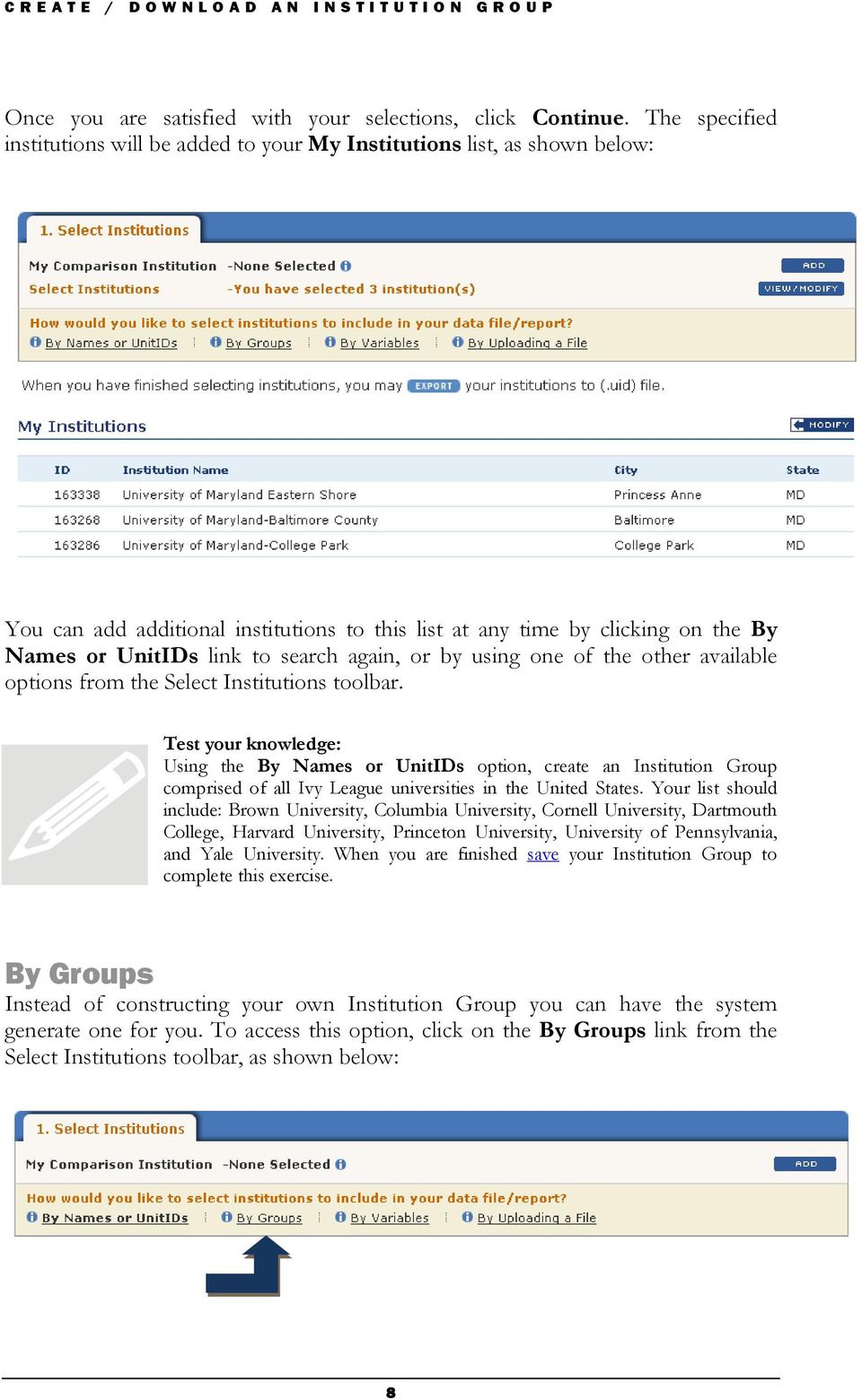
12 CREATE / DOWNLOAD AN INSTITUTION GROUP Several methods are available for creating a system-generated Institution Group. Click on the links below to learn more about each: EZ Group Automatic Group Saved Group EZ Group The EZ Group method allows you to quickly create an Institution Group based on one or more frequently used criteria such as sector of institution, geographic location, or specialized educational mission (e.g. Historically Black College or University, Tribal College, etc.). To generate an EZ Group for use with your data file/report, complete the following steps: Step 1: Select the year Start by identifying the universe from which you want to select your Institution Group. By default, the most recent data year available will be selected as the universe year, but you can choose an alternate year at any time by clicking on the change year link, as shown below: 9

13 CREATE / DOWNLOAD AN INSTITUTION GROUP Step 2: Select from common categories and characteristics Once you are satisfied with your universe year, select from the available categories and characteristics. The items on the left can be selected by clicking the corresponding checkbox (e.g., Title IV participating, HBCU). To select an item from the list on the right side of the screen and click on the adjacent icon to open a pop-up window containing a list of available values, as shown below: 10

14 CREATE / DOWNLOAD AN INSTITUTION GROUP Using the checkboxes provided, select the value(s) that you want to apply to your Institution Group. You can also click on Check All to select the entire list of values, or Uncheck All to clear any selections you have made and start again. When you are satisfied with your selections, click Save to save your entries and close the pop-up screen. You can select as many conditions as you want. The system will return a list of institutions that match all of the specified criteria. Note that as you select various criteria they will be displayed at the bottom of the screen for your reference: Once you are satisfied with the selected criteria, click Search. If you have already selected/uploaded institutions for a previous function during the current Data Center session you will be prompted to choose from the following options for creating your new Institution Group: Combine the two sets and eliminate duplicates Click on this option to combine the results of the current query with any existing institutions in your My Institutions list and eliminate any duplicates. Keep only the institutions existing in the two sets Click on this option to retain only those institutions that are present in both the results of the current query and your existing My Institutions list. Disregard the previous set and keep this one Click on this option to remove any existing institutions from your My Institutions list and use only the results of the current query. 11

15 CREATE / DOWNLOAD AN INSTITUTION GROUP Any institutions that match the specified criteria will automatically be added to your My Institutions list for the current data file/report. Test your knowledge: Using the EZ Group option, create an Institution Group comprised of all Land Grant institutions in the state of Montana for data year The resulting Institution Group should contain a total of 8 institutions. When you are finished, save your Institution Group to complete this exercise. Automatic Group If you have selected a Comparison Institution for the current data file/report, you can use the Automatic Group option to generate an automatic peer group for the selected institution based on a set of predefined criteria such as control and level of institution, degree-granting status, Title IV status, Carnegie Classification, and geographic region. This list is the same as the peer group created in the ExPT for an institution s Data Feedback Report. To utilize this option, click on Automatic Group from the By Groups toolbar, as shown below: If you have already selected/uploaded institutions in this function, or while working in a previous function during the Data Center session, you will be prompted to Combine the two sets and eliminate duplicates, Keep only the institutions existing in the two sets, or Disregard the previous set and keep this one (for more detail, see p. 11). The system will automatically compile a list of peers for the selected Comparison Institution and add them to your My Institutions list for the current data file/report. Test your knowledge: Using Pennsylvania State University Main Campus (UnitID ) as your Comparison Institution, generate an Automatic Group of peers for this institution for use with any data file/report in the Data Center. The resulting Institution Group should contain a total of 30 institutions. When you are finished, save your Institution Group to complete this exercise. 12

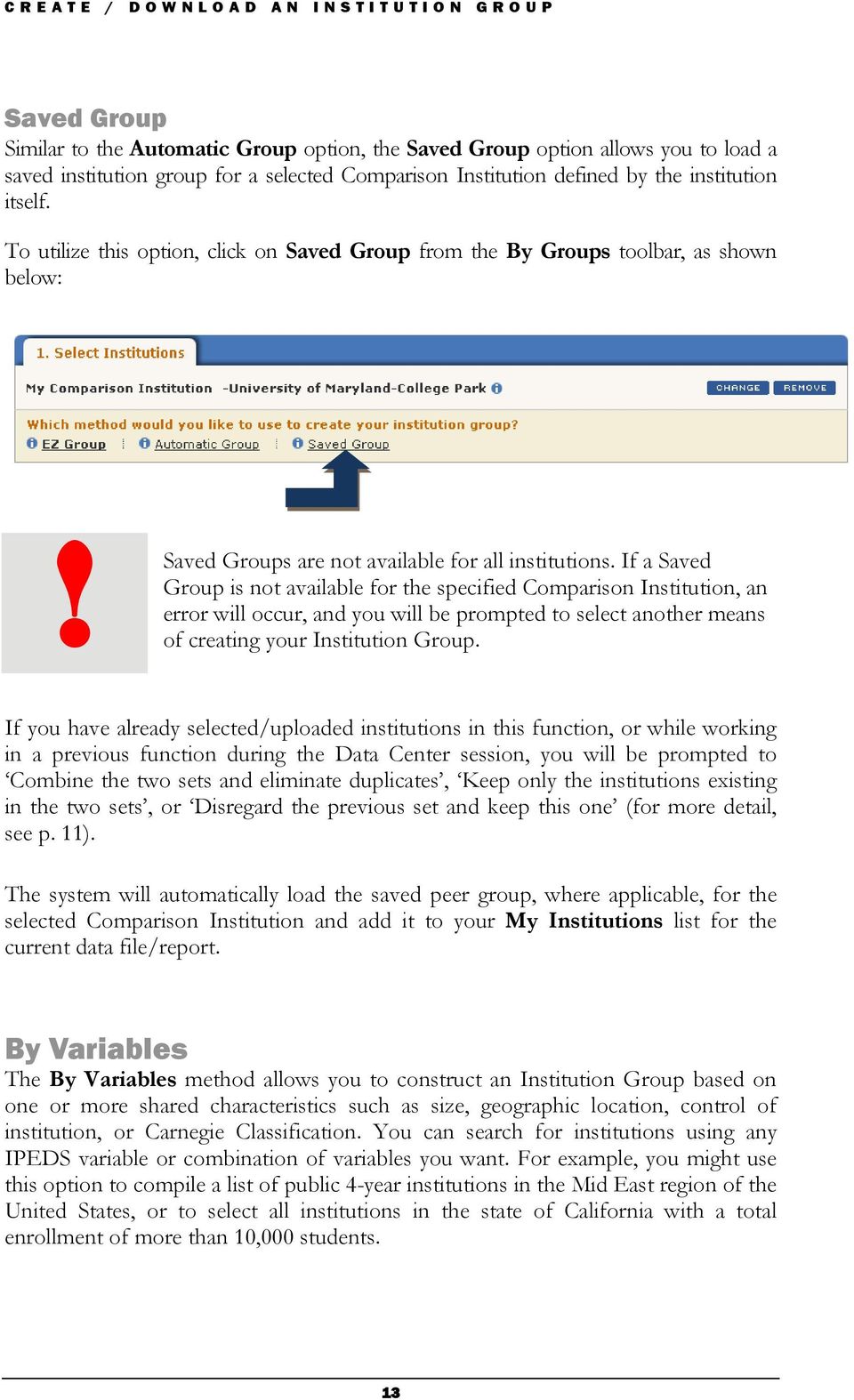
16 CREATE / DOWNLOAD AN INSTITUTION GROUP Saved Group Similar to the Automatic Group option, the Saved Group option allows you to load a saved institution group for a selected Comparison Institution defined by the institution itself. To utilize this option, click on Saved Group from the By Groups toolbar, as shown below:! Saved Groups are not available for all institutions. If a Saved Group is not available for the specified Comparison Institution, an error will occur, and you will be prompted to select another means of creating your Institution Group. If you have already selected/uploaded institutions in this function, or while working in a previous function during the Data Center session, you will be prompted to Combine the two sets and eliminate duplicates, Keep only the institutions existing in the two sets, or Disregard the previous set and keep this one (for more detail, see p. 11). The system will automatically load the saved peer group, where applicable, for the selected Comparison Institution and add it to your My Institutions list for the current data file/report. By Variables The By Variables method allows you to construct an Institution Group based on one or more shared characteristics such as size, geographic location, control of institution, or Carnegie Classification. You can search for institutions using any IPEDS variable or combination of variables you want. For example, you might use this option to compile a list of public 4-year institutions in the Mid East region of the United States, or to select all institutions in the state of California with a total enrollment of more than 10,000 students. 13
17 CREATE / DOWNLOAD AN INSTITUTION GROUP To access this option, click on the By Variables link from the Select Institutions toolbar, as shown below: Start by choosing the variables that you want to use to define your Institution Group. If you have already selected/uploaded variables for a previous function during the current Data Center session, your existing My Variables list will automatically be displayed. My Variables As you navigate the Data Center, selecting IPEDS variables for various functions and purposes, these variables are stored in your My Variables list for easy access should you wish to use them again during the current session. You can select up to 20 variables to use as your criteria for creating your Institution Group. Choose from the existing variables in your My Variables list, or select new variables for this purpose using any or all of the following options: Browse/Search Variables This is the default method of selecting variables for your data file/report. Browse a list of IPEDS variables, and/or search for variables by name or keyword. Choose From My Variables Return to your My Variables list. Please note that this option is only applicable if you have already selected/uploaded variables during the current Data Center session. Create Derived Variables Derive new, custom variables from the existing IPEDS survey variables through addition, subtraction, or division. Upload Variables Upload a saved list of variables created in the Data Center or the IPEDS Peer Analysis System. Please note that a Power User account is required to utilize this option. 14

18 CREATE / DOWNLOAD AN INSTITUTION GROUP Note: Selecting variables is a process critical to a number of functions in the Data Center. For detailed instructions, please refer to Chapter 3 Create / Download a List of Variables. Any new variables that you select for this process will be added to your My Variables list, as shown below:! Note the active column headers for Year and Variable. This list can be sorted! Click on the corresponding column heading to sort the variables in a particular file accordingly. Click on the corresponding checkboxes to select the variables that you want to use to define your Institution Group; then click Continue. Next, use the Institution Selection Form (shown below) to identify the values that you want to apply to your search: 15

19 CREATE / DOWNLOAD AN INSTITUTION GROUP Note that if you have selected a Comparison Institution for the current data file/report, the Comparison Institution Value for each variable is displayed on the right side of the screen for your reference. Comparison Institution A Comparison Institution (previously known as the Focus Institution in IPEDS PAS), while not required, can still be selected for most reports in the Data Center. This feature allows you to highlight an institution in a data file/report and compare its variable values with those of a user-selected or system defined peer group. Select a variable and click on the adjacent Value(s) pop-up screen: icon to open the corresponding Search Depending on the type of variable you have selected, you will be prompted to enter your search value(s) in one of two ways: By selecting one or more values from a list of available options (as shown in the example above), or By entering numeric values and using operators to define your search criteria as follows: Operators > (greater than) < (less than) = (equal to) >= (greater than or equal to) <= (less than or equal to) 16

20 CREATE / DOWNLOAD AN INSTITUTION GROUP For example, you might enter <15000 to identify institutions with in-state tuition of less than $15,000; or >=10000 to locate institutions with a total enrollment greater than or equal to 10,000 students, as shown below:! Numeric entries must be in the form of whole numbers and should not contain any special characters (e.g. commas, decimals, dollar signs, etc.). The only exception to this is ratio defined variables where use of a decimal point is required for entry of search values. When you are finished entering the search values for a particular variable, click Save to save your entries and close the Search Value(s) pop-up screen. Repeat this process for each of the variables in the Institutions Selection Form. You can reopen the Search Value(s) window for any variable at any time to modify your selections. Once you have specified search values for each of the variables in the Institutions Selection Form, click Submit. If you have already selected/uploaded institutions in this function, or while working in a previous function during the Data Center session, you will be prompted to Combine the two sets and eliminate duplicates, Keep only the institutions existing in the two sets, or Disregard the previous set and keep this one (for more detail, see p. 11). Any institutions that match the specified criteria will automatically be added to your My Institutions list for the current data file/report. Test your knowledge: Using the By Variables option, create an Institution Group comprised of all private not-for-profit four-year institutions in the District of Columbia. (Hint: Your list of variables should include Sector of institution and State abbreviation.) All of the selected variables should be for the data year. The resulting Institution Group should contain a total of 12 institutions. When you are finished save your Institution Group to complete this exercise. 17

21 CREATE / DOWNLOAD AN INSTITUTION GROUP By Uploading a File If you have a previously saved Institution Group created in either the Data Center or the IPEDS Peer Analysis System that you would like to use in the current data file/report, you can retrieve it at any time by clicking on the By Uploading a File link from the Select Institutions toolbar, as shown below:! Please note that a Power User account is required to upload Institution Group files to the Data Center. Click on the link to Login, and then enter your User Name and Password when prompted. If you do not have a Power User account you can create one by clicking on the link to Become a Power User. Once you have logged in, you can retrieve your file by entering the complete path and filename in the box provided, as shown below; or you can use the Browse button to locate the file on your computer s hard drive. Hint: Institution Group files will have a filename extension of.uid. When you are finished, click Submit to upload your saved Institution Group. If you have already selected/uploaded institutions in this function, or while working in a previous function during the Data Center session, you will be prompted to Combine the two sets and eliminate duplicates, Keep only the institutions existing in the two sets, or Disregard the previous set and keep this one (for more detail, see p. 11). The uploaded institutions will automatically be added to your My Institutions list for the current data file/report. 18
22 CREATE / DOWNLOAD AN INSTITUTION GROUP Modifying Your Institution Group As you select institutions, they will be added to your My Institutions list, as shown below. Note that the institutions in this list are stored throughout your current Data Center session for use with any data files or reports you choose to generate. You can add additional institutions to the list at any time by clicking on one of the available options from the Select Institutions toolbar. To make changes to the list, click on Modify; then choose from the following options: Keep Selected Using the checkboxes provided, select the institutions that you want to keep in your Institution Group; then click on Keep Selected. Any institutions that you have not selected will be removed from the list. Remove Selected Using the checkboxes provided, identify any institutions that you want to remove from your Institution Group; then click on Remove Selected to delete them from the list. Remove All Select this option to delete all of the existing institutions from your Institution Group and start again. 19
23 CREATE / DOWNLOAD AN INSTITUTION GROUP Saving Your Institution Group You can save your Institution Group at any time and access it later during subsequent Data Center sessions. To do so, select one of the following formatting options; then follow the steps outlined below to save your data accordingly: Save data on the NCES server The information from your current Data Center session can be saved on the NCES server for thirty days. To utilize this option, click on the link from the navigation menu at the top of the screen. You will receive a Job Number for your saved data. This Job Number is very important! You will need it to retrieve your data during future Data Center sessions. Write it down for safekeeping, and/or enter your address in the space provided and click Send to have the Job Number ed to you, as shown below: Download in CSV format You can also download your Institution Group to your computer s hard drive in zipped, comma separated values (CSV) format. To do so, select the Create/Download institution group option from the Main Menu; then, from the My Institutions view, click on Export. Your browser will walk you through the file save process. The filename extension for your saved Institution Group will be.uid.! Do not modify the filename extension in any way or the system will not be able to recognize the file when you try to upload it, and it will subsequently be unusable. 20
24 CREATE / DOWNLOAD A LIST OF VARIABLES Chapter 3 Create / Download a List of Variables This chapter contains detailed instructions for creating, modifying, and saving a list of variables for a data file or report in the IPEDS Data Center. I PEDS variables are the units of data collected annually from all providers of postsecondary education in the United States. As such, they constitute the criteria by which institutions can be compared, analyzed, and evaluated in the IPEDS Data Center. These data cover a wide-range of topics, including basic institutional characteristics, admissions considerations, enrollment and retention rates, graduation and program completion rates, student financial aid, institutional finances, and human resources. A number of options are available within the Data Center for retrieving and analyzing these data, all of which are discussed in greater detail in subsequent chapters of this User Manual. When using any of these features, however, it is essential to know how to select the variables that you want to evaluate. This can be done in several ways (click on the links below to learn more about each): Browse/Search Variables Create Derived Variables Upload Variables (Power User Account Required) The methods you use will most likely vary depending on your data needs and which report you are generating, so it is a good idea to familiarize yourself with each of the available processes. As you select variables, they will be stored in your My Variables list, for easy access should you wish to use them again during your current Data Center session. This list can be modified at any time or saved for future use in subsequent Data Center sessions. Click on the corresponding links to learn more about each process. 21
25 CREATE / DOWNLOAD A LIST OF VARIABLES Browse/Search Variables This is the default method of choosing variables for your data file/report. Select this option to browse a list of IPEDS variables and/or search for variables by name or keyword. You can access this option at any time by clicking on the Browse/Search Variables link from the Select Variables toolbar, as shown below. The IPEDS Variable Tree is displayed: Browsing the IPEDS Variable Tree The IPEDS Variable Tree is comprised of all existing IPEDS variables, for all available data years, categorized by the IPEDS survey from which the data were collected. You can browse the tree as needed, clicking on the icon to expand a section of the tree, and the icon to collapse it. As you navigate the tree, use the IPEDS Survey categories to guide you. Variables are broadly grouped into the following categories: 22
26 CREATE / DOWNLOAD A LIST OF VARIABLES Frequently Used and Derived Variables Institutional Characteristics Admissions and Test Scores Student Charges Fall Enrollment 12-Month Enrollment Completions This section of the tree is comprised of the most commonly referenced and/or derived variables in the IPEDS universe. Start your search here you may be able to find the desired data among this list of frequently used variables. Includes variables related to basic institutional data and directory information such as: --Institution name, address, telephone number, and web address. --Control/affiliation and award levels offered. --Educational offerings, mission statements, and special learning opportunities (e.g. work study programs, distance learning, etc.). Includes variables related to admissions considerations and requirements, the number of applicants, admissions, and subsequent enrollees during a specified data year, and 25 th and 75 th percentile SAT and ACT test scores of applicants. This section of the tree is comprised of all variables related to institutional pricing including tuition and required fees, room and board charges, cost of books and supplies, and miscellaneous expenses. Includes variables related to Fall enrollment for all students enrolled in credit-bearing courses/programs for award levels ranging from postsecondary certificates of less than one year to doctoral degrees. This includes: --The number of full-time and part-time students enrolled at an institution in the Fall, broken down by various demographics such as race/ethnicity, gender, age, level of study, and major field of study. --Retention rates for the full and part-time Fall cohort. --Residence and migration of first-time freshman. Includes variables related to 12-month enrollment data collected for all students enrolled in credit-bearing courses/programs for award levels ranging from postsecondary certificates of less than one year to doctoral degrees. This includes: --12-month unduplicated headcounts broken down by various demographics, such as race/ethnicity, gender, and level of student month instructional activity (contact vs. credit hours) and full-time equivalent (FTE) enrollment (calculated based on instructional activity). Includes variables related to the number of degrees and other formal awards/certificates conferred at an institution during a specified academic year, broken down by various demographics such as race/ethnicity, gender, level of study, and length of program. 23
27 CREATE / DOWNLOAD A LIST OF VARIABLES Graduation Rates This section of the tree is comprised of graduation data for fulltime, first-time degree/certificate seeking undergraduate students. Includes variables related to: --The number of students who graduate within 150% of the normal time, broken down by race/ethnicity and gender. --The number of students receiving a Bachelor s or equivalent degree within a 4-year, 5-year, or 6-year time period, broken down by race/ethnicity and gender. --The number of students receiving athletically related student aid and graduation rate data for these students. Student Financial Aid This section of the tree is comprised of financial aid data collected for full-time, first-time degree/certificate seeking undergraduate students. Includes variables related to federal grants, state and local government grants, institutional grants, loans, the number of students receiving each type of assistance, and the average amount of assistance received. Finance Human Resources Includes variables related to institutional financial resources and expenditures, such as: --Institutional revenues broken down by source. --Institutional expenditures broken down by function. --Physical plant assets. --Level of indebtedness Includes variables related to institutional staffing and salaries, such as: --The number of full and part-time institutional staff by function/occupational category. --The number of full-time faculty broken down by contract length and salary class intervals. --Tenure of full-time faculty by academic rank. --Total and average salary outlays for full-time instructional faculty by academic rank. Tip When browsing the tree, note that variables are not listed in alphabetical order, but rather in the order in which they appear in the related IPEDS survey. To view a detailed description of any variable, click on the adjacent icon. A pop-up screen will appear containing a description of the variable, its IPEDS survey source, the variable value set (for categorical variables such as geographic region, sector of institution, etc.), and value statistics, where available. 24
28 CREATE / DOWNLOAD A LIST OF VARIABLES When you are ready to make a selection, click on the corresponding checkboxes to select both the data years(s) [ Step 1 ] and variable(s) [ Step 2 ] that you want to include in your data file/report: You can select as many variables as you want from the various sections of the tree. Note, however, that for each file (or sub-section of the tree) from which you select variables, you must also indicate the unique data year(s) for which you want to evaluate the variables from that file, as shown below: 25
29 CREATE / DOWNLOAD A LIST OF VARIABLES Some variables may also require that you provide additional information in order to further define the selected data items (e.g. one or more CIP codes for Completions data, the Level of Student for Fall Enrollment data, etc.). These variables incorporate an alternate three-step selection process, as shown below: Click on the corresponding links in Step 2 to specify values for each of the additional data elements indicated. When the related pop-up screen appears, select one or more values of interest from the list of available options, as shown below: 26
30 CREATE / DOWNLOAD A LIST OF VARIABLES You can use the icon where applicable to expand a menu item and view all of its available components. Once you are satisfied with your selections, click Save to save all entries and close the pop-up screen. You can reopen this window at any time to modify the selected values. Note that as you make selections a count will appear next to each data element, as shown below:! It is important to make sure that you have entered values for each of the data elements indicated. Otherwise an error will occur, and you will be prompted to fill in the missing values before continuing. When you are finished browsing the IPEDS Variable Tree and selecting variables for your data file/report, click Continue. The specified variables will be added to your My Variables list, as shown below: 27
31 CREATE / DOWNLOAD A LIST OF VARIABLES Test your knowledge: Using the Browse/Search Variables option, browse the IPEDS Variable Tree and add the following variables to your My Variables list for data year : Sector of institution, Total price for in-state students living on campus, and Admissions total, as well as the full-time female undergraduate enrollment for Fall When you are finished, save your Variable List to complete this exercise. Searching for Variables by Name and/or Keyword You can also search for variables by name and/or keyword. Enter your search criteria in the Search for a Variable box, as shown below; then click Search. Tip When searching for variables by keyword, keep your search criteria as simple as possible. Try limiting entries to just one or two key terms, such as enrollment or admissions yield in order to return the most comprehensive list of search results possible. 28
32 CREATE / DOWNLOAD A LIST OF VARIABLES A list of IPEDS variables that match the specified criteria is displayed: To view a detailed description of any variable, click on the adjacent icon. A pop-up screen will appear containing a description of the variable, its IPEDS survey source, the variable value set (for categorical variables such as geographic region, sector of institution, etc.), and value statistics, where available. Click on the corresponding checkboxes to select the variable(s) that you want to include in your data file/report; then click on the button for each of the selected variables to indicate the years for which you wish to evaluate these data, as shown below: 29
33 CREATE / DOWNLOAD A LIST OF VARIABLES Some variables may also require that you provide additional information in order to further define the selected data items (e.g. one or more CIP codes for Completions data, the Level of Student for Fall Enrollment data, etc.). To do so, click on the button, where applicable. A pop-up screen will appear, displaying a list of additional data elements necessary to further define the selected variable: Click on the corresponding links to specify values for each of the additional data elements indicated. When the related pop-up screen appears, select one or more values of interest from the list of available options, as shown below: Y ou can use the icon where applicable to expand a menu item and view all of its available components. Once you are satisfied with your selections, click Save to save all entries and close the pop-up screen. You can reopen this window at any time to modify the selected values. 30
34 CREATE / DOWNLOAD A LIST OF VARIABLES Note that as you make your selections, a count will appear next to each data element, as shown below: Once you have specified values for each of the data elements indicated, click Save to save your entries and return to the main search results screen. When you are finished reviewing the list of search results and selecting variables for your data file/report, click Continue. The specified variables will be added to your My Variables list for the current data file/report. Test your knowledge: Using the Browse/Search Variables option, search for variables related to the keyword faculty. From the search results screen, select Tenure status and academic rank of full-time faculty, and add this variable to your My Variables list using whatever data years and qualifying variable values you deem appropriate. When you are finished, save your Variable List to complete this exercise. Create Derived Variables The Create Derived Variables option allows you to derive new, custom variables through addition, subtraction, or division of the existing IPEDS survey variables. For example, when viewing older enrollment data, you might want to combine the enrollment figures for men and women in order to get a grand total, or you might divide the average amount of institutional grant aid received by students at an institution by the total price of attendance in order to compute the percentage of costs typically met by such funding. 31
35 CREATE / DOWNLOAD A LIST OF VARIABLES To access this option, click on the Create Derived Variables link from the Select Variables toolbar, as shown below: Tip Before creating a new derived variable, check the Frequently Used / Derived Variables section of the IPEDS Variable Tree. This section of the tree contains some of the most commonly referenced and/or derived variables in the IPEDS universe. As such, the data you are interested in computing may already be available there. To access the IPEDS Variable Tree click on the Browse/Search Variables option from the Select Variables toolbar; then click on the icon to expand and view the list of Frequently Used / Derived Variables. When creating a derived variable, the first step is to specify the type of calculation you want to perform: Click on the adjacent radio button to select one of the following options; then click Continue. Summation This option allows you to combine the values of two or more IPEDS variables. For example, you might add together the number of Bachelor s degrees awarded in Engineering, Biology, Math, and Physical Science in order to compute the total number of Bachelor s degrees awarded in the fields of Math and Science. 32
36 CREATE / DOWNLOAD A LIST OF VARIABLES Difference This option allows you to subtract the value of one IPEDS variable from another. For example, you might subtract the number of students admitted to an institution in a specified academic year from the number that applied in order to determine the number of applicants that were denied admission. Ratio This option allows you to divide the value of one IPEDS variable by another. For example, you might divide institutional expenditures related to salaries and wages by total expenses in order to derive the percentage of operating costs allocated to salaries at a selected institution. Once you have identified the calculation type, the next step is to choose the variables that you want to use to define your derived variable. If you have already selected/uploaded variables for a previous function during the current Data Center session, your existing My Variables list will automatically be displayed. You can choose the components of your derived variable from this list, or select new variables for this process using one of the other available options from the Select Variables toolbar. Any new variables that you select for this process will be added to your My Variables list, as shown below: Summation Variables To calculate a summation variable, click on the corresponding checkboxes to select the variables that you want to combine; then click Continue. A pop-up screen will appear prompting you to enter a name for the variable (required) and optionally a description, as shown below: 33
37 CREATE / DOWNLOAD A LIST OF VARIABLES When you are satisfied with your entries, click Finish. The derived variable will be added to your My Variables list, as shown below: Difference Variables To calculate a difference variable, click on the corresponding radio buttons to select the A and B components of your derived variable. In this case, the A component is the original value you wish to subtract from, and the B component is the value you wish to take away, as shown below. Once you have identified both components of your derived variable, click Continue; a pop-up screen will appear prompting you to enter a name for the variable (required) and optionally a description: 34
38 CREATE / DOWNLOAD A LIST OF VARIABLES When you are satisfied with your entries, click Finish. The derived variable will be added to your My Variables list, as shown below: Ratio Variables To calculate a ratio variable, click on the corresponding radio buttons to select the A and B components of your derived variable. In this case, the A component serves as the numerator and the B component as the denominator of your derived variable, as shown below. Once you have identified both components of your derived variable, click Continue; a pop-up screen will appear prompting you to enter a name for the variable (required) and optionally a description: 35
39 CREATE / DOWNLOAD A LIST OF VARIABLES When you are satisfied with your entries, click Finish. The derived variable will be added to your My Variables list, as shown below: Test your knowledge: Using the Create Derived Variables option, compute average institutional grant aid received as a percent of the total price of attendance. This will be a ratio derived variable with Average amount of institutional grant aid received as the numerator, and Total price for in-state students living on campus as the denominator. When you are finished, save your Variable List to complete this exercise. Upload Variables If you have a previously saved list of variables created in either the Data Center or the IPEDS Peer Analysis System that you would like to use for the current data file/report, you can retrieve it at any time by clicking on the Upload Variables link from the Select Variables toolbar, as shown below:! Please note that a Power User account is required to upload Variable List files to the Data Center. Click on the link to Login, and then enter your User Name and Password when prompted. If you do not have a Power User account you can create one by clicking on the link to Become a Power User. 36
40 CREATE / DOWNLOAD A LIST OF VARIABLES Once you have logged in, you can retrieve your file by entering the complete path and filename in the box provided, as shown below; or use the Browse button to locate the file on your computer s hard drive. Hint: Variable List files will have a filename extension of.mvl. When you are finished, click Submit. The uploaded variables will automatically be added to your My Variables list for the current data file/report. Modifying Your List of Variables As you navigate the Data Center, selecting IPEDS variables for various functions and purposes, these variables are stored in your My Variables list, as shown below. The variables in this list will be stored throughout your current Data Center session for use as needed in any data files or reports you choose to generate.! Note the active column headers for Year and Variable. This list can be sorted! Click on the corresponding column heading to sort the variables in a particular file accordingly. 37
41 CREATE / DOWNLOAD A LIST OF VARIABLES You can add to this list or make changes at any time. The following actions are available for modifying your list of variables: -- Select this option to add or delete data years for all variables from a particular file. When the related pop-up screen is displayed, click on the corresponding checkboxes to select/unselect data years for the specified file. When you are finished, click Save to apply these changes and return to your My Variables list. -- Select this option to edit the selected data years for a single variable. When the related pop-up screen is displayed, click on the corresponding checkboxes to select/unselect data years for the specified variable. When you are finished, click Save to apply these changes and return to your My Variables list. -- Select this option to delete the corresponding variable from your My Variables list. Saving Your List of Variables You can save your list of variables (including any derived variables that you have created) at any time and access it later during subsequent Data Center sessions. To do so, select one of the following formatting options; then follow the steps outlined below to save your data accordingly: Save data on the NCES server The information from your current Data Center session can be saved on the NCES server for thirty days. To utilize this option, click on the link from the navigation menu at the top of the screen. You will receive a Job Number for your saved data. This Job Number is very important! You will need it to retrieve your data during future Data Center sessions. Write it down for safekeeping, and/or enter your address in the space provided and click Send to have the Job Number ed to you, as shown below: 38
42 CREATE / DOWNLOAD A LIST OF VARIABLES Download in CSV format You can also download your list of variables to your computer s hard drive in zipped, comma separated values (CSV) format. To do so, select the Create/Download a list of variables option from the Main Menu; then, from the My Variables view, click Continue. Your browser will walk you through the file save process. The filename extension for your saved Institution Group will be.mvl.! Do not modify the filename extension in any way or the system will not be able to recognize the file when you try to upload it, and it will subsequently be unusable. 39
43 LOOK UP AN INSTITUTION Chapter 4 Look up an Institution This chapter contains detailed instructions for retrieving data for a single institution in the IPEDS Data Center. T he Look up an Institution option allows you to quickly retrieve data for a single institution in the IPEDS Data Center. You can use this feature to generate an Institution Profile containing selected IPEDS data for a chosen institution for the most recent data year, or to view and print information related to specific subject areas such as admissions, awards/degrees conferred, human resources, and student enrollments. To access this option, click on Look up an Institution from the Data Center Main Menu. Then complete the following steps: Note: If you have not already done so during the current Data Center session, you must first indicate the type of data that you want to access. Publicly Released Data Publicly released data are data that have been published and released to the general public via NCES First Look reports. These data have been reviewed and include imputations (statistical estimates) to account for missing pieces of data. Select this option to continue using the Data Center at the guest/public level of user access. Additional Early Release Data The Additional Early Release Data option includes access to both publicly released data and early release data that have been reviewed but may or may not contain imputations. These data are not yet available to the general public, only to institutions that have submitted data to IPEDS. As a result, you must login to the Data Center with a valid user name and password in order to access these data. You can click on either option to view a list of the most recent data files available. To login, enter your institution s UnitID as both your User Name and Password; then click. Otherwise, select Publicly Released Data and click to continue using the Data Center at the guest/public level of user access. 40
44 LOOK UP AN INSTITUTION Step 1 Select Institution Start by identifying the institution for which you want to retrieve data. If you have already selected/uploaded institutions for a previous function during the current Data Center session, your existing My Institutions list will automatically be displayed. Click on an institution to view its available data; or use one of the options from the Select Institutions toolbar to lookup a new institution By Names or UnitIDs or By Groups. Note: Selecting institutions is a process critical to a number of functions in the Data Center. For detailed instructions please refer to Chapter 2 Create / Download an Institution Group. Step 2 Select and View Data Once you have selected an institution, you can click on the link to view a full report containing selected IPEDS data for the specified institution during the most recent data year in printable, PDF format; or click on one of the available subject areas to view the data within that category on-screen in HTML format, as shown below: You can click on at any time to return to your Institution List and retrieve data for another institution in the IPEDS universe. 41
45 LOOK UP AN INSTITUTION When you are finished, use the Main Menu to navigate to a different task in the Data Center, or, if you are finished using the Data Center, click on Start Over from the navigation menu at the top of the screen to logout and end your current session. Test your knowledge: Using the Look up an institution option, retrieve data for UnitID , Loyola College in Maryland. View the Admissions data available for this institution; then download and review the full Institution Profile in PDF format to complete this exercise. 42
46 DOWNLOAD SURVEY DATA FILES Chapter 5 Download Survey Data Files This chapter contains detailed instructions for downloading complete IPEDS survey files from the IPEDS Data Center. T he full selection of IPEDS survey files are available for downloading in zipped, comma separated values (CSV) format via the Download Survey Data Files option. This includes data dictionaries and read programs for importing these data into the Stata, SPSS, and SAS statistical software packages. To access this option, click on Download Survey Data Files from the IPEDS Data Center Main Menu. Then complete the following steps: Note: If you have not already done so during the current Data Center session, you must first indicate the type of data that you want to access. Publicly Released Data Publicly released data are data that have been published and released to the general public via NCES First Look reports. These data have been reviewed and include imputations (statistical estimates) to account for missing pieces of data. Select this option to continue using the Data Center at the guest/public level of user access. Additional Early Release Data The Additional Early Release Data option includes access to both publicly released data and early release data that have been reviewed but may or may not contain imputations. These data are not yet available to the general public, only to institutions that have submitted data to IPEDS. As a result, you must login to the Data Center with a valid user name and password in order to access these data. You can click on either option to view a list of the most recent data files available. To login, enter your institution s UnitID as both your User Name and Password; then click. Otherwise, select Publicly Released Data and click to continue using the Data Center at the guest/public level of user access. 43
47 DOWNLOAD SURVEY DATA FILES When the Download Survey Data Files main screen opens, select a data year and IPEDS survey of interest, as shown below; then click Continue. A list of available files is displayed: Choose the file that you want to download; then click on the corresponding link to download the file to your computer s hard drive in CSV format (viewable in Microsoft Excel and nearly all other spreadsheet applications): To download and view the survey files in basic CSV format, or for files compatible with the SPSS or SAS statistical software packages, use the main download link in the Data File column. 44
48 DOWNLOAD SURVEY DATA FILES For files compatible with the Stata statistical software package, use the alternate download link in the Stata Data File column. For statistical read programs to work properly, both the data file and the corresponding read program file must be downloaded to the same subdirectory on your computer s hard drive. Download the data file first; then click on the corresponding link in the Programs column to download the desired read program file to the same subdirectory. You can also download the data dictionary for the selected file by clicking on the corresponding link in the far right column of the screen. Data Dictionary The data dictionary serves as a reference for using and interpreting the data within a particular survey file. This includes the names, definitions, and formatting conventions for each table, field, and data element within the file, important business rules, and formation in on any relationships to other IPEDS data. Click on the corresponding link to download the data dictionary for the selected file to your computer s hard drive in zipped HTML format. This file can either be opened immediately or saved and viewed later using a standard web browser.! Please note that when viewing downloaded survey files, categorical variables are identified using codes instead of labels. Labels for these variables are available in both the data read program files and data dictionary for each file; however, for files that automatically incorporate this information you will need to use the Download Custom Data Files option. For more information, refer to Chapter 11 of this user manual. When you are finished downloading the selected data file, you can download additional IPEDS survey files as needed, or use the Main Menu to navigate to a different task in the Data Center. Test your knowledge: Using the Download survey data files menu option, select data year 2005, and then download the following survey files to your computer s hard drive: from the Enrollments survey, download Total entering class and retention rates: Fall 2005; then go to the Fall Staff survey and download New hires by primary occupation, race/ethnicity, and gender (Degree-granting institutions): Fall Download both the data files and the accompanying data dictionaries for each; then view the files in CSV format to complete this exercise. 45
49 COMPARE INDIVIDUAL INSTITUTIONS Chapter 6 Compare Individual Institutions This chapter contains detailed instructions for quickly retrieving and comparing data for multiple institutions in the IPEDS Data Center. T he Compare Individual Institutions option allows you to access raw data for a selected group of institutions for one or more IPEDS variables of your choice. This data can be viewed on-screen in tabular format, or downloaded to your computer s hard drive in comma separated values (CSV) format, importable into a variety of standard software packages for further analysis. To access this option, click on Compare Individual Institutions from the IPEDS Data Center Main Menu. Then complete the following steps: Note: If you have not already done so during the current Data Center session, you must first indicate the type of data that you want to access. Publicly Released Data Publicly released data are data that have been published and released to the general public via NCES First Look reports. These data have been reviewed and include imputations (statistical estimates) to account for missing pieces of data. Select this option to continue using the Data Center at the guest/public level of user access. Additional Early Release Data The Additional Early Release Data option includes access to both publicly released data and early release data that have been reviewed but may or may not contain imputations. These data are not yet available to the general public, only to institutions that have submitted data to IPEDS. As a result, you must login to the Data Center with a valid user name and password in order to access these data. You can click on either option to view a list of the most recent data files available. To login, enter your institution s UnitID as both your User Name and Password; then click. Otherwise, select Publicly Released Data and click to continue using the Data Center at the guest/public level of user access. 46
50 COMPARE INDIVIDUAL INSTITUTIONS Step 1 Select Institutions The first step when generating any data file or report in the IPEDS Data Center is to select the institutions that you want to compare or evaluate. Note: This is a process critical to a number of functions in the Data Center. For detailed instructions, please refer to Chapter 2 Create / Download an Institution Group. Tip If you have saved data on the NCES server that you would like to use, you can retrieve it at any time by clicking on Upload a previously saved session from the Data Center Main Menu. When prompted, enter the relevant Job Number to load your saved data. As you select institutions, they will be added to your My Institutions list for the current data file/report. Note that a count will appear at the top of the screen: This status bar is displayed at all times for your reference. You can click on at any time to view and/or modify your list of institutions. 47
51 COMPARE INDIVIDUAL INSTITUTIONS Selecting a Comparison Institution A Comparison Institution (previously known as the Focus Institution in the IPEDS Peer Analysis System), while not required, can still be selected for most reports in the Data Center. This feature allows you to highlight a particular institution and compare its variable values with those of a user-selected or system-defined group of peer institutions. In this case, the selected institution is highlighted in the report results in order to differentiate it from its peers. To select a Comparison Institution for the current data file/report, click on the or buttons in the Comparison Institution status bar, as shown below:! If you do not see the Use My Institution button, don t panic! This option is only available to users logged into the Data Center at the Institutional (e.g. Publicly Released Data) level of user access. You can click on Use My Institution where applicable to select your login institution as your Comparison Institution; or, click on Add to search for the desired institution by full or partial name or UnitID, as shown on the next page. 48
52 COMPARE INDIVIDUAL INSTITUTIONS Note that if you have already selected institutions for this or another function during the current Data Center session, your existing My Institutions list is displayed in the bottom half of the pop-up screen, as demonstrated in the example above. You can click on the adjacent radio button to select one of these institutions as your Comparison Institution. Once you have selected a Comparison Institution, it will be added to the status bar at the top of the screen for your reference. You can use the Change and Remove buttons to modify your selection at any time, as needed. 49
53 COMPARE INDIVIDUAL INSTITUTIONS When you have finished selecting institutions for your data file/report, click Continue or the tab to continue to the next step of the report building process. Step 2 Select Variables Next, select the IPEDS variables that you want to include in your data file/report. If you have already selected/uploaded variables for a previous function during the current Data Center session, your existing My Variables list will automatically be displayed. This includes any derived variables you may have created. My Variables As you navigate the Data Center, selecting IPEDS variables for various functions and purposes, these variables are stored in your ain My Variables list for easy access should you wish to use them ag during the current session. You can select up to 250 variables to include in this report. Choose from the existing variables in your My Variables list or select new variables using any or all of the following options: Browse/Search Variables This is the default method of selecting variables for your data file/report. Browse a list of IPEDS variables and/or search for variables by name or keyword. Choose From My Variables Return to your My Variables list. Please note that this option is only applicable if you have already selected/uploaded variables during the current Data Center session. Create Derived Variables Derive new, custom variables from the existing IPEDS survey variables through addition, subtraction, or division. Upload Variables Upload a saved list of variables created in the Data Center or the IPEDS Peer Analysis System. Please note that a Power User account is required to utilize this option. Note: Selecting variables is a process critical to a number of functions in the Data Center. For detailed instructions, please refer to Chapter 3 Create / Download a List of Variables. 50
54 COMPARE INDIVIDUAL INSTITUTIONS Any new variables that you select for this report will be added to your My Variables list, as shown below. A count will appear at the top of the screen: As previously noted, this status bar is visible at all times for your reference. You can click on at any time to view and/or modify your list of variables. Note: Not all IPEDS variables are compatible with all reports. For example, categorical variables (e.g. sector of institution, geographic region, etc.) cannot be used in Statistics and Ranking reports. Your variable count will reflect both the total number of variables selected, and the number that can be used in the current report. Click on the corresponding checkboxes to select the variables that you want to include in your data file/report; then click Continue. Tip Now that you have created both an Institution Group and a Variables List, this might be a good time to save your progress if you have not already done so. Remember that you can click on Save Session at any time to save the information from your current Data Center session on the NCES server for thirty days and access it later during subsequent Data Center sessions. To save session data: 51
55 COMPARE INDIVIDUAL INSTITUTIONS Click on the Save Session link from the navigation menu at the top of the screen. You will receive a Job Number for your saved session data. This Job Number is very important! You will need it to retrieve your data during future Data Center sessions. Write it down for safekeeping, and/or enter your address in the space provided and click Send to have the Job Number ed to you, as shown below: When you are finished, use the Main Menu to navigate back to the Compare individual institutions option and continue generating your report. Step 3 Customize Your Report Settings Once you have identified both the institutions and variables that you want to include in your data file/report, the final step is to customize your report settings using the formatting choices in the Select Output screen. --To specify a unique title for your report, enter it in the Table Name field, as shown below: Note: This is not a required field. You can skip this item, or simply leave it blank, to continue generating your report without a title. --Next, select the identification variables that you want to use. Institutions can be identified by name alone, or by name and UnitID. Click on the corresponding radio button to choose the desired configuration for the current data file/report. 52
56 COMPARE INDIVIDUAL INSTITUTIONS --You must also indicate how you want to display the variable names in your report. To include a full description of each variable, select the Long variable name option. Otherwise, choose the Short variable name option to use abbreviated labels of eight characters or less. Tip If you have selected a large number of variables for your data file/report (five or more) it is generally best to use long variable names to more easily differentiate between columns of data. --Next, indicate how you want to receive your data. You can view the results on-screen in HTML format, or download the data to your computer s hard drive in comma separated values (CSV) format viewable in Microsoft Excel and most other spreadsheet applications. Click on the corresponding radio button to choose the desired format for your report. --Finally, indicate whether or not you wish to include imputation and status flags in your report results. Imputation and Status Flags An Imputation Flag is an indicator on a data file that shows whether or not a value was imputed (e.g. a statistical estimate was substituted in place of missing data). A Status Flag identifies an institution s progress toward satisfying reporting requirements (e.g. no data, edited, locked, complete, etc.). Click on the corresponding radio button to indicate whether or not you want to include imputation and status flags in the current report. 53
57 COMPARE INDIVIDUAL INSTITUTIONS Once you are satisfied with your formatting choices, click Continue to generate your data file/report. Step 4 View Your Results If you have opted to view the results on-screen, your report will automatically be displayed in tabular format, as shown below. If you choose to download, your system will guide you through the steps to save the file as a.csv. You can click on at any time to return to the Select Output screen and modify your report settings. When you are finished, use the Main Menu to navigate to a different task in the Data Center, or, if you are finished using the Data Center, click on Start Over from the navigation menu at the top of the screen to logout and end your current session. Test your knowledge: Using the Compare individual institutions option, generate a report that includes the 4-year, 5-year, and 6-year graduation rates for Bachelor s degreeprivate, not-for-profit, 4-year institutions in the Southwest seeking students at region of the United States. (Hint: you will need to use the By Variables option to create your Institution Group.) Give your report a unique title, and then view the results on-screen to complete this exercise. 54
58 CREATE GROUP STATISTICS Chapter 7 Create Group Statistics This chapter contains detailed instructions for generating a report containing descriptive statistics for a group of institutions in the IPEDS Data Center. T he Create Group Statistics option allows you to generate a report containing summary statistics for a group of institutions for one or more IPEDS variables of your choice. You can calculate aggregate data for a selected group of institutions (such as the mean graduation rate or the median out-of-state tuition) and/or highlight a particular institution (the Comparison Institution) and weigh its variable values against aggregate data from a group of peer institutions. To access this option, select Create Group Statistics from the IPEDS Data Center Main Menu. Then complete the following steps: Note: If you have not already done so during the current Data Center session, you must first indicate the type of data you want to access. Publicly Released Data Publicly released data are data that have been published and released to the general public via NCES First Look reports. These data have been reviewed and include imputations (statistical estimates) to account for missing pieces of data. Select this option to continue using the Data Center at the guest/public level of user access. Additional Early Release Data The Additional Early Release Data option includes access to both publicly released data and early release data that have been reviewed but may or may not contain imputations. These data are not yet available to the general public, only to institutions that have submitted data to IPEDS. As a result, you must login to the Data Center with a valid user name and password in order to access these data. You can click on either option to view a list of the most recent data files available. To login, enter your institution s UnitID as both your User Name and Password; then click. Otherwise, select Publicly Released Data and click to continue using the Data Center at the guest/public level of user access. 55
59 CREATE GROUP STATISTICS Step 1 Select Institutions The first step when generating any data file or report in the IPEDS Data Center is to select the institutions that you want to compare or evaluate. Note: This is a process critical to a number of functions in the Data Center. For detailed instructions, please refer to Chapter 2 Create / Download an Institution Group. Tip If you have saved data on the NCES server that you would like to use, you can retrieve it at any time by clicking on Upload a previously saved session from the Data Center Main Menu. When prompted, enter the relevant Job Number to load your saved data. For this report, you must select at least three institutions (not including a Comparison Institution) that you want to include in your statistical calculations. As you select institutions, they will be added to your My Institutions list, as shown below. This is the working list of institutions for which aggregate data will be calculated in your Statistics Report. Note that a count will appear at the top of the screen: This status bar is displayed at all times for your reference. You can click on at any time to view and/or modify your list of institutions. 56
60 CREATE GROUP STATISTICS Selecting a Comparison Institution A Comparison Institution (previously known as the Focus Institution in the IPEDS Peer Analysis System), while not required, can still be selected for most reports in the Data Center. This feature allows you to highlight a particular institution and compare its variable values with those of a user-selected or system-defined group of peer institutions. In this case, the selected institution is highlighted in the report results in order to differentiate it from its peers. To select a Comparison Institution for the current data file/report, click on the or buttons in the Comparison Institution status bar, as shown below:! If you do not see the Use My Institution button, don t panic! This option is only available to users logged into the Data Center at the Institutional (e.g. Publicly Released Data) level of user access. You can click on Use My Institution where applicable to select your login institution as your Comparison Institution; or, click on Add to search for the desired institution by full or partial name or UnitID, as shown below: 57
61 CREATE GROUP STATISTICS Note that if you have already selected institutions for this or another function during the current Data Center session, your existing My Institutions list is displayed in the bottom half of the pop-up screen, as demonstrated in the example above. You can click on the adjacent radio button to select one of these institutions as your Comparison Institution. Once you have selected a Comparison Institution, it will be added to the status bar at the top of the screen for your reference. You can use the Change and Remove buttons to modify your selection at any time, as needed. 58
62 CREATE GROUP STATISTICS When you have finished selecting institutions for your data file/report, click Continue or the tab to continue to the next step of the report building process. Step 2 Select Variables Next, select the IPEDS variables that you want to evaluate in your Statistics Report. If you have already selected/uploaded variables for a previous function during the current Data Center session, your existing My Variables list will automatically be displayed. This includes any derived variables you may have created. My Variables s A you navigate the Data Center, selecting IPEDS variables for various functions and purposes, these variables are stored in your M y Variables list for easy access should you wish to use them again during your current session. You can select up to 25 variables to include in your Statistics Report. Choose from the existing variables in your My Variables list, or select new variables for this report using any or all of the following options: Browse/Search Variables This is the default method of selecting variables for a data file/report. Browse a list of IPEDS variables, and/or search for variables by name or keyword. Choose From My Variables Return to your My Variables list. Please note that this option is only applicable if you have already selected/uploaded variables during the current Data Center session. Create Derived Variables Derive new, custom variables from the existing IPEDS survey variables through addition, subtraction, or division. Upload Variables Upload a saved list of variables created in the Data Center or the IPEDS Peer Analysis System. Please note that a Power User account is required to utilize this option. Note: Selecting variables is a process critical to a number of functions in the Data Center. For detailed instructions, please refer to Chapter 3 Create / Download a List of Variables. 59
63 CREATE GROUP STATISTICS Any new variables that you select for this report will be added to your My Variables list, as shown below. A count will appear at the top of the screen: As previously noted, this status bar is visible at all times for your reference. You can click on at any time to view and/or modify your list of variables. Note: Not all IPEDS variables are compatible with all reports. For example, categorical variables (e.g. sector of institution, geographic region, etc.) cannot be used in Statistics and Ranking reports. Your variable count will reflect both the total number of variables selected, and the number that can be used in the current report. Click on the corresponding checkboxes to select the variables that you want to include in your Statistics Report; then click Continue. Tip Now that you have created both an Institution Group and a Variables List, this might be a good time to save your progress if you have not already done so. Remember that you can click on Save Session at any time to save the information from your current Data Center session on the NCES server for thirty days and access it later during subsequent Data Center sessions. 60
64 CREATE GROUP STATISTICS To save session data: Click on the Save Session link from the navigation menu at the top of the screen. You will receive a Job Number for your saved session data. This Job Number is very important! You will need it to retrieve your data during future Data Center sessions. Write it down for safekeeping, and/or enter your address in the space provided and click Send to have the Job Number ed to you, as shown below: When you are finished, use the Main Menu to navigate back to the Create group statistics option and continue generating your report. Step 3 Customize Your Report Settings Once you have identified both the institutions and variables that you want to include in your report, the final step is to customize your report settings using the formatting choices in the Statistics Table Options screen. --To specify a unique title for your report, enter it in the Statistics Table Title field, as shown below: Note: This is not a required field. You can skip this item, or simply leave it blank, to continue generating your report using the default title Statistics Report. --Next, choose the statistics that you want to include in your report. Click on the corresponding checkboxes to select any or all of the following: 61
65 CREATE GROUP STATISTICS Note: Mean is automatically included in all reports and cannot be deselected. --Finally, indicate how you want to receive your data. You can view the results on-screen in HTML format, or download the data to your computer s hard drive in comma separated values (CSV) format (viewable in Microsoft Excel and most other spreadsheet applications). Click on the corresponding radio button to select the desired format for your Statistics Report: Once you are satisfied with your formatting choices, click Submit to generate your Statistics Report. Step 4 View, Print, and Graph Your Results If you have chosen to view your data on screen, several additional options are available: Modify your report settings Click on the link at any time to return to the Statistics Table Options screen and modify your report settings. Print your results To print a copy of your report, click on the link (or the link where applicable to print a graph). 62
66 CREATE GROUP STATISTICS Graph your results You can view a graph of your report results at any time by clicking on the link in the upper right-hand corner of the screen, as shown below. This option allows you to generate a graph of the group mean of some or all of the variables in your report. When the list of variables from your report is displayed, click on the corresponding checkboxes to select those that you want to include in your graph, as shown below. You can also modify the variable labels as desired to further customize your output: Tip When creating Graphs, make sure to only graph similar items on a single graph. For example, if you were to graph enrollment numbers on the same graph as Core Revenues, the graph would have no value due to the highly differential scales of the two variables. When you are finished, click Generate Graph to graph the group mean of the selected variables. Note that if a Comparison Institution is selected, the Comparison Value for each variable will be displayed alongside the group mean, as shown below: 63
67 CREATE GROUP STATISTICS Also note that when a Comparison Institution is selected, the Show Graph icon is displayed in multiple places on the report results screen: Click on the buttons within the table to graph the Comparison Value for a selected variable side-by-side with the group mean, as shown below: 64
68 CREATE GROUP STATISTICS When you are finished reviewing your Statistics Report, you can use the Main Menu to navigate to a different task in the Data Center, or, if you are finished using the Data Center, click on Start Over from the navigation menu at the top of the screen to logout and end your current session. Test your knowledge: Using the Create group statistics menu option, generate a report containing the mean, maximum, and minimum price of attendance for out-of-state, full-time, first-time degree/certificate seeking students living on-campus at public 4-year institutions in the state of Virginia. (Hint: you will need to use the By Variables option to create your Institution Group.) Give your report a unique title and view the results on-screen to complete this exercise. 65
69 RANK INSTITUTIONS ON ONE VARIABLE Chapter 8 Rank Institutions on One Variable This chapter contains detailed instructions for generating a report that ranks a group of institutions based on a single variable in the IPEDS Data Center. T he Rank Institutions on One Variable option allows you to generate a report that ranks a group of institutions based on the value of a single IPEDS variable of your choice. For example, you might rank a selected group of institutions based on the price of attendance to determine which is the most affordable, or highlight a particular institution (the Comparison Institution), and evaluate how its graduation rate ranks amongst a group of its peers. To access this option, select the Rank Institutions on One Variable option from the IPEDS Data Center Main Menu. Then complete the following steps: Note: If you have not already done so during the current Data Center session, you must first indicate the type of data you want to access. Publicly Released Data Publicly released data are data that have been published and released to the general public via NCES First Look reports. These data have been reviewed and include imputations (statistical estimates) to account for missing pieces of data. Select this option to continue using the Data Center at the guest/public level of user access. Additional Early Release Data The Additional Early Release Data option includes access to both publicly released data and early release data that have been reviewed but may or may not contain imputations. These data are not yet available to the general public, only to institutions that have submitted data to IPEDS. As a result, you must login to the Data Center with a valid user name and password in order to access these data. You can click on either option to view a list of the most recent data files available. To login, enter your institution s UnitID as both your User Name and Password; then click. Otherwise, select Publicly Released Data and click to continue using the Data Center at the guest/public level of user access. 66
70 RANK INSTITUTIONS ON ONE VARIABLE Step 1 Select Institutions The first step when generating any data file or report in the IPEDS Data Center is to select the institutions that you want to compare or evaluate. Note: This is a process critical to a number of functions in the Data Center. For detailed instructions, please refer to Chapter 2 Create / Download an Institution Group. Tip If you have saved data on the NCES server that you would like to use, you can retrieve it at any time by clicking on Upload a previously saved session from the Data Center Main Menu. When prompted, enter the relevant Job Number to load your saved data. For this report, you must select at least three institutions (not including a Comparison Institution) that you want to compare in your report. As you select institutions, they will be added to your My Institutions list for the current data file/report, as shown below. Note that a count will appear at the top of the screen: This status bar is displayed at all times for your reference. You can click on at any time to view and/or modify your list of institutions. 67
71 RANK INSTITUTIONS ON ONE VARIABLE Selecting a Comparison Institution A Comparison Institution (previously known as the Focus Institution in the IPEDS Peer Analysis System), while not required, can still be selected for most reports in the Data Center. This feature allows you to highlight a particular institution and compare its variable values with those of a user-selected or system-defined group of peer institutions. In this case, the selected institution is highlighted in the report results in order to differentiate it from its peers. To select a Comparison Institution for the current data file/report, click on the or buttons in the Comparison Institution status bar, as shown below:! If you do not see the Use My Institution button, don t panic! This option is only available to users logged into the Data Center at the Institutional (e.g. Publicly Released Data) level of user access. You can click on Use My Institution where applicable to select your login institution as your Comparison Institution; or, click on Add to search for the desired institution by full or partial name or UnitID, as shown below: 68
72 RANK INSTITUTIONS ON ONE VARIABLE Note that if you have already selected institutions for this or another function during the current Data Center session, your existing My Institutions list is displayed in the bottom half of the pop-up screen, as demonstrated in the example above. You can click on the adjacent radio button to select one of these institutions as your Comparison Institution. Once you have selected a Comparison Institution, it will be added to the status bar at the top of the screen for your reference. You can use the Change and Remove buttons to modify your selection at any time, as needed. 69
73 RANK INSTITUTIONS ON ONE VARIABLE When you have finished selecting institutions for your data file/report, click Continue or the tab to continue to the next step of the report building process. Step 2 Select Variables Next, select the IPEDS variable that you want to use to rank the institutions in your report. If you have already selected/uploaded variables for a previous function during the current Data Center session, your existing My Variables list will automatically be displayed. This includes any derived variables you may have created. My Variables As you navigate the Data Center, selecting IPEDS variables for various functions and purposes, these variables are stored in your y M Variables list for easy access should you wish to use them again during your current session. Choose from the existing variables in your My Variables list, or select a new variable for this report using any or all of the following options: Browse/Search Variables This is the default method of selecting variables for your data file/report. Browse a list of IPEDS Variables and/or search for variables by name or keyword. Choose From My Variables Return to your My Variables list. Please note that this option is only applicable if you have already selected/uploaded variables during the current Data Center session. Create Derived Variables Derive new, custom variables from the existing IPEDS survey variables through addition, subtraction, or division. Upload Variables Upload a saved list of variables created in the Data Center or the IPEDS Peer Analysis System. Please note that a Power User account is required to utilize this option. Note: Selecting variables is a process critical to a number of functions in the Data Center. For detailed instructions, please refer to Chapter 3 Create / Download a List of Variables. 70
74 RANK INSTITUTIONS ON ONE VARIABLE Once you have selected the desired variable either from your My Variables list or from the IPEDS Variable Tree, you will automatically continue to Step 3 -- Output. You can return to your My Variables list and select an alternate variable for your report at any time by clicking on the button in the status bar at the top of the screen. Step 3 View and Print Your Results Your report will automatically be displayed on-screen in HTML format with the results shown in descending order (e.g. highest to lowest Ranking Value). If you have selected a Comparison Institution, it will be highlighted in yellow, as shown below: Note the active column headings for Ranking Value and Institution Name. You can click on either to sort the results accordingly. You can also click on Print report at any time to print a copy of your report, or on Download PDF to view the results in printable, PDF format. When you are finished, use the Main Menu to navigate to a different task in the Data Center, or, if you are finished using the Data Center, click on Start Over from the navigation menu at the top of the screen to logout and end your current session. Test your knowledge: Using the Rank institutions on one variable option, generate a report ranking all 4-year, degree-granting institutions in your state by Total Enrollment, using the most recent Fall Enrollment data available. When you are finished, print a copy of the report to complete this exercise. 71
75 VIEW TREND FOR ONE VARIABLE Chapter 9 View Trend for One Variable This chapter contains detailed instructions for generating a report that evaluates a single variable over time for one or more institutions in the IPEDS Data Center. T he View Trend for One Variable option allows you to generate a report evaluating a single IPEDS variable over time for a selected institution or group of institutions. For example, you might want to assess changes in female enrollments at an institution over a five year period, or highlight a particular institution (the Comparison Institution), and evaluate how its year-overyear changes in cost of attendance compare with those of a selected group of peer institutions. To access this option, choose the View Trend for One Variable option from the IPEDS Data Center Main Menu. Then complete the following steps: Note: If you have not already done so during the current Data Center session, you must first indicate the type of data that you want to access. Publicly Released Data Publicly released data are data that have been published and released to the general public via NCES First Look reports. These data have been reviewed and include imputations (statistical estimates) to account for missing pieces of data. Select this option to continue using the Data Center at the guest/public level of user access. Additional Early Release Data The Additional Early Release Data option includes access to both publicly released data and early release data that have been reviewed but may or may not contain imputations. These data are not yet available to the general public, only to institutions that have submitted data to IPEDS. As a result, you must login to the Data Center with a valid user name and password in order to access these data. You can click on either option to view a list of the most recent data files available. To login, enter your institution s UnitID as both your User Name and Password; then click. Otherwise, select Publicly Released Data and click to continue using the Data Center at the guest/public level of user access. 72
76 VIEW TREND FOR ONE VARIABLE Step 1 Select Institutions The first step when generating any data file or report in the IPEDS Data Center is to select the institutions that you want to compare or evaluate. Note: This is a process critical to a number of functions in the Data Center. For detailed instructions, please refer to Chapter 2 Create / Download an Institution Group. Tip If you have saved data on the NCES server that you would like to use, you can retrieve it at any time by clicking on Upload a previously saved session from the Data Center Main Menu. When prompted, enter the relevant Job Number to load your saved data. As you select institutions, they will be added to your My Institutions list for the current data file/report, as shown below. Note that a count will appear at the top of the screen: This status bar is displayed at all times for your reference. You can click on at any time to view and/or modify your list of institutions. 73
77 VIEW TREND FOR ONE VARIABLE Selecting a Comparison Institution A Comparison Institution (previously known as the Focus Institution in the IPEDS Peer Analysis System), while not required, can still be selected for most reports in the Data Center. This feature allows you to highlight a particular institution and compare its variable values with those of a user-selected or system-defined group of peer institutions. In this case, the selected institution is highlighted in the report results in order to differentiate it from its peers. To select a Comparison Institution for the current data file/report, click on the or buttons in the Comparison Institution status bar, as shown below:! If you do not see the Use My Institution button, don t panic! This option is only available to users logged into the Data Center at the Institutional (e.g. Publicly Released Data) level of user access. You can click on Use My Institution where applicable to select your login institution as your Comparison Institution; or, click on Add to search for the desired institution by full or partial name or UnitID, as shown below: 74
78 VIEW TREND FOR ONE VARIABLE Note that if you have already selected institutions for this or another function during the current Data Center session, your existing My Institutions list is displayed in the bottom half of the pop-up screen, as demonstrated in the example above. You can click on the adjacent radio button to select one of these institutions as your Comparison Institution. Once you have selected a Comparison Institution, it will be added to the status bar at the top of the screen for your reference. You can use the Change and Remove buttons to modify your selection at any time, as needed. 75
79 VIEW TREND FOR ONE VARIABLE When you have finished selecting institutions for your data file/report, click Continue or the tab to continue to the next step of the report building process. Step 2 Select Variables Next, select the IPEDS variable that you want to evaluate in your report. If you have already selected/uploaded variables for a previous function during the current Data Center session, your existing My Variables list will automatically be displayed. This includes any derived variables you may have created. My Variables As you navigate the Data Center, selecting IPEDS variables for various functions and purposes, these variables are stored in your My Variables list for easy access should you wish to use them again during your current session. Choose from the existing variables in your My Variables list, or select a new variable for this report using any or all of the following options: Browse/Search Variables This is the default method of selecting variables for your data file/report. Browse a list of IPEDS Variables and/or search for variables by name or keyword. Choose From My Variables Return to your My Variables list. Please note that this option is only applicable if you have already selected/uploaded variables during the current Data Center session. Create Derived Variables Derive new, custom variables from the existing IPEDS survey variables through addition, subtraction, or division. Upload Variables Upload a saved list of variables created in the Data Center or the IPEDS Peer Analysis System. Please note that a Power User account is required to utilize this option. Note: Selecting variables is a process critical to a number of functions in the Data Center. For detailed instructions, please refer to Chapter 3 Create / Download a List of Variables. 76
80 VIEW TREND FOR ONE VARIABLE Tip When generating a trend report you do not need to specify all of the data years that you want to include in the report during the variable selection process as you would with other reports in the Data Center. For each variable, select only the most recent data year. You will be given the opportunity to identify additional years of interest in the next step prior to generating your report. Step 3 Select Years for Trends Analysis Once you have selected the desired variable, a list of available data years will be displayed: Click on the corresponding checkboxes to select the data years that you want to include in your report. You can also click on select all to include all of the available data years in your report, or unselect all to clear any selections you have made and start again. When you are satisfied with your selections, click Continue to generate your report. Step 4 View, Print, and Graph Your Results Your report will automatically be displayed on-screen in HTML format. If you have selected a Comparison Institution, it will be highlighted in yellow, as shown below: 77
81 VIEW TREND FOR ONE VARIABLE You can click on Print report at any time to print a copy of your report. You can also click on Download CSV to download the results to your computer s hard drive in comma separated values (CSV) format (viewable in Microsoft Excel and most other spreadsheet applications), or on Download PDF to view the results in printable, PDF format. Click on the adjacent shown below: icon to view a graph of the results for a selected institution, as When you are finished, use the Main Menu to navigate to a different task in the Data Center, or, if you are finished using the Data Center, click on Start Over from the navigation menu at the top of the screen to logout and end your current session. Test your knowledge: Using the View trend for one variable option, generate a report that shows the percentage of students receiving financial aid at public, 2-year institutions in the state of Connecticut for each of the last five data years. View a graph of the results for at least one institution. Then print a copy of your report to complete this exercise. 78
82 GENERATE PRE-DEFINED REPORTS Chapter 10 Generate Pre-Defined Reports This chapter contains detailed instructions for generating commonly used pre-formatted reports for one or more institutions in the IPEDS Data Center. T he Generate Pre-Defined Reports option allows you to generate a widerange of pre-formatted reports related to a variety of commonly referenced IPEDS data such as directory information, price and admissions trends, student enrollments and demographics, and completion and graduation rates, for one or more institutions in the IPEDS universe. To access this option, click on Generate Pre-Defined Reports from the Data Center Main Menu. Then complete the following steps: Note: If you have not already done so during the current Data Center session, you must first indicate the type of data that you want to access. Publicly Released Data Publicly released data are data that have been published and released to the general public via NCES First Look reports. These data have been reviewed and include imputations (statistical estimates) to account for missing pieces of data. Select this option to continue using the Data Center at the guest/public level of user access. Additional Early Release Data The Additional Early Release Data option includes access to both publicly released data and early release data that have been reviewed but may or may not contain imputations. These data are not yet available to the general public, only to institutions that have submitted data to IPEDS. As a result, you must login to the Data Center with a valid user name and password in order to access these data. You can click on either option to view a list of the most recent data files available. To login, enter your institution s UnitID as both your User Name and Password; then click. Otherwise, select Publicly Released Data and click to continue using the Data Center at the guest/public level of user access. 79
83 GENERATE PRE-DEFINED REPORTS Step 1 Select Institutions The first step when generating any data file/report in the Data Center is to select the institutions that you want to compare or evaluate. For this function, institutions can only be selected By Names or UnitIDs or By Groups (unless you have already selected/uploaded institutions for a previous function during the current Data Center session, in which case your existing My Institutions list will be available by default). Note: Selecting institutions is a process critical to a number of functions in the Data Center. For detailed instructions, please refer to Chapter 2 Create / Download an Institution Group. Tip If you have saved data on the NCES server that you would like to use, you can retrieve it at any time by clicking on Upload a previously saved session from the Data Center Main Menu. When prompted, enter the relevant Job Number to load your saved data. As you select institutions, they will be added to your My Institutions list for use with any pre-defined reports you choose to generate. Note that a count will appear at the top of the screen: This status bar is displayed at all times for your reference. You can at any time to view and/or modify your list of institutions. click on 80
84 GENERATE PRE-DEFINED REPORTS When you have finished selecting institutions, click Continue or the process. tab to continue to the next step of the report building Step 2 Select Templates Browse the list of available pre-defined Report Templates, clicking on the icon to expand a section of the tree, and the icon to collapse it. When you are ready to make a selection, click on the corresponding link to select the desired template, as shown below: Step 3 Customize Your Report Settings Depending on which template you have selected, you will be given the opportunity to customize your report in various ways, specifying data years of interest and selecting other data elements and formatting options where applicable: 81
85 GENERATE PRE-DEFINED REPORTS You can click on the Report Templates link at any time to return to the Report Templates menu and choose another option from the list of available pre-defined reports. When you are satisfied with your selections, click Display to view your results on- in HTML format, or Download to download the report to your computer s screen hard drive in zipped, comma separated values (CSV) format viewable in Microsoft Excel and most other spreadsheet applications. Step 4 View Your Results If you have opted to view the results on-screen, your report will automatically be displayed in HTML format, as shown below: You can click on the link to Modify Options at any time to return to the previous screen and modify your report settings; or, click on Report Templates to return to the Report Templates menu and generate additional reports for the selected institution(s). When you are finished, use the Main Menu to navigate to a different task in the Data Center; or, if you are finished using the Data Center, click on Start Over from the navigation menu at the top of the screen to logout and end your current session. Test your knowledge: Using the Generate pre-defined reports option, select one or more institutions of interest; then generate an Admissions Trends report for the selected institution(s) for all available data years. Expand the results by gender, and view the data from current to past years. View the results on-screen to complete this exercise. 82
86 DOWNLOAD CUSTOM DATA FILES Chapter 11 Download Custom Data Files This chapter contains detailed instructions for creating and downloading a custom data file in the IPEDS Data Center. T he Download Custom Data Files option allows you to create and download a customized data file according to your specifications for any or all institutions in the IPEDS universe. Data can be downloaded in a variety of formats, compatible with a wide-range of software packages, based on your unique data analysis needs. To access this option, click on Download Custom Data Files from the IPEDS Data Center Main Menu. Then complete the following steps: Note: If you have not already done so during the current Data Center session, you must first indicate the type of data that you want to access. Publicly Released Data Publicly released data are data that have been published and released to the general public via NCES First Look reports. These data have been reviewed and include imputations (statistical estimates) to account for missing pieces of data. Select this option to continue using the Data Center at the guest/public level of user access. Additional Early Release Data The Additional Early Release Data option includes access to both publicly released data and early release data that have been reviewed but may or may not contain imputations. These data are not yet available to the general public, only to institutions that have submitted data to IPEDS. As a result, you must login to the Data Center with a valid user name and password in order to access these data. You can click on either option to view a list of the most recent data files available. To login, enter your institution s UnitID as both your User Name and Password; then click. Otherwise, select Publicly Released Data and click to continue using the Data Center at the guest/public level of user access. 83
87 DOWNLOAD CUSTOM DATA FILES Step 1 Select Institutions The first step when generating any data file or report in the IPEDS Data Center is to select the institutions that you want to compare or evaluate. Note: This is a process critical to a number of functions in the Data Center. For detailed instructions, please refer to Chapter 2 Create / Download an Institution Group. Tip If you have saved data on the NCES server that you would like to use, you can retrieve it at any time by clicking on Upload a previously saved session from the Data Center Main Menu. When prompted, enter the relevant Job Number to load your saved data. As you select institutions, they will be added to your My Institutions list, as shown below. This is the working list of institutions that will be included in your custom data file. Note that a count will appear at the top of the screen: This status bar is displayed at all times for your reference. You can click on at any time to view and/or modify your list of institutions. 84
88 DOWNLOAD CUSTOM DATA FILES When you are finished selecting institutions, click Continue or the file. tab to continue to the next step in creating your custom data Step 2 Select Variables Next, select the IPEDS variables that you want to include in your data file. Note: Variables in the Download Custom Data Files differ from those in other functions, thus variables from other functions do not load in this function, and vice versa. Start by choosing a year from the list on the left side of the screen, as shown below: Browse the list of available variables for the selected data year, clicking on the to expand a section of the tree and the icon to collapse it. icon T o view a detailed description of any variable, click on the adjacent icon. A pop-up screen will appear containing a description of the variable, its IPEDS survey source, the variable value set (for categorical variables such as geographic region, sector of institution, etc.), and value statistics, where available. 85
89 DOWNLOAD CUSTOM DATA FILES When you are ready to make a selection, click on the corresponding checkboxes to select one or more variables to include in your data file, as shown in the example below: You can also click on Select All to select all of the variables from a particular file, or Unselect All to clear any selections you have made and start again. Choose as many variables as you want from the various sections of the tree. Note, however, that some variables may also require that you provide additional information in order to further define the selected data items (e.g. one or more CIP codes for Completions data, the Level of Student for Fall Enrollment data, etc.). These variables incorporate an alternate two-step selection process, as shown below: 86
90 DOWNLOAD CUSTOM DATA FILES Click on the corresponding links in Step 1 to specify values for each of the additional data elements indicated. When the related pop-up screen appears, select one or more values of interest from the list of available options, as shown below: You can use the icon where applicable to expand a menu item and view all of its available components. Once you are satisfied with your selections, click Save to save all entries and close the pop-up screen. You can reopen this window at any time to modify your selected values. 87
91 DOWNLOAD CUSTOM DATA FILES Once you are finished selecting variables for the specified data year, you can choose additional years from the list on the left side of the screen and continue selecting variables as needed; or, if you are finished selecting variables for your data file, click Continue. Step 3 Review Your Selections The next step allows you to review the institutions and variables that you have selected and make changes as necessary prior to creating your data file. A list of the variables that you have selected is displayed on-screen, as shown below: You can add additional variables to this list at any time by clicking on from the status bar at the top of the screen. This will allow you to return to the previous step and continue selecting additional variables for your data file as desired. 88
92 DOWNLOAD CUSTOM DATA FILES To remove one or more variables, click on the corresponding checkboxes and then Remove Selected to delete the specified variables from the list. You can also click on Remove All to delete all variables for a specified data year. Once you are satisfied with both your institution group and your selected variables, click Continue to confirm these settings and create your custom data file accordingly. Step 4 Download Your Data Set Depending on which variable(s) you have selected, multiple data files may be produced for downloading. The IPEDS survey source for each is displayed in the Survey/Section column for your reference. You can click on the Download All link to download all of the data files at once -- or, click on the icon to download a single data file, as shown below: Choose the desired format for the selected file(s); then click on the corresponding button to download the file(s) accordingly: CSV Select this option to download the data set in basic comma separated values format viewable in Microsoft Excel and most other spreadsheet applications. SAS Choose this option to download the data set in CSV format, specially configured for use in conjunction with the SAS statistical software package. STATA Select this option to download the data set in CSV format, specially configured for use in conjunction with the Stata statistical software package. 89
93 DOWNLOAD CUSTOM DATA FILES SPSS Choose this option to download the data set in CSV format, specially configured for use in conjunction with the SPSS statistical software package. You can also include imputation flags with your data, as desired. To do so, click on the corresponding checkbox, as shown in the example above. Imputation Flags An Imputation Flag is an indicator on a data file that shows whether or not a value was imputed (e.g. a statistical estimate was substituted in place of missing data) for institutions that did not respond to a data item or survey. When you are finished, repeat this process for any additional files that you want to download; or use the Main Menu to navigate to a different task in the Data Center. If you are finished using the Data Center, click on Start Over from the navigation menu at the top of the screen to logout and end your current session. Test your knowledge: Using the Download custom data files option, select one or more institutions of interest and create and download a custom data set containing any variables of interest to you for the selected Institution Group. Remember, this is a custom data set, so it s time to get creative! Download your data set in CSV format with imputation flags included to complete this exercise. 90
Introduction to the Integrated Postsecondary Education Data System (IPEDS)
 Introduction to the Integrated Postsecondary Education Data System (IPEDS) National Center for Education Statistics Jessica Shedd Colleen Lenihan The Council for Community and Economic Research Webinar
National Center for Education Statistics
 National Center for Education Statistics IPEDS Data Center St Louis College of Pharmacy UnitID 179265 OPEID 00250400 Address 4588 Parkview Pl, Saint Louis, MO, 63110-1088 Web Address www.stlcop.edu General
National Center for Education Statistics
 National Center for Education Statistics IPEDS Data Center Rensselaer Polytechnic Institute UnitID 194824 OPEID 00280300 Address 110 8th St, Troy, NY, 12180-3590 Web Address www.rpi.edu Institution Characteristics
Gainful Employment Disclosure Template Quick Start Guide
 UNITED STATES DEPARTMENT OF EDUCATION Office of Postsecondary Education (OPE) Gainful Employment Disclosure Template Quick Start Guide September 2015 For use with Internet Explorer 9.0 and above U.S. DEPARTMENT
Yale Secure File Transfer User Guide
 Yale Secure File Transfer For assistance contact the ITS Help Desk 203-432-9000, [email protected] Yale Secure File Transfer User Guide This document provides information and detailed steps for using Yale's
TEKScore: Scanning & Scoring
 www.dmac-solutions.net 1.866.988.6777 [email protected] Note: TEKScore: Scanning & Scoring DMAC offers four ways to collect student answers on local assessments: 1. OMR scanning with precoded
PowerSchool Parent Portal User Guide. PowerSchool 7.x Student Information System
 PowerSchool 7.x Student Information System Released December 2011 Document Owner: Documentation Services This edition applies to Release 7.1 of the [product name] software and to all subsequent releases
CUSTOMER PORTAL USER GUIDE FEBRUARY 2007
 CUSTOMER PORTAL USER GUIDE FEBRUARY 2007 CONTENTS INTRODUCTION 1. Access to the system 2. Case Management 2.1 Create a case 2.2 Review & Access existing cases 2.3 Update a Case 2.4 Resolve and Close a
Pearson Inform v4.0 Educators Guide
 Pearson Inform v4.0 Educators Guide Part Number 606 000 508 A Educators Guide v4.0 Pearson Inform First Edition (August 2005) Second Edition (September 2006) This edition applies to Release 4.0 of Inform
U. S. DEPARTMENT OF EDUCATION. Net Price Calculator Quick Start Guide. January 2015. For use with Internet Explorer 7.0 and above
 U. S. DEPARTMENT OF EDUCATION Net Price Calculator Quick Start Guide January 2015 For use with Internet Explorer 7.0 and above U.S. DEPARTMENT OF EDUCATION Net Price Calculator Quick Start Guide Internet
Institution: Oral Roberts University (207582) User ID: P2075822
 Part A - Mission Statement 1. Provide the institution's mission statement or a web address (URL) where the mission statement can be found. Typed statements are limited to 2,000 characters or less. The
Decision Support AITS University Administration. Web Intelligence Rich Client 4.1 User Guide
 Decision Support AITS University Administration Web Intelligence Rich Client 4.1 User Guide 2 P age Web Intelligence 4.1 User Guide Web Intelligence 4.1 User Guide Contents Getting Started in Web Intelligence
Voluntary Accountability Report
 Mission Statement Student Characteristics TOTAL NUMBER OF STUDENTS 1,499 Voluntary Accountability Report The University of Pittsburgh at Bradford seeks to make high-quality academic programs and service
Net Price Calculator Quick Start Guide
 Net Price Calculator Quick Start Guide For use in configuring and hosting a customized version of the U.S. Department of Education s Net Price Calculator application on your institution s website *For
Cal Answers Analysis Training Part I. Creating Analyses in OBIEE
 Cal Answers Analysis Training Part I Creating Analyses in OBIEE University of California, Berkeley March 2012 Table of Contents Table of Contents... 1 Overview... 2 Getting Around OBIEE... 2 Cal Answers
IPEDS DATA FOR GRADUATE-ONLY INSTITUTIONS. A Paper Commissioned by the National Postsecondary Education Cooperative
 IPEDS DATA FOR GRADUATE-ONLY INSTITUTIONS A Paper Commissioned by the National Postsecondary Education Cooperative IPEDS DATA FOR GRADUATE-ONLY INSTITUTIONS A Paper Commissioned by the National Postsecondary
User Manual - Sales Lead Tracking Software
 User Manual - Overview The Leads module of MVI SLM allows you to import, create, assign and manage their leads. Leads are early contacts in the sales process. Once they have been evaluated and assessed,
Federal Employee Viewpoint Survey Online Reporting and Analysis Tool
 Federal Employee Viewpoint Survey Online Reporting and Analysis Tool Tutorial January 2013 NOTE: If you have any questions about the FEVS Online Reporting and Analysis Tool, please contact your OPM point
Project Zip Code. Version 13.0. CUNA s Powerful Grassroots Program. User Manual. Copyright 2012, All Rights Reserved
 Project Zip Code Version 13.0 CUNA s Powerful Grassroots Program User Manual Copyright 2012, All Rights Reserved Project Zip Code Version 13.0 Page 1 Table of Contents Topic Page About Project Zip Code
Indiana Campaign Finance System Secure Site
 Indiana Campaign Finance System Secure Site Overview The Indiana Campaign Finance System is provided by the Indiana Election Division to enable campaign committees to manage contributions and expenditures,
REUTERS/TIM WIMBORNE SCHOLARONE MANUSCRIPTS COGNOS REPORTS
 REUTERS/TIM WIMBORNE SCHOLARONE MANUSCRIPTS COGNOS REPORTS 28-APRIL-2015 TABLE OF CONTENTS Select an item in the table of contents to go to that topic in the document. USE GET HELP NOW & FAQS... 1 SYSTEM
Table of Contents. Page 1 MLS PIN Customer Support 800 695 3000 Monday Friday 8 am to 7:30 pm, Saturday 9 am to 5 pm, Sunday 9 am to 1 pm
 Table of Contents Activity... 4 Chart Time Frame... 4 Listing Activity Chart... 4 View Price Activity Chart... 4 Archive... 4 Archive Contacts... 4 Unarchiving Contacts... 5 Assign Contacts... 5 Assigned
COMPILED BY. Sarah Combs and Michelle Fugate Pederson
 United Methodist-related Two-Year Colleges 2009-2010 Fact Book 2009-2010 Fact Book United Methodist-Related Two-Year Colleges COMPILED BY Sarah Combs and Michelle Fugate Pederson General Board of Higher
Business Online. Quick Reference Guide
 Business Online Quick Reference Guide . All rights reserved. This work is confidential and its use is strictly limited. Use is permitted only in accordance with the terms of the agreement under which it
EMC Smarts Network Configuration Manager
 EMC Smarts Network Configuration Manager Version 9.4.1 Advisors User Guide P/N 302-002-279 REV 01 Copyright 2013-2015 EMC Corporation. All rights reserved. Published in the USA. Published October, 2015
Results CRM 2012 User Manual
 Results CRM 2012 User Manual A Guide to Using Results CRM Standard, Results CRM Plus, & Results CRM Business Suite Table of Contents Installation Instructions... 1 Single User & Evaluation Installation
Teacher Activities Page Directions
 Teacher Activities Page Directions The Teacher Activities Page provides teachers with access to student data that is protected by the federal Family Educational Rights and Privacy Act (FERPA). Teachers
ACCELLOS HELPDESK CUSTOMER GUIDE
 ACCELLOS HELPDESK CUSTOMER GUIDE Version: 2.0 Date: December 2011 Copyright Accellos, Inc. All rights reserved The information contained in this document is confidential and is intended only for the persons
NATIONAL CENTER FOR EDUCATION STATISTICS
 NATIONAL CENTER FOR EDUCATION STATISTICS Ellendale, ND The Integrated Postsecondary Education Data System (IPEDS) is the core postsecondary education data collection program for the NCES. It is a single,
Hosted Fax Service User Guide. Version 3.2 March, 2010 This document is subject to change without notice.
 Hosted Fax Service User Guide Version 3.2 March, 2010 This document is subject to change without notice. Table of Contents 1 Quick Start: Sending a Fax by Email... 3 2 Quick Start: Sending a Fax from Web
ACHieve Access 4.3 User Guide for Corporate Customers
 ACHieve Access 4.3 User Guide for Corporate Customers January 2015 Citizens Bank 1 February 2015 Table of Contents SECTION 1: OVERVIEW... 4 Chapter 1: Introduction... 5 How to Use This Manual... 5 Overview
ORACLE USER PRODUCTIVITY KIT USAGE TRACKING ADMINISTRATION & REPORTING RELEASE 3.6 PART NO. E17087-01
 ORACLE USER PRODUCTIVITY KIT USAGE TRACKING ADMINISTRATION & REPORTING RELEASE 3.6 PART NO. E17087-01 FEBRUARY 2010 COPYRIGHT Copyright 1998, 2009, Oracle and/or its affiliates. All rights reserved. Part
National Center for Education Statistics
 National Center for Education Statistics IPEDS Data Center University of Florida UnitID 134130 OPEID 00153500 Address, Gainesville, FL, 32611 Web Address www.ufl.edu/ Fall Enrollment 2013 Part C Selection
Getting Started. Getting Started with Time Warner Cable Business Class. Voice Manager. A Guide for Administrators and Users
 Getting Started Getting Started with Time Warner Cable Business Class Voice Manager A Guide for Administrators and Users Table of Contents Table of Contents... 2 How to Use This Guide... 3 Administrators...
emarketing Manual- Creating a New Email
 emarketing Manual- Creating a New Email Create a new email: You can create a new email by clicking the button labeled Create New Email located at the top of the main page. Once you click this button, a
USER GUIDE. Unit 2: Synergy. Chapter 2: Using Schoolwires Synergy
 USER GUIDE Unit 2: Synergy Chapter 2: Using Schoolwires Synergy Schoolwires Synergy & Assist Version 2.0 TABLE OF CONTENTS Introductions... 1 Audience... 1 Objectives... 1 Before You Begin... 1 Getting
CONTRACT MANAGEMENT SYSTEM USER S GUIDE VERSION 2.7 (REVISED JULY 2012)
 CONTRACT MANAGEMENT SYSTEM USER S GUIDE VERSION 2.7 (REVISED JULY 2012) VERSION 2.6 (REVISED APRIL 2012)... I INTRODUCTION... 5 Helpful Hints... 5 Pop-Up Blockers... 5 Users... 6 CPUC Staff Administrator...
Medworxx Learning Management System Administration Guide. Medworxx Learning Management System Version 3.4.8.0011. September 2008, Version 6
 Medworxx Learning Management System Administration Guide Medworxx Learning Management System Version 3.4.8.0011 September 2008, Version 6 2005, Updated 2008 Medworxx, Inc. All rights reserved. Medworxx
SAS Marketing Automation 5.1. User s Guide
 SAS Marketing Automation 5.1 User s Guide The correct bibliographic citation for this manual is as follows: SAS Institute Inc. 2007. SAS Marketing Automation 5.1: User s Guide. Cary, NC: SAS Institute
How To Set Up Total Recall Web On A Microsoft Memorybook 2.5.2.2 (For A Microtron)
 Total Recall Web Web Module Manual and Customer Quick Reference Guides COPYRIGHT NOTICE Copyright 1994-2009 by DHS Associates, Inc. All Rights Reserved. All TOTAL RECALL, TOTAL RECALL SQL, TOTAL RECALL
Timeless Time and Expense Version 3.0. Copyright 1997-2009 MAG Softwrx, Inc.
 Timeless Time and Expense Version 3.0 Timeless Time and Expense All rights reserved. No parts of this work may be reproduced in any form or by any means - graphic, electronic, or mechanical, including
NATIONAL STUDENT CLEARINGHOUSE RESEARCH CENTER
 StudentTracker SM Detail Report NATIONAL STUDENT CLEARINGHOUSE RESEARCH CENTER 2300 Dulles Station Blvd., Suite 300, Herndon, VA 20171 Contents How the National Student Clearinghouse populates its database...
USERS MANUAL FOR OWL A DOCUMENT REPOSITORY SYSTEM
 USERS MANUAL FOR OWL A DOCUMENT REPOSITORY SYSTEM User Manual Table of Contents Introducing OWL...3 Starting to use Owl...4 The Logging in page...4 Using the browser...6 Folder structure...6 Title Bar...6
Quick Reference Guide Course Homepage Management (Faculty)
 Quick Reference Guide Course Homepage Management (Faculty) Table of Contents View Faculty Schedule... 3 Print Faculty Schedule... 3 Create Course Homepage... 3 Add a New Activity to the Course Homepage...
Identity Finder Setup
 Identity Finder Information Sheet for MAC This document will walk you through how to install, scan, and secure any SI found on your computer, or storage devices using the Identity Finder Software. This
COSTARS Sales Reporting Manual December 2013
 COSTARS Sales Reporting Manual December 2013-1 - DGS/COSTARS website Suppliers access the COSTARS website through the DGS website. Follow the steps below to navigate to the COSTARS website. 1. Navigate
Reference Manual. FootPrints version 5.5. UniPress Software Inc.
 Reference Manual FootPrints version 5.5 UniPress Software Inc. FootPrints Reference Manual FootPrints Reference Manual FootPrints version 5.5 from UniPress Software FootPrints Reference Manual: Rev 5.5
Pinpointe User s Guide
 Pinpointe User s Guide Edition 2.1 October 2008 About This User s Guide How to Use This User s Guide This user s guide describes Pinpointe s Graphical User Interface (GUI). It shows you how to use each
Schools Remote Access Server
 Schools Remote Access Server This system is for school use only. Not for personal or private file use. Please observe all of the school district IT rules. 6076 State Farm Rd., Guilderland, NY 12084 Phone:
BLACKBOARD CONTENT COLLECTION FACULTY TRAINING GUIDE
 BLACKBOARD CONTENT COLLECTION FACULTY TRAINING GUIDE Table of Contents About the Guide... 1 Overview... 2 Navigating the Content Collection... 3 Accessing the Content Collection... 3 Content Collection
Table of Contents. Peer Comparisons: Introduction. Total Enrollment Undergraduate Enrollment by Gender by Race and Citizenship Graduate Enrollment
 Peer Comparisons Table of Contents Peer Comparisons Introduction Total Enrollment Undergraduate Enrollment by Gender by Race and Citizenship Graduate Enrollment by Gender by Race and Citizenship Total
Human Resources (HR) Query Basics
 Human Resources (HR) Query Basics This course will teach you the concepts and procedures involved in finding public queries, creating private queries, and running queries in PeopleSoft 9.1 Query Manager.
SharePoint 2010. Rollins College 2011
 SharePoint 2010 Rollins College 2011 1 2 Contents Overview... 5 Accessing SharePoint... 6 Departmental Site - User Interface... 7 Permissions... 8 Site Actions: Site Administrator... 8 Site Actions: General
Richmond Systems. SupportDesk Web Interface User Guide
 Richmond Systems SupportDesk Web Interface User Guide 1 Contents SUPPORTDESK WEB INTERFACE...3 INTRODUCTION TO THE WEB INTERFACE...3 FEATURES OF THE WEB INTERFACE...3 HELPDESK SPECIALIST LOGIN...4 SEARCHING
Cascade Server CMS Quick Start Guide
 Cascade Server CMS Quick Start Guide 1. How to log in 2. How to open page 3. How to edit a page 4. How to create a new page 5. How to publish a page 6. How to change settings to view publish status page
DIBELS Data System Data Management for Literacy and Math Assessments Contents
 DIBELS Data System Data Management for Literacy and Math Assessments Contents Introduction... 2 Getting Started... 2 System Security... 2 Help...3 Main Menu... 3 Setting up a New Account... 4 Setting up
Introduction to Business Reporting Using IBM Cognos
 Introduction to Business Reporting Using IBM Cognos Table of Contents Introducing Reporting... 1 Objectives... 1 Terminology... 2 Cognos Users... 2 Frequently Used Terms... 3 Getting Started... 4 Gaining
12-month Enrollment 2014-15
 Overview screen 12-month Enrollment 2014-15 12-month Enrollment Overview The 12-Month Enrollment component collects unduplicated student enrollment counts and instructional activity data for an entire
Guidelines for Using the Web Help Desk
 BURBANK SCHOOL DISTRICT 111 Guidelines for Using the Web Help Desk Technology Department 1/7/2013 The purpose of this document is to provide guidance on how to navigate the Burbank School District 111
Table Of Contents. Welcome to Abebooks HomeBase Inventory Management Software version 2.3... 1. Quick Tour... 2. Toolbar... 2
 HomeBase 2.3 Table Of Contents Welcome to Abebooks HomeBase Inventory Management Software version 2.3... 1 Quick Tour... 2 Toolbar... 2 Navigating in Abebooks HomeBase... 3 Getting Started... 3 Loading
Employees in Postsecondary Institutions, Fall 2009, and Salaries of Full-Time Instructional Staff, 2009-10
 Employees in Postsecondary Institutions, Fall 2009, and Salaries of Full-Time Instructional Staff, 2009-10 First Look NCES 2011-150 U.S. DEPARTMENT OF EDUCATION Employees in Postsecondary Institutions,
Charter Email. Email Addresses Create / Manage
 Charter Email Email Addresses Create / Manage You can create and manage your email addresses from your My Account. If you have not already done so as the primary account holder, you will need to create
Wimba Pronto. Version 3.1. Administrator Guide
 Wimba Pronto Version 3.1 Administrator Guide Wimba Pronto 3.1 Administrator Guide Overview 1 Accessing the Wimba Pronto Administration Interface 2 Managing Multiple Institutions 3 General Features 4 Configuring