
Ticketing. User Guide
|
|
|
- Herbert Melton
- 10 years ago
- Views:
Transcription
1 Ticketing Version User Guide Oracle ATG One Main Street Cambridge, MA USA
2 ATG Ticketing User Guide Product version: Release date: Document identifier: TicketingGuide Copyright 1997, 2012 Oracle and/or its affiliates. All rights reserved. Oracle and Java are registered trademarks of Oracle and/or its affiliates. Other names may be trademarks of their respective owners. Intel and Intel Xeon are trademarks or registered trademarks of Intel Corporation. All SPARC trademarks are used under license and are trademarks or registered trademarks of SPARC International, Inc. AMD, Opteron, the AMD logo, and the AMD Opteron logo are trademarks or registered trademarks of Advanced Micro Devices. UNIX is a registered trademark of The Open Group. This software and related documentation are provided under a license agreement containing restrictions on use and disclosure and are protected by intellectual property laws. Except as expressly permitted in your license agreement or allowed by law, you may not use, copy, reproduce, translate, broadcast, modify, license, transmit, distribute, exhibit, perform, publish, or display any part, in any form, or by any means. Reverse engineering, disassembly, or decompilation of this software, unless required by law for interoperability, is prohibited. The information contained herein is subject to change without notice and is not warranted to be error-free. If you find any errors, please report them to us in writing. If this software or related documentation is delivered to the U.S. Government or anyone licensing it on behalf of the U.S. Government, the following notice is applicable: U.S. GOVERNMENT END USERS: Oracle programs, including any operating system, integrated software, any programs installed on the hardware, and/or documentation, delivered to U.S. Government end users are "commercial computer software" pursuant to the applicable Federal Acquisition Regulation and agency-specific supplemental regulations. As such, use, duplication, disclosure, modification, and adaptation of the programs, including any operating system, integrated software, any programs installed on the hardware, and/or documentation, shall be subject to license terms and license restrictions applicable to the programs. No other rights are granted to the U.S. Government. This software or hardware is developed for general use in a variety of information management applications. It is not developed or intended for use in any inherently dangerous applications, including applications that may create a risk of personal injury. If you use this software or hardware in dangerous applications, then you shall be responsible to take all appropriate fail-safe, backup, redundancy, and other measures to ensure its safe use. Oracle Corporation and its affiliates disclaim any liability for any damages caused by use of this software or hardware in dangerous applications. This software or hardware and documentation may provide access to or information on content, products, and services from third parties. Oracle Corporation and its affiliates are not responsible for and expressly disclaim all warranties of any kind with respect to third-party content, products, and services. Oracle Corporation and its affiliates will not be responsible for any loss, costs, or damages incurred due to your access to or use of third-party content, products, or services. The software is based in part on the work of the Independent JPEG Group.
3 Table of Contents 1. Introduction Audience Documentation Conventions Related Documentation ATG Ticketing Overview About ATG Ticketing ATG Ticketing Features Key Terms and Concepts ATG Ticketing Configuration and Administration ATG Ticketing Overview Requirements Ticket Queues Adding Ticket Queues Global Ticket Queue Timing Properties Setting Ticket Polling Discarding Tickets Environment Monitoring Current Ticket Disposition Knowledge Manager Components and Classes Customizing Ticketing Defining Global Context Area Defaults Configuring Ticket Reason Codes and Contexts Modifying a Reason Code Adding a New Reason Code Indicating Ticket Status/Sub-Status Modifying Ticket Sub-Statuses Modifying Ticket Escalation Setting Default New Ticket Priority Generating Ticket ID Spaces Modifying the ID Generator Defining New Ticket Activity Types Configuring Ticket Activities in Service Center Configuring Commerce Service Center-Specific Ticket Activities Configuring Scheduled Services Expire Outbound Message Service Release Ticket Periodic Service Unsuspend Ticket Periodic Service Working with Tickets Global Context Area Ticketing Panels Next Steps Side Panel Helper Side Panels Working with My Tickets Working with Active Tickets Viewing Active Tickets Adding a Ticket Note Adding a Call Activity Note Searching for Tickets Ticket Quick Search Ticket Advanced Search Creating a New Ticket ATG Ticketing User Guide iii

4 Working on a Ticket Associating a Ticket Linking a Ticket to a Solution Closing a Ticket as a Duplicate Closing a Ticket Deferring a Ticket Escalating a Ticket Printing a Ticket Reassigning a Ticket Releasing a Ticket Reopening a Ticket Sending a Ticket to a Group Working with Multiple Tickets/Windows Working with Customers Searching for Customers Creating a New Customer Linking a Customer to a Ticket Viewing Tickets Associated with an Order Viewing Orders Associated with the Current Ticket ATG Ticketing and Self Service About Self Service Creating a Ticket (by Customer) Viewing a Ticket (by Customer) Closing a Ticket (by Customer) A. Ticketing Tables Commerce Service Center Ticketing Tables ATG Service Ticketing Tables Index iv ATG Ticketing User Guide

5 1 Introduction This guide is designed to help business users understand and work with ATG Ticketing in Service Center. Audience This guide is designed to help both administrators and users of Service Center understand and work with ATG Ticketing. Documentation Conventions The following conventions are used in this manual: Home Directories <ATG10dir> The directory where you installed ATG For example, the default location for UNIX installations is C:/ATG/ATG10.1 Menu Navigation The > (greater than) symbol indicates menu choices. For example, File > Save means you should select the Save option on the File menu. Related Documentation Guide Title ATG Service Center UI Programming Guide Description This book deals with Service Center User Interface, and provides instructions on configuration and UI customization of all ATG products that use Service Center. 1 Introduction 1
6 Guide Title ATG Service Installation and Configuration Guide ATG Commerce Service Center Installation and Programming Guide ATG Knowledge Manager Guide for Business Users ATG Commerce Service Center User Guide Description This book was designed to assist in the installation and configuration of ATG Service. This covers creating the ATG Service environment, including Oracle ATG Web Knowledge Manager and Oracle ATG Web Knowledge Manager Self Service, as well as creating internal and external users, configuring sites and working with other ATG products. This book was designed to assist in the installation and configuration of Oracle ATG Web Commerce Service Center. This includes setting up and creating Commerce Service Center servers, creating agent and customer profiles, customizing returns and exchange engines, customizing promotions and integrating with other ATG products. Designed to help business users understand and work with Knowledge Manager and Service Center user interface. Describes how to perform typical tasks such as searching for content, creating complex search queries, authoring content and sending content by . Designed to help business users understand and work with Commerce Service Center and Service Center user interface. Describes how to perform typical tasks such as working with orders, assisting customers, changing customer profiles and working with promotions. 2 1 Introduction

7 2 ATG Ticketing Overview The following section provides an overview of ATG Ticketing. About ATG Ticketing Tickets represent customer inquiries or events (issues, cases, incidents). ATG Ticketing enables you to record and track customer and transaction driven inquiries and events received through your call center, order placement, or similar applications. Depending on the other ATG applications currently in use within your organization, ATG Ticketing related items and features are available from Service Center user interface including: Global context area for accessing active tickets, current ticket/ticket activities, and current ticket customer information Tickets panel for creating and modifying tickets Customers panel for creating and modifying customer profiles Tasks panel for working with ticket tasks ATG Ticketing Features Whenever an agent deals with a customer, they are working with a ticket. While the agent is working, there is always an active ticket. If the ticket has not been saved, the ticket is known as a transient ticket. If the ticket has been saved, the ticket is known as a persistent ticket. Whenever an agent works within Service Center, they are working on a ticket. Whenever the agent makes changes, leaves Service Center or performs other actions, they are prompted with ticket disposition options, which change the state of the ticket. Creating and Modifying Tickets New tickets are created through: Manual creation of tickets by clicking on the Create New Ticket link Automatic creation of tickets by performing an action, such as creating a new customer, that creates a ticket Tickets can also be modified by: 2 ATG Ticketing Overview 3

8 Associating tickets with other tickets this allows association of actions. For example, an agent can associate two separate tickets for one customer, allowing the agent to see a customer history Escalating tickets for higher service levels tickets can be escalated so that they may be reviewed by a supervisor or manager Closing tickets as duplicates of other tickets it is also possible to close duplicate tickets, or to identify a ticket as a duplicate of another Working with Ticket Tasks When working with tickets the agent performs tasks that are specific to that ticket. An agent can claim a ticket task, indicating that the agent is performing actions that will affect the ticket. The agent can also sort ticket task lists by ticket status or by ticket assignment. Whenever an agent works with a ticket, the ticket disposition changes. Creating and Modifying Customer Profiles Any customer information that the agent views or modifies is logged and stored within a ticket. Whenever an agent create a new customer, a new ticket is created. Key Terms and Concepts Defer Escalate Group Reason Codes Reassign Release Ticket The following are terms and concepts used throughout this guide: This action, available in the Next Steps panel, will postpone work on a ticket for a later date/time. The ticket status shown after a ticket has been deferred is Pending. An attribute related to the assignment of a ticket or solution. Tickets can be escalated for further attention, work, and/or assignment. Depending on group definitions, groups (ticket queues) can be set by the administrator to segment and/or designate ticket ownership and assignment. In order to identify, differentiate, and/or track certain ticket actions and status changes, ATG Ticketing requires reason codes when changing a ticket assignment or ticket escalation level. Reassign allows an agent or administrator to select another agent to work on the ticket. The current ticket ownership is released and the newly assigned agent assumes ownership of the ticket. Release Ticket relinquishes individual ownership of a ticket assignment and sends the ticket to the ticket owning group (ticket queue). 4 2 ATG Ticketing Overview

9 Send to Group Solution Source Ticket Claim Status Ticket Status Select to assign a ticket to a ticket owning group (ticket queue). The current ticket ownership is released and the assigned group assumes ownership. Solutions are answers, suggestions, workarounds, or responses to queries, incidents, or problems. Solutions are stored in the knowledgebase for information sharing. Source refers to where the ticket or activity originated. Source can be customer, user, or system generated (such as a ticket status change, or reassignment). Ticket Claim Status indicates the condition of the ticket work assignment. Ticket Status indicates the current condition of a ticket (such as Closed, Closed as Duplicate, Open, Pending). 2 ATG Ticketing Overview 5

10 6 2 ATG Ticketing Overview

11 3 ATG Ticketing Configuration and Administration Use the Business Control Center to add ATG Ticketing users, organizations, and queues. Use the ATG Control Center (ACC) to modify information in the ATG Ticketing/Service Center user interface. This section is provided for those who will be performing administration tasks for ATG Ticketing. ATG Ticketing Overview ATG Ticketing is not a separate product, but part of the ATG platform, ATG Service and Oracle ATG Web Commerce Service Center applications. ATG Ticketing logically groups customer interactions and/or related activities. Tickets are stored as repository items that are accessible using the ATG Control Center (ACC). Whenever an agent or a customer performs an action, a ticket is generated or modified. As such, there is always an active ticket, regardless if the ticket is transient or persistent. When changes are made to the active ticket, either by explicitly creating a new ticket or selecting a different ticket, the user may be prompted with a set of ticket disposition options or warnings. Warnings and the disposition options are directly related to the completion of the action selected by the agent and must be addressed before changes to the ticket can occur. Requirements The following are required when using ATG Ticketing: For ATG product-supported environments and configuration information, refer to the Oracle ATG Commerce Supported Environments Matrix document in the My Oracle Support knowledge base Enable browser cookies and scripting to access ATG Ticketing and Service Center user interface 3 ATG Ticketing Configuration and Administration 7

12 Ticket Queues Ticket queues are created to designate relevant ticket assignment. Adding Ticket Queues Ticket queues that have been added to the BCC are available for ticket assignment using the available Ticketing Group lists in Service Center. Note: If you do not already have organizations set up, you will need to create an organization before adding ticketing queues. Refer to the ATG Business Control Center Administration and Development Guide for information on creating organizations. To add a ticket queue: 1. Log in to the BCC Home page > Personalization >Internal Users. 2. From the Browse tab Show drop-down list, select Organizations. 3. Click an existing organization name from the directory. The Organization page is displayed in the right pane (to create a new organization, click Create New button). 4. From the Organization page, click the Ticketing tab. 5. Click the Ticket Queues Add New button. The Ticket Queue: LogicalOrganizations page is displayed. 6. Required: From the LogicalOrganizations page, type a Name and a Description for the Ticket Queue. This is the name displayed in the Ticketing/Service Center user interface Group list. 7. From the Ticketing panel, set ticket queue ticket acceptance and ticket timing properties as required: Ticket Queue Acceptance/Timing Property Accepting new tickets Automatically close ticket after (minutes) Description Choose whether the ticket queue will accept (True), or not accept (False) new tickets. Default is True. Type the required number of minutes to automatically close a ticket. These are not visible in Service Center. Automatically close ticket after (minutes) Type the required number of minutes to automatically close a ticket. These are not visible in Service Center. Escalate to default queue if not handled after (minutes) Type the required number of minutes to automatically escalate a ticket if not handled by the designated queue. These are the number of minutes a ticket can be open before being escalated to the default escalation queue for further work or attention. If set to zero (0), no limit is set, and the ticket will not be auto-escalated. These are not visible in Service Center. 8 3 ATG Ticketing Configuration and Administration
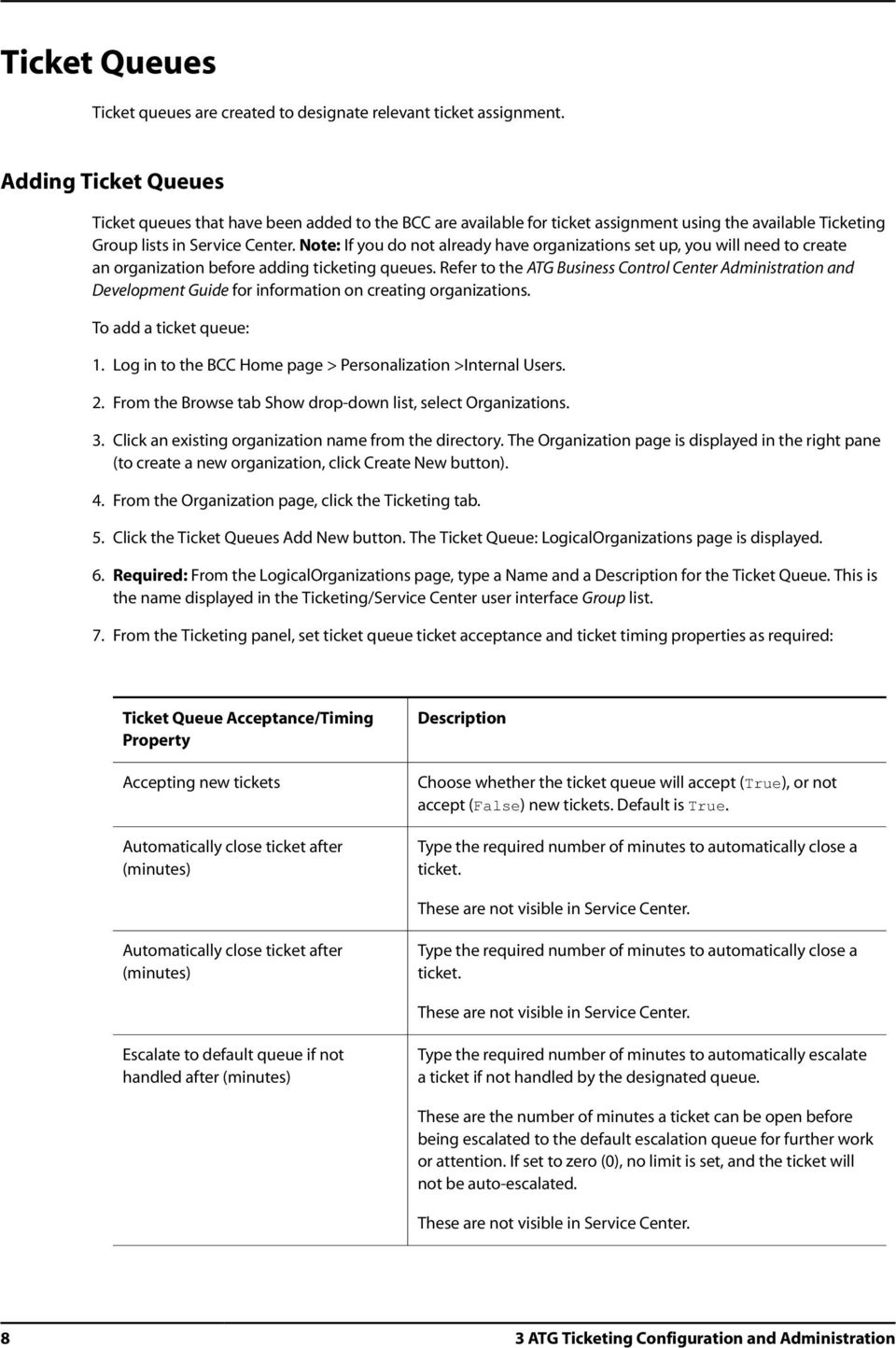
13 Ticket Queue Acceptance/Timing Property Remove from agent if not handled after (minutes) Description The number of minutes an agent/user (assigned to work on the ticket) in the queue can hold a ticket before it is automatically released (unassigned). If set to zero (0), no limit is set, and the ticket will not be auto-released. These are not visible in Service Center. Target SLA (minutes) Type the number of minutes required for a due date/time, based on your organization s service level agreement. These are the number of minutes to complete the ticket assignment (due date) before the ticket expires. If set to zero (0), no due date is set for the ticket. SLA minutes display as the ticket Due Date in Service Center. For example, to set the due date for the ticket queue at 24 hours from the time a ticket is created, type 1440 in the Target SLA (minutes) box (24 hours = 1440 minutes). When a ticket is created and assigned to the ticket queue, the due date is displayed (where applicable) in Service Center (for example; in the Ticket Summary panel). Note: Individual ticket queue settings take priority over global ticket queue settings. If you have set a value for the DefaultQueueDataReader (global ticket queue default settings) the system will first read the information set for an individual ticket queue, and then the global default settings. 8. Click the Escalation Info Add Existing button to select escalation information for the ticket queue. The Select an Item window is displayed. 9. From the Select an Item window, click Find, and then select a ticket queue from the available list. The selected queue is the ticket queue to which a ticket is escalated when requested (using the Escalate Ticket Next Step in Service Center). Note: Escalate is an attribute on the ticket, not a ticket status. Escalating a ticket allows a ticket to maintain its status, but also reflects that the ticket has been marked for further research, help, or approval, based on your organization s escalation level definitions. 10.Click Create. The ticket queue is added to the organization and is available for ticket assignment using the Ticketing user interface Group list in Service Center. Global Ticket Queue Timing Properties The following properties are part of the GlobalTicketQueue: DefaultQueueDataReader The DefaultQueueDataReader allows additional calculations for ticket queue time-out values. Global default timing properties for ticket queues is 0. 3 ATG Ticketing Configuration and Administration 9

14 Global default settings for ticket queues are set using the ACC. Property Name onlyifnoqueue=true availabilityminutes=0 deallocationminutes=0 inactivityminutes=0 slaminutes=0 Description If there is no ticket queue associated with a ticket, then ticket queue timing defaults will be applied. Defaults are set to zero (0). availabilityminutes are the number of minutes a ticket can be open before being escalated for further work or attention. If set to zero (0) no limit is set, and the ticket will not be automatically escalated. deallocationminutes are the number of minutes an agent/user can hold a ticket before it is auto-released (unassigned). If set to zero (0), no limit is set and the ticket will not be automatically released. inactivityminutes are the number of minutes an outbound message can remain inactive (no response sent) before it is closed. If set to zero (0), the ticket will not be automatically released. slaminutes are the number of minutes an agent/user has to complete the ticket assignment (due date) before the ticket is flagged and expires. If set to zero (0), no due date is set for the ticket. Note: Individual queue settings take priority over global queue settings. If you have set value for the DefaultQueueDataReader, the system will first try to read the information set for an individual ticket queue, and then the global defaults. If the information is null, the global default values set on the DefaultQueueDataReader are used by setting the onlyifnoqueue to False. To change global default timing properties for ticket queues: 1. From the ACC, select Pages by Components > Components by Path. 2. From the Components tree, open atg > ticketing, and then double-click DefaultQueueDataReader. The DefaultQueueDataReader Component Editor is displayed. 3. Enter the number of minutes required in the availabilityminutes box. For example, to set availability minutes for the ticket queue at 24 hours from the time a ticket was created, type 1440 in the availabilityminutes box (24 hours = 1440 minutes). 4. Type the number of minutes required in the deallocationminutes box. For example, to set deallocation minutes for the ticket queue at 12 hours from the time the ticket was created, type 720 in the deallocationminutes box (12 hours = 720 minutes). 5. Type the number of minutes required in the inactivityminutes box. For example, to set inactivity minutes for the ticket queue at 8 hours from the time the ticket was created, type 480 in the deallocationminutes box (8 hours = 480 minutes). 6. Type the number of minutes required in the slaminutes box. For example, to set the due date for the ticket queue at 24 hours from the time a ticket was created, type 1440 in the slaminutes box (24 hours = 1440 minutes). When a ticket is created and assigned to the ticket queue, the due dates is displayed (where applicable) in Service Center (for example; in the Ticket Summary panel) ATG Ticketing Configuration and Administration

15 Setting Ticket Polling To enhance performance levels for ticketing, you can set background polling intervals to zero. This disables polling for ticketing information. To modify the ticket polling time, use the ACC to set the pollinterval property to zero in the /framework/ UI/atg/svc/ui/formhandlers/SearchAgentTicketsFormHandler component, which controls how often the application polls for new tickets. Discarding Tickets When working with tickets, an agent s actions may affect a ticket so that the ticket must be discarded. Only transient tickets can be discarded. TicketDispositionMonitors, in the TicketingManager determines if a ticket can be discarded. There are two types of tickets that can be discarded, and the ticket disposition monitors decide both cases. The two types of discardable ticket are: Immediately discardable The application has decided that the ticket can be discarded automatically because there is nothing worth saving on the ticket. If the ticket is immediately discardable, there will be no prompt that contains the actions related to the current ticket Discardable This means that the ticket was not immediately discardable and the agent must decide if the ticket should be discarded. A ticket in this state will cause the Discard option to appear in the prompt, giving the agent a choice of whether or not to discard it. Note: The discard option will never appear for saved tickets There are two ways that the TicketDispositionMonitors determine the type of the discardable ticket: Based on activities on the ticket If the ticket has any activities beyond the base set of activities created when the ticket was created, then it is not immediately discardable. This is handled by the ticket disposition monitor located atg/ticketing/ ActivityTicketDispositionMonitor Based on the value of specific properties on the ticket If the ticket has properties that are not null, the ticket is not immediately discardable. The properties used for this test are configurable and is handled by the ticket disposition monitor in atg/ticketing/ PropertyTicketDispositionMonitor Service.Agent uses a ticket disposition monitor located at atg/svc/agent/ticketing/ ServiceTicketDispositionMonitor. This monitor, which is configured with the profile update activities, will not let a ticket be discarded if it has any of the configured activities. Environment Monitoring An environment is the collective state of an agent s current working context. The environment monitoring interface integrates applications with environment management and coordinates changes to global environment objects. 3 ATG Ticketing Configuration and Administration 11

16 Global objects are available to the agent though the UI and shared by all the applications. The current ticket and customer are examples of global environment objects. Global object changes can be triggered by the agent through UI gestures or programmatically by an application. When the object is changed, the global object is replaced with a different object of the same type. The framework provides access to two global objects: Current Ticket and Current Customer. These two objects are always available and shared by all the applications using the UI framework. They are also represented in the UI s global context area. Applications can expose their own global objects to the environment monitoring system. Environment Management API configuration enables an application to participate in changes to the exposed global environment objects by either requesting a change to a global object (including global objects that are not managed directly by the application) or by being notified of a global object change. When the global environment is exposed by requesting a change to a global object, the API provides the ability to request that any global object be changed. For example, any application running in the framework can request that the active ticket be changed to a new ticket or another existing ticket. When the global environment is exposed by being notified of a global object change, whenever a change is initiated, the application is notified and has a chance to attach dependent change details to the change request. This model allows an application to be aware of any changes taking place that may affect its own state. This takes place in a three step process. 1. Identifying environment changes before they are applied. All changes to the environment objects, including any dependent changes, are first detected and summarized in a collection of change detail objects. An application participates in this process by monitoring for new change details and creating new change detail objects. Once all the details are collected about a change, the next, optional step is to generate warning messages related to the pending change. For example, ApplicationY may have an object with dependencies on the active customer profile. Therefore, whenever the active customer is changed, ApplicationY may also want to change its object accordingly. In this case, ApplicationY would monitor for change details specific to the current customer and, when necessary, add a change detail for its own object. 2. Generating warning messages. Warning messages are optional and are relative to a change initiated by an agent through a UI gesture. Applications that are participating in environment changes are polled to produce warning messages relative to the pending change. The agent must then respond to the warnings before the change can be applied. At this point in the process, the agent has the option of canceling or continuing with the change. For example, ApplicationY may want to warn the agent that continuing with the change will adversely affect its dependent object. In this case, ApplicationY would contribute a warning relative to its dependent object, when necessary. 3. Applying the change. The final step is to apply the change to the environment based on the aforementioned detail objects. Each application is responsible for changing the environment objects under its direct control. For example, the Service framework is responsible for applying a change to the current active ticket and customer, while an application only applies changes to its own objects. For example, when ApplicationY is told to apply the change, it would scan for a change detail specific to its own object and apply it accordingly. (There would be another change detail for the active customer but ApplicationY would ignore it because it is not responsible for that environment object.) 12 3 ATG Ticketing Configuration and Administration

17 Current Ticket Disposition ATG Ticketing automatically handles the disposition of the current ticket whenever it changes. Whenever a different ticket is loaded into the environment because of a change request, one of several disposition options must be selected for the ticket being replaced (e.g. the current ticket). For UI initiated changes, the framework automatically prompts the agent to select from a set of disposition options before the change can be completed. This prompt also has the option to cancel the change and leave the environment state unchanged. The warnings and the ticket disposition options share the same UI prompt and therefore it is possible to see both warnings and the ticket disposition options in a single prompt. Ticket disposition is configured using a set of TicketDispositoinMonitors, for example framework/agent/ svc/agent/ticketing/serviceticketdispositionmonitor and /atg/ticketing/ticketingmanager. Warnings are configured for the ticket disposition options and can appear with or without the ticket disposition options. Whenever an environment object changes, all applications are notified before the change so they can provide warnings. Knowledge Manager Components and Classes EnvironmentTools The following section describes some of the components and classes available for Environment Monitoring: Class Component Configuration atg.svc.agent.environment.environmenttools /atg/svc/agent/environment/environmenttools environmentmonitors a list of EnvironmentMonitor components. This class provides the core API for applying changes to the environment. It also provides API for accessing the ATG Service-managed environment objects such as the active ticket and customer profile. EnvironmentMonitor, ServiceEnvironmentMonitor, KnowledgeEnvironmentMonitor Class Component atg.svc.agent.environment.environmentmonitor atg.svc.agent.environment.serviceenvironmentmonitor atg.svc.knowledge.environment.knowledgeenvironmentmonitor /atg/svc/agent/environment/serviceenvironmentmonitor /atg/svc/knowledge/environment/knowledgeenvironmentmonitor The EnvironmentMonitor abstract class provides the interface for writing application specific environment monitors. An application participates in the environment change process by implementing a component of this class and adding it to the EnvironmentTool configuration. The ServiceEnvironmentMonitor 3 ATG Ticketing Configuration and Administration 13
18 FormHandlers component detects changes, generates warnings, and applies changes for Service managed objects. The KnowledgeEnvironmentMonitor component detects changes, generates warnings, and applies changes for Knowledge Manager objects. Class Component atg.svc.agent.environment.environmentchangeformhandler atg.svc.agent.ui.formhandlers.changeactiveticketformhandler atg.svc.agent.ui.formhandlers.changecurrentcustomerformhandler atg.svc.agent.ui.formhandlers.deferactiveticketformhandler atg.svc.agent.ui.formhandlers.workticketformhandler /atg/svc/agent/ui/formhandlers/changecurrentcustomer /atg/svc/agent/ui/formhandlers/closeticket /atg/svc/agent/ui/formhandlers/createnewticket /atg/svc/agent/ui/formhandlers/deferticket /atg/svc/agent/ui/formhandlers/endandstartcall /atg/svc/agent/ui/formhandlers/endcall /atg/svc/agent/ui/formhandlers/escalateticket /atg/svc/agent/ui/formhandlers/reassignticket /atg/svc/agent/ui/formhandlers/releaseticket /atg/svc/agent/ui/formhandlers/sendtogroup /atg/svc/agent/ui/formhandlers/startnewcall /atg/svc/agent/ui/formhandlers/workactiveticket /atg/svc/agent/ui/formhandlers/workticket The EnvironmentChangeFormHandler is the base form handler class for agent gestures that perform environment changes. It is designed to provide a specific flow when the agent users gestures that change the environment. This flow consists of starting a change with the agent gesture and progressing to warnings and ticket disposition confirmations, to performing the change. Changes in the environment are monitored by all applications, which can apply their own specific changes. For example, when a change is set to occur, the application might generate a warning that must be confirmed by an agent before the changes can be completed. If the change includes a ticket modification, the agent may also be asked to decide the disposition of the current ticket before proceeding. When a ticket disposition change occurs, the agent is presented with a form that allows them to set the disposition options. The current ticket disposition is modified based on the ticket disposition options, which are supplied either by the agent, or through a set of default options. Whenever the ticket changes as a result of an environment change, the current ticket disposition will be modified based upon these options. This EnvironmentChangeFormHandler contains the following properties: initchangestate Determines if the environment change state is initialized. Default is true environmentchangestate Contains the state information for the change. This property should be configured to a window scoped EnvironmentChangeState object environmentchangekey Identifies the type of environment change being requested inputparameters A map of change input parameters 14 3 ATG Ticketing Configuration and Administration

19 dowarnings Determines if warnings will be generated and shown to the agent dodispositionprompt Determines if the agent should be prompted with ticket disposition options when the current ticket is changing as a result of the requested change. Default is true. Note: This property should be set to false on the confirmation page confirmurl The URL that launches the warnings/ticket disposition prompt confirmprompturl The URL that defines the contents of the prompt window for warnings/ticket disposition options EnvironmentStateChange Class Component atg.svc.agent.environment.environmentchangestate /atg/svc/agent/environment/environmentchangestate This class represents the state object used to perform environment changes. It contains the change key, input parameters, change details, ticket disposition options and other information related to a change. See the Java doc for more details. EnvironmentTools contains the API for initializing an EnvironmentChangeState instance for a specific change. The state object is then used as input to other API used to execute the change. ServiceEnvironmentConstants Class atg.svc.agent.environment.serviceenvironmentconstants This static class exposes the environment change keys defined by Service. Change keys are string values that identify a specific type of change to the system. startnewcall, changeactivecustomer and newticket are examples of change keys defined by the Service framework. This class also exposes the input parameter names for each change key. profileid is an example of an input parameter name required to execute a change using the changeactivecustomer change key. TicketDispositionOptions Class atg.svc.agent.environment.ticketdispositionoptions An instance of this class defines the desired disposition of the current ticket, if it is replaced because of the change. It exposes the names of each disposition option and the input parameters required for each one. Example options are save, close, escalate and defer. If the ticket disposition object is not provided for a change, the default behavior will use the save option. Refer to the ATG Commerce Service Center Installation and Programming Guide for information on Oracle ATG Web Commerce Service Center ticket dispositions. 3 ATG Ticketing Configuration and Administration 15

20 16 3 ATG Ticketing Configuration and Administration

21 4 Customizing Ticketing ATG Ticketing is delivered with pre-configured user interface properties. ATG Ticketing can be modified according your organization s needs. This chapter, which is intended for administrators and developers of Service Center, provides lists of delivered properties and instructions on how to modify them using the ACC. Defining Global Context Area Defaults The global context area provides a quick view of current active tickets (Active Tickets), ticket activities (Ticket), and customer profile information (Customer). The global context area is always displayed as the top panel in Service Center. For additional information and further detail on working with the global context area, refer to the ATG Service Center UI Programming Guide. The following properties control the global context area defaults: Global Context Area Property/Default Value initialtab=activeticketsmainpanel ticketsortproperty ticketsortdirection=ascending activitiessortproperty=creationtime activitiessortdirection=descending expandtopactivity=false Description Set the initial page to display for the global context area. Sort tickets by identification number. Sort tickets by identification number in ascending order (1, 2, etc.). Sort ticket activities by activity creation time. Sort activities in descending order (most recent first). Do not automatically expand the first activity in the activities table. 4 Customizing Ticketing 17
22 Global Context Area Property/Default Value onlyexpandthese=inboundmessageactivity Description Auto-expand activity type. Note: Leave blank to expand any activity that defaults as the first activity in the activity list (if expandtopactivity =true). To access the global context area default properties: 1. From the ACC menu, select Pages and Components > Components by Path. The Components page is displayed. 2. From the Components page, expand the atg > svc > agent > ticketing folder, and then double-click the GlobalPanelConfiguration file. The Global Panel Configuration Component Editor is displayed. Note: The global context area configuration files are located in the GlobalPanelConfiguration file. Configuring Ticket Reason Codes and Contexts To identify, differentiate, and/or track certain ticket actions and status changes, ATG Ticketing requires reason codes in certain instances. Reason codes are available in drop-down lists based on the context of an action taken while working with ATG Ticketing in Service Center. Reason Contexts Reason Contexts are set in the Ticketing Repository to control reason code lists. With the exception of adding and removing reasons to the Reason Contexts, do not modify the Reason Context. Reason Context keys are fixed attributes in the user interface and any modifications will require additional changes to the JSP. Reason Codes The reason codes available in drop-down lists in Service Center are based on ticket actions or status changes. Available Reason Code selection is based on the Reason Code to Reason Context relationship set in the ACC. ATG Ticketing is delivered with the following Reason Codes and Reason Contexts: Reason Context Ticketing Action Reason Code(s) Ticketing.EscalatePrompt Escalate Ticket Needs Manager Approval Need Help Ticketing.ClosePrompt Close Ticket Problem Resolved Confirmed Error Spam Closed by Customer 18 4 Customizing Ticketing
23 Reason Context Ticketing Action Reason Code(s) Ticketing.ReleasePrompt Release Ticket Need Help Too Busy Ticketing.DeferForLaterPrompt Defer Ticket Need Help Too Busy Waiting Ticketing.SendToGroupPrompt Send to Group Need Help Too Busy Ticketing.ReassignPrompt Reassign Ticket Need Help Ticketing.PhoneCallPrompt Phone Call Need Help For example, while working on a ticket in Service Center, the agent/user decides to close a ticket. The user is prompted to select a Reason Code in the Close Ticket pop-up window (CloseTicketPrompt reason context). The list of reason codes to select includes those reason codes added to the Close Ticket reason context in ACC. Modifying a Reason Code To modify an existing reason code: 1. From the ACC menu, select Content > Ticketing Repository. 2. From the TicketingRepository page, select Items of Type Reason, and then click List. The list of available Reason Codes is displayed. 3. Select a reason code from the available list. The Reason Context details are displayed in the right pane. 4. Modify the Reason Description and the Name as necessary, and then click Save. Adding a New Reason Code To add a new reason code: 1. From the ACC menu, select Content > Ticketing Repository. 2. From the TicketingRepository page, select Items of Type Reason, and then click List. The list of available Reason Codes is displayed. 3. Click New Item. The New Item window is displayed. 4. In the New Item window, type a Description and a Name for the new reason code, and then click OK. The Ticketing Repository page is redisplayed. 5. Click Save. 6. From the TicketingRepository page, select Items of Type ReasonContext, and then click List. The list of available Reason Contexts is displayed. 4 Customizing Ticketing 19
24 Note: With the exception of adding and removing reason codes within your customization layer, do not modify Reason Contexts. Reason Context keys are fixed attributes in the user interface and any modifications require additional changes to the JSP. 7. Click the name of the reason context you want to associate the new reason code with. For example, if you are adding a new reason code named NeedsMoreInfo (to indicate that the agent or user needs time to gather more information in order to continue working on the ticket), you would associate this reason code with the Reason Context: DeferforLaterPrompt. In this case, you would click Reason Context: DeferforLaterPrompt from the list of available reason contexts. 8. From the DeferforLaterPrompt pane, click the Reasons box, and then click the ellipsis button ( ). The Reasons window is displayed. The Reasons window contains a list of reason codes that are currently included with the selected Reason Context. 9. From the Reasons window, click Add. The New Item window is displayed. 10.From the New Item window, click List. A list of available reason codes is displayed. 11.Click the name of the reason code you want to add the reason context, and then click OK. The reason context pane is redisplayed with the newly added reason code included in the Reasons list. 12.Click Save. Note: Reason codes are cached at application startup. You must re-assemble, redeploy, and restart the Web application that includes ATG Reporting after modifications are complete in order to see them in Service Center. Indicating Ticket Status/Sub-Status The Ticket Status indicates the current condition of a ticket (such as Closed, Closed as Duplicate, Open, Pending) in Service Center. There are three parent statuses and related sub-statuses delivered with ATG Ticketing. Note: Do not modify parent statuses. Parent Status Sub-Status Description Open Open Ticket is open. ReOpened Pending The ticket has been re-opened after previously being closed. The ticket is suspended, awaiting the occurrence of an event. The event may be date/time oriented, in which case it would be triggered by the Pending Date/Time property. If the event is manual, it will be triggered by the agent/user. Closed Closed The ticket has been closed. ClosedAsDuplicate The ticket has been identified as a duplicate of another ticket and closed as a result Customizing Ticketing
25 Parent Status Sub-Status Description ConfirmedClosed Restored The ticket has been closed at the request of a customer. The ticket has been restored from archive. Archived ArchivePending The ticket has been partially archived and therefore only summary information is available and not the activities. If the activities are required, a restore will be necessary. Modifying Ticket Sub-Statuses To modify an existing ticket sub-status: 1. From the ACC menu, select Content > Ticketing Repository. 2. From the TicketingRepository.properties page, select Items of type Substatus, and then click List. The list of available Sub-statuses is displayed. 3. Select a sub-status from the available list, and then modify the Name as necessary. Each sub-status lists its related parent status. 4. Click Save. Next, you must modify the sub-status name in the TicketingResources.properties file, located in: j2ee-apps/agent.ear/agent.war/web-inf/classes/atg/svc/ agent/ticketing/ticketingresources.properties 5. From the ACC menu, select Pages and Components > J2EE Pages. 6. From the J2EE page, double-click j2ee-apps/agent.ear to open the Agent.war page. 7. From the Agent.war page, locate the WEB-INF/classes/atg/svc/ agent/ticketing folder, and then double click the TicketingResources.properties file to open the TicketingResources.properties window. 8. From the TicketingResources.properties window, scroll to the # Status labels list. 9. Modify the relevant #Status label(s). 10.Click Save File, and then close the TicketingResources.properties window. 11.From the ACC menu, select Pages and Components > Components by Path. 12.Navigate to the /atg/ticketing/ticketstatusmanager component and then modify the relevant properties to match the new sub-status names. Included properties are: archivedsubstatusname closedasduplicatesubstatusname closedsubstatusname opensubstatusname pendingsubstatusname reopenedsubstatusname restoredsubstatusname confirmedclosedsubstatusname 4 Customizing Ticketing 21
26 Important: If you have modified the Open sub-status name, then you must also modify the newticketsubstatus and unsuspendedticketsubstatus properties to match the new name for the Open sub-status. 13.Click Save. Modifying Ticket Escalation Escalate is an attribute on the ticket, not a ticket status. Escalating a ticket allows a ticket to maintain its status, but reflect that the ticket has been escalated for further research, help, or approval, based on your organization s escalation level definitions. Three escalation levels are delivered with ATG Ticketing Tier 1 Tier 2 Tier 3 You can use the escalation levels provided, or modify them according to your business needs. Modifying New Ticket Escalation Levels Modify the new ticket escalation property in the TicketingManager.properties file (newticketescalationlevel is set to Tier1). For example, instead of Tier 1 as the escalation level for a newly created ticket, you want to the new ticket escalation level to be Agent, or Level 1. To change the new ticket escalation level: 1. From the ACC menu, select Pages and Components > Components by Path. The Components page is displayed. 2. From the Components page, expand the atg > ticketing folder, and then double-click the Ticketing Manager file. The TicketingManager Component Editor is displayed. 3. From the TicketingManager Component Editor, scroll to the newticketescalationlevel property. 4. Modify the newticketescalationlevel property as required, and then click Save. Modifying Default Escalation Ticket Queue Names Escalate a ticket to a default ticket queue, first using the designated ticket queue for the ticket (if any), then using the ticket queue specified by the defaultescalationticketqueuename property. This creates the associated activities for escalation level changes and ticket queue ownership changes. To modify the defaultescalationticketqueuename: 1. From the ACC menu, select Pages and Components > Components by Path. The Components page is displayed. 2. From the Components page, expand the atg > ticketing folder, and then double-click the Ticketing Manager file. The TicketingManager Component Editor is displayed. 3. From the TicketingManager Component Editor, scroll to the defaultescalationticketqueuename property Customizing Ticketing
27 4. Type the group name for escalation as required, and then click Save. Modifying Default Escalated Ticket Escalation Levels Designate a default escalation level for an escalated ticket using the defaultescalatedticketescalationlevel property. The default escalated ticket escalation level is the escalation level displayed with a ticket after it has been escalated. For example, if your default new ticket escalation level is set at Tier 1, the logical default for the escalated ticket escalation level is Tier 2. To modify the defaultescalatedticketescalationlevel: 1. From the ACC menu, select Pages and Components > Components by Path. The Components page is displayed. 2. From the Components page, expand the atg > ticketing folder, and then double-click the Ticketing Manager file. The TicketingManager Component Editor is displayed. 3. From the TicketingManager Component Editor, scroll to the defaultescalatedticketescalationlevel property. 4. Type the new escalated ticket escalation level as required, and then click Save. Setting Default New Ticket Priority The default ticket priority for a new ticket created in Service Center is 0. The newticketpriority value is set in the TicketingManager.properties file in the ACC. To change the default priority for new tickets: 1. From the ACC menu, select Pages and Components > Components by Path. The Components page is displayed. 2. From the Components page, expand the atg > ticketing folder, and then double-click the Ticketing Manager file. The TicketingManager Component Editor is displayed. 3. From the TicketingManager Component Editor, scroll to the newticketpriority property. 4. In the newticketpriority property, change the priority number as required, and then click Save. Generating Ticket ID Spaces The Ticketing repository is configured to use an ID generator service to generate unique IDs for ticket items. By default, the ticket ID space is configured to have a seed of 1000 and a batch size of 100. Modifying the ID Generator In order to modify the seed, batch size, prefix or suffix information open the das_id_generator database table: 1. Select the row in the das_id_generator table with an id_space_name column value of ticket. 4 Customizing Ticketing 23
28 2. Modify the other values in that row as required. Note: Refer to the ATG Platform Programming Guide for more information on the ID Generator. Defining New Ticket Activity Types You can customize ATG Ticketing to track new ticket activities, allowing agents to search and sort tickets based on activity type. To create a new ticket activity type you must define the ticket activity, define the new repository item definitions and then display the ticket activities in Service Center. 1. Add the necessary SQL tables used for saving the custom activity information. create table csrt_loyalty( idvarchar(40)not null, order_idvarchar(40)not null, pointsredeemedinteger not null,, primary key (id)); alter table csrt_loyalty set pessimistic; 2. Add the repository item definitions to the TicketingRepository. For example, //Add the item descriptor <item-descriptor name="redeemedloyaltypoints" super-type="ticketactivity" sub-type-value="redeemedloyaltypoints" cache-mode="simple"> <attribute name="resourcebundle" value="my.app.repositorytemplateresources"/> <table name="csrt_loyalty" id-column-name="id"> <property name="pointsredeemed" data-type="int" columnname="points_redeemed" display-name-resource="pointsredeemed"/> <property name="orderid" data-type="string" column-name="order_id" display-name-resource="orderid"/> </table> </item-descriptor> //Add the activity type and application name to the base item descriptor <item-descriptor name="ticketactivity" sub-type-property="type"> <table name="tkt_activity" type="primary" id-column-name="activity_id"> <property name="type" data-type="enumerated" column-name="type"> <attribute name="propertysortpriority" value="20"/> <attribute name="usecodeforvalue" value="false"/> <option value="redeemedloyaltypoints" code="88001"/> </property> <property name="application" data-type="enumerated" columnname="application" required="true"> <attribute name="propertysortpriority" value="30"/> <attribute name="usecodeforvalue" value="false"/> <option value="myappname" code="88000"/> </property> </table> </item-descriptor> 3. Use the TicketingManager API to create and add new ticket activities to a ticket Customizing Ticketing
29 public void somemethod(...) { activity = ticketingmanager.createactivity("redeemedloyaltypoints", "My App Name", agentprofileref,"my reason");... set properties of item ticketingmanager.addticketactivity(ticketref, agentprofileref, activity); } Configuring Ticket Activities in Service Center Service Center displays a panel that shows all the ticket activities associated with a specific ticket. The following steps describe how to add a new activity to that display. 1. Configure a new ActivityInfo component for the activity and add it to the registry configuration layer located in the /atg/ticketing/activities directory. Note: The name of the file must match the type of the ticket activity. ActivityInfos define how to display the information contained in the activity. For example, using the / atg/ticketing/activities/ RedeemedLoyaltyPoints.properties file: $class=atg.svc.ui.activity.activityinfo hidden=true # JSP to render the Activity column activitycolrenderer^=/atg/ticketing/activities/default.activitycolrenderer # The property to display in the Activity column activitypropertyname=heading # The page to use to render detail information for the activity detailpage^=/atg/ticketing/activities/default.detailpage options=detailpageproperties=orderid,,pointsredeemed # The icon to use to indicate an inbound or outbound activity # directionicon= # The value to use for activity display name if no resourced display name # value is found # displayname= # The resource key for the display name in the resource bundle displaynameresourcekey=redeemedloyaltypointsdisplayname # The resource bundle resourcebundlename=atg.commerce.csr.ticketing.activityinforesources # The JSP to render the source column sourcecolrenderer^=/atg/ticketing/activities/default.sourcecolrenderer # The icon to use when rendering the source column # sourceicon= # The property to display in the Source column sourcepropertyname=agentprofile.firstname,agentprofile.lastname # Renderer for the type column typecolrenderer^=/atg/ticketing/activities/default.typecolrenderer # The icon used to represent this activity type # typeicon 2. The activities panel allows the agent to filter the display to a specific category of activities. For example, the agent can filter the display to view only Oracle ATG Web Commerce related activities. To create a custom filter by creating a filter configuration component, for example, /myapp/activities/myappfilter: 4 Customizing Ticketing 25
30 $class=atg.svc.ui.formhandlers.categoryactivityfilter $scope=request # The activity types to be grouped under this category activitytypes=redeemedloyaltypoints,myotheractivity1,myotheractivity2 # The resource key of the display name for this group displaynameresourcekey=myappactivityfilter # The resource bundle that contains the resource key resourcebundlename=myapp.activities.activityinforesources 3. Add the new filter component to the /atg/svc/ui/formhandlers/ ActivityFilters configuration. For example: customactivityfilters+=/myapp/activities/myappfilter Configuring Commerce Service Center-Specific Ticket Activities Because many of the actions taken by an agent in Commerce Service Center are captured in the agent audit log, as well as ticket activities, Commerce Service Center provides a convenient way of creating a ticket activity from an AgentEvent. The process mirrors that of recording an audit event whereby an AgentEvent is routed to a recorder component, which saves the information in the repository. The recorders are mapped by the activity type. Commerce Service Center provides classes for the most common cases of creating activities from the events. The following steps outline what is needed to record an AgentEvent as a ticket activity. This assumes that the AgentEvent and audit log repository definitions are already in place. 1. Define the new activity type in the TicketingRepository. You can define the ticket activity much the same as the audit log definition for the same type. However, the ticket activity definition can be defined as needed to meet your requirements. However, the only source for the ticket activity information is the AgentEvent. For additional information, refer to the ATG Service Installation and Configuration Guide. 2. Create the recorder components. The recorder component generates a ticket activity from an AgentEvent. Commerce Service Center provides two classes for the most common cases, the atg.commerce.csr.ticketing. TicketingActivityRecorder class and the TicketingPropertyUpdateRecorder class. The TicketingActivityRecorder class is the base class for a recorder and supports the following features: Automatic creation of the ticket activity repository item based on the type contained in the AgentEvent The ability to configure a list of event properties that map to ticket activity properties. The recorder automatically sets the values in the activity from those in the AgentEvent Automatic addition of the activity to the ticket ID referenced in the AgentEvent Automatic association of the order with the ticket. (Note that this only occurs when the AgentEvent contains an orderid property) The ability to configure if the order related ticket activity should be added when the order is in a transient state Automatic saving of the ticket after adding the activity The TicketingPropertyUpdateRecorder class is an extension of TicketingActivityRecorder that supports recording an AgentEvent that contains a List or PropertyUpdates. For example: 26 4 Customizing Ticketing
31 /myapp/recorders/loyaltypointrecorder class=atg.commerce.csr.ticketing.ticketingactivityrecorder applicationname=myapplicationname internalprofilerepository=/atg/userprofiling/internalprofilerepository orderrepository=/atg/commerce/order/orderrepository profilerepository=/atg/userprofiling/profileadapterrepository ticketingmanager=/atg/ticketing/ticketingmanager customproperties=\ pointsredeemed=pointsredeemed,\ orderid=orderid CSRAgentTools=/atg/commerce/custsvc/util/CSRAgentTools orderspropertyname=orders savetransientorderactivities=false 3. Register the recorder component by activity type. Map the new recorder component by its activity type so an AgentEvent of the same type will be routed to it for processing. For example: /atg/commerce/custsvc/ticketing/ticketingeventlistener.properties#13 $$Change: $ eventtypetorecordermap+=\ RedeemedLoyaltyPoints=/myapp/recorders/LoyaltyPointRecorder Configuring Scheduled Services The following scheduled services are available within the Ticketing module: Expire Outbound Message Service The ExpireOutboundMessage service looks for and expires outbound message activities where the activity duetime is past the current time. By default, this scheduled service is set to run once every hour. To modify the schedule property of this service: 1. From the ACC menu, select Pages and Components > Components by Path. The Components page is displayed. 2. From the Components page, expand the atg > ticketing > scheduled folder, and then double-click the ExpireOutboundMessageService file. The ExpireOutboundMessageService Component Editor is displayed. 3. From the ExpireOutboundMessageService Component Editor, scroll to the schedule property. 4. Modify the schedule as required, and then click Save. Note: Refer to the ATG Platform Programming Guide for more information about scheduled services. Release Ticket Periodic Service The ReleaseTicketPeriodic service releases tickets according to the ticket due time. By default, this scheduled service is set to run once every minute. 4 Customizing Ticketing 27
32 To modify the schedule property of this service: 1. From the ACC menu, select Pages and Components > Components by Path. The Components page is displayed. 2. From the Components page, expand the atg > ticketing > scheduled folder, and then double-click the ReleaseTicketPeriodicService file. The ReleaseTicketPeriodicService Component Editor is displayed. 3. From the ReleaseTicketPeriodicService Component Editor, scroll to the schedule property. 4. Modify the schedule as required, and then click Save. Note: Refer to the ATG Platform Programming Guide for more information on scheduled services. Unsuspend Ticket Periodic Service The UnsuspendTicketPeriodic service releases tickets according to the ticket due time. By default, this scheduled service is set to run once every minute. To modify the schedule property of this service: 1. From the ACC menu, select Pages and Components > Components by Path. The Components page is displayed. 2. From the Components page, expand the atg > ticketing > scheduled folder, and then double-click the UnsuspendTicketPeriodicService file. The UnsuspendTicketPeriodicService Component Editor is displayed. 3. From the UnsuspendTicketPeriodicService Component Editor, scroll to the schedule property. 4. Modify the schedule as required, and then click Save. Note: Refer to the ATG Platform Programming Guide for more information on scheduled services Customizing Ticketing
33 5 Working with Tickets This section provides an overview of ATG Ticketing for agents and other user of Service Center. Global Context Area The global context area of Service Center provides a quick view of current active tickets, ticket activities, and customer profile information. The global context area is always displayed as the top panel in Service Center. The options available in the global context area change depending on the applications that you have installed. Ticketing Panels Ticketing uses side panels that provide additional navigation tools to other information available within Service Center. Note: Side panels displayed will vary depending on the applications currently in use with ATG Ticketing. Next Steps Side Panel The Next Steps panel provides a menu of potential next step actions while working on a ticket, a customer profile, or ticket tasks. Next Steps items displayed in the Next Steps panel will vary depending on the current working state of the ticket, task, or customer profile. For example, if you are not working on a ticket on the Tickets page, you will see next step actions including Create New Ticket and Work on Ticket. If you choose to create a new ticket, additional next steps become available in the Next Steps panel such as Save Ticket, Close Ticket, and Defer Ticket. Helper Side Panels Helper panels are displayed in the right pane below the Next Steps panel in Service Center. These panels include information that may be useful while navigating through Service Center. Note: Helper panels can be minimized to show only the panel heading (by clicking the minimize icon), or removed from view (by clicking the close icon). Panels that are removed from view are stored and listed in Available Panels for later use. You can restore removed panels by clicking the panel title in Available Panels. 5 Working with Tickets 29
34 Working with My Tickets The My Tickets panel provides a list of currently open and assigned tickets. You can view and work on tickets currently assigned to you from the My Tickets panel on the Tickets page. Note: If using Knowledge Manager, the Solution Queue is also available on the Tickets page. To work on a ticket: 1. Click on the Ticket button. The My Tickets page opens. 2. From the My Tickets list, locate the ticket you want to work on, and then click the ticket identification number. The Ticket Details pane is displayed. 3. From the Ticket Details pane, click Work on Ticket in the Next Steps panel, and then continue with customer or ticket summary modifications as necessary. Working with Active Tickets Active Tickets displays the current assigned and active tickets. Any ticket that is open, assigned to the current user, and is currently being worked on will be displayed as an active ticket in the active tickets list. Note: A ticket is defined as being worked on when a user has chosen the Work Ticket Next Step, or when the ticket has been automatically pushed to the user. Viewing Active Tickets To display the Active Tickets list in the global context area: 1. From the global context area, use the Ticket button drop down Active Tickets menu option. The Active Tickets list appears. 2. Click a ticket identification number in the Active Tickets list. 3. Click the ticket identification number in the global context area to display the Ticket Details pane. 4. The Ticket Details pane is displayed in the Tickets page. Adding a Ticket Note To add a note to the current working ticket: 1. Click the Add Note button in the call section of the global context area. The Enter Note pop-up window is displayed. 2. In the Enter Note pop-up window, select the Share with Customer check box to make Ticket Notes available to external customers. Selecting the Share with Customer check box makes the note public and available to customers using your Self Service site Working with Tickets
35 3. Type a note related to the ticket in the Enter Note text box, and then click OK. Ticket notes are available to view from the Ticket Details pane s Ticket Summary panel. Note: Ticket notes are recorded as ticket activities and are available to view from the global context area, the Ticket Activity panel, and the Ticket Notes section of the Ticket Summary panel. Adding a Call Activity Note To add a call activity note to the current ticket: 1. Click the Add Call Note button in the global context area. The Add Call Note pop-up window is displayed. 2. Select or clear the Inbound Call check box. Selecting the Inbound Call check box marks the call note type as an inbound telephone call activity in the Ticket Activity list. Clearing the Inbound Call check box will mark the call note type as an outbound telephone call activity in the Ticket Activity list. 3. Select the Share with Customer check box to make call activity note information available to external customers. Selecting the Share with Customer check box makes the note public and available to customers using your Self Service site. 4. Type call activity information in the Enter Note text box, and then click OK. Call notes are recorded as ticket activities available to view from the global context area, the Ticket Activity panel, and the Ticket Notes section of the Ticket Summary panel. Searching for Tickets Search for tickets using ticket attributes using: Quick Search Advanced Search Ticket Quick Search To search for an existing ticket using a ticket ID: 1. Click the Tickets button search icon. The Ticket Search pane is displayed. Type the ticket ID in the Quick Search text box, and then click Find. The ticket search results are displayed in the Search Results panel. 2. From the Search Results panel, you can: Click the Ticket ID number to open the Ticket Details pane in read-only view, or click the Work on Ticket icon to open the Ticket Details pane in edit view Expand Customer Information to view customer profile information related to the ticket Expand Customer Information In Ticket to view contact information stored within the ticket 5 Working with Tickets 31
36 Expand Associated Tickets to view and/or work on associated tickets (click an associated Ticket ID number to open the Ticket Details pane in read-only view, or click the associated ticket Work on Ticket icon to open the Ticket Details pane in edit view) 3. Continue with Next Steps. See Working on a Ticket (page 34). or To return to Ticket Search, click Back to Ticket Search in the Next Steps panel. Ticket Advanced Search To search for tickets using advanced search attributes: 1. Click the Tickets search icon. The Ticket Search pane is displayed. 2. Type and/or select advanced ticket attributes for your search, and then click Find. The ticket search results are displayed in the ticket Search Results panel. Advanced ticket search attributes include: Status Group First Name, Last Name Escalation Level Created Date Last Modified Date You must select at least one Advanced Search attribute to perform an advanced ticket search. Searching using a ticket ID (Quick Search) will override any other search criteria entered in the Advanced Search panel. Note: Customer information searched using advanced ticket search options is based on customer information stored within an individual ticket only. This information is not related to customer profile information stored in the ATG customer repository. See Searching for Customers (page 39) for more information about searching using customer profile information. 3. From the Ticket Search Results panel, you can: Click the Ticket ID number to open the Ticket Details pane in read-only view, or click the Work on Ticket icon to open the Ticket Details pane in edit view Expand Customer Information to view customer profile information related to the ticket Expand Customer Information In Ticket to view contact information stored within the ticket Expand Associated Tickets to view and/or work on associated tickets. Click an associated Ticket ID number to open the Ticket Details pane in read-only view, or click the associated ticket Work on Ticket icon to open the Ticket Details pane in edit view 4. Continue with Next Steps. See Working on a Ticket (page 34). or 32 5 Working with Tickets
37 To return to Ticket Search, click Back to Ticket Search in the Next Steps panel. Creating a New Ticket To create a new ticket: 1. Click the Ticket button and select the Create New Ticket from the drop down menu. 2. The Ticket Details pane is displayed. The Ticket Details pane contains customer, ticket summary, and ticket activity information. 3. Complete the information in the Ticket Summary panel as required, including: Ticket Description Customer Information (in Ticket) Priority Note: Customer information modified and stored within the Ticket Summary is applicable to the individual ticket only (Customer Information In Ticket). This information is not related to customer profile information stored in the ATG customer repository and cannot be used for a customer search. 4. Click Save Changes in the Ticket Summary panel to save the ticket and summary information. The Ticket Summary information is saved, a ticket identification number is created, and the Ticket Summary is redisplayed in read-only view. To edit the Ticket Summary, click Edit Ticket in the Ticket Summary panel. 5. To associate the new ticket with an existing ticket, click the Associate Ticket button in the Ticket Summary panel. See Associating a Ticket (page 34). You can view the list of associated tickets by expanding the Associated Tickets section of the Ticket Summary panel. 6. To close the ticket as a duplicate of an existing ticket, click Close as Duplicate Ticket in the Ticket Summary panel. See Closing a Ticket as a Duplicate (page 34). 7. To add notes to the ticket, expand the Ticket Notes section of the Ticket Summary panel. Type notes and information related to the ticket in the Ticket Notes box. 8. Select or clear the Share with Customer check box and then click Add. Selecting the Share with Customer check box makes the note public and available to customers using your Self Service site. You can view Ticket Notes by expanding the Ticket Notes section of the Ticket Summary panel. 9. From the Ticket Details Customer Information panel, you can either link an existing customer profile with the new ticket, or create a new customer profile. See Linking a Customer to a Ticket (page 40). Note: You are not required to link customer profile information to a ticket. However, customer profile information contains and login information required for creating customer password information for use on your Self Service site. 10.Continue with Next Steps. You must select a Next Step to clear the current ticket from Service Center and continue working with ATG Ticketing, or select another ticket from the Active Tickets list to change the current ticket view. To work using multiple tickets and multiple ticket windows, see Working with Multiple Tickets/Windows (page 38). 5 Working with Tickets 33
38 Working on a Ticket To modify and existing ticket: 1. Search for an existing ticket, or select a ticket from the Active Tickets list. 2. If necessary, from the Ticket Details pane, click Work on Ticket in the Next Steps panel. Note: If the ticket is already assigned to you and available in the Active Tickets list, clicking Work on Ticket may not be required. 3. From the Ticket Summary panel, click Edit Ticket to modify the Ticket Summary information. 4. From the Customer Information panel, click Edit Customer to modify customer profile information. The Customer Management Customer Information panel is displayed. From here you can edit customer profile information, and change the customer password as necessary. 5. Continue with Next Steps, or select another ticket from the Active Tickets list. Associating a Ticket An associated ticket is a ticket that is related to another ticket. You can associate multiple tickets to one ticket, or one ticket to multiple tickets. Note: By default, the list of Associated Tickets contained within the Customer Results panel only displays the two most recent associated tickets. Click the customer name to view the customer profile and view all of the tickets for the customer in the Ticket History list. To associate a ticket with another ticket: 1. From a working ticket, click Associate Ticket in the Ticket Summary panel. The Associate Ticket pop-up window is displayed. 2. Type the identification number of the ticket you want to associate with the working ticket, and then click OK. The Associated Tickets list is updated in the Ticket Summary panel. Expand the Associate Tickets panel to view the associated ticket list. Linking a Ticket to a Solution Solutions that you have written and saved using the Contribute page can be linked and/or unlinked to tickets by clicking Link Solution in Next Steps. To link a ticket to a solution: 1. Create a new solution by clicking the Contribute button, or open an existing solution. 2. From the Next Steps panel, select Link to Current Ticket. The solution is linked to the current ticket. Linked solutions are displayed as activities in the Ticket Activity panel. When viewing a solution from the Research page, you can also view a list of any associated tickets from the Associated Tickets panel. Closing a Ticket as a Duplicate To close a ticket as a duplicate of an existing ticket: 34 5 Working with Tickets
39 1. From a working ticket, click Close as Duplicate Ticket in the Ticket Summary panel. The Close as Duplicate pop-up window is displayed. 2. Type the identification number of the duplicated ticket in the Duplicate Of box, and then click OK. The ticket status is changed to Closed(Closed as Duplicate) and the ticket ownership is released. The Ticket Details pane is redisplayed. Note: You can reopen a ticket after it has been closed by clicking Reopen Ticket in the Next Steps panel. The Next Steps panel provides a menu of potential next step actions while working with a ticket, a customer profile, or ticket tasks. Next Steps items displayed in the Next Steps panel vary depending on the current Service Center and/or by the current state of the ticket or customer profile. Closing a Ticket To close a ticket: 1. From a working ticket, click Close Ticket in the Next Steps panel. The Close Ticket pop-up window is displayed. 2. In the Reason Code drop-down list, select a reason for closing the ticket. Reason Codes include: Problem Resolved Confirmed Error Closed by Customer Note: To close a ticket as a duplicate of an existing ticket, use Close as Duplicate Ticket in the Ticket Summary. You will be prompted to enter the identification number of the duplicate ticket for future reference. The duplicate ticket ID will later be displayed in the Ticket Activity Description in the Ticket Activity panel. See Closing a Ticket as a Duplicate (page 34) for additional information. 3. Type notes related to the ticket in the Enter Note box. Notes are helpful to other users after a ticket is closed to provide further explanation for the Close Ticket reason code. Select the Share with Customer check box to make the note available to the customer. Selecting the Share with Customer check box makes the note public and will be visible to customers using your Self Service site. 4. Click OK. The ticket status is changed to Closed and the ticket ownership is released. The Ticket Details pane is redisplayed. Note: You can reopen a ticket after it has been closed by clicking Reopen Ticket in the Next Steps panel. Deferring a Ticket By deferring a ticket, you can release (or defer) your ticket task to a later date and/or time (for example; to allow time to further research a problem or issue), while retaining ownership of a ticket, or releasing the ticket to the owning group (ticket queue). For example: 5 Working with Tickets 35
40 To Defer a Ticket If you do not select a deferment date and retain ownership of the ticket, the ticket is returned to your ticket task list to work on at any time If you do not select a date and do not Retain Ownership of the ticket, the ticket is released to the owning group (ticket queue) ticket task list to work on at any time If you select a Date/Time and Retain Ownership of the ticket, the ticket is returned to your ticket task list to work on at the specified time and the ticket status is set to Open (Pending) If you select a Date/Time and do not Retain Ownership, the ticket is released to the owning group (ticket queue) ticket task list to work on at the specified time and the ticket status set to Pending 1. From a working ticket, click Defer Ticket in the Next Steps panel. The Defer Ticket pop-up window is displayed. 2. Type the date and/or time you want to defer to in the Defer Until box, or click the calendar icon to select a deferment date and time 3. Clear the Retain Ownership of Ticket check box if you do not want to the ticket to remain in your task list. 4. Select a reason for deferring the ticket from the Reason Code drop-down list. 5. Select the Share with Customer check box to make the note available to the customer. Selecting the Share with Customer check box makes the note public and will be visible to customers using your Self Service site. 6. Type a note related to the reason code in the Enter Note text box. Notes are helpful to other users after a ticket is deferred to provide further explanation for the Defer Ticket reason code. 7. Click OK. Depending on the selected Reason Code, the ticket status is changed to Open (Pending). Escalating a Ticket Escalate is an attribute on the ticket, not a ticket status. Escalating a ticket allows a ticket to maintain its status, but reflect that the ticket has been escalated for further research, help, or approval, based on your organization s escalation level definitions. To escalate a ticket: 1. From a working ticket, click Escalate Ticket in the Next Steps panel. The Escalate Ticket pop-up window is displayed. 2. Select an escalation group from the Group drop-down list. The selected group is the group that will be marked for escalation work. 3. Select an escalation level from the New Escalation Level drop-down list. 4. Select a reason for the escalation from the Reason Code drop-down list. 5. Type notes related to the ticket in the Enter Note box. Notes are helpful to other users after a ticket is escalated to provide further explanation for the escalation reason code. Select the Share with Customer check box to make the note available to the customer. Selecting the Share with Customer check box makes the note public and will be visible to customers using your Self Service site Working with Tickets
41 6. Click OK. The ticket is reassigned to the selected escalation group, and the escalation level is updated in the Ticket Summary and recorded as an activity in the Ticket Activity panel. Printing a Ticket To print a ticket, open the ticket and then click Print Ticket in the Next Steps panel. Reassigning a Ticket To reassign a ticket: 1. From an open ticket, click Reassign Ticket in the Next Steps panel. The Assign Ticket to Agent pop-up window is displayed. 2. Select an agent/user name from the Agent drop-down list. 3. Select a reason for the reassignment from the Reason Code drop-down list. 4. Type notes related to the ticket in the Enter Note box. Notes are helpful to other users after a ticket is reassigned to provide further explanation for the reassignment reason code. Select the Share with Customer check box to make the note available to the customer. Selecting the Share with Customer check box makes the note public and will be visible to customers using your Self Service site. 5. Click OK. The ticket ownership is reassigned to the selected agent/user, and the reassignment is recorded as an activity in the Ticket Activity panel. Releasing a Ticket Release Ticket allows you to release individual ownership or a ticket assignment and send the ticket to the ticket owning group (ticket queue). To release a ticket: 1. From a working ticket, click Release Ticket in the Next Steps panel. The release Ticket pop-up window is displayed. 2. Select reason for releasing the ticket from the Reason Code drop-down list. 3. Type notes related to the ticket in the Enter Note box. Notes are helpful to other users after a ticket is released to provide further explanation for the Release Ticket reason code. Select the Share with Customer check box to make the note available to the customer. Selecting the Share with Customer check box makes the note public and will be visible to customers using your Self Service site. 4. Click OK. The ticket is released to the ticket group and removed from your ticket task list. Reopening a Ticket Reopen a ticket after it has been closed by clicking Reopen Ticket from the closed ticket Next Steps panel. 5 Working with Tickets 37
42 To reopen a ticket: 1. Search for the closed ticket, from the Tickets button select the search tickets icon and use the Ticket Search Advanced Search attributes. 2. From the results list, locate the closed ticket you want to reopen, and then click the identification number of the ticket to view the Ticket Details pane. 3. Click Reopen Ticket in the Next Steps panel. 4. The ticket status is changed to Open (Re-Opened), and is recorded as a ticket activity in the Ticket Activity panel. 5. Continue with customer or ticket summary modifications as necessary. Sending a Ticket to a Group To send a ticket to a group (ticket queue): 1. From a working ticket, click Send Ticket to Group in the Next Steps panel. The Send Ticket to Group pop-up window is displayed. 2. Select a ticket group from the Group drop-down list. 3. Select a reason for the reassignment from the Reason Code drop-down list. 4. Type notes related to the ticket in the Enter Note box. Notes are helpful to other users after a ticket is reassigned to provide further explanation for the reassignment reason code. Select the Share with Customer check box to make the note available to the customer. Selecting the Share with Customer check box makes the note public and will be visible to customers using your Self Service site. 5. Click OK. The individual ticket ownership is released and the reassignment to the selected group is recorded as an activity in the Ticket Activity panel. Working with Multiple Tickets/Windows ATG Ticketing provides the ability to work on multiple tickets, in multiple Service Center windows without the need for a repeated log in. For example, an agent opens a ticket in Window A and starts working on Ticket 1. The agent then opens Window B (which also shows Ticket 1 as the current ticket). The agent then opens Ticket 2 in Window B. While working on Ticket 2, the user can return to Window A and resume working on Ticket 1. To work with multiple tickets in multiple windows: 1. From an open ticket, open a new Service Center window by selecting File > New Window (or press Ctrl+N). You will see the current ticket displayed in the original window and in the new window. 2. From the new window, search for an existing ticket or create a new ticket. The new window displays the requested Ticketing action (existing or new ticket), while the original window still displays the original worked ticket. You can continue working with either ticket in either Service Center, and/or open additional Service Center ticket windows Working with Tickets
43 Important! Be sure to save your work before closing additional Service Center windows. Close additional Service Center windows after logging out of the original window. Once you log out of the original Service Center window, the session is no longer valid. Working with Customers This section contains information and instructions for working with ticket related customer profile information in Service Center. Searching for Customers To search for customers using customer profile information: 1. Click the Customers search button. The Customer Search pane is displayed. 2. Type the parameters for your search in the Customer Search panel, and then click Find. The customer search results are displayed in the Customer Results panel. 3. From the Customer Results panel, you can: Sort the customer search results by Last Name, First Name, , or Login Name. Select a sort type from the Sort by drop-down list, and then click Sort Click a customer name to view the customer profile Expand the Tickets list to view and/or work on tickets linked to a customer profile Creating a New Customer Customer information added here is saved in the customer profile repository and will be available for customer searches. To create a new customer: 1. From the Customers button drop down menu select Create New Customer. 2. Complete the customer information as required, and then click Save Customer Information. The customer profile is added to the customer profile repository and is available for customer searches. If you select the Receive Yes option, an is automatically sent to the customer address with the customer login name and system generated password. For example: Your new account has been created. Login Id: msmith123. Password: 533c292eeaff. Note: Changes to customer profile information are recorded as ticket activities in the Ticket Activities panel. 5 Working with Tickets 39
44 3. Continue with Next Steps. You must select a Next Step to clear the current ticket and continue working with ATG Ticketing, or select another ticket from the Active Tickets list. Note: The process of creating a new customer profile is an extension of creating a new ticket. Clicking Save Customer Information automatically assigns a ticket identification number (visible in the global context area). Linking a Customer to a Ticket To link an existing customer profile to a ticket: 1. From the Ticket Details pane click Link Customer in the Customer Information panel. The Customer Profile pop-up window is displayed. 2. Type the customer profile identification number, or the customer login name, and then click OK. The customer profile information is displayed in the Customer Information panel. Viewing Tickets Associated with an Order To view the tickets associated with an order: 1. Display the order. Scroll to the Related Ticket section, which displays creation date, and description for each ticket associated with the order. 2. To work on the ticket click the Work on Ticket link. Viewing Orders Associated with the Current Ticket To view the orders associated with the current ticket: 1. In the global context area, select the Ticket button. The system displays the ticket information. A link for each associated order appears on the Tickets menu. 2. In the Tickets menu, click the link for the order you want to view. ATG Ticketing and Self Service This section provides an overview of the Self Service customer experience as it relates to ATG Ticketing. About Self Service The purpose of a Self Service site is to enable customers to search for and/or resolve issues themselves using information available on the Self Service site. The Self Service site enables a customer to contact your organization s support center when they are not able to find what they are looking for on their own, or when additional help is required Working with Tickets
45 When a Contact Us form is submitted by a customer using the Self Service site, a ticket is automatically created and customer search history is appended to the ticket (recorded as Self Service activity in the Ticket Activity panel). Creating a Ticket (by Customer) To create a ticket (by customer): 1. From the Self Service site, click the Contact Us link. The Contact Us page is displayed. 2. From the Contact Us page, select a problem category for the support request from the Select a Problem Category drop-down list. 3. Type a description of the problem in the description text box. 4. If logged in to the Self Service site, contact information is automatically populated in the customer contact information panel. To provide alternate contact information, clear the existing contact information, and then enter the alternate customer contact information. Note: For customers not registered or logged in to the Self Service site, customer contact information must be completed before submitting the Contact Us form. 5. After completing the Contact Us form, click Send. The issue is recorded and a ticket number is assigned for tracking purposes accessible from the My Account page in the My Tickets panel. Viewing a Ticket (by Customer) After a support from has been submitted, customers can view their support issues from the My Account page. To view a ticket (by customer): 1. Log in to the Self Service site. 2. Click My Account link. The My Account page is displayed. A list of open and closed tickets is displayed in the My Tickets panel. 3. Click the ticket number of the ticket to view in the My Tickets panel. The View Tickets page is displayed. 4. To add a note to the ticket, type related notes and information in the Add a Note box, and then click Add Note. The note is recorded and displayed in the Ticket Notes panel. Closing a Ticket (by Customer) Customers can close tickets by logging in to My Account from your Self Service site. To close a ticket (by customer): 1. Log in to the Self Service site. 2. Click My Account. The My Account page is displayed. 3. From the My Account page My Tickets panel, click the ticket number of the ticket to close. The View Tickets page is displayed. 5 Working with Tickets 41
46 4. From the View Tickets page, click Close Ticket. The Ticket status is changed to closed. The ticket is closed, but is still available to view from the My Tickets panel. To reopen the ticket, click Reopen Ticket from the View Tickets page Working with Tickets
47 Appendix A. Ticketing Tables The following tables are used by ATG Ticketing. These tables are installed by the Configuration and Installation Manager (CIM) scripts during the installation process. Commerce Service Center Ticketing Tables Commerce Service Center uses the following database tables to store ticketing information. For a complete list of tables used by Commerce Service Center, refer to the ATG Commerce Service Center Installation and Programming Guide. These tables are installed by the <ATG10dir>/CSC10.1/DCS-CSR/sql/db_components/database-vendor/ DCS-CSR_ticketing_ddl.sql script. The tables described in this section are all used by the ticketing repository. The Nucleus component for this repository is /atg/ticketing/ticketingrepository. csrt_grant_appease This table stores ticketing records about the granting of appeasements (store credits). Column Data Type Constraint Description id (primary key) varchar(40) not null The unique ID of the record. appeasement_id varchar(40) null The ID of the store credit. amount double precision null The amount of the store credit. csrt_price_overrde This table stores ticketing records of manual price overrides. Column Data Type Constraint Description id (primary key) varchar(40) not null The unique ID of the record. Appendix A. Ticketing Tables 43
48 Column Data Type Constraint Description order_id varchar(40) null The ID of the order containing the price override. component_id varchar(40) null The ID of the order component (item or shipping group) whose price was overridden. component_type varchar(40) null The type of the order component whose price was overridden. Possible values: commerceitem, shippinggroup old_price double precision null The calculated price of the item or shipping group. new_price double precision null The actual price charged to the customer for the item or shipping group. csrt_order_event This table stores ticketing records about orders that have been modified. Column Data Type Constraint Description id (primary key) varchar(40) not null The unique ID of the record. order_id varchar(40) null The ID of the modified order. amount double precision null The total cost of the order. csrt_return_order This table stores ticketing records of returned orders. Column Data Type Constraint Description id (primary key) varchar(40) not null The unique ID of the record. ret_req_id varchar(40) null The ID of the return request. repl_order_id varchar(40) null The ID of the replacement order (for an exchange). csrt_recv_rtrn_itm This table stores ticketing records of receipt of returned items. 44 Appendix A. Ticketing Tables
49 Column Data Type Constraint Description id (primary key) varchar(40) not null The unique ID of the record. item_id varchar(40) null The commerce item ID of the returned item. quantity integer null The quantity of the item that was returned. csrt_claim_item This table stores ticketing records of the claiming of coupons, gift certificates, and store credits. Column Data Type Constraint Description id (primary key) varchar(40) not null The unique ID of the record. claimable_id varchar(40) null The ID of the coupon, gift certificate, or store credit. claimable_type varchar(40) null Type of item claimed (coupon, gift certificate, or store credit). csrt_ci_event This table stores ticketing records about changes to the quantities of items in orders. Column Data Type Constraint Description id (primary key) varchar(40) not null The unique ID of the record. item_id varchar(40) null The ID of the commerce item whose quantity was changed. old_quantity integer null The previous quantity of the item. new_quantity integer null The new quantity of the item. csrt_pg_event This table stores ticketing records about changes to payment groups in orders. Appendix A. Ticketing Tables 45
50 Column Data Type Constraint Description id (primary key) varchar(40) not null The unique ID of the record. pay_group_id varchar(40) null The ID of the payment group that was changed. update_type tinyint not null The type of update performed. 0=modify; 1=remove; 2=add. csrt_split_sg This table stores ticketing records about splitting up items in orders among multiple shipping groups. Column Data Type Constraint Description id (primary key) varchar(40) not null The unique ID of the record. src_ship_group_id varchar(40) null The shipping group the item was moved from. dest_ship_group_id varchar(40) null The shipping group the item was moved to. commerce_item_id varchar(40) null The ID of the commerce item that was moved. quantity integer not null The quantity of the item that was moved. csrt_split_cc This table stores ticketing records about splitting up item costs among multiple cost centers. Column Data Type Constraint Description id (primary key) varchar(40) not null The unique ID of the record. src_cost_ctr_id varchar(40) null The cost center that the item s costs were moved from. dest_cost_ctr_id varchar(40) null The cost center that the item s costs were moved into. commerce_ident_id varchar(40) null The ID of the commerce item whose costs were moved. quantity integer not null The quantity of the item whose costs were moved. 46 Appendix A. Ticketing Tables
51 csrt_sg_event This table stores ticketing records about changes to shipping groups in orders. Column Data Type Constraint Description id (primary key) varchar(40) not null The unique ID of the record. ship_group_id varchar(40) null The ID of the shipping group that was changed. update_type integer not null The type of update performed. 0=modify; 1=remove; 2=add. csrt_order_comment This table stores ticketing records about order comments submitted by agents. Column Data Type Constraint Description id (primary key) varchar(40) not null The unique ID of the record. comment_id varchar(40) null The ID of the comment. csrt_update_org This table stores ticketing information about changes made to organization profiles. Column Data Type Constraint Description id (primary key) varchar(40) not null The unique ID of the record. updated_item_id varchar(40) Null The ID of the organization profile that was modified. csrt_orders This table associates orders with tickets. Column Data Type Constraint Description order_id (primary key) varchar(40) not null The ID of the order. Appendix A. Ticketing Tables 47
52 Column Data Type Constraint Description ticket_id (primary key) varchar(40) not null The ID of the associated ticket. csrt_oma_event This table stores ticketing information about changes made to adjustment updates. Column Data Type Constraint Description id (primary key) varchar(40) not null The unique ID of the record. man_adj_id varchar(40) not null The unique ID of the manual adjustment. adjustment_type varchar(40) null The type of adjustment. update_type integer not null The type of update. reason integer not null The number of the reason for the adjustment csrt_schd_event This table associates scheduled events with tickets. Column Data Type Constraint Description id (primary key) varchar(40) not null The ID of the order. schd_order_id varchar(40) not null The ID of the scheduled order. update_type integer not null The type of update. csrt_appr_event This table associates approval events with tickets. Column Data Type Constraint Description id (primary key) varchar(40) not null The ID of the order. approval_id varchar(40) not null The ID of the approval. update_type integer not null The type of update. 48 Appendix A. Ticketing Tables
53 csrt_order_appr_event This table associates order approval events with tickets. Column Data Type Constraint Description id (primary key) varchar(40) not null The ID of the order. order_id varchar(40) not null The ID of the order. csrt_grt_prom_event This table associates promotion events with tickets. Column Data Type Constraint Description id (primary key) varchar(40) not null The ID of the order. promo_id varchar(40) not null The ID of the promotion. csrt_ign_prom_event This table associates promotion events with tickets. Column Data Type Constraint Description id (primary key) varchar(40) not null The ID of the order. promo_id varchar(40) not null The ID of the promotion. order_id varchar(40) not null The ID of the order. csrt_gl_event This table associates gift list events with tickets. Column Data Type Constraint Description id (primary key) varchar(40) not null The ID of the order. giftlist_id varchar(40) not null The ID of the gift list. event_name varchar(40) not null The name of the event. Appendix A. Ticketing Tables 49
54 csrt_gi_event This table associates updated gift list events with tickets. Column Data Type Constraint Description id (primary key) varchar(40) not null The ID of the order. catalog_ref_id integer null The ID of the catalog. old_quantity integer null The previous quantity of items within the list. new_quantity integer null The new quantity of items within the list. ATG Service Ticketing Tables svct_research_act ATG Service uses the following database tables to store ticketing information. These tables are installed from the <ATG10dir>/Service10.1/common/sql directory by the CIM script. The tables described in this section are all used by the ticketing repository. This table stores ticketing records about agent research sessions. Column Data Type Constraint Description activity_id (primary key) varchar(40) not null The unique ID of the activity ksession_id varchar(40) not null The ID of the Knowledge Manager session svct_prob_cat This table identifies problem categories. Column Data Type Constraint Description problem_cat_id (primary key) varchar(40) not null The ID of the problem category name varchar(40) not null The name of the problem category logical_org_id varchar(40) null The logical org ID. 50 Appendix A. Ticketing Tables
55 svct_callnote_act This table stores ticketing records about agent call notes and is called from the /framework/src/ sql/svc_framework_ticket_ddl.xml file. Column Data Type Constraint Description activity_id (primary key) varchar(40) not null The unique ID of the activity inbound one-digit not null Identifies if the ticket is inbound Appendix A. Ticketing Tables 51
56 52 Appendix A. Ticketing Tables
57 Index L link ticket, 34 M message activity, 27 N note, 30 activity, 31 ticket, 30 A active ticket, 3, 7, 17, 29, 30 viewing, 30 activity types, 24, 25 associate ticket, 34 ATG Platform, 7 ATG Self Service, 40 ATG Service, 7 audit log, 26 C claim status, 5 close ticket, 34 create ticket, 33 customer adding new, 39 linking ticket, 40 searching for, 39 D defer ticket, 4, 35 discard ticket, 11 disposition, 3, 7, 11, 13 monitor, 11 duplicate ticket, 34 E edit ticket, 34 environment monitor, 11, 13 escalate ticket, 4, 9, 22, 36 G global context area, 12, 17, 29 global object, 12 group tickets (see ticket queue) I ID space, 23 O Oracle ATG Web Commerce Service Center, 7, 26 order, 40 viewing associated ticket, 40 organizations, 8 origin, 5 P persistent ticket, 3, 7 polling intervals, 11 print ticket, 37 R reason code, 4, 18 reason context, 18 reassign ticket, 4, 37 release ticket, 4, 37 release ticket service, 27 reopen ticket, 37 repository, 7 S scheduled service, 24, 27 search advanced, 32 quick, 31 solution, 5, 34 T ticket activity, 24, 25, 26 priority, 23 ticket queue, 4, 8, 9, 38 send to, 5 ticket source, 5 ticket status, 5, 18, 20 transient ticket, 3, 7, 11 U Unsuspend ticket service, 28 Index 53
58 W warning, 7, Index
Oracle Enterprise Manager
 Oracle Enterprise Manager System Monitoring Plug-in Installation Guide for Microsoft Active Directory Release 12.1.0.1.0 E28548-04 February 2014 Microsoft Active Directory, which is included with Microsoft
Oracle Enterprise Manager
 Oracle Enterprise Manager System Monitoring Plug-in Installation Guide for Microsoft Internet Information Services Release 12.1.0.2.0 E28547-05 February 2014 This document provides a brief description
Oracle Retail MICROS Stores2 Functional Document General - License Control Release 1.37.1. September 2015
 Oracle Retail MICROS Stores2 Functional Document General - License Control Release 1.37.1 September 2015 Oracle Retail MICROS Stores2 Functional Document General - License Control, Release 1.37.1 Copyright
Oracle Cloud E37404-05
 Oracle Cloud Known Issues for Oracle Business Intelligence Cloud Service E37404-05 November 2015 Describes information about known software issues and their workarounds for this release of Oracle Business
Oracle Retail MICROS Stores2 Functional Document Tax Free - Manual Receipt Number Assignment Release 1.35. September 2015
 Oracle Retail MICROS Stores2 Functional Document Tax Free - Manual Receipt Number Assignment Release 1.35 September 2015 Oracle Retail MICROS Stores2 Functional Document Tax Free - Manual Receipt Number
Oracle Communications Network Charging and Control. Release: 4.4
 Oracle Communications Network Charging and Control SMS Email Interface Release: 4.4 June 2011 Copyright Copyright 2011, Oracle and/or its affiliates. All rights reserved. This software and related documentation
Oracle Enterprise Manager Ops Center. Introduction. Tuning Monitoring Rules and Policies 12c Release 1 (12.1.1.0.0)
 Oracle Enterprise Manager Ops Center Tuning Monitoring Rules and Policies 12c Release 1 (12.1.1.0.0) E27340-01 August 2012 This guide provides an end-to-end example for how to use Oracle Enterprise Manager
Reviewing Employee History
 COPYRIGHT & TRADEMARKS Copyright 1998, 2009, Oracle and/or its affiliates. All rights reserved. Oracle is a registered trademark of Oracle Corporation and/or its affiliates. Other names may be trademarks
Oracle Retail MICROS Stores2 Functional Document Sales - Reasons Release 1.34. September 2015
 Oracle Retail MICROS Stores2 Functional Document Sales - Reasons Release 1.34 September 2015 Oracle Retail MICROS Stores2 Functional Document, Sales - Reasons, Release 1.34 Copyright 2015, Oracle and/or
NetFlow Collection and Processing Cartridge Pack User Guide Release 6.0
 [1]Oracle Communications Offline Mediation Controller NetFlow Collection and Processing Cartridge Pack User Guide Release 6.0 E39478-01 June 2015 Oracle Communications Offline Mediation Controller NetFlow
Review Employee Leave Balances
 COPYRIGHT & TRADEMARKS Copyright 1998, 2009, Oracle and/or its affiliates. All rights reserved. Oracle is a registered trademark of Oracle Corporation and/or its affiliates. Other names may be trademarks
Introduction to Virtual Datacenter
 Oracle Enterprise Manager Ops Center Configuring a Virtual Datacenter 12c Release 1 (12.1.1.0.0) E27347-01 June 2012 This guide provides an end-to-end example for how to use Oracle Enterprise Manager Ops
Oracle Cloud E66330-01
 Oracle Cloud Known Issues for Oracle Data Visualization Cloud Service E66330-01 November 2015 Describes information about known software issues and their workarounds for this release of Oracle Data Visualization
Oracle Enterprise Manager. Introduction to the Oracle Virtual Networking Plug-in. Requirements. Supported Versions
 Oracle Enterprise Manager System Monitoring Plug-in Installation Guide for Oracle Virtual Networking Release 12.1.0.2.0 E40873-02 October 2013 This document describes how to install and use the System
Oracle Field Service Cloud SmartCollaboration Administration Panel. Release 4.5
 Oracle Field Service Cloud SmartCollaboration Administration Panel Release 4.5 Copyright 2015 Oracle and/or its affiliates. All rights reserved. Part Number E62377-02. This software and related documentation
Revenue/Expenses Balance by Fund
 COPYRIGHT & TRADEMARKS Copyright 1998, 2009, Oracle and/or its affiliates. All rights reserved. Oracle is a registered trademark of Oracle Corporation and/or its affiliates. Other names may be trademarks
ORACLE USER PRODUCTIVITY KIT USAGE TRACKING ADMINISTRATION & REPORTING RELEASE 3.6 PART NO. E17087-01
 ORACLE USER PRODUCTIVITY KIT USAGE TRACKING ADMINISTRATION & REPORTING RELEASE 3.6 PART NO. E17087-01 FEBRUARY 2010 COPYRIGHT Copyright 1998, 2009, Oracle and/or its affiliates. All rights reserved. Part
Oracle Banking Digital Experience
 Oracle Banking Digital Experience Merchant Payments User Manual Release 16.1.0.0.0 Part No. E71761-01 March 2016 Merchant Payments User Manual March 2016 Oracle Financial Services Software Limited Oracle
JD Edwards EnterpriseOne Tools. 1 Understanding JD Edwards EnterpriseOne Business Intelligence Integration. 1.1 Oracle Business Intelligence
 JD Edwards EnterpriseOne Tools Embedded Business Intelligence for JD Edwards EnterpriseOne Release 8.98 Update 4 E21426-02 March 2011 This document provides instructions for using Form Design Aid to create
Oracle FLEXCUBE Direct Banking Release 12.0.1.0.0 Help Desk User Manual. Part No. E52306-01
 Oracle FLEXCUBE Direct Banking Release 12.0.1.0.0 Help Desk User Manual Part No. E52306-01 Help Desk User Manual Table of Contents 1. Transaction Host Integration Matrix... 3 2. Introduction... 4 3. Advance
Version 15.5. Using Oracle Commerce Cloud Service Agent Console
 Version 15.5 Using Oracle Commerce Cloud Service Agent Console Using Oracle Commerce Cloud Service Agent Console Product version: 15.5 Release date: 10-28-15 Document identifier: UsingCCAgent1511110401
Customer Order Portal Created on 9/24/2009 12:45 PM
 Created on 9/24/2009 12:45 PM COPYRIGHT & TRADEMARKS Copyright 1998, 2009, Oracle and/or its affiliates. All rights reserved. Oracle is a registered trademark of Oracle Corporation and/or its affiliates.
Oracle Taleo Enterprise Scheduling Center Configuration Guide
 Oracle Taleo Enterprise Scheduling Center Configuration Guide Feature Pack 15A Part Number: E64232-01 June 19, 2015 Scheduling Center Configuration Guide Part Number: E64232-01 Copyright 2015, Oracle and/or
Oracle Fusion Middleware. 1 Oracle Identity Management Templates
 Oracle Fusion Middleware Domain Reference for Oracle Identity and Access Management 11g Release 2 (11.1.2) E35961-01 July 2012 This chapter describes the WebLogic domain and extension templates that are
Oracle Audit Vault Administrator s Guide Oracle Audit Vault Auditor s Guide Oracle Enterprise Manager Cloud Control Administrator s Guide
 Oracle Enterprise Manager System Monitoring Plug-in Installation Guide for Oracle Audit Vault Release 12.1 (12.1.0.2.0) E26595-02 September 2012 Oracle Audit Vault is used to transparently collect and
Human Resources 9.1 Basic Navigation Guide
 Human Resources 9.1 Version Date: July 2012 COPYRIGHT & TRADEMARKS Copyright 1998, 2011, Oracle and/or its affiliates. All rights reserved. Oracle is a registered trademark of Oracle Corporation and/or
Oracle Retail MICROS Stores2 Functional Document Customers - Online Centralized Customer Management Release 1.34.1. September 2015
 Oracle Retail MICROS Stores2 Functional Document Customers - Online Centralized Customer Management Release 1.34.1 September 2015 Oracle Retail MICROS Stores2 Functional Document, Customers - Online Centralized
Oracle Utilities Work and Asset Management
 Oracle Utilities Work and Asset Management User Guide Release 2.1.0 E61870-01 May 2015 Oracle Utilities Work and Asset Management User Guide Release 2.1.0 E61870-01 May 2015 Documentation build: 4.30.2015
Integrating Oracle Sales Cloud, Release 9 with JD Edwards EnterpriseOne release 9.1 Implementation Guide
 December 2014 Integrating Oracle Sales Cloud, Release 9 with JD Edwards EnterpriseOne release 9.1 Implementation Guide Doc version 1.0 Copyright 2005, 2014 Oracle and/or its affiliates. All rights reserved.
Vendor Performance Summary Report
 COPYRIGHT & TRADEMARKS Copyright 1998, 2009, Oracle and/or its affiliates. All rights reserved. Oracle is a registered trademark of Oracle Corporation and/or its affiliates. Other names may be trademarks
Oracle Enterprise Single Sign-on Logon Manager How-To: Configuring ESSO-LM Event Logging with Microsoft SQL Server 2005 Release 11.1.1.2.
 Oracle Enterprise Single Sign-on Logon Manager How-To: Configuring ESSO-LM Event Logging with Microsoft SQL Server 2005 Release 11.1.1.2.0 20413-01 December 2010 8B Oracle Enterprise Single Sign-on Logon
Pre-Installation Instructions
 Agile Product Lifecycle Management PLM Mobile Release Notes Release 2.0 E49504-02 October 2014 These Release Notes provide technical information about Oracle Product Lifecycle Management (PLM) Mobile 2.0.
About Contract Management
 Contract Management System Architecture Data Sheet June 2015 About Contract Management Oracle Primavera Contract Management is a multi-user, multi-project Web-based application that manages all aspects
Oracle Fusion Middleware
 Oracle Fusion Middleware Getting Started with Oracle Business Intelligence Publisher 11g Release 1 (11.1.1) E28374-02 September 2013 Welcome to Getting Started with Oracle Business Intelligence Publisher.
Oracle Banking Digital Experience
 Oracle Banking Digital Experience Dashboard Widgets Loans User Manual Release 15.1.0.0.0 Part No. E66313-01 October 2015 Dashboard Widgets Loans User Manual October 2015 Oracle Financial Services Software
http://support.oracle.com/
 Contract Management System Architecture Data Sheet October 2012 Legal Notices Copyright 1997, 2012, Oracle and/or its affiliates. All rights reserved. Oracle and Java are registered trademarks of Oracle
Oracle VM. Paravirtual Drivers Installation Guide for Microsoft Windows for Release 3.1.1. E27311-02 May 2012
 Paravirtual Drivers Installation Guide for Microsoft Windows for Release 3.1.1 E27311-02 May 2012 Copyright 2011, 2012, Oracle and/or its affiliates. All rights reserved. Oracle and Java are registered
Oracle Enterprise Manager
 Oracle Enterprise Manager System Monitoring Plug-in Installation Guide for Apache Tomcat Release 12.1.0.1.0 E28545-04 February 2014 This document provides installation instructions and configuration information
Crystal Access Guide HCM 9.1 All Sites
 Crystal Access Guide HCM 9.1 Version Date: April 2013 COPYRIGHT & TRADEMARKS Copyright 1998, 2011, Oracle and/or its affiliates. All rights reserved. Oracle is a registered trademark of Oracle Corporation
Oracle Retail Customer Engagement Cloud Service (Relate) Release Notes Release 11.4. March 2015
 Oracle Retail Customer Engagement Cloud Service (Relate) Release Notes Release 11.4 March 2015 Oracle Retail Customer Engagement Cloud Service (Relate), Release Notes, Release 11.4 Copyright 2015, Oracle
Oracle WebCenter Sites. Backup and Recovery Guide 11g Release 1 (11.1.1)
 Oracle WebCenter Sites Backup and Recovery Guide 11g Release 1 (11.1.1) April 2012 Oracle WebCenter Sites Backup and Recovery Guide, 11g Release 1 (11.1.1) Copyright 2012 Oracle and/or its affiliates.
New Features in Primavera Contract Management 14.1
 New Features in Primavera Contract Management 14.1 July 2014 COPYRIGHT & TRADEMARKS Copyright 2014 Oracle and/or its affiliates. All rights reserved. Oracle is a registered trademark of Oracle Corporation
Approve or Reject Purchase Requistions, Contracts, and Purchase Orders
 Contracts, and Purchase Orders COPYRIGHT & TRADEMARKS Copyright 1998, 2009, Oracle and/or its affiliates. All rights reserved. Oracle is a registered trademark of Oracle Corporation and/or its affiliates.
Application Interface Services Server for Mobile Enterprise Applications Configuration Guide Tools Release 9.2
 [1]JD Edwards EnterpriseOne Application Interface Services Server for Mobile Enterprise Applications Configuration Guide Tools Release 9.2 E61545-01 October 2015 Describes the configuration of the Application
Siebel Installation Guide for Microsoft Windows. Siebel Innovation Pack 2013 Version 8.1/8.2, Rev. A April 2014
 Siebel Installation Guide for Microsoft Windows Siebel Innovation Pack 2013 Version 8.1/8.2, Rev. A April 2014 Copyright 2005, 2014 Oracle and/or its affiliates. All rights reserved. This software and
Oracle Virtual Desktop Client for Android. Release Notes for Release 1.2
 Oracle Virtual Desktop Client for Android Release Notes for Release 1.2 E35974-01 February 2013 Oracle Virtual Desktop Client for Android: Release Notes for Release 1.2 Copyright 2013, Oracle and/or its
Oracle FLEXCUBE Direct Banking Android Tab Client Installation Guide Release 12.0.3.0.0
 Oracle FLEXCUBE Direct Banking Android Tab Client Installation Guide Release 12.0.3.0.0 Part No. E52543-01 April 2014 Oracle Financial Services Software Limited Oracle Park Off Western Express Highway
Note : It may be possible to run Test or Development instances on 32-bit systems with less memory.
 Oracle Enterprise Data Quality Customer Data Services Pack Installation Guide Release 11g R1 (11.1.1.7) E40736-01 October 2013 1 Installation This guide explains how to install Oracle Enterprise Data Quality
Oracle Sales Cloud Reporting and Analytics Overview. Release 13.2 Part Number E51666-02 January 2014
 Oracle Sales Cloud Reporting and Analytics Overview Release 13.2 Part Number E51666-02 January 2014 Copyright 2005, 2014 Oracle and/or its affiliates. All rights reserved. This software and related documentation
COPYRIGHT & TRADEMARKS
 COPYRIGHT & TRADEMARKS Copyright 1998, 2009, Oracle and/or its affiliates. All rights reserved. Oracle is a registered trademark of Oracle Corporation and/or its affiliates. Other names may be trademarks
StorageTek Library Attach for Window Servers
 StorageTek Library Attach for Window Servers Release Notes Version 1.4.3 Part Number: 316138001 May 2010, Revision AA Submit comments about this document by clicking the Feedback [+] link at: http://docs.sun.com
Oracle Cloud. Creating a Business Intelligence Cloud Extract 11.1.1.10.1 E59934 01
 Oracle Cloud Creating a Business Intelligence Cloud Extract 11.1.1.10.1 E59934 01 June 2015 Oracle Cloud Creating a Business Intelligence Cloud Extract, 11.1.1.10.1 E59934 01 Copyright 2014, 2015, Oracle
Copyright http://support.oracle.com/
 Primavera Portfolio Management 9.0 Security Guide July 2012 Copyright Oracle Primavera Primavera Portfolio Management 9.0 Security Guide Copyright 1997, 2012, Oracle and/or its affiliates. All rights reserved.
Oracle Hospitality Payment Gateway Services Release Notes Release 6.0.2 Part Number: E70291-01. January 2016
 Oracle Hospitality Payment Gateway Services Release Notes Release 6.0.2 Part Number: E70291-01 January 2016 Copyright 2006, 2016, Oracle and/or its affiliates. All rights reserved. This software and related
IBM WebSphere Portal Reference Guide Release 9.2
 [1]JD Edwards EnterpriseOne IBM WebSphere Portal Reference Guide Release 9.2 E53620-03 March 2016 Describes how to use this guide to supplement the use of the IBM WebSphere Portal with Oracle JD Edwards
Oracle Fusion Transactional Business Intelligence 11.1.1.8.0
 Oracle Fusion Transactional Business Intelligence 11.1.1.8.0 Payroll Payroll Run Results Real Time Subject Area November 2014 Contents Payroll Payroll Run Results Real Time... 3 Description... 3 This subject
Siebel Installation Guide for UNIX. Siebel Innovation Pack 2013 Version 8.1/8.2, Rev. A April 2014
 Siebel Installation Guide for UNIX Siebel Innovation Pack 2013 Version 8.1/8.2, Rev. A April 2014 Copyright 2005, 2014 Oracle and/or its affiliates. All rights reserved. This software and related documentation
Third Party System Management Integration Solution
 Third Party System Management Integration Solution Oracle Hardware Management Connector Update Catalog 1.1 for Microsoft System Center Configuration Manager 2007 A complete list of currently supported
Oracle Virtual Desktop Client for ipad. User Guide for Version 1.0
 Oracle Virtual Desktop Client for ipad User Guide for Version 1.0 Oracle Virtual Desktop Client for ipad: User Guide for Version 1.0 Published June 2011 Abstract Part Number: E23350-01 This manual describes
Job Scheduler Oracle FLEXCUBE Universal Banking Release 11.3.83.02.0 [April] [2014] Oracle Part Number E53607-01
![Job Scheduler Oracle FLEXCUBE Universal Banking Release 11.3.83.02.0 [April] [2014] Oracle Part Number E53607-01](/thumbs/27/11655446.jpg "Job Scheduler Oracle FLEXCUBE Universal Banking Release 11.3.83.02.0 [April] [2014] Oracle Part Number E53607-01") Job Scheduler Oracle FLEXCUBE Universal Banking Release 11.3.83.02.0 [April] [2014] Oracle Part Number E53607-01 Table of Contents Job Scheduler 1. ABOUT THIS MANUAL... 1-1 1.1 INTRODUCTION... 1-1 1.1.1
Job Scheduler Oracle FLEXCUBE Universal Banking Release 11.3.83.02.0 [April] [2014] Oracle Part Number E53607-01 Table of Contents Job Scheduler 1. ABOUT THIS MANUAL... 1-1 1.1 INTRODUCTION... 1-1 1.1.1
How To Customize An Orgsync App On Anorus Mobile Security Suite On A Microsoft Ipad Oracle 2.5 (Ios) On A Pc Orca 2.2 (Iphone) On An Android Orca2 (Ip
 Oracle Fusion Middleware Customization and Branding Guide for Oracle Mobile Security Suite Release 3.0 E51967-01 February 2014 Oracle Mobile Security Suite enhances employee productivity by allowing secure
Oracle Cloud E54561-04
 Oracle Cloud Known Issues for Trial and Paid Subscriptions Release 15.3 E54561-04 August 2015 Documentation for Oracle Cloud administrators that lists the known issues related to subscription of Oracle
Oracle Transactional Business Intelligence Enterprise for Human Capital Management Cloud Service 11.1.1.10
 Oracle Transactional Business Intelligence Enterprise for Human Capital Management Cloud Service 11.1.1.10 Human Resources Workforce Learning Enrollment and Completion July 2015 Contents Human Resources
1 Changes in this release
 Oracle SQL Developer Oracle TimesTen In-Memory Database Support Release Notes Release 4.0 E39883-01 June 2013 This document provides late-breaking information as well as information that is not yet part
Siebel Social Media Guide. Siebel Innovation Pack 2013 Version 8.1/8.2 September 2013
 Siebel Social Media Guide Siebel Innovation Pack 2013 Version 8.1/8.2 September 2013 Copyright 2005, 2013 Oracle and/or its affiliates. All rights reserved. This software and related documentation are
Oracle Transactional Business Intelligence Enterprise for Human Capital Management Cloud Service 11.1.1.10
 Oracle Transactional Business Intelligence Enterprise for Human Capital Management Cloud Service 11.1.1.10 Human Resources Talent Profile Subject Area July 2015 Contents Human Resources Talent Profile
Oracle Secure Payment Gateway for HIS Profit Series SQL Server Upgrade Procedures. May 2016
 Oracle Secure Payment Gateway for HIS Profit Series SQL Server Upgrade Procedures May 2016 Copyright 2016, Oracle and/or its affiliates. All rights reserved. This software and related documentation are
Viewing Paycheck Information Online - LSUSH Off Campus
 Viewing Paycheck Information Online - LSUSH Off Version Date: March 2013 COPYRIGHT & TRADEMARKS Copyright 1998, 2011, Oracle and/or its affiliates. All rights reserved. Oracle is a registered trademark
Oracle Virtual Desktop Client. Release Notes for Release 3.2
 Oracle Virtual Desktop Client Release s for Release 3.2 E36350-03 January 2013 Oracle Virtual Desktop Client: Release s for Release 3.2 Copyright 2013, Oracle and/or its affiliates. All rights reserved.
Oracle WebCenter Content Service for Microsoft Exchange
 Oracle WebCenter Content Service for Microsoft Exchange Installation and Upgrade Guide 10g Release 3 (10.3) November 2008 Oracle WebCenter Content Service for Microsoft Exchange Installation and Upgrade
JD Edwards World. Database Audit Manager Release A9.3 E21957-02
 JD Edwards World Database Audit Manager Release A9.3 E21957-02 April 2013 JD Edwards World Database Audit Manager, Release A9.3 E21957-02 Copyright 2013, Oracle and/or its affiliates. All rights reserved.
Viewing Paycheck Information Online - LSU Health New Orleans - On Campus
 Viewing Paycheck Information Online - LSU Health New Orleans - On Campus Version Date: March 2013 COPYRIGHT & TRADEMARKS Copyright 1998, 2011, Oracle and/or its affiliates. All rights reserved. Oracle
Oracle Fusion Middleware
 Oracle Fusion Middleware Getting Started with Oracle Data Integrator 12c Virtual Machine Installation Guide December 2014 Oracle Fusion Middleware Getting Started with Oracle Data Integrator, 12c Copyright
PeopleSoft Enterprise Campus Solutions 9.0 Enrollment Web Services
 PeopleSoft Enterprise Campus Solutions 9.0 Enrollment Web Services DEVELOPER'S GUIDE July 2011 ORACLE PROPRIETARY AND C ONFIDENTIAL P AGE 1 OF 26 Enrollment Web Services Developer s Guide for PeopleSoft
Configuring Internet Explorer Oracle FLEXCUBE Universal Banking Release 12.0.3.0.0 [April] [2014]
![Configuring Internet Explorer Oracle FLEXCUBE Universal Banking Release 12.0.3.0.0 [April] [2014]](/thumbs/39/20046043.jpg "Configuring Internet Explorer Oracle FLEXCUBE Universal Banking Release 12.0.3.0.0 [April] [2014]") Configuring Internet Explorer Oracle FLEXCUBE Universal Banking Release 12.0.3.0.0 [April] [2014] Table of Contents 1. CONFIGURING INTERNET EXPLORER... 1-1 1.1 CONFIGURING INTERNET OPTIONS... 1-1 1.2 CREATING
Configuring Internet Explorer Oracle FLEXCUBE Universal Banking Release 12.0.3.0.0 [April] [2014] Table of Contents 1. CONFIGURING INTERNET EXPLORER... 1-1 1.1 CONFIGURING INTERNET OPTIONS... 1-1 1.2 CREATING
Oracle Banking Digital Experience
 Oracle Banking Digital Experience Dashboard Widgets Personal Finance Management User Manual Release 15.1.0.0.0 Part No. E66313-01 October 2015 Dashboard Widgets Personal Finance Management User Manual
Scheduler JAVA JOB Creation Oracle FLEXCUBE Investor Servicing Release 12.0.4.0.0 [September] [2014]
![Scheduler JAVA JOB Creation Oracle FLEXCUBE Investor Servicing Release 12.0.4.0.0 [September] [2014]](/thumbs/27/11690764.jpg "Scheduler JAVA JOB Creation Oracle FLEXCUBE Investor Servicing Release 12.0.4.0.0 [September] [2014]") Scheduler JAVA JOB Creation Oracle FLEXCUBE Investor Servicing Release 12.0.4.0.0 [September] [2014] Table of Contents 1. INTRODUCTION... 1-3 2. BACKGROUND... 2-1 3. PROCEDURE... 3-1 4. EXAMPLE... 4-1
Scheduler JAVA JOB Creation Oracle FLEXCUBE Investor Servicing Release 12.0.4.0.0 [September] [2014] Table of Contents 1. INTRODUCTION... 1-3 2. BACKGROUND... 2-1 3. PROCEDURE... 3-1 4. EXAMPLE... 4-1
Oracle FLEXCUBE Direct Banking
 Oracle FLEXCUBE Direct Banking Corporate E-Factoring User Manual Release 12.0.3.0.0 Part No. E52543-01 April 2014 User Manual Oracle FLEXCUBE Direct Banking Corporate E-Factoring. i Corporate E-Factoring
Oracle FLEXCUBE Direct Banking Release 12.0.1.0.0 Corporate E-Factoring User Manual. Part No. E52306-01
 Oracle FLEXCUBE Direct Banking Release 12.0.1.0.0 Corporate E-Factoring User Manual Part No. E52306-01 Corporate E-Factoring User Manual Table of Contents 1. Transaction Host Integration Matrix... 4 2.
Oracle Hospitality Cruise Shipboard Property Management System 3M AT9000MKII Installation Guide Release 7.30.868
 Oracle Hospitality Cruise Shipboard Property Management System 3M AT9000MKII Installation Guide Release 7.30.868 August 2015 Copyright 2015, 2015, Oracle and/or its affiliates. All rights reserved. This
Siebel Correspondence, Proposals, and Presentations Guide. Siebel Innovation Pack 2013 Version 8.1/8.2 September 2013
 Siebel Correspondence, Proposals, and Presentations Guide Siebel Innovation Pack 2013 Version 8.1/8.2 September 2013 Copyright 2005, 2013 Oracle and/or its affiliates. All rights reserved. This software
Oracle Human Capital Management Cloud Securing Oracle HCM Cloud. Release 10
 Oracle Human Capital Management Cloud Release 10 Oracle Human Capital Management Cloud Part Number E61339-03 Copyright 2011-2015, Oracle and/or its affiliates. All rights reserved. Authors: Suzanne Kinkead,
Siebel Application Deployment Manager Guide. Siebel Innovation Pack 2013 Version 8.1/8.2 September 2013
 Siebel Application Deployment Manager Guide Siebel Innovation Pack 2013 Version 8.1/8.2 September 2013 Copyright 2005, 2013 Oracle and/or its affiliates. All rights reserved. This software and related
Oracle CRM On Demand Connected Mobile Sales Administration Guide. Version 1.0.3 March 2012
 Oracle CRM On Demand Connected Mobile Sales Administration Guide March 2012 Copyright 2005, 2012 Oracle and/or its affiliates. All rights reserved. This software and related documentation are provided
Oracle Java Micro Edition Software Development Kit
 Oracle Java Micro Edition Software Development Kit Release Notes Release 3.0.5 for Windows E25309-04 April 2012 Contents Release Highlights Prerequisites Installation Installation and Runtime Security
Oracle Communications Connector for Microsoft Outlook
 Oracle Communications Connector for Microsoft Outlook Release Notes Release 9.0 E63672-01 September 2015 This document provides release notes for Oracle Communications Connector for Microsoft Outlook,
Bank Account Numbers for ACH Payments
 COPYRIGHT & TRADEMARKS Copyright 1998, 2009, Oracle and/or its affiliates. All rights reserved. Oracle is a registered trademark of Oracle Corporation and/or its affiliates. Other names may be trademarks
Oracle Utilities Meter Data Management Business Intelligence
 Oracle Utilities Meter Data Management Business Intelligence Metric Reference Guide Release 2.3.2 E22567-01 May 2011 Oracle Utilities Meter Data Management Business Intelligence Metric Reference Guide
Contents Legal Notices... 2 Preface... 5 Introduction... 7 Installation Instructions... 8
 Unifier File Transfer Utility Instructions Release 9.13.0.0 August 2013 Legal Notices Oracle Primavera Unifier File Transfer Utility Instructions Copyright 1998, 2013, Oracle and/or its affiliates. All
Hardware and Software Requirements
 Oracle Retail Allocation Release Notes Release 14.1 E58971-01 December 2014 This document highlights the major changes for Release 14.1 of Oracle Retail Allocation. Overview A retailer's most important
Oracle Agile Product Lifecycle Management for Process
 Oracle Agile Product Lifecycle Management for Process Document Reference Library User Guide Release 6.1.0.1 E27854-01 March 2012 Oracle Agile Product Lifecycle Management for Process Document Reference
P R O V I S I O N I N G O R A C L E H Y P E R I O N F I N A N C I A L M A N A G E M E N T
 O R A C L E H Y P E R I O N F I N A N C I A L M A N A G E M E N T, F U S I O N E D I T I O N R E L E A S E 1 1. 1. 1.x P R O V I S I O N I N G O R A C L E H Y P E R I O N F I N A N C I A L M A N A G E
Oracle Cloud E66791-05
 Oracle Cloud Using Oracle Managed File Transfer Cloud Service 16.2.5 E66791-05 June 2016 Oracle Managed File Transfer (MFT) is a standards-based, endto-end managed file gateway. Security is maintained
Agile Product Lifecycle Management for Process
 Document Reference Library User Guide Release 6.0.0.3.0 Part No. E18528-01 September 2010 Copyrights and Trademarks Agile Product Lifecycle Management for Process, Release 6.0.0.3.0 E18528-01 Copyright
Functional Enhancements
 Oracle Retail Brand Compliance Management Cloud Service Release Notes Release 1.10 E64138-01 November 2015 Note: The rebranding for the latest version of this documentation set is in development as part
Oracle Hospitality OPERA Cloud Services Security Guide Release 1.20 Part Number: E69079-01. April 2016
 Oracle Hospitality OPERA Cloud Services Security Guide Release 1.20 Part Number: E69079-01 April 2016 Copyright 2016, Oracle and/or its affiliates. All rights reserved. This software and related documentation
Oracle. Human Capital Management Cloud Using Workforce Reputation Management. Release 11. This guide also applies to on-premise implementations
 Oracle Human Capital Management Cloud Using Workforce Reputation Management Release 11 This guide also applies to on-premise implementations Oracle Human Capital Management Cloud Part Number E67266-01
University of Missouri
 University of Missouri PeopleSoft End User Training MYHR - NEW EMPLOYEE ONBOARDING T R A IN IN G PARTICIPANT GUIDE P E O P L E S O F T H R M S 9.1 MYHR J A N U A R Y 28, 2014 COPYRIGHT & TRADEMARKS Copyright
Siebel Business Process Framework: Workflow Guide. Siebel Innovation Pack 2013 Version 8.1/8.2 September 2013
 Siebel Business Process Framework: Workflow Guide Siebel Innovation Pack 2013 Version 8.1/8.2 September 2013 Copyright 2005, 2013 Oracle and/or its affiliates. All rights reserved. This software and related
Oracle Beehive. Using iphone or ipad with Oracle Beehive Release 2 (2.0.1.6)
 Oracle Beehive Using iphone or ipad with Oracle Beehive Release 2 (2.0.1.6) November 2011 Document updated November 4, 2011 This page contains instructions on how to access Oracle Beehive from your iphone