
Redline Users Guide. Version 1.12
|
|
|
- Fay Hicks
- 10 years ago
- Views:
Transcription
1 Redline Users Guide Version 1.12

2 Contents Contents 1 About Redline 5 Timeline 5 Malware Risk Index (MRI) Score 5 Indicators of Compromise (IOCs) 5 Whitelists 5 Installation 6 System Requirements 6 Install 6 Upgrade 8 Uninstall 8 Redline Collectors 9 Select Redline Collector Type 9 Configure Standard and Comprehensive Redline Collectors 10 Configure IOC Search Redline Collector 11 Edit Redline Script 12 Memory Options in Script 14 Process Listings 14 Drivers 14 Raw File Access 14 Hook Detection 15 IOC Search Collector Filtering 15 Disk Options in Script 15 System Options in Script 16 Network Options in Script 16 Other Options in Script 17 Global Default Script Options 18 Run Redline Collector on Host Computer 19 Run Redline on This Computer 19 Running A Redline Collector Mandiant, a FireEye Company, Inc. All rights reserved. 1

3 Step 1: Create a Collector on your Computer 20 Step 2: Run a Collector on a Host Computer 21 Step 3: Import Collector Data on your Computer 22 Analysis Session Creation 23 Import Data into Redline 23 Analyze Memory 25 Open HX Triage Collection 28 Open Saved Analysis Session 29 Analysis Data 30 Session Information 32 Data Not Collected 33 System Information 33 Network Adapters 33 Processes and Their Attributes 33 Handles 34 Memory Sections 34 Strings 34 Ports 34 Files and Their Attributes 35 Registry 35 Windows Services 35 Persistence Mechanisms 36 Agent Events 36 Users 36 Tasks and Their Attributes 37 Network Ports 37 Event Logs 37 Driver Modules 37 Device Tree 37 Hooks 38 DNS Entries Mandiant, a FireEye Company, Inc. All rights reserved. 2

4 ARP Entries 38 Route Entries 38 System Restore 38 Prefetch 39 Disks 39 Volumes 39 Registry Hives 39 Browser URL History 39 Cookie History 40 Form History 40 File Download History 41 Investigation 42 Malware Risk Index (MRI) Scoring for Processes 42 View Redlined Processes and MRI Scores 42 Adjust MRI Scores 43 Tune MRI Rules 45 Indicators of Compromise (IOCs) 46 More about IOCs 47 Data Analysis with IOCs 47 IOC Reports 48 Timeline 50 Timeline Field Filter 51 Timeline User Filter 52 Timeline Process Filter 53 TimeWrinkles 53 Custom TimeWrinkles 53 Item-Based TimeWrinkles 53 TimeCrunches 54 Table and Details Views 54 Table Views 54 Details Views Mandiant, a FireEye Company, Inc. All rights reserved. 3

5 Find 55 MD5 Whitelist 56 Filtering Table View Using Whitelists 56 Expanding and Replacing Whitelists 57 Tags and Comments 58 Add Tags and Comments 58 Filter by Tags and Comments 59 Customize Tags 61 Copy 62 CSV File Export 62 Web Search 62 Driver and Process Acquisition 62 Process and Driver Acquisitions 62 Default Acquisition Locations 63 Acquisitions History 64 Use Cases and Best Practices 66 Getting Starting with Redline 66 Using IOCs to Find Known Threats 66 Reviewing HX Triage Collections 67 Reviewing Web History Data 68 Planning Compromise Responses 68 Data Collection and Handling 69 Live Response Data Review Goals 69 Reporting 70 Redline Licenses 71 Support 72 Glossary 73 Index 76 Document version: B Mandiant, a FireEye Company, Inc. All rights reserved. 4

6 About Redline Redline lets you analyze a potentially compromised Windows operating system (OS) memory and file structure to find signs of malicious activity. With Redline, you can: Collect run processes, files, registry data, and memory images. View imported data, including narrowing and filtering results around a given timeframe using Redline s TimeWrinkle and TimeCrunch features. Identify processes more likely worth investigating based on their Redline Malware Risk Index (MRI) score. Perform Indicators of Compromise (IOC) analysis. Use whitelists to filter out known valid data based on MD5 hash values. For examples of how to use Redline, see "Use Cases and Best Practices" on page 66. Timeline Timeline in Redline helps identify when a compromise was introduced, which files were touched, and if (and how) the compromise persists. Timeline provides a list of events sorted by time, which can be an overwhelming number of events. You can use the TimeCrunch and TimeWrinkle features along with filtering by user and/or process to hide activity that is irrelevant to your analysis. For more information about using Timeline, see "Timeline" on page 50. Malware Risk Index (MRI) Score When analyzing processes, Redline calculates a Malware Risk Index (MRI) score, which you can use to prioritize your investigation. The higher the MRI score, the more likely this process is involved in a potential compromise. You should inspect each process that is redlined (i.e., given a high MRI score) to determine the reasons Redline scored it as a threat. You can adjust the MRI score to make it more useful. See "Malware Risk Index (MRI) Scoring for Processes" on page 42 for more information. Indicators of Compromise (IOCs) You may want to look for specific artifacts, such as files or processes, that may indicate a breach has occurred. You can use standard Indicators of Compromise (IOCs) as an artifact defining method. For more information about IOCs, see "Indicators of Compromise (IOCs)" on page 46. Whitelists A whitelist is a list of MD5 hash values known to be valid. Any components with a whitelisted MD5 hash value are known to be standard valid components. Whitelisting allows you to hide a large amount of data in Redline. Redline includes a whitelist by default and you can add additional whitelists. For more information about whitelists, see "MD5 Whitelist" on page Mandiant, a FireEye Company, Inc. All rights reserved. 5

7 Installation Redline is installed, upgraded, and uninstalled using a standard Windows wizard. System Requirements Redline software can run on the following operating systems: Windows 8 (32-bit and 64-bit versions) Windows 7 (32-bit and 64-bit versions) Microsoft Vista (32-bit version) Windows XP SP2 (32-bit version) Windows Server 2008 R2 (64-bit version) Windows Server 2003 SP2 (32-bit and 64-bit versions) Windows Server 2000 SP4 (32-bit version) For a list of operating systems on which you can run a Redline Collector, see "Run Redline Collector on Host Computer" on page 19. Redline requires Microsoft.NET 4 or later. If.NET is not installed, the Redline installer will open a Microsoft.NET installation page in the default browser. If the screen resolution for the machine on which you are running Redline is less than 1280x1024, Redline may not display as intended. Redline can be run on a virtual machine (VM); however, the performance suffers. When executing on a VM, Redline experiences higher than expected CPU use when idle. Compared to running Redline on an actual computer, Redline on a VM takes considerably longer to perform intensive operations like creating an analysis session. Install Installing Redline on a potentially compromised computer is a less than optimal practice, because of the following reasons: You cannot be certain that your analysis results are not compromised. You create the risk of overwriting potential evidence on disk or in memory. You may tip off the attacker that you are investigating. A clean environment is required for a Redline installation. Typically, this is a computer known to be secure and free from malware, in an area of the network that prevents it from any exposure to the suspect environment. Often, this computer is fully disconnected from the network. If you suspect the Redline workstation is infected, find a clean environment and run Redline from there. To install Redline: 1. Download Redline from 2. Verify the installer image to ensure you are installing a legitimate edition of Redline: a. Right-click Redline.msi and select Properties. b. Select the Digital Signatures tab Mandiant, a FireEye Company, Inc. All rights reserved. 6
8 c. Verify the list contains Corp. Select it and click Details. d. Click View Certificate on the Digital Signature Details window. e. Confirm that the certificate was issued by VeriSign Class 3 Code Signing 2010 CA. 3. Start the installation wizard by opening Redline.msi. 4. Click Next in the Welcome to the Redline Setup Wizard window. 5. Read the End User License Agreement carefully. To continue installing Redline, select I Agree and then click Next in the License Agreement window. 6. Choose a different installation folder and restrict user access to the application in the Select Installation Folder window (optional). By default, Redline is installed to C:\Program Files(x86)\Redline\ for Everyone to use Mandiant, a FireEye Company, Inc. All rights reserved. 7

9 Mandiant for Intelligent Response (MIR) Console expects Redline to be installed at the default location. If you choose a different path, you must help the MIR Console find Redline. 7. Click Next in the Confirm Installation window. Redline should take only a few seconds to install. 8. Click Close to complete the installation process. Upgrade You can upgrade Redline to a newer version by following the Redline installation instructions, see "Install" on page 6. Upgrade does not impact the tags and comments that were added to an analysis session. See "Tags and Comments" on page 58 for more information. Uninstall Redline is removed using the standard Windows uninstall software functionality. If you open the Redline installer (.msi file) and Redline is already installed, you will be given two options: Repair Redline Remove Redline To remove Redline, select Remove Redline and click Finish. To repair your current Redline installation, select Repair Redline and click Finish Mandiant, a FireEye Company, Inc. All rights reserved. 8

10 Redline Collectors A Redline Collector package contains an executable script to collect data from a potentially compromised Windows operating system. There are three types of Redline Collectors: Standard Collector, Comprehensive Collector, and IOC Search Collector. To use a Redline Collector: 1. Select the type of Redline Collector. See "Select Redline Collector Type" on page Configure that Redline Collector. See "Configure Standard and Comprehensive Redline Collectors" on page 10 or "Configure IOC Search Redline Collector" on page Save the Redline Collector package onto a portable media device. 4. Run the Redline Collector package on the potentially compromised host computer. See "Run Redline Collector on Host Computer" on page Import the audit (i.e., the data collected by the Redline Collector) into Redline. See "Import Data into Redline" on page 23. Select Redline Collector Type Redline has three collector types: Standard Collector. The Standard Collector configures scripts to gather the minimum amount of data to complete an analysis and generate a Malware Risk Index (MRI) score. See "Malware Risk Index (MRI) Scoring for Processes" on page 42 for more information. Comprehensive Collector. The Comprehensive Collector configures scripts to gather most of the data that Redline collects and analyzes. Use this type of Redline Collector if you intend to do a full analysis or if you have only one opportunity to collect data from a computer. IOC Search Collector. The IOC Search Collector collects data that matches selected Indicators of Compromise (IOCs). Use this Redline Collector type when you are looking only for IOC hits and not any other potential compromises. By default, it filters out any data that does not match an IOC, but you can opt to collect additional data. If you do not use an IOC Search Collector, you can still analyze data collected with IOCs after the data has been imported into Redline to create an analysis session. The effectiveness of the IOC analysis depends on the data available in the analysis session. See "Indicators of Compromise (IOCs)" on page 46 for more information. All three Redline Collectors have the option to acquire a memory image. This option is required to acquire processes and drivers when analyzing data in Redline. See "Driver and Process Acquisition" on page 62 for more information. The Redline Collector script has memory, disk, system, network, and other options preselected. You can modify these options within any collector type. See "Edit Redline Script" on page 12 for more information Mandiant, a FireEye Company, Inc. All rights reserved. 9

11 Configure Standard and Comprehensive Redline Collectors To configure either a Standard or Comprehensive Redline Collector: 1. Select Create a Standard Collector or Create a Comprehensive Collector on the Redline home screen or from the menu. 2. Click Edit your script to open the View and Edit Your Script window to make changes. See "Edit Redline Script" on page 12 for more information. 3. Click the option under Acquire Memory Image either on the Memory tab of the View Your Script window or under Review Script Configuration (optional). You must select Acquire Memory Image to acquire drivers and processes during data analysis in Redline. See "Driver and Process Acquisition" on page 62 for more information. 4. Click Browse under Save Your Collector To on the collector configuration window to specify an empty directory to save the collector. 5. Click OK to write the Redline Collector Mandiant, a FireEye Company, Inc. All rights reserved. 10

12 Configure IOC Search Redline Collector To configure an IOC Search Collector: 1. Select Create an IOC Search Collector on the Redline home screen or from the menu. 2. Click Browse next to Indicators of Compromise Location. 3. Select the folder in which the IOC files are located. 4. Click Open Folder to view the individual IOCs (optional). Note which IOCs are in the folder. You will need to select the same IOCs when you import the IOC Search Collector data into Redline. See "Import Data into Redline" on page 23 for more information. 5. Review the list of indicators. Each IOC can be enabled and disabled selectively using its checkbox. To enable or disable the entire list, select the checkbox at the top of the column. Selecting a column header will sort the list. See "Data Analysis with IOCs" on page 47 for more information about the indicators. 6. Click Next to proceed with configuring the collector. 7. Click Edit your script to open the View and Edit Your Script window to make changes. See "Edit Redline Script" on page 12 for more information. Note that unchecking default options may reduce the IOC analysis 2014 Mandiant, a FireEye Company, Inc. All rights reserved. 11

13 effectiveness. The following message may appear in red at the bottom of the View and Edit Your Script window: "Script may not gather all the data needed for your IOCs." To enable the options so the script collects the data, click Click here to fix. By default, the script collects only data matching an IOC. Uncheck the filtering options, which are advanced parameters on the Memory tab, to collect additional data. See "Memory Options in Script" on page 14 for more information. 8. Click the option under Acquire Memory Image either on the Memory tab of the View Your Script window or under Review Script Configuration if desired. You must select Acquire Memory Image to acquire drivers and processes during data analysis in Redline. See "Driver and Process Acquisition" on page 62 for more information. 9. Click Browse under Save Your Collector To on the collector configuration window to specify an empty directory to save the collector. 10. Click OK to write the IOC Search Collector. Edit Redline Script Redline collects data for analysis by using a predefined, configurable script as follows: A Redline Collector runs the script to collect disk, memory, system, network, and other data from a potentially comprised Windows OS. When you open a memory image in Redline, the script is run against it to create an analysis session. When deciding what data to collect with the script, consider the impact of collecting the following: Strings and resource data for files increases the size of the data collected. Hashes and digital signatures increase the amount of time it takes the script to run. Path and depth for both files and registry could increase both the data size and collection time depending on the drive size Mandiant, a FireEye Company, Inc. All rights reserved. 12

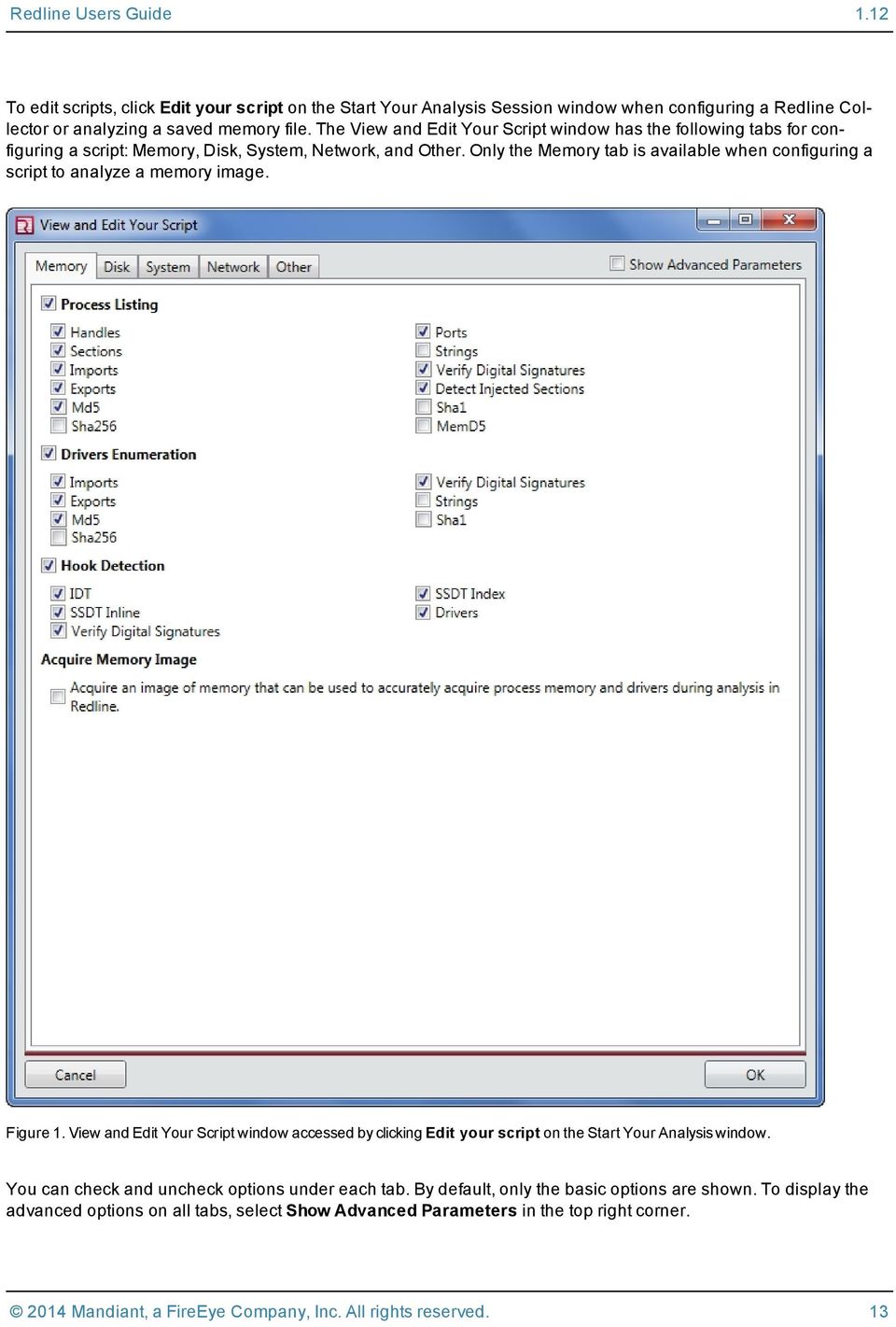
14 To edit scripts, click Edit your script on the Start Your Analysis Session window when configuring a Redline Collector or analyzing a saved memory file. The View and Edit Your Script window has the following tabs for configuring a script: Memory, Disk, System, Network, and Other. Only the Memory tab is available when configuring a script to analyze a memory image. Figure 1. View and Edit Your Script window accessed by clicking Edit your script on the Start Your Analysis window. You can check and uncheck options under each tab. By default, only the basic options are shown. To display the advanced options on all tabs, select Show Advanced Parameters in the top right corner Mandiant, a FireEye Company, Inc. All rights reserved. 13
15 Memory Options in Script You can configure the script to collect memory data such as process listings, drivers enumeration, and hook detection. Process Listings The script provides options to collect the following process listings data from memory; the option's impact is noted if relevant: Handles Memory sections and injected memory sections Imports Exports MD5, SHA256, SHA1, and MemD5 hashes (increase data collection time). You must collect MD5 to use the whitelisting function in Redline. See "MD5 Whitelist" on page 56 for more information about whitelisting. Ports Strings (increases data size) Digital signature verification (increases data collection time and requires Internet access on the computer on which the Redline Collector is run to ensure accurate data is collected) To filter what is collected, you can specify the following: One process ID (PID) to analyze First 15 characters of the name of one process Shortest matched string (the default is 8) A regular expression to return only matching processes with particular content These filter options are advanced parameters. Drivers The script provides options to collect the following drivers data; the option's impact is noted if relevant: Imports Exports MD5, SHA256, and SHA1 hashes (increase data collection time) Digital signature verification (increases data collection time) Strings (increases data size) By default, the shortest matched string is 8 characters. To change the number of characters for the shortest matched string, enter a new number; this option is an advanced parameter. Raw File Access By default, the Redline script uses a Windows API to gather information from the host. These system calls are not able to access files locked by the operating system or deleted files, and they have the potential to return false information if malware hooks those calls and modifies the information sent and received Mandiant, a FireEye Company, Inc. All rights reserved. 14

16 When using raw file access, the script accesses and parses structures as they exist on the disk and in memory directly, thus avoiding any tampering caused by rootkits. Using raw file access may also allow the script to access information restricted by the operating system's user access controls and deleted files that still exist in the master file table. Raw access is more powerful than Windows API calls but takes longer to process data. The options to include active raw files and parse the NTFS INDX buffers are applicable only when using raw file access; see "Disk Options in Script" on page 15 for more information. Using raw file access is an advanced parameter option for process listing and drivers enumeration. In addition to selecting these options in each script, you can set using raw file access as a global default option on the Redline Options window. See "Global Default Script Options" on page 18 for more information. Hook Detection For hook detection, the script provides options to collect: Interrupt Descriptor Table (IDT) System Service Dispatch Table (SSDT) inline and SSDT index Drivers Digital signatures (increases data collection time) The script also has the option to acquire a memory image for process and driver acquisition during analysis in Redline. See "Process and Driver Acquisitions" on page 62 for more information. IOC Search Collector Filtering By default, an IOC Search Collector script filters out data that does not match an Indicator of Compromise (IOC). To disable the filter and return more data, uncheck the Apply Collector Based Filtering options under Processing Listing, Driver Enumeration, and Hook Detection. These options are advanced parameters only when you are editing a script for an IOC Search Collector. Disk Options in Script You can configure the script to enumerate and collect both file and disk data. The script provides the following file enumeration options; the option's impact is noted if relevant: Include active files (applicable only if the script is using raw file access; see "Memory Options in Script" on page 14 for more information) Parse NTFS INDX buffers (applicable only if the script is using raw file access; see "Memory Options in Script" on page 14 for more information) Analyze entropy Enumerate imports Verify digital signatures (increases data collection time) Include directories* Get resources Get resource data (increases data size) Get MD5, SHA256, and SHA1 hashes (and also filter based on specific hash values) (increase data collection time) Include deleted raw files 2014 Mandiant, a FireEye Company, Inc. All rights reserved. 15

17 Analyze file anomalies Enumerate exports Get strings (increases data size) Include files* Get program executable (PE) version info *You must select either include directories or include files for the script to get results. By default, the script collects data from the %systemdrive% path. You can modify this path or specify a regular expression for it. By default, the search depth is 6 levels; the scan entry point distance is 8; and the shortest match string is 8 characters long. You can search for files using regular expressions to match content, and enter resource types for the script to exclude when extracting PE resources. These options are all advanced parameters. Depending on the driver size, the path and depth can increase both the data collection time and size. For disk enumeration, the script provides options to collect the following: Disks Volumes System Options in Script You can configure the script to collect system and registry information and event logs. For system information, the script provides options to: Obtain machine and operating system (OS) information Analyze system restore points Enumerate the registry hives Obtain user accounts Obtain the prefetch cache You can specify the top-level path to start gathering data and the level of depth to go for registry enumeration. You can further limit data gathering by specifying a regular expression and type. These options are advanced parameters. Depending on the driver size, the path and depth can increase both the data collection time and size. The script enumerates and acquires all logs by default. You can specify the event logs to parse, including the file name and path, under advanced parameters. Network Options in Script You can configure the script to collect network information and browser history. The script provides options to enumerate the ports and collect data from the following tables: Domain naming system (DNS) Address resolution protocol (ARP) Routing For browser history, the script provides options to collect: Cookies Form history (Chrome and Firefox only) Thumbnails (Chrome and Firefox only) 2014 Mandiant, a FireEye Company, Inc. All rights reserved. 16

18 Files downloaded URL history Indexed page content (Chrome and Firefox only) You can also specify a target browser and the path for history files to be parsed; both are under advanced parameters. To enter specific browsers from which to collect data, type the name of each browser on a separate line for the Target Browser option. To have the script collect data from every browser on the host computer, leave the Target Browser option blank. All browsers store web history in the Windows user profile folder for each user account on the system. You can specify a specific public folder or specific history files from which to collect data by typing the path for the History Files Location option. Other Options in Script You can configure the script to collect services, tasks, and common memory persistence mechanisms data. For both services and tasks, the script provides options to collect MD5, SHA256, and SHA1 hashes values and verify digital signatures; these options increase data collection time. In the advanced parameters options, you can opt to collect services and tasks using raw file access. See "Memory Options in Script" on page 14 for more information. For common memory persistence mechanisms, the script provides the following options; the option's impact is noted if relevant: Analyze entropy Enumerate imports Get resources Obtain MD5, SHA256, and SHA1 hashes (increase data collection time) Analyze file anomalies Enumerate exports Get program executable (PE) version info By default the scan entry point distance is set to 8; you can change this under advanced parameters Mandiant, a FireEye Company, Inc. All rights reserved. 17

19 Global Default Script Options Script global default options are set under Default Script Options on the Redline Options window, accessed by selecting Redline Options under the menu. Figure 2. Default Script Options in Redline Options window. The following scripting options are global defaults (i.e., apply to every script): Preserve Timestamps. File timestamps are not updated when a file is read. Prevent Hibernation. The Redline Collector will not allow the host computer to hibernate, which allows the collection to finish in a timely fashion. Use Raw File Access. The script uses raw file access instead of a Windows API for accessing files. This option can be changed in each script; see "Memory Options in Script" on page 14 for more information. File Enumeration. The script can use Windows API or raw file access or both to enumerate the files. You can specify a search path name or regular expressions, and search tree depth. Registry Enumeration. The script can use Windows API or raw file access or both to enumerate the registry. You can specify a search path root, path name, and both path and value regular expressions, as well as search tree depth. Process Enumeration. The script can use handles, memory, or Windows API, or all three to enumerate processes Mandiant, a FireEye Company, Inc. All rights reserved. 18

20 Browser History. The script can read the cache from Firefox, Microsoft Internet Explorer, Safari, Chrome, or all of these. You can set the path for the script to read history files. Run Redline Collector on Host Computer Redline Collectors support the following versions of Windows: Windows 8.1 (32-bit and 64-bit) (beta support only) Windows 8 (32-bit and 64-bit) Windows 2012 Server R2 (64-bit) (beta support only) Windows 2012 Server (64-bit) Windows 2008 R2 SP1 (64-bit) Windows Server 2008 R2 (64-bit) Windows 7 SP1 (32-bit and 64-bit) Microsoft Vista SP1 or SP2 (32-bit) Windows XP SP2 or higher (32-bit) Windows Server 2003 R2 SP2 (32-bit and 64-bit) Windows Server and Professional 2000 SP4 (32-bit) To run a Redline Collector on a host computer: 1. Mount the portable storage device containing the Redline Collector on the host computer. 2. Execute RunRedlineAudit.bat from the device. It will save the results to a folder named Audits. 3. When the collection is finished, import the audit (i.e., data collected by the Redline Collector) into Redline; see "Import Data into Redline" on page 23. To acquire a memory image from the host, the device on which you want to save the image (i.e., the portable storage device) must have at least the equivalent amount of available drive space as the host computer. Run Redline on This Computer menu allows you to configure a Redline Collector, run it, then ana- The Analyze This Computer option on the lyze the data on the same computer. The Analyze This Computer option is offered only for training and demonstration purposes. This is a great way to gain experience using Redline, but it is not recommended for actual investigations. Always conduct real investigations in Redline installed on a clean and protected computer Mandiant, a FireEye Company, Inc. All rights reserved. 19

21 Running A Redline Collector Step 1: Create a Collector on your Computer 1. Select to Create a Standard Collector from the Redline Start screen. You can choose standard or comprehensive. For this example, we will do a standard collection. 2. On the Review Script Configuration page, click Edit your script. You can use the default settings or select the Show Advanced Parameters checkbox to add advanced parameters. For this example, we will use the default settings. 3. To save your Collector, click the Browse button to browse to an empty folder on your computer or create a new empty folder. The folder must be empty. This folder is where you will create your Collector. Click the Ok button and Redline will create the audit scripts that are used to collect data from the host computer Mandiant, a FireEye Company, Inc. All rights reserved. 20
22 Step 2: Run a Collector on a Host Computer 1. Move the Collector file to the host computer you wish to collect files from. 2. To execute the Collector, click the RunRedlineAudit.bat file. The Collector creates the following folders Sessions > AnalysisSession1 > Audits and collects the data under the Audits folder. Each time the.bat runs, Redline will number the AnalysisSessions (Analysis Session1, 2, and 3) folders as they are created Mandiant, a FireEye Company, Inc. All rights reserved. 21
23 Step 3: Import Collector Data on your Computer 1. After the Collector completes the collection, go into the AnalysisSession folder and you will see an Audits folder and an AnalysisSession.mans file. Alternatively, you can open the.mans file from the Redline menu. Select Open a Saved Analysis. 2. Double-click the.mans file to create your session in Redline. This automatically imports the data into Redline. You can now begin your investigation Mandiant, a FireEye Company, Inc. All rights reserved. 22
24 Analysis Session Creation A Redline analysis session contains data collected from one potentially compromised computer along with Redline's analysis of that data. To create an analysis session, Redline can do the following: Import a Redline Collector audit. Import a Mandiant for Intelligent Response (MIR) audit. Analyze memory images from Mandiant Memoryze. Open Triage Collections from FireEye Endpoint Threat Prevention Platform (HX). Redline can analyze data with Indicators of Compromise (IOCs) when data is initially imported into Redline or any time after the analysis session has been created. Import Data into Redline Redline can import audits from any Redline Collector or Mandiant for Intelligent Response (MIR). To import data: 1. Select Analyze Collected Data from the menu. 2. Select the folder containing the audit files by clicking Browse under Audit Location on the Start Your Analysis window. Once you have selected the folder, click Open Folder to view the folder's contents (optional). Check the Advanced box to view the alternative options for opening your audit. You many choose to move, copy, or use the original locations. Redline will remember your selection and use that as default until you change it. 3. Select the Indicators of Compromise (IOC) files location to compare the audit data against an IOC and create an IOC Report (optional). See "Data Analysis with IOCs" on page 47 for more information Mandiant, a FireEye Company, Inc. All rights reserved. 23
25 4. Click Next. 5. Under Save Your Analysis Session To the Name field is the name of the folder where your Analysis Session is stored. This folder is in the Location specified Mandiant, a FireEye Company, Inc. All rights reserved. 24
26 6. Click OK to create the analysis session. If you opted to analyze the data against IOCs, Redline creates an IOC Report in the background after creating the analysis session. See "IOC Reports" on page 48 for more information. Analyze Memory Several third-party utilities capture a direct image of an operating system's physical memory. Redline can analyze these dd-format memory image files, but the analysis is limited to the data collected in the image, which may not be very extensive. To ensure that Redline has adequate data to analyze, we recommend that you use a Redline Collector to capture a memory image. When you analyze a memory image file, the computer on which Redline is installed must have enough available free memory to load the entire memory image. Memory analysis ranges from minutes to many hours depending on: Size of the captured memory image Operating system (OS) captured in the image To import memory images into Redline to create an analysis session: 1. Copy the image to the computer on which Redline is installed. Do not open the memory image file over a network share. 2. Select From a Saved Memory File under Analyze Data on the home screen or Analyze a Saved Memory File from the menu. 3. Click Browse under Location of Saved Memory Image Mandiant, a FireEye Company, Inc. All rights reserved. 25
27 4. Select a folder containing Indicator of Compromise (IOC) files to create an IOC Report (optional). See "Data Analysis with IOCs" on page 47 for more information Mandiant, a FireEye Company, Inc. All rights reserved. 26
28 5. Click Next. 6. Under Save Your Analysis Session To the Name field is the name of the folder where your Analysis Session is stored. This folder is the Location specified Mandiant, a FireEye Company, Inc. All rights reserved. 27
29 7. Click Edit you script under Review Script Configuration if you wish to change the default memory script options. See "Edit Redline Script" on page 12 for more information. 8. Click OK on the Start Your Analysis Session Window to create an analysis session. Open HX Triage Collection Redline recognizes FireEye Endpoint Threat Prevention Platform (HX) Triage Collections as analysis sessions. To open a Triage Collection in Redline, do one of the following: 2014 Mandiant, a FireEye Company, Inc. All rights reserved. 28
30 Double-click the Triage Collection. Select Open a Saved Analysis from the home screen or menu and locate and select the Triage Collection. Open Saved Analysis Session Redline analysis sessions are saved continuously. When you open an analysis session, Redline recalculates the Malware Risk Index (MRI) scores if Redline configuration, MRI, or whitelist options have changed. To load a previously saved analysis session, do one of the following: Select the analysis session under Recent Analysis Sessions on the home screen if listed. Select Open Analysis on the home screen and locate and select the analysis session. Select Open a Saved Analysis from the menu and locate and select the analysis session Mandiant, a FireEye Company, Inc. All rights reserved. 29
31 Analysis Data In an analysis session, Redline automatically groups data by types, such as processes or users, and creates views to help you spot potential areas of compromise. For example, Redline searches the data for executed processes and creates a process view listing, which includes MD5 hash and digital signature information. The data types available for analysis depend upon the data in the analysis session Mandiant, a FireEye Company, Inc. All rights reserved. 30
32 To view a data type, select it on the Analysis Data window s Host tab in an open analysis session. For more information on ways to view data, see "Table and Details Views" on page 54. Figure 3. Host tab of Analysis Data window for Data Collected by a Redline Comprehensive Collector 2014 Mandiant, a FireEye Company, Inc. All rights reserved. 31
33 Session Information To view what data was collected for the analysis session and related file locations, select Session Information from the menu to open the Analysis Session Information window. Figure 4. Analysis Session Information window. You can configure the audit and image memory locations and location for acquisitions on the Analysis Session Information window for the current analysis session only. The global default values for acquisitions locations are configured on the Default File Locations on the Redline Options window. See "Default Acquisition Locations" on page 63 for more information Mandiant, a FireEye Company, Inc. All rights reserved. 32
34 Data Not Collected Redline displays analysis session data that it cannot parse on the Analysis Data window s Not Collected tab. Analysis failures can be caused by the following: Configuration of the Redline Collector script. To view the script options selected, see the Analysis Session Information window. See "Session Information" on page 32 for more information. Configuration of the FireEye Endpoint Threat Prevention Platform (HX) Triage Collection Limitations of a third-party memory capture utility No data available to collect System Information System information includes operating system, the user account used to collect the data (e.g., run the Redline Collector), and BIOS information. To view system information, select System Information on the Analysis Data window s Host tab. Network Adapters Information about network adapters includes the adapter name, dynamic host configuration protocol (DHCP) lease, media access control (MAC) address, internet protocol (IP) information, IP gateways, and DCHP servers. To view information about network adapters, select Network Adapters under System Information on the Analysis Data window s Host tab. Processes and Their Attributes Redline uses a variety of techniques to assess the risk that a process is malware. The Malware Risk Index (MRI) score indicates the level of risk. See "Malware Risk Index (MRI) Scoring for Processes" on page 42 for more details. In addition to MRI score, Redline displays information about the running processes at the time of data collection, including: Process name User name Path Time started and elapsed Signature information To view information about processes, select Processes under the Analysis Data window s Host tab. To see what running processes started other processes, click Hierarchical Processes under Processes. Review all processes listed under iexplore.exe and other browsers; these are usually processes started by the user. Look for processes that are not usually spawned by the parent under which they are listed. Check the arguments for anything that looks out of the ordinary Mandiant, a FireEye Company, Inc. All rights reserved. 33
35 Handles A handle is a connection from a process to an object or resource in a Windows operating system. Operating systems use handles to reference internal objects such as files, registry keys, and other resources. Handle types are defined for each Windows version, but there are common names across most versions. Reviewing handles can tell you if a process uses the network and if it has any open files (such as log files for sniffers or keystroke loggers) as well as the security context in which the process is running. To view handles in Redline, select Handles under Processes on the Analysis Data window s Host tab. Handles are filtered into the following common handle types: file, directory, processes, registry key, semaphore, mutant, event, and section. First focus on handles held by processes that are not trusted or used by very few processes. Redline considers handles found in at least three processes with low risk based on MRI score to be trustworthy. To view a handles list that does not include trustworthy ones, click Show Untrusted Handles Only. Memory Sections Redline displays the memory sections that comprise each running process. Examine unsigned memory sections used by few processes. Legitimate dynamic link libraries (DLLs) are typically used by many processes, and system DLLs are usually signed. To view memory sections, click Memory Sections under Processes on the Analysis Data window s Host tab. Redline breaks the memory sections into the following filters: Least frequency of occurrence (untrusted only), which are named sections that occur fewer than four times across all processes and are untrusted Least frequency of occurrence, which are named sections that occur fewer than four times across all processes and are trusted (i.e., digitally signed and verified) Injected memory Named sections only Strings Redline displays information about captured strings. When creating any type of Redline Collector, by default, strings are not captured. To enable string collection, check Strings on the Memory tab on the View and Edit Your Script window. See "Memory Options in Script" on page 14 for more information. To view strings, click Strings under Processes on the Analysis Data window s Host tab. Ports Malware often initiates outbound connections to command and control (C2) servers or listens on a port for incoming connections. Review ports and connections for unusual or unexpected source or destination ports and addresses, especially from what appears to be system processes. To view ports, click Ports under Processes on the Analysis Data window s Host tab. Redline filters ports by: Listening ports. Review listening ports for unknown ports in a listening state and confirm known processes are listening only on ports typical in your environment Mandiant, a FireEye Company, Inc. All rights reserved. 34
36 Established ports. Review established ports for outbound connections to IPs in suspicious locations and look for communication on suspicious or nonstandard ports. Network ports here are only network ports found within process memory space. For information about network ports used by Windows API calls, see Ports on the Analysis Data window s Host tab. Files and Their Attributes Redline displays file attributes, such as file metadata, file hashes, timestamps, user information, file path, and digital signatures. It also shows specific lists for the following: Imports Exports Strings Alternate Data Streams. Attackers often use alternate data streams to hide files from Windows Explorer. However, streams are not necessarily malicious. Windows uses alternate data streams to store legitimate information, such as Zone Identifier information for downloaded files, and to address Windows/Linux compatibility issues. Program Executable (PE) information as well as version information. Any executable file regardless of its extension has PE header information. Review files that have PE information and an extension that is not typical of an executable (such a.txt). Resource Data To view files and their attributes, click File System on the Analysis Data window s Host tab. You can select nodes to limit the display in the table view. On the Directory Tree tab on the Filters window, select the node. The Apply Selections Recursively option determines whether subnodes are included automatically (selecting a node selects all its subnodes) or independently (selecting a node does not select all its subnodes). Right-click a tree node to toggle the node and all its subnodes. Registry Redline displays registry information, such as user information and key values, for registry entries. To view registry information, click Registry on the Analysis Data window s Host tab. You can select nodes to limit the display in the table view. On the Directory Tree tab on the Filters window, select the node. The Apply Selections Recursively option determines whether subnodes are included automatically (selecting a node selects all its subnodes) or independently (selecting a node does not select all its subnodes). Right-click a tree node to toggle the node and all its subnodes. The Registry Modified timestamp is not a definite indication that a specific value was changed. This timestamp indicates a value within the parent key was changed. Redline propagates the registry modified timestamp down to all registry values to facilitate analysis based on time. Windows Services Redline displays the services known to the host and information about them such as status (e.g., stopped or running) as well as digital signatures and hashes. To view Windows services, click Windows Services on the Analysis Data window s Host tab Mandiant, a FireEye Company, Inc. All rights reserved. 35
37 Attackers often install backdoors as a service to attain persistence and ensure that the malware restarts when the compromised computer is restarted. Often, an attacker will make a small change to an existing service's name so it will look very similar to what you would expect. For example, the service name would have an m instead of rn as expected. If you know that a benign service name is supposed to be associated with a specific descriptive name, check the descriptive name of other services with the same or similar service name. Any other descriptive name showing up with that service name is suspect. Persistence Mechanisms Redline displays persistence mechanisms discovered on a host along with the associated files, services, and registry entries for each one. To view persistence mechanisms, click Persistence on the Analysis Data window s Host tab. Review persistence mechanisms to identify how a potential compromise maintains its presence. Agent Events For analysis sessions with an HX Triage Collection or MIR audit data, Redline displays agent events. To view agent events, click Agent Events on the Analysis Data window s Host tab. Under agent events, Redline also displays the following event types: File write. File write events occur any time a file is written to. These events attempt to group all writes to a single file within 15 seconds into a single event. Additional file write event data includes the MD5 and the first bytes from the lowest offset that was written in the file. Registry key. Registry key events occur whenever a registry key or key value from a preconfigured list of keys commonly used for persistence is modified. Additional registry key event data includes the key value type and the actual value to which the key was changed. IP address change. IP address change events occur whenever the IP address of the host system is changed. Additional IP address change event data includes the date and time generated and the new address. Network connection. Network connection events occur any time the host computer establishes a network connection. In the case of connectionless protocols (i.e., ICMP), an event is captured any time data is transferred. Additional network connection event data includes generated date and time, PID, process, local and remote IP, local and remote ports, and protocol. Image load. Image load events occur whenever an executable or linked library is loaded into memory. Additional image load events data includes generate date and time, PID, process, full path, and user name. Investigate these events to determine if a specific process or library was started on a host computer. DNS lookup. DNS lookup events occur whenever the host computer makes a DNS request. Additional DNS lookup event data includes generated date and time, host name, PID, and process. Users Redline displays such user information as security ID, security type, last login date and time, and locked out status. To view a list of users, click Users on the Analysis Data window s Host tab. If the potentially compromised host belongs to an organization that has conventions for naming users (such as first initial and last name) then check the user names for any that appear to not follow the convention Mandiant, a FireEye Company, Inc. All rights reserved. 36
38 Tasks and Their Attributes Redline displays a scheduled tasks list that includes task information, file hashes, digital signatures, application, and schedule information. To view scheduled tasks, click Tasks on the Analysis Data window s Host tab. Each task may have a list of triggers or actions, which you can view in the details view. Click Triggers or Actions under Tasks. Network Ports Malware often communicates through network ports, either listening for commands or making outbound connections. Check network port lists for unusual or unexpected port connections. To view network ports enumerated by the Windows API, click Ports on the Analysis Data window s Host tab. Redline filters ports by: Listening ports. Review unknown ports in a listening state and confirm known processes are listening only on ports typical in your environment. Established ports. Review established ports for outbound connections to IPs in suspicious locations and look for communication on suspicious or nonstandard ports. This view lists network ports that were found using Windows API calls. For network ports found in process memory space, see Ports under Processes on the Analysis Data window s Host tab. Event Logs Redline displays an event logs list that includes the application that generated the log, log's message, user, timestamp when log was generated, source, and type. To view event logs, click Event Logs on the Analysis Data window s Host tab. Driver Modules Redline lists driver modules information including the path, name, base, size, and address. To view driver modules, click Driver Modules on the Analysis Data window s Host tab. Device Tree Malware authors sometimes use device driver layering to intercept data. They may place a keylogger, file logger, or other data-stealing routine on top of a system device driver. However, many device driver layers are legitimate routines providing common filtering tasks. To view devices, click Device Tree on the Analysis Data window s Host tab. In particular, look at: Ntfs. The System Restore driver is often layered on \Ntfs; other drivers may indicate a file filter driver, which can hide files and directories or filter file content. Kbdclass. Keylogging malware is often layered on \Kbdclass Mandiant, a FireEye Company, Inc. All rights reserved. 37
39 Hooks Hooks are subroutines injected into the usual system function mechanisms, allowing a third party to monitor and modify data as it moves from source to destination. Rootkits often use hooks in the kernel to implement hiding functions. To view hooks inserted into the operating system, click Hooks on the Analysis Data window s Host tab. Redline filters hooks as follows: Untrusted hooks. Determining the trustworthiness of a hook is difficult to automate: do not rely only on the Untrusted Hooks view. Review untrusted hooks first but also review other hooks for signs of malware. IDT hooks. The Interrupt Descriptor Table (IDT) is a data structure used to implement an interrupt vector table. The processor uses IDT to determine the correct response to interrupts and exceptions. IDT hooks are usually malicious. SSDT hooks. The System Service Dispatch Table (SSDT) is an internal dispatch table within Microsoft Windows. Hooking SSDT calls is often used as a technique in both Windows rootkits and antivirus software. IRP hooks. I/O request packets (IRPs) are kernel mode structures used by Windows Driver Model (WDM) device drivers to communicate with each other and with the operating system. DNS Entries Redline displays information from Domain Name System (DNS) records stored in the computer's in-memory DNS cache table, which is maintained by the DNS Client Services Windows component. The information displayed includes the host, record name, time to live, data length, flags, and record type. To view DNS entries, click DNS Entries on the Analysis Data window s Host tab. ARP Entries A computer maintains an Address Resolution Protocol (ARP) table for basic network and traffic routing. Redline displays information about entries in the IPv4 and IPv6 ARP tables. The information displayed includes physical, IPv4, and IPv6 addresses, interface type (static or dynamic), cache type, last unreachable and reachable dates, and if it is a router. To view ARP entries, click ARP Entries on the Analysis Data window s Host tab. Route Entries Redline displays network routing entries including interface, destination, gateway, protocol, route type (indirect or direct), netmask, preferred and valid lifetimes, and origin. The list also shows if the address is autoconfigured, and if the entry is IPv6, loopback, and published. To view route entries, click Route Entries on the Analysis Data window s Host tab. System Restore Window's system restore monitors critical operating system files and other various application files and provides a simple and immediate recovery to various points in time through the creation of restore points Mandiant, a FireEye Company, Inc. All rights reserved. 38
40 Redline displays information about Windows restore points such as change log file name, created date, change event, change log entry type, original file name, restore point name, and file attributes. To view Windows restore points, click System Restore under the Analysis Data window's Host tab. System restore can sometimes show evidence of a compromise, such as files that were used during a compromise and later deleted. Prefetch Windows uses prefetch to maintain a reference to recently executed code. This reference is stored in the %SYSTEMROOT%\Prefetch directory. Redline lists the prefetch cache contents. For each application name, Redline shows the path, last run and created dates and times, prefetch cache, size, and number of times executed. To view prefetch cache contents, click Prefetch on the Analysis Data window s Host tab. If you suspect that an attacker has deleted files, review the accessed files of any known bad processes to find references to files that were deleted. To view the files accessed by applications in the prefetch cache, click Accessed Files under Prefetch. To view the volume name, type, device path, and other information about volumes referenced in the prefetch cache, click Prefetch Volumes under Prefetch. Disks Redline lists the disk name and its size. To view disk information, click Disks on the Analysis Data window s Host tab. For partition number, length, offset, and type, click Partitions under Disks. Volumes Redline lists drive designation, volume name, type, device path, bytes per sector, serial number, and mounted status for volumes. To view volume information, click Volume on the Analysis Data window s Host tab. Registry Hives Redline displays the hive name and key for host registry hives. To view registry hives, click Registry Hives on the Analysis Data window s Host tab. Browser URL History Redline displays information about uniform resource locators (URLs) viewed using Microsoft Internet Explorer, Firefox, and Chrome, including host name, URL, page title, browser name and version, visit from, visit count, first and last visit dates, and first bookmark date. To view the URL history, click Browser URL History on the Analysis Data window s Host tab. Redline has the following filters for browser URL history records: 2014 Mandiant, a FireEye Company, Inc. All rights reserved. 39
41 All. Shows all URLs. Redirects. Shows all URLs for visit types that were a variation of a redirect, which is often used to bounce a user from site to site before finally reaching a malware staging server. Visit from. Shows all URLs generated after the user first viewed another page, which can be valuable information in determining a sequence of events. Visited once. Shows only URLs that had exactly one visit; rarely visited sites are an indication of suspicious activity. Visited bookmarked URLs. Shows only URLs that were visited by the user selecting a URL from the browser's bookmarks. Bookmarks may indicate that the user frequently visits a website and trusts it. Typed URLs. Shows only URLs that the user visited by typing the address into the browser, which implies that the user was aware of the site. Hidden visits. Shows all URLs accessed without the user s direct knowledge, including hidden IFrames often used by embedded ad sites which could be potentially infected with malicious obfuscated JavaScript. Forms. Shows all URLs on which the user entered data. Cookie History Cookies are a means for a website to store information on a user's computer for later retrieval. They are most commonly used to track login and session information about a user's visit to a website. You can use cookies as a resource for analyzing certain types of browser-based activity. Redline lists browser cookies from Microsoft Internet Explorer, Firefox, and Chrome including the cookie's name, path, value, and flags; host name; browser version; profile; user name; creation, expiration, last accessed, and last modified dates; file name; and file path. To view the cookie history, click Cookie History on the Analysis Data window s Host tab. Redline has the following filters for cookie history records: All. Shows all cookies. Secure cookies. Shows only cookies that must be sent over HTTPS, which is an uncommon restriction for cookies and may indicate suspicious activity. HTTP only cookies. Shows only cookies that are hidden to the application. Cookies with flags. Shows only cookies that have attribute flags set. Applicable only for Internet Explorer. Form History Whenever a user enters data on a form, such as a login form on a bank website or even a simple text box like the one on the Google search page, a form history entry is recorded. Redline lists form data entered into Firefox or Chrome, including browser name and version, user name, profile, form field name and value, form type, creation and last used dates, encryption password and type, password, user field name, and number of times used. To view the form history, click Form History on the Analysis Data window s Host tab. Redline has the following filters for form history records: All. Shows all forms submitted by a browser. Login. Shows login type forms. Normal. Shows all forms except login type forms Mandiant, a FireEye Company, Inc. All rights reserved. 40
42 File Download History Downloaded files are a common mechanism for attackers to use to gain access to a computer. Users are likely to download files with names of interest (such as birthday wishes ). Many users are aware that.exe files should not be downloaded and run. However, if a file has a.txt or another similar indication of a file type in the file name and the user has file extensions turned off in their Windows Explorer, the user may open the file not realizing that the actual extension is.exe and the file is an executable. Redline lists files downloaded using Microsoft Internet Explorer, Firefox, and Chrome, including source URL, target directory, browser name and version, bytes downloaded, start and end date, download type, file name, user name, profile, cache flags, cache hit count, and last accessed checked and modified dates. To view the file download history, click File Download History on the Analysis Data window s Host tab. Redline has the following filters for file download history records: All. Shows all files that were both manually or automatically downloaded. Plain text. Shows downloaded files that have well-known plain text extensions (i.e.,.txt,.html,.htm,.xml,.css, and.js). Images. Shows downloaded image files (i.e.,.jpeg,.jpg,.bmp,.gif,.png,.tioff,.ico, and.ani). Media. Shows downloaded files that have common audio and video format extensions (i.e.,.swf,.swa,.mov,.mpeg,.mp3,.mpa,.mp4,.wma,.wav, and.midi). PDFs. Shows downloaded files that have the portable document form (.pdf) extension. IE leak records. Shows only Internet Explorer LEAK records, which indicate a cached file was in use when cache cleanup was being performed and thus it was not removed from the system. IE redirect records. Shows only Internet Explorer redirect records, which indicate the visit was a result of a redirect operation. Manual downloads. Shows all manual downloads (i.e., any file such as an installer that was not automatically downloaded as part of viewing the page). Saved to non-standard locations. Shows files that were downloaded to non-standard locations, such as to program file or system directories. Full HTTP header available. Shows files that had the entire HTTP header captured when downloaded. Large than 20 kilobytes. Shows downloaded files that are larger than 20KB. Incomplete. Shows any downloads that were not completed for any reason Mandiant, a FireEye Company, Inc. All rights reserved. 41
43 Investigation Redline analyzes the data collected from the potentially compromised computer and produces: Malware Risk Index (MRI) scores for processes Hits against Indicators of Compromise (IOCs) When reviewing analysis session data in Redline, you can: Use table and details views Use tags and comments Search Filter out known good data with a whitelist Filter data based on timeline Acquire drivers and processes Search the web directly for more information Export data to a CSV file Malware Risk Index (MRI) Scoring for Processes Redline analyzes each process and memory section to calculate a Malware Risk Index (MRI) score for each process. MRI scoring uses a variety of techniques to assess the risk that a process is potentially malware. Processes with a high MRI score (up to 100) are more risky; those with a low score are less risky. You should inspect any process that is redlined (i.e., given a high MRI score). Redline considers a number of factors that commonly indicate a compromise. For example, Redline assumes that svchost is never legitimately started from the command line; if it was, Redline registers it as a significant MRI hit, and the process is redlined. Some factors are judged on probability. For example, it is unlikely that a named memory section imported into many processes is malware, whereas it is more likely that a named memory section imported into only one process is malware. Thus, the more imports of a named section, the lower the effect on the MRI score of its associated process. When calculating an MRI score, the default Redline settings can create false positive hits. Redline operates under the assumption that it is better to flag an innocent process than to allow a malicious one to slip past. A high MRI score is just a suggestion for further investigation. You can adjust MRI scores while conducting your investigation to make them more useful. View Redlined Processes and MRI Scores You can view redlined processes (i.e., those with a high MRI score) in the table view for both processes and hierarchical processes. In the MRI column, a red icon ( ) indicates redlined processes. Processes with fewer risk factors have a gray icon ( ), and low-risk processes have no icon. The MRI score column displays the actual score given to each process. The process table view can be filtered to display only redlined processes. Click the Redlined Processes link in the Review Processes by MRI Scores window. Each process or hierarchical process also has an MRI Report with factors that influenced Redline s calculations Mandiant, a FireEye Company, Inc. All rights reserved. 42
44 To open a MRI Report, double-click a process-related item to see its details view, then select the MRI Report tab at the bottom of the window. The MRI Report provides the following information, which can be exported as a report in Microsoft Word format or XML: Details about the specific process such as path and SID as well as the MRI score Reasons Redline identified a process as a risk, if it did so A pie graph and various tables of risk factors Figure 5. Malware Risk Index (MRI) Report accessed from the MRI tab in the process details view To perform a deeper analysis of a suspect process, use the Acquire Process Address Space option to acquire a copy of the live memory capture. See "Driver and Process Acquisition" on page 62 for more information. Adjust MRI Scores Default Redline rules return a number of false positive factors, because Redline assumes it is worse to miss a compromise than to flag a harmless process. As you work through an investigation, you can correct these errors. To adjust MRI scores in the MRI Report: Add hits for a process Designate hits as either false positives or false negatives Designate named memory spaces as either trusted (i.e., a positive factor) or untrusted (i.e., a negative factor) To access the MRI Report, click the MRI Report tab on the process details view. To mark a process as a hit or to add a comment to it, click Add Comment or Hit under Malware Risk Index Hits. Only hits impact MRI scores; comments do not affect the score. When your change is saved, Redline recalculates 2014 Mandiant, a FireEye Company, Inc. All rights reserved. 43
45 MRI scores. When you add a hit against an item that is used by multiple processes, the MRI score for those processes may also be affected. Figure 6. Malware Risk Index Hits in MRI Report When viewing Malware Risk Index Hits, click to the right of a mistaken hit. The hit changes from suspicious to false positive. The becomes. Identifying a false positive hit results in Redline recalculating the MRI scores to reflect the change. The hit description is not removed from the list. If you change your mind, restore the hit by clicking, which changes it back to the original, and MRI scores are immediately recalculated for all processes. Figure 7. Named Memory Sections part of MRI Report When viewing negative factors under Named Memory Sections in the MRI Report, click to the right of a misidentified factor. This changes its reason to User Trusted and moves it to the Positive Factors list. Redline recalculates all MRI scores for all processes. To return to its original untrusted status, click. It goes back to the Negative Factors list, and Redline immediately recalculates MRI scores for all processes Mandiant, a FireEye Company, Inc. All rights reserved. 44
46 When viewing positive factors, click to the right of a misidentified factor. This changes its reason to User Untrusted and moves it to the Negative Factors list. Redline recalculates all MRI scores for all processes. To return to its original trusted status click MRI scores for all processes.. It goes back to the Positive Factors list, and Redline immediately recalculates To mark all negative factors under Named Memory Sections in the MRI report as false positives, click Trust Process Address Space to recalculate the MRI score. To change a designation, click back to their original designation, click Clear User Trust Modifications.. To move all the factors You cannot directly change the Ignored Factors list in the MRI Report. You can configure ignored factors by adding and deleting them from the MRI Rules Configuration General section of the Redline Options window. See "Tune MRI Rules" on page 45 for more information. Tune MRI Rules You can tune the factors that determine an MRI score for better performance on hosts with known-safe false positive factors (e.g., certain drivers or system extensions) by using MRI rules which are set under MRI Configuration on the Redline Options window, which is accessed under the menu. Figure 8. MRI Rules Configuration General options on Redline Options window. You can adjust MRI rules as follows: 2014 Mandiant, a FireEye Company, Inc. All rights reserved. 45
47 When Find Unmapped Processes under General is checked, processes that do not have a mapped memory section for the executable cause an MRI hit. When Find Processes Started by the Command Shell under General is checked, processes started by cmd.exe cause an MRI hit. When Find DLL Load Order Issues under General is checked, DLL hijacking evidence causes an MRI hit. Implicit Trust Threshold options control how common a memory section must be for Redline to trust its existence implicitly. The higher the trust threshold, the less likely potential compromises will be flagged as trusted. But you will also have a greater number of negative factors to review. Named memory sections below the threshold cause an MRI hit. At 100%, a named memory section would have to appear in all processes to be trusted implicitly. Through experience, we have found that a 75% threshold strikes a nice balance. You can set the percent on the slider for the Implicit Trust Threshold option under General. Trusted Signers are certificate signers that Redline should consider trusted when analyzing a signed and verified memory section. You can add and remove signers from the Trusted Signers lists under General. Ignored memory sections are ones that can be safely ignored by default when calculating an MRI score. These mainly comprise common non-executable memory sections. You can add and remove ignored memory sections from Ignored Sections under General. Ignored memory sections are shown in the MRI Report as Ignored Factors. Expected arguments, users, and paths are conditions that are usual for a specific process and are thus not suspect. If Redline finds an argument in a process that is not specified, or a user name that has started a process but is not specified, or an executable in a path that is not specified, it will generate an MRI hit. You can specify each of these under Expected Arguments, Expected Users, and Expected Paths. Uses the boxes at the bottom to type in the appropriate entry and click to add it. Click to remove an entry. Suspicious imports are groups of imports which are known to be suspicious when they are found together within a process. If a process contains the group of suspicious imports, Redline generates an MRI hit for that process. To specify suspicious imports and the rules, under Suspicious Imports, enter text in the boxes and click to add it. Click to remove an entry. Some handle types have suspicious handle names. When Redline finds a match, it generates an MRI hit. Redline can search either all processes or just processes specified. To specify suspicious handles, click under Suspicious Handles and enter a handle name, select a process, and enter a description. The handle name can be regular expression; if it is, check Treat this handle as a Regex string. If you do not specify a process, it will apply to all processes. To delete a handle, click. To edit a handle, click. When you save the MRI rules, Redline applies the changes immediately and re-scores the current analysis. Recalculating MRI scores can take some time, so we recommend making all changes at one time. The best practice is to investigate a few representative audits (while noting patterns of false positive scoring), make all your MRI rule changes, and then re-investigate those audits. Redline uses the new settings to recalculate the MRI score when previously saved analysis sessions are opened. Changes made to MRI rules also apply when a new analysis session is created. Indicators of Compromise (IOCs) As part of your investigation, you may want to look for specific artifacts such as files or processes that may indicate a breach. You can use standard Indicators of Compromise (IOCs) as a method of defining those artifacts Mandiant, a FireEye Company, Inc. All rights reserved. 46
48 An IOC is an individual characteristic or series of characteristics that, when observed, indicate the presence or execution of specific malware or the use of known attacker methodologies (i.e., attributes of suspicious activity). More about IOCs IOCs are forensic artifacts of an intrusion that have been identified on a host. They comprise logically grouped sets of descriptive terms (called indicator terms) about specific threats. A simple IOC might look for the signature of specific compromise artifacts. These can be traditional forensic objects, such as MD5 hash values, compile times, file size, name, path locations, registry keys, and so on. More complex IOCs use more advanced forensic techniques. These IOCs look for data that are harder for attackers to change or artifacts that attackers are more likely to recycle, such as running process components (including process handle names), and imports and exports used by an executable. Indicators attempting to detect methodology do not focus on specific pieces of forensic evidence. Instead, they focus on the common methods that attackers use. Methodology indicators don't necessarily show a specific instance of a compromise, but they will show the result of tactics repeated by adversaries. Ultimately, the best IOCs have these properties: The IOC identifies only attacker activity. The IOC is inexpensive to evaluate it is typically simple and evaluates information that is less expensive to collect or calculate. The IOC is expensive for the attacker to evade. In other words, to evade the IOC the attacker must drastically change tactics, tools, or approach. IOCs are meant to be shared. They are plain text files, which make them easy to modify and send to others. Mandiant's free editor tool called IOC Editor is available for download at For more information about the IOC standard, visit Data Analysis with IOCs Redline can analyze existing data with IOCs. When you select the IOCs that you want to use, Redline reviews the data and provides some preliminary information on the expected results. To select IOCs for analysis: 1. Access the IOC configuration window. This window will open when you are configuring an IOC Search Collector (see "Configure IOC Search Redline Collector" on page 11 for more information); when you open a saved memory file (see "Analyze Memory" on page 25 for more information); or when you create a new IOC Report (see "IOC Reports" on page 48 for more information). 2. Click Browse next to Indicators of Compromise Location. If you are analyzing existing data collected using an IOC Search Collector, select the same IOCs that you selected when configuring the collector. 3. Select the folder in which the IOC files are located. 4. Click Open Folder if you want to view the individual IOCs within the folder (optional). 5. Review the list of indicators. Enable and disable each IOC by checking it. To enable or disable the entire list, select the checkbox at the top of the column. Selecting a column header sorts the list. 6. Select a specific indicator to reveal details about it to the right in the Indicator Information box Mandiant, a FireEye Company, Inc. All rights reserved. 47
49 If an IOC is not compatible with Redline, it will be highlighted in the indicators list as follows: A warning indicates that Redline will evaluate the IOC, but it may falsely indicate there were no hits (a false negative) due to a lack of collected data or unknown terms. An error indicates that Redline cannot evaluate the IOC. Each indicator shows such detailed information as the name, creation date, description, and information about the search terms as follows: Not Collected Search Terms (for analysis of existing data only). Lists terms that Redline cannot hit because the data is missing (e.g., if a Redline Collector was used and the proper options were not enabled in the script). Unsupported Search Terms. Lists terms that Redline does not understand. These search terms will not produce any hits in Redline. Supported Search Terms. Lists terms that Redline recognizes and will evaluate. IOC Reports When Redline evaluates data with Indicators of Compromise (IOCs), it creates an IOC Report. Redline can generate an IOC Report when data is imported or any time after an analysis session has been created. IOC Reports contain the following information: 2014 Mandiant, a FireEye Company, Inc. All rights reserved. 48
50 Details about the IOC, such as definition and author Hits associated with each file that corresponds to an IOC Detailed information about each hit Number of indicators that generated hits Location of the IOC Report To create a new report, click Create a New IOC Report on the IOC Reports tab on the Analysis Data window. See "Data Analysis with IOCs" on page 47 for information on the options in the IOCs configuration window. When you create the IOC report during your Analysis session, Redline creates an IOC folder at the same level as your.mans file on your computer. Click the IOC Reports tab at the bottom of the Analysis Data window to open IOC Reports. Select an IOC name to display files containing IOC hits. Click the UID to reveal its details. Figure 9. IOC Report accessed from IOC Reports tab on Analysis Data window In the IOC file hits, click View Hits + to see hits. Select that were matched by the hit. to display full hit details and, in particular, the IOC terms 2014 Mandiant, a FireEye Company, Inc. All rights reserved. 49
51 Figure 10. Hit details within an IOC Report Reports are saved as interactive web pages and may be shared by archiving the file folder as a zip file. Click IOC Report Location in the Report Details window to open the IOC Report folder. To remove an IOC Report from the analysis session, click window. to the right of the report name in the Analysis Data Timeline Timeline is a valuable tool for identifying when a compromise originally occurred, which files were touched, and if (and how) the compromise persists. Timeline displays events (i.e., all items that have time associated with them) sorted by time. The fidelity of time in Timeline is one second; events that happen within the same second won't necessarily be in the correct sequence order. With Timeline, you can apply filters to see only events that are associated with specific users and processes. TimeWrinkle and TimeCrunch further filter the list, displaying only those events that happened at or near a specific time of interest, and hiding noisy events that happened at a specific time, respectively. Timeline is an option on the Analysis Data window s Host tab. It displays information using the same views as other options on the Host tab. For more information on views, see "Table and Details Views" on page Mandiant, a FireEye Company, Inc. All rights reserved. 50
52 Timeline Field Filter Field filters in Timeline are a means of excluding and including entire categories of time-related events from the table view by checking those categories that you care about. For example, you can remove file accessed events, which tend to be very noisy, from the table view so you can focus on other events. To display only events containing the selected time field, use the options under the Fields tab in the Timeline Configuration window. Select any combination of fields. The fields filter works in conjunction with the user and process filters. For example, if you select Files Created on the Fields filter and Show Only Events Associated and JaneDoe on the Users filter, only files created by JaneDoe are displayed. Figure 11. Fields tab on Timeline Configuration window. Selecting Show All displays every event without changing your selections; clearing the checkbox restores the filtered list. Selecting Deselect All clears all fields, resulting in an empty list, and changes the checkbox to Select All. You can select new fields, which automatically clears the Select All checkbox and restores the Deselect All label. Checking Select All selects all fields; you can then deselect fields to remove from the list. If you make any modifications to the field filter settings directly in Timeline view, the updated settings are saved with the analysis session Mandiant, a FireEye Company, Inc. All rights reserved. 51
53 The default field filters for all new analysis sessions are set under Timeline Configuration in the Redline Options window, which is accessed under the menu. Figure 12. Timeline Configuration options on Redline Options window. Any changes you make to the default field filters apply only to new analysis sessions. Timeline User Filter You can opt to display only file, process, registry, event logs, tasks, URL history, file download history, cookie history, and form history events associated with a specific user by using Timeline's user filter. Set the user filter by doing one of the following: Select the Show Only Events Associated with Selected User option as well as the user on the User tab in the Timeline Configuration window. Right-click a specific user-related event on the Timeline table view and select Show Items Related to User from the Selected Item. To return to the full listing, clear Show Only Events Associated with Selected User. The user filter works in conjunction with the field filter and process filter Mandiant, a FireEye Company, Inc. All rights reserved. 52
54 Timeline Process Filter You can opt to display only file, process, registry, event logs, tasks, URL history, file download history, cookie history, and form history events associated with a specific process by using Timeline's process filter. Set the process filter by doing one of the following: Select the Show Only Events Associated with Selected Process option as well as process name on the Process tab in the Timeline Configuration window. Right-click a specific process-related event on the Timeline table view and select Show Items Related to Process from the Selected Item. To return to the full listing, clear Show Only Events Associated with Selected Process. The process filter works in conjunction with the field filter and user filter. TimeWrinkles TimeWrinkle provides you the means to filter Timeline view to display only events that occurred in a set of configurable windows of time that match the current fields, users, and process filters. TimeWrinkle comes in two varieties: custom and item-based. Custom TimeWrinkles If you know the general time when suspicious activity occurred, use a custom TimeWrinkle to restrict the timeline to only events that took place around that time. Click New Custom TimeWrinkle on the TimeWrinkle tab in the Timeline Configuration window. You can change the date and time. Click to save the new TimeWrinkle. To edit a TimeWrinkle, select the TimeWrinkle on the TimeWrinkles tab. Select Click to save the change. Click to delete the TimeWrinkle. and select a new date and time. Item-Based TimeWrinkles If you know something more specific than just the general time when suspicious activity occurred (such file name or MD5 hash), use an item-based TimeWrinkle. Creating an item-based TimeWrinkle will take a selected item (e.g., file, registry key, or process) and narrow the timeline to events that took place around any of the associated timestamps for that item. Right-click an event in the Timeline table view and click Add New TimeWrinkle. A new TimeWrinkle is created around that event using the default amount of time. To change the default time for TimeWrinkles, set a new time for the Default TimeWrinkle option under Timeline Configuration on the Redline Options window, which is accessed under the on page 51 to see the window. menu. See "Timeline Field Filter" 2014 Mandiant, a FireEye Company, Inc. All rights reserved. 53
55 TimeCrunches To reduce data in the Timeline table view, you can trim out a minute's worth of events for a specific field by using a TimeCrunch. A TimeCrunch hides events of the same type that happened within the same minute as the selected event. The most common example of noisy, irrelevant data is when an antivirus scan updates the files accessed timestamp on a very large number of files in a very short time. When this occurs, the file accessed timestamp will become too noisy to be of investigative use for the window in which the antivirus scan ran. Applying a TimeCrunch excludes a minutes worth of this cluttersome data without losing potentially relevant file accessed timestamps elsewhere in your timeline. To create a TimeCrunch, do one of the following: Right-click an event in the Timeline table view and click Add New TimeCrunch. A new TimeCrunch is created that hides all the events of the same type as the one selected during the same minute. Click New Custom TimeCrunch on the TimeCrunch tab. Select the timestamp and type of event to hide. Click to save the new TimeCrunch. To edit a TimeCrunch, select TimeCrunch on the TimeCrunches tab in the Timeline Configuration window. Select and select a new date and time and event type. Click to save the change. Click to delete the TimeCrunch. You can create multiple TimeCrunches, hiding several spans of noisy data. You can use also TimeCrunches in conjunction with TimeWrinkles. Table and Details Views Redline has two view types: Table views Details views For areas that have multiple attributes or components, such as processes, tasks, and disks, Redline displays a global list of all sub-items and their related parents. For detailed information about a specific item and its attributes, open its details view. Table Views All data displayed on the Analysis Data window s Host tab, except system information and network adapters, is displayed as a table. The table view behaves like a typical table. Click the heading to sort the list. Drag and drop columns to arrange the order in which the columns are displayed. Right-click on the table headings to select columns displayed Mandiant, a FireEye Company, Inc. All rights reserved. 54
56 Figure 13. Process table view displaying options for columns Right-click an item in the table view for additional options (such as select all, copy, copy with headers, or tags). See "Copy" on page 62 and "Tags and Comments" on page 58 for more information. Details Views Double-click any row in the table view to open the details view to fill the whole right pane. To open a separate details pane that can be docked to the right side of the table, click at the bottom of the table view. This window can also be torn off to become its own window; just click. Tabs along the bottom of the details view display various categories of information related to the selection. For example, in a process details view, ports are displayed under the Ports tab. Find All table views in Redline have find capability to help you find specific data in the current table view. For example, you have a potentially compromised credit card number. Using Find, you can search the entire list of strings from all processes in memory to locate it. The find pane is located at the top of the table view. Figure 14. Find pane located at the top of the table view To find specific data, type a search term or regular expression in the text box. Click Reg Ex if the term entered is a regular expression. Searches are case insensitive; use a regular expression if case is important. By default, Redline searches all fields within the current table view. To search one particular field, select it from the drop-down list Mandiant, a FireEye Company, Inc. All rights reserved. 55
57 To start the search, click. When is enabled, matching items are highlighted in the table. Use Prev and Next to move through the matched items. To filter the search to display only items that match the search criteria, select available for hierarchical processes or device tree.. The apply as filter option is not Find is applicable only for items currently displayed in the table view. If items are not displayed because additional filters, such as the tags and comment filter, have been applied, then Find will not locate and display those items. For more information on tags and comments, see "Filter by Tags and Comments" on page 59. MD5 Whitelist Redline supports filtering out data using a whitelist, which is a list of MD5 hash values known to be valid. When filtering based on a whitelist, Redline does not display any file with an MD5 hash value in the whitelist. Redline checks MD5 hash values against whitelists for the following data types: Processes Memory sections within processes File system files Alternative data streams within the file system Windows services Persistence Tasks In addition to supporting MD5 hash values, Redline filters on MemD5 values collected for memory sections. Redline filters based on the MD5 value if both MD5 and MemD5 exist. Redline includes a whitelist by default, which you can supplement or replace; see "Expanding and Replacing Whitelists" on page 57 for more information. Filtering Table View Using Whitelists In some table views, Redline displays next to the MD5 value of a specific entry if Redline has found that value in the whitelist. Entries lacking a check mark are not in the whitelist. By default, when you open a table view displaying MD5 hashes, all data is displayed. You can filter out the whitelist items (i.e., those with a green check mark) by clicking Hide Whitelist Items at the bottom of the table view. The link changes to Include Whitelist Items to allow you to put the filtered items back into the table view. When sorting on the MD5 hash column in table views, Redline sorts on the item's whitelisted state instead of the actual value in order to group whitelisted items together. To find an actual MD5 value, use Find; see "Find" on page 55 for more information. You can change the default so that the whitelist items are hidden from view when you open the table view. To change the default, check the Hide Whitelist Items by Default option under Whitelist Management on the Redline Options windows, which is opened by clicking at the bottom of the table view. See "Expanding and Replacing Whitelists" on page 57 to see this window Mandiant, a FireEye Company, Inc. All rights reserved. 56
58 Expanding and Replacing Whitelists Redline includes a whitelist by default that has extracted MD5 hashes of various operating system components, based on standard, unaltered installations and service pack upgrades. This whitelist contains hashes for Microsoft Windows components, including known good DLLs and executable hashes, from Microsoft Windows Server Update Service and the National Software Reference Library. Download new, updated whitelists from the website at As you discover common, known-good components in your network, you can add them to a new whitelist file. The whitelist must be a plain text file with each MD5 hash value on a separate line. You can import new whitelists into Redline to supplement the existing whitelist or to replace it. The whitelist is managed under Whitelist Management on the Redline Options window, which is opened by clicking at the bottom of the table view. Figure 15. Whitelist Management options on Redline Options window. To replace a whitelist or add to the existing whitelist, click Browse for the Location of MD5 Whitelist to Import option on the Whitelist Management window. Locate the new whitelist file and select it, then select one of the following: Select Add to Whitelist to merge the new whitelist file with your existing whitelist file. This option is the default choice Mandiant, a FireEye Company, Inc. All rights reserved. 57
59 Select Replace Whitelist to remove the existing whitelist file from Redline and use the new whitelist file instead. Whitelist configuration changes apply to all analysis sessions. Tags and Comments You can tag top-level analysis data item with one of six user configurable tags, and add comments. You can also filter any table view according to specific tags assigned or by whether comments have been added. Tags and comments are useful for annotating entries as you investigate. You can then return to these entries for further investigation, both in Redline and in other third-party tools, by exporting the table view of specifically tagged items to a CSV file. See "CSV File Export" on page 62 for more information. Add Tags and Comments You can add tags and comments to all top-level items in the Analysis Data window except system information. You can add tags to hierarchical processes but not filter hierarchical processes by the assigned tag. Tags and comments that you add to items are stored with the analysis session. To add a tag and/or comments to a specific item, do one of the following: Click to cycle through the tags. Select a single item or use Ctrl or Shift to select multiple items in the table view. Right-click and select the tag to apply. Only tags can be applied from this menu, not comments. Figure 16. Right-click menu option for applying tags 2014 Mandiant, a FireEye Company, Inc. All rights reserved. 58
60 Open the Tags and Comments window by clicking the Tags and Comments tab in an item s details view. This is the only way to add a comment. Figure 17. Tags and Comments tab of a details view Tags and comments are saved with the analysis session. For example, if you mark 10 users with green tags then close the analysis session, those same 10 users will have green tags when you open the analysis session again. Filter by Tags and Comments Once you have tagged items, click Tags and Comments on the Analysis Data window's Host tab to view all items with specific tags and/or comments. In the table view, the column displays the tag. A gray tag icon means no tag or comment has been applied. For items with tags and/or comments, hover over the tag to view the explanation or comment in a tooltip Mandiant, a FireEye Company, Inc. All rights reserved. 59
61 To sort and filter tagged items: Click the header in the tags column to sort the table view. Select the Tags/Comments tab on the Filters window. Figure 18. Tags/Comments on the Filters Window To limit the table view to display items with only specific tags, select the tags. To display all items that do not have a tag, select No Tag. To limit the table view to display only items with comments or without comments, select Commented or Not Commented, respectfully. The tags and comments filters work together as an "and" type filter. For example, to display only items with a green tag that have comments, select the green tag and Commented Mandiant, a FireEye Company, Inc. All rights reserved. 60
62 Customize Tags By default, Redline has the following configurable tags: Follow up Required (orange) Escalate (green) Clean (yellow) Include in Report (red) False Positive (blue) Other (purple) You can rename any of these tags. Changes to any tags apply to all analysis sessions viewed. Click Tag Configuration on the Redline Options window, which is accessed under the menu. Figure 19. Tag Configuration options on the Redline Options window. To change a tag, select it and click. After typing a new name, click to save it Mandiant, a FireEye Company, Inc. All rights reserved. 61
63 Copy Redline has the option to copy one line or all lines currently displayed in the table view, either with or without the header, in comma separated value (CSV) format. To copy one item, right-click it in the table view and select either Copy or Copy with Headers. To copy all the items in a table view, right-click and select Select All then right-click again and select Copy or Copy with Headers. The Select All function and Copy function are limited to the rows in the table view that have been paged into memory (which is roughly 20K). CSV File Export Redline can export data displayed in a table view directly to a comma separate value (CSV) formatted file. The export will include all possible fields for each audit type regardless of whether the column is hidden from view. The export function is not limited to the rows in memory, like the copy function is. To export the current table view to CSV, click on the bottom of the table view. Web Search Redline has the option to search the web for additional information about processes, imports, exports, and strings. Right-click the item in the table view and select the Search the Web option. Redline then performs a Google web search for the file name, process name, function name, or string data using your default web browser. Driver and Process Acquisition If you have a memory image associated with your analysis session, you can use Redline to extract driver and process binaries for in-depth analysis using another tool. This functionality requires enabling the Acquire Memory Image option when configuring a Redline Collector or analyzing a saved memory image to create an analysis session. Process and Driver Acquisitions You can perform a deeper analysis of a suspect process or driver by fetching a copy of it from a live memory capture. Redline does not provide tools for inspecting address spaces or drivers; you will need to use a third-party tool. To acquire a process address space, do one of the following: Right-click the named memory section in the memory sections table view and select Acquire Process Address Space. Click Acquire Process Address Space under Named Memory Sections in the MRI report. See "Malware Risk Index (MRI) Scoring for Processes" on page 42 for more information. To acquire a driver, right-click the driver in the driver modules or hooks table view and select one of the following depending on the type of driver: Acquire Driver, Acquire This Hooked Driver, or Acquire This Hooking Driver. Acquisitions are done as background tasks because they take considerable time to complete. To view running background tasks, select Background Tasks under the menu Mandiant, a FireEye Company, Inc. All rights reserved. 62
64 If Redline cannot find a process or driver, it writes a warning in an.xml file. These files are saved in the Default Unsafe Acquisition Staging Location. See "Default Acquisition Locations" on page 63 for more information. If the memory image does not match the analysis session data, the acquisition may fail or cause unexpected results. This can happen if, in the time between collecting the data and acquiring its memory image, changes happened to the process or driver. You can work around this problem by creating a new analysis session from the memory image to acquire a process or driver. Redline will fail if it tries to write the process or driver to a file path greater than 260 characters. If you encounter this, configure your acquisition staging directory to have a shorter path length and then retry the acquisition. Default Acquisition Locations As part of process and driver acquisition, Redline provides a way to safely handle these potentially malicious files by doing the following: 1. Writing the files in an unprotected and unsafe form to an unsafe acquisition staging location. 2. Placing the files collected into a password-protected zip file and writing a text file that contains the password (which is Safe ). 3. Placing the zip file in the default acquisition location or the location specified. The unsafe acquisition staging location should be: Created in a location that will not be casually browsed to, where a user could accidentally activate potential malware. Excluded from any active antivirus protection, to avoid the antivirus cleaning up or deleting any files you wish to analyze. Configured in Software Restriction Policies (or App Locker on Windows 7) to block the ability to execute files in this directory Mandiant, a FireEye Company, Inc. All rights reserved. 63
65 The unsafe acquisition staging location and the default audit and acquisition locations are set under Default File Locations on the Redline Options window, which is accessed under the menu. Figure 20. Default File Locations options on Redline Options window The default audit location applies to the audits saved to the local machine and saved memory images. Changes to these Redline options apply only to new analysis sessions. Existing sessions are not affected. Acquisitions History To view the drivers and processes acquired, click Acquisition History on the Data Analysis window's Host tab. Figure 21. Acquisition History window 2014 Mandiant, a FireEye Company, Inc. All rights reserved. 64
66 To view a particular file, click it to open the directory containing the zipped, password-protected acquisition file for that process or driver in Windows Explorer. Accompanying the acquisition is a plain-text Readme file containing the password for the zip file. The password is Safe (note the capital S). Files are placed in password-protected zipped files to prevent accidental execution and deletion. The acquisition folder is displayed at the bottom of the window. Click to see the folder locations, including the audit location, memory image location, and location for acquisitions for this analysis session. See "Session Information" on page 32 for more information Mandiant, a FireEye Company, Inc. All rights reserved. 65
67 Use Cases and Best Practices Investigating a potential compromise on a host is a complex process. The best practices and use cases below are intended to help you get started on your investigation. Getting Starting with Redline You suspect a Windows computer in your organization is compromised. To investigate: 1. Use Redline to create a Redline Collector. 2. Save the Redline Collector onto a portable storage device. 3. Run the Redline Collector from the portable storage device on the potentially compromised computer to generate an audit (i.e., collect date and save it to a file). 4. Save the audit from the target host back onto the portable storage device. 5. Import the audit into Redline to create an analysis session. 6. Review the data in the analysis session to begin your investigation. Figure 22. Redline basic workflow Review processes and allow MRI scores to guide your analysis. Processes with high MRI scores (up to 100) are more risky; those with low scores are less risky. See "Malware Risk Index (MRI) Scoring for Processes" on page 42 for more information. Review memory sections and handles to identify additional leads based on trust status. See "Memory Sections" on page 34 and "Handles" on page 34 for additional information. If you find a suspicious event, use the TimeWrinkles feature of Timeline to filter all events that occurred around that same time. If you suspect malicious activity by a process or single user, filter the timeline to show events associated with that specific process or user. See "Timeline" on page 50 for more information. As you review your data, make use of tagging and commenting to maintain a record of your findings. See "Tags and Comments" on page 58 for more information. Using IOCs to Find Known Threats So you know that one Windows OS computer in your organization has been compromised. You are able to determine the cause of the compromise and recognize some indicators of the compromise (e.g., specific file names or 2014 Mandiant, a FireEye Company, Inc. All rights reserved. 66
68 processes). You find an existing Indicator of Compromise (IOC) or create one to help you identify the compromise in other hosts. For more information on IOCs, see To find out if other hosts are also compromised: 1. Use Redline to create an IOC Search Collector. 2. Save the IOC Search Collector onto a portable storage device. 3. Run the IOC Search Collector from the portable storage device on each potentially compromised host to generate an audit (i.e., collect date and save it to a file). 4. Import each audit into Redline and generate an IOC Report; see "IOC Reports" on page 48 for more information. 5. Review each IOC Report for any hits. Figure 23. Redline with IOC analysis workflow Reviewing HX Triage Collections Redline works with FireEye Endpoint Threat Prevention Platform (HX) to triage events. HX automatically performs a Triage Collection on any endpoint involved in an alert. To investigate a Triage Collection: 1. Download a Triage Collection around a hit in HX and open it in Redline. 2. Follow the initial lead and see what other suspicious evidence you can find. 3. Follow up in HX you may decide to contain your host in HX depending on your findings. For example, you have an HX hit and information related to the hit such as a file name, a process ID, or a timestamp of when an event occurred. Use Timeline in Redline to search for the network activity (by IP or DNS name) or host activity (such as a malicious file name) and discover what process caused it. Use Timeline features like TimeWrinkles and filtering to see what the process actually did: what files it created, what network connections it generated, and what registry keys it changed Mandiant, a FireEye Company, Inc. All rights reserved. 67
69 Reviewing Web History Data If you suspect that a computer has been compromised through its browser, you can use Redline to review web history data stored in Microsoft Internet Explorer, Chrome, or Firefox. To collect web history data from a potentially compromised computer and analyze it in Redline, you need to: 1. Configure a Redline Standard Collector so the script collects web history data. Click Edit your script in the Start Your Analysis window then click the Network tab and select Browser History then Cookies, Form History, File Downloads, and URL History. Click Show Advanced Parameters to display options for Target Browser and History Files Location to collect data from specific directories for a specific browser. See "Redline Collectors" on page 9 for more information on creating a Collector and editing the script. 2. Run the Collector and import the audit into Redline. See "Run Redline Collector on Host Computer" on page 19 and "Import Data into Redline" on page 23 for more information. 3. Click the Investigate link under "I am Reviewing Web History Data" on the Start Your Investigation page. 4. Review the browser URL history as a starting point then move on to cookie history, form history, and file download history recorded as needed. See "Analysis Data" on page 30 for more information on the data displayed. To assist in your investigation: Sort the data in the table view by manipulating the column header for ordering and sizing and right-clicking on a column header to show and hide columns. Use Find to locate specific records. See "Find" on page 55 for more information. Use Timeline to see a chronological listing of all web-based events (e.g., URL last browsed to, file download started, etc.) in a single display. You can use this to follow the activities of a user as they played out on the system. See "Timeline" on page 50 for more information. Use tags and comments to mark your findings as you perform your investigation, making it easier to keep track of what you have seen while moving forward. See "Tags and Comments" on page 58 for more information. You can then go back and review tagged data in a table view then export it a CSV (comma separated values) format file and import it into a reporting solution; see "CSV File Export" on page 62 for more information. Follow the instructions for reviewing web history data to use Redline as a replacement for Mandiant Web Historian. For more information on Redline as a replacement for Web Historian, see Ted Wilson's blog called "How Will I Fill This Web Historian-Shaped Hole in My Heart?" at Planning Compromise Responses To be able to respond as effectively as possible to potential compromises of computers in your organization, consider a strategy or protocol for live response that does the following: Automates the collection of a standard data set Minimizes reaction time Minimizes interaction with the potentially compromised computer Minimizes changes to the potentially compromised computer Live response results may contribute to administrative actions or legal proceedings, or may affect the business or people s lives. A sound process will help ensure findings are accurate, complete, and defensible Mandiant, a FireEye Company, Inc. All rights reserved. 68
70 A streamlined and effective live response process requires coordination. For example, if all you know about the potentially compromised computer is just an IP address, you will likely need to determine the host name and a physical location. You must have proper access to the host to be able to run a live response, and you must have a place to store collected data. To create a live response process: Define the goal and deliverables Define organizational roles and responsibilities Design the process to be repeatable and automated as possible Design the process to be clear and easy to follow Consider all operating systems, not just Microsoft Windows Test the tools used in the process Document the process Train everyone involved Data Collection and Handling Changes to a potentially compromised computer are unavoidable when responding to an incident. Understanding and minimizing those changes is important. Some points to consider: Treat the potentially compromised computer as "hot" do not interact with it unless you have a plan. Consider everything you connect to the suspect computer as lost to the attacker. Do not copy or save data to the potentially compromised computer unless there is no other option. Use a removable storage device, a network share (which must be considered compromised), or other remote media options. Do not perform any analysis on the potentially compromised computer. Do not "poke around" or "check one thing" on it. Focus on system data (file listings, logs, etc.), not user data. Data collection is a balancing act between collecting too much and too little. Lean on the side of collecting excess data when you know little about the situation. Consider the time it takes to collect data and the details of the situation. When time is the most critical component, you will want to modify the data collection routine; when time is not an issue, you might want to collect more data. Always consider the data to be evidence. Consider using a standard "bag and tag" process that includes creating an evidence tag and initiating a chain of custody. The evidence tag describes the data collected and the chain of custody documents where it has been. Always maintain positive control over evidence. Keep the data on encrypted file systems and under lock and key when not in your direct possession. Perform analysis on working copies, not the original, to prevent accidental alteration or data loss. Live Response Data Review Goals When reviewing live response data, it is important to have goals to guide your investigation. The recommended goals are: 1. Determine if the computer has actually been compromised. 2. Determine the earliest evidence of compromise Mandiant, a FireEye Company, Inc. All rights reserved. 69
71 3. Determine the initial cause or method of intrusion. 4. Determine the scope of the compromise. 5. Assess the data exposure and damage. What did the attacker steal? 6. Document all findings. For more information on documenting, see "Reporting" on page 70. Reporting Create a report of every live response analysis you perform, regardless of findings. Consider including the following sections in the report: Background. How and why the host was suspect (the initial lead information). Major Findings. A list of findings, each with a one or two sentences of supporting information. Always list the source and earliest evidence of the date the host was compromised. Evidence Examined. A list of examined evidence. Timeline of Events. Events presented as a table that includes the date, time, and event. Details. For each analysis performed, details and associated findings Mandiant, a FireEye Company, Inc. All rights reserved. 70
72 Redline Licenses Redline links to the following libraries: SQLite ADO.NET Provider Version Public Domain. No license. Exception Reporter Version LGPL ( Log4Net Version Apache License 2.0 ( Ookii Dialogs Version ( WPF Shell Integration Library Version v2 MICROSOFT PUBLIC LICENSE (Ms-PL) ( GeckoFX Version Mozilla Public License 1.1 ( Mandiant, a FireEye Company, Inc. All rights reserved. 71
73 Support Join others in our community forums at For information, updates, and support for the IOC standard, visit Check out the M-unition blog on the Mandiant website at for topics related to Redline and general IT security Mandiant, a FireEye Company, Inc. All rights reserved. 72
74 Glossary A Acquisitions A Redline feature that allows users to acquire processes or drivers from a copy of a live memory capture for further analysis in another tool. Audit Data collected by a Redline Collector from a potentially compromised Windows operating system. E Endpoint Threat Protection Platform (HX) A FireEye platform product that helps information security teams detect, respond to, and contain attacks. Among other things, HX can help enterprises use a variety of intelligence sources to find attackers; integrate endpoint coverage with network defenses; reach remote endpoints (no matter what kind of Internet connection they have); triage events more quickly and confidently, by providing endpoint context for network events; and contain endpoints and immediately deny attackers further access through those endpoints. F False Positive A hit on a threat or indicator of compromise (IOC) that is actually a benign condition. H Hit A match on a detection indicator that indicates the presence or execution on a host of a threat with that indicator. Host A Microsoft Windows system from which a Redline Collector (or other agent) collects data. I Indicator of Compromise (IOC) An individual characteristic or series of characteristics that, when observed, indicate the presence of specific malware or the execution of attacker methodologies (i.e., attributes of suspicious activity). IOC Hit When characteristics of an IOC match characteristics observed on a host Mandiant, a FireEye Company, Inc. All rights reserved. 73
75 M Malware Risk Index (MRI) Redline analyzes each process and memory section to calculate the risk that a process is potentially malware. Based on that assessment, Redline assigns each process an MRI score. Processes with higher scores (up to 100) are more risky. A process with a high MRI score is said to be "redlined." Mandiant for Intelligent Response (MIR) A Mandiant platform product for information security professionals to use in monitoring, collecting, and analyzing enterprise systems. MIR is an appliance-based solution that helps experienced incident responders and forensics specialists investigate thousands of endpoints and scope the impact of an incident. Memoryze Mandiant s free memory analysis tool that helps incident responders find evil in live memory. Using Memoryze, incident responders can acquire the physical memory from a Windows operating system and perform advanced analysis of live memory while the computer is running. R Redline A tool for investigating hosts for signs of malicious activity through memory and file analysis, and subsequently developing a threat assessment profile. It provides several benefits including rapid triage, guided analysis, and Malware Risk Index (MRI) score. Redline users can directly open Mandiant Intelligent Response (MIR) audits and Endpoint Threat Protection Platform (HX) Triage Collections to perform in-depth analysis (including establishing the timeline and scope of an incident). Redline Collector A package containing an executable script to run on a potentially compromised Windows operating system to generate an audit that is imported into Redline for analysis. Regular Expression (Regex) Characters, words, or patterns of characters against which Redline can match data. It can be used when configuring a script in a Redline Collector or using Find in an analysis session. S Script Instructions in XML format that tell a Redline Collector what data to collect. T Triage Collection A package of time-sensitive data about the host which has been created by Endpoint Threat Protection Platform (HX) Mandiant, a FireEye Company, Inc. All rights reserved. 74
76 W Whitelist A list of MD5 hash values (and related files) known to be valid. Any components with a whitelisted MD5 hash value are known to be standard valid components Mandiant, a FireEye Company, Inc. All rights reserved. 75
77 Index A Address Resolution Protocol (ARP) See ARP API 14 ARP 16, 38 B Browser History 16, 19, 39, 51, 68 C Collector 9-11, 19, 23, 25, 33, 66 Comprehensive 9 IOC Search 9, 11, 67 Standard 9 Comprehensive Collector See Collector, Comprehensive Cookie History 40 Copy 62 CSV File 42, 62 D Digital Signatures 14-15, 17, 37 Disks 16, 39 DLLs 34, 45 DNS 16, 38, 67 Domain Naming System (DNS) See DNS Drivers 14, 37, 42, 62, 64 E Event Logs 16, 37 Events 52 Exports 14, 17, 35, 62, See also CSV File F File Download History 41 Find 55 FireEye Endpoint Threat Prevention Platform 23, 28, 33, 67 Form History 40 H Handles 14, 34, 46, 66 Hits 43, 49 Hooks 15, 38 IDT Hooks 14, 38 IRP Hooks 14, 38 SSDT Hooks 14, 38 HX See FireEye Endpoint Threat Prevention Platform I Import Data 5, 23 Imports 14-15, 17, 35, 46, See also Import Data Indicators of Compromise (IOC) 5, 9-11, 23, 46-48, 66 Installation 7 IOC See Indicators of Compromise (IOC) IOC Search Collector 15 IOC Search Collector See Collector, IOC Search L License Agreement 7 M Malware Risk Index (MRI) 5, 23, 29, 42-43, 45 Mandiant for Intelligent Response (MIR) 8, 23 Mans File See Triage Collection MD5 5, 14-15, 17, 47, FireEye, Inc. All rights reserved. 76
78 MemD5 14 Memory Images 5, 10-11, 25, 32 Memory Sections 14, 34, 44, 46, 56, 66 Memoryze 23 MIR See Mandiant for Intelligent Response (MIR) MRI See Malware Risk Index (MRI) N Network Adapters 33 P PE Information 35 Persistence 36, 56 Ports 14, 16, 34, 37 Prefetch 16, 39 Processes 5, 33, 42, 53, 56, 62, 64 Program Executable Information See PE Information R Raw Files Access 14 Redlined 5, 42 Registry 16, 18, 35, 39 Remove Redline 8 Routing 16, 38 T Tags 42, 58-59, 61, 66 Tasks 37, 56 TimeCrunch 5, 54 Timeline 5, 42, 50-54, Timestamps 18 TimeWrinkle 5, 53, Triage Collection 28, 33, 67 U Upgrade 8 Users 33, 36, 46, V Virtual Machine (VM) 6 VM See Virtual Machine (VM) Volumes 16, 39 W Web Historian 68 Web History 17, 39-41, 68 Whitelist 5, 42, Windows Services 35, 56 S Script 12, SHA , 17 SHA , 17 Standard Collector See Collector, Standard Strings 14, 16, System Information 33 System Restore FireEye, Inc. All rights reserved. 77
Redline User Guide. Release 1.14
 Redline User Guide Release 1.14 FireEye and the FireEye logo are registered trademarks of FireEye, Inc. in the United States and other countries. All other trademarks are the property of their respective
Redline Users Guide. Please visit our forums: https://forums.mandiant.com/
 Redline Users Guide Please visit our forums: https://forums.mandiant.com/ MANDIANT Redline Users Guide MANDIANT Corporation MANDIANT Redline Users Guide Disclaimer Copyright 2012 Mandiant Corporation.
FortKnox Personal Firewall
 FortKnox Personal Firewall User Manual Document version 1.4 EN ( 15. 9. 2009 ) Copyright (c) 2007-2009 NETGATE Technologies s.r.o. All rights reserved. This product uses compression library zlib Copyright
Synchronizer Installation
 Synchronizer Installation Synchronizer Installation Synchronizer Installation This document provides instructions for installing Synchronizer. Synchronizer performs all the administrative tasks for XenClient
User Manual. Onsight Management Suite Version 5.1. Another Innovation by Librestream
 User Manual Onsight Management Suite Version 5.1 Another Innovation by Librestream Doc #: 400075-06 May 2012 Information in this document is subject to change without notice. Reproduction in any manner
SysPatrol - Server Security Monitor
 SysPatrol Server Security Monitor User Manual Version 2.2 Sep 2013 www.flexense.com www.syspatrol.com 1 Product Overview SysPatrol is a server security monitoring solution allowing one to monitor one or
Eucalyptus 3.4.2 User Console Guide
 Eucalyptus 3.4.2 User Console Guide 2014-02-23 Eucalyptus Systems Eucalyptus Contents 2 Contents User Console Overview...4 Install the Eucalyptus User Console...5 Install on Centos / RHEL 6.3...5 Configure
Adaptive Log Exporter Users Guide
 IBM Security QRadar Version 7.1.0 (MR1) Note: Before using this information and the product that it supports, read the information in Notices and Trademarks on page page 119. Copyright IBM Corp. 2012,
Table of Contents. Introduction...9. Installation...17. Program Tour...31. The Program Components...10 Main Program Features...11
 2011 AdRem Software, Inc. This document is written by AdRem Software and represents the views and opinions of AdRem Software regarding its content, as of the date the document was issued. The information
TANDBERG MANAGEMENT SUITE 10.0
 TANDBERG MANAGEMENT SUITE 10.0 Installation Manual Getting Started D12786 Rev.16 This document is not to be reproduced in whole or in part without permission in writing from: Contents INTRODUCTION 3 REQUIREMENTS
Ekran System Help File
 Ekran System Help File Table of Contents About... 9 What s New... 10 System Requirements... 11 Updating Ekran to version 4.1... 13 Program Structure... 14 Getting Started... 15 Deployment Process... 15
Quick Start Guide for Parallels Virtuozzo
 PROPALMS VDI Version 2.1 Quick Start Guide for Parallels Virtuozzo Rev. 1.1 Published: JULY-2011 1999-2011 Propalms Ltd. All rights reserved. The information contained in this document represents the current
File Share Navigator Online 1
 File Share Navigator Online 1 User Guide Service Pack 3 Issued November 2015 Table of Contents What s New in this Guide... 4 About File Share Navigator Online... 5 Components of File Share Navigator Online...
Installation and Deployment
 Installation and Deployment Help Documentation This document was auto-created from web content and is subject to change at any time. Copyright (c) 2016 SmarterTools Inc. Installation and Deployment SmarterStats
Charter Business Desktop Security Administrator's Guide
 Charter Business Desktop Security Administrator's Guide Table of Contents Chapter 1: Introduction... 4 Chapter 2: Getting Started... 5 Creating a new user... 6 Recovering and changing your password...
ez Agent Administrator s Guide
 ez Agent Administrator s Guide Copyright This document is protected by the United States copyright laws, and is proprietary to Zscaler Inc. Copying, reproducing, integrating, translating, modifying, enhancing,
Core Protection for Virtual Machines 1
 Core Protection for Virtual Machines 1 Comprehensive Threat Protection for Virtual Environments. Installation Guide e Endpoint Security Trend Micro Incorporated reserves the right to make changes to this
JMC Next Generation Web-based Server Install and Setup
 JMC Next Generation Web-based Server Install and Setup This document will discuss the process to install and setup a JMC Next Generation Web-based Windows Server 2008 R2. These instructions also work for
Release Notes for Websense Email Security v7.2
 Release Notes for Websense Email Security v7.2 Websense Email Security version 7.2 is a feature release that includes support for Windows Server 2008 as well as support for Microsoft SQL Server 2008. Version
GP REPORTS VIEWER USER GUIDE
 GP Reports Viewer Dynamics GP Reporting Made Easy GP REPORTS VIEWER USER GUIDE For Dynamics GP Version 2015 (Build 5) Dynamics GP Version 2013 (Build 14) Dynamics GP Version 2010 (Build 65) Last updated
Installing, Uninstalling, and Upgrading Service Monitor
 CHAPTER 2 Installing, Uninstalling, and Upgrading Service Monitor This section contains the following topics: Preparing to Install Service Monitor, page 2-1 Installing Cisco Unified Service Monitor, page
IBM Security QRadar Vulnerability Manager Version 7.2.1. User Guide
 IBM Security QRadar Vulnerability Manager Version 7.2.1 User Guide Note Before using this information and the product that it supports, read the information in Notices on page 61. Copyright IBM Corporation
Legal Notes. Regarding Trademarks. 2013 KYOCERA Document Solutions Inc.
 Legal Notes Unauthorized reproduction of all or part of this guide is prohibited. The information in this guide is subject to change without notice. We cannot be held liable for any problems arising from
safend a w a v e s y s t e m s c o m p a n y
 safend a w a v e s y s t e m s c o m p a n y SAFEND Data Protection Suite Installation Guide Version 3.4.5 Important Notice This guide is delivered subject to the following conditions and restrictions:
WildFire Reporting. WildFire Administrator s Guide 55. Copyright 2007-2015 Palo Alto Networks
 WildFire Reporting When malware is discovered on your network, it is important to take quick action to prevent spread of the malware to other systems. To ensure immediate alerts to malware discovered on
Enterprise Manager. Version 6.2. Installation Guide
 Enterprise Manager Version 6.2 Installation Guide Enterprise Manager 6.2 Installation Guide Document Number 680-028-014 Revision Date Description A August 2012 Initial release to support version 6.2.1
enicq 5 System Administrator s Guide
 Vermont Oxford Network enicq 5 Documentation enicq 5 System Administrator s Guide Release 2.0 Published November 2014 2014 Vermont Oxford Network. All Rights Reserved. enicq 5 System Administrator s Guide
NETASQ SSO Agent Installation and deployment
 NETASQ SSO Agent Installation and deployment Document version: 1.3 Reference: naentno_sso_agent Page 1 / 20 Copyright NETASQ 2013 General information 3 Principle 3 Requirements 3 Active Directory user
Desktop Surveillance Help
 Desktop Surveillance Help Table of Contents About... 9 What s New... 10 System Requirements... 11 Updating from Desktop Surveillance 2.6 to Desktop Surveillance 3.2... 13 Program Structure... 14 Getting
Direct Storage Access Using NetApp SnapDrive. Installation & Administration Guide
 Direct Storage Access Using NetApp SnapDrive Installation & Administration Guide SnapDrive overview... 3 What SnapDrive does... 3 What SnapDrive does not do... 3 Recommendations for using SnapDrive...
Moving the TRITON Reporting Databases
 Moving the TRITON Reporting Databases Topic 50530 Web, Data, and Email Security Versions 7.7.x, 7.8.x Updated 06-Nov-2013 If you need to move your Microsoft SQL Server database to a new location (directory,
Installing and Configuring WhatsUp Gold
 Installing and Configuring WhatsUp Gold This guide provides information about installing and configuring WhatsUp Gold v14.2, including instructions on how to run the WhatsUp web interface through an Internet
CONSOLEWORKS WINDOWS EVENT FORWARDER START-UP GUIDE
 CONSOLEWORKS WINDOWS EVENT FORWARDER START-UP GUIDE BEFORE YOU BEGIN This document assumes some things: You are using ConsoleWorks 4.6 or later (required), it s currently running, and a browser displaying
Sophos Enterprise Console Help. Product version: 5.1 Document date: June 2012
 Sophos Enterprise Console Help Product version: 5.1 Document date: June 2012 Contents 1 About Enterprise Console...3 2 Guide to the Enterprise Console interface...4 3 Getting started with Sophos Enterprise
Quick Start Guide for VMware and Windows 7
 PROPALMS VDI Version 2.1 Quick Start Guide for VMware and Windows 7 Rev. 1.1 Published: JULY-2011 1999-2011 Propalms Ltd. All rights reserved. The information contained in this document represents the
WebSpy Vantage Ultimate 2.2 Web Module Administrators Guide
 WebSpy Vantage Ultimate 2.2 Web Module Administrators Guide This document is intended to help you get started using WebSpy Vantage Ultimate and the Web Module. For more detailed information, please see
How To Set Up A Xerox Econcierge Powered By Xerx Account
 Xerox econcierge Account Setup Guide Xerox econcierge Account Setup Guide The free Xerox econcierge service provides the quickest, easiest way for your customers to order printer supplies for all their
Server Manager Performance Monitor. Server Manager Diagnostics Page. . Information. . Audit Success. . Audit Failure
 Server Manager Diagnostics Page 653. Information. Audit Success. Audit Failure The view shows the total number of events in the last hour, 24 hours, 7 days, and the total. Each of these nodes can be expanded
isupplier PORTAL ACCESS SYSTEM REQUIREMENTS
 TABLE OF CONTENTS Recommended Browsers for isupplier Portal Recommended Microsoft Internet Explorer Browser Settings (MSIE) Recommended Firefox Browser Settings Recommended Safari Browser Settings SYSTEM
K7 Business Lite User Manual
 K7 Business Lite User Manual About the Admin Console The Admin Console is a centralized web-based management console. The web console is accessible through any modern web browser from any computer on the
Docufide Client Installation Guide for Windows
 Docufide Client Installation Guide for Windows This document describes the installation and operation of the Docufide Client application at the sending school installation site. The intended audience is
Citrix Access Gateway Plug-in for Windows User Guide
 Citrix Access Gateway Plug-in for Windows User Guide Access Gateway 9.2, Enterprise Edition Copyright and Trademark Notice Use of the product documented in this guide is subject to your prior acceptance
System Administration Training Guide. S100 Installation and Site Management
 System Administration Training Guide S100 Installation and Site Management Table of contents System Requirements for Acumatica ERP 4.2... 5 Learning Objects:... 5 Web Browser... 5 Server Software... 5
Advanced Event Viewer Manual
 Advanced Event Viewer Manual Document version: 2.2944.01 Download Advanced Event Viewer at: http://www.advancedeventviewer.com Page 1 Introduction Advanced Event Viewer is an award winning application
Backup & Disaster Recovery Appliance User Guide
 Built on the Intel Hybrid Cloud Platform Backup & Disaster Recovery Appliance User Guide Order Number: G68664-001 Rev 1.0 June 22, 2012 Contents Registering the BDR Appliance... 4 Step 1: Register the
Exclaimer Mail Archiver User Manual
 User Manual www.exclaimer.com Contents GETTING STARTED... 8 Mail Archiver Overview... 9 Exchange Journaling... 9 Archive Stores... 9 Archiving Policies... 10 Search... 10 Managing Archived Messages...
STATISTICA VERSION 9 STATISTICA ENTERPRISE INSTALLATION INSTRUCTIONS FOR USE WITH TERMINAL SERVER
 Notes: STATISTICA VERSION 9 STATISTICA ENTERPRISE INSTALLATION INSTRUCTIONS FOR USE WITH TERMINAL SERVER 1. These instructions focus on installation on Windows Terminal Server (WTS), but are applicable
Installing and Configuring vcloud Connector
 Installing and Configuring vcloud Connector vcloud Connector 2.7.0 This document supports the version of each product listed and supports all subsequent versions until the document is replaced by a new
Legal Notes. Regarding Trademarks. 2012 KYOCERA Document Solutions Inc.
 Legal Notes Unauthorized reproduction of all or part of this guide is prohibited. The information in this guide is subject to change without notice. We cannot be held liable for any problems arising from
AVG 8.5 Anti-Virus Network Edition
 AVG 8.5 Anti-Virus Network Edition User Manual Document revision 85.2 (23. 4. 2009) Copyright AVG Technologies CZ, s.r.o. All rights reserved. All other trademarks are the property of their respective
Spector 360 Deployment Guide. Version 7.3 January 3, 2012
 Spector 360 Deployment Guide Version 7.3 January 3, 2012 Table of Contents Deploy to All Computers... 48 Step 1: Deploy the Servers... 5 Recorder Requirements... 52 Requirements... 5 Control Center Server
http://downloadcenter.trendmicro.com/
 Trend Micro Incorporated reserves the right to make changes to this document and to the product described herein without notice. Before installing and using the product, review the readme files, release
Application Manager. Installation and Upgrade Guide. Version 8 FR6
 Application Manager Installation and Upgrade Guide Version 8 FR6 APPLICATION MANAGER INSTALLATION AND UPGRADE GUIDE ii AppSense Limited, 2012 All rights reserved. No part of this document may be produced
User's Manual. Intego VirusBarrier Server 2 / VirusBarrier Mail Gateway 2 User's Manual Page 1
 User's Manual Intego VirusBarrier Server 2 / VirusBarrier Mail Gateway 2 User's Manual Page 1 VirusBarrier Server 2 and VirusBarrier Mail Gateway 2 for Macintosh 2008 Intego. All Rights Reserved Intego
Product Manual. Administration and Configuration Manual
 Product Manual Administration and Configuration Manual http://www.gfi.com [email protected] The information and content in this document is provided for informational purposes only and is provided "as is" with
InventoryControl for use with QuoteWerks Quick Start Guide
 InventoryControl for use with QuoteWerks Quick Start Guide Copyright 2013 Wasp Barcode Technologies 1400 10 th St. Plano, TX 75074 All Rights Reserved STATEMENTS IN THIS DOCUMENT REGARDING THIRD PARTY
Ajera 7 Installation Guide
 Ajera 7 Installation Guide Ajera 7 Installation Guide NOTICE This documentation and the Axium software programs may only be used in accordance with the accompanying Axium Software License and Services
Spector 360 Deployment Guide. Version 7
 Spector 360 Deployment Guide Version 7 December 11, 2009 Table of Contents Deployment Guide...1 Spector 360 DeploymentGuide... 1 Installing Spector 360... 3 Installing Spector 360 Servers (Details)...
Shakambaree Technologies Pvt. Ltd.
 Welcome to Support Express by Shakambaree Technologies Pvt. Ltd. Introduction: This document is our sincere effort to put in some regular issues faced by a Digital Signature and USB Token user doing on
Secret Server Installation Windows 8 / 8.1 and Windows Server 2012 / R2
 Secret Server Installation Windows 8 / 8.1 and Windows Server 2012 / R2 Table of Contents Table of Contents... 1 I. Introduction... 3 A. ASP.NET Website... 3 B. SQL Server Database... 3 C. Administrative
Quick Start Policy Patrol Spam Filter 9
 Quick Start Policy Patrol Spam Filter 9 This guide will help you start using Policy Patrol Spam Filter as quickly as possible. For more detailed instructions, consult the Policy Patrol manual. Step 1.
ACTIVE DIRECTORY DEPLOYMENT
 ACTIVE DIRECTORY DEPLOYMENT CASAS Technical Support 800.255.1036 2009 Comprehensive Adult Student Assessment Systems. All rights reserved. Version 031809 CONTENTS 1. INTRODUCTION... 1 1.1 LAN PREREQUISITES...
Xcalibur. Foundation. Administrator Guide. Software Version 3.0
 Xcalibur Foundation Administrator Guide Software Version 3.0 XCALI-97520 Revision A May 2013 2013 Thermo Fisher Scientific Inc. All rights reserved. LCquan, Watson LIMS, and Web Access are trademarks,
NetWrix USB Blocker. Version 3.6 Administrator Guide
 NetWrix USB Blocker Version 3.6 Administrator Guide Table of Contents 1. Introduction...3 1.1. What is NetWrix USB Blocker?...3 1.2. Product Architecture...3 2. Licensing...4 3. Operation Guide...5 3.1.
Getting Started with Vision 6
 Getting Started with Vision 6 Version 6.9 Notice Copyright 1981-2009 Netop Business Solutions A/S. All Rights Reserved. Portions used under license from third parties. Please send any comments to: Netop
Kaseya 2. Installation guide. Version 7.0. English
 Kaseya 2 Kaseya Server Setup Installation guide Version 7.0 English September 4, 2014 Agreement The purchase and use of all Software and Services is subject to the Agreement as defined in Kaseya s Click-Accept
STATISTICA VERSION 10 STATISTICA ENTERPRISE SERVER INSTALLATION INSTRUCTIONS
 Notes: STATISTICA VERSION 10 STATISTICA ENTERPRISE SERVER INSTALLATION INSTRUCTIONS 1. The installation of the STATISTICA Enterprise Server entails two parts: a) a server installation, and b) workstation
Archive Attender Version 3.5
 Archive Attender Version 3.5 Getting Started Guide Sherpa Software (800) 255-5155 www.sherpasoftware.com Page 1 Under the copyright laws, neither the documentation nor the software can be copied, photocopied,
Client Manager for Endpoint Protection (CMEP) User s Guide
 Client Manager for Endpoint Protection (CMEP) July, 2010 All rights reserved. BigFix, Fixlet, Relevance Engine, Powered by BigFix and related BigFix logos are trademarks of BigFix, Inc. All other product
Jetico Central Manager. Administrator Guide
 Jetico Central Manager Administrator Guide Introduction Deployment, updating and control of client software can be a time consuming and expensive task for companies and organizations because of the number
AlienVault. Unified Security Management (USM) 5.x Policy Management Fundamentals
 AlienVault Unified Security Management (USM) 5.x Policy Management Fundamentals USM 5.x Policy Management Fundamentals Copyright 2015 AlienVault, Inc. All rights reserved. The AlienVault Logo, AlienVault,
There are numerous ways to access monitors:
 Remote Monitors REMOTE MONITORS... 1 Overview... 1 Accessing Monitors... 1 Creating Monitors... 2 Monitor Wizard Options... 11 Editing the Monitor Configuration... 14 Status... 15 Location... 17 Alerting...
Adaptive Log Exporter Users Guide
 Security Threat Response Manager Release 2012.0 Juniper Networks, Inc. 1194 North Mathilda Avenue Sunnyvale, CA 94089 USA 408-745-2000 www.juniper.net Published: 2012-05-30 Copyright Notice Copyright 2012
CONNECT-TO-CHOP USER GUIDE
 CONNECT-TO-CHOP USER GUIDE VERSION V8 Table of Contents 1 Overview... 3 2 Requirements... 3 2.1 Security... 3 2.2 Computer... 3 2.3 Application... 3 2.3.1 Web Browser... 3 2.3.2 Prerequisites... 3 3 Logon...
Instructions for Configuring Your Browser Settings and Online Security FAQ s. ios8 Settings for iphone and ipad app
 Instructions for Configuring Your Browser Settings and Online Security FAQ s ios8 Settings for iphone and ipad app General Settings The following browser settings and plug-ins are required to properly
Backing up IMail Server using Altaro Backup FS
 Backing up IMail Server using Altaro Backup FS Purpose The purpose of this document is to provide guidelines and procedures for backing up IMail server system data and user data in case of a hardware or
Bitrix Site Manager ASP.NET. Installation Guide
 Bitrix Site Manager ASP.NET Installation Guide Contents Introduction... 4 Chapter 1. Checking for IIS Installation... 5 Chapter 2. Using An Archive File to Install Bitrix Site Manager ASP.NET... 7 Preliminary
Installation Instruction STATISTICA Enterprise Server
 Installation Instruction STATISTICA Enterprise Server Notes: ❶ The installation of STATISTICA Enterprise Server entails two parts: a) a server installation, and b) workstation installations on each of
Virtual Appliances. Virtual Appliances: Setup Guide for Umbrella on VMWare and Hyper-V. Virtual Appliance Setup Guide for Umbrella Page 1
 Virtual Appliances Virtual Appliances: Setup Guide for Umbrella on VMWare and Hyper-V Virtual Appliance Setup Guide for Umbrella Page 1 Table of Contents Overview... 3 Prerequisites... 4 Virtualized Server
CRM Migration Manager 3.1.1 for Microsoft Dynamics CRM. User Guide
 CRM Migration Manager 3.1.1 for Microsoft Dynamics CRM User Guide Revision D Issued July 2014 Table of Contents About CRM Migration Manager... 4 System Requirements... 5 Operating Systems... 5 Dynamics
SonicWALL CDP 5.0 Microsoft Exchange InfoStore Backup and Restore
 SonicWALL CDP 5.0 Microsoft Exchange InfoStore Backup and Restore Document Scope This solutions document describes how to configure and use the Microsoft Exchange InfoStore Backup and Restore feature in
Symantec AntiVirus Corporate Edition Patch Update
 Symantec AntiVirus Corporate Edition Patch Update Symantec AntiVirus Corporate Edition Update Documentation version 10.0.1.1007 Copyright 2005 Symantec Corporation. All rights reserved. Symantec, the Symantec
Sophos Endpoint Security and Control Help
 Sophos Endpoint Security and Control Help Product version: 10.3 Document date: June 2014 Contents 1 About Sophos Endpoint Security and Control...3 2 About the Home page...4 3 Sophos groups...5 4 Sophos
Trustwave SEG Cloud Customer Guide
 Trustwave SEG Cloud Customer Guide Legal Notice Copyright 2015 Trustwave Holdings, Inc. All rights reserved. This document is protected by copyright and any distribution, reproduction, copying, or decompilation
Frequently Asked Questions: Xplornet Internet Security Suite
 Frequently Asked Questions: Xplornet Internet Security Suite Before Installation: Does the Xplornet Internet Security Suite (XISS), product work with other antivirus or firewall products installed on my
Issue Tracking Anywhere Installation Guide
 TM Issue Tracking Anywhere Installation Guide The leading developer of version control and issue tracking software Table of Contents Introduction...3 Installation Guide...3 Installation Prerequisites...3
TOSHIBA GA-1310. Printing from Windows
 TOSHIBA GA-1310 Printing from Windows 2009 Electronics for Imaging, Inc. The information in this publication is covered under Legal Notices for this product. 45081979 04 February 2009 CONTENTS 3 CONTENTS
Kaspersky Anti-Virus 8.0 for Microsoft ISA Server and Forefront TMG Standard Edition
 Kaspersky Anti-Virus 8.0 for Microsoft ISA Server and Forefront TMG Standard Edition ADMINISTRATOR'S GUIDE PROGRAM VERSION: 8.0 Dear User! Thank you for choosing our product. We hope that this document
Bentley CONNECT Dynamic Rights Management Service
 v1.0 Implementation Guide Last Updated: March 20, 2013 Table of Contents Notices...5 Chapter 1: Introduction to Management Service...7 Chapter 2: Configuring Bentley Dynamic Rights...9 Adding Role Services
CHAD TILBURY. [email protected]. http://forensicmethods.com @chadtilbury
 CHAD TILBURY [email protected] 0 Former: Special Agent with US Air Force Office of Special Investigations 0 Current: Incident Response and Computer Forensics Consultant 0 Over 12 years in the trenches
Sophos Enterprise Console Help
 Sophos Enterprise Console Help Product version: 5.2.1, 5.2.2 Document date: September 2014 Contents 1 About Enterprise Console...6 2 Guide to the Enterprise Console interface...7 2.1 User interface layout...7
SETUP SSL IN SHAREPOINT 2013 (USING SELF-SIGNED CERTIFICATE)
 12/15/2012 WALISYSTEMSINC.COM SETUP SSL IN SHAREPOINT 2013 (USING SELF-SIGNED CERTIFICATE) Setup SSL in SharePoint 2013 In the last article (link below), you learned how to setup SSL in SharePoint 2013
www.novell.com/documentation Policy Guide Access Manager 3.1 SP5 January 2013
 www.novell.com/documentation Policy Guide Access Manager 3.1 SP5 January 2013 Legal Notices Novell, Inc., makes no representations or warranties with respect to the contents or use of this documentation,
ESET Mobile Security Business Edition for Windows Mobile
 ESET Mobile Security Business Edition for Windows Mobile Installation Manual and User Guide Click here to download the most recent version of this document Contents 1. Installation...3 of ESET Mobile Security
Xythos on Demand Quick Start Guide For Xythos Drive
 Xythos on Demand Quick Start Guide For Xythos Drive What is Xythos on Demand? Xythos on Demand is not your ordinary online storage or file sharing web site. Instead, it is an enterprise-class document
ILTA HANDS ON Securing Windows 7
 Securing Windows 7 8/23/2011 Table of Contents About this lab... 3 About the Laboratory Environment... 4 Lab 1: Restricting Users... 5 Exercise 1. Verify the default rights of users... 5 Exercise 2. Adding
Manage Traps in a VDI Environment. Traps Administrator s Guide. Version 3.3. Copyright 2007-2015 Palo Alto Networks
 Manage Traps in a VDI Environment Traps Administrator s Guide Version 3.3 Contact Information Corporate Headquarters: Palo Alto Networks 4401 Great America Parkway Santa Clara, CA 95054 www.paloaltonetworks.com/company/contact-us
Item Audit Log 2.0 User Guide
 Item Audit Log 2.0 User Guide Item Audit Log 2.0 User Guide Page 1 Copyright Copyright 2008-2013 BoostSolutions Co., Ltd. All rights reserved. All materials contained in this publication are protected
Trend Micro OfficeScan 11.0. Best Practice Guide for Malware
 Trend Micro OfficeScan 11.0 Best Practice Guide for Malware Information in this document is subject to change without notice. The names of companies, products, people, characters, and/or data mentioned
Sharp Remote Device Manager (SRDM) Server Software Setup Guide
 Sharp Remote Device Manager (SRDM) Server Software Setup Guide This Guide explains how to install the software which is required in order to use Sharp Remote Device Manager (SRDM). SRDM is a web-based