
Microsoft Office Web Apps Product Guide
|
|
|
- Agatha Horton
- 10 years ago
- Views:
Transcription
1 Microsoft Office Web Apps Product Guide

2 Table of Contents Introduction... 4 Office Web Apps: At-a-Glance... 5 Office Web Apps: A Closer Look... 7 Never be without the tools you need... 7 View in the browser... 8 Edit in the browser... 9 Edit in your desktop applications... 9 What you see is what you get Viewing in Word Web App Viewing in PowerPoint Web App Viewing in Excel Web App Viewing in OneNote Web App View Microsoft Office files on your mobile device Edit your content with confidence Preserve your content from desktop to web and back again A good companion always comes through in a pinch Work more easily with others Work together without waiting your turn Update content the moment it changes Get started right away Fine-tune and format your content using tools you already know Office Web Apps: Features by Application...22 Word Web App Excel Web App PowerPoint Web App OneNote Web App Platform Comparison...43 Using Office Web Apps on SkyDrive Using Office Web Apps with Hotmail Using Office Web Apps on SharePoint Platform comparison overview... 46

3 FAQ...47 About Office Web Apps Accessing Office Web Apps Using Office Web Apps Requirements\Disclosures...53

4 Introduction Whether you re in the office, at home, or on the road, Microsoft Office Web Apps give you the tools to extend your Microsoft Office experience to the web and get things done on your terms. These convenient online companions to Microsoft Word, Excel, PowerPoint, and OneNote provide an easy way to view, edit, and share your files right from a web browser. 1 Work in a familiar editing environment, using features that you already know. Easily work together with people in multiple locations, regardless of what Microsoft Office version is installed on their computers or if Microsoft Office is not installed. View your files in high-fidelity and edit them with confidence. Welcome to Office Web Apps the perfect web-based companions to Microsoft Office Office Web Apps require an appropriate device, Internet connection, supported web browser, and either Microsoft SharePoint Foundation 2010 for business or, for personal use, a free Windows Live ID to access Office Web Apps on Windows Live SkyDrive. There are some differences between the features of Office Web Apps and the Office 2010 applications. 4

5 Office Web Apps: At-a-Glance Never be without the tools you need You re away from your home or office and away from your computer. You are about to give a presentation when critical new customer data comes in. Or perhaps you re turning in an important paper when inspiration strikes. What do you do when you discover that the only computer available does not have Microsoft Office installed? Just open the file in your web browser. Office Web Apps helps you get things done virtually whenever, wherever. Post the content that you create in PowerPoint, Word, Excel, and OneNote on your desktop to a Microsoft SharePoint 2010 site or a Windows Live SkyDrive folder. Then access, view, edit, and share those files from almost any computer with an Internet connection. You can even access and view Word, Excel and PowerPoint content from a browser on your mobile device. 2 What you see is what you get You spend time to make all of the content you create look its best. Wouldn t you like to know that those who view your documents, presentations, workbooks and notebooks will see what you want them to see? Office Web Apps provide professional-quality, high-fidelity viewing of your Word, Excel, PowerPoint, and OneNote files. Take advantage of the rich features in Microsoft Office on your desktop to create incredible content and then share those files online with great document fidelity and consistent formatting. 3 2 Word, Excel, and PowerPoint files can be viewed using Office Web Apps on many devices. Supported mobile viewers for Office Web Apps on SharePoint 2010 include Internet Explorer on Windows Mobile 5/6/6.1/6.5, Safari 4 on iphone 3G and 3GS, BlackBerry 4.x and later, Nokia S60, NetFront 3.4, 3.5 and later, Opera Mobile 8.65 and later, Openwave 6.2, 7.0 and later. Supported mobile viewers for Office Web Apps on SkyDrive include Safari 4 on iphone 3G and 3GS and Internet Explorer 7 on the upcoming Windows Phone 7. Viewing Excel files via a mobile browser is currently only available with Office Web Apps on SharePoint Microsoft Silverlight is not required but is recommended for best results when viewing PowerPoint and Word documents in Office Web Apps. 5

6 Edit your content with confidence When you create documents using Microsoft Office on your desktop, your files might include many types of rich content and advanced features to add impact to your important information such as graphics, images and dynamic elements like tables of contents or cross-references. Office Web Apps enable you to take the files that you create in Word, Excel, PowerPoint, and OneNote on your computer, make light edits on the web, and then open them again in the Microsoft Office applications on your desktop to seamlessly continue editing with access to all of the rich functionality you need. Work more easily with others You and your team all use different versions of Microsoft Office, some on Microsoft Windows and some on Mac. Wouldn t it be great if you had a common set of tools that you could all use to easily share and edit content? Now you do. Office Web Apps make it simple to collaborate with people on different platforms and different Microsoft Office versions, and even those who don t have Microsoft Office on their computers. People who share access to your files can edit them easily and instantly from supported web browsers on their PC or Mac. 4 Get started right away Your life is busy enough. How can a web-based solution save you time if you first have to spend that time learning to use it? Fortunately, you don t. With Office Web Apps, you can work in a familiar environment, using some of the same editing and formatting features that you know and use every day in Microsoft Office. 4 Supported browsers include Internet Explorer 7 or later for Windows, Safari 4 or later for Mac, and Firefox 3.5 or later for Windows, Mac, or Linux. Office Web Apps on Windows Live also support Chrome 3 and later for Windows. 6


7 Office Web Apps: A Closer Look Never be without the tools you need The next time a great idea strikes or a last-minute change occurs when you re on the go, take care of it on the spot. Office Web Apps give you the power to quickly and easily get things done when you want, where you want from virtually any computer with an Internet connection. Just click, and the document, workbook, presentation or notebook that you saved to a SharePoint 2010 site or a SkyDrive folder opens in your web browser. View your Word, Excel, PowerPoint and OneNote files in high fidelity or quickly make a change to the content. If you need to do a bit more, familiar formatting and editing tools are easily at-hand in all Office Web Apps, using the Ribbons that you see in Figure 3. And, when you need to access additional features, it takes just one click from any Office Web App to open the file in the corresponding Microsoft Office program on your desktop. 5 Figure 1: This document, created using Word 2010, is shown here when viewing (left) and editing (right) in Word Web App. 5 The ability to open your file in the desktop application directly from Office Web Apps is available on computers running a supported browser as well as Office 2003 or a later version of Microsoft Office for Windows. This functionality will also be available on computers running a supported browser along with the forthcoming Office for Mac

8 View in the browser Save your Word, Excel, PowerPoint, and OneNote files directly from within your Office 2010 programs to a SharePoint 2010 site or to SkyDrive. Or, upload files from your computer using the tools in your SharePoint 2010 document library or SkyDrive folder. Then, click to open the file from its online location. When using Office Web Apps on SharePoint, Word, Excel, and PowerPoint files open immediately in view mode and OneNote notebooks open in edit mode. When using Office Web Apps on SkyDrive, you see a command bar from which you can click once to view or edit the file. To edit any file that is open in an Office Web App in view mode, just click the Edit in Browser button that appears on the applicable command bar shown in Figure 2. When you use Office Web Apps on SkyDrive, the command bars shown here also include a Share button from which you can select others with whom to share the active file. Figure 2: Get easy access to commands across Office Web Apps. See the applicable command bar shown here when your file is open in Office Web Apps view mode. Quick Tip: When you receive Word, Excel, PowerPoint or OneNote files as attachments in Windows Live Hotmail, Office Web Apps enable you to view or edit the attachment directly from your inbox. 6 6 Silverlight is required for some Hotmail integration with Office Web Apps. 8

9 Edit in the browser Easily access many familiar formatting and editing features on the Ribbon, available across all Office Web Apps. Figure 3: Find many familiar features on the Ribbon across Office Web Apps, including basic editing tools, font formatting, undo and redo commands, and much more. As with the Ribbon in the Microsoft Office programs on your desktop, additional contextual tabs appear as needed when you select certain types of content such as tables or pictures to give you the right tools at just the right time. Edit in your desktop applications Office Web Apps make it easy to access your content, view files in high-fidelity and quickly make updates from almost anywhere. And when you need to take advantage of the rich features in the Microsoft Office programs that are installed on your computer, you can do that directly from either the view or edit mode in any of the Office Web Apps. Just click the Open in <Application> button on the command bar in view mode (see Figure 2) or on the Home tab in edit mode (see Figure 3). 9

10 What you see is what you get You store your files online for easy access and ease of sharing. But you put a lot of effort into creating that content. So, when you use the rich functionality in the Microsoft Office programs on your computer to convey your important information with great-looking content, you want to know that anyone who views your file will see it the way you intended it to look. When you view your files using Office Web Apps, your content always looks its best. From objects such as graphics and images, to formatting such as table borders, odd/even headers and text effects, viewers see the file in high-fidelity. Office Web Apps also give you a powerful viewing experience that enables you to access and review your content with ease. Explore some of the commonly-used features that you can expect to find when viewing your files in Office Web Apps: Viewing in Word Web App When you click Find in Word Web App view mode, the Find in Document Pane opens. Search for text in the document and you see an excerpt from each search result in the pane along with automatic highlighting of search hits throughout the document. Click any result in the pane to instantly move to that location in the document. Copy document text right in Word Web App view mode. Just drag to select text and then use the keyboard shortcut CTRL+C (or the menu commands in your web browser) to copy. Browse pages or quickly move to the page you need while viewing your document. Just type the page number in the Page box on the command bar and then press Enter. Click the File tab on the command bar for the option to print the document. 10


11 Figure 4: Find document text quickly with automatic hit highlighting in the document and a summary of results in the search pane. Quick Tip: Easily zoom in or out to get a great view of your Word document every time. Click the Zoom Level dropdown list on the command bar to select presets ranging from 50% to 200%. Or, type a specific value and then press ENTER, for a custom zoom level between 33% and 400%. Viewing in PowerPoint Web App Browse slides or run your slide show from PowerPoint Web App view mode. When you click Start Slide Show, your presentation runs in full-screen. PowerPoint Web App even supports many of the animations that you can apply in PowerPoint Click the Notes button at the bottom of PowerPoint Web App view mode to view slide notes. To copy the notes, just drag to select note text and then use the keyboard shortcut CTRL+C or the Copy command in your web browser menu. Click the File tab on the command bar for the option to view your presentation as a text outline or to quickly print your slides. 7 7 For now, the ability to print slides from PowerPoint Web App is only available on Windows Live. 11


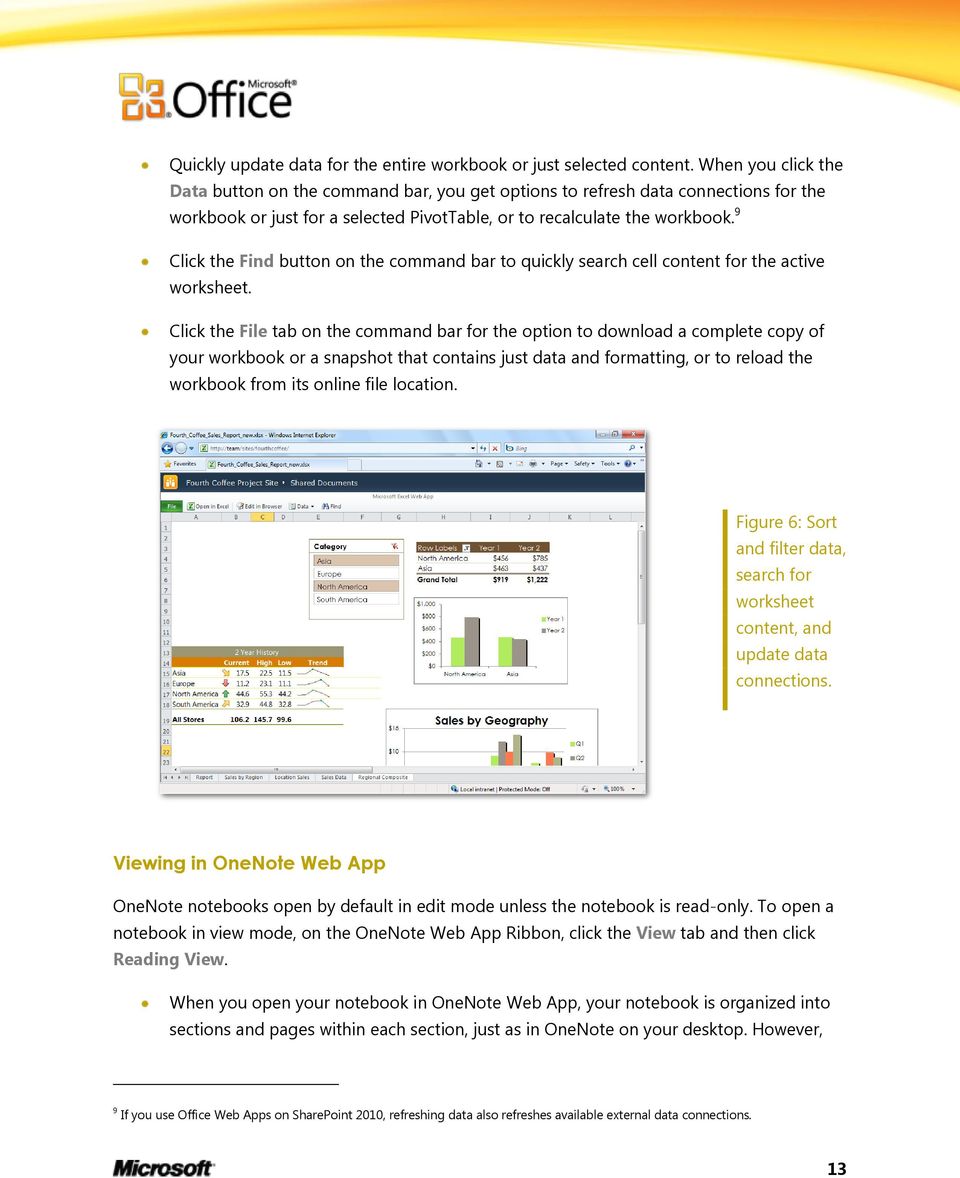
12 Figure 5: Browse slides, access slide notes, or run your slide show in highfidelity. Quick Tip: Use Broadcast Slide Show in PowerPoint 2010 to share your presentation live with a remote audience. 8 You give the presentation from PowerPoint on your desktop but viewers see it in their browser, via PowerPoint Web App. So they can watch your slide show in real-time and in high-fidelity, even if PowerPoint is not installed on their computer. Find Broadcast Slide Show in PowerPoint 2010 on the Slide Show tab, in the Start Slide Show group. Viewing in Excel Web App Browse your workbook easily using some of the same tools that you use in Excel on your desktop. Click a worksheet tab to view that sheet or click a row or column heading to select content. Sort and filter content in Excel tables and PivotTable views using the filter popup menus on table headings. If your worksheet contains a Slicer for your Excel 2010 PivotTable, you can select categories in the Slicer to filter table content as well, as shown in Figure 6. 8 Requires SharePoint Foundation 2010 for business or a Windows Live ID for personal use. To broadcast via SharePoint 2010, Office Web Apps must be installed. Broadcasting via Windows Live is a free service that supports up to 50 attendees. 12


13 Quickly update data for the entire workbook or just selected content. When you click the Data button on the command bar, you get options to refresh data connections for the workbook or just for a selected PivotTable, or to recalculate the workbook. 9 Click the Find button on the command bar to quickly search cell content for the active worksheet. Click the File tab on the command bar for the option to download a complete copy of your workbook or a snapshot that contains just data and formatting, or to reload the workbook from its online file location. Figure 6: Sort and filter data, search for worksheet content, and update data connections. Viewing in OneNote Web App OneNote notebooks open by default in edit mode unless the notebook is read-only. To open a notebook in view mode, on the OneNote Web App Ribbon, click the View tab and then click Reading View. When you open your notebook in OneNote Web App, your notebook is organized into sections and pages within each section, just as in OneNote on your desktop. However, 9 If you use Office Web Apps on SharePoint 2010, refreshing data also refreshes available external data connections. 13

14 you see section and page tabs together in one pane at left, for an easy navigation experience ideally suited to the web browser. Click any section tab to expand or collapse the pages in that section. Click Show Authors on the command bar to see who made specific changes in your shared notebook, as you see in Figure 7. View previous page versions for pages in your shared notebooks. Just right-click a page tab for the Show Versions command. Figure 7: View changes by author directly on the page and access previous page versions in the navigation pane. Quick Tip: From the view mode in any Office Web App, click the Edit in Browser button on the command bar to open the file for editing in the Web App. Or click the Open in <Application> button to open the file for editing in the Microsoft Office applications on your desktop. You can also open the file in the desktop application from the File tab on the left side of the command bar. 14

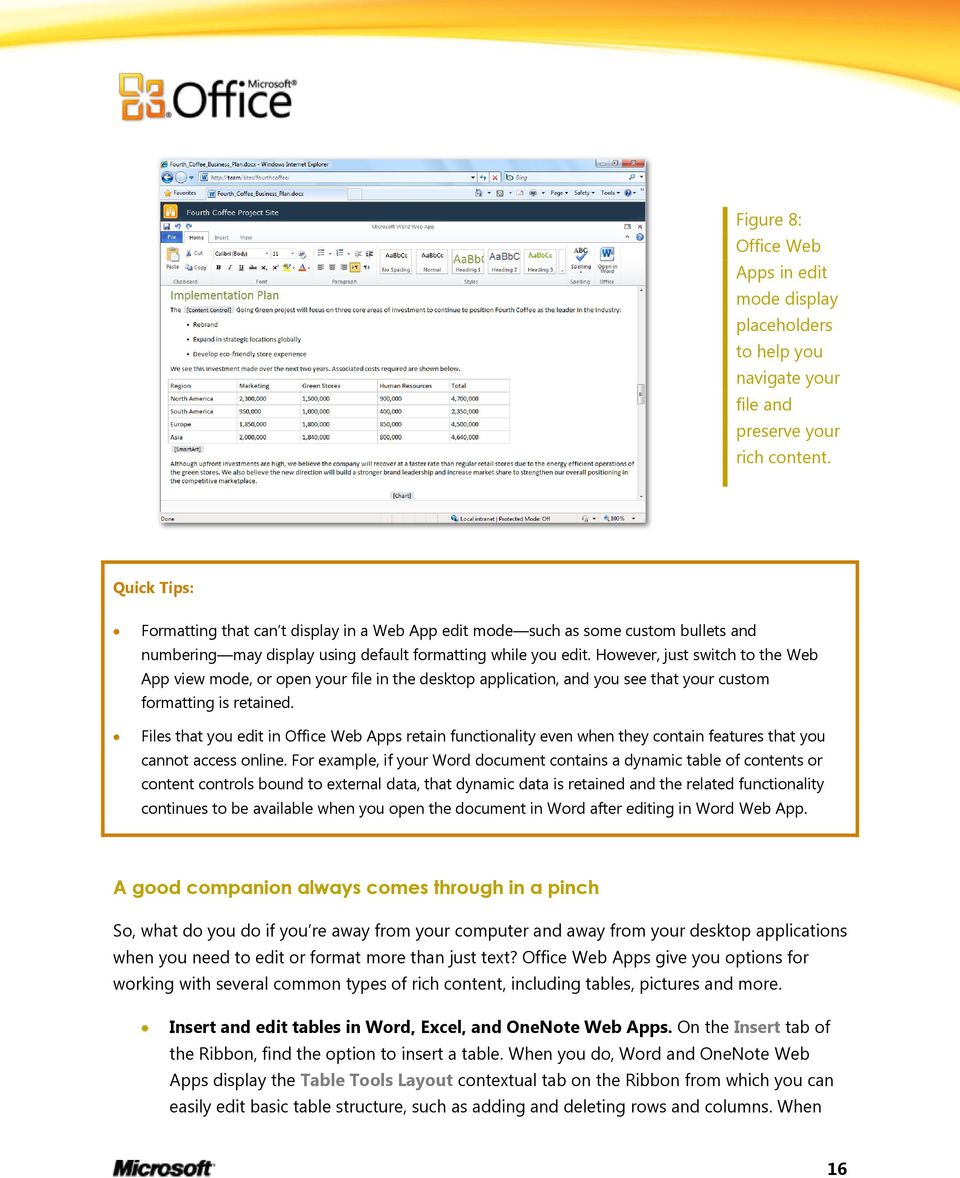
15 View Microsoft Office files on your mobile device Office Web Apps also give you the power to access and view Word, Excel, and PowerPoint files that you save to a SharePoint 2010 library or a SkyDrive folder directly from your mobile device. 10 View your rich Word document in high-fidelity by page or thumbnails, or quickly scroll through document text. View your PowerPoint slides or slide outline, and easily search for text in presentations. Refresh or find data in your Excel workbook, customize your view and even freeze panes for the active worksheet. Edit your content with confidence When you use Word, Excel, PowerPoint, and OneNote on your desktop to create content, your files may include beautiful SmartArt graphics, Excel charts, rich mathematical equations, and many other powerful types of content that help express your ideas. You know that you can view that content in Office Web Apps. But what happens to that content when you and those you share with edit your file online? Now you can take the rich documents that you create in the Microsoft Office programs on your computer, make light edits on the web using Office Web Apps, and then open them again in your desktop applications to seamlessly continue editing with access to all of the rich functionality you need. Preserve your content from desktop to web and back again When editing a file in Office Web Apps, you see placeholders for any content that can t display in the Web App edit mode, as shown in Figure 8. In this example, Word Web App shows you placeholders for SmartArt graphics, Excel charts, and content controls. Content displayed in placeholders is preserved intact and can be seen in the Web App view mode or when you next open the file in Microsoft Office on your desktop. 10 See the Requirements\Disclosures section of this document for a list of supported mobile viewers. 15


16 Figure 8: Office Web Apps in edit mode display placeholders to help you navigate your file and preserve your rich content. Quick Tips: Formatting that can t display in a Web App edit mode such as some custom bullets and numbering may display using default formatting while you edit. However, just switch to the Web App view mode, or open your file in the desktop application, and you see that your custom formatting is retained. Files that you edit in Office Web Apps retain functionality even when they contain features that you cannot access online. For example, if your Word document contains a dynamic table of contents or content controls bound to external data, that dynamic data is retained and the related functionality continues to be available when you open the document in Word after editing in Word Web App. A good companion always comes through in a pinch So, what do you do if you re away from your computer and away from your desktop applications when you need to edit or format more than just text? Office Web Apps give you options for working with several common types of rich content, including tables, pictures and more. Insert and edit tables in Word, Excel, and OneNote Web Apps. On the Insert tab of the Ribbon, find the option to insert a table. When you do, Word and OneNote Web Apps display the Table Tools Layout contextual tab on the Ribbon from which you can easily edit basic table structure, such as adding and deleting rows and columns. When 16
17 you insert a table in Excel Web App, you automatically get an Excel table with banded row formatting and sort and filter capabilities. Insert and work with pictures in PowerPoint, Word, and OneNote Web Apps. On the Insert tab in Word and OneNote Web Apps, find the option to insert a picture from your files or from Office.com Clip Art. You can also select a picture in your document or notebook to access the Picture Tools Format contextual tab, where you can resize the picture or add alternative text. In PowerPoint Web App, insert or replace pictures in any picture placeholder or content placeholder on your slides. Click the picture icon in the placeholder to add an image just as you do in PowerPoint on your desktop. When you select a picture on a slide, use the Picture Tools Format tab to easily replace the picture or to apply graphic effects from a gallery of picture styles. Create, edit and format SmartArt graphics in PowerPoint Web App. PowerPoint Web App gives you the power to add and edit SmartArt diagrams on the go. Insert a SmartArt graphic, such as an organization chart or process diagram, into any content placeholder in your presentation. You can click in a SmartArt graphic for the text pane where you can edit diagram text. Or add and delete shapes from the diagram just by adding or deleting bullets in the text pane. And, when you select a SmartArt graphic, the SmartArt Tools contextual tab appears automatically, where you can apply colors and formatting styles, and even change the diagram layout. Quick Tip: A small number of features are not supported in documents for viewing and/or editing in Office Web Apps, such as comments and shapes in Excel and comments and tracked changes in Word. When your file contains these features, you will see a message when viewing the file that it contains unsupported features and the file will not open in the Web App in order to protect the file content. For Excel files, you may be able to use the Save a Copy command accessible from the File tab in Excel Web App view mode to create a copy of the file that can be edited online. Work more easily with others You need to brainstorm with your team while traveling; update project data with a colleague on another continent; help your mom with a family photo album; or find an easy way to manage and share the little league soccer schedule with other team parents. However and wherever you collaborate, Office Web Apps gives you a simple, effective, and powerful way to work together 17

18 with others who are using both PC and Mac computers, whether they are using Windows Internet Explorer, Safari, or Firefox browsers, and regardless of what version of Microsoft Office they have installed. Work together without waiting your turn Office Web Apps redefine working together with co-authoring capabilities that enable you to edit the same Excel workbook or OneNote notebook at the same time as people in other locations. Co-authoring in Excel Web App is available in response to a popular request from Excel users. So, when you need to work together to update data, you can get it done faster and more easily than ever. Just open a workbook from your SharePoint 2010 or SkyDrive location for editing in Excel Web App. When others open the same file in Excel Web App while you are in it, you can all continue editing without interruption. Changes update in near real-time, so you stay easily up-to-speed on everyone s edits as you work. And, you can quickly see who else is editing in the file with you at any time from the Status bar shown in Figure 9. Figure 9: See who else is editing your workbook with you in Excel Web App. OneNote Web App enables you to edit the same shared notebook at the same time as other people using OneNote Web App as well as those using OneNote As people 18

19 open the notebook while you are in it, you all continue editing without interruption. Changes sync in near real-time, so you quickly see the content that others are adding to the notebook. On the View tab of the Ribbon you can click Show Authors to see who made specific edits both during and at any time after a co-authoring session. Also on the View tab, click Page Versions to view, restore, or delete previous versions of the page. So, if someone else makes a change to content you needed, you can still access that content later. Quick Tip: Co-authoring is also available in the Word 2010, PowerPoint 2010, and (via shared notebooks) OneNote 2010 desktop applications when you open your Office 2010 document, presentation, or notebook from a SharePoint 2010 site or a SkyDrive folder. Update content the moment it changes The ability to edit your files online means that you and those you share with never have to wait to make a critical change. View and print the latest version of your document from virtually anywhere; get a last-minute press photo into your presentation before delivering your slide show; grab the new information that a colleague added to your notes; or update the data in your workbook the moment you receive it. In fact, when you use Excel Web App to update data in your worksheets, all workbook content automatically updates just as if you were working in Excel on your desktop. The charts, conditional formatting, and incredible new Sparklines that you add to your workbooks using Excel 2010 refresh in an instant when workbook data changes in Excel Web App. Additionally, you can refresh data connections at any time with just a click when viewing or editing a workbook in Excel Web App. 19

20 Quick Tips: Office Web Apps save files in the Office 2010 file formats. If you edit files online from versions of Microsoft Office earlier than 2007 for Windows or 2008 for Mac, Office Web Apps saves a copy of your file in the Office 2010 formats and leaves the original unchanged in your SharePoint 2010 library or SkyDrive folder. (Note: If you are running Office 2003 or Office XP on your desktop, install a free compatibility pack to open and edit Office 2010 documents.) For more information about file format support, see the FAQ section of this document. Organizations migrating to Office 2010 can use Office Web Apps on SharePoint 2010 to help simplify migration for everyone in the organization. Now, people whose computers have not yet been upgraded to Office 2010 can seamlessly collaborate on Office 2010 documents with their colleagues who have been migrated by using Office Web Apps. Get started right away You already know that the Microsoft Office programs on your computer deliver powerful tools for creating and working with documents, presentations, workbooks and notebooks. You use those tools every day. So when you want the flexibility of working with your files on the web, do you have to start from scratch and learn new programs? Fortunately, you don t. With Office Web Apps, you can feel at home from wherever you need to be. Work in a familiar editing environment, using some of the same formatting and editing tools that you already know and use in your Microsoft Office programs. Fine-tune and format your content using tools you already know Get easy access to a consistent set of font and paragraph formatting tools across all Office Web Apps. Change the font of selected text, adjust font size and color, apply text formatting such as bold, italic, and underline, set paragraph alignment, and more. Use automatic spell-checking and AutoCorrect as you type in Word Web App and OneNote Web App, and apply styles to your text in those applications as well. Take advantage of up to nine levels of automatic bulleted and numbered lists in Word, PowerPoint, and OneNote Web Apps, and use the familiar Increase\Decrease 20

21 Indent (List Level) buttons in the Paragraph group on the Home tab to change the outline level for the current paragraph. Easily work with slides in PowerPoint Web App. Insert new slides with your choice of layout. You can also duplicate, delete, or hide slides with just a click. Create formulas in Excel Web App using IntelliSense (AutoComplete) lists for functions. You can also use well-known cell formatting features such as wrapping text within cells, changing number format, and applying cell borders and shading. Quick Tip: Find many familiar features exactly where you d expect them to be as you explore Office Web Apps. For example, insert a hyperlink from the Insert tab in any Office Web App. Or right-click the red underscore that indicates a spelling error while working in Word or OneNote Web Apps for a selection of spelling correction options. Figure 10: Use familiar features such as automatic spell-checking in Word Web App and IntelliSense lists for functions in Excel Web App. 21
22 Office Web Apps: Features by Application Word Web App Helping a friend update her resume? Need to print a document on the go? Word Web App makes it easy with familiar tools that you ll recognize from Word such as AutoCorrect, spellchecking as you type, font and paragraph formatting, and tables. And, with just one click, you can seamlessly continue editing your document in Word on your desktop. Viewing in Word Web App Features and Benefits Description Where to Find Print Print the active document. On the command bar, click File, and then click Print. Find Search for document text using Word Web App in view mode. See automatic highlighting of search hits in the document along with a pane showing a summary of search results. Click any result in the pane to move to that point in the document. On the command bar, click Find. Zoom Select zoom presets ranging from 50 to 200 percent, as well as Full Page and Page Width options. Or type a custom zoom level between 33 and 400 percent. Find the zoom level dropdown list on the command bar. Note: Microsoft Silverlight is recommended for the best viewing fidelity when changing zoom level. Navigation When you open a document in Word Web App view mode, you see the total number of pages in the document and can move through the document by page or type a page number to immediately to move the page you need. Find the page count and page navigation buttons on the right side of the command bar. 22
23 Features and Benefits Description Where to Find Open in Word It takes just one click to continue editing your document in Word on your desktop. In Word Web App view mode, find Open in Word on the command bar or under the File tab. Note: When editing in Word Web App, find this option on the Home tab, in the Office group. Edit in Web App When viewing your document in Word Web App view mode, open the document for editing in the browser with a single click. On the command bar, click Edit in Browser. Access and view files on your mobile device When you save your Word documents to a SharePoint 2010 site or a SkyDrive folder, you can access and view those files using Office Web Apps on your mobile device. Use the browser on your mobile device to navigate to your SharePoint site or SkyDrive folder and then click the name of the file you need to open it for viewing in the browser. Editing in Word Web App Features and Benefits Description Where to Find Save Save changes to your document when editing in Word Web App. Click the Save button that appears above the File tab. You can also find the save command under the File tab. Or, use the CTRL+S keyboard shortcut that you know from Word. View in Web App When editing your document in Word Web App, it s easy to switch views so that you can see your rich document in high fidelity at any time. Save your document to preserve your changes. Then, on the View tab of the Ribbon, click Reading View. 23
24 Features and Benefits Clipboard Description Cut, copy, and paste content in your document. You can copy and paste text between Web Apps as well as between Office Web Apps and the Microsoft Office programs on your computer. Where to Find On the Home tab, in the Clipboard group, find Cut, Copy, and Paste commands. Note: These commands are also available from the shortcut menu when you rightclick selected content. Undo and Redo Undo or redo recent actions in the active document. Note: You can undo an infinite number of your changes to the active document made during your current editing session Click the Undo and Redo buttons that appear above the File tab. Or, use the CTRL+Z (undo) and CTRL+Y (redo) keyboard shortcuts that you know from Word. in Word Web App editor, until you save the document or insert a picture. Font formatting Apply font, font size, and several font formatting attributes including bold, italic, underline, superscript and more. You can also highlight text, change font color, and clear formatting for selected text. On the Home tab, find all font formatting options in the Font group. Note: Your document theme formatting is available to format text in Word Web App. Find the active theme fonts at the top of the Fonts gallery and theme colors in the Font Color gallery. Paragraph formatting Change paragraph alignment, increase or decrease the indent from left margin, or change text direction from left to right. On the Home tab, find paragraph formatting options in the Paragraph group. 24
25 Features and Benefits Bullets and Numbering Description Apply your choice of three bullet styles or five numbering styles. You can also use the Increase Indent and Decrease Indent buttons to change list level for existing bulleted and numbered lists in your document as well as those you create in Word Web App. Where to Find On the Home tab, find bullets, numbering, and the options to change list level in the Paragraph group. Note: Custom bullet and numbering formats that you apply in Word on your desktop are retained in your document when edited in Word Web App. To view your custom number formats in the document, open the document in Word Web App view mode. Styles The paragraph and character styles that are saved in your document are available to apply to text in Word Web App. On the Home tab, in the Styles group, find styles that are included in your document Quick Style list in the Styles gallery. Or, click to expand that gallery for the Apply Styles option, from which you can access all paragraph and character styles in the document. Note: You can also use familiar keyboard shortcut keys including CTRL+ALT+1,2,3 to apply Heading styles and CTRL+SHIFT+N to apply Normal style. 25
26 Features and Benefits Description Where to Find Proofing tools Word Web App automatically checks spelling as you type and applies a wavy red underline to misspelled text. You also get common AutoCorrect actions as you type, such as correcting common misspellings or converting characters to symbols. Additionally, you can set the proofing language or turn off spell-checking for selected text. On the Home tab, in the Spelling group, click Spelling to move to the next spelling error in the document. When you do, a dropdown list of correction options appears. You can also right-click a word that is identified as misspelled to access correction options. On the Home tab, click the arrow beneath the Spelling button for Set Proofing Language, where you can change the proofing language or disable spellchecking for a selection. Tables Insert a table, edit table text, and easily edit basic table structure such as adding or deleting rows and columns. To insert a table, on the Insert tab, in the Tables group, click Table. Then, move your mouse pointer across the grid to select the number of columns and rows you need and click to insert. To edit table structure, click in a table. When you do, the Table Tools Layout tab appears automatically, providing options to select, delete, and insert table elements and to align content in cells. Or, right-click in a table for table editing options. Pictures Insert a picture from your files or from Office.com Clip Art. You can also resize pictures and add alternative text. To insert a picture, on the Insert tab, in the Picture group, click Picture or Clip Art. To resize a picture or add alternative text, select the picture. The Picture Tools Format tab provides these options whenever a picture is selected. 26
27 Features and Benefits Description Where to Find Hyperlinks Insert a hyperlink to a web address or apply a link to selected text. On the Insert tab, in the Links group, click Link. Placeholders Word Web App in edit mode automatically displays placeholders for features it is unable to display, such as SmartArt graphics, Excel charts and content controls. Placeholders preserve the layout and rich content in your documents and help you navigate a file when making edits in Word Web App. Placeholders for objects that cannot be displayed appear automatically. To view the full content that is shown as a placeholder in Word Web App edit mode, on the View tab, click Reading View. Or, on the Home tab, click Open in Word. Excel Web App With Excel Web App, anything from updating a budget with team members to tracking your exercise routine on the road is a snap. You can simultaneously edit a spreadsheet with others across the hall or across time zones. See charts, conditional formatting, and even Sparklines update as you sort columns and change formulas. Plus, you ll enjoy many of the same features that you know from Excel, such as IntelliSense lists that appear as you begin to type a function name. Viewing in Excel Web App Features and Benefits Refresh Data Description Refresh data connections for the entire workbook or a selected PivotTable. Or recalculate the workbook. Note: When you use Excel Web App on SharePoint 2010, refreshing data also refreshes available external connections in the active workbook. Where to Find On the command bar, click Data. Note: When editing in Excel Web App, find these options on the Home tab, in the Data group. 27
28 Features and Benefits Find Description Find cell content in the active worksheet. An easy-to-use dialog box gives you the option to search up or down from your current selection in the worksheet. Where to Find On the command bar, click Find. Note: When editing in Excel Web App, access this command on the Home tab, in the Data group. Navigation Click a sheet tab to move to a different worksheet. Click row or column headings to select that row or column, and use the arrow keys to move through the worksheet. Access sheet tabs as well as row and column headings when viewing or editing a workbook in Excel Web App. Open in Excel It takes just one click to continue editing your workbook in Excel on your desktop. In Excel Web App view mode, find Open in Excel on the command bar or under the File tab. Note: In Excel Web App edit mode, access this command on the Home tab, in the Office group. Edit in Web App When viewing your workbook in Excel Web App view mode, open the workbook for editing in the browser with a single click. On the command bar, click Edit in Browser. Sort and Filter data Sort and filter data in Excel tables and PivotTable views. Click the AutoFilter arrows on headings in a table or PivotTable for sort and filter options. Note: This feature is also available when the workbook is open for editing in Excel Web App. Save or Download a Copy From the File tab in Excel Web App view or edit mode, you can create a copy of the workbook, download a complete copy, or download just a snapshot a file containing only the values and formatting from your workbook. In Excel Web App view mode, click the File tab on the command bar. In Excel Web App edit mode, click the File tab on the Ribbon. 28
29 Access and view files on your mobile device When you save your Excel workbooks to a SharePoint 2010 site, you can access and view those files using Office Web Apps on your mobile device. Use the browser on your mobile device to navigate to your SharePoint site and then click the name of the file you need to open it for viewing in the browser. Editing in Excel Web App Features and Benefits Description Where to Find Co-authoring Edit the same workbook at the same time with people in other locations. Open a workbook for editing in Excel Web App. When someone else opens the same workbook for editing in Excel Web App, simultaneous editing begins automatically. View who else is editing the file with you on the right side of the Status bar at the bottom of the screen. Note: See changes that others make automatically. Changes sync in near realtime. Save When you open a workbook for editing in Excel Web App, the workbook is automatically saved as you work. Saving is automatic in Excel Web App. Clipboard Cut, copy, and paste content in your workbook. You can copy and paste text between Web Apps as well as between Office Web Apps and the Microsoft Office programs on your computer. On the Home tab, in the Clipboard group, find Cut, Copy, and Paste commands. Note: You can also use the CTRL+C (copy), CTRL+X (cut), and CTRL+V (paste) keyboard shortcuts. Undo and Redo Undo or redo up to the last 25 actions taken during your current editing session in the active workbook. Click the Undo and Redo buttons that appear above the File tab. Or, use the CTRL+Z (undo) and CTRL+Y (redo) keyboard shortcuts that you know from Excel. 29
30 Features and Benefits Description Where to Find Formula Bar Just as you do in Excel on your desktop, edit text and formulas in your cells either directly in the worksheet cell or in the Formula Bar. Use the Formula Bar to easily see and edit cell formulas when the result is displayed in the selected cell. Find the Formula Bar directly below the Ribbon. Font and cell formatting Apply font, font size, and several font formatting attributes including bold, italic, underline, and double underline. Also apply cell borders and shading. On the Home tab, find all font and cell formatting options in the Font group. Note: Your active theme colors are available for text and cell fill in Excel Web App. Find the theme colors in the Font Color and Fill Color galleries. Alignment Change horizontal or vertical cell alignment, or wrap text in cells. On the Home tab, find alignment and text wrapping options in the Alignment group. Number formatting Select from 11 popular formats, such as number, currency, percent, date, and text. You can also increase and decrease the number of decimal places in your number format. On the Home tab, find number formatting options in the Number group. Functions Use many of the same functions that you know from Excel. When you begin to type a function name, you see an IntelliSense list of available functions. Click in a worksheet cell. The IntelliSense list for functions appears after you type the equal sign followed by at least the first letter of the function name you need. 30
31 Features and Benefits Description Where to Find Tables Create an Excel table with sort and filter capabilities, banded rows, and formatting that automatically coordinates with your active workbook theme. You can also add a header row or total row to your table. Select the cells in the worksheet to use as your table range. Then, on the Home tab, in the Tables group, click Sort & Filter as Table. Or, on the Insert tab, click Table. As in Excel, when you type in the row directly below the table range, the table automatically expands. Additionally, when you add a formula in a cell immediately to the right of any table row, Excel Web App creates a calculated column, expanding the table and adding that formula to all other data rows in your table. For header row and totals row settings, on the Home tab, in the Tables group, click Table Options. Edit worksheet structure Insert and delete cells, rows, and columns on your worksheet. On the Home tab, in the Cells group, find Insert and Delete options. Hyperlinks Insert a hyperlink to a web address or apply a link to selected text. On the Insert tab, in the Links group, click Link. 31
32 PowerPoint Web App Deliver your presentation anytime, from virtually anywhere, with PowerPoint Web App. Whether you re on the road or just away from your computer, you can make last-minute edits and run your slide show right from a web browser. With familiar features that you know from PowerPoint, you can add or delete slides, change font and paragraph formatting, apply a slide layout, or replace a picture. You can even use SmartArt graphics to build a diagram or organization chart on the go, as easily as typing a bulleted list. Viewing in PowerPoint Web App Features and Benefits Description Where to Find View and copy slide notes View the notes pane for your slide with just a click. Or copy note text directly from PowerPoint Web App view mode. Click the Notes button on the Status bar in PowerPoint Web App view mode. Drag to select notes and use the CTRL+C keyboard shortcut to copy. Run slide show Run your slide show in the browser in high-fidelity. PowerPoint Web App even supports many of the animations that you can apply in PowerPoint on your desktop. On the command bar, click Start Slide Show. Note: To run your slide show when you are editing your presentation in PowerPoint Web App, on the View tab click Slide Show. Print Slides Print the active presentation. Note: For now, this feature is only available on SkyDrive. On the command bar in view mode (or the Ribbon in edit mode) click File and then click Print. Navigation Use Previous Slide and Next Slide buttons to easily browse your slides. Or, click the slide number indicator to see a list of slides and move directly to the one you need. Find Previous Slide, Next Slide, and slide number indicators in the center of the Status bar at the bottom of PowerPoint Web App when in view mode. 32
33 Features and Benefits Description Where to Find Broadcast slide show Broadcast slide show is a new feature of PowerPoint 2010 that uses PowerPoint Web App to run your slide show live for a remote audience. PowerPoint 2010 is required to broadcast your slide show to a remote audience via PowerPoint Web App. Viewers watch your live presentation via PowerPoint Web App, whether or not they have PowerPoint installed. Note: Viewing the broadcast requires an Internet connection and a supported Internet Explorer, Firefox, or Safari browser. Outline View View, copy, or print the text outline of your slide titles and text. On the command bar, click File and then click Outline View. To copy or print outline text, drag to select text and then right-click for your browser s copy and print options. Open in PowerPoint It takes just one click to continue editing your presentation in PowerPoint on your desktop. In PowerPoint Web App view mode, find Open in PowerPoint on the command bar or under the File tab. Note: In PowerPoint Web App edit mode, find this command on the Home tab, in the Office group. Edit in Web App When viewing your presentation in PowerPoint Web App view mode, open the presentation for editing in the browser with a single click. On the command bar, click Edit in Browser. Access and view files on your mobile device When you save your PowerPoint presentations to a SharePoint 2010 site or a SkyDrive folder, you can access and view those files using Office Web Apps on your mobile device. Use the browser on your mobile device to navigate to your SharePoint site or SkyDrive folder and then click the name of the file you need to open it for viewing in the browser. 33
34 Editing in PowerPoint Web App Features and Benefits Description Where to Find Save When you open a presentation for editing in PowerPoint Web App, the presentation is automatically saved as you work. Saving is automatic in PowerPoint Web App. View and edit slide notes The default editing view in PowerPoint Web App displays the notes pane at the bottom of the screen. Just click in the pane to add or edit slide notes. To show or hide the Notes pane, on the View tab, click Notes. View in Web App When editing your presentation in PowerPoint Web App, it s easy to switch views to review your slides in the Web App view mode. On the View tab of the Ribbon, click Reading View. Clipboard Cut, copy, and paste content in your presentation. You can copy and paste text between Web Apps as well as between Office Web Apps and the Microsoft Office programs on your computer. On the Home tab, in the Clipboard group, find Cut, Copy, and Paste commands. Note: You can also use the CTRL+C (copy), CTRL+X (cut), and CTRL+V (paste) keyboard shortcuts. Undo and Redo Undo or redo an infinite number of your recent actions during the current editing session in the active presentation. Note: If the editing session times out or you switch to Reading View for more than 30 seconds, your undo history is reset. Click the Undo and Redo buttons that appear above the File tab. Or, use the CTRL+Z (undo) and CTRL+Y (redo) keyboard shortcuts that you know from PowerPoint. Create and manage slides Insert a new slide with your choice of any slide layout that s available in your active presentation. You can also delete, duplicate or hide slides with just a click. On the Home tab, find all slide management options in the Slides group. 34
35 Features and Benefits Description Where to Find Font formatting Apply font, font size, and font color, as well as bold, italic, and underline attributes. On the Home tab, find all font formatting options in the Font group. Note: Your active theme colors are available to text in PowerPoint Web App. Find the active theme colors in the Font Color gallery. Alignment, bullets and numbering Change paragraph alignment, apply bullets or numbering, and change the level of bulleted or numbered text. On the Home tab, find alignment and bullets and numbering options in the Paragraph group. You can also use the TAB and SHIFT+TAB keyboard shortcuts at the beginning of a bulleted or numbered paragraph to change list level. Note: When you click in a bulleted or numbered text box to edit it, your bullet and numbering styles appear with default formatting while editing. Just click out of the placeholder when done to see your custom bullet or number formatting. Pictures Insert a picture into any picture or content placeholder on your slides. You can also replace an existing picture and apply picture styles. To insert a picture, click the picture icon in an empty placeholder. Or, on the Insert tab, click Picture. When you select a picture, the Picture Tools Format tab provides the options to replace the picture or apply a picture style. Note: The Picture option on the Insert tab is available whenever the active slide contains an available picture placeholder. 35
36 Features and Benefits Description Where to Find SmartArt Add, edit, and format SmartArt graphics in your presentation. SmartArt graphics enable you to create professional-quality diagrams such as organization charts and radial diagrams just by typing a bulleted list. To insert a SmartArt graphic, click the SmartArt icon in an empty content placeholder. Or, on the Insert tab, click SmartArt and then click to select a layout. When you select a SmartArt graphic, the SmartArt Tools tab enables you to apply formatting styles, colors, and even change the diagram layout. Click in a SmartArt graphic and the SmartArt text pane appears automatically. Edit diagram text in this pane. Or, add and delete bullets in this pane to add or delete shapes from your graphic. Note: The SmartArt option on the Insert tab is available whenever the active slide contains an available content placeholder. Hyperlinks Insert a hyperlink to a web address or apply a link to selected text. On the Insert tab, in the Links group, click Link. 36
37 OneNote Web App Whether you re planning a project, organizing your team s research notes, or cramming for an exam with your study group, OneNote Web App gives you one convenient place to store and share all of your ideas and information. Simultaneously edit the same notebook with others who are using OneNote Web App or OneNote Keep your information easily organized using some of the same features that you find in OneNote on your PC, such as AutoCorrect, spellchecking, tags, text styles, and pictures. And because OneNote Web App lets you see who made specific changes in your shared notebooks, and even access previous versions of notebook pages, you can always maintain control over your document. Viewing in OneNote Web App Features and Benefits Description Where to Find Show Authors Instantly see who made specific changes in your notebook. On the command bar, click Show Authors. Note: When editing in OneNote Web App, this feature is available on the View tab. View previous page versions View previous versions of notebook pages. A page version is saved when someone makes changes in a shared notebook. To view previous page versions, right-click the page tab and then click Show Versions. Note: To restore or delete previous page versions, open the notebook for editing in OneNote Web App. Navigation Click a section name to view all pages in that section. Then just click a page tab to view the page. A navigation pane appears at the left of the page when viewing or editing in OneNote Web App, displaying the sections and pages of your active notebook. 37
38 Features and Benefits Description Where to Find Open in OneNote It takes just one click to continue editing your notebook in OneNote on your desktop. In OneNote Web App view mode, find Open in OneNote on the command bar or under the File tab. Note: When editing your notebook in OneNote Web App, find this command on the Home tab, in the Office group. Edit in Web App When editing your notebook in OneNote Web App, it s easy to switch between edit and view modes. On the command bar, click Edit in Browser. Editing in OneNote Web App Features and Benefits Description Where to Find Save Saving your edits in OneNote Web App is automatic, just as in OneNote on your desktop. Your changes are automatically saved as you edit in OneNote Web App. View in Web App When editing your notebook in OneNote Web App, it s easy to switch between edit and view modes. On the View tab of the Ribbon, click Reading View. Co-authoring for shared notebooks Edit the same notebook at the same time with people in other locations who are using either OneNote Web App or OneNote Open a notebook for editing in OneNote Web App. When someone else opens the same notebook for editing in OneNote Web App or OneNote 2010, simultaneous editing begins automatically. Note: See changes that others make automatically. Changes sync in near realtime. 38
39 Features and Benefits Clipboard Description Cut, copy, and paste content in your notebook. You can copy and paste text between Web Apps as well as between Office Web Apps and the Microsoft Office programs on your computer. Where to Find On the Home tab, in the Clipboard group, find Cut, Copy, and Paste commands. Note: These commands are also available from the shortcut menu when you rightclick selected content. Undo and Redo Undo or redo recent actions for each page that you edit in the active notebook. Note: OneNote Web App gives you a separate undo history for each page that you edit in the active notebook. You can undo an infinite number of actions per Click the Undo and Redo buttons that appear above the File tab. Or, use the CTRL+Z (undo) and CTRL+Y (redo) keyboard shortcuts that you know from OneNote. page during the current editing session, until you either insert a picture or receive an edit from another editor. Note also that moving and deleting pages cannot be undone. Font formatting Apply font, font size, and several font formatting attributes including bold, italic, underline, superscript and more. You can also highlight text, change font color, and clear formatting on selected text. On the Home tab, find all font formatting options in the Basic Text group. Paragraph formatting Change paragraph alignment, increase or decrease the indent from left margin, or change text direction from left to right. On the Home tab, find paragraph formatting options in the Basic Text group. Text direction is available from the Paragraph Alignment dropdown list. Bullets and Numbering Apply your choice of three bullet styles or five numbering styles. You can also use the Increase Indent and Decrease Indent buttons to change list level for existing bulleted and numbered lists in your notebook as well as those you create in OneNote Web App. On the Home tab, find bullets, numbering, and the options to change list level in the Basic Text group. 39
40 Features and Benefits Description Where to Find Styles Easily apply text styles for quick formatting that helps to organize and structure your thoughts. Find text styles on the Home tab, in the Styles group. You can also use familiar keyboard shortcut keys including CTRL+ALT+1,2,3 to apply Heading styles and CTRL+SHIFT+N to apply Normal style. Tags Apply a variety of tags to your notes for easy organization and follow-up, such as to flag notes as questions, todo items, contact information, and more. On the Home tab, in the Tags, group, click Tag. Proofing tools OneNote Web App automatically checks spelling as you type and applies a wavy red underline to misspelled text. You also get common AutoCorrect actions as you type, such as correcting common misspellings or converting characters to symbols. Additionally, you can set the proofing language or turn off spell-checking for selected text. On the Home tab, in the Spelling group, click Spelling to move to the next spelling error on the page. When you do, a dropdown list of correction options appears. You can also right-click a word that is identified as misspelled to access correction options. On the Home tab, click the arrow beneath the Spelling button for Set Proofing Language, where you can change the proofing language or disable spell-checking for a selection. 40
41 Features and Benefits Description Where to Find Create and manage pages and sections Easily add or delete pages and sections, rename sections, and demote or promote subpages. Click the New Page icon in the navigation pane to add a page. Or, on the Insert tab, in the Notebook group, click New Page or New Section. Right-click a section tab for the option to rename or delete the section. Right-click a page tab for the options to delete the page and to increase or decrease the indent in order to create subpages. View and restore page versions A page version is saved when someone makes changes in a shared notebook. When your notebook is open for editing in OneNote Web App, you can view, restore, or delete previous page versions. On the View tab, click Page Versions. When you select a previous page version, you see a notification bar at the top of the page indicating that this is a read-only previous page version. Click the bar for the option to delete or restore the active page version. Pictures Insert a picture from your files or from Office.com Clip Art. You can also resize pictures and add alternative text. To insert a picture, on the Insert tab, in the Picture group, click Picture or Clip Art. To resize a picture or add alternative text, select the picture. The Picture Tools Format tab provides these options whenever a picture is selected. 41
42 Features and Benefits Description Where to Find Tables Insert a table, edit table text, and easily edit basic table structure such as adding or deleting rows and columns. To insert a table, on the Insert tab, in the Tables group, click Table. Then, move your mouse across the grid to select the number of columns and rows you need and click to insert. To edit table structure, click in a table. When you do, the Table Tools Layout tab appears automatically, providing options to select, delete, and insert table elements and to align content in cells. Or, right-click in a table for table editing options. Hyperlinks Insert a hyperlink to a web address or apply a link to selected text. On the Insert tab, in the Links group, click Link. Note: You can also right-click a page tab for the option to copy a direct link to that page. Placeholders OneNote Web App edit mode automatically displays placeholders for features it is unable to display, such as equations and digital ink. Placeholders preserve the layout and rich content in your notebooks and help you navigate a file when making edits in OneNote Web App. Placeholders for objects that cannot be displayed appear automatically. To view the full content that is shown as a placeholder in OneNote Web App edit mode, on the View tab, click Reading View. Or, on the Home tab, click Open in OneNote. 42


43 Platform Comparison Using Office Web Apps on SkyDrive Windows Live SkyDrive is a free service designed to make it easy for consumers to share Microsoft Office documents and media files with others, and access their important files from virtually anywhere. Upload files from your computer by simply dragging them to the upload pane, or create new Word, Excel, PowerPoint, or OneNote files online in just a couple of clicks. When you re signed into Windows Live, just click Office on the navigation bar at the top of the screen to view, edit, share, create, and manage files from one central location. SkyDrive gives you 25GB of storage space, making it easy to store and manage all of your documents. And you can confidently share files with others, knowing that SkyDrive saves previous versions of your files in the event that someone makes changes to content you need or if you need to retrieve content you have since changed or deleted. When you share your files, you can set specific permissions for each person you share with. Do this from SkyDrive or, when the file is open for viewing or editing online, share the file right from within Office Web Apps. You decide who can edit and who can only view the file. Additionally, SkyDrive enables you and those you share with to post comments on the file. Figure 11: SkyDrive saves a version of your file when you or those you share with close the file after making changes online. You can view or restore any saved version of your file. Quick Tip: Use the Save to Web feature in several Office 2010 programs to save your files directly to SkyDrive as you work on them. Access SkyDrive using your free Windows Live ID. Sign up for your Windows Live ID and get started with SkyDrive at 43

44 Using Office Web Apps with Hotmail Windows Live Hotmail also works with Office Web Apps and SkyDrive to help you work with others more easily than ever. View and edit Microsoft Office documents that you receive as e- mail attachments directly from your Hotmail inbox. Click an attached Word, Excel, or PowerPoint document to open it automatically for viewing in Office Web Apps. To edit the file online, just click the Edit in Browser button that appears on the command bar of the applicable Office Web App in view mode. Windows Live automatically saves a copy of the file to SkyDrive and opens it for editing. When you close the file after making changes, SkyDrive automatically prompts you with the option to reply to the sender and include a link to your updated version of the file as shown in Figure 12. Figure 12: Edit a Microsoft Office document attachment online directly from your inbox, and reply with your changes right from Office Web Apps. Using Office Web Apps on SharePoint 2010 SharePoint 2010 is designed to help people in businesses share information and work together more effectively with easy-to-use, customizable, powerful tools for document management, workflow, and communication. Easily create and customize your own sites for team projects and convenient online access to your content. You can easily customize your own SharePoint sites for the types of content they include, such as document libraries, calendars, lists, discussion boards, and contact lists. Add individual files from your computer to a SharePoint library or upload multiple files at once just by dragging files to an upload window. When SharePoint 2010 and Office Web Apps are installed in your organization, you can view, share and edit content online with advanced security, inside your own company s firewall. Microsoft also offers a, hosted SharePoint Online service for businesses. 44
45 When you store your Word, Excel, PowerPoint, and OneNote files in a SharePoint 2010 document library, it s easy to manage your documents from virtually anywhere with tools such as the ability to specify permissions for others with whom you share files, create and manage workflow for your files, and access and manage previous file versions. The SharePoint Ribbon, shown in Figure 13, gives you a familiar environment for accessing all of the tools you need. Figure 13: The SharePoint 2010 Ribbon gives you easy access to a wide range of tools for managing your documents and libraries. You can customize many aspects of your SharePoint sites. And, your IT administrator can customize your SharePoint experience in several ways, such as to set file size limits or to enable you to create new documents online. To learn more about working with SharePoint 2010, including getting started resources for SharePoint users, visit or office.com/sharepoint. To learn about SharePoint Online services, visit 45
46 Platform comparison overview The following overview provides a summary comparison of capabilities when using Office Web Apps on SkyDrive, SharePoint 2010 installed in your organization, and SharePoint Online: SkyDrive SharePoint 2010 installed in your organization SharePoint Online For personal use For business use For business use Storage space 25GB Configurable by IT Configurable by IT File size limits 50MB per file for Word, PowerPoint, and OneNote; 2 MB for Excel. Configurable by IT Pricing Free (w/ ads) Office 2010 volume license TBD Ad supported Hotmail integration Backup and restore Document lifecycle management IT admin control Ability to create new documents Browsers supported Mobile support Mobile browsers supported Internet Explorer 7 or later for Windows, Safari 4 or later for Mac, Firefox 3.5 or later for Windows, Mac, or Linux, and Chrome 3 or later for Windows. Word and PowerPoint Web Apps Safari 4 on iphone 3G and 3GS and Internet Explorer 7 on the upcoming Windows Phone 7 Configurable by IT if Microsoft Office desktop applications are not installed on the active computer. Internet Explorer 7 or later for Windows, Safari 4 or later for Mac, and Firefox 3.5 or later for Windows, Mac, or Linux. Word, Excel, and PowerPoint Web Apps Internet Explorer on Windows Mobile 5 or later, Safari 4 on iphone 3G or 3GS, BlackBerry 4.x and later, Nokia S60, NetFront 3.4, 3.5 and later, Opera Mobile 8.65 and later, and Openwave 6.2, 7.0 and later. Configurable by IT Configurable by IT if Microsoft Office desktop applications are not installed on the active computer. Internet Explorer 7 or later for Windows, Safari 4 or later for Mac, and Firefox 3.5 or later for Windows, Mac, or Linux. Word, Excel, and PowerPoint Web Apps Internet Explorer on Windows Mobile 5 or later, Safari 4 on iphone 3G or 3GS, BlackBerry 4.x and later, Nokia S60, NetFront 3.4, 3.5 and later, Opera Mobile 8.65 and later, and Openwave 6.2, 7.0 and later. 46
47 FAQ About Office Web Apps 1. What are Office Web Apps? 2. How can I use Office Web Apps? Accessing Office Web Apps 1. How can I access Office Web Apps? 2. What computer browsers are supported for using Office Web Apps? 3. Can I use Office Web Apps from the browser on my mobile device? 4. How much will Office Web Apps cost? Using Office Web Apps 1. If I use Office Web Apps, do I still need Microsoft Office? 2. What are the differences between Office Web Apps on SkyDrive and those on SharePoint 2010? 3. Does Office 2010 give me a better experience with Office Web Apps compared to earlier versions of Microsoft Office? 4. Do Office Web Apps enable real-time collaboration? 5. In what languages will Office Web Apps be available? 6. How are files saved in Office Web Apps? 7. What file types are supported in Office Web Apps? 8. How do I print from Office Web Apps? 9. Can I create new documents with Office Web Apps? About Office Web Apps 1. What are Office Web Apps? Office Web Apps are online companions to Microsoft Office, giving you the freedom to access, edit, and share Microsoft Office documents from virtually anywhere. 2. How can I use Office Web Apps? Use Office Web Apps whenever you need the flexibility of working with or sharing your Word, Excel, PowerPoint, or OneNote files on the web. For example: 47
48 View the rich documents that you create in the Microsoft Office applications on your desktop in high-fidelity, right from a web browser. Make a quick change to your file virtually whenever and wherever inspiration strikes. Easily collaborate on content with people using different versions of Microsoft Office on both Windows and Mac, or even those who don t have Microsoft Office installed on their computer. Simultaneously edit the same Excel workbook or OneNote notebook with other people in different locations. Accessing Office Web Apps 1. How can I access Office Web Apps? For personal use, Office Web Apps are available on SkyDrive, using a free Windows Live ID. For business, Office Web Apps can be installed on SharePoint Foundation 2010 or SharePoint Server 2010 on-premises or hosted via Microsoft Online. For information on how to get started with Office Web Apps, visit 2. What computer browsers are supported for using Office Web Apps? Supported browsers include Internet Explorer 7 or later for Windows, Safari 4 or later for Mac, and Firefox 3.5 or later for Windows, Mac, or Linux. Office Web Apps on SkyDrive also support Chrome 3 and later for Windows. 3. Can I use Office Web Apps from the browser on my mobile device? You can view the Word, Excel and PowerPoint files that you save to a SharePoint 2010 site via Office Web Apps on many devices. Supported mobile browsers include Internet Explorer on Windows Mobile 5 or later, Safari 4 on iphone 3G or 3GS, BlackBerry 4.x and later, Nokia S60, NetFront 3.4, 3.5 and later, Opera Mobile 8.65 and later, and Openwave 6.2, 7.0 and later. You can also view Word and PowerPoint files that you save to a SkyDrive site via Office Web Apps on many devices. Supported mobile browsers include Safari 4 on iphone 3G or 3GS, as well as Internet Explorer 7 on the upcoming Windows Phone 7. 48
49 4. How much will Office Web Apps cost? For consumers, Office Web Apps are free on Windows Live, by the use of a free Windows Live ID. For business customers, purchasing a volume license edition of Office 2010 Office Professional Plus 2010 or Office Standard 2010 includes a license for the Office Web Apps. Business customers can then install and run Office Web Apps on SharePoint Using Office Web Apps 1. If I use Office Web Apps, do I still need Microsoft Office? Office Web Apps are online companions to the widely-used Microsoft Office desktop applications. Use of the Office desktop applications is not required for use of the Office Web Apps. However, many common usage scenarios will involve use of the Web Apps in conjunction with the desktop apps using Office Web Apps for fast, lightweight editing and easy sharing, and using the desktop applications for deeper editing and full functionality. 2. What are the differences between Office Web Apps on SkyDrive and those on SharePoint 2010? Essentially, the experience within Office Web Apps is consistent whether you are using them from SharePoint 2010 or from Windows Live SkyDrive in a browser on your PC or Mac. However, there are differences in the host environments that make SharePoint the preferred experience for most organizations. While it is possible for our business customers to use Office Web Apps via SkyDrive, we find that most business customers will want to consider the benefits of deploying Office Web Apps on SharePoint if they are to provide Office Web Apps to their organization. Office Web Apps on SharePoint 2010 are best for organizations because they enable the user to work within the familiar SharePoint experience and provide key enterprise SharePoint features such as administrator site control, document life cycle management, auditing, and backup/restore capabilities. Office Web Apps on SkyDrive is an ad-supported service. For more information about using Office Web Apps on SharePoint 2010 or on SkyDrive, see the Platform Comparison section of this guide. 49
50 3. Does Office 2010 give me a better experience with Office Web Apps compared to earlier versions of Microsoft Office? Yes, the best experience with the Office Web Apps will come in conjunction with Office 2010 applications or suites. Save a file to SkyDrive or a SharePoint 2010 site directly from certain Office 2010 programs. Use co-authoring capabilities in Word 2010, PowerPoint 2010, or OneNote 2010 to simultaneously edit files with others when those files are saved in a SkyDrive folder or on a SharePoint 2010 site. Take advantage of the new Broadcast Slide Show feature in PowerPoint 2010 to broadcast your presentation to a remote audience, who views your slide show in PowerPoint Web App as you deliver your presentation. 4. Do Office Web Apps enable real-time collaboration? Yes. You can use Excel Web App and OneNote Web App to edit the same workbook or notebook at the same time as other people in different locations. You can also simultaneously edit Word 2010 documents, PowerPoint 2010 presentations, and OneNote 2010 notebooks that are saved to a SharePoint 2010 site or SkyDrive folder using the Office 2010 applications on your desktop. 5. In what languages will Office Web Apps be available? Office Web Apps will be available in all Office 2010 languages: English, Japanese, French, German, Spanish, Chinese (Simplified), Arabic, Chinese (Traditional), Korean, Russian, Hebrew, Dutch, Italian, Hindi, Thai, Swedish, Danish, Brazilian, Polish, Norwegian, Finnish, Portuguese, Hungarian, Czech, Ukrainian, Turkish, Greek, Romanian, Catalan LIP, Slovenian, Slovak, Croatian, Bulgarian, Latvian, Lithuanian, Estonian, Serbian Latin, Kazakh, Basque, and Galician. SkyDrive does not support Galician and Kazakh, so Windows Live users will see Spanish and Russian substituted respectively for Galician and Kazakh. Note that availability of Office Web Apps on SkyDrive will be rolled out on a market-by-market basis. 50
51 6. How are files saved in Office Web Apps? Files are saved automatically, as you work, in Excel, PowerPoint, and OneNote Web Apps. To save a file in Word Web App, click the Save button that appears above the File tab or click the File tab and then click Save. 7. What file types are supported in Office Web Apps? Office Web Apps save files in the Office 2010 file formats. If you edit files online from versions of Microsoft Office earlier than 2007 for Windows or 2008 for Mac, Office Web Apps saves a copy of your file in the Office 2010 formats and leaves the original unchanged in your SharePoint 2010 library or SkyDrive folder. Following is an overview of supported file types for Office Web Apps: File Format View in Web App Edit in Web App Word documents created in Word 95 and later docx Yes Yes doc Yes Converted to docx docm Yes 11 Yes 12 dotm, dotx Yes No Max file size: 50MB for SkyDrive and none for SharePoint other than configurable file size limits Excel workbooks created in Excel 97 or later xlsx, xlsb Yes Yes xls Yes, on SkyDrive only Yes, after conversion to xlsx, on SkyDrive only xlsm Yes 12 Yes, with macros stripped 12 Max file size: 2MB for SkyDrive, 10MB default for SharePoint (admin can configure to up to 2GB) PowerPoint presentations created in PowerPoint 97 or later pptx, ppsx Yes Yes ppt, pps Yes Converted to pptx / ppsx pptm, potm, ppam, potx, ppsm Yes 12 No Max file size: 50MB for SkyDrive and none for SharePoint other than configurable file size limits OneNote notebooks created in OneNote 2010 one - OneNote 2010 Yes Yes Max file size: 50MB for SkyDrive and none for SharePoint other than configurable file size limits 11 Macros do not run. 12 If macros exist, you are prompted to create a copy of the file with the macros removed. 51
52 8. How do I print from Office Web Apps? You can print a document from Word Web App in view mode. To do this, click the File tab on the command bar and then click Print. (A PDF reader, such as Adobe Acrobat Reader, is required.) Additionally, when running Office Web Apps on SkyDrive, you can print a PowerPoint presentation from the File tab in either View or Edit mode. To print from Excel or OneNote Web Apps, use the print command in your web browser. 9. Can I create new documents with Office Web Apps? You can create new documents from your host environment for Office Web Apps either SkyDrive or SharePoint When using Office Web Apps on SkyDrive and you select the option to create a new Word, Excel, PowerPoint, or OneNote file, the file is automatically created in Office Web Apps. When using Office Web Apps on SharePoint 2010, if you have Microsoft Office installed on your computer, new files are always created using your desktop applications. If you don t have Microsoft Office on your desktop, you can configure SharePoint 2010 to create new documents in Office Web Apps learn how here. 52
53 Requirements\Disclosures Office Web Apps are online companions to Microsoft Office. Use of Office Web Apps requires an appropriate device and Internet connection, as well as the following: For businesses and institutions: Office Web Apps require SharePoint Foundation For personal use: Office Web Apps require a Windows Live ID. For use on computers: Supported browsers for Office Web Apps include Windows Internet Explorer 7 or later for Windows, Safari 4 or later for Mac and Firefox 3.5 or later for Windows, Mac, or Linux. Office Web Apps on SkyDrive also support Chrome 3 and later for Windows. For use on mobile devices: Word, Excel, and PowerPoint files can be viewed using Office Web Apps on many devices. Supported mobile viewers for Office Web Apps on SharePoint 2010 include Internet Explorer on Windows Mobile 5/6/6.1/6.5, Safari 4 on iphone 3G and 3GS, BlackBerry 4.x and later, Nokia S60, NetFront 3.4, 3.5 and later, Opera Mobile 8.65 and later, Openwave 6.2, 7.0 and later. Supported mobile viewers for Office Web Apps on SkyDrive include Safari 4 on iphone 3G and 3GS and Internet Explorer 7 on the upcoming Windows Phone 7. Viewing Excel files via a mobile browser is currently only available with Office Web Apps on SharePoint This document is provided as-is. Information and views expressed in this document, including URL and other Internet web site references, may change without notice. You bear the risk of using it. Some examples depicted herein are provided for illustration only and are fictitious. No real association or connection is intended or should be inferred. This document does not provide you with any legal rights to any intellectual property in any Microsoft product. You may copy and use this document for your internal, reference purposes Microsoft Corp. All rights reserved. 53
Google Docs Basics Website: http://etc.usf.edu/te/
 Website: http://etc.usf.edu/te/ Google Docs is a free web-based office suite that allows you to store documents online so you can access them from any computer with an internet connection. With Google
How To Use Office Web Apps On A Pc Or Mac Or Ipad (For A Web Browser)
 Microsoft Office Web Apps Service Description Published: June 28, 2011 For the latest information, please see Microsoft Office 365. The information contained in this document represents the current view
Word 2007: Basics Learning Guide
 Word 2007: Basics Learning Guide Exploring Word At first glance, the new Word 2007 interface may seem a bit unsettling, with fat bands called Ribbons replacing cascading text menus and task bars. This
NAVIGATION TIPS. Special Tabs
 rp`=j~êëü~ää=påüççä=çñ=_ìëáåéëë Academic Information Services Excel 2007 Cheat Sheet Find Excel 2003 Commands in Excel 2007 Use this handout to find where Excel 2003 commands are located in Excel 2007.
Migrating to Excel 2010 from Excel 2003 - Excel - Microsoft Office 1 of 1
 Migrating to Excel 2010 - Excel - Microsoft Office 1 of 1 In This Guide Microsoft Excel 2010 looks very different, so we created this guide to help you minimize the learning curve. Read on to learn key
Microsoft Office System Tip Sheet
 The 2007 Microsoft Office System The 2007 Microsoft Office system is a complete set of desktop and server software that can help streamline the way you and your people do business. This latest release
Excel 2007: Basics Learning Guide
 Excel 2007: Basics Learning Guide Exploring Excel At first glance, the new Excel 2007 interface may seem a bit unsettling, with fat bands called Ribbons replacing cascading text menus and task bars. This
3 What s New in Excel 2007
 3 What s New in Excel 2007 3.1 Overview of Excel 2007 Microsoft Office Excel 2007 is a spreadsheet program that enables you to enter, manipulate, calculate, and chart data. An Excel file is referred to
Microsoft PowerPoint 2010 Handout
 Microsoft PowerPoint 2010 Handout PowerPoint is a presentation software program that is part of the Microsoft Office package. This program helps you to enhance your oral presentation and keep the audience
In this session, we will explain some of the basics of word processing. 1. Start Microsoft Word 11. Edit the Document cut & move
 WORD PROCESSING In this session, we will explain some of the basics of word processing. The following are the outlines: 1. Start Microsoft Word 11. Edit the Document cut & move 2. Describe the Word Screen
Introduction to Microsoft Word 2008
 1. Launch Microsoft Word icon in Applications > Microsoft Office 2008 (or on the Dock). 2. When the Project Gallery opens, view some of the available Word templates by clicking to expand the Groups, and
Microsoft PowerPoint Tutorial
 Microsoft PowerPoint Tutorial Contents Starting MS PowerPoint... 1 The MS PowerPoint Window... 2 Title Bar...2 Office Button...3 Saving Your Work... 3 For the first time... 3 While you work... 3 Backing
PowerPoint 2007 Basics Website: http://etc.usf.edu/te/
 Website: http://etc.usf.edu/te/ PowerPoint is the presentation program included in the Microsoft Office suite. With PowerPoint, you can create engaging presentations that can be presented in person, online,
Google Apps to Office 365 for business
 Google Apps to Office 365 for business Make the switch Office 365 for business looks different from Google Apps, so when you sign in, you ll get this view to get you started. You can choose your start
Module B. Key Applications Using Microsoft Office 2010
 Module B Key Applications Using Microsoft Office 2010 Unit 3: Common Elements Key Applications The Key Applications exam includes questions covering three applications (word processing, spreadsheet and
Basic Microsoft Excel 2007
 Basic Microsoft Excel 2007 The biggest difference between Excel 2007 and its predecessors is the new layout. All of the old functions are still there (with some new additions), but they are now located
Microsoft Office PowerPoint 2013
 Microsoft Office PowerPoint 2013 Navigating the PowerPoint 2013 Environment The Ribbon: The ribbon is where you will access a majority of the commands you will use to create and develop your presentation.
Introduction to Microsoft PowerPoint
 Introduction to Microsoft PowerPoint By the end of class, students should be able to: Identify parts of the work area. Create a new presentation using PowerPoint s design templates. Navigate around a presentation.
Collaborate on documents
 Collaborate on documents Work on documents simultaneously When Word, Excel, PowerPoint, and OneNote documents are stored in your Office 365 libraries, you can work together on them using Office Web Apps,
Excel 2003 Tutorial I
 This tutorial was adapted from a tutorial by see its complete version at http://www.fgcu.edu/support/office2000/excel/index.html Excel 2003 Tutorial I Spreadsheet Basics Screen Layout Title bar Menu bar
Explore commands on the ribbon Each ribbon tab has groups, and each group has a set of related commands.
 Quick Start Guide Microsoft Excel 2013 looks different from previous versions, so we created this guide to help you minimize the learning curve. Add commands to the Quick Access Toolbar Keep favorite commands
Microsoft Office System Tip Sheet
 Experience the 2007 Microsoft Office System The 2007 Microsoft Office system includes programs, servers, services, and solutions designed to work together to help you succeed. New features in the 2007
Word 2010 to Office 365 for business
 Word 2010 to Office 365 for business Make the switch Microsoft Word 2013 desktop looks different from previous versions, so here s a brief overview of new features and important changes. Quick Access Toolbar
Microsoft Word 2013 Tutorial
 Microsoft Word 2013 Tutorial GETTING STARTED Microsoft Word is one of the most popular word processing programs supported by both Mac and PC platforms. Microsoft Word can be used to create documents, brochures,
PowerPoint 2013 Basics for Windows Training Objective
 PowerPoint 2013 Basics for Windows PowerPoint 2013 Basics for Windows Training Objective To learn the tools and features to get started using PowerPoint more efficiently and effectively. What you can expect
DATAVIZ, INC. User Manual for Android 2/10/2014
 DATAVIZ, INC. Documents To Go User Manual for Android 2/10/2014 Contents Documents To Go for Android... 4 Introduction... 4 Installation and Activation... 5 Installing Documents To Go for Android... 5
Microsoft Word 2010 Tutorial
 1 Microsoft Word 2010 Tutorial Microsoft Word 2010 is a word-processing program, designed to help you create professional-quality documents. With the finest documentformatting tools, Word helps you organize
Module One: Getting Started... 6. Opening Outlook... 6. Setting Up Outlook for the First Time... 7. Understanding the Interface...
 2 CONTENTS Module One: Getting Started... 6 Opening Outlook... 6 Setting Up Outlook for the First Time... 7 Understanding the Interface...12 Using Backstage View...14 Viewing Your Inbox...15 Closing Outlook...17
PowerPoint 2007: Basics Learning Guide
 PowerPoint 2007: Basics Learning Guide What s a PowerPoint Slide? PowerPoint presentations are composed of slides, just like conventional presentations. Like a 35mm film-based slide, each PowerPoint slide
Handout: Word 2010 Tips and Shortcuts
 Word 2010: Tips and Shortcuts Table of Contents EXPORT A CUSTOMIZED QUICK ACCESS TOOLBAR... 2 IMPORT A CUSTOMIZED QUICK ACCESS TOOLBAR... 2 USE THE FORMAT PAINTER... 3 REPEAT THE LAST ACTION... 3 SHOW
New Features in Microsoft Office 2007
 New Features in Microsoft Office 2007 TABLE OF CONTENTS The Microsoft Office Button... 2 The Quick Access Toolbar... 2 Adding buttons to the Quick Access Toolbar... 2 Removing buttons from the Quick Access
Office v.x Mac OS X Keyboard Shortcuts
 Office v.x Mac OS X Keyboard Shortcuts Desktop Reference Guide by Dean Pirera Copyright 2008 Dean Pirera Byron IT 1 Table of Contents Introduction 3 About this ebook 3 Some Quick Theory 4 Understanding
Task Force on Technology / EXCEL
 Task Force on Technology EXCEL Basic terminology Spreadsheet A spreadsheet is an electronic document that stores various types of data. There are vertical columns and horizontal rows. A cell is where the
Quick Start Guide. Microsoft OneNote 2013 looks different from previous versions, so we created this guide to help you minimize the learning curve.
 Quick Start Guide Microsoft OneNote 2013 looks different from previous versions, so we created this guide to help you minimize the learning curve. Switch between touch and mouse If you re using OneNote
Advanced Presentation Features and Animation
 There are three features that you should remember as you work within PowerPoint 2007: the Microsoft Office Button, the Quick Access Toolbar, and the Ribbon. The function of these features will be more
Introduction To Microsoft Office PowerPoint 2007. Bob Booth July 2008 AP-PPT5
 Introduction To Microsoft Office PowerPoint 2007. Bob Booth July 2008 AP-PPT5 University of Sheffield Contents 1. INTRODUCTION... 3 2. GETTING STARTED... 4 2.1 STARTING POWERPOINT... 4 3. THE USER INTERFACE...
What's new in OneNote 2010
 What's new in OneNote 2010 What's new in OneNote 2010 Universal access to all of your information With OneNote 2010, you have virtually uninterrupted access to your notes and information by providing the
Microsoft Word 2010 Tutorial
 Microsoft Word 2010 Tutorial GETTING STARTED Microsoft Word is one of the most popular word processing programs supported by both Mac and PC platforms. Microsoft Word can be used to create documents, brochures,
MS Word 2007 practical notes
 MS Word 2007 practical notes Contents Opening Microsoft Word 2007 in the practical room... 4 Screen Layout... 4 The Microsoft Office Button... 4 The Ribbon... 5 Quick Access Toolbar... 5 Moving in the
Microsoft Office 2010: Introductory Q&As PowerPoint Chapter 1
 Microsoft Office 2010: Introductory Q&As PowerPoint Chapter 1 Are the themes displayed in a specific order? (PPT 6) Yes. They are arranged in alphabetical order running from left to right. If you point
Microsoft Migrating to Word 2010 from Word 2003
 In This Guide Microsoft Word 2010 looks very different, so we created this guide to help you minimize the learning curve. Read on to learn key parts of the new interface, discover free Word 2010 training,
Microsoft Migrating to PowerPoint 2010 from PowerPoint 2003
 In This Guide Microsoft PowerPoint 2010 looks very different, so we created this guide to help you minimize the learning curve. Read on to learn key parts of the new interface, discover free PowerPoint
Quick Start Guide. Microsoft OneNote 2013 looks different from previous versions, so we created this guide to help you minimize the learning curve.
 Quick Start Guide Microsoft OneNote 2013 looks different from previous versions, so we created this guide to help you minimize the learning curve. Switch between touch and mouse If you re using OneNote
Microsoft PowerPoint 2008
 Microsoft PowerPoint 2008 Starting PowerPoint... 2 Creating Slides in Your Presentation... 3 Beginning with the Title Slide... 3 Inserting a New Slide... 3 Slide Layouts... 3 Adding an Image to a Slide...
Creating and Editing Workbooks. STUDENT LEARNING OUTCOMES (SLOs) After completing this chapter, you will be able to:
 CHAPTER 1 Creating and Editing Workbooks CHAPTER OVERVIEW Microsoft Excel (Excel) is a spreadsheet program you can use to create electronic workbooks to organize numerical data, perform calculations, and
Excel 2007 Basic knowledge
 Ribbon menu The Ribbon menu system with tabs for various Excel commands. This Ribbon system replaces the traditional menus used with Excel 2003. Above the Ribbon in the upper-left corner is the Microsoft
Kingsoft Spreadsheet 2012
 Kingsoft Spreadsheet 2012 Kingsoft Spreadsheet is a flexible and efficient commercial spreadsheet application. It is widely used by professionals in many fields such as: Business, Finance, Economics and
Microsoft OneNote 2010 Product Guide
 Microsoft OneNote 2010 Product Guide Introduction... 1 New to OneNote?... 2 OneNote 2010: At-a-Glance... 5 Redefine working together... 5 Work when and where you choose... 6 Find and organize your information...
Microsoft Access 2010 handout
 Microsoft Access 2010 handout Access 2010 is a relational database program you can use to create and manage large quantities of data. You can use Access to manage anything from a home inventory to a giant
Getting Started with Excel 2008. Table of Contents
 Table of Contents Elements of An Excel Document... 2 Resizing and Hiding Columns and Rows... 3 Using Panes to Create Spreadsheet Headers... 3 Using the AutoFill Command... 4 Using AutoFill for Sequences...
Handout: How to Use Excel 2010
 How to Use Excel 2010 Table of Contents THE EXCEL ENVIRONMENT... 4 MOVE OR SCROLL THROUGH A WORKSHEET... 5 USE THE SCROLL BARS TO MOVE THROUGH A WORKSHEET... 5 USE THE ARROW KEYS TO MOVE THROUGH A WORKSHEET...
Microsoft Word 2010 Prepared by Computing Services at the Eastman School of Music July 2010
 Microsoft Word 2010 Prepared by Computing Services at the Eastman School of Music July 2010 Contents Microsoft Office Interface... 4 File Ribbon Tab... 5 Microsoft Office Quick Access Toolbar... 6 Appearance
MICROSOFT WORD TUTORIAL
 MICROSOFT WORD TUTORIAL G E T T I N G S T A R T E D Microsoft Word is one of the most popular word processing programs supported by both Mac and PC platforms. Microsoft Word can be used to create documents,
Microsoft PowerPoint 2010
 Microsoft PowerPoint 2010 Starting PowerPoint... 2 PowerPoint Window Properties... 2 The Ribbon... 3 Default Tabs... 3 Contextual Tabs... 3 Minimizing and Restoring the Ribbon... 4 The Backstage View...
OX Spreadsheet Product Guide
 OX Spreadsheet Product Guide Open-Xchange February 2014 2014 Copyright Open-Xchange Inc. OX Spreadsheet Product Guide This document is the intellectual property of Open-Xchange Inc. The document may be
Excel Project Creating a Stock Portfolio Simulation
 Background Vocabulary Excel Project Creating a Stock Portfolio Simulation 1. What is a stock? A stock is a share in the ownership of a corporation, a large business organization. A stock, also, represents
Microsoft Excel 2010 Tutorial
 1 Microsoft Excel 2010 Tutorial Excel is a spreadsheet program in the Microsoft Office system. You can use Excel to create and format workbooks (a collection of spreadsheets) in order to analyze data and
NDSU Technology Learning & Media Center. Introduction to Google Sites
 NDSU Technology Learning & Media Center QBB 150C 231-5130 www.ndsu.edu/its/tlmc Introduction to Google Sites Get Help at the TLMC 1. Get help with class projects on a walk-in basis; student learning assistants
Chapter 1 Kingsoft Office for Android: A Close Look. Compatible with Microsoft Office: With Kingsoft Office for Android, users are allowed to create,
 Introduction From the globally respected software company Kingsoft, comes an extraordinary new Office software for your Android mobile or tablet device. Utilizing decades of leading innovation, Kingsoft
Maximizing the Use of Slide Masters to Make Global Changes in PowerPoint
 Maximizing the Use of Slide Masters to Make Global Changes in PowerPoint This document provides instructions for using slide masters in Microsoft PowerPoint. Slide masters allow you to make a change just
Microsoft Office Excel 2007 Key Features. Office of Enterprise Development and Support Applications Support Group
 Microsoft Office Excel 2007 Key Features Office of Enterprise Development and Support Applications Support Group 2011 TABLE OF CONTENTS Office of Enterprise Development & Support Acknowledgment. 3 Introduction.
Microsoft Excel 2010. Understanding the Basics
 Microsoft Excel 2010 Understanding the Basics Table of Contents Opening Excel 2010 2 Components of Excel 2 The Ribbon 3 o Contextual Tabs 3 o Dialog Box Launcher 4 o Quick Access Toolbar 4 Key Tips 5 The
How to Edit Your Website
 How to Edit Your Website A guide to using your Content Management System Overview 2 Accessing the CMS 2 Choosing Your Language 2 Resetting Your Password 3 Sites 4 Favorites 4 Pages 5 Creating Pages 5 Managing
Microsoft Outlook 2010 Part 1: Introduction to Outlook
 CALIFORNIA STATE UNIVERSITY, LOS ANGELES INFORMATION TECHNOLOGY SERVICES Microsoft Outlook 2010 Part 1: Introduction to Outlook Spring 2012, Version 1.0 Table of Contents Introduction...3 Starting the
Excel 2007 Tutorials - Video File Attributes
 Get Familiar with Excel 2007 42.40 3.02 The Excel 2007 Environment 4.10 0.19 Office Button 3.10 0.31 Quick Access Toolbar 3.10 0.33 Excel 2007 Ribbon 3.10 0.26 Home Tab 5.10 0.19 Insert Tab 3.10 0.19 Page
Microsoft PowerPoint 2010 Templates and Slide Masters (Level 3)
 IT Services Microsoft PowerPoint 2010 Templates and Slide Masters (Level 3) Contents Introduction... 1 Installed Templates and Themes... 2 University of Reading Templates... 3 Further Templates and Presentations...
Microsoft Office 2007 Orientation Objective 1: Become acquainted with the Microsoft Office Suite 2007 Layout
 Microsoft Office 2007 Orientation Objective 1: Become acquainted with the Microsoft Office Suite 2007 Layout Microsoft Suite 2007 offers a new user interface. The top portion of the window has a new structure
LEWIS-CLARK STATE COLLEGE BUSINESS TECHNOLOGY AND SERVICE DIVISION SYLLABUS
 LEWIS-CLARK STATE COLLEGE BUSINESS TECHNOLOGY AND SERVICE DIVISION SYLLABUS Course Title: Business Computer Skills Course Number: CITPT 110-01/PT01 and CITPT 110-02/PT02 Credit Hours: 3 Semester: Fall
University of Miami Information Technology
 University of Miami Information Technology Word 2013 is fairly similar to Word 2010 but has a few variations. Word 2013, however, still uses the same file extension (.docx) This manual will discuss the
SiteBuilder 2.1 Manual
 SiteBuilder 2.1 Manual Copyright 2004 Yahoo! Inc. All rights reserved. Yahoo! SiteBuilder About This Guide With Yahoo! SiteBuilder, you can build a great web site without even knowing HTML. If you can
How to Use Excel for Law Firm Billing
 How to Use Excel for Law Firm Billing FEATURED FACULTY: Staci Warne, Microsoft Certified Trainer (MCT) (801) 463-1213 [email protected] Staci Warne, Microsoft Certified Trainer (MCT) Staci Warne
Sample- for evaluation purposes only! Introductory OneNote. teachucomp, inc. A publication of TeachUcomp Incorporated. Copyright TeachUcomp, Inc.
 A publication of TeachUcomp Incorporated. Copyright TeachUcomp, Inc. 2015 Introductory OneNote teachucomp, inc. it s all about you Copyright: Copyright 2015 by TeachUcomp, Inc. All rights reserved. This
Sharing Files and Whiteboards
 Your user role in a meeting determines your level of file sharing. The type of files you can share include documents, presentations, and videos. About Sharing Files, page 1 Changing Views in a File or
Microsoft Word Tips and Tricks
 Microsoft Word Tips and Tricks Viewing the Document There are 4 views for every Word document. These are found in the lower left corner of the screen. The most common is the print layout view. Hold your
Working together with Word, Excel and PowerPoint 2013
 Working together with Word, Excel and PowerPoint 2013 Information Services Working together with Word, Excel and PowerPoint 2013 Have you ever needed to include data from Excel or a slide from PowerPoint
Microsoft Outlook 2010 Part 1: Introduction to Outlook
 CALIFORNIA STATE UNIVERSITY, LOS ANGELES INFORMATION TECHNOLOGY SERVICES Microsoft Outlook 2010 Part 1: Introduction to Outlook Spring 2015, Version 1.4 Table of Contents Introduction...3 Starting Outlook...3
Content Author's Reference and Cookbook
 Sitecore CMS 6.2 Content Author's Reference and Cookbook Rev. 091019 Sitecore CMS 6.2 Content Author's Reference and Cookbook A Conceptual Overview and Practical Guide to Using Sitecore Table of Contents
Microsoft Access 2010 Part 1: Introduction to Access
 CALIFORNIA STATE UNIVERSITY, LOS ANGELES INFORMATION TECHNOLOGY SERVICES Microsoft Access 2010 Part 1: Introduction to Access Fall 2014, Version 1.2 Table of Contents Introduction...3 Starting Access...3
Page 1. 1.0 Create and Manage a Presentation 1.1 Create a Presentation Pages Where Covered
 Page 1 Study Guide for MOS Objectives in Microsoft PowerPoint 2013 Illustrated 1.0 Create and Manage a Presentation 1.1 Create a Presentation creating blank presentations 6 creating presentations using
Documents To Go. User Manual for BlackBerry Smartphone
 Documents To Go User Manual for BlackBerry Smartphone Full user manual, with individual application details and demonstrations of common operations in Documents To Go for BlackBerry. Contents Documents
To change title of module, click on settings
 HTML Module: The most widely used module on the websites. This module is very flexible and is used for inserting text, images, tables, hyperlinks, document downloads, and HTML code. Hover the cursor over
Microsoft PowerPoint 2011
 Microsoft PowerPoint 2011 Starting PowerPoint... 2 Creating Slides in Your Presentation... 3 Beginning with the Title Slide... 3 Inserting a New Slide... 3 Adding an Image to a Slide... 4 Downloading Images
You can make your own layout / theme for your PowerPoint project.
 About the PowerPoint Intermediate Workshop The purpose of the PowerPoint Intermediate workshop is to inform users more about the design aspect of making presentations. We will build on the skills learned
Create an Excel BI report and share on SharePoint 2013
 2013 Create an Excel BI report and share on SharePoint 2013 Hands-On Lab Lab Manual This document is provided as-is. Information and views expressed in this document, including URL and other Internet Web
Using Microsoft Word. Working With Objects
 Using Microsoft Word Many Word documents will require elements that were created in programs other than Word, such as the picture to the right. Nontext elements in a document are referred to as Objects
paragraph(s). The bottom mark is for all following lines in that paragraph. The rectangle below the marks moves both marks at the same time.
 MS Word, Part 3 & 4 Office 2007 Line Numbering Sometimes it can be helpful to have every line numbered. That way, if someone else is reviewing your document they can tell you exactly which lines they have
Basics of Word Processing
 36 :: Data Entry Operations 3 Basics of Word Processing 3.1 INTRODUCTION Word processing is an application program that allows you to create letters, reports, newsletters, tables, form letters, brochures,
LYNC 2010 USER GUIDE
 LYNC 2010 USER GUIDE D O C U M E N T R E V I S O N H I S T O R Y DOCUMENT REVISION HISTORY Version Date Description 1.0 6/25/2013 Introduction of the Lync 2010 to product line. 2 Lync 2010 User Guide 401
Microsoft Office PowerPoint 2007. Lyon County Schools
 Microsoft Office PowerPoint 2007 Lyon County Schools Accessing 2007 Programs Button When you open any of the 2007 Microsoft Office programs, you ll notice THE button (with the Microsoft logo on it). The
Mastering the JangoMail EditLive HTML Editor
 JangoMail Tutorial Mastering the JangoMail EditLive HTML Editor With JangoMail, you have the option to use our built-in WYSIWYG HTML Editors to compose and send your message. Note: Please disable any pop
Computer Literacy Syllabus Class time: Mondays 5:00 7:00 p.m. Class location: 955 W. Main Street, Mt. Vernon, KY 40456
 Computer Literacy Syllabus Class time: Mondays 5:00 7:00 p.m. Class location: 955 W. Main Street, Mt. Vernon, KY 40456 INSTRUCTOR: Jamie A. McFerron OFFICE: 245 Richmond Street Mt. Vernon, KY 40456 PHONE:
bjectives After you read this chapter, you will be able to:
 Exp_Off_Fun_CH01.qxd 12/17/07 1:49 PM Page 1 Using Word, Excel, Access, and PowerPoint bjectives After you read this chapter, you will be able to: 1. Identify common interface components (page 4). 2. Use
Microsoft Excel Basics
 COMMUNITY TECHNICAL SUPPORT Microsoft Excel Basics Introduction to Excel Click on the program icon in Launcher or the Microsoft Office Shortcut Bar. A worksheet is a grid, made up of columns, which are
Website Editor User Guide
 CONTENTS Minimum System Requirements... 3 Design Your Website... 3 Choosing your Theme... 4 Choosing your Header Style... 4-5 Website Content Editor... 6 Text Editor Toolbar features... 6 Main Menu Items...
Microsoft Power Point 2007 Study Guide PowerPoint The Microsoft Office Button The Quick Access Toolbar The Title Bar
 Microsoft Power Point 2007 Study Guide PowerPoint is a presentation software package. With PowerPoint, you can easily create slide shows. Trainers and other presenters use slide shows to illustrate their
Computer Skills Checklist 1
 Computer Checklist 1 Computer User Levels 1 The following skills checklist is organized according to program title and categorized into three levels of computer literacy:,, and. users demonstrate little
Microsoft Lync 2010 The Essentials
 Microsoft Lync 2010 The Essentials Training User Guide Syed Ali Raza Director IT NUML Email : [email protected] Engr Fazal-i-Hassan UC Specialist Email : [email protected] August 29, 2011 MICROSOFT
PowerPoint 2013: Absolute Beginners. Workbook
 PowerPoint 2013: Absolute Beginners Workbook Edition 1 August 2014 Document Reference: 3809-2014 PowerPoint 2013: Absolute Beginners Contents Introduction Getting started with PowerPoint... 1 After the