
QuickStart. Your guide to using FactSet
|
|
|
- Bryce Wilkerson
- 10 years ago
- Views:
Transcription
1 QuickStart Your guide to using FactSet

2 FactSet QuickStart The following table lists commonly used reports in FactSet and their corresponding page numbers in this manual: If you re looking for... Access this component by selecting the FactSet Insert menu: See page number: Navigating the FactSet Platform 1-4 Learning Tools Additional Displays > Learning Tools > Learning 5 Intraday News & Quotes Quotes/Prices or News & Research 6, 7, 9-11 Historical Price, Volume, & Corporate Actions Quotes/Prices > Prices > Price Summary or Price History 8 Research Management Tools News & Research > Create Research/Idea/Meeting 12 Company Financials Company > Overview, Estimates, Financials, or Filings Private Equity/Venture Capital Microsoft Excel > FactSet tab > Filings Wizard button Comparable Companies Company > Comps > Selected Financials 19 M&A and PIPE Transactions Company > M&A 22, 23 Takeover Defense Analysis (U.S. only) Company > Corporate Governance > SharkRepellant 24 Company Debt & Bonds Company > Debt 25, 26 Company Investors & Ownership Statistics Company > Ownership > Company 27, 28 Earnings Call Transcripts Events Calendar > Events Calendar 29 People Data People > Snapshot , 20, 21, 60 Portfolio Analysis Portfolio 31-36, 39 Quantitative Analysis Quantitative 37, 38 Upload Proprietary Data and Manage Portfolios Utilities > Data Central or Quick Portfolio Portfolio > Utilities > Porfolio Viewer Markets & Economic Research Markets > Indices or Economics Screening Screening > Screening or Idea Screening Charting Charting 51-53, 63 Web Browser Web Browser 54 Wireless Access Utilities > Wireless Configuration 55, 56 Custom Models and Presentations Microsoft Office: Excel, PowerPoint, and Word 57-59, (i) FSD

3 Task List This page lists common tasks and their corresponding page numbers in this manual. Research Associates & Analysts Performing Company Analysis: Perform Company Analysis...8, 13, 14, 17, 18 Find Comparable Companies...19 Find Standardized and As-Reported Filings...20, 21 Monitor Company Events and Set Up Alerts...29 View Company Debt...25, 26 Research Company Boards...30 Create Dynamic Charts , 63 Screen for Companies Research M&A...22, 23 Analyze Global Equity Ownership Data...27, 28 Access FactSet Wireless...55, 56 Performing Market Analysis: Track Real-Time News & Quotes...6, 7, 9, 10 Analyze Markets from Macro View Create Watchlists & Coverage Lists...6, 19, 50 Managing Proprietary Data: Create and Upload Portfolios...40, 41 Create Custom Composites...42 Creating Research, Ideas, Meetings, and Updating Clients Access Research Management Tools...12 Find Institutional Investors & Contacts...30 Investment Bankers The Basics: Review the Market...46 Find Comparable Companies...19 Create Watchlists & Coverage Lists...6, 19, 50 Track Real-Time News & Quotes...6, 7, 9, 10 Perform Private and Public Company Analysis Research Company Boards...30 Research PIPE Transactions (U.S. only)...22 View Private Equity Transactions...16 Access FactSet Wireless...55, 56 Preparing for a Pitch: Create a Public Information Book...14 Screen for Past Precedents and Comparable Deals...23 Research Takeover Defense Data (U.S. only)...14, 24 Create Dynamic Charts Create Dynamic Modules and Presentations...61, 62 Preparing for the Road Show: Analyze Global Equity Ownership Data...27, 28 Sales and Traders The Basics: Perform Private and Public Company Analysis Screen for Investment Strategies Monitor the Market Data: Create Watchlists & Coverage Lists...6, 19, 50 Track Real-Time News & Quotes...6, 7, 9, 10 View a Company s Trades...7 Monitor Portfolios in Real Time...31 Read Investment Research Reports...11 Access FactSet Wireless...55, 56 Communicate between the Buy-Side and Sell-Side Create Research Ideas and Meetings...12 (ii)

4 Task List This page lists common tasks and their corresponding page numbers in this manual. Portfolio Managers Managing Data: Create and Upload Portfolios...40, 41 Create Custom Composites...42 Performing Analysis: Track a Portfolio s Absolute or Relative Performance in Real Time...31 Evaluate a Portfolio s Fundamental Characteristics, Composition, and Sources of Relative Performance...32, 34 Evaluate Fixed Income Portfolio Performance Attribution...33 Perform Top-Level Portfolio Analysis Across Multiple Portfolios...35 Perform Returns-Based Portfolio Analysis...39 View Common Holdings-Based, Returns-Based, & Predictive Risk Analysis...36 Simulate Trades and the Impact on Portfolio Performance and Composition...32 Quantitative Analysts Managing Data: Create and Upload Portfolios...40, 41 Creating and Analyzing Models: Test and Confirm Investment Strategies Analyze the Relationship between Multiple Variables and Investment Returns over Time...37 Construct Portfolios Using Northfield s Portfolio Optimizer...38 Marketing Perform Top-Level Portfolio Analysis...35 Analyze a Portfolio s Style, Performance, & Risk...39 Evaluate a Portfolio s Performance View Common Holdings-Based, Returns-Based & Risk Analysis...36 Wealth Managers Track Real-Time Markets and Off Hour Prices...6, 7 Track and Filter Real-Time News...9, 10 Customize Views to Track Client Investments/Portfolio Views...31 Perform Company Analysis Read Investment Research Reports...11 Access FactSet Wireless...55, 56 (iii)

5 Understanding Your Workspace A workspace is made up of several tabs and subtabs and is completely customizable, allowing you to view only the components that best fit into your investment process workflow. When you first launch the new FactSet, you will see either a predefined workspace or your last saved default workspace for Marquee users. Workspaces are stored online so you can access them from multiple locations and share your workspace with individuals at your firm. For a guided tour of the platform, launch the elearning course on Online Assistant page You can access additional tab options by going to the Tab drop-down menu. Enter an identifier in FactSearch to quickly search for and navigate to securities, reports, and applications within the new FactSet. Use these toolbar buttons to specify application preferences, access help for the new FactSet, and view your User Profile. To open a blank tab and add new components to your workspace, click the Plus button next to the last tab. You can add up to three levels of tabs in each workspace. Selections include: + Open Tab to open a tab saved in your Personal, Client, Super_Client, or FactSet directory. + Export Tab to create a copy of the current tab and share it with other individuals at your firm. + Rename Tab to change the name of the current tab. + Close Tab to close the current tab and remove it from your workspace. + Print Tab to print the current tab. + Revert Tab to revert to the last saved version of the current tab. + Add Sub Tab to create a new level of tabs under your current tab. (1) You can lock components in a certain position or press ALT+C to move the component, view the title bar, and access additional options (shown here). FactSet allows you to send and receive identifiers from and to multiple components throughout your workspace using Identifier Broadcast and channel options. See Online Assistant page for more information on Identifier Broadcast options

6 Customizing Your Workspace In addition to the workspace options shown on the previous page, you can customize your workspace to include additional displays, reports, and applications. You can then save your new workspace and access additional workspace options using the new FactSet. Inserting Components in Your Workspace Click the Plus button next to the tab where you want to create a new tab and insert a new component: Launch a component by going to the FactSet Insert menu and selecting the desired display, report, or application. If you re using a predefined workspace, you can also click an icon in the toolbar to launch the corresponding component. Managing Your Workspace To manage workspaces, go to FactSet Insert menu > Workspace and select: + New Workspace to create a new workspace. + Open Workspace to open an existing workspace file. You can also open a workspace that you ve launched recently by going to FactSet Insert menu > Recent Workspaces and selecting it from the list. + Save Workspace to save revisions to the current workspace. + Save Workspace As to save a collection of tabs and subtabs as a single workspace file using a new name. + Import to import a previously saved Marquee workspace or worksheet that is not already included in your list of workspaces. Browse for any approved upload file with extensions.mqs and.mqw. + Manage to manage your workspace (e.g., move, copy, delete) using File Manager. See Online Assistant page for more information on File Manager. Follow the same steps to include additional components in your workspace. Once you re done customizing your workspace, learn how to save it for future use in the next section. FactSet Insert menu > Workspace (2) 15852, 15851

7 Using Shortcuts and Function Keys There are several predefined keyboard shortcuts available in the new FactSet default workspaces. You can also customize the FactSet right-click menu, toolbar, and/or hot keys by assigning shortcuts to your favorite displays, reports, and applications using Shortcut Manager. Customizing Shortcuts and Hot Keys To begin customizing your shortcut toolbar and right-click options, click the Shortcut Manager button right-click within a tab and select Manage Shortcuts. Then, follow the steps below to add your new shortcut. on the toolbar or 1. Select the component(s) you want to assign a shortcut to from the Available Items list. The list follows the same order as the FactSet Insert menu so you can easily find each item. 2. Click the Add button to include the highlighted component in the Selected Items list. 3. Click the Properties button to assign a function key and format the appearance of the shortcut in the toolbar. Tip: You can also categorize your shortcuts so they appear grouped in your right-click menu. Using FactSet Keyboard Shortcuts: + To hide/show the identifier toolbar, press ALT+A. + To hide/show scroll bars, press ALT+B. + To hide/show a component s title bar, press ALT+C. + To activate the FactSet Insert menu, press ALT+F. + To find text within a component, press CTRL+F. + To tile components horizontally within a tab, press CTRL+SHIFT+ALT+H. + To tile components vertically within a tab, press CTRL+SHIFT+ALT+V. + To activate channel audit, press ALT+I. + To add a new tab/subtab, press CTRL+N. + To open a tab, press CTRL+O. Shortcut Manager button (3) + To revert back to the last saved version of a tab, press CTRL+R or the ~ key. + To save a workspace and document (i.e., settings), press CTRL+S. + To activate FactSearch or the Master Identifier box, press CTRL+T. + To select the next component in a tab, press CTRL+TAB. + To select the previous component in a tab, press CTRL+SHIFT+TAB. + To navigate to the lowest tab layer, press ALT+[1-9]. + To toggle up/down through the tab layers, press CTRL+Up Arrow or Down Arrow. + To move the cursor left in a tab layer, press CTRL+Left Arrow or Page Up. + To move the cursor right in a tab layer, press CTRL+Right Arrow or Page Down. + To close the active component, press CTRL+F

8 Searching with FactSearch FactSearch allows you to quickly search for and navigate to securities, indices, people, and FactSet components/reports. For a guided tour on using FactSearch, launch the elearning demo on Online Assistant page Note: FactSearch requires FactSet version or higher. Enter keywords into the FactSearch box. As you type, the FactSearch drop-down menu will populate with results related to the search keywords. Expand the context-sensitive side menus to open a component with the selected entity s information. Select Broadcast ID to send the entity to multiple components. The drop-down menu is separated into the following sections: + Entities - Includes security types such as equities, indices, people, mutual funds, and private companies + Components - Includes all the components found in the FactSet Insert menu + Series & Reports - Includes economic charts and series that are available in Economic Analysis Charting + Search OA - Opens an Online Assistant search page with a list of help pages that include your keyword FactSearch Keyboard Shortcuts You can quickly jump to a component by entering shortcuts into the FactSearch box. FactSearch shortcuts are written as: identifier + component shortcode. You can launch a blank component by removing the identifier from the shortcut. See Online Assistant page for a list of component shortcodes. Shortcut Examples: + C@N - News for Citigroup + FDS@C - Price chart for FactSet - Blank Portfolio Analysis component (4) 16233

9 Learning Tools in FactSet The Learning component provides a central location to access FactSet s interactive elearning demonstrations and tools, including the Financial Analysis Knowledge Base. The Knowledge Base is a self-paced online training program and learning resource that concentrates on improving financial analysis and modeling in Excel. The Learning component also features several elearning demos that allow you to explore FactSet at your own pace. Click the? button and select elearning to launch context-sensitive demos for various displays, applications, and reports throughout your workspace (requires FactSet version ). Starting with the basics of Excel, accounting, and finance, and continuing on to advanced model-building, the Financial Analysis Knowledge Base is an ideal continuing eduction program for corporate finance analysis. Navigate through the tabs to view lessons, a glossary, a subject index, and more. Self-paced online courses include interactive screenshots and video clips. Access elearning demos covering various FactSet products and tools. FactSet Insert menu > Additional Displays > Learning Tools > Learning (5) View tips & tricks on using FactSet s Productivity Suite to streamline your daily workflow

10 Monitoring Market Data Monitor market data for securities, such as companies, indices, treasuries, currencies, futures, and commodities in the Market Watch display. You can manually enter identifiers and save them as a ticker list or open an existing ticker list to better manage your display. For more information on managing identifiers in Market Watch, see Online Assistant page Click the Lookup button to select an identifier or type an identifier directly into the desired location. Right-click an identifier and select a report or market data display from the customized list to open and dynamically apply the identifier. Double-click the N icon to view news for the identifier in the News display. Double-click an identifier to apply the identifier to all the company-specific displays in the tab. Select a row and enter G:group_name to create group headings for your securities. Right-click and select Options to customize your columns using data from your FactSet subscription or your proprietary data. Press the INSERT key to insert a row. Press the DELETE key to remove an identifier, group, or row. Market Watch Hot Keys: + To move around a Market Watch, press Left and Right arrow keys. + To copy an identifier(s), press CTRL+C. + To cut an identifier(s), press CTRL+X. + To paste an identifier(s), press CTRL+V. + To select multiple identifiers, press CTRL or SHIFT. Tip: To create and manage real-time alerts that will notify you if certain criteria are met for a single or multiple identifiers, use the Alert Manager utility. For more information about Alert Manager, see Online Assistant page FactSet Insert menu > Quotes/Prices > Market Watch (6) 15883

11 Viewing a Full Quote View a summary of a security s trades, including bids and asks, along with fundamental data, such as EPS, P/E, and Price to Book Value in the customizable Full Quote display. You can also view a ticker tape of the latest trade details and a candlestick chart of the intra-day performance. Customize the Full Quote display using data from your FactSet subscription or your firm s proprietary data and research. For more information on customizing a Full Quote, contact FactSet Consulting Services. Access key reports, such as Performance Quote or Ownership, via the drop-down menu on the Full Quote toolbar. View a ticker tape and candlestick chart of the intra-day performance. If you do not see the ticker tape, right-click in the display and select Show Ticker Tape. FactSet Insert menu > Quotes/Prices > Full Quote (7) 15894

12 Accessing Pricing Data The Price Summary report displays price and return, splits, dividends, volume and volatility statistics, and related equities. Choose from several links within the report for more in-depth analysis. The Price History report displays historical price and return data for a single security or multiple securities. Click the VWAP data link to perform additional VWAP analysis. Also, click the Market Value data link to view a breakdown of the calculation. Right-click within the chart to format your chart, manage annotations, and more. Hover your mouse over data values in the Return Analysis and Dividends & Splits sections to view the underlying calculation. After adding annotations, hover over each to view additional information. Select a predefined date range or click the Custom Date Range button to view data over a specific period. Click the Options button to modify report settings, such as dates, currency, units, and add annotations (e.g., Earnings as shown). FactSet Insert menu > Quotes/Prices > Price Summary or Price History (8) Deselect Single Identifier View to view price history for multiple securities. Enter an identifier or portfolio in the Additional Ids field or click the Lookup button to search for one , 14828

13 Displaying Real-Time News In the News display, you can view real-time scrolling financial news headlines for the current day, a specific company, and a portfolio or watch list via a customized filter. Search for news by entering a keyword or category code, or by clicking the Category Lookup button to use predefined news searches by subject, industry, language, country, and region. Click New Search to create a news search with your choice of data sources, categories or subjects, universe of securities, and date range. Enter an identifier to view all news for a single company. Select a predefined filter to narrow down stories. Double-click a headline to view the full news document. You can break out tabs by portfolio, security, or by the results of a custom news search. Right-click on the tab to move, rename, or delete it. Organize your search criteria using these tabs: + Source - To select from the available news sources (according to your subscription) + Category - To select from a list of categories + Universe - To specify an identifier or portfolio + Text - To enter text criteria + Date/Time - To specify a date range Click Top to quickly see the top news from Dow Jones News Service. Click Include or Exclude to add or remove items from your news search. Each included/ excluded selection will appear in the Current Search/Filter Criteria list. Click Save Alert to save your search, create an alert, and choose a notification type. FactSet Insert menu > News & Research > News (9) 15863

14 Accessing RSS Reader Use RSS Reader to gather and view headlines from multiple websites in a single application. RSS Reader includes default feeds from the Financial Times, Forbes, and Dow Jones. In addition, you can add RSS feeds from your favorite sites. Enter a keyword in the Search textbox and click the Search button. Right-click on a feed name and select Export to export the feed to an OPML file that other RSS readers can use. Click the Settings button to specify how headlines should appear and how much history to display. Right-click on a feed name and select Mark all stories in this feed/folder as read to mark all stories as read. Right-click on a feed name and select Delete to delete the feed. Double-click a headline to view the story. Click the Import button to import feeds from other RSS readers. Click the Add Group button to organize your feeds into groups. Click the Add Feed button to add a feed from your favorite website. FactSet Insert menu > News & Research > RSS Reader (10) 15876

15 Accessing Research Reports Use the Investment Research display to access research reports from FactSet Research Connect, Reuters Research, and First Call Research Direct. This display allows you to search and view research reports all within one window. Search for research reports by identifier, keyword, dates, broker/analyst, subject, industry, and/or common report type. Click the Additional Search Options button to select additional search criteria, such as geography, report focus, and report actions. Use the Source drop-down menu to change the source. You can access reports from one source at a time. Once you ve specified all of your search parameters, click the Search button to view your results. Double-click a headline to view the report. Select a report(s) and click the Print button to print the report(s) or click the Download button to download the report(s) locally on your PC. FactSet Insert menu > News & Research > Investment Research (11) 16041

16 Creating Research, Ideas, and Meetings The Create Note/Idea/Meetings dialog box allows you to create internal research notes, trade ideas, and meetings in a single location, streamlining the process of creating and communicating ideas. To access the full suite of Research Management tools, go to FactSet Insert menu > Research Management. Use the Internal Note tab (as shown) to create notes on a company, industry, sector, or market and share them with other FactSet users at your firm. For more information on creating internal notes, see Online Assistant page Classify your Internal Research Note with a subject, sentiment, and/or recommendation. Enter your note details. Use the Trade Idea tab to create an idea and initiate performance tracking of the idea. The Trade Ideas tool helps to evaluate who is contributing the best performing idea recommendations. For more information on creating ideas, see Online Assistant page Use the Meetings tab to create new meetings. The Meetings tool lets you keep a record of who attended meetings and the broker who set up the company meetings, as well as perform a subjective internal assessment of meetings. For more information on creating meetings, see Online Assistant page Click the Attach button to attach supporting documents and models. Add custom fields to your Internal Research Note using manually entered data, FactSet formulas, or predefined lists. For more information on adding custom fields, see Online Assistant page Add related symbols to your note by entering the identifier or searching for it using Identifier Lookup. FactSet Insert menu > News & Research > Create Research/Idea/Meeting (12) 16251

17 Accessing the Buy-Side Public Company Snapshot The Public Company Snapshot - IM report provides a summary of a company s business and financial data for buy-side professionals. This report includes an in-depth view of a company s price, performance, growth, valuation, estimates, and more. Enter a company name or identifier. You can also click the Lookup button to search for identifiers. View basic information including ticker, exchange, sources used, price, price change, and more at the top of the report. Click the Previous or Next links to change the fiscal quarter or year. View key statistics, such as enterprise value and analyst coverage for your selected company. Right-click the price chart to change formatting, add custom annotations, and more. Scroll up/down the report to view more information. FactSet Insert menu > Company > Overviews > Public Company Snapshot - IM (13) 15131

18 Accessing the Sell-Side Public Company Snapshot The Public Company Snapshot - IB report provides a summary of a company s business and financial data for sell-side professionals. This report contains valuations, ratios, and relevant data, such as takeover defense, business segment sales, M&A deals, key comps, insiders/stakeholders, and more. The Snapshot report serves as a launching point to other datasets and reports. Enter a company name or identifier, or click the Lookup button to search for identifiers. Click the Build TravelBook link to create a presentationready company overview. Click the Download button to download any section of the report into a Microsoft Excel spreadsheet or Word document. The lower-right corner of each section displays the data source being used. Click the More links to view more detailed coverage for each section. Click the Build PIB link to customize a Public Information Book. Click the link to toggle between Market Value and Equity Value. See Online Assistant pages and for breakdowns of the Market Value and Equity Value calculations. Scroll to view additional information, including the company s relative defense protection by looking at the Bullet Proof Rating. (The Bullet Proof Rating is a scale from 1-10, where 10 is the highest level of takeover defense.) FactSet Insert menu > Company > Overviews > Public Company Snapshot - IB (14) 14176

19 Accessing Private Company Data Use the Private Company Snapshot report to research private companies. The Snapshot report combines summary information from the major data sources available on FactSet, including a financial summary, management and board details, recent headlines for the company, and more. View key financial items to help you understand the financial situation of a company. EDGAR data is available for private companies that file with the SEC. Scroll down to view detailed investment information for the firm, including investment rounds. (A venture capital backed investment round is the amount of money raised in a particular round of financing.) Click the Relationships icon to launch an individual s Relationships report. For more information, see Online Assistant page Displays Active if the investor is still invested in the portfolio company and Exited if the investor is no longer in the portfolio company. FactSet Insert menu > Company > Overviews > Private Company Snapshot (15) 14087

20 Accessing Private Equity/Venture Capital Data Use the Private Equity/Venture Capital report to research descriptive investment information for private equity and venture capital firms, such as funds under management, active portfolio companies, and more. Enter a firm s name or identifier, or click the Lookup button to search for firms. View the different report sections to see the firm s active portfolio investments, active private equity investments, venture capital investments, latest M&A deals, and more. Click the + icon to view more detailed information about an individual firm. View all private equity/venture capital investments. Click the Detail icon to view deal details. Scroll down the report to view funds under management, industry focus, key people, and more. FactSet Insert menu > Private Equity/Venture Capital (16) 14172

21 Accessing Estimate Summary & Broker Outlook View a variety of quarterly and annual estimate data in the Estimate Summary report, including EPS and Sales estimate history, historical and estimated growth, surprise history, current outlooks for various estimate types, charts, and key items. The Broker Outlook report provides an overview of broker research and information through an interactive chart with broker estimates, consensus and pricing history, and data containing broker information, estimates, guidance, and more. Choose the type of estimates to display from the Estimate Items dropdown menu. Click the Currency button to access currency and exchange rate selection options. Click the recommendation link to view detailed, broker-level recommendations. Hover over a chart series to view the underlying data. Click the Prev or Next links to view past or future time periods. Click the analyst name links to view the Analyst Coverage report, which allows you to see all the companies that a particular analyst currently covers. Click the Brokers button to include/ exclude brokers in your report. Also, click the Settings button to access further options, such as setting the estimate window. FactSet Insert menu > Company > Estimates > Estimate Summary or Broker Outlook (17) 14902, Copyright 2009 FactSet Research Systems Inc. All rights reserved.
22 Viewing Company Financials You can research and audit company financial statements for a given identifier. The following report highlights the Income Statement, but you can access additional financial reports, including Key Items, Balance Sheet, Cash Flow Statement, Segments, Ratios, and Pension in the Financials section. Select the period and data type from the corresponding dropdown menus. Select a predefined date range or click the Custom Date Range button to view data over a specific period. Click the data source link to change the data source for your reports. To chart data, highlight the financial line item and click the Chart button. To chart multiple line items, press the CTRL key and highlight the desired rows. Select your preferred currency from the Currency drop-down menu. Using the FactSet Fundamentals database, you can hover your cursor over data items to access a breakdown of the as-reported numbers. Click on the hyperlink to be directed to the filing. See Online Assistant page for more information. FactSet Insert menu > Company > Financials > Income Statement (18) 14859
23 Comparing Company Financials The Comps reports provide detailed information about comparable companies for your target company, including key financials, margins, and price performance. Each report lists specific metrics, allowing for a detailed side-by-side analysis. You can also save your custom lists of comparables for future use. Click a link to view a breakdown of the value. Click the Report as of link to modify the report date to LTM or Calendar Year, or change the type of data to Preliminary or Final. Click the Add/Remove columns and Add/Remove rows links to customize the data displayed in your report. Click the Add/Remove comps link to change the comparables for your target company. Scroll to the right to see additional metrics. Click the Quick Comps button to modify the settings and methodology for returning comparables. You can change options such as financial characteristics and groupings (e.g., sector, industry, or SIC code). See Online Assistant page for more information. Save your list of comparables for future use. FactSet Insert menu > Company > Comps > Selected Financials (19) 13999
24 Viewing Company Filings Use the Filings report to analyze both U.S. and non-u.s. companies documents from EDGAR, SEDAR, PDF annual reports, and GlobalFilings.com. Quickly view recent popular filings using the links at the top of the report. Click the Print button to print a complete filing or sections of a filing, as well as multiple filings in a batch print. Click the FIlings Wizard button to download as-reported financials into Microsoft Excel. To view the Blackline report, click the Launch Blackline Report icon next to the corresponding filing. Perform advanced searches, filtering documents by date, filing type, and text string. View a comparison of a company s 10-K or 10-Q filing to the previous period s filing in the Blackline report. For more information on the Blackline report, see Online Assistant page FactSet Insert menu > Company > Filings > Filings (20) 14010
25 Viewing Prospectuses FactSet Global Filings offers full text, clause, and field searching on debt, equity, and warrant prospectuses; programs, pricing supplements, and M&A transactions. For a guided tour of the Global Filings application, launch the elearning course on Online Assistant page Click Open to view your last 10 searches, your saved searches, and example searches. Click the Help button to access application help for Global Filings. To refresh your search criteria, click the Clear All button. You may also click the icon to delete specific criteria. Click the Run Search button to see the results of your search criteria. Select two check boxes to compare the clauses and term sheets, or select multiple check boxes to view several clauses. Select check boxes and click the Add to List button to add documents to the workspace below. Click the Document List button to view an aggregated list of documents that you have selected in all of your searches. FactSet Insert menu > Company > Filings > Prospectuses (21) 14209
26 Accessing M&A Summary Data View global merger and acquisition data, deal details, and private placements in the M&A Summary report. Track detailed information on a company s latest deal activity including announce date, deal value, and advisors. Review deal activity by price and volume for the last 12 months. Right-click on the chart to format or copy the chart. To view details, hover your cursor over the red and green flags. The M&A Summary provides an overview of LTM deal activity sourced from FactSet Mergerstat. Click the Build M&A TravelBook link to create a presentation-ready, printable report on a company s M&A deal activity. Click the Detail Link icon to view the deal synopsis, transaction notes, and financials for the target and buyer. Click the Source Link icon to view source information for the deal, such as press releases or company filings. FactSet Insert menu > Company > M&A > Summary (22) 13859
27 Accessing M&A Data Using FactSet Mergers FactSet Mergers includes both MergerStat and MergerMetrics. You can view pre-formatted reports, or create your own columnar reports to view advisors, premiums, and transactions. For a guided tour of the MergerMetrics application, launch the elearning course on Online Assistant page Choose the MergerMetrics tab to find information about acquisitions of public or private U.S. companies where a definitive merger agreement was filed with the SEC. Choose the MergerStat tab to view detailed information on publiclyannounced mergers, acquisitions, and divestitures involving public and private companies. Once you execute a search, view your results in the Results tab. In both the MergerMetrics and MergerStat tabs, you can search for deals by hundreds of searchable items. Tip: You can also view the All Transaction as Buyer and All Transaction as Seller reports within FactSet Insert menu > Company > M&A. See Online Assistant page for more information on these reports. FactSet Insert menu > Company > M&A > MergerStat or MergerMetrics (23) 15444
28 Viewing Takeover Defense Data with SharkRepellent SharkRepellent provides takeover defense data and corporate governance research. Using SharkRepellent, you can find information from a company s articles of incorporation, bylaws, shareholder rights plan, and state takeover law to build a comprehensive overview of a company s key takeover defenses. The Bullet Proof Rating is based on a scale from Ten is the highest level of takeover defense, and one is the lowest. Search for defense profiles and analytics on a wide range of corporate governance criteria. Click on a link to drill down to company-specific reports, filings, and documents. FactSet Insert menu > Company > Corporate Governance > Corporate Governance (SharkRepellent.net) (24)
29 Accessing Fixed Income Security Data Fixed Income Explorer 3.0 allows you to perform bond valuations, scenario analysis, and other analytics on an extensive global universe of debt securities. Use the Security Overview report to access information on the terms and conditions and derived values for your fixed income security. Enter a security identifier or click the Lookup button to select and view specific bond details. Select the Issuer Overview report to access debt information for any issuer of debt. See Online Assistant page for more information. View price, yield, convexity, duration, and spread for the issue in the Prices and Derived Values section. View a comprehensive overview of the selected issue, including descriptive offering details, original offering of the security, and other information such as credit rating and maturity date. View the redemptions options of a security. Access additional information by clicking the links in blue (e.g., Call Schedule). View the charts in the bottom pane by clicking the Chart button next to the value you want to chart. See all additional information, including charts, on the lower pane of the screen. FactSet Insert menu > Company > Debt > Fixed Income Explorer > Security Overview report (25) 15588
30 Viewing Debt Capital Structure The Debt Capital Structure (DCS) Overview report provides a broad and comprehensive view of the instruments associated with a debt issuer. It includes current credit ratings, current credit spreads, price history, historical credit analysis, debt capital structure summary, and data for long-term debt by maturity and debt seniority. View current credit ratings. Click the credit rating link (e.g., Aa2) for detailed long-term rating history for the issuer and related issuer ratings. View the debt capital structure broken down by class, including amounts available under revolving credit facilities, as well as current short-term debt information. Hover your mouse over the Price History chart to view the one-year and five-year CDS points, as well as the equity price of the issuer. Track a company s debt maturity schedule and view a year-by-year summary of when the bonds will mature. View historical credit analysis in order to evaluate the credit worthiness of a corporation. Scroll down the report and click the source links to be directed to the issuer s 10-K. Track long-term seniority and view the dollar value of debt at each level of seniority. FactSet Insert menu > Company > Debt > DCS Overview (26) 15986
31 Viewing Company Ownership The FactSet LionShares Global Ownership database collects global equity ownership data for institutions, mutual fund portfolios, and insiders/stakeholders. FactSet provides both summary and detailed ownership data that you can view by security or by holder. The Summary/Detail report shown here provides a summary of a company s shareholder information. Create watchlists to track individuals and investors. Profile Builder lets you create quick one-page institutional profiles. Select a report type. Choose from institutional, mutual fund, beneficial, insider/stake, and institutional/insider ownership. Click on (or mouse over) any linked item to access more detailed information. Easily refocus your report on a specific holder or mutual fund. FactSet Insert menu > Company > Ownership > Company tab > Summary/Detail report (27) 16062
32 Viewing Company Ownership - Detailed Reports You can create detailed ownership reports, including peer analysis (shown below), projected ownership in a hypothetical merger, and detailed historical analysis. Peer Analysis allows you to create a list of companies and compare ownership among them. Historical Analysis reports include contact names, addresses, phone numbers, and addresses. Analyze ownership in a hypothetical merger using deal terms that you specify. Download any report into a Microsoft Excel spreadsheet. Tip: Launch the elearning course on Online Assistant page to view a guided tour of these reports. Compare institutional or mutual fund ownership of multiple companies side-by-side in a single report. FactSet Insert menu > Company > Ownership > Company > Peer Analysis (28) 15915
33 Viewing Corporate Events & Transcripts The Event Calendar - Company report displays historical and upcoming events such as earnings releases, stock splits, dividends, analyst meetings, guidance, and sales calls. You can download events and set preferences to receive alerts for upcoming events. To find events for a specific company, enter a ticker or name in the Identifier Lookup input box. To search for companies, portfolios, or indices, click the Lookup button. The interactive calendar allows you to narrow your search by date. Click the Single Arrow buttons to change date by month; click the Double Arrow buttons to change by year. Enter a specific date in the Choose Date input box and click the Go button. From the left pane, select the appropriate check boxes to limit your results. You can limit by event type, region, and industry. Click the Settings button to select your preferred file format, calendar notification options, and time zone. To download a transcript for an event, click the appropriate icon for the type of transcript you want to download. Select the event from the Event column; event details appear in the right pane. FactSet Insert menu > Event Calendar > Event Calendar - Company (29) 15025
34 Viewing the People Reports Research directors and officers relationships and backgrounds using the People Snapshot report. View information such as employment history, what other boards a person sits on, and who else they know, so you can make connections. Click the Lookup button to find an individual, or start typing a name and possible matches will pop up. Launch the Relationships report to view business, charitable, educational, and other non-corporate relationships of the targeted investment professional. Launch the Connections report to plot paths between people and firms. You can rank by relevance. Click the + or - buttons to expand and collapse report sections. Scroll down the report to view compensation and options history (for Reuters Fundamentals subscribers). FactSet Insert menu > People > Snapshot (30) 13501
Your guide to using FactSet Academics
 Your guide to using FactSet Academics FactSet QuickStart The following table lists commonly used reports in FactSet and their corresponding page numbers in this manual: If you re looking for... Access
Mergent Online. A User s Guide
 Mergent Online A User s Guide Welcome to Mergent Online. This user guide will show you everything you need to know to access and utilize the wealth of information available from Mergent Online. This program
VALUE LINE INVESTMENT SURVEY ONLINE USER S GUIDE VALUE LINE INVESTMENT SURVEY ONLINE. User s Guide
 VALUE LINE INVESTMENT SURVEY ONLINE User s Guide Welcome to Value Line Investment Survey Online. This user guide will show you everything you need to know to access and utilize the wealth of information
Monitoring Portfolios in Real Time
 Monitoring Portfolios in Real Time Use the Portfolio View display to monitor your portfolio holdings in real time, displaying data such as price, percent change, and intra-day contribution on an absolute
Value Line Investment Survey Online
 Value Line Investment Survey Online User s Guide Welcome to Value Line Investment Survey Online. This user guide will show you everything you need to know to access and utilize the wealth of information
THOMSON ONE BANKER QUICK REFERENCE GUIDE
 THOMSON ONE BANKER QUICK REFERENCE GUIDE Date of issue: 22 January 2009 Legal Information Thomson Reuters 2009. All Rights Reserved. Thomson Reuters, by publishing this document, does not guarantee that
Excel Project Creating a Stock Portfolio Simulation
 Background Vocabulary Excel Project Creating a Stock Portfolio Simulation 1. What is a stock? A stock is a share in the ownership of a corporation, a large business organization. A stock, also, represents
BVR. Free Download. PitchBook Plugin for Excel USER GUIDE. What It s Worth
 BVR What It s Worth Free Download PitchBook Plugin for Excel USER GUIDE Thank you for visiting Business Valuation Resources, the leading provider of quality acquisition data and analysis. For more information
Excel Add-ins Quick Start Guide
 Excel Add-ins Quick Start Guide Contents Bloomberg - Excel Add-In... 2 Datastream - Excel Add-in... 9 FactSet - Excel Add-in... 13 Thomson Reuters Eikon - Excel Add-in... 19 Bloomberg - Excel Add-In Bloomberg
Integrated Company Analysis
 Using Integrated Company Analysis Version 2.0 Zacks Investment Research, Inc. 2000 Manual Last Updated: 8/11/00 Contents Overview 3 Introduction...3 Guided Tour 4 Getting Started in ICA...4 Parts of ICA
Workspaces Creating and Opening Pages Creating Ticker Lists Looking up Ticker Symbols Ticker Sync Groups Market Summary Snap Quote Key Statistics
 Getting Started Workspaces Creating and Opening Pages Creating Ticker Lists Looking up Ticker Symbols Ticker Sync Groups Market Summary Snap Quote Key Statistics Snap Report Price Charts Comparing Price
MetaTrader 4 and MetaEditor
 MetaTrader 4 and MetaEditor User Manual Version 1. 2 2012 Global Futures and Forex, Ltd. All rights reserved. Table of Contents Welcome to the MetaTrader and MetaEditor User Manual... 4 Section 1: Opening
Main Menu Bar: Access to reports & report display options, such as printing, exporting
 THOMSON ONE BANKER ANALYTICS NAVIGATION GUIDE Entity Selection: specify entity for your analysis Modes: Use tabs to access application modes designed for specific tasks Library Tabs: Access different sections
Introduction to ProphetX Mini User Guide
 Introduction to ProphetX Mini User Guide Table of Contents User Interface... 3 Global ProphetX Preferences......3 Navigating ProphetX 3.x... 3 Docked Panes... 3 Context Tool Bar... 3 Split Views... 4 Tabbed
Thomson Reuters Eikon Quick Start Guide
 Thomson Reuters Eikon Quick Start Guide Thomson Reuters Eikon is a great tool to retrieve market data, news, and economic information pertaining to a wealth of countries and nations. The software is very
Stock Rover is a powerful platform for finding, comparing, and tracking stocks, ETFs, and funds.
 Stock Rover is a powerful platform for finding, comparing, and tracking stocks, ETFs, and funds. It streamlines the stock research process in a highly interactive and customizable user interface (UI).
Sage 50. Sage 50 Accounting U.S. Edition. Resource guide for Sage Business Care customers. Sage Learning Services
 Sage 50 Accounting U.S. Edition Sage 50 Resource guide for Sage Business Care customers Learn how to set up and use basic accounting functions, including sales, purchases, inventory, and payroll. Sage
TRANSFORMING INFORMATION INTO INTELLIGENCE
 TRANSFORMING INFORMATION INTO INTELLIGENCE Welcome to FactSet FactSet consolidates all the tools you need to monitor global markets, public and private companies, and equity and fixed income portfolios
The Intelligence Engine.
 The Intelligence Engine. Simple Search Simple Search offers a straightforward approach to searching, allowing you to target by source or date for high-quality relevant results. Key Word Searching Use the
For more than 35 years the world s investment professionals have trusted FactSet to power their research, analytics, and data integration.
 For more than 35 years the world s investment professionals have trusted FactSet to power their research, analytics, and data integration. Analytics to Outperform FactSet s all-in-one solution is intuitive
1. Online help for WorkZone Client 2016 4. 2. What's new 5. 3. Getting started with WorkZone Client 13. 4. Working with the user interface 15
 2016 Online help WorkZone Client 2016 Contents 1. Online help for WorkZone Client 2016 4 2. What's new 5 3. Getting started with WorkZone Client 13 4. Working with the user interface 15 4.1 Navigate the
INVESTMENT ANALYSIS LIBRARY INSTRUCTION DR. VOLPE FINANCE 3730
 INVESTMENT ANALYSIS LIBRARY INSTRUCTION DR. VOLPE FINANCE 3730 Christine Adams Business & Economics Librarian (330) 941-3680 [email protected] The sources listed below include PRINT REFERENCE RESOURCES
Microsoft Dynamics GP. Cash Flow Management
 Microsoft Dynamics GP Cash Flow Management Copyright Copyright 2010 Microsoft. All rights reserved. Limitation of liability This document is provided as-is. Information and views expressed in this document,
Access 2013 Keyboard Shortcuts
 Access 2013 Keyboard Shortcuts Access app shortcut keys Design-time shortcut keys These shortcut keys are available when you are customizing an app in Access. Many of the shortcuts listed under Desktop
The LSUHSC N.O. Email Archive
 The LSUHSC N.O. Email Archive Introduction The LSUHSC N.O. email archive permanently retains a copy of all email items sent and received by LSUHSC N.O. Academic email users. Email items will be accessible
Converting to Advisor Workstation from Principia: The Research Module
 Converting to Advisor Workstation from Principia: The Research Module Overview - - - - - - - - - - - - - - - - - - - - - - - - - - - - - - - - - - - - - -1 Overview of the Research Module in Advisor Workstation
CAMRI Guide to Bloomberg Version 1.0
 CAMRI Guide to Bloomberg Version 1.0 Centre for Asset Management Research & Investments (CAMRI) NUS Business School The Terminal is a 24-hour, global financial services system that provides transparent
Introduction to ProphetX 3.0
 Introduction to ProphetX 3.0 Table of Contents User Interface... 2 Global ProphetX Preferences... 2 Navigating ProphetX 3.0... 3 Docked Panes... 3 Context Tool Bar... 3 Split Views... 4 Tabbed Displays...
Morningstar Investment Research Center User s Guide
 Morningstar Investment Research Center User s Guide Welcome to the Guide to Morningstar Investment Research Center. Morningstar Investment Research Center is among today s most comprehensive financial
Watchlist your ultimate tool for tracking stocks and funds
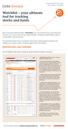 Watchlist your ultimate tool for tracking stocks and funds Have you tried Globe Investor s Watchlist? It is a tool both novice and advanced investors can use to track stocks, mutual funds, exchange-traded
Table of Contents. Part I Welcome. Part II Introduction. Part III Getting Started. Part IV The User Interface. Part V Quick Start Tutorials
 Contents I Table of Contents Part I Welcome 5 Part II Introduction 5 1 Overview... 5 2 Product... Levels 5 3 Technical... Support 6 4 Copyright... 7 Part III Getting Started 7 1 Installation... 7 2 Register...
About Mergent Online. Basic Search
 INFORMATION LITERACY @ THE PATRICK POWER LIBRARY GUIDE TO MERGENT ONLINE Mergent Online is a registered trademark of Mergent Inc., images used with permission. About Mergent Online Mergent Online is a
Factiva. User s Guide. Introduction
 Factiva User s Guide Welcome to Factiva. This user guide will show you everything you need to know to access and utilize the wealth of information available from Factiva. The Factiva program is an Internet-based
DATASTREAM CHARTING ADVANCED FEATURES
 DATASTREAM DATASTREAM CHARTING ADVANCED FEATURES Thomson Reuters Training Creating and customizing complex charts is easy with Datastream Charting. The full breadth and depth of Datastream s vast database
Table of Contents. Introduction Opening A Demo Account Overview Market Watch (Quotes Window) Charts Navigator
 Table of Contents Introduction Opening A Demo Account Overview Market Watch (Quotes Window) Charts Navigator (Folder File) Trade Terminal (Your Account Details) New Order Execution News Service Account
THOMSON REUTERS EIKON USER GUIDE
 THOMSON REUTERS EIKON For Support, please call Helpdesk 1800 800 999 or 02 685 9999 (Toll Free in Thai language) For Training, please visit https://customers.reuters.com/trainingknowledgenetwork/eikon
Outlook Email. User Guide IS TRAINING CENTER. 833 Chestnut St, Suite 600. Philadelphia, PA 19107 215-503-7500
 Outlook Email User Guide IS TRAINING CENTER 833 Chestnut St, Suite 600 Philadelphia, PA 19107 215-503-7500 This page intentionally left blank. TABLE OF CONTENTS Getting Started... 3 Opening Outlook...
NewsEdge.com User Guide
 NewsEdge.com User Guide November 2013 Table of Contents Accessing NewsEdge.com... 5 NewsEdge.com: Front Page... 6 Saved Search View... 7 Free Text Search Box... 7 Company Watchlist... 9 Weather...12 NewsEdge.com:
User Guide to the Budget Process
 User Guide to the Budget Process 2/12/2015 Contents 1. Adaptive Insights... 2 2. Browsers... 2 3. Nomenclature... 3 4. Logging into Adaptive Insights... 3 5. User Security - Roles and Levels... 4 6. What
Creating and Using Forms in SharePoint
 Creating and Using Forms in SharePoint Getting started with custom lists... 1 Creating a custom list... 1 Creating a user-friendly list name... 1 Other options for creating custom lists... 2 Building a
Module One: Getting Started... 6. Opening Outlook... 6. Setting Up Outlook for the First Time... 7. Understanding the Interface...
 2 CONTENTS Module One: Getting Started... 6 Opening Outlook... 6 Setting Up Outlook for the First Time... 7 Understanding the Interface...12 Using Backstage View...14 Viewing Your Inbox...15 Closing Outlook...17
SATURN Trader SATURN TRADER USER GUIDE: CFD
 SATURN Trader SATURN TRADER USER GUIDE: CFD Spread Co Ltd, Argyle House, Joel Street, Northwood Hills, London, HA6 1NW, United Kingdom Tel: (44) (0)1923 832 600 Fax: (44) (0)1923 845 308 E-mail: [email protected]
Stock Investment Guide Software Manual. By Churr Software. The Stock Investment Guide (manual version 0.8) ------ 1
 Stock Investment Guide Software Manual By Churr Software The Stock Investment Guide (manual version 0.8) ------ 1 This manual may not be duplicated either in whole or in part by any means without the expressed
Quick Start Guide. Highly customizable automated trading Automate your trades according to rules and models you create.
 POWER E*TRADE PRO EXCEL MANAGER Quick Start Guide We are pleased to announce the launch of Excel Manager, an exciting new feature in Power E*TRADE Pro that leverages the flexibility of Microsoft Excel
Finance Reporting. Millennium FAST. User Guide Version 4.0. Memorial University of Newfoundland. September 2013
 Millennium FAST Finance Reporting Memorial University of Newfoundland September 2013 User Guide Version 4.0 FAST Finance User Guide Page i Contents Introducing FAST Finance Reporting 4.0... 2 What is FAST
Microsoft Office System Tip Sheet
 The 2007 Microsoft Office System The 2007 Microsoft Office system is a complete set of desktop and server software that can help streamline the way you and your people do business. This latest release
SHAREPOINT 2010 FOUNDATION FOR END USERS
 SHAREPOINT 2010 FOUNDATION FOR END USERS WWP Training Limited Page i SharePoint Foundation 2010 for End Users Fundamentals of SharePoint... 6 Accessing SharePoint Foundation 2010... 6 Logging in to your
Internet Explorer 7. Getting Started The Internet Explorer Window. Tabs NEW! Working with the Tab Row. Microsoft QUICK Source
 Microsoft QUICK Source Internet Explorer 7 Getting Started The Internet Explorer Window u v w x y { Using the Command Bar The Command Bar contains shortcut buttons for Internet Explorer tools. To expand
NetXInvestor TM USER GUIDE. March 2014
 NetXInvestor TM USER GUIDE March 2014 2014 Pershing Advisor Solutions LLC. Pershing Advisor Solutions LLC, member FINRA, SIPC, is a wholly owned subsidiary of The Bank of New York Mellon Corporation (BNY
Microsoft Access 97 Keyboard Shortcuts
 CTRL+ or CTRL+Shift+ ALT+ number (where hitting key for 1 selects the leftmost option, 2 the next, and so on) ALT+0(ZERO) ALT+B ALT+ in Datasheet view and Move Mode, move the selected column to the right
Trading Contracts for Difference on margin involves a high degree of risk and may not be suitable for all investors.
 User Guide Ver 3.0 Disclaimer Trading Contracts for Difference on margin involves a high degree of risk and may not be suitable for all investors. The leverage created by trading on margin can work against
Website: http://www.metatraderglobal.com Twitter: http://twitter.com/metatraderlive/
 Website: http://www.metatraderglobal.com Twitter: http://twitter.com/metatraderlive/ About this book What is MetaTrader Global? MetaTrader Global is world s leading website portal dedicated to. We are
WEBTrader. User Guide
 WEBTrader User Guide Table of Contents Creating a Demo account How to log in Main Areas of the WebTrader Market Watch Favorites Adding Favorites Spot Panes Charts Adding New Chart Using Charts Chart Options
Getting Started with Barchart Professional
 Getting Started with Barchart Professional Last Updated: 12/20/2010 Welcome to Barchart Professional! Professional a full-featured quote, chart and analysis software application that you download to your
Microsoft Outlook 2010. Reference Guide for Lotus Notes Users
 Microsoft Outlook 2010 Reference Guide for Lotus Notes Users ContentsWelcome to Office Outlook 2010... 2 Mail... 3 Viewing Messages... 4 Working with Messages... 7 Responding to Messages... 11 Organizing
BID2WIN Workshop. Advanced Report Writing
 BID2WIN Workshop Advanced Report Writing Please Note: Please feel free to take this workbook home with you! Electronic copies of all lab documentation are available for download at http://www.bid2win.com/userconf/2011/labs/
DealBook 360. User Manual. Version 1.0. gftforex.com/ 800-465-4373 / 616-956-9273 LIVE CHAT 24/7 TOLL FREE INTERNATIONAL
 DealBook 360 User Manual Version 1.0 gftforex.com/ 800-465-4373 / 616-956-9273 LIVE CHAT 24/7 TOLL FREE INTERNATIONAL Table of Contents Welcome to the DealBook 360 User Manual... 6 Before You Use DealBook
Microsoft Project 2007 Level 2: Working with Resources and Managing a Project
 Microsoft Project 2007 Level 2: Working with Resources and Managing a Project By Robin Peers Robin Peers, 2008 ABOUT THIS CLASS In Microsoft Project 2007 Level 1: Creating Project Tasks, the focus was
mobiletws for ipad Users' Guide September 2011 2011 Interactive Brokers LLC. All rights reserved.
 mobiletws for ipad Users' Guide September 2011 2011 Interactive Brokers LLC. All rights reserved. Apple, the Apple logo, ipod, ipod touch, ipad and itunes are trademarks of Apple Inc., registered in the
Outlook Tips & Tricks. Training For Current & New Employees
 Outlook Tips & Tricks Training For Current & New Employees The workshop will help build the necessary skills needed to begin using Microsoft Outlook 2010. The participant will learn how to create e-mail
Table of Contents. Page Home.. 2. Balances & Holdings Balances & Holdings 3-4 Account Profile 5. Activity Account Activity...5
 Table of Contents Page Home.. 2 Balances & Holdings Balances & Holdings 3-4 Account Profile 5 Activity Account Activity.....5 Portfolio Portfolio 6 Realized Gains/Loss..6-7 Trading Equity Order.. 8 Trading
SAP BusinessObjects Financial Consolidation Web User Guide
 SAP BusinessObjects Financial Consolidation Document Version: 10.0 Support Package 18 2016-02-19 SAP BusinessObjects Financial Consolidation Web User Guide Content 1 General user functions....12 1.1 To
Basic Introduction. GMFX MetaTrader 4.0. Basic Introduction
 GMFX GMFX About Got Money FX Got Money FX is an Australian owned and operated foreign exchange brokerage firm. We pride ourselves in offering our clients an honest and ethical trading environment. Clients
JOOMLA 2.5 MANUAL WEBSITEDESIGN.CO.ZA
 JOOMLA 2.5 MANUAL WEBSITEDESIGN.CO.ZA All information presented in the document has been acquired from http://docs.joomla.org to assist you with your website 1 JOOMLA 2.5 MANUAL WEBSITEDESIGN.CO.ZA BACK
Ohio University Computer Services Center August, 2002 Crystal Reports Introduction Quick Reference Guide
 Open Crystal Reports From the Windows Start menu choose Programs and then Crystal Reports. Creating a Blank Report Ohio University Computer Services Center August, 2002 Crystal Reports Introduction Quick
Google Docs Basics Website: http://etc.usf.edu/te/
 Website: http://etc.usf.edu/te/ Google Docs is a free web-based office suite that allows you to store documents online so you can access them from any computer with an internet connection. With Google
A Beginners Guide Getting Started with trademonster
 A Beginners Guide Getting Started with trademonster [email protected] 1-877-598-3190 Welcome to trademonster We re glad you chose to be a part of the new era in online brokerage. The trademonster platform
Microsoft Access 2010 Part 1: Introduction to Access
 CALIFORNIA STATE UNIVERSITY, LOS ANGELES INFORMATION TECHNOLOGY SERVICES Microsoft Access 2010 Part 1: Introduction to Access Fall 2014, Version 1.2 Table of Contents Introduction...3 Starting Access...3
Microsoft Dynamics CRM 4.0 User s Guide
 Microsoft Dynamics CRM 4.0 User s Guide i Microsoft Dynamics CRM 4.0 User s Guide Copyright Information in this document, including URL and other Internet Web site references, is subject to change without
Excel 2003 Tutorial I
 This tutorial was adapted from a tutorial by see its complete version at http://www.fgcu.edu/support/office2000/excel/index.html Excel 2003 Tutorial I Spreadsheet Basics Screen Layout Title bar Menu bar
Microsoft Office 365 Outlook Web App (OWA)
 CALIFORNIA STATE UNIVERSITY, LOS ANGELES INFORMATION TECHNOLOGY SERVICES Microsoft Office 365 Outlook Web App (OWA) Spring 2013, Version 1.0 Table of Contents Introduction...3 Signing In...3 Navigation
MICROSOFT ACCESS 2003 TUTORIAL
 MICROSOFT ACCESS 2003 TUTORIAL M I C R O S O F T A C C E S S 2 0 0 3 Microsoft Access is powerful software designed for PC. It allows you to create and manage databases. A database is an organized body
GETTING STARTED ON BLOOMBERG LAUNCHPAD
 USER GUIDE A Bloomberg Professional Service Offering GETTING STARTED ON BLOOMBERG LAUNCHPAD Start your day with the most powerful and flexible desktop workspace available for financial professionals. CONTENTS
MICROSOFT OFFICE ACCESS 2007 - NEW FEATURES
 MICROSOFT OFFICE 2007 MICROSOFT OFFICE ACCESS 2007 - NEW FEATURES Exploring Access Creating and Working with Tables Finding and Filtering Data Working with Queries and Recordsets Working with Forms Working
Keep Decypha-ing! What s in it for You?
 What s in it for You? Decypha is a comprehensive financial platform offering decision-enabling intelligence on the MENA region and even beyond. It has been designed using global best practices for investment
MS Word 2007 practical notes
 MS Word 2007 practical notes Contents Opening Microsoft Word 2007 in the practical room... 4 Screen Layout... 4 The Microsoft Office Button... 4 The Ribbon... 5 Quick Access Toolbar... 5 Moving in the
Introduction to Microsoft Access 2010
 Introduction to Microsoft Access 2010 A database is a collection of information that is related. Access allows you to manage your information in one database file. Within Access there are four major objects:
MICROSOFT OFFICE OUTLOOK 2007 - LEVEL 1
 MICROSOFT OFFICE 2007 MICROSOFT OFFICE OUTLOOK 2007 - LEVEL 1 Exploring Outlook Getting Help Sending and Receiving Messages Using Outlook Messaging Features Working with Components and Office Organizing
Basic Pivot Tables. To begin your pivot table, choose Data, Pivot Table and Pivot Chart Report. 1 of 18
 Basic Pivot Tables Pivot tables summarize data in a quick and easy way. In your job, you could use pivot tables to summarize actual expenses by fund type by object or total amounts. Make sure you do not
CHAPTER 11: SALES REPORTING
 Chapter 11: Sales Reporting CHAPTER 11: SALES REPORTING Objectives Introduction The objectives are: Understand the tools you use to evaluate sales data. Use default sales productivity reports to review
NAVIGATION TIPS. Special Tabs
 rp`=j~êëü~ää=påüççä=çñ=_ìëáåéëë Academic Information Services Excel 2007 Cheat Sheet Find Excel 2003 Commands in Excel 2007 Use this handout to find where Excel 2003 commands are located in Excel 2007.
Microsoft Access Basics
 Microsoft Access Basics 2006 ipic Development Group, LLC Authored by James D Ballotti Microsoft, Access, Excel, Word, and Office are registered trademarks of the Microsoft Corporation Version 1 - Revision
Intellect Platform - The Workflow Engine Basic HelpDesk Troubleticket System - A102
 Intellect Platform - The Workflow Engine Basic HelpDesk Troubleticket System - A102 Interneer, Inc. Updated on 2/22/2012 Created by Erika Keresztyen Fahey 2 Workflow - A102 - Basic HelpDesk Ticketing System
IT Academy Lesson Plan
 10 IT Academy Lesson Plan Microsoft Sharepoint Turn potential into success Microsoft Office SharePoint 2010: Lesson Plans Introduction Preparing to teach courses on Microsoft SharePoint 2010 for the first
THOMSON REUTERS SPREADSHEET LINK USER GUIDE
 THOMSON REUTERS SPREADSHEET LINK USER GUIDE Date of issue: 13 July 2011 Legal Information Thomson Reuters 2011. All Rights Reserved. Thomson Reuters disclaims any and all liability arising from the use
Streaming Real Time Quotes Service User Guide
 Streaming Real Time Quotes Service User Guide www.easecurities.com.hk Version 5.1 Table of Content 1. Introduction... 3 2. Navigation... 4 2.1 Screen Layout 1... 4 2.2 Screen Layout 2... 5 3. Single Teletext...
Active Trader Pro. Next Generation. Moving from. 9.6 to. Active Trader Pro
 WORKSPACE Moving from Active Trader Pro 9.6 to Active Trader Pro Next Generation Active Trader Pro Next Generation is a platform that has been shaped by input from traders like you. Powerful new technologies
Copyright EPiServer AB
 Table of Contents 3 Table of Contents ABOUT THIS DOCUMENTATION 4 HOW TO ACCESS EPISERVER HELP SYSTEM 4 EXPECTED KNOWLEDGE 4 ONLINE COMMUNITY ON EPISERVER WORLD 4 COPYRIGHT NOTICE 4 EPISERVER ONLINECENTER
What Do You Think? for Instructors
 Accessing course reports and analysis views What Do You Think? for Instructors Introduction As an instructor, you can use the What Do You Think? Course Evaluation System to see student course evaluation
General Outlook Tips Last Name first or last name
 Outlook 2010 Tips 'n Tricks General Outlook Tips 1. Display Outlook Today a. Mail Click on the top-level email account address to display a customizable "Day at a Glance" view of Outlook 2. Change Outlook's
Basic File Management & Navigation
 Basic File Management & Navigation Windows Explorer 1. Open Windows Explorer. (From the "Start-Programs" menu, or "Quick Launch" shortcut, or keyboard shortcut: "Microsoft flag symbol - E") 2. Within "Explorer",
WebSphere Business Monitor V7.0 Business space dashboards
 Copyright IBM Corporation 2010 All rights reserved IBM WEBSPHERE BUSINESS MONITOR 7.0 LAB EXERCISE WebSphere Business Monitor V7.0 What this exercise is about... 2 Lab requirements... 2 What you should
User's Handbook. Viewing this document
 SDC Platinum User's Handbook Viewing this document To navigate through this document, click on the icon, or choose Bookmarks and Page from the View menu. This will display a column to the left of your
Microsoft Office PowerPoint 2013
 Microsoft Office PowerPoint 2013 Navigating the PowerPoint 2013 Environment The Ribbon: The ribbon is where you will access a majority of the commands you will use to create and develop your presentation.
This guide provides step by step instructions for using the IMF elibrary Data - My Data area. In this guide, you ll learn how to:
 This guide provides step by step instructions for using the IMF elibrary Data - area. In this guide, you ll learn how to: Access your favorite and recently used data reports. Make sure you receive email
Business Insight Report Authoring Getting Started Guide
 Business Insight Report Authoring Getting Started Guide Version: 6.6 Written by: Product Documentation, R&D Date: February 2011 ImageNow and CaptureNow are registered trademarks of Perceptive Software,
Standard & Poor s Research Insight Getting Started (Global) By Standard & Poor s
 Standard & Poor s Research Insight Getting Started (Global) By Standard & Poor s The product described in this document is furnished under a license agreement. The information contained in this document
Logi Ad Hoc Reporting Report Design Guide
 Logi Ad Hoc Reporting Report Design Guide Version 10.2 Last Updated: May 2012 Page 2 Table of Contents INTRODUCTION... 4 What is Logi Ad Hoc Reporting?... 5 CHAPTER 1 Getting Started... 6 Learning the