
HP A5820X & A5800 Switch Series Network Management and Monitoring. Configuration Guide. Abstract
|
|
|
- Cameron Campbell
- 10 years ago
- Views:
Transcription
1 HP A5820X & A5800 Switch Series Network Management and Monitoring Configuration Guide Abstract This document describes the software features for the HP A Series products and guides you through the software configuration procedures. These configuration guides also provide configuration examples to help you apply software features to different network scenarios. This documentation is intended for network planners, field technical support and servicing engineers, and network administrators working with the HP A Series products. Part number: Software version: Release 1211 Document version: 5W

2 Legal and notice information Copyright 2011 Hewlett-Packard Development Company, L.P. No part of this documentation may be reproduced or transmitted in any form or by any means without prior written consent of Hewlett-Packard Development Company, L.P. The information contained herein is subject to change without notice. HEWLETT-PACKARD COMPANY MAKES NO WARRANTY OF ANY KIND WITH REGARD TO THIS MATERIAL, INCLUDING, BUT NOT LIMITED TO, THE IMPLIED WARRANTIES OF MERCHANTABILITY AND FITNESS FOR A PARTICULAR PURPOSE. Hewlett-Packard shall not be liable for errors contained herein or for incidental or consequential damages in connection with the furnishing, performance, or use of this material. The only warranties for HP products and services are set forth in the express warranty statements accompanying such products and services. Nothing herein should be construed as constituting an additional warranty. HP shall not be liable for technical or editorial errors or omissions contained herein.

3 Contents System maintenance and debugging 1 Configuring ping 1 Configuring ping example 1 Tracert 3 Configuring tracert 4 System debugging 5 Configuring system debugging 6 Configuring ping and tracert example 7 Configuring NQA 9 NQA benefits 9 Basic NQA concepts 11 NQA probe operation procedure 12 NQA configuration task list 12 Configuring the NQA server 13 Enabling the NQA client 14 Creating an NQA test group 14 Configuring an NQA test group 14 Configuring ICMP echo tests 14 Configuring DHCP tests 15 Configuring DNS tests 16 Configuring FTP tests 17 Configuring HTTP tests 18 Configuring UDP jitter tests 19 Configuring SNMP tests 21 Configuring TCP tests 22 Configuring UDP echo tests 23 Configuring voice tests 24 Configuring DLSw tests 26 Configuring the collaboration function 27 Configuring threshold monitoring 29 Configuring the NQA statistics collection function 30 Configuring the history records saving function 31 Configuring optional parameters for an NQA test group 32 Scheduling an NQA test group 33 Displaying and maintaining NQA 34 Configuring NQA examples 34 Configuring ICMP echo test example 34 Configuring DHCP test example 36 Configuring DNS test example 37 Configuring FTP test example 38 iii

4 Configuring HTTP test example 39 Configuring UDP jitter test example 41 Configuring SNMP test example 44 Configuring TCP test example 45 Configuring UDP echo test example 46 Configuring voice test example 48 Configuring DLSw test example 51 Configuring NQA collaboration example 52 Configuring NTP 55 NTP applications 55 NTP advantages 55 How NTP works 56 NTP message format 57 NTP operation modes 58 Multiple instances of NTP 60 NTP configuration task list 61 Configuring the operation modes of NTP 61 Configuring NTP client/server mode 61 Configuring the NTP symmetric peers mode 62 Configuring NTP broadcast mode 63 Configuring NTP multicast mode 64 Configuring optional parameters of NTP 64 Specifying the source interface for NTP messages 64 Disabling an interface from receiving NTP messages 65 Configuring the maximum number of dynamic sessions allowed 65 Configuring access-control rights 66 Configuration prerequisites 66 Configuration procedure 66 Configuring NTP authentication 66 Configuration prerequisites 67 Configuration procedure 67 Displaying and maintaining NTP 68 Configuring NTP examples 69 Configuring NTP client/server mode example 69 Configuring the NTP symmetric mode example 70 Configuring NTP broadcast mode example 72 Configuring NTP multicast mode example 73 Configuring NTP client/server mode with authentication example 76 Configuring NTP broadcast mode with authentication example 77 Configuring MPLS VPN time synchronization in client/server mode example 79 Configuring MPLS VPN time synchronization in symmetric peers mode example 81 Configuring IPC 83 Enabling IPC performance statistics 84 Displaying and maintaining IPC 85 iv
5 Configuring PoE 86 Protocol specification 87 PoE configuration task list 87 Enabling PoE 88 Enabling PoE for a PoE interface 88 Detecting PDs 89 Enabling the PSE to detect nonstandard PDs 89 Configuring a PD disconnection detection mode 89 Configuring the PoE power 90 Configuring the maximum PoE interface power 90 Configuring PoE power management 90 Configuring PoE interface power management 90 Configuring the PoE monitoring function 91 Configuring PSE power monitoring 91 Monitoring PD 91 Configuring PoE interface through PoE profile 92 Configuring PoE profile 92 Applying PoE profile 92 Upgrading PSE processing software in service 93 Displaying and maintaining PoE 94 Configuring PoE example 94 Troubleshooting PoE 95 Configuring SNMP 97 SNMP mechanism 97 SNMP protocol version 97 MIB overview 98 Configuring SNMP 98 Configuring network management-specific interface index 101 Switching the format of an NM-specific ifindex 101 Configuring SNMP logging 102 Enabling SNMP logging 102 Configuring SNMP trap 103 Enabling the trap function 103 Configuring trap parameters 104 Displaying and maintaining SNMP 105 Configuring SNMPv1/SNMPv2c example 106 Configuring SNMPv3 example 107 Configuring SNMP logging example 108 Configuring RMON 110 Working mechanism 110 RMON groups 111 Configuring the RMON statistics function 112 Configuring the RMON Ethernet statistics function 113 Configuring the RMON history statistics function 113 v
6 Configuring the RMON alarm function 114 Configuration prerequisites 114 Configuration procedure 114 Displaying and maintaining RMON 115 Configuring Ethernet statistics group example 116 Configuring history group example 117 Configuring alarm group example 119 Configuring CWMP 121 CWMP network framework 121 CWMP basic functions 122 Automatic configuration file deployment 122 CPE system file management 122 CPE status and performance monitoring 122 CWMP mechanism 123 Auto-connection between the ACS and a CPE 123 Configuration parameter deployment 124 RPC methods 124 Active and standby ACS switchover 125 CWMP configuration tasks 126 Configuring the DHCP server 126 Configuring the DNS server 127 Configuring the ACS server 127 Configuring CPEs 127 Enabling CWMP 128 Configuring the ACS server 128 Configuring the ACS URL 128 Configuring the ACS username and password 128 Configuring CPE attributes 129 Configuring the CPE username and password 129 Configuring the CWMP connection interface 130 Sending Inform messages 130 Configuring the maximum number of attempts made to retry a connection 131 Configuring the close-wait timer of the CPE 131 Displaying and maintaining CWMP 132 Configuring CWMP example 132 Network requirements 132 Configuration procedure 133 Configuring cluster management 141 Roles in a cluster 141 How a cluster works 142 Cluster configuration task list 145 Configuring the management device 147 Enabling NDP globally and for specific ports 147 Configuring NDP parameters 147 vi

7 Enabling NTDP globally and for specific ports 148 Configuring NTDP parameters 148 Manually collecting topology information 149 Enabling the cluster function 149 Establishing a cluster 149 Enabling management VLAN auto-negotiation 150 Configuring communication between the management device and the member devices within a cluster151 Configuring cluster management protocol packets 151 Cluster member management 152 Configuring the member devices 153 Enabling NDP 153 Enabling NTDP 153 Manually collecting topology information 153 Enabling the cluster function 153 Deleting a member device from a cluster 153 Configuring access between the management device and its member devices 154 Adding a candidate device to a cluster 155 Configuring advanced cluster functions 155 Configuring topology management 155 Configuring interaction for a cluster 156 SNMP configuration synchronization function 157 Configuring web user accounts in batches 158 Displaying and maintaining cluster management 158 Configuring cluster management example 159 Configuring a sampler 163 Creating a sampler 163 Displaying and maintaining sampler 163 Configuring sampler examples 164 Configuring port mirroring 165 Port mirroring types 165 Implementing port mirroring 165 Configuring local port mirroring 168 Local port mirroring configuration task list 168 Creating a local mirroring group 168 Configuring mirroring ports for the local mirroring group 169 Configuring mirroring CPUs for the local mirroring group 169 Configuring the monitor port for the local mirroring group 170 Configuring layer 2 remote port mirroring 170 Layer 2 remote port mirroring configuration task list 170 Configuration prerequisites 172 Configuring a remote source mirroring group (on the source device) 172 Configuring a remote destination mirroring group (on the destination device) 174 Using the remote probe VLAN to enable local mirroring to support multiple destination ports 176 Configuring layer 3 remote port mirroring 178 vii
8 Layer 3 remote port mirroring configuration task list 178 Configuration prerequisites 179 Configuring local mirroring groups 179 Configuring mirroring ports for a local mirroring group 179 Configuring mirroring CPUs for a local mirroring group 180 Configuring the monitor port for a local mirroring group 180 Displaying and maintaining port mirroring 181 Configuring port mirroring examples 181 Configuring local port mirroring example 181 Configuring Layer 2 remote port mirroring example 182 Configuring local port mirroring with multiple monitor ports example 184 Configuring Layer 3 remote port mirroring example 186 Configuring traffic mirroring 189 Mirroring traffic to an interface 189 Mirroring traffic to the CPU 190 Applying a QoS policy 191 Displaying and maintaining traffic mirroring 192 Configuring traffic mirroring examples 192 Mirroring traffic to an interface example 192 Configuration procedure 192 Configuring NetStream 194 NetStream basic concepts 194 What is a flow 194 How NetStream works 194 NetStream key technologies 195 Flow aging 195 NetStream data export 196 NetStream export formats 197 Introduction to NetStream sampling and filtering 198 NetStream sampling 198 NetStream filtering 198 NetStream configuration task list 198 Enabling NetStream 200 Enabling NetStream on an interface 200 Configuring NetStream filtering and sampling 200 Configuring NetStream filtering 200 Configuring NetStream sampling 202 Configuring NetStream data export 202 Configuring NetStream traditional data export 202 Configuring NetStream aggregation data export 203 Configuring attributes of NetStream export data 204 Configuring NetStream export format 204 Configuring refresh rate for NetStream version 9 templates 206 Configuring NetStream flow aging 207 viii

9 Flow aging approaches 207 Configuring NetStream flow aging 207 Displaying and maintaining NetStream 208 Configuring NetStream examples 208 Configuring NetStream traditional data export example 208 Configuring NetStream aggregation data export example 209 Configuring IPv6 NetStream 211 IPv6 NetStream basic concepts 211 What is an IPv6 flow 211 How IPv6 NetStream works 211 IPv6 NetStream key technologies 212 Flow aging 212 IPv6 NetStream data export 212 IPv6 NetStream export format 213 IPv6 NetStream configuration task list 213 Enabling NetStream 214 Enabling NetStream on an interface 214 Configuring IPv6 NetStream data export 214 Configuring IPv6 NetStream traditional data export 214 Configuring IPv6 NetStream aggregation data export 215 Configuring attributes of IPv6 NetStream data export 217 Configuring IPv6 NetStream export format 217 Configuring refresh rate for IPv6 NetStream version 9 templates 217 Displaying and maintaining IPv6 NetStream 218 Configuring IPv6 NetStream examples 218 Configuring IPv6 NetStream traditional data export example 218 Configuring IPv6 NetStream aggregation data export example 219 Configuring sflow 221 sflow operation 221 Configuring sflow 222 Configuring the sflow agent and sflow collector 222 Configuring flow sampling 223 Configuring counter sampling 223 Displaying and maintaining sflow 223 Configuring sflow example 224 Troubleshooting sflow configuration 225 The remote sflow collector cannot receive sflow packets 225 Configuring information center 226 System information types 227 Eight levels of system information 227 Output destinations and channels of system information 227 Outputting system information by source module 228 Default output rules of system information 228 System information format 229 ix
10 Configuring information center 232 Information center configuration task list 232 Outputting system information to the console 233 Outputting system information to a monitor terminal 234 Outputting system information to a log host 235 Outputting system information to the trap buffer 236 Outputting system information to the log buffer 236 Outputting system information to the SNMP module 237 Outputting system information to the web interface 238 Saving system information to a log file 239 Saving security logs into the security log file 240 Configuring synchronous information output 243 Disabling a port from generating link up/down logging information 243 Displaying and maintaining information center 244 Configuring information center examples 245 Outputting log information to a Unix log host 245 Outputting log information to a Linux log host 246 Outputting log information to the console 248 Saving security logs into the security log file 249 Support and other resources 253 Contacting HP 253 Subscription service 253 Related information 253 Documents 253 Websites 253 Conventions 254 Index 256 x

11 System maintenance and debugging You can use the ping command and the tracert command to verify the current network connectivity, and use the debug command to enable debugging and to diagnose system faults based on the debugging information. Configuring ping The ping command allows you to verify whether a device with a specified address is reachable, and to examine network connectivity. The ping function is implemented through the ICMP using the following workflow: 1. The source device sends an ICMP echo request to the destination device. 2. The source device determines whether the destination is reachable based on whether it receives an ICMP echo reply; if the destination is reachable, the source device determines the link quality based on the numbers of ICMP echo requests sent and replies received, determines the distance between the source and destination based on the round trip time of ping packets. To configure the ping function: Check whether a specified address in an IP network is reachable. ping [ ip ] [ -a source-ip -c count -f - h ttl -i interface-type interface-number - m interval -n -p pad -q -r -s packet-size -t timeout -tos tos -v - vpn-instance vpn-instance-name ] * host ping ipv6 [ -a source-ipv6 -c count -m interval -s packet-size -t timeout ] * host [ -i interface-type interface-number ] Use either approach. The ping command is applicable in an IPv4 network; the ping ipv6 command is applicable in an IPv6 network. Available in any view. NOTE: For a low-speed network, set a larger value for the timeout timer indicated by the -t parameter in the command when configuring the ping command. Only the directly connected segment address can be pinged if the outgoing interface is specified with the -i argument For more information about the ping lsp command, see MPLS basics commands in the MPLS Command Reference. Configuring ping example Network requirements As shown in Figure 1, check whether Device A and Device C can reach each other. If they can reach each other, get the detailed information of routes from Device A to Device C. 1

12 Figure 1 Ping network diagram Configuration procedure # Use the ping command to display whether Device A and Device C can reach each other. <DeviceA> ping PING : 56 data bytes, press CTRL_C to break Reply from : bytes=56 Sequence=1 ttl=254 time=205 ms Reply from : bytes=56 Sequence=2 ttl=254 time=1 ms Reply from : bytes=56 Sequence=3 ttl=254 time=1 ms Reply from : bytes=56 Sequence=4 ttl=254 time=1 ms Reply from : bytes=56 Sequence=5 ttl=254 time=1 ms ping statistics packet(s) transmitted 5 packet(s) received 0.00% packet loss round-trip min/avg/max = 1/41/205 ms # Get the detailed information of routes from Device A to Device C. <DeviceA> ping -r PING : 56 data bytes, press CTRL_C to break Reply from : bytes=56 Sequence=1 ttl=254 time=53 ms Record Route: Reply from : bytes=56 Sequence=2 ttl=254 time=1 ms Record Route: Reply from : bytes=56 Sequence=3 ttl=254 time=1 ms Record Route:

13 Tracert Reply from : bytes=56 Sequence=4 ttl=254 time=1 ms Record Route: Reply from : bytes=56 Sequence=5 ttl=254 time=1 ms Record Route: ping statistics packet(s) transmitted 5 packet(s) received 0.00% packet loss round-trip min/avg/max = 1/11/53 ms The principle of ping r is as shown in Figure The source (Device A) sends an ICMP echo request with the RR option being empty to the destination (Device C). 2. The intermediate device (Device B) adds the IP address ( ) of its outbound interface to the RR option of the ICMP echo request and forwards the packet. 3. Upon receiving the request, the destination device copies the RR option in the request and adds the IP address ( ) of its outbound interface to the RR option. Then the destination device sends an ICMP echo reply. 4. The intermediate device adds the IP address ( ) of its outbound interface to the RR option in the ICMP echo reply, and then forwards the reply. 5. Upon receiving the reply, the source device adds the IP address ( ) of its inbound interface to the RR option. Finally, get the detailed information of routes from Device A to Device C: <-> { ; } <-> By using the tracert command, you can trace the Layer 3 devices involved in delivering an IP packet from source to destination to check whether a network is available. This is useful for identification of failed nodes in the event of network failure. 3
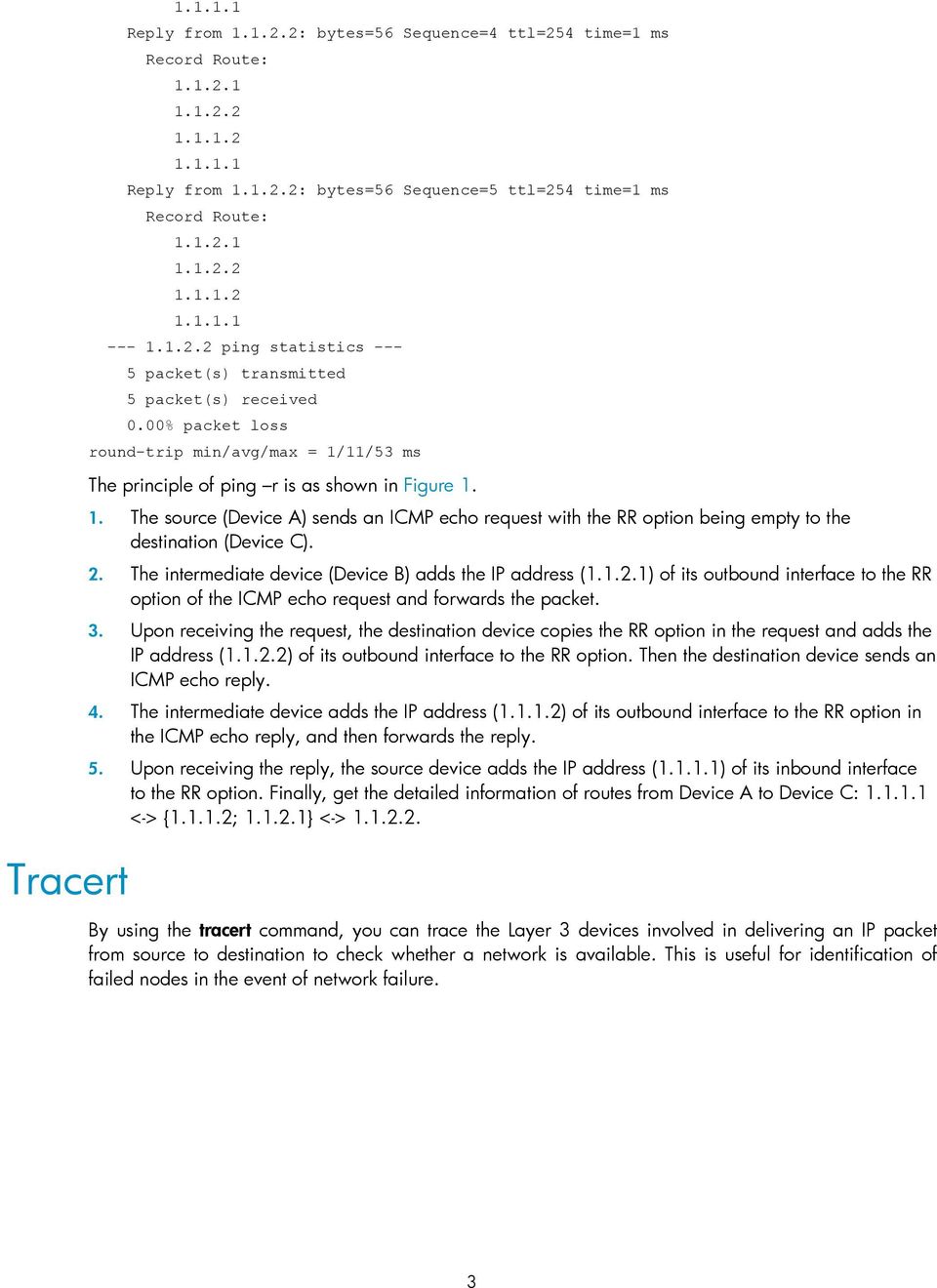
14 Figure 2 Tracert diagram The tracert function is implemented through ICMP, as shown in Figure 2: 1. The source (Device A) sends a packet with a TTL value of 1 to the destination (Device D). The UDP port of the packet is a port number that will not be used by any application of the destination. 2. The first hop (Device B) (the Layer 3 device that first receives the packet) responds by sending a TTLexpired ICMP error message to the source, with its IP address encapsulated. In this way, the source device can get the address ( ) of the first Layer 3 device. 3. The source device sends a packet with a TTL value of 2 to the destination device. 4. The second hop (Device C) responds with a TTL-expired ICMP error message, which gives the source device the address ( ) of the second Layer 3 device. 5. The process continues until the ultimate destination device is reached. No application of the destination uses this UDP port. The destination replies a port unreachable ICMP error message with the destination IP address When the source device receives the port unreachable ICMP error message, it knows that the packet has reached the destination, and it can get the addresses of all Layer 3 devices involved to get to the destination device ( , , ). Configuring tracert Configuration prerequisites Before you configure tracert, complete the following tasks: Enable sending of ICMP timeout packets on the intermediate device (the device between the source and destination devices). If the intermediate device is an HP device, execute the ip ttl-expires enable command on the device. For more information about this command, see IP performance optimization commands in the Layer 3 - IP Services Command Reference. Enable sending of ICMP destination unreachable packets on the destination device. If the destination device is an HP device, execute the ip unreachables enable command. For more information about this command, see IP performance optimization commands in the Layer 3 - IP Services Command Reference. 4

15 Tracert configuration To configure tracert: 1. Enter system view. system-view 2. Display the routes from source to destination. tracert [ -a source-ip -f first-ttl -m max-ttl -p port -q packet-number - vpn-instance vpn-instance-name -w timeout ] * host tracert ipv6 [ -f first-ttl -m max-ttl -p port -q packet-number -w timeout ] * host Use either approach. The tracert command is applicable in an IPv4 network; the tracert ipv6 command is applicable in an IPv6 network. Available in any view. NOTE: For more information about the tracert lsp command, see MPLS basics commands in the MPLS Command Reference. System debugging The device provides various debugging functions. For the majority of protocols and features supported, the system provides debugging information to help users diagnose errors. The following switches control the display of debugging information: Protocol debugging switch, which controls protocol-specific debugging information. Screen output switch, which controls whether to display the debugging information on a certain screen. As Figure 3 illustrates, assume the device can provide debugging for the three modules 1, 2, and 3. The debugging information can only be output on a terminal when both the protocol debugging switch and the screen output switch are turned on. 5
![] * host Use either approach. The tracert command is applicable in an IPv4 network; the tracert ipv6 command is applicable in an IPv6 network. Available in any view.](/docs-images/40/3310993/images/page_15.jpg "NOTE: For more information about the tracert lsp command, see MPLS basics commands in the MPLS Command Reference. System debugging The device provides various debugging functions.")
16 Figure 3 The relationship between the protocol and screen output switch 1 3 Configuring system debugging Output of the debugging information may reduce system efficiency. Administrators usually use the debugging commands to diagnose network failure. After completing the debugging, disable the corresponding debugging function, or use the undo debugging all command to disable all debugging functions. Output of debugging information depends on the configurations of the information center and the debugging commands of each protocol and functional module. Displaying the debugging information on a terminal including console or VTY is a common way to output debugging information. You can also output debugging information to other destinations. For more information, see Information center commands in the Network Management and Monitoring Command Reference. By default, you can output debugging information to a terminal by following these steps: 3. Enable the terminal monitoring of system information. 4. Enable the terminal display of debugging information. 5. Enable debugging for a specified module. terminal monitor terminal debugging debugging { all [ timeout time ] module-name [ option ] } The terminal monitoring on the console is enabled by default and that on the monitoring terminal is disabled by default. Available in user view. Disabled by default. Available in user view. Disabled by default. Available in user view. 6

17 6. Display the enabled debugging functions. display debugging [ interface interface-type interface-number ] [ module-name ] [ { begin exclude include } regularexpression ] Available in any view. NOTE: To display the detailed debugging information on the terminal, configure the debugging, terminal debugging and terminal monitor commands. For more information about the terminal debugging and terminal monitor commands, see Information center commands in the Network Management and Monitoring Command Reference. Configuring ping and tracert example Network requirements As shown in Figure 4, Device A failed to Telnet Device C. Determine whether Device A and Device C can reach each other. If they cannot reach each other, locate the failed nodes in the network. Figure 4 Ping and tracert network diagram Configuration procedure # Use the ping command to display whether Device A and Device C can reach each other. <DeviceA> ping PING : 56 data bytes, press CTRL_C to break Request time out Request time out Request time out Request time out Request time out ping statistics packet(s) transmitted 0 packet(s) received % packet loss # Device A and Device C cannot reach each other. Use the tracert command to determine failed nodes. <DeviceA> system-view [DeviceA] ip ttl-expires enable [DeviceA] ip unreachables enable [DeviceA] tracert traceroute to ( ) 30 hops max,40 bytes packet, press CTRL_C to bre ak ms 10 ms 20 ms 7
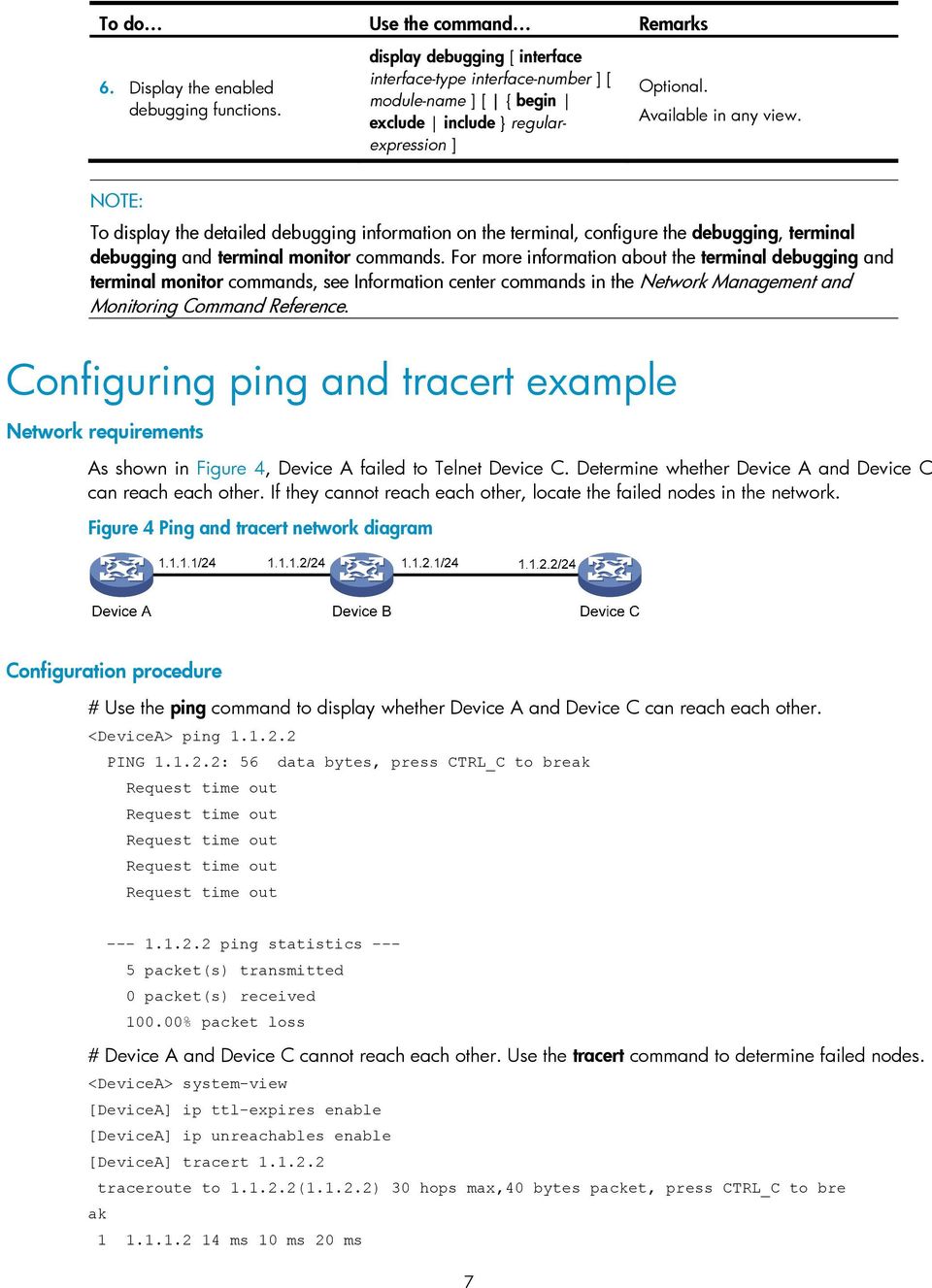
18 2 * * * 3 * * * 4 * * * 5 <DeviceA> The output shows that Device A and Device C cannot reach other, Device A and Device B can reach each other, and an error occurred on the connection between Device B and Device C. Use the debugging ip icmp command to enable ICMP debugging on Device A and Device C to check whether the devices send or receive the specified ICMP packets, or use the display ip routing-table command to display whether Device A and Device C can reach each other. 8

19 Configuring NQA NQA can perform various types of tests and collect network performance and service quality parameters such as delay jitter, time for establishing a TCP connection, time for establishing an FTP connection, and file transfer rate. With the NQA test results, you can diagnose and locate network faults, know network performance in time and take proper actions. NQA benefits Supporting multiple test types Ping can only use the ICMP to test the reachability of the destination host and the round-trip time. As an enhancement to Ping, NQA provides more test types and functions. NQA supports 11 test types: ICMP echo, DHCP, DNS, FTP, HTTP, UDP jitter, SNMP, TCP, UDP echo, voice and DLSw. NQA enables the client to send probe packets of different test types to detect the protocol availability and response time of the peer. The test result helps you understand network performance. Supporting the collaboration function Collaboration is implemented by establishing reaction entries to monitor the detection results of NQA probes. If the number of consecutive probe failures reaches a limit, NQA informs the track module of the detection result, and the track module triggers other application modules to take predefined. Figure 5 Implement collaboration The collaboration comprises the following parts: the application modules, the track module, and the detection modules. A detection module monitors specific objects, such as the link status, and network performance, and informs the track module of detection results. Upon the detection results, the track module changes the status of the track entry and informs the associated application module. The track module works between the application modules and the detection modules. It hides the differences among detection modules from application modules. The application module takes actions when the tracked object changes its state. The following describes how a static route is monitored through collaboration. 1. NQA monitors the reachability to When becomes unreachable, NQA notifies it to the track module. 9
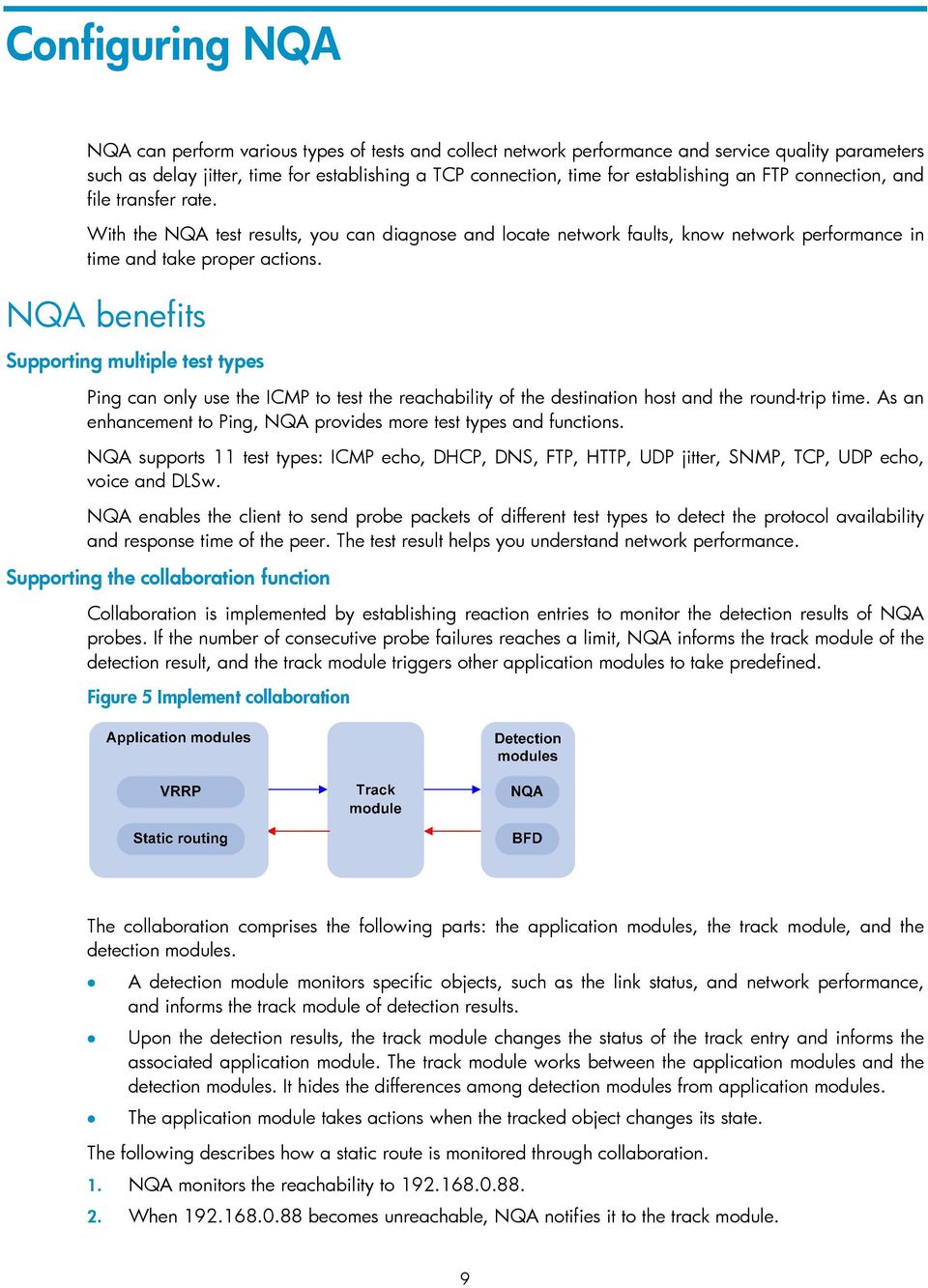
20 3. The track module notifies the state change to the static routing module 4. The static routing module sets the static route as invalid. NOTE: For more information about the collaboration and the track module, see High Availability Configuration Guide. Supporting threshold monitoring NQA supports threshold monitoring for performance parameters such as average delay jitter and packet round-trip time. The performance parameters to be monitored are monitored elements. NQA monitors threshold violations for a monitored element, and reacts to certain measurement conditions, for example, sending trap messages to the network management server. This helps network administrators understand the network service quality and network performance. 1. Monitored elements Table 1 describes the monitored elements and the NQA test types in which the elements can be monitored. Table 1 Monitored elements and NQA test types Monitored elements Probe duration Count of probe failures Packet round-trip time Count of discarded packets One-way delay jitter (source-to-destination and destination-tosource) One-way delay (source-to-destination and destination-to-source) ICPIF (see Configuring voice tests ) MOS (see Configuring voice tests ) Test type supported Tests excluding UDP jitter test and voice test Tests excluding UDP jitter test and voice test UDP jitter test and voice test UDP jitter test and voice test UDP jitter test and voice test UDP jitter test and voice test Voice test Voice test 2. Threshold types The following threshold types are supported: average Monitors the average value of monitored data in a test. If the average value in a test exceeds the upper threshold or goes below the lower threshold, a threshold violation occurs. For example, you can monitor the average probe duration in a test. accumulate Monitors total number of times the monitored data violates the threshold in a test. If the total number of times reaches or exceeds a specified value, a threshold violation occurs. consecutive Monitors the number of consecutive times the monitored data violates the threshold since the test group starts. If the monitored data violates the threshold consecutively for a specified number of times, a threshold violation occurs. 10

21 NOTE: The counting for the average or accumulate threshold type is performed per test, but that for the consecutive type is performed since the test group is started. 3. Triggered actions The following actions may be triggered: none NQA only records events for terminal display; it does not send trap information to the network management server. trap-only NQA records events and sends trap messages to the network management server. NOTE: NQA DNS tests do not support the action of sending trap messages. The action to be triggered in DNS tests can only be the default one, none. 4. Reaction entry In a reaction entry, a monitored element, a threshold type, and the action to be triggered are configured to implement threshold monitoring. The state of a reaction entry can be invalid, over-threshold, or below-threshold. Before an NQA test group starts, the reaction entry is in the state of invalid. After each test or probe, threshold violations are counted according to the threshold type and range configured in the entry. If the threshold is violated consecutively or accumulatively for a specified number of times, the state of the entry is set to overthreshold; otherwise, the state of the entry is set to below-threshold. If the action to be triggered is configured as trap-only for a reaction entry, when the state of the entry changes, a trap message is generated and sent to the network management server. Basic NQA concepts Test group Test and probe An NQA test group specifies test parameters including the test type, destination address, and destination port. Each test group is uniquely identified by an administrator name and operation tag. You can configure and schedule multiple NQA test groups to test different objects. After the NQA test group starts, tests are performed at a specified interval. During each test, a specified number of probe operations are performed. Both the test interval and the number of probe operations per test are configurable. But only one probe operation is performed during one voice test. Probe operations vary with NQA test types. During a TCP or DLSw test, one probe operation means setting up one connection. During a UDP jitter or a voice test, one probe operation means continuously sending a specified number of probe packets. The number of probe packets is configurable. During an FTP, HTTP, DHCP or DNS test, one probe operation means uploading or downloading a file, obtaining a web page, obtaining an IP address through DHCP, or translating a domain name to an IP address. During an ICMP echo or UDP echo test, one probe operation means sending an ICMP echo request or a UDP packet. 11
22 During an SNMP test, one probe operation means sending one SNMPv1 packet, one SNMPv2C packet, and one SNMPv3 packet. NQA client and server A device with NQA test groups configured is an NQA client and the NQA client initiates NQA tests. An NQA server makes responses to probe packets destined to the specified destination address and port number. Figure 6 Relationship between the NQA client and NQA server Not all test types require the NQA server. Only the TCP, UDP echo, UDP jitter, or voice test requires both the NQA client and server, as shown in Figure 6. You can create multiple TCP or UDP listening services on the NQA server. Each listens to a specific destination address and port number. Make sure the destination IP address and port number for a listening service on the server are the same as those configured for the test group on the NQA client. Each listening service must be unique on the NQA server. NQA probe operation procedure An NQA probe operation involves the following steps: 1. The NQA client constructs probe packets for the specified type of NQA test, and sends them to the peer device. 2. Upon receiving the probe packets, the peer sends back responses with timestamps. 3. The NQA client computes the network performance and service quality parameters, such as the packet loss rate and round-trip time based on the received responses. NQA configuration task list To enable the NQA server: Task Configuring the NQA server Remarks Required for TCP, UDP echo, UDP jitter and voice tests To perform NQA tests successfully, make the following configurations on the NQA client: 1. Enable the NQA client. 2. Create a test group and configure test parameters. The test parameters may vary with test types. 3. Schedule the NQA test group. To configure NQA client: Task Remarks Enabling the NQA client Required Creating an NQA test group Required 12
23 Task Remarks Configuring an NQA test group Configuring ICMP echo tests Configuring DHCP tests Configuring DNS tests Configuring FTP tests Configuring HTTP tests Configuring UDP jitter tests Configuring SNMP tests Configuring TCP tests Configuring UDP echo tests Configuring voice tests Configuring DLSw tests Required Use any of the approaches Configuring the collaboration function Configuring Threshold Monitoring Configuring the NQA statistics collection function Configuring the history records saving function Configuring optional parameters for an NQA test group Scheduling an NQA test group Optional Optional Optional Optional Optional Required Configuring the NQA server To perform TCP, UDP echo, UDP jitter, or voice tests, configure the NQA server on the peer device. The NQA server responses to the probe packets sent from the NQA client by listening to the specified destination address and port number. To configure the NQA server: 1. Enter system view. system-view 2. Enable the NQA server. nqa server enable Disabled by default. 3. Configure the listening service. nqa server { tcp-connect udpecho } ip-address port-number The destination IP address and port number must be the same as those configured on the NQA client. A listening service must be unique on the NQA server. 13
24 Enabling the NQA client Configurations on the NQA client only take effect when the NQA client is enabled. To enable the NQA client: 1. Enter system view. system-view 2. Enable the NQA client. nqa agent enable Enabled by default. Creating an NQA test group Create an NQA test group before you configure NQA tests. 1. Enter system view. system-view 2. Create an NQA test group and enter the NQA test group view. nqa entry admin-name operationtag In the NQA test group view, you can specify the test type. You can use the nqa entry command to enter the test type view of an NQA test group with test type configured. Configuring an NQA test group Configuring ICMP echo tests ICMP echo tests of an NQA test group are used to test reachability of a destination host according to the ICMP echo response information. An ICMP echo test has the same function as the ping command but provides more output information. In addition, you can specify the next hop for ICMP echo tests. ICMP echo tests are used to locate connectivity problems in a network. To configure ICMP echo tests: 1. Enter system view. system-view 2. Enter NQA test group view. 3. Configure the test type as ICMP echo and enter test type view. 4. Configure the destination address of ICMP echo requests. nqa entry admin-name operationtag type icmp-echo destination ip ip-address By default, no destination IP address is configured. 14
25 5. Configure the size of the data field in each ICMP echo request. data-size size 100 bytes by default. 6. Configure the string to be filled in the data field of each ICMP echo request. 7. Apply ICMP echo tests to the specified VPN. 8. Configure the source interface for ICMP echo requests. The requests take the IP address of the source interface as their source IP address when no source IP address is specified. 9. Configure the source IP address of ICMP echo requests. 10. Configure the next hop IP address of ICMP echo requests. 11. Configure optional parameters. data-fill string vpn-instance vpn-instance-name source interface interface-type interface-number source ip ip-address next-hop ip-address See Configuring optional parameters for an NQA test group By default, the string is the hexadecimal number By default, ICMP echo tests apply to the public network. By default, no source interface is configured for probe packets. The specified source interface must be up; otherwise, no ICMP echo requests can be sent out. Optional By default, no source IP address is configured. If you configure both the source ip command and the source interface command, the source ip command takes effect. The source IP address must be the IP address of a local interface. The local interface must be up; otherwise, no ICMP echo requests can be sent out. By default, no next hop IP address is configured. NOTE: NQA ICMP echo tests are not supported in IPv6 networks. To test the reachability of an IPv6 address, use the ping ipv6 command. For more information about the command, see System maintenance and debugging. Configuring DHCP tests DHCP tests of an NQA test group are used to test if a DHCP server is on the network, and how long it takes for the DHCP server to respond to a client request and assign an IP address to the client. 15
26 Configuration prerequisites Before you start DHCP tests, configure the DHCP server. If the NQA (DHCP client) and the DHCP server are not in the same network segment, configure a DHCP relay. For the configuration of DHCP server and DHCP relay, see Layer 3 IP Services Configuration Guide. Configuring DHCP tests To configure DHCP tests: 1. Enter system view. system-view 2. Enter NQA test group view. 3. Configure the test type as DHCP and enter test type view. 4. Specify an interface to perform DHCP tests. 5. Configure optional parameters. nqa entry admin-name operationtag type dhcp operation interface interface-type interface-number See Configuring optional parameters for an NQA test group By default, no interface is configured to perform DHCP tests. The specified interface must be up; otherwise, no probe packets can be sent out. NOTE: The interface that performs DHCP tests does not change its IP address. A DHCP test only simulates address allocation in DHCP. When a DHCP test completes, the NQA client sends a DHCP-RELEASE packet to release the obtained IP address. Configuring DNS tests DNS tests of an NQA test group are used to test whether the NQA client can translate a domain name into an IP address through a DNS server and test the time required for resolution. Configuration prerequisites Before you start DNS tests, configure the mapping between a domain name and an IP address on a DNS server. Configuring DNS tests To configure DNS tests: 1. Enter system view. system-view 2. Enter NQA test group view. nqa entry admin-name operation-tag 16
27 3. Configure the test type as DNS and enter test type view. 4. Specify the IP address of the DNS server as the destination address of DNS packets. type dns destination ip ip-address By default, no destination IP address is configured. 5. Configure the domain name that needs to be translated. 6. Configure optional parameters. resolve-target domain-name See Configuring optional parameters for an NQA test group By default, no domain name is configured. NOTE: A DNS test simulates the domain name resolution. It does not save the mapping between the domain name and the IP address. Configuring FTP tests FTP tests of an NQA test group are used to test the connection between the NQA client and an FTP server and the time necessary for the FTP client to transfer a file to or download a file from the FTP server. Configuration prerequisites Before you start FTP tests, configure the FTP server. For example, configure the username and password that are used to log in to the FTP server. For more information about FTP server configuration, see Fundamentals Configuration Guide. Configuring FTP tests To configure FTP tests: 1. Enter system view. system-view 2. Enter NQA test group view. 3. Configure the test type as FTP and enter test type view. 4. Specify the IP address of the FTP server as the destination address of FTP request packets. nqa entry admin-name operationtag type ftp destination ip ip-address By default, no destination IP address is configured. 17
28 5. Configure the source IP address of FTP request packets. source ip ip-address By default, no source IP address is specified. The source IP address must be the IP address of a local interface. The local interface must be up; otherwise, no FTP requests can be sent out. 6. Configure the operation type. operation { get put } 7. Configure a login username. username name 8. Configure a login password. password password 9. Specify a file to be transferred between the FTP server and the FTP client. filename file-name By default, the operation type for the FTP is get, which means obtaining files from the FTP server. By default, no login username is configured. By default, no login password is configured. By default, no file is specified. 10. Set the data transmission mode for FTP tests. 11. Configure optional parameters. mode { active passive } See Configuring optional parameters for an NQA test group active by default. NOTE: When you execute the put command, a file file-name with fixed size and content is created on the FTP server. When you execute the get command, the device does not save the files obtained from the FTP server. When you download a file that does not exist on the FTP server, FTP tests fail. When you execute the get command, use a file with a small size. A big file may result in test failure due to timeout, or may affect other services for occupying too much network bandwidth. Configuring HTTP tests HTTP tests of an NQA test group are used to test the connection between the NQA client and an HTTP server and the time required to obtain data from the HTTP server. HTTP tests enable you to detect the connectivity and performance of the HTTP server. Configuration prerequisites Before you start HTTP tests, configure the HTTP server. 18
29 Configuring HTTP tests To configure HTTP tests: 1. Enter system view. system-view 2. Enter NQA test group view. 3. Configure the test type as HTTP and enter test type view. 4. Configure the IP address of the HTTP server as the destination address of HTTP request packets. 5. Configure the source IP address of request packets. nqa entry admin-name operationtag type http destination ip ip-address source ip ip-address By default, no destination IP address is configured. By default, no source IP address is specified. The source IP address must be the IP address of a local interface. The local interface must be up; otherwise, no probe packets can be sent out. 6. Configure the operation type. operation { get post } 7. Configure the website that an HTTP test visits. url url By default, the operation type for the HTTP is get, which means obtaining data from the HTTP server. 8. Configure the HTTP version used in HTTP tests. 9. Configure optional parameters. http-version v1.0 See Configuring optional parameters for an NQA test group By default, HTTP 1.0 is used. NOTE: The TCP port must be port 80 on the HTTP server for NQA HTTP tests. Configuring UDP jitter tests Do not perform NQA UDP jitter tests on known ports, ports from 1 to Otherwise, UDP jitter tests might fail or the corresponding services of this port might be unavailable. Real-time services such as voice and video have high requirements on delay jitters. UDP jitter tests of an NQA test group obtain uni/bi-directional delay jitters. The test results help you verify whether a network can carry real-time services. A UDP jitter test takes the following procedure: 1. The source sends packets at regular intervals to the destination port. 19
30 2. The destination affixes a time stamp to each packet that it receives, and then sends it back to the source. 3. Upon receiving the response, the source calculates the delay jitter, which reflects network performance. Delay refers to the amount of time it takes a packet to be transmitted from source to destination or from destination to source. Delay jitter is the delay variation over time. Configuration prerequisites UDP jitter tests require cooperation between the NQA server and the NQA client. Before you start UDP jitter tests, configure UDP listening services on the NQA server. For more information about UDP listening service configuration, see Configuring the NQA server. Configuring UDP jitter tests To configure UDP jitter tests: 1. Enter system view. system-view 2. Enter NQA test group view. 3. Configure the test type as UDP jitter and enter test type view. 4. Configure the destination address of UDP packets. 5. Configure the destination port of UDP packets. 6. Specify the source port number of UDP packets. 7. Configure the size of the data field in each UDP packet. 8. Configure the string to be filled in the data field of each probe packet. 9. Configure the number of probe packets to be sent during each UDP jitter probe operation. nqa entry admin-name operationtag type udp-jitter destination ip ip-address destination port port-number source port port-number data-size size data-fill string probe packet-number packet-number By default, no destination IP address is configured. The destination IP address must be the same as that of the listening service on the NQA server. By default, no destination port number is configured. The destination port must be the same as that of the listening service on the NQA server. By default, no source port number is specified. 100 bytes by default. By default, the string is the hexadecimal number by default. 20
31 10. Configure the interval for sending probe packets during each UDP jitter probe operation. 11. Configure the interval the NQA client must wait for a response from the server before it regards the response is timed out. probe packet-interval packetinterval probe packet-timeout packettimeout 20 milliseconds by default milliseconds by default. 12. Configure the source IP address for UDP jitter packets. 13. Configure optional parameters. source ip ip-address See Configuring optional parameters for an NQA test group By default, no source IP address is specified. The source IP address must be the IP address of a local interface. The local interface must be up; otherwise, no probe packets can be sent out. NOTE: The probe count command specifies the number of probe operations during one UDP jitter test. The probe packet-number command specifies the number of probe packets sent in each UDP jitter probe operation. Configuring SNMP tests SNMP tests of an NQA test group are used to test the time the NQA client takes to send an SNMP packet to the SNMP agent and receive a response. Configuration prerequisites Before you start SNMP tests, enable the SNMP agent function on the device that serves as an SNMP agent. For more information about SNMP agent configuration, see Configuring SNMP. Configuring SNMP tests To configure SNMP tests: 1. Enter system view. system-view 2. Enter NQA test group view. 3. Configure the test type as SNMP and enter test type view. nqa entry admin-name operationtag type snmp 21
32 4. Configure the destination address of SNMP packets. 5. Specify the source port of SNMP packets. 6. Configure the source IP address of SNMP packets. 7. Configure optional parameters. destination ip ip-address source port port-number source ip ip-address See Configuring optional parameters for an NQA test group By default, no destination IP address is configured. By default, no source port number is specified. By default, no source IP address is specified. The source IP address must be the IP address of a local interface. The local interface must be up; otherwise, no probe packets can be sent out. Configuring TCP tests TCP tests of an NQA test group are used to test the TCP connection between the NQA client and a port on the NQA server and the time for setting up a connection. The test result helps you understand the availability and performance of the services provided by the port on the server. Configuration prerequisites TCP tests require cooperation between the NQA server and the NQA client. Before you start TCP tests, configure a TCP listening service on the NQA server. For more information about the TCP listening service configuration, see Configuring the NQA server. Configuring TCP tests To configure TCP tests: 1. Enter system view. system-view 2. Enter NQA test group view. 3. Configure the test type as TCP and enter test type view. 4. Configure the destination address of TCP probe packets. nqa entry admin-name operationtag type tcp destination ip ip-address By default, no destination IP address is configured. The destination address must be the same as the IP address of the listening service configured on the NQA server. 22
33 5. Configure the destination port of TCP probe packets. 6. Configure the source IP address of TCP probe packets. 7. Configure optional parameters. destination port port-number source ip ip-address See Configuring optional parameters for an NQA test group By default, no destination port number is configured. The destination port number must be the same as that of the listening service on the NQA server. By default, no source IP address is specified. The source IP address must be the IP address of a local interface. The local interface must be up; otherwise, no probe packets can be sent out. Configuring UDP echo tests UDP echo tests of an NQA test group tests the connectivity and round-trip time of a UDP packet from the client to the specified UDP port on the NQA server. Configuration prerequisites UDP echo tests require cooperation between the NQA server and the NQA client. Before you start UDP echo tests, configure a UDP listening service on the NQA server. For more information about the UDP listening service configuration, see Configuring the NQA server. Configuring UDP echo tests To configure UDP echo tests: 1. Enter system view. system-view 2. Enter NQA test group view. 3. Configure the test type as UDP echo and enter test type view. 4. Configure the destination address of UDP packets. nqa entry admin-name operationtag type udp-echo destination ip ip-address By default, no destination IP address is configured. The destination address must be the same as the IP address of the listening service configured on the NQA server. 23
34 5. Configure the destination port of UDP packets. 6. Configure the size of the data field in each UDP packet. 7. Configure the string to be filled in the data field of each UDP packet. 8. Specify the source port of UDP packets. 9. Configure the source IP address of UDP packets. 10. Configure optional parameters. destination port port-number data-size size data-fill string source port port-number source ip ip-address See Configuring optional parameters for an NQA test group By default, no destination port number is configured. The destination port number must be the same as that of the listening service on the NQA server. 100 bytes by default. By default, the string is the hexadecimal number By default, no source port number is specified. By default, no source IP address is specified. The source IP address must be that of an interface on the device and the interface must be up; otherwise, no probe packets can be sent out. Configuring voice tests Voice tests of an NQA test group are used to test VoIP network status, and collect VoIP network parameters so that users can adjust the network. NOTE: Do not perform voice tests on known ports, ports from 1 to Otherwise, the NQA test might fail or the corresponding services of these ports might be unavailable. A voice test takes the following procedure: 1. The source (NQA client) sends voice packets of G.711 A-law, G.711 μ-law or G.729 A-law codec type at regular intervals to the destination (NQA server). 2. The destination affixes a time stamp to each voice packet that it receives and then sends it back to the source. 3. Upon receiving the packet, the source calculates results, such as the delay jitter and one-way delay based on the packet time stamps. The statistics reflect network performance. Voice test result also includes the following parameters that reflect VoIP network performance: 24
35 ICPIF Measures impairment to voice quality in a VoIP network. It is decided by packet loss and delay. A higher value represents a lower service quality. MOS Value can be evaluated by using the ICPIF value, ranging from 1 to 5. A higher value represents a higher quality of a VoIP network. The evaluation of voice quality depends on users tolerance to voice quality, which should be taken into consideration. For users with higher tolerance to voice quality, use the advantage-factor command to configure the advantage factor. When the system calculates the ICPIF value, this advantage factor is subtracted to modify ICPIF and MOS values and both the objective and subjective factors are considered when you evaluate the voice quality. Configuration prerequisites Voice tests require cooperation between the NQA server and the NQA client. Before you start voice tests, configure a UDP listening service on the NQA server. For more information about UDP listening service configuration, see Configuring the NQA server. Configuring voice tests To configure voice tests: 1. Enter system view. system-view 2. Enter NQA test group view. 3. Configure the test type as voice and enter test type view. 4. Configure the destination address of voice probe packets. 5. Configure the destination port of voice probe packets. 6. Configure the codec type. 7. Configure the advantage factor for calculating MOS and ICPIF values. nqa entry admin-name operationtag type voice destination ip ip-address destination port port-number codec-type { g711a g711u g729a } advantage-factor factor By default, no destination IP address is configured for a test operation. The destination IP address must be the same as that of the listening service on the NQA server. By default, no destination port number is configured. The destination port must be the same as that of the listening service on the NQA server. By default, the codec type is G.711 A-law. By default, the advantage factor is 0. 25
36 8. Specify the source IP address of probe packets. 9. Specify the source port number of probe packets. 10. Configure the size of the data field in each probe packet. 11. Configure the string to be filled in the data field of each probe packet. 12. Configure the number of probe packets to be sent during each voice probe operation. 13. Configure the interval for sending probe packets during each voice probe operation. 14. Configure the interval the NQA client must wait for a response from the server before it regards the response times out. 15. Configure optional parameters. source ip ip-address source port port-number data-size size data-fill string probe packet-number packet-number probe packet-interval packetinterval probe packet-timeout packettimeout See Configuring optional parameters for an NQA test group" By default, no source IP address is specified. The source IP address must be the IP address of a local interface. The local interface must be up; otherwise, no probe packets can be sent out. By default, no source port number is specified. By default, the probe packet size depends on the codec type. The default packet size is 172 bytes for G.711A-law and G.711 μ-law codec type, and is 32 bytes for G.729 A-law codec type. Optional By default, the string is the hexadecimal number by default. 20 milliseconds by default milliseconds by default. NOTE: Only one probe operation is performed in one voice test. Configuring DLSw tests DLSw tests of an NQA test group are used to test the response time of a DLSw device. Configuration prerequisites Before you start DLSw tests, enable the DLSw function on the peer device. 26
37 Configuring a DLSw test To configure DLSw tests: 1. Enter system view. system-view 2. Enter NQA test group view. 3. Configure the test type as DLSw and enter test type view. 4. Configure the destination address of probe packets. 5. Configure the source IP address of probe packets. 6. Configure optional parameters. nqa entry admin-name operationtag type dlsw destination ip ip-address source ip ip-address See Configuring optional parameters for an NQA test group By default, no destination IP address is configured. By default, no source IP address is specified. The source IP address must be the IP address of a local interface. The local interface must be up; otherwise, no probe packets can be sent out. Configuring the collaboration function Collaboration is implemented by establishing reaction entries to monitor the detection results of a test group. If the number of consecutive probe failures reaches the threshold, the configured action is triggered. To configure the collaboration function: 1. Enter system view. system-view 2. Enter NQA test group view. 3. Enter test type view of the test group. 4. Configure a reaction entry. nqa entry admin-name operationtag type { dhcp dlsw dns ftp http icmp-echo snmp tcp udp-echo } reaction item-number checkedelement probe-fail threshold-type consecutive consecutiveoccurrences action-type triggeronly The collaboration function is not supported in UDP jitter and voice tests. Not created by default. You cannot modify the content of an existing reaction entry. 5. Exit to system view. quit 27
38 6. Configure a track entry and associate it with the reaction entry of the NQA test group. track entry-number nqa entry admin-name operation-tag reaction item-number Not created by default. 28
39 Configuring threshold monitoring Configuration prerequisites Before you configure threshold monitoring, complete the following tasks: Configure the destination address of the trap message by using the snmp-agent target-host command. For more information about the snmp-agent target-host command, see SNMP configuration commands. Create an NQA test group and configure related parameters. Configuring threshold monitoring To configure threshold monitoring: 1. Enter system view. system-view 2. Enter NQA test group view. nqa entry admin-name operation-tag 3. Enter test type view of the test group. Configure the device to send traps to the network management server under specified conditions. Configure a reaction entry for monitoring the probe duration of a test (not supported in UDP jitter and voice tests) Configure a reaction entry for monitoring the probe failure times (not supported in UDP jitter and voice tests) Configure a reaction entry for monitoring packet round-trip time (only supported in UDP jitter and voice tests) Configure a reaction entry for monitoring the packet loss in each test (only supported in UDP jitter and voice tests) Configure a reaction entry for monitoring one-way delay jitter (only supported in UDP jitter and voice tests) type { dhcp dlsw dns ftp http icmpecho snmp tcp udp-echo udp-jitter voice } reaction trap { probe-failure consecutive-probefailures test-complete test-failure cumulateprobe-failures } reaction item-number checked-element probeduration threshold-type { accumulate accumulate-occurrences average consecutive consecutive-occurrences } thresholdvalue upper-threshold lower-threshold [ actiontype { none trap-only } ] reaction item-number checked-element probefail threshold-type { accumulate accumulateoccurrences consecutive consecutiveoccurrences } [ action-type { none trap-only } ] reaction item-number checked-element rtt threshold-type { accumulate accumulateoccurrences average } threshold-value upperthreshold lower-threshold [ action-type { none trap-only } ] reaction item-number checked-element packetloss threshold-type accumulate accumulateoccurrences [ action-type { none trap-only } ] reaction item-number checked-element { jitter-ds jitter-sd } threshold-type { accumulate accumulate-occurrences average } thresholdvalue upper-threshold lower-threshold [ actiontype { none trap-only } ] Configure the device to send traps. No traps are sent to the network management server by default. 29
40 Configure a reaction entry for monitoring the one-way delay (only supported in UDP jitter and voice tests) reaction item-number checked-element { owd-ds owd-sd } threshold-value upper-threshold lower-threshold Configure a reaction entry for monitoring the ICPIF value (only supported in voice tests) Configure a reaction entry for monitoring the MOS value (only supported in voice tests) reaction item-number checked-element icpif threshold-value upper-threshold lower-threshold [ action-type { none trap-only } ] reaction item-number checked-element mos threshold-value upper-threshold lower-threshold [ action-type { none trap-only } ] NOTE: NQA DNS tests do not support the action of sending trap messages. The action to be triggered in DNS tests can only be the default one, none. Only the test-complete keyword is supported for the reaction trap command in a voice test. Configuring the NQA statistics collection function NQA groups tests completed in a time period for a test group, and calculates the test result statistics. The statistics form a statistics group. To view information about the statistics groups, use the display nqa statistics command. To set the interval for collecting statistics, use the statistics interval command. When the number of statistics groups kept reaches the upper limit and a new statistics group is to be saved, the earliest statistics group is deleted. To set the maximum number of statistics groups that can be kept, use the statistics max-group command. A statistics group is formed after the last test is completed within the specified interval. When its hold time expires, the statistics group is deleted. To set the hold time of statistics groups for a test group, use the statistics hold-time command. To configure the NQA statistics collection function: 1. Enter system view. system-view 2. Enter NQA test group view. 3. Enter test type view of the test group. 4. Configure the interval for collecting the statistics of test results. 5. Configure the maximum number of statistics groups that can be kept. nqa entry admin-name operationtag type { dlsw dns ftp http icmp-echo snmp tcp udpecho udp-jitter voice } statistics interval interval statistics max-group number 60 minutes by default. 2 by default. To disable collecting NQA statistics, set the maximum number to 0. 30
41 6. Configure the hold time of statistics groups. statistics hold-time hold-time 120 minutes by default. NOTE: The NQA statistics collection function is not supported in DHCP tests. If you use the frequency command to set the frequency between two consecutive tests to 0, only one test is performed, and no statistics group information is collected. Configuring the history records saving function The history records saving function enables the system to save the history records of NQA tests. To view the history records of a test group, use the display nqa history command. In addition, you can configure the following elements: Lifetime of the history records Records are removed when the lifetime is reached. The maximum number of history records that can be saved in a test group If the number of history records in a test group exceeds the maximum number, the earliest history records are removed. To configure the history records saving function of an NQA test group: 1. Enter system view. system-view 2. Enter NQA test group view. nqa entry admin-name operation-tag 3. Enter NQA test type view. 4. Enable the saving of the history records of the NQA test group. 5. Set the lifetime of the history records in an NQA test group. 6. Configure the maximum number of history records that can be saved for a test group. type { dhcp dlsw dns ftp http icmp-echo snmp tcp udp-echo udpjitter voice } history-record enable history-record keep-time keep-time history-record number number By default, history records of the NQA test group are not saved. By default, the history records in the NQA test group are kept for 120 minutes. By default, the maximum number of records that can be saved for a test group is 50 31
42 Configuring optional parameters for an NQA test group Optional parameters for an NQA test group are only valid for tests in this test group. Unless otherwise specified, the following optional parameters are applicable to all test types. To configure optional parameters for an NQA test group: 1. Enter system view. system-view 2. Enter NQA test group view. 3. Enter test type view of a test group. 4. Configure the description for a test group. 5. Configure the interval between two consecutive tests for a test group. 6. Configure the number of probe operations to be performed in one test. 7. Configure the NQA probe timeout time. 8. Configure the maximum number of hops a probe packet traverses in the network. 9. Configure the ToS field in an IP packet header in an NQA probe packet. nqa entry admin-name operationtag type { dhcp dlsw dns ftp http icmp-echo snmp tcp udp-echo udp-jitter voice } description text frequency interval probe count times probe timeout timeout ttl value tos value By default, no description is available for a test group. By default, the interval between two consecutive tests for a test group is 0 milliseconds. Only one test is performed. If the last test is not completed when the interval specified by the frequency command is reached, a new test does not start. By default, one probe operation is performed in one test. Not available for voice tests. Only one probe operation can be performed in one voice test. By default, the timeout time is 3000 milliseconds. Not available for UDP jitter tests. 20 by default. Not available for DHCP tests. 0 by default. Not available for DHCP tests. 32
43 10. Enable the routing table bypass function. route-option bypass-route Disabled by default. Not available for DHCP tests. Scheduling an NQA test group You can schedule an NQA test group by setting the start time and test duration for a test group. A test group performs tests between the scheduled start time and the end time (the start time plus test duration). If the scheduled start time is ahead of the system time, the test group starts testing immediately. If both the scheduled start and end time are behind the system time, no test will start. To view the current system time, use the display clock command. Configuration prerequisites Before you schedule an NQA test group, complete the following tasks: Configure test parameters required for the test type. Configure the NQA server for tests that require cooperation with the NQA server. Scheduling an NQA test group To schedule an NQA test group: 1. Enter system view. system-view 2. Schedule an NQA test group. 3. Configure the maximum number of tests that the NQA client can simultaneously perform. nqa schedule admin-name operation-tag start-time { hh:mm:ss [ yyyy/mm/dd ] now } lifetime { lifetime forever } nqa agent max-concurrent number now specifies the test group starts testing immediately. forever specifies that the tests do not stop unless you use the undo nqa schedule command. By default, an NQA client can simultaneously perform two tests at most. NOTE: After an NQA test group is scheduled, you cannot enter the test group view or test type view. System adjustment does not affect started or completed test groups. It only affects test groups that have not started. 33
44 Displaying and maintaining NQA Display history records of NQA test groups Display the current monitoring results of reaction entries Display the results of the last NQA test Display statistics of test results for the specified or all test groups Display NQA server status display nqa history [ admin-name operationtag ] [ { begin exclude include } regular-expression ] display nqa reaction counters [ admin-name operation-tag [ item-number ] ] [ { begin exclude include } regular-expression ] display nqa result [ admin-name operationtag ] [ { begin exclude include } regular-expression ] display nqa statistics [ admin-name operation-tag ] [ { begin exclude include } regular-expression ] display nqa server status [ { begin exclude include } regular-expression ] Available in any view Configuring NQA examples Configuring ICMP echo test example Network requirements As shown in Figure 7, configure NQA ICMP echo tests to test whether the NQA client (Device A) can send packets through a specified next hop to a specified destination (Device B) and test the round-trip time of the packets. Figure 7 Network diagram for ICMP echo tests Device C / /24 NQA client / / /24 Device A /24 Device B / /24 Device D 34
45 Configuration procedure NOTE: Before you make the configuration, make sure the devices can reach each other. # Create an ICMP echo test group and specify as the destination IP address for ICMP echo requests to be sent. <DeviceA> system-view [DeviceA] nqa entry admin test [DeviceA-nqa-admin-test] type icmp-echo [DeviceA-nqa-admin-test-icmp-echo] destination ip # Configure as the next hop IP address for ICMP echo requests. The ICMP echo requests are sent to Device C to Device B (the destination). [DeviceA-nqa-admin-test-icmp-echo] next-hop # Configure the device to perform 10 probe operations per test, perform tests at an interval of 5000 milliseconds. Set the NQA probe timeout time as 500 milliseconds. [DeviceA-nqa-admin-test-icmp-echo] probe count 10 [DeviceA-nqa-admin-test-icmp-echo] probe timeout 500 [DeviceA-nqa-admin-test-icmp-echo] frequency 5000 # Enable the saving of history records and configure the maximum number of history records that can be saved for a test group. [DeviceA-nqa-admin-test-icmp-echo] history-record enable [DeviceA-nqa-admin-test-icmp-echo] history-record number 10 [DeviceA-nqa-admin-test-icmp-echo] quit # Start ICMP echo tests. [DeviceA] nqa schedule admin test start-time now lifetime forever # Stop the ICMP echo tests after a period of time. [DeviceA] undo nqa schedule admin test # Display the results of the last ICMP echo test. [DeviceA] display nqa result admin test NQA entry (admin admin, tag test) test results: Destination IP address: Send operation times: 10 Receive response times: 10 Min/Max/Average round trip time: 2/5/3 Square-Sum of round trip time: 96 Last succeeded probe time: :00:01.2 Extended results: Packet loss in test: 0% Failures due to timeout: 0 Failures due to disconnect: 0 Failures due to no connection: 0 Failures due to sequence error: 0 Failures due to internal error: 0 Failures due to other errors: 0 Packet(s) arrived late: 0 35
46 # Display the history of ICMP echo tests. [DeviceA] display nqa history admin test NQA entry (admin admin, tag test) history record(s): Index Response Status Time Succeeded :00: Succeeded :00: Succeeded :00: Succeeded :00: Succeeded :00: Succeeded :00: Succeeded :00: Succeeded :00: Succeeded :00: Succeeded :00:01.1 Configuring DHCP test example Network requirements As shown in Figure 8, configure NQA DHCP tests to test the time required for Device A to obtain an IP address from the DHCP server (Device B). Figure 8 Network diagram for DHCP test Configuration procedure # Create a DHCP test group and specify interface VLAN-interface 2 to perform NQA DHCP tests. <DeviceA> system-view [DeviceA] nqa entry admin test [DeviceA-nqa-admin-test] type dhcp [DeviceA-nqa-admin-test-dhcp] operation interface vlan-interface 2 # Enable the saving of history records. [DeviceA-nqa-admin-test-dhcp] history-record enable [DeviceA-nqa-admin-test-dhcp] quit # Start DHCP tests. [DeviceA] nqa schedule admin test start-time now lifetime forever # Stop DHCP tests after a period of time. [DeviceA] undo nqa schedule admin test # Display the result of the last DHCP test. [DeviceA] display nqa result admin test NQA entry (admin admin, tag test) test results: Send operation times: 1 Receive response times: 1 Min/Max/Average round trip time: 624/624/624 Square-Sum of round trip time:
47 Last succeeded probe time: :56:03.2 Extended results: Packet loss in test: 0% Failures due to timeout: 0 Failures due to disconnect: 0 Failures due to no connection: 0 Failures due to sequence error: 0 Failures due to internal error: 0 Failures due to other errors: 0 Packet(s) arrived late: 0 # Display the history of DHCP tests. [DeviceA] display nqa history admin test NQA entry (admin admin, tag test) history record(s): Index Response Status Time Succeeded :56:03.2 Configuring DNS test example Network requirements As shown in Figure 9, configure NQA DNS tests to test whether Device A can translate the domain name host.com into an IP address through the DNS server and test the time required for resolution. Figure 9 Network diagram for DNS tests Configuration procedure NOTE: Before you make the configuration, make sure the devices can reach each other. # Create a DNS test group. <DeviceA> system-view [DeviceA] nqa entry admin test [DeviceA-nqa-admin-test] type dns # Specify the IP address of the DNS server as the destination address for DNS tests, and specify the domain name that needs to be translated as host.com. [DeviceA-nqa-admin-test-dns] destination ip [DeviceA-nqa-admin-test-dns] resolve-target host.com # Enable the saving of history records. [DeviceA-nqa-admin-test-dns] history-record enable [DeviceA-nqa-admin-test-dns] quit # Start DNS tests. [DeviceA] nqa schedule admin test start-time now lifetime forever 37
48 # Stop the DNS tests after a period of time. [DeviceA] undo nqa schedule admin test # Display the results of the last DNS test. [DeviceA] display nqa result admin test NQA entry (admin admin, tag test) test results: Destination IP address: Send operation times: 1 Receive response times: 1 Min/Max/Average round trip time: 62/62/62 Square-Sum of round trip time: 3844 Last succeeded probe time: :49:37.3 Extended results: Packet loss in test: 0% Failures due to timeout: 0 Failures due to disconnect: 0 Failures due to no connection: 0 Failures due to sequence error: 0 Failures due to internal error: 0 Failures due to other errors: 0 Packet(s) arrived late: 0 # Display the history of DNS tests. [DeviceA] display nqa history admin test NQA entry (admin admin, tag test) history record(s): Index Response Status Time 1 62 Succeeded :49:37.3 Configuring FTP test example Network requirements As shown in Figure 10, configure NQA FTP tests to test the connection with a specified FTP server and the time required for Device A to upload a file to the FTP server. The login username is admin, the login password is systemtest, and the file to be transferred to the FTP server is config.txt. Figure 10 Network diagram for FTP tests Configuration procedure NOTE: Before you make the configuration, make sure the devices can reach each other. # Create an FTP test group. <DeviceA> system-view [DeviceA] nqa entry admin test [DeviceA-nqa-admin-test] type ftp 38
49 # Specify the IP address of the FTP server as the destination IP address for FTP tests. [DeviceA-nqa-admin-test-ftp] destination ip # Specify as the source IP address for probe packets. [DeviceA-nqa-admin-test-ftp] source ip # Set the FTP username to admin, and password to systemtest. [DeviceA-nqa-admin-test-ftp] username admin [DeviceA-nqa-admin-test-ftp] password systemtest # Configure the device to upload file config.txt to the FTP server for each probe operation. [DeviceA-nqa-admin-test-ftp] operation put [DeviceA-nqa-admin-test-ftp] filename config.txt # Enable the saving of history records. [DeviceA-nqa-admin-test-ftp] history-record enable [DeviceA-nqa-admin-test-ftp] quit # Start FTP tests. [DeviceA] nqa schedule admin test start-time now lifetime forever # Stop the FTP tests after a period of time. [DeviceA] undo nqa schedule admin test # Display the results of the last FTP test. [DeviceA] display nqa result admin test NQA entry (admin admin, tag test) test results: Destination IP address: Send operation times: 1 Receive response times: 1 Min/Max/Average round trip time: 173/173/173 Square-Sum of round trip time: Last succeeded probe time: :07:28.6 Extended results: Packet loss in test: 0% Failures due to timeout: 0 Failures due to disconnect: 0 Failures due to no connection: 0 Failures due to sequence error: 0 Failures due to internal error: 0 Failures due to other errors: 0 Packet(s) arrived late: 0 # Display the history of FTP tests. [DeviceA] display nqa history admin test NQA entry (admin admin, tag test) history record(s): Index Response Status Time Succeeded :07:28.6 Configuring HTTP test example Network requirements As shown in Figure 11, configure NQA HTTP tests to test the connection with a specified HTTP server and the time required to obtain data from the HTTP server. 39
50 Figure 11 Network diagram for the HTTP tests Configuration procedure NOTE: Before you make the configuration, make sure the devices can reach each other. # Create an HTTP test group. <DeviceA> system-view [DeviceA] nqa entry admin test [DeviceA-nqa-admin-test] type http # Specify the IP address of the HTTP server as the destination IP address for HTTP tests. [DeviceA-nqa-admin-test-http] destination ip # Configure the device to get data from the HTTP server for each HTTP probe operation. (get is the default HTTP operation type, and this step can be omitted.) [DeviceA-nqa-admin-test-http] operation get # Configure HTTP tests to visit website /index.htm. [DeviceA-nqa-admin-test-http] url /index.htm # configure the HTTP version 1.0 to be used in HTTP tests. (Version 1.0 is the default version, and this step can be omitted.) [DeviceA-nqa-admin-test-http] http-version v1.0 # Enable the saving of history records. [DeviceA-nqa-admin-test-http] history-record enable [DeviceA-nqa-admin-test-http] quit # Start HTTP tests. [DeviceA] nqa schedule admin test start-time now lifetime forever # Stop HTTP tests after a period of time. [DeviceA] undo nqa schedule admin test # Display results of the last HTTP test. [DeviceA] display nqa result admin test NQA entry (admin admin, tag test) test results: Destination IP address: Send operation times: 1 Receive response times: 1 Min/Max/Average round trip time: 64/64/64 Square-Sum of round trip time: 4096 Last succeeded probe time: :12:47.9 Extended results: Packet loss in test: 0% Failures due to timeout: 0 Failures due to disconnect: 0 40
51 Failures due to no connection: 0 Failures due to sequence error: 0 Failures due to internal error: 0 Failures due to other errors: Packet(s) arrived late: 0 # Display the history of HTTP tests. [DeviceA] display nqa history admin test NQA entry (admin admin, tag test) history record(s): Index Response Status Time 1 64 Succeeded :12:47.9 Configuring UDP jitter test example Network requirements As shown in Figure 12, configure NQA UDP jitter tests to test the delay jitter of packet transmission between Device A and Device B. Figure 12 Network diagram for UDP jitter tests Configuration procedure NOTE: Before you make the configuration, make sure the devices can reach each other. 1. Configure Device B # Enable the NQA server and configure a listening service to listen to IP address and UDP port <DeviceB> system-view [DeviceB] nqa server enable [DeviceB] nqa server udp-echo Configure Device A # Create a UDP jitter test group. <DeviceA> system-view [DeviceA] nqa entry admin test [DeviceA-nqa-admin-test] type udp-jitter # Configure UDP jitter packets to use as the destination IP address and port 9000 as the destination port. [DeviceA-nqa-admin-test-udp-jitter] destination ip [DeviceA-nqa-admin-test-udp-jitter] destination port 9000 # Configure the device to perform UDP jitter tests at an interval of 1000 milliseconds. [DeviceA-nqa-admin-test-udp-jitter] frequency 1000 [DeviceA-nqa-admin-test-udp-jitter] quit 41
52 # Start UDP jitter tests. [DeviceA] nqa schedule admin test start-time now lifetime forever # Stop UDP jitter tests after a period of time. [DeviceA] undo nqa schedule admin test # Display the result of the last UDP jitter test. [DeviceA] display nqa result admin test NQA entry (admin admin, tag test) test results: Destination IP address: Send operation times: 10 Receive response times: 10 Min/Max/Average round trip time: 15/32/17 Square-Sum of round trip time: 3235 Last succeeded probe time: :56:17.6 Extended results: Packet loss in test: 0% Failures due to timeout: 0 Failures due to disconnect: 0 Failures due to no connection: 0 Failures due to sequence error: 0 Failures due to internal error: 0 Failures due to other errors: 0 Packet(s) arrived late: 0 UDP-jitter results: RTT number: 10 Min positive SD: 4 Min positive DS: 1 Max positive SD: 21 Max positive DS: 28 Positive SD number: 5 Positive DS number: 4 Positive SD sum: 52 Positive DS sum: 38 Positive SD average: 10 Positive DS average: 10 Positive SD square sum: 754 Positive DS square sum: 460 Min negative SD: 1 Min negative DS: 6 Max negative SD: 13 Max negative DS: 22 Negative SD number: 4 Negative DS number: 5 Negative SD sum: 38 Negative DS sum: 52 Negative SD average: 10 Negative DS average: 10 Negative SD square sum: 460 Negative DS square sum: 754 One way results: Max SD delay: 15 Max DS delay: 16 Min SD delay: 7 Min DS delay: 7 Number of SD delay: 10 Number of DS delay: 10 Sum of SD delay: 78 Sum of DS delay: 85 Square sum of SD delay: 666 Square sum of DS delay: 787 SD lost packet(s): 0 DS lost packet(s): 0 Lost packet(s) for unknown reason: 0 # Display the statistics of UDP jitter tests. [DeviceA] display nqa statistics admin test NQA entry (admin admin, tag test) test statistics: NO. : 1 42
53 Destination IP address: Start time: :56:14.0 Life time: 47 seconds Send operation times: 410 Receive response times: 410 Min/Max/Average round trip time: 1/93/19 Square-Sum of round trip time: Extended results: Packet loss in test: 0% Failures due to timeout: 0 Failures due to disconnect: 0 Failures due to no connection: 0 Failures due to sequence error: 0 Failures due to internal error: 0 Failures due to other errors: 0 Packet(s) arrived late: 0 UDP-jitter results: RTT number: 410 Min positive SD: 3 Min positive DS: 1 Max positive SD: 30 Max positive DS: 79 Positive SD number: 186 Positive DS number: 158 Positive SD sum: 2602 Positive DS sum: 1928 Positive SD average: 13 Positive DS average: 12 Positive SD square sum: Positive DS square sum: Min negative SD: 1 Min negative DS: 1 Max negative SD: 30 Max negative DS: 78 Negative SD number: 181 Negative DS number: 209 Negative SD sum: 181 Negative DS sum: 209 Negative SD average: 13 Negative DS average: 14 Negative SD square sum: Negative DS square sum: 3030 One way results: Max SD delay: 46 Max DS delay: 46 Min SD delay: 7 Min DS delay: 7 Number of SD delay: 410 Number of DS delay: 410 Sum of SD delay: 3705 Sum of DS delay: 3891 Square sum of SD delay: Square sum of DS delay: SD lost packet(s): 0 DS lost packet(s): 0 Lost packet(s) for unknown reason: 0 NOTE: The display nqa history command does not show the results of UDP jitter tests. To know the result of a UDP jitter test, use the display nqa result command to view the probe results of the latest NQA test, or use the display nqa statistics command to view the statistics of NQA tests. 43
54 Configuring SNMP test example Network requirements As shown in Figure 13, configure NQA SNMP tests to test the time it takes for Device A to send an SNMP query packet to the SNMP agent and receive a response packet. Figure 13 Network diagram for SNMP tests Configuration procedure NOTE: Before you make the configuration, make sure the devices can reach each other. 1. Configurations on SNMP agent (Device B) # Enable the SNMP agent service and set the SNMP version to all, the read community to public, and the write community to private. <DeviceB> system-view [DeviceB] snmp-agent sys-info version all [DeviceB] snmp-agent community read public [DeviceB] snmp-agent community write private 2. Configurations on Device A # Create an SNMP test group and configure SNMP packets to use as their destination IP address. <DeviceA> system-view [DeviceA] nqa entry admin test [DeviceA-nqa-admin-test] type snmp [DeviceA-nqa-admin-test-snmp] destination ip # Enable the saving of history records. [DeviceA-nqa-admin-test-snmp] history-record enable [DeviceA-nqa-admin-test-snmp] quit # Start SNMP tests. [DeviceA] nqa schedule admin test start-time now lifetime forever # Stop the SNMP tests after a period of time. [DeviceA] undo nqa schedule admin test # Display the results of the last SNMP test. [DeviceA] display nqa result admin test NQA entry (admin admin, tag test) test results: Destination IP address: Send operation times: 1 Receive response times: 1 Min/Max/Average round trip time: 50/50/50 Square-Sum of round trip time:
55 Last succeeded probe time: :24:41.1 Extended results: Packet loss in test: 0% Failures due to timeout: 0 Failures due to disconnect: 0 Failures due to no connection: 0 Failures due to sequence error: 0 Failures due to internal error: 0 Failures due to other errors: 0 Packet(s) arrived late: 0 # Display the history of SNMP tests. [DeviceA] display nqa history admin test NQA entry (admin admin, tag test) history record(s): Index Response Status Time 1 50 Timeout :24:41.1 Configuring TCP test example Network requirements As shown in Figure 14, configure NQA TCP tests to test the time for establishing a TCP connection between Device A and Device B. Figure 14 Network diagram for TCP tests Configuration procedure NOTE: Before you make the configuration, make sure the devices can reach each other. 1. Configure Device B # Enable the NQA server and configure a listening service to listen to IP address and TCP port <DeviceB> system-view [DeviceB] nqa server enable [DeviceB] nqa server tcp-connect Configure Device A # Create a TCP test group. <DeviceA> system-view [DeviceA] nqa entry admin test [DeviceA-nqa-admin-test] type tcp # Configure TCP probe packets to use as the destination IP address and port 9000 as the destination port. 45
56 [DeviceA-nqa-admin-test-tcp] destination ip [DeviceA-nqa-admin-test-tcp] destination port 9000 # Enable the saving of history records. [DeviceA-nqa-admin-test-tcp] history-record enable [DeviceA-nqa-admin-test-tcp] quit # Start TCP tests. [DeviceA] nqa schedule admin test start-time now lifetime forever # Stop the TCP tests after a period of time. [DeviceA] undo nqa schedule admin test # Display the results of the last TCP test. [DeviceA] display nqa result admin test NQA entry (admin admin, tag test) test results: Destination IP address: Send operation times: 1 Receive response times: 1 Min/Max/Average round trip time: 13/13/13 Square-Sum of round trip time: 169 Last succeeded probe time: :27:25.1 Extended results: Packet loss in test: 0% Failures due to timeout: 0 Failures due to disconnect: 0 Failures due to no connection: 0 Failures due to sequence error: 0 Failures due to internal error: 0 Failures due to other errors: 0 Packet(s) arrived late: 0 # Display the history of TCP tests. [DeviceA] display nqa history admin test NQA entry (admin admin, tag test) history record(s): Index Response Status Time 1 13 Succeeded :27:25.1 Configuring UDP echo test example Network requirements As shown in Figure 15, configure NQA UDP echo tests to test the round-trip time between Device A and Device B. The destination port number is Figure 15 Network diagram for the UDP echo tests 46
57 Configuration procedure NOTE: Before you make the configuration, make sure the devices can reach each other. 1. Configure Device B # Enable the NQA server and configure a listening service to listen to IP address and UDP port <DeviceB> system-view [DeviceB] nqa server enable [DeviceB] nqa server udp-echo Configure Device A # Create a UDP echo test group. <DeviceA> system-view [DeviceA] nqa entry admin test [DeviceA-nqa-admin-test] type udp-echo # Configure UDP packets to use as the destination IP address and port 8000 as the destination port. [DeviceA-nqa-admin-test-udp-echo] destination ip [DeviceA-nqa-admin-test-udp-echo] destination port 8000 # Enable the saving of history records. [DeviceA-nqa-admin-test-udp-echo] history-record enable [DeviceA-nqa-admin-test-udp-echo] quit # Start UDP echo tests. [DeviceA] nqa schedule admin test start-time now lifetime forever # Stop UDP echo tests after a period of time. [DeviceA] undo nqa schedule admin test # Display the results of the last UDP echo test. [DeviceA] display nqa result admin test NQA entry (admin admin, tag test) test results: Destination IP address: Send operation times: 1 Receive response times: 1 Min/Max/Average round trip time: 25/25/25 Square-Sum of round trip time: 625 Last succeeded probe time: :36:17.9 Extended results: Packet loss in test: 0% Failures due to timeout: 0 Failures due to disconnect: 0 Failures due to no connection: 0 Failures due to sequence error: 0 Failures due to internal error: 0 Failures due to other errors: 0 Packet(s) arrived late: 0 47
58 # Display the history of UDP echo tests. [DeviceA] display nqa history admin test NQA entry (admin admin, tag test) history record(s): Index Response Status Time 1 25 Succeeded :36:17.9 Configuring voice test example Network requirements As shown in Figure 16, configure NQA voice tests to test the delay jitter of voice packet transmission and voice quality between Device A and Device B. Figure 16 Network diagram for voice tests Configuration procedure NOTE: Before you make the configuration, make sure the devices can reach each other. 1. Configure Device B # Enable the NQA server and configure a listening service to listen to IP address and UDP port <DeviceB> system-view [DeviceB] nqa server enable 2. [DeviceB] nqa server udp-echo Configure Device A # Create a voice test group. <DeviceA> system-view [DeviceA] nqa entry admin test [DeviceA-nqa-admin-test] type voice # Configure voice probe packets to use as the destination IP address and port 9000 as the destination port. [DeviceA-nqa-admin-test-voice] destination ip [DeviceA-nqa-admin-test-voice] destination port 9000 [DeviceA-nqa-admin-test-voice] quit # Start voice tests. [DeviceA] nqa schedule admin test start-time now lifetime forever # Stop the voice tests after a period of time. [DeviceA] undo nqa schedule admin test # Display the result of the last voice test. [DeviceA] display nqa result admin test 48
59 NQA entry (admin admin, tag test) test results: Destination IP address: Send operation times: 1000 Receive response times: 1000 Min/Max/Average round trip time: 31/1328/33 Square-Sum of round trip time: Last succeeded probe time: :49:31.1 Extended results: Packet loss in test: 0% Failures due to timeout: 0 Failures due to disconnect: 0 Failures due to no connection: 0 Failures due to sequence error: 0 Failures due to internal error: 0 Failures due to other errors: 0 Packet(s) arrived late: 0 Voice results: RTT number: 1000 Min positive SD: 1 Min positive DS: 1 Max positive SD: 204 Max positive DS: 1297 Positive SD number: 257 Positive DS number: 259 Positive SD sum: 759 Positive DS sum: 1797 Positive SD average: 2 Positive DS average: 6 Positive SD square sum: Positive DS square sum: Min negative SD: 1 Min negative DS: 1 Max negative SD: 203 Max negative DS: 1297 Negative SD number: 255 Negative DS number: 259 Negative SD sum: 759 Negative DS sum: 1796 Negative SD average: 2 Negative DS average: 6 Negative SD square sum: Negative DS square sum: One way results: Max SD delay: 343 Max DS delay: 985 Min SD delay: 343 Min DS delay: 985 Number of SD delay: 1 Number of DS delay: 1 Sum of SD delay: 343 Sum of DS delay: 985 Square sum of SD delay: Square sum of DS delay: SD lost packet(s): 0 DS lost packet(s): 0 Lost packet(s) for unknown reason: 0 Voice scores: MOS value: 4.38 ICPIF value: 0 # Display the statistics of voice tests. [DeviceA] display nqa statistics admin test NQA entry (admin admin, tag test) test statistics: NO. : 1 Destination IP address: Start time: :45:37.8 Life time: 331 seconds Send operation times: 4000 Receive response times: 4000 Min/Max/Average round trip time: 15/1328/32 49
60 Square-Sum of round trip time: Extended results: Packet loss in test: 0% Failures due to timeout: 0 Failures due to disconnect: 0 Failures due to no connection: 0 Failures due to sequence error: 0 Failures due to internal error: 0 Failures due to other errors: 0 Packet(s) arrived late: 0 Voice results: RTT number: 4000 Min positive SD: 1 Min positive DS: 1 Max positive SD: 360 Max positive DS: 1297 Positive SD number: 1030 Positive DS number: 1024 Positive SD sum: 4363 Positive DS sum: 5423 Positive SD average: 4 Positive DS average: 5 Positive SD square sum: Positive DS square sum: Min negative SD: 1 Min negative DS: 1 Max negative SD: 360 Max negative DS: 1297 Negative SD number: 1028 Negative DS number: 1022 Negative SD sum: 1028 Negative DS sum: 1022 Negative SD average: 4 Negative DS average: 5 Negative SD square sum: Negative DS square sum: 5419 One way results: Max SD delay: 359 Max DS delay: 985 Min SD delay: 0 Min DS delay: 0 Number of SD delay: 4 Number of DS delay: 4 Sum of SD delay: 1390 Sum of DS delay: 1079 Square sum of SD delay: Square sum of DS delay: SD lost packet(s): 0 DS lost packet(s): 0 Lost packet(s) for unknown reason: 0 Voice scores: Max MOS value: 4.38 Min MOS value: 4.38 Max ICPIF value: 0 Min ICPIF value: 0 NOTE: The display nqa history command cannot show you the results of voice tests. To know the result of a voice test, use the display nqa result command to view the probe results of the latest NQA test, or use the display nqa statistics command to view the statistics of NQA tests. 50
61 Configuring DLSw test example Network requirements As shown in Figure 17, configure NQA DLSw tests to check the response time of the DLSw device. Figure 17 Network diagram for the DLSw tests Configuration procedure NOTE: Before you make the configuration, make sure the devices can reach each other. # Create a DLSw test group and configure DLSw probe packets to use as the destination IP address. <DeviceA> system-view [DeviceA] nqa entry admin test [DeviceA-nqa-admin-test] type dlsw [DeviceA-nqa-admin-test-dlsw] destination ip # Enable the saving of history records. [DeviceA-nqa-admin-test-dlsw] history-record enable [DeviceA-nqa-admin-test-dlsw] quit # Start DLSw tests. [DeviceA] nqa schedule admin test start-time now lifetime forever # Stop the DLSw tests after a period of time. [DeviceA] undo nqa schedule admin test # Display the result of the last DLSw test. [DeviceA] display nqa result admin test NQA entry (admin admin, tag test) test results: Destination IP address: Send operation times: 1 Receive response times: 1 Min/Max/Average round trip time: 19/19/19 Square-Sum of round trip time: 361 Last succeeded probe time: :40:27.7 Extended results: Packet loss in test: 0% Failures due to timeout: 0 Failures due to disconnect: 0 Failures due to no connection: 0 Failures due to sequence error: 0 Failures due to internal error: 0 Failures due to other errors: 0 51
62 Packet(s) arrived late: 0 # Display the history of DLSw tests. [DeviceA] display nqa history admin test NQA entry (admin admin, tag test) history record(s): Index Response Status Time 1 19 Succeeded :40:27.7 Configuring NQA collaboration example Network requirements As shown in Figure 18, configure a static route to Device C on Device A, with Device B as the next hop. Associate the static route, track entry, and NQA test group to verify whether static route is active in real time. Figure 18 Network diagram for NQA collaboration configuration example Device B Vlan-int /24 Vlan-int /24 Vlan-int /24 Vlan-int /24 Device A Device C Configuration procedure 1. Assign each interface an IP address. (Omitted) 2. On Device A, configure a unicast static route and associate the static route with a track entry. # Configure a static route, whose destination address is , and associate the static route with track entry 1. <DeviceA> system-view [DeviceA] ip route-static track 1 3. On Device A, create an NQA test group. # Create an NQA test group with the administrator name being admin and operation tag being test. [DeviceA] nqa entry admin test # Configure the test type of the NQA test group as ICMP echo. [DeviceA-nqa-admin-test] type icmp-echo # Configure ICMP echo requests to use as their destination IP address. [DeviceA-nqa-admin-test-icmp-echo] destination ip # Configure the device to perform tests at an interval of 100 milliseconds. [DeviceA-nqa-admin-test-icmp-echo] frequency 100 # Create reaction entry 1. If the number of consecutive probe failures reaches 5, collaboration with other modules is triggered. [DeviceA-nqa-admin-test-icmp-echo] reaction 1 checked-element probe-fail threshold-type consecutive 5 action-type trigger-only 52
63 [DeviceA-nqa-admin-test-icmp-echo] quit # Configure the test start time and test duration for the test group. [DeviceA] nqa schedule admin test start-time now lifetime forever 4. On Device A, create the track entry. # Create track entry 1 to associate it with Reaction entry 1 of the NQA test group (admin-test). [DeviceA] track 1 nqa entry admin test reaction 1 5. Verify the configuration. # On Device A, display information about all track entries. [DeviceA] display track all Track ID: 1 Status: Positive Notification delay: Positive 0, Negative 0 (in seconds) Reference object: NQA entry: admin test Reaction: 1 # Display brief information about active routes in the routing table on Device A. [DeviceA] display ip routing-table [DeviceA] display ip routing-table Routing Tables: Public Destinations : 5 Routes : 5 Destination/Mask Proto Pre Cost NextHop Interface /24 Static Vlan /24 Direct Vlan /32 Direct InLoop /8 Direct InLoop /32 Direct InLoop0 The output shows that the static route with the next hop is active, and the status of the track entry is positive. The static route configuration works. # Remove the IP address of VLAN-interface 3 on Device B. <DeviceB> system-view [DeviceB] interface vlan-interface 3 [DeviceB-Vlan-interface3] undo ip address # On Device A, display information about all track entries. [DeviceA] display track all Track ID: 1 Status: Negative Notification delay: Positive 0, Negative 0 (in seconds) Reference object: NQA entry: admin test Reaction: 1 # Display brief information about active routes in the routing table on Device A. [DeviceA] display ip routing-table Routing Tables: Public Destinations : 4 Routes : 4 53
64 Destination/Mask Proto Pre Cost NextHop Interface /24 Direct Vlan /32 Direct InLoop /8 Direct InLoop /32 Direct InLoop0 The output shows that the next hop of the static route is not reachable, and the status of the track entry is negative. The static route does not work. 54
65 Configuring NTP Defined in RFC 1305, the NTP synchronizes timekeeping among distributed time servers and clients. NTP runs over the UDP, using UDP port 123. The purpose of using NTP is to keep consistent timekeeping among all clock-dependent devices within a network so that the devices can provide diverse applications based on the consistent time. For a local system that runs NTP, its time can be synchronized by other reference sources and can be used as a reference source to synchronize other clocks. NTP applications An administrator is unable to keep time synchronized among all devices within a network by changing the system clock on each station, because this is a huge amount of workload and cannot guarantee the clock precision. NTP, however, allows quick clock synchronization within the entire network and it ensures a high clock precision. Use NTP when all devices within the network must be consistent in timekeeping, for example: In analysis of the log information and debugging information collected from different devices in network management, time must be used as reference basis. All devices must use the same reference clock in a charging system. To implement certain functions, such as scheduled restart of all devices within the network, all devices must be consistent in timekeeping. When multiple systems process a complex event in cooperation, these systems must use that same reference clock to ensure the correct execution sequence. For incremental backup between a backup server and clients, timekeeping must be synchronized between the backup server and all clients. NOTE: Clock stratum determines the accuracy of a server, ranging from 1 to 16. The stratum of a reference clock ranges from 1 to 15. The clock accuracy decreases as the stratum number increases. A stratum 16 clock is in the unsynchronized state and cannot serve as a reference clock. The local clock of an switch cannot operate as a reference clock. It can only serve as an NTP server after being synchronized. NTP advantages NTP uses a stratum to describe the clock precision, and is able to synchronize time among all devices within the network. NTP supports access control and MD5 authentication. NTP can unicast, multicast, or broadcast protocol messages. 55
66 How NTP works Figure 19 shows the basic workflow of NTP. Device A and Device B are connected over a network. They have their own independent system clocks, which must be automatically synchronized through NTP. For an easy understanding, assume the following conditions: Prior to system clock synchronization between Device A and Device B, the clock of Device A is set to 10:00:00 am while that of Device B is set to 11:00:00 am. Device B is used as the NTP time server, and Device A synchronizes its clock to that of Device B. It takes 1 second for an NTP message to travel from one device to the other. Figure 19 Basic work flow of NTP System clock synchronization includes the following process: Device A sends Device B an NTP message, which is time stamped when it leaves Device A. The time stamp is 10:00:00 am (T1). When this NTP message arrives at Device B, it is time stamped by Device B. The timestamp is 11:00:01 am (T2). When the NTP message leaves Device B, Device B timestamps it. The timestamp is 11:00:02 am (T3). When Device A receives the NTP message, the local time of Device A is 10:00:03 am (T4). Up to now, Device A has sufficient information to calculate the following important parameters: The roundtrip delay of NTP message: Delay = (T4 T1) (T3-T2) = 2 seconds. Time difference between Device A and Device B: Offset = ((T2-T1) + (T3-T4))/2 = 1 hour. Based on these parameters, Device A can synchronize its own clock to the clock of Device B. This is only a rough description of the work mechanism of NTP. For more information, see RFC
67 NTP message format NTP uses two types of messages, clock synchronization message and NTP control message. An NTP control message is used in environments where network management is needed. Because it is not a must for clock synchronization, it is not described in this document. NOTE: All NTP messages mentioned in this document refer to NTP clock synchronization messages. A clock synchronization message is encapsulated in a UDP message, in the format shown in Figure 20. Figure 20 Clock synchronization message format The following main fields are described below: LI (Leap Indicator) 2-bit leap indicator. When set to 11, it warns of an alarm condition (clock unsynchronized); when set to any other value, it is not to be processed by NTP. VN (Version Number) 3-bit version number that indicates the version of NTP. The latest version is version 3. Mode 3-bit code that indicates the work mode of NTP. This field can be set to these values: 0 reserved; 1 symmetric active; 2 symmetric passive; 3 client; 4 server; 5 broadcast or multicast; 6 NTP control message; 7 reserved for private use. Stratum 8-bit integer that indicates the stratum level of the local clock, with the value ranging from 1 to 16. The clock precision decreases from stratum 1 through stratum 16. A stratum 1 clock has the highest precision, and a stratum 16 clock is not synchronized and cannot be used as a reference clock. Poll 8-bit signed integer that indicates the poll interval, namely the maximum interval between successive messages. Precision 8-bit signed integer that indicates the precision of the local clock. 57
68 Root Delay Roundtrip delay to the primary reference source. Root Dispersion Maximum error of the local clock relative to the primary reference source. Reference Identifier Identifier of the particular reference source. Reference Timestamp Local time at which the local clock was last set or corrected. Originate Timestamp Local time at which the request departed from the client for the service host. Receive Timestamp Local time at which the request arrived at the service host. Transmit Timestamp Local time at which the reply departed from the service host for the client. Authenticator Authentication information. NTP operation modes Devices that run NTP can implement clock synchronization in one of the following modes: Client/server mode Symmetric peers mode Broadcast mode Multicast mode You can select operation modes of NTP as needed. If the IP address of the NTP server or peer is unknown and many devices in the network must be synchronized, adopt the broadcast or multicast mode; while in the client/server and symmetric peer modes, a device is synchronized from the specified server or peer, and clock reliability is enhanced. Client/server mode Figure 21 Client/server mode Client Server Performs clock filtering and selection, and synchronizes its local clock to that of the optimal reference source Network Clock synchronization (Mode3) message Reply ( Mode 4) Automatically works in client/server mode and sends a reply When working in client/server mode, a client sends a clock synchronization message to servers, with the mode field in the message set to 3 (client mode). Upon receiving the message, the servers automatically work in server mode and send a reply, with the Mode field in the messages set to 4 (server mode). Upon receiving the replies from the servers, the client performs clock filtering and selection, and synchronizes its local clock to that of the optimal reference source. In client/server mode, a client can be synchronized to a server, but not vice versa. 58
69 Symmetric peers mode Figure 22 Symmetric peers mode Client Server Performs clock filtering and selection, and synchronizes its local clock to that of the optimal reference source Network Clock synchronization (Mode3) message Reply ( Mode 4) Automatically works in client/server mode and sends a reply Broadcast mode In symmetric peers mode, devices that work in symmetric active mode and symmetric passive mode exchange NTP messages with the Mode field 3 (client mode) and 4 (server mode). Then the device that works in symmetric active mode periodically sends clock synchronization messages, with the Mode field in the messages set to 1 (symmetric active); the device that receives the messages automatically enters symmetric passive mode and sends a reply, with the Mode field in the message set to 2 (symmetric passive). By exchanging messages, the symmetric peer mode is established between the two devices. Then, the two devices can synchronize, or be synchronized by each other. If the clocks of both devices have been synchronized, the device whose local clock has a lower stratum level synchronizes the clock of the other device. Figure 23 Broadcast mode In broadcast mode, a server periodically sends clock synchronization messages to broadcast address , with the Mode field in the messages set to 5 (broadcast mode). Clients listen to the broadcast messages from servers. When a client receives the first broadcast message, the client and the server start to exchange messages, with the Mode field set to 3 (client mode) and 4 (server mode) to calculate the network delay between client and the server. Then, the client enters the broadcast client mode and continues listening to broadcast messages, and synchronizes its local clock based on the received broadcast messages. 59
70 Multicast mode Figure 24 Multicast mode In multicast mode, a server periodically sends clock synchronization messages to the user-configured multicast address, or, if no multicast address is configured, to the default NTP multicast address , with the Mode field in the messages set to 5 (multicast mode). Clients listen to the multicast messages from servers. When a client receives the first multicast message, the client and the server start to exchange messages, with the Mode field set to 3 (client mode) and 4 (server mode) to calculate the network delay between client and the server. Then, the client enters multicast client mode and continues listening to multicast messages, and synchronizes its local clock based on the received multicast messages. NOTE: In symmetric peers mode, broadcast mode and multicast mode, the client (the symmetric active peer) and the server (the symmetric passive peer) can only work in the specified NTP working mode after they exchange NTP messages with the Mode field being 3 (client mode) and the Mode field being 4 (server mode). During this message exchange process, NTP clock synchronization can be implemented. Multiple instances of NTP The client/server mode and symmetric mode support multiple instances of NTP and support clock synchronization within an MPLS VPN network. Network devices CEs and PEs at different physical location can get their clocks synchronized through NTP, as long as they are in the same VPN. The following functions are available: NTP client on a CE can be synchronized to the NTP server on another CE. NTP client on a CE can be synchronized to the NTP server on a PE. NTP client on a PE can be synchronized to the NTP server on a CE through a designated VPN instance. NTP client on a PE can be synchronized to the NTP server on another PE through a designated VPN instance. NTP server on a PE can synchronize the NTP clients on multiple CEs in different VPNs. 60
71 NOTE: A CE is a device that has an interface directly connecting to the SP. A CE is not aware of the presence of the VPN. A PE is a device directly connecting to CEs. In an MPLS network, all events related to VPN processing occur on the PE. NTP configuration task list Complete the following tasks to configure NTP: Task Configuring the operation modes of NTP Configuring optional parameters of NTP Configuring access-control rights Configuring NTP authentication Remarks Required Optional Optional Optional Configuring the operation modes of NTP Devices can implement clock synchronization in one of the following modes: Client/server mode Symmetric mode Broadcast mode Multicast mode For the client/server mode or symmetric mode, you must configure only clients or symmetric-active peers; for the broadcast or multicast mode, you must configure both servers and clients. NOTE: A single device can have a maximum of 128 associations at the same time, including static associations and dynamic associations. A static association refers to an association that a user has manually created by using an NTP command. A dynamic association is a temporary association created by the system during operation. A dynamic association is removed if the system fails to receive messages from it over a specific long time. In client/server mode, for example, when you execute a command to synchronize the time to a server, the system creates a static association, and the server just responds passively upon the receipt of a message, rather than creating an association (static or dynamic). In symmetric mode, static associations are created at the symmetric-active peer side, and dynamic associations are created at the symmetricpassive peer side. In broadcast or multicast mode, static associations are created at the server side, and dynamic associations are created at the client side. Configuring NTP client/server mode For devices working in client/server mode, make configurations on the clients, but not on the servers. 61
72 To configure an NTP client: 1. Enter system view. system-view 2. Specify an NTP server for the device. ntp-service unicast-server [ vpninstance vpn-instance-name ] { ipaddress server-name } [ authentication-keyid keyid priority source-interface interface-type interface-number version number ] * No NTP server is specified by default. NOTE: In the ntp-service unicast-server command, ip-address must be a unicast address, rather than a broadcast address, a multicast address or the IP address of the local clock. When the source interface for NTP messages is specified by the source-interface argument, the source IP address of the NTP messages is configured as the primary IP address of the specified interface. A device can only act as a server to synchronize the clock of other devices after its clock has been synchronized. If the clock of a server has a stratum level higher than or equal to that of a client s clock, the client will not synchronize its clock to the server s. You can configure multiple servers by repeating the ntp-service unicast-server command. The clients will select the optimal reference source. Configuring the NTP symmetric peers mode For devices working in the symmetric mode, specify a symmetric-passive peer on a symmetric-active peer. To configure a symmetric-active device: 1. Enter system view. system-view 2. Specify a symmetric-passive peer for the device. ntp-service unicast-peer [ vpninstance vpn-instance-name ] { ipaddress peer-name } [ authentication-keyid keyid priority source-interface interface-type interface-number version number ] * No symmetric-passive peer is specified by default. 62
73 NOTE: In symmetric mode, use any NTP configuration command in Configuring the operation modes of NTP to enable NTP; otherwise, a symmetric-passive peer will not process NTP messages from a symmetric-active peer. In the ntp-service unicast-peer command, ip-address must be a unicast address, rather than a broadcast address, a multicast address or the IP address of the local clock. When the source interface for NTP messages is specified by the source-interface argument, the source IP address of the NTP messages is configured as the primary IP address of the specified interface. Typically, at least one of the symmetric-active and symmetric-passive peers has been synchronized; otherwise, the clock synchronization will not proceed. You can configure multiple symmetric-passive peers by repeating the ntp-service unicast-peer command. Configuring NTP broadcast mode The broadcast server periodically sends NTP broadcast messages to the broadcast address After receiving the messages, the device working in NTP broadcast client mode sends a reply and synchronizes its local clock. For devices working in broadcast mode, configure both the server and clients. Because an interface needs to be specified on the broadcast server for sending NTP broadcast messages and an interface also needs to be specified on each broadcast client for receiving broadcast messages, the NTP broadcast mode can only be configured in the specific interface view. Configuring a broadcast client 1. Enter system view. system-view 2. Enter Layer 3 Ethernet interface view or VLAN interface view. 3. Configure the device to work in NTP broadcast client mode. interface interface-type interfacenumber ntp-service broadcast-client Enter the interface used to receive NTP broadcast messages. Configuring the broadcast server 1. Enter system view. system-view 2. Enter Layer 3 Ethernet interface view or VLAN interface view. 3. Configure the device to work in NTP broadcast server mode. interface interface-type interfacenumber ntp-service broadcast-server [ authentication-keyid keyid version number ] * Enter the interface used to send NTP broadcast messages. 63
74 NOTE: A broadcast server can only synchronize broadcast clients when its clock has been synchronized. Configuring NTP multicast mode The multicast server periodically sends NTP multicast messages to multicast clients, which send replies after receiving the messages and synchronize their local clocks. For devices working in multicast mode, configure both the server and clients. The NTP multicast mode must be configured in the specific interface view. Configuring a multicast client 1. Enter system view. system-view 2. Enter Layer 3 Ethernet interface view or VLAN interface view. 3. Configure the device to work in NTP multicast client mode. interface interface-type interfacenumber ntp-service multicast-client [ ipaddress ] Enter the interface used to receive NTP multicast messages. Configuring the multicast server 1. Enter system view. system-view 2. Enter Layer 3 Ethernet interface view or VLAN interface view. 3. Configure the device to work in NTP multicast server mode. interface interface-type interfacenumber ntp-service multicast-server [ ipaddress ] [ authentication-keyid keyid ttl ttl-number version number ] * Enter the interface used to send NTP multicast message. NOTE: A multicast server can only synchronize broadcast clients when its clock has been synchronized. You can configure up to 1024 multicast clients, among which 128 can take effect at the same time. Configuring optional parameters of NTP Specifying the source interface for NTP messages If you specify the source interface for NTP messages, the device sets the source IP address of the NTP messages as the primary IP address of the specified interface when sending the NTP messages. When the device responds to an NTP request received, the source IP address of the NTP response is always the IP address of the interface that received the NTP request. 64
75 To specify the source interface for NTP messages: 1. Enter system view. system-view 2. Specify the source interface for NTP messages. ntp-service source-interface interface-type interface-number By default, no source interface is specified for NTP messages, and the system uses the IP address of the interface determined by the matching route as the source IP address of NTP messages. CAUTION: If you have specified the source interface for NTP messages in the ntp-service unicast-server or ntpservice unicast-peer command, the interface specified in the ntp-service unicast-server or ntpservice unicast-peer command serves as the source interface of NTP messages. If you have configured the ntp-service broadcast-server or ntp-service multicast-server command, the source interface of the broadcast or multicast NTP messages is the interface configured with the respective command. If the specified source interface for NTP messages is down, the source IP address for an NTP message that is sent out is the primary IP address of the outgoing interface of the NTP message. Disabling an interface from receiving NTP messages When NTP is enabled, NTP messages can be received from all interfaces by default, and you can disable an interface from receiving NTP messages through the following configuration. 1. Enter system view. system-view 2. Enter interface view. 3. Disable the interface from receiving NTP messages. interface interface-type interfacenumber ntp-service in-interface disable An interface is enabled to receive NTP messages by default. Configuring the maximum number of dynamic sessions allowed 1. Enter system view. system-view 2. Configure the maximum number of dynamic sessions allowed to be established locally. ntp-service max-dynamic-sessions number 100 by default. 65
76 Configuring access-control rights You can configure the NTP service access-control right to the local device. The following access control rights are available: query Control query permitted. Permits the peer devices to perform control query to the NTP service on the local device but does not permit a peer device to synchronize its clock to that of the local device. The control query refers to query of some states of the NTP service, including alarm information, authentication status, clock source information, and so on. synchronization Server access only. Permits a peer device to synchronize its clock to that of the local device but does not permit the peer devices to perform control query. server Server access and query permitted. Permits the peer devices to perform synchronization and control query to the local device but does not permit the local device to synchronize its clock to that of a peer device. peer Full access. Permits the peer devices to perform synchronization and control query to the local device and also permits the local device to synchronize its clock to that of a peer device. From the highest NTP service access-control right to the lowest one are peer, server, synchronization, and query. When a device receives an NTP request, it performs an access-control right match and uses the first matched right. Configuration prerequisites Before you configure the NTP service access-control right to the local device, create and configure an ACL associated with the access-control right. For more information about ACLs, see ACL and QoS Configuration Guide. Configuration procedure To configure the NTP service access-control right to the local device: 1. Enter system view. system-view 2. Configure the NTP service access-control right for a peer device to access the local device. ntp-service access { peer query server synchronization } aclnumber peer by default NOTE: The access-control right mechanism only provides a minimum degree of security protection for the system running NTP. A more secure method is identity authentication. Configuring NTP authentication NTP authentication should be enabled for a system running NTP in a network where there is a high security demand. It enhances the network security by means of client-server key authentication, which prohibits a client from synchronizing with a device that has failed authentication. 66
77 Configuration prerequisites The configuration of NTP authentication involves configuration tasks to be implemented on the client and on the server. When configuring NTP authentication: For all synchronization modes, when you enable the NTP authentication feature, configure an authentication key and specify it as a trusted key. The ntp-service authentication enable command must work together with the ntp-service authentication-keyid command and the ntp-service reliable authentication-keyid command. Otherwise, the NTP authentication function cannot be normally enabled. For the client/server mode or symmetric mode, associate the specified authentication key on the client (symmetric-active peer if in the symmetric peer mode) with the NTP server (symmetric-passive peer if in the symmetric peer mode). Otherwise, the NTP authentication feature cannot be normally enabled. For the broadcast server mode or multicast server mode, associate the specified authentication key on the broadcast server or multicast server with the NTP server. Otherwise, the NTP authentication feature cannot be normally enabled. For the client/server mode, if the NTP authentication feature has not been enabled for the client, the client can synchronize with the server regardless of whether the NTP authentication feature has been enabled for the server or not. If the NTP authentication is enabled on a client, the client can only be synchronized to a server that can provide a trusted authentication key. For all synchronization modes, the server side and the client side must be consistently configured. Configuration procedure Configuring NTP authentication for a client 1. Enter system view. system-view 2. Enable NTP authentication. ntp-service authentication enable Disabled by default. 3. Configure an NTP authentication key. 4. Configure the key as a trusted key. 5. Associate the specified key with an NTP server. ntp-service authentication-keyid keyid authentication-mode md5 value ntp-service reliable authenticationkeyid keyid Client/server mode: ntp-service unicast-server { ipaddress server-name } authentication-keyid keyid Symmetric peers mode: ntp-service unicast-peer { ipaddress peer-name } authentication-keyid keyid No NTP authentication key by default. By default, no authentication key is configured to be trusted. You can associate a non-existing key with an NTP server. To enable NTP authentication, you must configure the key and specify it as a trusted key after associating the key with the NTP server. 67
78 NOTE: After you enable the NTP authentication feature for the client, make sure that you configure for the client an authentication key that is the same as on the server and specify that the authentication key is trusted. Otherwise, the client cannot be synchronized to the server. Configuring NTP authentication for a server 1. Enter system view. system-view 2. Enable NTP authentication. ntp-service authentication enable Disabled by default. 3. Configure an NTP authentication key. 4. Configure the key as a trusted key. 5. Enter interface view. 6. Associate the specified key with an NTP server. ntp-service authentication-keyid keyid authentication-mode md5 value ntp-service reliable authenticationkeyid keyid interface interface-type interfacenumber Broadcast server mode: ntp-service broadcast-server authentication-keyid keyid Multicast server mode: ntp-service multicast-server authentication-keyid keyid No NTP authentication key by default. By default, no authentication key is configured to be trusted. You can associate a non-existing key with an NTP server. To enable NTP authentication, you must configure the key and specify it as a trusted key after associating the key with the NTP server. NOTE: The procedure of configuring NTP authentication on a server is the same as that on a client, and the same authentication key must be configured on both the server and client sides. Displaying and maintaining NTP Display information about NTP service status display ntp-service status [ { begin exclude include } regular-expression ] Available in any view Display information about NTP sessions Display the brief information about the NTP servers from the local device back to the primary reference source display ntp-service sessions [ verbose ] [ { begin exclude include } regular-expression ] display ntp-service trace [ { begin exclude include } regular-expression ] Available in any view Available in any view 68
79 Configuring NTP examples Configuring NTP client/server mode example Network requirements Perform the following configurations to synchronize the time between Switch B and Switch A: As shown in Figure 25, the local clock of Switch A is to be used as a reference source, with the stratum level of 2. Switch B works in client/server mode and Switch A is to be used as the NTP server of Switch B. Figure 25 Network diagram for NTP client/server mode configuration Configuration procedure 1. Set the IP address for each interface as shown in Figure 25. The configuration procedure is omitted. 2. Configuration on Switch B: # View the NTP status of Switch B before clock synchronization. <SwitchB> display ntp-service status Clock status: unsynchronized Clock stratum: 16 Reference clock ID: none Nominal frequency: Hz Actual frequency: Hz Clock precision: 2^7 Clock offset: ms Root delay: 0.00 ms Root dispersion: 0.00 ms Peer dispersion: 0.00 ms Reference time: 00:00: UTC Jan ( ) # Specify Switch A as the NTP server of Switch B so that Switch B is synchronized to Switch A. <SwitchB> system-view [SwitchB] ntp-service unicast-server # View the NTP status of Switch B after clock synchronization. [SwitchB] display ntp-service status Clock status: synchronized Clock stratum: 3 Reference clock ID: Nominal frequency: Hz Actual frequency: Hz Clock precision: 2^7 Clock offset: ms 69
80 Root delay: ms Root dispersion: 1.05 ms Peer dispersion: 7.81 ms Reference time: 14:53: UTC Sep (C6D94F67.5EF9DB22) The output shows that Switch B has been synchronized to Switch A, and the clock stratum level of Switch B is 3, while that of Switch A is 2. # View the NTP session information of Switch B, which shows that an association has been set up between Switch B and Switch A. [SwitchB] display ntp-service sessions source reference stra reach poll now offset delay disper ************************************************************************** [12345] note: 1 source(master),2 source(peer),3 selected,4 candidate,5 configured Total associations : 1 Configuring the NTP symmetric mode example Network requirements Perform the following configurations to synchronize time among devices: The local clock of Switch A is to be configured as a reference source, with the stratum level of 2. Switch B works in the client mode and Switch A is to be used as the NTP server of Switch B. After Switch B is synchronized to Switch A, Switch C works in the symmetric-active mode and Switch B will act as peer of Switch C. Switch C is the symmetric-active peer while Switch B is the symmetric-passive peer. Figure 26 Network diagram for NTP symmetric peers mode configuration Configuration procedure 1. Configure IP addresses for interfaces (omitted) 2. Configuration on Switch B: # Specify Switch A as the NTP server of Switch B. <SwitchB> system-view [SwitchB] ntp-service unicast-server View the NTP status of Switch B after clock synchronization. 70
81 [SwitchB] display ntp-service status Clock status: synchronized Clock stratum: 3 Reference clock ID: Nominal frequency: Hz Actual frequency: Hz Clock precision: 2^18 Clock offset: ms Root delay: ms Root dispersion: ms Peer dispersion: ms Reference time: 15:22: UTC Sep (C6D F7CED) The output shows that Switch B has been synchronized to Switch A, and the clock stratum level of Switch B is Configuration on Switch C (after Switch B is synchronized to Switch A): # Configure Switch C as a symmetric peer after local synchronization. [SwitchC] ntp-service unicast-peer The output shows that Switch B and Switch C are configured as symmetric peers, with Switch C in the symmetric-active mode and Switch B in the symmetric-passive mode. Because the stratus level of Switch C is 16 while that of Switch B is 3, Switch B is synchronized to Switch C. # View the NTP status of Switch C after clock synchronization. [SwitchC] display ntp-service status Clock status: synchronized Clock stratum: 4 Reference clock ID: Nominal frequency: Hz Actual frequency: Hz Clock precision: 2^18 Clock offset: ms Root delay: ms Root dispersion: ms Peer dispersion: ms Reference time: 15:22: UTC Sep (C6D F7CED) The output shows that Switch C has been synchronized to Switch B and the clock stratum level of Switch C is 4. # View the NTP session information of Switch C, which shows that an association has been set up between Switch B and Switch C. [SwitchC] display ntp-service sessions source reference stra reach poll now offset delay disper ******************************************************************************** [12345] note: 1 source(master),2 source(peer),3 selected,4 candidate,5 configured Total associations : 1 71
82 Configuring NTP broadcast mode example Network requirements As shown in Figure 27, Switch C functions as the NTP server for multiple devices on a network segment and synchronizes the time among multiple devices. Switch C s local clock is to be used as a reference source, with the stratum level of 2. Switch C works in broadcast server mode and sends out broadcast messages from VLAN-interface 2. Switch A and Switch B work in broadcast client mode, and listen to broadcast messages through their VLAN-interface 2 respectively. Figure 27 Network diagram for NTP broadcast mode configuration Configuration procedure 1. Set the IP address for each interface as shown in Figure 27. The configuration procedure is omitted. 2. Configuration on Switch C: # Configure Switch C to work in broadcast server mode and send broadcast messages through VLANinterface 2. [SwitchC] interface vlan-interface 2 [SwitchC-Vlan-interface2] ntp-service broadcast-server 3. Configuration on Switch A: # Configure Switch A to work in broadcast client mode and receive broadcast messages on VLANinterface 2. <SwitchA> system-view [SwitchA] interface vlan-interface 2 [SwitchA-Vlan-interface2] ntp-service broadcast-client 4. Configuration on Switch B: # Configure Switch B to work in broadcast client mode and receive broadcast messages on VLANinterface 2. <SwitchB> system-view [SwitchB] interface vlan-interface 2 72
83 [SwitchB-Vlan-interface2] ntp-service broadcast-client Switch A and Switch B get synchronized upon receiving a broadcast message from Switch C. # Take Switch A as an example. View the NTP status of Switch A after clock synchronization. [SwitchA-Vlan-interface2] display ntp-service status Clock status: synchronized Clock stratum: 3 Reference clock ID: Nominal frequency: Hz Actual frequency: Hz Clock precision: 2^7 Clock offset: ms Root delay: ms Root dispersion: 8.31 ms Peer dispersion: ms Reference time: 16:01: UTC Sep (C6D95F6F.B6872B02) The output shows that Switch A has been synchronized to Switch C, and the clock stratum level of Switch A is 3, while that of Switch C is 2. # View the NTP session information of Switch A, which shows that an association has been set up between Switch A and Switch C. [SwitchA-Vlan-interface2] display ntp-service sessions source reference stra reach poll now offset delay disper ************************************************************************** [1234] note: 1 source(master),2 source(peer),3 selected,4 candidate,5 configured Total associations : 1 Configuring NTP multicast mode example Network requirements As shown in Figure 28, Switch C functions as the NTP server for multiple devices on different network segments and synchronizes the time among multiple devices. Switch C s local clock is to be used as a reference source, with the stratum level of 2. Switch C works in multicast server mode and sends out multicast messages from VLAN-interface 2. Switch A and Switch D work in multicast client mode and receive multicast messages through VLAN-interface 3 and VLAN-interface 2 respectively. NOTE: In this example, Switch B must be a Layer 3 switch supporting multicast routing. 73
84 Figure 28 Network diagram for NTP multicast mode configuration Configuration procedure 1. Set the IP address for each interface as shown in Figure 28. The configuration procedure is omitted. 2. Configuration on Switch C: # Configure Switch C to work in multicast server mode and send multicast messages through VLANinterface 2. [SwitchC] interface vlan-interface 2 [SwitchC-Vlan-interface2] ntp-service multicast-server 3. Configuration on Switch D: # Configure Switch D to work in multicast client mode and receive multicast messages on VLAN-interface 2. <SwitchD> system-view [SwitchD] interface vlan-interface 2 [SwitchD-Vlan-interface2] ntp-service multicast-client Because Switch D and Switch C are on the same subnet, Switch D can receive the multicast messages from Switch C without being enabled with the multicast functions and can be synchronized to Switch C. # View the NTP status of Switch D after clock synchronization. [SwitchD-Vlan-interface2] display ntp-service status Clock status: synchronized Clock stratum: 3 Reference clock ID: Nominal frequency: Hz Actual frequency: Hz Clock precision: 2^7 Clock offset: ms Root delay: ms Root dispersion: 8.31 ms Peer dispersion: ms Reference time: 16:01: UTC Sep (C6D95F6F.B6872B02) 74
85 The output shows that Switch D has been synchronized to Switch C, and the clock stratum level of Switch D is 3, while that of Switch C is 2. # View the NTP session information of Switch D, which shows that an association has been set up between Switch D and Switch C. [SwitchD-Vlan-interface2] display ntp-service sessions source reference stra reach poll now offset delay disper ************************************************************************** [1234] note: 1 source(master),2 source(peer),3 selected,4 candidate,5 configured Total associations : 1 4. Configuration on Switch B: Because Switch A and Switch C are on different subnets, you must enable the multicast functions on Switch B before Switch A can receive multicast messages from Switch C. # Enable IP multicast routing and IGMP. <SwitchB> system-view [SwitchB] multicast routing-enable [SwitchB] interface vlan-interface 2 [SwitchB-Vlan-interface2] pim dm [SwitchB-Vlan-interface2] quit [SwitchB] vlan 3 [SwitchB-vlan3] port gigabitethernet 1/0/1 [SwitchB-vlan3] quit [SwitchB] interface vlan-interface 3 [SwitchB-Vlan-interface3] igmp enable [SwitchB-Vlan-interface3] igmp static-group [SwitchB-Vlan-interface3] quit [SwitchB] interface gigabitethernet 1/0/1 [SwitchB-GigabitEthernet1/0/1] igmp-snooping static-group vlan 3 5. Configuration on Switch A: <SwitchA> system-view [SwitchA] interface vlan-interface 3 # Configure Switch A to work in multicast client mode and receive multicast messages on VLAN-interface 3. [SwitchA-Vlan-interface3] ntp-service multicast-client # View the NTP status of Switch A after clock synchronization. [SwitchA-Vlan-interface3] display ntp-service status Clock status: synchronized Clock stratum: 3 Reference clock ID: Nominal frequency: Hz Actual frequency: Hz Clock precision: 2^7 Clock offset: ms Root delay: ms Root dispersion: ms Peer dispersion: ms 75
86 Reference time: 16:02: UTC Sep (C6D95F6F.B6872B02) The output shows that Switch A has been synchronized to Switch C, and the clock stratum level of Switch A is 3, while that of Switch C is 2. # View the NTP session information of Switch A, which shows that an association has been set up between Switch A and Switch C. [SwitchA-Vlan-interface3] display ntp-service sessions source reference stra reach poll now offset delay disper ************************************************************************** [1234] note: 1 source(master),2 source(peer),3 selected,4 candidate,5 configured Total associations : 1 NOTE: For more information about how to configure IGMP and PIM, see IP Multicast Configuration Guide. Configuring NTP client/server mode with authentication example Network requirements As shown in Figure 29, perform the following configurations to synchronize the time between Switch B and Switch A and ensure network security. The local clock of Switch A is to be configured as a reference source, with the stratum level of 2. Switch B works in client mode and Switch A is to be used as the NTP server of Switch B, with Switch B as the client. NTP authentication is to be enabled on both Switch A and Switch B. Figure 29 Network diagram for configuration of NTP client/server mode with authentication Configuration procedure 1. Set the IP address for each interface as shown in Figure 29. The configuration procedure is omitted. 2. Configuration on Switch B: <SwitchB> system-view # Enable NTP authentication on Switch B. [SwitchB] ntp-service authentication enable # Set an authentication key. [SwitchB] ntp-service authentication-keyid 42 authentication-mode md5 anicekey # Specify the key as a trusted key. [SwitchB] ntp-service reliable authentication-keyid 42 # Specify Switch A as the NTP server of Switch B. 76
87 [SwitchB] ntp-service unicast-server authentication-keyid 42 Before Switch B can synchronize its clock to that of Switch A, enable NTP authentication for Switch A. Perform the following configuration on Switch A: # Enable NTP authentication. [SwitchA] ntp-service authentication enable # Set an authentication key. [SwitchA] ntp-service authentication-keyid 42 authentication-mode md5 anicekey # Specify the key as a trusted key. [SwitchA] ntp-service reliable authentication-keyid 42 # View the NTP status of Switch B after clock synchronization. [SwitchB] display ntp-service status Clock status: synchronized Clock stratum: 3 Reference clock ID: Nominal frequency: Hz Actual frequency: Hz Clock precision: 2^7 Clock offset: ms Root delay: ms Root dispersion: 1.05 ms Peer dispersion: 7.81 ms Reference time: 14:53: UTC Sep (C6D94F67.5EF9DB22) The output shows that Switch B has been synchronized to Switch A, and the clock stratum level of Switch B is 3, while that of Switch A is 2. # View the NTP session information of Switch B, which shows that an association has been set up Switch B and Switch A. [SwitchB] display ntp-service sessions source reference stra reach poll now offset delay disper ************************************************************************** [12345] note: 1 source(master),2 source(peer),3 selected,4 candidate,5 configured Total associations : 1 Total associations : 1 Configuring NTP broadcast mode with authentication example Network requirements As shown in Figure 30, Switch C functions as the NTP server for multiple devices on different network segments and synchronizes the time among multiple devices. Switch C s local clock is to be used as a reference source, with the stratum level of 3. Switch C works in broadcast server mode and sends out broadcast messages from VLAN-interface 2. Switch D works in broadcast client mode and receives broadcast messages through VLAN-interface 2. 77
88 NTP authentication is enabled on both Switch C and Switch D. Figure 30 Network diagram for configuration of NTP broadcast mode with authentication Configuration procedure 1. Set the IP address for each interface as shown in Figure 30. The configuration procedure is omitted. 2. Configuration on Switch C: # Configure NTP authentication. [SwitchC] ntp-service authentication enable [SwitchC] ntp-service authentication-keyid 88 authentication-mode md [SwitchC] ntp-service reliable authentication-keyid 88 # Specify Switch C as an NTP broadcast server, and specify an authentication key. [SwitchC] interface vlan-interface 2 [SwitchC-Vlan-interface2] ntp-service broadcast-server authentication-keyid Configuration on Switch D: # Configure NTP authentication. <SwitchD> system-view [SwitchD] ntp-service authentication enable [SwitchD] ntp-service authentication-keyid 88 authentication-mode md [SwitchD] ntp-service reliable authentication-keyid 88 # Configure Switch D to work in the NTP broadcast client mode. [SwitchD] interface vlan-interface 2 [SwitchD-Vlan-interface2] ntp-service broadcast-client Now, Switch D can receive broadcast messages through VLAN-interface 2, and Switch C can send broadcast messages through VLAN-interface 2. Upon receiving a broadcast message from Switch C, Switch D synchronizes its clock to that of Switch C. # View the NTP status of Switch D after clock synchronization. [SwitchD-Vlan-interface2] display ntp-service status Clock status: synchronized Clock stratum: 4 Reference clock ID: Nominal frequency: Hz 78
89 Actual frequency: Hz Clock precision: 2^7 Clock offset: ms Root delay: ms Root dispersion: 8.31 ms Peer dispersion: ms Reference time: 16:01: UTC Sep (C6D95F6F.B6872B02) The output shows that Switch D has been synchronized to Switch C, and the clock stratum level of Switch D is 4, while that of Switch C is 3. # View the NTP session information of Switch D, which shows that an association has been set up between Switch D and Switch C. [SwitchD-Vlan-interface2] display ntp-service sessions source reference stra reach poll now offset delay disper ************************************************************************** [1234] note: 1 source(master),2 source(peer),3 selected,4 candidate,5 configured Total associations : 1 Configuring MPLS VPN time synchronization in client/server mode example Network requirements As shown in Figure 31, two VPNs are present on PE 1 and PE 2: VPN 1 and VPN 2. CE 1 and CE 3 are devices in VPN 1. To synchronize the time between CE 1 and CE 3 in VPN 1, perform the following configurations: CE 1 s local clock is to be used as a reference source, with the stratum level of 1. CE 3 is synchronized to CE 1 in the client/server mode. NOTE: MPLS VPN time synchronization can only be implemented in the unicast mode (client/server mode or symmetric peers mode), but not in the multicast or broadcast mode. 79
90 Figure 31 Network diagram for MPLS VPN time synchronization configuration Device Interface IP address Device Interface IP address CE 1 Vlan-int /24 PE 1 Vlan-int /24 CE 2 Vlan-int /24 Vlan-int /24 CE 3 Vlan-int /24 Vlan-int /24 CE 4 Vlan-int /24 PE 2 Vlan-int /24 P Vlan-int /24 Vlan-int /24 Vlan-int /24 Vlan-int /24 Configuration procedure NOTE: Prior to performing the following configuration, be sure you have completed MPLS VPN-related configurations and make sure of the reachability between CE 1 and PE 1, between PE 1 and PE 2, and between PE 2 and CE 3. For information about configuring MPLS VPN, see MPLS Configuration Guide. 1. Set the IP address for each interface as shown in Figure 31. The configuration procedure is omitted. 2. Configuration on CE 3: # Specify CE 1 in VPN 1 as the NTP server of CE 3. <CE3> system-view [CE3] ntp-service unicast-server # View the NTP session information and status information on CE 3 a certain period of time later. The information should show that CE 3 has been synchronized to CE 1, with the clock stratum level of 2. [CE3] display ntp-service status Clock status: synchronized Clock stratum: 2 Reference clock ID: Nominal frequency: Hz Actual frequency: Hz 80
91 Clock precision: 2^7 Clock offset: ms Root delay: ms Root dispersion: 0.18 ms Peer dispersion: ms Reference time: 02:36: UTC Jan (BDFA6BA7.1E76C8B4) [CE3] display ntp-service sessions source reference stra reach poll now offset delay disper ************************************************************************** [12345] LOCL note: 1 source(master),2 source(peer),3 selected,4 candidate,5 configured Total associations : 1 [CE3] display ntp-service trace server ,stratum 2, offset , synch distance server ,stratum 1, offset , synch distance refid Configuring MPLS VPN time synchronization in symmetric peers mode example Network requirements As shown in Figure 31, two VPNs are present on PE 1 and PE 2: VPN 1 and VPN 2. To synchronize the time between PE 1 and PE 2 in VPN 1, perform the following configurations: PE 1 s local clock is to be used as a reference source, with the stratum level of 1. PE 2 is synchronized to PE 1 in the symmetric peer mode, and specifies that the VPN instance is VPN 1. Configuration procedure 1. Set the IP address for each interface as shown in Figure 31. The configuration procedure is omitted. 2. Configuration on PE 2: # Specify PE 1 in VPN 1 as the symmetric-passive peer of PE 2. <PE2> system-view [PE2] ntp-service unicast-peer vpn-instance vpn # View the NTP session information and status information on PE 2 a certain period of time later. The information should show that PE 2 has been synchronized to PE 1, with the clock stratum level of 2. [PE2] display ntp-service status Clock status: synchronized Clock stratum: 2 Reference clock ID: Nominal frequency: Hz Actual frequency: Hz Clock precision: 2^7 Clock offset: ms Root delay: ms Root dispersion: 0.60 ms 81
92 Peer dispersion: 7.81 ms Reference time: 02:44: UTC Jan (BDFA6D ) [PE2] display ntp-service sessions source reference stra reach poll now offset delay disper ************************************************************************** [12345] LOCL note: 1 source(master),2 source(peer),3 selected,4 candidate,5 configured Total associations : 1 [PE2] display ntp-service trace server ,stratum 2, offset , synch distance server ,stratum 1, offset , synch distance refid
93 Configuring IPC Node Link Channel IPC is a reliable communication mechanism among different nodes. The following are the basic concepts in IPC. An IPC node is an entity supporting IPC; it is an independent processing unit. In actual application, an IPC node corresponds to one CPU. The following guidelines apply: One centralized device only has one CPU, corresponding to one node. Typically, a distributed device is available with multiple boards, each having one CPU. Some, for example, service CPU and OAM CPU and are available with multiple CPUs. A distributed device corresponds to multiple nodes. An IRF virtual device is an interconnection of several devices, with each member device corresponding to one or more nodes. An IRF virtual device corresponds to multiple nodes. In actual application, IPC is mainly applied on an IRF virtual device or distributed device; it provides a reliable transmission mechanism between different devices and boards. An IPC link is a connection between any two IPC nodes. There is one and only one link between any two nodes for packet sending and receiving. All IPC nodes are fully connected. IPC links are created when the system is initialized: When a node starts up, it sends handshake packets to other nodes; a connection is established between them if the handshake succeeds. The system identifies the link connectivity between two nodes using link status. An IPC node can have multiple links, each having its own status. A channel is a communication interface for an upper layer application module of a node to communicate with an application module of a peer node. Each node assigns a locally unique channel number to each upper layer application module to identify this module. Data of an upper layer application module is sent to the IPC module through a channel, and the IPC module sends the data to a peer node through the link. 83
94 Figure 32 Relationship between a node, link and channel Channel 1 Channel 2 Link Packet sending modes IPC supports three packet sending modes: unicast, multicast (broadcast is considered as a special multicast), and mixcast, each having a queue. The upper layer application modules can select one as needed. Unicast Packet sending between two single nodes. Multicast Packet sending between a single node and multiple nodes. To use the multicast mode, a multicast group needs to be created first. Multicasts will be sent to all nodes in the multicast group. An application can create multiple multicast groups. The creation and deletion of a multicast group and multicast group members depend on the application module. Mixcast Both unicast and multicast are supported. Enabling IPC performance statistics When IPC performance statistics is enabled, the system collects statistics for packet sending and receiving of a node in a specified time range, for example, in the past 10 seconds, or in the past 1 minute. When IPC performance statistics is disabled, statistics collection is stopped. At this time, if you execute the display command, the system displays the statistics information at the time when IPC performance statistics was disabled. To enable IPC performance statistics: Enable IPC performance statistics ipc performance enable { node node-id self-node } [ channel channel-id ] Required Disabled by default Available in user view 84
95 Displaying and maintaining IPC Display IPC node information Display channel information of a node Display queue information of a node Display multicast group information of a node Display packet information of a node Display link status information of a node Display IPC performance statistics information of a node Clear IPC performance statistics information of a node display ipc node [ { begin exclude include } regularexpression ] display ipc channel { node nodeid self-node } [ { begin exclude include } regularexpression ] display ipc queue { node node-id self-node } [ { begin exclude include } regular-expression ] display ipc multicast-group { node node-id self-node } [ { begin exclude include } regularexpression ] display ipc packet { node node-id self-node } [ { begin exclude include } regular-expression ] display ipc link { node node-id self-node } [ { begin exclude include } regular-expression ] display ipc performance { node node-id self-node } [ channel channel-id ] [ { begin exclude include } regular-expression ] reset ipc performance [ node node-id self-node ] [ channel channel-id ] Available in any view Available in user view 85
96 Configuring PoE Advantages Composition PoE enables a PSE to supply power to PDs from Ethernet interfaces through straight-through twisted pair cables. Reliable Power is supplied in a centralized way so that it is convenient to provide a backup power supply. Easy to connect A network terminal requires no external power supply except an Ethernet cable. Standard It is in compliance with IEEE 802.3af, and adopts a globally uniform power interface. Promising It can be applied to IP telephones, wireless LAN access points (APs), portable chargers, card readers, web cameras, and data collectors. As shown in Figure 33, a PoE system comprises PoE power, PSE, PI, and PD. PoE power The whole PoE system is powered by the PoE power. PSE A PSE supplies power for PDs. A PSE can be built-in (Endpoint) or external (Midspan). A builtin PSE is integrated in a switch, and an external PSE is independent from a switch. HP PSEs are built in. The system uses PSE IDs to identify different PSEs. To display the mapping between a PSE ID and the member ID of a switch, execute the display poe device command. NOTE: The PSE ID is the switch member ID multiplies 3 and then plus 1. For example, if the member ID of the device is 3, the PSE ID of the device is = 10. A PSE can examine the Ethernet cables connected to PoE interfaces, search for PDs, classify them, and supply power to them. When detecting that a PD is unplugged, the PSE stops supplying power to the PD. PI An Ethernet interface with the PoE capability is a PoE interface. A PoE interface can be an FE or GE interface. PD A PD accepts power from the PSE, including IP phones, wireless APs, chargers of portable devices, POS, and web cameras. The PD that is being powered by the PSE can be connected to another power supply unit for redundancy power backup. Figure 33 PoE system diagram 86
97 Protocol specification The protocol specification related to PoE is IEEE 802.3af. PoE configuration task list You can configure a PoE interface by using either of the following methods: At the CLI. Through configuring the PoE profile and applying the PoE profile to the PoE interface. To configure a single PoE interface, configure it at the CLI; to configure PoE interfaces in batches, use the PoE profile. For a PoE configuration parameter of a PoE interface, you can only select one mode (including modification and removal of a PoE interface). Complete these tasks to configure PoE: Task Enabling PoE Enabling PoE for a PoE interface Remarks Required Detecting PDs Enabling the PSE to detect nonstandard PDs Configuring a PD disconnection detection mode Optional Optional Configuring the PoE power Configuring the maximum PoE interface power Optional Configuring PoE power management Configuring the PoE monitoring function Configuring PoE interface power management Configuring PSE power monitoring Monitoring PD Optional Optional Optional The device automatically monitors PDs when supplying power to them, so no configuration is required. Configuring PoE interface through PoE profile Configuring PoE profile Applying PoE profile Optional Optional Upgrading PSE processing software in service Optional 87
98 CAUTION: Before configuring PoE, make sure that the PoE power supply and PSE are operating properly; otherwise, you cannot configure PoE or the configured PoE function does not take effect. Turning off the PoE power supply during the startup of the device might cause the PoE configuration in the PoE profile invalid. Enabling PoE Enabling PoE for a PoE interface The system does not supply power to or reserve power for the PDs connected to a PoE interface if the PoE interface is not enabled with the PoE function. You are allowed to enable PoE for a PoE interface if the PoE interface will not result in PoE power overload; otherwise, whether you can enable PoE for the PoE interface depends on whether the PoE interface is enabled with the PoE power management function (for more information about the PoE interface power management function, see Configuring PoE interface power management. ). If the PoE interface is not enabled with the PoE power management function, you are not allowed to enable PoE for the PoE interface. If the PoE interface is enabled with the PoE power management function, you are allowed to enable PoE for the PoE interface (whether the PDs can be powered depends on other factors, for example, the power supply priority of the PoE interface). The PSE supplies power for a PoE interface in the following modes: Over signal wires: The PSE uses the pairs (1, 2, 3, and 6) for transmitting data in category 3/5 twisted pair cables to supply DC power while transmitting data to PDs. Over spare wires: The PSE uses the pairs (4, 5, 7, and 8) not transmitting data in category 3/5 twisted pair cables to supply DC power to PDs. NOTE: When the sum of the power consumption of all powered PoE interfaces on a PSE exceeds the maximum power of the PSE, the system considers the PSE overloaded (The maximum PSE power is decided by the user configuration). A PSE can only supply power to a PD when the selected power supply mode is supported by both the PSE and PD. If the PSE and PD support different power supply modes (for example, the PSE does not support power over spare wires, but the PD supports power over spare wires), you have to change the order of the lines in the twisted pair cable to supply power to the PD. The A5820X&A5800 Switch Series only supports the signal mode. To enable PoE for a PoE interface: 1. Enter system view. system-view 2. Enter PoE interface view. interface interface-type interfacenumber 88
99 3. Enable PoE for the PoE interface. 4. Configure a description for the PD connected to the PoE interface. poe enable poe pd-description text Disabled by default. By default, no description for the PD connected to the PoE interface is available. Detecting PDs Enabling the PSE to detect nonstandard PDs Two types of PDs are available: standard PDs and nonstandard PDs. The PSE can only detect standard PDs and supply power to them. The PSE can only detect nonstandard PDs and supply power to them after the PSE is enabled to detect nonstandard PDs. To enable the PSE to detect nonstandard PDs: 1. Enter system view. system-view 2. Enable the PSE to detect nonstandard PDs. poe legacy enable pse pse-id By default, the PSE can detect standard PDs rather than non standard PDs. Configuring a PD disconnection detection mode To detect the PD connection with PSE, PoE provides two detection modes: AC detection and DC detection. The AC detection mode is energy saving relative to the DC detection mode. To configure a PD disconnection detection mode: 1. Enter system view. system-view 2. Configure a PD disconnection detection mode. poe disconnect { ac dc } The default PD disconnection detection mode is ac. CAUTION: If you change the PD disconnection detection mode when the device is running, the connected PDs will be powered off. Be cautious to do so. 89
100 Configuring the PoE power Configuring the maximum PoE interface power The maximum PoE interface power is the maximum power that the PoE interface can provide to the connected PD. If the power required by the PD is larger than the maximum PoE interface power, the PoE interface will not supply power to the PD. To configure the maximum PSE power: 1. Enter system view. system-view 2. Enter PoE interface view. 3. Configure the maximum power for the PoE interface. interface interface-type interfacenumber poe max-power max-power milliwatts by default. Configuring PoE power management PoE power management involves PSE power management and PoE interface power management. Configuring PoE interface power management The power supply priority of a PD depends on the priority of the PoE interface. The priority levels of PoE interfaces are critical, high and low in descending order. Power supply to a PD is subject to PoE interface power management policies. All PSEs implement the same PoE interface power management policies. When a PSE supplies power to a PD, the following actions occur: If the PoE interface power management is not enabled, no power will be supplied to a new PD when the PSE power is overloaded. If the PoE interface power management priority policy is enabled, the PD with a lower priority is first powered off to guarantee the power supply to the PD with a higher priority when the PSE power is overloaded. NOTE: 19 watts guard band is reserved for each PoE interface on the device to prevent a PD from being powered off because of a sudden increase of the PD power. When the remaining power of the PSE where the PoE interface resides is lower than 19 watts and no priority is configured for the PoE interface, the PSE does not supply power to the new PD; when the remaining power of the PSE where the PoE interface resides is lower than 19 watts, but priority is configured for the PoE interface, the interface with a higher priority can preempt the power of the interface with a lower priority to ensure the normal working of the higher priority interface. If the sudden increase of the PD power results in PSE power overload, power supply to the PD on the PoE interface with a lower priority will be stopped to ensure the power supply to the PD with a higher priority. 90
101 If the guaranteed remaining PSE power (the maximum PSE power minus the power allocated to the critical PoE interface, regardless of whether PoE is enabled for the PoE interface) is lower than the maximum power of the PoE interface, you will fail to set the priority of the PoE interface to critical. Otherwise, you can succeed in setting the priority to critical, and this PoE interface will preempt the power of other PoE interfaces with a lower priority level. In the latter case, the PoE interfaces whose power is preempted will be powered off, but their configurations will remain unchanged. When you change the priority of a PoE interface from critical to a lower level, the PDs connecting to other PoE interfaces will have an opportunity of being powered. Configuration prerequisites Enable PoE for PoE interfaces. Configuration procedure To configure PoE interface power management: 1. Enter system view. system-view 2. Configure PoE interface power management priority policy. 3. Enter PoE interface view. 4. Configure the power supply priority for a PoE interface. poe pd-policy priority interface interface-type interfacenumber poe priority { critical high low } Not configured by default. low by default. Configuring the PoE monitoring function With the PoE monitoring function enabled, the system monitors the parameter values related to PoE power supply, PSE, PD, and device temperature in real time. When a specific value exceeds the limited range, the system automatically takes some measures to protect itself. Configuring PSE power monitoring When the PSE power exceeds or drops below the specified threshold, the system sends trap messages. To configure a power alarm threshold for the PSE: 1. Enter system view. system-view 2. Configure a power alarm threshold for the PSE. poe utilization-threshold utilization-threshold-value pse pseid 80% by default. Monitoring PD When a PSE starts or ends power supply to a PD, the system sends a trap message. 91
102 Configuring PoE interface through PoE profile You can configure a PoE interface either at the CLI or by using a PoE profile and applying the PoE profile to the specified PoE interfaces. To configure a single PoE interface, configure it at the CLI; to configure PoE interfaces in batches, use a PoE profile. A PoE profile is a collection of configurations that contain multiple PoE features. On large-scale networks, you can apply a PoE profile to multiple PoE interfaces, and these interfaces have the same PoE features. If the PoE interface connecting to a PD changes to another one, apply the PoE profile applied on the originally connected interface to the connected interface instead of reconfiguring the features defined in the PoE profile one by one, simplifying the PoE configurations. The device supports multiple PoE profiles. You can define PoE configurations based on each PD, save the configurations for different PDs into different PoE profiles, and apply the PoE profiles to the access interfaces of PDs. Configuring PoE profile 1. Enter system view. system-view 2. Create a PoE profile, and enter PoE profile view. poe-profile profile-name [ index ] 3. Enable PoE for the PoE interface. 4. Configure the maximum power for the PoE interface. 5. Configure power supply priority for the PoE interface. poe enable poe max-power max-power poe priority { critical high low } Disabled by default milliwatts by default. low by default. CAUTION: If a PoE profile is applied, it cannot be deleted or modified before you cancel its application. The poe max-power max-power and poe priority { critical high low } commands must only be configured in one way, either at the CLI or by configuring PoE profile. A PoE parameter on a PoE interface must be only configured, modified, and deleted in one way. If a parameter configured one way (for example, at the CLI) is then configured another way (for example, through PoE profile), the latter configuration fails and the original one is still effective. To make the latter configuration effective, you must cancel the original one first. Applying PoE profile You can apply a PoE profile in either system view or interface view. If you perform application to a PoE interface in both views, the latter application takes effect. To apply a PoE profile to multiple PoE interfaces, the system view is more efficient. 92
103 To apply the PoE profile in system view: 1. Enter system view. system-view 2. Apply the PoE profile to one or multiple PoE interfaces. apply poe-profile { index index name profile-name } interface interface-range Required To apply the PoE profile in interface view: 1. Enter system view. system-view 2. Enter PoE interface view. 3. Apply the PoE profile to the current PoE interface. interface interface-type interfacenumber apply poe-profile { index index name profile-name } Required CAUTION: A PoE profile can be applied to multiple PoE interfaces but a PoE interface can only be applied with one PoE profile. Upgrading PSE processing software in service You can upgrade the PSE processing software in service in either of the following two modes: refresh mode enables you to update the PSE processing software without deleting it. You can upgrade the PSE processing software in the refresh mode through the command line. full mode deletes the PSE processing software and reloads it. If the PSE processing software is damaged (you can execute none of PoE commands successfully), you can upgrade the PSE processing software in full mode to restore the PSE function. In-service PSE processing software upgrade may be unexpectedly interrupted (for example, an error results in device reboot). If you fail to upgrade the PSE processing software in full mode after reboot, you can power off the device and restart it before upgrading it in full mode again. After upgrade, the new PSE processing software take effect. To upgrade the PSE processing software in service: 1. Enter system view. system-view 2. Upgrade the PSE processing software in service. poe update { full refresh } filename pse pse-id Required 93
104 Displaying and maintaining PoE Display PSE information Display the power supply state of the specified PoE interface Display the power information of a PoE interfaces Display the power information of the PoE power supply and all PSEs Display the information of PSE Display the power supply states of all PoE interfaces connected with the PSE Display the power information of all PoE interfaces connected with the PSE Display all information of the configurations and applications of the PoE profile Display all information of the configurations and applications of the PoE profile applied to the specified PoE interface display poe device [ { begin exclude include } regular-expression ] display poe interface [ interface-type interface-number ] [ { begin exclude include } regular-expression ] display poe interface power [ interfacetype interface-number ] [ { begin exclude include } regular-expression ] display poe power-usage [ { begin exclude include } regular-expression ] display poe pse [ pse-id ] [ { begin exclude include } regular-expression ] display poe pse pse-id interface [ { begin exclude include } regularexpression ] display poe pse pse-id interface power [ { begin exclude include } regularexpression ] display poe-profile [ index index name profile-name ] [ { begin exclude include } regular-expression ] display poe-profile interface interfacetype interface-number [ { begin exclude include } regular-expression ] Available in any view Configuring PoE example Network requirements As shown in Figure 34, GigabitEthernet 1/0/1, GigabitEthernet 1/0/2, and GigabitEthernet 1/0/3 are connected to IP telephones. GigabitEthernet 1/0/11 and GigabitEthernet 1/0/12 are connected to APs. The power supply priority of IP telephones is higher than that of the APs, for which the PSE supplies power to IP telephones first when the PSE power is overloaded. The maximum power of AP 2 connected to GigabitEthernet 1/0/12 does not exceed 9000 milliwatts. 94
105 Figure 34 Network diagram for PoE GE1/0/1 GE1/0/2 PSE GE1/0/11 GE1/0/12 AP 1 AP 2 Configuration procedure # Enable PoE on GigabitEthernet 1/0/1, GigabitEthernet 1/0/2, and GigabitEthernet 1/0/3, and set their power supply priority to critical. <Sysname> system-view [Sysname] interface gigabitethernet 1/0/1 [Sysname-GigabitEthernet1/0/1] poe enable [Sysname-GigabitEthernet1/0/1] poe priority critical [Sysname-GigabitEthernet1/0/1] quit [Sysname] interface gigabitethernet 1/0/2 [Sysname-GigabitEthernet1/0/2] poe enable [Sysname-GigabitEthernet1/0/2] poe priority critical [Sysname-GigabitEthernet1/0/2] quit [Sysname] interface gigabitethernet 1/0/3 [Sysname-GigabitEthernet1/0/3] poe enable [Sysname-GigabitEthernet1/0/3] poe priority critical [Sysname-GigabitEthernet1/0/3] quit # Enable PoE on GigabitEthernet 1/0/11 and GigabitEthernet 1/0/12, and configure the maximum power of GigabitEthernet 1/0/12 to 9000 milliwatts. [Sysname] interface gigabitethernet 1/0/11 [Sysname-GigabitEthernet1/0/11] poe enable [Sysname-GigabitEthernet1/0/11] quit [Sysname] interface gigabitethernet 1/0/12 [Sysname-GigabitEthernet1/0/12] poe enable [Sysname-GigabitEthernet1/0/12] poe max-power 9000 When the configuration takes effect, the IP telephones and APs are powered and can work properly. Troubleshooting PoE Symptom 1: Unable to set the priority of a PoE interface to critical. Analysis: The guaranteed remaining power of the PSE is lower than the maximum power of the PoE interface. The priority of the PoE interface is already set. 95
106 Solution: In the first case, increase the maximum PSE power, or by reducing the maximum power of the PoE interface when the guaranteed remaining power of the PSE cannot be modified. In the second case, remove the priority already configured. Symptom 2: Applying a PoE profile to a PoE interface fails. Analysis: Some configurations in the PoE profile are already configured. Some configurations in the PoE profile do not meet the configuration requirements of the PoE interface. Another PoE profile is already applied to the PoE interface. Solution: In the first case, remove the original configurations of those configurations. In the second case, modify some configurations in the PoE profile. In the third case, remove the application of the undesired PoE profile to the PoE interface. Symptom 3: Provided that parameters are valid, configuring an AC input under-voltage threshold fails. Analysis: The AC input under-voltage threshold is greater than or equal to the AC input over-voltage threshold. Solution: You can drop the AC input under-voltage threshold below the AC input over-voltage threshold. 96
107 Configuring SNMP SNMP offers the communication rules between a management device and the managed devices on the network; it defines a series of messages, methods and syntaxes to implement the access and management from the management device to the managed devices. SNMP has the following characteristics: Automatic network management: SNMP enables network administrators to search and modify information, find and diagnose network problems, plan for network growth, and obtain reports on network nodes. SNMP shields physical differences between various devices and realizes automatic management of products from various vendors. Offering only the basic set of functions, SNMP makes the management tasks independent of both the physical features of the managed devices and the underlying networking technologies. SNMP achieves effective management of devices from different vendors, especially in small, high-speed and low-cost network environments. SNMP mechanism An SNMP-enabled network comprises the following elements: NMS An NMS is a station that runs the SNMP client software. It offers a user-friendly interface, facilitating network administrators to perform most network management tasks. Agent An agent is a program resides in the device. It receives and handles requests sent from the NMS. Only under certain circumstances, such as interface state change, will the agent inform the NMS. An NMS is a manager in an SNMP enabled network, whereas agents are managed by the NMS. The NMS and agents exchange management information through the SNMP protocol. SNMP provides the following basic operations: Get operation NMS gets the value of one or more objects of the agent. Set operation NMS can reconfigure the value of one or more objects in the agent MIB (Management Information Base) by means of this operation. Trap operation Agent sends traps to the NMS through this operation. Inform operation NMS sends traps to other NMSs through this operation. SNMP protocol version SNMP agents support the following protocol versions: SNMPv1, SNMPv2C and SNMPv3. SNMPv1 uses community names for authentication, which defines the relationship between an SNMP NMS and an SNMP agent. SNMP packets with community names that did not pass the authentication on the device will simply be discarded. A community name performs a similar role as a password to regulate access from the NMS to the agent. SNMPv2c uses community names for authentication. Compatible with SNMPv1, it extends the functions of SNMPv1. SNMPv2c provides more operation modes such as GetBulk and InformRequest; it supports more data types such as Counter64 and provides various error codes, being able to distinguish errors in more detail. 97
108 SNMPv3 offers an authentication mechanism that is implemented based on the User-based Security Model (USM). You can set the authentication and privacy functions. The former authenticates the validity of the sending end of the authentication packets, preventing access of unauthorized users; the latter encrypts packets between the NMS and agents, preventing the packets from being intercepted. USM ensures a more secure communication between SNMP NMS and SNMP agent by authentication with privacy, authentication without privacy, or no authentication no privacy. Successful interaction between an NMS and the agents requires consistency of SNMP versions configured on them. MIB overview Any managed resource can be identified as an object, which is the managed object. MIB is a collection of all managed objects. It defines the hierarchy of the objects and a set of characteristics associated with the managed objects, such as the OID, access right and data type. Each agent has its own MIB. An NMS can read or write the managed objects in the MIB. Figure 35 Relationship between an NMS, agent and MIB A MIB stores data by using a tree structure. Each node of the tree represents a managed object that can be uniquely identified by a path starting from the root node. As illustrated in Figure 36, the managed object B can be uniquely identified by a string of numbers { }. This string is the OID of the managed object B. Figure 36 MIB tree A 1 B 6 2 Configuring SNMP Because SNMPv3 configurations differ from SNMPv1 and SNMPv2c configurations, their SNMP functionalities are introduced separately. 98
109 To configure SNMPv3: 1. Enter system view. system-view 2. Enable the SNMP agent. snmp-agent Disabled by default. You can enable the SNMP agent through this command or any command that begins with snmpagent. 3. Configure SNMP agent system information. 4. Configure a local engine ID for an SNMP entity. 5. Create or update the MIB view content for an SNMP agent. 6. Configure an SNMP agent group. 7. Convert the user-defined plain text password to a cipher text password. 8. Add a new user to an SNMP agent group. 9. Configure the maximum size of an SNMP packet that can be received or sent by an SNMP agent. snmp-agent sys-info { contact syscontact location sys-location version { all { v1 v2c v3 }* } } snmp-agent local-engineid engineid snmp-agent mib-view { excluded included } view-name oid-tree [ mask mask-value ] snmp-agent group v3 group-name [ authentication privacy ] [ readview read-view ] [ write-view write-view ] [ notify-view notifyview ] [ acl acl-number ] snmp-agent calculate-password plain-password mode { 3desmd5 3dessha md5 sha } { localengineid specified-engineid engineid } snmp-agent usm-user v3 username group-name [ [ cipher ] authentication-mode { md5 sha } auth-password [ privacy-mode { 3des aes128 des56 } privpassword ] ] [ acl acl-number ] snmp-agent packet max-size bytecount The defaults are as follows: Hewlett-Packard Development Company, L.P., and SNMPv1 SNMPv2c SNMPv3 for the version. Company ID and device ID by default. By default, the MIB view name is ViewDefault and OID is 1. If the cipher keyword is specified, the arguments auth-password and priv-password are considered as cipher text passwords. 1,500 bytes by default. 99
110 To configure SNMPv1 and SNMPv2c: 1. Enter system view. system-view 2. Enable the SNMP agent. snmp-agent Disabled by default. You can enable the SNMP agent with this command or any command that begins with snmp-agent. 3. Configure SNMP agent system information. 4. Configure a local engine ID for an SNMP entity. 5. Create or update MIB view content for an SNMP agent. 6. Configure SNMP NMS access right. Configure directly. Configure indirectly. Create an SNMP community. Configure an SNMP group. Add a user to an SNMP group. 7. Configure the maximum size of an SNMP packet that can be received or sent by an SNMP agent. snmp-agent sys-info { contact sys-contact location sys-location version { { v1 v2c v3 }* all } } snmp-agent local-engineid engineid snmp-agent mib-view { excluded included } viewname oid-tree [ mask maskvalue ] snmp-agent community { read write } communityname [ acl acl-number mib-view view-name ]* snmp-agent group { v1 v2c } group-name [ readview read-view ] [ writeview write-view ] [ notifyview notify-view ] [ acl aclnumber ] snmp-agent usm-user { v1 v2c } user-name groupname [ acl acl-number ] snmp-agent packet maxsize byte-count The defaults are as follows: Hewlett-Packard Development Company, L.P., and SNMPv1 SNMPv2c SNMPv3 for the version. Company ID and device ID by default. The MIB view name is ViewDefault and OID is 1 by default. Use either approach. Both commands configure SNMP NMS access rights. The second command was introduced to be compatible with SNMPv3. The community name configured on the NMS should be consistent with the username configured on the agent. 1,500 bytes by default. CAUTION: The validity of a USM user depends on the engine ID of the SNMP agent. If the engine ID generated when the USM user is created is not identical to the current engine ID, the USM user is invalid. A MIB view is a subset of MIB and is uniquely identified by its view name and the MIB subtree together. MIB views with the same view name but containing different subtrees are considered different views. Except default MIB views, you can create at most 16 MIB views. 100
111 Configuring network management-specific interface index Interface index (ifindex) and network management (NM)-specific ifindex are both interface identifications. ifindex is an internal parameter for software implementation of the device, and it uniquely identifies an interface for internal resource allocation and management. NM-specific ifindex is a parameter provided by the device to the NMS. It is the index for iftable entries. An NM-specific ifindex is in either of the following formats: 16-bit NM-specific ifindex A 16-bit NM-specific ifindex value contains 16 bits and ranges from 1 to The NM-specific ifindex value of each interface is allocated dynamically and increased sequentially. The 16-bit NM-specific ifindex is an index value without any syntax explanation, and only uniquely identifies an interface. 32-bit NM-specific ifindex A 32-bit NM-specific ifindex value contains 32 bits, as shown in Figure 37. The value is composed of the following parts: Chassis ID, Slot ID, interface type, and interface offset. Figure bit NM-specific ifindex Offset 16 bits in length and distinguishes different interfaces of the same type on the same interface board. Interface type 7 bits in length and is the enumerated value corresponding to the interface type. It supports up to 128 different interface types and supports more than 80 interface types. Slot ID Number of the physical slot in which the interface resides, with the length of 5 bits. Chassis ID 4 bits in length. For a distributed IRF virtual device, this field indicates the member ID of the device to which the interface belongs; for other devices, this field has no meanings and the value is 0. Switching the format of an NM-specific ifindex An NM-specific ifindex adopts the default format (16-bit format). When either of the following scenarios appears, you must switch the format of the NM-specific ifindex using the following guidelines: If the NMS requires a 32-bit NM-specific ifindex, switch the NM-specific ifindex format to 32-bit, which carries interface information such as the number of the slot in which the interface resides. If the NMS only supports 16-bit NM-specific ifindex values, the NMS cannot recognize 32-bit NMspecific ifindex values so make sure that the NM-specific ifindex values on the device are 16-bit. If the network protocol operating on the device does not support 32-bit NM-specific ifindex values, make sure that NM-specific ifindex values on the device are 16-bit. For example, each packet of NetStream version 5 or version 8 only reserves 16 bits for the ifindex, and the NM-specific ifindexes must be in the 16-bit format. Each packet of NetStream version 9 reserves 32 bits for the ifindex, and the NM-specific ifindexes can be in either the 16-bit format or the 32-bit format. 101
112 To switch the format of an NM-specific ifindex: 1. Enter system view. system-view 2. Switch the format of an NMspecific ifindex from 16-bit to 32-bit. snmp-agent ifmib long-ifindex enable By default, an NM-specific ifindex is in 16-bit format. CAUTION: Some configurations use parameters that relate to NM-specific ifindex, so the switch of NM-specific ifindex causes temporary ineffectiveness of these configurations. If the format of the ifindex is switched back, the configurations will become effective again. Perform the configurations again with the new NM-specific ifindexes, and then the related configurations become effective. For example, in the configuration of RMON alarm group and private alarm group, the alarm variables are presented in the format of OID/variable-name.NM-specific-ifindex; the switching of NM-specific ifindex format makes the RMON alarm variables ineffective. To monitor the affected nodes again, re-configure the alarm groups with the new format of NM-specific ifindexes. Configuring SNMP logging SNMP logs the Get and Set operations that the NMS performs on the SNMP agent. When the GET operation is performed, the agent logs the IP address of the NMS, node name of the GET operation and OID of the node. When the SET operation is performed, the agent logs the IP address of the NMS, node name of the SET operation, OID of the node, the value configured, and the error code and error index of the SET response. These logs will be sent to the information center. The level of them is informational and they are taken as the system prompt information. With parameters for the information center configured, the output rules for SNMP logs are decided, meaning whether the logs are permitted to display the output destinations. SNMP logs Get requests, Set requests and Set responses, but does not log Get responses. Enabling SNMP logging 1. Enter system view. system-view 2. Enable SNMP logging. 3. Configure SNMP log output rules. snmp-agent log { all getoperation set-operation } info-center source { module-name default } channel { channelnumber channel-name } [ debug { level severity state state } * log { level severity state state } * trap { level severity state state } * ] * Disabled by default. By default, SNMP logs are only output to loghost and logfile. To output SNMP logs to other destinations such as the console or a monitor terminal, you must set the output destinations with this command. 102
113 NOTE: A large number of logs occupy storage space of the device, which impacts the performance of the device. HP recommends that you disable SNMP logging. The total output size for the node and value fields in each log entry is 1024 bytes. If this limit is exceeded, the information center truncates the data in the fields. For more information about system information, the information center and the info-center source command, see Information center configuration in the Network Management and Monitoring Configuration Guide. Configuring SNMP trap Enabling the trap function The SNMP agent sends traps to the NMS to inform the NMS of critical and important events, such as reboot of a managed device. Two types of traps are available: generic traps and vendor-specific traps. Generic traps supported on the device include: authentication, coldstart, linkdown, linkup and warmstart. The others are self-defined traps, which are generated by different modules. As traps that occupy large device memory affect device performance, do not enable the trap function for all modules but for the specific modules as needed. With the trap function enabled on a module, the traps generated by the module are sent to the information center. The information center has seven information output destinations. By default, the following rules apply: Traps of all modules are allowed to be output to the console, monitor terminal (monitor), loghost, and logfile; traps of all modules and with levels equal to or higher than warnings are allowed to be output to the trapbuffer and SNMP module (snmpagent) Traps cannot be sent to the logbuffer. You can set parameters for the information center based on the levels of the traps generated by each module, and decide the output rules of traps, which specify whether traps are allowed to be output and the output destinations. For more information about the information center, see Information center configuration in the Network Management and Monitoring Configuration Guide. To enable the trap function: 1. Enter system view. system-view 2. Enable the trap function globally. snmp-agent trap enable [ acfp [ client policy rule server ] arp rate-limit bfd bgp configuration default-route flash mpls ospf [ process-id ] [ ifauthfail ifcfgerror ifrxbadpkt ifstatechange iftxretransmit lsdbapproachoverflow lsdboverflow maxagelsa nbrstatechange originatelsa vifcfgerror virifauthfail virifrxbadpkt virifstatechange viriftxretransmit virnbrstatechange ] * standard [ authentication coldstart linkdown linkup warmstart ]* system vrrp [ authfailure newmaster ] ] Only the trap function of the default-route module is disabled; and the trap function of other modules is enabled. 103
114 1. Enter interface view. interface interface-type interface-number 2. Enable the trap function of interface state changes. enable snmp trap updown Enabled by default. CAUTION: To enable an interface to send linkup/linkdown traps when its state changes, enable the trap function on an interface and globally. To enable the trap function on an interface, use the enable snmp trap updown command. To enable this function globally, use the snmp-agent trap enable [ standard [ linkdown linkup ] * ] command. To make each module generate corresponding traps, enable the trap function with the snmp-agent trap enable command. The generation of traps by a module may also depend on the configuration of the module. For more information, see related descriptions of the modules. Configuring trap parameters Configuration prerequisites Before you configure trap parameters: Basic SNMP configurations are completed. These configurations include version configuration. Community name is needed when SNMPv1 and v2c are adopted; username and MIB view are needed if SNMPv3 is adopted. Configuration of these parameters must be the same with that on the NMS. A connection has been established between the device and the NMS, and they can operate each other. Configuration procedure When traps are sent to the SNMP module, the SNMP module saves the traps in the trap queue. You can set the size of the queue and the holding time of the traps in the queue, and send the traps to the specified destination host, usually the NMS. To configure trap parameters: 1. Enter system view. system-view 2. Configure target host attribute for traps. 3. Configure the source address for traps. snmp-agent target-host trap address udp-domain { ip-address ipv6 ipv6-address } [ udp-port port-number ] [ vpn-instance vpninstance-name ] params securityname security-string [ v1 v2c v3 [ authentication privacy ] ] snmp-agent trap source interfacetype interface-number The vpn-instance keyword is applicable in an IPv4 network. To send the traps to the NMS, this command is required and you must specify ip-address as the IP address of the NMS. 104
115 4. Extend the standard linkup/linkdown traps defined in RFC. 5. Configure the size of the trap send queue. 6. Configure the holding time of the traps in the queue. snmp-agent trap if-mib link extended snmp-agent trap queue-size size snmp-agent trap life seconds Standard linkup/linkdown traps defined in RFC are used by default. 100 by default. 120 seconds by default. NOTE: An extended linkup/linkdown trap is the standard linkup/linkdown trap defined in RFC appended with interface description and interface type information. If the extended messages are not supported on the NMS, disable this function to let the device send standard linkup/linkdown traps. If the sending queue of traps is full, the system automatically deletes some oldest traps to receive new traps. The system automatically deletes the traps whose holding time expires. Displaying and maintaining SNMP Display SNMP agent system information, including the contact, location, and version of the SNMP display snmp-agent sys-info [ contact location version ]* [ { begin exclude include } regularexpression ] Display SNMP agent statistics Display the SNMP agent engine ID Display SNMP agent group information Display basic information of the trap queue Display the modules that can send traps and whether their trap sending is enabled or not Display SNMPv3 agent user information Display SNMPv1 or v2c agent community information Display MIB view information for an SNMP agent display snmp-agent statistics [ { begin exclude include } regular-expression ] display snmp-agent local-engineid [ { begin exclude include } regular-expression ] display snmp-agent group [ group-name ] [ { begin exclude include } regular-expression ] display snmp-agent trap queue [ { begin exclude include } regular-expression ] display snmp-agent trap-list [ { begin exclude include } regular-expression ] display snmp-agent usm-user [ engineid engineid username user-name group group-name ] * [ { begin exclude include } regular-expression ] display snmp-agent community [ read write ] [ { begin exclude include } regular-expression ] display snmp-agent mib-view [ exclude include viewname view-name ] [ { begin exclude include } regular-expression ] Available in any view 105
116 Configuring SNMPv1/SNMPv2c example Network requirements As shown in Figure 38, the NMS connects to the agent through an Ethernet. The IP address of the NMS is /24. The IP address of the agent is /24. The NMS monitors and manages the agent using SNMPv1 or SNMPv2c. The agent reports errors or faults to the NMS. Figure 38 Network diagram for SNMPv1/v2c Configuration procedure 1. Configuring the SNMP agent # Configure the IP address of the agent as /24 and make sure that the agent and the NMS are reachable to each other. (The configuration procedure is omitted here) # Configure the SNMP basic information, including the version and community name. <Sysname> system-view [Sysname] snmp-agent sys-info version v1 v2c [Sysname] snmp-agent community read public [Sysname] snmp-agent community write private # Configure the contact person and physical location information of the switch. [Sysname] snmp-agent sys-info contact Mr.Wang-Tel:3306 [Sysname] snmp-agent sys-info location telephone-closet,3rd-floor # Enable the sending of traps to the NMS with an IP address of /24, using public as the community name. [Sysname] snmp-agent trap enable [Sysname] snmp-agent target-host trap address udp-domain params securityname public v1 Make sure that the SNMP version specified in the snmp-agent target-host command is the same as that on the NMS; otherwise, the NMS cannot receive any trap. 2. Configuring the SNMP NMS With SNMPv1/v2c, the user needs to specify the read only community, the read and write community, the timeout time, and number of retries. The user can inquire and configure the device through the NMS. NOTE: The configurations on the agent and the NMS must match. 3. Verify the configuration After the configuration, an SNMP connection is established between the NMS and the agent. The NMS can get and configure the values of some parameters on the agent through MIB nodes. 106
117 Execute the shutdown or undo shutdown command to an idle interface on the agent, and the NMS receives the corresponding trap. Configuring SNMPv3 example Network requirements As shown in Figure 39, the NMS connects to the agent through an Ethernet. The IP address of the NMS is /24. The IP address of the agent is /24. The NMS monitors and manages the interface status of the agent using SNMPv3. The agent reports errors or faults to the NMS. The inbound port for traps on the NMS is Authentication is required when the NMS and the agent establish an SNMP connection. The authentication protocol is MD5 and the authentication key is authkey. The packets transmitted between the NMS and the agent needs to be encrypted. The privacy protocol is DES and the privacy password is prikey. Figure 39 Network diagram for SNMPv3 Configuration procedure 1. Configuring the agent # Configure the IP address of the agent as /24 and make sure that the agent and the NMS can reach each other. (The configuration procedure is omitted here) # Configure the access right: the user can read and write the objects under the interface node with the OID of , and cannot access other MIB objects. Set the user name to managev3user, authentication protocol to MD5, authentication key to authkey, the privacy protocol to DES56, and the privacy password to prikey. <Sysname> system-view [Sysname] undo snmp-agent mib-view ViewDefault [Sysname] snmp-agent mib-view included test interfaces [Sysname] snmp-agent group v3 managev3group read-view test write-view test [Sysname] snmp-agent usm-user v3 managev3user managev3group authentication-mode md5 authkey privacy-mode des56 prikey # Configure the contact person and physical location information of the device. [Sysname] snmp-agent sys-info contact Mr.Wang-Tel:3306 [Sysname] snmp-agent sys-info location telephone-closet,3rd-floor # Enable sending of traps to the NMS with an IP address of /24, using managev3user as the community name. [Sysname] snmp-agent trap enable [Sysname] snmp-agent target-host trap address udp-domain params securityname managev3user v3 privacy 107
118 2. Configuring the SNMP NMS SNMPv3 uses an authentication and privacy security model. On the NMS, the user needs to specify the username and security level, and based on that level, configure the authentication mode, authentication password, privacy mode, and privacy password. In addition, the timeout time and number of retries should also be configured. The user can inquire and configure the device through the NMS. NOTE: The configurations on the agent and the NMS must match. 3. Verify the configuration After the configuration, an SNMP connection is established between the NMS and the agent. The NMS can get and configure the values of some parameters on the agent through MIB nodes. Execute the shutdown or undo shutdown command to an idle interface on the agent, and the NMS receives the corresponding trap. Configuring SNMP logging example Network requirements As shown in Figure 40, the NMS and the agent are connected through an Ethernet. The IP address of the NMS is /24 The IP address of the agent is /24 Configure SNMP logging on the agent to record the operations performed by the NMS to the agent Figure 40 Network diagram for SNMP logging Configuration procedure NOTE: For the configurations for the NMS and agent, see Configuring SNMPv1/SNMPv2c example and Configuring SNMPv3 example. # Enable logging display on the terminal. (This function is enabled by default so that you can omit this configuration). <Sysname> terminal monitor <Sysname> terminal logging 108
119 # Enable the information center to output the system information with the severity level equal to or higher than informational to the console port. <Sysname> system-view [Sysname] info-center source snmp channel console log level informational # Enable SNMP logging on the agent to log the GET and SET operations of the NMS. [Sysname] snmp-agent log get-operation [Sysname] snmp-agent log set-operation The following log information is displayed on the terminal when the NMS performs the Get operation to the agent. %Jan 1 02:49:40: Sysname SNMP/6/GET: seqno = <10> srcip = < > op = <get> node = <sysname( )> value=<> The following log information is displayed on the terminal when the NMS performs the Set operation to the agent. %Jan 1 02:59:42: Sysname SNMP/6/SET: seqno = <11> srcip = < > op = <set> errorindex = <0> errorstatus =<noerror> node = <sysname( )> value = <Sysname> Table 2 Description on the output field of SNMP log Field Jan 1 02:49:40: seqno srcip op node erroindex errorstatus value Description Time when the SNMP log is generated. Serial number of the SNMP log. The system numbers the recorded SNMP logs automatically; the serial number starts from 0. IP address of the NMS. SNMP operation type (GET or SET). Node name of the SNMP operations and OID of the instance. Error index, with 0 meaning no error. Error status, with noerror meaning no error. Value set when the SET operation is performed. This field is null, meaning the value obtained with the GET operation is not logged. When the value is a string of characters and the string contains characters not ranging from ASCII 0 to 127 or invisible characters, the string is displayed in hexadecimal. For example, value = <81-43>[hex]. NOTE: The system information of the information center can be output to the terminal or to the log buffer. In this example, SNMP logs are output to the terminal. For configuration of SNMP log output to other destinations, see Information center configuration in the Network Management and Monitoring Configuration Guide. 109
120 Configuring RMON RMON is used by management devices to monitor and manage the managed devices on the network by implementing such functions as statistics collection and alarm generation. The statistics collection function enables a managed device to periodically or continuously track various traffic information on the network segments connecting to its ports, such as total number of received packets or total number of oversize packets received. The alarm function enables a managed device to monitor the value of a specified MIB variable, log the event and send a trap to the management device when the value reaches the threshold, such as the port rate reaches a certain value or the potion of broadcast packets received in the total packets reaches a certain value. Both the RMON protocol and the SNMP are used for remote network management: RMON is implemented on the basis of the SNMP, and is an enhancement to SNMP. RMON sends traps to the management device to notify the abnormality of the alarm variables by using the SNMP trap packet sending mechanism. Although trap is also defined in SNMP, it usually notifies the management device whether some functions on managed devices operate normally and the change of physical status of interfaces. Traps in RMON and those in SNMP have different monitored targets, triggering conditions, and report contents. RMON provides an efficient means of monitoring subnets and allows SNMP to monitor remote network devices in a more proactive, effective way. The RMON protocol defines that when an alarm threshold is reached on a managed device, the managed device sends a trap to the management device automatically, so the management device does not need to get the values of MIB variables for multiple times and compare them, reducing the communication traffic between the management device and the managed device. In this way, you can manage a large scale network easily and effectively. Working mechanism RMON allows multiple monitors (management devices). A monitor provides the following methods for data gathering: Using RMON probes. Management devices can obtain management information from RMON probes directly and control network resources. In this approach, management devices can obtain all RMON MIB information. Embedding RMON agents in network devices such as routers, switches, and hubs to provide the RMON probe function. Management devices exchange data with RMON agents by using basic SNMP operations to gather network management information, which, due to system resources limitation, only covers four groups of MIB information, alarm, event, history, and statistics, in most cases. The HP device adopts the second way and realizes the RMON agent function. With the RMON agent function, the management device can obtain the traffic that flow among the managed devices on each connected network segments; obtain information about error statistics and performance statistics for network management. 110
121 RMON groups Among the RMON groups defined by RMON specifications (RFC 2819), the device has realized the statistics group, history group, event group, and alarm group supported by the public MIB. Besides, HP also defines and implements the private alarm group, which enhances the functions of the alarm group. This section describes the five kinds of groups in general. Ethernet statistics group History group Event group Alarm group The statistics group collects statistics of various traffic information on an Ethernet interface and saves the statistics in the Ethernet statistics table (ethernetstatstable) for query convenience of the management device. It provides statistics about network collisions, CRC alignment errors, undersize/oversize packets, broadcasts, multicasts, bytes received, packets received, and so on. After the creation of a statistics entry on an interface, the statistics group starts to collect traffic statistics on the interface. The result of the statistics is a cumulative sum. The history group periodically collects statistics of traffic information on an interface and saves the statistics in the history record table (ethernethistorytable) for query convenience of the management device. The statistics include bandwidth utilization, number of error packets, and total number of packets. A history group collects statistics on packets received on the interface during each period, which can be configured at the CLI. The event group defines event indexes and controls the generation and notifications of the events triggered by the alarms defined in the alarm group and the private alarm group. The events can be handled in one of the following methods: Log Logging event related information (the occurred events, contents of the event, and so on) in the event log table of the RMON MIB of the device, and the management device can check the logs through the SNMP Get operation. Trap Sending a trap to notify the occurrence of this event to the network management station (NMS). Log-Trap Logging event information in the event log table and sending a trap to the NMS. None No action. The RMON alarm group monitors specified alarm variables, such as total number of received packets etherstatspkts on an interface. After you define an alarm entry, the system gets the value of the monitored alarm variable at the specified interval, when the value of the monitored variable is greater than or equal to the rising threshold, a rising event is triggered; when the value of the monitored variable is smaller than or equal to the falling threshold, a falling event is triggered. The event is then handled as defined in the event group. If the value of a sampled alarm variable overpasses the same threshold multiple times, only the first one can cause an alarm event, which means the rising alarm and falling alarm are alternate. As shown in Figure 41, the value of an alarm variable (the black curve in the figure) overpasses the threshold value (the blue line in the figure) for multiple times, and multiple crossing points are generated, but only crossing points marked with the red crosses can trigger alarm events. 111
122 Figure 41 Rising and falling alarm events Private alarm group The private alarm group calculates the values of alarm variables and compares the result with the defined threshold, realizing a more comprehensive alarming function. The system handles the prialarm alarm table entry as defined by the user in the following ways: Periodically samples the prialarm alarm variables defined in the prialarm formula. Calculates the sampled values based on the prialarm formula. Compares the result with the defined threshold and generates an appropriate event if the threshold value is reached. NOTE: If the count result of the private alarm group overpasses the same threshold multiple times, only the first one can cause an alarm event, which means the rising alarm and falling alarm are alternate. Configuring the RMON statistics function RMON statistics function can be implemented by either the Ethernet statistics group or the history group, but the objects of the statistics are different, you can configure a statistics group or a history group. A statistics object of the Ethernet statistics group is a variable defined in the Ethernet statistics table, and the recorded content is a cumulative sum of the variable from the time the statistics entry is created to the current time. For more information, see Configuring the RMON Ethernet statistics function. A statistics object of the history group is the variable defined in the history record table, and the recorded content is a cumulative sum of the variable in each period. For more information, see Configuring the RMON history statistics function. 112
123 Configuring the RMON Ethernet statistics function To configure the RMON Ethernet statistics function: 1. Enter system view. system-view 2. Enter Ethernet interface view. interface interface-type interface-number 3. Create an entry in the RMON statistics table. rmon statistics entry-number [ owner text ] Required NOTE: Only one statistics entry can be created on one interface. Up to 100 statistics entries can be created for the device. When the number of statistics entries exceeds 100, the creation of a new entry fails. Configuring the RMON history statistics function To configure the RMON history statistics function: 1. Enter system view. system-view 2. Enter Ethernet interface view. interface interface-type interface-number 3. Create an entry in the RMON history control table. rmon history entry-number buckets number interval sampling-interval [ owner text ] Required NOTE: The entry-number must be globally unique and cannot be used on another interface; otherwise, the operation fails. You can configure multiple history entries on one interface, but the values of the entry-number arguments must be different, and the values of the sampling-interval arguments must be different too; otherwise, the operation fails. Up to 100 history entries can be created for the device. When you create an entry in the history table, if the specified buckets number argument exceeds the history table size supported by the device, the entry is created. However, the validated value of the buckets number argument that corresponds to the entry is the history table size supported by the device. 113
124 Configuring the RMON alarm function Configuration prerequisites Before you configure the RMON alarm function, complete the following tasks: To enable the managed devices to send traps to the NMS when the NMS triggers an alarm event, configure the SNMP agent as described in SNMP configuration in the Network Management and Monitoring Configuration Guide. If the alarm variable is the MIB variable defined in the history group or the Ethernet statistics group, make sure that the RMON Ethernet statistics function or the RMON history statistics function is configured on the monitored Ethernet interface; otherwise, the creation of the alarm entry fails, and no alarm event is triggered. Configuration procedure To configure the RMON alarm function: 1. Enter system view. system-view 2. Create an event entry in the event table. 3. Create an entry in the alarm table. 4. Create an entry in the private alarm table. rmon event entry-number [ description string ] { log log-trap log-trapcommunity none trap trap-community } [ owner text ] rmon alarm entry-number alarm-variable sampling-interval { absolute delta } risingthreshold threshold-value1 event-entry1 fallingthreshold threshold-value2 event-entry2 [ owner text ] rmon prialarm entry-number prialarm-formula prialarm-des sampling-interval { absolute changeratio delta } rising-threshold thresholdvalue1 event-entry1 falling-threshold thresholdvalue2 event-entry2 entrytype { forever cycle cycle-period } [ owner text ] Use at least one command. NOTE: A new entry cannot be created if its parameters are identical with the parameters of an existing entry. If the created entry is a history entry, it will only be compared with the existing history entries on the same interface. See Table 3 for the parameters to be compared for different entries. The system limits the total number of each type of entries (See Table 3 for the detailed numbers). When the total number of an entry reaches the maximum number of entries that can be created, the creation fails. 114
125 Table 3 Restrictions on the configuration of RMON Entry Event Alarm Prialarm Parameters to be compared Event description (description string), event type (log, trap, logtrap or none) and community name (trap-community or log-trapcommunity) Alarm variable (alarm-variable), sampling interval (sampling-interval), sampling type (absolute or delta), rising threshold (threshold-value1) and falling threshold (thresholdvalue2) Alarm variable formula (alarm-variable), sampling interval (sampling-interval), sampling type (absolute, changeratio or delta), rising threshold (threshold-value1) and falling threshold (threshold-value2) Maximum number of entries that can be created Displaying and maintaining RMON Display RMON statistics Display the RMON history control entry and history sampling information Display RMON alarm configuration information Display RMON prialarm configuration information Display RMON events configuration information Display log information for the specified or all event entries. display rmon statistics [ interfacetype interface-number ] [ { begin exclude include } regularexpression ] display rmon history [ interfacetype interface-number ] [ { begin exclude include } regularexpression ] display rmon alarm [ entrynumber ] [ { begin exclude include } regular-expression ] display rmon prialarm [ entrynumber ] [ { begin exclude include } regular-expression ] display rmon event [ entry-number ] [ { begin exclude include } regular-expression ] display rmon eventlog [ entrynumber ] [ { begin exclude include } regular-expression ] Available in any view Available in any view Available in any view Available in any view Available in any view Available in any view 115
126 Configuring Ethernet statistics group example Network requirements As shown in Figure 42, Agent is connected to a configuration terminal through its console port and to Server through Ethernet cables. Gather performance statistics on received packets on GigabitEthernet 1/0/1 through RMON Ethernet statistics table, and the administrator can view the statistics on packets received on the interface at any time. Figure 42 Network diagram for RMON Configuration procedure # Configure RMON to gather statistics for interface GigabitEthernet 1/0/1. <Sysname> system-view [Sysname] interface GigabitEthernet 1/0/1 [Sysname-GigabitEthernet1/0/1] rmon statistics 1 owner user1 After the configuration, the system gathers statistics on packets received on GigabitEthernet 1/0/1. To view the statistics of the interface: Execute the display command. <Sysname> display rmon statistics GigabitEthernet 1/0/1 EtherStatsEntry 1 owned by user1-rmon is VALID. Interface : GigabitEthernet1/0/1<ifIndex.3> etherstatsoctets : 21657, etherstatspkts : 307 etherstatsbroadcastpkts : 56, etherstatsmulticastpkts : 34 etherstatsundersizepkts : 0, etherstatsoversizepkts : 0 etherstatsfragments : 0, etherstatsjabbers : 0 etherstatscrcalignerrors : 0, etherstatscollisions : 0 etherstatsdropevents (insufficient resources): 0 Packets received according to length: 64 : 235, : 67, : : 1, : 0, : 0 Obtain the value of the MIB node directly by executing the SNMP Get operation on the NMS through software. 116
127 Configuring history group example Network requirements As shown in Figure 43, Agent is connected to a configuration terminal through its console port and to Server through Ethernet cables. Gather statistics on received packets on GigabitEthernet 1/0/1 every one minute through RMON history statistics table, and the administrator can view whether data burst happens on the interface in a short time. Figure 43 Network diagram for RMON Configuration procedure # Configure RMON to periodically gather statistics for interface GigabitEthernet 1/0/1. <Sysname> system-view [Sysname] interface GigabitEthernet 1/0/1 [Sysname-GigabitEthernet1/0/1] rmon history 1 buckets 8 interval 60 owner user1 After the configuration, the system periodically gathers statistics on packets received on GigabitEthernet 1/0/1: the statistical interval is 1 minute, and statistics of the last 8 times are saved in the history statistics table. To view the statistics of the interface: Execute the display command. [Sysname-GigabitEthernet1/0/1] display rmon history HistoryControlEntry 2 owned by null is VALID Samples interface : GigabitEthernet1/0/1<ifIndex.3> Sampled values of record 1 : dropevents : 0, octets : 834 packets : 8, broadcast packets : 1 multicast packets : 6, CRC alignment errors : 0 undersize packets : 0, oversize packets : 0 fragments : 0, jabbers : 0 collisions : 0, utilization : 0 Sampled values of record 2 : dropevents : 0, octets : 962 packets : 10, broadcast packets : 3 multicast packets : 6, CRC alignment errors : 0 undersize packets : 0, oversize packets : 0 fragments : 0, jabbers : 0 collisions : 0, utilization : 0 117
128 Sampled values of record 3 : dropevents : 0, octets : 830 packets : 8, broadcast packets : 0 multicast packets : 6, CRC alignment errors : 0 undersize packets : 0, oversize packets : 0 fragments : 0, jabbers : 0 collisions : 0, utilization : 0 Sampled values of record 4 : dropevents : 0, octets : 933 packets : 8, broadcast packets : 0 multicast packets : 7, CRC alignment errors : 0 undersize packets : 0, oversize packets : 0 fragments : 0, jabbers : 0 collisions : 0, utilization : 0 Sampled values of record 5 : dropevents : 0, octets : 898 packets : 9, broadcast packets : 2 multicast packets : 6, CRC alignment errors : 0 undersize packets : 0, oversize packets : 0 fragments : 0, jabbers : 0 collisions : 0, utilization : 0 Sampled values of record 6 : dropevents : 0, octets : 898 packets : 9, broadcast packets : 2 multicast packets : 6, CRC alignment errors : 0 undersize packets : 0, oversize packets : 0 fragments : 0, jabbers : 0 collisions : 0, utilization : 0 Sampled values of record 7 : dropevents : 0, octets : 766 packets : 7, broadcast packets : 0 multicast packets : 6, CRC alignment errors : 0 undersize packets : 0, oversize packets : 0 fragments : 0, jabbers : 0 collisions : 0, utilization : 0 Sampled values of record 8 : dropevents : 0, octets : 1154 packets : 13, broadcast packets : 1 multicast packets : 6, CRC alignment errors : 0 undersize packets : 0, oversize packets : 0 fragments : 0, jabbers : 0 collisions : 0, utilization : 0 Obtain the value of the MIB node directly by executing the SNMP Get operation on the NMS through software. 118
129 Configuring alarm group example Network requirements As shown in Figure 44, Agent is connected to a console terminal through its console port and to an NMS across Ethernet. Do the following: Connect GigabitEthernet 1/0/1 to the FTP server. Gather statistics on traffic of the server on GigabitEthernet 1/0/1 with the sampling interval being five seconds. When traffic is above or below the thresholds, Agent sends the corresponding traps to the NMS. Execute the display rmon statistics command on Agent to display the statistics, and query the statistics on the NMS. Figure 44 Network diagram for RMON Configuration procedure # Configure the SNMP agent. Parameter values configured on the agent must be the same as the following configured on the NMS: suppose SNMPv1 is enabled on the NMS, the read community name is public, the write community name is private, the IP address of the NMS is , authentication protocol is MD5, authorization password is authkey, the privacy protocol is DES56, and the privacy password is prikey. <Sysname> system-view [Sysname] snmp-agent [Sysname] snmp-agent community read public [Sysname] snmp-agent community write private [Sysname] snmp-agent sys-info version v1 [Sysname] snmp-agent trap enable [Sysname] snmp-agent target-host trap address udp-domain params securityname public # Configure RMON to gather statistics on interface GigabitEthernet 1/0/1. [Sysname] interface GigabitEthernet 1/0/1 [Sysname-GigabitEthernet1/0/1] rmon statistics 1 owner user1 [Sysname-GigabitEthernet1/0/1] quit # Create an RMON alarm entry that when the delta sampling value of node exceeds 100 or is lower than 50, event 1 is triggered to send traps. [Sysname] rmon event 1 trap public owner user1 [Sysname] rmon alarm delta rising-threshold fallingthreshold
130 # Display the RMON alarm entry configuration. <Sysname> display rmon alarm 1 AlarmEntry 1 owned by null is Valid. Samples type : delta Variable formula : <etherStatsOctets.1> Sampling interval : 5(sec) Rising threshold : 100(linked with event 1) Falling threshold : 50(linked with event 2) When startup enables : risingorfallingalarm Latest value : 0 # Display statistics for interface GigabitEthernet 1/0/1. <Sysname> display rmon statistics GigabitEthernet 1/0/1 EtherStatsEntry 1 owned by user1-rmon is VALID. Interface : GigabitEthernet1/0/1<ifIndex.3> etherstatsoctets : 57329, etherstatspkts : 455 etherstatsbroadcastpkts : 53, etherstatsmulticastpkts : 353 etherstatsundersizepkts : 0, etherstatsoversizepkts : 0 etherstatsfragments : 0, etherstatsjabbers : 0 etherstatscrcalignerrors : 0, etherstatscollisions : 0 etherstatsdropevents (insufficient resources): 0 Packets received according to length: 64 : 7, : 413, : : 0, : 0, : 0 After completing the configuration, you may query alarm events on the NMS. On the monitored device, alarm event messages are displayed when events occur. The following is a sample output: [Sysname] #Aug 27 16:31:34: Sysname RMON/2/ALARMFALL:Trap Alarm table 1 monitors with sample type 2,has sampled alarm value 0 less than(or =)
131 Configuring CWMP The CWMP is initiated and developed by the DSL Forum. CWMP is numbered TR-069 by the forum, and is thus also called the TR-069 protocol. CWMP is designed to be applied to DSL access networks, which are hard to manage because devices are located at the customer premise, dispersed, and large in number. CWMP makes the management easier by using an ACS to perform remote centralized management of CPE. A large-sale data center network has similar network environment as a DSL access network, so you can use CWMP to remotely configure, manage, and maintain the switches in batches in the data center network. The HP A5800 and A5820X switches support the CWMP protocol. When starting up for the first time to access the network, an HP A5800 and A5820X switch functions as a CPE and automatically downloads the configuration file from the ACS. Compared with traditional manual configuration, remote and unified configuration by using CWMP offers the following benefits: Deployment of unified configuration to switches providing the same services. This reduces workloads and improves configuration deployment efficiency. Auto-configuration of access switches. This enables the switches to access the network after startup without the need of manual configuration and reduces costs. Pre-generation of the configuration file. This reduces the error probability of manual configuration. CWMP network framework Figure 45 illustrates the basic framework of a CWMP network. Figure 45 Network diagram for CWMP NOTE: In a real network, the DHCP server, ACS, and DNS server can locate on the same server as three logical components. 121
132 As shown in the figure, a CWMP network includes the following roles: CPE Managed switch in the network. A CPE reports its information to the ACS and obtains configurations from the ACS. ACS Auto-configuration server. An ACS delivers configurations to CPEs and provides management services to CPEs. In this document, ACS refers to the server installed with the HP imc BIMS. DNS server Domain name system server. An ACS and a CPE use URLs to identify and access each other. DNS is used to resolve the URLs. DHCP server DHCP server, which assigns IP addresses to CPEs, and uses the options filed in the DHCP packet to provide configuration parameters (such as URL) to the CPEs. CWMP basic functions Automatic configuration file deployment The network administrator can create different configuration files on the ACS for access switches according to their service functions to realize fast configuration. After a connection is established between the ACS and a CPE, the ACS determines the type of the CPE and delivers the corresponding configuration file to the CPE. In this way, CPEs of the same type obtain the same service configurations. The ACS divides CPEs by their switch models or serial IDs. A configuration file delivered by the ACS can be either the startup configuration or the running configuration on the CPE. Startup configuration: The configuration file delivered by the ACS overwrites the default configuration file on the CPE. After the CPE reboots, it runs the new configuration file. Running configuration. The configuration file delivered by the ACS is written to the running configuration file on the CPE, and the new configurations take effect immediately. You must save the new configurations to make them survive a switch reboot. CPE system file management The network administrator can save important files such as the application file and configuration file of a CPE to an ACS. If the ACS finds that a file is updated, it notifies the CPE to download the file by sending a request. After the CPE receives the request, it automatically downloads the file from the specified file server according to the filename and downloading address provided in the ACS request. After the CPE downloads the file, it checks the file validity and then report the download result (success or failure) to the ACS. CPEs can download the following types of files from the ACS: application file and configuration file. To backup important data, a CPE can upload the current configuration file and log files to the specified server according to the requirement of an ACS. CPE status and performance monitoring An ACS can monitor the parameters of a CPE connected to it. Different CPEs have different performances and functionalities. Therefore the ACS must be able to identify each type of CPE and monitor the current configuration and configuration changes of each CPE. CWMP also allows the 122
133 administrator to define monitor parameters and get the parameter values through an ACS, so as to get the CPE status and statistics information. The status and performance that can be monitored by an ACS include: Manufacture name (Manufacturer) ManufacturerOUI SerialNumber HardwareVersion SoftwareVersion DeviceStatus UpTime Configuration file (ConfigFile) ACS address (URL) ACS username (Username) ACS password (Password) PeriodicInformEnable PeriodicInformInterval PeriodicInformTime CPE address (ConnectionRequestURL) CPE username (ConnectionRequestUsername) CPE password (ConnectionRequestPassword) CWMP mechanism Auto-connection between the ACS and a CPE When a CPE starts up for the first time, it automatically obtains an IP address from the DHCP server, which informs the CPE of the following information: The URL address of the ACS (assigned by the DHCP server through Option 43) Username and password for connecting the ACS (assigned by the DHCP server through Option 43) DNS server address (directly assigned) After the CPE receives the above information, it has the IP address of the ACS resolved by the DNS server, and sends a connection request to the ACS. If the CPE passes the authentication with the acquired username and password, the connection between the ACS and the CPE is established. If the current session is not finished but the connection between ACS and CPE is interrupted, the CPE automatically establishes a new connection with the ACS until the number of CPE auto-connection retries reaches the limit. The CPE can send connection requests either periodically or at the specified time to the ACS. The ACS can initiate a connection request to the CPE at any time, and can establish a connection with the CPE after passing CPE authentication. 123
134 Configuration parameter deployment When a CPE logs in to an ACS, the ACS can automatically apply some configurations to the CPE for it to perform auto configuration. Table 4 lists the auto-configuration parameters supported by the switch. Table 4 Auto-configuration parameters and their functions Auto-configuration parameters Configuration file (ConfigFile) ACS address (URL) ACS username (Username) ACS password (Password) PeriodicInformEnable PeriodicInformInterval PeriodicInformTime CPE username (ConnectionRequestUsername) CPE password (ConnectionRequestPassword) Function Updates the local configuration file on the CPE. The ACS delivers a configuration file to the CPE in one of the following formats: file or current configuration. Updates the ACS address kept on the CPE. The parameter is used when there is an active and standby ACS switchover. Automatically synchronizes the username and password on the CPE when those on the ACS change. The parameters are also used to inform the CPE of the authentication information of the standby ACS server when there is an active and standby ACS switchover. Enables the sending of Inform messages. Configures the CPE to send an Inform message periodically. The parameter is used for querying updates and information backup regularly. Configures the CPE to send an Inform message at a specified time. The parameter is used for querying updates and information backup at a specified time. Configures the CPE username and password for connection to the ACS. RPC methods In the CWMP, a series of RPC methods are used for intercommunication between a CPE and an ACS. The primary RPC methods are described as follows: Get Method used by an ACS to get the value of one or more parameters of a CPE. Set Method used by an ACS to set the value of one or more parameters of a CPE. Inform Method used by a CPE to send an Inform message to an ACS whenever the CPE initiates a connection to the ACS, or the CPE s underlying configuration changes, or the CPE periodically sends its local information to the ACS. Download Method used by an ACS to require a CPE to download a specified file from the specified URL, ensuring upgrading of CPE software and auto download of the vendor configuration file. Upload Method used by an ACS to require a CPE to upload a specified file to the specified location. Reboot Method used by an ACS to reboot a CPE remotely when the CPE encounters a failure or software upgrade is needed. 124
135 Active and standby ACS switchover The following example illustrates how an active and standby ACS switchover is performed. The scenario: There are two ACSs, active and standby in an area. The active ACS needs to restart for system upgrade. To ensure a continuous monitoring of the CPE, all CPEs in the area must connect to the standby ACS. Figure 46 Example of the message interaction during an active and standby ACS switchover The active and standby ACS switchover proceeds as follows: 1. Establish a TCP connection. 2. SSL initialization, and establish a security connection. 3. The CPE sends an Inform request message to initiate a CWMP connection. The Inform message carries the reason for sending this message in the Eventcode field. In this example, the reason is 6 CONNECTION REQUEST, indicating that the ACS requires the CPE to establish a connection. 4. If the CPE passes the authentication of the ACS, the ACS returns an Inform response, and the connection is established. 5. Receiving the Inform response, the CPE sends an empty message, if it has no other requests. The CPE does this in order to comply with the request/reply interaction model of HTTP, in which CWMP messages are conveyed. 6. The ACS queries the value of the ACS URL set on the CPE. 7. The CPE replies to the ACS with the obtained value of the ACS URL. 8. The ACS finds that its local URL value is the same as the value of the ACS URL on the CPE. Therefore, the ACS sends a Set request to the CPE to modify the ACS URL value of the CPE to the URL of the standby ACS. 9. The setting succeeds and the CPE sends a response. 10. The ACS sends an empty message to notify the CPE that it does not request for any other information from the CPE. 11. The CPE closes the connection. 125
136 After this, the CPE will initiate a connection to the standby ACS. CWMP configuration tasks Configuring the DHCP server In a CWMP network, the DHCP server is mainly used to notify the ACS location and authentication information to the ACS. DHCP server configuration includes the following tasks: Configuring a DHCP address pool for allocating IP addresses to CPEs. Configuring the DNS server. Configuring the Option 43 field to notify the ACS information to CPEs. The following describes how to configure the option 43 field: You can configure ACS parameters for the CPE on the DHCP server through DHCP Option 43. When accessed by the CPE, the DHCP server sends the ACS parameters in DHCP Option 43 to the CPE. If the DHCP server is an HP switch that supports DHCP Option 43, you can configure the ACS parameters at the CLI with the command option 43 hex 01length URL username password, where length is a hexadecimal string that indicates the total length of the URL username password arguments. No space is allowed between the 01 keyword and the length value. URL is the ACS address. username is the ACS username. password is the ACS password. When configuring the ACS URL, username and password, follow these guidelines: The three arguments take the hexadecimal format and the ACS URL and username must each end with a space (20 in hexadecimal format) for separation. The three arguments must be entered in 2-digit, 4-digit, 6-digit, or 8-digit segments, each separated by a space. For example, to set the ACS address to username to 1234, and password to 5678, you can configure as follows: <Sysname> system-view [Sysname] dhcp server ip-pool 0 [Sysname-dhcp-pool-0] option 43 hex A2F2F E E37 362E3331 3A F In the option 43 hex command, 27 indicates that the length of the subsequent hexadecimal strings is 39 characters A2F2F E E37 362E3331 3A F corresponds to the ACS address corresponds to the username corresponds to the password is the end delimiter. NOTE: For more information about DHCP, DHCP Option 43, the option command, DHCP address pool configuration, and DNS server configuration, see Layer 3 IP Services Configuration Guide. 126
137 Configuring the DNS server On the DNS server, you must bind the URL address to the IP address of the ACS server to ensure that CPEs can obtain the IP address of the ACS through the DNS function. Configuring the ACS server An ACS performs auto-configuration of a CPE through remote management. For the primary configurable parameters, see Configuration parameter deployment. For more information on configuring the ACS server, see the user manual that came with your ACS server. Configuring CPEs You can set CWMP parameters at the CLI. NOTE: The HP A5800 and A5820X switches operate as CPEs in a CWMP-enabled network, so the following only describes the configuration on CPEs. You can perform some configurations on CPEs at the CLI, or remotely obtain the configurations from the ACS or DHCP server. The configurations obtained through ACS and DHCP, and configurations made at the CLI are of descending priorities. The configurations of a higher priority take effect. Complete these tasks to configure CWMP: Task Enabling CWMP Configuring the ACS server Configuring CPE attributes Configuring the ACS URL Configuring the ACS username and password Configuring the CPE username and password Configuring the CWMP connection interface Configuring the CWMP connection interface Configuring the maximum number of attempts made to retry a connection Configuring the close-wait timer of the CPE Remarks Required Required Optional Optional Optional Optional Optional Optional 127
138 Enabling CWMP CWMP configurations can only take effect after you enable CWMP. To enable CWMP: 1. Enter system view. system-view 2. Enter CWMP view. cwmp 3. Enable CWMP. cwmp enable By default, CWMP is enabled. Configuring the ACS server ACS server information includes ACS URL, username and password. The ACS server information is included in the connection request when the CPE sends a connection request to the ACS. When the ACS receives the request, if the parameter values in the request are consistent with those configured locally, the authentication succeeds, and the connection is allowed to be established; otherwise, the authentication fails, and the connection is not allowed to be established. Configuring the ACS URL 1. Enter system view. system-view 2. Enter CWMP view. cwmp 3. Configure the ACS URL. cwmp acs url url By default, no ACS URL is configured. NOTE: You can only assign one ACS for a CPE and the ACS URL you configured overwrites the old one, if any. Configuring the ACS username and password 1. Enter system view. system-view 2. Enter CWMP view. cwmp 3. Configure the ACS username for connection to the ACS. cwmp acs username username By default, no ACS username is configured for connection to the ACS. 128
139 4. Configure the ACS password for connection to the ACS. cwmp acs password password You can specify a username without a password that is used in the authentication. If so, the configuration on the ACS and that on the CPE must be the same. By default, no ACS password is configured for connection to the ACS. NOTE: Make sure that the configured username and password are the same as those configured for the CPE on the ACS; otherwise, the CPE cannot pass the ACS authentication. Configuring CPE attributes CPE attributes include CPE username and password, which are used by a CPE to authenticate an ACS. When an ACS initiates a connection to a CPE, the ACS sends a session request carrying the CPE URL, username, and password. When the switch (CPE) receives the request, it compares the CPE URL, username, and password with those configured locally. If they are the same, the ACS passes the authentication of the CPE, and the connection establishment proceeds. Otherwise, the authentication fails, and the connection establishment is terminated. Configuring the CPE username and password 1. Enter system view. system-view 2. Enter CWMP view. cwmp 3. Configure the CPE username for connection to the CPE. 4. Configure the CPE password for connection to the CPE. cwmp cpe username username cwmp cpe password password By default, no CPE username is configured for connection to the CPE. You can specify a username without a password that is used in the authentication. If so, the configuration on the ACS and that on the CPE must be the same. By default, no CPE password is configured for connection to the CPE. 129
140 Configuring the CWMP connection interface A CWMP connection interface is an interface that connects a CPE to the ACS. The CPE sends an Inform message carrying the IP address of the CWMP connection interface, and asks the ACS to establish a connection through this IP address; the ACS will reply the CPE with a response message to this IP address. Generally, the system automatically obtains a CWMP connection interface through a certain mechanism. However, if the obtained interface is not the one that connects the CPE to the ACS, the CWMP connection will fail to be established. In this case, you must specify the CWMP connection interface manually. To configure a CWMP connection interface: 1. Enter system view. system-view 2. Enter CWMP view. cwmp 3. Set the interface that connects the CPE to the ACS. cwmp cpe connect interface interface-type interface-number By default, the interface that connects the CPE to the ACS is VLAN-interface 1. Sending Inform messages Inform messages must be sent during the connection establishment between a CPE and an ACS. You can configure the Inform message sending parameter to trigger the CPE to initiate a connection to the ACS. Sending an Inform message periodically 1. Enter system view. system-view 2. Enter CWMP view. cwmp 3. Enable the periodical sending of Inform messages. 4. Configure the interval between sending the Inform messages. cwmp cpe inform interval enable cwmp cpe inform interval seconds Disabled by default. By default, the CPE sends an Inform message every 600 seconds. 130
141 Sending an Inform message at a specific time 1. Enter system view. system-view 2. Enter CWMP view. cwmp 3. Configure the CPE to send an Inform message at the specified time. cwmp cpe inform time time By default, the time is null, that is, the CPE is not configured to send an Inform message at a specific time. Configuring the maximum number of attempts made to retry a connection If a CPE fails to establish a connection to an ACS, or the connection is interrupted during the session (the CPE does not receive a message indicating the normal close of the session), the CPE can automatically reinitiate a connection to the ACS. To configure the maximum number of attempts that a CPE can make to retry a connection: 4. Enter system view. system-view 5. Enter CWMP view. cwmp 6. Configure the maximum number of attempts that a CPE can make to retry a connection. cwmp cpe connect retry times Infinity by default, that is, a CPE sends connection requests to the ACS at a specified interval all along. Configuring the close-wait timer of the CPE The close-wait timeout is used mainly in the following two cases: During the establishment of a connection: If the CPE sends connection requests to the ACS, but the CPE does not receive a response within the configured close-wait timeout, the CPE will consider the connection failed. After a connection is established: If there is no packet interaction between the CPE and ACS within the configured close-wait timeout, the CPE will consider the connection invalid, and disconnect the connection. To configure the close wait timer of a CPE: 1. Enter system view. system-view 2. Enter CWMP view. cwmp 3. Configure the timeout value of the CPE close-wait timer. cwmp cpe wait timeout seconds 30 seconds by default. 131
142 Displaying and maintaining CWMP Display the current configuration information of CWMP Display the current status information of CWMP display cwmp configuration [ { begin exclude include } regular-expression ] display cwmp status [ { begin exclude include } regularexpression ] Available in any view Available in any view Configuring CWMP example Before configuring the ACS server, make sure that the HP imc BIMS software is installed on the server. Along with software updates, the BIMS functions and web interface may change. If your web interface is different from that in this example, see the user manual that came with your server. Network requirements A data center has two equipment rooms A and B. Both rooms require a great number of A5800 switches. There are ACS, DHCP, and DNS servers on the network. To improve deployment efficiency, use CWMP to deliver different configuration files to the switches in rooms A and B. In this example, each room has three A5800 switches. Figure 47 Network diagram for CWMP Table 5 A5800 switches deployed in two equipment rooms Equipment room A5800 switch Serial ID A A AOLNH A AOLNH
143 Equipment room A5800 switch Serial ID A AOLNH A AOLNH B A AOLNH A AOLNH The network administrator has created two configuration files sys.a.cfg and sys_b.cfg for the switches in the two rooms. The username and password for accessing the ACS server is vicky and The URL address is Configuration procedure 1. Configure the ACS server ACS server configuration includes the following tasks: Setting the username and password for accessing the ACS server. Adding information about CPEs and divide CPEs into different groups. Binding configuration files to different CPE groups. Other configurations on the ACS server keep their default value. # Set a username and password on the ACS server. Click the System Management tab, and select CPE Authentication Users from the navigation tree to enter the CPE authentication user configuration page. Figure 48 CPE authentication user configuration page Click Add to enter the page for adding a CPE authentication user. 133
144 Figure 49 Add CPE authentication user page Set the username, password, and description, and then click OK. # Add a device group and a device class. In this example, add A to the A5800_A class of the DB_1 group. Click the Resource tab, and select Group Management > Device Group from the navigation tree to enter the device group page. Click Add to enter the page for adding a device group. Figure 50 Add device group page Set the group name and click OK. # Select Device Class from the navigation tree. On the device class page, click Add to enter the page for adding a device class. 134
145 Figure 51 Add device class page After setting the class name, click OK. # Select Add Device from the navigation tree to enter the page for adding a device. Figure 52 Add device page Enter the device information and click OK. 135
146 Figure 53 Adding device succeeded Repeat the previous steps to add information about A and A to the ACS server, and the adding operation of switches in equipment room A is completed. # Bind different configuration files to different CPE groups to realize auto-deployment. Select Deployment Guide from the navigation tree. On the deployment guide page, select By Device Type in the Auto Deploy Configuration area. Figure 54 Deployment guide page # On the Auto Deploy Configuration page, select the configuration file to be deployed and set it as the startup configuration as the deployment strategy. 136
147 Figure 55 Auto deploy configuration page # Click Select Class and enter the page for selecting device type. 137
148 Figure 56 Select a device class # Select the A5800_A device class and click OK. After that, the auto deploy configuration page is displayed. Click OK to complete the task. Figure 57 Deploying task succeeded Configuration of the A5800 switches in room B is the same as that of the switches in room A except that you must perform the following configuration: Create device class A5800_B for switches in room B. Add switches in room B to the device class A5800_B. Bind the configuration file corresponding to switches in room B to the device class A5800_B. 138
149 2. Configure the DHCP server NOTE: In this example, the DHCP server is an HP switch supporting the Option 43 function. If your DHCP server is not an HP switch supporting the Option 43 function, see the user manual that came with your server. Configure a DHCP address pool. Assign IP addresses to CPEs and the DNS server. In this example, the addresses are in the network segment /24. # Enable DHCP. <DHCP_server> system-view [DHCP_server] dhcp enable # Enable the DHCP server on VLAN-interface 1. [DHCP_server] interface vlan-interface 1 [DHCP_server-Vlan-interface1] dhcp select server global-pool [DHCP_server-Vlan-interface1] quit # Exclude IP addresses (addresses of the DNS server and ACS server). [DHCP_server] dhcp server forbidden-ip [DHCP_server] dhcp server forbidden-ip # Configure DHCP address pool 0 (subnet and DNS server address). [DHCP_server] dhcp server ip-pool 0 [DHCP_server-dhcp-pool-0] network mask [DHCP_server-dhcp-pool-0] dns-list Configure Option 43 to contain the ACS address, username, and password. # Covert the ACS address, username, and password to ASCII code. The ASCII code of the URL address is A 2F 2F E A F , that of the username Vicky is B 79, and that of the password is [DHCP_server-dhcp-pool-0] option 43 hex A2F2F E A F B Configure the DNS server Configure the mappings between the domain name and IP address, that is, create the mapping between the addresses and For how to create a mapping between addresses, see the user manual that came with your DNS server. 4. Connect CPEs to the network Connect the CPEs with network cables and power them on, the CPEs can automatically obtain configuration files from the ACS server. 5. Verify the configuration on the ACS server Click the Resource tab, select Device Interaction Log from the navigation tree to enter the page for querying device interaction records. You can view whether the deployment configuration of a switch is completed. 139
150 Figure 58 Device interaction log page If the deployment is completed, the network administrator needs to deliver the reboot direction to the switch through the ACS server. After the switch reboots, it loads the configuration file delivered from the ACS server and completes the auto-configuration process. 140
151 Configuring cluster management With the growth of networks, a great number of access devices are needed at network borders. Management for these devices is very complicated; moreover, each device needs an IP address and wastes IP address resources. Problems can be solved by cluster, which is a group of network devices. Cluster management implements management of large numbers of distributed network devices. Cluster management offers the following advantages: Saving public IP address resource Simplifying configuration and management tasks. By configuring a public IP address on one device, you can configure and manage a group of devices without the trouble of logging in to each device separately. Providing topology discovery and display function, which is useful for network monitoring and debugging Allowing simultaneous software upgrading and parameter configuration on multiple devices, free of topology and distance limitations Roles in a cluster The devices in a cluster play different roles according to their different functions and status. You can specify the following roles for the devices: Management device (Administrator): The device providing management interfaces for all devices in a cluster and the only device configured with a public IP address. You can specify one and only one management device for a cluster. Any configuration, management, and monitoring of the other devices in a cluster can only be implemented through the management device. When a device is specified as the management device, it collects related information to discover and define candidate devices. Member device (Member): A device managed by the management device in a cluster. Candidate device (Candidate): A device that does not belong to any cluster but can be added to a cluster. Different from a member device, its topology information has been collected by the management device but it has not been added to the cluster. Figure 59 Network diagram for a cluster 141
152 As shown in Figure 59, the device configured with a public IP address and performing the management function is the management device, the other managed devices are member devices, and the device that does not belong to any cluster but can be added to a cluster is a candidate device. The management device and the member devices form the cluster. Figure 60 Role change in a cluster As shown in Figure 60, a device in a cluster changes its role according to the following rules: A candidate device becomes a management device when you create a cluster on it. A management device only becomes a candidate device after the cluster is removed. A candidate device becomes a member device after being added to a cluster. A member device becomes a candidate device after it is removed from the cluster. How a cluster works Cluster management is implemented through HW Group Management Protocol version 2 (HGMPv2), which consists of the following protocols: NDP NTDP Cluster A cluster configures and manages the devices in it through the protocols. Cluster management involves topology information collection and the establishment and maintenance of a cluster. Topology information collection and cluster maintenance are independent from each other, with the former starting before the cluster is created; the following workflow applies: All devices use NDP to collect the information of the directly connected neighbors, including their software version, host name, MAC address, and port number. The management device uses NTDP to collect the information of the devices within user-specified hops and the topology information of all devices, and then determines the candidate devices of the cluster based on the collected information. The management device adds or deletes a member device and modifies cluster management configuration according to the candidate device information collected through NTDP. Introduction to NDP NDP discovers the information about directly connected neighbors, including the device name, software version, and connecting port of the adjacent devices. NDP works in the following ways: A device running NDP periodically sends NDP packets to its neighbors. An NDP packet carries NDP information (including the device name, software version, and connecting port, and so on) and the holdtime, which indicates how long the receiving devices will keep the NDP information. At the same time, the device also receives (but does not forward) the NDP packets from its neighbors. A device running NDP stores and maintains an NDP table. The device creates an entry in the NDP table for each neighbor. If a new neighbor is found, meaning that the device receives an NDP packet sent by the neighbor for the first time, the device adds an entry in the NDP table. If the NDP information carried in the NDP packet is different from the stored information, the corresponding 142
153 entry and holdtime in the NDP table are updated; otherwise, only the holdtime of the entry is updated. If no NDP information from the neighbor is received when the holdtime times out, the corresponding entry is removed from the NDP table. NDP runs on the data link layer, and supports different network layer protocols. Introduction to NTDP NTDP provides information required for cluster management; it collects topology information about the devices within the specified hop count. Based on the neighbor information stored in the neighbor table maintained by NDP, NTDP on the management device advertises NTDP topology-collection requests to collect the NDP information of all devices in a specific network range as well as the connection information of all its neighbors. The information collected will be used by the management device or the network management software to implement required functions. When a member device detects a change on its neighbors through its NDP table, it informs the management device through handshake packets. Then the management device triggers its NTDP to collect specific topology information, so that its NTDP can discover topology changes timely. The management device collects topology information periodically. You can also administratively launch a topology information collection. Topology information collection includes the following process: The management device periodically sends NTDP topology-collection request from the NTDPenabled ports. Upon receiving the request, the device sends NTDP topology-collection response to the management device, copies this response packet on the NTDP-enabled port and sends it to the adjacent device. Topology-collection response includes the basic information of the NDP-enabled device and NDP information of all adjacent devices. The adjacent device performs the same operation until the NTDP topology-collection request is sent to all devices within specified hops. When the NTDP topology-collection request is advertised in the network, large numbers of network devices receive the NTDP topology-collection request and send NTDP topology-collection response at the same time, which may cause congestion and the management device busyness. To avoid such case, use the following methods to control the speed of the NTDP topology-collection request advertisement: Upon receiving an NTDP topology-collection request, each device does not forward it, instead, it waits for a period of time and then forwards the NTDP topology-collection request on the first NTDP-enabled port. On the same device, except the first port, each NTDP-enabled port waits for a period of time and then forwards the NTDP topology-collection request after its prior port forwards the NTDP topologycollection request. Cluster management maintenance 1. Adding a candidate device to a cluster You should specify the management device before creating a cluster. The management device discovers and defines a candidate device through NDP and NTDP protocols. The candidate device can be automatically or manually added to the cluster. After the candidate device is added to the cluster, it can obtain the member number assigned by the management device and the private IP address used for cluster management. 2. Communication within a cluster In a cluster the management device communicates with its member devices by sending handshake packets to maintain connection between them. 143
154 Figure 61 Management/member device state change After a cluster is created, a candidate device is added to the cluster and becomes a member device, the management device saves the state information of its member device and identifies it as Active. And the member device also saves its state information and identifies itself as Active. After a cluster is created, its management device and member devices begin to send handshake packets. Upon receiving the handshake packets from the other side, the management device or a member device simply remains its state as Active, without sending a response. If the management device does not receive the handshake packets from a member device in an interval three times of the interval to send handshake packets, it changes the status of the member device from Active to Connect. Likewise, if a member device fails to receive the handshake packets from the management device in an interval three times of the interval to send handshake packets, the status of itself will also be changed from Active to Connect. If this management device, in information holdtime, receives the handshake or management packets from its member device which is in Connect state, it changes the state of its member device to Active; otherwise, it changes the state of its member device to Disconnect, in which case the management device considers its member device disconnected. If this member device, which is in Connect state, receives handshake or management packets from the management device in information holdtime, it changes its state to Active; otherwise, it changes its state to Disconnect. If the communication between the management device and a member device is recovered, the member device which is in Disconnect state will be added to the cluster. After that, the state of the member device locally and on the management device will be changed to Active. A member device informs the management device using handshake packets when there is a neighbor topology change. Management VLAN The management VLAN is a VLAN used for communication in a cluster; it limits the cluster management range. Through configuration of the management VLAN, the following functions can be implemented: Management packets including NDP, NTDP and handshake packets are restricted within the management VLAN, and isolated from other packets, which enhances security. The management device and the member devices communicate with each other through the management VLAN. 144
155 For a cluster to work normally, you must set the packets from the management VLAN to pass the ports connecting the management device and the member/candidate devices including the cascade ports using the following guidelines: If the packets from the management VLAN cannot pass a port, the device connected with the port cannot be added to the cluster. If the ports including the cascade ports connecting the management device and the member/candidate devices prohibit the packets from the management VLAN, set the packets from the management VLAN to pass the ports on candidate devices with the management VLAN auto-negotiation function. Only when the default VLAN ID of the cascade ports and the ports connecting the management device and the member/candidate devices is that of the management VLAN can you set the packets without tags from the management VLAN to pass the ports; otherwise, only the packets with tags from the management VLAN can pass the ports. NOTE: If a candidate device is connected to a management device through another candidate device, the ports between the two candidate devices are cascade ports. For more information about VLAN, see VLAN configuration in the Layer 2 LAN Switching Configuration Guide. Cluster configuration task list Before configuring a cluster, you must determine the roles and functions the devices play. You also must configure the related functions, preparing for the communication between devices within the cluster. Complete these tasks to configure a cluster: Task Configuring the management device Configuring the member devices Enabling NDP globally and for specific ports Configuring NDP parameters Enabling NTDP globally and for specific ports Configuring NTDP parameters Manually collecting topology information Enabling the cluster function Establishing a cluster Enabling management VLAN auto-negotiation Configuring communication between the management device and the member devices within a cluster Configuring cluster management protocol packets Cluster member management Enabling NDP Enabling NTDP Manually collecting topology information Remarks Optional Optional Optional Optional Optional Optional Required Required Optional Optional Optional Optional Optional Optional 145
156 Task Enabling the cluster function Deleting a member device from a cluster Remarks Optional Optional Configuring access between the management device and its member devices Adding a candidate device to a cluster Configuring topology management Optional Optional Optional Configuring advanced cluster functions Configuring interaction for a cluster SNMP configuration synchronization function Configuring web user accounts in batches Optional Optional Optional CAUTION: Disabling the NDP and NTDP functions on the management device and member devices after a cluster is created will not cause the cluster to be dismissed, but will influence the normal operation of the cluster. In a cluster, if a member device enabled with the 802.1X or MAC address authentication function has other member devices connected to it, you must enable HW Authentication Bypass Protocol (HABP) server on the device. Otherwise, the management device of the cluster cannot manage the devices connected with it. Whether to enable HABP server on the management device enabled with the 802.1X or MAC address authentication depends on your device model. For more information about the HABP, see HABP configuration in the Security Configuration Guide. If the routing table of the management device is full when a cluster is established, which means that entries with the destination address as a candidate device cannot be added to the routing table, all candidate devices will be added to and removed from the cluster repeatedly. If the routing table of a candidate device is full when the candidate device is added to a cluster, which means that the entry with the destination address as the management device cannot be added to the routing table, the candidate device will be added to and removed from the cluster repeatedly. 146
157 Configuring the management device Enabling NDP globally and for specific ports For NDP to work normally, you must enable NTDP both globally and on specific ports. To enable NDP globally and for specific ports: 1. Enter system view. system-view 2. Enable NDP globally. ndp enable Enabled by default. 3. Enable the NDP feature for the ports. In system view In Ethernet interface view or Layer 2 aggregate interface view ndp enable interfaceinterface-list interface interface-type interfacenumber ndp enable Use either command. By default, NDP is enabled globally and also on all ports. NOTE: HP recommends that you disable NDP on the port which connects with the devices that do not need to join the cluster, preventing the management device from adding the device which needs not to join the cluster and collecting the topology information of this device. Configuring NDP parameters A port enabled with NDP periodically sends NDP packets to its neighbors. If no NDP information from the neighbor is received when the holdtime times out, the device removes the corresponding entry from the NDP table. To configure NDP parameters: 1. Enter system view. system-view 2. Configure the interval for sending NDP packets. 3. Configure the period for the receiving device to keep the NDP packets. ndp timer hello hello-time ndp timer aging aging-time 60 seconds by default. 180 seconds by default. CAUTION: The time for the receiving device to hold NDP packets cannot be shorter than the interval for sending NDP packets; otherwise, the NDP table may become instable. 147
158 Enabling NTDP globally and for specific ports For NTDP to work normally, you must enable NTDP both globally and on specific ports. 1. Enter system view. system-view 2. Enable NTDP globally. ntdp enable 3. Enter Ethernet interface view or Layer 2 aggregate interface view. 4. Enable NTDP for the port. ntdp enable interface interface-type interfacenumber Enabled by default. NTDP is enabled on all ports by default. NOTE: HP recommends that you disable NTDP on the port which connects with the devices that do not need to join the cluster, preventing the management device from adding the device which needs not to join the cluster and collecting the topology information of this device. Configuring NTDP parameters By configuring the maximum hops for collecting topology information, get topology information of the devices in a specified range, avoiding unlimited topology collection. After the interval for collecting topology information is configured, the device collects the topology information at this interval. To avoid network congestion caused by large amounts of topology responses received in short periods, perform the following steps: Upon receiving an NTDP topology-collection request, a device does not forward the request, instead, it waits for a period of time and then forwards the request on its first NTDP-enabled port. On the same device, except the first port, each NTDP-enabled port waits for a period of time and then forwards the NTDP topology-collection request after the previous port forwards the NTDP topology-collection request. To configure NTDP parameters: 1. Enter system view. system-view 2. Configure the maximum hops for topology collection. 3. Configure the interval to collect topology information. 4. Configure the delay to forward topology-collection request packets on the first port. ntdp hop hop-value ntdp timer interval ntdp timer hop-delay delay-time 3 by default. 1 minute by default. 200 ms by default. 148
159 5. Configure the port delay to forward topology-collection request on other ports. ntdp timer port-delay delay-time 20 ms by default. NOTE: The two delay values should be configured on the topology collecting device. A topology-collection request sent by the topology collecting device carries the two delay values, and a device that receives the request forwards the request according to the delays. Manually collecting topology information The management device collects topology information periodically after a cluster is created. In addition, you can configure the device to manually initiate topology information collection on the management device or NTDP-enabled device, managing and monitoring devices in real time, regardless of whether a cluster is created. To configure the device to manually collect topology information: Manually collect topology information ntdp explore Required Enabling the cluster function 6. Enter system view. system-view 7. Enable the cluster function globally. cluster enable Enabled by default. Establishing a cluster Before establishing a cluster, you must specify the management VLAN, and you cannot modify the management VLAN after a device is added to the cluster. In addition, you must configure a private IP address pool for the devices to be added to the cluster on the device to be configured as the management device before establishing a cluster. Meanwhile, the IP addresses of the VLAN interfaces of the management device and member devices cannot be in the same network segment as that of the cluster address pool; otherwise, the cluster cannot work normally. When a candidate device is added to a cluster, the management device assigns it a private IP address for it to communicate with other devices in the cluster. You can establish a cluster in the following ways: manually and automatically. With the latter, establish a cluster according to the prompt information. The system performs the following workflow: Prompts you to enter a name for the cluster you want to establish; Lists all candidate devices within your predefined hop count; Starts to automatically add them to the cluster. 149
160 You can press Ctrl+C anytime during the adding process to exit the cluster auto-establishment process. However, this only stops adding new devices into the cluster, and devices already added into the cluster are not removed. To manually establish a cluster: 1. Enter system view. system-view 2. Specify the management VLAN. management-vlan vlan-id By default, VLAN 1 is the management VLAN. 3. Enter cluster view. cluster 4. Configure the private IP address range for member devices. ip-pool ip-address { mask masklength } Not configured by default. 5. Establish a cluster. Manually establish a cluster Automatically establish a cluster build cluster-name auto-build [ recover ] Use either approach. By default, the device is not the management device. CAUTION: Handshake packets use UDP port For a cluster to be established successfully, make sure that the port is not in use before establishing it. Enabling management VLAN auto-negotiation The management VLAN limits the cluster management range. If the device discovered by the management device does not belong to the management VLAN, meaning that the cascade ports and the ports connecting with the management device do not allow the packets from the management VLAN to pass, and the new device cannot be added to the cluster. Through the configuration of the management VLAN auto-negotiation function, the cascade ports and the ports directly connected to the management device can be automatically added to the management VLAN. NOTE: When the management VLAN auto-negotiation is enabled, the ports connecting member devices automatically change to hybrid ports, and permit the packets of the management VLAN to pass through tagged. If a port was an access or a trunk port, after changed to a hybrid port, the port does not permit the packets of any other VLAN except the management VLAN to pass through. If a port was a hybrid port, the link type change process does not affect the permitted VLANs. The only change is that the packets of the management VLAN are permitted to pass through tagged. Before enabling this function, check the link types of ports connecting member devices and the VLANs whose packets are permitted to pass through to avoid influence to your network due to link type change of ports. 150
161 To configure management VLAN auto-negotiation: 1. Enter system view. system-view 2. Enter cluster view. cluster 3. Enable management VLAN auto-negotiation. management-vlan synchronization enable Disabled by default. Configuring communication between the management device and the member devices within a cluster In a cluster, the management device and member devices communicate by sending handshake packets to maintain connection between them. You can configure interval of sending handshake packets and the holdtime of a device on the management device. This configuration applies to all member devices within the cluster. For a member device in Connect state, the following rules apply: If the management device does not receive handshake packets from a member device within the holdtime, it changes the state of the member device to Disconnect. When the communication is recovered, the member device needs to be re-added to the cluster, and this process is automatically performed. If the management device receives handshake packets from the member device within the holdtime, the state of the member device remains Active. To configure communication between the management device and the member devices within a cluster: 1. Enter system view. system-view 2. Enter cluster view. cluster 3. Configure the interval to send handshake packets. 4. Configure the holdtime of a device. timer interval holdtime hold-time 10 seconds by default 60 seconds by default Configuring cluster management protocol packets By default, the destination MAC address of cluster management protocol packets including NDP, NTDP and HABP packets is a multicast MAC address 0180-C A, which IEEE reserved for later use. Since some devices cannot forward the multicast packets with the destination MAC address of C A, cluster management packets cannot traverse these devices. For a cluster to work normally in this case, modify the destination MAC address of a cluster management protocol packet without changing the current networking. The management device periodically sends MAC address negotiation broadcast packets to advertise the destination MAC address of the cluster management protocol packets. 151
162 To configure the destination MAC address of the cluster management protocol packets: 1. Enter system view. system-view 2. Enter cluster view. cluster The destination MAC address is 0180-C A by default. 3. Configure the destination MAC address for cluster management protocol packets. 4. Configure the interval to send MAC address negotiation broadcast packets. cluster-mac mac-address cluster-mac syn-interval interval The following are the configurable MAC addresses: 0180-C C A 0180-C through 0180-C F 010F-E One minute by default. CAUTION: When you configure the destination MAC address for cluster management protocol packets: If the interval for sending MAC address negotiation broadcast packets is 0, the system automatically sets it to 1 minute. If the interval for sending MAC address negotiation broadcast packets is not 0, the interval remains unchanged. Cluster member management You can manually add a candidate device to a cluster, or remove a member device from a cluster. If a member device needs to be rebooted for software upgrade or configuration update, remotely reboot it through the management device. Adding a member device 1. Enter system view. system-view 2. Enter cluster view. cluster 3. Add a candidate device to the cluster. add-member [ member-number ] mac-address mac-address [ password password ] Required Removing a member device 1. Enter system view. system-view 152
163 2. Enter cluster view. cluster 3. Remove a member device from the cluster. delete-member member-number [ to-black-list ] Required Rebooting a member device 1. Enter system view. system-view 2. Enter cluster view. cluster 3. Reboot a specified member device. Reboot member { member-number mac-address mac-address } [ eraseflash ] Required Configuring the member devices Enabling NDP See Enabling NDP globally and for specific ports. Enabling NTDP See Enabling NTDP globally and for specific ports. Manually collecting topology information See Manually collecting topology information. Enabling the cluster function See Enabling the cluster function. Deleting a member device from a cluster 1. Enter system view. system-view 2. Enter cluster view. cluster 3. Delete a member device from the cluster. undo administrator-address Required 153
164 Configuring access between the management device and its member devices After having successfully configured NDP, NTDP and cluster, configure, manage and monitor the member devices through the management device. You can manage member devices in a cluster through switching from the operation interface of the management device to that of a member device or configure the management device by switching from the operation interface of a member device to that of the management device. To configure access between member devices of a cluster: 1. Switch from the operation interface of the management device to that of a member device. 2. Switch from the operation interface of a member device to that of the management device. cluster switch-to { member-number mac-address mac-address sysname member-sysname } cluster switch-to administrator Required Required CAUTION: Telnet connection is used in the switching between the management device and a member device. When switching between them: Authentication is required when you switch from a member device to the management device. The switching fails if authentication is not passed. Your user level is allocated according to the predefined level by the management device if authentication is passed. When a candidate device is added to a cluster and becomes a member device, its super password with the level of 3 will be automatically synchronized to the management device. After a cluster is established, do not modify the super password of any member including the management device and member devices of the cluster; otherwise, the switching may fail because of an authentication failure. If the member specified in this command does not exist, the system prompts error when you execute the command; if the switching succeeds, your user level on the management device is retained. If the Telnet users on the device to be logged in reach the maximum number, the switching fails. To prevent resource waste, avoid ring switching when configuring access between cluster members. For example, if you switch from the operation interface of the management device to that of a member device and then need to switch back to that of the management device, use the quit command to end the switching, but not the cluster switch-to administrator command to switch to the operation interface of the management device. 154
165 Adding a candidate device to a cluster 1. Enter system view. system-view 2. Enter cluster view. cluster 3. Add a candidate device to the cluster. administrator-address macaddress name name Required Configuring advanced cluster functions Configuring topology management The concepts of blacklist and whitelist are used for topology management. An administrator can diagnose the network by comparing the following topologies: current topology the information of a node and its neighbors in the cluster and the standard topology. Topology management whitelist (standard topology) A whitelist is a list of topology information that has been confirmed by the administrator as correct. You can get the information of a node and its neighbors from the current topology. Based on the information, you can manage and maintain the whitelist by adding, deleting or modifying a node. Topology management blacklist Devices in a blacklist are not allowed to join a cluster. A blacklist contains the MAC addresses of devices. If a blacklisted device is connected to a network through another device not included in the blacklist, the MAC address and access port of the latter are also included in the blacklist. The candidate devices in a blacklist can only be added to a cluster if the administrator manually removes them from the list. The whitelist and blacklist are mutually exclusive. A whitelist member cannot be a blacklist member, and vice versa. However, a topology node can belong to neither the whitelist nor the blacklist. Nodes of this type are usually newly added nodes, whose identities are to be confirmed by the administrator. You can back up and restore the whitelist and blacklist in the following ways: Backing them up on the FTP server shared by the cluster. You can manually restore the whitelist and blacklist from the FTP server. Backing them up in the Flash of the management device. When the management device restarts, the whitelist and blacklist will be automatically restored from the Flash. When a cluster is reestablished, choose whether to restore the whitelist and blacklist from the Flash automatically, or manually restore them from the Flash of the management device. To configure cluster topology management: 1. Enter system view. system-view 2. Enter cluster view. cluster 3. Add a device to the blacklist. black-list add-mac mac-address Optional 4. Remove a device from the blacklist. black-list delete-mac { all macaddress } Optional 155
166 5. Confirm the current topology and save it as the standard topology. 6. Save the standard topology to the FTP server or the local Flash. 7. Restore the standard topology information. topology accept { all [ save-to { ftp-server local-flash } ] macaddress mac-address member-id member-number } topology save-to { ftp-server local-flash } topology restore-from { ftp-server local-flash } Optional Optional Optional Configuring interaction for a cluster After establishing a cluster, configure FTP/TFTP server, NM host and log host for the cluster on the management device. After you configure an FTP/TFTP server for a cluster, the members in the cluster access the FTP/TFTP server configured through the management device. After you configure a log host for a cluster, all log information of the members in the cluster will be output to the configured log host in the following way: first, the member devices send their log information to the management device, which then converts the addresses of log information and sends them to the log host. After you configure an NM host for a cluster, the member devices in the cluster send their Trap messages to the shared SNMP NM host through the management device. If the port of an access NM device including FTP/TFTP server, NM host and log host does not allow the packets from the management VLAN to pass, the NM device cannot manage the devices in a cluster through the management device. You must configure the VLAN interface of the access NM device including FTP/TFTP server, NM host and log host as the NM interface on the management device. To configure the interaction for a cluster: 1. Enter system view. system-view 2. Enter cluster view. cluster 3. Configure the FTP server shared by the cluster. 4. Configure the TFTP server shared by the cluster. 5. Configure the log host shared by the member devices in the cluster. 6. Configure the SNMP NM host shared by the cluster. ftp-server ip-address [ user-name username password { simple cipher } password ] tftp-server ip-address logging-host ip-address snmp-host ip-address [ community-string read string1 write string2 ] By default, no FTP server is configured for a cluster. By default, no TFTP server is configured for a cluster. By default, no log host is configured for a cluster. By default, no SNMP host is configured. 156
167 7. Configure the NM interface of the management device. nm-interface vlan-interface interface-name CAUTION: To isolate management protocol packets of a cluster from packets outside the cluster, configure the device to prohibit packets from the management VLAN from passing the ports that connect the management device with the devices outside the cluster and configure the NM interface for the management device. SNMP configuration synchronization function SNMP configuration synchronization function facilitates management of a cluster, with which you can perform SNMP-related configurations on the management device and synchronize them to the member devices on the whitelist. This operation is equal to configuring multiple member devices at one time, simplifying the configuration process. To configure the SNMP configuration synchronization function: 1. Enter system view. system-view 2. Enter cluster view. cluster 3. Configure the SNMP community name shared by a cluster. 4. Configure the SNMPv3 group shared by a cluster. 5. Create or update information of the MIB view shared by a cluster. 6. Add a user for the SNMPv3 group shared by a cluster. cluster-snmp-agent community { read write } community-name [ mib-view view-name ] cluster-snmp-agent group v3 group-name [ authentication privacy ] [ read-view read-view ] [ write-view write-view ] [ notifyview notify-view ] cluster-snmp-agent mib-view included view-name oid-tree cluster-snmp-agent usm-user v3 user-name group-name [ authentication-mode { md5 sha } auth-password ] [ privacy-mode des56 priv-password ] By default, the name of the MIB view shared by a cluster is ViewDefault and a cluster can access the ISO subtree. NOTE: The SNMP-related configurations are retained when a cluster is dismissed or the member devices are removed from the whitelist. For more information about SNMP, see SNMP configuration in the Network Management and Monitoring Configuration Guide. 157
168 Configuring web user accounts in batches Configuring Web user accounts in batches enables you to configure on the management device the username and password used to log in to the devices including the management device and member devices within a cluster through Web and synchronize the configurations to the member devices in the whitelist. This operation is equal to performing the configurations on the member devices. You must enter your username and password when you log in to the devices, including the management device and member devices, in a cluster through Web. To configure Web user accounts in batches: 1. Enter system view. system-view 2. Enter cluster view. cluster 3. Configure Web user accounts in batches. cluster-local-user user-name password { cipher simple } password Required NOTE: If a cluster is dismissed or the member devices are removed from the whitelist, the configurations of Web user accounts are still retained. Displaying and maintaining cluster management Display NDP configuration information display ndp [ interface interfacelist ] [ { begin exclude include } regular-expression ] Display NTDP configuration information Display the device information collected through NTDP Display the detailed NTDP information of a specified device Display information of the cluster to which the current device belongs Display the standard topology information Display the current blacklist of the cluster display ntdp [ { begin exclude include } regular-expression ] display ntdp device-list [ verbose ] [ { begin exclude include } regular-expression ] display ntdp single-device macaddress mac-address [ { begin exclude include } regularexpression ] display cluster [ { begin exclude include } regularexpression ] display cluster base-topology [ mac-address mac-address member-id member-number ] [ { begin exclude include } regular-expression ] display cluster black-list [ { begin exclude include } regular-expression ] Available in any view 158
169 Display the information of candidate devices Display the current topology information Display the information about cluster members Clear NDP statistics display cluster candidates [ macaddress mac-address verbose ] [ { begin exclude include } regular-expression ] display cluster current-topology [ mac-address mac-address [ tomac-address mac-address ] member-id member-number [ tomember-id member-number ] ] [ { begin exclude include } regular-expression ] display cluster members [ membernumber verbose ] [ { begin exclude include } regularexpression ] reset ndp statistics [ interface interface-list ] Available in user view Configuring cluster management example Network requirements Three switches form cluster abc, whose management VLAN is VLAN 10. In the cluster, Switch B serves as the management device (Administrator), whose network management interface is VLANinterface 2; Switch A and Switch C are the member devices (Member). All devices in the cluster use the same FTP server and TFTP server on host /24, and use the same SNMP NMS and log services on host IP address: /24. Add the device whose MAC address is 000f-e to the blacklist. Figure 62 Network diagram for cluster management configuration 159
170 Configuration procedure 1. Configure the member device Switch A # Enable NDP globally and for port GigabitEthernet 1/0/1. <SwitchA> system-view [SwitchA] ndp enable [SwitchA] interface gigabitethernet 1/0/1 [SwitchA-GigabitEthernet1/0/1] ndp enable [SwitchA-GigabitEthernet1/0/1] quit # Enable NTDP globally and for port GigabitEthernet 1/0/1. [SwitchA] ntdp enable [SwitchA] interface gigabitethernet 1/0/1 [SwitchA-GigabitEthernet1/0/1] ntdp enable [SwitchA-GigabitEthernet1/0/1] quit # Enable the cluster function. [SwitchA] cluster enable 2. Configure the member device Switch C As the configurations of the member devices are the same, the configuration procedure of Switch C is omitted here. 3. Configure the management device Switch B # Enable NDP globally and for ports GigabitEthernet 1/0/2 and GigabitEthernet 1/0/3. <SwitchB> system-view [SwitchB] ndp enable [SwitchB] interface gigabitethernet 1/0/2 [SwitchB-GigabitEthernet1/0/2] ndp enable [SwitchB-GigabitEthernet1/0/2] quit [SwitchB] interface gigabitethernet 1/0/3 [SwitchB-GigabitEthernet1/0/3] ndp enable [SwitchB-GigabitEthernet1/0/3] quit # Configure the period for the receiving device to keep NDP packets as 200 seconds. [SwitchB] ndp timer aging 200 # Configure the interval to send NDP packets as 70 seconds. [SwitchB] ndp timer hello 70 # Enable NTDP globally and for ports GigabitEthernet 1/0/2 and GigabitEthernet 1/0/3. [SwitchB] ntdp enable [SwitchB] interface gigabitethernet 1/0/2 [SwitchB-GigabitEthernet1/0/2] ntdp enable [SwitchB-GigabitEthernet1/0/2] quit [SwitchB] interface gigabitethernet 1/0/3 [SwitchB-GigabitEthernet1/0/3] ntdp enable [SwitchB-GigabitEthernet1/0/3] quit # Configure the hop count to collect topology as 2. [SwitchB] ntdp hop 2 # Configure the delay to forward topology-collection request packets on the first port as 150 ms. 160
171 [SwitchB] ntdp timer hop-delay 150 # Configure the delay to forward topology-collection request packets on the first port as 15 ms. [SwitchB] ntdp timer port-delay 15 # Configure the interval to collect topology information as 3 minutes. [SwitchB] ntdp timer 3 # Configure the management VLAN of the cluster as VLAN 10. [SwitchB] vlan 10 [SwitchB-vlan10] quit [SwitchB] management-vlan 10 # Configure ports GigabitEthernet 1/0/2 and GigabitEthernet 1/0/3 as Trunk ports and allow packets from the management VLAN to pass. [SwitchB] interface gigabitethernet 1/0/2 [SwitchB-GigabitEthernet1/0/2] port link-type trunk [SwitchB-GigabitEthernet1/0/2] port trunk permit vlan 10 [SwitchB-GigabitEthernet1/0/2] quit [SwitchB] interface gigabitethernet 1/0/3 [SwitchB-GigabitEthernet1/0/3] port link-type trunk [SwitchB-GigabitEthernet1/0/3] port trunk permit vlan 10 [SwitchB-GigabitEthernet1/0/3] quit # Enable the cluster function. [SwitchB] cluster enable # Configure a private IP address range for the member devices, which is from to [SwitchB] cluster [SwitchB-cluster] ip-pool # Configure the current device as the management device, and establish a cluster named abc. [SwitchB-cluster] build abc Restore topology from local flash file, for there is no base topology. (Please confirm in 30 seconds, default No). (Y/N) N # Enable management VLAN auto-negotiation. [abc_0.switchb-cluster] management-vlan synchronization enable # Configure the holdtime of the member device information as 100 seconds. [abc_0.switchb-cluster] holdtime 100 # Configure the interval to send handshake packets as 10 seconds. [abc_0.switchb-cluster] timer 10 # Configure the FTP Server, TFTP Server, Log host and SNMP host for the cluster. [abc_0.switchb-cluster] ftp-server [abc_0.switchb-cluster] tftp-server [abc_0.switchb-cluster] logging-host [abc_0.switchb-cluster] snmp-host # Add the device whose MAC address is 00E0-FC to the blacklist. [abc_0.switchb-cluster] black-list add-mac 00e0-fc [abc_0.switchb-cluster] quit 161
172 # Add port GigabitEthernet 1/0/1 to VLAN 2, and configure the IP address of VLAN-interface 2. [abc_0.switchb] vlan 2 [abc_0.switchb-vlan2] port gigabitethernet 1/0/1 [abc_0.switchb] quit [abc_0.switchb] interface vlan-interface 2 [abc_0.switchb-vlan-interface2] ip address [abc_0.switchb-vlan-interface2] quit # Configure VLAN-interface 2 as the network management interface. [abc_0.switchb] cluster [abc_0.switchb-cluster] nm-interface vlan-interface 2 162
173 Configuring a sampler A sampler provides the packet sampling function. A sampler selects a packet out of sequential packets, and sends it to the service module for processing. The following sampling modes are available: Fixed mode The first packet is selected out of a number of sequential packets in each sampling. Random mode Any packet might be selected out of a number of sequential packets in each sampling. The A5800 series do not support the random mode. A sampler can be used to sample packets for NetStream. Only the sampled packets are sent and processed by the traffic monitoring module. Sampling is useful if you have too much traffic and want to limit the traffic of interest to be analyzed. The sampled data is statistically accurate and decreases the impact on forwarding capacity of the device. For more information about NetStream, see Configuring NetStream. Creating a sampler 1. Enter system view. system-view 2. Create a sampler. sampler sampler-name mode fixed packet-interval rate The rate argument specifies the sampling rate, which equals the 2 to the power of rate. For example, if the rate is 8, one packet out of 256 packets (2 to the power of 8) is sampled in each sampling; if the rate is 10, one packet out of 1024 packets (2 to the power of 10) is sampled. Displaying and maintaining sampler Display configuration and running information about the sampler Clear running information about the sampler display sampler [ sampler-name ] [ slot slot-number ] [ { begin exclude include } regular-expression ] reset sampler statistics [ sampler-name ] Available in any view Available in user view 163
174 Configuring sampler examples Network requirements As shown in Figure 63, configure IPv4 NetStream on Switch A to collect statistics on coming traffic on GigabitEthernet 1/0/1 and send the result to port 5000 on NSC /16. Configure fixed sampling in the inbound direction to select the first packet out of 256 packets. Figure 63 Network diagram for using sampler with NetStream Switch A Vlan-int /16 GE1/0/1 NSC /16 Network Configuration procedure # Create sampler 256 in fixed sampling mode, and set the sampling rate to 8. The first packet out of 256 (two to the power of eight) packets is selected. <SwitchA> system-view [SwitchA] sampler 256 mode fixed packet-interval 8 # Configure interface GigabitEthernet 1/0/1, enable IPv4 NetStream to collect statistics on the incoming traffic, and configure the interface to use sampler 256. [SwitchA] interface GigabitEthernet1/0/1 [SwitchA-GigabitEthernet1/0/1] ip netstream inbound [SwitchA-GigabitEthernet1/0/1] ip netstream sampler 256 inbound [SwitchA-GigabitEthernet1/0/1] quit # Configure the IP address and port number of the NSC as the destination address and port number for NetStream data export, leaving the default for source interface. [SwitchA] ip netstream export host
175 Configuring port mirroring Both Layer 2 and Layer 3 interfaces support port mirroring. The term port in this chapter collectively refers to these two types of interface. The Layer 3 Ethernet interface in this document refers to an Ethernet port that can perform IP routing and inter-vlan routing. You can set an Ethernet port as a Layer 3 Ethernet interface by using the port link-mode route command (see Layer 2 LAN Switching Configuration Guide). Port mirroring copies packets passing through a port/cpu (called a mirroring port/cpu) to another port (called the monitor port) connected with a monitoring device for packet analysis. You can select to port-mirror inbound, outbound, or bidirectional traffic on a port/cpu as needed. Port mirroring types Port mirroring falls into the following types: Local port mirroring: In local port mirroring, the mirroring ports/cpus and the monitor port are located on the same device. Layer 2 remote port mirroring: In Layer 2 remote port mirroring, the mirroring ports/cpus and the monitor port are located on different devices on a same Layer 2 network. Layer 3 remote port mirroring: In Layer 3 remote port mirroring, the mirroring ports/cpus and the monitor port are separated by IP networks. NOTE: Because a monitor port can monitor multiple ports, it may receive multiple duplicates of a packet in some cases. Suppose that Port 1 is monitoring bidirectional traffic on Port 2 and Port 3 on the same device. If a packet travels from Port 2 to Port 3, two duplicates of the packet will be received on Port 1. On the A5820X&A5800 switch series, if incoming traffic is mirrored, the mirrored traffic is sent with the same VLAN tag (if any) as the original traffic; if the outgoing traffic is mirrored, the mirrored traffic carries the same VLAN tag as the original traffic did before it was sent out the mirroring ports. Implementing port mirroring Port mirroring is implemented through port mirroring groups. Mirroring groups have the types: local, remote source, and remote destination. The following subsections describe how local port mirroring, Layer 2 remote port mirroring, and Layer 3 remote port mirroring are implemented. Local port mirroring Local port mirroring is implemented through a local mirroring group. In local port mirroring, packets passing through a port/cpu (mirroring port/cpu) are mirrored to the monitor port located on the same device. 165
176 Figure 64 Local port mirroring implementation As shown in Figure 64, packets of the mirroring port are mirrored to the monitor port for the data monitoring device to analyze. Layer 2 remote port mirroring Layer 2 remote port mirroring is implemented through the cooperation between a remote source mirroring group and a remote destination mirroring group as shown in Figure 65. Figure 65 Layer 2 remote port mirroring implementation On the network shown in Figure 65, a remote source mirroring group is created on the source device and a remote destination mirroring group is created on the destination device. The source device copies the packets passing through the mirroring ports/cpus, broadcasts the packets in the remote probe VLAN for remote mirroring through the egress port, and transmits the packets to the destination device via the intermediate device. When receiving these mirrored packets, the destination device compares their VLAN IDs to the ID of the remote probe VLAN configured in the remote destination mirroring group. If the VLAN IDs of these mirrored packets match the remote probe VLAN ID, the device forwards them to the data monitoring device through the monitor port. In this way, the data monitoring device connected to the monitor port on the destination device can monitor and analyze packets passing through the mirroring ports/cpus on the source device. 166
177 NOTE: You must make sure that the source device and the destination device can communicate at Layer 2 in the remote probe VLAN. For the mirrored packets to be forwarded to the monitor port, make sure that the same probe VLAN is configured in the remote source and destination mirroring groups. To make the port mirroring function work properly, before configuring bidirectional traffic mirroring on a port in a mirroring group, you must use the mac-address mac-learning disable command on the source device, intermediate devices, and destination device to disable the MAC address learning function for the remote port mirroring VLAN. For more information about the mac-address maclearning disable command, see Layer 2 LAN Switching Command Reference. CAUTION: For a mirrored packet to successfully arrive at the remote destination device, you must make sure that the VLAN ID carried in the packet is correct (the same as the probe VLAN ID). If the VLAN is removed or the VLAN ID is changed, the Layer 2 remote port mirroring configuration becomes invalid. Layer 3 remote port mirroring Layer 3 remote port mirroring is implemented through the cooperation of a remote source mirroring group, a remote destination mirroring group, and a GRE tunnel, as shown in Figure 66. Figure 66 Layer 3 remote port mirroring implementation On the source device, packets of the mirroring port (or CPU) are mirrored to the tunnel interface that serves as the monitor port in the remote source mirroring group, and then transmitted to the destination device through the GRE tunnel. The destination device receives the mirrored packets from the other tunnel interface that serves the mirroring port in the remote destination mirroring group, and then forwards the packets to the monitor port in the remote destination mirroring group. In this way, the data monitoring device connected to the monitor port on the destination device can monitor and analyze packets passing through the mirroring port (or CPU) on the source device. NOTE: For more information about GRE tunnels, see Layer 3 IP Services Configuration Guide. 167
178 Configuring local port mirroring Local port mirroring configuration task list Configuring local port mirroring is to configure local mirroring groups. A local mirroring group comprises one or multiple mirroring ports/cpus and one monitor port that are located on a same device. Complete these tasks to configure a local mirroring group: Task Creating a local mirroring group Configuring mirroring ports for the local mirroring group Configuring mirroring CPUs for the local mirroring group Configuring the monitor port for the local mirroring group Remarks Required Perform at least one of these operations, or all of them. Required NOTE: On the A5820X&A5800 switch series, you can configure a port as the source port of multiple mirroring groups, so that traffic passing through the port can be mirrored to multiple monitor ports. On the A5800 switch series, unidirectional traffic of a source port occupies one mirroring resource, and bidirectional traffic of a source port occupies two mirroring resources. The A5800 switch series can assign up to four mirroring resources for each source port. As a result, you can add a port to four mirroring groups as unidirectional source ports, to two mirroring groups as bidirectional source ports, or to three mirroring groups as a bidirectional source port in one mirroring group and unidirectional ports in two mirroring groups. The A5820X switch series allows you to add a source port to up to two mirroring groups. NOTE: A source port cannot be used as the egress or monitor port of the current or another mirroring group. Creating a local mirroring group 1. Enter system view. system-view 2. Create a local mirroring group. mirroring-group group-id local Required NOTE: A local mirroring group only takes effect after you configure a monitor port and mirroring ports/cpus for it. 168
179 Configuring mirroring ports for the local mirroring group You can configure a list of mirroring ports for a mirroring group at a time in system view, or only assign the current port to it as a mirroring port in interface view. To assign multiple ports to the mirroring group as mirroring ports in interface view, repeat the step. Configuring mirroring ports in system view 1. Enter system view. system-view 2. Configure mirroring ports. mirroring-group group-id mirroring-port mirroring-port-list { both inbound outbound } By default, no mirroring port is configured for a mirroring group. Configuring a mirroring port in interface view 1. Enter system view. system-view 2. Enter interface view. 3. Configure the current port as a mirroring port. interface interface-type interfacenumber [ mirroring-group group-id ] mirroring-port { both inbound outbound } By default, a port does not serve as a mirroring port for any mirroring group. NOTE: A mirroring group can contain multiple mirroring ports. Configuring mirroring CPUs for the local mirroring group 1. Enter system view. system-view 2. Configure mirroring CPUs. mirroring-group group-id mirroring-cpu slot slot-number-list { both inbound outbound } By default, no mirroring CPU is configured for a mirroring group. NOTE: A mirroring group can contain multiple mirroring CPUs. 169
180 Configuring the monitor port for the local mirroring group You can configure the monitor port for a mirroring group in system view, or assign the current port to a mirroring group as the monitor port in interface view. The two modes lead to the same result. Configuring the monitor port in system view 1. Enter system view. system-view 2. Configure the monitor port. mirroring-group group-id monitorport monitor-port-id By default, no monitor port is configured for a mirroring group. Configuring the monitor port in interface view 1. Enter system view. system-view 2. Enter interface view. 3. Configure the current port as the monitor port. interface interface-type interfacenumber [ mirroring-group group-id ] monitor-port By default, a port does not serve as the monitor port for any mirroring group. NOTE: A mirroring group only contains one monitor port. To make sure that the port mirroring function works properly, do not enable STP, MSTP, or RSTP on the monitor port. HP recommends you only use a monitor port for port mirroring to make sure that the data monitoring device only receives and analyzes the mirrored traffic rather than a mix of mirrored traffic and normally forwarded traffic. A port connected to an RRPP ring cannot be configured as the monitor port of a port mirroring group. Configuring layer 2 remote port mirroring Layer 2 remote port mirroring configuration task list Configuring Layer 2 remote port mirroring is to configure remote mirroring groups. When doing that, configure the remote source mirroring group on the source device and the cooperating remote destination mirroring group on the destination device. 170
181 NOTE: On the A5820X&A5800 switch series, you can configure a port as the source port of multiple mirroring groups so that traffic passing through the port can be mirrored to multiple monitor ports. On the A5800 switch series, unidirectional traffic of a source port occupies one mirroring resource, and bidirectional traffic of a source port occupies two mirroring resources. The A5800 switch series can assign up to four mirroring resources for each source port. As a result, you can add a port to four mirroring groups as unidirectional source ports, to two mirroring groups as bidirectional source ports, or to three mirroring groups as a bidirectional source port in one mirroring group and unidirectional ports in two mirroring groups. The A5820X switch series allows you to add a source port to up to two mirroring groups. NOTE: A source port cannot be used as the egress or monitor port of the current or another mirroring group. If GVRP is enabled, GVRP may register the remote probe VLAN to unexpected ports, resulting in undesired duplicates. For information on GVRP, see Layer 2 LAN Switching Configuration Guide. Configure the mirroring ports/cpus, the remote probe VLAN, and the egress port for the remote source mirroring group on the source device; then, configure the remote probe VLAN and the monitor port for the remote destination mirroring group on the destination device. Complete these tasks to configure Layer 2 remote port mirroring: Task Configuring a remote source mirroring group. Configuring a remote destination mirroring group. Creating a remote source mirroring group Configuring mirroring ports for the remote source mirroring group Configuring mirroring CPUs for the remote source mirroring group Configuring the egress port for the remote source mirroring group Configuring the remote probe VLAN for the remote source mirroring group Creating a remote destination mirroring group Configuring the monitor port for the remote destination mirroring group Configuring the remote probe VLAN for the remote source mirroring group Assigning the monitor port to the remote probe VLAN Remarks Perform at least one of these operations, or all of them. Using the remote probe VLAN to enable local mirroring to support multiple destination ports 171
182 Configuration prerequisites Before configuring Layer 2 remote port mirroring, make sure that you have created static VLANs for the remote probe VLAN. CAUTION: The remote source mirroring group on the source device and the remote destination mirroring group on the destination device must use the same remote probe VLAN. Configuring a remote source mirroring group (on the source device) To configure a remote source mirroring group, make the following configurations on the source device. Creating a remote source mirroring group 1. Enter system view. system-view 2. Create a remote source mirroring group. mirroring-group group-id remote-source By default, no mirroring group exists. Configuring mirroring ports for the remote source mirroring group You can configure a list of mirroring ports for a mirroring group at a time in system view, or assign only the current port to it as a mirroring port in interface view. To assign multiple ports to the mirroring group as mirroring ports in interface view, repeat the step. Configuring mirroring ports in system view 1. Enter system view. system-view 2. Configure mirroring ports for the remote source mirroring group. mirroring-group group-id mirroring-port mirroring-port-list { both inbound outbound } By default, no mirroring port is configured for a mirroring group. Configuring a mirroring port in interface view 1. Enter system view. system-view 2. Enter interface view. 3. Configure the current port as a mirroring port. interface interface-type interfacenumber [ mirroring-group group-id ] mirroring-port { both inbound outbound } By default, a port does not serve as a mirroring port for any mirroring group. 172
183 NOTE: A mirroring group can contain multiple mirroring ports. To make sure that the port mirroring function works properly, do not assign a mirroring port to the remote probe VLAN. Configuring mirroring CPUs for the remote source mirroring group 1. Enter system view. system-view 2. Configure mirroring CPUs. mirroring-group group-id mirroring-cpu slot slot-number-list { both inbound outbound } By default, no mirroring CPU is configured for a mirroring group. NOTE: A mirroring group can contain multiple mirroring CPUs. Configuring the egress port for the remote source mirroring group You can configure the egress port for a mirroring group in system view, or assign the current port to it as the egress port in interface view. The two configuration modes lead to the same result. Configuring the egress port in system view 1. Enter system view. system-view 2. Configure the egress port for the remote source mirroring group. mirroring-group group-id monitoregress monitor-egress-port By default, no egress port is configured for a mirroring group. Configuring the egress port in interface view 1. Enter system view. system-view 2. Enter interface view. 3. Configure the current port as the egress port. interface interface-type interfacenumber mirroring-group group-id monitoregress By default, a port does not serve as the egress port for any mirroring group. NOTE: A mirroring group only contains one egress port. A mirroring port of an existing mirroring group cannot be configured as an egress port. To make sure that the port mirroring function works properly, disable these functions on the egress port: STP, MSTP, RSTP, 802.1X, IGMP Snooping, static ARP, and MAC address learning. 173
184 Configuring the remote probe VLAN for the remote source mirroring group 1. Enter system view. system-view 2. Configure the remote probe VLAN. mirroring-group group-id remoteprobe vlan rprobe-vlan-id By default, no remote probe VLAN is configured for a mirroring group. NOTE: A VLAN can only be used by one mirroring group. HP recommends you use the remote probe VLAN for port mirroring exclusively. To remove the VLAN configured as a remote probe VLAN, you must remove the remote probe VLAN with undo mirroring-group remote-probe vlan command first. Removing the probe VLAN can invalidate the remote source mirroring group. Configuring a remote destination mirroring group (on the destination device) To configure a remote destination mirroring group, make the following configurations on the destination device. Creating a remote destination mirroring group 1. Enter system view. system-view 2. Create a remote destination mirroring group. mirroring-group group-id remotedestination By default, no mirroring group exists. Configuring the monitor port for the remote destination mirroring group You can configure the monitor port for a mirroring group in system view, or assign the current port to a mirroring group as the monitor port in interface view. The two modes lead to the same result. Configuring the monitor port in system view 1. Enter system view. system-view 2. Configure the monitor port. mirroring-group group-id monitorport monitor-port-id By default, no monitor port is configured for a mirroring group. 174
185 Configuring the monitor port in interface view 1. Enter system view. system-view 2. Enter interface view. 3. Configure the current port as the monitor port. interface interface-type interfacenumber [ mirroring-group group-id ] monitor-port By default, a port does not serve as the monitor port for any mirroring group. NOTE: A mirroring group only contains one monitor port. To make sure that the port mirroring function works properly, do not enable STP, MSTP, or RSTP on the monitor port. HP recommends you only use a monitor port for port mirroring. This is to make sure that the data monitoring device only receives and analyzes the mirrored traffic rather than a mix of mirrored traffic and normally forwarded traffic. A port connected to an RRPP ring cannot be configured as the monitor port of a port mirroring group. Configuring the remote probe VLAN for the remote destination mirroring group 1. Enter system view. system-view 2. Configure the remote probe VLAN. mirroring-group group-id remoteprobe vlan rprobe-vlan-id By default, no remote probe VLAN is configured for a mirroring group. NOTE: A VLAN can only be used by one mirroring group. HP recommends you use the remote probe VLAN for port mirroring exclusively. To remove the VLAN configured as a remote probe VLAN, you must remove the remote probe VLAN with undo mirroring-group remote-probe vlan command first. Removing the probe VLAN can invalidate the remote source mirroring group. Assigning the monitor port to the remote probe VLAN 1. Enter system view. system-view 2. Enter the interface view of the monitor port. interface interface-type interface-number 3. Assign the port to the probe For an access port For a trunk port port access vlan vlan-id port trunk permit vlan vlan-id Use one of the commands. 175
186 VLAN: For a hybrid port port hybrid vlan vlan-id { tagged untagged } NOTE: For more information about the port access vlan command, the port trunk permit vlan command, and the port hybrid vlan command, see Layer 2 LAN Switching Command Reference. Using the remote probe VLAN to enable local mirroring to support multiple destination ports In typical local port mirroring configuration, you can only configure one monitor port in a local mirroring group. As a result, you cannot monitor traffic of a local device on multiple data monitoring devices. To do that, you can take advantage of the remote probe VLAN used in Layer 2 remote mirroring. In Layer 2 remote port mirroring, a remote probe VLAN is configured, and the mirrored packets are broadcast within the remote probe VLAN. By connecting multiple data monitoring devices to the member ports of the remote probe VLAN, you can monitor the traffic of the local device on multiple data monitoring devices. Configure this feature in the following steps: 1. Configure a remote source mirroring group on the local device 2. Configure the monitored ports on the device as mirroring ports of this mirroring group 3. Configure a remote probe VLAN for this mirroring group 4. Assign the ports connecting the data monitoring devices to the remote probe VLAN In this way, when packets mirrored on the monitored ports are broadcast in the remote probe VLAN, they will be sent out the ports connecting the data monitoring devices, and all data monitoring devices can thus receive these mirrored packets. Configuration procedure To configure local port mirroring with multiple monitor ports: To do Use the command Remarks 1. Enter system view. system-view 2. Create a remote source mirroring group. mirroring-group group-id remotesource By default, no mirroring group exists on a device. 3. Configure mirroring ports for the remote source mirroring group: In system view In interface view mirroring-group group-id mirroringport mirroring-port-list { both inbound outbound } interface interface-type interfacenumber [ mirroring-group group-id ] mirroringport { both inbound outbound } Use either command. By default, no mirroring port is configured for a mirroring group. quit 176
187 To do Use the command Remarks 4. Configure the reflector port for the remote source mirroring group. 5. Create the remote probe VLAN and enter VLAN view. mirroring-group group-id reflector-port reflector-port vlan vlan-id By default, no reflector port is configured for a mirroring group. By default, no remote probe VLAN is configured for a mirroring group. 6. Assign monitor ports to the remote probe VLAN. port interface-list By default, a newly-created VLAN does not have any member port. 7. Return to system view. quit 8. Configure the remote probe VLAN for the remote source mirroring group. mirroring-group group-id remote-probe vlan rprobe-vlan-id By default, no remote probe VLAN is configured for a mirroring group. NOTE: The reflector port of a remote source mirroring group must be an access port and belong to the default VLAN, VLAN 1. HP recommends you configure an unused port as the reflector port of a remote source mirroring group and disable STP on it. A mirroring group can contain multiple mirroring ports. To make sure that the port mirroring function works properly, do not assign a mirroring port to the remote probe VLAN. If you have already configured a reflector port for a remote source mirroring group, you can no longer configure an egress port for it. A VLAN can only serve as the remote probe VLAN for one remote source mirroring group. HP recommends you use the remote probe VLAN for port mirroring exclusively. A remote probe VLAN must be a static VLAN. To remove the VLAN configured as a remote probe VLAN, you must remove the remote probe VLAN with undo mirroring-group remote-probe vlan command first. If the remote probe VLAN of a remote mirroring group is removed, the remote mirroring group will become invalid. The link type of monitor ports configured for port mirroring must be access. 177
188 Configuring layer 3 remote port mirroring Layer 3 remote port mirroring configuration task list To configure Layer 3 remote port mirroring, create a local port mirroring group on the source device as well as on the destination device, and configure mirroring ports/cpus and the monitor port for each mirroring group. The source and destination devices are connected by a tunnel. On the source device, you must configure the ports/cpus you want to monitor as the mirroring ports/cpus, and configure the tunnel interface as the monitor port. On the destination device, you must configure the physical port corresponding to the tunnel interface as the mirroring port and configure the port that connects the data monitoring device as the monitor port. Complete these tasks to configure Layer 3 remote port mirroring: Task Configuring local mirroring groups Remarks Configuring the source device. Configuring the destination device. Configuring mirroring ports for a local mirroring group Configuring mirroring CPUs for a local mirroring group Configuring the monitor port for a local mirroring group Configuring local mirroring groups Configuring mirroring ports for a local mirroring group Configuring the monitor port for a local mirroring group Perform at least one of these operations, or all of them. NOTE: On the A5800&A5820X switch series, you can configure a port as the source port of multiple mirroring groups, so that traffic passing through the port can be mirrored to multiple monitor ports. On the A5800 switch series, unidirectional traffic of a source port occupies one mirroring resource, and bidirectional traffic of a source port occupies two mirroring resources. The A5800 switch series can assign up to four mirroring resources for each source port. As a result, you can add a port to four mirroring groups as unidirectional source ports, to two mirroring groups as bidirectional source ports, or to three mirroring groups as a bidirectional source port in one mirroring group and unidirectional ports in two mirroring groups. The A5820X switch series allows you to add a source port to up to two mirroring groups. NOTE: A source port cannot be used as the egress or monitor port of the current or another mirroring group. 178
189 Configuration prerequisites Before configuring Layer 3 remote port mirroring, create a GRE tunnel that connects the source and destination devices. Configuring local mirroring groups Configure a local mirroring group on the source device and on the destination device separately. To create a local mirroring group (on the source or destination device): 1. Enter system view. system-view 2. Create a local mirroring group. mirroring-group group-id local By default, no mirroring group exists. Configuring mirroring ports for a local mirroring group On the source device, configure the ports you want to monitor as the mirroring ports; on the destination device, configure the physical port corresponding to the tunnel interface as the mirroring port. You can configure a list of mirroring ports for a mirroring group at a time in system view, or assign only the current port to it as a mirroring port in interface view. To assign multiple ports to the mirroring group as mirroring ports in interface view, repeat the step. Configuring mirroring ports in system view To configure mirroring ports for a local mirroring group in system view: 1. Enter system view. system-view 2. Configure mirroring ports for a local mirroring group. mirroring-group group-id mirroring-port mirroring-port-list { both inbound outbound } By default, no mirroring port is configured for a mirroring group. Configuring a mirroring port in interface view 1. Enter system view. system-view 2. Enter interface view. 3. Configure the current port as a mirroring port. interface interface-type interfacenumber [ mirroring-group group-id ] mirroring-port { both inbound outbound } By default, a port does not serve as a mirroring port for any mirroring group. NOTE: A mirroring group can contain multiple mirroring ports. 179
190 Configuring mirroring CPUs for a local mirroring group 1. Enter system view. system-view 2. Configure mirroring CPUs. mirroring-group group-id mirroring-cpu slot slot-number-list { both inbound outbound } By default, no mirroring CPU is configured for a mirroring group. NOTE: A mirroring group can contain multiple mirroring CPUs. Configuring the monitor port for a local mirroring group On the source device, configure the tunnel interface as the monitor port; on the destination device, configure the port that connects the data monitoring device as the monitor port. You can configure the monitor port for a mirroring group in system view, or assign the current port to a mirroring group as the monitor port in interface view. The two modes lead to the same result. Configuring the monitor port in system view 1. Enter system view. system-view 2. Configure the monitor port. mirroring-group group-id monitorport monitor-port-id By default, no monitor port is configured for a mirroring group. Configuring the monitor port in interface view 1. Enter system view. system-view 2. Enter interface view. 3. Configure the current port as the monitor port. interface interface-type interfacenumber [ mirroring-group group-id ] monitor-port By default, a port does not serve as the monitor port for any mirroring group. 180
191 NOTE: A mirroring group only contains one monitor port. To make sure that the port mirroring function can work properly, do not enable STP, MSTP, or RSTP on the monitor port. HP recommends you only use a monitor port for port mirroring. This is to make sure that the data monitoring device only receives and analyzes the mirrored traffic rather than a mix of mirrored traffic and normally forwarded traffic. A port connected to an RRPP ring cannot be configured as the monitor port of a port mirroring group. Displaying and maintaining port mirroring Display the configuration of port mirroring groups display mirroring-group { group-id all local remote-destination remote-source } Available in any view Configuring port mirroring examples Configuring local port mirroring example Network requirements On a network shown in Figure 67: Device A connects to the marketing department through GigabitEthernet 1/0/1 and to the technical department through GigabitEthernet 1/0/2, and connects to the server through GigabitEthernet 1/0/3. Configure local port mirroring in mirroring port mode to enable the server to monitor the bidirectional traffic of the marketing department and the technical department. Figure 67 Network diagram for local port mirroring configuration 181
192 Configuration procedure 1. Create a local mirroring group. # Create local mirroring group 1. <DeviceA> system-view [DeviceA] mirroring-group 1 local # Configure GigabitEthernet 1/0/1 and GigabitEthernet 1/0/2 as mirroring ports and port GigabitEthernet 1/0/3 as the monitor port. [DeviceA] mirroring-group 1 mirroring-port gigabitethernet 1/0/1 gigabitethernet 1/0/2 both [DeviceA] mirroring-group 1 monitor-port gigabitethernet 1/0/3 # Disable Spanning Tree Protocol (STP) in the monitor port GigabitEthernet1/0/3. [DeviceA] interface gigabitethernet 1/0/3 [DeviceA-GigabitEthernet1/0/3] undo stp enable [DeviceA-GigabitEthernet1/0/3] quit 2. Verify the configurations. # Display the configuration of all port mirroring groups. [DeviceA] display mirroring-group all mirroring-group 1: type: local status: active mirroring port: GigabitEthernet1/0/1 both GigabitEthernet1/0/2 both mirroring CPU: monitor port: GigabitEthernet1/0/3 After the configurations are completed, you can monitor all packets received and sent by the marketing department and the technical department on the server. Configuring Layer 2 remote port mirroring example Network requirements On the Layer 2 network shown in Figure 68, Device A connects to the marketing department through GigabitEthernet 1/0/1, and to the trunk port GigabitEthernet 1/0/1 of Device B through the trunk port GigabitEthernet 1/0/2; Device C connects to the server through GigabitEthernet 1/0/2, and to the trunk port GigabitEthernet 1/0/2 of Device B through the trunk port GigabitEthernet 1/0/1. Configure Layer 2 remote port mirroring to enable the server to monitor the bidirectional traffic of the marketing department. 182
193 Figure 68 Network diagram for Layer 2 remote port mirroring configuration Configuration procedure 1. Configure Device A (the source device) # Create a remote source mirroring group. <DeviceA> system-view [DeviceA] mirroring-group 1 remote-source # Create VLAN 2 and disable the MAC address learning function for VLAN 2. [DeviceA] vlan 2 [DeviceA-vlan2] mac-address mac-learning disable [DeviceA-vlan2] quit # Configure VLAN 2 as the remote probe VLAN of the mirroring group; configure GigabitEthernet 1/0/1 as a mirroring port and GigabitEthernet 1/0/2 as the egress port in the mirroring group. [DeviceA] mirroring-group 1 remote-probe vlan 2 [DeviceA] mirroring-group 1 mirroring-port gigabitethernet 1/0/1 both [DeviceA] mirroring-group 1 monitor-egress gigabitethernet 1/0/2 # Configure GigabitEthernet 1/0/2 as a trunk port that permits the packets of VLAN 2 to pass through, and disable STP on it. [DeviceA] interface gigabitethernet 1/0/2 [DeviceA-GigabitEthernet1/0/2] port link-type trunk [DeviceA-GigabitEthernet1/0/2] port trunk permit vlan 2 [DeviceA-GigabitEthernet1/0/2] undo stp enable [DeviceA-GigabitEthernet1/0/2] quit 2. Configure Device B (the intermediate device) # Create VLAN 2 and disable the MAC address learning function for VLAN 2. <DeviceB> system-view [DeviceB] vlan 2 [DeviceB-vlan2] mac-address mac-learning disable [DeviceB-vlan2] quit # Configure GigabitEthernet 1/0/1 as a trunk port that permits the packets of VLAN 2 to pass through. [DeviceB] interface gigabitethernet 1/0/1 [DeviceB-GigabitEthernet1/0/1] port link-type trunk [DeviceB-GigabitEthernet1/0/1] port trunk permit vlan 2 183
194 [DeviceB-GigabitEthernet1/0/1] quit # Configure GigabitEthernet 1/0/2 as a trunk port that permits the packets of VLAN 2 to pass through. [DeviceB-GigabitEthernet1/0/1] quit [DeviceB] interface gigabitethernet 1/0/2 [DeviceB-GigabitEthernet1/0/2] port link-type trunk [DeviceB-GigabitEthernet1/0/2] port trunk permit vlan 2 [DeviceB-GigabitEthernet1/0/2] quit 3. Configure Device C (the destination device) # Configure GigabitEthernet 1/0/1 as a trunk port that permits the packets of VLAN 2 to pass through. <DeviceC> system-view [DeviceC] interface gigabitethernet 1/0/1 [DeviceC-GigabitEthernet1/0/1] port link-type trunk [DeviceC-GigabitEthernet1/0/1] port trunk permit vlan 2 [DeviceC-GigabitEthernet1/0/1] quit # Create a remote destination mirroring group. [DeviceC] mirroring-group 1 remote-destination # Create VLAN 2 and disable the MAC address learning function for VLAN 2. [DeviceC] vlan 2 [DeviceC-vlan2] mac-address mac-learning disable [DeviceC-vlan2] quit # Configure VLAN 2 as the remote probe VLAN of the mirroring group; configure GigabitEthernet 1/0/2 as the monitor port of the mirroring group; disable STP on GigabitEthernet 1/0/2 and assign the port to VLAN 2. [DeviceC] mirroring-group 1 remote-probe vlan 2 [DeviceC] interface gigabitethernet 1/0/2 [DeviceC-GigabitEthernet1/0/2] mirroring-group 1 monitor-port [DeviceC-GigabitEthernet1/0/2] undo stp enable [DeviceC-GigabitEthernet1/0/2] port access vlan 2 [DeviceC-GigabitEthernet1/0/2] quit 4. Verify the configurations After the configurations are completed, you can monitor all packets received and sent by the marketing department on the server. Configuring local port mirroring with multiple monitor ports example Network requirements As shown in Figure 69, Dept. A, Dept. B, and Dept. C are connected to Switch A through ports GigabitEthernet 1/0/1, GigabitEthernet 1/0/2, and GigabitEthernet 1/0/3 respectively. Configure port mirroring to enable all three data monitoring devices, Server A, Server B, and Server C, to monitor both the incoming and outgoing traffic of the three departments. 184
195 Figure 69 Network diagram for configuring local port mirroring with multiple monitor ports Configuration procedure # Create remote source mirroring group 1. <SwitchA> system-view [SwitchA] mirroring-group 1 remote-source # Configure GigabitEthernet 1/0/1 through GigabitEthernet 1/0/3 as mirroring ports of remote source mirroring group 1. [SwitchA] mirroring-group 1 mirroring-port gigabitethernet 1/0/1 to gigabitethernet 1/0/3 both # Configure an unused port (GigabitEthernet 1/0/5 for example) of Switch A as the reflector port of remote source mirroring group 1, and disable STP on the port. [SwitchA] mirroring-group 1 reflector-port GigabitEthernet 1/0/5 [SwitchA] interface GigabitEthernet 1/0/5 [SwitchA-GigabitEthernet1/0/5] undo stp enable # Create VLAN 10 and assign the three ports (Gigabitethernet 1/0/11 through Gigabitethernet 1/0/13) connecting the three data monitoring devices to VLAN 10. [SwitchA] vlan 10 [SwitchA-vlan10] port gigabitethernet 1/0/11 to gigabitethernet 1/0/13 [SwitchA-vlan10] quit # Configure VLAN 10 as the remote probe VLAN of remote source mirroring group 1. [SwitchA] mirroring-group 1 remote-probe vlan
196 Configuring Layer 3 remote port mirroring example Network requirements On the network shown in Figure 70, Device A connects to the marketing department through GigabitEthernet 1/0/1, and to GigabitEthernet 1/0/1 of Device B through GigabitEthernet 1/0/2; Device C connects to the server through GigabitEthernet 1/0/2, and to GigabitEthernet 1/0/2 of Device B through GigabitEthernet 1/0/1. Configure Layer 3 remote port mirroring to enable the server to monitor the bidirectional traffic of the marketing department through a GRE tunnel. Figure 70 Network diagram for Layer 3 remote port mirroring configuration Source device Device A GE1/0/2 VLAN-int /24 GE1/0/2 VLAN-int /24 Intermediate device Device B GE1/0/1 VLAN-int /24 GE1/0/1 VLAN-int /24 Destination device Device C GE1/0/1 VLAN-int /24 Tunnel /24 GRE tunnel Tunnel /24 GE1/0/2 VLAN-int /24 Marketing Dept. Common port Source port Monitor port Server Configuration procedure 1. Configure IP addresses for the tunnel interfaces and related ports on the devices. Configure IP addresses and subnet masks for related ports and the tunnel interfaces according to the configurations shown in Figure Configure Device A (the source device) # Create tunnel interface Tunnel 0, and configure an IP address and subnet mask for it. <DeviceA> system-view [DeviceA] interface tunnel 0 [DeviceA-Tunnel0] ip address # Configure Tunnel 0 to operate in GRE mode, and configure source and destination IP addresses for it. [DeviceA-Tunnel0] tunnel-protocol gre [DeviceA-Tunnel0] source [DeviceA-Tunnel0] destination [DeviceA-Tunnel0] quit # Create and configure service loopback group 1 and specify its service type as tunnel. [DeviceA] service-loopback group 1 type tunnel # Assign a port (GigabitEthernet 1/0/3 for example) of the device to service loopback group 1. [DeviceA] interface GigabitEthernet 1/0/3 [DeviceA-GigabitEthernet1/0/3] undo stp enable 186
197 [DeviceA-GigabitEthernet1/0/3] port service-loopback group 1 # In tunnel interface view, configure the tunnel to reference service loopback group 1. [DeviceA-GigabitEthernet1/0/3] quit [DeviceA] interface tunnel 0 [DeviceA-Tunnel0] service-loopback-group 1 [DeviceA-Tunnel0] quit # Enable the OSPF protocol. [DeviceA] ospf 1 [DeviceA-ospf-1] area 0 [DeviceA-ospf-1-area ] network [DeviceA-ospf-1-area ] network [DeviceA-ospf-1-area ] network [DeviceA-ospf-1-area ] quit [DeviceA-ospf-1] quit # Create local mirroring group 1. [DeviceA] mirroring-group 1 local # Configure GigabitEthernet 1/0/1 as a mirroring port and Tunnel 0 as the monitor port of local mirroring group 1. [DeviceA] mirroring-group 1 mirroring-port gigabitethernet 1/0/1 both [DeviceA] mirroring-group 1 monitor-port tunnel 0 3. Configure Device B (the intermediate device) # Enable the OSPF protocol <DeviceB> system-view [DeviceB] ospf 1 [DeviceB-ospf-1] area 0 [DeviceB-ospf-1-area ] network [DeviceB-ospf-1-area ] network [DeviceB-ospf-1-area ] quit [DeviceB-ospf-1] quit 4. Configure Device C (the destination device) # Create tunnel interface Tunnel 0, and configure an IP address and subnet mask for it. <DeviceC> system-view [DeviceC] interface tunnel 0 [DeviceC-Tunnel0] ip address # Configure Tunnel 0 to operate in GRE mode, and configure source and destination IP addresses for it. [DeviceC-Tunnel0] tunnel-protocol gre [DeviceC-Tunnel0] source [DeviceC-Tunnel0] destination [DeviceC-Tunnel0] quit # Create and configure service loopback group 1 and specify its service type as tunnel. [DeviceC] service-loopback group 1 type tunnel # Assign a port (GigabitEthernet 1/0/3 for example) of the device to service loopback group 1. [DeviceC] interface GigabitEthernet 1/0/3 [DeviceC-GigabitEthernet1/0/3] undo stp enable 187
198 [DeviceC-GigabitEthernet1/0/3] port service-loopback group 1 # In tunnel interface view, configure the tunnel to reference service loopback group 1. [DeviceC-GigabitEthernet1/0/3] quit [DeviceC] interface tunnel 0 [DeviceC-Tunnel0] service-loopback-group 1 [DeviceC-Tunnel0] quit # Enable the OSPF protocol. [DeviceC] ospf 1 [DeviceC-ospf-1] area 0 [DeviceC-ospf-1-area ] network [DeviceC-ospf-1-area ] network [DeviceC-ospf-1-area ] network [DeviceC-ospf-1-area ] quit [DeviceC-ospf-1] quit # Create local mirroring group 1. [DeviceC] mirroring-group 1 local # Configure GigabitEthernet 1/0/1 as a mirroring port and GigabitEthernet 1/0/2 as the monitor port of local mirroring group 1, and disable STP on GigabitEthernet 1/0/2. [DeviceC] mirroring-group 1 mirroring-port gigabitethernet 1/0/1 inbound [DeviceC] mirroring-group 1 monitor-port gigabitethernet 1/0/2 [DeviceC] interface gigabitethernet 1/0/2 [DeviceC-GigabitEthernet1/0/2] undo stp enable 5. Verify the configurations After the configurations are completed, you can monitor all packets received and sent by the marketing department on the server. 188
199 Configuring traffic mirroring Traffic mirroring is the action of copying the specified packets to the specified destination for packet analyzing and monitoring. You can configure mirroring traffic to an interface or to the CPU. Mirroring traffic to an interface: copies the matching packets on an interface to a destination interface. Mirroring traffic to the CPU: copies the matching packets on an interface to a CPU (the CPU of the device where the traffic mirroring-enabled interface resides). To configure traffic mirroring, you must enter the view of an existing traffic behavior. NOTE: In a traffic behavior, the action of mirroring traffic to an interface and the action of mirroring traffic to a CPU is mutually exclusive. Mirroring traffic to an interface 1. Enter system view. system-view 2. Create a class and enter class view. 3. Configure the match criteria. traffic classifier tcl-name [ operator { and or } ] if-match match-criteria By default, no traffic class exists. By default, no match criterion is configured in a traffic class. 4. Exit class view. quit 5. Create a behavior and enter behavior view. traffic behavior behavior-name By default, no traffic behavior exists. 189
200 6. Specify the destination interface for traffic mirroring. mirror-to interface interface-type interface-number By default, traffic mirroring is not configured in a traffic behavior. Execute this command multiple times to configure multiple traffic mirroring destination ports in a traffic behavior. On an A5800 switch, you can configure up to four traffic mirroring destination ports in a traffic behavior. On an A5820X switch, you can configure up to two traffic mirroring destination ports in a traffic behavior. 7. Exit behavior view. quit 8. Create a policy and enter policy view. 9. Associate the class with the traffic behavior in the QoS policy. qos policy policy-name classifier tcl-name behavior behaviorname By default, no policy exists. By default, no traffic behavior is associated with a class. 10. Exit policy view. quit 11. Apply the QoS policy. See Applying a QoS policy Mirroring traffic to the CPU 1. Enter system view. system-view 2. Create a class and enter class view. 3. Configure the match criteria. traffic classifier tcl-name [ operator { and or } ] if-match match-criteria By default, no traffic class exists. By default, no match criterion is configured in a traffic class. 4. Exit class view. quit 5. Create a behavior and enter behavior view. traffic behavior behavior-name By default, no traffic behavior exists. 6. Mirror traffic to the CPU. mirror-to cpu By default, traffic mirroring is not configured in a traffic behavior. 7. Exit behavior view. quit 190
201 8. Create a policy and enter policy view. 9. Associate the class with the traffic behavior in the QoS policy. qos policy policy-name classifier tcl-name behavior behaviorname By default, no policy exists. By default, no traffic behavior is associated with a class. 10. Exit policy view. quit 11. Apply the QoS policy. See Applying a QoS policy Applying a QoS policy For more information about applying a QoS policy, see ACL and QoS Configuration Guide. Appling a QoS policy to an interface By applying a QoS policy to an interface, you can regulate the traffic sent or received on the interface. A policy can be applied to multiple interfaces, but in one direction (inbound or outbound) of an interface, only one policy can be applied. To apply a QoS policy to an interface: 1. Enter system view. system-view 2. Enter interface view or port group view: Enter interface view. Enter port group view. 3. Apply a policy to the interface or all ports in the port group. interface interface-type interfacenumber port-group manual port-groupname qos apply policy policy-name { inbound outbound } Use either command. Settings in interface view take effect on the current interface; settings in port group view take effect on all ports in the port group. NOTE: For more information about the qos apply policy command, see ACL and QoS Command Reference. Apply a QoS policy to a VLAN You can apply a QoS policy to a VLAN to regulate the traffic sent or received on all ports in the VLAN. 1. Enter system view. system-view 2. Apply a QoS policy to a VLAN. qos vlan-policy policy-name vlan vlan-id-list { inbound outbound } NOTE: For more information about the qos vlan-policy command, see ACL and QoS Command Reference. 191
202 Apply a QoS policy globally You can apply a QoS policy globally to the inbound or outbound direction of all ports. To apply a QoS policy globally: 1. Enter system view. system-view 2. Apply a QoS policy globally. qos apply policy policy-name global { inbound outbound } NOTE: For more information about the qos apply policy command, see ACL and QoS Command Reference. Displaying and maintaining traffic mirroring Display traffic behavior configuration information Display QoS policy configuration information display traffic behavior userdefined [ behavior-name ] display qos policy user-defined [ policy-name [ classifier tcl-name ] ] Available in any view Available in any view Configuring traffic mirroring examples Mirroring traffic to an interface example Network requirements On the network as shown in Figure 71, Host A (with the IP address ) and Host B are connected to GigabitEthernet1/0/1 of the switch; a data monitoring device is connected to GigabitEthernet1/0/2 of the switch. Monitor and analyze packets sent by Host A on the data monitoring device. Figure 71 Network diagram for configuring traffic mirroring to a port Configuration procedure Configure Switch: 192
203 # Enter system view. <Sysname> system-view # Configure basic IPv4 ACL 2000 to match packets with the source IP address [Sysname] acl number 2000 [Sysname-acl-basic-2000] rule permit source [Sysname-acl-basic-2000] quit # Create class 1 and configure the class to use ACL 2000 for traffic classification. [Sysname] traffic classifier 1 [Sysname-classifier-1] if-match acl 2000 [Sysname-classifier-1] quit # Create behavior 1 and configure the action of mirroring traffic to GigabitEthernet1/0/2 in the traffic behavior. [Sysname] traffic behavior 1 [Sysname-behavior-1] mirror-to interface GigabitEthernet 1/0/2 [Sysname-behavior-1] quit # Create QoS policy 1 and associate traffic behavior 1 with class 1 in the QoS policy. [Sysname] qos policy 1 [Sysname-policy-1] classifier 1 behavior 1 [Sysname-policy-1] quit # Apply the QoS policy to the incoming traffic of GigabitEthernet 1/0/1. [Sysname] interface GigabitEthernet 1/0/1 [Sysname-GigabitEthernet1/0/1] qos apply policy 1 inbound After the configurations, you can monitor all packets sent from Host A on the data monitoring device. 193
204 Configuring NetStream The A5820X switch series do not support NetStream. Legacy traffic statistics collection methods, like SNMP and port mirroring, cannot provide precise network management because of inflexible statistical methods or high cost (dedicated servers are required). This calls for a new technology to collect traffic statistics. NetStream provides statistics on network traffic flows and can be deployed on access, distribution, and core layers. The NetStream technology implements the following features: Accounting and billing NetStream provides fine-gained data about the network usage based on the resources such as lines, bandwidth, and time periods. The ISP can use the data for billing based on time period, bandwidth usage, application usage, and QoS. The enterprise customers can use this information for department chargeback or cost allocation. Network planning NetStream data provides key information, for example the AS traffic information, for optimizing the network design and planning. This helps maximize the network performance and reliability when minimizing the network operation cost. Network monitoring Configured on the Internet interface, NetStream allows for traffic and bandwidth utilization monitoring in real time. Based on this, administrators can understand how the network is used and where the bottleneck is, better planning the resource allocation. User monitoring and analysis The NetStream data provides detailed information about network applications and resources. This information helps network administrators efficiently plan and allocate network resources, and ensure network security. NetStream basic concepts What is a flow NetStream is an accounting technology to provide statistics on a per-flow basis. An IPv4 flow is defined by the 7-tuple elements: destination address, source IP address, destination port number, source port number, protocol number, ToS, and inbound or outbound interface. The 7-tuple elements define a unique flow. How NetStream works A typical NetStream system comprises three parts: NDE, NSC, and NDA. NDE The NDE analyzes traffic flows that pass through it, collects necessary data from the target flows, and exports the data to the NSC. Before exporting data, the NDE may process the data like aggregation. A device with NetStream configured acts as an NDE. 194
205 NSC The NSC is usually a program running in Unix or Windows. It parses the packets sent from the NDE, stores the statistics to the database for the NDA. The NSC gathers the data from multiple NDEs, then filters and aggregates the total received data. NDA The NDA is a network traffic analysis tool. It collects statistics from the NSC, and performs further process, generates various types of reports for applications of traffic billing, network planning, and attack detection and monitoring. Typically, the NDA features a Web-based system for users to easily obtain, view, and gather the data. Figure 72 NetStream system NDE NSC NDA NDE As shown in Figure 72, the following procedure of NetStream data collection and analysis occurs: 1. The NDE, that is the device configured with NetStream, periodically delivers the collected statistics to the NSC. 2. The NSC processes the statistics, and then sends the results to the NDA. 3. The NDA analyzes the statistics for accounting, network planning, and the like. NOTE: This document focuses on the description and configuration of NDE. NSC and NDA are usually integrated into a NetStream server. NetStream key technologies Flow aging The flow aging in NetStream is a means used by the NDE to export NetStream data to the NetStream server. NetStream creates a NetStream entry for each active flow in the cache of the NDE and each entry stores the flow statistics, which will be later exported to the NetStream server. When the timer of an entry expires, the NDE exports the summarized data to the NetStream server in a specified NetStream version export format. For more information about flow aging types and configuration, see Configuring NetStream flow aging. 195
206 NetStream data export NetStream traditional data export NetStream collects statistics of each flow and, when the entry timer expires, exports the data of each entry to the NetStream server. Though the data includes statistics of each flow, this method consumes more bandwidth and CPU, and requires large cache size. In most cases, not all statistics are necessary for analysis. NetStream aggregation data export NetStream aggregation merges the flow statistics according to the aggregation criteria of an aggregation mode, and sends the summarized data to the NetStream server. This process is the NetStream aggregation data export, which decreases the bandwidth usage compared to traditional data export. For example, the aggregation mode configured on the NDE is protocol-port, which means to aggregate statistics of flow entries by protocol number, source port and destination port. Four NetStream entries record four TCP flows with the same destination address, source port and destination port but different source addresses. According to the aggregation mode, only one NetStream aggregation flow is created and sent to the NetStream server. Table 6 lists the 9 aggregation modes. In each mode, the system merges flows into one aggregation flow if the aggregation criteria are of the same value. These 9 aggregation modes work independently and can be configured on the same interface. Table 6 NetStream aggregation modes Aggregation mode Protocol-port aggregation Source-prefix aggregation Destination-prefix aggregation Prefix aggregation Aggregation criteria Protocol number Source port Destination port Source AS number Source address mask length Source prefix Inbound interface index Destination AS number Destination address mask length Destination prefix Outbound interface index Source AS number Destination AS number Source address mask length Destination address mask length Source prefix Destination prefix Inbound interface index Outbound interface index 196
207 Aggregation mode Prefix-port aggregation ToS-source-prefix aggregation ToS-destination-prefix aggregation ToS- prefix aggregation ToS-protocol-port aggregation Aggregation criteria Source prefix Destination prefix Source address mask length Destination address mask length ToS Protocol number Source port Destination port Inbound interface index Outbound interface index ToS Source AS number Source prefix Source address mask length Inbound interface index ToS Destination AS number Destination address mask length Destination prefix Outbound interface index ToS Source AS number Source prefix Source address mask length Destination AS number Destination address mask length Destination prefix Inbound interface index Outbound interface index ToS Protocol type Source port Destination port Inbound interface index Outbound interface index NetStream export formats NetStream exports data in UDP datagrams in one of the following formats: version 5, version 8 and version 9. Version 5: Exports original statistics collected based on the 7-tuple elements. The packet format is fixed and cannot be extended flexibly. Version 8: Supports NetStream aggregation data export. The packet formats are fixed and cannot be extended flexibly. 197
208 Version 9: The most flexible format. It allows users to define templates with different statistics fields. The template-based feature provides support of different statistics information, such as BGP next hop and MPLS information. Introduction to NetStream sampling and filtering NetStream sampling NetStream sampling basically reflects the network traffic information by collecting statistics on fewer packets. The reduced statistics to be transferred also bring down the impact on the device performance. For more information about sampling, see Configuring a sampler. NetStream filtering NetStream filtering is implemented by referencing an ACL or applying a QoS policy to NetStream. NetStream filtering enables NetStream module to collect statistics on packets permitted by the filtering criteria. The filtering allows for selecting specific data flows for statistics purpose. The NetStream filtering by QoS policy is flexible and suitable for various applications. NetStream configuration task list Before you configure NetStream, determine the following proper configurations as needed. Make sure on which device you want to enable NetStream. If multiple service flows are passing the NDE, use an ACL or QoS policy to select the target data. If enormous traffic flows are on the network, configure NetStream sampling. Decide which export format is used for NetStream data export. Configure the timer for NetStream flow aging. To reduce the bandwidth consumption of NetStream data export, configure NetStream aggregation. 198
209 Figure 73 NetStream configuration flow Complete these tasks to configure NetStream: Task Enabling NetStream Configuring NetStream filtering Configuring NetStream sampling Remarks Required Optional Optional Configuring NetStream data export Configuring NetStream traditional data export Configuring NetStream aggregation data export Required Use at least one approach. Configuring attributes of NetStream export data Configuring NetStream flow aging Optional Optional 199
210 Enabling NetStream Enabling NetStream on an interface 1. Enter system view. system-view 2. Enter Layer 2 Ethernet interface view or Layer 3 Ethernet interface view. interface interface-type interface-number 3. Enable NetStream on the interface. ip netstream { inbound outbound } Disabled by default. NOTE: NetStream can only be enabled on Layer 2 Ethernet interface or Layer 3 Ethernet interface. Configuring NetStream filtering and sampling Before you configure NetStream filtering and sampling, use the ip netstream command to enable NetStream. Configuring NetStream filtering Configuring ACL-based NetStream filtering 1. Enter system view. system-view 2. Enter Layer 2 Ethernet interface view or Layer 3 Ethernet interface view. interface interface-type interface-number 3. Enable ACL-based NetStream filtering in the inbound or outbound direction of an interface. ip netstream filter acl acl-number { inbound outbound } By default, no ACL is referenced and IPv4 packets are not filtered. NOTE: When NetStream filtering and sampling are both configured, packets are filtered first and then the matching packets are sampled. An ACL must be created before being referenced by NetStream filtering. An ACL that is referenced by NetStream filtering cannot be deleted or modified. For more information about ACLs, see ACL and QoS Configuration Guide. Configuring QoS-based NetStream filtering Use the netstream filter command to configure a NetStream filtering action for a traffic behavior by specifying the following keywords: 200
211 deny to forward packets without performing NetStream processing. permit to perform NetStream processing. To configure QoS-based NetStream filtering: 1. Enter system view. system-view 2. Define a class and enter its view. traffic classifier tcl-name [ operator { and or } ] 3. Define a match criterion. if-match match-criteria 4. Quit the class view. quit 5. Create a traffic behavior and enter its view. 6. Configure the NetStream filtering action for a traffic behavior. traffic behavior behavior-name netstream filter { deny permit } Required 7. Quit the traffic behavior view. quit 8. Create a policy and enter its view. qos policy policy-name 9. Specify a behavior for a class in the policy. classifier tcl-name behavior behavior-name 10. Quit the policy view. quit Interface-based In Layer 2 Ethernet interface view or Layer 3 Ethernet interface view: qos apply policy policy-name { inbound outbound } In system view: 11. Apply a QoS policy: VLAN-based qos vlan-policy policy-name vlan vlan-id-list { inbound outbound } In system view: Globally qos apply policy policy-name global { inbound outbound } NOTE: For more information about class, traffic behavior, QoS policy, see ACL and QoS Configuration Guide. 201
212 Configuring NetStream sampling 1. Enter system view. system-view 2. Enter Layer 2 Ethernet interface view or Layer 3 Ethernet interface view. interface interface-type interface-number 3. Configure NetStream sampling. ip netstream sampler sampler-name { inbound outbound } Disable by default. You can also execute the command in system view to enable NetStream sampling for all interfaces. NOTE: When NetStream filtering and sampling are both configured, packets are filtered first and then the permitted packets are sampled. A sampler must be created by using the sampler command before being referenced by NetStream sampling. A sampler that is referenced by NetStream sampling cannot be deleted. For more information about samplers, see Configuring a sampler. Configuring NetStream data export To allow the NDE to export collected statistics to the NetStream server, configure the source interface out of which the data is sent and the destination address to which the data is sent. Configuring NetStream traditional data export 1. Enter system view. system-view 2. Enter Layer 2 Ethernet interface view or Layer 3 Ethernet interface view. interface interface-type interfacenumber 3. Enable NetStream. ip netstream { inbound outbound } Disabled by default. 4. Exit to system view. quit 5. Configure the destination address for the NetStream traditional data export. ip netstream export host ipaddress udp-port [ vpn-instance vpn-instance-name ] By default, no destination address is configured, in which case, the NetStream traditional data is not exported. 202
213 6. Configure the source interface for NetStream traditional data export. ip netstream export source interface interface-type interfacenumber By default, the interface where the NetStream data is sent out (the interface connects to the NetStream server) is used as the source interface. HP recommends you connect the network management interface to the NetStream server and configure it as the source interface. 7. Limit the data export rate. ip netstream export rate rate No limit by default. Configuring NetStream aggregation data export NetStream aggregation can be implemented by software or hardware. The term of NetStream aggregation refers to the implementation by software, unless otherwise noted. The NetStream hardware aggregation directly merges the statistics of data flows at the hardware layer according to the aggregation criteria of the specific aggregation mode, and stores the NetStream hardware aggregation data in the cache. When the timer for the hardware aggregation entry expires, the data is exported. This greatly reduces the resource consumption by NetStream aggregation. Without hardware aggregation configured, the NetStream data aggregation is implemented by software. To configure NetStream aggregation data export: 1. Enter system view. system-view 2. Enter Layer 2 Ethernet interface view or Layer 3 Ethernet interface view. interface interface-type interface-number 3. Enable NetStream. ip netstream { inbound outbound } Disabled by default. 4. Exit to system view. quit 5. Configure the NetStream hardware aggregation. 6. Set a NetStream aggregation mode and enter its view. ip netstream aggregation advanced ip netstream aggregation { destination-prefix prefix prefix-port protocol-port source-prefix tosdestination-prefix tos-prefix tos-protocol-port tossource-prefix } Disabled by default. 203
214 7. Configure the destination address for the NetStream aggregation data export. 8. Configure the source interface for NetStream aggregation data export. ip netstream export host ipaddress udp-port [ vpninstance vpn-instance-name ] ip netstream export source interface interface-type interface-number By default, no destination address is configured in NetStream aggregation view. Its default destination address is that configured in system view, if any. If you expect to only export NetStream aggregation data, configure the destination address in related aggregation view only. By default, the interface connecting to the NetStream server is used as the source interface. Source interfaces in different aggregation views can be different. If no source interface is configured in aggregation view, the source interface configured in system view, if any, is used. HP recommends you connect the network management interface to the NetStream server. 9. Enable the current NetStream aggregation configuration. enable Disabled by default. NOTE: Configurations in NetStream aggregation view apply to aggregation data export only, and those in system view apply to NetStream traditional data export. If configurations in NetStream aggregation view are not provided, the configurations in system view apply to the aggregation data export. The aging of NetStream hardware aggregation entries is exactly the same as the aging of NetStream traditional data entries. The NetStream hardware aggregation data export and NetStream traditional data export are mutually exclusive. The hardware aggregation does not take effect if the destination address for NetStream traditional data export is configured (ip netstream export host in system view). Configuring attributes of NetStream export data Configuring NetStream export format The NetStream export format configures to export NetStream data in version 5 or version 9 formats, and the data fields can be expanded to contain more information, such as the following information: Statistics about source AS, destination AS, and peer ASs in version 5 or version 9 export format. Statistics about BGP next hop in version 9 format only. 204
215 To configure the NetStream export format: 1. Enter system view. system-view 2. Configure the version for NetStream export format, and specify whether to record AS and BGP next hop information.ip netstream export version 5 [ origin-as peer-as ] ip netstream export version 9 [ origin-as peer-as ] [ bgp-nexthop ] By default, NetStream traditional data export uses version 5; MPLS flow data is not exported; the peer AS numbers are exported for the source and destination; the BGP next hop is not exported. NOTE: For more information about an AS, see Layer 3 IP Routing Configuration Guide. A NetStream entry for a flow records the source IP address and destination IP address, each with two AS numbers. The source AS from which the flow originates and the peer AS from which the flow travels to the NetStream-enabled device are for the source IP address; the destination AS to which the flow is destined and the peer AS to which the NetStream-enabled device passes the flow are for the destination IP address. To specify which AS numbers to be recorded for the source and destination IP addresses, include keyword peer-as or origin-as. For example, as shown in Figure 74, a flow starts from AS 20, passes AS 21 through AS 23, and reaches AS 24. NetStream is enabled on the device in AS 22. If keyword peeras is provided, the command records AS 21 as the source AS, and AS 23 as the destination AS. If keyword origin-as is provided, the command records AS 20 as the source AS and AS 24 as the destination AS. 205
216 Figure 74 Recorded AS information varies with different keyword configuration AS 20 AS 21 Enable NetStream AS 22 Include peer-as in the command. AS 21 is recorded as the source AS, and AS 23 as the destination AS. AS 23 Include origin-as in the command. AS 20 is recorded as the source AS and AS 24 as the destination AS. AS 24 Configuring refresh rate for NetStream version 9 templates Version 9 is template-based and supports user-defined formats, so the NetStream-enabled device needs to resend a new template to the NetStream server for an update. If the version 9 format is changed on the NetStream-enabled device and not updated on the NetStream server, the server is unable to associate the received statistics with its proper fields. To avoid such situation, configure the refresh frequency and rate for version 9 templates so that the NetStream server can refresh the templates on time. To configure the refresh rate for NetStream version 9 templates: 1. Enter system view. system-view 2. Configure the refresh frequency for NetStream version 9 templates. 3. Configure the refresh interval for NetStream version 9 templates. ip netstream export v9-template refresh-rate packet packets ip netstream export v9-template refresh-rate time minutes By default, the version 9 templates are sent every 20 packets. By default, the version 9 templates are sent every 30 minutes. NOTE: The refresh frequency and interval can be both configured, and the template is resent when either of the condition is reached. 206
217 Configuring NetStream flow aging Flow aging approaches Periodical aging Forced aging The following types of NetStream flow aging are available: Periodical aging Forced aging TCP FIN- and RST-triggered aging (it is automatically triggered when a TCP connection is terminated) Periodical aging uses the following approaches: inactive flow aging and active flow aging. Inactive flow aging A flow is considered inactive if its statistics have not been changed, that is, no packet for this NetStream entry arrives in the time specified by the ip netstream timeout inactive command. The inactive flow entry remains in the cache until the inactive timer expires. Then the inactive flow is aged out and its statistics, which can no longer be displayed by the display ip netstream cache command, are sent to the NetStream server. The inactive flow aging makes sure the cache is big enough for new flow entries. Active flow aging An active flow is aged out when the time specified by the ip netstream timeout active command is reached, and its statistics are exported to the NetStream server. Because the flow is active, its entry still remains in the cache, which can be displayed by the display ip netstream cache command. The active flow aging is designed to export the statistics of active flows to the NetStream server. The reset ip netstream statistics command ages out all NetStream entries in the cache and clears the statistics. TCP FIN- and RST-triggered aging For a TCP connection, when a packet with a FIN or RST flag is sent out, it means that a session is finished. When a packet with a FIN or RST flag is recorded for a flow with the NetStream entry already created, the flow is aged out immediately. This type of aging is enabled by default, and cannot be disabled. Configuring NetStream flow aging 1. Enter system view. system-view Set the aging timer for active flows. ip netstream timeout active minutes 5 minutes by default. 2. Configure periodical aging: Set the aging timer for inactive flows. ip netstream timeout inactive seconds 30 seconds by default. 207
218 3. Configure forced aging of the NetStream entries. reset ip netstream statistics This command also clears the cache. Displaying and maintaining NetStream Display the NetStream entry information in the cache Display information about NetStream data export Display the configuration and status of the NetStream flow record templates Clear the cache, age out and export all NetStream data display ip netstream cache [ verbose ] [ slot slot-number ] [ { begin exclude include } regular-expression ] display ip netstream export [ { begin exclude include } regular-expression ] display ip netstream template [ slot slotnumber ] [ { begin exclude include } regular-expression ] reset ip netstream statistics Available in any view Available in any view Available in any view Available in user view Configuring NetStream examples Configuring NetStream traditional data export example Network requirements As shown in Figure 75, configure NetStream on Switch A to collect statistics on packets passing through it. Configure the device to export NetStream traditional data to UDP port 5000 of the NetStream server at /16. Figure 75 Network diagram for configuring NetStream traditional data export Configuration procedure # Enable NetStream in the inbound direction of GigabitEthernet 1/0/1. <SwitchA> system-view [SwitchA] interface GigabitEthernet 1/0/1 [SwitchA-GigabitEthernet1/0/1] ip netstream inbound [SwitchA-GigabitEthernet1/0/1] quit # Create VLAN-interface 2000 and configure it as the source interface for NetStream common data export. [SwitchA] vlan
219 [SwitchA] interface vlan-interface 2000 [SwitchA-Vlan-interface2000] ip address [SwitchA-Vlan-interface2000] quit [SwitchA] ip netstream export source interface vlan 2000 # Configure the destination host for the NetStream data export with the IP address being and port number being [SwitchA] ip netstream export host Configuring NetStream aggregation data export example Network requirements As shown in Figure 76, configure NetStream on Switch A so that: Switch A exports NetStream traditional data in version 5 export format to port 5000 of the NetStream server at /16. Switch A performs NetStream aggregation in the modes of protocol-port, source-prefix, destinationprefix and prefix. Then aggregation data are sent in version 8 export format to the destination host at , with port 3000, 4000, 6000, and 7000 for different modes. NOTE: All routers in the network are running EBGP. For more information about BGP, see Layer 3 IP Routing Configuration Guide. Figure 76 Network diagram for configuring NetStream aggregation data export Configuration procedure # Enable NetStream in both inbound and outbound directions of GigabitEthernet 1/0/1. <SwitchA> system-view [SwitchA] interface GigabitEthernet 1/0/1 [SwitchA-GigabitEthernet1/0/1] ip netstream inbound [SwitchA-GigabitEthernet1/0/1] ip netstream outbound [SwitchA-GigabitEthernet1/0/1] quit # In system view, configure the destination host for the NetStream common data export with the IP address being and port number being [SwitchA] ip netstream export host
220 # Configure the aggregation mode as protocol-port, and in aggregation view configure the destination host for the NetStream protocol-port aggregation data export. [SwitchA] ip netstream aggregation protocol-port [SwitchA-ns-aggregation-protport] enable [SwitchA-ns-aggregation-protport] ip netstream export host [SwitchA-ns-aggregation-protport] quit # Configure the aggregation mode as source-prefix, and in aggregation view configure the destination host for the NetStream source-prefix aggregation data export. [SwitchA] ip netstream aggregation source-prefix [SwitchA-ns-aggregation-srcpre] enable [SwitchA-ns-aggregation-srcpre] ip netstream export host [SwitchA-ns-aggregation-srcpre] quit # Configure the aggregation mode as destination-prefix, and in aggregation view configure the destination host for the NetStream destination-prefix aggregation data export. [SwitchA] ip netstream aggregation destination-prefix [SwitchA-ns-aggregation-dstpre] enable [SwitchA-ns-aggregation-dstpre] ip netstream export host [SwitchA-ns-aggregation-dstpre] quit # Configure the aggregation mode as prefix, and in aggregation view configure the destination host for the NetStream prefix aggregation data export. [SwitchA] ip netstream aggregation prefix [SwitchA-ns-aggregation-prefix] enable [SwitchA-ns-aggregation-prefix] ip netstream export host [SwitchA-ns-aggregation-prefix] quit 210
221 Configuring IPv6 NetStream The A5820X switch series do not support IPv6 NetStream. Legacy traffic statistics collection methods, like SNMP and port mirroring, cannot provide precise network management because of inflexible statistical methods or high cost (dedicated servers are required). This calls for a new technology to collect traffic statistics. IPv6 NetStream provides statistics on network traffic flows and can be deployed on access, distribution, and core layers. The IPv6 NetStream technology implements the following features: Accounting and billing IPv6 NetStream provides fine-gained data about the network usage based on the resources such as lines, bandwidth, and time periods. The ISPs can use the data for billing based on time period, bandwidth usage, application usage, and QoS. The enterprise customers can use this information for department chargeback or cost allocation. Network planning IPv6 NetStream data provides key information, for example the AS traffic information, for optimizing the network design and planning. This helps maximize the network performance and reliability when minimizing the network operation cost. Network monitoring Configured on the Internet interface, IPv6 NetStream allows for traffic and bandwidth utilization monitoring in real time. Based on this, administrators can understand how the network is used and where the bottleneck is, better planning the resource allocation. User monitoring and analysis The IPv6 NetStream data provides detailed information about network applications and resources. This information helps network administrators efficiently plan and allocate network resources, and ensure network security. IPv6 NetStream basic concepts What is an IPv6 flow IPv6 NetStream is an accounting technology to provide statistics on a per-flow basis. An IPv6 flow is defined by the 7-tuple elements: destination address, source IP address, destination port number, source port number, protocol number, ToS, and inbound or outbound interface. The 7-tuple elements define a unique flow. How IPv6 NetStream works A typical IPv6 NetStream system comprises three parts: NDE, NSC, and NDA. NDE The NDE analyzes traffic flows that pass through it, collects necessary data from the target flows, and exports the data to the NSC. Before exporting data, the NDE may process the data like aggregation. A device with IPv6 NetStream configured acts as an NDE. NSC The NSC is usually a program running in Unix or Windows. It parses the packets sent from the NDE, stores the statistics to the database for the NDA. The NSC gathers the data from multiple NDEs. 211
222 NDA The NDA is a network traffic analysis tool. It collects statistics from the NSC, and performs further process, generates various types of reports for applications of traffic billing, network planning, and attack detection and monitoring. Typically, the NDA features a Web-based system for users to easily obtain, view, and gather the data. Figure 77 IPv6 NetStream system NDE NSC NDA NDE As shown in Figure 77, the following procedure of IPv6 NetStream data collection and analysis occurs: 1. The NDE, that is the device configured with IPv6 NetStream, periodically delivers the collected statistics to the NSC. 2. The NSC processes the statistics, and then sends the results to the NDA. 3. The NDA analyzes the statistics for accounting, network planning, and the like. NOTE: This document focuses on the description and configuration of NDE. NSC and NDA are usually integrated into a NetStream server. IPv6 NetStream key technologies Flow aging The flow aging in IPv6 NetStream is a means used by the NDE to export IPv6 NetStream data to the NetStream server. IPv6 NetStream creates an IPv6 NetStream entry for each active flow in the cache of the NDE and each entry stores the flow statistics, which will be later exported to the NetStream server. When the timer of an entry expires, the NDE exports the summarized data to the NetStream server in a specified IPv6 NetStream version export format. IPv6 NetStream data export IPv6 NetStream traditional data export IPv6 NetStream collects statistics of each flow and, when the entry timer expires, exports the data of each entry to the NetStream server. Though the data includes statistics of each flow, this method consumes more bandwidth and CPU, and requires large cache size. In most cases, not the whole statistics are necessary for analysis. 212
223 IPv6 NetStream aggregation data export IPv6 NetStream aggregation merges the flow statistics according to the aggregation criteria of an aggregation mode, and sends the summarized data to the NetStream server. This process is the IPv6 NetStream aggregation data export, which decreases the bandwidth usage compared to traditional data export. Table 7 lists the aggregation modes supported on the A5800. Table 7 IPv6 NetStream aggregation modes Aggregation mode Protocol-port aggregation Source-prefix aggregation Destination-prefix aggregation Prefix aggregation Aggregation criteria Protocol number Source port Destination port Source AS number Source address mask length Source prefix Inbound interface index Destination AS number Destination address mask length Destination prefix Outbound interface index Source AS number Destination AS number Source address mask length Destination address mask length Source prefix Destination prefix Inbound interface index Outbound interface index IPv6 NetStream export format IPv6 NetStream exports data in UDP datagrams in version 9 format. Version 9 format's template-based feature provides support of different statistics information. IPv6 NetStream configuration task list Before you configure IPv6 NetStream, determine the following proper configurations as needed. Make sure on which device you want to enable IPv6 NetStream. Configure the timer for NetStream flow aging. To reduce the bandwidth consumption used by IPv6 NetStream data export, configure IPv6 NetStream aggregation. 213
224 Complete these tasks to configure IPv6 NetStream: Task Enabling NetStream Configuring IPv6 NetStream data export Configuring IPv6 NetStream traditional data export Configuring IPv6 NetStream aggregation data export Remarks Required Required Select a command as required. Configuring attributes of IPv6 NetStream data export Optional Enabling NetStream Enabling NetStream on an interface 1. Enter system view. system-view 2. Enter Layer 2 Ethernet interface view or Layer 3 Ethernet interface view. interface interface-type interface-number 3. Enable NetStream on the interface. ip netstream { inbound outbound } Disabled by default. NOTE: NetStream can only be enabled on Layer 2 Ethernet interface or Layer 3 Ethernet interface of the A5800. For more information about the ip netstream { inbound outbound } command, see NetStream configuration commands. Configuring IPv6 NetStream data export To allow the NDE to export collected statistics to the NetStream server, configure the source interface out of which the data is sent and the destination address to which the data is sent. Configuring IPv6 NetStream traditional data export 1. Enter system view. system-view 2. Enter Layer 2 Ethernet interface view or Layer 3 Ethernet interface view. interface interface-type interfacenumber 214
225 3. Enable NetStream. ip netstream { inbound outbound } Disabled by default. 4. Exit to system view. quit 5. Configure the destination address for the IPv6 NetStream traditional data export. 6. Configure the source interface for IPv6 NetStream traditional data export. ipv6 netstream export host ipaddress udp-port [ vpn-instance vpn-instance-name ] ipv6 netstream export source interface interface-type interfacenumber By default, no destination address is configured, in which case, the IPv6 NetStream traditional data is not exported. By default, the interface where the NetStream data is sent out (the interface connects to the NetStream server) is used as the source interface. HP recommends you connect the network management interface to the NetStream server and configure it as the source interface. 7. Limit the data export rate. ipv6 netstream export rate rate No limit by default. Configuring IPv6 NetStream aggregation data export IPv6 NetStream aggregation can be implemented by software or hardware. The term of NetStream aggregation refers to the implementation by software, unless otherwise noted. The IPv6 NetStream hardware aggregation directly merges the statistics of data flows at the hardware layer according to the aggregation criteria of the specific aggregation mode, and stores the IPv6 NetStream hardware aggregation data in the cache. When the timer for the hardware aggregation entry expires, the data is exported. This greatly reduces the resource consumption by IPv6 NetStream aggregation. Without hardware aggregation configured, the IPv6 NetStream data aggregation is implemented by software. To configure IPv6 NetStream aggregation data export: 1. Enter system view. system-view 2. Enter Layer 2 Ethernet interface view or Layer 3 Ethernet interface view. interface interface-type interface-number 3. Enable NetStream. ip netstream { inbound outbound } Disabled by default. 215
226 4. Exit to system view. quit 5. Configure the IPv6 NetStream hardware aggregation. 6. Set an IPv6 NetStream aggregation mode and enter its view. 7. Configure the destination address for the IPv6 NetStream aggregation data export. 8. Configure the source interface for IPv6 NetStream aggregation data export. 9. Enable the current IPv6 NetStream aggregation configuration. ipv6 netstream aggregation advanced ipv6 netstream aggregation { destination-prefix prefix protocol-port source-prefix } ipv6 netstream export host ipaddress udp-port [ vpninstance vpn-instance-name ] ipv6 netstream export source interface interface-type interface-number enable Disabled by default. By default, no destination address is configured in IPv6 NetStream aggregation view. Its default destination address is that configured in system view, if any. If you expect to only export IPv6 NetStream aggregation data, configure the destination address in related aggregation view only. By default, the interface connecting to the NetStream server is used as the source interface. Source interfaces in different aggregation views can be different. If no source interface is configured in aggregation view, the source interface configured in system view, if any, is used. HP recommends you connect the network management interface to the NetStream server. Disabled by default. NOTE: Configurations in IPv6 NetStream aggregation view apply to aggregation data export only, and those in system view apply to traditional data export. If configurations in IPv6 NetStream aggregation view are not provided, the configurations in system view apply to the aggregation data export. The aging of NetStream hardware aggregation entries is exactly the same as the aging of NetStream traditional data entries. The IPv6 NetStream hardware aggregation data export and IPv6 NetStream traditional data export are mutually exclusive. The hardware aggregation does not take effect if the destination address for IPv6 NetStream traditional data export is configured (ipv6 netstream export host in system view). 216
227 Configuring attributes of IPv6 NetStream data export Configuring IPv6 NetStream export format The IPv6 NetStream export format configures to export IPv6 NetStream data in version 9 formats, and the data fields can be expanded to contain more information, such as the following information: Statistics about source AS, destination AS, and peer ASs in version 9 format. Statistics about BGP next hop in version 9 format. To configure the IPv6 NetStream export format: 1. Enter system view. system-view 2. Configure the version for IPv6 NetStream export format, and specify whether to record AS and BGP next hop information. ipv6 netstream export version 9 [ originas peer-as ] [ bgp-nexthop ] By default, version 9 format is used to export IPv6 NetStream traditional data, IPv6 NetStream aggregation data, and MPLS flow data with IPv6 fields; the peer AS numbers are recorded; the BGP next hop is not recorded. Configuring refresh rate for IPv6 NetStream version 9 templates Version 9 is template-based and supports user-defined formats, so the NetStream device needs to resend the new template to the NetStream server for an update. If the version 9 format is changed on the NetStream device and not updated on the NetStream server, the server is unable to associate the received statistics with its proper fields. To avoid such situation, configure the refresh frequency and rate for version 9 templates so that the NetStream server can refresh the templates on time. To configure the refresh rate for IPv6 NetStream version 9 templates: 1. Enter system view. system-view 2. Configure the refresh frequency for NetStream version 9 templates. 3. Configure the refresh interval for NetStream version 9 templates. ipv6 netstream export v9- template refresh-rate packet packets ipv6 netstream export v9- template refresh-rate time minutes By default, the version 9 templates are sent every 20 packets. By default, the version 9 templates are sent every 30 minutes. 217
228 NOTE: The refresh frequency and interval can be both configured, and the template is resent when either of the condition is reached. Displaying and maintaining IPv6 NetStream Display the IPv6 NetStream entry information in the cache Display information about IPv6 NetStream data export Display the configuration and status of the NetStream flow record templates Clear the cache, and age out and export all IPv6 NetStream data display ipv6 netstream cache [ verbose ] [ slot slot-number ] [ { begin exclude include } regular-expression ] display ipv6 netstream export [ { begin exclude include } regular-expression ] display ipv6 netstream template [ slot slotnumber ] [ { begin exclude include } regular-expression ] reset ipv6 netstream statistics Available in any view Available in any view Available in any view Available in user view Configuring IPv6 NetStream examples Configuring IPv6 NetStream traditional data export example Network requirements As shown in Figure 78, configure IPv6 NetStream on Switch A to collect statistics on packets passing through it. Configure the device to export IPv6 NetStream traditional data to UDP port 5000 of the NetStream server at /16. Figure 78 Network diagram for configuring IPv6 NetStream traditional data export Configuration procedure # Enable IPv6 NetStream in its inbound direction of GigabitEthernet 1/0/1. <SwitchA> system-view [SwitchA] ipv6 [SwitchA] interface GigabitEthernet 1/0/1 [SwitchA-GigabitEthernet1/0/1] ip netstream inbound [SwitchA-GigabitEthernet1/0/1] quit # Create VLAN 2000 and assign IP address to VLAN-interface [SwitchA] vlan
229 [SwitchA-vlan2000] quit [SwitchA] interface vlan-interface 2000 [SwitchA-Vlan-interface2000] ip address [SwitchA-Vlan-interface2000] quit # Configure the destination IP address and port number for IPv6 NetStream data export as and [SwitchA] ipv6 netstream export host Configuring IPv6 NetStream aggregation data export example Network requirements As shown in Figure 79, configure IPv6 NetStream on Switch A so that: Switch A exports IPv6 NetStream traditional data to port 5000 of the NetStream server at /16. Switch A performs IPv6 NetStream aggregation in the modes of protocol-port, source-prefix, destination-prefix and prefix. Then aggregation data is sent to the destination address with UDP port 3000, 4000, 6000, and 7000 for different modes. NOTE: All routers in the network are running IPv6 EBGP. For more information about IPv6 BGP, see Layer 3 IP Routing Configuration Guide. Figure 79 Network diagram for configuring IPv6 NetStream aggregation data export IPv6 Network Switch A AS 100 GE1/0/1 IPv6 Network NetStream Server /16 Configuration procedure # Enable NetStream in both the inbound and outbound directions of GigabitEthernet 1/0/1. <SwitchA> system-view [SwitchA] interface GigabitEthernet 1/0/1 [SwitchA-GigabitEthernet1/0/1] ip netstream inbound [SwitchA-GigabitEthernet1/0/1] ip netstream outbound [SwitchA-GigabitEthernet1/0/1] quit # Configure the destination address and destination port for IPv6 NetStream common data export. [SwitchA] ipv6 netstream export host # Configure the aggregation mode as protocol-port, and in aggregation view configure the destination host for the IPv6 NetStream protocol-port aggregation data export. 219
230 [SwitchA] ipv6 netstream aggregation protocol-port [SwitchA-ns6-aggregation-protport] ipv6 netstream export host [SwitchA-ns6-aggregation-protport] enable [SwitchA-ns6-aggregation-protport] quit # Configure the aggregation mode as source-prefix, and in aggregation view configure the destination host for the IPv6 NetStream source-prefix aggregation data export. [SwitchA] ipv6 netstream aggregation source-prefix [SwitchA-ns6-aggregation-srcpre] ipv6 netstream export host [SwitchA-ns6-aggregation-srcpre] enable [SwitchA-ns6-aggregation-srcpre] quit # Configure the aggregation mode as destination-prefix, and in aggregation view configure the destination host for the IPv6 NetStream destination-prefix aggregation data export. [SwitchA] ipv6 netstream aggregation destination-prefix [SwitchA-ns6-aggregation-dstpre] ipv6 netstream export host [SwitchA-ns6-aggregation-dstpre] enable [SwitchA-ns6-aggregation-dstpre] quit # Configure the aggregation mode as prefix, and in aggregation view configure the destination host for the IPv6 NetStream prefix aggregation data export. [SwitchA] ipv6 netstream aggregation prefix [SwitchA-ns6-aggregation-prefix] ipv6 netstream export host [SwitchA-ns6-aggregation-prefix] enable [SwitchA-ns6-aggregation-prefix] quit 220
231 Configuring sflow The Layer 3 Ethernet interface operates in route mode, For more information about the operating mode of the Ethernet interface, see Layer 2 LAN Switching Configuration Guide. sflow is a traffic monitoring technology mainly used to collect and analyze traffic statistics. As shown in Figure 80, the sflow system involves an sflow agent embedded in a device and a remote sflow collector. The sflow agent collects traffic statistics and packet information from the sflow-enabled interfaces on the device, encapsulates them into sflow packets. When an sflow packet buffer overflows, or an sflow packet ages out (the aging time is one second), the sflow agent sends the packet to a specified sflow collector. The sflow collector analyzes the sflow packets and displays the results. sflow has the following sampling mechanisms: Flow sampling: Packet-based sampling, used to obtain packet content information. Counter sampling: Time-based sampling, used to obtain port traffic statistics. Figure 80 sflow system As a traffic monitoring technology, sflow has the following advantages: Supporting traffic monitoring on Gigabit and higher-speed networks. Providing good scalability to allow one sflow collector to monitor multiple sflow agents. Saving cost by embedding the sflow agent in a device, instead of using a dedicated sflow agent device. NOTE: Only the sflow agent function is supported on the switch. sflow operation sflow operates in the following ways: 1. Before enabling the sflow function, configure the sflow agent and sflow collector on the switch. For more information, see Configuring the sflow agent and sflow collector. 2. With flow sampling enabled on an Ethernet interface, the sflow agent samples packets and encapsulates them into sflow packets. For more information, see Configuring flow sampling. 221
232 3. With counter sampling enabled on an Ethernet interface, the sflow agent periodically collects the statistics of the interface and encapsulates the statistics into sflow packets. For more information, see Configuring counter sampling. Configuring sflow Complete the following tasks before sflow can operate normally: Configuring the IP address, flow sampling, and counter sampling of the sflow collector on the switch. Configuring the sflow collector. Configuring the sflow agent and sflow collector The sflow feature enables the remote sflow collector to monitor the network and analyze sflow packet statistics. To configure the sflow agent and sflow collector: 1. Enter system view. system-view 2. Specify the IP address for the sflow agent. 3. Configure the sflow collector. sflow agent { ip ip-address ipv6 ipv6-address } sflow collector collector-id { { ip ipaddress ipv6 ipv6-address } datagram-size size description text port port-number time-out seconds } * Not specified by default. The switch periodically checks the existence of the sflow agent address. If the sflow agent has no IP address configured, the switch automatically selects an interface IP address for the sflow agent but does not save the selected IP address. HP recommends configuring an IP address manually for the sflow agent. Only one IP address can be specified for the sflow agent on the switch. By default, the switch presets a number of sflow collectors. Use the display sflow command to display the parameters of the preset sflow collectors. Support for the number of preset sflow collectors depends on the device model. 222
233 Configuring flow sampling 1. Enter system view. system-view 2. Enter Layer 2 or Layer 3 Ethernet interface view. 3. Set the Flow sampling mode. 4. Specify the number of packets out of which the interface will sample a packet. 5. Set the maximum copied length of a sampled packet. 6. Specify the sflow collector for flow sampling. interface interface-type interfacenumber sflow sampling-mode { determine random } sflow sampling-rate rate sflow flow max-header length sflow flow collector collector-id random by default. The determine mode is not supported on the switch. By default, no sampling rate is specified. By default, up to 128 bytes of a sampled packet can be copied. HP recommends using the default value. No collector is specified for flow sampling by default. Configuring counter sampling 1. Enter system view. system-view 2. Enter layer 2 or layer 3 Ethernet interface view. 3. Set the interval for counter sampling. 4. Specify the sflow collector for counter sampling. interface interface-type interfacenumber sflow counter interval seconds sflow counter collector collector-id Counter sampling is disabled by default. No collector is specified for counter sampling by default. Displaying and maintaining sflow Display sflow configuration information display sflow [ slot slot-number ] [ { begin exclude include } regularexpression ] Available in any view 223
234 Configuring sflow example Network requirements As shown in Figure 81, Host A is connected with Server through Switch (sflow agent). Enable sflow (including flow sampling and counter sampling) on GigabitEthernet 1/0/1 to monitor traffic on the port. The Switch sends sflow packets through GigabitEthernet 1/0/3 to the sflow collector, which analyzes the sflow packets and displays results. Figure 81 Network diagram for sflow configuration Configuration procedure 1. Configure the sflow agent and sflow collector # Configure the IP address of Vlan-interface 1 on Switch as /16. <Switch> system-view [Switch] interface vlan-interface 1 [Switch-Vlan-interface1] ip address [Switch-Vlan-interface1] quit # Specify the IP address for the sflow agent. [Switch] sflow agent ip # Specify sflow collector ID 2, IP address , the default port number, and description of netserver for the sflow collector. [Switch] sflow collector 2 ip description netserver 2. Configure counter sampling # Set the counter sampling interval to 120 seconds. [Switch] interface gigabitethernet 1/0/1 [Switch-GigabitEthernet1/0/1] sflow counter interval 120 # Specify sflow collector 2 for counter sampling. [Switch-GigabitEthernet1/0/1] sflow counter collector 2 3. Configure flow sampling # Set the Flow sampling mode and sampling rate. [Switch-GigabitEthernet1/0/1] sflow sampling-mode random [Switch-GigabitEthernet1/0/1] sflow sampling-rate 4000 # Specify sflow collector for flow sampling. [Switch-GigabitEthernet1/0/1] sflow flow collector 2 224
235 # Display the sflow configuration and operation information. [Switch-GigabitEthernet1/0/1] display sflow sflow Version: 5 sflow Global Information: Agent IP: Collector Information: ID IP Port Aging Size Description N/A 1400 netserver sflow Port Information: Interface CID Interval(s) FID MaxHLen Rate Mode Status GE1/0/ Random Active The output shows that GigabitEthernet 1/0/1 enabled with sflow is active, the counter sampling interval is 120s, the packet sampling rate is 4000, and that means the sflow operates normally. Troubleshooting sflow configuration The remote sflow collector cannot receive sflow packets Symptom Analysis Solution The remote sflow collector cannot receive sflow packets. The sflow collector has no IP address specified. No interface is enabled with sflow to sample data. The IP address of the sflow collector specified on the sflow agent is different from that of the remote sflow collector. No IP address is configured for the Layer 3 interface on the switch, or the IP address is configured, but the UDP packets with the IP address being the source cannot reach the sflow collector. The physical link between the switch and the sflow collector fails. 1. Check whether sflow is correctly configured by displaying sflow configuration with the display sflow command. 2. Check whether the correct IP address is configured for the switch to communicate with the sflow collector. 3. Check whether the physical link between the switch and the sflow collector is normal. 225
236 Configuring information center Acting as the system information hub, information center classifies and manages system information, offering a powerful support for network administrators and developers in monitoring network performance and diagnosing network problems. The following describes the working process of information center: Receives the log, trap, and debugging information generated by each module. Outputs the information to different information channels according to the user-defined output rules. Outputs the information to different destinations based on the information channel-to-destination associations. To sum up, information center assigns the log, trap and debugging information to the 10 information channels according to the eight severity levels and then outputs the information to different destinations. The following describes the working process in details. Figure 82 Information center diagram (default) 226
237 NOTE: By default, the information center is enabled. An enabled information center affects the system performance in some degree due to information classification and output. Such impact becomes more obvious in the event that there is enormous information waiting for processing. System information types The system information of the information center falls into the following types: Log information Trap information Debugging information Eight levels of system information The information is classified into eight levels by severity. The severity levels in the descending order are emergency, alert, critical, error, warning, notice, informational and debug. When the system information is output by level, the information with severity level higher than or equal to the specified level is output. For example, in the output rule, if you configure the device to output information with severity level being informational, the information with severity level being emergency through informational will be output. Table 8 Severity description Severity Severity value Description Emergency 0 The system is unusable. emergencies Alert 1 Action must be taken immediately alerts Critical 2 Critical conditions critical Error 3 Error conditions errors Warning 4 Warning conditions warnings Notice 5 Normal but significant condition notifications Corresponding keyword in commands Informational 6 Informational messages informational Debug 7 Debug-level messages debugging Output destinations and channels of system information The system supports ten channels. The channels 0 through 6 are configured with channel names, output rules, and are associated with output destinations by default. The channel names, output rules and the associations between the channels and output destinations can be changed through commands. Besides, you can configure channels 7, 8, and 9 without changing the default configuration of channels 0 through
238 Table 9 Information channels and output destinations Information channel number Default channel name Default output destination Description 0 console Console 1 monitor Monitor terminal 2 loghost Log host 3 trapbuffer Trap buffer 4 logbuffer Log buffer Receives log, trap and debugging information. Receives log, trap and debugging information, facilitating remote maintenance. Receives log, trap and debugging information and information will be stored in files for future retrieval. Receives trap information, a buffer inside the device for recording information. Receives log and debugging information, a buffer inside the device for recording information. 5 snmpagent SNMP module Receives trap information. 6 channel6 Web interface Receives log information. 7 channel7 Not specified 8 channel8 Not specified 9 channel9 Log file Receives log, trap, and debugging information. Receives log, trap, and debugging information. Receives log, trap, and debugging information. Outputting system information by source module The system is composed of a variety of protocol modules, and configuration modules. The system information can be classified, filtered, and output according to source modules. You can use the info-center source? command to view the supported information source modules. Default output rules of system information The default output rules define the source modules allowed to output information on each output destination, the output information type, and the output information level as shown in Table 10, which indicates that by default and in terms of all modules: All log information is allowed to be output to the web interface and log file; log information with severity level equal to or higher than informational is allowed to be output to the log host; log information with severity level equal to or higher than informational is allowed to be output to the console, monitor terminal, and log buffer; log information is not allowed to be output to the trap buffer and the SNMP module. All trap information is allowed to be output to the console, monitor terminal, log host, web interface, and log file; trap information with severity level equal to or higher than informational 228
239 is allowed to be output to the trap buffer and SNMP module; trap information is not allowed to be output to the log buffer. All debugging information is allowed to be output to the console and monitor terminal; debugging information is not allowed to be output to the log host, trap buffer, log buffer, the SNMP module, web interface, and log file. Table 10 Default output rules for different output destinations Output destination Modules allowed Console default (all modules) LOG TRAP DEBUG Enabled/ disabled Enabled Severity Informatio nal Enabled/ disabled Severity Enabled/ disabled Severity Enabled Debug Enabled Debug Monitor terminal default (all modules) Enabled Informatio nal Enabled Debug Enabled Debug Log host default (all modules) Enabled Informatio nal Enabled Debug Disabled Debug Trap buffer default (all modules) Disabled Informatio nal Enabled Informati onal Disabled Debug Log buffer default (all modules) Enabled Informatio nal Disabled Debug Disabled Debug SNMP module default (all modules) Disabled Debug Enabled Informati onal Disabled Debug Web interface Log file default (all modules) default (all modules) Enabled Debug Enabled Debug Disabled Debug Enabled Debug Enabled Debug Disabled Debug System information format The format of system information varies with the output destinations. 1. If the output destination is not the log host (such as console, monitor terminal, logbuffer, trapbuffer, SNMP, or log file), the system information is in the following format: timestamp sysname module/level/digest:content For example, a monitor terminal connects to the device. When a terminal logs in to the device, the log information in the following format is displayed on the monitor terminal: %Jun 26 17:08:35: Sysname SHELL/4/LOGIN: VTY login from If the output destination is the log host, the system information is in the following formats: HP and UNICOM. HP format <PRI>timestamp sysname %%vvmodule/level/digest: source content For example, if a log host is connected to the device, when a terminal logs in to the device, the following log information is displayed on the log host: <189>Oct 9 14:59: MyDevice %%10SHELL/5/SHELL_LOGIN(l):VTY logged in from
240 UNICOM format <PRI>timestamp sysname vvmodule/level/serial_number: content PRI (priority) timestamp NOTE: The closing set of angel brackets < >, the space, the forward slash /, and the colon are all required in the UNICOM format. The format in the previous part is the original format of system information, so you may see the information in a different format. The displayed format depends on the log resolution tools you use. What follows is a detailed explanation of the fields involved: The priority is calculated using the following formula: facility*8+severity, in which facility represents the logging facility name and can be configured when you set the log host parameters. The facility ranges from local0 to local7 16 to 23 in decimal integers and defaults to local7. The facility marks different log sources on the log host, queries and filters the logs of the corresponding log source. Severity ranges from 0 to 7. Table 8 details the value and meaning associated with each severity. The priority field only takes effect when the information has been sent to the log host. Times tamp records the time when system information is generated to allow users to check and identify system events. The time stamp of the system information sent from the information center to the log host is with a precision of milliseconds. The time stamp format of the system information sent to the log host is configured with the info-center timestamp loghost command, and that of the system information sent to the other destinations is configured with the info-center timestamp command. Table 11 Description on the time stamp parameters Time stamp parameter boot date iso Description System up time (the duration for this operation of the device), in the format of xxxxxx.yyyyyy. xxxxxx represents the higher 32 bits, and yyyyyy represents the lower 32 bits. System information sent to all destinations except log host supports this parameter. Current date and time of the system, in the format of Mmm dd hh:mm:ss:sss yyyy. System information sent to all destinations supports this parameter. Time stamp format stipulated in ISO 8601 Only the system information sent to a log host supports this parameter. Example % Sysname IFNET/3/LINK_UPDOWN: GigabitEthernet1/0/6 link status is DOWN is a time stamp in the boot format. %Aug 19 16:11:03: Sysname IFNET/3/LINK_UPDOWN: GigabitEthernet1/0/6 link status is UP. Aug 19 16:11:03: is a time stamp in the date format. <187> T15:32:55 Sysname %%10 IFNET/3/LINK_UPDOWN(l): GigabitEthernet1/0/6 link status is DOWN T15:32:55 is a time stamp in the iso format. 230
241 Time stamp parameter none no-year-date Description No time stamp is included. System information sent to all destinations supports this parameter. Current date and time of the system, with year information excluded. Only the system information sent to a log host supports this parameter. Example % Sysname IFNET/3/LINK_UPDOWN: GigabitEthernet1/0/6 link status is DOWN. No time stamp is included. <187>Aug 19 16:120:38 Sysname %%10 IFNET/3/LINK_UPDOWN(l): GigabitEthernet1/0/6 link status is DOWN. Aug 19 16:120:38 is a time stamp in the no-year-date format. Sysname (host name or host IP address) %% (vendor ID) vv module level (severity) digest If the system information is sent to a log host in the format of UNICOM, and the info-center loghost source command is configured, or vpn-instance vpn-instance-name is provided in the info-center loghost command, the field is displayed as the IP address of the device that generates the system information. In other cases (when the system information is sent to a log host in the format of HP, or sent to other destinations), the field is displayed as the name of the device that generates the system name of the device. You can use the sysname command to modify the system name. For more information, see Device management commands in the Fundamentals Command Reference. This field indicates that the information is generated by an HP device. It is only displayed when the system information is sent to a log host in the format of HP. This field is a version identifier of syslog, with a value of 10. It is only displayed when the output destination is log host. The module field represents the name of the module that generates system information. You can enter the info-center source? command in system view to view the module list. System information can be divided into eight levels based on its severity, from 0 to 7. See Table 8 for definition and description of these severity levels. The levels of system information generated by modules are predefined by developers, and you cannot change the system information levels. However, with the info-center source command, you can configure the device to output information of the specified level and not to output information lower than the specified level. The digest field is a string of up to 32 characters, outlining the system information. For system information destined to the log host, the following rules apply: If the character string ends with (l), the information is log information If the character string ends with (t), the information is trap information If the character string ends with (d), the information is debugging information 231
242 serial number source content For system information destined to other destinations, the following rules apply: If the time stamp starts with a %, the information is log information If the time stamp starts with a #, the information is trap information If the time stamp starts with a *, the information is debugging information This field indicates the serial number of the device that generates the system information. It is only displayed when the system information is sent to a log host in the format of UNICOM. This field indicates the source of the information, such as the slot number of a board, IRF member ID, IRF member ID and slot number, or the source IP address of the log sender. This field is optional and is only displayed when the system information is sent to a log host in the format of HP. This field provides the content of the system information. Configuring information center Information center configuration task list Complete the following tasks to configure information center: Task Outputting system information to the console Outputting system information to a monitor terminal Outputting system information to a log host Outputting system information to the trap buffer Outputting system information to the log buffer Outputting system information to the SNMP module Outputting system information to the web interface Saving system information to a log file Saving security logs into the security log file Configuring synchronous information output Disabling a port from generating link up/down logging information Remarks Optional Optional Optional Optional Optional Optional Optional Optional Optional Optional Optional 232
243 Outputting system information to the console Outputting system information to the console 1. Enter system view. system-view 2. Enable information center. info-center enable Enabled by default. 3. Name the channel with a specified channel number. 4. Configure the channel through which system information can be output to the console. 5. Configure the output rules of system information. 6. Configure the format of the time stamp. info-center channel channelnumber name channel-name info-center console channel { channel-number channel-name } info-center source { module-name default } channel { channelnumber channel-name } [ debug { level severity state state } * log { level severity state state } * trap { level severity state state } * ] * info-center timestamp { debugging log trap } { boot date none } See Table 9 for default channel names. By default, system information is output to the console through channel 0 (console). See Default output rules of system information. The time stamp format for log, trap and debugging information is date by default. Enabling the display of system information on the console After setting to output system information to the console, you must enable the associated display function to display the output information on the console. Follow these steps in user view to enable the display of system information on the console: 1. Enable the monitoring of system information on the console. 2. Enable the display of debugging information on the console. 3. Enable the display of log information on the console. 4. Enable the display of trap information on the console. terminal monitor terminal debugging terminal logging terminal trapping Enabled on the console and disabled on the monitor terminal by default. Disabled by default. Enabled by default. Enabled by default. 233
244 Outputting system information to a monitor terminal System information can also be output to a monitor terminal, which is a user terminal that has login connections through the VTY user interface. Outputting system information to a monitor terminal 1. Enter system view. system-view 2. Enable information center. info-center enable Enabled by default. 3. Name the channel with a specified channel number. 4. Configure the channel through which system information can be output to a monitor terminal. 5. Configure the output rules of the system information. 6. Configure the format of the time stamp. info-center channel channelnumber name channel-name info-center monitor channel { channel-number channel-name } info-center source { module-name default } channel { channelnumber channel-name } [ debug { level severity state state } * log { level severity state state } * trap { level severity state state } * ] * info-center timestamp { debugging log trap } { boot date none } See Table 9 for default channel names. By default, system information is output to the monitor terminal through channel 1 (monitor). See Default output rules of system information. By default, the time stamp format for log, trap and debugging information is date. Enabling the display of system information on a monitor terminal After setting to output system information to a monitor terminal, you must enable the associated display function in order to display the output information on the monitor terminal. To enable the display of system information on a monitor terminal: 1. Enable the monitoring of system information on a monitor terminal. 2. Enable the display of debugging information on a monitor terminal. 3. Enable the display of log information on a monitor terminal. terminal monitor terminal debugging terminal logging Enabled on the console and disabled on the monitor terminal by default. Disabled by default. Enabled by default. 234
245 4. Enable the display of trap information on a monitor terminal. terminal trapping Enabled by default. Outputting system information to a log host 1. Enter system view. system-view 2. Enable information center. info-center enable Enabled by default. 3. Name the channel with a specified channel number. 4. Configure the output rules of the system information. 5. Specify the source IP address for the log information. 6. Configure the format of the time stamp for system information output to the log host. 7. Set the format of the system information sent to a log host to UNICOM. 8. Specify a log host and configure the related output parameters. info-center channel channelnumber name channel-name info-center source { module-name default } channel { channelnumber channel-name } [ debug { level severity state state } * log { level severity state state } * trap { level severity state state } * ] * info-center loghost source interface-type interface-number info-center timestamp loghost { date iso no-year-date none } info-center format unicom info-center loghost { ipv6 hostipv6-address [ vpn-instance vpninstance-name ] host-ipv4-address } [ port port-number ] [ channel { channel-number channel-name } facility local-number ] * See Table 9 for default channel names. See Default output rules of system information. By default, the source interface is determined by the matched route, and the primary IP address of this interface is the source IP address of the log information. date by default. HP by default. Required By default, the system does not output information to a log host. If you specify to output system information to a log host, the system uses channel 2 (loghost) by default. The value of the port-number argument should be the same as the value configured on the log host, otherwise, the log host cannot receive system information. 235
246 Outputting system information to the trap buffer NOTE: The trap buffer only receives the trap information, and discards the log and debugging information even if you have configured to output them to the trap buffer. 1. Enter system view. system-view 2. Enable information center. info-center enable Enabled by default. 3. Name the channel with a specified channel number. 4. Configure the channel through which system information can be output to the trap buffer and specify the buffer size. 5. Configure the output rules of the system information. 6. Configure the format of the time stamp. info-center channel channelnumber name channel-name info-center trapbuffer [ channel { channel-number channel-name } size buffersize ] * info-center source { module-name default } channel { channelnumber channel-name } [ debug { level severity state state } * log { level severity state state } * trap { level severity state state } * ] * info-center timestamp { debugging log trap } { boot date none } See Table 9 for default channel names. By default, system information is output to the trap buffer through channel 3 (trapbuffer) and the default buffer size is 256. See Default output rules of system information. The time stamp format for log, trap and debugging information is date by default. Outputting system information to the log buffer You can configure the device to output log, trap, and debugging information to the log buffer, but the log buffer only receives the log and debugging information, and discards the trap information. 1. Enter system view. system-view 2. Enable information center. info-center enable Enabled by default. 3. Name the channel with a specified channel number. info-center channel channelnumber name channel-name See Table 9 for default channel names. 236
247 4. Configure the channel through which system information can be output to the log buffer and specify the buffer size. 5. Configure the output rules of the system information. 6. Configure the format of the time stamp. info-center logbuffer [ channel { channel-number channel-name } size buffersize ] * info-center source { module-name default } channel { channelnumber channel-name } [ debug { level severity state state } * log { level severity state state } * trap { level severity state state } * ] * info-center timestamp { debugging log trap } { boot date none } By default, system information is output to the log buffer through channel 4 (logbuffer) and the default buffer size is 512. See Default output rules of system information. The time stamp format for log, trap and debugging information is date by default. Outputting system information to the SNMP module The SNMP module only receives the trap information, and discards the log and debugging information even if you have configured to output them to the SNMP module. To monitor the device running status, trap information is usually sent to the SNMP NMS. You must configure the device to send traps to the SNMP module, and then set the trap sending parameters for the SNMP module to further process traps. For more information, see Configuring SNMP. To configure the device to output system information to the SNMP module: 1. Enter system view. system-view 2. Enable information center. info-center enable Enabled by default. 3. Name the channel with a specified channel number. 4. Configure the channel through which system information can be output to the SNMP module. 5. Configure the output rules of the system information. info-center channel channelnumber name channel-name info-center snmp channel { channel-number channel-name } info-center source { module-name default } channel { channelnumber channel-name } [ debug { level severity state state } * log { level severity state state } * trap { level severity state state } * ] * See Table 9 for default channel names. By default, system information is output to the SNMP module through channel 5 (snmpagent). See Default output rules of system information. 237
248 6. Configure the format of the time stamp. info-center timestamp { debugging log trap } { boot date none } The time stamp format for log, trap and debugging information is date by default. Outputting system information to the web interface This feature allows you to control whether to output system information to the web interface and which system information can be output to the web interface. The web interface provides abundant search and sorting functions. If you configure the device to output the system information to the web interface, view system information by clicking corresponding tabs after logging in to the device through the web interface. To set to output system information to the web interface: 1. Enter system view. system-view 2. Enable information center. info-center enable Enabled by default. 3. Name the channel with a specified channel number. 4. Configure the channel through which system information can be output to the web interface. 5. Configure the output rules of the system information. 6. Configure the format of the time stamp. info-center channel channelnumber name channel-name info-center syslog channel { channel-number channel-name } info-center source { module-name default } channel { channelnumber channel-name } [ debug { level severity state state }* log { level severity state state }* trap { level severity state state }* ]* info-center timestamp { debugging log trap } { boot date none } See Table 9 for default channel names. By default, system information is output to the web interface through channel 6. See Default output rules of system information. The time stamp format for log, trap and debugging information is date by default. NOTE: You can configure the device to output log, trap and debugging information to a channel. However, when this channel is bound with the output destination web interface, after logging in through the web interface, view log information of specific types only, and other types of information will be filtered out. 238
249 Saving system information to a log file With the log file feature enabled, the log information generated by system can be saved to a specified directory with a predefined frequency. This allows you to check the operation history at any time to make sure that the device functions properly. Logs are saved into the log file buffer before they are saved into a log file. The system writes the logs in the log file buffer into the log file at a specified frequency, which is usually set to 24 hours and during a relatively free time, in mornings for example. You can also manually save the logs. After the logs in the log file buffer are saved into the log file successfully, the system clears the log file buffer. A log file has capacity limitations. When the size of a log file reaches the maximum value, the system will delete the earliest messages and write new messages into the log file. To set to save system information to a log file: 1. Enter system view. system-view 2. Enable information center. info-center enable 3. Enable the log file feature. info-center logfile enable Enabled by default. Enabled by default. 4. Configure the frequency with which the log file is saved. 5. Configure the maximum storage space reserved for a log file. 6. Configure the directory to save the log file. 7. Manually save the log buffer content to the log file. info-center logfile frequency freqsec info-center logfile size-quota size info-center logfile switch-directory dir-name logfile save The default value is 86,400 seconds. The default value is 10 MB. By default, it is the log file directory under the root directory of the Flash. Available in any view. By default, the system saves the log file with the frequency defined by the info-center logfile frequency command. NOTE: To make sure that the device works normally, use the info-center logfile size-quota command to set a log file to be no smaller than 1 MB and no larger than 10 MB. The info-center logfile switch-directory command is always used when you back up or move files. The configuration will be invalid after system reboot or the active standby switchover. 239
250 Saving security logs into the security log file Introduction You can understand the device status, locate and troubleshoot network problems by viewing system information, especially the security logs. Generally, all kinds of system information including security logs is output into one folder, and it is difficult to recognize and check the security logs among all kinds of system information. This function enables the system to save the security logs into the security log file in a specific directory without affecting the current output rules of the system information. It means that the system picks up all security logs from the system information, copies and saves them into the security log file in a specified directory when outputting the system information to different destinations. You can perform centralized management to the security logs and view the security logs conveniently. The configuration of this feature and the management of the security log file are separated, and the security log file is managed by a privileged user. After logging in to the device, the administrator can enable the saving of security logs into the security log file and configure related parameters by executing the commands listed in Table 12. However, only the privileged user, which is the security log administrator, can perform operations listed in Table 13 to the security log file after passing the AAA local authentication and logging in to the device. Other users, including the system administrator, cannot perform these operations to the security log file. NOTE: You can authorize a security log administrator by executing the authorization-attribute user-role security-audit command in local user view. The system administrator cannot view, copy, and rename the security log file; otherwise, the system prompts % Execution error. The system administrator can view, copy and rename other types of files. For the introduction and configuration of local user and AAA local authentication, see Security Configuration Guide. Saving security logs into the security log file With this feature enabled, when the system outputs the system information to a specified destination, it copies the security logs at the same time and saves them into the security log file buffer. Then, the system writes the contents of the security log file buffer into the security log file at a specified frequency (the security log administrator can trigger the saving of security logs into the log file manually). After the contents of the buffer are saved into the security log file successfully, the security log file buffer is cleared immediately. The size of the security log file is limited. When the size of the security log file reaches the predefined maximum value, the system deletes the oldest information and then writes the new information into the security log file. To avoid security log file loss, set the alarm threshold of the security log file usage. When the alarm threshold is reached, the system outputs the log information to inform the administrator. The administrator can log in to the device as the security log administrator, and then back up the security log file, preventing the loss of important historical data. By default, the saving of security logs into the security log file is disabled. The parameters, such as the saving frequency, the maximum size and the alarm threshold of the security log file usage, have their default settings. To modify these parameters, you must log in to the device as the system administrator, and then follow the steps in Table 12 to configure the related parameters: 240
251 Table 12 Save security logs into the security log file 1. Enter system view. system-view 2. Enable the information center. info-center enable 3. Enable the saving of the security logs into the security log file. 4. Set the frequency with which the system saves the security log file. 5. Set the maximum storage space reserved for the security log file. info-center security-logfile enable info-center security-logfile frequency freq-sec info-center security-logfile sizequota size Enabled by default. Disabled by default. The default value is 600 seconds. The default value is 1 MB. 6. Set the alarm threshold of the security log file usage. info-center security-logfile alarmthreshold usage 80 by default. When the usage of the security log file reaches 80%, the system will inform the user. Managing the security log file After passing the AAA local authentication, the security log administrator can perform the following operations: Table 13 Manage the security log file 1. Display the summary of the security log file. 2. Change the directory where the security log file is saved. 3. Display contents of the security log file buffer. display security-logfile summary [ { begin exclude include } regularexpression ] info-center security-logfile switch-directory dir-name display security-logfile buffer [ { begin exclude include } regular-expression ] By default, the directory to save the security log file is the seclog directory under the root directory of the storage medium. Available in user view. 241
252 4. Save all contents in the security log file buffer into the security log file. Display the contents of the specified file. Display information about all files and folders. Create a folder under a specified directory on the storage medium. security-logfile save more file-url dir [ /all ] [ file-url ] mkdir directory By default, the system automatically saves the security log file at a frequency configured by the info-center security-logfile frequency command into a directory configured by the info-center security-logfile switchdirectory command. Available in user view. 5. Perform these operations to the security log file: Change the current working directory. Display the current path. Copy a file. Rename a file or a folder. cd { directory.. / } pwd copy fileurl-source fileurl-dest rename fileurl-source fileurldest Available in user view. For details of these commands, see Fundamentals Command Reference. Move a file. move fileurl-source fileurl-dest Move a specified file from a storage medium to the recycle bin. delete [ /unreserved ] file-url Remove a folder. rmdir directory Format a storage medium. format device Restore a file from the recycle bin. undelete file-url 6. Uploading the security log file to the FTP server: Establish an FTP connection. Establish an FTP connection in an IPv6 network environment. ftp [ server-address [ serviceport ] [ [ vpn-instance vpninstance-name ] [ source { interface interface-type interface-number ip sourceip-address } ] ] ] ftp ipv6 [ server-address [ service-port ] [ source ipv6 source-ipv6-address ] [ -i interface-type interfacenumber ] ] The ftp commands are available in user view; the other commands are available in FTP client view. For details of these commands, see Fundamentals Command Reference. 242
253 Upload a file on the client to the remote FTP server. Download a file from a remote FTP server and save it. All other operations supported by the device acting as an FTP client. put localfile [ remotefile ] get remotefile [ localfile ] See Fundamentals Configuration Guide. Configuring synchronous information output Synchronous information output refers to the feature that if the user s entries are interrupted by system output such as log, trap, or debugging information, then after the completion of system output the system will display a command line prompt a prompt in command editing mode, or a [Y/N] string in interaction mode and your entries so far. This command is used in the case that your entries are interrupted by a large amount of system output. With this feature enabled, you can continue your operations from where you were stopped. To enable synchronous information output: 1. Enter system view. system-view 2. Enable synchronous information output. info-center synchronous Disabled by default. NOTE: If system information, such as log information, is output before you enter any information under the current command line prompt, the system will not display the command line prompt after the system information output. If system information is output when you are entering some interactive information (non Y/N confirmation information), then after the system information output, the system will not display the command line prompt but your previous entry in a new line. Disabling a port from generating link up/down logging information By default, all ports of the device generate link up/down logging information when the port state changes. You may need to use this function in some cases, for example: If you only concern the states of some of the ports, use this function to disable the other ports from generating link up/down logging information. If the state of a port is not stable and redundant logging information will be generated, use this function to disable the port from generating link up/down logging information. 243
254 To disable a port from generating link up/down logging information: 1. Enter system view. system-view 2. Enter interface view. 3. Disable the port from generating link up/down logging information. interface interface-type interfacenumber undo enable log updown By default, all ports are allowed to generate link up/down logging information when the port state changes. NOTE: With this feature applied to a port, when the state of the port changes, the system does not generate port link up/down logging information, and you cannot monitor the port state changes conveniently. HP recommends that you use the default configuration in normal cases. Displaying and maintaining information center Display information about information channels Display the information of each output destination Display the state of the log buffer and the log information recorded Display a summary of the log buffer Display the content of the log file buffer Display the configuration of the log file Display the state of the trap buffer and the trap information recorded display channel [ channel-number channel-name ] [ { begin exclude include } regularexpression ] display info-center display logbuffer [ reverse ] [ level severity size buffersize slot slot-number ] * [ { begin exclude include } regularexpression ] display logbuffer summary [ level severity slot slot-number ] * [ { begin exclude include } regular-expression ] display logfile buffer [ { begin exclude include } regularexpression ] display logfile summary [ { begin exclude include } regular-expression ] display trapbuffer [ reverse ] [ size buffersize ] [ { begin exclude include } regularexpression ] Available in any view Available in any view Available in any view Available in any view Available in any view Available in any view Available in any view Reset the log buffer reset logbuffer Available in user view 244
255 Reset the trap buffer reset trapbuffer Available in user view Configuring information center examples Outputting log information to a Unix log host Network requirements Send log information to a Unix log host with an IP address of /16; Log information with severity higher than or equal to informational will be output to the log host; The source modules are ARP and IP. Figure 83 Network diagram for outputting log information to a Unix log host Configuration procedure Before the configuration, make sure that Device and PC are reachable to each other. 1. Configure the device # Enable information center. <Sysname> system-view [Sysname] info-center enable # Specify the host with IP address /16 as the log host, use channel loghost to output log information (optional, loghost by default), and use local4 as the logging facility. [Sysname] info-center loghost channel loghost facility local4 # Disable the output of log, trap, and debugging information of all modules on channel loghost. [Sysname] info-center source default channel loghost debug state off log state off trap state off CAUTION: As the default system configurations for different channels are different, you must disable the output of log, trap, and debugging information of all modules on the specified channel (loghost in this example) first, and then configure the output rule as needed so that unnecessary information will not be output. # Configure the information output rule: allow log information of ARP and IP modules with severity equal to or higher than informational to be output to the log host. (The source modules allowed to output information depend on the device model.) [Sysname] info-center source arp channel loghost log level informational state on [Sysname] info-center source ip channel loghost log level informational state on 245
256 2. Configure the log host The following configurations were performed on Solaris which has similar configurations to the Unix operating systems implemented by other vendors. Step 1: Log in to the log host as a root user. Step 2: Create a subdirectory named Device under directory /var/log/, and create file info.log under the Device directory to save logs of Device. # mkdir /var/log/device # touch /var/log/device/info.log Step 3: Edit file /etc/syslog.conf and add the following contents. # Device configuration messages local4.info /var/log/device/info.log In the configuration, local4 is the name of the logging facility used by the log host to receive logs. info is the information level. The Unix system will record the log information with severity level equal to or higher than informational to file /var/log/device/info.log. NOTE: Be aware of the following issues while editing file /etc/syslog.conf: Comments must be on a separate line and begin with the # sign. No redundant spaces are allowed after the file name. The logging facility name and the information level specified in the /etc/syslog.conf file must be identical to those configured on the device using the info-center loghost and info-center source commands; otherwise the log information may not be output properly to the log host. Step 4: After log file info.log is created and file /etc/syslog.conf is modified, you must issue the following commands to display the process ID of syslogd, kill the syslogd process and then restart syslogd using the r option to make the modified configuration take effect. # ps -ae grep syslogd 147 # kill -HUP 147 # syslogd -r & After the configurations, the system will be able to record log information into the log file. Outputting log information to a Linux log host Network requirements Send log information to a Linux log host with an IP address of /16; Log information with severity equal to or higher than informational will be output to the log host; All modules can output log information. Figure 84 Network diagram for outputting log information to a Linux log host 246
257 Configuration procedure Before the configuration, make sure that Device and PC are reachable. 1. Configure the device # Enable information center. <Sysname> system-view [Sysname] info-center enable # Specify the host with IP address /16 as the log host, use channel loghost to output log information (optional, loghost by default), and use local5 as the logging facility. [Sysname] info-center loghost channel loghost facility local5 # Disable the output of log, trap, and debugging information of all modules on channel loghost. [Sysname] info-center source default channel loghost debug state off log state off trap state off CAUTION: As the default system configurations for different channels are different, you must disable the output of log, trap, and debugging information of all modules on the specified channel loghost in this example first and then configure the output rule as needed so that unnecessary information will not be output. # Configure the information output rule: allow log information of all modules with severity equal to or higher than informational to be output to the log host. [Sysname] info-center source default channel loghost log level informational state on 2. Configure the log host Step 1: Log in to the log host as a root user. Step 2: Create a subdirectory named Device under directory /var/log/, and create file info.log under the Device directory to save logs of Device. # mkdir /var/log/device # touch /var/log/device/info.log Step 3: Edit file /etc/syslog.conf and add the following contents. # Device configuration messages local5.info /var/log/device/info.log In the configuration, local5 is the name of the logging facility used by the log host to receive logs. info is the information level. The Linux system will record the log information with severity level equal to or higher than informational to file /var/log/device/info.log. NOTE: Be aware of the following issues while editing file /etc/syslog.conf: Comments must be on a separate line and begin with the # sign. No redundant spaces are allowed after the file name. The logging facility name and the information level specified in the /etc/syslog.conf file must be identical to those configured on the device using the info-center loghost and info-center source commands; otherwise the log information may not be output properly to the log host. 247
258 Step 4: After log file info.log is created and file /etc/syslog.conf is modified, you must issue the following commands to display the process ID of syslogd, kill the syslogd process, and restart syslogd using the -r option to make the modified configuration take effect. # ps -ae grep syslogd 147 # kill # syslogd -r & NOTE: Make sure that the syslogd process is started with the -r option on a Linux log host. After the configurations, the system will be able to record log information into the log file. Outputting log information to the console Network requirements Log information with a severity equal to or higher than informational will be output to the console; The source modules are ARP and IP. Figure 85 Network diagram for sending log information to the console Configuration procedure # Enable information center. <Sysname> system-view [Sysname] info-center enable # Use channel console to output log information to the console (optional, console by default). [Sysname] info-center console channel console # Disable the output of log, trap, and debugging information of all modules on channel console. [Sysname] info-center source default channel console debug state off log state off trap state off CAUTION: As the default system configurations for different channels are different, you must disable the output of log, trap, and debugging information of all modules on the specified channel console in this example first and then configure the output rule as needed so that unnecessary information will not be output. # Configure the information output rule: allow log information of ARP and IP modules with severity equal to or higher than informational to be output to the console. (The source modules allowed to output information depend on the device model.) [Sysname] info-center source arp channel console log level informational state on [Sysname] info-center source ip channel console log level informational state on 248
259 [Sysname] quit # Enable the display of log information on a terminal. (Optional, this function is enabled by default.) <Sysname> terminal monitor Info: Current terminal monitor is on. <Sysname> terminal logging Info: Current terminal logging is on. After the configuration takes effect, if the specified module generates log information, the information center automatically sends the log information to the console, which then displays the information. Saving security logs into the security log file Network requirements As shown in Figure 86, to efficiently and conveniently view the security events and understand the security status of the device, make sure of the following points: Save security logs into the security log file Flash:/securitylog/seclog.log at a frequency of one hour. Only the security log administrator can view the contents of the security log file and back up the security log file into the FTP server. All other logged-in users cannot view, copy and rename the security log file. Figure 86 Network diagram for saving security logs in a specific directory Console Device GE1/0/ /24 System administrator GE1/0/ /24 FTP Server /24 IP network Configuration considerations Security log administrator The configuration in this example includes the following parts: logging in to the device as the system administrator and logging in to the device as the security log administrator. 1. Logging in to the device as the system administrator Enable the saving of the security logs into the security log file and set the frequency with which the system saves the security log file to one hour. Create a local user seclog with the password , and authorize this user as the security log administrator. You must use the authorization-attribute command to set the user privilege level to 3 and specify the user role as security audit. In addition, specify the service types that the user can use by using the service-type command. 249
260 Set the authentication mode to scheme for the user logging in to the device, and make sure that only the local user who has passed the AAA local authentication can view and perform operations on the security log file. 2. Logging in to the device as the security log administrator Set the directory for saving the security log file to Flash:/securitylog/seclog.log. View the contents of the security log file to get the security status of the device. Back up the security log file to the FTP server. Configuration procedure 1. Configuration performed by the system administrator # Enable the saving of the security logs into the security log file and set the frequency with which the system automatically saves the security log file to one hour. <Sysname> system-view [Sysname] info-center security-logfile enable [Sysname] info-center security-logfile frequency 3600 # Create a local user seclog, and configure the password for the user as [Sysname] local-user seclog New local user added. [Sysname-luser-seclog] password simple # Authorize the user to manage the security log file. [Sysname-luser-seclog] authorization-attribute level 3 user-role security-audit # Authorize the user to use SSH, Telnet, and terminal services. [Sysname-luser-seclog] service-type ssh telnet terminal [Sysname-luser-seclog] quit # According to the network plan, the user will log in to the device through SSH or telnetting, so you must configure the authentication mode of the VTY user interface as scheme. [Sysname] display user-interface vty? INTEGER<0-15> Specify one user terminal interface The command output indicates that the device supports sixteen VTY user interfaces, which are numbered 0 through 15. [Sysname] user-interface vty 0 15 [Sysname-ui-vty0-15] authentication-mode scheme [Sysname-ui-vty0-15] quit 2. Configuration performed by the security log administrator # Re-log in to the device as user seclog. C:/> telnet ****************************************************************************** * Copyright (c) Hewlett-Packard Development Company, L.P. * * Without the owner's prior written consent, * * no decompiling or reverse-engineering shall be allowed. * ****************************************************************************** Login authentication 250
261 Username:seclog Password: <Sysname> # Display the summary of the security log file. <Sysname> display security-logfile summary Security-log is enabled. Security-log file size quota: 1MB Security-log file directory: flash:/seclog Alarm-threshold: 80% Current usage: 0% Writing frequency: 1 hour 0 min 0 sec The command output indicates that the directory for saving the security log file is flash:/seclog. # Change the directory where the security log file is saved to Flash:/securitylog. <Sysname> mkdir securitylog. %Created dir flash:/securitylog. <Sysname> info-center security-logfile switch-directory flash:/securitylog/ # Display contents of the security log file buffer. <Sysname> display security-logfile buffer %@175 Nov 2 17:02:53: Sysname SHELL/4/LOGOUT: Trap : logout from Console %@176 Nov aux :02:53: Sysname SHELL/5/SHELL_LOGOUT:Console logged out from Contents of other logs are omitted here. The command output indicates that the new content in the buffer has not been saved into the security log file yet. # Save the contents of the security log file buffer into the security log file manually. <Sysname> security-logfile save Info: Save all contents in the security log buffer into file flash:/securitylog/seclog.log successfully. # Display the contents of the security log file. <Sysname> more securitylog/seclog.log %@157 Nov 2 16:12:01: Sysname SHELL/4/LOGIN: Trap : login from Console %@158 Nov aux :12:01: Sysname SHELL/5/SHELL_LOGIN:Console logged in from Contents of other logs are omitted here. # Back up the security log file onto FTP server <Sysname> ftp Trying Press CTRL+K to abort Connected to WFTPD 2.0 service (by Texas Imperial Software) ready for new user 251
262 User( :(none)): Give me your password, please Password: 230 Logged in successfully [ftp] put securitylog/seclog.log 227 Entering Passive Mode (192,168,1,2,8,58) 150 "D:\DEBUG\TEMP\seclog.log" file ready to receive in ASCII mode 226 Transfer finished successfully. FTP: 2063 byte(s) sent in second(s), 9.00Kbyte(s)/sec. [ftp] quit 252
263 Support and other resources Contacting HP For worldwide technical support information, see the HP support website: Before contacting HP, collect the following information: Product model names and numbers Technical support registration number (if applicable) Product serial numbers Error messages Operating system type and revision level Detailed questions Subscription service HP recommends that you register your product at the Subscriber's Choice for Business website: After registering, you will receive notification of product enhancements, new driver versions, firmware updates, and other product resources. Related information Documents Websites To find related documents, browse to the Manuals page of the HP Business Support Center website: For related documentation, navigate to the Networking section, and select a networking category. For a complete list of acronyms and their definitions, see HP A-Series Acronyms. HP.com HP Networking HP manuals HP download drivers and software HP software depot 253
264 Conventions This section describes the conventions used in this documentation set. Command conventions Convention Boldface Italic Description Bold text represents commands and keywords that you enter literally as shown. Italic text represents arguments that you replace with actual values. [ ] Square brackets enclose syntax choices (keywords or arguments) that are optional. { x y... } [ x y... ] { x y... } * [ x y... ] * &<1-n> Braces enclose a set of required syntax choices separated by vertical bars, from which you select one. Square brackets enclose a set of optional syntax choices separated by vertical bars, from which you select one or none. Asterisk-marked braces enclose a set of required syntax choices separated by vertical bars, from which you select at least one. Asterisk-marked square brackets enclose optional syntax choices separated by vertical bars, from which you select one choice, multiple choices, or none. The argument or keyword and argument combination before the ampersand (&) sign can be entered 1 to n times. # A line that starts with a pound (#) sign is comments. GUI conventions Convention Boldface > Description Window names, button names, field names, and menu items are in bold text. For example, the New User window appears; click OK. Multi-level menus are separated by angle brackets. For example, File > Create > Folder. Symbols Convention WARNING CAUTION IMPORTANT NOTE TIP Description An alert that calls attention to important information that if not understood or followed can result in personal injury. An alert that calls attention to important information that if not understood or followed can result in data loss, data corruption, or damage to hardware or software. An alert that calls attention to essential information. An alert that contains additional or supplementary information. An alert that provides helpful information. 254
265 Network topology icons Represents a generic network device, such as a router, switch, or firewall. Represents a routing-capable device, such as a router or Layer 3 switch. Represents a generic switch, such as a Layer 2 or Layer 3 switch, or a router that supports Layer 2 forwarding and other Layer 2 features. Port numbering in examples The port numbers in this document are for illustration only and might be unavailable on your device. 255
266 Index %% (vendor ID, system information), tuple elements IPv6 NetStream, 210 NetStream, 193 access configuring access between management device and member devices (cluster management), 153 deleting member device from cluster, 152 access-control rights, 65 account configuring web user accounts in batches (cluster management), 157 accounting IPv6 NetStream configuration, 210, 217 IPv6 NetStream flow concept, 210 NetStream configuration, 193, 207 NetStream flow concept, 193 ACL (NetStream filtering), 199 ACS active and standby ACS switchover (CWMP), 124 auto-connection between ACS and CPE (CWMP), 122 configuring ACS URL (CWMP), 127 configuring server (CWMP), 126, 127 configuring username and password (CWMP), 127 RPC methods (CWMP), 123 active active and standby ACS switchover (CWMP), 124 adding candidate device to cluster, 154 member device (cluster management), 151 advanced configuring advanced cluster functions, 154 agent configuring NQA threshold monitoring, 28 configuring sflow agent, 221 aggregating data export (IPv6 NetStream), 211 data export (NetStream), 195 data export configuration (IPv6 NetStream), 213 data export configuration (NetStream), 201 data export format (IPv6 NetStream), 212 data export formats (NetStream), 196 aggregation data export IPv6 NetStream, 212 NetStream, 195 aging IPv6 NetStream flow, 211 NetStream flow, 194, 206 alarm alarm group (RMON), 110 configuring alarm group (RMON), 118 configuring RMON alarm function, 113 private alarm group (RMON), 111 application (NTP), 54 applying PoE profile, 91 QoS policy, 190 QoS policy globally (traffic mirroring), 191 QoS policy to interface (traffic mirroring), 190 QoS policy to VLAN (traffic mirroring), 190 assigning 256
267 monitor port to remote probe VLAN, 174 attempt configuring maximum number of retry connection attempts (CWMP), 130 attribute configuring CPE attributes (CWMP), 128 data export configuration (IPv6 NetStream), 216 data export configuration (NetStream), 203 authenticating (NTP), 65 auto-connection between ACS and CPE CWMP), 122 automatic configuration file deployment (CWMP), 121 basic concepts NQA, 11 basic functions CWMP, 121 batch configuring web user accounts in batches (cluster management), 157 benefits NQA, 9 bridge mode port mirroring, 164 sflow, 220, 223 broadcast (NTP operation mode) client configuration, 62 configuration, 60, 62 configuring, 71 configuring with authentication, 76 overview, 57, 58 server configuration, 62 buffer outputting system information to log buffer, 235 outputting system information to trap buffer, 235 candidate adding candidate device to cluster, 154 channel IPC, 82 system information, 226 client. See also server configuring client/server mode (NTP), 61 configuring NTP client authentication, 66 multicast configuration (NTP), 63 NQA, 12 probe operation (NQA), 12 client/server (NTP operation mode) configuration, 60, 61, 68 configuring MPLS VPN time synchronization, 78 configuring with authentication, 75 overview, 57 clock synchronization message (NTP), 56 cluster how it works, 141 cluster management adding candidate device to cluster, 154 adding member device, 151 cluster roles, 140 configuration, 140 configuring, 144, 158 configuring access between management device and member devices, 153 configuring advanced cluster functions, 154 configuring communication between management device and member devices, 150 configuring interaction for a cluster, 155 configuring management device, 146 configuring member device, 152 configuring protocol packets, 150 configuring SNMP configuration synchronization function (cluster management), 156 configuring topology management,
268 configuring web user accounts in batches, 157 deleting member device from cluster, 152 displaying, 157 enabling cluster function, 148, 152 enabling management VLAN auto-negotiation, 149 establishing a cluster, 148 maintaining, 157 maintenance, 142 management VLAN, 143 manually collecting topology information, 148, 152 member management, 151 NDP, 141 NTDP, 142 rebooting member device, 152 removing member device, 151 collaboration configuring function (NQA), 27 function (NQA), 9, 51 collecting topology information manually (cluster management), 148, 152 collector (sflow), 221 command debugging, 5 ping, 1, 7 tracert, 3, 7 communicating configuring communication between management device and member devices (cluster management), 150 configuring access between management device and member devices (cluster management), 153 access-control rights, 65 access-control rights (NTP), 65 ACS server (CWMP), 126, 127 ACS URL (CWMP), 127 ACS username and password (CWMP), 127 advanced cluster functions, 154 automatic file deployment (CWMP), 121 broadcast client, 62 broadcast server, 62 client/server mode (NTP), 61 cluster management, 140, 144, 158 cluster management protocol packets, 150 collaboration (NQA), 51 collaboration function (NQA), 27 communication between management device and member devices (cluster management), 150 connection interface (CWMP), 129 counter sampling (sflow), 222 CPE (CWMP), 126 CPE attributes (CWMP), 128 CPE close-wait timer (CWMP), 130 CPE username and password (CWMP), 128 CWMP, 120, 125, 131, 132 DHCP server (CWMP), 125 DHCP test, 15 DHCP test (NQA), 16, 35 DLSw test (NQA), 26, 50 DNS server (CWMP), 126 DNS test (NQA), 16, 36 egress port for remote source mirroring group, 172 Ethernet statistics group (RMON), 115 Flow sampling, 222 FTP test (NQA), 17, 37 history group (RMON), 116 history record saving function (NQA), 30 HTTP test (NQA), 18, 38 ICMP echo test,
269 ICMP echo test (NQA), 33 information center, 225, 231, 244 interaction for cluster, 155 IPC, 82 IPv6 NetStream, 210, 217 IPv6 NetStream aggregation data export, 214, 218 IPv6 NetStream data export, 213 IPv6 NetStream data export attributes, 216 IPv6 NetStream data export format, 216 IPv6 NetStream traditional data export, 213, 217 IPv6 NetStream version 9 template refresh rate, 216 Layer 2 remote port mirroring, 169, 181 Layer 3 remote port mirroring, 177, 185 local mirroring groups, 178 local port mirroring, 167, 169 local port mirroring with multiple monitor ports, 175, 183 management device (cluster management), 146 maximum number of dynamic sessions allowed (NTP), 64 maximum number of retry connection attempts (CWMP), 130 maximum PoE interface power, 89 member device (cluster management), 152 mirroring CPUs for Layer 3 local mirroring group, 179 mirroring CPUs for local mirroring group, 168 mirroring CPUs for remote source mirroring group, 172 mirroring port for local mirroring group, 168 mirroring port in interface view, 168 mirroring port in system view, 168 mirroring ports for Layer 3 local mirroring group, 178 mirroring ports for remote source mirroring group, 171 mirroring ports in interface view, 178 mirroring ports in system view, 178 monitor port for Layer 3 local mirroring group, 179 monitor port for remote destination mirroring group, 173 monitor port for the local mirroring group, 169 monitor port in interface view, 169, 179 monitor port in system view, 169, 179 MPLS VPN time synchronization in client/server mode, 78 MPLS VPN time synchronization in symmetric peers mode, 80 multicast client, 63 multicast server, 63 NDP parameters (cluster management), 146 NetStream, 193, 207 NetStream ACL-based filtering, 199 NetStream aggregation data export, 202, 208 NetStream data export, 201 NetStream data export attributes, 203 NetStream data export format, 203 NetStream filtering, 199 NetStream flow aging, 206 NetStream QoS-based filtering, 199 NetStream sampling, 199, 201 NetStream traditional data export, 201, 207 NetStream version 9 template refresh rate, 205 network management-specific interface index (SNMP), 100 NQA, 9, 33 NQA server, 13 NQA statistics collection function, 29 NQA test group, 14 NTDP parameters (cluster management), 147 NTP, 54, 68 NTP authentication,
270 NTP broadcast mode, 62, 71 NTP broadcast mode with authentication, 76 NTP client authentication, 66 NTP client/server mode, 68 NTP client/server mode with authentication, 75 NTP multicast mode, 63, 72 NTP operation mode, 60 NTP optional parameters, 63 NTP server authentication, 67 NTP symmetric peers mode, 61, 69 PD disconnection detection mode (PoE), 88 ping, 1 ping and tracert, 7 PoE, 85, 93 PoE interface power management, 89, 90 PoE interface through PoE profile, 91 PoE monitoring function, 90 PoE power, 89 PoE power management, 89 PoE profile, 91 PSE power monitoring, 90 remote destination mirroring group (on the destination device), 173 remote probe VLAN for remote destination mirroring group, 174 remote probe VLAN for remote source mirroring group, 173 remote source mirroring group (on the source device), 171 RMON, 109 RMON alarm function, 113 RMON alarm group, 118 RMON Ethernet statistics function, 112 RMON history statistics function, 112 RMON statistics function, 111 sampler, 162, 163 sflow, 220, 221, 223 sflow agent, 221 sflow collector, 221 SNMP, 96, 97 SNMP configuration synchronization function (cluster management), 156 SNMP logging, 101, 107 SNMP test (NQA), 21, 43 SNMP trap, 102 SNMPv1, 105 SNMPv2c, 105 SNMPv3, 106 system debugging, 6 TCP test (NQA), 22, 44 test group optional parameters (NQA), 31 threshold monitoring (NQA), 28 topology management (cluster management), 154 tracert, 4 traffic mirroring, 188, 191 trap parameters (SNMP), 103 UDP echo test (NQA), 23, 45 UDP jitter test (NQA), 19, 20, 40 voice test (NQA), 24, 25, 47 web user accounts in batches (cluster management), 157 connecting auto-connection between ACS and CPE (CWMP), 122 configuring connection interface (CWMP), 129 configuring maximum number of retry connection attempts (CWMP), 130 console enabling display of system information, 232 outputting log information, 247 outputting system information, 232 contacting HP,
271 content (system information), 231 control message (NTP), 56 CPE CPU auto-connection between ACS and CPE (CWMP), 122 configuring (CWMP), 126 configuring attributes (CWMP), 128 configuring close-wait timer (CWMP), 130 configuring username and password (CWMP), 128 monitoring status and performance (CWMP), 121 RPC methods (CWMP), 123 configuring mirroring CPUs for Layer 3 local mirroring group, 179 configuring mirroring CPUs for local mirroring group, 168 configuring mirroring CPUs for remote source mirroring group, 172 IPC node, 82 mirroring traffic to CPU, 189 creating local mirroring group, 167 NQA test group, 14 remote destination mirroring group, 173 remote source mirroring group, 171 sampler, 162 CWMP active and standby ACS switchover, 124 auto-connection between ACS and CPE, 122 automatic configuration file deployment, 121 basic functions, 121 configuration, 120 configuration parameter deployment, 123 configuring, 125, 131, 132 configuring ACS server, 126, 127 configuring ACS URL, 127 data configuring ACS username and password, 127 configuring connection interface, 129 configuring CPE, 126 configuring CPE close-wait timer, 130 configuring CPE username and password, 128 configuring DHCP server, 125 configuring DNS server, 126 configuring maximum number of retry connection attempts, 130 CPE system file management, 121 displaying, 131 enabling, 127 maintaining, 131 mechanism, 122 monitoring CPE status and performance, 121 network framework, 120 sending Inform message, 129 sending Inform message at a specific time, 130 sending Inform message periodically, 129 export (IPv6 NetStream), 211 export (NetStream), 195 export attribute configuration (IPv6 NetStream), 216 export attribute configuration (NetStream), 203 export configuration (IPv6 NetStream), 213 export configuration (NetStream), 201 export format (IPv6 NetStream), 212 export formats (NetStream), 196 debugging command, 5 default output rules (system information), 227 information center configuration, 225, 231, 244 system, 1 default output rules (system information), 227 deleting 261
272 member device from cluster, 152 deploying automatic configuration file deployment (CWMP), 121 configuration parameter deployment (CWMP), 123 destination configuring remote destination mirroring group (on the destination device), 173 creating remote destination mirroring group, 173 system information format, 228 system information output, 226 detecting configuring PD disconnection detection mode (PoE), 88 enabling PSE to detect nonstandard PDs (PoE), 88 PDs (PoE), 88 device adding candidate device to cluster, 154 adding member device (cluster management), 151 configuring access between management device and member devices (cluster management), 153 configuring communication between management device and member devices (cluster management), 150 configuring management device (cluster management), 146 configuring member device (cluster management), 152 deleting member device from cluster, 152 IPC configuration, 82 IPC node, 82 NTP applications, 54 outputting log information (console), 247 outputting log information (Linux log host), 245 outputting log information (UNIX log host), 244 rebooting member device (cluster management), 152 removing member device (cluster management), 151 system information format, 228 DHCP configuring server (CWMP), 125 configuring test (NQA), 15, 16 test configuration (NQA), 35 digest (system information), 230 disabling interface receiving NTP messages, 64 disablng a port from generating linkup/linkdown logging information, 242 disconnecting configuring PD disconnection detection mode (PoE), 88 displaying cluster management, 157 CWMP, 131 information center, 243 IPC, 84 IPv6 NetStream, 217 NetStream, 207 NQA, 33 NTP, 67 PoE, 93 port mirroring, 180 RMON, 114 sampler, 162 sflow, 222 SNMP, 104 traffic mirroring, 191 DLSw configuring test (NQA), 26 test (NQA), 50 DNS 262
273 configuring server (CWMP), 126 configuring test (NQA), 16 test configuration (NQA), 36 documentation conventions used, 253 website, 252 echo test. See UDP echo test configuring ICMP (NQA), 14 ICMP configuration, 33 UDP configuration (NQA), 45 egress configuring egress port for remote source mirroring group, 172 enabling cluster function (cluster management), 148, 152 CWMP, 127 display of system information on a monitor terminal, 233 display of system information on the console, 232 IPC performance statistics, 83 IPv6 NetStream, 213 local mirroring with remote probe VLAN, 175 management VLAN auto-negotiation (cluster management), 149 NDP (cluster management), 146, 152 NetStream, 199 NetStream on interface, 199 NQA client, 14 NTDP (cluster management), 147, 152 PoE, 87 PoE for a PoE interface, 87 PSE to detect nonstandard PDs (PoE), 88 SNMP logging, 101 trap function (SNMP), 102 establishing cluster (cluster management), 148 Ethernet configuring Ethernet statistics group (RMON), 115 configuring RMON Ethernet statistics function, 112 local port mirroring configuration, 167, 169 port mirroring configuration, 164 sflow configuration, 220, 221, 223 sflow operation, 220 statistics group (RMON), 110 event field file event group (RMON), 110 %% (system information), 230 content (system information), 231 digest (system information), 230 level (severity, system information), 230 PRI (system information), 229 serial number (system information), 231 source (system information), 231 sysname (system information), 230 system information, 230 timestamp (system information), 229 vv (system information), 230 automatic configuration file deployment (CWMP), 121 manaing security log file, 240 saving security logs into security log file, 239, 248 saving system information to log file, 238 file management CPE system file management (CWMP), 121 filtering NetStream ACL-based configuration, 199 NetStream configuration, 197, 199 NetStream QoS-based configuration, 199 FIN-triggered aging (NetStream flow),
274 fixed (sampler mode), 162 flow IPv6 NetStream aging, 211 IPv6 NetStream concept, 210 NetStream aging, 194, 206 NetStream concept, 193 forced aging (NetStream flow), 206 format configuring IPv6 NetStream data export format, 216 configuring NetStream data export format, 203 data export (IPv6 NetStream), 212 data export (NetStream), 196 NTP message, 56 switching format of NM-specific ifindex (SNMP), 100 system information, 228 framework FTP CWMP network framework, 120 configuring test (NQA), 17 test configuration (NQA), 37 function collaboration (NQA), 9 configuring collaboration (NQA), 27 configuring history record saving (NQA), 30 configuring PoE monitoring function, 90 configuring RMON alarm function, 113 configuring RMON history statistics function, 112 configuring RMON statistics function, 111 configuring SNMP configuration synchronization function, 156 configuring SNMP configuration synchronization function (cluster management), 156 configuring statistics collection (NQA), 29 enabling cluster function (cluster management), 148, 152 enabling trap function, 102 RMON Ethernet statistics function, 112 functions configuring advanced cluster functions, 154 globally applying QoS policy (traffic mirroring), 191 group alarm group (RMON), 110 configuring alarm group (RMON), 118 configuring egress port for remote source mirroring group, 172 configuring Ethernet statistics group (RMON), 115 configuring history group (RMON), 116 configuring Layer 3 local mirroring groups, 178 configuring local mirroring monitor port, 169 configuring mirroring CPUs for Layer 3 local mirroring group, 179 configuring mirroring CPUs for local mirroring group, 168 configuring mirroring CPUs for remote source mirroring group, 172 configuring mirroring port for local mirroring group, 168 configuring mirroring ports for Layer 3 local mirroring group, 178 configuring mirroring ports for remote source mirroring group, 171 configuring monitor port for Layer 3 local mirroring group, 179 configuring monitor port for remote destination mirroring group, 173 configuring remote destination mirroring group (on the destination device), 173 configuring remote probe VLAN for remote destination mirroring group, 174 configuring remote probe VLAN for remote source mirroring group, 173 configuring remote source mirroring group (on the source device), 171 configuring test group (NQA),
275 configuring test group optional parameters (NQA), 31 creating local port mirroring group, 167 creating remote destination mirroring group, 173 creating remote source mirroring group, 171 creating test group (NQA), 14 Ethernet statistics group (RMON), 110 event group (RMON), 110 history group (RMON), 110 private alarm group (RMON), 111 RMON, 110 scheduling test group (NQA), 32 test group (NQA), 11 history HP configuring history group (RMON), 116 configuring record saving function (NQA), 30 configuring RMON history statistics function, 112 history group (RMON), 110 customer support and resources, 252 document conventions, 253 documents and manuals, 252 icons used, 253 subscription service, 252 support contact information, 252 symbols used, 253 system information format, 228 websites, 252 HTTP configuring test (NQA), 18 test configuration (NQA), 38 ICMP configuring echo test (NQA), 14 echo test configuration (NQA), 33 icons, 253 implementing port mirroring, 164 index configuring network management-specific interface index (SNMP), 100 switching format of NM-specific ifindex, 100 information manually collecting topology information (cluster management), 148, 152 information center configuration, 225, 231, 244 configuring synchronous information output, 242 default output rules (system information), 227 disablng a port from generating linkup/linkdown logging information, 242 displaying, 243 maintaining, 243 outputting by source module, 227 outputting system information to console, 232 outputting system information to log buffer, 235 outputting system information to log host, 234 outputting system information to monitor terminal, 233 outputting system information to SNMP module, 236 outputting system information to trap buffer, 235 outputting system information to web interface, 237 saving security logs into security log file, 239, 248 saving system information to log file, 238 system information %% (vendor ID) field, 230 system information channels, 226 system information content field, 231 system information digest field, 230 system information fields, 230 system information format, 228 system information output destination,
276 system information PRI (priority) field, 229 system information serial number field, 231 system information severity level, 226 system information severity level field, 230 system information source field, 231 system information sysname field, 230 system information timestamp field, 229 system information types, 226 system information vv field, 230 instance multiple instances (NTP), 59 interaction configuring interaction for a cluster, 155 interface applying QoS policy (traffic mirroring), 190 configuring connection interface (CWMP), 129 configuring maximum PoE interface power, 89 configuring monitor port, 169 configuring network management-specific interface index (SNMP), 100 configuring PoE interface power management, 89, 90 configuring PoE interface through PoE profile, 91 enabling PoE for a PoE interface, 87 mirroring traffic to interface, 188 outputting system information to web interface, 237 interface view configuring mirroring port, 168 Internet configuring DHCP test (NQA), 15 configuring DLSw test (NQA), 26 configuring FTP test (NQA), 17 configuring HTTP test (NQA), 18 configuring ICMP echo test (NQA), 14 configuring NQA test group, 14 configuring SNMP test (NQA), 21 configuring TCP test (NQA), 22 configuring UDP echo test (NQA), 23 configuring UDP jitter test (NQA), 19 configuring voice test (NQA), 24 creating NQA test group, 14 enabling NQA client, 14 NQA collaboration configuration, 51 NQA configuration, 9, 33 NQA DHCP test configuration, 35 NQA DLSw test configuration, 50 NQA DNS test configuration, 36 NQA FTP test configuration, 37 NQA HTTP test configuration, 38 NQA ICMP echo test configuration, 33 NQA server configuration, 13 NQA SNMP test configuration, 43 NQA TCP test configuration, 44 NQA UDP echo test configuration, 45 NQA UDP jitter test configuration, 40 NQA voice test configuration, 47 IP (system information), 230 IPC channel, 82 configuration, 82 displaying, 84 enabling performance statistics, 83 link, 82 maintaining, 84 node, 82 packet sending modes, 83 IPv4 NetStream flow concept, 193 ping, 1 tracert, 4 266
277 IPv6 ping, 1 tracert, 4 IPv6 NetStream aggregation data export, 212 aggregation data export configuration, 214, 218 configuration, 210, 217 data export, 211 data export attribute configuration, 216 data export configuration, 213 data export format configuration, 216 displaying, 217 export format, 212 flow aging, 211 flow concept, 210 how it works, 210 key technologies, 211 maintaining, 217 NDA, 210 NDE, 210 NSC, 210 traditional data export, 211 traditional data export configuration, 213, 217 version 9 template refresh rate configuration, 216 IRF fabric IPC configuration, 82 IPC node, 82 jitter test. See UDP jitter test Layer 2 configuring remote destination mirroring group (on the destination device), 173 configuring remote port mirroring, 169 configuring remote source mirroring group (on the source device), 171 enabling IPv6 NetStream, 213 enabling local port mirroring with remote probe VLAN, 175 enabling NetStream, 199 enabling NetStream on interface, 199 local port mirroring configuration, 167, 169 port mirroring configuration, 164 remote port mirroring, 165 remote port mirroring configuration, 181 sflow configuration, 220, 221, 223 sflow operation, 220 Layer 3 configuring local mirroring groups, 178 configuring mirroring ports for a local mirroring group, 178 configuring monitor port for local mirroring group, 179 configuring remote port mirroring, 177 enabling IPv6 NetStream, 213 enabling NetStream, 199 enabling NetStream on interface, 199 local port mirroring configuration, 167, 169 port mirroring configuration, 164 remote port mirroring, 166 sflow configuration, 220, 221, 223 sflow operation, 220 Layer 3 remote port mirroring configuration, 185 level (severity, system information), 230 link (IPC), 82 Linux log host, 245 local mirroring group, 168 port mirroring, 169 local port mirroring, 164, 167 log managing security log file, 240 saving security logs into security log file, 239,
278 saving system information to log file, 238 log host (system information), 234 logging configuring SNMP logging, 101 default output rules (system information), 227 disablng a port from generating linkup/linkdown information, 242 enabling SNMP logging, 101 information center configuration, 225, 231, 244 outputting information (console), 247 outputting information (Linux log host), 245 outputting information (UNIX log host), 244 outputting system information to log buffer, 235 outputting system information to log host, 234 system information format, 228 maintaining cluster management, 142, 157 CWMP, 131 information center, 243 IPC, 84 IPv6 NetStream, 217 NetStream, 207 PoE, 93 RMON, 114 sampler, 162 SNMP, 104 system, 1 managing cluster, 140 configuring topology management (cluster management), 154 CPE system file management (CWMP), 121 security log file, 240 manuals, 252 mechanism CWMP, 122 SNMP, 96 working mechanism (RMON), 109 member adding member device (cluster management), 151 cluster member management, 151 configuring access between management device and member devices (cluster management), 153 configuring communication between management device and member devices (cluster management), 150 configuring member device (cluster management), 152 deleting member device from cluster, 152 rebooting member device (cluster management), 152 removing member device (cluster management), 151 message clock synchronization message (NTP), 56 control message (NTP), 56 NTP format, 56 sending Inform message (CWMP), 129 sending Inform message at a specific time (CWMP), 130 sending Inform message periodically (CWMP), 129 method MIB RPC methods (CWMP), 123 overview (SNMP), 97 mirroring port mirroring. See port mirroring traffic. See traffic mirroring traffic to CPU, 189 traffic to interface, 188 mixcast (IPC packet sending mode), 83 mode 268
279 configuring PD disconnection detection mode (PoE), 88 data aggregation export (IPv6 NetStream), 211 data aggregation export (NetStream), 195 fixed (sampler), 162 IPC packet sending, 83 NTP operation, 57 port mirroring configuration, 164 random (sampler), 162 module outputting system information to SNMP module, 236 system information field, 230 system information output by source, 227 monitor terminal (system information), 233 monitoring assigning monitor port to remote probe VLAN, 174 configuring monitor port for remote source mirroring group, 173 configuring PoE monitoring function, 90 configuring PSE power monitoring (PoE), 90 CPE status and performance (CWMP), 121 PD (PoE), 90 multicast IPC packet sending mode, 83 multicast (NTP operation mode) client configuration, 63 configuration, 60, 63, 72 overview, 57, 59 server configuration, 63 NDA IPv6 NetStream, 210 NetStream, 193 NDE IPv6 NetStream, 210 NetStream, 193 NDP configuring parameters (cluster management), 146 enabling (cluster management), 146, 152 NDP (cluster management), 141 negotiating enabling management VLAN auto-negotiation (cluster management), 149 NetStream ACL-based filtering configuration, 199 aggregation data export, 195 aggregation data export configuration, 202, 208 configuration, 193, 207 data export, 195 data export attribute configuration, 203 data export configuration, 201 data export format configuration, 203 displaying, 207 enabling, 199, 213 enabling on interface, 199 export formats, 196 filtering, 197 filtering configuration, 199 flow aging, 194 flow aging configuration, 206 flow concept, 193 how it works, 193 IPv6. See IPv6 NetStream key technologies, 194 maintaining, 207 NDA, 193 NDE, 193 NSC, 193 QoS-based filtering configuration, 199 sampler configuration,
280 sampling, 197 sampling configuration, 199, 201 traditional data export, 195 traditional data export configuration, 201, 207 version 9 template refresh rate configuration, 205 network CWMP network framework, 120 NQA client and server relationship, 12 NTP applications, 54 network management applying traffic mirroring QoS policy, 190 configuring collaboration function (NQA), 27 configuring DHCP test (NQA), 15 configuring DLSw test (NQA), 26 configuring FTP test (NQA), 17 configuring history record saving function (NQA), 30 configuring HTTP test (NQA), 18 configuring ICMP echo test (NQA), 14 configuring network management-specific interface index (SNMP), 100 configuring NQA test group, 14 configuring SNMP test (NQA), 21 configuring statistics collection function (NQA), 29 configuring TCP test (NQA), 22 configuring test group optional parameters (NQA), 31 configuring threshold monitoring (NQA), 28 configuring UDP echo test (NQA), 23 configuring UDP jitter test (NQA), 19 configuring voice test (NQA), 24 creating NQA test group, 14 debugging, 5 enabling NQA client, 14 information center configuration, 225, 231, 244 IPC configuration, 82 IPv6 NetStream aggregation data export configuration, 218 IPv6 NetStream configuration, 210, 217 IPv6 NetStream traditional data export configuration, 217 Layer 3 remote port mirroring configuration, 185 local port mirroring configuration, 167, 169, 180 NetStream aggregation data export configuration, 208 NetStream configuration, 193, 207 NetStream traditional data export configuration, 207 NQA collaboration configuration, 51 NQA configuration, 9, 33 NQA DHCP test configuration, 35 NQA DLSw test configuration, 50 NQA DNS test configuration, 36 NQA FTP test configuration, 37 NQA HTTP test configuration, 38 NQA ICMP echo test configuration, 33 NQA server configuration, 13 NQA SNMP test configuration, 43 NQA TCP test configuration, 44 NQA UDP echo test configuration, 45 NQA UDP jitter test configuration, 40 NQA voice test configuration, 47 NTP configuration, 54, 68 ping, 7 ping and tracert configuration, 7 ping configuration, 1 port mirroring configuration, 164, 180 sampler configuration, 162 scheduling test group (NQA), 32 sflow configuration, 220, 221, 223 sflow operation, 220 switching format of NM-specific ifindex,
281 system debugging configuration, 6 system maintenance, 1 tracert, 3, 7 tracert configuration, 4 traffic mirroring configuration, 188, 191 node IPC, 82 IPC channel, 82 IPC link, 82 NQA basic concepts, 11 benefits, 9 client, 12 collaboration configuration, 51 collaboration function, 9 configuration, 9, 33 configuration examples, 33 configuring collaboration function, 27 configuring DHCP test, 15, 16 configuring DLSw test, 26 configuring DNS test, 16 configuring FTP test, 17 configuring history record saving function, 30 configuring HTTP test, 18 configuring ICMP echo test, 14 configuring SNMP test, 21 configuring statistics collection function, 29 configuring TCP test, 22 configuring test group, 14 configuring test group optional parameters (NQA), 31 configuring threshold monitoring, 28 configuring UDP echo test, 23 configuring UDP echo test (NQA), 23 configuring UDP jitter test, 19, 20 configuring voice test, 24, 25 creating test group, 14 DHCP test configuration, 35 displaying, 33 DLSw test configuration, 50 DNS test configuration, 36 enabling client, 14 FTP test configuration, 37 HTTP test configuration, 38 ICMP echo test configuration, 33 probe operation, 12 scheduling test group, 32 server, 12 server configuration, 13 SNMP test configuration, 43 TCP test configuration, 44 test and probe, 11 test group, 11 test types supported, 9 threshold monitoring (NQA), 10 UDP echo test configuration, 45 UDP jitter test configuration, 40 voice test configuration, 47 NSC IPv6 NetStream, 210 NetStream, 193 NTDP configuring parameters (cluster management), 147 enabling (cluster management), 147, 152 NTDP (cluster management), 142 NTP applications, 54 configuration, 54, 68 configuring access-control rights, 65 configuring authentication,
282 configuring broadcast mode, 62, 71 configuring broadcast mode with authentication, 76 configuring client/server mode, 61, 68 configuring client/server mode with authentication, 75 configuring maximum number of dynamic sessions allowed, 64 configuring MPLS VPN time synchronization in client/server mode, 78 configuring MPLS VPN time synchronization in symmetric peers mode, 80 configuring multicast mode, 63, 72 configuring optional parameters, 63 configuring symmetric peers mode, 61, 69 disablng interface receiving messages, 64 displaying, 67 how it works, 55 message format, 56 multiple instances, 59 operation modes, 57 specifying message source interface, 63 outputting information center configuration, 225, 231, 244 log information to a Linux log host, 245 log information to a UNIX log host, 244 log information to console, 247 synchronous system information, 242 system information by source module, 227 system information destination, 226 system information severity level, 226 system information to console, 232 system information to log buffer, 235 system information to log host, 234 system information to monitor terminal, 233 system information to SNMP module, 236 system information to trap buffer, 235 system information to web interface, 237 overview MIB (SNMP), 97 packet applying traffic mirroring QoS policy, 190 configuring cluster management protocol packets, 150 IPC link, 82 IPC sending modes, 83 local port mirroring configuration, 167, 169 NetStream filtering, 197 NetStream sampling, 197 port mirroring configuration, 164 probe operation (NQA), 12 sampler configuration, 162 traffic mirroring configuration, 188, 191 parameter configuration parameter deployment (CWMP), 123 configuring NDP parameters (cluster management), 146 configuring NTDP parameters (cluster management), 147 configuring test group optional parameters (NQA), 31 configuring trap parameters (SNMP), 103 password PD configuring ACS username and password (CWMP), 127 configuring CPE username and password (CWMP), 128 configuring disconnection detection mode (PoE), 88 detecting (PoE), 88 monitoring (PoE), 90 peer (NTP access-control right), 65 performance 272
283 monitoring CPE status and performance (CWMP), 121 performance statistics (IPC), 83 periodic aging (NetStream flow), 206 ping configuring, 1 ping command, 1, 7 PoE advantages, 85 applying profile, 91 composition, 85 configuring, 85, 93 configuring maximum PoE interface power, 89 configuring PD disconnection detection mode, 88 configuring PoE interface power management, 89, 90 configuring PoE interface through PoE profile, 91 configuring PoE monitoring function, 90 configuring PoE power, 89 configuring PoE power management, 89 configuring profile, 91 configuring PSE power monitoring, 90 detecting PDs, 88 displaying, 93 enabling, 87 enabling PoE for a PoE interface, 87 enabling PSE to detect nonstandard PDs, 88 maintaining, 93 monitoring PD, 90 protocol specification, 86 troubleshooting, 94 upgrading PSE processing software in service, 92 policy port applying traffic mirroring QoS policy, 190 assigning monitor port to remote probe VLAN, 174 disablng generation of linkup/linkdown logging information, 242 enabling NDP (cluster management), 146, 152 enabling NTDP (cluster management), 147, 152 NTP configuration, 54 port mirroring. See port mirroring port mirroring configuration, 164, 180 configuring egress port for remote source mirroring group, 172 configuring Layer 3 local mirroring groups, 178 configuring Layer 3 remote, 177 configuring local mirroring group monitor port, 169 configuring mirroring CPUs for Layer 3 local mirroring group, 179 configuring mirroring CPUs for local mirroring group, 168 configuring mirroring CPUs for remote source mirroring group, 172 configuring mirroring port for local mirroring group, 168 configuring mirroring ports for Layer 3 local mirroring group, 178 configuring mirroring ports for remote source mirroring group, 171 configuring mirroring ports in interface view, 178 configuring mirroring ports in system view, 178 configuring monitor port for Layer 3 local mirroring group, 179 configuring monitor port for remote destination mirroring group, 173 configuring monitor port in interface view, 179 configuring monitor port in system view, 179 configuring remote destination mirroring group (on the destination device), 173 configuring remote probe VLAN for remote destination mirroring group,
284 configuring remote probe VLAN for remote source mirroring group, 173 configuring remote source mirroring group (on the source device), 171 creating local group, 167 creating remote destination mirroring group, 173 creating remote source mirroring group, 171 displaying, 180 enabling local mirroring with remote probe VLAN, 175 implementing, 164 Layer 2 remote configuration, 181 Layer 2 remote port mirroring, 165 Layer 3 remote configuration, 185 Layer 3 remote port mirroring, 166 link-mode, 164 local, 164 local configuration, 167, 169, 180 types, 164 power configuring maximum PoE interface power, 89 configuring PoE interface power management, 89, 90 configuring PoE power, 89 configuring PoE power management, 89 configuring PSE power monitoring (PoE), 90 PRI (priority, system information), 229 probe assigning monitor port to remote probe VLAN, 174 configuring NQA collaboration function, 27 configuring remote probe VLAN for remote destination mirroring group, 174 configuring remote probe VLAN for remote source mirroring group, 173 operation (NQA), 12 test and probe (NQA), 11 procedure adding candidate device to cluster, 154 adding member device (cluster management), 151 applying PoE profile, 91 applying QoS policy globally (traffic mirroring), 191 applying QoS policy to interface (traffic mirroring), 190 applying QoS policy to VLAN (traffic mirroring), 190 assigning monitor port to remote probe VLAN, 174 cluster member management, 151 configuring access between management device and member devices (cluster management), 153 configuring access-control rights (NTP), 65 configuring ACS server (CWMP), 127 configuring ACS URL (CWMP), 127 configuring ACS username and password (CWMP), 127 configuring advanced cluster functions, 154 configuring alarm group (RMON), 118 configuring broadcast client, 62 configuring broadcast server, 62 configuring client/server mode (NTP), 61 configuring cluster management, 144, 158 configuring cluster management protocol packets, 150 configuring collaboration function (NQA), 27 configuring communication between management device and member devices (cluster management), 150 configuring CPE (CWMP), 126 configuring CPE attributes (CWMP), 128 configuring CPE close-wait timer (CWMP), 130 configuring CPE username and password (CWMP), 128 configuring CWMP, 125, 131,
285 configuring CWMP connection interface, 129 configuring DHCP server (CWMP), 125 configuring DHCP test (NQA), 15, 16, 35 configuring DLSw test (NQA), 26, 50 configuring DNS test (NQA), 16, 36 configuring egress port for remote source mirroring group, 172 configuring Ethernet statistics group (RMON), 115 configuring FTP test (NQA), 17, 37 configuring history group (RMON), 116 configuring history record saving function (NQA), 30 configuring HTTP test (NQA), 18, 38 configuring ICMP echo test (NQA), 33 configuring information center, 231, 244 configuring interaction for a cluster, 155 configuring IPC, 82 configuring IPv6 NetStream, 210, 217 configuring IPv6 NetStream aggregation data export, 214, 218 configuring IPv6 NetStream data export, 213 configuring IPv6 NetStream data export attributes, 216 configuring IPv6 NetStream data export format, 216 configuring IPv6 NetStream traditional data export, 213, 217 configuring IPv6 NetStream version 9 template refresh rate, 216 configuring Layer 2 remote port mirroring, 181 configuring Layer 3 local mirroring groups, 178 configuring Layer 3 remote port mirroring, 185 configuring local mirroring with multiple monitor ports, 175, 183 configuring local port mirroring, 180 configuring management device (cluster management), 146 configuring maximum number of dynamic sessions allowed (NTP), 64 configuring maximum number of retry connection attempts (CWMP), 130 configuring maximum PoE interface power, 89 configuring member device (cluster management), 152 configuring mirroring CPUs for Layer 3 local mirroring group, 179 configuring mirroring CPUs for local mirroring group, 168 configuring mirroring CPUs for remote source mirroring group, 172 configuring mirroring port for local mirroring group, 168 configuring mirroring port in interface view, 168 configuring mirroring port in system view, 168 configuring mirroring ports for Layer 3 local mirroring group, 178 configuring mirroring ports for remote source mirroring group, 171 configuring mirroring ports in interface view, 178 configuring mirroring ports in system view, 178 configuring monitor port for Layer 3 local mirroring group, 179 configuring monitor port for remote source mirroring group, 173 configuring monitor port for the local mirroring group, 169 configuring monitor port in interface view, 169, 179 configuring monitor port in system view, 169, 179 configuring MPLS VPN time synchronization in client/server mode, 78 configuring MPLS VPN time synchronization in symmetric peers mode, 80 configuring multicast client, 63 configuring multicast server, 63 configuring NDP parameters (cluster management),
286 configuring NetStream, 193, 207 configuring NetStream ACL-based filtering, 199 configuring NetStream aggregation data export, 202, 208 configuring NetStream data export, 201 configuring NetStream data export attributes, 203 configuring NetStream data export format, 203 configuring NetStream filtering, 199 configuring NetStream flow aging, 206 configuring NetStream QoS-based filtering, 199 configuring NetStream sampling, 199, 201 configuring NetStream traditional data export, 201, 207 configuring NetStream version 9 template refresh rate, 205 configuring network management-specific interface index (SNMP), 100 configuring NQA collaboration, 51 configuring NTDP parameters (cluster management), 147 configuring NTP, 68 configuring NTP authentication, 65 configuring NTP broadcast mode, 62, 71 configuring NTP broadcast mode with authentication, 76 configuring NTP client authentication, 66 configuring NTP client/server mode, 68 configuring NTP client/server mode with authentication, 75 configuring NTP multicast mode, 63, 72 configuring NTP optional parameters, 63 configuring NTP server authentication, 67 configuring NTP symmetric peers mode, 69 configuring PD disconnection detection mode (PoE), 88 configuring ping, 1 configuring ping and tracert, 7 configuring PoE, 93 configuring PoE interface power management, 89, 90 configuring PoE interface through PoE profile, 91 configuring PoE monitoring function, 90 configuring PoE power, 89 configuring PoE power management, 89 configuring PoE profile, 91 configuring PSE power monitoring (PoE), 90 configuring remote destination mirroring group (on the destination device), 173 configuring remote probe VLAN for remote destination mirroring group, 174 configuring remote probe VLAN for remote source mirroring group, 173 configuring remote source mirroring group (on the source device), 171 configuring RMON alarm function, 113 configuring RMON Ethernet statistics function, 112 configuring RMON history statistics function, 112 configuring RMON statistics function, 111 configuring sampler, 162, 163 configuring sflow, 223 configuring sflow agent, 221 configuring sflow collector, 221 configuring sflow counter sampling, 222 configuring sflow sampling, 222 configuring SNMP, 96, 97 configuring SNMP configuration synchronization function (cluster management), 156 configuring SNMP logging, 101, 107 configuring SNMP test (NQA), 21, 43 configuring SNMP trap, 102 configuring SNMPv1, 105 configuring SNMPv2c, 105 configuring SNMPv3, 106 configuring statistics collection function (NQA), 29 configuring synchronous information output,
287 configuring system debugging, 6 configuring TCP test (NQA), 22, 44 configuring test group optional parameters (NQA), 31 configuring the NTP symmetric peers mode, 61 configuring threshold monitoring (NQA), 28 configuring tracert, 4 configuring trap parameters (SNMP), 103 configuring UDP echo test (NQA), 23, 45 configuring UDP jitter test (NQA), 19, 20, 40 configuring voice test (NQA), 24, 25, 47 configuring web user accounts in batches (cluster management), 157 creating local mirroring group, 167 creating remote destination mirroring group, 173 creating remote source mirroring group, 171 creating sampler, 162 detecting PDs (PoE), 88 disabling interface receiving NTP messages, 64 disablng a port from generating linkup/linkdown logging information, 242 displaying cluster management, 157 displaying CWMP, 131 displaying information center, 243 displaying IPC, 84 displaying IPv6 NetStream, 217 displaying NetStream, 207 displaying NQA, 33 displaying NTP, 67 displaying PoE, 93 displaying port mirroring, 180 displaying RMON, 114 displaying sampler, 162 displaying sflow, 222 displaying SNMP, 104 displaying traffic mirroring, 191 enabling cluster function (cluster management), 148, 152 enabling CWMP, 127 enabling display of system information on a monitor terminal, 233 enabling display of system information on the console, 232 enabling IPC performance statistics, 83 enabling IPv6 NetStream, 213 enabling local mirroring with remote probe VLAN, 175 enabling management VLAN auto-negotiation (cluster management), 149 enabling NDP (cluster management), 146, 152 enabling NetStream, 199 enabling NetStream on interface, 199 enabling NTDP (cluster management), 147, 152 enabling PoE, 87 enabling PoE for a PoE interface, 87 enabling PSE to detect nonstandard PDs (PoE), 88 enabling SNMP logging, 101 enabling trap function (SNMP), 102 establishing a cluster (cluster management), 148 maintaining cluster management, 157 maintaining CWMP, 131 maintaining information center, 243 maintaining IPC, 84 maintaining IPv6 NetStream, 217 maintaining NetStream, 207 maintaining PoE, 93 maintaining RMON, 114 maintaining sampler, 162 maintaining SNMP, 104 managing security log file, 240 manually collecting topology information (cluster management), 148, 152 mirroring traffic to CPU,
288 mirroring traffic to interface, 188 monitoring PD (PoE), 90 outputting log information (console), 247 outputting log information (Linux log host), 245 outputting log information (UNIX log host), 244 outputting system information to console, 232 outputting system information to log buffer, 235 outputting system information to log host, 234 outputting system information to monitor terminal, 233 outputting system information to SNMP module, 236 outputting system information to trap buffer, 235 outputting system information to web interface, 237 rebooting member device (cluster management), 152 removing member device (cluster management), 151 saving security logs into security log file, 239, 248 saving system information to log file, 238 scheduling test group (NQA), 32 sending Inform message (CWMP), 129 sending Inform message at a specific time (CWMP), 130 sending Inform message periodically (CWMP), 129 specifying NTP message source interface, 63 switching format of NM-specific ifindex, 100 topology management (cluster management), 154 troubleshooting sflow configuration, 224 processing upgrading PSE processing software in service (PoE), 92 profile applying PoE profile, 91 configuring PoE interface through PoE profile, 91 configuring PoE profile, 91 protocol PSE QoS configuring cluster management protocol packets, 150 SNMP protocol version, 96 specification (PoE), 86 enabling PSE to detect nonstandard PDs (PoE), 88 upgrading PSE processing software in service (PoE), 92 applying policy (traffic mirroring), 190 NetStream filtering configuration, 199 traffic mirroring configuration, 188, 191 query (NTP access-control right), 65 random (sampler mode), 162 rebooting member device (cluster management), 152 reflector port (port mirroring), 175 refresh rate IPv6 NetStream version 9, 216 NetStream version 9, 205 remote assigning monitor port to remote probe VLAN, 174 configuring egress port for remote source mirroring group, 172 configuring mirroring CPUs for remote source mirroring group, 172 configuring mirroring ports for remote source mirroring group, 171 configuring monitor port for remote destination mirroring group, 173 configuring remote probe VLAN for remote destination mirroring group, 174 configuring remote probe VLAN for remote source mirroring group, 173 creating remote destination mirroring group, 173 creating remote source mirroring group,
289 Layer 2 remote port mirroring, 165 Layer 3 remote port mirroring, 166 remote probe VLAN enabling local mirroring, 175 removing member device (cluster management), 151 RMON alarm group, 110 configuration, 109 configuring alarm function, 113 configuring alarm group, 118 configuring Ethernet statistics function, 112 configuring Ethernet statistics group, 115 configuring history group, 116 configuring history statistics function, 112 configuring statistics function, 111 displaying, 114 Etherenet statistics group, 110 event group, 110 group, 110 history group, 110 maintaining, 114 private alarm group, 111 working mechanism, 109 role cluster, 140 route mode port mirroring, 164 sflow, 220, 223 routing NTP configuration, 54 port mirroring configuration, 180 route mode (port mirroring), 164 route mode (sflow), 220, 223 RPC methods (CWMP), 123 RST-triggered aging (NetStream flow), 206 rule (system information), 227 sampler configuration, 162 configuring, 163 creating, 162 displaying, 162 maintaining, 162 sampling. See also sampler NetStream configuration, 197, 199, 201 sflow configuration, 222 sflow counter configuration, 222 saving security logs into security log file, 239, 248 system information to log file, 238 saving (NQA history function), 30 scheduling NQA test group, 32 test group (NQA), 32 security managing security log file, 240 saving security logs into security log file, 239, 248 sending Inform message (CWMP), 129 Inform message at a specific time (CWMP), 130 Inform message periodically (CWMP), 129 serial number (system information), 231 server. See also client configuring ACS server (CWMP), 126, 127 configuring client/server mode (NTP), 61 configuring DHCP server (CWMP), 125 configuring DNS server (CWMP), 126 configuring NTP server authentication, 67 multicast configuration (NTP),
290 NQA, 12 NTP access-control right, 65 service upgrading PSE processing software in service (PoE), 92 severity level (system information), 226 sflow configuration, 220, 221, 223 configuring agent, 221 configuring collector, 221 configuring counter sampling, 222 configuring sampling, 222 displaying, 222 operation, 220 troubleshooting configuration, 224 SNMP configuration, 96 configuring, 97 configuring logging, 101, 107 configuring network management-specific interface index, 100 configuring SNMP configuration synchronization function (cluster management), 156 configuring SNMPv1, 105 configuring SNMPv2c, 105 configuring SNMPv3, 106 configuring test (NQA), 21 configuring trap, 102 configuring trap parameters, 103 displaying, 104 enabling logging, 101 enabling trap function, 102 maintaining, 104 mechanism, 96 MIB overview, 97 outputting system information to module, 236 protocol version, 96 switching format of NM-specific ifindex, 100 test configuration (NQA), 43 software upgrading PSE processing software in service (PoE), 92 source configuring remote source mirroring group (on the source device), 171 field (system information), 231 module (system information output), 227 specifying message source interface (NTP), 63 standby active and standby ACS switchover (CWMP), 124 statistics configuring collection function (NQA), 29 configuring Ethernet statistics group (RMON), 115 configuring RMON history statistics function, 112 configuring RMON statistics function, 111 data export (IPv6 NetStream), 211 data export (NetStream), 195 data export attribute configuration (IPv6 NetStream), 216 data export attribute configuration (NetStream), 203 data export configuration (IPv6 NetStream), 213 data export configuration (NetStream), 201 data export format (IPv6 NetStream), 212 data export formats (NetStream), 196 enabling IPC performance statistics, 83 Ethernet statistics group (RMON), 110 IPv6 NetStream configuration, 210, 217 IPv6 NetStream flow concept, 210 NetStream configuration, 193, 207 NetStream filtering,
291 NetStream flow concept, 193 NetStream sampling, 197 RMON Ethernet statistics function, 112 sflow configuration, 220, 221, 223 sflow operation, 220 status monitoring CPE status and performance (CWMP), 121 subscription service, 252 support and other resources, 252 supporting collaboration function (NQA), 9 multiple test types (NQA), 9 threshold monitoring (NQA), 10 switching format of NM-specific ifindex (SNMP), 100 NTP configuration, 54 port mirroring configuration, 180 switchover active and standby ACS switchover (CWMP), 124 symbols, 253 symmetric peers (NTP operation mode) configuration, 60, 61, 69 configuring MPLS VPN time synchronization, 80 overview, 57, 58 synchronization configuring SNMP configuration synchronization function (cluster management), 156 synchronization (NTP access-control right), 65 synchronous information output, 242 sysname (host name or host IP address), 230 system CPE system file management (CWMP), 121 system administration debugging, 1, 5, 6 maintenance, 1 ping, 7 tracert, 3, 7 system information %% (vendor ID) field, 230 channels, 226 configuring synchronous information output, 242 content field, 231 default output rules, 227 digest field, 230 disablng a port from generating linkup/linkdown logging information, 242 enabling display on a monitor terminal, 233 format, 228 information center configuration, 225, 231, 244 module field, 230 output destination, 226 outputting by source module, 227 outputting console, 232 outputting to log buffer, 235 outputting to log host, 234 outputting to monitor terminal, 233 outputting to SNMP module, 236 outputting to trap buffer, 235 outputting to web interface, 237 PRI (priority) field, 229 saving security logs into security log file, 239, 248 saving to log file, 238 serial number field, 231 severity level, 226 severity level field, 230 source field, 231 sysname field, 230 timestamp field, 229 types, 226 vv field,
292 system view TCP configuring mirroring port, 168 configuring monitor port, 169 configuring test (NQA), 22 FIN- and RST-triggered aging (NetStream flow), 206 test configuration (NQA), 44 technology IPv6 NetStream, 211 NetStream, 194 template IPv6 NetStream version 9, 216 NetStream version 9, 205 test and probe (NQA), 11 test group (NQA), 11 testing configuring collaboration function (NQA), 27 configuring DHCP test (NQA), 15 configuring DLSw test (NQA), 26 configuring FTP test (NQA), 17 configuring history record saving function (NQA), 30 configuring HTTP test (NQA), 18 configuring ICMP echo test (NQA), 14 configuring NQA collaboration function, 27 configuring NQA test group, 14 configuring NQA threshold monitoring, 28 configuring SNMP test (NQA), 21 configuring statistics collection function (NQA), 29 configuring TCP test (NQA), 22 configuring test group optional parameters (NQA), 31 configuring threshold monitoring (NQA), 28 configuring UDP echo test (NQA), 23 configuring UDP jitter test (NQA), 19 configuring voice test (NQA), 24 creating NQA test group, 14 enabling NQA client, 14 multiple test types (NQA), 9 NQA collaboration configuration, 51 NQA configuration, 9, 33 NQA DHCP test configuration, 35 NQA DLSw test configuration, 50 NQA DNS test configuration, 36 NQA FTP test configuration, 37 NQA HTTP test configuration, 38 NQA ICMP echo test configuration, 33 NQA server configuration, 13 NQA SNMP test configuration, 43 NQA TCP test configuration, 44 NQA UDP echo test configuration, 45 NQA UDP jitter test configuration, 40 NQA voice test configuration, 47 scheduling test group (NQA), 32 test and probe (NQA), 11 test group (NQA), 11 threshold monitoring (NQA), 10, 28 timer configuring CPE close-wait timer (CWMP), 130 data export (IPv6 NetStream), 211 data export (NetStream), 195 data export attribute configuration (IPv6 NetStream), 216 data export attribute configuration (NetStream), 203 data export configuration (IPv6 NetStream), 213 data export configuration (NetStream), 201 data export format (IPv6 NetStream), 212 data export formats (NetStream), 196 timestamp probe operation (NQA),
293 system information, 229 topology configuring topology management (cluster management), 154 manually collecting topology information (cluster management), 148, 152 tracert configuring, 4 tracert command, 3, 4, 7 traditional data export IPv6 NetStream, 211 NetStream, 195 traffic IPv6 NetStream configuration, 210, 217 IPv6 NetStream flow concept, 210 mirroring. See traffic mirroring NetStream configuration, 193, 207 NetStream filtering, 197 NetStream flow concept, 193 NetStream sampling, 197 sflow configuration, 220, 221, 223 sflow operation, 220 traffic mirroring applying QoS policy, 190 applying QoS policy globally, 191 applying QoS policy to interface, 190 applying QoS policy to VLAN, 190 configuration, 188, 191 displaying, 191 to CPU, 189 to interface, 188 transmission (IPC configuration), 82 trap configuring SNMP trap, 102 configuring trap parameters (SNMP), 103 enabling trap function (SNMP), 102 trapping default output rules (system information), 227 information center configuration, 225, 231, 244 outputting system information to trap buffer, 235 troubleshooting type information center configuration, 225, 231, 244 PoE, 94 sflow configuration, 224 port mirroring, 164 types UDP system information, 226 configuring echo test (NQA), 23 configuring jitter test (NQA), 19, 20 data export formats (NetStream), 196 echo test configuration (NQA), 45 IPv6 NetStream version 9 data export format, 212 jitter test configuration (NQA), 40 unicast (IPC packet sending mode), 83 UNICOM system information format, 228 UNIX log host, 244 upgrading URL user PSE processing software in service, 92 configuring ACS URL (CWMP), 127 configuring web user accounts in batches (cluster management), 157 username configuring ACS username and password (CWMP), 127 configuring CPE username and password (CWMP), 128 version 283
294 configuring IPv6 NetStream version 9 template refresh rate, 216 configuring NetStream version 9 template refresh rate, 205 IPv6 NetStream version 9 data export format, 212 NetStream version 5 data export format), 196 NetStream version 8 data export format, 196 NetStream version 9 data export format, 196 SNMP protocol version, 96 VLAN applying QoS policy (traffic mirroring), 190 assigning monitor port to remote probe VLAN, 174 configuring remote probe VLAN for remote destination mirroring group, 174 configuring remote probe VLAN for remote source mirroring group, 173 enabling local port mirroring with remote probe VLAN, 175 enabling management VLAN auto-negotiation (cluster management), 149 management VLAN (cluster management), 143 voice test configuration (NQA), 47 configuring (NQA), 24, 25 vv (system information), 230 web configuring web user accounts in batches (cluster management), 157 outputting system information to web interface, 237 websites,
HPE FlexNetwork 10500 Switch Series
 HPE FlexNetwork 10500 Switch Series Network Management and Monitoring Configuration Guide Part number: 5998-7128R Software version: 10500-CMW710-R7178 Document version: 6W100-20160129 Copyright 2016 Hewlett
NQA Technology White Paper
 NQA Technology White Paper Keywords: NQA, test, probe, collaboration, scheduling Abstract: Network Quality Analyzer (NQA) is a network performance probe and statistics technology used to collect statistics
Using IPM to Measure Network Performance
 CHAPTER 3 Using IPM to Measure Network Performance This chapter provides details on using IPM to measure latency, jitter, availability, packet loss, and errors. It includes the following sections: Measuring
IP SLAs Overview. Finding Feature Information. Information About IP SLAs. IP SLAs Technology Overview
 This module describes IP Service Level Agreements (SLAs). IP SLAs allows Cisco customers to analyze IP service levels for IP applications and services, to increase productivity, to lower operational costs,
HP Intelligent Management Center v7.1 Network Traffic Analyzer Administrator Guide
 HP Intelligent Management Center v7.1 Network Traffic Analyzer Administrator Guide Abstract This guide contains comprehensive information for network administrators, engineers, and operators working with
HP Load Balancing Module
 HP Load Balancing Module Load Balancing Configuration Guide Part number: 5998-2685 Document version: 6PW101-20120217 Legal and notice information Copyright 2012 Hewlett-Packard Development Company, L.P.
HP IMC User Behavior Auditor
 HP IMC User Behavior Auditor Administrator Guide Abstract This guide describes the User Behavior Auditor (UBA), an add-on service module of the HP Intelligent Management Center. UBA is designed for IMC
NetStream (Integrated) Technology White Paper HUAWEI TECHNOLOGIES CO., LTD. Issue 01. Date 2012-9-6
 (Integrated) Technology White Paper Issue 01 Date 2012-9-6 HUAWEI TECHNOLOGIES CO., LTD. 2012. All rights reserved. No part of this document may be reproduced or transmitted in any form or by any means
IPv6 Diagnostic and Troubleshooting
 8 IPv6 Diagnostic and Troubleshooting Contents Introduction.................................................. 8-2 ICMP Rate-Limiting........................................... 8-2 Ping for IPv6 (Ping6)..........................................
Troubleshooting Tools
 Troubleshooting Tools An overview of the main tools for verifying network operation from a host Fulvio Risso Mario Baldi Politecnico di Torino (Technical University of Turin) see page 2 Notes n The commands/programs
HP A-IMC Firewall Manager
 HP A-IMC Firewall Manager Configuration Guide Part number: 5998-2267 Document version: 6PW101-20110805 Legal and notice information Copyright 2011 Hewlett-Packard Development Company, L.P. No part of this
Internet Protocol: IP packet headers. vendredi 18 octobre 13
 Internet Protocol: IP packet headers 1 IPv4 header V L TOS Total Length Identification F Frag TTL Proto Checksum Options Source address Destination address Data (payload) Padding V: Version (IPv4 ; IPv6)
Homework 3 TCP/IP Network Monitoring and Management
 Homework 3 TCP/IP Network Monitoring and Management Hw3 Assigned on 2013/9/13, Due 2013/9/24 Hand In Requirement Prepare a activity/laboratory report (name it Hw3_WebSys.docx) using the ECET Lab report
GLBP - Gateway Load Balancing Protocol
 GLBP - Gateway Load Balancing Protocol Gateway Load Balancing Protocol (GLBP) protects data traffic from a failed router or circuit, like Hot Standby Router Protocol (HSRP) and Virtual Router Redundancy
HP IMC Firewall Manager
 HP IMC Firewall Manager Configuration Guide Part number: 5998-2267 Document version: 6PW102-20120420 Legal and notice information Copyright 2012 Hewlett-Packard Development Company, L.P. No part of this
7750 SR OS System Management Guide
 7750 SR OS System Management Guide Software Version: 7750 SR OS 10.0 R4 July 2012 Document Part Number: 93-0071-09-02 *93-0071-09-02* This document is protected by copyright. Except as specifically permitted
ProCurve Switch 1700-8 ProCurve Switch 1700-24
 Management and Configuration Guide ProCurve Switch 1700-8 ProCurve Switch 1700-24 www.procurve.com ProCurve Series 1700 Switch Management and Configuration Guide Copyright 2007 Hewlett-Packard Development
Hands On Activities: TCP/IP Network Monitoring and Management
 Hands On Activities: TCP/IP Network Monitoring and Management 1. TCP/IP Network Management Tasks TCP/IP network management tasks include Examine your physical and IP network address Traffic monitoring
Procedure: You can find the problem sheet on Drive D: of the lab PCs. 1. IP address for this host computer 2. Subnet mask 3. Default gateway address
 Objectives University of Jordan Faculty of Engineering & Technology Computer Engineering Department Computer Networks Laboratory 907528 Lab.4 Basic Network Operation and Troubleshooting 1. To become familiar
Configuring NetFlow. Information About NetFlow. Send document comments to [email protected]. CHAPTER
 CHAPTER 11 Use this chapter to configure NetFlow to characterize IP traffic based on its source, destination, timing, and application information, to assess network availability and performance. This chapter
UIP1868P User Interface Guide
 UIP1868P User Interface Guide (Firmware version 0.13.4 and later) V1.1 Monday, July 8, 2005 Table of Contents Opening the UIP1868P's Configuration Utility... 3 Connecting to Your Broadband Modem... 4 Setting
HP 5120 SI Switch Series
 HP 5120 SI Switch Series Layer 3 - IP Services Command Reference Part number: 5998-1810 Software version: Release 1505 Document version: 6W102-20121111 Legal and notice information Copyright 2012 Hewlett-Packard
Avaya ExpertNet Lite Assessment Tool
 IP Telephony Contact Centers Mobility Services WHITE PAPER Avaya ExpertNet Lite Assessment Tool April 2005 avaya.com Table of Contents Overview... 1 Network Impact... 2 Network Paths... 2 Path Generation...
NMS300 Network Management System
 NMS300 Network Management System User Manual June 2013 202-11289-01 350 East Plumeria Drive San Jose, CA 95134 USA Support Thank you for purchasing this NETGEAR product. After installing your device, locate
About Firewall Protection
 1. This guide describes how to configure basic firewall rules in the UTM to protect your network. The firewall then can provide secure, encrypted communications between your local network and a remote
Integration with CA Transaction Impact Monitor
 Integration with CA Transaction Impact Monitor CA Application Delivery Analysis Multi-Port Monitor Version 10.1 This Documentation, which includes embedded help systems and electronically distributed materials,
Chapter 51 WAN Load Balancing
 Chapter 51 WAN Load Balancing Introduction... 51-2 WAN Load Balancer Operating Principles... 51-2 Load Distribution Methods... 51-3 Round Robin Distribution... 51-3 Weighted Lottery Distribution... 51-3
Configuring Health Monitoring
 CHAPTER 6 This chapter describes how to configure the health monitoring on the CSM and contains these sections: Configuring Probes for Health Monitoring, page 6-1 Configuring Route Health Injection, page
Using SolarWinds Orion for Cisco Assessments
 Using SolarWinds Orion for Cisco Assessments Cisco Network Assessments Registering Your Assessment... 1 Installing SolarWinds Orion Network Performance Monitor... 1 Discovering Your Network... 1 Polling
Traffic monitoring with sflow and ProCurve Manager Plus
 An HP ProCurve Networking Application Note Traffic monitoring with sflow and ProCurve Manager Plus Contents 1. Introduction... 3 2. Prerequisites... 3 3. Network diagram... 3 4. About the sflow protocol...
Prestige 310. Cable/xDSL Modem Sharing Router. User's Guide Supplement
 Prestige 310 Cable/xDSL Modem Sharing Router User's Guide Supplement Domain Name Support Enhanced WAN Setup Remote Node Support PPPoE Support Enhanced Unix Syslog Setup Firmware and Configuration Files
Firewall Stateful Inspection of ICMP
 The feature addresses the limitation of qualifying Internet Control Management Protocol (ICMP) messages into either a malicious or benign category by allowing the Cisco IOS firewall to use stateful inspection
WHITE PAPER September 2012. CA Nimsoft For Network Monitoring
 WHITE PAPER September 2012 CA Nimsoft For Network Monitoring Table of Contents EXECUTIVE SUMMARY 3 Solution overview 3 CA Nimsoft Monitor specialized probes 3 Network and application connectivity probe
Management Software. Web Browser User s Guide AT-S106. For the AT-GS950/48 Gigabit Ethernet Smart Switch. Version 1.0.0. 613-001339 Rev.
 Management Software AT-S106 Web Browser User s Guide For the AT-GS950/48 Gigabit Ethernet Smart Switch Version 1.0.0 613-001339 Rev. A Copyright 2010 Allied Telesis, Inc. All rights reserved. No part of
SolarWinds Certified Professional. Exam Preparation Guide
 SolarWinds Certified Professional Exam Preparation Guide Introduction The SolarWinds Certified Professional (SCP) exam is designed to test your knowledge of general networking management topics and how
7450 ESS OS System Management Guide. Software Version: 7450 ESS OS 10.0 R1 February 2012 Document Part Number: 93-0101-09-01 *93-0101-09-01*
 7450 ESS OS System Management Guide Software Version: 7450 ESS OS 10.0 R1 February 2012 Document Part Number: 93-0101-09-01 *93-0101-09-01* This document is protected by copyright. Except as specifically
VOIP-211RS/210RS/220RS/440S. SIP VoIP Router. User s Guide
 VOIP-211RS/210RS/220RS/440S SIP VoIP Router User s Guide Trademarks Contents are subject to revise without prior notice. All trademarks belong to their respective owners. FCC Warning This equipment has
Cisco IOS Flexible NetFlow Command Reference
 Americas Headquarters Cisco Systems, Inc. 170 West Tasman Drive San Jose, CA 95134-1706 USA http://www.cisco.com Tel: 408 526-4000 800 553-NETS (6387) Fax: 408 527-0883 THE SPECIFICATIONS AND INFORMATION
PANDORA FMS NETWORK DEVICES MONITORING
 NETWORK DEVICES MONITORING pag. 2 INTRODUCTION This document aims to explain how Pandora FMS can monitor all the network devices available in the market, like Routers, Switches, Modems, Access points,
HP Intelligent Management Center v7.1 Virtualization Monitor Administrator Guide
 HP Intelligent Management Center v7.1 Virtualization Monitor Administrator Guide Abstract This guide describes the Virtualization Monitor (vmon), an add-on service module of the HP Intelligent Management
PANDORA FMS NETWORK DEVICE MONITORING
 NETWORK DEVICE MONITORING pag. 2 INTRODUCTION This document aims to explain how Pandora FMS is able to monitor all network devices available on the marke such as Routers, Switches, Modems, Access points,
Monitoring and analyzing audio, video, and multimedia traffic on the network
 Monitoring and analyzing audio, video, and multimedia traffic on the network Slavko Gajin [email protected] AMRES Academic Network of Serbia AMRES Academic Network of Serbia RCUB - Belgrade University
Appendix A Remote Network Monitoring
 Appendix A Remote Network Monitoring This appendix describes the remote monitoring features available on HP products: Remote Monitoring (RMON) statistics All HP products support RMON statistics on the
Smart Tips. Enabling WAN Load Balancing. Key Features. Network Diagram. Overview. Featured Products. WAN Failover. Enabling WAN Load Balancing Page 1
 Smart Tips Enabling WAN Load Balancing Overview Many small businesses today use broadband links such as DSL or Cable, favoring them over the traditional link such as T1/E1 or leased lines because of the
HP ATA Networks certification
 Certification guide HP ATA Networks certification Introduction In today s business environment, the lack of skills to execute IT technologies and cloud solutions is a roadblock for many companies trying
Transport and Network Layer
 Transport and Network Layer 1 Introduction Responsible for moving messages from end-to-end in a network Closely tied together TCP/IP: most commonly used protocol o Used in Internet o Compatible with a
VRRP Technology White Paper
 Issue 01 Date 2012-08-31 HUAWEI TECHNOLOGIES CO., LTD. 2012. All rights reserved. No part of this document may be reproduced or transmitted in any form or by any means without prior written consent of
HP TippingPoint Security Management System User Guide
 HP TippingPoint Security Management System User Guide Version 4.0 Abstract This information describes the HP TippingPoint Security Management System (SMS) client user interface, and includes configuration
HP 5820X & 5800 Switch Series Layer 3 - IP Services. Configuration Guide. Abstract
 HP 5820X & 5800 Switch Series Layer 3 - IP Services Configuration Guide Abstract This document describes the software features for the HP A Series products and guides you through the software configuration
642 523 Securing Networks with PIX and ASA
 642 523 Securing Networks with PIX and ASA Course Number: 642 523 Length: 1 Day(s) Course Overview This course is part of the training for the Cisco Certified Security Professional and the Cisco Firewall
16-PORT POWER OVER ETHERNET WEB SMART SWITCH
 16-PORT POWER OVER ETHERNET WEB SMART SWITCH User s Manual (DN-95312) - 0 - Content Web Smart Switch Configure login ---------------------------------- 2 Administrator Authentication Configuration ---------------------------------------------
Chapter 52 WAN Load Balancing
 Chapter 52 WAN Load Balancing Introduction... 52-2 WAN Load Balancer Operating Principles... 52-2 Load Distribution Methods... 52-3 Round Robin Distribution... 52-3 Weighted Lottery Distribution... 52-3
Guideline for setting up a functional VPN
 Guideline for setting up a functional VPN Why do I want a VPN? VPN by definition creates a private, trusted network across an untrusted medium. It allows you to connect offices and people from around the
HP ProCurve 1800 Switches. Management and Configuration Guide
 HP ProCurve 1800 Switches Management and Configuration Guide July 2009 HP ProCurve 1800 Switches Management and Configuration Guide Copyright 2006, 2009 Hewlett-Packard Development Company, L.P. The information
CiscoWorks Internetwork Performance Monitor
 CiscoWorks Internetwork Performance Monitor (IPM) v2.6 Tutorial Introduction 1-1 About This Tutorial Identify the need for network service monitoring tools Describe how to use IPM to configure and monitor
Using WhatsUp Gold VoIP Monitor About, configuring, installing, and using the VoIP monitor features in WhatsUp Gold
 Using WhatsUp Gold VoIP Monitor About, configuring, installing, and using the VoIP monitor features in WhatsUp Gold Contents CHAPTER 1 About WhatsUp Gold VoIP Monitor About Cisco IP SLA features in the
Table of Contents. Table of Contents
 Table of Contents Table of Contents Chapter 1 System Management Configuration... 1 1.1 File Management Configuration... 1 1.1.1 Managing the file system... 1 1.1.2 Commands for the file system... 1 1.1.3
Testing and Restoring the Nasuni Filer in a Disaster Recovery Scenario
 Testing and Restoring the Nasuni Filer in a Disaster Recovery Scenario Version 7.2 November 2015 Last modified: November 3, 2015 2015 Nasuni Corporation All Rights Reserved Document Information Testing
WHITE PAPER OCTOBER 2014. CA Unified Infrastructure Management for Networks
 WHITE PAPER OCTOBER 2014 CA Unified Infrastructure Management for Networks 2 WHITE PAPER: CA UNIFIED INFRASTRUCTURE MANAGEMENT FOR NETWORKS ca.com Table of Contents Solution Overview 3 Specialized Probes
Troubleshooting Procedures for Cisco TelePresence Video Communication Server
 Troubleshooting Procedures for Cisco TelePresence Video Communication Server Reference Guide Cisco VCS X7.2 D14889.01 September 2011 Contents Contents Introduction... 3 Alarms... 3 VCS logs... 4 Event
LifeSize Video Communications Systems Administrator Guide
 LifeSize Video Communications Systems Administrator Guide November 2009 Copyright Notice 2005-2009 LifeSize Communications Inc, and its licensors. All rights reserved. LifeSize Communications has made
Barracuda Link Balancer
 Barracuda Networks Technical Documentation Barracuda Link Balancer Administrator s Guide Version 2.2 RECLAIM YOUR NETWORK Copyright Notice Copyright 2004-2011, Barracuda Networks www.barracuda.com v2.2-110503-01-0503
Broadband Phone Gateway BPG510 Technical Users Guide
 Broadband Phone Gateway BPG510 Technical Users Guide (Firmware version 0.14.1 and later) Revision 1.0 2006, 8x8 Inc. Table of Contents About your Broadband Phone Gateway (BPG510)... 4 Opening the BPG510's
SSVVP SIP School VVoIP Professional Certification
 SSVVP SIP School VVoIP Professional Certification Exam Objectives The SSVVP exam is designed to test your skills and knowledge on the basics of Networking, Voice over IP and Video over IP. Everything that
ADMINISTRATION GUIDE Cisco Small Business
 ADMINISTRATION GUIDE Cisco Small Business 200 Series Smart Switch Administration Guide Contents Chapter 1: Getting Started 1 Starting the Web-based Switch Configuration Utility 1 Launching the Configuration
CiscoWorks Internetwork Performance Monitor 4.0
 CiscoWorks Internetwork Performance Monitor 4.0 Product Overview The CiscoWorks Internetwork Performance Monitor (IPM) is a network response-time and availability troubleshooting application. Included
IxChariot Pro Active Network Assessment and Monitoring Platform
 IxChariot Pro Active Network Assessment and Monitoring Platform Network performance and user experience are critical aspects of your business. It is vital to understand customers perception of your website,
QualNet 4.5 Network Emulation Interface Model Library
 QualNet 4.5 Network Emulation Interface Model Library February 2008 Scalable Network Technologies, Inc. 6701 Center Drive West, Suite 520 Los Angeles, CA 90045 Phone: 310-338-3318 Fax: 310-338-7213 http://www.scalable-networks.com
Panorama High Availability
 Panorama High Availability Palo Alto Networks Panorama Administrator s Guide Version 6.0 Contact Information Corporate Headquarters: Palo Alto Networks 4401 Great America Parkway Santa Clara, CA 95054
SSL VPN Technology White Paper
 SSL VPN Technology White Paper Keywords: SSL VPN, HTTPS, Web access, TCP access, IP access Abstract: SSL VPN is an emerging VPN technology based on HTTPS. This document describes its implementation and
IP videoconferencing solution with ProCurve switches and Tandberg terminals
 An HP ProCurve Networking Application Note IP videoconferencing solution with ProCurve switches and Tandberg terminals Contents 1. Introduction... 3 2. Architecture... 3 3. Videoconferencing traffic and
Networking 4 Voice and Video over IP (VVoIP)
 Networking 4 Voice and Video over IP (VVoIP) Course Objectives This course will give delegates a good understanding of LANs, WANs and VVoIP (Voice and Video over IP). It is aimed at those who want to move
NetFlow Subinterface Support
 NetFlow Subinterface Support Feature History Release Modification 12.2(14)S This feature was introduced. 12.2(15)T This feature was integrated into Cisco IOS Release 12.2 T. This document describes the
HP Device Manager 4.6
 Technical white paper HP Device Manager 4.6 Installation and Update Guide Table of contents Overview... 3 HPDM Server preparation... 3 FTP server configuration... 3 Windows Firewall settings... 3 Firewall
Using WhatsUp Gold VoIP Monitor About, configuring, installing, and using the VoIP monitor features in WhatsUp Gold
 Using WhatsUp Gold VoIP Monitor About, configuring, installing, and using the VoIP monitor features in WhatsUp Gold Contents CHAPTER 1 About WhatsUp Gold VoIP Monitor About Cisco IP SLA features in the
The Cisco IOS Firewall feature set is supported on the following platforms: Cisco 2600 series Cisco 3600 series
 Cisco IOS Firewall Feature Set Feature Summary The Cisco IOS Firewall feature set is available in Cisco IOS Release 12.0. This document includes information that is new in Cisco IOS Release 12.0(1)T, including
NetFlow Configuration Guide, Cisco IOS Release 12.4
 NetFlow Configuration Guide, Cisco IOS Release 12.4 Americas Headquarters Cisco Systems, Inc. 170 West Tasman Drive San Jose, CA 95134-1706 USA http://www.cisco.com Tel: 408 526-4000 800 553-NETS (6387)
Network Monitoring Using Cisco Service Assurance Agent
 Network Monitoring Using Cisco Service Assurance Agent This chapter describes how to configure the Cisco Service Assurance Agent (SAA) to provide advanced network service monitoring information using Cisco
Linux MDS Firewall Supplement
 Linux MDS Firewall Supplement Table of Contents Introduction... 1 Two Options for Building a Firewall... 2 Overview of the iptables Command-Line Utility... 2 Overview of the set_fwlevel Command... 2 File
Introduction to Differentiated Services (DiffServ) and HP-UX IPQoS
 Introduction to Differentiated Services (DiffServ) and HP-UX IPQoS What is Quality of Service (QoS)?... 2 Differentiated Services (DiffServ)... 2 Overview... 2 Example XYZ Corporation... 2 Components of
Testing and Restoring the Nasuni Filer in a Disaster Recovery Scenario
 Testing and Restoring the Nasuni Filer in a Disaster Recovery Scenario Version 7.0 July 2015 2015 Nasuni Corporation All Rights Reserved Document Information Testing Disaster Recovery Version 7.0 July
Chapter 8 Router and Network Management
 Chapter 8 Router and Network Management This chapter describes how to use the network management features of your ProSafe Dual WAN Gigabit Firewall with SSL & IPsec VPN. These features can be found by
Configuring the Cisco Secure PIX Firewall with a Single Intern
 Configuring the Cisco Secure PIX Firewall with a Single Intern Table of Contents Configuring the Cisco Secure PIX Firewall with a Single Internal Network...1 Interactive: This document offers customized
AT-S105 Version 1.2.0 Management Software Release Notes AT-FS750/24POE and AT-FS750/48 Fast Ethernet WebSmart Switches
 AT-S105 Version 1.2.0 Management Software Release Notes AT-FS750/24POE and AT-FS750/48 Fast Ethernet WebSmart Switches Please read this document before you begin to use the management software. NOTE This
OSBRiDGE 5XLi. Configuration Manual. Firmware 3.10R
 OSBRiDGE 5XLi Configuration Manual Firmware 3.10R 1. Initial setup and configuration. OSBRiDGE 5XLi devices are configurable via WWW interface. Each device uses following default settings: IP Address:
EXPLORER. TFT Filter CONFIGURATION
 EXPLORER TFT Filter Configuration Page 1 of 9 EXPLORER TFT Filter CONFIGURATION Thrane & Thrane Author: HenrikMøller Rev. PA4 Page 1 6/15/2006 EXPLORER TFT Filter Configuration Page 2 of 9 1 Table of Content
DISCOVERING DEVICES CONTENTS. using HP Web Jetadmin
 DISCOVERING DEVICES using HP Web Jetadmin CONTENTS Overview... 3 New in HP Web Jetadmin discovery... 3 Part 1 How discovery works... 3 Discovery settings... 4 Network device discovery vs. PC-connected
IP Routing Features. Contents
 7 IP Routing Features Contents Overview of IP Routing.......................................... 7-3 IP Interfaces................................................ 7-3 IP Tables and Caches........................................
Cisco ASA, PIX, and FWSM Firewall Handbook
 Cisco ASA, PIX, and FWSM Firewall Handbook David Hucaby, CCIE No. 4594 Cisco Press Cisco Press 800 East 96th Street Indianapolis, Indiana 46240 USA Contents Foreword Introduction xxii xxiii Chapter 1 Firewall
Catalyst 6500/6000 Switches NetFlow Configuration and Troubleshooting
 Catalyst 6500/6000 Switches NetFlow Configuration and Troubleshooting Document ID: 70974 Introduction Prerequisites Requirements Components Used Conventions Background Information Configure Network Diagram
How To Configure A Network Monitor Probe On A Network Wire On A Microsoft Ipv6 (Networking) Device (Netware) On A Pc Or Ipv4 (Network) On An Ipv2 (Netnet) Or Ip
 61700600L2-29.3D January 2014 Configuration Guide This configuration guide describes network monitoring and its use on ADTRAN Operating System (AOS) products. This guide contains information about the
CA Spectrum and CA Performance Center
 CA Spectrum and CA Performance Center Integration Guide CA Spectrum Release 9.3 - CA Performance Center r2.3.00 This Documentation, which includes embedded help systems and electronically distributed materials,
HP OpenView Operations 7.x for Windows. Firewall Configuration white paper. Version 2.2. Publication Date: 08/2003
 HP OpenView Operations 7.x for Windows Firewall Configuration white paper Version 2.2 Publication Date: 08/2003 Warranty Information The information contained in this document is subject to change without
Ed. 00 GWIM. Firewall Handbook
 Ed. 00 GWIM Firewall Handbook COPYRIGHT This manual is proprietary to SAMSUNG Electronics Co., Ltd. and is protected by copyright. No information contained herein may be copied, translated, transcribed
ProSafe Managed Switch
 ProSafe Managed Switch Web Management User Manual Version 9.0.2 GSM5212P GSM7212F GSM7212P GSM7224P 350 East Plumeria Drive San Jose, CA 95134 USA November, 2011 202-10967-01 v1.0 2011 NETGEAR, Inc. All
CA Spectrum. Service Performance Manager User Guide. Release 9.4
 CA Spectrum Service Performance Manager User Guide Release 9.4 This Documentation, which includes embedded help systems and electronically distributed materials, (hereinafter referred to as the Documentation
Cisco Collaboration with Microsoft Interoperability
 Cisco Collaboration with Microsoft Interoperability Infrastructure Cheatsheet First Published: June 2016 Cisco Expressway X8.8 Cisco Unified Communications Manager 10.x or later Microsoft Lync Server 2010
Configuring SNMP and using the NetFlow MIB to Monitor NetFlow Data
 Configuring SNMP and using the NetFlow MIB to Monitor NetFlow Data NetFlow is a technology that provides highly granular per-flow statistics on traffic in a Cisco router. The NetFlow MIB feature provides
Ports Reference Guide for Cisco Virtualization Experience Media Engine for SUSE Linux Release 9.0
 Ports Reference Guide for Cisco Virtualization Experience Media Engine for SUSE Linux Release 9.0 Ports 2 Virtualization Experience Media Engine 2 Virtualization Experience Client Manager 3 Cisco Jabber
IP/MPLS VPN SERVICE - ADDITIONAL TERMS & CONDITIONS to the IP/MPLS Service Addendum
 IP/MPLS VPN SERVICE - ADDITIONAL TERMS & CONDITIONS to the IP/MPLS Addendum These IP/MPLS VPN Additional Terms & Conditions are part of the IP/MPLS Addendum ( Addendum ). 1. SELECTED DEFINITIONS. Unless