
Safety Information. 2 Safety Information
|
|
|
- Alisha Williamson
- 9 years ago
- Views:
Transcription
1

2 2 Safety Information The MediaChecker tests for incorrect pairing (split pairs), miswires, and shorted and open wires on all twisted pair cables, as well as shorts on coaxial cables. A stored cable library provides quick access to common cable types. The MediaChecker has most of the functions necessary to verify the proper termination of a wide variety of Rockwell Automation s industrial commercial cables. The MediaChecker comes with the following: 1 Carrying case 1 RA (Resistive Adapter) cable identifier with female DB9 connector Interface cables and adapters MCHKR MediaChecker Users Manual 1 Quick Reference Card 2 AA 1.5 V alkaline batteries Safety Information This manual uses the following types of notes to help you use the MediaChecker safely and effectively: ATTENTION: Identifies information about practices or circumstances that can lead to personal injury or death, property damage, or economic loss. Important: Identifies information that is critical for successful application and understanding of the product. The international electrical symbols used on the instrument or in this manual are described in Table 1. N223 Table 1. International Electrical Symbols ATTENTION: Risk of damage or destruction to equipment or software. See explanations marked with this symbol in the manual. Equipment is protected by double insulation or reinforced insulation to protect the user against electric shock. Do not connect this terminal to public communications networks, such as telephone systems. Conforms to relevant European Union Directives. Conforms to relevant Canadian and US Standards. Conforms to relevant Australian standards.

3 Safety Information 3 ATTENTION: To avoid possible fire, electric shock, personal injury, or damage to the MediaChecker: Do not connect the MediaChecker to any telephony inputs, systems, or equipment, including ISDN. Doing so is a misapplication of this product, which can result in damage to the instrument and create a potential shock hazard to the user. Do not connect the MediaChecker to active inputs, systems, or equipment. Doing so is a misapplication of this product, which can result in damage to the instrument and create a potential shock hazard to the user. Disable network power sources and all communication nodes before connecting the MediaChecker. Do not apply more than 25 V dc to any MediaChecker input. Use caution when connecting the MediaChecker to a network, as voltages greater than 25 V dc may be present on nearby conductors. Always turn on the MediaChecker before connecting it to a cable. Turning the MediaChecker on activates the tool s input protection circuitry. Do not open the MediaChecker's case (except to replace the batteries). No user-serviceable parts are inside. To avoid false test results, replace the batteries as soon as LOW BATTERY appears in the display. Use only batteries recommended by the manufacturer. Do not use the MediaChecker if it is damaged. Protection may be impaired. Inspect the MediaChecker for physical damage before each use. Do not attempt to insert any connector other than an RJ45 connector into the RJ45 jack. Inserting other connectors, such as RJ11 (telephone) connectors, can permanently damage the jack. Do not operate portable transmitting devices during a cable test. Doing so might cause erroneous test results. To avoid false test results, do not run cable tests with cables attached to more than one connector on the MediaChecker or with network equipment attached to the cable under test.

4 4 Getting Acquainted Getting Acquainted Table 2. Features Display, Switches, and Connections Item Function MediaChecker 1788-MCHKR SETUP ENTER Figure 1. Front Panel Features 2 1 aan01f.eps A B C LCD A 2-line by 16-character LCD display. When there is more information than can be displayed on two lines, an up arrow [, down arrow ], or bidirectional arrow ^ appears in the left side of the display. Press the corresponding C or D key to display the additional information. E Enters a selection into the MediaChecker and moves to the next setup selection. Causes current cable selection to be displayed and a new measurement cycle initiated when not in Setup Mode. B Turns the display backlight on or off. Backlighting turns off automatically after 60 seconds. D D C Scrolls through a selection of choices or multiple displays. E A Provides access to cable selection, calibration, and other MediaChecker settings.
![When there is more information than can be displayed on two lines, an up arrow [, down arrow ], or bidirectional arrow ^ appears in the left side of the display.](/docs-images/46/21808014/images/page_4.jpg "Press the corresponding C or D key to display the additional information. E Enters a selection into the MediaChecker and moves to the next setup selection.")
5 Getting Acquainted LENGTH TEST WIRE MAP OFF 4 1 Figure 2. Rotary Switch aan02f.eps Item A B C D Table 3. Rotary Switch Positions Description Turns the MediaChecker off. See Battery Save Mode for more information. Tests the attached cable and provides a pass or fail summary based on the parameters specified for the selected cable. Displays the length of the attached cable in feet or meters and tests for anomalies. Displays wiring connections, shorts, opens, and split pairs.

6 6 Getting Acquainted Item A Table 4. Connections Description Standard 9-pin (DB9) connector for connecting DeviceNet and DH+/RIO cables (using the adapter provided). STP UTP/FTP COAX B Standard 8-pin modular jack for connecting unshielded (UTP) and foil-screened (FTP) unshielded twisted pair cable for Ethernet IEEE networks. Figure 3. Connections aan03f.eps C BNC connector for connecting ControlNet cables. Audible Signal (Beeper) The MediaChecker s beeper indicates various conditions: A single, short tone indicates a pass condition without the Cable ID detected. A two-frequency tone indicates a pass condition with the Cable ID detected. Three short tones indicate a test failure. A long tone sounds whenever an invalid key is pressed.

7 Getting Acquainted 7 A continuous, varying-pitch tone indicates the MediaChecker is connected to an active cable and should be disconnected immediately. ACTIVE CABLE is displayed. To disable the audible signal for the PASS and FAIL conditions, see Setup Selections on page 35. The tone that indicates an active cable cannot be disabled. Low Battery Indication When the battery voltage is low but it is OK to continue, the MediaChecker displays LOW BATTERY once during power-up. When this message first appears there are about 8 hours of use left. When the battery voltage is too low to continue, the unit displays REPLACE BATTERY. To continue using the MediaChecker, you must replace the batteries. Refer to Replacing Batteries on page 36. Battery Save Mode The MediaChecker turns itself off when there is no switch or key activity for 10 minutes. To return the MediaChecker to operation, you must turn the rotary switch to OFF and wait 5 seconds before turning the MediaChecker back on. To disable the Battery Save feature, turn the rotary switch to OFF, then press and hold E while turning the rotary switch to TEST. To re-enable the Battery Save feature, turn the MediaChecker off, then on again. Cable ID Unit The Cable ID lets you detect wiring failures on twisted pair cable. Test results can vary depending on whether the ID unit is connected or not. See Table 7 on page 14 and Twisted Pair Cable Test Results on page 15 for more information. Selecting the Display Language The MediaChecker displays messages in English, French, German, Spanish, and Japanese. To change the display language, do the following: 1. With the MediaChecker off, press and hold A while turning the rotary switch to TEST. 2. Press C or D until the desired language is displayed, then press A.

8 8 Preparing the MediaChecker for Use Preparing the MediaChecker for Use ATTENTION: To reduce wear on the MediaChecker connector, leave the adapter connected to the MediaChecker whenever possible. Plugging a 4 or 6 position plug into the MediaChecker s UTP/FTP jack can permanently damage the jack pins. Important: The noise filter should be set to the frequency of the local power mains (50 Hz or 60 Hz). See Setup Selections on page 35 for this and other customizing selections. After connecting the cable under test to the appropriate connector on top of the MediaChecker, you must select proper cable type, category, and size before testing or measuring. It may also be necessary to calibrate the MediaChecker to the cable under test. See Calibrating the MediaChecker to a Cable on page 10. Important: Never run cable tests with more than one cable connected to the MediaChecker. Doing so can cause erroneous results. If you think the MediaChecker is not performing properly, refer to When Something Goes Wrong on page 36. Selecting a Cable Type Characteristics for a variety of Rockwell Automation s industrial commercial network cables are stored in the MediaChecker and can be accessed through SETUP. See Table 5. ControlNet (CNET) RG6 RG6F DS3/4 Table 5. Predefined Cable List DeviceNet (DNET) Thick Thin KwikLink DH+/RIO 1770-CD Ethernet (ENET) UTP FTP

9 Preparing the MediaChecker for Use 9 To set up the MediaChecker for the desired cable, do the following: Important: The number of steps necessary to select a cable definition depends on the type of network selected. 1. Turn the MediaChecker on by turning the rotary switch to TEST, LENGTH, or WIRE MAP. 2. Press A. 3. Press C or D until the desired network is displayed, then press E. 4. Press C or D until the desired cable type is displayed, then press E. Important: You can check the cable selection at any time other than when in the setup mode by pressing the E key. The MediaChecker will now test according to the cable characteristics defined by the factory settings for the cable selected. However, cables coming from different batches or manufacturers can have characteristic variances of up to 20 %, causing deviations in length measurements. For more accurate measurements, calibrate the MediaChecker to a known length of the cable to be tested. See Calibrating the MediaChecker to a Cable on page 10. Steps 5 and 6 apply only to Ethernet: 5. Press C or D until the desired category is displayed, then press E. 6. Press C or D until the desired wire size is displayed, then press E. 7. Press A or turn the rotary switch to a new position to exit the setup menu.

10 10 Preparing the MediaChecker for Use Calibrating the MediaChecker to a Cable Cables from different batches or manufacturers can have characteristic variances of up to 20 %, causing deviations in length measurements. To ensure maximum accuracy of length measurements, calibrate the MediaChecker to a known length of the cable to be tested. Important: The MediaChecker is calibrated at the factory to provide length measurements that are accurate enough for most applications. In most cases, you will not need to calibrate the MediaChecker to a specific cable. When you calibrate the MediaChecker to a specific cable, use a known length of cable at least 100 ft (30 m) long and of the same type and category as the cable under test. Calibrating with cables longer than 100 ft (30 m) will improve the accuracy of length measurements. During the calibration process, if the cable is found to be defective or if the cable is less than 50 ft (15 m) long, BAD CABLE is displayed and the calibration process is terminated. Important: To ensure accurate measurements, be sure that conductive objects, including fingers, do not touch any of the cable connectors or conductors during calibration or cable tests. To calibrate the MediaChecker to the currently selected cable, do the following: 1. Connect a good cable of known length, 100 ft (30 m) or longer, to the appropriate MediaChecker connector. Important: If you have just finished selecting a cable type, the MediaChecker should already show the calibration selection display shown below. In this case, read the Important note after step 3; then continue the calibration process with step 4. Otherwise, continue with step 2.

11 Preparing the MediaChecker for Use Turn the rotary switch to TEST, LENGTH, or WIRE MAP. 3. Press A; then press E repeatedly until the following display appears: 4. Press C D until YES appears, and then press E. The MediaChecker takes a few measurements on the attached cable and displays the measured length. aan06f.eps Important: If the MediaChecker has already been calibrated to the selected cable type, CAL appears on the second line of the second display shown at power-up. This display appears for about 3 seconds before testing begins. To erase this calibration and use the factory settings, remove all cables from the MediaChecker, press C D until YES appears; then press E. aan07f.eps 5. Press C D until the display shows the known cable length, and then press E. These cable parameters are stored and remain in memory even if the MediaChecker is turned off. All future measurements for this cable type are compared to the new parameters until you perform a new calibration for the cable type. Press E anytime (except in setup mode) to see the calibration status for the currently selected cable.

12 12 Key to Twisted Pair Displays Key to Twisted Pair Displays Table 6 describes the symbols used for DeviceNet, DH+/RIO, and Ethernet displays. Table 6. Key to Twisted Pair Displays ID-- IDRA ID?? IDRA No Cable ID detected Cable ID detected?? alternates with RA. Cable ID partially detected. There is a problem with the cable or ID unit. DeviceNet Wire Display Clip/Wire Color V + + Red CAN_H H White Shield S Bare CAN_L L Blue V - - Black DH+/RIO Wire Table 6. Key to Twisted Pair Displays (cont.) Phoenix Pin Display Clip Color RIO Color DH+ Color Line Blue Blue Clear Shield 2 S Bare Bare Bare Line White Clear Blue Ethernet 568A Display Wire Color Pair 1: 4, Blue, White/blue Pair 2: 3, White/orange, Orange Pair 3: 1, White/green, Green Pair 4: 7, White/brown, Brown Ethernet 568B Display Wire Color Pair 1: 4, Blue, White/blue Pair 2: 1, White/orange, Orange Pair 3: 3, White/green, Green Pair 4: 7, White/brown, Brown

13 The Test Function (TEST) 13 The Test Function (TEST) The TEST function tests the attached cable and indicates PASS or FAIL based on the cable s compliance with the parameters stored in the MediaChecker for the selected cable. The tests that are performed (Table 7) depend on whether or not a Cable ID is connected to the far end of the cable. To test only the wire map or measure only the cable length, use the WIRE MAP or LENGTH functions. See Testing the Wire Map on page 24 or Measuring Cable Length on page 27. To test a cable, do the following: 1. Disconnect all network devices (nodes) and remove the terminator from the far end of the cable to be tested. (For information on calculating the length of a terminated cable, see Calculating the Distance to a Short on page 32.) 2. For DeviceNet, DH+/RIO, and Ethernet cables, connect the Cable ID to the far end of the cable, if desired (refer to Table 7). 3. Connect the cable under test to the appropriate connector on the MediaChecker. Use the included adapter for DeviceNet or DH+/RIO cables. 4. Turn the rotary switch to TEST. You can omit step 5 if you know the cable selection is correct for the cable under test: 5. Press E to check the cable selection. The MediaChecker displays the cable selection for a few seconds, then starts the test. If the cable selection is not correct, refer to Preparing the MediaChecker for Use on page 8. CAL appears in the second line of the display if a cable calibration has been performed for the selected cable type. See Calibrating the MediaChecker to a Cable on page 10 for more information.

14 14 The Test Function (TEST) Table 7. Failures Detected for Each Cable Type Failures Detected DeviceNet DH+/RIO Ethernet ControlNet Distance to short Yes 1 Yes Yes Yes Distance to open (near end) Yes 1 Yes 2 Yes Yes 2 Length Yes 1 Yes Yes Yes Split pair Yes 3 No Yes No Wire map Yes 4 Yes 4 Yes 4 No 1. Measured for the data pair only. For shorted power wires, the MediaChecker displays the resistance of the short. 2. The distance to an open is the same as the measured length. 3. Split pair test not run on KwikLink cables. 4. Test available when using the Cable ID.

15 The Test Function (TEST) 15 Twisted Pair Cable Test Results Important: If you suspect inaccurate length readings, calibrate the MediaChecker to the cable. See Calibrating the MediaChecker to a Cable on page 10. Length measurements show the total length of the trunk plus all drops on the cable. For information on calculating the length of just the trunk, drops, or taps, see Calculating Trunk, Drop, or Tap Lengths on page 29. Twisted pair cables include DeviceNet, DH+/RIO, and Ethernet. When you test twisted pair cables, the MediaChecker checks for the Cable ID at the other end of the cable and displays one of the following when a pass condition exists: aan09f.eps PASS means the cable is good. RA means the Cable ID is detected. aan59f.eps -- means the Cable ID is not detected. If the MediaChecker does not detect a properly connected Cable ID, the cable is probably defective (most likely at the far end). Tables 8 and 9 show examples of DeviceNet cable failures with and without the Cable ID connected. DH+/RIO and Ethernet displays use the same fault indicators, but show different symbols for the wires. (See Table 6.) Important: The MediaChecker may not detect the Cable ID under some open and short conditions. The MediaChecker alternately displays?? and RA (for Resistive Adapter ) when the Cable ID is detected but a problem with the cable or the Cable ID is interfering with the identification process.

16 16 The Test Function (TEST) Table 8. DeviceNet Test Results (with Cable ID) 1 Display Failure Description Short across the data pair 2 SHORT is blinking. L and H are shorted together at approximately 600' (183 m). Split pair Open, or a wire is swapped with the shield SPLIT PR is blinking. In this case, a power wire and a data wire are swapped at the near end and swapped back at the far end. OPEN is blinking. This can mean one of the following: The + wire is open somewhere along the cable. The + and S wires are swapped somewhere along the cable. 1. The MediaChecker might not be able to map some situations with four or five wires miswired. In all cases, the MediaChecker indicates a fault and gives a partial description of the problem, but might not identify all of the wiring errors. 2. The distance to a short may not be reported, depending on the characteristics of the short. See Calculating the Distance to a Short on page 32 for more information.

17 Table 8. DeviceNet Test Failures (with Cable ID) (cont.) 1 Display Failure Description The Test Function (TEST) 17 Short to the shield. SHORT is blinking. There is a resistive fault between S and L. It could be a short or a slightly higher resistance. Check the connectors first; then look for a crushed spot on the cable. You can use an ohmmeter to measure the short s resistance, then use the information given under Calculating the Distance to a Short on page 32 to determine the distance to the short. Three wires are shorted. SHORT, FAULT, and OPEN are blinking. 2 The L and wires are shorted to the shield (S). Use the measured resistance (6 Ω in this case) and the information given under Calculating the Distance to a Short on page 32 to determine the distance to the short. 1. The MediaChecker might not be able to map some situations with four or five wires miswired. In all cases, the MediaChecker indicates a fault and gives a partial description of the problem, but might not identify all of the wiring errors. 2. Because some measurements are not possible on faulted cables, the MediaChecker might report the H wire as open when it is not actually open.

18 18 The Test Function (TEST) Table 9. DeviceNet Test Failures (without Cable ID) Display Failure Description The MediaChecker detects a very high resistance between the data lines and the - power line. The MediaChecker detects a fairly high resistance between the CAN_H and CAN_L (data) wires. FAULT and 350Ω are blinking. There is probably one or more I/O device connected to the cable under test. To determine the cable length, do one of the following: Disconnect the I/O devices and retest the cable. Install a terminator at the far end of the cable, measure the resistance of the cable in series with the terminator; then calculate the cable length. See Calculating the Distance to a Short on page 32. FAULT and OPEN are blinking.* A terminator is probably connected to one end of the bus. You can subtract the resistance of the terminator (typically 120 Ω) from the measured resistance, then calculate an approximate length using the remaining resistance. See Calculating the Distance to a Short on page 32. To determine the cable s wire map and get a more accurate length measurement, replace the terminator with the Cable ID and run the test again. * Because some measurements are not possible on faulted cables, the MediaChecker might report the + and wires as open when they are not actually open.

19 The Test Function (TEST) 19 Table 9. DeviceNet Test Failures (without Cable ID) (cont.) Display Failure Description The MediaChecker detects a low resistance between the CAN_H and CAN_L (data) wires; however, the resistance is higher than a short circuit. FAULT and OPEN are blinking. 1 There is a resistive fault between L and H. The resistance is higher than the resistance of a cable 1640 ft long (500 m), which is the maximum allowable length. The MediaChecker detects a low resistance between the CAN_H and CAN_L (data) wires. 2 SHORT, 954' (291 m), and OPEN are blinking. 1 There is a short between L and H. The MediaChecker displays the most likely distance to the fault. Connect the Cable ID to the far end of the cable and repeat the test to check the + and wires. 1. Because some measurements are not possible on faulted cables, the MediaChecker might report the + and wires as open when they are not actually open. 2. A short greater than zero ohms causes the MediaChecker to display a length greater than the actual distance to the short. See Figure 4 on page 23. The MediaChecker uses ohms/foot to calculate distance to a short.

20 20 The Test Function (TEST) Table 9. DeviceNet Test Failures (without Cable ID) (cont.) Display Failure Description The MediaChecker measures a very short length for the CAN_L wire as compared to the other wires. OPEN is blinking.* The L wire is open at the near end. To detect an open at the far end, connect the Cable ID to the far end and repeat the test or connect the Cable ID to this end of the cable and repeat the test from the other end. * Because some measurements are not possible on faulted cables, the MediaChecker might report the + and wires as open when they are not actually open.

21 The Test Function (TEST) 21 Coaxial Cable Test Results Important: If you suspect inaccurate length readings, calibrate the MediaChecker to the cable. See Calibrating the MediaChecker to a Cable on page 10. Length measurements show the total length of the trunk plus all taps on the cable. For information on calculating the length of just the trunk, drops, or taps, see Calculating Trunk, Drop, or Tap Lengths on page 29 or refer to the Quick Reference Card. When you test coaxial cables (ControlNet) with a terminating resistor connected, the MediaChecker sounds three short tones and displays the total resistance of the terminator and cable wires: Important: Coaxial cables must be unterminated for the MediaChecker to display the cable s length. An open in a coaxial cable looks just like an unterminated cable. If you know the cable is longer than the measurement shows, there is probably an open on the cable. The MediaChecker sounds three short tones and displays FAIL if a failure is detected. Additional information about a failure is printed on the second line of the display and if the ] symbol is displayed, additional information can be viewed with the D C keys. Table 10 shows examples of ControlNet cable failures. aan10f.eps
22 22 The Test Function (TEST) Table 10. ControlNet Test Failures Display Failure Description The MediaChecker detects a cable length greater than 2130 ft (650 m) 1, which is the maximum it can measure. The MediaChecker detects a resistance that is greater than the resistance of 2130 ft (650 m) 1 of cable (about 65 Ω). The MediaChecker detects a resistance that is less than the resistance of 2130 ft (650 m) 1 of cable (about 65 Ω). 2 If 2130' (650 m) 1 is flashing, the cable is longer than the maximum the MediaChecker can measure. Break the cable near its center and measure the two parts separately. A terminator resistor is probably connected to one end of the bus. Remove the terminator; then retest. Or, subtract the terminator s resistance (75 Ω) from the measured resistance to get the cable resistance. Then use the procedure under Calculating the Distance to a Short on page 32 to calculate the cable length. SHORT is blinking. A resistance less than 65 Ω (which is too low to be a terminator) is across the line. The display shows the most likely distance to the fault. 1. The MediaChecker measures lengths to 650 m; however distances in feet beyond 999 ft are rounded to the nearest 10 ft. 2. A short greater than zero ohms causes the MediaChecker to display a length greater than the actual distance to the short. Figure 4 on page 23 illustrates this process using an Ethernet example. The MediaChecker uses ohms/foot to calculate distance to a short.
23 SETUP SETUP 1788-MCHKR ENTER 1788-MCHKR ENTER The Test Function (TEST) Feet MediaChecker 0Ω SHORT TEST LENGTH WIRE MAP OFF 70 Feet MediaChecker 0.5Ω SHORT TEST LENGTH WIRE MAP OFF Figure 4. Testing for Shorts (Ethernet Example) aan04f.eps
24 24 Testing the Wire Map (WIRE MAP) Testing the Wire Map (WIRE MAP) Using the MediaChecker s WIRE MAP function and the Cable ID, you can determine the wiring of both the near and far ends of twisted pair cables. To test the wire map, do the following: 1. Connect the cable under test to the appropriate connector on the MediaChecker. 2. Connect the Cable ID to the far end of the cable. Use an adapter, if necessary. 3. Turn the rotary switch to WIRE MAP. You can omit step 4 if you know the cable selection is correct for the cable under test. 4. Press E to check the cable selection. The MediaChecker displays the cable selection for a few seconds and then starts the test. If the cable selection is not correct, refer to Preparing the MediaChecker for Use on page 8 for instructions on selecting a new cable setting. CAL appears in the second line of the display if a cable calibration has been performed for the selected cable type. Important: If you select the COAX cable type while in the WIRE MAP mode, the MediaChecker will perform the LENGTH test on the cable. Assuming the cable attached to the MediaChecker is a DeviceNet Thick cable with no failures, the following display indicates a good cable: Near End Far End The top line always displays the near end of the cable; the second line always displays the far end. aan13f.eps
25 Testing the Wire Map (WIRE MAP) 25 When the MediaChecker detects something on the far end of the cable, but cannot determine if it is the Cable ID, ID is displayed. The MediaChecker alternately displays?? and RA when the Cable ID is detected but a problem with the cable or with the Cable ID is interfering with the identification process. Without the Cable ID connected to the far end of the cable, the MediaChecker displays --. The following display indicates the near end wiring of a cable without the Cable ID connected: aan14f.eps Table 11 shows example of wire map failures on DeviceNet cable.
26 26 Testing the Wire Map (WIRE MAP) Table 11. DeviceNet Wire Map Failures (with Cable ID) Display Failure Description Miswire (wires are swapped) H and + are blinking. The first line on the display (LH +- S) shows the near end connections. The second line (L+ H- S) shows far end connections. This mapping shows that the H and + wires are swapped. Short The S and L wires are shorted together. Open, or a wire is swapped with the shield o is blinking in the bottom line. The + wire is open at the far end or is swapped with the shield (S). Multiple shorts* ss, L-, and o are blinking. ss blinking indicates a short from L to S. L- blinking indicates a fault between the L and wires. Use TEST or LENGTH to check the resistance between the wires. Split pair If nothing is blinking, the connection is good. If part of the display is blinking (for example, +- in both rows), there is a split pair, or a fault that the MediaChecker cannot clearly identify because the fault interferes with testing. * The MediaChecker alternately displays?? and RA when the Cable ID is detected, but a problem with the cable or with the Cable ID is interfering with the identification process.
27 Measuring Cable Length (LENGTH) 27 Measuring Cable Length (LENGTH) Important: If you suspect inaccurate length readings, calibrate the MediaChecker to the cable. See Calibrating the MediaChecker to a Cable on page 10. Length measurements show the total length of the trunk plus all drops or taps on the cable. For information on calculating the length of just the trunk, drops, or taps, see Calculating Trunk, Drop, or Tap Lengths on page 29. Using the MediaChecker's LENGTH function, you can measure the length of both twisted-pair and coaxial cables. If the MediaChecker is not calibrated to the cable under test, the factory defaults are used to compute the length. If you require more accurate length measurements, refer to Calibrating the MediaChecker to a Cable described on page 10. Before a length measurement is made, the MediaChecker performs diagnostic tests to prevent any cable failures from corrupting the length measurement. All failures are described in the earlier sections The TEST Function and Testing the Wire Map. To measure the length of a cable, do the following: 1. Disconnect all network equipment and remove the terminator from the far end of the cable to be tested. (For information on calculating the length of a terminated cable, see Calculating the Distance to a Short on page 32.) 2. Connect the cable under test to the appropriate connector on the MediaChecker. 3. Turn the rotary switch to LENGTH. You can omit step 4 if you know that the cable selection is correct for the cable under test.
28 28 Measuring Cable Length (LENGTH) 4. Press E to check the cable selection. The MediaChecker displays the cable selection for a few seconds and then starts the test. If the cable selection is not correct, refer to Preparing the MediaChecker for Use on page 8 to select a new cable setting. CAL appears in the second line of the display if a cable calibration has been performed for the selected cable type. Important: When a length measurement flashes on the display, the length of the cable exceeds either the maximum allowed by the standard (for DeviceNet, DH+/RIO, and Ethernet cables) or the MediaChecker s range of measurement (for ControlNet cables). The information displayed depends on the type of cable selected. For a DeviceNet cable with no failures, the display shows the following: aan11f.eps The MediaChecker cannot determine the length of a coaxial cable terminated with a resistance. Only the total resistance of the wire and the terminator is displayed. An unterminated coaxial cable 445 ft long gives the following result: aan12f.e
29 Calculating Trunk, Drop, or Tap Lengths 29 Calculating Trunk, Drop, or Tap Lengths When you test a cable that has drops or taps, the MediaChecker reports the length of the trunk, plus the total length of all the drops or taps on the trunk. This section shows how to calculate the length of just the trunk or the total length of just the drops or taps. DeviceNet and DH+/RIO Length Calculations Formulas: Measure drop lengths with the MediaChecker or a tape measure. Trunk length = Measured length Total actual length of drops Total drop length = Measured length Trunk length Example 1: Calculating trunk length A cable measures 270 ft long. The cable has 2 drops of 15 ft each. Trunk length = 270 ft measured length 30 ft drop length = 240 ft trunk length Example 2: Calculating total drop length A cable measures 788 ft long. The trunk is 400 ft long. Total length of drops = 788 ft measured length 400 ft trunk length = 388 ft total drop length
30 30 Calculating Trunk, Drop, or Tap Lengths ControlNet Length Calculations Measured tap lengths depend on whether the taps are terminated or not. See Table 12. Formulas: Trunk length = Measured length Total measured length of taps Total tap length = Measured length Trunk length Example 1: Calculating trunk length A cable measures 750 ft long and has 16 unterminated taps. From Table 12, 16 unterminated taps = 69 measured ft Trunk length = 750 ft measured length 69 ft tap length = 681 ft trunk length Example 2: Calculating total tap length and the number of taps A cable measures 328 m long. The actual cable length is 274 m. The taps on the cable are terminated. Measured (terminated) total tap length = 328 m 274 m = 54 m From Table 12, 54 meters of terminated taps corresponds to 23 taps.
31 Calculating Trunk, Drop, or Tap Lengths 31 Table 12. Measured Tap Lengths for ControlNet Cables Number of Taps Terminated Tap* Unterminated Tap 1 8 ft (2.5 m) 4 ft (1.5 m) 2 16 ft (5 m) 9 ft (2.5 m) 3 23 ft (7 m) 13 ft (4 m) 4 31 ft (9.5 m) 17 ft (5 m) 5 39 ft (12 m) 22 ft (6.5 m) 6 47 ft (14.5 m) 26 ft (8 m) 7 55 ft (16.5 m) 30 ft (9 m) 8 62 ft (19 m) 34 ft (10.5 m) 9 70 ft (21.5 m) 39 ft (12 m) ft (24 m) 43 ft (13 m) ft (26 m) 47 ft (14.5 m) ft (28.5 m) 52 ft (15.5 m) ft (31 m) 56 ft (17 m) ft (33.5 m) 60 ft (18.5 m) ft (35.5 m) 65 ft (19.5 m) ft (38 m) 69 ft (21 m) ft (40.5 m) 73 ft (22.5 m) Number of Taps Terminated Tap* Unterminated Tap ft (43 m) 77 ft (23.5 m) ft (45 m) 82 ft (25 m) ft (47.5 m) 86 ft (26 m) ft (50 m) 90 ft (27.5 m) ft (52.5 m) 95 ft (29 m) ft (54.5 m) 99 ft (30 m) ft (57 m) 103 ft (31.5 m) ft (59.5 m) 108 ft (33 m) ft (62 m) 112 ft (34 m) ft (64 m) 116 ft (35.5 m) ft (66.5 m) 120 ft (36.5 m) ft (69 m) 125 ft (38 m) ft (71.5 m) 129 ft (39.5 m) ft (73.5 m) 133 ft (40.5 m) ft (76 m) 138 ft (42 m) ft (78.5 m) 142 ft (43 m) ft (81 m) 146 ft (44.5 m) ft (83 m) 151 ft (46 m) * Terminated with 1786/1797-TCAP
32 32 Calculating the Distance to a Short Table 12. Measured Tap Lengths for ControlNet Cables (cont.) Number of Taps Terminated Tap* Unterminated Tap ft (85.5 m) 155 ft (47 m) ft (88 m) 159 ft (48.5 m) ft (90.5 m) 163 ft (50 m) ft (92.5 m) 168 ft (51 m) ft (95 m) 172 ft (52.5 m) ft (97.5 m) 176 ft (53.5 m) ft (100 m) 181 ft (55 m) ft (102 m) 185 ft (56.5 m) ft (104.5 m) 189 ft (57.5 m) ft (107 m) 194 ft (59 m) ft (109.5 m) 198 ft (60.5 m) ft (111.5 m) 202 ft (61.5 m) ft (114 m) 206 ft (63 m) * Terminated with 1786/1797-TCAP Calculating the Distance to a Short Depending on the type of short on a cable, the MediaChecker may or may not be able to determine the distance to the short. If the MediaChecker cannot report the distance, you can use the information in this section to calculate the distance to the short. You can also use this information to calculate the approximate length of a terminated cable. The MediaChecker reports information on shorts and terminated cables as follows: Short across a data pair: The MediaChecker measures the resistance of the short, then displays the distance to the short based on the resistance. Short across a power pair or from a power wire to a data wire: The MediaChecker measures and displays the resistance of the short. You can use the resistance value to calculate the distance to the short.
33 Calculating the Distance to a Short 33 Short across the shield and any other wire: The MediaChecker reports the short, but cannot measure its resistance or determine the distance to the short. You can use an ohmmeter to measure the resistance; then use the resistance to calculate the distance to the short. Terminated cable: The MediaChecker indicates a fault and displays a resistance. To determine the approximate length of a terminated cable, subtract the terminator s resistance (75 Ω for ControlNet; 120 Ω for DeviceNet) from the measured resistance; then use the remaining resistance as Rs in the following procedure. Note that the terminator s tolerance will add some degree of error to the calculation. Important: When testing Ethernet cable, the MediaChecker can report the distance to all the shorts described above because additional test data is available from other wire pairs. Use the following formula to calculate the distance to a short. Refer to Tables 13 and 14 for cable resistances. Distance to short = Rs R1 + R2 Rs: Resistance of the short, as measured by the MediaChecker or with your own meter. R1: Resistance per unit of length of one of the shorted conductors. R2: Resistance per unit of length of the other shorted conductor. Following is a sample calculation: A DeviceNet Thin cable is shorted across H and the shield. Here are the resistance values: Rs (as measured with an ohmmeter): 10 Ω R1 (resistance of H): Ω/ft R2 (shield resistance): Ω/ft Distance to short = 10 Ω Ω/ft Ω/ft 10 Ω = Ω/ft = 321 ft
34 34 Calculating the Distance to a Short Table 13. DeviceNet and DH+/RIO Cable Resistances Table 14. ControlNet Cable Resistances Cable Type Data Pair (H, L) Power Pair (+,-) Shield Cable Type Center Conductor Shield DeviceNet Thick Ω/ft Ω/m Ω/ft Ω/m Ω/ft Ω/m ControlNet RG Ω/ft Ω/m Ω/ft Ω/m DeviceNet Thin Ω/ft Ω/m Ω/ft Ω/m Ω/ft Ω/m ControlNet RG6F Ω/ft Ω/m Ω/ft Ω/m DeviceNet KwikLink Ω/ft Ω/m Ω/ft Ω/m NA ControlNet DS3/ Ω/ft Ω/m Ω/ft Ω/m DH+/RIO Ω/ft Ω/m NA Ω/ft Ω/m
35 Setup Selections 35 Setup Selections In setup mode you can select cable characteristics and customize the MediaChecker s operation. Once changed, these settings are stored and remain in the MediaChecker even when it is turned off. In setup mode you can do the following: Select a network protocol (Ethernet, ControlNet, DeviceNet, DH+/RIO) Select a cable type Select a cable category Select a wire size Calibrate the MediaChecker to a specific cable Enable or display the beeper for PASS and FAIL results Adjust the display contrast To make a SETUP selection, do the following: 1. Press A. 2. Press E to step through the selections. Setup selections that rarely need changing are under a special Power-up menu. From the Power-up menu, you can do the following: Select the display language Select length measurement units between feet ( ) and meters (m) Select wire size units between AWG and millimeters (mm) Set the noise filter for 50 Hz or 60 Hz To make a Power-up setup selection, do the following: 1. With the MediaChecker OFF, press and hold A while turning the rotary switch to TEST. 2. Press E to step through the selections. 3. Press C or D to select the desired setup condition. 4. Press A to exit the setup mode, or press E to move to the next setup selection. 3. Press C or D to select the desired setup condition. 4. Press A to exit the setup mode, or press E to move to the next setup selection.
36 36 Maintenance Maintenance General Periodically wipe the case with a damp cloth and detergent; do not use abrasives or solvents. Clean and dry as required. If the MediaChecker will remain unused for an extended period, remove the batteries to prevent damage from leakage. Replacing Batteries Two 1.5 V AA alkaline batteries power the MediaChecker and typically provide 50 hours of operation. Using the backlight may significantly reduce battery life. Figure 5 shows how to replace the batteries. Determining the Software Version + + The version number of your MediaChecker s software appears briefly on the display when you turn on the MediaChecker. To hold the version number on the display, hold down A while turning on the MediaChecker. Figure 5. Replacing the Batteries When Something Goes Wrong aan05f.eps If the MediaChecker seems to be malfunctioning, try the troubleshooting steps in Table 15 before returning the MediaChecker to Rockwell Automation for repair.
37 Maintenance 37 Table 15. Troubleshooting the MediaChecker Symptom 1: Display goes blank. Action Result Explanation 1. Turn the rotary switch to OFF, wait 5 seconds and turn the switch to TEST. 2. Replace the batteries (see Replacing Batteries on page 36). 3. Return the MediaChecker for repair. See Returning the MediaChecker for Repair on page 39. Display is active The Battery Save feature turned the MediaChecker off.* Display still blank Go to step 2. Display is active Display still blank Go to step 3. Batteries were too low to run the MediaChecker. Problem appears to be a MediaChecker malfunction. Symptom 2: The MediaChecker seems to be measuring incorrectly. 1. Perform a self-test on the MediaChecker. See Performing a Self-Test on page 38. Self-test fails Internal circuitry is defective. Go to step 3. Self-test passes Go to step Calibrate the MediaChecker as described on page 10. Calibration not effective Go to step Return the MediaChecker for repair. See Returning the MediaChecker for repair on page 39. Problem appears to be a MediaChecker malfunction. * To disable Battery Save, turn the rotary switch to OFF, then press and hold E while turning the rotary switch to TEST.
38 38 Maintenance Performing a Self-Test When the MediaChecker is on, it periodically tests some of its internal circuits. If a problem is detected, the MediaChecker displays the following message: Important: To exit without performing a self-test, either press A, or ensure that the second line is displaying NO and press E to move to the next setup selection. 4. Press E to activate the self-test program. You will be prompted to install the Cable ID. There are two ways to install the Cable ID, each with different results: aan16f.eps You can perform a more thorough self-test on DeviceNet, DH+/RIO, and Ethernet functions as follows: 1. With the MediaChecker off, press and hold A while turning the rotary switch to TEST. To run a self-test on DeviceNet and DH+/RIO functions, connect a DB9-to-Mini/Micro male adapter in series with a Mini/Micro female-to-db 9 adapter. Use this series combination to connect between the DB9 connector on the Cable ID and the DB9 connector on the MediaChecker. 2. Press E until SELF-TEST? is displayed. 3. Press C or D to select YES.
39 Maintenance 39 To run a self-test on Ethernet functions, connect an Ethernet patch cord to the RJ45-to-DB9 adapter. Use this series combination to connect from the DB9 connector on the Cable ID to the RJ45 connector on the MediaChecker. 5. After installing the Cable ID, press E to continue the self-test program. The MediaChecker displays PASS or FAIL. The selftest repeats until you press A or the MediaChecker turns itself off (Battery Save function). If any failure is detected, return the unit to Rockwell Automation for repair. To check the MediaChecker's coaxial cable functions, run the TEST and LENGTH tests on a known length of cable. Returning the MediaChecker for Repair If after performing the previous tests you believe the MediaChecker is not performing properly, send the complete kit to a local Rockwell Automation location for repair. Rockwell Automation assumes no responsibility for damage in transit. A 1788-MCHKR MediaChecker covered by the limited warranty will be promptly repaired or replaced (at Rockwell Automation s option) and returned to you at no charge. If the warranty has lapsed, the MediaChecker will be repaired and returned for a fixed fee. Contact a Rockwell Automation distributor for information and prices.
40 40 Maintenance Parts and Accessories Table 16. Parts and Accessories Description Part No. RA (Resistive Adapter) cable identifier with female DB9 connector Users manual (multi-language) Quick reference card MCHKR Accessory Kit 1788-MCHKRACC 1 RJ-45F to DB9 male adapter 1 RJ-45 to RJ-45 straight-through patch cable 2 Male DB9 to male 3-pin Phoenix adapters 2 Male DB9 to male 5-pin Phoenix adapters 2 Male DB9 to male mini adapters 2 Male DB9 to male micro adapters 2 Male DB9 to 5 alligator clips lead 1 Male DB9 to female micro adapter 1 Male DB9 to female mini adapter
41 Specifications 41 Specifications These specifications assume the MediaChecker was calibrated using 100 ft (30 m) (or more) of cable of the same type and batch as the cable being measured. Accuracy is specified for two years after calibration. Coax Termination Measurements Any loop resistance value between 5 Ω and 350 Ω is interpreted as a terminator resistance. Resistance values below 5 Ω are considered shorts; resistance values greater than 350 Ω are displayed as >350 Ω. Input Connectors RJ45, DB-9, and BNC Input Protection Will withstand connection to any of the supported networks in a live condition with a supply voltage not exceeding 25 V. ACTIVE CABLE is displayed and an audible signal sounds when the MediaChecker is connected to a cable with voltage present. ATTENTION: Never connect the MediaChecker to any telephony inputs, systems, or equipment, including ISDN. Table 17. Cable Test Characteristics Network Cable Wiring Pass/Fail Pins DeviceNet Thick and Thin DeviceNet Data pair, power pair, shield DeviceNet KwikLink DeviceNet Data pair, power pair DH+/RIO ControlNet Blue Hose or similar RG6, RG6F, DS3/4 DH+ Coaxial Ethernet UTP/FTP EIA/TIA 4-pair Data pair, shield Center pin and shield Wire pairs 1, 2; 3, 6; 4, 5; 7, 8 Also the foil (shield) for FTP
42 42 Specifications Table 18. ControlNet Cable Test Specifications Cable Length Distance to Short Cable 1 Range Accuracy Resolution 2 Accuracy Resolution 2 ControlNet RG-6 ControlNet RG-6F (high flex RG-6) ControlNet DS3/ m to 650 m (2 ft to 2130 ft) 10 % + 1 m (6 ft) 0.5 m (1 ft) 10 % + 10 m (10 % + 30 ft) 1 m (5 ft) 1. For these cable types, the length to an open is displayed, but the OPEN error message is not displayed m (1 ft) for cables <100 m long (328 ft); 1 m (5 ft) for cables >100 m long; 1 ft (0.5 m) for cables to 999 ft long (305 m); 10 ft for cables > 999 ft long. Table 19. DeviceNet Cable Test Specifications Cable Length Distance to Short Cable 1 Range 2 Accuracy Resolution Accuracy 2 Resolution 3 DeviceNet Thick DeviceNet KwikLink 1 m to 500 m (3 ft to 1640 ft) 1 m to 420 m (3 ft to 1380 ft) 7 % + 2 m (6 ft) See Note 3 10 % + 12 m (40 ft) 1 m (5 ft) DeviceNet Thin 1 m to 100 m (3 ft to 328 ft) 7 % + 3 m (10 ft) 0.5 m (1 ft) 1. For these cable types, the length to an open is displayed, but the OPEN error message is not displayed. 2. For the data pair only. Lengths greater than 999 ft are rounded to the nearest 10 ft m (1 ft) for cables <100 m long (328 ft); 1 m (5 ft) for cables >100 m long; 1 ft (0.5 m) for cables to 999 ft long (305 m); 10 ft (3 m) for cables >999 ft long.
43 Specifications 43 Table 20. DH+/RIO Cable Test Specifications Cable Length Distance to Short Cable 1 Range Accuracy Resolution 2 Accuracy 3 Resolution 2 DH+/RIO 1770-CD DH+/RIO 9022 DH+/RIO m to 350 m (2 ft to 999 ft) 7 % + 2 m (6 ft) See Note 2 7 % + 3 m (7 % + 10 ft) 0.5 m (1 ft) 1. For these cable types, the length to an open is displayed, but the OPEN error message is not displayed m (1 ft) for cables <100 m long (328 ft); 1 m (5 ft) for cables >100 m long; 1 ft (0.5 m) for cables to 999 ft long (305 m); 10 ft (3 m) for cables >999 ft long. 3. For the data pair only. Table 21. Ethernet Cable Test Specifications Test Range Accuracy Resolution 2 Cable length 7 % m (1 ft) Distance to short Distance to open 1 m to 350 m (2 ft to 999 ft) 7 % + 3 m (7 % + 10 ft) 7 % + 3 m (7 % + 10 ft) 0.5 m (1 ft) Split pairs 1 NA NA 1. Testing for split pairs requires 2 or more pairs with similar capacitance. Split pair section of the cable must be at least 2 meters (6 ft) long and greater than 10 % of the total cable length m (1 ft) for cables <100 m long (328 ft); 1 m (5 ft) for cables >100 m long; 1 ft (0.5 m) for cables to 999 ft long (305 m); 10 ft (3 m) for cables >999 ft long.
44 44 Specifications Power Two AA size 1.5 V alkaline batteries Battery type: ANSI/NEDA-15A or IEC-LR6 Low battery indicated on the display Typical battery life: 50 hours Timed power-off function (Battery Save feature) Dimensions 18.4 cm x 9.8 cm x 4.6 cm (7.25 in x in x 1.8 in) Weight g (12.5 oz) Environmental Conditions Temperature Non-operating (storage): -20 C to +60 C Operating: 0 C to +45 C Operating Humidity 10 C to 30 C: 95 % ±5 % RH (without condensation) 30 C to 40 C: 75 % ±5 % RH (without condensation) 40 C to 45 C: 45 % ±5 % RH (without condensation) Altitude Non-operating: Operating: 0 km to 12 km (40,000 ft) 0 km to 4.57 km (15,000 ft) Electromagnetic Compatibility Meets FCC part 15-b Meets EN : 1993, EN ; 1995 Meets AS/NZS 2064 N223 Safety Display EN nd edition, 1,2,3,4 Low Voltage Directive C22.2 No nd edition (1996) LCD (2 lines of 16 characters) with backlight Controls Four-position rotary switch and 5 tactile-feedback momentary switches Warranty One year from date of purchase Calibration Period Two years from manufacturing date
INSTRUCTION MANUAL. NC-500 NETcat Pro Wiring Tester
 INSTRUCTION MANUAL English...1 16 Français...17 32 Español...33 48 Deutsch...49 64 NC-500 NETcat Pro Wiring Tester Read and understand all of the instructions and safety information in this manual before
162 CB CABLE TRACER. Filter Probe & Tone Generator INSTRUCTION MANUAL
 162 CB CABLE TRACER Filter Probe & Tone Generator INSTRUCTION MANUAL INDEX PAGE 1. INTRODUCTION... 1 2. FILTER PROBE... 1-3 3. TONE GENERATOR... 3-6 4. SPECIFICATION... 7-8 5. MAINTENANCE... 8 1. INTRODUCTION
Termination Resistors:
 DeviceNet will not function correctly if design rules are not followed. Even a Network previously thought to be functioning correctly may begin to exhibit abnormal or anomalous operation due to incorrect
Multi Media Cable Tester TM-901N/TM-902/TM-903
 Multi Media Cable Tester TM-901N/TM-902/TM-903 User Manual HB2TM9020010 TENMARS ELECTRONICS CO., LTD Table of Contents 1 Introduction... 1 2 Safety Precaution... 1 3 The verifier does the following:...
5 in 1 Cable Tester RTK-T05 User Manual
 1. INTRODUCTION The 5 in 1 Cable Tester tests 5 common LAN and Computer cables. It tests installed cables or patch cords with RJ-45, RJ-11, 1394, USB and BNC connectors. It is intended to test cables with
User Guide. Model 380260 Insulation Tester / Megohmmeter
 User Guide Model 380260 Insulation Tester / Megohmmeter Introduction Congratulations on your purchase of Extech s Insulation Tester/Megohmmeter. The Model 380260 provides three test ranges plus continuity
TRIPLETT TDR. Cable Fault Finder. Instruction Manual
 TRIPLETT TDR Cable Fault Finder Instruction Manual Safety Warnings This Instrument meets the safety requirements of IEC 61010-1:1993. It is for use on de-energised circuits only, however the Instrument
Peak Atlas IT. RJ45 Network Cable Analyser Model UTP05. Designed and manufactured with pride in the UK. User Guide
 GB05-6 Peak Atlas IT RJ45 Network Cable Analyser Model UTP05 Designed and manufactured with pride in the UK User Guide Peak Electronic Design Limited 2001/2012 In the interests of development, information
Manual Ranging MultiMeter
 Owner s Manual Manual Ranging MultiMeter Model 82345 CAUTION: Read, understand and follow Safety Rules and Operating Instructions in this manual before using this product.! Safety! Operation! Maintenance!
KVM - DVI, USB 2.0, Cat 5 Extender
 KVM - DVI, USB 2.0, Cat 5 Extender 330 feet (100 meters) EL5100 User Guide Powered by Thank you for purchasing the KVM - DVI, USB 2.0, Cat 5 Extender 330 feet (100 meters) Please read this guide thoroughly.
The table below lists the symbols used on the Clamp and/or in this manual. Important Information. See manual.
 i800 AC Current Clamp Instruction Sheet Introduction The i800 AC Current Clamp, the Clamp, has been designed for use with multimeters, recorders, power analyzers, safety testers, etc., for accurate non-intrusive
10 Multimeter. Users Manual
 10 Multimeter Users Manual 1991-2001 Fluke Corporation, All rights reserved. Printed in USA All product names are trademarks of their respective companies. 10 MULTIMETER m m Mk SELECT RANGE OFF VDC VAC
Modular I/O System Analog and Digital Interface Modules
 OPERATING INSTRUCTIONS Modular I/O System Analog and Digital Interface Modules Installation Operation Maintenance Document Information Document ID Title: Operating Instructions Modular I/O System Part
IDEAL INDUSTRIES, INC. TECHNICAL MANUAL MODELS: 61-763 61-765
 IDEAL INDUSTRIES, INC. TECHNICAL MANUAL MODELS: 61-763 61-765 The Service Information provides the following information: Precautions and safety information Specifications Performance test procedure Calibration
EPM3. Phase Sequence and Motor Rotation Tester. Users Manual
 EPM3 Phase Sequence and Motor Rotation Tester Users Manual 1 L1 L2 L3 2 3 A B C CAT 600V 3-PHASE TESTER 5 TEST M1 M2 BATT M3 EPM3 MOTOR ROTATION TESTER EPM3 MOTOR ROTATION DETERMINED WHILE FACING MOTOR
MicroScanner 2. Users Manual. Cable Verifier
 MicroScanner 2 TM Cable Verifier Users Manual January 2007 2007 Fluke Corporation. All rights reserved. All product names are trademarks of their respective companies. LIMITED WARRANTY AND LIMITATION OF
Ground Resistance Clamp On Tester
 USER MANUAL Ground Resistance Clamp On Tester MODEL 382357 Introduction Congratulations on your purchase of Extech s 382357 Ground Resistance Tester. This Clamp on device allows the user to measure ground
1. SAFETY INFORMATION
 RS-232 Sound Level Meter 72-860A INSTRUCTION MANUAL www.tenma.com 1. SAFETY INFORMATION Read the following safety information carefully before attempting to operate or service the meter. Use the meter
Instruction Manual. 2in1 LAN Tester & Multimeter. Model: LA-1011
 Instruction Manual 2in1 LAN Tester & Multimeter Model: LA-1011 1 Contents Introduction... Features... Safety Precautions.. Meter Description... Electrical Specification... Operation.. AutoRanging Multimeter.
UT202A Operating Manual. Contents
 Title Contents Page Overview Unpacking Inspection Safety Information Rules for Safe Operation International Electrical Symbols The Meter Structure Functional Buttons and auto power off Display Symbols
AXIS T81B22 DC 30W Midspan
 INSTALLATION GUIDE AXIS T81B22 DC 30W Midspan ENGLISH About this Document This document includes instructions for installing AXIS T81B22 on your network. Previous experience of networking will be beneficial
User Guide. www.burntec.com. 4 wire Earth Resistance Tester Model GRT300
 User Guide 4 wire Earth Resistance Tester Model GRT300 Introduction Congratulations on your purchase of Extech s 4 Wire Earth Resistance Tester. The Model GRT300 has been designed and tested according
i410/i1010 AC/DC Current Clamp
 /i1010 AC/DC Current Clamp Instruction Sheet Safety Information XW Read First: Safety Information To ensure safe operation and service of the current clamp, follow these instructions: Read all operating
AutoRanging Digital MultiMeter
 Owner's Manual AutoRanging Digital MultiMeter Model No. 82139 CAUTION: Read, understand and follow Safety Rules and Operating Instructions in this manual before using this product. Safety Operation Maintenance
Ground Resistance Clamp-On Tester
 User s Manual Ground Resistance Clamp-On Tester MODEL 382357 Warranty EXTECH INSTRUMENTS CORPORATION (a FLIR company) warrants the basic instrument to be free of defects in parts and workmanship for one
HVAC Clamp Meter. Users Manual
 902 HVAC Clamp Meter Users Manual PN 2547887 May 2006 Rev. 1, 3/07 2006-2007 Fluke Corporation. All rights reserved. Printed in China. All product names are trademarks of their respective companies. LIMITED
LinkRunner Pro TM. Network MultiMeter Quick Reference Guide. Welcome. What s in the box?
 Welcome LinkRunner Pro TM Network MultiMeter Quick Reference Guide Thank you for purchasing Fluke Networks LinkRunner Pro! This test tool enables you to quickly check the network, test a cable, or PING.
Performance Verification of GigaSPEED X10D Installations with Fluke Networks DTX 1800 CableAnalyzer
 SYSTIMAX Solutions Performance Verification of GigaSPEED X10D Installations with Fluke Networks DTX 1800 CableAnalyzer Issue 2 Draft 1 June 2010 Contents Overview 3 GigaSPEED X10D Guaranteed Channel Performance
VOLTAGE/CURRENT CALIBRATOR ISO-TECH ILC-421
 VOLTAGE/CURRENT CALIBRATOR ISO-TECH ILC-421 TABLE OF CONTENTS 1. FEATURES... 1 2. SPECIFICATIONS... 1 2-1 General Specifications...1 2-2 Electrical Specifications... 2 3. FRONT PANEL DESCRIPTION... 4 3-1
Active Speaker System LX523 AUDAC PROFESSIONAL AUDIO EQUIPMENT. Active Speaker System with remote input LX523. User Manual & Installation Guide
 Active Speaker System LX523 AUDAC PROFESSIONAL AUDIO EQUIPMENT Active Speaker System with remote input LX523 User Manual & Installation Guide AUDAC PROFESSIONAL AUDIO EQUIPMENT User Manual & Installation
Model UT713 OPERATING MANUAL
 Model UT713 OPERATING MANUAL TABLE OF CONTENTS TITLE PAGE Introduction Unpacking Inspection Safety Information Turning the Calibrator On Simulating a Thermocouple Measuring a Thermocouple Simulating TC
Technical Note Series
 Technical Note Series SKIN CONDUCTANCE SENSOR (SA9309M) S TN0 0 0 8-0 0 S k i n C o n d u c t a n c e S e n s o r Page 2 IMPORTANT OPERATION INFORMATION WARNING Type BF Equipment Internally powered equipment
T0118 T2118 T3118. Instruction Manual
 Programmable indoor transmitter of temperature T0118 Programmable indoor transmitter of atmospheric pressure T2118 Programmable indoor transmitter of temperature, relative humidity and other derived humidity
Installation and Operation Manual. Digital Remote Meter for Monitoring System Performance. Version: RM-1
 REMOTE METER TM Installation and Operation Manual. Digital Remote Meter for Monitoring System Performance. Version: RM-1 1098 Washington Crossing Road Washington Crossing, PA 18977 USA www.morningstarcorp.com
RS Stock No. 724-4207 Instruction Manual RS-1340 Hot Wire Anemometer
 RS Stock No. 724-4207 Instruction Manual RS-1340 Hot Wire Anemometer EN FR IT DE ES CONTENTS / EN Title CONTENTS Page 1. SAFETY INFORMATION...1 2. INTRODUCTION...2 3. SPECIFICATIONS...3 4. PARTS & CONTROLS...4
User's Guide. True RMS Industrial Multimeter
 User's Guide 97650 True RMS Industrial Multimeter Ω C ã F ã 10A V µ 10A V ã ã ma A Introduction This meter measures AC/DC Voltage, AC/DC Current, Resistance, Capacitance, Frequency (electrical & electronic),
LocoNet, the Digitrax Difference
 LocoNet, the Digitrax Difference LocoNet is Digitrax's method of communication between LocoNet compatible devices on a model railroad layout. LocoNet Compatible devices are designed to work together on
Back-UPS Pro 1300/1500 Installation and Operation
 Back-UPS Pro 1300/1500 Installation and Operation Inventory Safety Do not install the Back-UPS in direct sunlight, in excessive heat, humidity, or in contact with fluids. Connect the battery bu059a bu058a
USB/VGA Cat 5 UTP Console Extender
 USB/VGA Cat 5 UTP Console Extender SV565UTPU SV565UTPUGB SV565UTPUEU Instruction Manual FCC Compliance Statement This equipment has been tested and found to comply with the limits for a Class B digital
CelluLine CGW-TS GSM Cellular Gateway. Installation and Programming Manual
 CelluLine CGW-TS GSM Cellular Gateway Installation and Programming Manual CelluLine CGW-TS GSM Cellular Gateway Installation and Programming Manual CGWTS-M001A Version 1, Release 1, December 2004 NOTICE
User s manual FLIR VP50/VP52 Non-contact AC voltage detector
 User s manual FLIR VP50/VP52 Non-contact AC voltage detector User s manual FLIR VP50/VP52 #T559851; r. AD/ 9134/9134; en-us Table of contents 1 Disclaimers... 1 1.1 Copyright... 1 1.2 Quality assurance...
Troubleshooting Tips Lifestyle SA-2 & SA-3 Amplifier. Troubleshooting Tips
 Troubleshooting Tips Lifestyle SA-2 & SA-3 Amplifier Refer to the Lifestyle SA-2 & SA-3 Amplifier service manuals, part number 271720 for schematics, PCB layouts and parts lists. Preventative Repair Measures
USB Rover 2850. 2-port USB 1.1 40m Cat 5 Extender. User Guide
 USB Rover 2850 2-port USB 1.1 40m Cat 5 Extender User Guide Thank you for purchasing the USB Rover 2850, 2-port USB 1.1 40 m (131 ft) Cat 5 Extender Please read this guide thoroughly. FCC Radio Frequency
SC8108-A. NetWork Cable Tester. User Operation Manual. Taking Its Source At Sanling Science & Technology Good helper to network
 SC8108-A NetWork Cable Tester User Operation Manual Taking Its Source At Sanling Science & Technology Good helper to network 1. The tester uses 6V DC as the power supply only. 2. Never attempt to connect
Application Note - Connecting an Electricity Meter to SolarEdge Devices (Europe and APAC)
 February 2015 February 2015 Application Note - Connecting an Electricity Meter to SolarEdge Devices (Europe and APAC) This document describes how to connect an electricity meter to a SolarEdge device (inverters,
323/324/325. Calibration Manual. Clamp Meter
 323/324/325 Clamp Meter Calibration Manual February 2013 2012 Fluke Corporation. All rights reserved. Specifications are subject to change without notice. All product names are trademarks of their respective
ADA COMPLIANT BOX STYLE TELEPHONE INSTALLATION, PROGRAMMING AND OPERATING INSTRUCTIONS FOR MODEL PBX
 ADA COMPLIANT BOX STYLE TELEPHONE INSTALLATION, PROGRAMMING AND OPERATING INSTRUCTIONS FOR MODEL PBX INSTALLATION INSTRUCTIONS Step 1. Determine the position for the Hands-free phone in the elevator phone
LDG DTS-4/4R Desktop Coaxial Switch / Remote
 LDG DTS-4/4R Desktop Coaxial Switch / Remote LDG Electronics 1445 Parran Road, PO Box 48 St. Leonard MD 20685-2903 USA Phone: 410-586-2177 Fax: 410-586-8475 [email protected] www.ldgelectronics.com
LevelOne IFE-0500 4-Port PoE + 1-Port TP Industrial Fast Ethernet Switch User Manual
 LevelOne IFE-0500 4-Port PoE + 1-Port TP Industrial Fast Ethernet Switch User Manual Ver. 1.0.0-0711 1 FCC Warning This Equipment has been tested and found to comply with the limits for a Class-A digital
Auto-ranging Digital Multimeter 52-0052-2 INSTRUCTION MANUAL
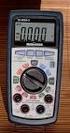 Auto-ranging Digital Multimeter 52-0052-2 INSTRUCTION MANUAL WARNING: READ AND UNDERSTAND THIS MANUAL BEFORE USING YOUR MULTIMETER. FAILURE TO UNDERSTAND AND COMPLY WITH WARNINGS AND OPERATING INSTRUCTIONS
MGL Avionics CAN bus interface for Trig Avionics TT21/TT22 transponders
 MGL Avionics CAN bus interface for Trig Avionics TT21/TT22 transponders General The MGL Avionics CAN bus interface for the Trig Avionics TT21 and TT22 transponders provides a simple solution to allow any
Applied Electronics. Commercial Dimming System UPDATE NOTICE
 REV. A Applied Electronics Commercial Dimming System UPDATE NOTICE This notice is to inform the end user of an additional feature added to this DP12/2400 dimming unit. This unit has been outfitted with
Physics 3330 Experiment #2 Fall 1999. DC techniques, dividers, and bridges R 2 =(1-S)R P R 1 =SR P. R P =10kΩ 10-turn pot.
 Physics 3330 Experiment #2 Fall 1999 DC techniques, dividers, and bridges Purpose You will gain a familiarity with the circuit board and work with a variety of DC techniques, including voltage dividers,
IMMS-CCC. IMMS-CCC Hardwire Central Interface. Installation Instructions
 IMMS-CCC IMMS-CCC Hardwire Central Interface Installation Instructions TABLE OF CONTENTS... Choose a Location... 1 Connections... 2 Operations... 3 Software Configuration... 4 Troubleshooting... 5 Loopback
5-port / 8-port 10/100BaseTX Industrial Ethernet Switch User Manual
 5-port / 8-port 10/100BaseTX Industrial Ethernet Switch User Manual Content Overview... 1 Introduction... 1 Features... 3 Packing List... 4 Safety Precaution... 4 Hardware Description... 5 Front Panel...
Square D Clipsal C-Bus Network Analyzer
 Square D Clipsal C-Bus Network Analyzer for Use with C-Bus Wired Networks Instruction Bulletin Retain for future use. Square D Clipsal C-Bus Network Analyzer 63249-420-234A1 Instruction Bulletin 12/2006
TDR900. Hand-held Time Domain Reflectometer/Cable Length Meter TDR900. Hand-held Time Domain Reflectometer/Cable Length Meter
 Hand-held Time Domain Reflectometer/Cable Full autoranging for measuring the length of power, telephony, CATV and LAN cables, provides distance to an open or short. Extra large, high resolution backlit
LMR16TC Mini 10BASE-T Repeater. Installation Guide
 LMR16TC Mini 10BASE-T Repeater Installation Guide LMR16TC Ethernet Mini Hub/Repeater Installation Guide The Lantronix LMR16TC is a multi-port hub that provides multi-media wiring connections for up to
Thermocouple Thermometer Models
 Technology Made Easy... Thermocouple Thermometer Models 60010-00 (Type J) 60010-10 (Type K) 60010-20 (Type T) 68X309905 Rev 1 04/04 TABLE OF CONTENTS 1. INTRODUCTION 4 2. SAFETY PRECAUTIONS 6 3. SPECIFICATIONS
Lab E1: Introduction to Circuits
 E1.1 Lab E1: Introduction to Circuits The purpose of the this lab is to introduce you to some basic instrumentation used in electrical circuits. You will learn to use a DC power supply, a digital multimeter
D7050/D7050TH. Installation Instructions. Multiplex Photoelectric Smoke Detectors
 D7050/D7050TH EN Installation Instructions Multiplex Photoelectric Smoke Detectors D7050/D7050TH Installation Instructions.0 Description Notices These instructions cover the installation of the D7050/D7050TH
12 Volt 30 Amp Digital Solar Charge Controller
 12 Volt 30 Amp Digital Solar Charge Controller User s Manual WARNING Read carefully and understand all INSTRUCTIONS before operating. Failure to follow the safety rules and other basic safety precautions
Coax Mapping Tester User's Guide. www.jdsu.com/know
 Coax Mapping Tester User's Guide www.jdsu.com/know Tone On LED Testing LED Open/Short LEDs Remote I.D. detected LEDs Test Button (Hold for Tone Mode) Voltage/Battery Low LED (Flashes when Battery is Low)
User's Guide. Integrating Sound Level Datalogger. Model 407780. Introduction
 User's Guide 99 Washington Street Melrose, MA 02176 Phone 781-665-1400 Toll Free 1-800-517-8431 Visit us at www.testequipmentdepot.com Back to the Extech 407780 Product Page Integrating Sound Level Datalogger
7 FUNCTION DIGITAL MULTIMETER
 7 FUNCTION DIGITAL MULTIMETER 90899 OPERATING INSTRUCTIONS 3491 Mission Oaks Blvd., Camarillo, CA 93011 Visit our Web site at http://www.harborfreight.com Copyright 2004 by Harbor Freight Tools. All rights
Ethernet Cat 5e & Cat 6 Patch Panels
 Ethernet Cat e & Cat Patch Panels Copper :: RJ/IDC Models EPPE-CTE & EPPE-CAT User Manual Applys to : EPPE-CTE :: EPPE-CAT Telect, Inc., All Rights Reserved, 9- A0.09.9.000 :: telect.com Ethernet Cat e
e-4 AWT07MLED 7 Q TFT LCD MONITOR (LED Backlighted) USER MANUAL
 Thank you for purchasing our product. Please read this User s Manual before using the product. Change without Notice AWT07MLED 7 Q TFT LCD MONITOR (LED Backlighted) USER MANUAL e-4 SAFETY PRECAUTIONS Federal
IP DSLAM IDL-2402. Quick Installation Guide
 IP DSLAM IDL-2402 Quick Installation Guide Table of Contents Package Contents... 3 Overview... 4 Setup the IDL series IP DSLAM... 5 Safety Instruction... 5 Hardware Installation... 6 WEB Configuration...
User Manual for CH-PFC76810
 AA Portable Power Corp www.batteryspace.com, Email: [email protected] User Manual for CH-PFC76810 1. Overview The CH-PFC76810 charger is suitable for charging lithium ion battery packs such as those
Thermistor Thermometer MODEL NO. 93210-00
 Thermistor Thermometer MODEL NO. 93210-00 Cole-Parmer Instrument Co. 625 East Bunker Court Vernon Hills, Illinois U.S.A. 60061-1844 (847) 549-7600 (847) 247-2929 (Fax) 800-323-4340 www.coleparmer.com e-mail:
PRODUCTIVITY THROUGH INNOVATION 600 CONTROL DIRECT DRIVE TECHNICAL/OPERATION MANUAL
 Rev. D PRODUCTIVITY THROUGH INNOVATION 600 CONTROL DIRECT DRIVE TECHNICAL/OPERATION MANUAL 10 BORIGHT AVENUE, KENILWORTH NEW JERSEY 07033 TELEPHONE: 800-524-0273 FAX: 908-686-9317 TABLE OF CONTENTS Page
Duct Humidity Transmitter
 SDC-H Duct Humidity Transmitter Features Replaceable sensor element Humidity measurement for air ducts Minimum and maximum value memory 0 0V, 0 0mA or 0V, 4 0mA measuring signals selectable with jumpers
Handheld portable appliance testers
 PAT100 SERIES Handheld portable appliance testers PAT100 SERIES Handheld portable appliance testers Simple Tick/Cross, pass/fail indication plus measurement Battery powered with rechargeable options Includes
HP ProCurve High-Speed Transceivers Installation Guide
 HP ProCurve High-Speed Transceivers Installation Guide Introduction The HP ProCurve High-Speed Transceivers can be installed into a number of HP ProCurve networking devices to provide 100 Mbps and 1000
Instructions A622 100 Amp AC/DC Current Probe 070-8883-03
 Instructions A622 100 Amp AC/DC Current Probe 070-8883-03 Revision A www.tektronix.com 070888303 Copyright Tektronix, Inc. All rights reserved. Tektronix products are covered by U.S. and foreign patents,
Square D Clipsal DIN-Rail Four-Channel Auxiliary Input Unit
 Square D Clipsal DIN-Rail Four-Channel Auxiliary Input Unit SLCLE5504AUX for Use with Wired C-Bus Networks Instruction Bulletin Retain for future use. Square D Clipsal DIN-Rail Four-Channel Auxiliary Input
PTU Series Transducer Digital Display Indicator User s Manual
 PTU Series Transducer Digital Display Indicator User s Manual The Swagelok PTU series digital display indicator is available to mount directly to the Swagelok PTU series transducer to provide local indication
TC-9102 Series Surface Mount Temperature Controllers
 TC-9102 Series Surface Mount Temperature Controllers General Description & Applications The TC-9102 Series Temperature Controller offers a versatile solution for a wide variety of applications that may
Kvaser Mini PCI Express User s Guide
 Kvaser Mini PCI Express User s Guide Copyright 2013-2014 Kvaser AB, Mölndal, Sweden http://www.kvaser.com Printed Sunday 28 th September, 2014 We believe that the information contained herein was accurate
Communication, Signal & Data Cables
 Communication, Signal & Data Cables Used for indoor installation and interconnection of transmission, telephone, telegraph and electronic equipment as well as media equipments www.alfanar.com Communication
Antenna Splitter ASA 1. Instruction manual
 Antenna Splitter ASA 1 Instruction manual Contents Important safety instructions... 2 The ASA 1 active antenna splitter... 4 Delivery includes... 4 Operating elements... 5 Putting the ASA 1 into operation...
GSM Alarm System User Manual
 GSM Alarm System User Manual For a better understanding of this product, please read this user manual thoroughly before using it. Quick Guider After getting this alarm system, you need to do the following
PCS0100en 02.2008. Persy Control Services B.V. Netherlands
 P-Bus Gateway PBGW2.128 Universal gateway between the P-bus protocol and open standard protocols. The variety of available electrical interfaces on the gateway offers a wide range of possibilities for
palm Switch 500 5 Port 10/100 Base-TX Switch with Auto MDI/MDI-X User Guide
 palm Switch 500 5 Port 10/100 Base-TX Switch with Auto MDI/MDI-X User Guide Rev. 1.0 June, 2003 User Guide 1. Introduction Welcome to the World of Mini-Networking. In the modern business society, communication
USER MANUAL MODEL 2300M SERIES. OpticLink Ethernet Media Converters (2300M, 2310M, 2311M, & 2312M)
 USER MANUAL MODEL 2300M SERIES OpticLink Ethernet Media Converters (2300M, 2310M, 2311M, & 2312M) An ISO-9001 Certified Company Part# 07M2300M Doc# 077321U Rev. A Revised 4/14/03 SALES OFFICE (301) 975-1000
Troubleshooting and Diagnostics
 Troubleshooting and Diagnostics The troubleshooting and diagnostics guide provides instructions to assist in tracking down the source of many basic controller installation problems. If there is a problem
When you switch off your system, or mute the sound, the red indicator light appears immediately, indicating that the subwoofer is not in use.
 BeoLab 11 Guide WARNING: To reduce the risk of fire or electric shock, do not expose this appliance to rain or moisture. Do not expose this equip ment to dripping or splashing and ensure that no objects
Whale 3. User Manual and Installation Guide. DC Servo drive. Contents. 1. Safety, policy and warranty. 1.1. Safety notes. 1.2. Policy. 1.3. Warranty.
 Whale 3 DC Servo drive User Manual and Installation Guide Contents 1. Safety, policy and warranty. 1.1. Safety notes. 1.2. Policy. 1.3. Warranty. 2. Electric specifications. 2.1.Operation ranges. 3. Connections
Instruction book IQAN-MDM. Publ. no. HY17-8328/UK Edition June, 2007
 Instruction book IQAN-MDM Publ. no. HY17-8328/UK Edition June, 2007 Contents 1 Introduction...............................................................3 Safety symbols................................................................
IN-OUT Thermometer with Cable Free Sensor and Clock
 IN-OUT Thermometer with Cable Free Sensor and Clock MODEL: RAR232 USER'S MANUAL INTRODUCTION Congratulations on your purchase of the RAR232 In-Out Thermometer with 433MHz cable free sensor and calendar
Electronically Controlled Air Suspension (ECAS) for Trucks
 $2.50 Electronically Controlled Air Suspension (ECAS) for Trucks Maintenance Manual No. 36 Issued 7-99 ECAS System for 6 x 2 and 6 x 4 Vehicles with Rear Air Suspensions Service Notes Service Notes This
MicroScanner 2. Cable Verifier. Getting Started Guide
 MicroScanner 2 TM Cable Verifier Getting Started Guide PN 2739668 (English) January 2007 2007 Fluke Corporation. All rights reserved. Printed in China. All product names are trademarks of their respective
Byonics Micro Trak 1000 High Altitude Balloon Tracker
 Byonics Micro Trak 1000 High Altitude Balloon Tracker The Micro Trak 1000 (MT 1000) is a high altitude balloon (HAB) tracker. It is usually sold as a combination to provide a simple, turn key tracking
UniStream CPU-for-Panel
 UniStream CPU-for-Panel Installation Guide USC-P-B10 Unitronics UniStream platform comprises control devices that provide robust, flexible solutions for industrial automation. This guide provides basic
6/14/02 Chapter 14: Use of Electrical Test Equipment 1/20
 USE OF ELECTRICAL TEST EQUIPMENT Test equipment is necessary for determining proper set-up, adjustment, operation, and maintenance of electrical systems and control panels. The following is a general procedure
COLOR TFT LCD MONITOR. User Manual
 COLOR TFT LCD MONITOR User Manual GENERAL INFORMATION Thank you for choosing our TFT LCD(liquid crystal display) monitor. This product employs integrate circuits, low power consumption, and no radiation
Ethernet Patch Cord Wiring
 Ethernet Patch Cord Wiring C ONTENTS Ethernet Patch Cords & RJ-45 Connectors... 2 Ethernet Patch Cords and UTP Cabling... 3 What s all the twisting about?... 4 Ethernet Applications... 5 568A & 568B Wiring
VE02AL / VE05AL / VE02ALR VGA & Stereo Audio CAT5 Extender with Chainable Output
 VE02AL / VE05AL / VE02ALR VGA & Stereo Audio CAT5 Extender with Chainable Output Introduction: VE02AL, VE05AL is designed for VGA +Stereo Audio signal over cost effective CAT5 cable to instead of VGA and
Model 1756 Test Lead Kit
 Keithley Instruments 28775 Aurora Road Cleveland, Ohio 44139 1-888-KEITHLEY http://www.keithley.com Model 1756 Test Lead Kit Gerneral Purpose Test Lead Information Description These test leads allow you