
Switch2 Quick Installation Guide
|
|
|
- Amber Berry
- 9 years ago
- Views:
Transcription
1 Switch2 UK FR DE NL ES IT Quick Installation Guide F1DG102Uea

2 Package Contents Remote Base with Cables Fastener Strip Introduction Congratulations and thank you for purchasing Switch2. Switch2 is easy to set up and use, and comes with everything you need to share one monitor, keyboard, mouse, and one set of speakers between your two computers. No additional cables or software are required. The diagram below shows a typical Switch2 setup. The remote sits on your desk and connects along with your monitor, keyboard, mouse, and speakers to the cable base. The base is connected to your two computers using the attached cables. base with cables remote Package Contents/Introduction 1

3 System Requirements Monitor Switch2 supports any LCD or CRT monitor with a VGA connection. You can also use your DVI monitor with Switch2 by connecting a VGA adapter to the DVI cable. Switch2 does not support direct DVI connections from monitors. VGA connection Keyboard/Mouse Switch2 supports any keyboard and mouse with a USB connection. USB connection Computers Switch2 can be used with any PC or Mac desktop or notebook computer that supports USB keyboard and mouse connections, and that runs on one of these operating systems: Windows 98 SE, 2000, XP, 2003 Mac OS X v10.0 and above Linux System Requirements 2

4 Installing your Switch2 Before you begin, make sure that your USB keyboard and mouse work properly with both computers. 1. Power on your computers. 2. Connect your monitor, keyboard, mouse, and speakers to the base. Now, connect the remote to the base. Place the remote anywhere on your desk. Switch2 Tip: You can use the included fastener strip to attach the remote to your monitor, keyboard, or other desk item. Installing your Switch2 3

5 3. Connect one set of cables to the monitor, USB, and speaker ports on your first computer. Wait for your computer to recognize the new USB device (Switch2). Then connect the other set of cables to the monitor, USB, and speaker ports on your second computer. You are now ready to use your Switch2. Switch2 Tip: Keep the base behind your computers to keep your desk free of cable clutter. Installing your Switch2 4

6 Using your Switch2 When you power up your computers, your first computer s desktop will appear on your monitor. You are now ready to use that computer as if it were directly connected to your monitor, keyboard, mouse, and speakers. To switch access to your other computer, simply press the remote. Your other computer s desktop will appear on your monitor. You are now ready to use your other computer as if it were directly connected to your monitor, keyboard, mouse, and speakers. Press the remote each time you want to switch access from one computer to the other. Note: To download free software for your Switch2, please visit our website at You ll also find a list of frequently asked questions and troubleshooting tips. Using your Switch2 5

7 Switch2 UK FR DE NL ES IT Guide d installation rapide F1DG102Uea

8 Contenu de l emballage Télécommande Base avec câbles Dispositif d attache Introduction Félicitations et merci d avoir fait l acaht du Switch2. Le Switch2 est simple à installer et utiliser. Vous possédez maintenant tout ce dont vous avez besoin pour partager un clavier, un moniteur et une souris, ainsi qu un jeux de haut-parleurs, entre vos deux ordinateurs. Aucun câble ni logiciel supplémentaires ne sont nécessaires. L illustration ci-dessous montre une configuration standard pour le Switch2. La télécommande se place sur votre bureau et est branchée à la base, tout comme votre moniteur, votre clavier, votre souris et vos haut-parleurs. La base est reliée à vos ordinateurs au moyen des câbles intégrés. base avec câbles télécommande Contenu de l emballage, introduction 1

9 Configuration requise Moniteur Le Switch2 prend en charge les moniteurs LCD ou CRT avec connexion VGA. Vous pouvez également utiliser votre moniteur DVI avec le Switch2 en branchant un adaptateur VGA au câble DVI. Le Switch2 ne prend pas en charge les connexions directes avec les moniteurs DVI. Connexion VGA Clavier/souris Le Switch2 prend en charge n importe quel clavier et souris avec connecteur USB. Connexion USB Ordinateurs Le Switch2 peut s utiliser avec tout PC ou Mac (de bureau ou portable) prenant en charge les connexions clavier et souris USB, sous l un ou l autre des systèmes d exploitation suivants : Windows 98 SE, 2000, XP, 2003 Mac OS X v10.0 et versions ultérieures Configuration requise 2

10 Installation devotre Switch2 Avant de commencer, assurez-vous que vos clavier et souris USB fonctionnent correctement avec les deux ordinateurs. 1. Mettez vos ordinateurs sous tension. 2. Branchez votre moniteur, votre clavier, votre souris et vos hautparleurs à la base. Ensuite, branchez la télécommande à la base. Placez la télécommande sur votre bureau. Astuce Switch2 : Vous pouvez vous servir du dispositif d attache pour fixer la télécommande à votre moniteur, votre clavier ou tout autre objet se trouvant sur votre bureau. Installation de votre Switch 2 3

11 3. Branchez un jeu de câbles au moniteur et aux ports USB et haut-parleurs du premier ordinateur. Patientez pendant que votre ordinateur reconnaît le nouveau périphérique USB (le Switch2). Branchez le second jeu de câbles au moniteur et aux ports USB et haut-parleurs du second ordinateur. Vous êtes maintenant prêt à utiliser votre Switch2. Astuce Switch2 : Placez la base derrière vos ordinateurs pour garder votre bureau libre de tout câble encombrant. Installation de votre Switch 2 4

12 Utilisation de votre Switch2 Lorsque vous mettez vos ordinateurs sous tension, le bureau du premier ordinateur apparaît sur votre moniteur. Vous pouvez désormais utiliser cet ordinateur comme s il était directement branché à vos clavier, moniteur, souris et haut-parleurs. Pour accéder à votre autre ordinateur, appuyez tout simplement sur la télécomande. Le bureau du second ordinateur apparaît sur votre moniteur. Vous pouvez désormais utiliser votre autre ordinateur comme s il était directement branché à vos clavier, moniteur, souris et haut-parleurs. Appuyez sur la télécommande pour commuter d un ordinateur à l autre. Remarque : Pour télécharger un logiciel gratuit pour votre Switch2, visitez Vous y trouverez également une foire aux questions et des astuces de dépannage. Utilisation de votre Switch2 5

13 Switch2 UK FR DE NL ES IT Installationsanleitung F1DG102Uea

14 Verpackungsinhalt Fernbedienung Hauptmodul mit Kabeln Klettstreifen Einleitung Wir freuen uns über Ihren Kauf des Switch2. Der Switch2 ist benutzerfreundlich und bietet Ihnen alles, was Sie brauchen, um einen Bildschirm, eine Tastatur, eine Maus und ein paar Lautsprecher mit zwei Computern zu verwenden. Die Installation erfolgt im Handumdrehen. Sie benötigen keine weiteren Kabel oder zusätzliche Software. In der Abbildung unten sehen ein Beispiel für eine Konfiguration mit dem Switch2. Die Fernbedienung liegt auf Ihrem Schreibtisch und ist zusammen mit Bildschirm, Tastatur und Maus an das Hauptmodul angeschlossen. Das Hauptmodul ist über die integrierten Kabel mit den zwei Computern verbunden. Hauptmodul mit Kabeln Fernbedienung Verpackungsinhalt/Einleitung 1

15 Systemvoraussetzungen Bildschirm Der Switch2 unterstützt alle LCD- oder CRT-Bildschirme mit VGA- Anschluss. Sie können auch einen DVI-Bildschirm anschließen, wenn Sie einen VGA-Adapter verwenden. Der Switch2 unterstützt keine direkten DVI-Verbindungen zu Bildschirmen. VGA-Anschluss Tastatur/Maus Der Switch2 unterstützt alle Tastaturen und Mäuse mit USB- Anschluss. USB-Anschluss Computer Der Switch2 kann für alle Desktop-Computer oder Notebooks verwendet werden, die Tastaturen und Mäuse mit USB-Anschluss unterstützen und eines der folgenden Betriebssysteme verwenden: Windows 98 SE, 2000, XP, 2003 Mac OS X v10.0 und höher Linux Systemanforderungen 2

16 Installation des Switch2 Überprüfen Sie vor der Installation, dass USB-Tastatur und USB-Maus bei beiden Computern funktionieren. 1. Schalten Sie die Computer ein. 2. Schließen Sie Bildschirm, Tastatur, Maus und Lautsprecher an das Hauptmodul an. Schließen Sie nun die Fernbedienung an das Hauptmodul an. Legen Sie die Fernbedienung auf einen geeigneten Platz auf dem Schreibtisch. Switch2-Tipp: Mit dem enthaltenen Klettstreifen können Sie die Fernbedienung an Ihrem Bildschirm, Ihrer Tastatur oder einem anderen Gerät auf Ihrem Schreibtisch anbringen. Installation des Switch2 3

17 3. Schließen Sie einen Kabelsatz an den Bildschirm und die USBund Lautsprecheranschlüsse Ihres ersten Computers an. Warten Sie, bis der Computer das neue USB-Gerät (Switch2) erkannt hat. Schließen Sie den anderen Kabelsatz an den Bildschirm und die USB- und Lautsprecheranschlüsse Ihres zweiten Computers an. Jetzt können Sie mit dem Switch2 arbeiten. Switch2-Tipp: Wenn Sie das Hauptmodul hinter den Computern aufbewahren, vermeiden Sie Kabelgewirr auf dem Schreibtisch. Installation des Switch2 4

18 Verwendung des Switch2 Wenn Sie Ihre Computer einschalten, erscheint das Desktop Ihres ersten Computers auf dem Bildschirm. Sie können nun mit diesem Computer arbeiten als wären Bildschirm, Tastatur, Maus und Lautsprecher direkt an ihn angeschlossen. Wenn Sie mit dem anderen Computer arbeiten wollen, drücken Sie einfach auf die Fernbedienung. Das Desktop des anderen Computers erscheint auf dem Bildschirm. Sie können nun mit dem anderen Computer arbeiten als wären Bildschirm, Tastatur, Maus und Lautsprecher direkt an diesen angeschlossen. Verwenden Sie die Fernbedienung jedes Mal, wenn Sie von einem Computer auf den anderen umschalten wollen. Hinweis: Sie können die Software für den Switch2 kostenlos auf unserer Website herunterladen: Dort finden Sie auch Antworten auf häufig gestellte Fragen und Tipps zur Fehlerbehebung. Verwendung des Switch2 5

19 Switch2 UK FR DE NL ES IT Beknopte installatiehandleiding F1DG102Uea

20 Inhoud van de verpakking Afstandbediening Basisunit met kabels Bevestigingsstrip Inleiding Gefeliciteerd en bedankt voor het kopen van de Switch2. De installatie van de Switch2 is heel eenvoudig. De verpakking bevat alles wat u nodig hebt om een monitor, toetsenbord, muis en luidsprekers te kunnen delen met twee computers. U hebt daarbij geen extra kabels of software nodig. Het onderstaande diagram geeft weer hoe alles aangesloten moet worden. De afstandbediening sluit u - net als de monitor, het toetsenbord, de muis en de luidsprekers - aan op de basisunit. De basisunit sluit u met behulp van de kabels aan op twee computers. basisunit met kabels afstandbediening Inhoud van de verpakking / Inleiding 1

21 Systeemvereisten Monitor De Switch2 ondersteunt elke LCD- en CRT-monitor met een VGAaansluiting. U kunt ook een DVI-monitor op de Switch2 aansluiten door op de DVI-connector een VGA-adapter aan te sluiten. U kunt monitoren met een DVI-aansluiting niet rechtstreeks op de Switch2 aansluiten. VGA-aansluiting Toetsenbord/muis De Switch2 ondersteunt toetsenborden en muizen met een USBaansluiting. USB-aansluiting Computers De Switch2 kan gebruikt worden in combinatie met een willekeurige PC of MAC desktopcomputer of notebook met aansluitingen voor een USB-toetsenbord- en -muis en die gebruik maakt van een van de volgende besturingssystemen: Windows 98 SE, 2000, XP, 2003 Mac OS X v10.0 en hoger Systeemvereisten 2
22 Installatie van de Switch2 Controleer voor u begint of uw USB-toetsenbord en -muis naar behoren werken op beide computers. 1. Zet uw computers aan. 2. Sluit uw monitor, toetsenbord, muis en luidsprekers op de basisunit aan. Sluit vervolgens de afstandbediening op de basisunit aan. Leg de afstandbediening op een willekeurige plaats op uw bureau. Tip: U kunt de afstandbediening bevestigen aan bijvoorbeeld uw monitor of toetsenbord met behulp van de meegeleverde bevestigingsstrip. Installatie van de Switch2 3
23 3. Sluit de één kabelset aan op de monitor-, USB- en luidsprekerpoorten van de eerste computer. Wacht nu tot uw computer het nieuwe USB-apparaat (Switch2) heeft herkend. Sluit vervolgens de andere kabelset aan op de monitor-, USB- en luidsprekerpoorten van de tweede computer. De Switch2 is nu klaar voor gebruik. Tip: Hou de basisunit achter uw computers zodat uw bureau vrij van kabels blijft. Installatie van de Switch2 4
24 Gebruik maken van de Switch2 Wanneer u uw computers aan zet, zal het bureaublad van de eerste computer op uw beeldscherm verschijnen. U kunt die computer nu gebruiken alsof deze rechtstreeks met de monitor, het toetsenbord, de muis en de luidsprekers verbonden is. Met behulp van de afstandbediening kunt u naar de andere computer overschakelen. Het bureaublad van de andere computer zal op uw beeldscherm verschijnen. U kunt de andere computer nu gebruiken alsof deze rechtstreeks met de monitor, het toetsenbord, de muis en de luidsprekers verbonden is. Telkens als u van computer wilt wisselen, drukt u dus eenvoudigweg op de afstandbediening. Opmerking: U kunt gratis software voor uw Switch2 downloaden via Hier treft u ook een overzicht aan van veelgestelde vragen en oplossingen voor eventuele problemen aan. Gebruik maken van de Switch2 5
25 Switch2 UK FR DE NL ES IT Guía de instalación rápida F1DG102Uea
26 Contenido del paquete Mando a distancia Base con cables Cinta de fijación Introducción Enhorabuena y gracias por haber adquirido un Switch2. Switch2 es fácil de configurar y utilizar e incluye todo lo necesario para compartir un monitor, teclado, ratón y un juego de altavoces entre dos ordenadores. No se requieren cables adicionales ni software. El diagrama siguiente muestra un ejemplo de configuración de Switch2. El mando a distancia se coloca en sobre la mesa o y se conecta, junto con su monitor, teclado, ratón y altavoces, a la base con cables. La base se conecta a ambos ordenadores utilizando los cables incluidos. base con cables mando a distancia Contenido del paquete/introducción 1
27 Requisitos del sistema Monitor Switch2 admite cualquier monitor LCD o CRT con una conexión VGA. También puede utilizar su monitor DVI con el Switch2 conectando un adaptador VGA a un conector DVI. Switch2 no admite conexiones DVI directas desde los monitores. Conexión VGA Teclado y ratón Switch2 admite cualquier ratón y teclado con conexión USB. Conexión USB Ordenadores Switch2 se puede utilizar con cualquier ordenador PC Mac de sobremesa o portátil que disponga de conexiones USB para teclado y ratón y que funcione con uno de los siguientes sistemas operativos: Windows 98 SE, 2000, XP, 2003 Mac OS X v10.0 y superior Linux Requisitos del sistema 2
28 Instalación de su Switch2 Antes de empezar, asegúrese de que el teclado y el ratón USB funcionan bien con ambos ordenadores. 1. Encienda los ordenadores. 2. Conecte su monitor, teclado, ratón y altavoces a la base. Ahora, conecte el mando a distancia a la base. Coloque el mando a distancia en cualquier lugar de la mesa. Recomendación para Switch2: Puede utilizar la cinta de fijación incluida para fijar el mando a distancia a su monitor, teclado u otro objeto de su mesa de trabajo. Instalación de su Switch2 3
29 3. Conecte un juego de cables a los puertos del monitor, USB y de altavoces del primer ordenador. Espere a que su ordenador reconozca el nuevo dispositivo USB (Switch2). A continuación, conecte el otro juego de cables a los puertos del monitor, USB y de altavoces del segundo ordenador. Ahora estará listo para utilizar su Switch2. Recomendación para Switch2: Coloque la base detrás de los ordenadores para que los cables queden fuera de la mesa. Instalación de su Switch2 4
30 Utilización de Switch2 Cuando encienda sus ordenadores, el escritorio del primer ordenador aparecerá en la pantalla del monitor. En ese momento ya podrá utilizar su ordenador como si estuviera conectado directamente a su monitor, teclado, ratón y altavoces. Para acceder al otro ordenador, sólo tiene que pulsar el mando a distancia. El escritorio del otro ordenador aparecerá en la pantalla. En ese momento ya podrá utilizar el otro ordenador como si estuviera conectado directamente a su monitor, teclado, ratón y altavoces. Pulse el mando a distancia cada vez que desee cambiar de un ordenador al otro. Atención: Para descargar software gratuito para su Switch2, visite nuestra página web También encontrará una lista con las respuestas a las preguntas más frecuentes y consejos para la resolución de problemas. Utilización de Switch2 5
31 Switch2 UK FR DE NL ES IT Guida di installazione F1DG102Uea
32 Contenuto della confezione Dispositivo di comando a distanza Base con cavi Natro di fissaggio in velcro Introduzione Grazie per aver acquistato lo Switch2. Lo Switch2 è facile da installare e da utilizzare, e comprende tutto il necessario per condividere tastiera, monitor, mouse e un set di altoparlanti tra due computer. Non richiede cavi addizionali né software d installazione. Nella figura sotto riportata viene illustrata una configurazione tipica dello Switch2. Il dispositivo di comando a distanza è collegato alla base con i cavi e quindi al monitor, alla tastiera, al mouse e agli altoparlanti. La base è collegata ai due computer attraverso i cavi in dotazione. Base con cavi Comando a distanza Contenuto della confezione 1
33 Requisiti del sistema Monitor Lo Switch2 è compatibile con qualsiasi monitor a cristalli liquidi o raggi catodici con interfaccia VGA. Inoltre, è possibile usare un monitor DVI con lo Switch2 collegando un adattatore VGA al cavo DVI. Lo Switch2 non si interfaccia direttamente con cavi DVI per monitor. Connessione VGA Tastiera/Mouse Lo Switch2 è compatibile con tutte le tastiere e i mouse con interfaccia USB. Connessione USB Computer Lo Switch2 può essere utilizzato con tutti i computer PC o Mac che hanno mouse e tastiera con interfaccia USB e uno dei seguenti sistemi operativi: Windows 98 SE, 2000, XP, 2003 Mac OS X v10.0 e successive Linux Requisiti del sistema 2
34 Installazionedello Switch2 Prima di iniziare, verificare che la tastiera e il mouse funzionino correttamente con entrambi i computer. 1. Accendere i computer. 2. Collegare il monitor, la tastiera, il mouse e gli altoparlanti alla base. Ora collegare alla base il dispositivo di comando a distanza e collocarlo in un punto qualsiasi sulla scrivania. Consiglio: è possibile utilizzare il nastro di fissaggio in dotazione per attaccare il dispositivo di comando a distanza sul monitor, sulla tastiera, sul mouse o su altri oggetti presenti sulla scrivania. Installazione dello Switch2 3
35 3. Collegare i cavi al monitor e alle porte USB presenti sul primo computer. Attendere affinché il computer rileva il nuovo dispositivo USB (lo Switch2). Quindi, collegare i cavi al monitor e alle porte USB presenti sul secondo computer. Lo Switch2 è ora pronto per essere utilizzato. Consiglio: collocare la base dietro ai comupter in modo da avere più spazio sulla scrivania e meno grovigli di cavi. Installazione dello Switch2 4
36 Come utilizzare lo Switch2 Quando si accendono i computer, il desktop del primo computer si visualizzerà sul monitor. Ora è possibile utilizzare quel computer come se fosse collegato direttamente al monitor, alla tastiera, al mouse e agli altoparlanti. Per passare all altro computer, basta premere il pulsante sul dispositivo di comando a distanza. Il desktop dell altro computer si visualizzerà sul monitor. Ora è possibile utilizzare l altro computer come se fosse collegato direttamente al monitor, alla tastiera, al mouse e agli altoparlanti. Premere il pulsante di comando a distanza ogni volta che si desidera passare da un computer all altro. Nota bene: per scaricare gratuitamente il software per lo Switch2, vi preghiamo di visitare il nostro sito Internet al seguente link: Potrete inoltre consultare un archivio delle domande più frequenti e di consigli per la risoluzione di eventuali problemi. Come utilizzare lo Switch2 5
37 Information FCC Statement DECLARATION OF CONFORMITY WITH FCC RULES FOR ELECTROMAGNETIC COMPATIBILITY We, Belkin Corporation, of 501 West Walnut Street, Compton CA 90220, declare under our sole responsibility that the product F1DG102U, to which this declaration relates: Complies with Part 15 of the FCC Rules. Operation is subject to the following two conditions: (1) this device may not cause harmful interference, and (2) this device must accept any interference received, including interference that may cause undesired operation. CE Declaration of Conformity We, Belkin Corporation, declare under our sole responsibility that the F1DG102U, to which this declaration relates, is in conformity with Emissions Standard EN55022 and with Immunity Standard EN55024, LVP EN , and EN ICES This Class B digital apparatus complies with Canadian ICES-003. Cet appareil numérique de la classe B est conforme á la norme NMB-003 du Canada. Belkin Corporation Limited 3-Year Product Warranty What this warranty covers. Belkin Corporation warrants to the original purchaser of this Belkin product that the product shall be free of defects in design, assembly, material, or workmanship. What the period of coverage is. Belkin Corporation warrants the Belkin product for three years. What will we do to correct problems? Product Warranty. Belkin will repair or replace, at its option, any defective product free of charge (except for shipping charges for the product). What is not covered by this warranty? All above warranties are null and void if the Belkin product is not provided to Belkin Corporation for inspection upon Belkin s request at the sole expense of the purchaser, or if Belkin Corporation determines that the Belkin product has been improperly installed, altered in any way, or tampered with. The Belkin Product Warranty does not protect against acts of God (other than lightning) such as flood, earthquake, war, vandalism, theft, normal-use wear and tear, erosion, depletion, obsolescence, abuse, damage due to low voltage disturbances (i.e. brownouts or sags), non-authorized program, or system equipment modification or alteration. Information I
38 How to get service. To get service for your Belkin product you must take the following steps: 1. Contact Belkin Ltd., Express Business Park, Shipton Way, Rushden, NN10 6GL, United Kingdom, Attn: Customer Service, or call +44 (0) , within 15 days of the Occurrence. Be prepared to provide the following information: a. The part number of the Belkin product. b. Where you purchased the product. c. When you purchased the product. d. Copy of original receipt. 2. Your Belkin Customer Service Representative will then instruct you on how to forward your receipt and Belkin product and how to proceed with your claim. Belkin Corporation reserves the right to review the damaged Belkin product. All costs of shipping the Belkin product to Belkin Corporation for inspection shall be borne solely by the purchaser. If Belkin determines, in its sole discretion, that it is impractical to ship the damaged equipment to Belkin Corporation, Belkin may designate, in its sole discretion, an equipment repair facility to inspect and estimate the cost to repair such equipment. The cost, if any, of shipping the equipment to and from such repair facility and of such estimate shall be borne solely by the purchaser. Damaged equipment must remain available for inspection until the claim is finalized. Whenever claims are settled, Belkin Corporation reserves the right to be subrogated under any existing insurance policies the purchaser may have. How state law relates to the warranty. THIS WARRANTY CONTAINS THE SOLE WARRANTY OF BELKIN CORPORATION, THERE ARE NO OTHER WARRANTIES, EXPRESSED OR, EXCEPT AS REQUIRED BY LAW, IMPLIED, INCLUDING THE IMPLIED WARRANTY OR CONDITION OF QUALITY, MERCHANTABILITY OR FITNESS FOR A PARTICULAR PURPOSE, AND SUCH IMPLIED WARRANTIES, IF ANY, ARE LIMITED IN DURATION TO THE TERM OF THIS WARRANTY. Some states do not allow limitations on how long an implied warranty lasts, so the above limitations may not apply to you. IN NO EVENT SHALL BELKIN CORPORATION BE LIABLE FOR INCIDENTAL, SPECIAL, DIRECT, INDIRECT, CONSEQUENTIAL OR MULTIPLE DAMAGES SUCH AS, BUT NOT LIMITED TO, LOST BUSINESS OR PROFITS ARISING OUT OF THE SALE OR USE OF ANY BELKIN PRODUCT, EVEN IF ADVISED OF THE POSSIBILITY OF SUCH DAMAGES. This warranty gives you specific legal rights, and you may also have other rights, which may vary from state to state. Some states do not allow the exclusion or limitation of incidental, consequential, or other damages, so the above limitations may not apply to you. Information II
39 Specifications Switch2 Part No.: F1DG102U Computers Supported: 2 Monitors Supported: CRT and LCD (with VGA connector or adapter) Max. Resolution Support: Up to 2048x1536@65Hz Monitor Connection: VGA (HDDB15) Keyboard Input: USB (Type A) Mouse Input: USB (Type A) Stereo Audio Input: 3.5mm jack Switch2 Cable Length: 6 ft. (1.8m) Connector Cable Length: 2 ft., 6 ft. (0.6m, 1.8m) Enclosure: Plastic Switch2 Dimensions: 0.5" (H) x 1.75" (W) (12.7mm x 44.45mm) Switch2 Weight: 370gr Connector Cable Base Dimensions: TBD Connector Cable Base Weight: TBD Operating Temp: F (0 40 C) Storage Temp: F ( C) Humidity: 0 80% RH, non-condensing Warranty: Belkin 3-Year Limited Note: Specifications are subject to change without notice. Information III
40 Switch2 Belkin Corporation 501 West Walnut Street Compton, CA, USA fax Belkin B.V. Boeing Avenue PH Schiphol-Rijk, Netherlands +31 (0) (0) fax Belkin SAS 130 rue de Silly Boulogne-Billancourt, France +33 (0) (0) fax Belkin Nordic Knarrarnäsgatan Kista, Sweden +46 (0) (0) fax Belkin Ltd. Express Business Park Shipton Way, Rushden NN10 6GL, United Kingdom +44 (0) (0) fax Belkin GmbH Hanebergstrasse Munich, Germany +49 (0) (0) fax Belkin Iberia Avda. Cerro del Aguila San Sebastián de los Reyes, Spain fax Belkin Tech Support Belkin Corporation. All rights reserved. All trade names are registered trademarks of respective manufacturers listed. Mac and Mac OS are trademarks of Apple Computer, Inc., registered in the U.S. and other countries. P75114ea
KVM Switch P74242-D. Belkin B.V. Boeing Avenue 333 1119 PH Schiphol-Rijk, The Netherlands +31 (0) 20 654 7300 +31 (0) 20 654 7349 fax. Belkin Ltd.
 KVM Switch Belkin Tech Support US: 310-898-1100, ext. 2263 800-223-5546, ext. 2263 UK: 0845 607 77 87 Australia: 1800 235 546 New Zealand: 0800 235 546 Singapore: 800 616 1790 Europe: www.belkin.com/support
Network USB Hub. F5L009ea
 Network USB Hub EN FR de nl es it FL009ea 6uk_FL009uk_mnl.indd /6/08 ::07 AM Table of Contents 6uk_FL009uk_mnl.indd /6/08 ::07 AM Introduction Congratulations and thank you for purchasing the Network USB
User Manual USB Plus Hub. Introduction
 User Manual USB Plus Hub Introduction Table of Contents Introduction Features...1 Package Contents...2 Technical Specifications...2 Installation...3 Information...5 Introduction Congratulations and thank
FireWire 800 ExpressCard User Manual
 FireWire 800 ExpressCard User Manual FU Table of Contents. Introduction... Benefits... System Requirements... Package Contents.... Software Setup.... Hardware Installation.... Verifying Proper Installation....
Laptop Power Adapter for home/office User Manual
 Laptop Power Adapter for home/office User Manual Introduction Congratulations and thank you for purchasing the Laptop Power Adapter for home/office from Belkin. This new Adapter provides a single source
USB Peripheral Switch Share a USB device with up to four computers
 Belkin Corporation 501 West Walnut Street Compton CA 90220 USA Tel: 310.898.1100 Fax: 310.898.1111 Belkin Components, Ltd. Express Business Park Shipton Way Rushden NN10 6GL United Kingdom Tel: +44 (0)
HDBase T HDMI Over Cat5e Wall Plate
 HDBase T HDMI Over Cat5e Wall Plate 1.0 Disclaimer The purchase and usage of Belkin HDBase T HDMI Over Cat5e Wall Plate is for indoor application only. Belkin HDBase T HDMI Over Cat5e Wall Plate should
n52te USER MANUAL CONFIGURING n52te Software Installation 1. Insert the n52te Installation CD into your PC s CD/DVD drive.
 n52te USER MANUAL CONFIGURING n52te Software Installation 1. Insert the n52te Installation CD into your PC s CD/DVD drive. 2. The software should start automatically. If it does not, click the Start button
Hi-Speed USB 2.0 7-Port Hub Connect up to 7 Hi-Speed USB 2.0 or USB 1.1 devices
 P74387ea_F5U237ea_uk 09-09-2003 10:07 Page 1 En Hi-Speed USB 2.0 7-Port Hub Connect up to 7 Hi-Speed USB 2.0 or USB 1.1 devices Fr De Nl Es It User Manual F5U237ea P74387ea_F5U237ea_uk 09-09-2003 10:07
Wireless Keyboard and Optical Mouse Bundle
 Wireless Keyboard and Optical Mouse Bundle Enjoy the freedom of wireless optical precision User Manual F8E832-BNDL TABLE OF CONTENTS Introduction....................................1 Compatible Equipment............................2
P73474-F5U006-UNV-AM-man.qxd 9/18/00 10:10 AM Page 1
 P73474-F5U006-UNV-AM-man.qxd 9/18/00 10:10 AM Page 1 En 4-Port USB PCI Card User Manual Guide d utilisation de la carte PCI USB à quatre ports Manual de usuario para la tarjeta PCI USB de 4 puertos Placa
TV ADAPTER FOR INTEL WIRELESS DISPLAY SCREENCAST. User Manual. F7D4501 8820-00810 Rev. A01
 TV ADAPTER FOR INTEL WIRELESS DISPLAY SCREENCAST User Manual F7D4501 8820-00810 Rev. A01 Table Of Contents Getting Started... 1 Introduction...1 What s in the Box?...2 What s not in the Box?...2 What Else
Hi-Speed USB 2.0 4-Port TetraHub Connect multiple-speed USB devices at maximum bandwidth
 P74395ea_F5U231ea_uk 05-09-2003 14:51 Page 1 En Hi-Speed USB 2.0 4-Port TetraHub Connect multiple-speed USB devices at maximum bandwidth Fr De Nl Es It User Manual F5U231ea P74395ea_F5U231ea_uk 05-09-2003
4 Port Hub User Manual
 P73153/F5U101/US/man.qxd 1/7/00 5:16 PM Page 1 4 Port Hub User Manual P73153 F5U101 P73153/F5U101/US/man.qxd 1/7/00 5:16 PM Page 2 P73153/F5U101/US/man.qxd 1/7/00 5:16 PM Page 1 Introduction Please read
QUICK START BALANCE AUDIO INTERFACE QUICK START DÉMARRAGE RAPIDE KURZANLEITUNG
 QUICK START BALANCE AUDIO INTERFACE QUICK START DÉMARRAGE RAPIDE KURZANLEITUNG Quick Start Guide by Fredrik Hylvander The information in this document is subject to change without notice and does not represent
Quick Installation Guide TK-209K TK-409K
 Quick Installation Guide TK-209K TK-409K Table of of Contents Contents English... 1. Before You Start... 2. How to Connect... 3. Operation... 1 1 2 4 Troubleshooting... 5 Version 03.16.2007 1. Before You
Smart TV Link 4 Port. User Manual. 8820nt00867uk Rev. A00. english
 Smart TV Link 4 Port F7D4550 User Manual 8820nt00867uk Rev. A00 english Table Of Contents Getting Started.... 1 What s in the Box...1 How to Set It Up...2 Where to Place Your Smart TV Link 4 Port...3 Getting
Belkin USB Media Reader/Writer Manual
 P73880_F5U140-man.qxd 11/27/01 8:52 AM Page 1 Belkin USB Media Reader/Writer Manual P73880 F5U140 F5U141 F5U143 P73880_F5U140-man.qxd 11/27/01 8:52 AM Page 1 Introduction Thank you for purchasing a Belkin
VGA to HDMI video converter with scaler
 VGA to HDMI video converter with scaler VGA2HDPRO2 *actual product may vary from photos DE: Bedienungsanleitung - de.startech.com FR: Guide de l'utilisateur - fr.startech.com ES: Guía del usuario - es.startech.com
2-Port KVM Switch with Audio Support and Built-In Cabling
 2-Port KVM Switch with Audio Support and Built-In Cabling Control two computers using one video monitor, and a PS/2 keyboard and mouse User Manual F1DL102P TABLE OF CONTENTS Introduction Package Contents......................................1
Conserve Socket Power Timer. User Guide
 Conserve Socket Power Timer User Guide A device left plugged in but not in use can still draw power. The Conserve Socket Power Timer automatically shuts off power after the time interval you select so
VGA Adapter for Macintosh computers
 P72551-A_F3H1381-manual.qxd 3/10/03 3:56 PM Page 2 Belkin Corporation 501 West Walnut Street Compton CA 90220 USA Tel: 310.898.1100 Fax: 310.898.1111 VGA Adapter for Macintosh computers Belkin Components,
P73881_F5U142_man.qxd 11/27/01 8:50 AM Page 1. Belkin Dual USB Media Reader/Writer for Compact Flash & Smart Media
 P73881_F5U142_man.qxd 11/27/01 8:50 AM Page 1 Belkin Dual USB Media Reader/Writer for Compact Flash & Smart Media P73881 F5U142 P73881_F5U142_man.qxd 11/27/01 8:50 AM Page 1 Introduction Thank you for
Übersicht/Aperçu/Panoramica/Overview. Buchsen und Stecker Prises et connecteurs Prese e spine Ports and connectors
 Übersicht/Aperçu/Panoramica/Overview Buchsen und Stecker Prises et connecteurs Prese e spine Ports and connectors PS 2 -> für die Tastatur Nicht verwenden, wenn nicht zwingend benötigt Connecteur PS 2
2-Port KVM Switch with Audio Support and Built-In Cabling
 P74416ea_F1DL102P_QIG.qxd 2/24/04 2:51 PM Page 1 2-Port KVM Switch with Audio Support and Built-In Cabling Control two computers using one video monitor, and a PS/2 keyboard and mouse En Fr De Nl Es It
TV ADAPTER FOR INTEL WIRELESS DISPLAY SCREENCAST. User Manual. F7D4501 8820ed00810. English
 TV ADAPTER FOR INTEL WIRELESS DISPLAY SCREENCAST User Manual F7D4501 8820ed00810 English Table Of Contents Getting Started... 1 Introduction...1 What s in the Box?...2 What s not in the Box?...2 What Else
ENGLISH FRANÇAIS DEUTSCH ESPAÑOL ÐÓÑÑÊÈÉ
 ÐÓÑÑÊÈÉ ESPAÑOL DEUTSCH FRANÇAIS ENGLISH ÐÓÑÑÊÈÉ ESPAÑOL DEUTSCH FRANÇAIS ENGLISH ÐÓÑÑÊÈÉ ESPAÑOL DEUTSCH FRANÇAIS ENGLISH ÐÓÑÑÊÈÉ ESPAÑOL DEUTSCH FRANÇAIS ENGLISH ÐÓÑÑÊÈÉ ESPAÑOL DEUTSCH FRANÇAIS ENGLISH
USB 3.0 SATA/IDE 2.5 Hard Drive Enclosure
 USB 3.0 SATA/IDE 2.5 Hard Drive Enclosure UNI251BMU33 *actual product may vary from photos DE: Bedienungsanleitung - de.startech.com FR: Guide de l'utilisateur - fr.startech.com ES: Guía del usuario -
Conserve Valet Smart USB Charging Station. User Guide
 Conserve Valet Smart USB Charging Station User Guide A charger left plugged into the wall can still draw power even when no device is attached. The Conserve Valet Smart USB Charging Station charges up
16-Port Gigabit Green Switch (TEG-S16Dg) 24-Port Gigabit Green Switch (TEG-S24Dg)
 16-Port Gigabit Green Switch (TEG-S16Dg) 24-Port Gigabit Green Switch (TEG-S24Dg) ŸGuide d'installation rapide (1) ŸTechnical Specifications (3) ŸTroubleshooting (4) 1.02 1. Avant de commencer Contenu
USB 2.0 Hi-Speed 4-Port Hub User Manual
 USB 2.0 Hi-Speed 4-Port Hub User Manual P73965 F5U224 Introduction Please read this manual thoroughly and follow the procedures to prevent any damage to the 4-Port USB 2.0 Hub and/or to the connected
Conserve Insight Energy Use Monitor. User Guide
 Conserve Insight Energy Use Monitor User Guide Find out how much energy your devices really use including watts, the cost of operation, and the amount of carbon dioxide (CO 2 ) produced in generating the
5-Port Gigabit GREENnet Switch TEG-S5g ŸGuía de instalación rápida (1) ŸTechnical Specifications (3) ŸTroubleshooting (4)
 5-Port Gigabit GREENnet Switch TEG-S5g ŸGuía de instalación rápida (1) ŸTechnical Specifications (3) ŸTroubleshooting (4) 2.02 1. Antes de iniciar Contenidos del paquete ŸTEG-S5g ŸGuía de instalación rápida
Quick Installation Guide TK-209K TK-409K
 Quick Installation Guide TK-209K TK-409K Table of of Contents Contents English... 1. Before You Start... 2. How to Connect... 3. Operation... 1 1 2 4 Troubleshooting... 5 Version 09.07.2006 1. Before You
CERTIFIED BY APPLE, BETTER QUALITY!
 CERTIFIED BY APPLE, BETTER QUALITY! DID YOU KNOW THAT: All our power banks (page 6 to 15) come standard with a micro USB charging cable to charge the power bank from any USB power outlet. This same cable
Saitek Expression USB speakers
 USB_speakers_manual.qxd 04/03/2008 10:03 Page 1 Saitek Expression USB speakers USER MANUAL BEDIENUNGSANLEITUNG GUIDE D'UTILISATION MANUAL DEL USUARIO USB_speakers_manual.qxd 04/03/2008 10:03 Page 2 SAITEK
Mini Speaker. Printed in China Part No. 480-919-P Version D. CWA BT300 Product Information Guide
 Mini Speaker Printed in China Part No. 480-919-P Version D CWA BT300 Product Information Guide IMPORTANT To get the full capability of your new Cobra Airwave Mini, please read this manual. It's more than
Wireless Keyboard & Optical Mouse. User Manual
 Wireless Keyboard & Optical Mouse User Manual Table of Contents Introduction... 1 Software Compatibility... 1 Product Features... 2 Quick Installation Setup for PS/2 Connections (PC-only)... 5 Quick Installation
Wireless Optical Travel Mouse
 Wireless Optical Travel Mouse User s Manual PLEASE READ THESE INSTRUCTIONS CAREFULLY BEFORE INSTALLING THIS DEVICE. Table of Contents FCC Statement Page 3 Introduction.. Page 6 Package Contents.. Page
Docking station for two laptops
 Docking station for two laptops USB3DDOCKFT DE: Bedienungsanleitung - de.startech.com FR: Guide de l'utilisateur - fr.startech.com ES: Guía del usuario - es.startech.com IT: Guida per l'uso - it.startech.com
BLUETOOTH USER MANUAL USB ADAPTER F8T001
 BLUETOOTH USER MANUAL USB ADAPTER F8T001 TABLE OF CONTENTS Introduction.................................................................. 2 Product Features...............................................................
USB 3.0 to M.2 NGFF SSD Enclosure with UASP
 USB 3.0 to M.2 NGFF SSD Enclosure with UASP SM2NGFFMBU33 *actual product may vary from photos DE: Bedienungsanleitung - de.startech.com FR: Guide de l'utilisateur - fr.startech.com ES: Guía del usuario
Guía de instalación rápida. TEG-S16g TEG-S24g 1.01
 Guía de instalación rápida TEG-S16g TEG-S24g 1.01 Table of Contents Español 1 1. Antes de iniciar 1 2. Instalación del Hardware 2 3. LEDs 3 Technical Specifications 4 Troubleshooting 5 Version 01.12.2011
Hi-Speed USB 2.0 Media Reader & Writer with 3-Port Hub
 Hi-Speed USB.0 Media Reader & Writer with -Port Hub Transfer data and connect USB peripherals with one device User Manual F5U7ea Table of Contents Introduction... Reader Features... Hub Features... Hub
Laptop Docking Station - HDMI
 Laptop Docking Station - HDMI USB3VDOCKH *actual product may vary from photos DE: Bedienungsanleitung - de.startech.com FR: Guide de l'utilisateur - fr.startech.com ES: Guía del usuario - es.startech.com
Watch live and recorded TV on your mobile devices anywhere. User Manual. G1V1000 8820ed01176uk Rev. A00
 Watch live and recorded TV on your mobile devices anywhere. @TVplus User Manual G1V1000 8820ed01176uk Rev. A00 Table Of Contents SETUP AND INSTALLATION................................ 1 Connecting to your
Triple video docking station for laptops
 Triple video docking station for laptops USB3DOCKH2DP DE: Bedienungsanleitung - de.startech.com FR: Guide de l'utilisateur - fr.startech.com ES: Guía del usuario - es.startech.com IT: Guida per l'uso -
Quick Start Guide Guide de démarrage rapide Schnellstart Anleitung
 USB Analog & Digital Audio Adapter Adaptateur audio USB analogique et numérique USB analoger & digitaler Audio-Adapter Quick Start Guide Guide de démarrage rapide Schnellstart Anleitung FCC DECLARATION
M.2 NGFF SSD to 2.5in SATA Adapter
 M.2 NGFF SSD to 2.5in SATA Adapter SAT2M2NGFF25 *actual product may vary from photos DE: Bedienungsanleitung - de.startech.com FR: Guide de l'utilisateur - fr.startech.com ES: Guía del usuario - es.startech.com
2 Port USB VGA Cable KVM Switch with Audio
 2 Port USB VGA Cable KVM Switch with Audio SV215MICUSBA *actual product may vary from photos DE: Bedienungsanleitung - de.startech.com FR: Guide de l'utilisateur - fr.startech.com ES: Guía del usuario
Belkin USB 2.0 Dual-Port PCI Card
 Belkin USB 2.0 Dual-Port PCI Card P73941 F5U219 Introduction Welcome to Belkin USB 2.0! Thank you for purchasing the Belkin USB 2.0 Dual-Port PCI Card (the PCI Card). Now you can upgrade your computer
5-Port 10/100Mbps Fast Ethernet Switch (TE100-S5) 8-Port 10/100Mbps Fast Ethernet Switch (TE100-S8)
 5-Port 10/100Mbps Fast Ethernet Switch (TE100-S5) 8-Port 10/100Mbps Fast Ethernet Switch (TE100-S8) ŸGuía de instalación rápida (1) ŸTechnical Specifications [3] ŸTroubleshooting (4) 1.22 1. Antes de iniciar
80PK-27 SureGrip TM Industrial Surface Temperature Probe
 80PK-27 SureGrip TM Industrial Surface Temperature Probe XWWarning Instruction Sheet To avoid electrical shock, do not use this probe when voltages exceeding 24 V ac rms or 60 V dc are present. The probe
Smart Remote. with. QuickGuide
 Smart Remote with QuickGuide 1 1 2 3 2 A B 3 A Connecting the remote control B Do not cover the microphone 1 Adjusting the volume Press the + or - button. 2 Controlling audio functions Press the button
Quick-Start Guide. Arrival Sensor
 Quick-Start Guide Arrival Sensor Meet your Arrival Sensor The Arrival Sensor lets you stay connected to people, pets, and cars by sending you a push notification when they arrive and leave home. How to
HDMI or Component Standalone Capture Device 1080p
 HDMI or Component Standalone Capture Device 1080p USB2HDCAPS *actual product may vary from photos DE: Bedienungsanleitung - de.startech.com FR: Guide de l'utilisateur - fr.startech.com ES: Guía del usuario
Dual M.2 NGFF SATA RAID Adapter
 Dual M.2 NGFF SATA RAID Adapter 25S22M2NGFFR *actual product may vary from photos DE: Bedienungsanleitung - de.startech.com FR: Guide de l'utilisateur - fr.startech.com ES: Guía del usuario - es.startech.com
Installation & User Manual
 Messager USB Installation & User Manual Note: All units support MP3 playback of up to 128Kbps @ 48KHz. Units with serial numbers starting with 15 or above will support the addition of WAV playback done
Residential Gateway (RG) Battery Backup REV B
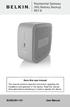 Residential Gateway (RG) Battery Backup REV B Save this user manual This manual contains important instructions regarding the installation and operation of this device. Read this manual thoroughly before
ZigBee Extender 3. Features. Supported Models and Requirements. Important Safety Instructions. What Is Included: Specifications
 ZigBee Extender 3 Features The Card Access ZigBee Extender 3 operates as a ZigBee (IEEE 802.15.4) router and mesh extender. The Extender is designed to improve ZigBee signal latency that can occur when
5-Port Gigabit Switch 8-Port Gigabit Switch
 5-Port Gigabit Switch 8-Port Gigabit Switch Belkin Tech Support US: 877-736-5771 310-898-1100 ext. 2263 Europe: 00 800 223 55 460 Australia: 1800 235 546 New Zealand: 0800 235 546 Singapore: 800 616 1790
Quick Installation Guide TK-204UK H/W: V1.0R
 Quick Installation Guide TK-204UK H/W: V1.0R English... 1. Before You Start... 2. How to Install... 3. Operation... 4. Using the KVM Utility... Specifications... Troubleshooting... 1 1 2 4 5 8 9 1. Before
User Manual TuneCast Auto for ipod
 User Manual TuneCast Auto for ipod Introduction Congratulations and thank you for purchasing the innovative TuneCast Auto from Belkin. This product is designed to power, charge, and transmit audio from
4 Port PCI Express Gigabit Ethernet PoE PSE Network Card
 4 Port PCI Express Gigabit Ethernet PoE PSE Network Card ST4000PEXPSE *actual product may vary from photos DE: Bedienungsanleitung - de.startech.com FR: Guide de l'utilisateur - fr.startech.com ES: Guía
USB 3.0 SATA HDD/SSD Dock - 1:1 Duplicator SATDOCK2REU3
 USB 3.0 SATA HDD/SSD Dock - 1:1 Duplicator SATDOCK2REU3 *actual product may vary from photos FR: Guide de l utilisateur - fr.startech.com DE: Bedienungsanleitung - de.startech.com ES: Guía del usuario
1 Port FTDI USB to RS232 Null Modem Adapter
 1 Port FTDI USB to RS232 Null Modem Adapter ICUSB232FTN *actual product may vary from photos DE: Bedienungsanleitung - de.startech.com FR: Guide de l'utilisateur - fr.startech.com ES: Guía del usuario
2 Port USB Keyboard Mouse Switch Cable with File Transfer for PC and Mac
 2 Port USB Keyboard Mouse Switch Cable with File Transfer for PC and Mac SVKMS2 *actual product may vary from photos DE: Bedienungsanleitung - de.startech.com FR: Guide de l'utilisateur - fr.startech.com
2 Bay USB 3.0 RAID 3.5in HDD Enclosure
 2 Bay USB 3.0 RAID 3.5in HDD Enclosure SAT3520U3SR *actual product may vary from photos DE: Bedienungsanleitung - de.startech.com FR: Guide de l'utilisateur - fr.startech.com ES: Guía del usuario - es.startech.com
User s Manual. for. Tote-Remote
 User s Manual for Tote-Remote Remote Control & Laser Pointer for Laptop Computers TABLE OF CONTENTS Important Safety & Health Information 2 Special Notice Regarding Carrying Laser Pointers On Commercial
USB 3.0 Mini Docking Station Adapter with Gigabit Ethernet and VGA
 USB 3.0 Mini Docking Station Adapter with Gigabit Ethernet and VGA USB31GEVG *actual product may vary from photos DE: Bedienungsanleitung - de.startech.com FR: Guide de l'utilisateur - fr.startech.com
3.5in Black USB 2.0 IDE SATA External Hard Drive Enclosure
 3.5in Black USB 2.0 IDE SATA External Hard Drive Enclosure UNI3510U2 UNI3510U2EB UNI3510U2EB UNI3510UEBGB *actual product may vary from photos DE: Bedienungsanleitung - de.startech.com FR: Guide de l'utilisateur
Wi-Fi Camera with Night Vision NETCAM. User Manual. F7D7601V1 8820-01175 Rev. B00
 Wi-Fi Camera with Night Vision NETCAM User Manual F7D7601V1 8820-01175 Rev. B00 TABLE OF CONTENTS Getting Started... 1 What s in the Box....1 Initial Setup...1 Set Up Your Camera Wirelessly Through Your
16-Port 10/100 Network Switch 24-Port 10/100 Network Switch
 16-Port 10/100 Network Switch 24-Port 10/100 Network Switch Belkin Tech Support US: 877-736-5771 310-898-1100 ext. 2263 Europe: 00 800 223 55 460 Australia: 1800 235 546 New Zealand: 0800 235 546 Singapore:
USB 2.0 to IEEE 802.11N 150Mbps Mini Wireless Network Adapter - 1T1R
 USB 2.0 to IEEE 802.11N 150Mbps Mini Wireless Network Adapter - 1T1R USB150WN1X1 / USB150WN1X1W *actual product may vary from photos DE: Bedienungsanleitung - de.startech.com FR: Guide de l'utilisateur
Regulatory Compliance Statement
 Regulatory Compliance Statement 0560 EU Declaration of Conformity The declaration of conformity may be consulted at www.kobo.com/userguides SAR Limits The exposure standard for wireless devices employs
USB 2.0 to Gigabit Ethernet Adapter
 USB 2.0 to Gigabit Ethernet Adapter USB21000S2 *actual product may vary from photos DE: Bedienungsanleitung - de.startech.com FR: Guide de l'utilisateur - fr.startech.com ES: Guía del usuario - es.startech.com
SETUP GUIDE GUITAR RIG SETUP GUIDE
 SETUP GUIDE GUITAR RIG SETUP GUIDE The information in this document is subject to change without notice and does not represent a commitment on the part of Native Instruments GmbH. The software described
USB Rover 2850. 2-port USB 1.1 40m Cat 5 Extender. User Guide
 USB Rover 2850 2-port USB 1.1 40m Cat 5 Extender User Guide Thank you for purchasing the USB Rover 2850, 2-port USB 1.1 40 m (131 ft) Cat 5 Extender Please read this guide thoroughly. FCC Radio Frequency
KVM - DVI, USB 2.0, Cat 5 Extender
 KVM - DVI, USB 2.0, Cat 5 Extender 330 feet (100 meters) EL5100 User Guide Powered by Thank you for purchasing the KVM - DVI, USB 2.0, Cat 5 Extender 330 feet (100 meters) Please read this guide thoroughly.
P11 PS3 Amplified Stereo Gaming Headset
 P11 PS3 Amplified Stereo Gaming Headset Cover Quick Start Guide Inside Cover For more products, accessories and general product information, please visit: TurtleBeach.com For warranty information and product
2 Port Professional USB KVM Switch Kit with Cables 4 Port Professional USB KVM Switch
 2 Port Professional USB KVM Switch Kit with Cables 4 Port Professional USB KVM Switch SV231USB SV431USB DE: Bedienungsanleitung - de.startech.com FR: Guide de l'utilisateur - fr.startech.com ES: Guía del
Gateway Port Replicator User Guide
 Gateway Port Replicator User Guide Using the Port Replicator Identifying features Connecting and disconnecting the port replicator 1 Using the Port Replicator Top Power button Component Icon Description
3.5 USB 3.0 to SATA III HDD Enclosure with UASP Support
 3.5 USB 3.0 to SATA III HDD Enclosure with UASP Support S3510BMU33 S3510SMU33 *actual product may vary from photos DE: Bedienungsanleitung - de.startech.com FR: Guide de l'utilisateur - fr.startech.com
SHINE-LED 1-2016. 5 Jahre LED-Garantie 5 year LED warranty Garantie LED de 5 ans 5 anni di garanzia per LED 5 jaar LED-garantie
 1-2016 5 Jahre LED-Garantie 5 year LED warranty Garantie LED de 5 ans 5 anni di garanzia per LED 5 jaar LED-garantie SHINE-LED Design-Leuchten Design Lights Design Luminaires Illuminazione contemporanea
DVI USB KVM Console Extender with USB 2.0 and Audio - 500m
 DVI USB KVM Console Extender with USB 2.0 and Audio - 500m SV565UTPDUA *actual product may vary from photos DE: Bedienungsanleitung - de.startech.com FR: Guide de l'utilisateur - fr.startech.com ES: Guía
Cable-Free USB Hub User Manual
 Cable-Free USB Hub User Manual FU0 Table of Contents. Introduction... Features... System Requirements... Package Includes... Technical Specifications.... Installation.... Operation...0. Troubleshooting...8.
4 Port VGA Video Audio Switch with RS232 control
 4 Port VGA Video Audio Switch with RS232 control VS410RVGAA *actual product may vary from photos DE: Bedienungsanleitung - de.startech.com FR: Guide de l'utilisateur - fr.startech.com ES: Guía del usuario
USB 3.0 to 2.5 SATA HDD Enclosure with ISO
 USB 3.0 to 2.5 SATA HDD Enclosure with ISO S2510BU3ISO *actual product may vary from photos DE: Bedienungsanleitung - de.startech.com FR: Guide de l'utilisateur - fr.startech.com ES: Guía del usuario -
USB 2.0 to AC600 Dual Band Mini Wireless-AC Network Adapter - 802.11b/g/n/ac
 USB 2.0 to AC600 Dual Band Mini Wireless-AC Network Adapter - 802.11b/g/n/ac USB433WACDB *actual product may vary from photos DE: Bedienungsanleitung - de.startech.com FR: Guide de l'utilisateur - fr.startech.com