
USER MANUAL HARD DRIVE DOCK PRO EXTERNAL DOCKING STATION / 2.5" & 3.5" SATA & PATA / USB 2.0. Rev. 933
|
|
|
- Jocelin Sims
- 9 years ago
- Views:
Transcription
1 USER MANUAL HARD DRIVE DOCK PRO EXTERNAL DOCKING STATION /.5" & 3.5" SATA & PATA / USB.0 Rev. 933

2 Freecom HD Dock Pro Dear user, welcome to the installation of your Freecom HD Dock Pro. Before installing the drive, please read through the following points regarding its compatibility with your system. Freecom Technologies Germany Contents of the box Please check the contents of the box; the following items should be included: Freecom HD Dock Pro USB.0 cable External power supply (DC1V/3A) Manual on CD Quick Install Guide Warning! All rights reserved. The products named in this manual are only used for identification purposes and may be trademarks or registered trademarks of the respective companies. This device was designed for home or office use. Warning! This device is equipment complying with 550 class A. This equipment can cause radio disturbances in a residential area. If this is the case, the user has to take appropriate measures and assume all responsibility and costs for. It may not be used near or with any life-sustaining systems. Freecom cannot be made liable for any damages, loss of data or damage following thereof -whatsoever (including, without limitation, damages for loss of business profits, business interruption, loss of business information, or other pecuniary loss) arising out of the use of or inability to use this Freecom product, even if Freecom has been advised of the possibility of such damages. We reserve the right to upgrade our products in keeping with technological advances.

3 Table of Contents User manual General information... Page 4 Chapter 1: Start Up the HD Dock Pro... Page 6 Chapter : Partitioning your HD... Page 9 Chapter 3: Trouble shooting - FAQ... Page 18 Need assistance? Have questions? In case you have a question about the use of this product, need information about other Freecom products or need technical assistance, please contact the Freecom Service Center for your country. See for details. Freecom offers free unlimited helpdesk support. 009 Freecom Technologies

4 Freecom HD Dock Pro General information The following hardware and software requirements must be fulfilled to ensure troublefree operation. System requirements In order to use the Freecom HD Dock Pro, following components are needed: PC: Intel Pentium III / AMD Duron 900 MHz or higher 56 MB RAM (Vista: 51 MB RAM) or higher Available USB.0 or USB 1.1 port* Internet connection for online registration Operating system: Windows XP, Windows Vista Mac: PowerPC G4/G5 or Intel Mac 56 MB RAM or higher Available USB.0 or USB 1.1 port* Internet connection for online registration Operating system: Mac OS X v10.4 or higher Environment Operating temperatur: 5 C - 35 C. Operating humidity: 5-90%, non-condensing Features Supports.5" & 3.5" SATA I/II hard drive (1.5 Gbit/s or 3.0 Gbit/s) Supports 3.5" IDE hard drives Supports USB.0 transfer rate up to 480 Mbps, compatible with USB 1.1 up to 1 Mbps. Compact size docking design Unique hard drive ejection mechanism Power LED indicator Access LED indicator Supports hot swaps * To achieve optimal performance from the Freecom HD Dock Pro your computer should be equipped with an USB.0 port.

5 General information Precautionary Measures and General Notes Make sure the label side of the hard drive is ahead, and the hard drive connector is downward before it is inserted. Otherwise, the hard drive can not be inserted. Do not eject the hard drive while it is working. Hold the hard drive with its front edge instead of the PCB at the bottom side. Hard drives are precise equipment. Read the user manual attached with the hard drive before using. Do not put anything inside the product except.5" or 3.5" SATA I/II hard drives. Freecom warranty this product against defects of materials and workmanship under normal use, Freecom cannot be made responsible for any damage caused by accident, abuse, misuse etc, nor any hardware/software damage or data loss. The surface temperature of hard drive may reach 50 C, please mind and be careful, altough it is not hot enough to burn people. If at any point during installing and/or configuring your HD Dock Pro you need assistance or have questions, please contact the Freecom Support Center for your country. See for details. Freecom offers free unlimited helpdesk support.

6 Freecom HD Dock Pro Chapter 1: Start Up the HD Dock Pro Freecom HD Dock Pro - Top 1. SATA connector. Power and Access LED 3. Slot for.5" SATA HDD 4. Slot for 3.5" SATA HDD 5. Eject Button Front 6. Power connector and 7. IDE connector Back 8. AC connector 9. USB.0 connector 8 9 Note:.5 IDE hard disks can be connected to the HD Dock Pro by using a.5 to 3.5 converter (not included in delivery). By using IDE/power cables with two connectors (not included in delivery), two IDE hard disks can be connected to the HD Dock Pro. Make sure one hard disk is jumpered as MASTER and the other as SLAVE. Further information regarding jumpering can be found in the documentation of your hard disk(s).

7 Start Up the HD Dock Pro 1. HDD installation for.5" or 3.5" 1. Connect the cable of the power supply to the Freecom HD Dock Pro and the power supply itself to the socket. 1. Connect the USB cable to the USB port on the HD Dock Pro and on the computer. 3a. Vertically insert the hard drive into the drive slot, make sure the hard drive matches firmly with the connector inside the dock. HD.5" HD 3.5" or 3b. Connect the 3.5" IDE HDD with the IDE cable* and the power cable*. Switch off the HD Dock Pro before connecting an IDE hard disk. Connect the IDE HDD to IDE & power cable. * Not included in delivery.

8 Freecom HD Dock Pro 4. Switch on the HD Dock Pro. 1 PC Mac 5. Partition and format your hard drive (if required). See chapter for further details. PC: Your hard drive appears in "My Computer" and can be used now. 1. LED Mac: Your hard drive appears on the desktop and can be used now. LED on: HD Dock Pro switched on LED flashes: Data transfer 1. Ejecting the HD from the Dock 1. Switch off the power.. Press the button down Gently remove the hard drive off in vertical direction. 8

9 Partitioning your HD Chapter : Partitioning your HD.1 General information Your hard drive must be partitioned and formatted before it can be used. This chapter describes current limitations of most common file systems and instructions to enable you to adapt your hard drive to your needs.. File System features Please refer to the tables below for an overview: File systems supported by different operating systems File system Operating system FAT FAT3 NTFS HFS+ Windows XP / Vista yes yes yes no Mac OS X yes yes yes (only read) yes Maximum size of a partition File system Operating system FAT FAT3 NTFS HFS+ Windows XP / Vista 4 GB* 3 GB 16 TB - Mac OS X 10.1.x - 18 GB - TB Mac OS X 10..x - 18 GB - 8 TB Mac OS X 10.3.x - ( -> 18 GB) - 16 TB Mac OS X 10.4.x - ( -> 18 GB) - 16 TB Mac OS X 10.5.x - ( -> 18 GB) - 16 TB * FAT partitions larger than GB can only be administrated by Windows XP / Vista.

10 Freecom HD Dock Pro Example for different partitions with different file systems on one HD Total size of HD File system NTFS FAT3 80 GB 60 GB 0 GB Note: On NTFS formatted hard disks data can only be written under Windows XP / Vista. Under Mac OS X data can only be read. The example above is a good solution for Windows XP / Vista users who sometimes exchange data with Macs. For storing the data under Windows XP / Vista both partitions can be used. As the NTFS file system can only be read by Mac data to be used on this operating system must be stored on the FAT3 partition. Please follow the steps below to adapt your hard drive for your needs..3 Partitioning your hard drive under Windows XP / Vista.3.1 Deleting a partition on the hard drive 1. Click with the right mouse button on the "My Computer" icon on your desktop.. Select the option "Manage". 3. Select the option "Storage" -> "Disk Management". 4. Choose your external hard drive and right-click on the partition. 5. Select "Delete Partition" and confirm by clicking on "Yes". The partition will be deleted now..3. Creating a partition on the hard drive The following steps will guide you through the process of creating partitions on your hard drive. After this procedure your hard drive will be ready for use and it will be allocated a drive letter. 1. Click with the right mouse button on the "My Computer" icon on your desktop.. Select the option "Manage". 3. Select the option "Storage" -> "Disk Management". 4. Choose the hard disk which is "unallocated". Ensure that the entire drive is "unallocated". 10

11 Partitioning your HD 5. Click with the right mouse button on the "unallocated" area and select the option "New Partition". The "New Partition Wizard" opens. Click on "Next". 11

12 Freecom HD Dock Pro 6. Select "Primary partition" and click on "Next". 7. Now you can adjust the size of your partition. Click on "Next" if only one partition is to be created. See next chapter (Creating two or more partitions on the HD under Windows XP / Vista) how to create more than one partition. 8. Assign a drive letter to your hard disk. Normally you can use the default options. Click on "Next". 1

13 Partitioning your HD 9. Select the formatting option "Format this partition with the following settings". Choose either "FAT3" or "NTFS", the "Allocation unit size" should remain on "Default". Finally select "Perform a quick format" and click on "Next". 10. Click on "Finish" to complete the partitioning of your hard drive. Your hard drive will be formatted now and is ready-to-use afterwards. 13

14 Freecom HD Dock Pro.3.3 Creating two or more partitions on the HD under Windows XP / Vista 1. Repeat the steps from the previous chapter (Creating a partition on the hard drive under Windows XP / Vista) for creating the first partition.. Click with the right mouse button on the "My Computer" icon on your desktop. 3. Select the option "Manage". 4. Select the option "Storage" -> "Disk Management". 5. Right-click on the unallocated space of your hard drive and select the option "New partition". The "New Partition Wizard" opens. Click on "Next". 6. Select "Extended partition" and click on "Next". 7. Now you can adjust the size of your partition. Enter the size and click on "Next". 14

15 Partitioning your HD 8. Click on "Finish" to create the "Extended partition". The unallocated space now changed to "Free space". 15

16 Freecom HD Dock Pro 9. Right-click on "Free Space" and select "New Logical Drive". The "New Partition Wizard" opens. Click on "Next". 10. "Logical drive" is already selected. Click on "Next". 11. Specify the partition size and click on "Next". 1. Assign a drive letter and click on "Next". 13. Select the formatting option "Format this partition with the following settings". Choose either "FAT3" or "NTFS", the "Allocation unit size" should remain on "Default". Finally select "Perform a quick format" and click on "Next". 14. Click on "Finish" to complete partitioning. Your partition will be formatted now and is ready-to-use. Note: If you select NTFS as file system, the data of your HD Dock Pro can be read only under Mac OS X. There is no possibility to write data. 16

17 Partitioning your HD.4 Partitioning your HD under Mac OS X 1. Open the "Disk Utility". This can be found in "Applications" > "Utilities".. Click on the tab "Partition". Here you can setup the partition settings and partition the drive according to your settings (e.g. Mac OS Extended). Detailed information how to use the Disk Utility can be found in the help: 17

18 Freecom HD Dock Pro 3 Chapter 3: Trouble shooting - FAQ If you still have problems getting your Freecom HD Dock Pro to function properly despite having installed it correctly, then please check the following items: What can I do when the hard drive does not work and there is cklicking noise arising from it? It means the power supply is not adequate enough to start the hard drive. Make sure the power plug (power adaptor and cable) is inserted, and connect the USB cable to the counterpart ports. When I finished the hardware installation following the manual, the external device failed to be detected by the system. Why? Please check the hard drive, and format it if it is a new one. 18

USER MANUAL HARD DRIVE XS EXTERNAL HARD DRIVE / 3.5" / USB 2.0. Rev. 906
 USER MANUAL HARD DRIVE XS EXTERNAL HARD DRIVE / 3.5" / USB 2.0 Rev. 906 Freecom Hard Drive XS Dear user! Thank you for choosing the external Freecom Hard Drive XS. For optimal use and performance we advise
USER MANUAL TOUGH DRIVE CUSTOM EXTERNAL MOBILE HARD DRIVE / 2.5" / USB 2.0. Rev. 848
 USER MANUAL TOUGH DRIVE CUSTOM EXTERNAL MOBILE HARD DRIVE / 2.5" / USB 2.0 WIN & Mac Rev. 848 Freecom ToughDrive Custom Dear user! Thank you for choosing the Freecom ToughDrive Custom as an external hard
USER MANUAL MOBILE HARD DRIVES DESKTOP HARD DRIVES. Rev. 034/Mac
 USER MANUAL MOBILE HARD DRIVES DESKTOP HARD DRIVES Rev. 034/Mac Dear user! Thank you for selecting the Freecom Mobile Hard Drive / Desktop Hard Drive as your external data storage device. For optimal use
USER MANUAL VERBATIM HARD DRIVE
 USER MANUAL VERBATIM HARD DRIVE Rev. 202 Dear user! Thank you for selecting the Verbatim Hard Drive as your external data storage device. For optimal use and performance we advise you to read this manual
USER MANUAL NETWORK DRIVE XS EXTERNAL NETWORK HARD DRIVE / 3.5" / GIGABIT LAN / USB 2.0. Rev. 945
 USER MANUAL NETWORK DRIVE XS EXTERNAL NETWORK HARD DRIVE / 3.5" / GIGABIT LAN / USB 2.0 Rev. 945 Freecom Network Drive XS Dear user, Thank you for selecting the Freecom Network Drive XS. The Freecom Network
Package Contents: TRADEMARKS
 Package Contents: SATA/IDE-USB adapter: 1. SATA/IDE-USB Adapter 2. Power Adapter with On/Off Switch 3. Power Cable 4. SATA Data Cable 5. SATA Power Supply Cable 6. User Manual (Disc) TRADEMARKS Apple,
How To Use An Esata External Hard Drive Enclosure (I386) With A Usb 2.0 And Usb 2/1.1 Hard Drive (I219) On A 2.5\" Hard Drive On A Mini Hard Drive Or An Ip
 HDD external enclosure for data-storage mobility with USB 2.0 and esata interface USER Manual English AKASA Company notices The information contained in this document is subject to change without notice.
Sabrent USB DSC5 USB 2.0 to SATA/IDE Hard Drive Adapter. 2.5 Notebook IDE Hard Drive
 Sabrent USB DSC5 USB 2.0 to SATA/IDE Hard Drive Adapter 2.5 Notebook IDE Hard Drive 1. Connect the short 2.5 IDE connector from the Sabrent adapter to the pins on your 2.5 Hard Drive. Note the keyed pin
3.5 Dual Bay USB 3.0 RAID HDD Enclosure
 3.5 Dual Bay USB 3.0 RAID HDD Enclosure User Manual August 11, 2011 v1.1 MFG Part # MT2U3-MP BARCODE Introduction 1 Introduction 1.1 System Requirements 1.1.1 PC Requirements Minimum Intel Pentium III
3.5'' SATA to USB 3.0 & esata External Hard Drive Enclosure U SER S MANUA L
 3.5'' SATA to USB 3.0 & esata External Hard Drive Enclosure U SER S MANUA L Package Contents: 3.5'' SATA to USB 3.0 & esata External Hard Drive Enclosure 1 3.5" HDD Enclosure 2 Power Adapter 3 USB 3.0
Digital Photo Bank / Portable HDD Pan Ocean E350 User Manual
 Digital Photo Bank / Portable HDD Pan Ocean E350 User Manual Installing a hard disk 1. Power off the unit. 2. Remove the bottom cover from the unit by removing four screws. 3. Insert the 2.5 HDD to the
2.5/3.5 SATA HDD Docking Station
 SATADOCKU2 SATADOCKU2E SATADOCK22UE 2.5/3.5 SATA HDD Docking Station FCC Compliance Statement This equipment has been tested and found to comply with the limits for a Class B digital device, pursuant to
User Manual. 2 Bay Docking Station
 FANTEC MR-CopyDU3 User Manual 2 Bay Docking Station With One Touch Backup (OTB) and Copy Function Hardware: PC and Notebooks, Macintosh USB 1.1, USB 2.0 or USB 3.0 interface Features: 2,5 or 3,5 SATA I,II,III
NetDisk & NetDisk Mini
 HANTZ + PARTNER The Upgrade Company! www.hantz.com Quick Install Guide For Windows 2000 / XP Software Version 2.3 NetDisk & NetDisk Mini Powered by Technology www.ximeta.de HANTZ + PARTNER The Upgrade
We reserve the right to make technical changes.
 User Guide External Hard Disk with USB 1.1/2.0 and IEEE 1394 connection Copyright 2003 All rights reserved. This manual is protected by Copyright. The Copyright is owned by Medion. Trademarks: MS-DOS and
**Please read this manual carefully before you use the product**
 -1- **Please read this manual carefully before you use the product** Description: The CEB-2355S is a multifunction storage device designed in a special body structure, which can be simply connected to
Cool USB 2.0/eSATA to SATA Docking Duplicator Quick Installation Guide
 Cool USB 2.0/eSATA to SATA Docking Duplicator Quick Installation Guide Introducing the SATA Docking Duplicator The Cool USB 2.0/eSATA to SATA Docking Duplicator adds extra storage space to your computer
NETWORK STORAGE CENTER NETWORK MEDIA CENTER
 USER MANUAL NETWORK STORAGE CTER NETWORK MEDIA CTER EXTERNAL NETWORK HARD DRIVE / 3.5" / LAN Rev. 924 Freecom Network Storage Center / Network Media Center Dear user, Thank you for selecting the Freecom
Formatting Guide. 35011673 ver.01
 Formatting Guide This manual describes typical formatting procedures for external hard drives. Note that not all hard drives support all of the operating systems or format types discussed. 35011673 ver.01
USB3.0 Docking Station. User Manual (DA-70546)
 USB3.0 Docking Station User Manual (DA-70546) Foreword Congratulations on your purchase of our product! We will show you a new storage concept with safety and convenience It is our pleasure to give you
USB Floppy Disk Drive User's Guide
 USB Floppy Disk Drive User's Guide Recommended System Requirements Macintosh Computer Apple imac, ibook or Power Macintosh G3 or G4 with a USB port, 32MB of RAM, and a hard drive with 1 MB of free space
User Manual. Store 'n' Go Secure Pro Protection Software. Rev. 1
 User Manual Protection Software Rev. 1 Need assistance? Have questions? In case you have a question about the use of this product, need information about other Verbatim products or need technical assistance,
EXTERNAL 2.5 IDE & SATA HARD DRIVE ENCLOSURE USER MANUAL
 EXTERNAL 2.5 IDE & SATA HARD DRIVE ENCLOSURE USER MANUAL w w w. v a n t e c u s a. c o m Package Contents: NexStar 3 External 2.5 HDD Enclosure: Driver CD User Manual NexStar 3 External 2.5 HDD Enclosure
Serial ATA Hard Drive Docking Station
 Serial ATA Hard Drive Docking Station UNIDOCK2U Instruction Manual USB to SATA, IDE External Hard Drive Docking Station for 2.5 or 3.5 Hard Drives FCC Compliance Statement This equipment has been tested
USB 3.0 to 2.5" SATA HDD/SSD Mini Docking Quick Installation Guide
 Introduction USB 3.0 to 2.5" SATA HDD/SSD Mini Docking Quick Installation Guide The USB 3.0 to 2.5" SATA HDD/SDD Mini Docking quickly adds more storage space to your USB-enabled computer. Key Features
USB-2.0 Mobile Mini Hub USER S GUIDE. Making Your Mobile Life Easier. Making Your Mobile Life Easier.
 USB-2.0 Mobile Mini Hub Making Your Mobile Life Easier. Visit our Web site at: www.targus.com Features and specifications are subject to change without notice. 2002 Targus Corp. 400-0093-001A USER S GUIDE
User s Manual. www.vantecusa.com. SATA to esata & USB 2.0
 User s Manual Model:NST-D200SU www.vantecusa.com All Registered Trademarks Belong To Their Respected Companies. SATA to esata & USB 2.0 Copyright 2008 Vantec Thermal Technologies. All Rights Reserved.
Maxtor OneTouch User's Guide
 EXTERNAL HARD DRIVE Maxtor OneTouch User's Guide TM II P/N:20259600 i Contents 1 Introduction................................................. 1 Maxtor OneTouch II Drive Components............................
USB 3.0 DUAL SATA HDD DOCKING STATION
 USB 3.0 DUAL SATA HDD DOCKING STATION User Manual (DA-70547) Introduction DA-70547 is a USB3.0 enabled dual-sata hard drive enclosure. It supports simultaneously use of two 2.5 or 3.5 SATA hard disk for
USB 2.0 3.5 External Hard Disk Drive
 USB 2.0 3.5 External Hard Disk Drive System Requirements Notebook or Desktop PC with USB2.0 or USB1.1 port. Windows 98SE/Me/2000, or Windows XP (Make sure the device driver for USB Host controller has
USB 3.0 4-Bay 2.5/3.5 SATA SSD/HDD Dock with UASP
 USB 3.0 4-Bay 2.5/3.5 SATA SSD/HDD Dock with UASP SDOCK4U33 *actual product may vary from photos DE: Bedienungsanleitung - de.startech.com FR: Guide de l'utilisateur - fr.startech.com ES: Guía del usuario
USB 3.0/eSATA Dual 2.5/3.5 SATA HDD Dock with UASP
 USB 3.0/eSATA Dual 2.5/3.5 SATA HDD Dock with UASP SDOCK2U33EB *actual product may vary from photos DE: Bedienungsanleitung - de.startech.com FR: Guide de l'utilisateur - fr.startech.com ES: Guía del usuario
11.4.5 Optional Lab: Install, Configure, and Partition a Second Hard Drive in Windows Vista
 11.4.5 Optional Lab: Install, Configure, and Partition a Second Hard Drive in Windows Vista Introduction Print and complete this lab. In this lab, you will change the boot order, install a second hard
is605 Dual-Bay Storage Enclosure for 3.5 Serial ATA Hard Drives FW400 + FW800 + USB2.0 Combo External RAID 0, 1 Subsystem User Manual
 is605 Dual-Bay Storage Enclosure for 3.5 Serial ATA Hard Drives FW400 + FW800 + USB2.0 Combo External RAID 0, 1 Subsystem User Manual (English/Deutsch/ 中 文 ) v1.0 August 23, 2007 Table of Contents CHAPTER
Belkin USB Flash Drive
 Belkin USB Flash Drive Model F5U025 User Guide Belkin USB Flash Drive Overview Storing and moving data has never been easier. Introducing the Belkin USB Flash Drive. Simply plug the Flash Drive into the
USB Flash Memory TransMemory-EX II TM
 USB Flash Memory TransMemory-EX II TM Security Software User Manual TOSHIBA Corporation Semiconductor & Storage Products Company Contents Chapter 1: Introduction... 2 Chapter 2: System Requirements...
PCI Express USB Card. PCI Express 4 Port USB 2.0 card PEX400USB2. Instruction Manual. Actual product may vary from photo
 PCI Express USB Card PCI Express 4 Port USB 2.0 card PEX400USB2 Actual product may vary from photo FCC Compliance Statement This equipment has been tested and found to comply with the limits for a Class
Hydra esata. 4-Bay RAID Storage Enclosure. User Manual January 16, 2009 - v1.0
 4-Bay RAID Storage Enclosure User Manual January 16, 2009 - v1.0 EN Table of Contents 1 Introduction... 1 1.1 System Requirements... 1 1.1.1 PC Requirements... 1 1.1.2 Mac Requirements... 1 1.1.3 Supported
COMBOGARDPRO. 39E Electronic Combination Lock SOFTWARE INSTALLATION INSTRUCTIONS
 COMBOGARDPRO 39E Electronic Combination Lock SOFTWARE INSTALLATION INSTRUCTIONS IMPLEMENTATION PACKAGE The ComboGard Pro Software implementation package includes: 707012 ComboGard Pro Software Install
Wormhole Switch JUC400
 For MAC & Windows OS Wormhole Switch JUC400 User Manual JUC400 Ver4.0 Required Environments Windows - OS: Windows 7 / Vista / XP / 2000 - Available USB port (USB 2.0 is recommended) - CPU: Intel Pentium
EN-CAHDD2BU3C-ZB. Instruction Manual. USB 3.0 Duplicator Dock
 Instruction Manual USB 3.0 Duplicator Dock Cavalry, the names of series and the Cavalry logo are registered trademarks of Cavalry Storage. All other trademarks or registered trademarks are the property
2 Bay USB 3.0 RAID 3.5in HDD Enclosure
 2 Bay USB 3.0 RAID 3.5in HDD Enclosure SAT3520U3SR *actual product may vary from photos DE: Bedienungsanleitung - de.startech.com FR: Guide de l'utilisateur - fr.startech.com ES: Guía del usuario - es.startech.com
Taurus - RAID. Dual-Bay Storage Enclosure for 3.5 Serial ATA Hard Drives. User Manual
 Dual-Bay Storage Enclosure for 3.5 Serial ATA Hard Drives User Manual v1.0 August 23, 2007 EN Table of Contents CHAPTER 1 - INTRODUCTION 1 CHAPTER 3 - SYSTEM SET UP 9 ICON KEY 1 THE TAURUS RAID 1 AVAILABLE
ViviCam 25 Digital Camera User s Manual
 ViviCam 25 Digital Camera User s Manual 2010 Sakar International, Inc. All rights reserved. Windows and the Windows logo are registered trademarks of Microsoft Corporation. All other trademarks are the
USB 3.0 Universal Mini Docking Station Adapter
 USB 3.0 Universal Mini Docking Station Adapter User Manual DSH-M100U3 Ver. 1.00 All brand names and trademarks are properties of their respective owners. www.vantecusa.com Copyright 2015 Vantec Thermal
User Manual. www.vantecusa.com All Registered Trademarks Belong To Their Respected Companies. SATA to esata / USB2.0 / FIREWIRE.
 User Manual Model:NST-D100UFS www.vantecusa.com All Registered Trademarks Belong To Their Respected Companies. SATA to esata / USB2.0 / FIREWIRE Copyright 2008 Vantec Thermal Technologies. All Rights Reserved.
3.5 USB 3.0 to SATA III HDD Enclosure with UASP Support
 3.5 USB 3.0 to SATA III HDD Enclosure with UASP Support S3510BMU33 S3510SMU33 *actual product may vary from photos DE: Bedienungsanleitung - de.startech.com FR: Guide de l'utilisateur - fr.startech.com
Serial ATA Hard Drive Enclosure
 SAT2510U2E SAT2510BU2E Instruction Manual Serial ATA Hard Drive Enclosure 2.5 esata/usb External Hard Drive Enclosure for Serial ATA Hard Drives FCC Compliance Statement This equipment has been tested
OWC Mercury Elite Pro Dual ASSEMBLY MANUAL & USER GUIDE
 OWC Mercury Elite Pro Dual ASSEMBLY MANUAL & USER GUIDE TABLE OF CONTENTS 1. INTRODUCTION...1 1.1 MINIMUM SYSTEM REQUIREMENTS 1.1.1 Apple Mac Requirements 1.1.2 PC Requirements 1.1.3 Supported Drives 1.2
Serial ATA 2 Ports PCI Host
 Serial ATA 2 Ports PCI Host This Manual is for the various Model of 2ports SATA HBA: Model A: Low Profile Serial ATA Internal 2 Ports Model B: Low Profile External 1 Port + Internal 1 Port Model C: Low
3.5 External Hard Drive Enclosure
 UNI3510U2E / UNI3510U2EGB UNI3510U2EB / UNI3510UEBGB Instruction Manual 3.5 External Hard Drive Enclosure 3.5 esata/usb 2.0 to IDE/SATA External Hard Drive Enclosure with One-Touch Backup FCC Compliance
USB 2.0 to 2.5in/3.5in SATA and IDE HDD Docking Station
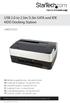 USB 2.0 to 2.5in/3.5in SATA and IDE HDD Docking Station UNIDOCK2U DE: Bedienungsanleitung - de.startech.com FR: Guide de l'utilisateur - fr.startech.com ES: Guía del usuario - es.startech.com IT: Guida
Taurus Super-S3 LCM. Dual-Bay RAID Storage Enclosure for two 3.5-inch Serial ATA Hard Drives. User Manual March 31, 2014 v1.2 www.akitio.
 Dual-Bay RAID Storage Enclosure for two 3.5-inch Serial ATA Hard Drives User Manual March 31, 2014 v1.2 www.akitio.com EN Table of Contents Table of Contents 1 Introduction... 1 1.1 Technical Specifications...
INDEX. Trademarks All name and product s trademarks mentioned below are the property of their respective companies.
 USB2.0 EASY IDE ADAPTER INDEX Trademarks ---------------------------------------------------------------------------- Introduction ---------------------------------------------------------------------------
User s Manual. Home CR-H212. 2.5 2-BAY RAID Storage Enclosure
 User s Manual Home CR-H212 2.5 2-BAY RAID Storage Enclosure 1 Introduction 1.1 Features - 2-Bay Bus Powered Portable RAID Enclosure -Works with SATA HDD or SSD -Supports Big (JBOD), RAID0, RAID1, and Normal
Paragon Backup Retention Wizard
 Paragon Backup Retention Wizard User Guide Getting Started with the Paragon Backup Retention Wizard In this guide you will find all the information necessary to get the product ready to use. System Requirements
SOFTWARE INSTALLATION INSTRUCTIONS
 AUDITGARD LGA Electronic Combination Lock SOFTWARE INSTALLATION INSTRUCTIONS Implementation Package The AuditGard Software implementation package includes: 707013 AuditGard Software Install CD 42145 Programming/Audit
2-Bay Raid Sub-System Smart Removable 3.5" SATA Multiple Bay Data Storage Device User's Manual
 2-Bay Raid Sub-System Smart Removable 3.5" SATA Multiple Bay Data Storage Device User's Manual www.vipower.com Table of Contents 1. How the SteelVine (VPMP-75211R/VPMA-75211R) Operates... 1 1-1 SteelVine
Hydra Super-S Combo. 4-Bay RAID Storage Enclosure (3.5 SATA HDD) User Manual July 29, 2009 - v1.3
 4-Bay RAID Storage Enclosure (3.5 SATA HDD) User Manual July 29, 2009 - v1.3 EN Introduction 1 Introduction 1.1 System Requirements 1.1.1 PC Requirements Minimum Intel Pentium III CPU 500MHz, 128MB RAM
Wi-Fi Router Huawei E5. User Guide
 Wi-Fi Router Huawei E5 User Guide 1 Content Modem Description Specification SW installation guide User manual Troubleshooting Terms 2 Modem Description Huawei E5830 HSDPA Wifi-router and a USB modem combined
USB 2.0 TO IDE/SATA ADAPTER CABLE
 USB 2.0 TO IDE/SATA ADAPTER CABLE User Manual DA-70148-3 1. Characteristics Support SATA spread-spectrum transmitter Support SATA II Asynchronous Signal Recovery (Hot Plug) feature Compliance with USB
Pre-Installation: Personal Storage 3100 Installation Guide. Hardware and Operating System Requirements for Windows PC
 Pre-Installation: Thank You Thank you for selecting a Maxtor Personal Storage product. Please follow these instructions to take full advantage of its features. Handling Precautions If these handling precautions
Quick Operation Guide DAB, DAB + und DMB USB Digital Receiver Albrecht DR 403
 Quick Operation Guide DAB, DAB + und DMB USB Digital Receiver Albrecht DR 403. 1 Note Thank you for purchasing the DAB/ DMB receiver. This Quick Guide is to guide you to the software installation of the
Hi-Speed USB Flash Disk User s Manual Guide
 Hi-Speed USB Flash Disk User s Manual Guide System Requirements Windows 98, ME, 2000, XP, Mac OS 10.1, Linux 2.4 or above AMD or Intel Pentium 133MHz or better based computer USB 1.1, USB 2.0 or higher
USB 3.0 to 3.5 SATA III Upright HDD Enclosure with UASP
 USB 3.0 to 3.5 SATA III Upright HDD Enclosure with UASP S3510BMU33B *actual product may vary from photos DE: Bedienungsanleitung - de.startech.com FR: Guide de l'utilisateur - fr.startech.com ES: Guía
5-Bay Raid Sub-System Smart Removable 3.5" SATA Multiple Bay Data Storage Device User's Manual
 5-Bay Raid Sub-System Smart Removable 3.5" SATA Multiple Bay Data Storage Device User's Manual www.vipower.com Table of Contents 1. How the SteelVine (VPMP-75511R/VPMA-75511R) Operates... 1 1-1 SteelVine
USB 3.0/eSATA Dual 3.5 SATA HDD Enclosure
 USB 3.0/eSATA Dual 3.5 SATA HDD Enclosure S3520BU33ER / S3520WU33ER *actual product may vary from photos DE: Bedienungsanleitung - de.startech.com FR: Guide de l'utilisateur - fr.startech.com ES: Guía
User manual. INTERNET phone SKYPE PHONE / USB WIN & MAC. Rev. 622
 User manual INTERNET phone SKYPE PHONE / USB WIN & MAC Rev. 622 Freecom Internet Phone Dear user! Thanks You For Purchasing Freecom Internet Phone. Freecom Internet Phone is certified by Skype. Freecom
FUSION R400 RAID USB 3.0
 FUSION R400 RAID USB 3.0 1U Rackmount 4-Drive Hardware RAID 5 SATA Storage System with USB 3.0 Interface User s Guide For Windows Contents 1 Fusion R400 RAID USB 3.0 Features 1 2 Drive Installation and
USB 3.0 to SATA IDE HDD Docking Station for 2.5/3.5in HDD
 USB 3.0 to SATA IDE HDD Docking Station for 2.5/3.5in HDD UNIDOCK3U / UNIDOCK3UGB / UNIDOCK3UEU *actual product may vary from photos DE: Bedienungsanleitung - de.startech.com FR: Guide de l'utilisateur
User Guide USB 2.0 LAPTOP DOCKING STATION WITH VIDEO N2953
 USB 2.0 LAPTOP DOCKING STATION WITH VIDEO 410-1864-001B / ACP51US 1 YEAR LIMITED WARRANTY: We pride ourselves on the quality of our products. For complete warranty details and a list of our worldwide offices,
ScanWin Installation and Windows 7-64 bit operating system
 ScanWin Installation and Windows 7-64 bit operating system In order to run the ScanWin Pro install and program on Windows 7 64 bit operating system you need to install a Virtual PC and then install a valid,
Belkin USB Media Reader/Writer Manual
 P73880_F5U140-man.qxd 11/27/01 8:52 AM Page 1 Belkin USB Media Reader/Writer Manual P73880 F5U140 F5U141 F5U143 P73880_F5U140-man.qxd 11/27/01 8:52 AM Page 1 Introduction Thank you for purchasing a Belkin
FANTEC MR-35DU3-6G USER MANUAL
 FANTEC MR-35DU3-6G USER MANUAL Menu Menu... 1 1. Product Introduction... 2 2. Operation... 3 2.1 RAID mode setup... 4 2.1.1 JBOD Modus... 5 2.1.2 BIG Modus... 6 2.1.3 RAID0... 7 2.1.4 RAID1... 8 2.1.5
USB 2.0/eSATA to 2.5 /3.5 SATA HDD Dock
 USB 2.0/eSATA to 2.5 /3.5 SATA HDD Dock SATADOCKU2E SATDOCKU2EGB SATDOCKU2EEU *actual product may vary from photos DE: Bedienungsanleitung - de.startech.com FR: Guide de l'utilisateur - fr.startech.com
PCI Express USB 2.0 Adapter Card
 PEXUSB400 Instruction Manual PCI Express USB 2.0 Adapter Card 4-Port (Independent) PCI Express to High Speed USB 2.0 Adapter Card FCC Compliance Statement This equipment has been tested and found to comply
Refer to the Troubleshooting section first if you experience a problem with the product.
 D3 Station Your product comes with a quick start guide and a user s manual. Following the instructions and precautions of this manual will ensure easier and more enjoyable use of your D3 Station External
Installing the Gerber P2C Plotter USB Driver
 Installing the Gerber P2C Plotter USB Driver 1 You can install a Gerber P2C plotter using a USB connection and communicate with it using compatible design software. The following procedures describe installing
Point of view HDMI Smart TV dongle Mini RF Keyboard
 Point of view HDMI Smart TV dongle Mini RF Keyboard English Contents Contents... 1 General notices for use... 2 Disclaimer... 2 Box Contents... 2 1. HDMI TV dongle... 3 1.1. Product display... 3 1.2. Instructions
User Guide Software Version 2.1.0
 Intel Solid State Drive Firmware Update Tool User Guide Software Version 2.1.0 Order Number: 322570-007US Intel disclaims all express and implied warranties, including without limitation, the implied warranties
What your 1 Year Warranty Means
 1 External Hard Drive What your 1 Year Warranty Means Great care has gone into the manufacture of this product and it should therefore provide you with years of good service when used properly. In the
2.5" XTreme Files OS & Data Backup/Restore User Manual Please read the Instruction manual before using the XTreme Files (X Series) 1.
 2.5" XTreme Files OS & Data Backup/Restore User Manual Please read the Instruction manual before using the XTreme Files (X Series) 1. The suggested interface for your computer is USB2.0 to have better
IDE ATA/133 Controller
 IDE ATA/133 Controller 2 Port PCI ATA-133 IDE Adapter Card PCIIDE2 Actual product may vary from photo FCC Compliance Statement This equipment has been tested and found to comply with the limits for a Class
USB 3.0 Desktop Hard Disk Drive Enclosure
 USER GUIDE USB 3.0 Desktop Hard Disk Drive Enclosure NS-PCHD335/NS-PCHD335-C Before using your new product, please read these instructions to prevent any damage. Insignia NS-PCHD335/NS-PCHD335-C USB 3.0
e-dpp 4.0.2 May 2013 Quick Installation Guide Microsoft Windows 2003 Server, XP, Vista, 7 Access Database
 e-dpp 4.0.2 May 2013 Microsoft Windows 2003 Server, XP, Vista, 7 Access Database ELTECHS Engineering and Consulting Co., Ltd., Japan www.eltechs.co.jp Tel No. +81 (47) 490-1010 Fax No. +81 (47) 490-1011
User s Manual 2.5" External Hard Drive StoreJet 25M3
 User s Manual 2.5" External Hard Drive StoreJet 25M3 (Version 1.1) Table of Contents Introduction...1 Package Contents...1 Features...2 System Requirements...2 Safety Precautions...3 General Use... 3 Backing
Guardian MAXimus ASSEMBLY MANUAL & USER GUIDE
 Guardian MAXimus ASSEMBLY MANUAL & USER GUIDE TABLE OF CONTENTS 1. INTRODUCTION...1 1.1 MINIMUM SYSTEM REQUIREMENTS 1.1.1 Apple Mac Requirements 1.1.2 PC Requirements 1.1.3 Supported Drives 1.2 PACKAGE
Removable 2.5 SATA HDD Backup System
 Removable 2.5 SATA HDD Backup System SAT2510U3REM SAT2510U3S *actual product may vary from photos DE: Bedienungsanleitung - de.startech.com FR: Guide de l'utilisateur - fr.startech.com ES: Guía del usuario
PU-USBX. USB over Ethernet Extender OPERATION MANUAL
 PU-USBX USB over Ethernet Extender OPERATION MANUAL Safety Precautions Please read all instructions before attempting to unpack or install or operate this equipment, and before connecting the power supply.
MiniStation HD-PTU2 Portable USB Hard Drive. www.buffalotech.com
 MiniStation HD-PTU2 Portable USB Hard Drive www.buffalotech.com MiniStation USB Hard Drive HD-PTU2 Thank you for purchasing a Buffalo MiniStation portable hard drive. Package Contents MiniStation Portable
PCI Express FireWire & USB 2.0 card
 PCI Express FireWire & USB 2.0 card PCI Express Firewire 800 and USB 2.0 card PEX3U3F800 Actual product may vary from photo FCC Compliance Statement This equipment has been tested and found to comply with
2 Port USB Keyboard Mouse Switch Cable with File Transfer for PC and Mac
 2 Port USB Keyboard Mouse Switch Cable with File Transfer for PC and Mac SVKMS2 *actual product may vary from photos DE: Bedienungsanleitung - de.startech.com FR: Guide de l'utilisateur - fr.startech.com
USB 3.0 to 2.5 SATA HDD Enclosure with ISO
 USB 3.0 to 2.5 SATA HDD Enclosure with ISO S2510BU3ISO *actual product may vary from photos DE: Bedienungsanleitung - de.startech.com FR: Guide de l'utilisateur - fr.startech.com ES: Guía del usuario -
Parallels Desktop for Mac
 Parallels Software International, Inc. Parallels Desktop for Mac Quick Start Guide 3.0 (c) 2005-2007 Copyright 2006-2007 by Parallels Software International, Inc. All rights reserved. Parallels and Parallels
M5281/M5283. Serial ATA and Parallel ATA Host Controller. RAID BIOS/Driver/Utility Manual
 Serial ATA and Parallel ATA Host Controller Rev. 0.96 December 03, 2003 Copyright 2003 ULi Electronics Inc. All rights reserved. COPYRIGHT NOTICE All information in this document is considered ULi Electronics
2.5 HDD Enclosure Kit
 2.5 HDD Enclosure Kit User s Manual Introduction... 2 Important Reminders for all Enclosures... 2 Important Reminders for Encrypted HDD Enclosures... 2 Getting Started... 4 Assembling the 2.5 HDD Enclosure
Access G-RAID mini by its high-speed Interface esata, FireWire 800 (FireWire 400 via included cable) or USB 2.0 ports.
 Table of Contents Introduction Safety Precautions System Requirements What s in the Box G-RAID mini Overview Installing G-RAID mini G-RAID mini Warning LED Operation RAID Levels Explained Configuring G-RAID