
Avaya Extension to Cellular and Off-PBX Station (OPS) Installation and Administration Guide
|
|
|
- Shawn Allan Cole
- 9 years ago
- Views:
Transcription
1 Avaya Extension to Cellular and Off-PBX Station (OPS) Installation and Administration Guide Issue 6

2 Copyright 2003, Avaya Inc. All Rights Reserved Notice Every effort was made to ensure that the information in this document was complete and accurate at the time of printing. However, information is subject to change. Warranty Avaya Inc. provides a limited warranty on this product. Refer to your sales agreement to establish the terms of the limited warranty. In addition, Avaya s standard warranty language as well as information regarding support for this product, while under warranty, is available through the following Web site: Preventing Toll Fraud Toll fraud is the unauthorized use of your telecommunications system by an unauthorized party (for example, a person who is not a corporate employee, agent, subcontractor, or is not working on your company's behalf). Be aware that there may be a risk of toll fraud associated with your system and that, if toll fraud occurs, it can result in substantial additional charges for your telecommunications services. Avaya Fraud Intervention If you suspect that you are being victimized by toll fraud and you need technical assistance or support, in the United States and Canada, call the Technical Service Center's Toll Fraud Intervention Hotline at How to Get Help For additional support telephone numbers, go to the Avaya support Web site: If you are: Within the United States, click the Escalation Management link. Then click the appropriate link for the type of support you need. Outside the United States, click the Escalation Management link. Then click the International Services link that includes telephone numbers for the international Centers of Excellence. Providing Telecommunications Security Telecommunications security (of voice, data, and/or video communications) is the prevention of any type of intrusion to (that is, either unauthorized or malicious access to or use of) your company's telecommunications equipment by some party. Your company's telecommunications equipment includes both this Avaya product and any other voice/data/video equipment that could be accessed via this Avaya product (that is, networked equipment ). An outside party is anyone who is not a corporate employee, agent, subcontractor, or is not working on your company's behalf. Whereas, a malicious party is anyone (including someone who may be otherwise authorized) who accesses your telecommunications equipment with either malicious or mischievous intent. Such intrusions may be either to/through synchronous (timemultiplexed and/or circuit-based) or asynchronous (character-, message-, or packet-based) equipment or interfaces for reasons of: Utilization (of capabilities special to the accessed equipment) Theft (such as, of intellectual property, financial assets, or toll facility access) Eavesdropping (privacy invasions to humans) Mischief (troubling, but apparently innocuous, tampering) Harm (such as harmful tampering, data loss or alteration, regardless of motive or intent) Be aware that there may be a risk of unauthorized intrusions associated with your system and/or its networked equipment. Also realize that, if such an intrusion should occur, it could result in a variety of losses to your company (including but not limited to, human/data privacy, intellectual property, material assets, financial resources, labor costs, and/or legal costs). Responsibility for Your Company s Telecommunications Security The final responsibility for securing both this system and its networked equipment rests with you - Avaya s customer system administrator, your telecommunications peers, and your managers. Base the fulfillment of your responsibility on acquired knowledge and resources from a variety of sources including but not limited to: Installation documents System administration documents Security documents Hardware-/software-based security tools Shared information between you and your peers Telecommunications security experts To prevent intrusions to your telecommunications equipment, you and your peers should carefully program and configure: Your Avaya-provided telecommunications systems and their interfaces Your Avaya-provided software applications, as well as their underlying hardware/software platforms and interfaces Any other equipment networked to your Avaya products TCP/IP Facilities Customers may experience differences in product performance, reliability and security depending upon network configurations/design and topologies, even when the product performs as warranted. Standards Compliance Avaya Inc. is not responsible for any radio or television interference caused by unauthorized modifications of this equipment or the substitution or attachment of connecting cables and equipment other than those specified by Avaya Inc. The correction of interference caused by such unauthorized modifications, substitution or attachment will be the responsibility of the user. Pursuant to Part 15 of the Federal Communications Commission (FCC) Rules, the user is cautioned that changes or modifications not expressly approved by Avaya Inc. could void the user s authority to operate this equipment. Product Safety Standards This product complies with and conforms to the following international Product Safety standards as applicable: Safety of Information Technology Equipment, IEC 60950, 3rd Edition including all relevant national deviations as listed in Compliance with IEC for Electrical Equipment (IECEE) CB-96A. Safety of Information Technology Equipment, CAN/CSA-C22.2 No / UL 60950, 3rd Edition Safety Requirements for Customer Equipment, ACA Technical Standard (TS) One or more of the following Mexican national standards, as applicable: NOM 001 SCFI 1993, NOM SCFI , NOM 019 SCFI 1998 The equipment described in this document may contain Class 1 LASER Device(s). These devices comply with the following standards: EN , Edition 1.1, CFR and CFR

3 The LASER devices operate within the following parameters: Maximum power output: -5 dbm to -8 dbm Center Wavelength: 1310 nm to 1360 nm Luokan 1 Laserlaite Klass 1 Laser Apparat Use of controls or adjustments or performance of procedures other than those specified herein may result in hazardous radiation exposures. Contact your Avaya representative for more laser product information. Electromagnetic Compatibility (EMC) Standards This product complies with and conforms to the following international EMC standards and all relevant national deviations: Limits and Methods of Measurement of Radio Interference of Information Technology Equipment, CISPR 22:1997 and EN55022:1998. Information Technology Equipment Immunity Characteristics Limits and Methods of Measurement, CISPR 24:1997 and EN55024:1998, including: Electrostatic Discharge (ESD) IEC Radiated Immunity IEC Electrical Fast Transient IEC Lightning Effects IEC Conducted Immunity IEC Mains Frequency Magnetic Field IEC Voltage Dips and Variations IEC Powerline Harmonics IEC Voltage Fluctuations and Flicker IEC Federal Communications Commission Statement Part 15: Note: This equipment has been tested and found to comply with the limits for a Class A digital device, pursuant to Part 15 of the FCC Rules. These limits are designed to provide reasonable protection against harmful interference when the equipment is operated in a commercial environment. This equipment generates, uses, and can radiate radio frequency energy and, if not installed and used in accordance with the instruction manual, may cause harmful interference to radio communications. Operation of this equipment in a residential area is likely to cause harmful interference in which case the user will be required to correct the interference at his own expense. Part 68: Answer-Supervision Signaling Allowing this equipment to be operated in a manner that does not provide proper answer-supervision signaling is in violation of Part 68 rules. This equipment returns answer-supervision signals to the public switched network when: answered by the called station, answered by the attendant, or routed to a recorded announcement that can be administered by the customer premises equipment (CPE) user. This equipment returns answer-supervision signals on all direct inward dialed (DID) calls forwarded back to the public switched telephone network. Permissible exceptions are: Avaya attests that this registered equipment is capable of providing users access to interstate providers of operator services through the use of access codes. Modification of this equipment by call aggregators to block access dialing codes is a violation of the Telephone Operator Consumers Act of REN Number For MCC1, SCC1, CMC1, G600, and G650 Media Gateways: This equipment complies with Part 68 of the FCC rules. On either the rear or inside the front cover of this equipment is a label that contains, among other information, the FCC registration number, and ringer equivalence number (REN) for this equipment. If requested, this information must be provided to the telephone company. For G350 and G700 Media Gateways: This equipment complies with Part 68 of the FCC rules and the requirements adopted by the ACTA. On the rear of this equipment is a label that contains, among other information, a product identifier in the format US:AAAEQ##TXXXX. The digits represented by ## are the ringer equivalence number (REN) without a decimal point (for example, 03 is a REN of 0.3). If requested, this number must be provided to the telephone company. For all media gateways: The REN is used to determine the quantity of devices that may be connected to the telephone line. Excessive RENs on the telephone line may result in devices not ringing in response to an incoming call. In most, but not all areas, the sum of RENs should not exceed 5.0. To be certain of the number of devices that may be connected to a line, as determined by the total RENs, contact the local telephone company. REN is not required for some types of analog or digital facilities. Means of Connection Connection of this equipment to the telephone network is shown in the following tables. For MCC1, SCC1, CMC1, G600, and G650 Media Gateways: Manufacturer s Port Identifier FIC Code SOC/REN/ A.S. Code Network Jacks Off premises station OL13C 9.0F RJ2GX, RJ21X, RJ11C DID trunk 02RV2-T 0.0B RJ2GX, RJ21X CO trunk 02GS2 0.3A RJ21X 02LS2 0.3A RJ21X Tie trunk TL31M 9.0F RJ2GX Basic Rate Interface 02IS5 6.0F, 6.0Y RJ49C digital interface 04DU9-BN 6.0F RJ48C, RJ48M 04DU9-IKN 6.0F RJ48C, RJ48M 04DU9-ISN 6.0F RJ48C, RJ48M 120A4 channel service unit 04DU9-DN 6.0Y RJ48C A call is unanswered. A busy tone is received. A reorder tone is received.

4 For G350 and G700 Media Gateways: Manufacturer s Port SOC/REN/ Network Identifier FIC Code A.S. Code Jacks Ground Start CO trunk 02GS2 1.0A RJ11C DID trunk 02RV2-T AS.0 RJ11C Loop Start CO trunk 02LS2 0.5A RJ11C digital interface 04DU9-BN 6.0Y RJ48C 04DU9-DN 6.0Y RJ48C 04DU9-IKN 6.0Y RJ48C 04DU9-ISN 6.0Y RJ48C Basic Rate Interface 02IS5 6.0F RJ49C For all media gateways: If the terminal equipment (for example, the media server or media gateway) causes harm to the telephone network, the telephone company will notify you in advance that temporary discontinuance of service may be required. But if advance notice is not practical, the telephone company will notify the customer as soon as possible. Also, you will be advised of your right to file a complaint with the FCC if you believe it is necessary. The telephone company may make changes in its facilities, equipment, operations or procedures that could affect the operation of the equipment. If this happens, the telephone company will provide advance notice in order for you to make necessary modifications to maintain uninterrupted service. If trouble is experienced with this equipment, for repair or warranty information, please contact the Technical Service Center at or contact your local Avaya representative. If the equipment is causing harm to the telephone network, the telephone company may request that you disconnect the equipment until the problem is resolved. A plug and jack used to connect this equipment to the premises wiring and telephone network must comply with the applicable FCC Part 68 rules and requirements adopted by the ACTA. A compliant telephone cord and modular plug is provided with this product. It is designed to be connected to a compatible modular jack that is also compliant. It is recommended that repairs be performed by Avaya certified technicians. The equipment cannot be used on public coin phone service provided by the telephone company. Connection to party line service is subject to state tariffs. Contact the state public utility commission, public service commission or corporation commission for information. This equipment, if it uses a telephone receiver, is hearing aid compatible. Declarations Of Conformity United States FCC Part 68 Supplier s Declaration of Conformity (SDoC) Avaya Inc. in the United States of America hereby certifies that the equipment described in this document and bearing a TIA TSB-168 label identification number complies with the FCC s Rules and Regulations 47 CFR Part 68, and the Administrative Council on Terminal Attachments (ACTA) adopted technical criteria. Avaya further asserts that Avaya handset-equipped terminal equipment described in this document complies with Paragraph of the FCC Rules and Regulations defining Hearing Aid Compatibility and is deemed compatible with hearing aids. Copies of SDoCs signed by the Responsible Party in the U. S. can be obtained by contacting your local sales representative and are available on the following Web site: All Avaya media servers and media gateways are compliant with FCC Part 68, but many have been registered with the FCC before the SDoC process was available. A list of all Avaya registered products may be found at: by conducting a search using Avaya as manufacturer. European Union Declarations of Conformity Avaya Inc. declares that the equipment specified in this document bearing the CE (Conformité Europeénne) mark conforms to the European Union Radio and Telecommunications Terminal Equipment Directive (1999/5/EC), including the Electromagnetic Compatibility Directive (89/336/EEC) and Low Voltage Directive (73/23/EEC). This equipment has been certified to meet CTR3 Basic Rate Interface (BRI) and CTR4 Primary Rate Interface (PRI) and subsets thereof in CTR12 and CTR13, as applicable. Copies of these Declarations of Conformity (DoCs) can be obtained by contacting your local sales representative and are available on the following Web site: Japan This is a Class A product based on the standard of the Voluntary Control Council for Interference by Information Technology Equipment (VCCI). If this equipment is used in a domestic environment, radio disturbance may occur, in which case, the user may be required to take corrective actions. Canadian Department of Communications (DOC) Interference Information This Class A digital apparatus complies with Canadian ICES-003. Cet appareil numérique de la classe A est conforme à la norme NMB- 003 du Canada. This equipment meets the applicable Industry Canada Terminal Equipment Technical Specifications. This is confirmed by the registration number. The abbreviation, IC, before the registration number signifies that registration was performed based on a Declaration of Conformity indicating that Industry Canada technical specifications were met. It does not imply that Industry Canada approved the equipment. To order copies of this and other documents: Call: Avaya Publications Center Voice or FAX or Write: Globalware Solutions 200 Ward Hill Avenue Haverhill, MA USA Attention: Avaya Account Management [email protected] For the most current versions of documentation, go to the Avaya support Web site:

5 Contents Contents About this document 9 Purpose 9 Intended audiences 9 Reason for reissue 9 How to use this document 9 Conventions used 10 Admonishments 10 Trademarks 11 Related documentation 11 How to obtain Avaya books on the Web 11 How to order documentation 12 How to comment on this book 12 How to get help 12 1 Overview of Avaya Extension to Cellular and Off-PBX Stations (OPS) 13 Introduction 13 Terms 13 Extension to Cellular 14 Off-PBX station (OPS) 14 What s new in Extension to Cellular/OPS 14 Customer configurations 15 Platforms 15 Phones supported 15 Extension to Cellular versions and Communication Manager 16 System access terminal (SAT) screens 16 Feature description 16 Feature Name Extensions (FNE) 17 Extension to Cellular, security codes, and console permissions 17 Call waiting, call identification, and voice mail 17 ARS/AAR routing 18 Call filtering 18 Call filtering and mapped stations 19 Capacity limitations 19 Installation and Administration Guide 5

6 Contents Feature operation 19 Receiving calls 19 Making calls 20 User scenarios 21 Feature interactions 21 Attendant 21 Call coverage 21 Cellular service provider voice mail 22 Class of Restriction (COR) 22 DCS 22 Distinctive alerting 22 Extension to Cellular enable and disable 22 Extension to Cellular/OPS with office caller ID calling another Extension to Cellular/OPS user 23 Feature access codes (FAC) 23 Feature name extensions (FNE) 23 Message waiting indication 23 Notify me under Unified Messenger for MS Exchange 23 QSIG 24 2 Installation and planning 25 Installation 25 Configuration/environment requirements 25 Customer options 25 Administration planning 26 Planning requirements 26 Security codes 26 Enabling and disabling feature access codes 26 3 Administration 27 Introduction 27 Displaying the customer options for Extension to Cellular/OPS 27 Station administration 30 Mapping a host phone with an Extension to Cellular/OPS phone 31 Mapping modes 34 Calls terminating to a cell phone or SIP phone 35 Calls originating from a cell phone or SIP phone 35 Calls both to and from a cell phone or SIP phone 35 6 Installation and Administration Guide

7 Contents No calls to or from a cell phone or SIP phone 35 Calls allowed 35 Internal 36 External 36 All 36 None 36 Feature name extensions (FNE) 36 Office caller ID 37 Sending 10-digit caller identification for locally-originated calls 38 Call filtering administration 39 Setting up the Extension to Cellular/OPS access number 39 Setting up the Extension to Cellular enable/disable feature access codes 40 Voice mail administration 41 Using corporate voice mail to receive messages 41 Preventing messages from automatically going to cellular voice mail 42 Notify me under Unified Messenger for MS Exchange 42 Call Detail Recording (CDR) 43 Changing configuration sets 44 Generating two CDR records 46 Creating a feature access code to change station security codes 47 Administering an Extension to Cellular feature access buttons on the office phone 49 Enable/Disable with timer 49 Enabling and disabling Extension to Cellular 50 Extend Call feature button 52 View feature buttons and button labels 53 4 Installation and administration test 55 Introduction 55 Test procedures 55 5 Maintenance 57 Introduction 57 About maintenance commands 57 System Capacity screen 57 Status screens 58 General Status screen 58 Installation and Administration Guide 7

8 Contents Off-PBX Telephone Status for Station screen 59 List screens 60 Extension Type screen 60 List Usage Report screen 61 Display errors/alarms 61 6 Troubleshooting 63 Introduction 63 Users cannot receive Extension to Cellular calls on their cell phones 63 Error conditions table 64 Terminal error codes 69 Appendix A Upgrades from prior versions 71 Upgrade from Extension to Cellular/OPS Version 4 71 Upgrade from Extension to Cellular/OPS Version 3 72 Upgrade from Extension to Cellular/OPS Version 2 73 Upgrade from Extension to Cellular/OPS Version 1 74 Glossary 75 Index 81 8 Installation and Administration Guide

9 About this document Purpose About this document Purpose This guide describes the installation, administration, maintenance, and troubleshooting tasks necessary to install and set up Avaya Extension to Cellular/OPS. Intended audiences This guide is intended for a company s system administrators. In addition, software specialists and Avaya technical personnel may find the information helpful. Reason for reissue This guide has been reissued to provide information supporting Extension to Cellular/OPS based on Avaya Communication Manager, Release 2.0. How to use this document The document is organized as follows: Chapter 1, Overview of Avaya Extension to Cellular and Off-PBX Stations (OPS) provides an overview of features, capacity considerations, hardware/software requirements and security. Chapter 2, Installation and planning provides information on installation of Extension to Cellular/OPS, as well as planning tasks to be performed before Extension to Cellular/OPS extensions are administered. Chapter 3, Administration provides detailed instructions on administering stations for Extension to Cellular/OPS implementation. Chapter 4, Installation and administration test provides basic test procedures for Extension to Cellular. Chapter 5, Maintenance provides details on Extension to Cellular/OPS maintenance considerations. Chapter 6, Troubleshooting provides errors conditions, causes, and resolutions that may occur with Extension to Cellular/OPS operation. Appendix A Upgrades from prior versions provides an overview of how to upgrade from previous Extension to Cellular releases 4, 3, 2, or 1. Installation and Administration Guide 9

10 About this document Conventions used Conventions used Become familiar with the following terms and conventions. They help you use this book with Communication Manager. Names of screens are printed in bold italic as follows: screen name. A screen is the display of fields and prompts that appear on a computer or terminal monitor. See page 28 for an example of a screen and how it is shown in this book. Keys on a keyboard, buttons that appear on a screen, and text that you need to type are printed in bold as follows: Key. Commands are printed in bold as follows: command. We show complete commands in this book, but you can usually type an abbreviated version of the command. For example, list configuration station can be typed as list config sta. Command variables are printed in bold italic as follows: command variable. Anything that displays on a screen in response to a command or other input is shown in a constant width font as follows: Command successfully completed. To move to a certain field, you can use the Tab key, arrow keys, or the Enter key (the Enter key may appear as the Return key or the Submit key on your keyboard). We show commands and screens from the most recent release of Communication Manager and refer to the most current books. Please substitute the appropriate commands for your system and refer to the manuals you have available. When a procedure requires you to press Enter to save your changes, the screen you were working on clears and the cursor returns to the command prompt. The message line shows Command successfully completed to indicate that the system accepted your changes. If you need help constructing a command or completing a field entry, remember to use Help. When you press Help at any point on the command line, a list of available commands appears. When you press Help with your cursor in a field on a screen, a list of valid entries for that field appears. The status line or message line can be found near the bottom of your monitor display. This is where the system displays messages for you. Check the message line to see how the system responds to your input. Write down the message if you need to call our helpline. Admonishments Admonishments in this book have the following meanings: NOTE: Draws attention to information that you must heed. CAUTION: Denotes possible harm to software, possible loss of data, or possible service interruptions. 10 Installation and Administration Guide

11 About this document Trademarks! WARNING: Denotes possible harm to hardware or equipment.! DANGER: Denotes possible harm or injury to your body.! SECURITY ALERT: Indicates when system administration may leave your system open to toll fraud. Trademarks All trademarks identified by or are registered trademarks or trademarks, respectively, of Avaya, Inc. All other trademarks are the property of their respective owners. Related documentation Avaya Extension to Cellular/OPS User s Guide, Issue 5, (document number ) Administrator s Guide for Avaya Communication Manager, Issue 7, (document number ) Avaya Unified Messenger Telephone User Interface Online Guide, accessed through the Avaya support Web site: How to obtain Avaya books on the Web If you have internet access, you can view and download the latest version of Avaya documentation products. To view any book, you must have a copy of Adobe Acrobat Reader. NOTE: If you don t have Acrobat Reader, you can get a free copy at For example, to access an electronic version of this book: 1 Access the Avaya Web site at 2 Click Product Documentation. 3 To find a specific book, type the document number (for example, for this book) in the Search Support text box, and then click GO. 4 In the resulting list, locate the latest version of the document, and then click the document title to view the latest version of the book. Installation and Administration Guide 11

12 About this document How to order documentation How to order documentation In addition to this book, other description, installation and test, maintenance, and administration books are available. This document and any other Avaya documentation can be ordered directly from the Avaya Publications Center toll free at (voice) and (fax). Customers outside the United States should use (voice) and (fax). How to comment on this book Avaya welcomes your feedback. Contact us through: fax: Contact your Avaya representative Mention this document s name and number, Avaya Extension to Cellular Installation and Administration Guide, Your comments are of great value and help improve our documentation. How to get help If you suspect that you are being victimized by toll fraud and you need technical assistance or support in the United States and Canada, call the Technical Service Center's Toll Fraud Intervention Hotline at If you need additional help, the following resources are available. You may need to purchase an extended service agreement to use some of these resources. See your Avaya representative for more information. Go to the Avaya Web site at If you are within the United States, click the Escalation Management link. Then click the appropriate link for the type of support you need. If you are outside the United States, click the Escalation Management link. Then click International Services, which includes phone numbers for the international Centers of Excellence. Or contact your local Avaya authorized dealer for any additional help and questions. 12 Installation and Administration Guide

13 Overview of Avaya Extension to Cellular and Off-PBX Stations (OPS) Introduction 1 Overview of Avaya Extension to Cellular and Off-PBX Stations (OPS) Introduction Avaya Extension to Cellular and Off-PBX Stations (OPS) see "Off-PBX station (OPS)" on page 14 provides users with the capability to have one administered phone that supports Avaya Communication Manager features for both an office phone and one outside phone. Extension to Cellular/OPS allows users to receive and place office calls anywhere, any time. People calling into an office phone can reach users even if they are not in the office. Users could receive the call on their cell phone, for example. This added flexibility also allows them to use certain Communication Manager features from a phone that is outside the phone network. This administration guide describes the high-level functions of Extension to Cellular/OPS, hardware and software requirements for implementation, and the installation, administration, and maintenance tasks necessary to set up and maintain Extension to Cellular/OPS. Its companion document, Avaya Extension to Cellular User s Guide, , provides basic information for Extension to Cellular users. Terms For ease of reference, the remainder of this document refers to the following terms: For ease of reference, the remainder of this document refers to the following terms: The term Extension to Cellular/OPS refers to the set of features offered with Release 2.0 of Avaya Communication Manager. It is the combination of features for both Extension to Cellular (cell phone) use, and features for Session Initiation Protocol (SIP) phones. The term Extension to Cellular by itself refers to the set of features offered for cell phone use only. (For more information, see "Extension to Cellular" on page 14.) The term host phone and office phone mean the same thing, and refers to a phone that is directly under the control of Communication Manager like the desk phone in an office. The term SIP phone refers to an IP phone that uses the Session Initiation Protocol (SIP) to handle calls, and is not directly under the control of Communication Manager. The term cell phone refers specifically to a cell or wireless phone. NOTE: Extension to Cellular works with any type of wireless or cellular service. Installation and Administration Guide 13

14 Overview of Avaya Extension to Cellular and Off-PBX Stations (OPS) What s new in Extension to Cellular/OPS Extension to Cellular Previous versions of Extension to Cellular allowed for office calls to be extended to a user s cell phone. Also, calls from the cell phone would appear as if the call originated from the user s office phone when calling another phone on the same call server. Certain features within Communication Manager are available from the cell phone. These features are still available. In prior releases of Extension to Cellular, cell phones had to be administered as XMOBILE stations. This is no longer necessary with Communication Manager Release 2.0. If you had administered Extension to Cellular in earlier releases of Communication Manager, you do not have to change the administration to continue using Extension to Cellular features. It still works. However, users would not have the full range of features that are now possible with Extension to Cellular/OPS. If you want to take full advantage of the Extension to Cellular/OPS features, you must change the administration from a previous version of Extension to Cellular. See Appendix A Upgrades from prior versions. Off-PBX station (OPS) New with Avaya Communication Manager Release 2.0, the off-pbx station (OPS) application type is used to administer of a SIP phone. OPS cannot be disabled using the Extension to Cellular enable/disable feature button. NOTE: A 4602 SIP phone must register with the SIP proxy regardless of whether OPS is administered. The Extension to Cellular/OPS application allows for many of the parameters used for the original Extension to Cellular application to be ported onto one of several DCP and IP station types. From a call processing perspective, Extension to Cellular/OPS is in fact dealing with a multi-function phone, whereas the previous Extension to Cellular implementation utilized one or two XMOBILE stations that behaved like analog station types. What s new in Extension to Cellular/OPS In addition to features in previous releases of Communication Manager and Extension to Cellular, Extension to Cellular/OPS enhancements for Release 2.0 include the following: The ability to support Session Initiation Protocol (SIP) phones. Simplified administration of Extension to Cellular/OPS. The ability for the administrator to map certain Communication Manager features to phone extensions. You just dial one of those extensions called feature name extensions (FNE) from your cell phone to activate a Communication Manager feature. An Extension to Cellular feature button that allows you to extend a call that is received at the office phone, and extend it to your cell phone. 14 Installation and Administration Guide

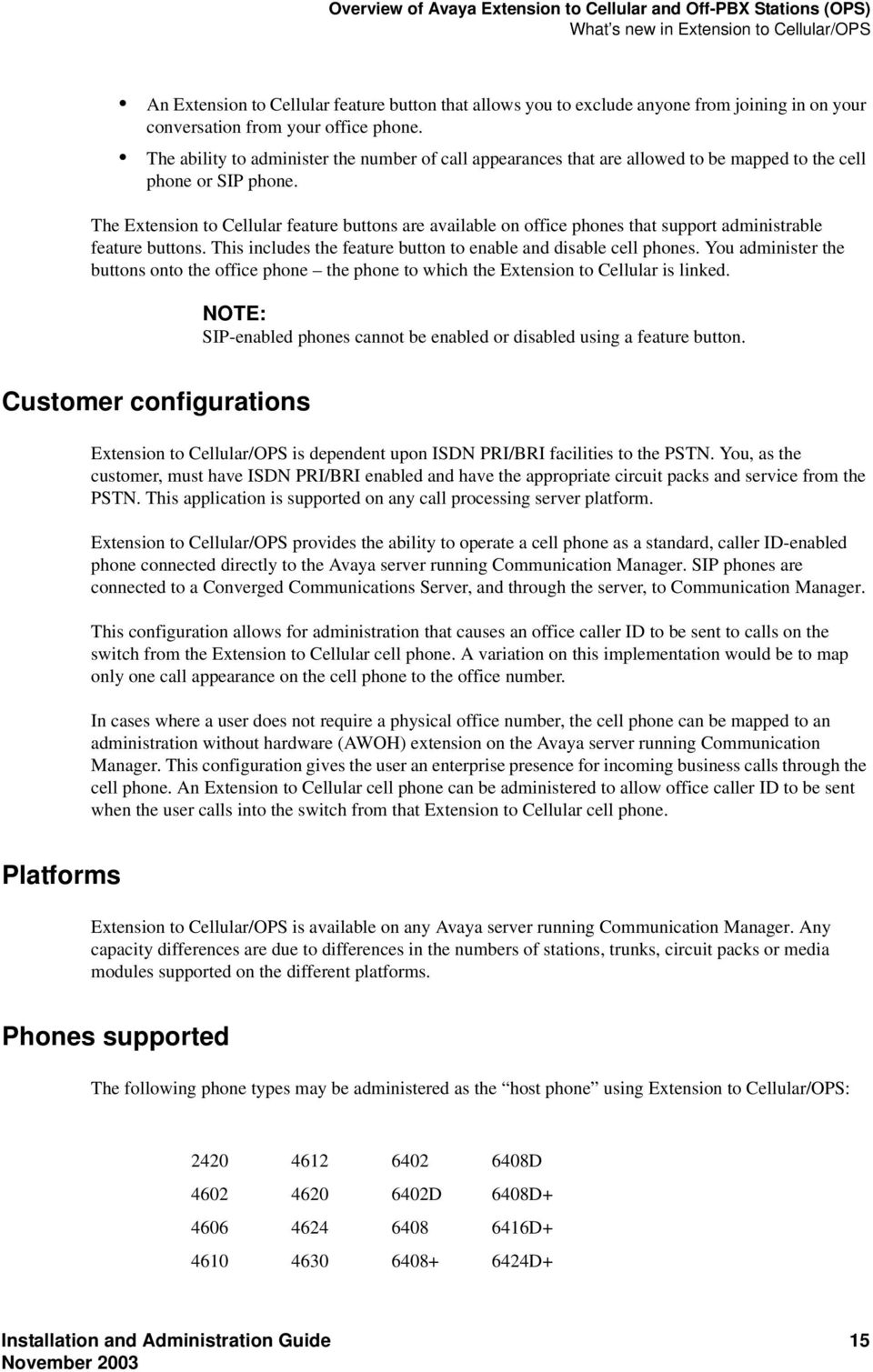
15 Overview of Avaya Extension to Cellular and Off-PBX Stations (OPS) What s new in Extension to Cellular/OPS An Extension to Cellular feature button that allows you to exclude anyone from joining in on your conversation from your office phone. The ability to administer the number of call appearances that are allowed to be mapped to the cell phone or SIP phone. The Extension to Cellular feature buttons are available on office phones that support administrable feature buttons. This includes the feature button to enable and disable cell phones. You administer the buttons onto the office phone the phone to which the Extension to Cellular is linked. NOTE: SIP-enabled phones cannot be enabled or disabled using a feature button. Customer configurations Extension to Cellular/OPS is dependent upon ISDN PRI/BRI facilities to the PSTN. You, as the customer, must have ISDN PRI/BRI enabled and have the appropriate circuit packs and service from the PSTN. This application is supported on any call processing server platform. Extension to Cellular/OPS provides the ability to operate a cell phone as a standard, caller ID-enabled phone connected directly to the Avaya server running Communication Manager. SIP phones are connected to a Converged Communications Server, and through the server, to Communication Manager. This configuration allows for administration that causes an office caller ID to be sent to calls on the switch from the Extension to Cellular cell phone. A variation on this implementation would be to map only one call appearance on the cell phone to the office number. In cases where a user does not require a physical office number, the cell phone can be mapped to an administration without hardware (AWOH) extension on the Avaya server running Communication Manager. This configuration gives the user an enterprise presence for incoming business calls through the cell phone. An Extension to Cellular cell phone can be administered to allow office caller ID to be sent when the user calls into the switch from that Extension to Cellular cell phone. Platforms Extension to Cellular/OPS is available on any Avaya server running Communication Manager. Any capacity differences are due to differences in the numbers of stations, trunks, circuit packs or media modules supported on the different platforms. Phones supported The following phone types may be administered as the host phone using Extension to Cellular/OPS: D D 6408D D D+ Installation and Administration Guide 15
16 Overview of Avaya Extension to Cellular and Off-PBX Stations (OPS) Feature description Extension to Cellular versions and Communication Manager Following are the versions of Extension to Cellular that correspond to releases of Avaya Communication Manager (formerly known as MultiVantage Software): Table 1: Communication Manager-to-Extension to Cellular mapping Communication Manager / MultiVantage release Extension to Cellular/OPS version Communication Manager Release 2.0 OPS feature introduced. No longer refer to a specific version of Extension to Cellular. Communication Manager Release 1.3 Extension to Cellular Version 4.1 MultiVantage Software Release 1.2 (load 110.x) Extension to Cellular Version 4 MultiVantage Software Release (load 65.x) Extension to Cellular Version 4 MultiVantage Software Release (load 60.x) Extension to Cellular Version 3 System access terminal (SAT) screens The screens in this guide may not exactly match the version that exists on the system access terminal (SAT) for your Avaya server running Communication Manager. However, all fields described here as essential for Extension to Cellular/OPS setup and administration can be found on all versions of the terminals, regardless of any variation in field layouts. Feature description Extension to Cellular allows a cell phone to be treated as if it were an extension on the Avaya server running Communication Manager. This is accomplished by mapping the phone to the user s main office phone. All other types of calls, such as direct calls to and from the published cell phone number, are unaffected by Extension to Cellular. The user s cell phone performs exactly as it did prior to enabling it for Extension to Cellular. When Extension to Cellular is administered and active, a call towards the office phone's extension alerts both the office phone and the outside phone simultaneously. This allows users to receive work-related calls wherever they are and whenever they need to. Additionally, the outside phone can be administered so that when a user calls into the office, the user s name and office phone number appear in the caller ID display of the phone being called. The user also has the option of picking up an ongoing Extension to Cellular cell phone call on the office phone upon entering the office. The cell phone user receives the same features and capabilities for incoming calls as a caller ID-enabled analog phone connected directly to the Avaya server running Communication Manager. Extension to Cellular provides this capability regardless of the cell phone s cellular service provider or the cellular standard in use. 16 Installation and Administration Guide

17 Overview of Avaya Extension to Cellular and Off-PBX Stations (OPS) Feature description Feature Name Extensions (FNE) Once connected, a cell phone or SIP phone user has the ability to activate certain Communication Manager features by dialing a feature name extension (FNE). You, as the administrator, create these phone extensions on a new screen (see Figure 6 on page 37). On the screen, you map these phone extensions to specific features in Communication Manager. The phone extensions must comply with your dial plan and are administered system-wide. This capability adds to the current capability to invoke certain features through feature access codes (FAC). Extension to Cellular, security codes, and console permissions While security codes are available to protect activation of this feature, you do not need to set security codes if you have console permissions as set on the Class of Service (COS) screen. If you have console permissions, you do not need a security code to activate Extension to Cellular. If you do not have console permissions, you need a security code to activate Extension to Cellular. Extension to Cellular makes use of station security codes to ensure that the user has control over who is enabling and disabling his or her extensions. NOTE: The exception is the ability to enable and disable Extension to Cellular and to, if so configured, enable an Extension to Cellular timer from an administered feature button on the office phone. Security codes are not required to use an administered feature button on a office phone. While using an Extension to Cellular cell phone on a business call, the user may hear a beep tone (if Conference Tone is administered) indicating someone has picked up the office number and is listening in on the call. Avaya provides that beep tone for security purposes. If a user suspects unauthorized use of the office number or an enabled Extension to Cellular cell phone, the call should be ended immediately and the user s station security codes should be changed immediately. See Chapter 5, Maintenance, and Chapter 6, Troubleshooting, for more information on handling this situation. If additional security is required, administer one of Avaya s exclusion features. Call waiting, call identification, and voice mail Extension to Cellular allows use of standard cellular features such as incoming call waiting and caller ID. If the cell phone (and network) supports calling number identification, the Avaya server running Communication Manager delivers the calling number to the cell phone. For internally-originated calls, the calling number may be presented in either the national numbering plan format (ten digits), or as an extension fewer than ten digits depending upon how calling number identification is administered. Some cellular phone networks only pass calling number information in the national format, while others are more flexible. If the cell phone (and network) supports call waiting, Extension to Cellular can be administered to deliver a second call to the cell phone while it is busy on another call. The cell phone features (for example, swapping calls or conferencing calls) may be used to answer the second call and manipulate the two calls through the cell phone. Installation and Administration Guide 17

18 Overview of Avaya Extension to Cellular and Off-PBX Stations (OPS) ARS/AAR routing Since the cell phone is treated as a local extension on the Avaya server running Communication Manager, it can be completely integrated with the corporate voice messaging system while retaining its own cellular service provider voice mail. The office number retains the primary extension on the Avaya server running Communication Manager. Calls to the office number simultaneously ring the office number and the cell phone. If neither answer then standard coverage arrangements take effect. As needed, Extension to Cellular can be disabled when not in use in order to ensure the use of the corporate voice messaging system. The system administrator can control in-service and out-of-service status of the mapped extensions through a busy-out and release maintenance capability. ARS/AAR routing Extension to Cellular/OPS builds on a Communication Manager features that allows extensions to be remotely connected over an ISDN trunk. Unlike traditional off-premises extensions, the stations are not tied to fixed channels on the T1/E1 interface. Instead, channels are allocated dynamically with each new call, allowing significantly more efficient usage of the T1/E1 interfaces through traffic engineering. Routing of Extension to Cellular/OPS extended calls takes the following path: 1 ARS (or AAR) digit conversion is applied to the administered cell phone number. 2 ARS (or AAR) analysis is applied to the result of Step 1. 3 The ARS (or AAR) analysis chooses a routing pattern. Each entry in the routing pattern is tried in order. However, if the trunk group for a particular entry is non-isdn or non-ip (which includes SIP), it is skipped. 4 A trunk group is chosen for the Extension to Cellular/OPS call and the call is sent. If no trunk is available, the Extension to Cellular/OPS call is not extended. However, the original call is not affected. The caller continues to receive ringback until the call covers or the caller abandons it. Call filtering Call filtering allows you to manage cell phone costs by limiting the type of calls extended to the cell phone. Call filtering is based on the type of incoming call received at the cell phone. You can choose to deliver (on a per-user basis) external calls, internal calls, all calls, or no calls. Internal call filtering allows the switch to extend Extension to Cellular/OPS calls for all internal originated calls. External call filtering does the same for all public-network incoming calls. Extension to Cellular/OPS calls are not extended when the Calls Allowed field is set to none (see Figure 5 on page 33). When call filtering does not allow a call, the Extension to Cellular/OPS call is not delivered. The call may be forwarded, go to coverage, or apply busy treatment for the calling party. 18 Installation and Administration Guide

19 Overview of Avaya Extension to Cellular and Off-PBX Stations (OPS) Capacity limitations Call filtering provides the system administrator with control over the type of incoming calls that Extension to Cellular/OPS users receive on their cell phones. With Extension to Cellular/OPS call filtering, the system administrator can restrict cell phone calls based on the incoming call type received by the office phone. Call filtering and mapped stations Communication Manager calls the cell phone when the office phone receives an incoming call. Calls are delivered to the cell phone based on the screening of internal and external calls. Screening applies after the called party restriction of the Extension to Cellular/OPS station s assigned COR, the station s Extension to Cellular/OPS state, and the Extension to Cellular/OPS station mapping are evaluated. Capacity limitations Extension to Cellular/OPS applications are allocated on a per station basis. Additional constraints are placed on the number of station records if customers encounter situations where a single user would be utilizing more than one Extension to Cellular/OPS application. NOTE: See "System Capacity screen" on page 57 for how to access station usage information for your system. Traffic engineering is needed to ensure that there are enough trunks available to handle the traffic sent to the cell phones. There would be large impact to trunk utilization if a large percentage of the switch users were Extension to Cellular/OPS users. In many cases, the outbound trunk calls may not actually complete since the user may answer at the Extension to Cellular/OPS station The combined station capacity for Extension to Cellular/OPS on Linux platforms the S8300, S8500, and S8700 Media Servers is 1/2 the station maximum for legacy platforms. The number of simultaneous call terminations towards the off-pbx station is limited to the maximum number of call appearances for each extension on the switch. That maximum number is 10. This number may be administratively limited to less than 10 on a application-user basis. For example, Extension to Cellular users would normally want the call limit at 2, since most cell phones can handle only two calls at a time. Feature operation When Extension to Cellular/OPS is administered, the cell phone is initially in a disabled state. Users need to enable their cell phones before they can begin to use the Extension to Cellular/OPS solution. Receiving calls Extension to Cellular/OPS is a solution for delivering office calls to a cell phone or SIP phone through the Avaya server running Communication Manager. Installation and Administration Guide 19

20 Overview of Avaya Extension to Cellular and Off-PBX Stations (OPS) Feature operation With Extension to Cellular/OPS, when a call is made to an office number with a mapped phone, the call is extended out of the Avaya server running Communication Manager to alert the outside phone. When the Extension to Cellular/OPS user has the Extension to Cellular/OPS Calls Allowed field set to none (see Figure 5 on page 33), Extension to Cellular/OPS calls are not delivered. If the Avaya server running Communication Manager is administered to send calling number information, that information is presented to the outside phone. When the outside phone answers the call, Communication Manager treats it like a local answer of a physically-connected station, and the following is true: Status of the station shows both the Extension to Cellular/OPS status and the regular station status. It shows both the port used on the outbound trunk group and the other connected port. Any office number busy indicators tracking the station light up to show that it is busy. Any other station linked to the call as part of a bridge or temporary bridge is able to bridge on to that call. Making calls Calls can be made to any number from the Extension to Cellular/OPS cell phone. Depending on how the Extension to Cellular/OPS station is administered, the Extension to Cellular/OPS cell phone can function both as a standard cell phone and as an office extension when the calls are made into the user s office switch. Administering an Extension to Cellular/OPS cell phone to send office caller ID allows the Extension to Cellular/OPS cell phone call to the switch to appear as a local extension on the switch. The Mapping Mode field on the Stations with Off-PBX Telephone Integration screen (see Figure 5 on page 33) for administration controls whether an Extension to Cellular/OPS cell phone is administered to gain the identity of the office phone (sends the office caller ID). If the Mapping Mode field entry is set to administer the Extension to Cellular/OPS cell phone to gain the identity of the office phone, the Extension to Cellular/OPS call into the switch acts as if it originated from the station with the following results: The General Status screen (see Figure 21 on page 59) shows both the port used on the inbound group and the other connected port. The Service State of the host station is in-service/on-hook. When there is no active call, the Service State of the Extension to Cellular/OPS station is in-service/idle. When there is an active call, the Service State of the Extension to Cellular/OPS station is in-service/active. Any office number busy indicators tracking the station light up to show that it is busy. Any other station linked to the call as part of a bridge or temporary bridge is able to bridge on to that call. The office name and number associated with the station appears as the caller ID. 20 Installation and Administration Guide

21 Overview of Avaya Extension to Cellular and Off-PBX Stations (OPS) User scenarios User scenarios Extension to Cellular allows a user the ability to invoke non-display Communication Manager endpoint features on any cell phone that is mapped as an EC500 endpoint. Features are invoked by dialing feature name extensions (FNE). Each FNE must be a direct inward dialed (DID) extension that matches your dial plan. All feature name extensions are used system-wide. A user, while active on a call, would place the call on hold and dial the FNE for the desired feature. For a feature that makes a call such as Last Number Dialed, the user would hear call progress tones. The user would then connect to the last party that was called from either the office phone, or the last party to have the identity of the office phone (meaning Extension to Cellular calls made at the cell phone). If a call is originated from the office phone and another call is originated at the cell phone, the last number dialed is the call that is truly the last number dialed. For a feature that gives you dial tone, like Call Forwarding, or where the user selects an idle call appearance, the user would hear dial tone, dial the destination, and then hear confirmation tone. To move an active call on a user s office phone to a cell phone, the user may do either: From the office phone, the user must press a dedicated feature button that is assigned to a new Extension to Cellular feature called Extend Call. From the cell phone, the user must dial the Select Active Call FNE. To move an active call on a user s cell phone to the office phone: When the user selects the active call appearance on the office phone, the user may pick up the active call. The user can then disconnect from the cell phone, saving cell phone minutes. NOTE: This is possible as long as the Exclusion feature is not active. Feature interactions Attendant If the Calls Allowed field on the Stations with Off-PBX Telephone Integration screen (see Figure 5 on page 33) is internal, attendant-originated and attendant-extended calls are not delivered. Call coverage If you want to ensure that unanswered calls go to office voice mail (rather than the cell phone s voice mail) make sure the value in the Number of Rings field on the Coverage Path screen for the office phone is set to a lower number than the voice mail coverage setting on the corresponding cell phone. See "Voice mail administration" on page 41. Installation and Administration Guide 21
22 Overview of Avaya Extension to Cellular and Off-PBX Stations (OPS) Feature interactions Cellular service provider voice mail While stations may have standard Avaya server running Communication Manager voice mail coverage (for example, AUDIX ), cell phones usually have voice mail coverage from the cellular service provider. Although there is no way to indicate a preference for use of a specific system, there is a way to coordinate the two systems. It is generally possible to set up the number of don t answer rings so that one or the other always answer first. However, there are coverage options in both the Avaya server running Communication Manager (busy, active, send-all-calls) and the network (cell phone unavailable, network congested) that causes a call to immediately go to the respective voice mail. Users should realize that an unanswered call might result in a voice mail message in either mailbox. Class of Restriction (COR) For calls toward a Extension to Cellular/OPS station, COR restrictions are applied normally for a call terminating to a station. In particular, if the station is mapped, then the office phone s COR applies. Any restrictions imposed by call filtering are applied after those imposed by the COR. Calling party restrictions pertaining to trunks (outward, tac-toll, and all-toll) have no affect on the launching of Extension to Cellular/OPS calls. DCS Inter-switch calls on distributed communications system (DCS) trunks are treated as internal calls. When an Extension to Cellular/OPS user has the Calls Allowed field on the Stations with Off- PBX Telephone Integration screen (see Figure 5 on page 33) set to internal or all, DCS calls are delivered to the cell phone. When an Extension to Cellular/OPS user has the Calls Allowed field set to external or none, DCS calls are not delivered. Distinctive alerting Cell phones do not receive distinct rings for different types of calls. Extension to Cellular enable and disable Only Extension to Cellular calls (calls extended to a cell phone) can be enabled or disabled. Users can enable or disable Extension to Cellular calls using either Extension to Cellular enable and disable Feature Access Codes, or using the enable and disable feature status button. 22 Installation and Administration Guide
23 Overview of Avaya Extension to Cellular and Off-PBX Stations (OPS) Feature interactions Extension to Cellular/OPS with office caller ID calling another Extension to Cellular/OPS user Incoming calls from other Extension to Cellular/OPS users are internal calls if office caller ID is enabled for the station associated with the cell phone. When an Extension to Cellular/OPS user has the Calls Allowed field set to internal or all, the Extension to Cellular/OPS calls are delivered. When an Extension to Cellular/OPS user has the Calls Allowed field set to external or none, then calls from other Extension to Cellular/OPS users are not delivered. Feature access codes (FAC) A user can activate Communication Manager features through feature access codes (FAC). A user can access a FAC by one of these three methods: dialing the telecommuter number dialing the remote access number dialing the Select Idle FNE After hearing dial tone, the user enters the FAC. Feature name extensions (FNE) When Extension to Cellular/OPS is enabled, a user can activate a Communication Manager feature through dialing a feature name extension (FNE) from their cell phone or SIP phone. Feature name extensions correspond to a direct inward dialing (DID) number for each feature. Each FNE must match your dial plan, and are administered system-wide. For a list of supported features that can be accessed using an FNE, see Figure 6 on page 37. Message waiting indication The cell phones cannot receive any screen of message waiting indication directly from the Avaya server running Communication Manager. Notify me under Unified Messenger for MS Exchange Users with access to the notify me feature of Unified Messenger for Microsoft Exchange (Version 4.0 or later), are notified of messages in the corporate voice mailbox through the cell phone s display. For more information on using this feature, see Setting Notify Me in the Unified Messenger Telephone User Interface Online Guide, accessed through NOTE: The user s cell phone must support text messaging to use this feature. Installation and Administration Guide 23
24 Overview of Avaya Extension to Cellular and Off-PBX Stations (OPS) Feature interactions QSIG Inter-PBX calls on QSIG trunks are treated as internal calls. When an Extension to Cellular/OPS user has the Calls Allowed field set to internal or all, QSIG calls are delivered. When an Extension to Cellular/OPS user has the Calls Allowed field set to external or none, QSIG calls are not delivered. 24 Installation and Administration Guide
25 Installation and planning Installation 2 Installation and planning Installation This section describes installation and settings that must be in place before you can administer the Extension to Cellular/OPS. Configuration/environment requirements Avaya Extension to Cellular/OPS is available on Avaya servers running Avaya Communication Manager, Release 2.0 or later. Any capacity differences are due to differences in the numbers of stations, trunks, and circuit packs supported on the different Avaya servers running Communication Manager. Customer options A customer s license file with Extension to Cellular/OPS has the following options set on the Optional Features screen. To review these options, use the system-parameters customer-options command. See "Displaying the customer options for Extension to Cellular/OPS" on page 27 for more information on these settings. Page number references refer to the screen page number. NOTE: If any of these options are not set as described, you need a new license file. Contact your Avaya representative. G3 Version must be set to V12 or later (page 1). Either the Maximum Off-PBX Telephones - EC500 field, or the Maximum Off-PBX Telephones - OPS field must be greater than zero (page 1). Either or both of these fields should be set to the number of stations that are to be used for Extension to Cellular/OPS. NOTE: The Maximum Off-PBX Telephones - SCCAN field is not used in Communication Manager Release 2.0. For legacy systems, the Maximum Off-PBX Telephones - SCCAN field does not appear. ARS must be set to y (page 3). Enhanced EC500 must be set to y (page 4). NOTE: The G3 Version field, plus either the Maximum Off-PBX Telephones - EC500 field or the Maximum Off-PBX Telephones - OPS field, must be set as described above before the Enhanced EC500 field can be set to y. Extended Cvg/Fwd Admin must be set to y (page 4). This allows access to the Telecommuting Access screen where you set the Extension to Cellular/OPS access code. ISDN-PRI must be set to y (page 4). Installation and Administration Guide 25
26 Installation and planning Administration planning Administration planning In a typical Extension to Cellular/OPS configuration, the station that is mapped to the cell phone is the principal published number, which is usually a user s office number. Planning requirements Extension to Cellular/OPS users expect to receive the following information from you, the system administrator: The station security code associated with the office number. The change station security code feature access code (FAC). Extension to Cellular enable and disable feature access codes (Extension to Cellular Activation/Deactivation on the system administration terminal). The Avaya Extension to Cellular/OPS access number (as set in the Telecommuting Access Extension field on the Telecommuting Access screen). In support of these requirements, also specify the following: An extension number for the Avaya Extension to Cellular/OPS access number. Extension to Cellular activation and deactivation codes to enable and disable Extension to Cellular (only). A feature access code for changing the station security code. A list of all the feature name extensions (FNE) that you set up, and the features that they are mapped to. Security codes Select an Avaya Extension to Cellular/OPS access number that is accessible externally as well as internally. This is set in the Telecommuting Access Extension field on the Telecommuting Access screen. See Chapter 3, Administration. Select station security codes for the office phone. Also, select a station security code change feature access code. When a new station is added, it needs to be given a default security code. Users should ultimately set their own office number security code using the station security code change feature access code. Enabling and disabling feature access codes Select the Extension to Cellular enable and disable feature access codes. These are set in the Feature Access Codes (FAC) screen in the system administration terminal. 26 Installation and Administration Guide
27 Administration Introduction 3 Administration Introduction This chapter provides instructions for setting up and administering: Station administration Extension to Cellular cell phones to send office caller ID (see "Sending 10-digit caller identification for locally-originated calls" on page 38) Call filtering (see "Call filtering administration" on page 39) Call detail recording enhancements (see the CDR for Calls to EC500 Destination field on page 45) A change station security code feature access code for the user to change the phone number station security code (see "Creating a feature access code to change station security codes" on page 47) The Extension to Cellular/OPS access number for external access to Communication Manager features (see "Setting up the Extension to Cellular/OPS access number" on page 39) The Extension to Cellular enable and disable feature access codes (see "Setting up the Extension to Cellular enable/disable feature access codes" on page 40) Voice mail coordination between the office and the cell phones (see "Voice mail administration" on page 41) Most Extension to Cellular/OPS administration tasks are accomplished through the System Administration Terminal (SAT). The SAT screens in this guide are meant to be examples and may not match exactly with the version that exists on the system administration terminal for your Avaya server running Communication Manager. However, all fields described here as essential for Extension to Cellular/OPS set-up and administration can be found on all versions of the terminals, regardless of the variations in field layouts. In the screens shown here, the essential fields are indicated in bold-face type. Displaying the customer options for Extension to Cellular/OPS Before you can administer the Extension to Cellular/OPS extensions, the following settings must be enabled for your system, as determined by your installed license file. You can review these settings on the Optional Features screen. NOTE: If any of these options are not set as described, you need a new license file. Contact your Avaya representative. Installation and Administration Guide 27
28 Administration Displaying the customer options for Extension to Cellular/OPS To make sure the system is set up to administer Extension to Cellular/OPS extensions: 1 Type display system-parameters customer-options and press Enter. The Optional Features screen appears (Figure 1). Figure 1: Optional Features screen, page 1 display system-parameters customer-options Page 1 of 10 OPTIONAL FEATURES G3 Version: V12 RFA System ID (SID): Location: 2 RFA Module ID (MID): Platform: 2 USED Maximum Ports: Maximum XMOBILE Stations: Maximum Off-PBX Telephones - EC500: Maximum Off-PBX Telephones - OPS: Maximum Off-PBX Telephones - SCCAN: 0 0 (NOTE: You must logoff & login to effect the permission changes.) On page 1 of the Optional Features screen: The G3 Version field must be set to V12 or later. Either the Maximum Off-PBX Telephones - EC500 field, or the Maximum Off-PBX Telephones - OPS field must be greater than zero. Either or both of these fields should be set to the number of stations that are to be used for Extension to Cellular/OPS. Field descriptions NOTE: The Maximum Off-PBX Telephones - SCCAN field is not used in Communication Manager Release 2.0. For legacy systems, the Maximum Off-PBX Telephones - SCCAN field does not appear. Maximum Off-PBX Telephones - EC500 This is a new field with Release 2.0 having following parameters ( EC500 refers to the Extension to Cellular feature): Valid entries Usage 0 to license max Default = 0. A number greater than zero should appear in either this field or the Maximum Off-PBX Telephones - OPS field. The license max value is defined as follows: On legacy systems, the upper limit is 1/2 of the maximum number of administrable stations. On S8300, S8500, and S8700 systems, the upper limit is the maximum number of administrable stations. Stations that are administered for any Extension to Cellular/OPS application count against this limit. 28 Installation and Administration Guide
29 Administration Displaying the customer options for Extension to Cellular/OPS To be usable, the system must also have the IP Trunks, ISDN-BRI Trunks, or ISDN-PRI field enabled. See page 4 of the Optional Features screen (Figure 3). Maximum Off-PBX Telephones - OPS parameters: This is a new field with Release 2.0 having following Valid entries Usage 0 to license max Default = 0. A number greater than zero should appear in either this field or the Maximum Off-PBX Telephones - EC500 field. The license max value is defined as follows: On legacy systems, the upper limit is 1/2 of the maximum number of administrable stations. On S8300, S8500, and S8700 systems, the upper limit is the maximum number of administrable stations. Stations that are administered for any Extension to Cellular/OPS application count against this limit. To be usable, the system must also have the IP Trunks, ISDN-BRI Trunks, or ISDN-PRI field enabled. See page 4 of the Optional Features screen (Figure 3). On page 3 of the Optional Features screen (Figure 2), the ARS field must be set to y. Figure 2: Optional Features screen, page 3 display system-parameters customer-options Page 3 of 10 OPTIONAL FEATURES Abbreviated Dialing Enhanced List? n Audible Message Waiting? y Access Security Gateway (ASG)? n Authorization Codes? y Analog Trunk Incoming Call ID? y CAS Branch? y A/D Grp/Sys List Dialing Start at 01? y CAS Main? y Answer Supervision by Call Classifier? y Change COR by FAC? n ARS? y Computer Telephony Adjunct Links? y ARS/AAR Partitioning? y Co-Res DEFINITY LAN Gateway? n ARS/AAR Dialing without FAC? n Cvg Of Calls Redirected Off-net? y ASAI Link Core Capabilities? y DCS (Basic)? y ASAI Link Plus Capabilities? y DCS Call Coverage? y Async. Transfer Mode (ATM) PNC? y DCS with Rerouting? n Async. Transfer Mode (ATM) Trunking? n ATM WAN Spare Processor? n Digital Loss Plan Modification? y ATMS? y DS1 MSP? n Attendant Vectoring? n DS1 Echo Cancellation? y (NOTE: You must logoff & login to effect the permission changes.) Installation and Administration Guide 29
30 Administration Station administration On page 4 of the Optional Features screen (Figure 3): The Enhanced EC500 field must be set to y. EC500 refers to the Extension to Cellular feature. NOTE: The G3 Version field, plus either the Maximum Off-PBX Telephones - EC500 field or the Maximum Off-PBX Telephones - OPS field (page 1 of the Optional Features screen), must be set as previously described before the Enhanced EC500 field can be set to y. Having the Enhanced EC500 field set to y is important. When the Enhanced EC500 field is set to y, all remaining screens that are tied to the off-pbx-telephone commands become available. The Extended Cvg/Fwd Admin field must be set to y (to gain access to the Telecommuting Access Number screen where you set the EC500 access code). The ISDN-PRI field must be set to y. Figure 3: Optional Features screen, page 4 display system-parameters customer-options Page 4 of 10 OPTIONAL FEATURES Emergency Access to Attendant? y ISDN Feature Plus? n Enable dadmin Login? y ISDN Network Call Redirection? n Enhanced Conferencing? y ISDN-BRI Trunks? y Enhanced EC500? y ISDN-PRI? y Extended Cvg/Fwd Admin? y Local Spare Processor? n External Device Alarm Admin? n Malicious Call Trace? n Five Port Networks Max Per MCC? n Mode Code for Centralized Voice Mail? n Flexible Billing? n Forced Entry of Account Codes? y Multifrequency Signaling? y Global Call Classification? n Multimedia Appl. Server Interface (MASI)? n Hospitality (Basic)? y Multimedia Call Handling (Basic)? y Hospitality (G3V3 Enhancements)? y Multimedia Call Handling (Enhanced)? y IP Trunks? y Multiple Locations? y Personal Station Access (PSA)? y IP Attendant Consoles? n IP Stations? y Internet Protocol (IP) PNC? n (NOTE: You must logoff & login to effect the permission changes.) Station administration A person s outside phone number, like a cell phone, is mapped to an office phone in Communication Manager. The station may be a standard office number (presumably the user s primary extension), or may be an AWOH (administration without hardware) station. NOTE: When the Extension to Cellular is administered, the initial state of the cell phone is disabled. You must enable the Extension to Cellular in order to receive calls from the Avaya server running Communication Manager. 30 Installation and Administration Guide
31 Administration Station administration Mapping a host phone with an Extension to Cellular/OPS phone The Stations with Off-PBX Telephone Integration screen is where you map a user s office (host) phone to an Extension to Cellular/OPS phone (for example, a user s cell phone). To map a user s office phone to an Extension to Cellular/OPS phone: 1 Type add off-pbx-telephone station-mapping and press Enter. The Stations with Off-PBX Telephone Integration screen appears (Figure 4). Figure 4: Stations with Off-PBX Telephone Integration screen, page 1 add off-pbx-telephone station-mapping Page 1 of 2 STATIONS WITH OFF-PBX TELEPHONE INTEGRATION Station Application Dial Phone Number Trunk Configuration Extension Prefix Selection Set EC ars EC ars OPS ars OPS aar Valid parameters Action Object Qualifier add change display list off-pbx-telephone station-mapping off-pbx-telephone station-mapping off-pbx-telephone station-mapping off-pbx-telephone station-mapping <station extension> <station extension> <variable> The add off-pbx-telephone station-mapping command displays a blank screen of two pages. It allows for the addition of sixteen station-extension-to-external-phone-number associations. For each Station Extension, the remaining fields on the first page (except for the Dial Prefix field) must be filled in. The Station Extension fields on the second page are read only and are based upon the values entered for the first page. Installation and Administration Guide 31
32 Administration Station administration The change off-pbx-telephone station-mapping <station extension> command displays a screen of two pages. It allows you to change one station-extension-to-external-phone-number association. The first line contains the information for the station extension you entered as the command variable. Additional entries may be added after the changed one. The table is filled in and validated as described for the add command. If the specified station is a valid type, but has not been previously administered for Extension to Cellular/OPS, then the screen is blank except for the first Station Extension field. The display off-pbx-telephone station-mapping <station extension> command displays a screen of two pages. It lists up to sixteen entries, starting with the station extension you entered as the command variable. If this extension is not administered for Extension to Cellular/OPS, the display starts with the first administered Extension to Cellular/OPS extension following it. The extension may be omitted, in which case the display starts with the first extension administered for Extension to Cellular/OPS. The list off-pbx-telephone station-mapping <variable> command shows, on a single line, information about the association between a station and an external phone number. The command variable specifies the phone number or numbers of interest. The command variable may be: a complete phone number a partial phone number followed by an asterisk (acting as a wildcard character) blank Field descriptions Station Extension The Station Extension field is an administered extension in your dial plan for one of the supported phones (see page 15). This is the extension of the host phone. Valid entries a valid number in your dial plan Usage Default = blank. Type an extension number of the host office phone up to eight digits. Application this station. Valid entries blank EC500 OPS The Application field is where you indicate what type of application is associated with Usage Default = blank EC500 = cell phone OPS = other outside phone type (for example, the 4602 SIP-enabled phone) Dial Prefix The Dial Prefix field are any digits that will be prepended to the Phone Number field before dialing the outside phone. Valid entries blank 0 9, *, # Usage Default = blank. Type up to four digits, including * or #. If included, * or # must be in the first digit position. 32 Installation and Administration Guide
33 Administration Station administration Phone Number The Phone Number field is the phone number of the cell phone or SIP phone. Valid entries Usage 0 9 Default = blank. Type up to fifteen digits. Trunk Selection The Trunk Selection field is where you define which outgoing trunk group you choose to use for outgoing calls. Valid entries ars aar Usage Default = blank. Configuration Set The Configuration Set field is used to administer the Configuration Set number that contains the desired call treatment options for this Extension to Cellular/OPS station. There are ten Configuration Sets. Valid entries Usage 1 10 Default = blank. Type the number of the Configuration Set. The second page of the Stations with Off-PBX Telephone Integration screen (Figure 5) continues the administration of the phone mapping. The information you entered in the Station Extension field on the first page appears as read only information on the second page. Figure 5: Stations with Off-PBX Telephone Integration screen, page 2 add off-pbx-telephone station-mapping Page 2 of 2 STATIONS WITH OFF-PBX TELEPHONE INTEGRATION Station Call Mapping Calls Bridged Extension Limit Mode Allowed Calls both all both both all both both all both both all both Installation and Administration Guide 33
34 Administration Station administration Call Limit The Call Limit field sets the maximum number of Extension to Cellular/OPS calls that may be simultaneously active at the station. Valid entries blank 1 10 Usage Default = 2. Mapping Mode The Mapping Mode field contains the mode of operation in which the off-pbx phone operates. See "Mapping modes" on page 34 for information on the possible entries. Valid entries termination origination both none Usage Default = both (if the Phone Number field has not been previously administered for another extension with a Mapping Mode of both or origination. Otherwise, the default = termination). Calls Allowed The Calls Allowed field is used to identify the call filter type for an Extension to Cellular/OPS station. See "Calls allowed" on page 35 for information on the possible entries. Valid entries internal external all none Usage Default = all. Bridged Calls The Bridged Calls field is used to determine if bridged call appearances, that may be administered on this Stations with Off-PBX Telephone Integration screen, should also be extended to the Extension to Cellular/OPS phone. See page 34 for information on the possible entries. Valid entries termination origination both none Usage Default = both. Mapping modes There are four modes in which an Extension to Cellular/OPS phone can be mapped to the user s main office phone. termination origination both none 34 Installation and Administration Guide
35 Administration Station administration These modes are used to control the degree of integration between a user s cell phone or SIP phone, and the main office number. The modes are valid for Extension to Cellular/OPS calls only. calls to the user s main office number when Extension to Cellular/OPS is enabled calls from the user s cell phone or SIP phone into the user s switch when Extension to Cellular/OPS is enabled Mapping modes are administered on the second page of the Stations with Off-PBX Telephone Integration screen (Figure 5). Calls terminating to a cell phone or SIP phone The termination mode is enabled by setting the Mapping Mode field on the second page of the Stations with Off-PBX Telephone Integration screen to termination. In termination mode, the Extension to Cellular/OPS phone may only be used to terminate (receive) calls from its associated host phone. The Extension to Cellular/OPS phone may not be used to originate calls from its associated host phone. Calls originating from the same cell phone are completely independent of Extension to Cellular, and behave exactly as before enabling Extension to Cellular. Calls originating from a cell phone or SIP phone The origination mode is enabled by setting the Mapping Mode field on the second page of the Stations with Off-PBX Telephone Integration screen to origination. In origination mode, the Extension to Cellular/OPS phone may only be used to originate calls from its associated host phone. The Extension to Cellular/OPS phone may not be used to terminate (receive) calls from its associated host phone. Calls both to and from a cell phone or SIP phone This mode is enabled by setting the Mapping Mode field on the second page of the Stations with Off- PBX Telephone Integration screen to both. In this mode, the Extension to Cellular/OPS phone may be used to originate calls and to terminate (receive) calls from its associated host phone. No calls to or from a cell phone or SIP phone This mode is enabled by setting the Mapping Mode field on the second page of the Stations with Off- PBX Telephone Integration screen to none. In this mode, the Extension to Cellular/OPS phone may not be used to originate calls or to terminate (receive) calls from its associated host phone. Calls allowed There are four values to define what kind of calls can be associated with the Extension to Cellular/OPS phone. internal external all none Installation and Administration Guide 35
36 Administration Station administration These entries are used to filter the calls to the Extension to Cellular/OPS phone. The Calls Allowed field is administered on the second page of the Stations with Off-PBX Telephone Integration screen (Figure 5). Internal When internal is chosen as the call filter type, the Extension to Cellular/OPS phone receives only internal calls. External calls are not delivered to the Extension to Cellular/OPS phone. External When external is chosen as the call filter type, the Extension to Cellular/OPS phone receives only external calls. Internal calls are not delivered to the Extension to Cellular/OPS phone. All When all is chosen as the call filter type, the Extension to Cellular/OPS phone receives both internal and external calls. None When none is chosen as the call filter type, the Extension to Cellular/OPS phone does not receive Extension to Cellular/OPS calls. Feature name extensions (FNE) The Extensions to Call which Activate Features By Name screen is where you map a dialed extension to a feature within Communication Manager. These are called feature name extensions (FNE). You, as the administrator, must set up all the FNE mapping. All extensions must fit your dial plan, and are implemented system-wide. These extensions are paired with feature access codes (FAC). When the extension is called, the feature access code is activated. NOTE: The feature access codes are administered on the Feature Access Code (FAC) screen (Figure 9). To map a dialed extension to a feature within Communication Manager: 1 Type change off-pbx-telephone feature-name-extensions and press Enter. The Extensions to Call which Activate Features By Name screen appears (Figure 6). 36 Installation and Administration Guide
37 Administration Station administration Figure 6: Extensions to Call which Activate Features By Name screen, page 1 change off-pbx-telephone feature-name-extensions Page 1 of 1 EXTENSIONS TO CALL WHICH ACTIVATE FEATURES BY NAME Active Appearance Select: Idle Appearance Select: Call Forward All: Last Number Dialed: Call Forward Busy/No Answer: Malicious Call Trace: Call Forward Cancel: Malicious Call Trace Cancel: Call Park: Priority Call: Call Park Answer Back: Send All Calls: Call Pick-Up: Send All Calls Cancel: Conference on Answer: Transfer On Hang-Up: Calling Number Block: Transfer to Voice Mail: Calling Number Unblock: Directed Call Pick-Up: Drop Last Added Party: Exclusion (Toggle On/Off): Held Appearance Select: Valid parameters Field descriptions Action Object Qualifier change off-pbx-telephone feature-name-extensions Extension Each Extension field is an extension that matches your dial plan. A user would dial the extension from their Extension to Cellular/OPS phone, thereby activating a Feature Access Code administered for that feature. Valid entries blank 0 9 Usage Default = blank. Type an extension number, up to eight digits, of the Communication Manager feature you want to be able to access from the Extension to Cellular/OPS phone. Office caller ID Depending on how the station is administered, the Extension to Cellular/OPS phone gains the identity of the user s office extension when calling into the office switch. For example, when an Extension to Cellular user is administered to send the office caller ID and calls into the office, the person receiving the call sees the office name and number of the caller, not the cell phone caller ID. This type of administration provides in-house caller identification at the destination phone, and allows the user to map onto the office phone. When the Extension to Cellular cell phone is administered to send office caller ID, it doesn t matter if the Extension to Cellular cell phone is enabled or disabled. Installation and Administration Guide 37
38 Administration Sending 10-digit caller identification for locally-originated calls An Extension to Cellular/OPS phone that is administered to gain the identity of the office phone has the following functionality: When calling a number on the office switch, the user s name and office phone extension appear as caller ID on the destination phone. Because of the mapping administration that causes the Extension to Cellular cell phone to gain the identity of the office phone, the user can initiate a call to the office on the Extension to Cellular cell phone, and pick up that same call in progress on the office phone. When calling into the same office switch on which Extension to Cellular is administered, the Extension to Cellular cell phone keypad functions as if it were an office phone extension. For example: When a user calls into corporate voice messaging system, Extension to Cellular/OPS behaves as an extension on the switch. The extension is recognized by the voice messaging system as such. When a user calls into the Extension to Cellular/OPS access number from an Extension to Cellular cell phone that sends office caller ID, then invokes the feature access code to enable or disable Extension to Cellular, the cell phone behaves as if it were an extension on the switch. Sending 10-digit caller identification for locallyoriginated calls Most cell phones require a 10-digit number as the calling number. The Avaya server running Communication Manager must be administered to provide this for locally-originated calls. This procedure is for cell phone use only. To administer this for stations associated with either ISDN or IP trunks: 1 Type change public-unknown-numbering and press Enter. The Numbering Public/Unknown Format screen appears (Figure 7). Figure 7: Numbering Public/Unknown Format screen change public-unknown-numbering Page 1 of 8 NUMBERING - PUBLIC/UNKNOWN FORMAT Total Total Ext Ext Trk CPN CPN Ext Ext Trk CPN CPN Len Code Grp(s) Prefix Len Len Code Grp(s) Prefix Len Create an entry (as above) to add a prefix to extensions to create a 10-digit calling number. Ext Code the starting digit(s) of the extension. Trk Grp(s) leaving this blank means that it applies to all trunks in the system. 3 Press Enter. 38 Installation and Administration Guide
39 Administration Call filtering administration Call filtering administration Call filtering provides the system administrator with control over the type of incoming calls that users receive on their Extension to Cellular/OPS phone. With Extension to Cellular/OPS call filtering, the system administrator can restrict Extension to Cellular/OPS phone calls. Call filtering is handled on the second page of the Stations with Off-PBX Telephone Integration screen through the Calls Allowed field. See Figure 5 on page 33 for more information. Setting up the Extension to Cellular/OPS access number Extension to Cellular/OPS users use the telecommuting access number (as set on the Telecommuting Access screen) to enable or disable Extension to Cellular/OPS, or change their office number s station security code. NOTE: Skip this procedure if a telecommuting access number already exists on your system. To configure the Avaya server running Communication Manager for Extension to Cellular/OPS access: 1 Type change telecommuting-access and press Enter. The Telecommuting Access screen appears (Figure 8). Figure 8: Telecommuting Access screen change telecommuting-access Page 1 of 1 TELECOMMUTING ACCESS Telecommuting Access Extension: In the Telecommuting Access Extension field, type an extension in accordance with your dial plan. This number is the Avaya Extension to Cellular/OPS access number you provide for users to enable or disable Extension to Cellular/OPS, or to change their station security code. The telecommuting number must be a direct inward dialing (DID) or a central office (CO) trunk destination for off-premises features to work. 3 Press Enter. Installation and Administration Guide 39
40 Administration Setting up the Extension to Cellular enable/disable feature access codes Setting up the Extension to Cellular enable/disable feature access codes To administer the Extension to Cellular/OPS enable and disable feature access codes: 1 Type change feature-access-codes and press Enter. The Feature Access Code (FAC) screen appears. 2 Press Next Page to advance to page 2 (Figure 9). Figure 9: Feature Access Code (FAC) screen, page 2 change feature-access-codes Page 2 of 7 FEATURE ACCESS CODE (FAC) Emergency Access to Attendant Access Code: *11 Enhanced EC500 Activation: *81 Deactivation: #81 Extended Call Fwd Activate Busy D/A: *23 All: *24 Deactivation:#23 Extended Group Call Pickup Access Code: Facility Test Calls Access Code: Flash Access Code: *88 Group Control Restrict Activation: *15 Deactivation: #15 Hunt Group Busy Activation: *81 Deactivation: #81 ISDN Access Code: Last Number Dialed Access Code: *54 Leave Word Calling Message Retrieval Lock: *48 Leave Word Calling Message Retrieval Unlock: #45 Leave Word Calling Send A Message: *60 Leave Word Calling Cancel A Message: #60 Malicious Call Trace Activation: Deactivation: Meet-me Conference Access Code Change: PASTE (Display PBX data on Phone) Access Code: 410 Personal Station Access (PSA) Associate Code: Dissociate Code: Per Call CPN Blocking Code Access Code: Per Call CPN Unblocking Code Access Code: 3 Set an access code in accordance with your dial plan for the following fields. In the Enhanced EC500 Activation field, type a feature access code number (*81 in this example) to be used for remote activation of Extension to Cellular. In the Enhanced EC500 Deactivation field, type a feature access code number (#81 in this example) to be used for remote deactivation of Extension to Cellular. 4 Press Enter. NOTE: If so administered, users also have the option to activate and deactivate Extension to Cellular through a feature button on their office phone. 40 Installation and Administration Guide
41 Administration Voice mail administration Voice mail administration Unanswered office number calls are usually routed to a user s corporate voice messaging system after a predetermined number of rings. Most cellular service providers also offer voice mail options which can also be customized to route unanswered calls after a specified number of rings. As an administrator, you may be called upon to troubleshoot individual situations to help the user understand the options and the potential conflicts resulting from a voice mail preference. As administrator, you ll need to coordinate a default to a specific voice mail system by setting the number of rings on the office number before the corporate voice messaging system answers so that the preferred system picks up unanswered calls first. This section provides procedures for you to use when working with users. Note that there are coverage options in both the Avaya server running Communication Manager (busy, active, send all calls) and the cellular network (cell phone unavailable, network congested) that can cause a call to immediately go to the respective voice mail. Users should recognize that an unanswered call could result in a message in either system s voice mailbox. Using corporate voice mail to receive messages To receive voice messages through the corporate voice messaging system, the cellular service provider s voice mail feature must be set to a higher unanswered rings number than the corporate system. For example, if the corporate voice messaging system automatically picks up an unanswered call on the third ring, the user should set the cell phone s voice mail system to pick up unanswered calls on the fourth or fifth ring. A user who cannot adjust the number of rings on his or her cell phone should contact the cellular service provider for assistance. NOTE: If the user is using the cell phone exclusively for business purposes, he or she can request that the cellular service provider disable voice mail. To change the number of rings on the office number as part of the solution: 1 Type change coverage path n (where n is the number assigned with a coverage path) and press Enter. The Coverage Path screen appears (Figure 10). Installation and Administration Guide 41
42 Administration Voice mail administration Figure 10: Coverage Path screen change coverage path 1 Page 1 of 1 COVERAGE PATH Coverage Path Number: 1 Next Path Number: Hunt after Coverage? n Linkage COVERAGE CRITERIA Station/Group Status Inside Call Outside Call Active? n n Busy? y y Don t Answer? y y Number of Rings: 2 All? n n DND/SAC/Goto Cover? y y COVERAGE POINTS Terminate to Coverage Pts. with Bridged Appearances? n Point1: Rng: Point2: h99 Rng: Point3: Point4: Point5: Point6: 2 Change the value in the Number of Rings field as appropriate. 3 Press Enter. Preventing messages from automatically going to cellular voice mail Most cellular service providers route calls automatically to their own voice mail systems when a cell phone is turned off or in an out-of-coverage area. To prevent work-related calls from being automatically routed to a users cellular voice mail system, tell users that they must disable Extension to Cellular before shutting down their cell phone. Incoming calls to their office number are then routed to the corporate voice messaging system, while personal calls continue to be picked up by their cellular voice mail system. NOTE: Users can also ask their cellular provider to turn off voice mail. This assures that coverage is provided by the corporate voice mail. Notify me under Unified Messenger for MS Exchange If users have access to the Notify Me feature of Unified Messenger for Microsoft (MS) Exchange Version 4.0 or later, they are notified of messages in their corporate voice mailbox through their cell phone s display. For more information on using this feature see Setting Notify Me in the Unified Messenger Telephone User Interface Online Guide, accessed through NOTE: The cell phone must support text messaging to use this feature. 42 Installation and Administration Guide
43 Administration Call Detail Recording (CDR) Call Detail Recording (CDR) Extension to Cellular provides Call Detail Recording (CDR) options for calls to cell/external phones. You can administer such calls to be treated as: Trunk calls (CDR record generated) This option may be desirable if you want to track calls to cell phones for reporting or billing purposes. or Calls to an internal station extension (no trunk CDR record generated) When a call is made to a cell phone, the CDR for Calls to EC500 Destination field on the Configuration Set screen (Figure 11) determines whether a CDR report is generated. Figure 11: Configuration Set screen change xmobile configuration-set 1 Page 1 of 1 Configuration Set Description: Calling Number Style: CDR for Calls to EC500 Destination? y Fast Connect on Origination? Post Connect Dialing Options? CONFIGURATION SET: 1 This allows you flexibility in billing or tracking calls to phones that are mapped to extensions. CDR reporting for Extension to Cellular calls relies on the CDR Reports field on the Trunk Group screen (Figure 12). If this field is n, CDR reports will not be generated even if the CDR for Calls to EC500 Destination field on the Configuration Set screen is y. Installation and Administration Guide 43
44 Administration Call Detail Recording (CDR) Figure 12: Trunk Group screen, page 1 add trunk-group next Page 1 of 21 TRUNK GROUP Group Number: 3 Group Type: isdn CDR Reports: y Group Name: OUTSIDE CALL COR: 1 TN: 1 TAC: 103 Direction: two-way Outgoing Display? n PRI/BRI: Dial Access? n Busy Threshold: 255 Night Service: Queue Length: 0 Country: 1 Incoming Destination: Comm Type: voice Auth Code? n Digit Absorption List: Prefix-1? y Trunk Flash? n Toll Restricted? y TRUNK PARAMETERS Trunk Type: Outgoing Dial Type: tone Cut-Through? n Trunk Termination: rc Disconnect Timing(msec): 500 Auto Guard? n Call Still Held? n Sig Bit Inversion: none Analog Loss Group: 6 Digital Loss Group: 11 Trunk Gain: high Disconnect Supervision - In? y Out? n Answer Supervision Timeout: 10 Receive Answer Supervision? n Changing configuration sets A configuration set defines a number of call treatment options for Extension to Cellular cell phone calls. Extension to Cellular administration allows for the use of up to 10 configuration sets that are already defined in the system using default values. Each set is administered on a different screen. The key field is Calling Number Style that can be set either to pbx (allowing a cell phone caller ID display of fewer than 10-digits), or to network (allowing a display of only 10-digit numbers). Since there are 10 configuration sets available, multiple combinations of the options can be administered, thus accommodating requirements for a variety of cellular service providers. To customize a configuration set: 1 Type change off-pbx-telephone configuration-set n (where n is the number assigned to a configuration set) and press Enter. The Configuration Set screen appears (Figure 13). 44 Installation and Administration Guide
45 Administration Call Detail Recording (CDR) Figure 13: Configuration Set screen change off-pbx-telephone configuration-set 1 Page 1 of 1 CONFIGURATION SET: 1 Configuration Set Description: Calling Number Style: network CDR for Calls to EC500 Destination? y Fast Connect on Origination? n Post Connect Dialing Options: dtmf 2 Type the following values: Configuration Set Description up to 20 characters, free-screen text. Use this to describe the purpose of the configuration set, for example, Extension to Cellular handsets. Calling Number Style determines the format of the caller ID for calls from a local switch extension to an Extension to Cellular cell phone. Using the default value network causes the system to use the 10-digit calling identification information established on the ISDN public-unknown numbering screen. See "Sending 10-digit caller identification for locally-originated calls" on page 38. CDR for Calls to EC500 Destination When the option is y, an outgoing trunk CDR report is created for each Extension to Cellular call, but only if the selected trunk has the CDR option enabled. The originating extension of the call is either the principal office phone to which the Extension to Cellular station is mapped, or the station itself, if standalone. All Extension to Cellular CDR reports have an account code consisting of all 8s (for example, 8888) up to the maximum administered length of the CDR Account Code. For additional information on Call Detail Recording, see the Avaya Administrator s Guide for Avaya Communication Manager, Type y to track calls to cell phones for reporting or billing purposes. If you type y, the configuration set administered on the Station screen determines whether a CDR record is generated. Type n if you want to treat the Extension to Cellular cell phones as totally internal stations and don t require CDR reporting. If you type n, and the extension is stand-alone, you must type it on the Intra- Switch CDR screen in order to get CDR reports. These do not show any trunk information. If the principal station is being tracked in the Intra-Switch CDR report, a CDR record is generated for the station-side of the call. The CDR record contains the calling and called parties. This is in addition to the CDR report for the Extension to Cellular call if the CDR for Calls to the EC500 Destination field on the Configuration Set screen is y. Thus, two CDR reports may be generated for each Extension to Cellular call: The trunk CDR record containing the cell phone number The principal and the intra-switch CDR record containing the principal and the original calling party Installation and Administration Guide 45
46 Administration Call Detail Recording (CDR) NOTE: In the case of a stand-alone Extension to Cellular cell phone, its station number is the principal. If it is mapped to another station, then that station s number is the principal. See Table 2 for additional information. Fast Connect on Origination determines whether some additional processing will occur on the switch prior to connecting a call. This option may be used in the future for capabilities provided by the cell phone provider. Currently the default value of n is recommended. Post Connect Dialing Options determines whether additional capabilities, beyond standard ISDN dialing, are available for those incoming ISDN trunk calls that are mapped into Extension to Cellular stations. Use the default value, dtmf (dual tone multiple frequencies). 3 Press Enter. 4 As needed, use the change off-pbx-telephone configuration-set n command to change additional configuration sets. Table 2: CDR output for Extension to Cellular calls CDR Report field on the Trunk Group screen CDR for Calls to EC500 Destination field on the Configuration Set screen Principal in mapping set-up in the Intra- Switch CDR screen Type of CDR records (Trunk or Intra-switch) Yes Yes No Trunk CDR record Yes Yes Yes 2 CDR records (Trunk and Intra) Contents of Interest Cell phone number + principal + Extension to Cellular ID Cell phone number + principal + Extension to Cellular ID Principal + calling party Yes No No No CDR N/A Yes No Yes Intra CDR record Principal + calling party No Yes No No CDR N/A No Yes Yes Intra CDR record Principal + calling party No No No No CDR N/A No No Yes Intra CDR record Principal + calling party Generating two CDR records To generate two CDR records: 1 Type change system-parameters cdr and press Enter. The CDR System Parameters screen appears (not shown). 46 Installation and Administration Guide
47 Administration Creating a feature access code to change station security codes 2 Set the Intra-Switch CDR field to y. 3 Press Enter to save your changes. 4 Log off and log back into the switch. 5 Type change intra-switch-cdr and press Enter. The Intra-Switch CDR screen appears (not shown). 6 Type any extension you want to track with this screen. 7 Press Enter to save your changes. Creating a feature access code to change station security codes When users are enabling and disabling Extension to Cellular, they need to know the Station Security Code (SSC) associated with their office number. You must be sure to administer these station security codes for the principal Extension to Cellular office numbers. Extension to Cellular allows users to enable or disable all mapped extensions at once, using the station security code for their principal phone (an office number or an AWOH extension set up on the Avaya server running Communication Manager). Station security codes provide security to station users by preventing other users from accessing functions associated with the user s station. Each station user can change his or her own SSC if the user knows the station s current settings. You must create a system-wide SSC change feature access code (FAC) that users can invoke to change their SSC. You must also administer and provide their individual SSCs to users. A user cannot change a blank SSC. To create a system-wide SSC change feature access code: 1 Type change feature-access-codes and press Enter. The Feature Access Code (FAC) screen appears. 2 Continue to press Next Page until the page with the Station Security Code Change Access Code field appears (Figure 14). Installation and Administration Guide 47
48 Administration Creating a feature access code to change station security codes Figure 14: Feature Access Code (FAC) screen change feature-access-codes Page 3 of 6 FEATURE ACCESS CODE (FAC) Per Call CPN Unblocking Code Access Code: 0173 Priority Calling Access Code: 0142 Program Access Code: 0143 Refresh Terminal Parameters Access Code: 0144 Remote Send All Calls Activation: Deactivation: Self Station Display Activation: #1 Send All Calls Activation: *4 Deactivation: *5 Station Firmware Download Access Code: Station Lock Activation: Deactivation: Station Security Code Change Access Code: #5 Station User Admin of FBI Assign: Remove: Station User Button Ring Control Access Code: Terminal Dial-Up Test Access Code: 0151 Terminal Translation Initialization Merge Code: *0 Separation Code: *1 Transfer to Voice Mail Access Code: 0153 Trunk Answer Any Station Access Code: 0154 User Control Restrict Activation: 0155 Deactivation: 0156 Voice Coverage Message Retrieval Access Code: 0157 Voice Principal Message Retrieval Access Code: Type a code valid for your dial plan (for example, #5) in the Station Security Code Change Access Code field. This sets the access codes for this feature. 4 Press Enter. The Command prompt appears. 5 Type change system-parameters security and press Enter. The Security-Related System Parameters screen appears. Press Next Page to advance to page 2 of the Security-Related System Parameters screen (Figure 15). Figure 15: Security-Related System Parameters screen, page 2 change system-parameters security Page 2 of 2 SECURITY-RELATED SYSTEM PARAMETERS SECURITY VIOLATION NOTIFICATION PARAMETERS SVN Station Security Code Violation Notification Enabled? n STATION SECURITY CODE VERIFICATION PARAMETERS Minimum Station Security Code Length: 4 Station Security Code for Terminal Self-Administration Required? y 48 Installation and Administration Guide
49 Administration Administering an Extension to Cellular feature access buttons on the office phone 6 Type a number in the Minimum Station Security Code Length field that is based on your dial plan. This determines the minimum required length of the SSC. 7 Press Enter. NOTE: Longer codes are more secure. Administering an Extension to Cellular feature access buttons on the office phone Enable/Disable with timer Extension to Cellular provides the capability to administer an Extension to Cellular feature access button on the user s office phone to enable and disable the feature. You can also configure an optional timer. You administer this feature button on page 3 of the Station screen for the host office extension to which Extension to Cellular is linked. The process described below explains how to administer an Extension to Cellular feature button and include the optional Extension to Cellular timer. The Extension to Cellular feature button is available on phones which support administrable feature buttons. To set up an Extension to Cellular feature button with optional timer: 1 Type change station n (where n is the extension of an Extension to Cellular-enabled station in this example, 1034) and press Enter. The Station screen appears. 2 Press the Next Page button twice to display page 3 of the Station screen (Figure 16). Installation and Administration Guide 49
50 Administration Administering an Extension to Cellular feature access buttons on the office phone Figure 16: Station screen, page 3 change station 1034 Page 3 of 4 STATION SITE DATA Room: Headset? n Jack: Speaker? n Cable: Mounting: d Floor: Cord Length: 0 Building: Set Color: ABBREVIATED DIALING List1: List2: List3: BUTTON ASSIGNMENTS 1: call-appr 5: 2: call-appr 6: 3: call-appr 7: 4: ec500 Timer? y 8: 3 Select an available feature button under the Button Assignments header (button 4 was used in this example) and type ec500 (lower case) to administer an Extension to Cellular feature button on the office phone. 4 Press Enter. NOTE: The Timer subfield displays, and defaults to n. Leaving the default setting of n excludes the timer state. 5 Set the optional Timer subfield to y to include an Extension to Cellular timer state for the administered feature button. When the timer state is included, the Extension to Cellular user can activate a one-hour timer to temporarily disable Extension to Cellular through this administered feature button. 6 Press Enter. The corresponding feature button on the office phone is now administered for Extension to Cellular. NOTE: The feature status button on the office phone indicates the current state of Extension to Cellular regardless of whether the feature was enabled remotely or directly from the office phone. Enabling and disabling Extension to Cellular A user can only enable and disable Extension to Cellular. You can enable and disable Extension to Cellular from: An administered feature button on the office phone Feature Access Codes (FAC) administered for the office phone 50 Installation and Administration Guide
51 Administration Administering an Extension to Cellular feature access buttons on the office phone Feature name extensions (FNE) administered for the cell phone Any other touch-tone station on the switch Any remote touch-tone phone (cell or otherwise) in the external network, through the trunk interface to the switch through an Extension to Cellular access number (as set in the Telecommuting Access Extension field on the Telecommuting Access screen). Security codes are available for this feature to protect the phone from unwanted tampering. NOTE: Security codes do not protect enabling/disabling through an administered feature access button on the office phone. You can display the enabled/disabled status for an Extension to Cellular cell phone using the status station command. See "Off-PBX Telephone Status for Station screen" on page 59 for more information. If the Extension to Cellular feature status button has been administered, you can also tell the current Extension to Cellular status by viewing the corresponding feature status button lamp on the linked office phone. The administration of an Extension to Cellular to send the office caller ID remains in effect whether Extension to Cellular is enabled or disabled. NOTE: The initial state of an Extension to Cellular-administered extension is always disabled. A typical user disables and enables all cell phone-mapped Extension to Cellular stations at once using his or her office number and the station security code associated with that office number. In order to enable and disable individual extensions, the user needs to have the extension number and station security code for each cell phone-mapped station. Individual extensions can be enabled and disabled in the following ways: A user wants to enable or disable the cell phone-mapped Extension to Cellular station at an internal extension. The user enters the following in sequence: 1 The Extension to Cellular enable or disable feature access code. 2 The extension number of the cell phone mapped-station, followed by #. 3 The station security code assigned to the mapped station. 4 A final #. The user receives either a confirmation or an intercept tone depending upon the success or failure of the procedure. A user wants to enable or disable cell phone-mapped Extension to Cellular stations from any phone in the external network. Whether it s the user s cell phone or another phone does not matter. The user enters the following in sequence: 1 The Avaya Extension to Cellular access number (as set in the Telecommuting Access Extension field on the Telecommuting Access screen). The user should receive a dial tone. 2 The Extension to Cellular enable or disable feature access code. 3 The extension number of the cell phone-mapped station, followed by #. Installation and Administration Guide 51
52 Administration Administering an Extension to Cellular feature access buttons on the office phone 4 The station security code assigned to the mapped station. 5 A final #. The user receives either a confirmation or an intercept tone depending upon the success or failure of the procedure. These procedures must be repeated for each cell phone-mapped station that the user wishes to enable or disable. Extend Call feature button Users can take an Extension to Cellular call on their office phone, and then move it to their cell phone. This is done through an administrable feature button on the office phone called Extend Call. To set up an Extend Calls feature button: 1 Type change station n (where n is the extension of an Extension to Cellular-enabled station in this example, 1034) and press Enter. The Station screen appears. 2 Press the Next Page button twice to display page 3 of the Station screen (Figure 17). Figure 17: Station screen, page 3 change station 1034 Page 3 of 4 STATION SITE DATA Room: Headset? n Jack: Speaker? n Cable: Mounting: d Floor: Cord Length: 0 Building: Set Color: ABBREVIATED DIALING List1: List2: List3: BUTTON ASSIGNMENTS 1: call-appr 5:extnd-call 2: call-appr 6: 3: call-appr 7: 4: ec500 Timer? y 8: 3 Select an available feature button under the Button Assignments header (button 5 was used in this example) and type extnd-call (all lower case) to administer an Extension to Cellular feature button on the office phone. 4 Press Enter. The corresponding feature button on the office phone is now administered for Extension to Cellular. 52 Installation and Administration Guide
53 Administration Administering an Extension to Cellular feature access buttons on the office phone View feature buttons and button labels To view the feature buttons: 1 Type change display-messages view-buttons and press Enter. The Language Translations screen appears (Figure 18). Figure 18: Language Translation screen change display-messages view-buttons Page 9 of 9 LANGUAGE TRANSLATIONS English Translation 1. Station Lock 1. ************************ 2. License Error 2. ************************ 3. Conference Display 3. ************************ 4. Conf/Trans Toggle-Swap 4. ************************ 5. Far End Mute 5. ************************ 6. Paging 1st Link Alarm 6. ************************ 7. Paging 2nd Link Alarm 7. ************************ 8. EC ************************ 9. No Hold Conference 9. ************************ 10. Posted Messages 10. ************************ 11. Audix Recording 11. ************************ 12. Extend Call 12. ************************ NOTE: The EC500 button refers to the Extension to Cellular status button (enabling and disabling). To view the button labels for the feature buttons: 1 Type change display-messages button-labels and press Enter. The Language Translations screen appears (Figure 19). Installation and Administration Guide 53
54 Administration Administering an Extension to Cellular feature access buttons on the office phone Figure 19: Language Translation screen change display-messages button-labels Page 5 of 10 LANGUAGE TRANSLATIONS English Translation 1. Directory 1. ************* 2. Dir Pickup 2. ************* 3. Disp Charges 3. ************* 4. DoNotDisturb 4. ************* 5. EC ************* 6. Exclusion 6. ************* 7. ExtDoNotDstrb 7. ************* 8. Extend Call 8. ************* 9. Far End Mute 9. ************* 10. Flash 10. ************* 11. FTC Alarm 11. ************* 12. Goto Cover 12. ************* 13. GrpPg 13. ***** 14. GrpDoNotDstrb 14. ************* 15. Hunt NS 15. ********** 16. InCaalID 16. ******** 54 Installation and Administration Guide
55 Installation and administration test Introduction 4 Installation and administration test Introduction Once Extension to Cellular has been administered, use the installation test procedures in this chapter to ensure that the Extension to Cellular solution performs as expected. These tests are for Extension to Cellular cell phone use only. The Extension to Cellular installation test and customer acceptance procedures follow the same guidelines used for testing a new station added to the switch. However, a review of the basic test procedures is provided in this chapter. Test procedures When performing these tests, it may be necessary to place several calls to the Extension to Cellular cell phone. 1 Using any other touch-tone phone, dial the user s office phone number. Ensure simultaneous ringing of the user s office number and the Extension to Cellular cell phone. 2 Once the cell phone begins to ring, check the following: a Check the cell phone s display panel to ensure 10 digit ANI is passed. b Do not answer the call, but do verify that the call covers to the user s primary voice mail account (usually the corporate office voice mail box). If the call doesn t cover properly, the Avaya installation team, or technician, needs to review the coverage path number of rings and setup for corporate voice mail coverage. It also may be necessary to experiment with the number of rings set at the cellular service provider and in the office number coverage path to get the desired voice mail coverage. See Chapter 3, Administration, for information about sending office caller ID, voice mail administration, and call forwarding. 3 Test whether the cell phone's second call appearance is in service. a Using a touch-tone phone, dial the user's office phone number. b Begin your "test" conversation by answering the call ringing on the cell phone. c With the test conversation in place and active, place another call to the user's primary extension. The call should ring at the second call appearance on the private extension, as well as at the cell phone. Also, the cell phone s display screen should show the second incoming call. d Using the cellular service provider s call waiting feature, answer the second call. Installation and Administration Guide 55
56 Installation and administration test Test procedures If any of the test procedures fail, the installation team needs to verify that all administration entries were input correctly. If they are administered correctly, see Chapter 6, Troubleshooting, for further problem resolution procedures. 56 Installation and Administration Guide
57 Maintenance Introduction 5 Maintenance Introduction This chapter provides procedures for using a variety of maintenance tools to manage and support your Extension to Cellular/OPS implementation. Information is also provided on display error/alarms and system restarts. Key maintenance tools are: Display capacities the ability to display the number of used and unused stations, as well as the number of stations assigned to any particular type. List commands the ability to list Extension to Cellular/OPS stations by complete or partial cell phone number(s). Status commands fields that shows Extension to Cellular/OPS enabled or disabled status. No maintenance testing is performed when Extension to Cellular/OPS stations are active on a call. About maintenance commands Unless explicitly stated otherwise, command sequences described in this chapter refer to commands entered through a System Administration Terminal (SAT). Referenced screens are system administration screens. The screens shown reflect the terminal emulation interface, rather than the GEDI interface. System Capacity screen You perform the administration to display system capacities for stations on page 8 of the System Capacity screen. You can view the following Extension to Cellular/OPS-related information: The number of administered stations (Used) The number of unadministered stations (Available) The number of stations assigned to Extension to Cellular/OPS types (Off-PBX Telephones) The number of stations The number of Extension to Cellular/OPS types equals the number of stations used. To display station usage information: 1 Type display capacity [ print or schedule ] and press Enter. The System Capacity screen, page 1, appears. 2 Press Next Page until you reach page 8 of the System Capacity screen. Installation and Administration Guide 57
58 Maintenance Status screens The System Capacity screen, page 8, displays the station usage (Figure 20). Figure 20: System Capacity screen, page 8 display capacity Page 9 of 12 SYSTEM CAPACITY TOTAL SUBSCRIBED PORTS System Used Available Limit Station and Trunk Ports: Radio Controllers: Wireless Terminals: XMOBILE Stations: EC500: 4 Off-PBX Telephone - EC500: Off-PBX Telephone - OPS: Off-PBX Telephone - SCCAN: Off-PBX Telephone Memory (units): 6% 94% NOTE: The Off-PBX Telephone - SCCAN field is not used at this time. For legacy systems, the Off-PBX Telephone - SCCAN field does not appear. Status screens General Status screen Use the status station n maintenance command to view the service state of the station. The Extension to Cellular/OPS state is shown on the General Status screen. To check on the service state of a particular station: 1 Type status station n (where n is the extension number you want to check) and press Enter. For this example, we use the extension The General Status screen appears (Figure 21). 58 Installation and Administration Guide
59 Maintenance Status screens Figure 21: General Status screen status station Page 1 of 4 GENERAL STATUS Administered Type: 4630 Service State: in-service/on-hook Connected Type: 4630 Download Status: complete Extension: SAC Activated? no Port: S01985 User Cntrl Restr: none Call Parked? no Group Cntrl Restr: none Ring Cut Off Act? no CF Destination Ext: Active Coverage Option: 1 EC500 Status: enabled Message Waiting: Connected Ports: Off-PBX Service State: in-service/idle HOSPITALITY STATUS Awaken at: User DND: not activated Group DND: not activated Room Status: non-guest room When Extension to Cellular/OPS is disabled, two asterisks ( ** ) are displayed in the CF Destination Ext field, and the EC500 Status field displays the value disabled. NOTE: The ** are shown only for mapped extensions. If using the Extension to Cellular/OPS with the UCC Scheduler to disable the Extension to Cellular/OPS station, then the primary extension number appears. When Extension to Cellular/OPS is enabled, the CF Destination Ext field is blank, and the EC500 status field displays the value enabled. When a new Extension to Cellular/OPS station is added, the station comes up in the disabled state. 2 Press Enter when finished. Off-PBX Telephone Status for Station screen Use the status off-pbx-telephone station n maintenance command to view the service state of the off- PBX station. The General Status screen (Figure 21) shows only those ports that are connected to the physical station. The connected ports of Extension to Cellular/OPS stations are shown on the Off-PBX Telephone Status for Station screen. To check on the service state of a particular Extension to Cellular/OPS station: 1 Type status off-pbx-telephone station n (where n is the extension number you want to check). For this example, we use the extension Press Enter. The Off-PBX Telephone Status for Station screen appears (Figure 22). Installation and Administration Guide 59
60 Maintenance List screens Figure 22: Off-PBX Telephone Status for Station screen status off-pbx-telephone station Page 1 of 2 OFF-PBX TELEPHONE STATUS FOR STATION Trunk/Member Port Connected Ports Group 0001/001 01C C0509 NOTE: If there is no active outside call, the message: No trunks associated with this off-pbx telephone station appears. 3 Press Enter when finished. List screens Extension to Cellular/OPS allows for administering multiple stations to the same phone number. These mappings are administered on the Stations with Off-PBX Telephone Integration screens (see "Mapping a host phone with an Extension to Cellular/OPS phone" on page 31). Extension Type screen The Extension Type screen displays a list of stations associated with the feature name extensions (see "Feature name extensions (FNE)" on page 36). To display a list of extension types: 1 Type list extension-type n, where n can be entered with one of the following options: <extension number> up to 15 digits for one cell phone number. This provides a list of all stations associated with this particular cell phone number. Do not include the dial prefix. <partial string*> Type a partial string of a cell phone number followed by an asterisk (as a wildcard). This provides a list of all cell phone numbers that begin with the partial string, along with their associated stations. This function is useful when searching for all numbers in a particular area code. <all> This provides a list of all Extension to Cellular/OPS administered cell phone numbers, along with their associated stations. 2 Press Enter. The Extension Type screen appears (Figure 23). 60 Installation and Administration Guide
61 Maintenance Display errors/alarms Figure 23: Extension Type screen list extension-type Count 1 EXTENSION TYPE COR/ Cv1 Ext. Type Name COS TN Cv feature-name-extension Exclusion (Toggle On/Off) 1 3 Press Enter when finished. List Usage Report screen The List Usage Report screen lists stations that are administered with an off-pbx telephone application. To display a list of stations that are administered with an off-pbx telephone application: 1 Type list usage extension n (where n is the extension number you want to check). For this example, we use the extension Press Enter. 1 The List Usage Report screen appears (Figure 24). Figure 24: List Usage Report screen list usage extension LIST USAGE REPORT Used By Off-pbx-tel Station Station Extension Press Enter when finished. Display errors/alarms LEDs are not used to indicate the service state of stations because no circuit pack is associated with an station. No visual change is observed on the mapped cell phone when the station for that set is busied out. The display errors and display alarms maintenance commands show the errors and alarms logged against busied out stations. Installation and Administration Guide 61
62 Maintenance Display errors/alarms 62 Installation and Administration Guide
63 Troubleshooting Introduction 6 Troubleshooting Introduction This chapter describes problems that may occur during operation of the Extension to Cellular/OPS solution and possible ways of resolving these problems. Most problems reported by users of Extension to Cellular/OPS are likely not to be problems with Extension to Cellular/OPS itself. In most cases, they are caused by unexpected interaction between the cellular service provider and Extension to Cellular features. Below is a recommended troubleshooting procedure to follow when users cannot receive Extension to Cellular calls on their cell phones. In addition, Table 3 on page 64 identifies other possible problems that might be encountered during operation of Extension to Cellular. See Chapter 4, Installation and administration test, for test procedures to verify the connection to the cell phone. Users cannot receive Extension to Cellular calls on their cell phones If an Extension to Cellular user is not able to receive calls on the cell phones, follow these procedures in the suggested order to isolate and fix the problem. After each step, you may want to verify that the problem has been fixed by making an Extension to Cellular call to the mapped cell phone. 1 Verify that you can call the cell phone from the switch. This also verifies that the user s service contract with the cellular service provider (CSP) is active, and that the user gets good coverage in that area. Check this by making a direct call to the cell phone s published number. When making this test call, wait until the call rings the cell phone (which verifies that there is coverage), or until the call goes to the CSP s voice mail (which verifies that the service is provided but there may not be good coverage). 2 Use the status station command for the principal number that the Extension to Cellular phone is mapped to, and verify that SAC or Call Forwarding has not been activated on the principal extension. 3 For the Extension to Cellular extension, use the status station <extension> command to check the following: The service state is in service/idle. If not, use the release <extension> command to put it back in the active state. The Extension to Cellular state is enabled on the Status Station screen. If Extension to Cellular is disabled, ask the user to enable Extension to Cellular for the principal office number. 4 On the Stations with Off-PBX Telephone Integration screen, verify that the entries in the Mobility Trunk Group, Dial Prefix, Calls Allowed, and Cell Phone Number fields are correct as specified in Chapter 3, Administration. Installation and Administration Guide 63
64 Troubleshooting Introduction 5 Check the ARS Analysis table and make sure that there is an entry to route the cell phone number over an ISDN trunk on the switch. 6 If the Mobility Trunk Group is ars or aar, then verify that no feature access code (for example, 9) is included in the cell phone number field. 7 A list ars route-chosen maintenance command can be used to see what routing is used to route the call (where is a 10-digit cell phone number). If the problem cannot be corrected by following the above procedure, escalate the issue to an Avaya technician. In addition to the checks listed above, verify with the technician that the Extension to Cellular station is not restricted from receiving incoming calls. Error conditions table Table 3: Error conditions in the operation of Extension to Cellular/OPS Situation Users cannot receive Extension to Cellular calls on their cell phones. No CDR for Extension to Cellular calls Possible Cause(s) See "Users cannot receive Extension to Cellular calls on their cell phones" on page 63 for detailed information on possible sources of the problem. The Configuration Set for the user s Extension to Cellular station has the CDR for Calls to EC500 Destination field set to n. The Extension to Cellular station is still using loopback trunks. The CDR Reports option on the trunk being used is n. Suggested Action or Resolution See "Users cannot receive Extension to Cellular calls on their cell phones" on page 63 for detailed instructions on troubleshooting this problem. Check administration of Configuration Set screen, the Stations with Off-PBX Telephone Integration screen, or the Trunk Group screen, and change if necessary. 1 of 6 64 Installation and Administration Guide
65 Troubleshooting Introduction Table 3: Error conditions in the operation of Extension to Cellular/OPS Continued Situation The user reports that voice mail messages are not going to the mailbox of choice. The user reports that he or she is missing calls at the office number because the cell phone voice mail is picking up the call instead. The user reports that the cell phone is not receiving caller identification numbers for calls from the Avaya server running Communication Manager, while the office number that the cell phone is mapped to does. Possible Cause(s) Incoming calls to an office number are usually routed to the resident AUDIX voice mail after a pre-determined number of rings. For cell phone calls, the same functionality exists from the Service Provider. At this time there is no way to coordinate the two different voice mail systems using Extension to Cellular/OPS. The user has turned off the cell phone or the phone is in an outof-coverage state. When this is the case, Service Providers usually have the calls routed to voice mail automatically. There is no way to control this with Extension to Cellular/OPS. The Avaya server running Communication Manager has not been administered properly for sending 10-digit caller identification numbers. Most cellular service providers require a 10-digit number. Suggested Action or Resolution It is possible to set up the number of rings before coverage answers so that one or the other voice mail systems always answers first. (The user may need to contact the cellular service provider to change the number of rings at the cell phone.) However, there are coverage options in both the Avaya server running Communication Manager (busy, active, send-all-calls) and the network (cell phone unavailable, network congested) that cause a call to immediately go to the respective voice mail. Users should realize that an unanswered call could result in a voice mail message in either mailbox. It is recommended that Extension to Cellular/OPS be disabled prior to entering an out-of-coverage area or turning off the cell phone so that the user can pick up the call on the office number or the corporate voice messaging system is allowed to answer the calls. Recheck the outbound trunk screen to make sure the Send Calling field is set to y. 2 of 6 Installation and Administration Guide 65
66 Troubleshooting Introduction Table 3: Error conditions in the operation of Extension to Cellular/OPS Continued Situation The user reports that the cell phone is not receiving caller identification numbers for calls from the Avaya server running Communication Manager, while the office number that the cell phone is mapped to does. (Continued) The user reports that the person being calling is receiving the incorrect caller ID. The user reports that the cell phone is receiving a switch default caller identification number for calls from the Avaya server running Communication Manager. The user hears a beep while on a call originating from the Avaya server running Communication Manager, but is not able to use the call waiting feature on the cell phone to switch to the other call. Possible Cause(s) External trunks serving the cell phone are using a non-isdn trunk. The Configuration Set screen has the Calling Number Style field set to PBX. There is an incorrect entry on the ISDN public-unknown numbering screen. The ISDN Service Provider (SP) is replacing the caller identification with a fixed caller ID. The switch is blocking the outgoing caller identification and is passing a default caller ID. Most likely the user is hearing the tone provided by the Avaya server running Communication Manager when call waiting is enabled at the switch. Suggested Action or Resolution Change the routing administration to route over an ISDN trunk. Change the Calling Number Style field on the Configuration Set screen to network. Verify that the entries on the ISDN public-unknown numbering screen are correct. Escalate the issue to your Telecom Manager who may contact your ISDN SP to request that this be fixed or find an alternate ISDN SP that allows the caller identification to pass. Change your switch administration to allow caller identification to go outside the switch. You have two possibilities: 1) Communicate to the user that when a call waiting indication is heard, but the user can t switch the call, he or she needs to hang up on the first call in order to receive the second call, OR 2) Disable call waiting at the switch level and the regular call waiting capability provided by the cellular service provider then handles the call waiting feature. 3 of 6 66 Installation and Administration Guide
67 Troubleshooting Introduction Table 3: Error conditions in the operation of Extension to Cellular/OPS Continued Situation The Extension to Cellular cell phone call into the office switch fails to provide the office caller ID The Avaya server running Communication Manager does not allow a default entry of extensions, that is, instead of entering the extension followed by the # key, just entering # alone. Possible Cause(s) The Cell Phone Number field administered for the Extension to Cellular station does not have the required entry. The Mapping Mode field administered for the Extension to Cellular station does not contain origination or both. The external inbound call is not entering into the switch over an ISDN trunk. The external inbound call does not come into the switch on which the Extension to Cellular cell phone s station is administered. The calling number is manipulated on the Inbound Trunk screen. The cellular service provider does not send the calling number. Someone else happened to be on a call at the same time on the user s desk phone and on the same line appearance as the originating Extension to Cellular cell phone call. The cell phone number is not properly mapped. Suggested Action or Resolution Type the full caller ID number in the Cell Phone Number field. Type origination or both in the Mapping Mode field. Contact the ISDN Service Provider to ensure that inbound calls come into the switch through an ISDN trunk. Create a station for the Extension to Cellular cell phone with the proper mapping on the switch that the call enters. Administer the Extension to Cellular station s Cell Phone Number field to match the modified calling number. Call the cellular service provider to allow the caller ID to be sent. Move the mapped line appearance to a button unlikely to be used by another phone call. See The Extension to Cellular cell phone call into the office switch fails to provide the office caller ID in this table. 4 of 6 Installation and Administration Guide 67
68 Troubleshooting Introduction Table 3: Error conditions in the operation of Extension to Cellular/OPS Continued Situation An intercept tone is received when attempting to enable/disable Extension to Cellular (that is, when you type the feature access code, #, station security code, and #). When attempting to enable/disable Extension to Cellular, an intercept tone is received. The office caller ID is that of the origination mapped Extension to Cellular/OPS station and not of the host extension. The administered Extension to Cellular feature button on the office phone flashed for two seconds at the broken flutter rate. User cannot engage the Extension to Cellular timer through the administered feature button on the office phone. Possible Cause(s) The user has used the station security code of the Extension to Cellular extension and it is different from that of the principal. The station security code is blank for the principal. The Status Extension field administered on the Stations with Off-PBX Telephone Integration screen for the Extension to Cellular station is not EC500. The Status Extension field administered on the Stations with Off-PBX Telephone Integration screen for the Extension to Cellular station is EC500, but the Configuration Set is not administered for DTMF. The Extension to Cellular/OPS station is not mapped to the host phone. The Extension to Cellular administration somehow got corrupted. The optional Extension to Cellular timer was not configured. Suggested Action or Resolution The user must type the code of the principal extension. The station security code for the principal must be administered. Change the Status Extension field on the Stations with Off- PBX Telephone Integration screen for the Extension to Cellular station to EC500. Access the associated Configuration Set screen and ensure that the entry in the Post Connect Dialing Option field is DTMF. Map the Extension to Cellular/OPS station to the host extension. Disable, then re-enable, Extension to Cellular. Configure the optional Extension to Cellular timer on the Station screen. See Figure 16 on page 50, and the related steps identifying how to set the timer. 5 of 6 68 Installation and Administration Guide
69 Troubleshooting Terminal error codes Table 3: Error conditions in the operation of Extension to Cellular/OPS Continued Situation The user receives the error Contact System Administrator when trying to enable/disable Extension to Cellular through the administered feature button on the office phone. An Extension to Cellular station is mapped to a principal station, and the principal station subsequently adds a configured Extension to Cellular feature access button. The status station command for the principal station shows that Extension to Cellular is disabled. The status station command for the mapped Extension to Cellular station shows that Extension to Cellular is enabled. Possible Cause(s) The Station screen was not correctly administered. A previously-administered and enabled Extension to Cellular station has been mapped to a principal station that does not have an Extension to Cellular feature access button configured. Suggested Action or Resolution Verify that all required information, in the correct format, is included on the Station screen. Configure an Extension to Cellular feature access button on the principal station. (The principal station must support configurable feature buttons.) See "Administering an Extension to Cellular feature access buttons on the office phone" on page 49. Once configured, press the Extension to Cellular feature access button to enable Extension to Cellular.This synchronizes the enable/disable state between the principal station and its mapped Extension to Cellular station. 6 of 6 Terminal error codes When the service state of an Extension to Cellular/OPS station changes from in-service to out-of-service, error type 18 is logged in the error log against the Extension to Cellular/OPS station and a warning alarm is raised and logged in the alarm log. When the service state of an Extension to Cellular/OPS station changes from out-of-service to in-service, error type 18 is removed from the error log and the warning alarm is removed from the alarm log. See Chapter 5, Maintenance for more information on busy-out and release maintenance commands. Installation and Administration Guide 69
70 Troubleshooting Terminal error codes 70 Installation and Administration Guide
71 Appendix A Upgrades from prior versions Upgrade from Extension to Cellular/OPS Version 4 Appendix A Upgrades from prior versions Extension to Cellular is available only with Communication Manager Release 1.3 or later. All of the Extension to Cellular releases can be administered and operated concurrently on the same Avaya server running Communication Manager. You can continue to support users with Extension to Cellular releases 1 through 4, or you may choose to upgrade all users to the latest version as part of Avaya Communication Manager, Release 2.0. No matter what previous version you are converting from, if you want to update to the latest version as part of Communication Manager release 2.0: 1 Set the XMOBILE Mapping Mode to none. This is done on page 1 of the Station screen (use the change station n command, where n is the station you want to change). This assures that all previous mapping of XMOBILE stations the way Extension to Cellular used to be administered will not interfere with Extension to Cellular/OPS. 2 Set up the new office-phone-to-outside-phone mapping as described in this book. 3 Test the system. 4 If it works, remove the XMOBILE station records. This last step frees up stations that go toward the maximum number of stations allowed. Upgrade from Extension to Cellular/OPS Version 4 The process described below explains how to administer an Extension to Cellular/OPS feature button and include the optional Extension to Cellular/OPS timer. 1 Type change station n (where n is the extension of an Extension to Cellular/OPS-enabled station) and press Enter. The Station screen appears. 2 Press the Next Page button twice to display page 3 of the Station screen. Installation and Administration Guide 71
72 Appendix A Upgrades from prior versions Upgrade from Extension to Cellular/OPS Version 3 Figure 25: Station screen, page 3 change station 1034 Page 3 of 4 STATION SITE DATA Room: Headset? n Jack: Speaker? n Cable: Mounting: d Floor: Cord Length: 0 Building: Set Color: ABBREVIATED DIALING List1: List2: List3: BUTTON ASSIGNMENTS 1: call-appr 5: 2: call-appr 6: 3: call-appr 7: 4: EC500 Timer? y 8: 3 Select an available feature button under BUTTON ASSIGNMENTS (4 in the example above) and type EC Press Enter. The Timer subfield displays and defaults to n. Leaving the default setting of n excludes the timer state. 5 Set the optional Timer subfield to y to include an Extension to Cellular/OPS timer state for the administered feature button. When the timer state is included, the Extension to Cellular/OPS user can activate a one-hour timer to temporarily disable Extension to Cellular/OPS. 6 Press Enter. The corresponding feature button on the office phone is now administered for Extension to Cellular/OPS, and configured with the optional Extension to Cellular/OPS timer. NOTE: The feature status button on the office phone indicates the current state of Extension to Cellular/OPS regardless of whether the feature was enabled remotely or directly from the office phone. Upgrade from Extension to Cellular/OPS Version 3 The following process is to change the Extension to Cellular/OPS configuration to work without the loopback trunks. Let s eliminate the loopback connections for station Eliminating the loopback trunks is optional and should be accompanied by changing the Mobility Trunk Group field on the Station screen to ars. 1 Eliminate the DS1 or IP loopback trunks associated with Extension to Cellular/OPS Version 2.0 or 3.0. This includes removing the loopback trunks and signaling groups through switch administration as well as physically from the switch. 72 Installation and Administration Guide
73 Appendix A Upgrades from prior versions Upgrade from Extension to Cellular/OPS Version 2 Loopback trunk configuration can coexist with the Extension to Cellular/OPS R4 if you choose to do so. If you decide to eliminate the loopback trunks, the removed equipment can be reused for other trunking solutions. You can change gradually over to a total loopback elimination. If you decide to have the loopback and non-loopback configurations coexist, you must remember there are capacity restrictions when using the DS1. 2 Type change station 5462 and press Enter. The Station screen for extension 5462 displays. Figure 26: Station screen, page 3 change station 5462 Page 1 of 4 STATION Extension: 5462 Lock Messages? n BCC: 0 Type: XMOBILE Security: * TN: 1 Coverage Path 1: COR: 1 Name: John Doe Coverage Path 2: COS: 1 Hunt-to Station: STATION OPTIONS XMOBILE Type: EC500 Message Lamp Ext: 5462 Display Module? n Message Waiting Type: none Mobility Trunk Group: ars Configuration Set: 1 Calls Allowed: all CELL PHONE NUMBER MAPPING Dial Prefix: Cell Phone Number: Mapping Mode: termination 3 In the Mobility Trunk Group field, type ars. It should be changed to ars for loopback elimination. 4 Press Enter to save your changes. Things to watch out for: If the Dial Prefix field contains the ars feature access code, then remove it (for example, 9). See the see Administrator s Guide for Avaya Communication Manager for more information. Upgrade from Extension to Cellular/OPS Version 2 Implement changes as described for upgrade from Extension to Cellular/OPS Version 3. Starting with Version 3, there is a field on the Station screen called Mapping Mode. See "Station administration" on page 30 for more information. There is a command, list xmobile mapping, that makes it easy to find out the XMOBILE extensions and primary extension associated with a cell phone number. See "List screens" on page 60 for more information. The status station command now explicitly shows the Extension to Cellular/OPS state: enabled or disabled. Installation and Administration Guide 73
74 Appendix A Upgrades from prior versions Upgrade from Extension to Cellular/OPS Version 1 To implement office caller ID for an existing Extension to Cellular/OPS user: 1 Identify the station bridged to the second call appearance of the user s primary extension. The list bridged-extensions <primary ext> command provides this information. 2 Change the Station screen (change station <xmobile ext>) and press Enter. 3 Change the Mapping Mode field to both. 4 Press Enter to save your changes. NOTE: If the Cell Phone Number field contains a dial prefix (such as 1 for long distance), readminister the cell phone number and place the prefix (for instance, 1) in the Dial Prefix field. Also make sure that the full number, including area code, is in the Cell Phone Number field. This is necessary for office caller ID to function. For information on installation and administration of Version 2 of Extension to Cellular/OPS, see Avaya EC500 Extension to Cellular Installation and Administration Guide, Issue 2, July, Upgrade from Extension to Cellular/OPS Version 1 Starting with Version 2, cell phone numbers can be administered on the Station screen. There are three fields related to administration of the cell phone number: Dial Prefix Cell Phone Number Mapping Mode See "Station administration" on page 30 for more information. Pre-existing stations may continue to use ARS digit conversion to convert the extension to a cell number or they may be changed to use the new fields on the Station screen. To add the cell phone number to an station: 1 Change the Station screen (change station <xmobile ext>) and press Enter. 2 Type each dial prefix, if any (for example, 1 for long distance, but not 9 for external access) in the Dial Prefix field. 3 Type the full cell phone number (including area code) in the Cell Phone Number field. 4 Type termination in the Mapping Mode field (see above for when both may be entered). 5 Press Enter to save your changes. Implement changes are described for upgrade from Extension to Cellular/OPS Version 2. For information on installation and administration of Version 1 of Extension to Cellular/OPS, see Avaya EC500 Extension to Cellular Installation/Administration Guide, Issue 1, February 8, Installation and Administration Guide
75 Glossary Glossary A AAR See Automatic Alternate Routing. ACS See Avaya Communications Server. administration without hardware (AWOH) A station that is administered without a dedicated, physical set. ARS See Automatic Route Selection. ATM-CES Asynchronous Transfer Mode - Circuit Emulation Service. This is a trunk capability that supports the equivalent of 8 ISDN interfaces over a single facility. Each interface may have as many as 30 channels. Automatic Alternate Routing A table-based routing feature used to select a trunk for private network routing. An administered FAC is used to activate the feature. Automatic Route Selection A table-based routing feature used to select a trunk for public network routing. An administered FAC is used to activate the feature. Avaya Communications Server (ACS) Avaya server running Communication Manager (formerly called MultiVantage software) includes the DEFINITY ECS and the S8100 Media Server with Avaya G600 Media Gateway. Avaya Extension to Cellular access number The telecommuting access number used to dial into the Avaya server running Communication Manager to allow enabling/disabling Extension to Cellular/OPS and changing the station security code. This number is set in the Telecommuting Access Extension field on the Telecommuting Access screen. Avaya Extension to Cellular/OPS call Call to an extension on the Avaya server running Communication Manager (either the host extension or the Extension to Cellular/OPS station that maps to a cell phone or SIP phone) that results in alerting the associated phone. Avaya Extension to Cellular/OPS The feature that allows integration of cell phones under the control of a public cell phone service provider, or SIP-enabled phones, with the Avaya server running Communication Manager. AWOH See administration without hardware. Installation and Administration Guide 75
76 Glossary B Basic Rate Interface (BRI) A digital message-based protocol intended primarily for the control of advanced phone sets although it is also used in some countries for trunking. C calling number style The way a caller s identity is displayed to the called party by either a 10-digit number or a pbx extension. Class of Restrictions (COR) A group of attributes that affect the calling capabilities of stations and trunks. configuration set A set of call treatment options used to customize an XMOBILE station session when placing Extension to Cellular/OPS calls. corporate voice mail The voice mail system provided by the user s employer. Typically this will be AUDIX. There is no current way to coordinate this voice mail with the service provider s voice mail. D DEFINITY An Avaya phone system, commonly referred to as a switch or PBX. dial prefix Any number that might be required for dialing besides the cell phone number itself. For example, 1 for U.S. domestic long distance, or 011 for international cell phone numbers. direct inward dialing (DID) A feature whereby extensions are associated with numbers in the national numbering plan so that they may be directly dialed from outside of the Avaya ECS. disable Deactivate Avaya Extension to Cellular/OPS using the Extension to Cellular/OPS disable feature access code, or, if so administered, by using a feature button on the office phone. dtmf Dual Tone Multiple Frequency. This is another name for touch-tones which are commonly used for transmitting digits (including * and #) over voice lines. E Extension to Cellular/OPS See Avaya Extension to Cellular/OPS. enable Activate Avaya Extension to Cellular using the Extension to Cellular enable feature access code, or, if so administered, by using a feature button on the office phone. 76 Installation and Administration Guide
77 Glossary F fast-connect on origination Used to determine whether additional processing will occur prior to sending the CONNECT message. This option may be utilized in the future for capabilities provided by the cell phone provider. feature access code (FAC) A pre-administered dial sequence that performs a feature operation. feature name extension (FNE) An extension that fits your dial plan that you can dial from an outside Extension to Cellular/OPS phone in order to active a Communication Manager feature. The FNEs must be set up by the administrator, and communicated to the user so the user knows what extension activates what feature in Communication Manager. I in-service A station has been administered and is in normal operation mode. Internet Protocol (IP) A suite of information exchanged message sets widely used for data transmission and increasingly used for transmission of voice. ISDN trunk This is a trunk (group) that uses a screen of message-based signaling (Q.931) over a dedicated control channel. There are different types of ISDN trunks that are distinguished by the type of carrier medium used: PRI/BRI, IP, or ATM-CES. M MultiVantage Former product name of the DEFINITY switching software application. Now called Avaya Communication Manager. O out-of-service The station is out of service due to a busy-out action issued by a system technician/system administrator. No calls can be placed or received while in this state. P Personal Handy-phone Service This is a widely-used standard for mobile telephony in Japan used in public and business offers. It is supported as an X-Mobility special application on the Avaya ECS. PHS See Personal Handy-phone Service. PRI See Primary Rate Interface. Installation and Administration Guide 77
78 Glossary Primary Rate Interface A digital message-based protocol intended primarily for the control of advanced digital trunks although it is also used for end points requiring high bandwidth. principal extension In a bridging arrangement, the station whose extension is primary and identifies the entire bridge. S SAT See system administration terminal service provider A company that supplies cell phone service to a particular area. Extension to Cellular/OPS is Service Provider independent. SIP Session Initiation Protocol. SIP is an IP protocol for setting up, maintaining, and tearing down phone calls carried over the internet. station security code The security code assigned to each station for enabling and disabling Extension to Cellular/OPS. The system administrator supplies this number. system access terminal Sometimes system administration terminal. At one time this referred to a physical terminal from which system administration occurred. Now, it usually refers to the screens (accessed through a terminal emulator or Avaya Site Administration) through which system administration is accomplished. T telecommuting access number The access number used to dial into the Avaya server running Communication Manager to allow enabling/disabling Extension to Cellular/OPS and changing the station security code. This number is set in the Telecommuting Access Extension field on the Telecommuting Access screen. text messaging A facility provided in many cell phones which allows the user to receive short text messages on the phone s display. The receipt of the message is often accompanied by an audible alert; the user can then display, delete, or save the message. This facility is sometimes referred to as Short Message Services (SMS). U UCC Unified Communications Center Unified Messenger for MS Exchange A software application that consolidates voice, and fax messages into one mailbox. When combined with Extension to Cellular/OPS, provides a text message through the cell (or other remote) phone s display screen to notify users of messages in their Corporate voice messaging system. Applies only to Extension to Cellular/OPS users with Unified Messenger s Notify Me feature installed on their office phone system. 78 Installation and Administration Guide
79 Glossary user Any person who uses a cell or other remote phone as an Extension to Cellular/OPS bridge to the Avaya server running Communication Manager. Installation and Administration Guide 79
80 Glossary 80 Installation and Administration Guide
81 Index Index A access number, 26 administration Extension to Cellular feature access button, 49 of call filtering, 39 of CDR options, 45 of voice mail, 41 planning, 26 tasks, 27 testing, 55 administration without hardware (AWOH), 15, 75 admonishments caution, 10 danger, 11 note, 10 security alert, 11 warning, 11 alarms, 61 ARS analysis table, 64 ARS field, 25, 29 ARS/AAR routing, 18 Avaya Communications Server (ACS), 75 AWOH. See administration without hardware (AWOH) C call detail recording (CDR), 43 call filtering, 18 administration, 39 mapped stations, 19 call identification, 17 call origination, 20 call waiting, 17 caller ID, 17, 37, 38 Calling Number Style field, 45 capacity limitations, 19 caution, admonishment meaning of, 10 CDR for Calls to EC500 Destination field, 45 CDR options administering, 45 CDR recording enhancements, 43 CDR System Parameters screen, 46 CDR. See call detail recording (CDR) cell phone initial state, 30 cellular service provider voice mail, 22 change feature access code for station security code, 47 change station security code feature access code, 26 changing configuration sets, 44 class of restriction, 22 command display alarms, 61 display errors, 61 comment on this book, 12 configuration requirements, 25 Configuration Set Description field, 45 Configuration Set screen, 43, 44 configuration sets, 44 configurations, 15 COR, 22 customer configurations, 15 customer options, 25 displaying, 27 D danger, admonishment meaning of, 11 DCS. See distributed communications system (DCS) description of features, 16 disabling and enabling Extension to Cellular, 50 display alarms, 61 display alarms command, 61 display errors, 61 display errors command, 61 displaying customer options, 25, 27 distinctive alerting, 22 distributed communications system (DCS), 22 E EC500 Status field, 59 enabling and disabling Extension to Cellular, 50 feature access code (FAC), 40 Enhanced EC500 field, 25, 30 enhancements, 14 environment requirements, 25 error conditions, 63 errors, 61 Extend Call feature access button, 52 Extended Cvg/Fwd Admin field, 25, 30 Extension to Cellular, 14 access number, 26, 39 enable and disable, 22 enable/disable feature access code (FAC), 40 enabling and disabling, 50 feature access button, administering, 49 installation, 25 routing, 18 Extension Type screen, 60 Extensions to Call which Activate Features By Name screen, 36 Installation and Administration Guide 81
82 Index F Fast Connect on Origination field, 46 feature access button administering, 49 Extend Call, 52 feature access code (FAC), 23, 40 feature description, 16 feature interactions, 21 attendant, 21 call coverage, 21 cellular service provider voice mail, 22 class of restriction, 22 DCS, 22 distinctive alerting, 22 Extension to Cellular enable and disable, 22 Extension to Cellular with office caller ID calling another Extension to Cellular user, 23 feature access code (FAC), 23 feature name extension (FNE), 23 message waiting indication, 23 QSIG, 24 Unified Messenger, 23 feature name extension (FNE), 14, 17, 23, 36 FNE. See feature name extension (FNE) G G3 Version field, 25, 28 General Status screen, 58 generating two CDR records, 46 H hardware checks, 63 help, numbers to call, 12 I installation, 25 testing, 55 Intra-Switch CDR screen, 47 ISDN-PRI field, 25, 30 L Language Translations screen, 53 list mappings, 60 List Usage Report screen, 61 loopback trunk elimination, 72 M maintenance, 57 making calls, 20 mapped stations call filtering, 19 mapping a host phone with an Extension to Cellular/OPS phone, 31 Mapping Mode field, 20 mapping modes, 35, 36 both, 35 none, 35 origination, 35 termination, 35 Maximum Off-PBX Telephones field, 25, 28 message waiting indication, 23 N note, admonishment meaning of, 10 Numbering Public/Unknown Format screen, 38 O office caller ID, 37 off-pbx station (OPS), 14 Off-PBX Telephone Status for Station screen, 59 OPS. See off-pbx station (OPS) Optional Features screen, 27 origination, 35 P phones supported, 15 planning, 26 enabling and disabling feature access codes, 26 requirements, 26 platforms, 25 supported, 15 Post Connect Dialing Options field, 46 Q QSIG, 24 R receiving calls, 19 Release 1 upgrade, 74 Release 2 upgrade, 73 Release 3 upgrade, Installation and Administration Guide
83 Index Release 4 upgrade, 71 routing for Extension to Cellular, 18 S SAT screens, 16 screens, 10 CDR System Parameters, 46 Configuration Set, 43, 44 Extension Type, 60 Extensions to Call which Activate Features By Name, 36 General Status, 58 Intra-Switch CDR, 47 Language Translation, 53 List Usage Report, 61 Numbering Public/Unknown Format, 38 Off-PBX Telephone Status for Station, 59 Optional Features, 27 Security-Related System Parameters, 48 Station, 49, 52 Stations with Off-PBX Telephone Integration, 31 System Capacity, 57 Telecommuting Access, 39 Trunk Group, 43 security, 47 security alert, admonishment meaning of, 11 security codes, 26, 51 Avaya Extension to Cellular access number, 26 station security codes change feature access code, 26 Security-Related System Parameters screen, 48 Session Initiation Protocol (SIP), 13 SIP. See Session Initiation Protocol (SIP) SSC. See Station Security Code (SSC) station administration, 30 Station screen, 49, 52 station security code, 26, 47 Station Security Code (SSC), 47 Stations with Off-PBX Telephone Integration screen, 31 status station command, 63 supported phones, 15 supported platforms, 15, 25 system access terminal (SAT), 16 system administration terminal screens, 16 System Capacity screen, 57 traffic engineering, 19 troubleshooting, 63 Trunk Group screen, 43 U upgrades from Release 1, 74 from Release 2, 73 from Release 3, 72 from Release 4, 71 V voice mail, 17 administration, 41 W warning, admonishment meaning of, 11 what s new in this release, 14 X XMOBILE stations, 14 T table Communication Manager-to-Extension to Cellular mapping, 16 Extension to Cellular error conditions, 64 Telecommuting Access Extension field, 26 telecommuting access number, 26, 39 Telecommuting Access screen, 39 termination, 20 termination mode, 35 test procedures, 55 trademarks, 11 Installation and Administration Guide 83
84 Index 84 Installation and Administration Guide
Avaya Extension to Cellular and Off-PBX Station (OPS) Installation and Administration Guide
 Avaya Extension to Cellular and Off-PBX Station (OPS) Installation and Administration Guide 210-100-500 Release 5.1 Issue 7 Copyright 2004, Avaya Inc. All Rights Reserved Notice Every effort was made to
Security Topics for Avaya S8500 Media Server and S8700 Media Server Configurations
 Security Topics for Avaya S8500 Media Server and S8700 Media Server Configurations Please disregard any references to the S8710 Media Server in this document. The S8700 Media Server is the currently available
Avaya Extension to Cellular User Guide Avaya Communication Manager Release 3.1
 Avaya Extension to Cellular User Guide Avaya Communication Manager Release 3.1 210-100-700 Issue 9 February 2006 2006 Avaya Inc. All Rights Reserved. Notice While reasonable efforts were made to ensure
Avaya Extension to Cellular User Guide Avaya Aura TM Communication Manager Release 5.2
 Avaya Extension to Cellular User Guide Avaya Aura TM Communication Manager Release 5.2 210-100-700 Issue 12 April 2009 2009 Avaya Inc. All Rights Reserved. Notice While reasonable efforts were made to
Avaya Communication Manager. Little Instruction Book for Basic Administration
 Avaya Communication Manager Little Instruction Book for Basic Administration Release 2.0 555-233-756 Issue 6 Copyright 2003, Avaya Inc. All Rights Reserved Notice Every effort was made to ensure that the
Modular Messaging Client Enablement Tool for Microsoft Windows XP SP2 Installation Guide
 Modular Messaging Client Enablement Tool for Microsoft Windows XP SP2 Installation Guide Issue 3.0 April 2005 2005, Avaya Inc. All Rights Reserved, Printed in U.S.A. Notice Every effort was made to ensure
Avaya Integrated Management Release 3.0 Enterprise Network Management Configuration
 Avaya Integrated Management Release 3.0 Enterprise Network Management Configuration 14-300210 Issue 1 June 2005 Copyright 2005, Avaya Inc. All Rights Reserved Notice Every effort was made to ensure that
SIP Support in Release 3.0 of Avaya Communication Manager Running on the Avaya S8300, S8500, S8500B, S8700, and 8710 Media Server
 SIP Support in Release 3.0 of Avaya Communication Manager Running on the Avaya S8300, S8500, S8500B, S8700, and 8710 Media Server 555-245-206 Issue 5.1 July 2005 Copyright 2005, Avaya Inc. All Rights Reserved
Avaya MultiVantage Call Center Software Basic Call Management System (BCMS) Operations
 Avaya MultiVantage Call Center Software Basic Call Management System (BCMS) Operations 555-230-706 Issue 3 May 2002 Compas ID 89244 2002, Avaya Inc. All Rights Reserved Notice Every effort was made to
Administrative Council for Terminal Attachments (ACTA) Customer Information
 Administrative Council for Terminal Attachments (ACTA) Customer Information Revision: July 2003 Background: The Administrative Council for Terminal Attachments ( ACTA ) has revised its Customer Information
4620SW/4621SW SIP IP Telephone Release 2.2 User Guide
 4620SW/4621SW SIP IP Telephone Release 2.2 User Guide 16-300474 Issue 2.2 August 2005 Copyright 2005, Avaya Inc. All Rights Reserved Notice Every effort was made to ensure that the information in this
Modular Messaging for Avaya Message Storage Server (MSS) Configuration Release 5.2 Staged Upgrade from Release 3.x, 4.0, 5.0, and Release 5.
 Modular Messaging for Avaya Message Storage Server (MSS) Configuration Release 5.2 Staged Upgrade from Release 3.x, 4.0, 5.0, and Release 5.1 to Release 5.2 November 2009 143238 2009 Avaya Inc. All Rights
EC500 Extension to Cellular Release 2 Installation and Administration Guide
 EC500 Extension to Cellular Release 2 Installation and Administration Guide 210-100-500 Issue 2 July 2001 Copyright and Legal Notices Copyright 2001, Avaya, Inc. All Rights Reserved Notice Every effort
Highlights of Avaya Communication Manager
 Highlights of Avaya Communication Manager 555-245-704 Issue 2 Copyright 2004, Avaya Inc. All Rights Reserved Notice Every effort was made to ensure that the information in this document was complete and
Avaya Extension to Cellular User Guide Avaya Aura TM Communication Manager Release 6.0
 Avaya Extension to Cellular User Guide Avaya Aura TM Communication Manager Release 6.0 210-100-700 Issue 14 June 2010 2010 Avaya Inc. All Rights Reserved. Notice While reasonable efforts have been made
Meeting Exchange Field Service Guide for the S6200, S6500, and S6800 1.2 Media Servers
 Meeting Exchange Field Service Guide for the S6200, S6500, and S6800 1.2 Media Servers 04-300521 Issue 2 September 2, 2005 Document Number: 81100314 C Copyright 2005, Avaya Inc. All Rights Reserved Notice
4610SW IP Telephone. Release 2.0 User s Guide
 4610SW IP Telephone Release 2.0 User s Guide 555-233-784 Issue 2.0 December 2003 Copyright 2003, Avaya Inc. All Rights Reserved Notice Every effort was made to ensure that the information in this document
DIGITAL family of systems Administration Manual
 DIGITAL family of systems Administration Manual 76-110-0175/E Release SBU5/DBU5 Issue 1 76-110-0175/E Release SBU5/DBU5 Issue 1 DIGITAL FAMILY OF SYSTEMS Administration Manual Telrad Telecommunications
2410 Digital Telephone User s Guide Release 2
 2410 Digital Telephone User s Guide Release 2 16-300133 Issue 2 November 2004 Copyright 2004, Avaya Inc. All Rights Reserved Notice Every effort was made to ensure that the information in this document
How To Use A Fortivoice Phone On A Cell Phone On An Ipad Or Ipad (For A Sim Sim) On A Simplon (For An Ipod) On An Iphone Or Ipod (For Ipad)
 FortiFone QuickStart Guide for FON-260i FortiFone QuickStart Guide for FON-260i Revision 3 27-400-195511-20130729 Copyright 2013 Fortinet, Inc. All rights reserved. Fortinet, FortiGate, and FortiGuard,
Caller-ID on your TV!
 TM Caller-ID on your TV! User s Manual and Installation Guide Copyright 1998 NetMedia Inc., All rights reserved. Rev. 061898 Thank you for your purchase of Caller-TV! You are now ready to enjoy the convenience
Avaya Communication Manager. Little Instruction Book for Basic Diagnostics
 Avaya Communication Manager Little Instruction Book for Basic Diagnostics Release 2.0 555-233-758 Issue 6 Copyright 2003, Avaya Inc. All Rights Reserved Notice Every effort was made to ensure that the
LG 8820 IP Phone. User Guide. for Bell Aliant Call Servers
 LG 8820 IP Phone User Guide for Bell Aliant Call Servers Please read this guide carefully before operating your set. Retain this guide for future reference. 1 Regulatory and Safety Notices 1. Radio Frequency
Avaya Communication Manager Contact Center. Guide to ACD Contact Centers
 Avaya Communication Manager Contact Center Guide to ACD Contact Centers Release 1.3 555-233-516 Issue 1.0 May 2003 2003 Avaya Inc. All Rights Reserved. Notice While reasonable efforts were made to ensure
2420 Digital Telephone User s Guide Release 5
 2420 Digital Telephone User s Guide Release 5 555-250-701 Issue 5 July 2013 Copyright 2013, Avaya Inc. All Rights Reserved Notice Every effort was made to ensure that the information in this document was
466-1936 Rev E October 2004 ZZZ*(6HFXULW\FRP. Part No: 60-883-95R. CareGard. User Guide
 ) *(6HFXULW\ 466-1936 Rev E October 2004 ZZZ*(6HFXULW\FRP Part No: 60-883-95R CareGard User Guide FCC Notices FCC Part 15 Information to the User Changes or modifications not expressly approved by GE Security
Installing and Configuring the Avaya S8500 Media Server Release 3.0
 Installing and Configuring the Avaya S8500 Media Server Release 3.0 03-300143 Issue 3.1 June 2005 Copyright 2005, Avaya Inc. All Rights Reserved Notice Every effort was made to ensure that the information
FUTURE CALL PICTURE CARE PHONE MODEL: FC-1007 USER MANUAL
 FUTURE CALL PICTURE CARE PHONE MODEL: FC-1007 USER MANUAL Please follow instructions for repairing if any otherwise do not alter or repair any parts of device except specified. IMPORTANT SAFETY INSTRUCTIONS
Avaya 1616/1616-I IP Deskphone User Guide
 Avaya 1616/1616-I IP Deskphone User Guide 16-601448 Issue 2 February 2010 2009 Avaya Inc. All Rights Reserved. Notice While reasonable efforts were made to ensure that the information in this document
Avaya 1608/1608-I IP Deskphone User Guide
 Avaya 1608/1608-I IP Deskphone User Guide 16-601446 Issue 2 February 2010 2009 Avaya Inc. All Rights Reserved. Notice While reasonable efforts were made to ensure that the information in this document
QUICK INSTALLATION. 8-Port Telephony Gateway. Model: SPA8000
 QUICK INSTALLATION 8-Port Telephony Gateway Model: SPA8000 Table of Contents Connect................................................. 4 Regulatory Information....................................12 WEEE
USER GUIDE. BLUETOOTH HEADSET system
 USER GUIDE Plantronics VOYAGER 510-USB BLUETOOTH HEADSET system 0 0 0 TABLE OF CONTENTS PACKAGE CONTENTS Package Contents 3 Features 4 Charging 5 Powering 6 Pairing 7 Installing PerSono Suite Software
User guide. Stereo Bluetooth Headset SBH50
 User guide Stereo Bluetooth Headset SBH50 Contents Stereo Bluetooth Headset User guide...3 Introduction...4 Function overview...4 Hardware overview...4 Status icon overview...5 Basics...6 Charging the
ATA User Manual. iinet ATA Telephone Adapter. Setting up for ADSL and VoIP. For model F1PG200ENau
 ATA User Manual Please insert your installation CD now and then follow the on screen instructions iinet ATA Telephone Adapter Setting up for ADSL and VoIP. For model F1PG200ENau F1PG200ENau Table of Contents
HP-1000E v2. User s Manual. Powerline Ethernet Adapter. HP1000E v2 User s Manual
 HP-1000E v2 Powerline Ethernet Adapter User s Manual HP1000E v2 User s Manual Table of Contents Chapter 1: Introduction...1 Chapter 2: Planning your Powerline Network...1 Network Topology...1 Chapter 3:
1. Installation Requirements
 1. Installation Requirements 1.1. Package Contents Analog Telephone Adapter (CRA-210) Standard Telephone Cable (RJ11) Ethernet Cable (RJ45) Power Adapter 1.2. You will also need the following: 1.2.1. A
C24-CAMANL Video Server/Encoder
 C24-CAMANL Video Server/Encoder User s Guide Table of Contents CHAPTER 1 INTRODUCTION... 1 Overview... 1 Physical Details - Video Server... 2 Package Contents... 3 CHAPTER 2 BASIC SETUP... 4 System Requirements...
How To Use An Avaya Cms High Availability
 Avaya Call Management System High Availability User Guide 07-300066 Issue 2.0 May 2005 2005 Avaya Inc. All Rights Reserved. Notice While reasonable efforts were made to ensure that the information in this
Technical Manual. For use with Caller ID signaling types: Belcore 202, British Telecom, & ETSI
 Technical Manual For use with Caller ID signaling types: Belcore 202, British Telecom, & ETSI Caller ID.com WHOZZ CALLING? POS 2 Caller ID Monitoring Unit Technical Manual For use with Caller ID signaling
Avaya Communication Manager Call Center Software Basic Call Management System (BCMS) Operations
 Avaya Communication Manager Call Center Software Basic Call Management System (BCMS) Operations 07-300061 Issue 5.0 May 2005 2004 Avaya Inc. All Rights Reserved. Notice While reasonable efforts were made
OnQ 2x10 KSU/PBX Telephone System P/N 364565-01. User s Guide P/N 1307724 Rev. A
 OnQ 2x10 KSU/PBX Telephone System P/N 364565-01 User s Guide P/N 1307724 Rev. A For information regarding any of the products discussed in this user s guide, contact your local OnQ product installer or
AMERICA S BEST SMALL BUSINESS PBX/PHONE SYSTEM!
 TELEPHONE MAN OF AMERICA Earning Your Business Every Step of the Way! Specializing in Telecom Equipment of all Brands, Carrier Services, Technician Services, Maintenance Agreements & Purchasing Excess
LIP-8002/8002A IP Phone
 LIP-8002/8002A IP Phone for ipecs Please read this guide carefully before operating your set. Retain this guide for future reference. Regulatory and Safety Notices LIP-8002/8002A 1. Radio Frequency Emissions:
Avaya one-x Mobile User Guide for iphone
 Avaya one-x Mobile User Guide for iphone Release 5.2 January 2010 0.3 2009 Avaya Inc. All Rights Reserved. Notice While reasonable efforts were made to ensure that the information in this document was
Avaya 9400 Series Digital Deskphone User Guide for Avaya Aura Communication Manager
 Avaya 9400 Series Digital Deskphone User Guide for Avaya Aura Communication Manager 16-603535 Issue 1 August 2011 2011 Avaya Inc. All Rights Reserved. Notice While reasonable efforts have been made to
RIT Extension to Cellular User Guide
 RIT Extension to Cellular User Guide Welcome GETTING STARTED Welcome to being connected wherever you are! Instead of waiting for a call at your desk, the RIT Extension to Cellular solution (hereafter called
Model 70A00-1. GSM Cellular Communications Center
 Home Automation, Inc. Model 70A00-1 GSM Cellular Communications Center Operation Manual Document Number 70I00-1 Rev A August, 2009 Contents Description... 1 Use with security systems...1 Everyday use...2
Dialog Telephone Interface Module Installation Sheet
 Dialog Telephone Interface Module Installation Sheet Description The Dialog Telephone Module (DTIM), model number 60-879- 95R, is a battery operated communication link between the security system control
USB 2.0 USB 2.0 ETHERNET AUDIO JACK AND RCA VIDEO HDMI MICRO SD CARD MICRO USB POWER
 3 USB 2.0 USB 2.0 ETHERNET 4 1 MICRO SD CARD HDMI MICRO USB POWER AUDIO JACK AND RCA VIDEO 2 TO SET UP YOUR RASPBERRY PI YOU WILL NEED: ITEM MINIMUM RECOMMENDED SPECIFICATION & NOTES 1 microsd card Minimum
What's New in Avaya Aura Communication Manager, Avaya Servers and Media Gateways for Release 6.0
 What's New in Avaya Aura Communication Manager, Avaya Servers and Media Gateways for Release 6.0 Release 6.0 03-601818 Issue 5.0 2011 Avaya Inc. All Rights Reserved. Notice Every effort was made to ensure
Administering Communication Manager for Avaya one-x Agent
 Administering Communication Manager for Avaya one-x Agent Release 2.0 November 2009 2009 Avaya Inc. All Rights Reserved. Notice While reasonable efforts were made to ensure that the information in this
Modular Messaging Web Subscriber Options Release 5.1 Server Installation
 Modular Messaging Web Subscriber Options Release 5.1 Server Installation June 2009 2009 Avaya Inc. All Rights Reserved. Notice While reasonable efforts were made to ensure that the information in this
IP Office Essential Edition IP Office Essential Edition - Quick Version Phone Based Administration
 - Quick Version Phone Based Administration - Issue 3d - (31 May 2011) 2011 AVAYA All Rights Reserved. Notices While reasonable efforts have been made to ensure that the information in this document is
Avaya Video Conferencing Solutions Quick Setup
 Avaya Video Conferencing Solutions Quick Setup Release 6.0 16-300310 Issue 1 August 2010 2010 Avaya Inc. All Rights Reserved. Notice While reasonable efforts were made to ensure that the information in
User guide. Miracast Wireless Display IM10
 User guide Miracast Wireless Display IM10 Contents Miracast Wireless Display User guide...3 Setting up the Miracast Wireless Display...4 Hardware overview...4 Turning on and connecting the Miracast Wireless
IP Office Embedded Voicemail Mailbox User Guide
 Embedded Voicemail Mailbox User Guide 15-604067 Issue 07b - (15 May 2010) 2010 AVAYA All Rights Reserved. Notices While reasonable efforts have been made to ensure that the information in this document
2.1. Calling... 1-2 2.2. Call Time-Out... 1-2 2.3. Being Called... 1-2 2.4. Conversation Method... 1-3 2.5. Substation Priority Level...
 TABLE OF CONTENTS BEFORE READING THIS MANUAL 1. INTRODUCTION... 8 2. MANUAL CONTENTS... 8 3. SYSTEM CONFIGURATION EXAMPLE... 9 CHAPTER 1. SUBSTATION OPERATION 1. NOMENCLATURE 1.1. Indoor Substation AI-RS150...
IP Phone 1100 User Guide. IP Phone 1110 Business Communications Manager
 IP Phone 1100 User Guide IP Phone 1110 Business Communications Manager Document Status: Standard Document Version: 01.01 Document Number: NN40050-117 Date: August 2007 Copyright Nortel Networks 2007, All
Avaya MultiVantage Call Center Software Guide to ACD Call Centers
 Avaya MultiVantage Call Center Software Guide to ACD Call Centers 555-230-716 Issue 2.0 October 2002 2002, Avaya Inc. All Rights Reserved Notice Every effort was made to ensure that the information in
Power Supply Guide Version 1.0 for D-Show
 Power Supply Guide Version 1.0 for D-Show Digidesign 2001 Junipero Serra Boulevard Daly City, CA 94014-3886 USA tel: 650 731 6300 fax: 650 731 6399 Technical Support (USA) tel: 650 731 6100 fax: 650 731
201-Type Module Recorder Interface
 201-Type Module Recorder Interface User s Guide 555-250-704 Issue 2 July 2006 2006 Avaya Inc. All Rights Reserved NOTICE While reasonable efforts were made to ensure that the information in this document
4690 IP Conference Telephone. Release 2.0 User s Guide
 4690 IP Conference Telephone Release 2.0 User s Guide 555-233-787 Issue 2.0 February 2006 2006 Avaya Inc. All Rights Reserved. Notice While reasonable efforts were made to ensure that the information in
Modular Messaging for the Avaya MSS Release 5.0 Messaging Application Server (MAS) Catastrophic Disk Failure Recovery
 Modular Messaging for the Avaya MSS Release 5.0 Messaging Application Server (MAS) Catastrophic Disk Failure Recovery Issue 1.0 February 2009 2009 Avaya Inc. All Rights Reserved. Notice While reasonable
IP Office Basic Edition IP Office Basic Edition - Quick Mode Phone Based Administration
 - Quick Mode Phone Based Administration - Issue 4c - (28 November 2011) 2011 AVAYA All Rights Reserved. Notices While reasonable efforts have been made to ensure that the information in this document is
Avaya MultiVantage Call Center Software Call Vectoring Guide for Business Communications System (BCS) and GuestWorks
 Avaya MultiVantage Call Center Software Call Vectoring Guide for Business Communications System (BCS) and GuestWorks 555-230-715 Issue 1.0 May 2002 2002, Avaya Inc. All Rights Reserved Notice Every effort
USB Mini Print Server PS121. Installation Guide
 USB Mini Print Server PS121 Installation Guide Introduction Thank you for purchasing a NETGEAR PS121 USB Mini Print Server. With this print server you can share your printer with all the computers in your
All Rights Reserved. Copyright 2009
 IMPORTANT NOTICE CONCERNING EMERGENCY 911 SERVICES Your service provider, not the manufacturer of the equipment, is responsible for the provision of phone services through this equipment. Any services
ReadyNet Easy Jack 2 Voice/Data and Data Only Owner s Manual PX-211d and PX-211v
 ReadyNet Easy Jack 2 Voice/Data and Data Only Owner s Manual PX-211d and PX-211v Phonex Broadband Corporation dba ReadyNet 6952 High Tech Drive Midvale, Utah 84047 801.566.0100 Phone 801.566.0880 Fax www.readynetsolutions.com
Digital Satellite Receiver
 USER GUIDE Digital Satellite Receiver Models DSR207, DSR317, DSR505, and DSR530 CONTENTS IMPORTANT SAFETY INSTRUCTIONS...1 DSR BASICS SYMBOLS/ICONS...6 Front Panel...6 Back Panel...7 CONNECTING YOUR DSR...10
How To Set Up A Cell Phone With A Cellphone From A Celltower.Com
 Model 29875 Digital Answering System (with English or Spanish Voice Prompts) User s Guide 2 Equipment Approval Information Your telephone equipment is approved for connection to the Public Switched Telephone
Wireless Keyboard and Optical Mouse Bundle
 Wireless Keyboard and Optical Mouse Bundle Enjoy the freedom of wireless optical precision User Manual F8E832-BNDL TABLE OF CONTENTS Introduction....................................1 Compatible Equipment............................2
Personal Assistance System Owner's Guide
 Owner's Guide PSC07 READ THIS FIRST This equipment generates and uses radio frequency energy, and if not installed and used properly, that is, in strict accordance with the manufacturers instructions,
Orbitel. Residential Digital Phone Service User s Guide
 Orbitel Residential Digital Phone Service User s Guide All Rights Reserved Copyright 2005 The use, disclosure, modification, transfer, or transmittal of this work for any purpose, in any form, or by any
Application Notes for Biamp AudiaFLEX VoIP-2 with Avaya Aura Communication Manager Using Avaya Aura SIP Enablement Services Issue 1.
 Avaya Solution & Interoperability Test Lab Application Notes for Biamp AudiaFLEX VoIP-2 with Avaya Aura Communication Manager Using Avaya Aura SIP Enablement Services Issue 1.0 Abstract These Application
Single Line Business Telephones Desk, Wall, and Trimline Models User s Guide
 Single Line Business Telephones Desk, Wall, and Trimline Models User s Guide 999-500-270 Issue 4 July 2003 NOTICE While reasonable efforts were made to ensure that the information in this document was
IEEE 802.11b WLAN PC Card
 IEEE 802.11b WLAN PC Card User s Guide Version: 1.3 August 2001 Please install the Utility/Driver first before inserting the PCMCIA Card. FCC Class B Radio Frequency Interference Statement The manufacturer
AMERICA S BEST SMALL BUSINESS PBX/PHONE SYSTEM!
 TELEPHONE MAN OF AMERICA Earning Your Business Every Step of the Way! Specializing in Telecom Equipment of all Brands, Carrier Services, Technician Services, Maintenance Agreements & Purchasing Excess
MERLIN MAIL VOICE MESSAGING SYSTEM Release 2
 585-320-704 Issue 1 June 1991 MERLIN MAIL VOICE MESSAGING SYSTEM Release 2 Systems Administrator s Guide for Merlin II Communications System Release 3 1991 AT&T All Rights Reserved Printed in USA Issue
IP Office Basic Edition IP Office Basic Edition - Quick Mode 1400 Series Phone User Guide
 - Quick Mode 1400 Series Phone User Guide - Issue 6b - (23 November 2011) 2011 AVAYA All Rights Reserved. Notices While reasonable efforts have been made to ensure that the information in this document
Avaya Communication Manager Release 3.0 Call Center Software Automatic Call Distribution (ACD) Guide
 Avaya Communication Manager Release 3.0 Call Center Software Automatic Call Distribution (ACD) Guide 07-300301 Issue 1.0 June 2005 2005 Avaya Inc. All Rights Reserved. Notice While reasonable efforts were
Operating Guide Manuel de l utilisateur
 Operating Guide Manuel de l utilisateur Model RF-110 Modèle RF-110 English Thank you for purchasing this Ringmaster; please read this operating guide carefully before use and keep it for future reference.
TNE1500-P and TNE1500-S Single Line T1 Network Extender Provider and Subscriber
 Installation Instructions TNE1500-P and TNE1500-S Single Line T1 Network Extender Provider and Subscriber CAUTION Net to Net Techlogies strongly recommends the use of proper electrostatic discharge (ESD)
ITC-BTTN Cellular Bluetooth Gateway. Owner s Manual 1
 ITC-BTTN Cellular Bluetooth Gateway Owner s Manual 1 2 Table of Contents Introduction...3 Package Contents...3 XLink Connections Diagram...4 Setup...5 Pairing your Bluetooth Cell Phone to the XLink...6
Configuring Interoperability between Avaya IP Office and Avaya Communication Manager
 Configuring Interoperability between Avaya IP Office and Avaya Communication Issue 01.01 Contents 1.0 Introduction... 3 1.1 Supported Features... 3 1.2 Network Diagram... 6 1.3 Supported Phones... 6 1.4
VOIP-2CH. Telephone Clocking Adapter. Installation Guide
 VOIP-2CH Telephone Clocking Adapter Installation Guide FCC Statement This equipment has been tested and found to comply with the limits for a Class B digital device in accordance with the specifications
Avaya 1400 Series Digital Deskphones for Avaya Aura Communication Manager Installation and Maintenance Guide Release 1.0
 Avaya 1400 Series Digital Deskphones for Avaya Aura Communication Manager Installation and Maintenance Guide Release 1.0 16-603143 Issue 1 May 2010 2010 Avaya Inc. All Rights Reserved. Notice While reasonable
AXIS 5810 A Bluetooth Print Plug. Quick Start
 AXIS 5810 AXIS 5810 A Bluetooth Print Plug Quick Start BLUETOOTH is a trademark owned by its proprietor and used by Axis Communications AB under license 1 AXIS 5810 Regulatory Information Regulatory Information
Digital Phone Installation & User Guide
 Digital Phone Installation & User Guide Telephone #1 Voicemail PIN Telephone #2 Voicemail PIN skybeam high speed internet digital phone We would like you to verify that the 911 address we have for you
DEFINITY 4612 IP Telephone. Release 1 User s Guide
 DEFINITY 4612 IP Telephone Release 1 User s Guide 555-233-777 Issue 1 Comcode 700206428 July 2001 Copyright 2001, Avaya, Inc. All Rights Reserved Notice Every effort was made to ensure that the information