
Polar RS800CX User Manual
|
|
|
- Brice Dorsey
- 9 years ago
- Views:
Transcription
1 Polar RS800CX User Manual

2 Contents 1. INTRODUCTION TRAINING COMPUTER PARTS... 4 Optional Accessories GETTING STARTED... 5 Basic Settings... 5 Menu Structure PREPARE FOR TRAINING... 6 Plan Your Training... 6 Exercise Types... 6 Create New Exercises... 7 Calibrate the Polar s3 Stride Sensor W.I.N.D Calibrate Sensor by Running a Distance (on-the-fly calibration)... 8 Set Calibration Factor Manually TRAINING... 9 Wear the Transmitter... 9 Start Training...10 Combine Exercises...11 Information on the Display...11 Personalize the Training Computer Display...12 Button Functions During Exercise...17 Record a Lap Lock a Zone Zoom the Display Illuminate the Display (Night mode on) View Quick Menu Pause Exercise Determine Your OwnZone AFTER TRAINING...19 Stop Recording...19 Analyze Exercise Results...20 Exercise Log Weekly Summary Totals Delete Files SETTINGS...27 Feature Settings...27 Polar s3 Stride Sensor W.I.N.D Polar Cycling Speed Sensor W.I.N.D Polar Cadence Sensor W.I.N.D Polar G3 GPS Sensor W.I.N.D Altitude Recording Rate RR Data Function Speed View Automatic Lap Recording Heart Rate View Sport Zones User Settings...32 General Settings...33 Sound Keylock Units

3 Language Sleep Watch Settings...34 Reminder Event Alarm Time Date Shortcut Button (Quick Menu) TRAINING PROGRAM...36 View Program...36 Perform Programmed Exercise...37 Start training Exercise with Phases Views during the exercise Functions During Exercise Lap Menu TESTS...39 Polar Fitness TestTM...39 Before the Test Performing the Test After the Test Polar OwnOptimizerTM...42 General Before the Test Performing the Test After the Test USING A NEW TRANSMITTER...44 Teach a New Transmitter BACKGROUND INFORMATION...45 Polar Sport Zones...45 OwnZone Training...46 Maximum Heart Rate...47 Heart Rate Value in a Sitting Position...47 Heart Rate Reserve...47 Heart Rate Variability...48 Running Cadence and Stride Length...48 R-R Recording...49 Polar Running Index...49 Polar Training Articles CUSTOMER SERVICE INFORMATION...52 Care and Maintenance...52 Caring For Your Product Service Changing Batteries Changing Training Computer Battery Precautions...53 Interference During Exercise Minimizing Risks When Exercising Technical Specifications...54 Frequently Asked Questions...56 Limited International Polar Guarantee...57 Polar Disclaimer...58 INDEX

4 4 1. INTROD UCT ION Congratulations! You have purchased a complete training system to tailor-fit your training needs. This user manual includes complete instructions on getting the most of your Polar RS800CX training computer. 2. TRAINING COMPUT ER PAR T S 1. Polar RS800CX training computer: displays and records your heart rate and other exercise data during exercise. 2. Polar WearLink W.I.N.D. transmitter: sends the heart rate signal to the training computer. Includes a connector and strap. CD-ROM: The CD includes Polar ProTrainer 5 TM software and a complete user manual. Optional Accessories 1. Polar s3 stride sensortm W.I.N.D.: transmits the running speed/pace and distance measurements to the training computer. Also measures running cadence and stride length. 2. Polar G3 GPS sensortm W.I.N.D.: provides speed, distance and location data, as well as track information, in all outdoor sports using Global Positioning System (GPS) technology. You can transfer your track data to the Polar ProTrainer 5 software to view in Google Earth or to convert into a GPX file. For more information, see software help. 3. Polar Cycling Speed SensorTM W.I.N.D.: measures speed and distance when cycling.

5 4. Polar Cadence Sensor cycling. TM 5 W.I.N.D.: measures cadence, i.e. crank revolutions per minute when When using the Polar G3 GPS sensor with a Polar s3 stride sensor or Polar cycling speed sensor, the GPS will only be used for location and route tracking. However, when the s3 stride sensor or cycling speed sensor is not in range (e.g. the type of sport changes during training), the training computer automatically retrieves speed and distance data from the GPS sensor. This way the speed and distance measurement is secured throughout your training session. To start using the s3 stride sensor or the cycling speed sensor again, long press LIGHT and select Seek sensor. 3. GE TTING START ED Basic Settings Before exercising with your training computer, customize the basic settings. Enter as accurate data as possible to ensure correct performance feedback based on your personal metrics. To adjust the data, use UP, DOWN and accept with OK. The values scroll faster if you press and hold UP or DOWN To activate your training computer, press OK twice. The Polar logo will appear. Press OK. Language: Select English, Deutsch, Español, Français or Italian. Start with basic settings is displayed. Press OK. Time : Select 12h or 24h. With 12h, select AM or PM. Set the local time. Date: Set today s date, dd=day, mm=month, yy=year. Units: Select metric (kg/cm/km) or imperial (lb/ft/mi) units. Weight : Enter your weight. To change units, press and hold LIGHT. Height: Enter your height. If you use imperial units, first set feet (ft) then inches (in). Birthday: Enter your date of birth, dd=day, mm=month, yy=year. Sex: Select Male or Female. Settings OK? is displayed. Select Yes : Settings are accepted and saved. The training computer will display the time. Select No if settings are incorrect and need to be changed. Press STOP to return to the data you want to change.

6 Menu Structure 4. PRE PA RE FOR T RAINING Plan Your Training Exercise Types You can utilize the installed ready-made exercises or create your own using the training computer. Create more versatile ones and transfer them to the training computer by using the Polar ProTrainer 5. Select Settings > Exercise The Exercise menu shows a list of exercises. Navigate through the options with UP or DOWN and view the exercise by pressing OK. Free: Free exercise with no preset settings. Basic: Basic training with moderate intensity. Duration around 45 min. Interval: Basic interval training. Exercise starts with a 15-minute warm-up, followed by a 1km interval and a 3-minute recovery period, repeated 5 times. The session ends with a 15-minute 6

7 cool-down. OwnZone: The training computer automatically determines your individual aerobic (cardiovascular) heart rate zone. This is called OwnZone. Suggested duration for the exercise is 45 minutes. For further information, see Determine Your OwnZone. Additional background information can be found in OwnZone Training. Add new: Create and save your own basic exercise. You can store a total of 10 exercises + 1 Free exercise in your training computer. After selecting the exercise, the following options are displayed. Select the desired option and press OK. 1. Select the exercise as a default exercise. The next time you train, your training computer will offer this exercise as a default View the exercise settings. Scroll UP or DOWN to view: a. Basic exercise with 1-3 exercise zones: target heart rate zone, speed/pace or cadence limits for each zone, timer/distance* for the zone, or b. Exercise created with the software: name, description, target exercise time. (Press and hold LIGHT to view the exercise phases and chosen sport profile.) Edit Basic or OwnZone exercise according to personal requirements. You can also edit an exercise created with the training computer. For further information, see Create New Exercises. If you created an exercise with the software that includes phases, you cannot edit them with the training computer. 4. Rename Basic, Interval or other exercise created with the training computer. 5. Default - Return to default settings of Basic, Interval or OwnZone exercise. 6. Delete exercises created with the training computer or the software. Create New Exercises Create a New Exercise with Zones Create your own exercises with the training computer. You can create more diversified exercises by using Polar ProTrainer 5. For further information, see software help. Select Settings > Exercises > Add new Set the Number of zones for the exercise (0-3) and press OK. For 0 zones, see Create a New Exercise without Zones. Choose Zone type: Heart rate For heart rate zones, select sport zones, or manual heart rate zones. Press OK. Sport zone: Select one of the sport zones (e.g. Z1: 50-59%) for your exercise. Press OK to continue to step 3. Polar sport zones are heart rate intensity areas expressed as percentages of your maximum heart rate. Five different sport zones are set in the training computer as a default: very light (50-59% HRmax), light (60-69% HRmax), moderate (70-79% HRmax), hard (80-89% HRmax), and maximum (90-99% HRmax). Default HRmax value is usually age-based, but if you know your aerobic and anaerobic thresholds, have had your predicted maximum heart rate (HRmax-p) measured in a Polar Fitness Test TM, tested your maximum heart rate yourself or in a lab, then you can define sport zones to better suit your training needs. For more information, see ProTrainer 5 software help. Manual: Set the high and low zone limits as bpm or HR% / HRR% and press OK to continue to step 3. Speed/pace (optional s3 stride sensor, G3 GPS sensor or cycling speed sensor W.I.N.D required) For speed/pace zones, set the high and low zone limits. Press OK to continue to step 3. Cadence (optional s3 stride sensor or cadence sensor W.I.N.D. required) For cadence zones, set the high and low zone limits. Press OK to continue to step Set Zone guide to change zone after a specified time or distance*. During your workout, the training 7

8 computer will alert you when changing zones. Timers : Set a timer for the zone (minutes and seconds) and press OK. Or Distances*: Set the distance for the zone and press OK. Or : Select off for timers and distances and press OK. ce you have defined the first zone, Zone 1 OK is displayed. For more than one exercise zone, repeat steps 2 and 3 until all zones are defined. When the exercise is ready, New exercise added is displayed. The new exercise (NewExe) is stored in the Exercises menu, where you can select it during your next workout. Rename the exercise by selecting Rename from the list. Create a New Exercise without Zones If you create a new exercise without zones, you can use timers or distances* to guide your training. Select Settings > Exercises > Add new Number of zones: Set the number of zones to 0. Guide type: Choose to sound a timer during workout (reminding you to drink, for example), or set a distance* (for following lap times without recording them). Timers Number of timers: Choose the number of timers (1-3) for the session. Press OK. Timer 1 : Define minutes and seconds for the timer and press OK. Or Distances* Number of distances: Choose the number of distances (1-3) for the session. Press OK. Distance 1: Enter the distance(s) and press OK. Repeat step 2 until you have defined timers or distances*. When the exercise is ready, New exercise added is displayed. The new exercise (NewExe) is stored in the Exercises menu, where you can select it during your next workout. Rename the exercise by selecting Rename from the list. Calibrate the Polar s3 Stride Sensor W.I.N.D. Optional calibration of the s3 sensor* improves accuracy of speed, pace, and distance measurements. It is recommended that you calibrate the sensor before using it for the first time, if there are significant changes in your running style, or if the position of the sensor on the shoe is dramatically changed (e.g. if you have new running shoes). You can calibrate the sensor by running a known distance, or by setting the calibration factor manually. You can calibrate one s3 sensor for each shoe setting. Calibrate Sensor by Running a Distance (on-the-fly calibration) You can calibrate the sensor at any phase of your exercise with lap distance correction, provided you are not exercising with distance-based targets. Just run a known distance, preferably more than 1000 meters. Make sure the sensor function in the training computer is on (Settings > Features > Shoes/bikes > Shoes 1/2/3 > ). In time mode press OK once. Select Settings > Shoes/bikes > Shoes 1/2/3. Then select Start and start running. When you are in a starting point of a known lap distance, press OK. When you have run the whole lap distance, press OK. Then calibrate the sensor by choosing either alternative: 1. Press and hold LIGHT to go to Settings. Or, 2. Press STOP once. Select Settings. Select Calibrate > Correct lap > Set true lap distance. Fix the displayed lap distance with the distance you just ran, and press OK. 8

9 Calibration complete and the factor are displayed. The sensor is now calibrated and ready for action. Set Calibration Factor Manually The calibration factor is calculated as a ratio of the actual distance to the uncalibrated distance. Example: you run 1200m, the training computer shows a distance of 1180m, the calibration factor is Calculate the new calibration factor as follows: 1.000*1200/1180 = The measuring range for the factor is There are four options for setting the calibration factor: 1. Before exercise. Select Settings > Features > Shoes/bikes > Shoe 1/2/3 > Calibrate. Set the Calibration factor and press OK. The sensor is now calibrated. 2. After starting heart rate measurement and before exercise recording. In time mode, select OK > Settings > Shoes/bikes > Shoes 1/2/3 > Calibrate. Set the Calibration factor and press OK. The sensor is now calibrated, and you can start exercise recording by pressing OK. 3. During exercise by pausing exercise recording. Start exercising by pressing OK twice in the time display. Press STOP once and the exercise recording is paused. Select Settings > Calibrate > Set factor. Set the Calibration factor and press OK. The sensor is now calibrated. Continue exercise recording by pressing OK. 4. During exercise without pausing exercise recording. Start exercising by pressing OK twice in the time display. Press and hold LIGHT to get to Settings. Select Calibrate > Set factor. Set the Calibration factor and press OK. The sensor is now calibrated. Continue running. If message S sensor calibration failed is displayed the sensor has not been calibrated and you need to try again. *Optional s3 stride sensor W.I.N.D. required. 5. TRAINING Wear the Transmitter Wear the transmitter to measure heart rate. Before starting training recording, you need to wear the WearLink. 1. Wet the electrode areas of the strap well under running water. We recommend using contact gel (ECG gel) to optimize contact between your skin and the transmitter, especially during long-lasting events. 2. Attach the connector to the strap. Adjust the strap length to fit tightly but comfortably. 3. Tie the strap around your chest, just below the chest muscles, and attach the hook to the other end of the strap. 4. Check that the wet electrode areas are firmly against your skin and that the Polar logo of the connector is in a central and upright position. 9

10 Detach the connector from the strap when you are not using it to maximize the transmitter lifetime. See detailed washing instructions in Care and Maintenance. The Polar WearLink transmitter can be used with specific apparel that has built-in soft textile electrodes. Wet the electrode areas of the apparel. Clip the connector of the transmitter straight onto the apparel without the strap so that the connector s Polar logo is in an upright position. Start Training 1. Wear the transmitter as instructed and start heart rate measurement by pressing OK. 2. Within 15 seconds, your heart rate appears on the display. 3. If you use a sensor, select the shoe or bike by pressing and holding DOWN, or in Settings > Shoes/bikes. The number in the lower right hand corner of the display indicates your shoe or bike selection. Stand still and wait until the training computer finds the sensor signal (depending on the sensor you are using, runner, biker or GPS symbol stops flashing). To quick-change exercise type, press and hold UP. Start exercising by pressing OK. If the following message is displayed: (Exercise name) requires a speed sensor, your exercise requires a speed sensor to display speed/pace and distance* data (e.g. you have defined speed/pace* zones for the exercise). The training computer returns to exercise type selection menu, where you can select an exercise which does not require a speed sensor. Alternatively, select Settings, Reset trip or Location. In Settings you can change or view different settings before exercise. For further information on all the settings available, see 7. Settings. The Settings menu lists the following options: Exercise: Choose an exercise type Free, Basic, Interval, or OwnZone (If you have created new exercises, these will be listed, as well.) 1. Select: Set a default exercise to be performed at once, or 2. View : View exercise settings. Shoes/bikes: Select shoes 1/2/3, bike 1/2/3 or none. ly shoes/bikes that you have activated in Settings > Features > Shoes/bikes are listed. 10

11 If you select a shoe or bike, and have also set the GPS function on, the GPS will only be used for location and route tracking. GPS: Set the GPS function /. Altitude: Switch the altitude on or off, or calibrate altitude. Rec.rate: Set the recording rate. RR data: Switch the RR recording on or off. TZ Alarm: Switch target zone alarm sounds on or off. HR view: Choose to view heart rate in beats per minute (bpm), as a percentage of maximum heart rate (HR%), or as a percentage of heart rate reserve (HRR%). Speed view: Choose to view speed* in kilometers or miles per hour (km/h or mph), or in minutes per kilometer or mile (min/km or min/mi). A.Lap: Switch the automatic lap function on or off. Display: Modify the display (for further information, see Personalize the Training Computer Display). In Reset trip you can reset the trip distance before starting an exercise session. In Location** you can check your current location. The training computer will pinpoint your location using the latest GPS coordinates. Latitude and longitude are expressed in degrees and minutes. Number of satellites visible on lowest row. To further analyze the track information, transfer the data to Polar ProTrainer 5. See Software help for instructions. *Optional s3 stride sensor, G3 GPS sensor or cycling speed sensor W.I.N.D. required. **Optional G3 GPS sensor W.I.N.D. required. Combine Exercises The RS800CX training computer offers you the option of combining consecutive exercises. When you start a new exercise session within an hour of the previous one, Combine exercises? is displayed. To combine, select YES. The multisport exercise view is displayed during training. A maximum of ten exercises can be combined. For more information see Information on the Display. By using Polar ProTrainer 5 software, you can combine exercises after training and analyze them further. For more, see Polar ProTrainer 5 help. Information on the Display Your training computer offers you a simultaneous view of three different lines of exercise information. By pressing UP or DOWN, you can view different displays. The name of the display appears for a few seconds. The name indicates the lower row information. The display varies depending on the sensors you have installed, which features are set and what kind of exercise you are performing. Customize the training computer display easily with Polar ProTrainer 5 software. Default displays while exercising: Heart rate view Speed/pace* / Calories Stopwatch Heart rate * s3 stride sensor, G3 GPS sensor or cycling speed sensor W.I.N.D. required. 11

12 Stopwatch view Calories Time Stopwatch * s3 stride sensor, G3 GPS sensor or cycling speed sensor W.I.N.D. required. Lap time view Zone pointer Heart rate Lap time Speed/pace view Cadence* Distance** Speed/pace** * s3 stride sensor or cadence sensor W.I.N.D. required. * s3 stride sensor, G3 GPS sensor or cycling speed sensor W.I.N.D. required. Distance view Countdown timer Zone pointer Distance* / Lap time * s3 stride sensor, G3 GPS sensor or cycling speed sensor W.I.N.D. required. Altitude view Heart rate Ascent Altitude Multi-sport view (displayed only if you have combined the current exercise with the previous exercise file) Total duration of combined exercise Total calories of combined exercise Total distance of combined exercise* * s3 stride sensor, G3 GPS sensor or cycling speed sensor W.I.N.D. required. Exercise created with Polar ProTrainer 5 If you have downloaded a program from the software, you can see the details of your exercise session on a separate display. For further information, see Perform Programmed Exercise. You cannot modify this display using the training computer. Personalize the Training Computer Display Personalize your training computer display to show the information you want to see during training, either by using the training computer or the software. A programmed exercise downloaded from the software and a training view have their own displays that cannot be modified. In time mode, select OK > Settings > Display > Edit Select the display you want to change by pressing UP or DOWN, and press OK. Set the information for the blinking upper row with UP or DOWN, and press OK. The information available depends on the features that are activated. For further information, see Feature Settings. Repeat the same to change the middle and lower rows. Each display is named after the information shown on the lower row. To return the default settings of the display, press and hold LIGHT when the rows are blinking. Activate Titles to view help texts while changing displays during exercise: In time mode, select OK > Settings > Display > Titles 12

13 Information on the display Time of day Countd. timer Lap time Stopwatch Heart rate Average heart rate Calories Zone pointer (heart rate) Zone pointer (Polar sport zones) Target zone 13 Symbol Explanation Time of day Countdown timer Lap number and lap time Total duration of the exercise so far Current heart rate Average heart rate of the exercise so far. Expended calories / Expended calories per hour If the heart symbol is not visible and/or an alarm sounds, your heart rate is outside the target zone. Target zone indicator with a heart symbol that moves left or right on the sport zone scale according to your heart rate. For further information on setting a sport zone, see Button Functions During Exercise. A graph showing your actual heart rate compared to the set heart rate zones.

14 Information on the display 14 Symbol RR variation Explanation Beat to beat variation in heart beat intervals, i.e. the variation in times between successive heart beats. Ascent Ascended meters/feet Descent Descended meters/feet Altitude Current altitude Time in zone Time spent in the zone Temperature Temperature reading ( C). Because your body temperature affects the actual temperature reading, the best way to obtain an accurate temperature is to take your wrist unit off for at least 10 minutes. Information on the display (Polar s3 sensor W.I.N.D. required) Speed/pace Max speed Average speed Distance Symbol Explanation Current speed/pace Maximum speed/pace so far Average speed/pace so far Distance covered so far

15 Information on the display (Polar s3 sensor W.I.N.D. required) 15 Symbol Lap distance Lap number and lap distance Trip distance Distance between points A and B. Zone pointer (speed/pace) If the symbol is not visible and/or an alarm sounds, your speed/pace is outside the target zone. Cadence Running cadence (pair of steps per minute) Avg Cadence The average running cadence so far (pair of steps per minute) Zone pointer*(cadence) Information on the display (Polar G3 GPS sensor W.I.N.D. required) Speed/pace Max speed Average speed Explanation If the cadence symbol is not visible and/or an alarm sounds, you are outside the target cadence zone limits. Symbol Explanation Current speed/pace. The amount of bars above the letter G indicates the GPS signal strength. Maximum speed/pace so far Average speed/pace so far

16 Information on the display (Polar G3 GPS sensor W.I.N.D. required) 16 Symbol Distance Distance covered so far Lap distance Lap number and lap distance Trip distance Distance between points A and B. Zone pointer (speed/pace) Information on the display (Polar speed sensor W.I.N.D required) Bike speed Distance Lap distance* Trip distance Max speed Avg speed Inclinometer Explanation If the symbol is not visible and/or an alarm sounds, your speed/pace is outside the target zone. Symbol Explanation Speed you are currently cycling at Distance cycled Lap number and lap distance Distance between points A and B. The maximum speed so far. The average speed so far. Uphill/downhill steepness in percentages and grades. Estimates uphill or downhill inclination in numerical form, helping you to adjust cycling effort accordingly.

17 Information on the display (Polar cadence sensor W.I.N.D required) 17 Symbol Cadence Explanation Measures the speed at which you turn the cranks of your bicycle (i.e. cadence), in revolutions per minute (rpm). Avg Cadence The average cadence. Zone pointer*(cadence) If the cadence symbol is not visible and/or an alarm sounds, you are outside the target cadence zone limits. Button Functions During Exercise Record a Lap Press OK to record a lap. The display will show: Lap number Average heart rate of the lap Lap time If a speed sensor* is activated, the following will also appear: Lap number Lap distance Average speed/pace of the lap Lock a Zone When training without preset target zones, you can lock your heart rate to the current sport zone. This way, if you did not preset target zones before starting the exercise, you can do it on-the-go during a session. To lock/unlock the zone, press and hold OK. During programmed exercises: Press and hold OK and select Lock zone/unlock zone from the Lap menu. If, for example, you are running with a heart rate of 130 bpm which is 75% of your maximum heart rate, and matches sport zone 3, you can press and hold OK to lock your heart rate into this zone. Sport zone3 Locked 70%-79% is displayed. An alarm sounds if you are below or above the sport zone (if the target zone alarm function is on). Unlock the sport zone by pressing and holding OK again: Sport zone3 Unlocked is displayed. Using the software, you can also base ZoneLock on your speed/pace or cadence*. For further information, see software help. *Optional sensor required.

18 Zoom the Display Press and hold UP to zoom into the upper row, and DOWN to zoom into the middle row. Return to the normal display by pressing and holding the buttons again. Illuminate the Display (Night mode on) To illuminate your display, press LIGHT during the exercise. Night mode is turned on, and the display illuminates automatically when any button is pressed or exercise phase is changed. View Quick Menu Press and hold LIGHT. Settings is displayed. You can change certain settings without pausing the exercise recording. The contents of this menu vary according to exercise type. For further information, see Settings. Prev. phase : View summary information of the previous phase or repetition (displayed when an exercise with phases is created in the software). Keylock: Lock/unlock buttons to prevent accidental button presses. TZ Alarm: Turn target zone alarm sound on/off. Change zone: Switch target zones (displayed when you have defined multiple target zones, except when an exercise with phases is created with the software). HR view: Select heart rate format. Speed view: Select km/h or min/km. Calibrate: Calibrate stride sensor* (not displayed if stride sensor is off). Seek sensor: Searches for WearLink or sensor data, if the signal disappears during exercise due to interference. A.Lap*: Activate/deactivate automatic lap. ce you have changed the settings, the training computer will return to exercise mode. Pause Exercise Pause exercise recording by pressing STOP. In pause mode you can: Continue: Continue exercise recording. Exit: Stop exercise recording (or press STOP). Summary: View a summary of the exercise so far. The following summary information is displayed: calories, distance*, exercise time, maximum heart rate, minimum heart rate, average heart rate, maximum speed/pace*, average speed/pace*, ascent and altitude. Combine: Combine your current exercise with the previous exercise file. Settings: Change or view different settings. Reset: Delete recorded exercise information. Confirm with OK and press OK again to restart recording. Reset trip: Reset a trip distance. Confirm with OK and press OK again to restart recording. Location**: Check your current location. The training computer presents the location with the latest GPS coordinate data. Latitude and longitude are expressed in degrees and minutes. Number of visible satellites visible on lowest row. Free mode: Change your exercise profile to free exercise mode. This does not delete the exercise you have performed, but will continue the exercise without settings. Restart the original exercise by pausing the session, and choosing Restart P1. **Optional G3 GPS sensor W.I.N.D. required. Determine Your OwnZone For background information on Polar OwnZone, see OwnZone Training. Find your OwnZone in 1-5 minutes during a warm-up period by walking and jogging. You should start 18

19 19 exercising gently at a light intensity and gradually increase intensity to raise your heart rate. Redefine your OwnZone: When changing exercise environment or exercise mode. When taking up exercise after more than a week s break. If you are not 100 percent sure of your physical or mental state for example, if you are not recovered from previous training, not feeling well, or are stressed. After changing user settings. Before you start to determine your OwnZone, make sure that: Your user settings are correct. You select the OwnZone exercise. Every time you start the OwnZone exercise, the training computer will automatically determine your OwnZone Wear the transmitter and stride sensor* as instructed. Start measurement by pressing OK twice. When your exercise starts, OZ is displayed and OwnZone determination begins. Determination of your OwnZone happens in five stages. After each stage, you will hear a beep (if the sound settings are on) indicating the end of the stage. OZ > Walk at a slow pace for 1 min. Keep your heart rate below 100 bpm / 50% HR stage. max during this first OZ >> Walk at a normal pace for 1 min. Slowly increase your heart rate by bpm / 5% HR OZ >>> Walk at a brisk pace for 1 min. Increase your heart rate by bpm / 5% HR OZ >>>> Jog at a slow pace for 1 min. Increase your heart rate by bpm / 5% HR. max. max. max OZ >>>>> Jog at a brisk pace or run for 1 min. Increase your heart rate by approximately 10 bpm/ 5 % HRmax At some point during the session, you will hear two consecutive beeps. This means your OwnZone has been determined. If determination was successful, OwnZone Updated and the zone are displayed. The zone is displayed in beats per minute (bpm), as a percentage of maximum heart rate (HR%), or as a percentage of your heart rate reserve (HRR%) depending on your settings. If OwnZone determination was not successful, your previously determined OwnZone will be used and OwnZone Limits is displayed. If OwnZone has not previously been recorded, age-based limits are automatically applied. You can now continue with your exercise. Try to keep inside the given heart rate zone to maximize exercise benefits. Alternatively, to skip OwnZone determination and use the previously determined OwnZone, press OK at any phase of the process. The elapsed time used for OwnZone determination is included in your exercise recording time. 6. A F TER T RAINING Stop Recording Pause exercise recording by pressing STOP. To stop recording completely, press STOP again. Care for your transmitter after exercise. Detach the transmitter connector from the strap and rinse the strap under running water after every use. Wash the strap regularly in a washing machine at 40ºC/104ºF at least after every fifth use. For complete care and maintenance instructions, see Care and Maintenance.

20 20 Analyze Exercise Results To view basic data on your performance, see File on your training computer. For deeper analysis, transfer the data to Polar ProTrainer 5. The software offers various options to analyze the data with. The training computer and software are connected via IrDA. First, open the software. Then, select Connect from your training computer and place the wrist unit in front of the infrared window on the Polar IrDA USB Adapter or on the computer or other IrDA compatible infrared adapter. For complete instructions on transferring data, see software help. Select File for the following options: Exercise log lists a maximum of 99 exercise files. Weekly includes summaries of the past 16 weeks. Totals shows cumulative exercise information. In the Delete menu, you can delete exercise files. Exercise Log Select File > Exercise log You can view detailed information on your exercise sessions in the Exercise log. The following info will appear: Exercise name. A graphic bar representing an exercise session. The height of the bar indicates exercise duration. This shows the variation of your sessions in graphical form. The date the exercise session was performed. The information that can be viewed (a-d below) depends on exercise type and and settings (e.g. if your exercise does not include phases, phase information will not be seen). Scroll the exercise bars with UP or DOWN and press OK to view: a. Basic Select File > Exercise log > Basic

21 21 b. Sport zones Select File > Exercise log > Sport zones c. Phases Select File > Exercise log > Phases d. Laps Select File > Exercise log > Laps d. Multisport summary A multisport summary is attached to each exercise file that is a part of a combined exercise. Select File > Exercise log > Multisport summary a. Basic Select File > Exercise log > Basic Name of exercise Starting time Distance* Duration * s3, G3 or speed sensor W.I.N.D. required. Press OK and scroll with UP or DOWN to view: Heart rate in beats per minute (bpm), alternating with a percentage of your maximum heart rate (%), or as a percentage of your heart rate reserve. Maximum heart rate Minimum heart rate Average heart rate Target zones (HR / speed / pace), alternating zone 1, zone 2, and zone 3. Upper limit Lower limit Time in, above, and below zone 1/2/3 (phase name displayed in programmed exercise). Time above zone Time below zone Time in zone
22 22 Calories expended during exercise. Energy expenditure indicates overall exertion during exercise. Speed/pace* Maximum speed/pace Average speed/pace Distance Press and hold LIGHT to switch speed/pace. * s3 stride sensor, G3 GPS sensor or cycling speed sensor W.I.N.D. required. Cadence* Maximum cadence Average cadence * s3 stride sensor or cadence sensor W.I.N.D. required. Stride length* Average stride length * s3 stride sensor W.I.N.D. required. Running Index* To get a Running Index value, there are requirements your exercise has to fulfil. For further information, see???. * s3 stride sensor or G3 GPS sensor W.I.N.D. required. The Running Index feature is designed for use in running sports, only. It will not function when cycling with a G3 sensor, for example. Altitude Maximum altitude Minimum altitude Average altitude Riding time Bike name Riding time Ascent/ Descent Ascended meters/feet Descended meters/feet Incline* Maximum incline in % Minimum incline in degrees *Cycling speed sensor W.I.N.D. required.
23 23 Decline* Maximum decline in % Minimum decline in degrees *Cycling speed sensor W.I.N.D. required. Temperature Maximum oc degrees Minimum oc degrees Average oc degrees Press STOP to return to the basic information view. Additional Basic Information Select File > Exercise log. Select the exercise with OK. To add your own exercise information or delete the exercise from File, press and hold LIGHT in basic information view (exercise name is displayed). To add information, select Add info: Rank: Give a grade to your exercise. Feeling: Evaluate your subjective feeling during the exercise. Temperat. : Set the temperature with UP or DOWN. Distance: Select the shoe or bike and then enter the distance. The distance is updated in total and weekly distance logs. b. Sport Zones Select File > Exercise log > Sport zones In the basic information view, press DOWN to see Sport zones information. Press OK and scroll UP or DOWN to view time spent in each sport zone. Here, the variation of your sessions is presented in graphical form. Press STOP to return to the Sport zones information view. c. Phases Select File > Exercise log > Phases The Phases menu is displayed only if the exercise is created with the software, and includes phases. In the Sport zones information view, press DOWN to view Phases information. You can view each phase separately. Scroll data of an individual phase by pressing OK. Compare phases by pressing UP or DOWN.
24 24 Time Phase name Split time Duration of current phase Heart rate in beats per minute (bpm), alternating with a percentage of maximum heart rate (%), or as a percentage of heart rate reserve. Maximum heart rate Average heart rate Increased HR / Recovery HR / HR differ. The difference between heart rate at the beginning and end of the phase. Current heart rate in beats per minute (bpm), alternating with a percentage of your maximum heart rate, or as a percentage of heart rate reserve. Increased HR: If heart rate was lower at the beginning of the phase than it was at the end, the training computer will show the difference in heart rate (heart rate at the end minus heart rate at the beginning). During the working phase, the training computer will show the increased heart rate value. Recovery HR: If the heart rate was higher at the beginning of the phase than it was at the end, the training computer will show the difference in heart rate (heart rate at the beginning minus heart rate at the end). During the recovery phase, the training computer will show the recovery heart rate value. HR differ: If the heart rate value was the same at the beginning and end of the phase, the training computer will show an HR difference value of 0. Speed/pace* Maximum speed/pace Average speed/pace * s3 stride sensor, G3 GPS sensor or cycling speed sensor W.I.N.D. required. Distance* Split distance Distance of current phase * s3 stride sensor, G3 GPS sensor or cycling speed sensor W.I.N.D. required. Cadence* Maximum cadence Average cadence of the current phase * s3 stride sensor or cadence sensor W.I.N.D. required. Stride length* Average stride length of the current phase * s3 stride sensor W.I.N.D. required. Press STOP to return to the Phases information view. d. Laps Select File > Exercise log > Laps
25 In the Phases information view, see Laps information by pressing DOWN. Laps information is shown only if there is more than one lap in the memory. Number of recorded laps/autolaps (lap information alternating with autolap information) Average lap time Best (fastest) lap number alternating with its time The last lap is never shown as the best lap, even if it is the fastest lap. If you are in a running event and wish to include your last lap, press OK on the finishing line instead of STOP. This way, the last actual lap is included in the calculation for best lap. You can then stop recording after the finishing line. Scroll the various information of an individual lap by pressing OK. Compare information on different laps by pressing UP or DOWN. For easy view of lap information, transfer the files to the software. Time Split time Lap time Heart rate in beats per minute (bpm) alternating with percentage of maximum heart rate (%), or as a percentage of your heart rate reserve. Maximum heart rate Average heart rate End heart rate of lap Speed/Pace Average speed/pace End speed/pace of lap Press and hold LIGHT to switch speed/pace. * s3 stride sensor, G3 GPS sensor or cycling speed sensor W.I.N.D. required. Distance Split distance Lap distance * s3 stride sensor, G3 GPS sensor or cycling speed sensor W.I.N.D. required. Cadence Maximum Average cadence of the lap * s3 stride sensor or cadence sensor W.I.N.D. required. Stride length Average stride length of lap * s3 stride sensor W.I.N.D. required. 25
26 Incline Incline in % Incline in degrees *Cycling speed sensor W.I.N.D. required. Altitude Ascent Altitude Altitude Descent Altitude Temperature Press STOP to return to Laps information view. Weekly Summary Select File > Weekly In Weekly summary, you can view data accumulated during the past 16 weeks of exercise. The bar on the far right named This week displays the exercise summary for the current week. Earlier bars are dated the Sunday of the week in question. Scroll the displayed weeks with UP or DOWN, and view total exercise duration on the lower row. Press OK to select the week and view total calories, distance, and exercise time. Press DOWN to see the week s total Shoes distance, GPS distance and Bikes distance. Press DOWN to see week s sport zones. To see time spent in each sport zone, press OK and scroll the sport zones UP or DOWN. Totals Select File > Totals Totals includes cumulative information recorded during training sessions since the last reset. Use the 26
27 Total values file as a seasonal or monthly counter of training data. The values are updated automatically when exercise recording is stopped. Use UP or DOWN to scroll through the following information: Tot. Shoe1 distance Tot. Shoe2 distance Tot. Shoe3 distance Tot. Bike1 distance Tot. Bike2 distance Tot. Bike3 distance Total Shoes distance Total GPS distance Total Bikes distance Total distance Total duration Total calories Total exerc. count Total ascent Total odometer (Cumulative distance; cannot be reset) Reset totals To reset total values Select File > Totals > Reset totals Select the value you wish to reset from the menu and confirm with OK. To confirm resetting select Yes. The deleted information cannot be retrieved. Select No to return to the Reset menu. Delete Files Select File > Delete In Delete, you can delete previous exercises one by one, all exercises at the same time, or total values. Scroll through the following information with UP or DOWN: Exercise: Select a single exercise to delete. All exerc.: Delete all exercise from the memory with one button press. Totals : Delete the total values one by one or all totals at the same time. Confirm by selecting Yes. 7. S E TTINGS Feature Settings A new sensor purchased as a separate accessory has to be introduced to the training computer. This is called teaching and takes only a few seconds. Teaching ensures that your training computer receives signals from your sensor only, and enables disturbance-free exercise in a group. If you have purchased the sensor and the training computer as a set, the sensor has already been taught to work together with the training computer. You just need to activate the sensor in your training computer. When you activate a sensor in feature settings, Teach new sensor? is displaeyd. You can teach a new sensor by selecting Yes. Select No if the sensor has already been taught. To teach a separately purchased WearLink transmitter, see Teach a New Transmitter. 27
28 Polar s3 Stride Sensor W.I.N.D. To activate the stride sensor in your training computer, select Settings > Features > Shoes/bikes > Shoe 1/2/3 >. Teach new sensor? is displayed. If your sensor is already taught, select No. If your sensor has not been taught yet, select Yes. Before teaching, make sure that there are no other s3 stride sensors or G3 GPS sensors nearby (40 m/131 ft). The sensor should be within 1,5 meters/5 ft of the training computer. Before entering a running event, for example, make sure to perform the teaching process at home, first. This is to prevent interference due to the long-range data transmission. To return to time mode, press and hold the STOP button. Polar Cycling Speed Sensor W.I.N.D. To activate the speed sensor in your training computer, select Settings > Features > Shoes/bikes > Bike 1/2/3 > > Speed >. Teach new sensor? is displayed. If your sensor is already taught, select No. To teach a new sensor, make sure that there are no other speed sensors nearby (40 m/131 ft) and then select Yes. After selecting Yes, rotate the wheel a few times to activate the sensor. The flashing red light indicates that the sensor is activated. Completed is displayed once the teaching process is over. The training computer is now ready to receive speed and distance data. To return to time mode, press and hold the STOP button. Polar Cadence Sensor W.I.N.D. To activate the cadence sensor in your training computer, select Settings > Features > Shoes/bikes > Bike 1/2/3 > > Cadence >. Teach new sensor? is displayed. If your sensor is already taught, select No. To teach a new sensor, make sure that there are no other cadence sensors nearby (40 m/131 ft) and then select Yes. After selecting Yes, Start test drive is displayed. Rotate the crank a few times to activate the sensor. The flashing red light indicates that the sensor is activated. Completed is displayed after the teaching has been finished. The training computer is now ready to receive cadence data. To return to time mode, press and hold the STOP button. Polar G3 GPS Sensor W.I.N.D. To activate the G3 GPS sensor in your training computer, select Settings > Features > G3 >. Teach new sensor? is displayed. If your sensor is already taught, select No. To teach a new sensor, make sure that there are no other s3 stride sensors or G3 GPS sensors nearby (40 m/131 ft) and then select Yes. To return to time mode, press and hold the STOP button. Altitude The training computer converts measured air pressure into an altitude reading. Change the settings of 28
29 29 the altimeter in the Altitude menu. You can calibrate the altimeter manually or automatically. Set the altitude function on or off Select Settings > Features > Altitude > / Calibrating the Altitude Manually Select Settings > Features > Altitude > Calibrate > set the altitude of current location If the altitude of your location differs significantly from the displayed altitude value Calibrate to xx? is displayed. Yes : Altitude calibrated to xx is displayed. No: Altitude calibration canceled is displayed. The last altitude value stored in the training computer s memory is applied. Calibrate the altitude to ensure it remains accurate. Set the reference altitude whenever a reliable reference, such as a peak or a topographic map, is available or when at sea level. Calibrating the Altitude Automatically Select Settings > Features > Altitude > AutoCalib > / When automatic calibration is on, the last altitude value stored in the training computer s memory is applied when exercising. This feature is especially useful if you always start a session in the same environment. If automatic calibration fails, you are not in the usual environment and will need to calibrate the altitude manually. Altitude calibrated to xx m/ft indicates that calibration has succeeded. If Altitude calibration failed is displayed, re-calibrate the altitude. Recording Rate Select Settings > Features > Rec.rate > 1 / 2 / 5 / 15 / 60 sec The training computer can store your heart rate, speed/pace,* and altitude in 1, 2, 5, 15 or 60 second intervals. A longer interval gives you more recording time, while a shorter interval allows you to record more heart and other data. This enables accurate data analysis using the software. A shorter recording rate consumes the memory of the training computer more rapidly. The remaining recording time is displayed on the lower row when setting the rate. Default recording rate is 5 seconds. When less than 30 minutes of maximum recording time is left, the recording rate changes automatically to longer recording time (1s > 2s > 5s > 15s > 60s). This will maximize the time to record exercise data. When the session ends, the current recording rate remains as default. The following table shows the maximum recording times for each recording rate. Note that recording rate might change when there is less than 30 minutes of recording time left. RR-data Speed Cadence S3 GPS Altitude Recording Rate 1s 2s 5s 15s 60s 67h 135h 338h 1015h 4036h 00min 22h 45h 00min 112h 338h 1354h 5h 11h 28h 78h 00min 312h 4h 9h 24h 67h 270h
30 RR-data Speed Cadence 30 S3 GPS Altitude Recording Rate 1s 2s 5s 15s 60s 13h 27h 00min 67h 169h 677h 9h 19h 48h 126h 507h 5h 10h 26h 00min 72h 290h 4h 9h 00min 22h 63h 253h 33h 67h 169h 507h 2031h 16h 33h 84h 203h 00min 812h 5h 10h 26h 00min 72h 290h 4h 9h 00min 22h 63h 253h 16h 33h 84h 203h 00min 812h 11h 22h 56h 145h 00min 580h 5h 11h 28h 78h 00min 312h 4h 9h 24h 67h 270h 13h 27h 00min 67h 169h 677h 9h 19h 48h 126h 507h 5h 10 26h 00min 72h 290h 4h 9h 00min 22h 63h 253h 40h 40h 40h 40h 40h
31 RR-data Speed Cadence 31 S3 GPS Altitude Recording Rate 1s 2s 5s 15s 60s 18h 25h 32h 37h 39h 5h 9h 17h 27h 36h 4h 8h 15h 26h 00min 35h 11h 18h 27h 33h 38h 8h 14h 23h 31h 38h 00min 4h 8h 16h 26h 36h 00min 4h 7h 15h 00min 25h 35h 25h 31h 36h 39h 00min 40h 14h 21h 29h 36h 39h 4h 8h 16h 26h 36h 00min 4h 7h 15h 00min 25h 35h 14h 21h 29h 35h 00min 39h 00min 10h 00min 16h 25h 32h 38h 5h 9h 17h 27h 36h 4h 8h 15h 26h 00min 35h 11h 18h 27h 33h 38h 8h 14h 23h 31h 38h 00min
32 RR-data Speed Cadence 32 S3 GPS Altitude Recording Rate 1s 2s 5s 15s 60s 4h 8h 16h 26h 36h 00min 4h 7h 15h 00min 25h 35h ** This is a sum of 2 or more exercises; maximum duration of a single exercise is 99 h 59 min 59 s. The maximum recording time can be shorter, if you record a large number of short exercises. The durations in the table are estimates. For RR data, maximum recording time depends on heart rate and variation of heart rate. If you record laps in your exercise, and/or if you have created an exercise that includes phases with the software, the maximum recording time will decrease. Recording doesn't automatically stop when the memory becomes full. Therefore, exercise time may be longer than recording time. RR Data Function Select Settings > Features > RR data > / The RR data recording function measures and records heartbeat variations within one millisecond resolution. This enables the analysis (accuracy 1ms) of heart rate variability (HRV) using the software. The RR data function consumes the memory of the training computer, therefore when setting the function, the remaining recording time is shown on the lower row of the display. Speed View Select Settings > Features > Speed view > km/h (mph) or min/km (min/mi) Automatic Lap Recording Set the automatic lap recording Select Settings > Features > A.Lap > > set the lap distance The training computer will automatically record laps. Choose to deactivate. Heart Rate View Define the way to display your heart rate Select Settings > Features > HR view > HR / HR% / HRR% Sport Zones Define the sport zones in the training computer Select Settings > Features > Sport zones > Sport zone low limit Set the lower limit of sport zone 1 by pressing UP or DOWN. Then press OK. Set the lower limits of each sport zone in the same way. When setting the lower limit, the upper limit of the previous zone is set automatically. Press and hold LIGHT to switch between sport zone views: HR% (percentage of maximum heart rate) or BPM (beats per minute) or HRR% (percentage of heart rate reserve). You can change settings easily by using the software. For further information, see software help. User Settings Set accurate user information in the training computer to receive the correct feedback on your
33 performance. To set user information in the training computer Select Settings > User Weight : To change units, press and hold LIGHT Height: To change units, press and hold LIGHT Birthday: dd=day, mm=month, yy=year Sex: Male/Female Activity: Top/High/Moderate/Low Heart Rate: HR, HR max sit VO2max: Maximal oxygen intake Activity Level Activity level is an assessment of your level of long-term physical activity. Select the alternative that best describes the overall amount and intensity of your physical activity during the past three months. Top: You participate in heavy physical exercise at least 5 times a week, or you exercise to improve performance for competitive purposes. High: You participate at least 3 times a week in heavy physical exercise, e.g. you run km/12-31 miles per week or spend 3-5 hours per week in comparable physical activity. Moderate: You participate regularly in recreational sports, e.g. you run 5-10 km or 3-6 miles per week or spend 1/2-2 hours per week in comparable physical activity, or your work requires modest physical activity. Low: You do not participate regularly in programmed recreational sport or heavy physical activity, e.g. you walk only for pleasure or exercise hard enough to cause heavy breathing or perspiration only occasionally. In the training computer, these values are used to calculate your energy expenditure. Heart Rate: HRmax, HRsit HRmax (Maximum heart rate): Your age-predicted HR max value (220 - age) is used as a default. Set your HRmax manually if your maximum heart rate has been determined in a lab, or if you have tested your maximum heart rate in the field yourself. HRsit (Heart rate value in a sitting position): Set your HRsit value if you have determined it according to the instructions. For instructions, see???. Maximal Oxygen Intake: VO2max VO2max is your body s maximum capacity for oxygen consumption during maximum exertion. The most accurate way of determining VO2max is to perform a maximal stress test in a laboratory. If you know your exact clinically-tested VO2max, set the value in the training computer. Otherwise, measure a comparable value, OwnIndex, by taking the Polar Fitness Test. For further information, see???. If changes are made to the user settings, User settings updated is displayed. You can change settings easily by using the software. For further information, see software help. General Settings 33
34 Sound To set the sound level Select Settings > General > Sound > Volume > / Volume settings control button sounds and activity sounds during exercise. This does not affect the watch or target zone alarms (TZ Alarm). To set the target zone alarm on/off Select Settings > General > Sound > TZ Alarm > / The target zone alarm will go off, and the limits will flash when you are outside the target zone. If the volume is turned off, but TZ Alarm is still on, the TZ Alarm will still function. Keylock Define keylock settings Select Settings > General > Keylock > Manual / Automatic Keylock prevents accidental button presses. Manual: Activate the manual keylock. To turn keylock on/off, press and hold LIGHT for at least one second. Automatic: Keylock is activated in time mode when buttons have not been pressed for one minute. Units Set preferred units in the training computer Select Settings > General > Units > kg/cm/km or lb/ft/mi Language Select language Select Settings > General > Language > English / Deutsch / Español / Français / Italian Sleep Activate the sleep function Select Settings > General > Sleep > Activate sleep mode? > Yes Activating the sleep mode will help save the battery when the training computer is out of use for a long period of time. The watch alarm will still function in sleep mode. Awaken the training computer Press any button > Turn display on? > Yes / No Yes : the training computer is activated. No: the training computer returns to sleep mode. You can change settings easily by using the software. For further information, see software help. Watch Settings Reminder Set a reminder to remind you of different tasks or exercises Select Settings > Watch > Reminders > Add new 34
35 Date: Enter the date of the task, dd=day, mm=month, yy=year. Reminder time: Enter the time for the task. Alarm: Set alarm to sound on time, or 10 min / 30 min / 1 hour before the task. Sound: Select alarm sound Silent / Beep / Normal. Repeat: Select reminder to repeat ce / Hourly / Daily / Weekly / Monthly / Yearly. Exercise: Select an exercise to link to the reminder. When the reminder goes off, the training computer will present this exercise as default. Select NONE if you do not want to link the reminder to an exercise session. Rename: To rename the reminder, select letters with UP or DOWN, and accept with OK. You can program seven reminders in the training computer. See active reminders and modify them Select Settings > Watch > Reminders Select a reminder to view, edit, rename or delete. Event Set an event countdown in the training computer Select Settings > Watch > Event Event day: dd=day, mm=month. Rename: To rename the event, select letters with UP or DOWN, and accept with OK. Modify the event countdown Select Settings > Watch > Event You can view the event countdown, set a new date, rename or delete it. In time mode, hide or view the event countdown again by pressing and holding UP. Alarm Set an alarm on your training computer Select Settings > Watch > Alarm > / ce / Mon-Fri / Daily You can set the alarm to go off once everyday between Monday and Friday, or daily. The alarm sounds in all modes except in exercise mode, and will do so for a minute unless you press STOP. The watch alarm also functions in sleep mode. The alarm will sound even if you have turned the sound off in the General settings. To snooze the alarm an extra 10 minutes, press UP or DOWN buttons or OK: Snooze is displayed and the snooze time starts counting. To abort the snooze stage and alarm mode, press STOP. If a battery symbol appears in the display, the alarm cannot be activated. Time Set time 1 in the training computer Select Settings > Watch > Time 1 > 24h / 12h Set time 2 in the training computer Select Settings > Watch > Time 2 Set the time difference between time 1 and time 2 in hours. Switch between time zones Select Settings > Watch > Time zone > Time 1 / Time 2 Select a time zone In time mode, change the time zone by pressing and holding DOWN. Number 2 on the lower right 35
36 corner of the display indicates that Time 2 is in use. Date Set the date in the training computer Select Settings > Watch > Date dd=day, mm=month, yy=year You can change settings easily by using the software. For further information, see software help. Shortcut Button (Quick Menu) Some settings can be changed with a shortcut button in time mode. Press and hold LIGHT > Quick menu Keylock Reminders Alarm Time zone Sleep 8. TRAINING PROGRAM View Program You can create and download a personalized training program to your training computer by using Polar ProTrainer 5. This chapter includes the basic instructions on how to navigate and manage the program once you have downloaded it to your training computer. For further information on creating programmed exercises with the software, transferring them to your training computer, and analyzing your performance after training, see Polar ProTrainer 5 help. After downloading the program, two special menus are created in your training computer where you can view your program and check your daily schedule. Scroll weeks, days, and exercises with UP or DOWN. Select week and day with OK. View your weekly program Select Program > Week view The week view offers an overview of your weekly exercises. The white bar represents planned exercise time and the black bar represents performed exercise time. Weekly target exercise time is shown below the bars. Press and hold LIGHT to view the following information on the week: Week info : Week name and description. Targets : Summary of targets for the week. Calories, distance* and duration. Planned time for sport zones: press OK and scroll between sport zones with UP or DOWN. Results: Summary of results for the week. Calories, distance* and duration. Performed time in sport zones: press OK and scroll between sport zones with UP or DOWN. Reminder: Set alarm (on time, 10 min, 30 min or 1 hour before the exercise) and define sound type (Silent, Beep, Normal). 36
37 Program off: Remove the program from your training computer. View your daily program Select Program > Week view > Day view Select Today > Exercise view The day view offers an overview of your daily exercises. The white bar represents planned exercise time and the black bar represents performed exercise time. Daily target exercise time is shown below the bars. Press and hold LIGHT to view additional information on the day: Targets : Summary of targets for the day. Calories, distance,* and duration. Planned time for sport zones: press OK and scroll between sport zones with UP or DOWN. Results: Summary of results for the day. Calories, distance,* and duration. Performed time in sport zones: press OK and scroll between sport zones with UP or DOWN. View your daily exercise Select Program > Week view > Day view > Exercise view The exercise view shows the following information: exercise name, description, and target duration. Press and hold LIGHT to view following information: Targets : Summary of targets for the training session. Calories, distance* and duration. Planned time for sport zones: press OK and scroll between sport zones with UP or DOWN. Phases: Summary of phases for the training session. Sport profile: View the name of chosen sport profile. For further information, see software help. Reminder: Set the reminder time. *Optional s3 stride sensor, G3 GPS sensor or cycling speed sensor W.I.N.D. required. Perform Programmed Exercise Start training If you have set a reminder, your training computer will remind you to train according to plan on the scheduled date. Check the planned exercise information by pressing OK when the reminder has gone off. Start Daily Exercise Select Today > Exercise view > Press OK > Press OK Select Program > Week view > Day view > Exercise view > Press OK > Press OK For further information on exercise recording, see Start Training. Your training computer will guide you through the session. Exercise with Phases Below is an example of an interval exercise, which is divided into four phases: Warm up / P1: Run 10 minutes at a heart rate between 55-65% of maximum heart rate. Interval / P2: Run 3 km at a pace between 3:30-4:00 min/km. Recovery / P3: After 3 km let your heart rate drop to 120 bpm. Repeat phases 2 and 3 6 times each. Cool down / P4: Run 10 minutes at a pace between 5:00-6:00 min/km. Views during the exercise During the exercise you will see the following display types: 37
38 Every phase starts with a display showing: Phase name Zone type Zone limits Number of phase repeats left During exercise the phase display shows: Countdown timer/distance*, countup timer, number of current phase Target zone in graphical format (updated every 10 seconds, showing the last 8 minutes on the display) Heart rate Number of phase repeats left Every phase ends with a phase-end display showing: Phase duration or distance* Heart rate difference (how much you have increased or decreased your heart rate during the phase) or average speed/pace Average heart rate Number of ended phase After performing the programmed exercise, this display shows that the exercise is completed. The training computer enters Free exercise mode, and you can continue exercising without settings. The exercise is recorded and information is gathered to File until you stop the exercise. For further information on how to plan sessions with the software, and then transfer them to your training computer, see software help. Functions During Exercise You can change the same settings in a programmed exercise as in any other exercise type. For further information on different functions during exercise, see Button Functions During Exercise. The programmed exercise uses the sport profile settings set in the software. If you change the training computer settings during exercise (e.g. calibration factor), the changes will only apply to the current exercise. Next time you start the same exercise, the training computer will use the sport profile settings defined in the software. Lap Menu To see the lap menu during programmed exercise, press and hold OK. Scroll between options with UP or DOWN and select with OK. The contents of the lap menu depend on your exercise. End phase: End current phase and move to the next phase in the exercise. Jump to: Move to any other phase in your exercise. Lock zone or Unlock zone: Lock your heart rate or speed/pace* to a certain sport zone if exercising without preset target zones. See Exercise Results Select File > Exercise log After completing a programmed exercise, your training data will be saved under File. For further information, see Analyze Exercise Results. *Optional s3 stride sensor, G3 GPS sensor or cycling speed sensor W.I.N.D. required. 38
39 9. TES TS Polar Fitness Test TM The Polar Fitness Test TM is an easy, safe, and quick way to measure your aerobic (cardiovascular) fitness at rest. The result, Polar OwnIndex, is comparable to maximal oxygen uptake (VO2max), which is commonly used to evaluate aerobic fitness. Your long-term level of physical activity, heart rate, heart rate variability at rest, gender, age, height, and body weight all influence OwnIndex. The Polar Fitness Test is developed for use by healthy adults. Aerobic fitness relates to how well your cardiovascular system works to transport oxygen to your body. The better your aerobic fitness, the stronger and more efficient your heart is. Good aerobic fitness has many health benefits. For example, it helps in decreasing high blood pressure and your risk of cardiovascular diseases and stroke. If you want to improve your aerobic fitness it takes, on average, six weeks of regular training to see a noticeable change in your OwnIndex. Less fit individuals see progress even more rapidly. The better your aerobic fitness, the smaller the improvements in your OwnIndex. Aerobic fitness is best improved by exercise types that use large muscle groups. Such activities include running, cycling, walking, rowing, swimming, skating, and cross-country skiing. To monitor your progress, start by measuring your OwnIndex a couple of times during the first two weeks in order to get a baseline value, and then repeat the test approximately once a month. With the Polar Fitness Test, you can also calculate the predicted maximum heart rate value (HR max-p). The HRmax-p score predicts your individual maximum heart rate more accurately than the age-based formula (220 - age). For further information on HRmax, see User Settings. To make sure the test results are reliable, the following basic requirements apply: You can perform the test anywhere - at home, at the office, at a health club - provided the testing environment is peaceful. There should be no disturbing noises (e.g. television, radio, or telephone) and no other people talking to you. Always take the test in the same environment and at the same hour. Avoid eating a heavy meal or smoking 2-3 hours prior to testing. Avoid heavy physical exertion, alcohol, and pharmacological stimulants on the test day and the previous day. You should be relaxed and calm. Lie down and relax for 1-3 minutes before starting the test. Before the Test Wear the Transmitter For further information, see Wear the Transmitter. Enter User Information Select Settings > User To carry out the Polar Fitness Test, enter your personal user information and long-term physical activity level in User settings. Set HRmax-p If you want to obtain your predicted maximum heart rate value, turn HRmax-p on. Select Test > Fitness > HR max-p > Performing the Test Select Test > Fitness > Start > Fitness Test Lie Down The fitness test begins in five seconds. Arrows indicate that the test is ongoing. Stay relaxed and limit 39
40 40 body movements and communication with other people. If you have not set your long-term physical activity level in User Settings, Set your personal activity level is displayed. Select Top, High, Moderate, or Low. For further information on activity levels, see User Settings. If your training computer does not receive your heart rate at the beginning or during the test, the test fails and Test failed, check WearLink is displayed. Check that the transmitter electrodes are wet and that the textile strap is snug enough, and start the test again. When the test is over, you will hear two beeps. OwnIndex is displayed with a numerical value and level evaluation. For further information on evaluations, see Fitness Level Classes. To display your Predicted maximum heart rate value press DOWN. Press OK to exit. Update to VO2 max? Select Yes to save the OwnIndex value to your user settings and Fitness Test Trend menu. Select No only if you know your laboratory-measured VO2max value, and if it differs more than one fitness level class from the OwnIndex result. Your OwnIndex value is saved only to the Fitness Test Trend menu. For further information, see Fitness Test Trend. Update to HR max? (if HRmax-p is on) Select Yes to save the value to your user settings. Select No if you know your laboratory-measured HRmax. You can stop the test at any time by pressing STOP. Fitness Test canceled is displayed for a few seconds. After saving the OwnIndex and HRmax-p values, they will be used for calculating calorie consumption. After the Test Fitness Level Classes Your OwnIndex is most meaningful when comparing your individual values and changes in them over time. OwnIndex can also be interpreted based on gender and age. Locate your OwnIndex on the table below, and find out how your aerobic fitness compares to others of the same gender and age. Top athletes typically score OwnIndex values above 70 (men) and 60 (women). Olympic-level endurance athletes can reach values as high as 95. OwnIndex is highest in sports that involve large muscle groups, such as running and cross-country skiing. Men Age / Years Very low Low Fair Moderate Good Very good Elite < > 62 < > 59 < > 56 < > 54 < > 51 < > 48 < > 46 < > 43
41 Age / Years Very low Low Fair Moderate Good Very good Elite < > 40 Very low Low Fair Moderate Good Very good Elite < > 51 < > 49 < > 46 < > 44 < > 41 < > 38 < > 36 < > 33 < > 30 Women Age / Years The classification is based on a literature review of 62 studies where VO2max was measured directly in healthy adult subjects in the USA, Canada and 7 European countries. Reference: Shvartz E, Reibold RC. Aerobic fitness norms for males and females aged 6 to 75 years: a review. Aviat Space Environ Med; 61:3-11, Fitness Test Trend Select Test > Fitness > Trend In the Trend menu you can see how your OwnIndex value has been developing. Up to 16 OwnIndex values and respective dates are included in the display. When the test trend file becomes full, the oldest result is automatically deleted. The most recent test date, a graph of your OwnIndex results, and the latest OwnIndex value are displayed. Scroll UP or DOWN to view other values. Delete OwnIndex Value Select Test > Fitness > Trend Select the value you wish to delete and press and hold LIGHT > Delete value? No/Yes is displayed. Confirm with OK. Analyzing OwnIndex Results with Software Downloading test results to the software offers you the possibility of analyzing results in various ways, as well as accessing more detailed information about your progress. The software also allows you to make graphical comparisons with previous results.
42 Polar OwnOptimizerTM General Successful training requires temporary overloading: longer exercise duration, higher intensity, or higher total volume. In order to avoid severe overtraining, overloading must always be followed by an adequate recovery period. With an inadequate recovery period, you may experience a decrease in performance as a result of high training volumes, instead of improvement. Polar OwnOptimizer is an easy and reliable way to determine whether your training program is optimally developing your performance. Polar OwnOptimizer is developed for use by healthy adults. Polar OwnOptimizer is a modification of a traditional orthostatic overtraining test. It is a perfect tool, embedded in the training computer, for everyone training regularly, at least three times a week, for fitness improvement or to reach competitive targets. This feature is based on heart rate and heart rate variability measurements taken during an orthostatic test (standing up from relaxed resting). OwnOptimizer helps you to optimize your training load during a training program so that you experience an increase in performance and do not undertrain or overtrain in the long run. Polar OwnOptimizer is based on regular long-term measurements of five heart rate parameters. Two of these five values are calculated at rest, one while standing up, and two while standing. Each time you perform the test, the wrist unit saves the heart rate values and compares them to the previous values registered. Before the Test Baseline Tests When you use OwnOptimizer for the first time, six baseline tests should be conducted over a period of two weeks to determine your personal baseline value. These baseline measurements should be taken during two typical basic training weeks, not during heavy training weeks. The baseline measurements should include tests taken after a training day and after recovery days. Monitoring OwnOptimizer Values After the baseline recordings, you should continue to perform the test 2-3 times a week. Test yourself weekly in the morning following both a recovery day and a heavy training day (or a series of heavy training days). An optional third test can be performed after a normal training day. OwnOptimizer may not provide reliable information during detraining or in a very irregular training period. If you take a break from exercise for 14 days or longer, the baseline tests should be performed again. Performing the Test The test should always be taken in standardized/similar conditions in order to get the most reliable results. It is recommended that you take the test in the morning before breakfast. The following basic requirements apply: Wear the transmitter. You should be relaxed and calm. You can be seated in a relaxed position or lying in bed. The position should always be the same when you do the test. The test can take place anywhere at home, in the office, at a health club as long as the test environment is peaceful. There should be no disturbing noises (for example, television, radio or telephone) or other people talking to you. Avoid eating, drinking and smoking 2-3 hours prior to the test. Performing the Test Select Test > Optimizer > Start > Optimizer Lie Down Arrows indicate the test is ongoing. Do not move during this first part of the test, which lasts 3 minutes. After 3 minutes, the wrist unit will beep and Optimizer Stand up is displayed. Stand up and remain 42
43 standing still for 3 minutes. After 3 minutes, the wrist unit will beep again and the test is finished. A numerical and written interpretation of the result is displayed. Press DOWN to see your average heart rate (bpm) while lying down (HRrest), the highest heart rate while standing up (HRpeak), and the average heart rate while standing (HRstand). You can interrupt the test in any phase by pressing STOP. Optimizer Test canceled is displayed. If the training computer cannot receive your heart rate signal, the message Test failed. Check WearLink is displayed. In which case, you should check that the transmitter electrodes are wet and that the textile strap fits snugly. After the Test How to Interpret Results The wrist unit calculates five heart rate and heart rate variability based parameters. The OwnOptimizer values are calculated by comparing your latest results to previous ones. The wrist unit will display a written description of your training status. The descriptions are defined in detail below. Good Recovery (1) Your heart rate is lower than average. This indicates that you have recovered very well. You can continue training, including intensive exercise sessions. Normal State (2) Your heart rate is at a normal level. Go on with your training; include both light and intensive training sessions, and recovery days. Training Effect (3) Your heart rate is higher than average. You may have exercised intensively in the previous days. You have two choices: 1) rest or train lightly for one or two days, or 2) continue intensive training for one or two days and then recover well. Other sources of stress such as the beginning of a fever or an attack of the flu can result in the same kind of response. Steady State (4) Your heart rate has continuously been at a normal level for a long time now. Effective training requires both heavy training and good recovery, and this should cause variation in your heart rate results. Your OwnOptimizer result indicates that you have not had very intensive training or good recovery for a while. Perform the test again after a rest or light training day. If the recovery is effective, your result should show Good recovery. Stagnant State (5) Your heart rate is still at a normal level, and this has continued for a long time. The result indicates that your training has not been intensive enough to develop optimally. To improve your condition effectively, you should now include more intense or longer exercise sessions in your program. Hard Training (6) Your heart rate has been higher than average several times. You may have trained hard on purpose. The result indicates overloading, and you should try to recover well now. To monitor your recovery, perform the test again after one or two resting or easy training days. Overreaching (7) Your OwnOptimizer result indicates that you have had a very intensive training period for several days or weeks. Your heart rate has continuously remained at a high level. This seriously indicates that you should have a complete recovery period. The longer you have trained intensively, the longer the recovery period required to recover. Perform the test again after at least two days of recovery. Sympathetic Overtraining (8) Your OwnOptimizer result indicates that you have had a very intensive training period for several days or weeks, and your recovery has not been sufficient. This has resulted in a state of overtraining. To return to a normal training state, rest for a carefully monitored recovery period. Follow your recovery by 43
44 performing the OwnOptimizer Test 2 3 times a week. Parasympathetic Overtraining (9) Your heart rate has stayed at a low level, which is generally interpreted as a sign of a good recovery. However, other parameters indicate parasympathetic overtraining. You may have trained with high volumes for a long time, and recovery may not have been sufficient. Check for other signs of overtraining, such as decreased performance, increased fatigue, mood disturbances, sleeping problems, persistent muscle soreness, and/or a feeling of being burnt out or stale. You may also have been subjected to other stresses. In general, the development of parasympathetic overtraining requires a long history of heavy training volumes. To recover from a state of parasympathetic overtraining, you have to recover body balance completely. Recovering may take several weeks. You should not exercise, instead rest completely for most of the recovery period. You can possibly have a few days with some light aerobic training in short sessions, and only occasionally include short, high-intensity sessions. You can also consider doing other than your main sport. However, it should be one you are familiar and comfortable with. Monitor your recovery by performing the OwnOptimizer Test 2 3 times a week. ce you feel you have recovered your body balance, and your result shows Normal State or Good recovery, preferably more than once, you can then consider resuming training. ce you start training again, begin a new testing period with new baseline measurements. Before you radically change your training program, consider your OwnOptimizer results together with your subjective feelings and any symptoms you may have. Repeat the OwnOptimizer test if you are unsure of the standardized conditions. An individual test result can be affected by several external factors, such as mental stress, latent illness, environmental changes (temperature, altitude), and others. You should update the baseline calculations at least once a year, when you start a new training season. OwnOptimizer Trend Select Test > Optimizer > Trend See how your OwnOptimizer value has been developing in the Trend menu. It includes 16 of your latest OwnOptimizer values, and the dates when the results were recorded. When the trend file becomes full, the latest result automatically replaces the oldest one. The most recent test date, a graphical trend of your results, and the latest value are displayed. Press OK to see the written description of the result. Scroll UP or DOWN to view other values. Delete OwnOptimizer Value Select Test > Optimizer > Trend Select the value and press and hold LIGHT. Delete value? No/Yes is displayed. Confirm with OK. Reset the Trend File Select Test > Optimizer > Reset You can reset the OwnOptimizer test period. All the test results will be deleted from the memory. When taking the test after a 365-day test period, or for the first time in 30 days, Reset test period? is displayed. Analyzing Results with Software Downloading test results to the software offers you the possibility of analyzing results in various ways, as well as accessing more detailed information about your progress. The software also allows you to make graphical comparisons with previous results. 10. US ING A NEW T RANSMITT E R Teach a New Transmitter If you purchase a new transmitter, it has to be introduced to the training computer. This is called teaching and takes only a few seconds. Teaching ensures that your training computer receives signals from your transmitter only, and enables disturbance-free exercise in a group. 44
45 45 In time mode, press OK > New WearLink found, Teach new WearLink? Wear the transmitter and make sure that you are not near (40 m/131 ft) other Polar WearLink W.I.N.D. transmitters. In time mode, press OK. The training computer starts searching for the transmitter signal. ce the new transmitter is identified, New WearLink found, Teach new WearLink? is displayed. Select YES to confirm teaching. Completed! is displayed. Start exercise recording by pressing OK. Select NO to cancel teaching. To return to time mode, press and hold the STOP button. 11. BA CK GROUND INFORMATI O N Polar Sport Zones Polar sport zones introduce a new level of effectiveness in heart rate-based training. Training is divided into five sport zones based on percentages of maximum heart rate. With sport zones, you can easily select and monitor training intensities. Target zone MAXIMUM Intensity % of HRmax, bpm % bpm Example durations Training benefit less than 5 minutes Benefits: Maximal or near maximal effort for breathing and muscles. Feels like: Very exhausting for breathing and muscles. Recommended for: Very experienced and fit athletes. Short intervals only, usually in final preparation for short events. HARD 80 90% bpm 2 10 minutes Benefits: Increased ability to sustain high speed endurance. Feels like: Causes muscular fatigue and heavy breathing. Recommended for: Experienced athletes for year-round training, and for various durations. Becomes more important during pre competition season. MODERATE 70 80% bpm minutes Benefits: Enhances general training pace, makes Moderate intensity efforts easier and improves efficiency. Feels like: Steady, controlled, fast breathing. Recommended for: Athletes training for events, or looking for performance gains.
46 Target zone LIGHT 46 Intensity % of HRmax, bpm 60 70% bpm Example durations Training benefit minutes Benefits: Improves general base fitness, improves recovery and boosts metabolism. Feels like: Comfortable and easy, low muscle and cardiovascular load. Recommended for: Everybody for long training sessions during base training periods and for recovery exercises during competition season. VERY LIGHT 50 60% bpm minutes Benefits: Helps to warm up and cool down and assists recovery. Feels like: Very easy, little strain. Recommended for: For recovery and cool-down, throughout training season. HRmax = Maximum heart rate (220-age). Example: 30 years old, =190 bpm. Exercising in sport zone 1 is done at a very low intensity. The main training principle is that performance improves when recovering after, and not only during, training. Accelerate the recovery process with very light intensity training. Sport zone 2 is for endurance training, an essential part of any training program. Exercise sessions in this zone are easy and aerobic. Long-duration training in this light zone results in effective energy expenditure. Progress will require persistence. Aerobic power is enhanced in sport zone 3. The training intensity is higher than in sport zones 1 and 2, but still mainly aerobic. Training in sport zone 3 may, for example, consist of intervals followed by recovery. Exercising in this zone is especially effective for improving the efficiency of blood circulation in the heart and skeletal muscles. If your goal is to compete at top potential, you will have to train in sport zones 4 and 5. In these zones, you exercise anaerobically, in intervals of up to 10 minutes. The shorter the interval, the higher the intensity. Sufficient recovery between intervals is very important. The training pattern in zones 4 and 5 is designed to produce peak performance. The Polar sport zones can be personalized by using a laboratory measured HRmax value, or by taking a field test to measure the value yourself. When exercising in a sport zone, try to make use of the entire zone. The mid-zone is a good target, but keeping your heart rate at that exact level all the time is not necessary. Heart rate gradually adjusts to training intensity. For instance, when crossing from sport zone 1 to 3, the circulatory system and heart rate will adjust in 3-5 minutes. Heart rate responds to exercise intensity depending on factors such as fitness and recovery levels, as well as environmental factors. It is important to look out for subjective feelings of fatigue, and to adjust your training program accordingly. A simple way of making use of the sport zones is to work with target heart rate zones. For further instructions, see Plan Your Training. After the exercise, exercise duration is displayed in sport zones. Access the Weekly display to see in which sport zones you have been exercising, and for how long. The Polar ProTrainer 5 offers up to 10 sport zones to better serve your training needs and heart rate reserve. OwnZone Training Your training computer determines automatically an individual and safe exercise intensity zone: your OwnZone. The unique Polar OwnZone defines your personal training zone for aerobic training. The
47 function guides you through your warm-up, and takes your present physical and mental condition into account. For most adults, OwnZone corresponds to 65-85% of maximum heart rate. OwnZone can be determined in 1-5 minutes during a warm-up period by walking, jogging, or doing some other sport. The idea is to start exercising slowly at a light intensity, and to gradually increase intensity and heart rate. OwnZone is developed for use by healthy people. Some health conditions may cause heart rate variability-based OwnZone determination to fail. These conditions include high blood pressure, cardiac arrhythmias, and certain medications. Listening to and interpreting the signals your body sends during physical exertion is an important part of getting fit. Since warm-up routines differ for different types of exercise, and since your physical and mental state may also vary from day to day (due to stress or illness), using the OwnZone function for every session guarantees the most effective heart rate target zone for that particular type of exercise and day. Maximum Heart Rate Maximum heart rate (HRmax) is the highest number of heartbeats per minute (bpm) during maximum physical exertion. It is individual and depends on age, hereditary factors, and fitness level. It may also vary according to the type of sport performed. HRmax is used to express exercise intensity. Determining Maximum Heart Rate Your HR max can be determined in several ways. The most accurate way is to have your HRmax clinically measured, usually on a maximal treadmill or by taking a bicycle stress test supervised by a cardiologist or exercise physiologist. You can also determine your HR max by taking a field test together with a training partner. You can obtain a HR max-p score that predicts your HRmax by taking a Polar Fitness Test. HRmax can also be estimated by using the commonly used formula: age, although research shows that the method is not very accurate, especially for older persons or those who have been fit for many years. If you have done some hard training in recent weeks and know that you can safely reach maximum heart rate, you can safely take a test to determine your HRmax yourself. Having a training buddy with you during the test is recommended. If you are uncertain, consult your physician before undertaking the test. Here is an example of a simple test. Step 1: Warm up for 15 minutes on a flat surface, building up to your usual training pace. Step 2: Choose a hill or stairwell that will take more than 2 minutes to climb. Run up the hill/steps once, building to as hard a pace as you can hold for 20 minutes. Return to the base of the hill/steps. Step 3: Run up the hill/steps again, building towards a pace you could just about hold for 3 kilometers. Note your highest heart rate. Your maximum is approximately 10 beats higher than the noted value. Step 4: Run back down the hill, allowing your heart rate to drop beats per minute. Step 5: Run up the hill/steps once again at a pace that you can only hold for 1 minute. Try to run halfway up the hills/steps. Note your highest heart rate. This brings you close to your maximum heart rate. Use this value as your maximum heart rate to set training zones. Step 6: Make sure you get a good cool-down, a minimum of 10 minutes. Heart Rate Value in a Sitting Position HRsit is your average heart rate when completely still (i.e. while sitting). To easily determine HR sit, wear your transmitter, sit down, and do not engage in any physical activity. For a more precise measurement, repeat the procedure several times and calculate your average. Heart Rate Reserve Heart rate reserve (HRR) is the difference between maximum heart rate (HRmax), and resting heart rate (HRrest)*. HRR is used to calculate exercise heart rates. It is the range within which heart rate varies depending on exertion level. HRR equals oxygen uptake reserve (VO2R). 47
48 Exercise heart rate can be determined by using the Karvonen formula**. Add the given percentage of heart rate reserve to resting heart rate. Exercise HR = % of target intensity (HRmax HRrest) + HRrest Example: Target intensity 70 % HRR for a person with HR max 201 bpm and HRrest 50 bpm Exercise HR= 70% (201-50) + 50 Exercise HR=156 bpm For a precise exercise heart rate, you need your exact HRmax and HRrest. When using estimated HRmax, exercise heart rate values are always estimates. *In Polar RS800CX training computer, the heart rate value during a resting state is measured in a sitting position (HRsit). This is for practical reasons since HRsit is used in energy expenditure calculation because of accuracy. HR sit matches the low intensity to which different exercise intensities can be compared. **Karvonen M, Kentala K, Mustala O. The effects of training on heart rate: a longitudinal study. Ann Med Exp Biol Fenn 1957; 35: Heart Rate Variability Heart rate varies with every heartbeat. Heart rate variability (HRV) is the variation of beat to beat intervals, also known as R-R intervals. HRV indicates the fluctuations of heart rate around an average heart rate. An average heart rate of 60 beats per minute (bpm) does not mean that the interval between successive heartbeats would be exactly 1.0 sec, instead they may fluctuate/vary from 0.5 sec up to 2.0 sec. HRV is affected by aerobic fitness. HRV of a well-conditioned heart is generally large at rest. Other factors that affect HRV are age, genetics, body position, time of day, and health status. During exercise, HRV decreases as heart rate and exercise intensity increase. HRV also decreases during periods of mental stress. HRV is regulated by the autonomic nervous system. Parasympathetic activity decreases heart rate and increases HRV, whereas sympathetic activity increases heart rate and decreases HRV. HRV is used in the Ownzone, OwnIndex, and in OwnOptimizer features. It can also be monitored on its own using the training computer. If your HRV changes at a given pace and heart rate, this may indicate a change in your training load and stress. Running Cadence and Stride Length Cadence* is the number of times the foot with the stride sensor* hits the ground per minute. Stride length* is the average length of one step. That is the distance between your right and left foot 48
49 contacting the ground. Running speed = 2 * stride length * cadence There are two ways to run faster: moving your legs at a higher cadence or taking longer steps. Elite long distance runners typically run with a high cadence of uphills, typical cadence values are lower. downhills they are higher. Runners adjust stride length to gather speed: stride length increases as speed increases. Yet one of the most common mistakes novice runners make is over-striding. The most efficient stride length is the natural one the one that feels most comfortable. You will run faster in races by strengthening your leg muscles so they take you forward with a longer stride. You should also work on maximizing cadence efficiency. Cadence does not progress easily, but if properly trained, you will be able to sustain it throughout your runs and maximize your performance. To develop cadence, the nerve-muscle connection needs to be trained - and reasonably frequently. A session of cadence training a week is a good start. Incorporate some cadence work into the rest of your week. During long easy runs, you could include some faster cadence every now and then. When training for longer running events (½ Marathon, Marathon or longer), it may be helpful to monitor cadence. A low cadence at expected race pace can cause problems later in the event, as your legs tire. e way around this is to work on increasing leg speed at expected race pace. You can set your training computer to show pace and cadence. Try to shorten your stride and increase cadence while holding the same pace (set a narrow pace zone to give you audio feedback).you can aim to raise running cadence above the following: 80/min (4hour Marathoners) 85/min (3hr Marathoners) 88/min (3hour Marathoners) This is a general guide only, taller runners will naturally have slightly lower cadences. Runners should also tune in to what feels comfortable for them personally. A good way of improving stride length is to undertake specific strength work, like running hills, running in soft sand, or running up steps. A six-week training period including strength work should result in noticeable improvements in stride length, and if combined with some faster leg speed work (such as short strides at best 5km pace), noticeable improvements should be seen in overall speed, as well. *Optional s3 stride sensor W.I.N.D. required. R-R Recording R-R recording rate saves heartbeat intervals, i.e. intervals between successive heartbeats. This information is also shown as instantaneous heart rate in beats per minute in recorded samples. When recording every single interval, extra systoles and artefacts can also be seen. We recommend using contact gel (ECG gel) to optimize contact between your skin and the transmitter. Readings interpreted as incorrect in the heart rate data can be adjusted and corrected with the software. Polar Running Index Running Index offers an easy way to monitor performance changes. Performance (how fast/easily you run at a given pace) is directly influenced by aerobic fitness (VO2max) and exercise economy (how efficient your body is at running), and Running Index is a measurement of this influence. By recording your Running Index over time, you can monitor progress. Improvement means that running at a given pace requires less of an effort, or that your pace is faster at a given level of exertion. The Running Index feature calculates such improvements. Running Index also gives you daily information on your running performance level which may vary from day to day. Benefits of Running Index: emphasizes the positive effects of good training sessions and resting days. monitors fitness and performance development at different heart rate levels - not only during maximal performance. you can determine your optimal running speed by comparing running indexes from different kinds of trainings. stresses progress through better running technique and fitness level. 49
50 50 Running Index is calculated during every exercise when heart rate and the s3 stride/g3 GPS sensor* signal is recorded, and when the following requirements apply: speed should be 6km/h / 3,75 mi/h or faster and duration 12 minutes minimum. heart rate should be above 40% HRmax. Make sure that the stride sensor is calibrated. Calculation begins when you start recording the session. During the session, you may stop once at traffic lights, for example, without interrupting the calculation. In the end, your training computer displays a Running Index value and stores the result in the File section. Compare your result to the table below. Using the software, you can monitor and analyze your progress in Running Index values against time and different running speeds. Or compare values from different exercise sessions and analyze them in the short and long term. Short-term analysis Performance Level Running Index < Very poor Poor Fair Average Good Very good > 65 Excellent There may be some daily variation in the Running Indexes due to running circumstances e.g. surface, hills, wind, temperature. Long-term analysis The single Running Index values form a trend that predicts your success in running certain distances. The following chart estimates the duration that a runner can achieve in certain distances when performing maximally. Use your long-term Running Index average in the interpretation of the chart. The prediction is best for those Running Index values that have been received at speed and running circumstances similar to the target performance. Running Index Cooper test (m) 5 km (h:mm:ss) 10 km (h:mm:ss) km (h:mm:ss) km (h:mm:ss) :37:30 1:16:00 2:45:00 5:45: :35:00 1:11:30 2:34:00 5:20: :32:30 1:06:30 2:24:00 5:00: :30:45 1:03:00 2:16:00 4:45: :29:00 0:59:30 2:09:00 4:30:00
51 Running Index Cooper test (m) 5 km (h:mm:ss) 10 km (h:mm:ss) km (h:mm:ss) km (h:mm:ss) :28:00 0:57:30 2:04:00 4:20: :26:45 0:55:00 1:59:00 4:10: :25:30 0:52:30 1:54:00 4:00: :24:15 0:50:00 1:49:00 3:50: :23:15 0:48:00 1:44:00 3:40: :22:15 0:46:00 1:40:00 3:32: :21:15 0:44:00 1:36:00 3:25: :20:30 0:42:30 1:33:00 3:18: :19:30 0:40:30 1:29:00 3:10: :19:00 0:39:30 1:26:00 3:05: :18:30 0:38:30 1:24:00 3:00: :17:45 0:37:00 1:21:00 2:55: :17:15 0:36:00 1:19:00 2:50: :16:30 0:34:30 1:16:00 2:45: :16:00 0:33:30 1:14:00 2:40: :15:30 0:32:30 1:12:00 2:35: :15:15 0:32:00 1:10:00 2:30:00 *Optional s3 stride sensor or G3 GPS sensor W.I.N.D. required. It is worth to remember that in addition to good Running Index, maximal running performance demands good preparation, optimal running conditions, speed endurance and guts. Training quantity and quality have an affect as well as natural talent. Polar Training Articles For more facts and know-how to enhance your running, visit Polar Article Library [
52 12. CUS TOMER SERVICE INF O R MAT I O N Care and Maintenance Caring For Your Product Like any electronic device, the Polar training computer should be treated with care. The suggestions below will help you fulfill guarantee obligations and enjoy this product for many years to come. Detach the transmitter connector from the strap and rinse the strap under running water after every use. Dry the connector with a soft towel. Never use alcohol or any abrasive material (steel wool or cleaning chemicals). Wash the strap regularly in a washing machine at 40ºC/104ºF or at least after every fifth use. This ensures reliable measurement and maximizes the life span of the transmitter. Use a washing pouch. Do not soak, spin-dry, iron, dry clean or bleach the strap. Do not use detergent with bleach or fabric softener. Never put the transmitter connector in the washing machine or drier! Dry and store the strap and the transmitter connector separately. Wash the strap in a washing machine before long-term storage and always after use in pool water with high chlorine content. Keep your training computer and transmitter in a cool and dry place. Do not keep them in a damp environment, in non-breathable material (a plastic bag or a sports bag) nor with conductive material (a wet towel). Do not expose to direct sunlight for extended periods. Operating temperatures are -10 C to +50 C / +14 F to +122 F. Service During the two-year guarantee/warranty period, we recommend that you service the product at an authorized Polar Service Center only. The warranty does not cover damage or consequential damage caused by service not authorized by Polar Electro. For further information, see Limited International Polar Guarantee. Changing Batteries Have the battery replaced by an authorized Polar Service Center. Avoid opening the sealed battery cover. To change the batteries of the training computer and transmitter yourself, carefully follow the instructions in Changing Training Computer Battery. Before battery change, transfer all data from your training computer to Polar Prorainer 5 to avoid data loss. For more information see Polar ProTrainer 5 help. If you would prefer Polar to replace the battery, contact an authorized Polar Service Center. Changing Training Computer Battery To change the training computer battery, you need a coin and battery (CR 2032). 1. Using the coin open the battery cover by pressing slightly and turning counter clockwise. 2. Remove the battery cover. The battery is attached to the cover, which should be lifted carefully. Remove the battery and replace it with a new one. Be careful not to damage the threads of the back cover. 3. Place the positive (+) side of the battery against the cover and negative (-) side toward the cycling computer. 4. The sealing ring of the battery cover is also attached to the cover. Replace the sealing ring if it is damaged. Before closing the battery cover, make sure that the sealing ring is undamaged and is placed correctly in its groove. 5. Put the battery cover in its place and turn the cover clockwise with a coin to CLOSE position. Make sure that the cover is closed properly! 52
53 Excessive use of the backlight drains the training computer s battery more rapidly. In cold conditions, the low battery indicator may appear, and disappear again when you return to a warmer environment. To ensure the maximum lifespan of the battery cover, open it only when changing battery. When changing the battery, make sure the sealing ring is not damaged, in which case you should replace it with a new one. Battery kits with sealing rings are available at well-equipped Polar retailers and authorized Polar Service Centers. In the USA and Canada, sealing rings are available at authorized Polar Service Centers only. Keep batteries away from children. If swallowed, contact a doctor immediately. Batteries should be properly disposed of according to local regulations. Precautions Interference During Exercise Electromagnetic Interference and Exercise Equipment Disturbance may occur near microware ovens and computers. Also WLAN base stations may cause interference when exercising with RS800CX. To avoid erratic reading or misbehaviors, move away from possible sources of disturbance. Exercise equipment with electronic or electrical components such as LED displays, motors and electrical brakes may cause interfering stray signals. To solve these problems, try the following: Remove the transmitter from your chest and use the exercise equipment as you would normally. Move the training computer around until you find an area in which it displays no stray reading or does not flash the heart symbol. Interference is often worst directly in front of the display panel of the equipment, while the left or right side of the display is relatively free of disturbance. Put the transmitter back on your chest and keep the training computer in this interference-free area as much as possible. If the training computer still does not work with the exercise equipment, it may be electrically too noisy for wireless heart rate measurement. Using RS800 Training Computer in Water The training computer is water resistant. However, heart rate measurement does not work in water. You can use the training computer under water as a watch but it is not a diving instrument. To maintain water resistance, do not press the buttons of the training computer under water. Using the training computer in excessive rainfall may also cause interference. Minimizing Risks When Exercising Exercise may include some risk. Before beginning a regular exercise program, it is recommended that you answer the following questions concerning your health status. If you answer yes to any of these questions, we recommend that you consult a doctor before starting any training program. 53
54 54 Have you been physically inactive for the past 5 years? Do you have high blood pressure or high blood cholesterol? Are you taking any blood pressure or heart medication? Do you have a history of breathing problems? Do you have symptoms of any disease? Are you recovering from a serious illness or medical treatment? Do you use a pacemaker or other implanted electronic device? Do you smoke? Are you pregnant? Note that in addition to exercise intensity, medications for heart conditions, blood pressure, psychological conditions, asthma, breathing, etc., as well as some energy drinks, alcohol, and nicotine may also affect heart rate. It is important to be sensitive to your body s responses during exercise. If you feel unexpected pain or excessive fatigue when exercising, it is recommended that you stop the exercise or continue at a lighter intensity. Notice to individuals with pacemakers, defibrillators or other implanted electronic devices. Individuals who have a pacemaker use the Polar training computer at their own risk. Before starting use, we always recommend a maximal exercise stress test under a doctor s supervision. The test is to ensure the safety and reliability of the simultaneous use of the pacemaker and the Polar training computer. If you are allergic to any substance that comes into contact with your skin or if you suspect an allergic reaction due to using the product, check the listed materials in Technical Specifications. To avoid any skin reaction to the transmitter, wear it over a shirt, but moisten the shirt well under the electrodes to ensure flawless operation. Your safety is important to us. The shape of the s3 stride sensor* is designed to minimize the possibility of it getting caught in something. In any case, be careful when running with the stride sensor in brushwood, for example. The combined impact of moisture and intense abrasion may cause a black color to come off the transmitter s surface, possibly staining light-colored clothes. If you use insect repellent on your skin, you must ensure that it does not come into contact with the transmitter. *Optional s3 stride sensor W.I.N.D. required. Technical Specifications Training computer The wrist unit is a class 1 Laser Product Battery life: Battery type: Battery sealing ring: Operating temperature: Wrist band and buckle material: Back cover: Watch accuracy: Accuracy of heart rate monitor: Heart rate measuring range: Current speed display range: Altitude display range: Average 1 year (1h/day, 7 days/week) CR2032 O-Ring 20.0 x 1.1, material silicone -10 C to +50 C / 14 F to 122 F Polyurethane, stainless steel Polyamide, stainless steel complying with the EU Directive 94/27/EU and its amendment 1999/C 205/05 on the release of nickel from products intended to come into direct and prolonged contact with the skin. Better than ± 0.5 seconds / day at 25 C / 77 F temperature. ± 1% or 1 bpm, whichever larger. Definition applies to stable conditions Stride sensor: 0-36 km/h or 0-22,3 mph, cadence rpm G3 GPS sensor: km/h or 0-155,3 mph Speed sensor: km/h or 0-78,9 mph Cadence sensor: rpm -550 m m / ft ft
55 Ascent/Descent resolution: 55 The Polar wrist unit calculates altitude by using the standard average altitude at defined air pressures according to ISO m / 20 ft Training computer limit values Maximum files: Maximum time: Maximum manual laps: Maximum automatic laps: Shoes 1/2/3 total distance: Bike 1/2/3 total distance: Total Shoes / Total GPS / Total Bikes distance Total distance: Total duration: Total calories: Total exercise count: Total ascent: Total odometer: h 59 min 59 s km / mi km / mi km / mi km / mi 9999h 59min 59s kcal m / ft km / mi Transmitter Battery life of WearLink W.I.N.D. transmitter: Battery type: Battery sealing ring: Operating temperature: Connector material: Strap material: Average 2 years (3h/day, 7 days/week) CR2025 O-ring 20.0 x 1.0, material silicone -10 C to +40 C / 14 F to 104 F Polyamide Polyurethane/ Polyamide/ Polyester/ Elastane/ Nylon Polar ProTrainer 5 System Requirements: PC Windows 2000/XP (32bit), Vista IrDA compatible port (an external IrDA device or an internal IR port) Additionally, for the software your PC must have a Pentium II 200 MHz processor or faster, SVGA or higher resolution monitor, 50 MB hard disk space and a CD-ROM drive. Polar WebLink using IrDA Communication System Requirements: PC Windows 98/98SE/ME/2000/XP IrDA compatible port (an external IrDA device or an internal IR port) The Polar training computer indicates the level of physiological strain and exercise intensity. It displays performance indicators and environmental conditions such as altitude and temperature. It also measures speed and distance when used with s3 stride sensor/cycling speed sensor/g3 GPS sensor, running cadence when used with s3 stride sensor, cycling cadence when used with a cadence sensor, and location data when used with a G3 GPS sensor. No other use is intended or implied. The Polar training computer should not be used for obtaining environmental measurements that require professional or industrial precision. Furthermore, the device should not be used to obtain measurements when engaged in airborne or underwater activities. The water resistance of Polar products is tested according to International Standard ISO Products are divided into three different categories according to their water resistance. Check the back of your Polar product for the water resistance category, and compare it to the chart below. Please note that these definitions do not necessarily apply to products of other manufacturers.
56 Marking on case back Water resistant Water resistant 30 m/50 m Water resistant 100 m 56 Water resistant characteristics Protected against wash splashes, sweat, raindrops etc. Not suitable for swimming. Suitable for bathing and swimming Suitable for swimming and snorkeling (without air tanks) *These characteristics also apply to Polar WearLink W.I.N.D. transmitters marked Water resistant 30m. Frequently Asked Questions What should I do if......the battery symbol and Battery low is displayed? The low battery indicator is usually the first sign of an expired battery. However, in cold conditions the low battery indicator may appear. The indicator will disappear as soon as you return to a normal temperature. When the symbol appears, the training computer sounds and backlight are automatically deactivated. For further information on changing the battery, see Care and Maintenance....I do not know where I am in the menu? Press and hold STOP until the time of day is displayed....there are no reactions to any buttons? Reset the training computer by pressing all the buttons simultaneously for two seconds until the display fills with digits. Press any button and set the time and date in Basic Settings after the reset. All other settings are saved. Skip the rest of the settings by pressing and holding STOP....the heart rate reading becomes erratic, extremely high or shows nil (00)? Make sure the transmitter belt has not loosened during exercise. Make sure the textile electrodes in the sports apparel fit snugly. Make sure that the electrodes of the transmitter / sports apparel are moistened. Make sure the transmitter / sports apparel is clean. Strong electromagnetic signals can cause erratic readings. For further information, see Precautions. If the erratic heart rate reading continues despite moving away from the source of disturbance, slow down your speed and check your pulse manually. If you feel it corresponds to the high reading on the display, you may be experiencing cardiac arrhythmia. Most cases of arrhythmia are not serious, but consult your doctor nevertheless. A cardiac event may have altered your ECG waveform. In this case, consult your physician. Memory full is displayed? The message appears during exercise if you have recorded 99 laps or if no memory space is left for the exercise. In that case, stop recording the exercise and transfer the exercise files from your training computer to the Polar ProTrainer 5. Then delete them from the training computer. Check WearLink! is displayed and your training computer cannot find your heart rate signal? Make sure the transmitter belt has not loosened during exercise. Make sure the textile electrodes in sports apparel fit snugly. Make sure that the electrodes of the transmitter / sports apparel are moistened. Make sure the transmitter / electrodes in the sports apparel are clean and undamaged. If the heart rate measurement does not work with the sports apparel, try using a WearLink strap. If your heart rate is detected with the strap, the problem is most probably in the apparel. Please contact the apparel retailer / manufacturer. If you have done all of the above-mentioned actions, and the message still appears and heart rate measurement does not work, the battery of your transmitter may be empty. For further information, see Care and Maintenance. New WearLink found. Teach new WearLink? is displayed?
57 If you have purchased a new transmitter as an accessory, it will have to be introduced to the training computer. For further information, see Teach a New Transmitter. If the transmitter you are using is included in the product set, and the text appears on the display, the training computer may be detecting the signal of another transmitter. In that case, make sure you are wearing your own transmitter, that the electrodes are moistened, and that the transmitter belt has not loosened. If the message still appears, the battery of your transmitter is empty. For further information, see Care and Maintenance....S sensor calibration failed is displayed?* Calibration did not succeed and you need to re-calibrate. Calibration fails if you move during the process. ce you reach lap distance, stop running and stand still for calibration. The range of the calibration factor during manual calibration is If you have defined the calibration factor below or above these values, calibration fails. Teach new sensor? is displayed? If you have purchased a new sensor as an accessory, it will have to be introduced to the training computer. For further information, see Feature Settings. If the sensor you are using is included in the product set, and the text appears on the display, the training computer may be detecting the signal of another sensor. In that case, make sure you are wearing your own sensor. If the message still appears, the sensor battery is empty. For further information, see Care and Maintenance....the altitude keeps changing even if I am not moving? The training computer converts measured air pressure into an altitude reading. This is why changes in the weather may cause changes in altitude readings. the altitude readings are inaccurate? Your altimeter may show faulty altitude if it is exposed to external interference like strong wind or air conditioning. In this case, try to calibrate the altimeter. If the readings are constantly inaccurate, dirt may be blocking the air pressure channels. In this case, send the training computer to a Polar Service Center....Memory low is displayed? Memory low is displayed when there is approximately 1 hour memory left. To maximize the remaining memory capacity, select the longest Recording Rate (60 sec) from Settings > Features > Rec.rate. ce the memory has been depleted Memory full is displayed. To free memory transfer the exercises to Polar Pro Trainer 5 software and delete them from the wrist unit memory. *Optional s3 stride sensor W.I.N.D. required. Limited International Polar Guarantee This limited Polar international guarantee is issued by Polar Electro Inc. for consumers who have purchased this product in the USA or Canada. This limited Polar international guarantee is issued by Polar Electro Oy for consumers who have purchased this product in other countries. Polar Electro Oy/Polar Electro Inc. guarantees the original consumer/purchaser of this device that the product will be free from defects in material or workmanship for two years from the date of purchase. Please keep the receipt and stamped Polar Customer Service Card, which is your proof of purchase! The guarantee does not cover the battery, damage due to misuse, abuse, accidents or non-compliance with the precautions; improper maintenance, commercial use, cracked or broken cases and elastic strap. The guarantee does not cover any damage/s, losses, costs or expenses, direct, indirect or incidental, consequential or special, arising out of, or related to the product. During the guarantee period, the product will be repaired or replaced at an authorized Service Center free of charge. This guarantee does not affect the consumer s statutory rights under applicable national or state laws in force, or the consumer s rights against the dealer arising from their sales/purchase contract. 57
58 This product is compliant with Directives 93/42/EEC and 1999/5/EC. The relevant Declaration of Conformity is available at This crossed out wheeled bin marking shows that Polar products are electronic devices and are in the scope of Directive 2002/96/EC of the European Parliament and of the Council on waste electrical and electronic equipment (WEEE). These products should thus be disposed of separately in EU countries. Polar encourages you to minimize possible effects of waste on the environment and human health also outside the European Union by following local waste disposal regulations and, where possible, utilize separate collection of electronic devices. Copyright 2008 Polar Electro Oy, FIN KEMPELE, Finland. Polar Electro Oy is a ISO 9001:2000 certified company. All rights reserved. No part of this manual may be used or reproduced in any form or by any means without prior written permission of Polar Electro Oy. The names and logos marked with a symbol in this user manual or in the package of this product are trademarks of Polar Electro Oy. The names and logos marked with a symbol in this user manual or in the package of this product are registered trademarks of Polar Electro Oy, except Windows which is a registered trademark of Microsoft Corporation. Polar Disclaimer The material in this manual is for informational purposes only. The products it describes are subject to change without prior notice, due to the manufacturer s continuous development program. Polar Electro Inc./Polar Electro Oy makes no representations or warranties with respect to this manual or with respect to the products described herein. Polar Electro Inc./Polar Electro Oy shall not be liable for any damages, losses, costs or expenses, direct, indirect or incidental, consequential or special, arising out of, or related to the use of this material or the products described herein. This product is protected by one or several of the following patents: US , GB , HK 306/1996, WO96/20640, EP , US , EP , US , DE , WO 97/33512, US , EP , US , EP , US , EP , US , US , US , FI , US B2, US , US , EP , FI , FI23471, USD49278S, USD492784S, USD492999S, FI68734, US , DE , GB , HK81289, FI88972, US , DE , GB , FR , HK306/1996, FI96380, WO95/05578, EP665947, US , JP , DE , FI4150, US , DE , FR , ES , FI112844, EP B1, US , DE T2, FI Other patents pending. Manufactured by: Polar Electro Oy Professorintie 5 FIN KEMPELE Tel Fax ENG A 58
59 59 Index 12h/24h time mode...35 Running Index... 22, 49 A.Lap on/off...32 Activity level...33 Alarm setting...35 Altitude calibration...28 Analyzing training in software...20 Selecting exercise type... 6 Sound...34 Speed limits... 7 Start exercise recording...10 Start measuring heart rate...10 Stop exercise recording...19 Stride length...48 Backlight... 5 Basic settings... 5 Battery low...56 Battery replacement...52 Cadence...48 Calorie expenditure...22 Care instructions...52 Create exercises... 6, 7 Customizing display...12 Target zone alarm...34 Teaching...44 Timer setting... 8, 8 Time setting...35 Time zone...35 Titles...12 Totals...27 Transmitter... 4, 9 Data transfer...20 Date settings...36 Deleting a file...27 Units setting...34 Event countdown...35 Exercise settings... 6, 7 Water resistance...55 Wrist unit buttons... 5 Fitness test trend...41 Frequently asked questions...56 Zoom the display...18 Guarantee... 52, 57 Heart rate zones... 7 HRmax... 33, 47 HRmax-p...39 HRsit... 33, 47 Illuminate the display...18 Interval training... 6 Keylock...34 Language settings...34 Lap storing...17 Manual limits... 7 Night mode...18 OwnIndex...39 OwnOptimizer...42 OwnZone... 18, 46 Pace limits... 7 Pause an exercise...18 Phases...37 Polar ProTrainer , 20, 36 Precautions...53 Predicted maximum heart rate...39 Programmed exercise... 36, 37 Recalling training information...20 Recording rate settings...29 Reminders...34 Reset the training computer...56 Reset totals file...27 Return to time mode... 6 VO2max... 33, 39
ENGLISH. Polar RS400 User Manual
 Polar RS400 User Manual CONTENTS 1. INTRODUCTION... 4 2. RUNNING COMPUTER PARTS... 5 3. GETTING STARTED... 6 Basic Settings... 6 Menu Structure... 7 4. PREPARE FOR TRAINING... 8 Wear the Transmitter...
POLAR RCX5. User Manual
 POLAR RCX5 User Manual CONTENTS 1. INTRODUCTION... 5 2. TRAINING COMPUTER PARTS... 6 Polar RCX5 Training Computer Parts... 6 Optional Accessories... 6 3. GETTING STARTED... Basic Settings... Button Functions
Quick Guide. S610i S610i
 COMPLETE HR Displays your heart rate as bpm and % of HR max, average heart rate and exercise duration. Allows you to set 5 exercise sets for interval training with HR target zones and recovery calculation.
POLAR RC3 GPS. User Manual
 POLAR RC3 GPS User Manual CONTENTS 1. INTRODUCTION... 4 2. THE ALL-IN-ONE TRAINING SYSTEM... Training Computer Parts... Training Software... Available Accessories... Button Functions... Menu Structure...
POLAR RC3 GPS. User Manual
 POLAR RC3 GPS User Manual CONTENTS 1. INTRODUCTION... 4 2. THE ALL-IN-ONE TRAINING SYSTEM... Training Computer Parts... Training Software... Available Accessories... Button Functions... Menu Structure...
Quick Guide. S720i /S710i HEART RATE MONITOR HEART RATE MONITOR
 COMPLETE HR Displays your heart rate as bpm and % of HR max, average heart rate and exercise duration. Quick Guide Allows you to set 5 exercise sets for interval training with HR target zones and recovery
Contents 2. Polar M400 User Manual 10. Introduction 10 M400 10. H7 Heart Rate Sensor 10. USB Cable 11. Polar Flow App 11. Polar FlowSync Software 11
 M400 USER MANUAL CONTENTS Contents 2 Polar M400 User Manual 10 Introduction 10 M400 10 H7 Heart Rate Sensor 10 USB Cable 11 Polar Flow App 11 Polar FlowSync Software 11 Polar Flow Web Service 11 Get started
Cycle Trainer 2.0 GPS USER MANUAL
 Cycle Trainer 2.0 GPS USER MANUAL Table of Contents Introducing Your Cycle Trainer 2.0...4 Features...4 Charging the Cycle Trainer...4 Basic Operation...5 Icon Descriptions...5 Getting Started...6 Installing
TomTom Runner & Multi-Sport Reference Guide 1.8
 TomTom Runner & Multi-Sport Reference Guide 1.8 Contents Welcome 4 What's new 5 What's new in this release... 5 Getting started 6 Your watch 7 About your watch... 7 Wearing your watch... 7 Cleaning your
Display symbols S625X RUNNING COMPUTER S725X CYCLING COMPUTER ENG USER MANUAL. Manufactured by: Polar Electro Oy Professorintie 5 FIN-90440 KEMPELE
 Display symbols Manufactured by: Polar Electro Oy Professorintie 5 FIN-90440 KEMPELE Tel. +358-8-520 2100 Fax +358-8-520 2300 www.polar.fi Indicates an ongoing heart rate measurement and flashes to the
Digital Heart Rate Monitor
 W-248 843-095002-02 EU 2009 Timex Group, USA, Inc. TIMEX, TRIATHLON and NIGHT-MODE are registered trademarks of Timex Group USA, Inc. INDIGLO is a registered trademark of Indiglo Corporation in the US
Polar Cardio GX: Help Topics
 Polar Cardio GX: Help Topics Table of Contents The Polar Cardio GX system... 1 Quick steps... 2 PC requirements... 2 Training articles... 3 Bluetooth... 3 Introduction to hardware... 5 Base station...
Performance Watch User Guide
 W-188 589-095006 NA p e r f o r m a n c e w a t c h u s e r g u i d e BODYLINK SYSTEM Performance Watch User Guide English page 1 Français page 81 Español página 159 Português página 239 2005 Timex Corporation
quick start manual MULTISPORT GPS TRAINING DEVICE
 quick start manual F O R E R U N N E R 3 1 0 X T MULTISPORT GPS TRAINING DEVICE Warning: Always consult your physician before you begin or modify any exercise program. See the Important Safety and Product
06MAR THU 12:38.28. User Manual
 06MAR THU 12:38.28 88.2% 28.0C User Manual 1.0 General Guide Thank you for purchasing your new ADC. We recommend reading this manual, and practicing the operations before using your ADC in the field. The
TomTom Runner & Multi-Sport Reference Guide 1.7
 TomTom Runner & Multi-Sport Reference Guide 1.7 Contents Welcome 4 Getting started 5 Your watch 6 About your watch... 6 Wearing your watch... 6 Cleaning your watch... 7 The heart rate monitor... 7 Using
OARTEC SIMULATOR TRAINING MONITOR USER MANUAL Version 1.05
 OARTEC SIMULATOR TRAINING MONITOR USER MANUAL Version 1.05 Contents Features Getting Started Technical Functions Software Updates Training Modes Just Row Mode Time and Distance Workouts Workout Memory
SUUNTO AMBIT3 PEAK 2.0 USER GUIDE
 SUUNTO AMBIT3 PEAK 2.0 USER GUIDE 2 1 SAFETY... 6 2 Getting started... 8 2.1 Buttons and menus... 8 2.2 Set up... 9 2.3 Adjusting settings... 12 3 Features... 14 3.1 Activity monitoring... 14 3.2 Alti-Baro...
owner s manual EDGE 200 GPS-ENABLED CYCLING COMPUTER December 2012 190-01368-00_0B Printed in Taiwan
 EDGE 200 GPS-ENABLED CYCLING COMPUTER owner s manual December 2012 190-01368-00_0B Printed in Taiwan Getting Started warning Always consult your physician before you begin or modify any exercise program.
Polar CS100. User Manual
 Polar CS100 User Manual CONTENTS The information relevant to using the product with the transmitter is in blue text. 1. INTRODUCTION TO THE POLAR CYCLING COMPUTER...7 1.1 PRODUCT ELEMENTS...7 1.2 USING
MODES & VIEWS Time Training Speed & Distance
 en USER GUIDE 1 2 MODES & VIEWS Time Training Speed & Distance weekday date seconds dual time empty training effect calories average heart rate lap time time distance average speed maximum speed lap time
Treadmills USER S INSTRUCTION MANUAL. Designed and engineered in Canada. Bodyguard, cardiovascular exercise machine manufacturer since 1969
 USER S INSTRUCTION MANUAL Treadmills Designed and engineered in Canada Part. no. 691036 Bodyguard, cardiovascular exercise machine manufacturer since 1969 TABLE OF CONTENTS THANK YOU FOR PURCHASING A
SUUNTO AMBIT2 S 2.0 USER GUIDE
 SUUNTO AMBIT2 S 2.0 USER GUIDE 2 1 SAFETY... 6 2 Display icons and segments... 8 3 Using buttons... 9 3.1 Using backlight and button lock... 11 4 Getting started... 12 5 Customizing your Suunto Ambit2
Precor Elliptical Workout Guide Choosing a Program Program Tips Manual Program MANUAL
 Precor Elliptical Workout Guide You may be surprised at how many workouts and features are pre-programmed into each machine. Everything from working your problem areas to taking a fitness test! Variety,
Table of Contents. Introduction... 1. Quick Steps... 1. About the Help... 1. Water-Resistance... 2. Medical Devices In Professional Use...
 Team2 SW Help Table of Contents Introduction... 1 Quick Steps... 1 About the Help... 1 Water-Resistance... 2 Medical Devices In Professional Use... 2 Training Articles... 2 Service... 2 Bluetooth... 2
Contents 2. Polar A300 User Manual 9. Introduction 9. Polar A300 9. USB cable 9. Polar Flow App 10. Polar FlowSync Software 10
 USER MANUAL CONTENTS Contents 2 Polar A300 User Manual 9 Introduction 9 Polar A300 9 USB cable 9 Polar Flow App 10 Polar FlowSync Software 10 Polar Flow Web Service 10 H7 Heart Rate Sensor 10 Get started
Forerunner 735XT. Owner s Manual
 Forerunner 735XT Owner s Manual April 2016 190-02058-00_0A All rights reserved. Under the copyright laws, this manual may not be copied, in whole or in part, without the written consent of Garmin. Garmin
quick start manual FR60 SPORT WATCH WITH WIRELESS SYNC
 quick start manual FR60 SPORT WATCH WITH WIRELESS SYNC Warning: Always consult your physician before you begin or modify any exercise program. See the Important Safety and Product Information guide in
Tests For Predicting VO2max
 Tests For Predicting VO2max Maximal Tests 1.5 Mile Run. Test Population. This test was developed on college age males and females. It has not been validated on other age groups. Test Procedures. A 1.5
Movement artifacts electrical noise caused by the movement of the sensor surface with respect to the skin surface
 BIOHARNESS 42 Aero Camino, Goleta, CA 93117 Tel (805) 685-0066 Fax (805) 685-0067 [email protected] www.biopac.com 12.15.08 Field Comparison: Zephyr BioHarness / Polar HR Monitor Introduction The Zephyr
Contents 2. Get started 8. Polar V650 User Manual 8. Introduction 8 V650 8. USB cable 8. Bluetooth Smart Heart Rate Sensor* 8
 V650 USER MANUAL CONTENTS Contents 2 Get started 8 Polar V650 User Manual 8 Introduction 8 V650 8 USB cable 8 Bluetooth Smart Heart Rate Sensor* 8 Polar FlowSync Software 9 Polar Flow Web Service 9 Set
Polar 2014 product catalogue. Featuring new products for multisport, cycling and activity tracking. polar.com/nz
 Polar 2014 product catalogue Featuring new products for multisport, cycling and activity tracking polar.com/nz 2 To new beginnings, higher aims When you find what you love to do, do it with all your heart
SUUNTO AMBIT3 SPORT 2.0 USER GUIDE
 SUUNTO AMBIT3 SPORT 2.0 USER GUIDE 2 1 SAFETY... 6 2 Getting started... 8 2.1 Buttons and menus... 8 2.2 Set up... 9 2.3 Adjusting settings... 12 3 Features... 14 3.1 Activity monitoring... 14 3.2 Autopause...
FR 70 owner s manual. January 2013 190-01373-00 Rev. B Printed in Taiwan
 FR 70 owner s manual January 2013 190-01373-00 Rev. B Printed in Taiwan 2011 2013 Garmin Ltd. or its subsidiaries All rights reserved. Under the copyright laws, this manual may not be copied, in whole
SUUNTO AMBIT2 2.0 USER GUIDE
 SUUNTO AMBIT2 2.0 USER GUIDE 2 1 SAFETY... 6 2 Display icons and segments... 8 3 Using buttons... 9 3.1 Using backlight and button lock... 11 4 Getting started... 12 5 Customizing your Suunto Ambit2...
Edge. 810 Owner s Manual. October 2013 190-01510-00_0D Printed in Taiwan
 Edge 810 Owner s Manual October 2013 190-01510-00_0D Printed in Taiwan All rights reserved. Under the copyright laws, this manual may not be copied, in whole or in part, without the written consent of
F O R E R U N N E R 6 1 0. o w n e r ' s m a n u a l
 F O R E R U N N E R 6 1 0 o w n e r ' s m a n u a l 2011 2013 Garmin Ltd. or its subsidiaries All rights reserved. Except as expressly provided herein, no part of this manual may be reproduced, copied,
Polar HRM2 File Format Description
 Polar HRM2 File Format Description Version 1.4 Polar HRM2 File Format Description Page 2 (14) Contents Polar HRM2 File Format Description 1. GENERAL INFORMATION... 3 2. GENERAL PARAMETERS... 3 3. POLAR
Polar RS100. User Manual
 Polar RS100 User Manual RS100 QUICK GUIDE Time mode Standby mode Recording mode View detailed information on your latest exercise sessions. View long-term information on your exercise sessions. Change
SUUNTO AMBIT2 USER GUIDE
 SUUNTO AMBIT2 USER GUIDE en 1 SAFETY........................................................................ 7 2 Welcome...................................................................... 9 3 Display
CUSTOMER SERVICE CONTACTS
 EN CUSTOMER SERVICE CONTACTS Global Help Desk +358 2 284 11 60 Suunto USA Phone +1 (800) 543-9124 Canada Phone +1 (800) 776-7770 Suunto website www.suunto.com COPYRIGHT This publication and its contents
SUUNTO QUEST USER GUIDE
 SUUNTO QUEST USER GUIDE en 1 SAFETY........................................................................ 5 Types of safety precautions:.......................................... 5 Safety precautions:....................................................
quick reference guide Edge 605/705 GPS-ENABLED BIKE COMPUTER
 quick reference guide Edge 605/705 GPS-ENABLED BIKE COMPUTER MB Warning: This product contains a lithium-ion battery. See the Important Safety and Product Information guide in the product box for important
GPSMAP 62 series quick start manual. For use with the GPSMAP 62, 62s, 62st, 62sc, and 62stc
 GPSMAP 62 series quick start manual For use with the GPSMAP 62, 62s, 62st, 62sc, and 62stc Getting Started warning See the Important Safety and Product Information guide in the product box for product
Fluid Ergometer Computer V.8012
 Fluid Ergometer Computer V.8012 2 INDEX 3. Computer Units of Measurement. 4. Programs. Quick Start. 5. Programs. Pacer. 6. Programs. Interval 7. Set and save workout parameters. 8. Computer options. Change
Endomondo Sports Tracker Android App User Guide App version 5.1.X. Demo Models Used: Motorola Milestone / HTC Desire August 2011
 Endomondo Sports Tracker Android App User Guide App version 5.1.X Demo Models Used: Motorola Milestone / HTC Desire August 2011 0 Contents SECTION 1 2 3.1 3.2 3.3 3.4 3.5 3.6 4.1 4.2 5.1 5.2 6 7.1 7.2
GPSMAP 78 series. quick start manual. for use with the GPSMAP 78, GPSMAP 78s, and GPSMAP 78sc
 GPSMAP 78 series quick start manual for use with the GPSMAP 78, GPSMAP 78s, and GPSMAP 78sc Getting Started warning See the Important Safety and Product Information guide in the product box for product
G-PORTER. Portable GPS Tracker GP-102 User s Manual
 G-PORTER Portable GPS Tracker GP-102 User s Manual Chapter 1 GP-102 Overview The GP-102 is the best available portable GPS tracker and sports analyzer with the most functions with the simplest operations.
VERTECH II OPERATION AND SETUP SKI FEATURES SKI AND ALPIN OPERATION
 Ft Ft VERTECH II SKI AND ALPIN ADJUST OPERATION AND SETUP START/ STOP ADJUST SKI FEATURES V E R T A L T I USA Records vertical meters skied Counts number of runs skied aximum, current, and average rate
GPSMAP 62 series quick start manual. For use with the GPSMAP 62, 62s, and 62st
 GPSMAP 62 series quick start manual For use with the GPSMAP 62, 62s, and 62st Getting Started warning See the Important Safety and Product Information guide in the product box for product warnings and
wireless wireless wireless count log ready BIKE COMPUTER
 EN DIGITAL wireless DIGITAL wireless DIGITAL wireless count log SPORT ready BIKE COMPUTER 5.o Contents ROX 5.0 Contents 1 Functions and packaging contents... 7 1.1 Foreword... 7 1.2 Packaging contents...
EDGE 800. quick start manual TOUCHSCREEN GPS-ENABLED BIKE COMPUTER
 EDGE 800 quick start manual TOUCHSCREEN GPS-ENABLED BIKE COMPUTER 2010 Garmin Ltd. or its subsidiaries All rights reserved. Except as expressly provided herein, no part of this manual may be reproduced,
EDGE 800. quick start manual TOUCHSCREEN GPS-ENABLED BIKE COMPUTER
 EDGE 800 quick start manual TOUCHSCREEN GPS-ENABLED BIKE COMPUTER 2010 2012 Garmin Ltd. or its subsidiaries All rights reserved. Except as expressly provided herein, no part of this manual may be reproduced,
SUUNTO AMBIT3 SPORT 1.0 USER GUIDE
 SUUNTO AMBIT3 SPORT 1.0 USER GUIDE 2 1 SAFETY... 6 2 Getting started... 8 2.1 Buttons and menus... 8 2.2 Set up... 9 2.3 Adjusting settings... 12 3 Features... 14 3.1 Activity monitoring... 14 3.2 Autopause...
SUUNTO M1/M2 USER GUIDE
 SUUNTO M1/M2 USER GUIDE en 1 SAFETY........................................................................ 4 Types of safety precautions:.......................................... 4 Safety precautions:....................................................
F O R E R U N N E R 6 1 0. q u i c k s t a r t m a n u a l
 F O R E R U N N E R 6 1 0 q u i c k s t a r t m a n u a l Important Information warning Always consult your physician before you begin or modify any exercise program. See the Important Safety and Product
EVBIKE LCD Display Control User Guide. EVBIKE LCD Display Control User Guide WWW.EVBIKE.CZ - 1 -
 EVBIKE LCD Display Control User Guide WWW.EVBIKE.CZ - 1 - Table of Contents: 1) Description of the individual components and installation 2) Description of the measured quantities and user control display
GPSMAP 62 series quick start manual. For use with the GPSMAP 62, 62s, 62st, 62sc, and 62stc
 GPSMAP 62 series quick start manual For use with the GPSMAP 62, 62s, 62st, 62sc, and 62stc Getting Started warning See the Important Safety and Product Information guide in the product box for product
CanWay User S Manual. 2012 December
 CanWay User S Manual 2012 December Contents Install CanWay.3 Read GPS Log From Device... 5 Clear Data Logger Memory... 10 Data Logger Configuration... 10 Track List Window... 12 TAB List Window... 12 Add
TRAINING PROGRAM. 2016 Disney Princess 1/2 Marathon Logos. Beginning Runners (those who have been running consistently for less than 6 months)
 2016 Disney Princess 1/2 Marathon Logos 2016 2016 TRAINING PROGRAM Beginning Runners (those who have been running consistently for less than 6 months) Thousands of beginning runners have finished half
HOW TO START THE E600 HEART RATE MONITOR
 E 600 man kansi USA C 19.11.2002 15:28 Page 1 HOW TO START THE E600 HEART RATE MONITOR Start from the Time of Day screen. Polar Electro Inc. 370 Crossways Park Drive Woodbury, NY 11797-2050 U.S.A. Polar
EX 2. User Manual NM-704.1. www.newbalance-watch.com
 EX 2 901 User Manual NM-704.1 www.newbalance-watch.com 1 Design of the Watch Thank you for purchasing this watch. Please read this manual thoroughly before using the watch! [EL] EL Button To turn on the
o-synce NAVI2move user manual ENGLISH
 o-synce NAVI2move user manual ENGLISH 1 Content Content... 1 1 FIRST STEPS... 3 1.1 Downloading and intalling of NaviControlCenter... 3 1.2 Recharging... 3 1.3 Switching on and off... 3 1.4 Display modes...
V800 TABLE OF CONTENTS
 V800 TABLE OF CONTENTS V800 Table of Contents 1 Introduction 12 V800 12 H7 Heart Rate Sensor* 13 USB Cable 13 Polar Flow App 13 Polar FlowSync Software 13 Polar Flow Web Service 13 Get Started 14 Charge
Polar RS400. Getting Started Guide
 Polar RS400 Getting Started Guide Contents 1. RUNNING COMPUTER PARTS... 3 4. RECORD TRAINING... 13 2. GETTING STARTED... 4 Basic Settings... 4 Menu Structure... 6 3. PREPARE FOR TRAINING... 7 Wear the
Getting to Know Xsight... 3. Home Screen and Everyday Use... 9. Settings... 11. PC Setup... 17. 2 www.oneforall.com
 User Manual English English Getting to Know Xsight........................................ 3 Unpacking and Setting Up Xsight............................................................. 3 Using Xsight
Contents 2. Introduction 9. Polar A360 9. USB cable 10. Polar Flow App 10. Polar FlowSync Software 10. Polar Flow Web Service 10.
 USER MANUAL CONTENTS Contents 2 Introduction 9 Polar A360 9 USB cable 10 Polar Flow App 10 Polar FlowSync Software 10 Polar Flow Web Service 10 Get started 11 Set up your A360 11 Choose one option for
fēnix 3/HR Owner s Manual
 fēnix 3/HR Owner s Manual February 2016 190-01840-00_0D All rights reserved. Under the copyright laws, this manual may not be copied, in whole or in part, without the written consent of Garmin. Garmin
Watch GPS Instruction Manual. If you have any other questions or concerns, please call 1-800-777-7899 or go to www.izzo.com.
 Watch GPS Instruction Manual If you have any other questions or concerns, please call 1-800-777-7899 or go to www.izzo.com. Mail to: IZZO golf 1635 commons pkwy macedon, ny 14502-9191 [ Please place inside
1 Getting started... 3 1.1 Basic settings... 3 1.2 Modes and views... 4 1.3 Menu navigation... 5 2 Training with your heart rate monitor... 7 2.
 en QUICK GUIDE 1 2 1 Getting started......................................................................... 3 1.1 Basic settings............................................................... 3 1.2 Modes
S150 S120 USER'S MANUAL HEART RATE MONITOR HEART RATE MONITOR
 Graphic Design CIS USA/GBR Manufactured by: Polar Electro Oy Professorintie 5 FIN-90440 KEMPELE Tel. +358-8-520 2100 Fax +358-8-520 2300 www.polar.fi USER'S MANUAL S120 S150 HEART RATE MONITOR 179361 USA/GBR
S4 Monitor Operating Instructions
 S4 Monitor Operating Instructions INTRODUCTION The WaterRower S4 performance monitor has been designed to balance a high level of technical sophistication with user friendliness. The WaterRower Series
How to use Garmin Rino 130
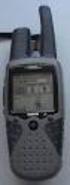 How to use Garmin Rino 130 Created by: John Cruz, Vladimir Ivanov, UH-Hilo EPSCoR-ITER 1 //.../sdal/how-to/ht_garmin_rino130.doc Installing Batteries Note: The Rino 130 operates on three AA alkaline batteries
GBR. Polar Accurex Plus HEART RATE MONITOR USER'S MANUAL
 GBR Polar Accurex Plus HEART RATE MONITOR USER'S MANUAL QUICK REFERENCE GUIDE IN MEASURE MODE FUNCTION Illuminate the display Turn the sound signal off/on Stop/start the stopwatch BUTTON SIGNAL/LIGHT SIGNAL/LIGHT
G-100/200 Operation & Installation
 G-100/200 Operation & Installation 2 Contents 7 Installation 15 Getting Started 16 GPS Mode Setup 18 Wheel Sensor Mode Setup 20 Fuel Calibration 23 Basic Operation 24 Telemetery Screen 27 Entering a Distance
Information For more information on Lezyne products, visit: http://lezyne.com
 1 Information For more information on Lezyne products, visit: http://lezyne.com WEEE Notice & Product Disposal: The symbol of the crossed waste container means that, in accordance with2002/96/ec Waste
Suunto t6 Heart Rate Monitor Review
 Suunto t6 Heart Rate Monitor Review When it comes to heart rate monitors Polar has been the international leader for many years. Many of us have been devoted Polar users and realise the benefits on their