
ConnectX -3 VPI Single and Dual QSFP+ Port Adapter Card User Manual
|
|
|
- Ruby Louise Cannon
- 9 years ago
- Views:
Transcription
1 ConnectX -3 VPI Single and Dual QSFP+ Port Adapter Card User Manual P/N: MCX353A-FCBT, MCX353A-FCBS, MCX353A-TCBT, MCX353A-QCBT, MCX354A-FCBT, MCX354A- FCBS, MCX354A-TCBT, MCX354A-QCBT Rev 2.5

2 Rev 2.5 NOTE: THIS HARDWARE, SOFTWARE OR TEST SUITE PRODUCT ( PRODUCT(S) ) AND ITS RELATED DOCUMENTATION ARE PROVIDED BY MELLANOX TECHNOLOGIES AS-IS WITH ALL FAULTS OF ANY KIND AND SOLELY FOR THE PURPOSE OF AIDING THE CUSTOMER IN TESTING APPLICATIONS THAT USE THE PRODUCTS IN DESIGNATED SOLUTIONS. THE CUSTOMER'S MANUFACTURING TEST ENVIRONMENT HAS NOT MET THE STANDARDS SET BY MELLANOX TECHNOLOGIES TO FULLY QUALIFY THE PRODUCT(S) AND/OR THE SYSTEM USING IT. THEREFORE, MELLANOX TECHNOLOGIES CANNOT AND DOES NOT GUARANTEE OR WARRANT THAT THE PRODUCTS WILL OPERATE WITH THE HIGHEST QUALITY. ANY EXPRESS OR IMPLIED WARRANTIES, INCLUDING, BUT NOT LIMITED TO, THE IMPLIED WARRANTIES OF MERCHANTABILITY, FITNESS FOR A PARTICULAR PURPOSE AND NONINFRINGEMENT ARE DISCLAIMED. IN NO EVENT SHALL MELLANOX BE LIABLE TO CUSTOMER OR ANY THIRD PARTIES FOR ANY DIRECT, INDIRECT, SPECIAL, EXEMPLARY, OR CONSEQUENTIAL DAMAGES OF ANY KIND (INCLUDING, BUT NOT LIMITED TO, PAYMENT FOR PROCUREMENT OF SUBSTITUTE GOODS OR SERVICES; LOSS OF USE, DATA, OR PROFITS; OR BUSINESS INTERRUPTION) HOWEVER CAUSED AND ON ANY THEORY OF LIABILITY, WHETHER IN CONTRACT, STRICT LIABILITY, OR TORT (INCLUDING NEGLIGENCE OR OTHERWISE) ARISING IN ANY WAY FROM THE USE OF THE PRODUCT(S) AND RELATED DOCUMENTATION EVEN IF ADVISED OF THE POSSIBILITY OF SUCH DAMAGE. Mellanox Technologies 350 Oakmead Parkway Suite 100 Sunnyvale, CA U.S.A. Tel: (408) Fax: (408) Copyright Mellanox Technologies LTD. All Rights Reserved. Mellanox, Mellanox logo, BridgeX, CloudX logo, CompustorX, Connect-IB, ConnectX, CoolBox, CORE- Direct, EZchip, EZchip logo, EZappliance, EZdesign, EZdriver, EZsystem, GPUDirect, InfiniHost, InfiniScale, Kotura, Kotura logo, Mellanox Federal Systems, Mellanox Open Ethernet, Mellanox ScalableHPC, Mellanox TuneX, Mellanox Connect Accelerate Outperform logo, Mellanox Virtual Modular Switch, MetroDX, MetroX, MLNX-OS, NP-1c, NP-2, NP-3, Open Ethernet logo, PhyX, SwitchX, Tilera, Tilera logo, TestX, TuneX, The Generation of Open Ethernet logo, UFM, Virtual Protocol Interconnect, Voltaire and Voltaire logo are registered trademarks of Mellanox Technologies, Ltd. All other trademarks are property of their respective owners. For the most updated list of Mellanox trademarks, visit 2 Mellanox Technologies Document Number: 3754

3 Table of Contents Table of Contents List of Figures List of Tables Revision History About this Manual Intended Audience Related Documentation Document Conventions Technical Support Firmware and Software Updates Chapter 1 Introduction Product Overview Features and Benefits Operating Systems/Distributions Connectivity Chapter 2 Interfaces InfiniBand Interface Ethernet Interface PCI Express Interface I2C-compatible Interface LED Interface Chapter 3 Hardware Installation System Requirements Hardware Operating Systems/Distributions Software Stacks Safety Precautions Pre-installation Checklist Bracket Installation Instructions Removing the Existing Bracket Installing the New Bracket Gasket Installation Installing the Bracket Card Installation Instructions Cables and Modules Cable Installation Identify the Card in Your System On Windows On Linux Chapter 4 Driver Installation Mellanox Technologies 3

4 4.1 Linux Driver Hardware and Software Requirements Downloading Mellanox OFED Installing Mellanox OFED Pre-installation Notes Installation Script mlnxofedinstall Return Codes Installation Procedure Installation Results Post-installation Notes Updating Firmware After Installation Uninstalling Mellanox OFED Port Type Management on Linux Auto Sensing Enabling Auto Sensing Windows Driver Hardware and Software Requirements Downloading MLNX_WinOF Extracting Files Without Running Installation Installing MLNX_WinOF Attended Installation Unattended Installation Upgrading MLNX_WinOF Installation Results OpenSM Activation Uninstalling MLNX_WinOF Attended Uninstall Unattended Uninstall Assigning Port IP After Installation Port Type Management on Windows Performance Tuning VMware Driver Installing Mellanox InfiniBand OFED Driver for VMware vsphere Uninstalling Mellanox InfiniBand OFED Driver FlexBoot Chapter 5 Updating Adapter Card Firmware Chapter 6 Troubleshooting General Linux Windows Chapter 7 Specifications MCX353A-QCBT Specifications MCX354A-QCBT Specifications MCX353A-TCBT Specifications MCX354A-TCBT Specifications Mellanox Technologies 4

5 7.5 MCX353A-FCB[T/S] Specifications MCX354A-FCB[T/S] Specifications Adapter LED Operation Board Mechanical Drawing and Dimensions Bracket Mechanical Drawing Regulatory Statements Appendix A Interface Connectors Pinout Appendix B Finding the GUID/ MAC and Serial Number on the Adapter Card 86 Appendix C Safety Warnings Appendix D Avertissements de sécurité d installation (Warnings in French) 89 Appendix E Sicherheitshinweise (Warnings in German) Appendix F Advertencias de seguridad para la instalación (Warnings in Spanish) 93 Mellanox Technologies 5

6 ConnectX -3 Ethernet Single and Dual QSFP+ Port Adapter Card User Manual Rev 2.5 List of Figures Figure 1: MCX354A-[QFT]CBT Card Figure 2: Bracket Screws Figure 3: Gasket Location on Adapter Card Figure 4: Gasket Installation Figure 5: Placing the Bracket on the Card Figure 6: PCI Device Figure 7: Support Download Assistant Figure 8: Mechanical Drawing of the Single-port MCX353A-[QFT]CBT Adapter Card Figure 9: Mechanical Drawing of the Dual-port MCX354A-[QFT]CBT Adapter Card Figure 10: Dual-port Tall Bracket Figure 11: Single-port Tall Bracket Figure 12: Dual-port Short Bracket Figure 13: Single-port Short Bracket Figure 14: Connector and Cage Views Figure 15: PCIe Connector Pinout Figure 16: Compatible Connector Plug and Pinout Figure 17: Card Product Label Mellanox Technologies 6

7 List of Tables Table 1: Revision History Table Table 2: Documents List Table 3: Single and Dual-port QDR Adapter Cards Table 4: Single and Dual-port FDR10 Adapter Cards Table 5: Single and Dual-port FDR Adapter Cards Table 6: Features Table 7: Software and Hardware Requirements Table 8: mlnxofedinstall Return Codes Table 9: Supported ConnectX Port Configurations Table 10: Software and Hardware Requirements Table 11: MCX353A-QCBT Specifications Table Table 12: MCX354A-QCBT Specifications Table Table 13: MCX353A-TCBT Specifications Table Table 14: MCX354A-TCBT Specifications Table Table 15: MCX353A-FCB[T/S] Specifications Table Table 16: MCX354A-FCB[T/S] Specifications Table Table 17: Physical and Logical Link Indications (InfiniBand Mode) Table 18: Physical and Logical Link Indication (Ethernet Mode ) 76 Mellanox Technologies 7

8 Revision History This document was printed on June 27, Table 1 - Revision History Table Date Rev Comments/Changes June Updated airflow figures in the following specification tables: MCX354A-QCBT Specifications on page 70 MCX354A-FCB[T/S] Specifications on page 74. June Updated airflow figures in the following specifications table: MCX314A-BCBT Specifications on page 47 May Added note on bracket replacement. See Section 3.4.2, Installing the New Bracket, on page 20. April Added Section 4.3, Performance Tuning, on page 61 Added Performance Tuning Guidelines to Related Documentation on page 10 November Added the following note to Chapter 5, Updating Adapter Card Firmware on page 63 - Note: The shown versions and/or parameter values in the example below may not reflect the latest or actual values for this product, and are included here for illustration purposes only. Specified max power available through QSFP+ ports in all specification tables. See Chapter 7, Specifications on page 68. Updated link to approved cables list in all specification tables. See Chapter 7, Specifications on page 68. July Added MCX354A-FCBS and MCX353A-FCBS (short-bracket adapter cards) to the document Added Figure 12, Dual-port Short Bracket, on page 80 and Figure 13, Single-port Short Bracket, on page 80 June Updated User Manual structure February Added Section 4.4, VMware Driver, on page 61 Updated Figure 6, PCI Device, on page 21 and Figure 8, Device Manager, on page 58 Updated all Web links in the User Manual November Updated Web links Table 11, MCX353A-QCBT Specifications Table, on page 68Table 12, MCX354A-QCBT Specifications Table, on page 70Table 13, MCX353A-TCBT Specifications Table, on page 71 - Table 14, MCX354A-TCBT Specifications Table, on page 72 - Table 15, MCX353A-FCB[T/S] Specifications Table, on page 73 - Table 16, MCX354A-FCB[T/S] Specifications Table, on page 74 October Fixed Table 5, Jumper Configuration, on page 17 Updated figures in Section 4.2, Windows Driver, on page 46 by providing ConnectX-3 examples Mellanox Technologies 8

9 Date Rev Comments/Changes August Added operational and non-operational temperature and humidity level to the following tables: - Table 11, MCX353A-QCBT Specifications Table, on page 68 - Table 12, MCX354A-QCBT Specifications Table, on page 70 - Table 13, MCX353A-TCBT Specifications Table, on page 71 - Table 14, MCX354A-TCBT Specifications Table, on page 72 - Table 15, MCX353A-FCB[T/S] Specifications Table, on page 73 - Table 16, MCX354A-FCB[T/S] Specifications Table, on page 74 January Minor edits Updated LED functions in Section 2.4, I2C-compatible Interface, on page 18 Formatted specification tables in Appendix 7, Specifications, on page 68 October Added new OPNs based on ConnectX-3 Step A1 devices July Minor edits July First Release Mellanox Technologies 9
![Table, on page 70 - Table 13, MCX353A-TCBT Specifications Table, on page 71 - Table 14, MCX354A-TCBT Specifications Table, on page 72 - Table 15, MCX353A-FCB[T/S] Specifications Table, on page 73 -](/docs-images/44/21006543/images/page_9.jpg "Table 16, MCX354A-FCB[T/S] Specifications Table, on page 74 January 2012 1.2 Minor edits Updated LED functions in Section 2.")
10 About this Manual This User Manual describes Mellanox Technologies ConnectX -3 VPI Single and Dual QSFP+ port PCI Express x8 adapter cards. It provides details as to the interfaces of the board, specifications, required software and firmware for operating the board, and relevant documentation. Intended Audience This manual is intended for the installer and user of these cards. The manual assumes basic familiarity with InfiniBand and Ethernet networks and architecture specifications. Related Documentation Table 2 - Documents List Mellanox Firmware Tools (MFT) User Manual Document no. 2204UG Mellanox OFED for Linux User Manual Document no WinOF VPI for Windows User Manual Document no Mellanox InfiniBand OFED Driver for VMware vsphere 5.x User Manual Document no IBTA Specification Release Performance Tuning Guidelines for Mellanox Network Adapters Document no IEEE Std Specification PCI Express 3.0 Specifications User Manual describing the set of MFT firmware management tools for a single node. See => Products => Software => Firmware Tools User Manual describing OFED features, performance, InfiniBand diagnostic, tools content and configuration.see => Products => Software => Linux SW/Drivers => Mellanox OpenFabrics Enterprise Distribution for Linux (MLNX_OFED) User Manual describing WinOF features, performance, InfiniBand diagnostic, tools content and configuration. See => Products => Software => Windows SW/Drivers => Mellanox OFED for Windows (WinOF) User Manual describing OFED driver for VMware features, performance, InfiniBand diagnostic, tools content and configuratio InfiniBand Architecture Specification Manual describes important tuning parameters and settings that can improve performance for Mellanox drivers. This is the IEEE Ethernet specification Industry Standard PCI Express 3.0 Base and Card Electromechanical Specifications Document Conventions When discussing memory sizes, MB and MBytes are used in this document to mean size in mega Bytes. The use of Mb or Mbits (small b) indicates size in mega bits. IB is used in this document to mean InfiniBand. In this document PCIe is used to mean PCI Express. Mellanox Technologies 10

11 Technical Support Customers who purchased Mellanox products directly from Mellanox are invited to contact us through the following methods. URL: => Support Tel: Customers who purchased Mellanox M-1 Global Support Services, please see your contract for details regarding Technical Support. Customers who purchased Mellanox products through a Mellanox approved reseller should first seek assistance through their reseller. Firmware and Software Updates The Mellanox support downloader contains software, firmware and knowledge database information for Mellanox products. Access the database from the Mellanox Support web page, => Support or use the following link to go directly to the Mellanox Support Download Assistant page, Mellanox Technologies 11

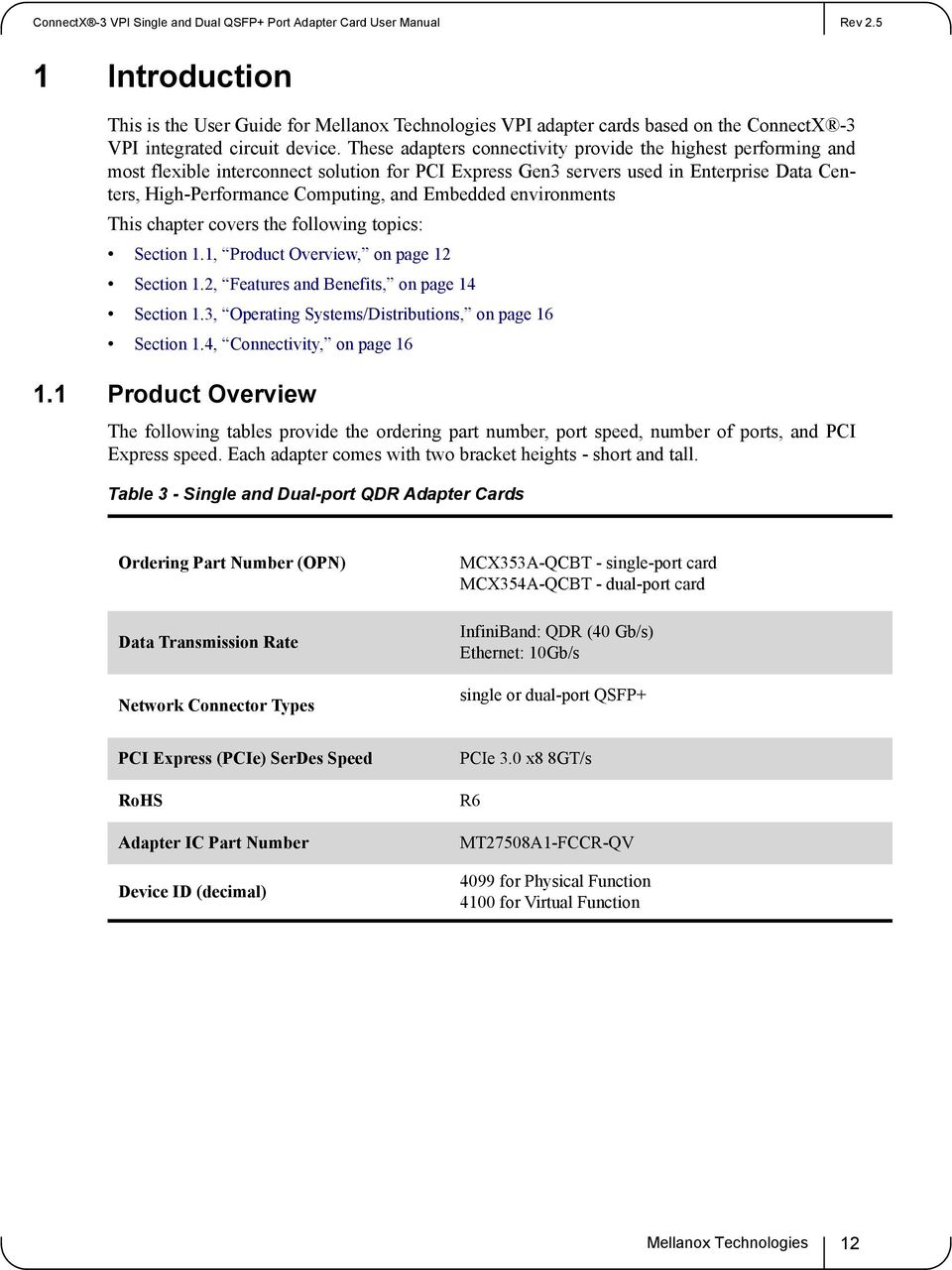
12 1 Introduction This is the User Guide for Mellanox Technologies VPI adapter cards based on the ConnectX -3 VPI integrated circuit device. These adapters connectivity provide the highest performing and most flexible interconnect solution for PCI Express Gen3 servers used in Enterprise Data Centers, High-Performance Computing, and Embedded environments This chapter covers the following topics: Section 1.1, Product Overview, on page 12 Section 1.2, Features and Benefits, on page 14 Section 1.3, Operating Systems/Distributions, on page 16 Section 1.4, Connectivity, on page Product Overview The following tables provide the ordering part number, port speed, number of ports, and PCI Express speed. Each adapter comes with two bracket heights - short and tall. Table 3 - Single and Dual-port QDR Adapter Cards Ordering Part Number (OPN) Data Transmission Rate Network Connector Types MCX353A-QCBT - single-port card MCX354A-QCBT - dual-port card InfiniBand: QDR (40 Gb/s) Ethernet: 10Gb/s single or dual-port QSFP+ PCI Express (PCIe) SerDes Speed RoHS Adapter IC Part Number Device ID (decimal) PCIe 3.0 x8 8GT/s R6 MT27508A1-FCCR-QV 4099 for Physical Function 4100 for Virtual Function Mellanox Technologies 12
13 Table 4 - Single and Dual-port FDR10 Adapter Cards Ordering Part Number (OPN) Data Transmission Rate MCX353A-TCBT - single-port card MCX354A-TCBT - dual-port card InfiniBand: FDR10 (40 Gb/s) Ethernet: 10Gb/s Network Connector Types single or dual-port QSFP+ PCI Express (PCIe) SerDes Speed RoHS Adapter IC Part Number Device ID (decimal) PCIe 3.0 x8 8GT/s R6 MT27508A1-FCCR-TV 4099 for Physical Function 4100 for Virtual Function Table 5 - Single and Dual-port FDR Adapter Cards Ordering Part Number (OPN) Data Transmission Rate MCX353A-FCBT - single-port tall bracket card MCX354A-FCBT - dual-port tall bracket card MCX353A-FCBS - single-port short bracket card MCX354A-FCBS - dual-port short bracket card InfiniBand: FDR (56 Gb/s) Ethernet: 40/56Gb/s Network Connector Types single or dual-port QSFP+ PCI Express (PCIe) SerDes Speed RoHS Adapter IC Part Number Device ID (decimal) PCIe 3.0 x8 8GT/s R6 MT27508A1-FCCR-FV 4099 for Physical Function 4100 for Virtual Function Mellanox Technologies 13

14 1.2 Features and Benefits Table 6 - Features Virtual Protocol Interconnect (VPI) VPI-enabled adapters facilitate any standard networking, clustering, storage, and management protocol to seamlessly operate over any converged network with the same software infrastructure. InfiniBand Architecture Specification v1.2.1 compliant ConnectX-3 delivers low latency, high bandwidth, and computing efficiency for performance-driven server and storage clustering applications. ConnectX-3 is InfiniBand Architecture Specification v1.2.1 compliant. PCI Express (PCIe) Uses PCIe Gen 3.0 (1.1 and 2.0 compatible) through an x8 edge connector up to 8GT/s 10/40/56 Gigabit Ethernet Mellanox adapters comply with the following IEEE 802.3* standards: IEEE Std Ethernet IEEE Std 802.3ae 10 Gigabit Ethernet IEEE Std 802.3ba 40 Gigabit Ethernet IEEE Std 802.3ad Link Aggregation and Failover InfiniBand FDR InfiniBand FDR10 InfiniBand QDR Memory RDMA over Converged Ethernet (RoCE) CPU offload GPUDirect RDMA Sockets Acceleration A pre-standard InfiniBand data rate, where each lane of a 4X port runs a bit rate of Gb/s with a 64b/66b encoding, resulting in an effective bandwidth of 54.54Gb/s. An InfiniBand transport and link layer running over a physical layer using the PCS encoding of 64b/66b and a bit rate of Gb/s per lane. A standard InfiniBand data rate, where each lane of a 4X port runs a bit rate of 10Gb/s with an 8b/10b encoding. PCI Express - stores and accesses InfiniBand and/or Ethernet fabric connection information and packet data SPI - includes one 16Mb SPI Flash device (M25PX16-VMN6P device by ST Microelectronics) EEPROM - accessible through the I 2 C-compatible interface. The EEPROM capacity is 4Kb. Leveraging Data Center Bridging capabilities, RoCE provides efficient low latency RDMA services over Layer 2 Ethernet. Adapter functionality enabling reduced CPU overhead allowing more available CPU Using GPUDirect RDMA, adapters can directly read and write CUDA host and device memory, eliminating unnecessary system memory copies and CPU overhead, resulting in significant performance improvements. Applications utilizing TCP/UDP/IP transport can achieve industry leading throughput over InfiniBand or 10 or 40GbE. The hardware-based stateless offload engines in ConnectX-3 reduce the CPU overhead of IP packet transport. Sockets acceleration software further increases performance for latency sensitive applications. Mellanox Technologies 14

15 Table 6 - Features Quality of Service (QoS) Hardware-based I/O virtualization SR-IOV Storage Acceleration Support for port-based Quality of Service enabling various application requirements for latency and SLA ConnectX-3 provides dedicated adapter resourcesand guaranteed isolation and protection for virtual machines within the server. ConnectX-3 Pro SR-IOV technology provides dedicated adapter resources and guaranteed isolation and protection for virtual machines (VM) within the server. I/O virtualization with ConnectX-3 Pro gives data center managers better server utilization while reducing cost, power, and cable complexity. A consolidated compute and storage network achieves significant cost-performance advantages over multi-fabric networks. Standard block and file access protocols can leverage InfiniBand RDMA for high-performance storage access. Mellanox Technologies 15

16 1.3 Operating Systems/Distributions Citrix XenServer 6.1 Novell SLES, Red Hat Enterprise Linux(RHEL), and other Linux distributions Microsoft Windows Server 2008/2012 OpenFabrics Enterprise Distribution (OFED) OpenFabrics Windows Distribution (WinOF) Ubuntu VMware ESXi 4.x and 5.x 1.4 Connectivity Interoperable with InfiniBand or 10/40 Gb Ethernet switches. Interoperable with 56GbE Mellanox Switches. Passive copper cable with ESD protection Powered connectors for optical and active cable support QSFP to SFP+ connectivity through QSA module Mellanox Technologies 16

17 2 Interfaces Each adapter card includes the following interfaces: InfiniBand Interface Ethernet Interface PCI Express Interface I2C-compatible Interface LED Interface Figure 1: MCX354A-[QFT]CBT Card The adapter cards include special circuits to protect from ESD shocks to the card/server when plugging copper cables. 2.1 InfiniBand Interface The network ports of the ConnectX -3 adapter cards are compliant with the InfiniBand Architecture Specification, Release InfiniBand traffic is transmitted through the cards' QSFP+ connectors. 2.2 Ethernet Interface The network ports of the ConnectX -3 adapter cards are compliant with the IEEE Ethernet standards listed in Table 6, Features, on page 14. Ethernet traffic is transmitted through the cards' QSFP+ connectors. For connecting to an SFP+ interface, you can use Mellanox QSA (QSFP to SFP+) adapter module (to be ordered separately). Mellanox Technologies 17

18 2.3 PCI Express Interface The ConnectX -3 adapter cards support PCI Express 3.0 (1.1 and 2.0 compatible) through an x8 edge connector. The device can be either a master initiating the PCI Express bus operations or a slave responding to PCI bus operations. The following lists the PCIe interface features: PCIe Base 3.0 compliant, 1.1 and 2.0 compatible 2.5, 5.0, or 8.0GT/s link rate x8 Auto-negotiates to x8, x4, x2, or x1 Support for MSI/MSI-X mechanisms 2.4 I 2 C-compatible Interface A three-pin header on the adapter cards is provided as the I 2 C-compatible interface. See Figure 9, Mechanical Drawing of the Dual-port MCX354A-[QFT]CBT Adapter Card, on page 78. for the location on the board. 2.5 LED Interface There are two I/O LEDs per port. For LED specifications please refer to Section 7.7, Adapter LED Operation, on page 76. Mellanox Technologies 18

19 3 Hardware Installation 3.1 System Requirements Hardware A system with a PCI Express x8 slot is required for installing the card Operating Systems/Distributions Please refer to Section 1.3, Operating Systems/Distributions, on page Software Stacks Mellanox OpenFabric software package - MLNX_OFED for Linux, WinOF for Windows and ESX 5.1 for VMware. See Chapter 4, Driver Installation. 3.2 Safety Precautions The adapter is being installed in a system that operates with voltages that can be lethal. Before opening the case of the system, observe the following precautions to avoid injury and prevent damage to system components. 1. Remove any metallic objects from your hands and wrists. 2. Make sure to use only insulated tools. 3. Verify that the system is powered off and is unplugged. 4. It is strongly recommended to use an ESD strap or other antistatic devices. 3.3 Pre-installation Checklist 1. Verify that your system meets the hardware and software requirements stated above. 2. Shut down your system if active. 3. After shutting down the system, turn off power and unplug the cord. 4. Remove the card from its package. Please note that the card must be placed on an antistatic surface. 5. Check the card for visible signs of damage. Do not attempt to install the card if damaged. 3.4 Bracket Installation Instructions The card is usually shipped with a tall bracket installed. If this form factor is suitable for your requirements, you can skip the remainder of this section and move to Section 3.5, Card Installation Instructions, on page 22. If you need to replace it with the short bracket that is included in the shipping box, please follow the instructions in this section. To replace the bracket you will need the following parts: The new bracket of the proper height One new gasket Mellanox Technologies 19

20 The 2 screws saved from the removal of the bracket The 2 fiber washers saved from the removal of the bracket Removing the Existing Bracket Figure 2: Bracket Screws Screws 1. Remove the two screws holding the bracket in place. The bracket comes loose from the card. Be careful not to put stress on the LEDs. 2. Save the two screws and the two fiber washers Installing the New Bracket Gasket Installation Note: The following instructions relate to the installation of the gasket for adapter cards that are not shipped with a gasket already installed. Mellanox Technologies now provides all ConnectX- 3 adapter cards with the gasket already installed unto the bracket. Note: Due to risk of damaging the EMI gasket, it is not recommended to replace the bracket more than three times. 1. Remove the paper to expose the adhesive on the gasket. 2. Place the gasket onto the new bracket. Make sure to correctly align the gasket with the hole in the bracket. 3. If the old gaskets are still on the card, remove them before installing the new bracket. Mellanox Technologies 20

21 Figure 3: Gasket Location on Adapter Card Gasket Figure 4: Gasket Installation Installing the Bracket 1. Place the bracket onto the card until the screw holes line up. See Figure 5 Do not force the bracket onto the card. You may have to gently push the LEDs using a small screwdriver to align the LEDs with the holes in the bracket. 2. Screw on the bracket using the screws and washers saved from the bracket removal procedure above. Mellanox Technologies 21
22 Figure 5: Placing the Bracket on the Card 3. Make sure that the LEDs are aligned onto the bracket holes. 4. Use a torque driver to apply up to 2 lbs-in torque on the screws. 3.5 Card Installation Instructions 1. Before installing the card, make sure that the system is off and the power cord is not connected to the server. Please follow proper electrical grounding procedures. 2. Open the system case. 3. Place the adapter in an available PCI Express slot. A lesser width adapter can be seated into a greater width slot (x4 in a x8), but a greater width adapter cannot be seated into a lesser width slot (x8 in a x4). Align the adapter connector edge with the PCI Express connector slot. 4. Applying even pressure at both corners of the card, insert the adapter card into the slot until it is firmly seated. When the adapter is properly seated, the adapter port connectors are aligned with the slot opening, and the adapter faceplate is visible against the system chassis. Mellanox Technologies 22
23 Do not use excessive force when seating the card, as this may damage the system or the adapter. 5. Secure the adapter with the adapter clip or screw. 6. Close the system case. 3.6 Cables and Modules To obtain the list of supported cables for your adapter, please refer to Mellanox Products Approved Cable Lists at: Cable Installation 1. All cables can be inserted or removed with the unit powered on. 2. To insert a cable, press the connector into the port receptacle until the connector is firmly seated. a. Support the weight of the cable before connecting the cable to the adapter card. Do this by using a cable holder or tying the cable to the rack. b. Determine the correct orientation of the connector to the card before inserting the connector. Do not try and insert the connector upside down. This may damage the adapter card. c. Insert the connector into the adapter card. Be careful to insert the connector straight into the cage. Do not apply any torque, up or down, to the connector cage in the adapter card. d. Make sure that the connector locks in place. When installing cables make sure that the latches engage. Always install and remove cables by pushing or pulling the cable and connector in a straight line with the card. 3. After inserting a cable into a port, the Green LED indicator will light when the physical connection is established (that is, when the unit is powered on and a cable is plugged into the port with the other end of the connector plugged into a functioning port). See Section 7.7, Adapter LED Operation, on page After plugging in a cable, lock the connector using the latching mechanism particular to the cable vendor. When a logical connection is made the Yellow LED will light. When data is being transferred the yellow led will blink. See Section 7.7, Adapter LED Operation, on page 76. Mellanox Technologies 23
24 5. Care should be taken as not to impede the air exhaust flow through the ventilation holes. Use cable lengths which allow for routing horizontally around to the side of the chassis before bending upward or downward in the rack. 6. To remove a cable, disengage the locks and slowly pull the connector away from the port receptacle. Both LED indicators will turn off when the cable is unseated. a. Pull on the latch release mechanism thereby unlatching the connector and pull the connector out of the cage. b. Do not apply torque to the connector when removing it from the adapter card. c. Remove any cable supports that were used to support the cable s weight. 3.7 Identify the Card in Your System On Windows 1. Open Device Manager on the server. Click start => Run, and then enter devmgmt.msc. 2. Expand System Devices and locate your Mellanox ConnectX-3 adapter card. 3. Right click the mouse on your adapter's row and select properties to display the adapter card properties window. 4. Click the Details tab and select Device Instance Id (Windows 2003) or 5. Hardware Ids (Windows 2008/R2) from the Properties pull-down menu. Figure 6: PCI Device 6. In the Value display box, check the fields VEN and DEV (fields are separated by & ). In the display example above, notice the sub-string PCI\VEN_15B3&DEV_1003 : VEN is equal to 0x15B3 this is the Vendor ID of Mellanox Technologies; and DEV is equal to 1003 this is a valid Mellanox Technologies PCI Device ID. If the PCI device does not have a Mellanox adapter ID, return to Step 2 to check another device. Mellanox Technologies 24
25 The list of Mellanox Technologies PCI Device IDs can be found in the PCI ID repository at On Linux Get the device location on the PCI bus by running lspci and locating lines with the string Mellanox Technologies : > lspci grep -i Mellanox 27:00.0 Network controller: Mellanox Technologies MT27500 Family [ConnectX-3] Mellanox Technologies 25
26 4 Driver Installation 4.1 Linux Driver For Linux, download and install the latest OpenFabrics Enterprise Distribution (OFED) software package available via the Mellanox web site at: => Products => Software => InfiniBand/VPI Drivers => Linux SW/Drivers => Download. This chapter describes how to install and test the Mellanox OFED for Linux package on a single host machine with Mellanox ConnectX-3 adapter hardware installed Hardware and Software Requirements Table 7 - Software and Hardware Requirements Platforms Requirements Required Disk Space for Installation Device ID Operating System Installer Privileges Description For the list of supported architecture platforms, please refer to the Mellanox OFED Release Notes file. 1GB For the latest list of device IDs, please visit 15b3. Linux operating system. For the list of supported operating system distributions and kernels, please refer to => Products => Software => Infini- Band/VPI Drivers => Mellanox OFED Release Notes file. The installation requires administrator privileges on the target machine Downloading Mellanox OFED Step 1. Step 2. Step 3. Verify that the system has a Mellanox network adapter (HCA/NIC) installed by ensuring that you can see ConnectX entries in the display. The following example shows a system with an installed Mellanox HCA: host1# lspci -v grep Mellanox 02:00.0 InfiniBand: Mellanox Technologies MT25418 [ConnectX IB DDR, PCIe GT/s] (rev a0) Download the ISO image to your host. The image s name has the format MLNX_OFED_LINUX-<ver>-<OS label><cpu arch>.iso. You can download it from => Products => Software => InfiniBand/VPI Drivers. Use the md5sum utility to confirm the file integrity of your ISO image. Run the following command and compare the result to the value provided on the download page. host1# md5summlnx_ofed_linux-<ver>-<os label>.iso Mellanox Technologies 26
27 4.1.3 Installing Mellanox OFED Mellanox OFED includes an installation script called mlnxofedinstall which performs the following: Discovers the currently installed kernel Uninstalls any software stacks that are part of the standard operating system distribution or another vendor's commercial stack Installs the MLNX_OFED_LINUX binary RPMs (if they are available for the current kernel) Identifies the currently installed InfiniBand and Ethernet network adapters and automatically 1 upgrades the firmware Pre-installation Notes The installation script removes all previously installed Mellanox OFED packages and re-installs from scratch. You will be prompted to acknowledge the deletion of the old packages. Pre-existing configuration files will be saved with the extension.conf.rpmsave. If you need to install Mellanox OFED on an entire (homogeneous) cluster, a common strategy is to mount the ISO image on one of the cluster nodes and then copy it to a shared file system such as NFS. To install on all the cluster nodes, use cluster-aware tools (such as pdsh). If your kernel version does not match with any of the offered pre-built RPMs, you can add your kernel version by using the mlnx_add_kernel_support.sh script located under the docs/ directory. Usage: mlnx_add_kernel_support.sh -m --mlnx_ofed <path to MLNX_OFED >directory> [--make-iso --make-tgz] > >[--make-iso] Create MLNX_OFED ISO image. >[--make-tgz] Create MLNX_OFED tarball. (Default) >[-t --tmpdir <local work dir>] >[--kmp] >[-v --verbose] Example The following command will create a MLNX_OFED_LINUX ISO image for RedHat 5.6 under the /tmp directory. MLNX_OFED_LINUX rhel5.6-x86_64/docs/mlnx_add_kernel_support.sh -i /mnt/mlnx_ofed_linux rhel5.6-x86_64.iso All Mellanox, OEM, OFED, or Distribution IB packages will be removed. 1. The firmware will not be updated if you run the install script with the --without-fw-update option. Mellanox Technologies 27
28 Installation Script Do you want to continue?[y/n]:y Removing OFED RPMs... Running mkisofs... Created /tmp/mlnx_ofed_linux rhel5.6-x86_64.iso The usage of the installation script is described below. You will use it during the installation procedure described in Section , Installation Procedure, on page 30. Usage./mnt/mlnxofedinstall [OPTIONS] Mellanox Technologies 28
29 Options -c -- config <packages config_file> -n --net <network config file> -p --print-available --without-32bit --without-depcheck --without-fw-update --force-fw-update --force --all --hpc --basic --msm --vma --vma-ib --vma-eth mlnxofedinstall Return Codes Example of the configuration file can be found under docs Example of the network configuration file can be found under docs Print available packages for the current plat form and create a corresponding ofed.conf file. The installation script exits after creating ofed.conf. Skip 32-bit libraries installation Skip Distro's libraries check Skip firmware update Force firmware update Force installation (without querying the user) Install all kernel modules, libibverbs, libibu mad,librdmacm, mft, mstflint, diagnostic tools, OpenSM, ib-bonding, MVAPICH, Open MPI, MPI tests, MPI selector, perftest, sdpnetstat and libsdp srptools, rds tools, static and dynamic libraries Install all kernel modules, libibverbs, libibumad,librdmacm, mft, mstflint, diagnostic tools, OpenSM, ib-bonding, MVAPICH, Open MPI, MPI tests, MPI selector, dynamic libraries Install all kernel modules, libibverbs, libibu mad, mft, mstflint, dynamic libraries Install all kernel modules, libibverbs, libibumad, mft, mstflint, diagnostic tools, OpenSM, ib-bonding, dynamic libraries NOTE: With --msm flag, the OpenSM daemon is configured to run upon boot. Install packages required by VMA to support both IB and Ethernet Install packages required by VMA to work over InfiniBand Install packages required by VMA to work over Ethernet Set verbosity level -v -vv -vvv -q Set quiet - no messages will be printed --umad-dev-rw Grant non root users read/write permission for umad devices instead of default --hugepages-overcommit Set 80% of MAX_MEMORY as overcommit for a huge page allocation Mellanox Technologies 29
30 Table 8 lists the mlnxofedinstall script return codes and their meanings. Table 8 - mlnxofedinstall Return Codes Return Code Meaning 0 The Installation ended successfully 1 The installation failed 2 No firmware was found for the adapter device 22 Invalid parameter 28 Not enough free space 171 Not applicable to this system configuration. This can occur when the required hardware is not present on the system. 172 Prerequisites are not met. For example, missing the required software installed or the hardware is not configured correctly. 173 Failed to start the mst driver Installation Procedure Step 1. Step 2. Login to the installation machine as root. Mount the ISO image on your machine host1# mount -o ro,loop MLNX_OFED_LINUX-<ver>-<OS label>-<cpu arch>.iso /mnt Mellanox Technologies 30
31 Step 3. Run the installation script../mlnxofedinstall This program will install the MLNX_OFED_LINUX package on your machine. Note that all other Mellanox, OEM, OFED, or Distribution IB packages will be removed. Do you want to continue?[y/n]:y Uninstalling the previous version of MLNX_OFED_LINUX MLNX_OFED_LINUX rhel6.3-x86_64]# MLNX_OFED_LINUX rhel6.3-x86_64]#./mlnxofedinstall This program will install the MLNX_OFED_LINUX package on your machine. Note that all other Mellanox, OEM, OFED, or Distribution IB packages will be removed. Do you want to continue?[y/n]:y Uninstalling the previous version of MLNX_OFED_LINUX Starting MLNX_OFED_LINUX installation... Installing mlnx-ofa_kernel RPM mlnx-ofa_kernel Installing kmod-mlnx-ofa_kernel RPM kmod-mlnx-ofa_kernel Installing mlnx-ofa_kernel-devel RPM mlnx-ofa_kernel-devel Installing kernel-mft RPM kernel-mft Installing knem RPM knem Installing mpi-selector RPM mpi-selector Mellanox Technologies 31
32 Installing user level RPMs: ofed-scripts libibverbs libibverbs libibverbs-devel libibverbs-devel libibverbs-devel-static libibverbs-devel-static libibverbs-utils libmverbs libmverbs libmlx4 libmlx4 libmlx4-devel Mellanox Technologies 32
33 libmlx4-devel libmlx5 libmlx5 libmlx5-devel libmlx5-devel libmverbs-devel libmverbs-devel libmqe libmqe libmqe-devel libmqe-devel libibcm libibcm Mellanox Technologies 33
34 libibcm-devel libibcm-devel libibumad libibumad libibumad-devel libibumad-devel libibumad-static libibumad-static libibmad libibmad libibmad-devel libibmad-devel Mellanox Technologies 34
35 libibmad-static libibmad-static ibsim ibacm librdmacm librdmacm librdmacm-utils librdmacm-devel librdmacm-devel opensm-libs opensm-libs opensm Mellanox Technologies 35
36 opensm-devel opensm-devel opensm-static opensm-static compat-dapl compat-dapl compat-dapl-devel compat-dapl-devel dapl dapl dapl-devel dapl-devel Mellanox Technologies 36
37 dapl-devel-static dapl-devel-static dapl-utils perftest mstflint mft srptools rds-tools rds-devel ibutils2 ibutils Mellanox Technologies 37
38 cc_mgr dump_pr ar_mgr ibdump infiniband-diags qperf fca INFO: updating... IMPORTANT NOTE: =============== - The FCA Manager and FCA MPI Runtime library are installed in /opt/ mellanox/fca directory. - The FCA Manager will not be started automatically. - To start FCA Manager now, type: /etc/init.d/fca_managerd start - There should be single process of FCA Manager running per fabric. - To start FCA Manager automatically after boot, type: /etc/init.d/fca_managerd install_service - Check /opt/mellanox/fca/share/doc/fca/readme.txt for quick start instructions. Mellanox Technologies 38
39 mxm openshmem bupc mvapich2_gcc openmpi_gcc mpitests_mvapich2_gcc mpitests_openmpi_gcc mlnxofed-docs Device (05:00.0): 05:00.0 Ethernet controller: Mellanox Technologies MT26448 [ConnectX EN 10GigE, PCIe 2.0 5GT/s] (rev b0) Link Width is not 8x PCI Link Speed: 5Gb/s Device (07:00.0): 07:00.0 Ethernet controller: Mellanox Technologies MT27500 Family [ConnectX-3] Link Width: 8x PCI Link Speed: 5Gb/s Installation finished successfully. The firmware version on /dev/mst/mt26448_pci_cr is up to date. Note: To force firmware update use '--force-fw-update' flag. The firmware version on /dev/mst/mt4099_pci_cr is up to date. Note: To force firmware update use '--force-fw-update' flag. Mellanox Technologies 39
40 In case your machine has the latest firmware, no firmware update will occur and the installation script will print at the end of installation a message similar to the following:... The firmware version on /dev/mst/mt26448_pci_cr is up to date. Note: To force firmware update use '--force-fw-update' flag. The firmware version on /dev/mst/mt4099_pci_cr is up to date. Note: To force firmware update use '--force-fw-update' flag. In case your machine has an unsupported network adapter device, no firmware update will occur and the error message below will be printed. Please contact your hardware vendor for help on firmware updates. Error message: -I- Querying device... -E- Can't auto detect fw configuration file:... Step 4. Step 5. Step 6. Step 7. In case the installation script performed firmware updates to your network adapter hardware, it will ask you to reboot your machine. The script adds the following lines to /etc/security/limits.conf for the userspace components such as MPI: * soft memlock unlimited * hard memlock unlimited These settings unlimit the amount of memory that can be pinned by a user space application. If desired, tune the value unlimited to a specific amount of RAM. For your machine to be part of the InfiniBand/VPI fabric, a Subnet Manager must be running on one of the fabric nodes. At this point, Mellanox OFED for Linux has already installed the OpenSM Subnet Manager on your machine. For details on starting OpenSM, refer to the OFED User Manual. See Table 2, Documents List, on page 10. (InfiniBand only) Run the hca_self_test.ofed utility to verify whether or not the Infini- Band link is up. The utility also checks for and displays additional information such as HCA firmware version Kernel architecture Driver version Number of active HCA ports along with their states Node GUID Mellanox Technologies 40
41 Note: For more details on hca_self_test.ofed, see the file hca_self_test.readme under docs/. # hca_self_test.ofed ---- Performing Adapter Device Self Test ---- Number of CAs Detected... 2 PCI Device Check... PASS Kernel Arch... x86_64 Host Driver Version... MLNX_OFED_LINUX (OFED ): el6.x86_64 Host Driver RPM Check... PASS Firmware on CA #0 NIC... v Firmware Check on CA #0 (NIC)... PASS Firmware on CA #1 NIC... v Firmware Check on CA #1 (NIC)... PASS Host Driver Initialization... PASS Number of CA Ports Active... 4 Port State of Port #1 on CA #0 (NIC)... UP 1X QDR (Ethernet) Port State of Port #2 on CA #0 (NIC)... UP 1X QDR (Ethernet) Port State of Port #1 on CA #1 (NIC)... UP 1X QDR (Ethernet) Port State of Port #2 on CA #1 (NIC)... UP 1X QDR (Ethernet) Error Counter Check on CA #0 (NIC)... NA (Eth ports) Error Counter Check on CA #1 (NIC)... NA (Eth ports) Kernel Syslog Check... PASS Node GUID on CA #0 (NIC)... 00:02:c9:03:00:07:4f:f8 Node GUID on CA #1 (NIC)... 00:02:c9:03:00:35:fd:c DONE After the installer completes, information about the Mellanox OFED installation such as prefix, kernel version, and installation parameters can be retrieved by running the command /etc/infiniband/info Installation Results Software The OFED and MFT packages are installed under the /usr directory. The kernel modules are installed under: InfiniBand subsystem: /lib/modules/`uname -r`/updates/kernel/drivers/infiniband/ mlx4_ib driver: /lib/modules/<kernel_version>/extra/mlnx-ofa_kernel/drivers/infiniband/ hw/mlx4/mlx4_ib.ko mlx4_core driver: /lib/modules/<kernel_version>/extra/mlnx-ofa_kernel/drivers/net/ethernet/mellanox/mlx4/mlx4_core.ko mlx5_core driver: /lib/modules/<kernel_version>/extra/mlnx-ofa_kernel/drivers/net/ethernet/mellanox/mlx5/core/mlx5_core.ko Mellanox Technologies 41
42 mlx5_ib driver: /lib/modules/<kernel_version>/extra/mlnx-ofa_kernel/drivers/infiniband/ hw/mlx5/mlx5_ib.ko IPoIB: /lib/modules/`uname -r`/updates/kernel/drivers/infiniband/ulp/ipoib/ ib_ipoib.ko iser: /lib/modules/`uname -r`/updates/kernel/drivers/infiniband/ulp/iser/ ib_iser.ko eipoib: /lib/modules/`uname -r`/updates/kernel/drivers/net/eipoib/eth_ipoib.ko SRP /lib/modules/`uname -r`/updates/kernel/drivers/infiniband/ulp/srp/ ib_srp.ko RDS: /lib/modules/`uname -r`/updates/kernel/net/rds/rds.ko /lib/modules/`uname -r`/updates/kernel/net/rds/rds_rdma.ko /lib/modules/`uname -r`/updates/kernel/net/rds/rds_tcp.ko Kernel s modules location may vary depending on the kernel s configuration. For example: /lib/modules/`uname -r`/extra/kernel/drivers/net/ethernet/mellanox/mlx4/ mlx4_core The package kernel-ib-devel include files are placed under /usr/src/ofa_kernel/ include/. These include files should be used when building kernel modules that use the stack. (Note that the include files, if needed, are backported to your kernel.) The raw package (un-backported) source files are placed under /usr/src/ofa_kernel-<ver> The script openibd is installed under /etc/init.d/. This script can be used to load and unload the software stack. The script connectx_port_config is installed under /sbin. This script can be used to configure the ports of ConnectX network adapter cards to Ethernet and/or InfiniBand. For details on this script, please see Section 4.1.8, Port Type Management on Linux. The directory /etc/infiniband is created with the files info and openib.conf and connectx.conf. The info script can be used to retrieve Mellanox OFED installation information. The openib.conf file contains the list of modules that are loaded when the openibd script is used. The connectx.conf file saves the ConnectX adapter card s ports configuration to Ethernet and/or InfiniBand. This file is used at driver start/restart (/etc/init.d/openibd start) The file 90-ib.rules is installed under /etc/udev/rules.d/ If OpenSM is installed, the daemon opensmd is installed under /etc/init.d/ and opensm.conf is installed under /etc. If IPoIB configuration files are included, ifcfg-ib<n> files will be installed under: /etc/sysconfig/network-scripts/ on a RedHat machine Mellanox Technologies 42
43 The installation process unlimits the amount of memory that can be pinned by a user space application. See Step 5. Man pages will be installed under /usr/share/man/ Firmware The firmware of existing network adapter devices will be updated if the following two conditions are fulfilled: 1. You run the installation script in default mode; that is, without the option --withoutfw-update. 2. The firmware version of the adapter device is older than the firmware version included with the Mellanox OFED ISO image. If an adapter s Flash was originially programmed with an Expansion ROM image, the automatic firmware update will also burn an Expansion ROM image. In case your machine has an unsupported network adapter device, no firmware update will occur and the error message below will be printed. Please contact your hardware vendor for help on firmware updates. Error message: -I- Querying device... -E- Can't auto detect fw configuration file: Post-installation Notes Most of the Mellanox OFED components can be configured or reconfigured after the installation by modifying the relevant configuration files. See the relevant chapters in this manual for details. The list of the modules that will be loaded automatically upon boot can be found in the /etc/infiniband/openib.conf file Updating Firmware After Installation In case you ran the mlnxofedinstall script with the --without-fw-update option and now you wish to (manually) update firmware on your adapter card(s), you need to perform the following steps: If you need to burn an Expansion ROM image, please refer to OFED User Manual. See Table 2, Documents List, on page 9. The following steps are also appropriate in case you wish to burn newer firmware that you have downloaded from Mellanox Technologies Web site ( => Support => Firmware Download). Step 1. Start mst. host1# mst start Mellanox Technologies 43
44 Step 2. Identify your target InfiniBand device for firmware update. 1. Get the list of InfiniBand device names on your machine. host1# mst status MST modules: MST PCI module loaded MST PCI configuration module loaded MST Calibre (I2C) module is not loaded Step 3. Step 4. MST devices: /dev/mst/mt25418_pciconf0 /dev/mst/mt25418_pci_cr0 /dev/mst/mt25418_pci_msix0 /dev/mst/mt25418_pci_uar0 2. Your InfiniBand device is the one with the postfix _pci_cr0. In the example listed above, this will be /dev/mst/mt25418_pci_cr0. Burn firmware. 1. Burning a firmware binary image using mstflint (that is already installed on your machine). Please refer to MSTFLINT_README.txt under docs/. 2. Burning a firmware image from a.mlx file using the mlxburn utility (that is already installed on your machine). The following command burns firmware onto the ConnectX device with the device name obtained in the example of Step 2. host1$ mlxburn -dev /dev/mst/mt25418_pci_cr0 -fw /mnt/firmware/fw-25408/ fw rel.mlx Reboot your machine after the firmware burning is completed. - PCI configuration cycles access. bus:dev.fn=02:00.0 addr.reg=88 data.reg=92 Chip revision is: A0 - PCI direct access. bus:dev.fn=02:00.0 bar=0xdef00000 size=0x Chip revision is: A0 - PCI direct access. bus:dev.fn=02:00.0 bar=0xdeefe000 size=0x PCI direct access. bus:dev.fn=02:00.0 bar=0xdc size=0x Uninstalling Mellanox OFED Use the script /usr/sbin/ofed_uninstall.sh to uninstall the Mellanox OFED package. The script is part of the ofed-scripts RPM. Mellanox Technologies 44
45 4.1.8 Port Type Management on Linux ConnectX ports can be individually configured to work as InfiniBand or Ethernet ports. By default both ConnectX ports are initialized as InfiniBand ports. If you wish to change the port type use the connectx_port_config script after the driver is loaded. Running /sbin/connectx_port_config -s will show current port configuration for all ConnectX devices. Port configuration is saved in the file: /etc/infiniband/connectx.conf. This saved configuration is restored at driver restart only if restarting via /etc/init.d/openibd restart. Possible port types are: eth Ethernet ib Infiniband auto Link sensing mode - Detect port type based on the attached network type. If no link is detected, the driver retries link sensing every few seconds. Table 9 lists the ConnectX port configurations supported by VPI. Table 9 - Supported ConnectX Port Configurations Port 1 Configuration ib ib eth Port 2 Configuration ib eth eth Note that the configuration Port1 = eth and Port2 = ib is not supported. The port link type can be configured for each device in the system at run time using the / sbin/connectx_port_config script. This utility will prompt for the PCI device to be modified (if there is only one it will be selected automatically). In the next stage the user will be prompted for the desired mode for each port. The desired port configuration will then be set for the selected device. This utility also has a non-interactive mode: /sbin/connectx_port_config [[-d --device <PCI device ID>] -c --conf <port1,port2>]" Auto Sensing Auto Sensing enables the NIC to automatically sense the link type (InfiniBand or Ethernet) based on the link partner and load the appropriate driver stack (InfiniBand or Ethernet). For example, if the first port is connected to an InfiniBand switch and the second to Ethernet switch, the NIC will automatically load the first switch as InfiniBand and the second as Ethernet. Mellanox Technologies 45
46 Enabling Auto Sensing Upon driver start up: 1. Sense the adapter card s port type: If a valid cable or module is connected (QSFP, SFP+, or SFP with EEPROM in the cable/module): Set the port type to the sensed link type (IB/Ethernet) Otherwise: Set the port type as default (Ethernet) During driver run time: Sense a link every 3 seconds if no link is sensed/detected If sensed, set the port type as sensed 4.2 Windows Driver For Windows, download and install the latest Mellanox WinOF VPI for Windows software package available via the Mellanox web site at: => Products => Software => InfiniBand/VPI Drivers => Windows SW/Driver => Download. Follow the installation instructions included in the download package (also available from the download page) Hardware and Software Requirements Table 10 - Software and Hardware Requirements Requirements Description Required Disk Space for Installation Operating Systems Installer Privileges 100 MB Windows Server 2012 (64 bit only) Windows Server 2008 R2 (64 bit only) The installation requires administrator privileges on the target machine Downloading MLNX_WinOF Follow these steps to download the.exe according to your Operating System. Step 1. Verify the machine architecture. 1. Open a CMD console (Click start-->run and enter CMD). 2. Enter the following command: > echo %PROCESSOR_ARCHITECTURE% Step 2. On an x64 (64-bit) machine, the output will be AMD64. Go to the MLNX_WinOF for Windows Web page at => Products => Software => InfiniBand/VPI Drivers => Windows SW/Drivers. Mellanox Technologies 46

47 Step 3. Download the.exe image according to the architecture of your machine (see Step 1.). The name of the.exe is in the following format MLNX_VPI_WinOF-<version>_All_<OS>_<arch>.exe. Installing the incorrect.exe file is prohibited. If you do so, an error message will be displayed. For example, if you try to install a 64-bit.exe on a 32-bit machine, the wizard will display the following (or a similar) error message: Extracting Files Without Running Installation To extract the files without running installation, perform the following steps. Step 1. Open a CMD console (Click Start-->Run and enter CMD). Step 2. Enter the following command: MLNX_VPI_WinOF-<version>_All_<OS>_<arch>.exe /a Step 3. Click Next to create a server image. Mellanox Technologies 47
48 Step 4. Click Change and specify the location in which the files are extracted to. Step 5. Click Install to extract this folder, or click Change to install to a different folder. Mellanox Technologies 48
49 Step 6. To complete the extraction, click Finish Installing MLNX_WinOF This section provides instructions for two types of installation procedures: Attended Installation An installation procedure that requires frequent user intervention. Unattended Installation An automated installation procedure that requires no user intervention. Both Attended and Unattended installations require administrator privileges Attended Installation The following is an example of a MLNX_WinOF_win8 x64 installation session. Step 1. Double click the.exe and follow the GUI instructions to install MLNX_WinOF. To configure your setup to contain the logs option, please run the following command after opening a CMD console: MLNX_VPI_WinOF-4_40_0_All_win8_x64.exe /v"/l*vx [LogFile]" If you do not want to upgrade your firmware version, run the following command: MLNX_VPI_WinOF-4_40_0_All_win8_x64.exe /v" MT_SKIPFWUPGRD=1" For further help, please run: MLNX_VPI_WinOF-4_40_0_All_win8_x64.exe /v" /h" Mellanox Technologies 49
50 Step 2. Click Next in the Welcome screen. Step 3. Read then accept the license agreement and click Next. Mellanox Technologies 50
51 Step 4. Select the target folder for the installation. Step 5. The firmware upgrade screen will be displayed in the following cases: If the user has an OEM card, in this case the firmware will not be updated. If the user has a standard Mellanox card, and the firmware version is older than the one specified in WinOF Installation Guide 4.40, the firmware will be updated accordingly. However, if the user has both OEM card and Mellanox card, only Mellanox card will be updated. Mellanox Technologies 51
52 Step 6. Configure your system for maximum performance by checking the maximum performance box. This step requires rebooting your machine at the end of the installation. Step 7. Select a Complete or Custom installation, follow Step a and on, on page 53. Mellanox Technologies 52
53 a. Select the desired feature to install: OpenSM - installs Windows OpenSM that is required to mange the subnet from a host. OpenSM is part of the driver and installed automatically. Performances tools - install the performance tools that are used to measure the InfiniBand performance in user environment. Analyze tools - install the tools that can be used either to diagnosed or analyzed the Infini- Band environment. SDK - contains the libraries and DLLs for developing InfiniBand application over IBAL. Documentation: contains the User Manual and Installation Guide. ND FLTR DLLs: contains the files for standalone installation of the mlx4nd provider. Mellanox Technologies 53
54 b. Click Install to start the installation. Step 8. Click Finish to complete the installation. Mellanox Technologies 54
55 If the firmware upgrade fails, the following message will be displayed Unattended Installation The following is an example of a MLNX_WinOF_win8 x64 unattended installation session. Step 1. Step 2. Step 3. Step 4. Open the CMD console (click Start > Run and enter cmd ) Install the driver. Run: > MLNX_VPI_WinOF-4_40_0_All_win8_x64.exe /S /v"/qn" [Optional] To configure your setup to contain the logs option, please run the following command: > MLNX_VPI_WinOF-4_40_0_All_win8_x64.exe /S /v"/qn" /v"/l*vx [LogFile]" [Optional] If you do not want to upgrade your firmware version, run the following command: > MLNX_VPI_WinOF-4_40_0_All_win8_x64.exe /S /v"/qn" /v" MT_SKIPFWUPGRD=1" For further help, please run: > MLNX_VPI_WinOF-4_40_0_All_win8_x64.exe /v" /h" Upgrading MLNX_WinOF The MLNX_WinOF driver upgrades automatically MLNX_WinOF Windows 2008R2 driver by uninstalling the previous version and installs the new driver. However, MLNX_WinOF driver upgrade in Windows 2012 driver do not completely uninstall the previous version. In Windows 2012 (MLNX_WinOF Rev. 4.2 and above), the network configuration is saved upon driver upgrade. In Windows 2008 R2 the existing configuration files are not saved upon driver upgrade. Mellanox Technologies 55
56 4.2.6 Installation Results Upon installation completion, you can verify the successful addition of the network card(s) through the Device Manager. To see the Mellanox network adapter device, and the Ethernet or IPoIB network device (depending on the used card) for each port, display the Device Manager and expand System devices or Network adapters OpenSM Activation OpenSM is a service required by managed networks in InfiniBand environments, and must be activated in one of the machines running on the subnet, otherwise the interface link will not come up. If the cards are connected to a managed network, there is no need to run OpenSM. Only one OpenSM should run per subnet. In Ethernet interfaces, running OpenSM is not required. OpenSM does not run as a service during installation as it requires the GUID parameter to decide on which port to work. Setting OpenSM upon setup results in it working only for the first port and not for the others. To run OpenSM as a service, assuming the package was installed in the default path, use: sc create OpenSM1 binpath= "c:\program Files\Mellanox\MLNX_VPI\IB\Tools\ opensm.exe --service" start=auto" To start the service, run: sc start opensm Mellanox Technologies 56
57 For further information, please refer to the OpenSM - Subnet Manager chapter in the User Manual Uninstalling MLNX_WinOF Attended Uninstall To uninstall MLNX_WinOF on a single node, perform one of the following options: 1. Click Start-> Control Panel-> Programs and Features-> MLNX_VPI-> Uninstall. (NOTE: This requires elevated administrator privileges.) 2. Double click the.exe and follow the instructions of the install wizard. 3. Click Start-> All Programs-> Mellanox Technologies-> MLNX_WinOF-> Uninstall MLNX- _WinOF Unattended Uninstall To uninstall MLNX_WinOF in unattended mode, perform the following: Step 1. Step 2. Open a CMD console. Uninstall the driver. Run: MLNX_VPI_WinOF-4_40_0_All_win8_x64.exe /S /x /v"/qn" Assigning Port IP After Installation By default, your machine is configured to obtain an automatic IP address via a DHCP server. In some cases, the DHCP server may require the MAC address of the network adapter installed in your machine. To obtain the MAC address: Step 1. Step 2. Open a CMD console Display the MAC address as Physical Address ipconfig /all Configuring a static IP is the same for both IPoIB and Ethernet adapters. To assign a static IP address to a network port after installation: Step 1. Open the Network Connections window. Locate Local Area Connections with Mellanox devices. Mellanox Technologies 57
58 Step 2. Right-click a Mellanox Local Area Connection and left-click Properties. Step 3. Select Internet Protocol Version 4 (TCP/IPv4) from the scroll list and click Properties. Mellanox Technologies 58
59 Step 4. Select the Use the following IP address: radio button and enter the desired IP information. Step 5. Step 6. Step 7. Click OK. Close the Local Area Connection dialog. Verify the IP configuration by running ipconfig from a CMD console. > ipconfig... Ethernet adapter Local Area Connection 4: Connection-specific DNS Suffix. : IP Address : Subnet Mask : Default Gateway : Port Type Management on Windows After installing Mellanox WinOF VPI for Windows on your machine, you can change a port's protocol configuration. The following steps describe how to configure the port type: Step 1: Display the Device Manager and expand System Devices. Mellanox Technologies 59
60 Step 2: Right-click on the Mellanox ConnectX VPI network adapter and left-click Properties. Select the Port Protocol tab from the Properties sheet. Note: The Port Protocol tab is displayed only if the NIC is a VPI (IB and ETH). If the NIC is either only IB or ETH, the tab will not be shown. Mellanox Technologies 60
61 Step 3. In this step, you can perform two different functions: (a) Choose the desired port protocol for the available port(s), and (b) activate or deactivate the WSD, ND, and/or SDP ULPs. Note: IB must be always the first port in Port 1. If you choose ETH as your first port in Port 1, then the second port in Port 2 can be only ETH. Note: WSD is not supported in Windows 7. Consequently, on this OS the WSD checkbox is grayed out and cannot be selected. 4.3 Performance Tuning For guidelines on improving network adapter performance, please refer to the performance tuning guidelines for a Linux/Windows environment in the document related-docs/prod_software/performance_tuning_guide_for_mellanox_network_adapters.pdf. 4.4 VMware Driver For VMware download and install the latest Mellanox OFED Driver for VMware ESXi Serversoftware package available via the Mellanox web site at: => Products => Software => InfiniBand/VPI Drivers => VMware Drivers => Download. Follow the installation instructions included in the download package (also available from the download page) Installing Mellanox InfiniBand OFED Driver for VMware vsphere This chapter describes how to install and test the Mellanox InfiniBand OFED Driver for VMware vsphere package on a single host machine with Mellanox InfiniBand hardware installed. The InfiniBand OFED driver installation on VMware ESXi Server 5.0 is done using VMware's VIB bundles. Please uninstall any previous Mellanox driver packages prior to installing the new version. To install the driver: 1. Log into the ESXi5.0 server with root permissions. 2. Install the driver. #> esxcli software vib install -d <bundle_file> 3. Reboot the machine. Mellanox Technologies 61
62 4. Verify the driver was installed successfully. #> esxcli software vib list grep Mellanox net-ib-core OEM Mellanox Partner- Supported net-ib-ipoib OEM Mellanox Partner- Supported net-ib-mad OEM Mellanox Partner- Supported net-ib-sa OEM Mellanox Partner- Supported net-ib-umad OEM Mellanox Partner- Supported net-mlx4-core OEM Mellanox Partner- Supported net-mlx4-ib OEM Mellanox Partner- Supported After the installation process, all kernel modules are loaded automatically upon boot Uninstalling Mellanox InfiniBand OFED Driver To uninstall the driver: 1. Log into the ESXi5.0 server with root permissions. 2. List the existing InfiniBand OFED driver modules. #> esxcli software vib list grep Mellanox net-ib-core OEM Mellanox Partner Supported net-ib-ipoib OEM Mellanox Partner Supported Remove each module using the "esxcli software vib remove..." command. #> esxcli software vib remove -n net-ib-ipoib #> esxcli software vib remove -n net-mlx4-ib #> esxcli software vib remove -n net-ib-umad #> esxcli software vib remove -n net-ib-sa #> esxcli software vib remove -n net-ib-mad #> esxcli software vib remove -n net-ib-core #> esxcli software vib remove -n net-mlx4-core 4. Reboot the server. 4.5 FlexBoot FlexBoot supports remote Boot over InfiniBand (BoIB) and over Ethernet. This technology is based on the Preboot Execution Environment (PXE) standard specification, and FlexBoot software is based on the open source ipxe project (see For more information go to => Products => Software => InfiniBand/VPI Drivers => Download. Mellanox Technologies 62
63 5 Updating Adapter Card Firmware Each card is shipped with the latest version of qualified firmware at the time of manufacturing. However, Mellanox issues firmware updates occasionally and the most recent firmware can be obtained from: => Support. Check that the firmware on your card is the latest found on the Mellanox site, if not update to the latest version found on the Mellanox web site. Firmware can be updated on the stand-alone single card using the flint tool of the Mellanox Firmware Tools (MFT) package. This package is available for download, along with its user manual, from the Mellanox Firmware Tools page. See => Software => Firmware Tools. The following steps describe how to retrieve the PSID (firmware identification) and programmed firmware version of your adapter card. They also describe how to update the card with the latest firmware version available. 1. Retrieve the PSID and firmware version: a. Install the MFT package. The package is available at => Products => Software => Firmware Tools. Make sure to download the package corresponding to your computer s operating system. b. Enter: mst start. c. Get the Mellanox mst device name using the command "mst status". The mst device name will be of the form: /dev/mst/mt4099_pci_cr0. d. Get the PSID (firmware identification) and programmed firmware version using the command. Note: The shown versions and/or parameter values in the example below may not reflect the latest or actual values for this product, and are included here for illustration purposes only. > flint -d /dev/mst/mt4099_pci_cr0 q Image type: ConnectX FW Version: Device ID: 4099 Chip Revision: 0 Description: Node Port1 Port2 Sys image GUIDs: c c c c MACs: c c90201 Board ID: (MT_ ) VSD: PSID: MT_ Compare the programmed firmware version with the latest available. a. Go to Mellanox s web site: See Figure 7. b. Enter your card PSID to display the latest firmware file. The file name of the binary is composed by combining the firmware name, the firmware release version, and the card part number. Note: Please contact Mellanox System Support if you cannot find the firmware binary for your adapter card. Mellanox Technologies 63
64 Figure 7: Support Download Assistant 1. If a newer firmware version exists for your adapter card on the Web, update the firmware as follows: a. Download the firmware (image) zip file from the Support Downloader (see Step 2a above). b. Unzip the firmware image. c. Burn the firmware image. Enter: > flint -d /dev/mst/mt4099_pci_cr0 -i <binary image> burn a. Reboot the computer. b. Enter: mst start. c. Verify that the card firmware was updated successfully. > flint -d /dev/mst/mt4099_pci_cr0 q Image type: ConnectX FW Version: Device ID: Mellanox Technologies 64
65 6 Troubleshooting 6.1 General Server unable to find the adapter The adapter no longer works Adapters stopped working after installing another adapter Link indicator light is off Link light is on, but with no communication established Ensure that the adapter is placed correctly Make sure the adapter slot and the adapter are compatible Install the adapter in a different PCI Express slot Use the drivers that came with the adapter or download the latest Make sure your motherboard has the latest BIOS Try to reboot the server Reseat the adapter in its slot or a different slot, if necessary Try using another cable Reinstall the drivers for the network driver files may be damaged or deleted Reboot the server Try removing and re-installing all adapters Check that cables are connected properly Make sure your motherboard has the latest BIOS Ensure that adapter driver/s is loaded Try another port on the switch Make sure the cable is securely attached Check your are using the proper cables that do not exceed the recommended lengths Verify that your switch and adapter port are compatible Check that the latest driver is loaded Check that both the adapter and its link are set to the same speed and duplex settings Mellanox Technologies 65
66 6.2 Linux Environment Information Card Detection Mellanox Firmware Tool (MFT) Ports Information Firmware Version Upgrade Collect Log File cat/etc/issue uname a cat/proc/cupinfo grep model name uniq ofed_info head -1 ifconfig a ethtool <interface> ethtool i <interface_of_mellanox_port_num> ibdev2netdev lspci grep i Mellanox Download and install MFT: pages.php?pg=management_tools&menu_section=34 Refer to the User Manual for installation instructions. Once installed, run: mst start mst status flint d <mst_device> q ibstat lbv_devinfo To download the latest firmware version refer to /var/log/messages dmesg > system.logf Mellanox Technologies 66
67 6.3 Windows Environment Information Mellanox Firmware Tool (MFT) Ports Information Firmware Version Upgrade Collect log file From the Windows desktop choose the Start menu and run: msinfo32 To export system information to a text file, choose the Export option from the File menu. Assign a file name and save. Download and install MFT: pages.php?pg=management_tools&menu_section=34 Refer to the User Manual for installation instructions. Once installed, open a CMD window and run: cd C:\Program Files\Mellanox\WinMFT mst start mst status flint d <mst_device> q vstat Download the latest firmware version using the PSID/board ID: flint d <mst_device> i <firmware_bin_file> b Event log viewer MST device logs: mst start mst status C:\Users\Administrator> flint d <mst_device> dc > dump_configuration.log C:\Users\Administrator> mstdump <mst_device> dc > mstdump.log Mellanox Technologies 67
68 7 Specifications 7.1 MCX353A-QCBT Specifications Table 11 - MCX353A-QCBT Specifications Table Size: 2.12in. x5.6 in. (53.59mm x mm) Physical Connector: QSFP+ 40Gb/s InfiniBand (Copper and optical) InfiniBand: IBTA v1.2.1 Auto-Negotiation a : 1X/2X/4X SDR (2.5Gb/s per lane), DDR (5Gb/s per lane), QDR (10Gb/s per lane) Protocol Support Ethernet: 10GBASE-CX4, 10GBASE-R, and 1000BASE-R Data Rate: 40Gb/s QDR InfiniBand 1/10Gb/s Ethernet PCI Express Gen3: 8.0GT/s, 8 lanes (2.0 and 1.1 compatible) Voltage: 12V, 3.3V Typ Power: Passive Cables 5.63W Max Power: Passive Cables 6.61W Power and Environmental Max power available through QSFP+ port: 1.5W Temperature: Operational 0 C to 55 C Non-operational 0 C to 70 C Humidity: 90% relative humidity b Air Flow: 200LFM c EMC: Refer to the following link: Regulatory Safety: IEC/EN :2006 ETSI EN IEC , 29, 32 RoHS: RoHS-R6 Cable Support Please refer to => Products => Cables and Transceivers a. The ConnectX-3 adapters supplement the IBTA auto-negotiation specification to get better bit error rates and longer cable reaches. This supplemental feature only initiates when connected to another Mellanox InfiniBand product. Mellanox Technologies 68
69 b. For both operational and non-operational states. c. Air flow is measured ~1 from the heat sink between the heat sink and the cooling air inlet. Mellanox Technologies 69
70 7.2 MCX354A-QCBT Specifications Table 12 - MCX354A-QCBT Specifications Table Size: 2.71n. x5.6 in. (68.90mm x mm) Physical Connector: QSFP+ 40Gb/s InfiniBand (Copper and optical) InfiniBand: IBTA v1.2.1 Auto-Negotiation a : 1X/2X/4X SDR (2.5Gb/s per lane), DDR (5Gb/s per lane), QDR (10Gb/s per lane) Protocol Support Ethernet: 10GBASE-CX4, 10GBASE-R, and 1000BASE-R Data Rate: 40Gb/s QDR InfiniBand 1/10Gb/s Ethernet PCI Express Gen3: 8.0GT/s, 8 lanes (2.0 and 1.1 compatible) Voltage: 12V, 3.3V Typ Power: Passive Cables 6.78W Max Power: Passive Cables 7.76W Power and Environmental Max power available through QSFP+ port: 3.5W Temperature: Operational 0 C to 55 C Non-operational 0 C to 70 C Humidity: 90% relative humidity b AirFlow for QSFP+ 1.5W: 200LFM c AirFlow for QSFP+ 3.5W: 900LFMc EMC: Refer to the following link: Regulatory Safety: IEC/EN :2006 ETSI EN IEC , 29, 32 RoHS: RoHS-R6 Cable Support Please refer to => Products => Cables and Transceivers a. The ConnectX-3 adapters supplement the IBTA auto-negotiation specification to get better bit error rates and longer cable reaches. This supplemental feature only initiates when connected to another Mellanox InfiniBand product. b. For both operationsal and non-operational states. c. Air flow is measured ~1 from the heat sink between the heat sink and the cooling air inlet. Mellanox Technologies 70
71 7.3 MCX353A-TCBT Specifications Table 13 - MCX353A-TCBT Specifications Table Size: 2.12in. x5.6 in. (53.59mm x mm) Physical Connector: QSFP+ 40Gb/s InfiniBand (Copper and optical) InfiniBand: IBTA v1.2.1 Auto-Negotiation a : 1X/2X/4X SDR (2.5Gb/s per lane), DDR (5Gb/s per lane), QDR (10Gb/s per lane), FDR10 ( Gb/s per lane) Protocol Support Ethernet: 10GBASE-CX4, 10GBASE-R, and 1000BASE-R Data Rate: 40Gb/s FDR10 InfiniBand 1/10Gb/s Ethernet PCI Express Gen3: 8.0GT/s, 8 lanes (2.0 and 1.1 compatible) Voltage: 12V, 3.3V Typ Power: Passive Cables 5.69W Max Power: Passive Cables 6.67W Power and Environmental Max power available through QSFP+ port: 1.5W Temperature: Operational 0 C to 55 C Non-operational 0 C to 70 C Humidity: 90% relative humidity b Air Flow: 200LFM c EMC: Refer to the following link: Regulatory Safety: IEC/EN :2006 ETSI EN IEC , 29, 32 RoHS: RoHS-R6 Cable Support Please refer to => Products => Cables and Transceivers a. The ConnectX-3 adapters supplement the IBTA auto-negotiation specification to get better bit error rates and longer cable reaches. This supplemental feature only initiates when connected to another Mellanox InfiniBand product. b. For both operational and non-operational states. c. Air flow is measured ~1 from the heat sink between the heat sink and the cooling air inlet. Mellanox Technologies 71
72 7.4 MCX354A-TCBT Specifications Table 14 - MCX354A-TCBT Specifications Table Size: 2.71n. x5.6 in. (68.90mm x mm) Physical Connector: QSFP+ 40Gb/s InfiniBand (Copper and optical) InfiniBand: IBTA v1.2.1 Auto-Negotiation a : 1X/2X/4X SDR (2.5Gb/s per lane), DDR (5Gb/s per lane), QDR (10Gb/s per lane), FDR10 ( Gb/s per lane) Protocol Support Ethernet: 10GBASE-CX4, 10GBASE-R, and 1000BASE-R Data Rate: 40Gb/s FDR10 InfiniBand 1/10Gb/s Ethernet PCI Express Gen3: 8.0GT/s, 8 lanes (2.0 and 1.1 compatible) Voltage: 12V, 3.3V Typ Power: Passive Cables 6.84W Max Power: Passive Cables 7.82W Power and Environmental Max power available through QSFP+ port: 1.5W Temperature: Operational 0 C to 55 C Non-operational 0 C to 70 C Humidity: 90% relative humidity b Air Flow: 200LFM c EMC: Refer to the following link: Regulatory Safety: IEC/EN :2006 ETSI EN IEC , 29, 32 RoHS: RoHS-R6 Cable Support Please refer to => Products => Cables and Transceivers a. The ConnectX-3 adapters supplement the IBTA auto-negotiation specification to get better bit error rates and longer cable reaches. This supplemental feature only initiates when connected to another Mellanox InfiniBand product. b. For both operational and non-operational states. c. Air flow is measured ~1 from the heat sink between the heat sink and the cooling air inlet. Mellanox Technologies 72
73 7.5 MCX353A-FCB[T/S] Specifications Table 15 - MCX353A-FCB[T/S] Specifications Table Size: 2.12in. x5.6 in. (53.59mm x mm) Physical Connector: QSFP+ InfiniBand (Copper and optical) InfiniBand: IBTA v1.2.1 Auto-Negotiation a : 1X/2X/4X SDR (2.5Gb/s per lane), DDR (5Gb/s per lane), QDR (10Gb/s per lane), FDR10 ( Gb/s per lane), FDR ( Gb/s per lane) port Protocol Support Ethernet: 10GBASE-CX4, 10GBASE-R, and 1000BASE-R, 40GBASE-R4 Data Rate: Up to 56Gb/s FDR InfiniBand 1/10/40/56Gb/s Ethernet PCI Express Gen3: 8.0GT/s, 8 lanes (2.0 and 1.1 compatible) Voltage: 12V, 3.3V Typ Power: Passive Cables 6.71W Max Power: Passive Cables 8.13W Power and Environmental Max power available through QSFP+ port: 1.5W Temperature: Operational 0 C to 55 C Non-operational 0 C to 70 C Humidity: 90% relative humidity b Air Flow: 200LFM c EMC: Refer to the following link: Regulatory Safety: IEC/EN :2006 ETSI EN IEC , 29, 32 RoHS: RoHS-R6 Cable Support Please refer to => Products => Cables and Transceivers a. The ConnectX-3 adapters supplement the IBTA auto-negotiation specification to get better bit error rates and longer cable reaches. This supplemental feature only initiates when connected to another Mellanox InfiniBand product. b. For both operational and non-operational states. c. Air flow is measured ~1 from the heat sink between the heat sink and the cooling air inlet. Mellanox Technologies 73
74 7.6 MCX354A-FCB[T/S] Specifications Table 16 - MCX354A-FCB[T/S] Specifications Table Size: 2.71in. x5.6 in. (68.90mm x mm) Physical Connector: QSFP+ InfiniBand (Copper and optical) InfiniBand: IBTA v1.2.1 Auto-Negotiation a : 1X/2X/4X SDR (2.5Gb/s per lane), DDR (5Gb/s per lane), QDR (10Gb/s per lane), FDR10 ( Gb/s per lane), FDR ( Gb/s per lane) port Protocol Support Ethernet: 10GBASE-CX4, 10GBASE-R, and 1000BASE-R, 40GBASE-R4 Data Rate: Up to 56Gb/s FDR InfiniBand 1/10/40/56Gb/s Ethernet PCI Express Gen3: 8.0GT/s, 8 lanes (2.0 and 1.1 compatible) Voltage: 12V, 3.3V Typ Power: Passive Cables 7.94W Max Power: Passive Cables 9.35W Power and Environmental Max power available through QSFP+ port: 3.5W Temperature: Operational 0 C to 55 C Non-operational 0 C to 70 C Humidity: 90% relative humidity b Air Flow for QSFP+ 1.5W: 200LFM c c AirFlow for QSFP+ 3.5W: 900LFM EMC: Refer to the following link: Regulatory Safety: IEC/EN :2006 ETSI EN IEC , 29, 32 RoHS: RoHS-R6 Cable Support Please refer to => Products => Cables and Transceivers a. The ConnectX-3 adapters supplement the IBTA auto-negotiation specification to get better bit error rates and longer cable reaches. This supplemental feature only initiates when connected to another Mellanox InfiniBand product. b. For both operational and non-operational states. Mellanox Technologies 74
75 c. Air flow is measured ~1 from the heat sink between the heat sink and the cooling air inlet. Mellanox Technologies 75
76 7.7 Adapter LED Operation There are two I/O LEDs per port. See Table 17 for different LED functions in InfiniBand mode and Table 18 for different LED functions in Ethernet mode. Table 17 - Physical and Logical Link Indications (InfiniBand Mode) LED Function Green - physical link Constant on indicates a good physical link Blinking indicates a problem with the physical link If neither LED is lit, then the physical link has not been established Yellow - logical (data activity) link A constant yellow indicates a valid logical (data activity) link without data transfer. A blinking yellow indicates a valid logical link with data transfer If only the green LED is lit and the yellow LED is off, then the logical link has not been established Table 18 - Physical and Logical Link Indication (Ethernet Mode) LED Function Green - physical link Constant on indicates a good physical link If neither LED is lit, then the physical link has not been established Yellow - logical (data activity link) A blinking yellow indicates activity (data transfer) Stays off when there is no activity The short bracket has the same port and LED footprints as the tall bracket. Mellanox Technologies 76
77 7.8 Board Mechanical Drawing and Dimensions All dimensions are in millimeters. All the mechanical tolerances are +/- 0.1mm. Figure 8: Mechanical Drawing of the Single-port MCX353A-[QFT]CBT Adapter Card J1 - I 2 C Connector Flash Jumper Mellanox Technologies 77
78 Figure 9: Mechanical Drawing of the Dual-port MCX354A-[QFT]CBT Adapter Card Mellanox Technologies 78
79 7.9 Bracket Mechanical Drawing Figure 10: Dual-port Tall Bracket Figure 11: Single-port Tall Bracket Mellanox Technologies 79
80 Figure 12: Dual-port Short Bracket Port 1 LEDS Port 2 Figure 13: Single-port Short Bracket LEDs Gasket Port 1 Mellanox Technologies 80
81 7.10 Regulatory Statements For regulatory statements for all ConnectX -3 cards please refer to: Mellanox Technologies 81
82 Appendix A: Interface Connectors Pinout A.1 QSFP+ Connector Pinout Figure 14: Connector and Cage Views Table 19 - Connector Pin Number and Name to Signal Name Map Connector Pin Number Connector Pin Name Port A Signal Name 1 GND GND 2 TXN_2 Tx2n 3 TXP_2 Tx2p 4 GND GND 5 TXN_4 Tx4n 6 TXP_4 Tx4p 7 GND GND 8 ModSelL_Port0 ModSelL 9 ResetL_Port0 ResetL 10 VccRx Mellanox Technologies 82
83 Table 19 - Connector Pin Number and Name to Signal Name Map Connector Pin Number Connector Pin Name Port A Signal Name 11 SCL SCL 12 SDA SDA 13 GND GND 14 RXP_3 Rx3p 15 RXN_3 Rx3n 16 GND GND 17 RXP_1 Rx1p 18 RXN_1 Rx1n 19 GND GND 20 GND GND 21 RXN_2 Rx2n 22 RXP_2 Rx2p 23 GND GND 24 RXN_4 Rx4n 25 RXP_4 Rx4p 26 GND GND 27 ModPrsl_Port0 Mod PrsL 28 IntL IntL 29 VccTx 30 Vcc1 31 LPMode_Port0 LPMode 32 GND GND 33 TXP_3 Tx3p 34 TXN_3 Tx3n 35 GND GND 36 TXP_1 Tx1p 37 TXN_1 Tx1n 38 GND GND Mellanox Technologies 83
84 A.2 PCI Express x8 Connector Pinout The adapter cards use a standard PCI Express x8 edge connector and the PCI Express x8 standard pinout according to the PCI Express 3.0 specification. Figure 15: PCIe Connector Pinout Mellanox Technologies 84
85 A.3 I 2 C-compatible Connector Pinout Figure 16: Compatible Connector Plug and Pinout Connector Pin Number Signal Name 1 SPSDA 2 SPSCL 3 GND 4 NC 5 NC Mellanox Technologies 85
86 Appendix B: Finding the GUID/ MAC and Serial Number on the Adapter Card Each Mellanox adapter card has a different identifier printed on the label: serial number, the card MAC for the Ethernet protocol and the card GUID for the InfiniBand protocol. VPI cards have both a GUID and a MAC (derived from the GUID). Figure 17: Card Product Label Port 1 uses the GUID or MAC described on the label. To obtain the GUID or MAC for Port 2 on dual port cards, add 1 to the GUID or MAC of Port 1. Mellanox Technologies 86
87 Appendix C: Safety Warnings 1. Installation Instructions Read all installation instructions before connecting the equipment to the power source. 2. Over-temperature This equipment should not be operated in an area with an ambient temperature exceeding the maximum recommended: 55 C (131 F). To guarantee proper air flow, allow at least 8cm (3 inches) of clearance around the ventilation openings. 3. During Lightning - Electrical Hazard During periods of lightning activity, do not work on the equipment or connect or disconnect cables. 4. Copper Cable Connecting/Disconnecting Some copper cables are heavy and not flexible, as such they should be carefully attached to or detached from the connectors. Refer to the cable manufacturer for special warnings and instructions. 5. Equipment Installation This equipment should be installed, replaced, or serviced only by trained and qualified personnel. 6. Equipment Disposal Disposal of this equipment should be in accordance to all national laws and regulations. 7. Local and National Electrical Codes This equipment should be installed in compliance with local and national electrical codes. 8. Hazardous Radiation Exposure Caution Use of controls or adjustment or performance of procedures other than those specified herein may result in hazardous radiation exposure. Mellanox Technologies 87
88 CLASS 1 LASER PRODUCT and reference to the most recent laser standards: IEC : A1: A2:2001 and EN :1994+A1:1996+ A2:20. Mellanox Technologies 88
89 Appendix D: Avertissements de sécurité d installation (Warnings in French) 1. Instructions d installation Lisez toutes les instructions d installation avant de brancher le matériel à la source d alimentation électrique. 2. Température excessive Ce matériel ne doit pas fonctionner dans une zone avec une température ambiante dépassant le maximum recommandé de 55 C (131 F). Un flux d air de 200LFM à cette température ambiante maximale est nécessaire. En outre, pour garantir un bon écoulement de l air, laissez au moins 8 cm (3 pouces) d espace libre autour des ouvertures de ventilation. 3. Orages dangers électriques Pendant un orage, il ne faut pas utiliser le matériel et il ne faut pas brancher ou débrancher les câbles. 4. Branchement/débranchement des câbles en cuivre Les câbles en cuivre sont lourds et ne sont pas flexibles, il faut donc faire très attention en les branchant et en les débranchant des connecteurs. Consultez le fabricant des câbles pour connaître les mises en garde et les instructions spéciales. 5. Installation du matériel Ce matériel ne doit être installé, remplacé ou entretenu que par du personnel formé et qualifié. 6. Elimination du matériel L élimination de ce matériel doit s effectuer dans le respect de toutes les législations et réglementations nationales en vigueur. 7. Codes électriques locaux et nationaux Ce matériel doit être installé dans le respect des codes électriques locaux et nationaux. Mellanox Technologies 89
90 8. Exposition au rayonnement grave Mise en garde l'utilisation de commandes ou de réglages ou l'exécution de procédures autres que ce qui est spécifié dans les présentes peut engendrer une exposition au rayonnement grave. PRODUIT LASER DE CLASSE 1» et références aux normes laser les plus récentes CEI : A1: A2:2001 et NE :1994+A1:1996+ A2:2001 Mellanox Technologies 90
91 Appendix E: Sicherheitshinweise (Warnings in German) 1. Installationsanleitungen Lesen Sie alle Installationsanleitungen, bevor Sie das Gerät an die Stromversorgung anschließen. 2. Übertemperatur Dieses Gerät sollte nicht in einem Bereich mit einer Umgebungstemperatur über der maximal empfohlenen Temperatur von 55 C (131 F) betrieben werden. Es ist ein Luftstrom von 200 LFM bei maximaler Umgebungstemperatur erforderlich. Außerdem sollten mindestens 8 cm (3 in.) Freiraum um die Belüftungsöffnungen sein, um einen einwandfreien Luftstrom zu gewährleisten. 3. Bei Gewitter - Elektrische Gefahr Arbeiten Sie während eines Gewitters und Blitzschlag nicht am Gerät, schließen Sie keine Kabel an oder ab. 4. Anschließen/Trennen von -Kupferkabel 5. Geräteinstallation Kupferkabel sind schwer und nicht flexible. Deshalb müssen sie vorsichtig an die Anschlüsse angebracht bzw. davon getrennt werden. Lesen Sie die speziellen Warnungen und Anleitungen des Kabelherstellers. Diese Gerät sollte nur von geschultem und qualifiziertem Personal installiert, ausgetauscht oder gewartet werden. 6. Geräteentsorgung Die Entsorgung dieses Geräts sollte unter Beachtung aller nationalen Gesetze Bestimmungen erfolgen. 7. Regionale und nationale elektrische Bestimmungen t Dieses Gerät sollte unter Beachtung der regionalen und nationalen elektrischen Bestimmungen installiert werden. This equipment should be installed in compliance with local and national electrical codes. Mellanox Technologies 91
92 8. Strahlenkontak Achtung Nutzung von Steuerungen oder Einstellungen oder Ausführung von Prozeduren, die hier nicht spezifiziert sind, kann zu gefährlichem Strahlenkontakt führen.. Klasse 1 Laserprodukt und Referenzen zu den aktuellsten Lasterstandards : ICE : A1: A2:2001 und EN :1994+A1:1996+ A2:2001 Mellanox Technologies 92
93 Appendix F: Advertencias de seguridad para la instalación (Warnings in Spanish) 1. Instrucciones de instalación Antes de conectar el equipo a la fuente de alimentación, leer todas las instrucciones de instalación. 2. Sobrecalentamiento No se debe utilizar el equipo en un área con una temperatura ambiente superior a la máxima recomendada: 55 C(131 F). Además, para garantizar una circulación de aire adecuada, se debe dejar como mínimo un espacio de 8 cm (3 pulgadas) alrededor de las aberturas de ventilación. 3. Cuando hay rayos: peligro de descarga eléctrica No utilizar el equipo ni conectar o desconectar cables durante períodos de actividad de rayos. 4. Conexión y desconexión del cable Copper 5. Instalación de equipos Dado que los cables de cobre son pesados y no son flexibles, su conexión a los conectores y su desconexión se deben efectuar con mucho cuidado. Para ver advertencias o instrucciones especiales, consultar al fabricante del cable. La instalación, el reemplazo y el mantenimiento de este equipo estarán a cargo únicamente de personal capacitado y competente. 6. Eliminación de equipos La eliminación definitiva de este equipo se debe efectuar conforme a todas las leyes y reglamentaciones nacionales. 7. Códigos eléctricos locales y nacionales Este equipo se debe instalar conforme a los códigos eléctricos locales y nacionales. 8. Exposición a niveles de radiación peligrosos Precaución: el uso de controles o ajustes o la realización de procedimientos distintos de los que aquí se especifican podrían causar exposición a niveles de radiación peligrosos. Mellanox Technologies 93
94 PRODUCTO LÁSER DE CLASE 1 y referencia a las normas de láser más recientes: IEC :2007/03 y EN :2007 Mellanox Technologies 94
Mellanox OFED for Linux Installation Guide. Rev 1.4.0
 Mellanox OFED for Linux Installation Guide Rev 1.4.0 M 2 Copyright 2009., Inc. All Rights Reserved. Mellanox, ConnectX, InfiniBlast, InfiniBridge, InfiniHost, InfiniRISC, InfiniScale, and InfiniPCI are
Mellanox WinOF for Windows 8 Quick Start Guide
 Mellanox WinOF for Windows 8 Quick Start Guide Rev 1.0 www.mellanox.com NOTE: THIS HARDWARE, SOFTWARE OR TEST SUITE PRODUCT ( PRODUCT(S) ) AND ITS RELATED DOCUMENTATION ARE PROVIDED BY MELLANOX TECHNOLOGIES
Mellanox ConnectX -3 Firmware (fw-connectx3) Release Notes
 Mellanox ConnectX -3 Firmware (fw-connectx3) Notes Rev 2.11.55 www.mellanox.com NOTE: THIS HARDWARE, SOFTWARE OR TEST SUITE PRODUCT ( PRODUCT(S) ) AND ITS RELATED DOCUMENTATION ARE PROVIDED BY MELLANOX
ConnectX -3 Ethernet Single and Dual QSFP+ Port Adapter Card User Manual
 ConnectX -3 Ethernet Single and Dual QSFP+ Port Adapter Card User Manual P/N: MCX313A-BCBT, MCX314A-BCBT Rev 2.4 www.mellanox.com Rev 2.4 NOTE: THIS HARDWARE, SOFTWARE OR TEST SUITE PRODUCT ( PRODUCT(S)
Performance Accelerated Mellanox InfiniBand Adapters Provide Advanced Levels of Data Center IT Performance, Efficiency and Scalability
 Performance Accelerated Mellanox InfiniBand Adapters Provide Advanced Levels of Data Center IT Performance, Efficiency and Scalability Mellanox continues its leadership providing InfiniBand Host Channel
Mellanox HPC-X Software Toolkit Release Notes
 Mellanox HPC-X Software Toolkit Release Notes Rev 1.2 www.mellanox.com NOTE: THIS HARDWARE, SOFTWARE OR TEST SUITE PRODUCT ( PRODUCT(S) ) AND ITS RELATED DOCUMENTATION ARE PROVIDED BY MELLANOX TECHNOLOGIES
Mellanox Global Professional Services
 Mellanox Global Professional Services User Guide Rev. 1.2 www.mellanox.com NOTE: THIS HARDWARE, SOFTWARE OR TEST SUITE PRODUCT ( PRODUCT(S) ) AND ITS RELATED DOCUMENTATION ARE PROVIDED BY MELLANOX TECHNOLOGIES
SX1024: The Ideal Multi-Purpose Top-of-Rack Switch
 WHITE PAPER May 2013 SX1024: The Ideal Multi-Purpose Top-of-Rack Switch Introduction...1 Highest Server Density in a Rack...1 Storage in a Rack Enabler...2 Non-Blocking Rack Implementation...3 56GbE Uplink
MLNX_VPI for Windows Installation Guide
 MLNX_VPI for Windows Installation Guide www.mellanox.com NOTE: THIS INFORMATION IS PROVIDED BY MELLANOX FOR INFORMATIONAL PURPOSES ONLY AND ANY EXPRESS OR IMPLIED WARRANTIES, INCLUDING, BUT NOT LIM- ITED
InfiniBand Switch System Family. Highest Levels of Scalability, Simplified Network Manageability, Maximum System Productivity
 InfiniBand Switch System Family Highest Levels of Scalability, Simplified Network Manageability, Maximum System Productivity Mellanox Smart InfiniBand Switch Systems the highest performing interconnect
Long-Haul System Family. Highest Levels of RDMA Scalability, Simplified Distance Networks Manageability, Maximum System Productivity
 Long-Haul System Family Highest Levels of RDMA Scalability, Simplified Distance Networks Manageability, Maximum System Productivity Mellanox continues its leadership by providing RDMA Long-Haul Systems
Choosing the Best Network Interface Card Mellanox ConnectX -3 Pro EN vs. Intel X520
 COMPETITIVE BRIEF August 2014 Choosing the Best Network Interface Card Mellanox ConnectX -3 Pro EN vs. Intel X520 Introduction: How to Choose a Network Interface Card...1 Comparison: Mellanox ConnectX
Mellanox Academy Online Training (E-learning)
 Mellanox Academy Online Training (E-learning) 2013-2014 30 P age Mellanox offers a variety of training methods and learning solutions for instructor-led training classes and remote online learning (e-learning),
SX1012: High Performance Small Scale Top-of-Rack Switch
 WHITE PAPER August 2013 SX1012: High Performance Small Scale Top-of-Rack Switch Introduction...1 Smaller Footprint Equals Cost Savings...1 Pay As You Grow Strategy...1 Optimal ToR for Small-Scale Deployments...2
Mellanox WinOF for Windows Installation Guide
 Mellanox WinOF for Windows Installation Guide Rev 2.00 GA 2 Copyright 2008., Inc. All Rights Reserved. Mellanox, ConnectX, InfiniBlast, InfiniBridge, InfiniHost, InfiniRISC, InfiniScale, and InfiniPCI
Introduction to Infiniband. Hussein N. Harake, Performance U! Winter School
 Introduction to Infiniband Hussein N. Harake, Performance U! Winter School Agenda Definition of Infiniband Features Hardware Facts Layers OFED Stack OpenSM Tools and Utilities Topologies Infiniband Roadmap
Connecting the Clouds
 Connecting the Clouds Mellanox Connected Clouds Mellanox s Ethernet and InfiniBand interconnects enable and enhance worldleading cloud infrastructures around the globe. Utilizing Mellanox s fast server
Solving I/O Bottlenecks to Enable Superior Cloud Efficiency
 WHITE PAPER Solving I/O Bottlenecks to Enable Superior Cloud Efficiency Overview...1 Mellanox I/O Virtualization Features and Benefits...2 Summary...6 Overview We already have 8 or even 16 cores on one
Mellanox Accelerated Storage Solutions
 Mellanox Accelerated Storage Solutions Moving Data Efficiently In an era of exponential data growth, storage infrastructures are being pushed to the limits of their capacity and data delivery capabilities.
The following InfiniBand products based on Mellanox technology are available for the HP BladeSystem c-class from HP:
 Overview HP supports 56 Gbps Fourteen Data Rate (FDR) and 40Gbps 4X Quad Data Rate (QDR) InfiniBand (IB) products that include mezzanine Host Channel Adapters (HCA) for server blades, dual mode InfiniBand
How to Configure Intel Ethernet Converged Network Adapter-Enabled Virtual Functions on VMware* ESXi* 5.1
 How to Configure Intel Ethernet Converged Network Adapter-Enabled Virtual Functions on VMware* ESXi* 5.1 Technical Brief v1.0 February 2013 Legal Lines and Disclaimers INFORMATION IN THIS DOCUMENT IS PROVIDED
Power Saving Features in Mellanox Products
 WHITE PAPER January, 2013 Power Saving Features in Mellanox Products In collaboration with the European-Commission ECONET Project Introduction... 1 The Multi-Layered Green Fabric... 2 Silicon-Level Power
Mellanox Reference Architecture for Red Hat Enterprise Linux OpenStack Platform 4.0
 Mellanox Reference Architecture for Red Hat Enterprise Linux OpenStack Platform 4.0 Rev 1.1 March 2014 www.mellanox.com NOTE: THIS HARDWARE, SOFTWARE OR TEST SUITE PRODUCT ( PRODUCT(S) ) AND ITS RELATED
HP StorageWorks 8Gb Simple SAN Connection Kit quick start instructions
 HP StorageWorks 8Gb Simple SAN Connection Kit quick start instructions Congratulations on your purchase of the 8Gb Simple SAN Connection Kit. This guide provides procedures for installing the kit components,
BRIDGING EMC ISILON NAS ON IP TO INFINIBAND NETWORKS WITH MELLANOX SWITCHX
 White Paper BRIDGING EMC ISILON NAS ON IP TO INFINIBAND NETWORKS WITH Abstract This white paper explains how to configure a Mellanox SwitchX Series switch to bridge the external network of an EMC Isilon
Achieving Real-Time Business Solutions Using Graph Database Technology and High Performance Networks
 WHITE PAPER July 2014 Achieving Real-Time Business Solutions Using Graph Database Technology and High Performance Networks Contents Executive Summary...2 Background...3 InfiniteGraph...3 High Performance
Oracle Big Data Appliance: Datacenter Network Integration
 An Oracle White Paper May 2012 Oracle Big Data Appliance: Datacenter Network Integration Disclaimer The following is intended to outline our general product direction. It is intended for information purposes
InfiniBand Switch System Family. Highest Levels of Scalability, Simplified Network Manageability, Maximum System Productivity
 InfiniBand Switch System Family Highest Levels of Scalability, Simplified Network Manageability, Maximum System Productivity Mellanox continues its leadership by providing InfiniBand SDN Switch Systems
InfiniBand Software and Protocols Enable Seamless Off-the-shelf Applications Deployment
 December 2007 InfiniBand Software and Protocols Enable Seamless Off-the-shelf Deployment 1.0 Introduction InfiniBand architecture defines a high-bandwidth, low-latency clustering interconnect that is used
Compaq Presario Desktop Products. Upgrading and Servicing Guide
 Compaq Presario Desktop Products Upgrading and Servicing Guide The information in this document is subject to change without notice. Hewlett-Packard Company makes no warranty of any kind with regard to
Upgrading and Servicing Guide
 Upgrading and Servicing Guide The only warranties for Hewlett-Packard products and services are set forth in the express statements accompanying such products and services. Nothing herein should be construed
Deploying Ceph with High Performance Networks, Architectures and benchmarks for Block Storage Solutions
 WHITE PAPER May 2014 Deploying Ceph with High Performance Networks, Architectures and benchmarks for Block Storage Solutions Contents Executive Summary...2 Background...2 Network Configuration...3 Test
Mellanox OpenStack Solution Reference Architecture
 Mellanox OpenStack Solution Reference Architecture Rev 1.3 January 2014 www.mellanox.com NOTE: THIS HARDWARE, SOFTWARE OR TEST SUITE PRODUCT ( PRODUCT(S) ) AND ITS RELATED DOCUMENTATION ARE PROVIDED BY
Mellanox OFED for Linux User Manual
 Mellanox OFED for Linux User Manual Rev 2.3-1.0.1 Last Updated: November 06, 2014 www.mellanox.com 2 Mellanox Technologies Document Number: 2877 Table of Contents Table of Contents..........................................................
Symantec Database Security and Audit 3100 Series Appliance. Getting Started Guide
 Symantec Database Security and Audit 3100 Series Appliance Getting Started Guide Symantec Database Security and Audit 3100 Series Getting Started Guide The software described in this book is furnished
DD670, DD860, and DD890 Hardware Overview
 DD670, DD860, and DD890 Hardware Overview Data Domain, Inc. 2421 Mission College Boulevard, Santa Clara, CA 95054 866-WE-DDUPE; 408-980-4800 775-0186-0001 Revision A July 14, 2010 Copyright 2010 EMC Corporation.
Configuring VMware vsphere 5.1 with Oracle ZFS Storage Appliance and Oracle Fabric Interconnect
 An Oracle Technical White Paper October 2013 Configuring VMware vsphere 5.1 with Oracle ZFS Storage Appliance and Oracle Fabric Interconnect An IP over InfiniBand configuration overview for VMware vsphere
Full_IG.book Page 1 Monday, January 9, 2012 6:11 PM. ProSafe 24 Port Gigabit Switch Installation Guide
 Full_IG.book Page 1 Monday, January 9, 2012 6:11 PM ProSafe 24 Port Gigabit Switch Installation Guide Full_IG.book Page 2 Monday, January 9, 2012 6:11 PM 2011 NETGEAR, Inc. All rights reserved. No part
State of Ubuntu, OpenStack, and OFED testing and development
 State of Ubuntu, OpenStack, and OFED testing and development Presentation by Samantha Jian-Pielak Technical Partner Manager [email protected] www.canonical.com 04.23.2013 Canonical Ubuntu
I/O Virtualization Using Mellanox InfiniBand And Channel I/O Virtualization (CIOV) Technology
 I/O Virtualization Using Mellanox InfiniBand And Channel I/O Virtualization (CIOV) Technology Reduce I/O cost and power by 40 50% Reduce I/O real estate needs in blade servers through consolidation Maintain
Set Up Your MXI -Express x4 System
 Set Up Your MXI -Express x4 System Terminology This document explains what you will need to set up various MXI-Express x4 hardware configurations. The products covered by this guide are the NI PCIe-8371/8372
SUN DUAL PORT 10GBase-T ETHERNET NETWORKING CARDS
 SUN DUAL PORT 10GBase-T ETHERNET NETWORKING CARDS ADVANCED PCIE 2.0 10GBASE-T ETHERNET NETWORKING FOR SUN BLADE AND RACK SERVERS KEY FEATURES Low profile adapter and ExpressModule form factors for Oracle
RoCE vs. iwarp Competitive Analysis
 WHITE PAPER August 21 RoCE vs. iwarp Competitive Analysis Executive Summary...1 RoCE s Advantages over iwarp...1 Performance and Benchmark Examples...3 Best Performance for Virtualization...4 Summary...
Broadcom NetXtreme Gigabit Ethernet Adapters IBM Redbooks Product Guide
 Broadcom NetXtreme Gigabit Ethernet Adapters IBM Redbooks Product Guide The Broadcom NetXtreme Gigabit Ethernet Adapters are a family of high performance PCI Express adapters. With five adapters to choose
Introduction to Cloud Design Four Design Principals For IaaS
 WHITE PAPER Introduction to Cloud Design Four Design Principals For IaaS What is a Cloud...1 Why Mellanox for the Cloud...2 Design Considerations in Building an IaaS Cloud...2 Summary...4 What is a Cloud
Express5800/120Ed. Rack Mount Kit Installation Procedures PN: 455-01607-001
 Express5800/120Ed Rack Mount Kit Installation Procedures PN: 455-01607-001 Proprietary Notice and Liability Disclaimer The information disclosed in this document, including all designs and related materials,
QNAP in vsphere Environment
 QNAP in vsphere Environment HOW TO USE QNAP NAS AS A VMWARE DATASTORE VIA ISCSI Copyright 2010. QNAP Systems, Inc. All Rights Reserved. V1.8 Document revision history: Date Version Changes Jan 2010 1.7
HP Mellanox Low Latency Benchmark Report 2012 Benchmark Report
 WHITE PAPER July 2012 HP Mellanox Low Latency Benchmark Report 2012 Benchmark Report Executive Summary...1 The Four New 2012 Technologies Evaluated In This Benchmark...1 Benchmark Objective...2 Testing
Intel Ethernet and Configuring Single Root I/O Virtualization (SR-IOV) on Microsoft* Windows* Server 2012 Hyper-V. Technical Brief v1.
 Intel Ethernet and Configuring Single Root I/O Virtualization (SR-IOV) on Microsoft* Windows* Server 2012 Hyper-V Technical Brief v1.0 September 2012 2 Intel Ethernet and Configuring SR-IOV on Windows*
Advancing Applications Performance With InfiniBand
 Advancing Applications Performance With InfiniBand Pak Lui, Application Performance Manager September 12, 2013 Mellanox Overview Ticker: MLNX Leading provider of high-throughput, low-latency server and
UPGRADING AND SERVICING GUIDE
 UPGRADING AND SERVICING GUIDE HPTouchSmart 610 PC Computer features may vary by model. Removing and Replacing a CD/DVD Drive...2 Removing the CD/DVD Drive... 2 Installing a New CD/DVD Drive... 5 Removing
WinOF VPI for Windows User Manual
 WinOF VPI for Windows User Manual Rev 3.0.0 www.mellanox.com Rev 3.0.0 NOTE: THIS HARDWARE, SOFTWARE OR TEST SUITE PRODUCT ( PRODUCT(S) ) AND ITS RELATED DOCUMENTATION ARE PROVIDED BY MELLANOX TECHNOLOGIES
StorTrends 3400 Hardware Guide for Onsite Support
 StorTrends 3400 Hardware Guide for Onsite Support MAN-3400-SS 11/21/2012 Copyright 1985-2012 American Megatrends, Inc. All rights reserved. American Megatrends, Inc. 5555 Oakbrook Parkway, Building 200
The following InfiniBand adaptor products based on Mellanox technologies are available from HP
 Overview HP supports 56 Gbps Fourteen Data rate (FDR), 40Gbps 4x Quad Data Rate (QDR) InfiniBand products that include Host Channel Adapters (HCA), HP FlexLOM adaptors, switches, and cables for HP ProLiant
Oracle Exalogic Elastic Cloud: Datacenter Network Integration
 An Oracle White Paper February 2014 Oracle Exalogic Elastic Cloud: Datacenter Network Integration Disclaimer The following is intended to outline our general product direction. It is intended for information
Evaluation Report: Emulex OCe14102 10GbE and OCe14401 40GbE Adapter Comparison with Intel X710 10GbE and XL710 40GbE Adapters
 Evaluation Report: Emulex OCe14102 10GbE and OCe14401 40GbE Adapter Comparison with Intel X710 10GbE and XL710 40GbE Adapters Evaluation report prepared under contract with Emulex Executive Summary As
HP 36-Port InfiniBand Switch Cable Management Kit Installation Guide
 HP 36-Port InfiniBand Switch Cable Management Kit Installation Guide HP Part Number: 574412-doc Published: May 2009 Copyright 2009 Hewlett-Packard Development Company, L.P. The information contained herein
Set Up Your MXI -Express x1 System
 Set Up Your MXI -Express x1 System Terminology This document explains what is needed to set up various MXI-Express x1 hardware configurations. The products covered by this guide are the NI PCI-8361, NI
NVMe SSD User Installation Guide
 NVMe SSD User Installation Guide XS1715/SM1715/SM953 White Paper 2014 Samsung Electronics Co. SAMSUNG ELECTRONICS RESERVES THE RIGHT TO CHANGE PRODUCTS, INFORMATION AND SPECIFICATIONS WITHOUT NOTICE. Products
HP SATA/SAS hard drive and Solid State Drive installation
 HP SATA/SAS hard drive and Solid State Drive installation This document describes how to install Serial ATA (SATA) and Serial Attached SCSI (SAS) hard drives or Solid State Drives (SSD) in an internal
EXAScaler. Product Release Notes. Version 2.0.1. Revision A0
 EXAScaler Version 2.0.1 Product Release Notes Revision A0 December 2013 Important Information Information in this document is subject to change without notice and does not represent a commitment on the
Mercury Helios 2 ASSEMBLY MANUAL & USER GUIDE
 Mercury Helios 2 ASSEMBLY MANUAL & USER GUIDE TABLE OF CONTENTS INTRODUCTION...1 1.1 MINIMUM SYSTEM REQUIREMENTS 1.1.1 Apple Mac Requirements 1.1.2 PC Requirements 1.1.3 Supported PCIe Cards 1.2 PACKAGE
InfiniScale IV 36-Port QSFP 40 Gb/s InfiniBand Switch User Manual
 InfiniScale IV 36-Port QSFP 40 Gb/s InfiniBand Switch User Manual P/N: IS5025D-1BRC, IS5025Q-1BFC, IS5025Q-1SRC, IS5025Q-1SFC, IS5025Q-1BRC, IS5025Q-2SRC, IS5025Q-2BRC, IS5030Q-1BFC, IS5030Q-1SFC, IS5030Q-1BRC,
Choosing the Best Network Interface Card for Cloud Mellanox ConnectX -3 Pro EN vs. Intel XL710
 COMPETITIVE BRIEF April 5 Choosing the Best Network Interface Card for Cloud Mellanox ConnectX -3 Pro EN vs. Intel XL7 Introduction: How to Choose a Network Interface Card... Comparison: Mellanox ConnectX
Quick Start Guide. Cisco Small Business. 300 Series Managed Switches
 Quick Start Guide Cisco Small Business 300 Series Managed Switches Welcome Thank you for choosing the Cisco 300 Series Managed Switch, a Cisco Small Business network communications device. This device
Mellanox Firmware Tools (MFT) User Manual
 Mellanox Firmware Tools (MFT) User Manual Rev 2.4 www.mellanox.com NOTE: THIS HARDWARE, SOFTWARE OR TEST SUITE PRODUCT ( PRODUCT(S) ) AND ITS RELATED DOCUMENTATION ARE PROVIDED BY MELLANOX TECHNOLOGIES
How to Set Up Your NSM4000 Appliance
 How to Set Up Your NSM4000 Appliance Juniper Networks NSM4000 is an appliance version of Network and Security Manager (NSM), a software application that centralizes control and management of your Juniper
PCI Express IO Virtualization Overview
 Ron Emerick, Oracle Corporation Author: Ron Emerick, Oracle Corporation SNIA Legal Notice The material contained in this tutorial is copyrighted by the SNIA unless otherwise noted. Member companies and
Performance Tuning Guidelines
 Performance Tuning Guidelines for Mellanox Network Adapters Revision 1.17 www.mellanox.com NOTE: THIS HARDWARE, SOFTWARE OR TEST SUITE PRODUCT ( PRODUCT(S) ) AND ITS RELATED DOCUMENTATION ARE PROVIDED
Quick Reference Guide High Speed Input/Output Solutions
 Quick Reference Guide The pluggable I/O interface offers significant advantages as a high speed I/O interconnect. With a standard equipment I/O interface and the flexibility of pluggable modules come the
ConnectX -3 Pro: Solving the NVGRE Performance Challenge
 WHITE PAPER October 2013 ConnectX -3 Pro: Solving the NVGRE Performance Challenge Objective...1 Background: The Need for Virtualized Overlay Networks...1 NVGRE Technology...2 NVGRE s Hidden Challenge...3
Management Software. Web Browser User s Guide AT-S106. For the AT-GS950/48 Gigabit Ethernet Smart Switch. Version 1.0.0. 613-001339 Rev.
 Management Software AT-S106 Web Browser User s Guide For the AT-GS950/48 Gigabit Ethernet Smart Switch Version 1.0.0 613-001339 Rev. A Copyright 2010 Allied Telesis, Inc. All rights reserved. No part of
HP Pavilion All-in-One MS200 series PC. Upgrading and Servicing Guide. Printed in
 HP Pavilion All-in-One MS200 series PC *579907-001* *579907-001* Printed in Upgrading and Servicing Guide Replacing a Wireless Keyboard or Mouse...2 Before You Begin... 2 Replacing the Keyboard or Mouse...
Cisco Nexus 1000V Virtual Ethernet Module Software Installation Guide, Release 4.0(4)SV1(1)
 Cisco Nexus 1000V Virtual Ethernet Module Software Installation Guide, Release 4.0(4)SV1(1) September 17, 2010 Part Number: This document describes how to install software for the Cisco Nexus 1000V Virtual
Cisco TelePresence VCR MSE 8220
 Cisco TelePresence VCR MSE 8220 Getting started 61-0008-05 Contents General information... 3 About the Cisco TelePresence VCR MSE 8220... 3 Port and LED location... 3 LED behavior... 4 Installing the VCR
Oracle Virtual Networking Overview and Frequently Asked Questions March 26, 2013
 Oracle Virtual Networking Overview and Frequently Asked Questions March 26, 2013 Overview Oracle Virtual Networking revolutionizes data center economics by creating an agile, highly efficient infrastructure
The Tor VM Project. Installing the Build Environment & Building Tor VM. Copyright 2008 - The Tor Project, Inc. Authors: Martin Peck and Kyle Williams
 The Tor VM Project Installing the Build Environment & Building Tor VM Authors: Martin Peck and Kyle Williams Table of Contents 1. Introduction and disclaimer 2. Creating the virtualization build environment
SLC 5/05 Processors Firmware/Operating System ControlFLASH Upgrade
 Installation Instructions SLC 5/05 Processors Firmware/Operating System ControlFLASH Upgrade Catalog Numbers 1747-DU501 Topic Page System Requirements 3 Install ControlFLASH 3 Prior to Running ControlFLASH
Comparing SMB Direct 3.0 performance over RoCE, InfiniBand and Ethernet. September 2014
 Comparing SMB Direct 3.0 performance over RoCE, InfiniBand and Ethernet Anand Rangaswamy September 2014 Storage Developer Conference Mellanox Overview Ticker: MLNX Leading provider of high-throughput,
White Paper Solarflare High-Performance Computing (HPC) Applications
 Solarflare High-Performance Computing (HPC) Applications 10G Ethernet: Now Ready for Low-Latency HPC Applications Solarflare extends the benefits of its low-latency, high-bandwidth 10GbE server adapters
ProSAFE 8-Port and 16-Port Gigabit Click Switch
 ProSAFE 8-Port and 16-Port Gigabit Click Switch Model GSS108E and GSS116E User Manual March 2015 202-11520-01 350 East Plumeria Drive San Jose, CA 95134 USA Support Thank you for selecting NETGEAR products.
Uncompromising Integrity. Making 100Gb/s deployments as easy as 10Gb/s
 Uncompromising Integrity Making 100Gb/s deployments as easy as 10Gb/s Supporting Data Rates up to 100Gb/s Mellanox 100Gb/s LinkX cables and transceivers make 100Gb/s deployments as easy as 10Gb/s. A wide
Intel RAID Software v6.x (and newer) Upgrade/Installation Procedures
 Intel RAID Software v6.x (and newer) Upgrade/Installation Procedures For Intel Server RAID Controller U3-1 and Intel Server RAID Controller U3-1L Revision 1.1 12/21/01 Date Rev Modifications 12/21/01 1.1
32-bit PCI 10/100/1000Mbps Gigabit Ethernet Card. User s Guide. FCC Warning. CE Mark Warning. VCCI Warning
 FCC Warning 32-bit PCI 10/100/1000Mbps Gigabit Ethernet Card User s Guide This equipment has been tested and found to comply with the regulations for a Class B digital device, pursuant to Part 15 of the
PE10G2T Dual Port Fiber 10 Gigabit Ethernet TOE PCI Express Server Adapter Broadcom based
 PE10G2T Dual Port Fiber 10 Gigabit Ethernet TOE PCI Express Server Adapter Broadcom based Description Silicom 10Gigabit TOE PCI Express server adapters are network interface cards that contain multiple
Best Practices for Installing and Configuring the Hyper-V Role on the LSI CTS2600 Storage System for Windows 2008
 Best Practices Best Practices for Installing and Configuring the Hyper-V Role on the LSI CTS2600 Storage System for Windows 2008 Installation and Configuration Guide 2010 LSI Corporation August 13, 2010
Mellanox Cloud and Database Acceleration Solution over Windows Server 2012 SMB Direct
 Mellanox Cloud and Database Acceleration Solution over Windows Server 2012 Direct Increased Performance, Scaling and Resiliency July 2012 Motti Beck, Director, Enterprise Market Development [email protected]
Reboot the ExtraHop System and Test Hardware with the Rescue USB Flash Drive
 Reboot the ExtraHop System and Test Hardware with the Rescue USB Flash Drive This guide explains how to create and use a Rescue USB flash drive to reinstall and recover the ExtraHop system. When booting
SAN Conceptual and Design Basics
 TECHNICAL NOTE VMware Infrastructure 3 SAN Conceptual and Design Basics VMware ESX Server can be used in conjunction with a SAN (storage area network), a specialized high speed network that connects computer
This is a product of VCCI Class B Compliance
 FCC Warning This equipment has been tested and found to comply with the regulations for a Class B digital device, pursuant to Part 15 of the FCC Rules. These limits are designed to provide reasonable protection
A Tour of the Linux OpenFabrics Stack
 A Tour of the OpenFabrics Stack Johann George, QLogic June 2006 1 Overview Beyond Sockets Provides a common interface that allows applications to take advantage of the RDMA (Remote Direct Memory Access),
v1 System Requirements 7/11/07
 v1 System Requirements 7/11/07 Core System Core-001: Windows Home Server must not exceed specified sound pressure level Overall Sound Pressure level (noise emissions) must not exceed 33 db (A) SPL at ambient
Installation Guide for Dolphin PCI-SCI Adapters
 Installation Guide for Dolphin PCI-SCI Adapters Part Number: DI950-10353 Version: 1.5 Date: December 7th 2006 Dolphin Interconnect Solutions ASA Olaf Helsets vei 6 P.O.Box 150, Oppsal N-0619 Oslo, Norway
Taurus - RAID. Dual-Bay Storage Enclosure for 3.5 Serial ATA Hard Drives. User Manual
 Dual-Bay Storage Enclosure for 3.5 Serial ATA Hard Drives User Manual v1.0 August 23, 2007 EN Table of Contents CHAPTER 1 - INTRODUCTION 1 CHAPTER 3 - SYSTEM SET UP 9 ICON KEY 1 THE TAURUS RAID 1 AVAILABLE
Quick Start Guide. Cisco Small Business. 200E Series Advanced Smart Switches
 Quick Start Guide Cisco Small Business 200E Series Advanced Smart Switches Welcome Thank you for choosing the Cisco 200E series Advanced Smart Switch, a Cisco Small Business network communications device.
PCI-to-SATA RAID Adapter AEC-6890M. User s Manual Version:1.0
 PCI-to-SATA RAID Adapter AEC-6890M User s Manual Version:1.0 Copyright 2003 ACARD Technology Corp. Release: August 2003 Copyright and Trademarks The information of the product in this manual is subject
TESLA C2050/2070 COMPUTING PROCESSOR INSTALLATION GUIDE
 TESLA C2050/2070 COMPUTING PROCESSOR INSTALLATION GUIDE TESLA C2050 INSTALLATION GUIDE NVIDIA Tesla C2050/2070 TABLE OF CONTENTS TABLE OF CONTENTS Introduction 1 About This Guide 1 Minimum System Requirements
3-Port FireWire 800/400 PCI Host Card
 3-Port FireWire 800/400 PCI Host Card 400 FireWire Low Included FireWire Upgrade to FireWire800! U S E R S M A N U A L Low FireWire 400 Included Package Contents : 1 3-Port FireWire 800/400 PCI Host Card
Building a Scalable Storage with InfiniBand
 WHITE PAPER Building a Scalable Storage with InfiniBand The Problem...1 Traditional Solutions and their Inherent Problems...2 InfiniBand as a Key Advantage...3 VSA Enables Solutions from a Core Technology...5