
Model DSP7000. High Speed Programmable Dynamometer Controller. User s Manual
|
|
|
- Wesley Ross
- 9 years ago
- Views:
Transcription
1 Model DSP7000 High Speed Programmable Dynamometer Controller User s Manual

2 Purchase Record Please record all model numbers and serial numbers of your Magtrol equipment, along with the general purchase information. The model number and serial number can be found on either a silver identification plate or white label affixed to each unit. Refer to these numbers whenever you communicate with a Magtrol representative about this equipment. Model Number: Serial Number: Purchase Date: Purchased From: While every precaution has been exercised in the compilation of this document to ensure the accuracy of its contents, Magtrol, Inc. assumes no responsibility for errors or omissions. Additionally, no liability is assumed for any damages that may result from the use of the information contained within this publication. Copyright Copyright Magtrol, Inc. All rights reserved. Copying or reproduction of all or any part of the contents of this manual without the express permission of Magtrol is strictly prohibited. Trademarks LabVIEW is a trademark of National Instruments Corporation. Microsoft is a registered trademark of Microsoft Corporation. National Instruments is a trademark of National Instruments Corporation. Windows is a registered trademark of Microsoft Corporation. 2nd Edition rev. K April 2016

3 Safety Precautions 1. Make sure that all Magtrol dynamometers and electronic products are earth-grounded, to ensure personal safety and proper operation. 2. Check line voltage before operating the DSP Make sure that dynamometers and motors under test are equipped with appropriate safety guards. i

4 Revisions To This Manual The contents of this manual are subject to change without prior notice. Should revisions be necessary, updates to all Magtrol User s Manuals can be found at Magtrol s web site at Please compare the date of this manual with the revision date on the web site, then refer to the manual s Table of Revisions for any changes/updates that have been made since this edition. Revision Date 2nd Edition revision K April 2016 Table of Revisions Date Edition Change Section(s) 04/05/16 2 nd Edition rev. K Torque Commands updated /10/15 2 nd Edition rev. J USB driver setup for Windows operating system updated /07/15 2 nd Edition rev. H Installation instructions and commands updated Chapter 7 throughout chapter. 07/07/15 2 nd Edition rev. H Setting tare function instructions updated /07/15 2 nd Edition rev. H Alarm instuctions and commands updated throughout Chapter 5 chapter nd Edition rev. G Figure 2-12 RS-232 Interface drawing updated /19/14 2 nd Edition rev. F A/D Sample Rate changed from KHz to Hz /27/14 2 nd Edition rev. E Miscellaneous Commands updated /28/13 2 nd Edition rev. D Speed commands table updated Figure 4-1 updated for new firmware Section updated for new firmware /11/13 2 nd Edition rev. C Note added to Calibration Frequency procedure /03/13 2 nd Edition rev. B Step number 5 updated in Calibration Procedure of Digital to Analog Converters. 07/03/13 2 nd Edition rev. B Step number 4 updated in Calibration Prodedure of Analog to Digital Converters. 05/23/13 2 nd Edition rev. A Calibration procedure of Analog to Digital Converters updated. 05/23/13 2 nd Edition rev. A Digital input and output added to specifications /09/13 2 nd Edition Torque invert signal added. B /09/13 2 nd Edition Prcedure for setting the scale factor updated , , /09/13 2 nd Edition Calibration Procedure updated. 9.3, /09/13 2 nd Edition New drawing added , /09/13 2 nd Edition Pin 25 updated to Alarm Relay 2 Common /09/13 2 nd Edition QDS1,xx.xx, QDS2,xx.xx; QIS1,xx.xx, QIS2,xx.xx; QPS1,xx.xx, QPS2,xx.xx commands updated. 03/09/13 2 nd Edition NDSI1,#, NDSI2,#; NISI1,#, NISI2,#; NPSI1,#, NPSI2,# commands updated. ii

5 Date Edition Change Section(s) 03/09/13 2 nd Edition Din1,#, Din2,# command updated TAC1,#, TAC2,# command updated. 03/09/13 2 nd Edition Drawing updated , , , , , /09/13 2 nd Edition Note updated with correct section number for the Torque Filter information. 03/09/13 2 nd Edition New features updated /20/13 1st Edition - rev. Q One x added to the OD1, OD2 command to show a return of 6 speed digits. 02/13/13 1st Edition - rev. P Section 6.8 How to Set the TM/TF Invert Flag added. 6.8 DINØ, DIN1 changed to DIRØ, DIR1 in the note section /31/13 1st Edition - rev. O Step added to the setup instructions /25/13 1st Edition - rev. N TMV1,# and TMV2,# command added A note was added to the DSP6001 Mode instructions. 01/04/13 1st Edition - rev. M F1,xx.xx and F2,xx.xx command function and definition updated. 11/14/12 1st Edition - rev. L OS,# miscellaneous command added Calibration of Frequency added to the calibration procedures. 10/26/12 1st Edition - rev. K The Supply 1/Supply 2 pin descriptions updated /29/12 1st Edition - rev. J Power Supply connector description changed to include 1.3 HD 825 dynamometers. 04/25/12 1st Edition - rev. I Brake fuse changed to 1.25 Amps. 1.3 Configure Output Binary table descriptions updated /14/12 1st Edition - rev. H OV,# command updated for both channels /12/12 1st Edition - rev. G Section 6.6 How to Set Preload Control and section , 6.7 How to Set and Reset Tare Function was added. The ALC,# Alarm Command was added to section The TS1, TS2, TR1 and TR2 Commands were added to section , /09/12 1st Edition - rev. F Driver and Tera Term location changed to Magtrol Manual 7.1.1, 7.1.2, CD 12/27/11 1st Edition - rev. E USB Driver setup updated , /13/11 1st Edition - rev D Open or 8 Volts was changed to Open collector for pin 8.1.2, in section Function was changed for ALR1,# and ALR2,# in section /06/11 1st Edition - rev C RPM vs PPR Chart added /02/11/ 1st Edition - rev B STAT command was updated in section to include 7.4.7, ramp down, ramp up, and mode input. The OP command was added in section /14/11 1st Edition - rev A Contact Rating changed from 1 amp, 24 VDC to 24 VDC, 1 amp max , iii

6 Table of Contents Safety Precautions... i Revisions To This Manual... ii Revision Date... ii Table of Revisions... ii Table of Contents...iv Table of Figures...ix Preface...xii Purpose of This Manual...xii Who Should Use This Manual...xii Manual Organization...xii Conventions used in this manual... xiii 1. Introduction Unpacking Your DSP New Features of the DSP Data Sheet Controls Front Panel Front Panel Controls and Buttons Enabling Secondary Functions Enabling Saving Function How to Use Front Panel Controls and Buttons Vacuum Fluorescent Display (VFD) Contrast Settings Status Display Messages Rear Panel Rear Panel Inputs and Outputs Optional IO Optional GPIB Optional RS Installation/Configuration Powering up the DSP Self-Test Main Menu Instrumentation Setup (Torque) Dynamometer Configuration Menu Hysteresis Dynamometer Setup Hysteresis Dynamometer with Transducer Setup Hysteresis Dynamometer with Eddy-Current or Powder Brake Setup Eddy-Current or Powder Brake Dynamometer Setup Eddy-Current or Powder Brake Dynamometer with Torque Transducer Setup Two Eddy-Current/Powder Brake Dynamometers (Independent Setup) Two Eddy-Current/Powder Brake Dynamometers (Tandem Setup) Eddy-Current Dynamometer with Powder Brake Dynamometer (Tandem Setup) In-Line Torque Transducer with Brake iv

7 3.3 Torque Filter Setup instrumentation setup (speed) TACH A QUAD DEG AI configure COMmunication GPIB Address RS-232 Interface PID Settings About the PID Loop P (Proportional Gain) I (Integral) D (Derivative) Setting PID Values How To Set P (Proportional Gain) Value How to Set I (Integral) Value How to Set D (Derivative) Value Setting the Correct PID s for Your Motor Setting the PID with an Unknown Motor or System Setting the PID for Torque Control Setting the PID for Speed Control Setting the PID for Ramp Down Alarm System General Information Alarm Relay (IO Card Option) Alarm Operation Alarm Priority Power Alarm Instructions for Power Alarm Setup Power Alarm Action To Reset Power Alarm Global Power Alarm Instructions for Global Power Alarm Setup Global Power Action to reset global power alarm Maximum Speed Alarm Instructions for Maximum Speed Alarm Setup Maximum Speed Alarm Action To Reset Maximum Speed Alarm Maximum Torque Alarm Instructions for Maximum Torque Alarm Setup Maximum Torque Alarm Action To Reset Maximum Torque Alarm Global Torque Alarm Instructions for Global Torque Alarm Setup Global Torque Action To Reset Global Torque Alarm v

8 5.7 Air Flow Alarm Instructions for Air Flow Alarm Setup Air Flow Alarm Action To Reset Air Flow Alarm Water Flow Alarm Instructions for Water Flow Alarm Setup Water Flow Alarm Action To Reset Water Flow Alarm External Alarm (I/O Card Option) Instructions for External Alarm Setup External Alarm Action To Reset External Alarm Temperature Alarm (WB/PB Only) Instructions for Temperature Alarm Setup Temperature Alarm Action To Reset Temperature Alarm Electrical Alarm Instructions for Electrical Alarm Setup Electrical Alarm Action To Reset Electrical Alarm Clutch alarm (WB/PB Only) Clutch Alarm Action To Reset Clutch alarm Manually Controlled Operation How to Set Desired Power Units How to Set Desired Torque Units How to Set Torque Control How to Set Speed Control How to Set Open Loop Control how to set preload control how to set and reset tare function Setting the Tare Function Resetting the Tare Function How to set the tm/tf invert flag Computer Controlled Operation About the USB Interface USB Driver Setup for Windows Operation System Checking the DSP7000-To-PC Connection for GPIB Setup Data Format Output Data (OD) Output Binary Command (OB) Programming Data Termination Characters Timeout DSP7000 Command Set Alarm Commands Communication Commands Ramp Commands vi

9 7.4.4 Setup Commands Speed Commands Torque Commands Miscellaneous Commands Quadrature Commands Mode Optional Equipment I/O card 1 and I/o card I/O Card Installation I/O Card Interface I/O Card Configuration I/O Card 1/Card 2 Command Set GPIB Interface GPIB Card Installation About the GPIB Interface Installing the GPIB (IEEE-488) Connector Cable Changing the GPIB Primary Address RS232 interface RS-232 Installation Connection Communication Parameters Baud Rate Checking the DSP7000-To-PC Connection GPIB Communication check RS232 Communication Check Calibration Closed-Box Calibration Calibration Schedule Basic Calibration Process Initial Calibration Procedure Calibration of Analog to Digital Converters Calibration of Digital to Analog Converters Calibration Frequency Theory How the PID Loop Works Scale Factors for Hysteresis, Eddy-Current and Powder Brake Dynamometers Speed Correction for WB (Eddy-Current Brake) Dynamometer Equations Additional Scale Factor How To Set Additional Scale Factor Filter Parameters Troubleshooting Appendix A: Inertia Correction A.1 Inertial Effect on Motor Test Data A.2 Procedure for Inertia Correction A.2.1 Key Conditions vii

10 Appendix B: Front Panel/Display Menu Flow Charts B.1 primary key functions B.2 secondary key functions B.2.1 Display Both B.2.2 Setup B.2.3 Power Units B.2.4 Torque Units B.2.5 Max Speed B.2.6 Scale P B.2.7 Scale I B.2.8 Scale D B.3 TEST Instrument SETUP B.3.1 Hysteresis Dynamometer Setup Menu B.3.2 Eddy-Curennt Dynamometer Setup Menu B.3.3 Powder Brake Dynamometer Setup Menu B.3.4 Torque Transducer/Torque Flange Sensor Setup Menu B.3.5 HD5 Setup Menu B.3.6 Eddy-Current Dynamometer with Eddy-Current Dynamometer (Tandem Setup) B.3.6 Powder Brake Dynamometer with Powder Brake Dynamometer (Tandem Setup) B.3.7 Eddy-Current Dynamometer with Powder Brake Dynamometer (Tandem Setup) Appendix C: Schematics C.1 DSP7000 core block C.2 DSP7000 analog inputs C.3 DSP7000 DIGITAL INputs C.4 DSP7000 ENCODER IN C.5 DSP7000 ANALOG OUTput C.6 DSP7000 DIGITAL OUTput Appendix D: Additional Scale Factor Table Service Information Returning Magtrol equipment for Repair and/or Calibration Returning Equipment to Magtrol, Inc. (United States) Returning Equipment to Magtrol SA (Switzerland) viii

11 Table of Figures 2. Controls Figure 2 1 Front Panel...10 Figure 2 2 Secondary Function Menu...11 Figure 2 3 Saving Function Menu...11 Figure 2 4 DSP7001 Rear Panel...15 Figure 2 5 DSP7002 Rear Panel...15 Figure 2 6 Dynamometer Brake Output...15 Figure 2 7 TSC1/TSC2 Connector...16 Figure 2 8 Supply 1/Supply 2 Connector...16 Figure 2 9 USB Connector...16 Figure 2 10 I/O Interface Card 1 and Card Figure 2 11 GPIB Interface...18 Figure 2 12 RS-232 Interface Installation/Configuration Figure 3 1 Program Download Display...19 Figure 3 2 Revision Display...19 Figure 3-3 Alarm Warning Display...19 Figure 3 4 Main Menu...20 Figure 3 5 Setup Menu...21 Figure 3-6 Dyno Setup Menu...21 Figure 3 7 Dynamometer Configuration Menu...21 Figure 3 8 Hysteresis Dynamometer Setup...22 Figure 3 9 Hysteresis Setup Menu...22 Figure 3 10 Hysteresis Dynamometer with Torque Transducer Setup...23 Figure 3 11 Torque Transducer Setup Menu...23 Figure 3 12 Hysteresis Dynamometer with Eddy-Current or Powder Brake Setup...24 Figure 3 13 TSC2 Eddy-Current Setup Menu...24 Figure 3 14 TSC2 Powder Brake Setup Menu...25 Figure 3 15 Eddy-Current or Powder Brake Dynamometer Setup...25 Figure 3 16 TSC1 Eddy-Current Setup Menu...26 Figure 3-17 TSC1 Powder Brake Setup Menu...26 Figure 3 18 Eddy-Current or Powder Brake Dynamometer with Torque Transducer Setup...27 Figure 3-19 TSC2 torque transducer setup menu...27 Figure 3 20 Two Eddy-Current/Powder Brake Dynamometers (Independent Setup)...28 Figure 3-21 Tandem Setup Menu...28 Figure 3 22 Tandem Configuration Menu...29 Figure 3 22 Two Eddy-Current/Powder Brake Dynamometers (Tandem Setup)...29 Figure 3 23 Eddy-Current Dynamometer with Powder Brake Dynamometer (Tandem Setup)...31 Figure 3 24 Maximum Speed Excited Menu...32 Figure 3-25 In-Line Torque Transducer with Brake...32 Figure 3 26 TSC1 Setup Menu...33 Figure 3 27 RPM vs PPR Chart...34 Figure 3 28 Encoder Menu...35 Figure 3 29 QUAD DEG Menu...35 Figure 3 30 AI 1 Menu...36 Figure 3 31 System Setup Menu...36 ix

12 4. PID Settings Figure 4 1 Open Loop Control Menu...38 Figure 4 2 Initial P Setting for Torque Control at 25%...39 Figure 4 3 High Initial P Setting for Torque Control...39 Figure 4 4 Initial I Setting for Torque Control...40 Figure 4 5 Initial D Setting for Torque Control...40 Figure 4 6 Initial P Setting for Speed Control at 25%...41 Figure 4 7 Initial I Setting for Speed Control...42 Figure 4 8 Initial D Setting for Speed Control...42 Figure 4 9 Ramp Down Low I...43 Figure 4 10 Ramp Down High I...44 Figure 4 11 Ramp Down Dynamic I Alarm System Figure 5 1 Normal Condition Energized Relay...45 Figure 5 2 Alarm Condition De-Energized Relay...45 Figure 5 3 Typical Application...46 Figure 5 4 Alarm Enable/Disable Menu...46 Figure 5 5 Max Power Menu...47 Figure 5 6 Power -OL- Display...48 Figure 5 7 Power Alarm Display...48 Figure 5 8 Global Power Alarm Setup...48 Figure 5 9 Global Power Alarm Disply...49 Figure 5 10 Speed Alarm Setup Menu...49 Figure OL- Speed Alarm Display...50 Figure 5 12 Over Speed Alarm Message Display...50 Figure 5 13 Torque Alarm Setup Menu...51 Figure OL- Torque Alarm Display...51 Figure 5 15 Over Torque Alarm Message Display...51 Figure 5 16 Global Torque Alarm Setup...52 Figure 5 17 Air Flow Alarm Setup Display...53 Figure 5 18 Air Flow Alarm Message Display...53 Figure 5 19 Water Flow Alarm Setup Display...54 Figure 5 20 Water Flow Alarm Message Display...54 Figure 5 21 External Alarm Setup Display...55 Figure 5 22 External Alarm Message Display...55 Figure 5 23 Temperature Alarm Message Display...56 Figure 5 24 Electrical Alarm Message Display...57 Figure 5 25 Clutch Alarm Message Display Manually Controlled Operation Figure 6 1 Power Units Menu...58 Figure 6 2 Torque Units Menu...58 Figure 6 3 Torque Control Menu...59 Figure 6 4 Max Speed Menu...60 Figure 6 5 Preload Function enabled...61 Figure 6 6 Tare function enabled...62 Figure 6 7 Torque Invert Flag Screen Computer Controlled Operation Figure 7 1 Setup Menu...84 Figure 7 2 System Setup Menu...84 x

13 8. Optional Equipment Figure 8 1 DSP7000 Top Cover...86 Figure 8 2 IO Card Installation...86 Figure 8 3 I/O Card Interface...87 Figure 8 4 Filter Channel Setup Menu...90 Figure 8-5 Offset and Gain Setup Menu...90 Figure 8 6 External Alarm Setup...90 Figure 8 7 Alarm Contact Setup...90 Figure 8 8 Torque/Speed Setup...91 Figure 8 9 Torque/Speed DAC Setup Menu...91 Figure 8 10 GPIB Card Installation...94 Figure 8 11 GPIB Installation...95 Figure 8 12 Setup Menu Display...95 Figure 8 13 RS-232 Interface...96 Figure 8 15 Straight Through Pin-to-Pin Cable Connection...97 Figure 8 18 Connected Instruments Window Figure 8 19 Communication with Instrument Window Figure 8 20 Query Window Figrue 8 21 Tera Term Setup Window Figure 8 22 Tera Term Licence Agreement Window Figure 8 23 Tera Term Destination Location Window Figure 8 24 Tera Term Select Components Window Figure 8 25 Tera Term Language Selection Window Figure 8 26 Tera Term Start Menu Folder Window Figure 8 27 Tera Term Additional Tasks Window Figure 8 28 Tera Term Window Figure 8 29 Terminal Setup Window Figure 8 30 Serial Port Setup Window Figure 8 31 Tera Term Window with a Command Theory Figure 10 1 System Block Diagram Figure 10 2 Transposed Direct Form II Architecture xi

14 Preface Purpose of This Manual This manual contains all the information required for the installation and general use of the Model DSP7000 Dynamometer Controller. To ensure proper use of the instrument, please read this manual thoroughly before operating it. Keep the manual in a safe place for quick reference whenever a question arises. Who Should Use This Manual This manual is intended for bench test operators who are going to use the Model DSP7000 Dynamometer Controller in conjunction with any Magtrol Hysteresis, Eddy-Current or Powder Brake Dynamometer, Magtrol In-Line Torque Transducer or auxiliary instrumentation. Manual Organization This section gives an overview of the structure of the manual and the information contained within it. Some information has been deliberately repeated in different sections of the document to minimize cross-referencing and to facilitate understanding through reiteration. The structure of the manual is as follows: Chapter 1: Chapter 2: Chapter 3: Chapter 4: Chapter 5: Chapter 6: Chapter 7: Chapter 8: Chapter 9: Introduction - Contains the technical data sheet for the DSP7000 Dynamometer Controller, which describes the unit and provides its technical characteristics. CONTROLS - Description of the elements located on the front and rear panels of the unit. Installation/Configuration - Provides setup options available with the DSP7000 Dynamometer Controller. Illustrates and outlines the hardware connection setup and software configurations for each option. PID SETTINGS - Describes the Proportional Integral Derivative (PID) Loop and provides information on theory, setup and use. Alarm System - Describes the new built-in alarm feature providing the user with information on how each different alarm operates along with instructions for setup and use. MANUALLY CONTROLLED OPERATION - How to run a test when the DSP7000 is used as a stand-alone unit. Includes information on setting power and torque units, torque and speed control and open loop control. COMPUTER CONTROLLED OPERATION - How to run a test when the DSP7000 is used with a PC. Includes information on data format, programming and command set. OPTIONAL EQUIPMENT - Information on the optional I/O cards, GPIB Interface, RS-232 Interface, CALIBRATION - Provides recommended calibration schedules along with stepby-step instructions for the calibration procedure. xii

15 Magtrol Model DSP7000 Dynamometer Controller Preface Chapter 10: Chapter 11: Appendix A: Appendix B: Appendix C: Appendix D: THEORY Troubleshooting - Solutions to common problems encountered during setup and testing. Inertia Correction - Describes the inertial effect on motor test data providing solutions for correction. Front Panel/Display Menu Flow Charts - A visual display of various setup procedures. Schematics - For Encoder/Switch Board, Power Supply, DSP & Memory and Analog I/O. ADDITIONAL SCALE FACTOR TABLE - Provides additional scale factor values based on test instrument selection. Conventions used in this manual The following symbols and type styles may be used in this manual to highlight certain parts of the text: Note: This is intended to draw the operator s attention to complementary information or advice relating to the subject being treated. It introduces information enabling the correct and optimal functioning of the product to be obtained. Caution : This is used to draw the operator's attention to information, directives, procedures, etc. which, if ignored, may result in damage being caused to the material being used. The associated text describes the necessary precautions to take and the consequences that may arise if the precautions are ignored. Warning! THIS INTRODUCES DIRECTIVES, PROCEDURES, PRECAUTIONARY MEASURES, ETC. WHICH MUST BE EXECUTED OR FOLLOWED WITH THE UTMOST CARE AND ATTENTION, OTHERWISE THE PERSONAL SAFETY OF THE OPERATOR OR THIRD Parties MAY BE PUT AT RISK. THE READER MUST ABSOLUTELY TAKE NOTE OF THE ACCOMPANYING TEXT, AND ACT UPON IT, BEFORE PROCEEDING FURTHER. xiii

16 1. Introduction 1.1 Unpacking Your DSP7000 Your DSP7000 was packaged carefully for shipping. Please notify your carrier and Magtrol Customer Service if you believe your unit was damaged in shipping. GENERAL INFORMATION 1. Save all shipping cartons and packaging material until you inspect the DSP Inspect the DSP7000 for any evidence of damage in shipping. 3. Make sure the carton contains the following: DSP7000 Dynamometer Controller Line cord Calibration Certificate USB Cord Magtrol User Manual CD-Rom 1.2 New Features of the DSP7000 Magtrol s new Model DSP7000 Dynamometer Controller is an upgraded version of the DSP6001, providing superior motor testing capabilities by using state-of-the-art digital signal processing technology. Designed for use with any Magtrol Hysteresis, Eddy-Current or Powder Brake Dynamometer, Magtrol In-Line Torque Transducer or auxiliary instrumentation, the DSP7000 both controls the dynamometer and provides digital readouts on the front panel. The features that make the DSP7000 unique include: Two Channels - Enables unit to support a combination of up to two testing instruments with independent or tandem configurations. Built-In Alarm System - To caution the user when problems occur, there are automatic electrical and temperature alarms programmed into the unit. Also inherent to the unit are optional power, speed, torque, air flow, water flow and external input alarms that become active when enabled by the user. Torque/Speed Analog Outputs - Able to interface with a data acquisition system Digital Filter - Removes undesired noise from torque signals. Saving - Allows user to save programmed values within their configurations. 1

17 Chapter 1 Introduction Magtrol Model DSP7000 Dynamometer Controller 1.3 Data Sheet MAGTROL DSP7000 Series High-Speed Programmable Dynamometer Controllers DSP single channel DSP dual channel DSP7000 Data Sheet GENERAL INFORMATION Features DSP7001 Single Channel: Low cost and easy to use DSP7002 Dual Channel: Enables the support of two testing instruments with independent or tandem configurations and two fully independent control loops Built-in Alarm System: For power, speed, torque, temperature, air flow, water flow, electrical overload and external inputs High Speed Data Acquisition: Up to 500 torque and speed points per second of both channels with time stamp High Quality, Easy-to-Read Vacuum Fluorescent Readout: Displays torque, speed, power, auxiliary and PID (proportional gain, integral and derivative) values Fast Full-Curve Data Acquisition: Free-run to locked rotor in seconds Speed & Torque Operating Modes: PID settings for exceptional dynamometer control Programmable Digital PID Values: Controlled and stored via M-Test Software or controlled manually Built-in Current-Regulated Supply: For use with Hysteresis Dynamometer or brakes up to 1amp Adjustable Torque Units: English, Metric and SI are standard Digital Filter: Removes undesired noise from torque signals Saving: Currently used configuration can be saved and recalled at power up Single or Multi-point Torque and Speed Stabilized Testing: Via M-TEST 7.0 Software Closed Box Calibration Rack Mounting: 19" (482.6 mm) with handles Backwards Compatible: Compatible with the DSP6001 (in DSP6001 mode) HD5 dynamometers: Supported USB: Standard Low RPM: calculation from angle (quadrature signal) and time designed to capture RPM s as low as.001 RPM Position Measurement: Two quadrature decoders OPtIONs DescrIPtION Magtrol s Model DSP7000 High Speed Programmable Dynamometer Controller employs state-of-the-art Digital Signal Processing Technology to provide superior motor testing capabilities. Designed for use with any Magtrol Hysteresis, Eddy-Current or Powder Dynamometer, Magtrol In-Line Torque Transducer or auxiliary instrumentation, the DSP7000 can provide complete PC control via the USB or optional IEEE-488 or RS-232 interface. With up to 500 readings per second, the DSP7000 is ideally suited for both the test lab and the production line. applications In the laboratory, the DSP7000 s high sample rate provides superior resolution for data acquisition and curve plotting. This allows for capturing more usable motor test data during switching, breakdown and other transitional areas of the motor test curve. For production and incoming inspection, the DSP7000 displays torque, speed and power at all times, allowing the Controller to be used as a manual stand alone unit or as part of a complete PC system. MOtOr testing software Magtrol s M-TEST 7 Software (sold separately) is a stateof-the-art motor testing program for Windows -based data acquisition. Used with the Magtrol DSP7000 Controller, Magtrol M-TEST 7 Software provides the control of any Magtrol Dynamometer and runs test sequences in a manner best suited to the overall accuracy and efficiency of the Magtrol Motor Test System. The data that is generated by Magtrol s Motor Testing Software can be stored, displayed and printed in tabular or graphic formats, and can be easily imported into a spreadsheet. Written in LabVIEW, M-TEST 7 has the flexibility to test a majority of motor types in a variety of ways. Because of LabVIEW s versatility, obtaining data from other sources (e.g. thermocouples), controlling motor power and providing audio/ visual indicators is relatively easy. Magtrol s M-TEST 7 Software is ideal for simulating loads, Interfaces: RS-232 and IEEE-488 cycling the unit under test and motor ramping. Because it is I/O card accessible programmatically (LabVIEW, easy to gather data and duplicate tests, the software is ideal Visual C) for use in engineering labs, production testing and incoming/ outgoing inspection

18 Magtrol Model DSP7000 Dynamometer Controller Chapter 1 Introduction Specifications specifications MEASUREMENT CHARACTERISTICS Maximum Torque 99,999 units Maximum Speed 199,999 rpm Speed: 0.01% of reading from 5 rpm to 200,000 rpm Torque: 2 volt range ± 0.05% of range (±1 mv) Accuracy (used on all HD Series other than HD5 Series) 10 volt range ± 0.05% of range (±5 mv) (used on all except HD Series) ELECTRICAL CHARACTERISTICS Voltage Requirements VAC 50/60 Hz Power Requirements 210 VA Brake: IEC 1.25 A 250 V T Fuses (5 20 mm) Main Power: IEC 2.5 A 250 V T Max. Compliance Voltage 48 V DC, Brake Output Max. Brake Output 1 Amp, Calibrated that 100% OL = 1 Amp Current TSC1 and TSC2 User 24 Volt DC 450 ma (power supply fault protected) Power Supplies 5 Volt DC 200 ma (internal fuse at 500 ma) ENVIRONMENT Operating Temperature 5 ºC to 40 ºC Relative Humidity < 80% Temperature Coefficient 0.004% of range/ C of 5 V DC for both channels Optional equipment may be factory installed or purchased separately and user installed. DSP7000 DIMENSIONS Width 19.0 in 483 mm Height 3.5 in 89 mm Depth with handles 12.4 in 13.8 in 315 mm 351 mm Weight 15.2 lb 6.9 kg GENERAL INFORMATION OPtIONal equipment COMMUNICATIONS RS-232 Interface The RS-232 Interface provides backwards compatibility for older systems. 300, 600, 1200, 2400, 4800, 9600, and Baud rates are supported. GPIB IEEE-488 Interface The GPIB IEEE-488 Interface provides standard GPIB communications. I/O CARD Torque/Speed Analog Outputs: For interface with a data acquistion system Analog Signal such as tachometer can be routed to PID loop External alarm input Alarm relay contacts 2 Relays 3 Digital inputs 2 Digital outputs 2 Analog inputs 2 Analog outputs 5 Volts available to user fused at 500 ma. Nominal 200 ma All I/O data can be accessed by LabVIEW 2 3 MAGTROL

19 Chapter 1 Introduction Magtrol Model DSP7000 Dynamometer Controller Specifications FrONt PaNel Displays Torque, Speed, Power and PID Values Ready for Rack Mounting DSP7000 GENERAL INFORMATION Select Display Format Setup Menu/Open Loop Mode Speed Control/ Set Point Speed Set Desired Power Units/Brake on/off Set Desired Torque Units/Set Point Torque rear PaNels For use with any Magtrol Dynamometer (Hysteresis, Eddy-Current, Powder Brake), Magtrol Torque Transducer Optional I/O Card Reset Tare Tare PID Scale/Adjustable PID (Proportional Gain, Integral and Derivative) Connector for Model DES Power Supplies (for WB/PB and HD 825 Dynamometers only) DSP7001 Rear Panel USB (standard) and Optional GPIB/IEEE-488 Interface or RS-232 Interface for Connection to PC (GPIB Shown) For use with any Magtrol Dynamometer (Hysteresis, Eddy-Current, Powder Brake), Magtrol Torque Transducer Optional I/O Card 1 and I/O Card 2 Connectors for Models DES Power Supplies (for WB/PB and HD 825 Dynamometers only) DSP7002 Rear Panel USB (standard) and Optional GPIB/IEEE-488 Interface or RS-232 Interface for Connection to PC (GPIB Shown) 3 MAGTROL 4

20 Magtrol Model DSP7000 Dynamometer Controller Chapter 1 Introduction System Configurations Hysteresis Dynamometer (HD) Motor Under Test DSP7000 GENERAL INFORMATION AC Mains DSP7001 DYNAMOMETER CONTROLLER PC M-TEST USB No Connection DSP7001 Connected to Hysteresis Dynamometer Hysteresis Brake (<1 Amp) Torque Transducer (TM) OR Hysteresis Brake (<5 Amp)/ Eddy-Current/ Powder Brake DSP7001 DYNAMOMETER CONTROLLER PC M-TEST USB DES Power Supply DSP7001 Connected to a Hysteresis or Eddy-Current/Powder Brake with In-Line Torque Transducer Hysteresis Dynamometer (HD) Motor Under Test TM Torque Transducer AC Mains DSP7002 DYNAMOMETER CONTROLLER No Connection PC M-TEST USB DSP7002 Connected to Hysteresis Dynamometer with In-Line Torque Transducer 4 5 MAGTROL

21 Chapter 1 Introduction Magtrol Model DSP7000 Dynamometer Controller System Configurations AC Mains Hysteresis Dynamometer (HD) Motor Under Test Eddy-Current (WB) OR Powder Brake (PB) Dynamometer TSC 401 Torque-Speed Conditioner Speed DSP7000 GENERAL INFORMATION DSP7002 DYNAMOMETER CONTROLLER DES Power Supply Torque Excitation No Connection PC USB M-TEST DSP7002 Connected to Hysteresis Dynamometer and Eddy-Current or Powder Brake Dynamometer Eddy-Current (WB) OR Powder Brake (PB) Dynamometer TM Torque Transducer Speed Torque Excitation TSC 401 Torque-Speed Conditioner DES Power Supply DSP7002 Dynamometer Controller PC M-TEST USB DSP7002 Connected to Eddy-Current or Powder Brake Dynamometer (WB/PB) with In-Line Torque Transducer Eddy-Current (WB) OR Powder Brake (PB) Dynamometer Eddy-Current (WB) OR Powder Brake (PB) Dynamometer Speed TSC 401 Torque-Speed Conditioner TSC 401 Torque-Speed Conditioner Speed Torque Excitation DES 31x Power Supply DES Power Supply Torque Excitation PC M-TEST USB DSP7002 DYNAMOMETER CONTROLLER DSP7002 Connected to 2 Eddy-Current or Powder Brake Dynamometers (Independent Setup) 5 6 MAGTROL
22 Magtrol Model DSP7000 Dynamometer Controller Chapter 1 Introduction System Configurations Eddy-Current (WB) Dynamometer Eddy-Current (WB) Dynamometer DSP7000 GENERAL INFORMATION Powder Brake (PB) Dynamometer OR Powder Brake (PB) Dynamometer Speed TSC 401 Torque-Speed Conditioner TSC 401 Torque-Speed Conditioner Speed Torque Excitation DES Power Supply DES Power Supply Torque Excitation PC M-TEST DSP7002 DYNAMOMETER CONTROLLER USB DSP7002 Connected to 2 Eddy-Current or 2 Powder Brake Dynamometers (Tandem Setup) Powder Brake Dynamometer (PB) Clutch (EK) Eddy-Current Brake Dynamometer (WB) TSC 401 Torque/Speed Conditioner DES Power Supply Torque Excitation Transformer Speed Torque Excitation TSC 401 Torque-Speed Conditioner DES Power Supply DSP7002 Dynamometer Controller PC M-TEST USB DSP7002 Connected to Eddy-Current and Powder Brake Dynamometer (Tandem Setup) The USB Driver required for communication between the PC and DSP7000 is available for download at Magtrol s website: MAGTROL
23 Chapter 1 Introduction Magtrol Model DSP7000 Dynamometer Controller System Configurations custom MOtOr test system DSP7000 The DSP can be incorporated into a Customized Motor Test System. These PC based, turn-key systems are custom designed and built to meet specific user requirements. GENERAL INFORMATION heavy-duty equipment rack emergency stop button M-TEST Motor Testing Software LCD monitor side panel connectors allow for easy hook-up WB Eddy-Current Dynamometer 6530 Power Analyzer DSP7000 Dynamometer Controller space for rackmounted third-party power supply and computer AMF Adjustable Motor Fixture keyboard drawer HD Hysteresis Dynamometer TSC Torque Signal Conditioner DES Power Supply Dynamometer Table 7 8 MAGTROL
24 Magtrol Model DSP7000 Dynamometer Controller Chapter 1 Introduction Ordering Information OrDerINg INFOrMatION DSP7001 High-Speed Programmable Dynamometer Controller - single channel DSP7002 High-Speed Programmable Dynamometer Controller - dual channel DSP7000 GENERAL INFORMATION Model Number: DSP700X X X CHANNEL TYPE Single Channel 1 Dual Channel 2 COMMUNICATION OPTIONS none (standard USB) 0 USB port and GPIB 1 USB port and RS I/O Options None (standard) 0 I/O card in slot1 (7001) 1 I/O card in slot 1 and 2 (7002) 3 system OPtIONs and accessories CATEGORY DESCRIPTION MODEL / PART # Hysteresis Dynamometers HD series TESTING Eddy-Current Dynamometers WB series DEVICES Powder Brake Dynamometers PB series In-Line Torque Transducers TM/TMHS/TMB series POWER High-Speed Single-Phase Power Analyzer 6510e ANALYZERS High-Speed Three-Phase Power Analyzer 6530 SOFTWARE M-TEST 7.0 Motor Testing Software SW-M-TEST7.0-WE EM-TEST 2.0 Endurance Motor Testing Software SW-EM-TEST2.0-WE Closed-Loop Speed Control/Power Supply 6100 Power Supply 5200 POWER SUPPLIES Current-Regulated Power Supply 5210 Power Amplifier (required for HD-825 Dynamometer only) 5241 Power Supply for WB & PB Dynamometers DES 410 & DES 411 MISC. Torque/Speed Conditioner (required for connecting WB/PB Series Dynamometers to DSP6001) TSC 401 Temperature Testing Hardware HW-TTEST GPIB Interface Card (PCI) 73M023 GPIB Cable, 1 meter 88M047 GPIB Cable, 2 meters 88M048 CARDS & CABLES Torque Transducer Connector Cable ER 113/01 DSP7000 GPIB Card DSP7000 RS-232 Card DSP7000 I/O Card Due to the continual development of our products, we reserve the right to modify specifications without forewarning. MagtrOl INc 70 Gardenville Parkway Buffalo, New York USA Phone: Fax: [email protected] MagtrOl sa Route de Montena Rossens / Fribourg, Switzerland Phone: +41 (0) Fax: +41 (0) [email protected] Subsidiaries in: Germany France China India Worldwide Network of Sales Agents 7000-US 09/15
25 2.1 Front Panel 2. Controls The front panel provides a power switch, eleven control buttons, a Decrease/Increase Dial, and Vacuum Fluorescent Display (VFD). GENERAL INFORMATION Figure 2 1 Front Panel 2.2 Front Panel Controls and Buttons The front panel controls and buttons, from left to right, are: Power switch Ten double-function control button: Primary Function TSC OPEN LOOP BRAKE ON/OFF TORQUE SET SPEED SET P I D Secondary Function DISPLAY BOTH SETUP POWER UNITS TORQUE UNITS MAX SPEED SCALE P SCALE I SCALE D TARE RESET TARE Note: The TSC/DISPLAY BOTH button has no function on the DSP7001 Programmable Controller. One single-function control button: SHIFT (enables saving function and secondary functions printed in blue above control buttons) Decrease/Increase Dial (decreases or increases the selected parameter) 10
26 Magtrol Model DSP7000 Dynamometer Controller Chapter 2 Controls Enabling Secondary Functions To enable the secondary function of the double-function control buttons: 1. Press the blue SHIFT button and release it. The word SHIFT appears in the display: POWER W OFF TORQUE SPEED USER DISPLAY OZ.IN 0 SHIFT % 0% 0% BRAKE STATUS SET POINT SET POINT P I D GENERAL INFORMATION Figure 2 2 Secondary Function Menu 2. Press any control button to enable the function shown in blue letters above the button. 3. Press the SHIFT button again to exit the secondary function and return to main menu. Note: If the brake status is ON, the SHIFT button will be ignored Enabling Saving Function To save all current programmed settings: 1. Press the SHIFT button two times. The word SAVING will appear in the display, as shown in Figure 2 3 Saving Function Menu. POWER W OFF TORQUE SPEED USER DISPLAY OZ.IN BRAKE STATUS SET POINT SET POINT P I D Figure 2 3 Saving Function Menu 0 SAVING % 0% 0% 2. After a few seconds, the menu will automatically return to the main menu display and all configurations of the unit will be saved into a non-volatile memory. 11
27 Chapter 2 Controls Magtrol Model DSP7000 Dynamometer Controller How to Use Front Panel Controls and Buttons Controls/Single-Function Buttons Button To Use Function POWER Press I to turn power ON Press O Turns power ON or OFF. to turn power OFF. SHIFT Press this button and release; then Enables the function written in blue press desired control button. above control button. Press this button two times and release. Saves current configuration of unit to non-volatile memory. DECREASE / INCREASE DIAL Turn clockwise or counterclockwise. Increases or decreases the parameter selected. GENERAL INFORMATION 12
28 Magtrol Model DSP7000 Dynamometer Controller Chapter 2 Controls Double-Function Buttons Button To Use Function DISPLAY BOTH Press SHIFT and release; then press this button. Displays both TSC1 and TSC2 measurments. TSC Press this button Switches between TSC1 and TSC2 setup. SETUP Press SHIFT and release; then press this button. Displays setup menu for dynamometer, autotune, I/O, system, and user. OPEN LOOP Press this button Enables Open Loop mode (if brake is off). POWER UNITS Press SHIFT and release; then press this button. Sets desired unit of power. Press UP t or DOWN u button to see options. Press SHIFT to enable option. BRAKE ON/OFF Press this button. Turns brake ON or OFF. TORQUE UNITS Press SHIFT and release; then press this button. Sets desired unit of measure. Press UP t or DOWN u button to see options. Press SHIFT to enable option. TORQUE SET Press this button. Enables adjustment of set point for torque loading. MAX SPEED Press SHIFT and release; then press this button. Sets the speed range of the Controller. SPEED SET Press this button. Enables adjustment of set point for speed loading. SCALE P SCALE I SCALE D TARE/LEFT t RESET TARE/ RIGHT u Press SHIFT and release; then press this button. Press SHIFT and release; then press this button. Press SHIFT and release; then press this button. Press SHIFT and release; then press this button. Press SHIFT and release; then press this button. Turns auxiliary/torque transducer display ON or OFF. Enables adjustment of scale factors for torque and speed DAC S. Adjusts GPIB primary address and RS-232 baud rate. Also adjusts display contrast. Provides options to set maximum power, dynamometer settings (input units, maximum torque and scale factor), speed encoders and alarms. GENERAL INFORMATION 2.3 Vacuum Fluorescent Display (VFD) The VFD provides information about the control functions, the motor under test, and an auxiliary input device or In-Line Torque Transducer (if connected). The displays, from left to right, are: 13
29 Chapter 2 Controls Magtrol Model DSP7000 Dynamometer Controller Top Row POWER TORQUE SPEED USER DISPLAY Bottom Row BRAKE STATUS (ON or OFF) SET POINT (TORQUE) SET POINT (SPEED) P I D GENERAL INFORMATION Contrast Settings The DSP7000 is shipped with the Contrast Setting at zero (lowest) in order to prolong display life. If it is necessary to increase the Contrast for improved readability, execute the following steps: 1. Press SHIFT. 2. Press SETUP button. 3. Select SYSTEM 3. Select CONTR until desired brightness is reached. 4. Press SHIFT 2 times to return to main menu. Note: Make sure the lowest possible setting is used to achieve desired result. Using a setting higher than necessary may cause display segments to burn-in over a period of time, resulting in uneven illumination from segment to segment Status Display Messages Message SHIFT MAX SPEED UNITS REMOTE RAMP DOWN RAMP UP SAVING RAMP DU POWER UNITS UNITS Meaning Shift button was pressed. Maximum motor RPM. Torque unit of measurement. Remote control via PC enabled. Decrease motor speed by increasing load on motor. Increase motor speed by decreasing load on motor. Saves current configuration of unit to non-volatlie memory. Decrease motor speed and then increase motor speed Torque units 14
30 Magtrol Model DSP7000 Dynamometer Controller Chapter 2 Controls 2.4 Rear Panel The rear panel provides connectors and receptacles for connecting to appropriate equipment. GENERAL INFORMATION Figure 2 4 DSP7001 Rear Panel Figure 2 5 DSP7002 Rear Panel Rear Panel Inputs and Outputs BRAKE 1/BRAKE 2 Connect dynamometer brake cable here. Current Regulation V (fused) BRAKE FUSE Figure 2 6 Dynamometer Brake Output Contains brake fuse (1A 250 VT 5 x 20 mm) 15
31 Chapter 2 Controls Magtrol Model DSP7000 Dynamometer Controller TSC1/TSC2 Connect torque signal cable here. GENERAL INFORMATION 1. FLOW/CLUTCH 2. TACH. B VDC VDC COM VDC COM VDC VDC VDC COM 9. D.P. A 10. TACH. A 11. NC 12. D.P. B 13. TORQUE COMMON 14. TORQUE SIGNAL SUPPLY 1/SUPPLY 2 Figure 2 7 TSC1/TSC2 Connector Connect WB/PB DES supply for TSC1/TSC2 here. 1. SHIELD (EARTH) 2. ELECTRICAL ALARM 3. SUPPLY 1-N/C / SUPPLY 2-CLUTCH 4. SUPPLY +24VDC 5. N/C VDC COM 7. CURRENT SET POINT (SIGNAL) 8. WATER FLOW ALARM 9. N/C 10. TEMPERATURE ALARM 11. STAND-BY 12. N/C VDC COM 14. CURRENT SET POINT (ANALOG OV) 15. N/C USB Connect PC USB cable here. Figure 2 8 Supply 1/Supply 2 Connector POWER EARTH GROUND Attach power cord here. Attach earth ground here. Figure 2 9 USB Connector 16
32 Magtrol Model DSP7000 Dynamometer Controller Chapter 2 Controls Optional IO 1. IO Card 1 and IO Card 2 GENERAL INFORMATION 1. DAC 1 Analog Torque out OR user DAC 1 2. DAC 2 Analog Speed out OR user DAC 2 3. AIN1+ 4. AIN Volts 6. External Alarm 7. DI1 8. DI2 9. DOUT1 10. Relay1 NO 11. Relay1 NC 12. Relay2 NO 13. Relay2 NC 14. T/S common 15. T/S common 16. AIN1-17. AIN Volts Common 19. External Alarm Common Volts Common Volts Common 22. DOUT2 23. Relay1 Common Volts Common 25. Relay2 Common Figure 2 10 I/O Interface Card 1 and Card 2 17
33 Chapter 2 Controls Magtrol Model DSP7000 Dynamometer Controller Optional GPIB GENERAL INFORMATION 1. D1 2. D2 3. D3 4. D4 5. E01 6. DAV 7. NRFD 8. NDAC 9. IFC 10. SRQ 11. ATN 12. SHIELD 13. D5 14. D6 15. D7 16. D8 17. REN 18. DAV-COM 19. NRFD-COM 20. NDAC-COM 21. IFC-COM 22. SRQ-COM 23. ATN-COM 24. SIGNAL GROUND Figure 2 11 GPIB Interface Optional RS DCD 2. TX 3. RX 4. DTR 5. GND 6. DSR 7. RTS 8. CTS 9. RI Figure 2 12 RS-232 Interface 18
34 3. Installation/Configuration Note: Before installing the DSP7000, you should become familiar with the front and rear panels, as outlined in Chapter 2 Controls. 3.1 Powering up the DSP7000 Warning! To reduce the risk of electric shock, Make sure the DSP7000 is earth grounded before starting! SETUP Self-Test After turning the power on to the DSP7000, the display panel will show the message SERIAL KEY PAD REV X.X while the DSP7000 is downloading the program. POWER TORQUE SPEED USER DISPLAY SERIAL KEY PAD REV X.X BRAKE STATUS SET POINT SET POINT P I D Figure 3 1 Program Download Display When the program download is complete, the message MAGTROL MODEL DSP700X, FW REV:XX, FPGA REV:XX appears. POWER FW REV:XX TORQUE SPEED USER DISPLAY MAGTROL MODEL DSP700X BRAKE STATUS SET POINT SET POINT P I D Figure 3 2 Revision Display 19 FPGA REV:XX If the alarms are disabled, the following display message will appear at this time. POWER TORQUE SPEED USER DISPLAY WARNING ALL ALARMS ARE DISABLED ON TSCX BRAKE STATUS SET POINT SET POINT P I D Figure 3-3 Alarm Warning Display To activate the alarms, refer to Chapter 6 - Alarm System.
35 Chapter 3 Installation/Configuration Magtrol Model DSP7000 Dynamometer Controller Main Menu When the DSP7000 is completely powered up and ready for use, the main menu will appear on the display. POWER W OFF TORQUE SPEED USER DISPLAY OZ.IN % 0% 0% BRAKE STATUS SET POINT SET POINT P I D Figure 3 4 Main Menu SETUP 3.2 Instrumentation Setup (Torque) The DSP7000 has the ability to support a combination of up to two testing instruments with independent or tandem configurations. Note: In the TSC1 (WB/PB) and TSC2 (WB/PB) combination, the instruments can be configured independently or as a tandem unit. The setup of your unit will depend on which option you choose. The following sections will illustrate and outline the hardware connection and software configurations needed to begin your testing, based on your selection. For additional reference, see Appendix C: Front Panel/Display Menu Flow Charts. Each channel of the DSP7000 can support the following dynamometers: TSC 1/TSC 2 HD WB PB TM/TF HD5 20
36 Magtrol Model DSP7000 Dynamometer Controller Chapter 3 Installation/Configuration Dynamometer Configuration Menu To reach the dynamometer configuration menu: 1. Turn on DSP7000 power. See Section 3.1 Powering Up the DSP Press SHIFT. The word SHIFT will appear in the display. 3. Press the SETUP button. The display should appear as follows: DYNO POWER TORQUE SPEED USER DISPLAY I/O SYSTEM USER BRAKE STATUS SET POINT SET POINT P I D Figure 3 5 Setup Menu SETUP 4. Select DYNO. The display should appear as follows: POWER MAXPOWER TORQUE SPEED USER DISPLAY DYNAMOMETER ENCODERS ALARMS BRAKE STATUS SET POINT SET POINT P I D Figure 3-6 Dyno Setup Menu 5. Select DYNAMOMETER. The display should appear as follows: POWER TSCX HD TORQUE SPEED USER DISPLAY INPUT UNITS N.m FILTER NONE BRAKE STATUS SET POINT SET POINT P I D Figure 3 7 Dynamometer Configuration Menu 6. Pressing the POWER UNITS button allows selection of the preferred testing device (HD, WB, PB or HD5) for TSC1. Pressing the MAX SPEED button allows selection of the input units (N m, oz in, oz ft, lb in, lb ft, g cm, kg cm, mn m, cn m). Pressing SCALE I allows selection of a filter if desired. Refer to the remainder of this chapter for more detailed instructions on setup and configuration of the different testing devices. NOTE: For information on Filters, see Section 3.3 Torque Filter Setup. 21
37 Chapter 3 Installation/Configuration Magtrol Model DSP7000 Dynamometer Controller Hysteresis Dynamometer Setup Hardware Connection Hysteresis Dynamometer (HD) Motor Under Test AC Mains DSP7001 DYNAMOMETER CONTROLLER PC M-TEST SETUP USB No Connection Figure 3 8 Hysteresis Dynamometer Setup Software Configuration 1. Turn on the DSP7000 and proceed to the dynamometer configuration menu. See Section Dynamometer Configuration Menu. 2. Press POWER UNITS until HD is reached. 3. Press MAX SPEED until the desired input unit for TSC. 4. Press SCALE I to add a filter if desired. 5. Press SHIFT. The display should appear as follows: POWER TORQUE SPEED USER DISPLAY TSC1 MAX TORQUE XXXX BRAKE STATUS SET POINT SET POINT P I D Figure 3 9 Hysteresis Setup Menu 6. Press TORQUE UNITS button and use and buttons and Decrease/Increase dial to set desired max torque for TSC1. 7. Press SHIFT 3 times to complete the initial setup and return to the main menu. 22
38 Magtrol Model DSP7000 Dynamometer Controller Chapter 3 Installation/Configuration Hysteresis Dynamometer with Transducer Setup Hardware Connection Hysteresis Dynamometer (HD) Motor Under Test TM Torque Transducer AC Mains DSP7002 DYNAMOMETER CONTROLLER No Connection PC M-TEST SETUP USB Figure 3 10 Hysteresis Dynamometer with Torque Transducer Setup Software Configuration 1. Turn on the DSP7000. Set up TSC1 as described in section Hysteresis Dynamometer Setup. Press TSC to switch to TSC2 setup and proceed to the dynamometer configuration menu. See Section Dynamometer Configuration Menu. 2. Press POWER UNITS until TM/TF is reached for TSC2. 3. Press TORQUE UNITS until HB is reached. 4. Press MAX SPEED button and use and buttons and Decrease/Increase dial to set desired scale factor for TSC2. 5. Press SCALE I to add a filter if desired. 6. Press SHIFT. The display should appear as follows: POWER TORQUE SPEED USER DISPLAY TSC2 MAX TORQUE NOMINAL SPEED X.XXX XXXX.X BRAKE STATUS SET POINT SET POINT P I D Figure 3 11 Torque Transducer Setup Menu 7. Press the TORQUE UNITS button and use and buttons and Decrease/Increase dial to set desired max torque. Press the SCALE P button and use and buttons and Decrease/ Increase dial to set desired nominal speed. 8. Press SHIFT 3 times to return to the main menu. 23
39 Chapter 3 Installation/Configuration Magtrol Model DSP7000 Dynamometer Controller Hysteresis Dynamometer with Eddy-Current or Powder Brake Setup Hardware Connection AC Mains Hysteresis Dynamometer (HD) Motor Under Test Eddy-Current (WB) OR Powder Brake (PB) Dynamometer TSC 401 Torque-Speed Conditioner Speed DSP7002 DYNAMOMETER CONTROLLER DES Power Supply Torque Excitation SETUP PC No Connection USB M-TEST Figure 3 12 Hysteresis Dynamometer with Eddy-Current or Powder Brake Setup Software Configuration 1. Turn on the DSP7000. Set up TSC1 as described in section Hysteresis Dynamometer Setup. Press TSC to swtich to TSC2 setup and proceed to the dynamometer configuration menu. See Section Dynamometer Configuration Menu. 2. Press POWER UNITS until WB or PB is reached. 3. Press MAX SPEED button and use and buttons and Decrease/Increase dial to set desired scale factor for TSC2. 4. Press SCALE I to add a filter if desired. 5.a. If using an Eddy Current Dynamometer, press SHIFT. The display should appear as follows: POWER TORQUE SPEED USER DISPLAY TSC2 MAX TORQUE NOMINAL SPEED X.XXX XXXX.X BRAKE STATUS SET POINT SET POINT P I D Figure 3 13 TSC2 Eddy-Current Setup Menu Press the TORQUE UNITS button and use and buttons and Decrease/Increase dial to set desired max torque. Press the SCALE P button and use and buttons and Decrease/ Increase dial to set desired nominal speed. Press SHIFT 4 times to complete the initial setup and return to the main menu. 24
40 Magtrol Model DSP7000 Dynamometer Controller Chapter 3 Installation/Configuration 5.b. If using a Powder Brake Dynamometer, press SHIFT. The display should appear as follows: POWER TORQUE SPEED USER DISPLAY TSC2 MAX TORQUE X.XXX BRAKE STATUS SET POINT SET POINT P I D Figure 3 14 TSC2 Powder Brake Setup Menu Press the TORQUE UNITS button and use and buttons and Decrease/Increase dial to set desired max torque. Press SHIFT 3 times to complete the initial setup and return to the main menu. SETUP Eddy-Current or Powder Brake Dynamometer Setup Hardware Connection Eddy-Current (WB) OR Powder Brake (PB) Dynamometer Speed TSC 401 Torque-Speed Conditioner Torque Excitation DES Power Supply DSP7001 Dynamometer Controller PC M-TEST USB Figure 3 15 Eddy-Current or Powder Brake Dynamometer Setup Software Configuration 1. Turn on the DSP7000 and proceed to the dynamometer configuration menu. See Section Dynamometer Configuration Menu. 2. Press POWER UNITS until WB or PB is reached. 3. Press the MAX SPEED button and use and buttons and Decrease/Increase dial to set desired scale factor. Press SCALE I to add a filter if desired. 25
41 Chapter 3 Installation/Configuration Magtrol Model DSP7000 Dynamometer Controller 4.a If using an Eddy Current Dynamometer, press SHIFT. The display should appear as follows: POWER TORQUE SPEED USER DISPLAY TSC1 MAX TORQUE NOMINAL SPEED XXXX XXXX.X BRAKE STATUS SET POINT SET POINT P I D Figure 3 16 TSC1 Eddy-Current Setup Menu Press the TORQUE UNITS button and use and buttons and Decrease/Increase dial to set desired max torque. Press the SCALE P button and use and buttons and Decrease/ Increase dial to set desired nominal speed. Press SHIFT 3 times to complete the initial setup and return to the main menu. 4.b If using a Powder Brake Dynamometer, press SHIFT. The display should appear as follows: SETUP POWER TSC1 TORQUE SPEED USER DISPLAY MAX TORQUE XXXX BRAKE STATUS SET POINT SET POINT P I D Figure 3-17 TSC1 Powder Brake Setup Menu Press the TORQUE UNITS button and use and buttons and Decrease/Increase dial to set desired max torque. Press SHIFT 3 times to complete the initial setup and return to the main menu. 26
42 Magtrol Model DSP7000 Dynamometer Controller Chapter 3 Installation/Configuration Eddy-Current or Powder Brake Dynamometer with Torque Transducer Setup Hardware Connection Eddy-Current (WB) OR Powder Brake (PB) Dynamometer TM Torque Transducer Speed Torque TSC 401 Torque-Speed Conditioner Excitation DES Power Supply SETUP DSP7002 Dynamometer Controller PC M-TEST USB Figure 3 18 Eddy-Current or Powder Brake Dynamometer with Torque Transducer Setup Software Configuration 1. Turn on the DSP7000. Set up TSC1 as described in section Eddy-Current or Powder Brake Dynamometer Setup. Press TSC to swtich to TSC2 setup and proceed to the dynamometer configuration menu. See Section Dynamometer Configuration Menu. 2. Press POWER UNITS until TM/TF is reached. 3. Press TORQUE UNITS until WB or PB is reached. 4. Press MAX SPEED button and use and buttons and Decrease/Increase dial to set desired scale factor. 5. Press SCALE I to add a filter if desired. 6. Press SHIFT. The display should appear as follows: POWER TORQUE SPEED USER DISPLAY TSC2 MAX TORQUE NOMINAL SPEED X.XXX XXXX.X BRAKE STATUS SET POINT SET POINT P I D Figure 3-19 TSC2 torque transducer setup menu Press the TORQUE UNITS button and use and buttons and Decrease/Increase dial to set desired max torque. Press the SCALE P button and use and buttons and Decrease/ Increase dial to set desired nominal speed. Press SHIFT 3 times to complete the initial setup and return to the main menu. 27
43 Chapter 3 Installation/Configuration Magtrol Model DSP7000 Dynamometer Controller Two Eddy-Current/Powder Brake Dynamometers (Independent Setup) Hardware Connection Eddy-Current (WB) OR Powder Brake (PB) Dynamometer Eddy-Current (WB) OR Powder Brake (PB) Dynamometer Speed TSC 401 Torque-Speed Conditioner TSC 401 Torque-Speed Conditioner Speed Torque Excitation DES 31x Power Supply DES Power Supply Torque Excitation PC SETUP M-TEST USB DSP7002 DYNAMOMETER CONTROLLER Figure 3 20 Two Eddy-Current/Powder Brake Dynamometers (Independent Setup) Software Configuration 1. Turn on the DSP7000. Set up TSC1 as described in section Eddy-Current or Powder Brake Dynamometer Setup. Press TSC to swtich to TSC2 setup and proceed to the dynamometer configuration menu. See Section Dynamometer Configuration Menu. 2. Press POWER UNITS until WB or PB is reached. 3. Press MAX SPEED button and use and buttons and Decrease/Increase dial to set desired scale factor for TSC2. 4. Press SCALE I to add a filter if desired. 5.a. If using an Eddy Current Dynamometer, press SHIFT. The display should appear as shown in Figure 3 13 TSC2 Eddy-Current Setup Menu. Press the TORQUE UNITS button and use and buttons and Decrease/Increase dial to set desired max torque. Press the SCALE P button and use and buttons and Decrease/Increase dial to set desired nominal speed. Press SHIFT 2 times to return to the setup menu. The display will appear as follows: DYNO POWER TANDEM TORQUE SPEED USER DISPLAY I/O SYSTEM USER BRAKE STATUS SET POINT SET POINT P I D Figure 3-21 Tandem Setup Menu 28
44 Magtrol Model DSP7000 Dynamometer Controller Chapter 3 Installation/Configuration 5b. If using a Powder Brake Dynamometer, press SHIFT. The display should appear as shown in Figure 3-14 TSC2 Powder Brake Setup Menu. Press the TORQUE UNITS button and use and buttons and Decrease/Increase dial to set desired max torque. Press SHIFT 2 times to return to the setup menu. See Figure 3-21 Tandem Setup Menu. 6. Press POWER UNITS to select tandem. 7. The menu will appear as follows: POWER TORQUE SPEED USER DISPLAY IS THIS A TANDEM CONFIGURATION XXX BRAKE STATUS SET POINT SET POINT P I D SETUP Figure 3 22 Tandem Configuration Menu 8. Press the SCALE I button until the menu says NO. 9. Press SHIFT 2 times to complete the initial setup and return to the main menu Two Eddy-Current/Powder Brake Dynamometers (Tandem Setup) Hardware Connection Eddy-Current (WB) Dynamometer Eddy-Current (WB) Dynamometer Powder Brake (PB) Dynamometer OR Powder Brake (PB) Dynamometer Speed TSC 401 Torque-Speed Conditioner TSC 401 Torque-Speed Conditioner Speed Torque Excitation DES Power Supply DES Power Supply Torque Excitation PC M-TEST DSP7002 DYNAMOMETER CONTROLLER USB Figure 3 22 Two Eddy-Current/Powder Brake Dynamometers (Tandem Setup) Note: This particular tandem configuration is only applicable to a WB- WB or PB-PB combination. 29
45 Chapter 3 Installation/Configuration Magtrol Model DSP7000 Dynamometer Controller Software Configuration 1. Turn on the DSP7000. Set up TSC1 as described in section Eddy-Current or Powder Brake Dynamometer Setup. Press TSC to swtich to TSC2 setup and proceed to the dynamometer configuration menu. See Section Dynamometer Configuration Menu. 2. Press POWER UNITS until WB or PB is reached. 3. Press MAX SPEED button and use and buttons and Decrease/Increase dial to set desired scale factor for TSC2. 4. Press SCALE I to add a filter if desired. 5.a. If using an Eddy Current Dynamometer, press SHIFT. The display should appear as shown in Figure 3 13 TSC2 Eddy-Current Setup Menu. Press the TORQUE UNITS button and use and buttons and Decrease/Increase dial to set desired max torque. Press the SCALE P button and use and buttons and Decrease/Increase dial to set desired nominal speed. Press SHIFT 2 times to return to the setup menu. See Figure 3-21 Tandem Setup Menu. 5b. If using a Powder Brake Dynamometer, press SHIFT. The display should appear as shown in Figure 3-14 TSC2 Powder Brake Setup Menu. Press the TORQUE UNITS button and use and buttons and Decrease/Increase dial to set desired max torque. Press SHIFT 2 times to return to the setup menu. See Figure 3-21 Tandem Setup Menu. 6. Press POWER UNITS to select tandem. See Figure 3-22 Tandem Configuration Menu. 7. Press the SCALE I button until the menu says YES. 8. Press SHIFT 2 times to complete the initial setup and return to the main menu. SETUP 30
46 Magtrol Model DSP7000 Dynamometer Controller Chapter 3 Installation/Configuration Eddy-Current Dynamometer with Powder Brake Dynamometer (Tandem Setup) Hardware Connection Powder Brake Dynamometer (PB) Clutch (EK) Eddy-Current Brake Dynamometer (WB) TSC 401 Torque/Speed Conditioner DES Power Supply Torque Excitation Transformer Speed Torque Excitation TSC 401 Torque-Speed Conditioner DES Power Supply SETUP DSP7002 Dynamometer Controller PC M-TEST USB Figure 3 23 Eddy-Current Dynamometer with Powder Brake Dynamometer (Tandem Setup) Software Configuration 1. Turn on the DSP7000 and proceed to the dynamometer configuration menu. See Section Dynamometer Configuration Menu. 2. Select POWER UNITS until WB is reached for TSC1. 3. Press MAX SPEED button and use and buttons and Decrease/Increase dial to set desired scale factor. 4. Press SCALE I to add a filter if desired. 5. Press SHIFT to get to the TSC1 Eddy-Current Setup Menu. See Figure 3-16 TSC1 Eddy- Current Setup Menu. 6. Press TORQUE UNITS button and use and buttons and Decrease/Increase dial to set desired max torque. Press SCALE P button use and buttons and Decrease/Increase dial to set desired nominal speed. Press SHIFT 3 times to complete setup and return to the main menu. 7. Press TSC to switch to TSC2 setup and proceed to the dynamometer configuration menu. 8. Select POWER UNITS until PB is reached for TSC2. 9. Press MAX SPEED button and use and buttons and Decrease/Increase dial to set desired scale factor. 10. Press SCALE I to add a filter if desired. 11. Press SHIFT to get to the TSC2 Powder Brake Setup Menu. See Figure 3-14 TSC2 Powder Brake Setup Menu. 12. Press TORQUE UNITS button and use and buttons and Decrease/Increase dial to set desired max torque. 13. Press SHIFT 2 times. The menu will appear as shown in Figure 3 21 Tandem Setup Menu. 31
47 Chapter 3 Installation/Configuration Magtrol Model DSP7000 Dynamometer Controller 14. Select TANDEM. The display will appear as shown in Figure 3-22 Tandem Configuration Menu. 14. Press the SCALE I button until the menu says YES. 15. Press SHIFT once to reach the Maximum Speed Excited Menu as shown below. POWER TORQUE SPEED USER DISPLAY MAXIMUM SPEED EXCITED OF PB (CLUTCH DEACTIVATION) BRAKE STATUS SET POINT SET POINT P I D Figure 3 24 Maximum Speed Excited Menu XXXXX 16. Press the SCALE P button and use and buttons and Decrease/Increase dial to set maximum speed excited of PB. 17. Press SHIFT 3 times to complete initial setup and return to the main menu. SETUP Note: The TSC key is disabled in tandem configuration In-Line Torque Transducer with Brake Hardware Connection Hysteresis Brake (<1 Amp) Torque Transducer (TM) OR Hysteresis Brake (<5 Amp)/ Eddy-Current/ Powder Brake DSP7001 DYNAMOMETER CONTROLLER PC M-TEST USB DES Power Supply Figure 3-25 In-Line Torque Transducer with Brake Software Configuration 1. Turn on the DSP7000 and proceed to the dynamometer configuration menu. See Section Dynamometer Configuration Menu. 2. Press POWER UNITS until TM/TF is reached. 3. Press TORQUE UNITS until the desired brake is selected. 4. Press MAX SPEED button and use and buttons and Decrease/Increase dial to set the Scale Factor. 32
48 Magtrol Model DSP7000 Dynamometer Controller Chapter 3 Installation/Configuration 5. Press SCALE I to add a filter if desired. 6. Press SHIFT. The display should appear as follows: POWER TSC1 TORQUE SPEED USER DISPLAY MAX TORQUE XXXX BRAKE STATUS SET POINT SET POINT P I D Figure 3 26 TSC1 Setup Menu 7. Press the TORQUE UNITS button and use and buttons and Decrease/Increase dial to set maximum torque. 8. Press SHIFT 3 times to complete the setup and return to the main menu. SETUP 3.3 Torque Filter Setup Note: Filter setup should take place after hardware installation and software configuration of the chosen testing instruments has been completed. See Chapter 3 Installation/Configuration. There are six different Filter settings to choose from including 2 Hz, 5 Hz, 10 Hz, 20 Hz, 50 Hz, 100 Hz and NONE. The following instructions show how to select the desired Filter for each channel: 1. Starting from the main menu, press SHIFT. 2. Press SETUP button. 3. Select DYNO. 4. Select DYNAMOMETER. 5. Press SCALE I button until the desired filter setting is reached. 6. Press SHIFT repeatedly until the main menu is reached. The number of times will vary depending on testing instrument selection. 7. To setup a filter for TSC2, press TSC to switch to TSC2 setup and follow the instructions above. 3.4 instrumentation setup (speed) Note: Regardless of the input selected for the speed, the speed calculated is made available to the USB/GPIB/RS-232 control loop at a rate of 488 samples per second and to the display at a slower rate of about 1/4 second. Tach A is designed to be used with a single output speed transducer. The maximum frequency into the system when using the Tach A selection is 200 khz. The pulse per revolution (ppr) can be set from 1 to ppr. 33
49 Chapter 3 Installation/Configuration Magtrol Model DSP7000 Dynamometer Controller SETUP Figure 3 27 RPM vs PPR Chart Figure 3 27 provides a reference for allowable maximum RPMs when using an encoder with a given PPR. Theses combinations keep the input frequency within the allowable limits for the DSP7000. Quad Deg is designed to be used with very slow RPM applications with a quadrature encoder in the system. The speed of the system is limited to 100 RPM. The pulse per revolution (ppr) can be set from 1000 to ppr. The angle to perform the measurement can be set from 10 to 90 degrees. The maximum frequency from the encoder can be as high as 200 khz. AI 1 is designed to take the analog voltage from the IO card associated with the channel being setup and use that analog voltage as the speed input. A scale factor can be applied to the input. 1. Starting from main menu, press SHIFT. 2. Press SETUP to display the setup menu. 3. Select DYNO to display the dynamometer setup menu. 4. Select ENCODERS. The display should appear as follows: 34
50 Magtrol Model DSP7000 Dynamometer Controller Chapter 3 Installation/Configuration POWER SOURCE XXXX TORQUE SPEED USER DISPLAY PPR XX BRAKE STATUS SET POINT SET POINT P I D Figure 3 28 Encoder Menu SPEED ALARM XXXX 5. Press POWER UNITS button until the desired source selection for the TSC is reached (TACH A, QUAD DEG, AI 1) TACH A 1. From the main menu follow the instrumentation setup instructions. See Section Instrumentation Setup (Speed) and Figure 3 28 Encoder Menu. 2. Press TORQUE UNITS button and use and buttons and Decrease/Increase dial to set the PPR. 3. Press SCALE P button and use and buttons and Decrease/Increase dial to set the Speed Alarm. 4. Press SHIFT 3 times to complete the setup and return to the main menu. SETUP QUAD DEG 1. From the main menu follow the instrumentation setup instructions. See Section Instrumentation Setup (Speed). The display should appear as follows: POWER SOURCE QUAD DEG TORQUE SPEED USER DISPLAY PPR XX ANGLE XX SPEED ALARM XXXX BRAKE STATUS SET POINT SET POINT P I D Figure 3 29 QUAD DEG Menu 2. Press TORQUE UNITS button and use and buttons and Decrease/Increase dial to set the PPR. 3. Press MAX SPEED button and use and buttons and Decrease/Increase dial to set the Angles. 4. Press SCALE P button and use and buttons and Decrease/Increase dial to set the Speed Alarm. 5. Press SHIFT 3 times to complete the setup and return to the main menu AI 1 1. From the main menu follow the instrumentation setup instructions. See Section Instrumentation Setup (Speed). The display should appear as follows: 35
51 Chapter 3 Installation/Configuration Magtrol Model DSP7000 Dynamometer Controller POWER SOURCE AI 1 TORQUE SPEED USER DISPLAY BRAKE STATUS SET POINT SET POINT P I D Figure 3 30 AI 1 Menu SPEED ALARM XXXX 2. Press SCALE P button and use and buttons and Decrease/Increase dial to set the Speed Alarm. 3. Press SHIFT 3 times to complete the setup and return to the main menu. 3.5 configure COMmunication SETUP GPIB Address 1. Starting from the main menu, press SHIFT. 2. Press SETUP to display the setup menu. 3. Press SCALE P to display the System setup menu. The display should appear as follows: POWER TORQUE SPEED USER DISPLAY CONTR GPIB ADDR RS232 MODE X X XXXXXX XXXX BRAKE STATUS SET POINT SET POINT P I D Figure 3 31 System Setup Menu 4. Press TORQUE UNITS button to select the desired GPIB Address. 5. Press SHIFT 2 times to complete the setup and return to the main menu RS-232 Interface 1. Starting from the main menu, press SHIFT. 2. Press SETUP to display the setup menu. 3. Press SCALE P to display the System Setup Menu. See figure 3-31 System Setup Menu. 4. Press MAX SPEED button to select the desired RS-232 interface. 5. Press SHIFT 2 times to complete the setup and return to the main menu. 36
52 4. PID Settings 4.1 About the PID Loop The DSP7000 has PID adjustment capability for both the speed and torque modes to provide the best system response. The PID Loop comprises the following three variables: P = proportional gain I = integral D = derivative Other important variables include: Set point - desired load or speed Error - difference between the set point and the actual measurement SETUP P (Proportional Gain) I (Integral) D (Derivative) With proportional gain, the controller output is proportional to the error or to a change in measurement. Deviation from the set point is usually present. Increasing the proportional gain will make the PID loop unstable. Increasing the integral value will eliminate this instability. For best loop control, set the proportional gain as high as possible without causing the loop to become unstable. With integral, the controller output is proportional to the amount of time the error is present. Increasing the integral value eliminates the offset from the set point. If the response becomes oscillatory increase the derivative value. With derivative, the controller output is proportional to the rate of change of measurement or error. Derivative can compensate for a changing measurement. Derivative takes action to inhibit more rapid changes of the measurement than proportional gain. 4.2 Setting PID Values How To Set P (Proportional Gain) Value 1. Starting at the main menu press the P button. 2. Use the Decrease/Increase dial until the desired percentage is reached (ranges from 0-99) How to Set I (Integral) Value 1. Starting at the main menu press the I button. 2. Use the Decrease/Increase dial until the desired percentage is reached (ranges from 0-99) How to Set D (Derivative) Value 1. Starting at the main menu press the D button. 2. Use the Decrease/Increase dial until the desired percentage is reached (ranges from 0-99). 37
53 Chapter 4 PID Settings Magtrol Model DSP7000 Dynamometer Controller 4.3 Setting the Correct PID s for Your Motor Note: Each type of motor will have it s own optimum PID setting at different load points Setting the PID with an Unknown Motor or System If the user is unfamiliar with the characteristics of the motor under test, it is recommended to begin in Open Loop Control mode. In doing so, the user can safely get an idea of the motor s performance. 1. To enter Open Loop Control mode, begin with the motor and brake OFF. Press the OPEN LOOP button. The display will appear as follows: SETUP POWER TORQUE SPEED USER DISPLAY X XX.XX 0 OFF 0.00 % OPEN LOOP PRELOAD BRAKE STATUS SET POINT SET POINT P I D Figure 4 1 Open Loop Control Menu 2. Set the percent excitation to zero using the decrease/increase dial. 3. Start the motor. 4. Turn on the brake power. 5. Slowly increase the excitation current to the brake. 6. Make a note of the torque and speed values of which the motor is capable. 7. To exit the Open Loop Control mode and return to the main menu, turn the motor and brake OFF and press the OPEN LOOP button Setting the PID for Torque Control 1. With the motor and brake OFF, set the desired Torque Set Point by pressing the TORQUE SET button and using the and buttons and Decrease/Increase dial. 2. Set the P, I and D values to zero. 3. Turn the motor ON. 4. Turn the brake ON. 5. Slowly increase the P term until the torque read is about 25% of the desired load point. 38
54 Magtrol Model DSP7000 Dynamometer Controller Chapter 4 PID Settings SETUP Figure 4 2 Initial P Setting for Torque Control at 25% Figure 4 3 High Initial P Setting for Torque Control 6. Turn the brake OFF. 7. Increase the I term to 10%. 8. Turn the brake ON and observe response, then turn the brake OFF. Desired Result is a fast response with some over shoot. 39
55 Chapter 4 PID Settings Magtrol Model DSP7000 Dynamometer Controller a. If the response was too slow, increase the I term in 1-5% increments and repeat #8. b. If the response was too fast, decrease the I term in 1-5% increments and repeat #8. SETUP Figure 4 4 Initial I Setting for Torque Control c. If there is too much over shoot, increase the D term in 1% increments and repeat #8. For each incremental increase of the D term, reduce the P term by a proportional amount. Figure 4 5 Initial D Setting for Torque Control 40
56 Magtrol Model DSP7000 Dynamometer Controller Chapter 4 PID Settings Setting the PID for Speed Control 1. With the motor and brake OFF, set the desired Speed Set Point by pressing the SPEED SET button and using the TARE and RESET TARE buttons and Decrease/Increase dial. 2. Set the P, I and D values to zero. 3. Turn the motor ON. 4. Turn the brake ON. 5. Slowly increase the P term until the speed read is about 25% of the desired load point. SETUP Figure 4 6 Initial P Setting for Speed Control at 25% 6. Turn the brake OFF. 7. Increase the I term to 10%. 8. Turn the brake ON and observe response, then turn the brake OFF. Desired Result is a fast response with some over shoot. a. If the response was too slow, increase the I term in 1-5% increments and repeat #8. b. If the response was too fast, decrease the I term in 1-5% increments and repeat #8. 41
57 Chapter 4 PID Settings Magtrol Model DSP7000 Dynamometer Controller SETUP Figure 4 7 Initial I Setting for Speed Control c. If there is too much over shoot, increase the D term in 1% increments and repeat #8. For each incremental increase of the D term, reduce the P term by a proportional amount. Figure 4 8 Initial D Setting for Speed Control 42
58 Magtrol Model DSP7000 Dynamometer Controller Chapter 4 PID Settings Setting the PID for Ramp Down It is nearly impossible to select a PID value that optimizes the control loop over a wide range of speed. With Magtrol s experience in motor test, their engineers have developed a dynamic PID algorithm. The PID values change with the Speed Set Point. In most cases, the PID values are high when the motor is lightly loaded and tend to decrease at higher loads. Magtrol s M-TEST Software provides a setup PID function in the setup for the ramp test. In the M-TEST Software, the dynamic scaling can be enabled or disabled and the span of the scaling can also be selected. SETUP Figure 4 9 Ramp Down Low I Ramp shows low value for I term. Note bump at beginning of ramp and good results toward end of ramp. 43
59 Chapter 4 PID Settings Magtrol Model DSP7000 Dynamometer Controller SETUP Figure 4 10 Ramp Down High I Ramp shows higher value for I term. Note bump at beginning of ramp has been reduced but there are poor results toward end of ramp. Figure 4 11 Ramp Down Dynamic I Ramp shows Dynamic Scale effect. Note bump at beginning of ramp has been reduced and there are good results toward end of ramp. DIL was set to.01. At the end of the ramp, the I term is 1/100th of the starting value. 44
60 5. Alar m System 5.1 General Information New to the DSP7000 is a built-in alarm system, designed to caution the user when problems occur. An automatic electrical and temperature alarm is programmed into the unit to protect against electrical overloads and overheating equipment when using a Magtrol DES 3XX Power Supply. There are also power, speed, torque, air flow, water flow and external input alarms internal to the unit, which only become active when enabled by the user. Instructions on how to set up and activate these alarms are included in this chapter Alarm Relay (IO Card Option) One of the two relays on the optional IO card can be set to operate in conjunction with the alarms. Relay Specifications: Contact Configuration: 1 FORM C SPDT Contact Rating: 24 VDC, 1 amp max Manufacturer P/N: OMRON G5V-2-H1-DC24 The relay has normally open and normally closed contacts. Under normal conditions, the relay is energized as shown in Figure 5 1. SETUP OPERATION N.O. COMMON N.C. Normal Operation CLOSED Figure 5 1 Normal Condition Energized Relay In an alarm condition (or power failure), the relay is de-energized as shown in Figure 5 2. N.O. COMMON 45 N.C. Alarm Condition OPEN Figure 5 2 Alarm Condition De-Energized Relay
61 Chapter 5 Alarm System Magtrol Model DSP7000 Dynamometer Controller The relay contacts are made accessible on the IO Card connector. See Figure 2 10 I/O Interface Card 1 and Card 2. N.O. 24VDC COMMON AC Mains N.C. Contactor coil Figure 5 3 Typical Application Motor Under Test SETUP OPERATION Alarm Operation The DSP7000 gives the user the ability to enable or disable the alarms in the unit. The default is set in the OFF position. In order for the alarms to be operative the user must enable them How to Enable/Disable Alarms 1. Starting from main menu, press SHIFT. 2. Press SETUP button. 3. Select DYNO. 4.. Select ALARMS. 5. Press SHIFT 2 times. The display should appear as follows: POWER ENABLE ALL ALARMS? TORQUE SPEED USER DISPLAY XXX BRAKE STATUS SET POINT SET POINT P I D Figure 5 4 Alarm Enable/Disable Menu 6. Press SCALE I button until you reach desired selection (YES or NO). 7. Press SHIFT 3 times to return to the main menu. Note: Once the alarms are activated on both channels, they are monitored on both channels. 46
62 Magtrol Model DSP7000 Dynamometer Controller Chapter 5 Alarm System Alarm Priority While in an alarm condition, a higher priority alarm will be acknowledged, while lower priority alarms are ignored. The priority order is as follows. 5.2 Power Alarm Availability Priority Alarm Hysteresis Dynamometer Eddy-Current/Powder Brake Dynamometer 1 Temperature Alarm N/A X 2 Electrical Alarm N/A X 3 External Alarm X X 4 Air Flow Alarm X N/A 5 Water Flow Alarm N/A X 6 Clutch Alarm N/A 7 Maximum Torque X X 8 Maximum Speed X X 9 Power X X Used to indicate an over power condition Default is set at 1 kw SETUP OPERATION Instructions for Power Alarm Setup 1. Starting from main menu, press SHIFT. 2. Press SETUP button. 3. Select DYNO. 4. Select MAXPOWER. The display should appear as follows: POWER TORQUE SPEED USER DISPLAY TSC1 MAX POWER 000.0KILOWATTS BRAKE STATUS SET POINT SET POINT P I D Figure 5 5 Max Power Menu 5. Press TORQUE UNITS button and use and buttons and Decrease/Increase dial to set desired maximum power value for TSC1. 6. Press SHIFT 3 times to complete Power Alarm setup and return to the main menu. 7. To setup power alarm for TSC2, press TSC button to switch to TSC2 setup and follow the instructions above Power Alarm Action A. When the power exceeds that of the maximum power setting, the message -OL- will appear and blink in the power section of the display (as indicated in Figure 5 6). 47
63 Chapter 5 Alarm System Magtrol Model DSP7000 Dynamometer Controller POWER -OL- OFF TORQUE SPEED USER DISPLAY OZ.IN BRAKE STATUS SET POINT SET POINT P I D Figure 5 6 Power -OL- Display % 0% 0% B. If power is greater than 120% of the maximum power setting or in condition A for greater than 5 seconds, the display will flash POWER ALARM TSCx (as indicated in Figure 5 7) The alarm relay will open, excitation current will hold at last value for 3 seconds then drop to zero. Standby signal is not cycled. POWER TORQUE SPEED USER DISPLAY **** POWER ALARM TSCX **** TORQUE=XXX.XX XX RPM=X XXXX BRAKE STATUS SET POINT SET POINT P I D Figure 5 7 Power Alarm Display SETUP OPERATION To Reset Power Alarm Press any front panel button other than SHIFT. If the alarm condition is clear, the unit will return to normal operation. Although not recommended, another option would be to disable the alarm by following the alarm setup instructions in Section Instructions for Power Alarm Setup. 5.3 Global Power Alarm Instructions for Global Power Alarm Setup 1. Starting from main menu, press SHIFT. 2. Press SETUP button. 3. Select TANDEM. 4. Press SCALE I button to select YES and then press SHIFT. POWER TORQUE SPEED USER DISPLAY GLOBAL POWER TORQUE ALARMS XXX.XXKW XXX.XX Nm BRAKE STATUS SET POINT SET POINT P I D Figure 5 8 Global Power Alarm Setup NOTE: Global power alarm is only enabled when WB/WB or PB/PB dyno tandem configuration. 48
64 Magtrol Model DSP7000 Dynamometer Controller Chapter 5 Alarm System 5. Press TORQUE UNITS button and use and buttons and Decrease/Increase dial to set desired global power value. 6. Press SHIFT 2 times to complete Global Power Alarm setup and return to the main menu Global Power Action If power is greater than the maximum setting the display will flash GLOBAL POWER ALARM (as indicated in Figure 5 9) The alarm relay will open, excitation current will hold at last value for 3 seconds then drop to zero. Standby signal is not cycled. POWER TORQUE SPEED USER DISPLAY to reset global power alarm **** GLOBAL POWER ALARM **** TORQUE=XXX.XX XX RPM=X XXXX BRAKE STATUS SET POINT SET POINT P I D Figure 5 9 Global Power Alarm Disply SETUP OPERATION Press any front panel button other than SHIFT. If the alarm condition is clear, the unit will return to normal operation. Although not recommended, another option would be to disable the alarm by following the alarm setup instructions in Section Instructions for Global Power Alarm Setup. 5.4 Maximum Speed Alarm Used to limit speed of system (motor, dynamometer, couplings, etc.) Default is set at 4000 rpm Instructions for Maximum Speed Alarm Setup 1. Starting from main menu, press SHIFT. 2. Press SETUP button. 3. Select DYNO. 4. Select ENCODERS. The display should appear as follows: POWER SOURCE XXXX TORQUE SPEED USER DISPLAY PPR XX BRAKE STATUS SET POINT SET POINT P I D Figure 5 10 Speed Alarm Setup Menu SPEED ALARM XXXX 5. Press SCALE P button and use and buttons and Decrease/Increase dial to set desired maximum speed for TSC1. 6. Press SHIFT 3 times to complete Maximum Speed Alarm setup and return to the main menu 49
65 Chapter 5 Alarm System Magtrol Model DSP7000 Dynamometer Controller 7. To setup maximum speed alarm for TSC2, press TSC to switch to TSC2 setup and follow the instructions above Maximum Speed Alarm Action A. If speed is greater than the maximum speed setting but less than 120%, -OL- will flash on the display where the speed reading was (as indicated in Figure 5 11) POWER TORQUE SPEED USER DISPLAY W OFF OZ.IN -OL % 0% 0% BRAKE STATUS SET POINT SET POINT P I D Figure OL- Speed Alarm Display B. If speed is greater than 120% of the maximum speed setting or in condition A for greater than 5 seconds, the display will flash OVER SPEED ALARM TSCx (as indicated in Figure 5 12) The alarm relay will open, excitation current will hold at last value for 3 seconds then drop to zero. Standby signal is not cycled. POWER TORQUE SPEED USER DISPLAY **** OVER SPEED ALARM TSCX **** TORQUE=XXX.XX XX RPM=X XXXX BRAKE STATUS SET POINT SET POINT P I D SETUP OPERATION Figure 5 12 Over Speed Alarm Message Display To Reset Maximum Speed Alarm Press any front panel button other than SHIFT. If the alarm condition is clear, the unit will return to normal operation. Although not recommended, another option would be to disable the alarm by following the alarm setup instructions in Section Instructions for Maximum Speed Alarm Setup. 5.5 Maximum Torque Alarm Used to protect the system (motor, dynamometer, couplings, etc.) from over torque condition Default is set at 1 input unit Instructions for Maximum Torque Alarm Setup 1. Starting from main menu, press SHIFT. 2. Press SETUP button. 3. Select DYNO. 4. Select DYNAMOMETER. 5. Press SHIFT. The display should appear as follows: 50
66 Magtrol Model DSP7000 Dynamometer Controller Chapter 5 Alarm System POWER TSC1 TORQUE SPEED USER DISPLAY MAX TORQUE XXXX BRAKE STATUS SET POINT SET POINT P I D Figure 5 13 Torque Alarm Setup Menu 6. Press TORQUE UNITS button and use and buttons and Decrease/Increase dial to set desired maximum torque for TSC1. 7. To complete Maximum Torque alarm setup, continue pressing SHIFT until main menu is reached. 8. To setup the torque alarm for TSC2, press TSC to switch to TSC2 setup and follow instructions above Maximum Torque Alarm Action A. If torque is greater than the maximum torque setting but less than 120%, -OL- will flash on the display where the torque reading was. POWER W OFF TORQUE SPEED USER DISPLAY -OL % 0% 0% BRAKE STATUS SET POINT SET POINT P I D SETUP OPERATION Figure OL- Torque Alarm Display B. If torque is greater than 120% of the maximum torque setting or in condition A for greater than 5 seconds, the display will flash OVER TORQUE ALARM TSCx. The alarm relay will open, excitation current will hold at last value for 3 seconds then drop to zero. Standby signal is not cycled. POWER TORQUE SPEED USER DISPLAY **** OVER TORQUE ALARM TSCX **** TORQUE=XXX.XX XX RPM=X XXXX BRAKE STATUS SET POINT SET POINT P I D Figure 5 15 Over Torque Alarm Message Display To Reset Maximum Torque Alarm Press any front panel button other than SHIFT. If the alarm condition is clear, the unit will return to normal operation. Although not recommended, another option would be to disable the alarm by following the alarm setup instructions in Section Instructions for Maximum Torque Alarm Setup. 51
67 Chapter 5 Alarm System Magtrol Model DSP7000 Dynamometer Controller 5.6 Global Torque Alarm Instructions for Global Torque Alarm Setup 1. Starting from main menu, press SHIFT. 2. Press SETUP button. 3. Select TANDEM. 4. Press SCALE I button to select YES and then press SHIFT. NOTE: POWER TORQUE SPEED USER DISPLAY GLOBAL POWER TORQUE ALARMS XXX.XXKW XXX.XX Nm BRAKE STATUS SET POINT SET POINT P I D Figure 5 16 Global Torque Alarm Setup Global torque alarm is only enabled when WB/WB or PB/PB dyno tandem configuration. SETUP OPERATION 5. Press MAX SPEED button and use and buttons and Decrease/Increase dial to set desired global torque value. 6. Press SHIFT 2 times to complete Global Torque Alarm setup and return to the main menu Global Torque Action If torque is greater than the maximum setting the display will flash GLOBAL TORQUE ALARM (as indicated in Figure 5 9) The alarm relay will open, excitation current will hold at last value for 3 seconds then drop to zero. Standby signal is not cycled To Reset Global Torque Alarm Press any front panel button other than SHIFT. If the alarm condition is clear, the unit will return to normal operation. Although not recommended, another option would be to disable the alarm by following the alarm setup instructions in Section Instructions for Global Torque Alarm Setup. 5.7 Air Flow Alarm Used to indicate a lack of air flow from a blower or air line Only for use with Hysteresis Dynamometers Monitored only when the brake is ON Default is set in OFF mode Instructions for Air Flow Alarm Setup 1. Starting from main menu, press SHIFT. 2. Press SETUP button. 3. Select DYNO. 4. Select ALARMS. The display should appear as follows: 52
68 Magtrol Model DSP7000 Dynamometer Controller Chapter 5 Alarm System POWER TORQUE SPEED USER DISPLAY DO YOU WANT AN AIR FLOW ALARM? BRAKE STATUS SET POINT SET POINT P I D Figure 5 17 Air Flow Alarm Setup Display XXX 5. Press SCALE I button to select YES. 6. Press SHIFT 5 times to complete Air Flow Alarm setup and return to the main menu Air Flow Alarm Action When there is a lack of air flow, the display will flash LOW AIR FLOW (as indicated in Figure 5 18). The alarm relay will open and the excitation current will automatically drop to 10% of the last excitation current. Standby signal is not cycled. POWER TORQUE SPEED USER DISPLAY **** LOW AIR FLOW **** TORQUE=XXX.XX XX RPM=X XXXX BRAKE STATUS SET POINT SET POINT P I D SETUP OPERATION Figure 5 18 Air Flow Alarm Message Display To Reset Air Flow Alarm Press any front panel button other than SHIFT. If the alarm condition is clear, the unit will return to normal operation. Although not recommended, another option would be to disable the alarm by following the alarm setup instructions in Section Instructions for Air Flow Alarm Setup. 53
69 Chapter 5 Alarm System Magtrol Model DSP7000 Dynamometer Controller 5.8 Water Flow Alarm Used to indicate lack of water flow Only for use with Eddy-Current or Powder Brake Dynamometers Default is set in OFF mode Monitored only when the brake is ON Instructions for Water Flow Alarm Setup 1. Starting from main menu, press SHIFT. 2. Press SETUP button. 3. Select DYNO. 4. Select ALARMS. 5. Press SHIFT. The display should appear as follows: POWER TORQUE SPEED USER DISPLAY DO YOU WANT WATER FLOW ALARM? XXX BRAKE STATUS SET POINT SET POINT P I D SETUP OPERATION Figure 5 19 Water Flow Alarm Setup Display 6. Press SCALE I button to select YES. 7. Press SHIFT 4 times to complete Water Flow Alarm setup and return to the main menu Water Flow Alarm Action When there is a lack of water flow, the display will flash LOW WATER FLOW (as indicated in Figure The alarm relay will open and the excitation current will automatically drop to 10% of the last excitation current. Standby signal is not cycled. POWER TORQUE SPEED USER DISPLAY **** LOW WATER FLOW **** TORQUE=XXX.XX XX RPM=XXXXX BRAKE STATUS SET POINT SET POINT P I D Figure 5 20 Water Flow Alarm Message Display To Reset Water Flow Alarm Press any front panel button other than SHIFT. If the alarm condition is clear, the unit will return to normal operation. Although not recommended, another option would be to disable the alarm by following the alarm setup instructions in Section Instructions for Water Flow Alarm Setup. 54
70 Magtrol Model DSP7000 Dynamometer Controller Chapter 5 Alarm System 5.9 External Alarm (I/O Card Option) Used to shut down system based on additional user input Default is set in OFF mode Instructions for External Alarm Setup 1. Starting from main menu, press SHIFT. 2. Press SETUP button. 3. Select I/O. 4. Press SHIFT 3 times. The display should read as follows: POWER TORQUE SPEED USER DISPLAY **** ELECTRICAL ALARM TSCX **** TORQUE=XXX.XX XX RPM=X XXXX BRAKE STATUS SET POINT SET POINT P I D Figure 5 21 External Alarm Setup Display 6. Press SCALE I button to select YES. 7. Press SHIFT 4 times to complete External Alarm setup and return to the main menu. SETUP OPERATION External Alarm Action If the external input is at a high level, the display will flash EXTERNAL ALARM (as indicated in Figure 5 22). The alarm relay will open and the excitation current will automatically drop to 10% of the last excitation current. Standby signal is not cycled POWER TORQUE SPEED USER DISPLAY **** EXTERNAL ALARM **** TORQUE=XXX.XX XX RPM=X XXXX BRAKE STATUS SET POINT SET POINT P I D Figure 5 22 External Alarm Message Display To Reset External Alarm Press any front panel button other than SHIFT. If the alarm condition is clear, the unit will return to normal operation. Although not recommended, another option would be to disable the alarm by following the alarm setup instructions in Section Instructions for External Alarm Setup. 55
71 Chapter 5 Alarm System Magtrol Model DSP7000 Dynamometer Controller 5.10 Temperature Alarm (WB/PB Only) To alert user when dynamometer gets too hot and thermal switch opens Only available for use with WB or PB dynamometers Default - always active Instructions for Temperature Alarm Setup No setup needed Temperature Alarm Action When the dynamometer in use becomes too hot, the display will flash TEMPERATURE ALARM TSCx. The alarm relay will open and the excitation current will immediately decrease to 10%. After approximately 3 seconds, the current will drop to 0. Standby signal is cycled for approximately one second after resetting of the alarm. POWER TORQUE SPEED USER DISPLAY **** TEMPERATURE ALARM TSCX **** TORQUE=XXX.XX XX RPM=X XXXX BRAKE STATUS SET POINT SET POINT P I D SETUP OPERATION Figure 5 23 Temperature Alarm Message Display To Reset Temperature Alarm Press any front panel button other than SHIFT. The alarm condition must be cleared before the unit will return to normal operation Electrical Alarm Used to protect the DES supply Monitors electrical input (mains) and circuitry of the DES Only available for use with WB or PB dynamometers Default - always active Instructions for Electrical Alarm Setup No setup needed Electrical Alarm Action When there is an electrical overload, the display will flash ELECTRICAL ALARM TSCx. The alarm relay will open and the excitation current will immediately decrease to zero. Standby signal is cycled for approximately one second after resetting of the alarm. 56
72 Magtrol Model DSP7000 Dynamometer Controller Chapter 5 Alarm System POWER TORQUE SPEED USER DISPLAY **** ELECTRICAL ALARM TSCX **** TORQUE=XXX.XX XX RPM=X XXXX BRAKE STATUS SET POINT SET POINT P I D Figure 5 24 Electrical Alarm Message Display To Reset Electrical Alarm Press any front panel button other than SHIFT. The alarm condition must be cleared before the unit will return to normal operation Clutch alarm (WB/PB Only) In tandem setup, the clutch close signal will be sent. After 0.5 seconds, check the clutch closed signal. If the clutch is open try resending the clutch close signal two more times. If the clutch is still open go to the alarm. SETUP OPERATION Clutch Alarm Action When there is a clutch failure, the display will flash CLUTCH FAILURE (as indicated in Figure 5 25). POWER TORQUE SPEED USER DISPLAY **** CLUTCH FAILURE **** TORQUE=XXX.XX XX RPM=X XXXX BRAKE STATUS SET POINT SET POINT P I D Figure 5 25 Clutch Alarm Message Display To Reset Clutch alarm Press any front panel button other than SHIFT. The alarm condition must be cleared before the unit will return to normal operation. 57
73 6. Manually Controlled Operation Note: Using the DSP7000 without a computer will limit its testing capabilities. 6.1 How to Set Desired Power Units To select the desired power units (W, kw or HP): 1. Press the TSC button to select the desired channel. 2. Press SHIFT. 3. Press POWER UNITS button. The display should appear as follows: POWER X XXX TORQUE SPEED USER DISPLAY XX.XX 0POWER UNITS % 0% 0% BRAKE STATUS SET POINT SET POINT P I D Figure 6 1 Power Units Menu 4. Use and buttons to select desired Power Units. 5. Press SHIFT to return to main menu. OPERATION 6.2 How to Set Desired Torque Units To select the desired torque units (N m, cn m, mn m, kg cm., g cm., lb ft., lb in., oz ft., oz in.): 1. Press SHIFT. 2. Press TORQUE UNITS button. The display should appear as follows: POWER X XXX TORQUE SPEED USER DISPLAY XX.XX 0 UNITS % 0% 0% BRAKE STATUS SET POINT SET POINT P I D Figure 6 2 Torque Units Menu 3. Use and buttons to select desired Torque Units. 4. Press SHIFT to return to main menu. 58
74 Magtrol Model DSP7000 Dynamometer Controller Chapter 6 Manually Controlled Operation 6.3 How to Set Torque Control 1. Beginning with the brake in the OFF position, press the TORQUE SET button. The display should appear as follows: POWER X OFF TORQUE SPEED USER DISPLAY XX.XX % 0% 0% BRAKE STATUS SET POINT SET POINT P I D Figure 6 3 Torque Control Menu 2. Use and buttons and the Decrease/Increase dial to adjust the setpoint to zero. Note: PID values should be set at this time. See Section 4.3 Setting the Correct PID s for Your Motor. 3. Use the BRAKE ON/OFF button to turn the brake ON. 4. Start the motor under test. 5. Press the TORQUE SET button and adjust the set point to the desired load. 6. Check the torque display to make sure that the dynamometer loads the motor under test to that torque load. OPERATION Desired Results The dynamometer should load the motor under test to the load point quickly with little or no overshoot when the BRAKE function cycles ON or OFF. Note: If the response is too slow or oscillatory, adjust the values for P, I and D. (For more detailed instruction, refer to Chapter 4 PID Settings.) Caution: Do not exceed the capabilities of the dynamometer or the power source in use. Motors draw very large currents when held at locked rotor and overheating may result. When using torque control, induction motors cannot be tested beyond breakdown, except at locked rotor. Refer to Section 6.4 How to Set Speed Control. 59
75 Chapter 6 Manually Controlled Operation Magtrol Model DSP7000 Dynamometer Controller 6.4 How to Set Speed Control Note: When using speed control, motors between 0 and 100 rpm cannot be tested unless the dynamometer is equipped with an optional, high resolution speed encoder. 1. Beginning with the brake in the OFF position, press SHIFT. 2. Press MAX SPEED button. The display should appear as follows: POWER X OFF TORQUE SPEED USER DISPLAY XX.XX BRAKE STATUS SET POINT SET POINT P I D Figure 6 4 Max Speed Menu 0 MAX SPEED % 0% 0% 3. Use and buttons and the Decrease/Increase dial to set a value equal to or slightly greater than the free-run speed of the motor under test. 4. Press the SHIFT button to exit the MAX SPEED function. 5. Press the SPEED SET button. 6. Use and buttons and the Decrease/Increase dial to set a speed equal to the max speed. OPERATION Note: PID values should be set at this time. See Section 4.3 Setting the Correct PID s for Your Motor. 7. Use the Brake ON/OFF button to turn the brake ON. 8. Start the motor under test. 9. Press the SPEED SET button and adjust the set point to the desired speed. Desired Results The dynamometer should load the motor under test to the desired speed quickly with little or no overshoot when the BRAKE button is cycled ON or OFF. 60
76 Magtrol Model DSP7000 Dynamometer Controller Chapter 6 Manually Controlled Operation Note: If the response is too slow or oscillatory, adjust the values for P, I and D. For more detailed instruction, refer to Chapter 4 PID Settings. 6.5 How to Set Open Loop Control 1. Beginning with the brake in the OFF position, press the OPEN LOOP button. The open loop control menu should appear. See Figure 4 1 Open Loop Control Menu. 2. Use and buttons and the Decrease/Increase dial to set a value of current equal to the percent of full scale output. 3. If needed, POWER UNITS and DISPLAYED UNITS can be changed while in OPEN LOOP mode. (For further instruction, refer to Section 6.1 How to Set Desired Power Units.) 4. Use the BRAKE ON/OFF button to turn the brake ON. (Note: When the brake is on, the only thing that can be adjusted is the set point. There are no other active settings at this time.) 5. To exit the Open Loop Control mode and return to the main menu, turn the brake OFF and press the OPEN LOOP button. Desired Results The dynamometer should load the motor under test. Because the mode is open loop, the controller will not stabilize on speed or torque, but will apply a constant current to the dynamometer brake. The actual loading will change as the brake heats up or as other external factors change. The PID s have no effect in this mode. OPERATION 6.6 how to set preload control 1. Beginning with the brake in the OFF position, press the OPEN LOOP button. The open loop control menu should appear. See Figure 4 1 Open Loop Control Menu. 2. Use and buttons and the Decrease/Increase dial to set the preload value of current equal to the percent of full scale output. 3. Enable or disable PRELOAD function by pressing Scale D button. 4. If the preload function is enabled, * indicator will be displayed as shown in Figure 6 5 Preload function enabled. POWER TORQUE SPEED USER DISPLAY X XX.XX 0 OFF 0.00 % * OPEN LOOP PRELOAD BRAKE STATUS SET POINT SET POINT P I D Figure 6 5 Preload Function enabled 61
77 Chapter 6 Manually Controlled Operation Magtrol Model DSP7000 Dynamometer Controller 5. After the preload function has been enabled, and the preload value has been set, the set point the open loop will be initialized to 0.00 % and preload settings is saved to non-volatile memory. 6. If Scale D button is pressed and the preload function is disabled, the last preload percentage value will be displayed in set point. 6.7 how to set and reset tare function Setting the Tare Function 1. Press SHIFT button. 2. Press TARE button. 3. * indicator will be displayed as in Figure 6 6 Tare function enabled. POWER W OFF TORQUE SPEED USER DISPLAY OZ.IN * BRAKE STATUS SET POINT SET POINT P I D Figure 6 6 Tare function enabled % 0% 0% OPERATION Note: If the tare value is greater than 10% of full scale, the tare function cannot be enabled Resetting the Tare Function 1. Press SHIFT button. 2. Press RESET TARE button. 3. * indicator will disappear. 62
78 Magtrol Model DSP7000 Dynamometer Controller Chapter 6 Manually Controlled Operation 6.8 How to set the tm/tf invert flag 1. See Section Dynamometer Configuration. When the TM/TF torque sensor is chosen, after the max torque screen, the TM/TF torque reading invert flag screen will be displayed as in Figure 6 7 Torque Invert Flag Screen. POWER TORQUE SPEED USER DISPLAY TM/TF TORQUE INVERT? BRAKE STATUS SET POINT SET POINT P I D Figure 6 7 Torque Invert Flag Screen XXX 2. Press SCALE I button to select yes or no. 3. Press SHIFT three times to complete configuration and return to the main menu. OPERATION 63
79 7. Computer Controlled Operation The DSP7000 can be used with a computer to control a dynamometer and to transmit data from the motor testing device directly to the computer. Using the DSP7000 with a computer enables the unit to perform at its full capacity. 7.1 About the USB Interface The USB interface is standard on the DSP7000. There is no need to set up. The USB interface will be converted to a serial port in the PC. The USB driver must be installed in order for the DSP7000 to communicate with the PC USB Driver Setup for Windows Operation System Copy the dsp7000vx.inf or dsp7000vx.xp.inf from the Magtrol Manual CD at programs\dsp7000 Drivers directory into local drive of your PC. NOTE: If your PC is 64 bit operation system, then you need dsp7000vx. inf to setup USB driver. If your PC is 32 bit operation system, then you need dsp7000vx.xp.inf to setup USB driver Power on the DSP7000. A window in the right corner will show Installing device driver software. OPERATION 2. Click on the balloon depicted below will show which drivers did not install successfully. 64
80 Magtrol Model DSP7000 Dynamometer Controller Chapter 7 Computer Controlled Operation 3. DSP7000 is a composite device (Versions of 7000 prior to AD0 will only offer a single USB interface), meaning that it offers more than one USB interface to your PC. The first device is a communications device class, also known as a virtual COM port. This interface allows the USB to act as a legacy RS-232 device, and allows you to use programs such as Hyperterminal to control the DSP7000. The second interface is a USB Test and Measurement device. Drivers for this interface may already be installed on your computer. They are included as part of the MTEST 7 software. LabVIEW installations also include a version of compatible drivers to use with a test and measurement class interface. If you have either of these programs installed on your computer, when you click on the aforementioned balloon, the following window will appear. 4. Go to Control Panel and choose System, and then Device Manager. In the Other Devices Options, right click DSP7000 Serial Port and select Update Driver Software. OPERATION 65
81 Chapter 7 Computer Controlled Operation Magtrol Model DSP7000 Dynamometer Controller 5. Select Browse my computer for driver software C:\DSP7000 USB DRIVER\WINDOWS XP 6. Select Let me pick from a list of device drivers on my computer.. OPERATION 66
82 Magtrol Model DSP7000 Dynamometer Controller Chapter 7 Computer Controlled Operation 7. Select Ports (COM &LPT) and click next button. 8. Select Have Disk OPERATION 67
83 Chapter 7 Computer Controlled Operation Magtrol Model DSP7000 Dynamometer Controller 9. Locate the dsp7000vx.inf on your file system and select it to install Choose DSP7000 Controller and click Next button. OPERATION 68
84 Magtrol Model DSP7000 Dynamometer Controller Chapter 7 Computer Controlled Operation 11. Ignore the warning and click yes to continue installation. 12. This successfully installs the Virtual COM port drivers to your DSP7000. OPERATION 69
85 Chapter 7 Computer Controlled Operation Magtrol Model DSP7000 Dynamometer Controller Checking the DSP7000-To-PC Connection for GPIB Setup Note: Make sure that the DSP7000 and its host computer are communicating before acquiring data. 1. Make sure the primary GPIB address is set correctly for the DSP Set the input variable to 15 characters (13 variable characters and the two required data termination characters CR and LF. See Section 7.3 Programming.) 3. Issue output data command OD and read 15 characters according to the instructions for your GPIB interface or serial. Desired Results Torque/speed data will be returned. The error message I/O ERROR does not appear on the display panel. Note: If the desired results did not occur, please see Chapter 11 Troubleshooting. OPERATION 70
86 Magtrol Model DSP7000 Dynamometer Controller Chapter 7 Computer Controlled Operation 7.2 Data Format Output Data (OD) OD (output data) Speed-torque data is a fixed-length string in ASCII format with a floating point decimal. Use the following string format: SddddddTdddd.R(cr)(lf) Or SddddddTdddd.L(cr)(lf) Where S = Speed in rpm. (No leading zeroes are used.) d = Decimal digit 0 through 9. T = Torque in units selected during setup. (The torque value always contains a decimal point.) L = Counterclockwise dynamometer shaft rotation (left). R = Clockwise dynamometer shaft rotation (right).. = Decimal point. (The decimal point location depends on the specific dynamometer and torque range in use.) Note: When an A is in the R/L position (e.g. SdddddTdddd.A(cr)(lf)), it is an indication that the unit is in an alarm condition. OPERATION Note: The (cr) and (lf) characters will not display. 71
87 Chapter 7 Computer Controlled Operation Magtrol Model DSP7000 Dynamometer Controller Example If a motor is running at 1725 rpm clockwise, with the dynamometer loading the motor to 22.6 oz.in., the DSP7000 will return: S 1725T22.60R By manipulating the string, the speed-torque and shaft direction (if required) can be extracted. Then separate numerical variables can be assigned to them for data processing Output Binary Command (OB) A list of paramaters can be created using the COB (Configure Output Binary) Table. The list can be retrieved at a rate of 488 samples per second. Up to 35 paramaters can be added to the list making it possible to read = parameters per second all synchronized in time. 1. The user used the COB table to configure the DSP7000 to package the required data. Minimum command is the return of the timers (COB,0,1). Number Data Description Data Type 0. TimeH Time Stamp HIGH Integer 1. TimeL Time Stamp LOW Integer 2. CNL1 Speed Channel 1 speed Float 3. CNL1 Torque Channel 1 torque Float 4. CNL1 Speed SET POINT Channel 1 set speed Float 5. CNL1 Torque SET POINT Channel 1 set torque Float 6. CNL2 Speed Channel 2 speed Float 7. CNL2 Torque Channel 2 torque Float 8. CNL2 Speed SET POINT Channel 2 set speed Float 9. CNL2 Torque SET POINT Channel 2 set torque Float 10. AI11 I/O card 1 analog input 1 Float 11. AI12 I/O card 1 analog input 2 Float 12. AI21 I/O card 2 analog input 1 Float 13. AI22 I/O card 2 analog input 2 Float 14. Not Defined Float 15. Not Defined Float 16. Not Defined Float 17. Not Defined Float 18. Status 1 Mix channel 1 of DIs and Integer alarms TBD 19. Status 2 Mix channel 1 of DIs and Integer alarms TBD 20. Filter_out1 Float 21. Filter_out2 Float OPERATION 72
88 Magtrol Model DSP7000 Dynamometer Controller Chapter 7 Computer Controlled Operation Number Data Description Data Type 22. Quad_cnt_1 Quadrature position Integer counter Quad_time_1 Quadrature position time Integer Quad_cnt_2 Quadrature position Integer counter Quad_time_2 Quadrature position time Integer Display speed1 Channel 1 display speed Float 27. Display speed2 Channel 2 display speed Float PA DATA (13) Power analyzer data Not Defined 2. Second the user used the OB command to retrieve the data. The data received from the Ob command is all the data acquired since the last OB command. The user must read the data before 0.5 seconds elapses to avoid missing any data. The data can be read in intervals as small as 50 ms to as long as 500 ms relieving the data acquisition system from timing problems EXAMPLE COB,0,1,2,3 Note: The OB command is only applicable to the USB Configuration. OPERATION 7.3 Programming Note: Check the manual provided with your software for full instructions Data Termination Characters Use the following information to answer the formatting questions asked when installing your GPIB software. All GPIB data acquisition systems require the use of data termination characters. The DSP7000 uses the GPIB standard termination characters Carriage Return (CR) and Line Feed (LF). Provide them in that order Codes for CR - LF BASIC HEX DEC CR = CHR$(13) 0D 13 LF = CHR$(10) 0A 10 73
89 Chapter 7 Computer Controlled Operation Magtrol Model DSP7000 Dynamometer Controller Timeout Set the timeout for at least one second if asked to set a communication fault delay timeout. Note: If the communication fault delay timeout is too short, or if the computer resets the interface too quickly, the host instrument may stop responding. 7.4 DSP7000 Command Set When entering a command code: 1. Type all characters in uppercase ASCII format. 2. End all commands with a CR-LF (hex 0D-0A). 3. Do not string multiple commands together in one line. The character # represents a floating-point numerical value following the command. Leading zeroes are not required. Note: If a command is not recognized, the I/O ERROR message will appear in the Status Display accompanied by a beep. OPERATION 74
90 Magtrol Model DSP7000 Dynamometer Controller Chapter 7 Computer Controlled Operation Alarm Commands Command Code Channel 1- Command Code Channel 2 Function ALA1,# ALA2,# Enables or disables air flow alarm. ALC,# ALC,# Enables or disables clutch alarm. ALE1,# ALE2,# Enables or disables external alarm. Explanation Values for # are: 0 = disable 1 = enable Values for # are: 0 = disable 1 = enable Values for # are: 0 = disable 1 = enable ALL1,# ALL2,# Enables or disables all alarms. Values for # are: 0 = disable 1 = enable ALP1,xx.xx ALP2,xx.xx Sets power alarm. Sets maximum power in kilowatts. Range is 0 to 99,999. Setting is applied to current channel. ALS1,xx.xx ALS2,xx.xx Sets speed alarm point. Sets maximum speed in rpm. Range is 0 to 99,999. Setting is applied to current channel. ALT1,xx.xx ALT2,xx.xx Sets torque alarm point. Sets maximum torque in input units. Range is 0 to 10,000. Setting is applied to current channel. ALW1,# ALW2,# Enables or disables water flow alarm. ALR1,# ALR2,# Set up the Relay 1 on the IO card, either channel one or two, to be used in conjunction with that channels alarm system. See section Alarm Relay GP, xx.xx GT, xx.xx Values for # are: 0 = disable 1 = enable Values for # are: 0 = disable 1 = enable Set up the global power alarm Set maximum global power in on WB/WB or PB/PB tandem Kilowatts. Range is from 0 to configuration. 99,999.. Set up the global torque alarm on WB/WB or PB/PB tandem configuration. Set maximum global torque in N m. Range is from 0 to 99,999.. OPERATION 75
91 Chapter 7 Computer Controlled Operation Magtrol Model DSP7000 Dynamometer Controller Communication Commands Command Code Channel 1 Command Code Channel 2 Function *IDN? *IDN? Returns Magtrol Identification and software revision. OD1 OD2 Prompts to return speedtorque-direction data string. Explanation Output Data prompt to return data string with this format: SxxxxxxTxxxxxRcrlf or SxxxxxxTxxxxxLcrlf or SxxxxxxTxxxxxAcrlf R or L is the shaft direction indicator, as viewed looking at the dynamometer shaft where: R = right; clockwise (CW) L = left; counterclockwise (CCW) A = alarm condition The speed will equal the displayed value and the torque will be in the same units as displayed on the front panel. OB OB Output Binary Data Please see section for details OPERATION 76
92 Magtrol Model DSP7000 Dynamometer Controller Chapter 7 Computer Controlled Operation Ramp Commands Command Code Channel 1 Command Code Channel 2 Function Explanation DIL1,xx.xx DIL2,xx.xx Sets dynamic scale coefficient. When using dynamic scaling, XX.XX is multiplied by the I term to give the end I value. DPL1,xx.xx DPL2,xx.xx Sets dynamic scale coefficient. When using dynamic scaling, XX.XX is multiplied by the P term to give the end P value. DS1,# DS2,# Enable or disables dynamic scaling. PD1,#,xx.xx PD2,#,xx.xx Program Down (Linear or Cosin) PDU1,#,xx.xx PDU2,#,xx.xx Program Down Up (Linear or Cosin) PR1 PR2 Resets ramp up or down. Sets speed to maximum speed. Turns brake off. Values for # are: 0 = disable 1 = enable Values for # are: 0 = linear xx.xx = rpm/sec 1 = cosin xx.xx = length of test in seconds Values for # are: 0 = linear xx.xx = rpm/sec 1 = cosin xx.xx = length of test in seconds This command resets the ramp function, halting the ramp s progress, and returns the motor to free run. PU1,#,xx.xx PU2,#,xx.xx Program Up (Linear or Cosin) Values for # are: 0 = linear xx.xx = rpm/sec 1 = cosin xx.xx = length of test in seconds S1,xx.xx S2,xx.xx Sets start or stop speed for ramp to #RPM. When this command is used with the PD (Program Down) command, the Controller will ramp down to this speed and halt. When this command is used with the PU (Program Up) command, the Controller will load immediately to this speed and ramp up to free-run. OPERATION 77
93 Chapter 7 Computer Controlled Operation Magtrol Model DSP7000 Dynamometer Controller Setup Commands Command Code Channel 1 Command Code Channel 2 Function AF1,# AF2,# Sets the analog filter for channel 1 or channel 2. Explanation Values for # are: 0 = NONE 1 = 2 Hz 2 = 5 Hz 3 = 10 Hz 4 = 20 Hz 5 = 50 Hz 6 = 100 Hz BT1,# BT2,# Sets the brake type. Values for # are: 0 = HD 1 = WB 2 = PB COB,X,X COB,X,X Configures output binary DIN1,# DIN2,# Selects insturment type connected to channel 1 or channel 2. M# M# Enables or disables front panel controls. NS1,xx.xx NS2,xx.xx Sets nominal speed for WB Dynamometer. R1 R2 Resets as follows: Manual control ON. Brake OFF. SFT,# Enables or disables tandem function TAC1,# TAC2,# Selects the tachometer source for the PID loop TQS1,xx.xx TQS2,xx.xx TSC,# TSC,# Selects the TSC channel to be displayed Values for # are: 0 = HD 1 = WB 2 = PB 3 = TM/TF 4 = HD5 Values for # are: 0 = disable 1 = enable NOTE: The brake ON/OFF switch on the front panel still functions. Range is 0 to 99,999. Setting is applied to current channel. Use this command to cancel any previous commands. Note: These settings are the power-on default settings. Values for # are: 0 = disable 1 = enable Values for # are: 0 = TachA 1 = Quad RPM 2 = AI1 (I/O Card) Values for # are: 1 = display CNL1 2 = display CNL2 3 = display CNL1 &2 TSF1,xx.xx Sets scale factor for TSC1 Range is 0 to 99,999. TSF2,xx.xx Sets scale factor for TSC2 Range is 0 to 99,999. UE1,xx.xx UE2,xx.xx xx.xx is the number of slots on the bit wheel OPERATION 78
94 Magtrol Model DSP7000 Dynamometer Controller Chapter 7 Computer Controlled Operation Command Code Channel 1 Command Code Channel 2 Function UI1,# UI2,# Sets dynamometer torque units to #. Explanation NOTE: For Hp and watts calculations to be correct, the correct dynamometer torque units must be specified. Values for # are: 0 = oz.in. 1 = oz.ft. 2 = lb.in. 3 = lb.ft. 4 = g.cm. 5 = kg.cm. 6 = mn.m. 7 = cn.m. 8 = N.m. Torque units default to 0 (oz. in.) if out of range. Programmed value # is not saved at power down. UR1,# UR2,# Sets readout torque units to #. This command sets the torque unit conversion for the torque readout. Values for # are 0 = oz.in. 1 = oz.ft. 2 = lb.in. 3 = lb.ft. 4 = g.cm. 5 = kg.cm. 6 = mn.m. 7 = cn.m. 8 = N.m. Torque units default to 0 (oz. in.) if out of range. Programmed value # is not saved at power down. OPERATION Speed Commands Command Code Channel 1 Command Code Channel 2 Function F1,xx.xx F2,xx.xx Sets maximum speed to xx.xx rpm. CO,xx.xx Sets maximum excited speed of PB dynamometer. Explanation Sets a speed range for the controller. Must be specified before using the speed or ramp mode. Sets maximum excited speed of PB dynamometer for clutch deactivation on WB and PB dynamometer tandem application. 79
95 Chapter 7 Computer Controlled Operation Magtrol Model DSP7000 Dynamometer Controller Command Code Channel 1 Command Code Channel 2 Function N1 N2 Resets speed point to maximum speed. Sets speed mode OFF. Sets brake OFF. N1,xx.xx N2,xx.xx Sets speed point to #. Sets brake ON. Explanation Use this command, sent alone, to reset any previous speed-stabilized setting to the maximum speed range. Use this command to load the motor under test to a specific speed value #. Issue a speed range command (F#) first for best dynamic response. The Controller is functioning with the dynamometer as a closed loop system. Adjust the speed PID values to tune the response. ND1,xx ND2,xx Sets speed derivative to #. Derivative value # can be any number from 0 to 99. NDS1,# NDS2,# Used as a multiplier for the D coefficient in the PID equation. Values for # are A, B, C, D, E, F, G, H or I. NI1,xx NI2,xx Sets speed integral to #. Integral value # can be any number from 0 to 99. NIS1,# NIS2,# Used as a multiplier for the I coefficient in the PID equation. NP1,xx NP2,xx Sets speed proportional to # gain. NPS1,# NPS2,# Used as a multiplier for the P coefficient in the PID equation. Values for # are A, B, C, D, E, F, G, H or I. Proportional gain value # can be any number from 0 to 99. Values for # are A, B, C, D, E, F, G, H or I. OPERATION 80
96 Magtrol Model DSP7000 Dynamometer Controller Chapter 7 Computer Controlled Operation Torque Commands Command Code Channel 1 Command Code Channel 2 Function Q1 Q2 Resets torque to 0.0. Turns torque mode OFF. Turns brake OFF. Q1,xx.xx Q2,xx.xx Sets torque point to #. Turns brake ON. Explanation This command resets any previous torque-stabilized command, and returns the motor to free run. This is a closed loop command with its own set of PID parameters. The units defined will be the same as those displayed by the Controller. QD1,xx QD2,xx Sets torque derivative to #. Derivative value # can be any number from 0 to 99. QDS1,# QDS2,# Used as a multiplier for the D coefficient in the PID equation. Values for # are A, B, C, D, E, F, G, H or I. QI1,xx QI2,xx Sets torque integral to #. Integral value # can be any number from 0 to 99. QIS1,# QIS2,# Used as a multiplier for the I coefficient in the PID equation. QP1,xx QP2,xx Sets torque proportional to # gain. QPS1,# QPS2,# Used as a multiplier for the P coefficient in the PID equation. Values for # are A, B, C, D, E, F, G, H or I. Proportional gain value # can be any number from 0 to 99. Values for # are A, B, C, D, E, F, G, H or I. OPERATION 81
97 Chapter 7 Computer Controlled Operation Magtrol Model DSP7000 Dynamometer Controller Miscellaneous Commands Command Code Channel 1 Command Code Channel 2 Function Explanation FRZ1,# FRZ2,# Freezes the PID loop. Values for # are: 0 = off 1 = freeze PID I1 I2 Reset Current output to 0.00% I1,xx.xx I2,xx.xx Sets current output to xx.xx%. The power supply outputs a fixed value of current. Use any value # between 0 and 99.99%. (99.99% = 1 Amp). IO1,xx.xx IO2,xx.xx Sets current offset. (sums xx.xx% to output of DAC) Values for # range from 0 to SAVE,# SAVE,# Saves present configuration of unit to non-volatile memory. MODE# MODE# Allows the user to swtich from 7000 mode to 6001 mode and back. OS,# OS,# Read speed in four decimal digits. OV,# OV,# Reads voltage applied to A/D channel in mv. Values for # are: 0 = main board 1 = DSP7002 board 2 = I/O Card 1 3 = I/O Card 2 Values for # are: 0 = 7000 mode 1 = 6001 mode Values for # are: 1 = Channel 1 2 = Channel 2 Values for # are: 1 = Channel 1 2 = Channel 2 3 = I/O Card 1 channel 1 4 = I/O Card 1 channel 2 5 = I/O Card 2 channel 1 6 = I/O Card 2 channel 2 TS1 TS2 Enables tare function. TR1 TR2 Disable tare function. TMV1,# TMV2,# TM torque reading invert flag Values for # are: 0 = Normal 1 = Invert OPERATION 82
98 Magtrol Model DSP7000 Dynamometer Controller Chapter 7 Computer Controlled Operation Command Code Channel 1 Command Code Function Explanation Channel 2 STAT Read up to 32 bits status flags 0 = DPA1 1 = DPB1 2 = DPA2 3 = DPB2 4 = External Alarm 1 5 = DSP = IO Card 1 7 = IO Card 2 8 = Electrical Alarm 1 9 = Electrical Alarm 2 10= Water Alarm 1 11= Water Alarm 2 12= Temperature Alarm 1 13= Temperature Alarm 2 14= Airflow Alarm 1 15= Airflow Alarm 2 (Clutch Alarm) 16= Alarm Contact 1 17= Alarm Contact 2 18= Ramp Down Complete 1 19= Ramp Down Complete 2 20= Ramp Up Complete 1 21= Ramp Up Complete 2 22= Mode Input (6001 or 7000) 23 = Speed Alarm 1 24 = Speed Alarm 2 25 = Torque Alarm 1 26 = Torque Alarm 2 27 = Power Alarm 1 28 = Power Alarm 2 29 = Global Power Alarm 30 = Global Torque Alarm 31 = External Alarm 2 OPERATION Quadrature Commands Command Code Channel 1 Command Code Channel 2 Function QR1 QR2 Resets the position counter. Timer is not reset. OP1 OP2 Sets the output of the quadrature position counter Explanation The zero of the system will be set to the position at the time of this command. Quadrature position counter will be used to calculate the angle position 83
99 Chapter 7 Computer Controlled Operation Magtrol Model DSP7000 Dynamometer Controller Command Code Channel 1 Command Code Channel 2 Function OB* OB* User can read position counter and position time at a rate of 488 times per second. Timing is accurate to 25 ns. Explanation *Use COB and OB commands to get position and time data Mode 1. Turn on the DSP7000 power. See section 3.1 Powering Up the DSP Press SHIFT. The word SHIFT will appear in the display. 3. Press the SETUP button. The display should appear as follows: DYNO POWER TORQUE SPEED USER DISPLAY I/O BRAKE STATUS SET POINT SET POINT P I D Figure 7 1 Setup Menu SYSTEM USER OPERATION 4. Press SCALE P button. The display should appear as follows: POWER TORQUE SPEED USER DISPLAY CONTR GPIB ADDR RS232 MODE X X XXXXXX XXXX BRAKE STATUS SET POINT SET POINT P I D Figure 7 2 System Setup Menu 5. Press SCALE P button to switch to 6001 mode. 6. Press SHIFT 2 times to save and return to the main menu. Refer to the DSP6001 users manual for operation of the DSP7000 in 6001 mode. For further support in 6001 mode contact Magtrol. NOTE: The DSP7000 in DSP6001 mode no longer supports the following configurations: Cross loop function (both channels can now support TM s and any brake type) and Angle Measurement (the DSP7000 now has 32 bit counters as opposed to the 24 bit counter in the DSP6001). The DIR0, DIR1 and OH1 commands will result in a Command Error. 84
100 8. Optional Equipment 8.1 I/O card 1 and I/o card 2 Specifications: I/O Analog input: 16 bit convertor +/-10 VDC (0.3 mv resolution) Accuracy 0.1% I/O Analog output: 16 bit convertor +/-10 VDC (0.3 mv resolution) Accuracy 0.1% Digital Outputs: Open collector type 30 volts/20 ma (100 ohm internal protection resistor) Digital Inputs: Internally pulled to 5 volts DC using a 10K resistor Refer to Appendix C for detailed I/O circuitry I/O Card Installation 1. Turn off the device. Remove the two Philips pan head screws at each side of the cover of DSP7000 as shown in Figure 8 1 DSP7000 Top Cover, and then remove the cover. operation 85
101 Chapter 8 Optional Equipment Magtrol Model DSP7000 Dynamometer Controller Figure 8 1 DSP7000 Top Cover 2. Remove the two Phillips pan head screws from the back panel covering the I/O Card 1 slot and remove the panel. 3. Plug I/O card 1 into the female header of main board as shown in Figure 8 2 I/O Card Installation. Ensure the component side of the IO card is on the left. operation Figure 8 2 IO Card Installation 86
102 Magtrol Model DSP7000 Dynamometer Controller Chapter 8 Optional Equipment 4. Mount one socket head cap screw onto the main board. Use two Philips pan head screws to secure I/O card 1 into the rear panel of the DSP Replace the top cover of the DSP7000 and secure with four Philips pan head screws. Note: To install I/O Card 2 follow the instructions above using the slot on the back panel to the left of I/O Card I/O Card Interface 1. DAC T/S common Analog Figure Torque 8 3 I/O Card Interface out OR user DAC 1 Pin Signal Input/ 2. DAC Level 2 Intended 15. T/S common Use Secondary Name Output Analog Speed Use 1 DAC 1 Output out +/ - 10VDC Analog Torque User DAC 1 OR user DAC 2 output 3. AIN AIN1-2 DAC 2 Output 4. AIN2+ +/ - 10VDC Analog 17. AIN2- Speed User DAC Volts output Volts Common 3 AIN1+ Input 6. External +/ - 10VDC Alarm Analog 19. External AlarmAnalog input 7. DI1 input Common for a for user 8. DI Volts Common Tachometer 9. DOUT Volts Common 4 AIN2+ Input 10. Relay1 +/ - 10VDC NO Analog 22. DOUT2 input 11. Relay1 NC for 23. user Relay1 Common 12. Relay2 NO Volts Common 13. Relay2 NC 25. Relay2 Common Notes 16 bit D/A convertor 16 bit D/A convertor 16 bit A/D convertor bit A/D convertor operation 87
103 Chapter 8 Optional Equipment Magtrol Model DSP7000 Dynamometer Controller Pin Signal Name Input/ Output Level Intended Use Secondary Use 5 5 Volts Output + 5 VDC Supply external sensor 6 External Alarm Input OPEN or 5 Volts Common 7 DI1 Input OPEN or 5 Volts Common 8 DI2 Input OPEN or 5 Volts Common 9 DOUT1 Output OPEN collector 10 Alarm Relay1 NO 11 Alarm Relay1 NC 12 Relay2 NO 13 Relay2 NC External contact opening will put the DSP7000 in an alarm condition The user can use as digital input The user can use as digital input Open collector, less than 20 ma, can be used to switch on a optocoupler or small relay. Bidirectional N/A Relay output, to shut down user equipment if DSP7000 is in an alarm condition Bidirectional N/A Relay output, to shut down user equipment if DSP7000 is in an alarm condition Bidirectional N/A Relay output, to turn motor power on or off (Controlled by MTEST) Bidirectional N/A Relay output, to turn motor power on or off (Controlled by MTEST) Notes --- * Referenced to PIN18, 200mA max, internally fused at 500mA If not used as external alarm, the user can use as another digital input. (DIN3) 10K internal pullup resistor to 5 Volts, Switch to PIN K internal pullup resistor to 5 Volts, Switch to PIN K internal pullup resistor to 5 Volts, Switch to PIN If inductive loads are used, clamp with a diode. General purpose user relay General purpose user relay General purpose user relay General purpose user relay Recommended used as a pilot relay. LOW VOLTAGE, LOW CURRENT Recommended used as a pilot relay. LOW VOLTAGE, LOW CURRENT Recommended used as a pilot relay. LOW VOLTAGE, LOW CURRENT Recommended used as a pilot relay. LOW VOLTAGE, LOW CURRENT operation 88
104 Magtrol Model DSP7000 Dynamometer Controller Chapter 8 Optional Equipment Pin Signal Name 14 T/S common 15 T/S common Input/ Output Level Intended Use Secondary Use N/A Bidirectional Analog ground for Torque output N/A Bidirectional Analog ground for Torque output 16 AIN1- Input Bidirectional Analog Torque output common 17 AIN2- Input Bidirectional Analog Speed output common 18 5 Volts Common 19 5 Volts Common 20 5 Volts Common 21 5 Volts Common N/A 0 VDC Supply external sensor common N/A 0 VDC External Alarm Common User DAC 1 common User DAC 2 common Notes --- Signal return for PIN Signal return for PIN 2 Signal return for PIN 3 Signal return for PIN DIN3 common Switch closer to PIN 6 N/A 0 VDC DIN1 common --- Switch closer to PIN 7 N/A 0 VDC DIN2 common --- Switch closer to PIN 8 22 DOUT2 Output OPEN or 8 Volts 23 Alarm Relay1 Common 24 5 Volts Common 25 Alarm Relay2 Common Open collector, less than 20 ma, can be used to switch on a optocoupler or small relay. Bidirectional N/A Relay output, to shut down user equipment if DSP7000 is in an alarm condition --- If inductive loads are used, clamp with a diode. General purpose user relay Recommended used as a pilot relay. 24 VDC, 1 amp max. N/A 0 VDC Spare Bidirectional N/A Relay output, to turn motor power on or off (Controlled by MTEST) General purpose user relay Recommended used as a pilot relay. LOW VOLTAGE, LOW CURRENT operation I/O Card Configuration 1. Press SHIFT. 2. Press SETUP button. 3. Select I/O. The display should appear as follows: 89
105 Chapter 8 Optional Equipment Magtrol Model DSP7000 Dynamometer Controller POWER FILTER SETUP I/O CARD X TORQUE SPEED USER DISPLAY CHANNEL1 X HZ CHANNEL2 X HZ BRAKE STATUS SET POINT SET POINT P I D Figure 8 4 Filter Channel Setup Menu 4. Press TORQUE UNITS button until the desired filter for channel 1 is reached. 5. Press SCALE P button until the desired filter for channel 2 is reached. 6. Press SHIFT. The display should appear as follows: POWER IO CARD X CHX TORQUE SPEED USER DISPLAY OFFSET ±0.000 UNIT BRAKE STATUS SET POINT SET POINT P I D Figure 8-5 Offset and Gain Setup Menu GAIN ±0.000 UNIT/V 7. Press TORQUE UNITS button and use and buttons and the Decrease/Increase dial to set the offset for channel Press SCALE P button and use and buttons and the Decrease/Increase dial to set the gain for channel Press SHIFT. 10. Press TORQUE UNITS button and use and buttons and the Decrease/Increase dial to set the offset for channel Press SCALE P button and use and buttons and the Decrease/Increase dial to set the gain for channel Press SHIFT. The display should appear as follows: POWER TORQUE SPEED USER DISPLAY IOX USE DI3 AS EXTERNAL ALARM? XXX BRAKE STATUS SET POINT SET POINT P I D Figure 8 6 External Alarm Setup 13. Press SCALE I button to select yes or no. 14. Press SHIFT. The display should appear as follows: operation POWER TORQUE SPEED USER DISPLAY IO X USE RL1 AS ALARM CONTACT? XXX BRAKE STATUS SET POINT SET POINT P I D Figure 8 7 Alarm Contact Setup 90
106 Magtrol Model DSP7000 Dynamometer Controller Chapter 8 Optional Equipment 15. Press SCALE I button to select yes or no. 16. Press SHIFT. The display should appear as follows: POWER IO X TORQUE SPEED USER DISPLAY USE DACS AS TORQUE & SPEED? XXX BRAKE STATUS SET POINT SET POINT P I D Figure 8 8 Torque/Speed Setup 17. Press SCALE I button to select yes. 18. Press SHIFT. The display should appear as follows: POWER TORQUE SPEED USER DISPLAY IO CARDX TORQUE DAC SPEED DAC UNITS/V RPM/V BRAKE STATUS SET POINT SET POINT P I D Figure 8 9 Torque/Speed DAC Setup Menu 19. Press TORQUE UNITS button and use and buttons and the Decrease/Increase dial to set the desired Torque DAC vlaue. 20. Press MAX SPEED button and use and buttons and the Decrease/Increase dial to set the desired Speed DAC value. 21. Press SHIFT 2 times to complete configuration and return to the main menu Torque DAC Scale Factor Torque DAC Scale Factor is scaled in displayed torque units/volt. Example: If the displayed torque units are set to oz in. and the Torque DAC scale is set to 1 unit/volt, then 1 oz in. will result in 1 volt at the torque output Speed DAC Scale Factor Speed DAC Scale Factor is scaled in rpm/volt. Example: If the Speed DAC scale is set to 1000 rpm/volt, then 1000 rpm will result in 1 volt at the speed output. operation I/O Card A/D Input Signal Range The input signals of the I/O card are from -10V to +10V I/O Card DAC Output Signal Range The output singals of the DAC is from -10V to +10V. 91
107 Chapter 8 Optional Equipment Magtrol Model DSP7000 Dynamometer Controller I/O Card 1/Card 2 Command Set Command Code I/O Card 1 Command Code I/O Card 2 Function IO1AI,# IO2AI,# Read to IO card Analog input Analog Channel 1 is available when not assigned as the TACH input. Explanation Read the value of the AD channel of the IO card. Scale factor unit per volt will be applied to reading. # 1 = Channel 1 2 = Channel 2 Returns a float and <cr>< lf> IO1AO,#,xx.xxx IO2AO,#,xx.xxx Write to IO card analog output Analog outputs are available when not assigned to speed and torque. IO1RL,#,& IO2RL,#,& Write to IO card Relay output Relay output 1 is available when not assigned to the alarm output. IO1DO,#,& IO2DO,#,& Write to IO card Digital output Open collector NPN Write the value to the DA channel of the IO card. Volts is assumed. # 1 = Channel 1 2 = Channel 2 xx.xx floating point voltage value 3 decimal places to Write the value to the relay. # 1 = Relay 1 2 = Relay 2 & 0 = Relay off 1 = Relay on Write the value to the relay. # 1 = Output line 1 2 = Output line 2 & 0 = transistor off 1 = transistor on operation 92
108 Magtrol Model DSP7000 Dynamometer Controller Chapter 8 Optional Equipment Command Code I/O Card 1 Command Code I/O Card 2 Function IO1DI,# IO2DI,# Read to IO card Digital input AF11,# AF12,# AF21,# AF22,# DIN3 is available if not being used for external alarm Set up I/O card Filter IO1AIO,# IO2AIO,# Set up the offset of channel 1 of analog input IO1AIG,# IO2AIG,# Set up the gain of channel 1 of anolog input Explanation Read a value of the Digital input # 1 = Input line 1 2 = Input line 2 3 = Input line 3 Returns a 0 or 1 and <cr>< lf> 0=NONE 1=2 Hz 2=5 Hz 3=10 Hz 4=20 Hz 5=50 Hz 6=100 Hz # 1=Channel 1 2=Channel 2 # 1=Channel 1 2=Channel GPIB Interface GPIB Card Installation 1. Remove the two Philips pan head screws at each side of the cover of DSP7000 as shown in Figure 8 1 DSP7000 Top Cover, and then remove the cover. 2. Remove the four Phillips pan head screws from the back panel covering the GPIB Card slot and remove the panel. 3. Plug the GPIB card into the female header of the main board as shown in Figure 8 9 GPIB Card Installation. Ensure the component side of the GPIB card is on the left. operation 93
109 Chapter 8 Optional Equipment Magtrol Model DSP7000 Dynamometer Controller Figure 8 10 GPIB Card Installation 4. Mount the two standoffs and the two socket head cap screws onto the main board. Use four Philips pan head screws to secure the GPIB card into the rear panel of the DSP Replace the top cover of the DSP7000 and secure with four Philips pan head screws About the GPIB Interface (General Purpose Interface Bus) Magtrol instruments use the GPIB (IEEE-488 Standard) for computer-to-instrument interfacing because: The GPIB parallel interface is faster than serial interfaces. The GPIB enables testers to access up to 15 instruments on one port. Because typical motor testing requires that at least five separate parameters be synchronized, a system of easy, fast access to more than one instrument is essential. The GPIB has rigid data formatting and hardware standards. These standards help to ensure that all functions will work properly when the hardware and software are installed. operation Note: The GPIB interface is not standard on most computers. An interface card and driver software must be installed. An IEEE-488 cable must also be installed between the computer and the DSP7000. Magtrol recommends National Instruments Corporation hardware and software. 94
110 Magtrol Model DSP7000 Dynamometer Controller Chapter 8 Optional Equipment Installing the GPIB (IEEE-488) Connector Cable Caution: Make sure both the computer and DSP7000 are turned OFF before installing the GPIB connector cable. 1. Connect one end of a high-quality, double-shielded cable to the DSP7000 GPIB port. 2. Connect the other end to the USB port in your PC PC M-TEST GPIB Figure 8 11 GPIB Installation Changing the GPIB Primary Address Each instrument serviced by the GPIB has its own Primary Address code, which enables the computer to obtain readings from the instrument. The factory default of the setting on the DSP7000 is 09. Some PC interfaces can access from one to fifteen 4-bit primary addresses. Other interfaces can access as many as thirty-one 5-bit primary addresses. The DSP7000 uses the 4-bit format. For setup, follow the steps below. 1. Press the SHIFT button. 2. Press the SETUP button. 3. Press SCALE P button to select system. The display should appear as follows: POWER TORQUE SPEED USER DISPLAY CONTR GPIB ADDR RS232 MODE X X XXXXXX XXXX BRAKE STATUS SET POINT SET POINT P I D Figure 8 12 Setup Menu Display 4. Press TORQUE UNITS until the desired primary address is reached (range 0-15). 5. Press SHIFT 2 times to exit and return to main menu. operation 95
111 Chapter 8 Optional Equipment Magtrol Model DSP7000 Dynamometer Controller 8.3 RS232 interface The DSP7000 is equipped with an RS-232 (serial) interface that communicates with the host computer through a DB-9 interface connector. The connector pin-out consists of 2-TX, 3-RX and 5-GND. 1. DCD 2. TX 3. RX 4. DTR 5. GND 6. DSR 7. RTS 8. CTS 9. RI Figure 8 13 RS-232 Interface RS-232 Installation 1. Remove the two Philips pan head screws at each side of the cover of DSP7000 as shown in Figure 8 1 DSP7000 Top Cover, and then remove the cover. 2. Remove the four Phillips pan head screws from the back panel covering the RS-232 Card slot and remove the panel. 3. Plug the RS232 card into the female header of main board as shown in Figure 8 14 RS-232 Card Installation. Ensure the component side of the RS-232 card is in left. operation 96
112 Magtrol Model DSP7000 Dynamometer Controller Chapter 8 Optional Equipment Figure 8 14 RS-232 Card Installation 4. Mount the two standoffs and the two socket head cap screws onto the main board. Use four Philips pan head screws to secure the RS-232 card into the rear panel of the DSP Replace the top cover of the DSP7000 and secure with four Philips pan head screws Connection The RS-232 connection includes null modem wiring internal to the unit. To install, use a straight through pin-to-pin connector cable, which can be purchased from your local electronics store. DSP7000 DIGITAL GROUND TX RX GND N/C PC 1. DCD (DATA CARRIER DETECT) 2. RX (RECEIVE DATA) 3. TX (TRANSMIT DATA) 4. DTR (DATA TERMINAL READY) 5. GND (SIGNAL GROUND) 6. DSR (DATA SET READY) 7. RTS (REQUEST TO SEND) 8. CTS (CLEAR TO SEND) 9. RI (RING INDICATOR) operation Figure 8 15 Straight Through Pin-to-Pin Cable Connection 97
113 Chapter 8 Optional Equipment Magtrol Model DSP7000 Dynamometer Controller Communication Parameters No parity 8 data bits 1 stop bit No protocol Baud Rate There are eight different baud rates to choose from including 300, 600, 1200, 2400, 4800, 9600, and To set up the desired baud rate, follow the instructions below. 1. Press SHIFT and release. 2. Press the SETUP button. The display will appear as shown in Figure 3 5 Setup Menu. 3. Press SCALE P button to select system. 3. Press MAX SPEED button until the desired baud rate is reached. 4. Press SHIFT 2 times to exit and return to main menu. 8.4 Checking the DSP7000-To-PC Connection GPIB Communication check 1. Launch the application Measurement and Automation Explorer in PC desktop. operation Figure 8 16 Measurement and Automation Explorer Window 98
114 Magtrol Model DSP7000 Dynamometer Controller Chapter 8 Optional Equipment 2. Double click on Devices and Interfaces in the left column. The submenu will display. 3. Double click on GPIB (PCI-GPIB) in the Devices and Interfaces submenu. Ensure the primary GPIB address is set correctly. Also, make sure the primary address is set correctly for the DSP7000. Figure 8 17 GPIB (PIC_GPIB) Window 4. Click the Scan for Instruments tab. The new connection will show in the Connected Instruments window. 5. Double click on Instruments 0 in the Connected Instruments window. operation 99
115 Chapter 8 Optional Equipment Magtrol Model DSP7000 Dynamometer Controller Figure 8 18 Connected Instruments Window 6. Click the Communication with Instrument tab, the following screen will show: operation Figure 8 19 Communication with Instrument Window 100
116 Magtrol Model DSP7000 Dynamometer Controller Chapter 8 Optional Equipment 7. Click Query. The response DSP700x xx xx will display in the String Received window. Figure 8 20 Query Window RS232 Communication Check Note: If you have already installed the Tera Term Application on your desktop, skip to step Run TeraTerm-4.70.exe found on the Magtrol Manual CD at programs\dsp7000 Drivers\ Tera Term to launch the intall wizard. Click the NEXT button to begin installation. operation Figrue 8 21 Tera Term Setup Window 101
117 Chapter 8 Optional Equipment Magtrol Model DSP7000 Dynamometer Controller 2. Click on the option I accept the agreement, then click NEXT. Figure 8 22 Tera Term Licence Agreement Window 3. Select the default install folder click NEXT. Figure 8 23 Tera Term Destination Location Window operation 102
118 Magtrol Model DSP7000 Dynamometer Controller Chapter 8 Optional Equipment 4. Uncheck all boxes except for Tera Term & Macro option, then click NEXT. Figure 8 24 Tera Term Select Components Window 5. Click YES to continue to install the application. 6. Select English, then click NEXT. Figure 8 25 Tera Term Language Selection Window operation 103
119 Chapter 8 Optional Equipment Magtrol Model DSP7000 Dynamometer Controller 7. Select the Start Menu folder, then click NEXT. 8. Click NEXT. Figure 8 26 Tera Term Start Menu Folder Window Figure 8 27 Tera Term Additional Tasks Window 9. Click the FINISH button. operation 104
120 Magtrol Model DSP7000 Dynamometer Controller Chapter 8 Optional Equipment 10. Go to the Start Menu on your PC desktop. Launch the Tera Term Application. Figure 8 28 Tera Term Window 11. Go to the Setup menu. Click on Terminal. Configure the selections as follows, and then close this screen. Figure 8 29 Terminal Setup Window 12. Return to the Setup menu. Click on Serial Port. Configure the selections as follows, and then close this screen. Please note that the baud rate setting should be the same as the DSP7000 setting. operation 105
121 Chapter 8 Optional Equipment Magtrol Model DSP7000 Dynamometer Controller Figure 8 30 Serial Port Setup Window 13. Input a command, such as *IDN? plus CR + LF. The response DSP700x xx xx should display. Figure 8 31 Tera Term Window with a Command operation 106
122 9. Calibration 9.1 Closed-Box Calibration The DSP7000 features closed-box calibration. The advantage of closed-box calibration is that the user does not have to disassemble the case or make mechanical adjustments. 9.2 Calibration Schedule Calibrate the DSP7000: After any repairs are performed. At least once a year; more frequently to ensure required accuracy. 9.3 Basic Calibration Process The basic calibration process consists of procedures which must be performed in the following order: (Depending on your hardware configuration some steps may not apply) 1. Initial Calibration Procedure (re initializes unit to default values) 2. TSC1 A/D Offset and Gain 3. TSC1 D/A Offset and Gain 4. TSC2 A/D Offset and Gain 5. TSC2 D/A Offset and Gain 6. IO Card 1 Channel 1 A/D Offset and Gain 7. IO Card 1 Channel 2 A/D Offset and Gain 8. IO Card 1 Channel 1 D/A Offset and Gain 9. IO Card 1 Channel 2 D/A Offset and Gain 10. IO Card 2 Channel 1 A/D Offset and Gain 11. IO Card 2 Channel 2 A/D Offset and Gain 12. IO Card 2 Channel 1 D/A Offset and Gain 13. IO Card 2 Channel 2 D/A Offset and Gain 14. Speed Check 15. Decimal Point Check Items needed for calibrating the DSP7000: External voltage reference of 0 to 10 volts DC Digital multimeter (DMM) Both instruments should have a VDC accuracy of 0.05% or better. MAINTENANCE Initial Calibration Procedure 1. Allow the DSP7000 to stabilize in an environment with: An ambient temperature of 18 C to 25 C. Relative humidity less than 80%. Power Resistor 250 ohms 50W. 107
123 Chapter 9 Calibration Magtrol Model DSP7000 Dynamometer Controller 2. Turn on the DSP Allow the DSP7000 to warm up for at least 30 minutes Calibration of Analog to Digital Converters 1. A/D Offset and Gain on any of the 6 analog inputs. TSC1 (low gain and high gain) TSC2 (low gain and high gain) IO Card 1 Channel 1 IO Card 1 Channel 2 IO Card 2 Channel 1 IO Card 2 Channel 2 2. Connect the external voltage reference common to the input connector. TSC1 = Pin 13 of the TSC1 connector TSC2 = Pin 13 of the TSC2 connector IO Card 1 Channel 1 = Pin 16 of the IO Card 1 connector IO Card 1 Channel 2 = Pin 17 of the IO Card 1 connector IO Card 2 Channel 1 = Pin 16 of the IO Card 2 connector IO Card 2 Channel 2 = Pin 17 of the IO Card 2 connector 3. Connect the external voltage reference high to the input connector. TSC1 = Pin 14 of the TSC1 connector TSC2 = Pin 14 of the TSC2 connector IO Card 1 Channel 1 = Pin 3 of the IO Card 1 connector IO Card 1 Channel 2 = Pin 4 of the IO Card 1 connector IO Card 2 Channel 1 = Pin 3 of the IO Card 2 connector IO Card 2 Channel 2 = Pin 4 of the IO Card 2 connector 4. Send the DSP7000 the MODE2 command. This command puts the unit into engineering mode. After completing calibration, send the DSP7000 the MODE0 command. NOTE: The appropriate DIN command needs to be sent to choose between HD (2 Volt) and WB/PB (10 Volt) calibration to activate internal multiplexer. 5. Send the DSP7000 the CALAD# command. This chooses the A/D to be calibrated. Where # represents the A/D being calibrated. 0 = TSC1 (HD 2.0 volts) 1 = TSC1 (WB/PB 10.0 volts) 2 = TSC2 (HD 2.0 volts) 3 = TSC2 (WBPB 10.0 volts) 4 = IO Card 1 Channel 1 5 = IO Card 1 Channel 2 MAINTENANCE 108
124 Magtrol Model DSP7000 Dynamometer Controller Chapter 9 Calibration 6 = IO Card 2 Channel 1 7 = IO Card 2 Channel 2 6. If the hard ware is not available the unit will respond NOT INSTALLED. If the hardware is available the unit will respond ZERO TO A/D#. 7. Apply VDC and send the DSP7000 the ZEROAD# command. This command makes the DSP take a reading and save it as its offset value for that particular channel. The unit will respond FS TO A/D#. 8. Apply approximately VDC for HD (# = 0 or 2) or approximately VDC for all others. 9. Send the DSP7000 the FSAD#,xx.xxx command where xx.xxx represents the voltage applied. This command makes the DSP take a reading calculate the gain and save it as its gain value for that particular channel. 10. The unit will respond CAL COMP AD#. NOTE: On units with Firmware Revisions Y0 and later a negative calibration can be performed for greater accuracy 11. Apply approximately VDC for HD (# = 0 or 2) or approximately VDC for all others. 12. Send the DSP7000 the FSAN#,xx.xxx command where xx.xxx represents the voltage applied. This command makes the DSP take a reading calculate the gain and save it as its gain value for that particular channel. 13. The unit will respond CAL COMP AD# Calibration of Digital to Analog Converters Note: A calibration load of about 25 ohms (at least 50 watts) is required to calibrate the current outputs. 1. D/A Offset and Gain on any of the 6 analog outputs. TSC1 (Current and Voltage) Current from the brake connector, Voltage from the SUPPLY1 connector TSC 2 (Current and Voltage) Current from the brake connector, Voltage from the SUPPLY2 connector IO Card 1 Channel 1 (Commonly used as Analog Torque out) IO Card 1 Channel 2 (Commonly used as Analog Speed out) IO Card 2 Channel 1 IO Card 2 Channel 2 MAINTENANCE 2. If calibrating a Current output connect the voltmeter common BRAKE- connector (larger of the two pins). 3. If calibrating a Voltage output connect the voltmeter common to output connector. TSC1 = Pin 14 of the SUPPLY1 connector TSC2 = Pin 14 of the SUPPLY2 connector 109
125 Chapter 9 Calibration Magtrol Model DSP7000 Dynamometer Controller IO Card 1 Channel 1 = Pin 14 of the IO Card 1 connector IO Card 1 Channel 2 = Pin 15 of the IO Card 1 connector IO Card 2 Channel 1 = Pin 14 of the IO Card 2 connector IO Card 2 Channel 2 = Pin 15 of the IO Card 2 connector 4. If calibrating a Current output connect the voltmeter positive to the load resistor and the other end of the load resistor to the BRAKE+ connector (smaller of the two pins). 5. If calibrating a Voltage output connect the Voltmeter high to the input connector. TSC1 = Pin 7 of the SUPPLY1 connector TSC2 = Pin 7 of the SUPPLY2 connector IO Card 1 Channel 1 = Pin 1 of the IO Card 1 connector IO Card 1 Channel 2 = Pin 2 of the IO Card 1 connector IO Card 2 Channel 1 = Pin 1 of the IO Card 2 connector IO Card 2 Channel 2 = Pin 2 of the IO Card 2 connector 6. Send the DSP7000 the MODE2 command. This command puts the unit into engineering mode. 7. Send the DSP7000 the CALDAC# command. This chooses the D/A to be calibrated. Where # represents the DAC being calibrated. This tells the DAC to output zero. 0 = TSC1 (Current) BRAKE1 1 = TSC1 (Volts) SUPPLY1 2 = TSC2 (Current) BRAKE2 3 = TSC2 (Volts) SUPPLY2 4 = IO Card 1 Channel 1 5 = IO Card 1 Channel 2 6 = IO Card 2 Channel 1 7 = IO Card 2 Channel 2 8. If the hardware is not available the unit will respond NOT INSTALLED. If the hardware is available the unit will respond READ ZERO. 9. User will read the meter and send the DSP7000 the ZDAC#,xx.xxx command where xx.xxx represents the voltage (or current) read. This command makes the DSP take a reading and save it as its offset value for that particular channel. This offset is immediately applied. 10. The hardware will respond ZERO OK? 11. If the meter reading is zero the user responds ZERO OK#. The unit will respond READ FS. If the meter reading is not zero the user must return to step User will read the meter and send the DSP7000 the FSDAC#,xx.xxx command where xx.xxx represents the voltage (or current) read. This command makes the DSP take a reading, calculate the gain and save it for that particular channel. This offset is immediately applied. 13. The hardware will respond FS OK? 14. If the meter reading is FS the user responds FS OK#. The unit will respond CAL COMP DA #. If the meter reading is not zero the user must return to step 10. MAINTENANCE 110
126 Magtrol Model DSP7000 Dynamometer Controller Chapter 9 Calibration Calibration Frequency NOTE: On units with Firmware Revision R1 and later speed calibration can be performed for greater accuracy NOTE: A high-precision square wave signal generator or frequency counter is required to calibrate frequency gain. 1. Frequency gain on TSC1 and TSC2. TSC1 speed from pin 10 of the TSC1 connector TSC2 speed from pin 10 of the TSC2 connector 2. Send the command CALS# to the unit via USB/GPIB/RS The response will be FRQ#=XXXXXX.XX. 4. Apply a square wave of 50 khz to 99 khz frequency to the input (this can vary from 50 khz to 99 khz but must be measured accurately). 5. Send the command FRQ#=XXXXXX.XX (where XXXXXX.XX is your meter reading). 6. The response will be CAL COMPLETE FRQ#. MAINTENANCE 111
127 10. Theory 10.1 How the PID Loop Works The following diagram demonstrates the correlation between the variables in the PID Loop. Set Point - e(t) Yd(t) Yp(t) Derivative Proportional Integral Reading Yi(t) IIR Filter SPEED + + Yt(t) Scale Ys(t) HD & PB Speed Correction WB Yswb(t) or Amplifier MAINTENANCE A/D Amplifier TORQUE TSC Load Cell Brake Coil Power Amplifier Figure 10 1 System Block Diagram Scale Factors for Hysteresis, Eddy-Current and Powder Brake Dynamometers Yt(t) Scale Ys(t) TORQUE: TSC1 & TSC2 Ys(t) = Yt(t) / * 2 (HB brake) Ys(t) = Yt(t) / * 2 (all others) SPEED: TSC1 & TSC2 Ys(t) = Yt(t) * / MAX SPEED Speed Correction for WB (Eddy-Current Brake) Dynamometer Ys(t) Speed Correction Yswb(t) The WB Dynamometer follows the same scaling as the HYST and PB with the addition of one calculation for both torque and speed. This calculation is due to the fact that for a given current the torque changes with speed. This is referred to as speed correction. Yswb(t) = (Ys(t) + Ys(t) / speed correction factor) / 2 112
128 Magtrol Model DSP7000 Dynamometer Controller Chapter 10 Theory The speed correction factor is calculated on each entry into the PID loop equations. Speed Correction Factor = * x * * x limited to to 1 where x = RPM / NOMINAL SPEED * 100 NOMINAL SPEED is set by the user and obtained from the data sheets for the dynamometer or brake Equations Where Skp, Ski and Skd are system coefficients Yd(t) = (e(t) - e(t-3) + 3 * (e(t-1) - e(t-2))) * (10/Skd) * D% Yp(t) = (e(t) + Yd(t)) * (10/Skp) * P% Yi(t) = Yi(t-1) + (e(t) + Yd(t)) * (10/Ski) * I% Yt(t) = Yp(t) + Yi(t) Ys(t) = Scale * Yt(t) MAINTENACNCE 10.2 Additional Scale Factor The Additional Scale Factor is a multiplier of the P, I or D term. Due to the fact there are so many different dynamometer types and motor combinations, this multiplier is needed to extend the range of the PID. The letters represent the following: A = F = 0.5 B = G = 1 C = 0.01 h = 5 D = 0.05 I = 10 E = 0.1 In using the multiplier, the user can input PID numbers from (.001 x 1%) to 990 (10.0 x 99%) with good resolution How To Set Additional Scale Factor Before following the setup instructions, the values that must be set will need to determined. This will depend on which testing instrument has been chosen for the configuration. For appropriate settings, refer to the guide provided in Appendix D: Additional Scale Factor Table. Once the proper settings have been determined, proceed with the following instructions for setup Setting Additional Scale Factor for P (Proportional Gain) 1. Press SHIFT then the P button. Use the dial to change value (A, B, C, D, E, F, G, H and I). 2. Once the letter is chosen, press SHIFT to return to the main menu Setting Additional Scale Factor for I (Integral) 1. Press SHIFT then the I button. Use the dial to change value (A, B, C, D, E, F, G, H and I). 2. Once the letter is chosen, press SHIFT to return to the main menu Setting Additional Scale Factor for D (Derivative) 1. Press SHIFT then the D button. Use the dial to change value (A, B, C, D, E, F, G, H and I). 2. Once the letter is chosen, press SHIFT to return to the main menu. 113
129 Chapter 10 Theory Magtrol Model DSP7000 Dynamometer Controller 10.3 Filter Parameters The Digital Filters of the DSP7000 are used to remove undesired noise from the TSC inputs. This noise could be conducted from an undesired measured signal such as mechanical vibration or other electrical sources. The input to the A/D converter internal to the DSP7000 has a traditional analog filter that is comprised of the following characteristics: -3db Point: 3.8 KHz A/D Sample Rate: Hz 16 Acquired and Averaged Samples: Average applied to filter at a rate of Hz Filter Cutoff Frequencies: 3 Hz, 10 Hz, 25 Hz, 50 Hz Filter Output: Equivalent to second order Butterworth analog filter Transposed Direct Form II Architecture: The diagram below shows this architecture. MAINTENANCE x(n) b 0 + y(n) Z -1 w1 b 1 + -a 1 Z -1 w2 b 2 + -a 2 Figure 10 2 Transposed Direct Form Form II Architecture II With a Digital Filter, the DSP7000 is able to solve the following equations: y(n) = b 0 * x(n) + w1 w1 = b 1 * x(n) + a1 * y(n) + w2 w1 = b 2 * x(n) + a2 * y(n) The equations are applicable to each channel, occurring every 2.48 milliseconds. 114
130 11. Troubleshooting Problem Reason Solution Display indicates I/O ERROR. Command does not match the unit s programmed set of instructions. Use correct command and format. Speed command sent, but Controller does not respond. Mechanical power reads much higher or lower than expected No GPIB communication. No RS-232 communication. Dynamometer shaft does not turn smoothly when BRAKE is OFF. Dynamometer loads too quickly causing motor to stall. Speed not reading correctly. Communication occurred but the Controller is not loading the motor. Torque units are incorrect. Setup error and/or hardware fault. Setup error and/or hardware fault. Salient poles were set up on the rotor by having brake current applied with no shaft rotation. Input units are improperly set up. Speed encoder is improperly set up. Adjust PID values. Set torque input units to match the specifications on dynamometer nameplate. Check: GPIB address of Controller. GPIB cable - should be functioning and attached to Controller and computer interface card. Check: Baud rate of Controller. Pinout of serial cable. Cable attachment to Controller and serial interface port of computer. Start the motor and bring up to speed. Press BRAKE button ON. Adjust output current up to a value at least 25% of the maximum torque rating of the dynamometer in use (if possible). Reduce output current to 0. Set torque input units to match specifications on dynamometer nameplate. Set speed encoder bits to match specifications on dynamometer nameplate. MAINTENANCE If you require additional assistance, please contact Magtrol Customer Service at
131 Appendix A: Inertia Correction A.1 Inertial Effect on Motor Test Data A major advantage of the DSP7000 is its ability to obtain full motor performance data (free run to locked rotor) by continuous load application with an absorption dynamometer. Data acquisition is fast, resulting in minimal motor I 2 R losses, and loading characteristics simulate actual end-use applications. When a motor is accelerating or decelerating, the measured torque is the sum of the true motor torque ± the inertial torque or stored energy of the system. Unless inertial torque is excluded, motor performance will vary in proportion to the rate of acceleration or deceleration. This type of error can produce problematic test results. For example, during rapid deceleration, system inertia can produce apparent efficiency greater than 1.0. This error may occur if output power is divided by input power without extracting the stored energy in the system. Since inertial effect is only a factor when speed is changing, and because inertial torque is proportional to the rate of change, inertial value may be expressed as a unit of torque per change in rpm in a given period of time. With the DSP7000, properly adjusted PID values yield constant change in rpm so that the inertial torque can be expressed as a constant. A.2 Procedure for Inertia Correction 1. Determine the torque Correction Factor (CF) as follows: Adjust the PID loop properly Establish a torque value equal to the inertial torque. 2. Use the Program Down command (PD#) to ramp to 75% of the free-run speed. 3. Select a data point on the performance curve where speed will be approximately 78% of the free-run speed. Let this represent the dynamic speed-torque value. 4. Immediately program your DSP7000 (Nddddd) to a speed equal to the dynamic speed value. When the speed stabilizes, use this as the static torque value. CF = Dynamic Torque - Static Torque To correct your data, subtract the CF from each torque point obtained during the ramp. Example: FR SPEED VS TORQUE CURVE WITH CONSTANT DECELERATION DYNAMIC TORQUE VALUE 78% OF FR S P E E D 0 STATIC TORQUE VALUE CF = DIFFERENCE IN TORQUE TORQUE DIFFERENCE IN TORQUE APPENDICES 116
132 Magtrol Model DSP7000 Dynamometer Controller Appendix A: Inertia Correction A.2.1 Key Conditions Select appropriate value. The test point selection of 78% is typical for an induction motor. Use a value in the linear portion of the motor curve where there is a substantial torque change with speed. Acquire data rapidly. Rapid data acquisition is necessary so that motor heating does not degrade performance by adding a false difference between the static and dynamic torque values. Use a regulated power source. The input line voltage must be stable for the time necessary to perform the test. Torque varies by the square of the change in line voltage. Obtain new CF value for various deceleration/ acceleration rates. The CF is only valid for its specific ramp rate. To calculate other CF rates, use the following equation: CF new = (CF old /ramp rate) new ramp rate APPENDICES 117
133 Appendix B: Front Panel/Display Menu Flow Charts The following flow charts are a reference for navigating through the key functions of the DSP7000 Dynamometer Controller. For step-by-step setup instructions, refer to the corresponding chapters in this manual. B.1 primary key functions TSC1 1. TSC TSC2 ON 2. OPEN LOOP OFF ON 3. BRAKE ON/OFF OFF 4. TORQUE SET , SPEED SET , P 0 99% I 0 99% D 0 99% APPENDICES 118
134 Magtrol Model DSP7000 Dynamometer Controller Appendix B: Front Panel/Display Menu Flow Charts B.2 secondary key functions B.2.1 Display Both SHIFT DISPLAY BOTH TSC1 & TSC2 B.2.2 Setup MAXPOWER DYNAMOMETER DYNO ENCODERS ALARMS AUTOTUNE SHIFT SETUP I/O CHANNEL 1 CHANNEL 2 CONTR SYSTEM GPIB ADDR RS232 MODE Note: 119 USER DISPLAY Refer to the flow charts on the following pages for a more detailed breakdown of Dyno, Autotune, I/O, System and User. All flow charts will be a continuation of B.2.2 beginning at SHIFT*. APPENDICES
135 Appendix B: Front Panel/Display Menu Flow Charts Magtrol Model DSP7000 Dynamometer Controller B B Dyno Max Power SHIFT MAXPOWER ,999 B Dynamometer HD WB SHIFT DYNAMOMETER TSC1/TSC2 PB TM/TF HD5 Note: Refer to flow charts B through B for a more detailed breakdown based on test instrument selection. All flow charts will be a continuation of B beginning at SHIFT*. B Encoders TACH A PULSES/REV 1-99,999 SOURCE QUAD DEG DEGREES SHIFT ENCODERS AI 1 SPEED ALARMS 0-200,000 APPENDICES 120
136 Magtrol Model DSP7000 Dynamometer Controller Appendix B: Front Panel/Display Menu Flow Charts B Alarms SHIFT ALARMS SHIFT AIR FLOW ALARM SHIFT WATER FLOW ALARM YES NO ENABLE ALL ALARMS YES NO YES NO APPENDICES 121
137 Appendix B: Front Panel/Display Menu Flow Charts Magtrol Model DSP7000 Dynamometer Controller B I/O NONE 2 HZ 5 HZ CHANNEL 1 10 HZ 20 HZ 50 HZ 100 HZ NONE 2 HZ SHIFT 5 HZ CHANNEL 2 10 HZ 20 HZ 50 HZ SHIFT 100 HZ CHANNEL 1 CHANNEL 2 OFFSET ± 9,9999 GAIN ± 9,9999 OFFSET ± 9,9999 GAIN ± 9,9999 SHIFT EXTERNAL ALARM SHIFT YES NO RL1 ALARM CONTACT SHIFT YES NO DACS YES NO TORQUE DAC SPEED DAC 99,999 99,999 APPENDICES 122
138 Magtrol Model DSP7000 Dynamometer Controller Appendix B: Front Panel/Display Menu Flow Charts B System CONTR 0-3 GPIB ADDR SHIFT 1200 RS MODE APPENDICES 123
139 Appendix B: Front Panel/Display Menu Flow Charts Magtrol Model DSP7000 Dynamometer Controller B Display NONE SHIFT TSC2 AI1 AI2 B.2.3 Power Units W SHIFT POWER UNITS Hp kw APPENDICES 124
140 Magtrol Model DSP7000 Dynamometer Controller Appendix B: Front Panel/Display Menu Flow Charts B.2.4 Torque Units N.m cn.m mn.m kg.cm SHIFT TORQUE UNITS g.cm lb.ft. lb.in. oz.ft. oz.in. B.2.5 Max Speed MAX SHIFT ,999 SPEED APPENDICES 125
141 Appendix B: Front Panel/Display Menu Flow Charts Magtrol Model DSP7000 Dynamometer Controller B.2.6 Scale P A B C D SHIFT SCALE p E F G H I APPENDICES 126
142 Magtrol Model DSP7000 Dynamometer Controller Appendix B: Front Panel/Display Menu Flow Charts B.2.7 Scale I A B C D SHIFT SCALE I E F G H I APPENDICES 127
143 Appendix B: Front Panel/Display Menu Flow Charts Magtrol Model DSP7000 Dynamometer Controller B.2.8 Scale D A B C D SHIFT SCALE D E F G H I APPENDICES 128
144 Magtrol Model DSP7000 Dynamometer Controller Appendix B: Front Panel/Display Menu Flow Charts B.3 TEST Instrument SETUP Note: All flow charts will be a continuation of C beginning at SHIFT*. B.3.1 Hysteresis Dynamometer Setup Menu oz.in oz.ft lb.in lb.ft INPUT UNITS g.cm kg.cm mn.m cn.m N.m SHIFT HD NONE 2 HZ 5 HZ FILTER 10 HZ 20 HZ 50 HZ SHIFT 100 HZ MAX TORQUE ,000 APPENDICES 129
145 Appendix B: Front Panel/Display Menu Flow Charts Magtrol Model DSP7000 Dynamometer Controller B.3.2 Eddy-Curennt Dynamometer Setup Menu SCALE FACTOR ,999 NONE 2 HZ 5 HZ SHIFT WB FILTER 10 HZ 20 HZ 50 HZ 100 HZ SHIFT MAX TORQUE NOMINAL SPEED , ,000 APPENDICES 130
146 Magtrol Model DSP7000 Dynamometer Controller Appendix B: Front Panel/Display Menu Flow Charts B.3.3 Powder Brake Dynamometer Setup Menu SCALE FACTOR ,999 NONE 2 HZ 5 HZ SHIFT PB FILTER 10 HZ 20 HZ 50 HZ 100 HZ SHIFT MAX TORQUE ,000 APPENDICES 131
147 Appendix B: Front Panel/Display Menu Flow Charts Magtrol Model DSP7000 Dynamometer Controller B.3.4 Torque Transducer/Torque Flange Sensor Setup Menu HB BRAKE WB PB SCALE FACTOR ,999 NONE 2 HZ SHIFT TM/TF 5 HZ FILTER 10 HZ 20 HZ 50 HZ 100 HZ SHIFT MAX TORQUE NOMINAL SPEED , ,000 Torque Invert Sign YES NO APPENDICES 132
148 Magtrol Model DSP7000 Dynamometer Controller Appendix B: Front Panel/Display Menu Flow Charts B.3.5 HD5 Setup Menu SCALE FACTOR ,999 NONE 2 HZ 5 HZ SHIFT HD5 FILTER 10 HZ 20 HZ 50 HZ 100 HZ SHIFT MAX TORQUE ,000 APPENDICES 133
149 Appendix B: Front Panel/Display Menu Flow Charts Magtrol Model DSP7000 Dynamometer Controller B.3.6 Eddy-Current Dynamometer with Eddy-Current Dynamometer (Tandem Setup) SCALE FACTOR ,999 NONE 2 HZ 5 HZ SHIFT TSC1 WB FILTER 10 HZ 20 HZ 50 HZ SHIFT 100 HZ MAX TORQUE ,000 NOMINAL SPEED ,000 SCALE FACTOR ,999 NONE 2 HZ (Press TSC button to switch to TSC2 setup) 5 HZ SHIFT TSC2 WB FILTER 10 HZ 20 HZ 50 HZ 100 HZ MAX TORQUE ,000 SHIFT NOMINAL SPEED SHIFT (2 TIMES) ,000 TANDEM YES NO APPENDICES 134
150 Magtrol Model DSP7000 Dynamometer Controller Appendix B: Front Panel/Display Menu Flow Charts B.3.6 Powder Brake Dynamometer with Powder Brake Dynamometer (Tandem Setup) SCALE FACTOR ,999 NONE 2 HZ 5 HZ SHIFT TSC1 PB FILTER 10 HZ 20 HZ 50 HZ 100 HZ SCALE FACTOR ,999 SHIFT MAX TORQUE ,000 (Press TSC button to switch to TSC2 setup) NONE 2 HZ 5 HZ SHIFT TSC2 PB FILTER 10 HZ 20 HZ 50 HZ 100 HZ SHIFT MAX TORQUE ,000 SHIFT (2 TIMES) TANDEM YES NO APPENDICES 135
151 Appendix B: Front Panel/Display Menu Flow Charts Magtrol Model DSP7000 Dynamometer Controller B.3.7 Eddy-Current Dynamometer with Powder Brake Dynamometer (Tandem Setup) SCALE FACTOR ,999 NONE 2 HZ 5 HZ SHIFT TSC1 WB FILTER 10 HZ 20 HZ 50 HZ SHIFT 100 HZ MAX TORQUE ,000 NOMINAL SPEED ,000 SCALE FACTOR ,999 NONE 2 HZ (Press TSC button to switch to TSC2 setup) 5 HZ SHIFT TSC2 PB FILTER 10 HZ 20 HZ 50 HZ 100 HZ SHIFT MAX TORQUE ,000 SHIFT (2 TIMES) TANDEM YES NO APPENDICES 136
152 Appendix C: Schematics C.1 DSP7000 core block JP2 RESE T XTAL 25 ME G 1.8V RE G CORE BLOCK RAM 256K x 16 IS SI IS64WV V 48 MB GA ARM FPGA ST ST R 912FAW44X 6 1.8V CORE 3.3V IO ACTEL A3P V CORE 3.3 IO 128 TQFP 256 BG A JT AG-1 JT AG-2 JP1 JP4 APPENDICES JP3 1.5V RE G 137
153 Appendix C: Schematics Magtrol Model DSP7000 Dynamometer Controller C.2 DSP7000 analog inputs INPUT + +/- 2 Volt Input or +/- 10 Volt Input INPUT - R44 499K R48 499K R K R43 665K +/-12VA COM R K R46 665K +/-12VA COM C61 120pF +/-12VA COM C62 120pF +/-12VA COM C59.1 C60 120pF +5VA +/-12VA COM U23 1 NC1 NC4 2 V+ NC3 3 SDN OUT 4 GND NC2 REF 192 C49 10UF R38 1.2K V +/-12VA COM -12VA 2.5V REF 4 8 U21 AD620AR V +12VA +5VA D4 BA T54S R R C50.1 C57 1nF A/D APPENDICES FPGA 138
154 Magtrol Model DSP7000 Dynamometer Controller Appendix C: Schematics C.3 DSP7000 DIGITAL INputs DPA DPB FLOW +5VD R52 10K R54 22K C VD R49 10K R50 22K C VD R53 10K R51 C K D5 BAT54S C VD COM D7 BAT54S C VD COM D6 BAT54S C VD COM +3.3VD COM U VD +3.3VD COM U VD +3.3VD COM U VD FPGA VD COM 3 2 U VD +3.3VD COM VD U VD COM VD U C27 C24.01 C26.01 R17 22K R13 22K R16 22K +5VD R15 10K C VD COM +5VD R11 10K C VD COM +5VD R14 10K C VD COM APPENDICES WATER ALARM ELEC ALARM TEMP ALARM 139
155 Appendix C: Schematics Magtrol Model DSP7000 Dynamometer Controller C.4 DSP7000 ENCODER IN TA CHA TA CHB +12VD R36 1K R C48 1nF +12VD R35 1K R C47 1nF D3 BA T54S R28 2K D2 BA T54S R30 2K C39 120pF C38 120pF R K R K R K R K R K U10B LM2903M R K U10A LM2903M +5VD R K 7 +5VD R K VD COM U VD +3.3VD COM U VD APPENDICES FPGA 140
156 Magtrol Model DSP7000 Dynamometer Controller Appendix C: Schematics C.5 DSP7000 ANALOG OUTput FPGA D/A C42 10pF +5VA U NC1 NC4 2 7 V+ NC V SDN OUT 4 5 GND NC2 C50 C59 REF 192 C49 R38 10UF 1.2K.1.1 +/-12VA COM 2 3 A -2.5V to +2.5 V 1 U11A OPA2277U R24 10K 6 5 +/-12VA COM C34 1nF U11B OPA2277U B 7 R K +12VA -12VA D1 BA T54S R APPENDICES VOL TA GE OUT PUT 141
157 Appendix C: Schematics Magtrol Model DSP7000 Dynamometer Controller C.6 DSP7000 DIGITAL OUTput IO DOUT 1 IO DOUT VD D1 BA T54S R7 1K +3.3VD COM +3.3VD D2 BA T54S R8 1K +3.3VD COM IO 1 REL AY 1 +5VD OUT3 COM 2 +5VD OUT3 COM Q2 NPN 3 R5 100 Q1 NPN 3 R4 100 DOUT 1 DOUT 2 R13 1K +5V IN COM 2 1 Q4 NPN 3 D3 BA T REL AY_ G5V_ K REL AY 1 NO REL AY 1 NC 13 +5V IN COM 2 IO 1 RELAY 2 R12 1K 1 Q3 NPN 3 D4 BA T REL AY_ G5V_ REL AY 2 REL AY 1 COM REL AY 2 COM REL AY 2 +5V IN +5V IN 9 K2 NO 11 NC APPENDICES 142
158 Appendix D: Additional Scale Factor Table The Additional Scale Factor Table is the same as the M-TEST Defaults file, which contains default values for all parameters used in the testing of Magtrol Dynamometers and Torque Transducers. The M-TEST Defaults file is subject to change as ratings on Magtrol s Motor Test Equipment change but the most recent version of this file can always be accessed from our Web site at com/support/downloads.htm#mtestdefaults. Simply click the link if you are connected to the Internet or type the web address into your browser. The file is saved in a tab delimited text format and can be accessed by Microsoft Excel or LabVIEW programs, including M-TEST. If you need this information to configure your DSP7000 but do not have M-TEST 4.0 or 5.0, the text file can be imported into any spreadsheet or database program and the default values can be manually programed into the DSP7000 via the front panel menu system. Be sure to check the file frequently to make sure you have the most current data. Please feel free to contact our sales department at , if you should have any questions or concerns. APPENDICES 143
159 Service Information Returning Magtrol equipment for Repair and/or Calibration Before returning equipment to Magtrol for repair and/or calibration, please visit Magtrol s Web site at to begin the Return Material Authorization (RMA) process. Depending on where the equipment is located and which unit(s) will be returned, you will be directed to either ship your equipment back to Magtrol, Inc. in the United States or Magtrol SA in Switzerland. Returning Equipment to Magtrol, Inc. (United States) When returning equipment to Magtrol, Inc. s factory in the United States for repair and/or calibration, a completed Return Material Authorization (RMA) form is required. 1. Visit Magtrol s Web site at to begin the RMA process. 2. Complete the RMA form online and submit. 3. An RMA number will be issued to you via . Include this number on all return documentation. 4. Ship your equipment to: Magtrol, Inc. 70 Gardenville Parkway buffalo, NY Attn: Repair Department 5. After Magtrol s Repair Department receives and analyzes your equipment, a quotation listing all the necessary parts and labor costs, if any, will be faxed or ed to you. 6. After receiving your repair estimate, provide Magtrol with a P.O. number as soon as possible. A purchase order confirming the cost quoted is required before your equipment can be returned. Returning Equipment to Magtrol SA (Switzerland) If you are directed to ship your equipment to Switzerland, no RMA form/number is required. Just send your equipment directly to Magtrol SA in Switzerland and follow these shipment instructions: 1. Ship your equipment to: Magtrol SA After Sales Service Route de Montena Rossens / Fribourg Switzerland VAT No: Please use our forwarder : TNT Account No Only ship ECONOMIC way (3 days max. within Europe) 3. Include the following documents with your equipment: Delivery note with Magtrol SA s address (as listed above) Three pro forma invoices with: Your VAT number Value - for customs purposes only Description of returned goods Origin of the goods (in general, Switzerland) Noticed failures 4. A cost estimate for repair will be sent to you as soon as the goods have been analyzed. If the repair charges do not exceed 25% the price of a new unit, the repair or calibration will be completed without requiring prior customer authorization. 144
160 Testing, Measurement and Control of Torque-Speed-Power Load-Force-Weight Tension Displacement Magtrol Inc 70 Gardenville Parkway Buffalo, New York USA Phone: Fax: Magtrol SA Route de Montena Rossens / Fribourg, Switzerland Phone: +41 (0) Fax: +41 (0) [email protected] Subsidiaries in: Germany France China India Worldwide Network of Sales Agents
MAGTROL. DSP6001 High-Speed Programmable Dynamometer Controller. DSP6001 Data Sheet FEATURES APPLICATIONS MOTOR TESTING SOFTWARE DESCRIPTION
 Data Sheet High- Programmable Controller FEATURES Two Channels: Enable the unit to suppt up to two testing instruments with independent tandem configurations. Built-in Alarm System: F power, speed, tque,
Micro Dyne Motor Testing System
 Data Sheet Motor Testing System Features designed specifically for miniature and micro s Torque: Easily convertible from 2.0 mn m to 4.0 mn m (0.28 oz in to 0.57 oz in) Speed: up to 100,000 rpm Power:
Multi-Range Programmable DC Power Supplies 9115 Series
 Data Sheet Multi-Range Programmable DC Power Supplies 1200 W / 3000 W Multi-Range DC Power Supplies Features & Benefits Any model can replace several supplies on your bench or in your rack. Unlike conventional
1.44 kw Programmable DC Power Supplies XLN Series
 Data sheet 1.44 kw Programmable DC Power Supplies XLN Series New Family of High Density System Power Supplies The B&K Precision XLN series are compact, programmable, single-output DC power supplies, suitable
Multi-Range Programmable DC Power Supplies 9115 Series
 Data Sheet 1200 W Multi-Range DC Power Supplies Features & Benefits Any 9115 series model can replace several supplies on your bench or in your rack. Unlike conventional supplies with fixed output ratings,
High Power Programmable DC Power Supplies PVS Series
 Data Sheet High Power Programmable DC Power Supplies The PVS10005, PVS60085, and PVS60085MR programmable DC power supplies offer clean output power up to 5.1 kw, excellent regulation, and fast transient
BROOKFIELD MODEL VTE250 ELECTRIC VISCOSEL PROCESS VISCOMETER. Installation, Operation, and Maintenance Instructions. Manual No.
 BROOKFIELD MODEL VTE250 ELECTRIC VISCOSEL PROCESS VISCOMETER Installation, Operation, and Maintenance Instructions Manual No. M06-512 SPECIALISTS IN THE MEASUREMENT AND CONTROL OF VISCOSITY BROOKFIELD
1. SAFETY INFORMATION
 RS-232 Sound Level Meter 72-860A INSTRUCTION MANUAL www.tenma.com 1. SAFETY INFORMATION Read the following safety information carefully before attempting to operate or service the meter. Use the meter
MAGTROL. ZS Series Load Cell. ZS Data Sheet. Features. Description
 Data Sheet Series Load Cell Note: Not available in U.S. Features 0.5 t to 5 t (2 kn to 50 kn) Approved for use in calibrated weighing systems High accuracy (C1, C3 or 0.1 and 0.05) Hermetically-sealed
HCS-3300/3302/3304 USB Remote Programmable Laboratory Grade Switching Mode Power Supply
 1. INTRODUCTION HCS-3300/3302/3304 USB Remote Programmable Laboratory Grade Switching Mode Power Supply User Manual This family of efficient, upgraded SMPS with small form factor, auto cross over CV CC,
DC Electronic Loads 8500 series
 Data Sheet DC Electronic Loads 8500 series 2400W 600 W - 1200 W 300 W Versatile & Economical DC Electronic Loads The 8500 series Programmable DC Electronic Loads can be used for testing and evaluating
User's Guide. Integrating Sound Level Datalogger. Model 407780. Introduction
 User's Guide 99 Washington Street Melrose, MA 02176 Phone 781-665-1400 Toll Free 1-800-517-8431 Visit us at www.testequipmentdepot.com Back to the Extech 407780 Product Page Integrating Sound Level Datalogger
DPI 260 SERIES: Digital Pressure Indicators
 DPI 260 SERIES: Digital Pressure Indicators INTRODUCTION The DPI 260, 261 and 262 range of digital pressure instruments measure and indicate pressure in any specified scale units and provide accuracies
PRODUCTIVITY THROUGH INNOVATION 600 CONTROL DIRECT DRIVE TECHNICAL/OPERATION MANUAL
 Rev. D PRODUCTIVITY THROUGH INNOVATION 600 CONTROL DIRECT DRIVE TECHNICAL/OPERATION MANUAL 10 BORIGHT AVENUE, KENILWORTH NEW JERSEY 07033 TELEPHONE: 800-524-0273 FAX: 908-686-9317 TABLE OF CONTENTS Page
4-Channel Thermometer / Datalogger
 USER GUIDE 4-Channel Thermometer / Datalogger RTD and Thermocouple Inputs Model SDL200 Introduction Congratulations on your purchase of the Extech SDL200 Thermometer, an SD Logger Series meter. This meter
Daker DK 1, 2, 3 kva. Manuel d installation Installation manual. Part. LE05334AC-07/13-01 GF
 Daker DK 1, 2, 3 kva Manuel d installation Installation manual Part. LE05334AC-07/13-01 GF Daker DK 1, 2, 3 kva Index 1 Introduction 24 2 Conditions of use 24 3 LCD Panel 25 4 Installation 28 5 UPS communicator
16-Port RS232 to USB2.0 High Speed Multi Serial Adapter (w/ Metal Case) Installation Guide
 16-Port RS232 to USB2.0 High Speed Multi Serial Adapter (w/ Metal Case) Installation Guide 1. Introduction Thank you for purchasing this 16-Port RS232 to USB2.0 High Speed Multi Serial Adapter. It is an
THERMAL ANEMOMETRY ELECTRONICS, SOFTWARE AND ACCESSORIES
 TSI and TSI logo are registered trademarks of TSI Incorporated. SmartTune is a trademark of TSI Incorporated. THERMAL ANEMOMETRY ELECTRONICS, SOFTWARE AND ACCESSORIES IFA 300 Constant Temperature Anemometry
MANUAL PC1000R [email protected]
 MANUAL PC1000R [email protected] Features The APart PC1000R is a professional multisource CD/USB/SD card music player, equipped with balanced and unbalanced analog outputs, coaxial and optical digital
HP ProDisplay P19A LED Backlit Monitor. User Guide
 HP ProDisplay P19A LED Backlit Monitor User Guide 2013 Hewlett-Packard Development Company, L.P. The only warranties for HP products and services are set forth in the express warranty statements accompanying
[F/T] [5] [KHz] [AMP] [3] [V] 4 ) To set DC offset to -2.5V press the following keys [OFS] [+/-] [2] [.] [5] [V]
![[F/T] [5] [KHz] [AMP] [3] [V] 4 ) To set DC offset to -2.5V press the following keys [OFS] [+/-] [2] [.] [5] [V]](/thumbs/40/20623504.jpg "[F/T] [5] [KHz] [AMP] [3] [V] 4 ) To set DC offset to -2.5V press the following keys [OFS] [+/-] [2] [.] [5] [V]") FG085 minidds Function Generator Manual of Operation Applicable Models: 08501, 08501K, 08502K, 08503, 08503K Applicable Firmware Version: 1 ) 113-08501-100 or later (for U5) 2 ) 113-08502-030 or later
FG085 minidds Function Generator Manual of Operation Applicable Models: 08501, 08501K, 08502K, 08503, 08503K Applicable Firmware Version: 1 ) 113-08501-100 or later (for U5) 2 ) 113-08502-030 or later
Applied Electronics. Commercial Dimming System UPDATE NOTICE
 REV. A Applied Electronics Commercial Dimming System UPDATE NOTICE This notice is to inform the end user of an additional feature added to this DP12/2400 dimming unit. This unit has been outfitted with
HB Hysteresis Brakes and MHB Matched Brakes
 Data Sheet HB s and MHB s Features Torque up to 3500 oz in/26 N m Speed up to 20,000 rpm Power up to 2400 W Available in Metric or English dimensions Torque independent of speed Long, maintenance-free
ALARMS-xx. Remote Alarm Unit Setup Guide 1 2 3 4 5 6 7 8 9 10 11 12 13 14 15 16 17 18 19 20 21 22 23 24 25 26 27 28 29 30 31 32 RESET ALL
 Remote Alarm Unit Setup Guide 1 2 3 4 5 6 7 8 9 10 11 12 13 14 15 16 17 18 19 20 21 22 23 24 25 26 27 28 29 30 31 32 RESET ALL User s Guide Version 1.0 07/01/2009 Michael Stevens & Partners Ltd. has made
Quick Connect. quick - simple - efficient. www.g-mw.de
 Quick Connect quick - simple - efficient www.g-mw.de Phone: +49 9103 7129-0 Fax: +49 9103 7129-207 Innovative connection technology to plug three single-phase current transformers to multifunctional power
CONTENTS. PAGE Chapter 1 General Information 1. Chapter 2 Setup 4 DP450-VDC 7 DP450-VAC 7 DP450-DCC 7 DP450-F 8 DP450-HACC 9 DP450-HDCC 11 DP450-E 13
 CONTENTS PAGE Chapter 1 General Information 1 Chapter 2 Setup 4 DP450-VDC 7 DP450-VAC 7 DP450-DCC 7 DP450-F 8 DP450-HACC 9 DP450-HDCC 11 DP450-E 13 Chapter 3 Alarm/Excitation Options 15 Wiring 17 Chapter
TCP/IP MODULE CA-ETHR-A INSTALLATION MANUAL
 TCP/IP MODULE CA-ETHR-A INSTALLATION MANUAL w w w. c d v g r o u p. c o m CA-ETHR-A: TCP/IP Module Installation Manual Page Table of Contents Introduction...5 Hardware Components... 6 Technical Specifications...
Automation System TROVIS 6400 TROVIS 6493 Compact Controller
 Automation System TROVIS 6400 TROVIS 6493 Compact Controller For panel mounting (front frame 48 x 96 mm/1.89 x 3.78 inch) Application Digital controller to automate industrial and process plants for general
RISH CON - Hz. Salient Features : Application : Product Features: FREQUENCY TRANSDUCER
 Application : The RISH CON - Hz transducer is used for frequency measurement. The output signal is proportional to measured frequency and is either load independent DC Current or load independent DC Voltage.
PIEZOMETER AIRFLOW MEASURING RING
 PIEZOMETER AIRFLOW MEASURING RING M.K. Plastics is pleased to introduce The Piezometer Airflow Measuring Ring, now available as an accessory for our steel Axijet fans. The system consists of a Piezometer
Sympodium Interactive Pen Display
 Physical Specifications Sympodium Interactive Pen Display Specifications Model DT770 Size Display Area Weight Shipping Size Shipping Weight (Carton and Contents) 19" W 18" H 3 5/8" D (48.3 cm 45.7 cm 9.2
DRTS 33. The new generation of advanced test equipments for Relays, Energy meters, Transducers and Power quality meters
 The new generation of advanced test equipments for Relays, Energy meters, Transducers and Power quality meters Testing all relay technologies: electromechanical, solid state, numerical and IEC61850 Manual
Model 5511 Filler Controller User s Manual Version 1.1 October 2011
 Thompson Scale Company WEIGHING SYSTEMS & PACKAGING MACHINERY CONTROLS 2758 Bingle Road Houston, Texas 77055 Phone: 713/932-9071 Fax: 713/932-9379 www.thompsonscale.com Model 5511 Filler Controller User
HP ProDisplay P17A LED Backlit Monitor. User Guide
 HP ProDisplay P17A LED Backlit Monitor User Guide 2013 Hewlett-Packard Development Company, L.P. Microsoft, Windows, and Windows Vista are either trademarks or registered trademarks of Microsoft Corporation
Automatic. Software. MTS-Test 3.1. Manual. User s User
 Automatic Motor Testing Software M-Test 3.1 MT-Test 3.1 MS-Test 3.1 MTS-Test 3.1 User s User Manual MAGTROL, INC. Sales and Technical Assistance 70 Gardenville Parkway Buffalo, New York 14224 USA Tel:
Operation Manual For NDJ-8S Digital Rotary Viscometer
 Operation Manual For NDJ-8S Digital Rotary Viscometer 1 Contents 1. General... 2 2. Main technical data... 2 3. Working principle... 2 4. Installation... 3 5. Operation procedures... 4 6. Precautions...
Mobile Communications DC Sources 40-100 W
 40-100 W 66319B/D, 66321B/D Ideal for testing wireless and battery powered devices Several times improvement in measurement throughput over general purpose DC sources Superior output transient performance
LSM-480 USER MANUAL. A.D.J. SUPPLY EUROPE B.V. Junostraat 2 6468 EW Kerkrade The Netherlands www.americanaudio.eu
 LSM-480 USER MANUAL A.D.J. SUPPLY EUROPE B.V. Junostraat 2 6468 EW Kerkrade The Netherlands www.americanaudio.eu 1 2 Table of Contents Table of Contents... 3 1.0 Introduction...4 2.0 Features...5 3.0 Front
MPC 4. Machinery Protection Card Type MPC 4 FEATURES. Continuous on-line Machinery Protection Card
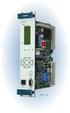 Machinery Protection Card Type FEATURES Continuous on-line Machinery Protection Card Real-time measurement and monitoring using state-of-the-art DSP techniques Fully VME-compatible slave interface Fully
AIR QUALITY SURVEILLANCE BRANCH ACCEPTANCE TEST PROCEDURE (ATP) FOR. Teledyne Advanced Pollution Instruments Model 400 E Ozone Analyzer AQSB ATP 002
 AIR QUALITY SURVEILLANCE BRANCH ACCEPTANCE TEST PROCEDURE (ATP) FOR Teledyne Advanced Pollution Instruments Model 400 E Ozone Analyzer AQSB ATP 002 First Edition MONITORING AND LABORATORY DIVISION August
Product Guide AC Voltage Control Devices. Guide Guide. Popular Variable Transformers and AC Power Supplies. www.stacoenergy.com
 Popular Variable Transformers and AC Power Supplies Product Guide AC Voltage Control Devices Guide Guide Your Tailored Power Solutions Provider TM Staco Energy Products Co. has been a leading manufacturer
Dielectric Withstand and Ground Bond Testers For Production Line Safety Agency Compliance Testing
 Dielectric Withstand and Ground Bond Testers For Production Line Safety Agency Compliance Testing U.S. patent#: 5,548,501, 6,054,865. Other patents pending. Safety agency listed. ENHANCED GRAPHIC LCD The
Physical Specifications (Custom design available.)
 Helmholtz Coils A useful laboratory technique for getting a fairly uniform magnetic field, is to use a pair of circular coils on a common axis with equal currents flowing in the same sense. For a given
QuickSpecs. Models HP Server Console Switches
 Overview are key components for rack mount implementations (a console represents one keyboard, video monitor, and mouse (KVM) attached to a server). The family of allows multiple servers in a rack to be
Interface Adapters PS/2 Interface Adapter 1 pack 262588-B21 PS/2 Interface Adapter 8 pack 262587-B21 USB Interface Adapter 1 pack 336047-B21
 Overview Models HP Server Console Switches 1X8-Port KVM 336044-B21 2X16-Port KVM 336045-B21 CAT5e Cables 3 Foot (1 m) 4 pack 263474-B21 6 Foot (2 m) 8 pack 263474-B22 12 Foot (4 m) 8 pack 263474-B23 20
AC-115 Compact Networked Single Door Controller. Installation and User Manual
 AC-115 Compact Networked Single Controller Installation and User Manual December 2007 Table of Contents Table of Contents 1. Introduction...5 1.1 Key Features... 6 1.2 Technical Specifications... 7 2.
NC-12 Modbus Application
 NC-12 Modbus Application NC-12 1 Table of Contents 1 Table of Contents... 2 2 Glossary... 3 SCADA...3 3 NC-12 Modbus in general... 3 4 Entire system... 4 4.1 PFC to PC connection alternatives...4 4.1.1
ABB Drives. User s Manual HTL Encoder Interface FEN-31
 ABB Drives User s Manual HTL Encoder Interface FEN-31 HTL Encoder Interface FEN-31 User s Manual 3AUA0000031044 Rev B EN EFFECTIVE: 2010-04-06 2010 ABB Oy. All Rights Reserved. 5 Safety instructions
3500/22M Transient Data Interface
 3500/22M Transient Data Interface Bently Nevada* Asset Condition Monitoring Description The 3500 Transient Data Interface (TDI) is the interface between the 3500 monitoring system and GE s System 1* machinery
FLOW CALCULATOR INSTRUCTION MANUAL MESURES BAMOPHOX 759 26-06-2007 759 M1 02 E MES FLOW CALCULATOR 759-02/1
 BAMOPHOX 759 E - M FLOW CALCULATOR INSTRUCTION MANUAL MESURES 22, Rue de la Voie des Bans - Z.I. de la Gare - 95100 ARGENTEUIL Tél : (33) 01 30 25 83 20 - Web : www.bamo.fr Fax : (33) 01 34 10 16 05 -
FREJA 300 Relay Testing System
 Relay Testing System A Megger Group Company FREJA 300 Relay testing system The FREJA 300 relay testing system is a computer-aided relay testing and simulation system. The weight of FREJA 300 is only 15
ECD 2 High Performance Balanced DAC. 24 Bit /192kHz. Owner's Manual
 ECD 2 High Performance Balanced DAC 24 Bit /192kHz Owner's Manual EN Unpacking the ECD 2 Immediately upon receipt of the ECD 2, inspect the carton for possible damage during shipment. If the carton is
Voltech DC1000. Precision DC Bias Current Source
 DC1000 Precision DC Bias Current Source DC1000 Precision DC Bias Current Source TM Integral Rack Mount Lugs High Contrast Green LED Display Easy Control Rotary Knob Output LED Indicator DC 1000 OUTPUT
Cisco Model EPC2100 EuroDOCSIS 2.0 Cable Modem
 Cisco Model EPC2100 EuroDOCSIS 2.0 Cable Modem The Cisco Model EPC2100 EuroDOCSIS 2.0 Cable Modem provides EuroDOCSIS broadband network operators with a cost-effective solution for delivering standardsbased,
Galleon 6-10K Online UPS. Voltronic Power Technology Corporation
 Galleon 6-10K Online UPS Voltronic Power Technology Corporation Features Galleon online UPS series delivers optimal power quality, provides superior power management, resolves utility power protection
JNIOR. Overview. Get Connected. Get Results. JNIOR Model 310. JNIOR Model 312. JNIOR Model 314. JNIOR Model 410
 The INTEG is an Ethernet I/O (digital, analog) device that monitors and controls a small set of process signals. functions as both basic I/O for integration with another application or system AND as a
Duct Humidity Transmitter
 SDC-H Duct Humidity Transmitter Features Replaceable sensor element Humidity measurement for air ducts Minimum and maximum value memory 0 0V, 0 0mA or 0V, 4 0mA measuring signals selectable with jumpers
MCR1900 Media Converter 19-Slot Chassis
 MCR1900 Media Converter 19-Slot Chassis Installation Guide Part #5500304-11 Copyright Statement This document must not be reproduced in any way whatsoever, either printed or electronically, without the
NETWORK ENABLED EQUIPMENT MONITOR
 NETWORK ENABLED EQUIPMENT MONITOR Remotely Monitor Sensors over the Internet Connect Sensors to the Web to Remotely Monitor Equipment, Processes or Other Applications A Complete, Easy to Deploy, Stand-Alone
TEMON 8-C. Doc. N MO-0370-ING TEMPERATURE MONITOR DEVICE TYPE TEMON 8-C OPERATION MANUAL. Microener - Copyright 2010 FW 2.2 Date 01.12.2008 Rev.
 TEMPERATURE MONITOR DEVICE TYPE TEMON 8-C OPERATION MANUAL Microener - Copyright 2010 FW 2.2 Date 01.12.2008 Rev. 0 1. Generality 3 2. Introduction 3 3. Accessories and Options 3 4. Installation 3 5. Connection
SCD Server. SCD Server Pro
 SCD Server SCD Server Pro SCD Server & SCD Server Pro 9850-000387-01 - Page 1 of 8 SCD Server and SCD Server Pro The SCD Server is a 2U high DMX generator, running the ZerOS Operating System and emulating
Input signal Maximum Range Accuracy. Thermocouple E -50 to 700 C (-58 to 1832 F) ±1 C
 F4 Process Controller Installation and Operation Guide SAFETY ALERTS The symbols below are used on the equipment and throughout this document to draw the user s attention to important operational and safety
OEM Manual MODEL 2350 ELECTRONIC DUAL CYLINDER SCALE
 OEM Manual MODEL 2350 ELECTRONIC DUAL CYLINDER SCALE Scaletron Industries, Ltd. Bedminster Industrial Park 53 Apple Tree Lane P.O. Box 365 Plumsteadville, PA 18949 USA Toll Free: 1-800-257-5911 (USA &
Temperature & Humidity SMS Alert Controller
 Temperature & Humidity Alert Controller METERS 3 simple steps starting the unit: Insert the SIM card Plug in the sensors connectors Connect the AC power cord. Specifications: AC 90~260V Auto Select Internal
Agilent E3633A and E3634A DC Power Supplies
 Service Guide Part Number: E3634-90010 Seventh Edition, April 21, 2014 Copyright Agilent Technologies, Inc. 1998 2014 All Rights Reserved. Agilent E3633A and E3634A DC Power Supplies Agilent Technologies
INTELLIGENT CONTROL MODULE SA-2000-II HARDWARE MANUAL. Access Technologies International, Inc.
 SA-2000-II HARDWARE MANUAL Access Technologies International, Inc. 1 Table of Contents 1. Introduction 3 2. Features 3 3. Specification 4 4. Identifying Supplied Parts 4 5. Panel Description 5 6. Connection
Industrial-Grade UPS System Heavy-duty power protection for harsh industrial environments
 Industrial-Grade UPS System Heavy-duty power protection for harsh industrial environments Model #: SM2000RMX Heavy-duty, industrial-grade metal housings Shock and vibration rated to MIL-STD-810D 19 inch
Everything you need for protection scheme testing
 Power System Simulator for Testing Protection Relays and Schemes Everything you need for protection scheme testing The is the only instrument with the high power, flexibility and software to perform full
2100 POS System. 2100 User Guide
 2100 POS System 2100 User Guide Thank you for selecting UTC RETAIL s innovative Model 2100 Point of Sale solution! This guide is designed to acquaint you with the features and functionality of the 2100
T3 Mux M13 Multiplexer
 T3 Mux M13 Multiplexer User Manual [Type the abstract of the document here. The abstract is typically a short summary of the contents of the document. Type the abstract of the document here. The abstract
Processor. User Guide
 Processor User Guide Land Instruments International Dronfield, S18 1DJ England Telephone: (01246) 417691 Facsimile: (01246) 410585 Email: [email protected] Internet: www.landinst.com Land Instruments
Remote Sources. Facility. Router
 A tally display system is an essential part of any broadcast or production environment. It must tell you where signals come from, where they go, and how they are being used. In a typical multi-production
Technical Datasheet Scalar Network Analyzer Model 8003-10 MHz to 40 GHz
 Technical Datasheet Scalar Network Analyzer Model 8003-10 MHz to 40 GHz The Giga-tronics Model 8003 Precision Scalar Network Analyzer combines a 90 db wide dynamic range with the accuracy and linearity
SL Series AC and DC Electronic Loads
 SL Series AC and DC Electronic Loads Applications AC & DC Power Supply Testing Rechargeable batteries and chargers Fuel cell test - cells and stacks PFC circuit test Pulsed LED Test and Burn-in Laser Diode
Designing the Solution for Electrochemistry Potentiostat/Galvanostat І Battery Cycler І Fuel Cell Test Station +82-2-578-6516 І sales@wonatech.
 ZIVE Electrochemical Workstations ZIVE SP2 Designing the Solution for Electrochemistry Potentiostat/Galvanostat І Battery Cycler І Fuel Cell Test Station +82-2-578-6516 І [email protected] www.wonatech.com
User s Guide DDS-3X25 USB ARBITRARY FUNCTION GENERATOR
 User s Guide DDS-3X25 USB ARBITRARY FUNCTION GENERATOR Content General safety summary...1 Introduction...2 Chapter 1 Getting started...3 System Requirements...4 Installing Hardware...5 Installing Software...8
Electronics Ltd. Presenting. Power, Intelligence... with a sense of feeling
 Electronics Ltd Presenting Power, Intelligence... with a sense of feeling By Appointment to Her Majesty The Queen Supplier of Fire Detection Equipment Kentec Electronics Ltd. Dartford Plug in slots K772
EVAL-UFDC-1/UFDC-1M-16
 Evaluation Board for Universal Frequency-to- Digital Converters UFDC-1 and UFDC-1M-16 EVAL-UFDC-1/UFDC-1M-16 FEATURES Full-Featured Evaluation Board for the Universal Frequency-to-Digital Converters UFDC-1
Uninterruptible Power Supply
 96-01101 / rev. 2e / 2-2-12 Uninterruptible Power Supply EXCEPTIONAL SUPPORT & PROTECTION Uninterruptible Power Supply with Energy Saver design that is optimized to address the needs of A/V systems Features
with Electronic Assistant
 TECHNICAL DATASHEET #TDAX100200 BLDC Motor Drive Drives a 12V, 24V or 48V BLDC motor Bidirectional, up to 25A Smooth speed control using Hall Sensors CAN (SAE J1939) with Electronic Assistant Features:
Electronic Control Devices The European Product Catalogue 2007
 FX14 Field Controller (1/4) FX14 Field Controller The FX14 is an equipment field controller in the Facility Explorer range of products. The controller is designed specifically for commercial Heating, Ventilating,
Description. Dimensions. Features. www.pwb-encoders.com. precision works better
 Description The MEC22 is a high resolution optical hollow shaft encoder that can be fixed quickly and easily on different sizes of motor shafts. The encoder provides two square wave outputs in quadrature
USER MANUAL. VS-81H 8x1 HDMI Switcher MODEL: P/N: 2900-000670 Rev 4
 KRAMER ELECTRONICS LTD. USER MANUAL MODEL: VS-81H 8x1 HDMI Switcher P/N: 2900-000670 Rev 4 Contents 1 Introduction 1 2 Getting Started 2 2.1 Achieving the Best Performance 2 2.2 Safety Instructions 3
RI-215A Operator s Manual. Part Number: 71-0045RK Revision 0 Released: 10/3/05
 RI-215A Operator s Manual Part Number: 71-0045RK Revision 0 Released: 10/3/05 Warranty RKI Instruments, Inc., warrants gas alarm equipment sold by us to be free from defects in materials and workmanship,
ENGINEERING SPECIFICATIONS SENSAPHONE IMS-4000
 ENGINEERING SPECIFICATIONS SENSAPHONE IMS-4000 I. General A. Summary The monitoring system shall be an expandable, self-contained microprocessor-controlled IMS-4000 Host unit (hereafter referred to as
USER GUIDE. For more information visit www.caldigit.com
 USER GUIDE For more information visit www.caldigit.com Table of Contents Section 1 : General Information Introduction 3 General Use Warnings 3 Safety Warnings 3 System Requirements 4 In the Box 4 Thunderbolt
Electrical Safety Tester
 Electrical Safety Tester GPT-9000 Series QUICK START GUIDE GW INSTEK PART NO. 82PT-99040MA1 ISO-9001 CERTIFIED MANUFACTURER This manual contains proprietary information, which is protected by copyright.
A-307. Mobile Data Terminal. Android OS Platform Datasheet
 A-307 Mobile Data Terminal Android OS Platform Datasheet Revision 1.1 July, 2013 Introduction A-307 Platform Overview Introduction A-307 Platform Overview The A-307 provides Original Equipment Manufacturers
22.302 Experiment 5. Strain Gage Measurements
 22.302 Experiment 5 Strain Gage Measurements Introduction The design of components for many engineering systems is based on the application of theoretical models. The accuracy of these models can be verified
SAFEPATH 4 Telephone Zone Controller
 SAFEPATH 4 Telephone Zone Controller SP4-TZC P/N 109921 SP4-TZC-P P/N 105590 Installation, Testing, Operation and Maintenance Manual 273 Branchport Avenue, Long Branch, NJ 07740-6899 Ph: (800) 631-2148
Isolated AC Sine Wave Input 3B42 / 3B43 / 3B44 FEATURES APPLICATIONS PRODUCT OVERVIEW FUNCTIONAL BLOCK DIAGRAM
 Isolated AC Sine Wave Input 3B42 / 3B43 / 3B44 FEATURES AC averaging technique used to rectify, amplify, and filter 50 Hz to 400 Hz sine-wave signals. Accepts inputs of between 20 mv to 550 V rms to give
TrueAlarm Fire Alarm Systems
 TrueAlarm Fire Alarm Systems UL, ULC, CSFM Listed; FM Approved; MEA (NYC) Acceptance* Fire Alarm System Accessories, 4190 Series PC Annunciator with Multi-Client Capability Features Fire alarm control
Digital Pressure Measuring Instrument MDR480
 Description The digital panel instrument MDR480 is designed to measure, display, and monitor pressures in industrial applications. The instrument is panel mounted with a front frame dimension of 96 mm
Controller Automation, Model II+
 Controller Automation Page 2 of 2 Automation with the RADAK II+ power controller II+ I/O Points: Inputs 5 Programmable Digital inputs 2 Dedicated digital inputs (Channel select and External SCR control
Agilent E363xA Series Programmable DC Power Supplies. Data Sheet
 Agilent E363xA Series Programmable DC Power Supplies Data Sheet Reliable Power, Repeatable Results Single and triple output 80 W to 200 W output power Dual range output Low noise and excellent regulation
LEN s.r.l. Via S. Andrea di Rovereto 33 c.s. 16043 CHIAVARI (GE) Tel. +39 0185 318444 - Fax +39 0185 472835 mailto: [email protected] url: http//www.len.
 MA511 General Index 1 INTRODUCTION... 3 1.1 HARDWARE FEATURES:... 4 2 INTERFACE... 5 2.1 KEYBOARD... 6 2.2 POWER ON... 7 2.3 POWER OFF... 7 2.4 DETECTOR CONNECTION... 7 2.5 DETECTOR SUBSTITUTION...7 3
ABB Drives. User s Manual. Pulse Encoder Interface Module RTAC-01
 ABB Drives User s Manual Pulse Encoder Interface Module RTAC-0 Pulse Encoder Interface Module RTAC-0 User s Manual 3AFE 64486853 REV A EN EFFECTIVE:.5.00 00 ABB Oy. All Rights Reserved. Safety instructions
Magtrol 4615B User s Manual
 Magtrol 4615B User s Manual Contents 1. Introduction... 2 LINE VOLTAGE... 2 INITIAL CHECKOUTS... 2 OPERATIONAL CHECK... 2 2. Operation... 3 SPEED DISPLAY... 3 TORQUE DISPLAY... 3 SETTING THE TORQUE RESOLUTION...
Thyristor-controlled power supplies and battery chargers
 Thyristor-controlled power supplies and battery chargers Input voltage: 115 / 230 VAC, single phase, 50 / 60 Hz or 208 / 400 / 480 VAC, three phases, 50 / 60 Hz Output voltage: 12 / 24 / 48 / 60 / 72 /
Series LC6D/LC6C. To power supply PLC. LC6C dedicated teaching box P.971. Options P.973
 Series LCD To power supply Electric Actuator Series LCC Stepper Motor Driver LCD Series LX Dedicated Stepper Motor Driver and Positioning Driver Series LCD/LCC PLC Positioning unit (Not incl. To be provided