
Epicor ERP EDI / Demand Management Technical Reference Guide
|
|
|
- Rachel Rich
- 9 years ago
- Views:
Transcription
1 Epicor ERP EDI / Demand Management Technical Reference Guide 10

2 Disclaimer This document is for informational purposes only and is subject to change without notice. This document and its contents, including the viewpoints, dates and functional content expressed herein are believed to be accurate as of its date of publication. However, Epicor Software Corporation makes no guarantee, representations or warranties with regard to the enclosed information and specifically disclaims any applicable implied warranties, such as fitness for a particular purpose, merchantability, satisfactory quality or reasonable skill and care. As each user of Epicor software is likely to be unique in their requirements in the use of such software and their business processes, users of this document are always advised to discuss the content of this document with their Epicor account manager. All information contained herein is subject to change without notice and changes to this document since printing and other important information about the software product are made or published in release notes, and you are urged to obtain the current release notes for the software product. We welcome user comments and reserve the right to revise this publication and/or make improvements or changes to the products or programs described in this publication at any time, without notice. The usage of any Epicor software shall be pursuant to an Epicor end user license agreement and the performance of any consulting services by Epicor personnel shall be pursuant to Epicor's standard services terms and conditions. Usage of the solution(s) described in this document with other Epicor software or third party products may require the purchase of licenses for such other products. Where any software is expressed to be compliant with local laws or requirements in this document, such compliance is not a warranty and is based solely on Epicor's current understanding of such laws and requirements. All laws and requirements are subject to varying interpretations as well as to change and accordingly Epicor cannot guarantee that the software will be compliant and up to date with such changes. All statements of platform and product compatibility in this document shall be considered individually in relation to the products referred to in the relevant statement, i.e., where any Epicor software is stated to be compatible with one product and also stated to be compatible with another product, it should not be interpreted that such Epicor software is compatible with both of the products running at the same time on the same platform or environment. Additionally platform or product compatibility may require the application of Epicor or third-party updates, patches and/or service packs and Epicor has no responsibility for compatibility issues which may be caused by updates, patches and/or service packs released by third parties after the date of publication of this document. Epicor is a registered trademark and/or trademark of Epicor Software Corporation in the United States, certain other countries and/or the EU. All other trademarks mentioned are the property of their respective owners. Copyright Epicor Software Corporation All rights reserved. No part of this publication may be reproduced in any form without the prior written consent of Epicor Software Corporation. DOC0091E9 10 Revision: June 25, :27 a.m. Total pages: 212 sys.ditaval

3 EDI / Demand Management Technical Reference Guide Contents Contents Introduction...8 Purpose of this Guide...8 Intended Audience...8 How It is Organized...9 EDI / Demand Management Base Concepts...10 What is Electronic Data Interchange (EDI)?...11 Supported Inbound EDI Documents...11 Supported Outbound EDI Documents...12 What is TIE KINETIX evisiontm?...13 Importing Inbound EDI Transactions...13 What is Demand Management?...14 Typical EDI / Demand Management Processing Flow...16 Defining the Trading Partner in Customer Maintenance...16 Entering a Demand Contract...17 Processing Inbound Transactions Using the Import EDI Demand Process...18 Correcting Errors Using Demand Workbench...20 Automated and Manual Demand Entry Processing...20 Generating Outbound EDI Transactions...22 Setup Components...24 Prerequisite Installation and Setup Tasks...25 Company Configuration Maintenance...27 Programs and Their Modifiers...27 Customer Periodicity Maintenance...30 Programs and Their Modifiers...31 Defining Trading Partners in Customer Maintenance...32 Customer > Demand...34 Programs and Their Modifiers...35 Documents...47 Programs and Their Modifiers...48 Ship To > Demand...52 Ship To > Documents...54 Defining Outbound EDI Report Formats...55 Create Report Data Definition...56 Programs and Their Modifiers...57 Associate Report Data Definition with a Specific Document Type...59 EDI 856/DESADV (Outbound Order ASN/Manifest) Example...64 EDI 810/INVOIC (AR Invoice) Example...66 EDI 855/865/ORDRSP (Order Acknowledgement) Example...67 Define Auto Print Data Directive...67 Create the Standard Auto Print Data Directive...68 Define the Conditional Expression

4 Contents EDI / Demand Management Technical Reference Guide Define the Auto Print Action...72 Processing Components...78 Entering Demand Contracts...78 Header...79 Programs and Their Modifiers...80 Line > Detail...83 Header > Matching...86 Demand Scheduling Matching Example Demand Scheduling Matching Example Creating Demand Entries for Existing Orders...93 Inbound EDI Transaction File Mappings...95 EDI File Requirements and Formatting Rules...96 Record Hierarchy for Inbound EDI Files...97 Demand_Header Rows (Demand Header Record for DemandHead Table)...98 Table Schematic for Demand_Header Row Sample...99 User_Defined Rows Table Schematic for User_Defined Row Sample Extra_Charges Rows (DemandMisc Table for DemandHeader and DemandDetail Records) Table Schematic for Extra_Charges Row Sample Demand_Detail Rows (Demand Detail Record for DemandDetail Table) Table Schematic for Demand_Detail Row Sample Demand_Schedule Rows (Demand Schedule Record for DemandSchedule Table) Table Schematic for Demand_Schedule Row Sample Smart String Rows (for Demand_Detail Table) Table Schematic for Smart String Row Sample Direct Inbound EDI Transaction Import Scheduling and Running the Import EDI Demand Process Programs and Their Modifiers Using the System Agent and Completing the Import EDI Demand Process Using the Demand Workbench for Error Correction Import EDI Demand and User Hook Programs Understanding the User Hook Programs Flowchart Demand Entries Generated from Inbound EDI Transactions Demand Processing Logs and Error Resolution Order Transactions Generated from Inbound EDI Demand Programs and Their Modifiers Forecast Transactions Generated from Inbound EDI Demand EDI 855/865/ORDRSP Transactions (Outbound Purchase/Change Order Acknowledgements) EDI 856/DESADV Transactions (Outbound Advance Shipping Notices) EDI 810/INVOIC Transactions (Outbound Invoices) Demand Review Report Demand to Sales Order Net Change Report Modifiers Accept Type

5 EDI / Demand Management Technical Reference Guide Contents Where Located Action (Add) Where Located Action (Cancel) Where Located Action (Change) Where Located Action (Check for Part) Where Located Action (Check Partial Shipments) Where Located Action (Check for Revision Level) Where Located Action (Cumulative Check Discrepancies) Where Located Action (Date Change) Where Located Action (New Line) Where Located Action (Quantity Change) Where Located Add Where Located Example Allow Non Perfect Match Where Located Allow Shipments for Orders on Hold Where Located Alt Trading Partner Where Located Automatically Match All Where Located Cancel Where Located Example Cancel Non Matched Where Located Cancel Schedules Action Where Located Change Where Located Example Check Forecast Schedules Where Located Check for Part

6 Contents EDI / Demand Management Technical Reference Guide Where Located Check Partial Shipments Where Located Check for Revision Level Where Located Close Rejected Schedules Where Located Logic/Algorithms Check Unfirm Schedules Where Located Consider Working Days in the Delivery Days Calculation Where Located Cumulative Check Discrepancies Where Located Daily, Rules Where Located Daily, Include Saturdays and Sunday Shipments Where Located Date Change Where Located Example Date Type Where Located Delivery Days Where Located Logic/Algorithms Example Direction Where Located Exclude From / From (days) Exclude Until / Until (days) Hold Orders for Review Where Located Logic/Algorithms Import Folder (Company Maintenance) Where Located Import Folder Where Located Map ID Where Located Monthly Forward, Rules Where Located Monthly Forward, First Day Ship Where Located Monthly Forward, Week Number in the Month

7 EDI / Demand Management Technical Reference Guide Contents Where Located New Line Where Located Example Nth Day of the Week, Rules Where Located Nth Day of the Week, Day of the Week Shipment Where Located Options Available Where Located Options Selected Where Located Outbound Document Where Located Periodicity Where Located Pricing Where Located Quantity Change Where Located Example Split Demand Where Located Test Record Where Located Tolerance Where Located Trading Partner Where Located Type Where Located Unit Price Difference Where Located Example Weekly Forward, Rules Where Located Weekly Forward, Ship Day Where Located Appendices Appendix A: EDI Demand Management / Order Management Pricing Flowcharts Appendix B: EDI / Demand Management Part Validation Processing Flowchart Appendix C: Part Lookup and UOM Determination Flowchart Appendix D: EDI / Demand Management site Code Assignment Flowchart

8 Introduction EDI / Demand Management Technical Reference Guide Introduction Purpose of this Guide The EDI / Demand Management Technical Reference Guide examines, in detail, the primary components that make up the Electronic Data Interchange (EDI) / Demand Management module interface. Many of the primary components discussed in this guide perform more functions than what is described. For more information about these features, review the related topics in the Application Help, contact your consultant, or enroll in an appropriate Epicor course. When you finish reading this guide, you should better understand the logic behind the EDI - Demand Management module interface. Intended Audience This guide is intended for individuals within your company responsible or partially responsible for Information Technology, Electronic Data Interchange (EDI) and demand management activities. Individuals who have this responsibility: Are responsible for fulfilling and managing demand from your customer trading partners, from initially negotiating demand contracts through creation of orders and outbound documents such as Advanced Shipping Notices (ASNs), sales order acknowledgments, packing slips and invoices. Are typically personnel involved in Information System or Information Technology departments in your organization who work with your customer trading partners to manage inbound and outbound data interchange transactions. This includes mapping the data formats required for demand management processing in your Epicor application to your customer trading partner's EDI formats. 8

9 EDI / Demand Management Technical Reference Guide Introduction How It is Organized This guide first explores the concepts behind the Demand Management module interface and then details the third-party and Epicor application components that affect this interface. Each subsequent section explores more detailed information than the previous section. The following are the main sections of this guide: 1. EDI / Demand Management Introduction and Base Concepts - This section explores the underlying concepts behind the EDI / Demand Management module interface. We recommend that you read this section first, as the rest of the guide references the information contained in this section. 2. Setup Components - This section explores the main calculations and base values used for the setup of the EDI / Demand Management module interface. Review this material to learn about defining customer trading partner and document processing rules. 3. Processing Components - This section explores the main calculations and base values used in EDI / Demand Management module interface processing. Review this material to learn about mapping the data formats required for demand management processing in your Epicor application to your customer trading partner's EDI processing formats, and how inbound EDI files are converted into actionable demand entries, demand schedules, orders, shipping transactions and invoices. 4. Modifiers - This section documents any fields or functions that you can use to adjust/override the outcome of the EDI / Demand Management module interface. 5. Appendices - This section includes supporting flowcharts related to pricing, part validation, part lookup and site code assignment processing. Please note that to clarify how the EDI / Demand Management module interface works, the concepts behind each item are often repeated within other items. This is done to show how the various components, calculations, values, and modifiers work together to convert inbound EDI files received from your customer trading partners into actionable demand entries, demand schedules, orders, forecasts, shipping transactions and invoices. 9


10 EDI / Demand Management Base Concepts EDI / Demand Management Technical Reference Guide EDI / Demand Management Base Concepts The EDI / Demand Management module interface is designed to automate sales efforts and facilitate closer supplier-customer partnerships. It allows you to receive inbound electronic demand information from your trading partners into your Epicor application, process the information in an automated manner, generate the appropriate sales order, acknowledgement, forecast, shipping and invoice documents, and in turn, send the required information back to your trading partners via outbound EDI transactions. It utilizes three major components: Electronic Data Interchange Processor (evision by TIE KINETIX - Third-Party) Direct EDI Import or Epicor Service Connect Demand Management (Epicor application) 10

11 EDI / Demand Management Technical Reference Guide EDI / Demand Management Base Concepts What is Electronic Data Interchange (EDI)? Electronic Data Interchange (or EDI) is a standardized computer interface that allows for electronic exchange of business information using internationally recognized standards and formats. Hundreds of standardized document types have been created throughout the world that form a universal language that companies using dissimilar systems and processes can utilize to conduct business. It allows for standardized transfer of files between you and your customer trading partners. Use of EDI allows suppliers and their customers to manage their supply chains more efficiently by increasing efficiency and drastically reducing their requirements for costly and error-prone manual data entry. The Epicor application supports processing of the following types of standard EDI transactions. The descriptions that follow are based on the formal descriptions issued by the Accredited Standards Committee (ASC) X12 ( This international organization develops EDI transaction standards and related documents for national and global markets. United Nations-sponsored EDIFACT transactions are another internationally-recognized set of similar standards; both X12 and EDIFACT standards are reflected throughout this document. Supported Inbound EDI Documents Epicor ERP and the Demand Management module support processing of the following types of inbound EDI documents: 830/DELFOR (Inbound Planning Schedule) - This EDI document is used for the transfer of forecasting/material release information from your customer trading partner. The planning schedule transaction can be used in a combination of ways, such as: A simple forecast A forecast with the buyer's authorization for the seller to commit to resources, such as labor or material. A forecast that is also used as an order release mechanism containing such elements as resource authorizations, period-to-date cumulative quantities and specific ship/delivery patterns for requirements that have been represented in "buckets," such as weekly, monthly, or quarterly. The order release forecast may also contain all data related to purchase orders, as required, because the order release capability eliminates the need for discrete generation of purchase orders. 850/ORDERS (Inbound Purchase Order) - This EDI document is an electronic version of a paper purchase order you receive from a customer trading partners. Your customer trading partner uses it to communicate to you, the supplier, the specific items, unit prices, and quantities they wish to have delivered. Shipping instructions frequently accompany the purchasing information. 860/ORDCHG (Inbound Purchase Order Change) - This EDI document is used by your customer trading partner to request a change to a previously submitted purchase order; or to confirm acceptance of a purchase order change initiated by you the supplier or by mutual agreement of the two parties. Your customer trading partner uses it to communicate to you, the supplier, the specific items, unit prices, and quantities they wish to change. 862/DELJIT (Inbound Shipping Schedule) - This EDI document is used by your trading partner to communicate precise shipping schedule requirements to you, the supplier, and is intended to supplement EDI 830/DELFOR inbound planning schedule transactions. This type of EDI transaction facilitates the practice of Just-In-Time (JIT) manufacturing by providing your trading partner with the ability to issue precise shipping schedule requirements on a more frequent basis than using EDI 830/DELFOR planning schedule transactions (for example, daily versus weekly planning schedules). It also provides the ability for a specific ship to customer location to issue shipping requirements independent of 11

12 EDI / Demand Management Base Concepts EDI / Demand Management Technical Reference Guide other customer locations when planning schedule transactions are issued by a consolidated scheduling organization. Supported Outbound EDI Documents Epicor ERP and the Demand Management module support processing of the following types of outbound EDI documents: 810/INVOIC (Outbound AR Invoices) - This EDI document is an electronic version of a paper invoice you normally send to your customer. As a supplier, you use 810/INVOIC Invoices to communicate the payment terns, specific items, price, and quantities you have delivered and which now must be paid for by your customer trading partner. In the Epicor application, the foundation for this type of outbound EDI document is the text or XML-based document record that it generates (either automatically or manually) in AR Invoice Entry based on the standard AR Invoice form. 855/ORDRSP and 865/ORDRSP (Outbound Purchase Order Acknowledgments) - These EDI documents are electronic version of a phone call or fax you use to inform your customer trading partner (who sent you a purchase order or purchase order change) that you are fulfilling the transactions as requested. This informs them that you are filling the order and shipping the goods by the requested date, or are not able to fulfill the entire order as requested, possibly due to stockouts or disagreement about the purchase terms. EDI 855/ORDRSP transactions are usually sent in response to an EDI 850/ORDERS or EDI 860/ORDCHG inbound purchase order or purchase order change document you receive from your customer trading partner. In the Epicor application, the foundation for this type of outbound EDI document is the text or XML-based document record that it generates (either automatically or manually) in Sales Order Entry based on the standard Sales Order Acknowledgment report. 856/DESADV (Outbound Order Advanced Shipping Notice/Manifest- ASN) - This EDI document is an electronic version of a printed packing slip that tells your customer trading partner how you, the supplier, has packed their items for shipment. The Advance Ship Notice, or ASN, also tells the buyer that the goods have been shipped so they can be expecting the shipment. In the Epicor application, the foundation for this type of outbound EDI document is the text or XML-based document record that it generates (either automatically or manually) in Customer Shipment Entry or Master Pack Shipment Entry based on the standard Packing Slip form. This type of outbound EDI transaction lets the personnel working on the receiving dock of your trading partner know what you have packed in shipping cartons, and eliminates the need for their receiving personnel open the cartons. Tip These are the "out-of-box" inbound and outbound EDI transaction types supported in the base Epicor application. Other types of EDI transactions can be implemented as required, based on the development of associated report data definitions. Contact your Epicor consultant or the Custom Solution Group for assistance or for more details. 12

13 EDI / Demand Management Technical Reference Guide EDI / Demand Management Base Concepts What is TIE KINETIX evisiontm? evision is a third-party software package provided by TIE KINETIX, and is the only XML/EDI solution that has been formally certified by Epicor for use with the Epicor application. It uses advanced data transformation, integration, and workflow applications that are easily scalable as the number of trading partners you interact with increase, and your operations grow in size and transaction volume. It allows you to easily exchange critical business data between and within organizations. In general, evision receives inbound EDI 830/DELFOR, 850/ORDERS, 860/ORDCHG and 862/DELJIT files from your customer trading partners, converts them into a pre-defined Epicor-compatible format files, and then deposits them into a designated inbound folder on your Epicor server for processing. Conversely, evision collects outbound Order Acknowledgment, Advanced Shipping Notice and AR Invoice document record files (produced by the Epicor application) from the designated outbound file folder on your Epicor server and directly converts them to outbound EDI 810/INVOIC, 855/ORDRSP, 865/ORDRSP and 856/DESADV files that are sent to your customer trading partners. Tip Refer to the marketing publications and documentation produced by TIE KINETIX for more information on what this application does and how it functions. evision is a trademark of TIE KINETIX but appears without the trademark symbol in the remainder of the document. It may also be referred to interchangeably as TIE KINETIX or TIE KINETIX evision. Importing Inbound EDI Transactions Inbound text-based EDI transactions received from your customer trading partners and passed by the evision third-party application directly link to the Epicor application using the Import EDI Demand Process. This process server code for significantly improved EDI performance. File importation occurs based on a processing schedule that you designate in the Import EDI Demand Process. If erroneous data is identified during direct EDI import processing, you can correct it as required using the Demand Workbench Note Service Connect can no longer be used for importation of inbound EDI records in Epicor ERP. 13


14 EDI / Demand Management Base Concepts EDI / Demand Management Technical Reference Guide What is Demand Management? The Demand Management module in the Epicor application allows you to more efficiently manage short and long term customer demand contracts, converting demand from these contracts into sales orders and MRP forecasts. You can enter this demand information manually, or generate electronic information that passes both to and from your customer trading partners. Demand Management handles creation, analysis, editing, and reconciliation of cumulative totals for releases from your trading partners. The Demand Management module provides an efficient process to manage the data from demand contracts. It can be used to process EDI files received from customer trading partners, and provides the following functionality: Using the Customer Maintenance > Customer > Demand or Ship To > Demand sheets, you associate a trading partner identification number with the customer. It is a universal code required on EDI transactions that uniquely identifies the business entity. Using the Customer Maintenance > Documents or Ship To > Documents sheets, you also create user-defined rules for each customer trading partner that specify acceptance and matching criteria for demand transactions received on inbound EDI documents. You can specify if inbound EDI transactions should be automatically processed; if you elect to do this, the Epicor application automatically generates order releases or forecasts for all (or just those that are found to be error-free) inbound EDI transactions You can also create user-defined rules for each customer trading partner that specify how and when outbound EDI order acknowledgement, Advanced Shipping Notice and invoice transactions should be generated. These data and lead time validations specify how incoming demand should be treated when action requests are received from your customer trading with insufficient lead times with respect to required shipping dates. You also define delivery day and customer periodicity parameters used to calculate Ship By or Need By dates for shipping schedules. You can also specify if extra validations (such as part number, part revision, unit price and partial shipment tests) should be performed to determine if inbound demand transactions received from your customer trading partner should be accepted or rejected. 14

15 EDI / Demand Management Technical Reference Guide EDI / Demand Management Base Concepts You then enter demand contracts for these customers into Demand Contract Entry, using any length of time (days, months, years) that you need for the length of the contact. The demand contract structure lets you attach multiple sales order releases to a single demand contract, providing the ability to review the contract quantities with the actual incoming quantities. It also contains robust matching logic that allows you to receive and efficiently process changes (quantities, prices and shipping dates) your customer trading partner requests to existing demand schedules and order releases. A demand schedule is a schedule of order releases (processed against a demand contract) that defines both the part quantities and the dates on which each release needs to be shipped to your customer trading partner. You can enter demand schedules for each demand contract manually, or If your customer trading partners sends you demand schedules via inbound EDI transactions, they are automatically generated when the EDI transactions are successfully imported in the Epicor application electronically through the Import EDI Demand process. The Import EDI Demand process runs using server-based code; it provides a Demand Import Workbench that allows you to modify/correct possible errors during processing; this is as an efficient way to review and detect errors on the received demand. This process exploits the scheduling and multiprocessor capabilities of the Epicor 9 framework, and eliminates Service Connect from the EDI architecture (while keeping the layout of the tilde delimited file); this significantly improves EDI inbound processing times. Demand Entry and Demand Mass Review both contain tools that let you manually reject and approve demand schedules. This provides you with the ability to view the impact of incoming contract changes before accepting them. The Epicor application also allows you to accept, revise, or reject these changes- and provides you with the appropriate response to the trading partner. You can manually reject demand transactions if necessary. When you are satisfied with the schedule, you can then process the demand, converting it into firm releases, unfirm releases, or MRP forecasts. The Epicor application can be configured to send automated EDI 855/ORDRSP and EDI 865/ORDRSP Purchase Order Acknowledgements to your trading partner. It can also be configured to automatically process shipping schedules and change requests to existing sales orders that have no lead time warnings, immediately allowing quantity or date changes. Only transactions that have errors are displayed within Demand Entry. You can also manually override System Rejected demand entries that have not passed validations based on user-defined rules you specify for the customer trading partner in the Customer Maintenance > Customer > Demand or Ship To > Demand sheets. This allows you to efficiently manage differences between demand contract and inbound demand. When the part quantity is shipped, customers can be notified electronically through an Advanced Shipping Notification (ASN 856/DESADV). They, in turn, respond with the results of the shipment. The Epicor application can also be configured to send automated EDI 810/INVOIC AR invoices to your trading partner. You can use the imported cumulative data (ACCUM) to adjust, or reconcile, the changes that occur during shipping. The ACCUM Setting is used to reconcile the cumulative shipping part quantities (ACCUM) generated through this contract. This setting helps you track the difference between the quantities shipped from your company and the actual quantities received by your customers. Note If you use EDI to process your demand, you need to install and configure the third-party EDI functionality on your Epicor server. Refer to the EDI TIE KINETIX Integration Guide and the Setup Components section of this document for detailed information on how to configure and integrate the Demand Management module with TIE KINETIX evision. 15

16 EDI / Demand Management Base Concepts EDI / Demand Management Technical Reference Guide Typical EDI / Demand Management Processing Flow The following section contains an example of a typical processing for flow for an inbound EDI transaction you receive from a customer trading partner. This workflow usually involves performing the following tasks: Defining the Trading Partner in Customer Maintenance Entering a Demand Contract Processing Inbound Transactions Using the (Direct) Import EDI Demand Process Correcting Errors using Demand Workbench Automated and Manual Demand Entry Processing Generating Outbound EDI Transactions Tip For detailed information about each of these processing steps, refer to the Setup Components and Processing Components sections of this document. Defining the Trading Partner in Customer Maintenance A customer or business entity is identified in inbound and outbound EDI transactions by a unique trading partner identification number. Prior to receiving inbound EDI transactions from a customer, you must assign and associate the trading partner identification number with a specific customer record or ship to customer location in the Customer Maintenance > Customer > Demand or Ship To > Demand sheets. A customer or business entity is identified in inbound and outbound EDI transactions by a unique trading partner identification number. Prior to receiving inbound EDI transactions from a customer, you must assign and associate the trading partner identification number with a specific customer record or ship to customer location in the Customer Maintenance > Customer > Demand or Ship To > Demand sheets. Using Customer Maintenance > Documents or Ship To > Documents sheets, you also create user-defined rules that specify acceptance and matching criteria for demand transactions received on inbound EDI documents. It also allows you to specify if inbound EDI transactions should be automatically processed; if you elect to do this, the Epicor application automatically generates order releases or forecasts for all (or just error-free) inbound EDI transactions. Using the same sheets, you can also create user-defined rules for each customer trading partner that specify how and when outbound EDI order acknowledgement, Advanced Shipping Notice and invoice transactions should be generated. 16

17 EDI / Demand Management Technical Reference Guide EDI / Demand Management Base Concepts Entering a Demand Contract Prior to receiving inbound EDI transactions from the customer trading partner, you must first use Demand Contract Entry to manually enter demand contracts. The demand contract is the instrument against which the Epicor application receives and processes inbound EDI files received from your customer trading partners. The demand contract structure lets you attach multiple sales order releases to a single demand contract, providing the ability to review the contract quantities with the actual incoming quantities. It also contains robust matching logic that allows you to receive and efficiently process changes (quantities, prices and shipping dates) your customer trading partner requests to existing demand schedules and order releases. Once inbound EDI transactions have been received, the Epicor application uses the demand contract records to automatically generate demand for your parts, allowing you to set up a shipping schedule for order releases or forecasts for MRP processing. 17

18 EDI / Demand Management Base Concepts EDI / Demand Management Technical Reference Guide Processing Inbound Transactions Using the Import EDI Demand Process The Demand Management module in your Epicor application provides a capability to process inbound EDI flat files passed by the TIE Commerce evision third-party application directly into the Epicor application. 18

19 EDI / Demand Management Technical Reference Guide EDI / Demand Management Base Concepts You manage Direct EDI import through use of the Import EDI Demand Process. Use this program to import files based on a specified processing schedule, using an import folder where inbound EDI documents are deposited. It utilizes Epicor ERP framework to process demand records received via EDI transactions from your trading partners. Tip Use the Company Configuration > Modules > Sales > Demand sheet to set up the default location of an Import process folder. To create a backup folder that archives files that have been processed, enable the Backup Processed File check box. At the bottom of the Import EDI Demand Process, select a schedule of your process. Tip Use the Schedules sheets within System Agent Maintenance to add schedules to a specific system agent and to review tasks assigned to the selected schedule. The schedule identifies how often the tasks linked to the schedule will run. 19

20 EDI / Demand Management Base Concepts EDI / Demand Management Technical Reference Guide Correcting Errors Using Demand Workbench If wrong data is identified during direct EDI import processing, you can correct it as required using the Demand Workbench, found within the General Operations folder of the Demand Management module. Data import errors occur primarily due to mismatches between the data sent by your customer trading partner on an inbound EDI transaction and the corresponding data stored in your Epicor application. Example If the demand contract specified on the inbound EDI transaction is not valid for the trading partner, or cannot be found in the Epicor application database, a Demand Header Invalid Contract message displays on the Detail > Header > Errors sheet. First, search for any potential errors that occurred during the direct EDI import. Use the Errors sheets found on the Header, Line and Schedule level to identify a reason for the error. After you correct invalid data on inbound EDI transactions, from the Actions menu, select Ready To Process. Once you select this option, a document that first failed to be loaded into Demand Management is ready for re-processing next time the Import EDI Demand Process is scheduled to run. In order to process the corrected demand entries immediately, from the Actions menu, select Process IM Demand. The Import EDI Demand Process window displays, allowing you to submit the process. Note You cannot create new demand entries using Demand Workbench. This program is only used to correct entries that failed to be processed using direct EDI import. Automated and Manual Demand Entry Processing Using the Customer Maintenance > Documents or Ship To > Documents sheets, you can create user-defined rules that designate if inbound demand should be automatically or manually processed for specific types of inbound EDI transactions. The precise timing and method used by the Epicor application is dependent on the setting of the Accept Type field for the customer (or ship to customer) trading partner associated with the inbound EDI transaction. If set to Always Accept, the Epicor application automatically processes demand for this customer trading partner, regardless of whether there are failed validations/rejections in the inbound EDI document. It immediately generates sales order and forecast entries at the time the inbound EDI file is successfully processed. In cases where the inbound EDI transaction contains failed validations/rejections (for example, a Date Change action request is received with insufficient lead time, and a Stop or Warning condition would normally be applied), the Epicor application automatically overrides any System Rejection flags, processes the demand and subsequent sales order and forecast entries despite the error condition. If set to Accept If No Errors, the Epicor application automatically processes demand and immediately generates sales order and forecast entries for this customer trading partner, regardless only if there are no failed validations/rejections in the inbound EDI document. It handles rejected demand records in the same manner as the Always Accept selection. If set to Manually Accept, you must manually process incoming demand on inbound EDI transactions using the Process selection in the Demand Header section in the Demand Entry Actions menu. Order releases and forecast entries are only created at the time you perform this manual processing. Rejected demand records must be manually resolved. The resulting order releases can be viewed or edited in Sales Order Entry. 20

21 EDI / Demand Management Technical Reference Guide EDI / Demand Management Base Concepts Likewise, the resulting forecast transactions viewed or edited in Forecast Entry: Refer to Order Transactions Generated from Inbound EDI Demand and Forecast Transactions Generated from Inbound EDI Demand for more details. 21
22 EDI / Demand Management Base Concepts EDI / Demand Management Technical Reference Guide Generating Outbound EDI Transactions The Epicor application uses report data definitions you define to generate the following types of outbound EDI transactions: EDI 855/865/ORDRSP- Outbound Order Acknowledgments EDI 856/DESADV- Outbound Advance Shipping Notices EDI 810/INVOIC- Outbound Invoices For example, the EDI 855/865/ORDRSP (Outbound Purchase Order or PO Change Acknowledgement) document is an electronic version of a phone call or fax you use to inform customer trading partner who sent you a purchase order that you are fulfilling the purchase order or change as requested. This informs them that you are filling the order and shipping the goods by the requested date, or are not able to fulfill the entire order as requested, possibly due to stockouts or disagreement about the purchase terms. EDI 855/865/ORDRSP transactions are usually sent in response to EDI 850/ORDERS (Inbound Purchase Order) or EDI 860/ORDCHG (Inbound Purchase Order Change) documents you receive from your customer trading partner. If the Automatic check box has been selected for the Sales Order Acknowledgement document type in the Outbound Document section of the Customer Maintenance > Documents or Ship To > Documents sheets (for this customer or ship to trading partner), the Epicor application automatically produces this document record at the same time it generates sales order release for inbound EDI demand requests received from this customer trading partner. To manually generate this document record, you use the Print Sales Order Acknowledgement selection on the Sales Order Entry Actions menu. 22
23 EDI / Demand Management Technical Reference Guide EDI / Demand Management Base Concepts The Epicor application utilizes the user-customized version of the standard EDIOrdAck report data definition (as designated in Report Style Maintenance for the Sales Order Acknowledgement) to generate the outbound Order Acknowledgement EDI 855 document that confirms that a sales order is in process. In essence, the Epicor application sends the Sales Order Acknowledgement report to your customer trading partner. It also uses the same report data definition to produce Reponses to a Sales Order Change and Order Status documents. Whether processed automatically or manually, the Epicor application uses the EDIOrdAck report data definition to generate the following Sales Order Acknowledgement document record: It generates and stores this Sales Order Acknowledgement document record in the designated destination folder for outbound EDI files (for example, c:\epicordata\edi_data\outbound\soack). Refer to the Customer Maintenance > Documents and Defining Outbound EDI Report Formats sections for more details on setting generation parameters and customizing the format and contents of the supporting report data definition. Once the Epicor application has deposited this file in the designated destination folder on your server, the third party TIE KINETIX evision software retrieves the outbound Sales Order Acknowledgement document record and transmits it as an EDI 855/ORDRSP transaction to your customer trading partner. The manner in which the outbound the Epicor application processes EDI 856/DESADV (Advanced Shipping Notice) and EDI 810/INVOIC (Invoice) transactions is similar in manner to this example. 23
24 Setup Components EDI / Demand Management Technical Reference Guide Setup Components EDI / Demand Management module processing in your Epicor application is highly automated, and once set up properly, greatly reduces the amount of time required for your company to efficiently manage customer demand requests and subsequent order fulfilment activities. However, a great deal of initial thought and careful setup is required to install all required software components and define exactly how TIE KINETIX and Epicor ERP interact with each other to automate demand management and order fulfilment. These initial setup tasks include: 1. Using the companion EDI TIE KINETIX Integration Guide as a starting point for the installation, configuration and integration of the Demand Management module and Epicor application with Epicor's EDI solution of choice, TIE KINETIX evision. Refer to the Prerequisite Installation and Setup Tasks sections for complete details. 2. Using Company Configuration > Modules > Sales > Demand sheet, define the parameters that determine how the Demand Management module should operate in a specified company, and the Modules > Materials > Shipping/Receiving sheet to define the parameters that determine how Demand Management should impact shipping and receiving activities in a specified company. 3. When using EDI to receive and send electronic transactions, customers are identified in inbound and outbound EDI transactions by trading partner identification numbers. In the Epicor application, you assign and associate trading partner identification numbers with specific customer records established in Customer Maintenance. Refer to the Defining Trading Partners in Customer Maintenance section for complete details. Use the Customer > Demand sheet to assign a trading partner identification number and define demand processing parameters for a specific customer. This includes specifying the lead times required to evaluate and process certain types of action requests on incoming EDI shipping schedules received from your customer. Use the Customer > Documents sheet to define the rules that specify acceptance and matching criteria for demand transactions received on inbound EDI documents. This allows you to specify if demand on inbound transactions should be automatically processed; if you elect to do this, the Epicor application automatically generates order releases and forecast entries. You can also create user-defined rules that specify how and when outbound EDI order acknowledgement, Advanced Shipping Notice and invoice transactions should be generated. Use the Ship To > Demand sheet as needed to assign trading partner identification numbers and override demand processing parameters for specific customer ship to locations using the Ship To > Demand sheet. If you have assigned trading partner identification numbers and override demand processing parameters to specific customer ship to locations in the Ship To > Demand To sheet, use the Ship To > Documents sheet in a manner similar to the Customer > Documents sheet. 4. Defining outbound EDI report formats by doing the following: Use Report Data Maintenance to create customized report data definition records the Epicor application uses to generate outbound document records that are sent via EDI to your customer trading partners. Once you have duplicated an existing report data definition, and have modified the duplicated record to your satisfaction, you then associate it with a specific type of document (for example, Packing Slips) using Report Style Maintenance. Use the Business Activity Manager to enable auto-generation of outbound EDI files when triggered by specific processing actions or events that take place in within the Epicor application and database. Refer to the Defining Outbound EDI Report Formats section for complete details. 24
25 EDI / Demand Management Technical Reference Guide Setup Components Prerequisite Installation and Setup Tasks When using the Import EDI Demand Process to directly import inbound EDI transactions into the Epicor application, you must perform the following installation and setup tasks. The following graphic illustrates the steps involved in accomplishing these required tasks: Note The companion EDI TIE KINETIX Integration Guide is intended as a starting point for the installation, configuration and integration of the Demand Management module. The remaining part of EDI setup is performed directly in Epicor ERP. Tip The EDI TIE KINETIX Integration Guide document does not describe the installation of the actual TIE KINETIX evision software; TIE KINETIX provides their own documentation for this purpose. You can use sections of the EDI TIE KINETIX Integration Guide to configure the Demand Management module even if you have chosen a different EDI solution. The tasks you perform with guidance from the EDI TIE KINETIX Integration Guide include: 25

26 Setup Components EDI / Demand Management Technical Reference Guide 1. Verifying prerequisite installations, including: Verifying you have completed the TIE KINETIX Planning Documentation. Verifying that the TIE KINETIX consultant has properly configured and tested your system. Configurations include: Microsoft Internet Information Service (IIS) ODBC Drivers evision server communication interface evision client / Integrator Translation software 2. Configuring your Epicor application server, including manually creating Epicor3Data > EDIData > In > Demand and accompanying folders that support inbound and outbound EDI processing. It must contain the following file structure: 26

27 EDI / Demand Management Technical Reference Guide Setup Components 3. Performing post-installation steps, including reviewing EDI file layouts, configuring Demand Management for EDI inbound and outbound EDI automatic generation. Company Configuration Maintenance Use the Company Configuration > Modules > Sales > Demand sheet to define the parameters that determine how the Demand Management module should operate in a specified company. This includes specifying if unfirm and forecast schedules should be included in demand management lead time checking logic for this company, and if scheduled matching should automatically be performed for all orders. You also specify the default location of the direct EDI import folder used by the Import EDI Demand Process for specific companies. Programs and Their Modifiers The following section describes the Company Configuration Maintenance values you can change. Menu Path Navigate to this program from the Main Menu: System Setup > Company/Site Maintenance > Company Configuration 27
28 Setup Components EDI / Demand Management Technical Reference Guide Select the Modules sheet, select the Sales sheet, and then select the Demand sheet. These are the values you can modify for the item: Automatically Match All - Specifies if the Demand Matching selection on the Demand Entry > Actions menu should automatically match all new demand schedules and eligible sales order releases candidates in this company. Select the check box if the Demand Matching selection should automatically match all new demand schedules and candidates. In this case, the Epicor application runs it in the background as a continuing process and automatically matches new demand schedules. This eliminates the need for a user to open the Demand Matching program and having to click the Match All button. Clear the check box to skip automatic matching of all new demand schedules and candidates in this company. In this case, the user must invoke the Demand Matching selection and perform matching, either by manually selecting sales order releases and then clicking the Match button or automatically matching all eligible sales order releases against demand schedules by clicking the Match All button. Check Forecast Schedules - Specifies if forecast schedules should be included in demand management lead time checking logic for this company. Select this check box to include forecast schedules in demand management lead time checking logic for this company. Clear the check box to exclude forecast schedules. Check Unfirm Schedules - Specifies if TIE KINETIX schedules should be included in demand management lead time checking logic for this company. Select this check box to include TIE KINETIX schedules in demand management lead time checking logic for this company. Clear the check box to exclude TIE KINETIX schedules. An order release that you are considering to ship to your customer. Unfirm releases cannot be turned into jobs. Note Refer to the Customer > Demand Sheet topic in Defining Trading Partners in Customer Maintenance for more information on the use and processing of dates included in inbound EDI transactions. Cancel Schedules Action - Specifies if the Epicor application should automatically close or delete cancelled demand schedules received from customer trading partners in this company. Select the action that should be taken for cancelled demand schedules in this company. Close - The Epicor application should automatically close all cancelled demand schedules received from customer trading partners in this company. Delete - The Epicor application should automatically delete all cancelled demand schedules received from customer trading partners in this company. Consider Working Days in the Delivery Days Calculation - The Delivery Days fields in the Customer Maintenance > Customer > Demand and Ship To > Demand sheets can be used to specify the number of days required to ship a part quantity from your manufacturing center to the final destination for a customer trading partner (or ship to customer trading partner). The Epicor application uses this date interval as a buffer to calculate Ship By Dates when you use the Need By date type (as specified in the Date Type field). The manner in which the Epicor application uses the specified delivery days factor for the delivery date calculation is dependent on the setting of the Consider Working Days in the Delivery Days Calculation check box. If the Consider Working Days in the Delivery Days Calculation check box is selected, this factor represents actual working days. To calculate a Ship By date, the Epicor application subtracts this actual working days factor from the Need By date designated in a demand schedule received from the customer trading partner, taking into consideration any dates that are designated as non-working days in the associated site calendar. If the Consider Working Days in the Delivery Days Calculation check box is cleared, this factor represents delivery days. 28

29 EDI / Demand Management Technical Reference Guide Setup Components To calculate a Ship By date, the Epicor application subtracts this delivery days factor from the Need By date designated in a demand schedule received from the ship to customer trading partner, and then determines if the calculated Ship By date is a working day. Note Refer to Defining Trading Partners in Customer Maintenance for examples of how Ship By dates are calculated for demand schedules using actual working days and delivery days factors. Import Folder - Specifies the default location of the direct EDI import folder (located on the Epicor application server) used by the Import EDI Demand Process. This is the path to the import folder where EDI process expects to find.app documents deposited by the TIE KINETIX evision third-party program. Example The recommended path, as per the file structure setup designated in Prerequisite Installation and Setup Tasks topic, is c:\epicor3data > EDIData > In > Demand. The specified folder path must use UNC-naming conventions, not a locally-mapped drive letter. Use the Company Configuration > Modules > Materials > Shipping/Receiving sheet to define parameters that determine how the Demand Management module should impact shipping and receiving activities in a specified company. These are the values you can modify for the item: Allow Shipments for Orders on Hold- Specifies if the Epicor application should allow processing of shipments for sales orders that have been placed on hold, either manually or when generated from demand contracts. 29

30 Setup Components EDI / Demand Management Technical Reference Guide This affects shipment programs such as Customer Shipment Entry and Master Pack Shipment Entry throughout the Epicor application. Select the check box to allow processing of shipments for sales orders that have been placed on hold. Clear this check box to prevent processing of shipments for sales orders that have been placed on hold. Customer Periodicity Maintenance Use the Customer Periodicity Maintenance to define valid periodicity rules (if any) for a specific customer or ship to customer trading partner. Periodicity rules defines the regular intervals at which at which deliveries to the customer or ship to location take place (daily, specific day of the week, weekly or monthly). The Epicor application uses these periodicity interval values during demand processing to calculate the Ship By dates for shipping schedules that are required for each order release or forecast generated from inbound EDI files for the customer trading partner or ship to location. Shipping schedules indicate how often a customer wishes to receive shipments from you. When you define periodicity intervals, you first create the periodicity rules by first selecting the customer (and optionally ship to identifier) and then defining the delivery interval rules used for this customer. While you can define multiple periodicity rules for a customer (for example, you could define Weekly Forward and Monthly, you use the Periodicity field in the Customer Maintenance > Customer > Demand sheet to select the specific periodicity rule that the demand schedule creation process uses for the customer trading partner. 30
31 EDI / Demand Management Technical Reference Guide Setup Components A specific periodicity rule can also be selected for a specific ship to customer location in the Periodicity field in the Customer Maintenance > Ship To > Demand sheet. This allows you to assign differing periodicity rules based on the specific shipping location for the customer trading partner. For example, you may ship ordered items bi-weekly to their West Coast site location, but only ship weekly to their East Coast location. By selecting different periodicity rules, you can schedule order releases and forecasts based on the requirements of the specific customer and/or ship to locations. To calculate Ship By dates for a demand schedule, the Epicor application first looks for a periodicity rule linked to a customer or ship to location in the Periodicity field in the Customer Maintenance > Demand sheet, or the Customer Maintenance > Ship To Demand sheet. It then uses the selected rule to calculate the Ship By Date on each demand record. However, if periodicity rules have not been assigned to the customer or ship to location, the Epicor application calculates Ship By dates for shipping schedules for the customer trading partner or ship to location based on the Need By dates specified in incoming EDI transactions, and the time factor specified in the Delivery Days field in the Customer Maintenance > Demand sheet, or the Customer Maintenance > Ship To Demand sheet. Programs and Their Modifiers The following section describes the Customer Periodicity Maintenance values you can change. Menu Path Navigate to this program from the Main Menu: Sales Management > Demand Management > Setup > Customer Periodicity Use the Detail sheet to define the primary attributes of the customized report. You use the controls on this sheet to create a new custom report or find and select an existing report. These are the values you can modify for the item: Customer - Specifies the identifier for the customer for whom the periodicity rule is being defined. You can enter this identifier directly or click Customer to access Customer Search to select the specific customer. The specified customer must have been established in Customer Maintenance. The field to the right allows you to enter a ship to identification number for the customer. This allows you to create periodicity rules for a specific ship to location. The specified ship to identifier must have been established in the Customer Maintenance > Ship To sheet. Customer Name - Displays the name of the customer or ship to located associated with the customer and ship to identifiers entered or selected in the Customer field. Description - The ID assigned by the user which makes this record unique for the customer. When a customer is created a ShipTo record is automatically created by the system for that customer with a ShipToNum equal to NULL. Daily, Rules - Daily periodicity designates that shipments are made to this customer every weekday (Monday through Friday). Select this check box to use Daily periodicity rules when calculating shipping schedule dates for this customer. If you select this check box, you can also use the Include Saturday and Sunday Shipments check box to indicate that deliveries are also required to this customer on Saturdays and Sundays. Daily, Include Saturdays and Sunday Shipments - If you selected the Daily Rules check box, select this check box to include Saturdays and Sundays in the delivery schedule for this customer, or clear it to exclude Saturdays and Sundays deliveries for this customer. 31
32 Setup Components EDI / Demand Management Technical Reference Guide Monthly Forward, Rules - Monthly Forward periodicity designates that all shipments to this customer are only sent once per month. Select this check box to use Monthly Forward periodicity rules when calculating shipping schedule dates for this customer. If you select this check box, you can then use the First Ship Day field to specify the day of the week on which shipments to this customer must arrive. To further define this shipment interval, you can use the Week Number in the Month field to indicate the week during the month (1-5) on which shipments to this customer need to be sent. Monthly Forward, First Day Ship - If you selected the Monthly Forward Rules check box, select the day of the week this shipment must arrive to this customer. Monthly Forward, Week Number in the Month - If you selected the Monthly Forward Rules check box, select the week during the month (1-5) in which shipments are sent to the customer. Weekly Forward, Rules - Weekly Forward periodicity designates that all deliveries to this customer are only sent once per week. Select this check box to use Weekly Forward periodicity rules when calculating shipping schedule dates for this customer. Optionally, you can use the Ship Day field to specify the day of the week on which shipments must arrive to this customer. Weekly Forward, Ship Day - If you selected the Weekly Forward Rules check box, select the day of the week on which shipments must arrive to this customer. Nth Day of the Week, Rules - Nth Day of the Week periodicity designates that shipments to this customer can only arrive on a specific work day. Select this check box to use Nth Day of the Week periodicity rules when calculating shipping schedule dates for this customer. If you select this check box, you can use the Day of the Week Shipment field to specify the day of the week on which shipments must arrive to this customer. Nth Day of the Week, Day of the Week Shipment - If you selected the Nth Day of the Week check box, select the specific day of the week (Monday-Sunday) on which shipments must arrive to this customer. Defining Trading Partners in Customer Maintenance When using EDI to receive and send electronic transactions, customers are identified in inbound and outbound EDI transactions by trading partner identification numbers. In the Epicor application, you assign and associate trading partner identification numbers with specific customer records established in Customer Maintenance. Use the Customer > Demand sheet to assign a trading partner identification number and define demand processing parameters for a specific customer. This includes specifying the lead times required to evaluate and process certain types of action requests (adding new demand schedule lines, changing or cancelling existing demand schedule lines) on incoming EDI shipping schedules received from your customer. For each request, you specify the actions that should take place in the Epicor application (stop transaction or display a warning message) when incoming EDI transactions are received with insufficient lead times with respect the parameters you have specified for that type of transaction. Use the Customer > Documents sheet to define the processing parameters for inbound EDI documents you accept from this customer trading partner when sent to you, and the outbound documents you generate and then send back to the customer trading partner via EDI. 32
33 EDI / Demand Management Technical Reference Guide Setup Components Note Be sure to fill in the Alternate Trading Partner field for all outbound document types with the appropriate ID value for each trading partner. This is used by the TIE KINETIX mapping tool to identify which outbound map to use. The Demand Management functionality uses these definitions when generating Electronic Data Interchange (EDI) documents that create and track unfirm order releases, firm order releases, and/or forecasts. Use the Ship To > Demand sheet as needed to assign trading partner identification numbers and override demand processing parameters to specific customer ship to locations using the Ship To > Demand sheet. For example, if Customer ABC has several locations, each generating their own shipping schedules, you can assign alternate trading partner identification numbers and define specific demand processing parameters for each individual location. The shipping lead time parameters for their East Coast location may differ significantly than from those for their West Coast or overseas locations. If you have assigned trading partner identification numbers and override demand processing parameters to specific customer ship to locations in the Ship To > Demand sheet, use the Ship To > Documents sheet in a manner similar to the Customer > Documents sheet. It allows you to define the processing parameters for inbound EDI documents you accept from specific ship to locations for the customer trading partner when sent to you, and the outbound EDI documents you generate and then send to the ship to locations for the customer trading partner. If the particular document definition does not exist at the ship to level, the Epicor application uses the document definition defined at the customer level in the Customer > Documents sheet. 33

34 Setup Components EDI / Demand Management Technical Reference Guide Customer > Demand Use the Customer > Demand sheet to assign a trading partner identification number and define demand processing parameters that specify how the Epicor application should evaluate incoming EDI shipping transactions received from your customer. The demand processing parameters you enter for your customer trading partner in this sheet include: Assigning a trading partner identification number. Defining demand processing parameters for a specific customer. This includes assign periodicity, delivery days and date type parameters for used by the Epicor application for calculating Ship By or Need By dates for demand schedules. Indicating how differences in unit price and part records and revision levels should be evaluated by the Epicor application during demand processing. Specifying the lead times required to evaluate and process certain types of action requests (for example, adding new demand schedule lines, changing or cancelling existing demand schedule lines) on incoming EDI transactions received from this customer trading partner. For each type of action request, you specify the actions that should take place in the Epicor application (stop transaction or process transaction and display a warning message) when incoming EDI transactions are received with insufficient lead times with respect to the parameters you have specified for that type of transaction. Entering lead time values used with firm shipping schedules. Each lead time value defines a date range during which the Epicor application notifies you when various actions occur on a firm shipping schedule currently linked to this customer record. 34
35 EDI / Demand Management Technical Reference Guide Setup Components Programs and Their Modifiers The following section describes the Customer Maintenance values you can change. Menu Path Navigate to this program from the Main Menu: Financial Management > Accounts Receivable > Setup > Customer Financial Management > Deferred Revenue Accounting > Setup > Customer Financial Management > Multi-Site > Setup > Customer Production Management > Material Requirements Planning > Setup > Customer Sales Management > Customer Relationship Management > Setup > Customer Sales Management > EDI > Setup > Customer Sales Management > Order Management > Setup > Customer Sales Management > Quote Management > Setup > Customer Service Management > Field Service > Setup > Customer For CRM users, the Main Menu appears as: Customer Relationship Management > Sales and Marketing Management > Setup > Customer Customer Relationship Management > EDI > Setup > Customer Customer Relationship Management > Order Management > Setup > Customer Customer Relationship Management > Quote Management > Setup > Customer To create a new customer, select New Customer and enter customer information as needed into the Customer > Detail sheet. To enter trading partner demand parameters for a new customer or for an existing customer, access the Customer > Demand sheet by selecting the Customer sheet, and then select the Demand sheet. These are the values you can modify for the sheet: Trading Partner - Specifies the unique trading partner identifier for this customer. It is a universal code required on EDI transactions that uniquely identifies the business entity. The trading partner identifier must be entered in this field exactly as it will appear in inbound EDI files received from this customer trading partner. This identifier is used to validate EDI documents sent and received between your company and this customer trading partner. Delivery Days - Specifies the number of days required to ship a part quantity from your manufacturing center to this customer trading partner. The Epicor application uses this date interval as a buffer when calculating Ship By dates when you have specified that you use the Need By date type in the Date Type field. The manner in which the Epicor application uses the specified delivery days factor for the delivery date calculation is dependent on the setting of the Consider Working Days ship to customer trading partner Calculation check box for the associated company in the Company Configuration > Modules > Sales > Demand sheet. If the Consider Working Days ship to customer trading partner Calculation check box has been selected, this factor represents actual working days. To calculate a Ship By date, the Epicor application subtracts this factor from the Need By date designated in a demand schedule received from the customer trading partner, taking into consideration any dates that are designated as non-working days in the associated site calendar. Note For this scenario, the Epicor application performs the following calculations: The associated site calendar is configured for a standard Monday through Friday work schedule. The Delivery Days field is set to 5 for this customer trading partner. 35
36 Setup Components EDI / Demand Management Technical Reference Guide When a demand schedule is received from this customer trading partner with a Need By date of 11/17/11 (a Thursday), the Epicor application subtracts five actual working days to calculate a Ship By date of 11/10/11 (a Thursday) when generating shipping schedules (demand entries) for this customer trading partner. It calculates this Ship By date because Saturday 11/12 and Sunday 11/13 are both designated as non-working days in the site calendar. If the Consider Working Days ship to customer trading partner Calculation check box has been cleared, this factor represents delivery days. To calculate a Ship By date, the Epicor application subtracts this factor from the Need By date designated in a demand schedule received from the customer trading partner, and then determines if the calculated Ship By date is a working day. Note For this scenario, the Epicor application performs the following calculations: The associated site calendar is configured for a standard Monday through Friday work schedule. The Delivery Days field is set to 5 for this customer trading partner. When a demand schedule is received from this customer trading partner with a Need By date of 11/17/11 (a Thursday), the Epicor application subtracts five delivery days to calculate a Ship By date of 11/12/11 (a Saturday). However, since Saturday is a non-working day in the site calendar, it sets the final Ship By Date to 11/11/2011 (a Friday). Tip If this customer trading partner also uses periodicity rules, and you specify a periodicity interval in the Periodicity field, the Ship By date is further adjusted to match the shipping frequency set up within the periodicity rule selected in the Periodicity field. For example, if an Nth Day of the Month periodicity rule has been specified in the Periodicity field, and the periodicity rule (as defined in Customer Periodicity Maintenance) has the 25th as the day of the month, a Ship By date of July 25 would be calculated when generating shipping schedules. Periodicity - Specifies the periodicity interval for this customer trading partner. This designates how often this customer trading partner wishes to receive shipments from you. Periodicity rules define the intervals for the deliveries (daily, weekly, specific day of the week, or monthly) being used to calculate shipping schedules for this customer trading partner from inbound EDI transactions. Select the specific periodicity rule that applies to this customer, or select Not Used if periodicity rules are not being used to calculate Ship By dates for this customer trading partner. All periodicity intervals (or rules) that have been previously defined in Customer Periodicity Maintenance for the current customer trading partner appear on this list. If you select Not Used, the Epicor application calculates Ship By dates for shipping schedules for the customer trading partner based on the Need By dates specified in incoming EDI transactions, and the time factor specified in the Delivery Days field. Date Type - Specifies the default calculation method being used by the Epicor application to generate Need By and Ship By dates on each order release schedule for this customer trading partner. Shipping - Creates Ship By Dates; these are the dates by which parts must be shipped in order to arrive on the required (Need By) dates specified on shipping schedules generated from demand entries that have been manually entered into Demand Entry. Need By - Creates Need By Dates; these are the dates on which the customer trading partner requires the part quantities. Selecting this option causes the Epicor application to subtract the delivery days factor specified in the Delivery Days field from each Need By date to calculate the Ship By date on each release. If this customer trading partner also uses periodicity rules, the Ship By date is further adjusted to match the shipping frequency set up within the periodicity rule selected in the Periodicity field. 36
37 EDI / Demand Management Technical Reference Guide Setup Components Example If the Date Type field is set to Need By, this trading partner needs parts on an order release delivered to them by August 1 and you have specified 5 in the Delivery Date field, the Epicor application subtracts five days from the August 1 Need By date to calculate a Ship By date of July 27 when generating shipping schedules (demand entries) from inbound EDI transactions received from this customer trading partner. However, if an Nth Day of the Month periodicity rule has been specified in the Periodicity field, and the periodicity rule (as defined in Customer Periodicity Maintenance) has the 25th as the day of the month, a Ship By date of July 25 would be calculated when generating shipping schedules. Pricing - Specifies if internal or customer pricing should be used for demand entries generated from inbound EDI transactions received from this customer trading partner. This becomes the default for this customer trading partner in the Pricing field in the Demand Contract Entry > Line > Detail sheet and can be overridden for specific demand contract lines. Customer Pricing - The customer price that appears on the inbound EDI document should be used to populate the EDIUnitPrice field in the Demand_Detail file. In this scenario, the Epicor application uses the customer price on demand entries (and sales order lines generated from the demand entries) generated from demand contract lines for this customer trading partner. Refer to Appendix A: Demand Management / Order Management Pricing Flowchart for a graphical decision and processing flowchart for Demand Management pricing, Internal Pricing - The internal price calculated within the Epicor application should be used to populate the EDIUnitPrice field in the Demand_Detail file. In this scenario, the Epicor application uses the internal price on demand entries (and sales order lines generated from the demand entries) generated from demand contract lines for this customer trading partner. Locked Demand Contract Pricing - Pricing determined manually on a demand contract can be used instead of Customer or Internal Pricing Hold Orders for Review - Specifies if the Epicor application should place sales orders created for this customer trading partner from demand contracts in Demand Entry on hold for review before being released for shipping. Select the check box to place sales orders created in Demand Entry for this customer trading partner on hold for review. Clear the check box to skip placing of sales orders on hold for this customer trading partner before they are released for shipment. The setting in this check box becomes the default value for the Hold Orders for Review check box in the Demand Contact Entry Header and Summary sheets and can be overridden for individual demand contracts. The Epicor application places demand entries created against the demand contract on hold based on the setting in the demand contract itself, not based on the Hold Orders for Review setting specified for the customer trading partner in the Customer Maintenance > Customer > Demand sheet. An order placed on hold must usually be released before it can be shipped to the customer trading partner using Customer Shipment Entry or Master Pack Shipment Entry. Close Rejected Schedules - Specifies if rejected demand schedules for this customer trading partner should automatically be closed when you run the Process Demands selection (on the Actions menu in Demand Entry or Demand Mass Review). Select the check box to automatically close demand schedules that have been rejected for this customer trading partner. Clear the check box to skip automatic closure of rejected demand schedules for this customer trading partner. Important Care should be taken when you set this control. If you select the check box, the Epicor application automatically closes rejected demand schedules received from this customer trading partner. 37
38 Setup Components EDI / Demand Management Technical Reference Guide By clearing the check box, you can first review the reasons for rejection of a demand schedule, enter manual adjustments as needed in Demand Entry, or simply close the demand schedule. For example, if a demand schedule has been rejected because it contains a shipping date just outside of an allowable lead time, the shipping date could be adjusted in Demand Entry, allowing the previously rejected demand schedule to be processed into a sales order or forecast. Cancel Non Matched - Specifies if the Epicor application should automatically cancel all sales releases for this customer trading partner that have not been matched by the Demand Schedule Matching process (located on the Demand Schedule section of the Demand Entry Actions menu). This sets the default for the Cancel Non Matched field in the Demand Contract Entry > Header > Matching sheet for this customer trading partner; this can be overridden for specific demand contracts. Select the check box if the Epicor application should automatically cancel all sales releases for this customer trading partner that have not been matched by the Demand Schedule Matching process. Clear the check box if the Epicor application should not automatically cancel all sales releases for this customer trading partner that have not been matched by the Demand Schedule Matching process. Refer to the Header > Matching Sheet section in Entering Demand Contracts for more information on how the Demand Schedule Matching process matches update requests on inbound EDI transactions to existing demand schedules and order releases. Unit Price Difference - Specifies if the Epicor application should validate if there is a difference between the current unit price in your Epicor application database and the unit price in an incoming EDI file received from this customer trading partner. Example You receive an inbound EDI file from this trading partner, requesting you ship 100 units of a widget at a unit price of $1.90. However, your current unit price in the Epicor application is set at $2.00. Using the Unit Price Difference check box, you can choose to perform this unit price validation for this customer trading partner, or skip the validation. Select the check box if the Epicor application should perform this validation when you run the Process Demands selection (on the Actions menu in Demand Entry). If you select this check box, use the associated Action field to specify how the Epicor application should process demand schedules when unit price validations fail. Clear the check box to skip this validation when importing part demand from this customer trading partner. Tolerance - If the Unit Price Difference check box has been selected, specify the allowable price difference tolerance percentage, if any. For example, enter into this field for a 10.5% tolerance. Example You receive an inbound EDI file from this trading partner, requesting you ship 100 units of a widget at a unit price of $1.90. However, your current unit price in the Epicor application is set at $2.00. If you set the Tolerance field to 10.00, the Epicor application would accept a unit price minus 10% of the internal price. In this example, it would consider $1.90 as an acceptable price, because would be within 10% of the $2.00 internal price. Conversely, it would not consider $1.75 or $1.50 acceptable prices, because they are outside of the 10% tolerance range (from $1.80 to $2.00). Action (Unit Price Difference) - If the Unit Price Difference check box has been selected, specify the action that should take place (when you run the Process Demands selection on the Demand Entry Actions menu) if there is a difference between the current unit price in your Epicor application database and the unit price in an incoming EDI file received from this customer trading partner: Stop - Designates that inbound demand received from this customer trading partner should not be accepted and processed if there is a difference between the current unit price in your Epicor application database and the unit price in the inbound EDI file. The Epicor application marks the demand line as System Rejected in Demand Entry; however, you can manually accept the incoming demand by selecting the Override System Reject check box if you wish. 38
39 EDI / Demand Management Technical Reference Guide Setup Components This allows you to designate that the demand schedule/line/demand header can be processed to generate an order or forecast in the Epicor application. Error messages appear on the Demand Log (on the Demand Entry Actions menu) or on the Demand Review Report, explaining why the Epicor application rejected and did not process the demand. Warning - Designates that inbound demand received from this customer trading partner should be automatically accepted and processed even if there is a difference between the current unit price in your Epicor application database and the unit price in the inbound EDI file. Warning messages display on the Demand Log or on the Demand Review Report informing you that the incoming demand contains differences in unit pricing from your current price. Check For Part - Specifies if the Epicor application should validate if corresponding part records exist in your Epicor application database for inbound demand received from this customer trading partner. Using the Check For Part check box, you can choose to perform this part number validation for this customer trading partner, or skip the validation. Refer to Appendix B: Demand Management Part Validation Processing Flowchart for a graphical decision and processing flowchart for part validation processing in Demand Management. Select the check box if the Epicor application should perform this validation. If you select this check box, use the associated Action field to specify how the Epicor application should process demand schedules when part number validations fail. By performing this validation, it helps to ensure that the Epicor application is not accepted invalid part numbers on inbound EDI transactions received from this customer trading partner. If you clear the check box, all parts listed on an incoming shipping schedule are automatically included on the shipping schedule. This lets you generate demand suggestions for parts that are "on the fly." However, by skipping this validation, you cannot ensure that invalid part numbers on inbound EDI transactions are not being accepted from this customer trading partner. Action (Check For Part) - If the Check For Part check box has been selected, specify the action that should take place (when you run the Process Demands selection on the Demand Entry Actions menu) if a part record does not exist in your database for inbound demand received from this customer trading partner: Stop - Designates that inbound demand received from this customer trading partner should not be accepted and processed if it contains a part number for which a corresponding part record does not exist within your Epicor application database. The Epicor application marks the demand record as System Rejected in Demand Entry; however, you can manually accept the incoming demand by selecting the Override System Reject check box if you wish. This allows you to designate that schedule/line/demand header can be processed to generate an order or forecast in the Epicor application. Error messages appear on the Demand Log (on the Demand Entry Actions menu) or on the Demand Review Report, explaining why the Epicor application rejected and did not process the demand. Warning - Designates that inbound demand received from this customer trading partner should be automatically accepted and processed even if it contains a part number for which a corresponding part record does not exist within your Epicor application database. Warning messages display on the Demand Log or on the Demand Review Report informing you that the incoming demand contains a part number for which a corresponding part record does not exist within your Epicor application database. Check For Revision Level - Designates if the Epicor application should validate if a corresponding part revision level exists in your database for inbound demand received from this customer trading partner. Example You receive an inbound EDI file from this trading partner that contains a part number with a revision level that not exist within your Epicor application database. Using the Check For Revision 39
40 Setup Components EDI / Demand Management Technical Reference Guide Level check box, you can choose to perform this revision level validation for this customer trading partner, or skip the validation. Select the check box if the Epicor application should perform this validation, or clear the check box to skip this validation when inbound demand is processed for this customer trading partner. If you choose to perform the validation, you use the corresponding Action field to designate how the Epicor application should operate if the revision level validation fails. If you clear the check box, all parts listed on an incoming shipping schedule are automatically included on the shipping schedule, regardless of the stated revision level. Action (Check For Revision Level) - If the Check For Revision check box has been selected, specify the action that should take place (when you run the Process Demands selection on the Demand Entry Actions menu) if the corresponding part revision does not exist in your database for inbound demand received from this customer trading partner: Stop - Designates that inbound demand received from this customer trading partner should not be accepted and processed if the corresponding part revision does not exist in your Epicor application database. The Epicor application marks the demand line as System Rejected in Demand Entry; however, you can manually accept the incoming demand by selecting the Override System Reject check box if you wish. This allows you to designate that the demand schedule/line/demand header can be processed to generate an order or forecast in the Epicor application. Error messages appear on the Demand Log (on the Demand Entry Actions menu) or on the Demand Review Report, explaining why the Epicor application rejected and did not process the demand. Warning - Designates that inbound demand received from this customer trading partner should be automatically accepted and processed even if the corresponding part revision does not exist in your Epicor application database. Warning messages display on the Demand Log or on the Demand Review Report informing you that the incoming demand contains a part revision that does not exist in your database. Check Partial Shipments - Designates if the Epicor application should match demand entries generated from incoming EDI transaction files against sales order releases with partial shipments for this customer trading partner. Select the check box if the Epicor application should perform this validation. If you choose to perform the validation, you use the corresponding Action field to designate how the Epicor application should operate if the partial shipment validation fails. Clear the check box to skip this validation. If you clear the check box, all demand schedule entries matched against sales order releases (with partial shipments) for this customer trading partner are automatically included on the shipping schedule. Action (Check Partial Shipments) - If the Check Partial Shipments check box has been selected, specify the action that should take place (when you run the Process Demands selection on the Demand Entry Actions menu) when demand schedule entries are matched against sales order releases with partial shipments for this customer trading partner. Stop - Designates that inbound demand received from this customer trading partner should not be accepted and processed if demand schedule entries have been matched against sales order releases with partial shipments. The Epicor application marks the demand record as System Rejected in Demand Entry; however, you can manually accept the incoming demand by selecting the Override System Reject check box if you wish. This allows you to designate that the demand schedule/line/demand header can be processed to generate an order or forecast in the Epicor application. Error messages appear on the Demand Log (on the Demand Entry Actions menu) or on the Demand Review Report, explaining why the Epicor application rejected and did not process the demand. Warning - Designates that inbound demand received from this customer trading partner should be automatically accepted and processed even if demand schedule entries have been matched against sales 40
41 EDI / Demand Management Technical Reference Guide Setup Components order releases with partial shipments. Warning messages display on the Demand Log or on the Demand Review Report informing you that the incoming demand has been matched against sales order releases with partial shipments. Cumulative Check Discrepancies - Designates if the Epicor application should check for differences in cumulative quantities between your Epicor application database and the cumulative quantities in the inbound demand EDI transactions received from this customer trading partner. Select the check box if the Epicor application should perform this validation. If you choose to perform the validation, you use the corresponding Action field to designate how the Epicor application should operate if the cumulative quantity validation fails. Clear the check box to skip this validation. Action (Cumulative Check Discrepancies) - If the Cumulative Check Discrepancies check box has been selected, specify the action that should take place if there are differences in cumulative quantities between your Epicor application database and the cumulative quantities in the inbound demand EDI transactions received from this customer trading partner. Stop - Designates that inbound demand received from this customer trading partner should not be accepted and processed if differences in cumulative quantities exist between your Epicor application database and inbound demand received from this customer trading partner. The Epicor application marks the demand record as System Rejected in Demand Entry; however, you can manually accept the incoming demand by selecting the Override System Reject check box if you wish. This allows you to designate that the demand schedule/line/demand header can be processed to generate an order or forecast in the Epicor application. Error messages appear on the Demand Log (on the Demand Entry Actions menu) or on the Demand Review Report, explaining why the Epicor application rejected and did not process the demand. Warning - Designates that inbound demand received from this customer trading partner should be automatically accepted and processed even if differences in cumulative quantities exist between your Epicor application database and inbound demand received from this customer trading partner. Warning messages display on the Demand Log or on the Demand Review Report informing you that the incoming demand has been matched against sales order releases with partial shipments. Configure First Time Only - A Smart String is a string of characters received from a customer trading partner that configuration routines in the Epicor application are able to convert into the inputs required to configure a part. Refer to the Configurator Technical Reference Guide for more details. Select the check box if Smart Strings received on incoming EDI transaction for this customer should be processed only when a new inbound transaction is first received. After it the Smart String has been processed and saved, the Epicor application ignores any subsequent retransmission of the Smart String on subsequent inbound EDI transactions. Clear the check box if the Epicor application should process Smart Strings whenever they are received from the customer trading partner. Check Configuration Values - Specifies if configuration input values required for a configured part should be validated in the Epicor application when received on incoming EDI transactions from this customer trading partner. Select the check box if configuration input values required for a configured part should be validated in the Epicor application. It performs validations that also ensure that required input values are not missing in the EDI transaction. Clear the check box if configuration input values required for a configured part should not be validated in the Epicor application. Action (Check Configuration Values) - If the Check Configuration Values check box has been selected, specify the action that should be taken by the Epicor application when the configuration input values required for a configured part are not valid (or missing) on EDI transactions received from this customer trading partner. Stop - Designates that EDI transactions received from this customer trading partner that contain invalid (or missing) configuration input values for a configured part should should not be automatically accepted by the Epicor application. 41
42 Setup Components EDI / Demand Management Technical Reference Guide The Epicor application marks the demand record as System Rejected in Demand Entry; however, you can manually accept the incoming demand by selecting the Override System Reject check box if you wish. This allows you to designate that the ED transaction can be processed in the Epicor application. Error messages appear on the Demand Log (on the Demand Entry Actions menu) or on the Demand Review Report, explaining why the Epicor application rejected and did not process the demand. Warning - Designates that EDI transactions received from this customer trading partner that contain invalid (or missing) configuration input values for a configured part should should be accepted by the Epicor application. It does not reject EDI transactions that meet these processing conditions but generates a message that appears on the Demand Log. Add - Specifies the minimum number of days (ahead of the planned Ship By or Need By date) by which the Epicor application should accept requests to add a new demand schedule from this customer trading partner. You use this in conjunction with the associated Action field to specify how the Epicor application should process demand schedule quantity change requests from your customer trading partner when received with insufficient lead time notification. Example The Add field is set to five days for Company ABC. They send you a request to add a new demand schedule that they would like shipped only four days from now. Because the demand schedule change request was received with insufficient lead time notification, a Stop or Warning takes place, depending on the setting of the Action (Add) field. Action (Add) - If this customer trading partner sends a request to add a new demand schedule, but with insufficient lead time notification (based on the lead time factor defined in the Add field), specify the action that should take place when you run the Process Demands selection on the Demand Entry Actions menu. Stop - Designates that requests to add new demand schedules that are received from this customer trading partner with insufficient lead time notification should not be accepted and processed. The Epicor application marks the demand record as System Rejected in Demand Entry; however, you can manually accept the incoming demand by selecting the Override System Reject check box if you wish. This allows you to designate that the demand schedule/line/demand header can be processed to generate an order or forecast in the Epicor application. Error messages appear on the Demand Log (on the Demand Entry Actions menu) or on the Demand Review Report, explaining why the Epicor application rejected and did not process the demand. Warning - Designates that requests to add new demand schedules that are received from this customer trading partner with insufficient lead time notification should be automatically accepted and processed. Warning messages display on the Demand Log or on the Demand Review Report informing you that the request to add new demand schedules has been processed even though it was received from this customer trading partner with insufficient lead time notification. Change - Specifies the minimum number of days ahead of (ahead of the planned Ship By or Need By date) by which the Epicor application should accept change requests for a demand schedule from this customer trading partner. You use this in conjunction with the associated Action field to specify how the Epicor application should process demand schedule quantity change requests from your customer trading partner when received with insufficient lead time notification. Example The Change field is set to five days for Company ABC. They send you a change request for a demand schedule that is being shipping four days from now. Because the demand schedule change request was received with insufficient lead time notification, a Stop or Warning takes place, depending on the setting of the Action (Change) field. Action (Change) - If this customer trading partner sends a change request for a demand schedule, but with insufficient lead time notification (based on the lead time factor defined in the Change field), specify the 42
43 EDI / Demand Management Technical Reference Guide Setup Components action that should take place when you run the Process Demands selection on the Demand Entry Actions menu. Stop - Designates that demand schedule change requests received from this customer trading partner with insufficient lead time notification should not be accepted and processed. The Epicor application marks the demand record as System Rejected in Demand Entry; however, you can manually accept the incoming demand by selecting the Override System Reject check box if you wish. This allows you to designate that the demand schedule/line/demand header can be processed to generate an order or forecast in the Epicor application. Error messages appear on the Demand Log (on the Demand Entry Actions menu) or on the Demand Review Report, explaining why the Epicor application rejected and did not process the demand. Warning - Designates that demand schedule change requests received from this customer trading partner with insufficient lead time notification should be automatically accepted and processed. Warning messages display on the Demand Log or on the Demand Review Report informing you that the demand schedule change request has been processed even though it was received from this customer trading partner with insufficient lead time notification. Tip This setting does not apply to demand schedule quantity or date changes - refer to the Date Change, Quantity Change and associated Action fields for details on how the Epicor application manages these types of demand schedule changes. Cancel - Specifies the minimum number of days (ahead of the planned Ship By or Need By date) by which the Epicor application should accept cancellation requests for a demand schedule from this customer trading partner. You use this in conjunction with the associated Action field to specify how the Epicor application should process cancellation requests from your customer trading partner when received with insufficient lead time notification. Example The Cancel field is set to five days for Company ABC. They send you a cancellation request for a demand schedule that is being shipping four days from now. Because the demand schedule cancellation request was received with insufficient lead time notification, a Stop or Warning takes place, depending on the setting of the Action (Cancel) field. Action (Cancel) - If this customer trading partner sends a demand schedule cancellation request, but with insufficient lead time notification (based on the lead time factor defined in the Cancel field), specify the action that should take place when you run the Process Demands selection on the Demand Entry Actions menu. Stop - Designates that demand schedule cancellation requests received from this customer trading partner with insufficient lead time notification should not be accepted and processed. The Epicor application marks the demand record as System Rejected in Demand Entry; however, you can manually accept the incoming demand by selecting the Override System Reject check box if you wish. This allows you to designate that the demand schedule/line/demand header can be processed to generate an order or forecast in the Epicor application. Error messages appear on the Demand Log (on the Demand Entry Actions menu) or on the Demand Review Report, explaining why the Epicor application rejected and did not process the demand. Warning - Designates that demand schedule cancellation requests received from this customer trading partner with insufficient lead time notification should be automatically accepted and processed. Warning messages display on the Demand Log or on the Demand Review Report informing you that the demand schedule cancellation request has been processed even though it was received from this customer trading partner with insufficient lead time notification. New Line - Specifies the minimum number of days (ahead of the planned Ship By or Need By date) by which the Epicor application should accept a request to add a new order line to a demand order from this customer trading partner. You use this in conjunction with the associated Action field to specify how the Epicor application should process requests to add a new line to a demand schedule when received from your customer trading partner with insufficient lead time notification. 43
44 Setup Components EDI / Demand Management Technical Reference Guide Example The New Line field is set to five days for Company ABC. They send you a request to add a new line to a demand schedule that is being shipping four days from now. Because the request was received with insufficient lead time notification, a Stop or Warning takes place, depending on the setting of the Action (New Line) field. Action (New Line) - If this customer trading partner sends a request to add a new line to an existing demand schedule, but with insufficient lead time notification (based on the lead time factor defined in the New Line field), specify the action that should take place when you run the Process Demands selection on the Demand Entry Actions menu. Stop - Designates that requests to add new lines to demand schedules received from this customer trading partner with insufficient lead time notification should not be accepted and processed. The Epicor application marks the demand record as System Rejected in Demand Entry; however, you can manually accept the incoming demand by selecting the Override System Reject check box if you wish. This allows you to designate that the demand schedule/line/demand header can be processed to generate an order or forecast. Error messages appear on the Demand Log (on the Demand Entry Actions menu) or on the Demand Review Report, explaining why the Epicor application rejected and did not process the demand. Warning - Designates that new demand schedule line addition requests received from this customer trading partner with insufficient lead time notification should be automatically accepted and processed. Warning messages display on the Demand Log or the Demand Review Report informing you that a request that add new demand schedule lines has been processed even though it was received from this customer trading partner with insufficient lead time notification. Quantity Change - Specifies the minimum number of days ahead of (ahead of the planned Ship By or Need By date) by which the Epicor application should accept quantity change requests for a demand schedule from this customer trading partner. You use this in conjunction with the associated Action field to specify how the Epicor application should process demand schedule quantity change requests from your customer trading partner when received with insufficient lead time notification. Example The Quantity Change field is set to five days for Company ABC. They send you a quantity change request for a demand schedule that is being shipping four days from now. Because the demand schedule quantity change request was received with insufficient lead time notification, a Stop or Warning takes place, depending on the setting of the Action (Quantity Change) field. Action (Quantity Change) - If this customer trading partner sends a quantity change request for a demand schedule, but with insufficient lead time notification (based on the lead time factor defined in the Quantity Change field), specify the action that should take place when you run the Process Demands selection on the Demand Entry Actions menu. Stop - Designates that demand schedule quantity change requests received from this customer trading partner with insufficient lead time notification should not be accepted and processed. The Epicor application marks the demand record as System Rejected in Demand Entry; however, you can manually accept the incoming demand by selecting the Override System Reject check box if you wish. This allows you to designate that the demand schedule/line/demand header can be processed to generate an order or forecast in the Epicor application. Error messages appear on the Demand Log (on the Demand Entry Actions menu) or on the Demand Review Report, explaining why the Epicor application rejected and did not process the demand. Warning - Designates that demand schedule quantity change requests received from this customer trading partner with insufficient lead time notification should be automatically accepted and processed. Warning messages display on the Demand Log or on the Demand Review Report informing you that the demand schedule quantity change request has been processed even though it was received from this customer trading partner with insufficient lead time notification. 44
45 EDI / Demand Management Technical Reference Guide Setup Components Date Change - Specifies the minimum number of days ahead of (ahead of the planned Ship By or Need By date) by which the Epicor application should accept Ship By or Need By date change requests for a demand schedule from this customer trading partner. You use this in conjunction with the associated Action field to specify how the Epicor application should process date change requests from your customer trading partner when received with insufficient lead time notification. Example The Date Change field is set to five days for Company ABC. They send you a Ship By date change request for a demand schedule that is being shipping four days from now. Because the demand schedule date change request was received with insufficient lead time notification, a Stop or Warning takes place, depending on the setting of the Action (Date Change) field. Action (Date Change) - If this customer trading partner sends a Ship By or Need By date change request for a demand schedule, but with insufficient lead time notification (based on the lead time factor defined in the Date Change field), specify the action that should take place when you run the Process Demands selection on the Demand Entry Actions menu. Stop - Designates that demand schedule date change requests received from this customer trading partner with insufficient lead time notification should not be accepted and processed. The Epicor application marks the demand record as System Rejected in Demand Entry; however, you can manually accept the incoming demand by selecting the Override System Reject check box if you wish. This allows you to designate that the demand schedule/line/demand header can be processed to generate an order or forecast in the Epicor application. Error messages appear on the Demand Log (on the Demand Entry Actions menu) or on the Demand Review Report, explaining why the Epicor application rejected and did not process the demand. Warning - Designates that demand schedule date change requests received from this customer trading partner with insufficient lead time notification should be automatically accepted and processed. Warning messages display on the Demand Log or on the Demand Review Report informing you that the demand schedule date change request has been processed even though it was received from this customer trading partner with insufficient lead time notification. Capable to Promise Check Date - Specifies if the Demand Process procedure should execute Capable to Promise processing for demand orders for this customer trading partner. Select the check box if the Demand Process procedure should execute Capable to Promise processing for demand orders received from this customer trading partner. You use the accompanying field next to this checkbox to specify the exact type of dates (Ship By, Need By, or Both) that should be validated. If the Check Date check box has been selected, use this field to specify whether Need By, Ship By dates (or both) should be validated by the Demand Process procedure when it performs CTP processing for demand orders for this customer trading partner. Ship By -- The Demand Process procedure validates Ship By dates in CTP processing. The Ship By date is the date by which items should be shipped to arrive in time to meet the Need By date specified by the customer trading partner. When the Demand Process procedure runs, it compares the actual Ship By date on the demand schedule to the calculated CTP Ship By date. If the calculated CTP Ship By date is later than the demand schedule Need by date, the Epicor application performs the action (Stop or Warning) specified in the Action field. Both -- The Demand Process procedure validates Need By dates in CTP processing. The Need By date is the date by which the customer trading partner requires delivery of part quantities. When the Demand Process procedure runs, it compares the actual Need By date on the demand schedule to the calculated CTP Need By date. If the calculated CTP Need by date is later than the demand schedule Need by date, the Epicor application performs the action (Stop or Warning) specified in the Action field. Need By -- The Demand Process procedure validates both Ship By and Need By dates in CTP processing. When the Demand Process procedure runs, it compares the actual Ship By and Need By dates on the demand schedule to the calculated CTP Ship By and Need By dates. If both the calculated CTP Ship By 45
46 Setup Components EDI / Demand Management Technical Reference Guide and Need By dates are later than the demand schedule Ship By and Need By dates, the Epicor application performs the action (Stop or Warning) specified in the Action field. Action (Check Date) - If the Check Date check box has been selected, specify the action that should be taken by the Epicor application when the designated CTP dates calculated by the Process Demand procedure are later than the corresponding (Ship By or Need By) dates on demand schedules for this customer trading partner. Stop - Designates the demand schedules that contain (Ship By or Need By) dates that are earlier than the (Ship By or Need By) CTP dates calculated by the Process Demand procedure should not be automatically accepted by the Epicor application. Warning - Designates the demand schedules that contain (Ship By or Need By) dates that are earlier than the (Ship By or Need By) CTP dates calculated by the Process Demand procedure should be accepted by the Epicor application. It does not reject the demand schedules that meet these processing conditions but generates a message that appears on the Demand Log. Action (Update Date) - Specifies if the CTP dates calculated by the Demand Process procedure should replace the Need By or Ship By dates on demand schedules for this customer trading partner. Select the check box if the Demand Process procedure should replace the Need By or Ship By dates on demand schedules for this customer trading partner. You use the accompanying field next to this checkbox to specify the exact type of dates (Ship By, Need By, or Both) that should be updated. If the Update Dates check box has been selected, use this field to specify whether the Demand Process procedure should update Need By, Ship By dates (or both) in demand schedules with calculated CTP dates by when it performs CTP processing for demand orders for this customer trading partner. Ship By -- The Demand Process procedure should update Ship By dates in demand schedules with calculated CTP Ship By dates. The Ship By date is the date by which items should be shipped to arrive in time to meet the Need By date specified by the customer trading partner. Need By -- The Demand Process procedure should update Need By dates in demand schedules with calculated CTP Ship By dates. The Need By date is the date by which the customer trading partner requires delivery of part quantities. Both -- The Demand Process procedure should update Ship By and Need By dates in demand schedules with calculated CTP Ship By and CTP Need By dates. Split Demand - Specifies if a demand schedule should be split when Capable To Promise (CTP) functions indicate that there is not enough stock on hand for a part to satisfy demand. Select the check box if a demand schedule should be split under these conditions. Clear the check box if a demand schedule should be not be split under these conditions. Confirm - Specifies if purchase orders, PO suggestions or jobs linked to sales order releases should be confirmed during CTP processing for this customer trading partner. Select the check box if purchase orders, PO suggestions or jobs linked to sales order releases should be confirmed during CTP processing for this customer trading partner. If the demand is for stockable items, the Confirm action also reserves stock for the demand so it cannot be used for other order demand. 46

47 EDI / Demand Management Technical Reference Guide Setup Components Documents Use the Documents sheet to define the processing parameters for inbound EDI documents you accept from this customer trading partner when sent to you, and the outbound EDI documents you generate and then send back to the customer trading partner. The Demand Management functionality in the Epicor application uses these definitions to recognize the specific Electronic Data Interchange (EDI) documents (such as Advanced Shipping Notices, sales order acknowledgments, invoices) that are generated in the Epicor application. The document processing parameters you enter for your customer trading partner in this sheet include: Assigning a unique identification number to the document. Specifying the type of document (for example, forecast, unfirm release, ASN, invoice) being defined. Specifying the Map ID number and whether this is an inbound document you receive from this customer trading partner, or is an outbound document you send to this customer trading partner. If it is an outbound document, you can specify if the Epicor application should automatically generate a document record that is deposited in a destination folder (for transmission to the customer trading partner via EDI) with no manual intervention required on the part of a user. Specifying the part hierarchy that the Epicor application should use to validate internal part, customer part, manufacturer part, EAN, GTIN or UPC codes on the inbound demand document when received from this customer trading partner. Note Refer to Appendix C: Part Lookup and UOM Determination Flowchart for a graphical flowchart of this process. 47
48 Setup Components EDI / Demand Management Technical Reference Guide Specifying how incoming demand transactions for the document will be processed (Always Accept, Accept If No Errors, Manually Accept). Identifying an alternate trading partner ID (if any) being used for the document. Programs and Their Modifiers The following section describes the Customer Maintenance values you can change. To access the Documents sheet and create a new document for a customer trading partner, select New Customer Document. These are the values you can modify for the sheet: Document - Specifies the identification number or name for this document. This is the number direct EDI import process or optionally, Service Connect references when it retrieves this inbound EDI document from, or sends to this outbound document through TIE KINETIX or another EDI application. This value should be unique per trading partner. Tip For inbound Forecast, Unfirm Release and Incoming Shipping documents, the entry in this field must be the agreed upon document identifier used by both you and your customer trading partner for this particular document. For example, your customer trading partner may refer to an incoming shipping schedule as an ISS or a FIRM document on an inbound EDI transaction. You must enter the agreed upon value (or identifier), or the value you decide to use in your TIE KINETIX mappings, in this field. Test Record - This check box is only used for custom programming. When selected, the data for this document will not interact with your customer trading partner's data. This feature lets you test the document to ensure it works with your custom program. Normally, you should leave this check box cleared. Type - Specifies the type of inbound/outbound document being defined. For inbound documents, it also indicates the type of demand suggestion that the Epicor application will generate for the document. Select the type that applies to this document. Note that there can only be one document per document type per customer trading partner. Forecast - This inbound document allows you to receive projected quantities of parts from this customer trading partner. You then review and accept/reject these forecasts using Demand Entry; when accepted, the Epicor application creates forecast records in Forecast Entry. A forecast is a projected quantity of parts needed to satisfy demand. They are first calculated by part, then by customer, and are used by the MRP module to anticipate the demand from your customers. Unfirm Releases - This inbound document allows you to receive potential, or unfirm, order releases from this customer trading partner. You then review and accept/reject these unfirm releases using Demand Entry. Incoming Shipping Schedule - This inbound document allows you to receive firm order releases from this customer trading partner. You will then review and accept/reject these firm releases using Demand Entry. A firm order release is an order release that is definitely being shipped to your customer trading partner. When a release is firm, its quantity can then be turned into a job that can used to manufacture the parts, pull the parts from stock, or both. Advanced Shipping Notice - This outbound EDI 856/DESADV document is the Advanced Shipping Notice (ASN) that you send to this customer trading partner via EDI. It is used to track the progress of your shipments, and lets your customer trading partner know when order releases have been shipped from your company. You can also use it to reconcile differences between your shipped quantities and the actual quantities (received by your customer trading partner) using Demand Reconciliation. To learn more about reconciling quantities, refer to the Demand Reconciliation topic in the Application Help. Invoice - An outbound EDI 810/INVOIC document that sends an AR invoice to the customer trading partner. To learn more about invoicing, review the AR Invoice Entry topic in the Application Help. Sales Order Acknowledgement - An outbound EDI 855/ORDRSP document that confirms that the sales order is in process. It sends the Sales Order Acknowledgement report to this customer trading partner. 48
49 EDI / Demand Management Technical Reference Guide Setup Components The Epicor application produces this when it generates a sales order for inbound demand received from the customer trading partner. Response to a Sales Order Charge - An outbound document that allows you to respond to your customer trading partner's request for a change to an existing sales order. The customer can accept the sales order with the change, accept the sales order without the change, or reject the sales order. The Epicor application produces this when it updates an existing sales order that was generated from inbound demand received from the customer trading partner. Order Status - An outbound document that reports the current state of a sales order. The Epicor application produces this when it generates a new sales order or updates an existing sales order created from inbound demand received from the customer trading partner. Direction - Specifies whether this is an inbound document you receive from this customer trading partner, or is an outbound document you send to this customer trading partner: Inbound - This is an inbound document you receive from this customer trading partner. Outbound - This is an outbound document you send to this customer trading partner. Options Available - Displays the options available for selection for use by the Epicor application when it processes part number numbers and product codes this incoming EDI document when received from this customer trading partner. Refer to Options Selected for directions on how you select options and construct a hierarchical part number processing list. Check For Part - When selected, it denotes that the Epicor application should validate that corresponding part records exist for the part numbers listed on this inbound demand document when received from this customer trading partner. If a part record does not exist, a warning will automatically appear within the Demand Log for your review. By performing this validation, it helps to ensure that the Epicor application is not accepted invalid part numbers on inbound EDI transactions received from this customer trading partner. However, by skipping this validation, you cannot ensure that invalid part numbers on inbound EDI transactions are not being accepted from this customer trading partner. Use Customer Part - When selected, this causes the Epicor application to search for and use customer part numbers in order to retrieve the corresponding internal part numbers. You create this customer part number cross reference using Customer Part Maintenance in the Epicor application. Manufacturer Part - When selected, this causes the Epicor application to search for and use manfacturer's part numbers in order to retrieve the corresponding internal part numbers. You create this manufacturer part number cross reference using Manufacturer Part Maintenance in the Epicor application. Use Part UPC - When selected, this causes the Epicor application to search for and use Universal Product Codes (UPC) in order to retrieve the corresponding internal part. You create this cross reference between UPC codes and internal part numbers in the Part Maintenance > Part - UOMs sheet. Product codes are unique registered numbers that identify a specific part and UOM. An example of a product code is the UPC-12 (Universal Product Code) bar code found on most consumer items purchased in the USA and Canada. Other product codes (for example, GTIN-14, EAN-13) that can be entered in the UOMs sheet are used in various circumstances in different regions but are all similar to the UPC bar code. All part entry fields in the Epicor application allow entry or scanning of codes in lieu of entering an actual part number. If one of the codes is entered or scanned in a part field, the Epicor application replaces it with the part number and the correct UOM. The appropriate product code can also be printed on transaction documents, such as a receiving transaction. UPC-12 - This option operates in the same manner as Use Part UPC, but instead processes only UPC product codes of up to 12 digits in length. GTIN-14 - This option operates in the same manner as Use Part UPC, but instead processes GTIN-14 (Global Trade Item Number) product codes of up to 14 digits in length. It is the newest of the product codes and is used for both standard bar codes and as part of the data encoded on RFID tags. 49
50 Setup Components EDI / Demand Management Technical Reference Guide EAN-13 - This option operates in the same manner as Use Part UPC, but instead processes EAN-13 (European Article Number) product codes, 13 digits in length. It is referred to as a Japanese Article Number (JAN) in Japan. These codes are used worldwide for marking retail goods. EAN-14 - This option operates in the same manner as EAN-13, but instead processes EAN product codes 14 digits in length. EAN-8 - This option operates in the same manner as EAN-13, but instead processes EAN product codes eight digits in length. Options Selected - Specifies the hierarchical order in which the Epicor application should process part numbers and product codes contained on EDI transactions received from this customer trading partner. You construct the hierarchical processing list by selecting part options displayed in the Options Available field, and then clicking the appropriate directional buttons. For example, if you would want the Epicor application to first perform a Check For Part validation process, you select Check For Part in the Options Available field, then click the single right arrow button. If you want it to next perform a Use Customer Part validation process, you then select Use Customer Part in the Options Available field, then click the single right arrow button. Use the remaining buttons as follows: To move all options from the Options Available to Options Selected fields in the order in which they appear, click the double right arrow button. To move a selected option up in the hierarchy, select the option being moved in the Options Selected field, then click the up arrow button. For example, if Use Part UPC is the fifth option listed, but you wish to make it the second option, select it, then click the up arrow button. To move a selected option down in the hierarchy, select the option being moved in the Options Selected field, then click the down arrow button. To remove a single option from the Options Selected field, select the option being removed, then click the single left arrow button. For example, if you selected GTIN-14 but wish to remove it, select it, then click the single left arrow button. To remove all selected options from the Options Selected field, click the double left arrow button. Accept Type - Specifies if demand on this inbound EDI document should automatically be accepted or rejected for this customer trading partner: Always Accept - The Epicor application should automatically process demand for this customer trading partner, regardless of whether there are errors in the inbound EDI document. This automatically creates demand entries in the Epicor application and immediately generates sales order and forecast entries at the time the inbound EDI file is successfully processed. This eliminates the need to manually use the Process selection in the Demand Header section of the Demand Entry Actions menu to process the demand. In cases where the inbound EDI transaction does contain errors (for example, a Date Change action request is received with insufficient lead time, and a Stop or Warning condition would normally be applied), the Epicor application automatically overrides any System Rejection flags, processes the demand and subsequent sales order and forecast entries despite the error condition. Refer to the Customer Maintenance > Customer > Demand section for more details on error conditions are how they are handled for a customer trading partner. Note The manner in which Epicor ERP handles rejections (error conditions) while processing inbound EDI transactions depends on where the error occurs within the record: If it occurs at the Demand Header row level (for example, a duplicate PO error), the associated sales order and all attached order lines/order ship schedules generated from the demand header row are placed on hold. 50
51 EDI / Demand Management Technical Reference Guide Setup Components If it occurs at the Demand Detail row level (for example, a price mismatch error), only the associated order line and the attached order ship schedules generated from that demand detail row are placed on hold. If it occurs at the Demand Schedule row level (for example, a lead time error), only the order ship schedule generated from that demand schedule row are placed on hold. Refer to Inbound EDI Transaction File Mappings for more details. Accept If No Errors - The Epicor application should automatically process demand for this customer trading partner only if there are no errors in the inbound EDI document. This eliminates the need to manually use the Process selection in the Demand Header section of the Demand Entry Actions menu to process the demand. In the case of inbound EDI transactions, this automatically creates demand entries in the Epicor application and immediately generates sales order and forecast entries at the time an error-free inbound EDI file is successfully processed. This eliminates the need to manually use the Process selection in the Demand Header section of the Demand Entry Actions menu. In cases where the inbound EDI transaction does contain errors (for example, a Date Change action request is received with insufficient lead time), the Epicor application handles in the normal manner - it applies Stop (with System Rejection) or Warning conditions, depending on the settings for the customer trading partner in the Customer Maintenance > Customer > Demand or Ship To > Demand sheets. It does not immediately generate sales order and forecast entries in these situations. Refer to the Customer Maintenance > Customer > Demand section for more details on error conditions are how they are handled for a customer trading partner. Manually Accept - Demand from this incoming document for this customer trading partner should only be manually processed. In this case, the Epicor application or Service Connect creates demand entries but you must manually process them using the Process selection of the Demand Header section in the Demand Entry Actions menu. Order releases and forecast entries are only created at the time you perform this manual processing. Map ID - Specifies the program identifier for the document. This value is used during custom program development; it identifies the document for use with a custom program. Otherwise, this is a display-only field. Outbound Document - If this is an outbound document, specify what processing should occur in the Epicor application when the document is sent to this customer trading partner: Required / Document / Manual - These selections are not currently used and are reserved for future use. Automatic - When selected, this check box indicates that the Epicor application should automatically generate a supporting document record when the associated transaction is confirmed. If you select automatic generation, you do not have to manually generate the supporting document record when you process a transaction. A document record similar to the following example is generated internally and supports subsequent printing of the associated document. It contains schema information (top portion of the record) and the actual information printed on the document (lower portion of the record). This is the information generated for an Advanced Shipping Notice (EDI 856/DESADV): 51
52 Setup Components EDI / Demand Management Technical Reference Guide Example If you are defining the characteristics for the outbound Sales Order Acknowledgement document and you select this check box: It designates that the Epicor application will automatically generate the Sales Order Acknowledgement document record soon as a sales order release is generated for inbound demand received from this customer trading partner. Refer to EDI 855/865/ORDRSP Transactions (Outbound Order Acknowledgements) for more details. Correspondingly, if you do the same thing for an Advanced Shipping Notice (ASN), it designates that the Epicor application will automatically generate the ASN document record as soon as a sales order is marked as shipped. Refer to EDI 856/DESADV Transactions (Outbound Advanced Shipping Notices) for more details. For an Invoice, it designates that the Epicor application will automatically generate the AR invoice document record as soon it is successfully posted to the General Ledger. Refer to EDI 810/INVOIC Transactions (Outbound Invoices) for more details. Note: You must also use Business Activity Manager to enable auto-generation of outbound EDI files when triggered by specific processing actions or events that take place in within the Epicor application and database. Refer to Defining Outbound EDI Report Formats for more details. Alt Trading Partner - Specifies the trading partner identifier (ID) used with this document. Enter an alternate trading partner identification number into this field if the trading partner associated with the document is different than the identifier entered into the Trading Partner field on the Customer > Demand sheet. This indicates that another trading partner can receive data from this document. Important To enable automatic processing for a document using the Automatic check box, a value must be entered into the Alt Trading Partner field! If an alternate trading partner is not associated with your customer trading partner, simply enter the trading partner identifier for your customer in this field. Ship To > Demand Use the Ship To > Demand sheet as needed to assign a trading partner identification number and define demand processing parameters that specify how the Epicor application should evaluate incoming EDI shipping schedules received from your ship to customer trading partner. This sheet is similar in function to the Customer > Demand sheet, but allows you to define override demand processing parameters for specific ship to locations for a customer trading partner. For example, the trading partner may have West Coast, East Coast and off-shore ship to locations, each with their own lead time and shipping requirements. 52

53 EDI / Demand Management Technical Reference Guide Setup Components The demand processing parameters you enter for your ship to customer trading partner in this sheet include: Assigning a trading partner identification number and defining demand processing parameters for a specific ship to customer. This includes assign periodicity, delivery days and date type parameters for used by the Epicor application for calculating Ship By or Need By dates for demand schedules. Indicating how differences in unit price and part records and revision levels should be evaluated by the Epicor application during demand processing. Specifying the lead times required to evaluate and process certain types of action requests (for example, adding new demand schedule lines, changing or cancelling existing demand schedule lines) on incoming EDI transactions received from this ship to customer trading partner. For each type of action request, you specify the actions that should take place in the Epicor application (stop transaction or process transaction and display a warning message) when incoming EDI transactions are received with insufficient lead times with respect to the parameters you have specified for that type of action request. To create a new ship to ID for a customer, select New Ship To and enter information as needed into the Ship To > Detail sheet. To enter trading partner demand parameters for a new customer ship to ID or for an existing customer ship to ID, access the Ship To > Demand sheet by selecting the Ship To sheet, and then select the Demand sheet. These are the values you can modify for the sheet: Use Customer Values - Specifies that you want the fields located on this sheet to use the demand values that are currently defined at the customer level in the Customer > Demand sheet. When selected, this check box indicates that you want this sheet to use the demand values currently defined at the customer level in the Customer > Demand sheet on the current ship to location. Clear the check box to skip use of demand values defined at the customer level. 53
54 Setup Components EDI / Demand Management Technical Reference Guide Tip The remaining fields on the Ship To > Demand sheet are identical to, and function in the same manner as those found on the Customer > Demand sheet. You specify the same types of parameters, but the entries in each field would be simply be tailored to the specific processing requirements for the customer ship to location. Refer to the preceding sections of this document and the Application Help for detailed information on each field. Note that the following fields or check boxes found in the Customer > Demand sheet do not have counterpart fields or check boxes in the Ship To > Demand sheet (they can only be set at the customer trading partner level and not at the ship-to customer level): Cancel Non Matched Cumulative Check Discrepancies / Action Hold Orders for Review Split Demand Ship To > Documents Use the Ship To > Documents sheet (not pictured) as needed to define the processing parameters for inbound EDI documents you accept from this ship to customer trading partner when sent to you, and the outbound EDI documents you generate and then send to the ship to customer trading partner. The Demand Management functionality in the Epicor application uses these definitions to recognize the specific EDI documents that create and track unfirm order releases, firm order releases, and/or forecasts. This sheet is similar in function to the Customer > Documents sheet, but allows you to define override document processing parameters for specific ship to locations for a customer trading partner. For example, the trading partner may have West Coast, East Coast and off-shore ship to locations, each with their own document processing requirements. Tip The fields on the Ship To > Documents sheet are identical to, and function in the same manner as those found on the Customer > Documents sheet. You specify the same types of parameters, but the entries in each field would be simply be tailored to the specific processing requirements for the customer ship to location. Refer to the preceding sections of this document and the Application Help for detailed information on each field. 54

55 EDI / Demand Management Technical Reference Guide Setup Components Defining Outbound EDI Report Formats To define outbound EDI report formats, you must do the following: Use Report Data Maintenance to create customized report data definition records the Epicor application uses to generate outbound EDI 810 (AR Invoice), EDI 855 (Order Acknowledgement) and EDI 855 (Advance Shipping Notice) document records that are sent via EDI to your customer trading partners. These report data definitions contain detailed information that denotes the specific schema, database tables and fields that are included in the resulting outbound EDI transactions. Tip Epicor provides "out-of-box" standard report data definitions that can be used "as-is", but generally most companies elect to duplicate and then customize them as needed to fit the requirements of their business operations and their customer trading partners. Once you have duplicated an existing report data definition, and have modified the duplicated record to your satisfaction, you then associate it with a specific type of document (for example, AR Invoices, Sales Order Acknowledgments and Packing Slips) using Report Style Maintenance. Use the Business Process Manager to enable auto-generation of outbound EDI files when triggered by specific processing actions or events that take place in within the Epicor application and database. This works in conjunction with the Automatic check box setting for certain types of documents in the Outbound Document section of the Customer Maintenance > Documents or Ship To > Documents sheets (for a customer or ship to trading partner). 55

56 Setup Components EDI / Demand Management Technical Reference Guide It causes the Epicor application to automatically produce Order Acknowledgment, Advanced Shipping Notice or Invoice document records when you process sales orders, shipments and invoices that are a result of demand requests on inbound EDI transactions received from a customer partner. Refer to the following sections for details on how the Epicor application generates these supporting records: EDI 855/865/ORDRSP Transactions (Outbound Order or Change Acknowledgments) EDI 856/DESADV Transactions (Outbound Advance Shipping Notices) EDI 810/INVOIC Transactions (Outbound Invoices) Create Report Data Definition Report Data Maintenance is an administrative tool you use to both create and/or edit data definitions for both custom reports and existing reports. You can define variations for each report that you can then make available to specific companies. Epicor supplies the following "out-of-box" report data definition formats for outbound EDI transactions; however, you must copy and then customize them to print content specific to your company: EDIARFm - Report data definition used for the outbound EDI 810/INVOIC document that sends an AR invoice to a customer trading partner. EDIOrdAck - Report data definition used for the outbound EDI 855/ORDRSP document that confirms that the sales order is in process. It sends the Sales Order Acknowledgement report to a customer trading partner. The Epicor application produces this when it generates a sales order for inbound demand received from the customer trading partner. It is also used to Reponses to a Sales Order Change and Order Status documents. EDIMstPk - Report data definition used for the outbound Advanced Shipping Notice (ASN) EDI 856/DESADV document that track the progress of master pack shipments; it lets your customer trading partner know when order releases have been shipped from your company. EDIPckSI - Report data definition used for the outbound Advanced Shipping Notice (ASN) EDI 856/DESADV packing slip document that track the progress of shipments; it lets your customer trading partner know when order releases have been shipped from your company. 56
57 EDI / Demand Management Technical Reference Guide Setup Components Note The four standard "out-of-box" EDI report data definitions have been designated as System Reports that cannot be directly modified; they must first be duplicated, and then the duplicate can be modified. To customize an existing report data definition, you first create a copy of the report; you can then add fields and tables to it, or remove any fields and tables that you do not want. You can add any database table to a new or existing report to display the specific information you need. You can access all tables within the database, as you can define relationships with parent and child tables, and display related information pulled from any table you need. You can also define criteria which limits the data that displays. This program does not make changes to the report's layout; it only defines the data contained in the outbound EDI file. Programs and Their Modifiers The following section describes the Report Data Maintenance values you can change. Menu Path Navigate to this program from the Main Menu: System Management > Reporting > Report Data Definition Important This program is not available in the Epicor Web Access. These are the values you can modify for the item: Code - Specifies the identifier for the report you wish to customize. Enter the identifier or click Code to search for an existing report data definition (for example, EDIPckSI). The selected standard report data definition can be duplicated and then modified to fit the specific requirements for your operations. The newly defined report data definition can then designated in Report Style Maintenance for use in place of the standard report data definition when generating outbound EDI documents. To edit the report data definition for an EDI document, select one of the following: EDIARFm - "Out-of-box" report data definition used for the outbound EDI 810/INVOIC document that sends an AR invoice to a customer trading partner. EDIOrdAck - "Out-of-box" report data definition used for the outbound EDI 855/ORDRSP document that sends the Sales Order Acknowledgement report to a customer trading partner. The Epicor application produces this when it generates a sales order for inbound demand received from the customer trading partner. It is also used to Reponses to a Sales Order Change and Order Status documents. EDIMstPk - "Out-of-box" report data definition used for the outbound Advanced Shipping Notice (ASN) EDI 856/DESADV document used to track the progress of master pack shipments. EDIPckSI - "Out-of-box" report data definition for the outbound Advanced Shipping Notice (ASN) EDI 856/DESADV packing slip document used to track the progress of shipments. After selecting a report data definition code: It indicates if the selected report data definition is a standard System Report. The four "out-of-box" EDI report data definitions have been designated as System Reports that cannot be directly modified; they must first be duplicated, and then the duplicate can be modified. Displays the description and report type. It also indicates if the selected report data definition is a duplicate of another report data definition record (for example, EDIPackSl is a duplicate of the standard PackSlip report data definition. In the Tree View, it displays the specific database tables and fields that current comprise the selected report data definition. 57

58 Setup Components EDI / Demand Management Technical Reference Guide To duplicate (copy) the selected report data definition and assign a new name so you can customize it with content specific to your company, select the Duplicate Report selection on the Actions menu. When you do this, the following dialog is displayed: Enter a unique Report Definition ID and description, then click OK. The duplicated report data definition redisplays in the Report Data Maintenance > Header sheet. The Tree View displays the specific database tables and fields that current comprise the selected report data definition. To view the fields that are currently excluded in the report data definition record for specific database table, you click the desired table (for example, Company). In the Report Tables > Excluded Fields sheet, it displays the excluded report fields in the Report Table Exclusion grid. 58

59 EDI / Demand Management Technical Reference Guide Setup Components All fields in a selected table are considered as excluded. To include a field and label in the current report data definition, do the following: To include a previously excluded field in the current report data definition, simply select the one you want to include (for example, Country Code), and click the Delete icon on the Standard Toolbar. This deletes it from the exclusion list. When you are finished including fields in selected database tables to the current report data definition, click the Save icon. Associate Report Data Definition with a Specific Document Type Once you have duplicated an existing report data definition (for example, EDIPckSl) in Report Data Maintenance, and have modified the duplicated record to your satisfaction, you then associate it with a specific type of document using Report Style Maintenance. You use Report Style Maintenance to identify the different report styles that are available to a user when they print user-customizable reports and forms. You can define variations on each report you make available for specific companies within the Epicor application. When you are using EDI, you must associate customized EDI-compatible versions of the report data definitions (you duplicated and modified in Report Data Maintenance) to a specific type of document to make them available for selection when you use certain programs in the Epicor application. You also designate what type of output (plain text or XML) should be generated, and the destination server folder in which the resulting output files should be stored for transmission via EDI to your customer trading partner. For example, Report data definitions that cause the Epicor application to generate document records that support outbound EDI 810 (AR Invoice) transactions would generally be associated with Invoices. The user-customized version of these report data definitions should be added to the ARForm report. This makes them available for selection when printing invoices in AR Invoice Entry. Report data definitions that cause the Epicor application to generate document records that support outbound EDI 855 (Order Acknowledgement) transactions would generally be associated with Sales Order Acknowledgements. The user-customized version of these report data definitions should be added to the OrderAck report. This makes them available for selection when printing sales order acknowledgements in Sales Order Entry. Report data definitions that cause the Epicor application to generate document records that support outbound EDI 856 (Advanced Shipping Notice) transactions would generally be associated with Packing Slips. The user-customized version of these report data definitions should be added to the PackSlip or MastPack reports. This makes them available for selection when you produce packing slips in Customer Shipment Entry or Master Pack Shipment Entry (see below). 59
60 Setup Components EDI / Demand Management Technical Reference Guide When selected, the report data definitions cause the Epicor application to generate text or XML-based document records that support outbound EDI 856 (ASN) transactions. Refer to EDI 856 Transactions (Outbound Advance Shipping Notices) for more details. Menu Path Navigate to this program from the Main Menu: System Management > Reporting > Report Style Important This program is not available in the Epicor Web Access. To associate a report data definition with a selected type of document, use the Report ID field to enter the identification number for the report with which the report data definition is being associated (for example, Packing Slip), or click Report ID to search for the report ID. To create a new report style and associate a report data definition to the selected document or report, click New Report Style to access the Styles > Detail sheet. Use the Styles > Detail sheet to define the primary attributes of the customized report. The controls on this sheet let you create a new custom report or find and select an existing report. These are the values you can modify for the item: Style Number - Displays a system-assigned identification number for the report style. This is for display only. Description - Specifies an identification number (for example, ASN - Text) for the report style. Referring to the example on the previous page, this is the description that appears when you print packing slips in Customer Shipment Entry or Master Pack Shipment Entry. Report Type - Specifies the type of report style being defined. For outbound EDI transactions, select Outbound EDI. Data Definition - Specifies the report data definition being associated with the selected document. Select the report data definition you previously created in Report Data Maintenance (for example, EDIASN). Output Location - Identifies the pathname of the destination folder (for example,c:\epicordata\edi_data\outbound\asns) on your server in which the Epicor application places outbound EDI files it generates when this report style is selected in a program such as Customer Shipment Entry or Master Pack Shipment Entry. Once the Epicor application has deposited the file in the designated destination folder on your server, the third party TIE KINETIX evision software retrieves the outbound document record and transmits it as an EDI transaction to your customer trading partner. Output EDI - Specifies the type of output (for example, Plain or XML File) that should be created when the Epicor application generates the EDI document record when this report style is selected. You select an output file type based on the mappings that will be used by TIE KINETIX evision to create the actual EDI raw data. Plain Text - Specifies that the EDI output for this report style should be generated in plain text format and stored in a.txt file, similar to the following: 60
61 EDI / Demand Management Technical Reference Guide Setup Components XML File - Specifies that the EDI output for this report style should be generated in XML format and stored in a.xml file. XML file formats contain the same output as in a plain text file, but in a more sophisticated output complete with XML tags and associated schema, but are generally far larger than standard text files. Company List - Specifies the companies for which this is a valid report style. Select the Valid check box in this grid if this is a valid report style for the corresponding company. Default - Indicates that this style is the default should be used when you print this form/report for the listed company. Only one style can be selected as the default for a company. The following is an example of EDI-compatible report styles that would be associated with Sales Order Acknowledgements in Report Style Maintenance. The Epicor application uses them to generate document records that support outbound EDI 855/865/ORDRSP (Order Acknowledgement) transactions: 61

62 Setup Components EDI / Demand Management Technical Reference Guide The following is an example of EDI-compatible report styles that would be associated with Invoices in Report Style Maintenance. The Epicor application uses them to generate document records that support outbound EDI 810/INVOIC (AR Invoice) transactions: 62
63 EDI / Demand Management Technical Reference Guide Setup Components 63
64 Setup Components EDI / Demand Management Technical Reference Guide EDI 856/DESADV (Outbound Order ASN/Manifest) Example Use the Styles > Style Detail sheet to define the primary attributes of the customized report. You use controls on this sheet to create a new custom report or find and select an existing report. These are the values you can modify for the item: Style Number - Displays a system-assigned identification number for the report style. This is for display only. Description - Specifies an identification number (for example, ASN - Text) for the report style. Referring to the example on the previous page, this is the description that appears when you print packing slips in Customer Shipment Entry or Master Pack Shipment Entry. Report Type - Specifies the type of report style being defined. For outbound EDI transactions, select Outbound EDI. Data Definition - Specifies the report data definition being associated with the selected document. Select the report data definition you previously created in Report Data Maintenance (for example, EDIASN). Output Location - Identifies the pathname of the destination folder (for example,c:\epicordata\edi_data\outbound\asns) on your server in which the Epicor application places outbound EDI files it generates when this report style is selected in a program such as Customer Shipment Entry or Master Pack Shipment Entry. Once the Epicor application has deposited the file in the designated destination folder on your server, the third party TIE KINETIX evision software retrieves the outbound document record and transmits it as an EDI transaction to your customer trading partner. 64
65 EDI / Demand Management Technical Reference Guide Setup Components Output EDI - Specifies the type of output (for example, Plain or XML File) that should be created when the Epicor application generates the EDI document record when this report style is selected. You select an output file type based on the mappings that will be used by TIE KINETIX evision to create the actual EDI raw data. Plain Text - Specifies that the EDI output for this report style should be generated in plain text format and stored in a.txt file, similar to the following: XML File - Specifies that the EDI output for this report style should be generated in XML format and stored in a.xml file. XML file formats contain the same output as in a plain text file, but in a more sophisticated output complete with XML tags and associated schema, but are generally far larger than standard text files. Company List - Specifies the companies for which this is a valid report style. Select the Valid check box in this grid if this is a valid report style for the corresponding company. Default - Indicates that this style is the default should be used when you print this form/report for the listed company. Only one style can be selected as the default for a company. 65
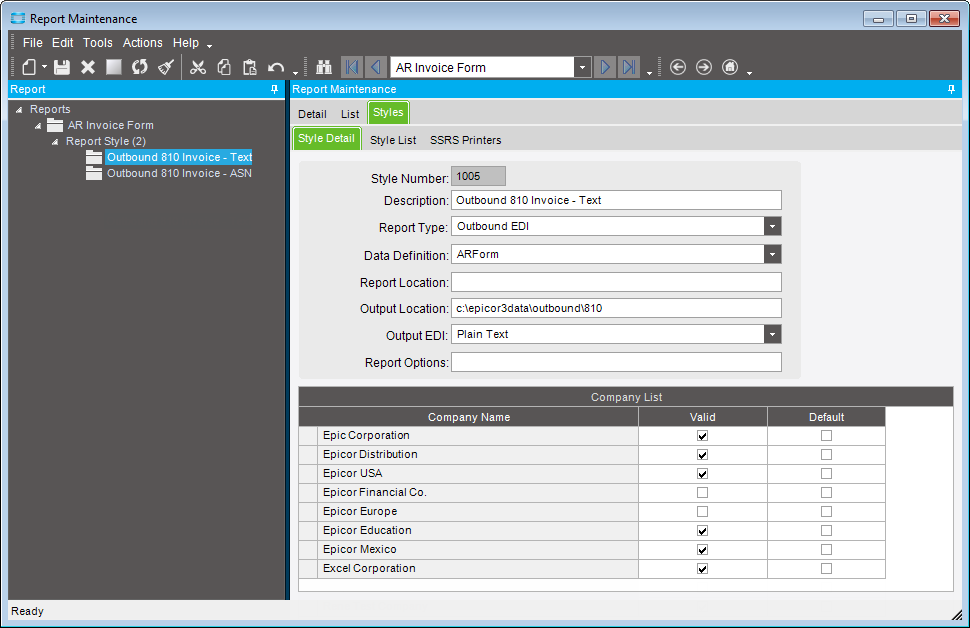
66 Setup Components EDI / Demand Management Technical Reference Guide EDI 810/INVOIC (AR Invoice) Example The following is an example of EDI-compatible report styles that would be associated with Invoices in Report Style Maintenance. The Epicor application uses them to generate document records that support outbound EDI 810/INVOIC (AR Invoice) transactions: 66

67 EDI / Demand Management Technical Reference Guide Setup Components EDI 855/865/ORDRSP (Order Acknowledgement) Example The following is an example of EDI-compatible report styles that would be associated with Sales Order Acknowledgements in Report Style Maintenance. The Epicor application uses them to generate document records that support outbound EDI 855/865/ORDRSP (Order Acknowledgement) transactions: Define Auto Print Data Directive Once you have associated report data definitions with specific type of documents in Report Style Maintenance, you use Data Directives Maintenance to create standard Auto Print data directives. 67
68 Setup Components EDI / Demand Management Technical Reference Guide The EDI/Demand Management functions use these data directives to enable auto-generation of outbound EDI files (for example, EDI 810 (Invoice), 855 (ASN) and 856 (Order Acknowledgements)) when triggered by specific processing actions or events that take place within the Epicor application and database. This works in conjunction with the Automatic check box setting for certain types of documents in the Outbound Document section of the Customer Maintenance > Documents or Ship To > Documents sheets (for a customer or ship to trading partner). It causes the Epicor application to automatically produce Order Acknowledgement, Advanced Shipping Notice or Invoice document records when you process sales orders, shipments and invoices that are a result of demand requests on inbound EDI transactions received from a customer partner. A standard data directive not affect data in the database. In the case of EDI/Demand Management, it executes after you save a sales order, shipment or invoice data transaction to the database. The data directive processes multiple dirty rows modified in the database at once, and are intended for audit purposes (for example they can write some information to log). A data directive is similar to a method directive, but instead of being launched by a business object method, you link a data directive to a database table (for example the Shipment Header (ShipHead) table). By applying the directive to a specific table, you use data directives to control data that may be affected by several business objects. Menu Path: System Management > Business Process Management > Data Directives Maintenance Important This program is not available in the Epicor Web Access. These are the values you can modify in the Detail sheet: Table - To set up auto-generation of document records that support outbound EDI transactions, enter or select of the following: ShipHead - Shipment Header table, used for auto-generation of outbound EDI 856/DESADV Advanced Shipping Notice) transactions. InvcHead - Invoice Header table, used for auto-generation of outbound EDI 810/INVOIC AR Invoice) transactions. OrderHed - Order Header table, used for auto-generation of outbound EDI 855/ORDRSP Order Acknowledgement) transactions. To create a standard directive for the selected database table, from the New menu, select New Standard Directive to access the Standard sheet. Create the Standard Auto Print Data Directive Use the Standard sheet to create the standard data directives. In the standard mode, all database changes incurred by the table during the call to the server are processed per single directive execution. When the standard directives are used, the changes made in the temp-table affect data submitted to subsequent actions and directives with the standard mode. Usually, execution of the standard data directives is fast. In a standard data directive, you define conditions under which the data directive operates, and designate the workflow actions associated with it; one of these is automatic printing of a specified report with specified options. This is the type of data directive condition and workflow action you define for the selected database table. These are the values you can modify for the item: Directive Name - Specifies the name of the directive (for example, EDI_856_E10). For ease of maintaining and tracking EDI-related data directives, a best practice would be to include the EDI transaction type (EDI 856, EDI 810 or EDI 855) in the name. Group - Specifies the group to which the current directive belongs (for example, EDI). This field is optional, but can help you to organize directives for searches, and it is used when exporting directives. The application allows only directives that are part of a group to be exported. 68

69 EDI / Demand Management Technical Reference Guide Setup Components Define the Conditional Expression After using the Standard sheet to assign a directive name and group to the selected database table, click Design to invoke the BPM (Business Practice Management) Workflow Designer. To design an Auto-Print BPM workflow for the data directive, do the following: 1. Drag the Condition and Auto Print icons from the selection panel on the left to the upper workspace area. The positioning of the icons is not critical. 2. Create a link from the Start icon to the Condition icon. To do this, click Start, click one of the outward pointing arrows around the outside of the icon, and drag the cursor to one of the outward pointing arrows around the outside of the Condition icon. 69

70 Setup Components EDI / Demand Management Technical Reference Guide 3. Click the Condition icon, then click the New icon ( ) in the Condition pane. 4. Using the down arrow, select 'The specified field of the changed row is equal to the specified expression'. 5. Click the first specified clause in the selected expression to access the Select Table Field(s) window. 6. The Select Table Field(s) window displays the fields associated with the temporary ShipHead table. Enter edi into the Fields field to find the EDIReady field. To select it, select the check box to the left of the field number, then click OK. 7. After you select the EDIReady field, the expression now reads as 'The ttshiphead.ready field of the changed rows is equal to the specified expression'. 8. Click the down arrow to the right of the changed rows clause and select all changed rows. 70

71 EDI / Demand Management Technical Reference Guide Setup Components 9. Click the last specified clause in the expression to access the Specify an expression window. 10. In the Specify an expression window, enter true, and click OK. 11. When you finish defining the conditional expression, it reads as follows: When you process an ASN shipment, the Epicor application reads the record created in the EDIReady field in the temporary ShipHead table. If the value of the field is true, the condition is satisfied. 71

72 Setup Components EDI / Demand Management Technical Reference Guide Define the Auto Print Action After using the BPM Workflow Design to define the conditional expression, you must define the Auto Print action that takes place if the expression is satisfied (true) during the processing of a transaction, this case a shipment to your customer. The Auto Print action is what actually produces the outbound EDI transaction, in this case the EDI 856 ASN you send to your customer. To design an Auto-Print BPM workflow for the data directive, do the following: 1. Create a link from the Condition icon to the Auto Print icon. To do this, click Start, click the left outward pointing arrow on the outside of the icon, and drag the cursor to one of the outward pointing arrows around the outside of the Auto Print icon. Important You must connect the link from the left outward pointing arrow; this represents a True condition. If you connect the link from the right outward arrow, it is incorrect because it represents a False condition. 72

73 EDI / Demand Management Technical Reference Guide Setup Components 2. Click the Auto Print icon. The following expression appears in the Actions pane: 'Automatically print specified report with specified conditions' 3. Click the first specified clause in the expression; the AutoPrint Report Search window displays. 4. In the Report Options sheet, enter the following: In the Run Schedule field, select Immediate. In the Print Action field, select Auto Preview to auto preview the outbound EDI transaction, or Auto Print to simply process the outbound EDI transaction. Click Apply. 5. Select the Report Parameters sheet. 73

74 Setup Components EDI / Demand Management Technical Reference Guide Do the following: Select the grid line with PackNum listed in the Parameter Name column. Click the down arrow to the right of 'The 0 constant. Select 'The specified table and field value'. Click specified to access the Select Table Field(s) window. 74

75 EDI / Demand Management Technical Reference Guide Setup Components 6. The Select Table Field(s) window displays the fields associated with the temporary ShipHead table. Enter pack into the Fields field to find the PackNum field. To select it, select the check box to the left of the field number, then click OK. 7. After you select the PackNum field, the action expression now reads as follows. 8. Click Apply, then click OK to return to the BPM Workflow Designer. 75
76 Setup Components EDI / Demand Management Technical Reference Guide 9. The BPM Workflow Designer displays the completed Auto Print action expression; do the following: Click Validate to validate the completed Auto Print action expression. Click Save and Exit to return to Data Directive Maintenance. 76

77 EDI / Demand Management Technical Reference Guide Setup Components 10. Data Directives Maintenance displays the graphical workflow you just designed; to enable the workflow for use, do the following Click Save on the Standard toolbar. Select the Enabled check box. Click Save again. 77
78 Processing Components EDI / Demand Management Technical Reference Guide Processing Components This section explores the main calculations and base values used in EDI / Demand Management module interface processing. Review this material to learn about mapping the data formats required for demand management processing in your Epicor application to your customer trading partner's EDI processing formats, and how inbound EDI files are converted into actionable demand entries, demand schedules, orders, shipping transactions and invoices. Tip This section only covers those EDI / Demand Management functions directly related to automated processing of inbound EDI transactions received from a customer trading partner. For detailed information related to manual processing and reconciliation of demand, refer to the standard Demand Management module topics in the Epicor Application Help. Entering Demand Contracts Prior to receiving inbound EDI transactions of any kind from a customer trading partner, you must first use Demand Contract Entry to create demand contracts. The demand contract is an instrument against which the Epicor application receives and processes inbound EDI files received from your customer trading partners. Once inbound EDI transactions have been received and processed, the Epicor application uses the demand contract records to automatically generate demand for your parts, allowing you to set up a shipping schedule for order releases or forecasts for MRP processing. The demand contract represents the contractual agreement for proposed sales to your customer trading partner over a specified period of time. Using Demand Contract Entry, you specify the dates during which each demand contract is active. You can enter any time frame (days, months, years) that you need for the length of the contact. The purchase order number represents the specific customer purchases against the demand contract. You can also (optionally) enter the specific part numbers covered under the contract, specifying unit prices and maximum purchase quantities. Each contract can be set up for multiple parts, so one contract can be used to generate multiple shipping schedules for each part detailed on the contract. Entry of specific part numbers on the demand contract is optional because the Epicor application automatically generates new contract lines if you receive an inbound EDI file with a part number that is not on file. You can also set up several default values for the sales orders and/or forecasts that will be generated through the contract. You can indicate the discounting method being used for the part quantities specified on the contract, and whether or not each sales order will be shipped complete. You use the Header > Matching sheet to specify the parameters and processing hierarchy that the Epicor application should use to match requests for updates to existing demand schedule releases that have already been generated through this demand contract. These are schedule update requests received on subsequent inbound EDI transactions sent by your customer trading partner. The structure of the contract allows for multiple sales order releases to be attached to it. It provides an efficient interface and process to manage the large volume of data that can collect through the length of long term contracts. This gives you with the ability to review the contract quantities against actual incoming demand quantities on inbound EDI transactions. 78

79 EDI / Demand Management Technical Reference Guide Processing Components Header Use the Header sheet to enter or edit primary details for the demand contract. This defines the customer and default settings used for sales orders generated through this contract. You also use this sheet to indicate the length of the contract, cumulative setting, and other contract header definitions. In addition to the Header sheet, Demand Contract Entry contains the following sheets: You can use the Summary sheet as needed to review the main sections of a demand contract. Using it, you add or edit the primary items for the overall contract. You can also use this sheet to quickly add detail lines to the contract; you will do this on the Demand Contract Detail Lines grid. This sheet is not covered in this document; refer to the Epicor Application Help for more detailed information on its use. To view and edit the complete details on a contract line, use the Line sheet. Use the Header > Matching sheet to specify the parameters that the Demand Matching process should use to match requests that are received on inbound EDI transactions sent by your customer trading partner for updates to existing demand schedule releases that have already been generated through this demand contract. You specify which matching criteria should be used, and the priority sequence in which they should be applied during the matching process. 79
80 Processing Components EDI / Demand Management Technical Reference Guide Programs and Their Modifiers The following section describes the Entering Demand Contracts values you can change. Demand Contract Entry To launch this program from the Main Menu: Sales Management > Demand Management > General Operations > Demand Contract Entry To access the Demand Contract Entry > Header sheet to create a new demand contract header, click New Contract Header. These are the values you can modify: Tip Only those fields that are of particular importance to demand processing are covered in this document. Refer to the Epicor Application Help for complete details about the use of the Demand Contract Entry > Header sheet. Contract - Enter the identification number for the demand contract. The demand contract number you enter into this field must match the identifier your customer trading partner uses for this demand contract on inbound EDI transactions. To edit an existing contract, click Contract to access the Contract Search to select an existing record. Customer ID - Specifies the identifier for the sold to customer for whom you are entering this demand contract. You can enter this customer identifier directly, or you can click the ID... button to access Customer Search and select the customer you need. After entering the customer identifier, the customer's name, address, phone and fax number are displayed. Trading Partner - Specifies the trading partner identifier for the customer. This identifier is used to send and receive EDI documents between your company and this customer. If you use EDI, enter the trading partner identifier in this field. The trading partner identification number you enter in this field must match the trading partner identifier designated for the customer in the Customer Maintenance > Demand sheet or Customer Maintenance > Ship To > Demand sheet. It must also match the trading partner identifier your customer uses on inbound EDI transactions. Order - This block contains the following fields that become the default settings used for sales orders generated through this contract: FOB - Specifies the point at which the ownership title for shipped goods changes. Terms - Specifies the conditions under which the customer pays for sales orders generated through this contract. The default terms come from the customer record, but you can select different terms from the list. Priority - Specifies allocation priority for the order. This priority code defines how the Advanced Material Management module will prioritize reserving quantities for this customer in relationship with your other customers. Currency - Defines the currency used for this transaction. If the Currency Management module is installed, the currency selected on the customer record appears, but can be changed on a specific demand contract. The currency you select is also used on any sales orders generated from this demand contract. Lock - This check box is available if the Currency Management module is installed. When selected, this check box lets you lock in the currency exchange rate that is defined at the time transactions are run through this contract. This exchange rate is then used for all later transactions (such as payment entry, cash receipt entry, debit memo, or wire transfer), ignoring actual changes in the market rates. Ship Via - Identifies the means of shipment. The default Ship Via code comes from the customer record, but you can select another Ship Via code from the list Project - Specifies the specific project associated with this demand contract. Projects organize the manufacturing of large capital projects; they let you group related sales orders, jobs, purchase orders, and tasks at high level. An optional field, you can either enter the Project ID directly or click the Project ID button to find and select 80
81 EDI / Demand Management Technical Reference Guide Processing Components the project identifier. It can also be set at the demand contract line level in the Project field in the Line > Detail sheet. Apply Order Based Discounts Automatically - When selected, this checkbox activates the Epicor automatic pricing system. This feature lets you apply discounts based on the quantity on each order line, the total value of the order, or both. Ship Order Complete - When selected, this check box indicates that all the order lines on this order must be shipped at the same time. This check box is only used if your company has an Advanced Material Management license and you use auto-picking. Selecting this check box does not prevent you from shipping separate releases from the sales order. If this check box is cleared, then various releases on this order can ship at different times. Hold Orders for Review - Specifies if sales orders created from this demand contract in Demand Entry should be held for review before being released for shipping. Select the check box to place sales orders created in Demand Entry for this demand contract on hold for review. Clear the check box to skip placing of sales orders created for this demand contract on hold before they are released for shipment. The setting in this check box comes from the setting of the Hold Orders for Review check box in the Customer Maintenance > Customers > Demand sheet for the sold-to customer and can be overridden for individual demand contracts. Lock By Line - Specifies if the purchase order or purchase order lines associated with this demand contract should be locked in the process of updating the purchase order (based on inbound EDI transactions related to the associated demand contract). Select the check box to only lock purchase order lines during this time. For example, if the inbound EDI transaction only affects the second purchase order line, it will only lock that purchase order line during the update. Clear the check box to lock the entire purchase order during this time. For example, if the inbound EDI transaction only affects the second purchase order line, it locks the entire purchase order and demand contract during the update. Bill To Customer - If this customer makes payments through another customer, select the alternate bill to customer. This situation happens when the bill to customer is a leasing company or a head office that needs to be charged instead of the receiving customer. Select Same as Sold To if the bill to customer is the same as the sold to customer selected in the Customer field. Test Mode - When selected, this check box indicates that you are running this contract in test mode. Use this option while you are creating a custom program in order to test the results. This mode lets you and your trading partners verify that the data results are correct before going into production mode. When you are satisfied that your custom program is working correctly, clear this check box. Cumulative Setting - Specifies the setting used to reconcile cumulative shipping part quantities (CUMM) generated electronically through this contract. When you process the demand, and ship releases to the customer trading partner, they receive this information through an Advanced Shipping Notice (ASN) document. The customer then uses this EDI document to indicate the actual amounts that the customer (trading partner) has received. This CUMM total value is then electronically sent back as the actual received quantity. Depending on the option you select, you can turn off cumulative tracking, reconcile cumulative quantities using the part number, or reconcile them based on part number and customer purchase order used to order the parts. Select one of the following: None - Turns off cumulative tracking. By Part - Allows tracking of cumulative quantities for this demand contract by part number. 81
82 Processing Components EDI / Demand Management Technical Reference Guide By Part/PO - Allows tracking of cumulative quantities for this demand contract by part number, by customer purchase order number. Once you start processing inbound EDI transactions for this customer trading partner, you can view cumulative quantities for this demand contract in the Demand Entry > Cumulative Info sheet. To adjust the quantities on each order release to reflect the actual CUM values, you use Demand Reconciliation. Firm Days - Specifies the number of days from the current date that the Epicor application should consider the contract's order releases as firm. If a change is made to the order releases during this period, a warning message is displayed. Enter the number of days in this field. This field is informational only and not used in formal demand contract processing. Minimum Call Off Quantity - Designates the minimum quantity you are able to receive as demand for this contract. Contract Dates Start - Specifies the starting date of the demand contract. This is the beginning of the contractual agreement between you and your customer trading partner. This field is informational only and not used in formal demand contract processing. Contract Dates End - Specifies the ending date of the demand contract. This is the end of the contractual agreement between you and your customer trading partner. This field is informational only and not used in formal demand contract processing. Totals Invoiced Amount - Displays the total invoice amount of orders invoiced for this contract in base currency. This is a display only field that is automatically updated by the Epicor application as the orders that are generated from demand entries created by inbound EDI transactions are invoiced. Totals Ordered Amount - Displays the total amount that your company will receive from orders generated through this contract. This is a display only field that is automatically updated by the Epicor application as orders are generated from demand entries created by inbound EDI transactions. 82

83 EDI / Demand Management Technical Reference Guide Processing Components Line > Detail Use the Line > Detail sheet to enter the agreed upon parameters for ordering a specific part on the demand contract. Using this sheet, you can select the part number, define its price options and indicate how this contract line will handle the ordered quantities. To access the Demand Contract Entry > Line > Detail sheet to create a new demand contract line, click New Contract Line. These are the values you can modify for this item: Important Only those fields that are of critical importance to demand processing are covered in this document. Refer to the Epicor Application Help for complete details about the use of the Demand Contract Entry > Line > Detail sheet. Line - Specifies the contract line number. The Epicor application automatically generates the line number when you create a new contract detail line. Part - Specifies the identification number for the internal part being ordered on this demand contract line. You can enter this part number directly, or you can also click the Part button to display the Part Search window; use this window to find and select the part you need. You can also enter (or in some cases scan) cross reference numbers that you may have established in the following programs: Supplier part numbers defined in the Approved Supplier Maintenance - Supplier Parts sheet, and the Supplier Price List - Parts - Supplier Parts sheet. Manufacturer's part numbers defined in the Qualified Manufacturer - Manufacturer Part sheet. Customer part cross references defined for the part in the Customer Part Maintenance - Detail sheet. Internal part cross references defined for the part in the Internal Part Cross Reference - Detail sheet. 83
84 Processing Components EDI / Demand Management Technical Reference Guide EAN-8, EAN-13, EAN-14, GTIN-14 or UPC-12 product codes defined for the part in the Part Maintenance - Part - UOMs sheet. The Epicor application automatically translates the specified cross reference number to your internal base part number and displays it in this field. If the specified cross reference number maps to multiple base internal part numbers, a Cross References dialog appears and displays all mapped parts for the cross reference number. You must select the mapped part number that is appropriate for the transaction. Description - Specifies a brief description of the part. The part description prints on order and invoice forms. If multiple descriptions are available for this part (for example, a description in a different language), click Description to view a list of all the current options. Select the alternate description that you need. Customer Part - Specifies the customer part number being ordered on this demand contract line. Customers often have unique part numbers and revisions that they use to identify specific parts. If the current customer has such a number for the internal part selected on this line, it appears in this field (for example, 002PLP), if previously established in Customer Part Maintenance. You can also click the Customer Part button to display the Customer Part Search window; use this window to find and select the customer part you need. Revision - Specifies the revision number (if any) required for the customer part being ordered on this demand contract line. Total Contract Quantity - Specifies the total part quantity that you are expecting this customer to order during the length of this contract. This value is displayed using your company's unit of measure. Select the UOM code that represents the unit of measure (for example, Each, Case, Cubic Centimeters) in which the quantity is being expressed. For part master parts, the default is the base UOM code defined for the part in the Primary UOMs - Sales field in Part Maintenance. For non-part master parts, select the applicable UOM code. Minimum Call Off Quantity - Specifies the smallest quantity allowed for each release or forecast generated through the Create Demand Schedule process, or a demand schedule is manually entered in Demand Entry. If a quantity is below this minimum value, a warning message displays stating that the Quantity Per is less than the specified Minimum Call Off Quantity. Site - Specifies the site in which this part is manufactured. Pricing - Specifies if internal or customer pricing should be used for demand entries generated from inbound EDI transactions received against this demand contract line. The default comes from the setting of Pricing field in the Customer Maintenance > Customer > Demand or Ship To > Demand sheets for this customer trading partner and can be overridden. Customer Pricing - The customer price that appears on the inbound EDI document should be used to populate the EDIUnitPrice field in the Demand_Detail file. In this scenario, the Epicor application uses the customer price on demand entries (and sales order lines generated from the demand entries) generated from the demand contract line. Internal Pricing - The internal price calculated within the Epicor application should be used to populate the EDIUnitPrice field in the Demand_Detail file. In this scenario, the Epicor application uses the internal price on demand entries (and sales order lines generated from the demand entries) generated from the demand contract line. Tolerance - Specify the allowable price difference tolerance percentage, if any, for the demand contract line. For example, enter into this field for a 10.5% tolerance. Example You receive an inbound EDI file from this trading partner, requesting you ship 100 units of a widget at a unit price of $1.90. However, your current unit price in the Epicor application is set at $2.00. If you set the Tolerance field to 10.00, the Epicor application would accept a unit price minus 10% of the internal price. In this example, it would consider $1.90 as an acceptable price, because would be within 10% of the $2.00 internal price. Conversely, it would not consider $1.75 or $1.50 acceptable prices, because they are outside of the 10% tolerance range (from $1.80 to $2.00). 84
85 EDI / Demand Management Technical Reference Guide Processing Components Unit Price - Specifies the selling price per unit for the selected part. The application gets the customer price or the internal price, depending on what is selected in the Pricing field. If the Use Price List check box is selected, the Order Quantity may trigger a change due to a price break. This takes precedence over any values you might manually enter into the Unit Price and Price Per fields. When this happens, the Epicor application automatically recalculates the Unit Price field to display the updated price. This check box only affects how the value in the Internal Price field is calculated. If this check box is clear, the internal price at demand entry defaults from the demand contract. Example: The Unit Price defined for Part XYZ is $ You set up a price break for this part that has a break quantity of 25 and a discount amount of 2%. You enter an order line quantity for 50 pieces. The default unit price for Part XYZ is automatically adjusted to $490. Price Per - Specifies the unit by which the unit price is measured. The default value is pulled from the part record, but you can select a different option from the list. If the part does not exist in the part master file, however, the default value is Each. There are three options: /Each /100 /1000 Discount % - Specifies the default discount percentage applied to all purchases made by this customer. When you create a sales order for this customer, this discount is taken by default for each line item. You can change this discount percentage that is used. Use Price List - When selected, this check box indicates that the Unit Price will be calculated using any price lists that have defined for this customer in the Epicor application. This takes precedence over any values you might manually enter into the Unit Price and Price Per fields. If the quantity or value of the contract line triggers a price break, the Epicor application automatically recalculates the Unit Price field to display the updated price. Totals - This section displays the following total quantities and amounts: Ordered Quantity - Displays the total part quantity this customer will potentially purchase through orders generated for this contract detail line. The Inventory UOM (Unit of Measure) code that represents the unit of measure in which this quantity is expressed displays to its right. Ordered Amount - Displays the total extended amount that your company will potentially receive from orders generated for this contract detail line. Shipped Quantity - Displays the total part quantity that has been shipped to-date from order releases generated through this contract line. The Inventory UOM (Unit of Measure) code that represents the unit of measure in which this quantity is expressed displays to its right. Invoiced Quantity - Displays the total part quantity that has been invoiced to-date from order releases generated through this contract line. The Inventory UOM (Unit of Measure) code that represents the unit of measure in which this quantity is expressed displays to its right. Invoiced Amount - Displays the total extended amount that has been invoiced to-date from order releases generated through this contract line. Delete Current Releases - When selected, this check box causes all previous releases to be removed while this contract line's schedule is generated again. Select this check box if you wish to completely refresh this line's release schedule each time you run the Create Demand Schedule command within Demand Entry. If you leave this check box cleared, any new releases you generate will be added to the previous release schedule. Test Mode - When selected, this check box indicates that you are running this contract line in test mode. Use this option while you are creating a custom program in order to test the results. This mode lets you and 85

86 Processing Components EDI / Demand Management Technical Reference Guide your trading partners verify that the data results are correct before going into production mode. When you are satisfied that your custom program is working correctly, clear this check box. Header > Matching Use the Header > Matching sheet to specify parameters that the Demand Schedule Matching process (located on the Demand Schedule section of the Demand Entry Actions menu) should use to match requests for updates to existing demand schedule releases that have already been generated through this demand contract. These are schedule update requests received on subsequent inbound EDI transactions sent by your customer trading partner. These are the demand schedule matching parameters you define: You specify if a perfect match, or non-perfect match should be performed for the demand contract. A perfect match is defined as one in which all criteria you select from the Options Available field (and appear in the Options Selected field) match between the requests for demand schedule updates and existing demand schedule releases that have already been generated through this demand contract. A non-perfect match is defined as one in which at least one of the criteria (for example, shipping quantities or shipping dates) match. You specify if the Epicor application should automatically cancel all potential sales order releases that are considered non-matches by the Demand Scheduling Matching program. These are requests for demand schedule updates that do not match (perfect or non perfect) any existing demand schedule releases that have already been generated through this demand contract. You can also designate Cancel Non Match Options if needed. These allow you to specify a cancellation exclusion date range (grace period) for non-matched sales releases. The Epicor application will skip cancellation of non matched sales order releases with ship dates within this date range. You then specify which matching criteria should be used, and the hierarchical sequence in which they should be applied during the matching process. These include reference number, Ship By date, quantity and Open/Close status indicator. 86
87 EDI / Demand Management Technical Reference Guide Processing Components When it performs the actual demand matching, the Epicor application matches demand schedules according to the parameters and hierarchy specified in this sheet. When it finds the matching demand schedule release, it then automatically processes the request. These are the values you can modify for this item: Allow Non Perfect Match - Specifies if perfect or non-perfect matching is being performed by the Demand Schedule Matching process (located on the Demand Schedule section of the Demand Entry Actions menu). This program matches requests for demand schedule updates to existing demand schedule releases that have already been generated through this demand contract. These are schedule update requests received on subsequent inbound EDI transactions sent by your customer trading partner. Select the check box if non-perfect matching is being performed. A non-perfect match is defined as one in which at least one of the criteria (for example, shipping quantities or shipping dates) you select from the Options Available field (and appear in the Options Selected field) match between requests for demand schedule updates and existing demand schedule releases. For example, if you have specified matching of schedule dates, order numbers and reference numbers, a non perfect match is one in which only one of the criteria (for example, schedule dates) match between the documents. Clear the check box if perfect matching is being performed. A perfect match is defined as one in which all criteria you specify in the Options Selected field must match between the demand schedule updates and existing demand schedule releases. For example, if you have specified matching of schedule dates, order numbers and reference numbers, it is considered a perfect match only if all of these parameters match exactly between documents. This is the default value for this check box. Cancel Non Matched - Specifies if the Epicor application should automatically cancel all sales releases for this demand contract that have not been matched by the Demand Schedule Matching process (located on the Demand Schedule section of the Demand Entry Actions menu). The default comes from the Cancel Non Matched field setting in the Customer Maintenance > Customer > Demand sheet for this customer trading partner; this can be overridden for specific demand contracts. Select the check box if the Epicor application should automatically cancel all sales releases for this demand contract that have not been matched by the Demand Schedule Matching process. Clear the check box if the Epicor application should not automatically cancel all sales releases for this demand contract that have not been matched by the Demand Schedule Matching process. Exclude From / From (days) - If the Cancel Non Matched check box has been selected, use the Exclude From check box and From (days) field as needed to specify a beginning date for a grace period for cancellation non-matched sales releases. The Epicor application will skip cancellation of non matched sales order releases within this date range. If you select this check box, and then enter 2 into the From (days) field, it designates that non matched sales order releases with ship dates between the current system date and two days earlier than the current date will not be cancelled by the Epicor application in the event of a non match (that is, when the associated demand schedule update request does not match any existing demand schedule releases that have already been generated through this demand contract). For example, if the current system date is 1/25, the Epicor application will not cancel sales order releases dated between 1/23 and 1/25 in the event of a non-match. Clear this check box if you do not wish to designate a grace period for cancellation of non-matched sales releases. Exclude Until / Until (days) - If the Cancel Non Matched check box has been selected, use the Exclude Until check box and Until (days) field as needed to specify an ending date for a grace period for cancellation 87
88 Processing Components EDI / Demand Management Technical Reference Guide non-matched sales releases. The Epicor application will skip cancellation of non matched sales order releases within this date range. If you select this check box, and then enter 2 into the Until (days) field, it designates that non matched sales order releases with ship dates between the current system date and two days earlier than the current date will not be cancelled by the Epicor application in the event of a non match (that is, when the associated demand schedule update request does not match any existing demand schedule releases that have already been generated through this demand contract). For example, if the current system date is 1/25, the Epicor application will not cancel sales order releases dated between 1/25 and 1/27 in the event of a non-match. Clear this check box if you do not wish to designate a grace period for cancellation of non-matched sales releases. Options Available - Displays the options available to match requests for updates to existing demand schedule releases that have already been generated through this demand contract. These are schedule update requests received on subsequent inbound EDI transactions sent by your customer trading partner. Refer to Options Selected for directions on how you select options and construct a hierarchical demand schedule matching processing list. Quantity - Specifies that the order quantity should be used to match requests for updates to existing demand schedule releases that have already been generated for this demand contract. The Epicor application matches the Ship By date provided by your customer trading partner on the update requests to the order quantity it finds on existing demand schedule releases. Ship By Date - Specifies that the Ship By Date should be used to match requests for updates to existing demand schedule releases that have already been generated for this demand contract. The Epicor application matches the Ship By date provided by your customer trading partner on the update requests to the Ship By date it finds on existing demand schedule releases. Reference - Specifies that the unique reference number your customer supplies you should be used to match requests for updates to existing demand schedule releases that have already been generated for this demand contract. This is an agreed upon reference number you and your customer have agreed upon that uniquely identified demand releases for the customer. It is the reference number entered or recorded in the Reference field in the Demand Entry > Line > Detail sheet. The Epicor application matches the reference number provided by your customer trading partner on the update requests to the reference number it finds on existing demand schedule releases. Options Selected - Specifies the hierarchical order in which the Epicor application should match requests (that are received on inbound EDI transactions sent by your customer trading partner) for updates to existing demand schedule releases that have already been generated through this demand contract. You construct the hierarchical processing list by selecting options displayed in the Options Available field, and then clicking the appropriate directional buttons. For example, if you would want the Epicor application to first perform a Quantity match, you select Quantity in the Options Available field, then click the single right arrow button. If you want it to next perform a Reference match, you then select Reference in the Options Available field, then click the single right arrow button. Use the remaining buttons as follows: To move all options from the Options Available to Options Selected fields in the order in which they appear, click the double right arrow button. To move a selected option up in the hierarchy, select the option being moved in the Options Selected field, then click the up arrow button. For example, if Open is the fourth option listed, but you wish to make it the second option, select it, then click the up arrow button. To move a selected option down in the hierarchy, select the option being moved in the Options Selected field, then click the down arrow button. 88
89 EDI / Demand Management Technical Reference Guide Processing Components To remove a single option from the Options Selected field, select the option being removed, then click the single left arrow button. For example, if you selected Ship By but wish to remove it, select it, then click the single left arrow button. To remove all options from the Options Selected field, click the double left arrow button. Demand Scheduling Matching Example 1 The following are examples of perfect demand schedule matches (when the Allow Non Perfect Match check box has been cleared for the associated demand contract): Example Your customer trading partner requests changes of quantities and Need By Dates for ordered items after sending an initial request via EDI. In order to process these changes, the Epicor application needs to find and match them to the demand schedule releases to which they apply, based on the specified matching criteria. Once found, the Epicor application then updates the quantities and Ship By dates accordingly in the associated order releases. Referring to the following graphics, these order releases have already been created for demand schedules previously generated for this customer trading partner, and contain the following quantities and dates: A release of 10 units, with a Need By date of 5/15/14 and a Ship By date of 5/10/14, A release of 20 units, with a Need By date of 6/15/14 and a Ship By date of 6/10/14. A release of 50 units, with a Need By date of 10/15/14 and a Ship By date of 10/10/14, These are the order and demand schedules the Epicor application generated when this EDI request was initially received: These are the order and Need By date changes you subsequently received from your customer trading partner after the initial EDI request: A release of 15 units, with a Need By date of 5/21/14, A release of 25 units, with a Need By date of 6/21/14, A release of 55 units, with a Need By date of 10/21/14. 89

90 Processing Components EDI / Demand Management Technical Reference Guide These are the order and demand schedules the Epicor application generated when this EDI request was initially received: These are the demand schedules the Epicor application generated from new change request: According to the matching criteria you set up in the Header > Matching sheet for the demand contract against which demand schedules were generated, it first matches by reference number, and then by Ship By date. When demand for this new demand schedule is matched by the Demand Schedule Matching process (located on the Demand Schedule section of the Demand Entry Actions menu), this is the result: 90

91 EDI / Demand Management Technical Reference Guide Processing Components After performing this matching and running the Process selection (located on the Demand Header section of the Demand Entry Actions menu), the Epicor application changes the following information in the order releases: Changes initial release of 10 units to 15, changes the Need By date of 5/15/14 to 5/21/14, with a Ship By date of 5/16/14 (based on a five day shipping lead time). Changes initial release of 20 units to 25, changes the Need By date of 6/15/14 to 6/21/14, with a Ship By date of 6/16/14. Changes initial release of 50 units to 55, changes the Need By date of 10/15/14 to 10/21/14, with a Ship By date of 10/16/14. Demand Scheduling Matching Example 2 If your customer trading partner requests a cancellation of the release with a Need By date of 9/15/14 and a Ship By date of 9/1110/14, the Epicor application needs to find and match it to the demand schedule release it applies to, based on the specified matching criteria, then update the quantities and Ship By dates accordingly in the associated order release. It is a standard practice for your customer to send a zero quantity change request for the original ship date. This is the demand schedule generated from that change request: 91

92 Processing Components EDI / Demand Management Technical Reference Guide When demand for this new demand schedule is matched by the Demand Schedule Matching process (located on the Demand Schedule section of the Demand Entry Actions menu), it closes (cancels) the matched schedule; this is the result: After performing this matching and running the Process selection (located on the Demand Header section of the Demand Entry Actions menu), the Epicor application changes the status of the order line from Open to Closed. The Epicor application can also be configured to delete the order release instead of closing it. This can be designated at the company level using the Cancel Schedules Action field in the Company Configuration > Modules > Sales > Demand sheet. 92

93 EDI / Demand Management Technical Reference Guide Processing Components Creating Demand Entries for Existing Orders Use the Create Demand Entries selection (on the Actions menus in Sales Order Entry or Customer Entry) as needed during the initial EDI / Demand Management implementation to select existing sales orders and enable them so they can be processed in the Demand Management module (using the Process Demands selections on the Demand Entry and Demand Mass Review Actions menus). In effect, this allows you to enable existing sales for update in the future based on demand records you may receive from your trading partner via EDI. This selection can only be accessed and used if the Demand Management module is licensed. Note You must use Create Demand Entries (during initial implementation of EDI / Demand Management processing) if you have been using the Epicor application to create existing sales orders and are now planning on implementing and using the Demand Management module. When you use the Demand Management module, you can only process and update sales orders that were originally created via the EDI / Demand Management functionality. This is a problem when you decide to start using the Demand Management module to process demand records received via EDI and sales orders already exist in the Epicor application. The Create Demand Entries selection allows you to select existing sales orders and enable them so they can then be updatable based on EDI demand records imported using direct EDI import, Service Connect, or from demand records manually entered into the Epicor application. In effect, the Create Demand Entries selection reverses the Demand Processing procedure in that it creates demand records in the Epicor application from existing sales orders. Tip Once you have created initial demand entries for existing orders in your Epicor application database, you would no longer use the Create Demand Entries option during ongoing EDI / Demand Management 93
94 Processing Components EDI / Demand Management Technical Reference Guide processing. The Epicor application automatically generates demand entries for inbound EDI transactions that have been successfully processed. When you use Create Demand Entries, it creates demand records by populating the DemandHeader table using the information stored in the OrderHed table, and the DemandDetail table using information stored in the OrderDtl table. Prior to performing this processing, it validates that the bill to customer associated with the sales order has been designated as a trading partner, and a demand contract has been created in Demand Contract Entry for the customer/part combination on each sales order line. If these conditions are not satisfied, it simply bypasses the selected sales order and does not create demand records. The Demand Management module must be licensed, and sales orders must exist in the Epicor application. For each selected sales order, the associated bill to customer must be defined as a trading partner, and a demand contract must have been created in the Demand Contract Entry program for the customer/part combination for each sales order line. To create demand entries for selected sales orders or customers: Click Select Orders to access the Sales Order Search window to select sales orders for processing. Click Process Orders to enable the selected sales orders for EDI / Demand Management processing. 94
95 EDI / Demand Management Technical Reference Guide Processing Components Inbound EDI Transaction File Mappings When TIE KINETIX evision receives an inbound EDI transaction from one of your trading partners, it generates a text file with an.app file extension (see sample below). It then deposits this file in the destination directory on your Epicor application server that was specified during configuration of TIE KINETIX evision. Through use of the Direct Import Process (or Service Connect), the Epicor application attempts to process the inbound text file. Before it does this, the third-party EDI processor (for example, TIE KINETIX evision) receives the inbound EDI transaction, maps it and converts it into a tilde delimited file that is stored in a shared folder that can directly imported into Epicor ERP, or can be read by Epicor Service Connect. When successfully processed, this information becomes the basis for demand entries and subsequent forecast, order, shipment and invoice transactions generated from the demand entries in the Epicor application. It is important that you gain familiarity with how these files are structured, and what information is contained within them. Referring to the sample file above, we will break down this inbound file row by row, element by element, describing what information is contained within it. Note that tildes (~) represent delimiters between fields or data elements. The data descriptions that follow for the sample file are based on the latest version of the approved Epicor Inbound EDI File Formats at the time of publication. Note Epicor Software regularly updates the sequence and format of the inbound file layouts. This includes added additional fields to support new functionality, as well as rearranging the sequence of the fields. You must use the file remapping functions in TIE KINETIX evision to ensure that the inbound EDI files you receive from your customer trading partners are properly mapped to formats the Epicor application can use. This applies to new users, as well as those users who are upgrading from previous versions such as 9.04! Tip The content for the EDI / Demand Management Technical Reference Guide is updated for Service Pack releases (for example, ). For any file layout changes related to patch releases (for example A), refer to the Change List section of the appropriate Patch Guide. 95
96 Processing Components EDI / Demand Management Technical Reference Guide EDI File Requirements and Formatting Rules Use the following information to review the input file requirements for the EDI documents. Your input files must follow this format exactly, or the EDI functionality will not run properly: Boolean values must be true or false. This must be in all lower case. Times must be expressed in one of these formats: 15:25:05, 15:25, , 1525 Dates must be in the format CCYYMMDD where: CC - Two digit century YY - Two digit year (for example, 14 for 2014, 15 for 2015) MM - Two digit month (for example, 01 for January, 12 for December) MM - Two digit day of the month For example, January 25, 2014 would be expressed as Note For and above, this is the only date format that can be used for date entries on inbound EDI files. This date format takes precedence over any other date format references (for example, YYMMDD or DDMMYY) you may find in text or graphic examples in the remainder of this document. Prior to , Service Connect successfully processed inbound EDI file containing dates expressed in these older date formats. With the introduction of the Import EDI Demand Process in , only the CCYYMMDD date format is acceptable for use; the Import EDI Demand Process generates errors if an inbound EDI file contains dates expressed in formats other than the CCYYMMDD format. The file formats must exactly match the sample file Sample.txt, included as part of your Epicor application installation. On a standard installation, the file is located in the \\<server>\erp.ysxxx\esc\edi\demand directory, where XXX is the release version, such as
97 EDI / Demand Management Technical Reference Guide Processing Components Record Hierarchy for Inbound EDI Files Inbound EDI files that are processed must be expressed in the following row table hierarchy: Table Demand Header (1) User_Defined for Demand_Header (2-0) Type Mandatory Optional Key and Value Key: Landmark. Value = H Key: Landmark. Value = UD Extra_Charges (2-1) Demand_Detail (2-2) User_Defined For Demand_Detail (3-0) Optional Mandatory Optional Key: Landmark. Value = EC (DemandMisc for DemandHeader) Key: Landmark. Value = D (At least 1 record per header) Key: Landmark. Value = UD Extra_Charges (3-1) Smart String (3-1) Demand_Schedule (3-2) User_Defined for Demand_Schedule (4-0) Optional Optional Mandatory Optional Key: Landmark. Value = EC (DemandMisc for DemandDetail) Key: Landmark. Value = SS (Smart String for DemandDetail) Key: Landmark. Value = SCH (At least 1 record per detail) Key: Landmark. Value = UD 97
98 Processing Components EDI / Demand Management Technical Reference Guide Demand_Header Rows (Demand Header Record for DemandHead Table) Demand Header rows in inbound EDI files contain descriptive header information that relates to the demand detail rows linked to it. This is a mandatory; while an inbound EDI transaction file can contain multiple Demand Header rows, at least one such row must exist in the inbound record. Demand Header rows contain header information that the Epicor application stores in a Demand Header record in the DemandHead table, and uses to create or update demand entries that can be viewed in Demand Entry. This information ultimately becomes the basis for order header records stored in the OrderHed table in the Epicor application database, and are also used for forecast records stored in the Forecast table. 98
99 EDI / Demand Management Technical Reference Guide Processing Components Table Schematic for Demand_Header Row Sample This is the table schematic for the Demand_Header row sample (H~1~0) illustrated above. Note When Optional is listed in the Type column, it generally means you should select one of the available options; leaving a Data Position blank is only allowed if specifically stated in the Sample Record Data Element Description column. Leaving a Data Position blank when it is not explicitly allowed can lead to possible problems or failures when the inbound EDI transaction interface file is being processed. Note In this row schematic, and the ones that follow, the data positions representing Company (in the Demand_Header row, Row Data Position #6) always contain a value of Epic03. In certain training situations, the sample file you may be using may contain Epic06 instead. Row Data Position Example Record Data Value Plug-in Field or Dictionary Name Type Sample Record Data Element Description 1 H Record_Key Mandatory, The first character in each row of an inbound EDI demand interface file denotes the record key and type of information row. Note Each record key is assigned to a specific type of inbound EDI transaction row - each record cannot be used interchangeably (for example, you cannot use D (Demand Detail) for a Header (H) type row): H - Header information stored in the Demand Header record in the DemandHead table. This contains descriptive header information that relates to the demand detail rows linked to it. D - Demand detail information related to the linked header, and is stored in the Demand_Detail table. Refer to the sample data in the Demand_Detail Rows section below for more information. EC - Extra Charge information related to the linked demand detail, and is stored in the Extra_Charges_ DemandMisc table. Refer to the sample data in the Extra_Charges Rows section below for more information. SCH - Demand schedule information related to the linked demand detail, and is stored in the Demand_Schedule table. Refer to the sample data in the Demand_Schedule Rows section below for more information. UD - User Defined information stored in the User_Data (User data for Demand_Header record), User_Detail (User Data for Demand_Detail record) or User_Demand_Schedule tables. 99
100 Processing Components EDI / Demand Management Technical Reference Guide Row Data Position Example Record Data Value Plug-in Field or Dictionary Name Type Sample Record Data Element Description Refer to the sample data in the User_Defined Rows section below for more information. 2 1 Hierarchical Level Mandatory, Numeric Sequential row number in the inbound demand interface file (for example, Row 1, Row 2, etc.); it must be unique per file row. Used to keep track of data lines. 3 0 Hierarchical Parent Number 0 (zero) for H Mandatory, Numeric Sequential hierarchical parent row number to which this record row is linked. This denotes that the hierarchical parent to which it is linked is the first sequential row in the record. Note This is a key data element in the record - it indicates to the Epicor application how the record rows are linked and how they relate to each other. Since Row 1 is the Header, it is assumed to be the parent and must have a zero (0) in this position. However, the second row of the sample record is a User Defined row - it contains 1 in this position. Referring to the third and forth rows in the sample record, which are Extra Charge and Demand Detail rows, they each contain a value of 1 in this position. This denotes that the hierarchical parent to which each is linked is the first sequential row in the record (the Header row). It denotes which Demand rows relate to the Header row, which Schedule rows relate to specific Demand rows, and which Extra Charge rows relate to specific Header rows. 4 DALTON Tp_Id Mandatory, Identification number for the trading partner from whom the EDI record has been received. The value that appears in this data position must be a valid trading partner identification number, as specified for the corresponding customer number (identified in the CustNum attribute - Data Position 8) in the Trading Partner field in the Customer Maintenance > Customer > Demand or Ship To > Demand sheets in the Epicor application. It must also match the value of the trading partner tied to the demand contract number 100
101 EDI / Demand Management Technical Reference Guide Processing Components Row Data Position Example Record Data Value Plug-in Field or Dictionary Name Type Sample Record Data Element Description specified in the Contract_Nbr attribute (Data Position 7). 5 FIRM Tran_Type Mandatory, Specifies the type of transaction being processed. The Epicor application only allows document transaction types (assigned to the trading partner at the header or ship to levels using the Documents > Detail sheet in Customer Maintenance) as valid entries in this data position. The transaction type specified in this data position controls how the Epicor application will process the corresponding documents, and if the transaction will be processed to Sales Order and Forecast tables. Refer to Defining Trading Partners in Customer Maintenance for more details. 6 EPIC03 Company Mandatory, Identification number for the Epicor application company into which the EDI transaction is being received. The value that appears in this data position must be one of the valid company codes defined in Company Maintenance in the Epicor application. 7 DALTON-CONTRACT Contract_Nbr Mandatory, Identification number for the demand contract associated with the EDI record. The value that appears in this data position must be a valid demand contract number, previously entered into Demand Contract Entry in the Epicor application. Refer to Entering Demand Contracts for more details. 8 DALTON CustID Mandatory, Identification number for the customer number associated with the EDI record. The value that appears in this data position must be a valid customer identification number, previously established in Customer Maintenance in the Epicor application. Refer to Defining Trading Partners in Customer Maintenance for more details. 101
102 Processing Components EDI / Demand Management Technical Reference Guide Row Data Position Example Record Data Value Plug-in Field or Dictionary Name Type Sample Record Data Element Description 9 No Value in Example BTCustNum Identification number for the bill to customer number associated with the EDI record. If a value appears in this data position, it must be a valid bill to customer identification number, previously established in Customer Maintenance in the Epicor application. If a value exists in this field, it should exist as an alternate bill to number that is defined for the customer. Refer to Defining Trading Partners in Customer Maintenance for more details. If left blank, the default is the sold to customer in Field #8. 10 E PONum Mandatory, Identification number for the customer purchase order associated with the demand contract. It denotes the purchase order number your trading partner is using to purchase the demand items from your company. For changes, the value that appears in this data position must be a valid purchase order number associated with the demand contract number, as previously entered into Demand Contract Entry in the Epicor application. Refer to Entering Demand Contracts for more details. Tip The concatenated demand contract number and customer purchase order number together form a primary key in the Epicor application for resulting demand entry records. 11 No Value in Example ShipToCustID Ship to customer identification number. If blank, the default is the sold to customer for the trading partner. 12 P1 Ship_Code Indicates the ShipTo code for shipments generated from this record. This should not be left blank; the value in this position must exist in the ShipTo table for the sold to customer in the Epicor application. The <blank> ship to references the main customer address. This does not default to the ship to code at the releases. 102
103 EDI / Demand Management Technical Reference Guide Processing Components Row Data Position Example Record Data Value Plug-in Field or Dictionary Name Type Sample Record Data Element Description 13 false UseOTS Boolean Denotes if a One Time Ship (OTS) address is being used. 14 No Value in Example DNS_Before Date Earliest date before which the order cannot be shipped. Purchased items should not be shipped prior to this date. This information is used in the Demand Entry > Header sheet. 15 No Value in Example DNS_After Date Latest date after which the order cannot be shipped. Purchased items should not be shipped after to this date. This information is used in the Demand Entry > Header sheet. 16 No Value in Example CancelAfterDate Date Latest date by which your trading partner wishes the associated purchased items to be shipped to prevent cancellation. Items that cannot be shipped prior to this date should be cancelled. 17 No Value in Example FOB Indicates the Free On Board (FOB) point for shipments generated from this record. Can be left blank, but if there is a value, it must exist in the FOB table in the Epicor application. If left blank, the default value for transactions generated from this record come from the demand contract in the Epicor application. 18 BEST Ship_Via Indicates the ship via method for shipments generated from this record. Can be left blank, but if there is a value, it must exist in the ShipVia table in the Epicor application. If left blank, the default value for transactions generated from this record come from the demand contract in the Epicor application. 19 No Value in Example Terms_Code Indicates the sales terms for orders generated from this record. Can be left blank, but if there is a value, it must exist in the Terms table in the Epicor application. If left blank, the default value for transactions generated from this record 103
104 Processing Components EDI / Demand Management Technical Reference Guide Row Data Position Example Record Data Value Plug-in Field or Dictionary Name Type Sample Record Data Element Description come from the demand contract in the Epicor application. 20 No Value in Example Priority_Code Indicates the allocation priority for orders generated from this record. Can be left blank, but if there is a value, it must exist in the AllocationPriority table in the Epicor application. If left blank, the default value for transactions generated from this record come from the demand contract in the Epicor application. 21 false Ship_Complete Boolean Indicates if orders generated from this record must be shipped complete. As an order release is selected for picking during the Auto Pick process in the Order Allocation program, all releases with a ship date less than or equal to the given cutoff date also have to be picked complete otherwise they will not be selected. The default is true when the Customer.ShippingQualifier is set to 0 (Ship Order 100% complete). If left blank, the default value for transactions generated from this record come from the demand contract in the Epicor application. 22 Ord Comm Order_Comment Contains comments for the overall order. These comments print on sales acknowledgments, and also appear on the Order Comments sheets in Demand Entry and Sales Order Entry after the Epicor application generates demand entries and orders. 23 Inv Comm Invoice_Comment Contains invoice comments for the overall order. The Epicor application copies them into the Invoice Detail table as defaults. These comments appear on the Invoice Comments sheets in Demand Entry and Sales Order Entry after the Epicor application generates demand entries and invoices. 24 false Order_Discount Boolean Indicates if order based discounting should be applied automatically or manually triggered by the user as a menu option. 104
105 EDI / Demand Management Technical Reference Guide Processing Components Row Data Position Example Record Data Value Plug-in Field or Dictionary Name Type Sample Record Data Element Description If left blank, the default value comes from the demand contract in the Epicor application. 25 false Test_Record Boolean Indicates if this row is being run in a test mode. 26 No Value in Example PO_Type Indicates the purchase order type. 27 No Value in Example Ack_Type Type of acknowledgement expected by the trading partner. 28 No Value in Example Accept_Type Type of acceptance expected by the trading partner. Valid types are as follows: Manual - The Epicor application or Service Connect creates demand entries but you must manually process them using the Process selection in the Demand Header section in the Demand Entry Actions menu. Order releases and forecast entries are only created at the time you perform this manual processing. Accept if no Errors - The Epicor application should automatically process demand for this customer trading partner only if there are no errors in the inbound EDI document. This eliminates the need to manually use the Process selection in the Demand Header section of the Demand Entry Actions menu to process the demand. Always Accept - The Epicor application should automatically process demand for this customer trading partner, regardless of whether there are errors in the inbound EDI document. This automatically creates demand entries in the Epicor application and immediately generates sales order and forecast entries at the time the inbound EDI file is successfully processed. This is an override value for the Accept Type field setting specified for the trading partner in the Customer Maintenance > Document sheet. 29 false ResetCums Boolean Indicates if your customer trading partner would like to reset the cumulative quantities stored to-date for previous transactions related to this demand record. If set to true, the Epicor application resets these cumulative quantities. 105
106 Processing Components EDI / Demand Management Technical Reference Guide Row Data Position Example Record Data Value Plug-in Field or Dictionary Name Type Sample Record Data Element Description 30 false ERSOrder Boolean Indicates if the resulting invoice for this demand record should be flagged as an Evaluated Receipt Settlement invoice. 31 false CancelPO Boolean Indicates if the customer purchase order for this demand record should be cancelled TCtrl_Number Transaction control number for the EDI message on which the demand was received. Used to track the document in the EDI processor Batch_Number Batch control number for the EDI message on which the demand was received. Used to track the document in the EDI processor Sched_Nbr Used as an EDI Reference of the inbound demand. This value is used as the default schedule at the schedules. 35 No Value in Example Cur_Code Indicates the currency code for orders and invoices generated from this record. Can be left blank, but if there is a value, it must exist in the Currency table in the Epicor application. If left blank, the default value for transactions generated from this record come from the demand contract in the Epicor application. 36 false Lock_Rate Boolean Used with the Currency module. When set to true, the currency rate can be changed by the user and cannot be changed by the Epicor application. 37 No Value in Example OTSName OTS customer name. Note If UseOTS (Data Position 13) is set to true, this is a mandatory entry. 38 No Value in Example OTSAddress1 First address line of the OTS drop ship mailing address. 39 No Value in Example OTSAddress2 Second address line of the OTS drop ship mailing address. 40 No Value in Example OTSAddress3 Third address line of the OTS drop ship mailing address. 106
107 EDI / Demand Management Technical Reference Guide Processing Components Row Data Position Example Record Data Value Plug-in Field or Dictionary Name Type Sample Record Data Element Description 41 No Value in Example OTSCity City for the OTS drop ship mailing address. 42 No Value in Example OTSResaleID Resale identification number (if any) for the OTS drop ship mailing address. 43 No Value in Example OTSState State or province name for the OTS drop ship mailing address. 44 No Value in Example OTSZip Zip or postal code for the OTS drop ship mailing address. 45 No Value in Example OTSCountry Country portion of the OTS drop ship mailing address. Note If UseOTS (Data Position 13) is set to true, this is a mandatory entry. 46 No Value in Example OTSFaxNum OTS fax number. 47 No Value in Example OTSPhoneNum OTS telephone number. 48 No Value in Example OTSContact OTS contact name. 49 blank OTSSaveCustID OTS ship to customer identifier. 50 blank OTSSaveAs Denotes the type of record in which OTS information is being saved in the Epicor application. blank (no value) - No saved OTS information C - Saved in Customer record P- Saved in Prospect record S- Saved in Suspect record T- Saved in Ship To record Custom1 Custom10 EDI_Custom1 Fields reserved for EDI custom development. 107
108 Processing Components EDI / Demand Management Technical Reference Guide User_Defined Rows User_Defined rows are designed to receive Date, Decimal, Integer,, Number, Date, Checkbox and Short data from your trading partner. This information is stored in user-defined attributes in the Epicor application. These values support customizations within the Epicor application; refer to the Customization Guide for more details about the specific use of user defined fields. User_Defined rows can be linked to specific Demand_Header, Demand_Detail and Demand_Schedule rows in inbound EDI records. This row type is Optional. 108
109 EDI / Demand Management Technical Reference Guide Processing Components Table Schematic for User_Defined Row Sample This is the table schematic for the User_Defined row sample; it only covers the contents of the first User_Defined row (UD~2~1) illustrated above. The other User_Defined rows follow the same format. Row Data Position Example Record Data Value Plug-in Field or Dictionary Name Type Sample Record Data Element Description 1 UD Record_Key Mandatory, User Defined information related to the linked record line, and is stored in the User_Field table. 2 2 Hierarchical Level Mandatory, Numeric Sequential row number in the inbound record (for example, Row 2); it must be unique per file row. Used to keep track of data lines. 3 1 Hierarchical Parent Number Mandatory, Numeric Sequential hierarchical parent number to which this record line is linked. The second line of the sample record is a User_Defined line - it contains 1 in this position. This denotes that the hierarchical parent to which it is linked is the first sequential record line (in this case, the Header record line). User_Defined can also be linked to: Demand_Detail rows - UD~5~4 is linked to Demand Detail row 4. Demand_Schedule rows - UD~8~7 is linked to Demand Schedule row No Value in Example UserChar1 -UserChar4 User defined field No Value in Example UserDate1 - UserDate4 Date User defined Date field No Value in Example UserDecimal1 - UserDecimal2 Decimal User defined Decimal field No Value in Example UserInteger1 - UserInteger2 Integer User defined Integer field Head_E10_ User defined field. Head_E10_ Number01 - Number20 Number User defined Number field
110 Processing Components EDI / Demand Management Technical Reference Guide Row Data Position Example Record Data Value Plug-in Field or Dictionary Name Type Sample Record Data Element Description Date01 - Date20 Date User defined Date field. In this example, 09/09/2013, 09/10/2013 and 12/31/ true CheckBox01 - CheckBox20 Boolean User defined Checkbox field ShortChar01 ShortChar10 ShortChar01 - ShortChar10 User defined Short field. 110
111 EDI / Demand Management Technical Reference Guide Processing Components Extra_Charges Rows (DemandMisc Table for DemandHeader and DemandDetail Records) Extra Charge rows in inbound EDI files contain extra charge data (such as rush or expedite fees) that relate to the Demand Header or Demand Detail rows to which they are linked. The Epicor application stores this information in the DemandMisc table and then uses it to generate invoice charges for orders created from demand entries. This row type is Optional. 111
112 Processing Components EDI / Demand Management Technical Reference Guide Table Schematic for Extra_Charges Row Sample This is the table schematic for the Extra_Charges row sample; it only covers the contents of the first Extra_Charge row (EC~3~1) illustrated above. The other Extra_Charge row follows the same format. Row Data Position Example Record Data Value Plug-in Field or Dictionary Name Type Sample Record Data Element Description 1 EC Record_Key Mandatory, Extra Charge information related to the linked Demand Header or Demand Detail, which is stored in the DemandMisc table. 2 3 Hierarchical Level Mandatory, Numeric Sequential row number in the inbound record (for example, Row 3); it must be unique per file row. Used to keep track of data lines. 3 1 Hierarchical Parent Number Mandatory, Numeric Sequential hierarchical parent number to which this record line is linked. The third line of the sample record is an Extra Charge line - it contains 1 in this position. This denotes that the hierarchical parent to which it is linked is the first sequential record line (in this case, the Header record line). 4 FRGT Ec_Code Mandatory, Code that identifies the extra charge. The value must exist in the MiscCharges table in the Epicor application. 5 Freight Ec_Desc Description of the extra charge. If left blank, the Epicor application uses the description for the miscellaneous charge code stored in the MiscCharges table. 6 E Freq_Code Denotes the frequency at which this extra charge is assessed: F - First L - Last E - Every If left blank, the Epicor application uses the value defined for the miscellaneous code in the FrequencyCode table. This field can be used to override this value. 112
113 EDI / Demand Management Technical Reference Guide Processing Components Row Data Position Example Record Data Value Plug-in Field or Dictionary Name Type Sample Record Data Element Description 7 A Type Mandatory, Denotes the Extra Charge value type: A -Amount P - Percentage Designates if the extra charge value is an 8 No Value in Example Percent Numeric If Data position 7 (Type) is set to P (Percentage). this is the percentage amount. If Extra charge line is tied to a Demand_Header line, when an invoice is generated for the result demand order, the Epicor application calculates the invoice charge as a percentage of the total invoice amount. If Extra charge line is tied to a Demand_Detail line, when an invoice is generated for the result demand order, the Epicor application calculates the charge as a percentage of the invoice amount for the demand order line Doc_Ec_amount Numeric If Data position 7 (Type) is set to A (Amount), this is the extra charge amount in the base currency. If left blank, the Epicor application uses the value defined for the miscellaneous code in the MiscCharges table Custom1 Custom 10 EDI_Custom01-EDI_Custom10 Not used. Reserved for future development. 113
114 Processing Components EDI / Demand Management Technical Reference Guide Demand_Detail Rows (Demand Detail Record for DemandDetail Table) Demand Detail rows in inbound EDI files contain descriptive demand detail information that relates to the Demand Header row to which it is linked. They contain detailed information that the Epicor application stores in Demand_Detail records in the DemandDetail table and uses to create individual demand entries that can be viewed in Demand Entry. This information ultimately becomes the basis for order line detail records stored in the OrderDtl table in the Epicor application database; these can be viewed in Order Entry. 114
115 EDI / Demand Management Technical Reference Guide Processing Components Table Schematic for Demand_Detail Row Sample This is the table schematic for the Demand_Detail row sample; it only covers the contents of the first Demand_Detail row (D~4~1) illustrated above. The other Demand_Detail row follows the same format. Row Data Position Example Record Data Value Plug-in Field or Dictionary Name Type Sample Record Data Element Description 1 D Record_Key Mandatory, Demand detail information related to the linked header, and is stored in the Demand_Detail table. 2 4 Hierarchical Level Mandatory, Numeric Sequential row number in the inbound record (for example, Row 4); it must be unique per file row. This is used to keep track of data lines. 3 1 Hierarchical Parent Number Mandatory, Numeric Sequential hierarchical parent number to which this record row is linked. The fourth row of the sample record is a Demand-Detail row - it contains 1 in this position. The hierarchical parent to which it is linked is the first sequential record row (in this case, the Header record row). 4 E PONum Identification number for the customer purchase order associated with the demand contract. It denotes the purchase order number your trading partner is using to purchase the demand items from your company. If the value in this data position is different than data position 10 (PONum) in the associated Demand Header row, the Epicor application uses the PO number defined at the line level as the PO number for the DemandDetail and OrderDtl table records in the Epicor application database. If left blank, the default value for the DemandDetail and OrderDtl tables comes from the PONumber data position in the Header row. Note It is best practice to ALWAYS include the PONum value for each Demand Detail line, even if it is the same as in the Demand Header row. Leaving the field blank may possibly cause problems when processing inbound EDI records. 115
116 Processing Components EDI / Demand Management Technical Reference Guide Row Data Position Example Record Data Value Plug-in Field or Dictionary Name Type Sample Record Data Element Description POLine Your trading partner's purchase order line item reference number. 6 No Value in Example site Identification number for the Epicor application ShipFrom site. This data position is normally blank. Note Refer to Appendix D: Demand Management site Code Assignment Flowchart for details on how site codes are assigned to demand records generated from inbound EDI transactions. 7 FIRM Tran_Type Mandatory, Document that initiated the demand. Will be blank when the demand is manually entered. Used as a default for the release. If left blank, the default value comes from the TranType data position in the Header row. Note It is best practice to ALWAYS include the Tran_Type value for each Demand Detail line, even if it is the same as in the Demand Header row. Leaving the field blank may possibly cause problems when processing inbound EDI records. 8 false TestRecord Boolean Determines if this line is being run in a test mode. If left blank, the default value comes from the Test Record data position in the Header row. 9 No Value in Example DNS_Before Date Earliest date on which trading partner wishes the demand items on this line to be shipped. Purchased items should not be shipped prior to this date. If left blank, the default value comes from the DNS_Before data position in the Header row. 10 No Value in Example DNS_After Date Latest date by which your trading partner wishes the demand items on this line to be shipped. Purchased items should not be shipped after this date. If left blank, the default value comes from the DNS_After data position in the Header row. 11 No Value in Example DemandReference Unique identifier to match incoming demand to the Epicor application demand. Can be used to locate other sales order detail records that have been created by this demand. 116
117 EDI / Demand Management Technical Reference Guide Processing Components Row Data Position Example Record Data Value Plug-in Field or Dictionary Name Type Sample Record Data Element Description X050 PartNum Your internal part number used to identify the line item part. It can be left blank by your trading partner if they are providing their own (different) part number in Position 14. The part number that appears in this data position does not have to exist in the Part table. If it does not exist in the demand contract, the Epicor application automatically creates a new contract line in Demand Contract Entry. In order for the Epicor application to properly recognize customer parts cross referenced to your internal part number, the part validation options for the customer document (transaction type) should be configured properly at the header or ship to levels using the Customer Maintenance > Documents > Detail sheet. Refer to Defining Trading Partners in Customer Maintenance for more details. Note The PartNum (Position 12) and CustPn (Position 14) data positions are the key data elements in a Demand Detail row. If XPartNum (Position 14) is being used for a given Demand Detail row, PartNum should not be used (and vice versa.) Using both prevents XPartNum from being considered by the Epicor application. 13 No Value in Example Rev_Level Denotes the revision number for the part. If a value appears in this data position, it should be a valid revision for the part, as defined in the Part Master table in the Epicor application. 14 CUST1032 x050 XPartNum Your trading partner provides their customer part number in this data position if they use a different part number than your internal part number. The XPartNum and PartNum provide defaults for each other using the PartXref table. The XPartNum can be blank, and does not have to exist in the PartXref table. If there is not a Customer Part record for the value received in this field, the Epicor application automatically creates it. The same caveat about proper recognition of customer parts in the Epicor application (expressed in the PartNumber explanation above) also applies to this data position. 117
118 Processing Components EDI / Demand Management Technical Reference Guide Row Data Position Example Record Data Value Plug-in Field or Dictionary Name Type Sample Record Data Element Description Note The PartNum (Position 12) and CustPn (Position 14) data positions are the key data elements in a Demand Detail row.if XPartNum is being used for a given Demand Detail row, PartNum (Position 12) should not be used (and vice versa). Using both prevents XPartNum from being considered by the Epicor application. 15 No Value in Example XPartRevLevel Revision level number for the customer part number. 16 No Value in Example Item_Desc Optional for Part Master Parts, Mandatory for Non-Part Master parts, Identifies the line item description. If the part is a Part Master part, the default value comes from the description stored in the Part Master part. If this data position is not blank, the content overrides the description from the Parts Master in the Epicor application. If a value exists in this data position, it replaces the Part Master description on this demand entry ONLY. 17 EA SalesUM Unit Of Measure code that denotes how the item is issued. If left blank, the default value comes from the demand contract or from the Part Master record. 18 No Value in Example Discount Percent Numeric Line item discount percent. It is not related to price break discounts. If left blank, the default value comes from the demand contract or from the Part Master record UnitPrice Numeric Unit price that becomes the unit customer price in Demand Entry. Note This is a key data element in a Demand Detail row. 20 true UsePriceList Boolean Indicates if the Customer Price List should be used for order pricing for this Demand Detail row. 21 E PricePerCode Mandatory, Indicates the Pricing Per quantity. E - per Each C - per Hundred M - per Thousand 118
119 EDI / Demand Management Technical Reference Guide Processing Components Row Data Position Example Record Data Value Plug-in Field or Dictionary Name Type Sample Record Data Element Description The Epicor application uses this to calculate the extended unit price for the line item. It uses Part.PricePerCode as a default, but if the Part record does not exist, then the default is set to E. When used with Service Connect processing, if left blank, the default value comes from the contract. When using Direct Import processing, it is a mandatory entry and cannot be left blank! 22 No Value in Example ProjectID Identification number of the associated project (if any). Valid values are the project codes defined in the Epicor application. If left blank, the default value comes from the demand contract. 23 No Value in Example PriceGroupCode Numeric Price Group ID used to price the order line. Valid values are the price group codes defined in the Epicor application. 24 No Value in Example POType Indicates the purchase order type. Reference only. 25 No Value in Example Ack_Type Type of acknowledgement expected by the trading partner for this demand contract line. OutSOAck - Outgoing Acknowledgement OutChgRsp - Outgoing Response to Change OutStatus - Outbound Order Status 26 No Value in Example ScheduleType Schedule type from the trading partner. Reference only. 27 false Delete_Current _Release Boolean Indicates if current open Order Releases that have not been shipped and do not have a job should be deleted when processing the demand. If left blank, the default value comes from the demand contract. 28 No Value in Example Mktg_Campaign_ID Link to the marketing event associated with this record. Maintainable using Demand Entry if the CRM module is installed. 119
120 Processing Components EDI / Demand Management Technical Reference Guide Row Data Position Example Record Data Value Plug-in Field or Dictionary Name Type Sample Record Data Element Description If left blank, the default value comes from the demand contract. 29 No Value in Example MktgEvntSeq Numeric he related Marketing Event Sequence. It is a mirror image of the QuoteHed MktgEventSeq, and is maintainable using Demand Entry if the CRM Module is installed. If left blank, the default value comes from the demand contract. 30 No Value in Example Forecast_End_Date Date Date at which this forecast is no longer considered effective. This is information purposes only, and is reserved for future use in the Epicor application. 31 No Value in Example CumulativeQty Numeric Cumulative quantity that your trading partner reports as being received to-date for this demand line. 32 No Value in Example CumulativeDate Date Effective date for the cumulative quantity reported in Position No Value in Example StartCumQty Numeric Starting cumulative quantity for this demand line. 34 No Value in Example StartCumDate Date Starting date for the cumulative quantity reported in Position No Value in Example LastShipmentQty Numeric Quantity received on the last shipment for this demand line, as reported by your customer trading partner. 36 No Value in Example LastShipmentDate Date Date on which the last shipment was received, as reported by your customer trading partner. 37 No Value in Example LastShipmentID Last shipment identification number. 38 No Value in Example LastMasterPack Last master pack identification number Custom1 Custom10 EDI_Custom01 through EDI_Custom10 Not used. Reserved for future development. 120
121 EDI / Demand Management Technical Reference Guide Processing Components Demand_Schedule Rows (Demand Schedule Record for DemandSchedule Table) Demand Schedule rows in inbound EDI files contain descriptive demand schedule information that relates to the Demand Detail row to which it is linked. They contain detailed information that the Epicor application stores in Demand_Schedule records in the DemandSchedule table and then uses to create release schedule lines for individual demand entries. A demand schedule is a schedule of order releases. It defines both the part quantities and the dates on which each release needs to be shipped to your customers. While demand schedules can be entered manually into Demand Entry, most of them will be generated from Demand Schedule rows on the incoming document. This information ultimately becomes the basis for order release records stored in the OrderRel table in the Epicor application database, and are also used for forecast records stored in the Forecast table. 121
122 Processing Components EDI / Demand Management Technical Reference Guide Table Schematic for Demand_Schedule Row Sample This is the table schematic for the Demand_Schedule row sample; it only covers the contents of Demand_Schedule row (SCH~12~11) illustrated above. The other Demand_Schedule row follows the same format. Row Data Position Example Record Data Value Plug-in Field or Dictionary Name Type Sample Record Data Element Description 1 SCH Record_Key Mandatory, Demand schedule information related to the linked Demand Detail line. The Epicor application stores this data in the Demand_Schedule table Hierarchical Level Mandatory, Numeric Sequential row number in the inbound record (for example, Row 12); it must be unique per file row. Used to keep track of data lines Hierarchical Parent Number Mandatory, Numeric Hierarchical parent number to which this record line is linked. The twelfth line of the sample record is a Schedule line - it contains 11 in this position. This denotes that the hierarchical parent to which it is linked is the eleventh sequential record line (in this case, Demand Detail record line 11). 4 No Value in Example site Mandatory, Must be blank. Note Refer to Appendix D: Demand Management site Code Assignment Flowchart for details on how site codes are assigned to demand records generated from inbound EDI transactions. 5 FIRM Tran_Type Mandatory, Specifies the type of transaction being processed. The Epicor application only allows document transaction types (assigned to the trading partner at the header or ship to levels using the Documents > Detail sheet in Customer Maintenance) as valid entries in this data position. 6 E Demand_ Reference The Epicor application uses this for informational purposes and to aid in matching demand schedules with 122
123 EDI / Demand Management Technical Reference Guide Processing Components Row Data Position Example Record Data Value Plug-in Field or Dictionary Name Type Sample Record Data Element Description existing records in the OrderRel table. Supplied by EDI Quantity Numeric Quantity, expressed in Our U/M, that your trading partner is requesting be shipped for this release. This must either be null or greater than zero. Precision: Explicit(2) PSign: None NSign: None. Note This is a key data element in a Demand Schedule row. 8 EA SalesUM Unit Of Measure code that denotes how the item is issued. If this is a valid part, the Epicor application uses the default Part.SUM (defined for the internal part number in the Sales UM field in Part Maintenance). If left blank, the default value comes from the demand line. 9 false Test_Record Boolean Indicates if the line is being used in a test mode. 10 No Value in Example ShipToCustID Identification number for the customer number for the ShipTo value in Position 11; the Epicor application uses this for the scheduled release record. It must be a valid customer identification number, previously established in Customer Maintenance in the Epicor application. Refer to Defining Trading Partners in Customer Maintenance for more details. If left blank, the default value is the main sold to customer, usually from Customer data position in the Header row. Note This is a key data element in a Demand Schedule row. 123
124 Processing Components EDI / Demand Management Technical Reference Guide Row Data Position Example Record Data Value Plug-in Field or Dictionary Name Type Sample Record Data Element Description 11 No Value in Example Ship_Code Indicates the ShipTo code for the shipment schedule release generated from this record. Can be left blank, but if there is a value, it must exist in the ShipTo table in the Epicor application. If left blank, the default value for schedule releases generated from this record come from the Ship_Code in the Header row. 12 false UseOTS Boolean Denotes if a One Time Ship (OTS) address is being used for the shipment. 13 No Value in Example SubShipTo Sub ShipTo address if it is being used for the shipment. 14 No Value in Example ShipRouting Sub routing address if it is being used for the shipment. 15 No Value in Example MFCusNum Mark For customer identification number, if being used for the demand schedule. 16 No Value in Example MFShipToNum Mark For ship to identification number, if being used for the demand schedule. 17 false UseOTMF Boolean Denotes if a One Time Mark For (OTMF) address is being used for the shipment. 18 BEST ShipVia Indicates the Ship Via method for the shipment schedule release generated from this record. Can be left blank, but if there is a value, it must exist in the ShipVia table in the Epicor application. If left blank, the default value for schedule releases generated from this record come from the Ship_Code in the Header row NeedByDate Mandatory, Date Date by which your trading partner needs the item to be delivered. Note This is a key data element in a Demand Schedule row. 124
125 EDI / Demand Management Technical Reference Guide Processing Components Row Data Position Example Record Data Value Plug-in Field or Dictionary Name Type Sample Record Data Element Description ShipByDate Date Date which the item needs to be shipped in order to meet your trading partner's due date. If left blank, the Epicor application calculates it based on the Delivery Days defined for the ship to customer, and the customer periodicity. If it exists, the import process honors the date. Note This is a key data element in a Demand Schedule row. 21 No Value in Example RAN Return/Release Authorization Number. Used for informational purposes and to aid in matching demand schedules with existing records in the OrderRel table. Supplied by EDI. 22 No Value in Example Delivery_Days Integer Number of delivery days required for the shipment to reach its destination. The default for the Epicor application comes from Customer.DemandDeliveryDays or ShipTo.DemandDeliveryDays. If left blank, the default value comes from the Delivery Days parameter defined for the customer ship to record. If it exists, the import process honors the value. 23 false Rejected_By_User Boolean Indicates if the DemandSchedule has been rejected by the user. 24 false Override_System_Reject Boolean Indicates if the system rejection should be overridden so the record can be accepted. 25 No Value in Example Forecast_End_Date Date Date when this forecast is no longer considered effective. For information purposes only. Reserved for future use in the Epicor application. 26 No Value in Example Dock_Code Dock_Code defined for the ship to address. Reserved for future use in the Epicor application. 125
126 Processing Components EDI / Demand Management Technical Reference Guide Row Data Position Example Record Data Value Plug-in Field or Dictionary Name Type Sample Record Data Element Description 27 No Value in Example Location Location within the customer ship to address. Reserved for future use in the Epicor application. 28 No Value in Example Transport_ID Code associated with the transport routing. Reserved for future use in the Epicor application. 29 No Value in Example Ship_By_Time Time of day by which the goods should be shipped on this schedule release. 30 DALTON OTS OTSName Full name for the One Time Ship (OTS) drop shipment. Note If UseOTS (Data Position 12) is set to true, this is a mandatory entry Main Rd OTSAddress1 First address line of the OTS address. 32 No Value in Example OTSAddress2 Second address line of the OTS address. 33 No Value in Example OTSAddress3 Third address line of the OTS address. 34 Miami OTSCity City of the OTS address. 35 Florida OTSState State or province for the OTS address OTSZip Zip or postal code for the OTS address. 37 USA OTSCountry Country portion for the OTS mailing address. Note If UseOTS (Data Position 12) is set to true, this is a mandatory entry. 38 No Value in Example OTSFaxNum OTS fax number. 126
127 EDI / Demand Management Technical Reference Guide Processing Components Row Data Position Example Record Data Value Plug-in Field or Dictionary Name Type Sample Record Data Element Description OTSPhoneNum OTS telephone number. 40 No Value in Example OTSResaleID OTS resale identification number. 41 Jerry OTSContact OTS contact name. 42 blank OTSSaveCustID OTS ship to customer identifier. 43 No Value in Example OTSSaveAs Denotes the type of record in which OTS information is being saved in the Epicor application. blank (no value) - No saved OTS information C - Saved in Customer record P- Saved in Prospect record S- Saved in Suspect record T- Saved in Ship To record 44 false DropShip Mandatory, Boolean (Direct Import) Boolean (Service Connect) If set to true, designates the items on this Demand Schedule should be drop shipped by the supplier directly to the customer. This marks the resulting sales order release record (that will be generated for this Demand Schedule) as "shipped" and also marks the drop ship purchase order release tied to it as "received". 45 No Value in Example OTMFName Full name for the One Time Mark For (OTMF) drop shipment. Note If UseOTMF (Data Position 17) is set to true, this is a mandatory entry. 46 No Value in Example OTMFAddress1 First address line of the OTMF drop ship mailing address. 47 No Value in Example OTMFAddress2 Second address line of the OTMF drop ship mailing address. 127
128 Processing Components EDI / Demand Management Technical Reference Guide Row Data Position Example Record Data Value Plug-in Field or Dictionary Name Type Sample Record Data Element Description 48 No Value in Example OTMFAddress3 Third address line of the OTMF drop ship mailing address. 49 No Value in Example OTMFCity City of the OTMF drop ship mailing address. 50 No Value in Example OTMFState State or province for the OTMF drop ship mailing address. 51 No Value in Example OTMFZip Zip or postal code for the OTMF drop ship mailing address. 52 No Value in Example OTMFContact OTMF contact name. 53 No Value in Example OTMFFaxNum OTMF fax number. 54 No Value in Example OTMFPhoneNum OTMF telephone number. 55 No Value in Example OTMFCountry Mandatory, (If OTMF is being used) (if OTMF is not being used) Country portion for the OTMF drop shipment mailing address. If OTMF is used, this field is Mandatory and must be a valid Country Code defined in the Epicor application Custom1 - Custom10 Custom01-Custom10 Fields reserved for EDI custom development. 128
129 EDI / Demand Management Technical Reference Guide Processing Components Smart String Rows (for Demand_Detail Table) Smart String rows pass the input parameters for configured parts. This is the Smart String that configuration routines in the Epicor application are able to convert into the inputs required to configure a part. Refer to the Configurator Technical Reference for more details about the use of Smart String parameters in the Configurator. 129
130 Processing Components EDI / Demand Management Technical Reference Guide Table Schematic for Smart String Row Sample This is the table schematic for the Smart String row sample; it only covers the contents of the first Smart String row (SS~14~13) illustrated above. Row Data Position Example Record Data Value Plug-in Field or Dictionary Name Type Sample Record Data Element Description 1 SS Record_Key Mandatory Smart String information related to the linked record line, and is stored in the Smart_String table Hierarchical Level Mandatory, Numeric Sequential row number in the inbound record (for example, Row 14); it must be unique per file row. Used to keep track of data lines Hierarchical Parent Number Mandatory, Numeric Sequential hierarchical parent number to which this record line is linked. The fourteenth line of the sample record is a User_Defined line - it contains 13 in this position. This denotes that the hierarchical parent to which it is linked is the first sequential record line (in this case, the DemandDetail row 13). 4 CFG-CVR1_23.00_Delrin_true_23.00_Silver_234 Smart String Input parameters being passed for configured parts. This is the Smart String that configuration routines in the Epicor application are able to convert into the inputs required to configure a part. 130

131 EDI / Demand Management Technical Reference Guide Processing Components Direct Inbound EDI Transaction Import This section guides you through the process of directly importing inbound EDI transactions into Epicor ERP. Inbound text-based EDI transactions received from your customer trading partners and passed by the evision third-party application directly link to the Epicor application using the Import EDI Demand Process. These are the key features of the direct Import EDI Demand Process: The Import EDI Demand Process was introduced in , runs on server code and significantly improves the speed of inbound EDI transaction importation by making use of the scheduling and multiprocessor capabilities of Epicor ERP. Epicor recommends using the direct Import EDI Demand Process due to significantly improved processing performance. Users manage the entire importation and error correction process using standard Epicor ERP menu items. You use the Import EDI Demand Process menu selection to perform the actual importation process. It honors the layout of the tilde delimited source file, and allows for scheduling of inbound EDI transaction importation. Use the Demand Workbench as required to efficiently detect and correct errors on inbound EDI transactions you are attempting to import into Epicor ERP. Scheduling and Running the Import EDI Demand Process You manage the direct import of inbound EDI transactions using the Import EDI Demand Process. It utilizes the Epicor ERP framework to process demand records received via EDI transactions from your trading partners. It can be used to import files based on a defined schedule and to specify the import folder where the inbound EDI documents have been deposited by the TIE KINETIX evision third-party program. 131
132 Processing Components EDI / Demand Management Technical Reference Guide Programs and Their Modifiers The following section describes the Import EDI Demand Process values you can change. Import EDI Demand Process To launch this program from the Main Menu: Sales Management > Demand Management > General Operations > Import EDI Process These are the values you can modify: Tip Only those fields that are of particular importance to demand processing are covered in this document. Refer to the Epicor Application Help for complete details about the use of the Import EDI Demand Process. Import Folder - Specify the path to the import folder where EDI process expects to find.app documents deposited by the TIE KINETIX evision third-party program. The default value is defined in Import Folder field in the Company Configuration > Modules > Sales > Demand sheet. Note The specified folder path must use UNC-naming conventions, not a locally-mapped drive letter. Backup processed file - Select this check box to create a backup folder within the import folder location; all processed files are then backed up into the newly created folder. Continuous Processing - Select this check box if you want the process to run continuously. Continuous Processing Delay - Specify how frequently, in minutes, you want the Import EDI Demand Process to retrieve inbound EDI transactional data from the specified import folder location. Log Filename - Specify the name of the file that lists the activity of transferred data. Schedule - From this list, select the schedule option during which you would like the process to run. Options include Now, Startup Task Schedule and any other user-defined schedules created for your company. Recurring - Select this check box to indicate that the process should be run on a repeating basis. This check box is available only if a schedule other than Now is selected. 132
133 EDI / Demand Management Technical Reference Guide Processing Components Using the System Agent and Completing the Import EDI Demand Process You can use the Schedules sheets within System Agent Maintenance to add schedules to a specific system agent. Create a schedule that best satisfies your demand management requirements. After you define a new schedule, you can select it in Import EDI Demand Process. Tip The Import EDI Demand Process transforms EDI files (dropped into the import folder) one by one. To speed up transaction importation, you can submit several processes at once. Any questions regarding the system performance should be addressed to your System administrator. To launch the process, click the Submit button. You can access the System Monitor to view the processing status of the program by clicking the System Monitor icon located on the Windows taskbar. 133

134 Processing Components EDI / Demand Management Technical Reference Guide Using the Demand Workbench for Error Correction If erroneous data is identified during direct EDI import processing, you can correct it as required using Demand Workbench, found within the General Operations folder of the Demand Management module. Data import errors occur primarily due to mismatches between the data sent by your customer trading partner on an inbound EDI transaction and corresponding data stored in your Epicor application. Example If the demand contract specified on the inbound EDI transaction is not valid for the trading partner, or cannot be found in the Epicor application database, a Demand Header Invalid Contract message displays on the Detail > Header > Errors sheet. First, search for any potential errors that occurred while running the Import EDI Demand Process. Use the Errors sheets found at the Header, Line and Schedule level to identify a reason for the error. 134

135 EDI / Demand Management Technical Reference Guide Processing Components After you identify the error, correct the value that caused the import to fail. Note You cannot create new demand entries using Demand Workbench. You can only use this program to correct entries that failed to be processed using the Import EDI Demand Process. After you correct invalid data on inbound EDI transactions, from the Actions menu, select Ready To Process. Once you select this option, the inbound EDI transaction that failed to be loaded into the Demand Management module is ready for re-processing next time the Import EDI Demand Process is scheduled to run. To process the corrected demand entries immediately, from the Actions menu, select Process IM Demand. The Import EDI Demand Process window displays, allowing you to submit the process. 135
136 Processing Components EDI / Demand Management Technical Reference Guide Once the EDI transaction is completed successfully, a new demand record is created in Epicor ERP. Note The Demand Workbench is a standard business object that supports using BPMs and BAMs. Use these tools to refine the EDI process that best matches your company's needs. 136
137 EDI / Demand Management Technical Reference Guide Processing Components Import EDI Demand and User Hook Programs You can create and use up to four external custom programs for manipulation of data contained in inbound EDI.app files that have been deposited into the Direct Import folder and are being processed using the Import EDI Demand program. If used, these external programs contain custom code created by technically adept personnel for processing of inbound EDI transactions in your enterprise. They must be named in the following manner, and once created, placed into the \om\ud folder on your Epicor ERP server: omimportedib4tran.p - If it exists, the Epicor application runs this external program to manipulate inbound EDI data stored in Intermediate Demand tables before the ImportEDI.r routine runs and processes translations on the data. omimportedib4val.p - If it exists, the Epicor application runs this external program to manipulate translated inbound EDI data stored in Intermediate Demand tables before the ImportEDI.r routine runs and performs validations on the data. omimportedipreprocessdemand.p - If it exists, the Epicor application runs this external program to manipulate validated inbound EDI data stored in the regular Demand tables before the ImportEDI.r routine processes the demand data into actual sales orders or forecasts. omimportedipostprocessdemand.p - If it exists, the Epicor application runs this external program to manipulate inbound EDI data after the ImportEDI.r routine processes the demand data into actual sales orders or forecasts. The flowchart that follows graphically illustrates how and where the Epicor application runs and uses these external programs when processing inbound EDI files. 137
138 Processing Components EDI / Demand Management Technical Reference Guide 138
139 EDI / Demand Management Technical Reference Guide Processing Components Understanding the User Hook Programs Flowchart The flowchart reads as follows: 1. This is the inbound.app file deposited by the third-party program into the DirectImport folder; the location for this folder is defined in the Import Folder field in the Company Configuration > Modules > Sales > Demand sheet. 2. The Epicor application retrieves the deposited.app file, parses and processes the data on it, and places the data into Intermediate Demand tables in Epicor ERP. 3. Once data has been placed into the Intermediate Demand tables, the Epicor application determines if an external custom program with the name omimportedib4tran.cs exists in the \om\ud folder on the Epicor ERP server. If it does, it proceeds to Step 4; if not, it proceeds directly to Step If an external custom program named omimportedib4tran.cs does exist, the Epicor application runs it against the data stored in the Intermediate Demand tables. This programmatically alters this data, based on the code contained in the external program. 5. The ImportEDI.cs routine in the Epicor application processes any translations contained in the data in the Intermediate Demand tables. 6. The Epicor application determines if a second external custom program with the name omimportedib4val.cs exists in the \om\ud folder. If it does, it proceeds to Step 7; if not, it proceeds directly to Step If an external custom program named omimportedib4val.cs does exist, the Epicor application runs it against the data stored in the Intermediate Demand tables. This programmatically alters this data, based on the code contained in the external program. 8. The ImportEDI.cs routine in the Epicor application processes validations on the data in the Intermediate Demand tables. These are data validations performed on the inbound EDI data based on the parameters you have designated for the customer trading partner in Customer Maintenance and other programs. Note Refer to the Setup Components section, and the workflow topics contained in the Optional - Service Connect Workflow Processing section for more details. 9. After completing all data validations, the ImportEDI.cs routine moves the altered data from the Intermediate Demand tables to the regular Demand tables for further processing. 10. The Epicor application reads the Accept Type field setting in the Customer Maintenance > Documents or Customer Maintenance > Ship To > Documents sheet for the document type and customer trading partner (or ship to customer trading partner) associated with the inbound EDI transaction. This field designates if demand on an inbound EDI document should automatically be accepted or rejected. If set to Always Accept or Accept If No Errors, it proceeds to Step 11. If set to Manually Accept it proceeds to Step 10a. Note If the Accept Type field is set to Manually Accept, the Epicor application no longer searches for or runs external programs on the inbound EDI data. a. The Epicor application determines if a Business Process Management (BPM) record has been defined for Demand.Entry.Process Demand; if so, it proceeds to Step 10b. The associated BPM can be defined 139
140 Processing Components EDI / Demand Management Technical Reference Guide for Pre-Processing or Post-Processing using the standard BPM functionality in the Epicor application. If no BPM exists, it proceeds to Step 10c. b. If a BPM exists, when you run the Process selection, located on the Actions menu in Demand Entry or Demand Mass Review, the Epicor application runs the associated BPM on the inbound EDI demand and converts it into actual sales orders or forecasts. c. If a BPM does not exist, when you run the Process selection, located on the Actions menu in Demand Entry or Demand Mass Review, the Epicor application converts the inbound EDI demand into actual sales orders or forecasts. 11. The Epicor application determines if a third external custom program with the name omimportedipreprocessdemand.cs exists in the \om\ud folder. If it does, it proceeds to Step 12; if not, it proceeds directly to Step If an external custom program named omimportedipreprocessdemand.cs does exist, the Epicor application runs it against the data stored in the regular Demand tables before the demand data is processing into actual sales orders or forecasts. This programmatically alters this data, based on the code contained in the external program. 13. The ImportEDI.cs routine in the Epicor application processes the inbound EDI data stored in the regular Demand tables and converts it into actual sales orders or forecasts. 14. The Epicor application determines if a fourth external custom program with the name omimportedipostprocessdemand.cs exists in the \om\ud folder. If it does, it proceeds to Step 15; if not, inbound EDI demand processing is complete. 15. If an external custom program named omimportedipostprocessdemand.cs does exist, the Epicor application runs it against the actual sales orders or forecasts created from inbound EDI demand. This programmatically alters this data, based on the code contained in the external program. After this, inbound EDI demand processing is complete. 140

141 EDI / Demand Management Technical Reference Guide Processing Components Demand Entries Generated from Inbound EDI Transactions When you receive inbound EDI transactions from your customer trading partners, the Epicor application processes demand using EDI workflows that in effect perform the same tasks as Demand Entry or Demand Mass Review, but in a totally automated manner. If the Epicor application is configured to do so, the workflows automatically generate records in the following tables in the Epicor application database from inbound EDI transactions: DemandHead - Contains demand header information that can be viewed or edited in the Demand Entry - Header sheet. This record is generated from the Demand Header row on the inbound EDI transaction. DemandDetail - Contains demand detail line information that can be viewed or edited in the Demand Entry - Lines sheet. These records are generated from the Demand Detail rows on the inbound EDI transaction. Demand Detail rows in inbound EDI files contain descriptive demand detail information that relates to the Demand Header row to which it is linked. DemandSchedule - Contains demand schedule information that can be viewed or edited in the Demand Entry - Lines sheet. These records are generated from the Demand Schedule rows on the inbound EDI transaction. Demand Schedule rows in inbound EDI files contain descriptive demand schedule information that relates to the Demand Detail row to which it is linked. You can then use Demand Entry as necessary to review the demand lines and shipping schedule, letting you evaluate their impact. It contains tools you use to manually accept, revise, or manually reject demand entries, lines and schedules. This provides you with the ability to view the impact of incoming contract changes before accepting them. You can also manually override System Rejected demand entries that have not passed validations based on user-defined rules you specify for the customer trading partner in the Customer Maintenance > Customer > Demand or Ship To > Demand sheets. Refer to Demand Processing Logs and Error Resolution for more details. 141
142 Processing Components EDI / Demand Management Technical Reference Guide You can also override or enter new part numbers and prices as necessary; when this is done, the Epicor application automatically updates the linked demand contract and any associated sales orders accordingly. If the demand contract does not contain that part, the Epicor application creates a new contract line for the new part and price. If the demand contract does contain an existing line with that part number, only the price is updated. When you are satisfied with a demand schedule, you then use the Process selection (on the Demand Header section of the Actions menu) to manually process the demand. Depending on the demand type, the Demand Entry process either creates unfirm order releases, firm order releases, or MRP forecasts. You can do this if the Epicor application is not configured to do so automatically through workflow processing for the customer trading partner. You can then use either Sales Order Entry or Forecast Entry to further refine the resulting data. To complete the functionality, process the demand. Demand Entry has additional functions that help analyze the incoming demand. Schedule Review allows you to examine the shipping schedule that results. Delete by Schedule Number allows you to remove an individual shipping schedule. The Match program allows you to combine a new release with any previous releases generated through this demand record. Refer to the Application Help for complete details on how to use Demand Entry. Demand Processing Logs and Error Resolution Error messages appear on the Demand Log (on the Demand Entry Actions menu) or on the Demand Review Report that explain why the Epicor application rejected and did not process demand. These errors are generated when they attempt to process demand received on inbound EDI transaction from your customer trading partner, or when you manually process demand records using Demand Entry or Demand Mass Review. For example, the Customer Maintenance > Customer > Demand and Ship To > Demand sheets allow you to define demand processing parameters that specify how differences in unit price, partial shipments, part records and revision levels should be evaluated by the Epicor application during demand processing. They also allow you to specify the lead times required to evaluate and process the following types of action requests on incoming EDI transactions received from this customer trading partner: Add a new demand schedule. Change requests for a demand schedule. This does not apply to demand schedule quantity or date changes. Cancellation requests for a demand schedule. Add a new order line to a demand order. Quantity change requests for a demand schedule. Date change requests for a demand schedule. For each type of action request, you specify the actions that should take place in the Epicor application (stop transaction or process transaction and display a warning message) when incoming EDI transactions are received with insufficient lead times with respect to the parameters you have specified for that type of transaction. If set to Stop, the Epicor application marks the demand line as System Rejected in Demand Entry; however, you can manually accept the incoming demand by selecting the Override System Reject check box. This allows you to designate that the demand schedule/line/demand header can be processed to generate an order or forecast in the Epicor application. 142

143 EDI / Demand Management Technical Reference Guide Processing Components Error messages appear on the Demand Log (on the Demand Entry Actions menu) or on the Demand Review Report, explaining why the Epicor application rejected and did not process the demand. If set to Warning, it designates that the Epicor application should accept and process these types of transaction. Warning messages display on the Demand Log or on the Demand Review Report informing you that the incoming demand contains differences in unit pricing from your current price. Example The Add field is set to four days for Company ABC. They send you a request to add a new demand schedule that they would like shipped in the next day. Because the demand schedule change request was received with insufficient lead time notification, a Stop or Warning takes place, depending on the setting of the Action (Add) field. Referring to the above graphic, the error condition appears on the Demand Log. If it is a Stop condition, you can override the System Rejected condition in Demand Entry and then reprocess the demand entry using the Process selection on the Demand Header section in the Actions menu. 143

144 Processing Components EDI / Demand Management Technical Reference Guide Order Transactions Generated from Inbound EDI Demand As part of Demand Management processing, order transactions are automatically generated by (or manually created in) the Epicor application from inbound EDI demand. The resulting order transactions can be viewed or edited in Sales Order Entry. These order transactions consist of records in the following main database tables: OrderHed - Contains order header information that can be viewed or edited in the Header or Summary sheets. When an order is generated from demand entries, this information is based on the data contained in the DemandHead table record, which itself is generated from the Demand Header row on the inbound EDI transaction. OrderDtl - Contains order line detail information that can be viewed or edited in the Lines sheet. When an order is generated from demand entries, this information is based on the data contained in the DemandDetail table record, which itself is generated from Demand Detail rows on the inbound EDI transaction. OrderRel - Contains order release information that can be viewed or edited in the Releases sheet. When an order is generated from demand entries, this information is based on the data contained in the DemandSchedule table record, which itself is generated from Demand Schedule rows on the inbound EDI transaction. Firm or unfirmed order releases are created, depending on the demand type (FIRM or UNFIRM) associated with the transaction type stored in Data Position 5 on the Demand Header row in the inbound EDI transaction. This status is indicated by the Not Firm or Firm Release indicators in the Releases sheet. Tip The Epicor application also generates unfirm order releases if a Material Requirements Planning license is not installed and you process an inbound EDI transaction that contains a transaction type associated with a FORECAST demand type. If you have an installed Material Requirements Planning license, the Epicor application generates a normal forecast transaction that can be viewed in Forecast Entry. Refer to Forecast Transaction Generated from Inbound EDI Demand for more details. 144

145 EDI / Demand Management Technical Reference Guide Processing Components The precise timing and method used by the Epicor application to generate an order transaction from inbound demand is dependent on the setting of the Accept Type field in the Customer Maintenance > Documents or Ship To > Documents sheet for the customer (or ship to customer) trading partner associated with the inbound EDI transaction. The Accept Type field specifies if inbound EDI documents should automatically be accepted or rejected for this customer trading partner: If set to Always Accept, the Epicor application automatically processes demand for this customer trading partner, regardless of whether there are errors in the inbound EDI document. When Service Connect runs the EDI workflow, the DemandEntry Process Demand WebService step (in the Main_DemandHead Update workflow) automatically creates demand entries in the Epicor application and immediately generates sales order and forecast entries at the time the inbound EDI file is successfully processed by Service Connect. This eliminates the need to manually use the Process selection in the Demand Header section of the Demand Entry Actions menu to process the demand. In cases where the inbound EDI transaction does contain errors (for example, a Date Change action request is received with insufficient lead time, and a Stop or Warning condition would normally be applied), the Epicor application automatically overrides any System Rejection flags, processes the demand and subsequent sales order and forecast entries despite the error condition. If set to Accept If No Errors, the DemandEntry Process Demand WebService step (in the Main_DemandHead Update workflow) automatically processes demand and immediately generates sales order and forecast entries for this trading partner only if there are no errors in the inbound EDI document. This eliminates the need to manually use the Process selection in the Demand Header section of the Demand Entry Actions menu to process the demand. In cases where the inbound EDI transaction does contain errors (for example, a Date Change action request is received with insufficient lead time), the Epicor application handles it in the normal manner- it applies 145
146 Processing Components EDI / Demand Management Technical Reference Guide Stop (with System Rejection) or Warning conditions, depending on the settings for the customer trading partner in the Customer Maintenance > Customer > Demand or Ship To > Demand sheets. It does not immediately generate sales order and forecast entries in these situations. Manually Accept - Demand from this incoming document for this ship to customer trading partner should only be manually processed. In this case, Service Connect creates demand entries but you must manually process them using the Process selection of the Demand Header section in the Demand Entry Actions menu. It only creates order releases at the time you do this manual processing. Refer to the Application Help for more details. Programs and Their Modifiers These are the values you can modify for the item: Hold- When selected, this check box indicates that this order is currently not in process and will not be displayed on various reports. The Hold indicator appears as green if the order is manually placed on hold. A Hold Order by Demand indicator appears next to the Hold indicator if the order has been generated from a demand contract in Demand Entry and the Hold Orders for Review check box has been selected for the demand contract in the Demand Contract Entry Header or Summary sheets. This indicator does not appear for orders that are manually placed on hold. Tip If the Allow Shipments for Orders on Hold check box has been cleared for this company in the Company Configuration > Modules > Materials > Shipping/Receiving sheet, this prevents processing of shipments for sales orders that have been placed on hold. This affects shipment programs such as Customer Shipment Entry and Master Pack Shipment Entry throughout the Epicor application. Sales order holds must first be removed in order to process shipments. Forecast Transactions Generated from Inbound EDI Demand If you have an installed Material Requirements Planning license, forecast transactions are automatically by (or manually created in) the Epicor application for inbound EDI transactions. This occurs if a FORECAST demand type is associated with the transaction type (stored in Data Position 5 on the Demand Header row) in the inbound EDI transaction. The resulting forecast transactions can be viewed or edited in Forecast Entry. 146

147 EDI / Demand Management Technical Reference Guide Processing Components Forecast transactions consist of a single record stored in the Forecast table in the Epicor application database. It contains information that is based on a combination of data contained in the following tables: DemandHead - Contains demand header information, which itself is generated from Demand Detail rows on the inbound EDI transaction. DemandSchedule - Contains demand schedule information, which itself is generated from Demand Schedule rows on the inbound EDI transaction. Tip The Epicor application generates unfirm order releases in place of forecast transactions if a Material Requirements Planning license is not installed and you process an inbound EDI transaction that contains a transaction type associated with a FORECAST demand type. The precise timing and method used by the Epicor application to generate an order transaction from inbound demand is identical to the manner in which it determines how order transactions are generated. It is dependent on the setting of the Accept Type field in the Customer Maintenance > Documents or Ship To > Documents sheet for the customer (or ship to customer) trading partner associated with the inbound EDI transaction. The Accept Type field specifies if inbound EDI documents should automatically be accepted or rejected for this customer trading partner. Refer to Order Transactions Generated from Inbound EDI Demand for more details. 147

148 Processing Components EDI / Demand Management Technical Reference Guide EDI 855/865/ORDRSP Transactions (Outbound Purchase/Change Order Acknowledgements) The EDI 855/865 (Outbound Purchase/Change Order Acknowledgements) document is an electronic version of a phone call or fax you use to inform customer trading partner who sent you a purchase order that you are fulfilling the purchase order as requested. This informs them that you are filling the order and shipping the goods by the requested date, or are not able to fulfill the entire order as requested, possibly due to stockouts or disagreement about the purchase terms. EDI 855/865/ORDRSP transactions are usually sent in response to an EDI 850/ORDERS inbound purchase order document you receive from your customer trading partner. The Epicor application utilizes the user-customized version of the standard EDIOrdAck report data definition (as designated in Report Style Maintenance for the Sales Order Acknowledgement) to generate the EDI 855/865 (Order Acknowledgement) document that confirms that a sales order is in process. In essence, the Epicor application sends the Purchase Order Acknowledgement report to your customer trading partner. It also uses the same report data definition to produce Responses to a Sales Order Change and Order Status documents. If the Automatic check box has been selected for the Sales Order Acknowledgement document type in the Outbound Document section of the Customer Maintenance > Documents or Ship To > Documents sheets (for this customer or ship to trading partner), the Epicor application automatically produces this document record at the same time it generates sales order release for inbound EDI demand requests received from this customer trading partner. In this case, no manual intervention is required on the part of a user. You can use the Mass Print Packing Slips selection on the Demand Management Reports menu to print automatically generated ASN documents en mass. To manually generate this document record, you use the Print Sales Order Acknowledgement selection on the Sales Order Entry Actions menu. 148
149 EDI / Demand Management Technical Reference Guide Processing Components Whether processed automatically or manually, the Epicor application uses the report data definition specified in Report Style Maintenance to generate the following Sales Order Acknowledgement document record: It generates and stores this Sales Order Acknowledgement document record in the designated destination folder for outbound EDI files (for example, c:\epicor3data\edi_data\outbound\soack). Refer to the Customer Maintenance > Documents and Defining Outbound EDI Report Formats sections for more details on setting generation parameters and customizing the format and contents of the supporting report data definition. Once the Epicor application has deposited this file in the designated destination folder on your server, the third party TIE KINETIX evision software retrieves the outbound Sales Order Acknowledgement document record and transmits it as an EDI 855/865/ORDRSP transaction to your customer trading partner. EDI 856/DESADV Transactions (Outbound Advance Shipping Notices) The EDI 856/DESADV (Outbound Order Advanced Shipping Notice/Manifest - ASN) document is an electronic version of a printed packing slip that tells your customer trading partner how you, the supplier, has packed their items for shipment. The Advance Ship Notice, or ASN, also tells the buyer that the goods have been shipped so they can be expecting the shipment. This type of outbound EDI transaction, along with a UCC-128 bar code label, lets your customer trading partner's receiving dock know what you have packed in shipping cartons, and eliminates the need for their receiving personnel open the cartons. The UCC-128 bar code label contains your assigned supplier number, ASN number, and carton number. The receiving dock can scan the bar code label and then check the EDI transaction that they previously received electronically from you to know the contents of the cartons. The Epicor application utilizes the user-customized version of the standard EDIPckSI or EDIMstPk report data definitions (as specified in Report Style Maintenance) to generate the outbound Advanced Shipping Notice (ASN) EDI 856/DESADV document used to track the progress of master pack shipments. This document lets your customer trading partner know when order releases have been shipped from your company. The Epicor application produces this document record when you process a shipment in Customer Shipment Entry or Master Pack Entry; the specific report data definition it uses is dependent on where you process the order release shipment. If the Automatic check box has been selected for Advanced Shipping Notice (ASN) document type in the Outbound Document section of the Customer Maintenance > Documents or Ship To > Documents sheets Customer Maintenance > Documents or Ship To > Documents sheets (for this customer or ship to trading partner), the Epicor application automatically produces this document record as soon as a sales order is marked as shipped in Customer Shipment Entry or Master Pack Shipment Entry. In this case, no manual intervention is required on the part of a user. 149

150 Processing Components EDI / Demand Management Technical Reference Guide You can use the Mass Print Packing Slips selection on the Demand Management Reports menu to print automatically generated ASN documents en mass. To manually generate this document record in Customer Shipment Entry, you use the Print selection on the Actions menu. Whether processed automatically or manually, the Epicor application uses the report data definition specified in Report Style Maintenance to generate the following Advanced Shipping Notice (ASN) packing slip document record. Correspondingly, if you ship an order release using Master Pack Shipments Entry and use the Print selection on its Actions menu, it uses the EDIMstPk record definition to generate a similar ASN Master Pack document record. 150
151 EDI / Demand Management Technical Reference Guide Processing Components It generates and stores the ASN document record in the designated destination folder for outbound EDI files (for example, c:\epicor3data\edi_data\outbound\asns). For the ASN Master Pack document record, it stores it in the designated destination folder (c:\epicor3data\edi_data\outbound\masterpack). Refer to the Customer Maintenance > Documents and Defining Outbound EDI Report Formats sections for more details on setting generation parameters and customizing the format and contents of the supporting report data definition. Once either of these ASN document records has been deposited in one of the designated destination folders on your server, the third party TIE Commerce evision software retrieves the outbound ASN packing slip or Master Pack document record and transmits it as an EDI 856/DESADV transaction to your customer trading partner. EDI 810/INVOIC Transactions (Outbound Invoices) The EDI 810/INVOIC (Outbound AR Invoices) document is an electronic version of a paper invoice you normally send to your customer. As a supplier, you use 810/INVOIC Invoices to communicate the payment terns, specific items, price, and quantities you have delivered and which now must be paid for by your customer trading partner. In the Epicor application, the foundation for this type of outbound EDI document is the text or XML-based document record that it generates (either automatically or manually) in AR Invoice Entry based on the standard AR Invoice form. The Epicor application utilizes the user-customized version of the standard EDIARFm report data definition (as specified in Report Style Maintenance) to generate the outbound EDI 810/INVOIC Invoice document that you send to bill your customer trading partner. The Epicor application produces this when you generate an invoice from the order release shipment record in AR Invoice Entry. If the Automatic check box has been selected for Invoice document type in the Outbound Document section of the Customer Maintenance > Documents or Ship To > Documents sheets (for this customer or ship to trading partner), the Epicor application automatically produces this document record when the Epicor application successfully posts the AR invoice to the General Ledger. In this case, no manual intervention is required on the part of a user. You can use the Mass Print AR Invoices selection on the Demand Management Reports menu to print automatically generated AR invoices en mass. To manually generate this document record, you use the Print selection on the Get section of the AR Invoice Entry Actions menu. 151

152 Processing Components EDI / Demand Management Technical Reference Guide Whether processed automatically or manually, the Epicor application uses the report data definition specified in Report Style Maintenance to generate the following AR Invoice document record: It generates and stores this AR Invoice document record in the designated destination folder for outbound EDI files (for example, c:\epicor3data\edi_data\outbound\invoices). Refer to the Customer Maintenance > Documents and Defining Outbound EDI Report Formats sections for more details on setting generation parameters and customizing the format and contents of the supporting report data definition. Once the Epicor application has deposited this record in the designated destination folder on your server, the third party TIE Commerce evision software retrieves the outbound AR Invoice document record and transmits it as an EDI 810/INVOIC transaction to your customer trading partner. 152

153 EDI / Demand Management Technical Reference Guide Processing Components Demand Review Report The Demand Review Report provides information on demand that was entered manually or imported via direct EDI import or using Service Connect. This report is based on the DemandSchedule table and contains the information that is used to update sales order releases. You can enter demand manually or import it automatically. Once you create demand records, you can automatically process them to create or update sales orders. During this process various validations are performed on the data. Any records that do not pass are rejected, and you must correct them manually before resubmitting them. This can be a time-consuming process if you are processing a large volume of data. The Demand Review Report displays this information from the demand perspective, that is, what demand has been processed, what orders were updated, what demand was rejected or unprocessed. The report provides you with the following information: Whether demand has been processed. The date and time demand was processed. Which sales orders were updated. 153
154 Processing Components EDI / Demand Management Technical Reference Guide Values on the sales orders before the update. Whether demand was rejected during the validation process and if so, why. Whether there is demand waiting to be processed. Whether some demand was processed but did not update any sales orders. By default, all demand information is displayed, and you can exclude various types of information as necessary. The following filtering options are available: By date - The From Date and To Date default to today's date, but you can change them as necessary. By customer - By default, the report displays information on all customers, but you can select one or more customers as necessary. By part - By default, the report displays information on all parts, but you can select one or more parts as necessary. By purchase order - By default, the report displays information on all purchase orders, but you can select one or more purchase orders as necessary. By sales order - By default, the report displays information on all sales orders, but you can select one or more sales orders as necessary. Exclude rejected demand - By default, rejected demand records are included in the report, but you can exclude them if necessary. Exclude items with no changes - These are the items where new demand did not change the associated order or where order releases exist that do not have associated demand and therefore were not updated. Exclude processed records - By default, the demand records that have been processed previously are included in the report, but you can exclude them if necessary. Exclude posted records - By default, posted demand records are included in the report, but you can exclude them if necessary. Exclude closed records - By default, closed demand records are included in the report, but you can exclude them if necessary. Below is an example of the Demand Review Report: The report includes the following data: 1. Information from the demand header and line plus lookup information from the part and customer records. 2. If the demand has already been posted, this is the sales order data as it was before the update. If the demand has not been processed yet or has been rejected, the information is current. 3. Date when the demand schedule was processed. If there is no date, it means the demand has not been processed. 4. This indicates whether the demand schedule has been posted and whether the sales order has been updated. 154

155 EDI / Demand Management Technical Reference Guide Processing Components Demand to Sales Order Net Change Report Users processing release changes from demand to sales orders need a way of knowing exactly what details of an order release have been changed. For a user dealing with demand records that have a large number of releases, it is practically impossible to find out exactly what has been changed and it is therefore difficult to take the appropriate action. The Demand to Sales Order Net Change Report informs you what information changed on the sales order after demand was processed. For example, in the case of a delivery being required earlier than originally planned, the job producing the stock may need to be expedited in order to meet this new delivery date. Alternatively, a job to manufacture a custom part may need to be stopped due to the cancellation of the order by the customer. The Demand to Sales Order Net Change Report provides all this information. The following filtering options are available on this report: By transaction date - You must select the From and To dates. By sales order number - By default, the report includes data on all sales orders, but you can enter a sales order number if necessary. By trading partner name - By default, the report includes data on all trading partners, but you can enter a trading partner name if necessary. By part - By default, the report includes data on all parts, but you can select one or more parts as necessary. By customer - By default, the report includes data on all customers, but you can select one or more customers as necessary. Below is an example of the Demand to Sales Order Net Change Report: 155
156 Processing Components EDI / Demand Management Technical Reference Guide This report shows two changes to the same order release. The first shows an increase to the quantity of twenty and the second moving back the Need By and Ship By Dates by one day. 156
157 EDI / Demand Management Technical Reference Guide Modifiers Modifiers This section details the various fields and tools you can use to adjust primary the EDI / Demand Management module interface calculations. It contains descriptive information, the program in which the modifier is located, logic/algorithms and examples for many of the modifiers. Note that this section is not all-inclusive; it only includes fields, check boxes or combo boxes that actually have some effect on the behavior of the EDI / Demand Management module interface. It does not include data entry fields that simply update literals that do not impact of EDI / Demand Management functionality. Accept Type Specifies if inbound EDI documents should automatically be accepted or rejected for this customer trading partner: Always Accept - The Epicor application should automatically process demand for this customer trading partner, regardless of whether there are errors in the inbound EDI document. This automatically creates demand entries in the Epicor application and immediately generates sales order and forecast entries at the time the inbound EDI file is successfully processed. This eliminates the need to manually use the Process selection in the Demand Header section of the Demand Entry Actions menu to process the demand. In cases where the inbound EDI transaction does contain errors (for example, a Date Change action request is received with insufficient lead time, and a Stop or Warning condition would normally be applied), the Epicor application automatically overrides any System Rejection flags, processes the demand and subsequent sales order and forecast entries despite the error condition. Refer to the Customer Maintenance > Customer > Demand section for more details on error conditions are how they are handled for a customer trading partner. Note The manner in which Epicor ERP handles rejections (error conditions) while processing inbound EDI transactions depends on where the error occurs within the record: If it occurs at the Demand Header row level (for example, a duplicate PO error), the associated sales order and all attached order lines/order ship schedules generated from the demand header row are placed on hold. If it occurs at the Demand Detail row level (for example, a price mismatch error), only the associated order line and the attached order ship schedules generated from that demand detail row are placed on hold. If it occurs at the Demand Schedule row level (for example, a lead time error), only the order ship schedule generated from that demand schedule row are placed on hold. Refer to Inbound EDI Transaction File Mappings for more details. Accept If No Errors - The Epicor application should automatically process demand for this customer trading partner only if there are no errors in the inbound EDI document. This eliminates the need to manually use the Process selection in the Demand Header section of the Demand Entry Actions menu to process the demand. In the case of inbound EDI transactions, this automatically creates demand entries in the Epicor application and immediately generates sales order and forecast entries at the time an error-free inbound EDI file is successfully processed. This eliminates the need to manually use the Process selection in the Demand Header section of the Demand Entry Actions menu. In cases where the inbound EDI transaction does contain errors (for example, a Date Change action request is received with insufficient lead time), the Epicor application handles in the normal manner - it 157
158 Modifiers EDI / Demand Management Technical Reference Guide applies Stop (with System Rejection) or Warning conditions, depending on the settings for the customer trading partner in the Customer Maintenance > Customer > Demand or Ship To > Demand sheets. It does not immediately generate sales order and forecast entries in these situations.refer to the Customer Maintenance > Customer > Demand section for more details on error conditions are how they are handled for a customer trading partner. Manually Accept - Demand from this incoming document for this ship to customer trading partner should only be manually processed. In this case, the system creates demand entries but you must manually process them using the Process selection of the Demand Header section in the Demand Entry Actions menu. Order releases and forecast entries are only created at the time you perform this manual processing. Where Located The Accept Type field is located on the Customer Maintenance > Documents and Customer Maintenance > Ship To > Documents sheets. Menu Path Navigate to this program from the Main Menu: Financial Management > Accounts Receivable > Setup > Customer Financial Management > Deferred Revenue Accounting > Setup > Customer Financial Management > Multi-Site > Setup > Customer Production Management > Material Requirements Planning > Setup > Customer Sales Management > Customer Relationship Management > Setup > Customer Sales Management > EDI > Setup > Customer Sales Management > Order Management > Setup > Customer Sales Management > Quote Management > Setup > Customer Service Management > Field Service > Setup > Customer For CRM users, the Main Menu appears as: Customer Relationship Management > Sales and Marketing Management > Setup > Customer Customer Relationship Management > EDI > Setup > Customer Customer Relationship Management > Order Management > Setup > Customer Customer Relationship Management > Quote Management > Setup > Customer Action (Add) If this customer trading partner sends a request to add a new demand schedule, but with insufficient lead time notification (based on the lead time factor defined in the Add field), specify the action that should take place when you run the Process Demands selection on the Demand Entry Actions menu. Stop - Designates that requests to add new demand schedules that are received from this customer trading partner with insufficient lead time notification should not be accepted and processed. The Epicor application marks the demand record as System Rejected in Demand Entry; however, you can manually accept the incoming demand by selecting the Override System Reject check box if you wish. This allows you to designate that the demand schedule/line/demand header can be processed to generate an order or forecast in the Epicor application. Error messages appear on the Demand Log (on the Demand Entry Actions 158
159 EDI / Demand Management Technical Reference Guide Modifiers menu) or on the Demand Review Report, explaining why the Epicor application rejected and did not process the demand. Warning - Designates that requests to add new demand schedules that are received from this customer trading partner with insufficient lead time notification should be automatically accepted and processed. Warning messages display on the Demand Log or on the Demand Review Report informing you that the request to add new demand schedules has been processed even though it was received from this customer trading partner with insufficient lead time notification. Where Located The Action (Add) field is located on the Customer Maintenance > Customer > Demand and Customer Maintenance > Ship To > Demand sheets. Menu Path Navigate to this program from the Main Menu: Financial Management > Accounts Receivable > Setup > Customer Financial Management > Deferred Revenue Accounting > Setup > Customer Financial Management > Multi-Site > Setup > Customer Production Management > Material Requirements Planning > Setup > Customer Sales Management > Customer Relationship Management > Setup > Customer Sales Management > EDI > Setup > Customer Sales Management > Order Management > Setup > Customer Sales Management > Quote Management > Setup > Customer Service Management > Field Service > Setup > Customer For CRM users, the Main Menu appears as: Customer Relationship Management > Sales and Marketing Management > Setup > Customer Customer Relationship Management > EDI > Setup > Customer Customer Relationship Management > Order Management > Setup > Customer Customer Relationship Management > Quote Management > Setup > Customer Action (Cancel) If this customer trading partner sends a demand schedule cancellation request, but with insufficient lead time notification (based on the lead time factor defined in the Cancel field), specify the action that should take place when you run the Process Demands selection on the Demand Entry Actions menu. Stop - Designates that demand schedule cancellation requests received from this customer trading partner with insufficient lead time notification should not be accepted and processed. The Epicor application marks the demand record as System Rejected in Demand Entry; however, you can manually accept the incoming demand by selecting the Override System Reject check box if you wish. This allows you to designate that the demand schedule/line/demand header can be processed to generate an order or forecast in the Epicor application. Error messages appear on the Demand Log (on the Demand Entry Actions menu) or on the Demand Review Report, explaining why the Epicor application rejected and did not process the demand. 159
160 Modifiers EDI / Demand Management Technical Reference Guide Warning - Designates that demand schedule cancellation requests received from this customer trading partner with insufficient lead time notification should be automatically accepted and processed. Warning messages display on the Demand Log or on the Demand Review Report informing you that the demand schedule cancellation request has been processed even though it was received from this customer trading partner with insufficient lead time notification. Where Located The Action (Cancel) field is located on the Customer Maintenance > Customer > Demand and Customer Maintenance > Ship To > Demand sheets. Menu Path Navigate to this program from the Main Menu: Financial Management > Accounts Receivable > Setup > Customer Financial Management > Deferred Revenue Accounting > Setup > Customer Financial Management > Multi-Site > Setup > Customer Production Management > Material Requirements Planning > Setup > Customer Sales Management > Customer Relationship Management > Setup > Customer Sales Management > EDI > Setup > Customer Sales Management > Order Management > Setup > Customer Sales Management > Quote Management > Setup > Customer Service Management > Field Service > Setup > Customer For CRM users, the Main Menu appears as: Customer Relationship Management > Sales and Marketing Management > Setup > Customer Customer Relationship Management > EDI > Setup > Customer Customer Relationship Management > Order Management > Setup > Customer Customer Relationship Management > Quote Management > Setup > Customer Action (Change) If this customer trading partner sends a change request for a demand schedule, but with insufficient lead time notification (based on the lead time factor defined in the Change field), specify the action that should take place when you run the Process Demands selection on the Demand Entry Actions menu. Stop - Designates that demand schedule change requests received from this customer trading partner with insufficient lead time notification should not be accepted and processed. The Epicor application marks the demand record as System Rejected in Demand Entry; however, you can manually accept the incoming demand by selecting the Override System Reject check box if you wish. This allows you to designate that the demand schedule/line/demand header can be processed to generate an order or forecast in the Epicor application. Error messages appear on the Demand Log (on the Demand Entry Actions menu) or on the Demand Review Report, explaining why the Epicor application rejected and did not process the demand. Warning - Designates that demand schedule change requests received from this customer trading partner with insufficient lead time notification should be automatically accepted and processed. Warning messages display on the Demand Log or on the Demand Review Report informing you that the demand schedule change 160
161 EDI / Demand Management Technical Reference Guide Modifiers request has been processed even though it was received from this customer trading partner with insufficient lead time notification. Tip This setting does not apply to demand schedule quantity or date changes- refer to the Date Change, Quantity Change and associated Action fields for details on how the Epicor application manages these types of demand schedule changes. Where Located The Action (Change) field is located on the Customer Maintenance > Customer > Demand and Customer Maintenance > Ship To > Demand sheets. Menu Path Navigate to this program from the Main Menu: Financial Management > Accounts Receivable > Setup > Customer Financial Management > Deferred Revenue Accounting > Setup > Customer Financial Management > Multi-Site > Setup > Customer Production Management > Material Requirements Planning > Setup > Customer Sales Management > Customer Relationship Management > Setup > Customer Sales Management > EDI > Setup > Customer Sales Management > Order Management > Setup > Customer Sales Management > Quote Management > Setup > Customer Service Management > Field Service > Setup > Customer For CRM users, the Main Menu appears as: Customer Relationship Management > Sales and Marketing Management > Setup > Customer Customer Relationship Management > EDI > Setup > Customer Customer Relationship Management > Order Management > Setup > Customer Customer Relationship Management > Quote Management > Setup > Customer Action (Check for Part) If the Check For Part check box has been selected, specify the action that should take place (when you run the Process Demands selection on the Demand Entry Actions menu) if a part record does not exist in your database for inbound demand received from this customer trading partner: Stop - Designates that inbound demand received from this customer trading partner should not be accepted and processed if it contains a part number for which a corresponding part record does not exist within your Epicor application database. The Epicor application marks the demand record as System Rejected in Demand Entry; however, you can manually accept the incoming demand by selecting the Override System Reject check box if you wish. This allows you to designate that the demand schedule/line/demand header can be processed to generate an order or forecast in the Epicor application. Error messages appear on the Demand Log (on the Demand Entry Actions menu) or on the Demand Review Report, explaining why the Epicor application rejected and did not process the demand. 161
162 Modifiers EDI / Demand Management Technical Reference Guide Warning - Designates that inbound demand received from this customer trading partner should be automatically accepted and processed even if it contains a part number for which a corresponding part record does not exist within your Epicor application database. Warning messages display on the Demand Log or on the Demand Review Report informing you that the incoming demand contains a part number for which a corresponding part record does not exist within your Epicor application database. Where Located The Action (Check for Part) field is located on the Customer Maintenance > Customer > Demand and Customer Maintenance > Ship To > Demand sheets. Menu Path Navigate to this program from the Main Menu: Financial Management > Accounts Receivable > Setup > Customer Financial Management > Deferred Revenue Accounting > Setup > Customer Financial Management > Multi-Site > Setup > Customer Production Management > Material Requirements Planning > Setup > Customer Sales Management > Customer Relationship Management > Setup > Customer Sales Management > EDI > Setup > Customer Sales Management > Order Management > Setup > Customer Sales Management > Quote Management > Setup > Customer Service Management > Field Service > Setup > Customer For CRM users, the Main Menu appears as: Customer Relationship Management > Sales and Marketing Management > Setup > Customer Customer Relationship Management > EDI > Setup > Customer Customer Relationship Management > Order Management > Setup > Customer Customer Relationship Management > Quote Management > Setup > Customer Action (Check Partial Shipments) If the Check Partial Shipments check box has been selected, specify the action that should take place (when you run the Process Demands selection on the Demand Entry Actions menu) when demand schedule entries are matched against sales order releases with partial shipments for this customer trading partner. Stop - Designates that inbound demand received from this customer trading partner should not be accepted and processed if demand schedule entries have been matched against sales order releases with partial shipments. The Epicor application marks the demand record as System Rejected in Demand Entry; however, you can manually accept the incoming demand by selecting the Override System Reject check box if you wish. This allows you to designate that the demand schedule/line/demand header can be processed to generate an order or forecast in the Epicor application. Error messages appear on the Demand Log (on the Demand Entry Actions menu) or on the Demand Review Report, explaining why the Epicor application rejected and did not process the demand. Warning - Designates that inbound demand received from this customer trading partner should be automatically accepted and processed even if demand schedule entries have been matched against sales order 162
163 EDI / Demand Management Technical Reference Guide Modifiers releases with partial shipments. Warning messages display on the Demand Log or on the Demand Review Report informing you that the incoming demand has been matched against sales order releases with partial shipments. Where Located The Action (Check Partial Shipment) field is located on the Customer Maintenance > Customer > Demand and Customer Maintenance > Ship To > Demand sheets. Menu Path Navigate to this program from the Main Menu: Financial Management > Accounts Receivable > Setup > Customer Financial Management > Deferred Revenue Accounting > Setup > Customer Financial Management > Multi-Site > Setup > Customer Production Management > Material Requirements Planning > Setup > Customer Sales Management > Customer Relationship Management > Setup > Customer Sales Management > EDI > Setup > Customer Sales Management > Order Management > Setup > Customer Sales Management > Quote Management > Setup > Customer Service Management > Field Service > Setup > Customer For CRM users, the Main Menu appears as: Customer Relationship Management > Sales and Marketing Management > Setup > Customer Customer Relationship Management > EDI > Setup > Customer Customer Relationship Management > Order Management > Setup > Customer Customer Relationship Management > Quote Management > Setup > Customer Action (Check for Revision Level) If the Check For Revision check box has been selected, specify the action that should take place (when you run the Process Demands selection on the Demand Entry Actions menu) if the corresponding part revision does not exist in your database for inbound demand received from this customer trading partner: Stop - Designates that inbound demand received from this customer trading partner should not be accepted and processed if the corresponding part revision does not exist in your Epicor application database. The Epicor application marks the demand record as System Rejected in Demand Entry; however, you can manually accept the incoming demand by selecting the Override System Reject check box if you wish. This allows you to designate that the demand schedule/line/demand header can be processed to generate an order or forecast in the Epicor application. Error messages appear on the Demand Log (on the Demand Entry Actions menu) or on the Demand Review Report, explaining why the Epicor application rejected and did not process the demand. Warning - Designates that inbound demand received from this customer trading partner should be automatically accepted and processed even if the corresponding part revision does not exist in your Epicor application database. Warning messages display on the Demand Log or on the Demand Review Report informing you that the incoming demand contains a part revision that does not exist in your database. 163
164 Modifiers EDI / Demand Management Technical Reference Guide Where Located The Action (Check for Revision Level) field is located on the Customer Maintenance > Customer > Demand and Customer Maintenance > Ship To > Demand sheets. Menu Path Navigate to this program from the Main Menu: Financial Management > Accounts Receivable > Setup > Customer Financial Management > Deferred Revenue Accounting > Setup > Customer Financial Management > Multi-Site > Setup > Customer Production Management > Material Requirements Planning > Setup > Customer Sales Management > Customer Relationship Management > Setup > Customer Sales Management > EDI > Setup > Customer Sales Management > Order Management > Setup > Customer Sales Management > Quote Management > Setup > Customer Service Management > Field Service > Setup > Customer For CRM users, the Main Menu appears as: Customer Relationship Management > Sales and Marketing Management > Setup > Customer Customer Relationship Management > EDI > Setup > Customer Customer Relationship Management > Order Management > Setup > Customer Customer Relationship Management > Quote Management > Setup > Customer Action (Cumulative Check Discrepancies) If the Cumulative Check Discrepancies check box has been selected, specify the action that should take place if there are differences in cumulative quantities between your Epicor application database and the cumulative quantities in the inbound demand EDI transactions received from this customer trading partner. Stop - Designates that inbound demand received from this customer trading partner should not be accepted and processed if differences in cumulative quantities exist between your Epicor application database and inbound demand received from this customer trading partner. The Epicor application marks the demand record as System Rejected in Demand Entry; however, you can manually accept the incoming demand by selecting the Override System Reject check box if you wish. This allows you to designate that the demand schedule/line/demand header can be processed to generate an order or forecast in the Epicor application. Error messages appear on the Demand Log (on the Demand Entry Actions menu) or on the Demand Review Report, explaining why the Epicor application rejected and did not process the demand. Warning - Designates that inbound demand received from this customer trading partner should be automatically accepted and processed even if differences in cumulative quantities exist between your Epicor application database and inbound demand received from this customer trading partner. Warning messages display on the Demand Log or on the Demand Review Report informing you that the incoming demand has been matched against sales order releases with partial shipments. 164
165 EDI / Demand Management Technical Reference Guide Modifiers Where Located The Action (Cumulative Check Discrepancies) field is located on the Customer Maintenance > Customer > Demand sheet. Menu Path Navigate to this program from the Main Menu: Financial Management > Accounts Receivable > Setup > Customer Financial Management > Deferred Revenue Accounting > Setup > Customer Financial Management > Multi-Site > Setup > Customer Production Management > Material Requirements Planning > Setup > Customer Sales Management > Customer Relationship Management > Setup > Customer Sales Management > EDI > Setup > Customer Sales Management > Order Management > Setup > Customer Sales Management > Quote Management > Setup > Customer Service Management > Field Service > Setup > Customer For CRM users, the Main Menu appears as: Customer Relationship Management > Sales and Marketing Management > Setup > Customer Customer Relationship Management > EDI > Setup > Customer Customer Relationship Management > Order Management > Setup > Customer Customer Relationship Management > Quote Management > Setup > Customer Action (Date Change) If this customer trading partner sends a Ship By or Need By date change request for a demand schedule, but with insufficient lead time notification (based on the lead time factor defined in the Date Change field), specify the action that should take place when you run the Process Demands selection on the Demand Entry Actions menu. Stop - Designates that demand schedule date change requests received from this customer trading partner with insufficient lead time notification should not be accepted and processed. The Epicor application marks the demand record as System Rejected in Demand Entry; however, you can manually accept the incoming demand by selecting the Override System Reject check box if you wish. This allows you to designate that the demand schedule/line/demand header can be processed to generate an order or forecast in the Epicor application. Error messages appear on the Demand Log (on the Demand Entry Actions menu) or on the Demand Review Report, explaining why the Epicor application rejected and did not process the demand. Warning - Designates that demand schedule date change requests received from this customer trading partner with insufficient lead time notification should be automatically accepted and processed. Warning messages display on the Demand Log or on the Demand Review Report informing you that the demand schedule date change request has been processed even though it was received from this customer trading partner with insufficient lead time notification. 165
166 Modifiers EDI / Demand Management Technical Reference Guide Where Located The Action (Date Change) field is located on the Customer Maintenance > Customer > Demand and Customer Maintenance > Ship To > Demand sheets. Menu Path Navigate to this program from the Main Menu: Financial Management > Accounts Receivable > Setup > Customer Financial Management > Deferred Revenue Accounting > Setup > Customer Financial Management > Multi-Site > Setup > Customer Production Management > Material Requirements Planning > Setup > Customer Sales Management > Customer Relationship Management > Setup > Customer Sales Management > EDI > Setup > Customer Sales Management > Order Management > Setup > Customer Sales Management > Quote Management > Setup > Customer Service Management > Field Service > Setup > Customer For CRM users, the Main Menu appears as: Customer Relationship Management > Sales and Marketing Management > Setup > Customer Customer Relationship Management > EDI > Setup > Customer Customer Relationship Management > Order Management > Setup > Customer Customer Relationship Management > Quote Management > Setup > Customer Action (New Line) If this customer trading partner sends a request to add a new line to an existing demand schedule, but with insufficient lead time notification (based on the lead time factor defined in the New Line field), specify the action that should take place when you run the Process Demands selection on the Demand Entry Actions menu. Stop - Designates that requests to add new lines to demand schedules received from this customer trading partner with insufficient lead time notification should not be accepted and processed. The Epicor application marks the demand record as System Rejected in Demand Entry; however, you can manually accept the incoming demand by selecting the Override System Reject check box if you wish. This allows you to designate that the demand schedule/line/demand header can be processed to generate an order or forecast in the Epicor application. Error messages appear on the Demand Log (on the Demand Entry Actions menu) or on the Demand Review Report, explaining why the Epicor application rejected and did not process the demand. Warning - Designates that demand schedule quantity change requests received from this customer trading partner with insufficient lead time notification should be automatically accepted and processed. Warning messages display on the Demand Log or on the Demand Review Report informing you that a request that add new demand schedule lines has been processed even though it was received from this customer trading partner with insufficient lead time notification. 166
167 EDI / Demand Management Technical Reference Guide Modifiers Where Located The Action (New Line) field is located on the Customer Maintenance > Customer > Demand and Customer Maintenance > Ship To > Demand sheets. Menu Path Navigate to this program from the Main Menu: Financial Management > Accounts Receivable > Setup > Customer Financial Management > Deferred Revenue Accounting > Setup > Customer Financial Management > Multi-Site > Setup > Customer Production Management > Material Requirements Planning > Setup > Customer Sales Management > Customer Relationship Management > Setup > Customer Sales Management > EDI > Setup > Customer Sales Management > Order Management > Setup > Customer Sales Management > Quote Management > Setup > Customer Service Management > Field Service > Setup > Customer For CRM users, the Main Menu appears as: Customer Relationship Management > Sales and Marketing Management > Setup > Customer Customer Relationship Management > EDI > Setup > Customer Customer Relationship Management > Order Management > Setup > Customer Customer Relationship Management > Quote Management > Setup > Customer Action (Quantity Change) If this customer trading partner sends a quantity change request for a demand schedule, but with insufficient lead time notification (based on the lead time factor defined in the Quantity Change field), specify the action that should take place when you run the Process Demands selection on the Demand Entry Actions menu. Stop - Designates that demand schedule quantity change requests received from this customer trading partner with insufficient lead time notification should not be accepted and processed. The Epicor application marks the demand record as System Rejected in Demand Entry; however, you can manually accept the incoming demand by selecting the Override System Reject check box if you wish. This allows you to designate that the demand schedule/line/demand header can be processed to generate an order or forecast in the Epicor application. Error messages appear on the Demand Log (on the Demand Entry Actions menu) or on the Demand Review Report, explaining why the Epicor application rejected and did not process the demand. Warning - Designates that demand schedule quantity change requests received from this customer trading partner with insufficient lead time notification should be automatically accepted and processed. Warning messages display on the Demand Log or on the Demand Review Report informing you that the demand schedule quantity change request has been processed even though it was received from this customer trading partner with insufficient lead time notification. 167
168 Modifiers EDI / Demand Management Technical Reference Guide Where Located The Action (Quantity Change) field is located on the Customer Maintenance > Customer > Demand and Customer Maintenance > Ship To > Demand sheets. Menu Path Navigate to this program from the Main Menu: Financial Management > Accounts Receivable > Setup > Customer Financial Management > Deferred Revenue Accounting > Setup > Customer Financial Management > Multi-Site > Setup > Customer Production Management > Material Requirements Planning > Setup > Customer Sales Management > Customer Relationship Management > Setup > Customer Sales Management > EDI > Setup > Customer Sales Management > Order Management > Setup > Customer Sales Management > Quote Management > Setup > Customer Service Management > Field Service > Setup > Customer For CRM users, the Main Menu appears as: Customer Relationship Management > Sales and Marketing Management > Setup > Customer Customer Relationship Management > EDI > Setup > Customer Customer Relationship Management > Order Management > Setup > Customer Customer Relationship Management > Quote Management > Setup > Customer Add Specifies the minimum number of days ahead of (ahead of the planned Ship By or Need By date) by which the Epicor application should accept requests to add a new demand schedule from this customer trading partner. You use this in conjunction with the associated Action field to specify how the Epicor application should process demand schedule quantity change requests from your customer trading partner when received with insufficient lead time notification. Where Located The Add field is located on the Customer Maintenance > Customer > Demand and Customer Maintenance > Ship To > Demand sheets. Menu Path Navigate to this program from the Main Menu: Financial Management > Accounts Receivable > Setup > Customer Financial Management > Deferred Revenue Accounting > Setup > Customer Financial Management > Multi-Site > Setup > Customer Production Management > Material Requirements Planning > Setup > Customer Sales Management > Customer Relationship Management > Setup > Customer 168
169 EDI / Demand Management Technical Reference Guide Modifiers Sales Management > EDI > Setup > Customer Sales Management > Order Management > Setup > Customer Sales Management > Quote Management > Setup > Customer Service Management > Field Service > Setup > Customer For CRM users, the Main Menu appears as: Customer Relationship Management > Sales and Marketing Management > Setup > Customer Customer Relationship Management > EDI > Setup > Customer Customer Relationship Management > Order Management > Setup > Customer Customer Relationship Management > Quote Management > Setup > Customer Example The Add field is set to five days for Company ABC. They send you a request to add a new demand schedule that they would like shipped only four days from now. Because the demand schedule change request was received with insufficient lead time notification, a Stop or Warning takes place, depending on the setting of the Action (Add) field. Allow Non Perfect Match Specifies if perfect or non-perfect matching is being performed by the Demand Schedule Matching process (located on the Demand Schedule section of the Demand Entry Actions menu). This program matches requests for demand schedule updates to existing demand schedule releases that have already been generated through this demand contract. These are schedule update requests received on subsequent inbound EDI transactions sent by your customer trading partner. Select the check box if non-perfect matching is being performed. A non-perfect match is defined as one in which at least one of the criteria (for example, shipping quantities or shipping dates) you select from the Options Available field (and appear in the Options Selected field) match between requests for demand schedule updates and existing demand schedule releases. For example, if you have specified matching of schedule dates, order numbers and reference numbers, a non perfect match is one in which only one of the criteria (for example, schedule dates) match between the documents. Clear the check box if perfect matching is being performed. A perfect match is defined as one in which all criteria you specify in the Options Selected field must match between the demand schedule updates and existing demand schedule releases. For example, if you have specified matching of schedule dates, order numbers and reference numbers, it is considered a perfect match only if all of these parameters match exactly between documents. This is the default value for this check box. 169
170 Modifiers EDI / Demand Management Technical Reference Guide Where Located The Allow Non Perfect Match check box is located on the Demand Contract > Header > Matching sheet. Menu Path Navigate to this program from the Main Menu: Sales Management > Demand Management > General Operations > Demand Contract Entry Allow Shipments for Orders on Hold Specifies if the Epicor application should allow processing of shipments for sales orders that have been placed on hold, either manually or when generated from demand contracts. This affects shipment programs such as Customer Shipment Entry and Master Pack Shipment Entry throughout the Epicor application. Select the check box to allow processing of shipments for sales orders that have been placed on hold. Clear this check box to prevent processing of shipments for sales orders that have been placed on hold. Where Located The Allow Shipments for Orders on Hold check box is located on the Company Maintenance > Modules > Materials > Shipping/Receiving sheet. Menu Path Navigate to this program from the Main Menu: System Setup > Company/Site Maintenance > Company Configuration Alt Trading Partner Specifies the trading partner identifier (ID) used with this document. Enter an alternate trading partner identification number into this field if the trading partner associated with the document is different than the identifier entered into the Trading Partner field on the Customer > Demand sheet. This indicates that another trading partner can receive data from this document. Tip To enable automatic processing for a document using the Automatic check box, a value must be entered into the Alt Trading Partner field! If an alternate trading partner is not associated with your customer trading partner, simply enter the trading partner identifier for your customer in this field. 170
171 EDI / Demand Management Technical Reference Guide Modifiers Where Located The Alt Trading Partner field is located on the Customer Maintenance > Documents and Customer Maintenance > Ship To > Documents sheets. Menu Path Navigate to this program from the Main Menu: Financial Management > Accounts Receivable > Setup > Customer Financial Management > Deferred Revenue Accounting > Setup > Customer Financial Management > Multi-Site > Setup > Customer Production Management > Material Requirements Planning > Setup > Customer Sales Management > Customer Relationship Management > Setup > Customer Sales Management > EDI > Setup > Customer Sales Management > Order Management > Setup > Customer Sales Management > Quote Management > Setup > Customer Service Management > Field Service > Setup > Customer For CRM users, the Main Menu appears as: Customer Relationship Management > Sales and Marketing Management > Setup > Customer Customer Relationship Management > EDI > Setup > Customer Customer Relationship Management > Order Management > Setup > Customer Customer Relationship Management > Quote Management > Setup > Customer Automatically Match All Designates if the Demand Matching selection on the Demand Entry > Actions menu should automatically match all new demand schedules and eligible sales order releases candidates in this company. Select the check box if the Demand Matching selection should automatically match all new demand schedules and candidates. In this case, the Epicor application runs it in the background as a continuing process and automatically matches new demand schedules. This eliminates the need for a user to open the Demand Matching program and having to click the Match All button. Clear the check box to skip automatic matching of all new demand schedules and candidates in this company. In this case, the user must invoke the Demand Matching selection and perform matching, either by manually selecting sales order releases and then clicking the Match button or automatically matching all eligible sales order releases against demand schedules by clicking the Match All button. 171
172 Modifiers EDI / Demand Management Technical Reference Guide Where Located The Automatically Match All check box is located on the Company Maintenance > Modules > Sales > Demand sheet. Menu Path Navigate to this program from the Main Menu: System Setup > Company/Site Maintenance > Company Configuration Cancel Specifies the minimum number of days (ahead of the planned Ship By or Need By date) by which the Epicor application should accept cancellation requests for a demand schedule from this customer trading partner. You use this in conjunction with the associated Action field to specify how the Epicor application should process cancellation requests from your customer trading partner when received with insufficient lead time notification. Where Located The Cancel field is located on the Customer Maintenance > Customer > Demand and Customer Maintenance > Ship To > Demand sheets. Menu Path Navigate to this program from the Main Menu: Financial Management > Accounts Receivable > Setup > Customer Financial Management > Deferred Revenue Accounting > Setup > Customer Financial Management > Multi-Site > Setup > Customer Production Management > Material Requirements Planning > Setup > Customer Sales Management > Customer Relationship Management > Setup > Customer Sales Management > EDI > Setup > Customer Sales Management > Order Management > Setup > Customer Sales Management > Quote Management > Setup > Customer Service Management > Field Service > Setup > Customer For CRM users, the Main Menu appears as: Customer Relationship Management > Sales and Marketing Management > Setup > Customer Customer Relationship Management > EDI > Setup > Customer Customer Relationship Management > Order Management > Setup > Customer Customer Relationship Management > Quote Management > Setup > Customer Example The Cancel field is set to five days for Company ABC. They send you a cancellation request for a demand schedule that is being shipping four days from now. Because the demand schedule cancellation request was received with 172
173 EDI / Demand Management Technical Reference Guide Modifiers insufficient lead time notification, a Stop or Warning takes place, depending on the setting of the Action (Cancel) field. Cancel Non Matched Specifies if the Epicor application should automatically cancel all sales releases for this customer trading partner that have not been matched by the Demand Schedule Matching process (located on the Demand Schedule section of the Demand Entry Actions menu). This sets the default for the Cancel Non Matched field in the Demand Contract Entry > Header > Matching sheet for this customer trading partner; this can be overridden for specific demand contracts. Select the check box if the Epicor application should automatically cancel all sales releases for this customer trading partner that have not been matched by the Demand Schedule Matching process. Clear the check box if the Epicor application should not automatically cancel all sales releases for this customer trading partner that have not been matched by the Demand Schedule Matching process. Refer to the Header > Matching Sheet section in Entering Demand Contracts for more information on how the Demand Schedule Matching process matches update requests on inbound EDI transactions to existing demand schedules and order releases. Where Located The Close Non Matched check box is located on the Customer Maintenance > Customer > Demand sheet. Menu Path Navigate to this program from the Main Menu: Financial Management > Accounts Receivable > Setup > Customer Financial Management > Deferred Revenue Accounting > Setup > Customer Financial Management > Multi-Site > Setup > Customer Production Management > Material Requirements Planning > Setup > Customer Sales Management > Customer Relationship Management > Setup > Customer Sales Management > EDI > Setup > Customer Sales Management > Order Management > Setup > Customer Sales Management > Quote Management > Setup > Customer Service Management > Field Service > Setup > Customer For CRM users, the Main Menu appears as: Customer Relationship Management > Sales and Marketing Management > Setup > Customer Customer Relationship Management > EDI > Setup > Customer Customer Relationship Management > Order Management > Setup > Customer Customer Relationship Management > Quote Management > Setup > Customer 173
174 Modifiers EDI / Demand Management Technical Reference Guide Cancel Schedules Action Specifies if the Epicor application should automatically close or delete all cancelled demand schedules received from customer trading partners in this company. Select the action that should be taken for cancelled demand schedules in this company. Close - The Epicor application should automatically close all cancelled demand schedules received from customer trading partners in this company. Delete - The Epicor application should automatically delete all cancelled demand schedules received from customer trading partners in this company. Where Located The Cancel Schedules Action field is located on the Company Maintenance > Modules > Sales > Demand sheet. Menu Path Navigate to this program from the Main Menu: System Setup > Company/Site Maintenance > Company Configuration Change Specifies the minimum number of days ahead of (ahead of the planned Ship By or Need By date) by which the Epicor application should accept change requests for a demand schedule from this customer trading partner. You use this in conjunction with the associated Action field to specify how the Epicor application should process demand schedule quantity change requests from your customer trading partner when received with insufficient lead time notification. Where Located The Change field is located on the Customer Maintenance > Customer > Demand and Customer Maintenance > Ship To > Demand sheets. Menu Path Navigate to this program from the Main Menu: Financial Management > Accounts Receivable > Setup > Customer Financial Management > Deferred Revenue Accounting > Setup > Customer Financial Management > Multi-Site > Setup > Customer Production Management > Material Requirements Planning > Setup > Customer Sales Management > Customer Relationship Management > Setup > Customer Sales Management > EDI > Setup > Customer Sales Management > Order Management > Setup > Customer Sales Management > Quote Management > Setup > Customer Service Management > Field Service > Setup > Customer 174
175 EDI / Demand Management Technical Reference Guide Modifiers For CRM users, the Main Menu appears as: Customer Relationship Management > Sales and Marketing Management > Setup > Customer Customer Relationship Management > EDI > Setup > Customer Customer Relationship Management > Order Management > Setup > Customer Customer Relationship Management > Quote Management > Setup > Customer Example The Change field is set to five days for Company ABC. They send you a change request for a demand schedule that is being shipping four days from now. Because the demand schedule change request was received with insufficient lead time notification, a Stop or Warning takes place, depending on the setting of the Action (Change) field. Check Forecast Schedules Designates if forecast schedules should be included in demand management lead time checking logic for this company. Select this check box to include forecast schedules in demand management lead time checking logic for this company. Clear the check box to exclude forecast schedules. Where Located The Check Forecast Schedules check box is located on the Company Maintenance > Modules > Sales > Demand sheet. Menu Path Navigate to this program from the Main Menu: System Setup > Company/Site Maintenance > Company Configuration Check for Part Specifies if the Epicor application should validate if corresponding part records exist in your Epicor application database for inbound demand received from this customer trading partner. Using the Check For Part check box, you can choose to perform this part number validation for this customer trading partner, or skip the validation. Select the check box if the Epicor application should perform this validation. If you select this check box, use the associated Action field to specify how the Epicor application should process demand schedules when part number validations fail. By performing this validation, it helps to ensure that the Epicor application is not accepted invalid part numbers on inbound EDI transactions received from this customer trading partner. If you clear the check box, all parts listed on an incoming shipping schedule are automatically included on the shipping schedule. This lets you generate demand suggestions for parts that are "on the fly." However, by skipping this validation, you cannot ensure that invalid part numbers on inbound EDI transactions are not being accepted from this customer trading partner. 175
176 Modifiers EDI / Demand Management Technical Reference Guide Where Located The Check for Part check box is located on the Customer Maintenance > Customer > Demand and Customer Maintenance > Ship To > Demand sheets. Menu Path Navigate to this program from the Main Menu: Financial Management > Accounts Receivable > Setup > Customer Financial Management > Deferred Revenue Accounting > Setup > Customer Financial Management > Multi-Site > Setup > Customer Production Management > Material Requirements Planning > Setup > Customer Sales Management > Customer Relationship Management > Setup > Customer Sales Management > EDI > Setup > Customer Sales Management > Order Management > Setup > Customer Sales Management > Quote Management > Setup > Customer Service Management > Field Service > Setup > Customer For CRM users, the Main Menu appears as: Customer Relationship Management > Sales and Marketing Management > Setup > Customer Customer Relationship Management > EDI > Setup > Customer Customer Relationship Management > Order Management > Setup > Customer Customer Relationship Management > Quote Management > Setup > Customer Check Partial Shipments Designates if the Epicor application should match demand entries generated from incoming EDI transaction files against sales order releases with partial shipments for this customer trading partner. Select the check box if the Epicor application should perform this validation. If you choose to perform the validation, you use the corresponding Action field to designate how the Epicor application should operate if the partial shipment validation fails. Clear the check box to skip this validation. If you clear the check box, all demand schedule entries matched against sales order releases (with partial shipments) for this customer trading partner are automatically included on the shipping schedule. Where Located The Check Partial Shipments field is located on the Customer Maintenance > Customer > Demand and Customer Maintenance > Ship To > Demand sheets. Menu Path Navigate to this program from the Main Menu: Financial Management > Accounts Receivable > Setup > Customer Financial Management > Deferred Revenue Accounting > Setup > Customer 176
177 EDI / Demand Management Technical Reference Guide Modifiers Financial Management > Multi-Site > Setup > Customer Production Management > Material Requirements Planning > Setup > Customer Sales Management > Customer Relationship Management > Setup > Customer Sales Management > EDI > Setup > Customer Sales Management > Order Management > Setup > Customer Sales Management > Quote Management > Setup > Customer Service Management > Field Service > Setup > Customer For CRM users, the Main Menu appears as: Customer Relationship Management > Sales and Marketing Management > Setup > Customer Customer Relationship Management > EDI > Setup > Customer Customer Relationship Management > Order Management > Setup > Customer Customer Relationship Management > Quote Management > Setup > Customer Check for Revision Level Designates if the Epicor application should validate if a corresponding part revision level exists in your database for inbound demand received from this customer trading partner. Example You receive an inbound EDI file from this trading partner that contains a part number with a revision level that not exist within your Epicor application database. Using the Check For Revision Level check box, you can choose to perform this revision level validation for this customer trading partner, or skip the validation. Select the check box if the Epicor application should perform this validation, or clear the check box to skip this validation when inbound demand is processed for this customer trading partner. If you choose to perform the validation, you use the corresponding Action field to designate how the Epicor application should operate if the revision level validation fails. If you clear the check box, all parts listed on an incoming shipping schedule are automatically included on the shipping schedule, regardless of the stated revision level. Where Located The Check for Revision Level check box is located on the Customer Maintenance > Customer > Demand and Customer Maintenance > Ship To > Demand sheets. Menu Path Navigate to this program from the Main Menu: Financial Management > Accounts Receivable > Setup > Customer Financial Management > Deferred Revenue Accounting > Setup > Customer Financial Management > Multi-Site > Setup > Customer Production Management > Material Requirements Planning > Setup > Customer Sales Management > Customer Relationship Management > Setup > Customer Sales Management > EDI > Setup > Customer Sales Management > Order Management > Setup > Customer 177
178 Modifiers EDI / Demand Management Technical Reference Guide Sales Management > Quote Management > Setup > Customer Service Management > Field Service > Setup > Customer For CRM users, the Main Menu appears as: Customer Relationship Management > Sales and Marketing Management > Setup > Customer Customer Relationship Management > EDI > Setup > Customer Customer Relationship Management > Order Management > Setup > Customer Customer Relationship Management > Quote Management > Setup > Customer Close Rejected Schedules Specifies if rejected demand schedules for this customer trading partner should automatically be closed when you run the Process Demands selection (on the Actions menu in Demand Entry or Demand Mass Review). Select the check box to automatically close demand schedules that have been rejected for this customer trading partner. Clear the check box to skip automatic closure of rejected demand schedules for this customer trading partner. Where Located The Close Rejected Schedules check box is located on the Customer Maintenance > Customer > Demand and Customer Maintenance > Ship To > Demand sheets. Menu Path Navigate to this program from the Main Menu: Financial Management > Accounts Receivable > Setup > Customer Financial Management > Deferred Revenue Accounting > Setup > Customer Financial Management > Multi-Site > Setup > Customer Production Management > Material Requirements Planning > Setup > Customer Sales Management > Customer Relationship Management > Setup > Customer Sales Management > EDI > Setup > Customer Sales Management > Order Management > Setup > Customer Sales Management > Quote Management > Setup > Customer Service Management > Field Service > Setup > Customer For CRM users, the Main Menu appears as: Customer Relationship Management > Sales and Marketing Management > Setup > Customer Customer Relationship Management > EDI > Setup > Customer Customer Relationship Management > Order Management > Setup > Customer Customer Relationship Management > Quote Management > Setup > Customer 178
179 EDI / Demand Management Technical Reference Guide Modifiers Logic/Algorithms Care should be taken when you set this control. If you select the check box, the Epicor application automatically closes rejected demand schedules received from this customer trading partner. By clearing the check box, you can first review the reasons for rejection of a demand schedule, enter manual adjustments as needed in Demand Entry, or simply close the demand schedule. For example, if a demand schedule has been rejected because it contains a shipping date just outside of an allowable lead time, the shipping date could be adjusted in Demand Entry, allowing the previously rejected demand schedule to be processed into a sales order or forecast. Check Unfirm Schedules Designates if unfirmed schedules should be included in demand management lead time checking logic for this company. Select this check box to include unfirmed schedules in demand management lead time checking logic for this company. Clear the check box to exclude unfirmed schedules. Where Located The Check Unfirm Schedules check box is located on the Company Maintenance > Modules > Sales > Demand sheet. Menu Path Navigate to this program from the Main Menu: System Setup > Company/Site Maintenance > Company Configuration Consider Working Days in the Delivery Days Calculation The Delivery Days fields in the Customer Maintenance > Customer > Demand and Ship To > Demand sheets can be used to specify the number of days required to ship a part quantity from your manufacturing center to the final destination for a customer trading partner (or ship to customer trading partner). The Epicor application uses this date interval as a buffer to calculate Ship By Dates when you use the Need By date type (as specified in the Date Type field). The manner in which the Epicor application uses the specified delivery days factor for the delivery date calculation is dependent on the setting of the Consider Working Days in the Delivery Days Calculation check box. If the Consider Working Days in the Delivery Days Calculation check box is selected, this factor represents actual working days. To calculate a Ship By date, the Epicor application subtracts this actual working days factor from the Need By date designated in a demand schedule received from the customer trading partner, taking into consideration any dates that are designated as non-working days in the associated site calendar. If the Consider Working Days in the Delivery Days Calculation check box is cleared, this factor represents delivery days. 179
180 Modifiers EDI / Demand Management Technical Reference Guide To calculate a Ship By date, the Epicor application subtracts this delivery days factor from the Need By date designated in a demand schedule received from the ship to customer trading partner, and then determines if the calculated Ship By date is a working day. Note Refer to Defining Trading Partners in Customer Maintenance for examples of how Ship By dates are calculated for demand schedules using actual working days and delivery days factors. Where Located The Consider Working Days in the delivery Dates Calculation check box is located on the Company Maintenance > Modules > Sales > Demand sheet. Menu Path Navigate to this program from the Main Menu: System Setup > Company/Site Maintenance > Company Configuration Cumulative Check Discrepancies Designates if the Epicor application should check for differences in cumulative quantities between your Epicor application database and the cumulative quantities in the inbound demand EDI transactions received from this customer trading partner. Select the check box if the Epicor application should perform this validation. If you choose to perform the validation, you use the corresponding Action field to designate how the Epicor application should operate if the cumulative quantity validation fails. Clear the check box to skip this validation. Where Located The Cumulative Check Discrepancies field is located on the Customer Maintenance > Customer > Demand sheet. Menu Path Navigate to this program from the Main Menu: Financial Management > Accounts Receivable > Setup > Customer Financial Management > Deferred Revenue Accounting > Setup > Customer Financial Management > Multi-Site > Setup > Customer Production Management > Material Requirements Planning > Setup > Customer Sales Management > Customer Relationship Management > Setup > Customer Sales Management > EDI > Setup > Customer Sales Management > Order Management > Setup > Customer Sales Management > Quote Management > Setup > Customer Service Management > Field Service > Setup > Customer 180
181 EDI / Demand Management Technical Reference Guide Modifiers For CRM users, the Main Menu appears as: Customer Relationship Management > Sales and Marketing Management > Setup > Customer Customer Relationship Management > EDI > Setup > Customer Customer Relationship Management > Order Management > Setup > Customer Customer Relationship Management > Quote Management > Setup > Customer Daily, Rules Daily periodicity designates that shipments are made to this customer every weekday (Monday through Friday). Select this check box to use Daily periodicity rules when calculating shipping schedule dates for this customer. If you select this check box, you can also use the Include Saturday and Sunday Shipments check box to indicate that deliveries are also required to this customer on Saturdays and Sundays. Where Located The Daily Rules check box is located on Customer Periodicity Maintenance. Menu Path Navigate to this program from the Main Menu: Sales Management > Demand Management > Setup > Customer Periodicity Daily, Include Saturdays and Sunday Shipments If you selected the Daily Rules check box, select this check box to include Saturdays and Sundays in the delivery schedule for this customer, or clear it to exclude Saturdays and Sundays deliveries for this customer. Where Located The Daily, Include Saturdays and Sunday Shipments check box is located on Customer Periodicity Maintenance. Menu Path Navigate to this program from the Main Menu: Sales Management > Demand Management > Setup > Customer Periodicity 181
182 Modifiers EDI / Demand Management Technical Reference Guide Date Change Specifies the minimum number of days ahead of (ahead of the planned Ship By or Need By date) by which the Epicor application should accept Ship By or Need By date change requests for a demand schedule from this customer trading partner. Where Located The Date Change field is located on the Customer Maintenance > Customer > Demand and Customer Maintenance > Ship To > Demand sheets. Menu Path Navigate to this program from the Main Menu: Financial Management > Accounts Receivable > Setup > Customer Financial Management > Deferred Revenue Accounting > Setup > Customer Financial Management > Multi-Site > Setup > Customer Production Management > Material Requirements Planning > Setup > Customer Sales Management > Customer Relationship Management > Setup > Customer Sales Management > EDI > Setup > Customer Sales Management > Order Management > Setup > Customer Sales Management > Quote Management > Setup > Customer Service Management > Field Service > Setup > Customer For CRM users, the Main Menu appears as: Customer Relationship Management > Sales and Marketing Management > Setup > Customer Customer Relationship Management > EDI > Setup > Customer Customer Relationship Management > Order Management > Setup > Customer Customer Relationship Management > Quote Management > Setup > Customer Example The Date Change field is set to five days for Company ABC. They send you a Ship By date change request for a demand schedule that is being shipping four days from now. Because the demand schedule date change request was received with insufficient lead time notification, a Stop or Warning takes place, depending on the setting of the Action (Date Change) field. Date Type Specifies the default calculation method being used by the Epicor application to generate Need By and Ship By dates on each order release schedule for this customer trading partner. Shipping - Creates Ship By Dates; these are the dates by which parts must be shipped in order to arrive on the required (Need By) dates specified on shipping schedules generated from demand entries that have been manually entered into Demand Entry. 182
183 EDI / Demand Management Technical Reference Guide Modifiers Need By - Creates Need By Dates; these are the dates on which the customer trading partner requires the part quantities. Selecting this option causes the Epicor application to subtract the delivery days factor specified in the Delivery Days field from each Need By date to calculate the Ship By date on each release. If this customer trading partner also uses periodicity rules, the Ship By is further adjusted to match the shipping frequency set up within the periodicity rule selected in the Periodicity field. Where Located The Date Type field is located on the Customer Maintenance > Customer > Demand and Customer Maintenance > Ship To > Demand sheets. Menu Path Navigate to this program from the Main Menu: Financial Management > Accounts Receivable > Setup > Customer Financial Management > Deferred Revenue Accounting > Setup > Customer Financial Management > Multi-Site > Setup > Customer Production Management > Material Requirements Planning > Setup > Customer Sales Management > Customer Relationship Management > Setup > Customer Sales Management > EDI > Setup > Customer Sales Management > Order Management > Setup > Customer Sales Management > Quote Management > Setup > Customer Service Management > Field Service > Setup > Customer For CRM users, the Main Menu appears as: Customer Relationship Management > Sales and Marketing Management > Setup > Customer Customer Relationship Management > EDI > Setup > Customer Customer Relationship Management > Order Management > Setup > Customer Customer Relationship Management > Quote Management > Setup > Customer Delivery Days Specifies the number of days required to ship a part quantity from your manufacturing center to this customer's location. The Epicor applications uses the date interval as a buffer to calculate Ship By Dates when you use the Need By date type (as specified in the Date Type field). The manner in which it uses the specified delivery days factor for the delivery date calculation is dependent on the setting of the Consider Working Days in the Delivery Dates Calculation check box for the associated company in the Company Maintenance > Modules > Sales > Demand sheet. If the Consider Working Days in the Delivery Dates Calculation check box has been selected, this factor represents actual working days. To calculate a Ship By date, the Epicor application subtracts this factor from the Need By date designated in a demand schedule received from the ship to customer trading partner, taking into consideration any dates that are designated as non-working days in the associated site calendar. Note For this scenario, the Epicor application performs the following calculations: The associated site calendar is configured for a standard Monday through Friday work schedule. 183
184 Modifiers EDI / Demand Management Technical Reference Guide The Delivery Days field is set to 5 for this ship to customer trading partner. When a demand schedule is received from this ship to customer trading partner with a Need By date of 11/17/11 (a Thursday), the Epicor application subtracts five actual working days to calculate a Ship By date of 11/10/11 (a Thursday) when generating shipping schedules (demand entries) for this ship to customer trading partner. It calculates this Ship By date because Saturday 11/12 and Sunday 11/13 are both designated as non-working days in the site calendar. If the Consider Working Days in the Delivery Dates Calculation check box has been cleared, this factor represents delivery days. To calculate a Ship By date, the Epicor application subtracts this factor from the Need By date designated in a demand schedule received from the ship to customer trading partner, and then determines if the calculated Ship By date is a working day. Note For this scenario, the Epicor application performs the following calculations: The associated site calendar is configured for a standard Monday through Friday work schedule. The Delivery Days field is set to 5 for this ship to customer trading partner. When a demand schedule is received from this ship to customer trading partner with a Need By date of 11/17/11 (a Thursday), the Epicor application subtracts five delivery days to calculate a Ship By date of 11/12/11 (a Saturday). However, since Saturday is a non-working day in the site calendar, it sets the final Ship By Date to 11/11/2011 (a Friday). Tip If this ship to customer trading partner also uses periodicity rules, and you specify a periodicity interval in the Periodicity field, the Ship By date is further adjusted to match the shipping frequency set up within the periodicity rule selected in the Periodicity field. For example, if an Nth Day of the Month periodicity rule has been specified in the Periodicity field, and the periodicity rule (as defined in Customer Periodicity Maintenance) has the 25th as the day of the month, a Ship By date of July 25 would be calculated when generating shipping schedules. Where Located The Delivery Days field is located on the Customer Maintenance > Customer > Demand and Customer Maintenance > Ship To > Demand sheets. Menu Path Navigate to this program from the Main Menu: Financial Management > Accounts Receivable > Setup > Customer Financial Management > Deferred Revenue Accounting > Setup > Customer Financial Management > Multi-Site > Setup > Customer Production Management > Material Requirements Planning > Setup > Customer Sales Management > Customer Relationship Management > Setup > Customer Sales Management > EDI > Setup > Customer Sales Management > Order Management > Setup > Customer Sales Management > Quote Management > Setup > Customer Service Management > Field Service > Setup > Customer For CRM users, the Main Menu appears as: Customer Relationship Management > Sales and Marketing Management > Setup > Customer Customer Relationship Management > EDI > Setup > Customer 184
185 EDI / Demand Management Technical Reference Guide Modifiers Customer Relationship Management > Order Management > Setup > Customer Customer Relationship Management > Quote Management > Setup > Customer Logic/Algorithms Ship By Date = Need By Date - Delivery Days (or Actual Working Days), adjusted by any applicable Periodicity rules specified for the customer trading partner. Example If the Date Type field is set to Need By, this trading partner needs parts on an order release delivered to them by August 1 and you have specified 5 in the Delivery Date field, the Epicor application subtracts five days from the August 1 Need By date to calculate a Ship By date of July 27 when generating shipping schedules (demand entries) from inbound EDI transactions received from this customer trading partner. Tip If this customer trading partner also uses periodicity rules, and you specify a periodicity interval in the Periodicity field, the Ship By date is further adjusted to match the shipping frequency set up within the periodicity rule selected in the Periodicity field. For example, if an Nth Day of the Month periodicity rule has been specified in the Periodicity field, and the periodicity rule (as defined in Customer Periodicity Maintenance) has the 25th as the day of the month, a Ship By date of July 25 would be calculated when generating shipping schedules. Direction Specifies whether this is an inbound document you receive from this customer trading partner, or is an outbound document you send to this customer trading partner: Inbound - This is an inbound document you receive from this customer trading partner. Outbound - This is an outbound document you send to this customer trading partner. Where Located The Direction field is located on the Customer Maintenance > Documents and Customer Maintenance > Ship To > Documents sheets. Menu Path Navigate to this program from the Main Menu: Financial Management > Accounts Receivable > Setup > Customer Financial Management > Deferred Revenue Accounting > Setup > Customer Financial Management > Multi-Site > Setup > Customer Production Management > Material Requirements Planning > Setup > Customer Sales Management > Customer Relationship Management > Setup > Customer Sales Management > EDI > Setup > Customer Sales Management > Order Management > Setup > Customer Sales Management > Quote Management > Setup > Customer Service Management > Field Service > Setup > Customer 185
186 Modifiers EDI / Demand Management Technical Reference Guide For CRM users, the Main Menu appears as: Customer Relationship Management > Sales and Marketing Management > Setup > Customer Customer Relationship Management > EDI > Setup > Customer Customer Relationship Management > Order Management > Setup > Customer Customer Relationship Management > Quote Management > Setup > Customer Exclude From / From (days) If the Cancel Non Matched check box has been selected, use the Exclude From check box and From (days) field as needed to specify a beginning date for a grace period for cancellation non-matched sales releases. The Epicor application will skip cancellation of non matched sales order releases within this date range. If you select the Exclude From check box, and then enter 2 into the From (days) field, it designates that non matched sales order releases with ship dates between the current system date and two days earlier than the current date will not be cancelled by the Epicor application in the event of a non match (that is, when the associated demand schedule update request does not match any existing demand schedule releases that have already been generated through this demand contract). For example, if the current system date is 1/25, the Epicor application will not cancel sales order releases dated between 1/23 and 1/25 in the event of a non-match. Clear this check box if you do not wish to designate a grace period for cancellation of non-matched sales releases. Exclude Until / Until (days) If the Cancel Non Matched check box has been selected, use the Exclude Until check box and Until (days) field as needed to specify an ending date for a grace period for cancellation non-matched sales releases. The Epicor application will skip cancellation of non matched sales order releases within this date range. If you select the Exclude Until check box, and then enter 2 into the Until (days) field, it designates that non matched sales order releases with ship dates between the current system date and two days earlier than the current date will not be cancelled by the Epicor application in the event of a non match (that is, when the associated demand schedule update request does not match any existing demand schedule releases that have already been generated through this demand contract). For example, if the current system date is 1/25, the Epicor application will not cancel sales order releases dated between 1/25 and 1/27 in the event of a non-match. Clear this check box if you do not wish to designate a grace period for cancellation of non-matched sales releases. 186
187 EDI / Demand Management Technical Reference Guide Modifiers Hold Orders for Review Specifies if the Epicor application should place sales orders created for this customer trading partner from demand contracts in Demand Entry on hold for review before being released for shipping. Select the check box to place sales orders created in Demand Entry for this customer trading partner on hold for review. Clear the check box to skip placing of sales orders on hold for this customer trading partner before they are released for shipment. Where Located The Hold Orders for Review check box is located on the Customer Maintenance > Customer > Demand sheet. Menu Path Navigate to this program from the Main Menu: Financial Management > Accounts Receivable > Setup > Customer Financial Management > Deferred Revenue Accounting > Setup > Customer Financial Management > Multi-Site > Setup > Customer Production Management > Material Requirements Planning > Setup > Customer Sales Management > Customer Relationship Management > Setup > Customer Sales Management > EDI > Setup > Customer Sales Management > Order Management > Setup > Customer Sales Management > Quote Management > Setup > Customer Service Management > Field Service > Setup > Customer For CRM users, the Main Menu appears as: Customer Relationship Management > Sales and Marketing Management > Setup > Customer Customer Relationship Management > EDI > Setup > Customer Customer Relationship Management > Order Management > Setup > Customer Customer Relationship Management > Quote Management > Setup > Customer Logic/Algorithms The setting in this check box becomes the default value for the Hold Orders for Review check box in the Demand Contact Entry Header and Summary sheets and can be overridden for individual demand contracts. The Epicor application places demand entries created against the demand contract on hold based on the setting in the demand contract itself, not based on the Hold Orders for Review setting specified for the customer trading partner in the Customer Maintenance > Customer > Demand sheet. An order placed on hold must usually be released before it can be shipped to the customer trading partner using Customer Shipment Entry or Master Pack Shipment Entry. 187
188 Modifiers EDI / Demand Management Technical Reference Guide Import Folder (Company Maintenance) Specifies the default location of the direct EDI import folder used by the Import EDI Demand Process. This is the path to the import folder where EDI process expects to find.app documents. Note The specified folder path must use UNC-naming conventions, not a locally-mapped drive letter. Where Located The Import Folder field is located on the Company Maintenance > Modules > Sales > Demand sheet. Menu Path Navigate to this program from the Main Menu: System Setup > Company/Site Maintenance > Company Configuration Import Folder Specify the path to the import folder where EDI process expects to find.app documents. The default value is defined in Import Folder field in the Company Configuration > Modules > Sales > Demand sheet. Where Located The Import Folder field is located in the Import EDI Demand Process. Menu Path Navigate to this program from the Main Menu: Sales Management > Demand Management > General Operations > Import EDI Process Map ID Specifies the program identifier for the document. This value is used during custom program development; it identifies the document for use with a custom program. Where Located The Map ID field is located on the Customer Maintenance > Documents and Customer Maintenance > Ship To > Documents sheets. Menu Path Navigate to this program from the Main Menu: Financial Management > Accounts Receivable > Setup > Customer Financial Management > Deferred Revenue Accounting > Setup > Customer 188
189 EDI / Demand Management Technical Reference Guide Modifiers Financial Management > Multi-Site > Setup > Customer Production Management > Material Requirements Planning > Setup > Customer Sales Management > Customer Relationship Management > Setup > Customer Sales Management > EDI > Setup > Customer Sales Management > Order Management > Setup > Customer Sales Management > Quote Management > Setup > Customer Service Management > Field Service > Setup > Customer For CRM users, the Main Menu appears as: Customer Relationship Management > Sales and Marketing Management > Setup > Customer Customer Relationship Management > EDI > Setup > Customer Customer Relationship Management > Order Management > Setup > Customer Customer Relationship Management > Quote Management > Setup > Customer Where Located The Map ID field is located on the Customer Maintenance > Documents and Customer Maintenance > Ship To > Documents sheets. Menu Path Navigate to this program from the Main Menu: Financial Management > Accounts Receivable > Setup > Customer Financial Management > Deferred Revenue Accounting > Setup > Customer Financial Management > Multi-Site > Setup > Customer Production Management > Material Requirements Planning > Setup > Customer Sales Management > Customer Relationship Management > Setup > Customer Sales Management > EDI > Setup > Customer Sales Management > Order Management > Setup > Customer Sales Management > Quote Management > Setup > Customer Service Management > Field Service > Setup > Customer For CRM users, the Main Menu appears as: Customer Relationship Management > Sales and Marketing Management > Setup > Customer Customer Relationship Management > EDI > Setup > Customer Customer Relationship Management > Order Management > Setup > Customer Customer Relationship Management > Quote Management > Setup > Customer Monthly Forward, Rules Monthly Forward periodicity designates that all shipments to this customer are only sent once per month. Select this check box to use Monthly Forward periodicity rules when calculating shipping schedule dates for this customer. 189
190 Modifiers EDI / Demand Management Technical Reference Guide If you select this check box, you can then use the First Ship Day field to specify the day of the week on which shipments to this customer must arrive. To further define this shipment interval, you can use the Week Number in the Month field to indicate the week during the month (1-5) on which shipments to this customer need to be sent. Where Located The Monthly Forward, Rules check box is located on Customer Periodicity Maintenance. Menu Path Navigate to this program from the Main Menu: Sales Management > Demand Management > Setup > Customer Periodicity Monthly Forward, First Day Ship If you selected the Monthly Forward Rules check box, select the day of the week this shipment must arrive to this customer. Where Located The Monthly Forward, First Day Ship field is located on Customer Periodicity Maintenance. Menu Path Navigate to this program from the Main Menu: Sales Management > Demand Management > Setup > Customer Periodicity Monthly Forward, Week Number in the Month If you selected the Monthly Forward Rules check box, select the week during the month (1-5) in which shipments are sent to the customer. Where Located The Monthly Forward, Week Number in the Month field is located on Customer Periodicity Maintenance. Menu Path Navigate to this program from the Main Menu: Sales Management > Demand Management > Setup > Customer Periodicity 190
191 EDI / Demand Management Technical Reference Guide Modifiers New Line Specifies the minimum number of days (ahead of the planned Ship By or Need By date) by which the Epicor application should accept a request to add a new order line to a demand order from this customer trading partner. You use this in conjunction with the associated Action field to specify how the Epicor application should process requests to add a new line to a demand schedule when received from your customer trading partner with insufficient lead time notification. Where Located The New Line field is located on the Customer Maintenance > Customer > Demand and Customer Maintenance > Ship To > Demand sheets. Menu Path Navigate to this program from the Main Menu: Financial Management > Accounts Receivable > Setup > Customer Financial Management > Deferred Revenue Accounting > Setup > Customer Financial Management > Multi-Site > Setup > Customer Production Management > Material Requirements Planning > Setup > Customer Sales Management > Customer Relationship Management > Setup > Customer Sales Management > EDI > Setup > Customer Sales Management > Order Management > Setup > Customer Sales Management > Quote Management > Setup > Customer Service Management > Field Service > Setup > Customer For CRM users, the Main Menu appears as: Customer Relationship Management > Sales and Marketing Management > Setup > Customer Customer Relationship Management > EDI > Setup > Customer Customer Relationship Management > Order Management > Setup > Customer Customer Relationship Management > Quote Management > Setup > Customer 191
192 Modifiers EDI / Demand Management Technical Reference Guide Example The New Line field is set to five days for Company ABC. They send you a request to add a new line to a demand schedule that is being shipping four days from now. Because the request was received with insufficient lead time notification, a Stop or Warning takes place, depending on the setting of the Action (New Line) field. Nth Day of the Week, Rules Nth Day of the Week periodicity designates that shipments to this customer can only arrive on a specific work day. Select this check box to use Nth Day of the Week periodicity rules when calculating shipping schedule dates for this customer. If you select this check box, you can use the Day of the Week Shipment field to specify the day of the week on which shipments must arrive to this customer. Where Located The Nth Day of the Week, Rules check box is located on Customer Periodicity Maintenance. Menu Path Navigate to this program from the Main Menu: Sales Management > Demand Management > Setup > Customer Periodicity Nth Day of the Week, Day of the Week Shipment If you selected the Nth Day of the Week check box, select the specific day of the week (Monday-Sunday) on which shipments must arrive to this customer. Where Located The Nth Day of the Week, Day of the Week Shipment field is located on Customer Periodicity Maintenance. Menu Path Navigate to this program from the Main Menu: Sales Management > Demand Management > Setup > Customer Periodicity Options Available Displays the options available for selection for use by the Epicor application when it processes part number numbers and product codes this incoming EDI document when received from this customer trading partner. 192
193 EDI / Demand Management Technical Reference Guide Modifiers Refer to Options Selected for directions on how you select options and construct a hierarchical part number processing list. Check For Part - When selected, it denotes that the Epicor application should validate that corresponding part records exist for the part numbers listed on this inbound demand document when received from this customer trading partner. If a part record does not exist, a warning will automatically appear within the Demand Log for your review. By performing this validation, it helps to ensure that the Epicor application is not accepted invalid part numbers on inbound EDI transactions received from this customer trading partner. However, by skipping this validation, you cannot ensure that invalid part numbers on inbound EDI transactions are not being accepted from this customer trading partner. Use Customer Part - When selected, this causes the Epicor application to search for and use customer part numbers in order to retrieve the corresponding internal part numbers. You create this customer part number cross reference using Customer Part Maintenance in the Epicor application. Manufacturer Part - When selected, this causes the Epicor application to search for and use manfacturer's part numbers in order to retrieve the corresponding internal part numbers. You create this manufacturer part number cross reference using Manufacturer Part Maintenance in the Epicor application. Use Part UPC - When selected, this causes the Epicor application to search for and use Universal Product Codes (UPC) in order to retrieve the corresponding internal part. You create this cross reference between UPC codes and internal part numbers in the Part Maintenance > Part - UOMs sheet. Product codes are unique registered numbers that identify a specific part and UOM. An example of a product code is the UPC-12 (Universal Product Code) bar code found on most consumer items purchased in the USA and Canada. Other product codes (for example, GTIN-14, EAN-13) that can be entered in the UOMs sheet are used in various circumstances in different regions but are all similar to the UPC bar code. All part entry fields in the Epicor application allow entry or scanning of codes in lieu of entering an actual part number. If one of the codes is entered or scanned in a part field, the Epicor application replaces it with the part number and the correct UOM. The appropriate product code can also be printed on transaction documents, such as a receiving transaction. UPC-12 - This option operates in the same manner as Use Part UPC, but instead processes only UPC product codes of up to 12 digits in length. GTIN-14 - This option operates in the same manner as Use Part UPC, but instead processes GTIN-14 (Global Trade Item Number) product codes of up to 14 digits in length. It is the newest of the product codes and is used for both standard bar codes and as part of the data encoded on RFID tags. EAN-13 - This option operates in the same manner as Use Part UPC, but instead processes EAN-13 (European Article Number) product codes, 13 digits in length. It is referred to as a Japanese Article Number (JAN) in Japan. These codes are used worldwide for marking retail goods. EAN-14 - This option operates in the same manner as EAN-13, but instead processes EAN product codes 14 digits in length. EAN-8 - This option operates in the same manner as EAN-13, but instead processes EAN product codes eight digits in length. Where Located The Options Available field is located on the Customer Maintenance > Documents and Customer Maintenance > Ship To > Documents sheets. Menu Path Navigate to this program from the Main Menu: Financial Management > Accounts Receivable > Setup > Customer 193
194 Modifiers EDI / Demand Management Technical Reference Guide Financial Management > Deferred Revenue Accounting > Setup > Customer Financial Management > Multi-Site > Setup > Customer Production Management > Material Requirements Planning > Setup > Customer Sales Management > Customer Relationship Management > Setup > Customer Sales Management > EDI > Setup > Customer Sales Management > Order Management > Setup > Customer Sales Management > Quote Management > Setup > Customer Service Management > Field Service > Setup > Customer For CRM users, the Main Menu appears as: Customer Relationship Management > Sales and Marketing Management > Setup > Customer Customer Relationship Management > EDI > Setup > Customer Customer Relationship Management > Order Management > Setup > Customer Customer Relationship Management > Quote Management > Setup > Customer Options Selected Specifies the hierarchical order in which the Epicor application should process part numbers and product codes contained on EDI transactions received from this customer trading partner. You construct the hierarchical processing list by selecting part options displayed in the Options Available field, and then clicking the appropriate directional buttons. For example, if you would want the Epicor application to first perform a Check For Part validation process, you select Check For Part in the Options Available field, then click the single right arrow button. If you want it to next perform a Use Customer Part validation process, you then select Use Customer Part in the Options Available field, then click the single right arrow button. Use the remaining buttons as follows: To move all options from the Options Available to Options Selected fields in the order in which they appear, click the double right arrow button. To move a selected option up in the hierarchy, select the option being moved in the Options Selected field, then click the up arrow button. For example, if Use Part UPC is the fifth option listed, but you wish to make it the second option, select it, then click the up arrow button. To move a selected option down in the hierarchy, select the option being moved in the Options Selected field, then click the down arrow button. To remove a single option from the Options Selected field, select the option being removed, then click the single left arrow button. For example, if you selected GTIN-14 but wish to remove it, select it, then click the single left arrow button. To remove all selected options from the Options Selected field, click the double left arrow button. 194
195 EDI / Demand Management Technical Reference Guide Modifiers Where Located The Options Selected check box is located on the Customer Maintenance > Documents and Customer Maintenance > Ship To > Documents sheets. Menu Path Navigate to this program from the Main Menu: Financial Management > Accounts Receivable > Setup > Customer Financial Management > Deferred Revenue Accounting > Setup > Customer Financial Management > Multi-Site > Setup > Customer Production Management > Material Requirements Planning > Setup > Customer Sales Management > Customer Relationship Management > Setup > Customer Sales Management > EDI > Setup > Customer Sales Management > Order Management > Setup > Customer Sales Management > Quote Management > Setup > Customer Service Management > Field Service > Setup > Customer For CRM users, the Main Menu appears as: Customer Relationship Management > Sales and Marketing Management > Setup > Customer Customer Relationship Management > EDI > Setup > Customer Customer Relationship Management > Order Management > Setup > Customer Customer Relationship Management > Quote Management > Setup > Customer Outbound Document If this is an outbound document, specify what processing should occur in the Epicor application when the document is sent to this customer trading partner: Required- This selection is reserved for future use. Document- This selection is reserved for future use. Manual- This selection is reserved for future use. Automatic- When selected, this check box indicates that the Epicor application should automatically generate a supporting document record when the associated transaction is confirmed. If you select automatic generation, you do not have to manually generate the supporting document record when you process a transaction. This document record is generated internally and supports subsequent printing of the associated document. It contains schema information (top portion of the record) and the actual information printed on the document (lower portion of the record). Tip To enable automatic processing for a document using the Automatic check box, a value must be entered into the Alt Trading Partner field! 195
196 Modifiers EDI / Demand Management Technical Reference Guide Where Located The Outbound Document field is located on the Customer Maintenance > Documents and Customer Maintenance > Ship To > Documents sheets. Menu Path Navigate to this program from the Main Menu: System Setup > Company/Site Maintenance > Company Configuration Periodicity Specifies the periodicity interval for this customer trading partner. This designates how often this customer trading partner wishes to receive shipments from you. Periodicity rules define the intervals for the deliveries (daily, weekly, specific day of the week, or monthly) being used to calculate shipping schedules for this customer trading partner from inbound EDI transactions. Select the specific periodicity rule that applies to this customer, or select Not Used if periodicity rules are not being used to calculate Ship By dates for this customer trading partner. All periodicity intervals (or rules) that have been previously defined in Customer Periodicity Maintenance for the current customer trading partner appear on this list. If you select Not Used, the Epicor application calculates Ship By dates for shipping schedules for the customer trading partner based on the Need By dates specified in incoming EDI transactions, and the time factor specified in the Delivery Days field. Where Located The Periodicity field is located on the Customer Maintenance > Customer > Demand and Customer Maintenance > Ship To > Demand sheets. Menu Path Navigate to this program from the Main Menu: Financial Management > Accounts Receivable > Setup > Customer Financial Management > Deferred Revenue Accounting > Setup > Customer Financial Management > Multi-Site > Setup > Customer Production Management > Material Requirements Planning > Setup > Customer Sales Management > Customer Relationship Management > Setup > Customer Sales Management > EDI > Setup > Customer Sales Management > Order Management > Setup > Customer Sales Management > Quote Management > Setup > Customer Service Management > Field Service > Setup > Customer For CRM users, the Main Menu appears as: Customer Relationship Management > Sales and Marketing Management > Setup > Customer Customer Relationship Management > EDI > Setup > Customer 196
197 EDI / Demand Management Technical Reference Guide Modifiers Customer Relationship Management > Order Management > Setup > Customer Customer Relationship Management > Quote Management > Setup > Customer Pricing Specifies if internal or customer pricing should be used for demand entries generated from inbound EDI transactions received from this customer trading partner. This becomes the default for this customer trading partner in the Pricing field field in the Demand Contract Entry > Line > Detail sheet and can be overridden for specific demand contract lines.lines. Customer Pricing - The customer price that appears on the inbound EDI document should be used to populate the EDIUnitPrice field in the Demand_Detail file. In this scenario, the Epicor application uses the customer price on demand entries (and sales order lines generated from the demand entries) generated from demand contract lines for this customer trading partner. Internal Pricing - The internal price calculated within the Epicor application should be used to populate the EDIUnitPrice field in the Demand_Detail file. In this scenario, the Epicor application uses the internal price on demand entries (and sales order lines generated from the demand entries) generated from demand contract lines for this customer trading partner. Where Located The Pricing field is located on the Customer Maintenance > Customer > Demand and Customer Maintenance > Ship To > Demand sheets. Menu Path Navigate to this program from the Main Menu: Financial Management > Accounts Receivable > Setup > Customer Financial Management > Deferred Revenue Accounting > Setup > Customer Financial Management > Multi-Site > Setup > Customer Production Management > Material Requirements Planning > Setup > Customer Sales Management > Customer Relationship Management > Setup > Customer Sales Management > EDI > Setup > Customer Sales Management > Order Management > Setup > Customer Sales Management > Quote Management > Setup > Customer Service Management > Field Service > Setup > Customer For CRM users, the Main Menu appears as: Customer Relationship Management > Sales and Marketing Management > Setup > Customer Customer Relationship Management > EDI > Setup > Customer Customer Relationship Management > Order Management > Setup > Customer Customer Relationship Management > Quote Management > Setup > Customer 197
198 Modifiers EDI / Demand Management Technical Reference Guide Quantity Change Specifies the minimum number of days ahead of (ahead of the planned Ship By or Need By date) by which the Epicor application should accept quantity change requests for a demand schedule from this customer trading partner. You use this in conjunction with the associated Action field to specify how the Epicor application should process demand schedule quantity change requests from your customer trading partner when received with insufficient lead time notification. Where Located The Quantity Change field is located on the Customer Maintenance > Customer > Demand and Customer Maintenance > Ship To > Demand sheets. Menu Path Navigate to this program from the Main Menu: Financial Management > Accounts Receivable > Setup > Customer Financial Management > Deferred Revenue Accounting > Setup > Customer Financial Management > Multi-Site > Setup > Customer Production Management > Material Requirements Planning > Setup > Customer Sales Management > Customer Relationship Management > Setup > Customer Sales Management > EDI > Setup > Customer Sales Management > Order Management > Setup > Customer Sales Management > Quote Management > Setup > Customer Service Management > Field Service > Setup > Customer For CRM users, the Main Menu appears as: Customer Relationship Management > Sales and Marketing Management > Setup > Customer Customer Relationship Management > EDI > Setup > Customer Customer Relationship Management > Order Management > Setup > Customer Customer Relationship Management > Quote Management > Setup > Customer Example The Quantity Change field is set to five days for Company ABC. They send you a quantity change request for a demand schedule that is being shipping four days from now. Because the demand schedule quantity change request was received with insufficient lead time notification, a Stop or Warning takes place, depending on the setting of the Action (Quantity Change) field. Split Demand Specifies if a demand schedule should be split when Capable To Promise (CTP) functions indicate that there is not enough stock on hand for a part to satisfy demand. Select the check box if a demand schedule should be split under these conditions. Clear the check box if a demand schedule should be not be split under these conditions. 198
199 EDI / Demand Management Technical Reference Guide Modifiers Where Located The Split Demand check box is located on the Customer Maintenance > Customer > Demand sheet. Menu Path Navigate to this program from the Main Menu: Financial Management > Accounts Receivable > Setup > Customer Financial Management > Deferred Revenue Accounting > Setup > Customer Financial Management > Multi-Site > Setup > Customer Production Management > Material Requirements Planning > Setup > Customer Sales Management > Customer Relationship Management > Setup > Customer Sales Management > EDI > Setup > Customer Sales Management > Order Management > Setup > Customer Sales Management > Quote Management > Setup > Customer Service Management > Field Service > Setup > Customer For CRM users, the Main Menu appears as: Customer Relationship Management > Sales and Marketing Management > Setup > Customer Customer Relationship Management > EDI > Setup > Customer Customer Relationship Management > Order Management > Setup > Customer Customer Relationship Management > Quote Management > Setup > Customer Test Record This check box is only used for custom programming. When selected, the data for this document will not interact with your customer trading partner's data. This feature lets you test the document to ensure it works with your custom program. Normally, you should leave this check box cleared. Where Located The Test Record check box is located on the Customer Maintenance > Documents and Customer Maintenance > Ship To > Documents sheets. Menu Path Navigate to this program from the Main Menu: Financial Management > Accounts Receivable > Setup > Customer Financial Management > Deferred Revenue Accounting > Setup > Customer Financial Management > Multi-Site > Setup > Customer Production Management > Material Requirements Planning > Setup > Customer Sales Management > Customer Relationship Management > Setup > Customer Sales Management > EDI > Setup > Customer Sales Management > Order Management > Setup > Customer 199
200 Modifiers EDI / Demand Management Technical Reference Guide Sales Management > Quote Management > Setup > Customer Service Management > Field Service > Setup > Customer For CRM users, the Main Menu appears as: Customer Relationship Management > Sales and Marketing Management > Setup > Customer Customer Relationship Management > EDI > Setup > Customer Customer Relationship Management > Order Management > Setup > Customer Customer Relationship Management > Quote Management > Setup > Customer Tolerance If the Unit Price Difference check box has been selected, specify the allowable price difference tolerance percentage, if any. For example, enter into this field for a 10.5% tolerance. Example You receive an inbound EDI file from this trading partner, requesting you ship 100 units of a widget at a unit price of $1.90. However, your current unit price in the Epicor application is set at $2.00. If you set the Tolerance field to 10.00, the Epicor application would accept a unit price plus or minus 10% of the internal price. In this example, it would consider $1.90 or $2.10 as acceptable prices, because would be within 10% of the $2.00 internal price. Conversely, it would not consider $1.75 or $2.25 as acceptable prices, becuase they are both outside of the 10% tolerance range (from $1.80 to $2.20). Where Located The Tolerance field is located on the Customer Maintenance > Customer > Demand and Customer Maintenance > Ship To > Demand sheets. Menu Path Navigate to this program from the Main Menu: Financial Management > Accounts Receivable > Setup > Customer Financial Management > Deferred Revenue Accounting > Setup > Customer Financial Management > Multi-Site > Setup > Customer Production Management > Material Requirements Planning > Setup > Customer Sales Management > Customer Relationship Management > Setup > Customer Sales Management > EDI > Setup > Customer Sales Management > Order Management > Setup > Customer Sales Management > Quote Management > Setup > Customer Service Management > Field Service > Setup > Customer For CRM users, the Main Menu appears as: Customer Relationship Management > Sales and Marketing Management > Setup > Customer Customer Relationship Management > EDI > Setup > Customer Customer Relationship Management > Order Management > Setup > Customer Customer Relationship Management > Quote Management > Setup > Customer 200
201 EDI / Demand Management Technical Reference Guide Modifiers Trading Partner Specifies the unique trading partner identifier for this customer. It is a universal code required on EDI transactions that uniquely identifies the business entity. The trading partner identifier must be entered in this field exactly as it will appear in inbound EDI files received from this customer trading partner. This identifier is used to validate EDI documents sent and received between your company and this customer trading partner. Where Located The Trading Partner field is located on the Customer Maintenance > Customer > Demand and Customer Maintenance > Ship To > Demand sheets. Menu Path Navigate to this program from the Main Menu: Financial Management > Accounts Receivable > Setup > Customer Financial Management > Deferred Revenue Accounting > Setup > Customer Financial Management > Multi-Site > Setup > Customer Production Management > Material Requirements Planning > Setup > Customer Sales Management > Customer Relationship Management > Setup > Customer Sales Management > EDI > Setup > Customer Sales Management > Order Management > Setup > Customer Sales Management > Quote Management > Setup > Customer Service Management > Field Service > Setup > Customer For CRM users, the Main Menu appears as: Customer Relationship Management > Sales and Marketing Management > Setup > Customer Customer Relationship Management > EDI > Setup > Customer Customer Relationship Management > Order Management > Setup > Customer Customer Relationship Management > Quote Management > Setup > Customer Type Specifies the type of demand suggestion that will be generated based for this document. Select the type that applies to this document: Forecast - This inbound document allows you to receive projected quantities of parts from this customer trading partner. You then review and accept/reject these forecasts using Demand Entry; when accepted, the Epicor application creates forecast records in Forecast Entry. A forecast is a projected quantity of parts needed to satisfy demand. They are first calculated by part, then by customer, and are used by the MRP module to anticipate the demand from your customers. Unfirm Releases - This inbound document allows you to receive potential, or unfirm order releases from this customer trading partner. You then review and accept/reject these unfirm releases using Demand Entry. 201
202 Modifiers EDI / Demand Management Technical Reference Guide Incoming Shipping Schedule - This inbound document allows you to receive firm order releases from this customer trading partner. You will then review and accept/reject these firm releases using Demand Entry. A firm order release is an order release that is definitely being shipped to your customer trading partner. When a release is firm, its quantity can then be turned into a job that can used to manufacture the parts, pull the parts from stock, or both. Advanced Shipping Notice - This outbound EDI 856/DESADV document is the Advanced Shipping Notice (ASN) that you send to this customer trading partner via EDI. It is used to track the progress of your shipments, and lets your customer trading partner know when order releases have been shipped from your company. You can also use it to reconcile differences between your shipped quantities and the actual quantities (received by your customer trading partner) using Demand Reconciliation. To learn more about reconciling quantities, refer to the Demand Reconciliation topic in the Application Help. Invoice - An outbound EDI 810/INVOIC document that sends an AR invoice to the customer trading partner. To learn more about invoicing, review the AR Invoice Entry topic in the Application Help. Sales Order Acknowledgement - An outbound EDI 855/865/ORDRSP document that confirms that the sales order is in process. It sends the Sales Order Acknowledgement report to this customer trading partner. The Epicor application produces this when it generates a sales order for inbound demand received from the customer trading partner. Response to a Sales Order Charge - An outbound document that allows you to respond to your customer trading partner's request for a change to an existing sales order. The customer can accept the sales order with the change, accept the sales order without the change, or reject the sales order. The Epicor application produces this when it updates an existing sales order that was generated from inbound demand received from the customer trading partner. Order Status - An outbound document that reports the current state of a sales order. The Epicor application produces this when it generates a new sales order or updates an existing sales order created from inbound demand received from the customer trading partner. Where Located The Type field is located on the Customer Maintenance > Documents and Customer Maintenance > Ship To > Documents sheets. Menu Path Navigate to this program from the Main Menu: Financial Management > Accounts Receivable > Setup > Customer Financial Management > Deferred Revenue Accounting > Setup > Customer Financial Management > Multi-Site > Setup > Customer Production Management > Material Requirements Planning > Setup > Customer Sales Management > Customer Relationship Management > Setup > Customer Sales Management > EDI > Setup > Customer Sales Management > Order Management > Setup > Customer Sales Management > Quote Management > Setup > Customer Service Management > Field Service > Setup > Customer For CRM users, the Main Menu appears as: Customer Relationship Management > Sales and Marketing Management > Setup > Customer Customer Relationship Management > EDI > Setup > Customer Customer Relationship Management > Order Management > Setup > Customer Customer Relationship Management > Quote Management > Setup > Customer 202
203 EDI / Demand Management Technical Reference Guide Modifiers Unit Price Difference Specifies if the Epicor application should validate if there is a difference between the current unit price in your Epicor application database and the unit price in an incoming EDI file received from this customer trading partner. Select the check box if the Epicor application should perform this validation when you run the Process Demands selection (on the Actions menu in Demand Entry). If you select this check box, use the associated Action field to specify how the Epicor application should process demand schedules when unit price validations fail. Clear the check box to skip this validation when importing part demand from this customer trading partner. Where Located The Unit Price Difference check box is located on the Customer Maintenance > Customer > Demand and Customer Maintenance > Ship To > Demand sheets. Menu Path Navigate to this program from the Main Menu: Financial Management > Accounts Receivable > Setup > Customer Financial Management > Deferred Revenue Accounting > Setup > Customer Financial Management > Multi-Site > Setup > Customer Production Management > Material Requirements Planning > Setup > Customer Sales Management > Customer Relationship Management > Setup > Customer Sales Management > EDI > Setup > Customer Sales Management > Order Management > Setup > Customer Sales Management > Quote Management > Setup > Customer Service Management > Field Service > Setup > Customer For CRM users, the Main Menu appears as: Customer Relationship Management > Sales and Marketing Management > Setup > Customer Customer Relationship Management > EDI > Setup > Customer Customer Relationship Management > Order Management > Setup > Customer Customer Relationship Management > Quote Management > Setup > Customer Example You receive an inbound EDI file from this trading partner, requesting you ship 100 units of a widget at a unit price of $1.90. However, your current unit price in the Epicor application is set at $2.00. Using the Unit Price Difference check box, you can choose to perform this unit price validation for this customer trading partner, or skip the validation.. 203
204 Modifiers EDI / Demand Management Technical Reference Guide Weekly Forward, Rules Weekly Forward periodicity designates that all deliveries to this customer are only sent once per week. Select this check box to use Weekly Forward periodicity rules when calculating shipping schedule dates for this customer. Optionally, you can use the Ship Day field to specify the day of the week on which shipments must arrive to this customer. Where Located The Weekly Forward, Rules check box is located on Customer Periodicity Maintenance. To launch Customer Periodicity Maintenance from the Main Menu: Demand Management > Setup > Periodicity Where Located The Weekly Forward, Rules check box is located on Customer Periodicity Maintenance. Menu Path Navigate to this program from the Main Menu: Sales Management > Demand Management > Setup > Customer Periodicity Weekly Forward, Ship Day If you selected the Weekly Forward Rules check box, select the day of the week on which shipments must arrive to this customer. Where Located The Weekly Forward, Ship Day field is located on Customer Periodicity Maintenance. The Weekly Forward, Ship Day field is located on Customer Periodicity Maintenance. Menu Path Navigate to this program from the Main Menu: Sales Management > Demand Management > Setup > Customer Periodicity 204

205 EDI / Demand Management Technical Reference Guide Appendices Appendices Appendix A: EDI Demand Management / Order Management Pricing Flowcharts 205

206 Appendices EDI / Demand Management Technical Reference Guide 206
207 EDI / Demand Management Technical Reference Guide Appendices Appendix B: EDI / Demand Management Part Validation Processing Flowchart 207
208 Appendices EDI / Demand Management Technical Reference Guide Appendix C: Part Lookup and UOM Determination Flowchart 208
209 EDI / Demand Management Technical Reference Guide Appendices Appendix D: EDI / Demand Management site Code Assignment Flowchart 209
210 Index EDI / Demand Management Technical Reference Guide Index A accept type 157 action (add) 158 action (cancel) 159 action (change) 160 action (check for part) 161 action (check for revision level) 163 action (check partial shipments) 162 action (cumulative check discrepancies) 164 action (date change) 165 action (new line) 166 action (quantity change) 167 add 168 allow non perfect match 169 allow shipments for orders on hold 170 alt trading partner 170 automatically match all 171 C cancel 172 cancel non matched 173 cancel schedules action 174 change 174 check for part 175 check for revision level 177 check forecast schedules 175 check partial shipments 176 check unfirm schedules 179 close rejected schedules 178 company configuration maintenance 27 consider working days in the delivery dates calculation 179 creating demand entries for existing orders 93 cumulative check discrepancies 180 customer periodicity maintenance 30 D daily, include saturdays and sunday shipments 181 daily, rules 181 date change 182 date type 182 defining outbound edi report formats 55 defining trading partners in customer maintenance 32 delivery days 183 demand entries generated from inbound edi transactions 141 demand management part validation processing flowchart 207 demand management pricing flowchart 205 demand management site code assignment flowchart 209 demand processing logs and error resolution 142 demand_detail rows (demand detail record for demanddetail table) 114 demand_detail rows (demand detail record for demanddetail table) table schematic 115 demand_header rows (demand header record for demandhead table) 98 demand_header rows (demand header record for demandhead table) table schematic 99 demand_schedule rows (demand schedule record for demandschedule table) 121 demand_schedule rows (demand schedule record for demandschedule table) table schematic 122 direction 185 E edi / demand management base components overview flowchart 10 EDI / Demand Management base concepts 10 edi 810/INVOIC transactions (outbound invoices) 151 edi 855/865/ORDRSP transactions (outbound order acknowledgements) 148 edi 856/DESADV transactions (outbound advance shipping notices) 149 edi file requirements and formatting rules 96 electronic data interchange (edi) 11 entering demand contracts 78 evision 13 example 169, 172, 175, 182, 192, 198, 203 exclude from / from (days) 186 exclude until / until (days) 186 extra_charges rows (demandmisc table for demandheader and demanddetail records) 111 extra_charges rows (demandmisc table for demandheader and demanddetail records) table schematic 112 F forecast transactions generated from inbound edi demand 146 H header > matching sheet 86, 89, 91 hold orders for review 187 how it is organized 9 I import folder 188 inbound edi transaction file mappings 95 intended audience 8 introduction 8 L line > detail sheet 83 logic/algorithms 179, 185,
211 EDI / Demand Management Technical Reference Guide Index M map id 188 modifiers 157 monthly forward, first day ship 190 monthly forward, rules 189 monthly forward, week number in the month 190 N new line 191 nth day of the week, day of the week shipment 192 nth day of the week, rules 192 O options available 193 options selected 194 order management pricing flowchart 207 order transactions generated from inbound edi demand 144 outbound document 195 P part, part lookup and UOM determination flowchart 208 periodicity 196 Pricing 197 processing components 78 programs and their modifiers 146 purpose of this guide 8 Q quantity change 198 R record hierarchy for inbound edi files 97 S setup components 24 smart string row table schematic 130 smart string rows 129 split demand 198 T test record 199 Tolerance 200 trading partner 201 type 201 typical edi / demand management processing flow 16 U unit price difference 203 user_defined rows (for demand_header, demand_detail and demand_schedule tables) 108 user_defined rows (for demand_header, demand_detail and demand_schedule tables) table schematic 109 W weekly forward, rules 204 weekly forward, ship day 204 what is Demand Management? 14 where located 158, 159, 160, 161, 162, 163, 164, 165, 166, 167, 168, 170, 171, 172, 173, 174, 175, 176, 177, 178, 179, 180, 181, 182, 183, 184, 185, 187, 188, 189, 190, 191, 192, 193, 195, 196, 197, 198, 199, 200, 201, 202, 203,
212 Additional information is available at the Education and Documentation areas of the EPICweb Customer Portal. To access this site, you need a Site ID and an EPICweb account. To create an account, go to
Epicor ERP Epicor ERP Accounts Receivable Transaction Hierarchy
 Epicor ERP Epicor ERP Accounts Receivable Transaction Hierarchy 10 Disclaimer This document is for informational purposes only and is subject to change without notice. This document and its contents, including
Epicor ERP Epicor ERP Accounts Payable Transaction Hierarchy
 Epicor ERP Epicor ERP Accounts Payable Transaction Hierarchy 10 Disclaimer This document is for informational purposes only and is subject to change without notice. This document and its contents, including
Solar Eclipse Electronic Data Interchange (EDI) Release 9.0.1
 Solar Eclipse Electronic Data Interchange (EDI) Release 9.0.1 Disclaimer This document is for informational purposes only and is subject to change without notice. This document and its contents, including
ICE for Eclipse. Release 9.0.1
 ICE for Eclipse Release 9.0.1 Disclaimer This document is for informational purposes only and is subject to change without notice. This document and its contents, including the viewpoints, dates and functional
Epicor 9 Accounts Receivable Course 9.05.600
 Epicor 9 Accounts Receivable Course 9.05.600 Disclaimer Copyright 2010 by Epicor Software Corporation. All rights reserved. Printed in the United States of America. No part of this publication may be reproduced
ORACLE MANUFACTURING MATERIAL PLANNING FOR PROCESS MANUFACTURING
 ORACLE MANUFACTURING MATERIAL PLANNING FOR PROCESS MANUFACTURING KEY FEATURES MATERIAL PLANNING FOR PROCESS INCLUDES: Material and rough cut capacity planning Multi-level graphical pegging Advanced sourcing
BAAN IVb and IVc. EDI User Guide
 BAAN IVb and IVc EDI User Guide A publication of: Baan Development B.V. P.O.Box 143 3770 AC Barneveld The Netherlands Printed in the Netherlands Baan Development B.V. 1998. All rights reserved. The information
Oracle Network Logistics
 Oracle Network Logistics Concepts and Procedures Release 11i November, 2000 Part No. A86681_01 Oracle Network Logistics Concepts and Procedures, Release 11i Part No. A86681_01 Copyright 1996, 2000, Oracle
Microsoft Dynamics GP. Not For Profit Accounting
 Microsoft Dynamics GP Not For Profit Accounting Copyright Copyright 2010 Microsoft. All rights reserved. Limitation of liability This document is provided as-is. Information and views expressed in this
JD Edwards EnterpriseOne Applications
 JD Edwards EnterpriseOne Applications Data Interface for Electronic Data Interchange Implementation Guide Release 9.1 E15100-01 March 2012 JD Edwards EnterpriseOne Applications Data Interface for Electronic
Credit Card Processing with Element Payment Services. Release 8.7.9
 Credit Card Processing with Element Payment Services Release 8.7.9 Disclaimer This document is for informational purposes only and is subject to change without notice. This document and its contents, including
SAP Business One Integration with Radley icaras EDI. Mascidon, LLC March, 2011 Dr. Don Maes 248-568-0418
 SAP Business One Integration with Radley icaras EDI Mascidon, LLC March, 2011 Dr. Don Maes 248-568-0418 Table of Contents SAP B1 Integration to icaras... 4 Figure 1.1 SAP Integration Points... 4 Figure
Job Streaming User Guide
 Job Streaming User Guide By TOPS Software, LLC Clearwater, Florida Document History Version Edition Date Document Software Trademark Copyright First Edition 08 2006 TOPS JS AA 3.2.1 The names of actual
Credit Card Processing with Element Payment Services (Eterm) Release 8.7.8
 Credit Card Processing with Element Payment Services (Eterm) Release 8.7.8 Disclaimer This document is for informational purposes only and is subject to change without notice. This document and its contents,
User Guide QAD EDI ecommerce
 QAD Enterprise Applications Enterprise Edition User Guide QAD EDI ecommerce EDI ecommerce Overview Setting Up EDI ecommerce Using EDI ecommerce EDI ecommerce Error Messages 78-0898A QAD Enterprise Applications
Eclipse Release 8.7.7 Feature Summary. Release 8.7.7
 Eclipse Release 8.7.7 Feature Summary Release 8.7.7 Disclaimer This document is for informational purposes only and is subject to change without notice. This document and its contents, including the viewpoints,
Rental Management Implementation Guide Release 9.1
 [1]JD Edwards EnterpriseOne Applications Rental Management Implementation Guide Release 9.1 E55294-09 May 2016 Describes the Rental Management module, and discusses how to set up and use the module to
Version 7.40 Customer Upgrade Guide. Sage ERP MAS 500
 Version 7.40 Customer Upgrade Guide Sage ERP MAS 500 2005-2011 Sage Software, Inc. All rights reserved. Sage, the Sage logos, and the Sage product and service names mentioned herein are registered trademarks
Scheduling Guide Revised August 30, 2010
 Scheduling Guide Revised August 30, 2010 Instructions for creating and managing employee schedules ADP s Trademarks The ADP Logo is a registered trademark of ADP of North America, Inc. ADP Workforce Now
User Guide QAD Scheduled Order Management
 QAD Enterprise Applications 2009 Enterprise Edition User Guide QAD Scheduled Order Management Customer Schedules Supplier Schedules Trade Sales 78-0694B QAD 2009 Enterprise Edition April 2009 This document
PeopleSoft Enterprise Supply Chain Management 9.1 Common Information PeopleBook
 PeopleSoft Enterprise Supply Chain Management 9.1 Common Information PeopleBook November 2009 PeopleSoft Enterprise Supply Chain Management 9.1 Common Information PeopleBook SKU fscm91pbr0 Copyright 1992,
Business Portal for Microsoft Dynamics GP. Requisition Management User s Guide Release 10.0
 Business Portal for Microsoft Dynamics GP Requisition Management User s Guide Release 10.0 Copyright Copyright 2007 Microsoft Corporation. All rights reserved. Complying with all applicable copyright laws
Accounts Payable Back Office Reference Guide
 Accounts Payable Back Office Reference Guide Version 4 Copyright Orion Law Management Systems, Inc. All rights reserved Printed in the United States of America www.orionlaw.com All Rights Reserved. No
Implementing Oracle Time Management (US) Release 11.i (A77087-01)
 Implementing Oracle Time Management (US) Release 11.i (A77087-01) Implementing Oracle Time Management, Release 11.i (A77087-01) Copyright Oracle Corporation 1999 Primary Author: Joycelyn Smith. Contributing
Accounts Payable Workflow Guide. Version 11.2
 Accounts Payable Workflow Guide Version 11.2 Copyright Information Copyright 2013 Informa Software. All Rights Reserved. No part of this publication may be reproduced, transmitted, transcribed, stored
Element Integration Guide. version 12.16
 version 12.16 Disclaimer This document is for informational purposes only and is subject to change without notice. This document and its contents, including the viewpoints, dates and functional content
Infor LN Electronic Commerce User Guide for EDI Business Documents
 Infor LN Electronic Commerce User Guide for EDI Business Documents Copyright 2015 Infor Important Notices The material contained in this publication (including any supplementary information) constitutes
Release Notes. Infor Supplier Exchange
 Release Notes Infor Supplier Exchange Version 11.4.7 October 30, 2015 Copyright 2015 Infor All rights reserved. The word and design marks set forth herein are trademarks and/or registered trademarks of
Solar Eclipse Printer Setup. Release 9.0
 Solar Eclipse Printer Setup Release 9.0 Disclaimer This document is for informational purposes only and is subject to change without notice. This document and its contents, including the viewpoints, dates
U.S. FDA Title 21 CFR Part 11 Compliance Assessment of SAP Records Management
 U.S. FDA Title 21 CFR Part 11 Compliance Assessment of SAP Records Management Disclaimer These materials are subject to change without notice. SAP AG s compliance analysis with respect to SAP software
Policy Based Encryption Essentials. Administrator Guide
 Policy Based Encryption Essentials Administrator Guide Policy Based Encryption Essentials Administrator Guide Documentation version: 1.0 Legal Notice Copyright 2015 Symantec Corporation. All rights reserved.
Accounts Payable Workflow Guide. Version 12.0
 Accounts Payable Workflow Guide Version 12.0 Copyright Information Copyright 2014 Informa Software. All Rights Reserved. No part of this publication may be reproduced, transmitted, transcribed, stored
Distribution Training Guide. D110 Sales Order Management: Basic
 Distribution Training Guide D110 Sales Order Management: Basic Certification Course Prerequisites The combined D110 Sales Order Management certification course consists of a hands- on guide that will walk
Automated Inventory System
 Automated Inventory System User Manual Developed by USDA Food and Nutrition Service June 2009 (Incomplete) Table of Contents Welcome Menu Client Services Report System Inventory System Operations Tailgate
Product Information CDI Premium EDI module
 CDI EDI with the TSI EDI communications capabilities, allows you to send receive orders, invoices etc with your customers and vendors. EDI software will greatly enhance the distribution process. These
How to Configure and Use MRP
 SAP Business One How-To Guide PUBLIC How to Configure and Use MRP Applicable Release: SAP Business One 8.8 All Countries English October 2009 Table of Contents Purpose... 3 The MRP Process in SAP Business
Sterling Supplier Portal. Overview Guide. DocumentationDate:9June2013
 Sterling Supplier Portal Overview Guide DocumentationDate:9June2013 Sterling Supplier Portal Overview Guide DocumentationDate:9June2013 Note Before using this information and the product it supports,
WHITE PAPER How to assure a successful SAP/EDI implementation?
 WHITE PAPER How to assure a successful SAP/EDI implementation? November 2009 www.viseo.net Through a new ERP implementation, many companies decide to improve their supply chain by automating their EDI
Customer Matrix Viewer Epicor 9
 Customer Matrix Viewer Disclaimer This document is for informational purposes only and is subject to change without notice. This document and its contents, including the viewpoints, dates and functional
User Guide QAD EDI ecommerce
 QAD Enterprise Applications Standard Edition User Guide QAD EDI ecommerce EDI ecommerce Overview Setting Up EDI ecommerce Using EDI ecommerce EDI ecommerce Error Messages 70-3134-2014SE QAD Enterprise
Sage 300 ERP 2012. Bank Services User's Guide
 Sage 300 ERP 2012 Bank Services User's Guide This is a publication of Sage Software, Inc. Copyright 2014. Sage Software, Inc. All rights reserved. Sage, the Sage logos, and the Sage product and service
JD EDWARDS ENTERPRISEONE PROCUREMENT MANAGEMENT
 JD EDWARDS ENTERPRISEONE PROCUREMENT MANAGEMENT Integrate and streamline all procurement processes. Simplify supplier analysis and bidding. Eliminate unnecessary transactions. The Issue: Strategic Procurement
www.novell.com/documentation Jobs Guide Identity Manager 4.0.1 February 10, 2012
 www.novell.com/documentation Jobs Guide Identity Manager 4.0.1 February 10, 2012 Legal Notices Novell, Inc. makes no representations or warranties with respect to the contents or use of this documentation,
Epicor. Service Management
 Epicor Service Management Inspiring better customer service with the right technology. Epicor Service Management Epicor Service Management optimizes customer service with timely response to customer requests
Recurring Contract Billing 10.0 SP6
 Recurring Contract Billing 10.0 SP6 An application for Microsoft Dynamics ΤΜ GP 10.0 Furthering your success through innovative business solutions Copyright Manual copyright 2011 Encore Business Solutions,
User Guide Package Exception Management
 User Guide Package Exception Management 70-3262-4.6 PRECISION Applications 2012 September 2012 2012 Precision Software, a division of QAD Inc. Precision Software products are copyrighted and all rights
How To Use A Bank Service On A Bank System
 Sage 300 ERP 2014 Bank Services User's Guide This is a publication of Sage Software, Inc. Copyright 2014. Sage Software, Inc. All rights reserved. Sage, the Sage logos, and the Sage product and service
April 2010. 2007, 2008, 2009, 2010 GXS, Inc. All Rights Reserved.
 April 2010 2007, 2008, 2009, 2010 GXS, Inc. All Rights Reserved. Licenses and Trademarks All product names are copyrights and registered trademarks/tradenames of their respective owners. Information in
QAD Enterprise Applications Standard Edition. Training Guide List/Discount Table Pricing
 QAD Enterprise Applications Standard Edition Training Guide List/Discount Table Pricing 70-3059C QAD 2011 Standard Edition Database: 2010 SE - Training Domain: Training March 2011 This document contains
Central and Remote Users Guide
 Central and Remote Users Guide Proprietary Rights Notice 1985-2006 IDEXX Laboratories, Inc. All rights reserved. Information in this document is subject to change without notice. Practice names, doctors,
Connector for CA Unicenter Asset Portfolio Management Product Guide - On Premise. Service Pack 02.0.02
 Connector for CA Unicenter Asset Portfolio Management Product Guide - On Premise Service Pack 02.0.02 This Documentation, which includes embedded help systems and electronically distributed materials (hereinafter
Internet connection (high speed recommended) Microsoft Excel (installed locally) Adobe Reader 8.1 or later (installed locally)
 ecellerate Purchase Order Management This manual provides a general overview of the IES ecellerate Purchase Order module. The Purchase Order module is designed to receive electronic Purchase Orders in
Microsoft Dynamics GP. Manufacturing Planning Functions
 Microsoft Dynamics GP Manufacturing Planning Functions Copyright Copyright 2007 Microsoft Corporation. All rights reserved. Complying with all applicable copyright laws is the responsibility of the user.
Service Management. Business without Barriers
 Service Management Business without Barriers Remove the barriers to better customer service with the right technology. Service Management Contract Management Field Service Case Management Returned Material
Oracle Project Portfolio Management Integration Pack for Primavera P6 and Oracle E-Business Suite 3.1 - Implementation Guide
 Oracle Project Portfolio Management Integration Pack for Primavera P6 and Oracle E-Business Suite 3.1 - Implementation Guide Release 3.1 Part No. E20507-02 June 2011 Oracle Project Portfolio Management
ANSI X12 version 4010 830 Planning Schedule with Release Capability
 ANSI X12 version 4010 830 Planning Schedule with Release Capability VERSION: 1.0 FINAL Author: Superior Essex Publication Date: 04/07/00 Trading Partner: All 830 All Partners 4010 Inbound.rtf 1 830 Planning
EnterpriseOne JDE5 Data Interface for Electronic Data Interchange PeopleBook
 EnterpriseOne JDE5 Data Interface for Electronic Data Interchange PeopleBook May 2002 EnterpriseOne JDE5 Data Interface for Electronic Data Interchange PeopleBook SKU JDE5EED0502 Copyright 2003 PeopleSoft,
Microsoft Dynamics GP. Project Accounting Billing Guide
 Microsoft Dynamics GP Project Accounting Billing Guide Copyright Copyright 2010 Microsoft. All rights reserved. Limitation of liability This document is provided as-is. Information and views expressed
Microsoft Dynamics GP. Manufacturing Management Functions
 Microsoft Dynamics GP Manufacturing Management Functions Copyright Copyright 2010 Microsoft. All rights reserved. Limitation of liability This document is provided as-is. Information and views expressed
BIGPOND ONLINE STORAGE USER GUIDE Issue 1.1.0-18 August 2005
 BIGPOND ONLINE STORAGE USER GUIDE Issue 1.1.0-18 August 2005 PLEASE NOTE: The contents of this publication, and any associated documentation provided to you, must not be disclosed to any third party without
Sage 100 ERP. Installation and System Administrator s Guide
 Sage 100 ERP Installation and System Administrator s Guide This is a publication of Sage Software, Inc. Version 2014 Copyright 2013 Sage Software, Inc. All rights reserved. Sage, the Sage logos, and the
Government of Saskatchewan Executive Council. Oracle Sourcing isupplier User Guide
 Executive Council Oracle Sourcing isupplier User Guide Contents 1 Introduction to Oracle Sourcing and isupplier...6 1.0 Oracle isupplier...6 1.1 Oracle Sourcing...6 2 Customer Support...8 2.0 Communications
TIBCO Foresight Operational Monitor
 TIBCO Foresight Operational Monitor Operational Monitor User s Guide Software Release 5.1.0 November 2015 Two-Second Advantage Important Information SOME TIBCO SOFTWARE EMBEDS OR BUNDLES OTHER TIBCO SOFTWARE.
Multicurrency Bank Reconciliation 9.0
 Multicurrency Bank Reconciliation 9.0 An application for Microsoft Dynamics ΤΜ GP 9.0 Furthering your success through innovative business solutions Copyright Manual copyright 2006 Encore Business Solutions,
Microsoft Dynamics GP. Cashbook Bank Management
 Microsoft Dynamics GP Cashbook Bank Management Copyright Copyright 2007 Microsoft Corporation. All rights reserved. Complying with all applicable copyright laws is the responsibility of the user. Without
CyberSource PayPal Services Implementation Guide
 CyberSource PayPal Services Implementation Guide Simple Order API SCMP API September 2015 CyberSource Corporation HQ P.O. Box 8999 San Francisco, CA 94128-8999 Phone: 800-530-9095 CyberSource Contact Information
Oracle Fusion Applications Order Fulfillment, Receivables, Payments, Cash, and Collections Guide. 11g Release 1 (11.1.3) Part Number E22896-03
 Oracle Fusion Applications Order Fulfillment, Receivables, Payments, Cash, and Collections Guide 11g Release 1 (11.1.3) Part Number E22896-03 November 2011 Oracle Fusion Applications Order Fulfillment,
ACHIEVE THIRD PARTY MANAGEMENT (3PL)
 ACHIEVE THIRD PARTY MANAGEMENT (3PL) USER MANUAL Version 6.5 PRESENTED BY ACHIEVE IT SOLUTIONS Copyright 2012-2016 by Achieve IT Solutions These materials are subject to change without notice. These materials
Title Page. Hosted Payment Page Guide ACI Commerce Gateway
 Title Page Hosted Payment Page Guide ACI Commerce Gateway Copyright Information 2008 by All rights reserved. All information contained in this documentation, as well as the software described in it, is
Welcome to the topic on purchasing items.
 Welcome to the topic on purchasing items. In this topic, we will perform the basic steps for purchasing items. As we go through the process, we will explain the consequences of each process step on inventory
ACS EPF Download Manager Technical Guide. Table of Contents
 Table of Contents Introduction... 3 Administration... 3 Disclaimer... 3 System Requirements... 3 Software Download... 3 Software Installation... 4 Preparing for the Installation... 4 Unzip the Software
Quantum View sm Manage User Guide
 Quantum View sm Manage User Guide Version 1.0 January 2004 Copyright 2004 United Parcel Service of America. UPS, the UPS brandmark, and the color brown are trademarks of United Parcel Service of America,
Asset Inventory Reference
 www.novell.com/documentation Asset Inventory Reference ZENworks 11 Support Pack 3 July 2014 Legal Notices Novell, Inc., makes no representations or warranties with respect to the contents or use of this
Sophos Mobile Control as a Service Startup guide. Product version: 3.5
 Sophos Mobile Control as a Service Startup guide Product version: 3.5 Document date: August 2013 Contents 1 About this guide...3 2 What are the key steps?...4 3 First login...5 4 Change your administrator
Siebel Professional Services Automation Guide
 Siebel Professional Services Automation Guide Version 7.7 November 2004 Siebel Systems, Inc., 2207 Bridgepointe Parkway, San Mateo, CA 94404 Copyright 2004 Siebel Systems, Inc. All rights reserved. Printed
Exchange 2003 Standard Journaling Guide
 Exchange 2003 Standard Journaling Guide Websense Email Security Solutions v7.3 Websense Advanced Email Encryption Copyright 1996-2011 Websense, Inc. All rights reserved. This document contains proprietary
Business Portal for Microsoft Dynamics GP. Electronic Document Delivery Release 10.0
 Business Portal for Microsoft Dynamics GP Electronic Document Delivery Release 10.0 Copyright Copyright 2007 Microsoft Corporation. All rights reserved. Complying with all applicable copyright laws is
Microsoft Dynamics GP Release. Workflow Administrator s Guide
 Microsoft Dynamics GP Release Workflow Administrator s Guide December 10, 2012 Copyright Copyright 2012 Microsoft. All rights reserved. Limitation of liability This document is provided as-is. Information
Sage 300 ERP 2014. Sage CRM 7.2 Integration Upgrade Guide
 Sage 300 ERP 2014 Sage CRM 7.2 Integration Upgrade Guide This is a publication of Sage Software, Inc. Version 2014 Copyright 2013. Sage Software, Inc. All rights reserved. Sage, the Sage logos, and the
Configuration Guide. SafeNet Authentication Service AD FS Agent
 SafeNet Authentication Service AD FS Agent Configuration Guide Technical Manual Template Release 1.0, PN: 000-000000-000, Rev. A, March 2013, Copyright 2013 SafeNet, Inc. All rights reserved. 1 Document
IBM Unica emessage Version 8 Release 6 February 13, 2015. User's Guide
 IBM Unica emessage Version 8 Release 6 February 13, 2015 User's Guide Note Before using this information and the product it supports, read the information in Notices on page 403. This edition applies to
Welcome HNS. Requirements. On-Line Help. Application Tools. Site Walk Through
 Welcome to the Web Commerce tutorial. This tutorial will explain some basic concepts and describe the procedures you will use to process your business documents via the Internet using our electronic commerce
for Sage 100 ERP Paperless Office Overview Document
 for Sage 100 ERP Paperless Office Document 2012 Sage Software, Inc. All rights reserved. Sage Software, Sage Software logos, and the Sage Software product and service names mentioned herein are registered
MFG/PRO eb2 User Guide Volume 7 Release Management. Customer Schedules Supplier Schedules EDI ECommerce
 MFG/PRO eb2 User Guide Volume 7 Release Management Customer Schedules Supplier Schedules EDI ECommerce 78-0562A MFG/PRO eb2 September 2002 This document contains proprietary information that is protected
1.0 Getting Started Guide
 KOFAX Transformation Modules Invoice Packs 1.0 Getting Started Guide 10300805-000 Rev 1.0 2008 Kofax, Inc., 16245 Laguna Canyon Road, Irvine, California 92618, U.S.A. All rights reserved. Use is subject
Microsoft Dynamics GP 2010
 Microsoft Dynamics GP 2010 Workflow Administrator s Guide March 30, 2010 Copyright Copyright 2010 Microsoft. All rights reserved. Limitation of liability This document is provided as-is. Information and
Sage Cloud Connector Getting Started Guide. January 2014
 Sage Cloud Connector Getting Started Guide January 2014 This is a publication of Sage Software, Inc. Copyright 2014 Sage Software, Inc. All rights reserved. Sage, the Sage logos, and the Sage product and
Generate Electronic Payments in Accounts Payable
 Generate Electronic Payments in Accounts Payable IMPORTANT NOTICE This document and the Sage 300 Construction and Real Estate software may be used only in accordance with the Sage 300 Construction and
for Sage 100 ERP Bar Code Overview Document
 for Sage 100 ERP Bar Code Document 2012 Sage Software, Inc. All rights reserved. Sage Software, Sage Software logos, and the Sage Software product and service names mentioned herein are registered trademarks
Microsoft Dynamics GP. Field Service Preventive Maintenance
 Microsoft Dynamics GP Field Service Preventive Maintenance Copyright Copyright 2011 Microsoft. All rights reserved. Limitation of liability This document is provided as-is. Information and views expressed
Inventory Costing Repair and Restoration
 White Paper Dynamics NAV / Navision Inventory Costing Repair and Restoration Now you can use NAV for Inventory Costing as it was meant to be used Download this White Paper on the web at http://www.dynamicswest.com/navisioncostrepair.html
Microsoft Dynamics GP. Cashbook Bank Management
 Microsoft Dynamics GP Cashbook Bank Management Copyright Copyright 2010 Microsoft. All rights reserved. Limitation of liability This document is provided as-is. Information and views expressed in this
ORACLE INVENTORY MANAGEMENT CLOUD
 ORACLE INVENTORY MANAGEMENT CLOUD Inventory is a major asset for many organizations, and effectively managing inventory, including the related inventory movement transactions, can impact your bottom line.
Microsoft Dynamics GP. Electronic Signatures
 Microsoft Dynamics GP Electronic Signatures Copyright Copyright 2006 Microsoft Corporation. All rights reserved. Complying with all applicable copyright laws is the responsibility of the user. Without
PEOPLESOFT ENTERPRISE LEARNING MANAGEMENT
 PEOPLESOFT ENTERPRISE LEARNING MANAGEMENT Oracle s PeopleSoft Enterprise Learning Management is a standalone, internet-based solution that automatically recommends intelligent learning to people based
Oracle Utilities Work and Asset Management
 Oracle Utilities Work and Asset Management User Guide Release 2.1.0 E61870-01 May 2015 Oracle Utilities Work and Asset Management User Guide Release 2.1.0 E61870-01 May 2015 Documentation build: 4.30.2015
Ariba Network Invoice Guide
 Ariba Network Invoice Guide Content Introduction Invoice Practices Before you Begin Invoicing Customer Invoicing Rules Electronic Invoice Routing Configure Remittance Configure Invoice Notifications Creating