
Contents. What is WAY to SUCCESS/Retention Alert?... 2 How Can You Help?... 2
|
|
|
- Jeffry Atkinson
- 10 years ago
- Views:
Transcription
1

2 Contents What is WAY to SUCCESS/Retention Alert?... 2 How Can You Help?... 2 Responsibilities of a Success Coach... 2 Logging into Retention Alert software... 3 Getting Started-Understanding the LINKS... 4 Retention Case Reminder Pref My To Do List Work the Case Contributing Retention Info Contributing Retention Information for FACULTY... 9 Frequently Asked Questions... 14
3 What is WAY to SUCCESS/Retention Alert? Pitt Community College is committed to providing assistance to students to help them achieve their educational goals. The primary goal of the WAY to SUCCESS Program is to assist faculty and staff in improving the motivation and performance of students who are underachieving. The use of the program can be extremely beneficial to both the students in their future educational endeavors, as well as increasing retention and graduation rates at the college. WAY to SUCCESS is a campus-wide initiative that will help students be successful by building mentoring relationships and making access to college resources more readily available. This initiative engages faculty & staff at all levels to provide support and assistance to students to help them achieve their educational goals. Retention Alert is an online tracking tool used by WAY to SUCCESS to manage contacts between students and Success Coaches and allow for better sharing of information that can benefit a student and increase retention. How can I Help? Volunteer to become a Success Coach! Success Coaches engage with students face-to-face and/or by or other methods of correspondence to help them identify obstacles they might be having that affect their success in school. Success Coaches are there to be a support system for students and to help them make plans for their future. Responsibilities of a Success Coach Commit to participating for a minimum of 2 semesters Agree to complete the Success Coach training module Familiarize yourself with PCC campus resources (information provided to Success Coaches) Act as a mentor to a minimum of 5 students each semester Make contact with assigned students at least 3 times during the semester, one of which will be face-to face, if possible Method of contact will be at the Success Coach s discretion Access the Retention Alert software to add notes to your assigned cases each time contact or a referral is made Willingness to commit to the mentor/mentee relationship 2 P age

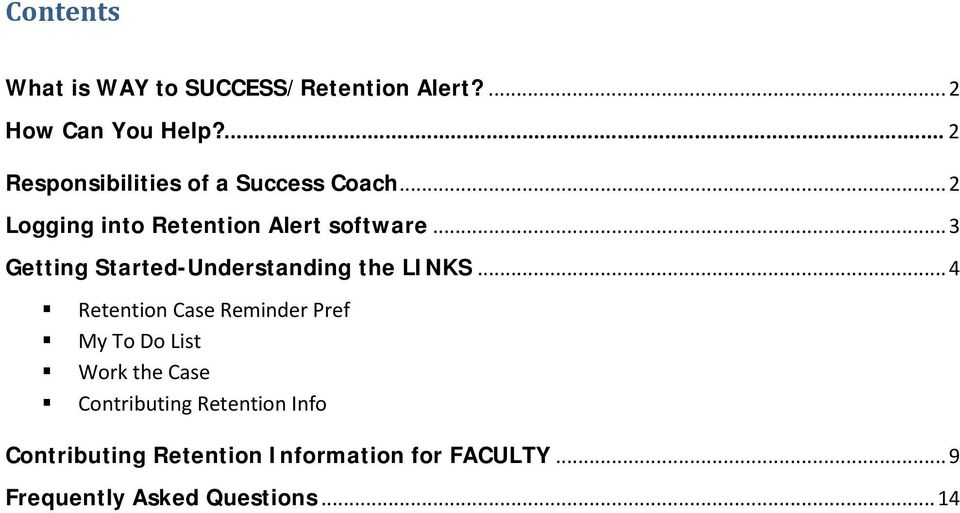
4 Logging into Retention Alert software You can access WAY to SUCCESS by logging into Web Advisor through mypittcc. Login to mypittcc on the homepage On your mypittcc login page, enter your first initial, middle initial and full last name and the last three digits of your Pitt CC ID number and your password. Click on PCC Services under the Launchpad Select the WAY to SUCCESS tab 3 P age
5 Getting Started-Understanding the LINKS LINK 1 RETENTION CASE REMINDER PREF By default, the system will automatically send you a reminder of cases you have open. If you choose not to receive a reminder, click on No and then Submit. LINK 2 MY TO DO LIST My to Do List will show you a reminder date, when the case was created, what assignment (category) the case belongs in, the priority level, workflow age and privacy setting. From My to Do List, choose a case to work on by clicking on a link under Pending Worklist Items. This will bring you to the Work the Case page. LINK 3 WORK THE CASE From this screen, you can run the student s program evaluation, view their profile with contact information, pull their transcript, view their GPA by Term, and see their placement test scores and their course schedule. From the Work the Case page, you can also choose to: Add a note to the case; set a reminder to work on the case; manage your reminder dates; add another type to the case; change the priority level of the case; reassign the case; close the case; go back to your to do list; or view all of the cases of that student. 4 P age

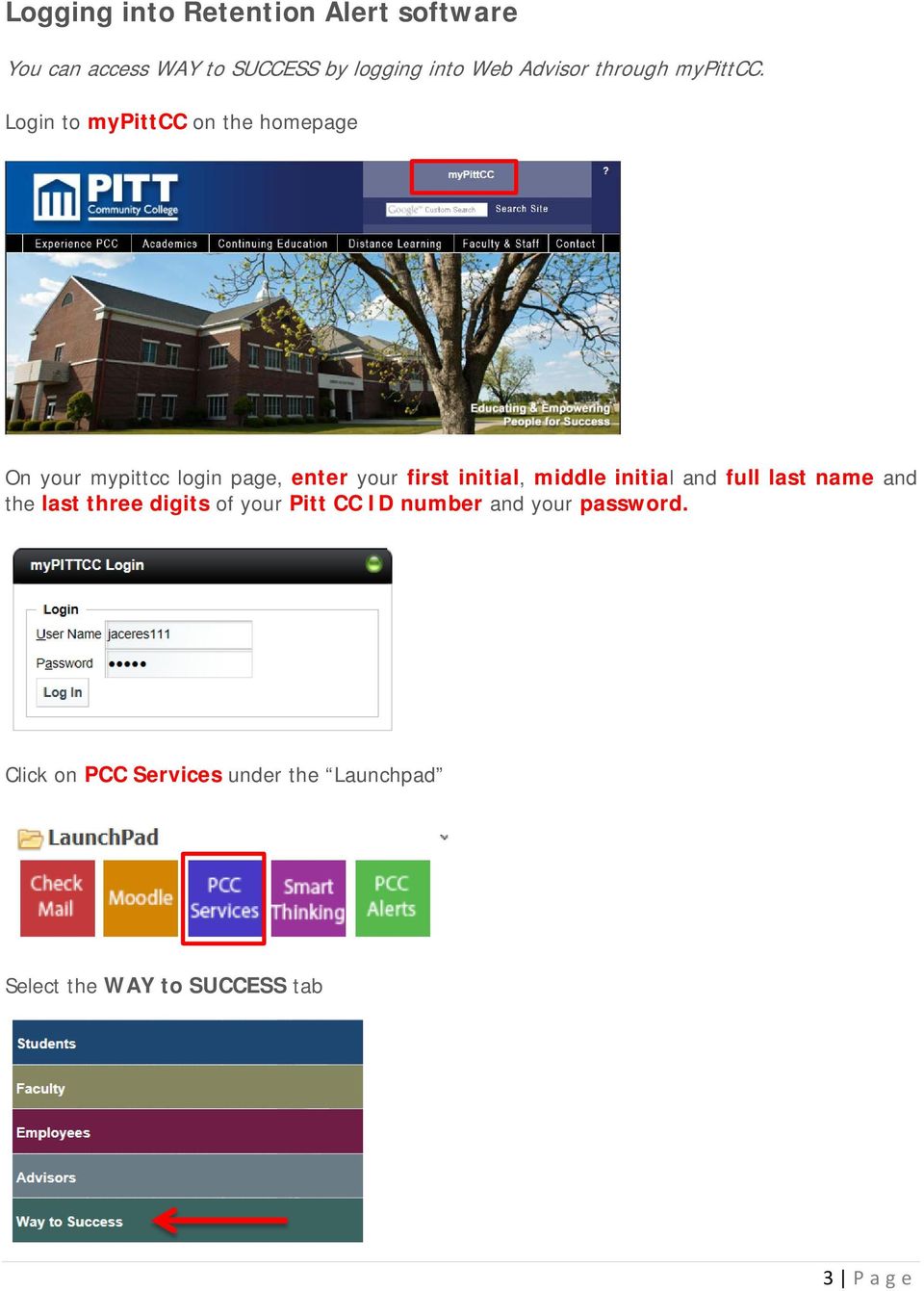
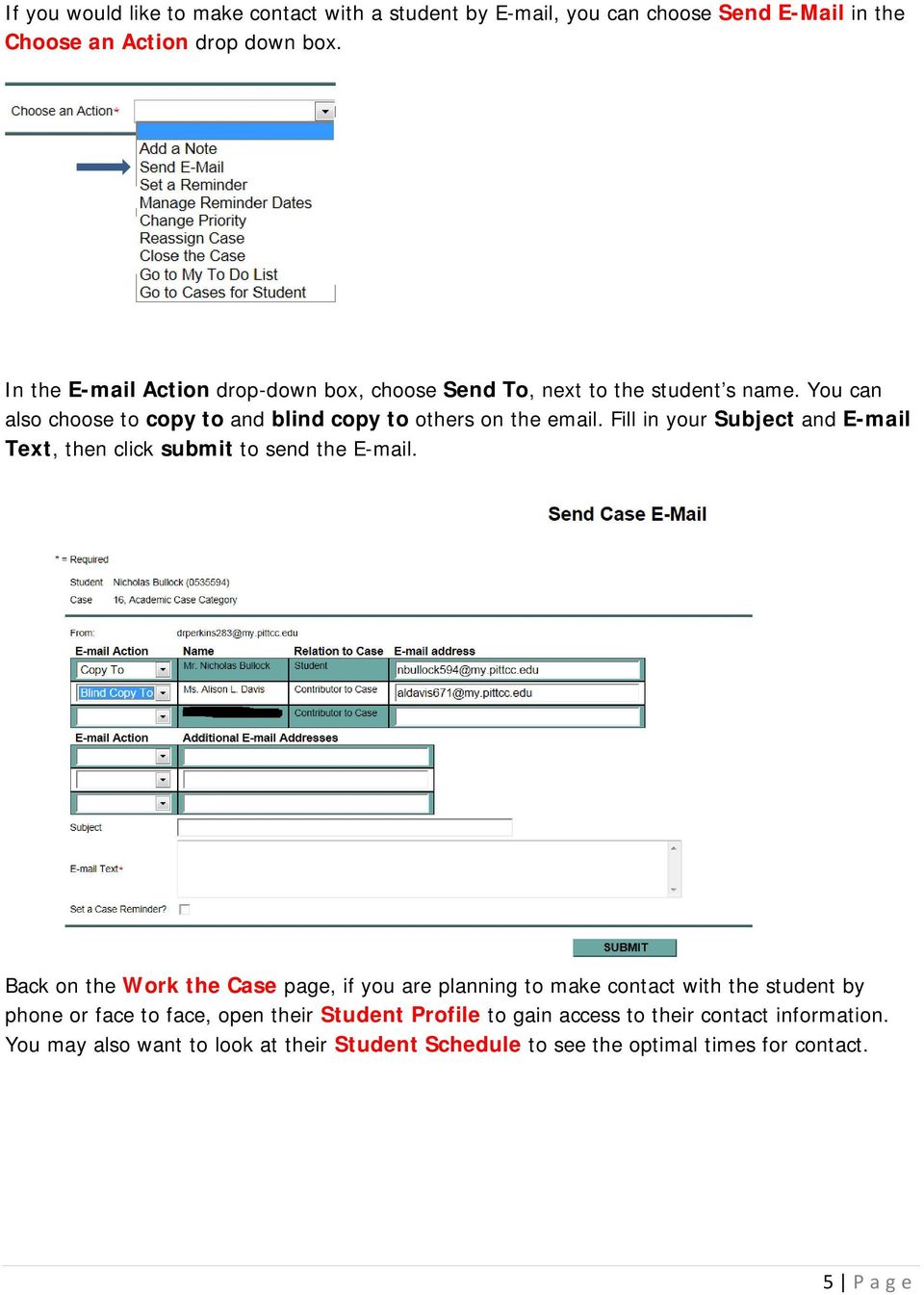
6 If you would like to make contact with a student by , you can choose Send in the Choose an Action drop down box. In the Action drop-down box, choose Send To, next to the student s name. You can also choose to copy to and blind copy to others on the . Fill in your Subject and Text, then click submit to send the . Back on the Work the Case page, if you are planning to make contact with the student by phone or face to face, open their Student Profile to gain access to their contact information. You may also want to look at their Student Schedule to see the optimal times for contact. 5 P age
7 Once you have made contact or met with the student, you will want to Add a Note to the case as documentation of that contact. You can do this one of two ways. From the Work the Case page, you can Choose an Action to Add a Note and click submit. Enter a Summary and Detailed Notes about the student. You should also indicate the Method of Contact(s) you used. Click on submit when finished. 6 P age

8 LINK 4 CONTRIBUTE RETENTION INFO Enter the student s ID or the Name of Student and click submit. On the Contribute Retention Info form, select the specific Type of Issue you would like to report on for this student. 7 P age

9 Enter a Summary and Detailed Notes about the student. You should also indicate the Method of Contact(s) you used. Click on submit when finished. 8 P age

10 Contributing Retention Information for FACULTY Log into WebAdvisor. This is also assessable in your mypittcc portal. Select the Faculty tab From the Faculty Information menu, select the Class Roster link. On the Class Roster form, select the appropriate section for the student 9 P age

11 Select the student link. On the Student Profile form click on the Add Retention Alert Info hyperlink in the lower left corner. On the Contribute Retention Info form, select the specific Type of Issue you would like to report on for this student: 10 P age

12 Enter a summary statement and detailed notes about the student. You should also indicate the Method of Contact(s) you used. Click on submit when finished. Once you submit, you will see a confirmation note about the issue you just submitted for the student and who the case will be assigned to. Viewing contributions that you have made previously Select My Contributions to Cases 11 P age

13 The system will display the cases of students for whom you have contributed an alert. The Item Date indicates when information was first contributed. There is a Case Status column that will indicate whether the case is New (entered but not yet acted upon), Active (has more than one alert submitted or is currently being worked on) or Closed (the case has been closed). Click on the link in the Summary column and you will be able to view any contributions that you have made to that particular case: To add new information or to request information regarding this student, select the Add/Request Info link in the far right hand column: 12 P age

14 You can add the information by entering summary and detailed notes. You can also indicate a method of contact. Once you submit, you will be brought back to the list of your contributions and there will be a confirmation comment indicating the update that you just made to the case. 13 P age

15 Frequently Asked Questions Q. What is Way to Success / Retention Alert? A. Way to Success is a campus-wide initiative that will help students be successful by building mentoring relationships and making access to College resources more readily available. Retention Alert is an online tracking tool used by Way to Success to manage contacts between students and Success Coaches and allow for better sharing of information that can benefit a student and increase retention. Q. What is a Success Coach? A. Success Coaches engage with students face-to-face and/or by or other methods of correspondence to help them identify obstacles they might be having that affect their success in school. Success Coaches are there to be a support system for students and to help direct them to appropriate college resources. Q. How is a student assigned to a Success Coach? A. The Retention Alert system automatically assigns students to Success Coaches based on a set of criteria. The Way to Success initiative takes a proactive approach in offering intervention for students who may be at risk. In most cases, Success Coaches are paired with students who are in their division or area. Q. How many students will a Success Coach be assigned? A. Success Coaches are assigned 4-6 students each semester. Q. How do I know which students have been assigned to me and the reason for their assignment? A. Success Coaches will be able to see the students assigned to them, along with the reason for the assignment, through the Retention Alert software, available via mypittcc/webadvisor. Q. What if the student needs to be seen by another office on campus? A. Success Coaches have the ability to refer students through Retention Alert to other offices or individuals on campus who may be able to offer additional assistance. Once a student has been referred, the Success Coach no longer owns that case. 14 P age

16 For more information, contact: JOANNE CERES P age

FAQ for Students. Note: The new password must be between six and 12 characters long.
 What is MY Portal? MY Portal is a secure website that provides access to news, announcements, personal information, registration and online billing services, collaboration areas, Blackboard and email.
The PTA s new membership website database and dues reporting system
 M3 The PTA s new membership website database and dues reporting system State Level Actions from Task Menu M3 CAPABILITIES The State must authorize a user to have access to M3. The State s authorized users
Academic Senate Data Management System
 Academic Senate Data Management System User s Guide for Committee Members 9/22/2015 The Academic Senate uses the Data Management System (DMS) for managing, sharing, and archiving council and committee
Big Lots Vendor Compliance Web Portal User Guide - Vendor
 Big Lots Vendor Compliance Web Portal User Guide - Vendor https://visibility.inovis.com/dataquality/xclient/biglots 1. To login to the system for the first time: Open the New User Notification Invite e-mail
Faculty Introduction to Self-Service
 Faculty Introduction to Self-Service This user guide focuses on how faculty members can use Self-Service to access and update their information. Using a Web browser, faculty members can enter student grades,
BE A SCHOOL VOLUNTEER (For Parents and Community Members)
 Be a School Volunteer is a Web-based application developed to facilitate and expedite the process of becoming a school volunteer. Employees, Parents, Students and Community members will be able to apply
MAP-Works User Guide: Professional Staff/Advisors 2013-14
 Table of Contents Overview... 2 Logging In... 3 Home Page... 3 Overview of all students assigned to you... 4 View a specific student... 5 Student Tracking Page... 6 Contacting students... 6 Create a student
College Faculty Salary & Credentialing System User Document 1
 WELCOME! The College Faculty Salary and Credentialing System has been developed to streamline the process of Salary Placement and Credentialing submission, review, and approval. Features include: Secure
UTRGV PeopleAdmin Applicant Tracking System
 UTRGV PeopleAdmin Applicant Tracking System Quick Links: How do I access PeopleAdmin? How do I navigate through PeopleAdmin? How do I login to PeopleAdmin? How do I perform as a Search Committee Member
Jobs4Saints User Guide: How to Post a Position
 Jobs4Saints User Guide: How to Post a Position Jobs4Saints can be accessed from the following site: https://www.myinterfase.com/marymount/employer/ Below is the log-in screen for employers. Please log
Instructor Quick Start Guide for Blackboard's Deep Integration with Macmillan s LaunchPad
 Instructor Quick Start Guide for Blackboard's Deep Integration with Macmillan s LaunchPad Version 1.1 2/21/14 Table of Contents 1. Confirm that the Commercial Content Tools are available in your Blackboard
EchoSign Integration
 EchoSign Integration CURA Technical Support Email: [email protected] Phone: 1.888.322.2362 x 555 EchoSign Integration Page 2 Table of Contents Getting Started With EchoSign... 3 Sending Documents
Faculty Guide. Amber Weaver 2012 www.gradesfirst.com
 2012 Faculty Guide Amber Weaver 2012 www.gradesfirst.com Table of Contents Introduction..1 Getting Started & Support 1 Home...2 Messaging Students....3 Entering Attendance.4-7 Classroom Assignments. 7-8
This is a two-step process: Grade Entry and Grade Approval. The steps for each process are outlined below:
 Grade Entry for Instructors who can Approve Grades Instructors who are teaching and also have the ability to 'approve and post' grades in the system have the capability to enter AND approve their own grades.
Advising/Early Registration - Student Procedures. Required Courses. Course Name Other Information Advisor Initials. Other Courses
 Advising/Early Registration - Student Procedures Step One Meet with an Academic Advisor Your academic advisor will go over the courses that you have currently taken and will create a list of courses that
Student Group Management System (SGMS) Advisor Guide 2.0
 Student Group Management System (SGMS) Advisor Guide 2.0 Copyright 2008 www.symplicity.com Page 1 of 18 Table of Contents Section 1: Adding a Channel to Your Portal... 3 Section 2: Logging into SGMS2...
Gyanmandir Applications EMPLOYEE SOP FOR PMS (2009 10 )
 EMPLOYEE SOP FOR PMS (2009 10 ) Table of Contents PMS...3 KRA Template:...5 ICA Individual Contribution Area....6 CR Template:...7 Tabs available in Menu for the Employee:...8 Manager s Tab:...9 Assessment
DataDirector Getting Started
 DataDirector Getting Started LOGIN Log into the DataDirector website: https://www.achievedata.com/yourdistrictname User Name: New Password: Enter your User Name and Password o After login, you may need
AdvisorTrac 4.0 Advisor Guide
 SEARCHING FOR STUDENTS HOVER ON THE MAGNIFYING GLASS AND CLICK STUDENT. A Students Listing box will appear (with an alphabetical list of all students). To enter the search box, click on the arrow by List
eservices Self Service Help for Students
 eservices Self Service Help for Students This document covers how to perform several common tasks in eservices. How To: Find Login ID and Use Password Change Password Browse Schedule & Course Catalog Enroll
Communication Matrix Group Management. A quick guide to walk you through the basics
 Communication Matrix Group Management A quick guide to walk you through the basics What is Group Management? Group Management was created to help organizations such as school districts, outpatient clinics,
Customer Ad Proofing Portal
 Customer Ad Proofing Portal User Guide The Day Publishing Company - Customer Ad Proofing Portal 2 Introduction The customer ad proofing portal allows advertising customers to view electronic proofs and
INTRODUCTION TO THE UC LEARNING CENTER. 2 SYSTEM REQUIREMENTS. 3 LOGGING ON TO THE UC LEARNING CENTER. 4 THE UC LEARNING CENTER HOME PAGE. 24 NOTES:.
 UC Learning Center INTRODUCTION TO THE UC LEARNING CENTER... 2 SYSTEM REQUIREMENTS... 3 LOGGING ON TO THE UC LEARNING CENTER... 4 THE UC LEARNING CENTER HOME PAGE... 6 UPDATING YOUR PERSONAL INFORMATION...
Schools CPD Online General User Guide Contents
 Schools CPD Online General User Guide Contents New user?...2 Access the Site...6 Managing your account in My CPD...8 Searching for events...14 Making a Booking on an Event...20 Tracking events you are
FACULTY CRM TRAINING MANUAL
 FACULTY CRM TRAINING MANUAL Nancy Bluse, Senior Business Consultant The Faculty CRM (Constituent Relationship Management) in JICS (Jenzabar Integrated Campus Solution) is designed to give faculty and advisors
Welcome to Your FCSL Student Web Portal. Course Schedule Students can view and search course schedules and view class details.
 Welcome to Your FCSL Student Web Portal Course Schedule Students can view and search course schedules and view class details. Online Registration Online registration allows students to register for courses
Table of Content. Last Revised 04/05/12
 Table of Content What is DegreeWorks?... 3 Who can access DegreeWorks?... 3 DegreeWorks helps by:... 3 How is a DegreeWorks audit different from your transcript?... 3 How to Access DegreeWorks... 4 Login
Symplicity Walk-Through
 Symplicity Walk-Through UF Law Center for Career Development Career Development maintains an online listing of full-time, part-time and summer employment opportunities for all students and alumni. Symplicity
On-Campus Employer Guide
 On-Campus Employer Guide How to navigate the Career Connections Opportunities Board WELCOME! This guide will help you navigate our online job system the Career Connections Opportunities Board. With this
Admin Reference Guide. PinPoint Document Management System
 Admin Reference Guide PinPoint Document Management System 1 Contents Introduction... 2 Managing Departments... 3 Managing Languages... 4 Managing Users... 5 Managing User Groups... 7 Managing Tags... 9
Online Student Services at Thomas Edison State College Student User Guide Access the newly redesigned Online Student Services at:
 Online Student Services at Thomas Edison State College Student User Guide Access the newly redesigned Online Student Services at: https://webadvisor1.tesc.edu/webadvisor/webadvisor At Thomas Edison State
Process Document Campus Community: Create Communication Template. Document Generation Date 7/8/2009 Last Changed by Status
 Document Generation Date 7/8/2009 Last Changed by Status Final System Office Create Communication Template Concept If you frequently send the same Message Center communication to selected students, you
Terminology. Enabling Parent Single Sign-On. Server Configuration
 Parent Single Sign-On offers a number of benefits, including access to multiple students with one sign in, a personalized account for each parent and guardian, and the ability for parents to retrieve their
Selection Manager: Quick Start Guide
 VERSION 1103 01.24.12 SELECTION MANAGER GUIDE Selection Manager: Quick Start Guide PART 1: GENERAL INFORMATION Selection Manager is the hiring official s interface for USA Staffing. In Selection Manager,
How to Inquire, Cancel, Approve or Deny a PeopleSoft Access Request through the Access Request Approval Page
 How to Inquire, Cancel, Approve or Deny a PeopleSoft Access Request through the Access Request Approval Page This Job Aid will provide help for Request Initiators, Managers and RoleSet+ Approvers (Individuals
Purpose: This tutorial demonstrates how to log on to WebAdvisor and register for classes.
 Computer Tutorial: Register for Classes Purpose: This tutorial demonstrates how to log on to WebAdvisor and register for classes. Register for Classes: NOTE: New students must have their admission application
Starfish Tutorial/Manual for Students at Valley City State University
 Starfish Tutorial/Manual for Students at Valley City State University 1 Table of Contents Introduction... 3 To begin using Starfish:... 3 Navigating Starfish... 3 Home... 3 Success Network... 3 My Success
PEOPLESOFT STUDENT SYSTEM
 PEOPLESOFT STUDENT SYSTEM Student Center In order to access your personal information on-line, you must have a PeopleSoft account established at Clarkson. This is automatically created for currently enrolled
Online Employment System User Manual
 Troy University Online Employment System User Manual People Admin Version 7 Human Resources April 2014 Table of Contents Introduction... 2 User Types and Access... 2 Creating a User Account... 3 Homepage...
BU BRAIN Self Service GRADING PROCEDURES FOR FACULTY. Updated May 2014/PD
 BU BRAIN Self Service GRADING PROCEDURES FOR FACULTY Updated May 2014/PD 1 Table of Contents Binghamton Portal Login.....page 3 Faculty Tools. page 4 Enter Grades.pages 5-6 Terminology..page 7 Grade Modes...pages
Ramsey County Supplier Portal Instuctions Aspen Supplier Contract Management (SCM) System
 Introduction: Ramsey County Professional Services Agreements ( PSA ) and Client Services Agreements ( CSA ) will now be electronically approved by both the Contractor and the appropriate Ramsey County
currently registered students only Notes: does not work Submit http://oduonline.ohiodominican.edu. Log In Login
 ODU Online is a web-based system allowing access to student information contained in the administrative database. In this version, users are able to view their schedule, grades, GPA, transcript, and more.
Isenberg Ticketing Service Center
 Isenberg Ticketing Service Center SUPPORT.ISENBERG.UMASS.EDU TRAINING 2015 The Short List If you are already familiar with the ticketing system here is a brief overview. A more in-depth training will follow
Campus Online Degree Works
 Campus Online Degree Works Topics: 1) How do I view Degree Audits using Campus Online 2) FERPA statement In order to access Campus Online, you first need to log on to the RU Portal at https://www.portal.radford.edu.
If you have difficulty logging in to ESS, here are some other helpful hints to remember:
 Log in to ESS Go to www.strsoh.org/employer. It is very important that you have your own user name and password to submit information via ESS. If you do not have an ESS account, please contact your STRS
Title Electronic Scheduling of Equipment. Boston University Photonics Center Page 1 of 10
 Boston University Photonics Center Page 1 of 10 1. Purpose 1.1. This procedure describes how to electronically schedule and check availability of equipment in the shared laboratories at Boston University
Thank you for visiting the Online Course Proposal Web Tutorial for new and existing courses for Brown University Faculty and Staff.
 Thank you for visiting the Online Course Proposal Web Tutorial for new and existing courses for Brown University Faculty and Staff. 1 To access Self Service Banner, you will need to login to https://selfservice.brown.edu
In order to use the Pearson English Interactive Placement Test, you must first set the test up as a course at MyEnglishLab.com.
 Pearson English Interactive is an online four-level video-based, integrated-skills program for young adults, adult students, and professionals. The Pearson English Interactive Placement Test will accurately
Technology Quick Reference revised Fall 2014
 Where do I go? www.sandburg.edu mysandburg Student Portal Click on the link in the upper right-hand corner of the Sandburg website What is it? How can I use it? Carl Sandburg College website. All general
TBR System Office Performance Management Employee s Guide
 TBR System Office Performance Management Employee s Guide A Step-By-Step Employee Guide for completing performance evaluations in the PeopleAdmin Performance Management Suite PeopleAdmin 7.0 is a multi-functional
You can access the FAMIS portal by going to the main FAU home web page, clicking on the Faculty & Staff tab, and under Forms & Requests, clicking on
 You can access the FAMIS portal by going to the main FAU home web page, clicking on the Faculty & Staff tab, and under Forms & Requests, clicking on Work Order. You will be directed to the Work Control
Understanding PowerSchool Parent Portal with Single Sign-On
 nderstanding PowerSchool Parent Portal with Single Sign-On The Power of the application comes from understanding what it can do and how it can help you participate in your child s education. Introduction
Set up Delegate & Travelers
 Set up Delegate & Travelers Setting Up a Delegate and Assigning New Travelers Learn how to Login to Banner Travel and Expense Management Application and to set up yourself as a Delegate and assign Travelers
Starfish at UNCG- Faculty and Advisor Guide. Holly Grabowski, Coordinator of Academic Outreach Students First
 Starfish at UNCG- Faculty and Advisor Guide Holly Grabowski, Coordinator of Academic Outreach Students First Introduction to Starfish Starfish is an early alert software that is accessed through Blackboard
MY EWU PORTAL FEATURES AND BENEFITS. Promotion of the Eastern brand name
 MY EWU PORTAL The My EWU web portal is an interactive website that provides single sign-on access to different EWU information and services. Content is based on your role or roles for example; student,
Instructor Getting Started Guide for Desire2Learn
 Instructor Getting Started Guide for Desire2Learn Table of Contents About McGraw-Hill Campus... 2 Before you begin... 2 Initial Setup of the McGraw-Hill Campus Module... 3 Accessing McGraw-Hill Campus...
FOR EMPLOYEES AND STUDENTS SECURE RCCD ALERTS! WEB ADVISOR
 FOR EMPLOYEES AND STUDENTS SECURE RCCD ALERTS! WEB ADVISOR Registering for Alert! Messages in WEBADVISOR INTRODUCTION During emergencies and critical events it is imperative that employees, students and
Online Education. @ Sandhills Community College. A Guide to Your Rights And Responsibilities
 Revised Fall 2014 Online Education @ Sandhills Community College A Guide to Your Rights And Responsibilities Before enrolling in any online or hybrid course at Sandhills Community College, please familiarize
Online Statements. About this guide. Important information
 Online Statements About this guide This guide shows you how to: View online statements, including CommBiz Activity Statements (Billing summaries) and online statements for Transaction Accounts, Credit
Creating a Google Voice Account:
 Google Voice: Texting Appointment Reminders to Students Google Voice is a free web-based program that provides the opportunity to send and receive free text messages and calls. All that is necessary is
Student Manager s Guide to the Talent Management System
 Department of Human Resources 50 Student Manager s Guide to the Talent Management System 1 Table of Contents Topic Page SYSTEM INTRODUCTION... 3 GETTING STARTED... 4 NAVIGATION WITHIN THE TALENT MANAGEMENT
The ZIS Parents Portal is a central resource for the parents and guardians, bringing information from a variety of sources into one place.
 Parents Portal The ZIS Parents Portal is a central resource for the parents and guardians, bringing information from a variety of sources into one place. On the home page there are some of the most frequently
Using VoiceThread in Your Online Course (Faculty) Step 1: Create a Link for Yourself to Voicethread (1X per course)
 Using VoiceThread in Your Online Course (Faculty) Step 1: Create a Link for Yourself to Voicethread (1X per course) 1. Navigate to the MyGateway course where you wish to add VoiceThread. You will first
PowerSchool Parent Portal with Single Sign-On
 PowerSchool Parent Portal with Single Sign-On The Power of the application comes from understanding what it can do and how it can help you participate in your child s education. Introduction PowerSchool
Campus Solutions Self Service: Student Quick Reference Guide
 Campus Solutions Self Service: Student Table of Contents Introduction to Step Sheets... 4 Getting Started in CUNYfirst... 5 Activate My CUNYfirst Account... 6 Log into My CUNYfirst Account... 10 Sign Out
Add Title. Electronic Services Verification Instructions
 Add Title Electronic Services Verification Instructions Electronic Services Verification Instructions Access CHAMPS Enter Daily Tasks What to do if the Client is Not in the Home Log services for Multiple
Logging into LTC Instant Access the First Time
 Logging into LTC Instant Access the First Time Access the Instant Access website at: https://mycampus.gotoltc.edu Enter your LTC network username and password. These are the credentials you use to initially
HOW TO RUN A CAPP DEGREE EVALUATION. 1. From the FSU Homepage (http://www.uncfsu.edu), click Faculty & Staff
 1. From the FSU Homepage (http://www.uncfsu.edu), click Faculty & Staff 1 2. Select Banner Log In 2 3. Select Login 3 4. Enter your Banner ID and Pin Banner ID Pin 4 5. Select Faculty & Advisors 5 6. Select
DEPARTMENT OF VETERANS AFFAIRS Financial Services Center Dialysis Provider Portal User Guide. Version 3.0 May 2015
 DEPARTMENT OF VETERANS AFFAIRS Financial Services Center Dialysis Provider Portal User Guide Version 3.0 May 2015 1. Provider Portal for Dialysis Overview The VA Financial Services Center (FSC) Dialysis
understanding MyAccount
 understanding MyAccount https://myaccount.fuelbroadband.co.uk Contents 1. How to Log in to MyAccount 2 2. What can you do from the welcome page of MyAccount? 4 3. Understanding My Bill 5 4. My Alerts 7
Web Advisor Instructions Link to WebAdvisor through Sacred Heart Website by clicking on MYSHU Log In and Choose Faculty Point of Entry
 Using Web Advisor How Do I Web Advisor Instructions Link to WebAdvisor through Sacred Heart Website by clicking on MYSHU Log In and Choose Faculty Point of Entry How do I view my course schedule From the
Student Orientation Guide CHIPOLA COLLEGE e-learning Desire2Learn (D2L)
 Student Orientation Guide CHIPOLA COLLEGE e-learning Desire2Learn (D2L) Chipola d2l Student Orientation Guide Page 1 Table of Contents What s in this Orientation?... 3 Chipola College e-learning with D2L...
Support System User Guide
 Support System User Guide The Virtual Office support system provides users with a useful way to submit and track issues and resolutions. This feature- rich system is one more way that VO provides customers
Perform this procedure when you need to add a recurring payment option, or when you need to change or withdraw it.
 Purpose Use this procedure to add, change, or remove recurring payments. Trigger Perform this procedure when you need to add a recurring payment option, or when you need to change or withdraw it. Prerequisites
Instructor Getting Started Guide for Desire2Learn
 Instructor Getting Started Guide for Desire2Learn Table of Contents About McGraw-Hill Campus... 2 Before you begin... 2 Initial Setup of the McGraw-Hill Campus Module... 3 Accessing McGraw-Hill Campus...
PPL Web Portal Instructional Manual
 PA OLTL Participant Directed Model of Service PPL Web Portal Instructional Manual Table of Contents Online User Registration for Participants & DCWs...3 How DCWs Create & Submit Electronic Timesheets.8
Quick Start Guide Students must wait until the first day of the semester to gain access to their online and hybrid course(s).
 Quick Start Guide Students must wait until the first day of the semester to gain access to their online and hybrid course(s). The following topics are covered in this guide: How to Login to Moodle Locating
DOCQN. Account. CA Departm. Version 2.0
 DOCQN NET Project Account Creation & Maintenancee CA Departm ment of Business Oversight Version 2.0 (6/18/2014) Table of Contents 1. Overview... 3 2. Account Management... 4 2.1 How to Create a New Account...
Read Naturally, Inc. Version: 05 February 2016. Saint Paul, Minnesota
 USER GUIDE Version: 05 February 2016 Read Naturally, Inc. Saint Paul, Minnesota Phone: 800.788.4085/651.452.4085 Website: www.readnaturally.com Email: [email protected] Copyright 2011 2016 Read Naturally,
SIS Support Help Desk Center. SharePoint & Ticket System Overview
 SIS Support Help Desk Center SharePoint & Ticket System Overview Table of Contents LOGGING INTO THE SIS SUPPORT SHAREPOINT... 3 LOGGING OUT OF THE SIS SUPPORT SHAREPOINT... 5 LOGGING INTO THE HELP DESK
Guide. for HR Users. Posted May 1, 2012
 Guide for HR Users Posted May 1, 2012 Go to this URL: https://hrx.talx.com/webmanager/loginclientkey.aspx to log on to the Administrative site for the UGA Onboarding System. The Employer Code is 13990
Hatco Lead Management System: http://hatco.scangroup.net/
 Hatco Lead Management System User Guide General Notes: The Hatco Lead Management System (HLMS) is designed to work with modern web browsers, such as Internet Explorer 9 or newer, Firefox, Chrome & Safari.
myuttyler Online Registration Tutorial
 myuttyler Online Registration Tutorial 1. On the UT Tyler homepage, select myuttyler under the UT Tyler Logins drop-down menu. 2. Sign on using your Patriot username and password. NOTE FOR NEWLY ADMITTED
Wildcat Web Student Guide
 Wildcat Web Student Guide Section I: Access and login to Wildcat Web Account Following are the steps to log in to your Wildcat Web account. View your class schedule, set up meetings with your advisor,
Terminal Four. Content Management System. Moderator Access
 Terminal Four Content Management System Moderator Access Terminal Four is a content management system that will easily allow users to manage their college web pages at anytime, anywhere. The system is
Patient Portal Users Guide
 e-mds Solution Series Patient Portal Users Guide Version 7.0 How to Use the Patient Portal CHARTING THE FUTURE OF HEALTHCARE e-mds 9900 Spectrum Drive. Austin, TX 78717 Phone 512.257.5200 Fax 512.335.4375
Link / Login / Logout Page 2. Home Page Page 2. Home Page Breakdown by Levels Page 3. Home Page Breakdown by Columns Page 3
 Table of Contents Link / Login / Logout Page 2 Home Page Page 2 Home Page Breakdown by Levels Page 3 Home Page Breakdown by Columns Page 3 Home Page Main Menu Links.. Page 4 Sort by Page.. Page 4 Main
Recruitment Management System (RMS) User Manual
 Recruitment Management System (RMS) User Manual Contents Chapter 1 What is Recruitment Management System (RMS)? 2 Chapter 2 Login/ Logout RMS Chapter 3 Post Jobs Chapter 4 Manage Jobs Chapter 5 Manage
Managing Customers. Pipfrog AS www.pipfrog.com
 Customer Management Managing Customers Customer management takes place in the Manage Customers submenu of Customers menu. Customer management page displays information on registered customers. Customers
PROCESSES FOR T HE AGENCY TRAINING AGENT
 PROCESSES FOR T HE AGENCY TRAINING AGENT This Job Aid will assist in the various processes to register students for classes and how to maintain student database in the Learning Management System (LMS).
BATS Global Markets, Inc. U.S. Data Product Declarations User Manual
 BATS Global Markets, Inc. U.S. Data Product Declarations User Manual Overview of the Data Product Declarations Tool and Uncontrolled / Controlled Data Distributor Reporting Obligations The Data Product
Eduphoria Helpdesk for Campus Facilitators
 Eduphoria Helpdesk for Campus Facilitators Managing Requests in Eduphoria Helpdesk Helpdesk benefits both the facilitator and the staff member in that they can utilize Helpdesk to communicate and track