
BEAWebLogic. Portal. Portlet Development Guide
|
|
|
- Kellie Holmes
- 9 years ago
- Views:
Transcription
1 BEAWebLogic Portal Portlet Development Guide Version 10.0 Revised: March 2007

2 Copyright Copyright BEA Systems, Inc. All Rights Reserved. Restricted Rights Legend This software is protected by copyright, and may be protected by patent laws. No copying or other use of this software is permitted unless you have entered into a license agreement with BEA authorizing such use. This document is protected by copyright and may not be copied photocopied, reproduced, translated, or reduced to any electronic medium or machine readable form, in whole or in part, without prior consent, in writing, from BEA Systems, Inc. Information in this document is subject to change without notice and does not represent a commitment on the part of BEA Systems. THE DOCUMENTATION IS PROVIDED AS IS WITHOUT WARRANTY OF ANY KIND INCLUDING WITHOUT LIMITATION, ANY WARRANTY OF MERCHANTABILITY OR FITNESS FOR A PARTICULAR PURPOSE. FURTHER, BEA SYSTEMS DOES NOT WARRANT, GUARANTEE, OR MAKE ANY REPRESENTATIONS REGARDING THE USE, OR THE RESULTS OF THE USE, OF THE DOCUMENT IN TERMS OF CORRECTNESS, ACCURACY, RELIABILITY, OR OTHERWISE. Trademarks and Service Marks Copyright BEA Systems, Inc. All Rights Reserved. BEA, BEA JRockit, BEA WebLogic Portal, BEA WebLogic Server, BEA WebLogic Workshop, BEA Workshop for WebLogic Platform, BEA WebLogic RFID Mobile SDK, Built on BEA, Jolt, JoltBeans, SteelThread, Top End, Tuxedo, and WebLogic are registered trademarks of BEA Systems, Inc. BEA AquaLogic, BEA AquaLogic Data Services Platform, BEA AquaLogic Enterprise Security, BEA AquaLogic Interaction, BEA AquaLogic Interaction Analytics, BEA AquaLogic Interaction Collaboration, BEA AquaLogic Interaction Integration Services, BEA AquaLogic Interaction Process, BEA AquaLogic Interaction Publisher, BEA AquaLogic Interaction Studio, BEA AquaLogic Service Bus, BEA AquaLogic Service Registry, BEA AquaLogic BPM Designer, BEA AquaLogic BPM Studio, BEA AquaLogic BPM Enterprise Server Standalone, BEA AquaLogic BPM Enterprise Server BEA WebLogic, BEA AquaLogic BPM Enterprise Server IBM WebSphere, BEA AquaLogic BPM Enterprise Server JBoss, BEA AquaLogic BPM Process Analyzer, BEA AquaLogic Interaction Development Kit, BEA AquaLogic Interaction JSR-168 Consumer, BEA AquaLogic Interaction Identity Service Active Directory, BEA AquaLogic Interaction Identity Service LDAP, BEA AquaLogic Interaction Content Service Microsoft Exchange, BEA AquaLogic Interaction Content Service Lotus Notes, BEA AquaLogic Interaction Logging Utilities, BEA AquaLogic Interaction WSRP Consumer, BEA AquaLogic Interaction Portlet Framework Microsoft Excel, BEA AquaLogic Interaction.NET Application Accelerator, AquaLogic Interaction Content Service Documentum, BEA AquaLogic Interaction Content Service Windows Files, BEA AquaLogic Interaction Portlet Suite IMAP, BEA AquaLogic Interaction Portlet Suite Lotus Notes, BEA AquaLogic Interaction Portlet Suite Exchange, BEA AquaLogic Interaction Portlet Suite Documentum, BEA AquaLogic Interaction IDK Extension, BEA AquaLogic HiPer Workspace for BPM, BEA AquaLogic HiPer Workspace for Retail, BEA AquaLogic Sharepoint Console, BEA AquaLogic Commerce Services, BEA Builder, BEA Campaign Manager for WebLogic, BEA elink, BEA Kodo, BEA Liquid Data for WebLogic, BEA Manager, BEA MessageQ, BEA SALT, BEA Service Architecture Leveraging Tuxedo, BEA WebLogic Commerce Server, BEA WebLogic Communications Platform, BEA WebLogic Enterprise, BEA WebLogic Enterprise Platform, BEA WebLogic Enterprise Security, BEA WebLogic Express, BEA WebLogic Integration, BEA WebLogic Java Adapter for Mainframe, BEA WebLogic JDriver, BEA WebLogic Log Central, BEA WebLogic Mobility Server, BEA WebLogic Network Gatekeeper, BEA WebLogic Personalization Server, BEA WebLogic Personal Messaging API, BEA WebLogic Platform, BEA WebLogic Portlets for Groupware Integration, BEA WebLogic Real Time, BEA WebLogic RFID Compliance Express, BEA WebLogic RFID Edge Server, BEA WebLogic RFID Enterprise Server, BEA WebLogic Server Process Edition, WebLogic Server Virtual Edition, WebLogic Liquid Operations Control, BEA WebLogic SIP Server, BEA WebLogic WorkGroup Edition, BEA Workshop for WebLogic Platform, BEA Workshop for JSF, BEA Workshop for JSP, BEA Workshop for Struts, BEA Workshop Studio, Dev2Dev, Liquid Computing, and Think Liquid are trademarks of BEA Systems, Inc. Accelerated Knowledge Transfer, AKT, BEA Mission Critical Support, BEA Mission Critical Support Continuum, CollabraSuite BEA Edition, BEA Guardian and BEA SOA Self Assessment are service marks of BEA Systems, Inc. All other names and marks are property of their respective owners.

3 Contents 1. Introduction Portlet Overview Portlet Development and the Portal Life Cycle Architecture Development Staging Production Getting Started Prerequisites Related Guides Part I. Architecture 2. Portlet Planning Portlet Development in a Distributed Portal Team Portlets in a Non-Portal Environment Planning Portlet Instances Security Interportlet Communication Performance Planning Portlet Types Java Server Page (JSP) and HTML Portlets BEA WebLogic Portal Portlet Development Guide iii
4 Java Portlets (JSR 168) Java Page Flow Portlets Struts Portlets Java Server Faces (JSF) Portlets Browser (URL) Portlets Remote Portlets Portlet Type Summary Table Part II. Development 4. Understanding Portlet Development Portlet Components Portlet Properties Portlet Title Bar, Mode, and State Portlet Preferences Resources for Creating Portlets Portlet Rendering Render and Pre-Render Forking Asynchronous Portlet Content Rendering Portlets as Popups (Detached Portlets) JSP Tags and Controls in Portlets Backing Files Building Portlets Supported Portlet Types Portlets in J2EE Shared Libraries Portlet Wizard Reference Order of Creation - Resource or Portlet First Starting the Portlet Wizard iv BEA WebLogic Portal Portlet Development Guide
5 New Portlet Dialog Select Portlet Type Dialog How to Build Each Type of Portlet JSP and HTML Portlets Java Portlets Java Page Flow Portlets JSF Portlets Browser Portlets Struts Portlets Remote Portlets Web Service Portlets Detached Portlets Considerations for Using Detached Portlets Building Detached Portlets Working with Inlined Portlets Extracting Inlined Portlets Setting the Theme of an Inlined Portlet Extracting Books and Pages Portlet Properties Editing Portlet Properties Tips for Using the Properties View Portlet Properties in the Portal Properties View Portlet Properties in the Portlet Properties View Portlet Preferences Specifying Portlet Preferences Using the Preferences API to Access or Modify Preferences Portlet Preferences SPI Best Practices in Using Portlet Preferences BEA WebLogic Portal Portlet Development Guide v

6 Backing Files How Backing Files are Executed Thread Safety and Backing Files Scoping and Backing Files Backing File Guidelines Portlet Appearance and Features Portlet Dependencies Portlet Modes Creating Custom Modes Portlet States Portlet Title Bar Icons Portlet Height and Scrolling Getting Request Data in Page Flow Portlets JSP Tags and Controls in Portlets Viewing Available JSP Tags Viewing Available Controls Portlet State Persistence Adding a Portlet to a Portal Deleting Portlets Advanced Portlet Development with Tag Libraries Adding ActiveMenus Enabling Drag and Drop Enabling Dynamic Content Using the User Picker Importing and Exporting Java Portlets Importing Java Portlets Exporting Java Portlets Using the JSR168 Import Utility vi BEA WebLogic Portal Portlet Development Guide

7 6. Optimizing Portlet Performance Performance-Related Portlet Properties Portlet Caching Remote Portlets Portlet Forking Configuring Portlets for Forking Architectural Details of Forked Portlets Best Practices for Developing Forked Portlets Asynchronous Portlet Content Rendering Implementing Asynchronous Portlet Content Rendering Thread Safety and Asynchronous Rendering Considerations for IFRAME-based Asynchronous Rendering Considerations for AJAX-based Asynchronous Rendering Comparison of IFRAME- and AJAX-based Asynchronous Rendering Comparison of Asynchronous and Conventional or Forked Rendering Portal Life Cycle Considerations with Asynchronous Content Rendering Asynchronous Content Rendering and IPC Local Interportlet Communication Definition Labels and Interportlet Communication Portlet Events Event Handlers Event Types Event Actions Portlet Event Handlers Wizard Reference IPC Example Before You Begin - Environment Setup Basic IPC Example BEA WebLogic Portal Portlet Development Guide vii

8 IPC Special Considerations and Limitations Using Asynchronous Portlet Rendering with IPC Generic Event Handler for WSRP Consistency of the Listen To Field Using BEA and Third-Party Portlets Using the Content Presenter Portlet Configuring the Content Presenter Portlet Creating Custom Templates and Template Views Using the Collaboration Portlets What Are Collaboration Portlets? Adding Collaboration Portlets To Your Portal Configuring Collaboration Portlets for a Shared View Overview of User and Common Area Portlets Configuring a Common Area Portlet Using the Collaboration Portlets Using the Collaboration Portlet Source Code Third-Party Portlets Autonomy Portlets Documentum Portlets MobileAware Portlets Part III. Staging 9. Assembling Portlets into Desktops Portlet Library Managing Portlets Using the Administration Console Copying a Portlet in the Library Modifying Library Portlet Properties viii BEA WebLogic Portal Portlet Development Guide
9 Modifying Desktop Portlet Properties Deleting a Portlet Managing Portlets on Pages Overview of Portlet Categories Overview of Portlet Preferences Creating a Portlet Preference Editing a Portlet Preference Overview of Delegated Administration Overview of Visitor Entitlements Deploying Portlets Deploying Portlets Part IV. Production 11.Managing Portlets in Production Pushing Changes from the Library into Production Transferring Changes from Production Back to Development A. Portlet Database Data Database Structure for Portlet Data A-1 Removing Portlets from Production A-2 Portlet Resources in the Database A-2 Types of Database Tables A-3 Management of Portlet Data A-3 How the Database Shows Removed Portlets A-4 BEA WebLogic Portal Portlet Development Guide ix

10 x BEA WebLogic Portal Portlet Development Guide

11 CHAPTER 1 Introduction This chapter introduces BEA WebLogic Portal portlet concepts and describes the content of this guide. This chapter includes the following sections: Portlet Overview Portlet Development and the Portal Life Cycle Portlet Overview Portlets are modular panes within a web browser that surface applications, information, and business processes. Portlets can contain anything from static HTML content to Java controls to complex web services and process-heavy applications. Portlets can communicate with each other and take part in Java page flows that use events to determine a user s path through an application. A single portlet can also have multiple instances in other words, it can appear on a variety of different pages within a single portal, or even across multiple portals if the portlet is enabled for Web Services for Remote Portlets (WSRP). You can customize portlets to meet the needs of specific users or groups. Figure shows an example portal desktop with its associated portlets outlined in red. BEA WebLogic Portal Portlet Development Guide 1-1
12 Introduction Figure 1-1 Portal Desktop with Portlets Red outlined elements are portlets WebLogic Portal supports the development of portlets through BEA Workshop for WebLogic Platform (Workshop for WebLogic), which is a client-based tool. You can develop portals without Workshop for WebLogic through coding in any tool of choice such as JBuilder, VI or Emacs; portlets can be written in Java or JSP, and can include JavaScript for client-side operations. However, to realize the full development-time productivity gains afforded to the WebLogic Portal customer, you should use Workshop for WebLogic as your portal and portlet development platform. For a description of each type of portlet that you can build using WebLogic Portal, refer to Portlet Types on page 3-1. Portlet Development and the Portal Life Cycle The tasks in this guide are organized according to the portal life cycle, which includes best practices and sequences for creating and updating portals. For more information about the portal life cycle, refer to the BEA WebLogic Portal Overview. The portal life cycle contains four phases: architecture, development, staging, and production. Figure 1-2 shows a sampling of portlet development tasks that occur at each phase. 1-2 BEA WebLogic Portal Portlet Development Guide

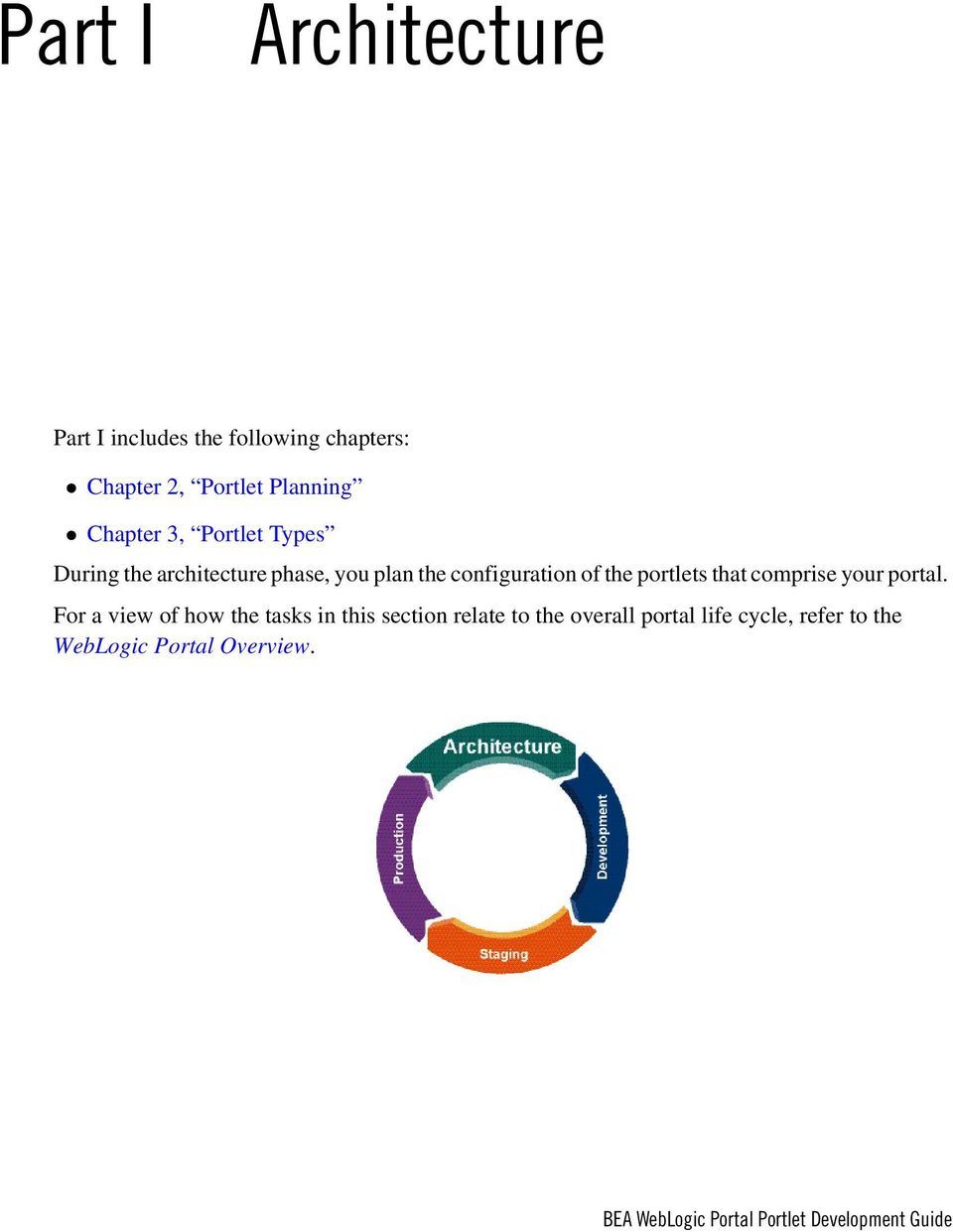
13 Portlet Development and the Portal Life Cycle Figure 1-2 Portlets and the Four Phases of the Portal Life Cycle Architecture Plan the basic configuration of the portal Production Roll out your portlets, either individually or within the entire portal, to a production environment, making changes as needed Development Use Workshop for WebLogic to create portlets, pages, and books Staging Use the WebLogic Portal Administration Console to create and configure desktops Architecture During the architecture phase, you plan the configuration of your portal. For example, you can create a detailed specification outlining the requirements for your portal, the specific portlets you require, where those portlets will be hosted, and how they will communicate and interact with one another. You also consider the deployment strategy for your portal. Security architecture is another consideration that you must keep in mind at the portlet level. The chapters describing tasks within the architecture phase include: Chapter 2, Portlet Planning Chapter 3, Portlet Types Development Developers use Workshop for WebLogic to create portlets, pages, and books. During development, you can implement data transfer and interportlet communication strategies. BEA WebLogic Portal Portlet Development Guide 1-3

14 Introduction In the development stage, careful attention to best practices is crucial. Wherever possible, this guide includes descriptions and instructions for adhering to these best practices. The chapters describing tasks within the development phase include: Chapter 4, Understanding Portlet Development Chapter 5, Building Portlets Chapter 6, Optimizing Portlet Performance Chapter 7, Local Interportlet Communication Staging BEA recommends that you deploy your portal, including portlets, to a staging environment, where it can be assembled and tested before going live. In the staging environment, you use the WebLogic Portal Administration Console to assemble and configure desktops. You also test your portal in a staging environment before propagating it to a live production system. In the testing aspect of the staging phase, there is tight iteration between staging and development until the application is ready to be released. The chapters describing tasks within the staging phase include: Chapter 9, Assembling Portlets into Desktops Chapter 10, Deploying Portlets Production A production portal is live and available to end users. A portal in production can be modified by administrators using the WebLogic Portal Administration Console and by users using Visitor Tools. For instance, an administrator might add additional portlets to a portal or reorganize the contents of a portal. The chapter describing tasks within the production phase is: Chapter 11, Managing Portlets in Production Getting Started This section describes the basic prerequisites to using this guide and lists guides containing related information and topics. 1-4 BEA WebLogic Portal Portlet Development Guide
15 Getting Started Prerequisites In general, this guide assumes that you have performed the following prerequisite tasks before you attempt to use this guide to develop portlets: Review the Related Guides and become familiar with the basic operation of the tools used to create portals, portlets, and desktops, Review the Workshop for WebLogic tutorials and documentation to become familiar with the Eclipse-based development environment and the recommended project hierarchy. Complete the tutorial Getting Started with WebLogic Portal. Related Guides BEA recommends that you review the following guides: BEA WebLogic Portal Overview BEA WebLogic Portal Development Guide Whenever possible, this guide includes cross references to material in related guides. BEA WebLogic Portal Portlet Development Guide 1-5
16 Introduction 1-6 BEA WebLogic Portal Portlet Development Guide

17 Part I Architecture Part I includes the following chapters: Chapter 2, Portlet Planning Chapter 3, Portlet Types During the architecture phase, you plan the configuration of the portlets that comprise your portal. For a view of how the tasks in this section relate to the overall portal life cycle, refer to the WebLogic Portal Overview. BEA WebLogic Portal Portlet Development Guide
18 2-2 BEA WebLogic Portal Portlet Development Guide

19 CHAPTER 2 Portlet Planning Proper planning is essential to portlet development. A properly planned portlet structure and organizational model can provide a cohesive and consistent portal interface, flexible scalability, and high performance without requiring frequent adjustments within your production system. This chapter focuses on planning considerations and decisions that should precede the development of your portlets. Global portal-wide planning information is provided in the BEA WebLogic Portal Overview, which summarizes the types of issues to consider in the architecture phase across your portal environment. The various WebLogic Portal feature guides, such as the BEA WebLogic Portal Federated Portals Guide, describe architectural issues in detail for each feature area. This chapter includes the following sections: Portlet Development in a Distributed Portal Team Portlets in a Non-Portal Environment Planning Portlet Instances Security Interportlet Communication Performance Planning BEA WebLogic Portal Portlet Development Guide 2-1
20 Portlet Planning Portlet Development in a Distributed Portal Team If you will be creating portlets within an environment that includes a remote (distributed) development team, you must carefully plan your implementation. Considerations for team development include: Using shared resources You can have common portlets, such as the login portlet. Sharing a common domain You can have a common domain among team members with different BEA home directories. Integrating remotely developed portlets into the portal You need to manage settings that are common to the portal application, which must match across the entire development project. Team development of a WebLogic Portal web site revolves around well-designed source control and a correctly configured shared domain for development. For detailed instructions on setting up your development environment, refer to the Team Development chapter of the Production Operations Guide. Portlets in a Non-Portal Environment In some cases, you might want to expose portlets in a web page even though that web application is not based on WebLogic Portal. For example, you might want to expose portlets with WSRP from a producer environment that does not include any WebLogic Portal components. You might be running a Struts web application in a basic WebLogic Server domain, or a Java page flow application in a basic Workshop for WebLogic domain. In either case, WebLogic Portal is not part of the server configuration. The exposed portlets can then be consumed by remote portlets running in a regular WebLogic Portal domain. For more information on developing portlets for a non-weblogic Portal environment, refer to the Federated Portals Guide. Planning Portlet Instances In the Development phase, you use Workshop for WebLogic to create portlets and place them onto a portal. In the Staging phase, you use the Administration Console to add portlets to portal desktops. Each time you add a portlet to a desktop, you create an instance of that portlet. Portlet instances allow for multiple variations of the same portlet definition. By using portlet instances, portal users and administrators can configure multiple views of the same portlet through the use of portlet preferences, and reduce the overall number of distinct portlets; this portlet reuse 2-2 BEA WebLogic Portal Portlet Development Guide
21 Security improves portal performance and management efficiency. A common example of portlet instances is a stock watch portlet in which there is a single or multi-valued preference for ticker symbols such as BEAS, which would configure the portlet to display BEA Systems stock information. Try to plan your portal hierarchy to reuse portlets when practical. For more information about portlet instances and how portlet instances are related to portlets in the Administration Console s portlet library, refer to Portlet Library on page 9-1. Security You can control access to portlet resources for two categories of users: Portal visitors You control access to portal resources using visitor entitlements. Visitor access is determined based on visitor entitlement roles. Portal administrators You control portal resource management capabilities using delegated administration. Administrative access is determined based on delegated administration roles. During the architecture phase, you plan how to organize security policies and roles, and how that fits into your system-wide security strategy. You implement your security plans by setting up delegated administration and visitor entitlements using the WebLogic Portal Administration Console. For an overall look at managing security for your portal environment, refer to the Security Guide. Specific security considerations for feature areas are contained in those documents; for example, recommendations for security in WSRP-enabled environments are contained in the Federated Portals Guide. Interportlet Communication Interportlet communication (IPC) allows multiple portlets to use or react to data. You can use interportlet communication within a single portal web application, or within federated portal applications. For more information on interportlet communication within a single portal web application, refer to Chapter 7, Local Interportlet Communication. For more information on interportlet communication within federated portal applications, refer to the Federated Portals Guide. BEA WebLogic Portal Portlet Development Guide 2-3
22 Portlet Planning Performance Planning Try to plan for good performance within your portlet architecture to minimize the fine-tuning that is required in a production environment. Here are some examples of performance optimizations that you can plan into your overall portal strategy: Portlet caching You can cache the portlet within a session instead of retrieving it each time it recurs during a session (on different pages, for example). Remote portlets With remote portlets, any portal controls within the application (portlet) that you are retrieving are rendered by the producer and not by your portal. The expense of calling the control life cycle methods is borne by resources not associated with your portal. You must balance this advantage against the delay that might be caused by network latency issues. Customized portlet properties Customizing your portlet settings can help you improve performance; for example, you can set process-expensive portlets to be processed in a multi-threaded (forkable) environment. Asynchronous portlet rendering - Asynchronous portlet rendering allows you to render the content of a portlet independently from the surrounding portal page. You can use either AJAX technology or IFRAME technology to implement asynchronous rendering. Plan your performance optimizations before you begin developing portlets so that you can implement any pre-requisites that are required. For detailed instructions on developing high-performance portlets, refer to Chapter 6, Optimizing Portlet Performance. For post-development WebLogic Portal performance recommendations, refer to the Performance Tuning Guide. 2-4 BEA WebLogic Portal Portlet Development Guide
23 CHAPTER 3 Portlet Types As part of your portlet implementation plan, BEA recommends that you examine the different types of portlets that are available in WebLogic Portal and decide which types are best suited for the tasks that you want to accomplish. For example, if you are looking for a way to interface with Java controls, use Struts-based infrastructure, and deliver rich navigation elements, then you might choose to implement Java Page Flow or Struts portlets. If you are looking for a simple portlet or you want to convert an existing JSP page into a portlet, you might consider using a JSP portlet. If you work for an independent software company or other enterprise that is concerned with portability across multiple portal vendors, then you might choose to use JSR 168-compliant Java portlets whenever possible. If you want to implement asynchronous portlet rendering in your portal, you can use nearly any of the portlet types described in this chapter. This chapter differentiates the various portlet types to help you in your decision-making process. This chapter contains the following sections: Java Server Page (JSP) and HTML Portlets Java Portlets (JSR 168) Java Page Flow Portlets Java Server Faces (JSF) Portlets Browser (URL) Portlets Struts Portlets BEA WebLogic Portal Portlet Development Guide 3-1
24 Portlet Types Remote Portlets Portlet Type Summary Table Java Server Page (JSP) and HTML Portlets JSP portlets and HTML portlets point to JSP or HTML files for their content. These portlets can be simple to implement and deploy, and they provide basic functionality quickly. However, this type of portlet does not enforce separation of business logic and the presentation layer. As the application grows, the portlet often becomes harder to maintain as you try to update the web application and share code. JSP portlets are not well-suited for advanced portlet navigation. When using JSP pages as part of a page flow portlet, you must make sure that requests adhere to WebLogic Portal scoping requirements. For more information about JSP portlets and page flow scoping, refer to the Portal Development Guide. For instructions on building JSP portlets, see JSP and HTML Portlets on page Java Portlets (JSR 168) JSR 168 (Java Portlet) is a Java specification that aims at establishing portability between portlets and portals. One of the main goals of the specification is to define a set of standard Java APIs for portal and portlet vendors. These APIs cover areas such as presentation, aggregation, security, and portlet life cycle. A Java portlet is expressed as a Java class. This type of portlet accommodates portability across platforms, and does not require the use of portal server-specific JSP tags. The behavior is similar to a servlet. Java portlets produced using WebLogic Portal can be used universally by any other vendor s application server container that supports JSR 168. For instructions on building Java portlets, refer to Java Portlets on page Java Page Flow Portlets A Java page flow portlet uses Apache Beehive page flows to retrieve its content. This portlet type allows you to separate the user interface code from navigation control and other business logic, and provides the ability to implement both simple and advanced portlet navigation. The Page Flow framework that is recommended for portlet application development is built on top of the Struts application framework. The Struts framework is a popular, reliable standard that is widely used to quickly create robust and navigable web applications. The page flow framework 3-2 BEA WebLogic Portal Portlet Development Guide
25 Struts Portlets adds valuable data binding facilities to the Struts standard, and the portal framework provides a scoping capability for page flow portlets so that multiple page flows can be supported in a single portal. You can use resources such as Java controls and web services. Java page flow portlets are best suited for an environment where more advanced features are required not for static, single-view portlets. For instructions on building Java page flow portlets, refer to Java Page Flow Portlets on page Struts Portlets Struts portlets are based on the Struts framework, which is an implementation of the Model-View-Controller (MVC) architecture. The MVC architecture provides a model for separating the different components and roles of the application logic. This development framework helps you create portlets that are easier to maintain over time. Typically, native Struts development requires management and synchronization of multiple files for each action, form bean, as well as the Struts configuration file. Even in the presence of tools that help edit these files, developers are still exposed to all the underlying plumbing, objects, and configuration details. The Page Flow implementation provides a simpler, single-file programming model that allows developers to focus on the code they care about, see a visual representation of the overall application flow, and navigate between pages, actions, and form beans. If you are developing a portal application from scratch, BEA recommends using a Page Flow implementation; if your goal is to aggregate an existing Struts application, then using Struts portlets can meet your needs. For instructions on building Struts portlets, refer to Struts Portlets on page Java Server Faces (JSF) Portlets The Java Server Faces (JSF) specification, JSR 127, defines a user interface framework that simplifies development and maintenance of Java applications that run on a server and are displayed and used from a client. According to the Java Server Faces Specification, available from the Java Community Process web site: JSF s core architecture is designed to be independent of specific protocols and markup. However it is also aimed directly at solving many of the common problems encountered when writing BEA WebLogic Portal Portlet Development Guide 3-3
26 Portlet Types applications for HTML clients that communicate via HTTP to a Java application server that supports servlets and JavaServer Pages (JSP) based applications. These applications are typically form-based, and are comprised of one or more HTML pages with which the user interacts to complete a task or set of tasks. JSF tackles the following challenges associated with these applications: Managing UI component state across requests Supporting encapsulation of the differences in markup across different browsers and clients Supporting form processing (single multi-page form, or more than one form per page) Providing a strongly typed event model that allows the application to write server-side handlers (independent of HTTP) for client generated events Validating request data and providing appropriate error reporting Enabling type conversion when migrating markup values (Strings) to and from application data objects (which are often not Strings) Handling error and exceptions, and reporting errors in human-readable form back to the application user Handling page-to-page navigation in response to UI events and model interactions. For instructions on building Java Server Faces portlets, refer to JSF Portlets on page Browser (URL) Portlets Browser portlets display HTML content from an external URL. Unlike other portlet types that are limited to displaying data contained within the portal project, browser portlets display URL content that is external from the portal project. An advantage of browser portlets is that no development tasks are required to implement it, either from the Workshop for WebLogic workbench or from the WebLogic Portal Administration Console. However, keep in mind that WebLogic Portal does not provide a mechanism to develop content for this type of portlet; the definition of the portlet merely contains the external URL to display. For example, no mechanisms exist to dynamically influence the external content s URL; no support exists for portlet preferences, portlet modes, and so on. Browser portlets do not track the URL through the user s interaction with remote content page refreshes cause the content of the URL specified in the portlet definition to be displayed. 3-4 BEA WebLogic Portal Portlet Development Guide
27 Remote Portlets WebLogic Portal implements a browser portlet using an IFRAME. You can override the default implementation mechanism using more advanced development techniques; more detailed documentation about these techniques will be provided in a future dev2dev article. The content of the browser portlet is completely disconnected from the portal. The embedded application must manage the navigational state of the portlet. For instructions on building Browser portlets, refer to Browser Portlets on page Remote Portlets WebLogic Portal supports the Web Services for Remote Portlets (WSRP) standard, a product of the OASIS standards body. Portlets that are written to meet this standard, which includes a WSDL portlet description, can be hosted within a producer application, and surfaced in a consumer application. Moreover, the WebLogic Portal Administration Console facilitates access to WSRP producer applications in a local portal. WebLogic Portal can act as either a WSRP remote producer or as a consumer. When acting as a consumer, WebLogic Portal s remote or proxy portlets are WSRP-compliant. These portlets present content that is collected from WSRP-compliant producers, allowing you to use external sources for portlet content, rather than having to create its content or its structure yourself. Because setting up a remote portlet is a fundamental task in creating a federated portlet environment, the task of creating a remote portlet is described in detail within the Federated Portals Guide. Portlet Type Summary Table Table 3-1 summarizes the characteristics of each portlet type so that you can quickly determine the advantages and disadvantages of each type. BEA WebLogic Portal Portlet Development Guide 3-5
28 Portlet Types Table 3-1 Portlet Type Summary Table Type Advantages Disadvantages JSP/HTML Java (JSR 168) Java Page Flow JSF Simple to implement and deploy. Provides basic functionality without complexity. Accommodates portability across platforms. Does not require the use of portal server-specific JSP tags. Behavior is similar to a servlet Allows separation of the user interface code from navigation control and other business logic. Provides the ability to implement both simple and advanced portlet navigation. Allow you to quickly leverage Java controls, web services, and business processes. Provides a visual environment to build rich applications based on struts. Allows component-based development of pages that can handle their own intra-page events. Simplifies separation of the user interface code from navigation control and other business logic. Provides the ability to implement both simple and advanced portlet navigation. Allow you to quickly leverage Java controls, web services, and business processes. Does not enforce separation of business logic and presentation layer. Not well-suited for advanced portlet navigation. Lack of advanced portlet features that are available with some other portlet types. Requires a deeper understanding of the J2EE programming model. Implementation is more complex. Advanced page flow features are not necessary for static or simple, one view portlets. All postbacks to a JSF application are expected to be done using a POST; the GET method is not supported. 3-6 BEA WebLogic Portal Portlet Development Guide
29 Portlet Type Summary Table Table 3-1 Portlet Type Summary Table (Continued) Type Advantages Disadvantages Browser Struts Remote Allows a portlet to display content from a URL that is outside the portal project. Provides a no development needed portlet for quick implementation. Provides a flexible control layer based on standard technologies like Java Servlets, JavaBeans, ResourceBundles, and XML. Provides a more structured approach for creating and maintaining complex applications. Useful for importing existing applications. Allows you to functionally and operationally de-couple applications within your portal. Allows you to leverage external sources for portlet content. Depending on the environment, might improve performance. Less control over formatting. Lacks certain features of other portlet types, such as Content Path and Error Path. No interportlet communication support. Not quite as robust as page flow portlets, which are based on Beehive. For new development, page flow portlets provide a better solution. Implementation is more complex. Your application s features might not be able to be as robust; for example, some Javascript might not perform correctly. Depending on the environment, might have a performance cost. For more about performance with remote portlets, refer to Remote Portlets on page 6-2. BEA WebLogic Portal Portlet Development Guide 3-7
30 Portlet Types 3-8 BEA WebLogic Portal Portlet Development Guide
31 Part II Development Part II includes the following chapters: Chapter 4, Understanding Portlet Development Chapter 5, Building Portlets Chapter 6, Optimizing Portlet Performance Chapter 7, Local Interportlet Communication During the development phase, you use Workshop for WebLogic to create portlets, pages, and books. During development, you can implement federation and interportlet communication strategies. In the development stage, careful attention to best practices is crucial. For a view of how the tasks in this section relate to the overall portal life cycle, refer to the WebLogic Portal Overview.. BEA WebLogic Portal Portlet Development Guide
32 4-2 BEA WebLogic Portal Portlet Development Guide
33 CHAPTER 4 Understanding Portlet Development This chapter provides conceptual and reference information that you might find useful as you begin to develop portlets with WebLogic Portal. For a detailed description of the components that are involved in portlet design, refer to the Portal Development Guide. For instructions on how to create each type of portlet, refer to Building Portlets on page 5-1. This chapter contains the following sections: Portlet Components Resources for Creating Portlets Portlet Rendering JSP Tags and Controls in Portlets Backing Files Portlet Components Portlets are modular panes within a web browser that surface applications, information, and business processes. Portlets can contain anything from static HTML content to Java controls to complex web services and process-heavy applications. Within a portal application, a portlet is represented as an XML file with a.portlet file extension. As you build portlets using Workshop for WebLogic, the XML elements and attributes are automatically built. Figure 4-1 shows the components that make up a portlet, which are located in the.portlet file. Objects shown in gray text are described in more detail within the Portal Development Guide. BEA WebLogic Portal Portlet Development Guide 4-1
34 Understanding Portlet Development Figure 4-1 Portlet Components This section includes the following topics: Portlet Properties Portlet Look & Feel Components For details about Look & Feel components, refer to the Portal Development Guide. Portlet Title Bar, Mode, and State Portlet Preferences Portlet Properties Portlet properties are named attributes of the portlet that uniquely identify it and define its characteristics. Some properties such as title, definition label, and Content URI are required; many other optional properties allow you to enable specific functions for that portlet such as scrolling, presentation properties, pre-processing (such as for authorization) and multi-threaded rendering. The specific properties that you use for a portlet vary depending on your expected use for that portlet. For detailed information on portlet properties and how to set them, refer to Portlet Properties on page BEA WebLogic Portal Portlet Development Guide
35 Resources for Creating Portlets Portlet Title Bar, Mode, and State When you create a portlet, you can choose whether or not it should have a title bar. Also, all portlets created with WebLogic Portal support modes and states. Modes affect the portlet s content; edit, help, float, and custom modes are available. States affect the rendering of the portlet; minimize, maximize, normal, float, and delete states are available. You must enable the title bar on a portlet if you want to set modes and states for that portlet. In certain situations your selection of a mode and state for a portlet might affect your ability to set up other portlet features, such as interportlet communication. For example, if you are setting up an event handler that listens to a portlet, you can select to execute the event handler only if the portlet to which it is listening is in a window that is not minimized, and is in view mode. For detailed instructions on setting portlet modes and states, refer to Portlet Appearance and Features on page Portlet Preferences Portlets are distinct applications that you can reuse in a given portal. Once you create a portlet, you can instantiate it several times. Along with the ability to create multiple instances of portlets, WebLogic Portal allows you to specify preferences for portlets. You use preferences to cause each portlet instance to behave differently yet use the same code and user interface. Portlet preferences provide the primary means of associating application data with portlets; this feature is key to personalizing portlets based on their usage. Plan a portlet implementation that allows portlets to be as reusable as possible; planning for reuse simplifies your development and testing efforts because you can differentiate generic portlets by setting unique preferences. For detailed instructions on setting portlet preferences, refer to Portlet Preferences on page Resources for Creating Portlets Although the Portlet Wizard provides an easy way to create portlets, you might find that it is not your primary means of creating them. You can create a portlet in many ways, such as duplicating existing portlets or generating a portlet based on an existing JSP or struts module. Many resources can provide the raw material for a portlet, including the following: BEA WebLogic Portal Portlet Development Guide 4-3
36 Understanding Portlet Development Portlets in J2EE Shared Libraries Portlets are provided with WebLogic Portal, which you can copy into your project and modify for your use. For example, you can add the Collaboration Portlets (pre-built portlets that are supplied with WebLogic Portal) to your Portal Web Project, and have access to Calendar, Task, Address Book, Discussion, and Mail portlets. For more information on the Collaboration portlets, including installation instructions, see Using the Collaboration Portlets on page Caution: Portlets that are part of the GroupSpace sample application cannot be used outside of the GroupSpace application. For detailed information on the GroupSpace portlets, see the WebLogic Portal GroupSpace Guide. Third-party portlets Special-purpose portlets provided as separate products by partner companies. Existing JSPs, Struts modules, and Page Flows Existing resources that you can drag onto a portal page to automatically generate a portlet. You can find detailed instructions on how to use these resources as the basis for a portlet in Chapter 5, Building Portlets. Portlet Rendering Portlet rendering consists of two processes: Pre-rendering The background work to obtain necessary data or to perform pre-processing Rendering The actual drawing of the portlet onto the portal page General rendering topics are covered in the Portal Development Guide. This section contains the following portlet-specific rendering topics: Render and Pre-Render Forking Asynchronous Portlet Content Rendering Render and Pre-Render Forking By default, pre-rendering and rendering for each portlet on a page is performed in sequence, and the portal page is not displayed until processing is complete for every portlet. This sequence can cause a noticeable delay in displaying the web page and might cause a user to think there is a problem with the web site. To prevent this situation, you can set up your portlets so that they perform pre-rendering and rendering tasks in parallel using multi-threaded forked processing. 4-4 BEA WebLogic Portal Portlet Development Guide
37 JSP Tags and Controls in Portlets Forking portlets at the rendering stage is supported for all portlet types. Pre-render forking is supported for the following portlet types: JSP Page flow Java (JSR168) WSRP (consumer portlets only) For detailed instructions on implementing forked portlets, refer to Portlet Forking on page 6-3. Asynchronous Portlet Content Rendering Asynchronous portlet rendering allows the content of a portlet to be rendered independently of the surrounding portal page. When using asynchronous portlet rendering, a portlet is rendered in two phases. The first phase is the normal portal page request during which the portlet's non-content areas, such as the title bar, are rendered; a second request causes the portlet's content to render in place. For detailed instructions on implementing asynchronous content rendering, refer to Asynchronous Portlet Content Rendering on page Tip: You can also enable asynchronous rendering for an entire portal desktop by setting a portal property in either Workshop for WebLogic or the WebLogic Portal Administration Console. For more information on asynchronous desktop rendering, see the WebLogic Portal Development Guide. Portlets as Popups (Detached Portlets) WebLogic Portal supports the use of detached portlets. Detached portlets provide popup-style behavior. You can see examples of detached portlets within WebLogic Portal in the GroupSpace Message Center and in the Administration Console wizards. For detailed instructions on using detached portlets, refer to Detached Portlets on page JSP Tags and Controls in Portlets WebLogic Portal provides JSP tags that you can use within JSPs. Portlets can use JSPs as their content nodes, enabling reuse and facilitating personalization and other programmatic BEA WebLogic Portal Portlet Development Guide 4-5
38 Understanding Portlet Development functionality. When you use the JSP Design Palette view in Workshop for WebLogic, you can view available JSP tags and then drag them into the Source View of your JSP, and use the Properties view to edit elements of the code. To view the JSP tags available as you develop a portal, select Window > Show View > JSP Design Palette. WebLogic Portal also provides custom Java controls that make it easy for you to quickly add pre-built modules to your portal; custom Java controls exist for event management, Visitor Tools, Community management, and so on. For example, most user management functionality can be easily exposed with a User Manager Control on a page flow. Note: The term control is also used to refer to the portal (netuix) framework controls, such as desktop, book, page, and so on. These controls are referred to in the text as portal framework controls. For information about the classes associated with WebLogic Portal s JSP tags, refer to the Javadoc. For more information about using controls within portlets, see JSP Tags and Controls in Portlets on page Backing Files The most common means of influencing portlet behavior within the control life cycle is to use a portlet backing file. A portlet backing file is a Java class that can contain methods corresponding to Portal control life cycle stages, such as init() and prerender(). You can use a portlet s backing context, an abstraction of the portlet control itself, to query and alter the portlet s characteristics. For example, in the init() life cycle method, a request parameter might be evaluated, and depending on the parameter s value, the portlet backing context can be used to specify whether the portlet is visible or hidden. Backing files can be attached to portals either by using Workshop for WebLogic or coding them directly into a.portlet file. For detailed instructions on implementing backing files, refer to Backing Files on page BEA WebLogic Portal Portlet Development Guide
39 CHAPTER 5 Building Portlets This chapter describes the most common ways to create portlets, including the Portlet Wizard and the use of out-of-the-box portlets. This chapter also contains instructions for building each type of portlet that is supported by WebLogic Portal. Before you begin, be sure you are familiar with the concepts associated with creating portlets, as described in Chapter 4, Understanding Portlet Development. This chapter contains the following sections: Supported Portlet Types Portlets in J2EE Shared Libraries Portlet Wizard Reference How to Build Each Type of Portlet Detached Portlets Working with Inlined Portlets Extracting Books and Pages Portlet Properties Portlet Preferences Backing Files Portlet Appearance and Features BEA WebLogic Portal Portlet Development Guide 5-1
40 Building Portlets Getting Request Data in Page Flow Portlets JSP Tags and Controls in Portlets Portlet State Persistence Adding a Portlet to a Portal Deleting Portlets Advanced Portlet Development with Tag Libraries Importing and Exporting Java Portlets Supported Portlet Types The following portlet types are supported by WebLogic Portal: Java Server Page (JSP) and HTML Portlets - JSP portlets and HTML portlets point to JSP or HTML files for their content. Java Portlets (JSR 168) - Java portlets produced using WebLogic Portal can be used universally by any vendor s application server container that supports JSR 168. Java Page Flow Portlets - Java page flow portlets use Apache Beehive page flows to retrieve their content. Java Server Faces (JSF) Portlets - JSF portlets produced using WebLogic Portal conform to the JSR 127 specification. Browser (URL) Portlets - Browser portlets display HTML content from an external URL; no development tasks are required to implement them. Struts Portlets - Struts portlets are based on the Struts framework, which is an implementation of the Model-View-Controller (MVC) architecture. Remote Portlets - WebLogic Portal s remote portlets conform to the WSRP standard; they can be hosted within a producer application, and surfaced in a consumer application. For a detailed discussion of each portlet type, refer to Chapter 3, Portlet Types. Portlets in J2EE Shared Libraries You can copy portlets or other resources from a J2EE Shared Library into your portal application and modify them as needed. A portlet existing in your project will supersede a portlet of the same 5-2 BEA WebLogic Portal Portlet Development Guide
41 Portlet Wizard Reference name in a J2EE Shared Library. To see a list of available portlets, you can use the Merged Projects View of the workbench; resources contained in J2EE Shared Libraries are shown in italic print. You can expand the tree to see the resources that are stored in the various modules. For a reference list of all the J2EE Libraries and their locations on your file system, you can select Window > Preferences > WebLogic > J2EE Libraries. After you locate a portlet that you want to use, you can right-click the portlet in the Merged Projects View and select the Copy to Project option. Figure 5-1 shows an example of a J2EE Shared Library portlet in the Merged Projects view with the Copy to Project option selected. Caution: Portlets that are part of the GroupSpace sample application cannot be used in a non-groupspace-enabled application. If you copy J2EE Shared Library resources into your project, keep in mind that with future updates to the WebLogic Portal product, you might have to perform manual steps in order to incorporate product changes that affect those resources. With any future patch installations, WebLogic Portal supports only configurations that do not have copied J2EE library resources in the project. Figure 5-1 Portlet Being Copied to a Project from Merged Projects View For more information about J2EE Shared Libraries, refer to the Portal Development Guide. Portlet Wizard Reference An important tool that you can use to create portlets from scratch is the WebLogic Portal Portlet Wizard. The following sections describe the Portlet Wizard in detail: BEA WebLogic Portal Portlet Development Guide 5-3
42 Building Portlets Order of Creation - Resource or Portlet First Starting the Portlet Wizard Select Portlet Type Dialog The Java Server Faces (JSF) Portlet selection only appears if you have added the JSF Project Facet to you portal web project. For more information, see JSF Portlets on page In general, you choose the portlet type on the first dialog of the wizard; when generating a portlet based on an existing resource, the Portlet Wizard automatically detects the portlet type whenever possible. Order of Creation - Resource or Portlet First This section provides an overview of the two methods you can use to begin creating a portlet creating the portlet resource information/file first or creating the portlet itself first. Creating the Resource First You might already have a JSP file, for example, that you want to use as the basis for a portlet. (In addition to JSP files, you can drag other resources onto the portal (such as content selectors) to automatically start the portlet wizard.) If you have an existing resource that you want to use as the basis of a portlet, follow these steps: 1. Create or open a portal's.portal file in Workshop for WebLogic. 2. Drag the resource, such as a JSP file, into one of the portal's placeholder areas in the design view in the editor. Workshop for WebLogic prompts you with a dialog similar to the example in Figure 5-2. Figure 5-2 Portlet Wizard Prompt Following Drag and Drop of a Resource 5-4 BEA WebLogic Portal Portlet Development Guide
43 Portlet Wizard Reference If you click Yes, the Portlet Wizard uses information from the resource file to begin the process of creating a portlet, and displays the Portlet Details dialog. Figure 5-3 shows an example: Figure 5-3 Example Portlet Wizard Details Dialog Following Drag and Drop of a Resource Create the Portlet First If you do not have an existing source file to start with, you can create the portlet using the New Portlet dialog and the Portlet Wizard. To do so, right-click a folder in your portal web project and select New > Portlet. Figure 5-4 shows an example of the New Portlet dialog. BEA WebLogic Portal Portlet Development Guide 5-5
44 Building Portlets Figure 5-4 Portlet Wizard New File Dialog After you confirm or change the parent folder, name the portlet, and click Finish, the Portlet Wizard begins and displays the Select Portlet Type dialog. Figure 5-5 shows an example dialog. 5-6 BEA WebLogic Portal Portlet Development Guide
45 Portlet Wizard Reference Figure 5-5 Portlet Wizard - Select Portlet Type Dialog Note: The Java Server Faces (JSF) Portlet selection only appears if you have added the JSF Project Facet to you portal web project. For more information, see JSF Portlets on page Detailed instructions for creating each type of portlet are contained in How to Build Each Type of Portlet on page Starting the Portlet Wizard Workshop for WebLogic invokes the Portlet Wizard any time you perform one of these operations: Select File > New > Portlet from Workshop for WebLogic's top-level menu, or right-click a folder in your web application, and select New > Portlet. After you name the portlet and click Create, the Portlet Wizard starts. Drag and drop a resource such as a JSP from the Package Explorer view onto a placeholder area of an open portal (in other words, a portal_name.portal file is open in the editor view of the workbench.) Workshop for WebLogic prompts you with a dialog similar to the example in Figure 5-6. BEA WebLogic Portal Portlet Development Guide 5-7
46 Building Portlets Figure 5-6 Portlet Wizard Prompt Following Drag and Drop of a Resource If you click Yes, the Portlet Wizard uses information from the resource file to begin the process of creating a portlet. Right-click an existing resource such as a JSP file, a page flow, a portal placeholder, or a portal content selector; then select Generate Portlet from the context menu. The Portlet Wizard displays the Portlet Details dialog. Figure 5-7 shows an example of a dialog after right-clicking a JSP file. Figure 5-7 Portlet Wizard - Portlet Details Example for JSP Resource 5-8 BEA WebLogic Portal Portlet Development Guide
47 Portlet Wizard Reference New Portlet Dialog When you use File > New > Portlet to create a new portlet, a New Portlet dialog displays before the Portlet Wizard begins. Figure 5-4 shows an example of the New Portlet dialog. The parent folder defaults to the location from which you selected to add the portlet. This dialog requires that you select a project and directory for the new portlet, and provide a portlet file name. (The file name appears in the Package Explorer view after you create the portlet.) The Finish button is initially disabled; the button enables when you select a valid project/directory and portlet name. If you select an invalid portal project in the folder tree on this dialog, an error message appears in the status area near the top of the dialog explaining that the project is not a valid portal project. You cannot continue until you have selected a valid project (if one is available). Note: With WebLogic Portal Version 9.2 and later versions, the option to convert a non-portal project to a portal project is not offered. For information on how to integrate portal J2EE Shared Libraries into an already existing project, see the Portal Development Guide. Select Portlet Type Dialog When the Portlet Wizard starts, it determines the valid portlet types to offer on the Select Portlet Type dialog, based on the type of project that you are working in. For example, if you are working within a Portal Web Project that has only the WSRP-Producer feature (and its required accompanying features) installed, it does not have the full set of portal libraries. In this case, only the JPF, JSF, Browser, and Struts portlet types are valid selections; the other portlet types are not included in the Select Portlet Type dialog. If no valid portlet types exist based on the project type, an informational message displays. Figure 5-8 shows an example of the Select Portlet Type dialog. BEA WebLogic Portal Portlet Development Guide 5-9
48 Building Portlets Figure 5-8 Portlet Wizard - Select Portlet Type Dialog Note: The Java Server Faces (JSF) Portlet selection only appears if you have added the JSF Project Facet to you portal web project. For more information, see JSF Portlets on page Portlet Details Dialogs The Portlet Details dialogs that display after you select a portlet type vary according to the type of portlet you are creating. The portlet-building tasks that are described in How to Build Each Type of Portlet on page 5-10 contain detailed information about each data entry field of the portlet details dialogs. How to Build Each Type of Portlet The following sections describe how to create each type of portlet supported by WebLogic Portal: JSP and HTML Portlets Java Portlets Java Page Flow Portlets JSF Portlets 5-10 BEA WebLogic Portal Portlet Development Guide
49 How to Build Each Type of Portlet Browser Portlets Struts Portlets Remote Portlets Web Service Portlets JSP and HTML Portlets JSP portlets are very similar to simple JSP files. In most cases you can use existing JSP files to build portlets from them. JSP portlets are recommended when the portlet is simple and doesn t require the implementation of complex business logic. Also, JSP portlets are ideally suited for single page portlets. There are several ways to invoke the Portlet Wizard, as explained in the section Starting the Portlet Wizard on page 5-7. This description assumes that you create a portlet based on an existing JSP file. To create a JSP portlet, follow these steps: 1. Right-click a JSP file and select Generate Portlet from the menu. The Portlet Wizard displays the Portlet Details dialog; Figure 5-9 shows an example. BEA WebLogic Portal Portlet Development Guide 5-11
50 Building Portlets Figure 5-9 Portlet Wizard - JSP Portlet Details Dialog 2. Specify the values you want for this portlet, following the guidelines shown in Table 5-1. Table 5-1 Portlet Wizard - JSP Portlet Data Entry Fields Field Title Content Path Error Page Path Description The value for the Title might already be filled in.you can change the value if you wish. The value for the Content URI (location of the JSP) is probably already filled in. You can change this value if you wish either by entering the path to a JSP or browsing to it. You can also create a new JSP on the fly either by entering a name in the field or by choosing the New button. To designate a default error page to appear in case of an error, check the box and indicate the path to the desired URI. You can also create a new JSP on the fly either by entering a name in the field or by choosing the New button BEA WebLogic Portal Portlet Development Guide
51 How to Build Each Type of Portlet Table 5-1 Portlet Wizard - JSP Portlet Data Entry Fields Field Has Titlebar State Available Modes Description If you want your portlet to have a title bar, check this box. The displayed title matches the value in the Title field. In order for a portlet to have changeable states or modes, the portlet must have a title bar. Select the desired check boxes to allow the user to minimize, maximize, float, or delete the portlet. For a more detailed description of portlet states, refer to Portlet States on page You can enable access to Help from the portlet or you can allow the user to edit the portlet. To enable an option, select the desired check box and provide the path to the JSP page that will provide the appropriate function. For a more detailed description of portlet modes, refer to Portlet Modes on page Click Create. The Workshop for WebLogic window updates, adding the Portlet_Name.portlet file to the display tree; by default, Workshop for WebLogic places the portlet file in the same directory as the content file. Java Portlets Java portlets are based on the JSR 168 specification that establishes rules for portlet portability. Java portlets are intended for software companies and other enterprises that are concerned with portability across multiple portlet containers. WebLogic Portal provides capabilities for Java portlets beyond those listed in the JSR168 spec. For example, you can set threading options, use a backing file, and so on. To implement these additional features, WebLogic Portal uses a combination of the typical.portlet file which you create in the same way that you create other portlet types as well as the standard portlet.xml file and the weblogic-portlet.xml file. Building a Java Portlet To create a Java portlet, follow these steps: 1. Right-click the folder where you want to store the portlet and select New > Portlet. The New Portlet dialog displays. BEA WebLogic Portal Portlet Development Guide 5-13
52 Building Portlets 2. Enter a name for the portlet and click Create. The Portlet Wizard displays the Select Portlet Type dialog. 3. Select the Java Portlet radio button and click Next. The Java Portlet Details dialog displays. Figure 5-10 shows an example. Figure 5-10 Portlet Wizard - Java Portlet Details Dialog 4. Identify whether you want to create a new portlet or update an existing portlet (as an entry in the portlet.xml file) by selecting the appropriate radio button. If you are creating a new portlet, WebLogic Portal uses the information that you enter in the wizard to perform these two tasks: Create a new.portlet file Either create a new portlet.xml file (if this is the first Java portlet that you are creating in the project), or add an entry in the portlet.xml file, which is located in the WEB-INF directory. If you choose to refer to an existing portlet in the wizard, the wizard displays a selection for every entry in the portlet.xml file, allowing you to create a new.portlet file and associate it with an existing entry in the portlet.xml file BEA WebLogic Portal Portlet Development Guide
53 How to Build Each Type of Portlet 5. Specify the values you want for this portlet, following the guidelines shown in Table 5-2. All fields are required. Table 5-2 Portlet Wizard - Java Portlet Data Entry Fields Field New Portlet Title New Portlet Definition Label New Portlet Class Name Existing Portlet Select From List Description The value for the Title maps to the <title> element in the file portlet.xml. The title in the.portlet file takes priority over the one in the portlet.xml file. This value acts as the definition label for any portlet; more importantly, the value maps to the <portlet-name> element in the portlet.xml deployment descriptor. This value must be unique. Enter a valid class name or click Browse to navigate to the location of a Java class. This value maps to the <portlet-class> element. If you enter a javax.portlet.portlet class that does not currently exist, the wizard will create the corresponding.java file when you click Create. The dropdown menu is populated from the portlet.xml file and contains the values from the <portlet-name> elements. When you select an existing portlet, the Title and Class Name display in read-only fields. Note: If you import an existing Java portlet into Workshop for WebLogic, you do not need to add an entry in the web.xml file for the WebLogic Portal implementation of the JSR-168 portlet taglib; this taglib is declared implicitly. Be sure to use as the taglib URI in your JSPs. 6. Click Create. Based on these values that you entered, the Wizard creates a.portlet file, and adds an entry to /WEB-INF/portlet.xml, if it already exists, or creates the file if needed. Workshop for WebLogic displays the newly created portlet and its current properties. Figure 5-11 shows an example of a Java portlet s appearance and properties. BEA WebLogic Portal Portlet Development Guide 5-15
54 Building Portlets Figure 5-11 Java Portlet Appearance and Properties The portlet-name attribute in the portlet.xml file matches the definitionlabel property in the.portlet file. After you create the portlet, you can modify its properties in the Properties view, or double-click the portlet in the editor to view and edit the generated Java class. Note: If you delete a.portlet file, the corresponding entry remains in the portlet.xml file. You might want to clean up the portlet.xml file periodically; these extra entries do not cause problems when running the portal but do result in error messages in the log file. Java Portlet Deployment Descriptor The separate portlet.xml deployment descriptor file for Java portlets is located in the WEB-INF directory. In addition, the weblogic-portlet.xml file is an optional BEA-specific file that you can use to inject some additional features. Listing 5-1 shows an example of how entries might look in the portlet.xml file: 5-16 BEA WebLogic Portal Portlet Development Guide
55 How to Build Each Type of Portlet Listing 5-1 Example of a portlet.xml file for a Simple Hello World Java Portlet <?xml version="1.0" encoding="utf-8"?> <portlet-app version="1.0" xmlns=" xmlns:xsi=" <portlet> <description>description goes here</description> <portlet-name>helloworld</portlet-name> <portlet-class>ajavaportlet.helloworld</portlet-class> <portlet-info><title>hello World!</title></portlet-info> <supports> <mime-type>text/html</mime-type> <portlet-mode>view</portlet-mode> </supports> <portlet-info><title>new Java Portlet</title></portlet-info> </portlet> </portlet-app> Importing and Exporting Java Portlets for Use on Other Systems WebLogic Portal produces Java portlets that conform to the JSR 168 specification and can be used universally across operating systems. Workshop for WebLogic lets you export Java portlets to a supported archive file (WAR, JAR, or ZIP) that can be deployed on any supported server. You can also use the Import feature to import archive files containing Java portlets into your Workshop for WebLogic workspace. For details, see Importing and Exporting Java Portlets on page Customizing Java Portlets Using weblogic-portlet.xml WebLogic Portal allows you to add more functionality to java portlets than you can obtain using the standard JSR 168 specification. You can use the optional weblogic-portlet.xml file to inject some additional features. The following sections provide some examples. Floatable Java Portlets If you want to create a floatable Java portlet, you can do so by declaring a custom state in weblogic-portlet.xml as shown in the following example code: <portlet> BEA WebLogic Portal Portlet Development Guide 5-17
56 Building Portlets <portlet-name>fooportlet</portlet-name> <supports> <mime-type>text/html</mime-type> <window-state> <name>float</name> </window-state> </supports> </portlet> Adding an Icon to a Java Portlet To add an icon to a Java portlet, you need to edit the weblogic-portlet.xml file, as described in this section. 1. Place the icon in the images directory of the skin that the portal is using. For example, if the skin name is avitek, icons must be placed in: myportal/skins/avitek/images 2. In the Application panel, locate and double-click the weblogic-portlet.xml file to open it. This file is located in the portal's WEB-INF folder, for example: myportal/web-inf/weblogic-portlet.xml 3. Add the following lines to the weblogic-portlet.xml file: <portlet> <portlet-name>myportlet</portlet-name> <supports> <mime-type>text/html</mime-type> <titlebar-presentation> <icon-url>myicon.gif</icon-url> </titlebar-presentation> </supports> </portlet> 4. Make these substitutions: Change myportlet to the name of the portlet that is specified in WEB-INF/portlet.xml Be sure the mime-type also matches the mime-type found in WEB-INF/portlet.xml Change myicon.gif to the name of the icon you wish to add 5-18 BEA WebLogic Portal Portlet Development Guide
57 How to Build Each Type of Portlet Portlet Init-Params The init-param element contains a name/value pair as an initialization parameter of the portlet. You can use the getinitparameternames and getinitparameter methods of the javax.portlet.portletconfig interface to return these initialization parameter names and values in your portlet code. Init-params are described in the JSR168 specification. You can add init-params to your Java portlet by dragging a New Init-Param icon from the Palette onto the Java portlet in the portlet editor. Then, click on the init-param section of the portlet to display the parameter s properties in the Property view. In the Property view, you can enter the following init-param data: Description Name Value For example, if you created an init-param called Color and set the default value to green, the following entry will be made in the portlet.xml file: <init-param> <description>my init param</description> <name>color</name> <value>green</value> </init-param> Java Page Flow Portlets You can use the Portlet Wizard to built a portlet that uses Apache Beehive Page Flows to retrieve its content. Tip: For detailed information on creating page flows, see the Workshop for WebLogic Platform documentation on e-docs. To create a page flow portlet, follow these steps: 1. Right-click the folder where you want to store the page flow portlet. (The folder must be within the WebContent directory.) 2. Select File > New > Portlet. The New Portlet dialog displays. BEA WebLogic Portal Portlet Development Guide 5-19
58 Building Portlets 3. Enter a name for the portlet and click Create. The Portlet Wizard displays the Select Portlet Type dialog. 4. Select the Java Page Flow Portlet radio button and click Next. The Portlet Wizard displays the Portlet Details dialog; Figure 5-12 shows an example. Figure 5-12 Portlet Wizard - JPF Portlet Details Dialog 5. Specify the values you want for this portlet, following the guidelines shown in Table BEA WebLogic Portal Portlet Development Guide
59 How to Build Each Type of Portlet Table 5-3 Portlet Wizard - JPF Portlet Data Entry Fields Field Title Content Path Error Page Path Has Titlebar State Available Modes Description The title for this portlet, which displays in the title bar if you select to include one. URI representing a page flow controller. Click the Browse button to open a class picker and select the page flow controller class, or click the New button to create a new controller class. If you use the class picker to choose a page flow class, this fully-qualified class name is converted to a URI path of a page flow file with a jpf extension. The page flow file does not reside in the project, but is referred to by the.portlet file when the portlet is created. If you enter or navigate to a page flow controller Java file that has no corresponding class in the project or J2EE Shared Libraries, the Portlet Wizard creates the.java file for the page flow. If multiple project source directories exist, then the wizard prompts you to store the new.java file in the source directory of your choice. To designate a default error page to appear in case of an error, check the box and indicate the path to the desired URI. If you want your portlet to have a title bar, check this box. The displayed title matches the value in the Title field. In order for a portlet to have changeable states or modes, the portlet must have a title bar. Select the desired check boxes to allow the user to minimize, maximize, float, or delete the portlet. For a more detailed description of portlet states, refer to Portlet States on page You can enable access to Help from the portlet or you can allow the user to edit the portlet. To enable an option, select the desired check box and provide the path to the JSP page or page flow that will provide the appropriate function. For a more detailed description of portlet modes, refer to Portlet Modes on page Click Create. BEA WebLogic Portal Portlet Development Guide 5-21
60 Building Portlets The Workshop for WebLogic window updates, adding the Portlet_Name.portlet file to the display tree; by default, Workshop for WebLogic places the portlet file in the same directory as the content file. In order to fully understand the process of creating a page flow portlet, you should be familiar with the concept of Page Flows. For more information on using page flows with WebLogic Portal, refer to the Portal Development Guide. If you want to create a page flow portlet that calls a web service, refer to Web Service Portlets on page JSF Portlets You can create JSF portlets for a WSRP producer or a framework web application that has the JSF facet installed (that is, you selected the JSF facet when you created the portal web project). Note: The Java Server Faces (JSF) Portlet selection only appears in the Portlet Wizard if you have added the JSF Project Facet to you portal web project. To add the JSF Project Facet, right-click the portal web project in the Package Explorer. In the Properties dialog, select Project Facets in the tree on the left. Click Add/Remove Project Facets, select JSF in the Project Facets dialog, and click Finish. To create a JSF portlet, follow these steps: 1. Right-click in the Package Explorer view, within the web content directory, and select New > Portlet from the menu. The New Portlet dialog displays. Figure 5-15 shows an example of the New Portlet dialog BEA WebLogic Portal Portlet Development Guide
61 How to Build Each Type of Portlet Figure 5-13 Portlet Wizard - New Portlet Dialog The parent folder defaults to the location from which you selected to add the portlet. 2. Edit the parent folder field if needed to indicate the project and directory for the new portlet. The Finish button is initially disabled; the button enables when you select a valid parent folder and portlet name. If you select an invalid portal project in the folder tree on this dialog, an error message appears in the status area near the top of the dialog explaining that the project is not a valid portal project. 3. Type a file name for the new portlet. 4. Click Finish to continue. The Portlet Wizard displays the Select Portlet Type dialog. 5. Click Java Server Faces (JSF) Portlet and then click Next. The Portlet Wizard displays the Portlet Details dialog; Figure 5-14 shows an example. BEA WebLogic Portal Portlet Development Guide 5-23
62 Building Portlets Figure 5-14 Portlet Wizard - JSF Portlet Details Dialog 6. Specify the values you want for this portlet, following the guidelines shown in Table 5-4. Table 5-4 Portlet Wizard - JSF Portlet Data Entry Fields Field Title Description The value for the portlet title, which displays in the title bar if enabled. Content Path The value for the Content URI; this value should point to a JSF-enabled.jsp file. Error Page Path Note: Error pages are not supported with JSF portlets. Has Titlebar If you want your portlet to have a title bar, check this box. The displayed title matches the value in the Title field. In order for a portlet to have changeable states or modes, the portlet must have a title bar BEA WebLogic Portal Portlet Development Guide
63 How to Build Each Type of Portlet Table 5-4 Portlet Wizard - JSF Portlet Data Entry Fields (Continued) Field State Available Modes Description Select the desired check boxes to allow the user to minimize, maximize, float, or delete the portlet. For a more detailed description of portlet states, refer to Portlet States on page You can enable access to Help from the portlet or you can allow the user to edit the portlet. To enable an option, select the desired check box and provide the path to the file that will provide the appropriate function. For a more detailed description of portlet modes, refer to Portlet Modes on page Click Create. The Workshop for WebLogic window updates, adding the Portlet_Name.portlet file to the display tree. Placing Multiple JSF Portlets on a Portal Page If you want to have more than one JSF portlet on a portal page, use the namingcontainer JSP tag immediately after a JSF view tag, in order to provide component naming in the generated component tree. See Supporting Unique JSF Component Identifiers for an example. Using JSPs in JSF Portlets If you are using JSPs in your JSF portlets, be aware that you will only see your JSP edits when you view the portlet in a new session. A simple page refresh is not sufficient. This behavior differs from typical JSP development behavior, where changes are compiled and made available after a page refresh. Normally, JSPs are handled by the servlet container, which checks for updated JSPs. JSF, on the other hand, uses JSPs as a source for the component tree, which typically is loaded only once per session, depending on how the JSF implementation handles or does not handle changed JSP source. To see your JSP changes reflected in a JSF portlet, you must view the portlet in a new session. Typically, you can do this by opening a new browser to view the portal. Supporting Unique JSF Component Identifiers JSF applications associate a unique identifier with each JSF component in the component tree. When multiple JSF applications appear on a portal page, it becomes necessary to further scope these unique identifiers. BEA WebLogic Portal Portlet Development Guide 5-25
64 Building Portlets WLP provides the following features to support scoping JSF component identifiers on a portal page: The <namingcontainer> tag The NamingContainerComponent component The ScopedIdBuilder class These features are discussed in the WLP Javadoc for the com.bea.portlet.adapter.faces package. Listing 5-2 is an example that demonstrates how to use the <namingcontainer> tag. The <namingcontainer> tag is described in detail in the JSP Tag Javadoc. Listing 5-2 Using the <namingcontainer> Tag <%@ page language='java' contenttype='text/html;charset=utf-8'%> <%@ taglib uri=' prefix='f' %> <%@ taglib uri=' prefix='jsf-naming' %> <%@ taglib uri=' prefix='h' %> <f:view> <jsf-naming:namingcontainer id='myportlet'> <h:outputtext value='hello World'/> </jsf-naming:namingcontainer> </f:view> Browser Portlets Browser portlets, also called Content URI portlets, are basically HTML portlets that use URLs to retrieve their content. Unlike other portlet types that are limited to displaying data contained within the portal project, browser portlets can display URL content that is outside from the portal project. There are several ways to invoke the Portlet Wizard, as explained in the section Starting the Portlet Wizard on page 5-7. This description assumes that you right-click in the Package Explorer view tree within a portal project and select New > Portlet from the menu. To create a browser portlet, follow these steps: 1. Right-click in the Navigation tree within a portal project and select New > Portlet from the menu BEA WebLogic Portal Portlet Development Guide
65 How to Build Each Type of Portlet The New Portlet dialog displays. Figure 5-15 shows an example of the New Portlet dialog. Figure 5-15 Portlet Wizard - New Portlet Dialog The parent folder defaults to the location from which you selected to add the portlet. 2. Edit the parent folder field if needed to indicate the project and directory for the new portlet. The Finish button is initially disabled; the button enables when you select a valid parent folder and portlet name. If you select an invalid portal project in the folder tree on this dialog, an error message appears in the status area near the top of the dialog explaining that the project is not a valid portal project. 3. Type a file name for the new portlet. 4. Click Finish to continue. The Portlet Wizard displays the Select Portlet Type dialog. 5. Click Browser (URL) Portlet and then click Next. BEA WebLogic Portal Portlet Development Guide 5-27
66 Building Portlets The Portlet Wizard displays the Portlet Details dialog; Figure 5-16 shows an example. Figure 5-16 Portlet Wizard - Browser Portlet Details Dialog 6. Specify the values you want for this portlet, following the guidelines shown in Table 5-5. Table 5-5 Portlet Wizard - Browser Portlet Data Entry Fields Field Title Content URL Has Titlebar Description The title for the portlet. This value appears in the title bar of the portlet in the editor view of the Workshop for WebLogic workbench. The value for the Content URL (external URL) that the portlet should use to retrieve its information. A validator checks the format of the URL that you enter, and a message notifies you if the URL is not properly formatted. You can either change the URL or ignore the warning and continue with the URL as is. If you want your portlet to have a title bar, check this box. The displayed title matches the value in the Title field. In order for a portlet to have changeable states or modes, the portlet must have a title bar BEA WebLogic Portal Portlet Development Guide
67 How to Build Each Type of Portlet Table 5-5 Portlet Wizard - Browser Portlet Data Entry Fields (Continued) Field State Available Modes Description Select the desired check boxes to allow the user to minimize, maximize, float, or delete the portlet. For a more detailed description of portlet states, refer to Portlet States on page You can enable access to Help from the portlet or you can allow the user to edit the portlet. To enable an option, select the desired check box and provide the path to the JSP page that will provide the appropriate function. For a more detailed description of portlet modes, refer to Portlet Modes on page Click Create. The Workshop for WebLogic window updates, adding the Portlet_Name.portlet file to the display tree; by default, Workshop for WebLogic places the portlet file in the same directory as the content file. Note: The internal implementation of Browser portlets depends on asynchronous portlet content rendering; because of this, the portlet attribute Async Content displayed in the Properties view is set to none and is read-only. For more information about asynchronous content rendering, refer to Asynchronous Portlet Content Rendering on page Struts Portlets Use the Portlet Wizard to generate a portlet based on a Struts module, as explained in this section. Before you can create a Struts portlet, you must first integrate your existing Struts application into your portal web application. For detailed information on integrating Struts applications into WebLogic Portal, refer to the Portal Development Guide. Tip: It is highly recommended that you fully develop and test a Struts application before attempting to host it within a portal. This helps to separate the complexities of developing a working Struts application from the additional issues involved in putting the Struts application into a portlet. To create a Struts portlet, follow these steps: 1. Right-click the Struts application module s XML configuration file located in the WEB-INF directory of the portal web application. BEA WebLogic Portal Portlet Development Guide 5-29
68 Building Portlets 2. Select Generate Portlet from the menu. The wizard automatically collects and displays the module path and configuration file name(s) in the Struts Config File dialog. An example is shown in Figure Use the Browse and Add buttons to locate and add additional configuration files, if applicable. Figure 5-17 Struts Config File Dialog 3. Click Next. 4. In the Struts Actions dialog, specify an action for the Struts portlet. The actions that appear in the drop-down menu are based on entries in the configuration file(s) that were added previously BEA WebLogic Portal Portlet Development Guide
69 How to Build Each Type of Portlet Figure 5-18 Struts Actions Dialog 5. Click Create. The Workshop for WebLogic window updates, adding the Portlet_Name.portlet file to the display tree; by default, Workshop for WebLogic places the portlet file in the directory that you specified in the Struts Module Path dialog of the wizard. Remote Portlets Because remote portlet development is a fundamental task in a federated portlet environment, the task of creating remote portlets is described in detail within the BEA WebLogic Portal Federated Portals Guide. The following types of portlets can be exposed with WSRP inside a WebLogic portal: Page flow portlets JavaServer Pages (JSP) portlets Struts portlets Java portlets (JSR168; supported only for complex producers) BEA WebLogic Portal Portlet Development Guide 5-31
70 Building Portlets JavaServer Faces (JSF) portlets Web Service Portlets A web service portlet is a special type of page flow portlet, allowing you to call a web service. You create web service portlets using the features of Workshop for WebLogic and WebLogic Portal. Before you can create a portlet that calls a web service, you must perform the following prerequisite tasks: 1. Create a Java control from a web service. 2. Call the Java control from a page flow. Instructions on performing these tasks are contained in the BEA Workshop for WebLogic Programmer s Guide. After you have performed the setup tasks, you can create a web service portlet by following these steps: 1. In Workshop for WebLogic, navigate to the page flow that you want to use as the basis for the portlet. 2. Follow the instructions for creating a Java Page Flow portlet, as described in Java Page Flow Portlets on page Detached Portlets WebLogic Portal supports the use of detached portlets, which provide popup-style behavior. Technically, a detached portlet is defined as anything outside of the calling portal context. Any portlet type supported by WebLogic Portal can be rendered as a detached portlet. Considerations for Using Detached Portlets Keep the following considerations in mind as you implement detached portlets: Detached portlets are never referenced from within a portal; there is no portlet instance in the portal associated with a detached portlet. Detached portlets can be streamed but generally cannot be entitled or customized; the library instance can be entitled, but portlet instances that are de-coupled from the portlet 5-32 BEA WebLogic Portal Portlet Development Guide
71 Detached Portlets library cannot. For more information about library portlet instances and de-coupling, refer to the Production Operations Guide. Detached portlet are not visible or accessible from the WebLogic Portal Administration Console portlet library. In a streamed portal, the primary instance of the portal is used. In some cases, the primary instance cannot be determined; for example, you might have set entitlements on the primary instance to make it not viewable, or you could have set up a configuration that excludes portlets from the scanner and poller so that they are not streamed into the database. If the primary instance cannot be determined, a static version of the portlet is used (the portlet will be served in file mode). In these cases, some features related to a streamed portal (such as a community context) will not be available, and applications might be required to implement workarounds. Although technically a detached portlet can be implemented to use asynchronous rendering, this is not a best practice and is not recommended. No presentation mechanism is provided as part of the detached portlet feature; the application must define how to actually present the portlet. For example, a floated portlet will automatically be popped up in a separate window; detached portlets have no such mechanism, so your application must handle popping up the window. When developing detached portlets, you can place them anywhere in the hierarchy of your portal web application; the portal references the absolute path to the portlet. A good example of a detached portlet is the GroupSpace member list portlet. The framework for standalone portlets creates a dummy control tree above the portlet, including desktop, book, and page controls. The context objects associated with such controls reflect the state of the dummy controls, and not of the main control tree; for example, if a portlet tries to get information about its current book or page, the Book/Page Presentation/Backing Context objects will not reflect the actual structure of the portal. There might also be cases where the dummy control tree does not support certain backing context APIs. When developing your portal, you need to keep this artificial control tree structure in mind. Building Detached Portlets You use the standaloneportleturl class or associated JSP tag to create URLs to detached portlets. To create a detached portlet URL from a JSP page, you use the render:standaloneportleturl JSP tag or class; the following example shows the syntax of the JSP tag: BEA WebLogic Portal Portlet Development Guide 5-33
72 Building Portlets <render:standaloneportleturl portleturi="/absolute_path/detached_portlet_name.portlet" /> To create a detached portlet URL from Java code, use the following example as a guide: StandalonePortletURL detachedurl = StandalonePortletURL.createStandalonePortletURL(request, response); detachedurl.setportleturi( /path/to/detached.portlet ); Working with Inlined Portlets A file-based portlet can exist either as a stand-alone.portlet file or as an inlined portlet. Typically, within the Workshop for WebLogic portal editing framework,.portlet files are included in portals by reference. For instance, when you drag a.portlet file onto a portal, page or book, a reference is created to the portlet file inside the portal, page, or book. On the other hand, an inlined portlet s entire XML definition is embedded directly in a page or book. Inlined portlets are created under the following circumstances: If you create a remote book or page that contains portlets, those portlets will be inlined in the.book or.page file. For detailed information on creating remote books and pages, see the Federated Portals Guide. If you use the Export/Import Utility to extract a.book or.page file that contains portlets, those portlets will be inlined if they were originally inlined. If the original page contained referenced portlets, they will be referenced when the page is extracted. For detailed information on the Export/Import Utility, see the Production Operations User Guide. You can drag and drop, cut, copy, and paste inline portlets from one page or book to another from within the portal editor. Figure 5-19 shows a remote page that contains an inlined portlet and a referenced portlet. Note that the icon used in an inlined portlet is distinct from a referenced portlet BEA WebLogic Portal Portlet Development Guide
73 Working with Inlined Portlets Figure 5-19 Inlined Portlet in the Portlet Editor Inlined Portlet Referenced Portlet Tip: You can edit the properties of inlined portlets exactly like file-based portlets; however, portlet states and modes are not editable for inlined portlets. Extracting Inlined Portlets You can export an inlined portlet to a.portlet file. When you do this, the resulting.portlet file is functionally equivalent to any other.portlet file. When you extract an inlined portlet, the inlined portlet XML code is automatically removed from the source file (a page or book) and replaced with a reference to the newly created.portlet file. Note: After you extract an inlined portlet, you can undo the operation (re-inline the portlet). However, note that the.portlet file that was created during the extraction will not be deleted from your system. The source document will simply not reference the.portlet file any longer. To extract an inlined portlet, do the following: 1. Right-click the inlined portlet in the Book or Page Editor and select Extract Portlet to New File, as shown in Figure BEA WebLogic Portal Portlet Development Guide 5-35
74 Building Portlets Figure 5-20 Extract Portlet to New File 2. In the Save As dialog, enter a name for the new portlet. Tip: If you receive errors after extracting a portlet, be sure to save the source file and run the Project > Clean command. Setting the Theme of an Inlined Portlet You can set the theme of an inlined portlet exactly as you would for a referenced portlet. To set the theme, right-click the inlined portlet in the book or page editor, and pick a theme from the Theme menu. The theme is retained for that portlet as long as it remains referenced in the page or book. Extracting Books and Pages You can extract any book or page in a portal to a.book or.page file. Once a book or page is extracted, you are free to use it in another portal within the same portal web application if you wish. The procedure for extracting books and pages is similar to the procedure for extracting inlined portlets, described in Extracting Inlined Portlets on page To extract a book or page, do the following: 1. Right-click border of the book or page in the Portal Editor and select Extract Book (or Page) to New File BEA WebLogic Portal Portlet Development Guide
75 Portlet Properties 2. In the Save As dialog, enter a name for the new book or page file. Tip: Any theme applied to a book or page is retained for an extracted book or page as long as the book or page remains referenced in the portal. Portlet Properties Portlet properties are named attributes of the portlet that uniquely identify it and define its characteristics. Some properties such as title, definition label, and content URI are required; many optional properties allow you to enable specific functions for the portlet such as scrolling, presentation properties, pre-processing (such as for authorization) and multi-threaded rendering. The specific properties that you use for a portlet vary depending on your expected use for that portlet. During the development phase of the portal life cycle, you generally edit portlet properties using the Workshop for WebLogic interface; this section describes properties that you can edit using Workshop for WebLogic. During staging and production phases, you typically use the WebLogic Portal Administration Console to edit portlet properties; only a subset of properties are editable at that point. For instructions on editing portlet properties from the WebLogic Portal Administration Console, refer to Modifying Library Portlet Properties on page 9-3 and Modifying Desktop Portlet Properties on page 9-4. For a detailed description of all portlet properties, refer to Portlet Properties in the Portal Properties View on page 5-40 and Portlet Properties in the Portlet Properties View on page This section contains the following topics: Editing Portlet Properties Tips for Using the Properties View Portlet Properties in the Portal Properties View Portlet Properties in the Portlet Properties View Editing Portlet Properties To edit portlet properties, follow these steps: BEA WebLogic Portal Portlet Development Guide 5-37
76 Building Portlets 1. Navigate to the location of the portlet whose properties you want to edit, and double-click the.portlet file to open it in the workbench editor. 2. Click the border of the desired portlet component to display the properties for that component in the Properties view. The displayed properties vary according to the active area that you select. If you click the outer border, properties for the entire portlet appear; if you click the inner border, properties for the content of the portlet appear, and so on. 3. Navigate to the Properties view to view the current values for the portlet properties. Figure 5-21 shows a segment of a JSP portlet s Properties view: Figure 5-21 Editing Portlet Properties - JSP Portlet Properties View Example 4. Double-click the field that you want to change. If you click on a property field, a description of that field displays in the status bar. Values for some portlet properties are not editable after you create the portlet. In some cases, from the property field you can view associated information pertaining to that portlet property; for example, the Java portlet Class Name property contains a read-only value with an Open button to view the associated Java file. For more information about options available in the Properties view, refer to Tips for Using the Properties View on page BEA WebLogic Portal Portlet Development Guide
77 Portlet Properties Tips for Using the Properties View The behavior of the Properties view varies depending on the type of field you are editing. The following tips might help you as you manipulate the content of the data fields in the Properties view. If a file is associated with a portlet property, the Properties view includes an Open button in addition to a Browse button; you can click Open to display the appropriate Eclipse editor/view for the file type. If you want to edit the XML source for a portlet, you can right-click the.portlet file in the Package Explorer view and choose Edit with > XML Editor to open the file using the basic XML editor that Eclipse provides. Caution: The Eclipse XML editor has limited validation capabilities. BEA recommends the use of a robust validation tool to ensure that your hand-edited XML is valid. The book, page, and portlet actions in the palette display properties in the Properties view when you select them in the palette. The cell editor for the content file property is read only, and includes an Open button; clicking Open displays the Eclipse editor/view for the applicable file type. For page flow portlets, a property editor is available for page flow content paths when displaying a page flow portlet in the editor. The property editor is a dialog cell editor that allows you to type in the URI of the page flow directly, or you can click the ellipses button to launch the page flow class picker dialog. If you open the dialog, the page flow class name is converted to a URI when you leave the dialog. WebLogic Portal stores the URI in the.portlet file when you save the portlet. The property editor validates the page flow URI specified and warns you if you choose a URI that has no corresponding page flow class. You can choose to proceed anyway and store an invalid URI; you should create a valid class later so that the portlet works correctly. For page flow portlets, while in the portlet editor you can double-click the portlet content view to launch the corresponding Java element specified in the portlet content path. This consists of the page flow source if the source is available in the project or attached to the JAR containing the class. If the source cannot be located, then the disassembled class browser is displayed showing the contents of the class. Due to a limitation in Eclipse, some long property descriptions are truncated in the Status bar. To display the entire description, while the property is highlighted click the Show Property Description button in the menu. A popup window displays the full text of the property's description. Click outside the window to close it. BEA WebLogic Portal Portlet Development Guide 5-39
78 Building Portlets Portlet Properties in the Portal Properties View The properties described in this section are contained within the.portal file and are editable using the Workshop for WebLogic workbench. The values you enter here override the corresponding value in the.portal file, if a value exists there. To display the portlet properties that display in the Properties view for a portal, follow these steps: Note: These steps assume that you have an existing portal that contains portlets. 1. Double-click the.portal file of the portal for which you want to view portlet instance properties. A WYSIWYG view of the portal appears in the editor. 2. Click a portlet to highlight it. An orange border appears around the outside edge of the portlet. The Properties view displays the properties of the portlet instance; Figure 5-22 shows an example. Figure 5-22 Portlet Instance Properties in the Portal Properties View Table 5-6 describes these properties and their values BEA WebLogic Portal Portlet Development Guide
79 Portlet Properties Table 5-6 Portlet Instance Properties in the Properties View Property Default Minimized Instance Label Orientation Portlet URI Theme Title Value Optional. Select true for the portlet to be minimized when it is rendered. The default value is false. Change the value for this property only if you want to override the default value provided by the.portlet file. Required. A single portlet, represented by a.portlet file, can be used multiple times in a portal. Each use of that portlet is a portlet instance, and each portlet instance must have a unique ID, or Instance Label. A default value is entered automatically, but you can change the value. Instance labels help WebLogic Portal manage the runtime state of multiple instances of portlets independently of each other on the server. WebLogic Portal also uses instance labels during URL rewriting and scoping of various HTML controls such as names of forms, and ID attributes. Optional. Hint to the skeleton to position the portlet title bar on the top, bottom, left, or right side of the portlet. You must build your own skeleton to support this property. The allowable values are: default, top=0, left,=1 right=2, bottom=3. Enter a value for this property only if you want to override the orientation specified in the.portlet file. Selecting default removes the orientation attribute from the portlet, book, and/or portlet instance; use this value if you want to revert to the framework default setting for this attribute. Required. The path (relative to the project) of the parent.portlet file. For example, if the file is stored in Project\myportlets\my.portlet, the Portlet URI is /myportlets/my.portlet. Optional. Select a theme to give the portlet a different Look & Feel than the rest of the desktop. Enter a title if you want to override the default title specified in the.portlet file. The title is used in the portlet title bar. Portlet Properties in the Portlet Properties View The properties described in this section are contained within the.portlet file and are editable using the Workshop for WebLogic workbench. The values you enter here override the corresponding value in the.portlet file, if a value exists there. BEA WebLogic Portal Portlet Development Guide 5-41
80 Building Portlets When you select the outer border of a portlet instance in the editor, a related set of properties appears in the Properties view. The displayed properties vary according to the type of portlet that you are viewing. Figure 5-23 shows a portion of the Properties view for a portlet. Figure 5-23 Properties View Example Showing Portlet Properties Table 5-7 describes these properties and their values. Table 5-7 Properties in the Portlet Properties View Property Value Backable Properties Portlet Backing File Optional. If you want to use a class for preprocessing (for example, authentication) prior to rendering the portlet, enter the fully qualified name of that class. That class should implement the interface com.bea.netuix.servlets.controls.content.backing.jspbacking or extend com.bea.netuix.servlets.controls.content.backing.abstractjspbacking. From the data field you can choose to browse to a class or open the currently displayed class. Content 5-42 BEA WebLogic Portal Portlet Development Guide
81 Portlet Properties Table 5-7 Properties in the Portlet Properties View (Continued) Property Content Path Error Page Path Value Required. The path (relative to the project) to the file/class to be used for the portlet's content. From the data field you can choose to browse to a file (or class for page flow portlets) or open the currently displayed file/class. For example, if the content is stored in Project/myportlets/my.jsp, the Content URI is /myportlets/my.jsp. Optional. The path (relative to the project) to the JSP or HTML file to be used for the portlet's error message if the main content cannot be rendered. For example, if the error page is stored in Project/myportlets/error.jsp, the Content URI is /myportlets/error.jsp. General Portlet Properties Async Content Rendering Allows you to specify whether to use asynchronous content for a given portlet and the implementation to use. An editable dropdown menu provides the selections none, ajax, and iframe. Portlet files that do not contain the asynccontent attribute appear with the initial value none displayed. For more information, refer to Asynchronous Portlet Content Rendering on page Tip: You can also enable asynchronous rendering for an entire portal desktop by setting a portal property in either Workshop for WebLogic or the WebLogic Portal Administration Console. For more information on asynchronous desktop rendering, see the WebLogic Portal Development Guide. Cache Expires (seconds) Cache Render Dependencies Optional. When the Render Cacheable property is set to true, enter the number of seconds after which the portlet cache expires. This instance-scoped boolean property appears in the Properties view whenever a window portlet or proxy portlet is loaded, allowing render dependencies to be cached. See also Portlet Dependencies on page The value defaults to true if the attribute is not already included in the.portlet file. The value is read-only for proxy portlets and editable for all other portlet types. For proxy portlets, the value is initialized from th e producer whenever a proxy portlet is generated from the portlet wizard. This property does not affect posts targeted to the portlet. BEA WebLogic Portal Portlet Development Guide 5-43
82 Building Portlets Table 5-7 Properties in the Portlet Properties View (Continued) Property Client Classifications Default Minimized Definition Label Value Optional. Select the multichannel devices on which the portlet can be viewed. The list of displayed devices is obtained from the file Project_Path\WEB-INF\client-classifications.xml. You must create this file to map clients to classifications in your portal web project. For more information about this task, refer to the Portal Development Guide. In the Manage Portlet Classifications dialog: 1. Select whether you want to enable or disable classifications for the portlet. 2. Move the client classifications you want to enable or disable from the Available Classifications to the Selected Classifications. 3. Click OK. When you disable classifications for a portlet, the portlet is automatically enabled for the classifications that you did not select for disabling. Required. Select true if you want the portlet to be minimized when it is rendered. The default value is false. Required. Each portlet must have a unique value within the web project. For Java portlets, you type the desired value when creating the portlet; for the remaining portlet types, a value is generated automatically when you create the portlet. Definition labels can be used to navigate to portlets. Also, components must have Definition Labels for entitlements and delegated administration. As a best practice, you should edit this value in Workshop for WebLogic to create a meaningful value. This is especially true when offering portlets remotely, as it makes it easier to identify them from the producer list. Note: When you create a portlet instance on a desktop using the WebLogic Portal Administration Console, the generated definition label is not editable. Description Event Handlers Optional. A short text description of the portlet. The description is displayed in the Administration Console and Visitor Tools areas, and is sent from a WSRP producer where applicable. Optional. Use this value to configure interportlet communication using portlet events. The default is No event handlers. Click Browse if you want to select or add an event handler BEA WebLogic Portal Portlet Development Guide
83 Portlet Properties Table 5-7 Properties in the Portlet Properties View (Continued) Property Forkable Fork Pre-Render Fork Pre-RenderTimeout (seconds) Fork Render Value Optional. Indicates whether or not the portlet can be multithread rendered. When set to true, a portal administrator can use the Fork Render property to make the portlet multithread rendered. The default is false. For more information, refer to Portlet Forking on page 6-3. Enables forking (multi-threading) in the pre-render life cycle phase. (Refer to How the Control Tree Affects Performance in the BEA WebLogic Portal Overview for more information about the control tree life cycle.) Pre-render forking is supported by these portlet types: JSP Page Flow JSR168 WSRP (consumer portlets only) Setting Fork Pre-Render to true indicates that the portlet s pre-render phase should be forked. Optional. If Fork Pre-Render is set to true, you can set an integer timeout value, in seconds, to indicate that the portal framework should wait only as long as the timeout value for each fork pre-render phase. The default value is -1 (no timeout). If the time to execute the forked pre-render phase exceeds the timeout value, the portlet itself times out (that is, the remaining life cycle phases for this portlet are cancelled), the portlet is removed from the page where it was to be displayed, and an error level message is logged that looks something like the following example. <May 26, :04:05 PM MDT> <Error> <netuix> <BEA > <Forked render timed out for portlet with id [t_portlet_1_1]. Portlet will not be included in response.> Optional. Intended for use by a portal administrator when configuring or tuning a portal. Setting to true tells the framework that it should attempt to multithread render the portlet. This property can be set to true only if the Forkable property is set to true. BEA WebLogic Portal Portlet Development Guide 5-45
84 Building Portlets Table 5-7 Properties in the Portlet Properties View (Continued) Property Fork Render Timeout (seconds) Orientation Packed Render Cacheable Required User Properties Mode Required User Properties Names Value Optional. If Fork Render is set to true, you can set an integer timeout value, in seconds, to indicate that the portal framework should wait only as long as the timeout value for each fork render portlet. The default value is -1 (no timeout). When a portlet rendering times out, an error is logged, but no markup is inserted into the response for the timed-out portlet. Selecting a value of 0 or -1 removes the timeout attribute from the portlet; use this value if you want to revert to the framework default setting for this attribute. Optional. Hint to the skeleton to position the portlet title bar on the top, bottom, left, or right side of the portlet. You must build your own skeleton to support this property in the.portal file. Following are the numbers used in the.portal file for each orientation value: top=0, left=1, right=2, bottom=3. You can override the orientation in each instance of the portlet (in the Properties view). Optional. Rendering hint that can be used by the skeleton to render the portlet in either expanded or packed mode. You must build your own skeleton to support this property. When packed= false (the default), the portlet takes up as much horizontal space as it can. When packed= true, the portlet takes up as little horizontal space as possible. From an HTML perspective, this property is most useful when the window is rendered using a table. When packed= false, the table's relative width would likely be set to 100%. When packed= true, the table width would likely remain unset. Optional. To enhance performance, set to true to cache the portlet. For example, portlets that call web services perform frequent, expensive processing. Caching web service portlets greatly enhances performance. Do not set this to true if you are doing your own caching. For more information, refer to Portlet Caching on page 6-2. Optional. Possible values are none, all, or specified. If the value is specified, then you must enter a list of property names in the field Required User Properties Names field. Optional. Use this field if you entered a value of specified in the Required User Properties Mode field; enter a comma-delimited list of property names BEA WebLogic Portal Portlet Development Guide
85 Portlet Properties Table 5-7 Properties in the Portlet Properties View (Continued) Property Title Value Required. Enter the title for the portlet's title bar. You can override this title in each instance of the portlet (in the portal editor, as described in Portlet Properties in the Portal Properties View on page 5-40). Page Flow Content Listen To Page Flow Action Page Flow Refresh Action (Deprecated) The comma-separated list of instance labels of the portlets whose actions should also be called in the selected page flow portlet. This functionality has been replaced with the more complete interportlet communication mechanism. Optional. The initial action to be executed in a page flow. If not specified, the begin action is used. Optional. The action to be executed in the page flow when the page is refreshed but the portlet is not targeted. This is equivalent to using portlet event handlers configured on the onrefresh portal event to invoke the page flow action. BEA WebLogic Portal Portlet Development Guide 5-47
86 Building Portlets Table 5-7 Properties in the Portlet Properties View (Continued) Property Request Attribute Persistence Value Optional. Possible values are none, session, and transient-session. This attribute controls attribute persistence for Page Flow, JSF, and Struts portlets. The default is session, where request attributes populated by an action are persisted into a collection class that is placed into a session attribute so that the portal framework can safely include the forwarded JSP on subsequent requests without re-running the action. Using the value session can cause session memory consumption and replication that would not otherwise occur in a standalone Page Flow, JSF, or Struts application. The value transient-session places a serializable wrapper class around a HashMap into the session. The value none performs no persistence operation. Java Page Flow or Struts portlets that have the transient-session value applied generally have the same behavior as existing portlets; however, in failover cases, the persisted request attributes disappear on the failed-over-to server. In the failover case, you must write forward JSPs to handle this contingency gracefully by, at a minimum, not expecting any particular request attribute to be populated; ideally you should include the ability to either repopulate automatically or present the user with a link to re-run the last action to repopulate the request attributes. For non-failover cases, request attributes are persisted, providing a performance advantage for non-postback portlets identical to default session persistence portlets. Portlets that have the none value applied will never have request attributes available on refresh requests; you must write forward JSPs to assume that they will not be available. You can use this option to completely remove the framework-induced session memory loading for persisted request attributes. Java Server Faces (JSF) Content Faces Events Request Attribute Persistence (Optional) Lets you add name/action pairs to a JSF portlet. The name field is simply an alias. Event handlers (and the Event Handler dialog) can simply reference this name. The action is a reference to a JSF view ID, such as myfaces/foo.face. For more information on adding event handlers, see Portlet Events on page 7-2. Refer to the description in the Page Flow Content section. Portlet Properties 5-48 BEA WebLogic Portal Portlet Development Guide
87 Portlet Properties Table 5-7 Properties in the Portlet Properties View (Continued) Property Content Presentation Class Content Presentation Style Offer as Remote Value A CSS class that overrides any default CSS class used by the component s skeleton. For proper rendering, the class must exist in a cascading style sheet (CSS) file in the Look and Feel s selected skin, and the skin s skin.xml file must reference the CSS file. Sample: If you enter my-custom-class, the rendered HTML from the default skeletons looks like this: <div class="my-custom-class"> The properties you enter are added to the component's parent <div> tag. This property also applies to books and pages. For more information, refer to the Portal Development Guide. Optional. The primary uses are to allow content scrolling and content height-setting. For scrolling, enter the following attributes: overflow:auto Enables vertical and horizontal scrolling For setting height, enter the following attribute: height:200px where 200px is any valid HTML height setting. You can also set other style properties for the content as you would using the Presentation Style property. The properties are applied to the component's content/child <div> tag. Optional. Defines whether the portlet is accessible using the WSRP producer. The default is true, which allows the portlet to be accessed. For more information about entitling remote portlets, refer to the Federated Portals Guide. JSP Content Content Backing File Optional. If you want to use a backing file for content prior to rendering the portlet, enter the fully qualified name of the appropriate class. That class should implement the interface com.bea.netuix.servlets.controls.content.backing.jspbacking or extend com.bea.netuix.servlets.controls.content.backing.abstractjspbacking. BEA WebLogic Portal Portlet Development Guide 5-49
88 Building Portlets Table 5-7 Properties in the Portlet Properties View (Continued) Property Thread Safe Value Optional. Performance setting for books, pages, and portlets that use backing files. When Thread Safe is set to true, an instance of a backing file is shared among all books, pages, or portlets that request the backing file. You must synchronize any instance variables that are not thread safe. When Thread Safe is set to false, a new instance of a backing file is created each time the backing file is requested by a different book, page, or portlet. Portlet Title Bar Can Delete Can Float Can Maximize Can Minimize Edit Path Help Path Icon Path Optional. If set to true the portlet can be deleted from a page. Optional. If set to true the portlet can be floated into a separate window. For instructions on creating a floatable Java portlet, which requires editing the weblogic-portlet.xml file, in Customizing Java Portlets Using weblogic-portlet.xml on page Optional. If set to true the portlet can be maximized. Optional. If set to true the portlet can be minimized. Optional. The path (relative to the project) to the portlet's edit page. Optional. The path (relative to the project) to the portlet's help file. Optional. The path (relative to the project) to the graphic to be used in the portlet title bar. You must create a skeleton to support this property. Mode Properties (available when you add a mode to a portlet) Content Path Required. The path (relative to the project) to the JSP, HTML, or.java file to be used for portlet's mode content, such as the edit page. For example, if the content is stored in Project/myportlets/editPortlet.jsp, the Content URI is /myportlets/editportlet.jsp. Although a Browse button appears for this property, if you want to point to a page flow you must manually enter the path to the.java BEA WebLogic Portal Portlet Development Guide
89 Portlet Properties Table 5-7 Properties in the Portlet Properties View (Continued) Property Error Path Portlet Backing File Visible Value Optional. The path (relative to the project) to the JSP, HTML, or.java file to be used for the error message if the portlet's mode page cannot be rendered. For example, if the error page is stored in Project/myportlets/errorPortletEdit.jsp, the Content URI is /myportlets/errorportletedit.jsp. Although a Browse button appears for this property, if you want to point to a page flow you must manually enter the path to the.java. Optional. If you want to use a class for preprocessing (for example, authentication) prior to rendering the portlet's mode page (such as the edit page), enter the fully qualified name of that class. That class should implement the interface com.bea.netuix.servlets.controls.content.backing.jspbacking or extend com.bea.netuix.servlets.controls.content.backing.abstractjspbacking. Optional. Makes the mode icon (such as the edit icon) in the title bar or menu invisible (false) or visible (true). Set Visible to false when, for example, you want to provide an edit URL in a desktop header. Mode Toggle Button Properties Name Optional. Displayed when you select an individual mode. An optional name for the mode, such as Edit. Presentation Properties Presentation Class Presentation ID Presentation Style Properties Skeleton URI This property is described in the Portal Development Guide. This property is described in the Portal Development Guide. This property is described in the Portal Development Guide. Optional. A comma-delimited list of name-value pairs to associate with the object. This information can be used by skeletons to affect rendering. This property is described in the Portal Development Guide. Proxy Portlet Properties Connection Establishment Timeout Optional. The number of milliseconds after which this portlet will time out when establishing an initial connection with its producer. BEA WebLogic Portal Portlet Development Guide 5-51
90 Building Portlets Table 5-7 Properties in the Portlet Properties View (Continued) Property Connection Timeout Group ID Invoke Render Dependencies Value Optional. The number of milliseconds after which this portlet will time out when communicating with its producer, after the physical connection has been established. If not specified here, the default value contained in the file WEB-INF/wsrp-producer-registry.xml is used. Optional. This value is assigned by the producer and is not editable. Portlets with the same Group ID from the same producer can share sessions. The Group ID value is meaningful only to the producer and not manipulated by WebLogic Portal. This boolean property allows the consumer to obtain render dependencies from the producer during the pre-render life cycle of a proxy portlet. When a portlet on a producer has a lafdependenciesuri value, the producer exposes the invokerenderdependencies boolean in the portlet description. For more information on this attribute, refer to Portlet Dependencies on page Note: Provide an absolute path for the lafdependenciesuri attribute, rather than a relative path. The value defaults to false if the attribute is not included in the.portlet file. The value is read-only, and is initialized from the producer whenever a proxy portlet is generated from the portlet wizard. Portlet Handle Producer Handle Templates Stored in Session URL Template Processing Required. The producer s unique identifier for the portlet that this proxy references. The value is not editable. Required. The producer s unique identifier. Indicates whether the producer stores URL templates in the user's session on the producer side. This boolean is meaningful only when URL Template Processing boolean is set to true. Indicates whether the producer uses URL templates to create URLs. If true, the consumer supplies URL templates. If false, the producer rewrites URLs using special rewrite tokens BEA WebLogic Portal Portlet Development Guide
91 Portlet Properties Table 5-7 Properties in the Portlet Properties View (Continued) Property User Context Stored In Session Value Required. The purpose of this value is to cut down on network traffic by sending the user's context (including the profile) only once per session. For WebLogic Portal producers it will always be true. For third party producers it can be true or false, depending on the response from GetServiceDescription. If it is false, the entire user context will be sent on every getmarkup and performblockinginteraction request. If true it will be sent only once per producer session. This boolean value defaults to false if the attribute is not included in the.portlet file. The value is read-only, and is initialized from the producer whenever a proxy portlet is generated from the portlet wizard. Struts Content Listen To Request Attribute Persistence Struts Action (Deprecated) Allows this portlet to invoke an action when another portlet invokes the same action. This functionality has been replaced with the more complete interportlet communication mechanism. For more information on interportlet communication, refer to Chapter 7, Local Interportlet Communication. Refer to the description in the Page Flow Content section. The begin action that this struts portlet should invoke on the first request to the portlet. Struts Module The struts module that is associated with this struts portlet. A struts module is a means of scoping a particular set of struts actions to a group called a module, which generally maps to a single subdirectory of web resources and a separate struts-config.xml file. Struts Refresh Action Optional. The action to be performed in the struts module when the page is refreshed but the portlet itself is not targeted. Uri Content (Browser portlet properties) Content Url Required. The content control takes a URI that is expected to be a URL for a standalone application or web page, and embeds the URL as portlet content. BEA WebLogic Portal Portlet Development Guide 5-53
92 Building Portlets Portlet Preferences Portlet preferences provide the primary means of associating application data with portlets. This feature is key to personalizing portlets based on their usage. This section describes portlet preferences in detail. After you create a portlet, you can instantiate it several times. Because you can create several instances of a portlet, it is natural to expect each instance to behave differently yet use the same code and user interface. For instance, consider a typical portlet to display a Stock Portfolio. Given a list of stock symbols, this portlet retrieves quotes from a stock quote web service periodically, and displays the quotes in the portlet window. By letting each user change the list of stock symbols and a time interval to reload the quote data, you can let each user customize this portlet. The portlet needs to be able to store the list of stock symbols and the retrieval interval persistently, and update these values whenever a user customizes these values. In particular, the following data must be persistently managed: Default Values Your portlet may specify a default list of stock symbols and a reasonable retrieval interval. These values are applicable to all usages of the portlet no matter who the user is. The user could even be anonymous. Customized Values Your portlet also needs to be able to store these values when a user updates the values for a given portlet instance. Note that your portlet should also scope this data to an instance, such that other instances of this portlet are not affected by this customization. Technically, a portlet preference is a named piece of string data. For example, a Stock Portfolio portlet could have the following portlet preferences: A preference with name stocksymbols and value BEAS, MSFT Another preference with name refreshinterval and value 600 (in seconds). You can associate several such preferences with a portlet. WebLogic Portal provides the following means to manage portlet preferences: Specify portlet preferences during the development phase When you are building a portlet using the Workshop for WebLogic workbench, you can specify the names and default values of preferences for each portlet. All portlet instances derived from this portlet will, by default, assume the values specified during development. Let administrators modify portlet preferences 5-54 BEA WebLogic Portal Portlet Development Guide
93 Portlet Preferences WebLogic Portal allows portal administrators to modify preferences for a given portlet instance.this task occurs during the staging phase and uses the WebLogic Portal Administration Console. Let portlets access and modify preferences at request time At request time, your portlets can programmatically access and update preferences using a javax.portlet.portletpreferences object. You can create an edit page for your portlet to let users update preferences, or you can automatically update preferences as part of your normal portlet application flow. This section contains the following topics: Specifying Portlet Preferences Using the Preferences API to Access or Modify Preferences Portlet Preferences SPI Best Practices in Using Portlet Preferences Specifying Portlet Preferences The steps to associate preferences with a portlet depend on the type of portlet you are building. If you are using the Java Portlet API, described in Getting and Setting Preferences for Java Portlets Using the Preferences API on page 5-61, the steps follow those specified in the Java Portlet Specification. For other kinds of portlets, such as those using Java Page Flows, Struts, or JSPs, you can use the Workshop for WebLogic workbench to add preferences to a portlet. You can also allow the administrator to create new preferences using the Administration Console. However, because the portlet developer is more likely to be aware of how portlet preferences are used by the portlet, it is generally better to create portlet preferences during the development phase. Specifying Preferences for Java Portlets in the Deployment Descriptor For portlets using Java Portlet API, you can specify preferences in the portlet deployment descriptor according to the specification. For all portlets in a web project, the deployment descriptor is portlet.xml, found in the WEB-INF directory of the web project. Listing 5-3 provides an example. BEA WebLogic Portal Portlet Development Guide 5-55
94 Building Portlets Listing 5-3 Specifying Portlet Preferences in portlet.xml with a Single Value <portlet> <description>this portlet displays a stock portfolio.</description> <portlet-name>portfolioportlet</portlet-name> <portlet-class>portlets.stock.portfolioportlet </portlet-class> <supports> <mime-type>text/html</mime-type> <portlet-mode>edit</portlet-mode> </supports> <portlet-info> <title>my Portfolio</title> </portlet-info> <portlet-preferences> <preference> <name>stocksymbols</name> <value>beas, MSFT</value> </preference> <preference> <name>refreshinterval</name> <value>600</value> </preference> </portlet-preferences> </portlet> This snippet deploys the portfolio portlet with two preferences: a preference with name stocksymbols and value BEAS, MSFT, and another preference refreshinterval with value 600. Instead of specifying a single value for the stocksymbols preference, you can declare each symbol as a separate value as shown in Listing 5-4 below, with the value elements shown in bold. Listing 5-4 Specifying Portlet Preferences with Values Specified Separately <portlet> <description> This portlet displays a stock portfolio BEA WebLogic Portal Portlet Development Guide
95 Portlet Preferences </description> <portlet-name>portfolioportlet</portlet-name> <portlet-class>portlets.stock.portfolioportlet </portlet-class> <supports> <mime-type>text/html</mime-type> <portlet-mode>edit</portlet-mode> </supports> <portlet-info> <title>my Portfolio</title> </portlet-info> <portlet-preferences> <preference> <name>stocksymbols</name> <value>beas</value> <value>msft</value> </preference> <preference> <name>refreshinterval</name> <value>600</value> </preference> /portlet-preferences> </portlet> If you prefer that portlets should not be allowed to programmatically update any given preference, you can mark the preference as read-only. Listing 5-5 shows an example of preventing a portlet from changing the refreshinterval. Listing 5-5 Specifying a Read-Only Portlet Preference Value <portlet> <description> This portlet displays a stock portfolio. </description> <portlet-name>portfolioportlet <portlet-class>portlets.stock.portfolioportlet <supports> BEA WebLogic Portal Portlet Development Guide 5-57
96 Building Portlets <mime-type>text/html</mime-type> <portlet-mode>edit</portlet-mode> </supports> <portlet-info> <title>my Portfolio</title> </portlet-info> <portlet-preferences> <preference> <name>stocksymbols</name> <value>beas</value> <value>msft</value> /preference> <preference> <name>refreshinterval</name> <value>600</value> <read-only>true</read-only> </preference> </portlet-preferences> </portlet> Note that by marking a preference read-only, you are preventing the portlet from changing the current value only at request time. Portal administrators can always change the value(s) of a preference using the Administration Console. Specifying Preferences for Other Types of Portlets using Workshop for WebLogic If you are building other kinds of portlets (such as those using Java Page Flows, Struts, or simple JSPs), you can add preferences using Workshop for WebLogic. To add a preference, follow these steps: 1. Click to select the portlet for which you want to add a preference. 2. In the Outline view for the portlet, right-click Preferences and in the context menu click Add Preference. Figure 5-24 shows an example of the preferences context menu BEA WebLogic Portal Portlet Development Guide
97 Portlet Preferences Figure 5-24 Portlet Preferences Context Menu A new preference is added to the tree hierarchy with the name New Preference Preference. 3. Click the new item to display its properties in the Properties view. 4. Edit the values in the Properties view. Figure 5-25 shows an example of the fields in the Properties view. Figure 5-25 Portlet Preferences Properties View Table 5-8 describes the attributes for portlet preferences as shown in the Properties view. BEA WebLogic Portal Portlet Development Guide 5-59
98 Building Portlets Table 5-8 Portlet Preference Properties Field Modifiable Multi Valued Description Name Value Value Indicates whether the preference is read-only or can be modified by the user. The default is true. Indicates whether the preference can have multiple values. The default is true. To specify multiple values for a preference, create multiple preferences with the same name. A brief description of the preference. Name of the preference. Each preference can have one or more values. Each value is of type java.lang.string. Using the Preferences API to Access or Modify Preferences At request time, portlet preferences for a given portlet are represented as instances of the javax.portlet.portletpreferences interface. This interface is part of the Java Portlet API. This interface specifies methods to access and modify portlet preferences. Getting Preferences Using the Preferences API Table 5-9 describes methods that allow a portlet to access its preferences. Table 5-9 Methods that Allow a Portlet to Access its Preference Values Method String getvalue(string name, String default) String[] getvalues(string name, String[] defaults) boolean isreadonly(string name) Purpose Use this method to get the first value of a preference. Use this method to get all the values of a preference. Use this method to determine whether a given preference is read-only BEA WebLogic Portal Portlet Development Guide
99 Portlet Preferences Table 5-9 Methods that Allow a Portlet to Access its Preference Values (Continued) Method Enumeration getnames() Map getmap() Purpose Use this method to get an enumeration of the names of all preferences. Use this method to get a map of preferences. The keys in this map are the names of all the preferences, and the values are the same as those returned by getvalues(string name, String[] defaults) Setting Preferences Using the Preferences API Table 5-10 describes methods that allow a portlet to change preference values. Table 5-10 Methods that Allow a Portlet to Change Preference Values Method void setvalue(string name, String value) void setvalues(string name, String[] values) void store() void reset(string name) Purpose Use this method to set the value of a preference Use this method to set several values for a preference Use this method to commit the changes made to preferences for a portlet. Use this method to reset the value of a preference to its default, or remove the preference if there is no default After modifying preferences by calling setvalue(), setvalues() and reset() methods, you must call store() explicitly to make the changes permanent; otherwise, changes will not be made permanent. Getting and Setting Preferences for Java Portlets Using the Preferences API For portlets written using the Java Portlet API, you can obtain an instance of javax.portlet.portletpreferences object from the incoming portlet request javax.portlet.renderrequest within the processaction() method, or javax.portlet.actionrequest within the render() method. BEA WebLogic Portal Portlet Development Guide 5-61
100 Building Portlets In Listing 5-6, the portlet displays a form to edit the current values of portlet preferences in a JSP page included from the doedit() method of the portfolio portlet. Listing 5-6 <%@ taglib uri=" prefix="portlet"%> <%@ page import="javax.portlet.portletpreferences" %> <portlet:defineobjects/> <% %> PortletPreferences prefs = renderrequest.getpreferences(); String refreshinterval = prefs.getvalue("refreshinterval", "600"); String symbols = prefs.getvalue("stocksymbols", "BEAS, MSFT"); <form method="post" action=""> <table> <tr> <td>symbols</td><td><input name="symbols" value="<%=symbols>"/></td> </tr> <tr> <td>refresh Interval</td><td><input name="refreshinterval" value="<%=refreshinterval>"/></td> </tr> <tr> <td></td> <td><input type="submit" value="submit"/></td> </tr> </table> </form> The portlet updates the preferences in its processaction() method, as shown in Listing BEA WebLogic Portal Portlet Development Guide
101 Portlet Preferences Listing 5-7 Portlet Updates the Preferences in the processaction() Method public class PortfolioPortlet extends GenericPortlet { { public void doedit(renderrequest renderrequest, RenderResponse renderresponse) throws IOException, PortletException {... } public void processaction(actionrequest actionrequest, ActionResponse actionresponse) throws PortletException { String refreshinterval = actionrequest.getparameter( refreshinterval ); String symbols = actionrequest.getparameter( stocksymbols ); } } PortletPreferences prefs = actionrequest.getpreferences(); prefs.setvalue( refreshinterval, refreshinterval); prefs.setvalue( stocksymbols, symbols); try { prefs.store(); } catch(securityexception se) { // Thrown when the user does not have enough privileges to store // preferences. Make sure that the user logged into the portal.... } catch(catch(ioexception ioe) { // There is an error storing preferences... } BEA WebLogic Portal Portlet Development Guide 5-63
102 Building Portlets During processaction(), this portlet uses the javax.portlet.actionrequest object to obtain preferences. Getting and Setting Portlet Preferences Using the API for Other Portlet Types Portlet preferences can be accessed and updated from other kinds of portlets too. The main difference is in the way your portlets obtain an instance of the javax.portlet.portletpreferences object. Before rendering, portlets can use com.bea.netuix.servlets.controls.portlet.portletbackingcontext to obtain portlet preferences; for example, in a page flow action, or in the handlepostbackdata() method of the backing file associated with the portlet. During the render phase portlets can use com.bea.netuix.servlets.controls.portlet.portletpresentationcontext to obtain portlet preferences; for example, in a JSP associated with a page flow. Both these classes provide a method getportletpreferences() that takes javax.servlet.httpservletrequest as an argument and return an object of type javax.portlet.portletpreferences. JSP Tags for Getting Portlet Preferences WebLogic Portal provides a JSP tag library for setting up portlet preferences. Table 5-11 describes the applicable JSP tags. Table 5-11 JSP Tags for Getting Portlet Preferences Method getpreference getpreferences foreachpreference Purpose Use this tag to get the value of a portlet preference. Use this tag to get all the values of a portlet preference. This tag can also used to write multiple values to the output separated by a separator. Use this tag to iterate through all the preferences of a portlet. You can nest other tags (getpreference, getpreferences, ifmodifiable and Else) inside this tag BEA WebLogic Portal Portlet Development Guide
103 Portlet Preferences Table 5-11 JSP Tags for Getting Portlet Preferences Method ifmodifible else Purpose Use this tag to include the body of this tag if the given portlet preference is not read-only. Use this tag in conjunction with the ifmodifiable tag to include the body of this tag if the given portlet preference is read-only For more information on the Java classes associated with these tags, refer to the Javadoc. Portlet Preferences SPI In WebLogic Portal, the framework includes a default implementation that manages portlet preferences in the built-in PF_PORTLET_PREFERENCE and PF_PORTLET_PREFERENCE_VALUE database tables. If desired, you can replace this implementation with your own. You can use the Portlet Preferences SPI to allow portal applications to manage portlet preferences outside framework-managed database tables. For example, you can store preferences along with other application data in another back-end system or a different set of database tables. When propagating a portal, the preferences SPI participates in the propagation process. When you exporting data for the propagation, the SPI is called to obtain the preferences, and when you are importing data, the SPI is called to store the preferences. The following sections describe how to use the Portlet Preferences SPI. Implement the SPI You specify the SPI using the interface com.bea.portlet.prefs.ipreferenceappstore. An implementation of this class must be deployed as a EJB jar file. Listing 5-8 provides an example. Listing 5-8 Implementing the SPI Using the Interface IPreferencesAppStore public interface IPreferenceAppStore extends EJBObject { /** BEA WebLogic Portal Portlet Development Guide 5-65
104 Building Portlets * Returns preferences for a portlet entity with the given uniqueid. * * The returned java.util.map contains * com.bea.netuix.application.prefs.preference * objects keyed against their names.</p> * uniqueid unique ID preferences */ public Map getpreferences(portletpreferencesid uniqueid) throws RemoteException, PreferenceAppStoreException; /** * Writes the preferences to the underlying persistence. * * This method should be implemented to be atomic. That is, the * implemenation should guarantee that either all preference * values are persisted or none at all. * * The java.util.map argument should contain * com.bea.netuix.application.prefs.preference * objects keyed against their names. * uniqueid unique ID preferences preferences */ public void storepreferences(portletpreferencesid uniqueid, Map preferences) throws RemoteException, PreferenceAppStoreException; } /** * Clear all preferences for the given unique ID from the * underlying persistence store. * uniqueids unique IDs */ public void removepreferences(portletpreferencesid[] uniqueids) throws RemoteException, PreferenceAppStoreException; Using the SPI To cause the framework to use a new SPI in place of the default SPI, you must update the EJB named PreferencePersistenceManager in the ejb-jar.xml file within netuix.jar. The 5-66 BEA WebLogic Portal Portlet Development Guide
105 Portlet Preferences value BEA_netuix.DefaultStore must be changed to the name of the SPI EJB as specified in its deployment descriptor (ejb-jar.xml). The value com.bea.portlet.prefs.provider.defaultstorehome must be changed to the home interface of the SPI implementation. Caution: To edit the ejb-jar.xml file you need to copy the J2EE library resources into your project. Keep in mind that with future updates to the WebLogic Portal product, you might have to perform manual steps in order to incorporate product changes that affect those resources. The code segment in Listing 5-9 shows the default entries, which you must change to use the SPI. Listing 5-9 Example Code Showing Default Entries that Must be Changed <session> <ejb-name>preferencepersistencemanager</ejb-name> <home>com.bea.portlet.prefs.preferencepersistencemanagerhome</home> <remote>com.bea.portlet.prefs.preferencepersistencemanager</remote> <ejb-class>com.bea.portlet.prefs.preferencepersistencemanagerimpl </ejb-class> <session-type>stateless</session-type> <transaction-type>container</transaction-type> <env-entry> <env-entry-name>prefs-spi-jndi-name</env-entry-name> <env-entry-type>java.lang.string</env-entry-type> <env-entry-value>bea_netuix.defaultstore</env-entry-value> </env-entry> <env-entry> <env-entry-name>prefs-spi-home-class-name</env-entry-name> <env-entry-type>java.lang.string</env-entry-type> <env-entry-value>com.bea.portlet.prefs.provider.defaultstorehome </env-entry-value> </env-entry> <!-- Snip --> </session> BEA WebLogic Portal Portlet Development Guide 5-67
106 Building Portlets Best Practices in Using Portlet Preferences Desktop Testing of Portlet Preferences In order to view and test the preferences that you have created, you must use a desktop view from the WebLogic Portal Administration Console rather than Workshop for WebLogic s Open on Server view. Portlets accessed from.portal files cannot store preferences. If you update a preference using a.portal file, your portlet encounters a java.lang.unsupportedoperationexception error. Users Must be Authenticated You must provide a means for users to log in before they can update preferences; users who are updating portlet preferences must first be authenticated. If an anonymous user attempts to update a portlet, a java.lang.securityexception error occurs. Note that portlets can always get portlet preferences whether or not the user is anonymous or whether the portlet is accessed via a.portal file. Do Not Store Arbitrary Data as Preferences It is tempting to store arbitrary application data as portlet preferences. For example, if you have a portlet that allows users to upload and store documents on the server, it might seem appropriate to store those documents as portlet preferences. This is not a good practice. The purpose of portlet preferences is to associate some properties for a portlet instance without having to be aware of any implementation-specific portlet instance IDs. These properties allow customization of the portlet s behavior. The underlying implementation of portlet preferences is not designed for storing arbitrary application data. The following steps outline an alternative implementation that can meet the needs of the portlet: Perform setup steps: 1. Add a preference to your portlet. This preference acts as the primary key to your portlet s application data. Assign a default value for this preference. 2. Create tables in your database to store application data with the value of the preference as the primary key BEA WebLogic Portal Portlet Development Guide
107 Backing Files Set up preferences in your portlet: 1. When you want to associate application data with the current portlet instance, check the value of the preference. If the value is the default, generate a new value (for example, using a sequence number generator), and set this as the value of the preference, and store the preference. 2. If the value of the preference is not the default, you do not need to generate a new value. 3. Store your application data using the value of the preference as the primary key. This procedure ensures that your application data is always scoped to portlet instances. Do Not Use Instance IDs Instead of Preferences The portal framework maintains instance identity using internally generated instance IDs. Portlets can access their instance IDs using getinstanceid() methods on com.bea.netuix.servlets.controls.portlet.portletpresentationcontext and com.bea.netuix.servlets.controls.portlet.portletbackingcontext. Storing data directly in the database using portlet instance IDs does not work, for the following reasons: The portal framework generates instance IDs, and portlets have no control over when and how those instance IDs are generated. Instance IDs might change at any time without the portlet s knowledge. For example, as the user or administrator customizes a desktop using Visitor Tools or the Administration Console, the framework can create new instances or change the instance ID of a portlet. If the instance ID changes, your portlet cannot load the data from your database; the primary key has changed without your portlet being aware of it. Backing Files The most common means of influencing portlet behavior within the control life cycle is to use a portlet backing file. A portlet backing file is a Java class that can contain methods corresponding to portal control life cycle stages, such as init() and prerender(). A portlet s backing context, an abstraction of the portlet control itself, can be used to query and alter the portlet s characteristics. For example, in the init() life cycle method, a request parameter might be evaluated, and depending on the parameter s value, the portlet backing context can be used to specify whether the portlet is visible or hidden. For more information about backing contexts, refer to the Portal Development Guide. BEA WebLogic Portal Portlet Development Guide 5-69
108 Building Portlets Backing files can be attached to portals either by using Workshop for WebLogic or coding them directly into a.portlet file. Backing files are simple Java classes that implement the com.bea.netuix.servlets.controls.content.backing.jspbacking interface or extend the com.bea.netuix.servlets.controls.content.backing.abstractjspbacking interface abstract class. The methods on the interface mimic the controls life cycle methods (refer to How Backing Files are Executed on page 5-70) and are invoked at the same time the controls life cycle methods are invoked. The following portal controls support backing files: Desktops Books Pages Portlets JspContent controls The interportlet communication example in Chapter 7, Local Interportlet Communication uses backing files. This section contains the following topics: How Backing Files are Executed Thread Safety and Backing Files Backing File Guidelines Adding a Backing File Using Workshop for WebLogic How Backing Files are Executed All backing files are executed before and after the JSP is called. In its life cycle, each backing file calls these methods: init() handlepostbackdata() prerender() dispose() 5-70 BEA WebLogic Portal Portlet Development Guide
109 Backing Files Figure 5-26 illustrates the life cycle of a backing file. Figure 5-26 Backing File Life Cycle On every request, the following sequence occurs: Note: In the following steps, the methods are called unless items on inactive pages have been optimized away if tree optimization is enabled. For example, if tree optimization is enabled and items on an inactive page are not included on the resulting partial control tree, then the method is not called. 1. All init() methods are called on all backing files in depth-first order (that is, in the order they appear in the tree). This method is called whether or not the control (the portal, page, book, or desktop) is on an active page. 2. If the _nfpb parameter is set to true, all handlepostbackdata() methods are called. If the _nfpb parameter is set to true in the request parameter of any called handlepostbackdata() methods, raisechangeevents() is called. This method causes events to fire, which is necessary if the backing file tries to make any state or mode changes. Tip: You can use the method AbstractJspBacking.isRequestTargeted(request) to determine if a request is for a particular portlet. If the backing file s handlepostbackdata() method returns true, the raisechangeevents() method is called. BEA WebLogic Portal Portlet Development Guide 5-71
110 Building Portlets 3. All prerender() methods are called for all portal framework controls on an active (visible) page. 4. The JSPs are called and rendered on the active page. 5. The dispose() method is called on each backing file. Thread Safety and Backing Files A new instance of a backing file is created per request, so you do not have to worry about thread safety issues. New Java VMs are specially tuned for short-lived objects, so this is not the performance issue it was in the past. Also, JspContent controls support a special type of backing file that allows you to specify whether or not the backing file is thread safe. If this value is set to true, only one instance of the backing file is created and shared across all requests. Scoping and Backing Files The difference between having a backing file as part of <netuix: portlet backingfile =some_value> or part of <netuix: jspcontent backingfile=some_value> is related to scoping. For example, if you have the backing file on the portlet itself, you can actually stop the portlet from rendering. If the backing file is at the jspcontent level, the portlet portion of the control tree has already run; you use this implementation to run processes that are specifically for the JSP in the portlet. Backing File Guidelines Follow these guidelines when creating a backing file: Ensure netuix_servlet.jar is included in the in the project classpath; otherwise, compilation errors occur. When implementing the init() method, avoid any heavy processing. Listing 5-10 shows an example backing file.in this example, the AbstractJspBacking class is extended to provide the backing functionality required by the portlet. The example uses a session attribute because of the volatility of the HTTPRequest object; BEA recommends that you pass data between life cycle methods using the session rather than the request object BEA WebLogic Portal Portlet Development Guide
111 Backing Files Listing 5-10 Backing File Example package backing; import javax.servlet.http.httpservletrequest; import javax.servlet.http.httpservletresponse; import javax.servlet.http.httpsession; import com.bea.netuix.events.event; import com.bea.netuix.events.customevent; import com.bea.netuix.servlets.controls.content.backing.abstractjspbacking; public class ListenCustomerName extends AbstractJspBacking { public void listencustomername(httpservletrequest request, HttpServletResponse response, Event event) { CustomEvent customevent = (CustomEvent) event; String message = (String) customevent.getpayload(); HttpSession mysession = request.getsession(); mysession.setattribute("customername", message); } } Adding a Backing File Using Workshop for WebLogic You can add a backing file to a portlet either from within Workshop for WebLogic or by coding it directly into the file to which you are attaching it. Simply specify the backing file in the Backing File field of the Properties view, as shown in Figure You need to specify the backing directory and, following a dot-separator, only the backing file name. Do not include the backing file extension; for example enter this: backing.listencustomername Not this: backing.listencustomername.java For the preceding example, if you include the file extension, the application interprets it as the file name because the file path is specified by a dot-separator and looks for a non-existent file called java in a non-existent directory called ListenCustomerName. BEA WebLogic Portal Portlet Development Guide 5-73
112 Building Portlets Figure 5-27 Adding a Backing File Using Workshop for WebLogic Adding the Backing File Directly to the.portlet File To add the backing file by coding it into a.portlet file, use the backingfile parameter within the <netuix:jspcontent> element, as shown in Listing Listing 5-11 Adding a Backing File to a.portlet File <netuix:content> <netuix:jspcontent backingfile="portlettoportlet.pageflowselectiondisplayonly.menu. backing.menubacking" contenturi="/portlettoportlet/pageflowselectiondisplayonly/menu/ menu.jsp"/> </netuix:content> Portlet Appearance and Features Some aspects of portlet appearance are controlled by default at the portal level, such as colors, layouts, and themes. Appearance/rendering characteristics and portlet-specific features include the use of title bars and associated states (minimize, maximize, float, and delete) and modes that affect portlet content (edit mode, help mode, and custom modes). The following sections describe how to work with portlet-specific appearance/content features and modes: Portlet Dependencies Portlet Modes Creating Custom Modes 5-74 BEA WebLogic Portal Portlet Development Guide
113 Portlet Appearance and Features Portlet States Portlet Title Bar Icons Portlet Height and Scrolling Portlet Dependencies In a rendered HTML page, the proper place to include most types of resources, such as script files or style sheet references, is in the header of the document. Portlets sometimes need to specify resources that are required for rendering the portlet in the page. In the past, methods for making required elements available on the page included placing elements into the skeleton, which is not recommended because this creates a coupling between the skeleton and the portlet; or putting references directly in the portlet content, leading to the possibility of creating invalid HTML. The problem was exacerbated in a federated (WSRP) environment because remote portlets are potentially included in several places and there was no way for one of these portlets to indicate that it relies on, for example, a piece of a CSS that resides in an external file. WebLogic Portal now provides an explicit way to handle this requirement, using the portlet dependencies feature. The concepts related to skin and skeleton resource dependencies are more formally known as render dependencies and script dependencies. Typical examples of such dependencies are CSS files and JavaScript files. Both skins and skeletons can now specify such dependencies as well as associated search paths to be used for resolving these dependencies. Additionally, mechanisms exist to eliminate redundancy and to provide a reliable ordering for dependencies related to skins, skeletons, and theme skin and skeletons. These same capabilities are now available for portlets as well as portals, so that a portlet can specify necessary dependencies in a standards-compliant way; you identify these dependencies using appropriate elements located in the head section of the rendered page. The other advantages of the Look & Feel dependencies framework are also realized at a portlet level, such as reliable ordering and redundancy elimination. This section contains the following topics: Identifying Portlet Dependencies Considerations and Limitations Creating a Dependency File Scoping JavaScript Variables and CSS Styles BEA WebLogic Portal Portlet Development Guide 5-75
114 Building Portlets Rewriting Resource URLs Identifying Portlet Dependencies The configuration of portlet dependencies shares the same mechanisms as the standard Look & Feel you use an XML configuration document conforming to a standard Look & Feel schema. This XML document is referenced from a.portlet file using an attribute on the portlet element. As with a Look & Feel s render dependencies, you can resolve a portlet s render dependencies utilizing a set of application search paths. Additionally, the search paths of the Look & Feel skin, or any appropriate Theme skin, are used before the portlet s own search paths to resolve a portlet s render dependencies. You can specify a portlet s dependencies configuration file in the Workshop for WebLogic Properties view by entering the value in LAF Dependencies Path field. Alternatively, you can add the attribute lafdependenciesuri to the portlet element in a.portlet file, as shown in the following example: <netuix:portlet definitionlabel="myportlet" title="my Portlet" lafdependenciesuri="/portlets/example/myportlet.dependencies"> By convention, you should adhere to the following guidelines when setting up a portlet s dependencies configuration file: Give the file the same name as the.portlet file. Assign the file a.dependencies extension. Locate the file at the same level in the file hierarchy as the.portlet file. Although the guidelines listed here are not required, deviating from them can lead to unexpected behavior. For more information, refer to Considerations and Limitations on page The portlet dependencies configuration file uses standard types from the standard Look & Feel schemas and looks similar to the example shown in Listing Listing 5-12 Portlet Dependencies Configuration File Example <?xml version="1.0" encoding="utf-8"?> <p:window xmlns:p=" xmlns:xsi=" xsi:schemalocation=" BEA WebLogic Portal Portlet Development Guide
115 Portlet Appearance and Features laf-window-1_0_0.xsd "> <p:render-dependencies> <p:html> <p:links> <p:search-path> <p:path-element>.</p:path-element> </p:search-path> <p:link rel="stylesheet" type="text/css" href="my.css"/> </p:links> </p:html> </p:render-dependencies> </p:window> The configuration file shown in Listing 5-12 causes a CSS file to be included in the rendered page output (as a link element in the HTML head section). First, the search occurs for the CSS file relative to the Look & Feel or Theme skin search paths for the links element. If the CSS file is not found, then the search path in the configuration file is used. Relative search paths use the directory of the configuration file as a base. The default behavior is to look first in the Look & Feel or Theme specified search paths. This behavior allows a Look & Feel/Theme the ability to properly skin portlet resources. However, portlet-level resources should not be placed in the Look & Feel/Theme directories. If a situation arises when you do not want to use this behavior, you can disable it by specifying a value of false for the use-skin-paths attribute on the render-dependencies element. Considerations and Limitations At this time, Workshop for WebLogic does not provide editing capabilities for portlet render dependencies configuration files; you can use the included Eclipse-based XML file editor for this purpose. BEA recommends that you not share a single.dependencies file across several portlets. Although WebLogic Portal does not prevent this usage, sharing a single file might lead to confusion when coordinating updates to the file later. BEA WebLogic Portal Portlet Development Guide 5-77
116 Building Portlets Creating a Dependency File You can use Workshop for WebLogic to create a valid dependency file that you can then complete using Workshop s XML editor. 1. Select File > New > Other. 2. In the New dialog, open the XML folder and select XML. The New XML File wizard opens. 3. Choose Create XML From XML Schema File and click Next. 4. Enter a name for the XML file in the XML File Name dialog and click Next. 5. In the Select XML Schema File dialog, choose Select XML Catalog Entry and in the Key column select laf-window-1_0_0.xsd as the schema. Click Next. 6. In the Select Root Element dialog, choose the root element window. 7. Optionally check the boxes that add optional attributes/elements to your new XML file. 8. Click Finish. 9. Rename the generated file s extension from.xml to.dependencies. Scoping JavaScript Variables and CSS Styles Whenever you place multiple instances of a portlet on a page, you can encounter scoping problems with JavaScript variables and CSS styles. For example, if a portlet includes inlined JavaScript and you place two instances of that portlet on a page, it is possible that changing a JavaScript variable in one portlet will affect the other portlet. To ensure that JavaScript and CSS styles are scoped to a specific portlet instance, add the token wlp_rewrite_ to the front of the variable or style class name. When the portlet is rendered, this token is replaced by the portlet instance label, which is unique for each portlet instance. For example, to ensure portlet instance-level scoping of a JavaScript variable called stockquote that is defined in a.js file that is referenced from a.dependencies file, you need to append wlp_rewrite_ to the front of the variable name: var wlp_rewrite_stockquote To ensure portlet instance-level scoping of a CSS class name called portlet_bg that is defined in a.css file that is referenced from a.dependencies file, you need to append wlp_rewrite_ to the front of the class name. For example:.wlp_rewrite_portlet_bg { background_color:white; } 5-78 BEA WebLogic Portal Portlet Development Guide
117 Portlet Appearance and Features In both of these cases, the wlp_rewrite_ token is replaced by the portlet s instance label, which is a unique identifier. Note: The scoping mechanism described in this section only works for.css and.js files that are referenced with the content-uri dependency file attribute. Files linked with the src attribute or the link tag will not be rewritten. Rewriting Resource URLs WebLogic Portal also has the ability to rewrite URLs contained in the content of files referenced in a <script> or <style> section of a.dependencies file. The URLs are rewritten based on the standard Look and Feel URL Templating mechanism using the window-resource url-template-ref, as described in the section Optional Look And Feel URL Templates in the WebLogic Portal Development Guide. For example, if your.dependencies file specifies: <p:styles> <p:search-path> <p:path-element>styles</p:path-element> </p:search-path> <p:style content-uri='my-style.css' type='text/css'/> </p:styles> and the contents of my-style.css look like this:.my_portlet_bg { } background-image: url('wlp_rewrite?/images/picture.gif/wlp_rewrite'); then when the portlet is rendered, the value of /images/picture.gif will be templatized based on the standard Look and Feel URL Templating mechanism. In a non-wsrp case, this value can take one of two forms: BEA WebLogic Portal Portlet Development Guide 5-79
118 Building Portlets If a window-resource url-template-ref is found, the value returned will be templatized accordingly. Using the example from the section Optional Look And Feel URL Templates in the WebLogic Portal Development Guide, this value would be If no window-resource url-template-ref is found, the value returned in this case will be When the portlet that specifies the.dependencies file is being accessed remotely through a WLP remote (WSRP) portlet, then this rewritten URL also takes one of two forms: If a window-resource url-template-ref is found on the producer, the value returned will be templatized accordingly. Using the example from the section Optional Look And Feel URL Templates in the WebLogic Portal Development Guide, this value would be In this case, the resulting URL may or may not be rewritten to be proxied via the ResourceProxyServlet; it is up to the URL template developer to ensure that resources are serviced appropriately. If no window-resource url-template-ref is found on the producer, the value returned in this case will be templatized based on the resource url-template-ref (see the section URL Templates and Web Services for Remote Portlets (WSRP) in the WebLogic Portal Development Guide. In this way, the resource URL will be wrapped in a ProxyResourceServlet URL, so that it can be served by the producer from the consumer. Note: The rewriting mechanism described in this section only works for files that are referenced with the content-uri dependency file attribute. Files linked with the src attribute or the link tag will not be rewritten. Portlet Modes All portlets created with WebLogic Portal support the use of modes. Modes allow you to affect the end user s ability to edit the portlet or display Help for the portlet. You add icon buttons to a portlet s title bar to indicate the availability of a mode. The following pre-defined modes exist for WebLogic Portal: Edit Lets you specify a custom file that lets users modify the portlet's content when they click the Edit button. Help Lets you specify a custom file that shows users help content for the portlet when they click the Help button. You can also create your own custom portlet modes using WebLogic Portal BEA WebLogic Portal Portlet Development Guide
119 Portlet Appearance and Features Buttons for the selected modes appear in the portlet s title bar. Figure 5-28 shows an example of the default buttons for the portlet modes when displayed in the editor; Figure 5-29 shows the appearance of the mode icons in a running portlet. Figure 5-28 Portlet Mode and State Buttons in Editor Minimize Maximize Delete Float Help Edit Figure 5-29 Portlet Mode and State Buttons in a Running Portlet Minimize Maximize Delete Float Edit Help When you use the Portlet Wizard to create a portlet, mode and state settings are available on the Portlet Details dialog. These settings can also be edited in the portlet s Properties view: The following sections describe possible methods of performing these tasks. Adding or Removing a Mode for an Existing Portlet To add or remove the Help or Edit mode from the title bar, follow these steps: 1. Display the portlet for which you want to add or remove a mode. BEA WebLogic Portal Portlet Development Guide 5-81
120 Building Portlets 2. Right-click the title bar of the displayed portlet to display the context menu. Figure 5-30 shows an example of the title bar context menu. Figure 5-30 Available Portlet Modes - Title Bar Context Menu 3. Click Available Modes. Checkmarks on the submenu indicate the available modes for this portlet, which were determined when you created it. Figure 5-31 shows an example of the submenu. Figure 5-31 Portlet Mode - Available Modes Submenu 5-82 BEA WebLogic Portal Portlet Development Guide
121 Portlet Appearance and Features 4. Click the mode for which you want to change the availability status. For example, in Figure 5-31, the Help mode is checked (available); when you click Help, the Help button disappears from the title bar. 5. Select File > Save to save your changes. Properties Related to Portlet Modes You can view and edit the mode's property details in the Properties view. For example, you can edit the Portlet Backing File property if you want to perform preprocessing before rendering the portlet's mode page (such as the edit page). To display the mode properties for the portlet, click the expand/contract toggle button in the Portlet Mode area of the portlet. Edit mode properties and Help mode properties display in the Properties view. For descriptions of the mode properties, refer to Table 5-7. Creating Custom Modes A custom mode is a portlet mode that you implement. Like with the help and edit modes, a custom mode is activated with a button that appears in the portlet s title bar. To implement a custom mode, you need to supply a display part, typically a JSP, and a backing file. This section includes an example that explains how to create a simple custom mode that lets a user add or remove the Maximize button from a portlet. Once you understand the basic principles involved in writing a custom mode, you can create a custom mode to perform the specific tasks you want. Figure 5-32 shows the example portlet and the portlet s custom mode view. When the user clicks the custom mode button in the example portlet on the left, the portlet display changes to the custom mode view on the right. In this example, the custom mode offers a way for the user to add or remove the portlet s Maximize button. BEA WebLogic Portal Portlet Development Guide 5-83
122 Building Portlets Figure 5-32 Selecting a Custom Mode Example Portlet Custom Mode Custom Mode Button 1. Create a JSP portlet in which to embed the custom mode. For information on JSP portlets, see JSP and HTML Portlets on page For this example, any JSP portlet will suffice. 2. Create a JSP page to display the custom mode view when a user clicks the custom mode button. For example, Listing 5-13 shows a JSP for a custom mode that lets a user add or remove the Maximize button from a portlet. The code to execute this action is in a backing file, which is discussed next. In this example, the JSP is called togglebutton.jsp. Listing 5-13 Sample Custom Mode JSP <%@ page import="com.bea.portlet.postbackurl"%> <% PostbackURL url = PostbackURL.createPostbackURL(request, response); %> <TABLE CELLSPACING="10" ID="toggleButtonsTable"> <TH>Using a Button and Backing File</TH> <TR> <TD> Click <b>toggle</b> Off to remove the Maximize button from the portlet.<br> Click <b>toggle On</b> to restore it. </TD> </TR> 5-84 BEA WebLogic Portal Portlet Development Guide
123 Portlet Appearance and Features <TR> <TD> <FORM method="post" name="toggle" action="<%=url.tostring()%>"> <INPUT ID="toggle_off" TYPE="SUBMIT" NAME="toggle_off" VALUE="Toggle Off"> <INPUT ID="do_nothing" TYPE="SUBMIT" NAME="do_nothing" VALUE="Toggle On"> </FORM> </TD> </TR> </TABLE> 3. Create a backing file for the custom mode. Listing 5-14 implements the JspBacking interface and implements the prerender() method of that interface. In this example, the prerender() method removes the Maximize button from the portlet in response to a request. Refer to Javadoc for details on the API used in this example. Listing 5-14 Sample Backing File package modes; import javax.servlet.http.httpservletrequest; import javax.servlet.http.httpservletresponse; import com.bea.netuix.servlets.controls.content.backing.jspbacking; import com.bea.netuix.servlets.controls.portlet.backing.portletbackingcontext; import com.bea.netuix.servlets.controls.window.windowcapabilities; import com.bea.p13n.util.debug.debug; public class MyMode implements JspBacking { public void dispose() { } public boolean handlepostbackdata(httpservletrequest arg0, HttpServletResponse arg1) { return true; } BEA WebLogic Portal Portlet Development Guide 5-85
124 Building Portlets public void init(httpservletrequest arg0, HttpServletResponse arg1) { } } public boolean prerender(httpservletrequest request, HttpServletResponse response) { PortletBackingContext pbc = PortletBackingContext.getPortletBackingContext(request); if (request.getparameter("toggle_off")!= null) { try { pbc.setcapabilityvisible(windowcapabilities.maximized.getname(), false); } catch (NullPointerException npe) { // } } return true; } 4. Add a new custom mode to the portlet by dragging the New Custom Mode icon from the Palette to the portlet, as shown in Figure You will be prompted to enter a name for the mode. You can enter a name now, or accept the default and change the name later BEA WebLogic Portal Portlet Development Guide
125 Portlet Appearance and Features Figure 5-33 Adding a New Custom Mode 5. Open the Properties view for the custom mode. To do this, click in the Custom Mode region of the portlet in the portlet editor, as shown in Figure The properties for the custom mode appear in the Properties view. Figure 5-34 Displaying Mode Properties Click here to display mode properties 6. In the Properties view, enter the path of the custom mode JSP in the Content Path field. This is the JSP that is displayed when the mode is activated. You can find the Content Path field in the Mode Properties section of the Properties view, as shown in Figure In the Properties view, enter the name of the backing file class, including the full package name. You can find the Portlet Backing File field in the Mode Properties section of the Properties view, as shown in Figure BEA WebLogic Portal Portlet Development Guide 5-87
126 Building Portlets Figure 5-35 Specifying a Content File and a Backing File JSP file Backing File Tip: The Properties view lets you set many other custom mode properties, such as an image for the custom mode button, a rollover image, button text, alternate text, and others. Refer to Table 5-12 at the end of this section for information on each of the custom mode properties. 8. Test the custom mode by placing the example portlet in a portal and running it on the server. Select the portlet s custom mode button, as shown previously in Figure 5-32, to display the custom mode view. Click Toggle Off to remove the Maximize button, as shown in Figure Figure 5-36 Testing the Example Maximize button removed Table 5-12 briefly describes each of the custom mode properties: 5-88 BEA WebLogic Portal Portlet Development Guide
127 Portlet Appearance and Features Table 5-12 Custom Mode Properties Property Value Mode Properties Content Path Error Path Portlet Backing File Visible Required. The path (relative to the project) to the file/class to be used for the custom mode portlet's content. From the data field you can choose to browse to a file (or class for page flow portlets) or open the currently displayed file/class. For example, if the content is stored in Project/myportlets/my.jsp, the Content URI is /myportlets/my.jsp. Optional. The path (relative to the project) to the JSP, HTML, or page flow file to be used for the error message if the portlet s mode page cannot be rendered. For example, if the error page is in project/myportlets/errorportletedit.jsp, the Content URI is /myportlets/errorportletedit.jsp. Optional. If you want to use a class for preprocessing (for example, authentication) prior to rendering the portlet, enter the fully qualified name of that class. That class should implement the JspBacking interface or extend AbstractJspBacking. From the data field you can choose to browse to a class or open the currently displayed class. Optional. Makes the mode icon in the title bar or menu invisible (false) or visible (true). Set Visible to false when, for example, you want to provide an custom mode URL in a desktop header. Presentation Properties Presentation Class Presentation ID Presentation Style Properties Skeleton URI This property is described in the Portal Development Guide. This property is described in the Portal Development Guide. This property is described in the Portal Development Guide. Optional. A comma-delimited list of name-value pairs to associate with the object. This information can be used by skeletons to affect rendering. This property is described in the Portal Development Guide. BEA WebLogic Portal Portlet Development Guide 5-89
128 Building Portlets Table 5-12 Custom Mode Properties Property Value Toggle Button Properties Activate Alternate Text Activate Image Activate Rollover Image URI Active Alternate Text Deactivate Alternate Text Deactivate Image URI Deactivate Rollover Image UI Image Name Rollover Image Popup text that appears when the mouse pointer hovers over the custom mode button. An image for the button that activates the custom mode. Place the image in the images directory of the skin that your portal uses. Provides a rollover image for the custom mode button. Place the image in the images directory of the skin that your portal uses. Not generally used, but available for use by custom skeletons. Not generally used, but available for use by custom skeletons. Popup text that appears when the mouse pointer hovers over the custom mode button. An image for the button that deactivates the custom mode. Place the image in the images directory of the skin that your portal uses. Provides a rollover image for the button that deactivates the custom mode. Place the image in the images directory of the skin that your portal uses. Not generally used, but available for use by custom skeletons. The name of the custom mode. If specified, the name appears in the Portlet editor view, Outline view, and Properties view. If no name is supplied, a default name is used. Not generally used, but available for use by custom skeletons. Portlet States States determine the end user s ability to affect the rendering of a portlet. WebLogic Portal supports these portlet states: Normal the typical rendered appearance of the portlet BEA WebLogic Portal Portlet Development Guide
129 Portlet Appearance and Features Minimize Collapses the portlet, leaving only the title bar, when the user clicks the Minimize button. Maximize Makes the portlet take up the entire desktop area (not including the desktop header and footer) when the user clicks the Maximize button. Float Displays the portlet in a popup window when the user clicks the Float button. Delete Removes the portlet from the desktop when the user clicks the Delete button. When you use the Portlet Wizard to create a portlet, state and mode settings are available on the Portlet Details dialog. These settings can also be edited in the portlet s Properties view: The following sections describe possible methods of performing these tasks. Modifying Portlet States in Workshop for WebLogic You can select which of the states you want to include with the portlet by following these steps: 1. Right-click the portlet title bar. A context menu showing applicable states appears. Figure 5-37 shows an example of the title bar context menu showing all states as available. Figure 5-37 Portlet State - Title Bar Context Menu 2. Click to select the state that you want to change. BEA WebLogic Portal Portlet Development Guide 5-91
130 Building Portlets Selecting a state adds it to the portlet, while deselecting the state removes it from the portlet. For example, in Figure 5-37, all four states are selected, and appear in the title bar. If you click to deselect Deletable, the Delete button on the portlet disappears. 3. Select File > Save to save your changes. Minimizing or Maximizing a Portlet Programmatically You can minimize or maximize a portlet either in the portlet file or in a portlet s backing file. The actual code is the same for both. Here is an example of maximizing a (Java page flow) portlet: PortletBackingContext context = PortletBackingContext.getPortletBackingContext(request); context.setupstatechangeevent(windowcapabilities.maximized.getname()); You can put this code in an action method of the Java page flow or in the handlepostbackdata method of the backing file. When using the backing file, in order to get the handlepostbackdata method to be called, you must have '_nfpb=true' in the URL. These mechanisms do not work if asynchronous content rendering is enabled for the portlet. Portlet Title Bar Icons The default state and mode icons used in portlet title bars are stored in the wlp-lookandfeel-web-lib J2EE Shared Library; you can view them in Merged Projects view in the various subdirectories of framework/skins. Portlet Height and Scrolling All portlets created with WebLogic Portal support height and scrolling. Height affects the portlet s displayed height on the portlet page. Scrolling affects whether or not the portlet is scrollable. You can control the height of portlets and determine whether or not their contents scroll. Portlet height and scrolling is controlled by the following CSS style attributes: overflow: auto Enables vertical and horizontal scrolling height: 200px (where 200px is any valid HTML setting) You can set these attributes on a portlet that is open in the workbench editor. To set these properties, follow these steps: 5-92 BEA WebLogic Portal Portlet Development Guide
131 Portlet Appearance and Features 1. Open a portlet in the workbench editor. 2. Click the outer border of the portlet to display the portlet properties in the Properties view. 3. In the Properties view, set one of the following properties: Presentation Style - Enter any of the previously listed attributes for this property. You can use overflow and height. Separate the values with a semicolon. Presentation Class - Enter the name of a style sheet class that contains the height or scrolling attributes that you want to use. Content Presentation Style - Enter any of the previously listed attributes for this property. You can use overflow and height. Separate the values with a semicolon. Content Presentation Class - Enter the name of a style sheet class that contains the height or scrolling attributes that you want to use. Note: The distinction between Presentation Style and Content Presentation Style, for example, is the location where the styling is applied (portlet or content). The use of one or the other depends on the specifics of what the specific styling is trying to accomplish. Figure 5-38 shows an example of a height property, set using Content Presentation Style. Figure 5-38 Portlet Height and Scrolling Presentation Properties Example Based on the entries shown in Figure 5-38, the result looks similar to the example in Figure BEA WebLogic Portal Portlet Development Guide 5-93
132 Building Portlets Figure 5-39 Portlet Height and Scrolling Portlet Appearance Results If you use the Presentation Class property instead of the Presentation Style property, you must have the corresponding style class defined in a CSS file. For example, if you use the value.portlet-scroll in the Content Presentation Class field, you must have the following style class definition already set up in your CSS file:.portlet-scroll { overflow:auto; height:250px; } 4. Select File > Save to save your changes. Making All Portlets Scroll To provide portlet height and scrolling automatically, you can specify an additional rule for the standard portlet content CSS class. For example, you can do one of the following: Add a <style> element to the skin.xml file for your Look & Feel containing this rule:.bea-portal-window-content { height: 250px; overflow: auto; } Alternatively, you can place the above rule in a custom CSS file and create a <style> or <link> element in the skin.xml file that references the custom CSS file BEA WebLogic Portal Portlet Development Guide
133 Getting Request Data in Page Flow Portlets For more information on portal skins, themes, and skeletons, refer to the Portal Development Guide. Getting Request Data in Page Flow Portlets A page flow stores information in the requests. If you have a portal page with multiple page flow portlets, you need a way for each page flow to individually store and retrieve that information. For example, the request object for a page might have a variable car_type, with a value of x. When the page flow runs, it obtains this value and uses it in some way. If you have another page flow portlet with a car_type value of z, and if only one request exists for the whole page, the two page flow portlets might interfere with each other. To prevent this problem, WebLogic Portal essentially makes a copy of the outer (portal) request to make separate scoped requests, one for each portlet. This gives each page flow portlet its own unique request to use to store its information. In some cases, you might want to use information that is stored at the outer request rather than within the scoped request. For example, if you use regular HTML tags within Netui form tags, you might have something similar to this: <netui:form action="myaction"> <input type="check box" name="test"/> <netui:button value="myaction"></netui:button> </netui:form> Based on the tags used above, you might typically use a regular getparameter request like this: <%request.getparameter("test")%> However, to get that HTML input value from the outer request, use the following: <%@page import="org.apache.beehive.netui.pageflow.scoping.scopedservletutils"%> <% HttpServletRequest outerrequest = ScopedServletUtils.getOuterRequest ( request ); %> test: <%=outerreq.getparameter("test")%> BEA WebLogic Portal Portlet Development Guide 5-95
134 Building Portlets JSP Tags and Controls in Portlets WebLogic Portal provides JSP tags that you can use within JSPs. When you use the JSP Design Palette view in Workshop for WebLogic, you can view available JSP tags and then drag them into the Source View of your JSP, and use the Properties view to edit elements of the code. WebLogic Portal also provides custom Java controls that make it easy for you to quickly add pre-built modules to your portal; custom Java controls exist for event management, Visitor Tools, Community management, and so on. For example, most user management functionality can be easily exposed with a User Manager Control on a page flow. Note: The term control is also used to refer to the portal (netuix) framework controls, such as desktop, book, page, and so on. These controls are referred to in the text as portal framework controls. Viewing Available JSP Tags When you open a JSP in Workshop for WebLogic, you can use the JSP Design Palette (Window > Show View > JSP Design Palette) to display all the JSP tags currently loaded and available; Figure 5-40 shows a portion of the display BEA WebLogic Portal Portlet Development Guide
135 JSP Tags and Controls in Portlets Figure 5-40 JSP Design Palette Showing Available JSP Tags To use a tag, drag it into the editor, use the Source View to edit the code directly, and use the Properties view to set properties, as shown in Figure 5-41: Figure 5-41 Dragging a JSP Tag into the Design View Properties for Add User JSP Tag For information about the Java class associated with each JSP tag, refer to the Javadoc. BEA WebLogic Portal Portlet Development Guide 5-97
136 Building Portlets Viewing Available Controls To view the available custom controls provided by WebLogic Portal when viewing a page flow: 1. Open an existing page flow (.java file) or create a new page flow. For information about creating page flows using Workshop for WebLogic, refer to the BEA Workshop for WebLogic Platform Programmer s Guide. 2. If you are not already using the Page Flow Perspective, Workshop for WebLogic asks if you want to switch to it. Do so. 3. Right-click in the source view for the Page Flow and select Insert > Control, as shown in Figure Figure 5-42 Insert > Control Menu Selection The Select Control dialog box displays, as shown in Figure BEA WebLogic Portal Portlet Development Guide
137 Portlet State Persistence Figure 5-43 Select Control Dialog 4. Expand the desired folder to view the custom Java controls for WebLogic Portal that you can choose from. After you add a custom WebLogic Portal control, all the methods in the control become available to your Page Flow. For more information about the custom controls provided by WebLogic Portal, refer to the Portal Development Guide. For details about each control, refer to the Javadoc. (Links to the Javadoc for each of the controls packages are conveniently listed in the Javadoc Overview frame.) Portlet State Persistence You can control portlet state persistence using the persistence-enabled attribute in the netuix-config.xml file, which is located by default in the WEB-INF directory. Using this attribute causes the state to be saved in the WebLogic Portal database. The attribute is set to false by default. The following code segment shows an example of the attribute syntax: <control-state-location> <session persistence-enabled="true"/> </control-state-location> BEA WebLogic Portal Portlet Development Guide 5-99
138 Building Portlets WebLogic Portal places an entry for the control tree state in the PROPERTY_KEY table, with the following PROPERTY_SET_NAME value: BEA_PORTAL_FRAMEWORK_CONTROL_TREE_STATE Adding a Portlet to a Portal In the development phase of the portal life cycle, you add portlets to a portal using the Workshop for WebLogic workbench. Note: A page must have a layout before you can add a portlet to it. The vertical or horizontal placement of portlets in a placeholder is determined by the selected layout for the page. Follow these steps: 1. In the Package Explorer view, double-click the portal (.portal file) to which you want to add the portlet. The portal displays in the editor. 2. If your portal has multiple pages, click the desired page to select it. 3. From the Palette view, drag the portlet (the.portlet file) onto the portal page at the desired location. Figure 5-44 shows an example of this step BEA WebLogic Portal Portlet Development Guide
139 Adding a Portlet to a Portal Figure 5-44 Dragging a Portlet from the Palette onto a Portal Page in Editor View With the portlet selected, you can use the Properties view to customize desired portlet properties. For detailed information about portlet properties, refer to Portlet Properties on page When you add a portlet to a page in the workbench editor, a reference to that portlet is added to the.portal file. You can use the.portal file as a template for creating desktops in the WebLogic Portal Administration Console. When a portal administrator creates a desktop based on that template, the portlet is added to the portal resource library where it can be added to pages in streaming desktops. For an overview of file-based portals compared with streaming portals, refer to the Portal Development Guide. In the Staging phase of the portal life cycle, you use the WebLogic Portal Administration Console to configure portlets on desktops. A single portlet definition can be associated with one or more portals (desktops) by creating instances of the portlet. Each of these portlet instances can have its own personality and behavior as specified by a variety of different configuration options. For details in adding a portlet to a portal desktop in the WebLogic Portal Administration Console, refer to Managing Portlets on Pages on page 9-5. BEA WebLogic Portal Portlet Development Guide 5-101
140 Building Portlets Deleting Portlets To remove a portlet from a portal without deleting the portlet from your portal web project, right-click the portlet in the Workshop for WebLogic workbench editor and click Delete. To delete a portlet from your portal web project, right-click the portlet in the Package Explorer view and choose Delete. To remove a portlet after you have assembled portlet instances into portal desktops using the Administration Console, refer to Deleting a Portlet on page 9-5. Advanced Portlet Development with Tag Libraries During the Development phase, you can add other resources to a GroupSpace Community, a custom Community, or a portal web application. Those resources are contained in the following tag libraries: The ActiveMenus JSP tag library The DragDrop JSP tag library The DynamicContent JSP tag library The UserPicker JSP tag library See the Communities Guide for additional information. Adding ActiveMenus You can add the ActiveMenus JSP tag library to a GroupSpace Community, a custom Community, or a portal web application. The ActiveMenus JSP tag library lets you set up a popup menu that displays when the mouse hovers over specific text. An activemenus-config.xml file controls the contents of each menu. The activemenus_taglib.jar file contains the ActiveMenus tag library. By default, a GroupSpace Community has ActiveMenus enabled, so you only need to configure the ActiveMenus tag (see Configuring the ActiveMenus Tag on page 5-105). See Figure 5-45 for an example of the ActiveMenus tag in a GroupSpace Community BEA WebLogic Portal Portlet Development Guide
141 Advanced Portlet Development with Tag Libraries Figure 5-45 ActiveMenus in the GS Issue Portlet You can tie a user s capability to the ActiveMenu that you see when you hover your mouse over an item (an Issue, for example) and hover over the arrow that appears. In this example, if your assigned capabilities include the ability to delete items, you will see the Delete choice, as shown in Figure Tip: You do not need to perform the following steps if you have a GroupSpace Community; ActiveMenus are enabled by default for GroupSpace Communities. Perform the following steps to enable ActiveMenus in a custom Community: 1. In Workshop for WebLogic, make the activemenus_taglib.jar file available to your portal web project. When you create your portal web project, you must enable the GroupSpace facets by selecting the WebLogic Portal Collaboration check boxes. 2. Add the activemenus-config.xml file to your /WEB-INF directory in your portal web project. Add the file by right-clicking the activemenus-config.xml file and choosing Copy To Project. Configure the file by follow the instructions in Configuring the ActiveMenus Tag to edit the activemenus-config.xml file. 3. Register the GetActiveMenusResourceServlet by adding the servlet and servlet-mapping to the web.xml file in the /WEB-INF directory in your portal web project. You can edit the file in Workshop for WebLogic by double-clicking the web.xml file. Right-click the web-app line in the file and choose Add Child > message-destination - welcome-file-list > servlet. Add GetActiveMenusResourceServlet to the servlet-name line. Add com.bea.apps.groupspace.servlets.getactivemenusresourceservlet to the servlet-class line. See Figure 5-46 to view the edited file in Workshop for WebLogic. BEA WebLogic Portal Portlet Development Guide 5-103
142 Building Portlets Figure 5-46 Editing the web.xml File in Workshop for WebLogic The code sample in Listing 5-1 shows the new information you added. Listing 5-1 Code Sample of GetActiveMenusResourceServlet <!-- ActiveMenus Servlet Mappings --> <servlet> <servlet-name>getactivemenusresourceservlet</servlet-name> <servlet-class> com.bea.apps.groupspace.servlets.getactivemenusresourceservlet </servlet-class> </servlet> <servlet-mapping> <servlet-name>getactivemenusresourceservlet</servlet-name> <url-pattern>getactivemenusresourceservlet</url-pattern> </servlet-mapping> 4. Redeploy the application for the changes to take effect BEA WebLogic Portal Portlet Development Guide
143 Advanced Portlet Development with Tag Libraries After you enable the ActiveMenus, you must configure the ActiveMenus tag. Configuring the ActiveMenus Tag To use the ActiveMenus tag, you must set up the activemenus-config.xml file (the XSD that defines this config file is located in the activemenus_taglib.jar file as activemenus-config.xsd). This activemenus-config.xml file file must exist in your web application's /WEB-INF directory. Multiple menus can be set up that consist of completely different items, styles, and icons. Use the following sections to configure the activemenus-config.xml file file: Using The TypeInclude tag Using The Type Tag Using The TypeDefault Tag Using The menuitem Tag Using The TypeInclude tag Use the typeinclude tag to keep your configuration file clean. Rather than adding the type tag (see Using The Type Tag) you can add this tag and point its href attribute to an XML file (relative to the web application) that contains all of the type information. An example of the typeinclude tag is: <typeinclude xhref="/web-inf/activemenutypes/ username.xml"/>. You can also use the type tag with the typeinclude tag in the configuration file. See the code sample in Listing 5-2. Listing 5-2 You Can Use the typeinclude Tag with the Type Tag in the activemenus-config.xml File <typeinclude xhref="/web-inf/activemenutypes/username.xml"/> <type> <menuitem> <param name="linkid"/> <action action="editlink"> <i18nnamebundlename="com.bea.apps.groupspace.links. LinksPopupMenu" key="edit.link"/> </action> <img xsrc="wlpappscollaborationcore/images/wlp-edit-16.gif"/> BEA WebLogic Portal Portlet Development Guide 5-105
144 Building Portlets </menuitem> </type> When you point to another XML file, ensure that you namespace it correctly, as shown in Listing 5-3. Listing 5-3 Pointing to Another XML File Called username.xml <type name="username" xmlns=" activemenus-config/9.0" xmlns:xsi=" xsi:schemalocation=" activemenus-config/9.0">... </type> Using The Type Tag The type tag defines the individual menus to use within the web application. The name attribute must be unique for each menu, because the name is how the menu is referenced when you use the ActiveMenus tag. Following is an example of the type tag: <type name="foo"> </type> Note: The TypeDefault and MenuItem tags must be contained within the type tag. Using The TypeDefault Tag The typedefault tag defines what displays in the browser where the ActiveMenus tag is used. You can control the text that displays, the style of the text, and the image that appears on the mouseover of that text (which denotes the menu itself). The following items display within the browser where you used the ActiveMenus tag: The displaytext Attribute Defines the actual text that displays. If the displaytext is not defined, whatever text is placed in the display attribute of the ActiveMenus tag BEA WebLogic Portal Portlet Development Guide
145 Advanced Portlet Development with Tag Libraries appears. However, if you want to display other text, you can specify a class and a method within that class that returns a String to display. The following example shows how to display other text. GetUserNameFromProfile.java public class GetUserNameFromProfile { public static String getname(string username) { return "XXX-" + username + "-XXX"; } } If you use this code, the configuration defined above, and the following ActiveMenus tag: <activemenus display="username" type="foo"/>, the following displays in the browser: XXX-UserName-XXX. This example allows you to use the information entered in the body of the ActiveMenus tag to look up other information to display. For instance, a username can be used to look up a user's full name to display. The only rules surrounding this action is that the method used for the display text is public, static, takes in a String, and returns a String. No other information can be passed into that method. The displaytextstyle Attribute Defines the CSS style or class that stylizes the display text. In order for the class attribute to work correctly, the class must be defined on the page (or the CSS file that defines the class must be imported). The displaymenuimage Attribute Defines the image that appears when the display text is passed over with the mouse. If this tag is not defined, the default image is used. This image is in the activemenus_taglib.jar file and is called menu_default.gif. The menustyle Attribute Defines the CSS style or class that stylizes the menu itself, which can include the border or background color. For the class attribute to work correctly, the class must be defined on the page (or the CSS file that defines the class must be imported). Note: The TypeDefault and MenuItem tags must be contained within the type tag. Using The menuitem Tag The menuitem tag defines the individual items within the popup menu. Listing 5-4 shows a code sample using the menuitem tag. BEA WebLogic Portal Portlet Development Guide 5-107
146 Building Portlets Listing 5-4 The menuitem Tag <menuitem> <param name="userid"/> <xmlhttp url="getfirstnameservlet"/> <row class="menurow" style="backround-color:red"/> <text class="menutext" style="color:#000000"/> <rowrollover class="menurowrollover" style="background-color:green"/> <textrollover class="menutextrollover" style="color:#ffffff"/> </menuitem> <menuitem> <javascript> <name>testing</name> <script>testing(this);</script> </javascript> </menuitem> <menuitem default="true" showmenuitem="false"> <param name="q" value="foo"/> <link url=" <name>google</name> </link> </menuitem> <menuitem> <showmenuitem classname="com.foo.checkuserrights" methodname= "doesuserhaverights"> <rights name="can_view"/> <rights name="can_edit"/> </showmenuitem> <allparams/> <action action="addeditlink" disableasync="true"> <i18nname bundlename="com.foo.linkspopupmenu" key="edit.link"/> </action> </menuitem> <menuitem> <allparams/> <dcaction action="showfeeddata" dccontainerid="feeddatacontainer"> <i18nname bundlename="com.foo.linkspopupmenu" key="show. feeddata"/> BEA WebLogic Portal Portlet Development Guide
147 Advanced Portlet Development with Tag Libraries </dcaction> </menuitem> The menuitem tag defines the individual items within the popup menu with the following four types: The javascript Element This element can be any JavaScript that you want to run when the user clicks this menu item. To make this more useful, you can retrieve the values that you specify in the param tag (see the code sample below) through custom parameters that are added to the menu item. Following is a basic example of how to implement JavaScript <activemenus:activemenus display="foo Link" type="link"> <param name="linkid" value="${foolink.id}"/> <param name="linkparent" value="${foolink.parent}"/> </activemenus:activemenus> The next step is to define the custom JavaScript in your configuration file. The JavaScript must pass in the code shown in Listing 5-5. Listing 5-5 The activemenus-config.xml File <type name="link"> <menuitem> <allparams/> <javascript> <name>testing</name> <script>footest(this);</script> </javascript> </menuitem> </type> The last step in implementing the JavaScript element is to access the values in your JavaScript function, as shown in the following code sample. BEA WebLogic Portal Portlet Development Guide 5-109
148 Building Portlets... <script> function footest(object) { var linkid = object.getattribute("linkid"); var linkparentname = object.getattribute("linkparent"); } </script>... The xmlhttp Element The xmlhttp references a servlet (which must follow all standard servlet configuration). Whatever the servlet outputs is shown in that row of the menu. If "" or null is returned from the xmlhttp servlet, the menu item row does not appear in the menu. The information is retrieved through an xmlhttp request, which allows the information to be updated without refreshing the page. For example, you could show a user s online status that would update without having to make a full post. The two rules that surround writing your servlet for this is that all the processing must happen in the servlet's dopost() method. The second rule is that the defined parameters are passed in as request parameters. Following is an example of getting the query parameters: String username = request.getheader("linkid"); The link Element This static URL opens a new browser window pointed to the defined URL. This tag can take in either a name tag or an i18nname tag (defined below) that is displayed within the menu itself. Any defined parameters are added to the end of the link as regular request parameters. The action Element This action name must be available to the page or portlet that contains the ActiveMenus tag. This element runs the action within the current browser, so you can use forwards to control your page flow. This tag can take in a name tag or an i18nname tag (defined below) that will appear within the menu itself. Any defined parameters passed in are available on the request as parameters. Following is an example of retrieving these values from a page flow: String linkid = getrequest().getparameter("linkid"); You can also use an attribute called disableasync within AJAX-enabled portlets. If you want your menu item action to submit outside of the AJAX framework (so the page makes a full post), set this attribute to true. By default, the attribute is set to false. The dcaction Element If you have a Dynamic Content container set up within your page, you can set up a menu item to call an action and have it update the Dynamic Content container. This works the same as an action menu item, and takes in the action name to execute. The only difference is you must specify the dccontainerid and it must BEA WebLogic Portal Portlet Development Guide
149 Advanced Portlet Development with Tag Libraries correspond to a dccontainerid that is defined within a <dc:executecontaineraction> tag on the page. Other attributes and elements that you might use include the following: The showmenuitem Element Add this element if you need to conditionally show the menu item (for example, based on a set of rights for the current user). You define a class name and a method name that determines if the menu item should be shown. You can use multiple showmenuitem tags, each using different classes, methods, or rights. If you use more than one tag, all cases must be satisfied in order for the menu item to appear. For example, if the user passes nine of 10 cases, the menu item does not appear because all cases were not passed. Listing 5-6 shows how you can use the showmenuitem tag. Listing 5-6 The CheckUserRights.java Class with the showmenuitem Tag public class CheckUserRights { public static boolean doesuserhaverights(httpservletrequest request, String[] rights) { for(int i=0;i<rights.length;i++) { if(!checkaccess(request, rights[i])) { return false; } } return true; } } The default Attribute When this attribute is used in a menuitem tag and set to true, the display text anchor's href will be the link or action. Use this attribute when you want a default action to occur when clicking the main link, and you also want to display the action for consistency purposes. The default value for this attribute is false. BEA WebLogic Portal Portlet Development Guide 5-111
150 Building Portlets The showmenuitem Attribute When this attribute is used in a menuitem tag and set to false, the menu item does not appear in the ActiveMenu. Use this attribute when you want a default action to occur when you click the main link, but you do not want to display the action. The default value for this attribute is true. Note: Do not wrap an ActiveMenus tag in an anchor tag because you can get undesired results. Instead, use the default and showmenuitem attributes to control the ActiveMenu display text link The allparams Element This element specifies that all of the parameters defined on the tag (see Using the ActiveMenus Tag) are set up on this menu item. If this element is not used (and the param element is not used), then parameters are not set up on the menu item. The param Element This element sets the specified parameters on the menu item. The param element has a name attribute that must match the name attribute on a param element that is set within the ActiveMenu tag (see Using the ActiveMenus Tag). This also has a value attribute that can be used to hard code a value at configuration time. If this value attribute has been set, but a value was also specified at run-time (for example, using the param tag within the ActiveMenu tag), the run-time value takes precedence over the hard-coded value. Also, if just the hard-coded value is to be used, the param tag does not have to be specified when you use the ActiveMenus tag. The name Element This element displays only the static name defined within the tag as the menu item. The i18nname Element This element has both a bundlename attribute, which must map to an available.properties file, and a key attribute. The bundlename attribute uses the standard Java ResourceBundle convention. The key attribute defines the key to grab within the specified bundle. The text that relates to this key within this bundle is what appears in the menu item. The img Element This element adds the specified image to the left column as an icon. You must specify the path to the image file in relation to your web application. The bgimg Element This element replaces the background image used in the left column with the specified image. You must specify the path to the image file in relation to your web application. The row Element This element defines the CSS style or class that stylizes the row of the menu item. For the class attribute to work correctly, the class must be defined on the page (or the CSS file that defines the class must be imported) BEA WebLogic Portal Portlet Development Guide
151 Advanced Portlet Development with Tag Libraries The text Element This element defines the CSS style or class that stylizes the text of the menu item. For the class attribute to work correctly, the class must be defined on the page (or the CSS file that defines the class must be imported). The rowrollover Element This element defines the CSS style or class that stylizes the row of the menu item when it is rolled over. For the class attribute to work correctly, you must define the class on the page (or the CSS file that defines the class must be imported). The textrollover Element This element defines the CSS style or class that stylizes the text of the menu item when it is rolled over. For the class attribute to work correctly, you must define the class on the page (or the CSS file that defines the class must be imported). Note: The TypeDefault and MenuItem tags must be contained within the type tag. Using the ActiveMenus Tag The taglib.tld file is located in the activemenus_taglib.jar file. You can use the following attributes and elements with the ActiveMenus tag: The display Attribute This attribute defines what appears in place of the tag itself. If you use the displaytext attribute, this is the value that is passed to the method defined in the displaytext tag. The type Attribute This required attribute defines what is in the menu and must match a type defined in the activemenus-config.xml file. The href Attribute This optional attribute can override the default anchor href for the display text of the tag. The newwindow Attribute This optional href attribute specifies the link to open in a new browser window. This is a Boolean attribute, and you set it to true or false. The class Attribute This optional attribute defines a CSS class for the display text. The style Attribute This optional attribute defines a CSS style to place on the display text. The rightclick Attribute This Boolean attribute turns the menu into a right-click menu, rather than a rollover menu. The default is false. If this attribute is set to true, you right-click the display text to bring up the menu. The menu appears under the mouse. The escapexml Attribute This attribute is the same as escapexml within the JSTL tags. If you set it to true, characters are converted to their corresponding character entity codes. BEA WebLogic Portal Portlet Development Guide 5-113
152 Building Portlets The param Element This element sets up parameters that can be passed in and used for the different menu items. The following two attributes are both required: The name Attribute This is the parameter name and must match the name attribute (if used) when defining a menu item in the activemenus-config.xml file. The name attribute also references the parameter within your menu item code. You can use a runtime expression. The value Attribute This is the parameter value, and you can use a runtime expression. Notes: If a class is specified on the tag, the default class specified in the activemenus-config.xml file is overridden and the default style is not placed on the activename. If a style is specified on the tag, the default class is placed on the activename. If a class="" is specified on the tag, the default class is not placed on the activename. Enabling Drag and Drop You can use the DragDrop JSP tag library to enable drag and drop functionality in a GroupSpace Community, a custom Community, or a portal web application. You must identify draggable objects that are displayed on a JSP, and identify drop zones that are configured to react to a dropped draggable object. The drop zones react by triggering Page Flow actions, calling JavaScript functions, or posting data to a servlet. Perform the following actions before you use the DragDrop tag library: Include the dragdrop_taglib.jar file in the web application s CLASSPATH Place the code shown in Figure 5-1 into your web.xml file Figure 5-1 Code Entry in the web.xml File <servlet> <servlet-name>dragdropresourceservlet</servlet-name> <servlet-class>com.bea.apps.communities.servlets. GetDragDropResourceServlet </servlet-class> </servlet> <servlet-mapping> <servlet-name>dragdropresourceservlet</servlet-name> <url-pattern>dragdropresourceservlet</url-pattern> </servlet-mapping> BEA WebLogic Portal Portlet Development Guide
153 Advanced Portlet Development with Tag Libraries Using the DragDrop Tags Three tags are defined in the DragDrop tag library. Following are descriptions of how each tag is used, along with sample JSP code: The dragdropscript Tag This tag includes the necessary DragDrop JavaScript libraries in the page. The logic embedded into the tag ensures that these libraries are included only once per request. The draggableresource Tag This tag identifies a draggable resource on the page. The resourcedropzone Tag This tag identifies an area on the page that reacts when a draggable resource is dropped. Using the dragdropscript Tag You must include the dragdropscript tag before you use any other DragDrop tags on the page. This tag ensures that the appropriate JavaScript libraries are included. The dragdropscript tag does not take any attributes. The following example shows how to use the dragdropscript tag: <dragdrop:dragdropscript/>. Using the draggableresource Tag The draggableresource tag specifies a draggable resource on the page. The tag takes the following attributes: The resourceid Attribute The unique identifier of the resource that is being dragged. This identifier should be an ID that can be used by the underlying business logic to uniquely identify the resource. The resourcename Attribute The representative name of the resource being dragged. The draggableresource tag performs a search for a child img tag that has a dragdrop:image attribute. This image becomes the image that is displayed while performing the drag operation. The image must have an absolute height and width attribute. The resourceid value is accessible through the JavaScript function getsourceid(), when the value is dropped onto a resourcedropzone. The resourceid value is also available as a parameter in the request named sourceid, when it is dropped onto a resourcedropzone that triggers a POST action. See Listing 5-7. BEA WebLogic Portal Portlet Development Guide 5-115
154 Building Portlets Listing 5-7 The sourceid Request Dropped onto a resourcedropzone <dragdrop:draggableresource imageid="0" resourceid="${id}"resourcename= "${name}"> <img src="/image.gif" width="16px" height="16px"dragdrop:image="true"/> ${name} </dragdrop:draggableresource> Using the resourcedropzone Tag The resourcedropzone tag identifies an area where draggable resources can be dropped. The tag takes the following attributes: The targetid Attribute The unique identifier of the drop zone object. This identifier can be an ID that can be used by the underlying business logic to uniquely identify which object received the drop action. The jsfunctioncall Attribute A JavaScript function that executes when a draggableresource is dropped on this resourcedropzone. The pageflowaction Attribute A valid Page Flow action that is initiated when a draggableresource is dropped on this resourcedropzone. The formaction Attribute A valid JSP or servlet that receives a POST action when a draggableresource is dropped on this resourcedropzone. Only one of the following attributes is required: jsfunctioncall, pageflowaction, or formaction. The jsfunctioncall takes precedence, then pageflowaction, and finally formaction. The targetid value is accessible through the JavaScript function gettargetid() when a draggable resource is dropped. It is also available as a parameter in the targetid request when a draggable resource is dropped that triggers a POST action. The following code shows how this works: <dragdrop:resourcedropzone targetid="${id}" pageflowaction="moveissue"> <img src="/folder.gif"/>issues Folder </dragdrop:resourcedropzone> Listing 5-8 demonstrates how the moveissue action can be coded in a file called IssuesPageFlowController.java BEA WebLogic Portal Portlet Development Guide
155 Advanced Portlet Development with Tag Libraries Listing 5-8 Coding the = "success", path = "displayissuestree.do")}) protected Forward moveissue() { Forward forward = new Forward("success"); String sourceid = getrequest().getparameter("sourceid"); String targetid = getrequest().getparameter("targetid"); move(sourceid, targetid); return forward; } Enabling Dynamic Content You can use the DynamicContent tag library to quickly update parts of a JSP page in a GroupSpace Community, a custom Community, or a portal web application. The DynamicContent tags let you use an AJAX request to update part of a JSP page within a Page Flow-based portlet. The tags allow parts of the page to be updated without performing a full portal request. These AJAX requests are smaller and faster than full portal requests, and therefore provide a more responsive user experience when interacting with a portal application. These tags are easy to incorporate into standard Page Flow-based portlet development and can help create advanced user interface features that improve a user s portal experience. Note: The DynamicContent tags are not related to Asynchronous Portlet Content Rendering. Asynchronous portlets allow for the entire portlet content to be rendered independently of the portal. The DynamicContent tags are designed to affect small parts of a JSP page within a portlet. Understanding the DynamicContent Tags This section describes the main tags in the DynamicContent tag library. The Container Tag The Container tag designates a place on the JSP page that contains the HTML output from the execution of a Page Flow action. The only required attribute for this tag is a container id. This id is referenced by other DynamicContent tags to identify the container. The following code shows how this tag is used: <dc:container dccontainerid="outputcontainer"/>. BEA WebLogic Portal Portlet Development Guide 5-117
156 Building Portlets The Container Action Script Tag This tag is a child of the Container tag and identifies a Page Flow action that can be executed and whose HTML output is placed inside the parent container. The containeractionscript tag takes the following attributes: The action attribute The Page Flow action name. The initial attribute Designates an action in the container as the initial action. This is the action that initially populates the container. The async attribute Specifies if the action is performed synchronously or asynchronously. The default is synchronous. The onerrorcallback Attribute A user-defined JavaScript function that is called if a client-side error occurs during the AJAX request creation and processing. Only the action attribute is required. The following code sample shows how this tag is used in the parent Container tag: <dc:container dccontainerid="outputcontainer"> <dc:containeractionscript action="resetdynamiccontentcontainer" initial="true"/> <dc:containeractionscript action="showservertime"/> <dc:container/> The Execute Container Action Tag The Execute Container Action tag is used to create a call to a specific action inside a container. This tag takes the following attributes: The dccontainerid attribute The id of the container in which the action is defined. The action attribute The Page Flow action name. The async attribute This specifies if the action is performed synchronously or asynchronously. The default is synchronous. The var attribute A request attribute variable that holds a reference to the action JavaScript call. The dccontainerid and action attributes are required. Following is a sample of how this tag is used: BEA WebLogic Portal Portlet Development Guide
157 Advanced Portlet Development with Tag Libraries <dc:executecontaineraction action="showservertime" dccontainerid= "outputcontainer" var="showservertimevar"/> In the previous example, the call to the specified action is stored in the variable showservertimevar. This variable can then be referenced, as shown in the following HTML code: <form> <input type="button" onclick="${showservertimevar}" value="show Server Time"/> </form> When the user clicks a button, an AJAX request is created that executes the showservertime action and places the HTML output generated by that action into the container with the id of outputcontainer. The Parameter Tags The DynamicContent tags also include tags for parameters that are passed into the action through the request. You can define parameters within the executecontaineraction tag or the containeractionscript tag. These parameters are then accessible in the Page Flow action by calling the request.getparameter() method. Using the DynamicContent Tags Some critical limitations are associated with the DynamicContent tags. The AJAX requests used to trigger the Page Flow actions are not processed through the main portal servlet. These requests go through a special servlet that performs some processing to ensure that the proper Page Flow instance is used. Many key elements that are normally available in the request are not accessible from these AJAX requests. For example, in Community-based portal applications, the CommunityContext object is not accessible from the AJAX request. The lack of access to some of these framework elements could have an impact on things like entitlements and security. Because of these limitations, the DynamicContent tags are best suited for specific uses that involve small amounts of processing, with few dependencies on larger framework services. The following use cases could benefit from the DynamicContent tags: Update a small location on a JSP page to display frequently updated data obtained through periodic client-side polling. For example, you could notify users of unread mail or display the number of users logged onto a system. Use the tags as a pagination mechanism for tabled data presented across multiple pages. BEA WebLogic Portal Portlet Development Guide 5-119
158 Building Portlets Send multiple requests to the server to obtain successive images to navigate through a series of images in a photo gallery. The DynamicContent tags provide a tool to avoid an expensive portal request to view each photo. Obtain remote data, such as stock quotes or weather information from remote sites. The obtained data can be displayed in a designated area on the page without updating other parts of the page. See dev2dev for sample code and utilities contained in the sample.zip file. Using the User Picker During the Development phase, you can use the UserPicker tag library to add a form button to a JSP page in a GroupSpace Community, a custom Community, or a portal web application. The UserPicker:popupButton tag provides the developer with the ability to add a form button to a JSP page which opens a popup window that displays a list of current users. You can select a user from this list. The name of the selected user is populated into a specified form field on the parent window. Using the UserPicker Tags This section describes the UserPicker:popupButton tag in a custom Community and how to use the following attributes: The inputid Tag The id of the HTML form input element that is populated with the selected user s name. This tag is optional. The inputtagid Tag The tagid of the netui-based form input element that is populated with the selected user s name. If the inputid tag is provided, the inputtagid tag is ignored. This tag is optional. The buttonimage Tag The src path to the image for the popup button. This tag is required. The atnprovidername Tag The Authentication Provider name. If an atnprovidername is supplied, there is no provider drop-down box in the popup window. If an atnprovidername is not supplied, the default provider is used. If you have configured multiple Authentication Providers, a drop-down box appears in the popup window to allow you to specify a provider. This tag is optional BEA WebLogic Portal Portlet Development Guide
159 Importing and Exporting Java Portlets Tip: When the UserPicker:popupButton tag is used in a Community, the Community members are listed, rather than users. Importing and Exporting Java Portlets Workshop for WebLogic lets you import and export Java (JSR168) portlets. You can import Java portlets from a Web Archive (WAR), Java Archive (JAR), or ZIP file directly into your workspace. Workshop for WebLogic automatically creates.portlet files for all imported Java portlets, making them available for immediate use in your portal. You can also export Java portlets from your workspace to a supported archive file. Note: Throughout this section, supported archive files refer to WAR, JAR, and ZIP files. By default, Workshop for WebLogic imports and exports the portlet.xml, any Java class files required by the portlet, and any Java source files. Also, if any class or source Java files are found within a JAR or ZIP archive, that archive is also imported or exported. You can optionally specify additional files to be imported or exported. Once exported, a Java portlet contained in a supported archive file can be used with any compatible web server. Tip: You can use the JSR168 Import utility to deploy a Java portlet contained in a supported archive file directly to a WebLogic Server instance. Once deployed with this utility, the portlets can be available to consumers through WSRP. For more information on this utility, see Using the JSR168 Import Utility on page Importing Java Portlets To import Java portlets packaged in a supported archive file into your Workshop for WebLogic workspace: 1. Select File > Import. You can also right-click in the Project Explorer and select Import > Import In the Import dialog, open the Other folder and select Portlet(s) from Archive. 3. In the Select Project dialog, select the web project in which to place the imported Java portlets. Select the Overwrite existing resources without warning checkbox to force the import tool to overwrite duplicate files automatically, as shown in Figure BEA WebLogic Portal Portlet Development Guide 5-121
160 Building Portlets Figure 5-47 Select Project Dialog Selected web application Overwrite option 4. In the Select Archive dialog, select from your system a supported archive file (WAR, JAR, or ZIP) containing Java portlets, and click Next. The Select Portlet(s) dialog appears, as shown in Figure Note: If the selected archive does not contain any Java portlets, then no standard artifacts will be selected. This is because the default archive format plugin does not recognize the archive as a Java portlet archive. In this case, the wizard allows you to select an archive format and allows you to select files manually to import. This is not a typical use case BEA WebLogic Portal Portlet Development Guide
161 Importing and Exporting Java Portlets Figure 5-48 Select Portlet(s) to Import Dialog Select portlets to import from the archive file. 5. If you have more than one archive format plugin. If you have multiple plugins installed that recognize the archive file as a Java portlet archive, then the Select Format dialog appears. Use this dialog to pick the archive format plugin you wish to use. 6. In the Select Portlet(s) dialog, select the portlets to import. You must select at least one portlet. The Target Path specifies where, relative to the WebContent root, to place the portlet(s). Tip: You can create a new folder for your imported portlets simply by typing the folder name in the Target Path field. For example, if you enter /portlets, then the folder WebContent/portlets will be created and the portlet(s) will be placed in that folder. You can assign a specific target path to one or more portlets simply by selecting the portlet(s) and entering a target path. The Reset button restores the original path. You can multi-select a group of portlets and assign a target path to the selected group. 7. Click Next. BEA WebLogic Portal Portlet Development Guide 5-123
162 Building Portlets 8. (Optional) If the supported archive file contains any optional files to that you want to import, select them and specify a target path relative to the WebContent root. Tip: Optional files are any files in the supported archive file that were not specified as required in the Import Template. The default Import Template requires the archive to contain a portlet.xml file and any class files required by the portlet. Tip: If you develop your own custom import plugin, it will also show up in the dropdown list of formats in the Select Format dialog. You can create a custom portlet import plugin if you want to specify the format of the imported archive and the default format is not sufficient. To create the plugin, you need to implement the PortletImporterPlugin interface. For more information, refer to the Javadoc on this interface. 9. Click Finish. The portlet files are imported from the supported archive file, and.portlet files are created automatically in your workspace. Tip: If you encounter problems with the import, it is possible that the a conflict exists with artifacts that already exist in your project workspace. In this event, use the Back button to change the target paths of conflicting artifacts, or select the wizard option on the Select Project dialog that forces the wizard to overwrite existing resources (see Figure 5-47). Exporting Java Portlets You can export Java portlets to a new or existing supported archive file (WAR, JAR, or ZIP). To export Java portlets to a supported archive file: 1. Select File > Export. You can also right-click in the Project Explorer and select Export > Export In the Export dialog, open the Other folder and select Portlet(s) to Archive. 3. In the Select Portlets dialog, select the web project that contains the Java portlet(s) you want to export. You can select the parent folder that contains the portlet(s) or drill down to select individual portlets, as shown in Figure Any portlets and/or parent folders that were selected in the Project Explorer will be pre-selected by default. Select the Overwrite existing resources without warning checkbox to force the export tool to overwrite duplicate files automatically BEA WebLogic Portal Portlet Development Guide
163 Importing and Exporting Java Portlets Note: All selected portlets must exist within the same Web project. You cannot select portlets for export across different Web projects. Figure 5-49 Select Portlet(s) to Export Dialog Select portlets in your workspace to export. Overwrite option 4. Click Next. The Edit Title(s) dialog appears, as shown in Figure BEA WebLogic Portal Portlet Development Guide 5-125
164 Building Portlets Figure 5-50 Edit Title(s) Dialog 5. In the Edit Title(s) dialog, you can add or modify the Title and/or Description of an exported portlet. These fields are written to the exported portlet s portlet.xml file. Click Next to continue. Note: A Title is required for each portlet. If any Title field is blank, the Next button is disabled until you supply a title. 6. In the Select Archive dialog enter a full path and name for the archive file, or use the Browse button to specify the path, and click Next. If the archive does not exist, the wizard will prompt you to create it. 7. In the Select Format dialog, pick the archive format that you want to use and click Next. A default format is provided. Tip: If you develop your own custom export plugin, it will also show up in the dropdown list of formats in the Select Format dialog. You can create a custom portlet export plugin if you want to specify the format of the exported archive and the default format is not sufficient. To create the plugin, you need to implement the PortletExporterPlugin interface. For more information, refer to the Javadoc on this interface BEA WebLogic Portal Portlet Development Guide
165 Importing and Exporting Java Portlets 8. In the Select Files dialog, select any optional supporting files, such as JSPs, that you wish to include in the supported archive file. Any files that are included in the selected archive format (such as portlet.xml) are automatically selected in the dialog. You can associate a Target Path path with any selected files. Those files will be placed in the specified target path within the archive file. By default, all files are stored relative to the root directory of the archive. 9. Click Finish. The archive file is created in the location you specified. Using the JSR168 Import Utility WebLogic Portal provides a utility for automatically deploying JSR-168 portlets that are packaged in JSR-168 WAR files. This utility lets you import JSR-168 WAR files containing JSR-168 portlets, and expose the portlets in WSRP producers. For detailed information on this utility, see the chapter Deploying Portal Applications in the Production Operations Guide. BEA WebLogic Portal Portlet Development Guide 5-127
166 Building Portlets BEA WebLogic Portal Portlet Development Guide
167 CHAPTER 6 Optimizing Portlet Performance The process of optimizing your portlets for the best possible performance spans all phases of development. You should continually monitor performance and make appropriate adjustments. This chapter describes performance optimizations that you can incorporate as you develop portlets. This chapter contains the following sections: Performance-Related Portlet Properties Portlet Caching Remote Portlets Portlet Forking Asynchronous Portlet Content Rendering Performance-Related Portlet Properties Customizing performance-related portlet properties can help you improve performance. For example, you can set process-expensive portlets to pre-render or render in a multi-threaded (forkable) environment. If a portlet has been designed as forkable (multi-threaded) you have the option of adjusting that setting when building your portal. The following portlet properties are performance related: Render Cacheable/Cache Expires BEA WebLogic Portal Portlet Development Guide 6-1
168 Optimizing Portlet Performance Forkable/Fork Render/Fork Render Timeout Fork Pre-Render/Fork Pre-Render Timeout AsyncContent Portlet Properties on page 5-37 includes descriptions of these properties. If you design your portlets to allow portal administrators to adjust cache settings and rendering options, you can modify those properties in the Administration Console. Portlet Caching You can cache the portlet within a session instead of retrieving it each time it recurs during a session (on different pages, for example). Portlets that call web services perform frequent, expensive processing; caching web service portlets greatly enhances performance. Portlet caching is well-suited to caching personalized content; however, it is not well suited to caching static content that is presented identically to all users and that rarely expires. The ideal use case of the portlet cache is for content that is personalized for each user and expires often. In other situations, it might be more beneficial to use other caching alternatives such as using the wl:cache tag or the portal cache. For a detailed examination of the Render Cacheable property and a discussion of when you should or should not use it, refer to the dev2dev article Portlet Caching by Gerald Nunn, available at Remote Portlets Remote portlets are made possible by Web Services for Remote Portlets (WSRP), a web services standard that allows you to plug-and-play visual, user-facing web services with portals or other intermediary web applications. WSRP allows you to consume applications from WSRP-compliant Producers, even those far removed from your enterprise, and surface them in your portal. While there might be a performance boost related to the use of remote portlets, it is unlikely that you would implement them for this reason. The major performance benefit of remote portlets is that any portal framework controls within the application (portlet) that you are retrieving are rendered by the producer and not by your portal. The expense of calling the control life cycle methods is borne by resources not associated with your portal. Implementations using remote portlets also have limitations; for example: 6-2 BEA WebLogic Portal Portlet Development Guide
169 Portlet Forking Fetching data from the producer can be expensive. You need to decide if that expense is within reason given the resources locally available. Some features, such as customizations, are unavailable to the remote portlet. If the expense of portal rendering sufficiently offsets the expense of transport and the other limitations described above are inconsequential to your application, using remote portlets can provide some performance boost to your portal. For more information on implementing remote portlets with WSRP, refer to the Federated Portals Guide. Portlet Forking Portlet forking allows portlets to be processed on multiple threads. Depending on the available server resources, this means that the portal page will refresh more quickly than if all portlets were processed sequentially. Forking is supported for JSP, Page Flow, Java, and WSRP portlets (consumer portlets only). Note: Although using this feature might reduce the response time to the user in most situations, on a heavily loaded system it can actually decrease overall throughput as more threads are being used on the server/jvm for each request adding to contention for shared resources. This section includes these topics: Configuring Portlets for Forking Architectural Details of Forked Portlets Best Practices for Developing Forked Portlets Configuring Portlets for Forking Forking is easy to enable you just set properties using the portlet Properties editor in WorkSpace Studio, as shown in Figure 6-1. The available forking properties are described in this section. For detailed information on the Portlet Properties editor, see Portlet Properties on page BEA WebLogic Portal Portlet Development Guide 6-3
170 Optimizing Portlet Performance Figure 6-1 Forking Properties Table 6-1 Portlet Forking Properties Property Forkable Fork Pre-Render Value This property must be set to true if you want the portlet to be forked. This property identifies the portlet as safe to run forked. If this attribute is false (the default), the portlet will not be forked regardless of the settings of the other two forking properties. See Best Practices for Developing Forked Portlets on page 6-10 for tips on developing forked portlets. When set to true, a portal administrator can use the Run the Portlet in a Separate Thread property. If set to false, that property is not available to administrators. See the Portal Development Guide for information on using the Administration Console to edit portlet properties. Enables forking (multi-threading) in the pre-render life cycle phase. For an overview of the portal life cycle, see Architectural Details of Forked Portlets on page 6-6. See also How the Control Tree Affects Performance in the Portal Development Guide for more information about the control tree life cycle. Setting Fork Pre-Render to true indicates that the portlet s pre-render phase should be forked. See Dispatching Pre-Render Forked Portlets to Threads on page 6-9 for more information on the pre-render phase. 6-4 BEA WebLogic Portal Portlet Development Guide
171 Portlet Forking Property Fork Pre-Render Timeout (seconds) Fork Render Fork Render Timeout (seconds) Value If Fork Pre-Render is set to true, you can set an integer timeout value, in seconds, to indicate that the portal framework should wait only as long as the timeout value for each fork pre-render phase. The default value is -1 (no timeout). If the time to execute the forked pre-render phase exceeds the timeout value, the portlet itself times out (that is, the remaining life cycle phases for this portlet are cancelled), the portlet is removed from the page where it was to be displayed, and an error level message is logged that looks something like the following example. <May 26, :04:05 PM MDT> <Error> <netuix> <BEA > <Forked render timed out for portlet with id [t_portlet_1_1]. Portlet will not be included in response.> Setting to true tells the framework that it should attempt to multi-thread render the portlet. This property can be set to true only if the Forkable property is set to true. See Dispatching Render Forked Portlets to Threads on page 6-9 for more information on the render phase. If Fork Render is set to true, you can set an integer timeout value, in seconds, to indicate that the portal framework should wait only as long as the timeout value for each fork render portlet. The default value is -1 (no timeout). When a portlet rendering times out, an error is logged, but no markup is inserted into the response for the timed-out portlet. Selecting a value of 0 or -1 removes the timeout attribute from the portlet; use this value if you want to revert to the framework default setting for this attribute. The forking properties, if set, appear as XML elements a.portlet file. Listing 6-1 shows a sample of a portlet configured for both pre-render and render forking: Listing 6-1 Forking Properties Set in a.portlet File <netuix:portlet title="forked Portlet" definitionlabel="forkedportlet1" forkable="true" forkprerender="true" forkrender="true"> <netuix:content> <netuix:jspcontent contenturi="/portlets/forked.jsp" BEA WebLogic Portal Portlet Development Guide 6-5
172 Optimizing Portlet Performance backingfile="backing.prerenderbacking"/> </netuix:content> </netuix:portlet> Architectural Details of Forked Portlets Generally, forking is easy to understand and to enable. However, with a deeper understanding of how forking works, you can avoid potential problems and unwanted side effects. This section discusses the architectural design of forked portlets. For specific implementation tips, see Best Practices for Developing Forked Portlets on page This section includes these topics: Understanding Request Latency and the Portal Life Cycle Queuing and Dispatching Forked Portlets for Processing Threading Details and Coordination Forking Versus Asynchronous Rendering Understanding Request Latency and the Portal Life Cycle For most requests to the portal, the total time to process the request, or request latency, is roughly related to the time needed to run through the portal life cycle phases successively for all the portlets. Each life cycle phase is performed by walking through a tree of objects, called the control tree, that make up the portal. Each phase is essentially a depth-first walk over the tree, where the root of the tree is the desktop, and the leaves of the tree are the books, pages, portlets, and other so-called controls. Figure 6-2 illustrates the general structure of a portal control tree. 6-6 BEA WebLogic Portal Portlet Development Guide
173 Portlet Forking Figure 6-2 Simple Portal Schematic Example Figure 6-3 illustrates the successive phases of the portal rendering life cycle. During the first traversal of the control tree, the init() method is called on each control. On the second traversal, loadstate() is called, and so on, until every control is processed. Typically, portlet processing time is dominated by the execution of business logic, especially if the portlets must access remote resources such as databases or web services, or if they are computationally intensive. Forking allows you to parallelize some of these longer running portlet operations to decrease the overall request latency. If forking is enabled, these operations are collected in a queue and dispatched to multiple threads for processing. Depending on your server s resource availability, forking can theoretically reduce request latency to the maximum latency of any of the forked portlets. BEA WebLogic Portal Portlet Development Guide 6-7
174 Optimizing Portlet Performance Figure 6-3 Flow of Portal Life Cycle Methods init( ) loadstate( ) if _nfpb=true if handlepostback- Data() = true handlepostbackdata( ) If handlepostbackdata() = false raisechangeevents( ) prerender( ) savestate( ) render( ) dispose( ) Queuing and Dispatching Forked Portlets for Processing During the pre-render phase of the portal life cycle, all portal controls are iterated and pre-rendering operations are executed. Any portlets that are marked for either pre-render or render forking are identified during this pass and, if they are marked for forking, they are placed in separate queues: a pre-render queue and a render queue. (See Configuring Portlets for Forking on page 6-3 for details on how to mark portlets for pre-render and render forking.) 6-8 BEA WebLogic Portal Portlet Development Guide
175 Portlet Forking At the appropriate times, these queues are dispatched to threads and processed, as explained in the following sections. See also Threading Details and Coordination on page 6-9. Dispatching Pre-Render Forked Portlets to Threads In the pre-render phase of the portal life cycle, portlets typically perform business logic, typically by handling postback data or by calling a backing file method, such as the AbstractJSPBacking.preRender() method. During normal pre-render processing of the portal, any portlet that is marked for pre-render forking is placed into a queue and the pre-render processing is skipped. After the entire pre-render phase has been performed, the queue is inspected. If it is not empty, the queue is dispatched and the portlets in the queue are assigned to a worker thread. After the queue is fully dispatched, the main portal thread waits until either all the worker threads are completed or timed out. Dispatching Render Forked Portlets to Threads In some cases, business logic is performed during the render phase of the portal life cycle, typically when JSP scriptlets are used. Before running through the render life cycle, the render queue is examined. If it is not empty, the queue is dispatched and any portlets in the queue are assigned to worker threads. As with pre-render forking, the main portal thread waits until all of the render threads are either completed or timed out. The resulting buffered response from each thread is saved for each completed forked portlet. At this point, the actual render life cycle phase is run. When a portlet is encountered that was marked for forking, the render processing is skipped and the saved buffered response data for the portlet is written to into the response. Some types of portlets, notably Struts or Page Flow portlets, provide a mapping between the underlying application technology and the portal life cycle model. Usually in these cases, actions are provided to handle business logic during the handle postback or pre-render phases of the life cycle. Threading Details and Coordination The worker threads used by the forking feature are implemented as WLS WorkManager classes. WebLogic Portal does not directly allocate any threads; rather, a WorkManager is identified by its JNDI name. If found, the WorkManager is used to dispatch the worker threads (Work instances). The default WorkManager for dispatching forked portlets is called wm/forkedrenderqueueworkmanager, with a default called wm/default. If you need to customize the WorkManager for any reason, you can specify an alternate instance through the BEA WebLogic Portal Portlet Development Guide 6-9
176 Optimizing Portlet Performance weblogic.xml or weblogic-config.xml file by associating the alternate instance with the JNDI name wm/forkedrenderqueueworkmanager. See also Consider Thread Safety on page The framework uses a ForkedLifecycleContext object to coordinate between the mainline life cycle thread and the forked Worker instances. During initialization of a Worker, the ForkedLifecycleContext is created and registered with the forking dispatch queue. When the Work instance has completed, the ForkedLifecycleContext is set to completed and the waiting mainline thread is notified. Alternately, if the waiting mainline thread determines that the forked Work instance is taking too long and should be timed out, the ForkedLifecycleContext is marked as timed out and the Work instance is removed from the dispatch queue. Note that in this case, the Work item is not aborted, and will keep running until the portlet code being run for either the pre-render or render phase is completed. You can obtain the current ForkedPreRenderContext or ForkedRenderContext using a utility method on those classes from the request. You can then check if a timeout has been set to detect cases where the Worker thread was timed out by the portal framework and should be aborted. Forking Versus Asynchronous Rendering Regardless of whether or not you use render forking, the portal does not render until all portlets complete rendering. If you want portlets to render individually, you can use asynchronous portlet rendering. Asynchronous portlet content rendering refers to page processing that occurs on the client browser; multiple threads are spawned, using AJAX or IFRAME technology. Asynchronous portlet rendering allows the contents of a portlet to render independently from the surrounding portal page. This can provide a significant performance boost; for example, when a portal visitor works within a portlet, only that individual portlet needs to be redrawn. WARNING: Using forked rendering with asynchronous portlet content rendering is unnecessary, is not recommended, and could result in unexpected behavior. For details on asynchronous rendering, see Asynchronous Portlet Content Rendering on page For a comparison of portlet forking and asynchronous rendering, see Comparison of Asynchronous and Conventional or Forked Rendering on page Best Practices for Developing Forked Portlets This section discusses three primary issues you need to consider when developing forked portlets: thread safety, runtime environment, and interportlet communication issues BEA WebLogic Portal Portlet Development Guide
177 Portlet Forking Consider Thread Safety Although the portal framework handles thread safety issues that affect the framework itself, any code you write that is intended to be used in forked portlets should be written in a threadsafe manner. Only mark thread-safe portlets as forkable. This helps to ensure that administrators do not incorrectly enable forking for portlets that were not written with thread safety in mind. Cautiously evaluate interactions between your code and portal framework constructs. For example, do not unwrap the request and response objects. They are used specifically to isolate the request and response. For certain types of portlets, particularly Page Flow and Struts portlets, an additional wrapper is put in place, so one level of unwrap may work, but unwrapping to the root request or response will cause threading issues. Avoid using portal-managed objects, such as the request and response, for your own code synchronization. These objects are used by the portal framework for synchronization. If you use them for that purpose, out of order lock acquisition and deadlocks can occur. Consider the Runtime Environment for Forked Portlets When designing forked portlets, try to maximize their independence from other constructs in the portal (such as BackingContext) and from other portlets. Such dependencies create problems for forked portlets because forked portlets are inherently isolated from the runtime environment. Isolation of Forked Portlets from the Runtime Environment The primary difference between the runtime environment for forked portlets and non-forked portlets is in their level of isolation. This difference occurs because of the way that forked portlets are collected and dispatched outside of the life cycle execution for the main portal control tree. Each life cycle iteration of the control tree results in a life cycle method being called for that control. In this way, each control has the opportunity to perform life cycle specific business logic. Additionally, each life cycle method invocation involves both a begin and end operation, which enables setup and teardown for controls that require such functionality. Enabling prerender or render forking moves the execution of a portlet s life cycle processing from occurring within the main portal control tree walk to outside of it. The main side effects of this are: The forked portlet is essentially isolated from any stateful setup that its placement in the control tree provided. BEA WebLogic Portal Portlet Development Guide 6-11
178 Optimizing Portlet Performance Forked portlets are executed out of order, both in terms of other nodes in the control tree and even amongst other sibling portlets. For the prerender phase, controls deeper in depth-first order will be executed ahead of forkprerender portlets. For the render phase, all forkrender portlets will be executed before any other control in the tree processes its render phase. As a developer of forked portlets, be aware that code meant to be executed in a forked portlet should be as stand-alone as possible. Avoid relying on interaction with other portlets, other controls higher in the control tree, or state provided by other controls in the control tree. Do not rely on any processing done during the same life cycle in other portlets, because forking a portlet both takes it out of order with respect to control tree execution and applies an arbitrary ordering among forked portlets in the dispatch queue. BackingContext and Pre-Render Forked Portlets For prerender forked portlets, one of the main areas of concern for forked portlets is the BackingContext framework. This framework is managed in part by a stack-based implementation involving the request, which depends on Backable controls in the control tree to push and pop their BackingContext instances onto and off of the request. All of these activities happen during the pre-render life cycle phase. When writing a portlet that expects a particular BackingContext stack environment, problems can occur with Fork Pre-Render mode. Any access to BackingContexts through the request will result in that BackingContext not being available while forked. To work around this BackingContext issue, you can use non-contextual methods to obtain BackingContexts for other presentation controls in the control tree, but these generally involve explicit walking of the context tree, and some contexts may be unavailable because the context in question has already been cleaned up by the control that manages it in prerender. Use Caution with Interportlet Communication and Forked Portlets Interportlet communication (IPC) is another area of concern for forked portlets. Again, the more you can isolate a portlet s logic, the more successfully it will run in a forked environment. IPC is performed in several different life cycles. When an IPC scenario is enabled that results in an IPC call initiated during prerender, and a portlet is also enabled for forking, that IPC will not be performed, since the actual dispatch of the IPC event queue happens immediately following the main execution of prerender() over the control tree. This is of primary concern to portlets that raise IPC events in a backing file prerender() method, from a Page Flow, a Struts begin action, or from a JSF beginning view root BEA WebLogic Portal Portlet Development Guide
179 Asynchronous Portlet Content Rendering Asynchronous Portlet Content Rendering Asynchronous portlet rendering allows you to render the content of a portlet independently from the surrounding portal page. This can provide a huge performance boost; for example, when a portal visitor works within a portlet, only that individual portlet needs to be redrawn. Tip: You can also enable asynchronous rendering for an entire portal desktop. Both portlet-specific (as discussed in this section) and desktop asynchronous rendering offer quicker response times than synchronous rendering. Note that the portlet-specific and desktop options for asynchronous rendering are mutually exclusive features. For more information on asynchronous desktop rendering and tips on deciding which method to choose, see the chapter Designing Portals for Optimal Performance in the WebLogic Portal Development Guide. You can use either AJAX technology or IFRAME technology to implement asynchronous rendering for individual portlets. When using asynchronous portlet rendering, a portlet renders in two phases. The normal portal page request process occurs first; during this process, the portlet's non-content areas, such as the title bar, are rendered. Rather than rendering the actual portlet content, a placeholder for the content is rendered. A subsequent request process displays the portlet content. This section contains the following topics: Implementing Asynchronous Portlet Content Rendering Considerations for IFRAME-based Asynchronous Rendering Considerations for AJAX-based Asynchronous Rendering Comparison of IFRAME- and AJAX-based Asynchronous Rendering Comparison of Asynchronous and Conventional or Forked Rendering Asynchronous Content Rendering and IPC Implementing Asynchronous Portlet Content Rendering The portlet property asynccontent in the Properties view allows you to specify whether to use asynchronous rendering, and to select which technology to use. An editable dropdown menu provides the selections none, ajax, and iframe. If you want to create a customized BEA WebLogic Portal Portlet Development Guide 6-13
180 Optimizing Portlet Performance implementation of asynchronous rendering, you can do so by editing the.portlet file to set this up; more information about this task will be available in a dev2dev article in the future. Portlet files that do not contain the asynccontent attribute appear with the initial value none displayed in the Properties view. Any changes to the setting are saved to the.portlet file. Note: Although Browser portlets use an internal implementation that appears similar to that of an asynchronous portlet and both portlet types use IFRAME HTML elements, the actual implementations are quite different. Browser portlets are merely displaying static embedded documents, but asynchronous IFRAME portlets are managed by the framework. Keep the following global considerations in mind for any asynchronous rendering implementation: As a best practice, do not depend on the built-in navigation features (Back and Forward buttons) of a browser. Build navigation into your portlets so that navigation is handled at that level of interaction. If navigation is handled by the browser, the behavior of a portlet will vary according to the type of asynchronous rendering technology used, and this inconsistency can be confusing to the end user. For example, with IFRAME technology each portlet interaction is tracked, but this interaction does not update the view from the server s perspective; if the user clicks the Back button, the server takes the user to a state preceding the interaction with the portlet. The initial (completion of) page load for an asynchronously rendered portlet page will be longer because, for example, loading a page containing five asynchronous portlets entails six requests to the server. However, because the portal page begins to load quickly, the user might perceive a faster load time even if the completion takes more time overall. You should pre-define portlet sizes using Look & Feel settings; otherwise, as the page loads, the portlets might resize several times as they adjust to their arrangement on the page. Portlet backing files are run twice: once for the outer (portal) request and another for the inner (content) request. You can use the set of framework APIs in the PortletBackingContext class to distinguish between these two requests; for more information, refer to the Javadoc information for these APIs: com.bea.netuix.servlets.controls.portlet.portletpresentationcontext.isasynccontent() com.bea.netuix.servlets.controls.portlet.portletpresentationcontext.iscontentonly() com.bea.netuix.servlets.controls.portlet.backing.portletbackingcontext.isasynccontent() com.bea.netuix.servlets.controls.portlet.backing.portletbackingcontext.iscontentonly() 6-14 BEA WebLogic Portal Portlet Development Guide
181 Asynchronous Portlet Content Rendering Asynchronous portlet rendering can be used with control tree optimization. Most of the best practices for control tree optimization also apply to the design of asynchronous rendering. For more information on control tree optimization, refer to the Portal Development Guide. Interportlet communication is not supported when asynchronous content rendering is enabled; however, you can temporarily disable asynchronous rendering in specific situations if needed. For details, refer to Asynchronous Content Rendering and IPC on page If you require interportlet communication, consider using asynchronous desktop rendering, as described in the chapter Designing Portals for Optimal Performance in the Portal Development Guide. HTTP redirects are not supported when asynchronous content rendering is enabled; however, you can temporarily disable asynchronous rendering using the same mechanisms as those described in Asynchronous Content Rendering and IPC on page Using forked pre-rendering or forked rendering in an asynchronous portlet is unnecessary and in any case is not recommended, and although this is not an error condition, it could result in unexpected behavior. Using PostbackURLs (not derived types) within an asynchronous portlet (or a floated portlet) causes the portlet to lose various aspects of its state, including the results of render caching. Additionally, multiple instances of such portlets will begin to share state. To avoid this issue, you can use one of these workarounds: Use alternative mechanisms for generating URLs more appropriate to the portlet type, such as <render:jspcontenturl> or <netui:anchor>. Add GenericURL.WINDOW_LABEL_PARAM directly to the PostbackURL with the value returned from PortletPresentationContext.getLabel() or PortletBackingContext.getLabel(). WebLogic Portal allows portlets to change the current window state or mode of a portlet either programmatically, or using parameters added to URLs. When you enable asynchronous rendering for a portlet, these mechanisms will not provide a consistent view to the end user; for example, the title bar rendered above the portlet will not immediately reflect the change in the mode or state. In addition to the issues described in Asynchronous Content Rendering and IPC on page 6-19, you must carefully consider the implications whenever a portlet tries to communicate with the portal (or the portal communicates with the portlet). For example, suppose a portlet or JSP places data in the request for the doobie portlet to process; if portlet doobie is asynchronous, it is running on a different request and will never see the BEA WebLogic Portal Portlet Development Guide 6-15
182 Optimizing Portlet Performance data. Because of this behavior, there will be cases when you should not use asynchronous portlets in your implementation. Thread Safety and Asynchronous Rendering If you use asynchronous portlet content rendering, be sure that your code (for example, in backing files) is thread safe. The portal framework handles the major issues outside of a developer's control, such as concurrent access to the request and response; and it manages coordination of issues such as waiting for all async operations to finish and assembling the results in the correct order. But the portlet developer has the responsibility for ensuring that the user code is thread safe. This consideration also applies to parallel (forked) portlet processing. Considerations for IFRAME-based Asynchronous Rendering Some special considerations associated with IFRAME-based asynchronous rendering include: IFRAME rendering varies depending on the browser. Making an IFRAME implementation seamless to an end user involves several factors, such as proper skin/skeleton development conventions, cross-browser development, and so on. If the content is larger than the IFRAME region, horizontal and/or vertical scrolling will be enabled. Be careful of content which itself contains scrolling regions, as it can be difficult to manipulate all scrolling regions to view all embedded content. IFRAME rendering might complicate other aspects of portal development, such as cross-portlet drag and drop, which is used in the GroupSpace sample application. IFRAME rendering works whether or not Javascript is enabled. You can disable asynchronous portlet content rendering for certain operations by using the <render:context> tag or the AsyncContentContext class as described in Disabling Asynchronous Rendering for a Single Interaction on page 6-20; however, these mechanisms do not work correctly when IFRAME-based asynchronous rendering is used. To avoid this issue, turn off asynchronous rendering or use AJAX-based asynchronous rendering. Considerations for AJAX-based Asynchronous Rendering Some special considerations associated with Asynchronous JavaScript and XML (AJAX)-based asynchronous rendering include: 6-16 BEA WebLogic Portal Portlet Development Guide
183 Asynchronous Portlet Content Rendering AJAX technology relies on Javascript. If users disable Javascript in their browser, AJAX-based portlets will be broken (the content will never render). This mechanism might not be compatible with other AJAX mechanisms, such as those that might typically be used by content authors to dynamically populate forms, for example. Generally speaking, a best practice is to either let WebLogic Portal manage AJAX at the portal level, or turn off AJAX for a portlet if you intend to incorporate AJAX behaviors into your portlet. The current AJAX implementation does not support XHTML. The implementation performs DOM operations that are known not to work in some browsers when using an XHTML content type. This problem arises when a Look & Feel skeleton is configured to use an XHTML content type.you can avoid this problem by doing one of two things: Use an HTML content type for the portal Use the IFRAME-based implementation of async portlet rendering Comparison of IFRAME- and AJAX-based Asynchronous Rendering Table 6-2 summarizes the advantages and disadvantages of IFRAME- and AJAX-based asynchronous rendering. BEA recommends AJAX as a more robust implementation. Table 6-2 IFRAME-based and AJAX-based Asynchronous Portlet Summary Table Type Advantages Disadvantages IFRAME AJAX Works with Javascript enabled or disabled Support for embedded media (non-html) files Supports XHTML. Generally perceived as providing a more intuitive user experience Provides a single document for full-featured portlet development tasks, such as cross-portlet drag and drop Provides better Look & Feel integration Generally perceived as providing a less intuitive user experience Can complicate more full-featured portlet development tasks, such as cross-portlet drag and drop Works only with Javascript enabled Does not currently support XHTML BEA WebLogic Portal Portlet Development Guide 6-17
184 Optimizing Portlet Performance Comparison of Asynchronous and Conventional or Forked Rendering The following table compares some of the behavior and features of conventional or forked rendering and asynchronous portlet content rendering. Table 6-3 Comparison of Behaviors - Forked/Conventional Rendering and Asynchronous Rendering Behavior/Feature Forked or Conventional Rendering Asynchronous Rendering Completed rendering of page HTML page Rendering requests Refresh Page does not render until all portlet processing is complete No changes between conventional rendering and forked rendering Requires only one request. Entire page refreshes when interaction occurs on any portlet Page, and portlet frames, render immediately; individual portlet content renders as processing completes Page uses AJAX or IFRAME for rendering. Requires n + 1 requests (where n is the number of asynchronous portlets) True only for page requests; when interacting with an individual portlet, only one request is required. Refresh required only for an individual portlet. IPC Support IPC supported IPC not supported, although some workarounds exist for AJAX asynchronous portlets. Page request/response Server response to page request includes content of page Portal page does not include portlet content (less information needs to be returned by the server); page starts loading faster Portal Life Cycle Considerations with Asynchronous Content Rendering This section provides more information about life cycle and control tree implications associated with using asynchronous content rendering BEA WebLogic Portal Portlet Development Guide
185 Asynchronous Portlet Content Rendering For the initial request for a portal page, backing files attached to the portlet will run in the context of a full portal control tree. However, portlet content such as page flows, managed beans, JSP pages, and so on will not run for this initial request. The values for the above-referenced APIs will be: PortletBackingContext.isAsyncContent() = true PortletBackingContext.isContentOnly() = false For the subsequent content requests, backing files attached to the portlet, and the portlet content itself such as page flows, managed beans, JSP pages, and so on will run in the context of a dummy control tree. The values for the above-referenced APIs will be: PortletBackingContext.isAsyncContent() = true PortletBackingContext.isContentOnly() = true PortletPresentationContext.isAsyncContent() = true PortletPresentationContext.isContentOnly() = true An important consequence of this model is that when asynchronous content rendering is enabled for portlets, the portlet content will run in isolation from the rest of the portal. Such portlets therefore cannot expect to have direct access to other portal controls such as books, pages, desktops, other portlets, and so on. Asynchronous Content Rendering and IPC Although IPC is not supported when asynchronous content rendering is enabled, WebLogic Portal provides some features that allow these two mechanisms to coexist in your portal environment. In addition, you can disable asynchronous rendering for single requests using the mechanisms described in this section. This section also applies to HTTP redirects. Note: The techniques described in this section do not currently work with IFRAME portlets. Tip: If you enable asynchronous rendering at the portal/desktop level, you can use IPC without restrictions. For more information on asynchronous portal/desktop rendering, see the WebLogic Portal Development Guide. File Upload Forms For forms containing file upload mechanisms, the WebLogic Portal framework automatically causes page refreshes without the need for any workarounds. BEA WebLogic Portal Portlet Development Guide 6-19
186 Optimizing Portlet Performance Disabling Asynchronous Rendering for a Single Interaction Generally, if a portlet needs to disable asynchronous content rendering for a single interaction (such as a form submission, link click, and so on), you should use the mechanism described in this section. Tip: When you use these mechanisms to disable asynchronous rendering, the portlet s action/rendering will be performed using two requests. The portlet's action is performed in the page request, while the portlet's rendering is performed on a subsequent request. Ensure that your action does not use request attributes to pass information to your JSP page. From a JSP page: <render:controlcontext asynccontentdisabled="true"> Form, anchor, etc. would appear here (that is, <netui:form action= submit ) </render:controlcontext> From Java code: try { AsyncContentContext.push(request).setAsyncContentDisabled(true); // Code that generates a URL would appear here } finally { AsyncContentContext.pop(request) } URL Compression URL compression interferes with some of the AJAX-specific mechanisms for page refreshes. Because of this, URL compression must also be disabled whenever asynchronous content rendering is disabled to force page refreshes. WebLogic Portal disables URL compression automatically except when file upload forms are used; in this situation, you must explicitly disable it. Use the following examples as a guide: From a JSP page: <render:controlcontext urlcompressiondisabled="true"> Form, anchor, etc. would appear here (that is, <netui:form action= submit ) </render:controlcontext> 6-20 BEA WebLogic Portal Portlet Development Guide
187 Asynchronous Portlet Content Rendering From Java code: try { UrlCompressionContext.push(request).setUrlCompressionDisabled(true); // Code that generates a URL would appear here } finally { UrlCompressionContext.pop(request) } For more information about implementing URL compression, refer to the Portal Development Guide. BEA WebLogic Portal Portlet Development Guide 6-21
188 Optimizing Portlet Performance 6-22 BEA WebLogic Portal Portlet Development Guide
189 CHAPTER 7 Local Interportlet Communication Interportlet communication (IPC) also called portlet-to-portlet communication allows multiple portlets to use or react to data. For example, you might want to use IPC in a self-service or sales implementation where common data elements, such as order ID or customer ID, are used across multiple projects. All portlet types supported by WebLogic Portal can implement IPC. Examples of IPC include: A page flow portlet talks to a non-page flow portlet using the page flow s outer (portal) request. A non-page flow portlet talks to a page flow portlet, using the ActionResolver class. IPC in WebLogic Portal is based on the use of event handlers objects that listen for predefined events on other portlets in the portal and fire actions when that event occurs. You can set up interportlet communication in two ways: using the Workshop for WebLogic interface, or using the WebLogic Portal API. This chapter includes a tutorial-based example of establishing interportlet communications using an out-of-the-box portal event handler ( Basic IPC Example on page 7-13). This example will familiarize you with event handlers and show you some of their common uses. This example is specific to interportlet communications within a single portal web project. For information on establishing IPC with federated portals (WSRP), refer to the Federated Portals Guide. Note: If you want to use asychronous rendering with IPC, consider using asynchronous desktop rendering, as discussed in the chapter Designing Portals for Optimal Performance in the Portal Development Guide. Note that IPC is not compatible with asynchronous BEA WebLogic Portal Portlet Development Guide 7-1
190 Local Interportlet Communication portlet rendering, as discussed in Asynchronous Content Rendering and IPC on page 6-19, but workarounds exist for some use cases. This chapter includes the following sections: Definition Labels and Interportlet Communication Portlet Events IPC Example IPC Special Considerations and Limitations Definition Labels and Interportlet Communication IPC behavior is based on portlet definition labels; that is, all portlet instances of a given.portlet file respond to the same events. You can use the event handler options Only If Displayed and From Self Instance Only to discriminate among the instances of the same.portlet file. For a description of these options, refer to Portlet Event Handlers Wizard - Add Handler Field Descriptions on page 7-7. Portlet Events Portlet events (not to be confused with page flow events) allow portlets to communicate. One portlet can create an event and other portlets can listen for that event. A portlet event can also carry accompanying data called a payload, where the payload is a serializable Java object. This section contains the following topics: Event Handlers Event Types Event Actions Portlet Event Handlers Wizard Reference Event Handlers Event handlers listen for events raised on subscribed portlets and fire one or more actions when a specific event is detected. An event handler tag is a child of the <portlet> tag, and a portlet can have any number of events associated with it. Table 7-1 lists the event handlers that are available on the Add Handler menu of the Portlet Event Handlers wizard: 7-2 BEA WebLogic Portal Portlet Development Guide
191 Portlet Events Table 7-1 Event Handlers Event Handle Generic Event Handle Portal Event Handle Custom Event Handle PageFlow Event Handle Struts Event Handle Faces Event Description Allows you to set up an event that will fire in several possible situations. For details, see Generic Event Handlers below. Responds to a portal framework event on a portlet by firing an action. Responds to an event that you define. A custom event handler is triggered by an event and can pass a developer-defined payload or fire any predefined action. Custom event handlers can be triggered declaratively or they can be based on a methods called in a backing file. You can specify that an event should be handled by a method in a backing file. Fires an action when an event occurs on that portlet. You can define a page flow event handler (on that portlet) that responds to these events and performs actions, such as to notify other portlets (that is, raise a custom event) or invoke a backing file call-back method, and so on. Responds to an event on a portlet by firing a struts action. Responds to an event on a JSF portlet by firing a JSF action. Generic Event Handlers The generic event handler, with an event attribute value of myevent, will be triggered on the following conditions: A custom event with event=myevent is fired within the portal. A page flow action with name myevent is raised by a portlet within the portal. BEA WebLogic Portal Portlet Development Guide 7-3
192 Local Interportlet Communication The same conditions to which the <handleportalevent event=myevent> handler would react. A generic event (see below) with event=myevent is fired within the portal. Using a generic event handler allows you to more effectively decouple your portal design, because your application does not need to know the source or type of an event. You can change the portlet type (for example, from a page flow portlet to a JSP portlet, with a backing file firing custom events) without affecting how you events are processed. Event Types An event action depends upon the type of event being raised. Except for portal events, all other events can be identified in the Events field on the Portlet Event Handlers Wizard, as described in Portlet Event Handlers Wizard Reference on page 7-5. Events available with the portal event handler are listed in Table 7-2. Table 7-2 Events Available to a Portal Event Handler This event... onactivation ondeactivation onminimize onmaximize onnormal ondelete onhelp onedit onview onrefresh oncustomevent Fires an action when the portlet... Becomes visible Ceases to be visible Is minimized Is maximized Returns to its normal state from either a maximized or minimized state Is deleted from the portal Enters the help mode Enters the edit mode Enters the view mode Is refreshed Mode change to the custom mode CustomEvent Refer to Event Handlers on page BEA WebLogic Portal Portlet Development Guide
193 Portlet Events Event Actions Event handlers fire an action on the host portlet when that handler detects an event from another portlet in the application (or possibly the same portlet, for example in the case of a page flow portlet). For example, when the user minimizes the appropriate portlet, a portal event called onminimize might cause the handler listening for it to fire an action that invokes an attached backing file. Table 7-3 lists the event actions available for portlets. Table 7-3 Event Actions This action... Change Window Mode Change Window State Activate Page Fire Generic Event Fire Custom Event Invoke BackingFile Method Has this effect... Changes the mode from its current mode to a user-specified mode; for example, from help mode to edit mode. Changes the state from its current state to a user-specified state; for example, from maximized to delete state. Opens the page on which the portlet currently resides. Fires a user-specified generic event. Fires a user-defined custom event. Runs a method in the backing file attached to the portlet. For more information on backing files, refer to Backing Files on page Portlet Event Handlers Wizard Reference The Portlet Event Handlers wizard included in Workshop for WebLogic allows you to implement several types of event handlers and actions without programming. The following steps summarize the process of setting up an event handler using the wizard: 1. Select a type of event handler to create. 2. Determine the portlets to which that handler will listen. 3. Select an event for which the handler will listen. 4. Select and configure an action to fire when the event occurs. BEA WebLogic Portal Portlet Development Guide 7-5
194 Local Interportlet Communication The following sections describe the dialogs of the wizard and provide information about the information required in each field of the dialogs. For a specific procedural example of how to use the event handler wizard, refer to Basic IPC Example on page Portlet Event Handlers Wizard Dialogs The wizard opens when you open a portlet in Workshop for WebLogic and click the ellipsis button next to Event Handlers in the Properties view. Note: If no event handlers have been added, the Event Handler field indicates that. If any event handlers have been added, the field indicates the number that currently exist. The wizard appears, as shown in Figure 7-1. Figure 7-1 Portlet Event Handlers Wizard When you click Add Handler, the event handler drop-down menu allows you to select a handler; to add an action, click Add Action to open the event action drop-down menu. Based on your selection, the dialog box expands, displaying additional fields that you can use to set up the handler or action. Figure 7-2 shows an example of the expanded dialog for adding an event handler. 7-6 BEA WebLogic Portal Portlet Development Guide
195 Portlet Events Figure 7-2 Expanded Event Handlers Dialog Portlet Event Handlers Wizard - Add Handler Field Descriptions Table 7-4 explains the fields in the Add Handler dialog and how your selections affect the behavior of the event. Note: WebLogic Portal attempts to validate the settings of the Event Handlers dialog. You will receive an error message if any problems are detected. For detailed information on the WebLogic Portal validation framework, see the WebLogic Portal Development Guide. Table 7-4 Portlet Event Handlers Wizard - Add Handler Field Event Label Description Description Required. This identifier can be used by the <filterevent> tag in the portal file to distinguish multiple event handlers in the same portlet. Optional. BEA WebLogic Portal Portlet Development Guide 7-7
196 Local Interportlet Communication Table 7-4 Portlet Event Handlers Wizard - Add Handler (Continued) Field Only If Displayed check box Description Optional. Indicates that the portlet to receive the event must be on the current page and not minimized or maximized the portlet s content must be currently in a rendered state. (Remember that the user must also be entitled to see the portlet.) The default is true. Note: If the event is <handleportalevent event= onminimize fromselfinstanceonly="true"> then it is logically impossible for this event to fire if onlyifdisplayed="true". From Self Instance Only checkbox Listen To (wildcard) Listen To (portlets) Optional. Defines whether the handler for a given portlet instance is invoked only when the source event originates from that instance. The default is false. If From Self instance Only is set to true, any Listen To values are ignored. Identifies the portlet(s) that this portlet can listen to. The values include: Any Listens to events fired from any portlet in the portal. This Listens to events fired from the currently selected portlet. Selected Portlets (default) Listens to events fired from selected portlets only. Click the... button in the Listen To (portlets) part of the dialog to select portlets. This and Selected Portlets Listens to events fired from the currently selected portlet and portlets selected in the Listen To (portlets) part of the dialog. Optional. Allows you to specify the portlets that this portlet can listen to. You can choose a.portlet file from the file system by clicking the... button). When you select a.portlet file and click OK, the portlet is added to the Listen To list. This part of the dialog is only enabled if you chose either the Selected Portlets or This and Selected Portlets option in the Listen To (wildcard) menu. Caution: The values that you enter here are not validated. A typo in either an event name or a definition label can be very difficult to resolve later. 7-8 BEA WebLogic Portal Portlet Development Guide
197 Portlet Events Table 7-4 Portlet Event Handlers Wizard - Add Handler (Continued) Field Portlet Event or Action Description You can type a portlet name in the field and click Add, or click the browse button to navigate to the portlet for which you want to listen. Depending on the event handler you added, you will choose an event or an action for which the portlet will listen. For example, if you added the HandlePortalEvent handler, you can use the Event drop-down menu to select portal events, such as the onrefresh event. If you choose a handler that exposes actions, type the name of the action in the Action field. For example, if you chose HandlePageFlowEvent, you could type submitreport. The submitreport action of the page flow is now visible in the Action drop-down menu. Portlet Event Handlers Wizard - Add Action Field Descriptions The available fields for the action depend on the type of action that you select. Table 7-5 explains the possible fields in the expanded Add Action dialog and how your selections affect the behavior of the action. Table 7-5 Portlet Event Handlers Wizard - Add Action Field Change Window Mode Change Window State Activate Page Invoke Struts Action Description Enter the value of the new window mode. Enter the value of the new window state; possible values are normal, minimized, maximized. This action activates the page on which the portlet <portlet_def_id> currently resides. This action will fire only when triggered during the handlepostback life cycle. Do not select the Activate Page action if the Only If Displayed check box is selected. Logically, if the portlet is responding to the event only if it is displayed, the page that it is on must be active anyway. Use this selection to cause a struts action to be raised. The value must be an unqualified name of a struts action defined in the embedded content. This action is only available on the menu for struts portlets. BEA WebLogic Portal Portlet Development Guide 7-9
198 Local Interportlet Communication Table 7-5 Portlet Event Handlers Wizard - Add Action Field Fire Generic Event Fire Custom Event Invoke BackingFile Method Invoke Page Flow Action Invoke Faces Action Description Use this selection to cause a generic event to be raised. Enter the name of the generic event. Use this selection to cause a custom event to be raised. Enter the name of the custom event. Use this selection to cause a backing file method to run. Enter the name of the method that you want to invoke. This action is only available on the menu if a backing file is configured for the portlet. Use this selection to cause a page flow action to be raised. This action is only available on the menu for page flow portlets. Use this selection to cause a JSF action to be raised. This action is only available on the menu for JSF portlets. IPC Example This section contains the following topics: Before You Begin - Environment Setup Basic IPC Example Before You Begin - Environment Setup Before you use the interportlet communication example in this chapter, you must have an existing portal development environment, consisting of a domain, Portal EAR project, Portal Web project, Datasync project, and portal. To complete the pre-requisite tasks, perform the tasks described in the Getting Started with WebLogic Portal tutorial, using the information in Table 7-6 to enter the necessary values. 1. Create a Portal domain (server). 2. Create a Portal EAR project. 3. Associate the EAR project with the server. 4. Create a Portal web project BEA WebLogic Portal Portlet Development Guide
199 IPC Example 5. Create a portal. Table 7-6 IPC Example - Environment Setup Values Setup Information Domain Configuration Wizard - Welcome Domain Configuration Wizard - Select Domain Source Domain Configuration Wizard - Configure Administrator Username and Password Domain Configuration Wizard - Configure Server Start Mode and JDK Domain Configuration Wizard - Customize Environment and Services Settings Domain Configuration Wizard - Create WebLogic Domain Portal EAR Project Wizard Servers view Notes/Values Create a new WebLogic domain (the default) In the Generate a domain configured automatically to support the following BEA products list, select WebLogic Portal. When you do this, other components are selected automatically; keep all of them selected. User name: weblogic User password: weblogic Confirm user password: weblogic Development Mode (the default) JRockit SDK No (the default) Domain name: ipcdomain Domain location: Accept the default, or specify another directory on your system. EAR Project Name: ipcear Switch to the Portal Perspective if you are not already using it. Right-click the server in the Servers view and select Add and Remove Projects Associate the ipcear project with the portal domain ipcdomain. BEA WebLogic Portal Portlet Development Guide 7-11
200 Local Interportlet Communication Table 7-6 IPC Example - Environment Setup Values (Continued) Setup Information Portal Web Project Wizard Portal Wizard Notes/Values Web Project Name: ipctestwebproject In the Add project to an EAR checkbox: Check the box and add to ipcear Right-click the ipcwebproject/webcontent folder and select New > Portal Portal Name: ipcportal Figure 7-3 shows how your workbench should look after you complete the pre-requisite tasks: Figure 7-3 Workbench with Portal Perspective and Merged Projects View - Completed IPC Pre-Setup With a development environment set up, you can complete the steps described in this section: 7-12 BEA WebLogic Portal Portlet Development Guide
201 IPC Example Basic IPC Example In this exercise, you create individual page flows, portlets, JSPs, and backing files to establish interportlet communications within the portal project. You then add these portlets to a portal and test the project to ensure that communication is successful. Basic IPC Example This section describes the process of setting up interportlet communications between two portlets by using the Portal Event Handlers wizard in Workshop for WebLogic. This is a simple example in which minimizing one portlet changes the text string in another portlet in the portal. You should become familiar with the Portal Event Handlers Wizard and backing files before attempting to replicate this example. For more information about the wizard, refer to Portlet Event Handlers Wizard Reference on page 7-5. For more information on backing files, refer to Backing Files on page This exercise includes five main tasks: 1. Create the Portlets 2. Create the Backing File 3. Attach the Backing File 4. Add the Event Handler to bportlet 5. Test the Project Create the Portlets In this section, you create two JSP files and the JSP portlets that surface these files. You also create a backing file that contains the instructions necessary to complete the communication between the two portlets, and you add an event handler to one of the portlets. After you have created the portlets and attached the backing file, you test the project in your browser. Note: Before continuing with this procedure, ensure that Workshop for WebLogic is running and the ipcwebproject node is expanded. Create the JSP Files and Portlets To create the JSP files that the portlets will surface, do the following: 1. Under the ipcwebproject node, double-click index.jsp. BEA WebLogic Portal Portlet Development Guide 7-13
202 Local Interportlet Communication index.jsp opens in the workbench editor, displaying the source code. 2. Replace the body text with the phrase Minimize Me! as shown in figure Figure 7-4 index.jsp after Editing the Body Text in the Workbench Editor 3. Save the file as aportlet.jsp 4. Right-click aportlet.jsp in the Package Explorer view and select Generate Portlet from the context menu. The Portal Details dialog appears (Figure 7-5). with aportlet.jsp in the Content Path field. Figure 7-5 Portal Details Dialog Box for a Portlet 7-14 BEA WebLogic Portal Portlet Development Guide
203 IPC Example 5. Select Minimizable and Maximizable and click Create. aportlet.portlet appears in the ipcwebproject/webcontent folder in the Package Explorer view. 6. In the same directory, make a copy of aportlet.jsp and give the name bportlet.jsp to the copy. 7. Open bportlet.jsp in the workbench editor if it is not already open. The XML code for the JSP file appears. 8. Copy the code from Listing 7-9 into the JSP, replacing everything from <netui:html> through </netui:html>. This code displays event handling from the backing file that you will create and attach in a subsequent step. Listing 7-9 New JSP Code for bportlet.jsp <netui:html> <% String event = (String)request.getAttribute("minimizeEvent");%> <head> <title> Web Application Page </title> </head> <body> <p> Listening for portlet A minimize event:<%=event%> </p> </body> </netui:html> The source should look like the example in Figure 7-6. BEA WebLogic Portal Portlet Development Guide 7-15
204 Local Interportlet Communication Figure 7-6 Updated bportlet JSP Source 9. Save the file. 10. Following the same steps you used previously, generate a portlet from the bportlet.jsp file. Checkpoint: At this point the ipcwebproject/webcontent folder contains these files: aportlet.jsp, aportlet.portlet, bportlet.jsp, and bportlet.portlet. Create the Backing File To create the backing file, do the following: 1. In ipctestwebproject, select the Java Resources/src folder and select File > New > Folder from the main menu. The Create New Folder dialog box appears. 2. Create a folder called backing. The folder backing will appear under ipctestwebproject/src, as shown in Figure BEA WebLogic Portal Portlet Development Guide
205 IPC Example Figure 7-7 New Backing File Folder in Package Explorer View 3. Right-click the backing folder and select New > Other. 4. In the New Select a wizard dialog, select Java > Class, and click Next. The New Java Class dialog appears, as shown in Figure 7-8. The Source folder field auto-fills with the default path; leave it as is. The Package field auto-fills with backing; leave it as is. Figure 7-8 New Java Class Dialog 5. In the Name field, enter Listening and click Finish. The new Java class appears in the editor. 6. Delete the entire default contents of Listening.java, and copy the code from Listing 7-1 into the file. BEA WebLogic Portal Portlet Development Guide 7-17
206 Local Interportlet Communication Listing 7-1 Backing File Code for Listening.java package backing; import com.bea.netuix.servlets.controls.content.backing.abstractjspbacking; import com.bea.netuix.servlets.controls.portlet.backing.portletbackingcontext; import com.bea.netuix.events.event; import javax.servlet.http.httpservletrequest; import javax.servlet.http.httpservletresponse; public class Listening extends AbstractJspBacking { static final long serialversionuid=1l; public void handleportalevent(httpservletrequest request, HttpServletResponse response, Event event) { String attributeid= this.getportletinstancelabel(request) + "_minimizeeventhandled"; // NB: Use the HttpSession to pass data between lifecycle phases // (that is, to the pre-render phase). Passing data between // backing file callback methods using the HttpRequest or static // instance variables should be avoided. // The portlet instance label is used to create a unique // attribute name for the session attribute. request.getsession().setattribute(attributeid, "minimized!"); } public boolean prerender(httpservletrequest request, HttpServletResponse response) { String attributeid= this.getportletinstancelabel(request) + "_minimizeeventhandled"; if (request.getsession().getattribute(attributeid)!= null) { // Reset the session flag request.getsession().removeattribute(attributeid); // Pass minimize event notification to the JSP via the request. request.setattribute("minimizeevent", "Minimize event handled"); } else { 7-18 BEA WebLogic Portal Portlet Development Guide
207 IPC Example } request.setattribute("minimizeevent", null); } return true; } private String getportletinstancelabel(httpservletrequest request) { PortletBackingContext context= PortletBackingContext.getPortletBackingContext(request); return context.getinstancelabel(); } Figure 7-9 shows the top portion of the Listening.java file as it should look after you paste the code into it. Figure 7-9 Listening.java with Updated Backing File Code 7. Save Listening.java. BEA WebLogic Portal Portlet Development Guide 7-19
208 Local Interportlet Communication Attach the Backing File Now you will attach the backing file created in the previous section to bportlet.portlet. Perform the following steps: 1. In the Package Explorer, double-click bportlet.portlet to open it. 2. Click on the portlet in the editor, if needed, to display the portlet s properties. You should see an orange border around the outside of the portlet, as shown in Figure Figure 7-10 bportlet with Outer Border Selected to Display Properties Click here to display all properties Tip: The Properties view is a default view in the Portal perspective. If it is not visible, select Window > Show View > Properties. 3. In the Properties view, enter backing.listening into the Backable Properties > Portlet Backing File field, as shown in Figure BEA WebLogic Portal Portlet Development Guide
209 IPC Example Figure 7-11 Attaching the Backing File in the Properties View 4. Save the portlet file. Add the Event Handler to bportlet You now add the event handler to bportlet.portlet. This handler will be set up so that it will listen for an event on a specific portlet and fire an action in response to that event. To add the event handler, perform the following steps: Note: bportlet.portlet should be displayed in the Workshop for WebLogic editor. If it isn t, locate it in the ipctestwebproject/webcontent folder in the application panel and double-click it. 1. Click on the portlet in the editor if needed to display its properties. 1. In the Properties view, click in the Value column of the Event Handlers property. A browse button appears, as shown in Figure Figure 7-12 Event Handlers Button Event Handlers Button BEA WebLogic Portal Portlet Development Guide 7-21
210 Local Interportlet Communication 2. Click the ellipsis button to display the Portlet Event Handlers dialog, as shown in Figure Figure 7-13 Portlet Event Handlers Dialog Box 3. Click Add Handler to open the Event Handler drop-down list. 4. From the drop down list, select Handle Portal Event. The Portlet Event Handlers dialog box expands to allow entry of more details, as shown in Figure Figure 7-14 Event Handler Dialog Box Expanded 7-22 BEA WebLogic Portal Portlet Development Guide
211 IPC Example 5. Accept the defaults for all fields except Portlet. 6. In the Portlet field, click the ellipses button. The Please Choose a File dialog appears. 7. Click aportlet.portlet and click OK. The dialog box closes and aportlet_1 appears in the Listen to (portlets): list and in the Portlet field, as shown in Figure The label aportlet_1 is the definition label of the portlet to which the event handler will listen. Figure 7-15 Adding portlet_1 8. Click the Event drop-down control to open the list of portal events that the handler can listen for and select onminimize, as shown in Figure Figure 7-16 Event Drop-down List 9. Click Add Action to open the action drop-down list and select Invoke BackingFile Method. The Invoke BackingFile selection will not appear unless a backing file is detected by WebLogic Portal. 10. In the Method field, enter handleportalevent, as shown in Figure BEA WebLogic Portal Portlet Development Guide 7-23
212 Local Interportlet Communication The dropdown menu for this field displays the last several values that you entered, if applicable. Figure 7-17 Adding the Backing File Method 11. Click OK. The event handler is added. Note that the Value field of the Event Handlers property now indicates 1 Event Handler. Test the Project Test the communication between your portlets by following these steps: Note: Before you begin, ensure that all files are saved. 1. Select ipcportal.portal to display it in the workbench editor. 2. Drag both aportlet.portlet and bportlet.portlet from the Package Explorer view onto the portal layout, as shown in Figure BEA WebLogic Portal Portlet Development Guide
213 IPC Example Figure 7-18 Portal Layout with aportlet and bportlet Added 3. Save the portal. 4. Run the portal. To do this, right-click ipcportal.portal in the Package Explorer view and select Run As > Run on Server. 5. At the Run On Server Define a New Server dialog, click Finish. Wait while the server starts and the application is published to the server. The portal will render in your browser (Figure 7-19). Figure 7-19 ipclocal Portal in Browser 6. Click the minimize button to minimize aportlet. Note the content change in bportlet, as shown in Figure BEA WebLogic Portal Portlet Development Guide 7-25
214 Local Interportlet Communication Figure 7-20 ipcportal Showing the Effect of Minimizing aportlet Summary Portlet text changed In this example, you set up your environment and you added two JSP portlets to a local portal. One portlet, aportlet, was fairly simple, while the second portlet, bportlet, surfaced a more complex JSP file, used a backing file, and contained a portal event handler. When you tested the communication between the portlets, you observed how the bportlet changed when an event occurred on aportlet. This is called local interportlet communication. IPC Special Considerations and Limitations The following sections describe special considerations that you should keep in mind as you implement interportlet communications. This section contains the following topics: Using Asynchronous Portlet Rendering with IPC Generic Event Handler for WSRP Consistency of the Listen To Field Using Asynchronous Portlet Rendering with IPC Although IPC is not supported when asynchronous content rendering for specific portlets is enabled, WebLogic Portal provides some features that allow these two mechanisms to coexist in your portal environment. In addition, you can disable asynchronous rendering for single requests using the mechanisms described in Asynchronous Content Rendering and IPC on page BEA WebLogic Portal Portlet Development Guide
215 IPC Special Considerations and Limitations Tip: If you enable asynchronous rendering at the portal/desktop level, you can use IPC without restrictions. For more information on asynchronous portal/desktop rendering, see the WebLogic Portal Development Guide. Generic Event Handler for WSRP Use a generic event handler to work with WebLogic Portal WSRP. To do this, first select Generic Event Handler, then select Add Action and select Window Mode State. Then manually type in the event name for example, onminimize. Consistency of the Listen To Field Pay attention to the Listen To field when you set up the listener portlet. The portlet definition you use on the consumer must match the WSRP portlet s portlet definition. For example, if you have portlet_2 listening to portlet_1, the WSRP portlet corresponding to portlet_1 the proxy on the consumer must also have its portlet definition label set to portlet_1. For more information on using IPC with WSRP, refer to the Federation Guide. BEA WebLogic Portal Portlet Development Guide 7-27
216 Local Interportlet Communication 7-28 BEA WebLogic Portal Portlet Development Guide
217 CHAPTER 8 Using BEA and Third-Party Portlets BEA provides a set of specialized portlets that you can use in your portal. This chapter explains how to use these portlets. In addition, this chapter discusses special-purpose portlets that are provided by WebLogic Portal partner companies that you can easily incorporate into your portal. This chapter includes these sections: Using the Content Presenter Portlet Using the Collaboration Portlets Third-Party Portlets Using the Content Presenter Portlet Tip: To see a sample web application built with the Content Presenter portlet, download a demo at The Content Presenter portlet ships with WebLogic Portal The portlet allows Portal System Administrators to retrieve and display different kinds of content in a portal in real time, without assistance from your IT Department or software developers. For example, you might want to display a list of the most recent Press Releases so users can browse them and click one to read the entire Press Release. You can place images (a photograph or a chart, for example) or add textual content on a portal page. You can also segregate content by subject matter to target different audiences. BEA WebLogic Portal Portlet Development Guide 8-1
218 Using BEA and Third-Party Portlets The Content Presenter portlet uses a portlet framework that is based on Content Management, metadata, and templates that let business users step through a wizard to quickly retrieve and display content that is appropriate to the audience. The framework allows WebLogic Portal customers to easily publish content in a variety of ways to almost any site. The Content Presenter portlet can read content from any configured content provider. Content providers can be any repository that implements the WebLogic Portal Content Management Service Provider Interface, including third-party Content Management vendor products, file systems, or other database systems. When you plan your Content Presenter portlet, determine who will view your content and if you plan to re-use the portlet later for a different audience. Plan entitlements to determine who can choose content to display in the Content Presenter portlet. You must be a member of the Portal System Administrators role to configure the Content Presenter portlet. The Portal System Administrator role has edit and delete capabilities on the Content Presenter portlet itself, and edit capabilities on any page where the portlet is placed. If you plan to have a group of users (a subset of the Portal System Administrators role) edit the Content Presenter portlet, this subgroup must have edit and delete capabilities for the Content Presenter portlet itself and edit capabilities for the page that contains the portlet. If the group does not have edit and delete capabilities to the portlet, the group s members will not be able to see the Edit icon in the portlet. See the Security Guide for more information on setting entitlements and creating roles and groups. Portal System Administrators can also turn a portlet off by disabling the activation flag in the portlet s preferences in the Administration Console. Configuring the Content Presenter Portlet The Content Presenter portlet ships with WebLogic Portal. You must add the Content Presenter facet in Workshop for WebLogic when you set up your portal web project. By default, your portal administrator has the ability to administer the Content Presenter portlet (to move portlets, turn a portlet off, and so on) in the Administration Console. In a desktop, use the Content Presenter's Configuration Wizard to determine the content you want to display, and how to display it (through templates and template views). The Content Presenter portlet stores those choices as portlet preferences for each portlet instance. Perform the following steps to configure the Content Presenter portlet: 1. In Workshop for WebLogic, create and deploy a Portal EAR project, web project, a portal, and a method to authenticate users (such as a login portlet) according to the instructions in the 8-2 BEA WebLogic Portal Portlet Development Guide
219 Using the Content Presenter Portlet Getting Started With WebLogic Portal tutorial. You should also create a Datasync project if you plan to use Content Selectors to display content in the Content Presenter portlet. Tip: When you create your Portal Web Project, you must select the Content Presenter Framework facet in the WebLogic Portal (Optional) directory in order to view and use the Content Presenter portlet. 2. Start the Administration Console and choose Portal > Portal Management. 3. Create a page and a desktop (you can choose to create a desktop from a desktop template, library resources, or a.portal file) according to the instructions in Getting Started With WebLogic Portal tutorial. 4. Select the page you created in step 3 in the Portal Management tree in the Library/Pages directory (or wherever you saved it). Add the Content Presenter portlet to the page by clicking Add Page Contents. Click Add Contents in the appropriate column, select the check boxes next to the Content Presenter portlet and a login portlet (if that is the method you are using to authenticate users), and click Save. (If you do not see a list of portlets in the Add Books and Portlets to Placeholder page, click the drop-down box and select Portlets, and click Show all.) 5. In the Portal Management tree, select the Portals directory, the portal you created, and your desktop. 6. With the desktop selected, click View Desktop. 7. In the new browser window, log into the desktop and click Open Configuration Wizard in the Content Presenter portlet. A new unconfigured Content Presenter portlet does not appear until you log in, and only if you have rights to edit it. 8. In the Content Presenter Configuration Wizard, select one of the following in the Single or Multiple Items window: Multiple Content Items Pick multiple content items and display them. You can create a custom list of content, choose all content in a specific folder, use the results of a Content Selector, or run a search to find content. The result is a list of content items in the portlet. Single Content Item Browse or search for one item. The item can be an image, an article, a file, a link to a URL, and so on. The result is the content item displays inline in the portlet. See Figure 8-1. Click Next after you select an option. BEA WebLogic Portal Portlet Development Guide 8-3
220 Using BEA and Third-Party Portlets Figure 8-1 Determine How Much Content You Want to Display 9. The choice you made in step 8 in this section determines what you choose next. a. If you chose Single Content Item in step 8, you can click Browse in the wizard s Select Content window to navigate through the repository tree to locate content, select the item, and click Next. You can click Search to find content by keyword or content type. (If you have multiple content repositories configured, you can also search by repository.) In order to see an object class listed in the Content Type field, you must be specifically entitled to View that object class. See the Security Guide for instructions on setting up users and roles in the Administration Console, and adding View capabilities so users can see the object classes in the Content Type field. Click Update Search Results to view the results. Adjust the Items per Page field to determine how many search results to display in the wizard. See Figure 8-2. Select an item and click Next. 8-4 BEA WebLogic Portal Portlet Development Guide
221 Using the Content Presenter Portlet Figure 8-2 Narrow Your Search with a Keyword b. If you chose Multiple Content Items in step 8 of this section, select one of the following in the wizard s Select Content window to specify your content items: Custom List of Specific Content Items This type of content retrieval is not a live search it displays content from a list that you create. Click Browse for Content Items to navigate through the repository tree to locate content. You can also click Search for Content Items, enter a keyword, and click Update Search Results to retrieve content by keyword. If you have multiple content repositories configured, you can also search within a specific repository. To search your repository, you must configure it and make it searchable. The repository that ships with a WebLogic Portal for a new domain is not automatically indexed for searching. See the Content Management Guide for instructions on indexing your repository. Figure 8-3 shows that after you search and retrieve multiple items, you can select an item and click Add Item to Custom List. The custom list lets you control the order in which the content displays by selecting the check box next to the item and clicking Move Up or Move Down. Moving content to the top of the list ensures that a certain content item displays first. See Figure 8-3. After you determine the order of the content, click Next. BEA WebLogic Portal Portlet Development Guide 8-5
222 Using BEA and Third-Party Portlets Figure 8-3 Custom List of Specific Content Items Results of a Search Query Locate content by entering a keyword or selecting a content type, such as an image or a book. You can enter multiple keywords (separated by a space) and the or connector is assumed. For example, if you search for IRA retirement, results will include the keyword IRA or retirement. If you have multiple content repositories configured and you are entitled to view them, you can also search by repository. Click Advanced Search Query Options to create a query filter or a sort filter. You can click Create New Query Filter and apply a filter to your query, such as property name, an operator, and a value to narrow down your search results. For example, you can search for content created after1/1/07 by selecting the Creation Date property, selecting After, and then entering a date. Click Add Filter and the new filter appears in the Query Filters section, as shown in Figure 8-4. Tip: The SoundsLike operator retrieves results that contain the keyword and phonetically similar keywords. The Similar operator retrieves results that contain words that are similar to the keyword (for example, the word might be misspelled). Click Create New Sort Filter to determine how to display the search results. For example, you can display the most recently-modified content by selecting the Last 8-6 BEA WebLogic Portal Portlet Development Guide
223 Using the Content Presenter Portlet Modified Date property, selecting Descending, and clicking Add Sort Filter. The new sort filter appears in the Sort Filters section. See Figure 8-4 to see how you can display the most recently-modified content first (descending order). You can change the order in which the results are sorted by clicking the up or down arrow to move the items in the sort filter up or down in the list (from ascending to descending, for example.) Figure 8-4 Query Filter and Sort Filter Click Preview Query Results to view the results of the search query. The search query searches both property values and binary content. Adjust the Items per page field to determine how many search results to display in the wizard (it does not affect the final display). Each time someone visits the Content Presenter portlet, the search is re-run. Since content in the repository can change, the results might be different the next time the portlet renders. Click Next. BEA WebLogic Portal Portlet Development Guide 8-7
224 Using BEA and Third-Party Portlets Tip: Running a search query is more resource intensive than retrieving content from a specific node or retrieving the contents of a specific folder. When possible, try to retrieve specific content, rather than running a search. Contents of a Folder Navigate through the repository tree to locate a content folder and click Next. Each time a user views this portlet, the most current content items in the selected folder are retrieved. Any content can behave like a folder; therefore, you can select any child items under that content. Results of a Content Selector Select a Content Selector that you created in WebLogic for Workshop. Content Selectors use rules to target specific groups of people with content items from BEA s Virtual Content Repository. See the Interaction Management Guide for more information. Each time the portlet renders, the most current Content Selectors are retrieved. Figure 8-5 shows what displays when you select Results of a Content Selector. Click Next after you locate the Content Selector you want to display. Figure 8-5 Pick a Content Selector from the Drop-Down Menu 10. In the wizard s Select Template window, select an item from the Template Category field, and then select a template. A template category helps you organize your templates and template views. You can have as many template categories as you need, but you should plan 8-8 BEA WebLogic Portal Portlet Development Guide
225 Using the Content Presenter Portlet your organization strategy early, so that you do not have to update the preference values of existing Content Presenter portlet instances. A template is similar to a folder and is used to organize content. The default template that appears is based on the single or multiple content choice you made in step 8 in this section. WebLogic Portal ships with the following two default templates: Default Single Item Template Lets you view a single item and a single property. See Figure 8-6. This template appears because you chose Single Content Item in step 8. Default Multiple Items Template Lets you view multiple items and properties in a bulleted list. This template appears because you chose Multiple Content Items in step 8. You should create your own custom template based on the content you want to display. When you create your custom template as described in Creating Custom Templates and Template Views on page 8-12, that template also appears here. Click Next after you select a template. Figure 8-6 Select a Template 11. In the wizard s Select Template View window, select a template view and click Next. See Figure 8-7. A template view controls the layout and formatting of the content in the portlet. For example, you might create a template for your company s Press Releases. You could then create several custom template views that display the content in the following ways: a summary of the Press Release, the full text of the press release, details of the Press Release, and so on. If you chose the Default Single Item Template in step 10 in this section (which displays a single piece of content), or a custom template that you created that does not contain views, select Default Single Item View for the template view. If you chose the Default Multiple BEA WebLogic Portal Portlet Development Guide 8-9
226 Using BEA and Third-Party Portlets Items Template in step 10 in this section, select Default Multiple Items View for the template view If you created a custom template view as described in Creating Custom Templates and Template Views on page 8-12, that template view also appears here. Figure 8-7 Select a Template View 12. In the wizard s Portlet Properties window, enter a title (which will appear as the portlet s title in the titlebar and the Administration Console) and description for the portlet. Select a theme from the Portlet Theme field and click Next. See Figure 8-8. The borderless theme presents your content with no background or border, so the content looks as if it is inline. If you choose the borderless theme, the Edit icon (discussed in step 13) appears only when you mouse over the top of the portlet. Figure 8-8 Enter a Description for the Portlet and Pick a Theme 13. In the portlet s Finish window, you can click Save to save your changes to this page and to shared portlets in the library. Click Preview Changes in Portlet to view the changes in the portlet before you save the changes. Only you can see this version of this portlet. When previewing the portlet, you can click Edit to make changes to it. (If someone is authorized to make changes to your portlet and does so while you are previewing the portlet, you can no 8-10 BEA WebLogic Portal Portlet Development Guide
227 Using the Content Presenter Portlet longer preview your version of the portlet. If this occurs, click Continue to see the newer version of the portlet.) You can also click Advanced Options and select Current Page (to save your changes to the current page only) or select Shared Portlet in Library, to save changes to this shared portlet in the library. Saving changes at the library level globally affects everywhere the shared portlet was placed. You only see this option enabled if you clicked Create New Shared Portlet. When you click Create New Shared Portlet, you use these settings to create a new portlet in the library. The new portlet is available to all entitled users of this web application and can be placed on any page. The current page is updated to use this new portlet, rather than the current portlet. The new portlet also appears in the Administration Console in the \Library\Portlets\ directory. Inheritance rules apply to shared portlets in the library. See the Portal Development Guide for more information on inheritance. See Figure 8-9. Note: Content Presenter portlets that are configured on pages in the library will remain on the page in the library, even if the page has been customized on the desktop. The only way to make Content Presenter configurations local to a desktop is to add a configured or nonconfigured Content Presenter portlet directly to the desktop, or customize the portlet on the desktop by changing or adding localizations to the portlet on the desktop using the Administration Console. When you finish previewing the portlet, click Return to Wizard or click the Edit icon to return to this step in the wizard and make any additional changes. If you want to save your changes, click Save. Figure 8-9 Preview or Save the Portlet The new content displays in the Content Presenter portlet. Figure 8-10 shows an example of content that is an advertisement for a college savings account. BEA WebLogic Portal Portlet Development Guide 8-11
228 Using BEA and Third-Party Portlets WARNING: If you add or modify your Content Presenter portlet using the Visitor Tools (rather than the Administration Console), the portlet is no longer configurable in your desktop. You should add or modify your Content Presenter portlet in the Administration Console. Figure 8-10 A Single Content Item Displayed in the Content Presenter Portlet Tip: The Content Presenter portlet uses error logging to catch exceptions and will display an error message in the portlet if you have rights to configure the portlet. For example, you might receive an error message if content your portlet is referencing was deleted, or a template or view the portlet is using was removed. The error message instructs you to reconfigure the Content Presenter portlet to fix the errors. You must have edit and delete capabilities in order to configure the portlet. Creating Custom Templates and Template Views Custom templates and template views help you display content precisely as you want. Use the following three concepts to plan your template strategy: Template Category A template category helps you organize your templates and template views. A template category is defined by <template-group> elements in the wlp-template-config.xml file, located in the /WEB-INF directory. See Creating Template Categories that Appear in the Configuration Wizard on page 8-14 for more information. Templates You can create custom templates that control the display of one piece of content or a list of content items, and apply layout and formatting. See Using Display 8-12 BEA WebLogic Portal Portlet Development Guide
229 Using the Content Presenter Portlet Templates to Create Templates and Views on page 8-15 and Using CM Display Templates to Create Templates and Views on page 8-19 for more information. Template Views A template view controls how much of your content appears. You can use the default template view that ships with WebLogic Portal, or you can create a custom template view. See Using Display Templates to Create Templates and Views on page 8-15 and Using CM Display Templates to Create Templates and Views on page 8-19 for more information. For example, you can create one template to control how an individual press release displays, and you can create another template to control how multiple press releases display. You might use a template to make your company s press releases appear in a bulleted list. You can then use template views to display a summary of the press release, the press release s title only, or an internal view of the press release. The Content Presenter portlets use WebLogic Portal s Content Management Display Templates technology, which can display almost any kind of resource. The <template-name-space> element also allows you to create Display Templates specifically for the Content Presenter portlet, and allows the Content Presenter portlet to ignore Display Templates that were created for other purposes. Content Management s CM Display Templates are optional and can also be used to display content. For instructions on creating a Display Template or a CM Display Template, see the Content Management Guide. For code samples of Display Templates used in Content Presenter templates and template views, see Using Display Templates to Create Templates and Views on page 8-15 and Using CM Display Templates to Create Templates and Views on page The following general steps describe how to create a custom template and template view using the Display Templates and CM Display Templates: 1. Determine your content and how you want to display it. 2. Create JSPs to display your content items. When you use a CM Display Template, you can retrieve specific content items with the cm:getnode tag. You can also use the cm:getproperty tag within the templates to retrieve a specific property from the content item. See the Content Management Guide for more information on CM Display Templates, and the getproperty and getnode tags. 3. Register your templates (the multiple item template and the single item template), and if necessary, have the multiple item template call the single item template. 4. Run the Content Presenter wizard (see Using the Content Presenter Portlet on page 8-1) and choose your custom template or custom template view. BEA WebLogic Portal Portlet Development Guide 8-13
230 Using BEA and Third-Party Portlets Tip: If you are displaying content only once and do not need to use inheritance to determine how and what content to display, you probably do not need to create a custom template. If you plan to re-use your content template or use inheritance, you should create a custom template. Creating Template Categories that Appear in the Configuration Wizard Not all <template-group> elements appear in the Template Category field in the Content Presenter s Configuration Wizard. To appear in the wizard, a <template-group> element must contain a <template-name-space> child element with a <name> child element with one of two name values: wlp-content-presenter-multiple or wlp-content-presenter-single (see Listing 8-1). These two name spaces determine which templates appear in the wizard and more specifically, where they appear in the wizard. Any templates within the wlp-content-presenter-multiple name-space appear when the user selects the option to show multiple content items in the wizard. Therefore, all templates placed under this namespace should be written to handle multiple content items. The wlp-content-presenter-single name-space is designed for templates that handle a single content item. Listing 8-1 A Template Group Category That Would Appear in the Configuration Wizard <template-group> <name>my Custom Template Category</name> <template-name-space> <name>wlp-content-presenter-multiple</name>... </template-name-space> </template-group> OR <template-group> <name>my Custom Template Category</name> <template-name-space> <name>wlp-content-presenter-single</name> BEA WebLogic Portal Portlet Development Guide
231 Using the Content Presenter Portlet </template-name-space> </template-group> Using Display Templates to Create Templates and Views The Content Presenter portlets use WebLogic Portal s Content Management Display Templates to display content. After you create a custom Display Template, it appears in the Content Presenter portlet s Configuration Wizard. Templates are defined by <template> elements in the wlp-template-config.xml file, and can optionally contain template views as defined by child <view> elements. Template views (<view> elements) always have a child <uri> element that references a JSP, which sets up how the content items will be organized. A template can also optionally have a <default-template-uri> element that references a JSP that will be used if a view is not selected. Templates that have an optional <default-template-uri> list a special (Default) Template View in the Configuration Wizard that uses the template's JSP to organize the content items. A template that does not have a <default-template-uri> or child <view> elements (template views) can not display content and therefore will not be available in the Content Presenter s Configuration Wizard. You can create templates without template views to display your content, but creating template views can help organize your content and make it easier to use the Configuration Wizard. For example, you create a template called Press Releases that has a <default-template-uri>. You might need several ways to view Press Releases, such as a Press Release Summary, Press Release Title Only, Press Release Public View, and Press Release Internal View. In this case, creating multiple template views under your Press Releases template is a good solution. You can also choose to reference an icon to aid users in selecting the correct template and template view in the wizard. For templates, add a <default-template-preview-icon-uri> element. For template views, add a <preview-icon-uri> element. See Listing 8-2 for a code sample of a Press Release template with a view and preview icons that will help users select templates and views in the wizard. Listing 8-2 Display Template for a Template with a View Called Press Release Summary <template-group> <name>custom Template Category</name> <template-name-space> BEA WebLogic Portal Portlet Development Guide 8-15
232 Using BEA and Third-Party Portlets <name>wlp-content-presenter-single</name> <template> <description>this is the default template for a Press Release.</description> <name>press Release Template</name> <default-template-uri>/templates/pressrelease.jsp </default-template-uri> <default-template-preview-icon-uri>/templates/ images/pressrelease.gif</default-template-previewicon-uri> <view> <name>press Release Summary</name> <description>this view shows the bare essentials of a Press Release.</description> <uri>/templates/pressreleasesummary.jsp</uri> <preview-icon-uri>/templates/images/ pressreleasesummary.gif</preview-icon-uri> </view> </template> </template-name-space> </template-group> Listing 8-3 shows the registration of a Display Template that displays a bulleted list with two views one view displays a list of Press Release titles next to an HTML bullet and the other view displays the titles next to a bullet image. Listing 8-3 Display Template that Retrieves a Bulleted List of Press Release Titles <template-group> <name>custom Template Category</name> <template-name-space> <name>wlp-content-presenter-multiple</name> <template> <name>press Release List Template</name> <description>this is the default template for listing Press Releases.</description> <default-template-uri>/templates/pressreleaselist.jsp 8-16 BEA WebLogic Portal Portlet Development Guide
233 Using the Content Presenter Portlet </default-template-uri> <default-template-preview-icon-uri>/templates/images/ pressreleaselist.gif</default-template-preview-icon-uri> <view> <name>press Release Bulleted List - Text</name> <description>this lists Press Releases with text bullets.</description> <uri>/templates/pressreleaselistbullettext.jsp</uri> <preview-icon-uri>/templates/images/ pressreleaselistbullettext.gif </preview-icon-uri> </view> <view> <name>press Release Bulleted List - Image</name> <description>this lists Press Releases with image bullets.</description> <uri>/templates/pressreleaselistbulletimage.jsp</uri> <preview-icon-uri>/templates/images/ pressreleaselistbulletimage.gif</preview-icon-uri> </view> </template> </template-name-space> </template-group> The ability to re-use common Display Templates within different Content Presenter templates and template views is a powerful feature that can help minimize template code and enforce common presentation patterns. For example, you can list Press Releases in two different ways, each with a different type of bullet in front of the Press Release title. You could create two different template views, each with its own JSP, that prepend different bullets in front of the very same CM Display Template. Listing 8-4 and Listing 8-5 show JSP files that reuse a CM Display Template to retrieve only the title of a Press Release and modify its appearance in a Display Template or template view. The benefit of this method is you avoid duplicating that code everywhere you will display the title. BEA WebLogic Portal Portlet Development Guide 8-17
234 Using BEA and Third-Party Portlets Listing 8-4 A Sample JSP Called pressreleaselistbullettext.jsp <%@ page language="java" contenttype="text/html;charset=utf-8"%> <%@ taglib uri=" prefix="dt"%> <%@ taglib uri=" prefix="c"%> <%@ taglib tagdir="/web-inf/tags/wlpapps/contentui/templates" prefix="templatetags"%> <templatetags:gettemplatenodes var="nodes"/> <c:foreach items="${nodes}" var="node"> <dt:displaycmtemplate resourcename="${node.objectclass.name}" view="press Release Title Only" node="${node}" namespace="wlp-content-presenter-multiple"/> <br/> </c:foreach> Listing 8-5 A Sample JSP Called pressreleaselistbulletimage.jsp <%@ page language="java" contenttype="text/html;charset=utf-8"%> <%@ taglib uri=" prefix="dt"%> <%@ taglib uri=" prefix="c"%> <%@ taglib tagdir="/web-inf/tags/wlpapps/contentui/templates "prefix="templatetags"%> <templatetags:gettemplatenodes var="nodes"/> <c:foreach items="${nodes}" var="node"> <img src="bullet.gif"/> <dt:displaycmtemplate resourcename="${node.objectclass.name}" view="press Release Title Only" node="${node}" namespace="wlp-content-presenter-multiple"/> <br/> </c:foreach> 8-18 BEA WebLogic Portal Portlet Development Guide
235 Using the Content Presenter Portlet Using CM Display Templates to Create Templates and Views CM Display Templates are optional, but can provide a more specialized kind of Display Template Use CM Display Templates for template and template view JSPs to actually render the property values of content items. Custom CM Display Templates do not appear in the Content Presenter portlet s Configuration Wizard. Listing 8-6 shows a JSP file that is used as a lightweight CM Display Template. Listing 8-6 A Sample JSP Called pressreleasetitleonly.jsp <%@ page language="java" contenttype="text/html;charset=utf-8"%> <%@ taglib uri=" prefix="cm"%> <cm:getnode id="node"/> <cm:getproperty name="title" node="${node}"/> Just like templates and template views, all CM Display Templates are also defined in the wlp-template-config.xml file. In Listing 8-6, the Press Release Title Only CM Display Template is registered by a <view> element under the <content-resource> element associated with the pressrelease Content Type (ObjectClass) shown in Listing 8-7. A CM Display Template uses content types to determine what to display. The name of the content type should match the <name> element defined within the <content-resource> element for that specific CM Display Template. You can also use the * wildcard to call a generic template to display a content type that is not specifically defined, which is also shown in Listing 8-7. Listing 8-7 The <content-resource> Element <content-repository> <name>bea Repository</name> <default-template-uri>/templates/cm/lastresortdefault.jsp </default-template-uri> <content-name-space> <name>wlp-content-presenter-multiple</name> <content-resource> BEA WebLogic Portal Portlet Development Guide 8-19
236 Using BEA and Third-Party Portlets <name>pressrelease</name> <default-template-uri>/templates/cm/pressreleasedefault.jsp </default-template-uri> <view> <name>press Release Title Only</name> <description>this retrieves only the title property of a pressrelease.</description> <uri>/templates/cm/pressreleasetitleonly.jsp</uri> </view> </content-resource> <content-resource> <name>*</name> <default-template-uri>/templates/cm/contentdefault.jsp </default-template-uri> <view> <name>title Only</name> <description>this retrieves only the title property of a generic peice of content.</description> <uri>/templates/cm/contenttitleonly.jsp</uri> </view> </content-resource> </content-name-space> </content-repository> For more information on creating CM Display Templates, see the Content Management Guide. A complete wlp-template-config.xml file that incorporates many of the previous examples would be similar to Listing 8-8. Listing 8-8 A Sample wlp-template-config.xml File <?xml version="1.0" encoding="utf-8"?> <wlp-template-config xmlns=" wlp-template-config"> <!--The following bold section is an example of a CM Display Template--> 8-20 BEA WebLogic Portal Portlet Development Guide
237 Using the Content Presenter Portlet <content-repository> <name>bea Repository</name> <default-template-uri>/templates/cm/lastresortdefault.jsp </default-template-uri> <content-name-space> <name>wlp-content-presenter-multiple</name> <content-resource> <name>pressrelease</name> <default-template-uri>/templates/cm/ pressreleasedefault.jsp </default-template-uri> <view> <name>press Release Title Only</name> <description>this retrieves on the title property of a pressrelease.</description> <uri>/templates/cm/pressreleasetitleonly.jsp</uri> </view> </content-resource> </content-name-space> </content-repository> <!--The following bold section is an example of a Display Template--> <template-group> <name>custom Template Category</name> <template-name-space> <name>wlp-content-presenter-multiple</name> <template> <description>this is the default template for listing Press Releases.</description> <name>press Release List Template</name> <default-template-uri>/templates/pressreleaselist.jsp </default-template-uri> <default-template-preview-icon-uri>/templates/ images/pressreleaselist.gif</default-template -preview-icon-uri> <view> <name>press Release Bulleted List - Text</name> BEA WebLogic Portal Portlet Development Guide 8-21
238 Using BEA and Third-Party Portlets <description>this lists Press Releases with text bullets.</description> <uri>/templates/pressreleaselistbullettext.jsp </uri> <preview-icon-uri>/templates/images/ pressreleaselistbullettext.gif </preview-icon-uri> </view> <view> <name>press Release Bulleted List - Image</name> <description>this lists Press Releases with image bullets.</description> <uri>/templates/pressreleaselistbulletimage.jsp </uri> <preview-icon-uri>/templates/images/ pressreleaselistbulletimage.gif</ preview-icon-uri> </view> </template> </template-name-space> </template-group> </wlp-template-config> Using the Collaboration Portlets WebLogic Portal provides a set of portlets for adding collaborative features to your portal. You can use these collaboration portlets in any WebLogic Portal desktop. This section includes these topics: What Are Collaboration Portlets? Adding Collaboration Portlets To Your Portal Configuring a Common Area Portlet Using the Collaboration Portlets Using the Collaboration Portlet Source Code 8-22 BEA WebLogic Portal Portlet Development Guide
239 Using the Collaboration Portlets What Are Collaboration Portlets? WebLogic Portal provides the following collaboration portlets that you can use in any WebLogic Portal desktop: Note: User portlets are portlets that store data on a per-user basis. Common area portlets store data in a common location that can be viewed by all users. The Calendar, Address Book, and Tasks portlets are user portlets by default. In some cases, you might want to reconfigure them to be common area portlets. For example, you might want to configure a corporate events calendar where all users see the same data. See Configuring Collaboration Portlets for a Shared View for details. Calendar Portlet (User portlet) Lets you create and schedule appointments. Mail Portlet (User portlet) Allows you send and receive personal . This portlet supports IMAP and POP. Address Book Portlet (User portlet) Lets you view and manage names, addresses, phone numbers, addresses, and other information in a personal address book. Tasks Portlet (User portlet) Allows you to create and track Community items or personal items on a To Do list. Discussion Portlet (Common area portlet) Lets you post and monitor topics of interest. Tip: The collaboration portlets are also available for use in communities, such as the GroupSpace Community. For detailed information on creating communities, see the WebLogic Portal Communities Guide. A GroupSpace Community is a community created using the WebLogic Workshop GroupSpace Template. For information on the WebLogic Portal GroupSpace Community, see the WebLogic Portal GroupSpace Guide. Adding Collaboration Portlets To Your Portal To use the collaboration portlets, you must add them to your portal project. To add them, you must add the appropriate facets to both the portal EAR projects and the portal Web projects in which the collaboration portlets will be used. 1. Add the Collaboration Portlets Application Library facet to your portal EAR project. a. In the Navigator view, right-click your portal EAR project and choose Properties. b. In the Properties view, select Project Facets, and click Add/Remove Project Facets. BEA WebLogic Portal Portlet Development Guide 8-23
240 Using BEA and Third-Party Portlets c. In the Add/Remove window, expand WebLogic Portal Collaboration and select both Collaboration Portlets Application and Collaboration API. d. Click Finish, then OK. 2. Add the Collaboration Portlets facet to your portal web project. a. Perform the same sub-steps above, selecting the Collaboration Portlets facet. After you add the Collaboration Portlets, they are available to add to any portals you create in Workshop for WebLogic. They are also available in the portal Library in the WebLogic Portal Administration Console. Configuring Collaboration Portlets for a Shared View This section explains how to reconfigure user portlets to be common area portlets. User portlets restrict the portlet s data to individual users, while common area portlets allow entitled users to share a the same view of the portlet s data. Overview of User and Common Area Portlets Collaboration portlets fall into two categories: common area portlets and user portlets: Typically, common area portlets are recommended for use cases where all users need to share the same view of the portlet s data. For example, you could create a calendar that displays corporate events to all users. In this case, you would need to configure the Calendar portlet (which is a user portlet by default) to be a common area portlet. Common area portlets write data to a shared repository that is accessible to all entitled users. By default, the Discussion portlet is a common area portlet. User portlets write data to a user-specific repository location that is accessible only to the currently logged in user. A user portlet s repository location is based on the root repository location specified by the portlet preference. For example, if the Calendar portlet preference is set to be /MyRepository/Collaboration/calendar, and if the Calendar portlet is configured as a user portlet, it will write to the location /MyRepository/Collaboration/calendar/<username>. The Calendar, Address Book, Tasks, and Mail portlets are user portlets by default. Configuring a Common Area Portlet This section explains how to reconfigure user portlets to be common area portlets. Note that by default, the Calendar, Address Book, Tasks, and Mail portlets are user portlets BEA WebLogic Portal Portlet Development Guide
241 Configuring Collaboration Portlets for a Shared View Tip: Because mail is usually intended to be used by specific users rather than shared among many users, it is typically not necessary to reconfigure the Mail portlet to be a common area portlet. 1. Copy the portlets you want to configure to your local project. To do this: a. Open the Merged Projects View in WorkSpace Studio. (To open the Merged Projects view, select Window > Show View > Merged Projects.) b. Right-click each portlet (located in the portlets/collaboration folder) and select Copy to Project. See Portlets in J2EE Shared Libraries for information on the Copy to Project feature. 2. Rename each copied portlet. For example, change Tasks.portlet to Tasks-Team.portlet. 3. In a text editor, open each.portlet file and change the definition label and title. For example: Before: <netuix:portlet definitionlabel="task" title="my Task" lafdependenciesuri="/portlets/collaboration/collaboration.dependencies"> After: <netuix:portlet definitionlabel="task_team" title="team Task" lafdependenciesuri="/portlets/collaboration/collaboration.dependencies"> 4. Also in the text editor, for each portlet, change the <netuix:meta> tag containing the AccountListenerImpl to use the CmAccountListener instead of the PersonalAccountListener. For example: Before: <netuix:meta name="collaboration.portlet.accountlistenerimpl" content="portlets.collaboration.common.c11n.personalaccountlistener"/> After: <netuix:meta name="collaboration.portlet.accountlistenerimpl" content="portlets.collaboration.common.c11n.cmaccountlistener"/> 5. Save each.portlet file. BEA WebLogic Portal Portlet Development Guide 8-25
242 Using BEA and Third-Party Portlets Using the Collaboration Portlets For detailed information on how to use the collaboration portlets, see the Using the GroupSpace Portlets chapter of the WebLogic Portal GroupSpace Guide. All of the collaboration portlets listed previously in this section are described in that chapter. Using the Collaboration Portlet Source Code Source code for the collaboration portlets is available to WebLogic Portal developers, as explained in this section. Copying the Source Code to Your Project To use the source code, you must first copy it from a J2EE Shared Library to your workspace. Source code for the collaboration portlets is located in the J2EE Shared Library wlp-collab-portlets-web-lib. To use this source code, you need to copy it from the shared library to your project workspace. See Portlets in J2EE Shared Libraries on page 5-2 for information on the Copy to Project feature. Java source code for the collaboration portlets is copied to WEB-INF/src/portlets. Javadoc for the collaboration portlet code is copied to WEB-INF/src/javadoc.zip. Source Code Disclaimers If you modify any of the source code for the collaboration portlets, be aware of the following disclaimers: If you modify the source code and discover a bug, you must either reproduce the problem using the original collaboration portlet code or provide a simple code sample that illustrates that a bug exists in the WebLogic Portal API bug. If you change the original copy of the collaboration portlet source code and later apply a software patch to WebLogic Portal, be you must copy the updated source code from its library module to your workspace and reapply the changes you made to the original source code. Third-Party Portlets WebLogic Portal partner companies create special-purpose portlets that you can easily incorporate into your portal; these companies include Autonomy, Documentum, and MobileAware BEA WebLogic Portal Portlet Development Guide
243 Third-Party Portlets The following sections provide more information about third-party portlets: Autonomy Portlets Documentum Portlets MobileAware Portlets Autonomy Portlets WebLogic Portal includes an embedded license of Autonomy-based search capabilities. You can use these capabilities to integrate enterprise-class search into your portal; common use cases include integration with content management systems, relational databases, and external web sites. You can expose these sources of information for searches using portlets that some with WebLogic Portal, and developers can use Autonomy APIs as they author new portlets and business logic for integrating search into your portal as well. In WebLogic Portal 9.2, the BEA proprietary search APIs were deprecated; we recommend that you use Autonomy APIs to implement search capabilities. For more information about Autonomy, see Integrating Search. Documentum Portlets EMC Documentum has partnered with BEA to offer EMC Documentum Content Services for BEA Weblogic Portal. This product provides a packaged set of Documentum functionality exposed through the BEA WebLogic Portal infrastructure, allowing users to access and interact with all types of enterprise content including web pages, documents, and rich media such as audio and video. From a portlet development perspective, a key feature of this product is the inclusion of Documentum portlets application components that expose standardized, enhanced content management user functions through the portal interface. Documentum portlets expose four key applications: Content management portlets allow users to manage any type of content. Web Publisher portlets permit casual users to publish content to web sites and portals. eroom portlets provide dashboard views into EMC Documentum erooms and allow multiple project management. BEA WebLogic Portal Portlet Development Guide 8-27
244 Using BEA and Third-Party Portlets The Enterprise Content Integration (ECI) Services portlet enables continuous access to content in other repositories, databases, and Web sites. See the Documentum web site for more information on Documentum portlets for WebLogic Portal MobileAware Portlets BEA WebLogic Mobility Server provides a standards-based, non-proprietary environment that extends BEA WebLogic deployments to offer multichannel mobile services in significantly reduced time frames. Enterprises can broaden the effectiveness of business-critical systems for employees and customers, and mobile carriers can rapidly deploy new, data-centric services, without the need for re-training and re-tooling. For more information about BEA WebLogic Mobility Server and how to use it with WebLogic Portal, see the product documentation on the e-docs web site BEA WebLogic Portal Portlet Development Guide
245 Part III Staging Part III includes the following chapters: Chapter 9, Assembling Portlets into Desktops Chapter 10, Deploying Portlets BEA recommends that you deploy your portal, including portlets, to a staging environment, where it can be assembled and tested before going live. In the staging environment, you use the WebLogic Portal Administration Console to assemble and configure desktops. You also test your portal in a staging environment before propagating it to a live production system. For a view of how the tasks in this section relate to the overall portal life cycle, refer to the WebLogic Portal Overview. BEA WebLogic Portal Portlet Development Guide
246 9-2 BEA WebLogic Portal Portlet Development Guide
247 CHAPTER 9 Assembling Portlets into Desktops You perform the tasks described in this chapter to prepare the individual portlets that are part of your portal application for public consumption. After you add portlets to desktops, you can configure and test the application as a whole, and then deploy it to the production environment when it is ready for public access. Before you perform the tasks described in this chapter, use the Portal Development Guide to create the framework into which you will add the portlets this includes the portal and its menus, layouts, the Look & Feel components for the overall portal, and the framework of the actual desktop. Also, you must have already created the set of portlets in the portlet library, from which you will choose the portlets to add to the desktop. The primary tools used in this chapter are the WebLogic Portal Administration Console, the WebLogic Portal Propagation Utility (to move database and LDAP data between staging, development, and production), WebLogic Server application deployment tools, and any external content or security providers that you are using. This chapter contains the following sections: Portlet Library Managing Portlets Using the Administration Console Portlet Library The WebLogic Portal Administration Console organizes portal resources in a tree that consists of Library resources and desktop resources. Understanding the relationship between Library and desktop resources helps you to understand the effects and consequences of propagation. BEA WebLogic Portal Portlet Development Guide 9-1
248 Assembling Portlets into Desktops The following text describes the relationships between the following instances of portal assets: Primary instance Created in WebLogic Workshop and stored in a.portal or.portlet file. Library instance Created or updated in the Administration Portal, and displayed in the Portal Resources tree under the Library node. Desktop instance Created or updated in the Administration Portal, and displayed in the Portal Resources tree under the Portals node. Visitor instance Created or updated in the Visitor Tools. For more details on portlets in libraries and in desktops, refer to the Production Operations Guide. Managing Portlets Using the Administration Console This section contains instructions for performing portlet-related tasks using the WebLogic Portal Administration Console. This section contains the following topics: Copying a Portlet in the Library Modifying Library Portlet Properties Modifying Desktop Portlet Properties Deleting a Portlet Managing Portlets on Pages Overview of Portlet Categories Overview of Portlet Preferences Creating a Portlet Preference Editing a Portlet Preference Overview of Delegated Administration Overview of Visitor Entitlements 9-2 BEA WebLogic Portal Portlet Development Guide
249 Managing Portlets Using the Administration Console Copying a Portlet in the Library You can use this feature of the WebLogic Portal Administration Console to duplicate an existing portlet and use it as a template for a new portlet. Perform these steps: 1. Expand the Library node in the Portal Resources tree and navigate to the portlet that you want to copy. 2. Click Copy Portlet. The Copy Portlet dialog displays. 3. Enter a title and description for the copied portlet. 4. Click OK. The portlet is added at the bottom of the portlet list. You can now customize the copied portlet by modifying its properties and preferences. Modifying Library Portlet Properties Portlet properties include all of the features and elements that make up the portlet. As a portal administrator, you can modify some of these properties from the Details tab. You can also edit the title, description, and locale information from the Title & Description tab, as described below. To modify the properties of a portlet that resides in the library, perform these steps: 1. Expand the Library node in the Portal Resources tree and navigate to the portlet that you want to modify. 2. From the Details tab, select the type of property that you want to change. Use the table below for guidance. Table 0-1 Modifying Library Portlet Properties Title and Description Change title and description of the portlet in the current locale 1. Click Title & Description. 2. Click the locale (for example, en) in the Locale cell; the Add a Localized Title & Description dialog displays. 3. Enter a new Title and/or Description. 4. Click Update. BEA WebLogic Portal Portlet Development Guide 9-3
250 Assembling Portlets into Desktops Table 0-1 Modifying Library Portlet Properties (Continued) Add a localized title for the portlet Portlet Preferences 1. Click Title & Description. 2. Click Add Localized Title; the Add a Localized Title & Description dialog appears. 3. Enter a Language and Country identifier, Variant if applicable, Title, and a Description for the localized title. 4. Click Create. Refer to Creating a Portlet Preference on page 9-9 and Editing a Portlet Preference on page Portlet Theme 1. Click Appearance; the Edit Appearance dialog displays. 2. From the drop-down menu, select a Theme. 3. Click Update. Render caching and timeout 1. Click Advanced Properties. 2. In the Render Caching Enabled drop-down menu, select True or False. 3. If you selected True, enter a cache expiration value in the Cache Expiration field. 4. Click Update. Modifying Desktop Portlet Properties Portlet properties include all of the features and elements that make up the portlet. As a portal administrator, you can modify some of these properties from the Details tab. You can also edit the title, description, and locale information from the Title & Description tab, as described below. To modify the properties of a portlet that resides on a desktop, perform these steps: 1. Expand the Portals node in the Portal Resources tree and navigate to the portlet that you want to modify. 2. From the Details tab, select the type of property that you want to change. Use the table below as a guide. 9-4 BEA WebLogic Portal Portlet Development Guide
251 Managing Portlets Using the Administration Console Table 0-2 Modifying Desktop Portlet Properties Title and Description Portlet Preferences Portlet Theme Deleting a Portlet You can delete portlets from the Administration Console only if they were created there; for example, if you used the Copy Portlet feature to duplicate the portlet. Portlets created in Workshop for WebLogic cannot be deleted using the Administration Console. Perform these steps: 1. Expand the Library node in the Portal Resources tree and navigate to the portlet that you want to delete. 2. Click Delete Portlet. Managing Portlets on Pages The contents of a page include portlets and books. You can view the portlets that are already on your page, and add and remove portlets to construct your page. Adding Portlets to a Page You must edit these values within the Library resource tree. Expand the Library node, select the portlet that you want to edit, and follow the instructions in Modifying Library Portlet Properties on page 9-3. Refer to Creating a Portlet Preference on page 9-9 and Editing a Portlet Preference on page Click Appearance; the Edit Appearance dialog displays. 2. From the drop-down menu, select a Theme. 3. Click Update. Library: To add a content to a page, perform these steps: 1. In the Portal Resource tree, expand the Library node and navigate to a page. The Details tab displays. 2. Click Page Contents. The Edit Contents tab displays. 3. Click Add Contents. The Add Books and Portlets to Placeholder dialog displays. BEA WebLogic Portal Portlet Development Guide 9-5
252 Assembling Portlets into Desktops 4. Display the pages that you want to choose from, using the Search area if needed. 5. Choose the portlets that you want to add by selecting the desired check boxes, and click Add. 6. When finished, click Save. Desktop: To add a portlets to a page, perform these steps: 1. In the Portal Resource tree, expand the Portals node and navigate to a page. The Details tab displays. 2. Click Page Contents. The Edit Contents tab displays. 3. Click Add Contents; search for existing portlets if needed, then select the portlets that you want, and click Add. When finished, click Save. Positioning Elements on a Page The page layout is the grid structure of a page that holds placeholders for portlets and books on the page. You can select a layout for your portlets/books, and drag and drop them between the placeholders to customize the layout of each page. Perform these steps: 1. In the Portal Resource tree, expand either the Library node or the Portals node as applicable, and select a page. The Details tab displays. 2. Click Page Contents. The Edit Contents tab displays. 3. If you want to change to a different layout, select a layout in the Layout drop-down menu. 4. Select the method that you want to use to position the elements on the page by selecting an option in the Position Elements area. The default is Drag & Drop. 5. Move portlets or books between placeholder columns. 6. If you want to prevent users from moving or deleting elements from a placeholder, select the Lock Placeholder check box. 7. When finished, click Save Changes. Overview of Portlet Categories Portlet categories provide for the classification of portlets, which is useful when organizing a large collection of portlets into meaningful groupings. The portlet categories are similar to other hierarchical structures in that parent folders can contain child folders and/or portlets. You must 9-6 BEA WebLogic Portal Portlet Development Guide
253 Managing Portlets Using the Administration Console first create a portlet category, and then you can manage portlets by adding them to a category or moving them between categories. Creating a Portlet Category To create a portlet category: 1. In the Portal Resources tree, expand the Library folder and select Portlet Categories. The Browse Category tab displays. 2. Click Create New Category. 3. Type a title and description for the new category in the pop-up window. 4. Click Create. Modifying Portlet Category Properties Portlet category properties include all of the features and elements that make up the category. As a portal administrator, you can modify some of these properties from the Summary tab. You can also edit the title, description, and locale information from the Titles & Descriptions tab, as described below. Perform these steps: 1. In the Portal Resources tree, expand the Library node and navigate to a portlet category. 2. From the Summary tab, select the type of property that you want to change. Use the table below as a guide. Table 0-3 Modifying Portlet Category Properties Title and Description Change title and description of the category in the current locale 1. Click Title & Description. 2. Click the locale (for example, en) in the Locale cell; the Add a Localized Title & Description dialog displays. 3. Enter a new Title and/or Description. 4. Click Update. BEA WebLogic Portal Portlet Development Guide 9-7
254 Assembling Portlets into Desktops Table 0-3 Modifying Portlet Category Properties (Continued) Add a localized title for the category 1. Click Title & Description. 2. Click Add Localized Title; the Add a Localized Title & Description dialog appears. 3. Enter a Language and Country identifier, Variant if applicable, Title, and a Description for the localized title. 4. Click Create. Portlets in Category Refer to Adding Portlets to a Portlet Category on page 9-8. Categories in Category 1. Click Categories In Category; the Browse Category tab displays. 2. Click Create New Category; the Create New Category dialog displays. 3. Enter a Title and Description for the new category. 4. Click Create. The category is created and added to the currently selected category. Adding Portlets to a Portlet Category To add portlets into a category: 1. Expand the Library node in the Portal Resources tree and navigate to a portlet category. The Summary tab displays. 2. Click Portlets In Category. 3. Click Add Portlets. 4. In the Available Portlets area, select the portlets that you want to add, and click Add to include them in the Selected Portlets area. 5. Click Save. Overview of Portlet Preferences A portlet preference is a property in a portlet that can be customized by either an administrator or a user. Your portlet might already have preferences, but if you have the appropriate Delegated Administration rights you can create additional portlet preferences. 9-8 BEA WebLogic Portal Portlet Development Guide
255 Managing Portlets Using the Administration Console Creating a Portlet Preference To create a portlet preference, perform these steps: 1. Expand the Portals node or the Library node in the Portal Resources tree, as appropriate, and navigate to the portlet for which you want to create a preference. The Details tab displays. 2. Click Add Portlet Preference. 3. Fill in the information in the fields. Use the table below as a guide. Table 0-4 Creating a Portlet Preference For this field: Name Description Value(s) Is Modifiable? (checkbox) Is Multi-Valued? (checkbox) Enter this information: The name you want to give this preference. A description of this preference. A value for a preference. Select this check box if you want to allow end users to modify this preference. Select this check box if you want to enter multiple values for the preference. If you select this box, an additional data entry field displays for you to enter additional values. Click Add Another Value after entering each value, until you are finished. 4. Click Save. For library instances of portlets, when you add a preference it automatically proliferates to library page instances and desktop page instances if the instances have not been decoupled. 5. If you want to force proliferation of this preference to every instance of this portlet, click Propagate to Instances; WebLogic Portal overwrites all desktop instance's preferences with the library preferences are. When complete, a message appears at the top of the Administration Console. Here are some tips related to portlet preferences that you might find useful: When desktop instances of a portlet have no preferences, they automatically inherit the preferences from the library instance of the portlet. BEA WebLogic Portal Portlet Development Guide 9-9
256 Assembling Portlets into Desktops When desktop instances of a portlet have their own preferences set, they will not automatically inherit preferences from the library instance. If a desktop instance of a portlet has its own preferences set and these preferences are removed, it will automatically inherit all preferences from the library instance. If a desktop instance of a portlet has inherited preferences from the library instance and the desktop instance of this preference has been modified, it will no longer automatically inherit new preferences from the library or updates made to the library portlet's instance of this preference. If a desktop instance of a portlet has inherited the preferences from the library instance and no desktop instance specific preferences have been set, and the inherited preferences have not been modified in the desktop instance, the desktop instance will inherit all updates to the library preferences. Editing a Portlet Preference If you have the appropriate Delegated Administration rights, you can edit a portlet's preferences to change the way a portlet behaves. To edit a portlet preference: 1. Expand the Portals node or the Library node in the Portal Resources tree, as appropriate, and navigate to the portlet for which you want to edit a preference. The Details tab displays. 2. Click Portlet Preferences. 3. Select the portlet preference by clicking its name in the Name column. 4. Edit the information in the fields. Use the table below as a guide. Table 0-5 Editing a Portlet Preference For this field: Name Description Value(s) Enter this information: The name you want to give this preference. A description of this preference. A value for a preference BEA WebLogic Portal Portlet Development Guide
257 Managing Portlets Using the Administration Console Table 0-5 Editing a Portlet Preference (Continued) For this field: Is Modifiable? (checkbox) Is Multi-Valued? (checkbox) Enter this information: Select this check box if you want to allow end users to modify this preference. Select this check box if you want to enter multiple values for the preference. If you select this box, an additional data entry field displays for you to enter additional values. Click Add Another Value after entering each value, until you are finished. 5. Click Save. For library instances of portlets, when you edit a preference it automatically proliferates to library page instances and desktop page instances if the instances have not been decoupled. 6. If you want to force proliferation of this change to every instance of this portlet, click Propagate to Instances. When complete, a message appears at the top of the Administration Console. Overview of Delegated Administration In your organization, you typically want individuals to have different access privileges to various administration tasks and resources. For example, a system administrator might have access to every feature in the WebLogic Portal Administration Console. The system administrator might then create a portal administrator role that can manage instances of portal resources in specific desktop views of your portal, and a library administrator role that can manage your portal resource library. Other delegated administration roles only have access to resources if that access has been explicitly granted. For more information about using delegated administration as a part of your security strategy, see the Security Guide on e-docs. Overview of Visitor Entitlements Visitor entitlements allow you to define who can access the resources in a portal application and what they can do with those resources. This access is based on the role assigned to a portal visitor, allowing for flexible management of the resources. For more information about using visitor entitlements as a part of your security strategy, see the Security Guide on e-docs. BEA WebLogic Portal Portlet Development Guide 9-11
258 Assembling Portlets into Desktops 9-12 BEA WebLogic Portal Portlet Development Guide
259 CHAPTER 10 Deploying Portlets Deploying Portlets Generally speaking, a WebLogic Portal application consists of an EAR file, an LDAP repository, and a database. The EAR file contains application code, such as JSPs and Java classes, and portal framework files that define portals, portlets, and datasync data. The embedded LDAP contains security-related data, such as entitlements, roles, users, and groups. The database contains representations of portal framework and datasync elements used by the portal runtime in streaming mode. Portlet data can fall into the following two categories: Portal Framework Data Refers to desktops, books, pages, and other portal framework elements that are created with the WebLogic Portal Administration Console. EAR Data Refers to the final product of Workshop for WebLogic development a J2EE EAR file. The EAR must be deployed to a destination server using the deployment feature of the WebLogic Server Administration Console. When you deploy or redeploy a portal application EAR file to a server in production mode,.portlet files are automatically loaded into the database. The primary tools you use to perform portlet deployment are the WebLogic Portal propagation tools and the deployment feature of the WebLogic Server Administration Console. For detailed instructions on deploying a portal and its portlets, refer to the Productions Operations Guide. BEA WebLogic Portal Portlet Development Guide 10-1
260 Deploying Portlets 10-2 BEA WebLogic Portal Portlet Development Guide
261 Part IV Production Part IV includes the following chapter: Chapter 11, Managing Portlets in Production A production portal is live and available to end users. A portal in production can be modified by administrators using the WebLogic Portal Administration Console and by users using Visitor Tools. For instance, an administrator might add additional portlets to a portal or reorganize the contents of a portal. For a view of how the tasks in this section relate to the overall portal life cycle, refer to the WebLogic Portal Overview.. BEA WebLogic Portal Portlet Development Guide
262 11-2 BEA WebLogic Portal Portlet Development Guide
263 CHAPTER 11 Managing Portlets in Production During the life cycle of a WebLogic Portal application it moves back and forth between development, staging, and production environments. This chapter contains information about managing portlets that are on a production system. This chapter contains the following sections: Pushing Changes from the Library into Production Transferring Changes from Production Back to Development Pushing Changes from the Library into Production Proliferation is the process by which changes made to the Library instance of a portal asset are pushed into user-customized instances of that asset. For example, if a portal administrator deletes a portlet from a desktop, that change must be reflected into user-customized instances of that desktop. The WebLogic Portal Administration Console includes a configuration setting for Proliferation under Configuration Settings > Service Administration > Portal Resources. The proliferation settings include synch, asynch, and off. For more information on proliferation, refer to the Production Operations Guide. BEA WebLogic Portal Portlet Development Guide 11-1
264 Managing Portlets in Production Transferring Changes from Production Back to Development WebLogic Portal utilities such as the propagation tools and the Export/Import Utility allow you to reliably move and merge changes between environments. The Export/Import Utility allows a full round-trip development life cycle, where you can easily move portals from a production environment back to your Workshop for WebLogic development environment. For instructions on using the propagation tools and Export/Import Utility, refer to the Production Operations Guide BEA WebLogic Portal Portlet Development Guide
265 APPENDIX A Portlet Database Data This appendix describes how portlet data is managed by databases, and contains the following sections: Database Structure for Portlet Data Portlet Resources in the Database Database Structure for Portlet Data When a portlet s data is loaded into the database, the portlet XML is parsed and a number of tables are populated with information about the portlet, including PF_PORTLET_DEFINITION, PF_MARKUP_DEFINITION, PF_PORTLET_INSTANCE, PF_PORTLET_PREFERENCE, L10N_RESOURCE, and L10N_INTERSECTION. PF_PORTLET_DEFINITION is the master record for the portlet and contains columns for properties that are defined for the portlet, such as the definition label, the forkable setting, edit URI, help URI, and so on. The definition label and web application name are the unique identifying records for the portlet. Portlet definitions refer to the rest of the actual XML for the portlet that is stored in PF_MARKUP_DEF. In the Development phase, you use Workshop for WebLogic to create portlets and place them onto a portal. In the Staging phase, you use the Administration Portal to add portlets to portal desktops. Each time you add a portlet to a desktop, you create an instance of that portlet. Portlet instances allow for multiple variations of the same portlet definition. The following four types of portlet instances are recorded in the database for storing portlet properties: BEA WebLogic Portal Portlet Development Guide A-1
266 Portlet Database Data Primary Properties defined in development and stored in the.portlet file. Library Properties defined in the Portal Library, which may be changed using the WebLogic Administration Portal. Admin A customized instance of the portlet in a desktop. This allows you to customize a portlet in a particular way for a desktop without affecting other instances of the portlet in other desktops. User User-customized instances of the portlet defined in the Visitor Tools. PF_PORTET_INSTANCE contains properties for the portlet for attributes such as DEFAULT_MINIMIZED, TITLE_BAR_ORIENTATION, and PORTLET_LABEL. If a portlet has portlet preferences defined, those are stored in the PF_PORTLET_PREFERENCE table. Finally, portlet titles can be internationalized. Those names are stored in the L10N_ RESOURCE table which is linked using L10N_INTERSECTION to PF_PORTLET_DEFINITION. Removing Portlets from Production If a portlet is removed from a newly deployed portal application and it has already been defined in the production database, it is marked as IS_PORTLET_FILE_DELETED in the PF_PORTLET_DEFINITION table. It displays as grayed out in the WebLogic Administration Portal, and user requests for the portlet, if it is still contained in a desktop instance, return a message indicating that the portlet is unavailable. Portlet Resources in the Database During the development phase, the.portlet files for portal web projects are stored as XML in the portal web application. As a developer creates new.portlet files, a file polling thread monitors changes and loads the development database with the.portlet information. When a portlet s data is loaded into the database, the portlet XML is parsed and a number of tables are populated with information about the portlet. Changes that you make using the WebLogic Portal Administration Portal are directly reflected in the database. This section contains the following sections: Types of Database Tables Management of Portlet Data A-2 BEA WebLogic Portal Portlet Development Guide
267 Portlet Resources in the Database How the Database Shows Removed Portlets Types of Database Tables Separate database tables store information about portlet resources, including the following: Definitions Portlet definition properties including creation date, content URI, whether the portlet is forkable or cacheable, whether it has a backing file, and so on. Instances (including a subset of tables for WSRP) Instance properties indicate whether the portlet is minimized by default, title bar orientation (top, left, right, bottom), the parent portlet instance if applicable, and so on.wsrp portlet properties include proxy portlet instance values. Categories Portlet categories provide for the classification of portlets, which is useful when organizing a large collection of portlets into meaningful groupings. The database stores values for the category ID and creation/modification dates. Category definitions The database stores values for the category ID and creation/modification dates, parent category, and so on. Preferences Preference properties, such as whether or not the preference can be multi-valued or whether it is modifiable, are stored in this table. Preference values The database stores the actual value of portlet preferences. User properties The database table maintains values of portlet user properties for WSRP user profile propagation. Tip: The tool you use to manipulate these resources varies according to the resource, and the phase of development you are in; for example, you can change portlet preferences using either Workshop for WebLogic or the WebLogic Portal Administration Portal, but you must use the Administration Portal to create portlet categories. Management of Portlet Data When a portlet is loaded into the database, the portlet XML is parsed and a number of tables are populated with information about the portlet, including PF_PORTLET_DEFINITION, PF_MARKUP_DEFINITION, PF_PORTLET_INSTANCE, PF_PORTLET_PREFERENCE, L10N_RESOURCE, and L10N_INTERSECTION. BEA WebLogic Portal Portlet Development Guide A-3
268 Portlet Database Data PF_PORTLET_DEFINITION is the master record for the portlet and contains rows for properties that are defined for the portlet, such as the definition label, the forkable setting, edit URI, help URI, and so on. The definition label and web application name are the unique identifying records for the portlet. Portlet definitions refer to the rest of the actual XML for the portlet that is stored in PF_MARKUP_DEF. PF_MARKUP_DEF contains stored tokenized XML for the.portlet file. This means that the.portlet XML is parsed into the database and properties are replaced with tokens. For example, the following code fragment shows a tokenized portlet: <netuix:portlet $(definitionlabel) $(title) $(rendercacheable) $(cacheexpires)> These tokens are replaced by values from the master definition table in PF_PORTLET_DEFINITION, or by a customized instance of the portlet stored in PF_PORTLET_INSTANCE. The following four types of portlet instances are recorded in the database for storing portlet properties: Primary Properties defined in development and stored in the.portlet file. Library Properties defined in the Portal Library, which you can change using the WebLogic Portal Administration Portal. Admin A customized instance of the portlet in a desktop. This allows you to customize a portlet in a particular way for a desktop without affecting other instances of the portlet in other desktops. User User-customized instances of the portlet defined in the Visitor Tools. PF_PORTET_INSTANCE contains properties for the portlet for attributes such as DEFAULT_MINIMIZED, TITLE_BAR_ORIENTATION, and PORTLET_LABEL. If a portlet has portlet preferences defined, those are stored in the PF_PORTLET_PREFERENCE table. Finally, portlet titles can be internationalized. Those names are stored in the L10N_ RESOURCE table which is linked using L10N_INTERSECTION and PF_PORTLET_DEFINITION. How the Database Shows Removed Portlets If a portlet is removed from a deployed portal project, and it has already been defined in the production database, the portlet is marked as IS_PORTLET_FILE_DELETED in the A-4 BEA WebLogic Portal Portlet Development Guide
269 Portlet Resources in the Database PF_PORTLET_DEFINITION table. The portlet displays as grayed out in the Administration Portal, and user requests for the portlet (if it is still contained in a desktop instance) return a message indicating that the portlet is unavailable. For detailed information about the content of WebLogic Portal database tables, refer to the Database Administration Guide. BEA WebLogic Portal Portlet Development Guide A-5
270 Portlet Database Data A-6 BEA WebLogic Portal Portlet Development Guide
A BEA Enterprise Architecture Guide
 BEA White Paper A BEA Enterprise Architecture Guide Creating SOA from a Monolithic Portal Environment Copyright Copyright 1995-2006 BEA Systems, Inc. All Rights Reserved. Restricted Rights Legend This
An introduction to creating JSF applications in Rational Application Developer Version 8.0
 An introduction to creating JSF applications in Rational Application Developer Version 8.0 September 2010 Copyright IBM Corporation 2010. 1 Overview Although you can use several Web technologies to create
IBM Rational Web Developer for WebSphere Software Version 6.0
 Rapidly build, test and deploy Web, Web services and Java applications with an IDE that is easy to learn and use IBM Rational Web Developer for WebSphere Software Version 6.0 Highlights Accelerate Web,
Oracle Application Development Framework Overview
 An Oracle White Paper June 2011 Oracle Application Development Framework Overview Introduction... 1 Oracle ADF Making Java EE Development Simpler... 2 THE ORACLE ADF ARCHITECTURE... 3 The Business Services
Chapter 22: Integrating Flex applications with portal servers
 279 Chapter 22: Integrating Flex applications with portal servers Using Adobe LiveCycle Data Services ES, you can configure Adobe Flex client applications as local portlets hosted on JBoss Portal, BEA
Business Process Management IBM Business Process Manager V7.5
 Business Process Management IBM Business Process Manager V7.5 Federated task management for BPEL processes and human tasks This presentation introduces the federated task management feature for BPEL processes
BEA AquaLogic Integrator Agile integration for the Enterprise Build, Connect, Re-use
 Product Data Sheet BEA AquaLogic Integrator Agile integration for the Enterprise Build, Connect, Re-use BEA AquaLogic Integrator delivers the best way for IT to integrate, deploy, connect and manage process-driven
SQL Server 2005 Reporting Services (SSRS)
 SQL Server 2005 Reporting Services (SSRS) Author: Alex Payne and Brian Welcker Published: May 2005 Summary: SQL Server 2005 Reporting Services is a key component of SQL Server 2005. Reporting Services
<Insert Picture Here> Betting Big on JavaServer Faces: Components, Tools, and Tricks
 Betting Big on JavaServer Faces: Components, Tools, and Tricks Steve Muench Consulting Product Manager, JDeveloper/ADF Development Team Oracle Corporation Oracle's Betting Big on
BEA AquaLogic Service Bus and WebSphere MQ in Service-Oriented Architectures
 BEA White Paper BEA AquaLogic Service Bus and WebSphere MQ in Service-Oriented Architectures Integrating a Clustered BEA AquaLogic Service Bus Domain with a Clustered IBM WebSphere MQ Copyright Copyright
2012 LABVANTAGE Solutions, Inc. All Rights Reserved.
 LABVANTAGE Architecture 2012 LABVANTAGE Solutions, Inc. All Rights Reserved. DOCUMENT PURPOSE AND SCOPE This document provides an overview of the LABVANTAGE hardware and software architecture. It is written
CrownPeak Java Web Hosting. Version 0.20
 CrownPeak Java Web Hosting Version 0.20 2014 CrownPeak Technology, Inc. All rights reserved. No part of this document may be reproduced or transmitted in any form or by any means, electronic or mechanical,
1 What Are Web Services?
 Oracle Fusion Middleware Introducing Web Services 11g Release 1 (11.1.1) E14294-04 January 2011 This document provides an overview of Web services in Oracle Fusion Middleware 11g. Sections include: What
Using EMC Documentum with Adobe LiveCycle ES
 Technical Guide Using EMC Documentum with Adobe LiveCycle ES Table of contents 1 Deployment 3 Managing LiveCycle ES development assets in Documentum 5 Developing LiveCycle applications with contents in
JReport Server Deployment Scenarios
 JReport Server Deployment Scenarios Contents Introduction... 3 JReport Architecture... 4 JReport Server Integrated with a Web Application... 5 Scenario 1: Single Java EE Server with a Single Instance of
Integrating SharePoint Sites within WebSphere Portal
 Integrating SharePoint Sites within WebSphere Portal November 2007 Contents Executive Summary 2 Proliferation of SharePoint Sites 2 Silos of Information 2 Security and Compliance 3 Overview: Mainsoft SharePoint
IBM Information Server
 IBM Information Server Version 8 Release 1 IBM Information Server Administration Guide SC18-9929-01 IBM Information Server Version 8 Release 1 IBM Information Server Administration Guide SC18-9929-01
ORACLE MOBILE APPLICATION FRAMEWORK DATA SHEET
 ORACLE MOBILE APPLICATION FRAMEWORK DATA SHEET PRODUCTIVE ENTERPRISE MOBILE APPLICATIONS DEVELOPMENT KEY FEATURES Visual and declarative development Mobile optimized user experience Simplified access to
Red Hat Enterprise Portal Server: Architecture and Features
 Red Hat Enterprise Portal Server: Architecture and Features By: Richard Li and Jim Parsons March 2003 Abstract This whitepaper provides an architectural overview of the open source Red Hat Enterprise Portal
ORACLE ADF MOBILE DATA SHEET
 ORACLE ADF MOBILE DATA SHEET PRODUCTIVE ENTERPRISE MOBILE APPLICATIONS DEVELOPMENT KEY FEATURES Visual and declarative development Java technology enables cross-platform business logic Mobile optimized
JBoss EntErprisE ApplicAtion platform migration guidelines www.jboss.com
 JBoss Enterprise Application Platform Migration Guidelines This document is intended to provide insight into the considerations and processes required to move an enterprise application from a JavaEE-based
Oracle Identity Analytics Architecture. An Oracle White Paper July 2010
 Oracle Identity Analytics Architecture An Oracle White Paper July 2010 Disclaimer The following is intended to outline our general product direction. It is intended for information purposes only, and may
Oracle WebLogic Foundation of Oracle Fusion Middleware. Lawrence Manickam Toyork Systems Inc www.toyork.com http://ca.linkedin.
 Oracle WebLogic Foundation of Oracle Fusion Middleware Lawrence Manickam Toyork Systems Inc www.toyork.com http://ca.linkedin.com/in/lawrence143 History of WebLogic WebLogic Inc started in 1995 was a company
An introduction to creating Web 2.0 applications in Rational Application Developer Version 8.0
 An introduction to creating Web 2.0 applications in Rational Application Developer Version 8.0 September 2010 Copyright IBM Corporation 2010. 1 Overview Rational Application Developer, Version 8.0, contains
Version 14.0. Overview. Business value
 PRODUCT SHEET CA Datacom Server CA Datacom Server Version 14.0 CA Datacom Server provides web applications and other distributed applications with open access to CA Datacom /DB Version 14.0 data by providing
Portals, Portlets & Liferay Platform
 Portals, Portlets & Liferay Platform Repetition: Web Applications and Model View Controller (MVC) Design Pattern Web Applications Frameworks in J2EE world Struts Spring Hibernate Data Service Java Server
BEAWebLogic. Portal. WebLogic Portlets for SAP Installation Guide
 BEAWebLogic Portal WebLogic Portlets for SAP Installation Guide Version 8.1 with Service Pack 4 (SAP Portlets Version 1.1) Document Revised: September 2004 Copyright Copyright 2004-2005 BEA Systems, Inc.
1 What Are Web Services?
 Oracle Fusion Middleware Introducing Web Services 11g Release 1 (11.1.1.6) E14294-06 November 2011 This document provides an overview of Web services in Oracle Fusion Middleware 11g. Sections include:
JBOSS ENTERPRISE APPLICATION PLATFORM MIGRATION GUIDELINES
 JBOSS ENTERPRISE APPLICATION PLATFORM MIGRATION GUIDELINES This document is intended to provide insight into the considerations and processes required to move an enterprise application from a JavaEE-based
IBM Rational Rapid Developer Components & Web Services
 A Technical How-to Guide for Creating Components and Web Services in Rational Rapid Developer June, 2003 Rev. 1.00 IBM Rational Rapid Developer Glenn A. Webster Staff Technical Writer Executive Summary
Cloud Administration Guide for Service Cloud. August 2015 E65820-01
 Cloud Administration Guide for Service Cloud August 2015 E65820-01 Table of Contents Introduction 4 How does Policy Automation work with Oracle Service Cloud? 4 For Customers 4 For Employees 4 Prerequisites
CACHÉ: FLEXIBLE, HIGH-PERFORMANCE PERSISTENCE FOR JAVA APPLICATIONS
 CACHÉ: FLEXIBLE, HIGH-PERFORMANCE PERSISTENCE FOR JAVA APPLICATIONS A technical white paper by: InterSystems Corporation Introduction Java is indisputably one of the workhorse technologies for application
What s New in IBM Web Experience Factory 8.5. 2014 IBM Corporation
 What s New in IBM Web Experience Factory 8.5 2014 IBM Corporation Recent history and roadmap Web Experience Factory 8.0 2012 Multi-channel Client-side mobile Aligned with Portal 8 Developer productivity
BEA WebLogic Portal. Tour of the Avitek Financial Sample Portal
 BEA WebLogic Portal Tour of the Avitek Financial Sample Portal Version 4.0 Document Date: November 2002 Copyright Copyright 2002 BEA Systems, Inc. All Rights Reserved. Restricted Rights Legend This software
Office SharePoint Server 2007
 Top 10 Benefits of WSS 3.0 Office SharePoint Server 2007 1. Improve team productivity with easy-to-use collaborative tools Connect people with the information and resources they need. Users can create
Tutorial: Building a Web Application with Struts
 Tutorial: Building a Web Application with Struts Tutorial: Building a Web Application with Struts This tutorial describes how OTN developers built a Web application for shop owners and customers of the
Enabling Single Signon with IBM Cognos 8 BI MR1 and SAP Enterprise Portal
 Guideline Enabling Single Signon with IBM Cognos 8 BI MR1 and SAP Enterprise Portal Product: IBM Cognos 8 BI Area of Interest: Security 2 Copyright Copyright 2008 Cognos ULC (formerly Cognos Incorporated).
Novell Access Manager
 J2EE Agent Guide AUTHORIZED DOCUMENTATION Novell Access Manager 3.1 SP3 February 02, 2011 www.novell.com Novell Access Manager 3.1 SP3 J2EE Agent Guide Legal Notices Novell, Inc., makes no representations
NetBeans IDE Field Guide
 NetBeans IDE Field Guide Copyright 2005 Sun Microsystems, Inc. All rights reserved. Table of Contents Introduction to J2EE Development in NetBeans IDE...1 Configuring the IDE for J2EE Development...2 Getting
How To Develop A Mobile Application On An Android Device
 Disclaimer: The following is intended to outline our general product direction. It is intended for information purposes only, and may not be incorporated into any contract. It is not a commitment to deliver
Building and Using Web Services With JDeveloper 11g
 Building and Using Web Services With JDeveloper 11g Purpose In this tutorial, you create a series of simple web service scenarios in JDeveloper. This is intended as a light introduction to some of the
Why IBM WebSphere Application Server V8.0?
 Why IBM Application Server V8.0? Providing the right application foundation to meet your business needs Contents 1 Introduction 2 Speed the delivery of new applications and services 3 Improve operational
SOA REFERENCE ARCHITECTURE: WEB TIER
 SOA REFERENCE ARCHITECTURE: WEB TIER SOA Blueprint A structured blog by Yogish Pai Web Application Tier The primary requirement for this tier is that all the business systems and solutions be accessible
BEAWebLogic. Server. Configuring and Managing WebLogic Server
 BEAWebLogic Server Configuring and Managing WebLogic Server Version 8.1 Revised: June 28, 2006 Copyright Copyright 2004-2005 BEA Systems, Inc. All Rights Reserved. Restricted Rights Legend This software
SW5706 Application deployment problems
 SW5706 This presentation will focus on application deployment problem determination on WebSphere Application Server V6. SW5706G11_AppDeployProblems.ppt Page 1 of 20 Unit objectives After completing this
Glassfish, JAVA EE, Servlets, JSP, EJB
 Glassfish, JAVA EE, Servlets, JSP, EJB Java platform A Java platform comprises the JVM together with supporting class libraries. Java 2 Standard Edition (J2SE) (1999) provides core libraries for data structures,
Application Servers - BEA WebLogic. Installing the Application Server
 Proven Practice Application Servers - BEA WebLogic. Installing the Application Server Product(s): IBM Cognos 8.4, BEA WebLogic Server Area of Interest: Infrastructure DOC ID: AS01 Version 8.4.0.0 Application
The Oracle Fusion Development Platform
 The Oracle Fusion Development Platform Juan Camilo Ruiz Senior Product Manager Development Tools 1 The preceding is intended to outline our general product direction. It is intended for information purposes
Introduction to Sun ONE Application Server 7
 Introduction to Sun ONE Application Server 7 The Sun ONE Application Server 7 provides a high-performance J2EE platform suitable for broad deployment of application services and web services. It offers
www.novell.com/documentation Policy Guide Access Manager 3.1 SP5 January 2013
 www.novell.com/documentation Policy Guide Access Manager 3.1 SP5 January 2013 Legal Notices Novell, Inc., makes no representations or warranties with respect to the contents or use of this documentation,
How To Write An Ria Application
 Document Reference TSL-SES-WP-0001 Date 4 January 2008 Issue 1 Revision 0 Status Final Document Change Log Version Pages Date Reason of Change 1.0 Draft 17 04/01/08 Initial version The Server Labs S.L
Developing ASP.NET MVC 4 Web Applications Course 20486A; 5 Days, Instructor-led
 Developing ASP.NET MVC 4 Web Applications Course 20486A; 5 Days, Instructor-led Course Description In this course, students will learn to develop advanced ASP.NET MVC applications using.net Framework 4.5
Accessing Data with ADOBE FLEX 4.6
 Accessing Data with ADOBE FLEX 4.6 Legal notices Legal notices For legal notices, see http://help.adobe.com/en_us/legalnotices/index.html. iii Contents Chapter 1: Accessing data services overview Data
Programmabilty. Programmability in Microsoft Dynamics AX 2009. Microsoft Dynamics AX 2009. White Paper
 Programmabilty Microsoft Dynamics AX 2009 Programmability in Microsoft Dynamics AX 2009 White Paper December 2008 Contents Introduction... 4 Scenarios... 4 The Presentation Layer... 4 Business Intelligence
IBM Customer Experience Suite and Cognos Business Analytics
 Introduction Business Analytics combine business intelligence, financial performance and strategy management, analytical applications and predictive analytics. These four areas leaders, managers and strategists
ORACLE WEBCENTER PORTAL
 ORACLE WEBCENTER PORTAL A MODERN ENTERPRISE PORTAL WITH INTUITIVE TOOLS FOR COMPOSING CONTENT-RICH SELF- SERVICE PORTALS WITH INTEGRATED SOCIAL AND COLLABORATION SERVICES KEY FEATURES Enterprise-Grade
In this chapter, we lay the foundation for all our further discussions. We start
 01 Struts.qxd 7/30/02 10:23 PM Page 1 CHAPTER 1 Introducing the Jakarta Struts Project and Its Supporting Components In this chapter, we lay the foundation for all our further discussions. We start by
Web Development with TIBCO General Interface
 Web Development with TIBCO General Interface Building AJAX Clients for Enterprise SOA Anil Gurnani /TAddison-Wesley Upper Saddle River, NJ Boston Indianapolis San Francisco New York Toronto Montreal London
COSA. COSA BPM Suite. Roadmap
 COSA COSA BPM Suite Roadmap COSA Copyright Copyright 2009 BPS-Solutions GmbH, Pulheim, Germany. All rights reserved. The information in this document is subject to change without notice. No part of this
1 What's New in CAMM 10.2.0.5
 Oracle Composite Application Monitor and Modeler Release Notes Release 10.2.0.5 E14671-02 May 2009 These release notes contain important information available at the GA release of Oracle Composite Application
CA Single Sign-On r12.x (CA SiteMinder) Implementation Proven Professional Exam
 CA Single Sign-On r12.x (CA SiteMinder) Implementation Proven Professional Exam (CAT-140) Version 1.4 - PROPRIETARY AND CONFIDENTIAL INFORMATION - These educational materials (hereinafter referred to as
Communiqué 4. Standardized Global Content Management. Designed for World s Leading Enterprises. Industry Leading Products & Platform
 Communiqué 4 Standardized Communiqué 4 - fully implementing the JCR (JSR 170) Content Repository Standard, managing digital business information, applications and processes through the web. Communiqué
Whitepaper. Rich Internet Applications. Frameworks Evaluation. Document reference: TSL-SES-WP0001 Januar 2008. [email protected].
 Whitepaper Frameworks Evaluation Document reference: TSL-SES-WP0001 Januar 2008. [email protected] 1 Introduction... 3 1.1 Purpose...3 1.2 Scope...3 2 RIA vs Stand-alone Desktop applications... 4
IBM Customer Experience Suite and Electronic Forms
 Introduction It s more important than ever to have a set of capabilities that allow you to create dynamic, self service options for your customers that leverage existing processes and infrastructure. Your
BEAWebLogic. Platform. 8.1 Supported Configurations: HP OpenVMS 7.3 on Alpha
 BEAWebLogic Platform 8.1 Supported Configurations: HP OpenVMS 7.3 on Alpha Version 8.1 Document Revised: May 27, 2005 Copyright Copyright 2005 BEA Systems, Inc. All Rights Reserved. Restricted Rights Legend
IBM WEBSPHERE LOAD BALANCING SUPPORT FOR EMC DOCUMENTUM WDK/WEBTOP IN A CLUSTERED ENVIRONMENT
 White Paper IBM WEBSPHERE LOAD BALANCING SUPPORT FOR EMC DOCUMENTUM WDK/WEBTOP IN A CLUSTERED ENVIRONMENT Abstract This guide outlines the ideal way to successfully install and configure an IBM WebSphere
OUR COURSES 19 November 2015. All prices are per person in Swedish Krona. Solid Beans AB Kungsgatan 32 411 19 Göteborg Sweden
 OUR COURSES 19 November 2015 Solid Beans AB Kungsgatan 32 411 19 Göteborg Sweden Java for beginners JavaEE EJB 3.1 JSF (Java Server Faces) PrimeFaces Spring Core Spring Advanced Maven One day intensive
JBoss Enterprise Middleware. The foundation of your open source middleware reference architecture
 JBoss Enterprise Middleware The foundation of your open source middleware reference architecture Red Hat open source solution stack changes the economics of IT infrastructure Offers proprietary replacements
Release 6.2.1 System Administrator s Guide
 IBM Maximo Release 6.2.1 System Administrator s Guide Note Before using this information and the product it supports, read the information in Notices on page Notices-1. First Edition (January 2007) This
ActiveVOS Server Architecture. March 2009
 ActiveVOS Server Architecture March 2009 Topics ActiveVOS Server Architecture Core Engine, Managers, Expression Languages BPEL4People People Activity WS HT Human Tasks Other Services JMS, REST, POJO,...
WHAT'S NEW IN SHAREPOINT 2013 WEB CONTENT MANAGEMENT
 CHAPTER 1 WHAT'S NEW IN SHAREPOINT 2013 WEB CONTENT MANAGEMENT SharePoint 2013 introduces new and improved features for web content management that simplify how we design Internet sites and enhance the
User Application: Design Guide
 www.novell.com/documentation User Application: Design Guide Designer for Identity Manager Roles Based Provisioning Tools 4.0.2 June 15, 2012 Legal Notices Novell, Inc. makes no representations or warranties
CRYSTAL REPORTS SERVER A FUNCTIONAL OVERVIEW
 SAP Functions in Detail Crystal Reports Server CRYSTAL REPORTS SERVER A FUNCTIONAL OVERVIEW Crystal Reports Server software offers user-friendly features and tools to simplify your work when you manage
Oracle9i Application Server: Options for Running Active Server Pages. An Oracle White Paper July 2001
 Oracle9i Application Server: Options for Running Active Server Pages An Oracle White Paper July 2001 Oracle9i Application Server: Options for Running Active Server Pages PROBLEM SUMMARY...3 INTRODUCTION...3
Developing Exceptional Mobile and Multi-Channel Applications using IBM Web Experience Factory. 2012 IBM Corporation 1
 Developing Exceptional Mobile and Multi-Channel Applications using IBM Web Experience Factory 1 Agenda Mobile web applications and Web Experience Factory High-level tour of Web Experience Factory automation
Crystal Reports for Borland JBuilder
 Embedding reports within JBuilder web applications projects Overview Contents With the recent addition of embedded reporting to the JBuilderX feature-set, it is now possible to process and render industry-standard
BusinessObjects XI R2 Product Documentation Roadmap
 XI R2 Product Documentation Roadmap XI R2 indows and UNIX Patents Trademarks Copyright Third-party contributors Business Objects owns the following U.S. patents, which may cover products that are offered
IBM Digital Experience. Using Modern Web Development Tools and Technology with IBM Digital Experience
 IBM Digital Experience Using Modern Web Development Tools and Technology with IBM Digital Experience Agenda The 2015 web development landscape and IBM Digital Experience Modern web applications and frameworks
Jitterbit Technical Overview : Salesforce
 Jitterbit allows you to easily integrate Salesforce with any cloud, mobile or on premise application. Jitterbit s intuitive Studio delivers the easiest way of designing and running modern integrations
REMOTE DEVELOPMENT OPTION
 Leading the Evolution DATA SHEET MICRO FOCUS SERVER EXPRESS TM REMOTE DEVELOPMENT OPTION Executive Overview HIGH PRODUCTIVITY DEVELOPMENT FOR LINUX AND UNIX DEVELOPERS Micro Focus Server Express is the
HPC Portal Development Platform with E-Business and HPC Portlets
 HPC Portal Development Platform with E-Business and HPC Portlets CHIEN-HENG WU National Center for High-Performance Computing, Hsin-Chu, 300, Taiwan E-mail: [email protected] Abstract HPC Portal Development
SAS IT Resource Management 3.2
 SAS IT Resource Management 3.2 Reporting Guide Second Edition SAS Documentation The correct bibliographic citation for this manual is as follows: SAS Institute Inc 2011. SAS IT Resource Management 3.2:
Managing Software Updates with System Center 2012 R2 Configuration Manager
 Managing Software Updates with System Center 2012 R2 Configuration Manager Managing Microsoft Updates with Configuration Manager 2012 R2 This document is for informational purposes only. MICROSOFT MAKES
The Recipe for Sarbanes-Oxley Compliance using Microsoft s SharePoint 2010 platform
 The Recipe for Sarbanes-Oxley Compliance using Microsoft s SharePoint 2010 platform Technical Discussion David Churchill CEO DraftPoint Inc. The information contained in this document represents the current
The Great Office 365 Adventure
 COURSE OVERVIEW The Great Office 365 Adventure Duration: 5 days It's no secret that Microsoft has been shifting its development strategy away from the SharePoint on-premises environment to focus on the
<Insert Picture Here> Building a Complex Web Application Using ADF and Siebel
 Building a Complex Web Application Using ADF and Siebel Nishit Rao Group Product Manager Fusion Middleware Oracle Dhiraj Soni Technical Architect GIT Apps Engineering Oracle The following
> Define the different phases of K2 development, including: understand, model, build, maintain and extend
 This course concentrates on K2 blackpoint from a SharePoint Site Collection owners perspective, that is, a person who already has a basic understanding of SharePoint concepts and terms before attending
Jitterbit Technical Overview : Microsoft Dynamics AX
 Jitterbit allows you to easily integrate Microsoft Dynamics AX with any cloud, mobile or on premise application. Jitterbit s intuitive Studio delivers the easiest way of designing and running modern integrations
Windows Azure Pack Installation and Initial Configuration
 Windows Azure Pack Installation and Initial Configuration Windows Server 2012 R2 Hands-on lab In this lab, you will learn how to install and configure the components of the Windows Azure Pack. To complete
GOA365: The Great Office 365 Adventure
 BEST PRACTICES IN OFFICE 365 DEVELOPMENT 5 DAYS GOA365: The Great Office 365 Adventure AUDIENCE FORMAT COURSE DESCRIPTION STUDENT PREREQUISITES Professional Developers Instructor-led training with hands-on
Enabling Single Signon with IBM Cognos ReportNet and SAP Enterprise Portal
 Guideline Enabling Single Signon with IBM Cognos ReportNet and SAP Enterprise Portal Product(s): IBM Cognos ReportNet Area of Interest: Security 2 Copyright Copyright 2008 Cognos ULC (formerly Cognos Incorporated).