
Select the Crow s Foot entity relationship diagram (ERD) option. Create the entities and define their components.
|
|
|
- Russell Walters
- 9 years ago
- Views:
Transcription
1 Α DESIGNING DATABASES WITH VISIO PROFESSIONAL: A TUTORIAL Microsoft Visio Professional is a powerful database design and modeling tool. The Visio software has so many features that we can t possibly demonstrate all of them in this short tutorial. However, we will show you how to: Start Visio Professional. Select the Crow s Foot entity relationship diagram (ERD) option. Create the entities and define their components. Create the relationships between the entities and define the nature of those relationships. Edit the Crow s Foot ERDs. Insert text into the design grid and format the text.

2 P R E V I E W Once you have learned how to create a Visio Crow s Foot ERD, you will be sufficiently familiar with the basic Visio Professional software features to experiment on your own with other modeling and diagramming options. We will also show you how to insert text into the Visio diagram to document features you consider especially important or to simply provide an explanation of some segment of the ERD. A p p e n d i x A APPENDIX A

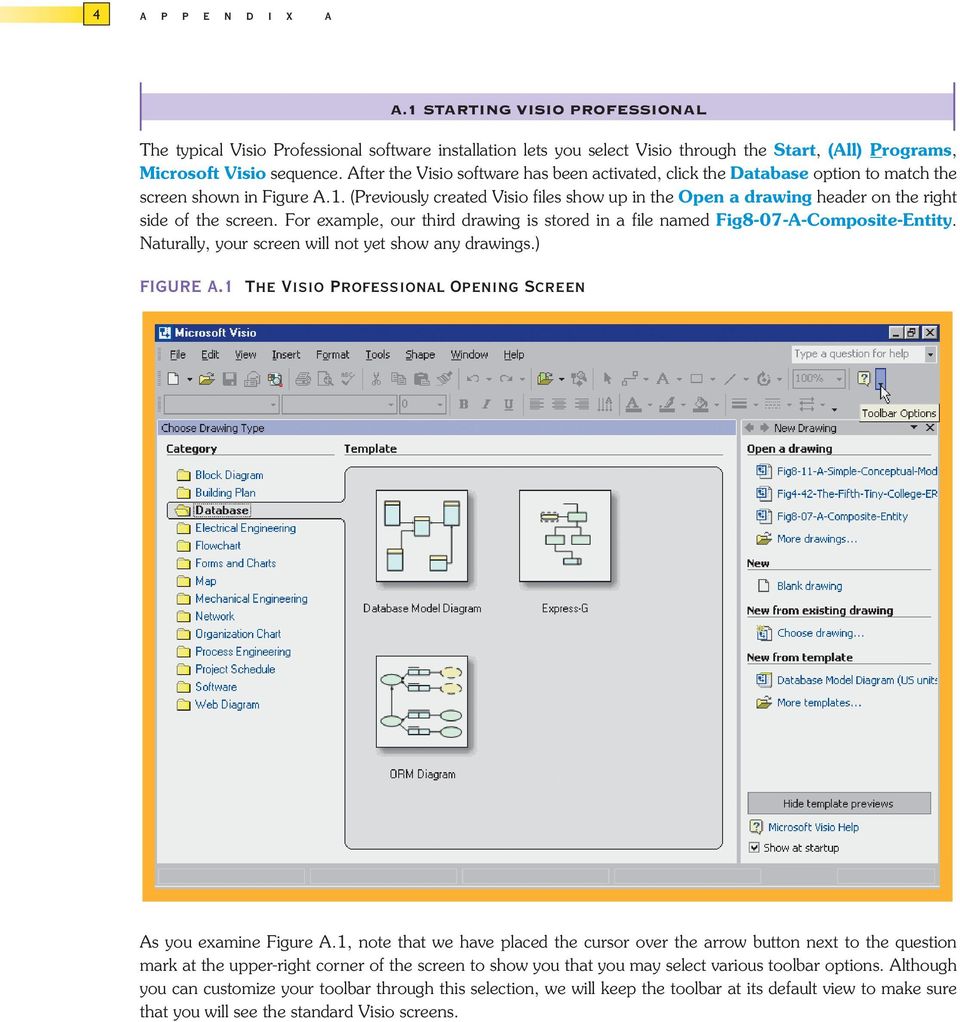
3 4 A P P E N D I X A A.1 STARTING VISIO PROFESSIONAL The typical Visio Professional software installation lets you select Visio through the Start, (All) Programs, Microsoft Visio sequence. After the Visio software has been activated, click the Database option to match the screen shown in Figure A.1. (Previously created Visio files show up in the Open a drawing header on the right side of the screen. For example, our third drawing is stored in a file named Fig8-07-A-Composite-Entity. Naturally, your screen will not yet show any drawings.) FIGURE A.1 The Visio Professional Opening Screen As you examine Figure A.1, note that we have placed the cursor over the arrow button next to the question mark at the upper-right corner of the screen to show you that you may select various toolbar options. Although you can customize your toolbar through this selection, we will keep the toolbar at its default view to make sure that you will see the standard Visio screens.
4 DESIGNING DATABASES WITH VISIO PROFESSIONAL: A TUTORIAL 5 With the Database selection shown in Figure A.1, move the cursor over the Database Model Diagram object. Note that your selection results in a square outline placed around the object. Also note that the cursor changes to a hand with a pointing finger, as shown in Figure A.2. In addition, you will see the Database Modeling Template description in the lower-left corner of your screen. FIGURE A.2 The Database Model Object Selection Click the Database Model Diagram selection shown in Figure A.2 to produce the screen shown in Figure A.3. Because we prefer a larger grid than the one shown in Figure A.3, we ll start by clicking the size selection (zoom) list box located on the button bar at the top of the screen. Click the down arrow to generate the list of size options, shown as percentages. As you can tell in Figure A.3, we have selected the 100% option. When you click the 100% selection, the grid expands to fill the screen.

5 6 A P P E N D I X A FIGURE A.3 The Drawing Board Size Option By selecting the Visio Professional database option and its drawing board, you have completed the preliminary work required to create ERDs. You are now ready to draw the ERDs on the drawing board. We will use the Crow s Foot option to show you how all the ERDs in the text were created. A.2 SETTING THE STAGE FOR CREATING A CROW S FOOT ERD To select the Crow s Foot option, select the Database, Options, Document sequence shown in Figure A.4. (Note that the drawing grid has expanded in response to the 100% selection shown in Figure A.3.)

6 DESIGNING DATABASES WITH VISIO PROFESSIONAL: A TUTORIAL 7 FIGURE A.4 The Database/Options/Document Selection When you click the Document option shown in Figure A.4, you will see the Database Document Options window in Figure A.5. The default selection is the General tab shown in Figure A.5. Note that the default selections in the General tab are Relational and Physical names. We ll leave the default options shown here. (The black dots inside the white circles, known as radio buttons, indicate that the option was selected.) If your screen does not show these selections, click their radio buttons to place the black dot inside the white circle. To deselect an option, click the radio button again to remove the black dot. FIGURE A.5 The Database Options Window

7 8 A P P E N D I X A Move the cursor to the Relationship tab in Figure A.5 and click to select it to produce the screen shown in Figure A.6. Make sure that there is a check mark in the check box next to the Crow s feet option to indicate that this option was selected. If there is no check mark, click this check box to select this option. (If a check box is grayed out, it cannot be changed. For example, at this point the check boxes under the Show verb phrase option cannot be changed, because the option has not been selected.) FIGURE A.6 The Database Document Options, Relationship Tab Examine Figure A.6, and note that we have not (yet) indicated that the relationship name is to be displayed; therefore, nor have we indicated how the names are to be displayed. We will return to this dialog box later to show you the effect of these selections and to demonstrate that you can edit the displays when you are working on them. Next, select the Table tab in the Database Document Options dialog box, as shown in Figure A.7. Make sure that the check boxes are marked as shown here.

8 DESIGNING DATABASES WITH VISIO PROFESSIONAL: A TUTORIAL 9 FIGURE A.7 The Database Document Options, Table Tab Click the OK button shown in Figure A.7 to begin creating Crow s Foot ERDs. A.2.1 The Business Rules To illustrate the development of the Visio Professional s Crow s ERD, we will create a simple design based on the following business rules: 1. A course can generate many classes. 2. Each class is generated by a course. 3. A course may or may not generate a class. Note that we have defined a class as a section of a course. This reflects the real world s use of the labels class and course. Students have a class schedule, rather than a section schedule. The catalog that lists all the courses offered by a department is called a course catalog. Some courses are not taught each semester, so they may not generate a class during any given semester. In fact, some courses may be taught only when there is sufficient student demand.

9 10 A P P E N D I X A A.3 CREATING AN ENTITY Now that you have some idea of the proposed design components, let s create the first entity for the design. Click the Entity object shown in Figure A.8. (Note that we have circled it.) Drag the Entity object to the grid and then drop it. This action will produce the Table1 object shown in the grid in Figure A.8. (The 1 in the Table1 label indicates that this is the first entity object to be placed on the grid.) Note that the entity object is shown as a table. That s because the entity object is represented by a conceptual table. FIGURE A.8 Placing the Entity Object in the Grid As you examine Figure A.8, note that the small locks around the Table1 object perimeter indicate that Table1e object has been selected. You can deselect the object by clicking an empty portion of the grid. If the Table1 object has not been selected, click it to select it.

10 DESIGNING DATABASES WITH VISIO PROFESSIONAL: A TUTORIAL 11 A.3.1 The Database Properties Window If the Table1 object has been selected as shown in Figure A.8, you will see the default Database Properties window at the bottom of the screen. (We will show you later in this section that this window s location and format may be changed to become the new default. However, we will start by using the standard default window shown in Figure A.8.) As you examine the Database Properties window in Figure A.8, note the selection of the Definition option in the Categories: listing. (To select any option in the list, click it. The selection is indicated by the arrow to the left of the option. In this case, the arrow appears next to the Definition option.) At this point, the default Table1 label shows up in the Physical name: slot. A.3.2 Creating the Default Database Properties Window Depending on how you configured the Visio Professional software and/or on what operating system you use, you may not see the Database Properties window shown in Figure A.8. If your screen does not show a default Database Properties window, right-click the Table1 object in the grid to generate the Database Properties option shown in Figure A.9. FIGURE A.9 Selecting the Database Properties Option Click the Database Properties option shown in Figure A.9, and a Database Properties window appears somewhere on the screen. Figure A.10 shows you a typical result. In this example, the Database Properties window is located on the grid, next to the Table1 object. We will show you how to change the window s location and format.

11 12 A P P E N D I X A FIGURE A.10 The Moved Database Properties Window A.3.3 Sizing the Database Properties Window You can size the Database Properties window as you would size any Windows object. For example, note that we have placed the cursor on the right margin (see Figure A.11) to change the cursor shape to a double-sided arrow in preparation for widening the window by dragging its right limit. FIGURE A.11 Sizing the Database Properties Window

12 DESIGNING DATABASES WITH VISIO PROFESSIONAL: A TUTORIAL 13 A.3.4 Moving the Database Properties Window You can also drag and drop the entire Database Properties window to the screen s lower-left corner (see Figure A.12). FIGURE A.12 The Database Properties Window in the Lower-Left Corner Naturally, you can also drag and drop the Database Properties window back to its original position depicted in Figure A.8. (Just drag and drop to the screen s bottom margin.) Because that location allows us to see more of the database properties without blocking part of the entities we draw on the screen, that s the position we ll use. A.3.5 Creating the Entity Name We will first create a COURSE entity, so place the cursor in the Physical name: slot and type COURSE as shown in Figure A.13. Because the Sync names when typing (default) option was selected in Figure A.13, the Physical name: and Conceptual name: entries are the same.

13 14 A P P E N D I X A FIGURE A.13 Type the Entity s Physical Name When you have finished typing the COURSE label in the Physical name: slot as shown in Figure A.13, note that the conceptual table in the grid automatically inherits the COURSE label. You are now ready to start defining the table columns.

14 DESIGNING DATABASES WITH VISIO PROFESSIONAL: A TUTORIAL 15 A.3.6 Defining the Entity Attributes (Columns) Each table column represents one of the characteristics (attributes or fields) of the entity. For example, if the COURSE entity, represented by the COURSE table, is described by the course code, the course description, and the course credits, you can expect to define three columns in the COURSE table. Table A.1 gives you a preview of the expected COURSE table structure. (We have also entered a few sample records to give you an idea of the COURSE table contents.) TABLE A.1 Some Sample COURSE Records CRS_CODE CRS_TITLE CRS_DESCRIPTION CRS_CREDITS ACCT-345 Managerial Accounting Accounting as a management tool. 3 Prerequisites: Junior standing and ACCT 234 and 245. CIS-456 Database Systems Design Creation of conceptual models, logical 4 models, and design implementation. Includes basic database applications development and the role of the database administrator. Prerequisites: Senior standing and at least 12 credit hours in computer information systems, including CIS-234 and CIS-345. ECON-101 Introduction to Economics An introduction to economic history and 3 basic economic principles. Not available for credit to economics and finance majors. To define the columns of the COURSE table, you must assign column names and characteristics. The first column in the COURSE table will be the CRS_CODE, which serves as the table s primary key (PK). Because typical course code entries might be values such as CIS-456 or ACCT-234, each data entry involves a character string. In structured query language (SQL) terms, the CRS_CODE data are best defined as CHAR() data. Figure A.14 shows you how the CRS_CODE name and data characteristics were specified.

15 16 A P P E N D I X A FIGURE A.14 The Column PK Selection To generate the appropriate input for the column characteristics shown in Figure A.14, follow these steps: 1. Make sure that the COURSE table object shown in the grid is selected. (The handles around the perimeter show that the selection was properly made.) 2. Select the Columns option in the Database Properties window at the bottom of the screen. (Note that the selection was marked with an arrow.) 3. Step 2 generates the column-specific dialog box. Type CRS_CODE in the first line under the Physical Name header. Moving along the line for the CRS_CODE entry: a. Select the Char option from the drop-down list under the Data Type header. (Click the down arrow to generate the list.) b. Because a course code is required to define the course offering, place a check mark by clicking the check box under the Req d header. c. Because the CRS_CODE is the PK, place a check mark by clicking the check box under the PK header.

16 DESIGNING DATABASES WITH VISIO PROFESSIONAL: A TUTORIAL 17 When you have completed these steps, you will see the screen depicted in Figure A.14. Before we enter the remaining attribute names and characteristics, let s first enlarge the Database Properties window by dragging its upper limit (see Figure A.15) to increase the desired space. This action will let us see all of the remaining attributes in the COURSE table. Now place the cursor on the second Columns line and get ready to enter the remaining attributes. FIGURE A.15 Drag the Database Properties Box Limit to Show More Columns The cursor changes shape when you place it on the database properties window edge

17 18 A P P E N D I X A We are now ready to make the entries for the second COURSE attribute. Name this attribute CRS_TITLE. Typical entries are Database Design and Implementation or Intermediate Accounting. (Check the sample entries in Table A.1.) Therefore, the CRS_TITLE is a character field. Similarly, enter the CRS_DESCRIPTION entries. The course description is required, but it is not a PK. The CRS_CREDITS entries are numeric and they are required; they will be used at some point to help compute grade point averages for the students taking a section of this course. When the appropriate entries are made, the screen will look like Figure A.16. (Only a portion of the screen is shown to save space.) Note that the attribute names become boldfaced when the Req d (required) option is checked for the Column property.) Selecting this option means that the end user will be required to make a value entry for the checked attribute after the design has been implemented when the table is opened for data entry. FIGURE A.16 Enter the Remaining Columns A.4 SAVING AND OPENING THE VISIO ERD Because we don t want to lose this first Visio Professional ERD segment, let s save it in an appropriate folder. Use the File, Save As option to select the folder location and the filename, as shown in Figures A.17 and A.18. FIGURE A.17 Select the Save As Option to Save the File

18 DESIGNING DATABASES WITH VISIO PROFESSIONAL: A TUTORIAL 19 FIGURE A.18 Select the Folder, Type the Filename, and Specify the File Type As you examine Figure A.18, note that the filename describes its origin and purpose. In this example, the ERD was named Tiny-College-COURSE-and-CLASS-segment. The naming convention we have adopted serves the important purpose of self-documentation. Note also that the file is saved as a Visio Drawing. If you want to see additional details about the file, go to the desktop, select the folder in which you have saved the file, right-click the filename, and select the Properties option to see the results in Figure A.19. (Note that we have selected the General tab and that the file was saved as an Archive type. If you place a check mark in the Read only option, the file cannot be modified until you remove the Read-only option by clicking it to remove the check mark.) FIGURE A.19 Describe the File Properties

19 20 A P P E N D I X A N O T E The properties box shown in Figure A.19 was generated in Windows XP. If you use another Windows version, such as Windows 98, your Properties window will differ from the one in Figure A.19. However, the procedure for generating and using the Properties window is the same. We can now go ahead and close the file and, of course, make a backup copy! The next time we want to use the file, after we start Visio Professional, we use the standard Windows File, Open option to retrieve and open the file. In fact, that s how we generated the screen shown in Figure A.20. FIGURE A.20 Open the Previously Saved File Note that the just-opened file shown in Figure A.20 does not show any entity properties. If you want to see this entity s properties, right-click the COURSE table and select Database Properties to display its Database Properties window again. You are now ready to define the CLASS entity, using the same techniques we used to create the COURSE entity. When you are done, the screen will look like Figure A.21. FIGURE A.21 Adding the CLASS Entity

20 DESIGNING DATABASES WITH VISIO PROFESSIONAL: A TUTORIAL 21 A.5 DEFINING RELATIONSHIPS As you examine Figure A.21, note that we have not defined a foreign key (FK) in CLASS to relate CLASS to COURSE. Instead, we will let Visio Professional define the FK field when we specify the relationship between these two entities. Do not enter your own FK fields! (Visio Professional tells you what the relationship option will do for you read the relationship text in Figure A.22). FIGURE A.22 Select the Relationship Object To create a relationship between the entities, first click the Relationship object shown in Figure A.22, drag it to the grid, and then drop it between the COURSE and CLASS entities to produce the results shown in Figure A.23. FIGURE A.23 Drag and Drop the Relationship Object As you examine Figure A.23, note that dropping the Relationship object on the grid produces the relationship line. Further note that the symbols at the two ends of the relationship line reflect default cardinalities of (1,1) and (0,N). Finally, remember that the relationship to be established between COURSE and CLASS reflects the business rule One COURSE may generate many CLASSes. Therefore, the COURSE represents the one side of the relationship and the CLASS represents the many side of the relationship. Attach the 1 side of the relationship line to the COURSE entity by dragging the 1 end of the relationship line to the COURSE entity, as shown in Figure A.24. Note and this is very important that the relationship is not attached until the COURSE table is outlined in red. (You may have to drag the relationship line s end all the way to the inside of the table before the red outline shows up.) When you release the relationship line, its attachment is verified by the red square on the entity (table) perimeter.

21 22 A P P E N D I X A FIGURE A.24 Attach the 1 Side of the Relationship Line Note the red square Using the same technique that was used to attach the 1 side of the relationship, drag the M side of the relationship line to the CLASS entity to produce Figure A.25. (Make sure that you see the red square on the CLASS entity side of the relationship line when you are done.) FIGURE A.25 Attach the M Side of the Relationship
22 DESIGNING DATABASES WITH VISIO PROFESSIONAL: A TUTORIAL 23 As you examine Figure A.25, note these features: 1. The two red rectangles at the margin of each table indicate that the relationship was successfully established and that is still selected. (If the relationship line is no longer selected, the red squares disappear. To reselect the relationship line, click it.) 2. Visio Professional created the CRS_CODE foreign key in the CLASS table, labeling it FK1 to indicate that this is the first FK created for this table. Note that CRS_CODE in the CLASS table is not in boldface type. This lack of boldface indicates that, at this point, you have not yet specified that a FK value is mandatory. (Of course it should be, because a CLASS cannot exist without a COURSE. We will edit this FK property later.) 3. The cardinality next to COURSE was automatically changed to indicate an optional (0,1) relationship between CLASS and COURSE. Because each class must be related to one course, a depiction of a (1,1) cardinality is appropriate. (A CLASS cannot exist without a COURSE.) Therefore, we ll have to edit this cardinality later. 4. The Database Properties window shows that the (default) Definition option is selected. (Look under the Categories: header.) 5. The relationship is reflected in the double-sided arrow linking the COURSE table s CRS_CODE and the CLASS table s CRS_CODE. A.5.1 Editing the Cardinalities If you examine Figure A.25 carefully, you ll notice that the CRS_CODE in the CLASS entity is not in boldface type. This lack of boldface indicates that the CRS_CODE in CLASS may be null, thus (incorrectly) indicating that COURSE is optional to CLASS. To change the (0,1) cardinality in Figure A.25 to a (1,1) cardinality: 1. Select the CLASS entity. 2. Check the CRS_CODE and note that its Req d check box is not checked. (This means that a value entry is not required, thus allowing nulls and making the relationship between CLASS and COURSE optional.) 3. Click the CLASS entity s CRS_CODE Req d check box to place a check mark in it. (This means that a value entry will be required, thus making the relationship between CLASS and COURSE mandatory.) When you have completed these three steps, you will see the results in Figure A.26. Note that the CRS_CODE in the CLASS entity is now in boldface to indicate the mandatory relationship between CLASS and COURSE. This mandatory relationship is reflected by the change in the (0,1) cardinality to a (1,1) cardinality on the COURSE entity.
23 24 A P P E N D I X A FIGURE A.26 Forcing a Mandatory Entry for a Foreign Key Value You can edit the M side of the 1:M relationship by selecting the relationship line and the Miscellaneous option in the Categories: list. Then select the Zero or more cardinality (if it is not already selected). Figure A.27 shows a portion of the screen after the selections have been properly made. FIGURE A.27 Selecting the Cardinality for the Many Side of a Relationship
24 DESIGNING DATABASES WITH VISIO PROFESSIONAL: A TUTORIAL 25 A.5.2 Selecting the Relationship Type As you examine Figure A.27, note the many options you have available. In this case, the relationship type is properly defined to be Non-identifying, because the dependent CLASS entity did not inherit its PK from the parent COURSE entity. (When we created the CLASS entity, we defined its PK to be CLASS_CODE, which is not found in the COURSE entity. In other words, the ERD in Figure A.27 indicates that the CLASS entity is not a weak entity. A weak entity always has a strong relationship that is, an identifying relationship with its parent entity.) N O T E The nature of the relationships between entities, the effect of optionalities, and the existence of weak entities all have critical effects on the database design. If necessary, review Chapter 4, Entity Relationship Modeling, Section 4.1.5, Relationship Strength, Section 4.1.6, Relationship Participation, and Section 4.1.7, Relationship Strength and Weak Entities, to review the nature and implementation of relationships. Figure A.27 shows the relationship between COURSE and CLASS as a dashed line. A dashed relationship line between two entities always indicates a non-identifying (weak) relationship between those entities. If you have reviewed the material mentioned in the above note, you know that a weak (non-identifying) relationship always indicates the existence of a strong dependent entity. Conversely, a strong (identifying) relationship always indicates the existence of a weak dependent entity. If you select an identifying relationship between COURSE and CLASS, Visio Professional will automatically rewrite the PK of the CLASS entity for you and the relationship line will be solid. Figure A.28 shows the effect of the relationship revision. After you have examined the effect of the identifying relationship selection, reset the relationship type to the one shown in Figure A.27. (If you want to preserve the identifying relationship version of the ERD, save it with a different name, such as Tiny-College-COURSE-and-CLASS-segment- Identifying-Relationship.) FIGURE A.28 Illustration of an Identifying (Strong) Relationship
25 26 A P P E N D I X A A.5.3 Naming the Relationships Make sure that the relationship line is still selected, and then click the Name option in the Database Properties window look under the Categories: header to produce the results displayed in Figure A.29. (Note that we have used the original ERD to use the preferred non-identifying relationship between COURSE and CLASS.) FIGURE A.29 The Default Relationship Name As you examine Figure A.29, note that the default Verb phrase: selection is has and that the default Inverse phrase: selection is is of. It s useful to remember that: 1. All relationships are defined both ways from the 1 to the M side and from the M to the 1 side. 2. Active verbs are used to label relationships from the 1 to the M side. Passive verbs are used to label relationships from the M to the 1 side. 3. Relationship names are written in lowercase. Using the Name selection in Figure A.29, type the Verb phrase: and Inverse phrase: entries as shown in Figure A.30. Note that we have selected active and passive verbs to describe the relationship between COURSE and CLASS both ways: 1. COURSE generates CLASS. 2. CLASS is generated by COURSE. Also note that we have dragged the ERD to the bottom of the screen to save some space in Figure A.30 and still show you how all the components are relevant to the discussion.
26 DESIGNING DATABASES WITH VISIO PROFESSIONAL: A TUTORIAL 27 FIGURE A.30 The Named Relationship A.5.4 Showing the Relationship Names As you examine Figure A.30, you may note that the relationship names are not shown. If you do want those relationship names shown, click the Database option shown at the top of the screen, and then select the Options, Document sequence you first saw in Figure A.4. Next, select the database document options Relationship tab (see Figure A.31), click the radio button in front of the Show verb phrase option, and then select the Forward text option. (If you select both the Forward text and the Inverse text options, Visio Professional writes the two relationship names on the same line and separates them with a slash. That option takes more space, so you may have to move the tables farther apart to make the relationship names readable.) Finally, select the Defaults option as shown in Figure A.31 and set the selection as the default. (Note that we have moved the Database Document Options window to show you all the components of this illustration.)
27 28 A P P E N D I X A FIGURE A.31 Set the Relationship Names as the Default Click OK to save the new relationships default shown in Figure A.31 to see all the relationship names in Figure A.32. FIGURE A.32 Showing the Relationship Names
28 DESIGNING DATABASES WITH VISIO PROFESSIONAL: A TUTORIAL 29 As you can tell by looking at the relationship name in Figure A.32, the relationship name is written through the relationship line, thus making it difficult to read. You can change the placement of the relationship name through font control. For example, if you want to place the relationship name above the relationship line, use the Format, Text selection shown in Figure A.33. (Make sure that the relationship line is still selected because you re working on a naming format for the relationship line.) N O T E You may want to save different versions of the ERD to experiment with the various options later. For example, you might want to save this latest modification as Tiny-College-COURSE-and-CLASS-Segment-Named- Relationship. FIGURE A.33 Selecting the Relationship Name Text Format When you click the Text selection shown in Figure A.33, you will see the window in Figure A.34. Note that we have selected the Position: to be Superscript and the font Size: to be 14 pt.
29 30 A P P E N D I X A FIGURE A.34 Repositioning the Relationship Name After you have made the selections shown in Figure A.34, click the Apply button and then click OK to accept the font changes. The relationship name will appear above the relationship line as shown in Figure A.35. (We have deselected the relationship line by clicking an empty portion of the grid to make it easier to read the repositioned relationship name.)
30 DESIGNING DATABASES WITH VISIO PROFESSIONAL: A TUTORIAL 31 FIGURE A.35 The Repositioned Relationship Name A.6 REFERENTIAL ACTION Make sure that the relationship line is still selected, and then click the Referential Action option in the Database Properties window look under the Categories: header to produce the results displayed in Figure A.36. FIGURE A.36 The Default Referential Action As you examine Figure A.36, it is important to think of the consequences of a deletion in the parent (COURSE) table. For example, if a COURSE is deleted, do you want to delete all of the classes that are associated with that course? That is, do you want to Cascade the deletion? (To modify any action, simply click the radio button in front of that action.) The Referential action selection forces you to make sure that the database design is appropriate to the data environment and that you really do understand the ramification of any database action. Given the many action options shown in Figure A.36, you may want to create a small database and try each action to see its effect.
31 32 A P P E N D I X A A.7 CONTROLLING THE ERD S PRESENTATION FORMAT If you want to modify the ERD presentation format, Visio Professional gives you many options. For example, if you want to color the relationship lines brown, select the relationship line, and then select the Format, Line option shown in Figure A.37. (You can also just right-click the relationship line, and then select the Format, Line option.) FIGURE A.37 Selecting the Format Option for the Relationship Line When you select the Line option shown in Figure A.37, you will see the options in Figure A.38. Each selection option has its own drop-down list from which you can make a selection. Note that we have selected the color to be brown and the line weight to be 9. We have left the remaining options in their default settings. Click the Apply button, and then click OK to accept the format changes shown in Figure A.38. (The formatting changes will take effect as soon as you click the Apply button.)
32 DESIGNING DATABASES WITH VISIO PROFESSIONAL: A TUTORIAL 33 FIGURE A.38 Formatting the Relationship Line You can format the relationship name s text, too. To do that, select the Format, Text: option shown in Figure A.37 to generate the window displayed in Figure A.39. Note the selection of the brown text color to match the color of the relationship line. The font Size (14) and Position (Superscript) reflect the choices we made earlier in Figure A.34. Note (again) that you must click the Apply button, and then click OK to accept the format changes.
33 34 A P P E N D I X A FIGURE A.39 Formatting the Relationship Text The results of the relationship line and text formatting are shown in Figure A.40. FIGURE A.40 The Relationship Line and Text Formatting Results Naturally, you can also control the table s presentation format. To illustrate that process, let s make the table borders blue. To do that, first select the table you want to format, and then select the format option (Format, Line ) shown in Figure A.37 to generate the line options shown in Figure A.41.
34 DESIGNING DATABASES WITH VISIO PROFESSIONAL: A TUTORIAL 35 FIGURE A.41 Formatting the Table Line As you examine Figure A.41, note that we selected the line Color: to be 4:, which is blue. The selected line Weight: is 5:. (The higher the line weight value, the thicker the line.) Remember to first click the Apply button, and then click the OK button to save the changes. Now repeat the process for the CLASS table to produce the results shown in Figure A.42. FIGURE A.42 The Reformatted Table Lines
35 36 A P P E N D I X A A.8 PLACING TEXT ON THE GRID To help document the ERD, it may be helpful to place explanatory notes on the grid. To produce such notes, select the Text tool (marked A) shown at the top of the screen. Make sure you have deselected the CLASS table by clicking a blank area of the screen. You will see the effect of your selection when you note the cursor s new look. Select the text format to suit your needs we have selected left justification and a font size of 12. (See Figure A.43.) FIGURE A.43 Selecting the Text Tool Font size Text cursor Left justification Text tool After making the selections shown in Figure A.43, we typed the text shown in Figure A.44. (You can modify any text format such as the font, size, color, and justification later.) FIGURE A.44 The Initial Text As you examine the text in Figure A.44, you ll notice that we lack the space to continue typing the business rules. To make more space, drag and drop the ERD components farther down the screen. (Hold down the Shift key as you click each of the two entity boxes and the relationship line to select them all, then you can move them down together.)
36 DESIGNING DATABASES WITH VISIO PROFESSIONAL: A TUTORIAL 37 To move the text box, you must first make sure that the text tool has been deselected. If the text tool is still active, click it to deselect it. (You will know that the text tool is active when the cursor looks like the one shown in Figure A.43.) You need to remember two important rules that govern the use of the text box: 1. You cannot move the text box unless the text tool is inactive. 2. You cannot edit the text unless the text tool is active. (In other words, the text tool must be selected before you can create or edit text.) If the text tool is not active, clicking the text box produces a set of small squares (handles) shown on the text box perimeter. You can see the handles around the text box in Figure A.45, which also shows that we have dragged and dropped the ERD farther down the screen. Also note that the four-sided arrow by the cursor indicates that the text box may be moved by dragging and dropping. (If you don t see the four-sided arrow on your screen, move the cursor until the four-sided arrow appears.) FIGURE A.45 Selecting the Text Box to Move It After the text box has been selected as shown in Figure A.45, you can drag and drop it as you would any other object on the screen. In fact, the text box behaves like any other Windows object. For example, you can change the size of the text box by dragging its perimeter to move it in or out. Just place the cursor anywhere along the text box perimeter to produce the two-sided arrow shown in Figure A.46.
37 38 A P P E N D I X A FIGURE A.46 Selecting the Text Box to Size It You can now finish typing the text and you can format it to suit your needs. Our final text box is shown in Figure A.47. Note that we have selected a light blue text color. FIGURE A.47 The Completed Text Box Don t forget to save your Visio file before you exit. As with all Windows applications, you will be reminded to save the file if you try to close it without first saving it.
Preview DESIGNING DATABASES WITH VISIO PROFESSIONAL: A TUTORIAL
 DESIGNING DATABASES WITH VISIO PROFESSIONAL: A TUTORIAL A Microsoft Visio Professional is a powerful database design and modeling tool. The Visio software has so many features that it is impossible to
A Short Tutorial on Using Visio 2010 for Entity-Relationship Diagrams
 A Short Tutorial on Using Visio 2010 for Entity-Relationship Diagrams by Nezar Hussain Microsoft Visio 2010 is a flexible software tool that allows users to create some diagrams and charts, providing an
Sample Table. Columns. Column 1 Column 2 Column 3 Row 1 Cell 1 Cell 2 Cell 3 Row 2 Cell 4 Cell 5 Cell 6 Row 3 Cell 7 Cell 8 Cell 9.
 Working with Tables in Microsoft Word The purpose of this document is to lead you through the steps of creating, editing and deleting tables and parts of tables. This document follows a tutorial format
Creating Database Model Diagrams in Microsoft Visio Jeffery S. Horsburgh
 Creating Database Model Diagrams in Microsoft Visio Jeffery S. Horsburgh Visio is a software tool created by Microsoft that contains tools for creating many different types of diagrams. Visio s drawing
Introduction to Microsoft Word 2003
 Introduction to Microsoft Word 2003 Sabeera Kulkarni Information Technology Lab School of Information University of Texas at Austin Fall 2004 1. Objective This tutorial is designed for users who are new
Creating tables of contents and figures in Word 2013
 Creating tables of contents and figures in Word 2013 Information Services Creating tables of contents and figures in Word 2013 This note shows you how to create a table of contents or a table of figures
If you know exactly how you want your business forms to look and don t mind
 appendix e Advanced Form Customization If you know exactly how you want your business forms to look and don t mind detail work, you can configure QuickBooks forms however you want. With QuickBooks Layout
Creating a PowerPoint Poster using Windows
 Creating a PowerPoint Poster using Windows Copyright 2001 Michael Dougherty ([email protected]) Purpose The purpose of this tutorial is to illustrate how to create a 3 x 4 ft. poster using PowerPoint. This
DOING MORE WITH WORD: MICROSOFT OFFICE 2010
 University of North Carolina at Chapel Hill Libraries Carrboro Cybrary Chapel Hill Public Library Durham County Public Library DOING MORE WITH WORD: MICROSOFT OFFICE 2010 GETTING STARTED PAGE 02 Prerequisites
Using Excel to find Perimeter, Area & Volume
 Using Excel to find Perimeter, Area & Volume Level: LBS 4 V = lwh Goal: To become familiar with Microsoft Excel by entering formulas into a spreadsheet in order to calculate the perimeter, area and volume
Publisher 2010 Cheat Sheet
 April 20, 2012 Publisher 2010 Cheat Sheet Toolbar customize click on arrow and then check the ones you want a shortcut for File Tab (has new, open save, print, and shows recent documents, and has choices
Create a Poster Using Publisher
 Contents 1. Introduction 1. Starting Publisher 2. Create a Poster Template 5. Aligning your images and text 7. Apply a background 12. Add text to your poster 14. Add pictures to your poster 17. Add graphs
Creating ER Diagrams with Visio 2010
 Creating ER Diagrams with Visio 2010 Mote s Notes 9/12/2012 Microsoft Visio is a popular business drawing program that can be used to quickly create a wide rage of diagrams: building blueprints, street
paragraph(s). The bottom mark is for all following lines in that paragraph. The rectangle below the marks moves both marks at the same time.
 MS Word, Part 3 & 4 Office 2007 Line Numbering Sometimes it can be helpful to have every line numbered. That way, if someone else is reviewing your document they can tell you exactly which lines they have
Chapter 1. Creating Sketches in. the Sketch Mode-I. Evaluation chapter. Logon to www.cadcim.com for more details. Learning Objectives
 Chapter 1 Creating Sketches in Learning Objectives the Sketch Mode-I After completing this chapter you will be able to: Use various tools to create a geometry. Dimension a sketch. Apply constraints to
Excel 2003 Tutorial I
 This tutorial was adapted from a tutorial by see its complete version at http://www.fgcu.edu/support/office2000/excel/index.html Excel 2003 Tutorial I Spreadsheet Basics Screen Layout Title bar Menu bar
Introduction to Visio 2003 By Kristin Davis Information Technology Lab School of Information The University of Texas at Austin Summer 2005
 Introduction to Visio 2003 By Kristin Davis Information Technology Lab School of Information The University of Texas at Austin Summer 2005 Introduction This tutorial is designed for people who are new
CONSTRUCTING SINGLE-SUBJECT REVERSAL DESIGN GRAPHS USING MICROSOFT WORD : A COMPREHENSIVE TUTORIAL
 CONSTRUCTING SINGLE-SUBJECT REVERSAL DESIGN GRAPHS USING MICROSOFT WORD : A COMPREHENSIVE TUTORIAL PATRICK GREHAN ADELPHI UNIVERSITY DANIEL J. MORAN MIDAMERICAN PSYCHOLOGICAL INSTITUTE This document is
PowerPoint 2013: Basic Skills
 PowerPoint 2013: Basic Skills Information Technology September 1, 2014 1 P a g e Getting Started There are a variety of ways to start using PowerPoint software. You can click on a shortcut on your desktop
Word 2007 WOWS of Word Office 2007 brings a whole new basket of bells and whistles for our enjoyment. The whistles turn to wows.
 WOWS of Word Office brings a whole new basket of bells and whistles for our enjoyment. The whistles turn to wows. [email protected] Templates Click on the Office Button PDF and select New. You can now change
Decision Support AITS University Administration. Web Intelligence Rich Client 4.1 User Guide
 Decision Support AITS University Administration Web Intelligence Rich Client 4.1 User Guide 2 P age Web Intelligence 4.1 User Guide Web Intelligence 4.1 User Guide Contents Getting Started in Web Intelligence
Crystal Reports Payroll Exercise
 Crystal Reports Payroll Exercise Objective This document provides step-by-step instructions on how to build a basic report on Crystal Reports XI on the MUNIS System supported by MAISD. The exercise will
Windows XP Pro: Basics 1
 NORTHWEST MISSOURI STATE UNIVERSITY ONLINE USER S GUIDE 2004 Windows XP Pro: Basics 1 Getting on the Northwest Network Getting on the Northwest network is easy with a university-provided PC, which has
X-Trade Brokers Dom Maklerski S.A. XTB Expert Builder. Tutorial. Michał Zabielski 2010-08-05
 X-Trade Brokers Dom Maklerski S.A. XTB Expert Builder Tutorial Michał Zabielski 2010-08-05 Table of Contents Installation...3 Legal notification...7 Initial adjustments / Preferences...8 Language...8 Platform
WHAT S NEW IN WORD 2010 & HOW TO CUSTOMIZE IT
 WHAT S NEW IN WORD 2010 & HOW TO CUSTOMIZE IT The Ribbon... 2 Default Tabs... 2 Contextual Tabs... 2 Minimizing and Restoring the Ribbon... 3 Customizing the Ribbon... 3 A New Graphic Interface... 5 Live
Microsoft Access 2010 handout
 Microsoft Access 2010 handout Access 2010 is a relational database program you can use to create and manage large quantities of data. You can use Access to manage anything from a home inventory to a giant
Excel Tutorial. Bio 150B Excel Tutorial 1
 Bio 15B Excel Tutorial 1 Excel Tutorial As part of your laboratory write-ups and reports during this semester you will be required to collect and present data in an appropriate format. To organize and
Excel 2003 A Beginners Guide
 Excel 2003 A Beginners Guide Beginner Introduction The aim of this document is to introduce some basic techniques for using Excel to enter data, perform calculations and produce simple charts based on
Microsoft PowerPoint Tutorial
 Microsoft PowerPoint Tutorial Contents Starting MS PowerPoint... 1 The MS PowerPoint Window... 2 Title Bar...2 Office Button...3 Saving Your Work... 3 For the first time... 3 While you work... 3 Backing
Excel basics. Before you begin. What you'll learn. Requirements. Estimated time to complete:
 Excel basics Excel is a powerful spreadsheet and data analysis application, but to use it most effectively, you first have to understand the basics. This tutorial introduces some of the tasks and features
Step One. Step Two. Step Three USING EXPORTED DATA IN MICROSOFT ACCESS (LAST REVISED: 12/10/2013)
 USING EXPORTED DATA IN MICROSOFT ACCESS (LAST REVISED: 12/10/2013) This guide was created to allow agencies to set up the e-data Tech Support project s Microsoft Access template. The steps below have been
If you know exactly how you want your business forms to look and don t mind detail
 Advanced Form Customization APPENDIX E If you know exactly how you want your business forms to look and don t mind detail work, you can customize QuickBooks forms however you want. With QuickBooks Layout
PowerPoint 2007 Basics Website: http://etc.usf.edu/te/
 Website: http://etc.usf.edu/te/ PowerPoint is the presentation program included in the Microsoft Office suite. With PowerPoint, you can create engaging presentations that can be presented in person, online,
Introduction To Microsoft Office PowerPoint 2007. Bob Booth July 2008 AP-PPT5
 Introduction To Microsoft Office PowerPoint 2007. Bob Booth July 2008 AP-PPT5 University of Sheffield Contents 1. INTRODUCTION... 3 2. GETTING STARTED... 4 2.1 STARTING POWERPOINT... 4 3. THE USER INTERFACE...
How to Use the Drawing Toolbar in Microsoft Word
 How to Use the Drawing Toolbar in Microsoft Word The drawing toolbar allows you to quickly and easily label pictures (e.g., maps) in a MS Word file. You can add arrows, circle spots, or label with words.
In this session, we will explain some of the basics of word processing. 1. Start Microsoft Word 11. Edit the Document cut & move
 WORD PROCESSING In this session, we will explain some of the basics of word processing. The following are the outlines: 1. Start Microsoft Word 11. Edit the Document cut & move 2. Describe the Word Screen
Creating Custom Crystal Reports Tutorial
 Creating Custom Crystal Reports Tutorial 020812 2012 Blackbaud, Inc. This publication, or any part thereof, may not be reproduced or transmitted in any form or by any means, electronic, or mechanical,
Petrel TIPS&TRICKS from SCM
 Petrel TIPS&TRICKS from SCM Knowledge Worth Sharing Building Montages in Petrel Most Petrel projects require display maps to be made for presentations; either for partners or peers. This TIPS&TRICKS provides
TLMC WORKSHOP: THESIS FORMATTING IN WORD 2010
 Table of Contents Introduction... 2 Getting Help... 2 Tips... 2 Working with Styles... 3 Applying a Style... 3 Choosing Which Styles to Use... 3 Modifying a Style... 4 Creating A New Style... 4 Setting
Publisher 2007: Part 2 Advanced Features. Grouped Objects in Publisher:
 Publisher 2007: Part 2 Advanced Features Grouped Objects in Publisher: Most pre-designed publications in MS Publisher come with objects grouped together. Objects can be either multiple text boxes or an
Word 2007: Basics Learning Guide
 Word 2007: Basics Learning Guide Exploring Word At first glance, the new Word 2007 interface may seem a bit unsettling, with fat bands called Ribbons replacing cascading text menus and task bars. This
Microsoft Word 2010 Tutorial
 1 Microsoft Word 2010 Tutorial Microsoft Word 2010 is a word-processing program, designed to help you create professional-quality documents. With the finest documentformatting tools, Word helps you organize
Adding Comments in Microsoft Excel 2003
 Adding Comments in Microsoft Excel 2003 Introduction Microsoft Excel has a very useful facility which allows you to add explanatory notes to your worksheet. These can be used, for example, to explain what
Excel 2007 A Beginners Guide
 Excel 2007 A Beginners Guide Beginner Introduction The aim of this document is to introduce some basic techniques for using Excel to enter data, perform calculations and produce simple charts based on
Windows 95. 2a. Place the pointer on Programs. Move the pointer horizontally to the right into the next window.
 Word Processing Microsoft Works Windows 95 The intention of this section is to instruct basic word processing skills such as creating, editing, formatting, saving and closing a new document. Microsoft
Creating a table of contents quickly in Word
 Creating a table of contents quickly in Word This note shows you how to set up a table of contents that can be generated and updated quickly and easily, even for the longest and most complex documents.
GUIDELINES FOR PREPARING POSTERS USING POWERPOINT PRESENTATION SOFTWARE
 Society for the Teaching of Psychology (APA Division 2) OFFICE OF TEACHING RESOURCES IN PSYCHOLOGY (OTRP) Department of Psychology, Georgia Southern University, P. O. Box 8041, Statesboro, GA 30460-8041
Using Microsoft Access
 Using Microsoft Access Relational Queries Creating a query can be a little different when there is more than one table involved. First of all, if you want to create a query that makes use of more than
LESSON 7: IMPORTING AND VECTORIZING A BITMAP IMAGE
 LESSON 7: IMPORTING AND VECTORIZING A BITMAP IMAGE In this lesson we ll learn how to import a bitmap logo, transform it into a vector and perform some editing on the vector to clean it up. The concepts
Data Visualization. Prepared by Francisco Olivera, Ph.D., Srikanth Koka Department of Civil Engineering Texas A&M University February 2004
 Data Visualization Prepared by Francisco Olivera, Ph.D., Srikanth Koka Department of Civil Engineering Texas A&M University February 2004 Contents Brief Overview of ArcMap Goals of the Exercise Computer
Guide To Creating Academic Posters Using Microsoft PowerPoint 2010
 Guide To Creating Academic Posters Using Microsoft PowerPoint 2010 INFORMATION SERVICES Version 3.0 July 2011 Table of Contents Section 1 - Introduction... 1 Section 2 - Initial Preparation... 2 2.1 Overall
Presentations and PowerPoint
 V-1.1 PART V Presentations and PowerPoint V-1.2 Computer Fundamentals V-1.3 LESSON 1 Creating a Presentation After completing this lesson, you will be able to: Start Microsoft PowerPoint. Explore the PowerPoint
Microsoft Word defaults to left justified (aligned) paragraphs. This means that new lines automatically line up with the left margin.
 Microsoft Word Part 2 Office 2007 Microsoft Word 2007 Part 2 Alignment Microsoft Word defaults to left justified (aligned) paragraphs. This means that new lines automatically line up with the left margin.
HOW TO ORGANIZE PICTURES
 Get started When you upload your pictures to Shutterfly, you can do much more than view them. Our workspace offers tools that let you quickly and easily organize your photos as well. We re going to show
Microsoft PowerPoint 2010 Handout
 Microsoft PowerPoint 2010 Handout PowerPoint is a presentation software program that is part of the Microsoft Office package. This program helps you to enhance your oral presentation and keep the audience
Triggers & Actions 10
 Triggers & Actions 10 CHAPTER Introduction Triggers and actions are the building blocks that you can use to create interactivity and custom features. Once you understand how these building blocks work,
National RTAP Marketing Transit Toolkit Customizing Templates in Microsoft Publisher
 National RTAP Marketing Transit Toolkit Customizing Templates in Microsoft Publisher Customizing the Templates in Microsoft Publisher Microsoft Publisher is part of the Microsoft Office Suite, so most
Utilizing Microsoft Access Forms and Reports
 Utilizing Microsoft Access Forms and Reports The 2014 SAIR Conference Workshop #3 October 4 th, 2014 Presented by: Nathan Pitts (Sr. Research Analyst The University of North Alabama) Molly Vaughn (Associate
Handout: Word 2010 Tips and Shortcuts
 Word 2010: Tips and Shortcuts Table of Contents EXPORT A CUSTOMIZED QUICK ACCESS TOOLBAR... 2 IMPORT A CUSTOMIZED QUICK ACCESS TOOLBAR... 2 USE THE FORMAT PAINTER... 3 REPEAT THE LAST ACTION... 3 SHOW
Introduction to Microsoft Access 2003
 Introduction to Microsoft Access 2003 Zhi Liu School of Information Fall/2006 Introduction and Objectives Microsoft Access 2003 is a powerful, yet easy to learn, relational database application for Microsoft
PowerPoint 2007: Basics Learning Guide
 PowerPoint 2007: Basics Learning Guide What s a PowerPoint Slide? PowerPoint presentations are composed of slides, just like conventional presentations. Like a 35mm film-based slide, each PowerPoint slide
POWERPOINT BASICS: MICROSOFT OFFICE 2013
 University of North Carolina at Chapel Hill Libraries Carrboro Cybrary Chapel Hill Public Library Durham County Public Library POWERPOINT BASICS: MICROSOFT OFFICE 2013 GETTING STARTED PAGE 02 Prerequisites
Microsoft Word 2010 Prepared by Computing Services at the Eastman School of Music July 2010
 Microsoft Word 2010 Prepared by Computing Services at the Eastman School of Music July 2010 Contents Microsoft Office Interface... 4 File Ribbon Tab... 5 Microsoft Office Quick Access Toolbar... 6 Appearance
Customizing forms and writing QuickBooks Letters
 LESSON 15 Customizing forms and writing QuickBooks Letters 15 Lesson objectives, 398 Supporting materials, 398 Instructor preparation, 398 To start this lesson, 398 About QuickBooks forms, 399 Customizing
Tutorials. If you have any questions, comments, or suggestions about these lessons, don't hesitate to contact us at [email protected].
 Tutorials The lesson schedules for these tutorials were installed when you installed Milestones Professional 2010. They can be accessed under File Open a File Lesson Chart. If you have any questions, comments,
Embroidery Fonts Plus ( EFP ) Tutorial Guide Version 1.0505
 Embroidery Fonts Plus ( EFP ) Tutorial Guide Version 1.0505 1 Contents Chapter 1 System Requirements.................. 3 Chapter 2 Quick Start Installation.................. 4 System Requirements................
MICROSOFT WORD TUTORIAL
 MICROSOFT WORD TUTORIAL G E T T I N G S T A R T E D Microsoft Word is one of the most popular word processing programs supported by both Mac and PC platforms. Microsoft Word can be used to create documents,
Generative Drafting. Page 1 1997 2001 DASSAULT SYSTEMES. IBM Product Lifecycle Management Solutions / Dassault Systemes
 Generative Drafting Page 1 Tutorial Objectives Description This Tutorial is an introduction to Generative Drafting. Message To show how CATIA V5 allows the user to automatically generate associative drafting
Writer Guide. Chapter 15 Using Forms in Writer
 Writer Guide Chapter 15 Using Forms in Writer Copyright This document is Copyright 2005 2008 by its contributors as listed in the section titled Authors. You may distribute it and/or modify it under the
In this example, Mrs. Smith is looking to create graphs that represent the ethnic diversity of the 24 students in her 4 th grade class.
 Creating a Pie Graph Step-by-step directions In this example, Mrs. Smith is looking to create graphs that represent the ethnic diversity of the 24 students in her 4 th grade class. 1. Enter Data A. Open
ADMINISTRATORS GUIDE EPISUITE 6
 ADMINISTRATORS GUIDE EPISUITE 6 A quick tutorial on how to set up and implement Episuite Software created by IDentiphoto Specialists in IDentification 1810 Joseph Lloyd Pkwy. Willoughby, OH 44094 Phone:
Password Memory 6 User s Guide
 C O D E : A E R O T E C H N O L O G I E S Password Memory 6 User s Guide 2007-2015 by code:aero technologies Phone: +1 (321) 285.7447 E-mail: [email protected] Table of Contents Password Memory 6... 1
Customize tab; click the Accounts category; drag the satellite dish icon to your toolbar.
 The Tech/Media Department will install and configure GroupWise for you on your classroom Mac OS X or PC computer. If GroupWise is not currently installed and you would like to begin using it, please submit
Working with SmartArt
 CHAPTER Working with SmartArt In this chapter by Geetesh Bajaj Understanding SmartArt 206 Adding SmartArt to a Presentation 206 Formatting SmartArt 208 Sample SmartArt Variants 211 Common SmartArt Procedures
Step 2: Headings and Subheadings
 Step 2: Headings and Subheadings This PDF explains Step 2 of the step-by-step instructions that will help you correctly format your ETD to meet UCF formatting requirements. Step 2 shows you how to set
Creating Drawings in Pro/ENGINEER
 6 Creating Drawings in Pro/ENGINEER This chapter shows you how to bring the cell phone models and the assembly you ve created into the Pro/ENGINEER Drawing mode to create a drawing. A mechanical drawing
Ansur Test Executive. Users Manual
 Ansur Test Executive Users Manual April 2008 2008 Fluke Corporation, All rights reserved. All product names are trademarks of their respective companies Table of Contents 1 Introducing Ansur... 4 1.1 About
Merging Labels, Letters, and Envelopes Word 2013
 Merging Labels, Letters, and Envelopes Word 2013 Merging... 1 Types of Merges... 1 The Merging Process... 2 Labels - A Page of the Same... 2 Labels - A Blank Page... 3 Creating Custom Labels... 3 Merged
Creating Interactive PDF Forms
 Creating Interactive PDF Forms Using Adobe Acrobat X Pro Information Technology Services Outreach and Distance Learning Technologies Copyright 2012 KSU Department of Information Technology Services This
Creating tables in Microsoft Access 2007
 Platform: Windows PC Ref no: USER 164 Date: 25 th October 2007 Version: 1 Authors: D.R.Sheward, C.L.Napier Creating tables in Microsoft Access 2007 The aim of this guide is to provide information on using
Microsoft Office. Mail Merge in Microsoft Word
 Microsoft Office Mail Merge in Microsoft Word TABLE OF CONTENTS Microsoft Office... 1 Mail Merge in Microsoft Word... 1 CREATE THE SMS DATAFILE FOR EXPORT... 3 Add A Label Row To The Excel File... 3 Backup
Styles, Tables of Contents, and Tables of Authorities in Microsoft Word 2010
 Styles, Tables of Contents, and Tables of Authorities in Microsoft Word 2010 TABLE OF CONTENTS WHAT IS A STYLE?... 2 VIEWING AVAILABLE STYLES IN THE STYLES GROUP... 2 APPLYING STYLES FROM THE STYLES GROUP...
FastTrack Schedule 10. Tutorials Manual. Copyright 2010, AEC Software, Inc. All rights reserved.
 FastTrack Schedule 10 Tutorials Manual FastTrack Schedule Documentation Version 10.0.0 by Carol S. Williamson AEC Software, Inc. With FastTrack Schedule 10, the new version of the award-winning project
Using Mail Merge in Microsoft Word 2003
 Using Mail Merge in Microsoft Word 2003 Mail Merge Created: 12 April 2005 Note: You should be competent in Microsoft Word before you attempt this Tutorial. Open Microsoft Word 2003 Beginning the Merge
Excel 2007 Basic knowledge
 Ribbon menu The Ribbon menu system with tabs for various Excel commands. This Ribbon system replaces the traditional menus used with Excel 2003. Above the Ribbon in the upper-left corner is the Microsoft
EXCEL FINANCIAL USES
 EXCEL FINANCIAL USES Table of Contents Page LESSON 1: FINANCIAL DOCUMENTS...1 Worksheet Design...1 Selecting a Template...2 Adding Data to a Template...3 Modifying Templates...3 Saving a New Workbook as
Microsoft Office Publisher 2010
 1 Microsoft Office Publisher 2010 Microsoft Publisher is a desktop publishing application which allows you to create artistic documents as brochures, flyers, and newsletters. To open Microsoft Office Publisher:
Microsoft Access 2010: Basics & Database Fundamentals
 Microsoft Access 2010: Basics & Database Fundamentals This workshop assumes you are comfortable with a computer and have some knowledge of other Microsoft Office programs. Topics include database concepts,
QUICK START GUIDE RESOURCE MANAGERS. Last Updated: 04/27/2012
 QUICK START GUIDE RESOURCE MANAGERS Last Updated: 04/27/2012 Table of Contents Introduction... 3 Getting started... 4 Logging into Eclipse... 4 Setting your user preferences... 5 Online help and the Eclipse
Microsoft Word 2011: Create a Table of Contents
 Microsoft Word 2011: Create a Table of Contents Creating a Table of Contents for a document can be updated quickly any time you need to add or remove details for it will update page numbers for you. A
Company Setup 401k Tab
 Reference Sheet Company Setup 401k Tab Use this page to define company level 401(k) information, including employee status codes, 401(k) sources, and 401(k) funds. The definitions you create here become
Creating trouble-free numbering in Microsoft Word
 Creating trouble-free numbering in Microsoft Word This note shows you how to create trouble-free chapter, section and paragraph numbering, as well as bulleted and numbered lists that look the way you want
Word 2010: The Basics Table of Contents THE WORD 2010 WINDOW... 2 SET UP A DOCUMENT... 3 INTRODUCING BACKSTAGE... 3 CREATE A NEW DOCUMENT...
 Word 2010: The Basics Table of Contents THE WORD 2010 WINDOW... 2 SET UP A DOCUMENT... 3 INTRODUCING BACKSTAGE... 3 CREATE A NEW DOCUMENT... 4 Open a blank document... 4 Start a document from a template...
nmqwertyuiopasdfghjklzxcvbnmqwer tyuiopasdfghjklzxcvbnmqwertyuiopas dfghjklzxcvbnmqwertyuiopasdfghjklzx
 qwertyuiopasdfghjklzxcvbnmqwertyui opasdfghjklzxcvbnmqwertyuiopasdfgh jklzxcvbnmqwertyuiopasdfghjklzxcvb Instructions for Formatting a nmqwertyuiopasdfghjklzxcvbnmqwer Turabian Paper tyuiopasdfghjklzxcvbnmqwertyuiopas
Using Microsoft Office XP Advanced Word Handout INFORMATION TECHNOLOGY SERVICES California State University, Los Angeles Version 1.
 Using Microsoft Office XP Advanced Word Handout INFORMATION TECHNOLOGY SERVICES California State University, Los Angeles Version 1.0 Spring 2004 Contents Advanced Microsoft Word XP... 3 Customizing Word
Plotting: Customizing the Graph
 Plotting: Customizing the Graph Data Plots: General Tips Making a Data Plot Active Within a graph layer, only one data plot can be active. A data plot must be set active before you can use the Data Selector
Migrating to Excel 2010 from Excel 2003 - Excel - Microsoft Office 1 of 1
 Migrating to Excel 2010 - Excel - Microsoft Office 1 of 1 In This Guide Microsoft Excel 2010 looks very different, so we created this guide to help you minimize the learning curve. Read on to learn key
Formatting & Styles Word 2010
 Formatting & Styles Word 2010 Produced by Flinders University Centre for Educational ICT CONTENTS Layout... 1 Using the Ribbon Bar... 2 Minimising the Ribbon Bar... 2 The File Tab... 3 What the Commands
Microsoft Word 2010 Basics
 Microsoft Word 2010 Basics 1. Start Word if the Word 2007 icon is not on the desktop: a. Click Start>Programs>Microsoft Office>Microsoft Word 2007 b. The Ribbon- seen across the top of Microsoft Word.