
Secure Web Gateway Virtual Appliance Initial Configuration Guide Platform: VMware vsphere Hypervisor
|
|
|
- June Willis
- 9 years ago
- Views:
Transcription
1 Secure Web Gateway Virtual Appliance Initial Configuration Guide Platform: VMware vsphere Hypervisor SGOS 6.5.x and later i

2 Secure Web Gateway Virtual Appliance Contact Information Americas: Blue Coat Systems Inc. 420 North Mary Ave Sunnyvale, CA Rest of the World: Blue Coat Systems International SARL 3a Route des Arsenaux 1700 Fribourg, Switzerland For concerns or feedback about the documentation: ii

3 2015 Blue Coat Systems, Inc. All rights reserved. BLUE COAT, PROXYSG, PACKETSHAPER, CACHEFLOW, INTELLIGENCECENTER, CACHEOS, CACHEPULSE, CROSSBEAM, K9, DRTR, MACH5, PACKETWISE, POLICYCENTER, PROXYAV, PROXYCLIENT, SGOS, WEBPULSE, SOLERA NETWORKS, DEEPSEE, DS APPLIANCE, SEE EVERYTHING. KNOW EVERYTHING., SECURITY EMPOWERS BUSINESS, BLUETOUCH, the Blue Coat shield, K9, and Solera Networks logos and other Blue Coat logos are registered trademarks or trademarks of Blue Coat Systems, Inc. or its affiliates in the U.S. and certain other countries. This list may not be complete, and the absence of a trademark from this list does not mean it is not a trademark of Blue Coat or that Blue Coat has stopped using the trademark. All other trademarks mentioned in this document owned by third parties are the property of their respective owners. This document is for informational purposes only. BLUE COAT MAKES NO WARRANTIES, EXPRESS, IMPLIED, OR STATUTORY, AS TO THE INFORMATION IN THIS DOCUMENT. BLUE COAT PRODUCTS, TECHNICAL SERVICES, AND ANY OTHER TECHNICAL DATA REFERENCED IN THIS DOCUMENT ARE SUBJECT TO U.S. EXPORT CONTROL AND SANCTIONS LAWS, REGULATIONS AND REQUIREMENTS, AND MAY BE SUBJECT TO EXPORT OR IMPORT REGULATIONS IN OTHER COUNTRIES. YOU AGREE TO COMPLY STRICTLY WITH THESE LAWS, REGULATIONS AND REQUIREMENTS, AND ACKNOWLEDGE THAT YOU HAVE THE RESPONSIBILITY TO OBTAIN ANY LICENSES, PERMITS OR OTHER APPROVALS THAT MAY BE REQUIRED IN ORDER TO EXPORT, RE-EXPORT, TRANSFER IN COUNTRY OR IMPORT AFTER DELIVERY TO YOU. Americas: Rest of the World: Blue Coat Systems, Inc. Blue Coat Systems International SARL 420 N. Mary Ave. 3a Route des Arsenaux Sunnyvale, CA Fribourg, Switzerland Document Revision: SGOS /2015 ProxySG Appliances Additional Restrictions Within sixty (60) days of the date from which the User powers up the ProxySG appliance ( Activation Period ), the Administrator must complete the ProxySG licensing requirements as instructed by the ProxySG to continue to use all of the ProxySG features. Prior to the expiration of the Activation Period, the ProxySG software will deliver notices to install the license each time the Administrator logs in to manage the product. Failure to install the license prior to the expiration of the Activation Period may result in some ProxySG features becoming inoperable until the Administrator has completed licensing. Proxy Client: The Administrator may install the Proxy Client only on the number of personal computers licensed to them. Each personal computer shall count as one user or seat. The ProxyClient software may only be used with Blue Coat ProxySG appliances. The Administrator shall require each user of the Blue Coat ProxyClient software to agree to a license agreement that is at least as protective of Blue Coat and the Blue Coat ProxyClient software as the Blue Coat EULA. ProxySG Virtual Appliances, MACH5 or Secure Web Gateway (SWG) Edition: The ProxySG Virtual Appliances (MACH5 or Secure Web Gateway edition) are licensed on either a perpetual or subscription basis for a maximum number of concurrent users. Support for the Virtual Appliances will be subject to the separate support agreement entered into by the parties if the Administrator licenses the Virtual Appliances on a perpetual basis. The Virtual Appliances will (a) not function upon expiration of the subscription if the Administrator licenses the Virtual Appliances on a subscription basis; or (b) if the traffic exceeds the maximum number of concurrent users/connections, features may not function beyond the maximum number of concurrent users/connections. This means that, in these cases, the network traffic will only be affected by the default policy set by the Administrator (either pass or deny). Such cessation of functionality is by design, and is not a defect in the Virtual Appliances. The Administrator may not install the same license key or serial number on more than one instance of the Virtual Appliance. The Administrator may move the Virtual Appliance along with its license key and serial number to a different server, provided that server is also owned by the Administrator and the Administrator permanently deletes the prior instance of the Virtual Appliance on the server on which it was prior installed. The Virtual Appliances require a third party environment that includes software and/or hardware not provided by Blue Coat, which the Administrator will purchase or license separately. Blue Coat has no liability for such third party products. iii

4 Secure Web Gateway Virtual Appliance iv

5 Contents Contents Additional Restrictions...iii Chapter 1: Overview About This Guide... 8 Conventions Used in This Guide... 9 Terminology Chapter 2: Before You Begin Verify Support for VMware Products... 8 Verify System Requirements... 9 Disk Requirements for a RAID Deployment Recommended IOPS for an iscsi SAN Deployment Verify Resource Availability Retrieve Appliance Serial Numbers...13 User Limits Create a Virtual Switch Chapter 3: Create the SWG Virtual Appliance Download the Virtual Appliance Package... 8 Import a SWG VA... 9 Migrate a Virtual Disk to a Different Physical Disk Reserve Resources for the SWG VA Power on the SWG VA Chapter 4: Configure the SWG Virtual Appliance Prepare for Initial Configuration... 8 Complete Initial Configuration... 9 Deploying the SWG VA in a Proxy Chain Verify Your Configuration Verify Network Connectivity Verify Management Console Access Retrieve and Install the SWG VA License Prevent Licensing Issues When to Power Off the SWG VA Powering off the SWG VA Monitor the SWG VA Licensing Metrics for the SWG VA Additional Information v

6 Command Line Interface Reference Appendix A: Frequently Asked Questions Features and Performance... 8 What are the Differences Between Proxy Edition, ProxySG VA MACH5 Edition, and SWG VA?... 8 Can I Manage SWG VA Using Blue Coat Sky?... 9 How Can I Ensure Optimal Performance of the SWG VA?... 9 Blue Coat WebFilter How Do I Download the Blue Coat WebFilter Database? Why Can t I Download the Blue Coat WebFilter Database/Why isn t the SWG VA Filtering Web Traffic? SWG VA Deployment in a Proxy Chain Upgrading SGOS Serial Numbers and Licensing How Can I Prevent Duplicate Serial Numbers? I Don't Have Duplicate Serial Numbers. Why is My License Suspended? How Do I Renew my Subscription for the SWG VA? How Do I Upgrade the User Limit for the SWG VA? How Do I Update the License Key? vi

7 Chapter 1: Overview The Secure Web Gateway Virtual Appliance (SWG VA) is a software solution that can be installed and deployed on a server running VMware vsphere Hypervisor. SWG VA facilitates server consolidation in that the SWG VA can co-exist with other virtual machines on a single hardware platform, including ProxySG Virtual Appliance MACH5 Edition. With the SWG VA providing security, the other virtual machines can provide branch office services (such as Domain Controller, print, DNS, and DHCP), as well as any VMware-certified software application. Blue Coat is VMWare Ready, having worked closely with VMware to ensure that the SWG VA runs efficiently in the virtual environment and meets all technical criteria and specifications. Note: VMware Ready is a validation program designed to provide the best possible user experience among virtual appliances deployed in production. This status indicates that Blue Coat has followed best practices and that the SWG VA is optimized for VMware vsphere, helping to ensure ready-to-run reliability and security. 7

8 Secure Web Gateway Virtual Appliance Section 1 About This Guide This guide is intended for users who are deploying and running a SWG VA on VMware s vsphere Hypervisor. It provides information on the minimum system requirements and instructions for creating and configuring a virtual ProxySG appliance. The following topics are covered in this guide: "Before You Begin" on page 7 "Create the SWG Virtual Appliance" on page 7 "Configure the SWG Virtual Appliance" on page 7 "Frequently Asked Questions" on page 7 Note: BlueTouch Online ( has the most up-to-date version of this guide. 8

9 Section 2 Conventions Used in This Guide This guide uses the following typographical conventions: Convention Example Terms that identify buttons, fields, menus, or options on the user are shown in Palatino font. Text that you must type exactly is denoted using bold, Courier New font. Information that is variable and specific to your environment is denoted in angle brackets and in italics. 1. Select Maintenance > Licensing > Install. 2. Click Retrieve. Enter <ProxySG_IP_address>:8082/mgmt <ProxySG_IP_address> in <ProxySG_IP_address>:8082/mgmt 9

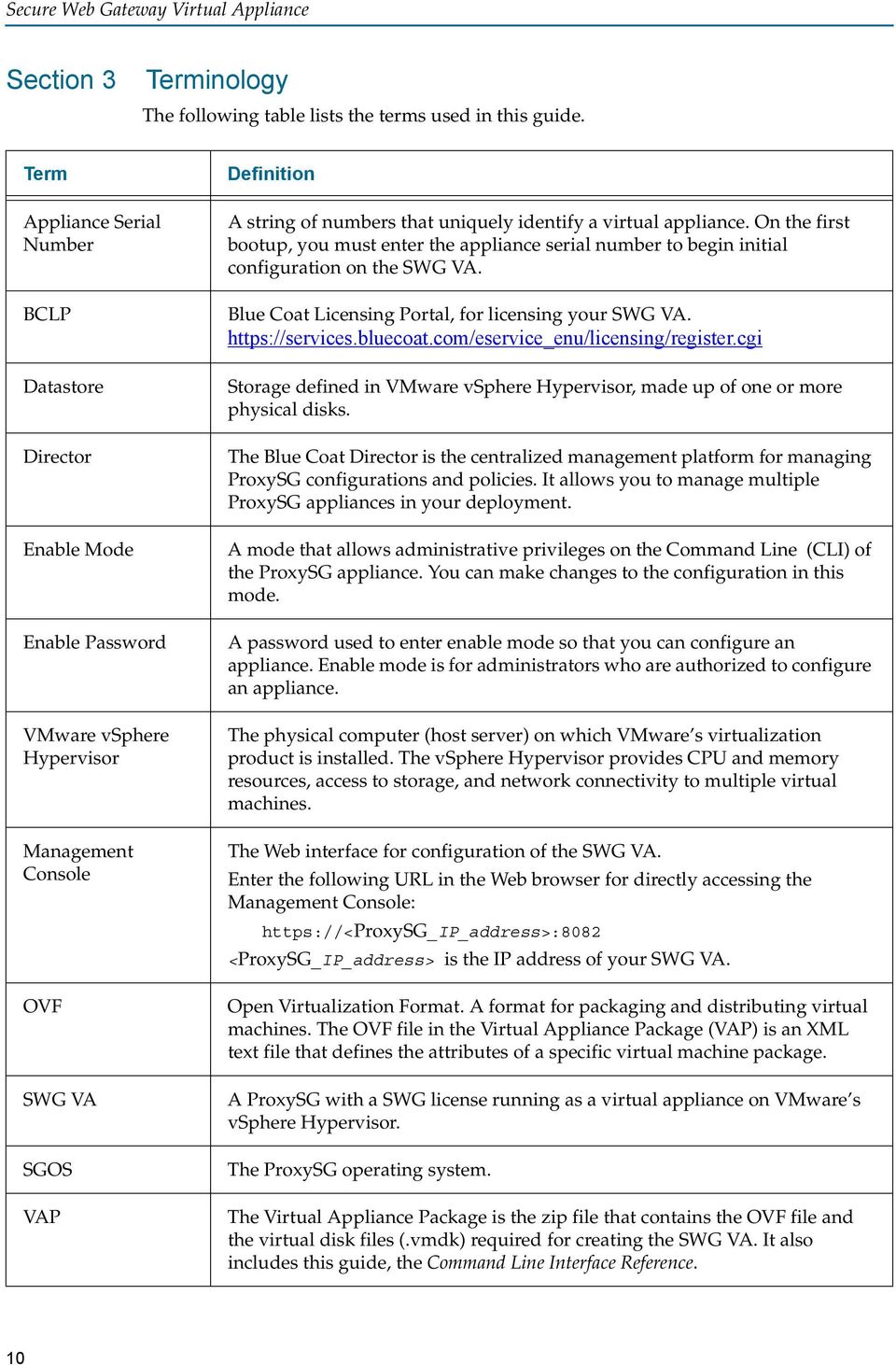
10 Secure Web Gateway Virtual Appliance Section 3 Terminology The following table lists the terms used in this guide. Term Definition Appliance Serial Number BCLP Datastore Director Enable Mode Enable Password VMware vsphere Hypervisor Management Console OVF SWG VA SGOS VAP A string of numbers that uniquely identify a virtual appliance. On the first bootup, you must enter the appliance serial number to begin initial configuration on the SWG VA. Blue Coat Licensing Portal, for licensing your SWG VA. Storage defined in VMware vsphere Hypervisor, made up of one or more physical disks. The Blue Coat Director is the centralized management platform for managing ProxySG configurations and policies. It allows you to manage multiple ProxySG appliances in your deployment. A mode that allows administrative privileges on the Command Line (CLI) of the ProxySG appliance. You can make changes to the configuration in this mode. A password used to enter enable mode so that you can configure an appliance. Enable mode is for administrators who are authorized to configure an appliance. The physical computer (host server) on which VMware s virtualization product is installed. The vsphere Hypervisor provides CPU and memory resources, access to storage, and network connectivity to multiple virtual machines. The Web interface for configuration of the SWG VA. Enter the following URL in the Web browser for directly accessing the Management Console: <ProxySG_IP_address> is the IP address of your SWG VA. Open Virtualization Format. A format for packaging and distributing virtual machines. The OVF file in the Virtual Appliance Package (VAP) is an XML text file that defines the attributes of a specific virtual machine package. A ProxySG with a SWG license running as a virtual appliance on VMware s vsphere Hypervisor. The ProxySG operating system. The Virtual Appliance Package is the zip file that contains the OVF file and the virtual disk files (.vmdk) required for creating the SWG VA. It also includes this guide, the Command Line Interface Reference. 10
11 Term Virtual Machine VLAN WCCP Definition An instance of an operating system and one or more applications that run in an isolated partition of a VMware vsphere Hypervisor. SWG VA is a virtual machine. Virtual Local Area Network. A local area network (LAN) that is created with software. It maps clients (hosts) logically rather than physically, and extends across LAN segments instead of remaining in one physical LAN. Web Cache Communication Protocol. Allows you to redirect the traffic that flows through routers. 11

12 Secure Web Gateway Virtual Appliance 12

13 Chapter 2: Before You Begin This chapter assumes that you have configured your hardware platform as a VMware vsphere Hypervisor, created datastores, and configured the vsphere Hypervisor for network access. For information on setting up your vsphere Hypervisor, refer to VMware documentation. Before you proceed with creating the Secure Web Gateway Virtual Appliance (SWG VA), perform the following tasks: "Verify Support for VMware Products" on page 8 "Verify System Requirements" on page 9 "Verify Resource Availability" on page 12 "Retrieve Appliance Serial Numbers" on page 13 "Create a Virtual Switch" on page 15 Note: The instructions in this document are for vsphere Client version

14 Secure Web Gateway Virtual Appliance Section 1 Verify Support for VMware Products The SWG VA is a VMware Ready virtual appliance and is compatible with the vsphere Hypervisor 4.x and 5.x. Refer to the following table to ensure that your virtual machine supports the version of VMware. Your SGOS version SGOS 6.4.x, x, x Supported VMware versions ESX 4.x, ESXi 4.x, ESXi 5.1.x SGOS x and later ESX 4.x, ESXi 4.x, ESXi 5.x Note: VMotion, Distributed Resource Scheduling (DRS), High Availability (HA), clustering, and resource pools are not supported in this release. 8

15 Section 2 Verify System Requirements To achieve the best performance on the SWG VA, it is important that you install the software on a system that meets the specified requirements. Follow these guidelines to guarantee satisfactory performance and operation of the SWG VA. The host server must be on VMware s Hardware Compatibility List (see the list at The server must have sufficient virtual resources to run SWG VA, as described in Table 2 1. Note: The following requirements reflect Blue Coat s test environment. Using the same or a similar configuration should achieve satisfactory performance of the SWG VA; however, you should expect different performance results if your resources or virtual drive configuration are different from the configuration described in Table 2 1. Table 2 1 General system requirements Table 2-1 Resource Virtual CPU Note: You must reserve at least the minimum CPU. See "Reserve Resources for the SWG VA" on page 11. Virtual memory Number of virtual drives Note: For optimal performance, configure each virtual drive to be on a separate spindle. The boot disk -disk1.vmdk can be shared from either spindle. Ensure that datastores are on different physical disks. See "Migrate a Virtual Disk to a Different Physical Disk" on page 10. Minimum storage space per drive Requirement 1 GHz (minimum); 2.6 GHz (recommended) 4 GB GB 9

16 Secure Web Gateway Virtual Appliance Table 2-1 Resource Minimum number of physical drives Note: The storage partition in which a SWG VA is installed must include the recommended minimum number of physical drives. This requirement ensures that adequate disk input/output (I/O) bandwidth is available to support the throughput for which the model is rated. If you have a RAID deployment, see "Disk Requirements for a RAID Deployment" on page 10. If you have an iscsi SAN deployment, see "Recommended IOPS for an iscsi SAN Deployment" on page 11. Disk read/write throughput Input/Output Operations Per Second (IOPS) Note: IOPS is a performance measurement used for storage devices such as hard disks. Requirement 2 Note: On some platforms with RAID controllers, the storage setup utility might allow a single drive to be configured as a RAID 0. Although a single drive is not technically a RAID configuration, it is acceptable. 300Mbps (ICAP enabled) or 150Mbps (ICAP disabled) 250 Note: Using two nearline 7200 RPM serial attached SCSI (SAS) drives achieves the disk performance described in Table 2 1. If you have a RAID or iscsi SAN deployment, see the following sections for specific requirements. Disk Requirements for a RAID Deployment RAID (Redundant Array of Independent Disks) technology is a data storage scheme that provides storage reliability and increased performance by dividing and replicating data among multiple hard disk drives. You can install the SWG VA on a vsphere Hypervisor that implements RAID level 0 or RAID level 5 architecture. RAID 0 configurations provide the best possible performance for the SWG VA. RAID 5 configurations, though commonly used, add significant overhead when writing data to disk and might reduce the overall performance of the SWG VA. If you plan to install SWG VA in a RAID deployment, Blue Coat recommends the following physical disk drives requirements: Table 2-1 RAID Configuration Version Minimum Number of Physical Drives RAID

17 Table 2-1 RAID Configuration Version Minimum Number of Physical Drives RAID 5 3 Note: Blue Coat does not recommend using RAID 5 because it significantly reduces the number of IOPS. Recommended IOPS for an iscsi SAN Deployment An iscsi storage area network (SAN) transmits storage data between host servers and storage subsystems using the iscsi protocol over an existing Ethernet connection. If you plan to install SWG VA in an iscsi SAN deployment, Blue Coat recommends 350 IOPS per virtual machine in order to maintain throughput. 11

18 Secure Web Gateway Virtual Appliance Section 3 Verify Resource Availability Because all virtual appliances use a hardware resource pool that can be shared and assigned as needed, you must verify that the vsphere Hypervisor meets the minimum hardware requirements for the SWG VA model that you have purchased. The following instructions describe how to verify system resources on the vsphere Hypervisor using a VMware client. The client is used to connect directly to a vsphere Hypervisor or indirectly to a vsphere Hypervisor through vcenter Server. To verify resource availability: 1. Access the vsphere Hypervisor using your VMware client by entering the IP address of the vsphere Hypervisor into the login screen of your VMware client. 2. To display the summary of the vsphere Hypervisor s resources, select the virtual machine and click the Summary tab. 3. Verify adequate resource availability. For SWG VA resource requirements, see Table 2 1 on page 9. a. In the General panel, confirm that the Processor speed meets or exceeds requirements. b. In the Resources panel, beside Memory Usage, confirm that the memory Capacity meets or exceeds requirements. c. In the Resources panel, in the Capacity column, confirm that there is adequate free space on a local datastore on the vsphere Hypervisor. 12

19 Section 4 Retrieve Appliance Serial Numbers The Blue Coat efulfillment you received after placing your order for SWG VA appliances contains activation codes for retrieving appliance serial numbers from the Blue Coat Licensing Portal (BCLP). Note: Be sure to use the correct serial number for your SWG VA. It helps ensure that your license is valid, and it is also used in Blue Coat Web Filter (BCWF) authentication. To retrieve appliance serial numbers: 1. Make sure you have a BlueTouch Online (BTO) username and password. In addition to retrieving appliance serial numbers, these credentials are required for obtaining your license and downloading software upgrades. If you do not have a BTO account, contact [email protected]. For additional contact information, see 2. Locate the you received from Blue Coat Systems. This contains the software activation codes as well as a link to the BCLP. 3. Log in to BCLP. a. Click the link embedded in the ( eservice_enu/licensing/register.cgi). The web browser displays the BCLP page. b. On the BCLP login screen, enter your BTO username and password, and then click Login. A Home page displays. 4. In the Enter Activation Code field, enter any activation code that is listed in your ; the system retrieves all serial numbers from the same purchase order. a. Type the code as it appears in the , or copy and paste it into the Enter Activation Code field. b. Click Next. The License Agreement page displays. 5. Read and accept the License Agreement. a. Read the license agreement. b. Select I accept at the bottom of the page. c. Click Next. A serial numbers page displays. 6. Record the appliance serial number(s). You will refer to the serial number when you perform initial configuration on the SWG VA. Perform one of the following tasks to note the appliance serial number: Write down the serial number(s) listed on the screen. Download a comma-separated values (CSV) file containing all of the serial numbers. Click the link beside Download as CSV file and save the file to disk. 13

20 Secure Web Gateway Virtual Appliance For future reference, record the location and name of the SWG VA with the serial number. Note: Each appliance serial number is unique. When performing initial configuration on the SWG VA, make sure that you use a dedicated serial number for each instance of a SWG VA. If you reuse a serial number, the SWG VA license could be suspended. See "Serial Numbers and Licensing" on page 14 for more information. User Limits The SWG VA supports a maximum number of users and enforces this by limiting the number of unique clients. You can purchase the SWG VA for 25, 50, 100, 250, 500, and 1000 users. To upgrade the user limit for your SWG VA, see "How Do I Upgrade the User Limit for the SWG VA?" on page

21 Section 5 Create a Virtual Switch A virtual machine has virtual network interfaces that are not physically cabled to a network interface card (NIC) on the vsphere Hypervisor host. To provide network access, a virtual switch (vswitch) is required to logically connect the virtual network interfaces on the virtual machine to a physical NIC on the vsphere Hypervisor host. By default, the vsphere Hypervisor creates a vswitch that is connected to a physical NIC. You can use this default vswitch, use a vswitch created for an existing deployment, or create a new vswitch for the SWG VA. The SWG VA can include up to four virtual network interfaces Interface0, Interface1, Interface2, and Interface3. If your network topology requires additional interfaces for handling management traffic to the SWG VA, you can create vswitches for the interfaces or use an existing vswitch that provides the connectivity you require. Note: If you use VLANs for segregating traffic within the vsphere Hypervisor or across your network, you must enable VLAN trunking on all interconnecting devices such as switches or routers. This guide does not include information on VLAN configurations. To create a virtual switch: 1. In your VMware client, select the virtual machine that will host the SWG VA. 2. Click the Configuration tab and select Hardware > Networking. 3. Click Add Networking. 4. In the wizard that appears, select Virtual Machine in the Connection Types dialog box. Click Next. 5. Select the switch and the NIC to manage the traffic to and from the SWG VA. Create a new switch if necessary. The physical NIC will be mapped to the virtual switch. Click Next. 6. Specify the Network Label. The default label is VM Network. 7. Make sure that the VLAN ID menu has None (0) selected. Note: This guide assumes that you do not use VLANs. If you use VLANs, select All (4095) to enable VLAN trunking. This value enables Virtual Guest Machine Tagging mode on the switch, and allows the virtual switch to preserve VLAN tags between the virtual machine and the external switch/ router. 8. Click Next. 9. Verify the details and click Finish. 15
22 Secure Web Gateway Virtual Appliance 16
23 Chapter 3: Create the SWG Virtual Appliance This chapter describes how to import a virtual appliance in to the vsphere Hypervisor, enable performance monitoring on the virtual appliance, and ensure that the Secure Web Gateway Virtual Appliance (SWG VA) has the resources available for optimal performance. To create the SWG VA, you must have administrator privileges on the vsphere Hypervisor. This chapter covers the following topics: "Download the Virtual Appliance Package" on page 8 "Import a SWG VA" on page 9 "Reserve Resources for the SWG VA" on page 11 "Power on the SWG VA" on page 12 Note: The instructions in this document are for vsphere Client version
24 Secure Web Gateway Virtual Appliance Section 1 Download the Virtual Appliance Package The Virtual Appliance Package (VAP) is a zip file that contains the following files: Open Virtualized Format (OVF) file. Virtual Machine Disk Format (VMDK) files, one for the boot disk and one for each virtual disk required on the model. For example, the ProxySG V100 has three.vmdk files. A PDF of this document, the Command Line Interface Reference. Note: If you have already downloaded the VAP, skip this procedure and proceed to "Import a SWG VA" on page 9. To download the VAP: 1. Log in to BlueTouch Online (BTO). a. In a Web browser, go to b. Enter your BTO username and password when prompted. 2. Download the files. a. In BTO, under Downloads, click Blue Coat Product Downloads. b. Click ProxySG. c. Click VSWG. d. Under My Product Models, select a release for your SWG VA model. e. Agree to Software Terms and Conditions, and save the file. f. Extract the contents of the VAP file. The files should be extracted to a location that can be accessed from the system running the VMware client or vcenter Server. Note: Because the.ovf file includes a pointer to the.vmdk files, you must extract and store the contents of the.zip file within the same folder. Do not rename the files. 8
25 Section 2 Import a SWG VA To import a SWG VA: 1. Create the SWG VA on your host vsphere Hypervisor. Note: In vsphere Hypervisor 4.0, you cannot deploy the OVF from vsphere Server; you must use the vsphere Client to import OVF templates. a. In your VMware client, select your host vsphere Hypervisor. b. Select File > Deploy OVF Template. Note: The equivalent command in VI Client is File > Virtual Appliance > Import. c. In the Deploy from a file or URL field, browse to the location of the OVF file. Alternatively, copy and paste the URL of an OVF file. Click Next. d. Verify the OVF template details and click Next. e. Enter a name for the SWG VA, such as SGVA_Sydney. (The default name is ProxySG Model SWG-V100 ). You should enter a name that is unique within your vsphere Hypervisor host. Click Next. f. In the Storage dialog box, select a datastore with sufficient free space. See Verify System Requirements on page 9 for disk space requirements. Click Next. g. Select a thick provisioning type, and then click Next. h. Specify the interfaces for the template to use, and then select the vswitch to be used. i. (If necessary) Connect additional interfaces to different virtual switches on the vsphere Hypervisor host. j. Click Next. k. Review the deployment settings and click Finish to begin creating the SWG VA. See the Recent Tasks panel located at the bottom of your VMware client screen for the progress bar indicating the percentage complete. 2. (Required only if you plan to use the third and fourth interfaces) Enable the vswitch for the third and fourth interfaces. a. Select the SWG VA on the vsphere Hypervisor Server. b. Right click and select Edit Settings. c. Select Hardware > Network Adapter 3. d. In the Device Status panel, mark the Connect at power on check box. If necessary, repeat these steps for the fourth interface. 9
26 Secure Web Gateway Virtual Appliance e. Click OK. Migrate a Virtual Disk to a Different Physical Disk The SWG VA contains two 200 GB virtual disks. For optimal performance of the SWG VA, these virtual disks should be on different physical disks. If they are both on the same physical disk, migrate one of them to another disk. Note: Blue Coat recommends dedicating the entire physical disk to this virtual machine in order to achieve optimal performance from the SWG VA. To migrate a virtual disk to a different physical disk: 1. Using VSphere client, connect to your VCenter server or directly to the ESX server that hosts the SWG V100 machine. 2. Locate the virtual machine that you named in "Import a SWG VA" on page 9. If you did not rename it, it is labeled "ProxySG Model SWG-V100". Then, select the virtual machine and right-click. 3. Select Migrate. 4. Mark the Change datastore option and click Next. A Select Datastore dialog box displays. 5. (If applicable) If an Advanced >> button is displayed, click it. 6. In the list of Datastores, look for the row that displays Hard disk 2 ( GB) in the File column. In that row, click [Current Location]. A drop-down list appears. 7. From the drop-down list, select a datastore that is on a physical disk other than the Current Location disk. 8. Click Next. 9. Select Same format as source. 10. Click Next. 11. In the summary, verify that Hard disk 1 and Hard disk 2 are located on datastores on different physical disks. 12. Click Finish. 10
27 Section 3 Reserve Resources for the SWG VA Blue Coat recommends reserving memory and a CPU core for the SWG VA. If resource allocation is not accurate for the SWG VA, the virtual appliance might not perform optimally. If the vsphere Hypervisor host does not have the available resources to satisfy the resource reservations, the SWG VA will not power on. To reserve resources: 1. Determine the appropriate value for the CPU reservation. The reservation should be the full CPU frequency of one core. a. In your VMware client, select the vsphere Hypervisor host. b. Click the Summary tab. c. Under Resources, note the value next to Capacity (for example, 2.26 GHz). d. Multiply this number by 1,000 to obtain the value in MHz. For example, 1000 x 2.26 = 2260 MHz. 2. Specify the CPU reservation value for the SWG VA. a. Select the SWG VA on the vsphere Hypervisor host. b. Right click and select Edit Settings. The Virtual Machine Properties window displays. c. On the Resources tab, select CPU. d. Specify the Reservation value for the CPU that you determined in Step 1d. Ensure this value is larger than the minimum specified in Table 2 1 on page 9; for example, change the Reservation value to 2260 MHz. Retain the default values for the other options. 3. Specify the memory reservation for the SWG VA. a. On the Resources tab, select Memory. b. Specify the Reservation value for memory allotted to the SWG VA. Input the value recommended; see Verify System Requirements on page 9. Retain the default values for the other options. 4. Give the virtual disks on the SWG VA a higher priority access to the physical disks on the vsphere Hypervisor Server. (This is recommended if the SWG VA s datastore is shared by other virtual machines on the vsphere Hypervisor Server.) a. On the Resources tab, select Disk. b. For each of the disks on the SWG VA, change the value to High in the Shares field. Setting this value to high ensures that the SWG VA gains higher priority access to disk resources, as compared to other virtual machines that use the same physical disks. c. Click OK to save your settings. 11
28 Secure Web Gateway Virtual Appliance Section 4 Power on the SWG VA To power on the SWG VA: 1. Log in to the vsphere Hypervisor Server using your VMware client. 2. Select the SWG VA. 3. Right click and select Power On. When the SWG VA is powered on, a green arrow appears next to its virtual machine name. 12
29 Chapter 4: Configure the SWG Virtual Appliance This chapter describes how to perform the initial setup and configuration of the Secure Web Gateway Virtual Appliance (SWG VA) for transparent redirection of traffic. The following topics are covered in this chapter: "Prepare for Initial Configuration" on page 8 "Complete Initial Configuration" on page 9 "Verify Your Configuration" on page 12 "Retrieve and Install the SWG VA License" on page 13 "When to Power Off the SWG VA" on page 14 "Monitor the SWG VA" on page 15 "Additional Information" on page 17 Note: The instructions in this document are for vsphere Client version
30 Secure Web Gateway Virtual Appliance Section 1 Prepare for Initial Configuration Use the Console tab on your VMware client to access the SWG VA for initial configuration. The set-up script prompts you to configure basic network settings, including adding an interface IP address, and setting up administrative credentials for console access. The following table summarizes the prompts in the setup wizard. Before you launch the setup wizard, obtain and record the information specific to your deployment in this table. After you have recorded your settings in the table, see "Complete Initial Configuration" on page 9. Description Value My Values Appliance Serial Number Manual set-up or use Director Interface configuration Default gateway Primary DNS server Administrator username (ID) and password Refer to the appliance serial number that you recorded in "Retrieve Appliance Serial Numbers" on page 13. If using Director, you must configure a registration password or shared secret on the Director. The same password must be entered while performing the initial configuration. The shared secret is required because the SWG VA does not have an appliance certificate at this point. Note: When you install a license from BlueTouch Online (BTO), an appliance certificate is also installed. After you install the license, you can change your configuration to use Director subjugation. The appliance certificate is used instead of the shared secret when subjugating with Director. Identify the IP addresses and subnet masks for the interfaces. You also have an option to assign a VLAN ID to each interface. If you use VLANs for segregating traffic within the vsphere Hypervisor Server or across your network, you must enable VLAN trunking on all interconnecting devices such as switches or routers. This guide does not include information on VLAN configurations. Provide the IP address for the default gateway. Provide the IP address for the primary DNS server. The password you assign here will also be used for accessing enable mode in the command line interface (CLI). Enable mode allows you to make configuration changes. The default enable username is admin. 8
31 Section 2 Complete Initial Configuration Complete initial configuration of the SWG VA: 1. Verify that your SWG VA is powered on. a. Log in to the vsphere Hypervisor Server using your VMware client. b. Check for power on status. If the SWG VA is powered on, a green arrow appears next to its virtual machine name. 2. Access the virtual console of the SWG VA on the vsphere Hypervisor Server. a. Select the SWG VA on the vsphere Hypervisor Server. b. Select the Console tab and click inside the console window to activate your mouse. 3. The appliance serial number is unique for each appliance and must be used on only one SWG VA. For more information, see "Retrieve Appliance Serial Numbers" on page 13. a. Enter the appliance serial number at the prompt. Note: The leading zeroes are significant for serial numbers. Enter all 10 digits at the prompt. b. Press Enter. 4. Follow the prompts and enter the details in the setup script. a. Press Enter three times to activate the serial console. Note: To release the mouse from the VMware client s Console tab, press Ctrl+Alt. b. When asked How do you plan to configure this appliance? specify your preference for either configuring the SWG VA manually or using Director. If you are using Director, assign a registration password on Director and enter the password in the setup console when prompted. For information on setting up a registration password, refer to the Blue Coat Director Configuration and Management Guide. c. At the Enter interface number to configure prompt, specify an interface. d. You are prompted Is the IP address to be configured on a non-native VLAN? Specify Y or N. Note that if you use VLANs for segregating traffic within the vsphere Hypervisor Server or across your network, you must enable VLAN trunking on all interconnecting devices such as switches or routers. This guide does not include information on VLAN configurations. e. Specify the IP address and subnet mask for the selected interface. 9
32 Secure Web Gateway Virtual Appliance f. Specify the IP address for the default gateway. g. Specify the IP address for the DNS server. h. Change the username for administrative access on the SWG VA. The default username is admin. i. Add a password for allowing administrative access privilege. j. When prompted, enter your Enable password. k. At the Do you want to secure the serial port? prompt, specify Y or N. l. When asked Restrict access to authorized workstations? specify Y or N to indicate whether you allow non-authorized workstations to access the Management Console. 5. Press Enter three times to activate the serial console. 6. (If necessary) Repeat the previous steps to configure more interfaces. 7. Close the Console: a. Press Ctrl+Alt to release the mouse from the Console. b. Click an area outside of the Console tab. 10
33 Section 3 Deploying the SWG VA in a Proxy Chain If you are deploying the SWG VA in a proxy chain, you must configure the SWG VA to foward traffic to an upsteam proxy that can access Blue Coat servers. See "SWG VA Deployment in a Proxy Chain" on page 11 for instructions. 11
34 Secure Web Gateway Virtual Appliance Section 4 Verify Your Configuration Do the following to verify your configuration. Verify Network Connectivity To verify that the traffic in your network is being intercepted as required, use the ping, traceroute, or test CLI command. See the Command Line Interface Reference for more information. Verify Management Console Access The Management Console is a graphical Web interface that allows you to manage, configure and monitor the SWG VAfrom any location. The Management Console requires a supported browser and version of Java Runtime Environment (JRE); refer to the SGOS Release Notes to identify the browsers and JRE version supported for your operating system. To log in to the Management Console: 1. In a web browser, go to the following URL: The default management port is <IP_address> is the IP address you configured in "Complete Initial Configuration" on page 9. Note: When you enter the URL for the Management Console, the browser may display an error about an untrusted connection or security certificate. Depending on the browser you use, you must proceed with the connection to access the Management Console or add an exception to allow access to the web site. For specific instructions, refer to the documentation for the browser. 2. In the prompt that appears, enter the user name and password that you created in "Complete Initial Configuration" on page 9. The Management Console displays. 12
35 Section 5 Retrieve and Install the SWG VA License To retrieve and install the SWG VA license for the first time, the SWG VA appliance must be allowed access to the following Blue Coat servers: Note: If the SWG VA is a downstream proxy and cannot access these servers directly, make sure you have performed the additional configuration steps in "SWG VA Deployment in a Proxy Chain" on page 11 before completing the procedure below. The SWG VA license contains data that is used to uniquely identify the SWG VA as a Blue Coat appliance. Note: If a license is not installed, after you power on the appliance, users who open a browser window will see an exception page indicating that the device is not licensed. To retrieve and install the SWG VA license: 1. In the Management Console, select Maintenance > Licensing > Install. 2. Click Retrieve. 3. In the dialog box that displays, do the following: a. Enter your BTO account login information. b. Click Request License. The Confirm License Install dialog box displays. c. Click OK to begin license retrieval. 4. (Optional) Click Show results to verify a successful retrieval. If any errors occur, verify that you are connected to the Internet. 5. Click Close. After you complete the license installation, you do not have to reboot or shut down the appliance. Prevent Licensing Issues To prevent licensing issues, ensure the SWG VA is allowed network access to the license validation server at If communication with the server fails, the license may be suspended; thus, a constant internet connection is required for the SWG VA to communicate regularly with the license validation server to confirm that the serial number is not being used on another SWG VA. If the license validation server detects duplicate serial numbers, your license is invalidated. See "Serial Numbers and Licensing" on page 14 for more information. 13
36 Secure Web Gateway Virtual Appliance Section 6 When to Power Off the SWG VA Some tasks that you perform on the SWG VA require a shutdown. When you do any of the following, save all of your configuration changes and then power off the SWG VA: Backing up the SGOS configuration Upgrading the server software Taking the server offline for maintenance Migrating the SWG VA to a different server Installing additional or higher-capacity drives on the vsphere Hypervisor host Adding a serial port to the SWG VA Powering off the SWG VA To power off the SWG VA, in the command line interface (CLI), enter the enable password to go into privileged mode. Then, issue the shutdown command. Alternatively, you can power off the SWG VA in the VMWare client: 1. In the VMWare client, select the SWG VA. 2. Right click and select Power Off. Note: Blue Coat recommends that you use the shutdown command instead of powering off the SWG VA using the vsphere client to avoid losing recent configuration changes. 14
37 Section 7 Monitor the SWG VA It is important to keep tabs on the health of your SWG VA. If a component does not function correctly, learning of it in a timely manner allows you to take action before it fails or causes other problems. The SWG VA monitors the health of a variety of components and determines the state of each component at one-minute intervals. The state indicates the condition of the monitored component: OK The monitored component is behaving within normal operating parameters. WARNING The monitored component is outside typical operating parameters and may require attention. CRITICAL The monitored component is failing or has exceeded its critical threshold. The health state displays at the top right corner of the Management Console and in the State field (Statistics > Health Monitoring > Licensing). The current state of a component is determined by the relationship between its current value and its monitoring thresholds. The Warning and Critical states have thresholds associated with them. Each component s health state begins at OK. If the value exceeds the Warning threshold and remains there for the threshold s specified interval, the component s health transitions to the Warning state and the SWG VA issues a warning alert. When a component is in the Warning state and the Critical threshold is exceeded for the specified interval, the component health transitions to the Critical state and an error alert is issued. If the problem is resolved, the value returns below the Warning threshold. If the value stays below the Warning threshold longer than the specified interval, the state returns to OK. To edit the thresholds, click Set Thresholds at the bottom of the Maintenance > Health Monitoring tab. For more information on thresholds, see the Secure Web Gateway Virtual Appliance. Licensing Metrics for the SWG VA If there is a problem with the SWG VA license, the health state displays Warning or Critical. Two metrics on the Maintenance > Health Monitoring tab can help you determine if there is a licensing issue and what you can do to resolve it. These metrics are specific to the SWG VA: License Server Communication Status Monitors the connection to the license validation server. 15
38 Secure Web Gateway Virtual Appliance If the connection to the license validation server is lost, the State field (Statistics > Health Monitoring > Licensing) displays the health state and the Value field displays the number of days remaining until the license is suspended. The health state depends on the threshold that is set: Warning Default interval is six days before license suspension. Critical Default interval is 0 days before license suspension. If there is an error with the communication status, re-establish connection to the license validation server. The state returns to OK if connection is successful. If you do not re-establish the connection within seven days, the SWG VA license is suspended. The SWG VA must communicate successfully with the license validation server to restore proxy functionality. License Validation Status Monitors the validity of the SWG VA license, ensuring no duplicate serial numbers are in use. If the license validation server detects a duplicate serial number, the State field (Statistics > Health Monitoring > Licensing) displays the health state and the Value field displays the number of days remaining until the license is suspended. The health state depends on the threshold that is set: Warning Default interval is 30 days before license suspension. Critical Default interval is 0 days before license suspension. If the license validation server detects a duplicate license and the license is not disabled before the grace period expires, the license is suspended. You must delete the SWG VA with the duplicate license to restore proxy functionality. See Section 5"Serial Numbers and Licensing" on page 14 for more information. 16
39 Section 8 Additional Information You have completed configuring and verifying your initial configuration on the SWG VA. For further information, use the context-sensitive online help in the Management Console. You can also refer to the latest version of the following documents at: SGOS Administration Guide for complete product documentation on SGOS. Configuring Blue Coat WebFilter and WebPulse in the Filtering Web Content chapter in the SGOS Administration Guide for information on configuring Blue Coat Web Filter (BCWF) rules. WCCP Reference Guide for comprehensive information on WCCP concepts and configuration tasks. 17
40 Secure Web Gateway Virtual Appliance 18
41 Appendix A: Frequently Asked Questions This appendix answers some questions you may have about the following topics and the SWG VA: "Features and Performance" on page 8 "Blue Coat WebFilter" on page 10 "SWG VA Deployment in a Proxy Chain" on page 11 "Upgrading SGOS" on page 13 "Serial Numbers and Licensing" on page 14 7
42 Secure Web Gateway Virtual Appliance Section 1 Features and Performance This section covers the following topics about features and performance: "What are the Differences Between Proxy Edition, ProxySG VA MACH5 Edition, and SWG VA?" on page 8 "Can I Manage SWG VA Using Blue Coat Sky?" on page 9 Table A-1 "How Can I Ensure Optimal Performance of the SWG VA?" on page 9 What are the Differences Between Proxy Edition, ProxySG VA MACH5 Edition, and SWG VA? The table below shows a high-level comparison of features available in the full Proxy Edition appliance, ProxySG VA MACH5 Edition, and SWG VA. Feature Proxy Edition ProxySG VA MACH5 Edition Authentication Full LDAP and IWA used for the Web Security Module of the Blue Coat Cloud Service SWG VA Full Web Filtering (Blue Coat WebFilter) Yes No Yes SSL Proxy Yes Yes Yes HTTP Proxy Yes Yes Yes CIFS Proxy Yes Yes No MAPI Proxy Yes Yes No Streaming Proxy Yes Yes Yes ICAP Support Yes No Yes Object Caching Yes Yes Yes Video Caching Yes Yes Yes Byte Caching Yes Yes No Central Management Director Director Director 8
43 Table A-1 Feature Proxy Edition ProxySG VA MACH5 Edition SWG VA Reporting Available via Reporter and ThreatPulse Available via Reporter and ThreatPulse Available via Reporter and ThreatPulse ProxyClient Management Full Acceleration only Security only Can I Manage SWG VA Using Blue Coat Sky? Blue Coat Sky and its features are not available in the SWG VA. How Can I Ensure Optimal Performance of the SWG VA? For optimal performance of the SWG VA, follow these guidelines: When you back up your system configuration, use the archiving feature in the SWG VA; do not take snapshots of the SWG VA configuration. Snapshots are detrimental to the performance of the SWG VA, and they also occupy a lot of disk space. Suspending the SWG VA suspends all traffic going through it. It may result in dropped connections, depending on when the suspension occurs and the protocols in use. Clients must reconnect when the SWG VA becomes available again; however, suspending and resuming traffic creates a poor performance experience for users. Refer to the Sizing Guide for hardware specifications, and ensure that your hardware meets or exceeds the guidelines for best performance. 9
44 Secure Web Gateway Virtual Appliance Section 2 Blue Coat WebFilter This section covers the following topics about Blue Coat WebFilter (BCWF) Web : "How Do I Download the Blue Coat WebFilter Database?" on page 10 "Why Can t I Download the Blue Coat WebFilter Database/Why isn t the SWG VA Filtering Web Traffic?" on page 10 How Do I Download the Blue Coat WebFilter Database? Blue Coat WebFilter is a content filtering database that protects data and users from network attacks To download the BCWF database, refer to Section B: Setting up a Web Content Filter in the Filtering Web Content chapter in the SGOS Administration Guide. Note: For the SWG VA, do not enter credentials (username and password) to download the database. Why Can t I Download the Blue Coat WebFilter Database/Why isn t the SWG VA Filtering Web Traffic? You may experience one of the following issues with BCWF: You are unable to download the BCWF database. Even though you have configured filtering rules in the Management Console, you may notice that the SWG VA is allowing URLs that belong to categories you blocked. It takes up to 24 hours after you receive the Blue Coat efulfillment for BCWF activation to occur. If you are unable to download the BCWF database or you notice that the SWG VA is not filtering traffic as expected 24 hours after you receive the , verify that your settings are correct. Refer to Section C: Configuring Blue Coat WebFilter and WebPulse in the Filtering Web Content chapter in the SGOS Administration Guide. 10
45 Section 3 SWG VA Deployment in a Proxy Chain If you have a forward proxy deployment where the SWG VA is installed as the downstream proxy and cannot connect directly to the following Blue Coat servers, you must configure the SWG VA to forward this traffic to an upstream proxy that has access to the Blue Coat servers: To allow the SWG VA to communicate with Blue Coat servers, create an HTTP forwarding host on the SWG VA and ensure that download-via-forwarding is enabled (it is enabled by default). You can add the host to the default forwarding sequence, but if you do not want to forward all traffic through the default sequence, you must install policy to allow forwarding to Blue Coat servers. Note: If you have this type of deployment and do not perform these steps, the SWG VA will be unable to connect to the server and the license may be suspended. To configure the SWG VA: 1. Select the SWG VA on the vsphere Hypervisor Server to Access the virtual console. 2. Select the Console tab and click inside the console window to activate your mouse. 3. Press Enter three times to activate the serial console. 4. Select the CLI option and enter your credentials. 5. Enter enable to go into Enable mode, and then enter your Enable password when prompted. 6. Enter the following commands: Note: If you do not want to forward all client HTTP requests to the hosts specified in the sequence, do not enter the default-sequence add <host_alias> command shown below. Instead, you will configure policy to use the forwarding host. For more information on forwarding and proxy chaining, refer to the SGOS Administration Guide. #conf t Enter configuration commands, one per line. End with CTRL-Z. #(config)forwarding #(config forwarding)create host <host_alias> <host_name> http proxy ok #(config forwarding)default-sequence add <host_alias> ok 11
46 Secure Web Gateway Virtual Appliance #(config forwarding)download-via-forwarding enable ok In the commands above: <host_alias> is a name that you specify for this host <host_name> is the name of the host domain, such or its IP address 7. Close the Console: a. Press Ctrl+Alt to release the mouse from the Console. b. Click an area outside of the Console tab. 8. (If necessary) If you did not add the host to the default forwarding sequence, install the following policy: <Forward> condition=bluecoat_services forward(<host_alias>) define url.domain condition bluecoat_services validation.es.bluecoat.com services.bluecoat.com download.bluecoat.com end In the policy above, <host_alias> is the forwarding host you configured in the CLI. 12
47 Section 4 Upgrading SGOS As new SGOS versions are released, you may want to upgrade the SGOS version for the SWG VA. Keep the following in mind: You must have a valid, unexpired license to upgrade your virtual appliance software. If your license has expired, you must renew your subscription with Blue Coat before you can upgrade the software. The procedure for upgrading the software on a virtual appliance is the same as for upgrading a physical appliance. See the Blue Coat SGOS x Release Notes for details. When upgrading the software, you do not need to download and install a Virtual Appliance Package (VAP). VAPs are used for initial configuration only. 13
48 Secure Web Gateway Virtual Appliance Section 5 Serial Numbers and Licensing This section covers the following topics about serial numbers and licensing: "How Can I Prevent Duplicate Serial Numbers?" on page 14 "I Don't Have Duplicate Serial Numbers. Why is My License Suspended?" on page 14 "How Do I Renew my Subscription for the SWG VA?" on page 14 "How Do I Upgrade the User Limit for the SWG VA?" on page 15 How Can I Prevent Duplicate Serial Numbers? Do not reuse serial numbers. The SWG VA periodically connects to the license validation server to confirm that the license is still valid. If the license validation server detects a duplicate serial number, the SWG VA displays a warning beside License Validation Status on the Health Monitoring tab (Maintenance > Health Monitoring). When the license is in this state, you have a specified number of days to determine which SWG VAs have duplicate serial numbers and then delete the duplicates (the default time window is 30 days). If you do not delete the duplicates within the specified time window, the license is suspended. License suspension disables proxy functionality and the Management Console displays the Duplicate serial number detected error message. If you receive this error message, go to search for Blue Coat Knowledge Base article , and follow the steps in the article to resolve the issue. I Don't Have Duplicate Serial Numbers. Why is My License Suspended? After you have verified that you do not have duplicate serial numbers (see "Serial Numbers and Licensing" on page 14), your license should no longer be suspended; however, if the license validation status still has a warning, the SWG VA may be unable to connect to the Internet. If the SWG VA has not been able to contact the license validation server, the license will not be reactivated until connectivity to the internet is restored. To fix this problem, troubleshoot network connection problems within your deployment. If the SWG VA is a downstream proxy in a forward proxy deployment and cannot access Blue Coat web sites directly, make sure that you have created and configured an HTTP forwarding host according to instructions in "SWG VA Deployment in a Proxy Chain" on page 11. How Do I Renew my Subscription for the SWG VA? Your original Blue Coat efulfillment contains details about the subscription, including the Start Date and End Date for the subscription. To renew your subscription for the SWG VA: 14
49 1. Contact 2. After Customer Care renews your subscription, update the license key through the Management Console. See "How Do I Update the License Key?" on page To verify that the subscription has been updated, click the View tab and confirm that the licensed components have new expiration dates. Note: You cannot request a user limit upgrade and renew a subscription on a single order; the upgrade and renewal must be on separate orders. How Do I Upgrade the User Limit for the SWG VA? To increase the user limit for your SWG VA, contact [email protected]. After your order is processed, you receive a Blue Coat efulfillment with the upgrade activation code. Then, log in to the Blue Coat Licensing Portal (BCLP) to upgrade. You will need the following information to upgrade: the serial number of the SWG VA that you want to upgrade the upgrade activation code that you received in your Blue Coat efulfillment To upgrade the user limit for the SWG VA: 1. Go to the Blue Coat Licensing Portal (BCLP): 2. Log in with your BTO username and password. 3. Select ProxySG > SG Upgrades. 4. In the Appliance Serial Number field, enter the serial number for the SWG VA that you want to upgrade. 5. In the Activation Code field, enter the upgrade activation code that you received in your Blue Coat efulfillment Click Submit. 7. Update the license file. Follow the instructions in "How Do I Update the License Key?" on page To verify that the user limit for the SWG VA has been upgraded, click the View tab and confirm that the number of concurrent users has increased. Note: You cannot request a user limit upgrade and renew a subscription on a single order; the upgrade and renewal must be on separate orders. How Do I Update the License Key? Install the license key file through the SWG VA Management Console. 15
50 Secure Web Gateway Virtual Appliance 1. Launch the SWG VA Management Console. 2. Select Maintenance > Licensing > Install. 3. In the License Key Automatic Installation section, click Update. A Confirm License Install dialog displays. 4. Click OK. 16
Initial Configuration Guide
 Blue Coat Systems ProxySG VA Initial Configuration Guide For SGOS 5.5.2 or later Platform: ESX / ESXi Server Contact Information Americas: Blue Coat Systems Inc. 410 North Mary Ave Sunnyvale, CA 94085-4121
Blue Coat Security First Steps Transparent Proxy Deployments
 Transparent Proxy Deployments SGOS 6.5 Third Party Copyright Notices 2014 Blue Coat Systems, Inc. All rights reserved. BLUE COAT, PROXYSG, PACKETSHAPER, CACHEFLOW, INTELLIGENCECENTER, CACHEOS, CACHEPULSE,
Blue Coat Security First Steps Solution for Controlling HTTPS
 Solution for Controlling HTTPS SGOS 6.5 Third Party Copyright Notices 2014 Blue Coat Systems, Inc. All rights reserved. BLUE COAT, PROXYSG, PACKETSHAPER, CACHEFLOW, INTELLIGENCECENTER, CACHEOS, CACHEPULSE,
Blue Coat Security First Steps. Solution for HTTP Object Caching
 Solution for HTTP Object Caching Third Party Copyright Notices 2014 Blue Coat Systems, Inc. All rights reserved. BLUE COAT, PROXYSG, PACKETSHAPER, CACHEFLOW, INTELLIGENCECENTER, CACHEOS, CACHEPULSE, CROSSBEAM,
Blue Coat Security First Steps Solution for Deploying an Explicit Proxy
 Blue Coat Security First Steps Solution for Deploying an Explicit Proxy SGOS 6.5 Third Party Copyright Notices 2014 Blue Coat Systems, Inc. All rights reserved. BLUE COAT, PROXYSG, PACKETSHAPER, CACHEFLOW,
Decrypt Inbound SSL Traffic for Passive Security Device (D-H)
 Decrypt Inbound SSL Traffic for Passive Security Device (D-H) SSL Visibility Appliance First Steps Guide Third Party Copyright Notices 2015 Blue Coat Systems, Inc. All rights reserved. BLUE COAT, PROXYSG,
Initial Configuration Guide
 Initial Configuration Guide For Virtual Appliances Management Center 1.3.2.1 Version 1.3.2.1 Third Party Copyright Notices Blue Coat Systems, Inc. All rights reserved. BLUE COAT, PROXYSG, PACKETSHAPER,
Blue Coat Security First Steps Solution for Recording and Reporting Employee Web Activity
 Solution for Recording and Reporting Employee Web Activity SGOS 6.5 Third Party Copyright Notices 2014 Blue Coat Systems, Inc. All rights reserved. BLUE COAT, PROXYSG, PACKETSHAPER, CACHEFLOW, INTELLIGENCECENTER,
Blue Coat Security First Steps Solution for Controlling Web Applications
 Blue Coat Security First Steps Solution for Controlling Web Applications SGOS 6.5 Third Party Copyright Notices 2015 Blue Coat Systems, Inc. All rights reserved. BLUE COAT, PROXYSG, PACKETSHAPER, CACHEFLOW,
SonicWALL SRA Virtual Appliance Getting Started Guide
 COMPREHENSIVE INTERNET SECURITY SonicWALL Secure Remote Access Appliances SonicWALL SRA Virtual Appliance Getting Started Guide SonicWALL SRA Virtual Appliance5.0 Getting Started Guide This Getting Started
Web Application Classification Feature
 Web Application Classification Feature PacketShaper 11.5 Third Party Copyright Notices 2015 Blue Coat Systems, Inc. All rights reserved. BLUE COAT, PROXYSG, PACKETSHAPER, CACHEFLOW, INTELLIGENCECENTER,
Security Analytics Virtual Appliance
 Security Analytics Virtual Appliance Installation Guide for VMware 19 March 2015 This document is intended to help you use the web interface to configure your Security Analytics Virtual Appliance to perform
Virtual Appliance Setup Guide
 The Barracuda SSL VPN Vx Virtual Appliance includes the same powerful technology and simple Web based user interface found on the Barracuda SSL VPN hardware appliance. It is designed for easy deployment
Blue Coat Security First Steps Solution for Integrating Authentication
 Solution for Integrating Authentication using IWA Direct SGOS 6.5 Third Party Copyright Notices 2014 Blue Coat Systems, Inc. All rights reserved. BLUE COAT, PROXYSG, PACKETSHAPER, CACHEFLOW, INTELLIGENCECENTER,
EMC Data Domain Management Center
 EMC Data Domain Management Center Version 1.1 Initial Configuration Guide 302-000-071 REV 04 Copyright 2012-2015 EMC Corporation. All rights reserved. Published in USA. Published June, 2015 EMC believes
Installing and Using the vnios Trial
 Installing and Using the vnios Trial The vnios Trial is a software package designed for efficient evaluation of the Infoblox vnios appliance platform. Providing the complete suite of DNS, DHCP and IPAM
Blue Coat Security First Steps Solution for Streaming Media
 Blue Coat Security First Steps Solution for Streaming Media SGOS 6.5 Third Party Copyright Notices 2014 Blue Coat Systems, Inc. All rights reserved. BLUE COAT, PROXYSG, PACKETSHAPER, CACHEFLOW, INTELLIGENCECENTER,
Virtual Appliance Setup Guide
 Virtual Appliance Setup Guide 2015 Bomgar Corporation. All rights reserved worldwide. BOMGAR and the BOMGAR logo are trademarks of Bomgar Corporation; other trademarks shown are the property of their respective
Installing and Configuring vcenter Support Assistant
 Installing and Configuring vcenter Support Assistant vcenter Support Assistant 5.5 This document supports the version of each product listed and supports all subsequent versions until the document is replaced
HP Intelligent Management Center v7.1 Virtualization Monitor Administrator Guide
 HP Intelligent Management Center v7.1 Virtualization Monitor Administrator Guide Abstract This guide describes the Virtualization Monitor (vmon), an add-on service module of the HP Intelligent Management
Quick Start Guide. for Installing vnios Software on. VMware Platforms
 Quick Start Guide for Installing vnios Software on VMware Platforms Copyright Statements 2010, Infoblox Inc. All rights reserved. The contents of this document may not be copied or duplicated in any form,
Blue Coat Security First Steps Solution for Integrating Authentication Using LDAP
 Solution for Integrating Authentication Using LDAP SGOS 6.5 Third Party Copyright Notices 2014 Blue Coat Systems, Inc. All rights reserved. BLUE COAT, PROXYSG, PACKETSHAPER, CACHEFLOW, INTELLIGENCECENTER,
Cyberoam Virtual Security Appliance - Installation Guide for VMware ESX/ESXi. Version 10
 Cyberoam Virtual Security Appliance - Installation Guide for VMware ESX/ESXi Version 10 Document Version 10.6.2-16/04/2015 Contents Preface... 4 Base Configuration... 4 Installation Procedure... 4 Cyberoam
Virtual Appliance Setup Guide
 The Virtual Appliance includes the same powerful technology and simple Web based user interface found on the Barracuda Web Application Firewall hardware appliance. It is designed for easy deployment on
SSL VPN. Virtual Appliance Installation Guide. Virtual Private Networks
 SSL VPN Virtual Appliance Installation Guide Virtual Private Networks C ONTENTS Introduction... 2 Installing the Virtual Appliance... 2 Configuring Appliance Operating System Settings... 3 Setting up the
VCCC Appliance VMware Server Installation Guide
 VCCC Appliance VMware Server Installation Guide Content Preface... 4 System Requirements... 4 Installation Procedure... 4 CCC Virtual Machine Installation... 5 CCC Virtual Machine Management... 12 Resource
FortiAnalyzer VM (VMware) Install Guide
 FortiAnalyzer VM (VMware) Install Guide FortiAnalyzer VM (VMware) Install Guide December 05, 2014 05-520-203396-20141205 Copyright 2014 Fortinet, Inc. All rights reserved. Fortinet, FortiGate, FortiCare
vsphere Replication for Disaster Recovery to Cloud
 vsphere Replication for Disaster Recovery to Cloud vsphere Replication 6.0 This document supports the version of each product listed and supports all subsequent versions until the document is replaced
Set Up Panorama. Palo Alto Networks. Panorama Administrator s Guide Version 6.0. Copyright 2007-2015 Palo Alto Networks
 Set Up Panorama Palo Alto Networks Panorama Administrator s Guide Version 6.0 Contact Information Corporate Headquarters: Palo Alto Networks 4401 Great America Parkway Santa Clara, CA 95054 www.paloaltonetworks.com/company/contact-us
Blue Coat Cloud Data Protection Server Administration Guide
 Blue Coat Cloud Data Protection Server Administration Guide Software version 4.5.x September 16, 2015 2015 Blue Coat Systems, Inc. All rights reserved. Blue Coat, the Blue Coat logos, ProxySG, PacketShaper,
vcenter Chargeback User s Guide vcenter Chargeback 1.0 EN-000186-00
 vcenter Chargeback 1.0 EN-000186-00 You can find the most up-to-date technical documentation on the VMware Web site at: http://www.vmware.com/support/ The VMware Web site also provides the latest product
vrealize Operations Manager Customization and Administration Guide
 vrealize Operations Manager Customization and Administration Guide vrealize Operations Manager 6.0.1 This document supports the version of each product listed and supports all subsequent versions until
Installing and Configuring vcloud Connector
 Installing and Configuring vcloud Connector vcloud Connector 2.0.0 This document supports the version of each product listed and supports all subsequent versions until the document is replaced by a new
Hillstone StoneOS User Manual Hillstone Unified Intelligence Firewall Installation Manual
 Hillstone StoneOS User Manual Hillstone Unified Intelligence Firewall Installation Manual www.hillstonenet.com Preface Conventions Content This document follows the conventions below: CLI Tip: provides
Product Version 1.0 Document Version 1.0-B
 VidyoDashboard Installation Guide Product Version 1.0 Document Version 1.0-B Table of Contents 1. Overview... 3 About This Guide... 3 Prerequisites... 3 2. Installing VidyoDashboard... 5 Installing the
Getting Started with ESXi Embedded
 ESXi 4.1 Embedded vcenter Server 4.1 This document supports the version of each product listed and supports all subsequent versions until the document is replaced by a new edition. To check for more recent
Nasuni Filer Virtualization Getting Started Guide. Version 7.5 June 2016 Last modified: June 9, 2016 2016 Nasuni Corporation All Rights Reserved
 Nasuni Filer Virtualization Getting Started Guide Version 7.5 June 2016 Last modified: June 9, 2016 2016 Nasuni Corporation All Rights Reserved Document Information Nasuni Filer Virtualization Getting
RealPresence Platform Director
 RealPresence CloudAXIS Suite Administrators Guide Software 1.3.1 GETTING STARTED GUIDE Software 2.0 June 2015 3725-66012-001B RealPresence Platform Director Polycom, Inc. 1 RealPresence Platform Director
F-Secure Messaging Security Gateway. Deployment Guide
 F-Secure Messaging Security Gateway Deployment Guide TOC F-Secure Messaging Security Gateway Contents Chapter 1: Deploying F-Secure Messaging Security Gateway...3 1.1 The typical product deployment model...4
VX 9000E WiNG Express Manager INSTALLATION GUIDE
 VX 9000E WiNG Express Manager INSTALLATION GUIDE 2 VX 9000E WiNG Express Manager Service Information If you have a problem with your equipment, contact support for your region. Support and issue resolution
F-Secure Internet Gatekeeper Virtual Appliance
 F-Secure Internet Gatekeeper Virtual Appliance F-Secure Internet Gatekeeper Virtual Appliance TOC 2 Contents Chapter 1: Welcome to F-Secure Internet Gatekeeper Virtual Appliance.3 Chapter 2: Deployment...4
Set Up a VM-Series Firewall on an ESXi Server
 Set Up a VM-Series Firewall on an ESXi Server Palo Alto Networks VM-Series Deployment Guide PAN-OS 6.0 Contact Information Corporate Headquarters: Palo Alto Networks 4401 Great America Parkway Santa Clara,
Blue Coat ICS PROTECTION Scanner Station Version
 Blue Coat ICS PROTECTION Scanner Station Version USB Malware Defense for Industrial Computers User Guide, version 5.3.1 Contents Contents 1. ABOUT... 3 1.1. About this Guide... 3 1.2. System Requirements...
Drobo How-To Guide. Cloud Storage Using Amazon Storage Gateway with Drobo iscsi SAN
 The Amazon Web Services (AWS) Storage Gateway uses an on-premises virtual appliance to replicate a portion of your local Drobo iscsi SAN (Drobo B1200i, left below, and Drobo B800i, right below) to cloudbased
Setup for Failover Clustering and Microsoft Cluster Service
 Setup for Failover Clustering and Microsoft Cluster Service Update 1 ESXi 5.1 vcenter Server 5.1 This document supports the version of each product listed and supports all subsequent versions until the
Thinspace deskcloud. Quick Start Guide
 Thinspace deskcloud Quick Start Guide Version 1.2 Published: SEP-2014 Updated: 16-SEP-2014 2014 Thinspace Technology Ltd. All rights reserved. The information contained in this document represents the
Deployment and Configuration Guide
 vcenter Operations Manager 5 This document supports the version of each product listed and supports all subsequent versions until the document is replaced by a new edition. To check for more recent editions
Building a Penetration Testing Virtual Computer Laboratory
 Building a Penetration Testing Virtual Computer Laboratory User Guide 1 A. Table of Contents Collaborative Virtual Computer Laboratory A. Table of Contents... 2 B. Introduction... 3 C. Configure Host Network
Set Up a VM-Series Firewall on an ESXi Server
 Set Up a VM-Series Firewall on an ESXi Server Palo Alto Networks VM-Series Deployment Guide PAN-OS 6.1 Contact Information Corporate Headquarters: Palo Alto Networks 4401 Great America Parkway Santa Clara,
Installing and Configuring vcloud Connector
 Installing and Configuring vcloud Connector vcloud Connector 2.7.0 This document supports the version of each product listed and supports all subsequent versions until the document is replaced by a new
BaseManager & BACnet Manager VM Server Configuration Guide
 BaseManager & BACnet Manager VM Server Configuration Guide For Self-Hosted BaseManager & BACnet Manager Servers Deployed as Virtual Machines August 27, 2015 Customer Service 1-866-294-5847 i Baseline Inc.
VMware vsphere 5.0 Evaluation Guide
 VMware vsphere 5.0 Evaluation Guide Auto Deploy TECHNICAL WHITE PAPER Table of Contents About This Guide.... 4 System Requirements... 4 Hardware Requirements.... 4 Servers.... 4 Storage.... 4 Networking....
NexentaConnect for VMware Virtual SAN
 NexentaConnect for VMware Virtual SAN User Guide 1.0.2 FP3 Date: April, 2016 Subject: NexentaConnect for VMware Virtual SAN User Guide Software: NexentaConnect for VMware Virtual SAN Software Version:
vcloud Director User's Guide
 vcloud Director 5.5 This document supports the version of each product listed and supports all subsequent versions until the document is replaced by a new edition. To check for more recent editions of
SECURE WEB GATEWAY DEPLOYMENT METHODOLOGIES
 WHITEPAPER In today s complex network architectures it seems there are limitless ways to deploy networking equipment. This may be the case for some networking gear, but for web gateways there are only
VEEAM ONE 8 RELEASE NOTES
 VEEAM ONE 8 RELEASE NOTES This Release Notes document provides last-minute information about Veeam ONE 8 Update 2, including system requirements, installation instructions as well as relevant information
RSA Authentication Manager 8.1 Virtual Appliance Getting Started
 RSA Authentication Manager 8.1 Virtual Appliance Getting Started Thank you for purchasing RSA Authentication Manager 8.1, the world s leading two-factor authentication solution. This document provides
Install Guide for JunosV Wireless LAN Controller
 The next-generation Juniper Networks JunosV Wireless LAN Controller is a virtual controller using a cloud-based architecture with physical access points. The current functionality of a physical controller
Installing and Administering VMware vsphere Update Manager
 Installing and Administering VMware vsphere Update Manager Update 1 vsphere Update Manager 5.1 This document supports the version of each product listed and supports all subsequent versions until the document
Networking Guide Redwood Manager 3.0 August 2013
 Networking Guide Redwood Manager 3.0 August 2013 Table of Contents 1 Introduction... 3 1.1 IP Addresses... 3 1.1.1 Static vs. DHCP... 3 1.2 Required Ports... 4 2 Adding the Redwood Engine to the Network...
CommandCenter Secure Gateway
 CommandCenter Secure Gateway Quick Setup Guide for CC-SG Virtual Appliance - VMware, XEN, HyperV This Quick Setup Guide explains how to install and configure the CommandCenter Secure Gateway. For additional
Barracuda Message Archiver Vx Deployment. Whitepaper
 Barracuda Message Archiver Vx Deployment Whitepaper Document Scope This document provides guidance on designing and deploying Barracuda Message Archiver Vx on VMware vsphere Document Scope, and Microsoft
Core Protection for Virtual Machines 1
 Core Protection for Virtual Machines 1 Comprehensive Threat Protection for Virtual Environments. Installation Guide e Endpoint Security Trend Micro Incorporated reserves the right to make changes to this
POD INSTALLATION AND CONFIGURATION GUIDE. EMC CIS Series 1
 POD INSTALLATION AND CONFIGURATION GUIDE EMC CIS Series 1 Document Version: 2015-01-26 Installation of EMC CIS Series 1 virtual pods as described this guide, requires that your NETLAB+ system is equipped
Symantec Virtual Machine Management 7.1 User Guide
 Symantec Virtual Machine Management 7.1 User Guide Symantec Virtual Machine Management 7.1 User Guide The software described in this book is furnished under a license agreement and may be used only in
User Manual. User Manual for Version 4.4.0.8
 User Manual User Manual for Version 4.4.0.8 I Endpoint Protector Virtual Appliance User Manual Table of Contents 1. Endpoint Protector Virtual Appliance Formats1 1.1. Available Formats of the Virtual Appliance...
Blue Coat ProxySG Authentication Guide. SGOS 6.5.x
 Blue Coat ProxySG Authentication Guide SGOS 6.5.x 2014 Blue Coat Systems, Inc. All rights reserved. BLUE COAT, PROXYSG, PACKETSHAPER, CACHEFLOW, INTELLIGENCECENTER, CACHEOS, CACHEPULSE, CROSSBEAM, K9,
Quick Start Guide for VMware and Windows 7
 PROPALMS VDI Version 2.1 Quick Start Guide for VMware and Windows 7 Rev. 1.1 Published: JULY-2011 1999-2011 Propalms Ltd. All rights reserved. The information contained in this document represents the
A TECHNICAL REVIEW OF CACHING TECHNOLOGIES
 WHITEPAPER Over the past 10 years, the use of applications to enable business processes has evolved drastically. What was once a nice-to-have is now a mainstream staple that exists at the core of business,
VMware/Hyper-V Backup Plug-in User Guide
 VMware/Hyper-V Backup Plug-in User Guide COPYRIGHT No part of this publication may be reproduced, stored in a retrieval system, or transmitted in any form or by any means, electronic, mechanical, photocopying,
SuperLumin Nemesis. Administration Guide. February 2011
 SuperLumin Nemesis Administration Guide February 2011 SuperLumin Nemesis Legal Notices Information contained in this document is believed to be accurate and reliable. However, SuperLumin assumes no responsibility
Virtual Appliance for VMware Server. Getting Started Guide. Revision 2.0.2. Warning and Disclaimer
 Virtual Appliance for VMware Server Getting Started Guide Revision 2.0.2 Warning and Disclaimer This document is designed to provide information about the configuration and installation of the CensorNet
Web Application Firewall
 Web Application Firewall Getting Started Guide August 3, 2015 Copyright 2014-2015 by Qualys, Inc. All Rights Reserved. Qualys and the Qualys logo are registered trademarks of Qualys, Inc. All other trademarks
Extreme Control Center, NAC, and Purview Virtual Appliance Installation Guide
 Extreme Control Center, NAC, and Purview Virtual Appliance Installation Guide 9034968 Published April 2016 Copyright 2016 All rights reserved. Legal Notice Extreme Networks, Inc. reserves the right to
Storage Sync for Hyper-V. Installation Guide for Microsoft Hyper-V
 Installation Guide for Microsoft Hyper-V Egnyte Inc. 1890 N. Shoreline Blvd. Mountain View, CA 94043, USA Phone: 877-7EGNYTE (877-734-6983) www.egnyte.com 2013 by Egnyte Inc. All rights reserved. Revised
NMS300 Network Management System
 NMS300 Network Management System User Manual June 2013 202-11289-01 350 East Plumeria Drive San Jose, CA 95134 USA Support Thank you for purchasing this NETGEAR product. After installing your device, locate
Rally Installation Guide
 Rally Installation Guide Rally On-Premises release 2015.1 [email protected] www.rallydev.com Version 2015.1 Table of Contents Overview... 3 Server requirements... 3 Browser requirements... 3 Access
GX-V. Quick Start Guide. VMware vsphere / vsphere Hypervisor. Before You Begin SUMMARY OF TASKS WORKSHEET
 If you re not using VMware vsphere Client 4.0, your screens may vary. GX-V VIRTUAL GMS SERVER VMware vsphere / vsphere Hypervisor 2012 Silver Peak Systems, Inc. Before You Begin Comply with the GX-V Host
Basic System Administration ESX Server 3.0.1 and Virtual Center 2.0.1
 Basic System Administration ESX Server 3.0.1 and Virtual Center 2.0.1 This document supports the version of each product listed and supports all subsequent versions until the document is replaced by a
Managing Multi-Hypervisor Environments with vcenter Server
 Managing Multi-Hypervisor Environments with vcenter Server vcenter Server 5.1 vcenter Multi-Hypervisor Manager 1.0 This document supports the version of each product listed and supports all subsequent
Virtual Appliance Installation Guide
 > In This Chapter Document: : Installing the OpenManage Network Manager Virtual Appliance 2 Virtual Appliance Quick Start 2 Start the Virtual Machine 6 Start the Application 7 The Application is Ready
Integrating the ProxySG and ProxyAV Appliances. For SGOS 6.5 and later and AVOS 3.5 and later
 Integrating the ProxySG and ProxyAV Appliances For SGOS 6.5 and later and AVOS 3.5 and later i Contact Information Americas: Blue Coat Systems Inc. 410 North Mary Ave Sunnyvale, CA 94085-4121 Rest of the
Cisco WebEx Meetings Server Administration Guide
 First Published: October 21, 2012 Last Modified: October 21, 2012 Americas Headquarters Cisco Systems, Inc. 170 West Tasman Drive San Jose, CA 95134-1706 USA http://www.cisco.com Tel: 408 526-4000 800
Virtual Web Appliance Setup Guide
 Virtual Web Appliance Setup Guide 2 Sophos Installing a Virtual Appliance Installing a Virtual Appliance This guide describes the procedures for installing a Virtual Web Appliance. If you are installing
Copyright 2012 Trend Micro Incorporated. All rights reserved.
 Trend Micro Incorporated reserves the right to make changes to this document and to the products described herein without notice. Before installing and using the software, please review the readme files,
VMware Data Recovery. Administrator's Guide EN-000193-00
 Administrator's Guide EN-000193-00 You can find the most up-to-date technical documentation on the VMware Web site at: http://www.vmware.com/support/ The VMware Web site also provides the latest product
Interworks. Interworks Cloud Platform Installation Guide
 Interworks Interworks Cloud Platform Installation Guide Published: March, 2014 This document contains information proprietary to Interworks and its receipt or possession does not convey any rights to reproduce,
If you re not using VMware vsphere Client 5.1, your screens may vary.
 UNITY EdgeConnect If you re not using VMware vsphere Client 5.1, your screens may vary. VIRTUAL APPLIANCES VMware vsphere / vsphere Hypervisor 2015 Silver Peak Systems, Inc. In-Line Router Mode Before
WatchGuard Dimension v1.1 Update 1 Release Notes
 WatchGuard Dimension v1.1 Update 1 Release Notes Build Number 442674 Revision Date March 25, 2014 WatchGuard Dimension is the next-generation cloud-ready visibility solution for our Unified Threat Management
VELOCITY. Quick Start Guide. Citrix XenServer Hypervisor. Server Mode (Single-Interface Deployment) Before You Begin SUMMARY OF TASKS
 If you re not using Citrix XenCenter 6.0, your screens may vary. VELOCITY REPLICATION ACCELERATOR Citrix XenServer Hypervisor Server Mode (Single-Interface Deployment) 2013 Silver Peak Systems, Inc. This
ProxySG 510/810 Series. Hard Disk Drive Installation
 Blue Coat 510/810 Series Disk Drive Installation Blue Coat ProxySG 510/810 Series Hard Disk Drive Installation Section A: Before You Begin About this Document This document describes how to replace disk
User Manual. Onsight Management Suite Version 5.1. Another Innovation by Librestream
 User Manual Onsight Management Suite Version 5.1 Another Innovation by Librestream Doc #: 400075-06 May 2012 Information in this document is subject to change without notice. Reproduction in any manner
Using ESXi with PowerChute Business Edition
 Using ESXi with PowerChute Business Edition This help covers the following topics: Installing vma for an ESXi Host Server Configuring and Running ESXi 1 Installing vma for an ESXi Host Server vsphere Management
Virtual Server Installation Manual April 8, 2014 Version 1.8
 Virtual Server Installation Manual April 8, 2014 Version 1.8 Department of Health and Human Services Administration for Children and Families Office of Child Support Enforcement REVISION HISTORY Version
Barracuda Message Archiver Vx Deployment. Whitepaper
 Barracuda Message Archiver Vx Deployment Whitepaper Document Scope This document provides guidance on designing and deploying Barracuda Message Archiver Vx on VMware vsphere Document Scope, and Microsoft
VMware Horizon FLEX User Guide
 Horizon FLEX 1.5 This document supports the version of each product listed and supports all subsequent versions until the document is replaced by a new edition. To check for more recent editions of this
Virtual Managment Appliance Setup Guide
 Virtual Managment Appliance Setup Guide 2 Sophos Installing a Virtual Appliance Installing a Virtual Appliance As an alternative to the hardware-based version of the Sophos Web Appliance, you can deploy
Setup for Failover Clustering and Microsoft Cluster Service
 Setup for Failover Clustering and Microsoft Cluster Service Update 1 ESX 4.0 ESXi 4.0 vcenter Server 4.0 This document supports the version of each product listed and supports all subsequent versions until
OnCommand Unified Manager 6.2
 OnCommand Unified Manager 6.2 Installation and Setup Guide For VMware Virtual Appliances NetApp, Inc. 495 East Java Drive Sunnyvale, CA 94089 U.S. Telephone: +1 (408) 822-6000 Fax: +1 (408) 822-4501 Support
Cisco TelePresence Cisco Expressway on Virtual Machine
 Cisco TelePresence Cisco Expressway on Virtual Machine Installation Guide Expressway X8.6 July 2015 Contents Introduction 3 Installing a VM 4 Recommended platform 4 Co-residency support 4 Installation