
Administration Guide for Cisco Unified Contact Center Domain Manager
|
|
|
- Bethany Atkins
- 9 years ago
- Views:
Transcription
1 Administration Guide for Cisco Unified Contact Center Domain Manager Release 9.0(1) Corporate Headquarters Cisco System s, Inc. 170 West Tasman Drive San Jose, CA USA htt p://ww w.cisco.com Tel: NETS (6387) Fax:

2 THE SPECIFICATIONS AND INFORMATION REGARDING THE PRODUCTS IN THIS MANUAL ARE SUBJECT TO CHANGE WITHOUT NOTICE. ALL STATEMENTS, INFORMATION, AND RECOMMENDATIONS IN THIS MANUAL ARE BELIEVED TO BE ACCURATE BUT ARE PRESENTED WITHOUT WARRANTY OF ANY KIND, EXPRESS OR IMPLIED. USERS MUST TAKE FULL RESPONSIBILITY FOR THEIR APPLICATION OF ANY PRODUCTS. THE SOFTWARE LICENSE AND LIMITED WARRANTY FOR THE ACCOMPANYING PRODUCT ARE SET FORTH IN THE INFORMATION PACKET THAT SHIPPED WITH THE PRODUCT AND ARE INCORPORATED HEREIN BY THIS REFERENCE. IF YOU ARE UNABLE TO LOCATE THE SOFTWARE LICENSE OR LIMITED WARRANTY, CONTACT YOUR CISCO REPRESENTATIVE FOR A COPY. The Cisco implementation of TCP header compression is an adaptation of a program developed by the University of California, Berkeley (UCB) as part of UCBs public domain version of the UNIX operating system. All rights reserved. Copyright 1981, Regents of the University of California. NOTWITHSTANDING ANY OTHER WARRANTY HEREIN, ALL DOCUMENT FILES AND SOFTWARE OF THESE SUPPLIERS ARE PROVIDED "AS IS" WITH ALL FAULTS. CISCO AND THE ABOVE-NAMED SUPPLIERS DISCLAIM ALL WARRANTIES, EXPRESSED OR IMPLIED, INCLUDING, WITHOUT LIMITATION, THOSE OF MERCHANTABILITY, FITNESS FOR A PARTICULAR PURPOSE AND NONINFRINGEMENT OR ARISING FROM A COURSE OF DEALING, USAGE, OR TRADE PRACTICE. IN NO EVENT SHALL CISCO OR ITS SUPPLIERS BE LIABLE FOR ANY INDIRECT, SPECIAL, CONSEQUENTIAL, OR INCIDENTAL DAMAGES, INCLUDING, WITHOUT LIMITATION, LOST PROFITS OR LOSS OR DAMAGE TO DATA ARISING OUT OF THE USE OR INABILITY TO USE THIS MANUAL, EVEN IF CISCO OR ITS SUPPLIERS HAVE BEEN ADVISED OF THE POSSIBILITY OF SUCH DAMAGES. Cisco and the Cisco logo are trademarks or registered trademarks of Cisco and/or its affiliates in the U.S. and other countries. To view a list of Cisco trademarks, go to this URL: Third-party trademarks mentioned are the property of their respective owners. The use of the word partner does not imply a partnership relationship between Cisco and any other company. (1110R) Any Internet Protocol (IP) addresses used in this document are not intended to be actual addresses. Any examples, command display output, and figures included in the document are shown for illustrative purposes only. Any use of actual IP addresses in illustrative content is unintentional and coincidental. Copyright 2012 Cisco Systems, Inc. All rights reserved.

3 Contents Contents Contents... i Preface... vi Purpose... vi Audience... vi Organization... vi Related Documentation... vii Product Naming Conventions... viii Conventions... viii Obtaining Documentation and Submitting a Service Request... ix Documentation Feedback... ix 1. Unified CCDM Overview Operational Overview Basic Administration Tasks Configuration of Unified CCDM Security First Steps for Host Administrators Configuring Imported Resource Data Equipment Mapping Automatic Resource Movement i

4 Contents Shared Remote Resources Creating a Tenant Administrator Assigning Administrator Privileges Using the Agent Password Reset Utility To change a password Password Complexity Rules Unified CCE Password Compliancy System Architecture Web Application Application Server Data Import Server Provisioning Server Integrated Configuration Management Integrated Configuration Environment (ICE) Description ICE User Interface Starting ICE ICE User Interface ICE Menu and Toolbar ICE Tool Selection ICE Tool Area ICE Output Pane Cluster Configuration What the Tool Provides Cluster Configuration Model Equipment Mappings Impact on Importer Behavior Impact on User Interface Changing Ownership by Moving Items Importing Remote Ownership Changes Using the Cluster Configuration Tool Cluster Configuration Actions Cluster Configuration Preferences Cluster Configuration Filters Cluster Configuration User Interface Cluster Configuration Error List Pane Setup Page Servers Page Resources Page Logical Resources ii

5 Contents Properties of Logical Resources Physical Resources Properties of Physical Resource Objects Properties of Physical Resource Components Diagnostic Portal Support Cluster Configuration Connection Support Equipment Mappings Page Connections Page Replication Manager What the Tool Provides Using the Tool Setup Monitor Failover Manager What the Tool Provides Using the Tool Preparing to Use the Failover Manager Starting the Failover Manager Tool Performing a Failover Operation Failover Actions Provisioning Service Data Import Server Service Service Manager What the Tool Provides Supported Services Using Service Manager Starting the Service Manager Tool Starting Services Stopping Services Restarting Services Sorting Services Filtering Services Shortcut Menu System Properties Manager What the Tool Provides Using System Properties Manager Starting the System Properties Manager Tool System Properties Global Properties Tab Local Properties Tab Cache Properties Tab Capacity Properties Tab Remote Resource Provisioning System Management iii
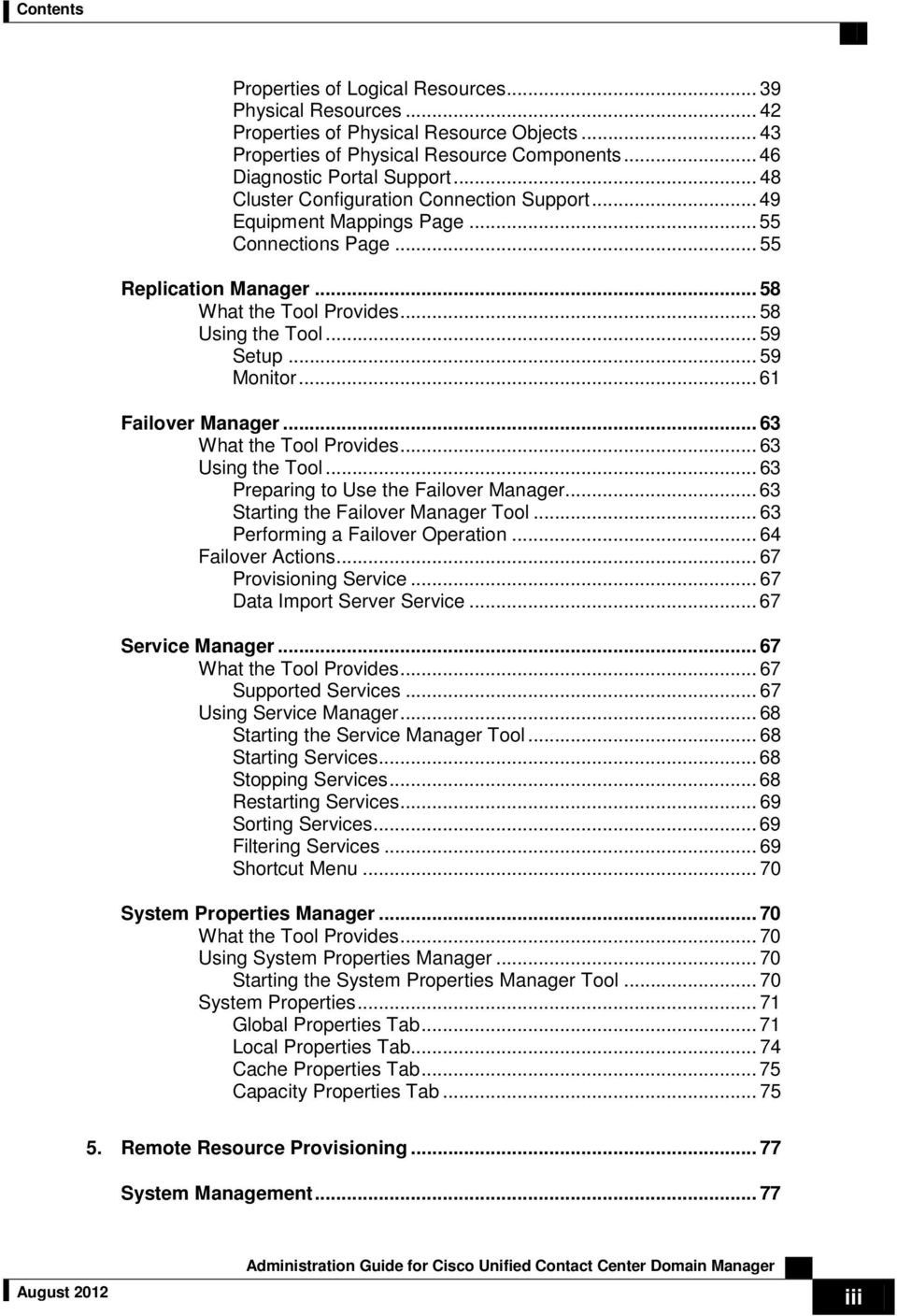
6 Contents Remote Resource States State Descriptions Pending Active Ready Error Delete Pending Deleted User Interface Database Codes Memberships State Machine Scenarios Provisioning Non-CCE Peripheral Types Agent Self Re-Skilling and the Provisioning Service Unified CCE Purge Logic Auditing and Monitoring Audit Histories Resource Audit History Activity Monitor Logging Application Server Log Web Application Log Data Import Server Log Provisioning Server Log Partitioning Log Installer Logs IIS Log Files Performance Counters Unified CCDM Data Pipeline Object Unified CCDM Application Server Object Unified CCDM Provisioning Object Unified CCDM <Service Type> Connection Health Object Unified CCDM <Service Type> Connection Requests Standard Administrative Operations Service Restart Configuration Resetting Default Database Connections Connection Updater Features Connection Updater Usage Testing Connections Restart Services iv

7 Contents 8. Advanced Administrative Operations Enabling and Disabling Cluster Configuration Components Database Backup and Recovery Troubleshooting DBCheck Overview Architectural Background Installation Configuration Running DBCheck Logging and Error Reporting Reviewing Logs Troubleshooting DBCheck General Troubleshooting Delays in Importing Agent Changes v

8 Preface Purpose Preface Purpose Audience This document explains how to administer and provision the Unified Contact Center Domain Manager (Unified CCDM) platform. This document is intended for all users of Unified CCDM, from high-level administrators to team supervisors. The reader needs no technical understanding beyond a basic knowledge of how to use computers. Organization The sections of this guide are as follows: Chapter 1 Unified CCDM Overview This chapter provides a general overview of Unified CCDM Chapter 2 Basic Administration Tasks This chapter explains the basic principles behind the day-to-day administration tasks required for unified CCDM to Chapter 3 System Architecture This chapter gives an overview of the Unified CCDM system architecture Chapter 4 Integrated Configuration Management This chapter explains how to use the tools in the Integrated Configuration Environment to configure Unified CCDM. Chapter 5 Remote Resource Provisioning This chapter explains how remote resources are provisioned by Unified vi

9 Preface Related Documentation CCDM. Chapter 6 Auditing and Monitoring This chapter describes the auditing and monitoring features in Unified CCDM. Chapter 7 Standard Administrative Operations This chapter describes standard administration operations. Chapter 8 Advanced Administrative Operations This chapter describes some advanced administration operations. Chapter 9 Troubleshooting This chapter provides some troubleshooting advice. Related Documentation Documentation for Cisco Unified ICM/Contact Center Enterprise & Hosted, as well as related documentation, is accessible from Cisco.com at: Related documentation includes the documentation sets for Cisco CTI Object Server (CTIOS), Cisco Agent Desktop (CAD), Cisco Agent Desktop - Browser Edition (CAD-BE), Cisco Unified Contact Center Domain Manager, Cisco Unified Customer Voice Portal (CVP),Cisco Unified IP IVR, Cisco Unified Intelligence Center, and Cisco Support Tools. For documentation for these Cisco Unified Contact Center products, go to click Voice and Unified Communications, then click Customer Contact, then click Cisco Unified Contact Center Products or Cisco Unified Voice Self-Service Products, then click the product/option you are interested in. For troubleshooting tips for these Cisco Unified Contact Center products, go to then click the product/option you are interested in. Documentation for Cisco Unified Communications Manager is accessible from: Technical Support documentation and tools are accessible from: The Product Alert tool is accessible from (sign in required): For information on the Cisco software support methodology, refer to Software Release and Support Methodology: ICM/IPCC available at (sign in required): s_list.html. For a detailed list of language localizations, refer to the Cisco Unified ICM/Contact Center Product and System Localization Matrix available at the bottom of the vii

10 Preface Product Naming Conventions following page: _list.html. Product Naming Conventions In this release, the product names defined in the table below have changed. The New Name (long version) is reserved for the first instance of that product name and in all headings. The New Name (short version) is used for subsequent instances of the product name. Note This document uses the naming conventions provided in each GUI, which means that in some cases the old product name is in use. Old Product Name New Name (long version) New Name (short version) Cisco IPCC Enterprise Edition Cisco IPCC Hosted Edition Cisco Intelligent Contact Management (ICM) Enterprise Edition Cisco Intelligent Contact Management (ICM) Hosted Edition Cisco CallManager/Cisco Unified CallManager Cisco Unified Contact Center Enterprise Cisco Unified Contact Center Hosted Cisco Unified Intelligent Contact Management (ICM) Enterprise Cisco Unified Intelligent Contact Management (ICM) Hosted Cisco Unified Communications Manager Unified CCE Unified CCH Unified ICM Unified CM Conventions This document uses the following conventions: Convention boldface font italic font Description Boldface font is used to indicate commands, such as entries, keys, buttons, folders and submenu names. For example: Choose Edit > Find Click Finish Italic font is used to indicate the following: To introduce a new term; for example: A skill group is a collection of agents who share similar skills viii

11 Preface Obtaining Documentation and Submitting a Service Request For emphasis; for example: Do not use the numerical naming convention A syntax value that the user must replace; for example: IF (condition, true-value, false-value) A book title; for example: Refer to the User Guide for Cisco Unified Contact Center Domain Manager window font Window font, such as Courier, is used for the following: Text as it appears in code or that the window displays; for example: <html><title>cisco Systems, Inc. </title></html> < > Angle brackets are used to indicate the following: For arguments where the context does not allow italic, such as ASCII output A character string that the user enters but that does not appear on the window, such as a password Obtaining Documentation and Submitting a Service Request For information on obtaining documentation, submitting a service request, and gathering additional information, see the monthly What s New in Cisco Product Documentation, which also lists all new and revised Cisco technical documentation, at: Hhttp:// Subscribe to the What s New in Cisco Product Documentation as a Really Simple Syndication (RSS) feed and set content to be delivered directly to your desktop using a reader application. The RSS feeds are a free service and Cisco currently supports RSS version 2.0. Documentation Feedback You can provide comments about this document by sending an message to the following address: mailto:[email protected] We appreciate your comments. ix

12 Chapter 1: Unified CCDM Overview Operational Overview 1. Unified CCDM Overview Operational Overview The Unified Contact Center Domain Manager (Unified CCDM) is a suite of server components that simplify the operations and procedures for performing basic administrative functions such as managing agents and equipment Unified CCDM consists of the following components: The Database Server component holds information about all the resources (such as agents and dialed numbers) and actions (such as phone calls and agent state changes) within the system. The Application Server component manages security and resilience, enabling one side of a dual-sided Unified CCDM to use the other side s servers if one of the servers or connections fails. The Web Server component provides the user interface that enables users to perform resource management and administrative tasks. The Data Import Server component imports resources (for example Agents, Skill Groups) into the Unified CCDM Database and synchronizes changes made to those resources outside of the Unified CCDM environment. The Provisioning Server component provides the mechanism to commit resource changes made by Unified CCDM users to back-end contact center systems, for example the Cisco Unified Contact Center Platform. These components are normally installed on more than one machine. 10

13 Chapter 2: Basic Administration Tasks Configuration of Unified CCDM Security 2. Basic Administration Tasks Unified CCDM is a browser-based management application designed for use by contact center/system administrators, business users and supervisors. The Host Administrator user is created when the application is installed. This user does not manage the Unified CCDM application on a day-to-day basis, but will set up tenant administrator users to do so for each configured tenant in the system. Configuration of Unified CCDM Security The Unified CCDM web application has a typically small number of different user types: Host Administrator is responsible for the whole platform and therefore has a view across all the equipment and resources Tenant Administrator is responsible for the slice of the system assigned to the tenant by the host administrator Tenant User has access only to the resources and tools assigned by the tenant administrator. Several sub-classes of tenant user may be created by the tenant administrator using user groups and roles to achieve their business requirements. Supervisor User has access to one or more Agent Teams that they supervise in the contact center. They will have permissions to create Agents and assign them to Teams and Skill Groups On a new system the Host and Tenant Administrators perform their respective tasks before the Tenant and Supervisor users are given access to the system. A host administrator is responsible for global platform security management, whereas a tenant admin will be responsible for security management of only the resources in their domain. Security management can be thought of as the process of determining which users can perform which actions in which folders. This involves creating and managing the following entities: Folders. The security system used by Unified CCDM is based on a hierarchical folder structure where child folders may inherit permissions from their parent. 11

14 Chapter 2: Basic Administration Tasks First Steps for Host Administrators This means that the folder hierarchy should ideally be designed with security requirements in mind. Users and Groups. Users can be assigned to groups of users with the same security permissions. A number of predefined groups with commonly required permissions are provided. Roles and Tasks. Control the actions that can be performed within a folder. Each task is an individual kind of action, such as browsing resources or managing information notices. These tasks are collected together into roles. For example, you could create an Auditor role that included the ability to manage audit reports, browse audit reports, and browse resources, and then assign certain groups or even individual users the permission to perform that role within certain folders. For each role a user or group is assigned, they must also be assigned an equivalent global role. Removing a global role removes that user s ability to perform the corresponding non-global roles anywhere within the system, meaning it is possible to remove permissions in a single click where necessary. The default groups have the correct global permissions pre-assigned. Security is explained in more detail in the Security Management chapter of the User Guide for Cisco Unified Contact Center Domain Manager. First Steps for Host Administrators The Host administrator is responsible for: Ensuring that the remote resources (such as Skill Groups, Agents and Call Types) are correctly located in the tenant folder Creating a Tenant Administrator user for each tenant Adding them to the administrators group for the tenant and assigning any specific roles Configuring Imported Resource Data Equipment Mapping After the initial data import, remote resources imported from Unified CCE and Unified CM are associated with their respective tenants and will be automatically stored in their associated folders. After installation the host administrator should configure the remote equipment mappings for the system so that resources are placed in the appropriate segregated tenant folders. An equipment mapping provides a link between a folder in Unified CCDM and the remote equipment, telling the Unified CCDM importer where resources should be placed. You can access provision equipment mappings through the Cluster 12

15 Chapter 2: Basic Administration Tasks First Steps for Host Administrators Configuration tool of the Integrated Configuration Environment (ICE) by selecting the Equipment Mapping option. For more information about using the Cluster Configuration tool to do equipment mappings, see section Equipment Mappings Page below. Automatic Resource Movement Prefixes may be used to manage the automatic movement of remote resources to associated folder locations. To map a prefix to a tenant for the importing of Unified CCE or Unified CM data, the user must have host administrator privileges. You can only map a prefix to a tenant folder. Any individual item moved to a folder is then excluded from the prefix management import job to prevent it from being automatically moved by the system. Additional information on creating Prefixes is available in the User Guide for Cisco Unified Contact Center Domain Manager. Shared Remote Resources Where multiple tenants share a Unified CCE or Unified CM then resources will be put into the system unallocated folder. An administrator must then place these remote resources into the appropriate tenant folder through either the Unified CCDM user interface or through the use of Unified CCDM Prefix mappings. Related resource items, such as IP Phones and their Directory Numbers or Agents and their associated Person should be moved to the same folder. Resources associated with more than one tenant, such as peripherals, media routing domains and phone types should be placed in a folder that should be readable by users from those tenants. More information on how to manage security in Unified CCDM can be found in the User Guide for Cisco Unified Contact Center Domain Manager. Creating a Tenant Administrator 1. Click Tools link at the top right of the web page to display the Tools page. 2. In the Security Manager section, click User Manager. 3. Click Users tab to access the User Browser page. 4. Select the tenant folder and click New. 13
16 Chapter 2: Basic Administration Tasks First Steps for Host Administrators 5. Fill in the following fields: User Name field enter the name as it will appear in the system for the new user Password field enter the password for the new user Confirm Password field re-enter the selected password First Name and Last Name fields enter the user's details field enter the address of the new user Description field enter any explanatory text, if required 6. Select Advanced Mode checkbox and any of the following checkboxes if applicable: Enabled checkbox to ensure that the user is live in the system. If unchecked the new user exists in the system, and so can be granted security permissions, but cannot log in User must change password at next Logon checkbox to prompt the new user to change their password after their first login Password Never Expires checkbox to assign the password to the new user indefinitely User cannot change password checkbox to prevent the new user from being able to change their password Only the User Name, Password and Confirm Password fields are required. 7. Click OK. Assigning Administrator Privileges Now you must give the tenant administrator the permissions necessary to manage the system. This is done by assigning the new user to the administration group that was automatically created when you created the tenant. 1. In the User Manage, click Administrator User to display the Edit User page. 2. Click Groups tab. All users created are automatically assigned to the group Everyone. 3. Select Advanced Users. The user s permissions are automatically updated so that they can manage users, folders, information notices and folder security within the tenant folder. 14

17 Chapter 2: Basic Administration Tasks Using the Agent Password Reset Utility It is possible to create your own groups with custom permissions, or to grant specific permissions to individual users. See the Security Management section of the User Guide for Cisco Unified Contact Center Domain Manager for details. Using the Agent Password Reset Utility To change a password Cisco Unified CCDM provides a Change Your Agent Password utility from which agents can change their own passwords. This page is reached by navigating to the URL: Hhttp://<CCDM Server>/Portal/agent_manage_password.aspx. You do not need to have a Portal user account to use the Change Your Agent Password page. 1. Enter the Agent Username. This is the login name that you use to log into the peripheral. 2. Enter the Agent s current password. 3. Enter your new password for the Agent, and confirm. Password changes are subject to a small time delay while they are committed to Cisco Unified CCE. Password Complexity Rules Passwords for agents must conform to the password complexity rules defined in the Cisco Unified CCDM. The following settings can be configured: Password Format. Minimum Password Length. Maximum Password Length. For more information about changing the password complexity rules in Cisco Unified CCDM, please refer to the section on Security Settings located in the User Guide for Cisco Unified Communications Domain Manager. Unified CCE Password Compliancy When using the resource management functionality of Unified CCDM to configure Agent and Person entries Unified CCDM will prompt the end user for the entry of logon credentials that agents will use to logon to their equipment. 15

18 Chapter 2: Basic Administration Tasks Using the Agent Password Reset Utility Minimum length rules applied in Unified CCE will be honored through the Unified CCDM Web User Interface to ensure that agents created/edited within Unified CCDM may logon to their equipment with no further change. Unified CCE provides the ability to set the minimum password length by accessing the System Information section of Configuration Manager on the AW. 16

19 Chapter 3: System Architecture Using the Agent Password Reset Utility 3. System Architecture The Unified CCDM system architecture is shown below. The top half of the diagram is a traditional three-tier application. This includes a presentation layer (an ASP.NET web application), a business logic application server, and a SQL Server database. The lower half of the system architecture is a process orchestration and systems integration layer called the Data Import Server and the Provisioning Server provisioning connection to Unified Communications Manager (Unified CM) and Unified CCE. 17

20 Chapter 3: System Architecture Web Application Figure 3-1 Unified CCDM Architecture Web Application The user interface to Unified CCDM is by a web application that is accessed by a web browser (Microsoft Internet Explorer). Access is gained through a secure login screen. Every user has a unique user name. This user name is assigned privileges by the system administrator, which defines the system functions the user can access and perform. The web application is hosted on the server by Microsoft Internet Information Services (IIS). 18

21 Chapter 3: System Architecture Application Server Application Server Data Import Server Provisioning Server The Unified CCDM Application Server component provides a secure layer in which all business logic is implemented. The application server component runs in a separate service and is always hosted with the web server component. The application server component also includes caching to improve performance and audits all actions taken by logged in users. The Data Import Server component is an Extract, Transform and Load application for Unified CCDM. The Data Import Server component imports the data used in Unified CCDM. The Microflow Runtime is the heart of the Data Import Server component. It orchestrates systems without resorting to low level programming languages. The Microflow Runtime is a general purpose scripting environment and can be applied to a wide range of problems. The term microflow describes any modular, reusable and independent unit of business logic. An example microflow might update an agent on the Cisco Unified CCE platform when changes are made through Unified CCDM web server component. The Provisioning Server component is also responsible for monitoring changes in the Unified CCDM system and ensuring that those changes are updated onto Unified CCE. The provisioning server component orchestrates the creation, deletion and update of resources to Unified CCE and Unified CM. The Unified CCDM Provisioning Service utilizes the Unified CCE ConAPI interface to commit changes to the Unified CCE. Provisioning changes are managed via periodic cycles performed by the provisioning server. After a change has been committed by the ConAPI interface the Provisioning Server will wait a configurable period of time (5 seconds by default), before moving onto the next operation. This configurable throttle reduces the possibility of overloading Unified CCE during busy times. More information on configuring this setting are described in the Agent Self Re-Skilling and the Provisioning section. The provisioning characteristics of this service are as follows: For Agent > Skill Group relationships, the provisioning server will batch together up to 100 requested operations into one request executed every provisioning cycle. For all other items (for example Agents, Agent Teams and so on), all items and relationships are treated as separate provisioning operation. These are executed one by one honoring the configured provisioning throttle between operation executions. 19
22 Chapter 3: System Architecture Provisioning Server By default this would mean that the creation of an Agent that is linked to one Agent Team and two Skill Groups would create the following provisioning operations: Agent Creations Agent to Agent Team relationship Bulk Agent to Skill Group relationship 20
23 Integrated Configuration Environment (ICE) 4. Integrated Configuration Management Integrated Configuration Environment (ICE) Description The Integrated Configuration Environment (ICE) application is a centralized tool that provides easy access to most of the configuration options available within the Unified CCDM platform. Individual configuration tools are components within ICE. The ICE application supplied with Unified CCDM has the following components: Cluster Configuration Provides functionality for configuring the network topology used by the Unified CCDM system. This tool enables configuration of servers, resources (for example, Unified CCDM components, Unified CCE components) and the connections between them. It also provides monitoring capabilities. Replication Manager Provides functionality for configuring and monitoring SQL Server replication between Unified CCDM databases. Failover Manager Provides functionality for performing manual switchover of the Data Import and Provisioning services between two servers. Services Manager Provides functionality for monitoring and controlling all Unified CCDM services across servers from a single centralized location System Properties Manager Provides functionality for configuring system wide properties that control a variety of Unified CCDM components. The ICE tool and the components above are installed as part of the Unified CCDM component installation (see the Installation and Configuration Guide for Cisco Unified Contact Center Domain Manager for more information about the Unified CCDM component installation). 21
24 Integrated Configuration Environment (ICE) ICE User Interface Starting ICE ICE has a common user interface for all ICE tools. 1. To start ICE, click Start > All Programs >Domain Manager > Configuration Tools > Integrated Configuration Environment. The Database Connection dialog box is displayed. 2. Enter the credentials for your database. To test the validity of the connection, click Test. Click OK to continue. 3. If there are errors or warnings in the configuration when you start ICE, you will see a dialog box stating the number and type of errors and warnings. If this dialog box is shown, click OK. 4. ICE starts in the Cluster Configuration tool. If there were errors or warnings in the configuration, then the error details are shown in the Cluster Configuration Error List pane. When ICE starts, the Error List pane shows both connection errors and validation errors. Subsequently, the Error List pane only shows validation errors. But the connection status can be seen at any time on the Connections page. ICE User Interface The ICE user interface is shown in Figure 4-1. This example shows the ICE Cluster Configuration tool. 22
25 Integrated Configuration Environment (ICE) Figure 4-1 ICE User Interface ICE Menu and Toolbar Common actions are visible in the menu and the tool bars at the top of the screen. The common actions supported by ICE are as follows: Icon Action Description Save Exit Preferences View Output Undo Redo Save any changes. Close the ICE application. View the ICE tool and component preferences. View the standard output feedback window. Undo the last change. Redo the last change. Configured actions may be shown in the menu, the tool bar or both. Generally, commonly used actions (for example, Undo, Redo) are displayed in both the tool bar and the menu, and less commonly used actions just appear in the menu. 23
26 Integrated Configuration Environment (ICE) As an example, consider the File action shown in Figure 4-2. Save and Open are shown on both the menu and tool bar, whereas Exit and Preferences are only shown in the menu. The ICE tool in this example is the System Properties tool. Figure 4-2 Common File Actions ICE Tool Selection The ICE application toolbar contains a drop down list below the menu (see Figure 4-3). This contains the available ICE tools. To start an ICE tool, select it from the drop down list. Figure 4-3 ICE Tool Selection Drop Down List ICE Tool Area The central area of the ICE application is used by each ICE tool for their own interface. Figure 4-4. shows the central pane for the ICE System Properties tool. 24
27 Integrated Configuration Environment (ICE) Figure 4-4 Central Pane for ICE System Properties Tool ICE Output Pane The bottom area of the ICE application contains an output pane showing the output from the active ICE tools. This area also contains any additional output panes from specific ICE tools. If both the ICE output pane and a specific output pane are available, they are shown one on top of the other, with a tab to select the one that is visible. Figure 4-5 shows the ICE output pane and the error list pane from the ICE Cluster Configuration tool. In this example, the ICE output pane is currently visible. 25
28 Cluster Configuration Figure 4-5 Output and Error Panes for ICE Cluster Configuration Tool You can control the display of the output panes in the following ways: You can change the height of the whole area by dragging the top edge up or down using the mouse. You can close the current pane, by clicking on the cross at the top right of the pane. You can show or hide any currently available pane from the View menu. You can control the output that is shown in the ICE output pane as follows: Click on the Show output from drop down list at the top left of the pane to show output from one ICE tool or from all ICE tools. In the example in Figure 4-5 the output pane is showing the output from the Cluster Configuration tool only. Click on the Level drop down list to choose the level of output you want to see. In the example in Figure 4-5 the output pane is showing the information level output messages. Cluster Configuration What the Tool Provides The Unified CCDM Cluster Configuration tool is an ICE tool that allows the administrator to configure all Unified CCDM and third party servers and components within a Unified CCDM deployment. The tool also provides functionality for creating connections between these components and specifying the credentials that should be used for these connections. The network topology created using this tool provides individual system components with information about how to route data within the system. 26
29 Cluster Configuration Cluster Configuration Model Equipment Mappings The Cluster Configuration tool provides a graphical interface over a model that is used as part of the generic Unified CCDM monitoring component to test and provide connections to all services in the Unified CCDM platform. The underlying cluster configuration model consists of the following core objects: Servers A server represents a physical computer on the network. Physical Resource Components A physical resource component represents a real service running on a server. For example a ConAPI service or AW Database on an ICM. Physical Resource A physical resource is a grouping of physical resource components that all form part of the same system. For example a Unified CCE system may consist of an AW, and ConAPI component. Logical Resources A Logical Resource is a grouping of several physical resources that represent replicated versions of a single system. For example a Unified CCE system may be dual-sided, consisting of two distinct systems for fault tolerance and redundancy. In this situation there would be a single logical Unified CCE resource with 2 physical resources instances, one representing side A and the other representing side B. Physical Connections A physical connection represents a link between 2 physical resource components. The component being connected to is known as the destination component, and the component connecting is known as the source component. The Cluster Configuration tool supports loading and saving this model from both a Unified CCDM database and an XML file. Equipment mappings define mappings between folders and remote equipment which specify where imported items are placed in the Unified CCDM folder tree. They also control the visibility of remote equipment and their resources in the user interface. Impact on Importer Behavior The importer uses the equipment mappings to determine which folder to place new items in. The folder is chosen by applying the following logic, in order: If the item being imported is owned by a Remote Tenant and there is a corresponding equipment mapping for that remote tenant, the importer chooses the folder defined by the mapping. 27
30 Cluster Configuration Impact on User Interface If the item being imported is owned by a Remote Tenant but there is no corresponding equipment mapping for that remote tenant, the importer chooses the default import location folder, if one is defined. Finally if there is no remote tenant mapping or default import location mapping specified, the importer chooses the /Unallocated folder within a subfolder folder named after the equipment, for example, /Unallocated/CICM123. If an equipment mapping is changed after an initial import, the importer moves existing items to a new folder based on the logic above in the following scenarios: If an item is currently in the equipment s Unallocated folder. If an item s location is no longer synchronized with its Remote Tenant ownership. See the Importing Remote Ownership Changes section below for details. Using a combination of a user s security permissions and the equipment mappings, it can be determined which remote equipment the user has the right to access. This is applied when the equipment is listed in the Unified CCDM web application for example, on the Person dimension edit screen and phone creation screen (Unified CM drop-down list). The user has the right to view equipment if there is an Equipment Mapping to any tenant that contains any folder that the user has permission to view. For example, if there was a tenant: /t1 and the user had the right to see folder /t1/folder1 and there was an equipment mapping to /t1/folder2 then the user has right to view the equipment. The user also has the right to view equipment which only has equipment mappings to folders outside of tenants. For more information on moving resources through the Unified CCDM web application please refer to the User Guide for Cisco Unified Contact Center Domain Manager. Resource Ownership Principles Resources in Unified CCDM are owned by Tenants. This section describes how this ownership is managed and the implications of item ownership on the importer and reports. Unified CCDM Tenant Ownership Unified CCDM Tenants contain the items which they own and moving an item to another tenant its owner has changed. Items located outside of tenant are not owned and depending on security settings can be shared between tenants or hidden. Remote Tenant Ownership Some types of item originating from Unified CCE also have an additional level of ownership on the Unified CCE Instance. Unified CCE has an equivalent of a tenant 28
31 Cluster Configuration called Customer Definitions which can be associated with the following types of item: Dialed Number Call Type Label Network VRU Script Scheduled Target Routing Script These items are therefore capable of being owned by a Unified CCDM tenant and a remote tenant. Remote Tenant Mappings Unified CCDM automatically manages which items belong to which Remote Tenant according to where they are located in the folder tree. This is made possible by mapping Remote Tenants to folders in the Cluster Configuration tool under the Equipment Mappings section. An item which is located anywhere under a Remote Tenant mapped folder will be associated to and owned by that Remote Tenant. The Remote Tenant Mappings control two Unified CCDM behaviors: The folder that Remote Tenant owned items are placed in by the importer. How the Remote Tenant ownership changes when a Remote Tenant owned item is moved through Unified CCDM. Changing the Ownership of an Item An item s ownership can be changed in three ways: Move the item or the folder containing the item to a different Unified CCDM tenant. Move an item capable of being owned by a Remote Tenant to a folder located under a different Remote Tenant Mapping. Change the Remote Tenant Mapping of an item on the Remote Equipment (for example, Unified CCE). Changing Ownership by Moving Items Since the ownership of items is governed by where it is located in the folder tree, moving an item can result in a change of Remote or Unified CCDM Tenant ownership. When Remote Tenant owned items are moved through Unified CCDM, their Remote Tenant ownership is calculated by retrieving the closest Remote Tenant mapping by looking up the folder tree. If the closest Remote Tenant Mapping has changed as a 29
32 Cluster Configuration result of a move, the Remote Tenant ownership is updated and provisioned to the remote equipment. A change of Remote Tenant mapping during a move is not allowed if the item is referenced by a customer specific Unified CCE routing script or has a membership to any other items which also have a Remote Tenant mapping. For example, the user can t move a label out of a folder which has a Remote Tenant mapping if it is referenced by a script which has a Remote Tenant association. To move the label, it must first be removed from the script or alternatively the script should be made visible to all customers using the Unified CCE s Script Editor. Provisioning of Scheduled Targets is not supported, so any move which requires a change of Remote Tenant will not be allowed. Likewise if a Routing Script move results in a change of Remote Tenant ownership and Script Provisioning is disabled on for the Unified CCE in Cluster Configuration, the move operation will be aborted. Items owned by Remote Tenants for which there are no Remote Tenant Mappings will not have their Remote Ownership changed unless they are moved into a folder with a different Remote Tenant Mapping. Importing Remote Ownership Changes The Data Import Service ensures that any Remote Tenant owned items are correctly located in the folder tree according to the configured Remote Tenant Mappings. If a Remote Tenant owned item has no corresponding Remote Tenant Mapping, it will be placed in the default import location. If the remote tenant of an item is changed on the Unified CCE the importer will move the item according to the defined Remote Tenant Mappings so that the item s folder location continues to reflect the correct Remote Tenant ownership. Using the Cluster Configuration Tool Cluster Configuration Actions The ICE Cluster Configuration tool supports the following ICE actions: Icon Action Description Save Undo Redo Save any changes to the currently loaded configuration. Undo the last change made to the configuration. Redo the last change made to the configuration The ICE Cluster Configuration tool also has the following additional actions: 30
33 Cluster Configuration Icon Action Description Save As Save As Database Save As File Refresh Validate Save the currently open configuration to a database Save the currently open configuration to an XML file Refresh the configuration from the current connection (database or file) Validate the current configuration, and display any validation errors in the Error List pane. Note: Validate does not check connection errors, although the Error List pane does include connection errors at startup. If any connection errors were shown in the Error List pane, they will be cleared when you select Validate. Open Open Database Open File Create Checkpoint Revert To Last Checkpoint Open configuration from a database Open configuration from an XML file Create a checkpoint in the current configuration. Allows all changes from a given point to be easily reverted. Revert the state of the configuration to the last checkpoint, reverting and clearing all changes since the checkpoint. Cluster Configuration Preferences The ICE Cluster Configuration tool has the following additional preferences: Preference Name General: Advanced Mode Description Indicates if the current user should be shown advanced properties on the cluster configuration objects within the user interface. This option is not required for day-to-day operations. 31
34 Cluster Configuration Preference Name General: Connection Monitor Refresh Period Description Indicates the rate in seconds at which the connection monitoring system will check the backing store for connection state changes. Default is 5 seconds. The preferences configuration pane is shown in Figure 4-6 below. Figure 4-6 Cluster Configuration General Preferences User Interface Cluster Configuration Filters Some of the Cluster Configuration pages support a filter function to limit the number of items shown according to a user-specified filter. To access the filter, where available, click on the Show Filter icon ( ). The actual filters that you can specify depend on the Cluster Configuration page. Within the filter area, click the Clear Filter icon ( ) to clear any filters you have specified and click on the Hide Filter icon ( ) to hide the filter options. The following Cluster Configuration pages support a filter: Servers page Connections page Resources page 32
35 Cluster Configuration Cluster Configuration User Interface When you run the Cluster Configuration tool for the first time you are automatically connected to a model using the shared Unified CCDM relational database connection. If the Cluster Configuration tool is the first ICE tool to be run then you are prompted for credentials to connect to the Unified CCDM relational database. Once connected, you will see the initial screen shown in Figure 4-7. Figure 4-7 Cluster Configuration Initial Interface On the left hand side of the main interface there is a navigation menu that allows easy switching between the various configuration pages within the tool. These configuration pages include: Setup The Setup page provides access to high-level wizards that are designed to make day-to-day configuration changes quick and easy. Servers The Servers page allows physical servers within the model to be added, removed or updated. Resources 33
36 Cluster Configuration The Resources page provides direct access to the logical resources, physical resources, and physical resource components configured within the model. These items can be added, removed, or updated here. Equipment Mapping The Equipment Mapping page is only enabled when connected to a Unified CCDM database. It allows you to create tenants and folders within the Unified CCDM security tree and to map equipment (for example, Unified CCE systems) to these folders for import and provisioning purposes. Connections The Connections page allows you to view and edit the Unified CCDM component connections. Cluster Configuration Error List Pane The Cluster Configuration has an additional output pane, the Error List pane (see Figure 4-8). Click on the Error List tab to view the errors and warnings from Cluster Configuration tool. Initially, this pane shows the connection errors and warnings (if any) and validation errors and warnings (if any) that were detected at startup. Click Save or Validate to update the contents of the Error List pane with the current validation errors and warnings. When you click Save or Validate, any connection errors and warnings are cleared from the Error List pane. You can view connection problems at any time on the Connections page. You can click on the buttons at the top of the error pane to choose the type of error you want view. In the example in Figure 4-8, errors and warnings have been selected for display, but messages have not been selected for display. You can click on the error details to see more information about the error. 34
37 Cluster Configuration Figure 4-8 The Cluster Configuration Error List Pane Setup Page For information about the Setup page in the Cluster Configuration tool, see the Unified CCDM Installation and Configuration Manual, Unified CCDM Component Configuration chapter, Configuring the Unified CCDM Clusters section, Server Setup subsection. Servers Page The Servers page within the Cluster Configuration tool allows physical servers within the Unified CCDM deployment to be added, removed or updated. The Servers page is shown in Figure
38 Cluster Configuration Figure 4-9 Cluster Configuration Servers Page The Servers page consists of a left and right pane. The left hand pane contains a list view displaying all of the servers configured in the open model. The right hand pane is a property grid that displays the details of the currently selected server within the list view. Server objects support the following basic properties: Property Name Advanced Default Address Description The default address that will be used when services within the Unified CCDM deployment connect to this server. This may be a host name or IP address. Display Name A name used to represent this object when it is referred to in logs, performance counters etc. 36
39 Cluster Configuration Enabled Indicates if this server is enabled. This is a calculated field and actually indicates whether all physical resource components on this server are enabled. Changing this value will update the enabled flag of all physical resource components on this server. Id A unique ID used to represent this object on the backing store. Server Name The machine name for this server. This is used to identify a Unified CCDM service s machine within the cluster model and should match the value returned by SQL server or SYSTEMPROPERTY( MachineName ). Viewing Computer properties on a Windows based computer and looking at the Computer Name property can typically find the correct value. System Indicates if the Unified CCDM system installers created this object. Servers may be added to the model by clicking the Add New icon within the list view. Clicking this will automatically create a new server in the model and select it in the user interface ready for editing. Right click within the Servers page to see a shortcut menu with the following functions: Icon Action Description Add Server Remove Server View Add a new server to the model. Remove the selected server from the model. Change the display style of the list view. Resources Page The Servers page includes a filter which allows you to filter by server name or address. Click on the Show Filter icon ( ) to expand the filter area if it is not currently shown. The Resources page within the Cluster Configuration tool allows logical resources, physical resources, and physical resource components within the model to be added, removed or edited. 37
40 Cluster Configuration The Resources page is shown in Figure Figure 4-10 Cluster Configuration Resources Page The Resources page consists of a left and right pane, very similar to the layout of the Servers page. The left hand pane contains a list view displaying all of the logical and physical resources configured in the open model. The right hand pane is a property grid that displays the details of the currently selected object within the list view. The Resources page includes a filter which allows you to filter by resource group type, resource type, server or resource name. Click on the Show Filter icon ( ) to expand the filter area if it is not currently shown. The list view on the Resource page contains multiple groups. Each group represents an individual logical resource within the model. Within each group there will be one or more items, each representing a physical resource within that logical resource. This structure is highlighted in Figure
41 Cluster Configuration Figure 4-11 Example Logical Resource List View Group Logical Resources You can select an logical resource by clicking on the group header text (for example, the text: Provisioning Server [Provisioning Service] (2) in the example of Figure 4-11). Selecting a logical resource displays its properties in the property grid pane, as shown in Figure Figure 4-12 Property Grid View for Logical Resource The property grid for a logical resource has two tabbed sections; General and Specific. The General tab contains properties that are common to all logical resources. The Specific tab contains properties that relate to the specific type of logical resource that has been selected. Properties of Logical Resources All logical resource objects support the following basic properties (through the General tab): 39
42 Cluster Configuration Property Name Child Resources Description Advanced Description The logical resources in the system that may be considered to be children of this resource. A short description for the logical resource. Display Name A name used to represent this object when it is referred to in logs, performance counters etc. (Read-only) Enabled Indicates if this logical resource is enabled. This is a calculated field and actually indicates whether all physical resources in this logical resource are enabled. Changing this value will update the enabled flag of all physical resources in this logical resource. Id A unique ID used to represent this object on the backing store. (Read-only) Name Parent Resources A unique name for this logical resource. The logical resources in the system that may be considered to be parents of this resource. Provisionable Indicates if provisioning has been enabled for this logical resource. System Indicates if the Unified CCDM system installers created this object. (Read-only) Version The source system version for this logical resource. The derived logical resource properties for the standard built in resource types are as follows: Cisco CICM Property Name Advanced Active Directory Path Description The active directory location from which users can be selected to provide supervisors with WebView login credentials. (Only shown if a ConAPI component is configured for the physical resource) 40
43 Cluster Configuration Property Name Advanced Deployment Type Domain Password Domain User Name Description The deployment type for this CICM. The password to use when connecting to active directory if "Secure Authentication" has been specified. (Only shown if a ConAPI component is configured for the physical resource) The user to impersonate when connecting to active directory if "Secure Authentication" has been specified. (Only shown if a ConAPI component is configured for the physical resource) Last Dimension Import Config Change Date Last Member Import Config Change Date Multi Media Enabled Person Minimum Password Length Primary Domain Server Purge Items on Delete Script Lock User Name Script Provisioning Enabled The value of the ControllerConfigChangeTime field in the AWControl table on the AW the last time a dimension import ran for this resource. (Readonly) The value of the ControllerConfigChangeTime field in the AWControl table on the AW the last time a member import ran for this resource. (Read-only) Indicates if multimedia reskilling is supported for this CICM. (Only shown if a ConAPI component is configured for the physical resource) The minimum password length configured for this ICM. (Read-only) Primary domain server for active directory access. (Only shown if a ConAPI component is configured for the physical resource) Indicates if items should be automatically purged on delete (or only marked for delete) on ICM. (Only shown if a ConAPI component is configured for the physical resource) User name for use when locking routing scripts for edit. (Only shown if a ConAPI component is configured for the physical resource) Indicates if script provisioning is enabled for this ConAPI resource. (Only shown if a ConAPI component is configured for the physical resource) 41
44 Cluster Configuration Property Name Advanced Secondary Domain Server Secure Authentication Self Skilling Enabled Time Zone Time Zone Display Name Description Secondary domain server for active directory access. (Only shown if a ConAPI component is configured for the physical resource) Indicates whether a specific user should be impersonated when contacting to active directory. (Only shown if a ConAPI component is configured for the physical resource) Indicates if the self-skilling feature should be enabled for this ICM. The time zone for the ICM. Display name for the ICM time zone. (Read-only) Data Import Server Service Property Name Advanced Description Import Cycle Delay Physical Resources The minimum delay between import cycles (in minutes). You can select an individual physical resource by clicking on physical resource in the list view (for example, the text: Provisioning Server 2 in the example of Figure 4-11). Selecting a physical resource displays its properties in the right hand property grid pane, as shown in Figure
45 Cluster Configuration Figure 4-13 Property Grid View for Physical Resource The property grid for a physical resource is broken into three tabbed sections; General, Specific, and Components. The General tab contains properties that are common to all physical resources. The Specific tab contains properties that relate to the specific type of physical resource that has been selected. The Components tab displays details for each of the physical resource components associated with the currently selected physical resource. For example, when viewing a CICM resource, the Components tab may contain entries for the AW and ConAPI components. Properties of Physical Resource Objects Physical resource objects support the following basic properties (through the General tab): Property Name Advanced Description Display Name A name used to represent this object when it is referred to in logs, performance counters etc. (Readonly) Enabled Indicates if this physical resource is enabled. This is a calculated field and actually indicates whether all physical resource components in this physical resource are enabled. Changing this value will update the enabled flag of all physical resource components in this physical resource. 43
46 Cluster Configuration Property Name Advanced Description Id A unique ID used to represent this object on the backing store. (Read-only) Is Publisher Name Indicates if this physical resource is considered a publisher for replication within the logical resource. A unique name for this physical resource. System Indicates if the Unified CCDM system installers created this object. (Read-only) Derived, resource type specific properties are exposed through the Specific tab of the property grid. The derived physical resource properties for the standard built in resource types are as follows: Application Server Service Property Name Advanced Description Notification Enabled Indicates if this application server is responsible for raising resource notification events. Data Import Server Service Property Name Advanced Description Last Import End The time when the last dimension import cycle ended. (Read-only) Last Import Exception Count The number of errors that occurred on the last import cycle. (Read-only) Last Import Start Last Import Type The time when the last dimension import cycle started. (Read-only) The type of the last import cycle. (Read-only) Relational Database Property Name Advanced Prefix Management Enabled Description Indicates if this database server is responsible for running the prefix management scheduled job. 44
47 Cluster Configuration Property Name Advanced Purge Enabled Scheduling Enabled Description Indicates if this database server is responsible for running the purge scheduled job. Unused. The Components tab on the property grid displays the properties for all physical resource components that belong to the selected physical resource. The Components tab page is shown in Figure This example is for a Cisco CICM physical resource with an AWS and ConAPI component. The individual components can be expanded to reveal their specific properties. In this example, the AWS component has been expanded. Figure 4-14 Components Example Property Grid View for Physical Resource The following table lists the component types supported and required for each of the built-in physical resource types: 45
48 Cluster Configuration Physical Resource Type Component Type Required Description Application Server Service Default Cisco Call Manager Default Cisco CICM AWS The Admin Workstation component. Used for dimension/member import. ConAPI The Cisco ConAPI server. Used for provisioning changes to CCE. Cisco CVP Call Server Data Import Server Service Partitioning Service Provisioning Service Relational Database Default Default Default Default Default Properties of Physical Resource Components All physical resource components support the following properties: Property Name Advanced Description Application Name Application name used for this component when it is the source of a SQL connection. Can be used to identifier this resource in a SQL profile. (Read-only) Display Name A name used to represent this object when it is referred to in logs, performance counters etc. (Read-only) 46
49 Cluster Configuration Property Name Advanced Description Id A unique ID used to represent this object on the backing store. (Read-only) Inbound Connections Outbound Connections Server System All connections to this component from other systems. All connections from this component to other systems. The server on which this component resides. Indicates if the Unified CCDM system installers created this object. (Read-only). In addition, the following derived properties are supported: Cisco CICM: AWS Property Name Advanced Description Catalog Custom Connection Test The database catalog name. SQL query containing custom connection test logic for this component. The query should return a single row with a BIT column indicating the state of the component. Provisioning Service: Default Property Name Advanced Additional Java Virtual Machine Options Java Debug Port Number Java Debugging Enabled Description All additional options that should be passed to the hosted Java Virtual Machine. The -Xrs option will be automatically passed in and does not need to be specified here. The port number to use for connecting the remote debugger when Java debugging is enabled. Enable or disable debugging support in the hosted Java Virtual Machine. 47
50 Cluster Configuration Java RMI Server Hostname The value of this property represents the host name string that should be associated with remote stubs for locally created remote objects, in order to allow clients to invoke methods on the remote object. Relational Database: Default Property Name Advanced Catalog Description The database catalog name. Custom Connection Test SQL query containing custom connection test logic for this component. The query should return a single row with a BIT column indicating the state of the component. Diagnostic Portal Support Logical resources, physical resources and physical resource components may be added/removed from the model via a context menu that can be accessed by rightclicking on the main list view area. The ICE Cluster Configuration tool allows you to access the diagnostic portal and view diagnostic logs for the Unified CVP, Unified CCE and CCDM servers. To view the logs for a server: configure the diagnostic portal for the server (you only need to do this once) select the required log and logging period to access the required logs. Configuring the Diagnostic Portal To configure the diagnostic portal for a server: 1. On the server you want to configure, identify a username and password for an authorized user of the Diagnostic Framework. This user must be a trusted domain user in the CONFIG domain security group of the server being configured. 2. In the ICE Cluster Configuration tool, select the Resources tab. 3. Click on the server that you want to configure the diagnostic portal for. 4. In the right hand pane, select the Components tab. 5. Set the Diagnostic Portal User Name and Diagnostic Portal Password fields to the username and password of the authorized user you identified above. 48
51 Cluster Configuration 6. Select File >Save or click the Save icon in the toolbar. For more information about the diagnostic portal see Serviceability Best Practices Guide for Cisco Unified ICM/Unified CCE & Unified CCH, Chapter 10, Unified ICM/Unified CCE Diagnostic Tools. Accessing the Diagnostic Logs To access a diagnostic log: 1. Right click on the server instance and from the context menu, select Components, then the component, then one of: View Logs to view the logs View Trace Logs to view the trace logs. 2. The Diagnostic Logs window is shown. In the Diagnostic Logs window, select the type of log you want to view from the drop down list in the top left of the window. 3. Specify the From Date and To Date to filter the results by a date range, then click Fetch Result to get a list of all available logs of that type within the selected date range. 4. The bottom left pane may show the logs that match the filter, or may show servers or folders containing logs that match the filter. Double click on the server or folder to view the contents of that item and drill down to the log files. When you locate the log file you want to view, double click on the log file to view the contents in the Raw Data tab of the right hand pane. For CSV log files, you can also select the CSV tab of the right hand pane to view the log file in CSV format. To view diagnostic logs, you must previously have configured the diagnostic portal for this server as described above. Cluster Configuration Connection Support Connections can be created between two physical resource components within the cluster configuration model. Components may support inbound connections (that is other components may connect to them), outbound connections (that is, they can connect to other components) or both inbound and outbound connections. Each physical resource component type has a connection type associated with it that defines how other components should connect with it. The Unified CCDM system supports the following connection types: 49
52 Cluster Configuration Connection Type Cisco ConAPI Description Provides support for connections to a Cisco CMS JServer using the ConAPI Java RMI layer. Microsoft SQL Server Provides support for connections to a Microsoft SQL Server database. Connections can be added, removed or updated by clicking on the Inbound Connections or Outbound Connections property on a component entry in the property grid. To edit connections from the selected component to other components use the Outbound Connections property. To edit connections to the selected component from other components use the Inbound Connections property. These properties are only visible on components where connections are supported. For example, to edit outbound connections for a provisioning server: 1. In the list view, select the required provisioning server. 2. In the property grid pane, click on the Components tab. 3. Click on the Outbound Connections property (see Figure 4-15). Figure 4-15 Example Connection Editing 4. Click on the ellipsis beside the Outbound Connections property. This displays the Manage Outbound Connections From dialog box, as shown in Figure
53 Cluster Configuration Figure 4-16 Manage Outbound Connections Dialog Box The Manage Outbound Connections dialog box has two main panes. The left hand pane contains a tree view showing all the components that are available to connect to or from. The tree view groups all the available components by physical component type and logical resource. An example of this is shown in Figure
54 Cluster Configuration Figure 4-17 Connection Edit Dialog Tree View When a connection exists to a component instance, the icon on the component is highlighted in green. When no connection exists, the icon is greyed out. Within each logical resource grouping, the component instances in the logical resource are listed in order of cost. The cost of a connection is an indication of the resources it has available to it and how well it will perform connections with a lower cost can be expected to perform better than connections with a higher cost. For example, it may be more efficient to make a connection to a server that is co-located with the server requesting the connection than to make a connection to a server in another country. In this case, you would define the local server as having a lower cost than the server in another country. Unified CCDM will use the lower cost connection if it is available. For example, if a Provisioning server was connected to a dual sided database then one of the two sides would be the preferred (lowest cost) connection and the other would be the redundant (highest cost) connection. To change the relative cost of connections, select a component in the tree view and click the up or down arrow at the bottom right of the pane to reduce or increase the cost, as shown in Figure
55 Cluster Configuration Figure 4-18 Changing the Relative Cost of Connections When a component is selected in the tree view, the right hand pane will automatically populate with the details for the connection. The connection details pane is broken into three sections; a common header, a connection type specific properties page and a generic footer. An example for a SQL connection is shown in Figure
56 Cluster Configuration Figure 4-19 Connection Details Pane The common header consists of the following: Column Connected Enabled Override Default Server Meaning Indicates if a connection exists to the selected component. Checking this box creates a connection. Unchecking this box deletes the connection. Indicates if this connection is enabled. Disabled connections will not be used by the Unified CCDM monitoring service. By default, the host name for the server on which component resides will be selected from the server objects Default Address property. However, there may be situations where the actual host name used for a specific connection between two components needs to be altered (for example when using network address translation). In these situations, the host name can be set by checking the Override Default Server box and entering the new host name in the Address field. 54
57 Cluster Configuration The middle pane contains connection type specific properties. For example, when editing a SQL connection this pane contains settings for the authentication mode and database catalog etc. The common footer contains a single Test button. Clicking this button will test the connection using the details provided in the details section. Connections are tested within the context of the ICE application so tests may provide inaccurate results. When the connections are utilized by the Unified CCDM system they will be created on remote servers and subject to any firewalls, network address translation or environment issues that may exist on those servers. The connections will also be established using the windows credentials of the service rather than the credentials being used to run the ICE application. Equipment Mappings Page The Equipment Mappings page in the ICE Cluster Configuration tool allows you to configure the target location for imported dimensions from the configured source equipment (for example, Unified CCE, Unified CM) into the Unified CCDM folder structure. This allows you to create new tenants or folders and associate them with the configured source equipment. The equipment mapping section is displayed showing the configured Unified CCDM tree structure. New folders and tenant folders can be created by right-clicking and choosing the relevant options. Selecting a tenant folder within the tree will list the configure equipment that can be associated with that tenant. Selecting a piece of equipment allows it to be mapped to the selected folder. Default Import Location this is the location at which all resources for the selected equipment will be placed. Remote Tenant Mapping this allows a customer definition to be associated with the folder (if the resource is Unified CCE) so that only resources associated to that customer definition are placed in this folder on import. 5. When you have completed your changes to equipment mappings, click the Save icon in the toolbar to save your changes.. For more information about the Equipment Mapping page, see the Unified CCDM Installation and Configuration Manual, Unified CCDM Component Configuration chapter, Configuring the Unified CCDM Clusters section, Equipment Mapping subsection. Connections Page The Connections page within the Cluster Configuration tool allows all configured connections in the system to be edited and monitored. The Connections page is shown in Figure
58 Cluster Configuration Figure 4-20 Cluster Configuration Connections Page The Connections page consists of a resizable top and bottom pane. The top pane is the connection status monitor and shows the status of all the connections configured in the open model. The bottom pane displays the details for the currently selected connection in the list view. The bottom pane is similar to the one in in Figure Each row in the connection status monitor consists of the following columns: Column Status Meaning An icon representing the status of the connection. The following options exist: Available Unavailable Disabled 56
59 Cluster Configuration Column Source Server Source Component Type Destination Server Destination Component Type Meaning The name of the physical server that this connection is being established from. The display name for the physical resource component type that this connection is being established from. The name of the physical server that this connection is being established to. The display name for the physical resource component type that this connection is being established to. Clicking the column headers in the connection status grid will sort the view by the selected column. Click on an entry in the grid (a source or destination server, or a source or destination component type) to go to the details for that item. The row headers on the connection status grid may optionally show an alert icon ( ) if there is a potential problem with the connection. Hovering over the alert icon will display a tool tip explaining the reason for the alert. The most common cause of an alert being displayed is to indicate that the connection status has not been updated for more than 5 minutes. This usually indicates that the source service is not running or is failing to connect with the Unified CCDM database. The source service log files should be used to investigate the cause of the problem. To show the server details for a particular connection, hold down Ctrl and click on the connection. To maximize the status monitor and show the Details and History tabs, click on the expand icon on the splitter bar (see Figure 4-21). 57
60 Replication Manager Figure 4-21 Connection Monitor Full Screen Mode Connection status is automatically refreshed from the database. By default the status is refreshed every 5 seconds but this can be modified via the Cluster Configuration preferences (see section Cluster Configuration Preferences). The Connections page includes a filter which allows you to filter by resource type, component type and server, for both the connection source and the connection destination. Click on the Show Filter icon ( ) to expand the filter area if it is not currently shown. Replication Manager What the Tool Provides The Unified CCDM Replication Manager is an ICE tool that allows the administrator to manage SQL Server Replication between Unified CCDM databases. The Replication Manager has two modes: Setup: Used to configure and disable SQL Server replication between the Unified CCDM databases. Monitor: Used to monitor general health of configured replication, at to start and stop replication agents. The Replication Manger should typically be run on the Unified CCDM database publisher (side A) server. The user running the tool must be a Windows administrator on all the servers that take part in replication. 58
61 Replication Manager To use the Replication Manager, the Unified CCDM databases must be configured as dual sided. Using the Tool To start the Replication Manager tool: 1. From the Start menu, select All Programs > Domain Manager > Configuration Tools > Integrated Configuration Environment. 2. Enter the database information for the primary database server and click OK. 3. In the Tools drop-down, select Replication Management. The Replication Manager tool is displayed: If SQL Server replication is not currently configured, the Replication Manager tool starts in the Setup tab (see section Setup). If SQL Server replication is configured, the Replication Manager tool starts in the Monitor tab (see section Monitor). Setup The Setup tab allows you to configure or disable SQL Server Replication. It shows the configured Unified CCDM database publisher and subscriber. In addition, it shows the Distributor server properties. The configuration that is presented is based on the cluster configuration model made using the Cluster Configuration tool. If any of the presented defaults are modified, the configuration must be saved for replication setup to continue. Unified CCDM Database Server Properties This section shows the configured Unified CCDM database publisher and subscriber servers. The Server Names are fixed and cannot be changed. The Catalog Names default to those configured in the cluster model. They may be modified. If they are modified then the modified database catalogs must exist on the respective servers. Distributor Properties This section shows the distributor properties. The distributor properties are stored in the cluster model but are not visible for update in the Cluster Configuration tool. The distributor settings can be only modified using Replication Manager. On a brand new installation, when the Replication Manager is first loaded, the tool updates the cluster model with the default settings for the distributor. As a result, the model must be saved in order to continue replication setup. 59
62 Replication Manager Server Name is always configured on the Unified CCDM database subscriber server. This cannot be changed. Catalog Name defaults to distribution_portal. This may be changed if required. It is recommended to use the default. Data Folder is the path on the Distributor Server where the data file of the distribution database should be created. This defaults to the data folder path of the master database on the SQL Server the tool is connected to. This must be changed if this path does not exist on the distributor server. If the path does not exist on the distributor server then the replication setup will result in an error. Log Folder is the path on the Distributor Server when the transaction log file for the distribution database should be created. This defaults to the log folder path of the master database on the SQL Server the tool is connected to. This must be changed is this path does not exist on the distributor sever. If the path does not exist on the distributor server then the replication setup will result in an error. Distribution Share is the location where the initial snapshot files will be generated. This is default to a share on the Distributor Server. The folder must be available for share. This folder is typically configured for share by the Unified CCDM Database Management utility during the installation of the Unified CCDM Subscriber database. Override Distributor Admin Password allows you to override the password that is auto-generated by the Replication Manager and is used when replication is set up. The auto-generated password is 14 characters long, and contains upper and lower case characters and a special character. If you want to override this password with your own password, select this check box and specify a password of your choice. You may need to do this if, for example, the auto-generated password does not comply with your password complexity policy. This password is a one-off password used to set up replication. It is not stored and does not need to be recorded by the user. Configuring Replication To configure replication, click the Save icon on the Replication Manager tool bar to save any pending changes. Once the cluster model has been saved the Configure button is enabled. Click Configure to configure replication. If there are pending changes, the user is asked if they want to save those changes before configuring replication. The Configure button is disabled if the SQL Server Replication is currently configured. 60
63 Replication Manager Disabling Replication Click Disable to disable a configured replication. The Disable button is enabled only if SQL Server Replication is currently configured. Monitor The Monitor tab allows you to monitor the general health of the configured replication. It can also be used to start and stop various replication agents if required. The Monitor user interface is divided into four main panes: The top left pane lists the Replication Publisher servers and the publications hosted on the respective publisher. The top right pane shows various replication agents and subscriptions associated with publications. This pane has two tabs: The Subscriptions tab shows all the subscriptions to a publication. The Agents tab shows all other agents associated with a publication. The bottom left pane shows all the sessions for a replication agent in the last 24 hours. The bottom right pane shows all the activity for a particular replication agent session. The Monitor refreshes the information about the replication status every five seconds. How to use the Monitor Select a publication in the top left pane. The subscriptions and replication agents associated with the selected publication are listed in the top right pane in the respective tab. The Subscriptions tab shows all the subscriptions to the selected publication. It will help answer the following questions Which subscriptions are slow? This will show the latency of replication from publisher to the subscriber. Is the replication system healthy? The grid will show status icons for warnings and error for subscriptions that require attention. The Agents tab displays the agents that are used by the selected publication. This tab shows the following agents: The Snapshot Agent is shown for all publications 61
64 Replication Manager The Log Reader Agent is shown for transactional publications Base and NonQueued. The Queue Reader Agent is shown for transactional publication Base only. You can use the Monitor tab to start and stop the Subscriptions and Replication Agents. In order to start or stop, right click on the selected subscription or agent and select Start or Stop. You can view the session details for a Subscription or an Agent in the two bottom panes. Select the Subscription or Agent in the top right pane. The bottom left pane shows all the sessions for the selected Subscription or Agent in the last 24 hours. It shows the following details for each session: Status - the current status of the session. Start Time - when the session was started. End Time - when the session stopped. This is set only for sessions that are not currently running. Duration - the total duration for each session. The bottom right pane shows the SQL Server Replication actions performed for a replication session. To see the actions for a replication session, select the replication session in the bottom left pane. The status icons and their meanings are shown in Table 4-1 below. Table 4-1 Status Replication Manager Status Icons Icon Unknown Running Completed Retry Error Identifying Errors The Monitor helps to identify replication errors that have occurred in replication. If an error has occurred in a particular subscription or an agent, the respective subscription or agents status icon will show up as error. Select the subscription or agent that shows the error. Selecting the subscription or agent will show their sessions. If an error occurred during a session, the session will show an error icon. Select the session with the error to see the actions. The actions describes the nature of the error in the action message. 62
65 Failover Manager Failover Manager Other Considerations Each time the Monitor refreshes, it requests data from the underlying replication system. These additional requests may sometimes affect the overall performance of SQL Server Replication, especially on busy systems. As a result it is recommended that the Monitor should not be left running for long periods of time. What the Tool Provides Using the Tool The Unified CCDM Failover Manager is an ICE tool that allows the administrator to manually switch the Provisioning and Data Import services between two fully operational servers in a dual-sided Unified CCDM installation. Only use the Unified CCDM Failover Manager to perform a planned manual failover, for example to perform maintenance on one of the servers. The service to be switched must be running and fully operational on both servers, and the data must have previously been synchronized between the servers. Do not use the Failover Manager to switch between servers in a disaster recovery scenario, for example if one of the servers has failed or has corrupt data. Preparing to Use the Failover Manager Before performing a failover for a service: Be aware that the service will be unavailable during the failover, and that for a large database, the failover may take a significant period of time. Ensure that you have an up-to-date database backup. Ensure that you are logged in as a domain level user who has administrative rights on both servers, and also on the machine being used to run the ICE tool. Ensure that the firewalls on both servers and on the machine being used to run the ICE tool are configured as in the Network and Environment Configuration section of the Installation and Configuration Guide for Cisco Unified Contact Center Domain Manager. Starting the Failover Manager Tool To start the Failover Manager tool: 1. From the Start menu, select All Programs > Domain Manager > Configuration Tools > Integrated Configuration Environment. 2. Enter the database information for the primary database server and click OK. 63
66 Failover Manager 3. In the Tools drop-down, select Failover Management. The Failover Manager tool is displayed, showing: the Unified CCDM service types that support failover the service that is currently active for each where available, the currently inactive service that can used for failover For each service type, the currently active service is shown as a depressed button, and identified by [active]. The inactive service is shown as a raised button that can be clicked to select it (see Figure 4-22). This display simply indicates the active and inactive services that have been configured in your Unified CCDM installation. It does not indicate the health of any of the services. Before performing a failover, you should make sure that both services are fully operational. Figure 4-22 Failover Management ICE Tool Performing a Failover Operation To start a failover operation: 1. In the Failover Manager tool, identify the service to be switched. 64
67 Failover Manager 2. Identify the service to be switched, and click on the raised button of the currently inactive service to display the Manual Failover Wizard confirmation dialog box (see Figure 4-23). 3. If you want to restart the new active service when the failover completes (the default option), check the Restart services when complete check box. If you do not want to restart the new active service when the failover completes (for example, if you want to perform other maintenance at the same time), clear the check box. Before continuing, make sure you really want to perform the failover at this time. The process may take some time to complete, and once it starts, it cannot be interrupted. During this time, neither the old active service nor the new active service will be available. 4. If you are sure you want to start the failover, click Next. The failover process may take some time to complete. The Manual Failover Wizard dialog box shows the progress and status for each step (see Figure 4-24). A green tick means that the step completed successfully and a red cross means that the step completed but there was an error which needs to be fixed before the failover can continue. 5. Once the wizard has finished, click Finished to return to the main Failover Manager screen. 6. If the failover reported an error, then when the wizard finishes, neither service will be running. The error message will help you identify and fix the problem and retry the failover, or you can restart the original active service. 65
68 Failover Manager Figure 4-23 Manual Failover Wizard Dialog Box Figure 4-24 Failover Progress 66
69 Service Manager Failover Actions Provisioning Service The failover for the provisioning service: Stops the provisioning service on the server on which it is currently running. Migrates the active token. Data Import Server Service Service Manager If requested, starts the provisioning service on the new active server. The failover for the data import server service: Stops the data import server service on the server on which it is currently running. Migrates the active token. If requested, starts the data import server service on the new active server. What the Tool Provides Supported Services The Service Manager is an ICE tool that allows Unified CCDM services to be monitored, started, stopped or restarted from a single centralized location. The user requires access to start and stop services on each server containing Unified CCDM services to make full use of this tool. The Unified CCDM services that are available to be manipulated by this tool are as follows: Application Search Services Data Import Server Hierarchy Management Services (unlicensed) Partition Table Manager Provisioning Server Resource Management Services (unlicensed) Scheduling Services (unlicensed) System Monitoring Services System Notification Services (unlicensed) System Subscription Services (unlicensed) 67
70 Service Manager Using Service Manager Starting the Service Manager Tool Starting Services To start the Service Manager tool, perform the following steps on the primary database server: 1. From the Start menu, select All Programs > Domain Manager > Configuration Tools > Integrated Configuration Environment 2. Enter the database information for the primary database server and click OK. 3. In the Tools drop-down, select Service Manager. The Service Manager tool is displayed, showing a table of Unified CCDM services including the machine name they are installed on, the service name and the current status (Running, Starting, Stopping or Stopped). To start one or more Unified CCDM services, perform the following steps on the primary database server: 1. In the Service Manager tool, click anywhere on each service you want to start, to select the service. If you want to start all or most of the services, select the All checkbox, then, if required, click on any services you do not want to start. Select the All checkbox again to deselect all the services in the list. 2. Click Start Selected. 3. A dialog box opens, reporting the status of each service as it is started. Click Close when complete. If a service is already started then no action is taken. Stopping Services To stop one or more Unified CCDM services, perform the following steps on the primary database server: 1. In the Service Manager tool, click anywhere on each service you want to stop. If you want to stop all or most of the services, click Select/Deselect All, then, if required, click on any services you do not want to stop. Click Select/Deselect All again to deselect all the services in the list. 2. Click Stop Selected. 3. A dialogue box opens, reporting the status of each service as it is stopped. Click Close when complete. If a service is already stopped then no action is taken. 68
71 Service Manager Restarting Services Sorting Services To stop and restart one or more Unified CCDM services, perform the following steps on the primary database server: 1. In the Service Manager tool, click anywhere on each service you want to restart, to select the service. If you want to restart all or most of the services, click Select All, then, if required, click on any services you do not want to restart. Click Deselect All to deselect all the services in the list. 2. Click Restart Selected. 3. A dialog box opens, reporting the status of each service as it is stopped and restarted. Click Close when complete. If a service is already stopped then it is just restarted. The Service Manager tool allows you to sort the Unified CCDM services by machine name, service name or current service status. To do this, perform the following steps on the primary database server: 1. In the Service Manager tool, click the column heading of the column you want to sort on. The list of services is sorted in ascending order according to the contents of that column. 2. If you want to sort the services in descending order, click the column name again. The list of services is displayed in descending order. Filtering Services The Service Manager tool allows you to filter the list of services by machine name, service name or service group. Setting a Filter 1. In the Service Manager tool, select the filter or filters you require: To filter by machine name, start typing the machine name or part of the machine name into the text box. The list of services is updated as you type, to show only those that contain the letters you specify. To filter by service name, select the arrow beside the text box to display the list of available service names, and select the service name you want to filter by. To filter by service group, select the arrow beside the text box to display the list of available service names, and select the service group you want to filter by. 2. The list of services is filtered according to the filter or filters you specified. 69
72 System Properties Manager Shortcut Menu Clearing a Filter To clear all the filters, select the icon beside the filter boxes (only shown if you have set some filters). To clear an individual filter do the following: To clear the filter for the machine name, delete the characters in the Machine Name text box. To clear the filter for the service name or service group, select the blank entry from the drop down list. Refreshing the Filtered List To refresh the list of services, but retain the current filters, click Refresh. Reloading the List of Services To clear all filters and reload the servers and services from the database, click Reload. Right click on a service to see a shortcut menu with the following options: Select/Deselect All Start All Stop All Start Selected Stop Selected Apply Filter Clear Filter System Properties Manager What the Tool Provides The System Properties Manager tool is an ICE tool that allows the control of a variety of properties for the Unified CCDM components. Using System Properties Manager Starting the System Properties Manager Tool To open the System Properties Manager tool, perform the following steps on the server where the properties need to modified. 1. From the Start menu, select All Programs > Domain Manager > Configuration Tools > Integrated Configuration Environment 70
73 System Properties Manager 2. Enter the database information for the primary database server and click OK. 3. In the Tools drop-down, select System Properties Manager. The System Properties Manager tool is displayed, showing list of Unified CCDM properties, grouped by property type and functionality. The following property types are available: Global Properties Local Properties Cache Properties Capacity Properties When you first start the System Properties Manager from ICE, the display shows the global properties. To see properties of a different type, click in the appropriate tab in the left hand pane. The rest of this section describes the available properties and their meanings. Properties which have been changed from the system default values are shown in bold in the System Properties Manager user interface. System Properties Global Properties Tab Global properties allow the configuration of items that are either system wide or items that affect multiple Unified CCDM components. The properties are grouped in the following categories: Activity Monitor This property group specifies configuration information for the Activity Monitor. Provisioning Warn Threshold: the number of seconds after which an item or membership in the provisioning queue is shown in the middle (orange) band of the Activity Monitor. Provisioning Max Threshold: the number of seconds after which an item or membership in the provisioning queue is shown in the top (red) band of the Activity Monitor. Code Lookup and Supported Equipment Types Group This property group specifies information about equipment types. Code Lookup and Supported Equipment Types: The type of equipment that is used to import codes into the Unified CCDM database. Currently the only supported value is CRT_CICM (equipment type Cisco CICM) 71
74 System Properties Manager Database Lock Configuration Group This property group specifies the timeout values used in the database for the importer and provisioning services. Lock Importer Acquire Timeout: The time that the importer will wait to acquire a lock before timing out. The setting is entered in the format hh:mm:ss. Lock Importer Retry Rate: The number of times the importer service will try to gain a lock on a database item before failing the item. Lock Provisioning Acquire Timeout: The time that the provisioning service will wait to acquire a lock before timing out. The setting is entered in the format hh:mm:ss. Lock Provisioning Retry Rate: Controls the number of times the provisioning service will attempt to gain a lock on a database item before failing the item. Localization Group This property group specifies the localization parameters. Duration Format: The default display format for reports Default: time displayed as hh:mm:ss Short: time displayed as mm:ss Importer State Group This property group specifies the import data settings. Bow Wave Duration Hours: The time period in hours relative to a cluster resource creation date that constitutes the bow wave period. The value is between 1 and 24. Bow Wave Effective From: The effective from date for dimensions created during a bow wave. Last Cluster Update: (Read Only). The date and time the cluster was last updated. Item Hiding Group These properties specify the range of expanded call variables that are to be hidden in user displays. Hide IPIVR Expanded Call Variables Pkey Lower: The identity of the lowest expanded call variable that is not shown in user displays. Expanded call variables below this value will be shown in user displays. Hide IPIVR Expanded Call Variables Pkey Upper: The identity of the highest expanded call variable that is not shown in in user displays. Expanded call variables above this value will be shown in user displays. Login Security Group This property group specifies the default behavior when creating users. 72
75 System Properties Manager Create Advanced Users Groups: Determines if an advanced users group is created when a folder is set to not inherit permissions. The values are True and False. Create Basic Users Groups: Determines if a basic users group is created when a folder is set to not inherit permissions. The values are True and False. Create Supervisor Users Groups: Determines if a supervisor users group is created when a folder is set to not inherit permissions. The values are true and false. Default Home Folder Role: The role that is automatically associated with a user on their home folder when the home folder is created. Default Tenant Administrators Role: The role that is automatically associated with the Administrators group when a new Tenant or policy root folder is created. Default Tenant Administrators Role: The role that is automatically associated with the Supervisors group when a new Tenant or policy root folder is created. Default Tenant Users Role: Specifies the role that is automatically associated with the Users group when a new Tenant or policy root folder is created. Home Folder Suffix: The suffix that is appended to the username when a home folder is created for a user. Max Password Length: The maximum number of characters allowed in a password. Min Password Length: The minimum number of characters allowed in a password. Minimum Password Lifetime: The minimum number of days that a password can be used for before it can be changed. Password Expiry: The number of days that a password is valid for. Password Format: A regular expression that specifies the required password format. Password History: The number of previous passwords that may not be reused when a user password is changed. Password Reuse Time: The number of times a password is allowed to be reused. Product Name: The name of the product to display in the user interface, allowing organizations to personalize the product. User Lockout: The number of failed login attempts that a user is allowed before their account is locked. Media Upload Group This property group specifies the default behavior for uploading media. Media Share: The network share name where WAV files uploaded through the Unified CCDM user interface will be placed for replication to the CVP Media Server. Miscellaneous Group This property group specifies some miscellaneous properties. 73
76 System Properties Manager Local Properties Tab Display Purge Button Stuck Seconds: The number of seconds to wait before determining that an item in S or P state is blocked (see section Database Codes for the meaning of the state codes). Once this time has been exceeded a purge button is displayed in the Web user interface. Menu Items: Custom application can be added to the menu bar by the inclusion of a display name and URL. Items separated by a semi colon. Prov Agent State Trace Enabled: Defines whether System Manager users can enable the ICM State Trace feature on agents. ICM State Trace provides enhanced logging information about when individual agents move from one state to another. Support Languages: The culture codes for the languages supported by the installation. Click the drop-down list to see and select the supported languages. Supported Peripheral Types: The peripheral types that can be associated with resources such as agents. The available peripheral types are shown in a drop-down list. Select the checkbox next to a peripheral type to include that peripheral type in the supported peripheral types. Other Security Group These properties specify other security options. Enable User Copy: Enables the user copy feature to be shown in the Unified CCDM web application. Inherit Permissions Default: Specifies whether the Inherit Permissions check box is selected by default when a new folder is created. Push Policy Changes to Child: When enabled it checks the check box in Security Manager that pushes any changes made down to any children policy roots. Partitioning State Group This property group specifies database partitioning options. Historical Partition Indexes Enabled: Determines whether historical partition indexes are generated. Purging Group This property group specifies data purging options. Fact Retention Period Days: The number of days that fact details are retained in the database. Local properties displays details of the Unified CCDM components on the machine the ICE tool is being run on. Partitioning State: Displays the last date and time that partitioned tables where refreshed. Refreshing is the creation of new partitions or removal of stale partitions. 74
77 System Properties Manager Cache Properties Tab Capacity Properties Tab Versioning: Displays a number of version numbers. Build Version: Identifies the actual build cycle that the installation was taken from allowing the precise code base to be used during investigations. (read only) Schema Version: The version of the database schema being used. (read only) The Cache property provides a method to control if a dimension is present in the cache or how it utilizes the cache. All available dimensions are listed in the interface with the following properties being set. ApplicationCacheEnabled: When set to True the dimension will be loaded into the application cache and provide search engine with fast access to the dimension details. FactCacheEnabled: When set to True the fact details will be loaded into the cache and provide faster access for reporting features. PerformanceManagementEnabled: When set to True the dimension will be available to the performance management feature of Unified CCDM. TaxonomyEnabled: When set to True the dimension will be available to the taxonomy feature of Unified CCDM. This tab shows the capacity constraints from the remote systems. The properties of the capacity constraints are: Enabled: Determines if the capacity rules should be considered when creating a membership. DefaultCapacity: The number of members/memberships allowed by default for this rule. MinCapacity: The minimum number of members/memberships allowed for the dimension. The value should be lower than the MaxCapacity but greater than 0. A value of -1 will cause the Min Capacity rule not to be applied. MaxCapacity: The maximum number of member/memberships allowed for the dimension. The value should be higher than the MinCapacity. A value of -1 will cause the Max Capacity rule not to be applied. FlexPercentage: A percentage value by which the number of members/memberships is allowed over the maximum capacity. The rule caters for special cases which fall outside normal business criteria. A value of 0 will cause the rule not to be applied. WarnPercentage: A percentage value that is applied against the maximum capacity. If the number of members/memberships reaches this value a warning is displayed. When the value is set to 100 the rule will not be applied. 75
78 System Properties Manager To update the capacity constraints, change the values on the remote system. 76
79 Chapter 5: Remote Resource Provisioning System Management 5. Remote Resource Provisioning All system and security management for Unified CCDM is performed through the Unified CCDM web application. For further information on how to use the Unified CCDM web application, please see the User Guide for Cisco Unified Contact Center Domain Manager. Most system and security management after the initial setup is performed by individual tenant administrators. System Management The System Manager tool allows the user to create and manage resources and resource folders within a hierarchical folder structure. Users with sufficient security privileges can access and manage the entire contents of the system via the System Manager interface. This lets you remotely configure and administer key aspects of your Unified CC system. How to manage resources is explained in more detail in the System Management chapter of the User Guide for Cisco Unified Contact Center Domain Manager. Remote Resource States A remote resource is any kind of entity on Unified CCE or Unified CM, for example: agents, teams, skill groups, and phones. All the remote resources in Unified CCDM participate in a state machine. A state machine is a collection of states which a resource will progress through during its lifetime. It is important to understand the state machine when troubleshooting problems in Unified CCDM. The states are shown in Figure 5-1 below: 77
80 Chapter 5: Remote Resource Provisioning Remote Resource States Figure 5-1 Resource State and Transitions Pending Active Initial state for all resources created through the Unified CCDM interface Pending Active Ready The normal stable state for a resource. Indicates resource has been full provisioned on external systems Delete Pending Signals the resource is in the process of deletion from all external systems Deleted Final state for all resources. Resources deleted from external systems are retained in Unified CCDM for audit purposes Ready Delete Pending Deleted Error Error Signals a problem with provisioning a resource. Resources can be edited while in this state State Descriptions Provisioning changes are managed via periodic cycles performed by the Unified CCDM Provisioning Server. After a change has been committed, the Provisioning Server will wait a configurable period of time (five seconds by default), before moving onto the next operation. This configurable throttle reduces the possibility of overloading the remote equipment during busy times. As a remote resource progresses through the state machine its status is reflected as follows: 78
81 Chapter 5: Remote Resource Provisioning Remote Resource States Pending Active Pending Active is the initial state for all resource items created through Unified CCDM. Pending Active tells us that the resource exists in Unified CCDM, but has not yet been created on the remote equipment. This may be a result of the remote item being configured with an effective from data or simply mean that the change has not yet been made yet. When a resource item is in the Pending Active state, no updates are accepted from importer microflows or user interface, with the exception that the item may be changed to the Delete Pending state. This business logic ensures that the Unified CCDM database acts as conflict master. Ready Error Ready is the normal state of a resource item in the Unified CCDM database. It indicates that the resource item has been fully provisioned on all the remote equipment controlled by Unified CCDM. If the user interface edits a resource item then it is changed to the Pending Active state. If an importer microflow updates a resource item, then it changes to the respective state depending on the change. The Error state signals that an error has occurred while provisioning a resource item. It means that the current status of the item in Unified CCDM is not reflected on the remote equipment. Using the System Manager user interface, additional information about the error may be source by viewing the history tab of the remote resource. This information will help the user identify why the remote resource could not be provisioned allowing them to update the configuration and re-save the remote resource. The user may choose to remove the remote resource using the Unified CCDM System Manager or the Unified CCE / Unified CM tools which will then result in it progressing to deleted status. When an item enters Error state then a Purge button will be displayed in the status tab allowing the resource to be marked as purged in the Unified CCDM database. This allows changes in Unified CCDM to be cleared, forcing the importer to re-create the item on the next cycle. This will also separate the historical data for the item at the point in time the purge is performed, linking all new historical data to the new resource that will be created by the importer. Delete Pending This state signals that the resource item is to be deleted from all external systems. The DELETED flag and EFFECTIVE_TO fields on the resource item row in the TB_DIM_ITEM_PKEY_MAP table will be set in the transition to this state. User interface operations are not allowed on a resource item which is Delete Pending editing in 79
82 Chapter 5: Remote Resource Provisioning Remote Resource States particular. Once it has been changed to Delete Confirmed then the resource item can be reactivated. The underlying delete business functions in the Unified CCDM Unified CCE and Unified CM connectors always check to see if the resource item is valid before starting a delete operation. Deleted A resource item changes to the Deleted state once it has been deleted from all externally controlled systems. The Delete Pending microflow runtime ensures all externally controlled systems are updated before the transition occurs. The workflow must also ensure any memberships are reset, for example the deletion of an agent may first require it to be removed from any agent teams. User Interface The user interface can only edit resource items which are in the Error and Ready states. Resource items in the Pending Active and Delete Pending states cannot be edited until the provisioning system has processed the resource item. There are a number of exceptions to this rule where effective dates can still be changed in the Pending Active state. The Error state is particularly important as it catches all the resource items that could not be provisioned. The normal use of the Error state is to hold resources that need to be edited before being provisioned again (by changing them to the Pending Active state). Figure 5-2 Editable Resource States Database Codes The resource state field in the TB_DIM_ITEM_PKEY_MAP table uses the following codes: Code State Description R Ready Ready is the normal state of a resource item in the Unified CCDM database. It indicates that the resource item has been fully provisioned on all externally controlled systems. S Pending Active Pending Active is the initial state for all resource items created/ edited through Unified CCDM. P Delete Pending The Delete Pending state signals the resource item is to be deleted from all externally controlled systems. The EFFECTIVE_TO and DELETED fields are also set in the TB_DIM_ITEM table. 80
83 Chapter 5: Remote Resource Provisioning Remote Resource States Code State Description D Delete Confirmed A resource item transitions to the Delete Confirmed state once it has been deleted from all externally controlled systems. E Error The Error state signals an error occurred provisioning a resource item. Memberships Memberships in the Unified CCDM database also have effective dating and a status. The Pending Active workflows ensure that changes to memberships are reflected on any externally controlled system. The state of a resource item shows whether it has been provisioned on all external systems (for example, whether an agent has been added to Unified CCE). The state also reflects whether all its memberships are up to date and fully provisioned. This approach makes it easy in the user interface to show an item s state. State Machine Scenarios The following table explores the state machine through some user case scenarios. Scenario Dimension item is created and provisioned (transitioning it to the Ready state). It is then deleted from one of the externally controlled systems. Dimension item in the Delete Pending state is deleted from a different external system. Dimension item in the Delete Pending state is reactivated on an externally controlled system. Dimension item in the Delete Confirmed state is reactivated on an external system. Dimension item fails to provision correctly; perhaps there is a network connectivity issue between Unified CCDM and the Unified CM. Expected Result Dimension item is transitioned to the Delete Confirmed state in Unified CCDM. Dimension item is transitioned to the Delete Confirmed state in Unified CCDM. Dimension item is left in the Delete Pending state and will be deleted on all externally controlled systems Dimension item is transitioned to the Ready state in Unified CCDM. Dimension item is transitioned to the Error state. Any systems it was correctly provisioned on are reflected in Unified CCDM database. Details of the provisioning problem are available in the audit tables. 81
84 Chapter 5: Remote Resource Provisioning Provisioning Non-CCE Peripheral Types Scenario Dimension item fails to provision correctly and is then deleted in Unified CCDM system. Dimension item partially fails to provision correctly and is then deleted in an externally controlled system. Dimension item in the Error state is deleted from an externally controlled system. Unified CCDM server suffers a total database crash and has to be restored from backup. Just prior to a server crash, a dimension item was created on an externally controlled system but was not updated in Unified CCDM database. Expected Result Dimension item is transitioned to the Delete Pending state in Unified CCDM. Dimension item is transitioned to the Delete Confirmed state in Unified CCDM. Dimension item is transitioned to the Delete Confirmed state in Unified CCDM. Support technician uses the Recovery Console to change the state of all nondeleted dimension items to Ready. The import synchronization may take some time to run but ensures all externally controlled systems are in line with Unified CCDM database. The next time the Synchronize microflow runs, it brings back the existing primary key for the dimension item on the externally controlled system and updates its identity in Unified CCDM database table TB_DIM_ITEM_PKEY. Provisioning Non-CCE Peripheral Types By default items may only be provisioned through Unified CCDM on peripherals of client type Enterprise Agent, System PG and IPCC Enterprise Gateway. These are the supported peripheral types that Unified CCDM has been configured and tested with. It is however possible to configure Unified CCDM to provision items to peripherals that are not constrained to the types listed above. To configure Unified CCDM to support another peripheral client type follow these steps: 1. On the primary database server navigate to Start > All Programs > Domain Manager > Integrated Configuration Environment. 2. Enter the database credentials for the local database and click OK. 3. Select the System Properties tool from the drop-down list. 82
85 Chapter 5: Remote Resource Provisioning Agent Self Re-Skilling and the Provisioning Service 4. Locate the Supported Peripheral Types option in the Miscellaneous section and from the drop-down list, select the checkbox beside the Peripheral Types you want to be supported. 5. Click Save and close ICE. When performing an update to the supported peripheral client types ensure that the existing types are not removed from the comma separated list as this will change standard product behavior. The standard supported types are 30,50, Restart all Unified CCDM Application Server Services on all of the servers hosting the Application Service. 7. Perform an IISReset command on all of Unified CCDM Web Servers by navigating to Start > Run, entering IISReset and click Return. Agent Self Re-Skilling and the Provisioning Service The Agent Self Re-Skilling feature of Unified CCDM allows users the capability to re-skill themselves from the Unified CCDM interface. Because of the additional provisioning load generated on Unified CCE when enabling this feature, the provisioning throttle will automatically be configured to 30 seconds. This indicates that provisioning changes to Unified CCE will be made at a rate of one change every 30 seconds. By default the Agent Self Re-Skilling feature is disabled. If this feature was not enabled when Unified CCDM was first installed, to enable it and the associated provisioning throttle, use the Cluster Configuration tool in ICE: 1. Click Start > All Programs >Domain Manager > Configuration Tools > Integrated Configuration Environment. The Database Connection dialog box is displayed. 2. Enter the credentials for your database. Click OK to continue. 3. If there are errors in the configuration, you will see a dialog box stating the number and type of errors. If this dialog box is shown, click OK. 4. ICE starts in the Cluster Configuration tool. Click on the Configure Cisco Unified CCE Servers Wizard. 5. In the Select Task dialog box, select Modify an Existing Instance, select the instance you want to modify, and click Next repeatedly until you reach the Select Required Components dialog box. 6. Select the ConAPI Server (provisioning) check box, if it is not already selected, and click Next. 83
86 Chapter 5: Remote Resource Provisioning Unified CCE Purge Logic 7. Click Next repeatedly until you reach the Self Skilling Enabled dialog box. Select Yes, then click Next, repeatedly until you see a dialog box confirming the wizard has completed successfully. Click Exit to complete the wizard. This change may take up to 5 minutes to be reflected within Unified CCDM. After this period users will be able to access the Agent Self Re-Skilling interface and Unified CCE provisioning requests will be throttled to one every 30 seconds. Unified CCE Purge Logic When remote equipment resources are deleted in Unified CCDM then they are set to the Delete Pending state in the Unified CCDM database. This forces the Provisioning Server to remove the associated resource(s) on the related equipment. Some resource types in Unified CCE implement purge logic, causing items to be propagated to a resource pool (similar to a recycle bin in Windows). This stops any properties that are associated with these items from being reused for new resources configured on that Unified CCE instance. For example, a Person in Unified CCE is allocated a Login Name which is a unique identity used to log the agent onto Unified CCE. If a Person is deleted in Unified CCE then it will be moved to the Deleted Objects section of the Unified CCE Configuration Manager tool. The Login Name associated with that Person cannot be re-used until the Person has been manually removed from the Deleted Objects section. When Unified CCDM s Unified CCE provisioning capability is configured, the user can select whether the associated CCE instance supports purge on delete logic. If purge on delete is enabled, then resources deleted through Unified CCDM are automatically removed from the Unified CCE Deleted Objects section. This allows their associated properties to be re-used immediately. If purge on delete is not enabled then Unified CCDM reports an error if you try to reuse a property that is associated with a resource in the Unified CCE Delete Objects section of Configuration Manager. A typical error message for this scenario is: Login Name duplicate detected - the login name you are trying to use is currently assigned to another resource. 84
87 Chapter 6: Auditing and Monitoring Audit Histories 6. Auditing and Monitoring Audit Histories Unified CCDM enables provisioning users to view the audit histories of individual items. These audit trails display events that relate to operations that have been performed within the platform, such as move agent, delete skill group and so forth. In addition to the standard platform audit information admin users can use system logs and performance counters to further aid problem diagnosis or establish system status. Resource Audit History Activity Monitor Each individual resource has its own audit history, showing all the events that have occurred on that resource. This can be accessed from the History tab when examining the resource in the Unified CCDM System Manager (see the User Guide for Cisco Unified Contact Center Domain Manager). This information can be used for problem diagnosis relating to a particular remote resource or to identify when a particular change was made and by whom. Using the Edit Filter link available on the History tab allows you to view only events which were successful, events which failed, or to view events that took place between certain dates. You can click on some of these events to see more details. The Unified CCDM System Manager includes an Activity Monitor tool which allows you to: view the items currently in the provisioning queue view audit details for resources, filtered by any or all of the resource type, location, date range, and the provisioning outcome (success or failure). You can click on an item to see more information about the event. See the User Guide for Cisco Unified Contact Center Domain Manager for more information. Logging Unified CCDM provides an extensive logging framework for each of the components of the system to aid troubleshooting in the event of a problem. Logging trace levels are stored in the registry for each separate component and may be set to one of the four following values: 85
88 Chapter 6: Auditing and Monitoring Logging Logging Level Name Description 0 ERROR This is the lowest level of logging. It will only log information relating to exceptions that occurred in the application. 1 WARN Warn provides ERROR level logging plus warnings raised for potential system issues. 2 INFO Info is the default logging level. It provides ERROR and WARN as well as standard diagnostic information. 3 DEBUG Debug is the highest level of logging. It provides detailed information of every operation that is performed. Debug logging has an adverse effect on performance, its usage should be kept to a minimum. Logging levels are defined on a per component basis and may be configured at the following registry locations: Component Web Application Application Server Partitioning Service Provisioning Server Data Import Server Registry Key HKEY_LOCAL_MACHINE\SOFTWARE\Exony\Components\Web\TraceLevel HKEY_LOCAL_MACHINE\SOFTWARE\Exony\Components\Application Server\TraceLevel HKEY_LOCAL_MACHINE\SOFTWARE\Exony\Components\Partitioning\Trac elevel HKEY_LOCAL_MACHINE\SOFTWARE\Exony\Components\Provisioning\Trac elevel HKEY_LOCAL_MACHINE\SOFTWARE\Exony\Components\Data Pipeline\TraceLevel Updating the logging level in the registry will require the associated process to be restarted before the change will take effect. Application Server Log Logs may be located on the Web Application Server. Navigate to the location where the Application Server Component was installed. By default, this is C:\Program Files\Domain Manager\Application Server. Open the latest log file contained within the Logs folder. 86
89 Chapter 6: Auditing and Monitoring Logging Web Application Log Logs may be located on the Web Application Server. Logs will be placed relative to the location where the Web Application Component was installed. By default, the log location is C:\Program Files\ Domain Manager\Web Logs. Open the latest log file contained within the Logs folder. Data Import Server Log Logs will be located on the DB Server. Navigate to the location where the Database Component was installed. By default, this is C:\Program Files\Domain Manager\Data Import Server. Open the latest log file contained within the Logs folder. Provisioning Server Log Partitioning Log Installer Logs IIS Log Files Logs will be located on the DB Server. Navigate to the location where the Database Component was installed. By default, this is C:\Program Files\Domain Manager\Provisioning. Open the latest log file contained within the Logs folder. Logs will be located on the DB Server. Navigate to the location where the Data Import Server Component was installed. By default, this is C:\Program Files\Domain Manager\Partitioning. Open the latest log file contained within the Logs folder. Platform install logs will be placed in C:\InstallLogs. These files will provide the MSI logging output from the installation of Unified CCDM. The various internal custom actions launched by the installer will also generate their own log files allowing problem diagnosis of custom exceptions (often reported as Error 1001 by Windows Installer). These files will be placed in the InstallLogs folder under the Unified CCDM installation folder for example, C:\Program Files\Domain Manager\InstallLogs. Web log files are found at C:\\WINDOWS\system32\LogFiles\W3SVC1\ex<YYMMDD>.log. These contain details of all web server transactions, and refer to standard HTTP status codes. A full list of HTTP status codes can be found at Some routine codes include: OK Failed Authorization 87
90 Chapter 6: Auditing and Monitoring Performance Counters Page Not Found Internal Server Error Performance Counters Unified CCDM integrates with Windows performance counters (accessed by running the perfmon command) to provide real time activity monitoring. Unified CCDM appears across several objects in perfmon, each with a number of associated performance counters. The perfmon graph can combine many different performance counters. Furthermore, perfmon can be configured to trace specific counters at scheduled times of the day. These performance logs can then be exported to Excel for further analysis. Perfmon can also connect to remote computers, if necessary. For information on how to use and configure perfmon, see the Microsoft documentation on Performance Logs and Alerts. Unified CCDM Data Pipeline Object Counter Total Cache Reloads Total Database Downloads Total Database Requests Total Database Statements Total Database Transactions Total Directory Rollbacks Total Microflow Validation Errors Total Microflows Run Total Number Imports Total Replication Imports Total Replication Publisher Requests Total Rows Imported Monitors Number of times a cache has been reloaded Total number of database downloads Total number of database requests Total number of TSQL statements Total number of database transactions Total number of import directories rolled back Total number of microflows that have failed validation testing Total number of microflows run Total number of imports started Total number of directories imported on the Subscriber Total number of directories sent for replication Total number of rows imported 88
91 Chapter 6: Auditing and Monitoring Performance Counters Unified CCDM Application Server Object Counter Application Requests/Second Application Requests/Total Available I/O Threads Available Worker Threads Max IO Threads Max Worker Threads Min IO Threads Min Worker Threads Total Failed Logons Total Failed Logons/Second Total Logon Attempts Total Logon Attempts/Second Total Successful Logons Total Successful Logons/Second Monitors Application requests processed per second Total application requests processed The difference between the maximum number of thread pool IO threads and the number currently active The difference between the maximum number of thread pool worker threads and the number currently active The number of requests to the thread pool that can be active at the same time. All requests above that number remain queued until thread pool IO threads become active. The number of requests to the thread pool that can be active at the same time. All requests above that number remain queued until thread pool worker threads become active. The minimum number of idle asynchronous IO threads currently maintained by the thread pool. The minimum number of idle worker threads currently maintained by the thread pool. Total number of failed logons Total number of failed logons per second Total number of logon attempts Total number of logon attempts per second Total number of successful logons Total number of successful logons per second Unified CCDM Provisioning Object Counter Total ConAPI Add Requests Monitors Total number of add requests sent on each ConAPI connection since the service last started 89
92 Chapter 6: Auditing and Monitoring Performance Counters Counter Total ConAPI Get (Alternate) Requests Total ConAPI Get (Primary) Requests Total ConAPI Remove Requests Total ConAPI Update Requests Monitors Total number of get (alternate) requests sent on each ConAPI connection since the service last started Total number of get (primary) requests sent on each ConAPI connection since the service last started Total number of remove requests sent on each ConAPI connection since the service last started Total number of update requests sent on each ConAPI connection since the service last started Unified CCDM <Service Type> Connection Health Object Counter Health Monitors The health of the connections from this service to each of the listed servers. Unified CCDM <Service Type> Connection Requests Counter Connection Requests/Second Connection Requests/Total Monitors Connection requests that this service has processed per second Total connection requests that this service has processed 90
93 Chapter 7: Standard Administrative Operations Service Restart Configuration 7. Standard Administrative Operations This section provides basic information on performing every-day administrative procedures that are required for the system to operate correctly. This includes such activities as the resetting of system account passwords should a domain policy be enforced that requires passwords to be reset within a given time range. Service Restart Configuration All Unified CCDM services are configured to start automatically, and restart automatically on failure. However three consecutive failures of a service will cause a system restart. To alter this behavior: 1. From Start menu, run services.msc. 2. Double-click to open each Unified CCDM service in turn. 3. Select Recovery tab. 4. Set the response to all the failures to be Restart the Service (changing the Subsequent Failures entry). 5. Click OK. Resetting Default Database Connections Unified CCDM provides a Windows client utility allowing for default database connections to be updated for the various components of the system. When Unified CCDM is installed configured connection strings are encrypted and stored in the configuration files specific to each component. In some scenarios it is necessary to update these encrypted connection strings so that the component is able to establish a connection to the database. Common scenarios where this is required are as follows: Moving the Unified CCDM Database to a new server Expiry of a SQL Server account used at install time This section outlines the usage of the Connection Updater Tool. This tool allows for resetting the connection settings for the relational database used by various Unified CCDM components. The Connection Updater tool is installed on the system alongside each of separate Unified CCDM component. The tool can be found in the installation directory of an installed Unified CCDM component. This tool is intended to be used when the connection settings to the Unified CCDM relational database defined at install time, have been setup incorrectly. This tool can also be used to change the settings for any 91
94 Chapter 7: Standard Administrative Operations Resetting Default Database Connections other reason like, switching between Windows Authentication and SQL Server Authentication. Connection Updater Features The Connection Updater tool can be launched using the ConnectionUpdater.exe file contained in the installation folder for each component. To find the tool navigate to installation directory of the Unified CCDM component using Windows Explorer. Typically, this path would be C:\Program Files\Domain Manager\Application Server for the Application Server component. Double click the executable ConnectionUpdater.exe. The Connection Updater tool will open: Figure 7-1 Connection Updater Tool When the tool loads, it will check all the installed Unified CCDM components on this server and list the Unified CCDM Services which support resetting of the default database connection settings. In the above screen you can see all the Unified CCDM components are installed on a single server. The Connection Updater tool allows you to change the connection settings for an individual component one by one or all the components together. The following figure shows the default relational database connection settings for the Unified CCDM Data Import Server. Figure 7-2 Connection Settings for Unified CCDM Data Import Server In this example, you can switch to view the connection settings for other Unified CCDM component services by clearing the Data Import Server check box and selecting the check box for any other component. If you select more than one Unified CCDM Service the tool will show the default Connection Settings and not the active configuration of any specific Services. Connection Updater Usage The Connection Updater tool allows you to change the following details for the relational database connection settings Server Name. This is the database server name when the Unified CCDM database is installed. Default is localhost. Catalog. The Unified CCDM database name. Default is Portal. Authentication. The authentication method for the database connection. The default is Windows Authentication. You may change this to use SQL Server 92
95 Chapter 7: Standard Administrative Operations Resetting Default Database Connections Testing Connections Restart Services Authentication. If SQL Server Authentication is used then you will need to provide details for the SQL Server User Name and Password. Select one or more Unified CCDM Services in the Services list by checking the checkboxes provided. Change the connection credentials in the Connection Settings section and click the Update button to apply the changes. You can use the Test button to test the connection details provided. This test will be a valid if you have chosen SQL Server Authentication to connect to the database. If you have chosen to authenticate using Windows Authentication, then the test will use the credentials of the user running the Connection Updater tool. This may not be the user configured to run the respective services (typically NETWORK SERVICE). Any changes to the connection settings made through the Connection Updater tool will require the related services to be restarted before they will take effect. Checking the checkbox Restart Services will automate the restart of the associated services when the Update button is pressed. 93
96 Chapter 8: Advanced Administrative Operations Enabling and Disabling Cluster Configuration Components 8. Advanced Administrative Operations This section provides information on advanced administrative operations. This includes the configuration and management of cluster resources in the event of a failure and advanced procedures to be performed to restore a failed system. Enabling and Disabling Cluster Configuration Components This section describes the effects of enabling and disabling the various objects in the Unified CCDM cluster configuration model. Each of these objects has an Enabled property which can be set to true or false using the ICE Cluster Configuration tool (see section Servers Page). When you disable a connection in the cluster configuration model, the connection is no longer available for use. In a single-sided system that functionality is unavailable until the connection is re-enabled. A dual-sided system will reconfigure itself to use an alternate connection if possible. In this case, the system chooses to use the connection that has the lowest cost (see section Cluster Configuration Connection Support) from those that are available and enabled. If a connection with a lower cost subsequently becomes available and enabled, the system will automatically reconfigure itself to use that connection. Table 8-1 lists the objects in the cluster configuration model (see section Cluster Configuration Model for more information about these objects) and the effects of changing the Enabled property for each of these objects. Table 8-1 Objects Using Cluster Configuration to Enable and Disable Object Server Physical Resource Component Physical Resource Description Indicates if this server is enabled. This is a calculated field, and indicates whether all physical resource components on this server are enabled. Changing this value updates the enabled property of all physical resource components on this server. Indicates if this physical resource component is enabled. Changing this value also changes the enabled state of the connections to and from the component. Indicates if this physical resource is enabled. This is a calculated field and indicates whether all physical resource components in this physical resource are enabled. Changing this value updates the enabled flag of all physical resource components in this physical resource. 94
97 Chapter 8: Advanced Administrative Operations Database Backup and Recovery Object Logical Resource Physical Connection Description Indicates if this logical resource is enabled. This is a calculated field and indicates whether all physical resources in this logical resource are enabled. Changing this value updates the enabled flag of all physical resources in this logical resource. Allows or prevents monitoring from using the connection. Using the ICE Cluster Configuration tool to enable or disable items in the cluster (as described in this section) is a different and distinct activity from using the ICE Failover Manager to switch from a healthy active service to a healthy but inactive service in a dual-sided system. A disabled item will not be considered for use until the item is re-enabled. An inactive item may still be used if it supports the connection with the lowest cost. Database Backup and Recovery The Data Import Server component has a configuration attribute to stop it processing microflows at a specified time of the day. This allows the Data Import Server component service to be left running even though microflows are not being processed. The advantage of this approach is that health monitoring applications will not raise alerts, such as SNMP traps, because the service is up and running. Disabling the Data Import Server can be used to stop importing when SQL Server backups are taken. Do not allow backups at the same time as data is being imported because the database does not have a consistent state. Database backups are typically automated and run at a predefined time of the day. The Data Import Server is enabled through the EnabledTime attribute in the Data Import Server service configuration file (DataPipelineService.exe.config). In the example below, the Data Import Server processes microflows from 3:00 through to 2:00 (24 hour clock). This effectively disables the Data Import Server for an hour at 2am. Note that an import cycle could start just before 2:00 and so may still be running after 2:00. <add key= EnabledTime value= 03:00-02:00 /> 95
98 Chapter 9: Troubleshooting DBCheck 9. Troubleshooting This section provides information on commonly observed issues and the steps to be performed to identify and resolve Unified CCDM related issue. It also includes information on support tools provided with Unified CCDM. DBCheck The DBCheck utility automates the execution of health check queries and repairs for the Unified CCDM database. DBCheck provides an automated summary of potential data integrity issues that may affect system stability. The Unified CCDM database holds the core resources and state machine states that drive the closed loop provisioning operations of the Unified CCDM product. The DBCheck tool is a Support utility that allows the health of the Unified CCDM database catalog to be checked and repaired. Ensure that you have a current back up of the Portal database before executing any repair operations with DBCheck. The DBCheck tool must be used with caution. Although DBCheck is designed for detecting and repairing potential data integrity issues, do not run this tool repeatedly, since the repair process impacts database performance and may appear to make minor problems worse. If you have frequent issues with data integrity, contact your vendor for help with addressing the underlying issues. Overview DBCheck is a console tool that is installed with the Database component of Unified CCDM. It uses a set of rules located in XML files to perform a range of check operations on the database, if errors are found the user can choose to repair them.. During the check process if errors are found then the tool can save the error records plus the relevant product logs so that detailed off-line analysis may be performed. Rules files can be updated independently of the DBCheck tool itself. Only Unified CCDM supplied rules files can be used with the DBCheck tool. Rules files are signed, so if a rules file is edited DBCheck will no longer accept the file. Architectural Background The Unified CCDM database is a Microsoft SQL Server database that holds the configuration, security, and provisioning and audit data for the product. The product may be operated in a high availability mode using a pair of Side A and Side B database servers synchronized with standard SQL Server transactional replication. 96
99 Chapter 9: Troubleshooting DBCheck Installation Configuration The Unified CCDM database catalog is written to by the following services: Web/Application Server. User requests are received via the product web pages and persisted into the catalog. The usual operation here is users peruse their data and make the occasional provisioning request. Some sites use bulk provisioning to make large number of provisioning requests. These are all validated and queued into the Unified CCDM database catalog. Provisioning Server. This service reads the provisioning requests and uses the appropriate workflows to apply them to the related Unified CCE(s) and Unified CM(s) using the Cisco ConAPI and AXL APIs. This is a regulated activity that protects the back-end equipment when very large bursts of activities occur. The results of the provisioning operations are written back to the Unified CCDM database catalog as either successful (items are ready/deleted) or failed (error state). Data Import Server. This service operates in the reverse direction of the Provisioning Server and reads the configuration data from the Unified CCE(s) and Unified CM(s). It applies read data to the data model held in the Unified CCDM database. By default, this operation occurs every 15 minutes. Transactional Replication. Write operations committed into the partner Unified CCDM database catalog are replicated across the network and written to the local database catalog. For information on this standard technology please see DBCheck is installed with the Unified CCDM Database component. The DBCheck tool is located in C:\Program Files\Domain Manager\Database\DbCheck if the default installation options are selected. The DbCheck.exe.config file contains the configuration information which may need editing to match a specific installation. Key Description Default ProvLogLocation The directory path to the Provisioning Server logs that will be collected as part of the Save command or when run in batch mode. C:\Program Files\Domain Manager\Provisioning Server\LOGS 97
100 Chapter 9: Troubleshooting DBCheck Key Description Default ImportLogLocation RuleLocation The directory path to the Data Import Server logs that will be collected as part of the Save command or when run in batch mode. The directory path to the location of the Rules files. C:\Program Files\Domain Manager\Data Import Server\LOGS".\Rules\ OutputLocation The directory path to the location where the summary and logs files will be saved as part of the Save command or summary rules..\output\ PrimaryConnectionString The connection string to the Unified CCDM SQL Server database which is the primary database in case of a dual sided Unified CCDM setup. Integrated Security=SSPI; Persist Security Info=False; Initial Catalog=Portal; Data Source=(local) SecondaryConnectionString The connection string to the secondary Unified CCDM SQL Server database in case of a dual sided setup. SqlCmdTimeOut ErrorTextColor InfoTextColor The command timeout in seconds used when reading and writing to the SQL Server Portal database. The console color used in interactive mode to highlight the rules that have errors after a Check command is executed. The console color used in interactive mode to show the error row s details when using the Results <rule id> command. 600 Red Yellow MonitoredServiceNames The service name fragments that a Repair operation will shut down before beginning the repair operation. Note: this setting should not be changed. "_IMPORTER;_PRO VISIONING Ensure the configuration matches the system configuration before executing the DBCheck tool. 98
101 Chapter 9: Troubleshooting DBCheck Running DBCheck DBCheck can be executed from the command line by running the DBCheck.exe file from the installation location (typically C:\Program Files\Domain Manager\Database\DbCheck). In a dual sided Unified CCDM Database setup, the DBCheck must be executed against the database server that acts as the Primary (Publisher) Unified CCDM Database. The tool will do the relevant checks using the Primary Connection to the Unified CCDM database. The tool will exit immediately if it being run against the Secondary Unified CCDM database. Once initiated the following commands may be executed to monitor system data integrity and repair data in the event of a reported issue. Command Description Example help list A brief description of all the interactive commands is displayed. Displays the titles of all the rules that have been read from the Rules directory. help list list <rule id> Displays detailed information for the specified rules. list R01 R02 R05 check check <rule ids> Runs the check functionality of all the rules and displays the summary details to the screen. Note: The results are not logged to the output directory. Use the save command immediately after the check command to save the results to the output directory. Runs the check functionality of just the specified rule(s) and displays the summary details to the screen. Note: The results are not logged to the output directory. Use the save command immediately after the check <rule ids> command to save the results to the output directory. check check R01 R02 R05 99
102 Chapter 9: Troubleshooting DBCheck Command Description Example repair repair <rule ids> Runs the check functionality of all the rules and, if there is an error, runs the corresponding repair actions. Note the results are only shown to the screen and are not logged to the output directory. If required, the save command should be used after the repair operation to write the results to the output directory. Note: The results are not logged to the output directory. Use the save command immediately after the repair command to save the results to the output directory. Note: Before executing a repair operation, DBCheck stops the Data Import and Provisioning services. After the repair, DBCheck restarts the services. It is important to check that the services have restarted correctly. Runs the check functionality for the specified rule(s) and, if there is an error, runs the corresponding repair actions. Note the results are only shown to the screen and are not logged to the output directory. If required, the save command should be used after the repair operation to write the results to the output directory. Note: Before executing a repair operation, DBCheck stops the Data Import and Provisioning services. After the repair, DBCheck restarts the services. It is important to check that the services have restarted correctly. repair repair R01 R02 R05 results Shows the summary details of the last run check. results results <rule ids> Shows the detailed rows of the specified rules. results R01 R02 R05 save clean Saves the results of last check or repair operation to the output directory. If there were no errors detected then a simple summary is saved otherwise the detailed error rows plus the Data Importer and Provisioning Server logs are saved. Deletes all the saved sessions from the output directory. The user is first prompted to confirm before deletion takes place. save clean cls The screen contents are cleared cls exit Exit interactive mode and restart the Data Import and Provisioning Service. exit 100
103 Chapter 9: Troubleshooting General Troubleshooting Logging and Error Reporting Reviewing Logs By default, DBCheck writes all of its console output to a text file in the installation directory called DbCheck.log. This log file can be used to troubleshoot potential issues for example, database connectivity errors, when the tool is used. If a save command or a batch operation is performed then the tool executes the check queries, records the results, copies the essential log files for the last 24 hours and generates a high level summary of results. A new folder is created in the Output folder with a name derived from the date-time in the following format: yyyy_mm_dd_hh_mm_ss_<flag> where Flag = E for errors found or S for success (no errors) This folder contains the following items: Dbcheck Check Summary.html Dump files containing query results for any check queries that returned results. ProvisioningServerLogs folder containing log files for the Provisioning Server for the last 24 hours. IMPORTERLogs folder containing log files for the Data Import Server for the last 24 hours. When check rules return errors then the saved logs should be analyzed before a repair is performed. Some rules such as In Error Items return items that have been in the Error status for longer than 24 hours. It may be perfectly valid that items are in error state, for example the creation of an IP Phone may have failed because Unified CM has reached a license limit. In this scenario, running a repair would remove the IP Phones in error status from the Unified CCDM database and they would not be provisioned on the Unified CM. The correct process for this scenario would be to identify the licensing exception from the logs, add additional licenses to Unified CM and then re-save the IP Phones through the Unified CCDM System Manager. Troubleshooting DBCheck If a DBCheck repair returns an error, review the execution log. If a database timeout occurred, then change the timeout configuration, reload the tool and execute the command again. 101
104 Chapter 9: Troubleshooting General Troubleshooting General Troubleshooting Delays in Importing Agent Changes If you make a change to an Agent in Unified CCE, most changes will be imported into VIM promptly. But if you change the domain account for a Supervisor Agent in Unified CCE, then there may be a delay of up to 24 hours before the change is reflected in VIM. This is the expected behavior. 102
Cisco UCS Director Payment Gateway Integration Guide, Release 4.1
 First Published: April 16, 2014 Americas Headquarters Cisco Systems, Inc. 170 West Tasman Drive San Jose, CA 95134-1706 USA http://www.cisco.com Tel: 408 526-4000 800 553-NETS (6387) Fax: 408 527-0883
User Guide for Cisco Unified Contact Center Management Portal
 User Guide for Cisco Unified Contact Center Management Portal Release 9.0(1) Corporate Headquarters Cisco System s, Inc. 170 West Tasman Drive San Jose, CA 95134-1706 USA htt p://ww w.cisco.com Tel: 408
Installation Guide for Cisco Unified ICM/Contact Center Enterprise and Hosted Release 9.0(1)
 Installation Guide for Cisco Unified ICM/Contact Center Enterprise and Hosted Release 9.0(1) First Published: June 21, 2012 Americas Headquarters Cisco Systems, Inc. 170 West Tasman Drive San Jose, CA
Installation Guide for Cisco Unified ICM/Contact Center Enterprise & Hosted Release 8.0(1a)
 Installation Guide for Cisco Unified ICM/Contact Center Enterprise & Hosted Release 8.0(1a) July 2011 Americas Headquarters Cisco Systems, Inc. 170 West Tasman Drive San Jose, CA 95134-1706 USA http://www.cisco.com
Cisco Unified Communications Self Care Portal User Guide, Release 10.5(1)
 Cisco Unified Communications Self Care Portal User Guide, Release 10.5(1) Unified Communications Self Care Portal 2 Unified Communications Self Care Settings 2 Phones 4 Additional Settings 12 Revised:
Sample Configuration: Cisco UCS, LDAP and Active Directory
 First Published: March 24, 2011 Last Modified: March 27, 2014 Americas Headquarters Cisco Systems, Inc. 170 West Tasman Drive San Jose, CA 95134-1706 USA http://www.cisco.com Tel: 408 526-4000 800 553-NETS
Troubleshooting Guide for Cisco Unified Contact Center Management Portal
 Troubleshooting Guide for Cisco Unified Contact Center Management Portal Release 8.5(1) November 2010 Corporate Headquarters Cisco S ystem s, Inc. 170 West Tasman D riv e S an J o se, CA 95134-1706 USA
Accessibility Guidelines for Cisco Unified Contact Center Management Portal
 Accessibility Guidelines for Cisco Unified Contact Center Management Portal Release 8.0(1) February 2010 Corporate Headquarters Cisco System s, Inc. 170 West Tasman D riv e San Jose, CA 95134-1706 USA
Cisco Jabber for Windows 10.5 Advanced Features Guide
 First Published: August 14, 2014 Last Modified: August 26, 2014 Americas Headquarters Cisco Systems, Inc. 170 West Tasman Drive San Jose, CA 95134-1706 USA http://www.cisco.com Tel: 408 526-4000 800 553-NETS
Setup and Configuration Guide for Cisco Unified Intelligent Contact Management Hosted Release 9.0(1)
 Setup and Configuration Guide for Cisco Unified Intelligent Contact Management Hosted Release 9.0(1) First Published: June 15, 2012 Americas Headquarters Cisco Systems, Inc. 170 West Tasman Drive San Jose,
User Manual for Cisco Unified Contact Center Management Portal
 User Manual for Cisco Unified Contact Center Management Portal Release 8.5(1) November 2011 Corpora te Headquarters Cisco System s, Inc. 170 West Tasman Drive San Jo se, CA 95134-1706 USA htt p://ww w.cisco.com
Cisco TelePresence Authenticating Cisco VCS Accounts Using LDAP
 Cisco TelePresence Authenticating Cisco VCS Accounts Using LDAP Deployment Guide Cisco VCS X8.1 D14465.06 December 2013 Contents Introduction 3 Process summary 3 LDAP accessible authentication server configuration
Cisco Unified Communications Manager SIP Line Messaging Guide (Standard)
 Cisco Unified Communications Manager SIP Line Messaging Guide (Standard) For Cisco Unified Communications Manager Release 8.5(1) These materials are made available by Cisco as a courtesy to provide certain
Cisco TelePresence Management Suite Extension for Microsoft Exchange Version 4.0
 Cisco TelePresence Management Suite Extension for Microsoft Exchange Version 4.0 Software Release Notes May 2014 Contents Introduction 1 Changes to interoperability 1 Product documentation 1 New features
Cisco TelePresence Management Suite Provisioning
 Cisco TelePresence Management Suite Provisioning Troubleshooting guide D14427.03 December 2010 Introduction Table of Contents Introduction... 3 Provisioning logs... 4 Cisco TMS provisioning directory logs...
Disaster Recovery Configuration Guide for CiscoWorks Network Compliance Manager 1.8
 Disaster Recovery Configuration Guide for CiscoWorks Network Compliance Manager 1.8 Americas Headquarters Cisco Systems, Inc. 170 West Tasman Drive San Jose, CA 95134-1706 USA http://www.cisco.com Tel:
SNMP Guide for Cisco Unified ICM/Contact Center Enterprise & Hosted 8.0(1)
 SNMP Guide for Cisco Unified ICM/Contact Center Enterprise & Hosted 8.0(1) March 2011 Americas Headquarters Cisco Systems, Inc. 170 West Tasman Drive San Jose, CA 95134-1706 USA http://www.cisco.com Tel:
Cisco Collaboration with Microsoft Interoperability
 Cisco Collaboration with Microsoft Interoperability Infrastructure Cheatsheet First Published: June 2016 Cisco Expressway X8.8 Cisco Unified Communications Manager 10.x or later Microsoft Lync Server 2010
Administration Guide for Cisco Unified ICM/Contact Center Enterprise & Hosted Release 8.x
 Administration Guide for Cisco Unified ICM/Contact Center Enterprise & Hosted Release 8.x July 2011 Americas Headquarters Cisco Systems, Inc. 170 West Tasman Drive San Jose, CA 95134-1706 USA http://www.cisco.com
Cisco TelePresence Management Suite Extension for Microsoft Exchange Version 4.0.1
 Cisco TelePresence Management Suite Extension for Microsoft Exchange Version 4.0.1 Software Release Notes May 2014 Contents Introduction 1 Changes to interoperability 1 Product documentation 2 New features
Cisco Cius Development Guide Version 1.0 September 30, 2010
 Cisco Cius Development Guide Version 1.0 September 30, 2010 Americas Headquarters Cisco Systems, Inc. 170 West Tasman Drive San Jose, CA 95134-1706 USA http://www.cisco.com Tel: 408 526-4000 800 553-NETS
Cisco Unified Workforce Optimization
 Cisco Unified Workforce Optimization Workforce Management Application User Guide Version 9.0(1) First Published: June 15, 2012 Last Modified: March 7, 2013 Americas Headquarters Cisco Systems, Inc. 170
TelePresence Migrating TelePresence Management Suite (TMS) to a New Server
 TelePresence Migrating TelePresence Management Suite (TMS) to a New Server THE SPECIFICATIONS AND INFORMATION REGARDING THE PRODUCTS IN THIS MANUAL ARE SUBJECT TO CHANGE WITHOUT NOTICE. ALL STATEMENTS,
Cisco TelePresence Management Suite 15.0
 Cisco TelePresence Management Suite 15.0 Software Release Notes July 2015 Product Documentation The following documents provide guidance on installation, initial configuration, and operation of the product:
IPCC Administration Guide for Cisco Unified Contact Center Enterprise 7.5(1)
 IPCC Administration Guide for Cisco Unified Contact Center Enterprise 7.5(1) July 2011 Americas Headquarters Cisco Systems, Inc. 170 West Tasman Drive San Jose, CA 95134-1706 USA http://www.cisco.com Tel:
Cisco Unified Contact Center Express Historical Reports User Guide Release
 Cisco Unified Contact Center Express Historical Reports User Guide Release First Published: July 06, 2012 Last Modified: November 26, 2012 Americas Headquarters Cisco Systems, Inc. 170 West Tasman Drive
FireSIGHT User Agent Configuration Guide
 Version 2.2 August 20, 2015 THE SPECIFICATIONS AND INFORMATION REGARDING THE PRODUCTS IN THIS MANUAL ARE SUBJECT TO CHANGE WITHOUT NOTICE. ALL STATEMENTS, INFORMATION, AND RECOMMENDATIONS IN THIS MANUAL
Cisco Unified Workforce Optimization
 Cisco Unified Workforce Optimization Workforce Management Agent Application User Guide Version 8.5(2) June 2011 Americas Headquarters Cisco Systems, Inc. 170 West Tasman Drive San Jose, CA 95134-1706 USA
Personal Call Manager User Guide. BCM Business Communications Manager
 Personal Call Manager User Guide BCM Business Communications Manager Document Status: Standard Document Version: 04.01 Document Number: NN40010-104 Date: August 2008 Copyright Nortel Networks 2005 2008
VERITAS NetBackup 6.0
 VERITAS NetBackup 6.0 Backup, Archive, and Restore Getting Started Guide for UNIX, Windows, and Linux N15278C September 2005 Disclaimer The information contained in this publication is subject to change
Cisco TelePresence VCR MSE 8220
 Cisco TelePresence VCR MSE 8220 Getting started 61-0008-05 Contents General information... 3 About the Cisco TelePresence VCR MSE 8220... 3 Port and LED location... 3 LED behavior... 4 Installing the VCR
Security Explorer 9.5. User Guide
 2014 Dell Inc. ALL RIGHTS RESERVED. This guide contains proprietary information protected by copyright. The software described in this guide is furnished under a software license or nondisclosure agreement.
Cisco TelePresence VCR Converter 1.0(1.8)
 Cisco TelePresence VCR Converter 1.0(1.8) Software release notes D14725.02 February 2011 Contents Contents Document revision history... 3 Introduction... 4 New features in version 1.0(1.8)... 5 Convert
User Guide for the Cisco Unity Connection Phone Interface (Release 8.x)
 User Guide for the Cisco Unity Connection Phone Interface (Release 8.x) First Published: February 02, 2010 Last Modified: November 16, 2010 Americas Headquarters Cisco Systems, Inc. 170 West Tasman Drive
Avaya Network Configuration Manager User Guide
 Avaya Network Configuration Manager User Guide May 2004 Avaya Network Configuration Manager User Guide Copyright Avaya Inc. 2004 ALL RIGHTS RESERVED The products, specifications, and other technical information
Enabling Single Sign- On for Common Identity using F5
 Enabling Single Sign- On for Common Identity using F5 THE SPECIFICATIONS AND INFORMATION REGARDING THE PRODUCTS IN THIS MANUAL ARE SUBJECT TO CHANGE WITHOUT NOTICE. ALL STATEMENTS, INFORMATION, AND RECOMMENDATIONS
Cisco IOS Flexible NetFlow Command Reference
 Americas Headquarters Cisco Systems, Inc. 170 West Tasman Drive San Jose, CA 95134-1706 USA http://www.cisco.com Tel: 408 526-4000 800 553-NETS (6387) Fax: 408 527-0883 THE SPECIFICATIONS AND INFORMATION
QoS: CBQoS Management Policy-to- Interface Mapping Support Configuration Guide, Cisco IOS XE Release 3S (Cisco ASR 1000)
 QoS: CBQoS Management Policy-to- Interface Mapping Support Configuration Guide, Cisco IOS XE Release 3S (Cisco ASR 1000) Americas Headquarters Cisco Systems, Inc. 170 West Tasman Drive San Jose, CA 95134-1706
Silect Software s MP Author
 Silect MP Author for Microsoft System Center Operations Manager Silect Software s MP Author User Guide September 2, 2015 Disclaimer The information in this document is furnished for informational use only,
Quest ChangeAuditor 5.1 FOR ACTIVE DIRECTORY. User Guide
 Quest ChangeAuditor FOR ACTIVE DIRECTORY 5.1 User Guide Copyright Quest Software, Inc. 2010. All rights reserved. This guide contains proprietary information protected by copyright. The software described
Replacing MCU Software with TelePresence Server Software on Cisco TelePresence MCU 5300 Series. Last Updated: February 2016
 Replacing MCU Software with TelePresence Server Software on Cisco TelePresence MCU 5300 Series Last Updated: February 2016 Cisco Systems, Inc. www.cisco.com Preface Change History Table 1 Replacing MCU
HP Intelligent Management Center v7.1 Virtualization Monitor Administrator Guide
 HP Intelligent Management Center v7.1 Virtualization Monitor Administrator Guide Abstract This guide describes the Virtualization Monitor (vmon), an add-on service module of the HP Intelligent Management
ChangeAuditor 6.0. Web Client User Guide
 ChangeAuditor 6.0 Web Client User Guide 2013 Quest Software, Inc. ALL RIGHTS RESERVED This guide contains proprietary information protected by copyright. The software described in this guide is furnished
Cisco TelePresence Management Suite Extension for Microsoft Exchange Version 4.0.3
 Cisco TelePresence Management Suite Extension for Microsoft Exchange Version 4.0.3 Software Release Notes Revised September 2014 Contents Introduction 1 Changes to interoperability 1 Product documentation
LepideAuditor Suite for File Server. Installation and Configuration Guide
 LepideAuditor Suite for File Server Installation and Configuration Guide Table of Contents 1. Introduction... 4 2. Requirements and Prerequisites... 4 2.1 Basic System Requirements... 4 2.2 Supported Servers
Cisco Prime Central Managing Certificates
 Cisco Prime Central Managing Certificates Version 1.0.5 September, 2015 Americas Headquarters Cisco Systems, Inc. 170 West Tasman Drive San Jose, CA 95134-1706 USA http://www.cisco.com Tel: 408 526-4000
Polycom RSS 4000 / RealPresence Capture Server 1.6 and RealPresence Media Manager 6.6
 INTEGRATION GUIDE May 2014 3725-75304-001 Rev B Polycom RSS 4000 / RealPresence Capture Server 1.6 and RealPresence Media Manager 6.6 Polycom, Inc. 0 Copyright 2014, Polycom, Inc. All rights reserved.
Disaster Recovery System Administration Guide for Cisco Unified Communications Manager, Release 9.0(1)
 Disaster Recovery System Administration Guide for Cisco Unified Communications Manager, Release 9.0(1) First Published: July 18, 2012 Last Modified: July 18, 2012 Americas Headquarters Cisco Systems, Inc.
How To Set Up Total Recall Web On A Microsoft Memorybook 2.5.2.2 (For A Microtron)
 Total Recall Web Web Module Manual and Customer Quick Reference Guides COPYRIGHT NOTICE Copyright 1994-2009 by DHS Associates, Inc. All Rights Reserved. All TOTAL RECALL, TOTAL RECALL SQL, TOTAL RECALL
Staging Guide for Cisco Unified ICM/Contact Center Enterprise & Hosted, Release 10.0(1)
 Staging Guide for Cisco Unified ICM/Contact Center Enterprise & Hosted, Release 10.0(1) First Published: December 12, 2013 Last Modified: March 25, 2014 Americas Headquarters Cisco Systems, Inc. 170 West
Cisco TelePresence MCU Accessing Conferences
 Cisco TelePresence MCU Accessing Conferences Getting started 14523.02 Contents Introduction... 3 Calling in to conferences... 4 Dialing in using a hardware video endpoint... 4 Dialing in using a software
Internet Script Editor (ISE)
 ISE Application, page 1 ISE Functionality, page 1 ISE Requirements, page 2 Secure Socket Layer (SSL) Requirements for ISE, page 2 ISE Installation and Upgrades, page 5 Troubleshooting Tools for Internet
FOR WINDOWS FILE SERVERS
 Quest ChangeAuditor FOR WINDOWS FILE SERVERS 5.1 User Guide Copyright Quest Software, Inc. 2010. All rights reserved. This guide contains proprietary information protected by copyright. The software described
Integrating CAD with Thin Client and Virtual Desktop Environments
 Integrating CAD with Thin Client and Virtual Desktop Environments CAD for Cisco Unified Contact Center Express, releases 6.2 10.5 CAD for Cisco Unified Contact Center Enterprise, releases 7.0 10.0 First
TIBCO Administrator User s Guide. Software Release 5.7.1 March 2012
 TIBCO Administrator User s Guide Software Release 5.7.1 March 2012 Important Information SOME TIBCO SOFTWARE EMBEDS OR BUNDLES OTHER TIBCO SOFTWARE. USE OF SUCH EMBEDDED OR BUNDLED TIBCO SOFTWARE IS SOLELY
Cisco Unified Workforce Optimization
 Cisco Unified Workforce Optimization Desktop Requirements Guide Version 10.5 First Published: June 18, 2014 Last Updated: March 6, 2015 THE SPECIFICATIONS AND INFORMATION REGARDING THE PRODUCTS IN THIS
Reporting Guide for Cisco Unified Intelligent Contact Management and Unified Contact Center Enterprise & Hosted Release 9.0(1)
 Reporting Guide for Cisco Unified Intelligent Contact Management and Unified Contact Center Enterprise & Hosted Release 9.0(1) First Published: June 15, 2012 Last Modified: July 23, 2012 Americas Headquarters
Cisco Unified Web and E-Mail Interaction Manager Knowledge Base Author s Guide
 Cisco Unified Web and E-Mail Interaction Manager Knowledge Base Author s Guide For Unified Contact Center Enterprise Release 9.0(1) January 2013 Americas Headquarters Cisco Systems, Inc. 170 West Tasman
ADP Workforce Now Security Guide. Version 2.0-1
 ADP Workforce Now Security Guide Version 2.0-1 ADP Trademarks The ADP logo, ADP, and ADP Workforce Now are registered trademarks of ADP, Inc. Third-Party Trademarks Microsoft, Windows, and Windows NT are
CISCO TELEPRESENCE MANAGEMENT SUITE EXTENSION
 You can read the recommendations in the user guide, the technical guide or the installation guide for CISCO TELEPRESENCE MANAGEMENT SUITE EXTENSION 2.2. You'll find the answers to all your questions on
Veritas Cluster Server Database Agent for Microsoft SQL Configuration Guide
 Veritas Cluster Server Database Agent for Microsoft SQL Configuration Guide Windows 2000, Windows Server 2003 5.0 11293743 Veritas Cluster Server Database Agent for Microsoft SQL Configuration Guide Copyright
Cisco Expressway IP Port Usage for Firewall Traversal. Cisco Expressway X8.1 D15066.01 December 2013
 Cisco Expressway IP Port Usage for Firewall Traversal Cisco Expressway X8.1 D15066.01 December 2013 Contents: Cisco Expressway IP port usage Which IP ports are used with Cisco Expressway? Which IP ports
Cisco WebEx Meetings Server Administration Guide
 First Published: October 21, 2012 Last Modified: October 21, 2012 Americas Headquarters Cisco Systems, Inc. 170 West Tasman Drive San Jose, CA 95134-1706 USA http://www.cisco.com Tel: 408 526-4000 800
Interworks. Interworks Cloud Platform Installation Guide
 Interworks Interworks Cloud Platform Installation Guide Published: March, 2014 This document contains information proprietary to Interworks and its receipt or possession does not convey any rights to reproduce,
Cisco Process Orchestrator 3.2.1 Installation Guide
 Cisco Process Orchestrator 3.2.1 Installation Guide Release 3.2.1 Published: February 11, 2016 Cisco Systems, Inc. www.cisco.com CiscoSans Cisco Process Orchestrator 3.2.1 Installation Guide THE SPECIFICATIONS
Lepide Software. LepideAuditor for File Server [CONFIGURATION GUIDE] This guide informs How to configure settings for first time usage of the software
![Lepide Software. LepideAuditor for File Server [CONFIGURATION GUIDE] This guide informs How to configure settings for first time usage of the software](/thumbs/33/16328811.jpg "Lepide Software. LepideAuditor for File Server [CONFIGURATION GUIDE] This guide informs How to configure settings for first time usage of the software") Lepide Software LepideAuditor for File Server [CONFIGURATION GUIDE] This guide informs How to configure settings for first time usage of the software Lepide Software Private Limited, All Rights Reserved
Lepide Software LepideAuditor for File Server [CONFIGURATION GUIDE] This guide informs How to configure settings for first time usage of the software Lepide Software Private Limited, All Rights Reserved
Configuration Manager
 After you have installed Unified Intelligent Contact Management (Unified ICM) and have it running, use the to view and update the configuration information in the Unified ICM database. The configuration
WhatsUp Gold v16.3 Installation and Configuration Guide
 WhatsUp Gold v16.3 Installation and Configuration Guide Contents Installing and Configuring WhatsUp Gold using WhatsUp Setup Installation Overview... 1 Overview... 1 Security considerations... 2 Standard
NetBak Replicator 4.0 User Manual Version 1.0
 NetBak Replicator 4.0 User Manual Version 1.0 Copyright 2012. QNAP Systems, Inc. All Rights Reserved. 1 NetBak Replicator 1. Notice... 3 2. Install NetBak Replicator Software... 4 2.1 System Requirements...
email-lead Grabber Business 2010 User Guide
 email-lead Grabber Business 2010 User Guide Copyright and Trademark Information in this documentation is subject to change without notice. The software described in this manual is furnished under a license
End User Configuration
 CHAPTER114 The window in Cisco Unified Communications Manager Administration allows the administrator to add, search, display, and maintain information about Cisco Unified Communications Manager end users.
Troubleshooting Procedures for Cisco TelePresence Video Communication Server
 Troubleshooting Procedures for Cisco TelePresence Video Communication Server Reference Guide Cisco VCS X7.2 D14889.01 September 2011 Contents Contents Introduction... 3 Alarms... 3 VCS logs... 4 Event
Troubleshooting Guide for Cisco Unified Contact Center Management Portal
 Troubleshooting Guide for Cisco Unified Contact Center Management Portal Release 8.5(2) July 2011 Corporate Headquarters Cisco Systems, Inc. 170 West Tasman Drive San Jose, CA 95134-1706 USA http://www.cisco.com
CA Unified Infrastructure Management Server
 CA Unified Infrastructure Management Server CA UIM Server Configuration Guide 8.0 Document Revision History Version Date Changes 8.0 September 2014 Rebranded for UIM 8.0. 7.6 June 2014 No revisions for
FileMaker Server 11. FileMaker Server Help
 FileMaker Server 11 FileMaker Server Help 2010 FileMaker, Inc. All Rights Reserved. FileMaker, Inc. 5201 Patrick Henry Drive Santa Clara, California 95054 FileMaker is a trademark of FileMaker, Inc. registered
RSM Web Gateway RSM Web Client INSTALLATION AND ADMINISTRATION GUIDE
 RSM Web Gateway RSM Web Client INSTALLATION AND ADMINISTRATION GUIDE Installation and Administration Guide RSM Web Client and RSM Web Gateway 17 August, 2004 Page 1 Copyright Notice 2004 Sony Corporation.
Cisco TelePresence System User Guide, Software Release TX 6.0
 Cisco TelePresence System User Guide, Software Release TX 6.0 February 2013 Americas Headquarters Cisco Systems, Inc. 170 West Tasman Drive San Jose, CA 95134-1706 USA http://www.cisco.com Tel: 408 526-4000
Wave ISM 1.5 SP2. Wave ViewPoint User Guide
 Wave ISM 1.5 SP2 Wave ViewPoint User Guide Release 1.5 SP2 2009 by Vertical Communications, Inc. All rights reserved. Vertical Communications and the Vertical Communications logo and combinations thereof
How To Create An Easybelle History Database On A Microsoft Powerbook 2.5.2 (Windows)
 Introduction EASYLABEL 6 has several new features for saving the history of label formats. This history can include information about when label formats were edited and printed. In order to save this history,
VERITAS Backup Exec TM 10.0 for Windows Servers
 VERITAS Backup Exec TM 10.0 for Windows Servers Quick Installation Guide N134418 July 2004 Disclaimer The information contained in this publication is subject to change without notice. VERITAS Software
Copyright 2012 Trend Micro Incorporated. All rights reserved.
 Trend Micro Incorporated reserves the right to make changes to this document and to the products described herein without notice. Before installing and using the software, please review the readme files,
Cisco Unified Contact Center Express Report User Guide 10.5(1)
 First Published: June 11, 2014 Last Modified: September 04, 2014 Americas Headquarters Cisco Systems, Inc. 170 West Tasman Drive San Jose, CA 95134-1706 USA http://www.cisco.com Tel: 408 526-4000 800 553-NETS
Installation Manual UC for Business Unified Messaging for Exchange 2010
 Installation Manual UC for Business Unified Messaging for Exchange 2010 NEC Corporation nec.com Unified Messaging for Exchange Installation Manual - Exchange 2010 Edition Table of Contents About this Manual...
How To Use A Network Communication System (Netware)
 Cisco Unified Workforce Optimization Quality Management Administrator User Guide Version 8.5(2) First Published: June, 2011 Last Modified: October 31, 2012 Americas Headquarters Cisco Systems, Inc. 170
TIBCO Hawk SNMP Adapter Installation
 TIBCO Hawk SNMP Adapter Installation Software Release 4.9.0 November 2012 Two-Second Advantage Important Information SOME TIBCO SOFTWARE EMBEDS OR BUNDLES OTHER TIBCO SOFTWARE. USE OF SUCH EMBEDDED OR
DCA. Document Control & Archiving USER S GUIDE
 DCA Document Control & Archiving USER S GUIDE Decision Management International, Inc. 1111 Third Street West Suite 250 Bradenton, FL 34205 Phone 800-530-0803 FAX 941-744-0314 www.dmius.com Copyright 2002,
StarWind Virtual SAN Installation and Configuration of Hyper-Converged 2 Nodes with Hyper-V Cluster
 #1 HyperConverged Appliance for SMB and ROBO StarWind Virtual SAN Installation and Configuration of Hyper-Converged 2 Nodes with MARCH 2015 TECHNICAL PAPER Trademarks StarWind, StarWind Software and the
Colligo Email Manager 6.0. Offline Mode - User Guide
 6.0 Offline Mode - User Guide Contents Colligo Email Manager 1 Key Features 1 Benefits 1 Installing and Activating Colligo Email Manager 2 Checking for Updates 3 Updating Your License Key 3 Managing SharePoint
Administration and Business Collaboration. User Manual
 Administration and Business Collaboration User Manual Copyright 2007 by Eurekify Ltd., 8 Hasadna Street Raanana 43651, ISRAEL. All Rights Reserved. This document maybe used in its complete form only and
Cisco Unified Web and E-Mail Interaction Manager Administrator s Guide to Reports Console
 Cisco Unified Web and E-Mail Interaction Manager Administrator s Guide to Reports Console For Unified Contact Center Enterprise Release 4.3(1) June 2011 Americas Headquarters Cisco Systems, Inc. 170 West
Administrator s Guide for the Polycom Video Control Application (VCA)
 Administrator s Guide for the Polycom Video Control Application (VCA) Version 1.1 November 2007 Edition 3725-26448-004/A Trademark Information Polycom and the Polycom logo design are registered trademarks
CA ARCserve Backup for Windows
 CA ARCserve Backup for Windows Agent for Microsoft SharePoint Server Guide r15 This documentation and any related computer software help programs (hereinafter referred to as the "Documentation") are for
STRM Log Manager Administration Guide
 Security Threat Response Manager Release 2013.1 Juniper Networks, Inc. 1194 North Mathilda Avenue Sunnyvale, CA 94089 USA 408-745-2000 www.juniper.net Published: 2013-03-15 Copyright Notice Copyright 2013
System 800xA Tools. System Version 5.1. Power and productivity for a better world TM
 System 800xA Tools System Version 5.1 Power and productivity for a better world TM System 800xA Tools System Version 5.1 NOTICE This document contains information about one or more ABB products and may
Disaster Recovery System Administration Guide for Cisco Unified Communications Manager and IM & Presence Service, Release 9.1(1)
 Disaster Recovery System Administration Guide for Cisco Unified Communications Manager and IM & Presence First Published: December 20, 2012 Americas Headquarters Cisco Systems, Inc. 170 West Tasman Drive
User Guide. Version 3.2. Copyright 2002-2009 Snow Software AB. All rights reserved.
 Version 3.2 User Guide Copyright 2002-2009 Snow Software AB. All rights reserved. This manual and computer program is protected by copyright law and international treaties. Unauthorized reproduction or
Changing Your Cameleon Server IP
 1.1 Overview Technical Note Cameleon requires that you have a static IP address defined for the server PC the Cameleon server application runs on. Even if the server PC has a static IP address, you may
EMC Documentum Webtop
 EMC Documentum Webtop Version 6.5 User Guide P/N 300 007 239 A01 EMC Corporation Corporate Headquarters: Hopkinton, MA 01748 9103 1 508 435 1000 www.emc.com Copyright 1994 2008 EMC Corporation. All rights
Ports Reference Guide for Cisco Virtualization Experience Media Engine for SUSE Linux Release 9.0
 Ports Reference Guide for Cisco Virtualization Experience Media Engine for SUSE Linux Release 9.0 Ports 2 Virtualization Experience Media Engine 2 Virtualization Experience Client Manager 3 Cisco Jabber
Enterprise Vault Installing and Configuring
 Enterprise Vault Installing and Configuring Enterprise Vault 6.0 Legal Notice Copyright 2005 Symantec Corporation. All rights reserved. Symantec, the Symantec Logo, VERITAS, the VERITAS Logo, and Enterprise