
DataFlux Web Studio 2.5. User s Guide
|
|
|
- Quentin Atkins
- 9 years ago
- Views:
Transcription
1 DataFlux Web Studio 2.5 User s Guide
2 The correct bibliographic citation for this manual is as follows: SAS Institute Inc DataFlux Web Studio 2.5: User s Guide. Cary, NC: SAS Institute Inc. DataFlux Web Studio: User s Guide Copyright 2014, SAS Institute Inc., Cary, NC, USA All rights reserved. Produced in the United States of America. For a hard-copy book: No part of this publication may be reproduced, stored in a retrieval system, or transmitted, in any form or by any means, electronic, mechanical, photocopying, or otherwise, without the prior written permission of the publisher, SAS Institute Inc. For a web download or e-book: Your use of this publication shall be governed by the terms established by the vendor at the time you acquire this publication. The scanning, uploading, and distribution of this book via the Internet or any other means without the permission of the publisher is illegal and punishable by law. Please purchase only authorized electronic editions and do not participate in or encourage electronic piracy of copyrighted materials. Your support of others rights is appreciated. U.S. Government License Rights; Restricted Rights: The Software and its documentation is commercial computer software developed at private expense and is provided with RESTRICTED RIGHTS to the United States Government. Use, duplication or disclosure of the Software by the United States Government is subject to the license terms of this Agreement pursuant to, as applicable, FAR , DFAR (a), DFAR (a) and DFAR and, to the extent required under U.S. federal law, the minimum restricted rights as set out in FAR (DEC 2007). If FAR is applicable, this provision serves as notice under clause (c) thereof and no other notice is required to be affixed to the Software or documentation. The Government's rights in Software and documentation shall be only those set forth in this Agreement. SAS Institute Inc., SAS Campus Drive, Cary, North Carolina November 2014 SAS provides a complete selection of books and electronic products to help customers use SAS software to its fullest potential. For more information about our offerings, visit support.sas.com/bookstore or call SAS and all other SAS Institute Inc. product or service names are registered trademarks or trademarks of SAS Institute Inc. in the USA and other countries. indicates USA registration. Other brand and product names are trademarks of their respective companies.

3 What's New in DataFlux Web Studio 2.5 DataFlux Web Studio 2.5 no longer contains the Business Data Network module. SAS Business Data Network 3.1 and SAS Lineage 3.1 are now available as Web clients. DataFlux Web Studio User s Guide iii

4 iv DataFlux Web Studio User s Guide

5 Table of Contents What's New in DataFlux Web Studio iii Introduction...1 Accessibility Features... 1 DataFlux Reference Publications... 1 Web Studio and the Data Management Platform...2 Overview of the Data Management Platform... 2 Reference Data Manager...5 Overview of Reference Data Manager... 6 Prerequisites for Reference Data Manager Reference Data Manager Interface Working with Domains Creating a Domain Specifying Domain Properties Creating and Selecting Attributes Selecting Attribute Languages Defining Domain Publication Channels Duplicating a Domain Opening a Domain Opening a Previous Domain Version Editing Domain Properties Disabling or Enabling a Domain Locking or Unlocking a Domain Publishing a Domain Deleting a Domain Working with Domain Items DataFlux Web Studio User s Guide v

6 Viewing Domain Items Adding, Editing, and Removing Domain Items Importing Domain Items Searching for Domain Items Dashboard and Monitor Viewers Overview of Dashboard Viewer and Monitor Viewer Prerequisites for Dashboard Viewer and Monitor Viewer Dashboard Viewer Interface Using the Dashboard Viewer Monitor Viewer Interface Using the Monitor Viewer Appendix Legal Notices vi DataFlux Web Studio User s Guide
7 Introduction This section provides basic information about the DataFlux Web Studio product and documentation. Web Studio supports all features available in the corresponding Web Studio release: Accessibility Features DataFlux Reference Publications Accessibility Features DataFlux Web Studio (Web Studio) includes features that improve usability of the product for users with disabilities. These features are related to accessibility standards for electronic information technology that were adopted by the United States (U.S.) Government under Section 508 of the U.S. Rehabilitation Act of 1973, as amended. If you have questions or concerns about the accessibility of DataFlux products, send an to DataFlux Reference Publications This document might reference other DataFlux publications including: DataFlux Web Studio Installation and Configuration Guide DataFlux Data Management Studio User's Guide DataFlux Data Management Studio Installation and Configuration Guide DataFlux Authentication Server Administrator's Guide DataFlux Authentication Server User's Guide DataFlux Data Management Server Administrator's Guide DataFlux Data Management Server User's Guide DataFlux Expression Language Reference Guide for Data Management Studio DataFlux Federation Server Administrator's Guide DataFlux Federation Server User's Guide DataFlux Migration Guide DataFlux Quality Knowledge Base Online Help DataFlux Web Studio User s Guide 1

8 Web Studio and the Data Management Platform Overview of the Data Management Platform Architecture Main Components DataFlux Web Studio Architecture The DataFlux Data Management Platform enables you to discover, design, deploy and maintain data across your enterprise in a centralized way. The following diagram illustrates the components of the platform. Main Components DataFlux Data Management Studio is a data management suite that combines data quality, data integration and master data management. It is the main administrative interface for DataFlux Data Management Servers and DataFlux Authentication Servers. When you create profiles, business rules, jobs, and other objects in Data Management Studio, these objects are stored in repositories. Profiles, rules, tasks and some other objects in a repository are stored in database format. You can specify a separate storage location for objects that are stored as files, such as data jobs, process jobs, and queries. You can create a private repository for your own use, or you can create a shared repository that a number of people can use. 2 DataFlux Web Studio User s Guide

9 Data Management Studio can be used by itself or in combination with one or more of the following servers: The DataFlux Data Management Serverprovides a scalable server environment for large Data Management Studio jobs. Jobs can be uploaded from Data Management Studio to a Data Management Server, where the jobs are executed. The DataFlux Federation Server is a scalable data server that uses threaded, multi-user, standards-based technology to integrate heterogeneous data sources. The server acts as a hub that provides clients with data by accessing, managing, and sharing SASÃ Â data as well as several third-party relational databases. The DataFlux Authentication Server provides a central point of authentication management across multiple domains and multiple operating environments. Specific features include: Centralized Authentication - the server accesses native authentication mechanisms, such as Windows Active Directory or LDAP, to verify the identity of the users of Data Management Platform client applications. Centralized Management of Users and Groups - the server manages user and group definitions that form the basis for authorization on Data Management Platform servers. Single or Reduced Sign-On - the server enables authenticated users to connect across domains to Data Management Platform servers and databases without submitting additional credentials. If you have a Federation Server, then you must also have an Authentication Server. If the Data Management Server is configured for authorization, then you must have an Authentication Server. The Authentication Server is also required for Web Studio. DataFlux Web Studio DataFlux Web Studio is an optional, web-based application. It has two separatelylicensed modules that enable you to perform data management tasks from a web browser. DataFlux Web Studio Server runs the jobs that support all of the Web Studio modules. Each of the following modules has its own tab in DataFlux Web Studio: DataFlux Reference Data Manager provides a web interface for creating and managing reference data. This data can include items such as a list of valid values for a Gender field or a list of valid ZIP codes with their associated cities and states. The values are organized into domains. Reference Data Manager domains can be used in Data Management Studio data jobs and in business rules. For more information about using this module, see Reference Data Manager. DataFlux Monitor Viewer and Dashboard Viewer provide web interfaces for viewing exceptions to monitored business rules. The exceptions are generated by data monitoring jobs that are created in Data Management Studio and are deployed DataFlux Web Studio User s Guide 3
10 to a Data Management Server. These web interfaces are similar to the Monitor Viewer and Dashboard tab in Data Management Studio. However, the web interfaces are available to those who do not have access to Data Management Studio. For more information about using these modules, see Dashboard Viewer and Monitor Viewer. Note: In order to use the Web Studio modules that are described above, Web Studio and the separate modules must be licensed on the relevant server. For information about installing DataFlux Web Studio, see the DataFlux Web Studio Installation and Configuration Guide. 4 DataFlux Web Studio User s Guide

11 Reference Data Manager Overview of Reference Data Manager Prerequisites for Reference Data Manager Reference Data Manager Interface Working with Domains Working with Domain Items DataFlux Web Studio User s Guide 5

12 Overview of Reference Data Manager Overview Reference Data Domains Items Attributes Domain Properties Domain Versions Overview The Reference Data Manager component of Web Studio provides a hierarchy and data management capability for your organization's reference data. Using Reference Data Manager, you can access a single repository to manage important reference data that is accessed by technical, business, and IT users. This repository can be: Centrally managed Versioned (the history and progression of changes to the data can be maintained and managed) Linked to business terms defined in the Business Data Network component of Web Studio Exported to external systems Reference Data Manager consists of the following: DataFlux data jobs deployed as batch jobs and real-time web services that must exist on a DataFlux Data Management Server A repository that is created with the standard DataFlux unified repository Web interface capabilities built into Web Studio Reference Data The term reference data is used in data management to define characteristics of an identifier that are used within other data-centric processes. In contrast to transaction data, which changes second-to-second, reference data is fairly staticit does not change often. Reference data defines an item in ways that can be used by applications for selection, support, or description. Some examples of common reference data are: A list of valid gender codes A list of valid ZIP codes with their associated cities and states 6 DataFlux Web Studio User s Guide

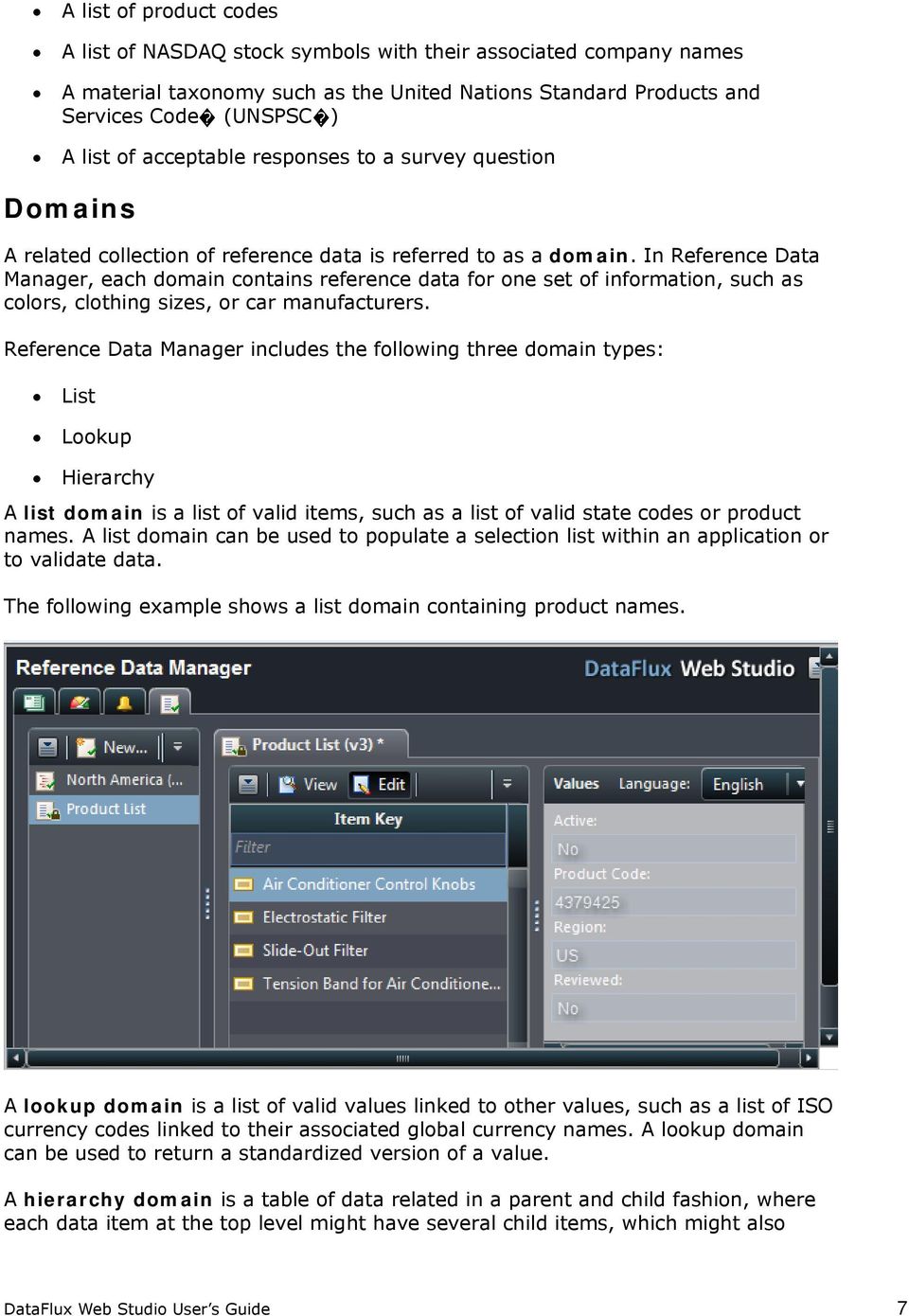
13 A list of product codes A list of NASDAQ stock symbols with their associated company names A material taxonomy such as the United Nations Standard Products and Services Code (UNSPSC) A list of acceptable responses to a survey question Domains A related collection of reference data is referred to as a domain. In Reference Data Manager, each domain contains reference data for one set of information, such as colors, clothing sizes, or car manufacturers. Reference Data Manager includes the following three domain types: List Lookup Hierarchy A list domain is a list of valid items, such as a list of valid state codes or product names. A list domain can be used to populate a selection list within an application or to validate data. The following example shows a list domain containing product names. A lookup domain is a list of valid values linked to other values, such as a list of ISO currency codes linked to their associated global currency names. A lookup domain can be used to return a standardized version of a value. A hierarchy domain is a table of data related in a parent and child fashion, where each data item at the top level might have several child items, which might also DataFlux Web Studio User s Guide 7
14 have several child items. An example is the product lookups on a typical retail web site, where you navigate from a high-level category such as Electronics to lower-level categories such as Computers. You could then navigate to Laptops, manufacturers, and finally to individual items. A typical hierarchy domain could contain the names of cities in North America, in the United States, in the state of Ohio. For example, a geographic domain could be any of the following: A list domain containing valid state codes. A lookup domain that maps state codes to their names. A hierarchy domain that defines the parent-child relationships between regions, states, counties, cities, and ZIP codes. Items Every entry in a domain is referred to as an item. As a minimum, an item has an item key, which is the value of the item. List domains have only item keys. In a list or lookup domain, item keys must be unique. In a hierarchy domain, the item key must be unique only within its parent level. Two parent items in a hierarchy domain can have identical child items, but one parent cannot have "identical twins." An item can also have an item label, which is a text description of the item key. Lookup domains have both item keys and item labels. In a hierarchy domain, an item can have a parent, which is the item key of the next-highest item. Attributes In addition to keys, labels, and parents, items can have any number of associated attributes. An attribute is a bit of information that you are storing about an item. For example, a list domain containing valid ZIP codes might use the city, county, and state associated with each ZIP code as attributes. A lookup domain containing twodigit state codes might use the state name as its item label, but might also contain attributes such as the state bird, the year when the state joined the country, the state motto, or the name of the state's Governor. Within a domain, attributes can be either default or optional. Default attributes are associated with every item that is added to a domain. Optional attributes are selected at the time the item is created. For example, a list of states might have the state bird, the year in which the state joined the country, and the Governor's name as default attributes. Optional attributes might include the state's highest mountain, number of miles of coastline, or tallest lighthouse: items that some states might not have. Another example is the hierarchy of items sold on a retail web site, in which you can drill down from department to item category to item type to an individual item. Each item at each level might have a default Description attribute. However, the attributes used to describe a laptop computer are not the same as those used to describe a refrigerator, a pair of shoes, or a suitcase and would therefore be optional. 8 DataFlux Web Studio User s Guide

15 Each attribute can be defined in any number of languages. When you create a domain, you select the languages in which the attributes can be defined. Every attribute that you create within that domain can be expressed in any or all of the selected languages. For example, if you are creating a product hierarchy for a clothing store, a dress might have a 'Color' attribute. If the domain is defined with both English and French as possible languages, Color can be defined as both 'Blue' and 'Bleu'. It is possible to create list, lookup, or hierarchy domains without defining languages or attributes. In these cases, the domains consist solely of the item key, item label, and parent key as applicable for each domain type. Domain Properties You can create any number of reference data domains. Domains can have any number of items, with any number of attributes, in any number of languages. The person who creates a domain is its owner. A domain has the following properties: Domain name Domain type (which cannot be changed after the domain is created): o o o List (single column) Lookup (two columns) Hierarchy (parent/child) Domain permissions: o o If a domain is public, any Reference Data Manager user can open, search, and edit the domain. If a domain is private, only the domain's owner can open, search, and edit the domain (the domain will not appear in the domain list for other users). An enabled domain is visible and active. A disabled domain cannot be viewed, even by its owner. (Note that Reference Data Manager provides an option for enabling a previously disabled domain.) Optional and default attributes The languages in which attributes can be defined The publication channels to which the domain can be published: o o o Database Comma-separated values (CSV) file Tab-delimited text file DataFlux Web Studio User s Guide 9
16 Domain Versions Each time you submit changes to a domain, you create a new version of that domain. When you open a domain for editing, you open the most recent version by default. You can also choose to open a previous domain version. Regardless of whether you open and save a domain from the most recent version or from a previous version, the changes that you make will become the new "current" version. Prerequisites for Reference Data Manager The Reference Data Manager module must be installed and configured as described in the "Installing Web Studio" chapter in the DataFlux Web Studio Installation and Configuration Guide. In order to use Reference Data Manager: You must be registered with the Authentication Server that is associated with the Web Studio Server for Reference Data Manager. This task is performed by the Authentication Server administrator, as described in the DataFlux Web Studio Installation and Configuration Guide. You (or a group of which you are a member) must have permission to access Reference Data Manager features. This permission is granted by a member of the group that controls access to Web Studio, as described in the DataFlux Web Studio Installation and Configuration Guide. Data Management Studio includes two data job nodes that enable you to use Reference Data Management domains and domain items. In order to use the Domains node or the Domain Items node, you must link the repository where the data job is stored to the repository where Reference Data Management domains are stored. For more information, see the "Link to a Reference Data Management Repository" topic in the "Maintaining Repository Definitions" chapter of the Data Management Studio Users Guide. Reference Data Manager Interface The Reference Data Manager interface contains the following components: Domain List Toolbar Domain Editors 10 DataFlux Web Studio User s Guide

17 Domain List The domain list in the navigation pane contains a list of the reference data domains that you have created. The following types of domains are available: list domains lookup domains hierarchy domains A green check mark on the domain icon indicates that the domain is available for editing. A lock icon indicates that the domain is locked. A locked domain is unavailable to all Reference Data Manager users except its owner. By default, only enabled domains are shown in the domain list. You can choose to either show or hide disabled domains in the domain list by using the Actions > Filter Disabled toggle option. If disabled domains are shown in the domain list, they are marked with a Disabled icon and cannot be opened for editing until they have been enabled. Toolbar The Reference Data Manager toolbar, which appears above the domain list, contains the following items. DataFlux Web Studio User s Guide 11

18 Actions - Click the Actions button to display the drop-down menu. You can use the Actions menu options to perform the following tasks: Open - Open a domain. Open Archived - Open a previous version of a domain. Properties - Edit the properties of a domain. Import - Import data from a text file into a domain. Publish - Publish a domain to a database, a comma-separated values (CSV) file, or a tab-delimited text file. Delete - Delete a domain. Note: This action is permanent and cannot be undone. Duplicate - Create a domain by duplicating the properties of an existing domain. The items in the existing domain are not duplicated. Disable or Enable - Disable or enable a domain. Filter Disabled - Show or hide disabled domains in the domain list. Lock or Unlock - Lock or unlock a domain. New Domain - Click the New Domain button to create a new domain. Search - Click the Search button to search for items in a domain. Refresh - Click the Refresh button to refresh the status (locked or unlocked) of domains in the domain list. Domain Editors When you open a reference data domain, it appears in a domain editor on a tab in the information pane. From the domain editor, you can view domain items or add, edit, and remove domain items. When you select an item in a domain editor, the item's attributes are displayed in the attributes panel on the right side of the domain editor. To close a domain editor, click the x button on the domain editor tab. Domain Editor Toolbar You can use the buttons on the toolbar at the top of each domain editor to perform the following tasks. View - Switch the domain editor to View (read-only) mode, enabling you to view domain items. This action unlocks the domain. 12 DataFlux Web Studio User s Guide

19 Edit - Switch the domain editor to Edit mode, enabling you to add, edit, and remove domain items and modify attribute values. This action locks the domain. Save - Save changes that you have made to a domain. This action creates a new version of the domain. New Item - Add a new item to a domain. Properties - Edit a selected item in a domain. Remove Item - Remove an item from a domain. Change Parent - Move a hierarchy domain item and all of its child items to a new parent item. Tree and Column Buttons The Tree and Column buttons to the right of the domain editor toolbar appear only for hierarchy domains. You can use these buttons to display hierarchy domain items in either tree view or column view. For more information, see Viewing Domain Items. DataFlux Web Studio User s Guide 13

20 Working with Domains Creating a Domain Duplicating a Domain Opening a Domain Opening a Previous Domain Version Editing Domain Properties Disabling or Enabling a Domain Locking or Unlocking a Domain Publishing a Domain Deleting a Domain Creating a Domain To create a new reference data domain and specify its structure, perform the following steps. Note: You can also create a reference data domain by duplicating an existing domain. 1. Click the New Domain toolbar button to display the New Domain dialog. 2. Use the tabs in the New Domain dialog to do the following: Use the General tab to specify domain properties such as domain name, description, and type. For instructions, see Specifying Domain Properties. Use the Attributes tab to create and select attributes for use in the domain. For instructions, see Creating and Selecting Attributes. Use the Languages tab to select the languages in which item attributes in the domain can be defined. For instructions, see Selecting Attribute Languages. Use the Publish tab to define publication channels for the domain. A domain publication channel can be either a database, a commaseparated values (CSV) file, or a tab-delimited text file. For instructions, see Defining Domain Publication Channels. 3. Click OK to save the changes and close the New Domain dialog. The new domain opens in a domain editor and is locked for editing. The domain name appears in the domain list. 14 DataFlux Web Studio User s Guide

21 Specifying Domain Properties To specify reference data domain properties, perform the following steps. Note: This procedure assumes that you are creating a new domain and specifying its properties. You can also edit the properties of an existing domain. For instructions, see Editing Domain Properties. 1. In the New Domain dialog, select the General tab. 2. On the General tab, specify the following domain properties: a. In the Name field, enter a name for the domain (such as OhioCityGeo). Domain names can contain up to 50 characters and must be unique. Note: The domain name cannot be changed after the domain has been created. b. (Optional) In the Description field, enter a description for the domain. Domain descriptions can contain up to 256 characters. Enter Ohio City Geocodes for this example. c. From the Type drop-down menu, select the domain type (List, Lookup, or Hierarchy). Select Hierarchy for this example. Note: The domain type cannot be changed after the domain has been created. d. Select or clear the Public check box. If a domain is public, any Reference Data Manager user can open, search, and edit the domain. If a domain is private, only the domain's owner can open, search, and edit the domain (the domain will not appear in the domain list for other users). DataFlux Web Studio User s Guide 15
22 3. Click OK to save the changes and close the New Domain dialog. Creating and Selecting Attributes To create new attributes and select them for use in a reference data domain, perform the following steps. Note: This procedure assumes that you are creating a new domain and selecting attributes for use in the domain. You can also add attributes to an existing domain. For instructions, see Editing Domain Properties. 1. In the New Domain dialog, select the Attributes tab. 2. On the Attributes tab, click the Add Attribute button to display the Add Attribute dialog. 3. In the Add Attribute dialog, enter the following: a. In the Name field, enter a name for the attribute. Attribute names such as Latitude can contain up to 50 characters and must be unique. b. (Optional) In the Description field, enter a description for the attribute. Attribute descriptions can contain up to 254 characters. Enter Latitude value for this example. 16 DataFlux Web Studio User s Guide
23 4. Click OK to save the changes, close the Add Attribute dialog, and return to the New Domain dialog. The new attribute appears in the Available Attributes list on the Attributes tab. 5. Repeat steps 2 through 4 as desired to add more attributes. 6. To select the new attribute or attributes for use in the domain, use any of the following methods: Double-click the attribute in the Available Attributes list to move it to the Domain Attributes list. Left-click and drag the attribute from the Available Attributes list to the Domain Attributes list. Select the attribute in the Available Attributes list, and click the Add button to move it to the Domain Attributes list. Note that the CTRLclick and SHIFT-click multiple-selection methods are supported. To select all the attributes in the Available Attributes list and move them to the Domain Attributes list, click the Add All button. 7. To designate an attribute as a default attribute, select the check box next to the attribute name in the Domain Attributes list. To designate an attribute as an optional attribute, clear the check box. When you add a new default attribute, it is added to every item that is subsequently added to the domain. (See Adding, Editing, and Removing Domain Items.). When you add a new optional attribute, it becomes available for selection when adding new domain items, and can be added to existing domain items Note: To be available for mappings during imports into a domain, attributes in the domain must be designated as default attributes. 8. To remove an attribute or attributes from the domain, use any of the following methods: Double-click the attribute in the Domain Attributes list to move it to the Available Attributes list. Left-click and drag the attribute from the Domain Attributes list to the Available Attributes list. Select the attribute in the Domain Attributes list, and click the Remove button to move it to the Available Attributes list. Note that the CTRL-click and SHIFT-click multiple-selection methods are supported. To select all the attributes in the Domain Attributes list and move them to the Available Attributes list, click the Remove All button. Select the Latitude, Longitude, and Match Code attributes for this example. 9. Click OK to save the changes and close the New Domain dialog. DataFlux Web Studio User s Guide 17
24 Selecting Attribute Languages The default language for item attributes in a reference data domain is English. To select additional languages or to designate a different default language, perform the following steps. Note: This procedure assumes that you are creating a new domain and selecting languages for use in the domain. You can also add languages to an existing domain or change an existing domain's default language. For instructions, see Editing Domain Properties. 1. In the New Domain dialog, select the Languages tab. 2. On the Languages tab, the English (EN) language appears in the Domain Languages list by default. To select additional languages for the domain, use any of the following methods: Double-click a language in the Available Languages list to move it to the Domain Languages list. Left-click and drag a language from the Available Languages list to the Domain Languages list. Highlight a language in the Available Languages list, and click the Add button to move it to the Domain Languages list. Note that the CTRLclick and SHIFT-click multiple-selection methods are supported. To select all the languages in the Available Languages list and move them to the Domain Languages list, click the Add All button. 3. The default language for a new reference data domain is English (EN). To select a different default language, select the Default option button next to the language in the Domain Languages list. The default language is the language that will be selected in the attributes panel when a domain is opened for editing new items. Note: You must select a default language. 4. To remove a language or languages from the domain, use any of the following methods: Double-click a language in the Domain Languages list to move it to the Available Languages list. Left-click and drag a language from the Domain Languages list to the Available Languages list. Highlight a language in the Domain Languages list, and click the Remove button to move it to the Available Languages list. Note that the CTRL-click and SHIFT-click multiple-selection methods are supported. To select all the languages in the Domain Languages list (except for the default language) and move them to the Available Languages list, click the Remove All button. 18 DataFlux Web Studio User s Guide
25 Note: When you remove a language from a domain, any attributes entered in that language will be lost. You cannot remove the default language. 5. Click OK to save the changes and close the New Domain dialog. Defining Domain Publication Channels Before you can publish reference data domain items, you must first define at least one publication channel for the domain. A publication channel can be either a database, a comma-separated values (CSV) file, or a tab-delimited text file. Notes: 1. This procedure assumes that you are creating a new domain and defining publication channels for the domain. You can also define publication channels for an existing domain. For instructions, see Editing Domain Properties. 2. For details about the names, locations, and layouts of database publication outputs, see Publishing a Domain. To define a publication channel, perform the following steps: 1. In the New Domain dialog, select the Publish tab. 2. On the Publish tab, click the New Publish Channel toolbar button. A new publication channel named "New Channel" appears in the channel list on the left side of the Publish tab. Then the channel definition form on the right side of the tab is enabled. 3. In the Name field, enter a name for the publication channel by overwriting the "New Channel" value. Publication channel names can contain up to 50 characters and must be unique. Enter Write to text file for this example. 4. To specify that the channel will always publish the current domain version (the default), select the Use current version check box. To publish a different domain version, clear the Use current version check box and enter or select a version number in the Version field. Use the current version for this example. 5. From the Type drop-down menu, select the publication channel type: Database - Publish to a database. CSV - Publish to a comma-separated values (CSV) file using doublequote text qualifiers. TXT - Publish to a tab-delimited text file. Select TXT for this example. Note: Because Reference Data Manager uses double quotation marks as the text identifier when publishing reference data, we recommend selecting either DataFlux Web Studio User s Guide 19
26 the Database or TXT publication channel type if your data contains double quotation marks. 6. The DSN and Schema fields apply only to Database publication channels. In the DSN field, select the DSN of the data connection to which to publish. In the Schema field, enter the name of an existing database schema to which to publish. Note: The schema name is case sensitive. Note: All publications to CSV and TXT publication channels are written to the following directory: [DMServer]\var\batch_jobs\ReferenceData\publish. 7. (Optional) Click the View Publish Log toolbar button to view the publish log, which contains a list of dates and times when the domain was published. To clear the publish log, click the Clear Publish Log toolbar button. 8. To remove a publication channel from the channel list, select the channel, and click the Delete Publish Channel toolbar button. 9. Click OK to save the changes and close the New Domain dialog. Duplicating a Domain To create a new reference data domain using the structure of an existing domain, perform the following steps. Note: When you duplicate a domain, the new domain has the same type, permissions, attributes, and languages as the original domain, but contains no items and has no publication channels defined. 1. Select the domain in the domain list. 2. Click Actions > Duplicate to display the Duplicate Domain dialog. 3. In the Duplicate Domain dialog, enter the following: a. In the Name field, enter a name for the domain. Domain names can contain up to 50 characters and must be unique. Enter Duplicate of States for this example. b. (Optional) In the Description field, enter a description for the domain. Domain descriptions can contain up to 256 characters. Enter State codes for this example. c. Select or clear the Public check box. If a domain is public, any Reference Data Manager user can open, search, and edit the domain. If a domain is private, only the domain's owner can open, search, and edit the domain (the domain will not appear in the domain list for other users). 20 DataFlux Web Studio User s Guide
27 4. Click OK to save the changes and close the Duplicate Domain dialog. The new domain opens in a domain editor and is locked for editing. The domain name appears in the domain list. Opening a Domain To open a reference data domain, use either of the following methods: Double-click the domain in the domain list. Click the domain in the domain list, and click Actions > Open. The most recent version of the domain is opened in a domain editor. The version number appears in parentheses after the domain name on the domain editor tab, for example, "(v2)". Note: When you open a reference data domain, you open the most recent version of the domain by default. You can also open a previous domain version. When you open a domain, it is initially opened in View (read-only) mode, enabling you to view domain items. To switch to Edit mode, click the Edit button on the domain editor toolbar. In Edit mode, you can add, edit, and remove domain items and modify attribute values. When you open a domain and choose to edit it, the domain is locked and is marked with a Lock icon. Opening a Previous Domain Version When you open a reference data domain, the most recent version of the domain is opened by default. To open a previous domain version, perform the following steps. Note: You can have multiple versions of a domain open at the same time, but only one version can be locked for editing at any time. 1. Select the domain in the domain list. 2. Click Actions > Open Archived to display the Open Archived dialog. 3. In the Open Archived dialog, select the domain version that you want to open, and click OK. The selected domain version is opened in a domain editor. The version number appears in parentheses after the domain name on the domain editor tab, for example, "(v2)". When you open a domain, it is initially opened in View (read-only) mode, enabling you to view domain items. To switch to Edit mode, click the Edit button on the domain editor toolbar. In Edit mode, you can add, edit, and remove domain items and modify attribute values. DataFlux Web Studio User s Guide 21
28 When you open a domain and choose to edit it, the domain is locked and is marked with a Lock icon. Editing Domain Properties To edit the properties of a reference data domain, perform the following steps. Note: You cannot edit the properties of a domain that is locked for editing. Before editing a domain's properties, you must close its domain editor. 1. Select the domain in the domain list. 2. Click Actions > Properties to display the Properties dialog. 3. On the General tab of the Properties dialog, you can change the domain description. You can also select or clear the Public check box to change the domain from private to public, or from public to private. Note: You cannot change the name or type of an existing domain. 4. On the Attributes tab, you can do the following. The steps for performing these tasks are the same as those described in Creating and Selecting Attributes. Add new attributes. When you add an attribute to a domain that already has items defined, the new attribute will not automatically be added to the existing items. However, the new attribute will automatically be added to new items, and can be designated as either a default or optional attribute. Change existing attributes from default to optional, or from optional to default. When you change an attribute from default to optional, the attribute will continue to be associated with existing domain items, but will not be automatically associated with new items. When you change an attribute from optional to default, the attribute will be associated with all new domain items, but not with existing items. Remove existing attributes. When you remove an attribute from a domain, the attribute is removed from all items in the domain. 5. On the Languages tab, you can do the following. The steps for performing these tasks are the same as those described in Selecting Attribute Languages. Add new languages. Remove existing languages. Note: You cannot remove the default language. Select a new default language. 22 DataFlux Web Studio User s Guide
29 6. On the Publish tab, you can add, modify, or delete domain publication channels. The steps for performing these tasks are the same as those described in Defining Domain Publication Channels. 7. Click OK to save the changes and close the Properties dialog. Disabling or Enabling a Domain To disable or enable a reference data domain, perform the following steps. When a domain is disabled, it is unavailable to all Reference Data Manager users, including its owner. Notes: To disable or enable a domain, you must be the domain's owner. You cannot disable or enable a domain that is locked for editing. Before disabling or enabling a domain, you must close its domain editor. 1. To disable a domain, do the following: a. Select the domain in the domain list. b. Click Actions > Disable. A confirmation dialog appears. c. Click Yes to confirm that you want to disable the domain. d. The disabled domain no longer appears in the domain list. If you want to display the disabled domain in the domain list, click the Actions > Filter Disabled toggle option. The disabled domain appears in the domain list but is marked with a Disabled icon and cannot be opened for editing. 2. To enable a previously disabled domain, do the following: a. Click the Actions > Filter Disabled toggle option to show the disabled domain in the domain list. b. Select the disabled domain in the domain list. c. Click Actions > Enable. The domain is no longer marked with a Disabled icon, and can be opened for editing. Locking or Unlocking a Domain When you open a domain and choose to edit it, the domain is locked and is marked with a Lock icon in the domain list. A locked domain is unavailable to all Reference Data Manager users except its owner. When you close the domain and save your changes, the domain is unlocked. You can also lock a domain without choosing to edit it. To lock a domain, select the domain in the domain list, and click Actions > Lock. To unlock a previously locked domain, select the domain in the domain list, and click Actions > Unlock. DataFlux Web Studio User s Guide 23
30 Publishing a Domain In addition to managing reference data in the DataFlux repository, your organization might need to use the reference data in other systems or locations. By publishing a domain, you can manually or automatically push domain changes as needed based on domain and downstream requirements. Note: Before you can publish a domain, you must first define at least one publication channel for the domain. A publication channel can be either a database, a comma-separated values (CSV) file, or a tabdelimited text file. For instructions, see Defining Domain Publication Channels. Publication Outputs Publication Procedure Publication Outputs Database Publications Publishing a domain to a database creates the following database tables: [domain_name]_[version]_dm - Domain [domain_name]_[version]_it - Items [domain_name]_[version]_at - Attributes [domain_name]_[version]_av - Attribute values where [domain_name] is the domain name (truncated to 23 characters), and [version] is the domain version being published. If you are publishing the most recent version of the domain, the table names do not contain the version number. The table layouts are as follows. DM (Domain) Table Layout Value Description Type DOMAIN_NAME Domain name C DOMAIN_DESC Domain description C DOMAIN_VERSION Domain version published N DOMAIN_TYPE Domain type (List, Lookup, Hier) C DOMAIN_SCOPE P-Public, S-Private C DOMAIN_ENABLED Was domain enabled at the time it C was published (Y/N) PUBLISH_DATE Date and time of publication D 24 DataFlux Web Studio User s Guide
31 IT (Items) Table Layout Value Description Type ITEM_ID Internal item identifier N ITEM_KEY Item's ITEM KEY value C ITEM_VALUE Item's ITEM_LABEL value C PARENT_ID ITEM_ID of this item's parent N AT (Attributes) Table Layout Value Description Type ATTRIBUTE_ID Internal attribute identifier N ATTRIBUTE_NAME Attribute name C ATTRIBUTE_DESC Attribute description C AV (Attribute Values) Table Layout Value Description Type ITEM_ID Internal item identifier N ATTRIBUTE_ID Internal attribute identifier N ATTRIBUTE_VALUE Attribute value C LANGUAGE_NAME Language in which attribute is C expressed LANGUAGE_CODE Language code C CSV or Text File Publications Publishing a domain to a.csv file or a tab-delimited text file creates the following four files in the following directory: [DMServer]\var\batch_jobs\ReferenceData\publish. If this directory does not already exist, it is created during the publication process. [domain_name]_[version]_dm.[ext] - Domain [domain_name]_[version]_it.[ext] - Items [domain_name]_[version]_at.[ext] - Attributes [domain_name]_[version]_av.[ext] - Attribute values where [domain_name] is the domain name (truncated to 23 characters), [version] is the domain version being published, and [ext] is the file extension (.csv or.txt). If you are publishing the most recent version of the domain, the filenames do not contain the version number. Note that if the.csv format file contains Latin2 characters, it will not display properly in Microsoft Excel. Instead, review the file in a text editor such as Notepad. DataFlux Web Studio User s Guide 25
32 Publication Procedure To publish a reference data domain, perform the following steps: 1. Select the domain in the domain list. 2. Click Actions > Publish to display the Publish dialog, which lists the publication channels that have been defined for the domain. 3. In the Publish dialog, select the check boxes next to the desired publication channels (such as Publish Write to qmdm Location). You can select any number of publication channels. 4. Click Publish. The following dialog appears. Click Close to close this dialog. 5. (Optional) You can view the publish log for the domain, which contains a list of dates/times when the domain was published. To view the publish log, do the following: a. Select the domain in the domain list, and click Actions > Properties to display the Properties dialog. b. In the Properties dialog, click the View Publish Log toolbar button to view the publish log. c. To clear the publish log, click the Clear Publish Log toolbar button. Deleting a Domain To delete a reference data domain, perform the following steps. Notes: To delete a domain, you must be the domain's owner. You cannot delete a domain that is locked for editing. Before deleting a domain, you must close its domain editor. Deleting a domain is permanent and cannot be undone. 1. Select the domain in the domain list. 2. Click Actions > Delete. A confirmation dialog appears. 3. Click Yes to confirm that you want to delete the domain. The domain is deleted from the Reference Data Manager repository and no longer appears in the domain list. 26 DataFlux Web Studio User s Guide
33 Working with Domain Items Viewing Domain Items Adding, Editing, and Removing Domain Items Importing Domain Items Searching for Domain Items Viewing Domain Items To view items in a reference data domain, perform the following steps. Note: For additional information about viewing items in a hierarchy domain, see Hierarchy Domain Views. 1. Open the domain. By default, the domain is opened in view mode. 2. In the domain editor, select the item that you want to view. The item's attributes are displayed in the attributes panel on the right side of the domain editor. 3. If you have selected more than one language for the domain, you can display attribute values in one of the other languages. Select the desired language from the Language drop-down menu at the top of the attributes panel. The attribute values are displayed in the selected language. 4. For list domains, a "begins with" filter field appears at the top of the Item Key column in the domain editor, enabling you to easily locate domain items. For lookup domains, filter fields appear for both the Item Key and Item Label columns. Only the items that begin with the character that you enter in the DataFlux Web Studio User s Guide 27
34 filter fields will be displayed. The filters are case-insensitive. To clear a filter field and remove the filtering from the item list, click the Clear button. Hierarchy Domain Views You can display hierarchy domains in either tree view or column view. To switch between the views, click the Tree and Column buttons on the right side of the domain editor. Tree View By default, items in a hierarchy domain are displayed in tree view. In this view, you can expand or collapse items in the tree by double-clicking the items or by clicking the expand and collapse buttons next to the items. 28 DataFlux Web Studio User s Guide
35 > Column View In column view, each level of the hierarchy domain appears in a separate column. Select an item in one column to display the item's child items in the column to the right. Items with no arrow icon to the right of their names have no child items. The current drill path is always highlighted. To collapse and hide a column, you can CTRL-click the parent item for the column. DataFlux Web Studio User s Guide 29
36 Adding, Editing, and Removing Domain Items Adding Domain Items Editing Domain Items Removing Domain Items Adding Domain Items To add items to a reference data domain, perform the following steps: 1. Open the domain. 2. The domain is initially opened in view (read-only) mode. Switch to edit mode by clicking the Edit button on the domain editor toolbar. 3. (Optional, hierarchy domains only) If you are adding a child item, select the desired parent item for the new child item. Note that if you prefer, you can skip this step and select the parent item in step 5. For example, you can select North Carolina from a hierarchy of states in the United States as the parent item. 4. Click the New Item button on the domain editor toolbar to display the New Item dialog. Note that the fields in this dialog are different depending on the domain type that you are working with. 5. Enter the following in the New Item dialog: a. By default, the item key for a new item is "Item x", where x is an incremental value starting at 1. Enter the desired item key by overwriting the "Item x" value in the Item Key field. Enter Raleigh as the item key. Note: The item key is required and must be unique. b. (Optional, lookup and hierarchy domains only) By default, the item label for a new item is Label. Enter the desired item label by overwriting the Label value in the Item Label field. c. (Hierarchy domains only) If you are adding a top-level parent item, clear the Add as child to check box. By default, when you add a child item, its parent item is the item that was selected when you clicked the New Item button. (See step 3.) In this case, North Carolina (NC) has been populated into the field. If you are adding a child item and you have not already selected a parent item, or if you want to select a different parent item, select the Add as child to check box. Click the browse (...) button to display the Select Parent dialog. Select the desired parent item in the Select Parent dialog, and click OK to save the changes and return to the New Item dialog. 30 DataFlux Web Studio User s Guide
37 d. In the Select Attributes to add list, select the attributes for the new item by selecting the check boxes next to the attribute names. Select Population and Square Miles for this example. Note: Attributes that were designated as default attributes when the domain was created (see Creating and Selecting Attributes) will automatically be selected. 6. Click OK to save the changes and close the New Item dialog. The new item now appears in the domain editor. Editing Domain Items To edit items in a reference data domain, perform the following steps: 1. Open the domain. 2. The domain is initially opened in View (read-only) mode. Switch to Edit mode by clicking the Edit button on the domain editor toolbar. 3. To edit an item's properties, do the following: a. Select the item in the domain editor, and click the Properties button on the domain editor toolbar to display the Properties dialog. b. In the Properties dialog, you can change the item key and item label. You can also add attributes to the item by selecting the check boxes next to the attribute names (such as Largest City, Population, and Square Miles). In hierarchy domains, you can select the Cascade check box to add an attribute to the item being edited and to all of its child items. Note: The Cascade check box appears only if the item that you are editing has child items. c. Click OK to save the changes and close the Properties dialog. 4. (Hierarchy domains only) To change a child item to a parent item, or to move a child item to a different parent item, do the following: a. Select the child item in the domain editor, and click the Change Parent button on the domain editor toolbar to display the Change Parent dialog. b. To change the selected child item to a parent item, select the No parent option button in the Change Parent dialog. c. To designate a different parent item for the child item, select the Select a parent for <item> option button, and select the desired parent item (such as North Carolina). Note that this will move the child item and all of its child items (if any) to the new parent item. DataFlux Web Studio User s Guide 31
38 d. Click OK to save the changes and close the Change Parent dialog. 5. To edit an item's attribute values, do the following: a. Select the item in the domain editor. The item's attributes are displayed in the attributes panel on the right side of the domain editor. b. Edit the attribute values as desired by entering them into the fields on the attributes panel. Note: If you have selected more than one language for the domain, you can edit attribute values in one of the other languages. Select the desired language (such as English) from the Language drop-down menu at the top of the attributes panel. Removing Domain Items To remove items from a reference data domain, perform the following steps: 1. Open the domain. 2. The domain is initially opened in View (read-only) mode. Switch to Edit mode by clicking the Edit button on the domain editor toolbar. 3. Select the item that you want to remove, and click the Remove Item button on the domain editor toolbar. 32 DataFlux Web Studio User s Guide
39 Importing Domain Items You can import items into a reference data domain from a comma-separated values (CSV) or delimited text file with a header row. The domain can be empty or can contain existing items. Importing items into a reference data domain automatically creates a new version of the domain. Important: Before you can import items into a reference data domain, the domain must already exist and must contain all the attributes and languages that you will be importing. For instructions for creating a reference data domain, see Creating a Domain. Import File Requirements Attributes Import Processing Sample Import Files Import Procedure Import File Requirements The import file must be a CSV or delimited text file with a header row. The delimiter can be any character. There is no file size limitation for the DataFlux Data Management Server. However, your application server (for example, Tomcat) can limit the size of files that you can upload and process. If you encounter any issues related to file size limitation, you will need to increase the maximum heap size setting for your application server. For instructions, refer to your application server's documentation. If you are importing into a list domain, the only required field in the import file is the Value. If you are importing into a lookup domain, the import file must have two columns to be used as the Value and Label in the domain. If you are importing into a hierarchy domain, each row in the import file must contain a Value, a Label, and a field that defines that row's Parent. (Top-level items will have blank parent fields.) There are two ways to define a parent: The Parent Key field can contain the Item Key of its parent row. Here is an example of an import file that uses the Item Key as the parent. The Parent Key column contains the Value for the row s parent. DataFlux Web Studio User s Guide 33
40 Item Key Item Label Parent Key NA North America NA-US United States of America NA NA-US-NC North Carolina NA-US NA-US-NC-183 Wake County NA-US-NC The import file can contain a separate Parent ID field, and the Parent Key will refer to the Parent ID. The Parent ID field is a unique identifier for the row of data. It can be either numeric or character, but it must be unique for each row. Here is an example of an import file that uses a Key field. In this case, the Parent Key value refers to the Parent ID field. These fields will be used to determine the parent-child relationship during import, but they are not retained in the imported domain. Parent ID Item Key Item Label Parent Key 1 NA North America 2 NA-US United States of America 1 3 NA-US-NC North Carolina 2 4 NA-US-NC-183 Wake County 3 Attributes The items in the domain into which you are importing can contain attributes, and attributes can be presented in any language that is defined for the domain. In the import file, the attributes associated with an item should be on the same row as the item. If using multiple languages, there should be one column for each attribute/language pair. VALUE DISPLAY_VALUE PARENT_VALUE EnglishDescription FrenchDescription GermanDescription Motor vehicles Véhicules à moteur Motor Fahrzeuge Passenger motor vehicles Véhicules à moteur pour le transport de personnes Passagier Motor fahrzeuge Minibuses Minibus Kleinbus Busses Bus Busse Automobiles or cars Véhicules automobiles Automobilen oder Autos Station wagons Breaks ou familiales Station Wagen Minivans or vans Mini-vans ou vans Minilieferwagen oder Güterwagen Limousines Limousines Limousine Light trucks or sport utility vehicles Pick-up, véhicules utilitaires de sport, tout-terrains, 4x4 Lastkraftwagen oder Sportwagen Sports car Voitures de sport Sportwagen Note: It is not required that every import file contain values, or even columns, for every attribute and language pair. Blank attributes will not be imported, and attributes with no corresponding column in the import file will not be defined. This 34 DataFlux Web Studio User s Guide
41 procedure applies even to default attributes. Therefore, the default attributes are not defined for an item after import when it does not have a value in the import file. Important: The Value column must be unique for each record. If an import encounters a Value that already exists in the domain, its label and attributes will be updated with any non-blank values provided in the import, and any new attributes defined in the import will be added. Import Processing This section explains the processing that occurs during the first import and subsequent imports into a domain. First Import If the import file contains multiple records for an item key (or item key/parent key combination), the following occurs: 1. The item label is taken from the first occurrence in the import file, even if the first occurrence is blank and later occurrences are not blank. 2. Attribute values are taken from any record for that item key, using the first non-blank occurrence of each attribute value in the import file. For example, if the import file is as follows, the highlighted values are selected. Item Key Item Label Attribute 1 - Employees Attribute 2 - State DF DataFlux 140 DF 165 NC SAS NC SAS SAS Institute, Inc 9000 For hierarchy domains, if an item key appears under multiple parent keys, it is added to each parent. If an item key is listed with a parent key that is not in the import file, it is added at the root level. If the import file contains multiple legal instances of an item key/parent combination, you will need to use a Parent ID to identify the relationship. Otherwise, all instances will be rolled up to the first appearance of the item key in the import file. Subsequent Imports Subsequent imports will either add new items or update existing items. Items will never be deleted or moved. If you import an item that does not currently exist, it is handled as if it were the first import. If you import an item that already exists, the following occurs: DataFlux Web Studio User s Guide 35
42 1. The existing record is updated with the new item label, even if that label is blank. 2. Existing attributes are updated with any non-blank incoming data. 3. Attributes are added to items if and only if a value is supplied. If an item key is listed with a parent key that is not in the import file, it is added at the root level, even if the parent key already exists in the domain. For hierarchy imports, all parents should exist in the import file. If the import file contains multiple legal instances of an item key and parent combination, you need to use a Parent ID to identify the relationship. If you do not, the data from all instances will be used to update item with the lowest internal item ID. Specific Scenarios The following table lists specific scenarios for subsequent imports into a domain. Action Result Add new item New item is added as in a first import. Remove item Invalid (action cannot be done in an import). Add new attribute to domain and New attribute values are added to existing import new values items. Change attribute value to blank Blank attribute values do not overwrite existing values Change blank attribute to a value Change is made. Change attribute value to a new value Change is made. Change blank label to value (lookup or Label is changed to new value. hierarchy domain) Change label value to blank (lookup or Label is changed to blank value. hierarchy domain) Change label value to new value Label is changed to new value. (lookup or hierarchy domain) Delete attribute Invalid (action cannot be done in an import). Default attribute not represented in file Attribute is not added to any items. Optional attribute not represented in Attribute is not added to any items. file Default attribute represented in file Attribute is added to the item if it has a value. Optional attribute represented in file Attribute is added to the item if it has a value. Change parent value to blank New item is created at root level; existing (hierarchy domain) item is not deleted. Change blank parent to value Item remains at root level, and new item is (hierarchy domain) created under the new parent. Change parent value to new value New item is created under new parent; (hierarchy domain) existing item is not deleted. 36 DataFlux Web Studio User s Guide
43 Sample Import Files The following sample import files are included with Reference Data Manager. These files are automatically placed in the C:\Program Files\DataFlux\DMServer\2.2\share\web\sample_data\\ directory during Web Studio installation. RDM_CurrencyImport.txt - ISO Currency codes and their descriptions RDM_NAICSImport.txt - North American Industry Classification System (NAICS) hierarchy RDM_OccupationsImport.txt - Standard Occupation Classification (SOC) hierarchy RDM_UNSPSCImport.txt - United Nations Standard Products and Services Code (UNSPSC) hierarchy Import Procedure To import items into a reference data domain, perform the following steps. Note: You cannot import items into a domain that is locked for editing. Before importing items into a domain, you must close its domain editor. 1. Select the domain in the domain list. 2. Click Actions > Import to display the Import wizard. 3. On the first page of the Import wizard, select the import file and define its structure: a. In the Input file field, click the browse (...) button to browse and select the desired import file (such as RDM_GeocodeOHImport_MC.TXT). b. From the Text qualifier drop-down menu, select the text qualifier (None, ', or ") that is used in the import file. Select " for this example. c. From the Field delimiter drop-down menu, select the field delimiter character that is used in the import file (Comma, Tab, Space, Semicolon, or Other). If you select Other, enter the delimiter character in the adjacent text entry field. Select Comma for this example. 4. Click Next to continue. The next page of the Import wizard enables you to map the fields in the import data to the ways that they will be used within the domain. On the right side of the Import wizard page, the File Preview panel displays the first 100 records from the import file. This enables you to verify that you have selected the correct file and file parameters on the previous wizard page. On the left side of the Import wizard page, the File Column column contains the list of fields in the import file. The Domain Field column enables you to DataFlux Web Studio User s Guide 37
44 choose how each incoming column will be used in the imported domain. If you are importing into a hierarchy domain, the This data contains a key for parent identification check box appears. If your incoming data uses the parent's item key to identify each item's parent, you should clear this check box. If your incoming data uses some other key value to identify the parent, you should select this check box and select the appropriate key values in the Domain Field column. For more details about parent identification, see Import File Requirements. The Domain Field values are: ITEM_KEY - The key value for the item. (All domain types.) For example, this value could be VALUE. ITEM_LABEL - The label for the item. (Lookup and hierarchy domain types only.) This value could be DISPLAY_VALUE. PARENT_KEY - The value on each item that specifies its parent. (Hierarchy domain types only.) This value could be PARENT_vALUE. PARENT_ID - The ID value on each row used to refer to this row as a parent. (Hierarchy domain types only. Available only if the This data contains a key for parent identification check box is selected.) [Attribute (Language)] - One selection appears for each combination of attribute and language. Associate each selection with the column containing that attribute in that language. Your attributes could include values such as LATITUDE, LONGITUDE, and MATCHCODE. 5. Click Next to continue. A consistency check is performed on the import file. The Item Preview panel on the next page of the Import wizard displays the first 500 rows of the file, enabling you to confirm that the import is being performed correctly. This can take a minute, depending on your data. The Messages area (not shown here) at the bottom of the Item Preview panel returns any messages generated by the consistency check of the import file. For example: 'You have x instances of duplicate Item Key values. If you continue, they will be consolidated into a single item.' 'You have x records with invalid Parent Key values. If you continue, those items will be placed at the root level.' 'You have x records with missing Item Key values. Item keys cannot be blank, so these records will be ignored.' 6. Click Finish to proceed with the import. A progress indicator appears next to the domain name in the domain list while the import is being performed. Note: You can continue to work in other Reference Data Manager domains, or in other Web Studio components, while the import is in progress. 38 DataFlux Web Studio User s Guide
45 7. When the import is complete, the a confirmation message appears. Click Yes if you want to open the domain. Searching for Domain Items The Search capability enables you to find items containing data values that match specified criteria. You can quickly find specific item key, item label, or attribute values within a domain or across multiple domains. To search for items in a reference data domain, perform the following steps: 1. Click the Search toolbar button. A Search tab appears in the information pane. 2. Enter a search term in the text entry field at the top of the Search tab. Press Enter or click the Search button to the right of the text entry field. The search results appear in a table on the Search tab. 3. The search results table contains the following columns: ID - The item key of the item in which the search term was found. Value - The search result value. Type - The search result type, which can be any of the following: o Attribute Description o o o o o o Attribute Name Domain Description Domain Item Key Domain Item Value Domain Name Domain Version Label DataFlux Web Studio User s Guide 39
46 o Item Attribute Value Domain Name - The name of the domain in which the search term was found. Version - The version number of the domain in which the search term was found. Modified - The "last modified" date/time of the domain in which the search term was found. User - The user ID of the user who last modified the domain in which the search term was found. For terms that are unique to an item (Item Key, Item Label, Attribute Value), each record is returned individually. For terms that are common across many items (Attribute Name, Attribute Description), each term is shown only once, and the ID column indicates how many times each term appeared. To change the order in which the columns in the search results table are displayed, click and drag the column headings to the desired positions. To resize columns, click and drag the column dividers. To sort columns in ascending or descending order, left-click the column headings. 4. To clear the search term and search results, click the Clear button on the right side of the text entry field. 5. To further refine or filter the results, you can perform an advanced search. Click on the panel slider to open the advanced search panel with the following filters: 40 DataFlux Web Studio User s Guide
47 Note: All filters are populated when you invoke a search. To update the filters, open a new search window. 6. To apply the new options to your search, click the Apply Filter icon. 7. The updated search results appear: DataFlux Web Studio User s Guide 41
48 8. To go directly to a found reference data object from the search results without having to manually navigate to it, simply double-click on the item. It will open the domain directly to that item. 42 DataFlux Web Studio User s Guide
49 Dashboard and Monitor Viewers Overview of Dashboard Viewer and Monitor Viewer Prerequisites for Dashboard Viewer and Monitor Viewer Dashboard Viewer Interface Using the Dashboard Viewer Monitor Viewer Interface Using the Monitor Viewer Overview of Dashboard Viewer and Monitor Viewer DataFlux Dashboard Viewer and DataFlux Monitor Viewer are used to display exceptions to monitored business rules. The exceptions are generated by data monitoring jobs that are created in Data Management Studio and are deployed to a Data Management Server. Business analysts and executives can use Dashboard Viewer to get an at-a-glance summary or trend view of the data quality and data management processes being monitored. Data stewards and data stewardship groups can use Monitor Viewer to access the details about the specific triggers raised when an exception to a monitored rule is encountered. Monitor Viewer also enables you to evaluate exceptions and assign related work to the appropriate technical personnel. Technical personnel will typically have access to Data Management Studio, and they can see and respond to the assignments made from Monitor Viewer in Web Studio. For information about the data monitoring jobs that are created in Data Management Studio, see the "Business Rules and Tasks" chapter and the "Data Monitoring" chapter in the DataFlux Data Management Studio User's Guide. Prerequisites for Dashboard Viewer and Monitor Viewer The Dashboard Viewer and Monitor Viewer must be installed and configured as described in the "Installing Web Studio" chapter in the DataFlux Web Studio Installation and Configuration Guide. In order to use Dashboard Viewer and Monitor Viewer: You must be registered with the Authentication Server that is associated with the Web Studio Server for Dashboard Viewer and Monitor Viewer. This task is performed by the Authentication Server administrator, as described in the DataFlux Web Studio Installation and Configuration Guide. DataFlux Web Studio User s Guide 43
50 You (or a group of which you are a member) must have permission to access Dashboard Viewer and Monitor Viewer features. This permission is granted by a member of the group that controls access to Web Studio, as described in the DataFlux Web Studio Installation and Configuration Guide. Dashboard Viewer and Monitor Viewer are used to display exceptions to monitored business rules. The exceptions are generated by data monitoring jobs that are created in Data Management Studio and are deployed to a Data Management Server. In order for the Dashboard Viewer and Monitor Viewer to display the appropriate information, the appropriate Data Management Server must be selected at upper left of the Dashboard Viewer. The following display shows a dashboard. The list of Data Management Servers that can be selected from the control shown above are established when Web Studio is installed. To update the list of available servers, administrators should see "Updating Your Web Studio Configuration" in the DataFlux Web Studio Installation and Configuration Guide. Dashboard Viewer Interface A dashboard is a group that is created in the Business Rules Manager in Data Management Studio. It is used to group a set of dimensions and their rules into a subject area. For example, in Data Management Studio, you might create a dashboard called Fiscal Dashboard to monitor financial data. One of its dimensions might be Profit, which contains a set of rules that measure profit. These rules would be associated with a task that specifies an action to be taken when an exception to the rule is encountered. This task and the Fiscal Dashboard could be selected in the Data Monitoring node in a Data Management Studio data job. When the job is run, the selected task is executed and the exceptions are associated with the selected dashboard (Fiscal Dashboard). In Web Studio, the results of this data monitoring job could be displayed in the Dashboard Viewer, as shown in the next figure. 44 DataFlux Web Studio User s Guide
51 The main areas in the Dashboard Viewer are as follows: 1. Score speedometer 2. List view (lists items such as dimensions and rules) 3. Trend graph The speedometer displays a score that is based on the number of exceptions to monitored rules during a given time interval. The rules are associated with the selected dashboard, dimension, rule or task. The name of the selected item is displayed at top left of the Score pane, such as Fiscal Dashboard in the previous figure. In the previous figure, the list view lists the dimensions that are associated with the current dashboard, such as the Profit dimension of the Fiscal Dashboard. This pane displays other information when other types of items are selected. The Trend graph displays a graph of the score over a given period of intervals. For more information about using this window, see Using the Dashboard Viewer. DataFlux Web Studio User s Guide 45
52 Using the Dashboard Viewer The Dashboard Viewer provides a visual summary of the state of ongoing data stewardship in a dashboard format that illustrates trends, such as where rule exceptions are decreasing or increasing. In addition, you can easily modify the time slice of the data visualized. The dashboard display is based on the following items included in business rules: Thresholds - Used to classify the status of a score and typically used to represent bands of scores that are of high, medium, and low concern Dimensions - Used to group similar rules together and are applied when rules are assigned to a task Dashboards - Used to group dimensions, and subsequently rules, together into like subject areas and are assigned in the Data Monitoring node in Data Management Studio when a task is set up In the Business Rule Manager in Data Management Studio, each task has weight, threshold, and dimension assigned to it. In a data monitoring job, a task and a dashboard are selected in the Data Monitoring node. When the job is run, the selected task is executed and the exceptions are associated with the selected dashboard. The Dashboard Viewer contains three main elements: the speedometer graphic, the list view, and the trending graph. The speedometer gives the score of the item named in the caption just above the speedometer (either a Dashboard, Dimension or Rule-Task). The trending graph shows the score over a given period of intervals. To use these elements, perform the following tasks: Access the Dashboard Viewer Select a Dashboard Review Dimensions Examine Rules Access the Dashboard Viewer You can access the Dashboard Viewer by clicking the Dashboard tab at the top of the Web Studio window. Select a Dashboard Dashboards are located in servers. The current server is listed in the drop-down field at the top left of the Dashboard Viewer. The dashboards available in the current server are displayed across the top of the viewer. The reporting interval, a button to change the interval, a button to refresh the viewer, and a button to access the Monitor Viewer are also displayed. Click the dashboard that you need to review. The following display shows the speedometer for a selected dashboard: 46 DataFlux Web Studio User s Guide
53 The Threshold value in the Business Rule Manager in Data Management Studio affects how the speedometer is displayed in Web Studio by changing the proportion of red to green. For more information, see the Creating Dashboards, Dimensions, and Thresholds topic in the Business Rules chapter of the DataFlux Data Management Studio User s Guide. The score in the speedometer is also reflected in the trend graph, as shown the following display: The score (at a particular interval) represents the sum of the weighted dimension scores (at that same interval) of all the dimensions included in Dashboard. The weighted score for a dimension is calculated using the following formula: DataFlux Web Studio User s Guide 47
54 (dimension score * dimension weight)/(sum of weights of all dimensions in the dashboard) Your interpretation of this score depends on how you designed the rules that are running in your monitoring jobs. For example, you can design your jobs so that a high score is good or bad, so that it indicates a healthy or unhealthy system. Obviously, you must communicate your design goals clearly so that your users know how to interpret the dashboard score. More triggers occurring for a rule result in a lower score while fewer triggers yield a higher score. Review Dimensions Once you select a dashboard, you see its name displayed above the speedometer. As you drill down into the dashboard to examine dimensions and rules, the listing expands to include all of the elements under review. For example, you can click the Validity dimension in Dashboard. The display now reads Dashboard > Validity. Dashboard contains several dimensions, which are shown in the following display: When you click a dimension, such as Validity, the display changes. The new screen is shown in the following display: 48 DataFlux Web Studio User s Guide
55 The dimension score is shown on the speedometer (at a particular interval). It represents the sum of the weighted rule scores (at that same interval) of all the rules included in the dimension. The weighted score for a rule is calculated using the following formula: (raw score * rule weight) / (sum of weights of all of the rules in the dimension) Examine Rules You can click a rule in a dimension to see more detailed perspective of its impact, as shown in the following display: DataFlux Web Studio User s Guide 49
56 Note that the Score pane lists the weight, trigger percent, trigger count, and rows processed. The weight is set when the business rule is created. At this rule layer, a raw value is calculated with the following formula: 100 * (1 - (trigger count / rows processed)) where the trigger count and rows processed count are the sum of the trigger count and rows processed count for all runs of the rule-task that occurred during the currently selected time interval. The Details pane displays source and task information about the selected business rule. You can use this information to work back to the rule in the Data Management Studio Business Rule Manager. 50 DataFlux Web Studio User s Guide
57 Monitor Viewer Interface The Monitor Viewer provides a detailed, interactive view of the exceptions to monitored business rules. The exceptions are generated by data monitoring jobs that are created in Data Management Studio. The output of these jobs can be monitored in Web Studio, using Monitor Viewer. Monitor Viewer contains the following panes: 1. Filter Pane 2. Triggered Rules Table Pane 3. Rule Tabs Pane These panes match the natural workflow for reviewing dashboards in the Monitor Viewer. Typically, you would filter repositories in the Filter pane to select a dashboard and see the most useful information. Then, you would review the triggered rules table in the Triggered Rules Table pane. Finally, you would drill down into a selected rule from the rules table in the Rule Tabs pane. Filter Pane You always access the Monitor Viewer for a selected repository, but you can filter that repository's data in the Filter pane to refine your monitoring process. You should consider using a filter whenever you have several hundred thousand or more records to avoid performance problems. The filters include the Date field and the fields in the following riser buttons: DataFlux Web Studio User s Guide 51
58 General - Enables you to filter data based on the rule and its label, the task and its label, the source, the description, the dashboard, and the dimension. Note that a repository can contain more than one dashboard, so it is important to review the Dashboard field to ensure that you are selecting the one that you need. Statistics - Enables you to filter data based on trigger percent, trigger count, and rows processed. Run - Enables you to filter data based on the run status and run owner. Status - Enables you to filter data based on importance, trigger status, trigger reason, and assigned user. You can apply and reset your filters with the buttons at the top of the pane. Triggered Rules Table Pane The Triggered Rules pane displays the filtered rules in a table. You can perform the following functions in this table: Click Show Columns in the toolbar to review the list of columns for each rule and modify it as needed. Select a column and click Show In Groups to group the rules by the selected column. Click the Action button and click Export To to export the repository data to a CSV file. Click any column to sort by that column. Rule Tabs Pane The Rule Tabs pane enables you to see detailed information about a selected rule from the table in the Triggered Rules pane. The pane contains the following tabs: Summary - Displays a detailed summary of data concerning the rule and dashboard. Trigger Values - Displays the trigger values for the selected rule. You can print the values and export them to a CSV file. Rule Code - Displays the code for the selected rule. Status - Enables you to set status indicators for the selected rule. You can also add a note to the rule. You can use this tab to assign users, provide a reason for the trigger, and indicate how important it is. These metrics can be used to help prioritize work for individuals. For example, you can evaluate exceptions and assign related work to the appropriate technical personnel. Technical personnel will typically have access to Data Management Studio, and they can see and respond to the assignments made from this pane in Web Studio. History Graph - Displays a graph that documents the trigger history of the repository data. You can choose to view the percentage of rows processed in a 52 DataFlux Web Studio User s Guide
59 line graph or the rows processed and trigger counts in a bar chart. You can click the Action button to print either graph. For more information about how to use this window, see Using the Monitor Viewer. Note: Some features, such as adding additional Data Management Servers to be monitored, require changes outside of the Web Studio interface. For more information about such updates, see the DataFlux Web Studio Installation and Configuration Guide. DataFlux Web Studio User s Guide 53
60 Using the Monitor Viewer The Monitor Viewer collects information about the data in a selected dashboard in a repository and the business rules that monitor it. It provides a detailed, interactive view of the exceptions to monitored business rules. The exceptions are generated by data monitoring jobs that are created in DataFlux Data Management Studio. The output of these jobs can now be monitored outside of Data Management Studio in DataFlux Web Studio. Business users can use the Monitor Viewer in Web Studio to monitor data quality. Then administrative users can review that same data quality information remotely using the Monitor Viewer within Data Management Studio and perform the detailed analyses needed to address any problem areas. You can set filters that control the subset of the data presented in the viewer and review that information from a variety of perspectives. Perform the following tasks to use the Monitor Viewer: Access the Monitor Viewer Filter Repository Data Review Business Rules Review Rules Tabs Access the Monitor Viewer You can access the Monitor Viewer by clicking the Monitor tab at the top of the Web Studio window. You click the Monitor tab after you have selected a rule in the Rules pane of the Dashboard. The Monitor Viewer is displayed with the selected rule highlighted in the Triggered rules pane and the appropriate filters applied. Filter Repository Data Before you can work with the Monitor Viewer, you must select a repository from the drop-down menu in the Repository field in the Filter pane. Once you have selected the repository, you can filter the data to select the dashboard within the repository that you need to examine. For performance purposes, you should consider applying a filter to your repository data if the data number several hundred thousand records or more. Note that the Date, Dashboard, and Dimension filter values yield the greatest performance improvement because they restrict which data is returned from the repository. The Monitor Viewer applies the other filter values after retrieving the data from the repository, so they have no impact on the data retrieval time. You can select a time frame in the Date field and drill-down into categories to set more specialized filtering criteria. For example, you can select a trigger status from the Status category, as shown in the following display: 54 DataFlux Web Studio User s Guide
61 Note that a repository can have more than one dashboard. This feature enables you to create custom dashboards to perform specialized functions, such as financial or system-performance monitoring and analysis. You can use the drop-down menu in the Dashboard field in the General section of the Filter pane to select the dashboard that you need. Review Business Rules The business rules for the selected repository are displayed in the Triggered rules table. You can click Show Columns in the toolbar to select the columns displayed in the table. The Show Columns dialog is shown in the following display: DataFlux Web Studio User s Guide 55
62 The Triggered rules table displays the business rules that remain after the filters in the Filter pane have been applied. The table is shown in the following display: 56 DataFlux Web Studio User s Guide
63 You can click the heading for any column to sort on the column. You can also select a column heading and click Show In Groups in the toolbar to see the rules grouped by the selected heading. The following display shows the rules grouped by the # Trigger heading: DataFlux Web Studio User s Guide 57
64 Now you can select a business rule and examine its components. Review Rules Tabs The Rules Tabs section of the Monitor Viewer: enables you to review the selected rule in more depth by moving from one tab to the next. The Summary tab collects identification information and parameters for the selected rule, as shown in the following display: 58 DataFlux Web Studio User s Guide
65 The Trigger Values tab contains a list of the trigger values for the selected rule. It also contains a toolbar for moving values around the list, printing the list, and exporting the list. The Trigger Values tab is shown in the following display: DataFlux Web Studio User s Guide 59
66 The Rule Code tab displays the code for the selected rule, as shown in the following display: 60 DataFlux Web Studio User s Guide
67 The Status tab enables you to review and modify status indicators for the selected rule. Therefore, you can use the tab to assign users, provide a reason for the trigger, and indicate how important it is. These metrics can be used to help prioritize work for individuals. The tab is shown in the following display: The History Graph tab displays trigger history for the selected rule, both by percentage of rows processed and trigger counts. The percentage of rows processed version is shown in the following display: DataFlux Web Studio User s Guide 61
68 The trigger counts version is shown in the following display: 62 DataFlux Web Studio User s Guide
69 Appendix Legal Notices Legal Notices Copyright DataFlux Corporation LLC, Cary, NC, USA. All Rights Reserved. DataFlux and all other DataFlux Corporation LLC product or service names are registered trademarks or trademarks of, or licensed to, DataFlux Corporation LLC in the USA and other countries. indicates USA registration. The scanning, uploading, and distribution of this book via the Internet or any other means without the permission of the publisher is illegal and punishable by law. Please purchase only authorized electronic editions and do not participate in or encourage electronic piracy of copyrighted materials. Your support of others' rights is appreciated. DataFlux Legal Statements DataFlux Solutions and Accelerators Legal Statements DataFlux Legal Statements Apache Portable Runtime License Disclosure Copyright 2008 DataFlux Corporation LLC, Cary, NC USA. Licensed under the Apache License, Version 2.0 (the "License"); you may not use this file except in compliance with the License. You may obtain a copy of the License at Unless required by applicable law or agreed to in writing, software distributed under the License is distributed on an "AS IS" BASIS, WITHOUT WARRANTIES OR CONDITIONS OF ANY KIND, either express or implied. See the License for the specific language governing permissions and limitations under the License. Apache/Xerces Copyright Disclosure The Apache Software License, Version 3.1 Copyright The Apache Software Foundation. All rights reserved. Redistribution and use in source and binary forms, with or without modification, are permitted provided that the following conditions are met: 1. Redistributions of source code must retain the above copyright notice, this list of conditions and the following disclaimer. 2. Redistributions in binary form must reproduce the above copyright notice, this list of conditions and the following disclaimer in the documentation and/or other materials provided with the distribution. 3. The end-user documentation included with the redistribution, if any, must include the following acknowledgment: "This product includes software developed by the Apache Software Foundation ( Alternately, this acknowledgment may appear in the software itself, if and wherever such thirdparty acknowledgments normally appear. DataFlux Web Studio User s Guide 63
70 4. The names "Xerces" and "Apache Software Foundation" must not be used to endorse or promote products derived from this software without prior written permission. For written permission, please contact 5. Products derived from this software may not be called "Apache", nor may "Apache" appear in their name, without prior written permission of the Apache Software Foundation. THIS SOFTWARE IS PROVIDED "AS IS'' AND ANY EXPRESSED OR IMPLIED WARRANTIES, INCLUDING, BUT NOT LIMITED TO, THE IMPLIED WARRANTIES OF MERCHANTABILITY AND FITNESS FOR A PARTICULAR PURPOSE ARE DISCLAIMED. IN NO EVENT SHALL THE APACHE SOFTWARE FOUNDATION OR ITS CONTRIBUTORS BE LIABLE FOR ANY DIRECT, INDIRECT, INCIDENTAL, SPECIAL, EXEMPLARY, OR CONSEQUENTIAL DAMAGES (INCLUDING, BUT NOT LIMITED TO, PROCUREMENT OF SUBSTITUTE GOODS OR SERVICES; LOSS OF USE, DATA, OR PROFITS; OR BUSINESS INTERRUPTION) HOWEVER CAUSED AND ON ANY THEORY OF LIABILITY, WHETHER IN CONTRACT, STRICT LIABILITY, OR TORT (INCLUDING NEGLIGENCE OR OTHERWISE) ARISING IN ANY WAY OUT OF THE USE OF THIS SOFTWARE, EVEN IF ADVISED OF THE POSSIBILITY OF SUCH DAMAGE. This software consists of voluntary contributions made by many individuals on behalf of the Apache Software Foundation and was originally based on software copyright (c) 1999, International Business Machines, Inc., For more information on the Apache Software Foundation, please see Boost Software License Disclosure Boost Software License - Version August 17, 2003 Permission is hereby granted, free of charge, to any person or organization obtaining a copy of the software and accompanying documentation covered by this license (the "Software") to use, reproduce, display, distribute, execute, and transmit the Software, and to prepare derivative works of the Software, and to permit third-parties to whom the Software is furnished to do so, all subject to the following: The copyright notices in the Software and this entire statement, including the above license grant, this restriction and the following disclaimer, must be included in all copies of the Software, in whole or in part, and all derivative works of the Software, unless such copies or derivative works are solely in the form of machine-executable object code generated by a source language processor. THE SOFTWARE IS PROVIDED "AS IS", WITHOUT WARRANTY OF ANY KIND, EXPRESS OR IMPLIED, INCLUDING BUT NOT LIMITED TO THE WARRANTIES OF MERCHANTABILITY, FITNESS FOR A PARTICULAR PURPOSE, TITLE AND NON-INFRINGEMENT. IN NO EVENT SHALL THE COPYRIGHT HOLDERS OR ANYONE DISTRIBUTING THE SOFTWARE BE LIABLE FOR ANY DAMAGES OR OTHER LIABILITY, WHETHER IN CONTRACT, TORT OR OTHERWISE, ARISING FROM, OUT OF OR IN CONNECTION WITH THE SOFTWARE OR THE USE OR OTHER DEALINGS IN THE SOFTWARE. DataDirect Copyright Disclosure Portions of this software are copyrighted by DataDirect Technologies Corp., Expat Copyright Disclosure Part of the software embedded in this product is Expat software. Copyright 1998, 1999, 2000 Thai Open Source Software Center Ltd. Permission is hereby granted, free of charge, to any person obtaining a copy of this software and associated documentation files (the "Software"), to deal in the Software without restriction, including without limitation the rights to use, copy, modify, merge, publish, distribute, sublicense, and/or sell copies of the Software, and to permit persons to whom the Software is furnished to do so, subject to the following conditions: The above copyright notice and this permission notice shall be included in all copies or substantial portions of the Software. THE SOFTWARE IS PROVIDED "AS IS", WITHOUT WARRANTY OF ANY KIND, EXPRESS OR IMPLIED, INCLUDING BUT NOT LIMITED TO THE WARRANTIES OF MERCHANTABILITY, FITNESS FOR A PARTICULAR PURPOSE AND NONINFRINGEMENT. IN NO EVENT SHALL THE AUTHORS OR COPYRIGHT HOLDERS BE LIABLE FOR ANY CLAIM, DAMAGES OR OTHER LIABILITY, WHETHER IN AN ACTION OF CONTRACT, TORT OR OTHERWISE, ARISING FROM, OUT OF OR IN CONNECTION WITH THE SOFTWARE OR THE USE OR OTHER DEALINGS IN THE SOFTWARE. 64 DataFlux Web Studio User s Guide
71 gsoap Copyright Disclosure Part of the software embedded in this product is gsoap software. Portions created by gsoap are Copyright Robert A. van Engelen, Genivia inc. All Rights Reserved. THE SOFTWARE IN THIS PRODUCT WAS IN PART PROVIDED BY GENIVIA INC AND ANY EXPRESS OR IMPLIED WARRANTIES, INCLUDING, BUT NOT LIMITED TO, THE IMPLIED WARRANTIES OF MERCHANTABILITY AND FITNESS FOR A PARTICULAR PURPOSE ARE DISCLAIMED. IN NO EVENT SHALL THE AUTHOR BE LIABLE FOR ANY DIRECT, INDIRECT, INCIDENTAL, SPECIAL, EXEMPLARY, OR CONSEQUENTIAL DAMAGES (INCLUDING, BUT NOT LIMITED TO, PROCUREMENT OF SUBSTITUTE GOODS OR SERVICES; LOSS OF USE, DATA, OR PROFITS; OR BUSINESS INTERRUPTION) HOWEVER CAUSED AND ON ANY THEORY OF LIABILITY, WHETHER IN CONTRACT, STRICT LIABILITY, OR TORT (INCLUDING NEGLIGENCE OR OTHERWISE) ARISING IN ANY WAY OUT OF THE USE OF THIS SOFTWARE, EVEN IF ADVISED OF THE POSSIBILITY OF SUCH DAMAGE. IBM Copyright Disclosure ICU License - ICU and later [used in DataFlux Data Management Platform] COPYRIGHT AND PERMISSION NOTICE Copyright International Business Machines Corporation and others. All Rights Reserved. Permission is hereby granted, free of charge, to any person obtaining a copy of this software and associated documentation files (the "Software"), to deal in the Software without restriction, including without limitation the rights to use, copy, modify, merge, publish, distribute, and/or sell copies of the Software, and to permit persons to whom the Software is furnished to do so, provided that the above copyright notice(s) and this permission notice appear in all copies of the Software and that both the above copyright notice(s) and this permission notice appear in supporting documentation. THE SOFTWARE IS PROVIDED "AS IS", WITHOUT WARRANTY OF ANY KIND, EXPRESS OR IMPLIED, INCLUDING BUT NOT LIMITED TO THE WARRANTIES OF MERCHANTABILITY, FITNESS FOR A PARTICULAR PURPOSE AND NONINFRINGEMENT OF THIRD PARTY RIGHTS. IN NO EVENT SHALL THE COPYRIGHT HOLDER OR HOLDERS INCLUDED IN THIS NOTICE BE LIABLE FOR ANY CLAIM, OR ANY SPECIAL INDIRECT OR CONSEQUENTIAL DAMAGES, OR ANY DAMAGES WHATSOEVER RESULTING FROM LOSS OF USE, DATA OR PROFITS, WHETHER IN AN ACTION OF CONTRACT, NEGLIGENCE OR OTHER TORTIOUS ACTION, ARISING OUT OF OR IN CONNECTION WITH THE USE OR PERFORMANCE OF THIS SOFTWARE. Except as contained in this notice, the name of a copyright holder shall not be used in advertising or otherwise to promote the sale, use or other dealings in this Software without prior written authorization of the copyright holder. Microsoft Copyright Disclosure Microsoft, Windows, NT, SQL Server, and Access, are either registered trademarks or trademarks of Microsoft Corporation in the United States and/or other countries. Oracle Copyright Disclosure Oracle, JD Edwards, PeopleSoft, and Siebel are registered trademarks of Oracle Corporation and/or its affiliates. PCRE Copyright Disclosure A modified version of the open source software PCRE library package, written by Philip Hazel and copyrighted by the University of Cambridge, England, has been used by DataFlux for regular expression support. More information on this library can be found at: ftp://ftp.csx.cam.ac.uk/pub/software/programming/pcre/. Copyright University of Cambridge. All rights reserved. Redistribution and use in source and binary forms, with or without modification, are permitted provided that the following conditions are met: Redistributions of source code must retain the above copyright notice, this list of conditions and the following disclaimer. DataFlux Web Studio User s Guide 65
72 Redistributions in binary form must reproduce the above copyright notice, this list of conditions and the following disclaimer in the documentation and/or other materials provided with the distribution. Neither the name of the University of Cambridge nor the name of Google Inc. nor the names of their contributors may be used to endorse or promote products derived from this software without specific prior written permission. THIS SOFTWARE IS PROVIDED BY THE COPYRIGHT HOLDERS AND CONTRIBUTORS "AS IS" AND ANY EXPRESS OR IMPLIED WARRANTIES, INCLUDING, BUT NOT LIMITED TO, THE IMPLIED WARRANTIES OF MERCHANTABILITY AND FITNESS FOR A PARTICULAR PURPOSE ARE DISCLAIMED. IN NO EVENT SHALL THE COPYRIGHT OWNER OR CONTRIBUTORS BE LIABLE FOR ANY DIRECT, INDIRECT, INCIDENTAL, SPECIAL, EXEMPLARY, OR CONSEQUENTIAL DAMAGES (INCLUDING, BUT NOT LIMITED TO, PROCUREMENT OF SUBSTITUTE GOODS OR SERVICES; LOSS OF USE, DATA, OR PROFITS; OR BUSINESS INTERRUPTION) HOWEVER CAUSED AND ON ANY THEORY OF LIABILITY, WHETHER IN CONTRACT, STRICT LIABILITY, OR TORT (INCLUDING NEGLIGENCE OR OTHERWISE) ARISING IN ANY WAY OUT OF THE USE OF THIS SOFTWARE, EVEN IF ADVISED OF THE POSSIBILITY OF SUCH DAMAGE. Red Hat Copyright Disclosure Red Hat Enterprise Linux, and Red Hat Fedora are registered trademarks of Red Hat, Inc. in the United States and other countries. SAS Copyright Disclosure Portions of this software and documentation are copyrighted by SAS Institute Inc., Cary, NC, USA, All Rights Reserved. SQLite Copyright Disclosure The original author of SQLite has dedicated the code to the public domain. Anyone is free to copy, modify, publish, use, compile, sell, or distribute the original SQLite code, either in source code form or as a compiled binary, for any purpose, commercial or non-commercial, and by any means. Sun Microsystems Copyright Disclosure Java is a trademark of Sun Microsystems, Inc. in the U.S. or other countries. USPS Copyright Disclosure National ZIP, ZIP+4, Delivery Point Barcode Information, DPV, RDI, and NCOA Link. United States Postal Service ZIP Code and ZIP+4 are registered trademarks of the U.S. Postal Service. DataFlux is a non-exclusive interface distributor of the United States Postal Service and holds a nonexclusive license from the United States Postal Service to publish and sell USPS CASS, DPV, and RDI information. This information is confidential and proprietary to the United States Postal Service. The price of these products is neither established, controlled, or approved by the United States Postal Service. VMware VMware virtual environment provided those products faithfully replicate the native hardware and provided the native hardware is one supported in the applicable DataFlux product documentation. All DataFlux technical support is provided under the terms of a written license agreement signed by the DataFlux customer. The VMware virtual environment may affect certain functions in DataFlux products (for example, sizing and recommendations), and it may not be possible to fix all problems. If DataFlux believes the virtualization layer is the root cause of an incident; the customer will be directed to contact the appropriate VMware support provider to resolve the VMware issue and DataFlux shall have no further obligation for the issue. 66 DataFlux Web Studio User s Guide
73 Solutions and Accelerators Legal Statements Components of DataFlux Solutions and Accelerators may be licensed from other organizations or open source foundations. Apache This product may contain software technology licensed from Apache. Licensed under the Apache License, Version 2.0 (the "License"); you may not use this file except in compliance with the License. You may obtain a copy of the License at: Unless required by applicable law or agreed to in writing, software distributed under the License is distributed on an "AS IS" BASIS, WITHOUT WARRANTIES OR CONDITIONS OF ANY KIND, either express or implied. See the License for the specific language governing permissions and limitations under the License. Creative Commons Attribution This product may include icons created by Mark James and licensed under a Creative Commons Attribution 2.5 License: Degrafa This product may include software technology from Degrafa (Declarative Graphics Framework) licensed under the MIT License a copy of which can be found here: Copyright Degrafa. All rights reserved. Permission is hereby granted, free of charge, to any person obtaining a copy of this software and associated documentation files (the "Software"), to deal in the Software without restriction, including without limitation the rights to use, copy, modify, merge, publish, distribute, sublicense, and/or sell copies of the Software, and to permit persons to whom the Software is furnished to do so, subject to the following conditions: The above copyright notice and this permission notice shall be included in all copies or substantial portions of the Software. THE SOFTWARE IS PROVIDED "AS IS", WITHOUT WARRANTY OF ANY KIND, EXPRESS OR IMPLIED, INCLUDING BUT NOT LIMITED TO THE WARRANTIES OF MERCHANTABILITY, FITNESS FOR A PARTICULAR PURPOSE AND NONINFRINGEMENT. IN NO EVENT SHALL THE AUTHORS OR COPYRIGHT HOLDERS BE LIABLE FOR ANY CLAIM, DAMAGES OR OTHER LIABILITY, WHETHER IN AN ACTION OF CONTRACT, TORT OR OTHERWISE, ARISING FROM, OUT OF OR IN CONNECTION WITH THE SOFTWARE OR THE USE OR OTHER DEALINGS IN THE SOFTWARE. Google Web Toolkit This product may include Google Web Toolkit software developed by Google and licensed under the Apache License 2.0. JDOM Project This product may include software developed by the JDOM Project ( OpenSymphony This product may include software technology from OpenSymphony. A copy of this license can be found here: It is derived from and fully compatible with the Apache license that can be found here: DataFlux Web Studio User s Guide 67
74 Sun Microsystems This product may include software copyrighted by Sun Microsystems, jaxrpc.jar and saaj.jar, whose use and distribution is subject to the Sun Binary code license. This product may include Java Software technologies developed by Sun Microsystems,Inc. and licensed to Doug Lea. The Java Software technologies are copyright Sun Microsystems, Inc. All rights reserved. This software is provided "AS IS," without a warranty of any kind. ALL EXPRESS OR IMPLIED CONDITIONS, REPRESENTATIONS AND WARRANTIES, INCLUDING ANY IMPLIED WARRANTY OF MERCHANTABILITY, FITNESS FOR A PARTICULAR PURPOSE OR NON-INFRINGEMENT, ARE HEREBY EXCLUDED. DATAFLUX CORPORATION LLC, SUN MICROSYSTEMS, INC. AND THEIR RESPECTIVE LICENSORS SHALL NOT BE LIABLE FOR ANY DAMAGES SUFFERED BY LICENSEE AS A RESULT OF USING, MODIFYING OR DISTRIBUTING THE SOFTWARE OR ITS DERIVATIVES. IN NO EVENT WILL SUN MICROSYSTEMS, INC. OR ITS LICENSORS BE LIABLE FOR ANY LOST REVENUE, PROFIT OR DATA, OR FOR DIRECT, INDIRECT, SPECIAL, CONSEQUENTIAL, INCIDENTAL OR PUNITIVE DAMAGES, HOWEVER CAUSED AND REGARDLESS OF THE THEORY OF LIABILITY, ARISING OUT OF THE USE OF OR INABILITY TO USE SOFTWARE, EVEN IF SUN MICROSYSTEMS, INC. HAS BEEN ADVISED OF THE POSSIBILITY OF SUCH DAMAGES. Java Toolkit This product includes the Web Services Description Language for Java Toolkit (WSDL4J). The WSDL4J binary code is located in the file wsdl4j.jar. Use of WSDL4J is governed by the terms and conditions of the Common Public License Version 1.0 (CPL). A copy of the CPL can be found here at 68 DataFlux Web Studio User s Guide
SAS Business Data Network 3.1
 SAS Business Data Network 3.1 User s Guide SAS Documentation The correct bibliographic citation for this manual is as follows: SAS Institute Inc. 2014. SAS Business Data Network 3.1: User's Guide. Cary,
SAS Task Manager 2.2. User s Guide. SAS Documentation
 SAS Task Manager 2.2 User s Guide SAS Documentation The correct bibliographic citation for this manual is as follows: SAS Institute Inc. 2015. SAS Task Manager 2.2: User's Guide. Cary, NC: SAS Institute
Guide to Operating SAS IT Resource Management 3.5 without a Middle Tier
 Guide to Operating SAS IT Resource Management 3.5 without a Middle Tier SAS Documentation The correct bibliographic citation for this manual is as follows: SAS Institute Inc. 2014. Guide to Operating SAS
SAS Visual Analytics 7.1 for SAS Cloud. Quick-Start Guide
 SAS Visual Analytics 7.1 for SAS Cloud Quick-Start Guide The correct bibliographic citation for this manual is as follows: SAS Institute Inc. 2014. SAS Visual Analytics 7.1 for SAS Cloud: Quick-Start Guide.
SAS BI Dashboard 4.4. User's Guide Second Edition. SAS Documentation
 SAS BI Dashboard 4.4 User's Guide Second Edition SAS Documentation The correct bibliographic citation for this manual is as follows: SAS Institute Inc. 2013. SAS BI Dashboard 4.4: User's Guide, Second
SAS University Edition: Installation Guide for Linux
 SAS University Edition: Installation Guide for Linux i 17 June 2014 The correct bibliographic citation for this manual is as follows: SAS Institute Inc. 2014. SAS University Edition: Installation Guide
OnDemand for Academics
 SAS OnDemand for Academics User s Guide SAS Documentation The correct bibliographic citation for this manual is as follows: SAS Institute Inc. 2015. SAS OnDemand for Academics: User's Guide. Cary, NC:
SAS. Cloud. Account Administrator s Guide. SAS Documentation
 SAS Cloud Account Administrator s Guide SAS Documentation The correct bibliographic citation for this manual is as follows: SAS Institute Inc. 2014. SAS Cloud: Account Administrator's Guide. Cary, NC:
Scheduling in SAS 9.4 Second Edition
 Scheduling in SAS 9.4 Second Edition SAS Documentation The correct bibliographic citation for this manual is as follows: SAS Institute Inc. 2015. Scheduling in SAS 9.4, Second Edition. Cary, NC: SAS Institute
SAS BI Dashboard 4.3. User's Guide. SAS Documentation
 SAS BI Dashboard 4.3 User's Guide SAS Documentation The correct bibliographic citation for this manual is as follows: SAS Institute Inc. 2010. SAS BI Dashboard 4.3: User s Guide. Cary, NC: SAS Institute
SAS Marketing Automation 5.1. User s Guide
 SAS Marketing Automation 5.1 User s Guide The correct bibliographic citation for this manual is as follows: SAS Institute Inc. 2007. SAS Marketing Automation 5.1: User s Guide. Cary, NC: SAS Institute
SAS University Edition: Installation Guide for Windows
 SAS University Edition: Installation Guide for Windows i 17 June 2014 The correct bibliographic citation for this manual is as follows: SAS Institute Inc. 2015. SAS University Edition: Installation Guide
SAS 9.4 PC Files Server
 SAS 9.4 PC Files Server Installation and Configuration Guide SAS Documentation The correct bibliographic citation for this manual is as follows: SAS Institute Inc. 2014. SAS 9.4 PC Files Server: Installation
SAS IT Resource Management 3.2
 SAS IT Resource Management 3.2 Reporting Guide Second Edition SAS Documentation The correct bibliographic citation for this manual is as follows: SAS Institute Inc 2011. SAS IT Resource Management 3.2:
Grid Computing in SAS 9.4 Third Edition
 Grid Computing in SAS 9.4 Third Edition SAS Documentation The correct bibliographic citation for this manual is as follows: SAS Institute Inc. 2014. Grid Computing in SAS 9.4, Third Edition. Cary, NC:
Legal Notes. Regarding Trademarks. 2012 KYOCERA Document Solutions Inc.
 Legal Notes Unauthorized reproduction of all or part of this guide is prohibited. The information in this guide is subject to change without notice. We cannot be held liable for any problems arising from
SAS University Edition: Installation Guide for Amazon Web Services
 SAS University Edition: Installation Guide for Amazon Web Services i 17 June 2014 The correct bibliographic citation for this manual is as follows: SAS Institute Inc. 2015. SAS University Edition: Installation
Guide to SAS/AF Applications Development
 Guide to SAS/AF Applications Development SAS Documentation The correct bibliographic citation for this manual is as follows: SAS Institute Inc. 2012. Guide to SAS/AF Applications Development. Cary, NC:
Scheduling in SAS 9.3
 Scheduling in SAS 9.3 SAS Documentation The correct bibliographic citation for this manual is as follows: SAS Institute Inc 2011. Scheduling in SAS 9.3. Cary, NC: SAS Institute Inc. Scheduling in SAS 9.3
SAS Add-In 2.1 for Microsoft Office: Getting Started with Data Analysis
 SAS Add-In 2.1 for Microsoft Office: Getting Started with Data Analysis The correct bibliographic citation for this manual is as follows: SAS Institute Inc. 2007. SAS Add-In 2.1 for Microsoft Office: Getting
Build Your First Web-based Report Using the SAS 9.2 Business Intelligence Clients
 Technical Paper Build Your First Web-based Report Using the SAS 9.2 Business Intelligence Clients A practical introduction to SAS Information Map Studio and SAS Web Report Studio for new and experienced
9.1 SAS/ACCESS. Interface to SAP BW. User s Guide
 SAS/ACCESS 9.1 Interface to SAP BW User s Guide The correct bibliographic citation for this manual is as follows: SAS Institute Inc. 2004. SAS/ACCESS 9.1 Interface to SAP BW: User s Guide. Cary, NC: SAS
Viewing and Troubleshooting Perfmon Logs
 CHAPTER 7 To view perfmon logs, you can download the logs or view them locally. This chapter contains information on the following topics: Viewing Perfmon Log Files, page 7-1 Working with Troubleshooting
Microsoft Visual Studio Integration Guide
 Microsoft Visual Studio Integration Guide MKS provides a number of integrations for Integrated Development Environments (IDEs). IDE integrations allow you to access MKS Integrity s workflow and configuration
DCA. Document Control & Archiving USER S GUIDE
 DCA Document Control & Archiving USER S GUIDE Decision Management International, Inc. 1111 Third Street West Suite 250 Bradenton, FL 34205 Phone 800-530-0803 FAX 941-744-0314 www.dmius.com Copyright 2002,
SAS 9.3 Intelligence Platform
 SAS 9.3 Intelligence Platform System Administration Guide Second Edition SAS Documentation The correct bibliographic citation for this manual is as follows: SAS Institute Inc. 2012. SAS 9.3 Intelligence
Configuration Manager
 After you have installed Unified Intelligent Contact Management (Unified ICM) and have it running, use the to view and update the configuration information in the Unified ICM database. The configuration
PTC Integrity Integration with Microsoft Visual Studio PTC Integrity 10.8
 PTC Integrity Integration with Microsoft Visual Studio PTC Integrity 10.8 Copyright 2015 PTC Inc. and/or Its Subsidiary Companies. All Rights Reserved. User and training guides and related documentation
Colligo Email Manager 6.0. Offline Mode - User Guide
 6.0 Offline Mode - User Guide Contents Colligo Email Manager 1 Key Features 1 Benefits 1 Installing and Activating Colligo Email Manager 2 Checking for Updates 3 Updating Your License Key 3 Managing SharePoint
IT Service Level Management 2.1 User s Guide SAS
 IT Service Level Management 2.1 User s Guide SAS The correct bibliographic citation for this manual is as follows: SAS Institute Inc. 2006. SAS IT Service Level Management 2.1: User s Guide. Cary, NC:
Change Management for Rational DOORS User s Guide
 Change Management for Rational DOORS User s Guide Before using this information, read the general information under Appendix: Notices on page 58. This edition applies to Change Management for Rational
NETWORK PRINT MONITOR User Guide
 NETWORK PRINT MONITOR User Guide Legal Notes Unauthorized reproduction of all or part of this guide is prohibited. The information in this guide is subject to change without notice. We cannot be held liable
Managing Identities and Admin Access
 CHAPTER 4 This chapter describes how Cisco Identity Services Engine (ISE) manages its network identities and access to its resources using role-based access control policies, permissions, and settings.
SAS 9.4 Intelligence Platform
 SAS 9.4 Intelligence Platform Application Server Administration Guide SAS Documentation The correct bibliographic citation for this manual is as follows: SAS Institute Inc. 2013. SAS 9.4 Intelligence Platform:
SAS BI Dashboard 3.1. User s Guide
 SAS BI Dashboard 3.1 User s Guide The correct bibliographic citation for this manual is as follows: SAS Institute Inc. 2007. SAS BI Dashboard 3.1: User s Guide. Cary, NC: SAS Institute Inc. SAS BI Dashboard
Utilities. 2003... ComCash
 Utilities ComCash Utilities All rights reserved. No parts of this work may be reproduced in any form or by any means - graphic, electronic, or mechanical, including photocopying, recording, taping, or
SAS 9.4 Logging. Configuration and Programming Reference Second Edition. SAS Documentation
 SAS 9.4 Logging Configuration and Programming Reference Second Edition SAS Documentation The correct bibliographic citation for this manual is as follows: SAS Institute Inc. 2014. SAS 9.4 Logging: Configuration
Alfresco Online Collaboration Tool
 Alfresco Online Collaboration Tool USER MANUAL BECOMING FAMILIAR WITH THE USER INTERFACE... 4 MY DASHBOARD... 4 MY PROFILE... 6 VIEWING YOUR FULL PROFILE... 6 EDITING YOUR PROFILE... 7 CHANGING YOUR PASSWORD...
2. Unzip the file using a program that supports long filenames, such as WinZip. Do not use DOS.
 Using the TestTrack ODBC Driver The read-only driver can be used to query project data using ODBC-compatible products such as Crystal Reports or Microsoft Access. You cannot enter data using the ODBC driver;
InfoView User s Guide. BusinessObjects Enterprise XI Release 2
 BusinessObjects Enterprise XI Release 2 InfoView User s Guide BusinessObjects Enterprise XI Release 2 Patents Trademarks Copyright Third-party contributors Business Objects owns the following U.S. patents,
COGNOS Query Studio Ad Hoc Reporting
 COGNOS Query Studio Ad Hoc Reporting Copyright 2008, the California Institute of Technology. All rights reserved. This documentation contains proprietary information of the California Institute of Technology
SAS. 9.3 Guide to Software Updates. SAS Documentation
 SAS 9.3 Guide to Software Updates SAS Documentation The correct bibliographic citation for this manual is as follows: SAS Institute Inc. 2011. SAS 9.3 Guide to Software Updates. Cary, NC: SAS Institute
SAS/GRAPH Network Visualization Workshop 2.1
 SAS/GRAPH Network Visualization Workshop 2.1 User s Guide SAS Documentation The correct bibliographic citation for this manual is as follows: SAS Institute Inc 2009. SAS/GRAPH : Network Visualization Workshop
DataFlux Data Management Server 2.5
 DataFlux Data Management Server 2.5 Administrator s Guide SAS Documentation The correct bibliographic citation for this manual is as follows: SAS Institute Inc. 2013. DataFlux Data Management Server 2.5:
SAS 9.4 Management Console
 SAS 9.4 Management Console Guide to Users and Permissions SAS Documentation The correct bibliographic citation for this manual is as follows: SAS Institute Inc 2015. SAS 9.4 Management Console: Guide to
Scribe Online Integration Services (IS) Tutorial
 Scribe Online Integration Services (IS) Tutorial 7/6/2015 Important Notice No part of this publication may be reproduced, stored in a retrieval system, or transmitted in any form or by any means, photocopying,
SAP BusinessObjects Business Intelligence Platform Document Version: 4.1 Support Package 5-2014-11-06. Business Intelligence Launch Pad User Guide
 SAP BusinessObjects Business Intelligence Platform Document Version: 4.1 Support Package 5-2014-11-06 Business Intelligence Launch Pad User Guide Table of Contents 1 Document history....7 2 Getting started
Microsoft Dynamics GP. Audit Trails
 Microsoft Dynamics GP Audit Trails Copyright Copyright 2007 Microsoft Corporation. All rights reserved. Complying with all applicable copyright laws is the responsibility of the user. Without limiting
Qlik REST Connector Installation and User Guide
 Qlik REST Connector Installation and User Guide Qlik REST Connector Version 1.0 Newton, Massachusetts, November 2015 Authored by QlikTech International AB Copyright QlikTech International AB 2015, All
Plug-In for Informatica Guide
 HP Vertica Analytic Database Software Version: 7.0.x Document Release Date: 2/20/2015 Legal Notices Warranty The only warranties for HP products and services are set forth in the express warranty statements
ImageNow Interact for Microsoft SharePoint Installation, Setup, and User Guide
 ImageNow Interact for Microsoft SharePoint Installation, Setup, and User Guide Version: 6.6.x Written by: Product Documentation, R&D Date: March 2012 ImageNow and CaptureNow are registered trademarks of
SAS 9.3 Foundation for Microsoft Windows
 Software License Renewal Instructions SAS 9.3 Foundation for Microsoft Windows Note: In this document, references to Microsoft Windows or Windows include Microsoft Windows for x64. SAS software is licensed
SAS. 9.4 Guide to Software Updates. SAS Documentation
 SAS 9.4 Guide to Software Updates SAS Documentation The correct bibliographic citation for this manual is as follows: SAS Institute Inc. 2013. SAS 9.4 Guide to Software Updates. Cary, NC: SAS Institute
ER/Studio Enterprise Portal 1.0.2 User Guide
 ER/Studio Enterprise Portal 1.0.2 User Guide Copyright 1994-2008 Embarcadero Technologies, Inc. Embarcadero Technologies, Inc. 100 California Street, 12th Floor San Francisco, CA 94111 U.S.A. All rights
Colligo Email Manager 6.0. Connected Mode - User Guide
 6.0 Connected Mode - User Guide Contents Colligo Email Manager 1 Benefits 1 Key Features 1 Platforms Supported 1 Installing and Activating Colligo Email Manager 2 Checking for Updates 3 Updating Your License
Master Data Services. SQL Server 2012 Books Online
 Master Data Services SQL Server 2012 Books Online Summary: Master Data Services (MDS) is the SQL Server solution for master data management. Master data management (MDM) describes the efforts made by an
VMware vcenter Operations Manager Administration Guide
 VMware vcenter Operations Manager Administration Guide Custom User Interface vcenter Operations Manager 5.6 This document supports the version of each product listed and supports all subsequent versions
P R O V I S I O N I N G O R A C L E H Y P E R I O N F I N A N C I A L M A N A G E M E N T
 O R A C L E H Y P E R I O N F I N A N C I A L M A N A G E M E N T, F U S I O N E D I T I O N R E L E A S E 1 1. 1. 1.x P R O V I S I O N I N G O R A C L E H Y P E R I O N F I N A N C I A L M A N A G E
SAS 9.3 Management Console
 SAS 9.3 Management Console Guide to Users and Permissions SAS Documentation The correct bibliographic citation for this manual is as follows: SAS Institute Inc 2011. SAS 9.3 Management Console: Guide to
WatchDox Administrator's Guide. Application Version 3.7.5
 Application Version 3.7.5 Confidentiality This document contains confidential material that is proprietary WatchDox. The information and ideas herein may not be disclosed to any unauthorized individuals
www.dfcconsultants.com 800-277-5561 Microsoft Dynamics GP Audit Trails
 www.dfcconsultants.com 800-277-5561 Microsoft Dynamics GP Audit Trails Copyright Copyright 2010 Microsoft. All rights reserved. Limitation of liability This document is provided as-is. Information and
Colligo Email Manager 6.2. Offline Mode - User Guide
 6.2 Offline Mode - User Guide Contents Colligo Email Manager 1 Benefits 1 Key Features 1 Platforms Supported 1 Installing and Activating Colligo Email Manager 3 Checking for Updates 4 Updating Your License
Security Explorer 9.5. User Guide
 2014 Dell Inc. ALL RIGHTS RESERVED. This guide contains proprietary information protected by copyright. The software described in this guide is furnished under a software license or nondisclosure agreement.
NetIQ Operations Center 5: The Best IT Management Tool in the World Lab
 NetIQ Operations Center 5: The Best IT Management Tool in the World Lab NIQ08 Novell Training Services ATT LIVE 2012 LAS VEGAS www.novell.com Legal Notices Novell, Inc., makes no representations or warranties
User Guide for TASKE Desktop
 User Guide for TASKE Desktop For Avaya Aura Communication Manager with Aura Application Enablement Services Version: 8.9 Date: 2013-03 This document is provided to you for informational purposes only.
Working with SQL Server Integration Services
 SQL Server Integration Services (SSIS) is a set of tools that let you transfer data to and from SQL Server 2005. In this lab, you ll work with the SQL Server Business Intelligence Development Studio to
PORTAL ADMINISTRATION
 1 Portal Administration User s Guide PORTAL ADMINISTRATION GUIDE Page 1 2 Portal Administration User s Guide Table of Contents Introduction...5 Core Portal Framework Concepts...5 Key Items...5 Layouts...5
TREENO ELECTRONIC DOCUMENT MANAGEMENT. Administration Guide
 TREENO ELECTRONIC DOCUMENT MANAGEMENT Administration Guide October 2012 Contents Introduction... 8 About This Guide... 9 About Treeno... 9 Managing Security... 10 Treeno Security Overview... 10 Administrator
Sitecore InDesign Connector 1.1
 Sitecore Adaptive Print Studio Sitecore InDesign Connector 1.1 - User Manual, October 2, 2012 Sitecore InDesign Connector 1.1 User Manual Creating InDesign Documents with Sitecore CMS User Manual Page
HYPERION SYSTEM 9 N-TIER INSTALLATION GUIDE MASTER DATA MANAGEMENT RELEASE 9.2
 HYPERION SYSTEM 9 MASTER DATA MANAGEMENT RELEASE 9.2 N-TIER INSTALLATION GUIDE P/N: DM90192000 Copyright 2005-2006 Hyperion Solutions Corporation. All rights reserved. Hyperion, the Hyperion logo, and
Administration Guide. . All right reserved. For more information about Specops Inventory and other Specops products, visit www.specopssoft.
 . All right reserved. For more information about Specops Inventory and other Specops products, visit www.specopssoft.com Copyright and Trademarks Specops Inventory is a trademark owned by Specops Software.
DigitalPersona Pro. Password Manager. Version 5.x. Application Guide
 DigitalPersona Pro Password Manager Version 5.x Application Guide 1996-2012 DigitalPersona, Inc. All Rights Reserved. All intellectual property rights in the DigitalPersona software, firmware, hardware
VMware vcenter Operations Manager Enterprise Administration Guide
 VMware vcenter Operations Manager Enterprise Administration Guide vcenter Operations Manager Enterprise 5.0 This document supports the version of each product listed and supports all subsequent versions
CLOUD SECURITY FOR ENDPOINTS POWERED BY GRAVITYZONE
 CLOUD SECURITY FOR ENDPOINTS POWERED BY GRAVITYZONE Quick Start Guide for Partners Cloud Security for Endpoints powered by GravityZone Quick Start Guide for Partners Publication date 2013.10.28 Copyright
NSi Mobile Installation Guide. Version 6.2
 NSi Mobile Installation Guide Version 6.2 Revision History Version Date 1.0 October 2, 2012 2.0 September 18, 2013 2 CONTENTS TABLE OF CONTENTS PREFACE... 5 Purpose of this Document... 5 Version Compatibility...
Note : It may be possible to run Test or Development instances on 32-bit systems with less memory.
 Oracle Enterprise Data Quality Customer Data Services Pack Installation Guide Release 11g R1 (11.1.1.7) E40736-01 October 2013 1 Installation This guide explains how to install Oracle Enterprise Data Quality
HP Quality Center. Software Version: 9.20. Version Control Add-in Guide
 HP Quality Center Software Version: 9.20 Version Control Add-in Guide Document Number: QCGENVC9.2/01 Document Release Date: May 2007 Software Release Date: May 2007 Legal Notices Warranty The only warranties
Add-In 7.1 for Microsoft Office
 SAS Add-In 7.1 for Microsoft Office Getting Started in Microsoft Excel, Microsoft Word, and Microsoft PowerPoint Second Edition SAS Documentation The correct bibliographic citation for this manual is as
Creating a Participants Mailing and/or Contact List:
 Creating a Participants Mailing and/or Contact List: The Limited Query function allows a staff member to retrieve (query) certain information from the Mediated Services system. This information is from
IBM Information Server
 IBM Information Server Version 8 Release 1 IBM Information Server Administration Guide SC18-9929-01 IBM Information Server Version 8 Release 1 IBM Information Server Administration Guide SC18-9929-01
econtrol 3.5 for Active Directory & Exchange Administrator Guide
 econtrol 3.5 for Active Directory & Exchange Administrator Guide This Guide Welcome to the econtrol 3.5 for Active Directory and Exchange Administrator Guide. This guide is for system administrators and
SAS 9.2 Management Console. Guide to Users and Permissions
 SAS 9.2 Management Console Guide to Users and Permissions The correct bibliographic citation for this manual is as follows: SAS Institute Inc. 2009. SAS ) 9.2 Management Console: Guide to Users and Permissions.
Novell ZENworks Asset Management 7.5
 Novell ZENworks Asset Management 7.5 w w w. n o v e l l. c o m October 2006 USING THE WEB CONSOLE Table Of Contents Getting Started with ZENworks Asset Management Web Console... 1 How to Get Started...
DataFlux Data Management Server 2.6
 DataFlux Data Management Server 2.6 Administrator s Guide SAS Documentation The correct bibliographic citation for this manual is as follows: SAS Institute Inc. 2014. DataFlux Data Management Server 2.6:
SAS 9.4 Intelligence Platform: Migration Guide, Second Edition
 SAS 9.4 Intelligence Platform: Migration Guide, Second Edition SAS Documentation The correct bibliographic citation for this manual is as follows: SAS Institute Inc. 2015. SAS 9.4 Intelligence Platform:
Administration Guide. Novell Storage Manager 3.1.1 for Active Directory. Novell Storage Manager 3.1.1 for Active Directory Administration Guide
 Novell Storage Manager 3.1.1 for Active Directory Administration Guide www.novell.com/documentation Administration Guide Novell Storage Manager 3.1.1 for Active Directory October 17, 2013 Legal Notices
Table of Contents. Welcome... 2. Login... 3. Password Assistance... 4. Self Registration... 5. Secure Mail... 7. Compose... 8. Drafts...
 Table of Contents Welcome... 2 Login... 3 Password Assistance... 4 Self Registration... 5 Secure Mail... 7 Compose... 8 Drafts... 10 Outbox... 11 Sent Items... 12 View Package Details... 12 File Manager...
Site Administrator Guide
 Site Administrator Guide Trademark Notice Blackboard, the Blackboard logos, and the unique trade dress of Blackboard are the trademarks, service marks, trade dress and logos of Blackboard, Inc. All other
EMC Documentum Webtop
 EMC Documentum Webtop Version 6.5 User Guide P/N 300 007 239 A01 EMC Corporation Corporate Headquarters: Hopkinton, MA 01748 9103 1 508 435 1000 www.emc.com Copyright 1994 2008 EMC Corporation. All rights
Backup Assistant. User Guide. NEC NEC Unified Solutions, Inc. March 2008 NDA-30282, Revision 6
 Backup Assistant User Guide NEC NEC Unified Solutions, Inc. March 2008 NDA-30282, Revision 6 Liability Disclaimer NEC Unified Solutions, Inc. reserves the right to change the specifications, functions,
FOR WINDOWS FILE SERVERS
 Quest ChangeAuditor FOR WINDOWS FILE SERVERS 5.1 User Guide Copyright Quest Software, Inc. 2010. All rights reserved. This guide contains proprietary information protected by copyright. The software described
SQL Server 2005: Report Builder
 SQL Server 2005: Report Builder Table of Contents SQL Server 2005: Report Builder...3 Lab Setup...4 Exercise 1 Report Model Projects...5 Exercise 2 Create a Report using Report Builder...9 SQL Server 2005:
ImageNow User. Getting Started Guide. ImageNow Version: 6.7. x
 ImageNow User Getting Started Guide ImageNow Version: 6.7. x Written by: Product Documentation, R&D Date: June 2012 2012 Perceptive Software. All rights reserved CaptureNow, ImageNow, Interact, and WebNow
Sage Intelligence Financial Reporting for Sage ERP X3 Version 6.5 Installation Guide
 Sage Intelligence Financial Reporting for Sage ERP X3 Version 6.5 Installation Guide Table of Contents TABLE OF CONTENTS... 3 1.0 INTRODUCTION... 1 1.1 HOW TO USE THIS GUIDE... 1 1.2 TOPIC SUMMARY...
Email Address Registration. Administrator Guide
 Email Address Registration Administrator Guide Address Registration Administrator Guide Documentation version: 1.0 Legal Notice Legal Notice Copyright 2013 Symantec Corporation. All rights reserved. Symantec,
Idera SQL Diagnostic Manager Management Pack Guide for System Center Operations Manager. Install Guide. Idera Inc., Published: April 2013
 Idera SQL Diagnostic Manager Management Pack Guide for System Center Operations Manager Install Guide Idera Inc., Published: April 2013 Contents Introduction to the Idera SQL Diagnostic Manager Management
Smart Web. User Guide. Amcom Software, Inc.
 Smart Web User Guide Amcom Software, Inc. Copyright Version 4.0 Copyright 2003-2005 Amcom Software, Inc. All Rights Reserved. Information in this document is subject to change without notice. The software
CA Nimsoft Service Desk
 CA Nimsoft Service Desk Single Sign-On Configuration Guide 6.2.6 This Documentation, which includes embedded help systems and electronically distributed materials, (hereinafter referred to as the Documentation