
Master Data Services. SQL Server 2012 Books Online
|
|
|
- Cameron Carson
- 10 years ago
- Views:
Transcription
1

2 Master Data Services SQL Server 2012 Books Online Summary: Master Data Services (MDS) is the SQL Server solution for master data management. Master data management (MDM) describes the efforts made by an organization to discover and define non-transactional lists of data, with the goal of compiling maintainable master lists. An MDM project generally includes an evaluation and restructuring of internal business processes along with the implementation of MDM technology. The result of a successful MDM solution is reliable, centralized data that can be analyzed, resulting in better business decisions. Category: Reference Applies to: SQL Server 2012 Source: SQL Server Books Online (link to source content) E-book publication date: June 2012
3 Copyright 2012 by Microsoft Corporation All rights reserved. No part of the contents of this book may be reproduced or transmitted in any form or by any means without the written permission of the publisher. Microsoft and the trademarks listed at are trademarks of the Microsoft group of companies. All other marks are property of their respective owners. The example companies, organizations, products, domain names, addresses, logos, people, places, and events depicted herein are fictitious. No association with any real company, organization, product, domain name, address, logo, person, place, or event is intended or should be inferred. This book expresses the author s views and opinions. The information contained in this book is provided without any express, statutory, or implied warranties. Neither the authors, Microsoft Corporation, nor its resellers, or distributors will be held liable for any damages caused or alleged to be caused either directly or indirectly by this book.
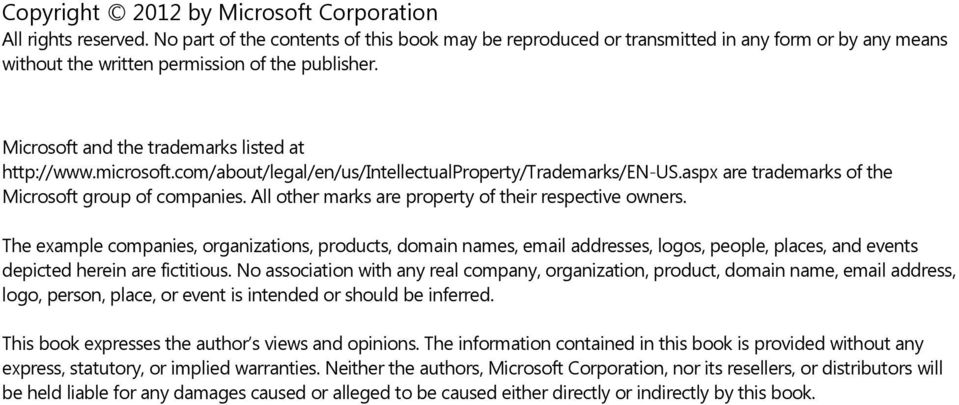
4 Contents Master Data Services... 8 What's New... 9 Backward Compatibility Deprecated Master Data Services Features in SQL Server Discontinued Master Data Services Features in SQL Server Master Data Services Features and Tasks Master Data Services Overview Master Data Services Add-in for Microsoft Excel Connections (MDS Add-in for Excel) Connect to an MDS Repository (MDS Add-in for Excel) Loading Data (MDS Add-in for Excel) Filter Data before Loading (MDS Add-in for Excel) Load Data from MDS into Excel Filter Dialog Box (MDS Add-in for Excel) Reorder Columns (MDS Add-in for Excel) Shortcut Query Files (MDS Add-in for Excel) Save a Shortcut Query File (MDS Add-in for Excel) a Shortcut Query File (MDS Add-in for Excel) Refreshing Data (MDS Add-in for Excel) Publishing Data (MDS Add-in for Excel) Publish Data from Excel to MDS (MDS Add-in for Excel) Delete a Row (MDS Add-in for Excel) View All Annotations or Transactions for a Member (MDS Add-in for Excel) Combine Data (MDS Add-in for Excel) Validating Data (MDS Add-in for Excel) Apply Business Rules (MDS Add-in for Excel) Data Quality Matching in the MDS Add-in for Excel Match Similar Data (MDS Add-in for Excel) Data Quality Matching Columns (MDS Add-in for Excel) Building a Model (MDS Add-in for Excel) Create an Entity (MDS Add-in for Excel) Create a Domain-based Attribute (MDS Add-in for Excel) Change the Attribute Type (MDS Add-in for Excel) Setting Properties for Master Data Services Add-in for Excel Models Create a Model Change a Model Name Delete a Model... 57
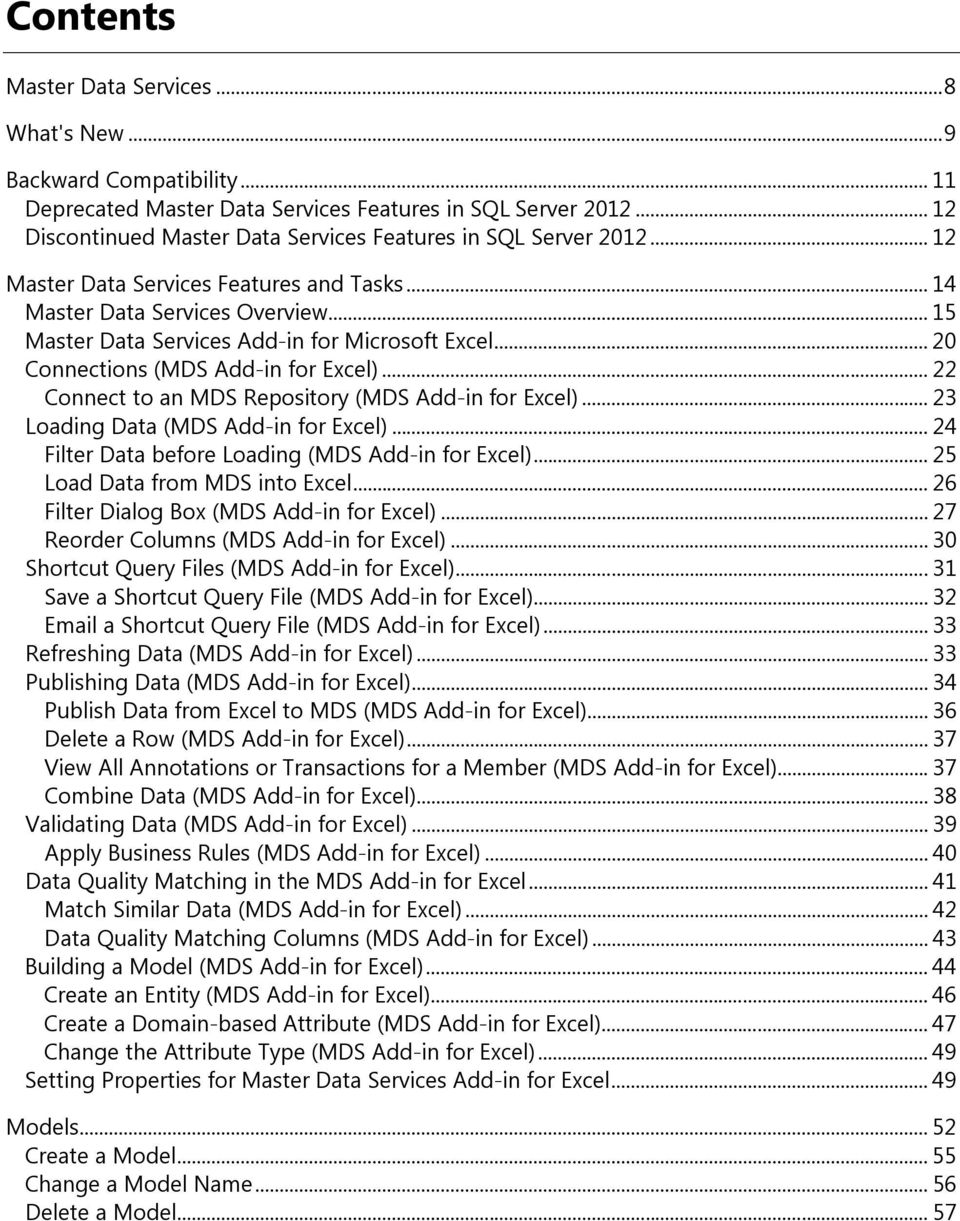
5 Entities Create an Entity Enable an Entity for Explicit Hierarchies and Collections Change an Entity Name Delete an Entity Attributes Create a Text Attribute Create a Numeric Attribute Create a Date Attribute Create a Link Attribute Create a File Attribute Change an Attribute Name Delete an Attribute Change the Order of Attributes Domain-Based Attributes Create a Domain-Based Attribute Attribute Groups Create an Attribute Group Make an Attribute Group Visible to Users Change an Attribute Group Name Delete an Attribute Group Importing Data Load or Update Members in Master Data Services by Using the Staging Process Deactivate or Delete Members by Using the Staging Process Move Explicit Hierarchy Members by Using the Staging Process View Errors that Occur During the Staging Process Leaf Member Staging Table Consolidated Member Staging Table Relationship Staging Table Staging Stored Procedure Staging Process Errors Import Statuses Members Create a Leaf Member Create a Consolidated Member Delete a Member or Collection Reactivate a Member or Collection Move Members within a Hierarchy Filter Operators Reserved Words Automatic Code Creation
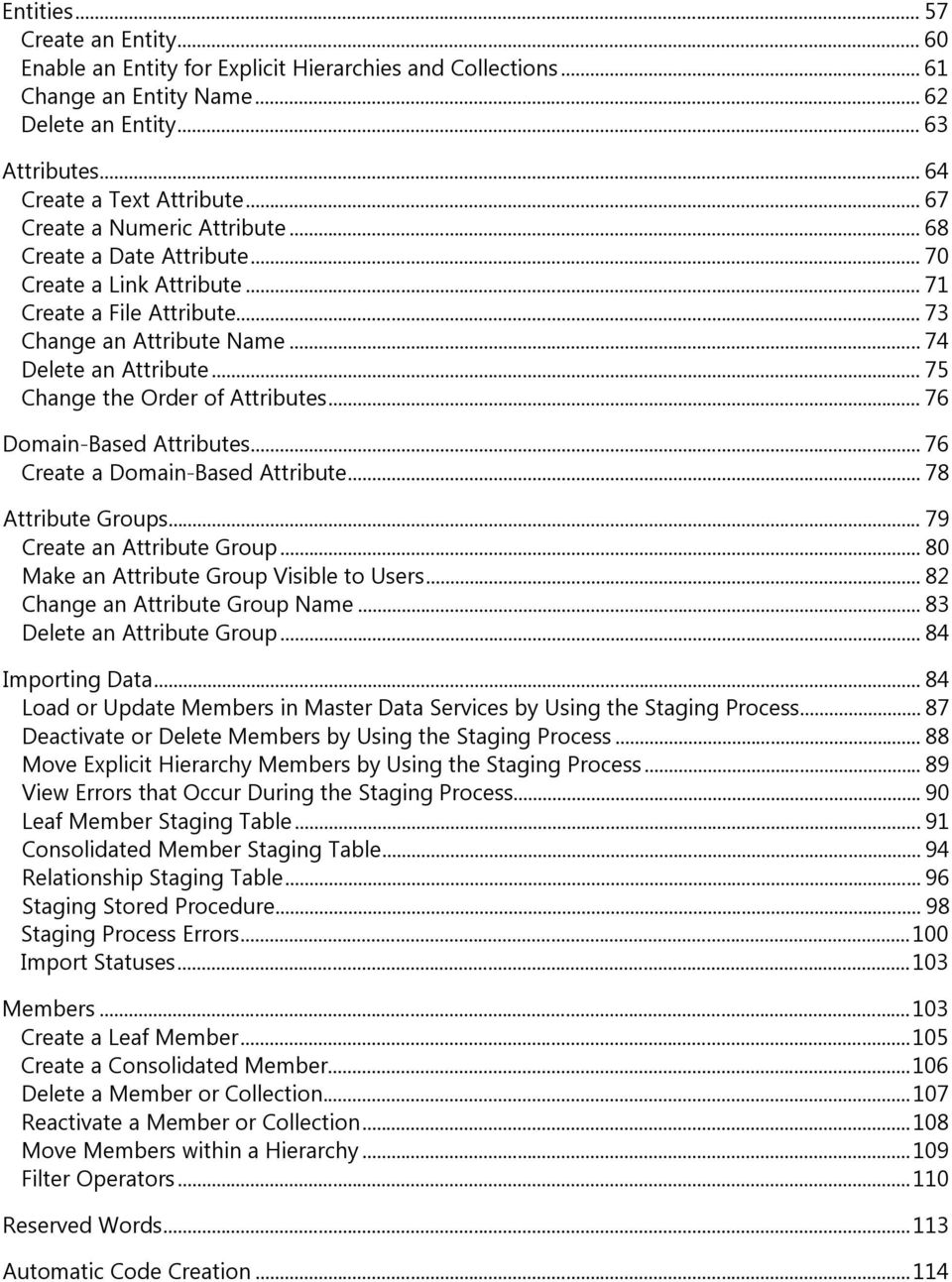
6 Automatically Generate Code Attribute Values Automatically Generate Attribute Values Other Than Code Business Rules Create and Publish a Business Rule Add Multiple Conditions to a Business Rule Require Attribute Values Change a Business Rule Name Configure Business Rules to Send Notifications Validate Specific Members against Business Rules Exclude a Business Rule Delete a Business Rule Business Rule Conditions Business Rule Actions Change Tracking Add Attributes to a Change Tracking Group Initiate Actions Based on Attribute Value Changes Notifications Configure Notifications Transactions Reverse a Transaction Annotations Annotate a Transaction Hierarchies Explicit Hierarchies Create an Explicit Hierarchy Change an Explicit Hierarchy Name Delete an Explicit Hierarchy Derived Hierarchies Recursive Hierarchies Derived Hierarchies with Explicit Caps Create a Derived Hierarchy Hide or Delete Levels in a Derived Hierarchy Change a Derived Hierarchy Name Delete a Derived Hierarchy Collections Create a Collection Add Members to a Collection Exporting Data Create a Subscription View Delete a Subscription View Subscription View Formats
7 Versions Change a Version Name Lock a Version Unlock a Version Commit a Version Create a Version Flag Change a Version Flag Name Assign a Flag to a Version Copy a Version Delete a Version Validation Validate a Version against Business Rules Validation Statuses Validation Stored Procedure Metadata Add Metadata Deploying Models Create a Model Deployment Package by Using the Wizard Create a Model Deployment Package by Using MDSModelDeploy Model Deployment Options Deploy a Model Deployment Package by Using the Wizard Deploy a Model Deployment Package by Using MDSModelDeploy Edit a Model Deployment Package Security Administrators Create a Model Administrator Change the System Administrator Account Users and Groups Add a User Add a Group Change a User's Address Delete Users or Groups Functional Area Permissions Assign Functional Area Permissions Model Object Permissions Assign Model Object Permissions Delete Model Object Permissions Model Permissions Entity Permissions Leaf Permissions Consolidated Permissions Collection Permissions Navigational Access

8 Hierarchy Member Permissions Assign Hierarchy Member Permissions Immediately Apply Member Permissions Delete Hierarchy Member Permissions How Permissions Are Determined Overlapping Model and Member Permissions Overlapping User and Group Permissions Test a User's Permissions Technical Reference Master Data Services Configuration Manager Master Data Services Server Configuration Page (Configuration Manager) Database Configuration Page (Master Data Services Configuration Manager) Connect to a Master Data Services Database Dialog Box Create Database Wizard (Master Data Services Configuration Manager) Upgrade Database Wizard (Master Data Services Configuration Manager) Create Database Mail Profile and Account Dialog Box (Master Data Services Configuration Manager) Web Configuration Page (Master Data Services Configuration Manager) Create Web Application Dialog Box (Master Data Services Configuration Manager) Create Website Dialog Box (Master Data Services Configuration Manager) Web Configuration Reference Master Data Services Database System Settings Database Object Security Database Logins, Users, and Roles Master Data Manager Web Application Explorer Functional Area (Master Data Manager) Version Management Functional Area (Master Data Manager) Integration Management Functional Area (Master Data Manager) System Administration Functional Area (Master Data Manager) User and Group Permissions Functional Area (Master Data Manager) Folder and File Permissions

9 Master Data Services Master Data Services (MDS) is the SQL Server solution for master data management. Master data management (MDM) describes the efforts made by an organization to discover and define non-transactional lists of data, with the goal of compiling maintainable master lists. An MDM project generally includes an evaluation and restructuring of internal business processes along with the implementation of MDM technology. The result of a successful MDM solution is reliable, centralized data that can be analyzed, resulting in better business decisions. With the right training, most business users should be able to implement a Master Data Services solution. In addition, you can use MDS to manage any domain; it's not specific to managing lists of customers, products, or accounts. When MDS is first installed, it does not include the structure for any domains you define the domains you need by creating models for them. Other Master Data Services features include hierarchies, granular security, transactions, data versioning, and business rules. Master Data Services includes the following components and tools: Master Data Services Configuration Manager, a tool you use to create and configure Master Data Services databases and web applications. Master Data Manager, a web application you use to perform administrative tasks (like creating a model or business rule), and that users access to update data. MDSModelDeploy.exe, a tool you use to create packages of your model objects and data so you can deploy them to other environments. Master Data Services web service, which developers can use to extend or develop custom solutions for Master Data Services. Master Data Services Add-in for Excel, which you use to manage data and create new entities and attributes. For a summary of MDS resources, see the SQL Server Master Data Services Portal. Browse Content by Area Master Data Services Overview Master Data Services Features and Tasks Technical Reference (Master Data Services) Developer s Guide (Master Data Services) 8
10 What's New Microsoft SQL Server 2012 Master Data Services contains the following new features. What s New Use Excel to Manage Master Data You can now manage your master data in the Master Data Services Add-in for Excel. You can use this add-in to load a filtered set of data from your Master Data Services database, work with the data in Excel, and then publish the data back to the database. If you are an administrator, you can also use the add-in to create new entities and attributes. It is easy to share shortcut query files, which contain information about the server, the model, version, entity, and any applied filters. You can send the shortcut query file to another user via Microsoft Outlook. You can refresh data in the Excel worksheet with data from the server, refreshing either the entire Excel worksheet or a contiguous selection of MDS-managed cells in the worksheet. For more information, see Master Data Services Add-in for Microsoft Excel. Match Data before Loading Before adding more data to MDS, you can now confirm that you are not adding duplicate records. The MDS Add-in for Excel uses SQL Server Data Quality Services (DQS) to compare two sources of data: the data from MDS and the data from another system or spreadsheet. DQS provides suggestions for updating your data, along with the percent of confidence that the changes are correct. For more information, see Data Quality Matching in the MDS Add-in for Excel. Load Data into MDS Using Entity-Based Staging Loading data into MDS has become easier. You can now load all members and attribute values for an entity at one time. Previously you had to load members and attributes in separate batches. See Importing Data (Master Data Services). New Model Deployment Tools To deploy models with data, a new, higher performance command-line tool is now available. The model deployment wizard in the web application can now be used to deploy model structure only; to create and deploy packages with data, you must use the command-line MDSModelDeploy tool. For more information, see Deploying Models (Master Data Services). A new Model Package Editor enables you to deploy selected parts of a model, rather than the entire model. You can use the Model Package Editor to select those parts of a model that you want to deploy, and leave out other parts. For more information, see Edit a Model Deployment Package. Redesigned and Higher-Performance Web User Interface The Explorer and Integration Management functional areas of the Master Data Manager web application have been updated with a new Silverlight look and feel. You can now 9
11 add and delete members more quickly, as well as move members in a hierarchy more easily. Each collection member can have a weight value assigned. When you use the Collections subscription view format, a Weight column displays the value set in the UI. For more information, see Importing Data (Master Data Services). To work in the Master Data Manager web application, Silverlight 5.0 must be installed on the client computer. If you do not have the required version of Silverlight, you will be prompted to install it when you navigate to an area of the web application that requires it. You can install Silverlight 5 from here. SharePoint Integration Introduced Two new features have been introduced to contribute to SharePoint integration. The Master Data Manager web UI can now be cropped for better display in SharePoint or other websites. By adding the query parameter &hosted=true to the website URL, you remove the header, the menu bar, and padding at the bottom of the page. For more information, see Display the Master Data Services Web Application in SharePoint. When using the MDS Add-in for Excel, you can create a shortcut query file to connect and load frequently-used data from the MDS repository into the Add-in. These query files are XML files that can be saved to SharePoint in order to be shared with users who want to access the same dataset. For more information, see Shortcut Query Files (MDS Add-in for Excel). Multi-level Recursive Hierarchies Support Master Data Services supports creating a recursive hierarchy with three or more levels. This enables you to build a multi-level derived hierarchy with one recursive relationship and one or more non-recursive relationships spread over different levels. You can also add a non-recursive parent node at a level above a recursive node while still supporting anchor null relationships. For more information, see Recursive Hierarchies (Master Data Services). Many to Many Mapping Improved MDS can now be used more effectively to manage many-to-many relationships. When you use an entity as a mapping table for other entities, in the SSMDSmdm web application, you can now click through to view related entities. For more information, see Many-to-Many Mapping in Master Data Services. Codes Automatically Generated It is now easier to have Code attribute values automatically created for new members. Previously, you had to create a business rule to automatically create values for the Code attribute. For more information, see Automatic Code Creation (Master Data Services). Security Simplified To make assigning security easier, you can no longer assign model object permissions to the Derived Hierarchy, Explicit Hierarchy, and Attribute Group objects. 10
12 Derived hierarchy permissions are now based on the model. For example, if you want a user to have permission to a derived hierarchy, you must assign Update to the model object. Then you can assign Deny permission to any entities you don t want the user to have access to. Explicit hierarchy permissions are now based on the entity. For example, if the user has Update permissions to an Account entity, then all explicit hierarchies for the entity will be updateable. Attribute group permissions can no longer be assigned in the User and Group Permissions functional area. Instead, in the System Administration functional area where attribute groups are created, users and groups can be given Update permission to attribute groups. Read-only permission to attribute groups is no longer available. For more information, see Security (Master Data Services). Installation is Part of SQL Server You can now install Master Data Services while you are installing SQL Server instead of using a separate installer, as was required in the previous release. You can install Master Data Services by using the SQL Server Installation Wizard or a command prompt. For more information, see Install Master Data Services. Features Supported by the Editions of SQL Server 2012 Deprecated Master Data Services Features in SQL Server 2012 Discontinued Master Data Services Features in SQL Server 2012 Backward Compatibility This section describes changes between versions of Master Data Services. It covers features that are no longer available or are scheduled to be removed in a future release. It also describes changes to the product that are known to break, or to change the behavior of, an existing application that includes Integration Services functionality. In This Section Deprecated Master Data Services Features in SQL Server 2012 Discontinued Master Data Services Features in SQL Server
13 Deprecated Master Data Services Features in SQL Server 2012 This topic describes the deprecated Master Data Services features that are still available in SQL Server These features are scheduled to be removed in a future release of SQL Server. Deprecated features should not be used in new applications. Staging Process The staging process that was used in SQL Server 2008 R2 is no longer available in the Master Data Manager web application; however it is still available in SQL Server Management Studio. Staging errors from the SQL Server 2008 R2 staging process are no longer displayed in the UI. Error codes that are populated during the staging process are still available in the staging tables, and can be found here: The staging tables (tblstgmember, tblstgmemberattribute, and tblstgrelationship) are still available in the database. The stored procedure used to initiate the staging process (mdm.udpstagingsweep) is still available in the database. The web service methods that call the staging process are still available. The staging interval set in Master Data Services Configuration Manager applies to the staging process in both SQL Server 2008 R2 and SQL Server A new, higher performance staging process has been implemented in SQL Server For more information, see Importing Data (Master Data Services). Metadata Though the Metadata model is still displayed in the Master Data Manager web application, it should not be used. It will be removed in a future release. Users can also no longer view metadata in the Explorer functional area, and you can no longer create versions of the Metadata model. Discontinued Master Data Services Features in SQL Server 2012 Discontinued Master Data Services Features in SQL Server 2012 This topic describes Master Data Services features that are no longer available in SQL Server Security 12

14 To make assigning security easier, you can no longer assign model object permissions to the Derived Hierarchy, Explicit Hierarchy, and Attribute Group objects. Derived hierarchy permissions are now based on the model. For example, if you want a user to have permission to a derived hierarchy, you must assign Update to the model object. Then you can assign Deny access to any entities you don t want the user to have access to. Explicit hierarchy permissions are now based on the entity. For example, if the user has Update permissions to an Account entity, then all explicit hierarchies for the entity will be updateable. Attribute group permissions can no longer be assigned in the User and Group Permissions functional area. Instead, in the System Administration functional area where attribute groups are created, users and groups can be given Update permission to attribute groups. Read-only permission to attribute groups is no longer available. Staging Process You cannot use the new staging process to: Create or delete collections. Add members to or remove members from collections. Reactivate members and collections. You can use the SQL Server 2008 R2 staging process to work with collections. Model Deployment Wizard Packages that contain data can no longer be created and deployed by using the wizard in the Master Data Manager web application. A new command line utility can be used instead. For more information, see Deploying Models (Master Data Services). The wizard can still be used to create and deploy packages that do not contain data. In addition, packages can be deployed to the edition of SQL Server they were created in only. This means that packages created in SQL Server 2008 R2 cannot be deployed to SQL Server You must deploy the package to a SQL Server 2008 R2 environment and then upgrade the database to SQL Server Code Generation Business Rules Business rules that automatically generate values for the Code attribute are now administered differently. Previously, to generate values for the Code attribute, you used the Default attribute to a generated value action in the System Administration functional area under Business Rules. Now, in System Administration, you must edit the entity to enable automatically-generated Code values. For more information, see Automatic Code Creation (Master Data Services). 13
15 If you have a SQL Server 2008 R2 model deployment package that contains a rule of this type, when you upgrade the database to SQL Server 2012, the business rule will be excluded. Bulk Updates and Exporting In the Master Data Manager web application, you can no longer update attribute values for multiple members in bulk. To do bulk updates, use the staging process or the Master Data Services Add-in for Excel. In the Master Data Manager web application, you can no longer export members to Excel. To work with members in Excel, use the Master Data Services Add-in for Excel. Transactions In the Explorer functional area, users can no longer revert their own transactions. Previously, users could revert changes they made to data in Explorer. Administrators can still revert transactions for all users in the Version Management functional area. Annotations are now permanent and cannot be deleted. Previously, annotations were considered transactions and could be deleted by reverting the transaction. Web Service The Master Data Services web service is now enabled automatically, as required by Silverlight. Previously, the web service had to be enabled manually. PowerShell Cmdlets MDS no longer includes PowerShell cmdlets. Deprecated Master Data Services Features in SQL Server 2012 Master Data Services Features and Tasks Learn how to use Master Data Services to manage your organization s master data. Learn how to create and manipulate model objects, which are containers for data. Learn how to organize and maintain the master data itself. Learn how to import and export master data, as well as share models between test and production environments. Finally, learn how to develop custom applications that access the Master Data Services web service. Create Structures to Contain Data Models (Master Data Services) Entities (Master Data Services) Attributes (Master Data Services) Domain-Based Attributes (Master Data Services) 14
16 Attribute Groups (Master Data Services) Maintain Master Data Master Data Services Add-in for Microsoft Excel Members (Master Data Services) Transactions (Master Data Services) Annotations (Master Data Services) Hierarchies (Master Data Services) Collections (Master Data Services) Improve Data Quality Business Rules (Master Data Services) Validation (Master Data Services) Versions (Master Data Services) Notifications (Master Data Services) Security (Master Data Services) Move Data Importing Data (Master Data Services) Exporting Data (Master Data Services) Deploying Models (Master Data Services) Develop a Custom Application Developer's Guide (Master Data Services) Microsoft.MasterDataServices Master Data Services Overview The following workflow provides an overview of how to use Master Data Services. You might want to complete the following tasks in a test environment and use the sample data provided when you install Master Data Services. For more information, see Deploying Models (Master Data Services). Unless otherwise noted, all of the following procedures require you to be a model administrator. For more information, see Administrators (Master Data Services). 15
17 Action Details Related Topics Create a model Create entities Create entities to use as domain-based attributes A model is the highest level of organization in Master Data Services. Each model you create should address a specific business need. For example, you might need to track a master list of products or customers. When you create a model, it is considered VERSION_1. Entities are model objects that contain members. Members are the physical master data that you manage in Master Data Services. Create as many entities as you need to contain your members. For a Product model, you might create a Product entity to contain the master list of product members. A domain-based attribute is an attribute with values that are populated by members from an entity. To create a domain-based attribute, first create the entity to populate the attribute value list. For example, you might create a Color entity to contain a master list of colors. These colors can then be used as attribute values for the Product entity. Models (Master Data Services) How to: Create a Model (Master Data Services) Entities (Master Data Services) How to: Create an Entity (Master Data Services) Domain-Based Attributes (Master Data Services) How to: Create a Domain- Based Attribute (Master Data Services) Create attributes for your entities Create attributes to describe members. A Name and Code attribute are automatically included in each entity and Attributes (Master Data Services) How to: Create a Text Attribute (Master Data 16
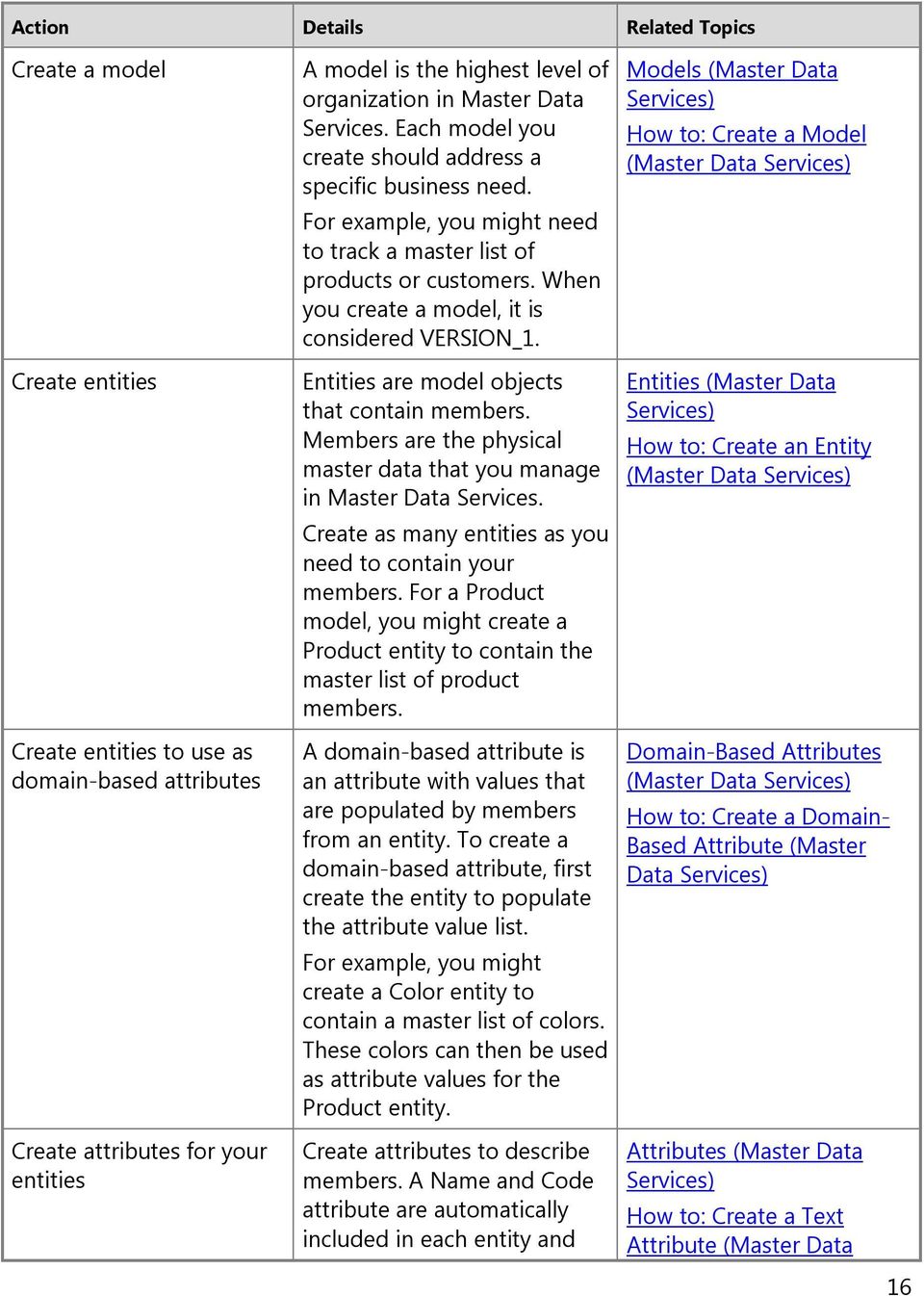
18 Action Details Related Topics cannot be removed. You might want to create other free-form attributes to contain text, dates, numbers, or files. Services) Create attribute groups Import members for your supporting entities For example, a Product entity might have free-form attributes for Cost, Weight, or SellStartDate. If you have more than four or five attributes for an entity, you might want to create attribute groups. These groups are the tabs that are displayed above the grid in Explorer and they help ease navigation by grouping attributes together on individual tabs. Begin populating your master data by using the staging process. You may want to start by importing the members for your supporting entities. For the Product model, this might mean importing colors or sizes. You can also create members manually. Note Users can create members in Master Data Manager if they How to: Create a Numeric Attribute (Master Data Services) How to: Create a Date Attribute (Master Data Services) How to: Create a Link Attribute (Master Data Services) How to: Create a File Attribute (Master Data Services) Attribute Groups (Master Data Services) How to: Create an Attribute Group (Master Data Services) Importing Data (Master Data Services) How to: Create a Member or Collection by Using tblstgmember (Master Data Services) How to: Create a Leaf Member (Master Data Services) 17
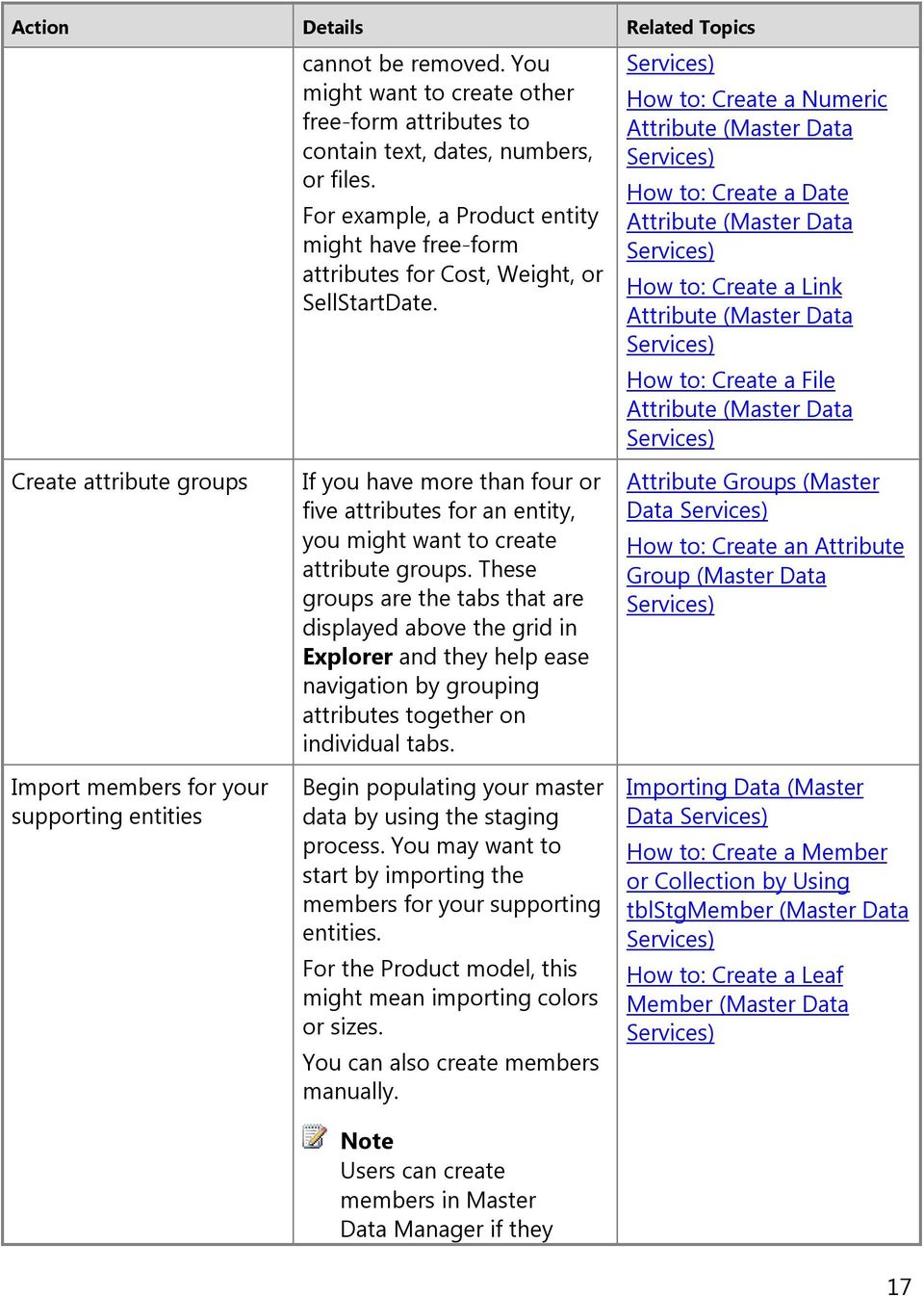
19 Action Details Related Topics have a minimum of Update permission to an entity's leaf model object and access to the Explorer functional area. Create business rules to ensure data quality Import members for your primary entities and apply business rules Create derived hierarchies Create and publish business rules to ensure the accuracy of your data. You can use business rules to: Set default attribute values. Change attribute values. Send notifications when data doesn't pass business rule validation. Import the members for your primary entities by using the staging process. When done, validate the version, which applies business rules to all members in the model version. You can then work to correct any business rule validation issues. Create derived hierarchies from the domain-based attribute relationships that exist between the entities in the model. These level-based hierarchies can be updated as your business needs change and ensure that all members are accounted for at the Business Rules (Master Data Services) How to: Create and Publish a Business Rule (Master Data Services) Notifications (Master Data Services) How to: Configure Notifications (Master Data Services) How to: Configure Business Rules to Send Notifications (Master Data Services) Validation (Master Data Services) How to: Validate a Version (Master Data Services) Validation Stored Procedure (Master Data Services) Derived Hierarchies (Master Data Services) How to: Create a Derived Hierarchy (Master Data Services) 18
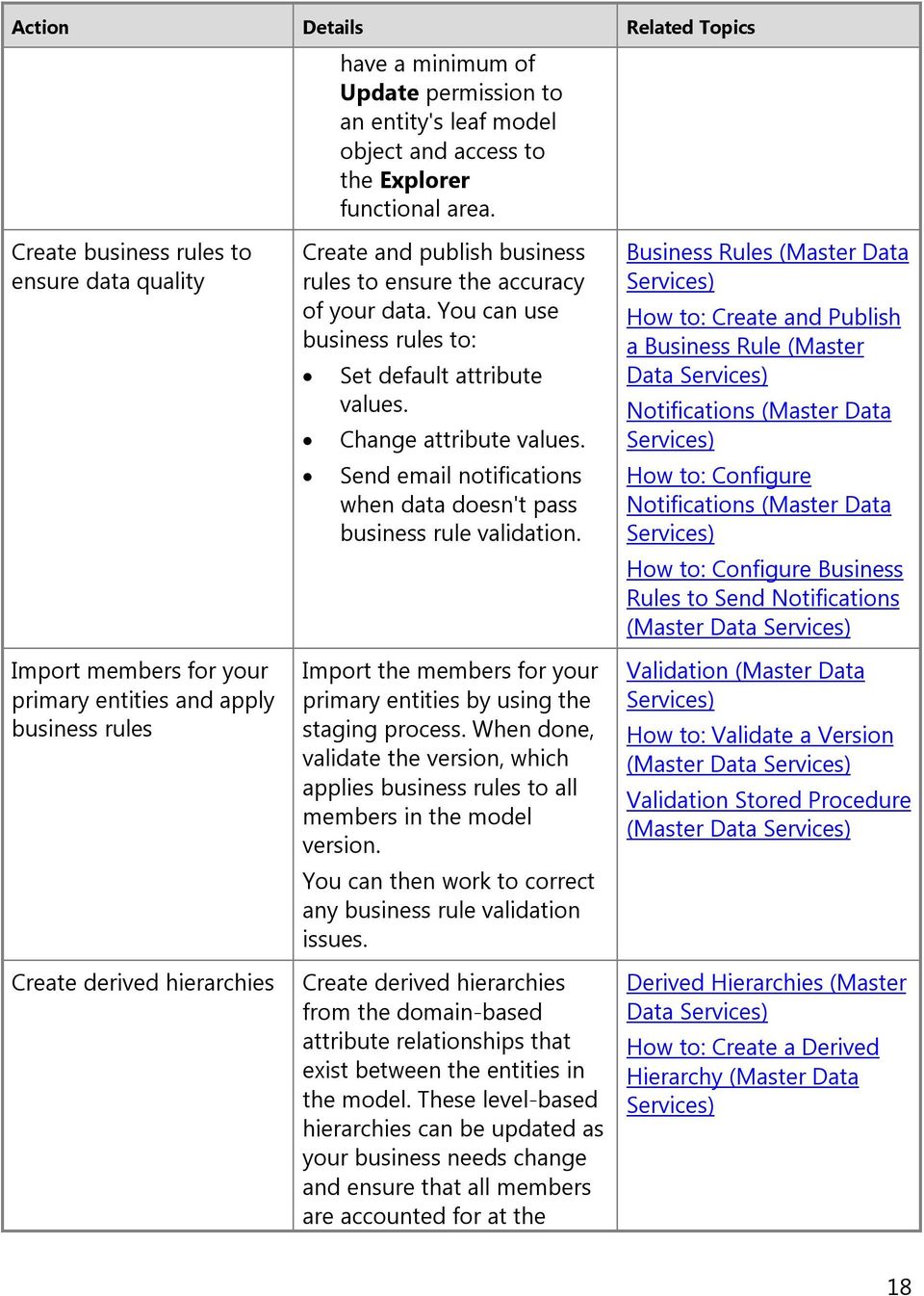
20 Action Details Related Topics appropriate level. If needed, create explicit hierarchies If needed, create collections Create user-defined metadata Lock a version of your model and assign a version flag If you want to create hierarchies that are not levelbased and that include members from a single entity, you can create explicit hierarchies. If you want to view different groupings of members for reporting or analysis and do not need a complete hierarchy, create a collection. Note Users can create collections in Master Data Manager if they have a minimum of Update permission to the collection model object and access to the Explorer functional area. To describe your model objects, add user-defined metadata to your model. The metadata might include the owner of an object or the source the data comes from. Lock a version of your model to prevent changes to the members, except by administrators. When the version's data has validated successfully against business rules, you can commit the version, which prevents changes to members by all users. Explicit Hierarchies (Master Data Services) How to: Create an Explicit Hierarchy (Master Data Services) Collections (Master Data Services) How to: Create a Collection (Master Data Services) User-Defined Metadata (Master Data Services) How to: Add Metadata (Master Data Services) Versions (Master Data Services) How to: Lock a Version (Master Data Services) How to: Create a Version Flag (Master Data Services) 19
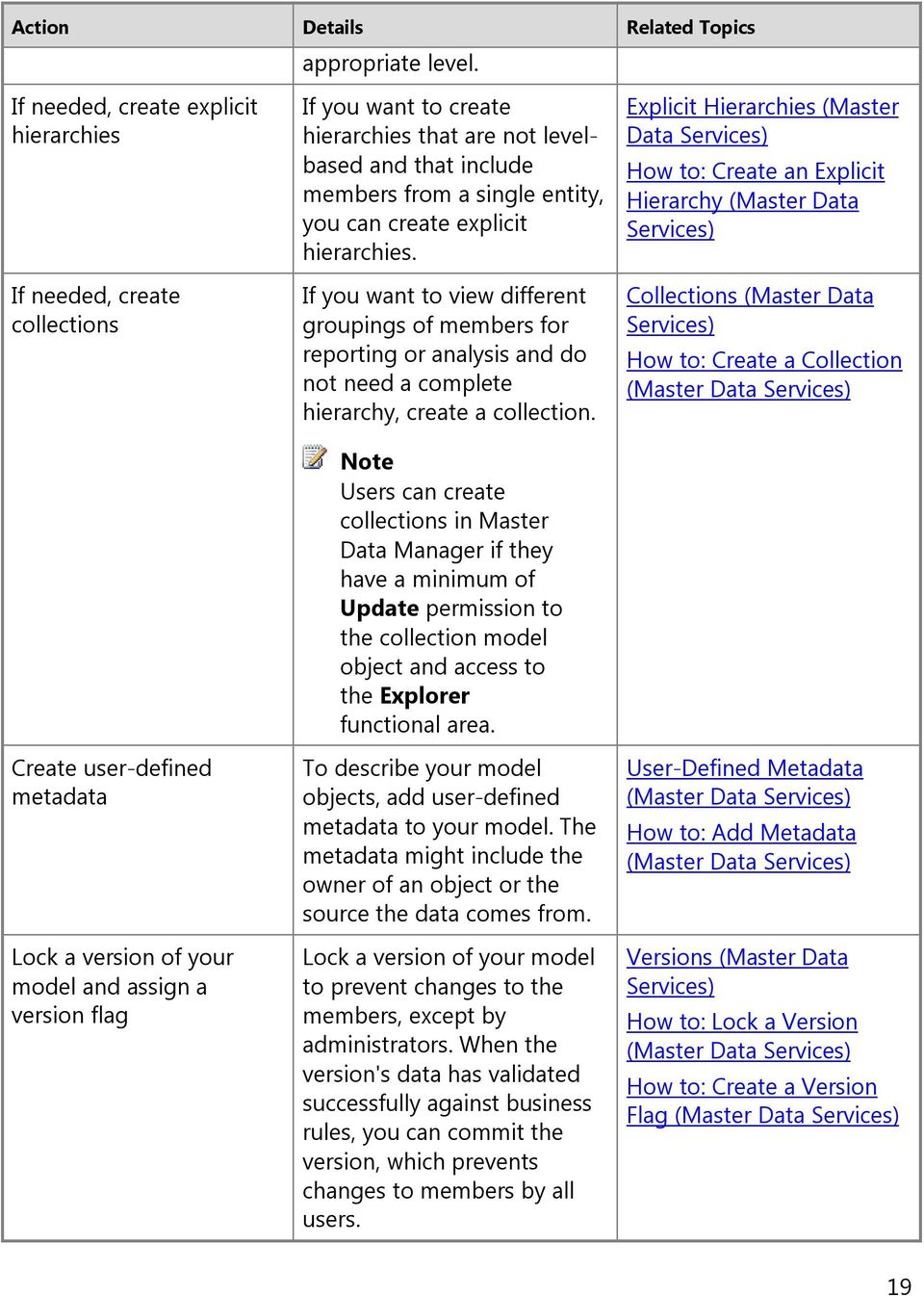
21 Action Details Related Topics Create and assign a version flag to the model. Flags help users and subscribing systems identify which version of a model to use. Create subscription views Configure user and group permissions For your subscribing systems to consume your master data, create subscription views, which create standard views in the Master Data Services database. You cannot copy user and group permissions from a test to a production environment. However, you can use your test environment to determine the security you want to use eventually in production. Exporting Data (Master Data Services) How to: Create a Subscription View (Master Data Services) Security (Master Data Services) How to: Add a Group (Master Data Services) How to: Add a User (Master Data Services) When ready, you can deploy your model, with or without its data, to your production environment. For more information, see Deploying Models (Master Data Services). Master Data Services Add-in for Microsoft Excel With the SQL Server Master Data Services Add-in for Excel, master lists of reference data can be distributed to everyone at your organization who uses Excel. Security determines which data users can view and update. You can load filtered lists of data from MDS into Excel, where you can work with it just as you would any other data. When you are done, you can publish the data back to MDS, where it is centrally stored. If you are an administrator, use the Add-in for Excel to create entities and attributes and to load them with data. This eliminates the need to use any other tools to load data into your models. In the Add-in for Excel, you can use Data Quality Services (DQS) to match data before loading it into MDS. This helps to prevent duplicate data in MDS. Terms When working with the Add-in, you may encounter the following terms. 20
22 The MDS repository is where all master data is stored. It is a SQL Server database that is configured to store MDS data. To work with data from the repository, you load data it into Excel; when you re done working with it, you publish changes back to the repository. Administrators can add new entities and attributes to the repository. MDS-managed data is data that is stored in the MDS repository and that you load into Excel, where the data is displayed as highlighted rows. You can add data that is not MDS-managed to your worksheet, and it is not affected when you refresh the MDS-managed data. A model is a container of data. Versions of these containers can be created, and usually the latest version is the most recent. For more information, see Models (Master Data Services). An entity is a list of data. You might think of an entity as a table in a database. For example, the Color entity might contain a list of colors. For more information, see Entities (Master Data Services). A member is a row of data. Each entity contains members. An example of a member is Blue. For more information, see Members (Master Data Services). An attribute is a column of data. Each member has attributes. For example, the Code attribute for the Blue member is B. For more information about attributes, see Attributes (Master Data Services). Related Tasks Task Description Create a connection to a Master Data Services repository. Load MDS-managed data into Excel. Save a shortcut query that you can use open the currently displayed MDSmanaged data in the future. Share shortcuts with others. View all changes that have been made to a member. Before publishing new data, find out whether duplication exists. Publish data from a worksheet into the MDS repository. Topic Connect to an MDS Server (MDS Add-in for Excel) Load Data from MDS into Excel Save a Shortcut Query File (MDS Add-in for Excel) Send a Shortcut Query File (MDS Add-in for Excel) View All Annotations or Transactions for a Member (MDS Add-in for Excel) Match Similar Data (MDS Add-in for Excel) Publish Data from Excel to MDS (MDS Addin for Excel) 21
23 Task Description Create a new entity with data in the worksheet. (Administrators only) Create a domain-based attribute, also known as a constrained list. (Administrators only) Set properties for loading and publishing data in the Master Data Services Add-in for Excel. (Administrators only) Topic Create an Entity (MDS Add-in for Excel) Create a Domain-based Attribute (MDS Add-in for Excel) Setting Properties for Master Data Services Add-in for Excel Related Content Connections (MDS Add-in for Excel) Loading Data (MDS Add-in for Excel) Shortcut Query Files (MDS Add-in for Excel) Data Quality Matching in the MDS Add-in for Excel Publishing Data (MDS Add-in for Excel) Building a Model (MDS Add-in for Excel) Security (Master Data Services) Connections (MDS Add-in for Excel) To download data in to the Master Data Services Add-in for Excel, you must first create a connection. A connection is how the Master Data Services web service knows which MDS database to connect to. The connection string is usually the URL of the Master Data Manager web application, for example Each time you start Excel, you must connect to an MDS repository. The only exception is when the active spreadsheet already contains MDS-managed data. In this case, a connection is automatically made each time you refresh or publish data in the sheet. You can create multiple connections. The most recently-accessed connection is considered the default. Multiple users can be connected at the same time. However, conflicts can arise when multiple users attempt to publish the same data. For more information, see Publishing Data (MDS Add-in for Excel). Connect Automatically and Load Frequently-Used Data 22
24 If you want to always connect to the same server and load the same set of data, you can create shortcut query files, which contain connection and filter information. For more information about query files, see Shortcut Query Files (MDS Add-in for Excel). Data Quality Services The Add-in for Excel has Data Quality Services functionality to help you match data before publishing it to the MDS repository. When you make a connection, if a DQS database is installed on the same instance of SQL Server as the MDS database, you will be able to view DQS buttons on the ribbon. If the DQS_Main database does not exist on the instance, these buttons are not displayed and data quality functionality is not available. Troubleshooting Connections When you connect to MDS, if you encounter any issues see for troubleshooting tips. Related Tasks Task Description Create a connection to a Master Data Services database. Load MDS data into Excel. Filter MDS data before you load it into Excel. Topic Connect to an MDS Server (MDS Add-in for Excel) Load Data from MDS into Excel Filter Data before Loading (MDS Add-in for Excel) Related Content Loading Data (MDS Add-in for Excel) Shortcut Query Files (MDS Add-in for Excel) Master Data Services Add-in for Microsoft Excel Connect to an MDS Repository (MDS Add-in for Excel) In the Master Data Services Add-in for Excel, you must connect to an MDS repository before you can load or publish data. Prerequisites To perform this procedure: You must have permission to access the Explorer functional area. Procedures 23
25 To connect to an MDS repository 1. In the MDS Add-in for Excel, on the Master Data tab, in the Connect and Load group, click the arrow under the Connect button and click Manage Connections. 2. On the Manage Connections dialog box, in the New connection section, click Create a new connection. 3. Click New. 4. On the Add New Connection dialog box, in the Description field, type a description for your connection. This connection will be displayed when you click the arrow under the Connect button on the toolbar. 5. In the MDS server address box, type the URL of the Master Data Manager web application, for example Note Ensure that you use the computer name; do not use localhost. 6. Click OK. The name is displayed in the Existing Connections section. 7. Optionally, click Test to test the connection. A confirmation or error dialog is displayed. Click OK to close it. 8. Click Connect. The Master Data Services pane is displayed. Next Steps How to: Load Data from MDS into Excel Filter Data before Loading (MDS Add-in for Excel) Connections (MDS Add-in for Excel) Loading Data (MDS Add-in for Excel) In the Master Data Services Add-in for Excel, you must load data from the MDS repository into an active Excel worksheet before you can work with it. When you are done working with the data, publish it to the MDS repository so other users can share it. The data you can load is limited to the data you have permission to access. Permission to access data is set in the Master Data Manager web application or set programmatically. When you load large amounts of data, you can set warnings that are displayed when the data that might take a long time to load. To do this, in the Options group, click Settings. On the Data tab, select the Display filter warning for large data sets. Warning An MDS-enabled workbook must be opened and updated only in Excel with the MDS Add-in for Excel. Opening an MDS-enabled workbook in Excel on a computer in which the MDS Excel Add-in is not installed is not supported, and 24
26 could cause corruption of the workbook file. If you want to share data with someone else, a shortcut query file to them, rather than saving the worksheet and ing it. For more information on the query, see a Shortcut Query File (MDS Add-in for Excel). Filtering Data You can filter data before loading to limit the amount of data that you re going to download. This includes choosing which attributes (columns) you want to load, the order you want to display the attributes, and the members (rows of data) you want to work with. For more info see Filter Data before Loading (MDS Add-in for Excel). Connect Automatically and Load Frequently-Used Data If you want to always connect to the same server and load the same set of data, you can create shortcut query files, which contain connection and filter information. For more information about query files, see Shortcut Query Files (MDS Add-in for Excel). Refreshing Data Data in the MDS repository may be updated by other users after you load it. You can retrieve this data without losing changes you ve made to non-mds data. For more information, see Refreshing Data (MDS Add-in for Excel). Related Tasks Task Description Filter MDS data before you load it into Excel. Load MDS data into Excel. Change the order of columns before you download data. Topic Filter Data before Loading (MDS Add-in for Excel) Load Data from MDS into Excel Reorder Columns (MDS Add-in for Excel) Related Content Connections (MDS Add-in for Excel) Shortcut Query Files (MDS Add-in for Excel) Master Data Services Add-in for Microsoft Excel Security (Master Data Services) Filter Data before Loading (MDS Add-in for Excel) In Master Data Services Add-in for Excel, filter data when you want to limit the size or scope of data that you are loading into Excel. 25
27 Prerequisites To perform this procedure: You must have permission to access the Explorer functional area. Procedures To filter data before loading 1. Open Excel and on the Master Data tab, connect to an MDS repository. For more information, see Connect to an MDS Database (MDS Add-in for Excel). 2. In the Master Data Explorer pane, select a model and version. The list of entities is populated. If the Master Data Explorer pane is not visible, in the Connect and Load group, click Show Explorer. If the Master Data Explorer pane is disabled, it is because the existing sheet already contains MDS-managed data. To enable the pane, open a new worksheet. 3. In the Master Data Explorer pane, in the list of entities, click the entity you want to filter. 4. On the ribbon, in the Connect and Load group, click Filter. 5. Complete the Filter dialog box by selecting the attributes (columns) to display, setting the order of the columns, and if needed, filtering the data so fewer rows are returned. View the Summary pane for how much data will be returned. For more information, see Filter Dialog Box. 6. Click Load Data. The sheet is populated with MDS-managed data. Note Next Steps Publish Data from Excel to MDS Loading Data (MDS Add-in for Excel) Filter Dialog Box (Master Data Services) Reorder Columns (MDS Add-in for Excel) Load Data from MDS into Excel In the Master Data Services Add-in for Excel, you must load data from the MDS repository in order to work with it. If you want to filter the dataset before loading, see Filter Data before Loading (MDS Addin for Excel) instead. Prerequisites 26
28 To perform this procedure: You must have permission to access the Explorer functional area. Procedures To load data from MDS into Excel 1. Open Excel and on the Master Data tab, connect to an MDS repository. For more information, see Connect to an MDS Database (MDS Add-in for Excel). 2. In the Master Data Explorer pane, select a model and version. The list of entities is populated. If the Master Data Explorer pane is not visible, in the Connect and Load group, click Show Explorer. If the Master Data Explorer pane is disabled, it is because the existing sheet already contains MDS-managed data. To enable the pane, open a new worksheet. 3. In the Master Data Explorer pane, in the list of entities, double-click the entity you want to load. Next Steps Note Note When you load text-delimited data using the Add-in for Microsoft Excel with 32-bit Excel, and the settings for the Cell Count to Load and Cell Count to Publish properties are both set to the maximum of 1000, an out-of-memory error will occur. You have to use 64-bit Excel to use the maximum settings for Cell Count to Load and Cell Count to Publish. Publish Data from Excel to MDS Loading Data (MDS Add-in for Excel) Filter Dialog Box (MDS Add-in for Excel) Publishing Data (MDS Add-in for Excel) Filter Dialog Box (MDS Add-in for Excel) In the Master Data Services Add-in for Excel, use the Filter dialog box to narrow the list of MDS-managed data before loading it into Excel. This dialog box contains three sections: Columns, Rows, and Summary. Columns Use the Columns section to determine which attributes (columns) you want to display in Excel. 27
29 Control Name Attribute type Explicit hierarchy Attribute Groups Select All Clear All Description An attribute type describes the type of members you want to work with. In most cases, this is Leaf. For more information about member types, see Members (Master Data Services). If you chose the Consolidated attribute type, choose the hierarchy the consolidated members belong to. For more information, see Explicit Hierarchies (Master Data Services). Attribute groups are a way of grouping subsets of attributes. Choose an attribute group if you want to show a subset of available attributes. For more information about attribute groups, see Attribute Groups (Master Data Services). Click to select all attributes displayed in the list. Click to clear the selected attributes displayed in the list. Note You cannot clear Name and Code. Up Arrow Down Arrow Click to move the selected attribute up in the list. The top-to-bottom order corresponds to the left-to-right order the columns are displayed in the worksheet. Click to move the selected attribute down in the list. The top-to-bottom order corresponds to the left-to-right order the columns are displayed in the worksheet. Rows Use the Rows section to determine which members (rows) you want to display in Excel. You do this by defining criteria to filter the rows that will be displayed. 28
30 Control Name Attribute Description Displays an attribute you want to filter by. If no attributes are listed, it s because they have not been added. Note You can filter by attributes that you don t plan to show in the worksheet. Operator Criteria Update Summary Add Remove All Remove Displays operators that correspond to the type of attribute that was selected. For more information, see Filter Operators (Master Data Services). The criteria you want to filter by. When working with large datasets, click to update the Summary section with details of the amount of data that will be loaded. When you click an attribute in the Columns section and then click Add, an attribute is added to the list of filters. Removes all filters from the list. Removes selected filter from the list. Summary Use the Summary section to view details about the amount of data that will be loaded, before loading it. Control Name Model Version Entity Rows Columns Description The name of the model. The name of the version. The name of the entity. The number of rows that will be loaded into Excel, based on the filters applied in the Rows section. The number of columns that will be loaded 29
31 Control Name Description into Excel, based on the attributes selected in the Columns section. Filter Data before Loading (MDS Add-in for Excel) Loading Data (MDS Add-in for Excel) Reorder Columns (MDS Add-in for Excel) In the Master Data Services Add-in for Excel, you can reorder columns by filtering the list before loading. When you reorder attributes in the Filter dialog box, the data is loaded into Excel with the new order. However, the next time that you filter the attribute data, the order will revert to the order in the original design. To change the order permanently, an administrator should change the order in the System Administration area of Master Data Manager. For more information, see Change the Order of Attributes. Prerequisites To perform this procedure: You must have permission to access the Explorer functional area. Procedures To reorder MDS-managed columns 1. Open Excel and on the Master Data tab, connect to an MDS repository. For more information, see Connect to an MDS Database (MDS Add-in for Excel). 2. In the Master Data Explorer pane, select a model and version. The list of entities is populated. If the Master Data Explorer pane is not visible, in the Connect and Load group, click Show Explorer. If the Master Data Explorer pane is disabled, it is because the existing sheet already contains MDS-managed data. To enable the pane, open a new worksheet. 3. In the Master Data Explorer pane, click an entity. 4. In the Connect and Load group, click Filter. 5. In the Filter dialog box, in the Columns section, in the list of attributes, click the attribute you want to move. 6. To the right of the list, click the Up or Down arrow to move the attribute left and right in the worksheet. 30
32 7. Repeat step 7 for each attribute until the top-to-bottom order represents the left-to-right order you want in the worksheet. 8. Click Load Data. The sheet is populated with MDS-managed data and the columns are displayed in the order you specified. Loading Data (MDS Add-in for Excel) Shortcut Query Files (MDS Add-in for Excel) In the Master Data Services Add-in for Excel, use shortcut query files to quickly connect and load frequently-used data. You can also use them when you want to share MDS data with others. Instead of saving the worksheet and ing it, you should save a shortcut query file and that instead. This ensures that you are both connecting to the MDS repository to get the latest data. Shortcut query files are XML files that contain information about: The MDS repository connection. The model, version, and entity. Any filters that were applied when the shortcut was created. The left-to-right order of the columns when the shortcut was created. You can save these files in a list and choose from them when you open the Add-in. You can export them to your computer or to a shared location, or you can send them to others. QueryOpener Application All users who install the Add-in for Excel have an application called QueryOpener installed. This application is used to open shortcut query files in the Add-in for Excel. If you double-click a shortcut query file, this application is automatically used to open the file in the Add-in. When you open a shortcut query file with this application, you are prompted to make the connection a safe connection, which means you trust content from this location. Each time you mark a connection as safe, it is added to a list. If you want to clear this list, open the Settings dialog box and in the Servers Added to Safe List section, click Clear All. The default location for the application is drive:\program Files\Microsoft SQL Server\110\Master Data Services\Excel Add- In\Microsoft.MasterDataServices.QueryOpener.exe. There are two ways to open shortcut query files: you can import them or you can double-click them and they are opened automatically. Related Tasks 31
33 Task Description Save the contents of the active worksheet as a shortcut query file. a shortcut query file that represents the contents of the active worksheet. Topic Save a Shortcut Query File (MDS Add-in for Excel) Send a Shortcut Query File (MDS Add-in for Excel) Related Content Connections (MDS Add-in for Excel) Master Data Services Add-in for Microsoft Excel Security (Master Data Services) Save a Shortcut Query File (MDS Add-in for Excel) In the Master Data Services Add-in for Excel, save a shortcut query file when you frequently need to access the same set of data. Prerequisites To perform this procedure: The active worksheet must contain MDS-managed data in the format you want. For example, you should be viewing the columns in the order you want them, with any filters applied. For more information, see Filter Data before Loading (MDS Add-in for Excel) and Reorder Columns (MDS Add-in for Excel). Procedures To save a shortcut query file 1. In the Save and Send group, click the arrow under Save Query and click Save as Query. 2. Optional. To rename the query, click the arrow under Save Query and click Manage Queries. Select the query and click Rename. Next Steps Click the arrow under Save Query to view the shortcut query and open it. Send a Shortcut Query File (MDS Add-in for Excel) Shortcut Query Files (MDS Add-in for Excel) 32
34 a Shortcut Query File (MDS Add-in for Excel) In the Master Data Services Add-in for Excel, a shortcut query file to someone when you want to ensure they re working with the same data that you are. You should share queries rather than saving the worksheet and ing it. Prerequisites To perform this procedure: You must have Outlook 2010 or later installed. You must have MDS-managed data in an active worksheet in Excel. Procedures To send a shortcut query file 1. Ensure that the data in the worksheet is in the format you want to share. For more information about filtering data and reordering columns, see Filter Data before Loading (MDS Add-in for Excel) and Reorder Columns (MDS Add-in for Excel). 2. In the Save and Send group, click Send Query. An message opens and the shortcut query file is attached. Next Steps To open the shortcut query file, the recipient of the must have the MDS Add-in for Excel installed. The recipient can double-click the file to open it. Shortcut Query Files (MDS Add-in for Excel) Refreshing Data (MDS Add-in for Excel) In Master Data Services Add-in for Excel, refresh data when you want to get the latest information from the MDS repository without opening a new worksheet. You can refresh either all cells or a selection of cells. This can be useful when you have inserted columns with custom formulas or other data that is not managed in MDS and you want to preserve it. When You Can Refresh MDS-Managed Data You can refresh MDS-managed data in an active worksheet if the active worksheet already contains MDS-managed data. If you have changed attribute values or added members to the worksheet, you must publish your changes before you can refresh. Refreshing a Selection You have the choice of refreshing all cells or refreshing only selected cells. The selected cells must be contiguous. If a set of contiguous cells is selected, all MDS managed cells in that set will be updated to display the values currently stored on the server. 33
35 Unchanged rows and columns that are not managed by MDS are not affected in any way. What Happens When You Refresh MDS-Managed Data When you refresh data in the Add-in for Excel, what happens to the MDS-managed data in the sheet depends on what has changed in the MDS repository since you last loaded the data. If new members have been added to repository, they are added to the end of the worksheet and are highlighted in green. If members were deleted from the repository, they are deleted from the worksheet. If an attribute value has changed in the MDS repository, the value in the worksheet is updated with value from the MDS repository. The cell color does not change. Warning How to Refresh MDS-Managed Data In the Connect and Load group on the ribbon, the Refresh button has two options, Refresh All and Refresh Selection. The default action of the ribbon button is Refresh All. To refresh the entire sheet with values from the server, click the Refresh button or choose the Refresh All option. To refresh only some of the cells in a sheet, select the cells (must be one contiguous selection) and choose the Refresh Selection option. Related Tasks Task Description Create a connection to a Master Data Services database. Load MDS data into Excel. Topic Connect to an MDS Server (MDS Add-in for Excel) Load Data from MDS into Excel Related Content Connections (MDS Add-in for Excel) Loading Data (MDS Add-in for Excel) Master Data Services Add-in for Microsoft Excel Publishing Data (MDS Add-in for Excel) In the Master Data Services Add-in for Excel, publish data to the MDS repository when you want to share it with other users. As soon as data is published, it is available for other users of the Add-in to download. 34
36 When you publish data, any data you ve added or updated is published to the MDS repository. Data you ve deleted is not published you must delete data separately. For more information, see Delete a Row (MDS Add-in for Excel). Note Publishing cannot be used to create a new entity. For more information about creating entities, see Create an Entity (MDS Add-in for Excel). When Multiple Users Publish at the Same Time Multiple users can publish updates to the same data. As each user publishes, the update is saved to the database. This means that a user who was not working with the most recently-updated data can still change the value when he or she publishes. Only the updates you make are published to the database. Any out-of-date data in the worksheet is not published. Transactions and Annotations Each published change is saved as a transaction. If you choose, you can add annotations (comments) to a transaction, to explain why you made the change. You cannot annotate deletions, although deletions are saved as transactions that can be reversed by an administrator. If you change the Code value for a member, it is not recorded as a transaction, and all previous transactions for the member are unavailable. You can view transactions made to a member by other users. You can also view all transactions you ve made to a member, even if you no longer have permission to specific attributes. You can view all transactions made to a member. For more information, see View All Annotations or Transactions for a Member (MDS Add-in for Excel). Important If you enter an annotation of more than 500 characters, the annotation is automatically truncated. Business Rule and Other Validation When you publish data, validation is performed to ensure data is accurate before it s added to the MDS repository. If the data does not meet specified criteria, it will not be published to the repository. For more information, see Validating Data (MDS Add-in for Excel). Related Tasks Task Description Publish data from the active worksheet Topic Publish Data from Excel to MDS (MDS Add- 35
37 Task Description back to the MDS repository. Delete a row from the MDS repository and from the worksheet at the same time. Topic in for Excel) Delete a Row (MDS Add-in for Excel) Related Content Refreshing Data (MDS Add-in for Excel) Master Data Services Add-in for Microsoft Excel Publish Data from Excel to MDS (MDS Add-in for Excel) In the Master Data Services Add-in for Excel, publish data to the MDS repository when you are finished working in Excel and want to save your changes so other users have access to them. Note Prerequisites To perform this procedure: You must have permission to access the Explorer functional area. The active worksheet must contain MDS-managed data and you must have made changes or additions to the MDS-managed data. If you are adding members, you do not have to specify a Code value if codes for the entity are being automatically generated. For more information, see Automatic Code Creation (Master Data Services). Procedures To publish data to the MDS repository 1. In the Publish and Validate group, click Publish. 2. Optional. If the Publish and Annotate dialog box is displayed, choose to share the same annotation (comment) for all updates, or to annotate each change individually. 3. Optional. Select the Do not show this dialog box again check box. You can always show the dialog box in the future by choosing Settings and selecting the Show Publish and Annotate dialog box when publishing check box. 4. Click Publish. Note 36
38 If you are adding new members (rows) to your worksheet and you cannot successfully publish them to the MDS repository, you may not have Update permission to all of the attributes in the worksheet. On the Review tab, in the Changes group, click Unprotect Sheet and try to publish again. Next Steps Apply Business Rules (MDS Add-in for Excel) Publishing Data (MDS Add-in for Excel) Validating Data (MDS Add-in for Excel) Delete a Row (MDS Add-in for Excel) In the Master Data Services Add-in for Excel, delete a row of data (a member) from the MDS repository when you no longer want it to be available to users. Note Administrators can reactivate deleted members. For more information, see Reactivate a Member or Collection (Master Data Services). Prerequisites To perform this procedure: You must have permission to the Explorer functional area. You must have an active worksheet that contains MDS-managed data. Procedures To delete a MDS-managed row of data 1. Select the entire row you want to delete by clicking the row heading. 2. In the Publish and Validate group, click Delete. 3. On the confirmation dialog box, click Yes. Publishing Data (MDS Add-in for Excel) View All Annotations or Transactions for a Member (MDS Add-in for Excel) In the Master Data Services Add-in for Excel, view annotations (comments) and transactions for rows of data (members) when you want to view updates to the data over time. Prerequisites To perform this procedure: 37
39 You must have an active worksheet that contains MDS-managed data. Procedures To view annotations or transactions 1. Click a cell in the row that contains transactions you want to view. 2. Right-click and from the menu that s displayed, click View Transactions. 3. In the View Transactions dialog box, the list of transactions is displayed. To view all annotations associated with a transaction, click a row in the grid. Publishing Data (MDS Add-in for Excel) Combine Data (MDS Add-in for Excel) In the Master Data Services Add-in for Excel, combine data from two worksheets when you want to compare data before publishing. In this procedure, you combine data from a two worksheets into one. Then you can perform further comparisons and determine which data, if any, to publish to the MDS repository. Prerequisites You must have a worksheet that contains MDS-managed data. For more information, see Load Data from MDS into Excel. You must have a worksheet that contains data you want to combine with MDSmanaged data. This sheet must have a header row. Procedures To combine non-managed data into an MDS-managed sheet 1. On the sheet that contains MDS-managed data, in the Publish and Validate group, click Combine Data. 2. In the Combine Data dialog box, next to the Range to combine with MDS data text box, click the icon. The dialog box contracts. 3. Click the sheet that contains the data you want to combine. 4. Highlight all cells on the sheet that you want to combine, including the header row. 5. In the Combine Data dialog box, click the icon. The dialog box expands. 6. For a column listed for the MDS entity, select a column under Corresponding Column. All MDS columns do not need corresponding columns. 7. Click Combine. A SOURCE column is displayed, indicating whether the data is from MDS or an external source. Next Steps 38
40 To find similarities between the MDS-managed and external data, see Match Similar Data (MDS Add-in for Excel). Loading Data (MDS Add-in for Excel) Data Quality Matching in the MDS Add-in for Excel Validating Data (MDS Add-in for Excel) In the Master Data Services Add-in for Excel, when you publish data, two types of validation take place: Any defined business rules are applied to the data. Data is checked against allowed attribute values (for example, number of characters or type of data). In each case, valid data is published to the MDS repository. Data that is not valid is highlighted, and details of the error can be shown in status columns. When Validation Occurs In the Master Data Services Add-in for Excel, validation occurs when you publish new or changed data, or when you manually apply business rules. When business rules fail, the data is still published to the MDS repository. When input validation fails, the data is not published to the repository. Validation Statuses In the Master Data Services Add-in for Excel, the following validation statuses are possible. Status Error Not Validated Success Description One or more values in the row failed validation against business rules defined by an MDS administrator. Values in the row have not yet been validated against business rules. All values in the row have passed validation against business rules. Input Statuses In the Master Data Services Add-in for Excel, the following input statuses are possible 39
41 Status Error New Row Read Only Unchanged Description One or more values in the row don t meet system requirements like length or data type. The value is not updated in the MDS repository. The values in the row have not yet been published to the MDS repository. The logged in user has Read-only permissions to one or more values in the row and the value(s) cannot be updated. No values in the row have been changed in the worksheet. This does not mean the values in the repository have not changed; to get the latest data in the sheet, in the Connect and Load group, click Load or Refresh. This is the default setting for each row. Related Tasks Task Description Determine which values do not pass the defined business rules. To help correct validation errors, view all transactions that have taken place for a member. Topic Apply Business Rules (MDS Add-in for Excel) View All Annotations or Transactions for a Member (MDS Add-in for Excel) Related Content Publishing Data (MDS Add-in for Excel) Apply Business Rules (MDS Add-in for Excel) In the Master Data Services Add-in for Excel apply business rules when you want to validate data and confirm that it is valid. You can correct validations and re-publish the data. Note 40
42 Data validation occurs automatically when you publish data. For more information, see Validation (Master Data Services). Prerequisites To perform this procedure: You must have access to the Explorer functional area. You must have an active worksheet that contains MDS-managed data. Procedures To apply business rules 1. In the Publish and Validate group, click Apply Rules. Note The number of members (rows) that are validated at one time depends on a setting in Master Data Services Configuration Manager. For more information, see Business Rule Settings. 2. The data is validated against business rules and two status columns are displayed. If these columns are not displayed automatically, in the Publish and Validate group, click Show Status to view them. Publishing Data (MDS Add-in for Excel) Data Quality Matching in the MDS Add-in for Excel Over time, you will want to add more data to the MDS repository. Before adding data, it can be useful to compare the new data to the data that s already managed in MDS, to ensure you are not adding duplicate or inaccurate data. The MDS Add-in for Excel uses the Data Quality Services (DQS) feature of SQL Server to match data that s similar. When you use the matching functionality in the Add-in, similar records are grouped together and a score that represents the accuracy of the result is displayed. For more information about the matching functionality provided by DQS, see Data Matching. Workflow for Data Quality Matching When using DQS with the MDS Add-in for Excel, use the following workflow: 1. Retrieve a list of MDS-managed data and combine it with a list that is not managed in MDS. For more information, see Combine Data (MDS Add-in for Excel). 2. Use DQS knowledge to compare the data in the combined list. For more information, see Match Similar Data (MDS Add-in for Excel). 3. To view more details about the similarities found by DQS, show the detail columns. 41
43 4. Go through the results and determine which data should be added to the MDS repository and which data is duplicated. 5. Publish the new and/or updated data to the MDS repository. Knowledge Bases The matching results provided in the Add-in are based on a DQS knowledge base. The default knowledge base (DQS Data) is created when DQS is installed. If you choose to use the default knowledge base (without adding a matching policy to the default knowledge base in the Data Quality Client), you must map columns in the worksheet to domains in the knowledge base, and then assign a weight value to the domains you choose. You can use the Data Quality Client to create a new knowledge base with a matching policy, or to add a matching policy to the default knowledge base. In this case, the weight values are determined by the matching policy you already created and you need only to map the columns to the domains. For more information, see Create a Matching Policy. For more information about knowledge bases, see DQS Knowledge Bases and Domains. Related Tasks Task Description Combine external data with MDS-managed data in preparation to compare it. Use DQS knowledge to find similarities in your data. Topic Combine Data (MDS Add-in for Excel) Match Similar Data (MDS Add-in for Excel) Related Content Publishing Data (MDS Add-in for Excel) Data Matching Match Similar Data (MDS Add-in for Excel) In the Master Data Services Add-in for Excel, use Data Quality Services (DQS) functionality to find similarities in your data. To perform this procedure, you can: Use the default Data Quality Services knowledge base, or Create your own custom DQS knowledge base and matching policy. For more information, see Create a Matching Policy. Prerequisites 42
44 You must have a worksheet that contains MDS-managed data. For more information, see Load Data from MDS into Excel. Optional. You can combine other data with the MDS-managed data before checking for similarities. For more information, see Combine Data (MDS Add-in for Excel). Procedures To find similarities by using the default knowledge base 1. From the worksheet that contains MDS-managed data, in the Data Quality group, click Match Data. 2. In the Match Data dialog box, from the DQS Knowledge Base list, select DQS Data (default). 3. For each column that contains data you want to match, add a row in the dialog box. For information about the fields in this dialog box, see How to Set Matching Rule Parameters. 4. When the total of all weight values equals 100 percent, click OK. To find similarities by using a custom knowledge base 1. From the worksheet that contains MDS-managed data, in the Data Quality group, click Match Data. 2. From the DQS Knowledge Base list, select the name of your custom knowledge base. 3. For each column in the worksheet, select a DQS domain. 4. When all DQS domains are mapped to columns in the worksheet, click OK. Next Steps View additional information to determine which data is similar. For more information, see Data Quality Matching Columns (MDS Add-in for Excel). Data Quality Matching in the MDS Add-in for Excel Data Matching Data Quality Matching Columns (MDS Add-in for Excel) In the Master Data Services Add-in for Excel, after you match data, in the Data Quality group on the ribbon, you can click Show Details to display columns that provide matching details. The following table shows the columns that are displayed when matching data. 43
45 Name CLUSTER_ID RECORD_ID PIVOT_MARK SCORE Description A unique identifier used to group similar records. All rows that are similar have the same CLUSTER_ID. If no CLUSTER_ID is displayed for a row, then no similar records were found. A unique identifier used to identify records. Similar to the Code value stored in the MDS repository, it is a value used to identify a record. It is generated automatically each time matching takes place. An arbitrary record that other records are compared to; it does not have a score value. Represents how similar the records in the group are to the pivot record. This score is determined by DQS. If no score is displayed, either the record is the pivot for other records, or no matches were found. Data Quality Matching in the MDS Add-in for Excel Match Similar Data (MDS Add-in for Excel) Data Matching Building a Model (MDS Add-in for Excel) In the Master Data Services Add-in for Excel, administrators can perform a subset of the administrative functions available in the Master Data Manager web application. The model building tasks administrators can do in the Master Data Services Add-in for Excel are: Create entities. For more information about entities, see Entities (Master Data Services). Create attributes of all types, including domain-based attributes. For more information about attributes, see Attributes (Master Data Services) and Domain- Based Attributes (Master Data Services). 44
46 As an administrator, you must create the model by using the Master Data Manager web application or the web service. Then you can use the Add-in for Excel to create entities and attributes within the model. For more information about model objects, see Models (Master Data Services). Related Tasks Most administrative tasks must still be done in the Master Data Manager web application or by using the web service. The following table shows which tools administrators can use to complete tasks in MDS. Task Description Tool Topic Create models. Create an entity. Create a domain-based attribute. Create attribute groups. Create business rules. Master Data Manager web application or web service Master Data Manager web application, web service, or the Add-in for Excel Master Data Manager web application, web service, or the Add-in for Excel Master Data Manager web application or web service Master Data Manager web application or web service Create a Model (Master Data Services) Create an Entity (MDS Add-in for Excel) Create a Domain-based Attribute (MDS Add-in for Excel) Create an Attribute Group (Master Data Services) Create and Publish a Business Rule (Master Data Services) Create subscription views. Master Data Manager web application or web service Create a Subscription View (Master Data Services) Create hierarchies. Create collections. Create versions of data. Deploy models. Master Data Manager web application or web service Master Data Manager web application or web service Master Data Manager web application or web service Master Data Manager web application, web service, or MDSModelDeploy tool. Create a Derived Hierarchy (Master Data Services) Create an Explicit Hierarchy (Master Data Services) Create a Collection (Master Data Services) Lock a Version (Master Data Services) Create a Model Deployment Package by Using MDSModelDeploy 45
47 Related Content Models (Master Data Services) Entities (Master Data Services) Attributes (Master Data Services) Domain-Based Attributes (Master Data Services) Attribute Groups (Master Data Services) Business Rules (Master Data Services) Exporting Data (Master Data Services) Hierarchies (Master Data Services) Collections (Master Data Services) Versions (Master Data Services) Security (Master Data Services) Deploying Models (Master Data Services) Create an Entity (MDS Add-in for Excel) In the Master Data Services Add-in for Excel, administrators can create new entities to store data. When you create an entity you should load at least a sampling of the data you want to store. Prerequisites To perform this procedure: You must have permission to access the System Administration and Explorer functional areas. You must be a model administrator. For more information, see Administrators (Master Data Services). You must have an existing model to create the entity in. For more information, see Create a Model (Master Data Services). Ensure that your data meets the following requirements: The data should have a header row. It is helpful to have Name and Code columns. Code is a unique identifier for each row. You should have at least one row of data other than the header. All columns do not need values, but the data should be representative of the data that will be in the entity. If you have a column that contains a unique identifier (known in MDS as Code), ensure that the values are unique. If no column contains identifiers, you can have them generated automatically when you create the entity. Ensure that no cells contain formulas. 46
48 Ensure that no cells contain time values. Date values can be saved in MDS but time values cannot. Procedures To create an entity and load data 1. Open or create an Excel worksheet that contains data you want to load. 2. Select the cells you want to load into the new entity. 3. On the Master Data tab, in the Build Model group, click Create Entity. 4. If you are prompted to connect to an MDS repository, connect. 5. In the Create Entity dialog box, leave the default range or change it to apply to the data you want to load. 6. Do not clear the My data has headers check box. 7. From the Model list, select a model. 8. From the Version list, select a version. 9. In the New entity name box, type a name for the entity. 10. From the Code list, select the column that contains unique identifiers or have codes generated automatically. 11. Optional. From the Name list, select a column that contains names for each member. 12. Click OK. When the entity has been created successfully, a new header row is displayed, the cells are highlighted, and the sheet name is updated to match the entity name. Next Steps To view errors that occurred, in the Publish and Validate group, click Show Status. ValidationStatus and InputStatus columns are displayed. For more information, see Validating Data (MDS Add-in for Excel). Confirm that the attributes were created as the data type you expected. Create a Domain-based Attribute (MDS Add-in for Excel) Create a Domain-based Attribute (MDS Add-in for Excel) In the Master Data Services Add-in for Excel, administrators can create a domain-based attribute when they want to constrain the values in a column to a specific set of values. The values can already be in the worksheet or they can come from an existing entity. Note 47
49 If users type a value in the constrained column, rather than selecting from the list, errors are displayed in the $InputStatus$ column when they publish. Prerequisites To perform this procedure: You must have permission to access the System Administration and Explorer functional areas. You must be a model administrator. For more information, see Administrators (Master Data Services). The model and entity must already exist. Procedures To perform this procedure: 1. In Excel, load the entity that contains the column (attribute) you want to constrain. For more information, see Load Data from MDS into Excel. 2. Click any cell in the column you want to constrain. 3. In the Build Model group, click Attribute Properties. 4. In the Attribute Properties dialog box, in the Attribute type list, choose Constrained list (domain-based). 5. In the Populate the attribute with values from list: To use values from the worksheet, choose the selected column. A new entity and new staging table will be created with the values from the selected column. To use values from an existing entity, choose the name of the entity. 6. If you chose the selected column in the previous step, in the New entity name box, type a name for the new entity. This can be the same as the column (attribute) name. 7. Click OK. Each cell in the column now has a list of values for users to choose from. Next Steps To add and delete values in the constrained list, load the entity that the attribute is based on. For more information on loading entities, see Load Data from MDS into Excel. Domain-Based Attributes (Master Data Services) Create an Entity (MDS Add-in for Excel) Building a Model (MDS Add-in for Excel) 48
50 Change the Attribute Type (MDS Add-in for Excel) In the Master Data Services Add-in for Excel, administrators can change the attribute type when the data type or number of allowed characters is incorrect. If you want to change the attribute type to create a constrained list (domain-based attribute), see Create a Domain-based Attribute (MDS Add-in for Excel). Note You cannot update the type or length of the Name or Code columns. Prerequisites To perform this procedure: You must have permission to access the System Administration and Explorer functional areas. You must be a model administrator. For more information, see Administrators (Master Data Services). There must be an existing model, entity, and attribute. Procedures To change the attribute type 1. In Excel, load the entity that contains the column (attribute) you want to change. For more information, see Load Data from MDS into Excel. 2. Click any cell in the column you want to change. 3. In the Build Model group, click Attribute Properties. 4. In the Attribute Properties dialog box, update settings as needed. 5. Click OK. Attributes (Master Data Services) Building a Model (MDS Add-in for Excel) Setting Properties for Master Data Services Add-in for Excel Master Data Services Add-in for Excel settings determine how data is loaded from MDS into the Excel Add-in and how data is published from the Excel Add-in into MDS. To make settings for the Excel Add-in, open Excel, click the Master Data menu, and then click Settings. Anyone with access to Excel can change these settings. The settings apply to the computer that Excel is open on. Excel Add-in Settings 49
51 Tab and Section Setting Description Settings: Publishing Show Publish and Annotate dialog box when publishing Select to display the Publish and Annotate dialog box after you click Publish, enabling you to enter a single annotation for all changes or to enter an annotation for each change. Deselect to specify that the Publish process is initiated without the Publish and Annotate dialog box being displayed. You will not have the opportunity to enter an annotation. Settings: Version Version selection Select the version of the master data that will be loaded into the Excel Add-in. Can be: None to have the version not default to any version Oldest to default to the oldest version Newest to default to the most recent version. Settings: Logging Turn on detailed logging Enable logging for the process of loading master data from MDS into the Excel Add-in, such that the the result of every command in the service is logged. Settings: Batching size Number of cells for load Select a number to indicate how many thousands of cells will be loaded in a batch that is loaded from the MDS server to Excel. The default is 50,000 cells. Settings: Batching size Number of cells for publish Select a number to indicate 50
52 Settings: Servers Added to Safe List Data: Filters Clear All Display filter warning for large data sets how many thousands of cells will be published in a batch that is returned from Excel to the server. The default is 50,000 cells. Click to clear the list of connections that were designated as safe when the associated shortcut query file was opened. Click to display a warning if the data set being loaded from MDS to Excel exceeds the maximum number of rows or columns. Data: Filters Maximum rows Select the threshold for the number of rows being loaded, beyond which a filter warning will be posted. Data: Filters Maximum columns Select the threshold for the number of columns being loaded, beyond which a filter warning will be posted. Data: Cell Format Data: Cell Format Change the color when: Attribute values change Change the color when: Members are added Click to specify that the color of a cell will be changed if the attribute value in that cell changes when you refresh the Excel Add-in table with new data from the MDS repository. Click to specify that the color of a row s cells will be changed if a new member is added to the row when you refresh the Excel Add-in table with new data from the MDS repository. 51
53 Models Models are the highest level of data organization in Master Data Services. A model defines the structure of data in your master data management solution. A model contains the following objects: Entities Attributes and attribute groups Explicit and derived hierarchies Collections Models organize the structure of your master data. Your Master Data Services implementation can have one or many models that each group similar kinds of data. In general, master data can be categorized in one of four ways: people, places, things, or concepts. For example, you can create a Product model to contain product-related data or a Customer model to contain customer-related data. You can assign users and groups permission to view and update objects within the model. If you do not give permission to the model, it is not displayed. At any given time, you can create copies of the master data within a model. These copies are called versions. When you have defined a model in a test environment, you can deploy it, with or without the corresponding data, from the test environment to a production environment. This eliminates the need to recreate your models in your production environment. How Models Relate to Other Objects A model contains entities. Entities contain attributes, explicit hierarchies, and collections. Attributes can be contained in attribute groups. Domain-based attributes exist when an entity is used as an attribute for another entity. This image shows the relationships among the objects in a model. 52
54 Note Derived hierarchies are also model objects, but they are not shown in the image. Derived hierarchies are derived from the domain-based attribute relationships that exist between entities. See Derived Hierarchies (Master Data Services) for more information. Master data is the data that is contained in the model objects. In Master Data Services, master data is stored as members in an entity. Model objects are maintained in the System Administration functional area of the Master Data Manager user interface. Model Example In the following example, the objects in the Product model logically group productrelated data. 53
55 Other common models are: Accounts, which could include entities such as balance sheet accounts, income statement accounts, statistics, and account type. Customer, which could include entities such as gender, education, occupation, and marital status. Geography, which could include entities such as postal codes, cities, counties, states, provinces, regions, territories, countries, and continents. Related Tasks 54
56 Task Description Create a model to organize your master data. Change the name of an existing model. Delete an existing model. Topic Create a Model (Master Data Services) Change a Model Name (Master Data Services) Delete a Model (Master Data Services) Related Content Master Data Services Overview Entities (Master Data Services) Attributes (Master Data Services) Deploying Models (Master Data Services) Model Object Permissions (Master Data Services) Create a Model In Master Data Services, create a model to contain model objects. Prerequisites To perform this procedure: You must have permission to access the System Administration functional area. Procedures To create a model 1. In Master Data Manager, click System Administration. 2. On the Model View page, from the menu bar, point to Manage and click Models. 3. On the Model Maintenance page, click Add model. 4. In the Model name box, type the name of the model. 5. Optionally, select Create entity with same name as model to create an entity with the same name as the model. 6. Optionally, select Create explicit hierarchy with same name as model to create an explicit hierarchy with the same name as the model. This option also enables the entity for collections. 7. Optionally, select Mandatory hierarchy (all leaf members are included to create the explicit hierarchy as a mandatory hierarchy. 55
57 8. Click Save model. Next Steps How to: Create an Entity (Master Data Services) Models (Master Data Services) Entities (Master Data Services) How to: Delete a Model (Master Data Services) How to: Change a Model Name (Master Data Services) Change a Model Name In Master Data Services, you can change the name of a model. Prerequisites To perform this procedure: You must have permission to access the System Administration functional area. You must be a model administrator. For more information, see Model Administrators (Master Data Services). Procedures To change a model name 1. In Master Data Manager, click System Administration. 2. On the Model View page, from the menu bar, point to Manage and click Models. 3. On the Model Maintenance page, in the grid, click the row for the model with the name you want to change. Note You cannot change the name of the Metadata model. 4. Click Edit selected model. 5. In the Model name box, type the updated name of the model. 6. Click Save model. How to: Create a Model (Master Data Services) How to: Delete a Model (Master Data Services) Models (Master Data Services) 56
58 Delete a Model Delete a model to remove the model and all of its data from Master Data Services. Note When you complete this procedure, all objects and all data from all versions of the model will be permanently deleted. Prerequisites To perform this procedure: You must have permission to access the System Administration functional area. You must be a model administrator. For more information, see Model Administrators (Master Data Services). Procedures To delete a model 1. In Master Data Manager, click System Administration. 2. On the Model View page, from the menu bar, point to Manage and click Models. 3. On the Model Maintenance page, select the row for the model that you want to delete. 4. Click Delete selected model. 5. In the confirmation dialog box, click OK. 6. In the additional confirmation dialog box, click OK. Models (Master Data Services) How to: Create a Model (Master Data Services) Entities Entities are objects that are contained in Master Data Services models. Each entity contains members, which are the rows of master data that you manage. How Many Entities are Appropriate? Models can contain as many entities as you want to manage. Each entity should group a similar kind of data. For example, you might want an entity for all of your corporate accounts, or an entity for your master list of employees. 57
59 Typically, there are one or more central entities that are important to your business, and to which other objects in the model relate. For example, in a Product model, you could have a central entity called Product and entities called Subcategory and Category that relate to the Product entity. However, you do not need to have a central entity. Depending on your needs, you might have several entities that you consider to be of equal importance. How Entities Relate to Other Model Objects You can think of an entity as a table that contains master data, where the rows represent members and the columns represent attributes. You populate the entity with a list of master data that you want to manage. Entities can be used to build derived hierarchies, which are level-based hierarchies based on multiple entities. For more information, see Derived Hierarchies (Master Data Services). Entities can also be enabled to contain explicit hierarchies (ragged structures based on a single entity) and collections (one-off combinations of subsets of members). For more information, see Explicit Hierarchies (Master Data Services) and Collections (Master Data Services). Using Entities as Constrained Lists When users are assigning attributes to the members in an entity, you can have them choose from a constrained list of values. To do this, you use an entity to populate the list of values for the attribute. This is called a domain-based attribute. For more information, see Domain-Based Attributes (Master Data Services). Base Entities A base entity is a starting point for users when navigating objects in the model. A base entity determines the layout of the screen when a user opens the Explorer functional area and clicks Explorer on the menu bar. To specify an entity as a base entity, navigate to the System Administration functional area. On the Model View page, drag the entity from the tree control on the right to the name of the model in the tree control on the left. 58
60 Entity Security You can give users permission to an entity, which includes related model objects. For more information, see Entity Permissions (Master Data Services). Entity Examples The following example shows an entity that has these attributes: Name, Code, Subcategory, StandardCost, ListPrice, and FilePhoto. These attributes describe the members. Each member is represented by a single row of attribute values. In the following example, the Product entity is the central entity. The Subcategory entity is a domain-based attribute of the Product entity. The Category entity is a domain-based attribute of the Subcategory entity. StandardCost and ListPrice are free-form attributes of the Product entity, and FilePhoto is a file attribute of the Product entity. Note This is an example based on the Master Data Manager user interface (UI). The hierarchical tree structure shows relationships between entities and domain- 59
61 based attributes. It is intended to show relationships rather than represent levels of importance. Related Tasks Task Description Create a new entity. Specify that an entity can contain explicit hierarchies and collections. Change the name of an existing entity. Delete an existing entity. Assign permission to entities. Topic Create an Entity (Master Data Services) Enable an Entity for Explicit Hierarchies and Collections (Master Data Services) Change an Entity Name (Master Data Services) Delete an Entity (Master Data Services) Assign Model Object Permissions (Master Data Services) Related Content Models (Master Data Services) Members (Master Data Services) Attributes (Master Data Services) Create an Entity In Master Data Services, create an entity to contain members and their attributes. Prerequisites To perform this procedure: You must have permission to access the System Administration functional area. You must be a model administrator. For more information, see Model Administrators (Master Data Services). A model must exist. For more information, see How to: Create a Model (Master Data Services). Procedures To create an entity 1. In Master Data Manager, click System Administration. 2. On the Model View page, from the menu bar, point to Manage and click 60
62 Entities. 3. On the Entity Maintenance page, from the Model list, select a model. 4. Click Add entity. 5. In the Entity name box, type the name of the entity. 6. In the Name for staging tables box, type a name for the staging table. Tip Use the model name as part of the staging table name, for example Modelname_Entityname. This makes the tables easier to find in the database. For more information about the staging tables, see Importing Data (Master Data Services). 7. Optional. Select the Create Code values automatically check box. For more information, see Automatic Code Creation (Master Data Services). 8. From the Enable explicit hierarchies and collections list, select one of the following options: No. Select this option if you do not need to enable the entity for explicit hierarchies and collections. You can change this later if needed. Yes. Select this option when you want to enable the entity for explicit hierarchies and collections. In the Explicit hierarchy name box, type a name. Optionally, select Mandatory hierarchy (all leaf members are included to make the explicit hierarchy a mandatory hierarchy. 9. Click Save entity. Next Steps How to: Create a Free-form Attribute (Master Data Services) How to: Create a Domain-Based Attribute (Master Data Services) How to: Create a File Attribute (Master Data Services) Entities (Master Data Services) Explicit Hierarchies (Master Data Services) How to: Change an Entity Name (Master Data Services) How to: Delete an Entity Enable an Entity for Explicit Hierarchies and Collections In Master Data Services, enable an entity for explicit hierarchies and collections so that you can create explicit hierarchies and collections for the entity. 61
63 Prerequisites To perform this procedure: You must have permission to access the System Administration functional area. You must be a model administrator. For more information, see Model Administrators (Master Data Services). An entity must exist. For more information, see How to: Create an Entity (Master Data Services). Procedures To enable an entity for explicit hierarchies and collections 1. In Master Data Manager, click System Administration. 2. On the Model View page, from the menu bar, point to Manage and click Entities. 3. On the Entity Maintenance page, from the Model list, select a model. 4. Select the row for the entity that you want to update. 5. Click Edit selected entity. 6. From the Enable explicit hierarchies and collections list, select Yes. 7. In the Explicit hierarchy name box, type a name for an explicit hierarchy. 8. Optionally, clear the Mandatory hierarchy check box to create the hierarchy as a non-mandatory hierarchy. 9. Click Save entity. Next Steps How to: Create an Explicit Hierarchy (Master Data Services) How to: Create a Collection (Master Data Services) Entities (Master Data Services) Explicit Hierarchies (Master Data Services) Collections (Master Data Services) Change an Entity Name In Master Data Services, you can change the name of an entity. Note The names of the associated staging tables will not be updated. Prerequisites 62
64 To perform this procedure: You must have permission to access the System Administration functional area. You must be a model administrator. For more information, see Model Administrators (Master Data Services). Procedures To change an entity name 1. In Master Data Manager, click System Administration. 2. On the Model View page, from the menu bar, point to Manage and click Entities. 3. On the Entity Maintenance page, from the Model list, select a model. 4. Click the row for the entity with the name you want to change. 5. Click Edit selected entity. 6. In the Entity name box, type the updated name of the entity. 7. Click Save entity. How to: Create an Entity (Master Data Services) How to: Delete an Entity (Master Data Services) Entities (Master Data Services) Delete an Entity In Master Data Services, delete an entity to delete all members and attributes for the entity. Note The entity's members from all versions will be permanently deleted. Prerequisites To perform this procedure: You must have permission to access the System Administration functional area. You must be a model administrator. For more information, see Model Administrators (Master Data Services). Procedures To delete an entity 1. In Master Data Manager, click System Administration. 63
65 2. On the Model View page, from the menu bar, point to Manage and click Entities. 3. On the Entity Maintenance page, from the Model list, select a model. 4. Select the row for the entity that you want to delete. 5. Click Delete selected entity. 6. In the confirmation dialog box, click OK. 7. In the additional confirmation dialog box, click OK. Entities (Master Data Services) How to: Create an Entity (Master Data Services) Attributes Attributes are objects that are contained in Master Data Services entities. Attribute values describe the members of the entity. An attribute can be used to describe a leaf member, a consolidated member, or a collection. How Attributes Relate to Other Model Objects You can think of an attribute as a column in an entity table. An attribute value is the value used to describe a specific member. When you create an entity that contains many attributes, you can organize the attributes into attribute groups. For more information, see Attribute Groups (Master Data Services). Required Attributes When you create an entity, the Name and Code attributes are automatically created. Code requires a value and must be unique within the entity. You cannot remove the Name and Code attributes. Attribute Types There are three types of attributes: Free-form attributes, which allow free-form input for text, numbers, dates, or links. 64
66 Domain-based attributes, which are populated by entities. For more information, see Domain-based Attributes (Master Data Services). File attributes, which are used to store files, documents, or images. File attributes are intended to help with the consistency of your data by requiring files to have a specific extension. File attributes cannot be guaranteed to prevent a malicious user from uploading a file of a different type. Numeric Free-Form Attributes Numeric free-form attributes require special handling, because numeric free-form attribute values are limited to the SqlDouble value type. By default, a SqlDouble value contains 15 decimal digits of precision, although a maximum of 17 digits is maintained internally. The precision of a floating-point number has several consequences: Two floating-point numbers that appear equal for a particular precision might not compare equal because their least significant digits are different. A mathematical or comparison operation that uses a floating-point number might not yield the same result if a decimal number is used because the floating-point number might not exactly approximate the decimal number. A value might not roundtrip if a floating-point number is involved. A value is said to roundtrip if an operation converts an original floating-point number to another form, an inverse operation transforms the converted form back to a floating-point number, and the final floating-point number is equal to the original floating-point number. The roundtrip might fail because one or more least significant digits are lost or changed in a conversion. Attribute Examples In the following example, the entity has the attributes: Name, Code, Subcategory, StandardCost, ListPrice, and FilePhoto. These attributes describe the members. Each member is represented by a single row of attribute values. In the following example, the Product entity contains: The free-form attributes of Name, Code, StandardCost and ListPrice. The domain-based attribute of Subcategory. The file attribute of FilePhoto. Subcategory is an entity that is used as a domain-based attribute of Product. Category is an entity that is used as a domain-based attribute of Subcategory. Like the Product 65
67 entity, the Category and Subcategory entities each contain the default Name and Code attributes. Related Tasks Task Description Create a new free-form text attribute. Create a new free-form numeric attribute. Create a new free-form link attribute. Create a new file attribute. Create a new domain-based attribute. Change the name of an existing attribute. Topic Create a Text Attribute (Master Data Services) Create a Numeric Attribute (Master Data Services) Create a Link Attribute (Master Data Services) Create a File Attribute (Master Data Services) Create a Domain-Based Attribute (Master Data Services) Change an Attribute Name (Master Data Services) 66
68 Task Description Add existing attributes to a change tracking group. Delete an existing attribute. Change the order of attributes. Topic Add Attributes to a Change Tracking Group (Master Data Services) Delete an Attribute (Master Data Services) Change the Order of Attributes Related Content Domain-based Attributes (Master Data Services) Attribute Groups (Master Data Services) Members (Master Data Services) Leaf Permissions (Master Data Services) Consolidated Permissions (Master Data Services) Create a Text Attribute In Master Data Services, create a text attribute when you want users to enter a text string as an attribute value. Prerequisites To perform this procedure: You must have permission to access the System Administration functional area. You must be a model administrator. For more information, see Model Administrators (Master Data Services). An entity must exist to create the attribute for. For more information, see How to: Create an Entity (Master Data Services). Procedures To create a text attribute 1. In Master Data Manager, click System Administration. 2. On the Model View page, from the menu bar, point to Manage and click Entities. 3. On the Entity Maintenance page, from the Model list, select a model. 4. Select the row for the entity that you want to create an attribute for. 5. Click Edit selected entity. 6. On the Edit Entity page: 67
69 If the attribute is for leaf members, in the Leaf member attributes pane, click Add leaf attribute. If the attribute is for consolidated members, in the Consolidated member attributes pane, click Add consolidated attribute. If the attribute is for collections, in the Collection attributes pane, click Add collection attribute. 7. On the Add Attribute page, select the Free-form option. 8. In the Name box, type a name for the attribute. For a list of words that should not be used as attribute names, see Reserved Words (Master Data Services). 9. In the Display pixel width box, type the width of the attribute column to be displayed in the Explorer grid. 10. From the Data type list, select Text. 11. In the Length box, type the maximum number of characters allowed. 12. Optionally, select Enable change tracking to track changes to groups of attributes. For more information, see How to: Track Attribute Changes (Master Data Services). 13. Click Save attribute. 14. On the Entity Maintenance page, click Save entity. Attributes (Master Data Services) How to: Change an Attribute Name (Master Data Services) How to: Create a Domain-Based Attribute (Master Data Services) How to: Create a File Attribute (Master Data Services) Create a Numeric Attribute In Master Data Services, create a numeric attribute when you want users to enter a number as an attribute value. Note Numeric attributes have limitations. For more information, see Attributes (Master Data Services). Prerequisites To perform this procedure: You must have permission to access the System Administration functional area. You must be a model administrator. For more information, see Model Administrators (Master Data Services). 68
70 An entity must exist to create the attribute for. For more information, see How to: Create an Entity (Master Data Services). Procedures To create a numeric attribute 1. In Master Data Manager, click System Administration. 2. On the Model View page, from the menu bar, point to Manage and click Entities. 3. On the Entity Maintenance page, from the Model list, select a model. 4. Select the row for the entity that you want to create an attribute for. 5. Click Edit selected entity. 6. On the Edit Entity page: If the attribute is for leaf members, in the Leaf member attributes pane, click Add leaf attribute. If the attribute is for consolidated members, in the Consolidated member attributes pane, click Add consolidated attribute. If the attribute is for collections, in the Collection attributes pane, click Add collection attribute. 7. On the Add Attribute page, select the Free-form option. 8. In the Name box, type a name for the attribute. For a list of words that should not be used as attribute names, see Reserved Words (Master Data Services). 9. In the Display pixel width box, type the width of the attribute column to be displayed in the Explorer grid. 10. From the Data type list, select Number. 11. In the Decimals box, type the number of numbers that can be entered after a decimal. 12. From the Input mask list, select a format for negative numbers. 13. Optionally, select Enable change tracking to track changes to groups of attributes. See How to: Track Attribute Changes (Master Data Services) for more information. 14. Click Save attribute. 15. On the Entity Maintenance page, click Save entity. Attributes (Master Data Services) How to: Change an Attribute Name (Master Data Services) How to: Create a Domain-Based Attribute (Master Data Services) 69
71 How to: Create a File Attribute (Master Data Services) Create a Date Attribute In Master Data Services, create a date attribute when you want users to enter a date as an attribute value. Note The attribute is called DateTime, but time values are not supported. Prerequisites To perform this procedure: You must have permission to access the System Administration functional area. You must be a model administrator. For more information, see Model Administrators (Master Data Services). You must have an entity to create the attribute for. For more information, see How to: Create an Entity (Master Data Services). Procedures To create a date attribute 1. In Master Data Manager, click System Administration. 2. On the Model View page, from the menu bar, point to Manage and click Entities. 3. On the Entity Maintenance page, from the Model list, select a model. 4. Select the row for the entity that you want to create an attribute for. 5. Click Edit selected entity. 6. On the Edit Entity page: If the attribute is for leaf members, in the Leaf member attributes pane, click Add leaf attribute. If the attribute is for consolidated members, in the Consolidated member attributes pane, click Add consolidated attribute. If the attribute is for collections, in the Collection attributes pane, click Add collection attribute. 7. On the Add Attribute page, select the Free-form option. 8. In the Name box, type a name for the attribute. For a list of words that should not be used as attribute names, see Reserved Words (Master Data Services). 9. In the Display pixel width box, type the width of the attribute column to be displayed in the Explorer grid. 10. From the Data type list, select DateTime. 70
72 11. From the Input mask list, select a format for dates. 12. Optionally, select Enable change tracking to track changes to groups of attributes. For more information, see How to: Track Attribute Changes (Master Data Services). 13. Click Save attribute. 14. On the Entity Maintenance page, click Save entity. To display the time portion of a datetime value To have the user interface display the time portion of a datetime value, you must select an appropriate input mask for the attribute. None of the built-in masks for Datetime attributes do this, but you can add a new mask that will allow you to display time. To do so, add a row in the mdm.tbllist table of the MDS database, where the built-in masks are stored. The row should have the following values: ListCode ListName lstinputmask Input Mask Seq 19 List Option dd/mm/yyyy hh:mm:ss Option ID 19 IsVisible 1 Group_ID 3 After you enter a row with the above values in the mdm.tbllist table, the dd/mmm/yyyy hh:mm:ss mask will be available in the Input mask list box. You can then select that mask to display the date and time in a datetime attribute column of an entity in the MDS Explorer. Attributes (Master Data Services) How to: Change an Attribute Name (Master Data Services) How to: Create a Domain-Based Attribute (Master Data Services) How to: Create a File Attribute (Master Data Services) Create a Link Attribute In Master Data Services, create a link attribute when you want users to enter a hyperlink as an attribute value, such as 71
73 Note When users enter a value for a link attribute, the string must begin with or an error will be displayed. Prerequisites To perform this procedure: You must have permission to access the System Administration functional area. You must be a model administrator. For more information, see Model Administrators (Master Data Services). An entity must exist to create the attribute for. For more information, see How to: Create an Entity (Master Data Services). Procedures To create a link attribute 1. In Master Data Manager, click System Administration. 2. On the Model View page, from the menu bar, point to Manage and click Entities. 3. On the Entity Maintenance page, from the Model list, select a model. 4. Select the row for the entity that you want to create an attribute for. 5. Click Edit selected entity. 6. On the Edit Entity page: If the attribute is for leaf members, in the Leaf member attributes pane, click Add leaf attribute. If the attribute is for consolidated members, in the Consolidated member attributes pane, click Add consolidated attribute. If the attribute is for collections, in the Collection attributes pane, click Add collection attribute. 7. On the Add Attribute page, select the Free-form option. 8. In the Name box, type a name for the attribute. For a list of words that should not be used as attribute names, see Reserved Words (Master Data Services). 9. In the Display pixel width box, type the width of the attribute column to be displayed in the Explorer grid. 10. From the Data type list, select Link. 11. In the Length box, type the maximum number of characters allowed. 12. Optionally, select Enable change tracking to track changes to groups of attributes. For more information, see How to: Track Attribute Changes (Master Data Services). 72
74 13. Click Save attribute. 14. On the Entity Maintenance page, click Save entity. Attributes (Master Data Services) How to: Change an Attribute Name (Master Data Services) How to: Create a Domain-Based Attribute (Master Data Services) How to: Create a File Attribute (Master Data Services) Create a File Attribute In Master Data Services, create a file attribute to populate attribute values with files. Prerequisites To perform this procedure: You must have permission to access the System Administration functional area. You must be a model administrator. For more information, see Model Administrators (Master Data Services). An entity must exist to create the attribute for. For more information, see How to: Create an Entity (Master Data Services). Procedures To create a file attribute 1. In Master Data Manager, click System Administration. 2. On the Model View page, from the menu bar, point to Manage and click Entities. 3. On the Entity Maintenance page, from the Model list, select a model. 4. Select the row for the entity that you want to create an attribute for. 5. Click Edit selected entity. 6. On the Edit Entity page: If the attribute is for leaf members, in the Leaf member attributes pane, click Add leaf attribute. If the attribute is for consolidated members, in the Consolidated member attributes pane, click Add consolidated attribute. If the attribute is for collections, in the Collection attributes pane, click Add collection attribute. 7. On the Add Attribute page, select the File option. 8. In the Name box, type a name for the attribute. For a list of words that should 73
75 not be used as attribute names, see Reserved Words (Master Data Services). 9. In the Display pixel width box, type the width of the attribute column to be displayed in the Explorer grid. 10. From the File extension list, select one or more file types that a user can upload, or leave the default (*.*) to allow all file types. 11. Optionally, select Enable change tracking to track changes to groups of attributes. For more information, see How to: Track Attribute Changes (Master Data Services). 12. Click Save attribute. 13. On the Entity Maintenance page, click Save entity. Attributes (Master Data Services) How to: Change an Attribute Name (Master Data Services) How to: Create a Domain-Based Attribute (Master Data Services) How to: Create a Free-form Attribute (Master Data Services) Change an Attribute Name In Master Data Services, you can change the name of an attribute. Prerequisites To perform this procedure: You must have permission to access the System Administration functional area. You must be a model administrator. For more information, see Model Administrators (Master Data Services). Procedures To change an attribute name 1. In Master Data Manager, click System Administration. 2. On the Model View page, from the menu bar, point to Manage and click Entities. 3. On the Entity Maintenance page, from the Model list, select a model. 4. Click the row for the entity that contains the attribute with the name you want to change. 5. Click Edit selected entity. 6. On the Edit Entity page, click the attribute with the name you want to change. 7. Click Edit selected attribute. 74
76 8. In the Name box, type the updated name of the attribute. For a list of words that should not be used as attribute names, see Reserved Words (Master Data Services). 9. Click Save attribute. How to: Create a Text Attribute (Master Data Services) How to: Delete an Attribute (Master Data Services) Attributes (Master Data Services) Delete an Attribute In Master Data Services, delete an attribute when you want to permanently delete the attribute and all associated attribute values. Prerequisites To perform this procedure: You must have permission to access the System Administration functional area. You must be a model administrator. For more information, see Model Administrators (Master Data Services). Procedures To delete an attribute 1. In Master Data Manager, click System Administration. 2. On the Model View page, from the menu bar, point to Manage and click Entities. 3. On the Entity Maintenance page, from the Model list, select a model. 4. Select the row for the entity that contains the attribute you want to delete. 5. Click Edit selected entity. 6. On the Edit Entity page, click the attribute you want to delete. Note You cannot delete the Name or Code attributes. 7. Click Delete selected attribute. 8. In the confirmation dialog box, click OK. 9. In the additional confirmation dialog box, click OK. Attributes (Master Data Services) 75
77 Domain-Based Attributes (Master Data Services) How to: Create a Text Attribute (Master Data Services) How to: Create a Domain-Based Attribute (Master Data Services) Change the Order of Attributes In Master Data Services, you can change the order of attributes. Prerequisites To perform this procedure: You must have permission to access the System Administration functional area. You must be a model administrator. For more information, see Model Administrators (Master Data Services). Procedures To change the order of an attribute 1. In Master Data Manager, click System Administration. 2. On the Model View page, from the menu bar, point to Manage and click Entities. 3. On the Entity Maintenance page, from the Model list, select a model. 4. Click the row for the entity that contains the attributes that you want to change the order of. 5. Click Edit selected entity. 6. On the Edit Entity page, in Leaf member attributes, or Consolidated member attributes, or Collection attributes, select the attribute that you want to change the order of, and then click the up arrow or the down arrow to change its order. 7. Click Save entity. Attributes (Master Data Services) Domain-Based Attributes In Master Data Services, a domain-based attribute is an attribute with values that are populated by members from another entity. You can think of a domain-based attribute as a constrained list; domain-based attributes prevent users from entering attribute values that are not valid. To select an attribute value, the user must pick from a list. 76
78 Domain-Based Attribute Example In the following image, the Product entity has a domain-based attribute called Subcategory. The Subcategory attribute is populated by values from the Subcategory entity. The Subcategory entity has a domain-based attribute called Category. The Category attribute is populated by values from the Category entity. Use Same Entity for Multiple Domain-Based Attributes You can use the same entity as a domain-based attribute of multiple entities. For example, you can create an entity called YesNoIndicator with the members: Yes, No, and Maybe. You can create a domain-based attribute named InStock and use the YesNoIndicator entity as the source. You can also create another domain-based attribute named Approved and use the YesNoIndicator entity as a source. Any time you want users to choose from a list of the YesNoIndicator entity's members, you can use the entity as a domain-based attribute. Domain-Based Attributes Form Derived Hierarchies Domain-based attribute relationships are the basis for derived hierarchies. For more information, see Derived Hierarchies (Master Data Services). 77
79 Related Tasks Task Description Create a new domain-based attribute that is sourced from an existing entity. Create a new entity. Topic Create a Domain-Based Attribute (Master Data Services) Create an Entity (Master Data Services) Related Content Derived Hierarchies (Master Data Services) Attributes (Master Data Services) Entities (Master Data Services) Create a Domain-Based Attribute In Master Data Services, create a domain-based attribute to populate an attribute's values with members from an entity. Prerequisites To perform this procedure: You must have permission to access the System Administration functional area. You must be a model administrator. For more information, see Model Administrators (Master Data Services). An entity must exist to use as the source of the attribute values. For example, to create a domain-based attribute based on the Color entity, you must first create the Color entity. For more information, see How to: Create an Entity (Master Data Services). An entity must exist to create the attribute for. For more information, see How to: Create an Entity (Master Data Services). Procedures To create a domain-based attribute 1. In Master Data Manager, click System Administration. 2. On the Model View page, from the menu bar, point to Manage and click Entities. 3. On the Entity Maintenance page, from the Model list, select a model. 4. Select the row for the entity that you want to create an attribute for. 78
80 5. Click Edit selected entity. 6. On the Edit Entity page: If the attribute is for leaf members, in the Leaf member attributes pane, click Add leaf attribute. If the attribute is for consolidated members, in the Consolidated member attributes pane, click Add consolidated attribute. If the attribute is for collections, in the Collection attributes pane, click Add collection attribute. 7. On the Add Attribute page, select the Domain-based option. 8. In the Name box, type a name for the attribute. It does not have to be the same name as the entity that you use for the source of the attribute values. 9. In the Display pixel width box, type the width of the attribute column to be displayed in the Explorer grid. 10. From the Entity list, choose the entity to be used to populate the attribute values. 11. Optional. Select Enable change tracking to track changes to groups of attributes. For more information, see How to: Track Attribute Changes (Master Data Services). 12. Click Save attribute. 13. On the Entity Maintenance page, click Save entity. Domain-based Attributes (Master Data Services) How to: Create a Derived Hierarchy (Master Data Services) How to: Change an Attribute Name (Master Data Services) How to: Delete an Attribute (Master Data Services) Attribute Groups In Master Data Services, attribute groups help organize attributes in an entity. When an entity has lots of attributes, attribute groups improve the way an entity is displayed in the Master Data Manager web application. How Attribute Groups Change the Display Attribute groups are displayed as tabs above the grid in the Explorer functional area of Master Data Manager. When an entity has a large number of attributes and you view that entity in a grid in Explorer, you must scroll to the right to view all of the attributes. To prevent this scrolling, you can create attribute groups. 79
81 Attribute groups always include the Name and Code attributes. Each attribute for an entity can belong to one or more attribute groups. All attributes are automatically included on the All Attributes tab in Explorer. There is no way to hide the All Attributes tab. Attribute groups are administered in the System Administration functional area of Master Data Manager. Show or Hide Attribute Groups When you create an attribute group, it is automatically hidden from all users except the one who created it. For more information about making the group visible, see Make an Attribute Group Visible to Users (Master Data Services). If you want to hide a specific attribute within a group, you can assign Deny permission to the attribute. For more information, see Leaf Permissions (Master Data Services) or Consolidated Permissions (Master Data Services). Related Tasks Task Description Create a new attribute group and add attributes to it. Make an attribute group visible to users. Change the name of an existing attribute group. Delete an existing attribute group. Topic Create an Attribute Group (Master Data Services) Make an Attribute Group Visible to Users (Master Data Services) Change an Attribute Group Name (Master Data Services) Delete an Attribute Group (Master Data Services) Related Content Attributes (Master Data Services) Create an Attribute Group In Master Data Services, create attribute groups when you want to display attributes on individual tabs in the Explorer grid. Note 80
82 When you create an attribute group, it is automatically hidden from all users except the one who created it. For more information about making the group visible, see Make an Attribute Group Visible to Users (Master Data Services). Prerequisites To perform this procedure: You must have permission to access the System Administration functional area. You must be a model administrator. For more information, see Model Administrators (Master Data Services). At least one attribute must exist. For more information, see How to: Create a Text Attribute (Master Data Services). Procedures To create an attribute group 1. In Master Data Manager, click System Administration. 2. On the Model View page, from the menu bar, point to Manage and click Attribute Groups. 3. From the Model list, select a model. 4. From the Entity list, select an entity. 5. Click Leaf Groups, Consolidated Groups, or Collection Groups to create an attribute group of leaf members, consolidated members, or collections respectively. 6. Click Add attribute group. 7. In the Leaf group name box, type a name for the group. This is the name displayed on the tab in Explorer. Note If you selected Consolidated Groups or Collection Groups in step 5, this box is Consolidated group name or Collection group name, respectively. 8. Click Save group. 9. Expand the folder for the group. 10. Click Attributes. 11. Click Edit selected item. 12. Click attributes in the Available box and click the Add arrow. To add all, click the Add All arrow. 13. Optionally, click the Up and Down arrows to change the left-to-right order of the attributes. 14. Click Save. 81
83 Next Steps Make an Attribute Group Visible to Users (Master Data Services) Attribute Groups (Master Data Services) Attributes (Master Data Services) How to: Change an Attribute Group Name (Master Data Services) How to: Delete an Attribute Group (Master Data Services) Leaf Permissions (Master Data Services) Consolidated Permissions (Master Data Services) Make an Attribute Group Visible to Users In Master Data Services, make an attribute group visible to users or groups when you want users to have tabs above the grid in the Explorer functional area. When you create an attribute group, it is automatically hidden from all users except the one who created it. Prerequisites To perform this procedure: You must have permission to access the System Administration functional area. You must be a model administrator. For more information, see Model Administrators (Master Data Services). At least one attribute group must exist. For more information, see Create an Attribute Group (Master Data Services). Procedures To make an attribute group visible to users 1. In Master Data Manager, click System Administration. 2. On the Model View page, from the menu bar, point to Manage and click Attribute Groups. 3. From the Model list, select a model. 4. From the Entity list, select an entity. 5. Click the plus sign to expand Leaf Groups, Consolidated Groups, or Collection Groups, depending on the type of group you want to make visible. 6. Click the plus sign to expand the group you want to make visible. 7. Click either Users or Groups, depending on whether you are making the group visible to a user or a group. 82
84 8. Click Edit selected item. 9. Click users or groups in the Available box and click the Add arrow. To add all, click the Add All arrow. 10. Click Save. Attribute Groups (Master Data Services) Create an Attribute Group (Master Data Services) Change an Attribute Group Name In Master Data Services, you can change the name of an attribute group. Prerequisites To perform this procedure: You must have permission to access the System Administration functional area. You must be a model administrator. For more information, see Model Administrators (Master Data Services). Procedures To change an attribute group name 1. In Master Data Manager, click System Administration. 2. On the Model View page, from the menu bar, point to Manage and click Attribute Groups. 3. From the Model list, select a model. 4. From the Entity list, select an entity. 5. Click the plus sign to expand Leaf Groups, Consolidated Groups, or Collection Groups, depending on the type of group you want to update. 6. Click the name of the attribute group with the name you want to change. 7. Click Edit selected item. 8. In the Leaf group name box, Consolidated group name box, or Collection group name box, type the updated name of the attribute group. 9. Click Save group. Attribute Groups (Master Data Services) How to: Create an Attribute Group (Master Data Services) How to: Delete an Attribute Group (Master Data Services) 83
85 Delete an Attribute Group In Master Data Services, delete an attribute group when you no longer need the tab to display in the Explorer functional area of Master Data Manager. Note When attribute groups exist, attributes that do not belong to an attribute group are not displayed in Explorer. When no attribute groups exist, all attributes are displayed. Prerequisites To perform this procedure: You must have permission to access the System Administration functional area. You must be a model administrator. For more information, see Model Administrators (Master Data Services). Procedures To delete an attribute group 1. In Master Data Manager, click System Administration. 2. On the Model View page, from the menu bar, point to Manage and click Attribute Groups. 3. From the Model list, select a model. 4. From the Entity list, select an entity. 5. Click the plus sign to expand Leaf Groups, Consolidated Groups, or Collection Groups, depending on the type of group you want to delete. 6. Click the attribute group you want to delete. 7. Click Delete selected group. 8. In the confirmation dialog box, click OK. 9. In the additional confirmation dialog box, click OK. Attribute Groups (Master Data Services) How to: Create an Attribute Group (Master Data Services) Importing Data You can populate the Master Data Services database with data from your organization's disparate data sources. For data to be in the appropriate Master Data Services database tables, you must import data into staging tables and then process the staged data as a batch. 84
86 You can use the staging process to: Create, update, deactivate, and delete leaf and consolidated members. Update attribute values. Designate relationships in explicit hierarchies. Note The staging process has changed since SQL Server 2008 R2. You can continue to use the SQL Server 2008 R2 process; however, the staging process is now more flexible and has better performance. For more information on the changes, see Deprecated Master Data Services Features in SQL Server 2012 and Discontinued Master Data Services Features in SQL Server Staging Tables The Master Data Services database includes three staging tables that you can populate with your organization s data. After you populate these tables, initiate the staging process to load the data from the staging tables into the appropriate MDS tables. The name of each table is specified when an entity is created and cannot be changed. If the staging table name contains a _1 or other number, another table of that name already existed when the entity was created. Table Name stg.name_leaf stg.name_consolidated stg.name_relationship Description Create, update, and delete leaf members and their attributes. Create, update, and delete consolidated members and their attributes. Move members in an explicit hierarchy. Initiating the Staging Process You can initiate the staging process by using stored procedures or by using the Master Data Manager web application. Using Stored Procedures to Initiate the Staging Process The Master Data Services database includes stored procedures associated with the staging tables. Use these stored procedures to load data from the staging tables into the appropriate MDS tables. The stored procedures are named similarly to the associated tables: stg.udp_name_leaf 85
87 stg.udp_name_consolidated stg.udp_name_relationship For more information on these stored procedures, see Staging Stored Procedures (Master Data Services). Using the Web Application to Initiate the Staging Process You can use the web application s Integration Management functional area to start the staging process. The staging process in the UI is started at intervals determined by the Staging batch interval setting in Master Data Services Configuration Manager. Logging Transactions All transactions that occur when data or relationships are imported or updated can be logged. An option in the stored procedure allows this logging. If you initiate the staging process from the Master Data Manager web application, no logging occurs. In Master Data Services Configuration Manager, the Log staging transactions setting does not apply to this method of staging data. Validating Data When you load data by using the staging process, the data is not automatically validated against business rules. You must validate the data manually or by using a stored procedure. For information on validating manually, see Validate a Version against Business Rules (Master Data Services). For information on using a stored procedure, see Validation Stored Procedure (Master Data Services). For more information on what validation is and when it occurs, see Validation (Master Data Services). Related Tasks Task Description Create, update, and delete members and their attributes. Move members in an explicit hierarchy. Troubleshoot the staging process. Topic Load or Update Members into Master Data Services by Using the Staging Process Move Explicit Hierarchy Members by Using the Staging Process (Master Data Services) Troubleshooting the Staging Process (Master Data Services) 86
88 Related Content Validation (Master Data Services) Business Rules (Master Data Services) Load or Update Members in Master Data Services by Using the Staging Process In Master Data Services, you can use the staging process to create, update, and delete members in bulk. You can also use the staging process to set and update attribute values. Prerequisites To perform this procedure: You must have permission to insert data into the stg.name_leaf (for leaf members) or the stg.name_consolidated (for consolidated members) table in the Master Data Services database. You must have permissions to execute either the stg.udp_name_leaf (for leaf members) or stg.udp_name_consolidated (for consolidated members) stored procedure in the Master Data Services database. The model must not have a status of Committed. Procedures To load members into the MDS database 1. Prepare the members for import into the appropriate staging table in the Master Data Services database. For leaf members, use stg.name_leaf. For more information about the required fields, see Leaf Member Staging Table (Master Data Services). For consolidated members, use stg.name_consolidated. For more information about the required fields, see Consolidated Member Staging Table (Master Data Services) 2. Open SQL Server Management Studio and connect to the Database Engine instance for your Master Data Services database. 3. Import the data into the Master Data Services database. For information about importing data into a database by using SQL Server Integration Services, see How to: Run the SQL Server Import and Export Wizard. 4. After you successfully import the data, run the stored procedure to load the staged data into the appropriate tables in the MDS database. For more information on the stored procedure, see Staging Stored Procedures (Master Data Services). 87
89 Next Steps View errors that occurred during staging. For more information, see View Errors that Occur During the Staging Process (Master Data Services). Importing Data (Master Data Services) Staging Process Errors (Master Data Services) Troubleshooting the Staging Process (Master Data Services) Deactivate or Delete Members by Using the Staging Process In Master Data Services, you can deactivate members or delete them completely. Deactivating means the member can be reactivated. If you reactivate a member, its attributes and its membership in hierarchies and collections are restored. All previous transactions are intact. Deactivation transactions are visible to administrators in the Version Management functional area of the Master Data Manager web application. Deleting means purging the member from the system permanently. All transactions for the member, all relationships, and all attributes are permanently deleted. Notes: You cannot use staging to reactivate members. You must do it manually in the Master Data Manager web application. For more information, see Reactivate a Member or Collection (Master Data Services). You cannot use staging to delete or deactivate collections. For more information on manually deactivating collections, see Delete a Member or Collection (Master Data Services). Prerequisites To perform this procedure: You must have permission to insert data into the stg.name_leaf (for leaf members) or stg.name_consolidated (for consolidated members) table in the Master Data Services database. You must have permission to execute either the stg.udp_name_leaf (for leaf members) or stg.udp_name_consolidated (for consolidated members) stored procedure in the Master Data Services database. The model must not have a status of Committed. Procedures To deactivate or delete members 88
90 Follow the procedure to load or update members. For more information, see Load or Update Members by Using the Staging Process. For the ImportType field, use 3 to deactivate members, and 4 to permanently delete. Reactivate a Member (Master Data Services) Create a Leaf Member (Master Data Services) Delete a Member or Collection (Master Data Services) Move Explicit Hierarchy Members by Using the Staging Process In Master Data Services, you can use the staging process to move the location of members in explicit hierarchies in bulk. You can designate: A consolidated member as a parent of a consolidated member. A consolidated member as a parent of a leaf member. A leaf member as a sibling of a leaf or consolidated member. A consolidated member as a sibling of a leaf or consolidated member. Prerequisites To perform this procedure: You must have permission to insert data into the stg.name_relationship table in the Master Data Services database. You must have permission to execute the stg.udp_name_relationship stored procedure in the Master Data Services database. The model must not have a status of Committed. Procedures To move explicit hierarchy members 1. Prepare the members for import into the stg.name_relationship table in the Master Data Services database. For more information about the required fields, see Relationship Staging Table (Master Data Services). 2. Open SQL Server Management Studio and connect to the Database Engine instance for your Master Data Services database. 3. Import the data into stg.name_relationship. For information about importing data into a database by using SQL Server Integration Services, see How to: Run the SQL Server Import and Export Wizard. 4. After you successfully import the data, run the stg.udp_name_relationship stored 89
91 procedure to load the staged data into the appropriate MDS tables. For more information about the stored procedure, see Staging Stored Procedures (Master Data Services) Next Steps View errors that occurred during staging. For more information, see View Errors that Occur During the Staging Process (Master Data Services). Importing Data from Source Systems (Master Data Services) How to: Move Members in a Hierarchy (Master Data Services) Staging Error Messages (Master Data Services) Troubleshooting the Staging Process (Master Data Services) View Errors that Occur During the Staging Process In Master Data Services, you can view errors that occur during the staging process. In the Master Data Services database, there are two views that show errors: stg.viw_name_membererrordetails for leaf or consolidated member updates. stg.viw_name_relationshiperrordetails for hierarchy relationship updates. Prerequisites To perform this procedure: In the Master Data Services database, you must have SELECT permissions to either the stg.viw_name_membererrordetails or stg.viw_name_relationshiperrordetails view. You must be a model administrator. For more information, see Model Administrators (Master Data Services). Procedures To view staging errors 1. Open SQL Server Management Studio and connect to the Database Engine instance for your Master Data Services database. 2. Open a new query. 3. Type the following text, replacing name with the name of your staging table, for example, viw_product_membererrordetails. SELECT * FROM stg.viw_name_membererrordetails 4. Excecute the query. Error details are displayed in the ErrorDescription field. Next Steps 90
92 For more details on error messages, see Staging Process Errors (Master Data Services). Importing Data from Source Systems (Master Data Services) Troubleshooting the Staging Process (Master Data Services) Leaf Member Staging Table Use the leaf members staging table (stg.name_leaf) in the Master Data Services database to create, update, deactivate, and delete leaf members. You can also use it to update attribute values for leaf members. Table Columns The following table explains what each of the fields in the Leaf staging table are used for. Column Name ID ImportType Required Description An automatically assigned identifier. Do not enter a value in this field. If the batch has not been processed, this field is blank. Determines what to do when staged data matches data that already exists in the Master Data Services database. 0: Create new members. Replace existing MDS data with staged data, but only if the staged data is not NULL. NULL values are ignored. To change a string attribute value to NULL, set it ~NULL~. To change a number attribute value to NULL, set it to To change a datetime attribute value to NULL, set it to T12:34:56. 1: Create new members only. Any updates to existing MDS data fail. 2: Create new members. Replace existing MDS data with staged data. If you import NULL values, they will overwrite existing MDS values. 3: Deactivate the member, based on the Code value. All attributes, hierarchy and 91
93 Column Name ImportStatus_ID Required Description collection memberships, and transactions are maintained but no longer available in the UI. If the member is used as a domain-based attribute value of another member, the deactivation will fail. See ImportType 5 for an alternative. 4: Permanently delete the member, based on the Code value. All attributes, hierarchy and collection memberships, and transactions are permanently deleted. If the member is used as a domain-based attribute value of another member, the deletion will fail. See ImportType 6 for an alternative. 5: Deactivate the member, based on the Code value. All attributes, hierarchy and collection memberships, and transactions are maintained but no longer available in the UI. If the member is used as a domain-based attribute value of other members, the related values will be set to NULL. ImportType 5 is for leaf members only. 6: Permanently delete the member, based on the Code value. All attributes, hierarchy and collection memberships, and transactions are permanently deleted. If the member is used as a domain-based attribute value of other members, the related values will be set to NULL. ImportType 6 is for leaf members only. The status of the import process. Possible values are: 0, which you specify to indicate that the record is ready for staging. 1, which is automatically assigned and indicates that the staging process for 92
94 Column Name Batch_ID Required by web service only BatchTag Required, except by web service ErrorCode Code Required, except when codes are generated automatically for ImportType 1 or 2; see Automatic Code Generation (Master Data Services) for more information Name Optional NewCode <Attribute name> Description the record has succeeded. 2, which is automatically assigned and indicates that the staging process for the record has failed. An automatically assigned identifier that groups records for staging. All members in the batch are assigned this identifier, which is displayed in the Master Data Manager user interface in the ID column. If the batch has not been processed, this field is blank. A unique name for the batch, up to 50 characters. Displays an error code. For all records with a ImportStatus_ID of 2, see Staging Process Errors (Master Data Services). A unique code for the member. A name for the member. Use only if you are changing the member code. A column exists for each attribute in the entity. Use this with an ImportType of 0 or 2. For free-form attributes, specify the new text or string value for the attribute. For domain-based attributes, specify the code for the member that will be the attribute. For link attributes, the URL must start with Note You cannot stage file attributes. 93
95 Load or Update Members into Master Data Services by Using the Staging Process Importing Data (Master Data Services) View Errors that Occur During the Staging Process (Master Data Services) Staging Process Errors (Master Data Services) Consolidated Member Staging Table Use the consolidated members staging table (stg.name_consolidated) in the Master Data Services database to create, update, deactivate, and delete consolidated members. You can also use it to update attribute values for consolidated members. Table Columns The following table explains what each of the fields in the Consolidated staging table are used for. Column Name ID ImportType Required Description An automatically assigned identifier. Do not enter a value in this field. If the batch has not been processed, this field is blank. Determines what to do when staged data matches data that already exists in the Master Data Services database. 0: Create new members. Replace existing MDS data with staged data, but only if the staged data isn t NULL. NULL values are ignored. To change an attribute value to NULL, use ~NULL~. 1: Create new members only. Any updates to existing MDS data fail. 2: Create new members. Replace existing MDS data with staged data. If you import NULL values, they will overwrite existing MDS values. 3: Deactivate the member, based on the Code value. All attributes, hierarchy and collection memberships, and transactions are maintained but no 94
96 Column Name ImportStatus_ID Required Batch_ID Required by web service only BatchTag Required, except by web service HierarchyName Required ErrorCode Code Description longer available in the UI. If the member is used as a domain-based attribute value of another member, the deactivation will fail. 4: Permanently delete the member, based on the Code value. All attributes, hierarchy and collection memberships, and transactions are permanently deleted. If the member is used as a domain-based attribute value of another member, the deletion will fail. The status of the import process. Possible values are: 0, which you specify to indicate that the record is ready for staging. 1, which is automatically assigned and indicates that the staging process for the record has succeeded. 2, which is automatically assigned and indicates that the staging process for the record has failed. An automatically assigned identifier that groups records for staging. All members in the batch are assigned this identifier, which is displayed in the Master Data Manager user interface in the ID column. If the batch has not been processed, this field is blank. A unique name for the batch, up to 50 characters. The explicit hierarchy name. Each consolidated member can belong to one hierarchy only. Displays an error code. For all records with a ImportStatus_ID of 2, see Staging Process Errors (Master Data Services). A unique code for the member. 95
97 Column Name Required, except when codes are generated automatically for ImportType 1 or 2; see Automatic Code Generation (Master Data Services) for more information Name Optional NewCode <Attribute name> Description A name for the member. Use only if you are changing the member code. A column exists for each attribute in the entity. Use this with an ImportType of 0 or 2. For free-form attributes, specify the new text or string value for the attribute. For domain-based attributes, specify the code for the member that will be the attribute. For link attributes, the URL must start with Note You cannot stage file attributes. Load or Update Members into Master Data Services by Using the Staging Process Move Explicit Hierarchy Members by Using the Staging Process (Master Data Services) Importing Data (Master Data Services) View Errors that Occur During the Staging Process (Master Data Services) Staging Process Errors (Master Data Services) Relationship Staging Table Use the relationship staging table (stg.name_relationship) in the Master Data Services database to change the location of members in an explicit hierarchy, based on the relationship the members have to one another. Table Columns The following table explains what each of the fields in the Relationship staging table are used for. 96
98 Column Name ID RelationshipType Required ImportStatus_ID Required Batch_ID Required by web service only BatchTag Required, except by web service HierarchyName Required ParentCode Required Description An automatically assigned identifier. Do not enter a value in this field. If the batch has not been processed, this field is blank. The type of relationship that s being set. Possible values are: 1:Parent 2: Sibling (at the same level) The status of the import process. Possible values are: 0, which you specify to indicate that the record is ready for staging. 1, which is automatically assigned and indicates that the staging process for the record has succeeded. 2, which is automatically assigned and indicates that the staging process for the record has failed. An automatically assigned identifier that groups records for staging. All members in the batch are assigned this identifier, which is displayed in the Master Data Manager user interface in the ID column. If the batch has not been processed, this field is blank. A unique name for the batch, up to 50 characters. The explicit hierarchy name. Each consolidated member can belong to one hierarchy only. For parent-child relationships, the code of the consolidated member that will be the parent of the child leaf or consolidated member. For sibling relationships, the code of one of the siblings. 97
99 Column Name ChildCode Required Sort Order Optional ErrorCode Description For parent-child relationships, the code of the consolidated or leaf member that will be the child. For sibling relationships, the code of one of the siblings. An integer that indicates the order of the member in relation to the other members under the parent. Each child member should have a unique identifier. Displays an error code. For all records with a ImportStatus_ID of 2, see Staging Process Errors (Master Data Services). Move Explicit Hierarchy Members by Using the Staging Process (Master Data Services) Importing Data (Master Data Services) View Errors that Occur During the Staging Process (Master Data Services) Staging Process Errors (Master Data Services) Staging Stored Procedure When initiating the staging process from SQL Server Management Studio, you use one of three stored procedures. stg.udp_name_leaf stg.udp_name_consolidated stg.udp_name_relationship Where name is the name of the staging table that was specified when the entity was created. Staging Process Stored Procedure Parameters The following table lists the parameters of these stored procedures. Parameter VersionName Required Description The name of the version. This may or may not be case-sensitive, depending on your 98
100 Parameter LogFlag Required BatchTag Required for web service only Batch_ID Required, except by web service Description SQL Server collation setting. Determines whether transactions are logged during the staging process. Possible values are: 0: Do not log transactions. 1: Log transactions. For more information about transactions, see Transactions (Master Data Services). The BatchTag value as specified in the staging table. The Batch_ID value as specified in the staging table. Staging Process Stored Procedure Example The following example shows how to start the staging process by using the staging stored procedure. USE [DATABASE_NAME] GO = = = N'batch1' GO Validation Stored Procedure (Master Data Services) Load or Update Members into Master Data Services by Using the Staging Process View Errors that Occur During the Staging Process (Master Data Services) 99
101 Staging Process Errors When the staging process is complete, all processed records in the staging tables have a value in the ErrorCode column. These values are listed in the following table. Code Error Occurs When/Details Applies to Table The same member code exists multiple times in the staging table The attribute values references a member that does not exist or is inactive The member code is inactive The hierarchy name is missing or is not valid Because a code generation business rule does not exist, the MemberCode is required Because a code generation business rule exists, the MemberCode is not Your staging batch includes the same member code multiple times. Neither member is created or updated. When you stage domain-based attributes, you must use the code, rather than the name. Applies to ImportType 0, 1, and 2. ImportType = 1 and you specified a member code that doesn t exist. The explicit hierarchy was not found or the HierarchyName value was blank. When creating or updating members, a MemberCode is always required, unless you are using automatic code generation. For more information, see Automatic Code Generation (Master Data Services. When creating or updating members, a MemberCode is not required when you are Leaf Consolidated Relationship Leaf Consolidated Leaf Consolidated Relationship Consolidated Relationship Leaf Consolidated Leaf Consolidated 100
102 Code Error Occurs When/Details Applies to Table required. using automatic code generation. However, you can specify a code if you choose. For more information, see Automatic Code Generation (Master Data Services ROOT is not a valid member code MDMUNUSED is not a valid member code The MemberCode cannot be deactivated because it is used as a domain-based attribute value The member code is not valid The member code already exists When RelationshipType is 1, The MemberCode value contains the word ROOT. The MemberCode value contains the word MDMUNUSED. When ImportType = 3 or 4, staging fails if the member is used as an attribute value for other members. Either use ImportType 5 or 6 to set the value to NULL, or change the values before running the staging process. Relationships: Either the parent or child member code does not exist. Leaf or Consolidated: ImportType = 3 or 4 and the member code does not exist. ImportType = 1 and you used a member code that already exists in the entity. Ensure that the ParentCode value is a Leaf Consolidated Relationship Leaf Consolidated Relationship Leaf Consolidated Leaf Consolidated Relationship Leaf Consolidated Relationship 101
103 Code Error Occurs When/Details Applies to Table the ParentCode cannot be a leaf member. consolidated member code The member code exists multiple times in the staging table for a hierarchy and a batch The relationship could not be created because it would cause a circular reference The member cannot be a sibling of Root The member cannot be a sibling of Unused ParentCode and ChildCode cannot be the same. For an explicit hierarchy, you specified the location of the same member multiple times in the same batch. This occurs when you try to assign a child as a parent. This occurs when RelationshipType = 2 (sibling) and either the ParentCode or ChildCode is Root. Members cannot be at the same level as the Root node; they can only be children. This occurs when RelationshipType = 2 (sibling) and either the ParentCode or ChildCode is Unused. Members can only be children of the Unused node. The ParentCode value is the same as the ChildCode value. These values must be different. Relationship Relationship Relationship Relationship Relationship View Errors that Occur During the Staging Process (Master Data Services) 102
104 Importing Data (Master Data Services) Import Statuses In the Integration Management functional area, on the Staging Batches page, the following statuses are possible. Status Queued to run Running Completed Queued to clear Description The batch has not started processing. The batch is processing. The batch has finished processing. The batch has finished processing and will be cleared. Load or Update Members into Master Data Services by Using the Staging Process Importing Data (Master Data Services) Members In Master Data Services, members are the physical master data. For example, a member can be a Road-150 bike in a Product entity or a specific customer in a Customer entity. How Members Relate to Other Model Objects You can think of members as rows in a table. Related members are contained in an entity, and each member is defined by attribute values. In this example, the table represents an entity, the rows in the table represent members, and the columns in the table represent attributes. Each cell represents an attribute value for a specific member. 103
105 Member Types There are three types of members: leaf members, consolidated members, and collection members. Leaf members are the default members in an entity. In derived hierarchies, leaf members are the only type of member. Leaf members from one entity are used as parents of leaf members from another entity. In explicit hierarchies, leaf members are the lowest level and cannot have children. Consolidated members exist only when explicit hierarchies and collections are enabled for the entity. Derived hierarchies do not contain consolidated members. In explicit hierarchies, consolidated members can be parents of other members within the hierarchy, or they can be children. Use Hierarchies and Collections to Organize Members Hierarchies and collections can be used to group members for reporting or analysis. For more information, see Hierarchies (Master Data Services) and Collections (Master Data Services). Member Example In the following example, each member is made up of a Name, Code, Subcategory, StandardCost, ListPrice, and FilePhoto attribute value. Related Tasks Task Description Create a new leaf member. Create a new consolidated member. Delete an existing member or collection. Reactivate a deleted member or collection. Topic Create a Leaf Member (Master Data Services) Create a Consolidated Member (Master Data Services) Delete a Member or Collection (Master Data Services) Reactivate a Member or Collection (Master 104
106 Task Description Update the attribute values of a member. Move members within a hierarchy. Topic Data Services) Update Attribute Values (Master Data Services) Move Members within a Hierarchy (Master Data Services) Related Content Master Data Services Overview Entities (Master Data Services) Attributes (Master Data Services) Hierarchies (Master Data Services) Collections (Master Data Services) Leaf Permissions (Master Data Services) Consolidated Permissions (Master Data Services) Filter Operators (Master Data Services) Create a Leaf Member In Master Data Manager, create a leaf member when you want to add master data to your system and are not using staging tables or the Master Data Services Add-in for Excel to import data. Prerequisites To perform this procedure: You must have permission to access the Explorer functional area. You must have a minimum of Update permission to the leaf model object for the entity you are adding a member to. Procedures To create a leaf member 1. On the Master Data Manager home page, from the Model list, select a model. 2. If you are a user, select an open version from the Version list. If you are an administrator, select a version with open or locked status from the Version list. 3. Click Explorer. 4. From the menu bar, point to Entities and click the name of the entity you want to 105
107 add a member to. 5. Click Add member. 6. In the Details pane, complete the fields. 7. Optional. In the Annotations box, type a comment about why the member was added. All users who have access to the member can view the annotation. 8. Click OK. How to: Create a Member or Collection by Using tblstgmember (Master Data Services) How to: Create a Consolidated Member (Master Data Services) Members (Master Data Services) Create a Consolidated Member In Master Data Manager, create a consolidated member when you want a parent node for an explicit hierarchy. Prerequisites To perform this procedure: You must have permission to access the Explorer functional area. You must have a minimum of Update permission to the consolidated model object for the entity you are adding a member to. Procedures To create a consolidated member 1. On the Master Data Manager home page, from the Model list, select a model. 2. From the Version list, select a version. 3. Click Explorer. 4. From the menu bar, point to Hierarchies and click the name of the hierarchy you want to add a consolidated member to. 5. Above the grid, select either the Consolidated members or the All consolidated members in hierarchy option. 6. Click Add. 7. In the pane on the right, complete the fields. 8. Optional. In the Annotations box, type a comment about why the member was added. All users who have access to the member can view the annotation. 9. Click OK. Next Steps 106
108 Move Members within a Hierarchy (Master Data Services) How to: Create an Explicit Hierarchy (Master Data Services) How to: Create a Leaf Member (Master Data Services) Load or Update Members into Master Data Services by Using the Staging Process Members (Master Data Services) Explicit Hierarchies (Master Data Services) Delete a Member or Collection In Master Data Manager, delete a member or collection when you no longer need it. If you want to delete members in bulk, use the staging process instead. For more information, see Deactivate or Delete Members by Using the Staging Process (Master Data Services) Note You cannot delete a member if it is used as a domain-based attribute value for another member. Prerequisites To perform this procedure: You must have permission to access the Explorer functional area. For members, you must have a minimum of Update permission to the leaf model object you are deleting a member from. For collections, you must have a minimum of Update permission to the leaf collection object you are deleting. Procedures To delete a member or collection 1. On the Master Data Manager home page, from the Model list, select a model. 2. From the Version list, select a version. 3. Click Explorer. 4. To delete: A leaf member, from the menu bar, point to Entities and click the name of the entity that contains the member. A consolidated member, from the menu bar, point to Hierarchies and click the name of the hierarchy that contains the member. Then click the node in the hierarchy that contains the member. 107
109 A collection, from the menu bar, point to Collections and click the name of the entity that contains the collection. 5. In the grid, click the row of the member or collection you want to delete. 6. Click Delete Member, Delete, or Delete Collection. 7. In the confirmation dialog box, click OK. Reactivate a Member or Collection (Master Data Services) Members (Master Data Services) Collections (Master Data Services) Reactivate a Member or Collection In Master Data Services, you can reactivate a member that was either: Deactivated by the staging process. Deleted in the MDS Add-in for Excel. Deleted in the Master Data Manager web application. When you reactivate a member, its attributes and its membership in hierarchies and collections are restored. You can also reactivate collections. When you do, the collection s attributes and the members that belong to the collection are restored. When either a collection or member is reactivated, all previous transactions are restored. Prerequisites To perform this procedure: In Master Data Manager, you must have permission to the Version Management functional area. You must be a model administrator. For more information, see Administrators (Master Data Services). Procedures To reactivate a member or collection 1. On the Master Data Manager home page, click Version Management. 2. On the menu bar, click Transactions. 3. On the Transactions page, from the Model list, select a model. 4. From the Version list, select a version. 5. In the Transactions pane, click the row for the member or collection you want to reactivate. This row should have Active displayed in the Prior Value column and 108
110 De-Activated in the New Value column. 6. Click Reverse Transaction. 7. On the confirmation dialog box, click OK. A new transaction is added, showing Active in the New Value column. Deactivate or Delete Members by Using the Staging Process (Master Data Services) Delete a Member or Collection (Master Data Services) Members (Master Data Services) Collections (Master Data Services) Move Members within a Hierarchy In Master Data Manager, move members within a hierarchy to change their location or parent assignment. Prerequisites To perform this procedure: You must have permission to access the Explorer functional area. For explicit hierarchies, you must have a minimum of Update permission to the entity. For derived hierarchies, you must have a minimum of Update to the model and to any domain-based attributes used in the hierarchy. Procedures To move members within a hierarchy 1. On the Master Data Manager home page, from the Model list, select a model. 2. From the Version list, select a version. 3. Click Explorer. 4. From the menu bar, point to Hierarchies and click hierarchy_name. 5. In the Hierarchy pane, where the hierarchy is displayed in a tree structure, click the check box for each member you want to move. 6. At the top of the Hierarchy pane, click Cut. 7. In the Hierarchy pane, click the check box for the member you want to move the members to. 8. Click Paste. Note In derived hierarchies, you can move members to the same level only. 109
111 Also, you cannot change the sort order of members. How to: Move Explicit Hierarchy Members by Using tblstgrelationship (Master Data Services) Derived Hierarchies (Master Data Services) Explicit Hierarchies (Master Data Services) Filter Operators When filtering a list of members, the following operators are available. Note When you filter by multiple criteria, all criteria must be true to return results. For example, SquareFeet = 2000 AND Division <> 123. Filter Operators Control Name Is equal to Is not equal to Description Returns attribute values that are exactly the same as the specified criteria. For example, to filter on Mountain-100, you must type Mountain-100. Returns attribute values that are not exactly the same as the specified criteria. The filter criteria must be exactly the same as the attribute value you want to omit from the results. For example, to omit results that match Mountain-100, you must type Mountain-100. Note When you apply a filter condition with an Is not equal clause on an attribute, a member for which the attribute is NULL will pass the filter condition and be returned if SET ANSI_NULLS is set to ON in your database settings. To stop this behavior, turn SET ANSI_NULLS to OFF in your database settings. 110
112 Control Name Is like Is not like Is greater than Is less than Is greater than or equal to Is less than or equal to Matches Description When SET ANSI_NULLS is set to OFF, comparisons of all data against a null value evaluate to TRUE if the data value is NULL, with the result that the member would not pass the Is not equal clause. For more information, see SET ANSI_NULLS (Transact-SQL). Uses the LIKE operator from Transact-SQL to filter results. For more information, see LIKE (Transact-SQL) in SQL Server Books Online. Uses the NOT operator from Transact-SQL to filter results. For more information, see NOT (Transact-SQL) in SQL Server Books Online. Returns attribute values that are greater than the specified criteria. For example, to return attribute values that start with a letter greater than F, type F. Returns attribute values that are less than the specified criteria. For example, to return attribute values that start with a letter less than F, type F. Returns attribute values that are greater than or equal to the specified criteria. For example, to return attribute values that start with the number 3 or greater, type 3. Returns attribute values that are less than or equal to the specified criteria. For example, to return attribute values that start with the number 3 or less, type 3. Uses a fuzzy lookup index to filter results. Use the Similarity Level field to specify how closely the attribute values must match the specified filter criteria (with a default of 30%). 111
113 Control Name Does not match Contains pattern Description Select one of the following in the Algorithm list box: Levenshtein: A distance that is based upon the number of edits (for example, adds or deletions) that it takes for one string to match another. This is the default. Does not require any additional parameters. Jaccard: An index that works best when trying to match multiple strings. This search supports an additional parameter of containment bias (see below). Jaro-Winkler: A distance that is best used for finding duplicate person names. This method returns more results than any other method. Does not support containment bias. Longest Common Subsequence: Works based upon a subsequence in which the letters in a pattern appear in order, although they can be separated (for example, MSR is a subsequence of MaSteR ). This search supports an additional parameter of containment bias (see below). Add a Containment Bias for the Jaccard or Longest Common Subsequence algorithm. This is a length threshold that is provided in a decimal percentage between 0 and 1, with a default of.62. A lower threshold will increase the number of possible matches returned. Uses a fuzzy lookup index to filter results. Use the Similarity Level field to specify how closely the attribute values must not match the specified filter criteria. Uses.NET Framework regular expressions to filter results on a specified pattern. For 112
114 Control Name Does not contain pattern Is NULL Is not NULL Description more information about regular expressions, see Regular Expression Language Elements in the MSDN Library. Uses the.net Framework regular expressions to filter results that do not match a specified pattern. For more information about regular expressions, see Regular Expression Language Elements in the MSDN Library. Returns attribute values that are null. The Criteria field disables when you select the Is NULL operator. Returns attribute values that are not null. The Criteria field disables when you select the Is not NULL operator. Reserved Words In Master Data Services, when you create model objects or members, some words cannot be used. Using these words may cause errors. Note You should also limit your use of special characters (symbols, hyphenation, etc.). Models Entities Explicit Hierarchies Attributes Members Models If you create a model with the name set to Name, do not select Create entity with same name as model because Name cannot be used for the name of an entity. Entities For entity names, you cannot use Name or Code. 113
115 Explicit Hierarchies For explicit hierarchy names, you cannot use Name or Code. Attributes ID Code Name EnterDTM EnterUserID EnterUserName LastChgDTM LastChgUserID Status_ID ValidationStatus_ID Version_ID Members For members, you cannot use MDMMemberStatus or ROOT for the Code attribute value. Master Data Services Overview Automatic Code Creation In Master Data Services, numeric values can be automatically generated for the Code attribute, or for any other numeric attribute. When codes are generated automatically, you are not prevented from entering other values for codes; rather an initial value is automatically set. Generating Code Values Administrators can configure automatically-generated values for the Code attribute by editing the associated entity s properties. They can specify an initial value, and each subsequent value is increased by one. When you enter Code values into MDS, either in one of the tools or by using the staging process, you can leave the Code value blank and a Code value will be automatically generated. Or you can specify a Code value of your choice. 114
116 Generating Other Attribute Values Administrators can automatically generate values for attributes other than Code by creating business rules. They can specify an initial value, and specify the number each subsequent value is incremented by. When you enter attribute values into MDS, either in one of the tools or by using the staging process, you can leave the attribute value blank. When business rules are applied, the values will be incremented based on the highest existing value. For example, if your rule is Default attribute to a generated value that starts at 1 and increments by 4 and the highest current value for the attribute is 700, the value for the next member that s added will be 704. Deleting Automatically Generated Values After an administrator enables automatically generated values for the Code attribute, users may accidentally delete a member that had a Code value they want to reuse. The error message The member code is already used by a member that was deleted will be displayed. There are two possible solutions: In the Version Management functional area, an administrator can reverse the transaction that occurred when the member was deleted. However, this means that all of the former member s attributes and membership in hierarchies and collections is restored. For more information, see Reverse a Transaction (Master Data Services). An administrator can use the staging process to permanently delete the member. For more information, see Deactivate or Delete Members by Using the Staging Process (Master Data Services). Related Tasks Task Description Automatically generate values for the Code attribute. Automatically generate values for other attributes. Topic Automatically Generate Code Values (Master Data Services) Automatically Generate Attribute Values Other Than Code (Master Data Services) Related Content Master Data Services Overview Business Rules (Master Data Services) Entities (Master Data Services) 115
117 Automatically Generate Code Attribute Values In Master Data Services, automatically generate values for an entity s Code attribute when you want an integer to be automatically assigned to the Code value each time a new member is created. Prerequisites To perform this procedure: You must have permission to access the System Administration functional area. You must be a model administrator. For more information, see Model Administrators (Master Data Services). The entity must exist. For more information, see Create an Entity (Master Data Services). Procedures To automatically generate Code values 1. In Master Data Manager, click System Administration. 2. On the Model Explorer page, from the menu bar, point to Manage and click Entities. 3. On the Entity Maintenance page, from the Model list, select a model. 4. Select the row for the entity that you want to generate codes for. 5. Click Edit selected entity. 6. Select the Create Code values automatically check box. 7. In the Start with box, type a number to begin incrementing. If members already exist, the Code will be set based on the highest existing value. For example, if the highest existing Code value is 299, the next member s Code value will be set to Click Save entity. Automatic Code Creation (Master Data Services) Automatically Generate Attribute Values Other Than Code (Master Data Services) Automatically Generate Attribute Values Other Than Code In Master Data Services, automatically generate values for an entity s attribute values when you want an integer to be automatically assigned as the value each time business rules are applied. 116
118 Prerequisites To perform this procedure: You must have permission to access the System Administration functional area. You must be a model administrator. For more information, see Model Administrators (Master Data Services). A numeric attribute must exist. For more information, see Create a Numeric Attribute (Master Data Services). Procedures To automatically generate an attribute value 1. In Master Data Manager, click System Administration. 2. From the menu bar, point to Manage and click Business Rules. 3. On the Business Rule Maintenance page, from the Model list, select a model. 4. From the Entity list, select an entity. 5. From the Member Type list, select a type of member for the business rule to apply to. 6. From the Attribute list, leave the default of All. 7. Click Add business rule. 8. Click Edit selected business rule. 9. In the Components pane, expand the Actions node. 10. In the Default Value node, click defaults to a generated value and drag it to the THEN pane s Actions label. 11. In the Attributes pane, click the attribute with the value you want to generated and drag it to the Edit Action pane's Select attribute label. 12. Type a value in the Start with and Increment by boxes. If members already exist, the value will be set based on the highest existing value. For example, if the highest existing value is 299 and you set Increment by to 1, the next member s value will be set to In the Edit Action pane, click Save item. 14. Click Back. 15. Optionally, on the Business Rules Maintenance page, for the row that contains your business rule, double-click a cell in the Name, Description, or Notification column to update the value. 16. Click Publish business rules. 17. On the confirmation dialog box, click OK. The rule's status changes to Active. Next Steps 117
119 Validate Specific Members against Business Rules (Master Data Services) Validate a Version against Business Rules (Master Data Services) Automatic Code Creation (Master Data Services) Business Rules (Master Data Services) Validation (Master Data Services) Business Rules In Master Data Services, a business rule is a rule that you use to ensure the quality and accuracy of your master data. You can use a business rule to automatically update data, to send , or to start a business process or workflow. Create and Publish Business Rules Business rules are If/Then statements that you create in Master Data Manager. If an attribute value meets a specified condition, then an action is taken. Possible actions include setting a default value or changing a value. These actions can be combined with sending an notification. Business rules can be based on specific attribute values (for example, take action if Color=Blue), or when attribute values change (for example, take action if the value of the Color attribute changes). For more information about tracking non-specific changes, see Change Tracking (Master Data Services). To use business rules you must first create and publish your rules, then apply the published rules to data. You can apply rules to subsets of data or to all data for a version by validating the version. A version cannot be committed until all attributes pass business rule validation. If a user attempts to add an attribute value that doesn t pass business rule validation, the value can still be saved. You can review and correct validation issues, which are displayed in Master Data Manager. When you create a model deployment package, if you want to include business rules you must include data from the version in the package. If you create a business rule that uses the OR operator, you should create a separate rule for each conditional statement that can be evaluated independently. You can then exclude rules as needed, providing more flexibility and easier troubleshooting. 118
120 How Business Rules Are Applied You can set priority order for rules to run in. However, before priority is taken into account, business rules are applied based on the type of action the rule takes. The order is as follows: 1. Default Value 2. Change Value 3. Validation 4. External Action Within these groups, actions are applied in priority order, from lowest to highest. So for example, four separate rules might have Default Value actions. The Default Value action that occurs first depends on the priority order specified in the web UI. Other important notes about applying rules: If a business rule is excluded or is not published with a status of Active, the rule is still available but is not included when business rules are applied. Business rules apply to the attribute values for all leaf or all consolidated members, not both. Business rules can be applied to any version of a model that is Open or Locked. Changes made to data when business rules are applied are not logged as transactions. A business rule cannot contain more than one start workflow action. System Settings There are two settings in Master Data Services Configuration Manager that affect business rules. You can adjust these settings in Master Data Services Configuration Manager or directly in the System Settings table. For more information, see System Settings (Master Data Services). Related Tasks Task Description Create and publish a new business rule. Add multiple conditions to a business rule. Create a business rule to require that attributes have values. Create a business rule to take an action Topic Create and Publish a Business Rule (Master Data Services) Add Multiple Conditions to a Business Rule (Master Data Services) Require Attribute Values (Master Data Services) Initiate Actions Based on Attribute Value 119
121 Task Description based on changes to attribute values. Change the name of an existing business rule. Configure Master Data Manager to send notifications when business rules are applied. Apply business rules to specific members. Exclude a business rule so it is not used. Delete an existing business rule. Topic Changes (Master Data Services) Change a Business Rule Name (Master Data Services) Configure Business Rules to Send Notifications (Master Data Services) Apply Business Rules to Specific Members (Master Data Services) Exclude a Business Rule (Master Data Services) Delete a Business Rule (Master Data Services) Related Content Master Data Services Overview Versions (Master Data Services) Validation (Master Data Services) Change Tracking (Master Data Services) Create and Publish a Business Rule In Master Data Services, create a business rule to ensure the accuracy of your master data. After you create a rule, you must publish it before you can apply it to data. Prerequisites To perform this procedure: You must have permission to access the System Administration functional area. You must be a model administrator. For more information, see Model Administrators (Master Data Services). Procedures To create and publish a business rule 1. In Master Data Manager, click System Administration. 2. From the menu bar, point to Manage and click Business Rules. 120
122 3. On the Business Rule Maintenance page, from the Model list, select a model. 4. From the Entity list, select an entity. 5. From the Member Type list, select a type of member for the business rule to apply to. 6. From the Attribute list, select an attribute or leave the default of All. 7. Click Add business rule. 8. Click Edit selected business rule. 9. In the Components pane, expand the Conditions node. 10. Click a condition and drag it to the IF pane's Conditions label. Tip You can delete items from your business rule by right-clicking and choosing Delete. 11. In the Attributes pane, click an attribute and drag it to the Edit Condition pane's Select attribute label. 12. In the Edit Condition pane, complete any required fields. 13. In the Edit Condition pane, click Save item. 14. In the Components pane, expand the Actions node. 15. Click an action and drag it to the THEN pane's Action label. 16. In the Attributes pane, click an attribute and drag it to the Edit Action pane's Select attribute label. 17. In the Edit Action pane, complete any required fields. 18. In the Edit Action pane, click Save item. 19. Optionally, add multiple conditions to the rule. For more information, see How to: Add Multiple Conditions to a Business Rule (Master Data Services). 20. Click Back. 21. Optionally, on the Business Rules Maintenance page, for the row that contains your business rule, double-click a cell in the Name, Description, or Notification column to update the value. Note Notifications are sent only for rules that include a validation action. 22. Click Publish business rules. 23. On the confirmation dialog box, click OK. The rule's status changes to Active. Next Steps Apply business rules to data by following one of these procedures: How to: Apply Business Rules Selectively (Master Data Services) How to: Validate a Version (Master Data Services) 121
123 How to: Configure Business Rules to Send Notifications (Master Data Services) How to: Change a Business Rule Name (Master Data Services) How to: Add Multiple Conditions to a Business Rule (Master Data Services) Add Multiple Conditions to a Business Rule In Master Data Services, add multiple AND or OR conditions to a business rule when you want a more complex rule. Note If you create a business rule that uses the OR operator, consider creating a separate rule for each conditional statement that can be evaluated independently. You can then exclude rules as needed, providing more flexibility and easier troubleshooting. Prerequisites To perform this procedure: You must have permission to access the System Administration functional area. You must be a model administrator. For more information, see Model Administrators (Master Data Services). A business rule must exist. For more information, see How to: Create a Business Rule (Master Data Services). Procedures To add multiple conditions to a business rule 1. In Master Data Manager, click System Administration. 2. From the menu bar, point to Manage and click Business Rules. 3. On the Business Rule Maintenance page, from the Model list, select a model. 4. From the Entity list, select an entity. 5. From the Member Type list, select a type of member. 6. From the Attribute list, select an attribute or leave the default of All. 7. Click the row for the business rule you want to edit. 8. Click Edit selected business rule. 9. In the Components pane, expand the Logical Operators node. 10. Click AND or OR and drag it to the IF pane's AND label. 11. In the Components pane, expand the Conditions node. 12. Click a condition and drag it to IF pane, to the AND or OR label from step
124 13. In the Attributes pane, click an attribute and drag it to the Edit Condition pane's Select attribute label. 14. In the Edit Condition pane, complete any required fields. 15. In the Edit Condition pane, click Save item. 16. Optionally, to add more conditions, from the Components pane, drag AND or OR to any AND or OR in the IF pane. Then follow steps Tip To delete a condition, click the name of the condition and in the Edit Condition pane, click Delete item. Managing Business Rules (Master Data Services) How to: Change a Business Rule Name (Master Data Services) How to: Configure Business Rules to Send Notifications (Master Data Services) Require Attribute Values In Master Data Services, require attribute values when you want to ensure your master data is complete. Note Members that are missing domain-based attribute values are not displayed in derived hierarchies that are based on those relationships. Prerequisites To perform this procedure: You must have permission to access the System Administration functional area. You must be a model administrator. For more information, see Model Administrators (Master Data Services). Procedures To require attribute values 1. In Master Data Manager, click System Administration. 2. From the menu bar, point to Manage and click Business Rules. 3. On the Business Rule Maintenance page, from the Model list, select a model. 4. From the Entity list, select an entity. 5. From the Member Type list, select a type of member for the business rule to apply to. 6. From the Attribute list, select an attribute or leave the default of All. 123
125 7. Click Add business rule. 8. Click Edit selected business rule. 9. In the Components pane, expand the Actions node. 10. Click is required and drag it to the THEN pane's Action label. 11. In the Attributes pane, click an attribute and drag it to the Edit Action pane's Select attribute label. 12. In the Edit Action pane, click Save item. 13. Click Back. 14. Optionally, on the Business Rules Maintenance page, for the row that contains your business rule, double-click a cell in the Name, Description, or Notification column to update the value. 15. Click Publish business rules. 16. On the confirmation dialog box, click OK. The rule's status changes to Active. Next Steps Apply business rules to data by following one of these procedures: How to: Apply Business Rules Selectively (Master Data Services) How to: Validate a Version (Master Data Services) Business Rules (Master Data Services) Derived Hierarchies (Master Data Services) Change a Business Rule Name In Master Data Services, change a business rule name when the name assigned does not meet your business needs. Prerequisites To perform this procedure: You must have permission to access the System Administration functional area. You must be a model administrator. For more information, see Model Administrators (Master Data Services). A business rule must exist. For more information, see How to: Create a Business Rule (Master Data Services). Procedures To change the name of a business rule 1. In Master Data Manager, click System Administration. 124
126 2. From the menu bar, point to Manage and click Business Rules. 3. On the Business Rule Maintenance page, from the Model list, select a model. 4. From the Entity list, select an entity. 5. From the Member Type list, select a type of member. 6. From the Attribute list, select an attribute or leave the default of All. 7. In the grid, in the row for the business rule, double-click the Name field. 8. Type a name for the business rule. 9. Press ENTER. 10. Click Publish business rules. 11. On the confirmation dialog box, click OK. The rule's status changes to Active. Business Rules (Master Data Services) Configure Business Rules to Send Notifications In Master Data Services, configure business rules to send notifications when you want to notify users about attribute value changes. Prerequisites To perform this procedure: You must have permission to access the System Administration and User and Group Permissions functional areas. If you do not have permission to the User and Group Permissions functional area, you cannot view the list of users and groups to send notifications to. You must be a model administrator. For more information, see Model Administrators (Master Data Services). A business rule that uses a validation action must already exist. For more information, see How to: Create a Business Rule (Master Data Services). The user or group that receives the notification must have at least Read-only permission to the attribute that fails validation. Users or groups that are explicitly or implicitly denied permission to the attribute will receive the but will not be able to access the attribute in Master Data Manager. If mail is sent to a group, only members of the group that have accessed Master Data Manager will get the . Procedures To configure business rules to send notifications 1. In Master Data Manager, click System Administration. 125
127 2. From the menu bar, point to Manage and click Business Rules. 3. On the Business Rule Maintenance page, from the Model list, select a model. 4. From the Entity list, select an entity. 5. From the Member Type list, select a type of member. 6. From the Attribute list, select an attribute or leave the default of All. 7. In the grid, in the row for the business rule, double-click the Notification field. 8. From the sub-menu, click a user or group to send the notification to. Next Steps Apply business rules to data by following one of these procedures: How to: Apply Business Rules Selectively (Master Data Services) How to: Validate a Version (Master Data Services) Configure the protocol as follows: Configure Notifications (Master Data Services) Notifications (Master Data Services) How to: Configure Notifications (Master Data Services) Validate Specific Members against Business Rules In Master Data Services, apply business rules selectively when you want to update or validate subsets of members against business rules. Note If you want to apply business rules to all members in a version of a model, see How to: Validate a Version (Master Data Services). Prerequisites To perform this procedure: You must have permission to access the Explorer functional area. You must have a minimum of Update permission to the model object you are applying business rules to. Procedures To apply business rules selectively 1. On the Master Data Manager home page, from the Model list, select a model. 2. From the Version list, select a version. 3. Click Explorer. 126
128 4. From the menu bar, point to Entities and click the name of the entity that contains members you want to apply rules to. 5. Click Apply business rules. Business rules are applied only to the members displayed in the grid. How to: Validate a Version (Master Data Services) Managing Business Rules (Master Data Services) Exclude a Business Rule In Master Data Services, exclude a business rule when you do not want to delete the rule permanently, but you do not want to validate data against it. Prerequisites To perform this procedure: You must have permission to access the System Administration functional area. You must be a model administrator. For more information, see Model Administrators (Master Data Services). Procedures To exclude a business rule 1. In Master Data Manager, click System Administration. 2. From the menu bar, point to Manage and click Business Rules. 3. On the Business Rule Maintenance page, from the Model list, select a model. 4. From the Entity list, select an entity. 5. From the Member Type list, select a type of member. 6. From the Attribute list, select an attribute or leave the default of All. 7. In the grid, in the row for the business rule, select the check box in the Exclude column. The value in the Status column is Exclusion pending. 8. Click Publish business rules. 9. In the confirmation dialog box, click OK. The value in the Status column is Excluded. How to: Delete a Business Rule (Master Data Services) How to: Create and Publish a Business Rule (Master Data Services) Business Rules (Master Data Services) 127
129 Delete a Business Rule In Master Data Services, delete a business rule when it is no longer needed. Note You can prevent data from being validated against a business rule by excluding it, rather than deleting it. For more information, see How to: Exclude a Business Rule (Master Data Services). Prerequisites To perform this procedure: You must have permission to access the System Administration functional area. You must be a model administrator. For more information, see Model Administrators (Master Data Services). Procedures To delete a business rule 1. In Master Data Manager, click System Administration. 2. From the menu bar, point to Manage and click Business Rules. 3. On the Business Rule Maintenance page, from the Model list, select a model. 4. From the Entity list, select an entity. 5. From the Member Type list, select a type of member for the business rule to apply to. 6. From the Attribute list, select an attribute or leave the default of All. 7. In the grid, click the row for the business rule you want to delete. 8. Click Delete selected business rule. 9. In the confirmation dialog box, click OK. The value in the Status column is Deletion pending. 10. Click Publish business rules. 11. In the confirmation dialog box, click OK. How to: Exclude a Business Rule (Master Data Services) How to: Creating and Publishing a Business Rule (Master Data Services) Business Rules (Master Data Services) 128
130 Business Rule Conditions In Master Data Services, business rule conditions determine the conditions that must be true for one or more actions to be taken. Note Conditions are optional. If you do not specify a condition, then actions are taken any time data is validated against business rules. Business Rule Conditions Condition Name is equal to is not equal to is greater than is greater than or equal to is less than is less than or equal to Description The selected attribute is equal to a specific attribute, a specific attribute value, or is blank. This condition is valid for text, number, date, and link values. The selected attribute is not equal to a specific attribute, a specific attribute value, or is blank. This condition is valid for text, number, date, and link values. The selected attribute is greater than a specific attribute, a specific attribute value, or is blank. This condition is valid for text, number, and date values. The selected attribute is greater than or equal to a specific attribute, a specific attribute value, or is blank. This condition is valid for text, number, and date values. The selected attribute is less than a specific attribute, a specific attribute value, or is blank. This condition is valid for text, number, and date values. The selected attribute is less than or equal to a specific attribute, a specific attribute 129
131 Condition Name starts with ends with contains contains the pattern contains the subset has changed Description value, or is blank. This condition is valid for text, number, and date values. The selected attribute starts with a specific attribute, a specific attribute value, or is blank. This condition is valid for text and link values. The selected attribute ends with a specific attribute, a specific attribute value, or is blank. This condition is valid for text and link values. The selected attribute contains a specific attribute, a specific attribute value, or is blank. This condition is valid for text and link values. The selected attribute contains the pattern of a specific attribute, a specific attribute value, or is blank. Use.NET Framework regular expressions to specify the pattern. For more information about regular expressions, see Regular Expression Language Elements in the MSDN Library. This condition is valid for text and link values. The selected attribute contains the subset of a specific attribute or a specific attribute value. You must specify the starting position for the search (for example, 1 means start searching at the first character). This condition is valid for text and link values. The selected attribute has changed since the last time business rules were applied to 130
132 Condition Name is between Description the member. You must specify the change group the attribute is a member of. For more information on change tracking groups, see Add Attributes to a Change Tracking Group (Master Data Services). This condition is valid for text, number, date, and link values. The selected attribute is between two specific attribute values. This condition is valid for text, number, and date values. Note When a business rule contains a condition that compares two values, and the rule is applied to a member for which both values are NULL, that member will fail validation. Business Rule Actions (Master Data Services) Business Rules (Master Data Services) How to: Create and Publish a Business Rule (Master Data Services) Business Rule Actions In Master Data Services, business rule actions are the consequence of business rule condition evaluations. If a condition is true, the action is initiated. Note For default value and change value actions, if the generated value exceeds the maximum length of the attribute, the generated value is truncated. Default Value Actions Default value actions set the default value of a specified attribute. Users with permission can change these default values. Value Name defaults to Description The selected attribute defaults to a specific attribute, a specific attribute value, or is 131
133 Value Name defaults to a generated value defaults to a concatenated value Description blank. This action is valid for text, number, date, and link values. The selected attribute defaults to a generated value that is determined by entering a starting and incremental value. This action is valid for text and number values. The selected attribute defaults to a concatenated value that is determined by specifying multiple attributes. This action is valid for text and link values. Change Value Actions Change value actions update the value of a specified attribute or attribute value. Users can change these values only if the new value causes the action to be true. Value Name Equals equals a concatenated value Description The selected attribute is changed to a defined attribute value, another attribute, or blank. This action is valid for text, number, date, and link values. The selected attribute is changed to a concatenated value, which is determined by specifying multiple attributes. This action is valid for text and link values. Validation Actions Validation actions, when they do not evaluate to true, send to a specified user or group. To commit a version, all validation actions must evaluate to true. The only exceptions are the is mandatory and is not valid actions. These actions must be combined with a change value action, so that the data can successfully be validated and the version committed. 132
134 Validation Name is required is not valid must contain the pattern must be unique must have one of the following values must be greater than must be equal to Description The selected attribute is required, which means it cannot be null or blank. This action is valid for text, number, date, and link values. The selected attribute is not valid. This action is valid for text, number, date, and link values. The selected attribute must contain the pattern that is specified. Use.NET Framework regular expressions to specify the pattern. For more information about regular expressions, see Regular Expression Language Elements in the MSDN Library. This action is valid for text and link values. The selected attribute must be unique independently or in combination with defined attributes. Best Practice: Combine this action with a mandatory condition to ensure validity of index fields in subscribing systems. This action is valid for text, number, date, and link values. The selected attribute must have one of the values specified in a list. This action is valid for text values. The selected attribute must be greater than a specific attribute, a specific attribute value, or blank. This action is valid for text, number, and date values. The selected attribute must be equal to a defined attribute value, another attribute, or blank. This action is valid for text, number, date, 133
135 Validation Name must be greater than or equal to must be less than must be less than or equal to must be between must have a minimum length of must have a maximum length of Description and link values. The selected attribute must be greater than or equal to a specific attribute, a specific attribute value, or blank. This action is valid for text, number, and date values. The selected attribute must be less than a specific attribute, a specific attribute value, or blank. This action is valid for text, number, and date values. The selected attribute must be less than or equal to a specific attribute, a specific attribute value, or blank. This action is valid for text, number, and date values. The selected attribute must be between two specific attribute or attribute values. This action is valid for text, number, and date values. The selected attribute must have a minimum length of the specified value. This action is valid for text and link values. The selected attribute must have a maximum length of the specified value. This action is valid for text and link values. External Action External actions interact with applications outside of Master Data Services. Action Name start workflow Description Initiates an external workflow. The data that caused this action to occur is passed to the workflow. For more information, see 134
136 Action Name Description SharePoint Workflow Integration with Master Data Services. This action is valid for text, number, date, and link values. Business Rule Conditions (Master Data Services) Business Rules (Master Data Services) How to: Create and Publish a Business Rule (Master Data Services) Change Tracking In Master Data Services, you can use change tracking groups to take action when an attribute value changes. Use change tracking when you don t know what the new value will be, but instead want to know if any change occurred. Configuring Change Tracking To configure change tracking, you add an attribute to a change tracking group. The group can contain one or many attributes. Then, you create a business rule to define the action that is taken when any of the attributes in the group change. Note Change tracking business rules consider staged (imported) data to be changed. Related Tasks Task Description Add attributes to a change tracking group. Create a business rule that initiates actions based on attribute changes. Topic Add Attributes to a Change Tracking Group (Master Data Services) Initiate Actions Based on Attribute Value Changes (Master Data Services) Related Content Validation (Master Data Services) 135
137 Business Rules (Master Data Services) Attributes (Master Data Services) Add Attributes to a Change Tracking Group In Master Data Services, add attributes to a change tracking group when you want to track changes to the attribute's values. Note After you add an attribute to a change tracking group, when values for the attribute change, the attribute is flagged as changed in the Master Data Services database. Create a business rule to take action based on the change. Prerequisites To perform this procedure: You must have permission to access the System Administration functional area. You must be a model administrator. For more information, see Model Administrators (Master Data Services). Attributes must exist to add to the change tracking group. For more information, see How to: Create a Text Attribute (Master Data Services). Procedures To add attributes to a change tracking group 1. In Master Data Manager, click System Administration. 2. On the Model Explorer page, from the menu bar, point to Manage and click Entities. 3. On the Entity Maintenance page, from the Model list, select a model. 4. Select the row for the entity that you want to track attribute values for. 5. Click Edit selected entity. 6. On the Edit Entity page: If the attribute is for leaf members, in the Leaf attributes pane, select the attribute and click Edit leaf attribute. If the attribute is for consolidated members, in the Consolidated attributes pane, select the attribute and click Edit consolidated attribute. If the attribute is for collections, in the Collection attributes pane, select the attribute and click Edit collection attribute. 7. Select the Enable change tracking check box. 8. In the Change tracking group box, type a number for the group. 9. Click Save attribute. 136
138 10. On the Entity Maintenance page, click Save entity. 11. Repeat this procedure for all attributes you want to include in the group. Use the same change tracking group number for each attribute in the group. Next Steps How to: Initiate Actions Based on Attribute Value Changes (Master Data Services) How to: Create a Text Attribute (Master Data Services) How to: Create a Domain-Based Attribute (Master Data Services) Initiate Actions Based on Attribute Value Changes In Master Data Services, create a business rule to initiate actions based on changes to attribute values. For example, when a specific attribute value changes, you may want to change a value, send a notification, or start an external workflow. Prerequisites To perform this procedure: You must have permission to access the System Administration functional area. You must be a model administrator. For more information, see Model Administrators (Master Data Services). Your attributes must be in a change tracking group. See How to: Add Attributes to a Change Tracking Group (Master Data Services) for more information. Procedures To create a business rule to initiate actions based on attribute value changes 1. In Master Data Manager, click System Administration. 2. From the menu bar, point to Manage and click Business Rules. 3. On the Business Rule Maintenance page, from the Model list, select a model. 4. From the Entity list, select an entity. 5. From the Member Type list, select a type of member for the business rule to apply to. 6. From the Attribute list, select an attribute or leave the default of All. 7. Click Add business rule. 8. Click Edit selected business rule. 9. In the Components pane, expand the Conditions node. 10. Under the Value comparison node, drag has changed to the IF pane's Conditions label. 137
139 11. In the Attributes pane, click an attribute and drag it to the Edit Condition pane's Select attribute label. This attribute has no effect on the rule, so select any available attribute. 12. In the Edit Condition pane, in the Change tracking group box, type the number of the change tracking group that you assigned as part of the prerequisites. 13. In the Edit Condition pane, click Save item. 14. In the Components pane, expand the Actions node. 15. Click an action and drag it to the THEN pane's Action label. 16. In the Attributes pane, click an attribute and drag it to the Edit Action pane's Select attribute label. 17. In the Edit Action pane, complete any required fields. 18. In the Edit Action pane, click Save item. 19. Click Back. 20. Optionally, on the Business Rules Maintenance page, for the row that contains your business rule, double-click a cell in the Name, Description, or Notification column to update the value. Note Notifications are sent only for rules that include a validation action. 21. Click Publish business rules. 22. On the confirmation dialog box, click OK. The rule's status changes to Active. Next Steps Apply business rules to data by following one of these procedures: How to: Apply Business Rules Selectively (Master Data Services) How to: Validate a Version (Master Data Services) How to: Add Attributes to a Change Tracking Group (Master Data Services) Business Rules (Master Data Services) Notifications Master Data Services can be configured to send an notification when business rule validation fails or the status of a model version changes. How Notifications Are Sent You configure notifications in Master Data Services Configuration Manager. Notifications send messages by using Database Mail on the instance of SQL Server Database 138
140 Engine that hosts the Master Data Services database. For more information about Database Mail, see Database Mail Configuration Objects in SQL Server Books Online. When Notifications Are Sent After notifications are configured, automated notifications can be sent in the following instances. Instance Data fails business rule validation Model version status changes Description Individual business rules must be configured to send when an attribute value fails business rule validation. For more information, see How to: Configure Business Rules to Send Notifications (Master Data Services). Each time a model version's status changes, users that are model administrators receive notifications automatically. For more information, see Administrators (Master Data Services). System Settings There are settings in Master Data Services Configuration Manager that affect notifications. You can adjust these settings in Master Data Services Configuration Manager or directly in the System Settings table in the Master Data Services database. For more information, see System Settings (Master Data Services). Related Tasks Task Description Configure Master Data Services to send notifications. Configure Master Data Manager to send notifications when attribute values change. Topic Configure Notifications (Master Data Services) Configure Business Rules to Send Notifications (Master Data Services) Related Content Business Rules (Master Data Services) 139
141 Versions (Master Data Services) Troubleshooting Notifications (Master Data Services) Configure Notifications Configure notification s when you want Master Data Services to send messages automatically. Procedures To configure notifications 1. In Master Data Services Configuration Manager, on the Database page, select your Master Data Services database. 2. In the System Settings section, click Create Profile. 3. Complete all required fields. For more information, see Create Database Mail Profile and Account Dialog Box (Master Data Services Configuration Manager). 4. Click OK. Note After you configure notifications, you cannot use Master Data Services Configuration Manager to make changes. You must make changes directly in the Master Data Services database. For more information, see Database Mail Configuration Objects. Next Steps There are settings in Master Data Services Configuration Manager that affect notifications. You can adjust these settings in Master Data Services Configuration Manager or directly in the System Settings table in the Master Data Services database. For more information, see System Settings (Master Data Services). Notifications (Master Data Services) Troubleshooting Notifications (Master Data Services) How to: Configure Business Rules to Send Notifications (Master Data Services) Transactions In Master Data Services, a transaction is recorded each time action is taken on a member. Transactions can be viewed by all users and reversed by administrators. Transactions 140
142 show the date, time, and user who took the action, along with other details. Users can add an annotation to a transaction, to indicate why a transaction took place. When Transaction Are Recorded Transactions are recorded when members: Are created, deleted, or reactivated. Have attribute values changed. Are moved in a hierarchy. Transactions are not recorded when business rules change attribute values. View and Manage Transactions In the Explorer functional area, you can view and annotate (add comments to) the transactions that you made yourself. In the Version Management functional area, administrators can view all transactions for all users for the models they have access to, and reverse any of these transactions. System Settings There is a setting in Master Data Services Configuration Manager that affects whether or not transactions are recorded when records are staged. This setting affects SQL Server 2008 R2 only. You can adjust this setting in Master Data Services Configuration Manager or directly in the System Settings table in the Master Data Services database. For more information, see System Settings (Master Data Services). When importing data in this version of SQL Server, you can specify whether or not to log transactions when initiating the stored procedure. For more information, see Staging Stored Procedures (Master Data Services). Concurrency If a particular entity value is shown simultaneously in more than one Explorer session, concurrent edits to the same value are possible. Concurrent edits will not be detected automatically by MDS. This can occur when multiple users use the MDS Explorer in the Web browser from multiple sessions, for example from multiple computers, multiple browser tabs or windows, or multiple user accounts. More than one user can update the same entity values without error despite transactions being enabled. Typically the last edit to the value in a sequence of time will take precedence. The duplicate edit conflict can be manually observed in the transaction history and can be reversed manually by the administrator. The transaction history will show the individual transactions for the Prior value and New value for the attribute in question from each session, but will not automatically resolve the conflict when multiple New Values exist for the same old value. 141
143 Related Tasks Task Description Undo an action by reversing a transaction (administrators only). Topic Reverse a Transaction (Master Data Services) Related Content Administrators (Master Data Services) Annotations (Master Data Services) Reverse a Transaction In Master Data Services, administrators can reverse a transaction when an action needs to be undone. Examples of transactions are attribute value changes, hierarchy moves, or member deletions. Prerequisites You must have permission to access the Version Management functional area. You must be a model administrator. For more information, see Administrators (Master Data Services). Procedures To reverse a transaction 1. On the Master Data Manager home page, click Version Management. 2. On the menu bar, click Transactions. 3. On the Transactions page, from the Model list, select a model. 4. From the Version list, select a version. 5. Click the row in the grid for the transaction you want to reverse. 6. Click Reverse Transaction. 7. In the confirmation dialog box, click OK. Another transaction is added to the grid to record the reversed transaction. Transactions (Master Data Services) Reactivate a Member or Collection (Master Data Services) 142
144 Annotations In Master Data Services, annotations are comments that you enter to provide details about transactions. You can annotate a transaction to provide information about why an action was taken. You must select a transaction to add a related annotation. Annotations are displayed along with transactions in: The Explorer functional area of the Master Data Manager web application. The Version Management functional area of the Master Data Manager web application. The MDS Add-in for Excel. Related Tasks Task Description Add an annotation to a transaction. Topic Annotate a Transaction (Master Data Services) Related Content Transactions (Master Data Services) Annotate a Transaction In Master Data Services, annotate a transaction when you want to provide supporting details about the transaction for historical purposes. Note You cannot delete annotations. Prerequisites To annotate transactions that you created, you must have permission to access the Explorer functional area, and have a minimum of Update permission to the model object you want to annotate. To annotate transactions for all users, you must have permission to access the Version Management functional area and be a model administrator. For more information, see Administrators (Master Data Services). Procedures 143
145 To annotate a transaction in Explorer 1. On the Master Data Manager home page, from the Model list, select a model. 2. From the Version list, select a version. 3. Click Explorer. 4. From the menu bar, point to Entities and click the entity that contains the member with a transaction you want to annotate. 5. In the grid, click the row of the member. 6. Click View Transactions. 7. In the View Transactions dialog box, click the transaction you want to annotate. 8. In the box at the bottom of the dialog box, type your annotation. 9. Click Add Annotation. The annotation is displayed in the Annotations pane. To annotate a transaction in Version Management (administrators only) 1. On the Master Data Manager home page, click Version Management. 2. On the menu bar, click Transactions. 3. In the Transactions pane, click the row in the grid for the transaction you want to annotate. 4. In the Transaction Annotations pane, in the Annotation box, type your annotation. 5. Click OK. Annotations (Master Data Services) Transactions (Master Data Services) Hierarchies In Master Data Services, a hierarchy is a tree structure that you can use to: Group similar members for organizational purposes. Consolidate and summarize members for reporting and analysis. What Hierarchies Contain Each hierarchy contains members from one or more entities. When a member is added, changed, or deleted, all hierarchies are updated. This ensures that the data is accurate in all hierarchies. Hierarchies also help ensure that each member is counted once and only once. 144
146 If you want to create a grouping of a subset of members, consider using a collection. For more information, see Collections (Master Data Services). Kinds of Hierarchies You can create multiple hierarchies to view and organize your members in different ways. You can create: Ragged hierarchies from a single entity, which are called explicit hierarchies. For more information, see Explicit Hierarchies (Master Data Services). Level-based hierarchies from multiple entities, based on the existing relationships between entities and their attributes, which are called derived hierarchies. For more information, see Derived Hierarchies (Master Data Services). Note All members in a hierarchy must be within the same model. Hierarchies Are Not Taxonomies A hierarchy is different from a taxonomy. A taxonomy organizes members by multiple attributes at the same time, while a hierarchy organizes members by one attribute at a time. A taxonomy can include the same member multiple times, while a hierarchy includes a member only once. For example, the same bike can be included in a taxonomy twice: once because it's red, and once because it's a size 38. In a hierarchy, the bike is included only once, so you must decide whether to show it in relation to its color or its size. Hierarchy Example In the following example, product members are grouped by subcategory members. 145
147 Related Tasks Task Description Enable an entity for explicit hierarchies and collections. Create a explicit hierarchy. Create a derived hierarchy. Hide or delete levels in an existing derived hierarchy. Topic Enable an Entity for Explicit Hierarchies and Collections (Master Data Services) Create an Explicit Hierarchy (Master Data Services) Create a Derived Hierarchy (Master Data Services) Hide or Delete Levels in a Derived Hierarchy (Master Data Services) Related Content Explicit Hierarchies (Master Data Services) Derived Hierarchies (Master Data Services) Recursive Hierarchies (Master Data Services) Derived Hierarchies with Explicit Caps (Master Data Services) Collections (Master Data Services) 146
148 Explicit Hierarchies In Master Data Services, an explicit hierarchy organizes members from a single entity in any way you specify. The structure can be ragged and unlike derived hierarchies, explicit hierarchies are not based on domain-based attribute relationships. Consolidated Members Group Other Members An explicit hierarchy uses consolidated members that you create for the purpose of grouping other members. These consolidated members can belong to only one explicit hierarchy at a time. An explicit hierarchy also includes all of the leaf members from the associated entity. An explicit hierarchy can be ragged, which means that the hierarchy can end at different levels simultaneously. Each consolidated member can have an unlimited number of consolidated and leaf members underneath, or can have none. The leaf members can be under a single consolidated member or under multiple levels of consolidated members. Note Before you can create an explicit hierarchy, the entity must be enabled for explicit hierarchies. For more information, see Enable an Entity for Explicit Hierarchies and Collections (Master Data Services). Types of Explicit Hierarchies There are two types of explicit hierarchies: mandatory and non-mandatory. Mandatory Explicit Hierarchy A mandatory explicit hierarchy is a hierarchy in which all leaf members must be included in the hierarchy tree. By default, all members are included at the root of the tree. You can rearrange the members as needed. Non-Mandatory Explicit Hierarchy A non-mandatory explicit hierarchy is a hierarchy in which all leaf members are in a system-created Unused node. You can move members out of this node as you need them. The rest of the members can remain in the Unused node. When you use non-mandatory explicit hierarchies, any reporting or analysis done on the hierarchy may not match reporting or analysis done on mandatory hierarchies. Rules The following rules apply to explicit hierarchies (both mandatory and non-mandatory). Each leaf member can be included in the hierarchy only once. All consolidated members must be included in a hierarchy. Consolidated members cannot be in more than one explicit hierarchy. Consolidated members in the hierarchy tree do not have to contain leaf members underneath them. 147
149 If you delete an explicit hierarchy, all consolidated members that were used in the hierarchy are deleted. If you delete a consolidated member that was in an explicit hierarchy, all leaf members that were grouped by that consolidated member are moved to the root. Explicit Hierarchies versus Derived Hierarchies The following table shows some of the differences between explicit and derived hierarchies. Explicit Hierarchies Structure is defined by the user Contains members from a single entity Uses consolidated members to group other members Can be ragged Derived Hierarchies Structure is derived from the relationships between domain-based attributes Contains members from multiple entities Uses leaf members from one entity to group leaf members from another entity Always contains a consistent number of levels Explicit Hierarchy Example In the following example, the Product entity contains these leaf members: BK-M101 {Mountain-100}, BK-M201 {Mountain-200}, BK-M301 {Mountain-300}, BK-R150 {Road- 150}, BK-R450 {Road-450}, and BK-R650 {Road-650}. To summarize these leaf members at specific consolidation points, you can create consolidated members in the Product entity. Insert the consolidated members at levels in the hierarchy tree where you want to summarize the leaf members. There is no limitation on where you insert your consolidated members; however, each member (leaf or consolidated) can be used only once. 148
150 Consolidated members can be used to group members at any level, and leaf and consolidated members are sorted in the order you determine. Related Tasks Task Description Enable an entity for explicit hierarchies and collections. Create a new explicit hierarchy. Change the name of an existing explicity hierarchy. Delete an existing explicit hierarchy. Topic Enable an Entity for Explicit Hierarchies and Collections (Master Data Services) Create an Explicit Hierarchy (Master Data Services) Change an Explicit Hierarchy Name (Master Data Services) Delete an Explicit Hierarchy (Master Data Services) Related Content 149
151 Derived Hierarchies (Master Data Services) Collections (Master Data Services) Create an Explicit Hierarchy In Master Data Services, create an explicit hierarchy when you need a ragged hierarchy in which members can exist at any level. Explicit hierarchies contain members from a single entity. After you create an explicit hierarchy, you can add members to it in the Explorer functional area. Prerequisites To perform this procedure: You must have permission to access the System Administration functional area. You must be a model administrator. For more information, see Model Administrators (Master Data Services). The entity must be enabled for explicit hierarchies and collections. For more information, see How to: Enable an Entity for Explicit Hierarchies and Collections (Master Data Services). Procedures To create an explicit hierarchy 1. In Master Data Manager, click System Administration. 2. On the Model View page, from the menu bar, point to Manage and click Entities. 3. On the Entity Maintenance page, from the Model list, select a model. 4. Select the row for the entity that you want to create an explicit hierarchy for. 5. Click Edit selected entity. 6. On the Edit Entity page, in the Explicit hierarchies pane, click Add explicit hierarchy. 7. On the Add Explicit Hierarchy page, in the Explicit hierarchy name box, type a name for the hierarchy. 8. Optionally, clear the Mandatory hierarchy check box to create the hierarchy as a non-mandatory hierarchy. For more information about hierarchy types, see Explicit Hierarchies (Master Data Services). 9. Click Save hierarchy. 10. On the Edit Entity page, click Save entity. Next Steps How to: Create a Consolidated Member (Master Data Services) 150
152 Move Members within a Hierarchy (Master Data Services) Explicit Hierarchies (Master Data Services) Derived Hierarchies with Explicit Caps (Master Data Services) How to: Change an Explicit Hierarchy Name (Master Data Services) Change an Explicit Hierarchy Name In Master Data Services, you can change the name of an explicit hierarchy. Prerequisites To perform this procedure: You must have permission to access the System Administration functional area. You must be a model administrator. For more information, see Model Administrators (Master Data Services). Procedures To change the name of an explicit hierarchy 1. In Master Data Manager, click System Administration. 2. On the Model View page, from the menu bar, point to Manage and click Entities. 3. On the Entity Maintenance page, from the Model list, select a model. 4. Select the row for the entity that contains the explicit hierarchy you want to rename. 5. Click Edit selected entity. 6. On the Edit Entity page, click the explicit hierarchy you want to rename. 7. Click Edit selected hierarchy. 8. In the Explicit hierarchy name box, type the updated name of the hierarchy. 9. Click Save hierarchy. Explicit Hierarchies (Master Data Services) How to: Create an Explicit Hierarchy (Master Data Services) How to: Delete an Explicit Hierarchy (Master Data Services) Delete an Explicit Hierarchy In Master Data Services, delete an explicit hierarchy when you no longer need it. Warning 151
153 When you delete an explicit hierarchy, all consolidated members in the hierarchy are deleted also. If you delete all explicit hierarchies for an entity, all collections for the entity are also deleted and the entity is no longer enabled for explicit hierarchies and collections. Prerequisites To perform this procedure: You must have permission to access the System Administration functional area. You must be a model administrator. For more information, see Model Administrators (Master Data Services). Procedures To delete an explicit hierarchy 1. In Master Data Manager, click System Administration. 2. On the Model View page, from the menu bar, point to Manage and click Entities. 3. On the Entity Maintenance page, from the Model list, select a model. 4. Select the row for the entity that contains the explicit hierarchy you want to delete. 5. Click Edit selected entity. 6. On the Edit Entity page, in the Explicit Hierarchies pane, click the explicit hierarchy you want to delete. 7. Click Delete selected hierarchy. 8. In the confirmation dialog box, click OK. 9. In the additional confirmation dialog box, click OK. How to: Create an Explicit Hierarchy (Master Data Services) Explicit Hierarchies (Master Data Services) Derived Hierarchies A Master Data Services derived hierarchy is derived from the domain-based attribute relationships that already exist between entities in a model. You can create a derived hierarchy to highlight any of the existing domain-based attribute relationships in the model. Leaf Members Group Other Leaf Members In a derived hierarchy, the leaf members from one entity are used to group the leaf members of another entity. A derived hierarchy is based on the relationship between 152
154 these entities. An explicit hierarchy, in contrast, is based on members from a single entity only and is structured in any way you specify. You can change the structure of a derived hierarchy without affecting the underlying data. As long as the relationships still exist in the model, deleting a derived hierarchy has no effect on your master data. Explicit Hierarchies versus Derived Hierarchies The following table shows some of the differences between explicit and derived hierarchies. Explicit Hierarchies Structure is defined by the user Contains members from a single entity Uses consolidated members to group other members Can be ragged Derived Hierarchies Structure is derived from the relationships between domain-based attributes Contains members from multiple entities Uses leaf members from one entity to group leaf members from another entity Always contains a consistent number of levels Derived Hierarchy Example In the following example, leaf members of the Product entity are grouped by leaf members of the Subcategory entity, which are then grouped by leaf members of the Category entity. This hierarchy is possible because the Product entity has a domainbased attribute named Subcategory, and the Subcategory entity has a domain-based attribute named Category. The hierarchy structure shows how the members are grouped. The entity with the most members is at the bottom. In a derived hierarchy, you can highlight the relationship between Product and Subcategory, and then between Subcategory and Category. When you view the members in this hierarchy, each level in the tree contains members from the same entity. 153
155 This type of hierarchy prevents you from moving a member to a level that is not valid. For example, you can move the Road-650 bike from one subcategory, Road Bikes, to another, Mountain Bikes. You cannot move Road-650 directly under a category, like 1 {Bikes}. Each time you move a member in the hierarchy tree, the member's domainbased attribute value changes to reflect the move. Notes All members in a derived hierarchy tree are sorted by code. You cannot change the sort order. If a member's domain-based attribute is blank and the attribute is used for a derived hierarchy, the member is not displayed in the hierarchy. Create business rules to require attributes to be populated. For more information, see How to: Require Attribute Values (Master Data Services). Related Tasks 154
156 Task Description Create a new derived hierarchy. Hide or delete levels in an existing derived hierarchy. Change the name of an existing derived hierarchy. Delete an existing derived hierarchy. Topic Create a Derived Hierarchy (Master Data Services) Hide or Delete Levels in a Derived Hierarchy (Master Data Services) Change a Derived Hierarchy Name (Master Data Services) Delete a Derived Hierarchy (Master Data Services) Related Content Domain-Based Attributes (Master Data Services) Explicit Hierarchies (Master Data Services) Recursive Hierarchies (Master Data Services) Derived Hierarchies with Explicit Caps (Master Data Services) Collections (Master Data Services) Recursive Hierarchies In Master Data Services, a recursive hierarchy is a derived hierarchy that includes a recursive relationship. A recursive relationship exists when an entity has a domain-based attribute based on the entity itself. Recursive Hierarchy Example A typical recursive hierarchy example is an organizational structure. In Master Data Services, you would do this by creating an Employee entity with a domain-based attribute called Manager. The Manager attribute is populated from the list of employees. In this sample organization, all employees can be managers. 155
157 You can create a derived hierarchy that highlights the relationship between the Employee entity and the Manager domain-based attribute. To include each member in the hierarchy only once, you can anchor null relationships. When you do, members with blank domain-based attribute values are displayed at the top level of the hierarchy. If you do not anchor null relationships, members are included multiple times. All members are displayed at the top level. They are also displayed under members of which they are attributes. 156
158 In this example, Marcia is at the top level. She is not the manager of any employees because she is not used as a domain-based attribute value for any other Employee members. Robert, in contrast, has a level beneath him because Marcia has Robert as her Manager attribute value. Rules A derived hierarchy cannot contain more than one recursive relationship. It can, however, have other derived relationships (for example, a derived hierarchy that contains a recursive Manager to Employee relationship can also have Country to Manager and Employee to Store relationships). You cannot assign member permissions (on the Hierarchy Members tab) to members in a recursive hierarchy. Recursive hierarchies cannot include circular relationships. For example, Katherine cannot be Sandeep's manager if Sandeep is her manager. Also, Katherine cannot manage herself. Related Tasks 157
159 Task Description Create a derived hierarchy. Change the name of an existing derived hierarchy. Delete an existing derived hierarchy. Topic Create a Derived Hierarchy (Master Data Services) Change a Derived Hierarchy Name (Master Data Services) Delete a Derived Hierarchy (Master Data Services) Related Content Domain-Based Attributes (Master Data Services) Derived Hierarchies (Master Data Services) Derived Hierarchies with Explicit Caps In Master Data Services, when the levels from an explicit hierarchy are used as the top levels of a derived hierarchy, this is called a derived hierarchy with an explicit cap. The explicit hierarchy must be based on the same entity as the entity at the top of the derived hierarchy. In the Master Data Manager user interface (UI), you create this type of hierarchy by dragging an explicit hierarchy to the top of a derived hierarchy. Derived Hierarchy with Explicit Cap Example In this example, the members in the explicit hierarchy are from the Subcategory entity. In the derived hierarchy, the top-level members are also from the Subcategory entity. 158
160 By using the explicit hierarchy at the top of a derived hierarchy, the derived hierarchy becomes ragged. Rules You cannot have more than one explicit hierarchy in a derived hierarchy with explicit cap. You can use the same explicit hierarchy as a cap for multiple derived hierarchies. 159
161 You cannot assign hierarchy member permissions to derived hierarchies with explicit caps. If you assign permissions to either the explicit hierarchy or the derived hierarchy individually, the permissions affect both hierarchies. Related Tasks Task Description Create a derived hierarchy. Create an explicit hierarchy. Delete an existing derived hierarchy. Topic Create a Derived Hierarchy (Master Data Services) Create an Explicit Hierarchy (Master Data Services) Delete a Derived Hierarchy (Master Data Services) Related Content Derived Hierarchies (Master Data Services) Explicit Hierarchies (Master Data Services) Create a Derived Hierarchy In Master Data Services, create a derived hierarchy when you want a level-based hierarchy that ensures that members exist at the correct level. Derived hierarchies are based on the domain-based attribute relationships that exist in a model. Note If a domain-based attribute value doesn't exist for a member, the member is not included in the derived hierarchy. See How to: Require Attribute Values to require a domain-based attribute value for all members. Prerequisites To perform this procedure: You must have permission to access the System Administration functional area. You must be a model administrator. For more information, see Model Administrators (Master Data Services). Procedures To create a derived hierarchy 1. In Master Data Manager, click System Administration. 160
162 2. On the Model View page, from the menu bar, point to Manage and click Derived Hierarchies. 3. On the Derived Hierarchy Maintenance page, from the Model list, select a model. 4. Click Add derived hierarchy. 5. On the Add Derived Hierarchy page, in the Derived hierarchy name box, type a name for the hierarchy. Tip Use a name that describes the levels in the hierarchy, for example Product to Subcategory to Category. 6. Click Save derived hierarchy. 7. On the Edit Derived Hierarchy page, in the Available Entities and Hierarchies pane, click an entity or hierarchy and drag it to the Current Levels pane. 8. Continue dragging entities or hierarchies until your hierarchy is complete. 9. Click Back. Derived Hierarchies (Master Data Services) Derived Hierarchies with Explicit Caps (Master Data Services) Domain-based Attributes (Master Data Services) Hide or Delete Levels in a Derived Hierarchy In Master Data Services, hide a level in a derived hierarchy when you require the level for grouping but you do not need to show the level. Delete a level when you do not want to use it for grouping. Prerequisites To perform this procedure: You must have permission to access the System Administration functional area. You must be a model administrator. For more information, see Model Administrators (Master Data Services). Procedures To hide or delete levels in a derived hierarchy 1. In Master Data Manager, click System Administration. 2. On the Model View page, from the menu bar, point to Manage and click Derived Hierarchies. 3. On the Derived Hierarchy Maintenance page, from the Model list, select a 161
163 model. 4. Select the row for the derived hierarchy you want to edit. 5. Click Edit selected derived hierarchy. 6. In the Current Levels pane: To hide a level, click a level other than the top or bottom. From the Visible list, select No. Then click Save selected hierarchy item. To delete the top level, click Delete selected hierarchy item. In the confirmation dialog box, click OK. You can delete the top level only. How to: Move Members in a Hierarchy (Master Data Services) Derived Hierarchies (Master Data Services) Change a Derived Hierarchy Name In Master Data Services, you can change the name of a derived hierarchy. Prerequisites To perform this procedure: You must have permission to access the System Administration functional area. You must be a model administrator. For more information, see Model Administrators (Master Data Services). Procedures To change a derived hierarchy name 1. In Master Data Manager, click System Administration. 2. On the Model View page, from the menu bar, point to Manage and click Derived Hierarchies. 3. On the Derived Hierarchy Maintenance page, from the Model list, select a model. 4. Select the row for the derived hierarchy that you want to rename. 5. Click Edit selected derived hierarchy. 6. On the Edit Derived Hierarchy page, click Edit derived hierarchy name. 7. In the Derived hierarchy name box, type the updated name of the hierarchy. 8. Click Save derived hierarchy. Derived Hierarchies (Master Data Services) How to: Create a Derived Hierarchy (Master Data Services) How to: Delete a Derived Hierarchy (Master Data Services) 162
164 Delete a Derived Hierarchy In Master Data Services, delete a derived hierarchy when you are sure you no longer need it. Note Deleting a derived hierarchy has no effect on the attribute relationships that the hierarchy is based on. Prerequisites To perform this procedure: You must have permission to access the System Administration functional area. You must be a model administrator. For more information, see Model Administrators (Master Data Services). Procedures To delete a derived hierarchy 1. In Master Data Manager, click System Administration. 2. On the Model View page, from the menu bar, point to Manage and click Derived Hierarchies. 3. On the Derived Hierarchy Maintenance page, from the Model list, select a model. 4. Select the row for the derived hierarchy that you want to delete. 5. Click Delete selected hierarchy. 6. In the confirmation dialog box, click OK. How to: Create a Derived Hierarchy (Master Data Services) Derived Hierarchies (Master Data Services) Collections A collection is a group of leaf and consolidated members from a single entity. Use collections when you do not need a complete hierarchy and you want to view different groupings of members for reporting or analysis, or when you need to create a taxonomy. What Collections Contain Collections do not limit the number or type of members you can include, as long as the members are within the same entity. A collection can contain leaf and consolidated members from multiple mandatory and non-mandatory explicit hierarchies. 163
165 When you create a collection, you are not creating a hierarchical structure; you are creating a flat list of members. When you select a node from a hierarchy and add it to the collection, the consolidated member you selected is the only member added to the collection. A collection can also contain other collections. You can use collections of collections to create taxonomies. When you create a collection you are automatically listed as the owner. If you are an administrator, you can create other attributes for your collection as needed. Note Before you can create a collection, the entity must be enabled for explicit hierarchies. For more information, see Enable an Entity for Explicit Hierarchies and Collections (Master Data Services). Subscription Views for Collections There are two types of subscription views that show collections. The Collection attributes format shows a list of collections and any attributes related to the collections (like description or owner). The Collections format shows all members in all collections, as well as each members weight and sort order. For more information, see Exporting Data (Master Data Services). If you set weight values for specific members in a collection, these values are available in related subscription views. Related Tasks Task Description Enable an entity for explicit hierarchies and collections. Create a new collection. Add members to an existing collection. Topic Enable an Entity for Explicit Hierarchies and Collections (Master Data Services) Create a Collection (Master Data Services) Add Members to a Collection (Master Data Services) Related Content Explicit Hierarchies (Master Data Services) Exporting Data (Master Data Services) 164
166 Create a Collection In Master Data Services, create a collection when you want to create flat lists of leaf and consolidated members. Collections do not need to include all members from the entity. Prerequisites To perform this procedure: You must have permission to access the Explorer functional area. You must have a minimum of Update permission to the collection model object for the entity. The entity must be enabled for explicit hierarchies and collections. For more information, see How to: Enable an Entity for Explicit Hierarchies and Collections (Master Data Services). Procedures To create a collection 1. On the Master Data Manager home page, from the Model list, select a model. 2. From the Version list, select a version. 3. Click Explorer. 4. From the menu bar, point to Collections and click entity_name. 5. Click Add collection. 6. On the Details tab, in the Name box, type a name for the collection. 7. In the Code box, type a unique code for the collection. 8. Optionally, in the Description box, type a description for the collection. 9. Click OK. Next Steps How to: Add Members to a Collection (Master Data Services) Collections (Master Data Services) How to: Delete a Member or Collection (Master Data Services) How to: Create an Explicit Hierarchy (Master Data Services) Add Members to a Collection In Master Data Services, you can add leaf and consolidated members to a collection. Prerequisites 165
167 To perform this procedure: You must have permission to access the Explorer functional area. You must have a minimum of Update permission to the collection model object that you are adding members to. A collection must exist. For more information, see How to: Create a Collection (Master Data Services). Procedures To add members to a collection 1. On the Master Data Manager home page, from the Model list, select a model. 2. From the Version list, select a version. 3. Click Explorer. 4. From the menu bar, point to Collections and click entity_name. 5. In the grid, click the row for the collection you want to add members to. 6. Click the Collection Members tab. 7. Click Edit Members. 8. To filter the list of available members, select from the list on the left. 9. Click the row with the member you want to add and click Add. 10. Optionally, rearrange collection members by clicking Up or Down. 11. Optionally, set weight values by clicking the value in the Weight column. Collections (Master Data Services) Exporting Data You can export Master Data Services data to subscribing systems by creating subscriptions views. Any subscribing system can then view the published data in the Master Data Services database. For more information about views, see Understanding Views. Subscription View Formats When you create a view in Master Data Manager, you choose from a set of standard view formats that Master Data Services provides. You can use these formats to create views that show: All leaf members and their attributes. All consolidated members and their attributes. 166
168 All collections and their attributes. The members explicitly added to a collection. The members in a derived hierarchy, in either a parent child or level format. The members in all explicit hierarchies for an entity, in either a parent child or level format. Subscription Views Can Become Out-of-Date After you create a subscription view for an entity or hierarchy, changes to the associated model objects are not automatically reflected in the view. You might need to regenerate a subscription view in Master Data Manager to reflect changes to model objects. The Changed column on the Export page is updated to True when model objects change. True indicates that you should edit the subscription view and save it, which regenerates the view. Related Tasks Task Description Create a subscription view of your master data. Delete an existing subscription view. Topic Create a Subscription View (Master Data Services) Delete a Subscription View (Master Data Services) Related Content Subscription View Formats (Master Data Services) Understanding Views Create a Subscription View Create a subscription view when you want to create a view of your data in the Master Data Services database for use by subscribing systems. Prerequisites To perform this procedure: You must have permission to access the Integration Management functional area. You must be a model administrator. For more information, see Model Administrators (Master Data Services). Procedures 167
169 To create a subscription view 1. In Master Data Manager, click Integration Management. 2. From the menu bar, click Create Views. 3. On the Subscription Views page, click Add subscription view. 4. In the Create Subscription View pane, in the Subscription view name box, type a name for the view. 5. From the Model list, select a model. 6. Select either the Version or Version Flag option, and then select from the corresponding list. Tip Create a subscription view based on a version flag. When you lock a version, you can reassign the flag to an open version without updating the subscription view. 7. Select either the Entity or Derived hierarchy option, and then select from the corresponding list. 8. From the Format list, select a subscription view format. 9. If you chose Explicit levels or Derived levels from the Format list, type the number of levels in the hierarchy to include in the view. 10. Click Save. Exporting Data (Master Data Services) How to: Delete a Subscription View (Master Data Services) How to: Create a Version Flag (Master Data Services) Delete a Subscription View In Master Data Services, delete a subscription view when it is no longer needed. Deleting a subscription view in Master Data Manager removes the view from the Master Data Services database. Prerequisites To perform this procedure: You must have permission to access the Integration Management functional area. You must be a model administrator. For more information, see Model Administrators (Master Data Services). Procedures 168
170 To delete a subscription view 1. In Master Data Manager, click Integration Management. 2. From the menu bar, click Create Views. 3. On the Subscription Views page, select the row of the view that you want to delete. 4. Click Delete subscription view. 5. In the confirmation dialog box, click OK. How to: Create a Subscription View (Master Data Services) Exporting Data (Master Data Services) Subscription View Formats Based on the entity or derived hierarchy you select, the following formats are available for your subscription view. Subscription View Formats Name Leaf Members Consolidated Members Collection Memberships Collections Explicit Parent Child Explicit Levels Derived Parent Child (Derived Hierarchy View) Derived Levels (Derived Hierarchy View) Description Contains leaf members and their associated attribute values. Contains consolidated members and their associated attribute values. Contains a list of collections and their associated attribute values. Contains a list of collections and the members in each, along with weight values and sort order. Contains explicit hierarchy structures for an entity in a parent child format. Contains explicit hierarchy structures for an entity in level format. Contains a derived hierarchy structure in parent child format. Contains a derived hierarchy structure in 169
171 Name Description level format. Exporting Data (Master Data Services) How to: Create a Subscription View (Master Data Services) Versions In Master Data Services, you can create multiple versions of the master data within a model. Versions can be locked while you validate your data and committed after the data is validated. Committed versions form an auditable record of changes. Each version you create contains all members, attribute values, hierarchy members, hierarchy relationships, and collections for the model. When to Use Versions Use versions to: Maintain an auditable record of your master data as it changes over time. Prevent users from making changes while you ensure all data validates successfully against business rules. Lock down a model for use by subscribing systems. Test different hierarchies without implementing them right away. Note When you change the structure of your model, such as when you create a new entity or domain-based attribute, the change applies to all versions. If you view an earlier version of the model, the entity or attribute is displayed, but no data exists. Version Flags When a version is ready for users or for a subscribing system, you can set a flag to identify the version. You can move this flag from version to version as needed. Flags help users and subscribing systems identify which version of a model to use. Workflow for Version Management Use the following workflow for version management: 170
172 1. An initial version is created automatically when you create a model and populate the Master Data Services database with your company's master data. Based on permissions, users can make changes to this version as needed. 2. When you want to commit a version of a model, lock the version so that only model administrators can update the data. For more information, see Model Administrators (Master Data Services). If notifications are configured, an notification is sent to model administrators each time the version's status changes. For more information, see How to: Configure Notifications (Master Data Services). 3. Apply business rules to the locked version's data and review any validation issues. If necessary, you can fill in missing information or revert the transaction that caused the issue. You can also unlock the version for users to make changes. 4. When all the data passes validation, commit the version and flag it for use by subscribing systems. Changes cannot be made to a committed version. 5. Copy the committed version and notify users that they can begin working in a new version of the model. Sequential or Simultaneous Versions You can create sequential or simultaneous versions of your model. Sequential versions. Each time you commit a version, create a new copy and give the version the next sequential number. For example, you can copy Version 7 of your model and name the copy Version 8. Simultaneous versions. Create simultaneous versions of your model when you want to work on two or more versions of your data at once. This is useful when your company has reorganizations or mergers that coincide with the normal course of business and you want to determine how the new master data might fit into your existing structures. Note A setting in Master Data Services Configuration Manager determines whether or not you can copy all versions or only those that are committed. To create simultaneous versions you must configure Master Data Services to allow you to copy all versions. This setting is also available in the System Settings table. For more information, see System Settings (Master Data Services). Related Tasks Task Description Change the name of an existing version. Lock a version so only administrators can Topic Change a Version Name (Master Data Services) Lock a Version (Master Data Services) 171
173 Task Description edit its data. Unlock a version so users can edit its data. Commit a version after all data is validated. Create a new flag to mark a version. Change the name of an existing version flag. Assign an existing flag to a version. Create a new copy of an existing version Delete an existing version. Topic Unlock a Version (Master Data Services) Commit a Version (Master Data Services) Create a Version Flag (Master Data Services) Change a Version Flag Name (Master Data Services) Assign a Flag to a Version (Master Data Services) Copy a Version (Master Data Services) Delete a Version (Master Data Services) Related Content How to: Reverse a Transaction (Master Data Services) Notifications (Master Data Services) Business Rules (Master Data Services) Change a Version Name In Master Data Services, change the version name to customize it for your organization. Prerequisites To perform this procedure: You must have permission to access the Version Management functional area. You must be a model administrator. For more information, see Model Administrators (Master Data Services). Procedures To change the version name 1. In Master Data Manager, click Version Management. 2. On the Manage Versions page, in the grid, double-click a cell in the Name column. 3. Type the new name. 172
174 4. Press ENTER. How to: Validate a Version (Master Data Services) How to: Lock a Version (Master Data Services) How to: Commit a Version (Master Data Services) Versions (Master Data Services) Lock a Version In Master Data Services, lock a version of a model to prevent changes to the model's members and their attributes. Note When a version is locked, model administrators can continue to add, edit, and remove members. Other users with permission to the model can view members only. Prerequisites To perform this procedure: You must have permission to access the Version Management functional area. You must be a model administrator. For more information, see Model Administrators (Master Data Services). The version's status must be Open. Procedures To lock a version 1. In Master Data Manager, click Version Management. 2. On the Manage Versions page, select the row for the version that you want to lock. 3. Click Lock. 4. In the confirmation dialog box, click OK. Next Steps How to: Validate a Version (Master Data Services) How to: Commit a Version (Master Data Services) Versions (Master Data Services) How to: Unlock a Version (Master Data Services) 173
175 Unlock a Version In Master Data Services, unlock a version of a model to enable changes to the model's members and their attributes. Prerequisites To perform this procedure: You must have permission to access the Version Management functional area. You must be a model administrator. For more information, see Model Administrators (Master Data Services). The version's status must be Locked. For more information, see How to: Lock a Version (Master Data Services). Procedures To unlock a version 1. In Master Data Manager, click Version Management. 2. On the Manage Versions page, select the row for the version you want to unlock. 3. Click Unlock. 4. In the confirmation dialog box, click OK. Next Steps How to: Lock a Version (Master Data Services) Versions (Master Data Services) Commit a Version In Master Data Services, commit a version of a model to prevent changes to the model's members and their attributes. Committed versions cannot be unlocked. Prerequisites To perform this procedure: You must have permission to access the Version Management functional area. You must be a model administrator. For more information, see Model Administrators (Master Data Services). The version's status must be Locked. For more information, see How to: Lock a Version (Master Data Services). All members must have validated successfully. 174
176 Procedures To commit a version 1. In Master Data Manager, click Version Management. 2. On the Manage Versions page, on the menu bar, click Validate Version. 3. On the Validate Version page, select the model and version you want to commit. 4. Click Commit. 5. In the confirmation dialog box, click OK. Next Steps How to: Create a Version Flag (Master Data Services) How to: Assign a Flag to a Version (Master Data Services) How to: Copy a Version (Master Data Services) Versions (Master Data Services) Create a Version Flag In Master Data Services, create a version flag to assign to a version. The flag can indicate the version that users or subscribing systems should use. Prerequisites To perform this procedure: You must have permission to access the Version Management functional area. You must be a model administrator. For more information, see Model Administrators (Master Data Services). Procedures To create a version flag 1. In Master Data Manager, click Version Management. 2. On the Manage Versions page, from the menu bar, point to Manage and then click Flags. 3. On the Manage Version Flags page, from the Model field, select the model for which you want to create a flag. 4. Click Add. 5. In the Name box, type a name. 6. In the Description box, type a description. 175
177 7. In the Committed Versions Only field, select True to indicate that the flag can be assigned to versions with a status of Committed only. Select False to indicate that the flag can be assigned to versions with any status. 8. Click Save. Next Steps How to: Assign a Flag to a Version (Master Data Services) Versions (Master Data Services) How to: Change a Version Flag Name (Master Data Services) Change a Version Flag Name In Master Data Services, you can change the name of a version flag. Prerequisites To perform this procedure: You must have permission to access the Version Management functional area. You must be a model administrator. For more information, see Model Administrators (Master Data Services). Procedures To change a version flag name 1. In Master Data Manager, click Version Management. 2. On the Manage Versions page, from the menu bar, point to Manage and then click Flags. 3. On the Manage Version Flags page, from the Model field, select a model. 4. In the grid, in the row for the flag name, double-click the Name field. 5. Type a new name for the flag. 6. Press ENTER. Managing Versions (Master Data Services) How to: Assign a Flag to a Version (Master Data Services) Assign a Flag to a Version In Master Data Services, assign a flag to a version to indicate the version that users or subscribing systems should use. 176
178 Note Version flags can be assigned to only one version at a time. If you assign a flag that is already assigned to another version, the flag is moved to the version you selected. Prerequisites To perform this procedure: You must have permission to access the Version Management functional area. You must be a model administrator. For more information, see Model Administrators (Master Data Services). You must have created a version flag to assign. For more information, see How to: Create a Version Flag (Master Data Services). Procedures To assign a flag to a version 1. In Master Data Manager, click Version Management. 2. On the Manage Versions page, in the row for the version to which you want to assign a flag, double-click the cell in the Flag column. 3. From the list, select the flag you want to assign. Note If the flag you want is not available, the flag might be available for Committed versions only. To confirm, go to the Manage Version Flags page and view the Committed Versions Only field for the flag. 4. Press ENTER to save the change. How to: Create a Version Flag (Master Data Services) Versions (Master Data Services) Copy a Version In Master Data Services, copy a version of the model to create a new version of it. Prerequisites To perform this procedure: You must have permission to access the Version Management functional area. You must be a model administrator. For more information, see Model Administrators (Master Data Services). 177
179 Procedures To copy a version 1. In Master Data Manager, click Version Management. 2. On the Manage Versions page, select the row for the version that you want to copy. Note Depending on a setting in Master Data Services Configuration Manager, you might be able to copy versions with the Committed status only. For more information, see System Settings (Master Data Services). 3. Click Copy. 4. In the confirmation dialog box, click OK. Next Steps How to: Change the Version Name (Master Data Services) Versions (Master Data Services) Delete a Version In Master Data Services, delete a version when you are sure you no longer need the master data associated with the version. After you delete a version, you cannot retrieve the associated master data. Warning If a model has only one version and you delete it, the model becomes unusable. Prerequisites To perform this procedure: You must have permission to view the mdm.viw_system_schema_version view and to execute the mds.udpversiondelete stored procedure in the Master Data Services database. For more information, see Securing the Master Data Services database. Procedures To delete a version 1. Open SQL Server Management Studio and connect to the Database Engine instance for your Master Data Services database. 2. Open the mdm.viw_system_schema_version view. 178
180 3. Find the version of the model you want to delete and copy the value in the ID field. 4. Create a new query. 5. Type the following text, replacing version_id with the value you copied in step 2. EXEC 6. Run the query. Note You may have to wait a few minutes before the Web application reflects the change. Managing Versions (Master Data Services) How to: Copy a Version (Master Data Services) Validation In Master Data Services, data is validated to ensure its accuracy. Some validation occurs automatically, and other validation is based on business rules that are created by administrators. When Data Validation Occurs Validation occurs at different times, and is displayed differently in the Master Data Services web application. Validation Type Standards Determined by When it Occurs Displayed in the MasterData Manager web UI as Displayed in the Add-in for Excel as Is Data Saved to the MDS Repository? Business rule validation An MDS administrator Automati cally when a user adds or edits data. Manually when a user applies business Validation Errors ValidationStatus Yes 179
181 Validation Standards When it Occurs Displayed in Displayed in the Is Data Type Determined by the Add-in for Excel as Saved to MasterData the MDS Manager Repository? web UI as rules. Manually when an administrato r in the Version Manageme nt functional area of the Master Data Manager web application validates a version against business rules. Data type and content validation An MDS administrator, when creating model objects (for example, an attribute s length or data type) Automatically when a user adds or edits data Input Errors InputStatus No Data type and content validation SQL Server or Master Data Services Automatically when a user adds or edits data Input Errors InputStatus No Related Tasks 180
182 Task Description Create business rules and publish them, so that data is validated against them. Validate a version of data against business rules. Administrators only. Validate specific subsets of data against business rules. All users with permission to the Explorer functional area. Validate specific subsets of data against business rules. All users with permission to the Explorer functional area and using the Add-in for Excel. Topic Create and Publish a Business Rule (Master Data Services) Validate a Version (Master Data Services) Validate Specific Members against Business Rules (Master Data Services) Apply Business Rules (MDS Add-in for Excel) Business Rules (Master Data Services) Validate a Version against Business Rules In Master Data Services, validate a version to apply business rules to all members in the model version. This procedure explains how to use the Master Data Manager web application to validate data. If you have permission in the MDS database, you can use a stored procedure instead. For more information, see Validation Stored Procedure (Master Data Services). Note All members must pass validation before a version can be committed. Prerequisites To perform this procedure: You must have permission to access the Version Management functional area. You must be a model administrator. For more information, see Model Administrators (Master Data Services). The version's status must be Open or Locked. On the Validate Versions page, members must exist with a status other than Validation succeeded. Procedures 181
183 To validate a version 1. In Master Data Manager, click Version Management. 2. On the Manage Versions page, from the menu bar, click Validate Version. 3. On the Validate Versions page, select the model and version you want to validate. 4. Click Validate. 5. In the confirmation dialog box, click OK. Next Steps Note When the progress indicator is no longer displayed, the version has finished validation. How to: Lock a Version (Master Data Services) Validation Statuses (Master Data Services) Validation Stored Procedure (Master Data Services) Versions (Master Data Services) Business Rules (Master Data Services) How to: Apply Business Rules Selectively (Master Data Services) Validation Statuses In the Version Management functional area, on the Validate Version page, the following statuses are possible. Status Waiting to be validated Waiting to be revalidated Validation succeeded Validation failed Waiting for dependent member Description All newly created members that are waiting to be validated. Existing members that are waiting to be validated. Members that passed business rule validation. Members that failed business rule validation. Updated consolidated members waiting to 182
184 Status revalidation Description be validated along with child members. How to: Validate a Version (Master Data Services) Versions (Master Data Services) Validation Stored Procedure In Master Data Services, validate a version to apply business rules to all members in the model version. This topic explains how to use the mdm.udpvalidatemodel stored procedure to validate data. If you are an administrator in the Master Data Manager web application, you can do validation in the UI instead. For more information, see Validate a Version against Business Rules (Master Data Services). Note If you invoke validation before the staging process is complete, members that have not finished staging will not be validated. Example nvarchar(50) = 'Customer' int nvarchar(50)= 'DOMAIN\user_name' int int = (SELECT ID FROM mdm.tbluser u WHERE u.username = (SELECT Top 1 Model_ID FROM mdm.viw_system_schema_version WHERE Model_Name = (SELECT MAX(ID) FROM mdm.viw_system_schema_version WHERE Model_ID 183
185 @Version_ID, 1 Parameters The parameters of this procedure are as follows: Parameter UserID Model_ID Version_ID Description The user ID. The model ID. The version ID. Importing Data (Master Data Services) Validate a Version against Business Rules (Master Data Services) Metadata In Master Data Services, user-defined metadata is information that you use to describe model objects. For example, you may want to track the owners of a particular model or entity, or track the source systems that supply data to an entity. User-defined metadata is managed by a model called Metadata. This model is automatically included when Master Data Services is installed, and it is similar to all other MDS models, except that you cannot create versions of it. After you populate the Metadata model with user-defined metadata, you can include it in subscription views, so it can be consumed by subscribing systems. Metadata Entities The Metadata model includes five entities, each of which represents a type of master data model object that supports user-defined metadata. For example, the Model Metadata Definition entity contains members that represent models, and the Attribute Metadata Definition entity has members that represent all attributes in all models. To define metadata for a model object, you populate one of these member's attributes. For example, in the Entity Metadata Definition entity, you can populate the Price member's Description attribute with the text: The product price when sold to a customer. 184
186 The members in the Metadata model are automatically updated whenever model objects that support user-defined metadata are added or deleted. The Metadata model cannot be versioned, have version flags added or changed, or be saved as a model deployment package. However, it has all the same other functionality available to other master data models. For example, you might implement a set of business rules on the Metadata model to enforce data policies. Customizing Your Metadata Model Each metadata definition entity includes Name, Code, and Description attributes. You may want to create additional attributes to further describe your model objects. For example, you might create: A domain-based attribute named Owner, which you use to track the owner of each model object. A free-form attribute named Last Review Date, which you use to track the date that an object was last reviewed by the owner. A domain-based attribute named Sources, which you use to track and manage the source systems that interact with the Master Data Services instance. Related Tasks Task Description Add metadata to a model object. Topic Add Metadata (Master Data Services) Related Content Exporting Data (Master Data Services) Add Metadata In Master Data Services, add user-defined metadata to the Metadata model to describe your model objects. Prerequisites To perform this procedure: You must have permission to access the Explorer functional area. For the Metadata model, you must have Add permission to the metadata entity or leaf member type that you want to add. The version's status must be Open. 185
187 Procedures To add metadata 1. On the Master Data Manager home page, from the Model list, select the Metadata model. 2. From the Version list, select a version. 3. Click Explorer. 4. From the menu bar, point to Entities and click the metadata entity you want to add. 5. Click the Add Member button. The Adding New Member page will be displayed on the right of this page. 6. Enter the new name, code, and description, and then click OK. Metadata (Master Data Services) Deploying Models In Master Data Services, a package is an XML file that contains a deployable model structure, and optionally, data from the model. Use model packages to move copies of models from one MDS environment to another, or to create new models in your existing MDS environment. Important Packages can be deployed to the edition of SQL Server they were created in only. This means that packages created in SQL Server 2008 R2 cannot be deployed to SQL Server Tools for Deploying Models To work with model packages, you can use one of three tools, depending on your needs. MDSModelDeploy tool: To create and deploy model objects and data, use the MDSModelDeploy.exe tool. If you selected the default path when installing MDS, this tool is located on drive:\program Files\Microsoft SQL Server\110\Master Data Services\Configuration. Model Deployment wizard: To create and deploy packages of the model structure only, use the wizard in the Master Data Manager web application. You cannot use this wizard to deploy data. Model Package Editor: To edit a model package, use the ModelPackageEditor.exe that launches the Model Package Editor wizard. You use this wizard to edit a package 186
188 that was created by the MDSModelDeploy tool or the Model Deployment wizard. If you selected the default path when installing MDS, this tool is located on drive:\program Files\Microsoft SQL Server\110\Master Data Services\Configuration. What Packages Contain A model package is an XML file that is saved with the.pkg extension. When you create a deployment package, you can decide whether or not to include data. If you decide to include data, you must select a version of the data to include. All model objects are included in a package. These objects are: Entities Attributes Attribute groups Hierarchies Collections Business rules Version flags Subscription views User-defined metadata, file attributes, and user and group permissions are not included. After you deploy a model, you must update these manually. Sample Packages Sample package files are included when you install Master Data Services. These package files are in the Master Data Services\Samples\Packages directory where you installed Master Data Services. When you deploy these sample packages by using the MDSModelDeploy tool, sample models are created and populated with data. Related Tasks Task Description Create a new deployment package of model objects and/or data by using the MDSModelDeploy tool. Create a new deployment package of model objects only by using the wizard. Deploy a package of model objects and data by using the MDSModelDeploy tool. Topic Create a Model Deployment Package (Master Data Services MDSModelDeploy) Create a Model Deployment Package (Master Data Services) Deploy a Model Deployment Package (Master Data Services MDSModelDeploy) Deploy a package of model objects only by Deploy a Model Deployment Package 187
189 Task Description using the wizard. Edit a model deployment package to deploy selected parts of a model, rather than the entire model. Topic (Master Data Services) Edit a Model Deployment Package Related Content Model Deployment Options (Master Data Services) Create a Model Deployment Package by Using the Wizard Use the Master Data Manager model deployment wizard to create a package of the model objects only. If you need to include data in the package, see Create a Model Deployment Package (Master Data Services MDSModelDeploy). Prerequisites To perform this procedure: In the Master Data Manager web application, you must have permission to access the System Administration functional area. You must be a model administrator. For more information, see Model Administrators (Master Data Services). A model must exist for you to create a package of. For more information, see How to: Create a Model (Master Data Services). Procedures To create a model deployment package 1. In Master Data Manager, click System Administration. 2. On the Model View page, from the menu bar, point to System and click Deployment. 3. On the Model Deployment Wizard, click Create. 4. On the Create Package page, select a model from the Model list. 5. Click Next. 6. Click Download. 7. Save the file. 8. Click Close to close the wizard. 188
190 Next Steps How to: Deploy a Package (Master Data Services) Deploying Models (Master Data Services) Create a Model Deployment Package by Using MDSModelDeploy In Master Data Services, use the MDSModelDeploy tool to create a package. Depending on the commands you specify, the package can contain either: Model objects only. Model objects and data. If you want to deploy a package that contains model objects only, you can use the model deployment wizard in the Master Data Manager web application instead. For more information, see Create a Model Deployment Package (Master Data Services Deployment Wizard). Prerequisites To perform this procedure: 1. The basic permissions required to run the MDSModelDeploy tool are the following: The same Windows permission as the MDS Configuration Manager (administrator of Windows) DBA permission on the MDS database. 2. The permissions required to create the package using the MDSModelDeploy tool are the following: MDS model administrator permission on the data model. MDS Integration Management function permission. 3. The permissions required to deploy a model using the MDSModelDeploy tool are the following: MDS Explorer function permission MDS Integration Management function permission MDS System Administration function permission. 4. The permissions required to list models using the MDSModelDeploy tool are the following: MDS Explorer function permission MDS model administrator permission on the data model on order to see the model in the list. 189
191 A model must exist for you to create a package of. For more information, see Create a Model (Master Data Services). For more information, see Administrators (Master Data Services). Procedures To create a model deployment package by using MDSModelDeploy 1. Open a command prompt. 2. Navigate to the location of MDSModelDeploy.exe. If MDS was installed in the default location, the file is in drive:\program Files\Microsoft SQL Server\110\Master Data Services\Configuration. If MDS was not installed in the default location, search the local computer for MDSModelDeploy.exe. 3. Optional. View options and help. To display all available options, type MDSModelDeploy and press Enter. To display help for an option, type the following, where OptionName is the name of the option: MDSModelDeploy help OptionName. 4. Optional. If you have multiple web applications, determine the name of the service you will deploy to by typing this command and pressing Enter: MDSModelDeploy listservices A list of values is returned, for example MDS1, Default Web Site, MDS. The first value in this list (in this case, MDS1) is needed to deploy the model. 5. To create a package that contains model objects and data, type the following, where ModelName, VersionName, ServiceName, and PackageName are the names of the model, version, service, and of the.pkg output file respectively: MDSModelDeploy createpackage -model ModelName -version VersionName -service ServiceName -package PackageName - includedata If you do not want to include data, do not use the -version and -includedata switches. 6. Press Enter. When the package is successfully created, a message stating MDSModelDeploy operation completed successfully is displayed. Next Steps Deploy a Model Deployment Package (Master Data Services MDSModelDeploy) Model Deployment Options (Master Data Services) Deploying Models (Master Data Services) 190
192 Model Deployment Options In Master Data Services, when you deploy a model package file, you must decide whether to deploy a new or cloned model, or to update a model that was previously cloned. Workflows When working with model packages, there are two primary workflows. Create a package of a model in a test environment and deploy a clone of the model to a production environment. Over time, deploy updates from the test environment to the production environment. Create a package of a model and deploy it as a new model to the same environment. In this case, you must give the model a new name. Options In the MDS database, each model object has a unique identifier (ID). These IDs are included in model deployment packages. When you deploy the package, you must choose what to do with these IDs. The following table should help you determine which choice to make when deploying a model by using either the System Administration model deployment wizard or the MDSModelDeploy tool. Option Description Notes New Clone Create a new model with a unique name. New identifiers are created for all model objects. Create a new model that is an exact clone of the model in the package. This works only if the model does not exist (by name or identifier) in the target environment. If you create a new model with new identifiers, you cannot use model deployment tools to apply updates to the model later. When using the wizard in the web application to deploy a model package, you have the option to create a new model only if a model with the same name or ID already exists. This is the default behavior of the wizard in the web application. If a model with the same name or ID already exists, you are prompted to create a new model instead. 191
193 Option Description Notes Update Use clone when you want to have the same model in multiple environments and update the cloned model over time. Update an existing model with the model in the package. The identifiers must be the same in both models. This is used to update a model that you previously cloned. You can only update models that were previously cloned. (The names and IDs must match.) Deploy a Model Deployment Package (Master Data Services MDSModelDeploy) Deploy a Model Deployment Package (Master Data Services) Deploying Models (Master Data Services) Deploy a Model Deployment Package by Using the Wizard Use the Master Data Manager model deployment wizard to deploy packages that contain model objects only. If you need to deploy a package with data, see Deploy a Model Deployment Package (Master Data Services MDSModelDeploy). Important Packages can be deployed to the edition of SQL Server they were created in only. This means that packages created in SQL Server 2008 R2 cannot be deployed to SQL Server Prerequisites To perform this procedure: You must have permission to access the System Administration functional area in the target Master Data Services environment. A model deployment package must exist. For more information, see How to: Create a Deployment Package (Master Data Services). You must be an administrator in the environment where you are deploying the model. For more information, see Model Administrators (Master Data Services). 192
194 Procedures To deploy a model deployment package of model objects only 1. In Master Data Manager, click System Administration. 2. On the Model View page, from the menu bar, point to System and click Deployment. 3. On the Model Deployment Wizard, click Deploy. 4. Click Browse. 5. Find your deployment package (.pkg file) and click Open. 6. Click Next. 7. After the package is loaded, click Next. 8. If the model already exists, you can update it by selecting Update the existing model. To create a new model, select Create a new model and after you click Next you can type a name for the new model. 9. Click Finish to exit the wizard. Notes: If a subscription view in the package has the same name as a subscription view in an existing model, the view is created as modelname.subscriptionviewname. If this name is already in use, the subscription view is not created. The deployment process has four steps: a. The model objects are created. b. Subscription views are created. c. Business rules are created. d. Master data is populated. When creating a new or cloned model, if the process fails during any step, the model is deleted. When updating a model, if the process fails during any of the first three steps, it does not proceed beyond that step; however, changes that are already made are not rolled back. If the process fails in step 4, members that can be updated are updated. Next Steps User-defined metadata, file attributes, and user and group permissions are not included in model deployment packages. After you deploy a model, you must update these manually. For more information, see: How to: Add Metadata (Master Data Services) How to: Assign Model Object Permissions (Master Data Services) 193
195 Deploying Models (Master Data Services) Deploy a Model Deployment Package by Using MDSModelDeploy In Master Data Services, use the MDSModelDeploy tool to deploy a package that contains either: Model objects only. Model objects and data. If you want to deploy a package that contains model objects only, you can use the model deployment wizard in the Master Data Manager web application instead. For more information, see Deploy a Model Deployment Package by Using the Wizard. Important Packages can be deployed to the edition of SQL Server they were created in only. This means that packages created in SQL Server 2008 R2 cannot be deployed to SQL Server Prerequisites To perform this procedure: You must have permission to access the System Administration functional area in the target Master Data Services environment. A model deployment package must exist. For more information, see Create a Model Deployment Package by Using MDSModelDeploy. You must be an administrator in the environment where you are deploying the model. For more information, see Model Administrators (Master Data Services). If you are updating a model with data, the version you re deploying to cannot be Locked or Committed. Procedures To deploy a model deployment package 1. Determine whether you are deploying a new model, a clone of a model, or updating a previously-cloned model. For more information, see Model Deployment Options (Master Data Services). 2. Open a command prompt and navigate to MDSModelDeploy.exe. If MDS is installed at the default location, the tool is available at drive:\program Files\Microsoft SQL Server\110\Master Data Services\Configuration\MDSModelDeploy.exe If MDS is not installed at the default location, search the local computer for 194
196 MDSModelDeploy.exe. 3. Optional. View options and help. To display all available options, type MDSModelDeploy and press Enter. To display help for an option, type the following, where OptionName is the name of the option: MDSModelDeploy help OptionName. 4. Optional. If you have multiple web applications, determine the name of the service you will deploy to by typing this command and pressing Enter: MDSModelDeploy listservices A list of values is returned, for example MDS1, Default Web Site, MDS. The first value in this list (in this case, MDS1) is needed to deploy the model. 5. Depending on whether you are creating a model, cloning a model, or updating a model, at the command prompt, type the following and press Enter. To create a new model: MDSModelDeploy deploynew package PackageName -model ModelName -service ServiceName To create a clone of a model: MDSModelDeploy deployclone package PackageName To update an existing model and its data: MDSModelDeploy deployupdate package PackageName version VersionName Where PackageName is the name of the package (.pkg) file, ModelName is the name of the new model, VersionName is the name of the version, and ServiceName is the name of the service that you returned in the previous step. Ensure that the model and version names match the exact case-sensitive names. 6. When the package is successfully deployed, a message stating MDSModelDeploy operation completed successfully is displayed. Notes: If a subscription view in the package has the same name as a subscription view in an existing model, the view is created as modelname.subscriptionviewname. If this name is already in use, the subscription view is not created. The deployment process has four steps: a. The model objects are created. b. Business rules are created. c. Subscription views are created. d. Master data is populated. 195
197 When creating a new or cloned model, if the process fails during any step, the model is deleted. When updating a model, if the process fails during the first three steps, it does not proceed; however, changes that are already made are not rolled back. If the process fails in step 4, members that can be updated are updated. Next Steps User-defined metadata, file attributes, and user and group permissions are not included in model deployment packages. After you deploy a model, you must update these manually. For more information, see: How to: Add Metadata (Master Data Services) How to: Assign Model Object Permissions (Master Data Services) Deploying Models (Master Data Services) Edit a Model Deployment Package This topic describes how to deploy selected parts of a model in MDS, rather than an entire model. To do so, you edit an MDS model package using the Model Package Editor. The Model Package Editor wizard enables you to select the specific entities, derived hierarchies, subscription views, and business rules in a model that you want to include in an MDS package, and then later deploy. You can leave out those parts of the model that you do not want to deploy. When you select an entity, all of the dependent objects in that entity are also automatically selected. You use the Model Package Editor to select parts of a model in a package file that was created by either the MDSModelDeploy tool (which creates a package file that includes objects and data) or the Model Deployment wizard (which creates a file that includes only the model structure). After editing the model in the package, you use the MDSModelDeploy tool to deploy objects and data, or the Model Deployment wizard to deploy just the model structure. Prerequisites To perform this procedure: You must be a model administrator. For more information, see Model Administrators (Master Data Services). A model package must exist for you to edit. For more information, see Deploying Models (Master Data Services) and Create a Model Deployment Package by Using the Wizard or Create a Model Deployment Package by Using MDSModelDeploy. Procedures 196
198 To edit a model deployment package 1. In Windows Explorer on the MDS server, move to drive:\program Files\Microsoft SQL Server\110\Master Data Services\Configuration. 2. Execute ModelPackageEditor.exe. 3. In the Model Package Editor wizard, click Browse, move to the folder containing your packages, select a package, and then click Open. Click Next. 4. Select those entities, derived hierarchies, subscriptions views, or business rules that you want to deploy. Deselect those that you do not want to deploy. Click Next. 5. Verify the list of selections to deploy. To change, click Back and repeat step Click Browse, move to the folder that you want to save the partial package in, and then enter the file name of the partial package (with a.pkg extension). Click Save. 7. Click Finish. Next Steps Deploy a Model Deployment Package by Using the Wizard Deploy a Model Deployment Package by Using MDSModelDeploy Security In Master Data Services, use security to ensure that users have access to the specific master data necessary to do their jobs, and to prevent them from accessing data that should not be available to them. You can also use security to make someone an administrator of a specific model and functional area (for example, to allow someone to create versions of the Customer model or to give someone the ability to set security permissions). Master Data Services security is based on local or Active Directory domain users and groups. MDS security allows you to use a granular level of detail when determining the data a user can access. Because of the granularity, security can easily become complicated and you should use caution when using overlapping users and groups. For more information, see Overlapping User and Group Permissions (Master Data Services). You can assign security access in the User and Group Permissions functional area of the Master Data Manager web application or by using the web service. Types of Users There are two types of users in Master Data Services: 197
199 Those who access data in the Explorer functional area. Those who have the ability to perform administrative tasks in areas other than Explorer. These users are called Administrators (Master Data Services). How to Set Security To give a user or group permission to access data or functionality in MDS, you must assign: Functional area access, which determines which of the five functional areas of the user interface a user can access. Model object permissions, which determine the attributes a user can access, and the type of access (Read or Update) that the user has to those attributes. Optionally, hierarchy member permissions, which determine the members a user can access, and the type of access (Read or Update) the user has to those members. When you assign permissions to attributes and members, the permissions intersect and rules determine which permission takes precedence. For more information, see How Permissions Are Determined (Master Data Services). Security in the Add-in for Excel Security set in the Master Data Manager web application is also applied to the Add-in for Excel. Users are only able to view and work with data they have permission to. Administrators can perform administrative tasks. The only caveat is that all security assigned in Master Data Manager does not take effect in Excel until a 20 minute interval passes. The interval is defined by the MdsMaximumUserInformationCacheInterval setting in the web.config file. To change the interval, you can change the setting and restart IIS. Related Tasks Task Description Create a user who has full permission to a model. Add an Active Directory group to Master Data Services; this is the first step in giving a group permission to access data in the Master Data Services web application. Assign permission to a functional area of the Master Data Services web application. Assign permission to attribute values by Topic Create a Model Administrator (Master Data Services) Add a Group (Master Data Services) Assign Functional Area Permissions (Master Data Services) Assign Model Object Permissions (Master 198
200 Task Description assigning permission to model objects. Assign permission to member values by assigning permission to hierarchy nodes. Topic Data Services) Assign Hierarchy Member Permissions (Master Data Services) Administrators (Master Data Services) Users and Groups (Master Data Services) Functional Area Permissions (Master Data Services) Model Object Permissions (Master Data Services) Hierarchy Member Permissions (Master Data Services) How Permissions Are Determined (Master Data Services) Administrators In Master Data Services, there are two types of administrators: model administrators, and the Master Data Services system administrator. Model Administrators In Master Data Services, a model administrator is a user who has Update permission assigned to the top-level model object on the Model Objects tab and no other assigned permissions. If the user has access to the Explorer functional area, the user can add, delete, and update all master data in this area. If the user has access to other functional areas, the user can perform all administrative tasks available in the functional area. Each model can have multiple administrators. Each user can be a model administrator for one, several, or all models in the Master Data Services deployment. A user can be configured as a model administrator either in Master Data Manager or programmatically. For more information, see How to: Create a Model Administrator (Master Data Services). Master Data Services System Administrator There is only one Master Data Services system administrator. The system administrator is the user specified for the Administrator Account when you create the Master Data Services database. The Master Data Services system administrator: Automatically has access to all functional areas. 199
201 Can add, delete, and update all master data for all models in the Explorer functional area. You can change the user who is assigned as the system administrator. For more information, see How to: Change the Master Data Services System Administrator Account (Master Data Services). Comparing Administrator Types Administrator Type Description Master Data Services system administrator Permissions assigned in Master Data Manager have no effect on the administrator s access. Automatically has Update permission to all models. Automatically has access to all functional areas. In mdm.tbluser, the value in the ID column is 1. Model administrator Permissions assigned in Master Data Manager determine whether or not the user is a model administrator. Can be a model administrator based on permissions assigned explicitly or permissions inherited from a group. Is an administrator only for models that have Update permission assigned to top-level model object, and no other permissions. Has access only to functional areas that access is granted to. In mdm.tbluser, the value in the ID column is not 1. How to: Create a Model Administrator (Master Data Services) How to: Change the Administrator Account (Master Data Services) How to: Create a Master Data Services Database Notifications (Master Data Services) 200
202 Create a Model Administrator In Master Data Services, create a model administrator when you want a group or user to have Update permission to all objects in one or more models. Tip To simplify administration, create a Windows or local group and configure it as a model adminstrator. You can then add and remove users from the group without accessing Master Data Manager. Prerequisites To perform this procedure: You must have permission to access the User and Group Permissions functional area. You must be a model administrator. For more information, see Model Administrators (Master Data Services). Procedures To create a model administrator 1. In Master Data Manager, click User and Group Permissions. 2. On the Users or Groups page, select the row for the user or group that you want to edit. 3. Click Edit selected user. 4. Click the Models tab. 5. Optionally, select a model from the Model list. 6. Click Edit. 7. Click the model you want to grant permission to. 8. From the menu, select Update. 9. Complete steps 7 and 8 for each model you want the group or user to be an administrator for. 10. Click Save. Remarks Do not assign any other permissions to model objects or hierarchy members. If you do, the user is no longer an administrator and cannot view the model in any functional area other than Explorer. There is one exception: if the user has Update permission assigned to a hierarchy Root on the Hierarchy Members tab, the user is still considered a model administrator. Administrators (Master Data Services) How to: Assign Model Object Permissions (Master Data Services) 201
203 How to: Assign Hierarchy Member Permissions (Master Data Services) Model Object Permissions (Master Data Services) Hierarchy Member Permissions (Master Data Services) Change the System Administrator Account You can change the user account that is designated as the Master Data Services system administrator. Warning When you complete this procedure, the former system administrator user account is deleted. Prerequisites To perform this procedure: You must add the new administrator's user name to the Master Data Manager Users list. For more information, see How to: Add a User (Master Data Services). You must have permission to view mdm.tbluser and to execute the mdm.udpsecuritymemberprocessrebuildmodel stored procedure in the Master Data Services database. For more information, see Securing the Master Data Services database. Procedures To change the administrator account 1. Open SQL Server Management Studio and connect to the Database Engine instance for your Master Data Services database. 2. In mdm.tbluser, find the user that will be the new administrator and copy the value in the SID column. 3. Create a new query. 4. Type the following text, replacing DOMAIN\user_name with the new administrator's user name and SID with the value you copied in step 2. = = 1 5. Run the query. Model Administrators (Master Data Services) 202
204 Users and Groups To access the Master Data Manager web application a user must have a Windows domain account or an account on the server computer where Master Data Services is installed. To grant access to Master Data Manager you can either: Add the user account to a domain or local group and then add the group to the list of groups in Master Data Manager. Add the user account to the list of users in Master Data Manager. Note When a user belongs to a group that has access to Master Data Manager, the user's name is automatically added to the list of users the first time the user accesses Master Data Manager or the MDS Add-in for Excel. To take action within the Explorer functional area of the UI, the group or user must be assigned access to the Explorer functional area and assigned permission to model objects. If a user or group needs access to other functional areas, the user or group must be an administrator. For more information, see Administrators (Master Data Services). Best Practice To simplify administration, create groups and assign each group permission to functional areas and model objects. You can then add and remove users from the groups without accessing the Master Data Manager UI. Do not assign additional permissions to an individual user, and do not include a user in multiple groups that have access to Master Data Manager. In addition, do not use hierarchy member permissions unless you want a group to have limited access to specific members. How to: Add a User (Master Data Services) How to: Add a Group (Master Data Services) How to: Delete Users or Groups (Master Data Services) Test a User s Permissions (Master Data Services) Add a User Add a user to the Users list in Master Data Manager to begin the process of assigning permission to the Web application. Before a user in the list can access Master Data Manager, you must give the user permission to one or more functional areas and model objects. Prerequisites To perform this procedure: 203
205 You must have permission to access the Users and Group Permissions functional area. Procedures To add a user 1. In Master Data Manager, click User and Group Permissions. 2. On the Users page, click Add users. 3. Type the user's name preceded by the Active Directory domain name or by the server computer's name, as in domain\user_name or computer\user_name. 4. Optionally, click Check names. 5. Click OK. Next Steps How to: Assign Functional Area Permissions (Master Data Services) Security (Master Data Services) Add a Group Add a group to the Groups list in Master Data Manager to begin the process of assigning permission to the Web application. Before a user in the group can access Master Data Manager, you must give the group permission to one or more functional areas and model objects. Prerequisites To perform this procedure: You must have permission to access the Users and Group Permissions functional area. Procedures To add a group 1. In Master Data Manager, click User and Group Permissions. 2. On the Users page, from the menu bar, click Manage Groups. 3. Click Add groups. 4. Type the group's name preceded by the Active Directory domain name or by the server computer's name, as in domain\group_name or computer\group_name. 5. Optionally, click Check names. 6. Click OK. Note 204
206 Next Steps When the user first accesses Master Data Manager, the user's name is added to the Master Data Manager list of users. How to: Assign Functional Area Permissions (Master Data Services) Security (Master Data Services) Change a User's Address In Master Data Services, you can change the address that notifications are sent to, and the default format of notification s. Prerequisites To perform this procedure: You must have permission to access the Users and Groups functional area. Procedures To change a user's address or default format 1. In Master Data Manager, click User and Group Permissions. 2. On the Users page, select the row for the user that you want to edit. 3. Click Edit selected user. 4. Above the General tab, click Edit. 5. Update the address or format. 6. Click Save. Next Steps How to: Assign Functional Area Permissions (Master Data Services) Security (Master Data Services) Delete Users or Groups Delete users or groups when you no longer want them to access Master Data Manager. Note the following behavior when deleting users and groups: If you delete a user who is a member of a group that has access to Master Data Manager, then the user can still access Master Data Manager until you remove the user from the Active Directory or local group. If you delete a group, all users from the group who have accessed Master Data Manager are displayed in the Users list until you delete them. Changes to security are not propagated to the MDS Add-in for Excel for 20 minutes. 205
207 Prerequisites To perform this procedure: You must have permission to access the Users and Group Permissions functional area. You must be a model administrator. For more information, see Model Administrators (Master Data Services). Procedures To delete users or groups 1. In Master Data Manager, click User and Group Permissions. 2. To delete a user, remain on the Users page. To delete a group, from the menu bar, click Manage Groups. 3. In the grid, select the row for the user or group that you want to delete. 4. Click Delete selected user or Delete selected group. 5. On the confirmation dialog box, click OK. Security (Master Data Services) Functional Area Permissions You can assign permission to each of the functional areas of the Master Data Manager user interface (UI). There are five functional areas: Explorer Version Management Integration Management System Administration User and Group Permissions When you assign permission to a functional area, you are making an area of the UI visible to the user or group. Within the Explorer functional area, additional permissions assigned to model objects and hierarchy members determine which data a user can access. Within all other functional areas, a user must be a model administrator to view a model and act on it. For more information, see Model Administrators (Master Data Services). A user or group must have permission to at least one functional area and one model on the Models tab in order to access Master Data Manager. How to: Assign Functional Area Permissions (Master Data Services) 206
208 Model Object Permissions (Master Data Services) Member Permissions (Master Data Services) How Permissions Are Determined (Master Data Services) Assign Functional Area Permissions Assign functional area permission to grant users or groups access to the functional areas of Master Data Manager. Prerequisites To perform this procedure: You must have permission to access the Users and Group Permissions functional area. Procedures To assign functional area permissions 1. In Master Data Manager, click User and Group Permissions. 2. On the Users or Groups page, select the row for the user or group that you want to edit. 3. Click Edit selected user. 4. Click the Functions tab. 5. Click Edit. 6. Click a functional area and click the Add arrow. 7. When you are done, click Save. Next Steps How to: Assign Model Object Permissions (Master Data Services) How to: Create a Model Administrator (Master Data Services) Security (Master Data Services) Model Object Permissions Model object permissions are mandatory. They determine the attributes a user can access in the Explorer functional area of the UI. For example, if you assign a user Update permission to the Product entity, the user can update all of the attributes of the Product entity. If you assign Update permission to a single attribute, the user can update that attribute only. 207
209 To determine security assigned on each individual attribute value, model object permissions are combined with hierarchy member permissions, which determine the members a user can access. To give a user access to a functional area other than Explorer, the user must be a model administrator, which also involves assigning model object permissions. For more information, see Model Administrators (Master Data Services). Model object permissions are assigned in the Master Data Manager user interface (UI), in the User and Group Permissions functional area on the Models tab. On this tab, the model is represented as a tree structure. When you assign permission to an object in the tree, all objects below inherit that permission. You can override that inheritance by assigning permission to individual objects. You can assign Read-only, Update, or Deny permission to model objects. If you do not assign any permissions on the Models tab, the user cannot view any models or data in Master Data Manager. Best Practice In general, you should assign Update permission to the model object, and then explicitly assign permission to objects underneath. If you do not assign permission to objects underneath, the permissions are inherited and the user is an administrator. How to: Assign Model Object Permissions (Master Data Services) Model Permissions (Master Data Services) Functional Area Permissions (Master Data Services) Hierarchy Member Permissions (Master Data Services) How Permissions Are Determined (Master Data Services) Assign Model Object Permissions In Master Data Services, assign permissions to model objects when you need to give a user or group access to data in the Explorer functional area of Master Data Manager, or when you need to make a user or group an administrator. Note When you assign permission to a model, permission to all other models is implicitly denied. If you do not assign model object permissions, the user or group cannot access any data in Explorer. Prerequisites To perform this procedure: You must have permission to access the Users and Group Permissions functional area. 208
210 You must be a model administrator. For more information, see Model Administrators (Master Data Services). Procedures To assign model object permissions 1. In Master Data Manager, click User and Group Permissions. 2. On the Users or Groups page, select the row for the user or group that you want to edit. 3. Click Edit selected user. 4. Click the Models tab. 5. Optionally, select a model from the Model list. 6. Click Edit. 7. Expand the tree, and click the model object you want to assign permissions to. 8. From the menu, select Read-only, Update, or Deny. 9. Click Save. Next Steps (Optional) How to: Assign Member Permissions (Master Data Services) How to: Delete Model Object Permissions (Master Data Services) Model Object Permissions (Master Data Services) How to: Create a Model Administrator (Master Data Services) Delete Model Object Permissions In Master Data Services, delete model object permissions to remove any assignments that have been made. Prerequisites To perform this procedure: You must have permission to access the Users and Group Permissions functional area. You must be a model administrator. For more information, see Model Administrators (Master Data Services). Procedures To delete model object permissions 1. In Master Data Manager, click User and Group Permissions. 2. On the Users or Groups page, select the row for the user or group that you want 209
211 to edit. 3. Click Edit selected user. 4. Click the Models tab. 5. Optionally, select a model from the Model list. 6. In the Model Permission Summary pane, select the row for the permission that you want to delete. 7. Click Delete selected permission. Note You cannot remove a permission from a user if the permission is inherited from a group. You must remove the permission from the group instead. Model Object Permissions (Master Data Services) How to: Assign Model Object Permissions (Master Data Services) Model Permissions Model permissions apply to all entities, derived hierarchies, explicit hierarchies, and collections that exist within the model. Permissions assigned to the model can be overridden for any individual object. Note If a user is a model administrator, the model is displayed in all functional areas of the user interface. Otherwise, the model is displayed in the Explorer functional area only. For more information, see Model Administrators (Master Data Services). Permission Read-only Update Deny Description In Explorer, the model is displayed but the user cannot add or remove members, and cannot update attribute values, hierarchy memberships, or collection memberships. In Explorer, the model is displayed and the user can add and remove members, can update attribute values, hierarchy memberships, and collection memberships. The model is not displayed. 210
212 When you assign permission to a model, the user gets access to all versions of the model. You cannot assign permission to an individual version. How to: Assign Model Object Permissions (Master Data Services) Assigning Permission to Model Objects (Master Data Services) Entity Permissions (Master Data Services) Collection Permissions (Master Data Services) Entity Permissions Entity permissions apply to: All of the entity's attributes, including Name and Code, for both leaf and consolidated members. All of the entity s collections. Explicit hierarchy memberships and relationships. When you have permission to an entity, you can add and remove members from the entity, its explicit hierarchies, and its collections. Note These permissions apply to the Explorer functional area of the user interface only. Permission Read-only Update Deny Description The entity is displayed but the user cannot add, remove, or change members. The entity is displayed and the user can add, remove, and change members. The entity is not displayed. How to: Assign Model Object Permissions (Master Data Services) Assigning Permission to Model Objects (Master Data Services) Entities (Master Data Services) Leaf Permissions Leaf permissions apply to the attribute values for all leaf members of an entity. 211
213 For entities without explicit hierarchies enabled, assigning permission to Leaf is the same as assigning permission to the entity. Notes: Leaf permissions apply to the Explorer functional area of the user interface only. Permissions assigned to Name and Code attributes are not enforced. Permission Read-only Update Deny Description Leaf members are displayed but the user cannot add, remove, or change them. If consolidated members exist, the names and codes are displayed but the user cannot add, remove, or change them. Leaf members are displayed and the user can add, remove, and change them. If consolidated members exist, the names and codes are displayed but the user cannot add, remove, or change them. Leaf members for the entity are not displayed. Attribute Permissions Attribute permissions apply to the attribute s values for the specific entity. Users with attribute permissions only cannot add or remove members. Permission Read-only Update Deny Description The attribute is displayed but the user cannot change attribute values. The attribute is displayed and the user can change attribute values. The attribute is not displayed. Note You cannot explicitly deny access to Name and Code attributes. Example 212
214 For the Product entity, assign Update permission to Subcategory attribute. Deny permission to all other attributes. Name Code Subcategory (Update) Mountain-100 BK-M101 {5} Mountain Bikes Mountain-100 BK-M201 {5} Mountain Bikes In Explorer, you can update any attribute value in the Subcategory column. If you do not have permission to an attribute, the attribute is not displayed. Note In this example, Subcategory is a domain-based attribute, based on the SubcategoryList entity. You can select a different subcategory for Mountain-100 but you cannot add members to or delete members from the SubcategoryList entity. How to: Assign Model Object Permissions (Master Data Services) Consolidated Permissions (Master Data Services) Assigning Permission to Model Objects (Master Data Services) Members (Master Data Services) Attributes (Master Data Services) Consolidated Permissions Consolidated permissions apply to the attribute values for all consolidated members of an entity. Consolidated permissions apply only to entities that are enabled for explicit hierarchies and collections. Notes: Leaf permissions apply to the Explorer functional area of the user interface only. Permissions assigned to Name and Code attributes are not enforced. Permission Read-only Update Description Consolidated members are displayed but the user cannot add, remove, or change them. Consolidated members are displayed and 213
215 Permission Deny Description the user can add, remove, and change them. Consolidated members for the entity are not displayed. Attribute Permissions Attribute permissions apply to the attribute s values for the specific entity. Users with only attribute permissions cannot add or remove members. Permission Read-only Update Deny Description The attribute is displayed but the user cannot change attribute values. The attribute is displayed and the user can change attribute values. The attribute is not displayed. Note You cannot explicitly deny access to Name and Code attributes. How to: Assign Model Object Permissions (Master Data Services) Leaf Permissions (Master Data Services) Assigning Permission to Model Objects (Master Data Services) Members (Master Data Services) Attributes (Master Data Services) Collection Permissions Collection permissions apply to all collections for an entity. You cannot give permission to a specific collection; permissions apply to all collections. Note These permissions apply to the Explorer functional area of the user interface only. 214
216 Permission Read-only Update Deny Description All collections and collection members are displayed. The user cannot add or remove collections, and cannot add members to the collection or remove members from it. All collections are displayed and the user can add and remove collections. The user can also add and remove members from the collection. All collections for the entity are not displayed. How to: Assign Model Object Permissions (Master Data Services) Collections (Master Data Services) Model Object Permissions (Master Data Services) Navigational Access Navigational access applies to model object security, which is assigned on the Models tab. Navigational access is the access you get to levels higher than where you ve assigned security. In this example, permissions are assigned to an entity, and so navigational access is granted at the model level. Entities 215
217 When you assign permission to an entity, its leaf members, or its consolidated members, navigational access means you can read or update the name and code for all members. You can also read the model name. Attributes When you assign permission to an attribute, navigational access means you can read or update the name and code for all members in the entity. You can also read the model name. Collections When you assign permissions to collections, you can read or update the name, code, description and owner ID. You can also read the model name. How Permissions Are Determined (Master Data Services) Hierarchy Member Permissions Hierarchy member permissions are optional and should be used only when you want a user to have limited access to specific members. If you do not assign permissions on the Hierarchy Members tab, then the user's permissions are based solely on the permissions assigned on the Models tab. Hierarchy member permissions are assigned in the Master Data Manager user interface (UI), in the User and Group Permissions functional area on the Hierarchy Members tab. These permissions determine which members a user can access in the Explorer functional area of the UI. On the Hierarchy Members tab, each hierarchy is represented as a tree structure. When you assign permission to a node in the tree, all children inherit that permission unless permission is explicitly assigned at a lower level. Note When you assign permission to a node in a hierarchy, all members in other nodes at the same level or higher are implicitly denied. In Explorer, the member permissions are applied everywhere the member is displayed. For example, a member with Read-only permission is read-only in any entities, hierarchies, and collections to which it belongs. Hierarchy member permissions apply to the model version you assign them to, and to any future copies of the version. They do not apply to versions earlier than the one you assign them to. Permission Read-only Description The members are displayed but the user 216
218 Permission Description cannot change them. The user also cannot move the members in any explicit hierarchies or collections that the members belong to. Note If you assign Read-only permission to Root, the members under Root are read-only; however, in explicit hierarchies and collections, the user can move members to Root and can add new members to Root. Update Deny The members are displayed and the user can change them. The user can also move the members in any explicit hierarchies or collections the members belong to. The members are not displayed. On the Hierarchy Members tab, the permissions you assign do not take effect immediately. The frequency that the permissions are applied depends on the Member security processing interval setting in the System Settings table in the Master Data Services database. You can apply member permissions immediately by following the steps in How To: Immediately Apply Member Permissions (Master Data Services). Note You cannot assign hierarchy member permissions to recursive hierarchies, derived hierarchies with explicit caps, and derived hierarchies with hidden levels. Possible Overlapping Permissions When assigning permission to members, you may have to resolve overlapping permissions. When a member belongs to multiple hierarchies Two or more hierarchies can contain the same member. If one hierarchy node is assigned Update permission and another is assigned Readonly, then the members in the node are Read-only. If one hierarchy node is assigned Update or Read-only permission and another node is assigned Deny, then the members in the node are not displayed. 217
219 How to: Assign Hierarchy Member Permissions (Master Data Services) How Permissions Are Determined (Master Data Services) Members (Master Data Services) Hierarchies (Master Data Services) How To: Immediately Apply Member Permissions (Master Data Services) Assign Hierarchy Member Permissions Assign permissions to hierarchy members to give users or groups access to view data in the Explorer functional area of Master Data Manager. Hierarchy member permissions are optional. They provide added granularity to model object permissions, which are required. Prerequisites To perform this procedure: You must have permission to access the Users and Group Permissions functional area. You must be a model administrator. For more information, see Model Administrators (Master Data Services). Procedures To assign hierarchy member permissions 1. In Master Data Manager, click User and Group Permissions. 2. On the Users or Groups page, select the row for the user or group that you want to edit. 3. Click Edit selected user. 4. Click the Hierarchy Members tab. 5. From the Model list, select a model. 6. From the Version list, select a version. 7. From the Hierarchy list, select a hierarchy. 8. Click Edit. 9. Expand the tree, and click the hierarchy node you want to assign permissions to. 10. From the menu, select Read-only, Update, or Deny. 11. Click Save. Note Hierarchy member permissions do not take effect immediately. See How To: Immediately Apply Member Permissions (Master Data Services) for more information. 218
220 How to: Delete Hierarchy Member Permissions (Master Data Services) How to: Assign Model Object Permissions (Master Data Services) Hierarchy Member Permissions (Master Data Services) Immediately Apply Member Permissions In Master Data Services, instead of waiting for member security to be applied at regular intervals, you can apply member permissions immediately. Prerequisites To perform this procedure: You must have permission to execute the mdm.udpsecuritymemberprocessrebuildmodel stored procedure in the Master Data Services database. For more information, see Securing the Master Data Services database. Procedures To immediately apply hierarchy member permissions 1. Open SQL Server Management Studio and connect to the Database Engine instance for your Master Data Services database. 2. Create a new query. 3. Type the following text, replacing database with the name of your database and Model_Name with the name of the model. USE [database]; GO INT; = ID FROM mdm.tblmodel WHERE [Name] = N'Model_Name'; GO 4. Run the query. How to: Assign Hierarchy Member Permissions (Master Data Services) Member Permissions (Master Data Services) 219
221 Delete Hierarchy Member Permissions In Master Data Services, delete model object permissions to remove any assignments that have been made. Prerequisites To perform this procedure: You must have permission to access the Users and Group Permissions functional area. You must be a model administrator. For more information, see Model Administrators (Master Data Services). Procedures To delete hierarchy member permissions 1. In Master Data Manager, click User and Group Permissions. 2. On the Users or Groups page, select the row for the user or group that you want to edit. 3. Click Edit selected user. 4. Click the Hierarchy Members tab. 5. From the Model list, select a model. 6. From the Version list, select a version. 7. In the Hierarchy Member Permission Summary pane, select the row for the permission that you want to delete. 8. Click Delete selected permission. Note You cannot remove a permission from a user if the permission is inherited from a group. You must remove the permission from the group instead. Hierarchy Member Permissions (Master Data Services) How to: Assign Hierarchy Member Permissions (Master Data Services) How Permissions Are Determined In Master Data Services, the simplest way to configure security is to assign model object permissions to a group that the user is a member of. Security becomes more complex when: Both model object and hierarchy member permissions are assigned. The user belongs to groups and permission is assigned to both the user and groups. The user belongs to groups and permission is assigned to multiple groups. 220
222 Permissions assigned to a single group or user If you assign permissions to a single group or user, permissions are determined based on the following workflow. Step 1: Effective attribute permissions are determined. The following list describes how effective attribute permissions are determined: Permissions assigned to model objects determine which attributes a user can access. All model objects automatically inherit permission from the closest object at a higher level in the model structure. Any objects at the same level as the entity are implicitly denied. Any objects at a higher level are given navigational access. For more information about navigational access, see Navigational Access (Master Data Services). In this example, Read-only permission is assigned to an entity and that permission is inherited by its attribute, which is at a lower level in the model structure. The model provides navigational access to this entity and its attribute. The other entity in the model has no explicit permission assigned and does not inherit any permissions, so it is implicitly denied. Step 2: If hierarchy member permissions are assigned, effective member permissions are determined. The following list describes how effective hierarchy member permissions are determined: 221
223 Permissions assigned to hierarchy nodes determine which members a user can access. All nodes in a hierarchy automatically inherit permission from the closest object at a higher level in the hierarchy structure. Any nodes at the same level are implicitly denied. Any nodes at higher levels that do not have permissions assigned are implicitly denied. In this example, Read-only permission is assigned to one node of the hierarchy and that permission is inherited by a node at a lower level in the hierarchy structure. The root has no permission assigned, so it is implicitly denied. The other node in the hierarchy structure has no explicit permission assigned and does not inherit any permissions, so it is implicitly denied. Step 3: The intersection of attribute and member permissions is determined. If the effective attribute permissions are different than the effective member permissions, permissions must be determined for each individual attribute value. For more information, see Overlapping Model and Member Permissions (Master Data Services). Permissions assigned to multiple groups If a user belongs to one or more groups and permissions are assigned to both the user and the groups, the workflow becomes more complex. 222
224 In this case, overlapping user and group permissions must be resolved before model object and hierarchy member permissions can be compared. For more information, see Overlapping User and Group Permissions (Master Data Services). Overlapping User and Group Permissions (Master Data Services) Overlapping Model and Member Permissions (Master Data Services) Overlapping Model and Member Permissions Permission assigned to a member can overlap with permission assigned to a model object. When overlaps occur, the more restrictive permission takes effect. If a member has permission that is different than its corresponding model object, the following rules apply: Deny overrides all other permissions. Read-only overrides Update. The following image shows which permissions take effect on an individual attribute value when attribute permissions are different than member permissions. 223
225 Example 1 On the Models tab, the Product entity has Update permission assigned. All attributes in the entity inherit that permission. On the Hierarchy Members tab, the Mountain Bikes subcategory node in a derived hierarchy has Update permission assigned. Result: In Explorer, the user has Update permission to all attribute values for all members in the Mountain Bikes node. All other members and attributes are hidden. Example 2 On the Models tab, the Subcategory attribute has Update permission assigned. On the Hierarchy Members tab, the Mountain Bikes subcategory node in a derived hierarchy is explicitly assigned Read-only permission. Result: In Explorer, the user has Read-only permission to the Subcategory attribute values for the members in the Mountain Bikes node. All other members and attributes are hidden. 224
226 Example 3 On the Models tab, the Subcategory attribute has Read-only permission assigned. On the Hierarchy Members tab, the Mountain Bikes subcategory in a derived hierarchy is explicitly assigned Update permission. Result: In Explorer, the user has Read-only permission to the attribute values. All other members and attributes are hidden. How Permissions Are Determined (Master Data Services) Overlapping User and Group Permissions (Master Data Services) Overlapping User and Group Permissions A user's permissions are based on: Permissions from group memberships. Permissions assigned explicitly to the user. If a user is a member of multiple groups, and those groups have access to Master Data Manager, the following rules apply: Deny overrides all other permissions. Update overrides Read-only. These rules apply to both the Models and Hierarchy Members tabs. Permissions are resolved for each tab and then combined. For more information, see How Permissions Are Determined (Master Data Services). Note 225
227 You can view the resolution of user and group overlapping permissions in the user interface. Both the Models and Hierarchy Members tab have a drop-down list from which you can choose Effective to view effective permissions. Example 1 The user belongs to Group 1 and Group 2. The user has Read-only permission to the Product entity. Group 1 has Update permission to the Product entity. Group 2 has Read-only permission to the Product entity. Result: The user's effective permission is Update to the Product entity. Example 2 The user belongs to Group 1 and Group 2. The user has Read-only permission to the Product entity. Group 1 has Update permission to Product entity. Group 2 has Deny permission to the Product entity. Result: The user's effective permission is Deny to the Product entity. Example 3 The user belongs to Group 1 and Group 2. The user has Update permission to a group of members in a hierarchy node. Group 1 has Read-only permission to a group of members in a hierarchy node. Group 2 has Read-only permission to a group of members in a hierarchy node. Result: The user's effective permission is Update to the members. How Permissions Are Determined (Master Data Services) Overlapping Model and Member Permissions (Master Data Services) 226
228 Test a User's Permissions In Master Data Services, you can create a test user and log into the web application to test permissions.when a user attempts to access the Master Data Manager URL, the user's credentials are authenticated. In Internet Explorer, security settings control whether this occurs automatically or if the user must enter a user name and password. To change these settings, complete the following steps: Procedures To test a user s security 1. In Internet Explorer 7 and later, click Tools, Internet Options, and then click the Security tab. 2. Click Local Intranet and then the Custom Level button. 3. In the User Authentication section, choose Prompt for user name and password. 4. The next time you open the browser window, you will be prompted for a user name and password. Security (Master Data Services) Technical Reference Find technical reference information on Master Data Services components. Master Data Services Configuration Manager Master Data Services Database Master Data Manager Web Application Master Data Services Configuration Manager Master Data Services Configuration Manager is the tool you use to create or configure a Master Data Services database. After you create a database, you can use Master Data Services Configuration Manager to create a web application and to enable integration with Data Quality Services. Finally, you can use Master Data Services Configuration Manager to associate an MDS database with an MDS web application. 227
229 You can also use Master Data Services Configuration Manager to specify settings for your MDS installation. For example, determine how frequently data is loaded or how often validation s are sent. Master Data Services Database Master Data Manager Web Application Master Data Services Server Configuration Page (Configuration Manager) Use the Server Configuration page to view configuration information for the local server computer. Server Configuration Control Name Windows PowerShell Internet Information Services Description Displays the version of Windows PowerShell that is installed on the local computer. Windows PowerShell version 1.0 or later is required to use Master Data Services Configuration Manager. Displays the version of Internet Information Services (IIS) that is installed on the local computer. IIS version 7.0 or later is required to use Master Data Services Configuration Manager. Database Configuration Page (Master Data Services Configuration Manager) Use the Database Configuration page to edit system settings of a Master Data Services database. System settings affect all web applications and web services associated with the selected Master Data Services database. You must select or create a Master Data Services database before system settings are enabled and available for configuration. Current Database Select an existing Master Data Services database or create a new database for which to edit system settings. The new database will be selected after it is created. 228
230 Control Name SQL Server instance Master Data Services database Master Data Services database version Create Database Select Database Upgrade Database Repair Database Description Displays the name of the selected SQL Server instance. This is blank until you connect to an instance, and then select or create a Master Data Services database. Displays the name of the selected Master Data Services database. This is blank until you connect to an instance, and then select or create a Master Data Services database. The version of the Master Data Services database schema. Opens the Create Database wizard from which you connect to a SQL Server instance and create a Master Data Services database for that instance. Opens the Connect to Database dialog box from which you connect to a SQL Server instance and select a Master Data Services database. Opens a wizard from which you can upgrade a specified Master Data Services database. This button is enabled only when the specified database requires upgrade. Click this button to ensure the MDS database is installed correctly. This can be useful if you backup and restore an MDS database to a SQL Server instance that has never hosted an MDS database. System Settings Edit system settings for all the web applications and web services associated with the selected Master Data Services database. These settings are available in Master Data Services Configuration Manager and are stored in the database in the System Settings table (mdm.tblsystemsetting). For a list of all settings, see System Settings (Master Data Services). 229
231 Master Data Services Configuration Manager (UI Reference) Database Considerations (Master Data Services) Connect to a Master Data Services Database Dialog Box Use the Connect to a Master Data Services Database dialog box to select a Master Data Services database. In Master Data Services Configuration Manager, this dialog is available from the following pages: On the Database Configuration page, click Select Database. Use this dialog to select a database for which to configure system settings. On the Web Configuration page, under Associate Application with Database, click Select to select the database to associate with your Master Data Services website or application. Select Database Specify information to connect to a local or remote SQL Server Database Engine instance that hosts the Master Data Services database. To connect to a remote instance, it must be enabled for remote connections. Control Name SQL Server instance Authentication type Description Specify the name of the SQL Server Database Engine instance that you want to host the Master Data Services database. This can be a default or named instance on either a local or a remote computer. Specify the information by typing: A period (.) to connect to the default instance on your local computer. The server name or IP address to connect to the default instance on the specified local or remote computer. The server name or IP address, and the instance name to connect to the named instance on the specified local or remote computer. Specify this information in the format server_name\instance_name. Select the type of authentication to use when connecting to the specified SQL 230
232 Control Name User name Description Server instance. The credentials that you use to connect determine the databases that are displayed in the Master Data Services database drop-down list. The authentication types include: Current User Integrated Security: Uses Integrated Windows Authentication to connect by using the credentials of the current Windows user account. Master Data Services Configuration Manager uses the Windows credentials of the user who logged on to the computer and opened the application. You cannot specify different Windows credentials in the application. If you want to connect with different Windows credentials, you must log on to the computer as that user and then open the Master Data Services Configuration Manager. SQL Server Account: Uses a SQL Server account to connect. When you select this option, the User name and Password fields are enabled and you must specify credentials for a SQL Server account on the specified SQL Server instance. Specify the name of the user account that will be used to connect to the specified SQL Server instance. The account must be part of the sysadmin role on the specified SQL Server instance. When the Authentication type is Current User Integrated Security, the User name box is read-only and it displays the name of the Windows user account that is logged on to the computer. When the Authentication type is SQL Server Account, the User name box is 231
233 Control Name Password Connect Master Data Services database Description enabled and you must specify credentials for a SQL Server account on the specified SQL Server instance. Specify the password associated with the user account. When the Authentication type is Current User Integrated Security, the Password box is read-only and credentials of the specified Windows user account are used to connect. When the Authentication type is SQL Server Account, the Password box is enabled and you must specify the password associated with the specified user account. Connect to the SQL Server instance with the specified credentials. Displays the Master Data Services databases in the specified SQL Server instance based on the following criteria: When the user is a member of the sysadmin server role for that instance, all Master Data Services databases in that instance are displayed. When the user is a member of the db_owner database role for any Master Data Services databases in that instance, those Master Data Services databases are displayed. For more information about SQL Server roles, see Server-Level Roles and Database- Level Roles. Database Page (Master Data Services Configuration Manager) Master Data Services Configuration Manager (UI Reference) 232
234 Create Database Wizard (Master Data Services Configuration Manager) Use the Create Database wizard to create a Master Data Services database. Database Server Specify information to connect to a local or remote SQL Server Database Engine instance to host the Master Data Services database. To connect to a remote instance, it must be enabled for remote connections. Control Name SQL Server instance Authentication type Description Specify the name of the SQL Server Database Engine instance that you want to host the Master Data Services database. This can be a default or named instance on either a local or a remote computer. Specify the information by typing: A period (.) to connect to the default instance on your local computer. The server name or IP address to connect to the default instance on the specified local or remote computer. The server name or IP address, and the instance name to connect to the named instance on the specified local or remote computer. Specify this information in the format server_name\instance_name. Select the type of authentication to use when connecting to the specified SQL Server instance. The credentials you use to connect must be part of the sysadmin server role for the specified SQL Server instance. For more information about the sysadmin role, see Server-Level Roles. The authentication types include: Current User Integrated Security: Uses Integrated Windows Authentication to connect by using the credentials of the current Windows user 233
235 Control Name User name Password Description account. Master Data Services Configuration Manager uses the Windows credentials of the user who logged on to the computer and opened the application. You cannot specify different Windows credentials in the application. If you want to connect with different Windows credentials, you must log on to the computer as that user and then open Master Data Services Configuration Manager. SQL Server Account: Uses a SQL Server account to connect. When you select this option, the User name and Password fields are enabled and you must specify credentials for a SQL Server account on the specified SQL Server instance. Specify the name of the user account that will be used to connect to the specified SQL Server instance. The account must be part of the sysadmin role on the specified SQL Server instance. When the Authentication type is Current User Integrated Security, the User name box is read-only and it displays the name of the Windows user account that is logged on to the computer. When the Authentication type is SQL Server Account, the User name box is enabled and you must specify credentials for a SQL Server account on the specified SQL Server instance. Specify the password associated with the user account. When the Authentication type is Current User Integrated Security, the Password box is read-only and 234
236 Control Name Test Connection Description credentials of the specified Windows user account are used to connect. When the Authentication type is SQL Server Account, the Password box is enabled and you must specify the password associated with the specified user account. Verify that the specified user account can connect to the SQL Server instance and that the account has permission to create a Master Data Services database for that instance. If you do not click Test Connection, the connection will be tested when you click Next. Database Specify a database name and collation options for the new database. Collations in SQL Server provide sorting rules, case, and accent sensitivity properties for your data. Collations that are used with character data types such as char and varchar dictate the code page and corresponding characters that can be represented for that data type. For more information about database collation, see Collation and International Terminology. Control Name Database name SQL Server default collation Windows collation Description Specify a name for the Master Data Services database. Select to use the current database collation setting of the specified SQL Server instance for the new database. Specify the Windows collation settings to use for the new database. Windows collations define rules for storing character data based on an associated Windows locale. For more information about Windows collations and the associated options, see Windows Collation Name (Transact-SQL). Note 235
237 Control Name Description The Windows collation list and associated options enable only after you clear the SQL Server default collation box. Administrator Account Control Name User name Description Specify a domain user account to be the Master Data Services system administrator. For all Master Data Manager Web applications associated with this database, this user can update all models and all data in all functional areas. For more information, see Administrators (Master Data Services). Summary Displays a summary of the selected options. Review your selections, and then click Next to begin creating the database with the specified settings. Progress and Finish Displays the progress of the creation process. After the database is created, click Finish to close the database wizard and return to the Databases page. The new database is selected and you can view and modify its system settings. Database Page (Master Data Services Configuration Manager) Master Data Services Configuration Manager (UI Reference) Database Considerations (Master Data Services) Upgrade Database Wizard (Master Data Services Configuration Manager) Use the Upgrade Database Wizard to upgrade a Master Data Services database. Action This is the introduction page of the wizard. Click Next to begin the process of upgrading the database. 236
238 Upgrade Review Review the information specified on this page. If it is correct, click Next to upgrade the specified database. Control Name SQL Server instance Master Data Services database Description The name of the currently selected SQL Server Database Engine instance. The name of the currently selected Master Data Services database. Progress and Finish Displays the progress of the upgrade process. After the database is upgraded, click the link to the log file to view detailed information about the upgrade or click Finish to close the database wizard and return to the Databases page. The upgraded database is selected and you can view and modify its system settings. Database Page (Master Data Services Configuration Manager) Master Data Services Configuration Manager Upgrading Master Data Services Create Database Mail Profile and Account Dialog Box (Master Data Services Configuration Manager) Use the Create Database Mail Profile and Account dialog box to create a Database Mail profile and a Database Mail account for the Master Data Services database. This profile will be used to notify users and groups by when business rule validation fails. Database Mail Profile and Account A Database Mail profile is a collection of Database Mail accounts. A Database Mail account contains the information that SQL Server uses to send messages to an SMTP server. When you create the profile and account in Master Data Services Configuration Manager, the account is automatically added to the profile and that account information is used to send s. Note You cannot use Master Data Services Configuration Manager to update existing Database Mail profiles or accounts, nor can you configure more than one account for a profile. To perform more advanced tasks with Database Mail, you can use 237
239 SQL Server Management Studio or Transact-SQL scripts. For more information, see the Database Mail Configuration Objects section in SQL Server Books Online. Control Name Profile name Account name Description Type a name for the new Database Mail profile. This name must be unique among the Database Mail profiles configured for the Master Data Services database. After you create this profile, it is available and selected on the Database page in Master Data Services Configuration Manager. Type a name for the new Database Mail account to associate with this profile. This name must be unique among the Database Mail accounts configured for the Master Data Services database. This account does not correspond to a SQL Server account nor to a Windows user account. Outgoing (SMTP) Mail Server Control Name address Display name Reply address Description Type the name of the address for the account. This is the address that is sent from, and it must be in the format _name@domain_name. An example address is [email protected]. Optional setting. Type the name to display on messages sent from this account. An example display name is Contoso Sales Group. Optional setting. Type the address to use for replies to messages sent from this account. An example reply address is [email protected]. 238
240 Control Name SMTP server Port number This server requires a secure connection (SSL) Description Type the name or IP address of the SMTP server the account uses to send . An example SMTP server format is smtp.<company_name>.com. For help with this, consult your mail administrator. Type the port number of the SMTP server for this account. The default SMTP port is 25. Encrypts communication using Secure Sockets Layer (SSL). SMTP Authentication Database Mail can be sent by using the credentials of the SQL Server Database Engine, by using other credentials that you supply, or anonymously. As a best practice, if your server requires authentication, create a specific user account to use for Database Mail. This user account should have minimal permissions, and should not be used for any other purpose. Control Name Windows Authentication using Database Engine service credentials Basic authentication User name Password Description Specify that Database Mail should use the credentials of the SQL Server SQL Server Database Engine Windows service account for authentication on the SMTP server. Specify that Database Mail should use a specific user name and password to authenticate on the SMTP server. This information is used only for authentication with the server, and the account need not correspond to a SQL Server user or user on the computer running SQL Server. Type the name of the user account that Database Mail uses to log on to the SMTP server. A user name is required if the SMTP server requires basic authentication. Type the password that Database Mail uses to log on to the SMTP server. A password is 239
241 Control Name Confirm password Anonymous authentication Description required if the SMTP server requires basic authentication. Type the password again to confirm the password. Specify that the SMTP server does not require authentication. Database Mail will not use any credentials to authenticate on the SMTP server. Database Page (Master Data Services Configuration Manager) Master Data Services Configuration Manager (UI Reference) Web Configuration Page (Master Data Services Configuration Manager) Use the Web Configuration page to create a new website or to create a new website or web application. After you select a Master Data Manager web application, you can specify the application's Master Data Services database and enable Data Quality Services. Configure the Web Application Control Name Website Web application Description Either create a new website, select the default website, or select another available site (if listed). This list displays the websites that are defined in Internet Information Services (IIS) on the local computer. When you create a new website, a new web application is automatically created. When you select the default or another existing site, you must create an application manually. Select a Master Data Manager web application for configuration. This box shows the Master Data Manager web applications in the selected website only. If nothing is displayed, click Create 240
242 Control Name Create Application Description Application to create a website. Opens the Create Web Application dialog box from which you create a Master Data Manager web application in the selected site. This button is enabled only when the selected site has no root web application configured as the Master Data Manager web application. Associate Application with Database Control Name Select SQL Server instance Database Description Opens the Connect to Server dialog box from which you connect to a SQL Server instance and select a Master Data Services database to associate with the selected Master Data Manager web application. Displays the name of the selected SQL Server instance that hosts the Master Data Services database. This is blank until you connect to a SQL Server instance and select a database. Displays the name of the Master Data Services database that is associated with the selected Master Data Manager web application. This is blank until you connect to a SQL Server instance and select a database. Enable DQS Integration Control Name Enable integration with Data Quality Services Description Select this option to enable the Data Quality functionality available in the Master Data Services Add-in for Excel. For more 241
243 Control Name Description information, see Enable Data Quality Services Integration with Master Data Services. Master Data Services Configuration Manager (UI Reference) Web Application Considerations (Master Data Services) How to: Create a Master Data Manager Web Application Create Web Application Dialog Box (Master Data Services Configuration Manager) Use the Create Web Application dialog box to create the Master Data Manager web application. This web application is created in the site that you selected on the Web Configuration page. Web Application The web server serves the content for this web application from the Master Data Services WebApplication folder in the file system. This location is specified during Setup, and by default the path is drive:\program Files\Microsoft SQL Server\110\Master Data Services\WebApplication. Control Name Virtual path Alias Description Select the virtual path under which you want to create the Master Data Manager web application. A virtual path is part of the URL that is used to access a web application. This list is filtered to display only virtual paths of applications under which the Master Data Manager web application can be created. You cannot create a Master Data Manager web application under another Master Data Manager web application. Type a name for the Master Data Manager web application or use the default name. This name is used in a URL to access 242
244 Control Name Description the web application from a web browser. Application Pool Control Name Name User name Password Confirm password Description Type a unique, friendly name for a new application pool, or use the default name. The Master Data Manager web application is added to this application pool. Application pools provide boundaries that prevent applications in one application pool from affecting applications in another application pool. Type a domain and user name from Active Directory. This account is the identity of the application pool that the web application runs in. This account should be the same account specified as the service account when the Master Data Services database was created. This account is added to the mds_exec database role in the Master Data Services database for database access. For more information, see Database Logins, Users, and Roles (Master Data Services). It is also added to a Master Data Services Windows group, MDS_ServiceAccounts, which is granted permission to the temporary compilation directory, MDSTempDir, in the file system. For more information, see Folder and File Permissions (Master Data Services). Type the password for the specified user account. Retype the password for the specified user account. The Password and Confirm password fields must contain the same 243
245 Control Name Description password. Web Configuration Page (Master Data Services Configuration Manager) Master Data Services Configuration Manager (UI Reference) Web Application Considerations (Master Data Services) How to: Create a Master Data Manager Web Application Create Website Dialog Box (Master Data Services Configuration Manager) Use the Create Website dialog box to create a new website on the local computer. When you create a website in Master Data Services Configuration Manager, the site is added to Internet Information Services (IIS) on the local computer with a root application that is configured as the Master Data Manager web application. A new application pool is also created and the web application is placed in that application pool. Web Site Control Name Website name Protocol Description Type a name for the website or use the default name. This name is a friendly name that is used only to identify the site in IIS. It is not used to access the site from a web browser. The name must be unique among all the sites in IIS on the local computer. Displays http. Use hypertext transfer protocol (HTTP) when you do not require client and server communication to take place over an encrypted channel. Note You cannot create an HTTPS site in Master Data Services Configuration Manager. HTTPS is the HTTP protocol using Secure Sockets Layer (SSL), and it is useful when exchanging confidential or personal 244
246 Control Name IP address Port Description data, or when you want users to confirm the identity of the server before transmitting personal information. If you require information to be transferred between the server and a client over an encrypted channel, you must use an IIS tool, such as IIS Manager, to configure the site with an HTTPS binding and to associate the website binding with a server certificate; this is required before you can successfully open the website in a web browser. For more information about server certificates, see Configuring Server Certificates in IIS 7 on Microsoft TechNet. Select an IP address that users can use to access the site. By default, All Unassigned is selected. Unless you have a reason to use a specific IPv4 or IPv6 address, use the default value. With All Unassigned, this site responds to requests for all IP addresses on the port and optional host name that you specify. If another site on the server has a binding on the same port but with a specific IP address, that site receives HTTP requests to that port and specific IP address, and the site with the All Unassigned IP address receives all other HTTP requests to that port and the other IP addresses. Type the port for requests made to this website. If you select the HTTP protocol, the default port is 80. If you specify a port different from the default ports, clients must specify the port number in order to connect to the website. 245
247 Control Name Description Note The Default Website in IIS is configured to use the HTTP protocol on port 80 with all unassigned IP addresses. If you attempt to create the website in Master Data Services Configuration Manager with the default binding information, you receive an error that a duplicate binding exists. You must either change the binding information for the site in Master Data Services Configuration Manager, or change the binding information for the Default Website by using an IIS tool, such as IIS Manager. Alternately, you can specify a host header to enable IIS to uniquely identify the website. Make sure that you configure your firewall to accept traffic over the port you specify. Host header Optional value. Type a host header name. Use this when you want to assign a host name, also known as a domain name, to a computer that uses a single IP address or port. When you specify a host name, clients must use that name instead of the IP address to access the website. When you configure a host name, you cannot open the site in a web browser until your DNS server has an entry for that host name. For example, if you want users to access your site at you must specify as the host name and the DNS server must have an entry for it. If your website is available on an intranet, you do not have to specify a host name if users type the server name in a browser, for 246
248 Control Name Description example, However, if the DNS server in your environment is configured to store other names for this web server, you can create a separate binding for each host name so that users can use the other names stored by the DNS server. If you must configure more than one host name for your site, use an IIS tool, such as IIS Manager to add additional site bindings. Application Pool Control Name Name User name Description Type a unique, friendly name for a new application pool, or use the default name that is provided. The root web application for this website runs in this application pool. Application pools provide boundaries that prevent applications in one application pool from affecting applications in another application pool. Type a domain and user name from Active Directory. This account is the identity of the application pool that the web application runs in. This account is added to the mds_exec database role in the Master Data Services database for database access. For more information, see Database Logins, Users, and Roles (Master Data Services). It is also added to a Master Data Services Windows group, MDS_ServiceAccounts, which is granted permission to the temporary compilation directory, MDSTempDir, in the file system. For more information, see Folder and File Permissions (Master Data 247
249 Control Name Password Confirm password Description Services). Type the password for the specified user account. Retype the password for the specified user account. The Password and Confirm password fields must contain the same password. Web Configuration Page (Master Data Services Configuration Manager) Master Data Services Configuration Manager (UI Reference) Web Application Considerations (Master Data Services) How to: Create a Master Data Manager Web Application Web Configuration Reference Master Data Services uses a Web.config file to contain the configuration settings that enable Internet Information Services (IIS) to host the Master Data Manager Web application and the Web service. This Web.config file is located in the WebApplication folder of the Master Data Services installation path. For more information about the path and permissions, see Folder and File Permissions (Master Data Services). Web.Config Elements The Web.config file contains a custom Master Data Services element, <masterdataservices>, in addition to standard IIS,.NET Framework, ASP.NET, and Windows Communication Foundation (WCF) configuration elements. The following table describes the elements included in the Web.config file. Configuration Element masterdataservices connectionstrings system.web Description Custom element. Connects the Master Data Services Web service to a Master Data Services database. ASP.NET element. For more information, see connectionstrings Element (ASP.NET Settings Schema) in the MSDN Library. ASP.NET element. For more information, see system.web Element (ASP.NET Settings 248
250 Configuration Element startup runtime system.codedom system.web.extensions system.webserver system.servicemodel system.diagnostics appsettings Description Schema) in the MSDN Library..NET Framework element. For more information, see <startup> Element in the MSDN Library..NET Framework element. For more information, see <runtime> Element in the MSDN Library..NET Framework element. For more information, see <system.codedom> Element in the MSDN Library. ASP.NET element. For more information, see system.web.extensions Element (ASP.NET Settings Schema) in the MSDN Library. Section group that contains IIS elements. For more information, see system.webserver Section Group [IIS 7 Settings Schema] in the MSDN Library. WCF element. For more information, see <system.servicemodel> in the MSDN Library..NET Framework element. For more information, see <system.diagnostics> Element in the MSDN Library. ASP.NET element. For more information, see appsettings Element (General Settings Schema) in the MSDN Library. masterdataservices Element The <masterdataservices> element is a custom element that is used to connect a Master Data Services Web service to a Master Data Services database. Syntax <masterdataservices> <instance virtualpath="path" sitename="name" connectionname="name" servicename="name" /> 249
251 </masterdataservices> Elements and Attributes Item instance virtualpath sitename connectionname servicename Description Child element. Contains attributes that specify information for the Web service and database connection string. Attribute. Specifies the virtual path of the Master Data Manager Web application and service. This corresponds to the path attribute of the <application> element under the <site> element in the IIS ApplicationHost.config file. Attribute. Specifies the name of the site that hosts the Master Data Manager Web application and service. This corresponds to the name attribute of the <site> element under <sites> in the IIS ApplicationHost.config file. Attribute. Specifies the name of the connection to use. This corresponds to the name attribute of the <add> element under the <connectionstrings> element in Web.config. Attribute. Specifies the name of the Web service. This corresponds to the name attribute of the <service> element under the <services> element in Web.config. Example The following example demonstrates a service named MDS1 on the Contoso site and /MDS path using a connection string specified by MDSDB. <masterdataservices> <instance virtualpath="/mds" sitename="contoso" connectionname="mdsdb" servicename="mds1" /> </masterdataservices> 250
252 Master Data Services Database The database contains all of the information for the Master Data Services system. It is central to a Master Data Services deployment. The Master Data Services database: Stores the settings, database objects, and data required by the Master Data Services system. Contains staging tables that are used to process data from source systems. Provides a schema and database objects to store master data from source systems. Supports versioning functionality, including business rule validation and notifications. Provides views for subscribing systems that need to retrieve data from the database. In This Section Members Staging Table (Master Data Services) Attributes Staging Table (Master Data Services) Relationships Staging Table (Master Data Services) Staging Error Messages (Master Data Services) How to: Create a Master Data Services Database Database Object Security (Master Data Services) Database Logins, Users, and Roles (Master Data Services) System Settings For all web applications and web services associated with a Master Data Services database, you can configure system settings. Many of these settings can be configured in Master Data Services Configuration Manager on the Database page. Others can be configured in the System Settings table (mdm.tblsystemsetting) in the Master Data Services database. The settings can be grouped in the following categories: General Settings Version Management Settings Staging Settings Explorer Settings Add-in for Excel Settings Business Rule Settings Notification Settings Security Settings 251
253 Not Used General Settings Configuration Manager Setting Database connection time-out Database command time-out System Setting DatabaseConnectionTimeOut DatabaseCommandTimeOut Description The number of seconds the Master Data Services database allows for a connection to complete. If the connection does not complete within this time, the connection is cancelled and an error is returned. The default value is 60 seconds (1 minute). The number of seconds the Master Data Services database allows for a command to complete. If the command does not complete within this time, the command is cancelled and an error is returned. The default value is 3600 seconds (60 minutes). Web service time-out ServerTimeOut The number of seconds ASP.NET allows for a Master Data Manager page request to complete. If the request does not complete within this time, the request is cancelled and an error is returned. The default value is seconds (2000 minutes). Client time-out ClientTimeOut The number of seconds of 252
254 Configuration Manager Setting Number of rows per batch System Setting RowsPerBatch ApplicationName SiteTitle Description inactivity before Master Data Manager returns to the home page. The default value is 300 seconds (5 minutes). The number of records to retrieve in each batch by the web service. The default value is 50. The text that is displayed in event logs. The default value is MDM. The text that is displayed in the Master Data Manager web browser's title bar. The default value is Master Data Manager. Version Management Settings Configuration Manager Setting Copy only committed versions System Setting CopyOnlyCommittedVersion Description In Master Data Manager, determines whether users can copy model versions with a status of Committed, or versions with any status. The default value is Yes or 1, which indicates that users can copy Committed versions only. Change to No or 2 to allow users to copy all versions. 253
255 For more information, see Versions (Master Data Services). Staging Settings Configuration Manager Setting System Setting Description Log all staging transactions StagingTransactionLogging Applies to SQL Server 2008 R2 only. Determines whether or not transactions are logged when staging records are loaded into the Master Data Services database. The default value is Off or 2. Change to On or 1 to turn on logging. Staging batch interval StagingBatchInterval In the Master Data Manager Integration Management functional area, the number of seconds after you select Start Batches that your batch is processed. The default value is 60 seconds (1 minute). For more information, see Importing Data (Master Data Services). Explorer Settings Configuration Manager Setting Number of members in the hierarchy by default System Setting HierarchyChildNodeLimit Description In the Master Data Manager Explorer functional area, the maximum number of members that are displayed in each hierarchy node before more is displayed. You can click more to show the next group of members. The default 254
256 Configuration Manager Setting Show names in hierarchy by default Number of domain-based attributes in list System Setting ShowNamesInHierarchy DBAListRowLimit GridFilterDefaultFuzzySimilarityLevel Description value is 50. In the Master Data Manager Explorer functional area, determines the default setting that is selected when you view hierarchies. The default value is Yes or 1, which indicates that the name and code of each member are displayed. Change to No or 2 to display the code only. In the Master Data Manager Explorer functional area, the number of attributes that are displayed in a list when you doubleclick a domain-based attribute value in the grid. The default value is 50. If more than 50 members exist, a searchable dialog is displayed instead. In the Master Data Manager Explorer functional area, the level of similarity used when using the Matches filter criteria. The default value is 0.3. Set the value closer to 1 to return a match that is closer to the search 255
257 Configuration Manager Setting System Setting Description criteria. Set to 1 for an exact match. Add-in for Excel Settings Configuration Manager Setting System Setting Description Show Add-in for Excel text on website home page Add-in for Excel install path on website home page ShowAddInText AddInURL On the Master Data Manager home page, show a link for users to download the Add-in for Excel. On the Master Data Manager home page, if the link to the Add-in for Excel is displayed, the location users go to when they click the link. Business Rule Settings Configuration Manager Setting Number to increment new business rules by Number of members to apply business rules to System Setting BusinessRuleDefaultPriorityIncrement BusinessRuleRealtimeMemberCount Description In the Master Data Manager System Administration functional area, the number the priority of each new business rule is incremented by. The default value is 10. In the Master Data Manager Explorer functional area, the maximum number of members in the grid to 256
258 Configuration Manager Setting System Setting Description apply business rules to. In the Add-in for Excel, the maximum number of members in the active worksheet to apply business rules to. The default value is For more information, see Business Rules (Master Data Services). Notification Settings Configuration Manager Setting Master Data Manager URL for notifications Notification interval Number of notifications in a single Default format System Setting MDMRootURL NotificationInterval NotificationsPer Format Description The URL for the Master Data Manager web application, which is used in the link in notifications, for example The frequency, in seconds, that notifications are sent. The default value is 120 seconds (2 minutes). The maximum number of validation issues that will be listed in a single notification . Additional issues, if they exist, are not included in the , but are available in Master Data Manager. The format for all notifications. The default value is HTML or 1. The database setting of 2 257
259 Configuration Manager Setting Regular expression for address Database Mail account Database Mail profile System Setting RegExPattern ProfilePrincipalAccount Databas Profile ValidationIssueHTML ValidationIssueText Description indicates Text. Note You can override this for an individual user in Master Data Manager, by changing and saving the format on the user's General tab. In the Master Data Manager User and Group Permissions functional area, the regular expression used to validate the address entered on a user's General tab. For more information about regular expressions, see Regular Expression Language Elements in the MSDN library. Displays the Database Mail account to use when sending notifications. The default profile is mds_ _user. The Database Mail profile to use when sending notifications. The default value is blank. In HTML format, the text of the users get when a business rule fails validation. In plain text format, the text of the users get when a business rule fails validation. 258
260 Configuration Manager Setting System Setting VersionStatusChangeText VersionStatusChangeHTML Description In plain text format, the text of the users get when the status of a version changes. Only users with Update permission to the entire model receive this . In HTML format, the text of the users get when the status of a version changes. Only users with Update permission to the entire model receive this . For more information, see Notifications (Master Data Services). Security Settings Configuration Manager Setting System Setting SecurityMemberProcessInterval Description In the Master Data Manager User and Group Permissions functional area, the frequency, in seconds, that user and group permissions set on the Hierarchy Members tab are applied. The default value is 3600 seconds (60 minutes). For more information, see How To: Immediately Apply Member Permissions (Master Data Services). Not Used The following settings in the System Settings table are not used. 259
261 SecurityMode MDSHubName ApplicationLogging ReportServer ReportDirectory BusinessRuleEngineIterationLimit BusinessRuleExtensibility AttributeExplorerMarkAllActionMemberCount Database Object Security Database Object Security In the Master Data Services database, data is stored in multiple database tables and is visible in views. Information that you might have secured in the Master Data Manager Web application is visible to users with access to the Master Data Services database. Specifically, employee salary information might be contained in an Employee model, or company financial information might be in an Account model. You can deny a user access to these models in the Master Data Manager user interface, but users with access to the database can view this data. You can grant permissions to database objects to make specific data available to users. For more information on granting permissions, see GRANT Object Permissions (Transact- SQL). For more information about securing SQL server, see Securing SQL Server. The following tasks require access to the Master Data Services database: Staging Data Validating Data Against Business Rules Deleting Versions Immediately Applying Hierarchy Member Permissions Changing the System Administrator Account Configuring System Settings Staging Data In the following table, each securable has name as part of the name. This indicates the name of the staging table that is specified when an entity is created. For more information, see Importing Data (Master Data Services) Action Securables Permissions Load leaf members and stg.name_leaf Required: INSERT 260
262 Action Securables Permissions their attributes into the staging table. Load the data from the Leaf staging table into the appropriate MDS database tables. Load consolidated members and their attributes into the staging table. Load the data from the Consolidated staging table into the appropriate MDS database tables. Load leaf and consolidated members relationships to each other in an explicit hierarchy into the staging table. Load the data from the Relationship staging table into the appropriate MDS tables. View errors that occurred when data from the staging tables was being inserted into the MDS database tables. stg.udp_name_leaf stg.name_consolidated stg.udp_name_consolidated stg.name_relationship stg.udp_name_relationship stg.udp_name_relationship Optional: SELECT and UPDATE EXECUTE Required: INSERT Optional: SELECT and UPDATE EXECUTE Required: INSERT Optional: SELECT and UPDATE EXECUTE SELECT For more information, see Importing Data (Master Data Services). Validating Data Against Business Rules Action Securable Permissions Validate a version of data against business rules mdm.udpvalidatemodel EXECUTE 261
263 For more information, see Validation Stored Procedure (Master Data Services). Deleting Versions Action Securables Permissions Determine the ID of the version you want to delete Delete a version of a model mdm.viw_system_schema_version mdm.udpversiondelete SELECT EXECUTE For more information, see How to: Delete a Version (Master Data Services). Immediately Applying Hierarchy Member Permissions Action Securables Permissions Immediately apply member permissions mdm.udpsecuritymemberprocessrebuildmodel EXECUTE For more information, see How To: Immediately Apply Member Permissions (Master Data Services). Changing the System Administrator Account Action Securables Permissions Determine the SID of the new administrator Change the system administrator account mdm.tbluser mdm.udpsecuritysetadministrator SELECT EXECUTE For more information, see How to: Change the Administrator Account (Master Data Services). Configuring System Settings There are system settings that you can configure to control behavior in Master Data Services. You can adjust these settings in Master Data Services Configuration Manager or if you have UPDATE access, you can adjust these settings directly in the 262
264 mdm.tblsystemsetting database table. For more information, see System Settings Table (Master Data Services). Security (Master Data Services) Database Logins, Users, and Roles Master Data Services includes logins, users, and roles that are automatically installed on the SQL Server Database Engine instance that hosts the Master Data Services database. These logins, users, and roles should not be modified. Logins Login mds_dlp_login mds_ _login Description Allows creation of UNSAFE assemblies. For more information, see Creating an Assembly. Disabled login with randomlygenerated password. Maps to dbo for the Master Data Services database. For msdb, mds_clr_user maps to this login. Enabled login used for notifications. For msdb and the Master Data Services database, mds_ _user maps to this login. msdb Users User mds_clr_user mds_ _user Description Not used. Maps to mds_dlp_login. Used for notifications. Maps to mds_ _login. Is a member of the role: Databas UserRole. 263
265 Master Data Services Database Users User mds_ _user mds_schema_user mds_ssb_user Description Used for notifications. Has SELECT permission for the mdm schema. Has EXECUTE permission for the mdm.membergetcriteria user defined table type. Has EXECUTE permission for the mdm.udpnotificationqueueactivate stored procedure. Owns the mdm and mdq schemas. The default schema is mdm. Does not have a login mapped to it. Used to execute Service Broker tasks. Has DELETE, INSERT, REFERENCES, SELECT, and UPDATE permission all schemas. Does not have a login mapped to it. Master Data Services Database Role Role mds_exec Description This role contains the account you designate in Master Data Services Configuration Manager when you create a Master Data Manager web application and designate an account for the application pool. The mds_exec role has: EXECUTE permission on all schemas. ALTER, INSERT, and SELECT permission on these tables: mdm.tblstgmember mdm.tblstgmemberattribute mdm.tblestgrelationship SELECT permission on these tables: 264
266 Role Description mdm.tbluser mdm.tblusergroup mdm.tbluserpreference SELECT permission on these views: mdm.viw_system_security_navigation mdm.viw_system_security_role_acccesscontrol mdm.viw_system_security_role_acccesscontrol_member mdm.viw_system_security_user_model Schemas Role mdm mdq stg Description Contains all Master Data Services database and Service Broker objects other than the functions contained in the mdq schema. Contains Master Data Services database functions related to filtering member results based on regular expressions or similarity, and for formatting notification s. Contains Master Data Services database tables, stored procedures, and views related to the staging process. Do not delete any of these objects. For more information about the staging process, see Importing Data (Master Data Services). Database Object Security (Master Data Services) Master Data Manager Web Application The Master Data Manager web application is used primarily by administrators to perform administrative tasks. For example, only administrators can create models, business rules, or versions of data. For more information about administrators, see Administrators (Master Data Services). 265
267 The Explorer functional area of the web application is the only area not used by administrators. Explorer is for those who update master data on a frequent basis. These users have permission to the data required to do their jobs. Explorer Functional Area (Master Data Manager) Version Management Functional Area (Master Data Manager) Integration Management Functional Area (Master Data Manager) System Administration Functional Area (Master Data Manager) User and Group Permissions Functional Area (Master Data Manager) Explorer Functional Area (Master Data Manager) In the Explorer functional area, you can update data and work with hierarchies and collections. Data Management Attributes (Master Data Services) Update Attribute Values (Master Data Services) Members (Master Data Services) Create a Leaf Member (Master Data Services) Delete a Member or Collection (Master Data Services) Reactivate a Member or Collection (Master Data Services) Annotations (Master Data Services) Transactions (Master Data Services) Annotate a Transaction (Master Data Services) How to: Reverse a Transaction (Master Data Services) Business Rules (Master Data Services) How to: Apply Business Rules Selectively (Master Data Services) Hierarchies and Collections Hierarchies (Master Data Services) Move Members within a Hierarchy (Master Data Services) Collections (Master Data Services) Add Members to a Collection (Master Data Services) Delete a Member or Collection (Master Data Services) Reactivate a Member or Collection (Master Data Services) Master Data Manager Web Application 266
268 Version Management Functional Area (Master Data Manager) In the Version Management functional area, administrators can validate data, review and reverse transactions, create versioned copies of data, and flag versions of data for subscribing systems. For more information about administrators, see Administrators (Master Data Services). Versions Versions (Master Data Services) Commit a Version (Master Data Services) Lock a Version (Master Data Services) Change a Version Name (Master Data Services) Copy a Version (Master Data Services) Delete a Version (Master Data Services) Version Flags Create a Version Flag (Master Data Services) Assign a Flag to a Version (Master Data Services) Change a Version Flag Name (Master Data Services) Validation Business Rules (Master Data Services) Validate a Version (Master Data Services) Reverse a Transaction (Master Data Services) Master Data Manager Web Application Integration Management Functional Area (Master Data Manager) In the Integration Management functional area, administrators can import data from staging tables and create subscription views to be used for subscribing systems. For more information about administrators, see Administrators (Master Data Services). Import Data Importing Data (Master Data Services) Create a Member or Collection by Using tblstgmember (Master Data Services) Move Explicit Hierarchy Members by Using tblstgrelationship (Master Data Services) Clear a Batch from the Staging Queue (Master Data Services) Troubleshooting the Staging Process (Master Data Services) Export Data Exporting Data (Master Data Services) How to: Create a Subscription View (Master Data Services) 267
269 How to: Delete a Subscription View (Master Data Services) Master Data Manager Web Application System Administration Functional Area (Master Data Manager) In the System Administration functional area, administrators can create a model and all its objects. They can also create business rules and create and deploy model packages. For more information about administrators, see Administrators (Master Data Services). Model Models (Master Data Services) Create a Model (Master Data Services) Entities (Master Data Services) Create an Entity (Master Data Services) Attributes (Master Data Services) Enable an Entity for Explicit Hierarchies and Collections (Master Data Services) Domain-Based Attributes (Master Data Services) Create a Text Attribute (Master Data Services) Create a Domain-Based Attribute (Master Data Services) Attribute Groups (Master Data Services) Create an Attribute Group (Master Data Services) Deploying Models (Master Data Services) Deploy a Model Deployment Package (Master Data Services) Create a Model Deployment Package (Master Data Services) Troubleshooting Model Deployment (Master Data Services) Business Rules Business Rules (Master Data Services) Create and Publish a Business Rule (Master Data Services) Business Rule Conditions (Master Data Services) Business Rule Actions (Master Data Services) Master Data Manager Web Application 268
270 User and Group Permissions Functional Area (Master Data Manager) In the User and Group Permissions functional area, administrators can grant permission to functional areas, to attributes (on the Models tab), and to members (on the Hierarchy Members tab). Overlapping permissions are resolved to determine a user s permission to each individual attribute value. Administrators (Master Data Services) Create a Model Administrator (Master Data Services) Users and Groups (Master Data Services) Add a User (Master Data Services) Functional Area Permissions (Master Data Services) Assign Functional Area Permissions (Master Data Services) Model Object Permissions (Master Data Services) Assign Model Object Permissions (Master Data Services) Hierarchy Member Permissions (Master Data Services) Assign Hierarchy Member Permissions (Master Data Services) Immediately Apply Member Permissions (Master Data Services) How Permissions Are Determined (Master Data Services) Troubleshooting Master Data Manager Security Master Data Manager Web Application Folder and File Permissions When you install Master Data Services, folders and files are installed in the file system at the installation path you specify for SQL Server shared features. If you use the default installation path for SQL Server shared features, the installation path for Master Data Services is drive:\program Files\Microsoft SQL Server\110\Master Data Services. Although you can change the shared features installation path, be aware of permissions that are inherited from the parent folder and permissions that are explicitly set for Master Data Services. Inherited Permissions The Microsoft SQL Server folder, the Master Data Services folder, and most subfolders and files inherit permissions from the parent folder specified in SQL Server Setup. If you choose the default installation location, the parent folder that permissions are inherited from is drive:\program Files. The following table describes the default permissions for Program Files. Note 269
271 If you modify default permissions for Program Files, or you choose a different installation location, the Master Data Services folders and files inherit permissions from their parent folder accordingly, and the permissions might differ from those described in the following table. Program Files Default Permissions Group or account name CREATOR OWNER SYSTEM Administrators Users TrustedInstaller Permissions Special permissions Special permissions Special permissions Read & execute, List folder contents, Read List folder contents, Special permissions Explicit Permissions The MDSTempDir folder and the Master Data Services Web.config file (in the WebApplication folder) do not inherit permissions. They have permissions that are set explicitly when you install Master Data Services, regardless of the installation path you choose. Do not modify these permissions. MDSTempDir Permissions Group or account name SYSTEM Administrators MDS_ServiceAccounts Permissions Modify, Read & execute, List folder contents, Read, Write Modify, Read & execute, List folder contents, Read, Write Modify, Read & execute, List folder contents, Read, Write Web.config Permissions Group or account name SYSTEM Permissions Full control, Modify, Read & execute, Read, Write 270
272 Group or account name Administrators MDS_ServiceAccounts Permissions Full control, Modify, Read & execute, Read, Write Read & execute, Read For more information about the contents of the Master Data Services Web.config file, see Web Configuration Reference (Master Data Services). Installing and Configuring Master Data Services 271
FOR WINDOWS FILE SERVERS
 Quest ChangeAuditor FOR WINDOWS FILE SERVERS 5.1 User Guide Copyright Quest Software, Inc. 2010. All rights reserved. This guide contains proprietary information protected by copyright. The software described
BizTalk Server 2006. Business Activity Monitoring. Microsoft Corporation Published: April 2005. Abstract
 BizTalk Server 2006 Business Activity Monitoring Microsoft Corporation Published: April 2005 Abstract This paper provides a detailed description of two new Business Activity Monitoring (BAM) features in
Security Explorer 9.5. User Guide
 2014 Dell Inc. ALL RIGHTS RESERVED. This guide contains proprietary information protected by copyright. The software described in this guide is furnished under a software license or nondisclosure agreement.
Lab 02 Working with Data Quality Services in SQL Server 2014
 SQL Server 2014 BI Lab 02 Working with Data Quality Services in SQL Server 2014 Jump to the Lab Overview Terms of Use 2014 Microsoft Corporation. All rights reserved. Information in this document, including
Integrating Business Portal 3.0 with Microsoft Office SharePoint Portal Server 2003: A Natural Fit
 Integrating Business Portal 3.0 with Microsoft Office SharePoint Portal Server 2003: A Natural Fit Published: December 2005 For the latest information, please see http://mbs.microsoft.com/public/gponline
Microsoft Access 2007
 How to Use: Microsoft Access 2007 Microsoft Office Access is a powerful tool used to create and format databases. Databases allow information to be organized in rows and tables, where queries can be formed
Search help. More on Office.com: images templates
 Page 1 of 14 Access 2010 Home > Access 2010 Help and How-to > Getting started Search help More on Office.com: images templates Access 2010: database tasks Here are some basic database tasks that you can
Business Portal for Microsoft Dynamics GP 2010. Key Performance Indicators
 Business Portal for Microsoft Dynamics GP 2010 Key Performance Indicators April 2, 2012 Copyright Copyright 2012 Microsoft. All rights reserved. Limitation of liability This document is provided as-is.
Colligo Email Manager 6.0. Offline Mode - User Guide
 6.0 Offline Mode - User Guide Contents Colligo Email Manager 1 Key Features 1 Benefits 1 Installing and Activating Colligo Email Manager 2 Checking for Updates 3 Updating Your License Key 3 Managing SharePoint
Project management integrated into Outlook
 Project management integrated into Outlook InLoox PM 7.x off-line operation An InLoox Whitepaper Published: October 2011 Copyright: 2011 InLoox GmbH. You can find up-to-date information at http://www.inloox.com
Microsoft Dynamics CRM 4.0 User s Guide
 Microsoft Dynamics CRM 4.0 User s Guide i Microsoft Dynamics CRM 4.0 User s Guide Copyright Information in this document, including URL and other Internet Web site references, is subject to change without
CA Clarity PPM. Connector for Microsoft SharePoint Product Guide. Service Pack 02.0.01
 CA Clarity PPM Connector for Microsoft SharePoint Product Guide Service Pack 02.0.01 This Documentation, which includes embedded help systems and electronically distributed materials, (hereinafter referred
HP Enterprise Integration module for SAP applications
 HP Enterprise Integration module for SAP applications Software Version: 2.50 User Guide Document Release Date: May 2009 Software Release Date: May 2009 Legal Notices Warranty The only warranties for HP
Sage 500 ERP (7.4) Business Intelligence
 Sage 500 ERP (7.4) Business Intelligence Release Notes for Product Update 3 Sage 500 Business Intelligence (7.4) Product update 3 The software described in this document is protected by copyright, and
Create a Balanced Scorecard
 Create a Balanced Scorecard SharePoint Business Intelligence Content Team Summary: Learn how to create scorecards and strategy maps across various measurements and display them in one dashboard by using
Microsoft Office Access 2007 which I refer to as Access throughout this book
 Chapter 1 Getting Started with Access In This Chapter What is a database? Opening Access Checking out the Access interface Exploring Office Online Finding help on Access topics Microsoft Office Access
Overview of Microsoft Office 365 Development
 Overview of Microsoft Office 365 Development Office 365 Hands-on lab In this lab, you will work with existing Office 365 apps. This document is provided for informational purposes only and Microsoft makes
Pipeliner CRM Phaenomena Guide Add-In for MS Outlook. 2015 Pipelinersales Inc. www.pipelinersales.com
 Add-In for MS Outlook 205 Pipelinersales Inc. www.pipelinersales.com Add-In for MS Outlook Learn how to use sales lead management with Pipeliner MS Outlook Add-In. CONTENT. Setting up Pipeliner Add-In
DCA. Document Control & Archiving USER S GUIDE
 DCA Document Control & Archiving USER S GUIDE Decision Management International, Inc. 1111 Third Street West Suite 250 Bradenton, FL 34205 Phone 800-530-0803 FAX 941-744-0314 www.dmius.com Copyright 2002,
Release 2.1 of SAS Add-In for Microsoft Office Bringing Microsoft PowerPoint into the Mix ABSTRACT INTRODUCTION Data Access
 Release 2.1 of SAS Add-In for Microsoft Office Bringing Microsoft PowerPoint into the Mix Jennifer Clegg, SAS Institute Inc., Cary, NC Eric Hill, SAS Institute Inc., Cary, NC ABSTRACT Release 2.1 of SAS
Visualization with Excel Tools and Microsoft Azure
 Visualization with Excel Tools and Microsoft Azure Introduction Power Query and Power Map are add-ins that are available as free downloads from Microsoft to enhance the data access and data visualization
SQL Server 2014 BI. Lab 04. Enhancing an E-Commerce Web Application with Analysis Services Data Mining in SQL Server 2014. Jump to the Lab Overview
 SQL Server 2014 BI Lab 04 Enhancing an E-Commerce Web Application with Analysis Services Data Mining in SQL Server 2014 Jump to the Lab Overview Terms of Use 2014 Microsoft Corporation. All rights reserved.
Implementation & Administration
 Microsoft SQL Server 2008 R2 Master Data Services: Implementation & Administration Tyler Graham Suzanne Selhorn Mc Grauu Hill New York Chicago San Francisco Lisbon London Madrid Mexico City Milan New Delhi
Microsoft Dynamics GP 2010. SQL Server Reporting Services Guide
 Microsoft Dynamics GP 2010 SQL Server Reporting Services Guide April 4, 2012 Copyright Copyright 2012 Microsoft. All rights reserved. Limitation of liability This document is provided as-is. Information
Microsoft Dynamics GP. Electronic Signatures
 Microsoft Dynamics GP Electronic Signatures Copyright Copyright 2011 Microsoft. All rights reserved. Limitation of liability This document is provided as-is. Information and views expressed in this document,
Sample- for evaluation purposes only! Advanced Excel. TeachUcomp, Inc. A Presentation of TeachUcomp Incorporated. Copyright TeachUcomp, Inc.
 A Presentation of TeachUcomp Incorporated. Copyright TeachUcomp, Inc. 2012 Advanced Excel TeachUcomp, Inc. it s all about you Copyright: Copyright 2012 by TeachUcomp, Inc. All rights reserved. This publication,
Improving Performance of Microsoft CRM 3.0 by Using a Dedicated Report Server
 Improving Performance of Microsoft CRM 3.0 by Using a Dedicated Report Server January 2006 Downloaded from http://www.sonomapartners.com/ - 1 - Information in this document, including URL and other Internet
Mitigation Planning Portal MPP Reporting System
 Mitigation Planning Portal MPP Reporting System Updated: 7/13/2015 Introduction Access the MPP Reporting System by clicking on the Reports tab and clicking the Launch button. Within the system, you can
Windows Server Update Services 3.0 SP2 Step By Step Guide
 Windows Server Update Services 3.0 SP2 Step By Step Guide Microsoft Corporation Author: Anita Taylor Editor: Theresa Haynie Abstract This guide provides detailed instructions for installing Windows Server
Step-by-Step Guide for Monitoring in Windows HPC Server 2008 Beta 2
 Step-by-Step Guide for Monitoring in Windows HPC Server 2008 Beta 2 Microsoft Corporation Published: May 2008 Abstract This guide provides procedures and guidance for monitoring compute nodes in Windows
How To Configure A Windows 8.1 On A Windows 7.1.1 (Windows) With A Powerpoint (Windows 8) On A Blackberry) On An Ipad Or Ipad (Windows 7) On Your Blackberry Or Black
 Introduction to Cloud-Based Mobile Device Management with Intune Information in this document, including URLs and other Internet Web site references, is subject to change without notice. Unless otherwise
Microsoft SharePoint 2010 End User Quick Reference Card
 Microsoft SharePoint 2010 End User Quick Reference Card Microsoft SharePoint 2010 brings together the people, documents, information, and ideas of the University into a customizable workspace where everyone
Introduction to Microsoft Access 2003
 Introduction to Microsoft Access 2003 Zhi Liu School of Information Fall/2006 Introduction and Objectives Microsoft Access 2003 is a powerful, yet easy to learn, relational database application for Microsoft
Business Portal for Microsoft Dynamics GP. Project Time and Expense Administrator s Guide Release 10.0
 Business Portal for Microsoft Dynamics GP Project Time and Expense Administrator s Guide Release 10.0 Copyright Copyright 2007 Microsoft Corporation. All rights reserved. Complying with all applicable
Deploying the Workspace Application for Microsoft SharePoint Online
 Microsoft Dynamics GP Deploying the Workspace Application for Microsoft SharePoint Online Microsoft Dynamics GP Workspace is a method to enable Microsoft Excel-based dashboards for SharePoint Online. This
Sage Intelligence Financial Reporting for Sage ERP X3 Version 6.5 Installation Guide
 Sage Intelligence Financial Reporting for Sage ERP X3 Version 6.5 Installation Guide Table of Contents TABLE OF CONTENTS... 3 1.0 INTRODUCTION... 1 1.1 HOW TO USE THIS GUIDE... 1 1.2 TOPIC SUMMARY...
Quest ChangeAuditor 5.1 FOR ACTIVE DIRECTORY. User Guide
 Quest ChangeAuditor FOR ACTIVE DIRECTORY 5.1 User Guide Copyright Quest Software, Inc. 2010. All rights reserved. This guide contains proprietary information protected by copyright. The software described
Microsoft Dynamics GP. Workflow Installation Guide Release 10.0
 Microsoft Dynamics GP Workflow Installation Guide Release 10.0 Copyright Copyright 2008 Microsoft Corporation. All rights reserved. Complying with all applicable copyright laws is the responsibility of
COURSE SYLLABUS COURSE TITLE:
 BLUE BUFFALO PRESS LLC 55073A MASTER DATA SERVICES, DATA QUALITY SERVICES WITH SQL 2012-2014 AND EXCEL 1 COURSE SYLLABUS COURSE TITLE: FORMAT: CERTIFICATION EXAMS: 55073A Master Data Services, Data Quality
SAP BusinessObjects Financial Consolidation Web User Guide
 SAP BusinessObjects Financial Consolidation Document Version: 10.0 Support Package 18 2016-02-19 SAP BusinessObjects Financial Consolidation Web User Guide Content 1 General user functions....12 1.1 To
Hands-On Lab: WSUS. Lab Manual Expediting WSUS Service for XP Embedded OS
 Lab Manual Expediting WSUS Service for XP Embedded OS Summary In this lab, you will learn how to deploy the security update to your XP Pro or XP embedded images. You will also learn how to prepare the
Learn how to create web enabled (browser) forms in InfoPath 2013 and publish them in SharePoint 2013. InfoPath 2013 Web Enabled (Browser) forms
 Learn how to create web enabled (browser) forms in InfoPath 2013 and publish them in SharePoint 2013. InfoPath 2013 Web Enabled (Browser) forms InfoPath 2013 Web Enabled (Browser) forms Creating Web Enabled
Colligo Email Manager 6.0. Connected Mode - User Guide
 6.0 Connected Mode - User Guide Contents Colligo Email Manager 1 Benefits 1 Key Features 1 Platforms Supported 1 Installing and Activating Colligo Email Manager 2 Checking for Updates 3 Updating Your License
Utilities. 2003... ComCash
 Utilities ComCash Utilities All rights reserved. No parts of this work may be reproduced in any form or by any means - graphic, electronic, or mechanical, including photocopying, recording, taping, or
Colligo Email Manager 6.2. Offline Mode - User Guide
 6.2 Offline Mode - User Guide Contents Colligo Email Manager 1 Benefits 1 Key Features 1 Platforms Supported 1 Installing and Activating Colligo Email Manager 3 Checking for Updates 4 Updating Your License
Create a New Database in Access 2010
 Create a New Database in Access 2010 Table of Contents OVERVIEW... 1 CREATING A DATABASE... 1 ADDING TO A DATABASE... 2 CREATE A DATABASE BY USING A TEMPLATE... 2 CREATE A DATABASE WITHOUT USING A TEMPLATE...
Microsoft Dynamics GP. Audit Trails
 Microsoft Dynamics GP Audit Trails Copyright Copyright 2007 Microsoft Corporation. All rights reserved. Complying with all applicable copyright laws is the responsibility of the user. Without limiting
for Sage 100 ERP Business Insights Overview Document
 for Sage 100 ERP Business Insights Document 2012 Sage Software, Inc. All rights reserved. Sage Software, Sage Software logos, and the Sage Software product and service names mentioned herein are registered
Release Document Version: 1.4-2013-05-30. User Guide: SAP BusinessObjects Analysis, edition for Microsoft Office
 Release Document Version: 1.4-2013-05-30 User Guide: SAP BusinessObjects Analysis, edition for Microsoft Office Table of Contents 1 About this guide....6 1.1 Who should read this guide?....6 1.2 User profiles....6
SharePoint Server for Business Intelligence
 SharePoint Server for Business Intelligence SharePoint Business Intelligence Content Team Summary: Step-by-step, learn how to install and configure SharePoint Server 2010 and SQL Server 2008 to create
Migrating to Azure SQL Database
 Migrating to Azure SQL Database Contents Azure account required for lab... 3 SQL Azure Migration Wizard Overview... 3 Provisioning an Azure SQL Database... 4 Exercise 1: Analyze and resolve... 8 Exercise
SolarWinds Migrating SolarWinds NPM Technical Reference
 SolarWinds Migrating SolarWinds NPM Technical Reference Copyright 1995-2015 SolarWinds Worldwide, LLC. All rights reserved worldwide. No part of this document may be reproduced by any means nor modified,
BusinessObjects Planning Excel Analyst User Guide
 BusinessObjects Planning Excel Analyst User Guide BusinessObjects Planning Excel Analyst 5.2 Copyright Third-party contributors Copyright 2007 Business Objects. All rights reserved. Business Objects owns
Shavlik Patch for Microsoft System Center
 Shavlik Patch for Microsoft System Center User s Guide For use with Microsoft System Center Configuration Manager 2012 Copyright and Trademarks Copyright Copyright 2014 Shavlik. All rights reserved. This
Pipeliner CRM Phaenomena Guide Importing Leads & Opportunities. 2015 Pipelinersales Inc. www.pipelinersales.com
 Importing Leads & Opportunities 205 Pipelinersales Inc. www.pipelinersales.com Importing Leads & Opportunities Learn how to import opportunities and leads into Pipeliner Sales CRM Application. CONTENT.
HYPERION SMART VIEW FOR OFFICE RELEASE 9.3.1.2.0 USER S GUIDE
 HYPERION SMART VIEW FOR OFFICE RELEASE 9.3.1.2.0 USER S GUIDE Smart View User s Guide, 9.3.1.2.0 Copyright 2004, 2008, Oracle and/or its affiliates. All rights reserved. Authors: Information Development
MicrosoftDynam ics GP 2015. TenantServices Installation and Adm inistration Guide
 MicrosoftDynam ics GP 2015 TenantServices Installation and Adm inistration Guide Copyright Copyright 2014 Microsoft Corporation. All rights reserved. Limitation of liability This document is provided as-is.
MAS 500 Intelligence Tips and Tricks Booklet Vol. 1
 MAS 500 Intelligence Tips and Tricks Booklet Vol. 1 1 Contents Accessing the Sage MAS Intelligence Reports... 3 Copying, Pasting and Renaming Reports... 4 To create a new report from an existing report...
SQL Server 2005 Reporting Services (SSRS)
 SQL Server 2005 Reporting Services (SSRS) Author: Alex Payne and Brian Welcker Published: May 2005 Summary: SQL Server 2005 Reporting Services is a key component of SQL Server 2005. Reporting Services
EMC Documentum Webtop
 EMC Documentum Webtop Version 6.5 User Guide P/N 300 007 239 A01 EMC Corporation Corporate Headquarters: Hopkinton, MA 01748 9103 1 508 435 1000 www.emc.com Copyright 1994 2008 EMC Corporation. All rights
Microsoft Office System Tip Sheet
 Experience the 2007 Microsoft Office System The 2007 Microsoft Office system includes programs, servers, services, and solutions designed to work together to help you succeed. New features in the 2007
7.5 7.5. Spotlight on Messaging. Evaluator s Guide
 7.5 Spotlight on Messaging 7.5 Evaluator s Guide 2010 Quest Software, Inc. ALL RIGHTS RESERVED. This guide contains proprietary information protected by copyright. The software described in this guide
How To Use Microsoft Gpa On Microsoft Powerbook 2.5.2.2 (Windows) On A Microsoft P2.1 (Windows 2.2) On An Uniden Computer (Windows 1.5) On Micro
 Microsoft Dynamics GP Analytical Accounting Copyright Copyright 2011 Microsoft. All rights reserved. Limitation of liability This document is provided as-is. Information and views expressed in this document,
Colligo Email Manager 5.1. User Guide
 5.1 User Guide Contents Enterprise Email Management for SharePoint 2010 1 Benefits 1 Key Features 1 Platforms Supported 1 Installing and Activating Colligo Email Manager 2 Managing SharePoint Sites 5 Adding
Authoring for System Center 2012 Operations Manager
 Authoring for System Center 2012 Operations Manager Microsoft Corporation Published: November 1, 2013 Authors Byron Ricks Applies To System Center 2012 Operations Manager System Center 2012 Service Pack
Test Lab Guide: Creating a Windows Azure AD and Windows Server AD Environment using Azure AD Sync
 Test Lab Guide: Creating a Windows Azure AD and Windows Server AD Environment using Azure AD Sync Microsoft Corporation Published: December 2014 Author: Mark Grimes Acknowledgements Special thanks to the
TREENO ELECTRONIC DOCUMENT MANAGEMENT. Administration Guide
 TREENO ELECTRONIC DOCUMENT MANAGEMENT Administration Guide October 2012 Contents Introduction... 8 About This Guide... 9 About Treeno... 9 Managing Security... 10 Treeno Security Overview... 10 Administrator
BLUECIELO MERIDIAN ASSET MANAGEMENT MODULE 2014
 BLUECIELO MERIDIAN ASSET MANAGEMENT MODULE 2014 User's Guide Manual BlueCielo ECM Solutions bluecieloecm.com December 09 2014 LEGAL NOTICE 2014 BlueCielo ECM Solutions B. V. Polarisavenue 1 2132 JH Hoofddorp
Creating and Using Forms in SharePoint
 Creating and Using Forms in SharePoint Getting started with custom lists... 1 Creating a custom list... 1 Creating a user-friendly list name... 1 Other options for creating custom lists... 2 Building a
Microsoft Dynamics GP. SmartList Builder User s Guide With Excel Report Builder
 Microsoft Dynamics GP SmartList Builder User s Guide With Excel Report Builder Copyright Copyright 2008 Microsoft Corporation. All rights reserved. Complying with all applicable copyright laws is the responsibility
Coveo Platform 7.0. Microsoft Dynamics CRM Connector Guide
 Coveo Platform 7.0 Microsoft Dynamics CRM Connector Guide Notice The content in this document represents the current view of Coveo as of the date of publication. Because Coveo continually responds to changing
Internet Explorer 7. Getting Started The Internet Explorer Window. Tabs NEW! Working with the Tab Row. Microsoft QUICK Source
 Microsoft QUICK Source Internet Explorer 7 Getting Started The Internet Explorer Window u v w x y { Using the Command Bar The Command Bar contains shortcut buttons for Internet Explorer tools. To expand
This document is provided "as-is". Information and views expressed in this document, including URLs and other Internet Web site references, may
 This document is provided "as-is". Information and views expressed in this document, including URLs and other Internet Web site references, may change without notice. Some examples depicted herein are
Writers: Joanne Hodgins, Omri Bahat, Morgan Oslake, and Matt Hollingsworth
 SQL Server Technical Article Writers: Joanne Hodgins, Omri Bahat, Morgan Oslake, and Matt Hollingsworth Technical Reviewer: Dan Jones Published: August 2009 Applies to: SQL Server 2008 R2, August CTP Summary:
Jet Data Manager 2012 User Guide
 Jet Data Manager 2012 User Guide Welcome This documentation provides descriptions of the concepts and features of the Jet Data Manager and how to use with them. With the Jet Data Manager you can transform
ACCESS 2007. Importing and Exporting Data Files. Information Technology. MS Access 2007 Users Guide. IT Training & Development (818) 677-1700
 Information Technology MS Access 2007 Users Guide ACCESS 2007 Importing and Exporting Data Files IT Training & Development (818) 677-1700 [email protected] TABLE OF CONTENTS Introduction... 1 Import Excel
AvePoint Tags 1.1 for Microsoft Dynamics CRM. Installation and Configuration Guide
 AvePoint Tags 1.1 for Microsoft Dynamics CRM Installation and Configuration Guide Revision G Issued August 2014 Table of Contents About AvePoint Tags for Microsoft Dynamics CRM... 3 Required Permissions...
SAS Business Data Network 3.1
 SAS Business Data Network 3.1 User s Guide SAS Documentation The correct bibliographic citation for this manual is as follows: SAS Institute Inc. 2014. SAS Business Data Network 3.1: User's Guide. Cary,
How To Install Outlook Addin On A 32 Bit Computer
 Deployment Guide - Outlook Add-In www.exclaimer.com Contents About This Guide... 3 System Requirements... 4 Software... 4 Installation Files... 5 Deployment Preparation... 6 Installing the Add-In Manually...
Deploying System Center 2012 R2 Configuration Manager
 Deploying System Center 2012 R2 Configuration Manager This document is for informational purposes only. MICROSOFT MAKES NO WARRANTIES, EXPRESS, IMPLIED, OR STATUTORY, AS TO THE INFORMATION IN THIS DOCUMENT.
Outlook 2010 Essentials
 Outlook 2010 Essentials Training Manual SD35 Langley Page 1 TABLE OF CONTENTS Module One: Opening and Logging in to Outlook...1 Opening Outlook... 1 Understanding the Interface... 2 Using Backstage View...
Business Portal for Microsoft Dynamics GP 2010. User s Guide Release 5.1
 Business Portal for Microsoft Dynamics GP 2010 User s Guide Release 5.1 Copyright Copyright 2011 Microsoft. All rights reserved. Limitation of liability This document is provided as-is. Information and
K2 Designer for SharePoint Hands-On Exercise - Leave Request process
 K2 Designer for SharePoint Hands-On Exercise - This hands-on learning module will guide process designers through creating a list-item based workflow using the K2 Designer for SharePoint Contents Module
Pipeliner CRM Phaenomena Guide Getting Started with Pipeliner. 2015 Pipelinersales Inc. www.pipelinersales.com
 Getting Started with Pipeliner 05 Pipelinersales Inc. www.pipelinersales.com Getting Started with Pipeliner Learn How to Get Started with Pipeliner Sales CRM Application. CONTENT. Setting up Pipeliner
EzyScript User Manual
 Version 1.4 Z Option 417 Oakbend Suite 200 Lewisville, Texas 75067 www.zoption.com (877) 653-7215 (972) 315-8800 fax: (972) 315-8804 EzyScript User Manual SAP Transaction Scripting & Table Querying Tool
Dell InTrust 11.0. Preparing for Auditing Microsoft SQL Server
 2014 Dell Inc. ALL RIGHTS RESERVED. This guide contains proprietary information protected by copyright. The software described in this guide is furnished under a software license or nondisclosure agreement.
FileMaker Server 11. FileMaker Server Help
 FileMaker Server 11 FileMaker Server Help 2010 FileMaker, Inc. All Rights Reserved. FileMaker, Inc. 5201 Patrick Henry Drive Santa Clara, California 95054 FileMaker is a trademark of FileMaker, Inc. registered
Microsoft Outlook 2010 The Essentials
 2010 The Essentials Training User Guide Sue Pejic Training Coordinator Information Technology Services Email : [email protected] Mobile : 0419 891 113 Table of Contents What is Outlook?... 4 The Ribbon...
Outlook Email. User Guide IS TRAINING CENTER. 833 Chestnut St, Suite 600. Philadelphia, PA 19107 215-503-7500
 Outlook Email User Guide IS TRAINING CENTER 833 Chestnut St, Suite 600 Philadelphia, PA 19107 215-503-7500 This page intentionally left blank. TABLE OF CONTENTS Getting Started... 3 Opening Outlook...
Business Portal for Microsoft Dynamics GP 2010. Project Time and Expense User s Guide
 Business Portal for Microsoft Dynamics GP 2010 Project Time and Expense User s Guide Copyright Copyright 2010 Microsoft. All rights reserved. Limitation of liability This document is provided as-is. Information
WINDOWS 7 & HOMEGROUP
 WINDOWS 7 & HOMEGROUP SHARING WITH WINDOWS XP, WINDOWS VISTA & OTHER OPERATING SYSTEMS Abstract The purpose of this white paper is to explain how your computers that are running previous versions of Windows
NearPoint for Microsoft Exchange Server
 Information Immediacy, Discovery, & Continuity 4.2 NearPoint for Microsoft Exchange Server Archive Self-Service Retrieve (SSR) Client User s Guide 4.2 Copyright 2003-2010, Mimosa Systems, Inc. All Rights
Microsoft Visual Studio Integration Guide
 Microsoft Visual Studio Integration Guide MKS provides a number of integrations for Integrated Development Environments (IDEs). IDE integrations allow you to access MKS Integrity s workflow and configuration
PTC Integrity Integration with Microsoft Visual Studio PTC Integrity 10.8
 PTC Integrity Integration with Microsoft Visual Studio PTC Integrity 10.8 Copyright 2015 PTC Inc. and/or Its Subsidiary Companies. All Rights Reserved. User and training guides and related documentation
Word 2010: Mail Merge to Email with Attachments
 Word 2010: Mail Merge to Email with Attachments Table of Contents TO SEE THE SECTION FOR MACROS, YOU MUST TURN ON THE DEVELOPER TAB:... 2 SET REFERENCE IN VISUAL BASIC:... 2 CREATE THE MACRO TO USE WITHIN
Sophos Enterprise Console Auditing user guide. Product version: 5.2
 Sophos Enterprise Console Auditing user guide Product version: 5.2 Document date: January 2013 Contents 1 About this guide...3 2 About Sophos Auditing...4 3 Key steps in using Sophos Auditing...5 4 Ensure
DataPA OpenAnalytics End User Training
 DataPA OpenAnalytics End User Training DataPA End User Training Lesson 1 Course Overview DataPA Chapter 1 Course Overview Introduction This course covers the skills required to use DataPA OpenAnalytics
Creating a Content Group and assigning the Encrypt action to the Group.
 Product Guide Revision A SaaS Email Encryption Enablement for Customers, Domains, and Users Email Encryption Customers who are provisioned for SaaS Email Encryption can easily configure their Content Policies
Working with Microsoft Dynamics CRM 2011. Mike Snyder Jim Steger Kristie Reid
 Working with Microsoft Dynamics CRM 2011 Mike Snyder Jim Steger Kristie Reid PUBLISHED BY Microsoft Press A Division of Microsoft Corporation One Microsoft Way Redmond, Washington 98052-6399 Copyright
Webmail Instruction Guide
 Webmail Instruction Guide This document is setup to guide your through the use of the many features of our Webmail system. You may either visit www.safeaccess.com or webmail.safeaccess.com to login with