
Creating a new theme. Table of Contents
|
|
|
- Rosamund Richards
- 9 years ago
- Views:
Transcription
1 Creating a new theme Table of Contents How to create a design theme...2 How to setup a new theme in administration area...4 Adding custom stylesheets and js libraries (part I)...5 Using XML to change layout...6 Changing META section...6 Understanding layout XML files...9 Introduction...9 Layout / page structure...9 Reference name values/attributes:...13 Action methods:...14 Layout blocks...22 Understanding.phtml files...23 Introduction...23 Folder structure...26 Appending basic changes to our templates...27 Calling layout blocks using Magento functions...28 e. Adding custom CSS and JS files to a layout (part II)...29 Opening.phtml files in Dreamweaver...30

2 How to create a design theme Warning: DO NOT DUPLICATE AN EXISTING THEME. Yes, this would make it slightly easier to create your new theme, but it will also make your new theme horribly incompatible with Magento updates. Many designers (including some major Magento design companies) did this for a long time, and left the Magento world in a bit of a mess when 1.4 was released. Instead, use the least impact approach, outlined in this article to maximize compatibility with updates. The first step will be creating the folders for the new theme. We ll call your new design new_theme. Create the following folders: New folders: 1. /app/design/frontend/default/new_theme/ - our new theme 2. /app/design/frontend/default/new_theme/layout 3. /app/design/frontend/default/new_theme/templates 4. /skin/frontend/default/new_theme/ - our new skins folder 5. /skin/frontend/default/new_theme/css/ 6. /skin/frontend/default/new_theme/images/ Also, create the following new files: New files: 1. /app/design/frontend/default/new_theme/layout/local.xml 2. /skin/frontend/default/new_theme/css/local.css

3 Finally, add some boiler plate to local.xml, so that local.css will get included: local.xml: 1. <?xml version="1.0" encoding="utf-8"?> 2. <layout> <default> 5. <!-- Remove callouts and rarely used stuff --> 6. <remove name="right.poll"/> 7. <remove name="right.permanent.callout"/> <remove name="left.permanent.callout"/> 10. <!-- add the local stylesheet --> <reference name="head"> 13. <action method="addcss"> 14. <stylesheet>css/local.css</stylesheet> 15. </action> 16. </reference> 17. </default> </layout> A well coded theme should have the following traits: 1. A single layout file, named local.xml, where all layout updates are placed. 2. no layout files with the same name as any layout file in the base theme 3. no css files with the same name as any css file in the default skin 4. no.phtml template files, except for those that were modified to support the new theme. (Usually this number will be very small.)

4 How to setup a new theme in administration area After creating the folders we need to switch the theme from the administration area. Step 1. Go to System > Configuration > Design via the top navigation bar Step 2. Under Themes and in the Default text field, type: new_theme Step 3. Press the Save config button in the upper right corner

5 Adding custom stylesheets and js libraries (part I) Any additional external stylesheet files (css) or javascript/ajax libraries (js) that we want to include in our new project must be also copied to the proper folders. Stylesheets Copy the files to /skin/frontend/default/new_theme/css/ folder. To link these files in, you can either modify local.xml to add the new file, or add an import in local.css, like url('my_new.css'); Javascript / AJAX libraries Create a new folder under /js/ named new_theme and copy your files to it. If you are using javascript libraries then this is also a good place to put the library files. The Javascript files can be added to your theme by adding the following to local.xml: 1. <?xml version="1.0" encoding="utf-8"?> 2. <layout> <default> <reference name="head"> <action method="addjs"> 9. <script>varien/js.js</script> 10. </action> </reference> </default> </layout>

6 Using XML to change layout With the use of XML we can change almost every aspect of our new_template. For example we can set an alternate column layout for particular pages, change META information, page encoding, block types used on each page etc. To accomplish this, you will simply add various sections to your local.xml file. A good place to look at to understand this is: app/design/frontend/base/default/layout/page.xml In 1.3.x and earlier, this is located at:: app/design/frontend/default/default/layout/page.xml Changing META section (Isn t this section horribly obsolete?) The main file used to control values for META tags and other miscelaneous details is config.xml which is located in the /app/design/frontend/new_template/default/etc/ folder. Below is a short description of every META tag and possible values: <title>magento Commerce</title> This is the name of our ecommerce site. This text will appear in the browser s title bar or the browser tab for the site. This text is also highly important for search engine keyword optimization. <media_type>text/html</media_type> This is default page header encoding so we should leave this as is. <charset>utf8</charset> UTF8 is a variable-length character encoding for Unicode. It is able to represent any character in the Unicode standard, yet the initial encoding of byte codes and character assignments for UTF-8 is backwards compatible with the ASCII table. For these reasons, it is steadily becoming the preferred encoding for , web pages, and other places where characters are stored or streamed. Of course we can change it to any other encoding (ex. ISO or ISO ) but there is no need as long as we re saving our files with proper UTF8 encoding.

7 More information about UTF8 is in the Wiki: <description>default Description</description> The description tag controls the description meta tag and allows us to enter a short description about our site. It s often a way to get a nice description of your page to show up in the search results if your page does rank highly in a search engine. Your best bet is to write a succinct sentence or two that uses the keyword phrases that sum up the page content. <keywords>magento, Varien, E-commerce</keywords> The keywords tag controls the keyword meta tag and is the place to put the most important words that refer to the site content. Best practices suggest to enter no more than 500 characters in no more than 20 words for best results. <robots>*</robots> The robots tag controls the robots meta directive and is a simple mechanism to indicate to visiting web bots and search engine spiders if a page should be indexed, or links on the page should be followed. The content of the Robots meta tag contains directives separated by commas. The currently defined directives are index, noindex, follow and nofollow. The two index directives specify if an indexing robot should index the page or not. The two follow directives specify if a robot is to follow links on the page or not. The defaults are index and follow. The values all and none set all directives on or off: all=index,follow and none=noindex,nofollow We can simply override Magento s default directive by placing one of the four following lines here, however it s not recommended. The options are: index,follow noindex,follow index,nofollow noindex,nofollow The file config.xml also contains two additional tags, not connected with any meta tags but used as a default settings for every page in our shop. <logo_src>images/logo.gif</logo_src> The logo_src tag sets up a reference to the logo file we wish to use on our site. The image logo.gif is located in the folder /skin/frontend/new_template/default/images/ so if we want to change it we must copy a new logo file to that folder. We can also create a new folder inside the images folder (ex. new_images) and put all our new files used by new template into it and change this tag appropriately. The easiest way to customize the logo it to simply overwrite the default logo.gif file with a new logo.gif file.

8 <logo_alt>magento Commerce</logo_alt> The logo_alt tag defines the alt attribute for our logo image and is mostly used by screen readers or browsers with images disabled. If one of our customers uses a screen reader or has images disabled he will see the alt text instead of image.

9 Understanding layout XML files Introduction Using xml instead of other methods (JSON,.ini files, include / require functions) allows us to change many aspects on our page without manually changing the.phtml files. This chapter refers to our default theme so after changing the theme (as we have done above) the paths will also change. Layout / page structure The core Layout is defined by page.xml which is located in /app/design/frontend/base/default/layout/page.xml There are two large tasks layout carries out. First it defines the visual layout for your store. By default Magento uses a 3-column layout, so it defines use of 3columns.phtml (Located in your template/page/ folder): <block type="page/html" name="root" output="tohtml" template="page/3columns.phtml"> If you wanted to change your store a 2-column layout, for instance, you would reference this section in local.xml, and use an action to change to the.phtml you d like to use (in this case, 2columns-left.phtml or 2columns-right.phtml). 1. <reference name="root"> 2. <action method="settemplate"> 3. <template>page/2columns-right.phtml</template> 4. <!-- Mark root page block that template is applied --> 5. <action method="setishandle"> 6. <applied>1</applied> 7. </action> 8. </action>

10 You could also add a new custom layout: 1. <new_layout translate="label"> 2. <label>new Layout</label> 3. <reference name="root"> 4. <action method="settemplate"> 5. <template>page/new-layout.phtml</template> 6. </action> 7. <!-- Mark root page block that template is applied --> 8. <action method="setishandle"> 9. <applied>1</applied> 10. </action> 11. </reference> 12. </new_layout> More information about the action tag and associated methods is located in section d of this chapter. Secondly it creates block containers filled with application data for output to your.phtml template files. First, if take a look at your standard 3column.phtml file you ll see it calls the method (function) getchildhtml() a number of times: (excerpt from 3columns.phtml - Starting at line 56): 1. <?=$this->getchildhtml('header')?> 2. </div><!-- [end] header --><!-- [start] middle 3. <div class="main-container"> 4. <div id="main" class="col-3-layout"> 5. <?=$this->getchildhtml('breadcrumbs')?> 6. <!-- [start] left --> 7. <div class="col-left side-col"> 8. <?=$this->getchildhtml('store')?> 9. <?=$this->getchildhtml('left')?> 10. </div> 11. <!-- [end] left --> Each of these references point towards the block containers defined in your page.xml and subsequent Module.xml files. You ll notice a container for the left column, for the right, for content, and other standard areas. It serves up output for your.phtml template files to use. Take a look at it: /app/design/frontend/default/default/layout/page.xml

11 1. <block type="page/html_breadcrumbs" name="breadcrumbs" as="breadcrumbs"/> 2. <block type="core/text_list" name="left" as="left"/> 3. <block type="core/messages" name="global_messages" as="global_messages"/> 4. <block type="core/messages" name="messages" as="messages"/> 5. <block type="core/text_list" name="content" as="content"/> 6. <block type="core/text_list" name="right" as="right"> So basically page.xml creates Data Blocks, your.phtml Outputs that data where you want it. Hence, the names for left, right and so forth in your.phtml. To add, remove, or modify blocks in your theme, use your local.xml file, not a copy of page.xml. The reference tag allows you to define what part of the theme you are working with, then you can declare additional blocks, or use actions to modify or remove blocks. You re aware now that page.xml contains a handle called <default>. The XML commands nested within the <default> layout sets up the default layout for the whole site. The subsequent handles(as listed in the top of page.xml), simply updates the default layout with the according layout for the page. 1. <layoutupdate> 2. <reference name="top.menu"> 3. <block type="catalog/navigation" name="catalog.topnav"> 4. <action method="settemplate"> 5. <template>catalog/navigation/top.phtml</template> 6. </action> 7. </block> 8. </reference> <reference name="right"> 11. <block type="catalog/product_compare_sidebar" name="catalog.compare.sidebar"> 12. <action method="settemplate"> 13. <template>catalog/product/compare/sidebar.phtml</template> 14. </action> 15. </block> 16. </reference> If you read the code and think about whats going on it makes sense. <layoutupdate> is UPDATING your code with new blocks. How does it know where to put the new blocks? Well remember in your default you defined block containers for left, right, etc. So when it says <reference name = "right">

12 it s telling Magento to insert the following block into the RIGHT column when you get into Catalog view. (Remember, its located at layout/catalog/) so it appears once you ve entered the catalog section of the shop. It also defines a TEMPLATE for the new block to use, so for the example above the compare box has its own template located at catalog/product/compare/sidebar.phtml (in your template folder). These same handles can be used in local.xml to restrict the scope of a particular update. For instance, let s say you want a wishlist everywhere in your store, but you don t want it in the customer account pages. You would look for the handle used on account pages (it is in customer.xml) and add that handle to local.xml. Then remove the wishlist so it does not load in the account pages. The example below removes Login and adds Register instead, but only if the customer is not already logged in: 1. <customer_logged_out> 2. <reference name="top.links"> 3. <action method="removelinkbyurl" module="catalog"> 4. <url helper="customer/getloginurl" /> 5. </action> 6. <action method="addlink" translate="label title" module="customer"> 7. <label>register</label> 8. <url helper="customer/getregisterurl"/> 9. <title>register</title> 10. <prepare/> 11. <urlparams/> 12. <position>100</position> 13. </action> 14. </reference> 15. </customer_logged_out>

13 Reference name values/attributes: As we ve seen, the references can use different attributes for displaying blocks on our page. Possible values are: root - we will change it mostly to set up another.phtml file as a root template ex. (1column.phtml, 2columns-left.phtml, 2columns-right.phtml etc.) head - as this reffers to our <HEAD> section on page, we will use this reference name to reflect our changes in this section top.menu - defines our content for top menu section left - defines our content for left column right - as above but for right column content - defines blocks placed in main content of our page before_body_end - is used to add a block before end of our page so before </BODY> There are more reference names that we could use but they are more page-specific than for global use for example: customer_account_navigation customer_account_dashboard are used on our clients account page product.info.additional - sets up additional block for placing related items, shipping estimator etc.

14 Action methods: Action methods allow us to change many theme settings without appending manual changes to our.phtml files. The method listed in the method attribute refers to a method in the Model that is associated with the particular block in question. The most important methods are described below. settemplate Action method settemplate allows us to change the default.phtml file used in particular block. For example by navigating to app/design/frontend/default/default/layout/catalog/product/view.xml we can see the reference: 1. <reference name="root"> 2. <action method="settemplate"> 3. <template>page/2columns-right.phtml</template> 4. </action> 5. </reference> and by using another <template> value we are allowed to change default.phtml file used on our products page. Possible values are: 1column.phtml 2columns-left.phtml 2columns-right.phtml 3columns.phtml one-column.phtml dashboard.phtml As we see in app/design/frontend/default/default/layout/checkout/cart.xml, there also additional 2 values for empty and non-empty cart 1. <action method="setcarttemplate"> 2. <value>checkout/cart.phtml</value> 3. </action> <action method="setemptytemplate"> 6. <value>checkout/cart/noitems.phtml</value> 7. </action> 8.

15 9. <action method="choosetemplate"/> The method choosetemplate is used to set a template (setcarttemplate / setemptytemplate) depending on quantity of items in our cart. If we have more than 0 than the 1. <action method="setcarttemplate"> 2. <value>checkout/cart.phtml</value> 3. </action> is used. If we have no items in cart then the following will be used. 1. <action method="setemptytemplate"> 2. <value>checkout/cart/noitems.phtml</value> 3. </action> The function provided by the Model is shown below: 1. public function choosetemplate() { 4. if ($this->getquote()->hasitems()) { $this->settemplate($this->getcarttemplate()); } else { $this->settemplate($this->getemptytemplate()); 11. } 12. } That should clarify how we can use this particular switch. Depending on our needs we can write custom functions in our blocks and than assign a template depending on parameters returned by a function.

16 addcss This method allows us to add an additional CSS file to our page on per-page basis or globally for our template. If we use a reference name head and action method addcss by using 1. <reference name="head"> 2. <action method="addcss"><link>style.css</link></action> 3. </reference> then our page will have an additional line of code to attach the CSS file, for example: 1. <link rel="stylesheet" type="text/css" media="all" href=" ></link> As we can see, the <link> path refers to the /skin/frontend/default/default/css/ folder. addcssie This method is very similar to the above but it will output a css file when a User-Agent (browser) is Internet Explorer or Maxthon. So using this method we can attach a specific css file for those browsers. This is very helpful if our page will requires changes in css dependant on a specific browser. Usage: 1. <reference name="head"> 2. <action method="addcssie"><link>style.css</link></action> 3. </reference> Output in page source: 1. <!--[if IE]> 2. <link rel="stylesheet" type="text/css" media="all" href=" ></link> 3. <![endif]-->

17 addjs The below method allows us to attach a.js script in the same way as we attached a CSS file. The script path refers to the /js/test/ folder but you can specify any subdirectory of /js/ Usage: 1. <reference name="head"> 2. <action method="addjs">test/script.js</action> 3. </reference> It will add a script to our page with src attribute of 1. <script src=" /> addjsie - adding a.js file to head section of page and using it if User Agent (browser) is Internet Explorer. If we can add different css files depending on User-Agent we can do the same with our.js files. Than we can use different scripts for our IE/Maxthone users and another for other browsers. Usage: 1. <reference name="head"> 2. <action method="addjsie">our/script.js</action> 3. </reference> It will add a script to our page with src attribute of 1. <script src=" /> but also inside IE comments 1. <!--[if IE]><![endif]-->

18 setcontenttype This method can override default headers sent by our page to the browser. So we can set a text/xml instead of text/html (or another as we wish). Usage: 1. <reference name="head"> 2. <action method="setcontenttype"><content>text/xml</content></action> 3. </reference> setcharset allows us to override default page encoding on per-page basis or globally. As long as we are saving our files with proper encoding this will not be necessary. Usage: 1. <reference name="head"> 2. <action method="setcharset"><charset>iso </charset></action> 3. </reference> So in this case our page will have Central European encoding instead of default UTF-8

19 addlink addlink methods can be used to set a setting to which we can refer in our.phtml template files also without manually changing the.phtml files. Example usage : Warning, this example requires account.xml to be duplicated, which can break things after updates. Someone should rewrite this to use local.xml instead. By adding a block which was found in app/design/frontend/default/default/layout/customer/account.xml into our <reference name= content > in app/design/frontend/default/default/layout/checkout/cart.xml we can allow the customer to skip to the account information directly from the cart. <block type="customer/account_navigation" name="customer_account_navigation" before="-"> <action method="settemplate"> <template>customer/account/navigation.phtml</template> </action> <action method="addlink" translate="label"> <name>account</name> <path>customer/account/</path> <label>account Dashboard</label> </action> <action method="addlink" translate="label"> <name>address_book</name> <path>customer/address/</path> <label>address Book</label> </action> <action method="addlink" translate="label"> <name>account_edit</name> <path>customer/account/edit/</path> <label>account Information</label> </block>

20 The cart.xml file should look like below 1. <layoutupdate> 2. <reference name="root"> 3. <action method="settemplate"> 4. <template>page/1column.phtml</template> 5. </action> 6. </reference> <reference name="content"> 9. <block type="customer/account_navigation" name="customer_account_navigation" before="-"> 10. <action method="settemplate"> 11. <template>customer/account/navigation.phtml</template> 12. </action> <action method="addlink" translate="label"> 15. <name>account</name> 16. <path>customer/account/</path> 17. <label>account Dashboard</label> 18. </action> <action method="addlink" translate="label"> 21. <name>address_book</name> 22. <path>customer/address/</path> 23. <label>address Book</label> 24. </action> <action method="addlink" translate="label"> 27. <name>account_edit</name> 28. <path>customer/account/edit/</path> 29. <label>account Information</label> 30. <base>{{basesecureurl}}</base> 31. </action> 32. </block> <block type="checkout/cart" name="checkout.cart"> 35. <action method="setcarttemplate"> 36. <value>checkout/cart.phtml</value> 37. </action> <action method="setemptytemplate"> 40. <value>checkout/cart/noitems.phtml</value> 41. </action> <action method="choosetemplate"/> <block type="checkout/cart_coupon" name="checkout.cart.coupon" as="coupon">

21 46. <action method="settemplate"> 47. <template>checkout/cart/coupon.phtml</template> 48. </action> 49. </block> <block type="checkout/cart_shipping" name="checkout.cart.shipping" as="shipping"> 52. <action method="settemplate"> 53. <template>checkout/cart/shipping.phtml</template> 54. </action> 55. </block> <block type="checkout/cart_crosssell" name="checkout.cart.crosssell" as="crosssell"> 58. <action method="settemplate"> 59. <template>checkout/cart/crosssell.phtml</template> 60. </action> 61. </block> 62. </block> 63. </reference> 64. </layoutupdate> Of course according to the previous references we can also change 1. <action method="settemplate"> 2. <template>page/1column.phtml</template> 3. </action> in the above code to suit our needs. I ve used for example 1. <action method="settemplate"> 2. <template>page/one-column.phtml</template> 3. </action> to show only our cart without other blocks.
22 Layout blocks As we ve seen before, most of our xml files have a <block> tag. It defines a type of block, its name and alias as so we can refer to it on our page. Basic block structure looks like this: 1. <block type="catalog/product_view_super_config" name="product.info.config" as="super_config"> 2. <action method="settemplate"> 3. <template>catalog/product/view/super/config.phtml</template> 4. </action> 5. </block> type= catalog/product_view_super_config - defines the type of our block on page. This example would refer to the file /app/code/core/mage/catalog/block/product/view/super/config.php which defines the class Mage_Catalog_Block_Product_View_Super_Config name= product.info.config - defines a name for our block and should be unique as= super_config - defines a shortname for our block which can we use with getchild function on particular page Blocks used in our XML files can change or override most every aspect of our design. We can use them to simply change used phtml files on per-page basis, to add additional scripts, stylesheets to our page, to move particular sections of page without needing to change phtml files.
23 Understanding.phtml files Introduction Phtml files are template files that handle the output to browser. They are nothing more than html files with nested php tags. We use them to style our page and the look of our site. Changing.phtml files requires basic knowledge about XHTML, CSS and understanding how to use PHP functions on a page. IMPORTANT: Before changing a.phtml file, it has to be copied from the base (or default) theme, into the new theme. When Magento finds one of these files in your new theme, it will ignore the.phtml file from the base theme, so it is important to ONLY copy over the files that you absolutely need to modify. This will minimize errors when updating Magento. The additional effort required to individually copy the 4-5 files you eventually modify will more than make up for itself the first time Magento needs to be updated. Let s have look at header.phtml placed in templates/page/html. 1. <div class="header-top-container"> <div class="header-top"> <h1 id="logo"> 6. <a href="<?=$this->geturl('')?>"> 7. <img src="<?=$this->getlogosrc()?>" alt="<?=$this->getlogoalt()?>"/> 8. </a> 9. </h1> 10. <p class="no-show"><a href="#main"><strong><?= ('Skip to main content')?>»</strong></a></p> 11. <div class="quick-access"> 12. <div class="account-access"> 13. <strong><?=$this->getwelcome()?></strong> <?=$this->getchildhtml('topleftlinks')?> 14. </div> <div class="shop-access"> 17. <?=$this->getchildhtml('toprightlinks')?> 18. </div> </div> </div> </div> 25. <?=$this->getchildhtml('topmenu')?>
24 In this file we see basic XHTML tags, usage of CSS classes but most important - Magento functions used to get layout XML blocks and render it in our phtml file. Mostly in our template we ll see <??> tags used for functions calls. Basing on above example: <?=$this geturl( )?> - used without parameters will return base path of our store <?=$this getlogosrc()?> - will render a logo image based on path used in etc/config.xml <logo_src>images/logo.gif</logo_src> If we d like to change our logo we can do this in two ways. First possibility is to change <logo_src> path to anything else. Second possibility is to hardcode the path directly in phtml file so 1. <img src="<?=$this->getlogosrc()?>" alt="<?=$this->getlogoalt()?>"/> but this resolution isn t recommended since we should use core functions and learn their usage. <?=$this getlogoalt()?> - this function will allow us to change the alt tag for our logo so if it will be unavailable, the alt tag will appear. Any changes we can also append by changing <logo_alt>magentso Commerce</logo_alt> or setting it direclty in phtml file up. <?= (Skip to main content)?> - all tags that look like this will be used to dynamically translate page content to other languages. We should understand it as <?= ('English text to translate')?> <?=$this getchildhtml( topleftlinks )?> - The getchildhtml() function is the most important function used in our template. It calls particular block defined in XML file and renders it as HTML, then outputs it to the browser. We can call blocks from everywhere and from corresponding XML files. To use getchildhtml( topleftlinks ) we must have defined first the child as so take a closer look at page.xml (layout/ folder). Here s what you should see: 1. <block type="page/html_toplinks" name="top.left.links" as="topleftlinks"/> As we see, getchildhtml( topleftlinks ) uses its alias as and calls it from the XML. The getchildhtml() function only allows Magento to call a block if that block was defined in the corresponding XML file. We can also override this mechanism by using another function call: <?=$this getlayout() getblock( top.left.links ) tohtml()?>
25 This structure will call the top.search block (based on its name, not its alias as ) from anywhere in any of our templates so we do not need to define it everywhere in our XML files. Remember to use the name attribute instead of the as attribute with this workaround. We must be aware that every phtml file and every function will always refer to the corresponding XML file or files. We can identify used phtml files simply by searching for the following: 1. <action method="settemplate"><template>wishlist/sidebar.phtml</template></action> which tells us which phtml file will be used.
26 Folder structure Every View used in our application has separate folders and subfolders to store template files. Let s have a look at the folder structure: callouts - folder where are files for our callouts and ads are placed catalog - folder to store files used on our category, layered navigation, product, comparision pages catalogsearch - here we find files that are used to skin our search engine and result pages checkout - all the pages utilised during checkout and shopping in our shop. Here we ll also find the shopping cart templates and blocks for cross-selling and coupons. cms - folder for static pages templates. core - folder containing store-switching templates (not yet active) customer - all customer pages (ex. account dashboard, address forms, orders list and reviews) datafeed - folder to store our csv, txt, xml files, used for comparision engines and other external applications directory - here we find currency switcher for our shop - here we ll find all pages that require transport so for example order, password recovery, newsletter signup install - template files for Magento s installer newsletter - subscribe.phtml placed in this folder will allow us to change the look of newsletter signup box on our page page - the most important folder in which we ll find all main files used to style our site. More about it will be described in following subchapter. payment - templates used to style our payment forms (ex. CC payment.) poll - 2 files to change the look of our poll depending on state (didn t vote yet / show result) rating - rating block used on our products pages review - all files used to render the blocks used by reviews sales - pages for order details, invoices, recent orders searchlucene - result output for Zend_Lucene controller used in Magento tag - product tags templates are stored here wishlist - template files to handle the output of our wishlist actions.
27 Appending basic changes to our templates Every file used to skin the basic look of our template is placed in template/page folder. Here we ll see 1column.phtml 2columns-left.phtml 2columns-right.phtml 3columns.phtml one-column.phtml dashboard.phtml These are essentially the HTML skeleton files for our pages. By changing those files we can set up a new look of the page structure. There is also an html subfolder placed under template/page in which we can change footer, header and links blocks of our template. Every one of them uses simple function calls (ex. getchildhtml() ) so we can also identify the block by searching in layout XML files. For example when we ll see 1. <reference name="root"> 2. <action method="settemplate"> 3. <template>page/2columns-right.phtml</template> 4. </action> 5. </reference> this tells us that the page will use 2columns-right.phtml as a skeleton for our page.
28 Calling layout blocks using Magento functions As it was described above, there are two ways of calling blocks. <block type="page/html_toplinks" name="top.left.links" as="topleftlinks"/> <?=$this getchildhtml( as )?> - by using the block alias as from the XML file we can display a block on our page providing that it was defined already in the corresponding XML file <?=$this getlayout() getblock( name ) tohtml()?> - by using the block name from the XML file, we can call any block whether or not it was already defined in corresponding XML file
29 e. Adding custom CSS and JS files to a layout (part II) There are 2 ways of adding custom js and css files to our template. The recommended way is by extending the head section in the default XML file. But you also have the ability to add the files directly in the particular root template file. 1. <script type="text/javascript" src="<?=$this->getjsurl()?>varien/js.js" ></script> 2. <script type="text/javascript" src="<?=$this->getjsurl()?>varien/form.js" ></script> 3. <script type="text/javascript" src="<?=$this->getjsurl()?>varien/menu.js" ></script> As we see here, we can also use getjsurl method which adds a scripts path to our src attribute. This should output so the source will look like the following: 1. <script type="text/javascript" src=" ></script> 2. <script type="text/javascript" src=" ></script> 3. <script type="text/javascript" src=" ></script> Adding a css file isn t harder than adding a js file. We do this also by using a function that outputs a path to our skins folder. 1. <link rel="stylesheet" href="<?=$this->getskinurl('css/styles.css')?>" type="text/css" media="all"/> And the output will be 1. <link rel="stylesheet" href=" type="text/css" media="all"/> so getskinurl() sets actual path to our skins folder :
30 Opening.phtml files in Dreamweaver By default, Dreamweaver cannot read PHTML files. You can add the file type to the Open in Code View section of the preferences if you wish to have fast access, however you cannot view the file in design view if you do that. So if you use Dreamweaver (versions 4, MX, MX2004, 8, or 9, aka CS3) to design your sites, and you wish to open Magento s Template files (they have.phtml extensions) in Dreamweaver, you can follow these steps to add support for.phtml and make Dreamweaver render PHP code (with coloring, hinting, et al) as well as allow you to see the design in code view if desired. Below are three steps to follow.* IMPORTANT NOTES: This guide is for Dreamweaver on Windows (XP or Vista) or Mac OS X. Note: I have excluded version numbers from the file locations shown, and if you are using a version older than Dreamweaver 9 (CS3) replace Adobe with Macromedia in the file locations shown. Some spaces have also been removed to keep the references on one line. * Dreamweaver 4 users: if you are using the archaic Dreamweaver 4, you only need to follow step one. However, it s highly recommended that you just upgrade to version 8 or newer for superb CSS and Web Standards support. Step One: Add.phtml to the extension.txt configuration file Open the following extension configuration file in a notepad and change the lines as specified below: XP, Vista: C:Program FilesAdobeDreamweaverConfigurationExtensions.txt Mac OS X: Applications > Adobe Dreamweaver CS3 > configuration > Extensions.txt In the first line add PHTML like so: HTM,HTML,SHTM,SHTML,...,TXT,PHP,PHP3,PHP4,PHP5,PHTML,JSP,WML,TPL,...,MASTER:All Documents In the PHP Files line add PHTML like so: PHP,PHP3,PHP4,PHP5,PHTML,TPL,PHTML:PHP Files Step Two: Add.phtml to extension.txt in your Application Data This file is pretty much exactly like the extensions.txt file located in Dreamweaver s configuration folder, except it is in your users Application Data folder (AppData folder for Vista users). Just as in Step One, find the file and change the lines as specified below. XP: C:Documents and Settings[user]Application DataAdobeDreamweaverConfigurationextensions.txt
31 Vista: C:Users[user]AppDataRoamingAdobeDreamweaverConfigurationExtensions.txt Mac OS X: Users > Library > Application Support > Adobe > Dreamweaver 9 > Configuration > Extensions.txt In the first line add PHTML like so: HTM,HTML,SHTM,SHTML,...,TXT,PHP,PHP3,PHP4,PHP5,PHTML,JSP,WML,TPL,...,MASTER:All Documents In the PHP Files line add PHTML like so: PHP,PHP3,PHP4,PHP5,PHTML,TPL,PHTML:PHP Files Step Three: Add PHTML to MMDocumentTypes.xml This file is an XML file which should be located in: C:Program FilesAdobeDreamweaverConfigurationDocumentTypesMMDocumentTypes.XML Mac OS X: Applications > Adobe Dreamweaver CS3 > configuration > DocumentTypes > MMDocumentTypes.XML Add PHTML to this line (approx. line 75) twice, like so: 1. <documenttype id="php_mysql" servermodel="php MySQL" internaltype="dynamic" winfileextension="php,php3,php4,php5,phtml" macfileextension="php,php3,php4,php5,phtml" file="default.php" writebyteordermark="false" /> Restart or Open Dreamweaver and you shouldn t have any problems with PHTML files any longer.
Designing for Magento
 Designing for Magento View 1. Creating a new theme a. How to duplicate a design theme b. How to setup new theme in administration area c. Adding custom stylesheets and js libraries to theme(part I) d.
MAGENTO TRAINING PROGRAM
 Design Integration Guideline MAGENTO TRAINING PROGRAM Contents 1 Standard development workflow 32 Prepare working environment 3 Layout comprehension 34 Introduce Block 5 Understand header and footer elements
INTRO TO THEMING IN MAGENTO
 Summer Webinar Series August 10, 2010 INTRO TO THEMING IN MAGENTO What we ll cover today Magento concepts we ll cover: Multi theme set up Design packages Default and non- themes Fall-back logic and base
Improved Navigation Magento Extension User Guide
 Improved Navigation Magento Extension User Guide Page 1 Table of contents: 1. Creation of attribute filters and navigation configuration 3 2. Creation of blocks with featured attribute options.. 11 3.
Fortis Theme. User Guide. v1.0.0. Magento theme by Infortis. Copyright 2012 Infortis
 Fortis Theme v1.0.0 Magento theme by Infortis User Guide Copyright 2012 Infortis 1 Table of Contents 1. Introduction...3 2. Installation...4 3. Basic Configuration...5 3.1 Enable Fortis Theme...5 3.2 Enable
Testking.M70-301.90Q
 Testking.M70-301.90Q Number: M70-301 Passing Score: 800 Time Limit: 120 min File Version: 6.0 http://www.gratisexam.com/ M70-301 Magento Front End Developer Certification Exam a) I found your Questions
Interspire Website Publisher Developer Documentation. Template Customization Guide
 Interspire Website Publisher Developer Documentation Template Customization Guide Table of Contents Introduction... 1 Template Directory Structure... 2 The Style Guide File... 4 Blocks... 4 What are blocks?...
J2T Points & Rewards Magento Extension
 J2T Points & Rewards Magento Extension Documentation for v. 1.6.x Summary How to install...2 How to configure...3 Description of configuration fields...3 Default configuration...3 Registration/Referral
MAGENTO THEME SHOE STORE
 MAGENTO THEME SHOE STORE Developer: BSEtec Email: [email protected] Website: www.bsetec.com Facebook Profile: License: GPLv3 or later License URL: http://www.gnu.org/licenses/gpl-3.0-standalone.html 1
Magento Theme EM0006 for Computer store
 Magento Theme EM0006 for Computer store Table of contends Table of contends Introduction Features General Features Flexible layouts Main Menu Standard Blocks Category Menu and Category Layered Menu. HTML
ultimo theme Update Guide Copyright 2012-2013 Infortis All rights reserved
 ultimo theme Update Guide Copyright 2012-2013 Infortis All rights reserved 1 1. Update Before you start updating, please refer to 2. Important changes to check if there are any additional instructions
FORTIS. User Guide. Fully responsive flexible Magento theme by Infortis. Copyright 2012-2013 Infortis. All rights reserved
 FORTIS Fully responsive flexible Magento theme by Infortis User Guide Copyright 2012-2013 Infortis All rights reserved How to use this document Please read this user guide carefully, it will help you eliminate
Mastering Magento Theme Design
 Mastering Magento Theme Design Andrea Saccà Chapter No. 1 "Introducing Magento Theme Design" In this package, you will find: A Biography of the author of the book A preview chapter from the book, Chapter
This guide provides additional information about topics covered in the webinar
 This guide provides additional information about topics covered in the webinar Scan to go there now! Copyright 2012 X.commerce, Inc. All rights reserved. Contents CHAPTER 1: Leveraging Store Content 1
Building A Very Simple Web Site
 Sitecore CMS 6.2 Building A Very Simple Web Site Rev 100601 Sitecore CMS 6. 2 Building A Very Simple Web Site A Self-Study Guide for Developers Table of Contents Chapter 1 Introduction... 3 Chapter 2 Building
SAHARA DIGITAL8 RESPONSIVE MAGENTO THEME
 SAHARA DIGITAL8 RESPONSIVE MAGENTO THEME This document is organized as follows: Chater I. Install ma_sahara_digital8 template Chapter II. Features and elements of the template Chapter III. List of extensions
nopcommerce User Guide
 nopcommerce User Guide Open source ecommerce solution Version 1.90 Copyright Notice Information in this document, including URL and other Internet Web site references, is subject to change without notice.
Bazaarvoice for Magento Extension Implementation Guide v6.3.4
 Bazaarvoice Bazaarvoice for Magento Extension Implementation Guide v6.3.4 Version 6.3.4 Bazaarvoice Inc. 03/25/2016 Introduction Bazaarvoice maintains a pre-built integration into the Magento platform.
HOW TO CREATE THEME IN MAGENTO 2
 The Essential Tutorial: HOW TO CREATE THEME IN MAGENTO 2 A publication of Part 1 Whoever you are an extension or theme developer, you should spend time reading this blog post because you ll understand
PDG Software. Site Design Guide
 PDG Software Site Design Guide PDG Software, Inc. 1751 Montreal Circle, Suite B Tucker, Georgia 30084-6802 Copyright 1998-2007 PDG Software, Inc.; All rights reserved. PDG Software, Inc. ("PDG Software")
ProxiBlue Gift Promotions
 ProxiBlue Gift Promotions Thank you for purchasing our product. Introduction This is an extensive and complicated extension. The install is best done by a magento professional developer or agency. It is
nopcommerce User Guide
 nopcommerce User Guide Open source ecommerce solution Version 2.40 Copyright Notice Information in this document, including URL and other Internet Web site references, is subject to change without notice.
Magento Theme Instruction
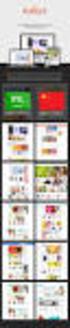 Magento Theme Instruction We are extremely happy to present Holiday Magento theme to you, it is designed and developed by highly qualified Designer & Developers in a way that make it usable for any type
Magento 1.3: PHP Developer's Guide
 Magento 1.3: PHP Developer's Guide Jamie Huskisson Chapter No. 3 "Magento's Architecture" In this package, you will find: A Biography of the author of the book A preview chapter from the book, Chapter
LICENTIA. Nuntius. Magento Email Marketing Extension REVISION: SEPTEMBER 21, 2015 (V1.8.1)
 LICENTIA Nuntius Magento Email Marketing Extension REVISION: SEPTEMBER 21, 2015 (V1.8.1) INDEX About the extension... 6 Compatability... 6 How to install... 6 After Instalattion... 6 Integrate in your
Xtreeme Search Engine Studio Help. 2007 Xtreeme
 Xtreeme Search Engine Studio Help 2007 Xtreeme I Search Engine Studio Help Table of Contents Part I Introduction 2 Part II Requirements 4 Part III Features 7 Part IV Quick Start Tutorials 9 1 Steps to
Website Planning Checklist
 Website Planning Checklist The following checklist will help clarify your needs and goals when creating a website you ll be surprised at how many decisions must be made before any production begins! Even
LICENTIA. Nuntius. Magento Email Marketing Extension REVISION: THURSDAY, JUNE 2, 2016 (V1.9.0.0)
 LICENTIA Nuntius Magento Email Marketing Extension REVISION: THURSDAY, JUNE 2, 2016 (V1.9.0.0) INDEX About the extension... 6 Compatability... 6 How to install... 6 After Instalattion... 6 Integrate in
Welcome to the Magento User's Guide Last modified by diglin on Fri, February 27, 2009 08:09 Source Old Revisions. Chapter 1: Introducing Magento
 Magento User Guide Welcome to the Magento User's Guide Last modified by diglin on Fri, February 27, 2009 08:09 Source Old Revisions Chapter 1: Introducing Magento Chapter 1: Introducing Magento What is
User Guide. From Getting Started... To Getting More From Your Store. Magento Community Revised, Expanded, and Updated for Magento Community v1.
 User Guide From Getting Started... To Getting More From Your Store Magento Community Revised, Expanded, and Updated for Magento Community v1.7 Important Notice Magento reserves the right to make corrections,
Madison Area Technical College. MATC Web Style Guide
 Madison Area Technical College MATC Web Style Guide July 27, 2005 Table of Contents Topic Page Introduction/Purpose 3 Overview 4 Requests for Adding Content to the Web Server 3 The MATC Public Web Template
Hitachi PaybyFinance Magento Plugin
 Hitachi PaybyFinance Magento Plugin Installation Instructions v1.0 H e a l t h y W e b s i t e s 2 0 1 5 0 1 4 1 2 4 9 0 6 4 1 a l i s t a i r @ h e a l t h y w e b s i t e s. c o. u k w w w. h e a l t
Magento User Guide. The Magento User Guide is here to help you through the process of setting up your store. The User Guide begins with an
 Magento User Guide The Magento User Guide is here to help you through the process of setting up your store. The User Guide begins with an introduction to installing and configuring the basic settings for
Using an external style sheet with Dreamweaver (CS6)
 Using an external style sheet with Dreamweaver (CS6) nigelbuckner.com 2012 This handout explains how to create an external style sheet, the purpose of selector types and how to create styles. It does not
Magento 1.3 Theme Design
 Magento 1.3 Theme Design Richard Carter Chapter No. 5 "Non-default Magento Themes" In this package, you will find: A Biography of the author of the book A preview chapter from the book, Chapter NO.5 "Non-default
Web Design Basics. Cindy Royal, Ph.D. Associate Professor Texas State University
 Web Design Basics Cindy Royal, Ph.D. Associate Professor Texas State University HTML and CSS HTML stands for Hypertext Markup Language. It is the main language of the Web. While there are other languages
CARSTORE RESPONSIVE MAGENTO THEME
 CARSTORE RESPONSIVE MAGENTO THEME This document is organized as follows: Chater I. General about Magento Chapter II. Features and elements of the template Chapter III. Extensions Chapter IV. Troubleshooting
Magento Community Edition. User Guide. Version 1.8
 Magento Community Edition User Guide Version 1.8 Copyright 2013 Magento, Inc. All rights reserved. 12-15-13 version 1.8.1 ii Table of Contents Table of Contents ABOUT THIS GUIDE 1 SUPPORT AND CONTACT INFORMATION
Using Style Sheets for Consistency
 Cascading Style Sheets enable you to easily maintain a consistent look across all the pages of a web site. In addition, they extend the power of HTML. For example, style sheets permit specifying point
Magento Enterprise Edition. User Guide. Part V: Store Operations System Operations. Version 1.14.2
 Magento Enterprise Edition User Guide Part V: Store Operations System Operations Version 1.14.2 Contents Store Operations 1 Chapter 1: Currency Rates 3 Currency Setup 4 Currency Symbols 8 Updating Currency
SEO Suite Pro. User Guide
 User Guide Important Notice reserves the right to make corrections, modifications, enhancements, improvements, and other changes to its products and services at any time and to discontinue any product
CREATE A CUSTOM THEME WEBSPHERE PORTAL 8.0.0.1
 CREATE A CUSTOM THEME WEBSPHERE PORTAL 8.0.0.1 WITHOUT TEMPLATE LOCALIZATION, WITHOUT WEBDAV AND IN ONE WAR FILE Simona Bracco Table of Contents Introduction...3 Extract theme dynamic and static resources...3
J2T Points & Rewards Magento Extension
 J2T Points & Rewards Magento Extension Documentation for v. 1.7.x Summary How to install...2 How to configure... 3 Description of configuration fields... 3 Default configuration... 3 Custom point values...
Shop by Manufacturer Custom Module for Magento
 Shop by Manufacturer Custom Module for Magento TABLE OF CONTENTS Table of Contents Table Of Contents... 2 1. INTRODUCTION... 3 2. Overview...3 3. Requirements... 3 4. Features... 4 4.1 Features accessible
ultimo theme Update Guide Copyright 2012-2014 Infortis All rights reserved
 ultimo theme Update Guide Copyright 2012-2014 Infortis All rights reserved 1 1. Important changes Here you can find description of the most important changes in selected versions. List of all changes in
PaybyFinance Magento Plugin
 PaybyFinance Magento Plugin Installation Instructions and User Guide Hitachi Capital Contact Name Contact Number E-Mail Address [email protected] PaybyFinance Team
Magento Theme Instruction
 Magento Theme Instruction We are extremely happy to present Metros Magento theme to you, it is designed and developed by highly qualified Designer & Developers in a way that make it usable for any type
SmallBiz Dynamic Theme User Guide
 SmallBiz Dynamic Theme User Guide Table of Contents Introduction... 3 Create Your Website in Just 5 Minutes... 3 Before Your Installation Begins... 4 Installing the Small Biz Theme... 4 Customizing the
Using your Drupal Website Book 1 - Drupal Basics
 Book 1 - Drupal Basics By Karl Binder, The Adhere Creative Ltd. 2010. This handbook was written by Karl Binder from The Adhere Creative Ltd as a beginners user guide to using a Drupal built website. It
A send-a-friend application with ASP Smart Mailer
 A send-a-friend application with ASP Smart Mailer Every site likes more visitors. One of the ways that big sites do this is using a simple form that allows people to send their friends a quick email about
E-Commerce Installation and Configuration Guide
 E-Commerce Installation and Configuration Guide Rev: 2012-02-17 Sitecore E-Commerce Services 1.2 E-Commerce Installation and Configuration Guide A developer's guide to installing and configuring Sitecore
Content Management System
 Content Management System XT-CMS INSTALL GUIDE Requirements The cms runs on PHP so the host/server it is intended to be run on should ideally be linux based with PHP 4.3 or above. A fresh install requires
Web Development 1 A4 Project Description Web Architecture
 Web Development 1 Introduction to A4, Architecture, Core Technologies A4 Project Description 2 Web Architecture 3 Web Service Web Service Web Service Browser Javascript Database Javascript Other Stuff:
Dreamweaver and Fireworks MX Integration Brian Hogan
 Dreamweaver and Fireworks MX Integration Brian Hogan This tutorial will take you through the necessary steps to create a template-based web site using Macromedia Dreamweaver and Macromedia Fireworks. The
HTML TIPS FOR DESIGNING
 This is the first column. Look at me, I m the second column.
UH CMS Basics. Cascade CMS Basics Class. UH CMS Basics Updated: June,2011! Page 1
 UH CMS Basics Cascade CMS Basics Class UH CMS Basics Updated: June,2011! Page 1 Introduction I. What is a CMS?! A CMS or Content Management System is a web based piece of software used to create web content,
Site Store Pro. INSTALLATION GUIDE WPCartPro Wordpress Plugin Version
 Site Store Pro INSTALLATION GUIDE WPCartPro Wordpress Plugin Version WPCARTPRO INTRODUCTION 2 SYSTEM REQUIREMENTS 4 DOWNLOAD YOUR WPCARTPRO VERSION 5 EXTRACT THE FOLDERS FROM THE ZIP FILE TO A DIRECTORY
PDG Shopping Cart 4.0. Quick Start Guide
 PDG Shopping Cart 4.0 Quick Start Guide , Inc. 1751 Montreal Circle, Suite B Tucker, Georgia 30084-6802 Copyright 1998-2004 PDG Software, Inc.; All rights reserved. PDG Software, Inc. ("PDG Software")
ACE: Dreamweaver CC Exam Guide
 Adobe Training Services Exam Guide ACE: Dreamweaver CC Exam Guide Adobe Training Services provides this exam guide to help prepare partners, customers, and consultants who are actively seeking accreditation
MASTERTAG DEVELOPER GUIDE
 MASTERTAG DEVELOPER GUIDE TABLE OF CONTENTS 1 Introduction... 4 1.1 What is the zanox MasterTag?... 4 1.2 What is the zanox page type?... 4 2 Create a MasterTag application in the zanox Application Store...
One of the fundamental kinds of Web sites that SharePoint 2010 allows
 Chapter 1 Getting to Know Your Team Site In This Chapter Requesting a new team site and opening it in the browser Participating in a team site Changing your team site s home page One of the fundamental
JOOMLA 2.5 MANUAL WEBSITEDESIGN.CO.ZA
 JOOMLA 2.5 MANUAL WEBSITEDESIGN.CO.ZA All information presented in the document has been acquired from http://docs.joomla.org to assist you with your website 1 JOOMLA 2.5 MANUAL WEBSITEDESIGN.CO.ZA BACK
Bazaarvoice for Magento
 Bazaarvoice Bazaarvoice for Magento Extension Implementation Guide v6.1.2.3 Version 6.1.2.3 Bazaarvoice Inc. 8/5/2015 Introduction Bazaarvoice maintains a pre-built integration into the Magento platform.
SPHOL326: Designing a SharePoint 2013 Site. Hands-On Lab. Lab Manual
 2013 SPHOL326: Designing a SharePoint 2013 Site Hands-On Lab Lab Manual This document is provided as-is. Information and views expressed in this document, including URL and other Internet Web site references,
SEO Toolkit Magento Extension User Guide Official extension page: SEO Toolkit
 SEO Toolkit Magento Extension User Guide Official extension page: SEO Toolkit Page 1 Table of contents: 1. SEO Toolkit: General Settings..3 2. Product Reviews: Settings...4 3. Product Reviews: Examples......5
Learning Magento Theme Development
 Learning Magento Theme Development Richard Carter Chapter No. 1 "Introduction to Magento and Magento Themes" In this package, you will find: A Biography of the author of the book A preview chapter from
CMS Training. Prepared for the Nature Conservancy. March 2012
 CMS Training Prepared for the Nature Conservancy March 2012 Session Objectives... 3 Structure and General Functionality... 4 Section Objectives... 4 Six Advantages of using CMS... 4 Basic navigation...
PrintShop Mail Web. Release Notes
 PrintShop Mail Web Release Notes Copyright Information Copyright 1994-2010 Objectif Lune Inc. All Rights Reserved. No part of this publication may be reproduced, transmitted, transcribed, stored in a retrieval
Google Analytics Guide
 Google Analytics Guide 1 We re excited that you re implementing Google Analytics to help you make the most of your website and convert more visitors. This deck will go through how to create and configure
Kentico CMS 7.0 E-commerce Guide
 Kentico CMS 7.0 E-commerce Guide 2 Kentico CMS 7.0 E-commerce Guide Table of Contents Introduction 8... 8 About this guide... 8 E-commerce features Getting started 11... 11 Overview... 11 Installing the
CEFNS Web Hosting a Guide for CS212
 CEFNS Web Hosting a Guide for CS212 INTRODUCTION: TOOLS: In CS212, you will be learning the basics of web development. Therefore, you want to keep your tools to a minimum so that you understand how things
ProxiBlue Dynamic Category Products
 ProxiBlue Dynamic Category Products Thank you for purchasing our product. Support, and any queries, please log a support request via http://support.proxiblue.com.au If you are upgrading from a pre v3 version,
Introduction to Web Design Curriculum Sample
 Introduction to Web Design Curriculum Sample Thank you for evaluating our curriculum pack for your school! We have assembled what we believe to be the finest collection of materials anywhere to teach basic
Once you have gone through this document you will have a form that, when completed, will create an Account & Contact in Oracle.
 Using Clicktools with Oracle CRM On Demand Once you have gone through this document you will have a form that, when completed, will create an Account & Contact in Oracle. Whilst this example is relatively
User s Guide. Version 2.1
 Content Management System User s Guide Version 2.1 Page 1 of 51 OVERVIEW CMS organizes all content in a tree hierarchy similar to folder structure in your computer. The structure is typically predefined
Shop Manager Manual ConfigBox 3.0 for Magento
 Shop Manager Manual ConfigBox 3.0 for Magento Table of Contents 1 INTRODUCTION... 4 2 INSTALLATION... 5 2.1 How to check if ioncube Loader is installed... 5 2.1.1 What to do if ioncube Loader is not installed...
Universal Management Service 2015
 Universal Management Service 2015 UMS 2015 Help All rights reserved. No parts of this work may be reproduced in any form or by any means - graphic, electronic, or mechanical, including photocopying, recording,
Themes and Templates Manual FOR ADVANCED USERS
 Manual FOR ADVANCED USERS Table of Contents Introduction... 3 Key Information... 3 Portal Structure... 4 Portal Structure: Template... 5 Overview... 5 1) Editing a Portal Template... 6 2) Adding a Portal
JISIS and Web Technologies
 27 November 2012 Status: Draft Author: Jean-Claude Dauphin JISIS and Web Technologies I. Introduction This document does aspire to explain how J-ISIS is related to Web technologies and how to use J-ISIS
Startup Guide. Version 2.3.9
 Startup Guide Version 2.3.9 Installation and initial setup Your welcome email included a link to download the ORBTR plugin. Save the software to your hard drive and log into the admin panel of your WordPress
Magento 1.4 Theming Cookbook
 P U B L I S H I N G community experience distilled Magento 1.4 Theming Cookbook Jose Argudo Blanco Chapter No. 5 "Going Further Making Our Theme Shine" In this package, you will find: A Biography of the
Hypercosm. Studio. www.hypercosm.com
 Hypercosm Studio www.hypercosm.com Hypercosm Studio Guide 3 Revision: November 2005 Copyright 2005 Hypercosm LLC All rights reserved. Hypercosm, OMAR, Hypercosm 3D Player, and Hypercosm Studio are trademarks
SAHARA FASHION15 RESPONSIVE MAGENTO THEME
 SAHARA FASHION15 RESPONSIVE MAGENTO THEME This document is organized as follows: Chater I. Install ma_sahara_fashion15 template Chapter II. Features and elements of the template Chapter III. List of extensions
Official Amazon Checkout Extension for Magento Commerce. Documentation
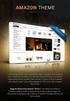 Official Amazon Checkout Extension for Magento Commerce Documentation 1. Introduction This extension provides official integration of your Magento store with Inline Checkout by Amazon service. Checkout
Advanced Web Development SCOPE OF WEB DEVELOPMENT INDUSTRY
 Advanced Web Development Duration: 6 Months SCOPE OF WEB DEVELOPMENT INDUSTRY Web development jobs have taken thе hot seat when it comes to career opportunities and positions as a Web developer, as every
Magento Quotation Module User and Installer Documentation Version 2.2
 Magento Quotation Module User and Installer Documentation Version 2.2 1. Overview... 2 2. Installation... 2 2.1 Installation générale... 2 2.1 Installation... 2 2.2 Magento Updates... 3 2.3 Other modules
4 The Product Catalog Module
 4 The Product Catalog Module The Product Catalog module is the workhorse of Dynamicweb ecommerce 8. Since it s the main module to manage and display products, the Product Catalog is present in every Dynamicweb
Responsive Banner Slider Extension By Capacity Web Solutions
 CONTENT Introduction 2 Features 2 Installation 3 Configuration Settings 4 Manage Responsive Banner Slider Extension 5 Manage Group Section 5 Manage Slides Section 9 Display Responsive Banner Slider 11
About XML in InDesign
 1 Adobe InDesign 2.0 Extensible Markup Language (XML) is a text file format that lets you reuse content text, table data, and graphics in a variety of applications and media. One advantage of using XML
CMS Training Manual. A brief overview of your website s content management system (CMS) with screenshots. CMS Manual
 Training A brief overview of your website s content management system () with screenshots. 1 Contents Logging In:...3 Dashboard:...4 Page List / Search Filter:...5 Common Icons:...6 Adding a New Page:...7
X-POS GUIDE. v3.4 INSTALLATION. 2015 SmartOSC and X-POS
 GUIDE INSTALLATION X-POS v3.4 2015 SmartOSC and X-POS 1. Prerequisites for Installing and Upgrading Server has Apache/PHP 5.2.x/MySQL installed. Magento Community version 1.7.x or above already installed