
TUTA Series GSM REMOTE CAMERA. User Manual. Manual version 2.4
|
|
|
- Emory Chambers
- 9 years ago
- Views:
Transcription
1 TUTA Series GSM REMOTE CAMERA User Manual Manual version 2.4

2 TUTA Series GSM Remote Camera Thank you for purchasing the TUTA camera. This camera is a remote controlled image-capturing device consisting of a microphone, infrared lights and a high quality 300,000-pixel camera lens. The TUTA camera can capture images according to a preprogrammed remote command and then send it to your multimedia messaging (MMS) enabled mobile phone with color display, or to an address. You can control and change the camera settings via SMS command. The MMS sent by the TUTA camera can be viewed by using your mobile phone. You also can opt to view a slide of consecutive photos taken by the GSM Remote camera. The built-in high-light infrared LED s allows the camera to capture clear images, even in dark environment. The TUTA camera is compatible with standard 433MHz wireless sensors such as PIR-, door magnet- and smoking sensors. As soon as the wireless sensor triggers the camera alarm, you or your families and/or your guards can thus receive the alarm message via SMS, MMS or standard calls, according to the pre-programmed. However, the camera can perform its duty well without any wireless sensor too. The TUTA has a motion detective function and an integrated infrared body detector. It will therefore detect any unauthorized entry into your house and notify you via SMS, MMS, standard calls or . All services and functions need to be supported by the GSM network and a SIM card. This brochure suits for TUTA-B2 model. Details of the functioning and advanced operation of this camera are described in this instruction manual. 2

3 CONTENTS For your safety...6 Exception clause...6 Chapter 1 Features and accessories Main function Package contents Products features...8 TUTA-B2 mounting bracket Remote control Instruction Light indicator...10 Chapter 2 Installation Install the SIM card Install the host mounting bracket Connecting to power adapter Mount the TUTA camera Power on/ off...12 Chapter 3 Define the user User authorization level Define Master user to start the camera Add a master number to the camera Change the master number Change password Define family user Add a family number Check family user s number Delete family number Define Guest user Define emergency number Add emergency number Delete emergency number Check emergency number...18 Chapter 4 Basic use and settings Network parameter settings Capture images Capture one image and send to the user mobile Capture images and send to the user s mobile Capture images and send to user s address Capture images and send to an appointed mobile or address settings Add/ modify an address Delete all address(es)
4 4.4 Timing send images to mobile Enable timing sends MMS images Set time period to send MMS images Disable timing send MMS image Remote control Add remote control(s) to the camera Remote control instruction Arming or disarming SMS notification Remove remote control from the camera Emergency Alarms Listen in live voice Call the camera to listen in Listening in upon emergency alarm Listening in upon automatically alarm Infrared body detector Motion detection Activate/Deactivate motion detection Send five Images upon motion detection alarm Wireless sensor(s) Add a wireless sensor and set corresponding alarm mode Remove wireless sensor Arming or disarming TUTA camera manually Arming TUTA camera manually Default arming mode Disarming TUTA camera manually Timed arming the camera Enable timing arms the camera Set time period to arm the camera Disable timing arm the camera Auto-disarming the camera Activate auto-disarming the camera Disable the function of auto-disarming TUTA camera (default) Camera language setting Check status Getting help Resetting the camera...38 Chapter 5 Advanced settings Image settings Image size Image quantity Image interval Automatic alarm settings Warning tone upon alarm triggering No warning tone upon alarm (Default) No SMS notification upon alarm
5 5.2.4 SMS notification upon alarm (Default) No MMS notification upon alarm MMS notification upon alarm (Default) No call notification upon alarm (Default) Call notification upon alarm No MMS notification to pre-set address (Default) MMS notification to pre-set address Turn on/off LED indicator on the camera SMS notification upon the power supply changing...43 Chapter 6 Maintenance...43 Chapter 7 General Troubleshooting...45 Chapter 8 Main technical parameters...45 Appendix: SMS commands list
6 1. Purchase a GSM SIM card (mobile phone card) from GSM network service and install it in the camera. This SIM card number is referred as TUTA camera number on this brochure. 2. The user needs to activate the MMS function and Caller ID Presentation function of SIM card, and deactivate PIN code of the SIM. Contact with GSM network service for support. 3. Change the original password at the beginning use. Be sure to keep the password and SIM card number secret. Do not disclose this information to anyone other than the authorized users in order to ensure your safety. For your safety λ λ λ λ λ This product is a wireless signal transmission device. Keep it away from electronic equipment likely to interfere with the wireless signals, in order to avoid signals interference. Switch off your TUTA and mobile phone when entering areas marked "Explosive", "Might explode", "Closed wireless transceiver devices" etc. Do not cast this product in a fire, as this may cause the battery to explode. This product should only be operated from power approved by the product manufacturer. The use of any other types of power may damage the product. Keep the product and its accessories out of the children reach. Exception clause 1. We operate on a policy of continuous development. We reserve the right to make changes and improvements to any of the products described in this document without prior notice. 2. For the latest product information, please visit: We don t guarantee for the document veracity, reliability or any content except regulate in proper laws. Including no guarantee for product suitable market or suitable area promise. 3. Use only this product according to the law. Respect one another s privacy. Neither monitor another s home nor private. We hold no responsibility for the 6

7 illegal use of this product. 4. We hold no responsibility for any loss of data or income; or any special, incidental, consequential or indirect damages howsoever caused. 5. The contents of this document are provided as is. Except as required by applicable law, no warranties of any kind, either expressed or implied, including, but not limited to the accuracy, reliability or contents of this document. We reserve the right to revise this document or withdraw it at any time without prior notice. Chapter 1 Features and accessories 1.1 Main function λ This product uses a GSM SIM card. It can send multimedia messaging (MMS) images to MMS enabled mobile phones with color display or to an E- mail address. λ Remote control: Control and configure the camera with short messages (SMS) commands from a mobile phone. λ Real time audio: call the camera number (SIM card) to listen in live voice. λ Motion detection: Detect and notify authorized users of any motion in the monitoring area(s). λ Integrated infrared body detector. λ Sensor detection: Allowed to load up to 15 sensors such as door magnet sensors, infrared body sensors, smoke sensors, gas sensors etc. Any activated sensor will notify the authorized users via SMS. λ Infrared light: The built-in high-light infrared LED s allows the camera to capture clear images, even in dark environments or areas with insufficient lighting. λ High quality camera: 300,000 pixel CMOS camera in order to obtain a clear image via MMS. λ Send images to mobile: The camera will send MMS images to your mobile. Therefore you can check on the monitored areas at any time and anywhere GSM/GPRS network coverage and MMS service coverage. λ Send images to The camera can send images to preset available E- mail address. λ Multi-mode alarm: The camera can send alarm messages via SMS, MMS, E- mail or standard phone call. 7

8 λ λ λ λ λ Fixed time monitor: The monitoring schedule can be set with multiple time intervals. Easy installation: Wireless connection. The camera can be installed at any place required by the authorized user. Accessories: Includes 2 remote controls each consisting of a panic button as well as buttons to arm or disarm the camera. Built-in lithium battery: Rechargeable battery ensures operation of TUTA camera amid external power failures. Downloadable user manual: This manual can be downloaded at any time via SMS command. 1.2 Package contents 1. Remote camera 1 unit 2. Power adapter(5.5v/2a) 1 unit 3. Remote control 2 units 4. User manual 1 unit 5. Mounting bracket 1 set 1.3 Products features Figure 1: TUTA camera instructions 1. Power switch 8. Set key 2. Infrared body detector 9. Mini USB(rubber cover) 3. Indicator 10. Hanging hole 1 8

9 4.Camera 11. Power Interface 5. Infrared lights(12 pcs) 12. Back board (SIM card slot inside) 6. Mirror and Microphone 13. Hanging hole 2 7. Reset key Tip: Keep the camera lens clean to insure best imaging quality. TUTA-B2 mounting bracket 1.4 Remote control Instruction Figure 2: Remote control Instruction 1. Disarm the camera button 3. Arm the camera button 9

10 2. Remote control indicator 4. Emergency button Battery: There is battery holder on the rear of the remote control. It needs one 3.0Voltage CR2032 battery. When this battery is running out of power, TUTA camera will emit Beep, beep warning tone and then send a SMS notification message to Master user. 1.5 Light indicator Color Action Status Red Flash slowly Searching the network. Flash quickly Constant Light Sensor alarm, motion detection alarm, infrared body detector alarm. Not installed SIM card, or the remote camera damaged. Green Constant Light Armed status. Flash slowly Disarmed status. Flash quickly Processing data. Light 2 seconds Successfully reset factory setting, or loading sensor. Orange Flash Loading remote control status. Red and Two color lights Loading sensor Green alternately Note: Slow flash 1 time per second, quick flash 2 times per second. 10

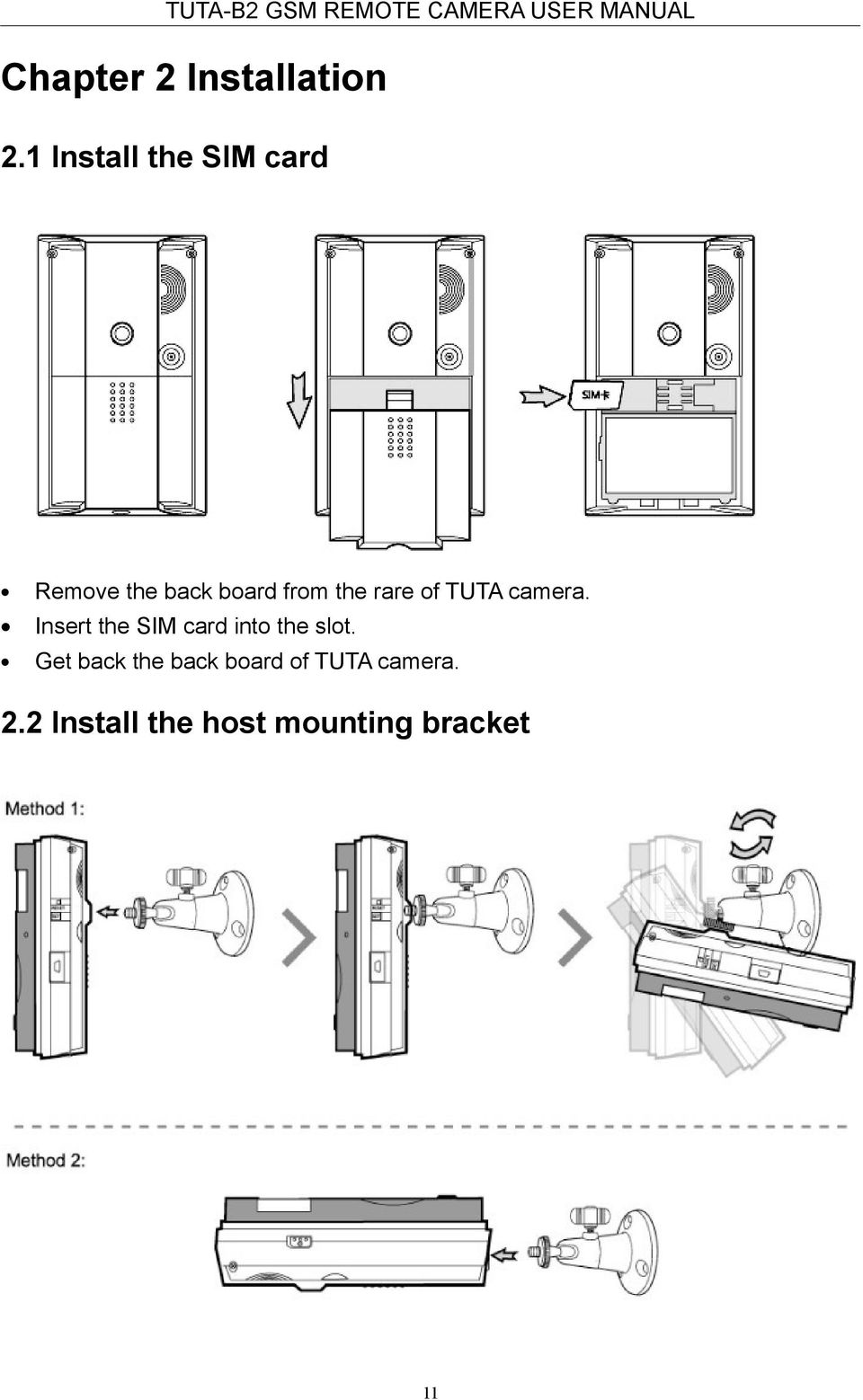
11 Chapter 2 Installation 2.1 Install the SIM card Remove the back board from the rare of TUTA camera. Insert the SIM card into the slot. Get back the back board of TUTA camera. 2.2 Install the host mounting bracket 11
12 2.3 Connecting to power adapter Connect the adapter to an AC power, and connect the plug to the power interface of the TUTA camera.(see Figure 1 TUTA camera Instruction) This camera has a built-in rechargeable Lithium battery. The camera will notify the user when the power changes. For example, if the power adapter is disconnected or failure of the AC power occurs, TUTA camera will notify the user External power cut. The device is operating on battery. If TUTA camera is again connected to the external power, or the AC power is available again, the notification will be sent to the user, i.e. The device is now resuming the use of external power source. Low battery: The configure setting can not be saved when TUTA camera is operating on low battery. 2.4 Mount the TUTA camera TUTA camera can be mounted on a wall (vertically with the screws) or put down on any suitable horizontal surface. How to choose the Installing place: λ In order to capture better image quality, avoid any areas where bright light will be irradiated directly into the lens of the camera on the camera. λ In order to avoid backlighting photography, it is suggested that the camera is located at the place where can look down the monitoring place with the minimum angel 30. λ The GSM network s signal strength may affect the image, live voice quality and MMS transmission speed. Therefore, upon installation, the user should ensure that TUTA camera is located in an area with a strong network signal. λ After installation, the user should perform a test-run by taking several images and sending it to the user s mobile phone. This allows the user to check the image quality of the camera. The position of TUTA camera can then be adjusted until a satisfactory image quality level is reached. 2.5 Power on/ off Power on: Operation Indicator light Status Turn the power Red light is on for 3-5 seconds. 12

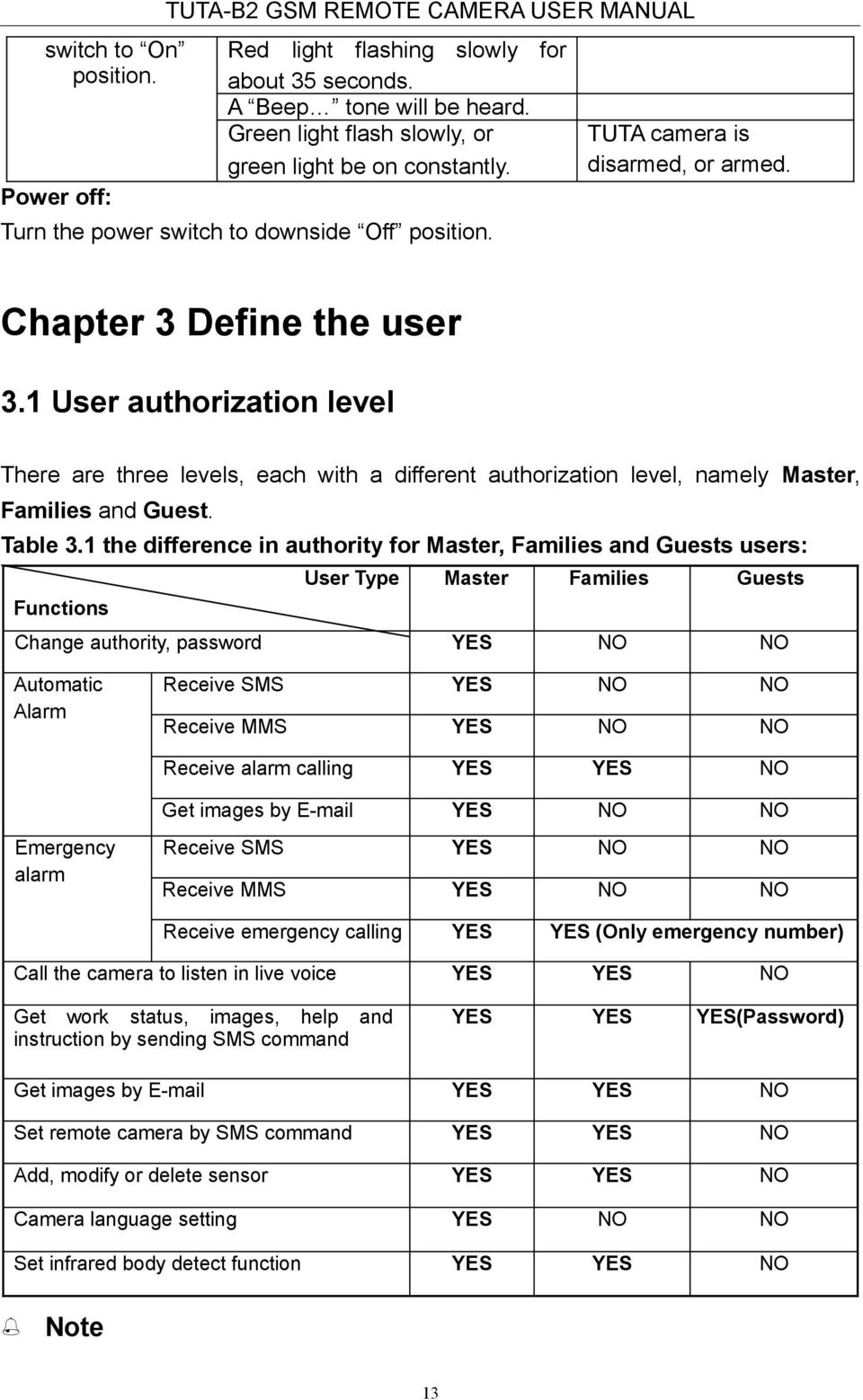
13 switch to On position. Power off: TUTA-B2 GSM REMOTE CAMERA USER MANUAL Red light flashing slowly for about 35 seconds. A Beep tone will be heard. Green light flash slowly, or green light be on constantly. Turn the power switch to downside Off position. TUTA camera is disarmed, or armed. Chapter 3 Define the user 3.1 User authorization level There are three levels, each with a different authorization level, namely Master, Families and Guest. Table 3.1 the difference in authority for Master, Families and Guests users: User Type Master Families Guests Functions Change authority, password YES NO NO Automatic Alarm Receive SMS YES NO NO Receive MMS YES NO NO Receive alarm calling YES YES NO Get images by YES NO NO Emergency alarm Receive SMS YES NO NO Receive MMS YES NO NO Receive emergency calling YES YES (Only emergency number) Call the camera to listen in live voice YES YES NO Get work status, images, help and instruction by sending SMS command YES YES YES(Password) Get images by YES YES NO Set remote camera by SMS command YES YES NO Add, modify or delete sensor YES YES NO Camera language setting YES NO NO Set infrared body detect function YES YES NO Note 13
14 Any MMS enabled mobile phone can receive the images captured by TUTA camera by sending SMS command with password. Any SMS enabled mobile phone can control TUTA camera with the password command. All the settings of TUTA camera can be set or adjusted via a SMS command. About the SMS Command: 1) Master and families users SMS command format: #code#content#. 2) Guest users SMS command format: #code#password#content#. 3) The password must be a four-digit number. 4) The original password is ) The maximum digits that are allows for the phone number is sixteen. 6) TUTA camera will reply to the user after it receives the SMS command. Note The # symbol must not be ignored when typing an SMS command. No allow any space within the commands. 3.2 Define Master user to start the camera In order to enable all the functions on the camera, the Master user must store his/ her mobile number in the camera s memory. Only one Master s mobile number (Master number) is allowed for a camera Add a master number to the camera Authority: Master user. Description If TUTA camera is being used for the first time, or TUTA camera has been reset, the master user s number must be programmed into the camera, in order to ensure activation. The following methods can be used: The user must edit and send the following SMS to camera via his/her mobile phone (the phone number will be the Master number) in order to: Add a master number to the camera: #00# (1) 14

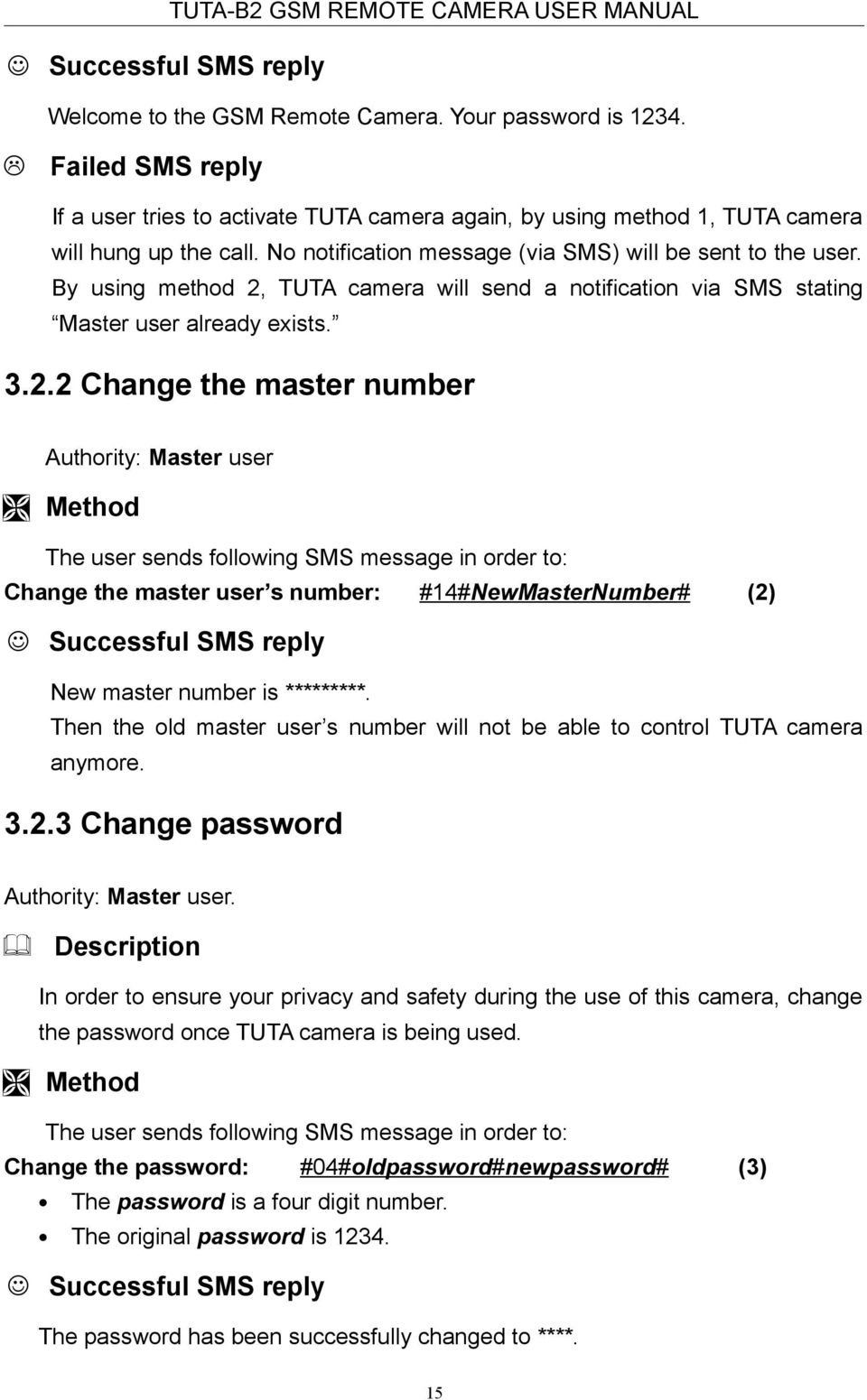
15 Welcome to the GSM Remote Camera. Your password is Failed SMS reply If a user tries to activate TUTA camera again, by using method 1, TUTA camera will hung up the call. No notification message (via SMS) will be sent to the user. By using method 2, TUTA camera will send a notification via SMS stating Master user already exists Change the master number Authority: Master user Change the master user s number: #14#NewMasterNumber# (2) New master number is *********. Then the old master user s number will not be able to control TUTA camera anymore Change password Authority: Master user. Description In order to ensure your privacy and safety during the use of this camera, change the password once TUTA camera is being used. Change the password: #04#oldpassword#newpassword# (3) The password is a four digit number. The original password is The password has been successfully changed to ****. 15
16 Failed SMS reply If a user, other than the master user, attempts to change the password, a notification message will be sent via SMS: Sorry, you are not authorized to use this command. 3.3 Define family user users have the authority to listen in on the camera, receive images, load the sensors and remote controls to the camera, and receive notification when motion detection activated. The family user s mobile numbers are set by the Master user. The family users should remember and safeguard the camera s SIM number Add a family number Authority: Master user. Add a family number: #06#Number# (4) Add several family numbers: #06#Number#...#Number# (5) Up to 10 family users number can be stored on one camera. The family number has been added successfully Check family user s number Refer to Chapter 4.15 Check status Delete family number Authority: Master user. Delete a family number: #113#Number# (6) Delete several family numbers simultaneously: (7) #113#Number# #Number# 16
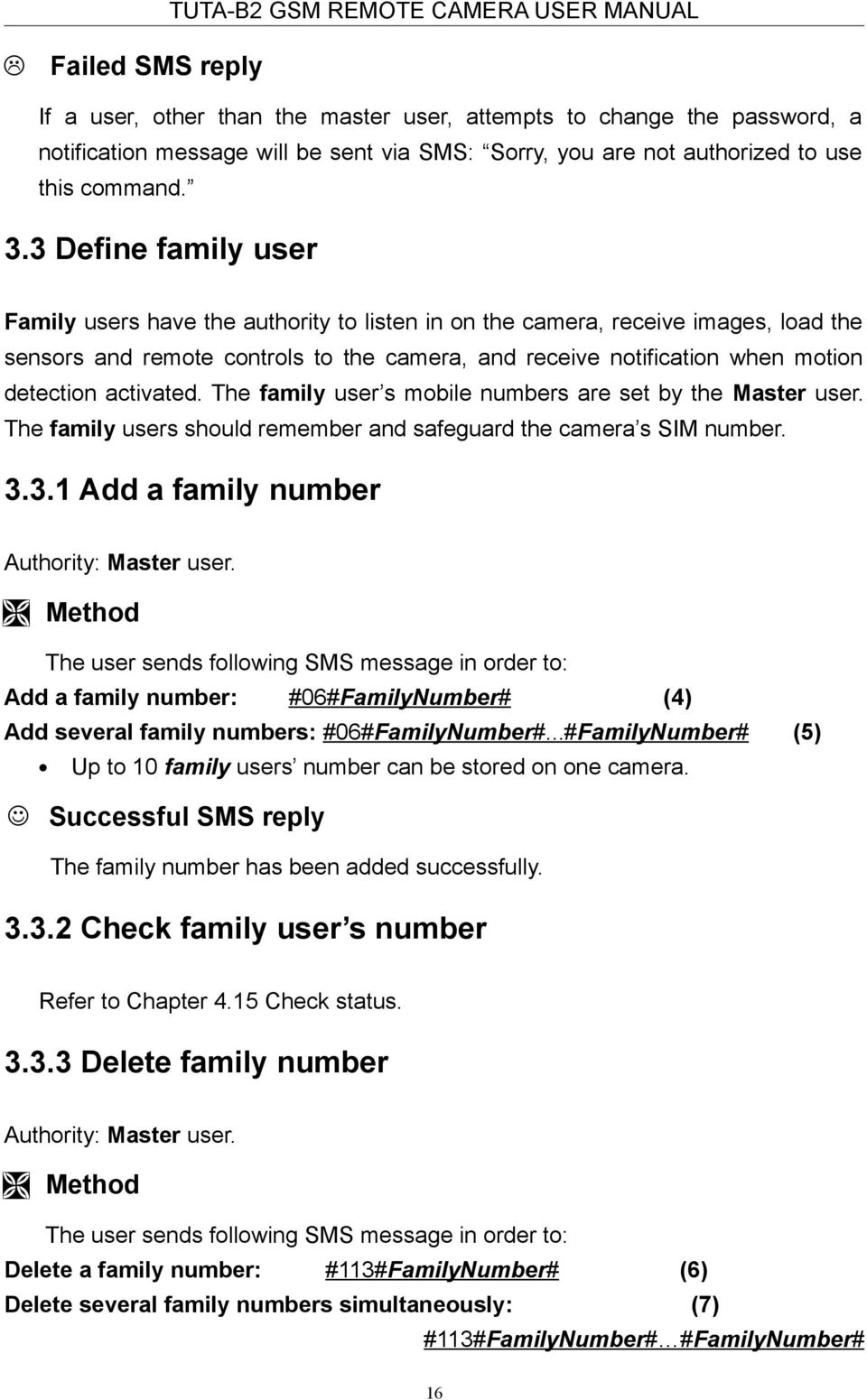
17 Delete all family numbers: #113# (8) number deleted successfully. Failed SMS reply Failed to delete family number. 3.4 Define Guest user Any selected person can operate in the Guest category if they know the password and the SIM number. The Guest user(s) can then use their mobile phones to send a SMS command including password to TUTA camera in order to obtain an MMS image. 3.5 Define emergency number The Emergency Number is the phone numbers which TUTA camera will dial when the emergency button of the remote control is pressed. Emergency numbers could be the telephone numbers of guards, family numbers, police etc Add emergency number Authority: Master user. Description The master user s number default to be emergency number. When the Emergency button is pressed, TUTA camera will automatically dial the Master user s number, followed by the other pre-set emergency numbers (the default mode is dial phone mode). Each camera can have up to 9 emergency numbers. (Not including the Master user s number). Add single emergency number on the camera: (9) #106#EmergencyNumber# Add several emergency numbers on the camera: (10) #106#EmergencyNumber# #EmergencyNumber# 17

18 The EmergencyNumber is the phone numbers. Up to 9 emergency numbers can be stored on one camera. Added emergency number successfully. Failed SMS reply If 9 emergency numbers (the maximum amount per camera) are used on TUTA camera and the master user attempts to add another one, the following notification message will be sent via SMS: The Emergency numbers are full. Please delete old numbers. If an existing number is being added again, the following notification message will be sent via SMS: Emergency number already exist Delete emergency number Authority: Master user. Delete an emergency number: (11) #107#EmergencyNumber# Delete several emergency numbers: (12) #107#EmergencyNumber# #EmergencyNumber# Delete all emergency numbers: #107# (13) Emergency number successfully deleted Check emergency number Refer to Chapter 4.15 Check status. Chapter 4 Basic use and settings 4.1 Network parameter settings Authority: Master user. 18

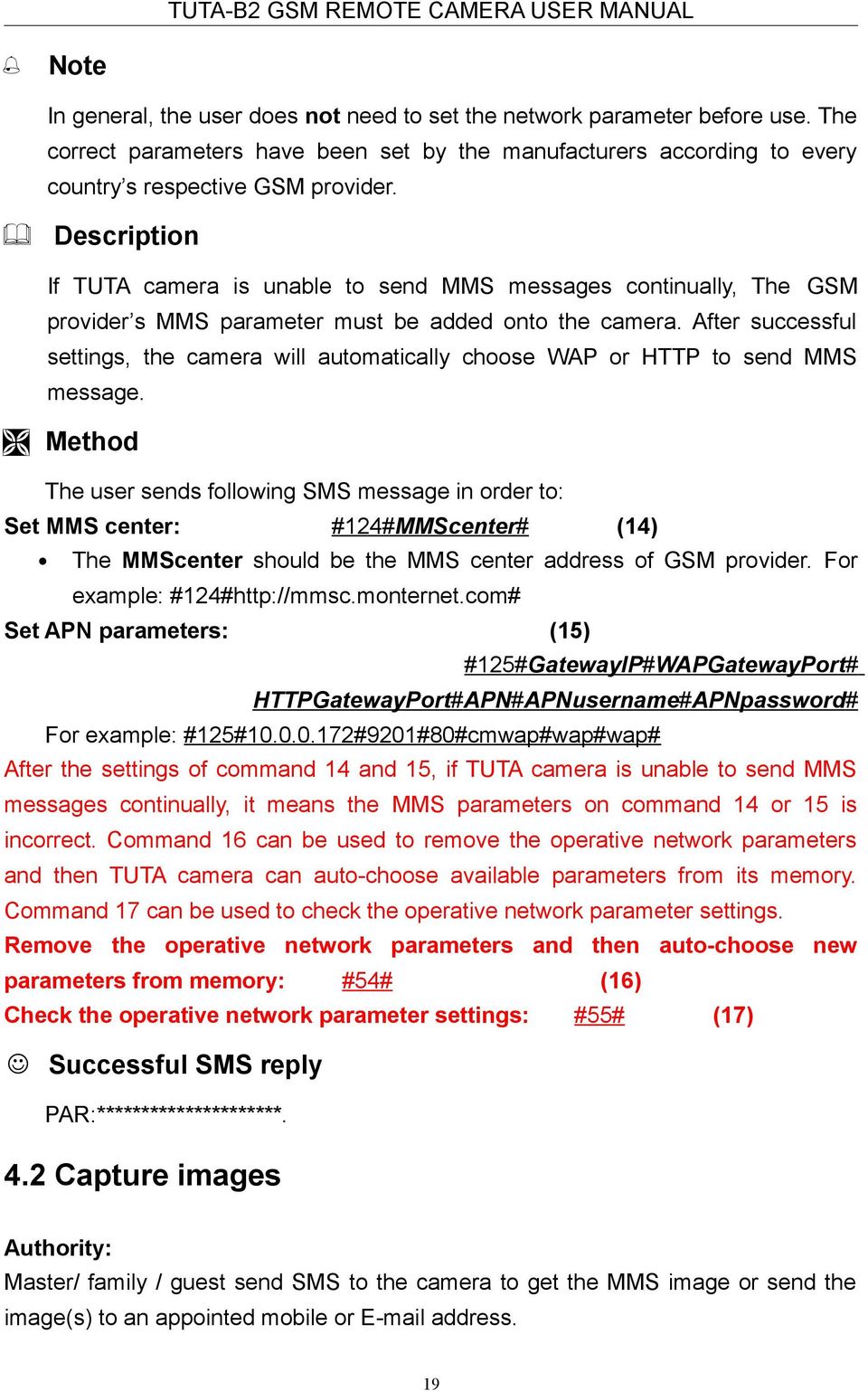
19 Note In general, the user does not need to set the network parameter before use. The correct parameters have been set by the manufacturers according to every country s respective GSM provider. Description If TUTA camera is unable to send MMS messages continually, The GSM provider s MMS parameter must be added onto the camera. After successful settings, the camera will automatically choose WAP or HTTP to send MMS message. Set MMS center: #124#MMScenter# (14) The MMScenter should be the MMS center address of GSM provider. For example: #124# Set APN parameters: (15) #125#GatewayIP#WAPGatewayPort# HTTPGatewayPort#APN#APNusername#APNpassword# For example: #125# #9201#80#cmwap#wap#wap# After the settings of command 14 and 15, if TUTA camera is unable to send MMS messages continually, it means the MMS parameters on command 14 or 15 is incorrect. Command 16 can be used to remove the operative network parameters and then TUTA camera can auto-choose available parameters from its memory. Command 17 can be used to check the operative network parameter settings. Remove the operative network parameters and then auto-choose new parameters from memory: #54# (16) Check the operative network parameter settings: #55# (17) PAR:*********************. 4.2 Capture images Authority: Master/ family / guest send SMS to the camera to get the MMS image or send the image(s) to an appointed mobile or address. 19
20 Master/ family member call the camera to get the images. Master/ family send SMS command to the camera to send MMS image to an address (Need to pre-set address) Capture one image and send to the user mobile Authority: Master, family and guest users. Method 1: Master or family user calls the camera and hand up upon hearing the ringing tone (within 5 seconds). TUTA camera will reply SMS notification: Image capturing request received. The camera is busy sending the MMS messages. The user will then receive the MMS message momentarily. The guest users are unable to capture an image by using method 1. If the guest users call the camera, it will neither send a notification message nor an MMS message. Method 2: Capture one image and send to the user mobile: For master and family users: #03# (18) For guest users: #03#password# (19) Capture images and send to the user s mobile Authority: Master, family and guest users. Capture images and send to the user mobile: For master and family users: #03#ImageQuantity# (20) For guest users: #03#Password#ImageQuantity# (21) Image quantity should be in the range of 1-8 when the image size is set at or (See image size.) The default image size is (QVGA). Image quantity should be in the range of 1-2 when the image size is set at

21 Your request received, TUTA is sending the MMS image. The user will then receive the MMS message momentarily. The file format of the sent MMS images is: Model-Time.jpg. For example, a file with name of TUTA jpg means the image is captured with a TUTA camera at 9:48:43AM. If a sent MMS file has several sequential pictures, the size of the pictures is pre-set by user (See image size.). The interval between the pictures is default 0.5s and can be pre-set by user (See image Interval) Capture images and send to user s address Authority: Master and family users. Description If the master or family user wishes to send the images to his/her address, the address must be set at first. See chapter 4.3 settings for more information regarding this function. Capture image(s) and send to pre-set (22) #03#ImageQuantity#1# Image quantity should be in the range of 1-8 when the image size is set at or Image quantity should be in the range of 1-2 when the image size is set at Your request received, TUTA is sending the MMS image Capture images and send to an appointed mobile or address Authority: Master, family and guest users. 21
22 The user sends the following SMS message in order to: Capture image(s) and send to appointed mobile or address: For Master and family user: #30#NumberOr #ImageQuantity# (23) For Guest user: #30#Password#NumberOr #ImageQuantity# (24) NumberOr should be the mobile phone number or address which the user appointed to send image. Image quantity should be in the range of 1-8 when the image size is set at or (The default image size). See image size. Image quantity should be in the range of 1-2 when the image size is set at Sending to **** with * pictures. The file format of the sent MMS images is: Model-Time.jpg. For example, a file with name of TUTA jpg means the image is captured with a TUTA camera at 9:48:43AM. If a sent MMS file has several sequential pictures, the size of the pictures is pre-set by user (See image size). The interval between the pictures is default 0.5s and can be pre-set by user (See image intervals) settings Note This function should be supported by the local network provider. Please contact your local network provider for the details concerning this function Add/ modify an address Authority: Master and family users. Description Each user number can be set only one address. If more than one E- mail address is set onto one user number, TUTA camera will only recognize the address put in the last. If the user wishes capturing an image and sending to his/her address, see capture images and send to user s address. 22
23 If the user wishes TUTA camera sending the alarm image to his/her address, see MMS notification to pre-set address. Add/modify an address: #108# Address# (25) address: ***** Delete all address(es) Authority: Master user. Delete all address: #109# (26) addresses deleted successfully. 4.4 Timing send images to mobile Authority: Master user Enable timing sends MMS images Enable timing sends MMS images: #115#1# (27) Set timing to send MMS activated Set time period to send MMS images 23
24 Set time period to auto-send MMS image: (28) #116#WorkDay#StartTime1#EndTime1#IntervelTime1#...#StartTime3#EndTi me3#interveltime3# Max allow 3 periods per workday. Each period time should set by start time, end time and interval. WorkDay: one digit, the values lie in the range of 0 to 8. The following table contains the descriptions of each value: Value Corresponding day 0 Everyday 1 Monday 2 Tuesday 3 Wednesday 4 Thursday 5 Friday 6 Saturday 7 Sunday 8 Monday to Friday StartTime and EndTime: Be consists of 4 digits (hh:mm) and works on a 24 hour clock. For example: 0000 means time 00:00(hh:mm), 2359 means time 23:59(hh:mm). The StartTime and EndTime should be in the same day, and the EndTime must be later than StartTime. IntervalTime: This consists of 2 or 3 digits and has values in the range of 10 to 480 minutes. Set timing to send MMS parameter is:****** Disable timing send MMS image Disable timing send MMS image: #115#0# (29) Set timing to send MMS de-activated. 24
25 4.5 Remote control TUTA-B2 GSM REMOTE CAMERA USER MANUAL Add remote control(s) to the camera Description When a remote control is added to a camera, it can control the camera. A camera can be added up to 5 remote controls. Indicator Operations Status Green, flashing or constantly light. 1. Press and hold the Set key for 2 seconds Indicator light turns to orange (Learning mode) Orange, flashing 2. Press any button on the remote control (with battery inside) to send a signal to TUTA will emit a Beep tone and indicator will turn green for 2S. (Added successfully.) TUTA. Orange, flashing 3. Repeat step2 to load Orange, flashing Note another new remote control. 4. Press the Set key to exit the learning mode or waiting for 15 seconds to auto-exit. Indicator light turns green, flashing or constantly light. (Exit learning mode) During the process of learning new remote control, if the battery of remote control runs out, TUTA camera will emit three Beep tones and exit learning mode. You need to replace the battery and try learning process again Remote control instruction There are three buttons on the remote control: A. Arm TUTA camera When is pressed, the indicator light on TUTA camera will turn green. This indicates that TUTA camera is in armed mode. Any motion detected by TUTA camera as well as any activation of added wireless detector will trigger the camera alarm and a SMS/MMS or phone calling notification will be sent to the preset numbers. B. Disarm TUTA camera 25
26 When is pressed, the indicator light on TUTA camera will slowly flash green. This indicates that TUTA camera is in disarmed mode. TUTA camera will not detect any motion or receive sensor alarm signal. C. Emergency button When is pressed, the indicator light on TUTA camera will rapidly flash green. Then TUTA camera will dial the master user s number. Live audio stream can be heard upon answering the emergency call. If the master user does not answer the call, TUTA camera will then dial the other emergency numbers as preset order, until someone answers the call. The master user s number as well as the emergency numbers will be called a maximum three times. If it is still no one answers the call, TUTA camera will then exit dialing mode automatically. When is pressed, TUTA camera could send a notification via SMS and MMS instead of making phone calls. This all depends on the setting. Refer to 4.6 Emergency alarms Arming or disarming SMS notification Authority: Master and family users. The user sends following SMS message in order to set: No SMS notification message upon arming or disarming TUTA camera via remote control: #137#0# (30) Send SMS notification message upon arming or disarming TUTA camera via remote control: #137#1# (31) Remove remote control from the camera Authority: Master and family users. Remove all remote controls from the camera: #111# (32) 26
27 All remote control deleted successfully. 4.6 Emergency Alarms Authority: Master and family users. Description When the emergency button (panic button) on the remote camera is pressed, TUTA camera will go into emergency mode to alarm. There are two modes of the emergency alarm could be set on the camera: Emergency Mode1 (Default): To dial the master user s number as well as the preset emergency numbers. When the emergency button is pressed on the remote control, TUTA camera will dial the master user s number as well as the pre-set emergency numbers. TUTA camera will repeat this process 3 times, until someone answers. If, after 3 attempts, there is no answer, TUTA camera will automatically stop dialing and revert to its preset mode. In the case of someone answers, he/she will be able to listen in the live audio. Emergency Mode2: To send a notification via SMS and MMS to the master user as well as the pre-set emergency numbers. When the emergency button is pressed on the remote control, TUTA camera will send the notification via SMS and MMS to the master user as well as the pre-set emergency numbers. The user sends following SMS message in order to set: Emergency Mode1 (To dial the master user s number as well as the pre-set emergency numbers): #39#0# (33) Emergency Mode2 (To send a notification via SMS and MMS to the master user as well as the pre-set emergency numbers): #39#1# (34) Alarm by dialing emergency number has been set successfully. Alarm by sending SMS and MMS has been set successfully. 4.7 Listen in live voice Call the camera to listen in Authority: Master and family users. 27
28 The user calls TUTA camera after which it will answer automatically. The user can then listen in the live audio in the monitoring area. Only one line can be connected to TUTA camera at a time Listening in upon emergency alarm Description When TUTA camera is in arm or disarm status, it will automatically dial the Master user s phone number if the emergency button is pressed. The Master user can listen in by answering the call. If the Master user does not answer the call, TUTA camera will automatically dial the other emergency numbers sequentially. This notification process will repeat three times and if still unanswered, TUTA camera will automatically exit the dialing mode Listening in upon automatically alarm Description When TUTA camera is in armed status and if the user preset the auto-alarm way as calling the user (Refer to chapter Call notification upon alarm for the details of preset alarm) a call will automatically go through to the Master user s preset numbers when the camera alarms. The user can listen in the monitoring area by answering the call. If the Master user does not answer the call, TUTA camera will dial the other pre-set number until the call is answered. This notification process will be repeated three times and if still unanswered, TUTA camera will automatically exit the dialing mode. 4.8 Infrared body detector Authority: Master and family users. Description When TUTA camera is working under arming mode, if someone approaches to the detecting area, the built-in infrared body detector will trigger the camera 28
29 alarm. Activate infrared body detector (default): #118#1# (35) Deactivate infrared body detector: #118#0# (36) Infrared body detector activated. Infrared body detector deactivated. When the infrared body detection alarms, the notification pictures will be sent on one message via MMS. The default quality of individual picture is 5 and the size is pixels. In order to change the setting, see chapter Image size and chapter Image quantity when alarm. Note When the camera is operating on low battery, the infrared body detector will be deactivated and the configure setting can not be saved. 4.9 Motion detection Description The motion detection feature is based on image frame compare technology. The firmware will compare front and after images which capture from camera and therefore detect motion. The motion detection feature only functions when TUTA camera is armed. i.e., arming TUTA camera enables the motion. The motion detection feature is also functional when TUTA camera is in its default setting. When the motion detection alarms, the notification pictures will be sent on one message via MMS. The default quality of individual picture is 5 and the size is pixels. In order to change the setting, see chapter Image size and chapter Image quantity when alarm. Note If TUTA camera faces an object that moves constantly, such as a tree shaking in the wind, it will send alarm message constantly. Recommend to use the camera in a still place. 29
30 Low battery: The motion detection function will be deactivated and the configure setting can not be saved when TUTA camera is operating in low battery Activate/Deactivate motion detection Authority: Master and family users. Deactivate motion detection(default setting): #22#0# (37) Activate motion detection: #22#1# (38) Motion detection de-activated. Motion detection activated Send five Images upon motion detection alarm Authority: Master and family users. Description TUTA camera will send out 5 images with fixed size of pixels when motion is detected. The user sends following SMS message: Send five images upon motion detection alarm: #142#1# (39) Cancel send five images of motion detection alarm: #142#0# (40) 4.10 Wireless sensor(s) Authority: Master and family users. Description Any 433MHz wireless sensor, such as infrared body sensor, wireless door magnet, wireless smoke detector etc. can be set as an alarm sensor of the camera. 30
31 Add a wireless sensor and set corresponding alarm mode Authority: Master and family users. Description Up to 15 wireless sensors can be loaded onto one TUTA camera. 1. Power on the wireless sensor. 2. The user sends following SMS message to: Make TUTA camera enter loading mode and set corresponding alarm mode: #05#SensorDescription# (41) Sensor description is used for identify different sensors affiliated with each camera. It can be numbers and letters. Sensor description could be empty. If SMS command is only #05#, TUTA camera will recognize the sensors in number order been added to the camera. For example, if TUTA camera has been added 2 wireless sensors, it can recognize a new sensor with a sensor description of 3 automatically. When the sensor triggers TUTA camera alarm, TUTA camera will send out SMS alarm message only. Up to 15 characters can be typed in sensor description. Set the sensor alarm mode: If you add * at front of sensor description, TUTA camera will send out MMS and SMS alarm message. E.g. #05#*door2# when door2 sensor triggers TUTA camera alarm, TUTA camera will send out SMS and MMS alarm messages. Otherwise, if the first character of sensor description without *, TUTA camera will send via SMS only. E.g. #05#door1# when door1 sensor triggers TUTA camera alarm, TUTA camera will send out SMS alarm message only. If the sensor is set send alarm via SMS only when it alarm by this command successfully, the user can not use command 81, 82, 83 and 84 to change alarm way of the sensor. 3. When TUTA camera has received the SMS command, it will emit a Beep tone and the indicator will flash red and green alternately. TUTA camera will 31
32 then send a notification message via SMS to the user(s) stating Waiting to load wireless sensor, make the sensor work immediately. 4. The user needs to make the sensor work and transmit signal to be studied by TUTA camera. E.g. For a wireless door magnet, open and close the door once to send the signal to the camera. 5. When TUTA camera receives the sensor signal, it will emit a Beep tone and send a notification message via SMS to the user(s) stating *** has been successfully loaded 6. To exit the loading mode manually, press the set key of the camera, TUTA camera will emit a Beep tone and exit the loading mode. Failed SMS reply If TUTA camera failed to load the sensor, the indicator light on TUTA camera will flash red and green alternately for approximately 60 seconds, TUTA camera will revert back to the preset armed/disarmed mode. When the maximum amount of sensors is already loaded, if a user attempts to load one more sensor onto the camera, TUTA camera will send a SMS message Sensor list is full. Please delete old sensor at first. TUTA camera will emit Beep, Beep tone if the user want to load an existed sensor which has been loaded onto TUTA camera Remove wireless sensor Authority: Master and family users. Remove a wireless sensor: (42) #112#SensorDescription#...#SensorDescription# Sensor description should be the existing sensor which the user wants to remove. Remove all wireless sensors: #112# (43) Successful SMS reply Sensor deleted successfully **** 32
33 4.11 Arming or disarming TUTA camera manually Arming TUTA camera manually Authority: Master and family users. Description When TUTA camera is arming, all loaded sensors, infrared body detector and motion detector are in work status. TUTA camera will automatically send alarm message or making a phone call once it is triggered. When the indicator light on the camera slowly flashes green, it shows that the camera is disarmed. Use following methods to arm the camera: Method 1: Arming TUTA camera manually: #01# (44) Method 2: Press on the remote control, whilst pointing it in the direction of TUTA camera. TUTA camera will emit a Beep tone, to indicate that arming TUTA camera is successfully. Method 3: The user calls TUTA camera and hangs up within 5-20 seconds upon hearing the ring tone in the phone. The camera will be armed or disarmed. Defense mode activated. And the indicator light will turn green (no flashing) Default arming mode In this mode, the infrared light will be on. When motion is detected, a notification will be sent via SMS to preset user numbers. Five notification pictures will be sent on one message via MMS. MMS image quality is (QVGA). When the integrated infrared body detector and loaded wireless sensor alarms TUTA camera, a notification will be sent via SMS to preset user 33
34 numbers. Five notification pictures will be sent on one message via MMS. MMS image size is (QVGA) Disarming TUTA camera manually Authority: Master and family users. Description When TUTA camera is working under disarmed mode, all loaded wireless sensor, integrated infrared body detector and motion detection function could not work. But it will send an SMS/MMS notification or make phone calls only when button on remote control is pressed. Method 1: Disarming TUTA camera manually: #02# (45) Method 2: Press the button on the remote control, whilst pointing it in the direction of the camera. Method 3: The user calls TUTA camera and hangs up within 5-20 seconds upon hearing the ring tone in the phone. The camera will be armed or disarmed. Defense mode de-activated. TUTA camera will emit a Beep... tone, and the indicator light will flash green Timed arming the camera Authority: Master and family users Enable timing arms the camera Enable timing arms the camera: #128#1# (46) 34
35 Timing defense activated. Then TUTA camera will arming automatically according to the settings Set time period to arm the camera Set time period to arm the camera: (47) #129#WorkDay#ArmTime1#DisarmTime1#...#ArmTime3#DisarmTime3# Up to 3 periods be allowed per workday. Each period time should set by ArmTime, DisarmTime. WorkDay: one digit, the values lie in the range of 0 to 8. The following table contains the descriptions of each value: Value Corresponding day 0 Everyday 1 Monday 2 Tuesday 3 Wednesday 4 Thursday 5 Friday 6 Saturday 7 Sunday 8 Monday to Friday ArmTime and DisarmTime: Be consists of 4 digits (hh:mm) and works on a 24 hour clock. For example: 0000 means time 00:00(hh:mm), 2359 means time 23:59(hh:mm). The ArmTime and DisarmTime should be in the same day, and the DisarmTime must be later than ArmTime during the same period. Set timing defense successfully, the parameter is:***** Disable timing arm the camera Disable timing arm the camera: #128#0# (48) 35
36 Timing defense de-activated Auto-disarming the camera Description In order to avoid TUTA camera sending out alarm message all the time and out of Master s attention, TUTA camera can be set auto-disarm when it has been sent out alarms certain times (At least one alarm message should be sent via MMS). After the user set this function successfully, any alarm of TUTA camera will be counted in alarm times. When the user arms/disarms TUTA camera manually, the counted alarm time will be cleared to Activate auto-disarming the camera Authority: Master and family users. Activate auto-disarming the camera: #138#1# (49) Set the value of alarm times when TUTA camera is auto-disarming: (50) #139#times# The times should be numbers. Cancel defense after warn some times activate. Cancel defense after warn ** times. When the alarm times reach to the times value setting, TUTA camera will be auto-disarmed and send SMS message The device has been autodisarmed Disable the function of auto-disarming TUTA camera (default) Authority: Master and family users. Disable the function of auto-disarming the camera: #138#0# (51) 36
37 Cancel defense after warn some times deactive Camera language setting Authority: Master user. Description TUTA camera supports both English and Spanish (or the user s first language) display. The user sends following SMS message in order to set: The user s first language (or Spanish) version: #127#0# (52) English version: #127#1# (53) Set *** version successfully Check status Authority: Master, family and guest users. Check the present settings and work status of TUTA camera: For master and family users: #07# (54) For guest users: #07#password# (55) TUTA camera will reply via MMS, depending on which status is currently set on. Such as: Device (dis)armed. (No) SMS notification when alarm is triggered. (No) MMS notification when alarm is triggered. Motion detection (de)activated. Timing send MMS (de)activated. Image size 160x128/ 320x240/ 640x480. Send image quantity when alarm. Master number. Master Wireless sensor. Emergency number. Language version. 37
38 4.16 Getting help TUTA-B2 GSM REMOTE CAMERA USER MANUAL Authority: Master, family and guest user. Description The user can send SMS to TUTA camera in order to get the SMS command list which the command description as well as the codes will be supplied or get the MMS named TUTA user manual on which all the command descriptions as well as the codes will be supplied. The list and the manual s contents can be view via the user s mobile phone. Getting normal command list via SMS: For master and family users: #09# (56) For guest users: #09#password# (57) Getting detailed instruction via MMS: For master and family users: #09#1# (58) For guest users: #09#password#1# (59) 4.17 Resetting the camera Authority: Master user. Description This function resets all programmed settings to their original values. After TUTA camera is reset, it will need to be restarted. The remote control as well as the wireless sensor will also need to be reloaded. Refer to chapter 3.2 Define Master user to start the camera. After resetting the camera. However, if the MMS function does not work, the MMS parameter will need to be reset. Refer to chapter 4.1 Network parameter settings. Note This function needs to be used carefully as it also erases the values for the master number, the remote control as well as the wireless sensor(s). 38
39 Method 1: Reset via the camera Switch TUTA camera off. It must remain off for a minimum of 20 seconds. Press and hold the Reset button and then switch TUTA camera back on. The indicator light will be green for 2-4 seconds after which it will flash red. If the resetting of TUTA camera is successful, a Beep tone will be emitted. Method 2: Reset via SMS command The user sends following SMS message to TUTA camera in order to: Reset the camera: #08#password# (60) The GSM camera has successfully reset to its default settings. Chapter 5 Advanced settings 5.1 Image settings The user sends the following edit message via SMS to TUTA camera in order to configure the following settings: Image size For master and family users: #32#value# (61) If the value is 1, the image size is (pixels). It s for a standard small screen mobile phone. The size of one MMS image file is 4K. If the value is 2, the image size is (QVGA default). The size of one MMS image file is 9K. If the value is 3, the image size is (VGA). The size of one MMS image file is 33K. The image size has been reset successfully Image quantity For master and family users: #33#quantity# (62) The default quantity value is 3, with the default image size and the Image capturing interval time 0.5s. 39
40 The quantity value should be in the range of 2-8. If the image size is , up to 2 image quantity can be used. The image size and image capturing interval time can be changed, see chapter and Alarm image quantity has been set successfully. MMS file name: For wireless sensor alarm: Model-Time (Sensor name), such as TUTA (Sensor 1). For motion detection alarm: Model-Time (Motion detection), such as TUTA (motion detection) Image interval For master and family users: #103#time# (63) The Interval time values should be in the range from Each unit constitutes 100ms. The default value is 5, i.e. 0.5 seconds. Capture image interval time has been set successfully: * 5.2 Automatic alarm settings Description TUTA camera will enter auto-alarm mode and send notification messages (SMS and/or MMS) to the previously set numbers or addresses in one of the following two circumstances: When motion is detected or when the wireless sensors are triggered. The user sends the following edit message via SMS to TUTA camera in order to activate the following functions: Warning tone upon alarm triggering For master and family users: #130#1# (64) 40
41 Warn sound mode activated. TUTA camera will emit a Beep tone upon alarm activation No warning tone upon alarm (Default) For master and family users: #130#0# (65) Warn sound mode de-activated. TUTA camera will not emit any tone upon alarm activation No SMS notification upon alarm For master and family users: #11#0# (66) No send SMS when alarm SMS notification upon alarm (Default) For master and family users: #11#1# (67) Set alarm with SMS successfully No MMS notification upon alarm For master and family users: #12#0# (68) Set alarm without MMS successfully, alarm with SMS only MMS notification upon alarm (Default) For master and family users: #12#1# (69) Set alarm with MMS successfully. 41
42 5.2.7 No call notification upon alarm (Default) For master and family users: #13#0# (70) Didn't auto dial calls when alarm Call notification upon alarm For master and family users: #13#1# (71) Auto dial calls when alarm. If TUTA camera alarm automatically, it will dial the master user s number. Live audio stream can be heard upon answering the call. If the master user does not answer the call, TUTA camera will then dial the family user s numbers in the preset order, until someone answers the call. The master user s and the family user s numbers will be called a maximum three times. If it is still no one answers the call, TUTA camera will then exit dialing mode automatically. If SMS, MMS and calling notification are all activated, when TUTA camera alarm automatically, it will firstly send an SMS, secondly an MMS and thirdly a calling notification to preset users No MMS notification to pre-set address (Default) For master and family users: #110#0# (72) Alarm didn't send MMS images to MMS notification to pre-set address For master and family users: #110#1# (73) Alarm set with MMS notification to an address successfully. 42
43 If the MMS notifications is set to be send to both a mobile phone number as well as to an address, the MMS image will firstly be sent to the mobile phone number and then to the address. 5.3 Turn on/off LED indicator on the camera Authority: Master, family user. Description If the LED indicator is on, it will display in different ways to show the working status. If it turns off, it can make TUTA camera private and avoid to be found easily. Turn off indicator: #143#0# (74) Turn on indicator: #143#1# (75) Status LED close. Status LED open. 5.4 SMS notification upon the power supply changing Authority: Master and family user. The user sends following SMS message in order to set: SMS notification upon the power supply changing (Default): #144#1# (76) No SMS notification upon the power supply changing: #144#0# (77) (Not) Send SMS notification when power supply changed. Chapter 6 Maintenance Store and use the remote camera in suitable temperature. Too high or too low temperature will likely to damage the camera. 43
44 Try to keep the TUTA camera and all its accessories dry. Do not store and use it in the bathroom, or other place with high humidity. Do not allow pour water or other liquids into the camera, otherwise, it might cause malfunctions. Do not store and use the camera in dusty. Do not use alcohol, acetone and other similar solvents to clean it. Wipe it with soft-wet cloth. Do not attempt to open it except as instructed. If the camera does not work normally, try to resolve it as the guide of the "general troubleshooting", if to the problem can not be solved, contact with the dealer immediately. To prolong the life-span of the battery, connect the TUTA camera to the power supply to charge the built-in Lithium battery for 4 hours every 3 months if the camera does not use for long time. Charge the battery at least 12 hours at the first time use to achieve the full performance of the battery. 44
45 Chapter 7 General Troubleshooting No. General Trouble Possible Reason Solution 1 Can t start camera (Indicator is working) Other master is already set in the camera. Recover to factory default setting. 2 All functions disable (Indicator is working) 3 Indicator constant light in red color. 4 Camera didn t response of any operation. 5 After starting the camera, indicator flashed in red color and can not turn to green. Caller ID presentation or MMS functions of the SIM card do not active, insufficient fee of the SIM card. Can t find or identify the SIM card. TUTA camera work abnormally. Network signal weak or network busy. SIM card PIN code actives. Contact network provider to active SIM card function. Pay for the card. SIM card no install properly: Power off the camera and check it again. Switch off the power, check SIM card, or reset factory setting. Place the camera at other place with strong signal and try again. Close the PIN code. 6 Remote control can t work. Or action slowly. Or control distance range shortened. SIM card invalid. Camera low power. Remote control low power. Two remote control work simultaneously. Contact with local operator to check of it. Connect external power to recharge the battery. Change remote control battery. Try only one remote control. 7 Can t add new remote The remote control or sensor Exit the loading status. control or wireless sensor already studies successfully. The sensor quantity is already reaches its max number. Delete old sensors before add new sensor. Didn t set master user number Set master number before add sensor. 8 Can t start the camera after long time supply with the battery. Battery runs out of power. Connect the camera to external AC power and charge for at least one hour, then, restart camera. Note: If the problem can t be solved with above guidelines, contact to your local distributor or after service center. Chapter 8 Main technical parameters Power adaptor Operating temperature Store temperature Relative humidity Working band Communication protocols Input: 100V~240V/50Hz Output: 5.5V DC -10 ~ ~ %,without condensation EGSM900,DCS1800 (GSM850,PCS1900 Optional) GSM PHASE 2/2+ (including data operation) 45
46 Wireless sensor receiving code ASK Wireless sensor receiving band 433MHz Max. wireless sensors 15 units Remote control receiving band 433MHz Effective distant of the remote control 10 meters (wide area) Image format JPEG Image resolution ,QVGA ,VGA Camera pixel 300K pixel Camera Shooting angel 68 degree Best shooting distance at night 8 meters Detect distance of build-in PIR sensor 9 meters Listen in distance 6 meters Lithium battery (Inner) 800mAh Battery standby time 12 hours(affected by network) Appendix: SMS commands list Category Function Command User Define the user Network parameter settings Add a master number to the (1) #00# Master camera Change the master user s (2) #14#NewMasterNumber# Master number Change the password (3) #04#oldpassword#newpassword# Master Add a family number (4) #06#Number# Master Add several family numbers (5) #06#Number#...#Number# Master Delete a family number (6) #113#Number# Master Delete several family (7) #113#Number# #Number# Master numbers simultaneously Delete all family numbers (8) #113# Master Add single emergency (9) #106#EmergencyNumber# Master number on the camera Add several emergency (10)#106#EmergencyNumber# Master numbers on the camera #EmergencyNumber# Delete an emergency (11) #107#EmergencyNumber# Master number Delete several emergency (12)#107#EmergencyNumber# Master numbers #EmergencyNumber# Delete all emergency numbers (13) #107# Master Set MMS center (14) #124#MMScenter# Master Set APN parameters (15)#125#GatewayIP#WAPGatewayPort#HTT Master PGatewayPort#APN#APNusername#APNpass word# Remove the operative (16) #54# Master network parameters and then auto-choose new parameters from memory Check the operative network (17) #55# Master parameter settings 46
47 Category Function Command User capture images settings Timed imaging Remote control Emergency alarm infrared body detector Motion detection wireless sensor Arming or disarming TUTA Capture one image and send to the user mobile Capture more than one image and send to the user mobile Capture image(s) and send back to user s pre-set address Capture image(s) and send to appointed mobile or E- mail address (18) #03# Master (19) #03#password# Guest (20) #03#ImageQuantity# Master (21) #03#Password#ImageQuantity# Guest (22) #03#ImageQuantity#1# Master (23) #30#NumberOr #ImageQuantity# Master (24)#30#Password#NumberOr #ImageQu Guest antity# Add/modify an (25) #108# Address# Master address Delete all address (26) #109# Master Enable timing sends MMS (27) #115#1# Master images Set time period to auto-send (28)#116#WorkDay#StartTime1#EndTime1#Int Master MMS image erveltime1#...#starttime3#endtime3#intervel Time3# Disable timing send MMS (29) #115#0# Master image No SMS notification (30) #137#0# Master message upon arming or disarming TUTA camera via remote control Send SMS notification (31) #137#1# Master message upon arming or disarming TUTA camera via remote control Remove all remote controls (32) #111# Master from the camera Emergency Mode1( to dial) (33) #39#0# Master Emergency Mode2( to send (34) #39#1# Master SMS and MMS message) Activate infrared body (35) #118#1# Master detector (default) Deactivate infrared body (36) #118#0# Master detector Deactivate motion (37) #22#0# Master detection(default) Activate motion detection (38) #22#1# Master Send five images upon (39) #142#1# Master motion detection alarm Cancel send five images of (40) #142#0# Master motion detection alarm Make TUTA camera enter (41) #05#SensorDescription# Master loading mode and set corresponding alarm mode Remove a wireless sensor (42)#112#SensorDescription#...#SensorDescri ption# Master Remove all wireless sensors (43) #112# Master Arming TUTA camera (44) #01# Master manually Disarming TUTA camera (45) #02# Master 47
48 Category Function Command User camera manually Enable timing arms the camera (46) #128#1# Master Set time period to arm the camera (47)#129#WorkDay#ArmTime1#DisarmTime1#...#ArmTime3#DisarmTime3# Master Disable timing arm the camera (48) #128#0# Master Activate auto-disarming the camera (49) #138#1# Master Set the value of alarm times when TUTA camera is autodisarming (50) #139#times# Master Disable the function of auto- (51) #138#0# Master language setting Check status Getting help disarming the camera The user s first language (or (52) #127#0# Master Spanish) version English version (53) #127#1# Master Check the present settings (54) #07# Master and work status of the camera (55) #07#password# Guest Getting normal command list via SMS (56) #09# Master (57) #09#password# Guest Getting detailed instruction via MMS (58) #09#1# Master (59) #09#password#1# Guest Reset Reset the camera (60) #08#password# Master Image settings Image size (61) #32#value# Master Image quantity (62) #33#quantity# Master Image interval (63) #103#time# Master Automatic alarm Warning tone upon alarm triggering (64) #130#1# Master settings No warning tone upon alarm (Default) (65) #130#0# Master No SMS notification upon alarm (66) #11#0# Master SMS notification upon alarm (Default) (67) #11#1# Master No MMS notification upon alarm (68) #12#0# Master MMS notification upon alarm (Default) (69) #12#1# Master No call notification upon alarm (Default) (70) #13#0# Master Call notification upon alarm (71) #13#1# Master No MMS notification to preset address (Default) (72) #110#0# Master MMS notification to pre-set address (73) #110#1# Master Lights Turn off indicator (74) #143#0# Master Turn on indicator (75) #143#1# Master SMS notification SMS notification upon the power supply changing (76) #144#1# Master 48
49 Category Function Command User and reply (Default) No SMS notification upon the power supply changing (77) #144#0# Master Xiamen Youthnet Co., Ltd. Add: 10F, No.56 Guanri road, Software park II, Xiamen, Fujian, China TEL: FAX:
TUTA B12. User Manual GSM REMOTE CAMERA. Manual version 3.0
 TUTA B12 GSM REMOTE CAMERA User Manual Manual version 3.0 TUTA Series GSM Remote Camera Thank you for purchasing the TUTA camera. This camera is a remotely controlled image-capturing device consisting
SimPal-G4 3G Security Camera. User Manual. Manual version 1.2
 SimPal-G4 3G Security Camera User Manual Manual version 1.2 SimPal Series 3G Remote Camera SimPal-G4 3G Security Camera User Manual Thank you for purchasing the SimPal camera. This camera is a remote controlled
GSM Temperature Alerter. User Manual. Manual version 1.0
 GSM Temperature Alerter User Manual Manual version 1.0 This brochure suits for 19-0415 model. 19-0415 GSM Temperature Alerter USER MANUAL 19-0415 GSM Temperature Alerter Thank you for purchasing the 19-0415.
MMS/GPRS Security Camera User s Manual BG30L
 MMS/GPRS Security Camera User s Manual BG30L For Model:BG30L Content 1 Product Feature...2 1.1 General Description....2 1.2 Camera Body Interfaces...2 1.3 Shooting Information Display...3 1.4 Product Feature...4
Wireless AUTODIAL GSM SMS Home Alarm Security System 900/ 1800/ 1900Mhz(CK-GSM-9003)
 CN2HK LIMITED Wireless AUTODIAL GSM SMS Home Alarm Security System 900/ 1800/ 1900Mhz(CK-GSM-9003) User Manual Please read this manual before operating this product. After you finish reading this manual,
DC-8706K Auto Dial Alarm System
 DC-8706K Auto Dial Alarm System User Guide Basic Contents: 1x the host unit; 1x wireless door (window) magnet; 1x wireless infrared detector; 2x remote control; 1x siren; 1x phone core; 1x AC to DC power
Wireless Home Security System Product Manual (Model #80355)
 Wireless Home Security System Product Manual (Model #80355) Installation Instructions During set-up, if no key is pressed for 15 seconds it will come out of the setup mode and you will have to start over.
Business/Home GSM Alarm System. Installation and User Manual
 Business/Home GSM Alarm System Installation and User Manual Brief Introduction: GSM 900/1800/1900 bands, can be used in most parts of the world Full duplex communication with the host Monitor the scene
User Guide. YOYOCam G3. GSM Remote Surveillance Camera
 User Guide YOYOCam G3 GSM Remote Surveillance Camera V0.2, January 2013 Important Information Please read this information before using your YOYOCam. General YOYOCam is a GSM (2G) product. Make sure your
STATUS POWER MONITOR ALARM SOS DISARM
 STATUS POWER MONITOR ALARM SOS DISARM I. Features II. Preparation before use III. Host 1.LED status explanation 2. Host panel IV. System Settings 1. Coding of wireless sensors 2. Exit coding 3. Settings
HCO BG30L Mobile (GSM) Surveillance Camera/Alarm System. User s Manual
 HCO BG30L Mobile (GSM) Surveillance Camera/Alarm System User s Manual Content 1 Product Information... 2 1.1 General Description....2 1.2 Interfaces... 2 1.3 Information Display... 3 1.4 Features... 4
TUTA-GW2 3G VIDEO ALARM CAMERA. User Manual
 TUTA-GW2 3G VIDEO ALARM CAMERA User Manual TUTA-GW2 3G video alarm camera The TUTA 3G camera. This camera is a GSM/WCDMA device and uses SIM/USIM card. It is a remote controlled image-capturing device
INSTRUCTION MANUAL All-In-One GSM Home Alarm System SB-SP7200-GSM
 INSTRUCTION MANUAL All-In-One GSM Home Alarm System SB-SP7200-GSM Revised: August 28, 2014 PRODUCT REFERENCE MOUNTING ACCESSORIES PIR / MOTION DETECTION UNIT MAIN UNIT POWER ADAPTER MOUNTING ACCESSORIES
WIRELESS ALARM MONITORING. User Manual V1.2
 WIRELESS ALARM MONITORING User Manual V1.2 Please read this user manual fully before attempting installation. Pictures are for indication and illustration purposes only. 1. Accessories Please make sure
TX GSM SMS Auto-dial Alarm System. Installation and User Manual
 TX GSM SMS Auto-dial Alarm System Installation and User Manual Product Features: 1. 16 wireless zones, 3 wired zones alarm system, suitable for small to medium size offices and homes. 2. The system uses
PROFESSIONAL HOME ALARM SYSTEM. Important! Please read these instructions carefully.
 WIRELESS AUTODIAL HOME ALARM SYSTEM AM2000 Instructions for use Important! Please read these instructions carefully. IMPORTANT 1 IDENTIFICATION PLEASE CONTACT BEFORE RETURNING THIS PRODUCT TO THE RETAILER
GSM ALARM SYSTEM USER MANUAL
 GSM ALARM SYSTEM USER MANUAL 1. Instruction The alarm system is based on GSM network. With a GSM SIM card, it can be used wherever you want and no need to connect any wire, which is convenient and easy
WIRELESS ALARM SYSTEM WITH TELEPHONE AUTO DIALER
 BAT.LOW AC WIRELESS ALARM SYSTEM WITH TELEPHONE AUTO DIALER THE SYSTEM THAT CALLS YOU! Our WIRELESS ALARM SYSTEM WITH TELEPHONE AUTO DIALER is designed to allow you to create your own security system.
Users Manual of GSM Home Alarm System with Photo-taken
 GSM-IV REMOTE CAMERA MANNAL The Excellent GSM + Camera alarm system bases on the GSM network, integrates the communication technology, can automatic screen a photo with the intruder or burglar, and send
MOBILE CALL GSM Alarm System User s Manual
 MOBILE CALL GSM Alarm System User s Manual Profile For a better understanding of this product, please read this user manual thoroughly before using it. Contents Function Introduction Alarm Host Diagram
Wireless Auto-dial Intruder Alarm System
 Wireless Auto-dial Intruder Alarm System User Manual User s Manual Profile For a better understanding of this product, please read this user manual thoroughly before using it. Features and Function 1.
MOBILE CALL GSM alarm system
 MOBILE CALL GSM alarm system User s Manual Profile For a better understanding of this product, please read this user manual thoroughly before using it. - 1 - Catalogue: Function Introduction 2 SMS Number
CONTENTS QUICK SETUP & INSTALLATION USER MANUAL. SUPA8 Quick Setup & User Manual
 SUPA8 Quick Setup & User Manual QUICK SETUP & INSTALLATION CONTENTS FACTORY DEFAULTS... 1 INSTALLATION OF THE SECURITY SYSTEM... 2 COMMISSIONING THE DIALLER PANEL... 5 ZONE INPUT CONNECTIONS... 7 PANEL
Business/Home GSM. Alarm System(III) Installation and Users guide
 Business/Home GSM Alarm System(III) Installation and Users guide I. General information: GSM 900/1800/1900 bands, can be used all over the world. Full duplex communication with the base. Monitor environment
With mini cellular module Quick Installation Guide
 Wireless Alarm System WS-360. With mini cellular module Quick Installation Guide Alarm System Overview Front side: Back side: Basic Steps to Setup Your Alarm System Please follow the following 4 Steps
GSM Alarm System User Manual
 GSM Alarm System User Manual For a better understanding of this product, please read this user manual thoroughly before using it. Quick Guider After getting this alarm system, you need to do the following
WIRELESS ALARM SYSTEM WITH TELEPHONE AUTO DIALER
 BAT.LOW AC WIRELESS ALARM SYSTEM WITH TELEPHONE AUTO DIALER THE SYSTEM THAT CALLS YOU! Our WIRELESS ALARM SYSTEM WITH TELEPHONE AUTO DIALER is designed to allow you to create your own security system.
GSM WIRELESS DIGITAL ALARM SYSTEM USER GUIDE. Please read it carefully before installation and operation
 GSM WIRELESS DIGITAL ALARM SYSTEM USER GUIDE Please read it carefully before installation and operation Your New Diamond Designs Alarm works with a GSM SimCard via the cellular phone,system to call up
GSM Home Alarm System User Manual. http://www.usmartbuy.com
 GSM Home Alarm System User Manual http://www.usmartbuy.com 1 1. Factory default Normally, all sensors in the big box have been coded (learnt) to the control host Operation Password: 0000 Long-Distance
Intelligent GSM Auto-Dial Alarm System
 Auto-dial Alarm System Intelligent GSM Auto-Dial Alarm System Profile For a better understanding of this product, please read this user manual thoroughly before using it. 2013.2.V1.0 Auto-dial Alarm System
User Manual GSM Alarm System. www.deltasecurity.cn. All rights reserved by Delta Security Co., Ltd
 User Manual GSM Alarm System All rights reserved by Delta Security Co., Ltd Dear Clients, Thank you for using our GSM Alarm System. We are committed to giving you the best home security available today
Destiny 4100. Destiny 4100. Owners Manual
 Destiny 4100 Destiny 4100 Owners Manual TABLE OF CONTENTS INTRODUCTION Control Panel...3 Detection Devices...3 Telephone Keypads...3 GLOSSARY... 4-5 LOCAL PHONE ACCESS Using Your Telephones As Keypads...6
Business/Home GSM Alarm Systems
 Business/Home GSM Alarm Systems Installation and Users guide Profile For a better understanding of this product, please read this user manual thoroughly before using it. - 1 - Ⅰ.General information: 1.
Business/Home. GSM Alarm system
 Business/Home GSM Alarm system Installation and Users guide Profile For a better understanding of this product, please read this user manual thoroughly before using it. I. General information: GSM 900/1800/1900
Firmware version: 1.10 Issue: 7 AUTODIALER GD30.2. Instruction Manual
 Firmware version: 1.10 Issue: 7 AUTODIALER GD30.2 Instruction Manual Firmware version: 2.0.1 Issue: 0.6 Version of the GPRS transmitters configurator: 1.3.6.3 Date of issue: 07.03.2012 TABLE OF CONTENTS
GSM home alarm system s manual
 GSM home alarm system s manual I. Main features: 1, Eight wireless LED zone, and four wired zone 2, Two-way to communication 3, The system supports the GSM cell phones, no need the fixed telephone line.
Six-defense zone Display Alarm System. User Manual
 Six-defense zone Display Alarm System User Manual Feature 1. Anti-interfere function. When someone interferes it with same frequency, the control unit will activate siren to alarm. 2. Support anti-decode
LCD -based Intelligent Burglar Alarm System. User Guide. Ver 2.0
 LCD -based Intelligent Burglar Alarm System User Guide Ver 2.0 Table of Content 1. Introduction... 2 1.1 General Description... 3 1.2 System Features... 3 2. Anatomy of the LCD-based Intelligence Burglar
PhoneWatch Smart Security System User Manual - Domonial
 PW0002 10/13 Customer Support: 1850 753 753 PhoneWatch Ltd., Unit 3/4, Sandyford Park, Burton Hall Rd, Sandyford Industrial Estate, Dublin 18. Email: [email protected] PhoneWatch Smart Security System
Security GSM Alarm System
 KONLEN TECHNOLOGY LIMITED Website: www.konlen.com Add:, 3/F, Building5, Kaijieda Industry Zone, Huachang Road, Longhua, Shenzhen China Tel: +86-(0)755-29709632 E-mail: [email protected] [email protected]
User Guide for the Orchid Key Phones KP416 & KP832
 User Guide for the Orchid Key Phones KP416 & KP832 Contents Page Introduction 2 Setting Up 2 Setting Date & Time 2 Making & Answering Calls 2 Call Pick 3 Call Transfer 3 Calls On Hold 3 Caller Display
Business/Home GSM Alarm systems. Installation and User Manual
 Business/Home GSM Alarm systems Installation and User Manual Profile For a better understanding of this product, please read this user manual thoroughly before using it. Business/Home GSM alarm system
Emergency Dialer DIAL-ALERT MODEL: AD-105. www.skylinkhome.com
 www.skylinkhome.com Emergency Dialer TM DIAL-ALERT MODEL: AD-105 If you would like to order Skylink s products or have difficulty getting them to work or download information and user manual, please :
Iphone & Android App Smart GSM Home Alarm System
 Iphone & Android App Smart GSM Home Alarm System PST-GA242Q User Guide Version V14.3 Dear User, Thanks for selecting the intelligent alarm system. Please read through this guide before installation so
User s Guide EKT-824
 User s Guide EKT-824 The Communiqué Telephone Station Table of Contents Introduction 3 About This Guide 3 The Basics Answering and Making Calls 4 Answering an External Call 4 Answering an Internal Call
GPS Vehicle and personal location tracker. User manual
 GPS Vehicle and personal location tracker User manual 1 Contents 1. Product overview... 2 2. Safety instruction... 3 3. Specification and parameters... 3 4. Getting started... 4 4.1 Hardware and accessories...
LW-2000-3A. Wireless Auto Dial Alarm System. Sentry Plus User Manual By Global Gadgets
 LW-2000-3A Wireless Auto Dial Alarm System Sentry Plus User Manual By Global Gadgets Main Features Simple to use keypad for operation and control. The system can store up to 9 telephone numbers: positions
Wireless Alarm system s manual
 MOUNTVIEW TECH AUSTRALIA PTY LTD Wireless Alarm system s manual ADS A180 Series ADS Security 1/11/2011 1. Before You Begin For your safety and the safety of others, and to ensure that you get the most
GSM&PSTN Dual-Network Burglar Alarm System
 GSM&PSTN Dual-Network Burglar Alarm System (KR-5800G) User Guide Version 2.0 Version 2.0 Page 1 of 38 Table of Content 1. Introduction... 3 1.1 General Description...3 1.2 System Features...3 2. Anatomy
Business/ Home GSM Alarm System
 Business/ Home GSM Alarm System BUSINESS/HOME GSM ALARM SYSTEM POWER STATUS RECORD SIGNAL User Manual Profile For a better understanding of this product, please read this user manual thoroughly before
CAD-05 Kit GSM Auto Dialer. Owner s Manual
 CAD-05 Kit GSM Auto Dialer Owner s Manual CAD-05 Kit Manual.indd 1 Warnings: This device complies with Part 15 of the FCC rules, Operation of this device is subject to the following conditions: 1. This
User Manual Manual version 1.0
 16-87T4 Med inbyggd strömbrytare User Manual Manual version 1.0 16-87T4 GSM Power Socket Thank you for purchasing the 16-87T4. The 16-87T4 is a remote controlled socket consisting of a GSM module. The
Quick Installation Guide LCD GSM ALARM SYSTEM LH http://www.usmartbuy.com
 A. Manipulation Specification Quick Installation Guide 1. Arming Arming means all-around guarded when there is no person at home. All detectors are working. Once something triggers any of the detectors,
SECURITY ALARM CONTROL PANEL QUICK SETUP & USER MANUAL
 SECURITY ALARM CONTROL PANEL QUICK SETUP & USER MANUAL PINKERTON Quick Setup & User Manual QUICK SETUP & INSTALLATION CONTENTS FACTORY DEFAULTS...1 INSTALLATION OF THE SECURITY SYSTEM...2 COMMISSIONING
Using Your. Security System With Icon Keypad S5020, S5021, S5022
 Using Your Security System With Icon Keypad S5020, S5021, S5022 Contents 1 Overview Your Security System... 1 How Your Security System Works... 2 Your System's Programming... 3 Getting Used to Your System...
Home Security Alarm System
 Home Security Alarm System User Manual (ALM-S02) Read manual carefully before use. PiSector Inc., USA www.pisector.com Thank you for purchasing this home security alarm system. For your safety and better
User's Guide. [Home Network] app. Model No.
![User's Guide. [Home Network] app. Model No.](/thumbs/26/8329814.jpg "User's Guide. [Home Network] app. Model No.") User's Guide [Home Network] app Model No. Table of Contents Table of Contents 1 Welcome to the Panasonic Home Network System!...5 1.1 What is the Panasonic Home Network System?...5 1.2 What can I use it
User's Guide [Home Network] app Model No. Table of Contents Table of Contents 1 Welcome to the Panasonic Home Network System!...5 1.1 What is the Panasonic Home Network System?...5 1.2 What can I use it
Dual-Network LCD Keyboard Intelligent Alarm. User Guide
 Dual-Network LCD Keyboard Intelligent Alarm User Guide Ver 2.0 Version 2.0 Page 1 of 38 Table of Content 1. Introduction... 3 1.1 General Description... 3 1.2 System Features... 3 2. Anatomy of the LCD
New GSM Alarm System. User s Manual. Profile For a better understanding of this product, please read this user manual thoroughly before using it.
 New GSM Alarm System User s Manual Profile For a better understanding of this product, please read this user manual thoroughly before using it. Chapter 1. Features Chapter 2. Alarm Host Introduction Chapter
Users Guide to Keypad Functions
 Users Guide to Keypad Functions MANUAL NO. 700-175-01J ISSUED JAN 2002 VERSION 1.41 Summary of Operation A rm/ disarm [#] + [USER CODE] Quick Quick Quick Panic Fire Medical Away Arm Stay Arm Stay Arm &
How To Program An Autodialer
 GJD HYL005 GSM Autodialer Instruction Manual Please read these instructions before you start the installation Features: LCD display. Programmable 9 x 32 digit phone numbers for each trigger. 10 second
HomeSafe-Basic VT-PS99E. User s Manual. PSTN Home Alarm System. Page: 1 / 15
 HomeSafe-Basic VT-PS99E User s Manual PSTN Home Alarm System Page: 1 / 15 Table of Contents 1. Product Overview:... 3 2. Main Functions & Features... 3 3. For Your Safety... 4 4. VT-PS99E Characteristics...
GSM AD05 Slave GSM Auto Dialer- Instruction Manual
 GSM AD05 Slave GSM Auto Dialer- Instruction Manual Please read these instructions before you start the installation Features LCD display Programmable 9 x 32 digit phone numbers for each trigger. 10 second
Additional Instruction
 Additional Instruction Note: a. Please connect the camera with 2.4G WIFI router or Ethernet cable, can t support 5G router. b. For first time wifi connection, please put your mobile close to camera within
EM8610 e-alarm GSM Alarm System Starter Kit
 EM8610 e-alarm GSM Alarm System Starter Kit 2 ENGLISH EM8610 - GSM Alarm system Starter Kit Table of contents 1.0 Introduction... 4 1.1 Packing contents... 4 2.0 Explanation of the control panel... 5 2.1
Ademco Vista-20P/First Alert FA-168C Basic Commands
 Zones 64 total Ademco Vista-20P/First Alert FA-168C Basic Commands Wireless Yes, Zones 09 to 48 + 16 Keyfob Zones (Zones 49 to 64) Batteries Downloadable Partitions 2 12 volt Rechargable inside main Panel,
Solution-16 Operators Manual ISSUE 1.60
 Solution-16 Operators Manual ISSUE 1.60 !"#$%&"'()*+ Operators Manual Copyright 2002 by, SYDNEY, AUSTRALIA Document Part Number MA880O DOCUMENT ISSUE 1.60 Printed 22 March 2002 This documentation is provided
Intelligent GSM Auto-dial Alarm System User s Manual
 Intelligent GSM Auto-dial Alarm System User s Manual Profile For a better understanding of this product, please read this user manual thoroughly before using it. [Function Instruction] [Control Panel Introduction]
GSM Home Alarm system. User Guide
 GSM Home Alarm system User Guide Version 2.0 Page 1 of 21 TABLE OF CONTENT System Overview...3 Introduction...3 Features...3 About the Front Panel...4 About the Back Panel...5 General Operation...6 AWAY
GSM1000 The Orchid Mobile Gateway. Benefits & Feature List
 GSM1000 The Orchid Mobile Gateway. Benefits & Feature List The Gateway to cost savings A Fixed Cellular terminal with Full Call Divert - getting the most Benefits from your mobile phone s free minutes
HWAS-290G,GR, GN. CENTRAL MONITORED GSM/Landline Auto Switch ALARM & CARE SYSTEM
 HEXA HWAS-290G,GR, GN CENTRAL MONITORED GSM/Landline Auto Switch ALARM & CARE SYSTEM 2 Table of Contents 1 OVERVIEW 3 1.1 Introduction 3 1.2 Basic Principle of Operation 3 1.3 Component Parts 4 1.4 Optional
Two-way communication, keep checking the commnunication between the panel and accessories, make sure the system safer.
 Innovative GSM & WIFI dual network operating platform. On WIFI network, the alarm system will work without any fee. If no WIFI, it will work on GSM automatically. With state-of-the-art WIFI network technology,
PRODUCT WARRANTY. Page 20
 PRODUCT WARRANTY Manufactured equipment is warranted to be free from defects in material and workmanship for a period of twelve (12) months from date of manufacture as indicated by the date stamp and/or
Intelligent Alarm System
 Intelligent Alarm System User Manual Ver 12-3 Dear users, Thank you for having selected the intelligent alarm system. Please read through this manual before installation so as to operate properly. The
PSTN Home Alarm System
 PSTN Home Alarm System User Manual Model: PST-TEL99E Please read this user guide carefully before operation and installation. Contents 1. Product Overview... - 3-2. Main Function & Features... - 3-3. For
HUNTER-PRO 32 Ver. 3.8 Intruder Alarm System RXN-9/416 User Guide
 HUNTER-PRO 32 Ver. 3.8 Intruder Alarm System RXN-9/416 User Guide PIMA Electronic Systems Ltd. 5 Hatzoref Street, Holon 58856, Israel +972-3-5587722 +972-3-5500442 [email protected] http://www.pima-alarms.com
IDS. Users Guide to Keypad Functions S E C U R I T Y MANUAL NO. 700-171-01B ISSUED AUG 2002 VERSION 1.18
 INHEP DIGITAL IDS S E C U R I T Y Users Guide to Keypad Functions MANUAL NO. 700-171-01B ISSUED AUG 2002 VERSION 1.18 Summary of Operation A rm/ disarm [#] + [USER CODE] Quick Quick Quick Away Arm Stay
GSM INTRUSION ALARM SYSTEM INSTRUCTION MANUAL. GSM - PSTN - SMS - TOUCH GSM Wireless Security Alarm System
 GSM INTRUSION ALARM SYSTEM INSTRUCTION MANUAL GSM - PSTN - SMS - TOUCH GSM Wireless Security Alarm System SECURE YOUR HOME AND BUSINESS Printed in Shenzhen RE: G60-GSM-August-2013 Key Features Smart touch
Version:G300 V2.0 11.04. Business/Home GSM Alarm System. Installation and Users' Guide. ( 99 wireless zones)
 Version:G300 V2.0 11.04 Business/Home GSM Alarm System Installation and Users' Guide ( 99 wireless zones) Brief Introduction: GSM 850/900/1800/1900 bands, can be used in most parts of the world Full duplex
WIRELESS HOME ALARM SYSTEM (WHA1)
 WIRELESS HOME ALARM SYSTEM (WHA1) IMPORTANT : PLEASE READ THIS MANUAL CAREFULLY BEFORE ATTEMPTING TO INSTALL AND OPERATE THIS ALARM SYSTEM. SAFETY Please note: Before you start to install this alarm, we
Home alarm system. User s manual. Profile To better understand this product, please read the user s manual carefully before using.
 Home alarm system User s manual Profile To better understand this product, please read the user s manual carefully before using. Features; 1. 1-99 LED wireless defense zone, with digital number to show
GSM Gate Opener GSM Remote Switch RTU5015 User Manual
 GSM Gate, Barrier, Shutter, Garage Door and Door opener Open gate or garage door with a FREE call from your mobile phone! Remote switching machines with a FREE call from your mobile phone! GSM Gate Opener
GSM-DL2 GSM auto dialer
 Introduction GSM-DL2 GSM auto dialer GSM-DL2 is a GSM auto dialer; designed for car alarm, boat alarm, home alarm and other applications. When it is triggered, it dials pre-programmed telephone numbers
GSM Autodialer Professional GJD700 Speech & Text Autodialer
 Text Edit message GSM Autodialer Professional GJD700 Speech & Text Autodialer Introduction The GSM Autodialer Professional works in conjunction with standard alarm systems and makes use of your preferred
Automatic Phone-Out Home Monitoring Systems
 Automatic Phone-Out Home Monitoring Systems Power Outage and Freeze Alarm Model Number: THP202 Power Outage, Freeze and Flood Alarm Product Description Model Number: THP201 These monitoring systems are
SCORPION Z16040C Alarm Controller User Instructions
 SCORPION Z16040C Alarm Controller User Instructions Thank you for choosing to purchase this micron security alarm controller. Micron product is manufactured to exacting quality standards. We understand
Intruder Alarm System
 Intruder Alarm System GSM & PSTN Wireless and Wired Touch Model 2013-01 V1.0.0 Statment This equipment must be installed and used in strict accordance with the instructions given in this user documentation.
User Manual CN2HK LIMITED. Complete Wireless Home Alarm Security System (CK-8806) ENG. Please read this manual before operating this product.
 CN2HK LIMITED Complete Wireless Home Alarm Security System (CK-8806) User Manual Please read this manual before operating this product. After you finish reading this manual, store it in a safe place for
System Administration Guide. Model KS 832. Expandable up to 1664
 System Administration Guide Model KS 832 Expandable up to 1664 Introduction 4 Installation Hints 4 System Programming 5 - System Password 5 - Changing Password 5 Exchange Line Set up 6 - Caller Display
SCORPION. micron security products
 SCORPION 4120 6020 & 8020 USER INSTRUCTIONS Thank you for purchasing a Quality Micron Security Alarm Controller. Micron product is manufactured to exacting quality standards. We understand the importance
Alarm Security Kit - NVR
 Alarm Security Kit - NVR EN The alarm configuration menu (see above right screenshot) allows you to configure and change settings for the PIR movement sensors, window/door sensors, remote controls (key
Automatic Telephone Dialer TD-101(W)
 Automatic Telephone Dialer TD-101(W) The TD-101 is an automatic dialing device which can transmit prerecorded information via the telephone line. The dialer can send two different 10 second voice messages
GSM Gate Opener GSM Remote Switch RTU5015. User Manual. Ver 1.3 Date Issued: 2010-08-18. All rights reserved by King Pigeon Hi-Tech. Co., Ltd.
 GSM Gate, Barrier, Shutter, Garage Door and Door opener Open gate or garage door with a FREE call from your mobile phone! Remote switching machines with a FREE call from your mobile phone! GSM Gate Opener
Auto Dialer. Manual E-921APQ E-921GPQ
 Troubleshooting: Auto dialer will not arm/disarm Auto dialer will not dial out Unit doesn t respond to a call-back Difficulty in activating room monitor by telephone remote control Make sure that you have
How To Control A Marmitek X10 With A Remote Control
 SAFEGUARD TOTALGUARDtm ENGLISH USER S GUIDE 20071 / 20070228 SAFEGUARD TM / TOTALGUARD TM ALL RIGHTS RESERVED 2007 INDEX Introduction Safety warnings BASIC OPTIONS 1. Your Marmitek surveillance system
Rogers Smart Home Monitoring QUICK START GUIDE ROG_6093_QST_GDE_EN.indd 1 9/22/12 8:29 AM
 Rogers Smart Home Monitoring QUICK START GUIDE STAY CONNECTED TO YOUR HOME AND YOUR FAMILY. This Quick Start Guide is designed to help you get the most out of your new system right away and help ensure
Model PBX 308 Plus System Administration Guide
 Model PBX 308 Plus System Administration Guide Introduction 4 Installation Hints 4 System Programming 5 - System Password 5 - Changing Password 5 Exchange Line Set up 6 - Caller Display 6 - Setting Date
Using Your. Security System. With LED Keypad S5030, S5031, S5032
 Using Your Security System With LED Keypad S5030, S5031, S5032 Contents 1 Overview Your Security System... 1 How Your Security System Works... 2 Your System's Programming... 3 Getting Used to Your System...
Welcome to the GreatCall Family.
 pms2603 pms1235 pms226 pms298 How-To Guide Welcome to the GreatCall Family. Thank you for choosing the Jitterbug. At GreatCall, we ve made it easy for you to stay Orange - pms 143 connected to friends
NetworX NX-6V2. LED Keypad User Manual
 NetworX NX-6V2 LED Keypad User Manual POWER Light is on when AC power is present; flashes to indicate a low battery condition. ARMED Light is on when armed; off when disarmed; flashes to indicate a previous