
LINK GPS MGMT DATA. 5 GHz Carrier Backhaul Radio DATA MGMT GPS LINK. Model: AF-5X
|
|
|
- Betty Fleming
- 9 years ago
- Views:
Transcription
1 LINK GPS MGMT DATA 5 GHz Carrier Backhaul Radio Model: AF-5X DATA MGMT GPS LINK

2 Table of Contents Chapter 1: Overview...1 Introduction Package Contents...1 airfiber Configuration Interface System Requirements...1 Hardware Overview...1 Chapter 2: Installation...3 Installation Requirements...3 Installation Overview...3 Connecting Power over Ethernet...3 airfiber Configuration...4 Hardware Installation...5 Alignment Installer Compliance Responsibility...10 Chapter 3: Navigation...11 Accessing the airfiber Configuration Interface...11 Product Verification...12 Interface Tabs...12 Chapter 4: Main Tab...13 Status...13 Ethernet Monitor...15 Chapter 5: Wireless Tab...16 Basic Wireless Settings...16 Frequency Settings...17 Wireless Security...18 Chapter 6: Network Tab...19 Management Network Settings...19 Chapter 7: Advanced Tab Wireless Settings...21 DATA Port Ethernet Settings...21 MGMT Port Ethernet Settings...23 i

3 Chapter 8: Services Tab...24 Ping Watchdog...24 SNMP Agent Telnet Server...26 NTP Client...26 Dynamic DNS...26 System Log...26 Device Discovery...26 Chapter 9: System Tab...27 Firmware Update...27 Device...28 Date Settings...28 System Accounts...28 Miscellaneous...28 Location...29 Device Maintenance...29 Configuration Management...29 Chapter 10: Tools...30 Align Antenna...30 Discovery...31 Ping...31 Traceroute...31 airview...31 Appendix A: Specifications...35 Appendix B: Safety Notices...36 Electrical Safety Information...36 Appendix C: Warranty...37 Limited Warranty...37 Appendix D: Compliance Information...39 Installer Compliance Responsibility...39 FCC...39 Industry Canada...39 RF Exposure Warning...40 Australia and New Zealand...40 CE Marking...40 Frequency Ranges and Power Levels per Country/Region...41 RoHS/WEEE Compliance Statement...44 ii

4 Appendix E: Declaration of Conformity...45 Appendix F: Contact Information...46 Ubiquiti Networks Support...46 iii

5 5 GHz Carrier Backhaul Radio Model: AF-5X LINK GPS MGMT DATA DATA MGMT GPS LINK airfiber AF-5X User Guide Chapter 1: Overview Chapter 1: Overview Hardware Overview Introduction Thank you for purchasing the Ubiquiti Networks airfiber AF-5X 5 GHz Carrier Backhaul Radio. This User Guide is for use with airfiber model AF-5X, and provides installation instructions, explains how to set up an airfiber link, and shows how to access and use the airfiber Configuration Interface. Chain 0: Connects to +45 on airfiber Antenna Connects to External GPS Antenna Chain 1: Connects to -45 on airfiber Antenna Package Contents airfiber AF 5X GPS Antenna Mount External GPS Antenna Metal Strap Cable Ties (Qty. 2) airfiber PoE Adapter with Mounting Bracket (24V, 1A) Power Cord Quick Start Guide TERMS OF USE: Ubiquiti radio devices must be professionally installed. Shielded Ethernet cable and earth grounding must be used as conditions of product warranty. TOUGHCable is designed for outdoor installations. It is the customer s responsibility to follow local country regulations, including operation within legal frequency channels, output power, and Dynamic Frequency Selection (DFS) requirements. LED Panel airfiber Configuration Interface System Requirements Microsoft Windows 7, Windows 8; Linux; or Mac OS X Java Runtime Environment 1.6 (or above) Web Browser: Mozilla Firefox, Apple Safari, Google Chrome, or Microsoft Internet Explorer 8 (or above) Port Cover 1

6 Ports Chapter 1: Overview Signal Level Once fully booted, the Signal 1-4 LEDs act as a bar graph showing how close the AF 5X is to ideal aiming. This is auto-scaled based on the link range, the antenna gains, and the configured TX power of the remote AF 5X. Each Signal LED has three possible states: On, Flashing, and Off. All Signal LEDs would be solidly on in an ideal link. If the link has a 1 db loss, the Signal 4 LED will flash; a 2 db loss and the Signal 4 LED will turn off. The full bar graph LED states are shown below. db loss F F F F F F F 0 Management Port Reset Button Data Port Management Port 10/100 Mbps, secured Ethernet port for configuration. In-Band Management is enabled by default in the airfiber Configuration Interface. When In Band Management is disabled, the MGMT port is the only port that can monitor, configure, and/or update firmware. Reset Button To reset to factory defaults, press and hold the Reset button for more than 10 seconds while the device is already powered on. Data Port Gigabit PoE port for handling all user traffic and powering the device. LEDs Signal LEDs Additional LEDs 0 = Off, 1 = On, F = Flashing LED State Status Off RF Off Short Flash* Syncing LINK Normal Flash* Beaconing Long Flash* Registering On Operational Off No GPS Synchronization GPS Normal Flash* Non-Operational (Weak Signal) On Operational (Strong Signal) Off No Ethernet Link Signal 4 LED will light blue when on. Signal 3 LED will light green when on. MGMT On Random Flashing Off Ethernet Link Established Ethernet Activity No Ethernet Link Signal 2 LED will light yellow when on. Signal 1 LED will light red when on. Bootup to airos When powering on, the Power, GPS, LINK, and Signal 1-4 LEDs light on. Once the CPU code takes over, the GPS, LINK, and Signal 1-3 LEDs turn off. Signal 4 LED remains on to indicate the boot sequence is underway. Initializing airfiber Software When the airfiber application begins to boot under airos, the Signal 4 LED goes from solidly on to a 2.5 Hz flash. This continues until the AF 5X is fully booted. DATA On Random Flashing Off On Ethernet Link Established Ethernet Activity No Power Powered On * Short Flash (1:3 on/off cycle) Normal Flash (1:1 on/off cycle) Long Flash (3:1 on/off cycle) 2

7 Chapter 2: Installation Installation Requirements The airfiber AF 5X radio operates only with an airfiber X antenna or a converted RocketDish antenna. airfiber X antenna models: AF-5G23-S45 AF-5G30-S45 AF-5G34-S45 Conversion Kit for RocketDish (RD-5G30/RD-5G34): AF-5G-OMT-S45 See the antenna s Quick Start Guide for antenna installation instructions. Other Requirements Clear line of sight between airfiber radios Clear view of the sky for proper GPS operation Vertical mounting orientation Mounting point: At least 1 m below the highest point on the structure For tower installations, at least 3 m below the top of the tower Ground wires min. 10 AWG (5 mm 2 ) and max. length: 1 m. As a safety precaution, ground the airfiber radio to grounded masts, poles, towers, or grounding bars. WARNING: Failure to properly ground your airfiber radio will void your warranty. (Recommended) 2 Outdoor Gigabit PoE surge protectors Note: For guidelines about grounding and lightning protection, follow your local electrical regulatory codes. Outdoor, shielded Category 6 (or above) cabling and shielded RJ-45 connectors are required for all wired Ethernet connections. Installation Overview We recommend that you configure your paired AF 5X radios before site installation. Below is an overview of the installation with specific details in the following instructions: Connect the airfiber PoE Adapter to the DATA port, and connect your computer and the MGMT port. Configure the AF-5X. Install a ground wire and mount the AF 5X on an airfiber X antenna. At the installation site, install the airfiber X antenna with the mounted AF-5X radio (see the antenna s Quick Start Guide for installation instructions). Secure the ground wire and mount the GPS antenna. Establish and optimize the RF link. Chapter 2: Installation Connecting Power over Ethernet 1. Lift the release latch on the bottom of the AF 5X and slide the Port Cover off. 2. Connect an Ethernet cable to the DATA port. 3. Connect the Ethernet cable from the DATA port to the Ethernet port labeled POE on the airfiber PoE Adapter. WARNING: Use only the included airfiber PoE adapter, Model: GP-H G-4. Failure to do so can damage the unit and void the product warranty. 3

8 4. Connect the Power Cord to the power port on the airfiber PoE Adapter. Connect the other end of the Power Cord to a power source. Chapter 2: Installation 4. The login screen will appear. Enter ubnt in the Username and Password fields. Select your Country and Language. You must agree to the Terms of Use to use the product. Click Login. airfiber Configuration The instructions in this section explain how to access the airfiber Configuration Interface and configure the following settings: Wireless Mode Configure one AF 5X as the Master and the other as the Slave. Frequency Setting The operating Frequency must be the same on both the Master and the Slave. 1. Connect an Ethernet cable from your computer to the MGMT port on the AF 5X. Note: U.S. product versions are locked to the U.S. Country Code to ensure compliance with FCC regulations. 5. The Main tab will appear. Click the Tools drop-down and select Link Calculator. This tool will guide you on how to best minimize bandwidth and power/ interference issues. 6. Enter the requirements of your link, and then click Calculate. Adjust the values as needed to get the optimal result, and then write down the settings needed for your configuration. 7. Click the Wireless tab. 2. Configure the Ethernet adapter on your computer with a static IP address on the x subnet. 3. Launch your web browser. Type in the address field and press enter (PC) or return (Mac). 8. Configure the Basic Wireless Settings: a. For one AF 5X, select Master as the Wireless Mode. For the other AF 5X, keep the default, Slave. b. Enter a name in the Link Name field. This should be the same on both the Master and the Slave. c. If needed, change the Channel Bandwidth, (Master) Duty Cycle, Output Power and/or Maximum Modulation Rate settings. 9. Configure the Frequency Settings. The selected Frequency must be the same on both airfiber radios. 4

9 10. Configure the Wireless Security: a. Select the AES Key Type, HEX or ASCII. b. For the Key field: HEX Enter 16 bytes (eight, 16-bit HEX values: 0-9, A-F, or a-f ). You can omit zeroes and use colons, similar to the IPv6 format. Note: The airfiber Configuration Interface supports IPv6 formats excluding dotted quad and "::" (double colon) notation. ASCII Enter a combination of alphanumeric characters (0-9, A-Z, or a-z). 11. Click Change and then click Apply. 12. In-Band Management is enabled by default, so each airfiber radio must have a unique IP Address. (If the airfiber radios use the same IP Address, you may lose access to the airfiber radios via the DATA ports.) Click the Network tab. Hardware Installation Install a Ground Wire Chapter 2: Installation 1. Remove the nut from the Ground Bonding Point located on the back of the AF 5X. Ground Bonding Point 2. Attach a ground wire (min. 10 AWG or 5 mm 2 ) to the lug and replace the nut to secure the wire. a. For the Management IP Address option: DHCP Keep the default, DHCP, to use DHCP reservation on your router to assign a unique IP Address. Static Change the IP Address, Netmask, and other settings to make them compatible with your network. b. Click Change and then click Apply. Repeat the instructions in the airfiber Configuration section on your other AF 5X. After you have configured the airfiber radios, disconnect them and move them to your installation site. 3. At the installation site, secure the other end of the ground wire to a grounded mast, pole, tower, or grounding bar. WARNING: Failure to properly ground your airfiber radio will void your warranty. Note: The ground wire should be as short as possible and no longer than one meter in length. 5

10 airfiber AF-5X User Guide Mount to an Antenna The AF 5X can be mounted to an airfiber X antenna or an airfiber X converted RocketDish. The airfiber X Antenna (AF-5G30-S45) is shown in the following steps: 1. Attach the AF 5X to the mounting bracket. Chapter 2: Installation 3. Attach the External GPS Antenna to the RF connector labeled GPS. Then, place the magnetic External GPS Antenna on the bracket (this is temporary; you will mount the External GPS Antenna on the GPS Antenna Mount at the site). a. Align the mounting tabs on the back of the AF 5X with the mounting bracket. b. Slide the AF 5X down to lock it into place. 4. Attach the protective shroud. a. Align the hash mark on the top of the shroud with the notch on the dish antenna. b. Rotate the shroud clockwise until it locks into place. 2. Attach the RF cables from the antenna feed to the RF connectors on the AF 5X in this combination: +45 to Chain 0 and -45 to Chain 1. 6

11 Mount the External GPS Antenna Locate a mounting point that has a clear view to the sky, and is above and as far away as possible from the AF 5X. 1. Attach the GPS Antenna Mount to the pole using the metal strap, or attach it to a wall using the appropriate fasteners (not included). Connecting Power over Ethernet Chapter 2: Installation 1. Lift the release latch on the bottom of the AF 5X and slide the Port Cover off. 2. Place the External GPS Antenna on the mount. 2. Connect an outdoor, shielded Ethernet cable to the DATA port. 3. Secure the cable of the External GPS Antenna to the mount with a Cable Tie. 3. Connect the other end of the cable from the DATA port to the Ethernet port labeled POE on the airfiber PoE Adapter. WARNING: Use only the included airfiber PoE adapter, Model: GP-H G-4. Failure to do so can damage the unit and void the product warranty. 7

12 4. Connect an Ethernet cable from your network to the Ethernet port labeled LAN on the airfiber PoE Adapter. Mount the PoE Adapter (Optional) Chapter 2: Installation 1. Remove the Mounting Bracket from the adapter by sliding the bracket downward. 5. Connect the Power Cord to the power port on the airfiber PoE Adapter. Connect the other end of the Power Cord to a power source. 2. Place the Mounting Bracket at the desired location and mark the holes for the fasteners. Pre-drill the holes if necessary, then secure the bracket to wall using two fasteners (not included). 3. Attach the airfiber PoE Adapter to the bracket by aligning the four slots and tabs, and then slide the adapter downward. 8

13 airfiber AF-5X User Guide Chapter 2: Installation Surge Protection For added protection, install two surge suppressors, such as the Ubiquiti Ethernet Surge Protector, model ETH-SP, at the end of each link. Install the first surge protector within one meter of the airfiber DATA port, and install the second surge protector at the ingress point of the location housing the wired network equipment. 1. Master Visually aim the Master at the Slave. To adjust the Master s position: a. Loosen the four pole clamp nuts, and rotate the airfiber antenna on the pole to align the azimuth. GPS Antenna Max. 1 m AF-5X Mounted on AF-5G30-S45 ETH-SP Ground to Pole, Tower, or Grounding Block: Max. 1 m from AF-5X b. Loosen the six elevation bolts, and use the hex nut on the elevation rod to adjust the elevation. EdgeRouter ETH-SP airfiber PoE Adapter Power Source Alignment Tips To accurately align the airfiber radios for best performance, you MUST align only one end of the link at a time. You may need to use additional hardware to compensate for issues such as the improper orientation of a mounting pole or significant elevation differences between airfiber radios. Establishing a Link Adjust the positions of the Master and the Slave to establish a link. The following guide features the airfiber antenna, AF-5G30-S45: Note: The Master must be aimed first at the Slave because the Slave does not transmit any RF signal until it detects transmissions from the Master. Note: Do NOT make simultaneous adjustments on the Master and Slave. 2. Slave Visually aim the Slave at the Master. To adjust the Slave s position: a. Loosen the four pole clamp nuts, and rotate the airfiber antenna on the pole to align the azimuth. b. Loosen the six elevation bolts, and use the hex nut on the elevation rod to adjust the elevation. 9

14 3. Check to see if a link is established. Ensure that the LINK LED is solidly lit green and the Signal LEDs of the Slave are displaying signal levels. Chapter 2: Installation Installer Compliance Responsibility Devices must be professionally installed and it is the professional installer s responsibility to make sure the device is operated within local country regulatory requirements. 4. Slave Aim the Slave at the Master to achieve the strongest signal level on the Master. Note: Refer to Signal LEDs on page 2 for details on the signal values. Note: Maximum signal strength can best be achieved by iteratively sweeping through both azimuth and elevation. 5. Master Aim the Master at the Slave to achieve the strongest signal level on the Slave. 6. Repeat steps 4 and 5 until you achieve an optimal link, with all four Signal LEDs solidly lit. This ensures the best possible data rate between the airfiber radios. 7. Lock the alignment on both airfiber antennas by tightening all the nuts and bolts. 8. Observe the Signal LEDs of each airfiber radio to ensure that the values remain constant while tightening the nuts and bolts. If any LED value changes during the locking process, loosen the nuts and bolts, finalize the alignment of each airfiber antenna again, and retighten the nuts and bolts. Refer to the following chapters of this User Guide for details on the airfiber Configuration Interface: Main Tab on page 13 Wireless Tab on page 16 Network Tab on page 19 Advanced Tab on page 21 Services Tab on page 24 System Tab on page 27 Tools on page 30 The Output Power, Antenna Gain, Cable Loss, and Frequency fields are provided to the professional installer to assist in meeting regulatory requirements. 10

15 Chapter 3: Navigation Chapter 3: Navigation The airfiber Configuration Interface is an advanced operating system capable of powerful wireless and routing features, built upon a simple and intuitive user interface foundation. The AF 5X uses the airfiber Configuration Interface for easy configuration and management via a web browser. There are two ways to access the airfiber Configuration Interface: Management Port Enabled by default. Use a direct connection to the Management port for out-of-band management. In-Band Management Enabled by default. In-band management is available through the local Data port or the Data port at the other end of the link. You can disable it on the Network tab. (See Management Network Settings on page 19 for more details.) Accessing the airfiber Configuration Interface Connect to the airfiber Configuration Interface. 1. Make sure that your host machine is connected to the LAN that is connected to the Management port on the AF 5X. 2. Configure the Ethernet adapter on your host system with a static IP address on the x subnet (for example, ). 3. Launch your web browser. Type in the address field and press enter (PC) or return (Mac). 4. Upon initial login, the Terms of Use appear on the login screen. Enter ubnt in the Username and Password fields, and select the appropriate choices from the Country and Language drop-down lists. Check the box next to I agree to these terms of use, and click Login. Note: U.S. product versions are locked to the U.S. Country Code to ensure compliance with FCC regulations. 5. The airfiber Configuration Interface will appear, allowing you to customize your settings as needed. 11

16 Product Verification The airfiber Configuration Interface will verify whether a product is genuine or counterfeit. For a genuine airfiber AF 5X, the airfiber Configuration Interface will display a Genuine Product logo in the lower left corner of the screen. Chapter 3: Navigation Each page also contains network administration and monitoring tools: Align Antenna on page 30 Discovery on page 31 Ping on page 31 Traceroute on page 31 airview on page 31 For any product that is not an official Ubiquiti product, the airfiber Configuration Interface will display a counterfeit warning. Please contact Ubiquiti at [email protected] regarding this product. Note: For product models introduced prior to 2012, the airfiber Configuration Interface will NOT display any logo in the lower left corner of the screen. Interface Tabs The airfiber Configuration Interface contains six main tabs, each of which provides a web-based management page to configure a specific aspect of the AF 5X. This User Guide covers each tab with a chapter. For details on a specific tab, refer to the appropriate chapter. Main The Main Tab on page 13 displays device status, statistics, and network monitoring links. Wireless The Wireless Tab on page 16 configures basic wireless settings, including the wireless mode, link name, frequency, output power, speed, and wireless security. Network The Network Tab on page 19 configures the management network settings, Internet Protocol (IP) settings, management VLAN, and automatic IP aliasing. Advanced The Advanced Tab on page 21 provides more precise wireless interface controls, including advanced wireless settings and advanced Ethernet settings. Services The Services Tab on page 24 configures system management services: Ping Watchdog, Simple Network Management Protocol (SNMP), servers (web, SSH, telnet), Network Time Protocol (NTP) client, Dynamic Domain Name System (DDNS) client, system log, and device discovery. System The System Tab on page 27 controls system maintenance routines, administrator account management, location management, device customization, firmware update, and configuration backup. You can also change the language of the web management interface. 12

17 Chapter 4: Main Tab Chapter 4: Main Tab The Main tab displays a summary of the link status information, current values of the basic configuration settings, network settings and information, and traffic statistics. Status Device Name Displays the customizable name or identifier of the device. The Device Name (also known as host name) is displayed in registration screens and discovery tools. Operating Mode Displays the mode of the AF 5X: Slave, Master, or Reset. RF Link Status Displays the status of the AF 5X: RF Off, Syncing, Beaconing, Registering, Enabling, Listening, Operational, DFS CAC, or RADAR Detected. Note: Most of the RF Link Statuses map to specific flash rates of the Link Status LED (See LEDs on page 2 for more details.) Status RF Off Syncing DFS countries only: DFS CAC RADAR Detected Beaconing Registering Operational Flash Rate of LED Off Short Flash (1:3 on/off cycle) Normal Flash (1:1 on/off cycle) Long Flash (3:1 on/off cycle) On 13

18 When the AF 5X operates in a DFS country, it performs a Channel Availability Check (CAC) before operating. The rules vary by country and frequency, but in general: FCC domains If the AF 5X operates in the DFS band (5.4 GHz band), then the following rule applies: If the TX and RX Frequencies are the same, then the AF 5X performs a 60-second check on the Master only. If the TX and RX Frequencies are different, then the AF 5X performs a 60-second check on both the Master and Slave. ETSI domains For most frequencies, the AF 5X performs a 60-second check on the Master and Slave; however, if it operates in the MHz range, then the AF 5X performs a 10-minute check. While the AF 5X is performing this check, the RF Link Status displays DFS CAC, and the RF Link Timeout is displayed. If radar is detected, the RF Link Status displays RADAR Detected, and the RF Link Timeout is displayed. RF Link Timeout (Available only if the RF Link Status is DFS CAC or RADAR Detected.) During the DFS CAC or RADAR Detected state, the RF Link Timeout counts down the time remaining before the AF 5X can move to the next RF link state. Link Name Displays the name of your link. Security AES-128 is enabled at all times. Version Displays the airfiber Configuration Interface software version. Uptime This is the total time the device has been running since the latest reboot (when the device was powered up) or software upgrade. The time is displayed in days, hours, minutes, and seconds. Link Uptime This is the total time the airfiber link has been continuously operational. The time is displayed in days, hours, minutes, and seconds. Remote MAC Displays the Management Ethernet MAC address of the remote AF 5X. Remote IP Displays the Management Ethernet IP address of the remote AF 5X. Date Displays the current system date and time. The date and time are displayed in YEAR-MONTH-DAY HOURS:MINUTES:SECONDS format. The system date and time is retrieved from the Internet using NTP (Network Time Protocol). The NTP Client is enabled by default on the Services tab. The AF 5X doesn t have an internal clock, and the date and time may be inaccurate if the NTP Client is disabled or the device isn t connected to the Internet. Frequency Displays the current frequency. The AF 5X uses the radio frequency specified to transmit and receive data. Channel Width Size of the channel in MHz. Duty Cycle Displays the duty cycle. Chapter 4: Main Tab Regulatory Domain Displays the regulatory domain (FCC/IC, ETSI, or Other), as determined by country selection. Chain 0/1 Signal Strength Displays the absolute power level (in dbm) of the received signal for each chain. The software calculates the proper signal strength based on the measured distance and power levels, and then it scales the Signal Strength bar graphs so that when the link is aimed correctly, the bar graphs are full-scale. If the bar graphs are not full-scale, then they indicate that your link is not optimally aimed. Remote Chain 0/1 Signal Strength Displays the absolute power level (in dbm) of the received signal for each chain of the remote AF 5X. The bar graphs will display as fullscale once the link is aimed correctly. Local Modulation Rate Displays the modulation rate: 8x (256QAM MIMO) 6x (64QAM MIMO) 4x (16QAM MIMO) 2x (QPSK MIMO) 1x (½ Rate QPSK xrt *) ¼x (¼ Rate QPSK xrt) *xtreme Range Technology If Automatic Rate Adaptation is enabled on the Wireless tab, then Local Modulation Rate displays the current speed in use and depends on the Maximum Modulation Rate specified on the Wireless tab and current link conditions. Remote Modulation Rate Displays the modulation rate of the remote AF 5X: 8x (256QAM MIMO) 6x (64QAM MIMO) 4x (16QAM MIMO) 2x (QPSK MIMO) 1x (½ Rate QPSK xrt) ¼x (¼ Rate QPSK xrt) TX Capacity Displays the potential TX throughput, how much the AF 5X can send, after accounting for the modulation and error rates. RX Capacity Displays the potential RX throughput, how much the AF 5X can receive, after accounting for the modulation and error rates. TX Power (EIRP) Displays the current average transmit output power (in dbm) of the AF 5X. Note: If (Limited) is displayed, then the transmit output power has been limited to a value less than the selected value, to comply with regulatory region requirements. For a list of maximum output power values by country and region, refer to Frequency Ranges and Power Levels per Country/Region on page

19 Remote TX Power (EIRP) Displays the current average transmit output power (in dbm) of the remote AF 5X. Distance Displays the distance between the airfiber radios. GPS Signal Quality Displays Global Positioning System (GPS) signal quality as a percentage value on a scale of 0-100%. Latitude/Longitude Based on GPS tracking, reports the device s current latitude and longitude. Clicking the link opens the reported latitude and longitude in a browser using Google Maps ( Altitude Based on GPS tracking, reports the device s current altitude relative to sea level. Synchronization airfiber uses GPS to synchronize the timing of its transmissions. By default, this option is disabled. Ethernet MGMT MAC Displays the MAC address of the Management port. MGMT Displays the speed and duplex of the Management port. DATA Displays the speed and duplex of the Data port. DATA Cable Length Displays the Ethernet cable length from radio to remote port. This is displayed only for cables longer than 20 m. DATA Pair 0 (Pins 1,2) If the cable is functioning properly, displays the SNR of the twisted pair; if the cable has a fault, displays the fault ( open or short ) and the distance at which the fault has occurred. If the remote port is administratively shut down, this field displays normal. DATA Pair 1 (Pins 3,6) If the cable is functioning properly, displays the SNR of the twisted pair; if the cable has a fault, displays the fault ( open or short ) and the distance at which the fault has occurred. If the remote port is administratively shut down, this field displays normal. DATA Pair 2 (Pins 4,5) If the cable is functioning properly, displays the SNR of the twisted pair; if the cable has a fault, displays the fault ( open or short ) and the distance at which the fault has occurred. If the remote port is administratively shut down, this field displays normal. DATA Pair 3 (Pins 7,8) If the cable is functioning properly, displays the SNR of the twisted pair; if the cable has a fault, displays the fault ( open or short ) and the distance at which the fault has occurred. If the remote port is administratively shut down, this field displays normal. Monitor Chapter 4: Main Tab There are two monitoring tools accessible via the links on the Main tab. The default is Performance, which is displayed when you first open the Main tab. Performance Throughput and Capacity charts display the current and potential data traffic. Throughput Throughput displays the current data traffic on the Data port in both graphical and numerical form. The chart scale and throughput dimension (Bps, Kbps, Mbps) change dynamically depending on the mean throughput value. The statistics are updated automatically. Capacity Capacity displays the potential data traffic on the Data port in both graphical and numerical form. The chart scale and throughput dimension (Bps, Kbps, Mbps) change dynamically depending on the mean throughput value. The statistics are updated automatically. Refresh If there is a delay in the automatic update, click Refresh to manually update the statistics. Log When logging is enabled (see System Log on page 26 to enable logging), this option lists all registered system events. By default, logging is not enabled. Clear To delete all entries in the system log, click Clear. Refresh To update the log content, click Refresh. 15

20 Chapter 5: Wireless Tab Chapter 5: Wireless Tab The Wireless tab contains options to set up the wireless part of the link. This includes wireless mode, link name, frequencies, output power, speed, and wireless security. Change To save or test your changes, click Change. A new message appears. You have three options: Apply To immediately save your changes, click Apply. Test To try the changes without saving them, click Test. To keep the changes, click Apply. If you do not click Apply within 180 seconds (the countdown is displayed), the AF 5X times out and resumes its earlier configuration. Discard To cancel your changes, click Discard. Write down the settings you configure on the Wireless tab. You will need to enter the same settings on the AF 5X at the other end of your PtP link. The exceptions are as follows: Wireless Mode Configure one AF 5X as the Master and the other as the Slave. Basic Wireless Settings In this section, configure the basic wireless settings, such as wireless mode, link name, country code, frequencies, output power, speed, and gain. Wireless Mode By default, the Wireless Mode is Slave. You must configure one AF 5X as Master because each PtP link must have one Master. Link Name Enter a name for your PtP link. This name must be the same on both Master and Slave radios in order for them to connect. Country Code Each country has its own power level and frequency regulations. To ensure the AF 5X operates under the necessary regulatory compliance rules, you must select the country where your device will be used. The frequency settings and output power limits will be tuned according to the regulations of the selected country. For details, refer to this table, Frequency Ranges and Power Levels per Country/Region on page 41. This radio is restricted to use with a license and to use only in certain EU countries or geographical areas of EU countries. 16

21 Change To select a new country, click Change. Note: U.S. product versions are locked to the U.S. Country Code to ensure compliance with FCC regulations. Country Select the new country. I agree to these terms of use Check this box; you must agree to the Terms of Use to use the product. Accept Saves your change. Cancel Discards your change. Channel Bandwidth Select the appropriate channel size: 10, 20, 30, 40, or 50 MHz. Master TX Duty Cycle Use this to change the duty cycle of the RF link (the Master s TX percentage). Choose one of the following values: 25%, 33%, 50%, 67%, or 75%. Output Power (EIRP) Defines the maximum average transmit output power (in dbm) of the AF 5X. To specify the output power, use the slider or manually enter the output power value. The transmit power level maximum is limited according to country regulations. Note: The Antenna Gain and Cable Loss should be configured before the Output Power. This is because the range of the Output Power field is affected by the Antenna Gain and Cable Loss values changing the antenna gain or cable loss adjusts the maximum and minimum values you can select using the Output Power slider. Since the Output Power already includes the antenna gain and cable loss, it represents EIRP; therefore, the value of Output Power is actually the total power the radio is transmitting over the air. The current transmit power is displayed by the TX Power EIRP setting on the Main tab. Note: The AF-5X may limit the output power to a value less than the value specified by this field, to comply with regulatory region requirements. For a list of maximum output power values by country and region, refer to Frequency Ranges and Power Levels per Country/Region on page 41. Chapter 5: Wireless Tab Antenna Gain Enter the gain in dbi of the antenna that is used in your installation. An improper value could cause DFS false detections when operating on DFS frequencies. Cable Loss Enter the cable loss in db of the cable that is used in your installation. An improper value could cause DFS false detections when operating on DFS frequencies. Maximum Modulation Rate or Modulation Rate Higher modulations support greater throughput but generally require stronger RF signals and a higher Signal-to-Noise Ratio (SNR). By default, Automatic Rate Adaptation is enabled, and Maximum Modulation Rate is displayed. This allows the AF 5X to automatically adjust the modulation rate to changing RF signal conditions. Under certain conditions, you may prefer to lock the Maximum Modulation Rate to a lower setting to improve link performance. When Automatic Rate Adaptation is disabled, Modulation Rate is displayed. Lock the Modulation Rate to the setting of your choice. Select one of the available modulation rates: 8x (256QAM MIMO) 6x (64QAM MIMO) 4x (16QAM MIMO) 2x (QPSK MIMO) 1x (½ Rate QPSK xrt) ¼x (¼ Rate QPSK xrt) Frequency Settings The Valid Frequencies for your Country Code selection are displayed. Ensure that you use frequencies that comply with the local country regulations. Frequency Enter a valid frequency. The current state is displayed. Note: The Master and Slave should have the same Frequency setting. DFS Frequencies If you have Dynamic Frequency Selection (DFS) frequencies, then you have three sets of Frequency options. Frequency 1-3 Enter a valid frequency (the same frequency will be used for both transmit and receive). The Current State is displayed. 17
22 Chapter 5: Wireless Tab Wireless Security airfiber uses 128-bit, AES (Advanced Encryption Standard) encryption at all times. Key Type Specifies the character format. HEX By default, this option uses hexadecimal characters. 0-9, A-F, or a-f are valid characters. ASCII ASCII uses the standard English alphabet and numeric characters (0-9, A-Z, or a-z). Key Select the format of the MAC address. HEX Enter 16 bytes (eight, 16-bit HEX values). You can omit zeroes and use colons, similar to the IPv6 format. The default is: 0000:0000:0000:0000:0000:0000:0000:0000 Note: The airfiber Configuration Interface supports IPv6 formats excluding dotted quad and :: (double-colon) notation. ASCII Enter a combination of alphanumeric characters. Using 128-bit SHA1 (Secure Hash Algorithm 1), the AF 5X hashes the ASCII key to create a 128-bit key for AES. 18
23 Chapter 6: Network Tab Chapter 6: Network Tab The Network tab allows you to configure settings for the management network. There are two ways to access the airfiber Configuration Interface: Management Port Enabled by default. Use a direct connection to the Management port for out-of-band management. In-Band Management Enabled by default. In-band management is available through the local Data port or the Data port at the other end of the link. The Management port and in-band management share the default IP address of Change To save or test your changes, click Change. A new message appears. You have three options: Apply To immediately save your changes, click Apply. Test To try the changes without saving them, click Test. To keep the changes, click Apply. If you do not click Apply within 180 seconds (the countdown is displayed), the AF 5X times out and resumes its earlier configuration. Discard To cancel your changes, click Discard. Management Network Settings In-Band Management Enabled by default. In band management is available through the local Data port or the Data port at the other end of the link. Note: If In-Band Management is enabled, ensure that each airfiber radio of a link has a unique IP Address. If the airfiber radios use the same IP Address, then you may lose access via the Data ports. Management IP Address The AF 5X can use a static IP address or obtain an IP address from its DHCP server. DHCP Keep the default, DHCP, to use DHCP reservation on your router to assign a unique IP Address. The local DHCP server assigns a reserved IP address, gateway IP address, and DNS address to the AF 5X. Note: If you select the DHCP option, ensure that you use DHCP reservation because if you do not know the IP address, then the only way to manage the AF 5X is to reset the AF 5X to its factory default settings. (Press and hold the Reset button for more than five seconds.) Its default Management IP Address is reset to DHCP Fallback IP Specify the IP address the AF 5X should use if a DHCP server is not found. DHCP Fallback Netmask Specify the netmask the AF 5X should use if a DHCP server is not found. Static Assign static IP settings to the AF 5X. Note: IP settings should be consistent with the address space of the AF 5X s network segment. 19
24 Chapter 6: Network Tab IP Address Specify the IP address of the AF 5X. This IP will be used for device management purposes. Netmask When the netmask is expanded into its binary form, it provides a mapping to define which portions of the IP address range are used for the network devices and which portions are used for host devices. The netmask defines the address space of the AF 5X s network segment. The (or /24 ) netmask is commonly used on many Class C IP networks. Gateway IP Typically, this is the IP address of the host router, which provides the point of connection to the Internet. This can be a DSL modem, cable modem, or WISP gateway router. The AF 5X directs data packets to the gateway if the destination host is not within the local network. Primary DNS IP Specify the IP address of the primary DNS (Domain Name System) server. Secondary DNS IP Specify the IP address of the secondary DNS server. This entry is optional and used only if the primary DNS server is not responding. Management VLAN If enabled, automatically creates a management Virtual Local Area Network (VLAN). VLAN ID Enter a unique VLAN ID from 2 to Auto IP Aliasing If enabled, automatically generates an IP address for the corresponding WLAN/LAN interface. The generated IP address is a unique Class B IP address from the X.Y range (netmask ), which is intended for use within the same network segment only. The Auto IP always starts with X.Y, with X and Y as the last two octets from the MAC address of the AF 5X. For example, if the MAC address is 00:15:6D:A3:04:FB, then the generated unique Auto IP will be (The hexadecimal value, FB, converts to the decimal value, 251.) The Auto IP Aliasing setting can be useful because you can still access and manage devices even if you lose, misconfigure, or forget their IP addresses. Because an Auto IP address is based on the last two octets of the MAC address, you can determine the IP address of a device if you know its MAC address. airview Port The port number associated with the airview spectrum analyzer tool. The default value is For detailed information on the airview tool, refer to airview on page
25 Chapter 7: Advanced Tab Chapter 7: Advanced Tab The Advanced tab handles advanced wireless and Ethernet settings. These settings should not be changed unless you know the effects the changes will have on the AF 5X. Change To save or test your changes, click Change. A new message appears. You have three options: Apply To immediately save your changes, click Apply. Test To try the changes without saving them, click Test. To keep the changes, click Apply. If you do not click Apply within 180 seconds (the countdown is displayed), the AF 5X times out and resumes its earlier configuration. Discard To cancel your changes, click Discard. Wireless Settings GPS Clock Sync The airfiber uses GPS to synchronize the timing of its transmissions. By default, this option is disabled. DATA Port Ethernet Settings DATA Speed This is the speed of the Data port. By default, the option is Auto. The AF 5X automatically negotiates transmission parameters, such as speed and duplex, with its counterpart. In this process, the networked devices first share their capabilities and then choose the fastest transmission mode they both support. To manually specify the maximum transmission link speed and duplex mode, select one of the following options: 100 Mbps Full, 100 Mbps Half, 10 Mbps Full, or 10 Mbps Half. Full-duplex mode allows communication in both directions simultaneously. Half-duplex mode allows communication in one direction at a time, alternating between transmission and reception. Flow Control If enabled, the AF 5X generates and responds to Ethernet layer PAUSE frames. The AF 5X regulates inbound traffic from the customer s network to avoid buffer overflows within the AF 5X. Flow control has the effect of controlling the inter packet spacing of packets headed into the airfiber Data interface. Multicast Filter If enabled, the filter blocks multicast traffic from overloading the CPU when in-band management is enabled. This allows the AF 5X to be managed in-band when the customer s network is carrying large volumes of multicast traffic, such as IPTV. The filter does not block multicast traffic going over the radio; it simply blocks it from reaching the airfiber s management interface CPU. Track Radio Link If this option is enabled, the AF 5X disconnects the Data port s Ethernet link when the RF link is lost (The Management port is never disabled by this option). The Track Radio Link option is useful because it quickly indicates a link lost condition to the customer s routing equipment (such as a direct connection to OSPF enabled routers). 21
26 Disabled The Track Radio Link option is disabled by default. The Data port s Ethernet link will always remain up regardless of the RF link state. Use Timeout Duration This option is designed for use by operators who are using in-band management. Two timers control the Data port s Ethernet link. RF Link Ethernet Link Notes Goes down for the first time Goes down for the second time The Ethernet link goes down and remains down for the number of seconds specified by the Link Off Duration timer. The Ethernet link will then come back up so that the AF 5X can be managed even when the RF link is down. The Ethernet link remains up as long as time remains on the Link Off Spacing timer. When the Link Off Spacing timer elapses, then the Ethernet link goes down again for the number of seconds specified by the Link Off Duration timer. (This happens only if the RF link is still down.) Even if the RF link goes back up before the Link Off Duration timer elapses, the Ethernet link remains down. The Ethernet link s downtime is long enough to signal to the customer s routing equipment that the path is lost. The Ethernet link s uptime is long enough so the operator has enough time to access the AF 5X, make configuration changes, and save those changes. Sufficient Ethernet link uptime is vital when a RF link is constantly up and down. If the Use Timeout Duration option is enabled, the Track Radio Link option and the following timers are enabled: Link Off Duration The Link Off Duration timer controls the length of time the Data port s Ethernet link will be down if the RF link goes down. Enter the number of seconds that the Ethernet link should be offline. For example, if this is set to 10 seconds, then when the RF link goes down, the Ethernet link will go down and remain down for 10 seconds (regardless of the RF link state), and then it will go back up. Link Off Spacing The Link Off Spacing timer controls the length of time the AF 5X will wait before allowing the Data port s Ethernet link to go down for a second time if the RF link goes down again. Enter the minimum interval (in seconds) between offline events of the Ethernet link, regardless of the RF link status. The value for Link Off Spacing should be larger than the value for Link Off Duration, and it should be enough time for the operator to access the AF 5X, make any configuration changes, and apply those changes. Chapter 7: Advanced Tab Note: If the Link Off Spacing timer is set to 0 seconds, then the Ethernet link will only use the Link Off Duration timer. If the Link Off Duration timer is set to 10 seconds and the RF link goes down, then the Ethernet link will go down for 10 seconds and then go back up regardless of the RF link state. If the RF link is still down, then the Ethernet link will not go down again until the RF link goes back up and then down again. Here are a couple of examples involving the use of the Use Timeout Duration option. Example #1 Link Off Duration 5 seconds Link Off Spacing 60 seconds The Data port s Ethernet link will be initially disconnected when the RF link first goes down. That event will start a 60 second timer. The Ethernet link will remain offline for 5 seconds (regardless of the RF link status) and then come back online. The Ethernet link will remain online (regardless of the RF link state) until the 60 second timer expires. Example #2 Link Off Duration 20 seconds Link Off Spacing 120 seconds The Data port s Ethernet link will be initially disconnected when the RF link first goes down. That event will start a 120 second timer. The RF link goes back up after 10 seconds; however, that does not affect the Ethernet link. The Ethernet link will remain offline for 20 seconds and then come back online. The RF link goes down again after 60 seconds; however, that does not affect the Ethernet link. The Ethernet link will then remain online until the 120 second timer expires. Enabled This option is designed for use by operators who are not using in-band management. The Track Radio Link option is enabled without timers, so the Data port s Ethernet link follows the RF link state exactly. If the RF link goes down, then the Ethernet link goes down and remains down until the RF link goes back up. 22
27 Chapter 7: Advanced Tab MGMT Port Ethernet Settings MGMT Speed This is the speed of the Management port. By default, the option is Auto. The AF 5X automatically negotiates transmission parameters, such as speed and duplex, with its counterpart. In this process, the networked devices first share their capabilities and then choose the fastest transmission mode they both support. To manually specify the maximum transmission link speed and duplex mode, select one of the following options: 100 Mbps Full, 100 Mbps-Half, 10 Mbps-Full, or 10 Mbps Half. If you are running extra long Ethernet cables, a link speed of 10 Mbps could help to achieve better stability. Full-duplex mode allows communication in both directions simultaneously. Half-duplex mode allows communication in one direction at a time, alternating between transmission and reception. 23
28 Chapter 8: Services Tab Chapter 8: Services Tab The Services tab configures system management services: Ping Watchdog, SNMP Agent, Web Server, SSH Server, Telnet Server, NTP Client, Dynamic DNS, System Log, and Device Discovery. Change To save or test your changes, click Change. A new message appears. You have three options: Apply To immediately save your changes, click Apply. Test To try the changes without saving them, click Test. To keep the changes, click Apply. If you do not click Apply within 180 seconds (the countdown is displayed), the AF 5X times out and resumes its earlier configuration. Discard To cancel your changes, click Discard. Ping Watchdog Ping Watchdog sets the AF 5X to continuously ping a user-defined IP address (it can be the Internet gateway, for example). If it is unable to ping under the user-defined constraints, then the AF 5X will automatically reboot. This option creates a kind of fail proof mechanism. Ping Watchdog is dedicated to continuous monitoring of the specific connection to the remote host using the Ping tool. The Ping tool works by sending ICMP echo request packets to the target host and listening for ICMP echo response replies. If the defined number of replies is not received, the tool reboots the AF 5X. Ping Watchdog Enables use of Ping Watchdog. IP Address To Ping Specify the IP address of the target host to be monitored by Ping Watchdog. 24
29 Ping Interval Specify the time interval (in seconds) between the ICMP echo requests that are sent by Ping Watchdog. The default value is 300 seconds. Startup Delay Specify the initial time delay (in seconds) until the first ICMP echo requests are sent by Ping Watchdog. The default value is 300 seconds. The Startup Delay value should be at least 60 seconds as the network interface and wireless connection initialization takes a considerable amount of time if the AF 5X is rebooted. Failure Count to Reboot Specify the number of ICMP echo response replies. If the specified number of ICMP echo response packets is not received continuously, Ping Watchdog will reboot the AF 5X. The default value is 3. Save Support Info This generates a support information file. SNMP Agent Simple Network Monitor Protocol (SNMP) is an application layer protocol that facilitates the exchange of management information between network devices. Network administrators use SNMP to monitor network attached devices for issues that warrant attention. The AF 5X contains an SNMP Agent, which does the following: Provides an interface for device monitoring using SNMP Communicates with SNMP management applications for network provisioning Allows network administrators to monitor network performance and troubleshoot network problems For the purpose of equipment identification, configure the SNMP Agent with contact and location information: SNMP Agent Enables the SNMP Agent. SNMP Community Specify the SNMP community string. It is required to authenticate access to Management Information Base (MIB) objects and functions as an embedded password. The AF 5X also supports a read-only community string; authorized management stations have read access to all the objects in the MIB except the community strings, but do not have write access. The AF 5X supports SNMP v1. The default SNMP Community is public. Contact Specify the contact who should be notified in case of emergency. Location Specify the physical location of the AF 5X. Web Server Chapter 8: Services Tab The following Web Server parameters can be set: Secure Connection (HTTPS) If enabled, the Web Server uses secure HTTPS mode. Secure Server Port If secure HTTPS mode is used, specify the TCP/IP port of the Web Server. Server Port If HTTP mode is used, specify the TCP/IP port of the Web Server. Session Timeout Specifies the maximum timeout before the session expires. Once a session expires, you must log in again using the username and password. SSH Server The following SSH Server parameters can be set: SSH Server This option enables SSH access to the AF 5X. Server Port Specify the TCP/IP port of the SSH Server. Password Authentication If enabled, you must authenticate using administrator credentials to grant SSH access to the AF 5X; otherwise, an authorized key is required. Authorized Keys Click Edit to import a public key file for SSH access to the AF 5X instead of using an admin password. Choose File Click Choose File to locate the new key file. Select the file and click Open. Import Imports the file for SSH access. Enabled Enables the specific key. All the added keys are saved in the system configuration file; however, only the enabled keys are active on the AF 5X. Type Displays the type of key. 25
30 Key Displays the key. Comment You can enter a brief description of the key. Action You have the following options: Add Adds a public key file. Edit Make changes to a public key file. Click Save to save your changes. Del Deletes a public key file. Save Saves your changes. Close Discards your changes. Telnet Server Dynamic DNS If enabled, the AF 5X allows communications with the DDNS server. Chapter 8: Services Tab Host Name Enter the host name of the DDNS server. Username Enter the user name of the DDNS account. Password Enter the password of the DDNS account. Show Check the box to display the password characters. System Log The following Telnet Server parameters can be set: Telnet Server This option activates Telnet access to the AF 5X. Server Port Specify the TCP/IP port of the Telnet Server. NTP Client Network Time Protocol (NTP) is a protocol for synchronizing the clocks of computer systems over packet-switched, variable-latency data networks. You can use it to set the system time on the AF 5X. If the Log option is enabled, then the system time is reported next to every log entry that registers a system event. NTP Client Enables the AF 5X to obtain the system time from a time server on the Internet. NTP Server Specify the IP address or domain name of the NTP server. Dynamic DNS Domain Name System (DNS) translates domain names to IP addresses; Each DNS server on the Internet holds these mappings in its respective DNS database. Dynamic Domain Name System (DDNS) is a network service that notifies the DNS server in real time of any changes in the AF 5X s IP settings. Even if the AF 5X s IP address changes, you can still access the AF 5X through its domain name. System Log This option enables the registration routine of system log (syslog) messages. By default it is disabled. Remote Log Enables the syslog remote sending function. System log messages are sent to a remote server, which is specified in the Remote Log IP Address and Remote Log Port fields. Remote Log IP Address The host IP address that receives syslog messages. Properly configure the remote host to receive syslog protocol messages. Remote Log Port The TCP/IP port that receives syslog messages. 514 is the default port for the commonly used system message logging utilities. Every logged message contains at least a system time and host name. Usually a specific service name that generates the system event is also specified within the message. Messages from different services have different contexts and different levels of detail. Usually error, warning, or informational system service messages are reported; however, more detailed debug level messages can also be reported. The more detailed the system messages reported, the greater the volume of log messages generated. Device Discovery Discovery Enables device discovery, so the AF 5X can be discovered by other Ubiquiti devices through the Discovery tool. CDP Enables Cisco Discovery Protocol (CDP) communications, so the AF 5X can send out CDP packets to share its information. 26
31 Chapter 9: System Tab Chapter 9: System Tab The System tab contains administrative options. This page enables the administrator to reboot the AF 5X, reset it to factory defaults, upload new firmware, back up or update the configuration, and configure the administrator account. Change To save or test your changes, click Change. A new message appears. You have three options: Apply To immediately save your changes, click Apply. Test To try the changes without saving them, click Test. To keep the changes, click Apply. If you do not click Apply within 180 seconds (the countdown is displayed), the AF 5X times out and resumes its earlier configuration. Discard To cancel your changes, click Discard. Firmware Update The controls in this section manage firmware maintenance. Firmware Version Displays the current firmware version. Build Number Displays the build number of the firmware version. Check for Updates By default, the firmware automatically checks for updates. To manually check for an update, click Check Now. Upload Firmware Click this button to update the AF 5X with new firmware. The AF 5X firmware update is compatible with all configuration settings. The system configuration is preserved while the AF 5X is updated with a new firmware version. However, we recommend that you back up your current system configuration before updating the firmware. 27
32 This is a three-step procedure: 1. Click Choose File to locate the new firmware file. Select the file and click Open. 2. Click Upload to upload the new firmware to the AF 5X. 3. The Uploaded Firmware Version is displayed. Click Update to confirm. If the firmware update is in process, you can close the firmware update window, but this does not cancel the firmware update. Please be patient, as the firmware update routine can take three to seven minutes. You cannot access the AF 5X until the firmware update routine is completed. Device WARNING: Do not power off, do not reboot, and do not disconnect the AF 5X from the power supply during the firmware update process as these actions will damage the AF 5X! The Device Name (host name) is the system-wide device identifier. The SNMP agent reports it to authorized management stations. The Device Name will be used in popular router operating systems, registration screens, and discovery tools. Device Name Specifies the host name. Interface Language Allows you to select the language displayed in the web management interface. English is the default language. Date Settings Time Zone Specifies the time zone in relation to Greenwich Mean Time (GMT). Startup Date When enabled, you are able to change the AF 5X s startup date. Startup Date Specifies the AF 5X s startup date. Click the Calendar icon or manually enter the date in the following format: 2-digit month/2-digit day/4 digit year. For example, for January 5, 2014, enter 01/05/2014 in the field. System Accounts Chapter 9: System Tab You can change the administrator password to protect your device from unauthorized changes. We recommend that you change the default administrator password when initially configuring the device. Administrator Username Specifies the name of the administrator. Key icon Click this icon to change the administrator password. Current Password Enter the current password for the administrator account. It is required to change the Password or Administrator Username. New Password Enter the new password for the administrator account. Verify New Password Re-enter the new password for the administrator account. Note: The password length is 8 characters maximum; passwords exceeding 8 characters will be truncated. Read-Only Account Check the box to enable the read only account, which can only view the Main tab. Configure the username and password to protect your device from unauthorized changes. Read-Only Account Name Specifies the name of the system user. Key icon Click this icon to change the read-only password. New Password Enter the new password for the read only account. Show Check the box to display the read-only password characters. Miscellaneous Reset Button To allow use of the AF 5X s physical reset button, check the box. To prevent an accidental reset to default settings, uncheck the box. Note: You can reset the AF 5X to default settings via the airfiber Configuration Interface. Go to the System tab > Reset to Defaults. 28
33 Location After the on-board GPS determines the location of the AF 5X, its latitude and longitude are displayed. If the GPS does not have a fix on its location, then Searching for Satellites will be displayed. Latitude The latitude of the AF 5X s location is displayed. Longitude The longitude of the AF 5X s location is displayed. Device Maintenance The controls in this section manage the AF 5X maintenance routines: reboot and support information reports. Chapter 9: System Tab Upload Click this button to upload the new configuration file to the AF 5X. Click Apply to confirm. After the AF 5X reboots, the settings of the new configuration are displayed in the Wireless, Network, Advanced, Services, and System tabs of the airfiber Configuration Interface. Reset to Factory Defaults Resets the AF 5X to the factory default settings. This option will reboot the AF 5X, and all factory default settings will be restored. We recommend that you back up your current system configuration before resetting the AF 5X to its defaults. Reboot Device Initiates a full reboot cycle of the AF 5X. Reboot is the same as the hardware reboot, which is similar to the power-off and power-on cycle. The system configuration stays the same after the reboot cycle completes. Any changes that have not been applied are lost. Support Info This generates a support information file that the Ubiquiti support engineers can use when providing customer support. This file only needs to be generated at their request. Configuration Management The controls in this section manage the AF 5X configuration routines and the option to reset the AF 5X to factory default settings. The AF 5X configuration is stored in a plain text file (.cfg file). You can back up, restore, or update the system configuration file: Back Up Configuration Click Download to download the current system configuration file. Upload Configuration Click Choose File to locate the new configuration file. Select the file and click Open. We recommend that you back up your current system configuration before uploading the new configuration. 29
34 Chapter 10: Tools Chapter 10: Tools Each tab of the airfiber Configuration Interface contains network administration and monitoring tools. Click the Tools drop down list at the top right corner of the page. Align Antenna Use the Align Antenna tool to point and optimize the antenna in the direction of maximum link signal. The Antenna Alignment window is designed to refresh every 250 milliseconds. Chain 0/1 Signal Strength Displays the absolute power level (in dbm) of the received signal for each chain. Note: If Overload is displayed to indicate an overload condition, identify and eliminate any sources of strong in band interference. Remote Chain 0/1 Signal Strength Displays the absolute power level (in dbm) of the received signal for each chain of the remote airfiber radio. Max Signal Displays the maximum signal strength (in dbm). To adjust the range of the Max Signal meter, use the slider or manually enter the new value. If you reduce the range, the color change will be more sensitive to signal fluctuations, indicating the offset of the maximum indicator value and the scale itself. 30
35 Discovery The Device Discovery tool searches for all Ubiquiti devices on your network. The Search field automatically filters devices containing specified names or numbers as you enter them. Chapter 10: Tools Packet Count Enter the number of packets to send for the ping test. Packet Size Specify the size of the packet. Start Click this button to start the test. Packet loss statistics and latency time evaluation are displayed after the test is completed. Traceroute The Traceroute tool traces the hops from the AF 5X to a specified outgoing IP address. Use this tool to find the route taken by ICMP packets across the network to the destination host. It reports the MAC Address, Device Name, Mode, SSID, Product type, Firmware version, and IP Address for each Ubiquiti device. To access a device configuration through its web management interface, click the device s IP address. To refresh the window, click Scan. Ping You can ping other devices on the network directly from the AF 5X. The Ping tool uses ICMP packets to check the preliminary link quality and packet latency estimation between two network devices. Destination Host Enter the IP address of the destination host. Resolve IP Addresses Select this option to resolve the IP addresses symbolically rather than numerically. Start Click this button to start the test. Responses are displayed after the test is completed. airview Use the airview Spectrum Analyzer to analyze the noise environment of the radio spectrum and intelligently select the optimal frequency to install a PtP airfiber link. There are two system requirements for the airview Spectrum Analyzer: Your system is connected to the device via Ethernet. Launching airview will terminate all wireless connections on the device. Java Runtime Environment 1.6 (or above) is required on your client machine to use airview. On first use, the following window appears. Network Ping Select Destination IP You have two options: Select a remote system IP from the drop-down list, which is generated automatically. Select specify manually and enter the IP address in the field displayed below the option. Do NOT warn me about this in the future Check the box to bypass this window in future launches of the airview Spectrum Analyzer. 31
36 Chapter 10: Tools Launch airview Click Launch airview to download the Java Network Launch Protocol (jnlp) file and complete the launch of airview. View Menu Main View Device Displays the device name, MAC (Media Access Control) address, and IP address of the device running airview. Total RF Frames Displays the total number of Radio Frequency (RF) frames gathered since the start of the airview session or since the Reset All Data button was last clicked. FPS Displays the total number of frames per second (FPS) gathered since the start of the airview session or since the Reset All Data button was last clicked. The wider the interval amplitude, the fewer the FPS will be gathered. Reset All Data Click to reset all gathered data. Use this option to analyze the spectrum for another location or address. File Menu Click Exit to end the airview session. Enable Chart Panel 1 (top) Displays the Waterfall or Channel Usage chart in Chart Panel 1, depending on which option you have selected in Preferences. This time based graph shows the aggregate energy collected or channel usage for each frequency since the start of the airview session. Enable Chart Panel 2 (middle) Displays the Waveform chart in Chart Panel 2. This time-based graph shows the RF signature of the noise environment since the start of the airview session. The energy color designates its amplitude. Cooler colors represent lower energy levels (with blue representing the lowest levels) in that frequency bin, and warmer colors (yellow, orange, or red) represent higher energy levels in that frequency bin. Enable Chart Panel 3 (bottom) Displays the Real-time chart (traditional spectrum analyzer) in Chart Panel 3. Energy (in dbm) is shown in real time as a function of frequency. Note: Energy is the power ratio in decibels (db) of the measured power referenced to one milliwatt (mw). Clear All Markers Resets all previously assigned markers. Markers are assigned by clicking a point, which corresponds with a frequency on the Real-time chart. Preferences Changes airview settings, such as enabling or disabling charts and traces, or specifying the frequency interval. Preferences Select View > Preferences to display the Preferences - airview Spectrum Analyzer window. 32
37 Charts Chapter 10: Tools Enable Waveform chart (middle) Check the box to enable the middle chart. This time-based graph shows the RF signature of the noise environment since the start of the airview session. The energy color designates its amplitude. Cooler colors represent lower energy levels (with blue representing the lowest levels) in that frequency bin, and warmer colors (yellow, orange, or red) represent higher energy levels in that frequency bin. The spectral view over time will display the steady-state RF energy signature of a given environment. Enable Real-time chart (bottom) Check the box to enable the bottom chart. This graph displays a traditional spectrum analyzer in which energy (in dbm) is shown in real time as a function of frequency. There are three traces in this view: Current (Yellow) Shows the real-time energy seen by the device as a function of frequency. Average (Green) Shows the running average energy across frequency. Maximum (Blue) Shows updates and maximum power levels across frequency. Real-Time Traces Enable top chart Check the box to enable the top chart. Select the desired chart to display in the top chart panel on the main view. There are two options: Waterfall This time-based graph shows the aggregate energy collected for each frequency since the start of the airview session. The energy color designates its amplitude. Cooler colors represent lower energy levels (with blue representing the lowest levels) in that frequency bin, and warmer colors (yellow, orange, or red) represent higher energy levels in that frequency bin. The Waterfall View s legend (top-right corner) provides a numerical guide associating the various colors to power levels (in dbm). The low end of that legend (left) is always adjusted to the calculated noise floor, and the high end (right) is set to the highest detected power level since the start of the airview session. Channel Usage For each channel, a bar displays a percentage showing the relative crowdedness of that specific channel. To calculate this percentage, the airview Spectrum Analyzer analyzes both the popularity and strength of RF energy in that channel since the start of an airview session. Note: AF 5X channels are not related to Wi-Fi channels which are determined by IEEE standards. AF-5X channels are numbered consecutively starting with 0 and are 28 MHz in width. The following settings apply only to the Real-time chart: Current Real-time Trace Check the Enable box to enable the real-time trace. When enabled, the yellow outline on the Real-time chart represents the real-time power level of each frequency. The refresh speed depends on the FPS. 33
38 Chapter 10: Tools Averages Trace Check the Enable box to enable the averages trace. When enabled, the averages trace is represented by the green area on the Real-time chart, which displays the average received power level data since the start of the airview session. To enable a shaded green area, check the Shaded Area box. To display only a green outline without the shaded area, uncheck the Shaded Area box. Maximum Power Levels Trace Check the Enable box to enable the maximum power trace. When enabled, the maximum power trace is represented by the blue area on the Real-time chart, which displays the maximum received power level data since the start of the airview session. To enable a shaded blue area, check the Shaded Area box. To display only a blue outline without the shaded area, uncheck the Shaded Area box. Frequency Range Select the amplitude of the frequency interval to be scanned from the Frequency Range drop down list. Available frequencies are devicedependent. There are pre-defined ranges for the most popular bands. You can enter a custom range; select Custom Range from the Frequency Range drop-down list and enter the desired values in the Start and End fields. 34
39 Appendix A: Specifications Appendix A: Specifications airfiber AF 5X Dimensions 224 x 82 x 48 mm (8.82 x 3.23 x 1.89") Weight RF Connectors GPS Antenna Max. Conducted TX Power Power Supply Power Method Mounting 0.35 kg (0.77 lb) (2) RP-SMA Weatherproof (CH0, CH1) (1) SMA Weatherproof (GPS) External, Magnetic Base 26 dbm (Depends on Regulatory Region) 24V, 1A PoE Gigabit Adapter (Included) Passive Power over Ethernet Rocket Mount Compatible GPS Pole Mount (Included) Certifications FCC Part CE EN v1.2.1, EN v1.7.1 Operating Temperature -40 to 55 C (-40 to 131 F) Networking Interface Data Port Management Port System Maximum Throughput Encryption OS Wireless Modes Radio Operating Frequency Frequency Accuracy Channel Bandwidth (1) 10/100/1000 Ethernet Port (1) 10/100 Ethernet Port 500 Mbps 128-bit AES airos F Master/Slave MHz (Depends on Regulatory Region) ± 2.5 ppm without GPS Synchronization ± 0.2 ppm with GPS Synchronization 10 MHz, 20 MHz, 30 MHz, 40 MHz, 50 MHz Selectable 35
40 Appendix B: Safety Notices Appendix B: Safety Notices 1. Read, follow, and keep these instructions. 2. Heed all warnings. 3. Only use attachments/accessories specified by the manufacturer. WARNING: Do not use this product in location that can be submerged by water. WARNING: Avoid using this product during an electrical storm. There may be a remote risk of electric shock from lightning. Electrical Safety Information 1. Compliance is required with respect to voltage, frequency, and current requirements indicated on the manufacturer s label. Connection to a different power source than those specified may result in improper operation, damage to the equipment or pose a fire hazard if the limitations are not followed. 2. There are no operator serviceable parts inside this equipment. Service should be provided only by a qualified service technician. 3. This equipment is provided with a detachable power cord which has an integral safety ground wire intended for connection to a grounded safety outlet. a. Do not substitute the power cord with one that is not the provided approved type. Never use an adapter plug to connect to a 2-wire outlet as this will defeat the continuity of the grounding wire. b. The equipment requires the use of the ground wire as a part of the safety certification, modification or misuse can provide a shock hazard that can result in serious injury or death. c. Contact a qualified electrician or the manufacturer if there are questions about the installation prior to connecting the equipment. d. Protective earthing is provided by Listed AC adapter. Building installation shall provide appropriate short-circuit backup protection. e. Protective bonding must be installed in accordance with local national wiring rules and regulations. 36
41 Appendix C: Warranty Limited Warranty UBIQUITI NETWORKS, Inc ( UBIQUITI NETWORKS ) warrants that the product(s) furnished hereunder (the Product(s) ) shall be free from defects in material and workmanship for a period of one (1) year from the date of shipment by UBIQUITI NETWORKS under normal use and operation. UBIQUITI NETWORKS sole and exclusive obligation and liability under the foregoing warranty shall be for UBIQUITI NETWORKS, at its discretion, to repair or replace any Product that fails to conform to the above warranty during the above warranty period. The expense of removal and reinstallation of any Product is not included in this warranty. The warranty period of any repaired or replaced Product shall not extend beyond its original term. Warranty Conditions The above warranty does not apply if the Product: (I) has been modified and/or altered, or an addition made thereto, except by Ubiquiti Networks, or Ubiquiti Networks authorized representatives, or as approved by Ubiquiti Networks in writing; (II) has been painted, rebranded or physically modified in any way; (III) has been damaged due to errors or defects in cabling; (IV) has been subjected to misuse, abuse, negligence, abnormal physical, electromagnetic or electrical stress, including lightning strikes, or accident; (V) has been damaged or impaired as a result of using third party firmware; (VI) has no original Ubiquiti MAC label, or is missing any other original Ubiquiti label(s); or (VII) has not been received by Ubiquiti within 30 days of issuance of the RMA. In addition, the above warranty shall apply only if: the product has been properly installed and used at all times in accordance, and in all material respects, with the applicable Product documentation; all Ethernet cabling runs use CAT5 (or above), and for outdoor installations, shielded Ethernet cabling is used, and for indoor installations, indoor cabling requirements are followed. WARNING: Failure to properly ground your airfiber units will void your warranty. (Please follow the instructions on Install a Ground Wire on page 5 for installation of the ground wires.) Returns Appendix C: Warranty No Products will be accepted for replacement or repair without obtaining a Return Materials Authorization (RMA) number from UBIQUITI NETWORKS during the warranty period, and the Products being received at UBIQUITI NETWORKS facility freight prepaid in accordance with the RMA process of UBIQUITI NETWORKS. Products returned without an RMA number will not be processed and will be returned freight collect or subject to disposal. Information on the RMA process and obtaining an RMA number can be found at: Disclaimer EXCEPT FOR ANY EXPRESS WARRANTIES PROVIDED HEREIN, UBIQUITI NETWORKS, ITS AFFILIATES, AND ITS AND THEIR THIRD PARTY DATA, SERVICE, SOFTWARE AND HARDWARE PROVIDERS HEREBY DISCLAIM AND MAKE NO OTHER REPRESENTATION OR WARRANTY OF ANY KIND, EXPRESS, IMPLIED OR STATUTORY, INCLUDING, BUT NOT LIMITED TO, REPRESENTATIONS, GUARANTEES, OR WARRANTIES OF MERCHANTABILITY, ACCURACY, QUALITY OF SERVICE OR RESULTS, AVAILABILITY, SATISFACTORY QUALITY, LACK OF VIRUSES, QUIET ENJOYMENT, FITNESS FOR A PARTICULAR PURPOSE AND NON-INFRINGEMENT AND ANY WARRANTIES ARISING FROM ANY COURSE OF DEALING, USAGE OR TRADE PRACTICE IN CONNECTION WITH SUCH PRODUCTS AND SERVICES. BUYER ACKNOWLEDGES THAT NEITHER UBIQUITI NETWORKS NOR ITS THIRD PARTY PROVIDERS CONTROL BUYER S EQUIPMENT OR THE TRANSFER OF DATA OVER COMMUNICATIONS FACILITIES, INCLUDING THE INTERNET, AND THAT THE PRODUCTS AND SERVICES MAY BE SUBJECT TO LIMITATIONS, INTERRUPTIONS, DELAYS, CANCELLATIONS AND OTHER PROBLEMS INHERENT IN THE USE OF COMMUNICATIONS FACILITIES. UBIQUITI NETWORKS, ITS AFFILIATES AND ITS AND THEIR THIRD PARTY PROVIDERS ARE NOT RESPONSIBLE FOR ANY INTERRUPTIONS, DELAYS, CANCELLATIONS, DELIVERY FAILURES, DATA LOSS, CONTENT CORRUPTION, PACKET LOSS, OR OTHER DAMAGE RESULTING FROM ANY OF THE FOREGOING. In addition, UBIQUITI NETWORKS does not warrant that the operation of the Products will be errorfree or that operation will be uninterrupted. In no event shall UBIQUITI NETWORKS be responsible for damages or claims of any nature or description relating to system performance, including coverage, buyer s selection of products (including the Products) for buyer s application and/or failure of products (including the Products) to meet government or regulatory requirements. 37
42 Appendix C: Warranty Limitation of Liability EXCEPT TO THE EXTENT PROHIBITED BY LOCAL LAW, IN NO EVENT WILL UBIQUITI OR ITS SUBSIDIARIES, AFFILIATES OR SUPPLIERS BE LIABLE FOR DIRECT, SPECIAL, INCIDENTAL, CONSEQUENTIAL OR OTHER DAMAGES (INCLUDING LOST PROFIT, LOST DATA, OR DOWNTIME COSTS), ARISING OUT OF THE USE, INABILITY TO USE, OR THE RESULTS OF USE OF THE PRODUCT, WHETHER BASED IN WARRANTY, CONTRACT, TORT OR OTHER LEGAL THEORY, AND WHETHER OR NOT ADVISED OF THE POSSIBILITY OF SUCH DAMAGES. Note Some countries, states and provinces do not allow exclusions of implied warranties or conditions, so the above exclusion may not apply to you. You may have other rights that vary from country to country, state to state, or province to province. Some countries, states and provinces do not allow the exclusion or limitation of liability for incidental or consequential damages, so the above limitation may not apply to you. EXCEPT TO THE EXTENT ALLOWED BY LOCAL LAW, THESE WARRANTY TERMS DO NOT EXCLUDE, RESTRICT OR MODIFY, AND ARE IN ADDITION TO, THE MANDATORY STATUTORY RIGHTS APPLICABLE TO THE LICENSE OF ANY SOFTWARE (EMBEDDED IN THE PRODUCT) TO YOU. The United Nations Convention on Contracts for the International Sale of Goods shall not apply to any transactions regarding the sale of the Products. 38
43 Appendix D: Compliance Information Installer Compliance Responsibility Devices must be professionally installed and it is the professional installer s responsibility to make sure the device is operated within local country regulatory requirements. FCC Changes or modifications not expressly approved by the party responsible for compliance could void the user s authority to operate the equipment. This device complies with Part 15 of the FCC Rules. Operation is subject to the following two conditions. 1. This device may not cause harmful interference, and 2. This device must accept any interference received, including interference that may cause undesired operation. This equipment has been tested and found to comply with the limits for a Class B digital device, pursuant to part 15 of the FCC Rules. These limits are designed to provide reasonable protection against harmful interference in a residential installation. This equipment generates, uses and can radiate radio frequency energy and, if not installed and used in accordance with the instructions, may cause harmful interference to radio communications. However, there is no guarantee that interference will not occur in a particular installation. If this equipment does cause harmful interference to radio or television reception, which can be determined by turning the equipment off and on, the user is encouraged to try to correct the interference by one or more of the following measures: Reorient or relocate the receiving antenna. Increase the separation between the equipment and receiver. Connect the equipment into an outlet on a circuit different from that to which the receiver is connected. Consult the dealer or an experienced radio/tv technician for help. Operations of this equipment in a residential area is likely to cause harmful interference in which case the user will be required to correct the interference at his own expense. This radio transmitter (FCC: SWX-AF5X) has been approved by FCC to operate with the antenna types listed below with the maximum permissible gain and required antenna impedance for each antenna type indicated. Antenna types not included in this list, having a gain greater than the maximum gain indicated for that type, are strictly prohibited for use with this device. Dish antenna, gain: 34 dbi DFS Regulatory Regions Operation in DFS regulatory regions requires an antenna with minimum gain of 23 dbi. Industry Canada Appendix D: Compliance Information CAN ICES-3(B)/NMB-3(B) To reduce potential radio interference to other users, the antenna type and its gain should be so chosen that the equivalent isotropically radiated power (e.i.r.p.) is not more than that permitted for successful communication. This device complies with Industry Canada licence-exempt RSS standard(s). Operation is subject to the following two conditions: 1. This device may not cause interference, and 2. This device must accept any interference, including interference that may cause undesired operation of the device. Users should also be advised that high-power radars are allocated as primary users (i.e. priority users) of the bands MHz and MHz and that these radars could cause interference and/or damage to LE-LAN devices. This radio transmitter (IC: 6545A-AF5X) has been approved by Industry Canada to operate with the antenna types listed below with the maximum permissible gain and required antenna impedance for each antenna type indicated. Antenna types not included in this list, having a gain greater than the maximum gain indicated for that type, are strictly prohibited for use with this device. Dish antenna, gain: 34 dbi DFS Regulatory Regions Operation in DFS regulatory regions requires an antenna with minimum gain of 23 dbi. CAN ICES-3(B)/NMB-3(B) Pour réduire le risque d interférence aux autres utilisateurs, le type d antenne et son gain doivent être choisies de façon que la puissance isotrope rayonnée équivalente (PIRE) ne dépasse pas ce qui est nécessaire pour une communication réussie. Cet appareil est conforme à la norme RSS Industrie Canada exempts de licence norme(s). Son fonctionnement est soumis aux deux conditions suivantes: 1. Cet appareil ne peut pas provoquer d interférences et 2. Cet appareil doit accepter toute interférence, y compris les interférences qui peuvent causer un mauvais fonctionnement du dispositif. Les utilisateurs devraient également noter que radars haute puissants sont alloués comme principaux utilisateurs (c est-à-dire les utilisateurs de priorité) des bandes MHz et 5650 à 5850 MHz et que ces radars pourraient causer des interférences ou dommages aux dispositifs LAN. Cet émetteur radio (IC: 6545A-AF5X) a été approuvée par Industrie Canada pour l exploitation avec l antenne types énumérés ci-dessous avec le gain maximal admissible et requis l impédance de l antenne pour chaque type d antenne indiqué. Types d antenne non inclus dans cette liste, ayant un gain supérieur au gain maximal indiqué pour ce type, sont strictement interdits pour une utilisation avec cet appareil. Immédiatement suite à la remarque, le fabricant doit fournir une liste de tous les types d antenne 39
44 Appendix D: Compliance Information approuvé pour une utilisation avec l émetteur, ce qui indique le gain maximal d antenne permis (en dbi) et requis d impédance pour chacun. Antenne parabolique, gain: 34 dbi Régions Réglementaires DFS Opération dans les régions réglementaires DFS nécessite une antenne avec un gain minimum de 23 dbi. RF Exposure Warning The antennas used for this transmitter must be installed to provide a separation distance of at least 126 cm from all persons and must not be located or operating in conjunction with any other antenna or transmitter. Les antennes utilisées pour ce transmetteur doivent être installé en considérant une distance de séparation de toute personnes d au moins 126 cm et ne doivent pas être localisé ou utilisé en conflit avec tout autre antenne ou transmetteur. Australia and New Zealand Warning: This is a Class B product. In a domestic environment this product may cause radio interference in which case the user may be required to take adequate measures. CE Marking CE marking on this product represents the product is in compliance with all directives that are applicable to it. Alert sign! follows CE marking Alert sign must be indicated if a restriction on use applied to the product and it must follow the CE marking. 40
45 Appendix D: Compliance Information Frequency Ranges and Power Levels per Country/Region The product can be operated in the countries and regions listed in the following table, within the stated frequency ranges and output power (EIRP) limits. Each country has its own power level and frequency regulations. To ensure the product operates under the necessary regulatory compliance rules, the country where the device will be used must be selected during installation. The frequency settings and output power (EIRP) limits will be tuned according to the regulations of the selected country/region: 5.1 GHz 5.2 GHz 5.4 GHz 5.8 GHz Country/Region Frequency Range (Band Edges in MHz) Max. EIRP (dbm) Frequency Range (Band Edges in MHz) Max. EIRP (dbm) Frequency Range (Band Edges in MHz) Max. EIRP (dbm) Frequency Range (Band Edges in MHz) Max. EIRP (dbm) Argentina Australia , Bahrain Barbados Belize Bolivia Brazil Brunei Darussalam Canada , Chile China Colombia Costa Rica Denmark , Dominican Republic Ecuador El Salvador Finland , Germany Greece Grenada Guatemala Honduras Hong Kong Iceland India Iraq Ireland Jamaica Kenya Korea Republic
46 Appendix D: Compliance Information Country/Region Frequency Range (Band Edges in MHz) 5.1 GHz 5.2 GHz 5.4 GHz 5.8 GHz Max. EIRP (dbm) Frequency Range (Band Edges in MHz) Max. EIRP (dbm) Frequency Range (Band Edges in MHz) Max. EIRP (dbm) Frequency Range (Band Edges in MHz) Lebanon Liechtenstein , Macau Malaysia Mexico Morocco Nepal New Zealand Norway , Oman Pakistan Panama Papua New Guinea Max. EIRP (dbm) Peru Philippines Portugal Puerto Rico (U.S. territory) , Qatar Russia Singapore South Africa Spain Switzerland , , Taiwan Thailand Trinidad And Tobago United Kingdom United States , , Uruguay Uzbekistan Venezuela
47 Appendix D: Compliance Information The following table lists the maximum transmit output power (EIRP) for the 5.1 GHz band. 5.1 GHz Band Maximum Transmit Frequency Range Output Power (EIRP) Channel Bandwidth (Band Edges in MHz) in dbm 10 MHz 20 MHz 30 MHz 40 MHz 50 MHz
48 RoHS/WEEE Compliance Statement English European Directive 2002/96/EC requires that the equipment bearing this symbol on the product and/ or its packaging must not be disposed of with unsorted municipal waste. The symbol indicates that this product should be disposed of separately from regular household waste streams. It is your responsibility to dispose of this and other electric and electronic equipment via designated collection facilities appointed by the government or local authorities. Correct disposal and recycling will help prevent potential negative consequences to the environment and human health. For more detailed information about the disposal of your old equipment, please contact your local authorities, waste disposal service, or the shop where you purchased the product. Deutsch Die Europäische Richtlinie 2002/96/EC verlangt, dass technische Ausrüstung, die direkt am Gerät und/oder an der Verpackung mit diesem Symbol versehen ist, nicht zusammen mit unsortiertem Gemeindeabfall entsorgt werden darf. Das Symbol weist darauf hin, dass das Produkt von regulärem Haushaltmüll getrennt entsorgt werden sollte. Es liegt in Ihrer Verantwortung, dieses Gerät und andere elektrische und elektronische Geräte über die dafür zuständigen und von der Regierung oder örtlichen Behörden dazu bestimmten Sammelstellen zu entsorgen. Ordnungsgemäßes Entsorgen und Recyceln trägt dazu bei, potentielle negative Folgen für Umwelt und die menschliche Gesundheit zu vermeiden. Wenn Sie weitere Informationen zur Entsorgung Ihrer Altgeräte benötigen, wenden Sie sich bitte an die örtlichen Behörden oder städtischen Entsorgungsdienste oder an den Händler, bei dem Sie das Produkt erworben haben. Español Appendix D: Compliance Information La Directiva 2002/96/CE de la UE exige que los equipos que lleven este símbolo en el propio aparato y/o en su embalaje no deben eliminarse junto con otros residuos urbanos no seleccionados. El símbolo indica que el producto en cuestión debe separarse de los residuos domésticos convencionales con vistas a su eliminación. Es responsabilidad suya desechar este y cualesquiera otros aparatos eléctricos y electrónicos a través de los puntos de recogida que ponen a su disposición el gobierno y las autoridades locales. Al desechar y reciclar correctamente estos aparatos estará contribuyendo a evitar posibles consecuencias negativas para el medio ambiente y la salud de las personas. Si desea obtener información más detallada sobre la eliminación segura de su aparato usado, consulte a las autoridades locales, al servicio de recogida y eliminación de residuos de su zona o pregunte en la tienda donde adquirió el producto. Français La directive européenne 2002/96/CE exige que l équipement sur lequel est apposé ce symbole sur le produit et/ou son emballage ne soit pas jeté avec les autres ordures ménagères. Ce symbole indique que le produit doit être éliminé dans un circuit distinct de celui pour les déchets des ménages. Il est de votre responsabilité de jeter ce matériel ainsi que tout autre matériel électrique ou électronique par les moyens de collecte indiqués par le gouvernement et les pouvoirs publics des collectivités territoriales. L élimination et le recyclage en bonne et due forme ont pour but de lutter contre l impact néfaste potentiel de ce type de produits sur l environnement et la santé publique. Pour plus d informations sur le mode d élimination de votre ancien équipement, veuillez prendre contact avec les pouvoirs publics locaux, le service de traitement des déchets, ou l endroit où vous avez acheté le produit. Italiano La direttiva europea 2002/96/EC richiede che le apparecchiature contrassegnate con questo simbolo sul prodotto e/o sull imballaggio non siano smaltite insieme ai rifiuti urbani non differenziati. Il simbolo indica che questo prodotto non deve essere smaltito insieme ai normali rifiuti domestici. È responsabilità del proprietario smaltire sia questi prodotti sia le altre apparecchiature elettriche ed elettroniche mediante le specifiche strutture di raccolta indicate dal governo o dagli enti pubblici locali. Il corretto smaltimento ed il riciclaggio aiuteranno a prevenire conseguenze potenzialmente negative per l ambiente e per la salute dell essere umano. Per ricevere informazioni più dettagliate circa lo smaltimento delle vecchie apparecchiature in Vostro possesso, Vi invitiamo a contattare gli enti pubblici di competenza, il servizio di smaltimento rifiuti o il negozio nel quale avete acquistato il prodotto. 44
49 Appendix E: Declaration of Conformity Česky [Czech] Dansk [Danish] Nederlands [Dutch] English Eesti [Estonian] Suomi [Finnish] Français [French] Deutsch [German] Ελληνική [Greek] Magyar [Hungarian] UBIQUITI NETWORKS tímto prohla uje, e tento UBIQUITI NETWORKS device, je ve shod se základními po adavky a dal ími p íslu n mi ustanoveními sm rnice 1999/5/ES. Undertegnede UBIQUITI NETWORKS erklærer herved, at følgende udstyr UBIQUITI NETWORKS device, overholder de væsentlige krav og øvrige relevante krav i direktiv 1999/5/EF. Hierbij verklaart UBIQUITI NETWORKS dat het toestel UBIQUITI NETWORKS device, in overeenstemming is met de essentiële eisen en de andere relevante bepalingen van richtlijn 1999/5/EG. Bij deze verklaart UBIQUITI NETWORKS dat deze UBIQUITI NETWORKS device, voldoet aan de essentiële eisen en aan de overige relevante bepalingen van Richtlijn 1999/5/EC. Hereby, UBIQUITI NETWORKS, declares that this UBIQUITI NETWORKS device, is in compliance with the essential requirements and other relevant provisions of Directive 1999/5/ EC. Käesolevaga kinnitab UBIQUITI NETWORKS seadme UBIQUITI NETWORKS device, vastavust direktiivi 1999/5/EÜ põhinõuetele ja nimetatud direktiivist tulenevatele teistele asjakohastele sätetele. UBIQUITI NETWORKS vakuuttaa täten että UBIQUITI NETWORKS device, tyyppinen laite on direktiivin 1999/5/EY oleellisten vaatimusten ja sitä koskevien direktiivin muiden ehtojen mukainen. Par la présente UBIQUITI NETWORKS déclare que l appareil UBIQUITI NETWORKS, device est conforme aux exigences essentielles et aux autres dispositions pertinentes de la directive 1999/5/CE. Hiermit erklärt UBIQUITI NETWORKS, dass sich dieses UBIQUITI NETWORKS Gerät in Übereinstimmung mit den grundlegenden Anforderungen und den anderen relevanten Vorschriften der Richtlinie 1999/5/EG befindet. (BMWi) ΜΕ ΤΗΝ ΠΑΡΟΥΣΑ UBIQUITI NETWORKS ΔΗΛΩΝΕΙ ΟΤΙ UBIQUITI NETWORKS device, ΣΥΜΜΟΡΦΩΝΕΤΑΙ ΠΡΟΣ ΤΙΣ ΟΥΣΙΩΔΕΙΣ ΑΠΑΙΤΗΣΕΙΣ ΚΑΙ ΤΙΣ ΛΟΙΠΕΣ ΣΧΕΤΙΚΕΣ ΔΙΑΤΑΞΕΙΣ ΤΗΣ ΟΔΗΓΙΑΣ 1995/5/ΕΚ. Alulírott, UBIQUITI NETWORKS nyilatkozom, hogy a UBIQUITI NETWORKS device, megfelel a vonatkozó alapvetõ követelményeknek és az 1999/5/EC irányelv egyéb elõírásainak. Svenska [Swedish] Español [Spanish] Polski [Polish] Português [Portuguese] Română [Romanian] Appendix E: Declaration of Conformity Härmed intygar UBIQUITI NETWORKS att denna UBIQUITI NETWORKS device, står I överensstämmelse med de väsentliga egenskapskrav och övriga relevanta bestämmelser som framgår av direktiv 1999/5/EG. Por medio de la presente UBIQUITI NETWORKS declara que el UBIQUITI NETWORKS device, cumple con los requisitos esenciales y cualesquiera otras disposiciones aplicables o exigibles de la Directiva 1999/5/CE. Niniejszym, firma UBIQUITI NETWORKS o wiadcza, e produkt serii UBIQUITI NETWORKS device, spełnia zasadnicze wymagania i inne istotne postanowienia Dyrektywy 1999/5/EC. UBIQUITI NETWORKS declara que este UBIQUITI NETWORKS device, está conforme com os requisitos essenciais e outras disposições da Directiva 1999/5/CE. Prin prezenta, UBIQUITI NETWORKS declară că acest dispozitiv UBIQUITI NETWORKS este în conformitate cu cerințele esențiale și alte prevederi relevante ale Directivei 1999/5/CE. Íslenska [Icelandic] Italiano [Italian] Latviski [Latvian] Lietuviškai [Lithuanian] Malti [Maltese] Norsk [Norwegian] Slovensky [Slovak] Hér me l sir UBIQUITI NETWORKS yfir ví a UBIQUITI NETWORKS device, er í samræmi vi grunnkröfur og a rar kröfur, sem ger ar eru í tilskipun 1999/5/EC. Con la presente UBIQUITI NETWORKS dichiara che questo UBIQUITI NETWORKS device, è conforme ai requisiti essenziali ed alle altre disposizioni pertinenti stabilite dalla direttiva 1999/5/ CE. Ar o UBIQUITI NETWORKS deklarē, ka UBIQUITI NETWORKS ierīce, atbilst Direktīvas 1999/5/EK būtiskajām prasībām un citiem ar to saistītajiem noteikumiem. UBIQUITI NETWORKS deklaruoja, kad šis UBIQUITI NETWORKS įrenginys atitinka esminius reikalavimus ir kitas 1999/5/EB Direktyvos nuostatas. Hawnhekk, UBIQUITI NETWORKS, jiddikjara li dan UBIQUITI NETWORKS device, jikkonforma mal- ti ijiet essenzjali u ma provvedimenti o rajn relevanti li hemm fid-dirrettiva 1999/5/EC. UBIQUITI NETWORKS erklærer herved at utstyret UBIQUITI NETWORKS device, er i samsvar med de grunnleggende krav og øvrige relevante krav i direktiv 1999/5/EF. UBIQUITI NETWORKS t mto vyhlasuje, e UBIQUITI NETWORKS device, sp a základné po iadavky a v etky príslu né ustanovenia Smernice 1999/5/ES. 45
50 Appendix F: Contact Information Appendix F: Contact Information Ubiquiti Networks Support Ubiquiti Support Engineers are located around the world and are dedicated to helping customers resolve software, hardware compatibility, or field issues as quickly as possible. We strive to respond to support inquiries within a 24-hour period. Online Resources Support: support.ubnt.com Community: community.ubnt.com Downloads: downloads.ubnt.com 2580 Orchard Parkway San Jose, CA All rights reserved. Ubiquiti, Ubiquiti Networks, the Ubiquiti U logo, the Ubiquiti beam logo, airfiber, airos, RocketDish, TOUGHCable, and xrt are trademarks or registered trademarks of in the United States and in other countries. All other trademarks are the property of their respective owners. AI
LINK GPS MGMT DATA. 5 GHz Carrier Backhaul Radio DATA MGMT GPS. Model: AF-5X LINK
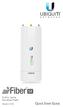 LINK GPS MGMT DATA DATA MGMT GPS LINK 5 GHz Carrier Backhaul Radio Model: AF-5X 5 GHz Carrier Backhaul Radio Model: AF-5X LINK GPS MGMT DATA DATA MGMT GPS LINK Introduction Thank you for purchasing the
2.4 GHz, 3 GHz, 5 GHz Carrier Backhaul Radio. Model: AF-2X, AF-3X, AF-5X
 2.4 GHz, 3 GHz, 5 GHz Carrier Backhaul Radio Model: AF-2X, AF-3X, AF-5X airfiber X User Guide Table of Contents Table of Contents Chapter 1: Overview.... 1 Introduction......................................................................
24 GHz Point to Point 1.0+ Gbps Radio. Model: AF24
 24 GHz Point to Point 1.0+ Gbps Radio Model: AF24 Table of Contents Table of Contents Chapter 1: Overview...1 Introduction...................................................................... 1 Package
5 GHz Full Duplex Point-to-Point Gigabit Radio. Models: AF-5, AF-5U
 5 GHz Full Duplex Point-to-Point Gigabit Radio Models: AF-5, AF-5U Table of Contents Table of Contents Chapter 1: Overview...1 Introduction......................................................................
Link Link sys E3000 sys RE1000
 User Guide High Performance Extender Wireless-N Router Linksys Linksys RE1000 E3000Wireless-N Table of Contents Contents Chapter 1: Product Overview 1 Front 1 Top 1 Bottom 1 Back 2 Chapter 2: Advanced
5-Port Power over Ethernet Managed Switch 8-Port Power over Ethernet Managed Switch PRO Rackmount Power over Ethernet Managed Switches
 5-Port Power over Ethernet Managed Switch 8-Port Power over Ethernet Managed Switch PRO Rackmount Power over Ethernet Managed Switches Models: TS-5-POE, TS-8-PRO, TS-16-CARRIER Table of Contents Table
Power over Ethernet Managed Switches. Models: TS-5-POE, TS-8-PRO, TS-16-CARRIER
 Power over Ethernet Managed Switches Models: TS-5-POE, TS-8-PRO, TS-16-CARRIER Table of Contents Table of Contents Chapter 1: Overview...1 Introduction......................................................................
OSBRiDGE 5XLi. Configuration Manual. Firmware 3.10R
 OSBRiDGE 5XLi Configuration Manual Firmware 3.10R 1. Initial setup and configuration. OSBRiDGE 5XLi devices are configurable via WWW interface. Each device uses following default settings: IP Address:
Operating System for Ubiquiti airmax ac Series Products Release Version: 7.1
 Operating System for Ubiquiti airmax ac Series Products Release Version: 7.1 Table of Contents Table of Contents Chapter 1: Overview...1 Introduction......................................................................
WBS210/WBS510 Datasheet
 2.4GHz/5GHz 300Mbps Outdoor Wireless / Datasheet Highlights Broad operating frequency channels ensure less wireless interference Wireless N speed up to 300Mbps Selectable bandwidth of 5/10/20/40MHz Adjustable
How To Use A Modem On A Pc Or Mac Or Ipad (For A Laptop)
 CLEAR MODEM with Wi-Fi USER GUIDE GET TO KNOW YOUR CLEAR MODEM WITH WI-FI 3 WHAT S IN THE BOX? 3 INFORMATIVE LED INDICATORS 3 USE WITH CARE 3 SET UP THE MODEM 4 PLACE THE MODEM ON A FLAT, STABLE SURFACE
FWS WiTDM Series KWA-O8800-I User Manual
 FWS WiTDM Series KWA-O8800-I User Manual Date: 2009 / 04 / 23 Version: 1.0 1 Copyright This user s manual and the software described in it are copyrighted with all rights reserved. No part of this publication
Wireless Router Setup Manual
 Wireless Router Setup Manual NETGEAR, Inc. 4500 Great America Parkway Santa Clara, CA 95054 USA 208-10082-02 2006-04 2006 by NETGEAR, Inc. All rights reserved. Trademarks NETGEAR is a trademark of Netgear,
LigoPTP UNITY Configuration Manual Contents
 LigoPTP UNITY Configuration Manual Contents 1 Introduction 1.1 Product Overview 1.2 LigoPTP UNITY Features 1.2.1 Key Features 1.2.2 Management 1.2.3 Reliability 2 LigoPTP UNITY Installation 2.1 Package
Chapter 6 Using Network Monitoring Tools
 Chapter 6 Using Network Monitoring Tools This chapter describes how to use the maintenance features of your RangeMax Wireless-N Gigabit Router WNR3500. You can access these features by selecting the items
24 GHz Point-to-Point 1.4+ Gbps Radio. Datasheet. Model: AF24. High Performance Wireless Backhaul. Long Range of 13+ km
 24 GHz Point-to-Point 1.4+ Gbps Radio Model: AF24 High Performance Wireless Backhaul Long Range of 13+ km Worldwide License-Free 24 GHz Operation Revolutionary Wireless Technology Introducing airfiber,
MN-700 Base Station Configuration Guide
 MN-700 Base Station Configuration Guide Contents pen the Base Station Management Tool...3 Log ff the Base Station Management Tool...3 Navigate the Base Station Management Tool...4 Current Base Station
LOHU 4951L Outdoor Wireless Access Point / Bridge
 LOHU 4951L Outdoor Wireless Access Point / Bridge Version 2.3 ------------------------------------------------------------------------------------------------------- -1- Software setup and configuration
CM500 High Speed Cable Modem User Manual
 User Manual February 2015 202-11472-04 350 East Plumeria Drive San Jose, CA 95134 USA Support Thank you for selecting NETGEAR products. After installing your device, locate the serial number on the label
How To Check If Your Router Is Working Properly
 Chapter 6 Using Network Monitoring Tools This chapter describes how to use the maintenance features of your RangeMax Dual Band Wireless-N Router WNDR3300. You can access these features by selecting the
WRE2205. User s Guide. Quick Start Guide. Wireless N300 Range Extender. Default Login Details. Version 1.00 Edition 1, 06/2012
 WRE2205 Wireless N300 Range Extender Version 1.00 Edition 1, 06/2012 Quick Start Guide User s Guide Default Login Details LAN IP Address http://192.168.1.2 User Name admin Passwordwww.zyxel.com 1234 Copyright
ENHWI-N3. 802.11n Wireless Router
 ENHWI-N3 802.11n Wireless Router Product Description Encore s ENHWI-N3 802.11n Wireless Router s 1T1R Wireless single chip can deliver up to 3x faster speed than of 802.11g devices. ENHWI-N3 supports home
Chapter 6 Using Network Monitoring Tools
 Chapter 6 Using Network Monitoring Tools This chapter describes how to use the maintenance features of your Wireless-G Router Model WGR614v9. You can access these features by selecting the items under
Quick Start Guide. WAP371 Wireless AC/N Dual Radio Access Point with Single Point Setup Quick Start Guide. Cisco Small Business
 Quick Start Guide Cisco Small Business WAP371 Wireless AC/N Dual Radio Access Point with Single Point Setup Quick Start Guide Versión en Español para México en el CD Version en français sur CD Versione
Linksys WAP300N. User Guide
 User Guide Contents Contents Overview Package contents 1 Back view 1 Bottom view 2 How to expand your home network 3 What is a network? 3 How to expand your home network 3 Where to find more help 3 Operating
Datasheet. Powerful 2x2 MIMO airmax BaseStation. Models: M5, RM5-Ti, M3, M365, M2, RM2-Ti, M900. Advanced Software Technology to Maximize Performance
 Powerful 2x2 MIMO airmax BaseStation Models: M5, RM5-Ti, M3, M365, M2, RM2-Ti, M900 Advanced Software Technology to Maximize Performance Plug and Play Integration with airmax Antennas Frequency and Channel
EAP300. Long Range Ceiling Mount Access Point PRODUCT OVERVIEW
 Long Range Ceiling Mount Access Point 2.4 GHz 300Mbps 11b/g/n 29dBm AP/WDS/Repeater PRODUCT OVERVIEW is a 300Mbps wireless-n ceiling mount AP which offers users extended coverage, strong penetration, secure
USER GUIDE Cisco Small Business
 USER GUIDE Cisco Small Business WBPN Wireless-N Bridge for Phone Adapters December 2011 Cisco and the Cisco Logo are trademarks of Cisco Systems, Inc. and/or its affiliates in the U.S. and other countries.
USER GUIDE AC2400. DUAL BAND GIGABIT Wi Fi ROUTER. Model# E8350
 USER GUIDE AC2400 DUAL BAND GIGABIT Wi Fi ROUTER Model# E8350 Table of Contents Product overview E8350..................................... 1 Setting Up Your E-Series Router Where to find more help.........................
Quick Start Guide. WRV210 Wireless-G VPN Router with RangeBooster. Cisco Small Business
 Quick Start Guide Cisco Small Business WRV210 Wireless-G VPN Router with RangeBooster Package Contents WRV210 Router Ethernet Cable Power Adapter Product CD-ROM Quick Start Guide Welcome Thank you for
10/2011 - English Edition 1. Quick Start Guide. NWA1100N-CE CloudEnabled Business N Wireless Access Point
 10/2011 - English Edition 1 Quick Start Guide NWA1100N-CE CloudEnabled Business N Wireless Access Point Package Contents - 1 x ZyXEL NWA1100N-CE Access Point - 2 x Detachable Antennas - 1 x Power Adapter
PRO 5000 CPE 1D Quick Installation Guide
 PRO 5000 CPE 1D Quick Installation Guide Introduction This Quick Installation Guide covers the basic installation of the PRO 5000 CPE. For more information, refer to the relevant sections in the Product
Tooway KA-SAT Installation Guide
 Tooway KA-SAT Installation Guide 1. Before you can proceed with the installation you must get the following information: Spot beam colour for you location Elevation Angle the dish needs to be set to Azimuth
How To Check If Your Router Is Working Properly On A Nr854T Router (Wnr854) On A Pc Or Mac) On Your Computer Or Ipad (Netbook) On An Ipad Or Ipa (Networking
 Chapter 7 Using Network Monitoring Tools This chapter describes how to use the maintenance features of your RangeMax NEXT Wireless Router WNR854T. These features can be found by clicking on the Maintenance
Ethernet Radio Configuration Guide
 Ethernet Radio Configuration Guide for Gateway, Endpoint, and Repeater Radio Units April 20, 2015 Customer Service 1-866-294-5847 Baseline Inc. www.baselinesystems.com Phone 208-323-1634 FAX 208-323-1834
Beginner s SETUP GUIDE for NANOSTATION-M2 as receiver and other Ubiquity airmax devices using AirOS firmware v5 (Windows/MacOS)
 Beginner s SETUP GUIDE for NANOSTATION-M2 as receiver and other Ubiquity airmax devices using AirOS firmware v5 (Windows/MacOS) This guide is primarily intended for mobile users (boaters, campers and truckers)
DLB 5-20. Outdoor Wireless Device COPYRIGHT 2015 LIGOWAVE
 DLB 5-2 Outdoor Wireless Device COPYRIGHT 215 LIGOWAVE DLB 5-2 LigoWave s DLB 5-2 delivers the highest performance and stability available in the 5 GHz CPE class. This product combines a highly advanced
Pharos Control User Guide
 Outdoor Wireless Solution Pharos Control User Guide REV1.0.0 1910011083 Contents Contents... I Chapter 1 Quick Start Guide... 1 1.1 Introduction... 1 1.2 Installation... 1 1.3 Before Login... 8 Chapter
5GHz 300Mbps 13dBi Outdoor CPE
 5GHz Mbps 13dBi Outdoor CPE Features Built-in 13dBi 2x2 dual-polarized directional MIMO antenna Adjustable transmission power from to dbm/5mw System-level optimizations for more than 15km+ long range wireless
Operating System for Ubiquiti EdgeRouters Release Version: 1.4
 Operating System for Ubiquiti EdgeRouters Release Version: 1.4 Table of Contents Table of Contents Chapter 1: Overview...1 Introduction......................................................................
Chapter 7 Troubleshooting
 Chapter 7 Troubleshooting This chapter provides troubleshooting tips and information for your ProSafe VPN Firewall 200. After each problem description, instructions are provided to help you diagnose and
your Gateway Windows network installationguide 802.11b wireless series Router model WBR-100 Configuring Installing
 your Gateway Windows network installationguide 802.11b wireless series Router model WBR-100 Installing Configuring Contents 1 Introduction...................................................... 1 Features...........................................................
Wireless LAN Access Point. IEEE 802.11g 54Mbps. User s Manual
 Wireless LAN Access Point IEEE 802.11g 54Mbps User s Manual Table of Contents Chapter 1 Introduction... 1 1.1 Package Contents...2 1.2 Features...2 1.3 Specifications...2 1.4 Physical Description...3 Chapter
Phone Adapter. with 2 Ports for Voice-over-IP. Installation and Troubleshooting Guide. Model No. PAP2 Ver. 2. Voice
 Phone Adapter with 2 Ports for Voice-over-IP Voice Installation and Troubleshooting Guide Model No. PAP2 Ver. 2 Copyright and Trademarks Specifications are subject to change without notice. Linksys is
EAP350 EAP350. Long Range Ceiling Mount Access Point PRODUCT OVERVIEW
 Long Range Ceiling Mount Access Point 2.4 GHz 300Mbps 11b/g/n 29dBm AP/WDS/Repeater PRODUCT OVERVIEW is a 300Mbps wireless-n ceiling mount AP which offers users extended coverage, strong penetration, secure
EAP600 SOFTWARE FEATURES. Dual Band Long Range Ceiling Mount Access Point PRODUCT OVERVIEW
 Dual Band Long Range Ceiling Mount Access Point 2.4 GHz + 5GHz 300Mbps + 300Mbps 29dBm AP/WDS/Repeater PRODUCT OVERVIEW is a wireless-11n 600Mbps (300Mbps + 300Mbps) High Power Dual Band concurrent ceiling
User Guide. E-Series Routers
 User Guide E-Series Routers Table of Contents Table of Contents Product overview E900/E1200/E1500/E2500/E3200 1 Back view 1 Bottom view 1 E4200 2 Top view 2 Back view 2 Setting Up Your E-Series Router
Initial Access and Basic IPv4 Internet Configuration
 Initial Access and Basic IPv4 Internet Configuration This quick start guide provides initial and basic Internet (WAN) configuration information for the ProSafe Wireless-N 8-Port Gigabit VPN Firewall FVS318N
Chapter 4 Managing Your Network
 Chapter 4 Managing Your Network This chapter describes how to perform network management tasks with your ADSL2+ Modem Wireless Router. Backing Up, Restoring, or Erasing Your Settings The configuration
PCS300 Universal IP Reporting Module V1.0
 PCS300 Universal IP Reporting Module V1.0 Reference and Installation Manual Patents: One or more of the following US patents may apply: 7046142, 6215399, 6111256, 6104319, 5920259, 5886632, 5721542, 5287111,
DSL-2600U. User Manual V 1.0
 DSL-2600U User Manual V 1.0 CONTENTS 1. OVERVIEW...3 1.1 ABOUT ADSL...3 1.2 ABOUT ADSL2/2+...3 1.3 FEATURES...3 2 SPECIFICATION...4 2.1 INDICATOR AND INTERFACE...4 2.2 HARDWARE CONNECTION...4 2.3 LED STATUS
N300 WiFi Range Extender
 Model EX2700 User Manual July 2014 202-11395-01 350 East Plumeria Drive San Jose, CA 95134 USA Support Thank you for selecting NETGEAR products. After installing your device, locate the serial number on
WRE6505. User s Guide. Quick Start Guide. Wireless AC750 Range Extender. Default Login Details. Version 1.00 Edition 1, 4 2014
 WRE6505 Wireless AC750 Range Extender Version 1.00 Edition 1, 4 2014 2.4G 5G Quick Start Guide User s Guide Default Login Details LAN IP Address 192.168.1.2 User Name admin www.zyxel.com Password 1234
EW-7438RPn V2 User Manual
 EW-7438RPn V2 User Manual 09-2013 / v1.0 CONTENTS I. Product Information... 1 I-1. Package Contents... 1 I-2. System Requirements... 1 I-3. LED Status... 1 I-4. Hardware Overview... 3 I-5. Safety Information...
DLB 5-20 Outdoor Wireless Device DATASHEET. COPYRIGHT 2014 LigoWave
 DLB 5-2 Outdoor Wireless Device DATASHEET COPYRIGHT 214 LigoWave DLB 5-2 The DLB 5-2 delivers the highest performance and stability available in the 5 GHz Base Station class. This product combines a robust
AP6511 First Time Configuration Procedure
 AP6511 First Time Configuration Procedure Recommended Minimum Configuration Steps From the factory, all of the 6511 AP s should be configured with a shadow IP that starts with 169.254.xxx.xxx with the
User Manual. PePWave Surf / Surf AP Indoor Series: Surf 200, E200, AP 200, AP 400. PePWave Mesh Connector Indoor Series: MC 200, E200, 400
 User Manual PePWave Surf / Surf AP Indoor Series: Surf 200, E200, AP 200, AP 400 PePWave Mesh Connector Indoor Series: MC 200, E200, 400 PePWave Surf AP Series: Surf AP 200-X, E200-X, 400-X PePWave Surf
CM400 High Speed Cable Modem User Manual
 User Manual July 2015 202-11412-02 350 East Plumeria Drive San Jose, CA 95134 USA Support Thank you for selecting NETGEAR products. After installing your device, locate the serial number on the label of
Welcome. Unleash Your Phone
 User Manual Welcome Unleash Your Phone For assistance with installation or troubleshooting common problems, please refer to this User Manual or Quick Installation Guide. Please visit www.vonage.com/vta
AirMax2. 802.11g High Powered Outdoor CPE. PoE. Simple All-In-One Solution. Long Distance Radio. Clear. 10dBi
 AirMax2 802.11g High Powered Outdoor CPE Wireless-G Outdoor CPE Built-in 10dBi Weather-Proof Housing ClearSignal Anti-Interference Technology Client, AP, Bridge, AP Router, WISP Router, WDS, and Universal
Quick Start Guide. Cisco Small Business. 200E Series Advanced Smart Switches
 Quick Start Guide Cisco Small Business 200E Series Advanced Smart Switches Welcome Thank you for choosing the Cisco 200E series Advanced Smart Switch, a Cisco Small Business network communications device.
WAP3205 v2. User s Guide. Quick Start Guide. Wireless N300 Access Point. Default Login Details. Version 1.00 Edition 2, 10/2015
 WAP3205 v2 Wireless N300 Access Point Version 1.00 Edition 2, 10/2015 Quick Start Guide User s Guide Default Login Details Web Address http://zyxelsetup Password www.zyxel.com 1234 Copyright 2014 ZyXEL
EAP350. Long Range Ceiling Mount Access Point PRODUCT OVERVIEW
 Long Range Ceiling Mount Access Point 2.4 GHz 300Mbps 11b/g/n 28dBm AP/WDS PRODUCT OVERVIEW is a 300Mbps wireless-n ceiling mount AP which offers users extended coverage, strong penetration, secure network
Installation Guide. Wireless N Access Point EAP110/EAP120/EAP220
 Installation Guide Wireless N Access Point EAP110/EAP120/EAP220 CONTENTS Network Topology 01 Hardware Overview 02 Hardware Installation 05 1. Installation Requirements... 05 2. Mounting Bracket... 05
Management Software. Web Browser User s Guide AT-S106. For the AT-GS950/48 Gigabit Ethernet Smart Switch. Version 1.0.0. 613-001339 Rev.
 Management Software AT-S106 Web Browser User s Guide For the AT-GS950/48 Gigabit Ethernet Smart Switch Version 1.0.0 613-001339 Rev. A Copyright 2010 Allied Telesis, Inc. All rights reserved. No part of
User Guide. Guide d utilisation Guida dell'utente Benutzerhandbuch Guía del usuario Guia do Usuário WNA-100. Wireless Network Adapter
 WNA-100 Wireless Network Adapter User Guide Guide d utilisation Guida dell'utente Benutzerhandbuch Guía del usuario Guia do Usuário www.xerox.com/office/wna Copyright 2007 Xerox Corporation. All Rights
PePWave Surf Series PePWave Surf Indoor Series: Surf 200, AP 200, AP 400
 PePWave Surf Series PePWave Surf Indoor Series: Surf 200, AP 200, AP 400 PePWave Surf Outdoor Series: Surf AP 200/400-X, PolePoint 400-X, Surf 400-DX User Manual Document Rev. 1.2 July 07 COPYRIGHT & TRADEMARKS
AC1900, N900, and N450 WiFi Cable Data Gateways
 AC1900, N900, and N450 WiFi Cable Data Gateways Models C6300BD, CG4500BD, and CG3000Dv2 User Manual March 2015 202-11434-03 350 East Plumeria Drive San Jose, CA 95134 USA Support Thank you for selecting
Chapter 1: Product Overview...1. Package Contents...1 System Requirements...1 Top View...1 Rear View...1. Chapter 2: Installation...
 Table of Contents Table of Contents Chapter 1: Product Overview...1 Package Contents...1 System Requirements...1 Top View...1 Rear View...1 Chapter 2: Installation...2 Hardware Installation...2 Connecting
5GHz 300Mbps 802.11a/n Wireless Outdoor Access Point
 5GHz 300Mbps 802.11a/n Wireless Outdoor Access Point Key Features Wireless LAN & LAN Compliant with IEEE 802.11n wireless technology capable of up to 300Mbps data rate Backward compatible with 802.11a
ESR-9750. (Go Green Series) Wireless-N Broadband Router / AP / Repeater. 2.4 GHz 802.11b/g/n 300 Mbps
 PRODUCT DESCRIPTION ESR-9750 is a Wireless 11N Broadband Router that delivers up to 6x faster speeds and 3x extended coverage than 802.11g devices. ESR-9750 supports home network with superior throughput
User Guide. For TP-LINK Pharos Series Products REV1.0.0 1910011048
 User Guide For TP-LINK Pharos Series Products REV1.0.0 1910011048 CONTENTS Chapter 1 Overview... 1 Introduction... 1 System Requirements... 1 Getting Started... 1 Navigation... 3 Chapter 2 Operation Modes...
A Division of Cisco Systems, Inc. GHz 2.4 802.11g. Wireless-G. Access Point with SRX. User Guide WIRELESS WAP54GX. Model No.
 A Division of Cisco Systems, Inc. GHz 2.4 802.11g WIRELESS Wireless-G Access Point with SRX User Guide Model No. WAP54GX Copyright and Trademarks Specifications are subject to change without notice. Linksys
USER GUIDE AC2600 MU-MIMO GIGABIT ROUTER. Model# EA8500
 USER GUIDE AC2600 MU-MIMO GIGABIT ROUTER Model# EA8500 Table of Contents Product overview EA8500.....................................1 Setting Up Your Router Where to find more help.........................
LotWan Appliance User Guide USER GUIDE
 LotWan Appliance User Guide USER GUIDE Copyright Information Copyright 2014, Beijing AppEx Networks Corporation The description, illustrations, pictures, methods and other information contain in this document
SIP Proxy Server. Administrator Installation and Configuration Guide. V2.31b. 09SIPXM.SY2.31b.EN3
 SIP Proxy Server Administrator Installation and Configuration Guide V2.31b 09SIPXM.SY2.31b.EN3 DSG, DSG logo, InterPBX, InterServer, Blaze Series, VG5000, VG7000, IP590, IP580, IP500, IP510, InterConsole,
Wireless N 150 USB Adapter with 10dBi High Gain Antenna. Model # AWLL5055 User s Manual. Rev. 1.0
 Wireless N 150 USB Adapter with 10dBi High Gain Antenna Model # AWLL5055 User s Manual Rev. 1.0 Table of Contents 1. Introduction...2 1.1 Package Contents...2 1.2 Features...2 2. Install Wireless USB Adapter...3
EAP300. Long Range Ceiling Mount Access Point PRODUCT OVERVIEW
 Long Range Ceiling Mount Access Point 2.4 GHz 300Mbps 11b/g/n 29dBm AP/WDS PRODUCT OVERVIEW is a 300Mbps wireless-n ceiling mount AP which offers users extended coverage, strong penetration, secure network
How To Set Up An Andsl Modem Router For Internet Access
 ADSL Modem Router Setup Manual NETGEAR, Inc. 4500 Great America Parkway Santa Clara, CA 95054 USA 208-10026-01 2006-2 2006 by NETGEAR, Inc. All rights reserved. Trademarks NETGEAR is a trademark of Netgear,
Quick Installation Guide
 0, Total 18 Quick Installation Guide Sep, 2013 1, Total 18 Thank you for purchasing Enterprise High Gain Outdoor CPE. This manual will instruct you how to configure and manage this CPE, enable you to use
Actiontec GT784WN Router
 Table of Contents General Information...1 Verify Computer Settings...1 Router Installation...3 Configuring Your Router...3 Configuring Your Computer...7 Configuring Your Email...9 General Information Router
Output Power (without antenna) 5GHz 2.4GHz
 Dual Band High- PoE AP Router Dual Band Concurrent AP Router 11a + 11a/b/g Hi- Radios 802.3af PoE Port 7 Wireless Operation Modes 5/10/20 Variable Channel Width Home Digital Network Application School,
ZyWALL 5. Internet Security Appliance. Quick Start Guide Version 3.62 (XD.0) May 2004
 ZyWALL 5 Internet Security Appliance Quick Start Guide Version 3.62 (XD.0) May 2004 Introducing the ZyWALL The ZyWALL 5 is the ideal secure gateway for all data passing between the Internet and the LAN.
ESR-9753 802.11b/g/n SOHO Router
 ESR-9753 is a 1T1R Wireless Single chip 11N Broadband Router that delivers up to 3x faster speeds than 802.11g devices. ESR-9753 supports home network with superior throughput and performance and unparalleled
Energy Communication Unit (ECU)
 Altenergy Power System Energy Communication Unit (ECU) Installation and User Manual (For ECU-3 V3.8) ALTENERGY POWER SYSTEM INC. All rights reserved TABLE OF CONTENTS 1.0 Introduction... 2 2.0 Installation...
Key Features. Multiple Operation Modes ENH500 can operate into four different modes with Access Point, Client Bridge, Client Router and WDS Mode.
 802.11a/n Long Range Wireless Outdoor CPE Key Features IEEE 802.11 a/n compliant Up to 300Mbps (5GHz) 24V Proprietary PoE support Waterproof Housing IP65 rated AP/CB/CR/WDS Modes 4 SSIDs support + VLAN
ESR-9752 802.11b/g/n SOHO Router
 ESR-9752 is a 2T2R Wireless Single chip 11N Broadband Router that delivers up to 6x faster speeds and 3x extended coverage than 802.11g devices. ESR-9752 supports home network with superior throughput
N600 WiFi USB Adapter
 Model WNDA3100v3 User Manual December 2014 202-11470-01 350 East Plumeria Drive San Jose, CA 95134 USA Support Thank you for selecting NETGEAR products. After installing your device, locate the serial
Chapter 1 Configuring Internet Connectivity
 Chapter 1 Configuring Internet Connectivity This chapter describes the settings for your Internet connection and your wireless local area network (LAN) connection. When you perform the initial configuration
AC750 WiFi Range Extender
 Model EX6100 User Manual April 2014 202-11307-03 350 East Plumeria Drive San Jose, CA 95134 USA Support Thank you for selecting NETGEAR products. After installing your device, locate the serial number
Chapter 3 Management. Remote Management
 Chapter 3 Management This chapter describes how to use the management features of your ProSafe 802.11a/g Dual Band Wireless Access Point WAG102. To access these features, connect to the WAG102 as described
Quick Start Guide. Cisco Small Business. 300 Series Managed Switches
 Quick Start Guide Cisco Small Business 300 Series Managed Switches Welcome Thank you for choosing the Cisco 300 Series Managed Switch, a Cisco Small Business network communications device. This device
EAP9550 11N Wall Mount Access Point / WDS AP / Universal Repeater
 EAP9550 is a powerful and multi-functioned 11n Access Point and it can act three modes AP/WDS/Universal Repeater. Smoke detector appearance will minimize visibility. So this model can work properly at
Operating System for Ubiquiti M Series Products Release Version: 5.6
 Operating System for Ubiquiti M Series Products Release Version: 5.6 airos v5.6 User Guide Table of Contents Table of Contents Chapter 1: Overview...1 Introduction......................................................................
Beginner s SETUP GUIDE for NANOSTATION-2 as receiver and other Ubiquity devices using AirOS firmware V3.6 (Windows/MacOS)
 Beginner s SETUP GUIDE for NANOSTATION-2 as receiver and other Ubiquity devices using AirOS firmware V3.6 (Windows/MacOS) This guide is primarily intended for mobile users (boaters, campers and truckers)
Version 1.01 28/08/2014. User Manual. DAP-1665 Wireless AC1200 Dual Band Access Point DAP-1665
 Version 1.01 28/08/2014 User Manual DAP-1665 Wireless AC1200 Dual Band Access Point DAP-1665 Preface D-Link reserves the right to revise this publication and to make changes in the content hereof without
TP-LINK TD-W8901G. Wireless Modem Router. Advanced Troubleshooting Guide
 TP-LINK TD-W8901G Wireless Modem Router Advanced Troubleshooting Guide Released on 2009.09.25 Version 1.0 Content Summary... 3 Troubleshooting Flow Chart and Resolutions... 3 Check 1... 3 Check 2... 4
WiFi Anywhere. Multi Carrier 3G/4G WiFi Router. IntraTec Solutions Ltd www.intratec-uk.com
 WiFi Anywhere Multi Carrier 3G/4G WiFi Router Contents Packing List... 3 Introduction... 3 Supported USB Modems... 3 Connecting USB Devices... 3 Accessing the Web Interface... 4 Interfaces... 4 Configuring
802.11b/g/n SOHO Router 2.4GHz 150Mbps 11N AP/Router
 802.11b/g/n SOHO Router 2.4GHz 150Mbps 11N AP/Router ESR-9753 PRODUCT DESCRIPTION ESR-9753 is a 1T1R Wireless Single chip 11N Broadband Router that delivers up to 3x faster speeds than 802.11g devices.
Chapter 10 Troubleshooting
 Chapter 10 Troubleshooting This chapter provides troubleshooting tips and information for your ProSafe Dual WAN Gigabit Firewall with SSL & IPsec VPN. After each problem description, instructions are provided