
Exporting MLS Data to.csv Format
|
|
|
- Mark Ray
- 9 years ago
- Views:
Transcription
1 to.csv Format This document provides instructions for exporting property data from MLS board websites and saving them in the correct format for import into the Determining Your MLS Vendor 3 Supported ACI Fields 4 5 EZList... 5 flexmls... 6 InnoVia... 7 MarketLinx... 9 Matrix (Tarasoft)...10 MLXchange...11 Paragon...13 Promatch...14 Promatch Desktop Software...15 Rappatoni MLS...16 Realcomp...18 RealFocus...19 Realtracs...21 Solid Earth (LIST-IT)...22 Stratus MLS...23 TEMPO (also see MarketLinx)...24 Copyright February 2011, ACI All Rights Reserved 145 City Place, Suite 200 Palm Coast, FL appraiserschoice.com

2 Saving.TXT Files to.csv Format 25 Using Microsoft Excel Using Microsoft Excel Using Microsoft Works Spreadsheet...26 Using OpenOffice.org Copyright February 2011, ACI All Rights Reserved 145 City Place, Suite 200 Palm Coast, FL appraiserschoice.com

3 Determining Your MLS Vendor MLS boards partner with MLS vendors to provide the on-screen interface used to search the properties in your area. You may know your MLS board as Flagler County MLS or Southwest Michigan MLS, but the MLS vendor is one of the companies documented in this guide. There are dozens of MLS vendors across the country. Some of the major brands are Rappatoni MLS, MLXchange, Paragon, flexmls and TEMPO. The MLS vendor s name is typically placed on the login or home page of your MLS board. When you find the MLS vendor for your MLS board, follow the instructions listed in this guide to create a custom export for your data and export the data for use with the ACI Market Conditions eservice. NOTE: ACI provides these instructions as a courtesy to our valued clients. ACI does not own, manage or have a working relationship with the MLS boards or MLS vendors listed in this guide. Instructions contained in this guide are accurate to the best of our knowledge and are based on successful tests with users of these providers. to.csv Format Determining Your MLS Vendor 3

4 Supported ACI Fields ACI supports importing data into fields on the 1004MC Market Conditions Addendum and comparable grids. The fields in the grid, below, are supported for import to ACI. 1004MC Market Conditions Addendum Fields Address* City Condo Values Listing Date* Listing End Date Listing Price* MLS # Project Name Property Type Sale Date* Sale Price* State Status Unit # Zip Code Comparable Grid Fields Actual Age Basement Line 1 Basement Line 2 Bathrooms Bedrooms Comm. Elements Line 1 Comm. Elements Line 2 Condition Current Monthly Rent Date of Lease Date of Prior Sale Days on Market Design (Style) Energy Efficient Items Floor Location Functional Utility Garage/Carport Gross Building Area Gross Living Area Gross Monthly Rent Gross Rent Multiplier Heating/Cooling HOA Mo. Assessment Last Price Rev. Date Location Mthly Maintenance Fee Original List Price Parking On/Off Site Phase Porch/Patio/Deck Price of Prior Sale Price Per Bedroom Price Per Room Price Per Share Price Per Unit Price/Gross Bldg. Area Prior Data Source(s) Project Amenities Line 1 Project Amenities Line2 Project Security Line 1 Project Security Line 2 Project Size/ # Units Proximity to Subject Quality of Construction Remodeling Line 1 Remodeling Line 2 Rent Control Rent/Gross Bldg. Area Sale Price/GLA Site Total Rooms Unit # <1-4> Bathrooms Unit # <1-4> Bedrooms Unit # <1-4> Description Unit # <1-4> Monthly Rent Unit # <1-4> Size Sq. Ft. Unit # <1-4> Total Rooms View * Indicates a required field to.csv Format Supported ACI Fields 4

5 The ACI Market Conditions eservice imports data exported from an MLS service into the 1004MC Market Conditions Addendum and into the comparable grids. This document provides steps to export data from MLS services for import into ACI. EZList Creating a Custom Export 2. Perform a search on the market and include sales and listings. On the search results screen right-click in the blank space on the grid and select Save Grid As. 3. Enter a name for the custom grid and click OK. 4. Right-click in the blank space on the grid and select Grid Admin. 5. Select your custom grid and click Edit. 6. On the Grid Admin page select fields in the Available Fields list and click the Add button (>) to move them to the Selected Fields list. TIP: For a list of supported fields that import to the 1004MC Market Conditions Addendum and comparable grids, please see Supported ACI Fields. 7. When finished, click OK and click Exit. 2. Perform a search on the market and include sales and listings. On the search results page click Load Grid and select your custom grid. 3. Right-click the grid and choose Select All. 4. Right-click the grid and select Export Selected Listings to CSV. 5. Click Save on the File Download window. 6. Select the destination folder, enter a file name, and click Save. 7. When the save completes, click Close. The MLS data in.csv format can be imported using the to.csv Format 5

6 flexmls 2. Perform a search on the market and include sales and listings. On the search results screen, click Export. 3. On the Export Data screen select Generic Text Export, enter the verification text and click Export. 4. Click Save on the File Download window. 5. Select the destination folder and file type, enter a file name, and click Save. Save as type: Comma Separated Value (*.csv) 6. When the save completes, click Close. The MLS data in.csv format can be imported using the to.csv Format 6

7 InnoVia Creating a Custom Export 1. Log into your MLS Account. 2. Click Search > Custom Displays. 3. Select a Property Format, i.e., Res/Condo/Mfd/Mobile, Land, Multi-Family, etc., and click New. 4. Enter a Display Name, which is the name of the custom report, i.e., MLS to ACI Residential. 5. Select Oneliner as the Display Type and click Next. 6. Select fields in the Available Fields list and add them to the Selected Fields list. TIP: For a list of supported fields that import to the 1004MC Market Conditions Addendum and comparable grids, please see Supported ACI Fields. 7. In the Share Display With drop-down list, select a group who may access the custom report, i.e., no one, the office or the firm, Select the custom report options and click Save. Share Display With Select a group who may access access the custom report, i.e. Not Shared, My Firm or My Office. Title Font Select Title Label Font Select Head Data Font Select Shared 2. Perform a search on the market and include sales and listings. On the search results page, choose Select All. 3. Select the custom report, i.e. MLS to ACI Residential, from the Oneliner Display drop-down list. 4. On the custom property results screen that opens, click the Excel Spreadsheet link. NOTE: All data about a property is automatically included in the property list and exported report. to.csv Format 7

8 5. Click Save on the File Download window. TIP: If the report opens in a browser window or in a spreadsheet program rather than prompting you with the File Download window, click File > Save As. 6. Select the destination folder and file type, enter a file name, and click Save. Save as type: Comma Separated Value (*.csv) 7. When the save completes, click Close. The MLS data in.csv format can be imported using the TIP: If you experience site functionality issues, log out and click Browser Optimizer on the login screen to fix those issues. to.csv Format 8

9 MarketLinx Creating a Custom Export 2. Click Search and search the market criteria, perform a search on the market and include sales and listings. 3. When the search results are returned, click Custom Reports. 4. On the Create/Revise a Custom Report page, double-click field names in the Available Fields list to add them to the Selected Fields list. TIP: For a list of supported fields that import to the 1004MC Market Conditions Addendum and comparable grids, please see Supported ACI Fields. 5. Type a name for the custom report and click Save Report. 2. Perform a search on the market and include sales and listings. 3. Click Check All Listings and click Download. NOTE: After clicking Check All Listings, the button name changes to Uncheck All Listings. 4. Select your custom report name and click Create Download. 5. Click Save on the File Download window. 6. Select the destination folder and file type, enter a file name, and click Save. Save as type: Comma Separated Value (*.csv) 7. When the save completes, click Close. The MLS data in.csv format can be imported using the to.csv Format 9

10 Matrix (Tarasoft) Creating a Custom Export 2. Click My Matrix > Settings > Custom Exports. 3. On the Manage Custom Exports page, select the table options and click Add Export. Table Type Select Listing Table Select the property type, i.e., Residential or Multifamily 4. Select fields in the Available Fields list and click Add to move them to the Export Fields list. TIP: For a list of supported fields that import to the 1004MC Market Conditions Addendum and comparable grids, please see Supported ACI Fields. 5. Select the export details and and click Save. Export Name Enter a name for the custom report, i.e., MLS to ACI Include Column Names Select Name Separator Select Comma 6. On the Manage Custom Export page click Done. 2. Perform a search on the market and include sales and listings. On the search results screen click the Check all link. 3. At the bottom of the page, click Export. 4. Select your custom report, i.e. MLS to ACI, and click Export. 5. Click Save on the File Download window. 6. Select the destination folder and file type, enter a file name, and click Save. to.csv Format 10

11 Save as type: Comma Separated Value (*.csv) 7. When the save completes, click Close. The MLS data in.csv format can be imported using the MLXchange Creating a Custom Export 2. Perform a search on the market and include sales and listings. On the search results page, click grid icon. 3. In the Column Manager window, click Create new column report. 4. In the Column Manager > Edit window, enter a Grid Name, i.e., MLS to ACI. 5. Select fields from the Available items list and add them to the Selected items list. TIP: For a list of supported fields that import to the 1004MC Market Conditions Addendum and comparable grids, please see Supported ACI Fields. 6. When finished, click Save. 7. In the Column Manager window, click Done. Export MLS Data 2. Perform a search on the market and include sales and listings. 3. On the search results page, verify that Export Data is selected in the Action drop-down list, and click the arrow for the Action. 4. On the Listing Data Export page, select the export options and click Next. Select Records to Export Select All Records Data Export Format Select Comma Delimited to.csv Format 11

12 Export Options Deselect Compress file 5. On the next Listing Data Export page, select export options and click Next. Select Export Grid Format Select your custom report, i.e. MLS to ACI Include Column Headers Select the check box 6. Click Save on the File Download window. 7. Browse to the destination folder, select the file type, enter a File name, and click Save. Save as type: Comma Separated Value (*.csv) 8. When the save completes, click Close. The MLS data in.csv format can be imported using the to.csv Format 12

13 Paragon Creating a Custom Export 2. Click Preferences > Reports. 3. Under Manage Reports click Spreadsheets. 4. Select one of the existing spreadsheets on the page and update the Class, Group and Name. Class Select Residential. Group Select Listing. Name Enter a name for the custom report. 5. Select fields in the Available Fields list and click Add to move them to the Selected list. Select fields in the Selected list and click Remove to move them to the Available Fields list. TIP: For a list of supported fields that import to the 1004MC Market Conditions Addendum and comparable grids, please see Supported ACI Fields. 6. Click Save & Close to save the custom report. 2. Perform a search on the market and include sales and listings. 3. On the search results page under Available Reports > Spreadsheets, select your custom report and click Specialty Views. 4. Click Excel. 5. When the spreadsheet opens, click the green X icon to export the data to Microsoft Excel.. 6. When the spreadsheet opens, click File > Save As. 7. Select the destination folder and file type, enter a file name, and click Save. 8. Save as type: Comma Delimited (*.csv) to.csv Format 13

14 Promatch 2. Perform a search on the market and include sales and listings. On the search results screen, click Export. 3. In the Export window, select the export options and click Export. Select an Export Select Listing Report Data Export Export Format Select Include Field Names in First Row Select Comma Delimited File Photos Selection Select No Photos 4. Click the Click here to download link. 5. Click Save on the File Download Window 6. Browse to the destination folder, select the file type, enter a File name, and click Save. Save as type: Comma Separated Value (*.csv) 7. When the save completes, click Close. The MLS data in.csv format can be imported using the to.csv Format 14

15 Promatch Desktop Software Creating a Custom Export 1. Open the Promatch software, perform a search on the market and include sales and listings. 2. In the search results screen, click Custom Rpt. 3. In the Custom Report window click New. 4. Select fields from the Available Fields list and add them to the Selected Fields list. TIP: For a list of supported fields that import to the 1004MC Market Conditions Addendum and comparable grids, please see Supported ACI Fields. 5. When finished, click Save As. 6. Select the Save Custom Report options and click Save. Name for your report Enter a name for the custom report, i.e., MLS to ACI Share Report Select Share with others in your office Report Description Enter an explanation of what the custom report is designed to accomplish. 1. Open the Promatch software, perform a search on the market and include sales and listings. 2. In the search results screen, click Custom Rpt. 3. In the Custom Report window click Open. 4. Select your custom report, i.e., MLS to ACI, and click Open. 5. Click Preview. On the search results screen click Create Excel File. 6. Browse to the destination folder, select the file type, enter a File name, and click Save. Save as type: Comma Separated Value (*.csv) 7. When the save completes, click Close. The MLS data in.csv format can be imported using the to.csv Format 15

16 Rappatoni MLS Creating a Custom Export 2. Click Admin on the action bar and select Custom Export Setup. 3. Click the Create Export button. 4. On the Create Listing Information Export Rules page, select options for Name, Display Order, File Format, Include Field Names, Include Pictures, and click Save. Name The title of the Listing Export Option that will be selected when exporting MLS data. Display Order Enter the number 1. File Format File Format should be Excel (*.csv). Include Field Names Select Yes. Include Pictures Select No. 5. On the Revise Listing Information Export Layout page, select the fields to include in the.csv file. Select a field in the Available Residential Fields list and click Add to include it in the Selected Fields list. TIP: For a list of supported fields that import to the 1004MC Market Conditions Addendum and comparable grids, please see Supported ACI Fields. 6. Click Save when finished selecting fields to save the export layout. 7. Click the Home icon to exit Custom Export Setup. 2. Click Searches on the action bar and select Standard Search. NOTE: Do not select Quick Search. Standard Search is required to export data. 3. Perform a search on the market and include sales and listings. to.csv Format 16
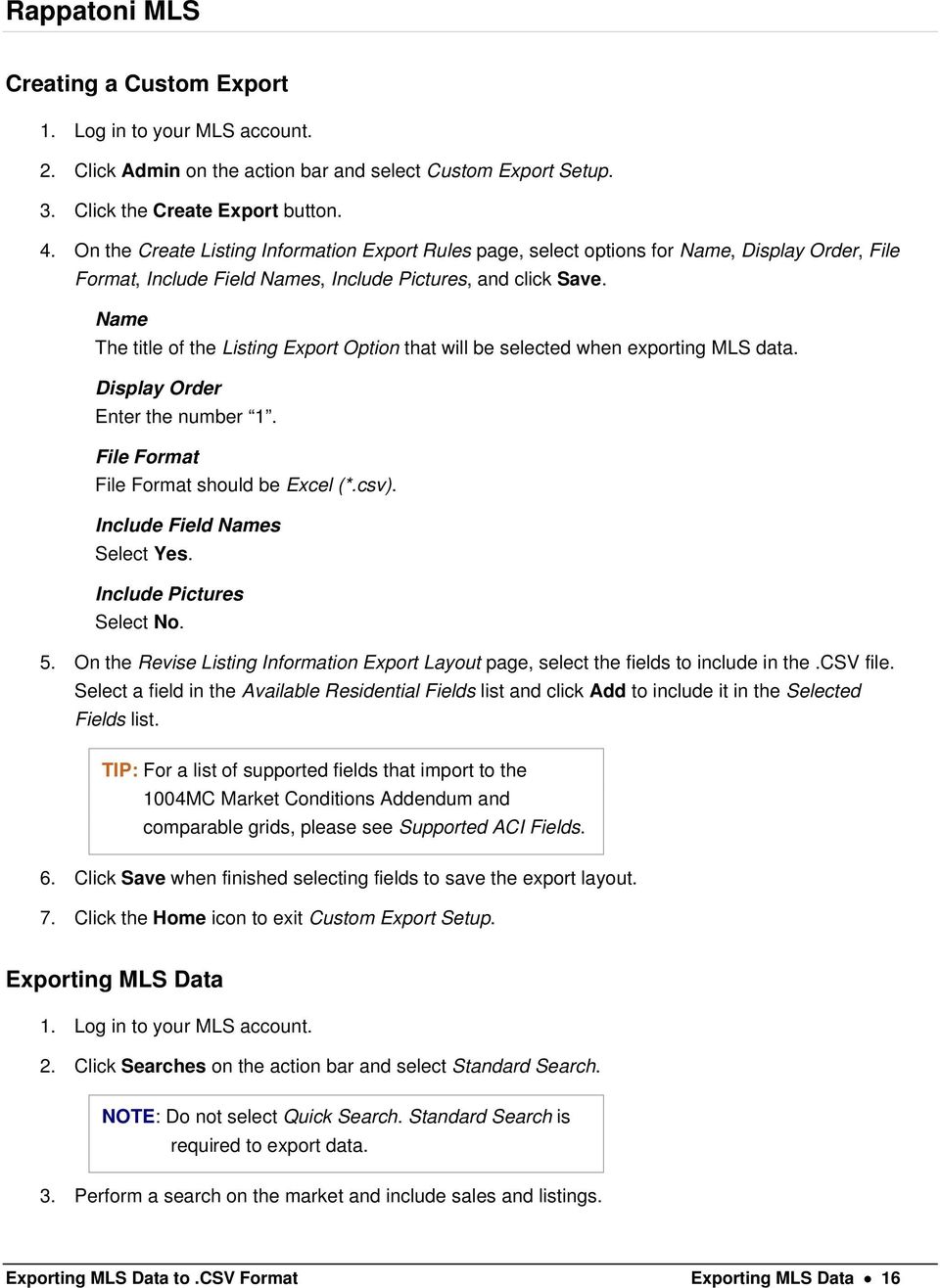
17 4. On the Search Results page, select Residential and click Exports. 5. Select the saved export format from the Listing Export Option drop-down list, and click Submit. 6. Click the displayed file. 7. Click Save on the File Download window. 8. Select the destination folder and file type, enter a file name, and click Save. Save as type: Comma Separated Value (*.csv) 9. When the save completes, click Close. The MLS data in.csv format can be imported using the to.csv Format 17

18 Realcomp Creating a Custom Export 1. Log in to your MLS. 2. Perform a search on the market and include sales and listings. 3. Click the Select different report format drop-down menu and select Design New Report. 4. Name the report, i.e. MLS to ACI, and click Save. 5. Add the Available fields to the Selected fields list. Fields may be any order. TIP: For a list of supported fields that import to the 1004MC Market Conditions Addendum and comparable grids, please see Supported ACI Fields. 1. Log in to your MLS. 2. Perform a search on the market and include sales and listings. 3. On the search results page choose Select Different Report Format. 4. Select the custom report format you created, i.e., MLS to ACI, and click Export Entire List. 5. Click Save on the File Download window. 6. Select the destination folder and file type, enter a file name, and click Save. Save as type: Comma Separated Value (*.csv) 7. When the save completes, click Close. The MLS data in.csv format can be imported using the to.csv Format 18

19 RealFocus Creating a Custom Export 1. Log in to your MLS account 2. Perform a search on the market and include sales and listings. 3. Select any or all of the results. 4. Click the Select a Brief Format drop-down menu and select Edit my custom Brief Formats. 5. In the My Custom Brief Formats dialog click New Brief Format. 6. Select the following Brief options and click Next. Brief Format Name Enter a Brief name, i.e., MLS to ACI Output Format Select Comma-Seperated Use Abbreviated Column Names? Select No If possible, abbreviate data? Select No If possible, include photo? Select No Copy Data From an Existing Brief Format? Select No 7. Add fields from the Fields I Can Add column to the My Current Fields column. TIP: For a list of supported fields that import to the 1004MC Market Conditions Addendum and comparable grids, please see Supported ACI Fields. 8. When finished, click Update Brief Format and return to the search screen. 1. Log in to your MLS account 2. Perform a search on the market and include sales and listings. 3. On the search results page, change the Showing option to ALL. 4. Select the check box to select all records. 5. Choose the custom brief, i.e., MLS to ACI, from the Select Brief Format menu. to.csv Format 19
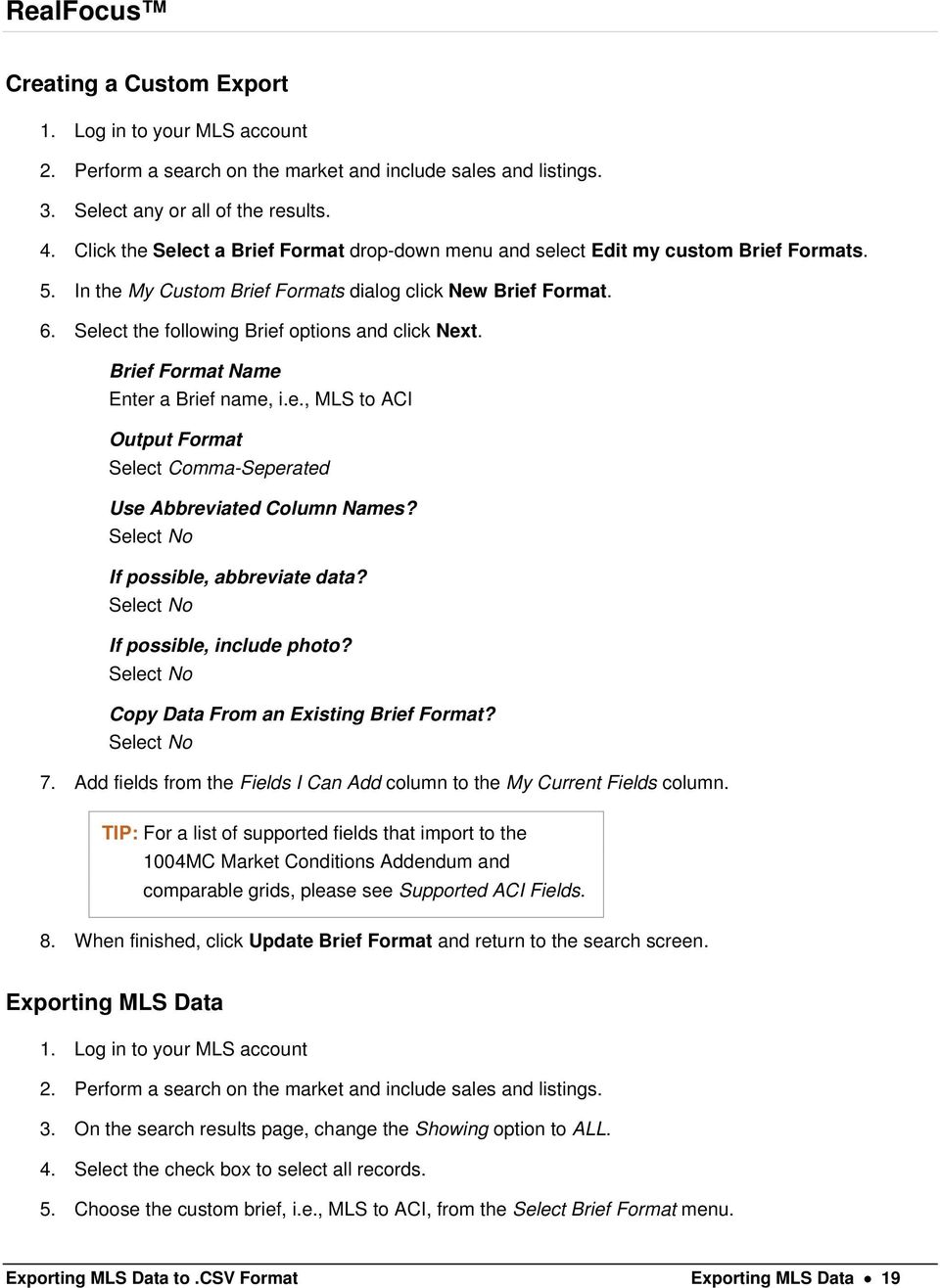
20 6. In the Download Spreadsheet window right-click Download Now and select Save Target As. 7. Click Save on the File Download window. Save as type: Comma Separated Value (*.csv) 8. When the save completes, click Close. The MLS data in.csv format can be imported using the to.csv Format 20

21 Realtracs Creating a Custom Export 2. Click Reports > Custom Reports. 3. Enter a name for the custom report and click Create New Report. 4. Select fields in the Available Fields list and click the Add button (>) to move them to the Selected Fields list. TIP: For a list of supported fields that import to the 1004MC Market Conditions Addendum and comparable grids, please see Supported ACI Fields. 5. Click Save to save the custom report. 2. Perform a search on the market and include sales and listings. On the search results page click the Select All box. 3. Click Functions > Download Listings. 4. Select your custom report, select Excel as the download format and click Create Download. 5. Click Save on the File Download window. 6. Select the destination folder and file type, enter a file name, and click Save. Save as type: Comma Separated Value (*.csv) 7. When the save completes, click Close. The MLS data in.csv format can be imported using the to.csv Format 21
22 Solid Earth (LIST-IT) Creating a Custom Export 2. Click the Tools menu and select Report Designer. 3. On the Report Designer page, select fields from the Available Fields list and click the Add button to move each field to the Report Fields list. TIP: For a list of supported fields that import to the 1004MC Market Conditions Addendum and comparable grids, please see Supported ACI Fields. 4. When finished, click the Save Reports button. 5. Enter a name for the custom report, select users who can view the report, and click Save. 2. Perform a search on the market and include sales and listings. 3. Select the check box to include all properties. Deselect the check box next to a property to exclude that property from the report. TIP: The ACI Market Conditions eservice contains an Exclude feature, also. You can include properties in the MLS report and exclude them in ACI. 4. Click the Reports drop-down arrow, select the custom report and click Download. 5. Enter the security access code and click Retrieve. 6. Right-click the Click here to download Report link and click Save Target As. 7. Click Save on the File Download window. 8. Select the destination folder and file type, enter a file name and click Save. Save as type: Comma Separated Value (*.csv) 9. When the save completes, click Close. The MLS data in.csv format can be imported using the to.csv Format 22
23 Stratus MLS 1. Log in to your MLS. 2. Perform a search on the market and include sales and listings. On the search results page, click Download. 3. In the Download window select Include field names as the first record of download file and click Download All Database Fields. 4. Click Save on the File Download window. 5. Select the destination folder and file type, enter a file name, and click Save. Save as type: Comma Separated Value (*.csv) 6. When the save completes, click Close. The MLS data in.csv format can be imported using the to.csv Format 23
24 TEMPO (also see MarketLinx) Creating a Custom Export 2. Perform a search on the market and include sales and listings. 3. Click Custom Reports at the bottom of the page. 4. On the Create/Revise a Custom Report page, add fields from the Available Fields list to the Selected Fields list. TIP: For a list of supported fields that import to the 1004MC Market Conditions Addendum and comparable grids, please see Supported ACI Fields. 5. When finished, enter a name for the custom report and click Save Report. 2. Perform a search on the market and include sales and listings. 3. On the search results page, click Check All Listings and select the custom report from the Report Functions list. 4. In the report window that opens, click Download. 5. Click Save on the File Download window 6. Select the destination folder and file type, enter a file name, and click Save. Save as type: Comma Separated Value (*.csv) 7. When the save completes, click Close. The MLS data in.csv format can be imported using the to.csv Format 24
25 Saving.TXT Files to.csv Format Some MLS do not offer the option to export data in.csv format. Those MLS, most often, do offer the option to export data in.txt format..txt formatted files must be saved to.csv format for import ot ACI. Use these steps to convert these files in Microsoft Word 2007 or OpenOffice.org 3. Using Microsoft Excel Open MicroSoft Office Excel and click File > Open. 2. Browse to the folder where you saved the.txt file you downloaded from the MLS, select the.txt file and click Open. 3. Click the Office button and choose Save As > Other Formats or press F12 on the keyboard. 4. In the Save in drop-down list, browse to the destination folder. 5. Type a file name in the File name field. 6. In the Save as type drop-down list, select CSV (Comma delimited) (*.csv). 7. Click Save. 8. If prompted, click Yes to the notice that the file may contain features that are not compatible with.csv files. Using Microsoft Excel Open Microsoft Office Excel and click File > Open. 2. In the Files of type drop-down list, select Text File (*.txt). 3. Browse to the folder where you saved the.txt file you downloaded from the MLS, select the.txt file and click Open. 4. Click File > Save As. 5. In the Save as type drop-down list, select CSV (Comma delimited) (*.csv). 6. Click Save. 7. If prompted, click Yes to the notice that the file may contain features that are not compatible with.csv files. to.csv Format Saving.TXT Files to.csv Format 25
26 Using Microsoft Works Spreadsheet 1. Open Microsoft Works Spreadsheeta and click File > Open. 2. In the Files of type drop-down list, select Text File (*.txt). 3. Browse to the folder where you saved the.txt file you downloaded from the MLS, select the.txt file and click Open. 4. Click File > Save As. 5. In the Save as type drop-down list, select Text & Commas (*.csv). 6. Enter a File name and click Save. 7. If prompted, click Yes to the notice that formatting will be removed. Using OpenOffice.org 3 1. Launch OpenOffice.org Calc, Draw, Math or Writer. All four programs can complete this task. 2. Click File > Open, or click the Open button on the toolbar, or press Ctrl+O on the keyboard. 3. In the Files of type list, select Text CSV (*.csv;*.txt;*.xls). 4. Browse to the folder where you saved the.txt file you downloaded from the MLS, select the.txt file and click Open. 5. In the Text Import window, select the method used to separate the data into columns. to.csv Format Saving.TXT Files to.csv Format 26
27 6. If a column contains dates, select the column and select a date format from the Column type drop-down list. TIP: To select multiple columns, hold the Ctrl key on the keyboard and click the columns to be formatted. 7. When finished, click OK. 8. The data opens in an OpenOffice.org Calc spreadsheet. Click File > Save As. 9. Select Text CSV in the Save as type list, and click Save. 10. If prompted, click Keep Current Format. to.csv Format Saving.TXT Files to.csv Format 27
To export data formatted for Avery labels -
 Information used to create labels in the Client Data System (CDS) can be exported out of CDS and used to create labels in Microsoft Word, making it possible to customize the font style, size, and color.
Mail Merge: Create Mailing Labels Using Excel Data and Filtering the Contents in the Data
 Mail Merge: Create Mailing Labels Using Excel Data and Filtering the Contents in the Data Prior to starting this, please save the.csv file that you exported as an excel file (example: xxxx.csv will now
Creating a Distribution List from an Excel Spreadsheet
 Creating a Distribution List from an Excel Spreadsheet Create the list of information in Excel Create an excel spreadsheet. The following sample file has the person s first name, last name and email address
Creating a Participants Mailing and/or Contact List:
 Creating a Participants Mailing and/or Contact List: The Limited Query function allows a staff member to retrieve (query) certain information from the Mediated Services system. This information is from
Concession FTP User Guide May 2011 Version 1.2
 Concession FTP User Guide May 2011 Version 1.2 Concessions FTP User guide Page 1 of 41 Contents Objective... 3 FTP User Guide Microsoft Windows XP... 5 Anatomy of the Files... 9 Working on your Files....
Crystal Reports Payroll Exercise
 Crystal Reports Payroll Exercise Objective This document provides step-by-step instructions on how to build a basic report on Crystal Reports XI on the MUNIS System supported by MAISD. The exercise will
Note: With v3.2, the DocuSign Fetch application was renamed DocuSign Retrieve.
 Quick Start Guide DocuSign Retrieve 3.2.2 Published April 2015 Overview DocuSign Retrieve is a windows-based tool that "retrieves" envelopes, documents, and data from DocuSign for use in external systems.
Importing Contacts to Outlook
 Importing Contacts to Outlook 1. The first step is to create a file of your contacts from the National Chapter Database. 2. You create this file under Reporting, Multiple. You will follow steps 1 and 2
Roth IRA Conversion Evaluator
 Roth IRA Conversion Evaluator Quick Start Guide 2009, WoltersKluwer. All Rights Reserved. Page 1 of 36 Table of Contents Roth IRA Conversion Evaluator Quick Start Guide Getting Started... 3 About the Roth
Microsoft Access Rollup Procedure for Microsoft Office 2007. 2. Click on Blank Database and name it something appropriate.
 Microsoft Access Rollup Procedure for Microsoft Office 2007 Note: You will need tax form information in an existing Excel spreadsheet prior to beginning this tutorial. 1. Start Microsoft access 2007. 2.
Section 4. Mastering Folders
 Section 4 Mastering Folders About This Section Section 3: Working with Receipts introduced you to the Receipts Grid area of the Receipt Organizer window (the lower of the two grids). In the Receipts Grid,
Affiliate Program CSV Export User Guide
 Affiliate Program CSV Export User Guide Copyright 2006, E-Z Data, Inc., All Rights Reserved No part of this documentation may be copied, reproduced, or translated in any form without the prior written
Work with the MiniBase App
 Work with the MiniBase App Trademark Notice Blackboard, the Blackboard logos, and the unique trade dress of Blackboard are the trademarks, service marks, trade dress and logos of Blackboard, Inc. All other
BID2WIN Workshop. Advanced Report Writing
 BID2WIN Workshop Advanced Report Writing Please Note: Please feel free to take this workbook home with you! Electronic copies of all lab documentation are available for download at http://www.bid2win.com/userconf/2011/labs/
Using Webmail. Technical Manual: User Guide. Document Updated: 1/07. The Webmail Window. Displaying and Hiding the Full Header.
 Using Webmail Technical Manual: User Guide The Webmail Window To save an attachment: 1. Click once on the attachment name. Or, if there are multiple attachments, click the Save icon to save all attachments
Novell ZENworks Asset Management 7.5
 Novell ZENworks Asset Management 7.5 w w w. n o v e l l. c o m October 2006 USING THE WEB CONSOLE Table Of Contents Getting Started with ZENworks Asset Management Web Console... 1 How to Get Started...
1-Step Appraisals Jewelry Appraisal Software
 User Guide for 1-Step Appraisals Jewelry Appraisal Software Version 5.02 Page Table of Contents Installing 1-Step Appraisals... Page 3 Getting Started... Page 4 Upgrading from a Previous Version... Page
User Manual. Thermo Scientific Orion
 User Manual Thermo Scientific Orion Orion Star Com Software Program 68X637901 Revision A April 2013 Contents Chapter 1... 4 Introduction... 4 Star Com Functions... 5 Chapter 2... 6 Software Installation
Creating and Managing Online Surveys LEVEL 2
 Creating and Managing Online Surveys LEVEL 2 Accessing your online survey account 1. If you are logged into UNF s network, go to https://survey. You will automatically be logged in. 2. If you are not logged
Webmail Instruction Guide
 Webmail Instruction Guide This document is setup to guide your through the use of the many features of our Webmail system. You may either visit www.safeaccess.com or webmail.safeaccess.com to login with
Appendix A How to create a data-sharing lab
 Appendix A How to create a data-sharing lab Creating a lab involves completing five major steps: creating lists, then graphs, then the page for lab instructions, then adding forms to the lab instructions,
Installing S500 Power Monitor Software and LabVIEW Run-time Engine
 EigenLight S500 Power Monitor Software Manual Software Installation... 1 Installing S500 Power Monitor Software and LabVIEW Run-time Engine... 1 Install Drivers for Windows XP... 4 Install VISA run-time...
HOW TO CREATE AN HTML5 JEOPARDY- STYLE GAME IN CAPTIVATE
 HOW TO CREATE AN HTML5 JEOPARDY- STYLE GAME IN CAPTIVATE This document describes the steps required to create an HTML5 Jeopardy- style game using an Adobe Captivate 7 template. The document is split into
TRIAL SOFTWARE GUIDE 1. PURPOSE OF THIS GUIDE 2. DOWNLOAD THE TRIALSOFTWARE 3. START WIDS 4. OPEN A SAMPLE COURSE, PROGRAM
 TRIAL SOFTWARE GUIDE Thank you for trying the WIDS software! We appreciate your interest and look forward to hearing from you. Please contact us at (800) 677-9437 if you have any questions about your trial
TimeValue Software Due Date Tracking and Task Management Software
 User s Guide TM TimeValue Software Due Date Tracking and Task Management Software File In Time Software User s Guide Copyright TimeValue Software, Inc. (a California Corporation) 1992-2010. All rights
Decision Support AITS University Administration. Web Intelligence Rich Client 4.1 User Guide
 Decision Support AITS University Administration Web Intelligence Rich Client 4.1 User Guide 2 P age Web Intelligence 4.1 User Guide Web Intelligence 4.1 User Guide Contents Getting Started in Web Intelligence
Setting Up and Using the General Ledger Interface
 Setting Up and Using the General Ledger Interface In this document:, 1 Exporting Transactions from AcuityLogic, 10 Setting Up the Interface in MAS 90/MAS 200, 12 Importing Transactions into MAS 90/MAS
Basic Pivot Tables. To begin your pivot table, choose Data, Pivot Table and Pivot Chart Report. 1 of 18
 Basic Pivot Tables Pivot tables summarize data in a quick and easy way. In your job, you could use pivot tables to summarize actual expenses by fund type by object or total amounts. Make sure you do not
CBHI Export/File Import to MS Excel Reference Guide
 Executive Office of Health and Human Services Virtual Gateway CBHI Export/File Import to MS Excel Reference Guide February 2015 R3.0 v1 CBHI Export/File Import to MS Excel Reference Guide Table of Contents
MICROSOFT ACCESS 2007 BOOK 2
 MICROSOFT ACCESS 2007 BOOK 2 4.1 INTRODUCTION TO ACCESS FIRST ENCOUNTER WITH ACCESS 2007 P 205 Access is activated by means of Start, Programs, Microsoft Access or clicking on the icon. The window opened
How Do I Upload Multiple Trucks?
 How Do I Upload Multiple Trucks? 1. Log into account. Please see the How Do I Log into My Account? document (DOC-0125) for additional assistance with logging into PrePass.com. 2. On the Admin Home tab,
Exporting Client Information
 Contents About Exporting Client Information Selecting Layouts Creating/Changing Layouts Removing Layouts Exporting Client Information Exporting Client Information About Exporting Client Information Selected
Microsoft Office. Mail Merge in Microsoft Word
 Microsoft Office Mail Merge in Microsoft Word TABLE OF CONTENTS Microsoft Office... 1 Mail Merge in Microsoft Word... 1 CREATE THE SMS DATAFILE FOR EXPORT... 3 Add A Label Row To The Excel File... 3 Backup
To successfully initialize Microsoft Outlook (Outlook) the first time, email settings need to be verified.
 TO: UAN CLIENTS FROM: UAN STAFF DATE: OCTOBER 8, 2008 SUBJECT: Steps for Initial Setup of Microsoft Outlook To successfully initialize Microsoft Outlook (Outlook) the first time, email settings need to
Outlook Live Basics. for Students
 Outlook Live Basics for Students 2 Outlook Live for Support Staff Outlook Live for Support Staff 3 Getting Started... 6 Signing into your Outlook Account... 6 Migrating your Account... 8 Address Book...
Microsoft PowerPoint 2010
 Microsoft PowerPoint 2010 Starting PowerPoint... 2 PowerPoint Window Properties... 2 The Ribbon... 3 Default Tabs... 3 Contextual Tabs... 3 Minimizing and Restoring the Ribbon... 4 The Backstage View...
Step One. Step Two. Step Three USING EXPORTED DATA IN MICROSOFT ACCESS (LAST REVISED: 12/10/2013)
 USING EXPORTED DATA IN MICROSOFT ACCESS (LAST REVISED: 12/10/2013) This guide was created to allow agencies to set up the e-data Tech Support project s Microsoft Access template. The steps below have been
Infoview XIR3. User Guide. 1 of 20
 Infoview XIR3 User Guide 1 of 20 1. WHAT IS INFOVIEW?...3 2. LOGGING IN TO INFOVIEW...4 3. NAVIGATING THE INFOVIEW ENVIRONMENT...5 3.1. Home Page... 5 3.2. The Header Panel... 5 3.3. Workspace Panel...
SBCH Medicaid Verification System File Exchange
 SBCH Medicaid Verification System File Exchange (Version 2, 10/1/2015) 1 SCHOOL BASED CHILD HEALTH (SBCH) FILE EXCHANGE Contents INTRODUCTION... 3 OVERVIEW... 3 CONTACT INFORMATION... 3 FILE PROCESSING
Baylor Secure Messaging. For Non-Baylor Users
 Baylor Secure Messaging For Non-Baylor Users TABLE OF CONTENTS SECTION ONE: GETTING STARTED...4 Receiving a Secure Message for the First Time...4 Password Configuration...5 Logging into Baylor Secure Messaging...7
BAT Smart View for Budget Users. Miami-Dade County. BAT Smart View Training Activity Guide
 Miami-Dade County BAT Smart View Training Activity Guide 1 Table of Contents Activity 1: Launch Microsoft Excel, Check User Options and Use the Connection Panel.... 3 Activity 2: Opening BAT Web Forms
Results CRM 2012 User Manual
 Results CRM 2012 User Manual A Guide to Using Results CRM Standard, Results CRM Plus, & Results CRM Business Suite Table of Contents Installation Instructions... 1 Single User & Evaluation Installation
Decision Support AITS University Administration. EDDIE 4.1 User Guide
 Decision Support AITS University Administration EDDIE 4.1 User Guide 2 P a g e EDDIE (BI Launch Pad) 4.1 User Guide Contents Introduction to EDDIE... 4 Log into EDDIE... 4 Overview of EDDIE Homepage...
Using Webmail. Document Updated: 11/10. Technical Manual: User Guide. The Webmail Window. Logging In to Webmail. Displaying and Hiding the Full Header
 Using Webmail Technical Manual: User Guide Webmail is supported in the following browsers: Windows Internet Explorer 6, Internet Explorer 7, Firefox 2, and Firefox 3 Mac OSX Safari 2, Safari 3, Firefox
USING MS OUTLOOK. Microsoft Outlook
 USING MS OUTLOOK In this tutorial you will learn how to use Microsoft Outlook with your EmailHosting.com account. You will learn how to setup an IMAP account, and also how to move your emails and contacts
IFAS Reports. Participant s Manual. Version 1.0
 IFAS Reports Participant s Manual Version 1.0 December, 2010 Table of Contents General Overview... 3 Reports... 4 CDD Reports... 5 Running the CDD Report... 9 Printing CDD Reports... 14 Exporting CDD Reports
How To Use Senior Systems Cloud Services
 Senior Systems Cloud Services In this guide... Senior Systems Cloud Services 1 Cloud Services User Guide 2 Working In Your Cloud Environment 3 Cloud Profile Management Tool 6 How To Save Files 8 How To
Importing and Exporting Databases in Oasis montaj
 Importing and Exporting Databases in Oasis montaj Oasis montaj provides a variety of importing and exporting capabilities. This How-To Guide covers the basics of importing and exporting common file types.
Exporting Contact Information
 Contents About Exporting Contact Information Selecting Layouts Creating/Changing Layouts Removing Layouts Exporting Contact Information Exporting Contact Information About Exporting Contact Information
PowerDMS SYNC Overview
 PowerDMS SYNC Overview What is PowerDMS SYNC? The PowerDMS SYNC tool allows you to: create users in bulk within PowerDMS update users automatically with a scheduled sync How does PowerDMS SYNC work? PowerDMS
PCLaw Administration Guide. Version 13.0
 PCLaw Administration Guide Version 13.0. Copyright and Trademark LexisNexis, Lexis, and the Knowledge Burst logo are registered trademarks of Reed Elsevier Properties Inc., used under license. PCLaw is
Endnote Web: Beginners Guide to Using Endnote Web and the Cite While You Write Function
 1 Endnote Web: Beginners Guide to Using Endnote Web and the Cite While You Write Function 1 Endnote Web User Guide Version 3.4 Created: June 2012 Author: Jessica Eustace-Cook 1 Table of Contents 1. About
Indiana County Assessor Association Excel Excellence
 Indiana County Assessor Association Excel Excellence Basic Excel Data Analysis Division August 2012 1 Agenda Lesson 1: The Benefits of Excel Lesson 2: The Basics of Excel Lesson 3: Hands On Exercises Lesson
Profit Developers, Inc. (PDI) 2015 SAXTAX Software Installation Guide
 2015 SAXTAX Software Installation Guide 1. Installation: Installing from a Link: Please click on the link provided in the setup email received. Some email accounts will not allow access to executable links
EARTHSOFT DNREC. EQuIS Data Processor Tutorial
 EARTHSOFT DNREC EQuIS Data Processor Tutorial Contents 1. THE STANDALONE EQUIS DATA PROCESSOR... 3 1.1 GETTING STARTED... 3 1.2 FORMAT FILE... 4 1.3 UNDERSTANDING THE DNREC IMPORT FORMAT... 5 1.4 REFERENCE
USING MS OUTLOOK WITH FUSEMAIL
 USING MS OUTLOOK WITH FUSEMAIL In this tutorial you will learn how to use Microsoft Outlook with your FuseMail account. You will learn how to setup an IMAP account, and also how to move your emails and
User's Guide. EXACT Scheduler. Scheduling EXACT events for one-time or repeat actions. Scheduler rev 1, 22/07/2013 page 1 of 19
 User's Guide EXACT Scheduler Scheduling EXACT events for one-time or repeat actions Scheduler rev 1, 22/07/2013 page 1 of 19 Copyright 2013 Software of Excellence International. All rights reserved The
ENTERPRISE DATA WAREHOUSE PRODUCT PERFORMANCE REPORTS USER GUIDE EXTERNAL. Version: 1.0
 ENTERPRISE DATA WAREHOUSE PRODUCT PERFORMANCE REPORTS USER GUIDE EXTERNAL Version: 1.0 September 2004 Table of Contents 1.0 OVERVIEW...1 1.1 Product Performance Overview... 1 1.2 Enterprise Data Warehouse
Transitioning from TurningPoint 5 to TurningPoint Cloud - LMS 1
 Transitioning from TurningPoint 5 to TurningPoint Cloud - LMS 1 A Turning Account is a unique identifier that is used to tie together all software accounts and response devices. A Turning Account is required
User Guide for Payroll Service (APS+)
 User Guide for Payroll Service (APS+) Sept 2015 No part of this document may be reproduced, stored in a retrieval system of transmitted in any form or by any means, electronic, mechanical, chemical, photocopy,
Decreases the magnification of your chart. Changes the magnification of the displayed chart.
 OrgPlus Guide 1) Logging In 2) Icon Key 3) Views a. Org Chart b. Salary Org Chart c. Head Count/Span of Control 4) Viewing Profile/Explore/Bookmarks Panels a. Creating Bookmarks 5) Searching a. From the
Instructions for Creating an Outlook E-mail Distribution List from an Excel File
 Instructions for Creating an Outlook E-mail Distribution List from an Excel File 1.0 Importing Excel Data to an Outlook Distribution List 1.1 Create an Outlook Personal Folders File (.pst) Notes: 1) If
INTRODUCTION TO WINDOWS AND FILE MANAGEMENT. Windows 7
 INTRODUCTION TO WINDOWS AND FILE MANAGEMENT Windows 7 The Work Environment Your computer monitor is designed to resemble a desktop and is often referred to as such. Just as you might put on a regular desktop,
for Sage 100 ERP Business Insights Overview Document
 for Sage 100 ERP Business Insights Document 2012 Sage Software, Inc. All rights reserved. Sage Software, Sage Software logos, and the Sage Software product and service names mentioned herein are registered
Legal Notes. Regarding Trademarks. 2012 KYOCERA Document Solutions Inc.
 Legal Notes Unauthorized reproduction of all or part of this guide is prohibited. The information in this guide is subject to change without notice. We cannot be held liable for any problems arising from
MLS Setup Guide Set up custom export for MATRIX
 To utilize the CompCruncher MLS service with Matrix, you must first set up a custom export. Once you ve created a custom export, you can then export your searches. Create a Custom Export for use with CompCruncher2.0
Context-sensitive Help Guide
 MadCap Software Context-sensitive Help Guide Flare 11 Copyright 2015 MadCap Software. All rights reserved. Information in this document is subject to change without notice. The software described in this
Email -- Reading and Printing Email
 Email -- Reading and Printing Email Checking for New Email By default, webmail checks for new email automatically. If you want to manually check for new email, click the Check Email button. Or, click the
Managing Contacts in Outlook
 Managing Contacts in Outlook This document provides instructions for creating contacts and distribution lists in Microsoft Outlook 2007. In addition, instructions for using contacts in a Microsoft Word
WIDA Assessment Management System (WIDA AMS) User Guide, Part 2
 WIDA Assessment Management System (WIDA AMS) User Guide, Part 2 Data Recognition Corporation (DRC) 13490 Bass Lake Road Maple Grove, MN 55311 Direct: 1-855-787-9615 https://wida-ams.us Revision Date: September
AppFolio Property Manager User Guide
 AppFolio Property Manager User Guide January, 2010 AppFolio, Inc. 55 Castilian Dr. Goleta, CA 93117 805.617.2167 866.648.1536 [email protected] [email protected] [email protected] [email protected]
What is a Mail Merge?
 NDUS Training and Documentation What is a Mail Merge? A mail merge is generally used to personalize form letters, to produce mailing labels and for mass mailings. A mail merge can be very helpful if you
USING OUTLOOK WITH ENTERGROUP. Microsoft Outlook
 USING OUTLOOK WITH ENTERGROUP In this tutorial you will learn how to use Outlook with your EnterGroup account. You will learn how to setup an IMAP or POP account, and also how to move your emails and contacts
NDA-30141 ISSUE 1 STOCK # 200893. CallCenterWorX-Enterprise IMX MAT Quick Reference Guide MAY, 2000. NEC America, Inc.
 NDA-30141 ISSUE 1 STOCK # 200893 CallCenterWorX-Enterprise IMX MAT Quick Reference Guide MAY, 2000 NEC America, Inc. LIABILITY DISCLAIMER NEC America, Inc. reserves the right to change the specifications,
Office of History. Using Code ZH Document Management System
 Office of History Document Management System Using Code ZH Document The ZH Document (ZH DMS) uses a set of integrated tools to satisfy the requirements for managing its archive of electronic documents.
PCLaw 11.0. Administration Guide
 PCLaw 11.0 Administration Guide About this guide This guide provides a list of tasks for installing PCLaw Practice Management Software. If you need additional information, refer to the PCLaw Support Center.
PC Agent Quick Start. Open the Agent. Autonomy Connected Backup. Version 8.8. Revision 0
 T E C H N I C A L N O T E Autonomy Connected Backup Version 8.8 PC Agent Quick Start Revision 0 Use this document as a quick reference for common Connected Backup PC Agent tasks. If the Agent is not on
BACKUP UTILITY FOR TIMEFORCE
 BACKUP UTILITY FOR TIMEFORCE The "Backup Utility" for TimeForce automatically creates a backup of the information stored in the program database. Backups can be performed manually, or the TimeForce Scheduler
Affiliated Provider Billing/Coding
 Affiliated Provider Billing/Coding ED BILLING USING FIRSTNET Table of Contents Affiliated Provider ED Billing...2 icentra FirstNet...2 Accessing FirstNet...2 To access FirstNet:...2 Checking In as a Provider...2
Setting up Sharp MX-Color Imagers for Inbound Fax Routing to Email or Network Folder
 Setting up Sharp MX-Color Imagers for Inbound Fax Routing to Email or Network Folder MX-2300, MX-2600, MX-2700, MX-3100, MX-3501, MX-4501, MX-5500, MX-6200, MX-6201, MX-7000, MX-7001, *MX-M850, *MX-M950,
Reduced Quality Sample
 Access 2007 Essentials PART ONE Mobile MOUSe Access 2007 Essentials Version # 1.1 Part One 08/08/2010 11:20 About this Course Microsoft Access is the database application included with Microsoft Office.
Reporting Tips and Tricks
 Chapter 16 Reporting Tips and Tricks Intuit Statement Writer New for 2009! Company Snapshot New for 2009! Using the Report Center Reporting Preferences Modifying Reports Report Groups Memorized Reports
Getting Started with MozyPro Online Backup Online Software from Time Warner Cable Business Class
 Getting Started with MozyPro Online Backup Online Software from Time Warner Cable Business Class A Guide for Users MozyPro is an online backup service with an easy to use interface so you can start backing
Using Webmail. Document Updated: 9/08. Technical Manual: User Guide. The Webmail Window. Displaying and Hiding the Full Header.
 Using Webmail Technical Manual: User Guide Webmail is supported in the following browsers: Windows Internet Explorer 6, Internet Explorer 7, Firefox 2, and Firefox 3 Mac OSX Safari 2, Safari 3, Firefox
NETWORK PRINT MONITOR User Guide
 NETWORK PRINT MONITOR User Guide Legal Notes Unauthorized reproduction of all or part of this guide is prohibited. The information in this guide is subject to change without notice. We cannot be held liable
Chapter 11 Using Mail Merge
 Writer Guide Chapter 11 Using Mail Merge Form Letters, Mailing Labels, and Envelopes Copyright This document is Copyright 2011 2014 by the LibreOffice Documentation Team. Contributors are listed below.
Intel Unite Solution. Standalone User Guide
 Intel Unite Solution Standalone User Guide Legal Disclaimers & Copyrights All information provided here is subject to change without notice. Contact your Intel representative to obtain the latest Intel
TOPS v3.2.1 Calendar/Scheduler User Guide. By TOPS Software, LLC Clearwater, Florida
 TOPS v3.2.1 Calendar/Scheduler User Guide By TOPS Software, LLC Clearwater, Florida Document History Version Edition Date Document Software Trademark Copyright First Edition Second Edition 02 2007 09-2007
How To Sync Between Quickbooks And Act
 QSalesData User Guide Note: In addition to this User Guide, we have an extensive Online Video Library that you can access from our website: www.qsalesdata.com/onlinevideos Updated: 11/14/2014 Installing
Launch Create Store. Import Orders Enter Orders Manually Process Orders. Note: Ctrl+click on a number to jump to that topic.
 Order Manager Version 5 QUICK START GUIDE Updated 1/6/11 About the Quick Start Guide This Quick Start Guide is designed to help users get started with the Order Manager as rapidly as possible. Although
Microsoft PowerPoint 2008
 Microsoft PowerPoint 2008 Starting PowerPoint... 2 Creating Slides in Your Presentation... 3 Beginning with the Title Slide... 3 Inserting a New Slide... 3 Slide Layouts... 3 Adding an Image to a Slide...
Lawson Portal User s Manual
 Lawson Portal User s Manual Table of Contents 1. Lawson Portal FAQ s page 1 2. Login Page page 9 3. Portal Home Page page 10 4. Form Search (a) Search by form ID page 11 (b) Search by form description
Outlook Web App User Guide
 Outlook Web App Table of Contents QUICK REFERENCE... 2 OUTLOOK WEB APP URL... 2 Imagine! Help Desk...... 2 OUTLOOK WEB APP MAIN WINDOW... 2 KEY NEW FEATURES... 3 GETTING STARTED WITH OUTLOOK... 4 LOGGING
Bulk E-mailing With gravitymail
 Bulk E-mailing With gravitymail Preamble: Information & Technology Services blocks all outgoing e-mail with 40 or more recipients. This is being done so Humber does not get blacklisted as an Internet spammer.