
14 Autostar 1 MEADE
|
|
|
- Ami Kelly
- 9 years ago
- Views:
Transcription
1 14 MEADE Autostar

2 - 2 - Captions for Cover 1. Liquid Crystal Display (LCD) Screen - A 2 line, 16 character each line, information screen. Brightness and contrast of the screen is adjustable. 2. ENTER Key - Completes a data entry or selects an Autostar function. 3. MODE Key - Exits the current function and returns to the previous menu. Press MODE instead of ENTER to void any data input or feature selection. Pressing MODE for more than 2 seconds displays telescope status. 4. GO TO Key - Moves the telescope to selected objects or coordinates. 5. Arrow Keys - Moves the telescope in any of four directions. When data is entered, the arrow keys move the screen cursor. 6. Number Keys - Enters numeric data. When not used to enter data, the number keys select telescope motor speeds (1 is slowest, 9 is fastest) Key - Enters data or turns the Utility Light on and off. 8. Scroll Up Key - Views menu options one entry at a time. During a moving message, this key increases message speed. 9. Scroll Down Key -Views menu options one entry at a time. During a moving message, this key decreases message speed. 10. Help (? ) Key - Access the Autostar Help function. 11. Coil Cord Port - Connects the coil cord (13) to Autostar. 12. Serial Port - RS-232 cable port to Autostar. 13. Coil Cord - Connects between Autostar and the telescope. 14. Utility Light - Illuminates objects such as a watch or star chart. Pressing the 0 key turns the utility light on and off. NOTE: All number references in this manual are to the Autostar Computer Controller shown on the front cover. WARNING: Never use Autostar to move a telescope to look at the Sun! Looking at or near the Sun will cause instant and irreversible damage to your eye. Eye damage is often painless, so there is no warning to the observer that damage has occurred until it is too late. Do not point a telescope or its viewfinder at or near the Sun. Do not look through a telescope or its viewfinder as it is moving. Children should always have adult supervision while observing. Introduction This manual describes applications of the Autostar Computer Controller with various models of Meade telescopes: ETX-90EC: Refer to the manual included with the ETX-90EC for instructions on the basic operation of the telescope, including usage of the standard-equipment Electronic Controller (EC). DS-telescopes (e.g., DS-60, DS-70, etc.): (a) Refer to the manual included with each of these models for instructions on the basic operation of the telescope. (b) If you purchased a DS-model which includes the #492 Dual-Motor Electronic Control System, then interchange the Electronic Controller (EC) of the #492 System with the Autostar Computer Controller and follow the instructions in this manual. The Autostar handbox plugs into the same HBX connector on the telescope as the EC handbox. (c) If your DS-model did not originally include the #492 System, and you are now adding the complete #493 Autostar Computer Control System (including motors on both axes) to your telescope, then read the enclosed manual ( Meade #493 Autostar Computer Control System ) first, before reading this manual. Autostar assists the observer with a large variety of features, including: Control the movement of the telescope to locate terrestrial and astronomical objects. Catalog of events (e.g., Moon phases, meteor showers, etc.).

3 - 3 - Guided tours of the best objects based on date and location. Model #495 Autostar has a database of over 1,200 astronomical objects. Model #497 Autostar s database includes over 12,000 astronomical objects. A glossary of over 90 descriptions and definitions. A built in Help function by pressing the? key. Utilities including eyepiece magnification, alarms, battery monitor, power saving functions, and more. Connect to a computer to remotely control the telescope. This Instruction Manual begins by explaining the operation of Autostar in sequence from turning on power to locating the first object in the sky. The telescope and manual should be used together to complete this important series of operations. The balance of the manual is a reference for additional functions. The first time Autostar power is applied, additional activities are required. Pick a comfortable location and take the time necessary to read each step carefully. When viewing is required, move to an open area outside and continue operation. First Operation Autostar Installation: Verify that power is turned off at the telescope computer control panel. Plug the coil cord (13) into the coil cord port (11). Plug the other end into the computer control panel HBX (handbox) port. Turn on the telescope power using the switch on the ETX computer control panel or by plugging in the power cord to the DS computer control panel. Initialization: With power on, Autostar begins the startup process by displaying the Meade copyright message, sounding a beep, and initializing the computer system. After initialization, Autostar requests information needed to operate the telescope. *Problem* If Autostar does not display messages, turn the power off and then back on. Also, check the batteries or other power source. If the beep sounded and the screen is difficult to read, press MODE (3) and Autostar resets the screen to factory settings. Language Selection: Autostar offers text in one of six possible languages. Press the key for the desired language. *Problem* If the wrong language is selected, press MODE and Autostar requests the language selection again. Sun Warning: Autostar displays a sun warning message which must be carefully read by every person using the telescope. After reading the message, follow the instructions to move to the next operation. *Hint* If screen messages are moving too fast (or slow), use the SCROLL keys (8 & 9) to change the speed. Self Calibration: Testing Motors is displayed and the telescope moves a short distance in both axes. Automatic calibration of the motors happens only once, the first time Autostar is used. NOTE: If Autostar is moved to another telescope, it needs to be recalibrated (see the Setup:Telescope:Calibrate Motor menu). Getting Started: Getting Started, is displayed with a message offering a description of Autostar operation. Press ENTER (2) to bypass this tutorial or press the? key (10) to begin the message. At this point, Autostar can move the telescope using the ARROW keys (5). Pressing one of these keys moves the telescope up, down, left, or right. The speed of movement is changed by pressing a NUMBER key (9 = fastest, 1 = slowest). Date: The date must be entered each time power is applied. Enter numbers by pressing the numeric keys. Press the right or left ARROW key (5) to move the cursor. To change the month, use the up or down ARROW key. After the correct month is displayed press the right ARROW key to move to the year. Change the year, if required, using the numeric keys. When the correct date is displayed, press ENTER to complete the date entry. *Hint* The utility light (14) is turned on during date and time entry to illuminate a watch. Time: Local time must be entered each time Autostar power is applied. Enter the time using the NUMBER and ARROW keys. Change AM or PM using the SCROLL keys (8 & 9). When the time displayed is correct, press ENTER to start the clock running.

4 - 4 - Daylight Savings: When time is entered, it must be identified as Standard or Daylight Savings. Daylight Savings is when clocks are set ahead one hour. If Daylight Savings, select YES, otherwise choose NO. Use the SCROLL keys (8 & 9) to chose YES or NO. When the screen is correct, press ENTER to complete the entry. Telescope Site: The location on Earth (site) of the telescope must be entered. Use the SCROLL keys to pick the nearest Country (or State) from the alphabetical list. When the screen shows the correct selection, press ENTER. Next use the SCROLL keys to select the nearest City. Press ENTER when the best choice is displayed. NOTE: Not all countries or cities are listed. Pick the nearest from available choices. To add more sites, see the Setup:Site:Add menu. Telescope Model: Use the SCROLL keys to display the telescope model, then press ENTER. The telescope model can be found on the telescope box or a foil label on the telescope tube. Autostar automatically requests this information only once. Autostar Initialization Complete: In future sessions, Autostar only requests the date and time during the power-on sequence. Other items (such as language, motor calibration, site, and telescope model) remain unchanged from the previous session. After initializing, Autostar pauses at the alignment menu. Alignment relates objects in the sky to the position of the telescope. Autostar needs to be aligned accurately to find objects. Before proceeding with alignment, a general explanation of Autostar functions is helpful. Autostar Manual Operation Moving the Telescope: The ARROW keys (5) move the telescope in four directions; up, down, left, and right. The speed of movement is changed by pressing a numeric key from 1 to 9, with 9 being the fastest. Speed settings remain until changed by pressing a different number. Take time now to move the telescope using the ARROW keys. Pick an object and point the telescope at it. Use a slower speed when nearing the object to accurately center it in the viewfinder and then in the eyepiece. These skills are useful when training and aligning the telescope. Keypad and Help Function: The Autostar keypad has 20 keys. To register a single keystroke, press and release a key firmly and briefly. Holding a key for a longer period causes a repeated key entry. This is useful for operations which require multiple keystrokes. The Help (? ) key (10), provides advice on operations, in the form of a moving message. LCD Screen and Hypertext: The Autostar screen has 2 lines of 16 characters each. The top line is the current active function or menu and the bottom line is the next level of options, data, or a message. When a moving message appears the speed can be changed using the SCROLL keys. To exit the message, press MODE briefly, unless the message gives some other instruction. Sometimes embedded in a moving message is a bracketed [word], referred to as Hypertext. Autostar Hypertext is similar to that used on the Internet. While a Hypertext word is visible, press ENTER, and the definition of the word appears, replacing the first message. After the new message is complete, press MODE and return to the original message. If the Hypertext is an object, like Jupiter, press GO TO while the word is visible and the telescope moves and points at the object. Autostar Menus Autostar Menu Structures: Autostar has menus with lists of available features (see Figure 1). The menus are organized in descending levels and are seen on the Autostar screen (1). The top line of the screen is the currently active menu category and the bottom line has the list of menu options that can be selected. Four keys are used to navigate the menus; ENTER, MODE, and both SCROLL keys. Pressing ENTER activates the item listed on the bottom line (moving down a menu level) and moves it to the top line. With the selected function on the top line, a new list of functions can then be displayed on the bottom line. To go back to the previous menu (moving up a menu level), press MODE. Pressing a SCROLL key changes the menu item visible on the bottom line. Since only one item of a menu list can be displayed on the bottom line, scrolling makes the other choices visible.

5 - 5 - Select Item: Object Solar System Event Sunrise Constellation Guided Tour Tour Objects Sunset Deep Sky Glossary A Moonrise Star Utilities Timer B Moonset Satellite Setup Alarm C Moon Phases User Object Align Easy Eyepiece Calc. Meteor Shower Landmarks Date One Star Brightness Adj. Solar Eclipses Identify Time Two Star Contrast Adj. Lunar Eclipses Daylight Saving Battery Alarm Min. of Algol Named Named Objects Mercury Telescope Telescope Model Landmark Survey Autumn Equinox SAO Catalog Galaxies Venus Targets Focal Length Sleep Scope Vernal Equinox Double Nebulas Mars Site Az. Ratio Park Scope Z Winter Solstice Variable Planetary Neb. Jupiter Owner Info Alt. Ratio Summer Solstice Nearby Star Clusters Saturn Clone Mount With Planets Quasars Uranus Download Train Drive Black Holes Neptune Statistics Tracking Rate IC Objects Pluto Reset Reverse L/R NGC Objects Moon Reverse UP/DOWN Caldwell Objects Asteroids Calibrate Motor Messier Objects Comets High Precision AUTOSTAR MENU STRUCTURE KEY ENTER The ENTER key (2) moves to the right MODE The MODE key (3) moves to the left The up SCROLL key (8) moves up MODE (press and hold for 2 sec.) Telescope Status Display RA/Dec Alt/Az Time Timer Battery Focus The down SCROLL key (9) moves down ENTER (press and hold for 2 sec.) Enter to Sync. Fig. 1: Autostar Primary Menus and Options.

6 - 6 - Figure 1 shows the complete Autostar menu structure showing the paths that can be followed. From any point in the menu, pressing ENTER moves along a menu line to the right. Pressing MODE moves to the left along a menu line. Pressing the down SCROLL key moves down menu lists and pressing the up SCROLL key moves up. Menu Example: Finding the sunset time is a good example of how to use Autostar menus. Begin by pressing MODE several times until the screen reads Select Item: on the top line and Object on the bottom line. Pressing MODE multiple times causes Autostar to move back to the Object menu. The main menu has six choices; Object, Event, Guided Tour, Glossary, Utilities, and Setup. Pressing a SCROLL keys makes each of these visible on the bottom line of the screen. Press a SCROLL key until the bottom line reads, Event, then press ENTER to select that menu. The top line now reads Event: and the bottom line reads, Sunrise (the first item in the Event menu). Use a SCROLL key to view the other items, finishing with Sunset on the bottom line. Press ENTER to start the sunset calculation which then displays the sunset time for the current day. To leave the Sunset function and return to the Event menu, press MODE. Press MODE again to return to the main menu with the top line reading, Select Item: and the bottom line Event. Use similar sequences of the ENTER, MODE and SCROLL keys to explore other functions in the Autostar menu. Try other events or look up words in the Glossary. Do not change any settings in the Utilities or Setup menus until they have been explained later in this manual. *Hint* To avoid changing any value, press MODE which returns to the previous menu without making a change to any Autostar settings. Also use the Help (? ) key for an explanation of any menu. Telescope Training Autostar is not able to accurately point at objects unless it is aligned and trained. Training Autostar allows it to collect data about the gears in the telescope motor system. Once training is complete, Autostar saves the data for later operations. Use great care in training the Autostar system to achieve maximum accuracy. To train Autostar, prepare the telescope for optical viewing by removing dust covers and inserting an eyepiece. The viewfinder should also be aligned and ready for use. Select a fixed land object as a reference for the training process. Point the telescope at the selected object and center it in the eyepiece. Press MODE until the main menu is displayed ( Select Item: ). Press a SCROLL key until Setup is on the bottom line, then press ENTER. With Setup: now on the top line, press a SCROLL key until the bottom line reads Telescope, then press ENTER. In the Telescope menu, press a SCROLL key until Train Drive appears on the bottom line, then press ENTER. The top line of the screen should read, Train Drive: and the bottom line should read Az. Train. Both telescope motors need to be trained separately. Start with Az. Train by pressing ENTER and following the instructions given. Autostar moves the telescope away from the centered object and asks that it be centered using only one ARROW key (all other ARROW keys are disabled). After the object is centered, press ENTER. Autostar now moves the telescope in the other direction and ask for the object to be centered again. Center the object and press ENTER. The training for the Azimuth axis is complete. Autostar has returned to the Train Drive: menu. Select the second motor using a SCROLL key until the bottom line reads, Alt. Train. Press ENTER and follow instructions as before. This time, the telescope moves up and down otherwise the training sequence is the same as Az. Train. After completing Alt. Train, Autostar is ready for alignment and operation. Remember the accuracy of this training determines how well Autostar finds objects. Telescope Alignment Alignment is the method used to relate objects in the sky to the position of the telescope. Autostar has six methods of alignment, three for Polar alignment and three for Alt/Az Alignment. The simplest method to align is Easy Align in the Alt/Az mode. Easy Align requires the telescope to be placed level on a table or on a tripod such as the Meade Deluxe Field Tripod. Select an

7 - 7 - outside area with few obstructions and an open sky. The telescope should be prepared for observing with lens covers removed, a low power eyepiece installed and the viewfinder aligned. Use MODE to return to the main menu ( Select Item: ). Chose the Setup menu and press ENTER. Press ENTER again to select the Align menu. Press ENTER a third time to begin the Easy Align procedure and follow the instructions given by Autostar. The first action is to put the telescope in the Home position. Home position for all telescope models is with the telescope tube level (at 0 ) and pointed North. ETX telescopes must also have the base in a special position to avoid internal hardstops. Begin by releasing the ETX horizontal lock lever. Turn the telescope counterclockwise until it stops. Next turn the telescope clockwise until the fork arm is directly over the computer control panel and lock the horizontal axis. With the telescope in the home position (level and pointed North), press ENTER. Autostar now selects a bright star and moves the telescope to point near it. Using the ARROW keys, center the star in the viewfinder and then in the eyepiece. The alignment star should be easily recognized and is the brightest object in the sky where the telescope is aimed. When the star is centered, press ENTER. Autostar then selects a second star and points the telescope toward it. Repeat the same procedure as used on the first star. If the alignment operation was done accurately, Autostar displays, Align Successful. The telescope begins tracking (motors can be heard making a low hum) and the screen returns to the main menu. *Hint* If a selected star is not visible or is behind an obstacle, press a SCROLL key and Autostar makes another selection. The SCROLL key can be pressed as often as needed to locate a visible star. *Problem* If Autostar detects inconsistent data the screen reads: Alignment Failed. Repeat the alignment procedure until successful. Finding Objects in the Sky With Autostar aligned, it is possible to find any visible object in the Object menu. Another option, is to take a Guided Tour. Guided Tour picks the best objects available for viewing. To start a guided tour, select the Guided Tour function from the main menu. Use the SCROLL keys to view the list of tour objects and press ENTER to select any object of interest. When selected, the object name appears on the top line and information about the object is on the bottom line. Object information includes: astronomical coordinates, size, brightness, and more. All information can be seen using the SCROLL keys. Some objects have a moving message with a description of the object. If a moving message appears, use MODE to exit the message when completed. To direct Autostar to point the telescope at a selected object, press GO TO. The telescope moves at high speed toward the object. The telescope slows as it approaches the object and eventually stops and sounds a beep. The object should be visible in the eyepiece of the telescope. To see more objects in the Guided Tour, press MODE. Display a new object with the SCROLL keys and press ENTER to select it. Use this method to view any of the Guided Tour objects. *Problem* If objects are not in the eyepiece after GO TO is pressed, check the viewfinder to see if it is near the center. Under high magnification, some objects may be slightly out of the field of view and need some minor manual correction using the ARROW keys. If the object was not close to center, there are several possibilities. First, the telescope must sit on a stable surface or tripod. Second, use only the ARROW keys or GO TO key to move the telescope or alignment is lost. Third, be sure the date, time, and site are accurately entered. Fourth, make sure the telescope axis locks are firmly engaged to prevent slippage of the internal clutch. Fifth, telescope training must be accurate. Repeat very carefully all of the steps to train the telescope. Last, the alignment procedure must be done accurately. Make sure each step is done carefully and that alignment stars are centered. Synchronize Function: To improve the ability of Autostar to find objects, a sync function is included to make minor alignment corrections. If an object is not centered in the eyepiece, press and

8 - 8 - hold ENTER for two seconds. Autostar requests that the selected object be centered, then press ENTER again. This improves the accuracy of alignment, particularly in the region of sky immediately around the sync object. Telescope Status Display: This is activated by pressing MODE for more than 2 seconds. The screen shows values related to Autostar operation, and can be viewed by using the SCROLL keys. The telescope can also be pointed at a particular location using the ARROW keys and watching a location display. For automatic movement of the telescope, press GO TO during a location display. Autostar requests the destination coordinates to be entered. Enter the coordinates, then press ENTER. Autostar moves the telescope to that location. To exit the status display, press MODE. Autostar Menus and Function Reference This section discusses each of the Autostar menus and functions (see Figure 1). To access any of the functions use the ENTER, MODE and SCROLL keys as in previous operations. A. Object Menu Options The Select Item: Object menu contains a database of objects for viewing, including astronomical, terrestrial and user-defined objects. When an object has been selected it appears on the top line of the screen. The bottom line contains information about the object which is viewed using the SCROLL keys. Press GO TO and the telescope points at the current object. Solar System includes eight planets (Earth is not included) in order out from the Sun, followed by the Moon, asteroids, and comets. Constellation is a database of all 88 northern and southern hemisphere constellations. When this menu option is chosen and a constellation name appears on the first line of the screen, pressing GO TO changes the second line to the name of the brightest star in the constellation. Pressing GO TO again moves the telescope to that star. Use the SCROLL keys to cycle through the stars in the constellation from brightest to dimmest. Deep Sky is a database of objects outside our solar system such as nebulae, star clusters, galaxies, and quasars. Star is a database of stars by different categories such as named, double, variable, or nearby. Satellite is a database of Earth-orbiting objects such as the International Space Station, the Hubble Space Telescope, and other satellites. This feature is recommended for advanced users only since acquiring and tracking a fast moving object can be complicated. Additionally, Autostar needs fresh satellite data or it is unable to accurately predict the appearance time and location. The Meade web site ( provides updated information on orbits and complete instructions on how to use this feature. User Objects allows the user to define deep-sky objects of interest that are not currently in the Autostar database. Landmarks stores terrestrial points of interest. To enter a new landmark the telescope must be located and aligned exactly as when other landmarks were entered. Sync on a reference landmark, then move the telescope to the new landmark and enter it into the Autostar database. Identify is used when an object is placed in the telescope eyepiece and Autostar identifies the object being observed. B. Event Menu Options The Select Item: Event menu provides access to dates and times of astronomical events. Included are: Sunrise and Sunset displays the time that the Sun rises or sets on the current date. Moonrise and Moonset displays the time that the Moon rises or sets on the current date. Moon Phases displays the date and time of Full, New, 1st Qtr, and 3rd Qtr Moon. Meteor Showers provides information about upcoming meteor showers, including dates of the shower and when it is scheduled to reach maximum.

9 - 9 - Solar Eclipse lists upcoming Solar Eclipses, including the date and type of eclipse along with the location and time of the first and last contacts of the lunar shadow across the Earth. Lunar Eclipse lists upcoming Lunar Eclipses. Min. (Minimum) of Algol is the minimum brightness of the eclipsing binary star system, Algol. Every 2.8 days during a 10 hour period, Algol undergoes a major change in magnitude as one of the two stars passes behind the other. The combined magnitude of the two stars dips from +2.1 to a minimum of +3.4 halfway through the eclipse as the second star is hidden. Autumn and Vernal Equinox calculates fall or spring equinox. Winter and Summer Solstice calculates the winter or summer solstice for the current year. C. Glossary Menu Options The Select Item: Glossary menu provides an alphabetical listing of definitions and descriptions for common astronomical terms and Autostar functions. Press ENTER to access the Glossary database. Use the SCROLL keys to scroll through the alphabet. Press ENTER on the desired letter. Scroll to the desired entry, then press ENTER to read the description. D. Utilities Menu Options The Select Item: Utilities menu provides access to several extra features within Autostar, including a countdown timer and an alarm. Specific Utilities options include: Timer selects a countdown timer. This feature is useful for things such as astrophotography and in tracking satellites. To use the Timer, press ENTER, then choose Set or Start/Stop. Alarm selects a time for an alarm signal as a reminder function. To use the Alarm, press ENTER, then choose Set or Start/Stop. Eyepiece Calc calculates information about an eyepiece and how it functions for the specific telescope to which Autostar is connected. Brightness Adj uses the scroll keys to adjust the brightness of the screen. When complete, press ENTER. Contrast Adj uses the scroll keys to adjust the contrast of the screen. This feature is usually only required in very cold weather. When complete, press ENTER. Battery Alarm sounds when the batteries are nearing replacement. If not desired, press the scroll key to change the screen from YES to NO. Press ENTER and the beep no longer sounds. Landmark Survey automatically moves the telescope to all userdefined landmarks with a pause at each location. Use the ARROW keys to manually locate the first landmark. Press and hold ENTER for 2 seconds; the message ENTER to Sync. appears. Press ENTER and this landmark is synchronized with all other landmarks. Important Note: To accomplish a landmark survey, all landmarks must have been entered into the Autostar database from the same reference point (i.e., the telescope must be in the exact same location and mounted and aligned in the exact same way). Sleep Scope is a power saving option that shuts down Autostar and the telescope without forgetting its alignment. Press ENTER to activate the Sleep function and Autostar goes dark but the internal clock keeps running. Press any key, except ENTER, to re-activate. Park Scope is designed for a telescope that is not moved between observing sessions. Align the telescope one time, then use this function to park the telescope. Next time it is powered up, enter the correct date and time no alignment is required. Pressing ENTER causes the telescope to move to its pre-determined Park position. Once parked, the screen prompts to turn off power. E. Setup Menu Options The Select Item: Setup category primary function is to align the telescope. However, there are numerous other features available within Setup. These options are: Date changes the date currently used by Autostar. Time changes the time entered into Autostar. Setting the correct time is critical for Autostar to properly calculate locations and events.

10 Daylight Saving is used to set the status of Daylight Savings time. Telescope accesses the telescope options, including: Telescope Model: Selects the model of telescope connected. Focal Length: Changes the focal length of the telescope by typing in new numbers, then press ENTER. Az Ratio and Alt Ratio: The Az (Azimuth) ratio and Alt (Altitude) ratio refers to the gears installed in the telescope motors. Do not alter these numbers. Mount: Choose between Alt/Az mount or Polar Mount. A polar mount requires that the telescope be physically polar aligned. Train Drive: Trains the telescope motor drive to locate objects with more precision. This function is very important to accomplish the first time Autostar is connected to a telescope. Tracking Rate: Changes the speed at which the telescope tracks targets in the sky. Sidereal is the rate that stars move across the sky due to the Earth s rotation, Lunar is the rate that the Moon moves, and Custom allows entry of userdefined tracking rates. Reverse L/R: Reverses the functions of the left and right arrows (i.e., the right key moves the telescope to the left). Reverse UP/DOWN: Reverses the functions of the up and down arrows (i.e., the up key moves the telescope down). NOTE: The reverse functions above are useful for observers in the southern hemisphere (i.e., South America, Australia, Africa, etc.) Calibrate Motor: If the telescope motors appear to have any sort of problem, use this option to retest the motors before doing a Reset. This option is also used if Autostar is moved between telescopes to match Autostar to the telescope. High Precision: If High Precision is turned on, when looking for a faint celestial object (i.e., a nebula or galaxy) Autostar slews to a nearby bright star and requests ENTER to Sync. Center the star in the eyepiece, then press ENTER. The telescope then slews to the originally requested object. Targets switches between Astronomical targets (motor drive on) and Terrestrial targets (motor drive off). Site allows access to the Site options including: Select: Displays the current site chosen during initialization. Use the scroll keys to cycle through all available sites. Add: Adds a new observing site. Delete: Deletes a stored site. Edit: Edits a selected site, including: the name, latitude, longitude, and time zone. Owner Info accesses the owner information menu, including the owner s name and address. Clone uploads information from one Autostar to another. Three options are available: Catalogs: Sends only the user-defined object information, such as new satellite or comet information, to another Autostar. Software: Sends only the basic Autostar software. This is useful if one user has downloaded a new version of the Autostar software from the Meade website ( and wants to pass this new software along to friends. All: Everything is sent to another Autostar. Download transfers information from a personal computer or another Autostar as described above in Clone. Statistics provides basic statistical data about Autostar, including Characters Free and Version. Reset completely resets Autostar. Autostar requires initialization again before proceeding with observations.

11 MEADE LIMITED WARRANTY Every Meade telescope, spotting scope, and telescope accessory is warranted by Meade Instruments Corporation ( Meade ) to be free of defects in materials and workmanship for a period of ONE YEAR from the date of original purchase in the U.S.A. and Canada. Meade will repair or replace a product, or part thereof, found by Meade to be defective, provided the defective part is returned to Meade, freight-prepaid, with proof of purchase. This warranty applies to the original purchaser only and is nontransferable. Meade products purchased outside North America are not included in this warranty, but are covered under separate warranties issued by Meade international distributors. RGA Number Required: Prior to the return of any product or part, a Return Goods Authorization (RGA) number must be obtained from Meade by writing, or by calling (949) Each returned part or product must include a written statement detailing the nature of the claimed defect, as well as the owner s name, address, and phone number. This warranty is not valid in cases where the product has been abused or mishandled, where unauthorized repairs have been attempted or performed, or where depreciation of the product is due to normal wear-and-tear. Meade specifically disclaims special, indirect, or consequential damages or lost profit which may result from a breach of this warranty. Any implied warranties which can not be disclaimed are hereby limited to a term of one year from the date of original retail purchase. This warranty gives you specific rights. You may have other rights which vary from state to state. Meade reserves the right to change product specifications or to discontinue products without notice. This warranty supersedes all previous Meade product warranties. FCC NOTICE This equipment has been tested and found to comply with the limits of a CLASS B digital device, pursuant to Part 15 of the FCC Rules. These limits are designed to provide reasonable protection against harmful interference in a residential installation. This equipment generates, uses, and can radiate radio frequency energy and, if not installed and used in accordance with the instructions, may cause harmful interference to radio or television reception, which can be determined by turning the equipment off and on, the user is encouraged to try to correct the interference by one or more of the following measures: Reorient or relocate the receiving antenna. Increase the separation between the equipment and the receiver. Connect the equipment into an outlet on a circuit different from that of the receiver. Consult the dealer or an experienced radio/television technician. Any changes or modifications not expressly approved by the manufacturer could void the user s authority to operate this equipment.

12 Meade Instruments Corporation World s leading manufacturer of astronomical telescopes for the serious amateur OAK CANYON, IRVINE, CALIFORNIA U.S.A. (949) FAX: (949) All Rights Reserved. Ver The name Meade and the Meade logo are trademarks registered with the United States Patent Office. Part Number

GOTOSTAR HAND CONTROLLER AND DUAL-AXIS DC SERVO-MOTOR DRIVER
 GOTOSTAR HAND CONTROLLER AND DUAL-AXIS DC SERVO-MOTOR DRIVER The new GOTOSTAR hand controller and our specially designed dual-axis DC servomotor driver is our new patent product. The controlling accuracy
Intelli-Time Alarm Clock model 13027
 Instruction Manual Intelli-Time Alarm Clock model 13027 CONTENTS Unpacking Instructions... 2 Package Contents... 2 Product Registration... 2 Features & Benefits... 3 Clock Setup... 4 Intelli-Time Clock...
INTRODUCTION... 4 Warning... 4 ASSEMBLY... 7 Assembling the NexStar... 7 Attaching the Hand Control Holder... 8 Attaching the Fork Arm to the
 INSTRUCTION MANUAL NexStar 60. NexStar 80. NexStar 102. NexStar 114. NexStar 130 T A B L E O F C O N T E N T S INTRODUCTION... 4 Warning... 4 ASSEMBLY... 7 Assembling the NexStar... 7 Attaching the Hand
245YDS 3 9:30AM P4 USER GUIDE
 3 P4 USER GUIDE TABLE OF CONTENTS Thank You for Choosing Swami Sport...2 Warranty...2 Registration...2 1. General Description of Hardware...3 1.1 Device Layout...3 1.2 Accessories List...3 1.3 Charging
Instruction Manual. #497 AutoStar Handbox for use with the DS-2090AT-TC and DS-2102AT-TC MEADE.COM
 Instruction Manual #497 AutoStar Handbox for use with the DS-2090AT-TC and DS-2102AT-TC MEADE.COM 1 LCD Display 2 ENTER Key 3 MODE Key 4 GO TO Key 5 Arrow Keys 6 Number Keys 7 Scroll Keys 8? Key 9 RS232
Atomic Alarm Clock model 13131W2
 Instruction Manual Atomic Alarm Clock model 13131W2 CONTENTS Unpacking Instructions... 2 Package Contents... 2 Product Registration... 2 Features & Benefits... 3 Clock Setup... 4 Atomic Clock... 5 Set
CELESTIAL EVENTS CALENDAR APRIL 2014 TO MARCH 2015
 CELESTIAL EVENTS CALENDAR APRIL 2014 TO MARCH 2015 *** Must See Event 2014 ***April 8 - Mars at Opposition. The red planet will be at its closest approach to Earth and its face will be fully illuminated
Instruction Manual Meade 50AZ-P 50mm (2 ) Altazimuth Refracting Telescope
 Instruction Manual Meade 50AZ-P 50mm (2 ) Altazimuth Refracting Telescope 27 Hubble, Irvine, California 92618 (800) 626-3233 www.meade.com Looking at or near the Sun will cause irreversable damage to your
Meade Instruments Corporation
 Instruction Manual ETX-60AT Astro Telescope with Autostar Hand Controller ETX-70AT Astro Telescope with Autostar Hand Controller Meade Instruments Corporation WARNING! Never use a Meade ETX Astro Telescope
Wireless Mouse USER GUIDE. for Mac. www.targus.com/us/formac ONE YEAR LIMITED WARRANTY N2953
 AMW43US / 410-1514-001C N2953 www.targus.com/us/formac 2008 Manufactured or imported by Targus Group International, Inc. (for U.S. sales: 1211 North Miller Street, Anaheim, CA 92806 USA, for Australia
Alarm Clock USER GUIDE
 Alarm Clock USER GUIDE Jazwares, Inc. 2010 1 CONTENTS Please read the instructions along with the alarm clock carefully before you use it, so that you can operate it conveniently. WELCOME, Safety Tips
Portable Satellite TV Antenna. VQ1000 Owner s Manual
 Portable Satellite TV Antenna VQ1000 Owner s Manual Model VQ1 Solutions for Mobile Markets 11200 Hampshire Avenue South, Bloomington, MN 55438-2453 Phone: (952) 922-6889 Fax: (952) 922-8424 20963 REV E
Alarm Clock USER GUIDE
 Alarm Clock USER GUIDE Jazwares, Inc. 2012 CONTENTS Please read the instructions along with the Alarm Clock carefully before you use it, so that you can operate it conveniently. WELCOME & Warnings Page
PC Tab Security System INSTRUCTION MANUAL
 PC Tab Security System INSTRUCTION MANUAL This manual is intended as a Quick Start manual covering the basic functions that have been enabled on the alarm panel. The alarm panel is capable of extensive
Figure 2.1 Advanced Series (Advanced C8-S Shown)
 A Advanced Series CG-5 & CG-5 GT INSTRUCTION MANUAL 91517 91518 Figure 2.1 Advanced Series (Advanced C8-S Shown) 1 12 2 3 11 10 4 9 5 8 6 7 1 Optical Tube 7 Tripod 2 Finderscope 8 Counterweight(s) 3 Finderscope
Series Telescopes. For Models: 91519 32054 32062 22020 12079 12026 12046 12067 12031
 Series Telescopes Instruction Manual For Models: 91519 32054 32062 22020 12079 12026 12046 12067 12031 Table of Contents Introduction 5 Advanced VX Mount 6 Assembly 7 Computerized Hand Control 12 Object
ST815 Illumination Sensor with LCD
 ST815 Illumination Sensor with LCD The Illumination Sensor with LCD (refer to as Illumination Sensor hereafter) is a Z-Wave TM enabled device which is fully compatible with any Z-Wave TM enabled network.
Solar System. 1. The diagram below represents a simple geocentric model. Which object is represented by the letter X?
 Solar System 1. The diagram below represents a simple geocentric model. Which object is represented by the letter X? A) Earth B) Sun C) Moon D) Polaris 2. Which object orbits Earth in both the Earth-centered
INSTRUCTION MANUAL PC5OO WITH PC5OORK KEYPAD
 INSTRUCTION MANUAL PC5OO WITH PC5OORK KEYPAD TABLE OF CONTENTS SYSTEM INFORMATION 2 INTRODUCTION 3 Test Your System Regularly...3 Important Notice...3 Glossary...3 BASIC OPERATION 4 Arming Your System...4
User s Manual. Bluetooth Calculator Keypad. Page
 User s Manual Bluetooth Calculator Keypad Page Regulatory Compliance This device complies with Part 15 of the FCC Rules. Operation is subject to the following two conditions: (1) This device may not cause
User manual. Your best protection against theft and loss. (Android) Made for
 User manual Made for Your best protection against theft and loss (Android) Warranty SCOPE OF THE WARRANTY Subject to legal provisions, the responsibility of SECU4 under this warranty is limited to the
Earth in the Solar System
 Copyright 2011 Study Island - All rights reserved. Directions: Challenge yourself! Print out the quiz or get a pen/pencil and paper and record your answers to the questions below. Check your answers with
Quick Start Guide. Model #s: 360050 / 360051 / 360052 / 360053 / 360055 Lit# 98-1572/02-10
 Quick Start Guide Model #s: 360050 / 360051 / 360052 / 360053 / 360055 Lit# 98-1572/02-10 Full Instruction Manual available online at: http://www.bushnell.com/manuals/gps Control & Display Guide MARK/Backlight
Reasons for Seasons. Question: TRUE OR FALSE. Question: TRUE OR FALSE? What causes the seasons? What causes the seasons?
 Reasons for Seasons Question: TRUE OR FALSE? Earth is closer to the Sun in summer and farther from the Sun in winter. Question: TRUE OR FALSE? Earth is closer to the Sun in summer and farther from the
Dome Security Camera with IR night vision
 Dome Security Camera with IR night vision EN INSTRUCTION MANUAL 1 Before you begin Limited Warranty Terms & Conditions Swann Communications warrants this product against defects in workmanship and material
CELESTIAL MOTIONS. In Charlottesville we see Polaris 38 0 above the Northern horizon. Earth. Starry Vault
 CELESTIAL MOTIONS Stars appear to move counterclockwise on the surface of a huge sphere the Starry Vault, in their daily motions about Earth Polaris remains stationary. In Charlottesville we see Polaris
10 Magni Tablet User Guide
 10 Magni Tablet User Guide MODEL NUMBER: Wireless Mobile Internet Tablet Powered by SYTAB10ST Top View Front View Bottom View Side View SYTAB10ST Getting to Know Your New Tablet: MINI Micro SD Micro SD
Wireless Alarm System. Window/Door Sensor. User s Manual. Choice ALERT. Control all Sensors & accessories from one location
 45131 Wireless Alarm System Window/Door Sensor User s Manual Choice ALERT Control all Sensors & accessories from one location Table of Contents Important Safeguards 4 Introduction 5 Installation 6 Assigning
Targus Bluetooth Keyboard for Tablets
 1 BLUETOOTH KEYBOARD for Tablets 410-2153-001B / AKB33US 1 YEAR LIMITED WARRANTY: We pride ourselves on the quality of our products. For complete warranty details and a list of our worldwide offices, please
T855 Day & Night Security Camera
 T855 Day & Night Security Camera For use with Swann 4500 DVR EN INSTRUCTION MANUAL MT855_091014E Swann 2014 Before you begin Introduction Congratulations on your purchase of this T850 Day & Night Security
Astrock, t he A stronomical Clock
 Astrock, t he A stronomical Clock The astronomical clock is unlike any other clock. At first glance you ll find it has similar functions of a standard clock, however the astronomical clock can offer much
Weather Radio Alarm Clock
 1200093 User s Guide Weather Radio Alarm Clock Thank you for purchasing your Weather Radio Alarm Clock from RadioShack. Please read this user s guide before installing, setting up, and using your new weather
Model: 616-146v2 Quick Setup Guide DC: 071015 Atomic Projection Alarm with Indoor and Outdoor Temperature
 Model: 616-146v2 Quick Setup Guide DC: 071015 Atomic Projection Alarm with Indoor and Outdoor Temperature Snooze/Backlight BUTTONS Time, Alarm with Snooze, & Calendar Projection Arm Rotates 180 Indoor/Outdoor
Meade Instruments Corporation 6001 OAK CANYON, IRVINE, CALIFORNIA 92618-5200 U.S.A. (949) 451-1450 FAX: (949) 451-1460 www.meade.
 Instruction Manual Polaris 60AZ-D: 60mm (2.4 ) Altazimuth Refracting Telescope Meade Instruments Corporation 6001 OAK CANYON, IRVINE, CALIFORNIA 92618-5200 U.S.A. (949) 451-1450 FAX: (949) 451-1460 www.meade.com
Portable 1:5 USB Flash Drive Duplicator and Eraser
 Portable 1:5 USB Flash Drive Duplicator and Eraser USBDUP15 *actual product may vary from photos DE: Bedienungsanleitung - de.startech.com FR: Guide de l'utilisateur - fr.startech.com ES: Guía del usuario
25 Code GTO Digital Keypad
 2 Code GTO Digital Keypad Instructions for Wired and Wireless Installations (FM1-G only) Thank you for purchasing the GTO Digital Keypad. Be sure to read the directions carefully and completely. Before
466-1936 Rev E October 2004 ZZZ*(6HFXULW\FRP. Part No: 60-883-95R. CareGard. User Guide
 ) *(6HFXULW\ 466-1936 Rev E October 2004 ZZZ*(6HFXULW\FRP Part No: 60-883-95R CareGard User Guide FCC Notices FCC Part 15 Information to the User Changes or modifications not expressly approved by GE Security
7 Digital Photo Frame Instructional Manual
 7 Digital Photo Frame Instructional Manual aluratek.com mnl M10084 ADPF07SF Copyright 2010 Aluratek, Inc. All Rights Reserved. Table of Contents Frame Control Close-up... Package Contents... Getting Started...
OMBEA Response. User Guide ver. 1.4.0
 OMBEA Response User Guide ver. 1.4.0 OMBEA Response User Guide Thank you for choosing an Audience Response System from OMBEA. Please visit www.ombea.com to get the latest updates for your system. Copyright
High Speed File Share Cable USER GUIDE
 High Speed File Share Cable USER GUIDE Visit our Website at www.targus.com/emea Features and specifications are subject to change without notice. 2008 Targus Group International, Inc. and Targus, Inc.
The following questions refer to Chapter 19, (PAGES 259 278 IN YOUR MANUAL, 7 th ed.)
 GEOLOGY 306 Laboratory Instructor: TERRY J. BOROUGHS NAME: Locating the Planets (Chapter 19) and the Moon and Sun (Chapter 21) For this assignment you will require: a calculator, colored pencils, a metric
Targus Wireless RF Mouse USER S GUIDE. Making Your Mobile Life Easier.
 Targus Wireless RF Mouse Visit our Web site at: www.targus.com Features and specifications are subject to change without notice. 2004 Targus Group International and Targus, Inc.. 400-0111-001B USER S GUIDE
mysensors mysensors Wireless Sensors and Ethernet Gateway Quick Start Guide Information to Users Inside the Box mysensors Ethernet Gateway Quick Start
 mysensors Information to Users mysensors Wireless Sensors and Ethernet Gateway Quick Start Guide This equipment has been tested and found to comply with the limits for a Class B digital devices, pursuant
user s manual Battery Case model #: SPB3200 Battery Case Charger for Samsung Galaxy S 4
 user s manual model #: SPB3200 Charger for Samsung Galaxy S 4 What s Included Unpack the battery case and make sure all accessories are put aside so they will not be lost. hello. USB to Micro USB Cable
Quick Start Guide. Control & Display Guide. Direction to Location Battery Level Indicator. Local Time. Satellite Locked Icon MARK Button.
 Record Your Track Find Your Way Back Quick Start Guide Direction to Location Battery Level Indicator Local Time POWER Button TRIP/DATA Button Location Memory (1 of 5 icons shown) Satellite Locked Icon
Explain the Big Bang Theory and give two pieces of evidence which support it.
 Name: Key OBJECTIVES Correctly define: asteroid, celestial object, comet, constellation, Doppler effect, eccentricity, eclipse, ellipse, focus, Foucault Pendulum, galaxy, geocentric model, heliocentric
PIR-1 Owner s Manual
 PIR-1 Owner s Manual PIR-1 Owner s Manual 2010 Universal Remote Control, Inc. The information in this manual is copyright protected. No part of this manual may be copied or reproduced in any form without
7 High-Resolution Digital Photo Frame
 TM 16-1003 User s Guide 7 High-Resolution Digital Photo Frame One demo photo included, as illustrated Please read this user s guide before using your new photo frame. Package contents Photo Frame AC Adapter
Instructions for A-5 Digital Game Camera
 I CAMERA OVERVIEW Instructions for A-5 Digital Game Camera THANK YOU for your purchase of. Please read this booklet before using unit. If you should have any questions about this product or any or Moultrie
ADEMCO 4500 Thermostat
 ADEMCO 4500 Thermostat User Guide N7972V1 5/05 Rev. A TABLE OF CONTENTS About the 4500 Thermostat...1 Saving Money on Energy Bills...1 The 4500 Thermostat Provides Comfort and Convenience...1 How the 4500
XTEND 900 MHZ WIRELESS MODEM For use with VEEDER-ROOT EMR³ DATALINK INSTALLATION INSTRUCTIONS Manual 577013-859, Rev. B
 INTRODUCTION This Installation Guide Contains the necessary information to Connect the Wireless Modems to the EMR³ Interconnect Box and the Office Computer for running the EMR³ Datalink Program. For Specific
Wireless Travel Mouse with 5-Buttons User Manual
 Wireless Travel Mouse with 5-Buttons User Manual Product Features 1. Radio frequency 27MHz wireless transmission 2. Use of 256 ID codes to prevent interference between several wireless mice being used
1789 Norwood Avenue Itasca, Illinois 60143-1095 630-893-1600 Customer Service: 1-800-945-4545 http://www.fellowes.com
 1789 Norwood Avenue Itasca, Illinois 60143-1095 630-893-1600 Customer Service: 1-800-945-4545 http://www.fellowes.com Australia Tullamarine, Vic. Benelux Vianen, NL Canada Markham, Ont. France Rennes,
7 Mini Tablet User Guide
 7 Mini Tablet User Guide MODEL NUMBER: Powered by SYTABBL7 Wireless Mobile Internet Tablet Getting to Know Your New Tablet: Front View: Back View: Side Angle View: MENU MENU Power Key ON/OFF, Back Button
Evolution Digital HD Set-Top Box Important Safety Instructions
 Evolution Digital HD Set-Top Box Important Safety Instructions 1. Read these instructions. 2. Keep these instructions. 3. Heed all warnings. 4. Follow all instructions. 5. Do not use this apparatus near
CAUTION RISK OF ELECTRIC SHOCK NO NOT OPEN
 Evolution Digital HD Set-Top Box Important Safety Instructions 1. Read these instructions. 2. Keep these instructions. 3. Heed all warnings. 4. Follow all instructions. 5. Do not use this apparatus near
Kinivo 301BN HDMI Switch
 Kinivo 301BN HDMI Switch User Manual 2012 Kinivo LLC. All rights reserved. Kinivo is a trademark of Kinivo LLC. Bluetooth word mark and the Bluetooth logo are registered trademarks of Bluetooth SIG. All
The MiniTower GOTO AltAz Mount with GPS and dual Mount set-up #8300
 The MiniTower GOTO AltAz Mount with GPS and dual Mount set-up #8300 FEATURES 25 lb Payload 8 lbs of additional payload on the balancing side All metal (aluminum alloy and stainless steel) heavy duty tripod
15 Digital Photo Frame Instructional Manual
 15 Digital Photo Frame Instructional Manual aluratek.com mnl M10054 ADMPF315F Copyright 2011 Aluratek, Inc. All Rights Reserved. Table of Contents Frame Close-up... Remote Control Close-up... Package Contents...
CINEMATE 1 SR DIGITAL HOME THEATER SPEAKER SYSTEM. Operating Guide Guía del usuario Guide d utilisation
 CINEMATE 1 SR DIGITAL HOME THEATER SPEAKER SYSTEM Operating Guide Guía del usuario Guide d utilisation Notice This equipment has been tested and found to comply with the limits for a Class B digital device,
Wireless Stow-N-Go Keypad USER GUIDE
 Wireless Stow-N-Go Keypad USER GUIDE Table of Contents Introduction...3 System Requirements...3 Installing the Battery...4 Connecting the Receiver and Installing the Default Drivers...5 Turning the Keypad
ITC-BTTN Cellular Bluetooth Gateway. Owner s Manual 1
 ITC-BTTN Cellular Bluetooth Gateway Owner s Manual 1 2 Table of Contents Introduction...3 Package Contents...3 XLink Connections Diagram...4 Setup...5 Pairing your Bluetooth Cell Phone to the XLink...6
USB Dual Handset Adapter for Nortel 1100-Series IP Phones
 1021 USB Dual Handset Adapter for Nortel 1100-Series IP Phones User Guide Document#: 90-00039 [email protected] [email protected] www.algosolutions.com Table of Contents Algo 1021 USB Dual
Optical Wireless Mouse. User s Manual
 Optical Wireless Mouse Model : OM4000W User s Manual 110935-109154 Rev. 061101 User s Record: To provide quality customer service and technical support, it is suggested that you keep the following information
www.iconnectivity.com
 www.iconnectivity.com USER GUIDE WARRANTY INFORMATION iconnectivity warrants to the original purchaser that this unit is free of defects in materials and workmanship under normal use and maintenance for
Which month has larger and smaller day time?
 ACTIVITY-1 Which month has larger and smaller day time? Problem: Which month has larger and smaller day time? Aim: Finding out which month has larger and smaller duration of day in the Year 2006. Format
ValuPrompt Computer Prompter Instruction Manual
 ValuPrompt Computer Prompter Instruction Manual For Technical Information Please Call Voice: (604) 985-2250 Toll Free: 877-TEKSKIL (835-7545) Toll Free Fax: 877-576-8361 Or Visit Our Website tekskil.com
2GB MP3 Player USER GUIDE
 DO NOT FORMAT UNIT under FAT. 2GB MP3 Player USER GUIDE Jazwares, Inc. 2010 CONTENTS Please read the instructions along with the MP3 Player carefully before you use it, so that you can operate it conveniently.
u-traq autopro GPS Vehicle Tracking System Product # 1020-PRO User s Guide Installation and Operating Instructions
 u-traq autopro GPS Vehicle Tracking System Product # 1020-PRO User s Guide Installation and Operating Instructions Table of Contents Before Installing 2 GPS Fundamentals 3 Checking the Contents of the
Instruction Manual. 8", 10", 12", 14", 16" LX200 R Advanced Ritchey-Chrétien Telescopes. II Hand Controller. with GPS and AutoStar
 Instruction Manual 8", 10", 12", 14", 16" LX200 R Advanced Ritchey-Chrétien Telescopes with GPS and AutoStar II Hand Controller (800) 626-3233 www.meade.com WARNING! Never use a Meade LX200R Telescope
Instruction Manual ETX. Premier Edition Telescope Series AutoStar LNT SmartFinder
 Instruction Manual ETX Premier Edition Telescope Series AutoStar LNT SmartFinder WARNING! Never use a Meade ETX PE Telescope to look at the Sun! Looking at or near the Sun will cause instant and irreversible
Motions of the Earth. Stuff everyone should know
 Motions of the Earth Stuff everyone should know Earth Motions E W N W Noon E Why is there day and night? OR Why do the Sun and stars appear to move through the sky? Because the Earth rotates around its
RADIO CONTROLLED DIGITAL CLOCK MODELS 88905 / 88906
 RADIO CONTROLLED DIGITAL CLOCK MODELS 88905 / 88906 QUICK SETUP GUIDE IMPORTANT! INSTALL BATTERIES IN THE OUTDOOR TRANSMITTER BEFORE INSTALLING BATTERIES IN THE RADIO-CONTROLLED CLOCK. ALKALINE BATTERIES
Dual-Cool Notebook Cooler Pad. User s Manual
 Dual-Cool Notebook Cooler Pad Model #: CF4500U User s Manual Rev. 060801 User s Record: To provide quality customer service and technical support, it is suggested that you keep the following information
Atomic Projection Alarm with Indoor and Outdoor Temperature
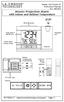 Model: WS-5220U-IT Instruction Manual DC: 082415 Atomic Projection Alarm with Indoor and Outdoor Temperature SNOOZE button Time, Alarm + WWVB Icon Projection arm Indoor Temp., Outdoor Temp. Battery Compartment
Stellarium a valuable resource for teaching astronomy in the classroom and beyond
 Stellarium 1 Stellarium a valuable resource for teaching astronomy in the classroom and beyond Stephen Hughes Department of Physical and Chemical Sciences, Queensland University of Technology, Gardens
Wireless Alarm System. Alarm Siren. User s Manual. Choice ALERT. Control all Sensors & accessories from one location
 45136 Wireless Alarm System Alarm Siren User s Manual Low Batt On Armed ON/OFF LEARN Choice ALERT Control all Sensors & accessories from one location Table of Contents Important Safeguards 4 Introduction
WLAN600 Wireless IP Phone Administrator s Guide
 WLAN600 Wireless IP Phone Administrator s Guide Trademark Acknowledgement All brand names are trademarks or registered trademarks of their respective companies. Disclaimer This document is supplied by
8 Digital Photo Frame Instructional Manual
 8 Digital Photo Frame Instructional Manual aluratek.com mnl M10126 ADMPF108F Copyright 2012 Aluratek, Inc. All Rights Reserved. Table of Contents Frame Close-up... Remote Control Close-up... Package Contents...
Atomic Projection Alarm Clock model 13021
 Instruction Manual Atomic Projection Alarm Clock model 13021 CONTENTS Unpacking Instructions... 2 Package Contents... 2 Product Registration... 2 Features & Benefits... 3 Clock Setup... 5 Atomic Clock...
Cycles in the Sky. Teacher Guide: Cycles in the Sky Page 1 of 8 2008 Discovery Communications, LLC
 Cycles in the Sky What is a Fun damental? Each Fun damental is designed to introduce your younger students to some of the basic ideas about one particular area of science. The activities in the Fun damental
Instruction Manual. 8", 10", 12" LX90 -ACF Advanced Coma-Free Telescopes and 8", 10", 12" LX90 -SC Schmidt-Cassegrain Telescopes AutoStar GPS
 Instruction Manual 8", 10", 12" LX90 -ACF Advanced Coma-Free Telescopes and 8", 10", 12" LX90 -SC Schmidt-Cassegrain Telescopes AutoStar GPS WARNING! Never use a Meade LX90 Telescope to look at the Sun!
User Guide. BLUETOOTH WIRELESS KEYBOARD for ipad
 BLUETOOTH WIRELESS KEYBOARD for ipad 410-2119-001A / AKB32US 1 YEAR LIMITED WARRANTY: We pride ourselves on the quality of our products. For complete warranty details and a list of our worldwide offices,
1-2. What is the name given to the path of the Sun as seen from Earth? a.) Equinox b.) Celestial equator c.) Solstice d.
 Chapter 1 1-1. How long does it take the Earth to orbit the Sun? a.) one sidereal day b.) one month c.) one year X d.) one hour 1-2. What is the name given to the path of the Sun as seen from Earth? a.)
G-PORTER. Portable GPS Tracker GP-102 User s Manual
 G-PORTER Portable GPS Tracker GP-102 User s Manual Chapter 1 GP-102 Overview The GP-102 is the best available portable GPS tracker and sports analyzer with the most functions with the simplest operations.
User Guide for the Wireless Headset (HS-11W) 9235346 Issue 1
 User Guide for the Wireless Headset (HS-11W) 9235346 Issue 1 DECLARATION OF CONFORMITY We, NOKIA CORPORATION declare under our sole responsibility that the product HS-11W is in conformity with the provisions
USB 2.0 4-Port Hub with USB Power Cable. User s Manual
 USB 2.0 4-Port Hub with USB Power Cable Model: UH2500 User s Manual 251104-109159 Rev. 061107 User s Record: To provide quality customer service and technical support, it is suggested that you keep the
tattletale User Guide Consumer unit version 2.48 1 P a g e
 tattletale User Guide Consumer unit version 2.48 1 P a g e Contents Basic 1... 4 Base Unit Features... 4 Initial Setup... 4 Arming... 5 Disarming... 5 Quiet Button... 5 Settings... 5 Settings 2... 6 Quick
Instruction Guide. Professional VGA to NTSC/PAL TV Converter with Remote VGA2NTSCPRO. The Professionals Source For Hard-to-Find Computer Parts
 VIDEO CONVERTER Professional VGA to NTSC/PAL TV Converter with Remote VGA2NTSCPRO Instruction Guide * Actual product may vary from photo Revised: February 4, 2003 The Professionals Source For Hard-to-Find
Fig. 2. Fig. 1a. Fig. 1b. Fig. 3
 Neo+ GPS Rangefinder Watch Quick Start Guide SIMPLE SETUP 1) Charge the battery by attaching the supplied USB cable to the Neo+ Watch (make sure you are in Watch mode with the time displayed, not on the
Instruction Manual. ETX-90AT Astro Telescope ETX-105AT Astro Telescope ETX-125AT Astro Telescope
 Instruction Manual ETX-90AT Astro Telescope ETX-105AT Astro Telescope ETX-125AT Astro Telescope WARNING! Never use a Meade ETX Astro Telescope to look at the Sun! Looking at or near the Sun will cause
ReadyNet Easy Jack 2 Voice/Data and Data Only Owner s Manual PX-211d and PX-211v
 ReadyNet Easy Jack 2 Voice/Data and Data Only Owner s Manual PX-211d and PX-211v Phonex Broadband Corporation dba ReadyNet 6952 High Tech Drive Midvale, Utah 84047 801.566.0100 Phone 801.566.0880 Fax www.readynetsolutions.com
The ecliptic - Earth s orbital plane
 The ecliptic - Earth s orbital plane The line of nodes descending node The Moon s orbital plane Moon s orbit inclination 5.45º ascending node celestial declination Zero longitude in the ecliptic The orbit
PROFESSIONAL REFRACTOR MODEL 78-0040 25
 30 0 30 60 90 1 2 3 4 PROFESSIONAL REFRACTOR MODEL 78-0040 25 24 22 21 20 19 5 9060 18 6 7 17 16 15 8 14 13 9 11 12 10 Figure 1 1. Objective Lens 2. Mounting Screws (2) 3. Declination Axis 4. Equatorial
Application and Instruction Manual Motion Activated Solar Powered LED Security Light with Camera MODEL: XP-2H38WC
 Application and Instruction Manual Motion Activated Solar Powered LED Security Light with Camera MODEL: XP-2H38WC Please do not return this item to the store. If you have any questions, please contact
ViviCam 25 Digital Camera User s Manual
 ViviCam 25 Digital Camera User s Manual 2010 Sakar International, Inc. All rights reserved. Windows and the Windows logo are registered trademarks of Microsoft Corporation. All other trademarks are the
4.3-inch Back-Up Camera
 TM 4.-inch Back-Up Camera Model No.: PKC0BU4 Owner s Manual and Warranty Information Read these instructions completely before using this product. Retain this Owner s Manual for future reference. INTRODUCTION
LED Security Spotlight User Manual
 MOT ION-TR ACKING LED Security Spotlight User Manual www.jascoproducts.com 1-800-654-8483 2 TABLE OF CONTENTS Parts List 3 Questions? Missing Parts? 4 Installation (Wall mount) 6-9 Installation (Eave mount)
Getting Started. Table of Contents. Quick User Guide - English
 Getting Started This Quick User Guide helps you get started with the IRIScan TM Anywhere Wifi. Please read this guide before operating this scanner and its software. All information is subject to change